


























Web Creating a presentation in Tome

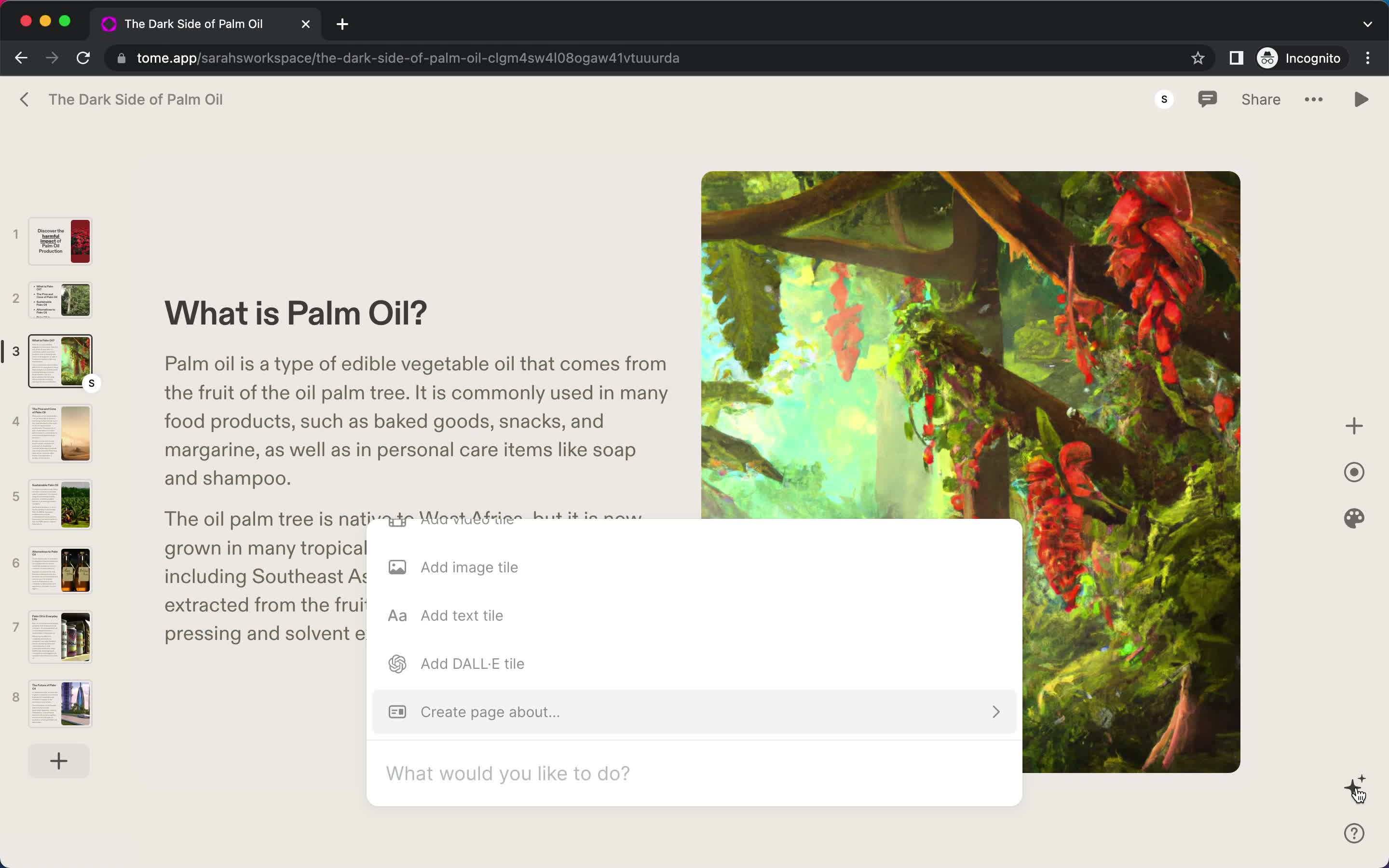
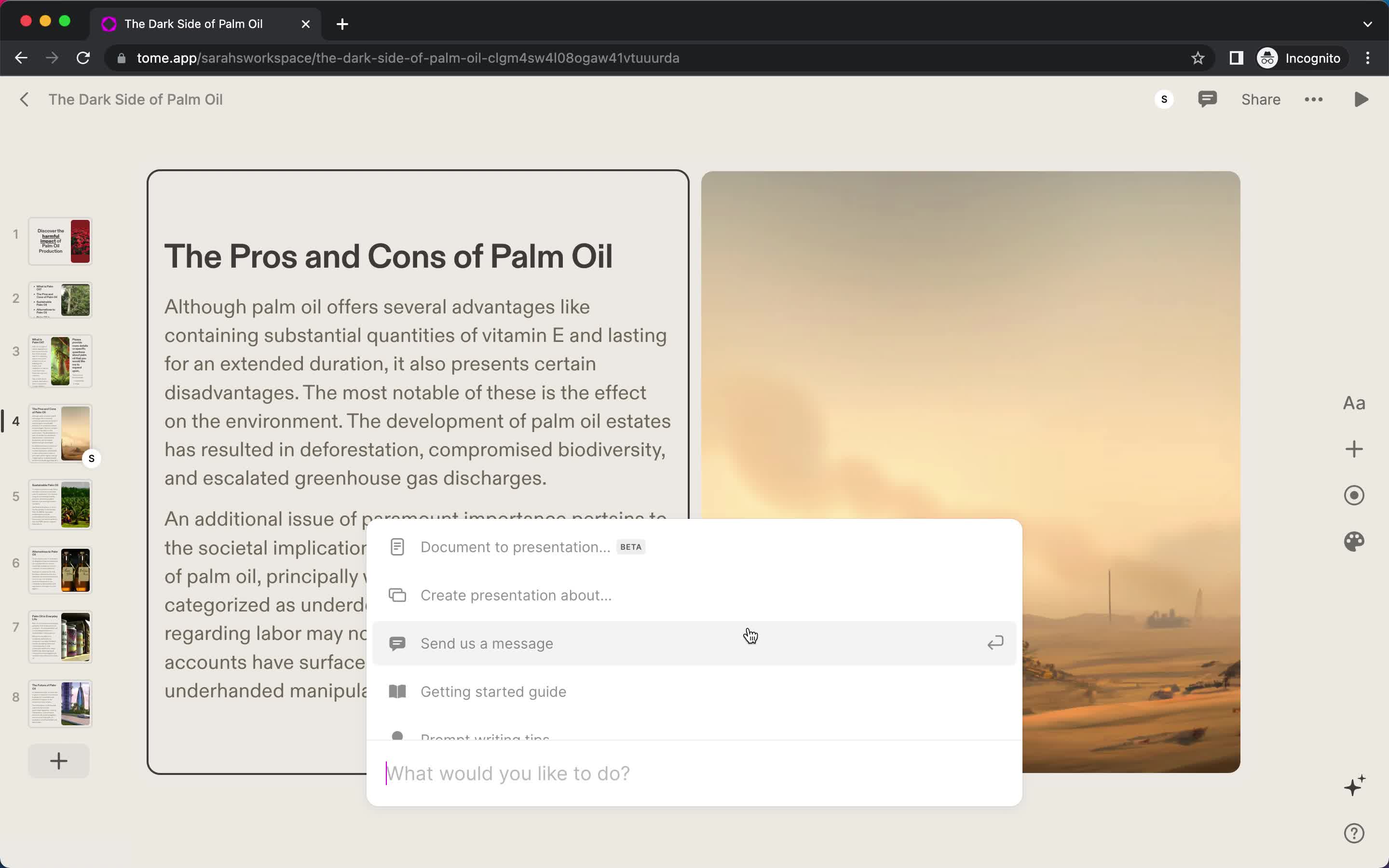
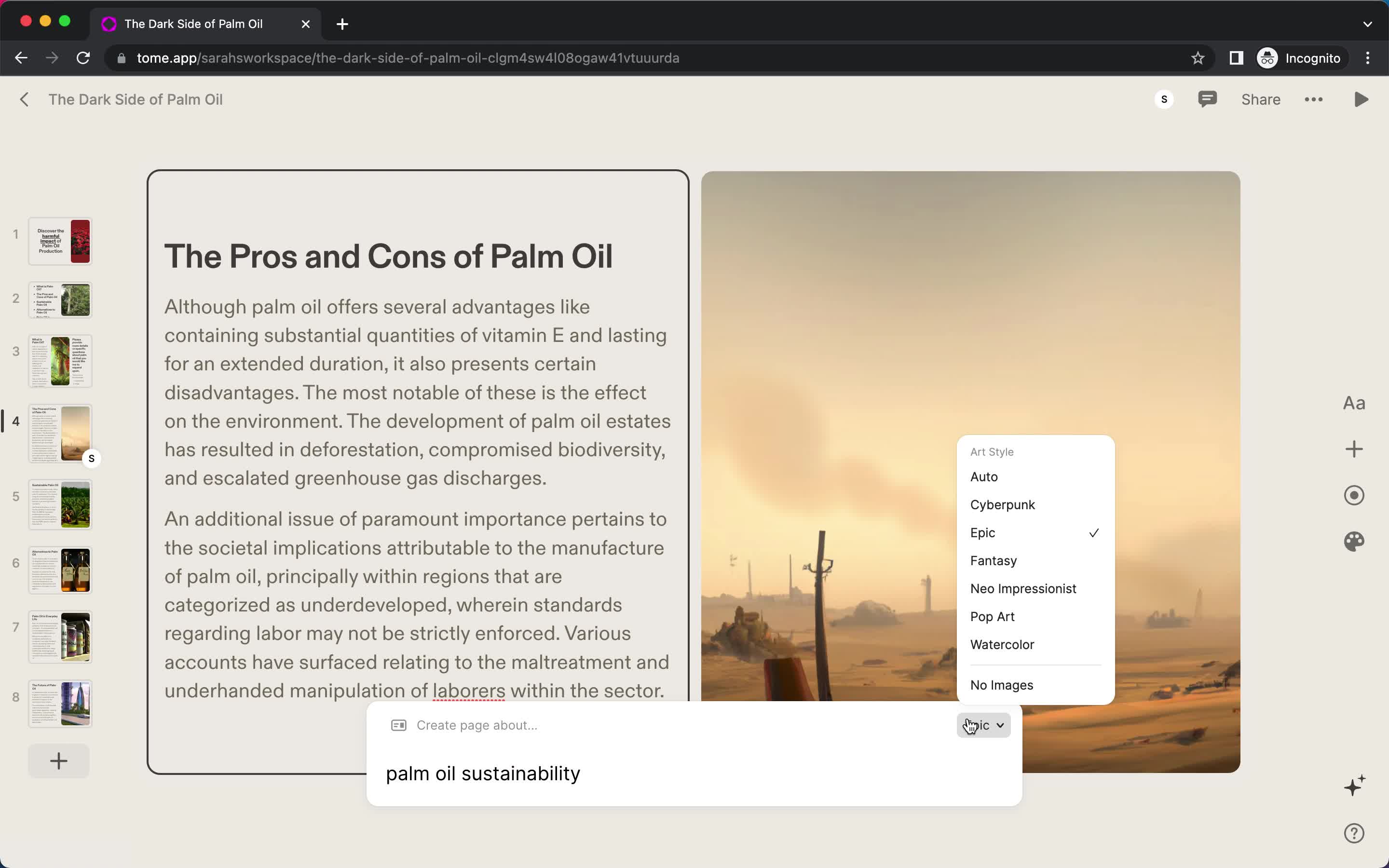
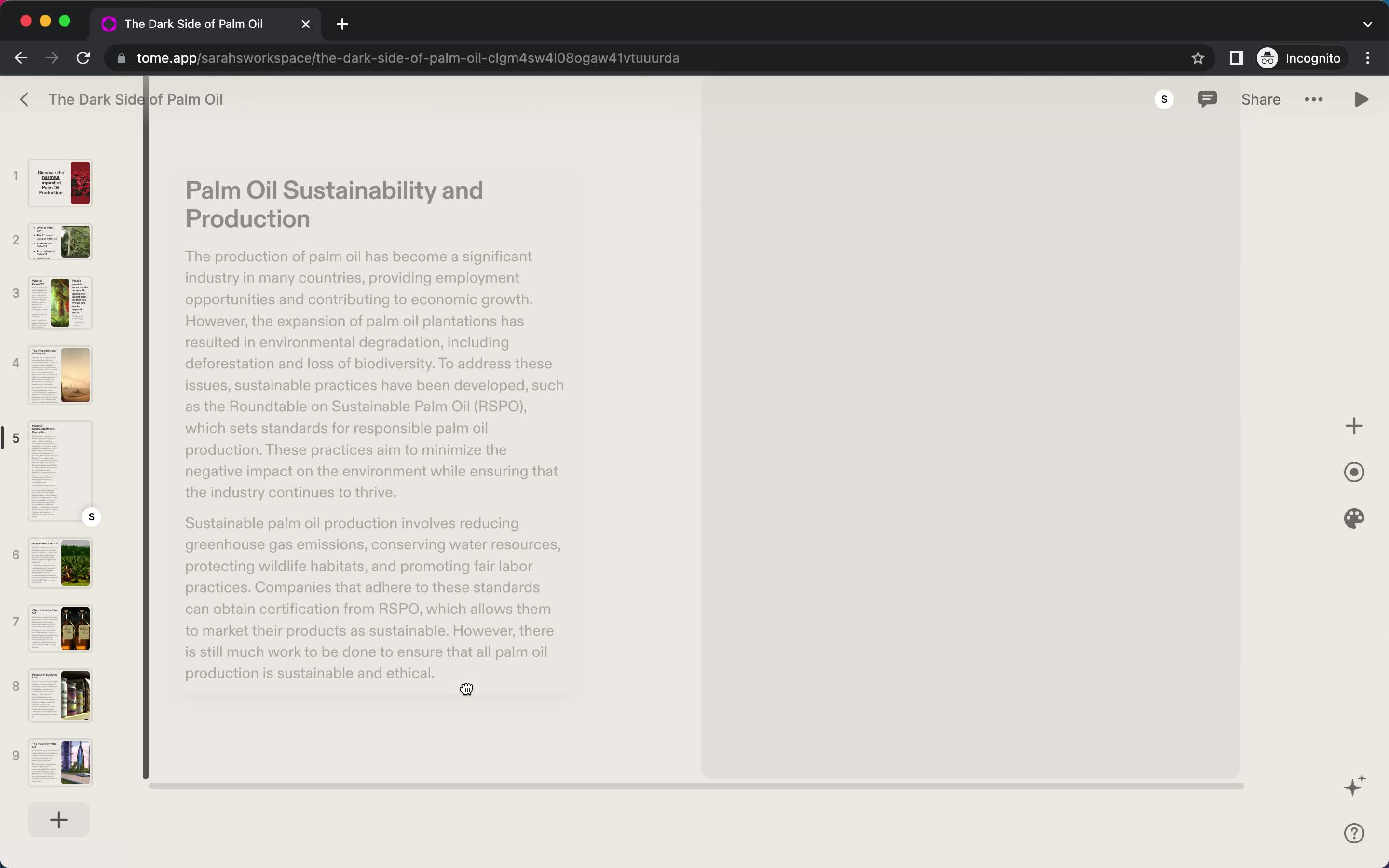
Watch a recorded Creating a presentation flow inside Tome on desktop web. Every screen and interaction is captured step by step — see exactly how Tome designs the Creating a presentation experience for web users.

Tome is an AI powered tool for creating presentations

  • Web
Video preview
In this video
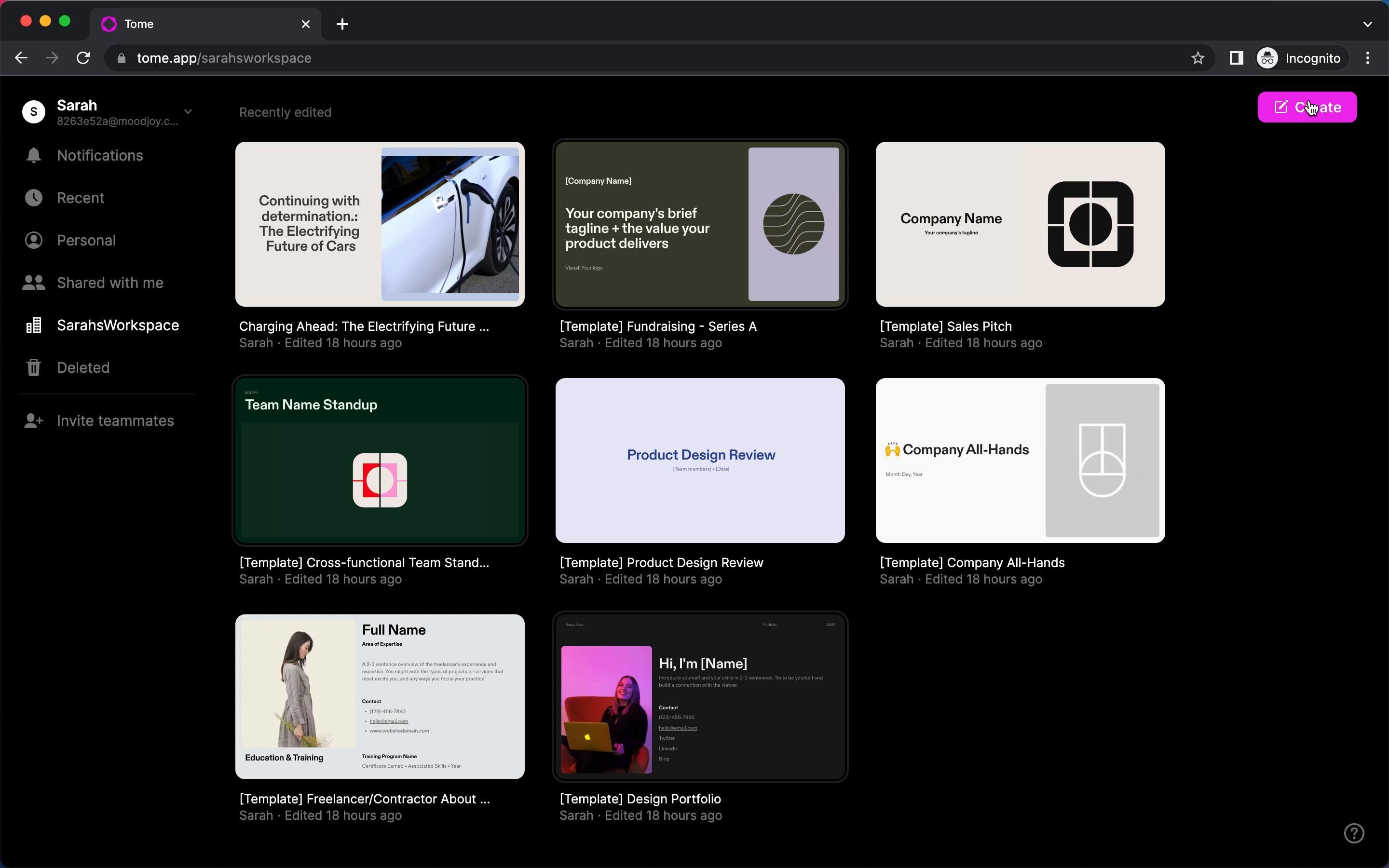
  • Dashboard
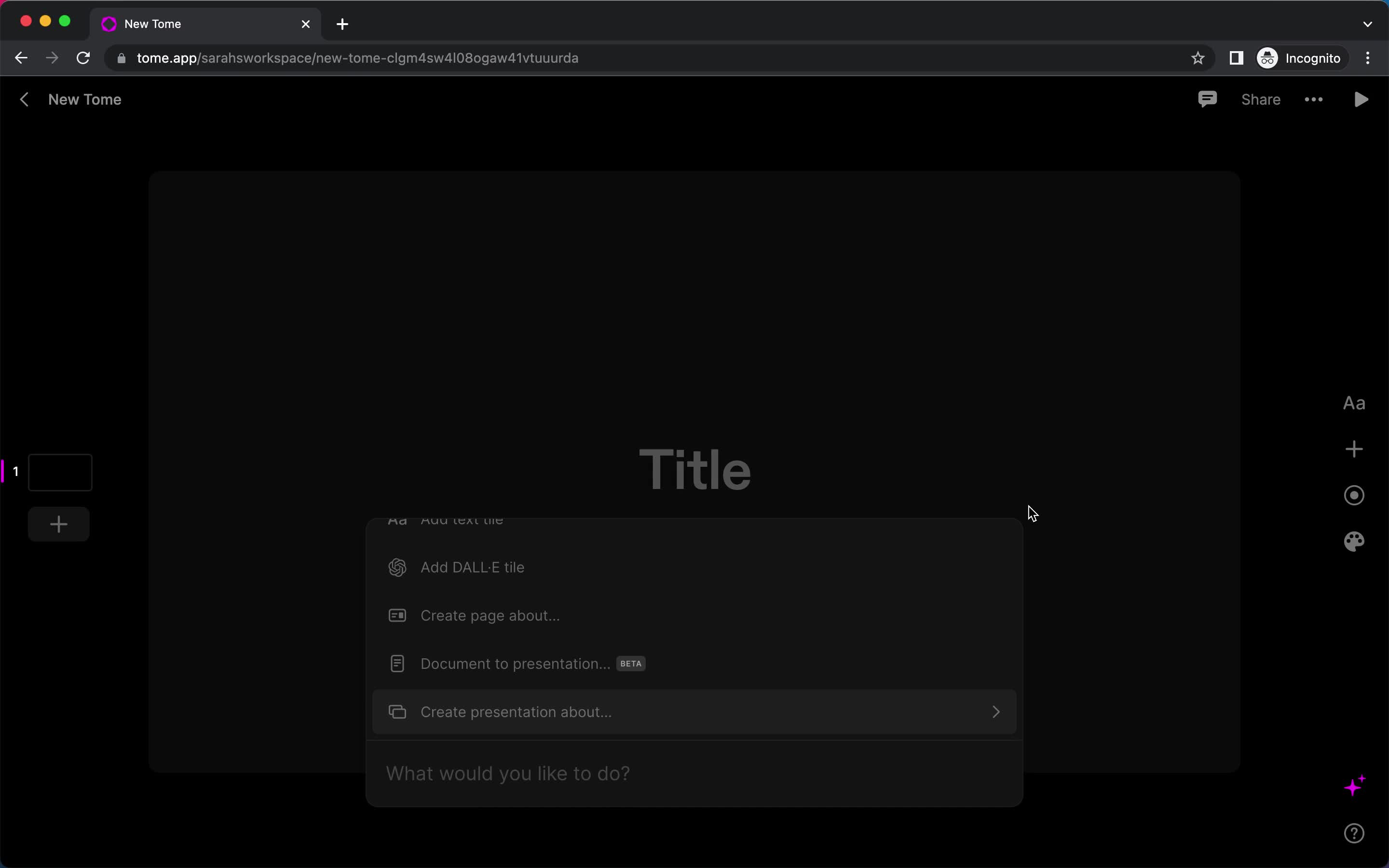
  • Command menu
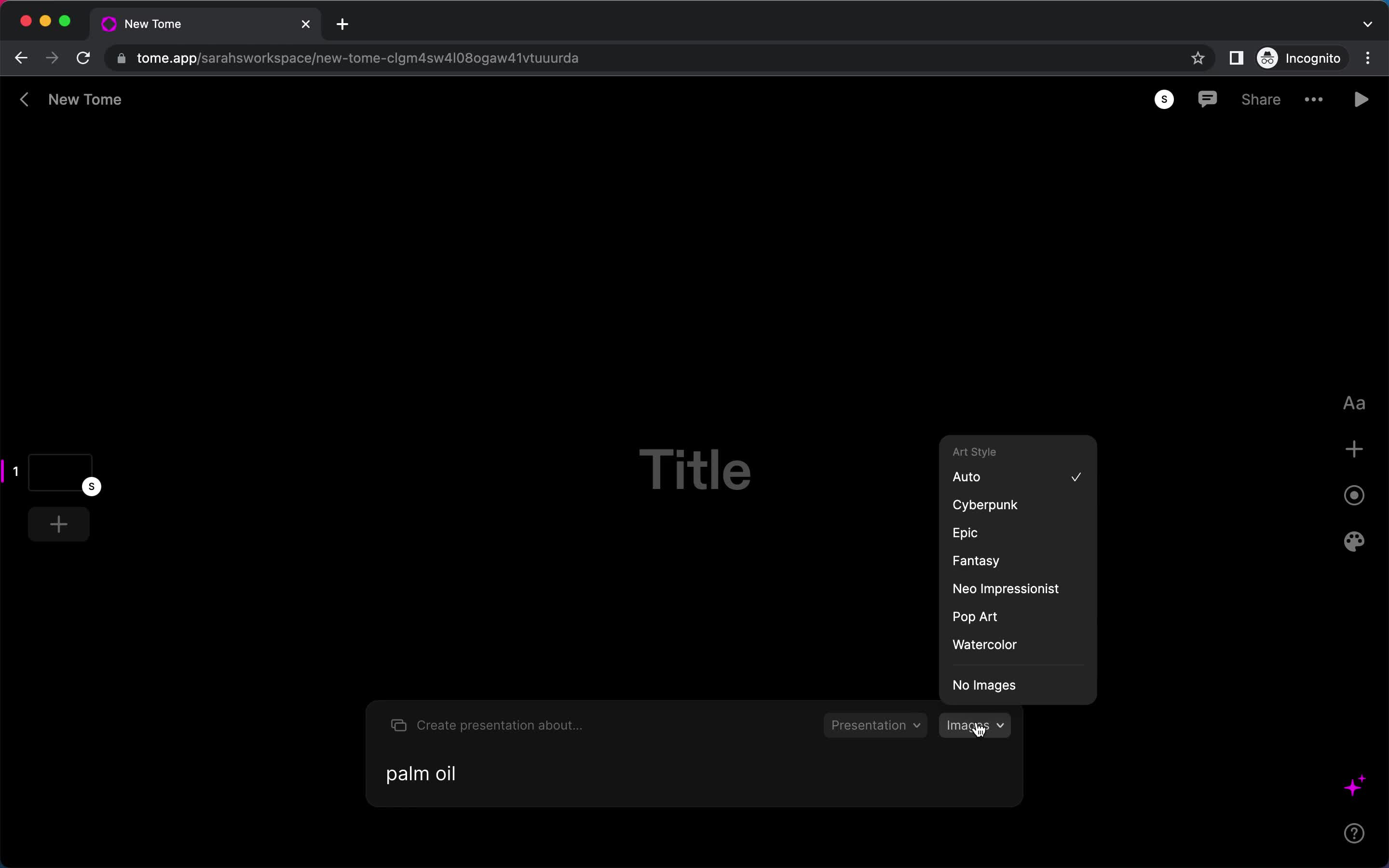
  • Select style
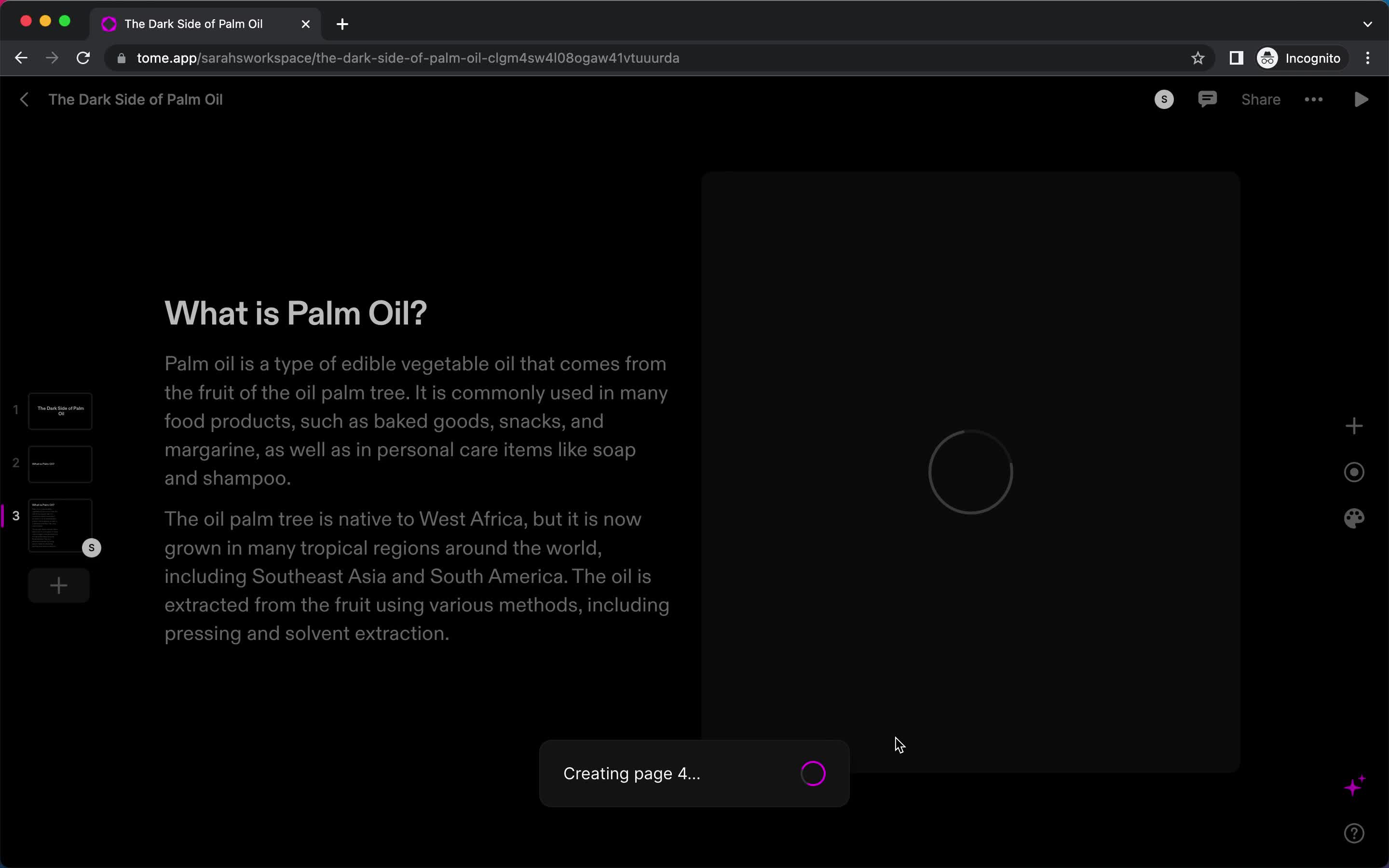
  • Loading
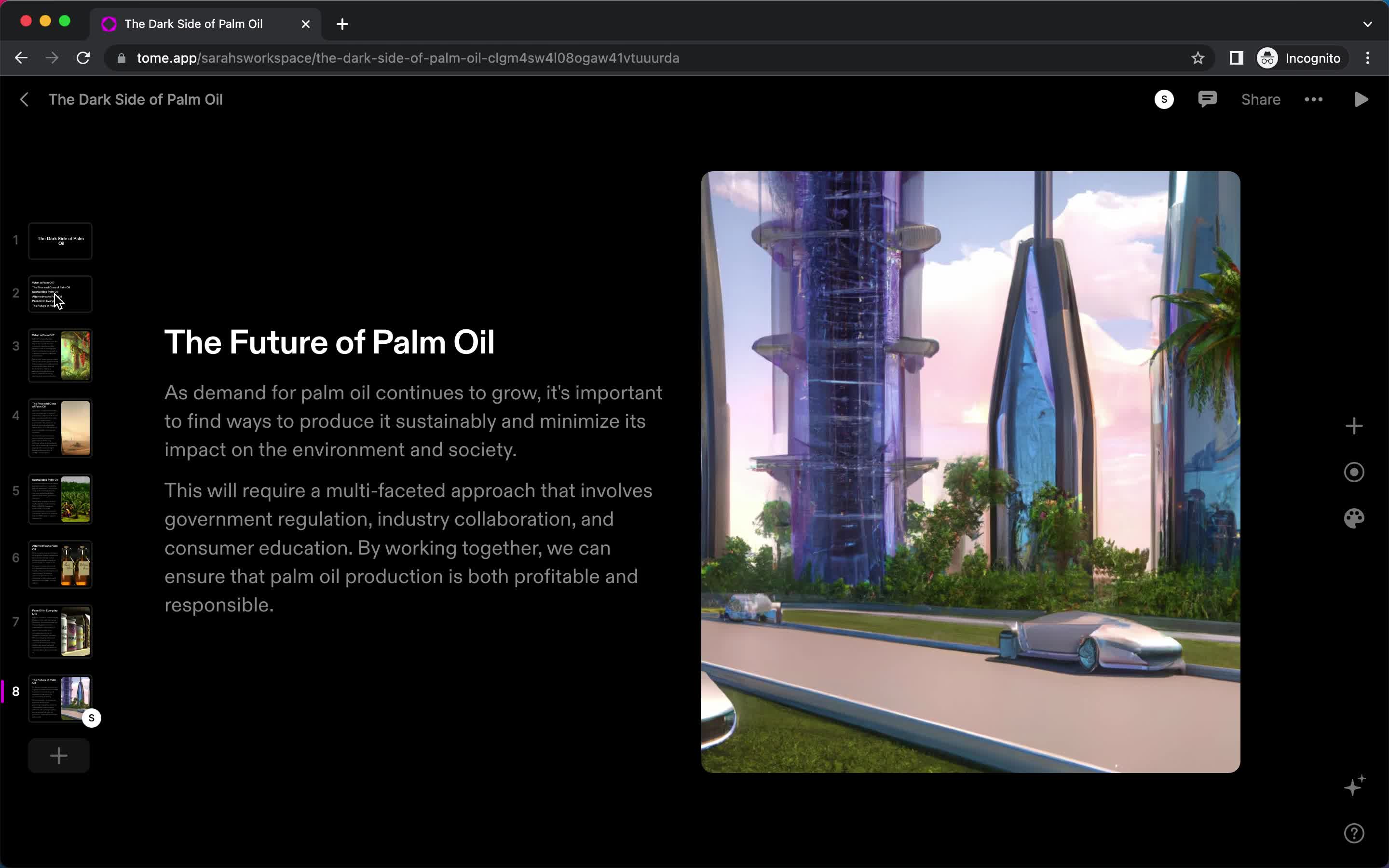
  • Editor
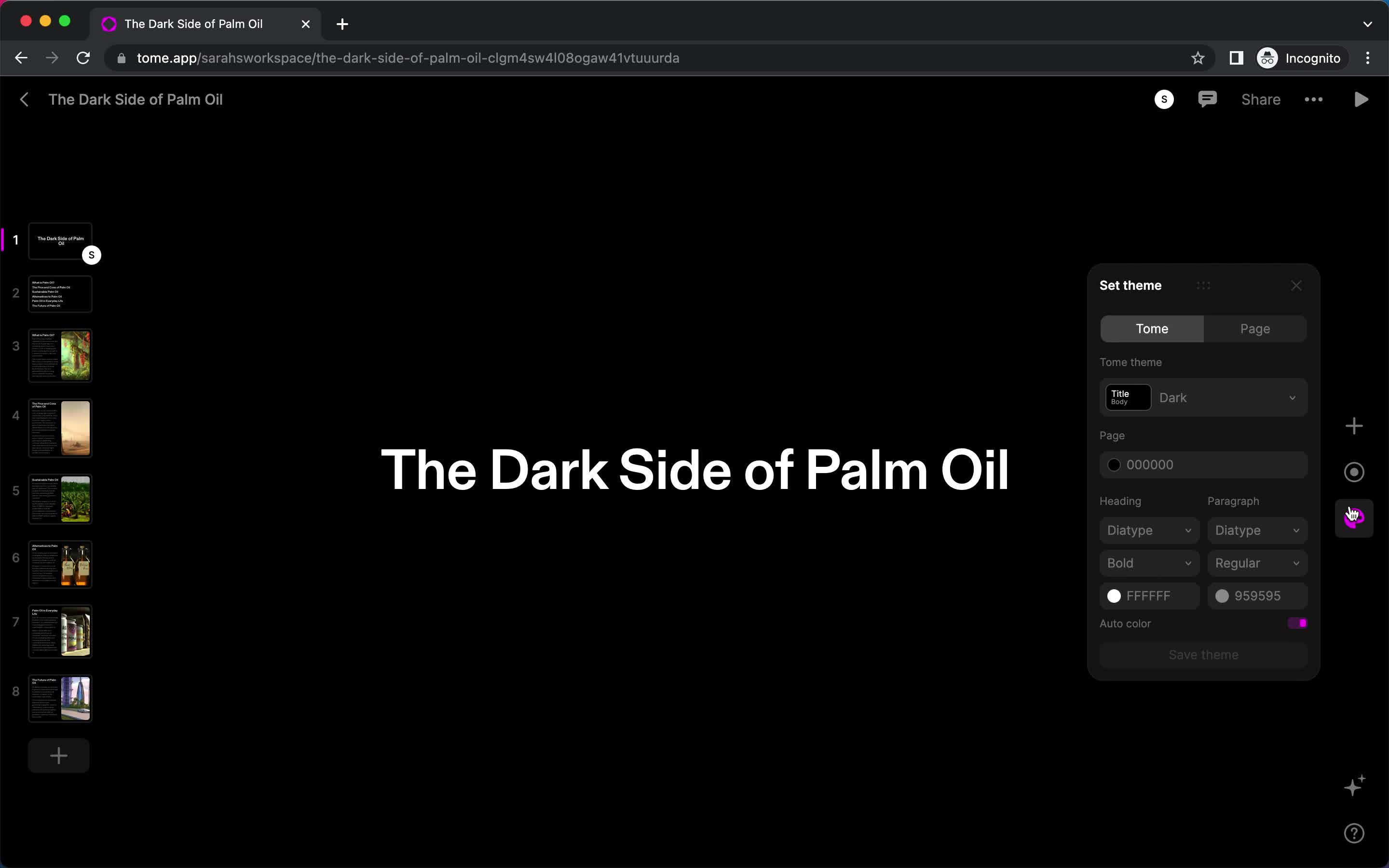
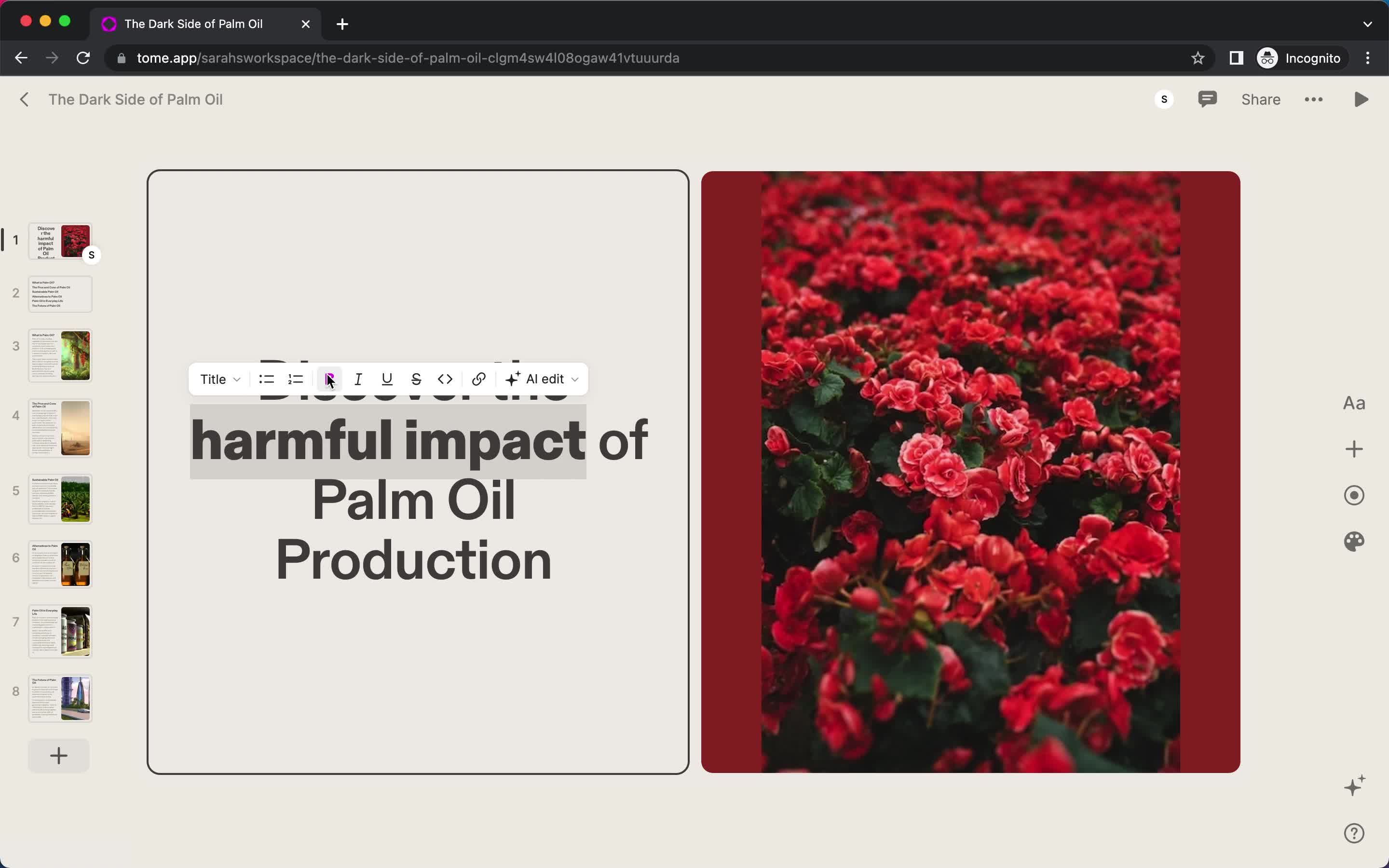
  • Customize appearance
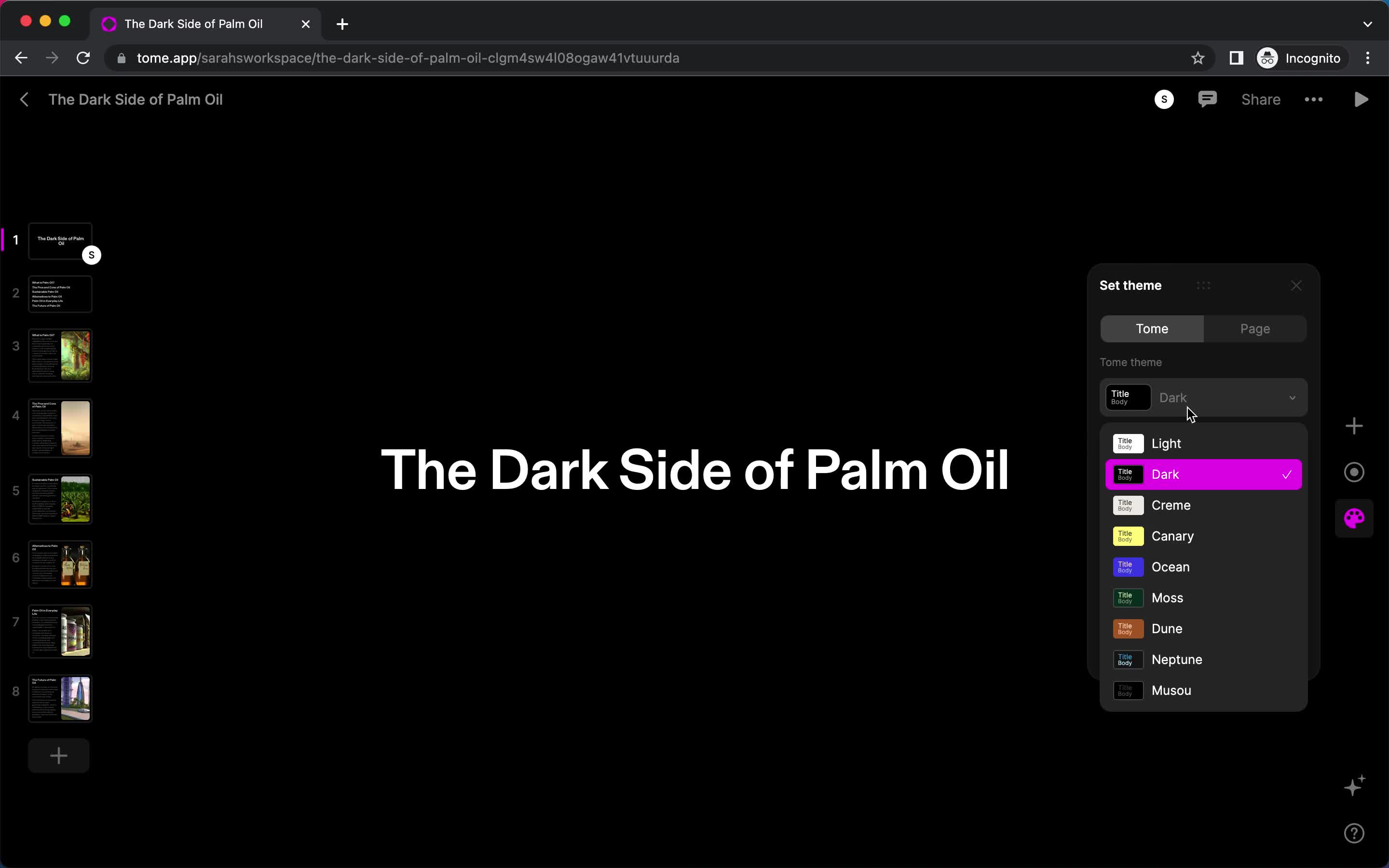
  • Select theme
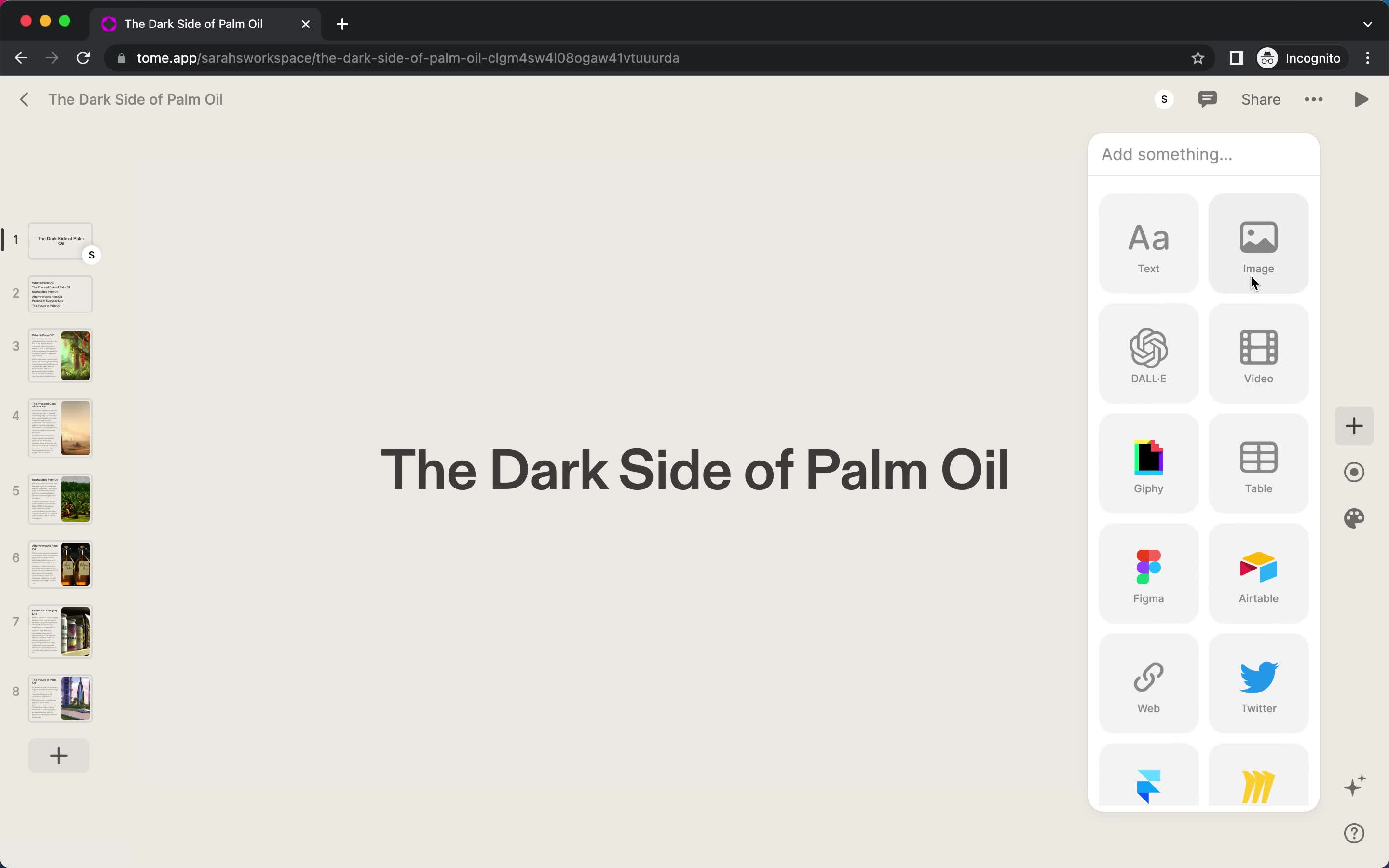
  • Add element
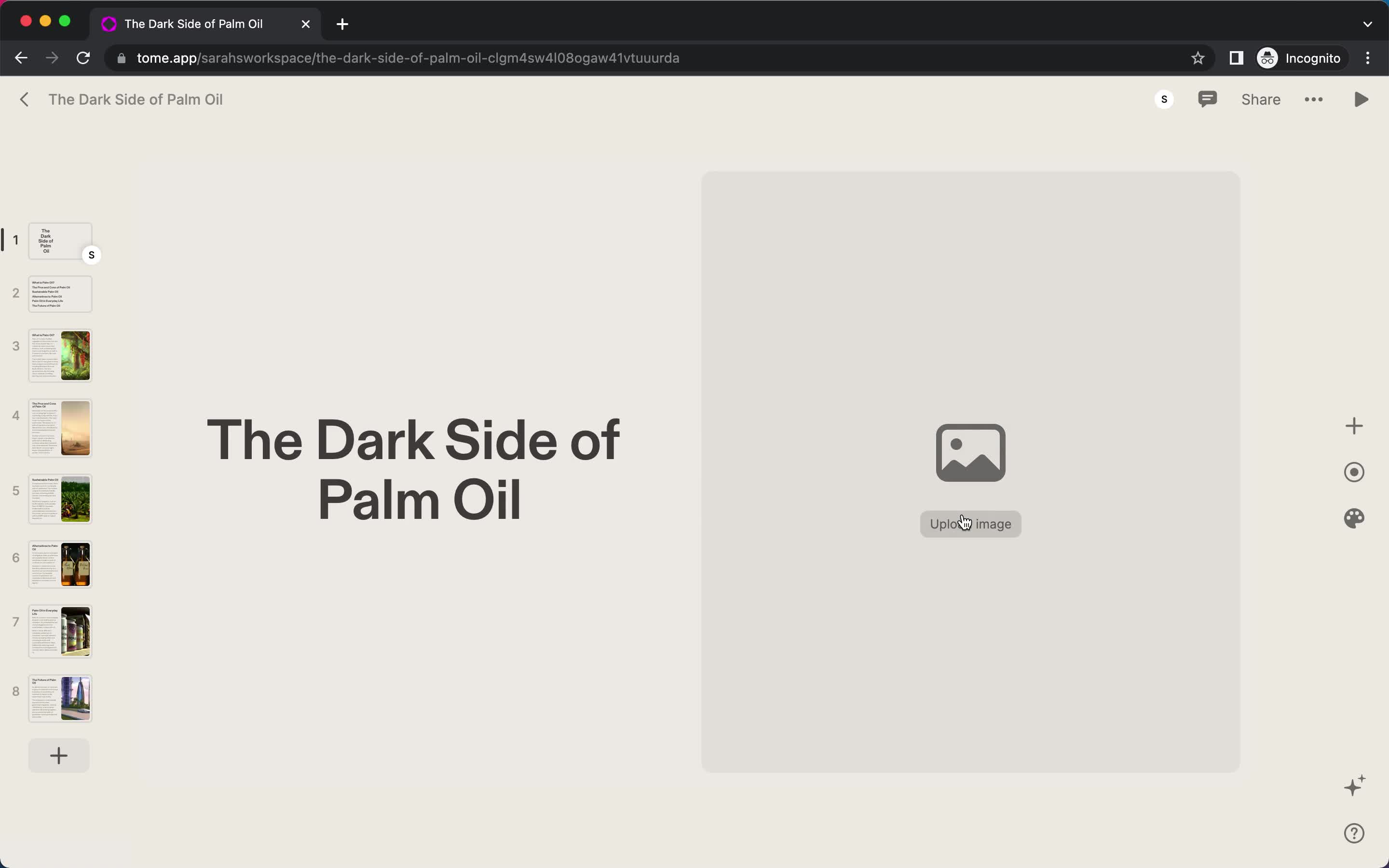
  • Upload image
  • Editor
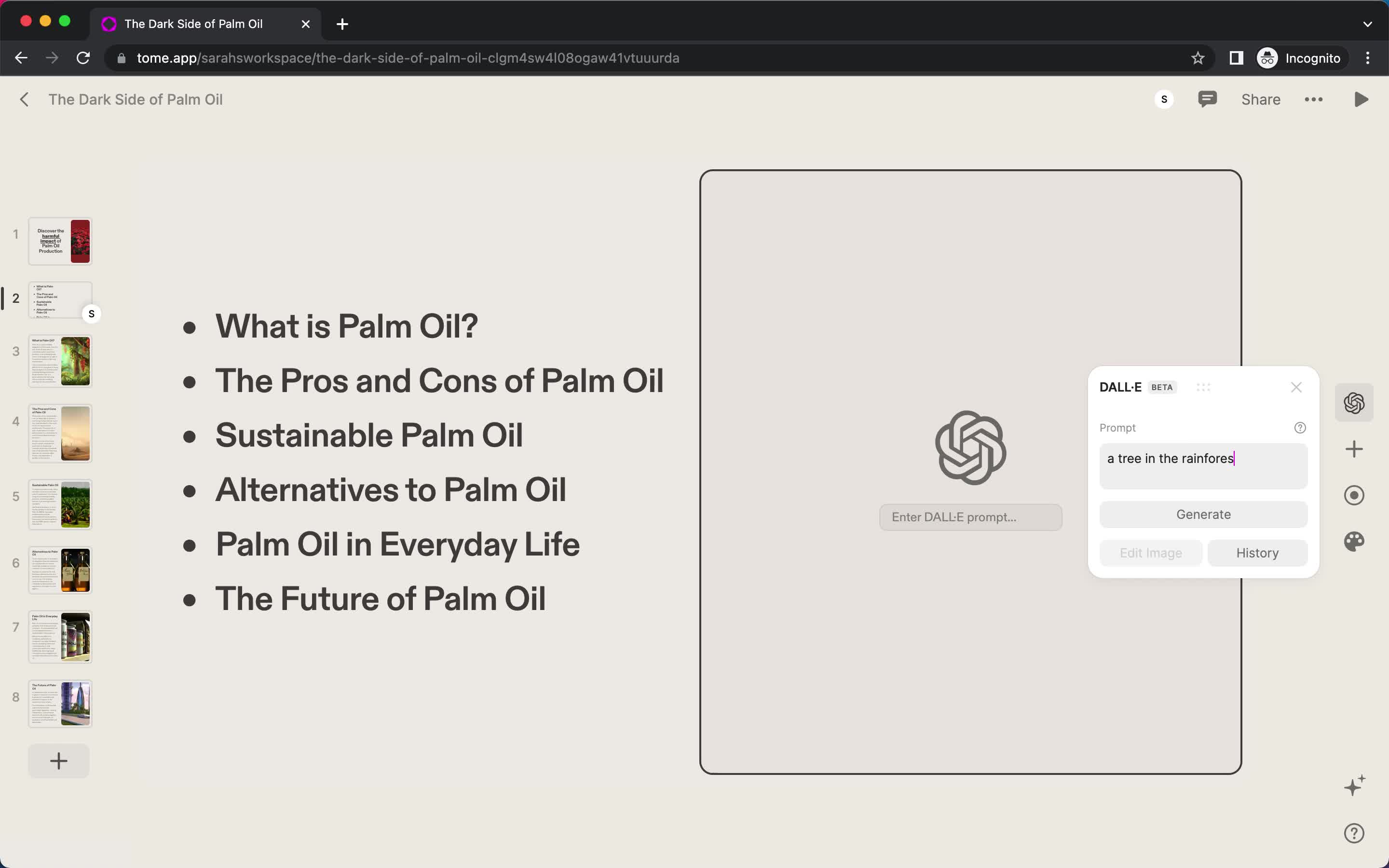
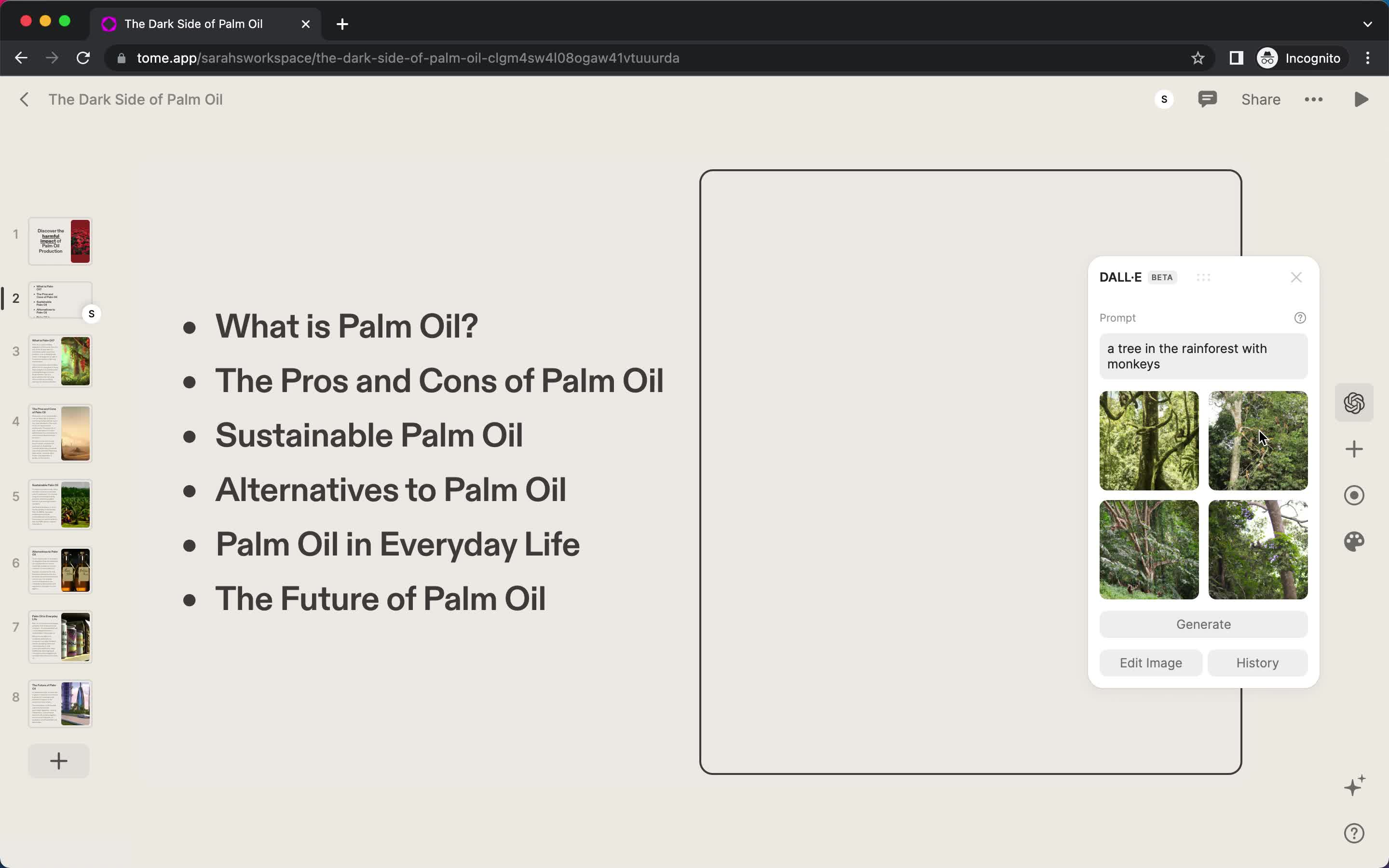
  • AI Generator
  • Add image
  • Command menu
  • Select style
  • Editor
  • AI Generator
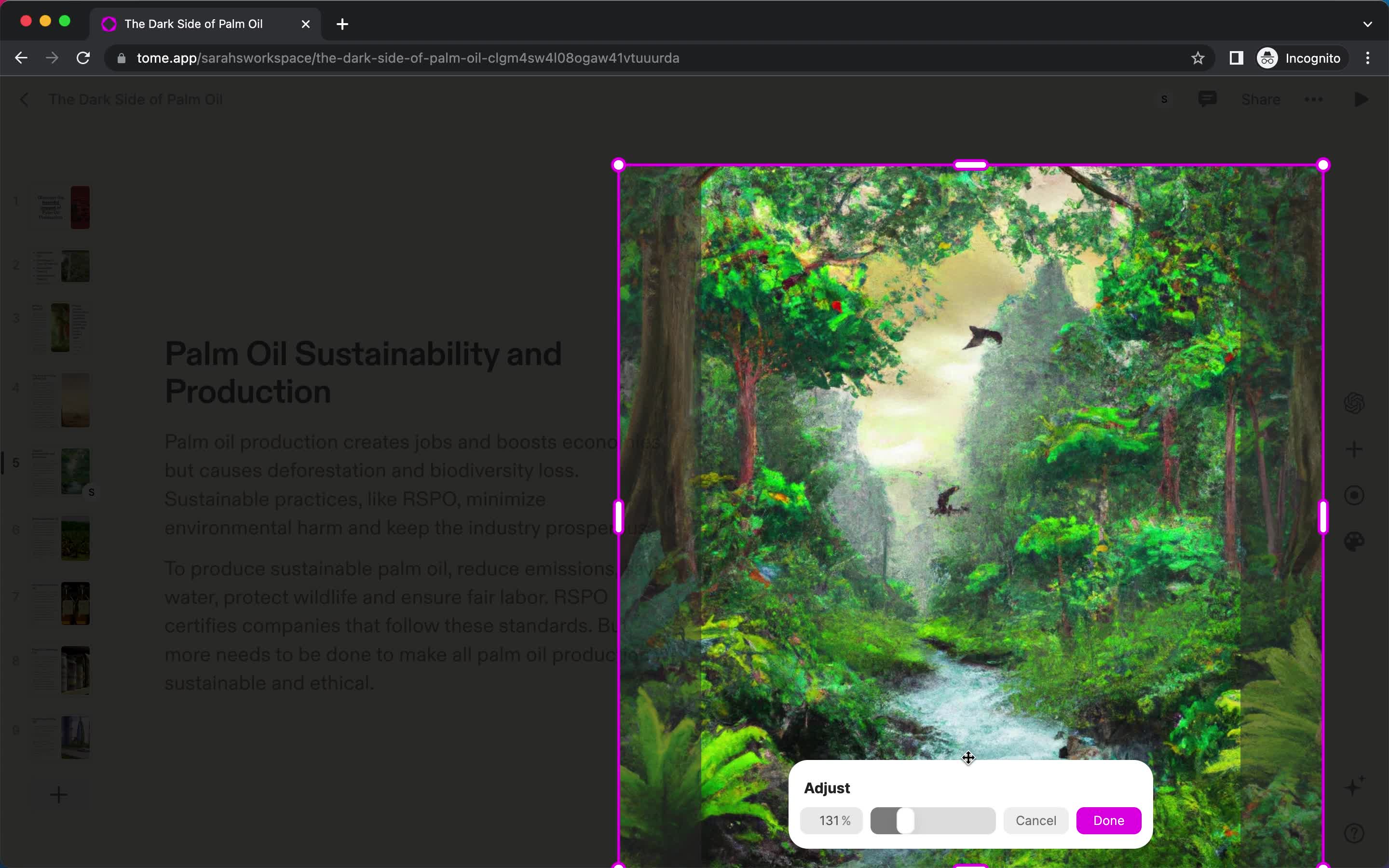
  • Crop image
  • AI Generator
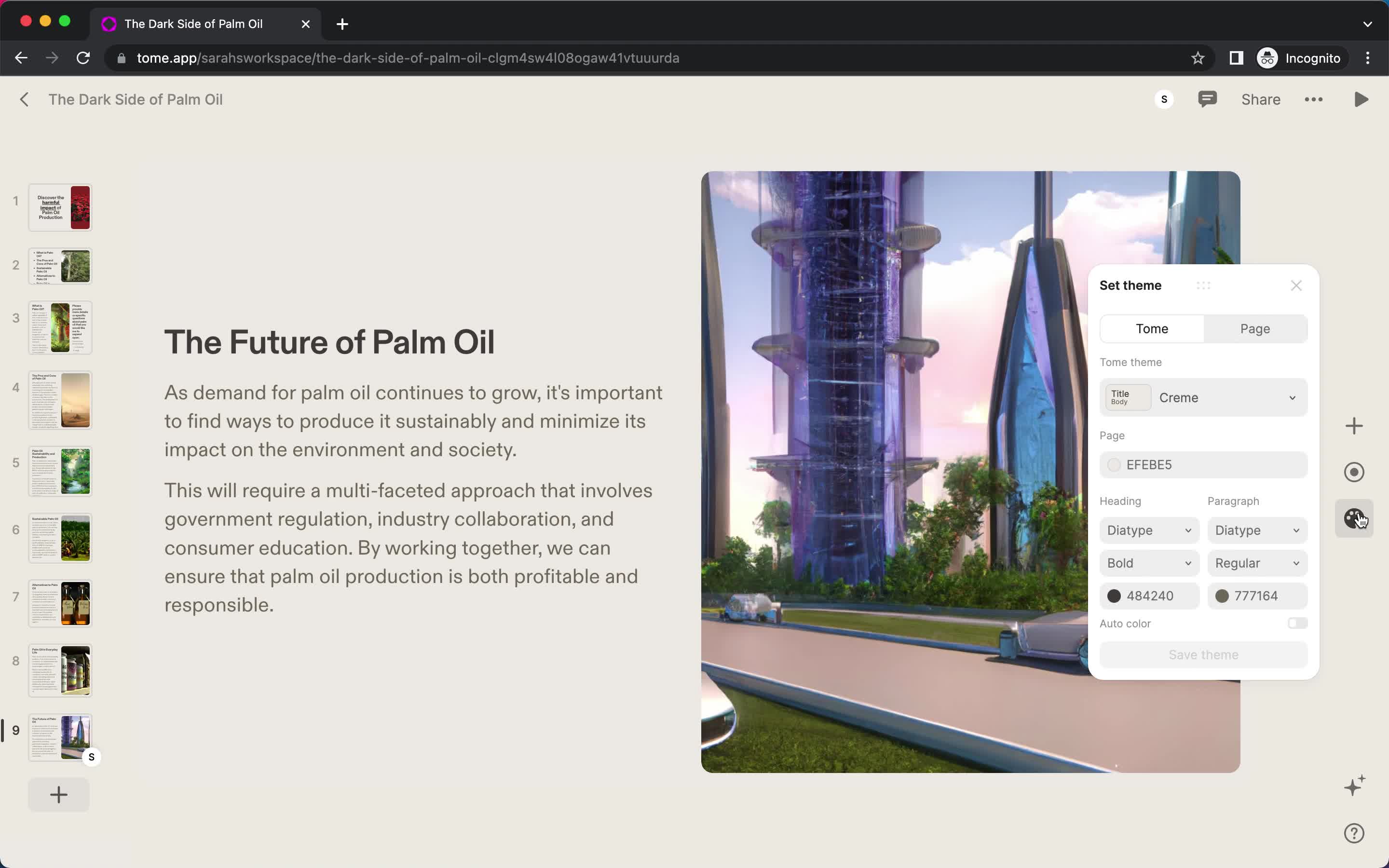
  • Theme settings
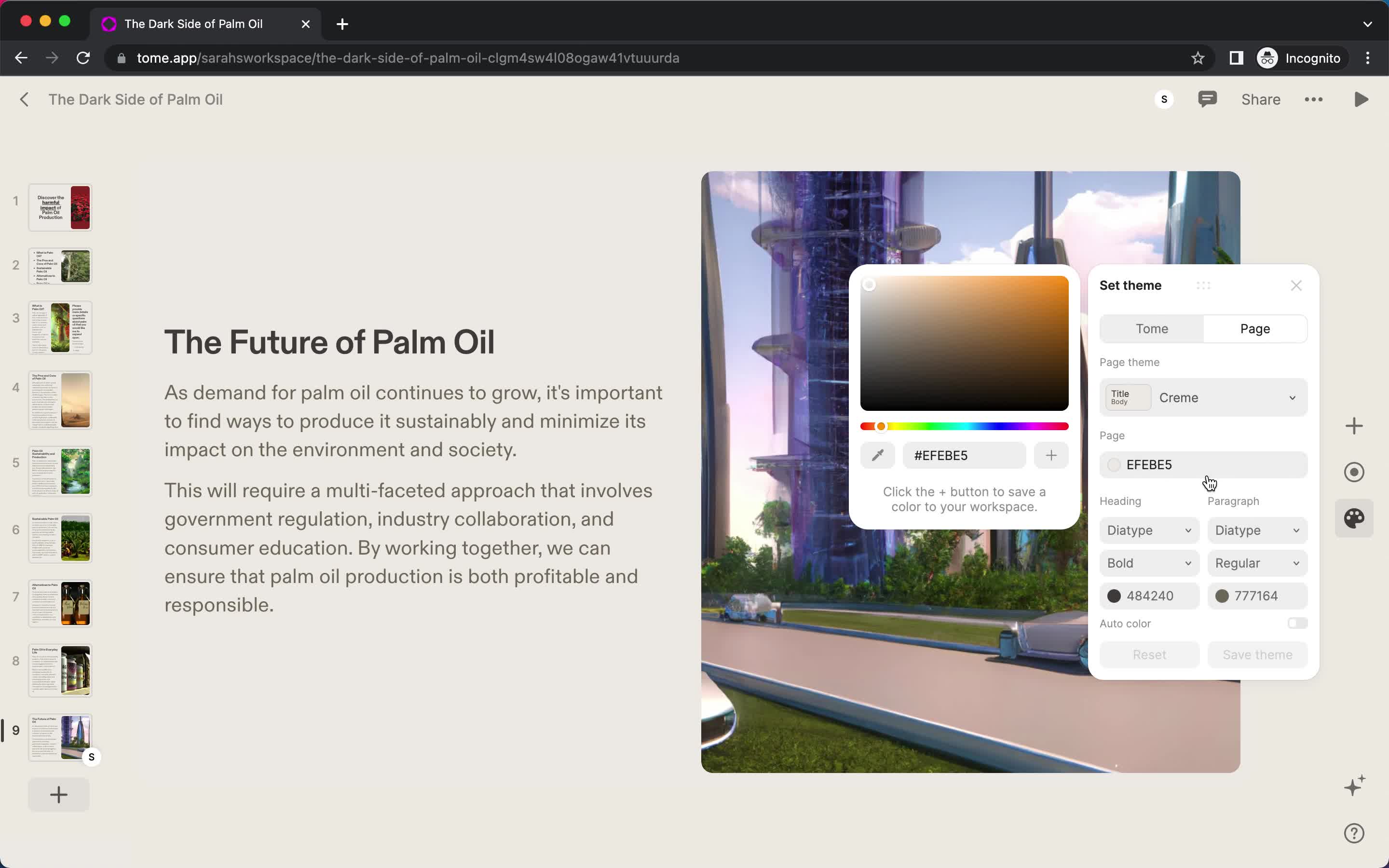
  • Choose background color
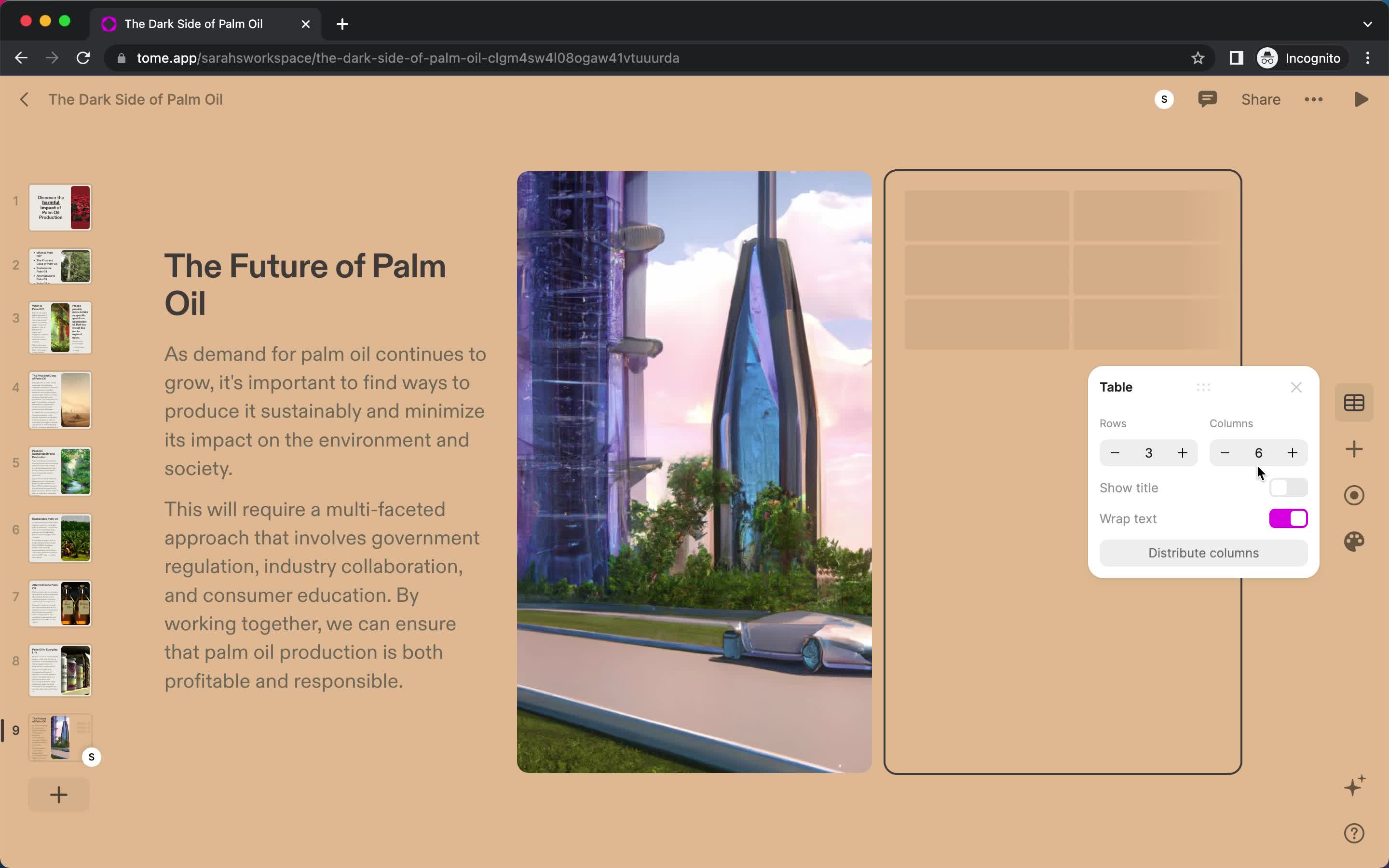
  • Create table
  • Select layout
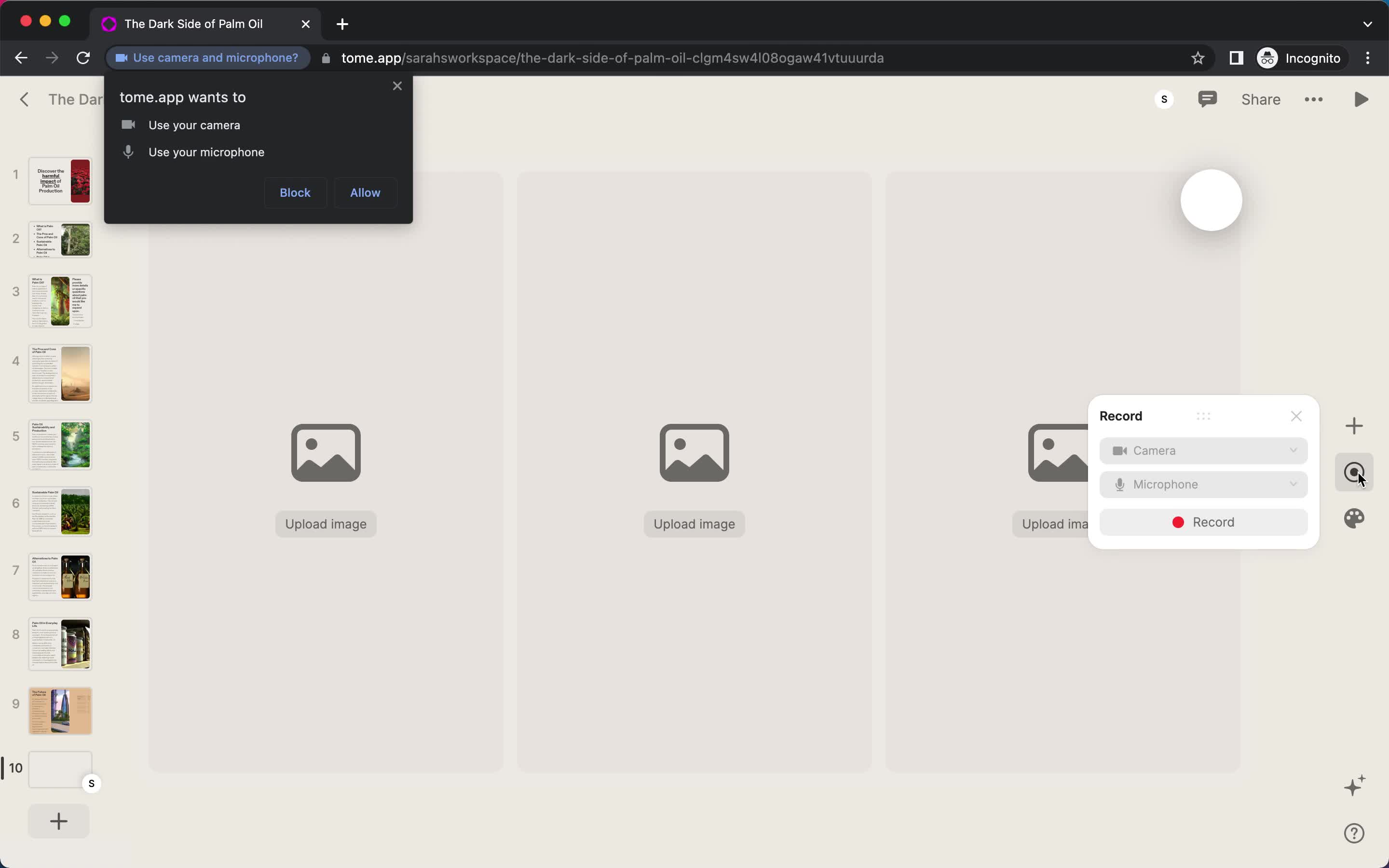
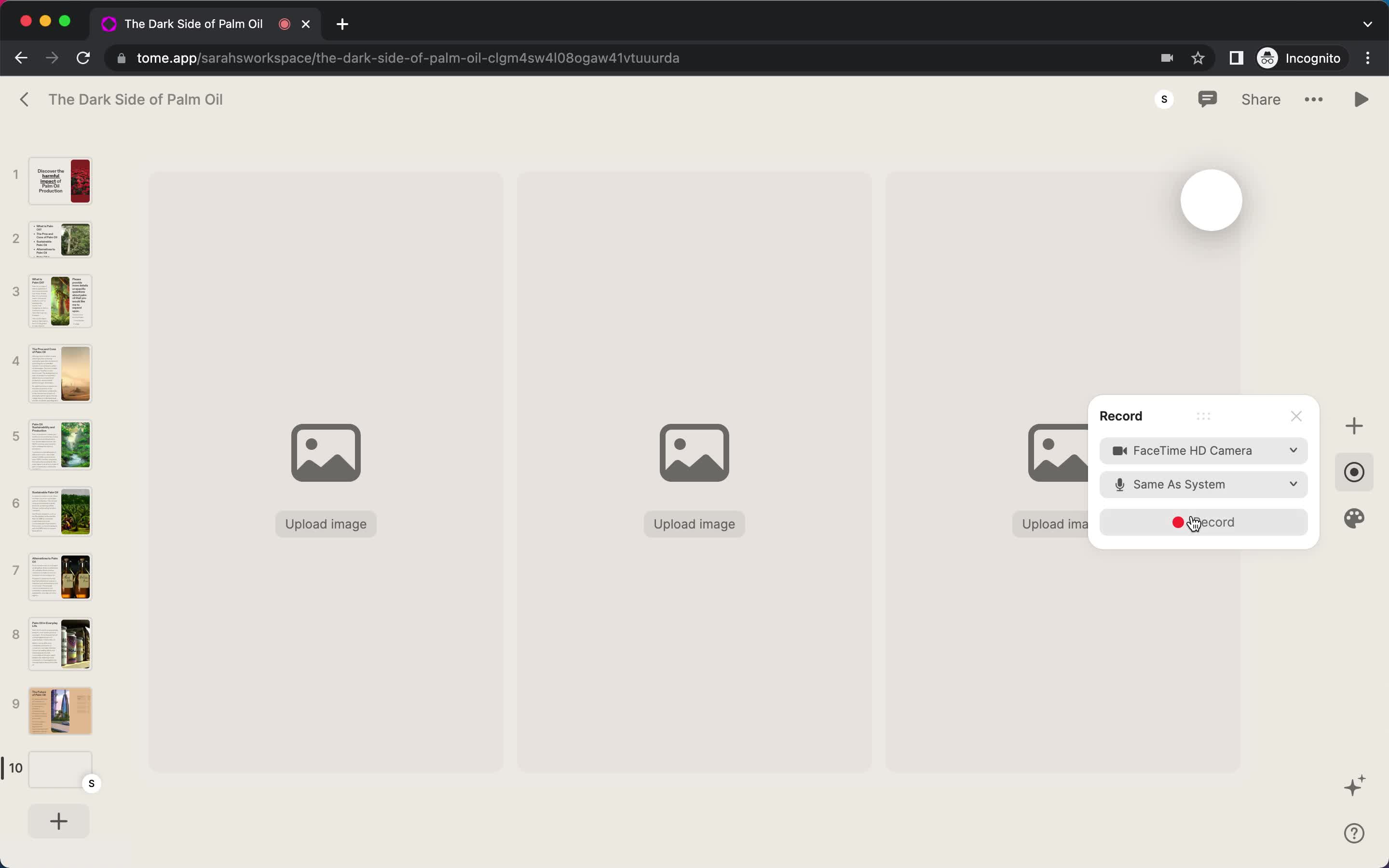
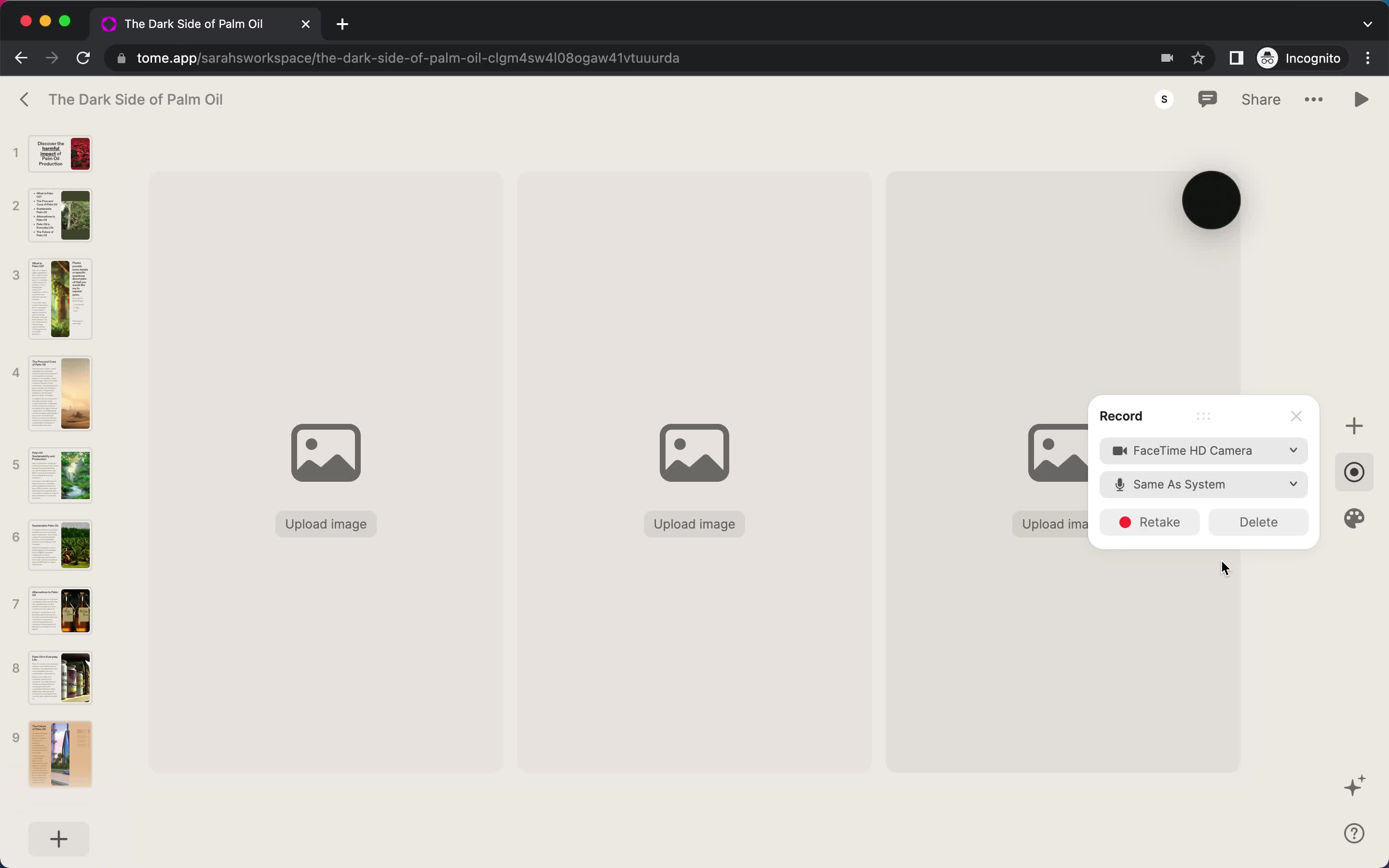
  • Record video
  • Start recording
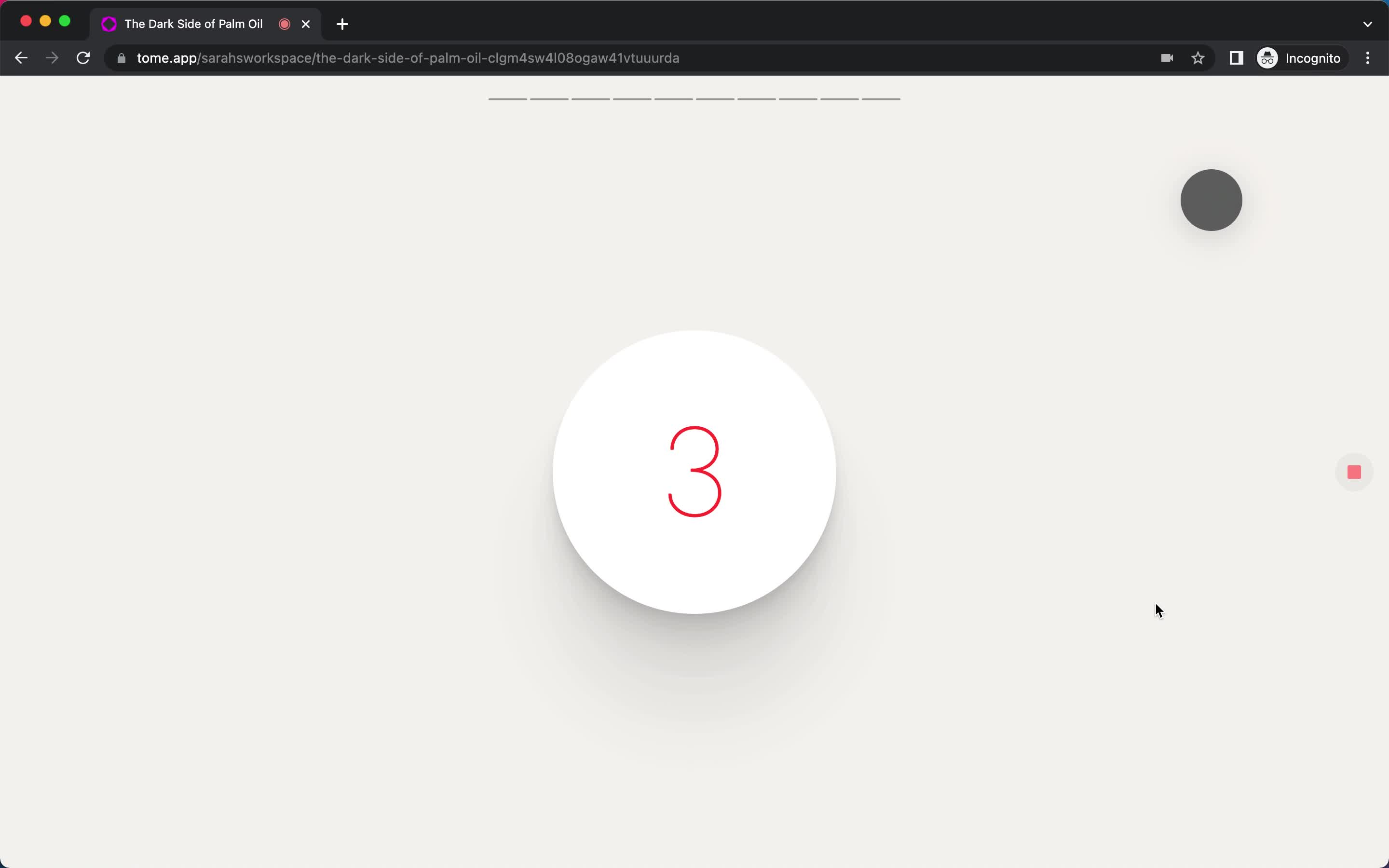
  • Countdown
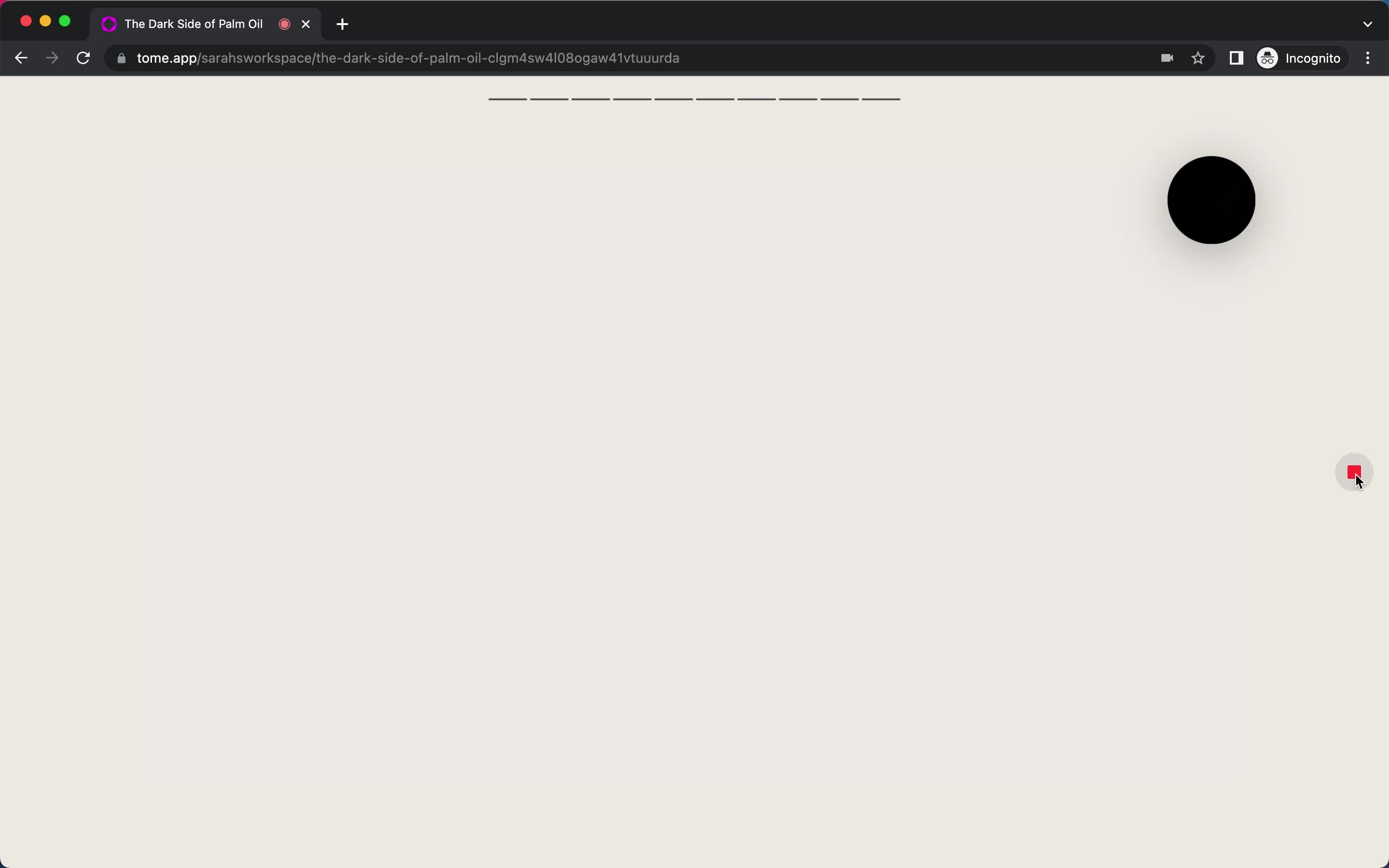
  • Stop recording
  • Recording stopped
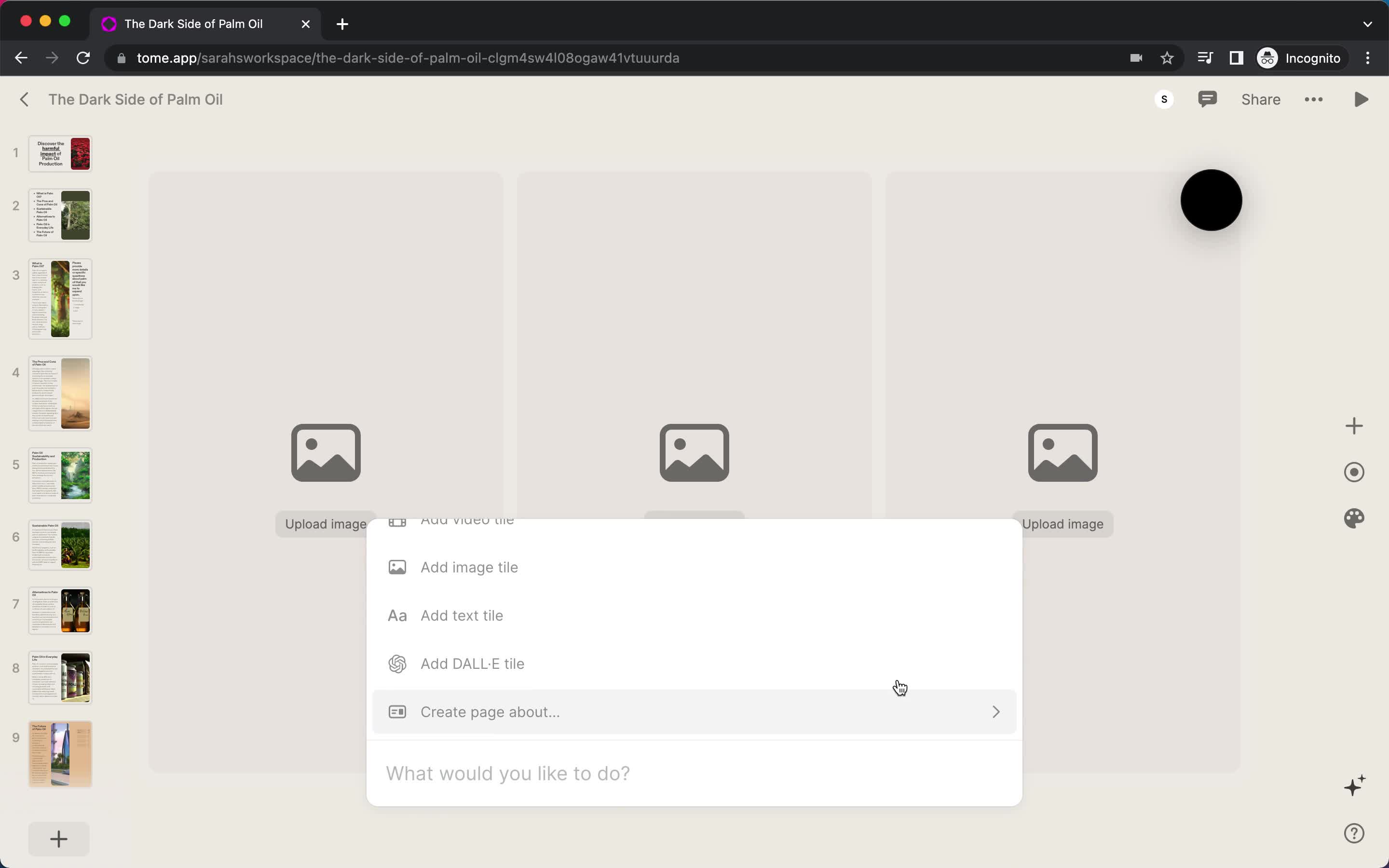
  • Command menu
  • AI Generator
  • Add image
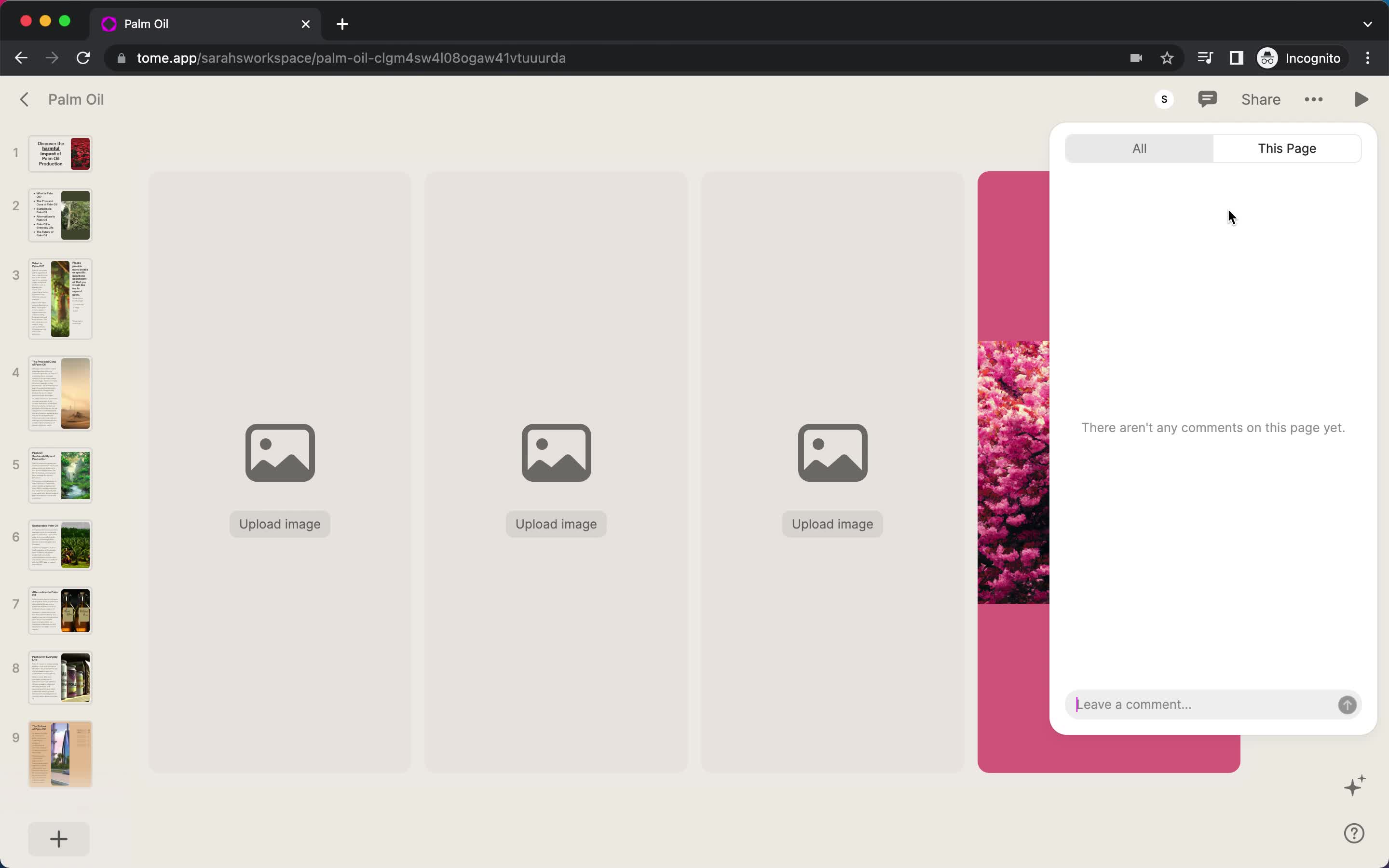
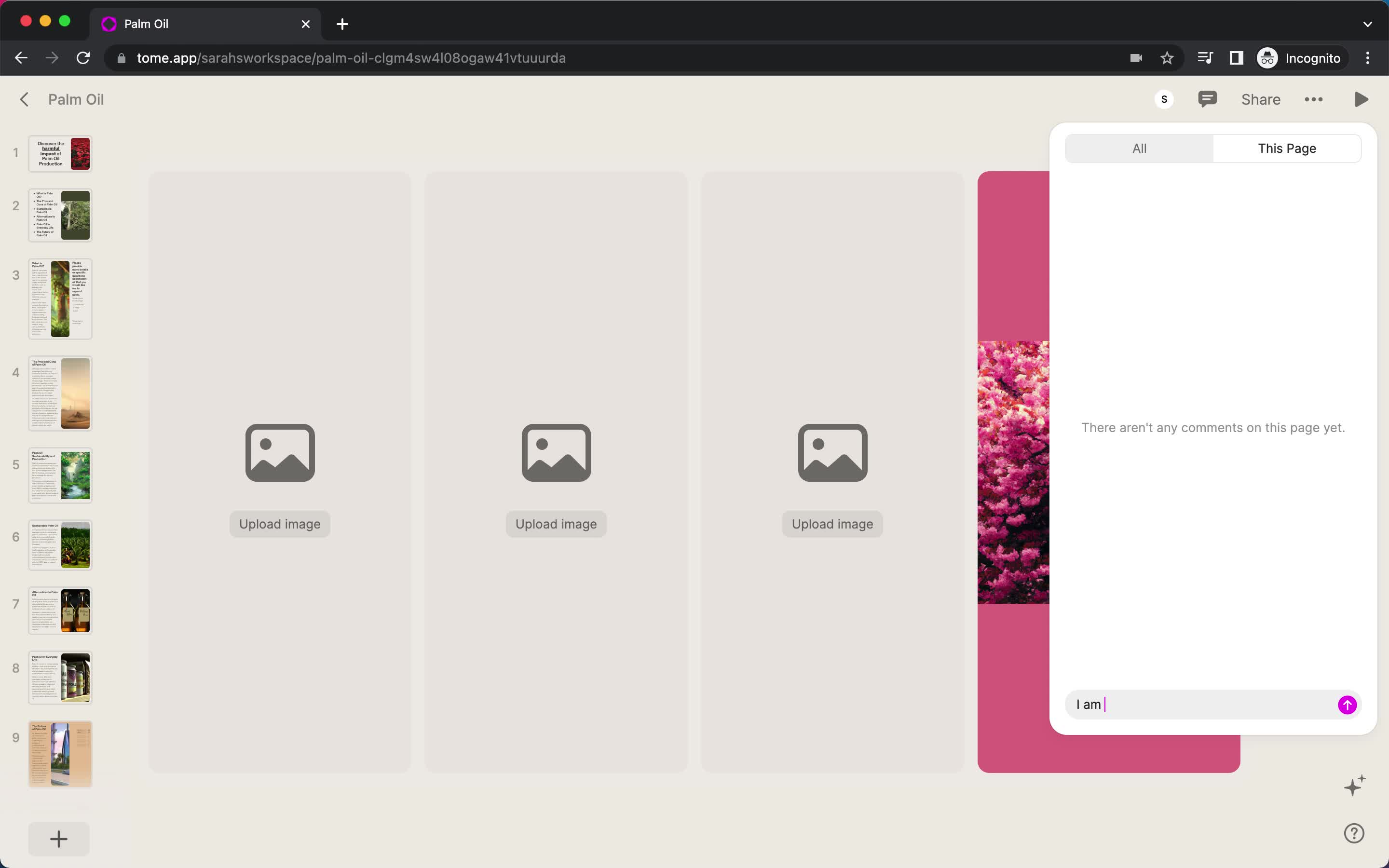
  • Comments
  • Add comment
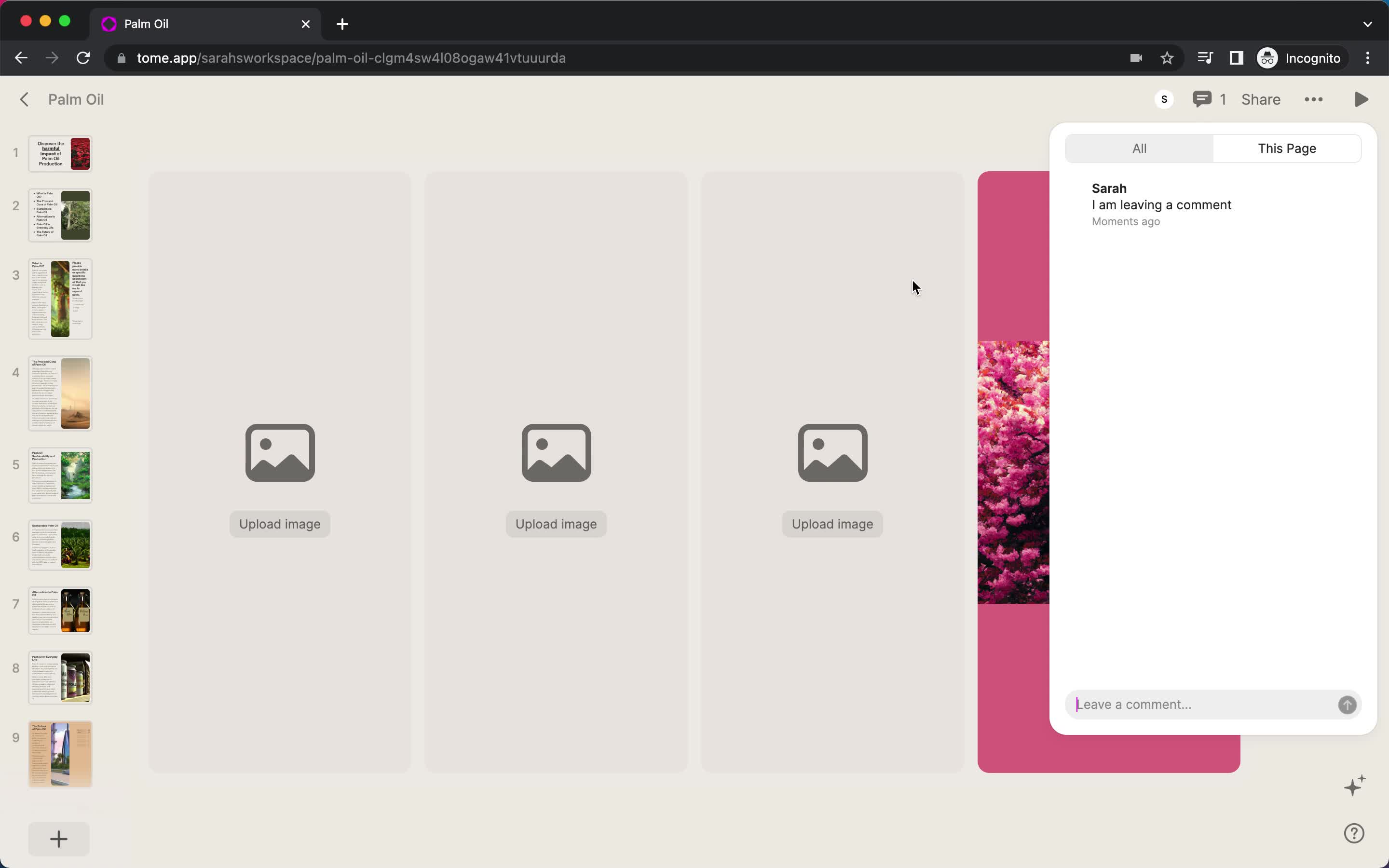
  • Comment saved
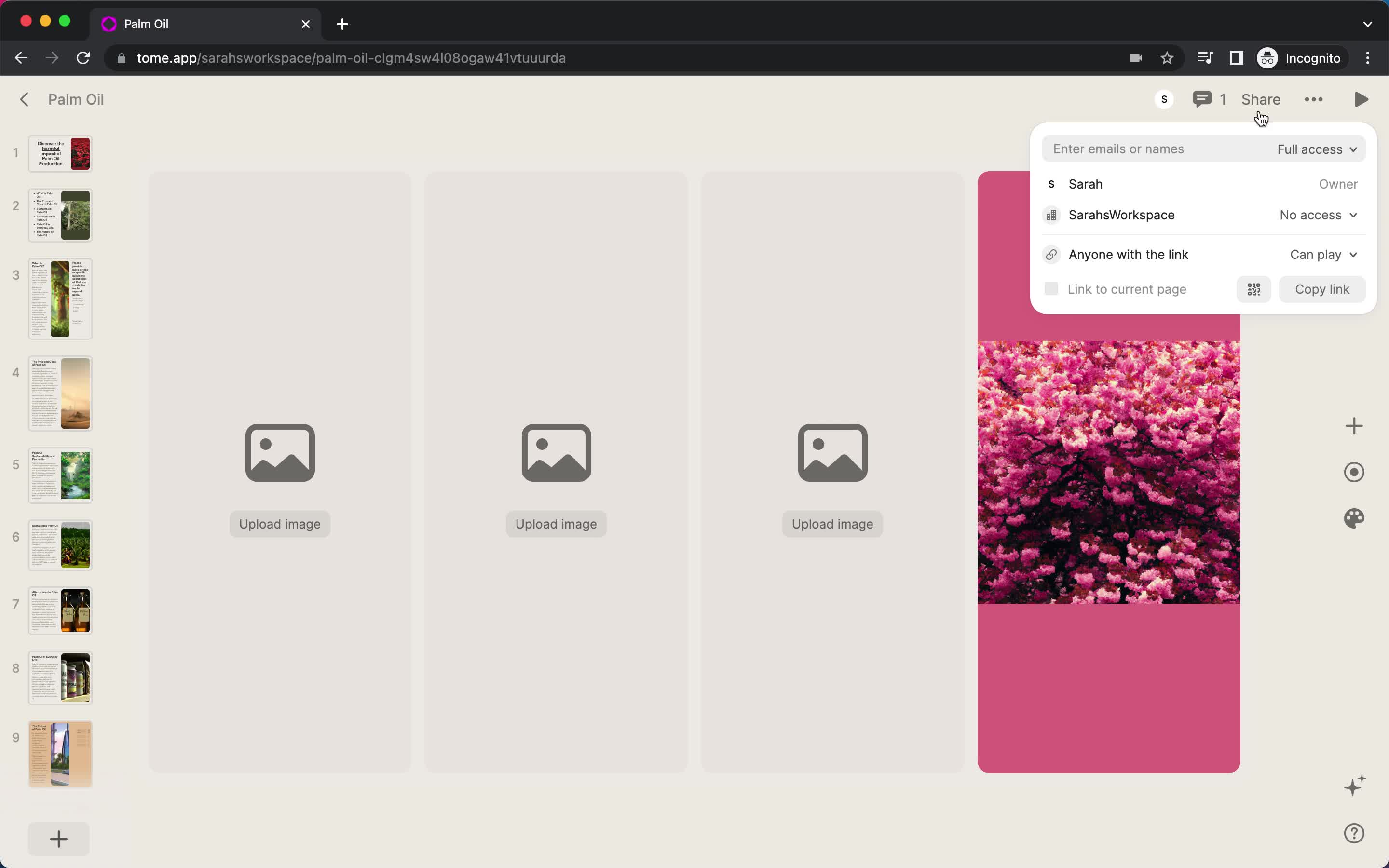
  • Share
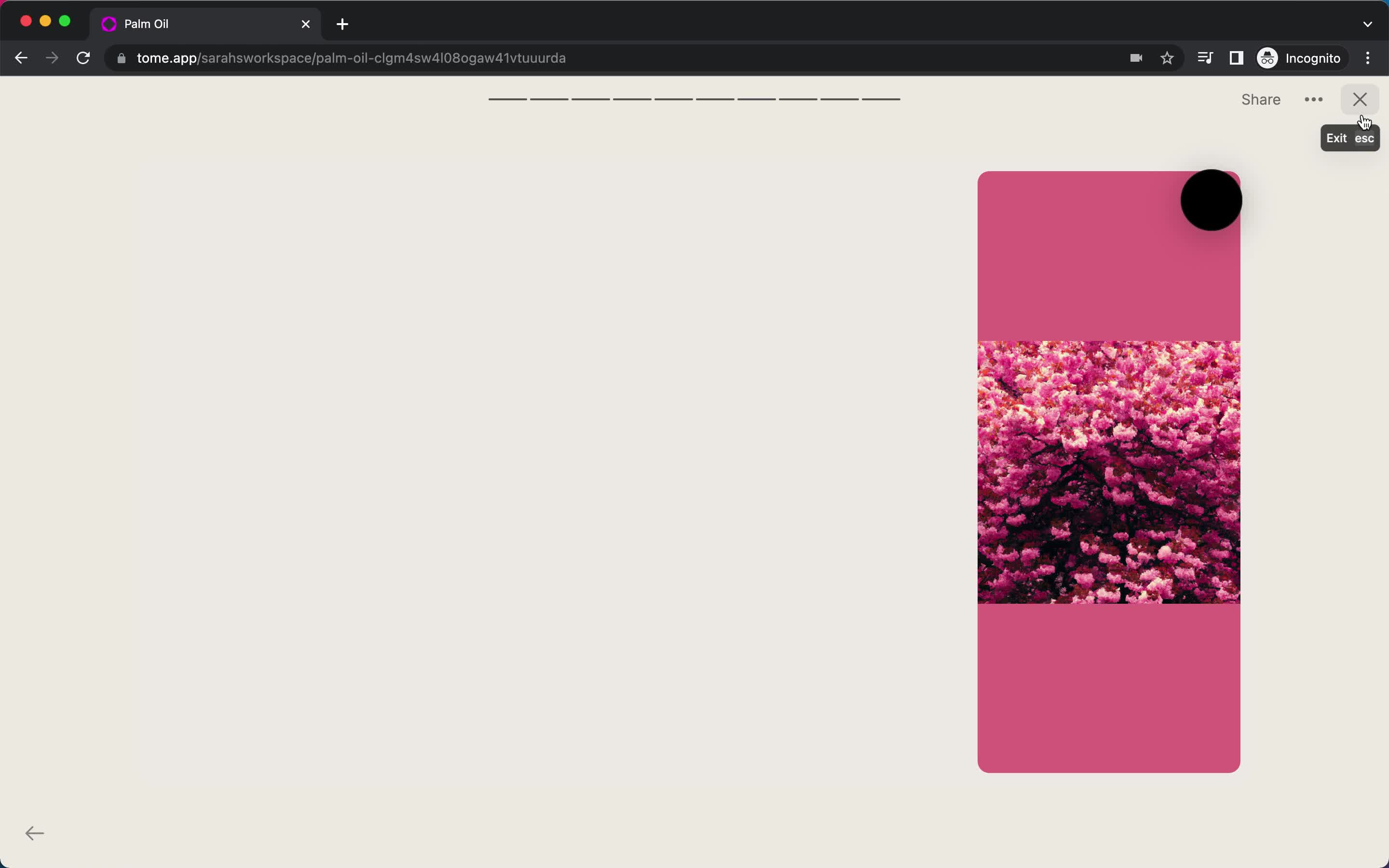
  • Present
  • Editor
  • Dashboard
Creating a presentation 38 Screens
Creating a presentation screenshot
Dashboard
Creating a presentation screenshot
Command menu
Creating a presentation screenshot
Select style
Creating a presentation screenshot

Sign up to unlock this user flow

Try 3 Days
Loading
Creating a presentation screenshot

Sign up to unlock this user flow

Try 3 Days
Editor
Creating a presentation screenshot

Sign up to unlock this user flow

Try 3 Days
Customize appearance
Creating a presentation screenshot

Sign up to unlock this user flow

Try 3 Days
Select theme
Creating a presentation screenshot

Sign up to unlock this user flow

Try 3 Days
Add element
Creating a presentation screenshot

Sign up to unlock this user flow

Try 3 Days
Upload image
Creating a presentation screenshot

Sign up to unlock this user flow

Try 3 Days
Editor
Creating a presentation screenshot

Sign up to unlock this user flow

Try 3 Days
AI Generator
Creating a presentation screenshot

Sign up to unlock this user flow

Try 3 Days
Add image
Creating a presentation screenshot

Sign up to unlock this user flow

Try 3 Days
Command menu
Creating a presentation screenshot

Sign up to unlock this user flow

Try 3 Days
Command menu
Creating a presentation screenshot

Sign up to unlock this user flow

Try 3 Days
Select style
Creating a presentation screenshot

Sign up to unlock this user flow

Try 3 Days
Editor
Creating a presentation screenshot

Sign up to unlock this user flow

Try 3 Days
AI Generator
Creating a presentation screenshot

Sign up to unlock this user flow

Try 3 Days
Crop image
Creating a presentation screenshot

Sign up to unlock this user flow

Try 3 Days
AI Generator
Creating a presentation screenshot

Sign up to unlock this user flow

Try 3 Days
Theme settings
Creating a presentation screenshot

Sign up to unlock this user flow

Try 3 Days
Choose background color
Creating a presentation screenshot

Sign up to unlock this user flow

Try 3 Days
Create table
Creating a presentation screenshot

Sign up to unlock this user flow

Try 3 Days
Select layout
Creating a presentation screenshot

Sign up to unlock this user flow

Try 3 Days
Record video
Creating a presentation screenshot

Sign up to unlock this user flow

Try 3 Days
Start recording
Creating a presentation screenshot

Sign up to unlock this user flow

Try 3 Days
Countdown
Creating a presentation screenshot

Sign up to unlock this user flow

Try 3 Days
Stop recording
Creating a presentation screenshot

Sign up to unlock this user flow

Try 3 Days
Recording stopped
Creating a presentation screenshot

Sign up to unlock this user flow

Try 3 Days
Command menu
Creating a presentation screenshot

Sign up to unlock this user flow

Try 3 Days
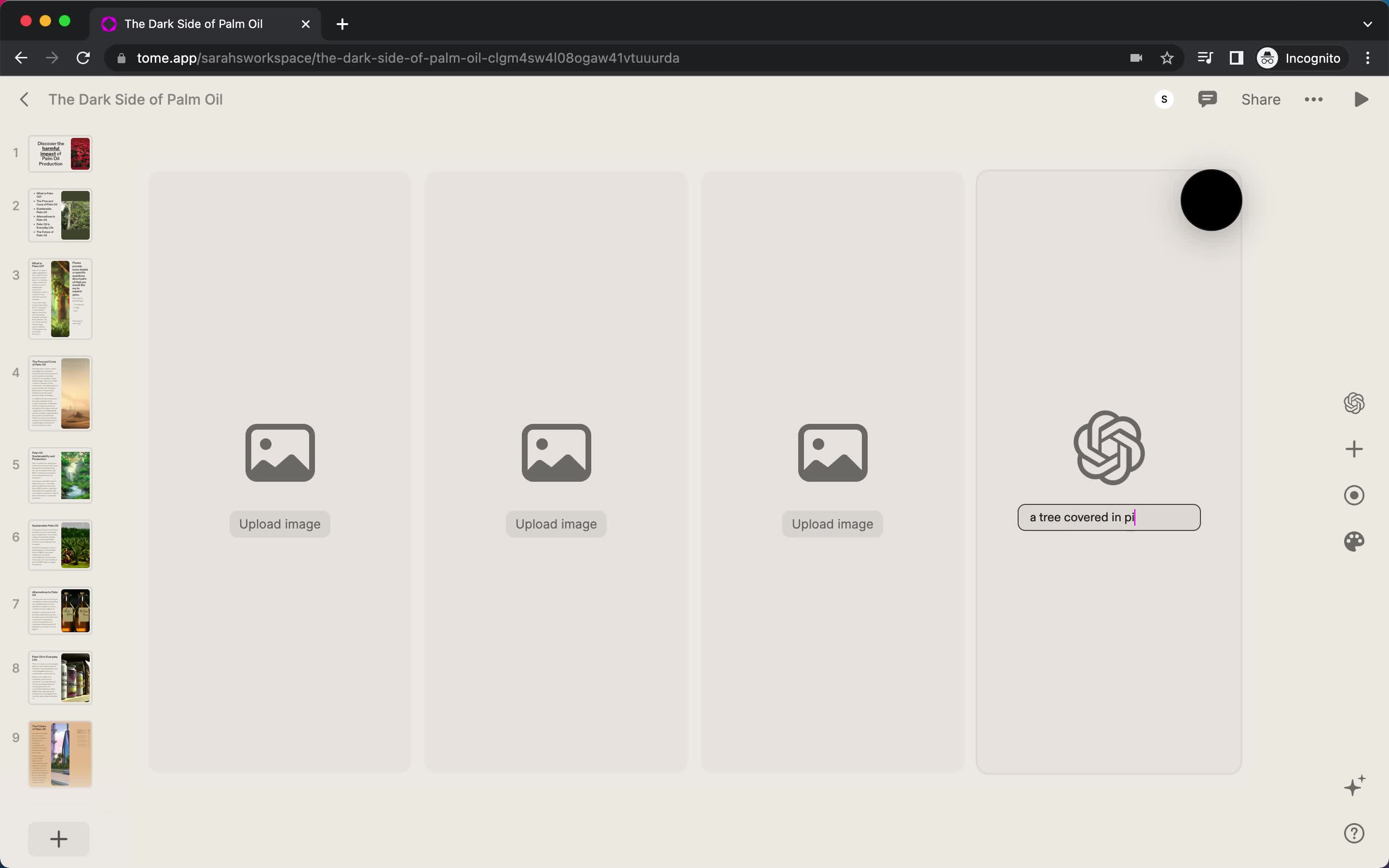
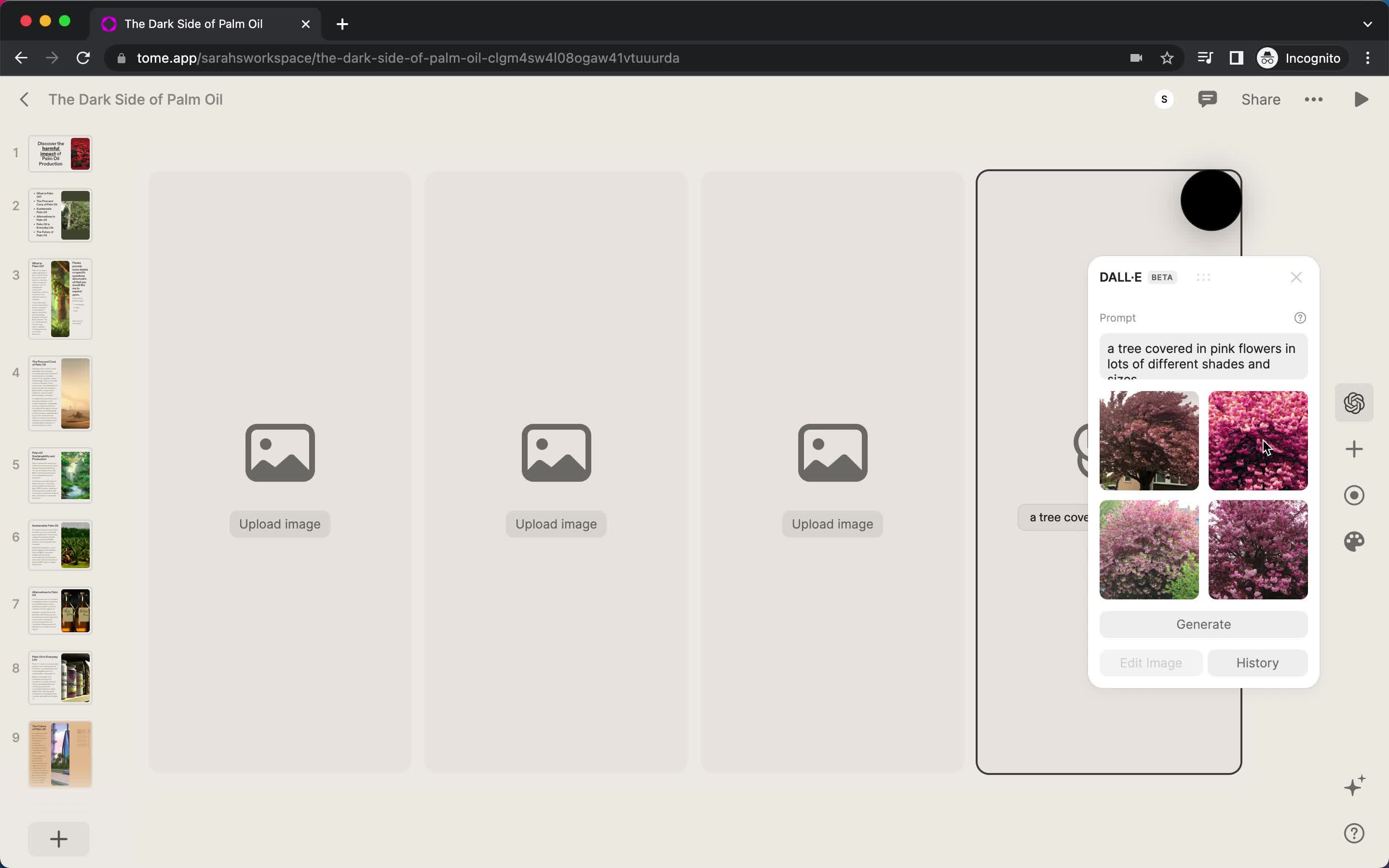
AI Generator
Creating a presentation screenshot

Sign up to unlock this user flow

Try 3 Days
Add image
Creating a presentation screenshot

Sign up to unlock this user flow

Try 3 Days
Comments
Creating a presentation screenshot

Sign up to unlock this user flow

Try 3 Days
Add comment
Creating a presentation screenshot

Sign up to unlock this user flow

Try 3 Days
Comment saved
Creating a presentation screenshot

Sign up to unlock this user flow

Try 3 Days
Share
Creating a presentation screenshot

Sign up to unlock this user flow

Try 3 Days
Present
Creating a presentation screenshot

Sign up to unlock this user flow

Try 3 Days
Editor
Creating a presentation screenshot

Sign up to unlock this user flow

Try 3 Days
Dashboard
Unlock 6 hidden flows

Log In or Sign Up to See All
Tome Flows

  • Dashboard
  • Command menu
  • Select style
  • Loading
  • Editor
  • Customize appearance
  • Select theme
  • Add element
  • Upload image
  • Editor
  • AI Generator
  • Add image
  • Command menu
  • Select style
  • Editor
  • AI Generator
  • Crop image
  • AI Generator
  • Theme settings
  • Choose background color
  • Create table
  • Select layout
  • Record video
  • Start recording
  • Countdown
  • Stop recording
  • Recording stopped
  • Command menu
  • AI Generator
  • Add image
  • Comments
  • Add comment
  • Comment saved
  • Share
  • Present
  • Editor
  • Dashboard

Other AI apps you might like

Eventbrite screenshot
Intercom screenshot
Mailchimp screenshot

Tome Creating a presentation Flow on Web — Full Sequence

This recording documents the Creating a presentation flow inside Tome's web experience, captured from the live desktop product. Rather than showing summarized highlights, it preserves the full flow — every screen, hover state, transition, and UX decision — so you can study the real experience, not a press-ready version.

Web-Specific Creating a presentation Design Considerations
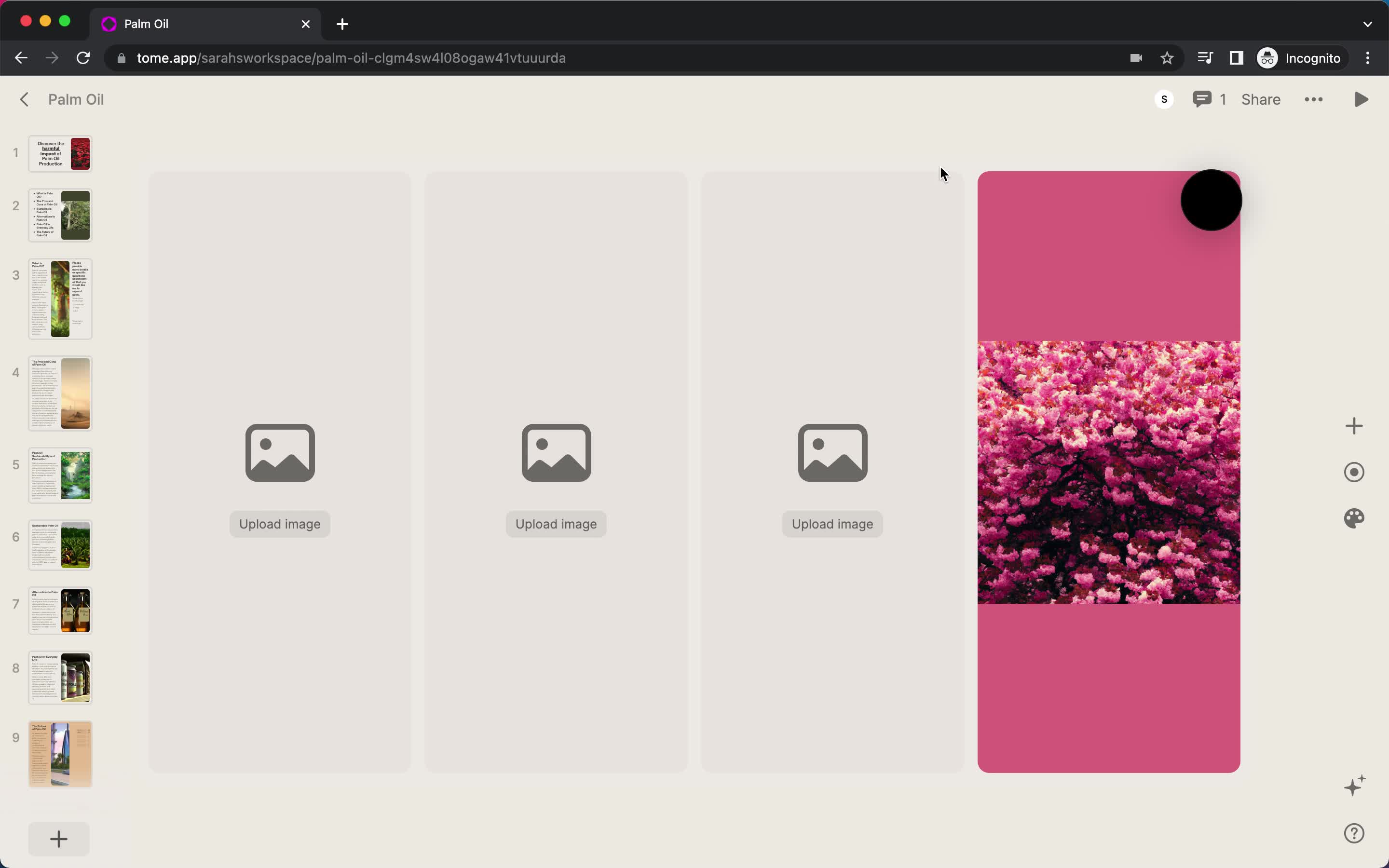
Creating a presentation on the web comes with different constraints than mobile: larger screens, multi-column layouts, keyboard shortcuts, and richer interaction possibilities. Tome's approach to Creating a presentation on web reflects those realities, and seeing it in full makes it easy to understand the design decisions behind the flow.
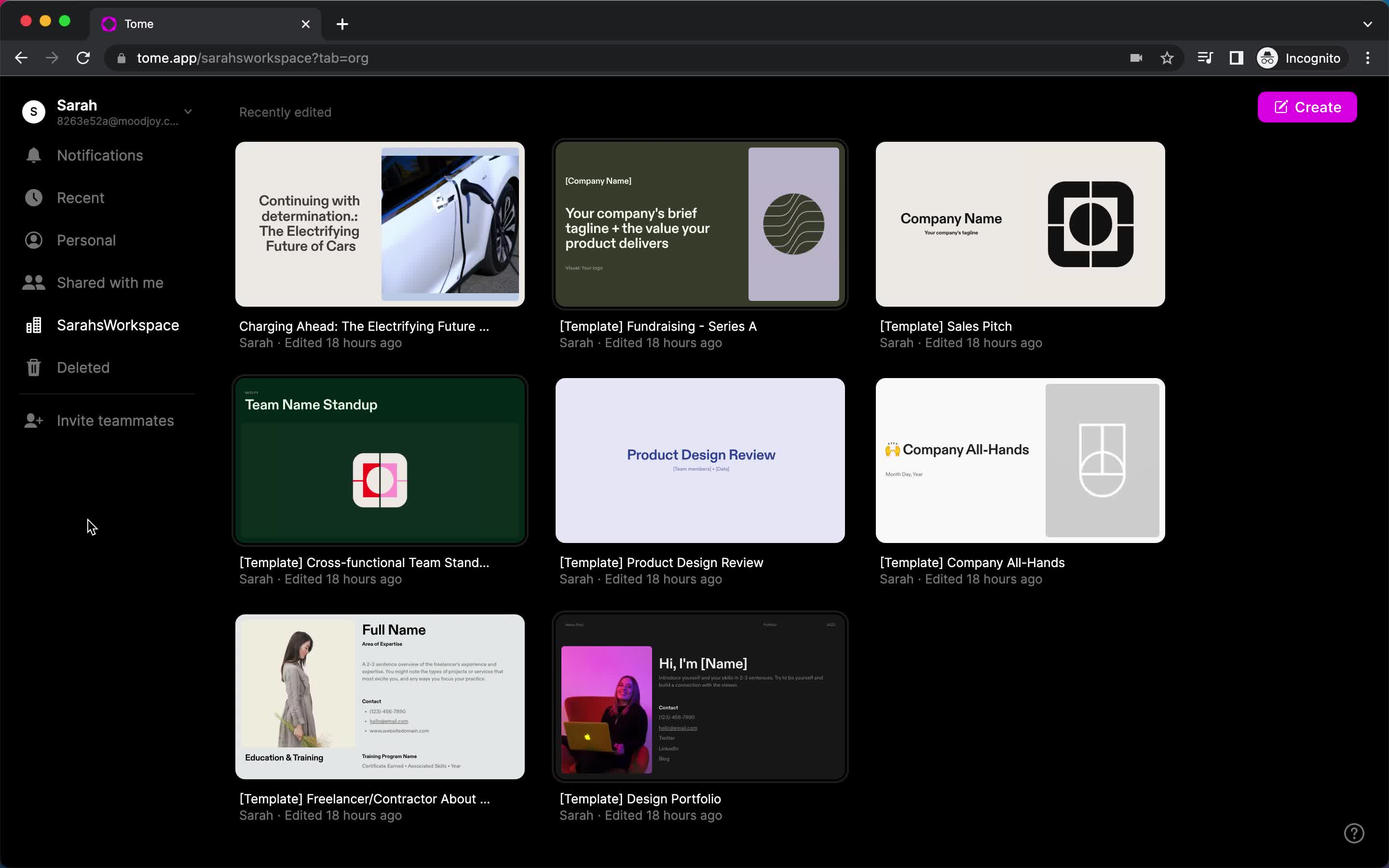
A Reference for Creating a presentation Research on the Web

For growth teams, designers, and PMs researching Creating a presentation patterns on the web, this recording provides a direct reference to a production implementation. For teams benchmarking against Tome specifically, it's a detailed look at how the brand handles this moment of the experience.

Frequently Asked Questions

What does the Tome Creating a presentation flow cover?

The recording captures the full Creating a presentation sequence inside Tome on desktop web — every step, every transition, and every significant design decision from start to finish.

How does Tome's web Creating a presentation differ from its mobile versions?

Web Creating a presentation flows typically use more screen real estate, richer hover interactions, and keyboard-friendly patterns that don't work on mobile. If Tome also has iOS or Android entries, you can cross-reference to see the platform differences.

Can I see Creating a presentation flows from other web products?

Yes. The web Creating a presentation flows category gathers the same flow type from many different web products, so you can compare Tome's approach against competitors and alternatives.

How up to date is the Tome Creating a presentation recording?

Recordings are refreshed when Tome ships notable redesigns, so the Creating a presentation flow reflects the current web experience.