Filtering Flow in Hinge for iOS

Watch a recorded Filtering flow inside Hinge for iOS. Every screen, tap, and transition is captured step by step — see exactly how Hinge designs the Filtering experience on iPhone.

Hinge is a dating app

  • iOS
Screenshot of Home

Sign up to unlock this user flow

Try 3 Days
Home
Screenshot of Filter

Sign up to unlock this user flow

Try 3 Days
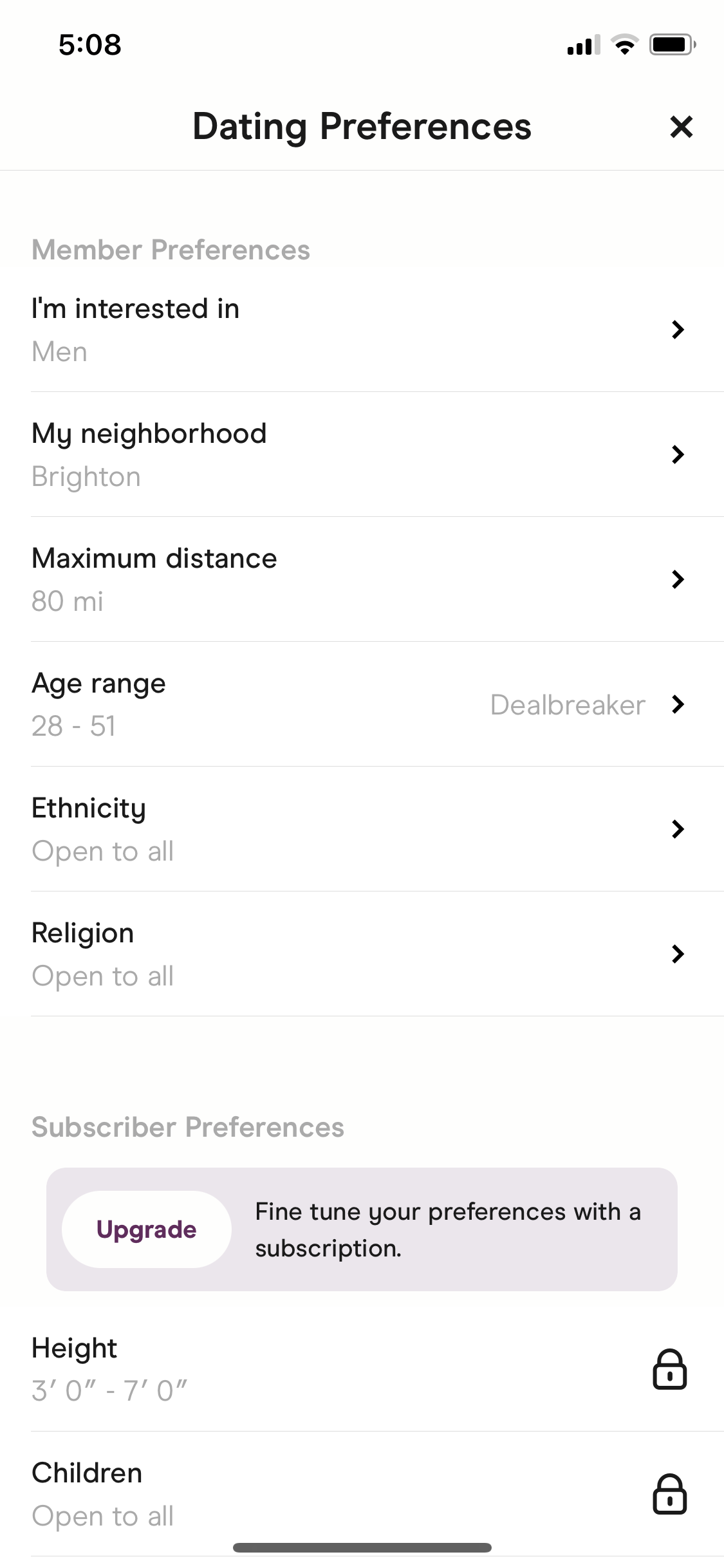
Filter
Screenshot of Set location

Sign up to unlock this user flow

Try 3 Days
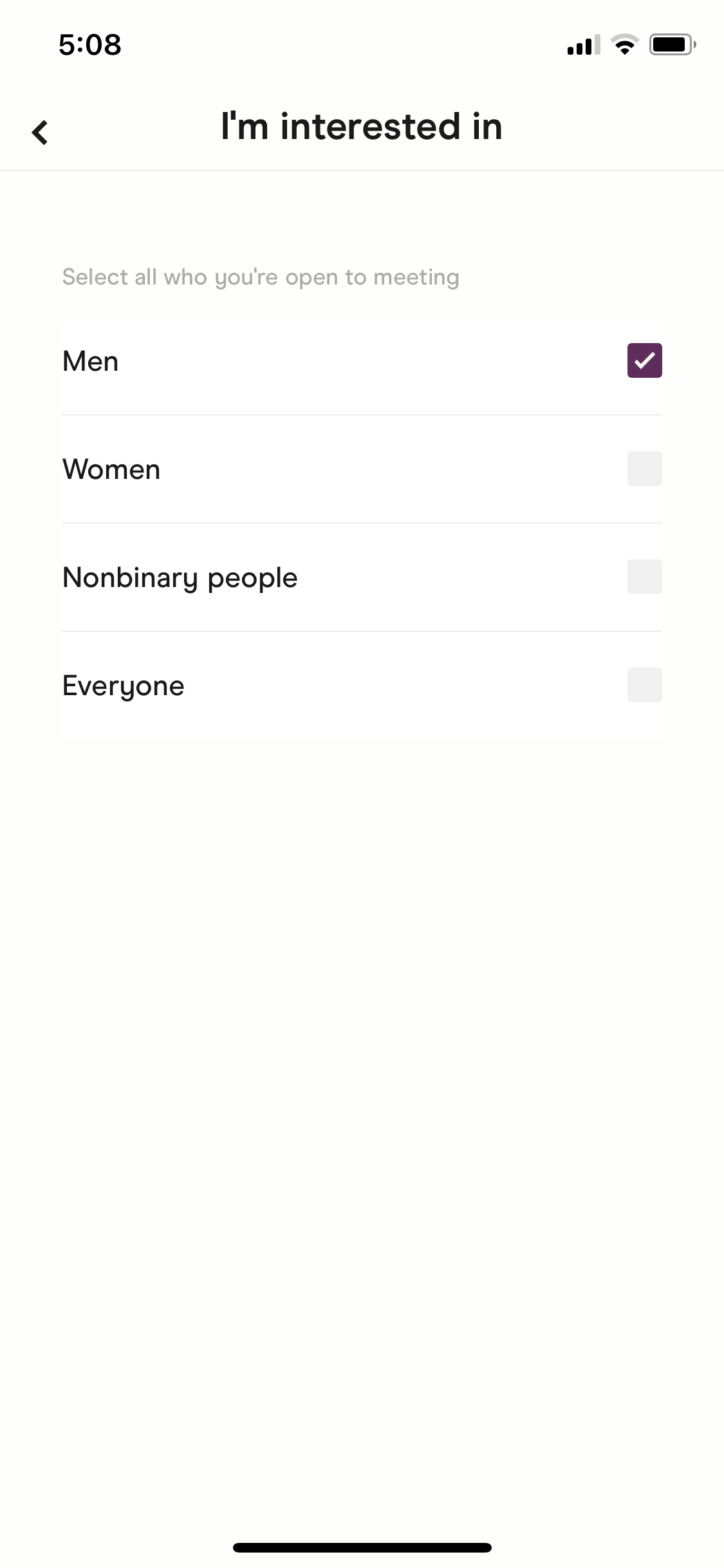
Set location
Screenshot of Filter

Sign up to unlock this user flow

Try 3 Days
Filter
Screenshot of Upgrade prompt

Sign up to unlock this user flow

Try 3 Days
Upgrade prompt
Screenshot of Loading

Sign up to unlock this user flow

Try 3 Days
Loading
Screenshot of Filtered results

Sign up to unlock this user flow

Try 3 Days
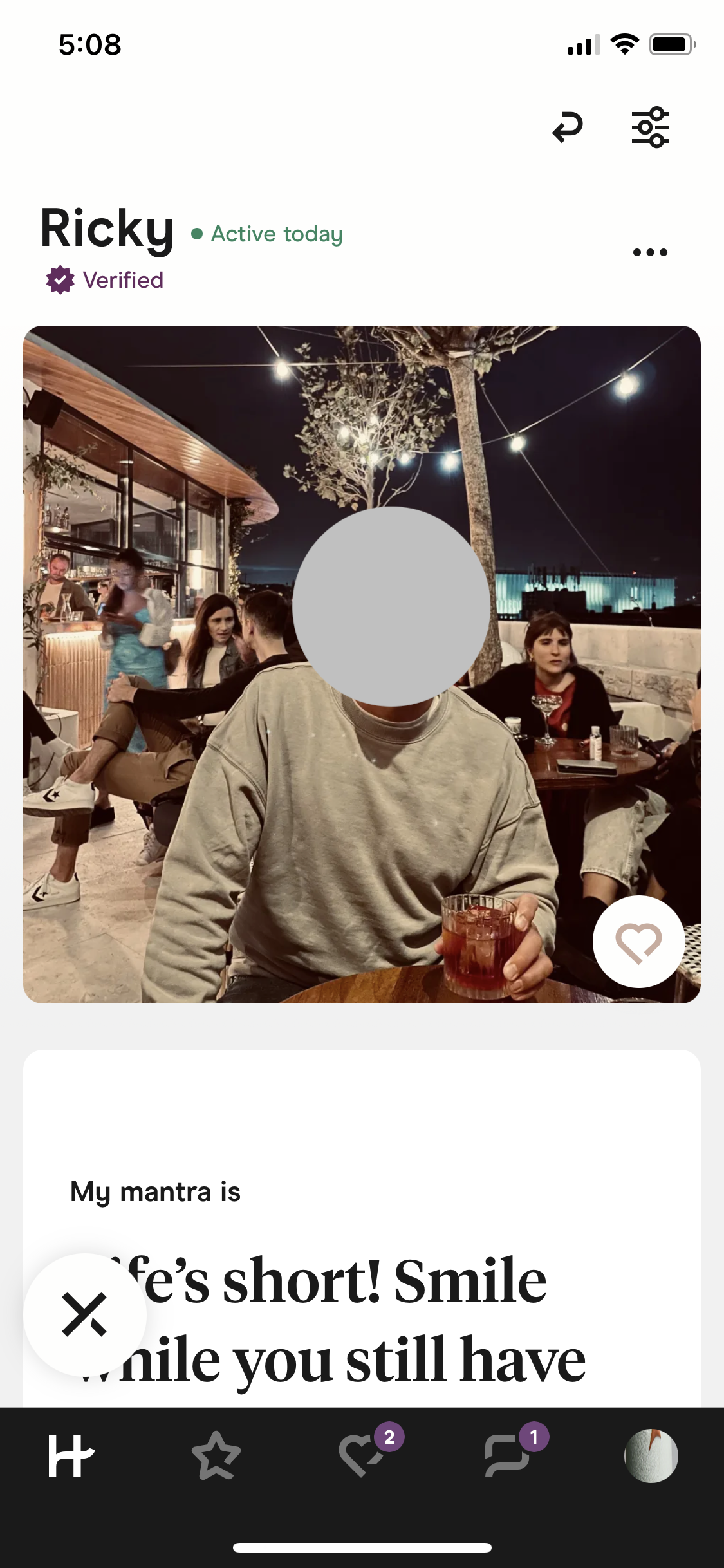
Filtered results
  • Home
  • Filter
  • Set location
  • Filter
  • Upgrade prompt
  • Loading
  • Filtered results
Filtering 12 Screens
Filtering screenshot
Home
Filtering screenshot
Filter
Filtering screenshot
Filter
Filtering screenshot

Sign up to unlock this user flow

Try 3 Days
Set location
Filtering screenshot

Sign up to unlock this user flow

Try 3 Days
Filter
Filtering screenshot

Sign up to unlock this user flow

Try 3 Days
Filter
Filtering screenshot

Sign up to unlock this user flow

Try 3 Days
Filter
Filtering screenshot

Sign up to unlock this user flow

Try 3 Days
Filter
Filtering screenshot

Sign up to unlock this user flow

Try 3 Days
Filter
Filtering screenshot

Sign up to unlock this user flow

Try 3 Days
Upgrade prompt
Filtering screenshot

Sign up to unlock this user flow

Try 3 Days
Loading
Filtering screenshot

Sign up to unlock this user flow

Try 3 Days
Filtered results
Unlock 5 hidden flows

Log In or Sign Up to See All
Hinge Flows

  • Home
  • Filter
  • Set location
  • Filter
  • Upgrade prompt
  • Loading
  • Filtered results

Other Lifestyle apps you might like

Postmates screenshot
Hype screenshot
Time screenshot
Grubhub screenshot

Hinge Filtering Flow on iOS — Screen by Screen

This recording documents the Filtering flow inside Hinge on iOS, captured screen by screen from the live app. Rather than showing a static screenshot or a summarized case study, it preserves the full sequence — every transition, microcopy change, and UX decision — so you can study what Hinge actually ships, not what they describe.

How Hinge Structures the Filtering Experience

The Filtering flow is a specific moment inside the Hinge experience, and studying it in isolation (while still showing it in the context of a real product) makes it easier to extract patterns you can apply elsewhere. Notice how Hinge structures the flow: what it shows first, how it builds momentum, where it places friction, and how it handles completion.

A Real Reference for Filtering Research

For designers researching Filtering patterns, this recording gives you a direct, real-world reference. For Hinge enthusiasts or competitors, it's a detailed look at how the brand approaches this specific user journey on iOS.

Frequently Asked Questions

How was this Filtering flow in Hinge recorded?

The flow was captured directly from the live iOS version of Hinge, preserving the full sequence of screens and interactions exactly as a real user would experience them.

How long is the Filtering flow in Hinge?

Length depends on how Hinge has designed the flow — some Filtering sequences are intentionally brief, others include multiple steps. Watch the full recording to see the complete timing.

How often is the Hinge Filtering flow updated?

Recordings are refreshed when Hinge ships significant redesigns, so the documentation reflects the current iOS experience rather than an outdated version.

Can I see Filtering flows from other iOS apps to compare?

Yes. The iOS Filtering flows category collects the same flow type from many different iOS apps, so you can benchmark Hinge against competitors and alternative approaches.