























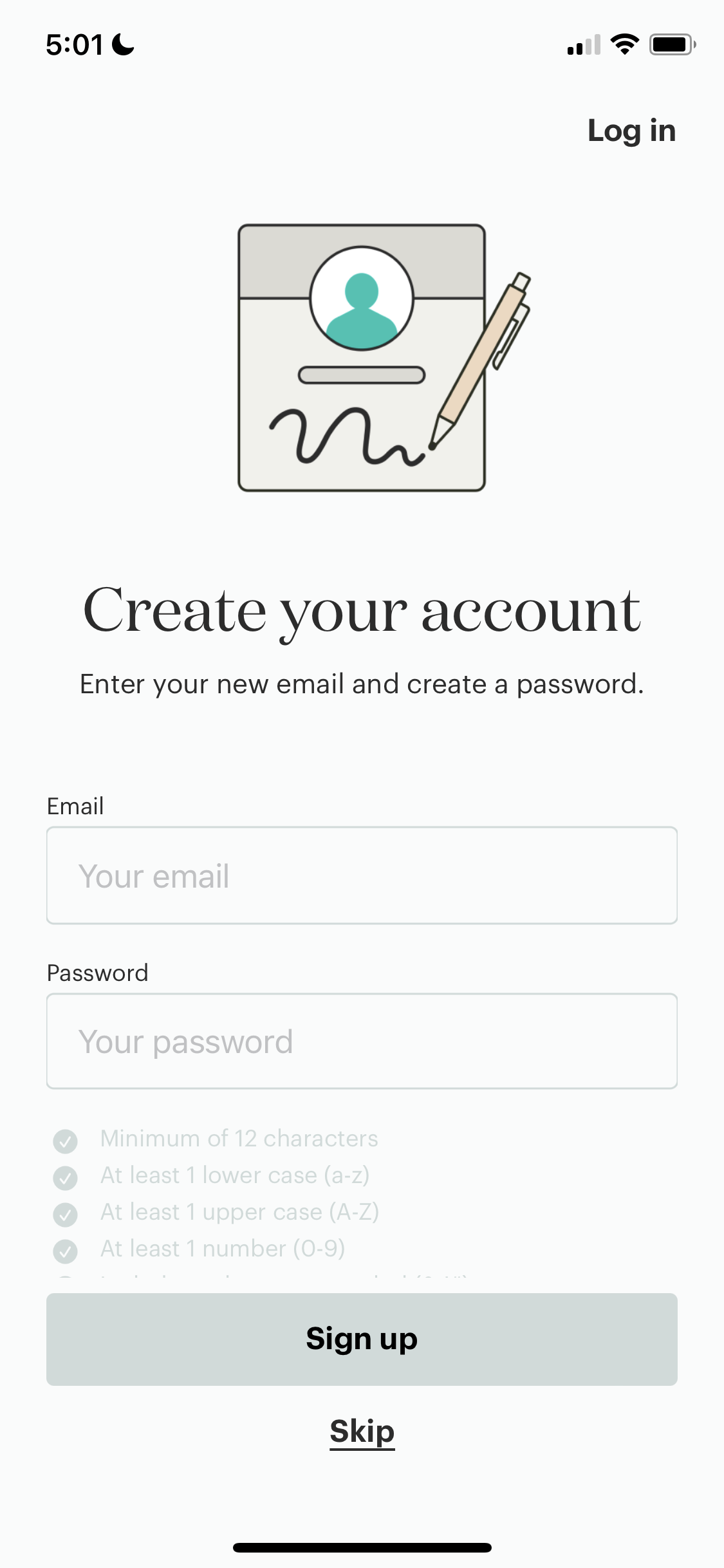
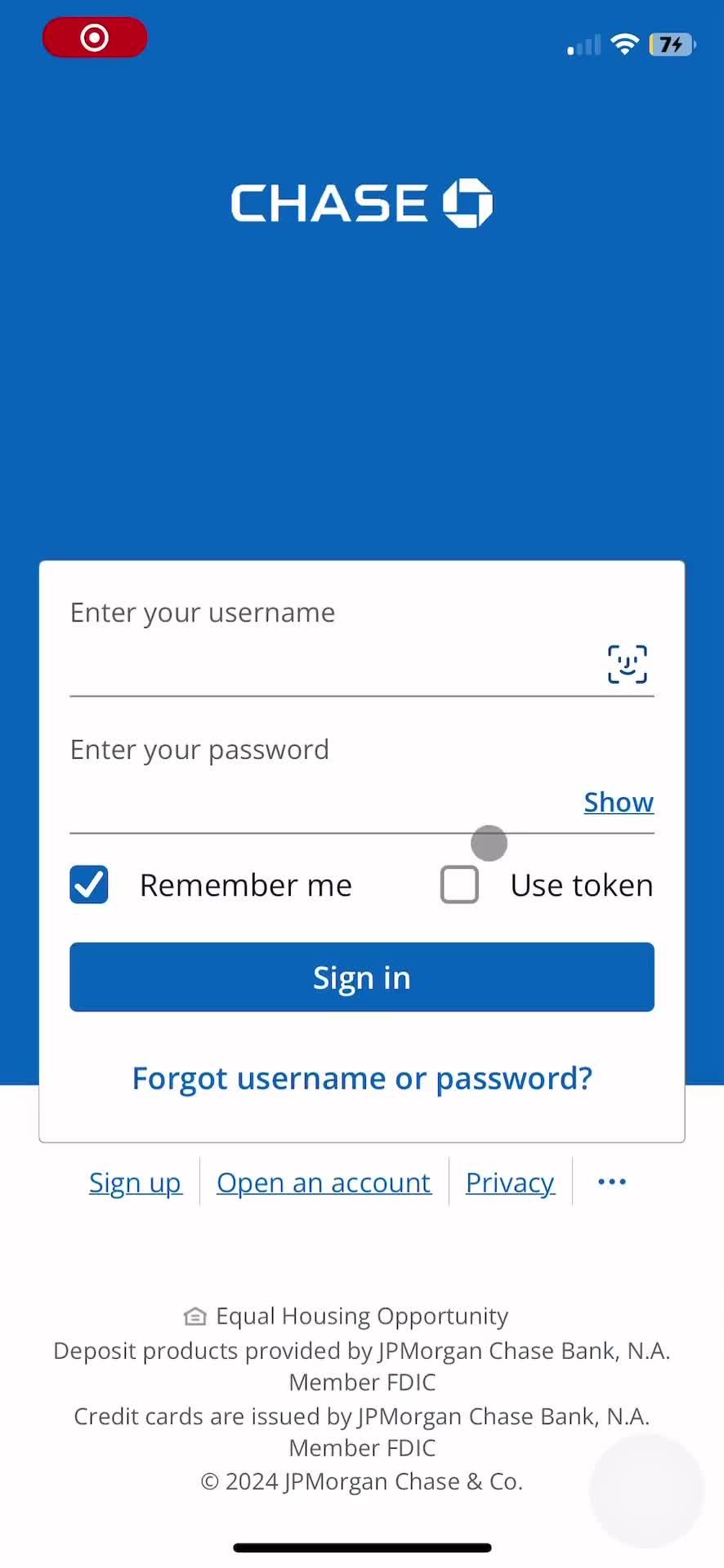
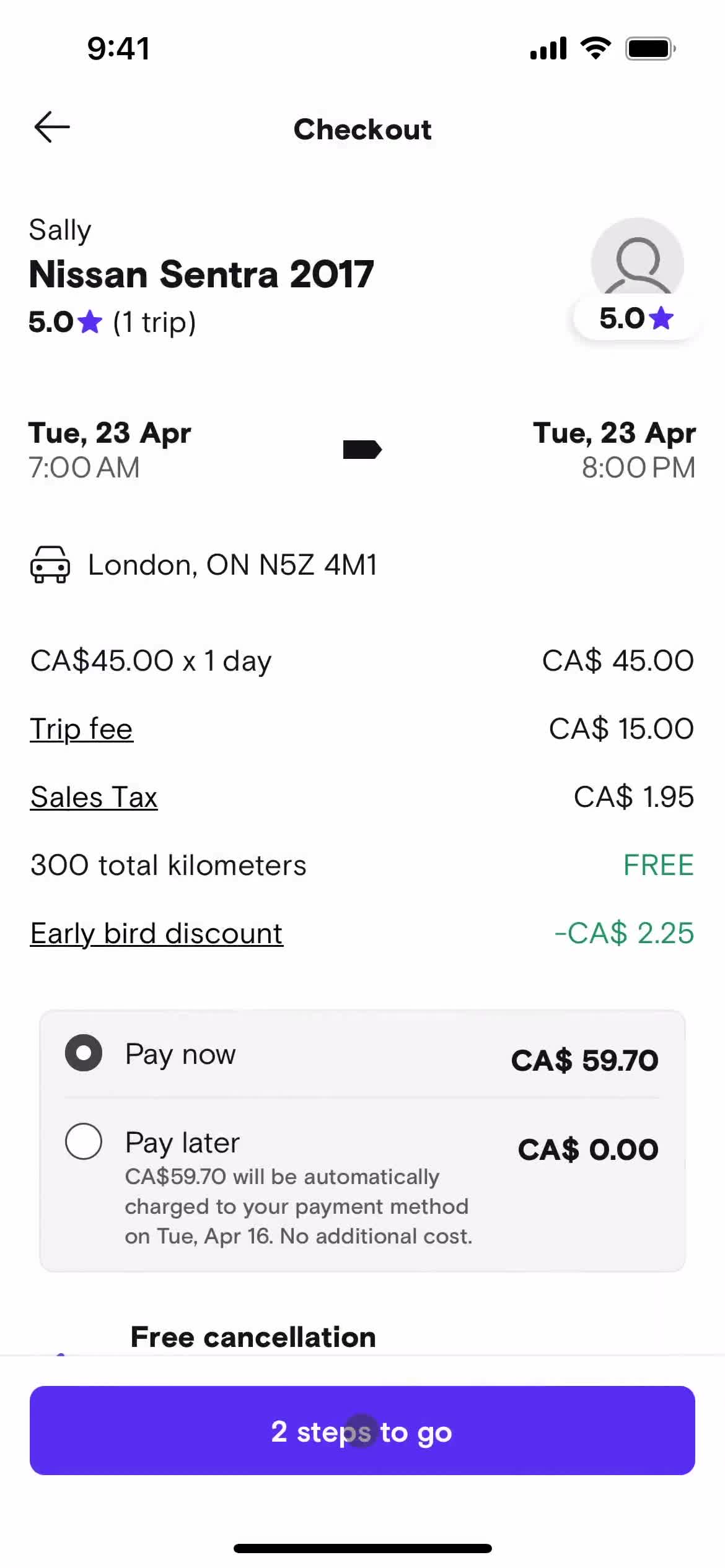

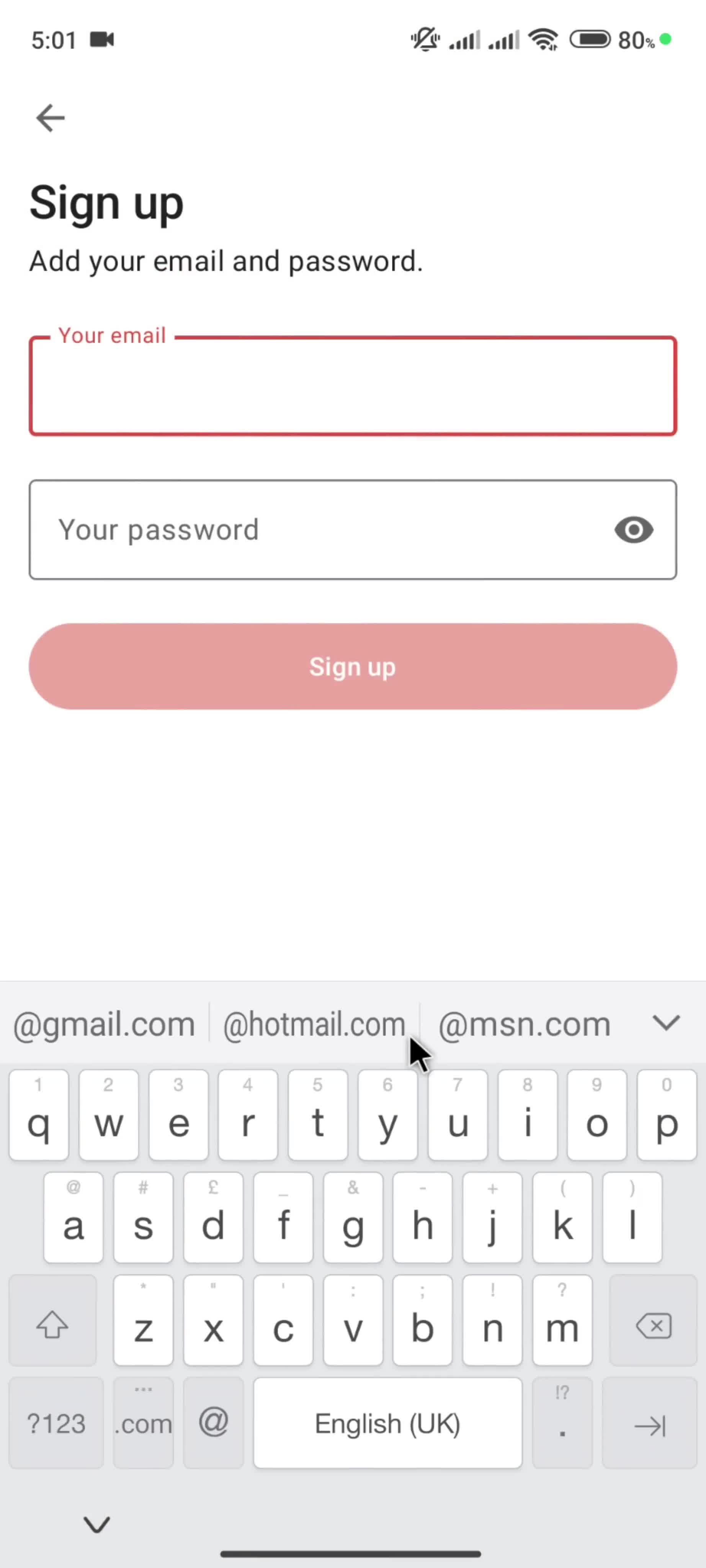








 Download all screens
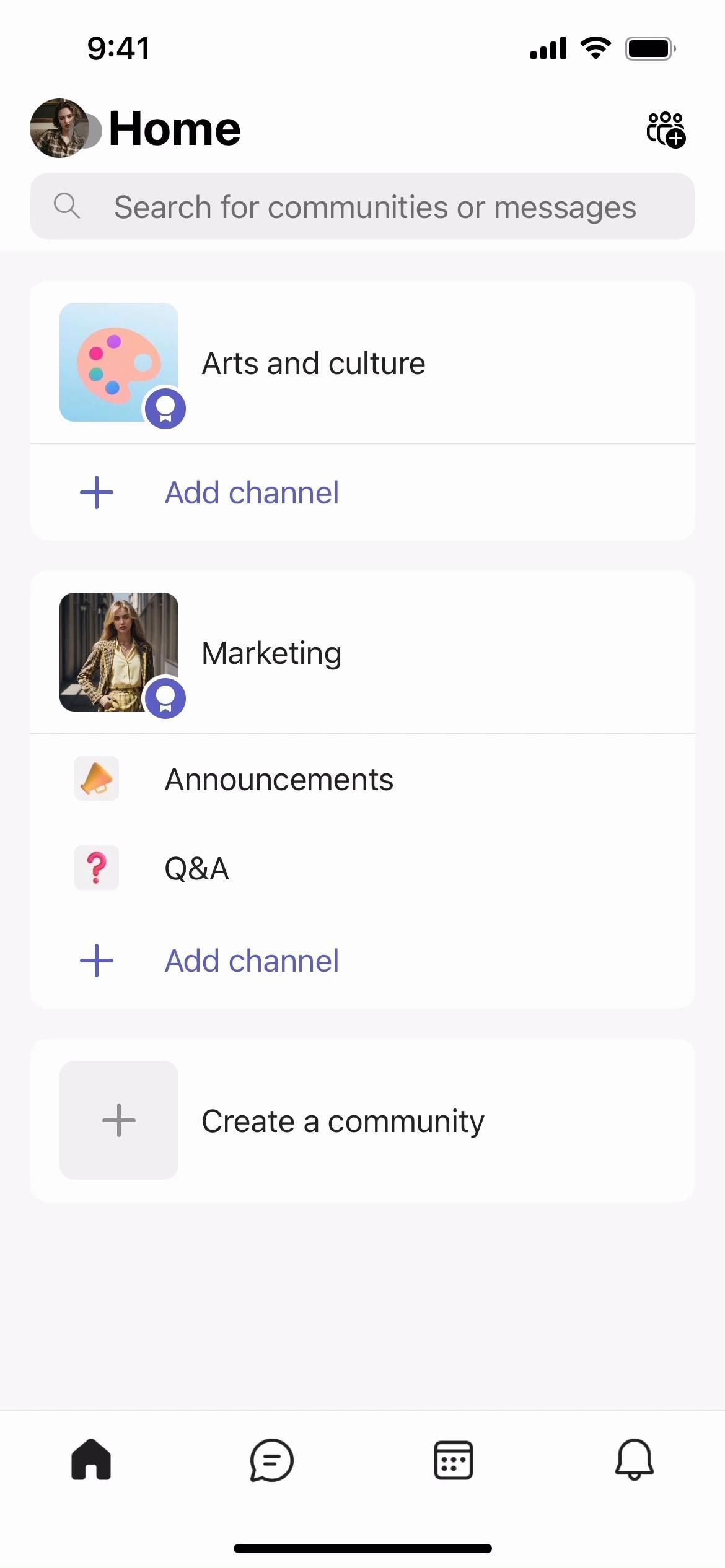
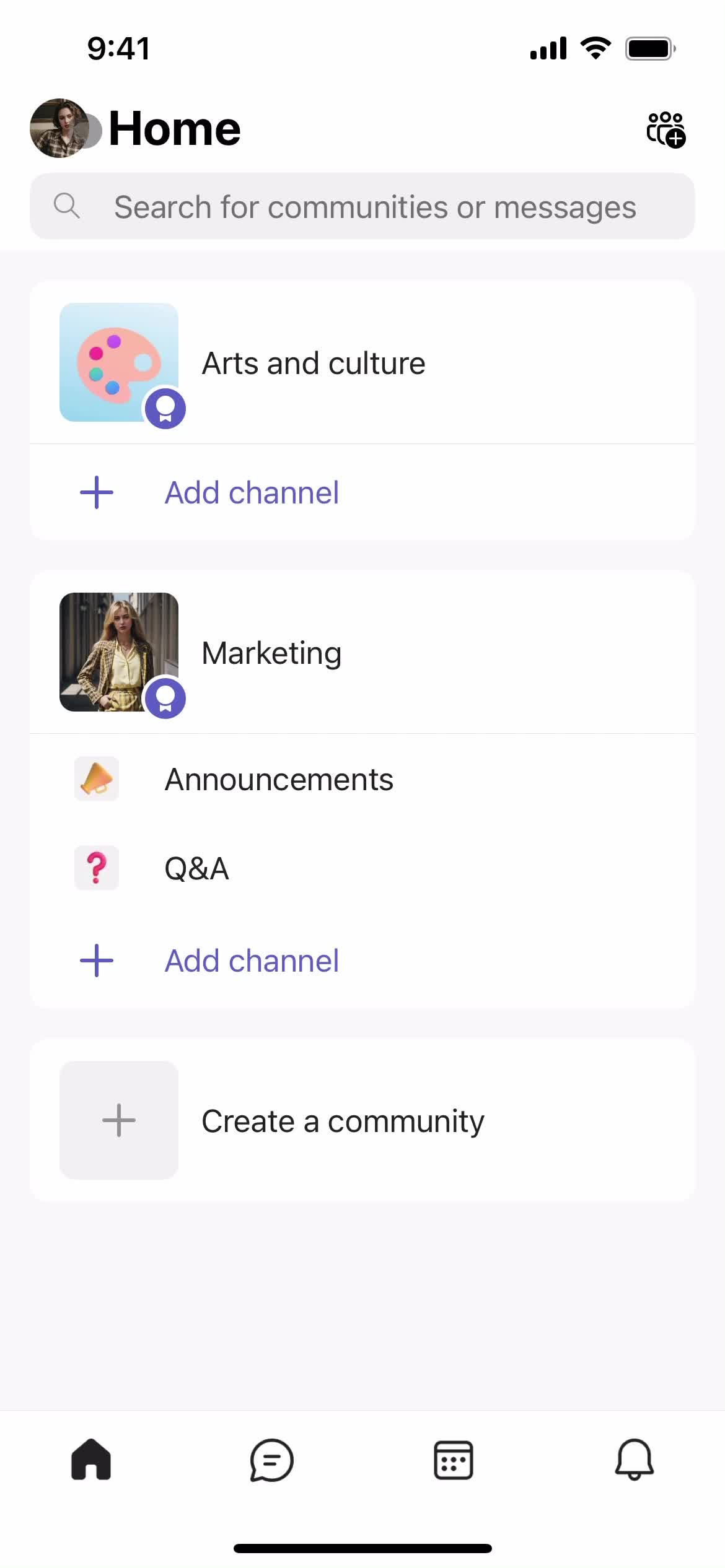
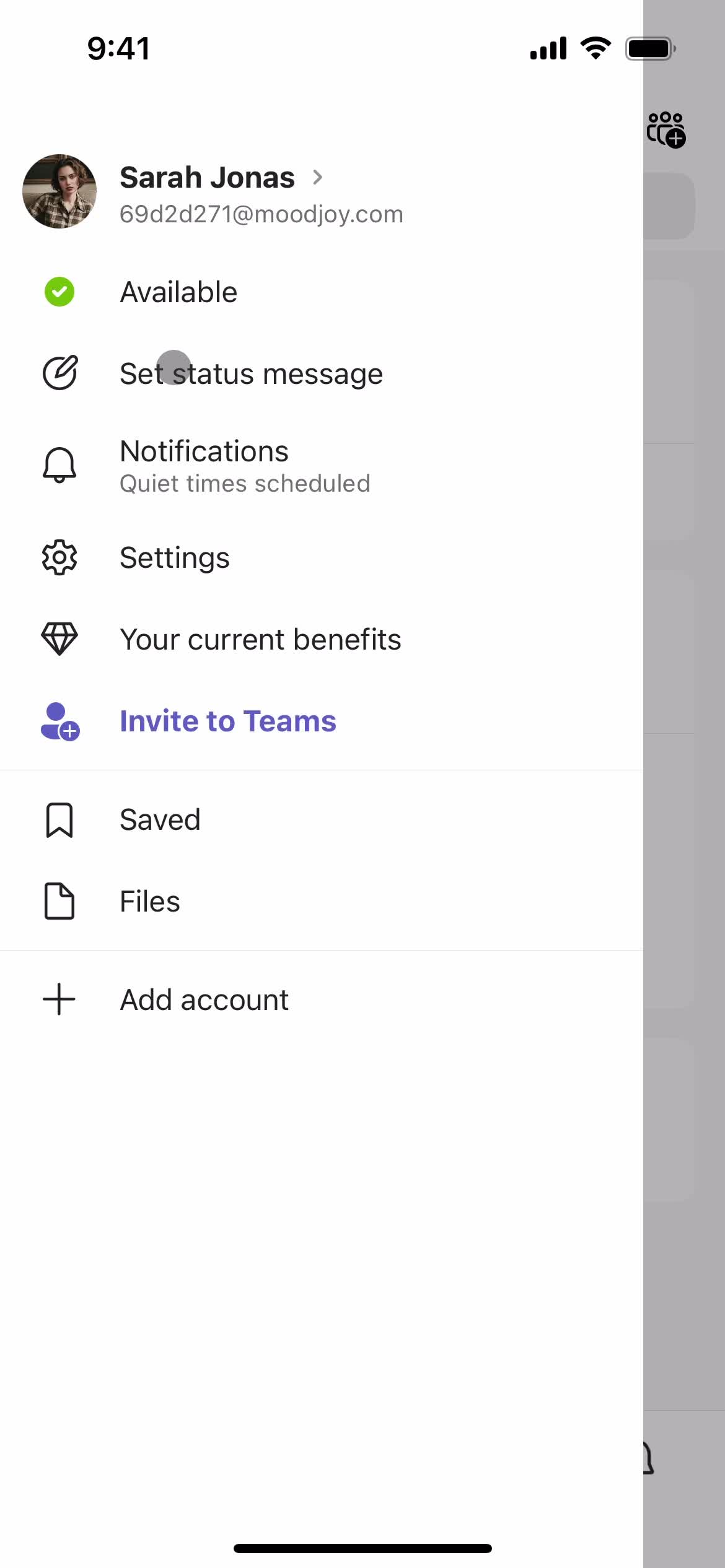
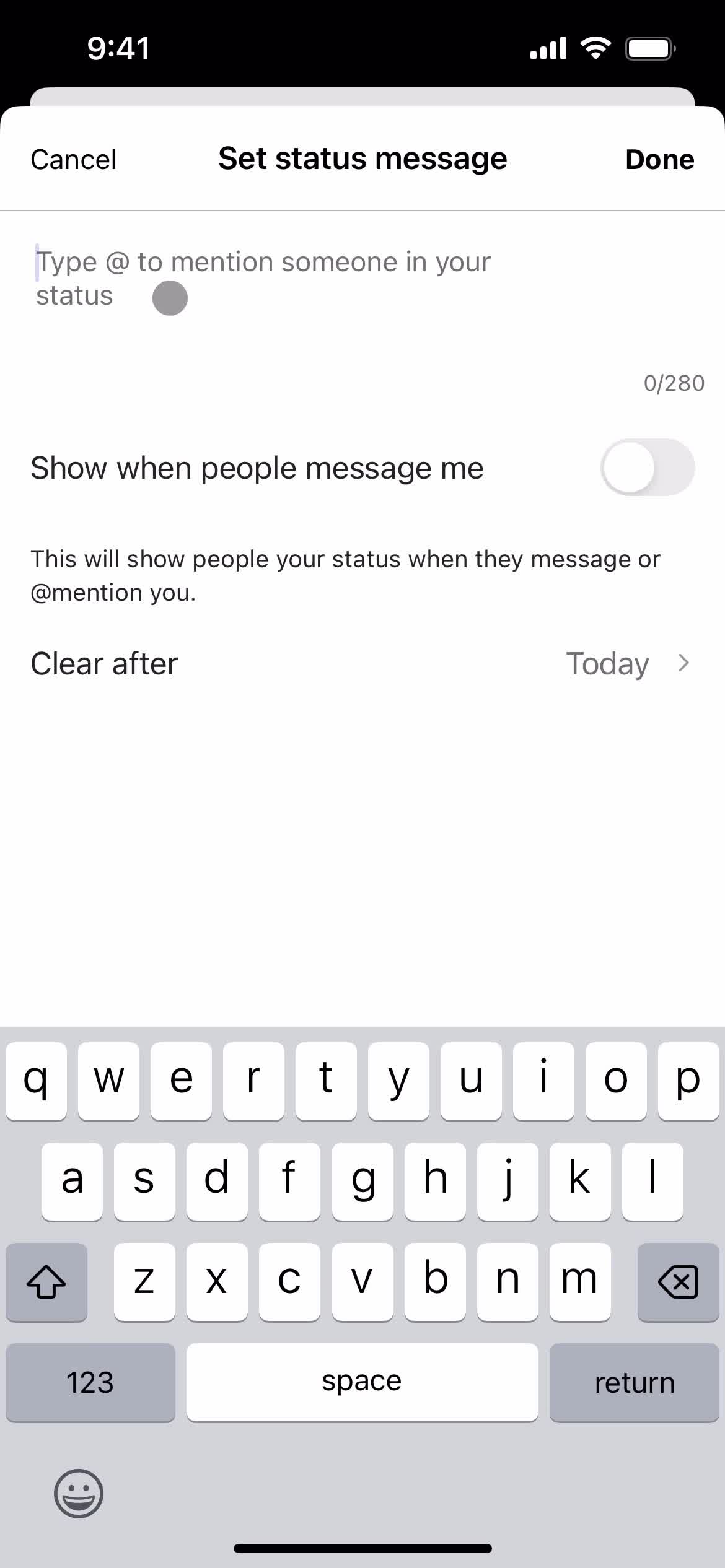
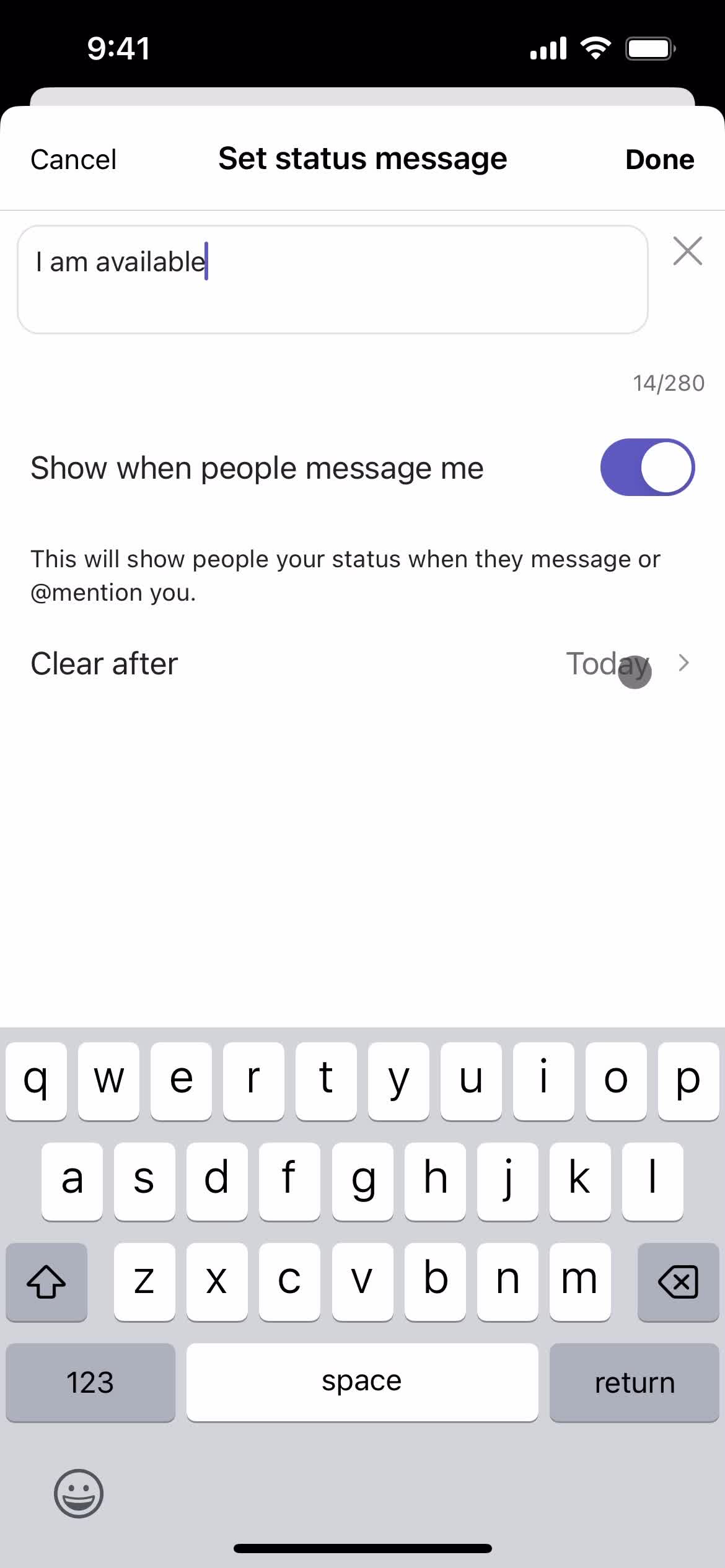
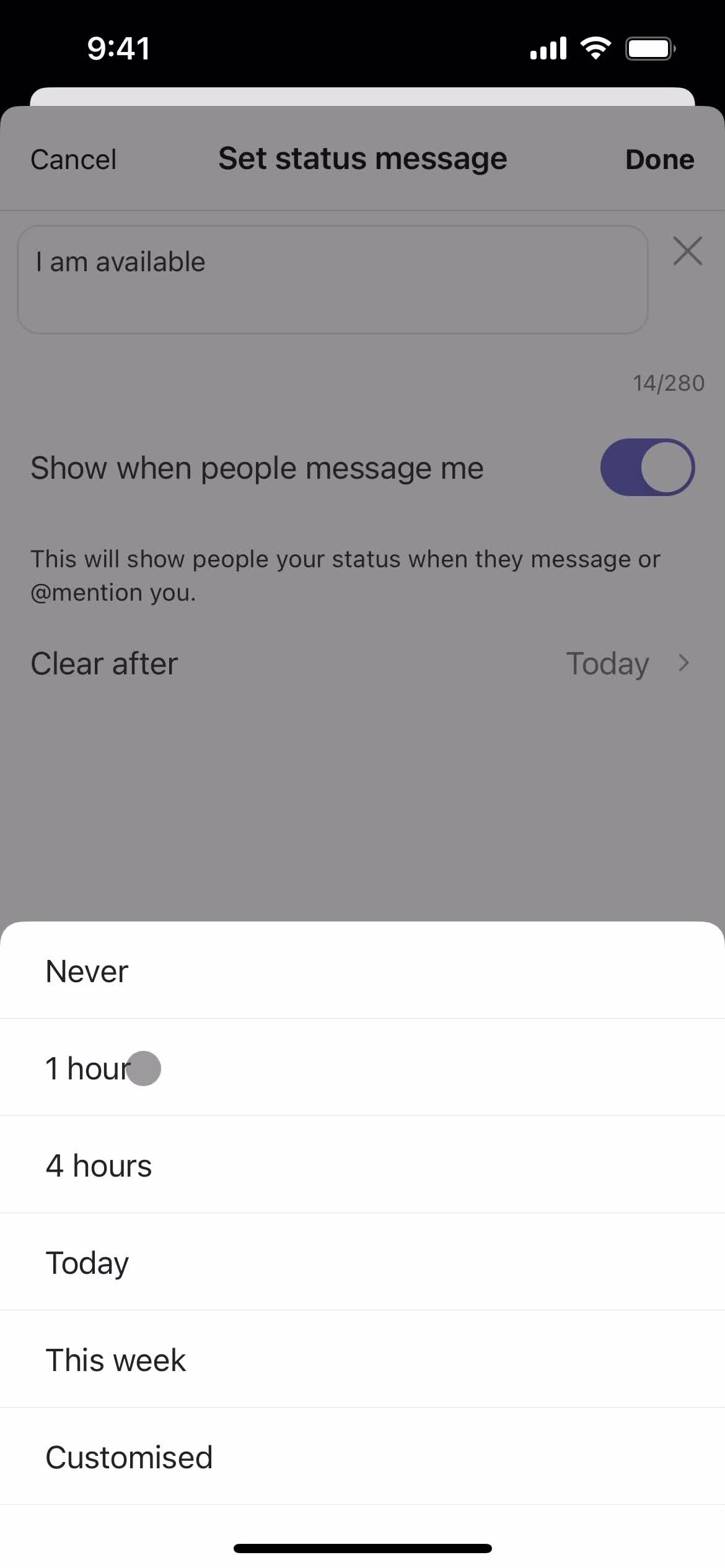

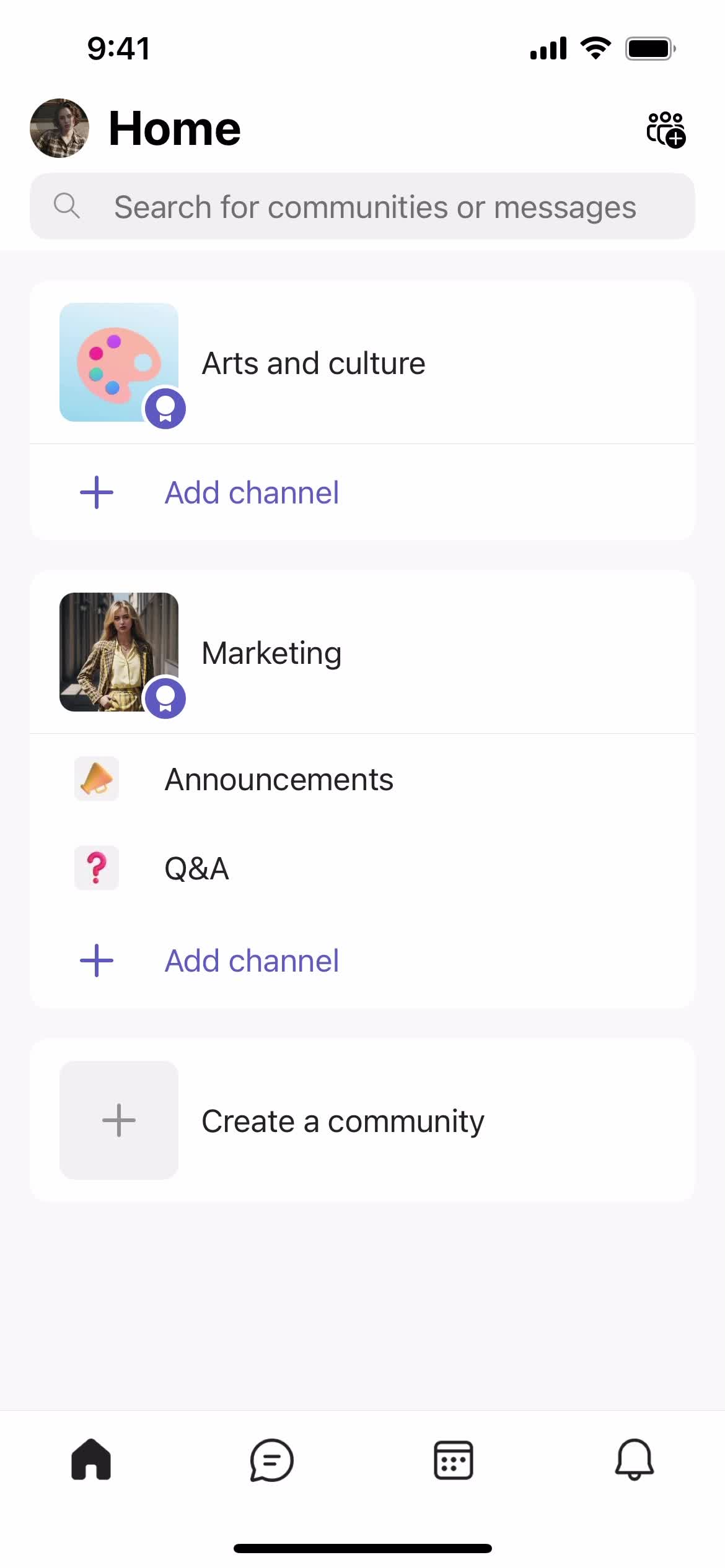
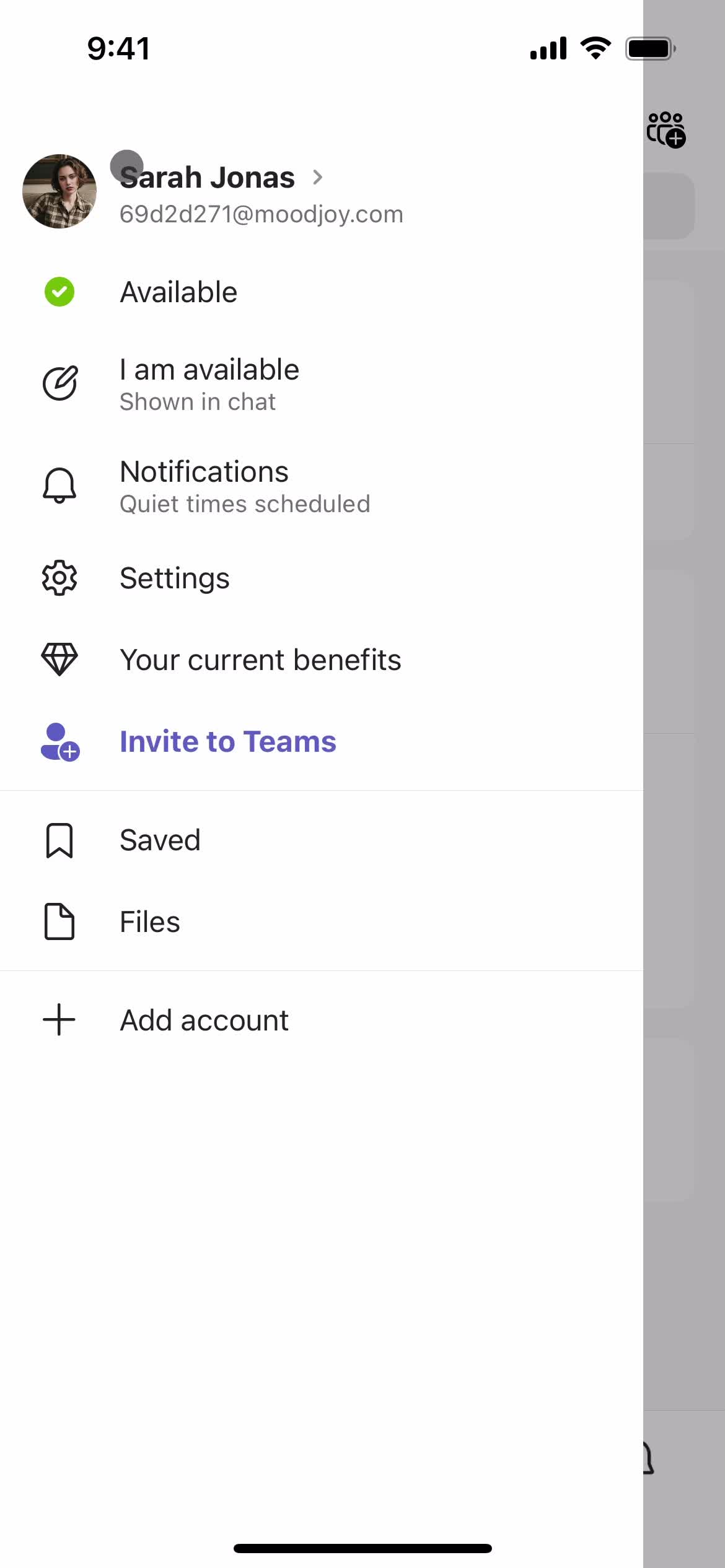






Microsoft Teams Setting status message Flow on iOS — Screen by Screen
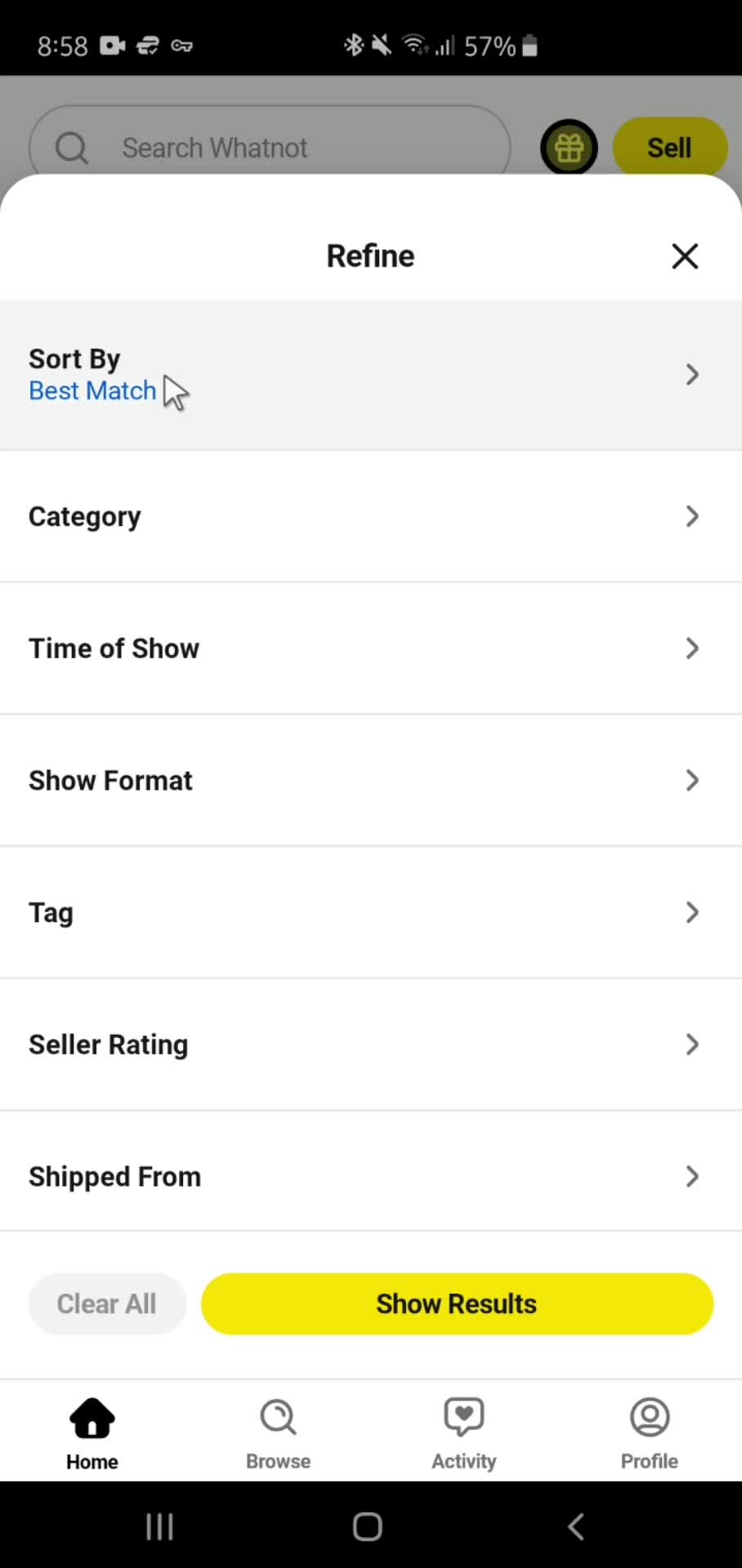
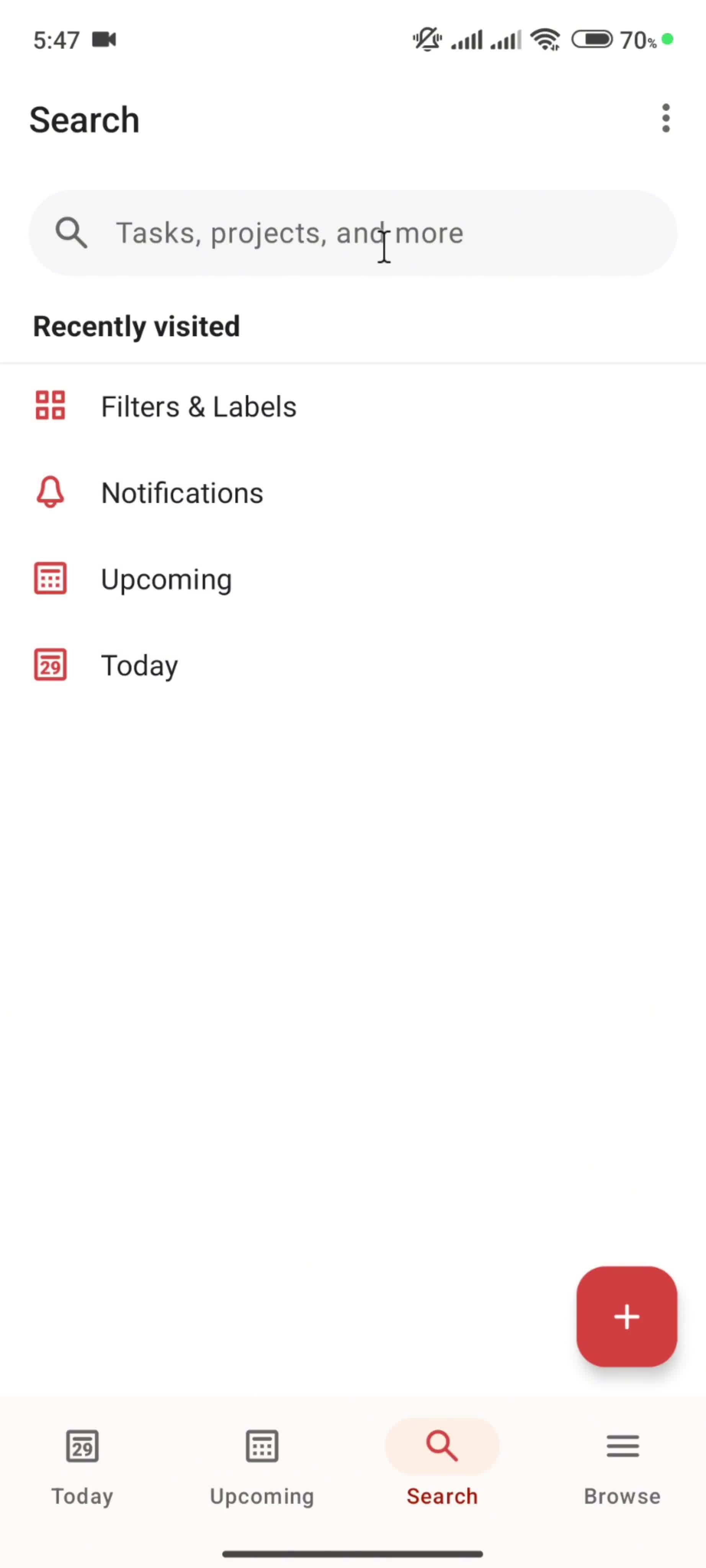
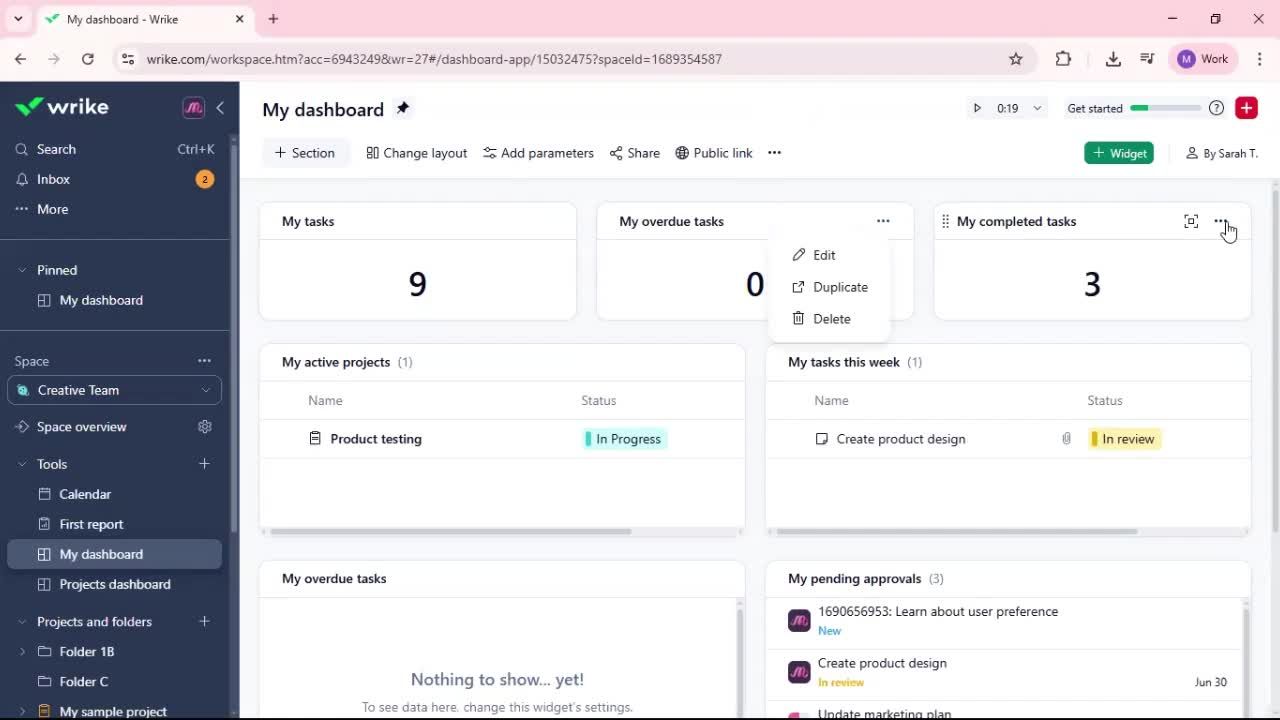
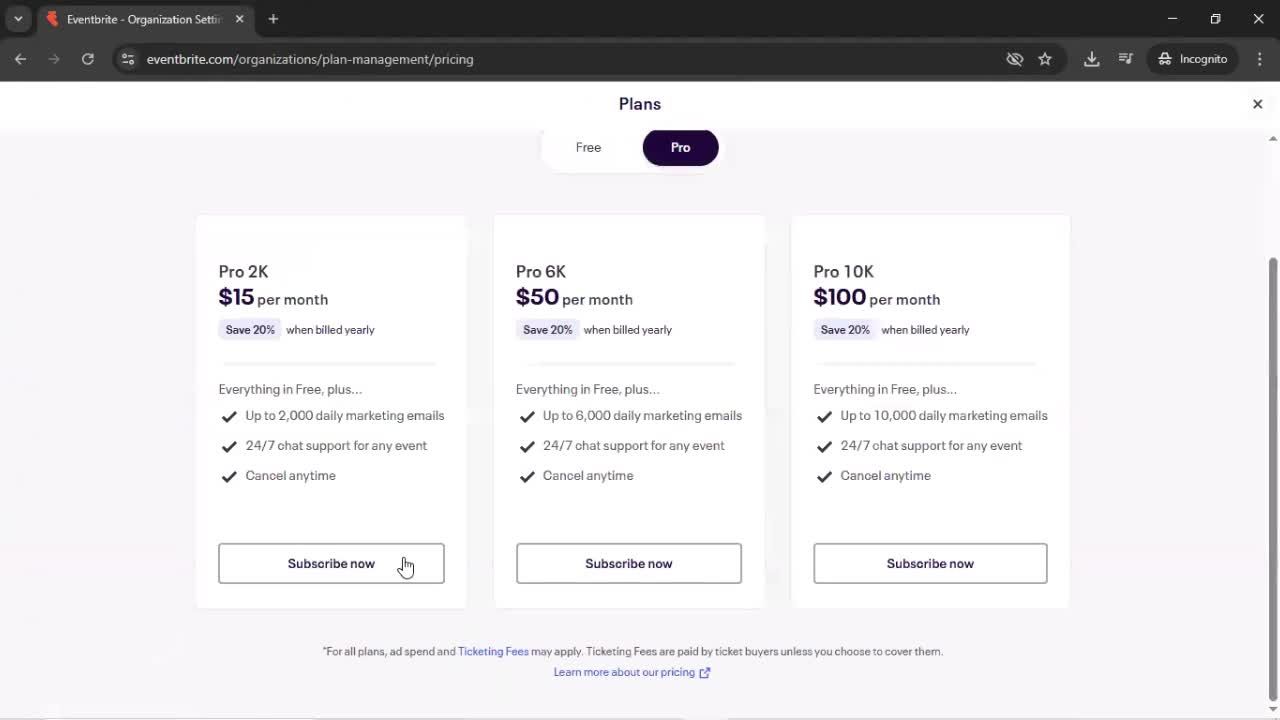
This recording documents the Setting status message flow inside Microsoft Teams on iOS, captured screen by screen from the live app. Rather than showing a static screenshot or a summarized case study, it preserves the full sequence — every transition, microcopy change, and UX decision — so you can study what Microsoft Teams actually ships, not what they describe.
How Microsoft Teams Structures the Setting status message Experience
The Setting status message flow is a specific moment inside the Microsoft Teams experience, and studying it in isolation (while still showing it in the context of a real product) makes it easier to extract patterns you can apply elsewhere. Notice how Microsoft Teams structures the flow: what it shows first, how it builds momentum, where it places friction, and how it handles completion.
A Real Reference for Setting status message Research
For designers researching Setting status message patterns, this recording gives you a direct, real-world reference. For Microsoft Teams enthusiasts or competitors, it's a detailed look at how the brand approaches this specific user journey on iOS.
Frequently Asked Questions
How was this Setting status message flow in Microsoft Teams recorded?
The flow was captured directly from the live iOS version of Microsoft Teams, preserving the full sequence of screens and interactions exactly as a real user would experience them.
How long is the Setting status message flow in Microsoft Teams?
Length depends on how Microsoft Teams has designed the flow — some Setting status message sequences are intentionally brief, others include multiple steps. Watch the full recording to see the complete timing.
How often is the Microsoft Teams Setting status message flow updated?
Recordings are refreshed when Microsoft Teams ships significant redesigns, so the documentation reflects the current iOS experience rather than an outdated version.
Can I see Setting status message flows from other iOS apps to compare?
Yes. The iOS Setting status message flows category collects the same flow type from many different iOS apps, so you can benchmark Microsoft Teams against competitors and alternative approaches.