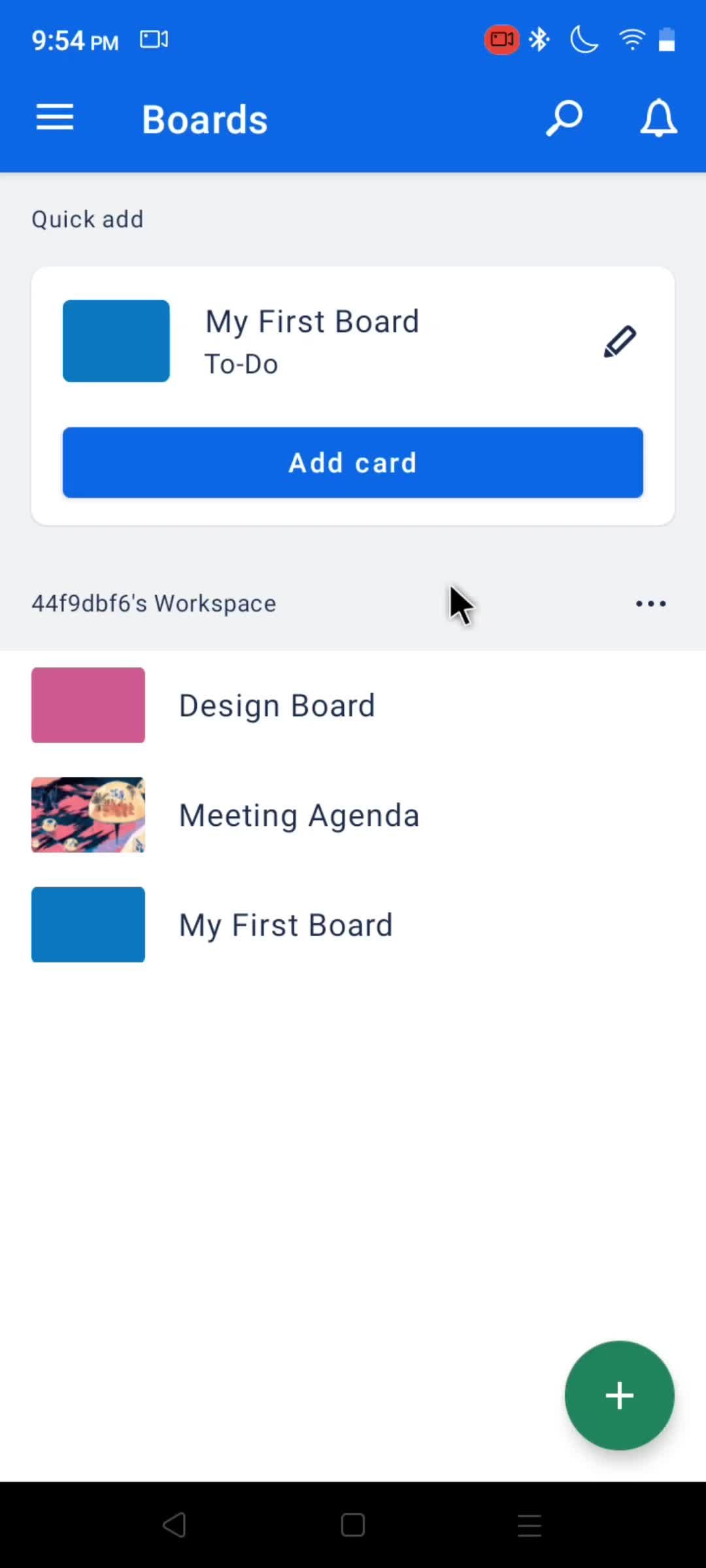
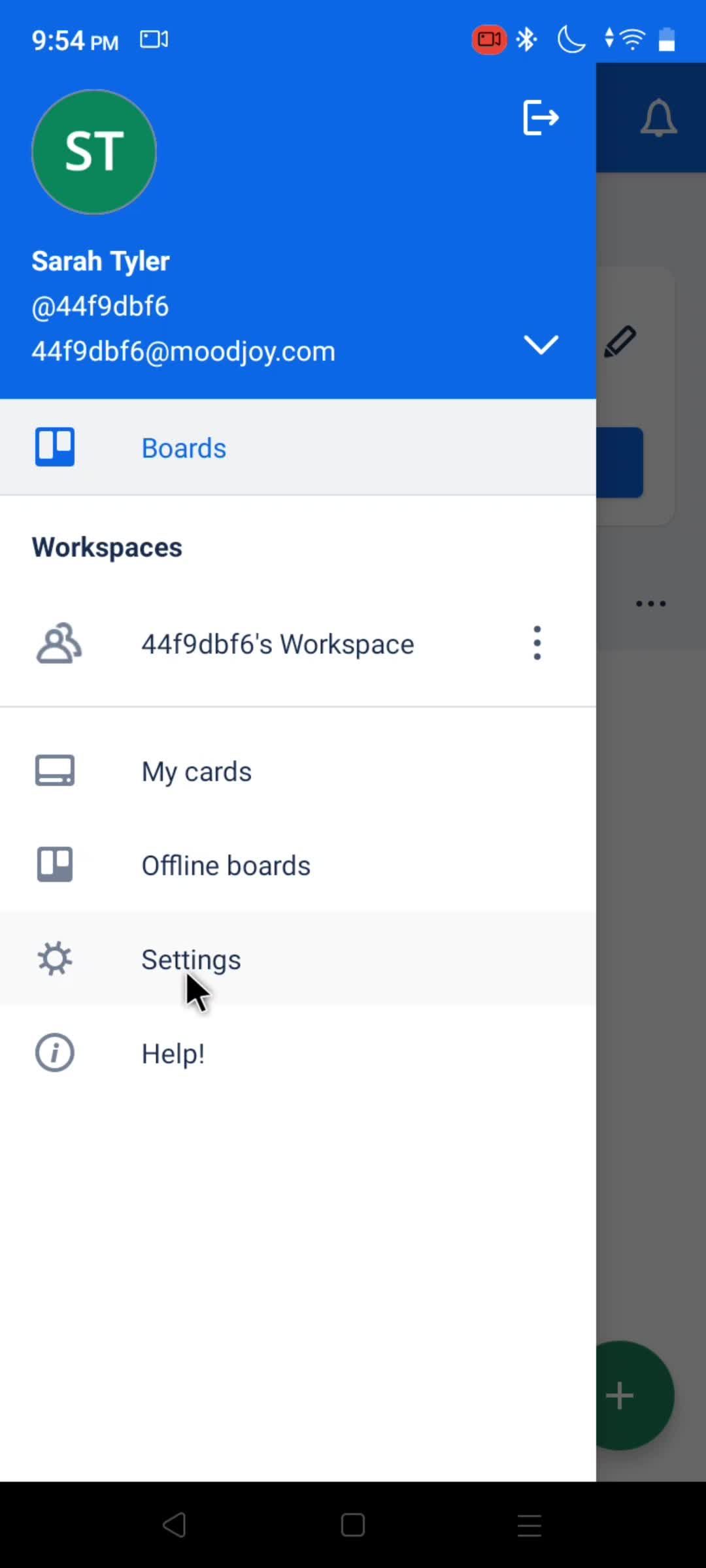
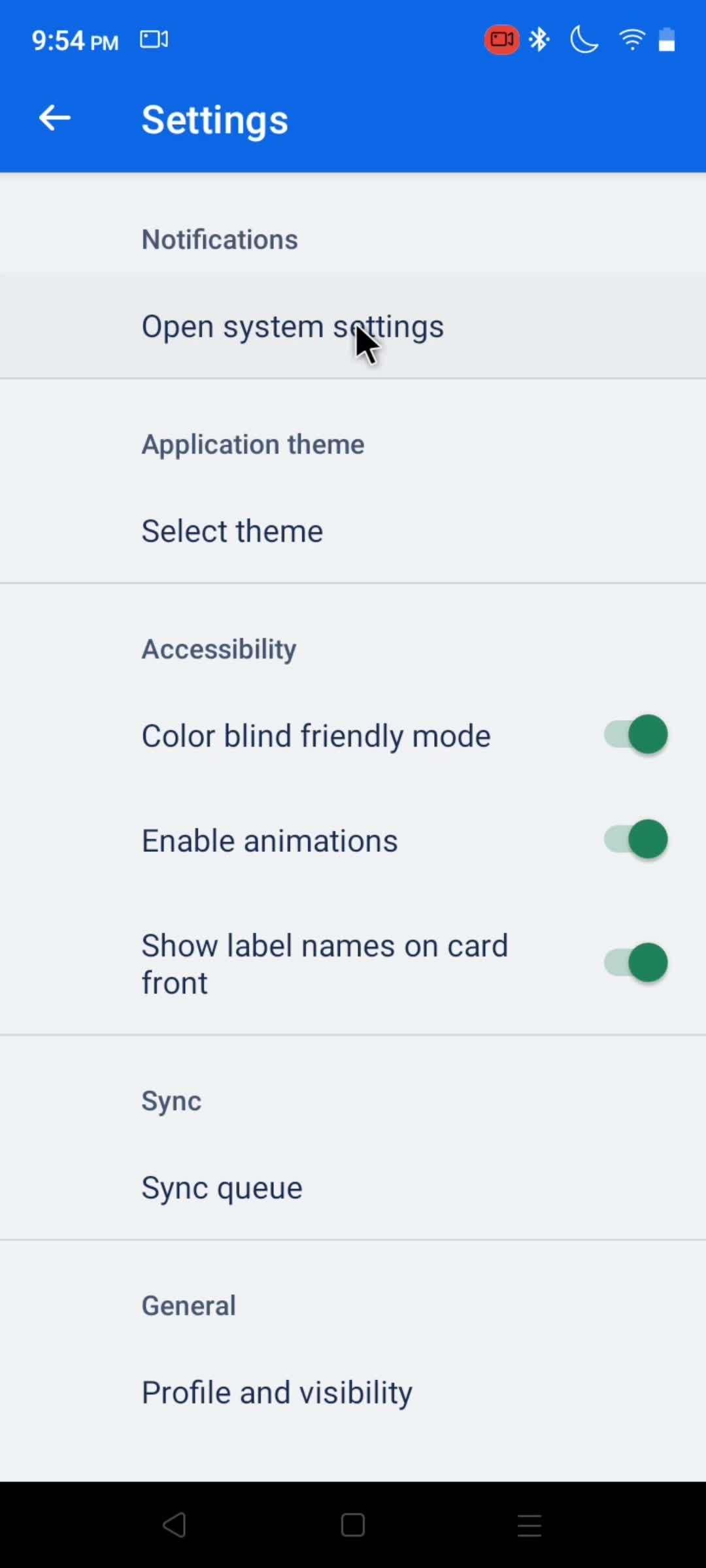
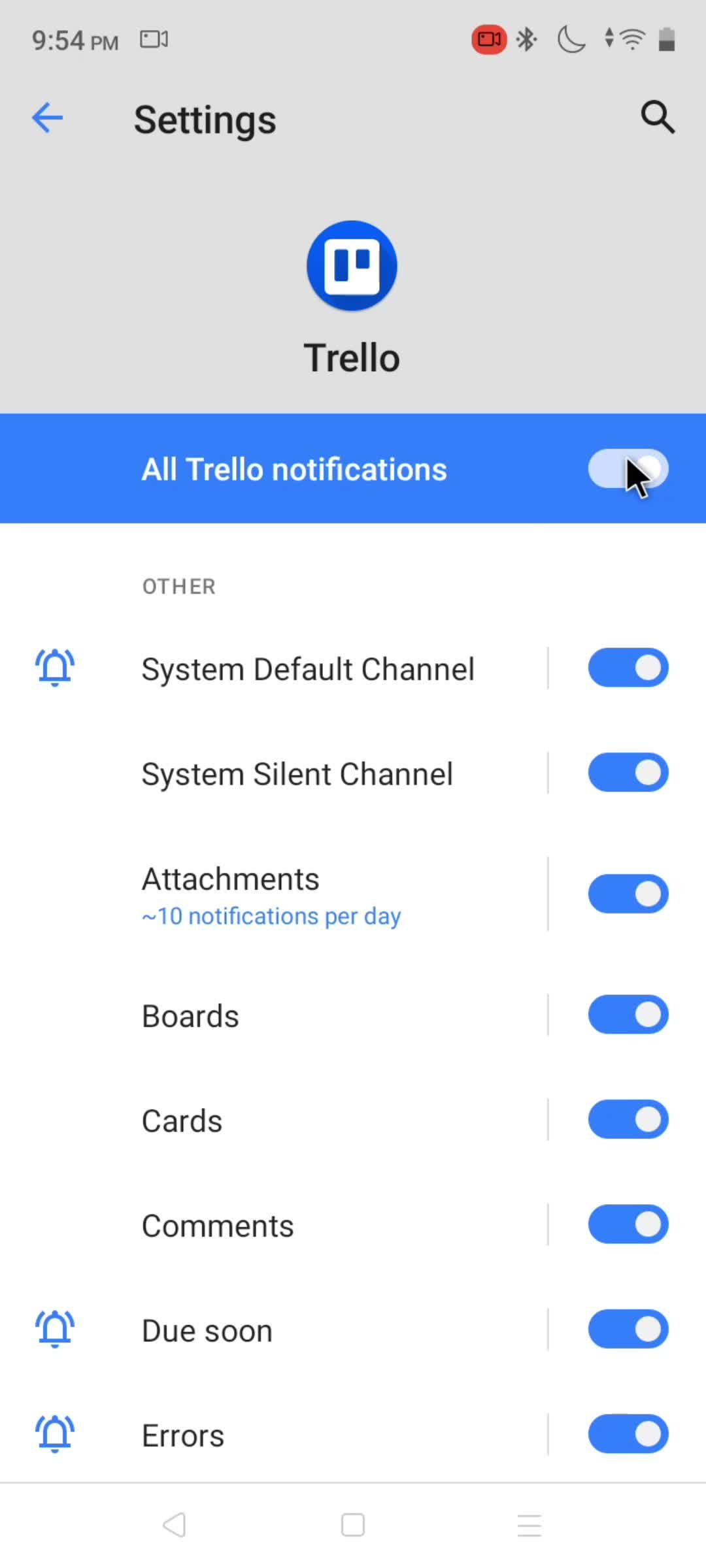
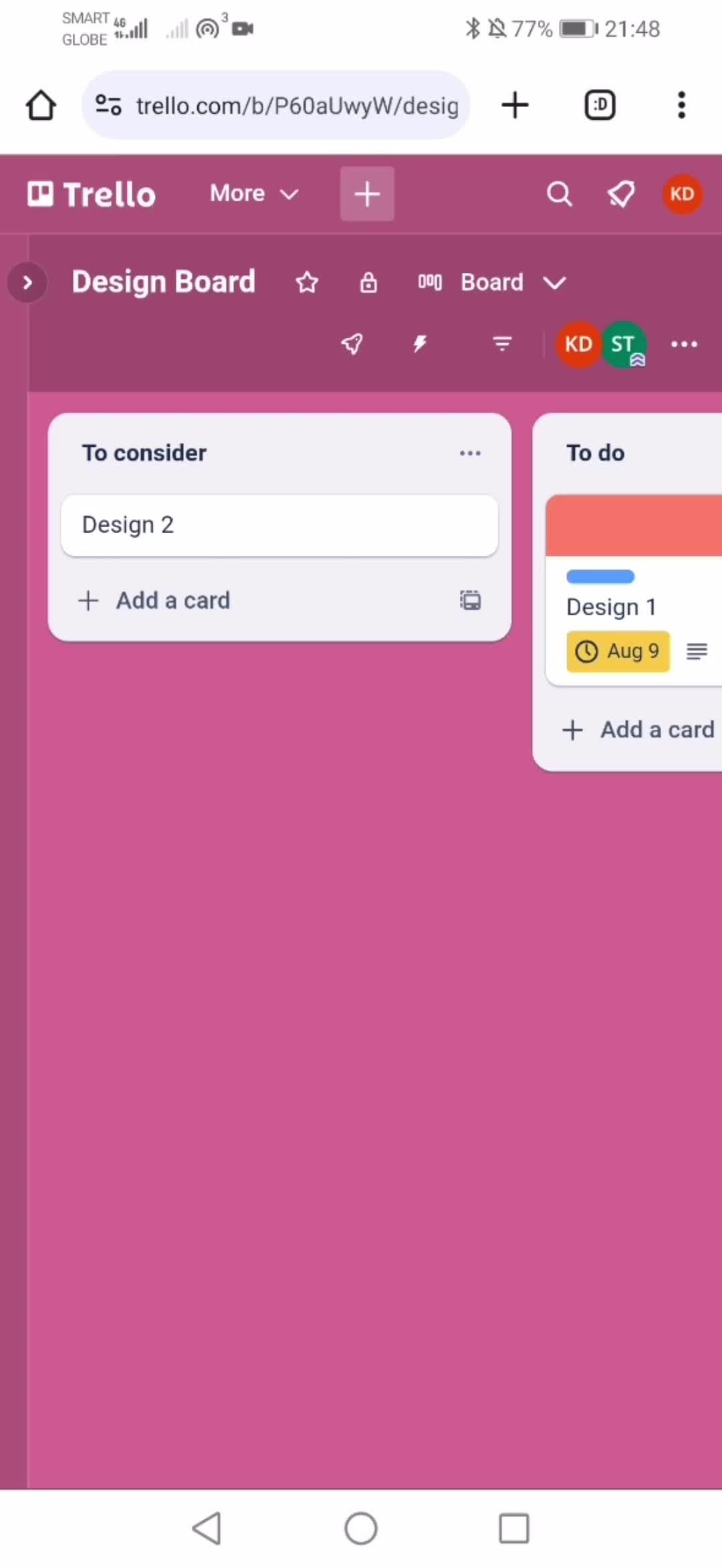
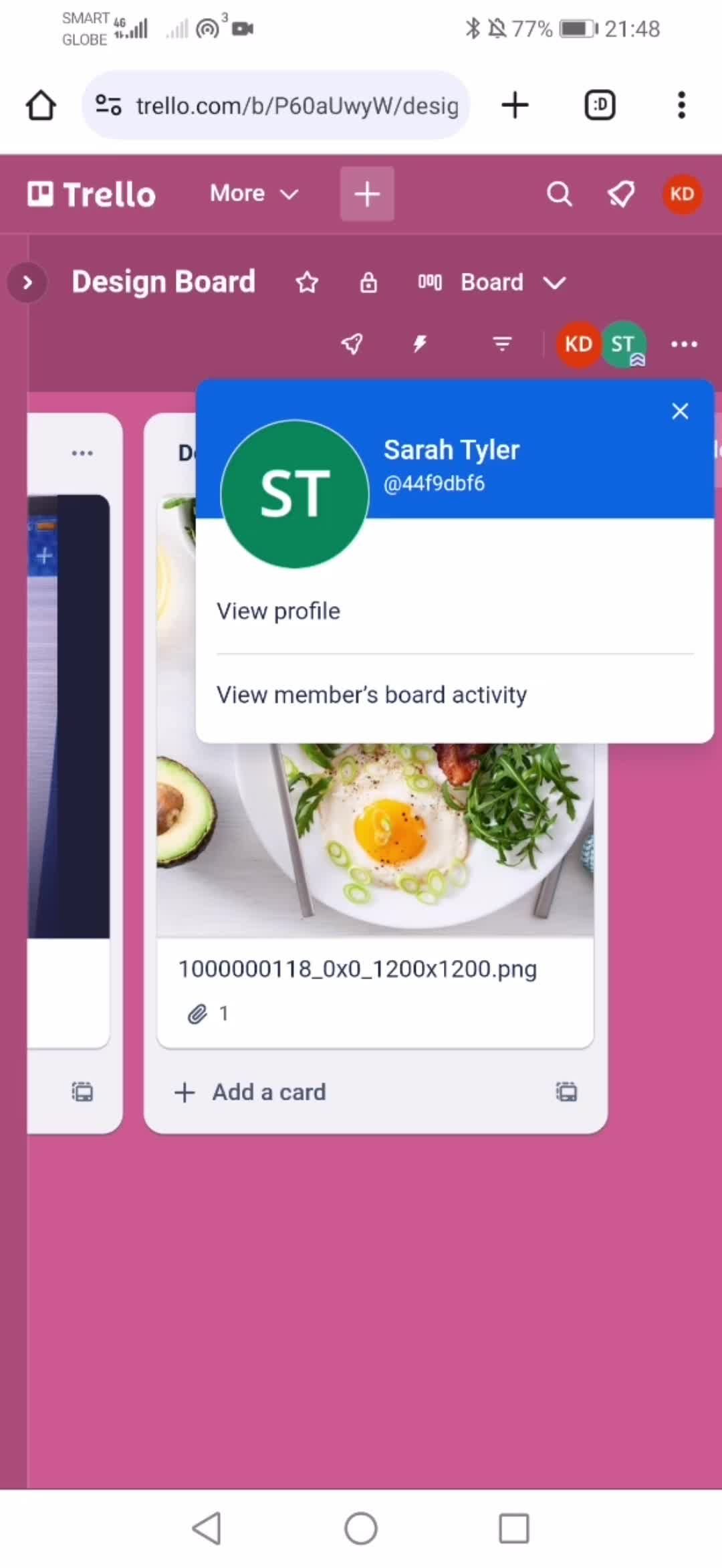
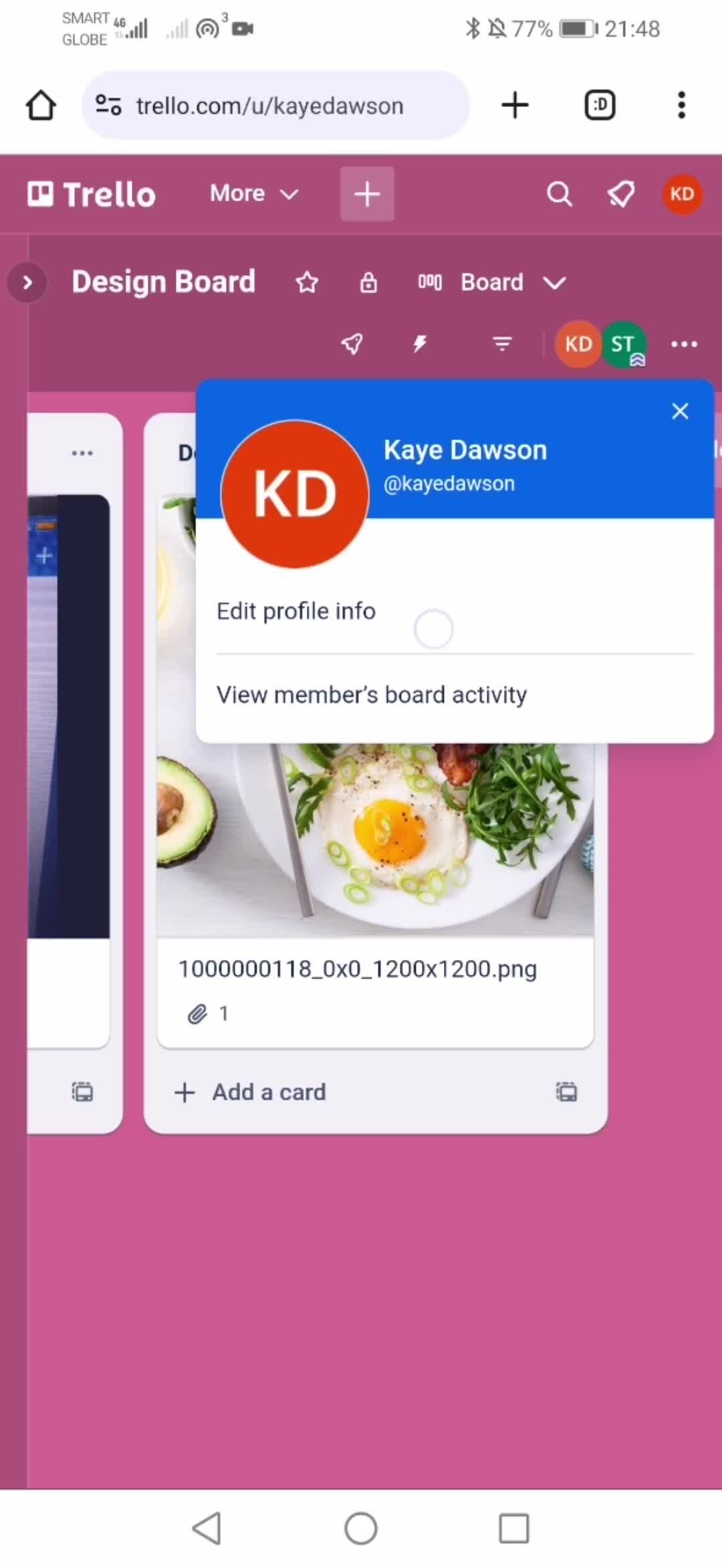
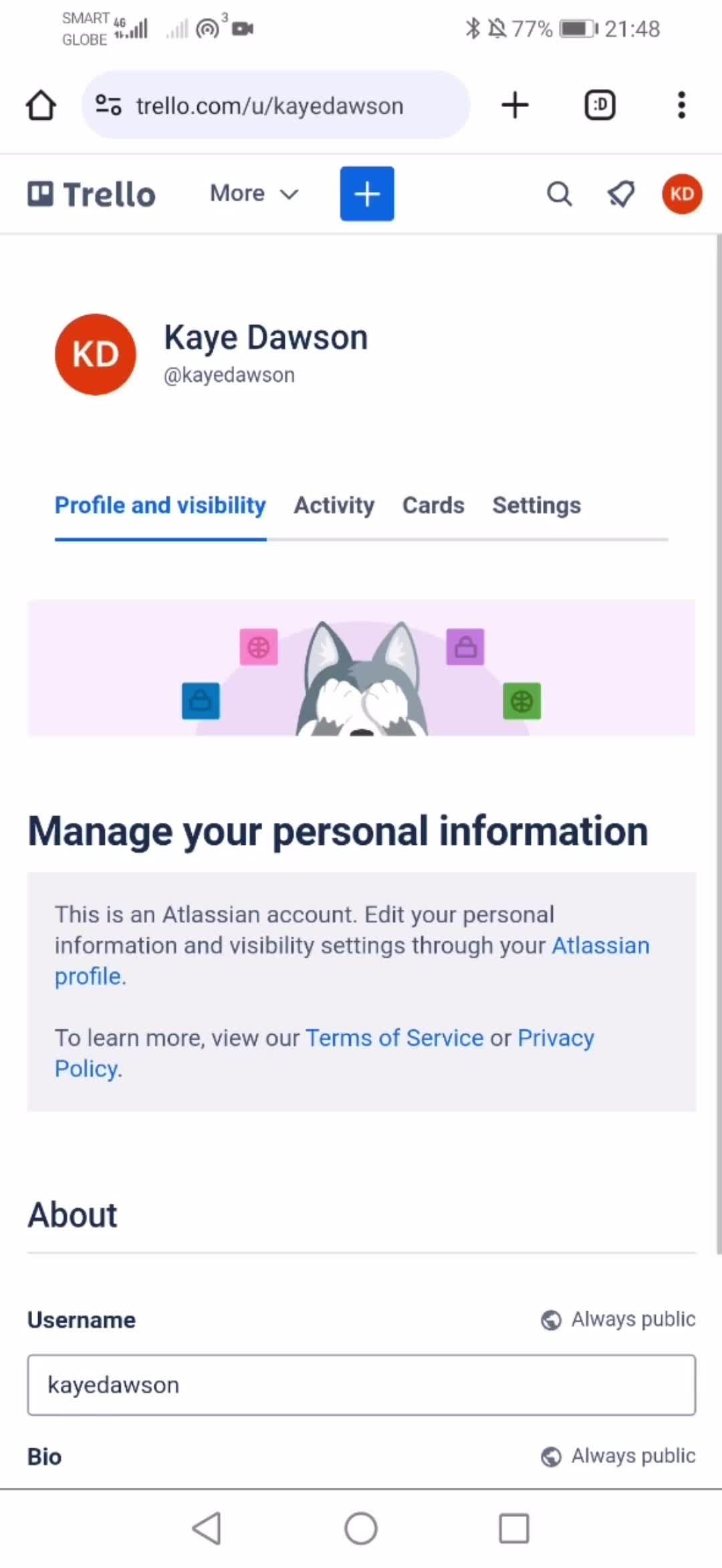
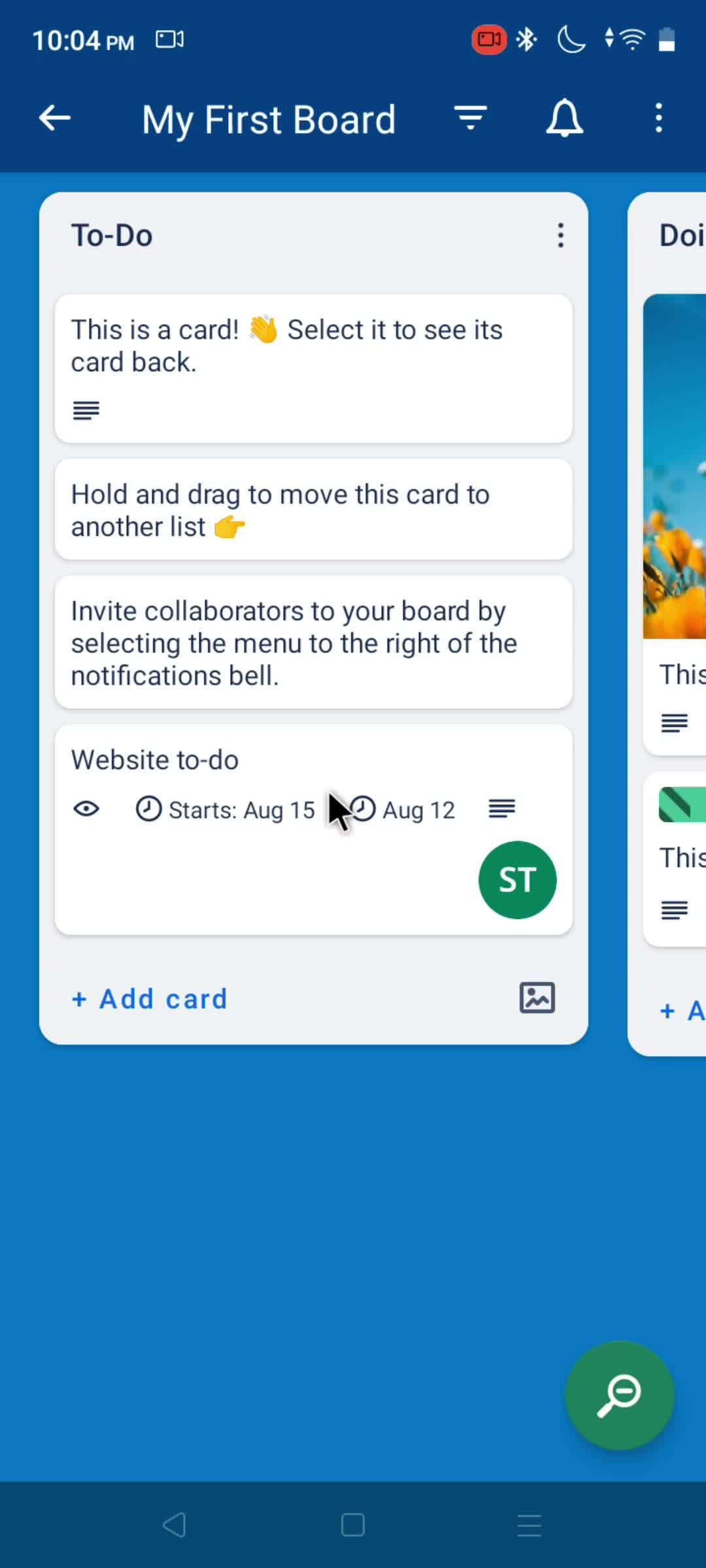
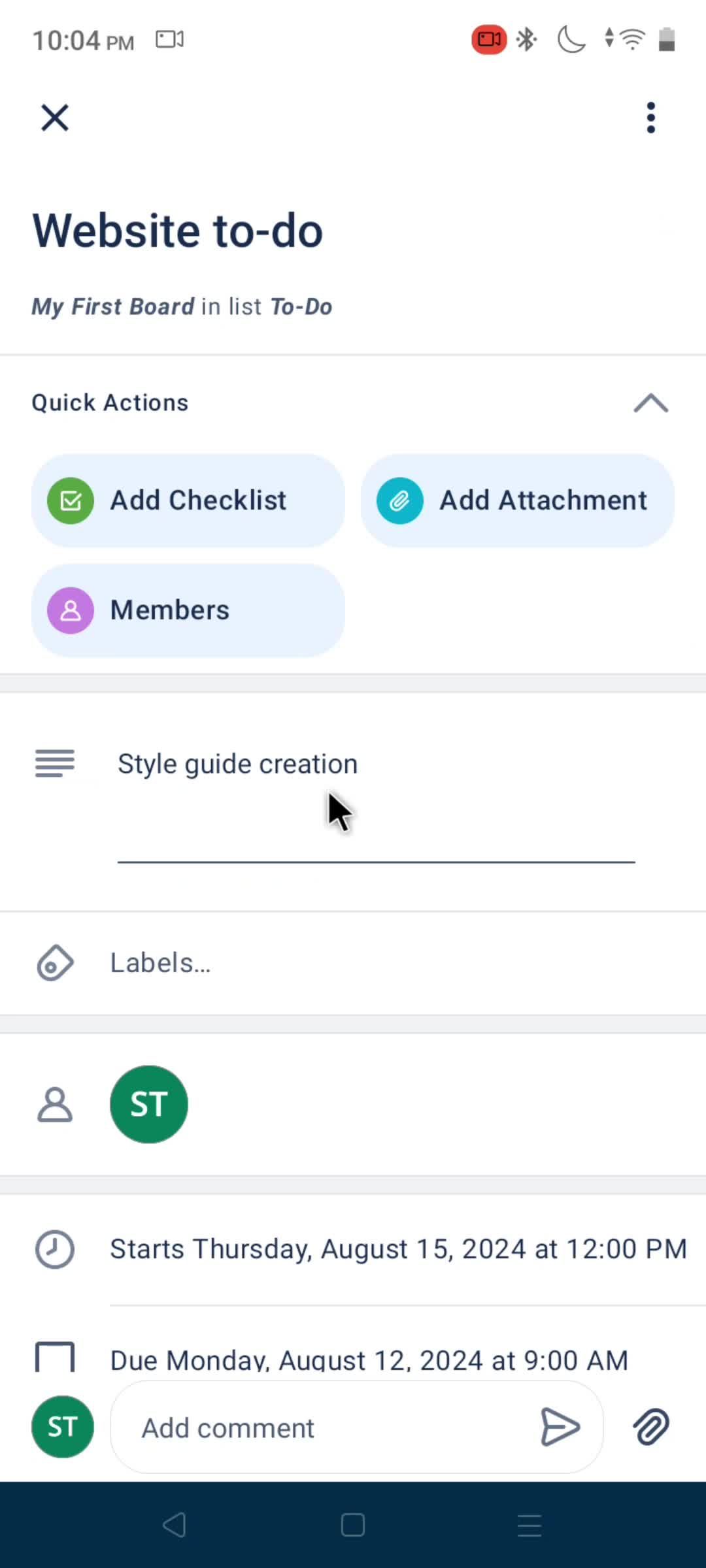
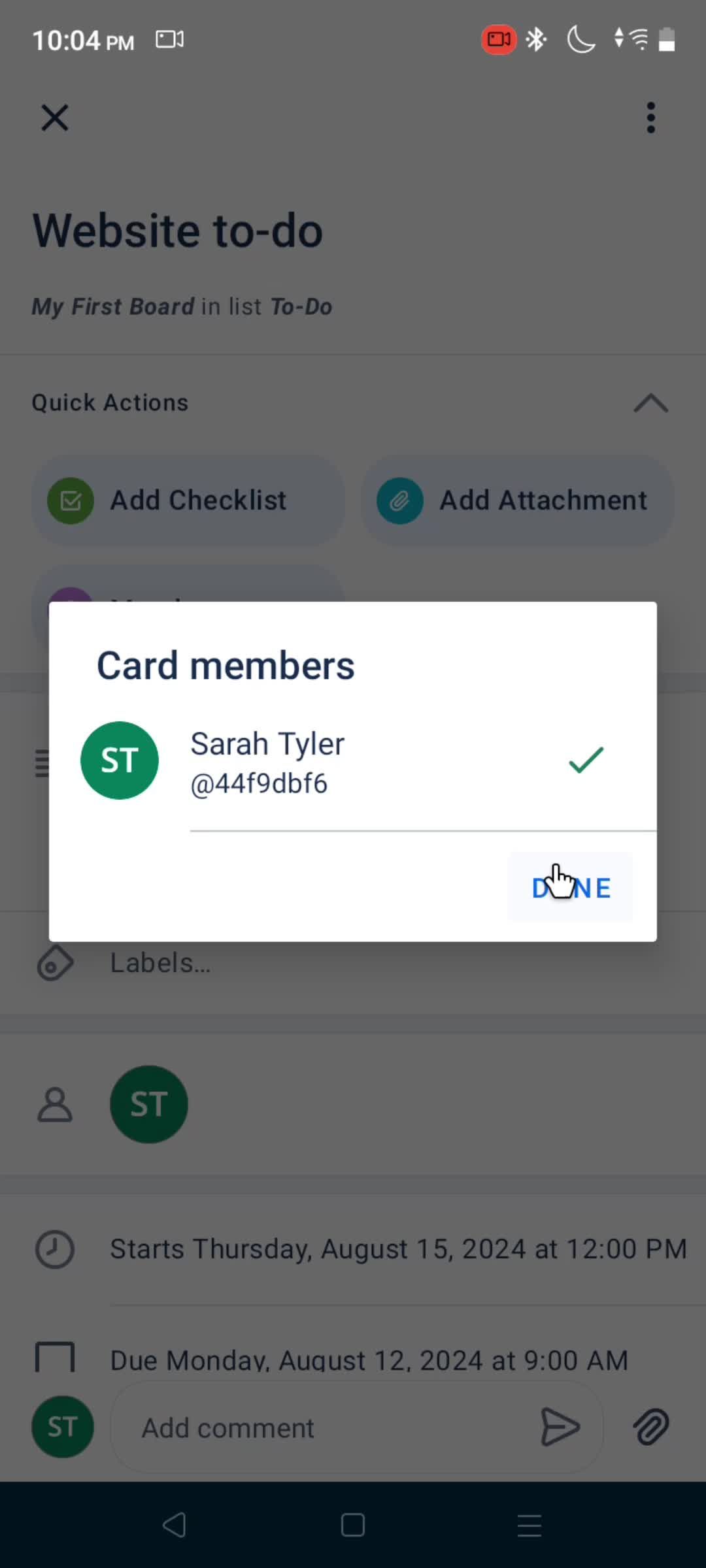
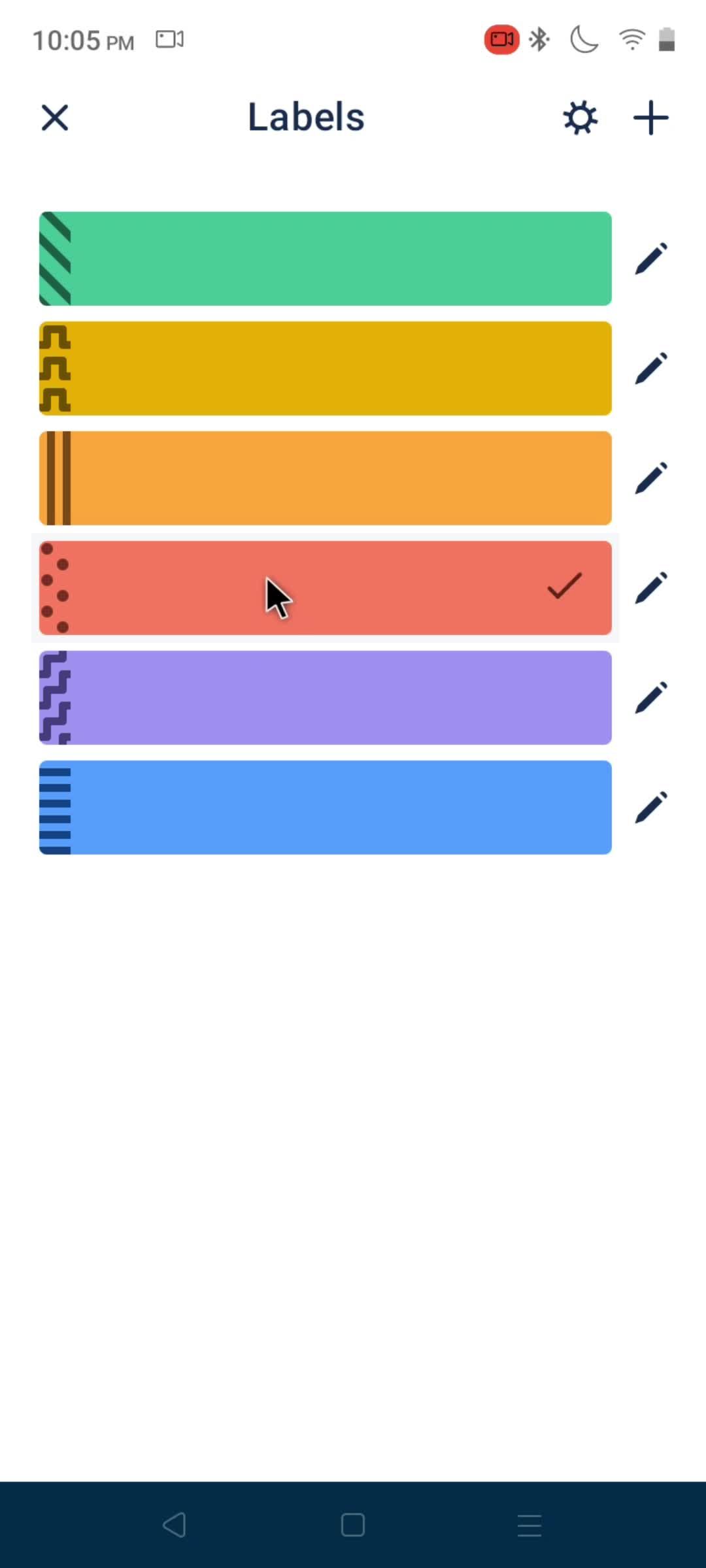
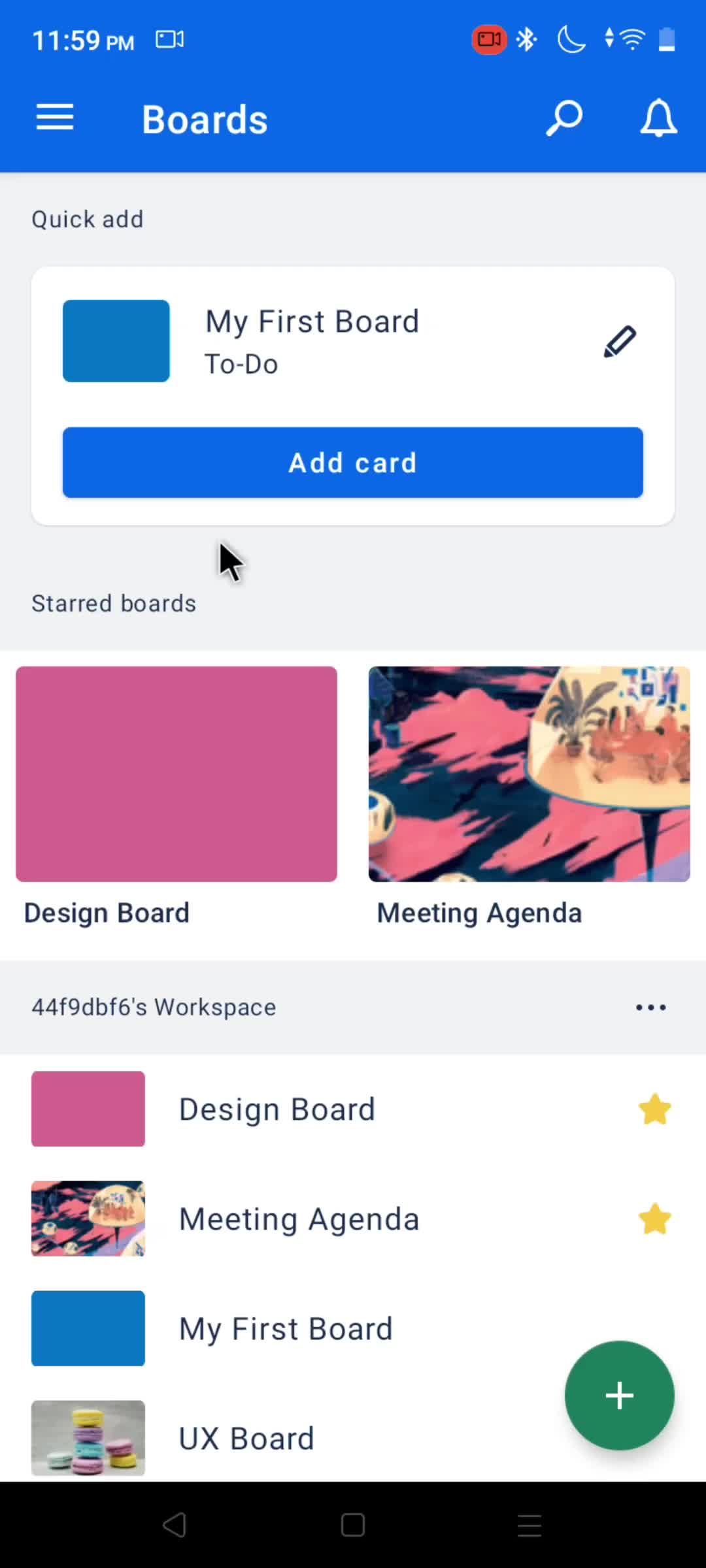
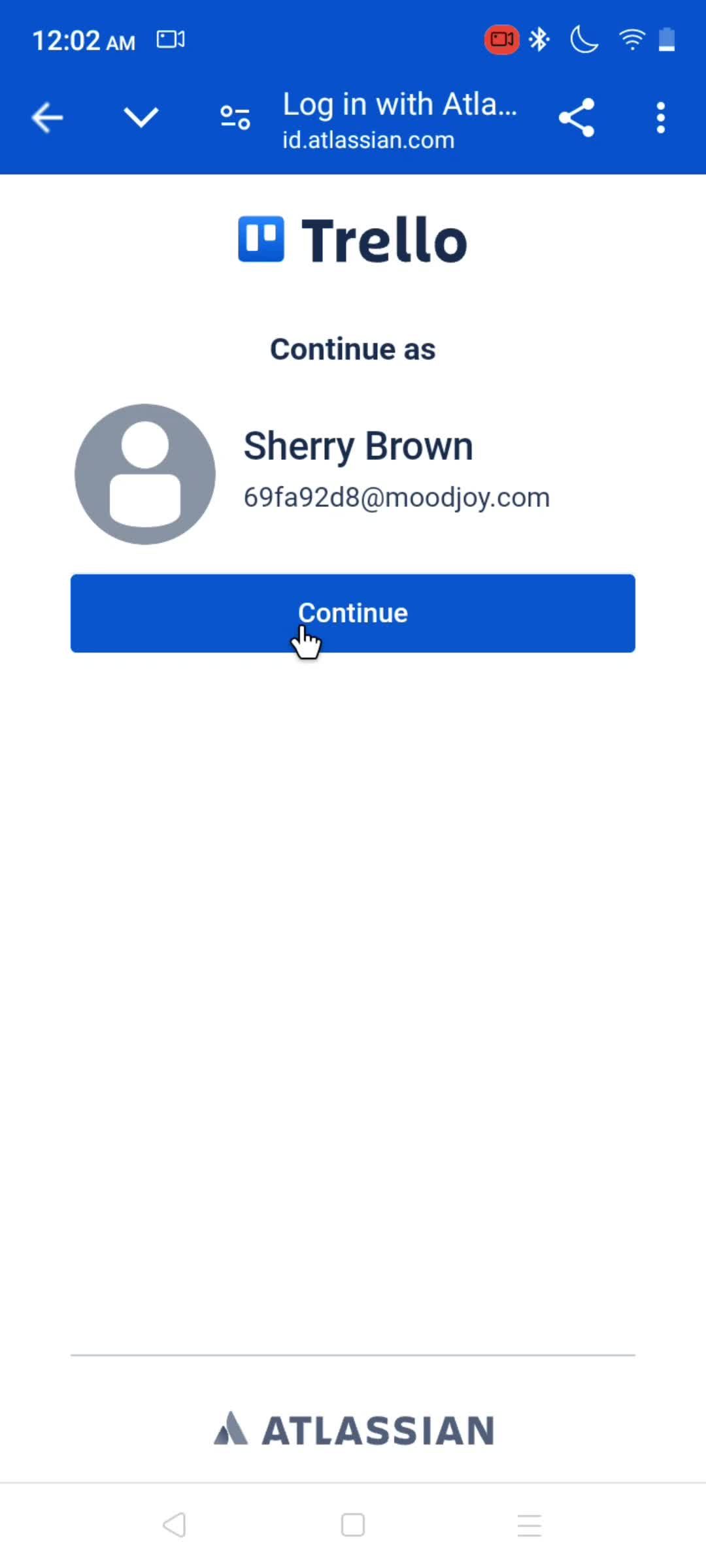
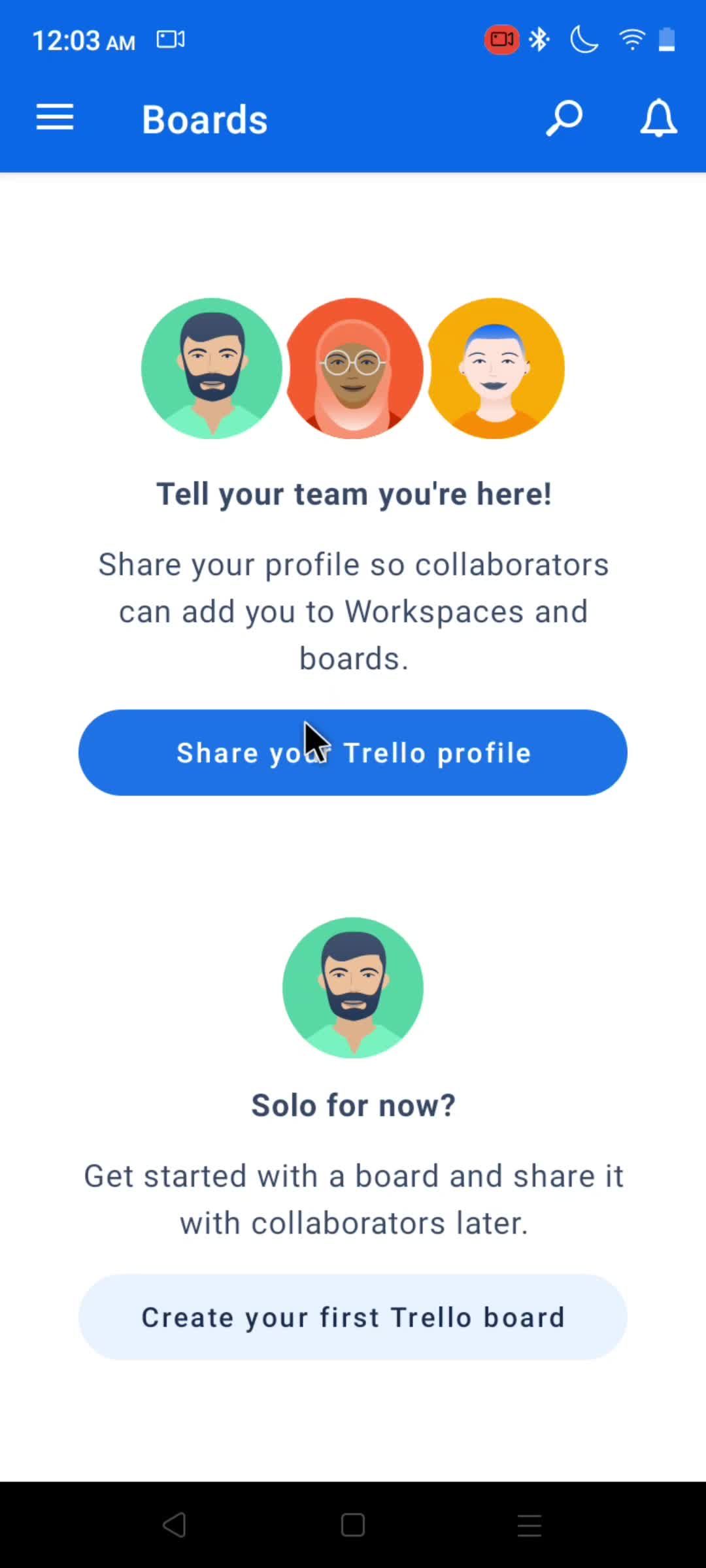
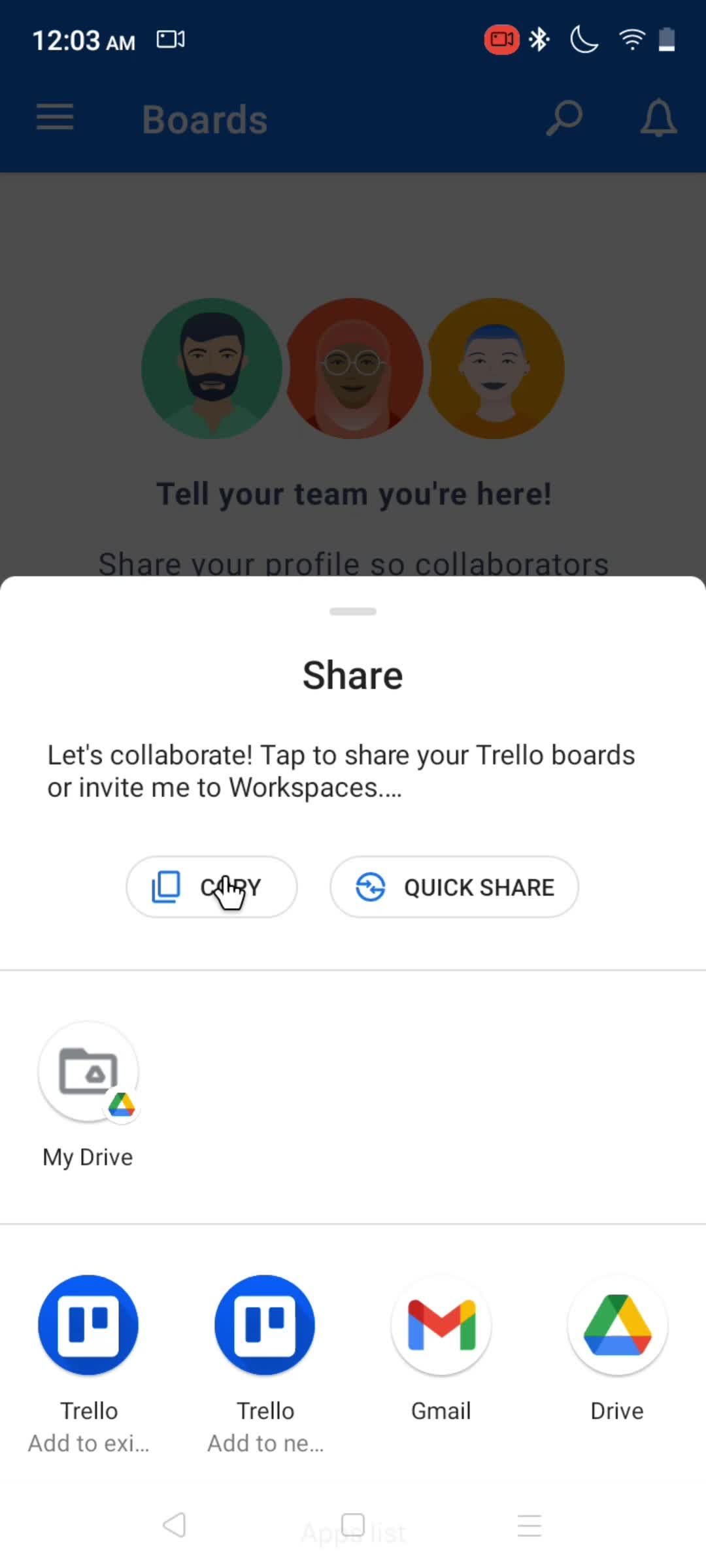
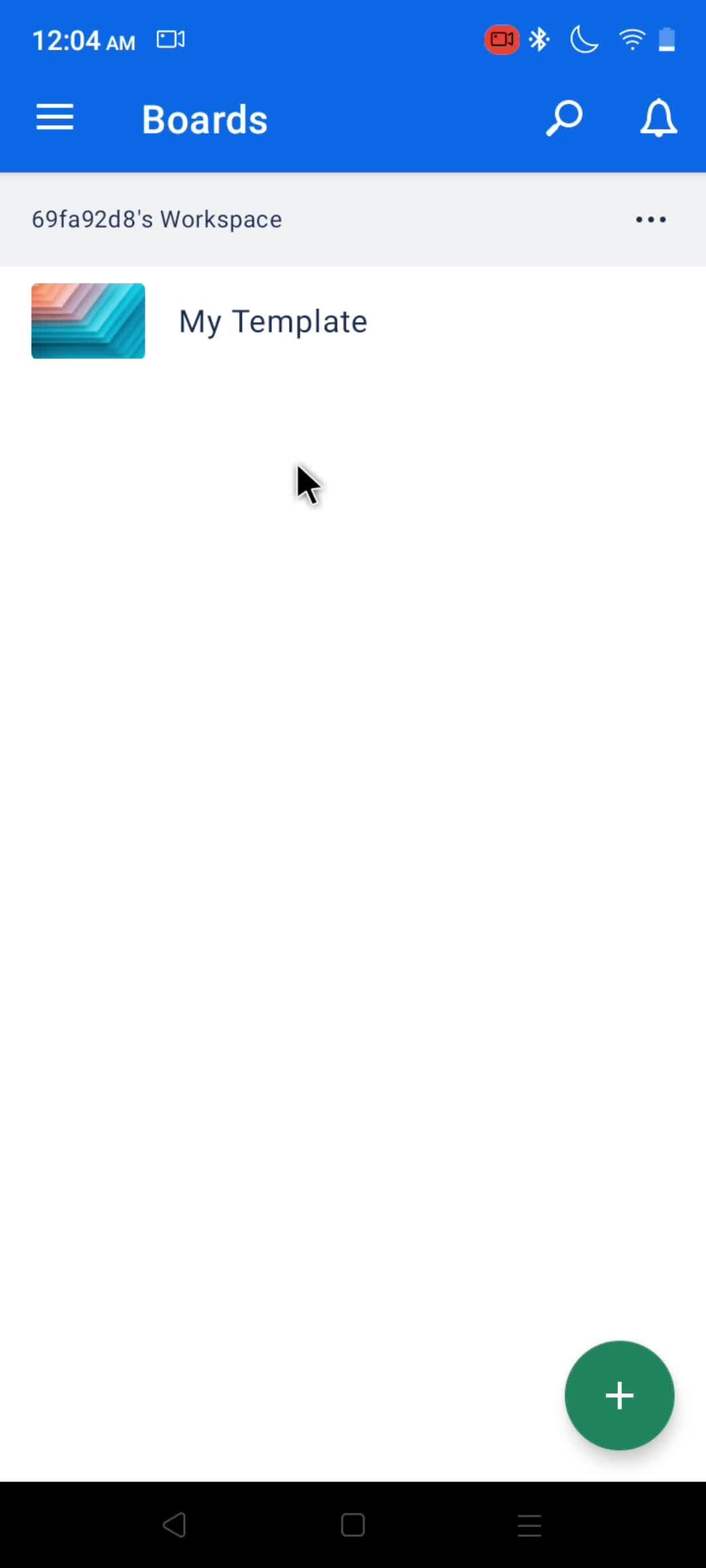
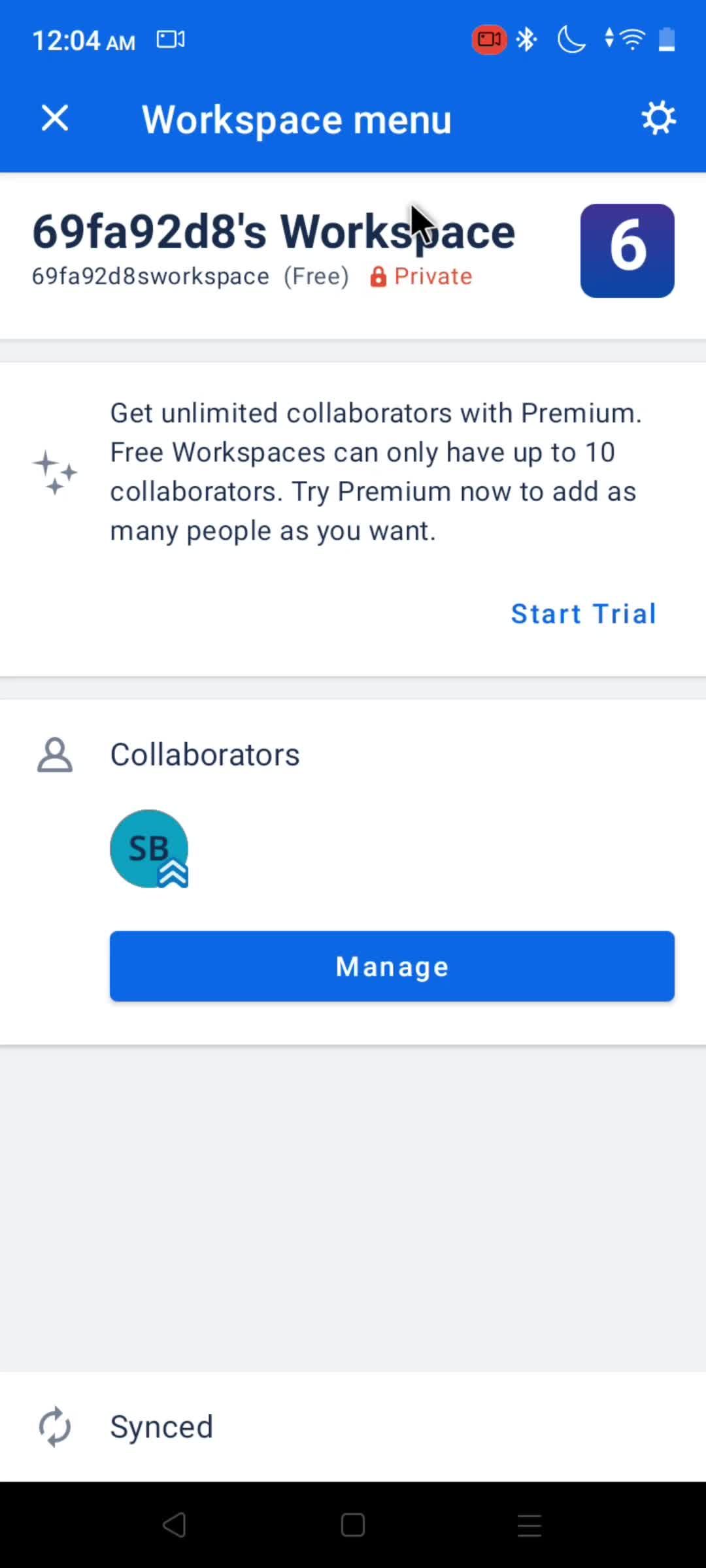
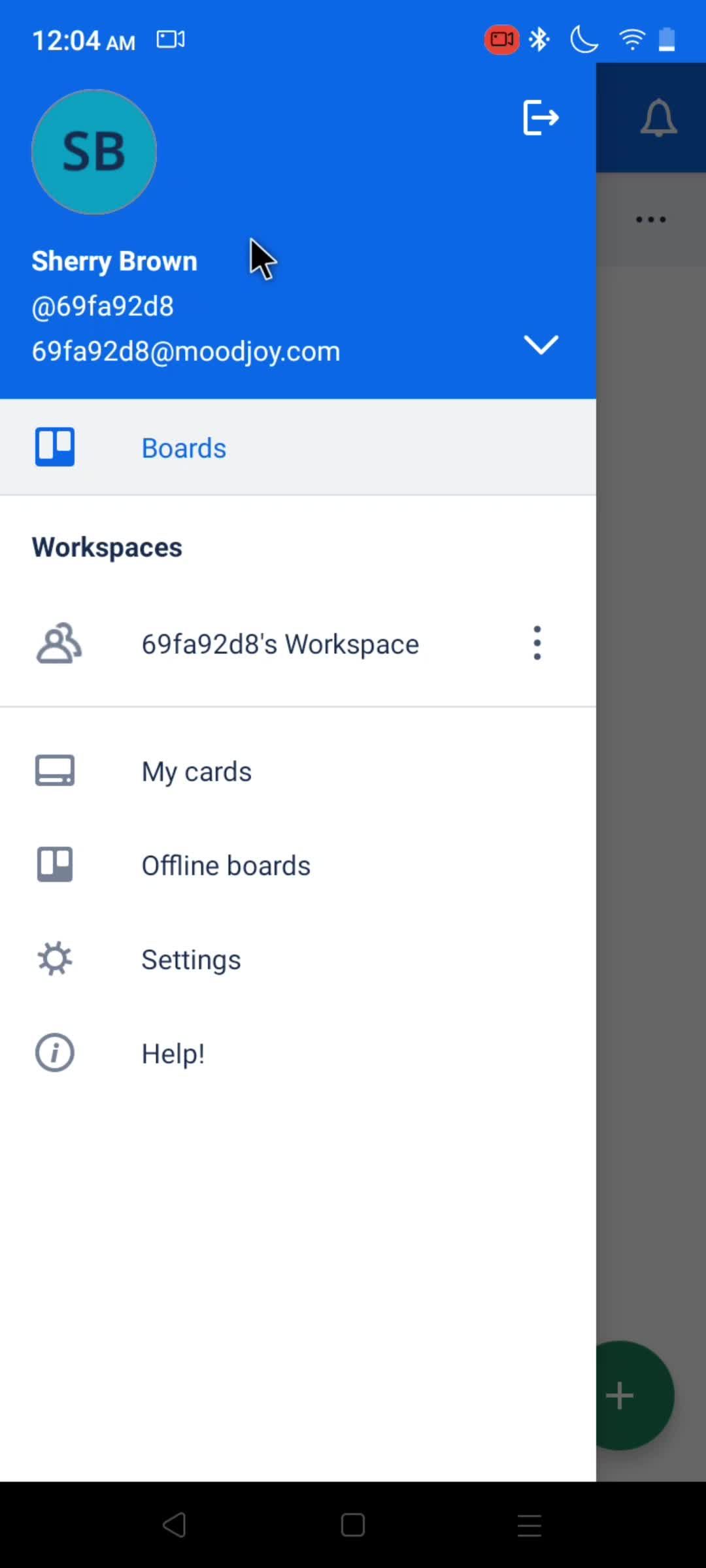
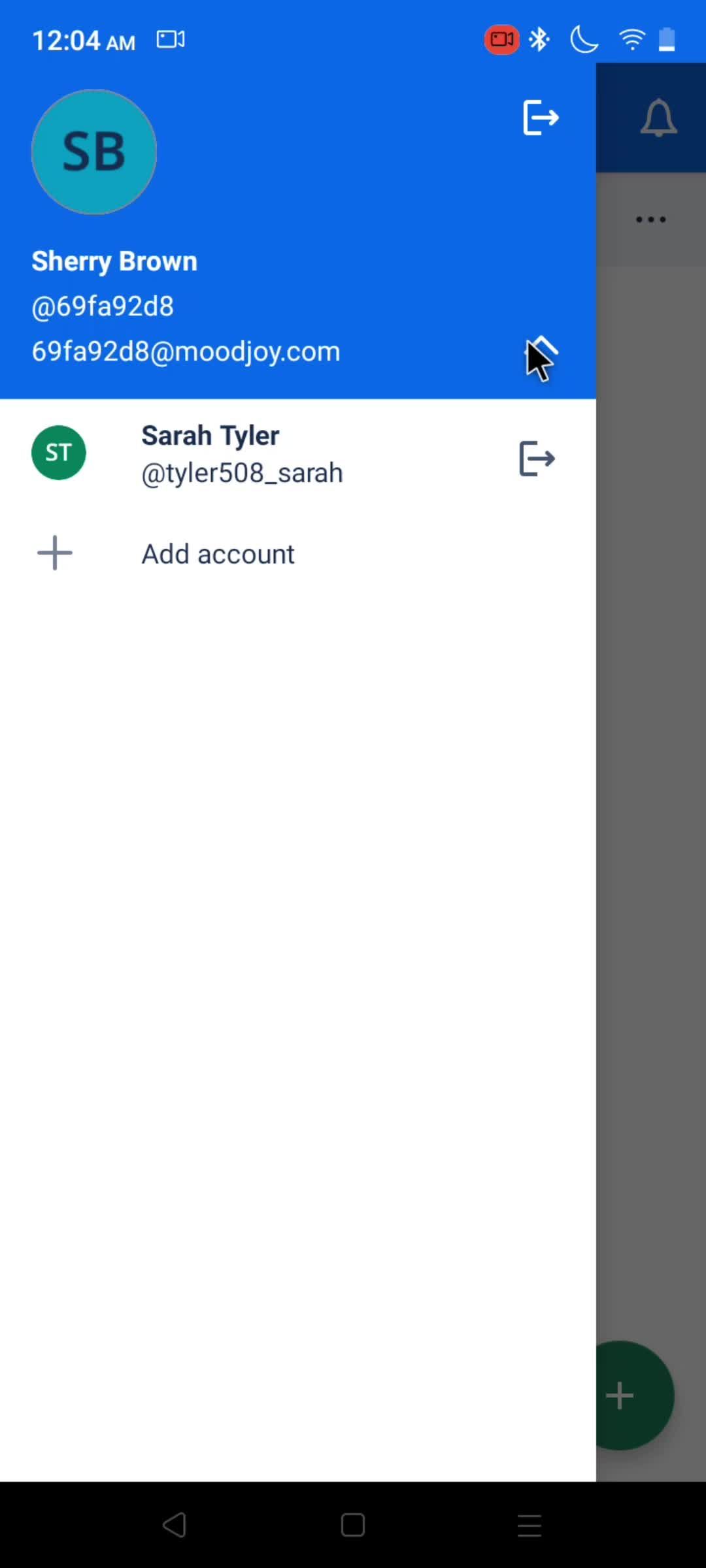
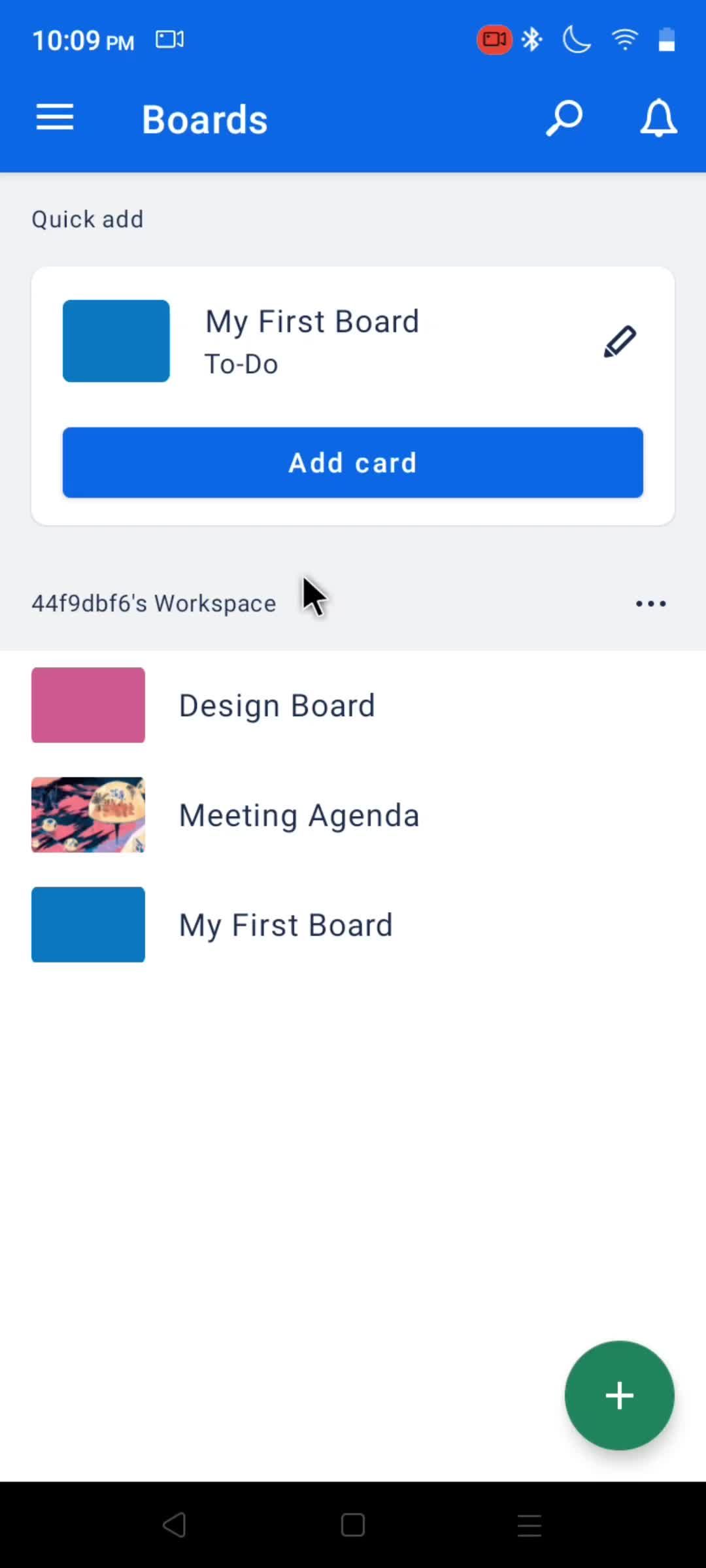
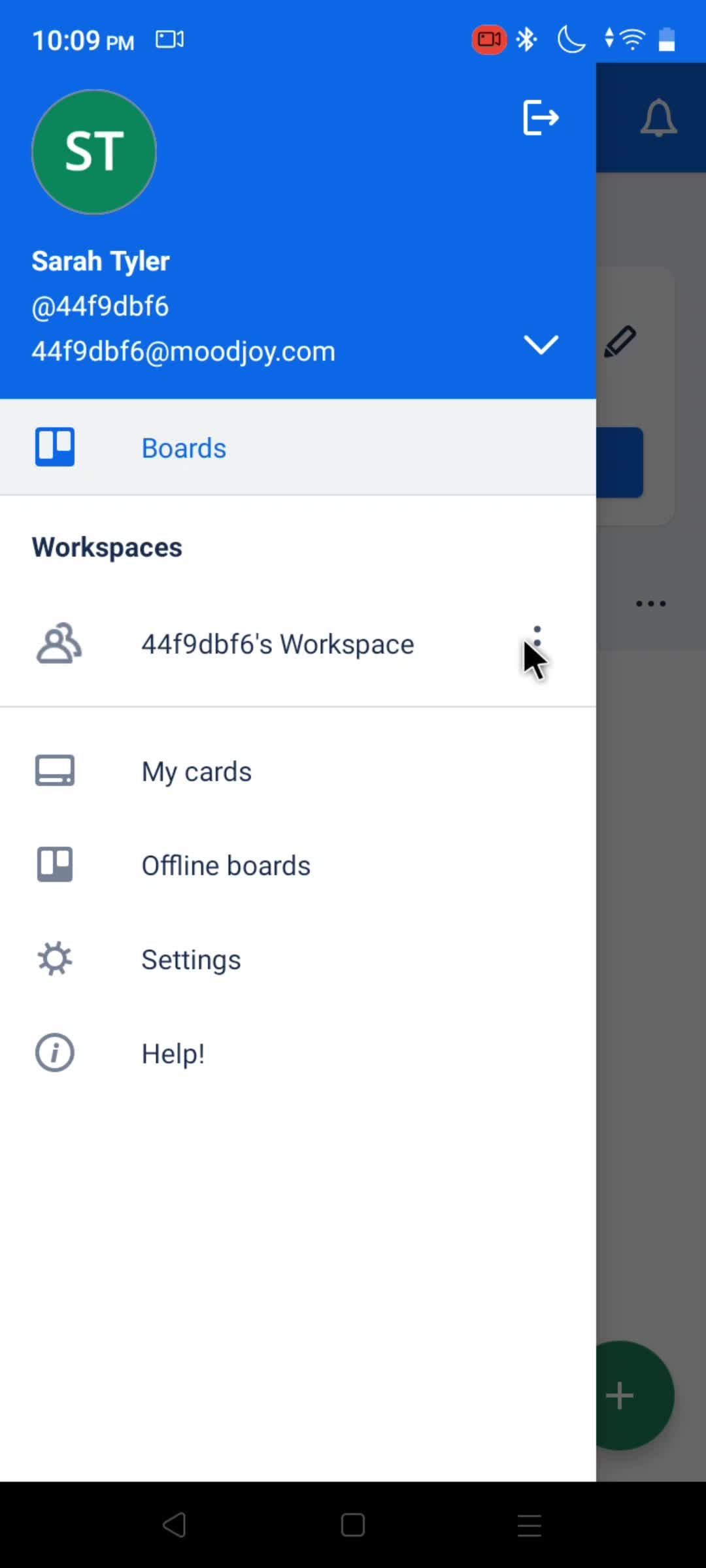
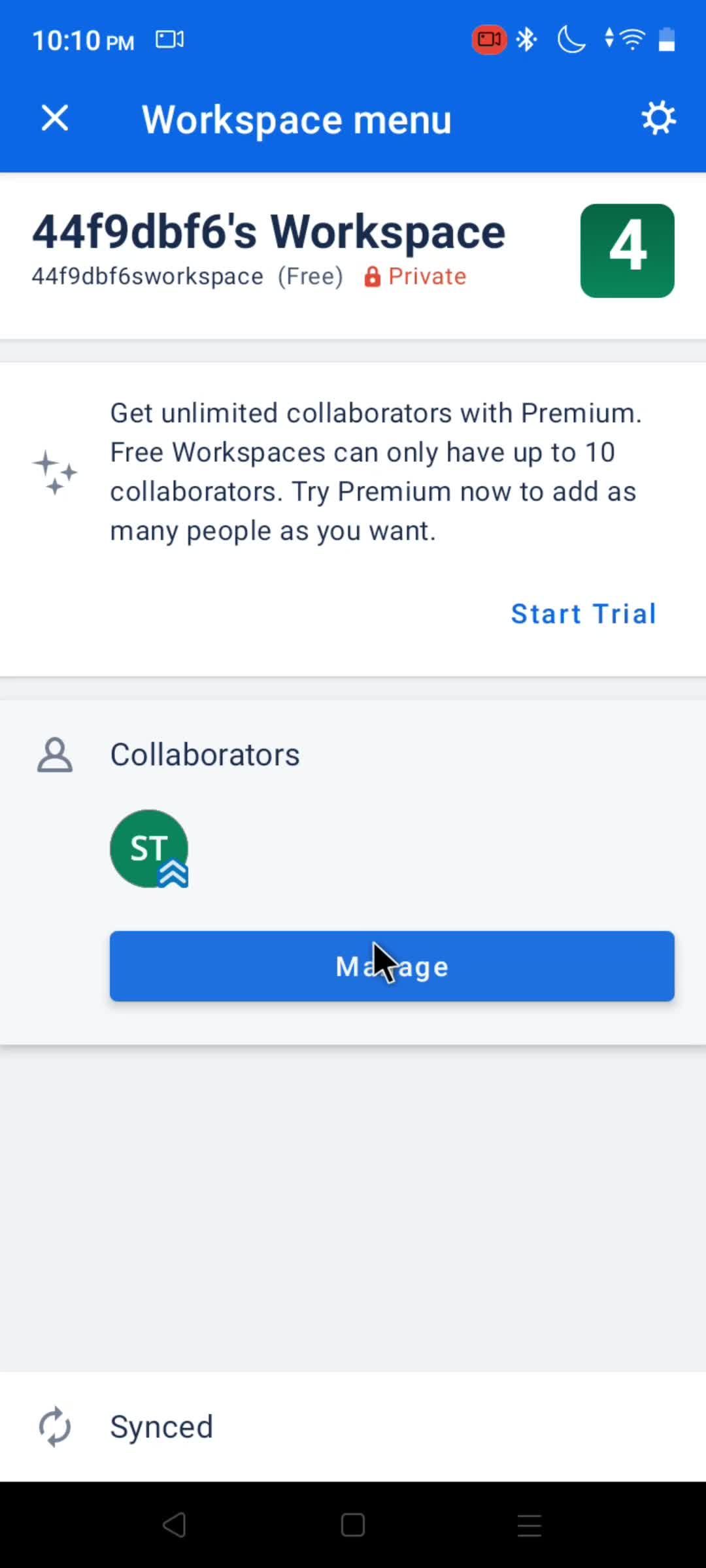
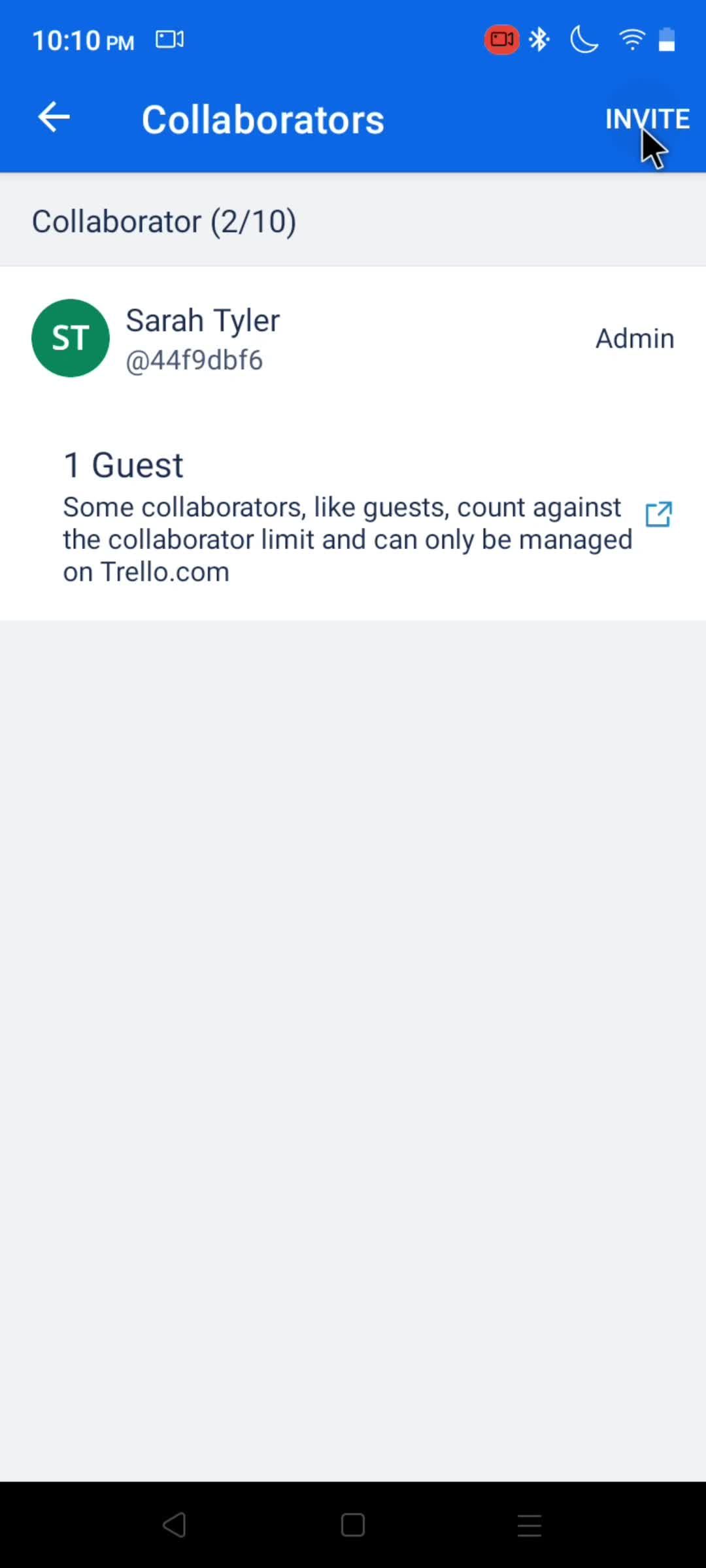
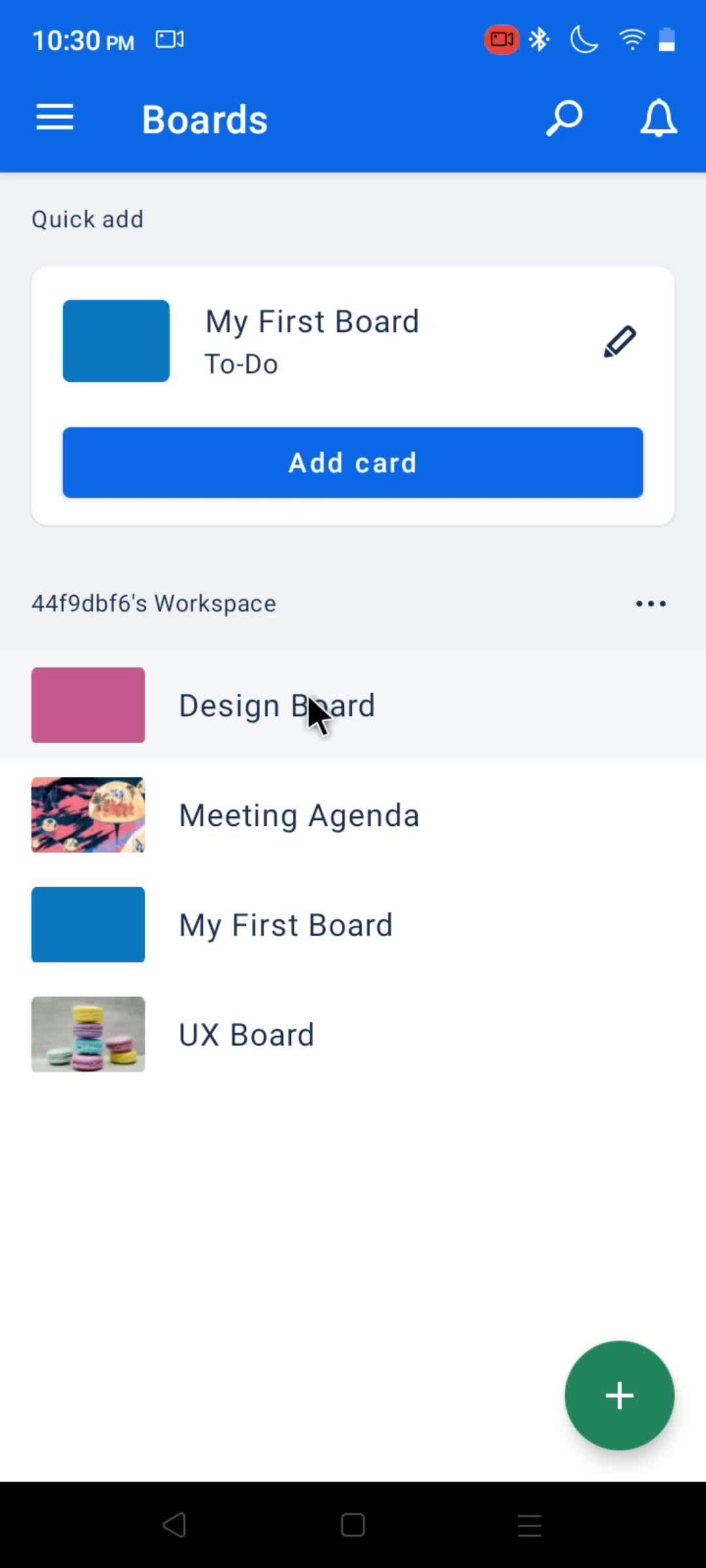
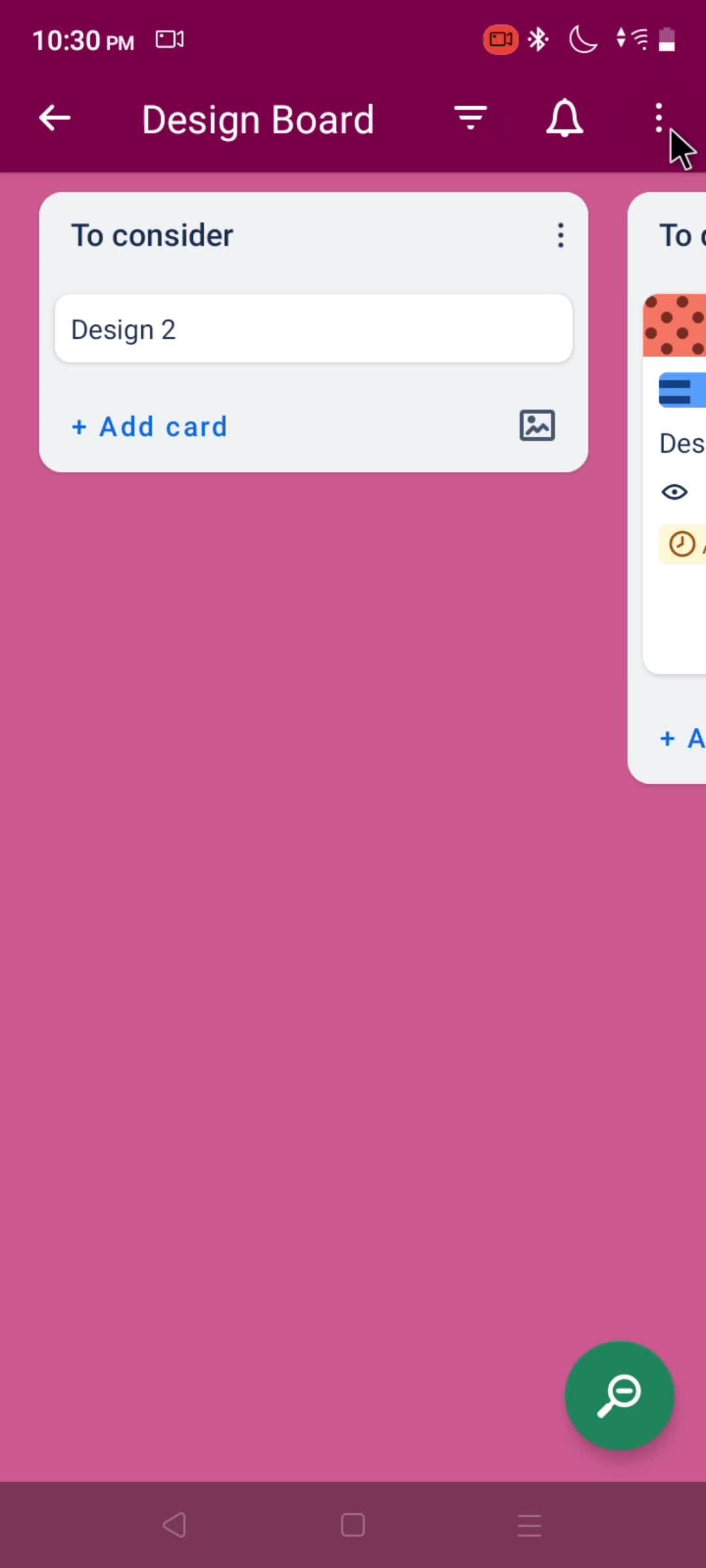
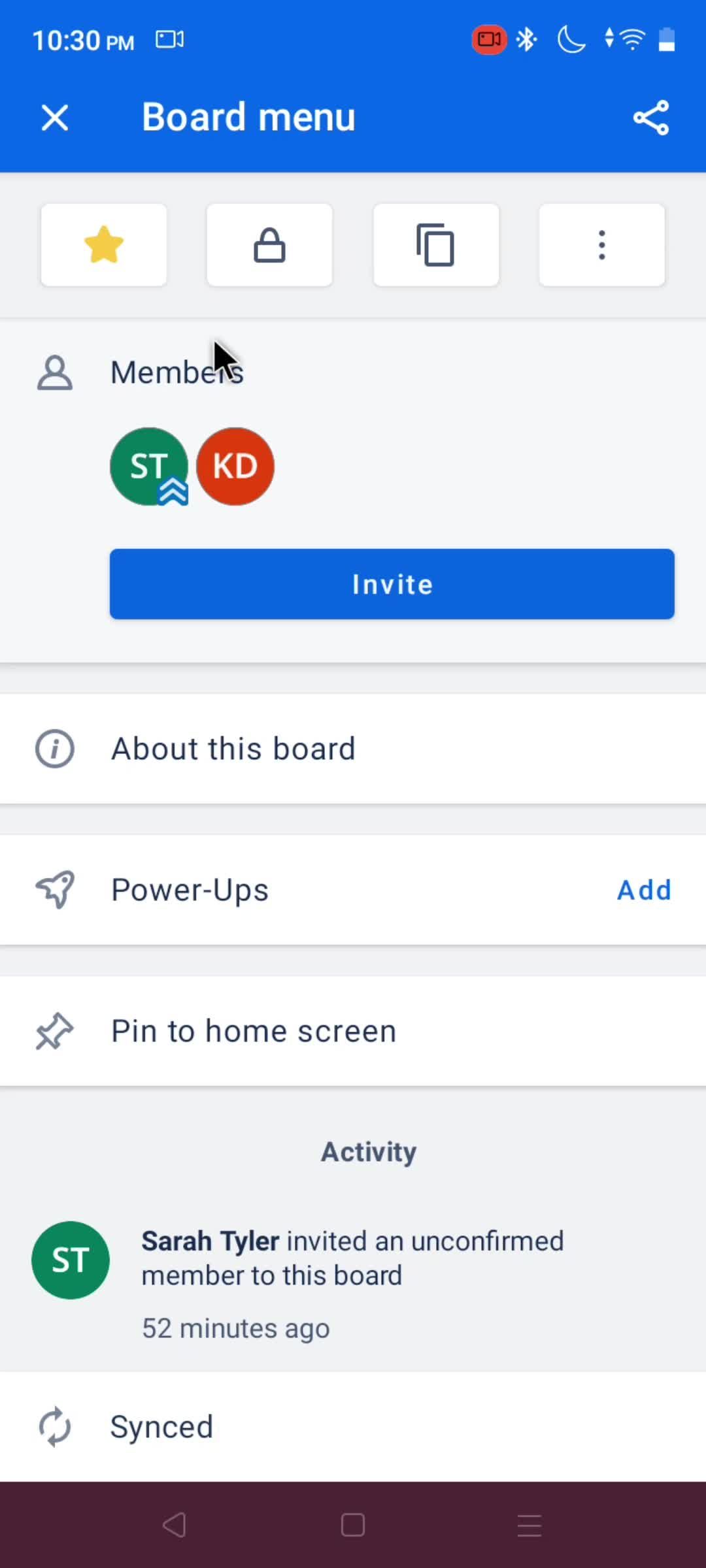
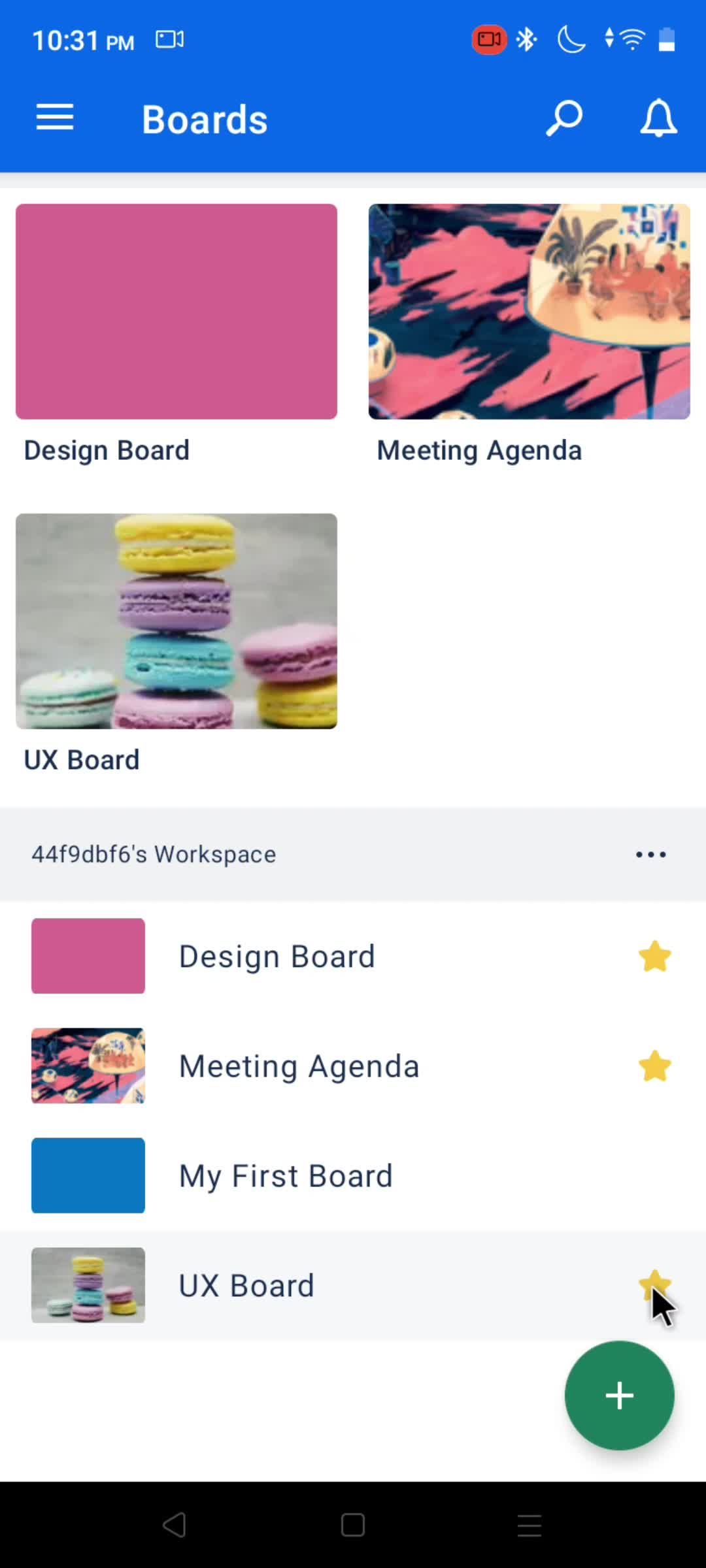
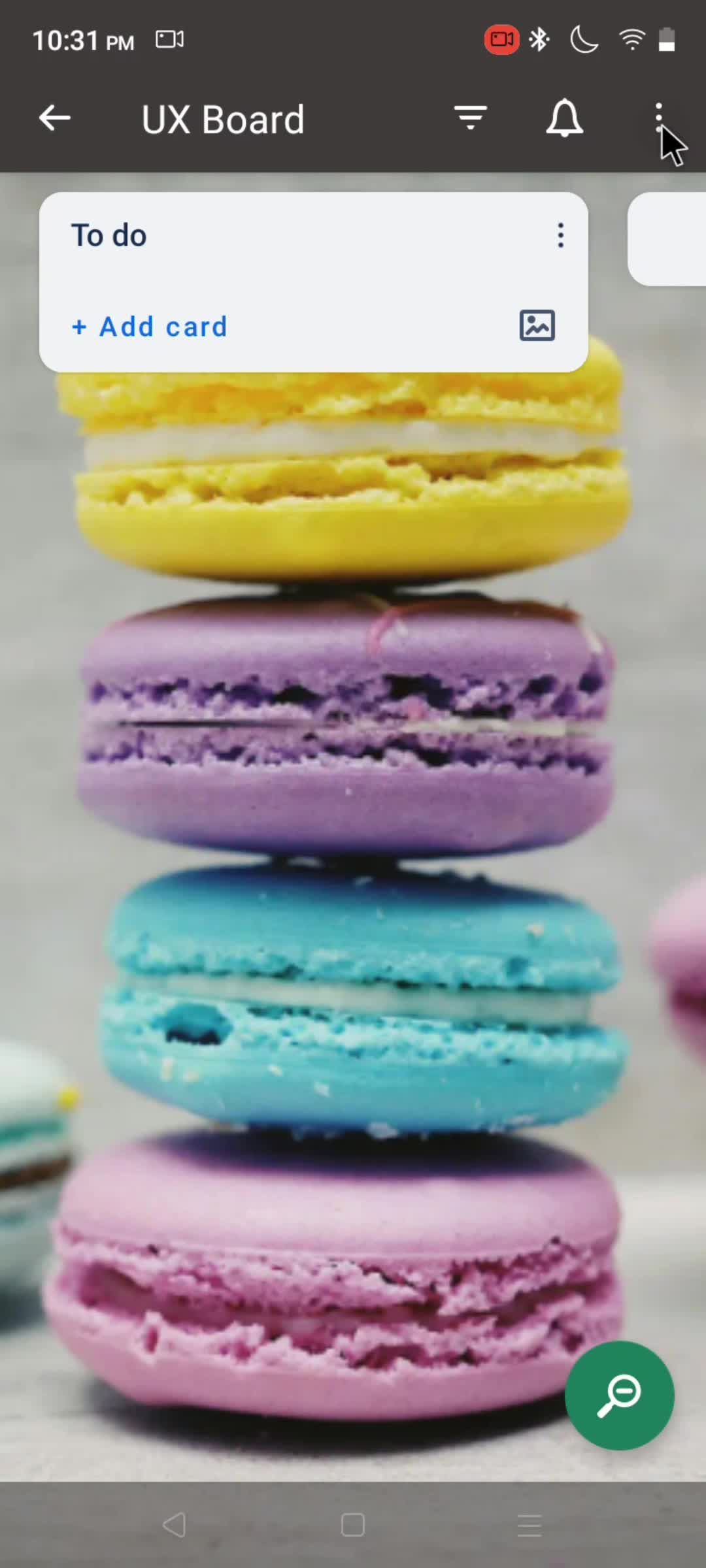
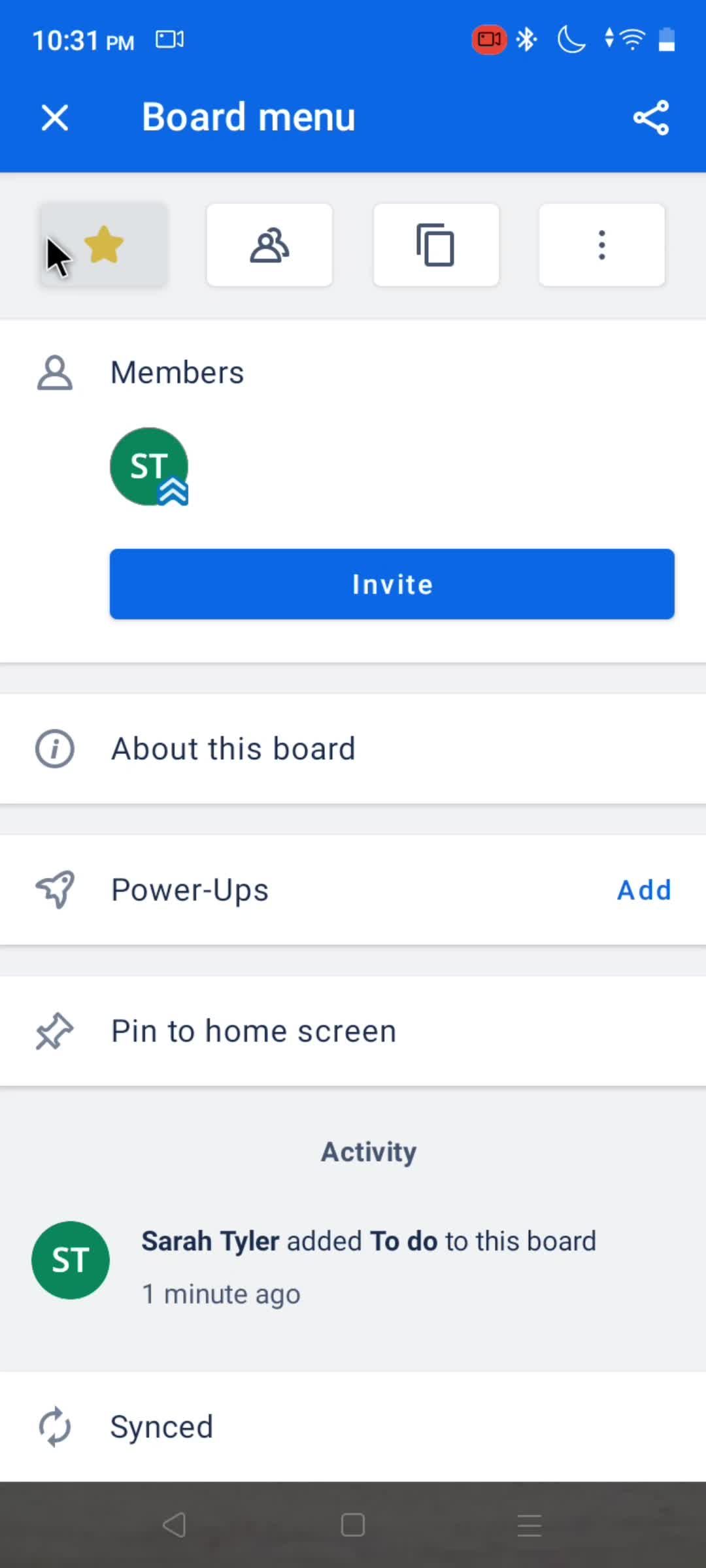
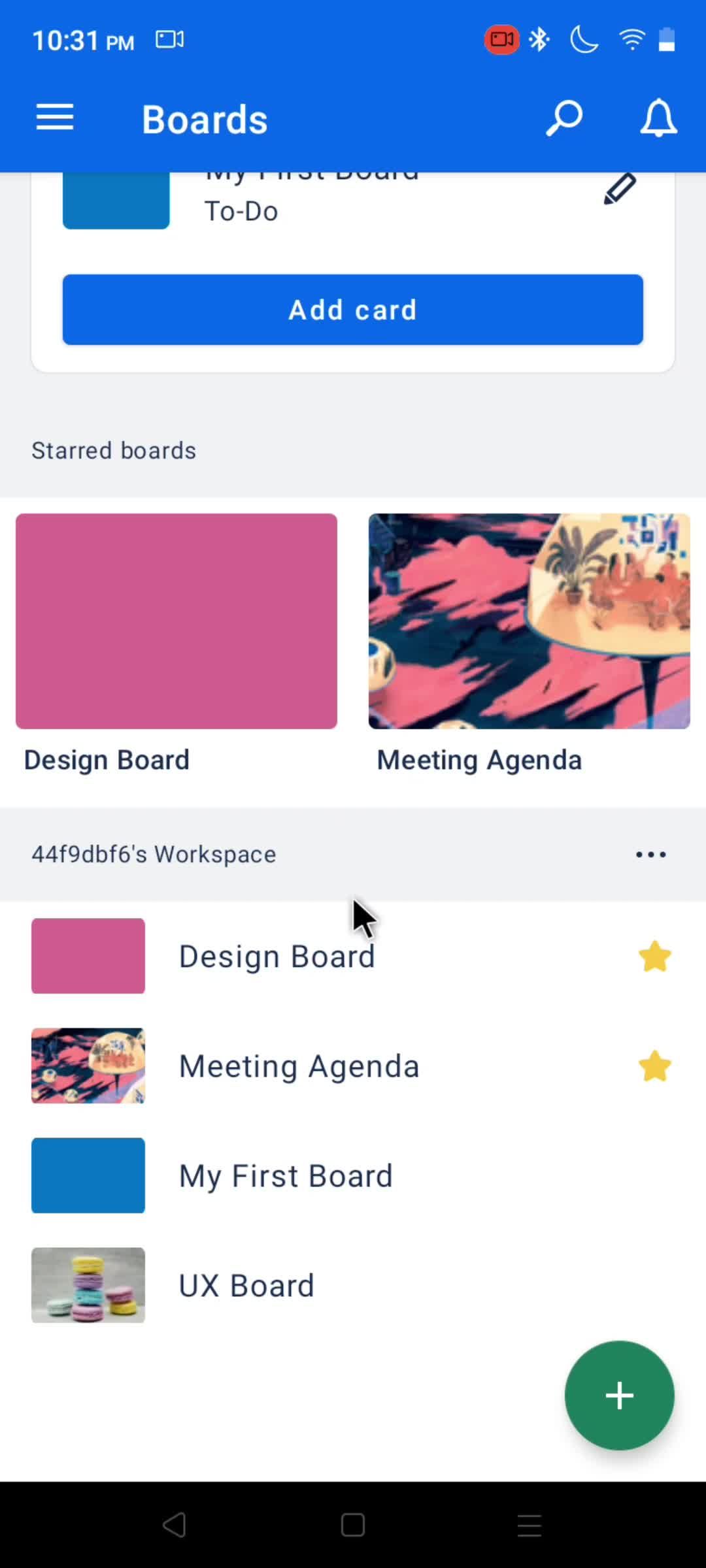
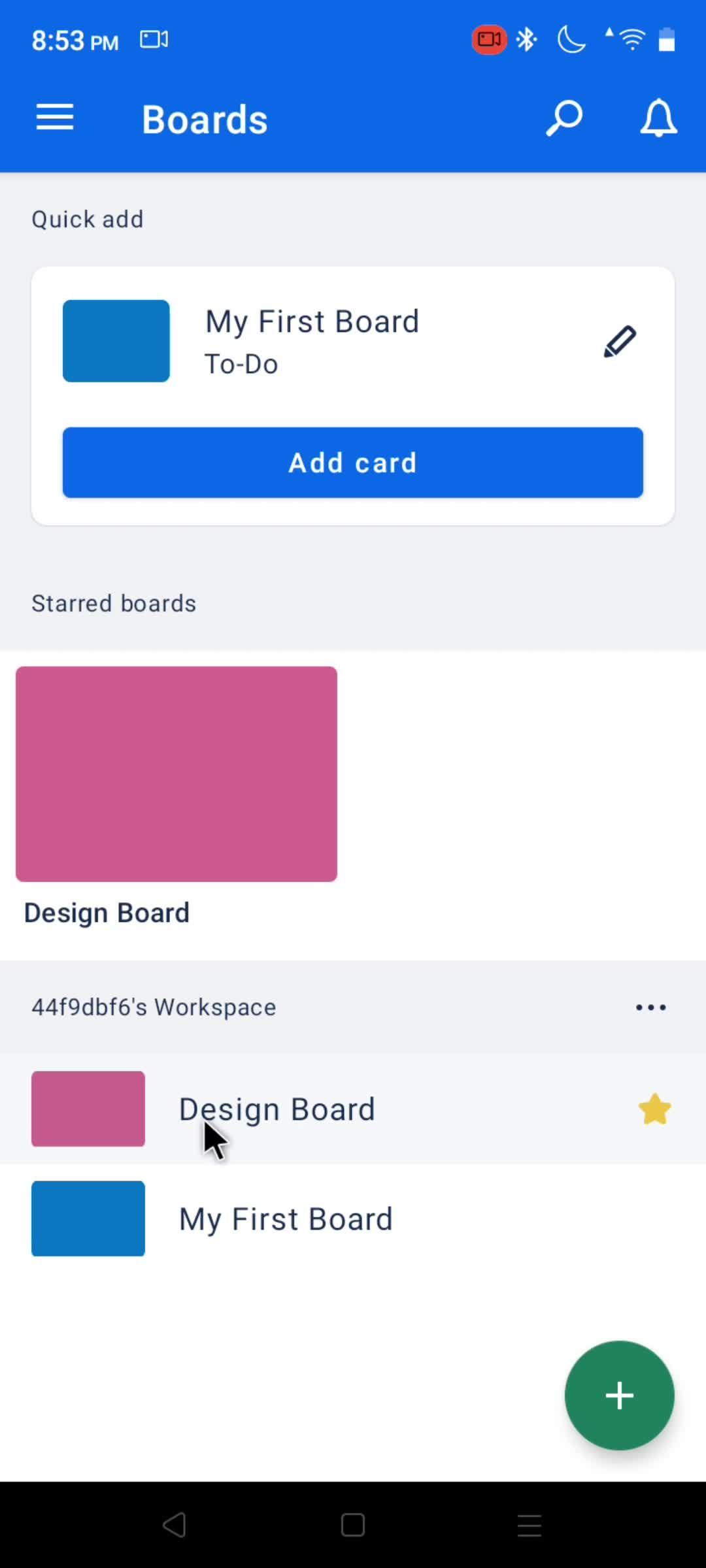
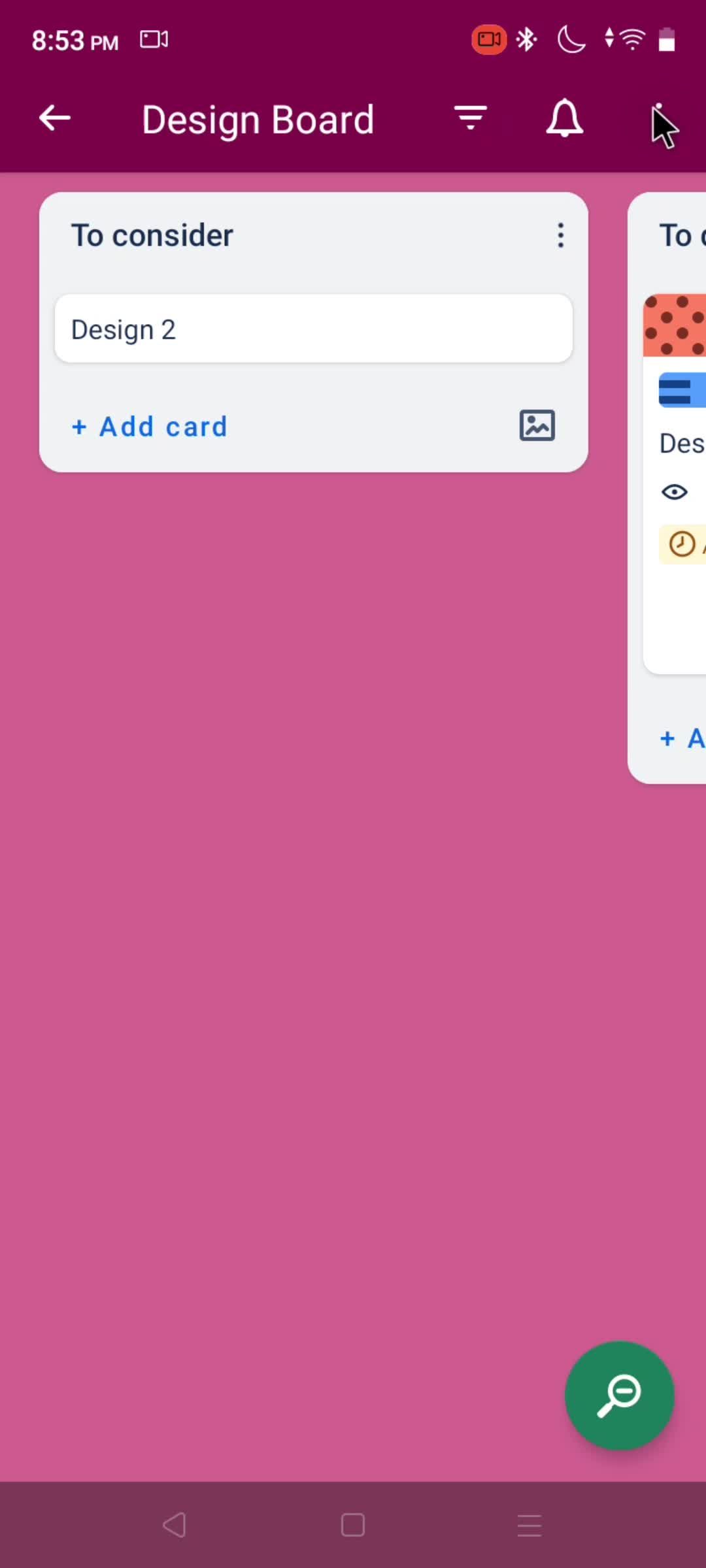
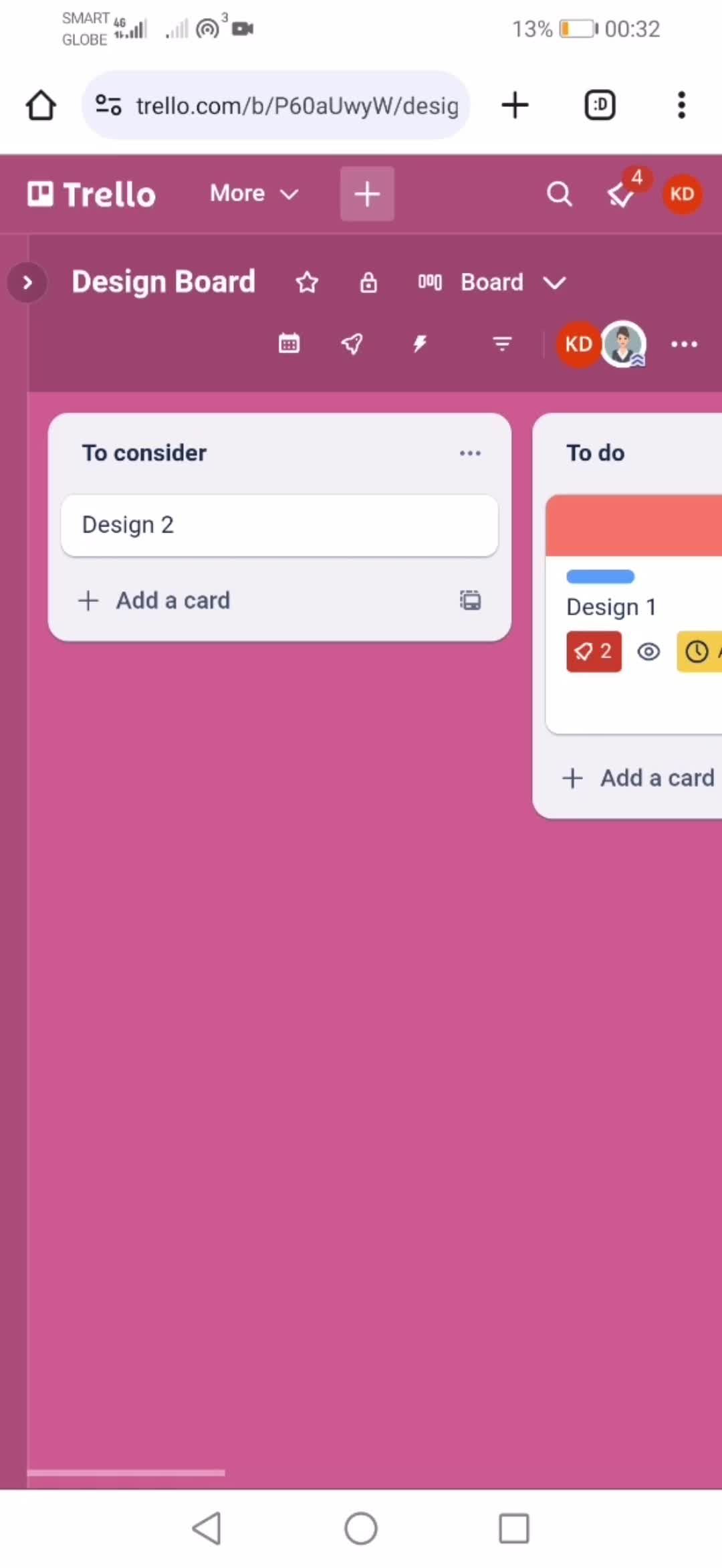
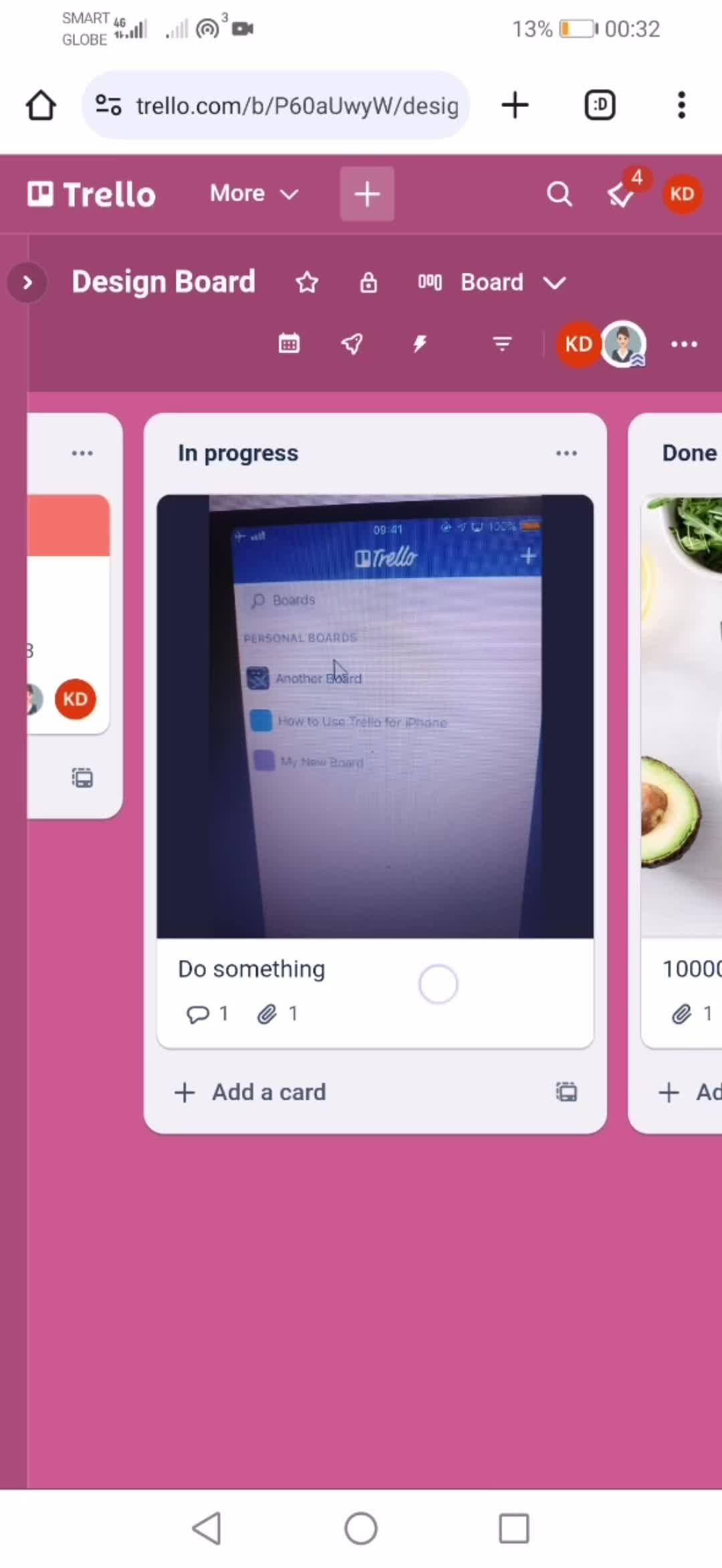
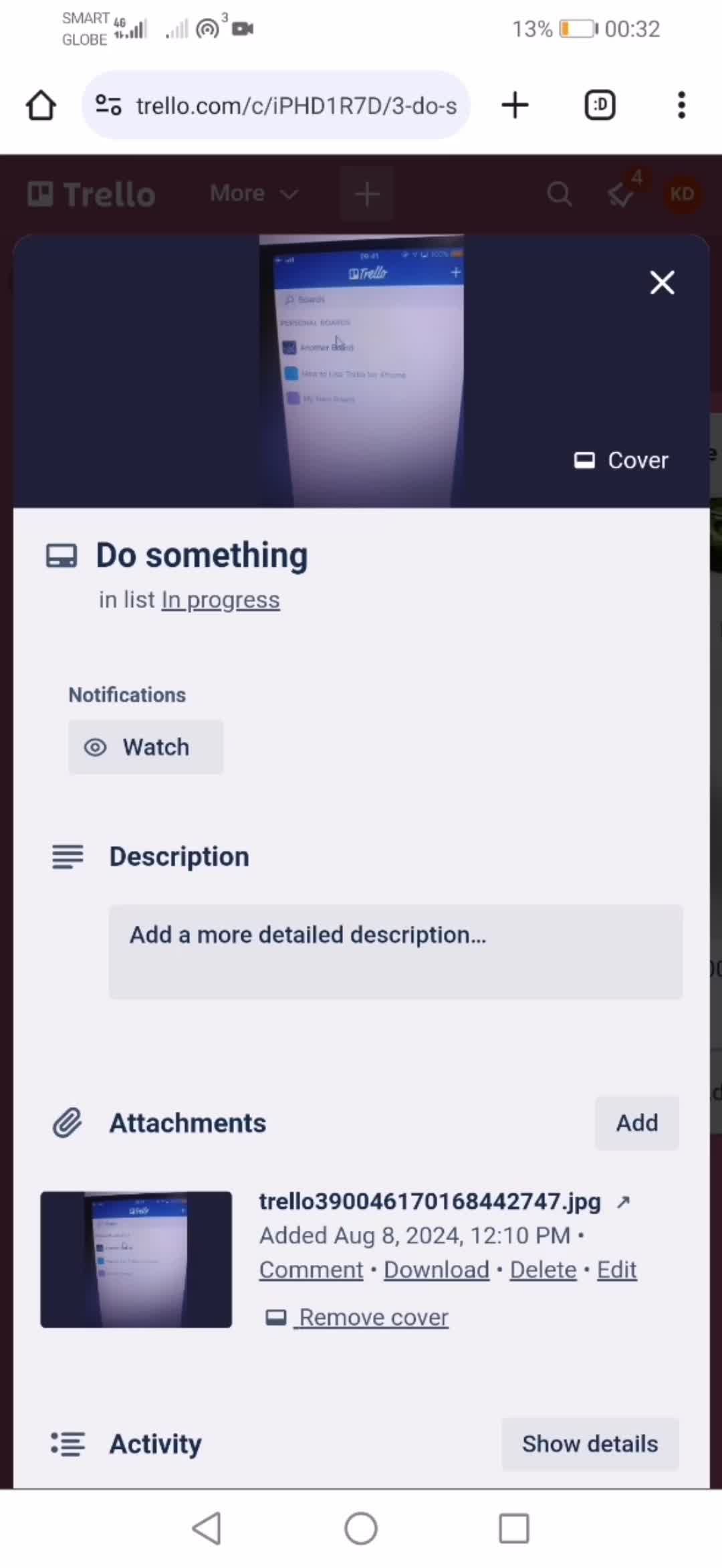
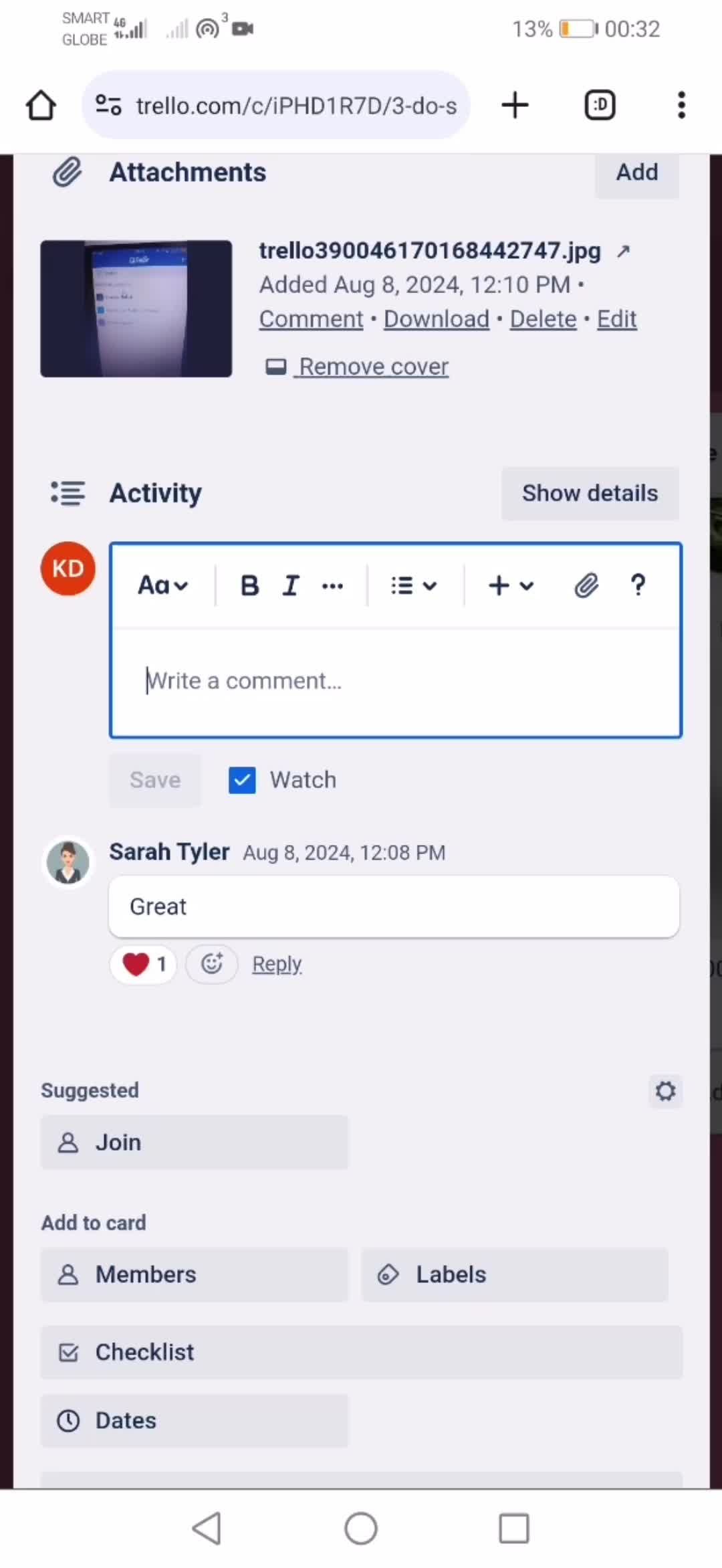
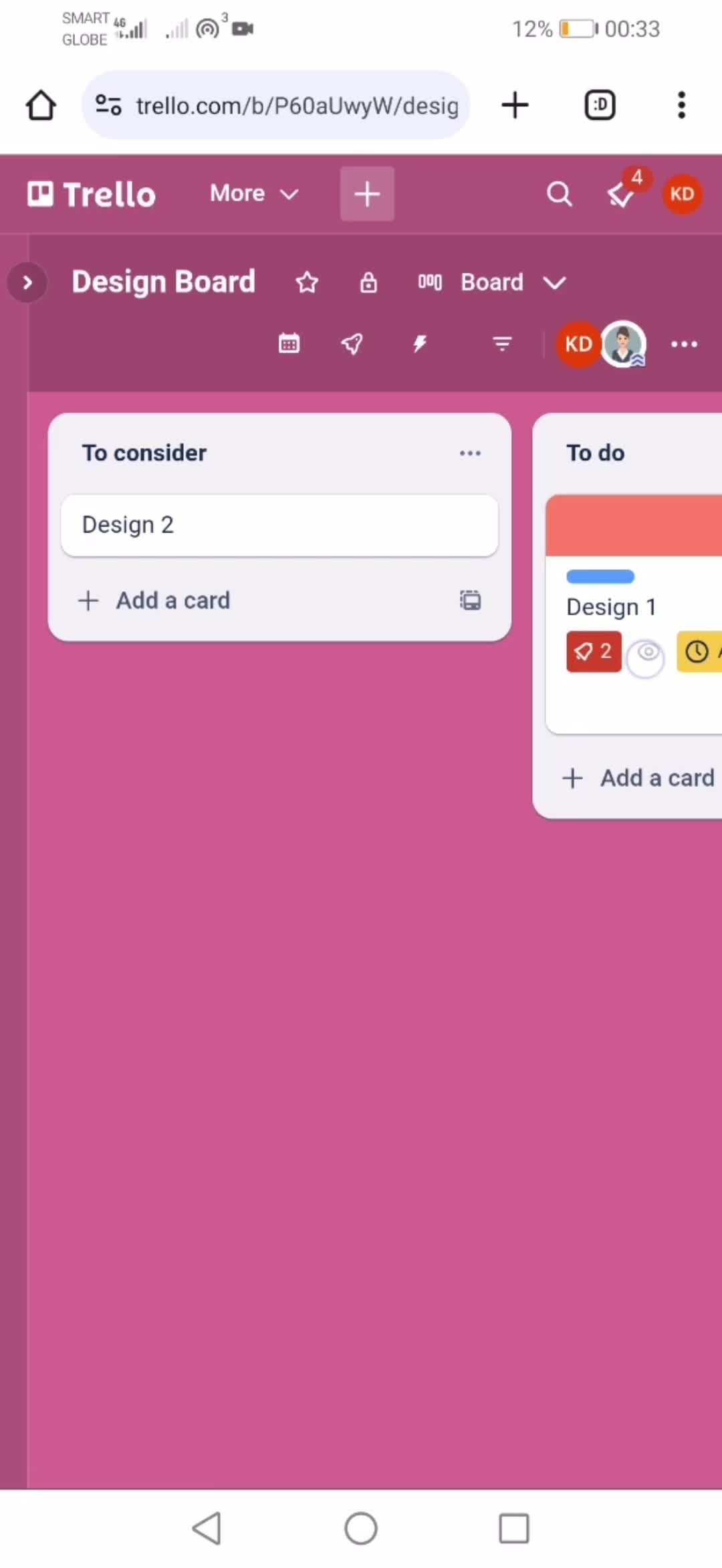
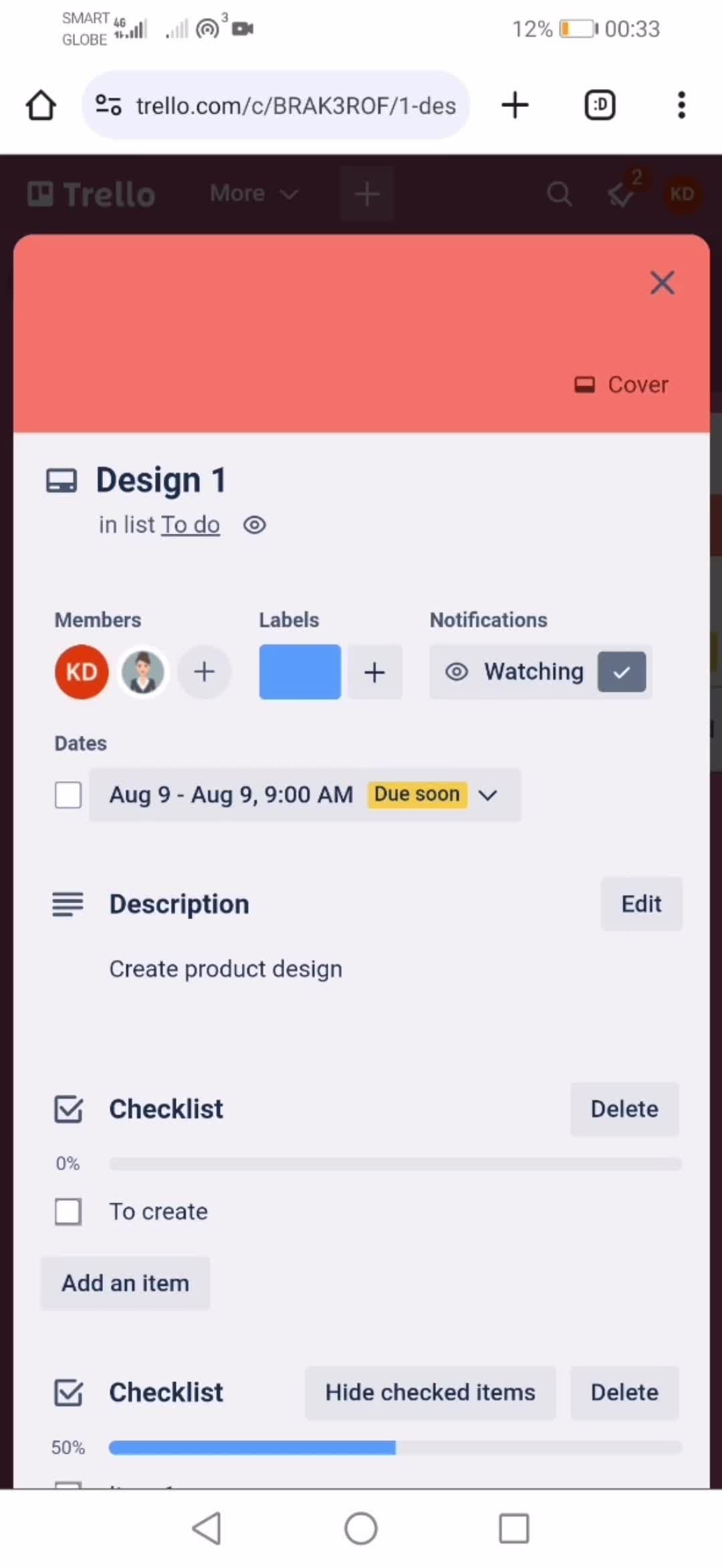
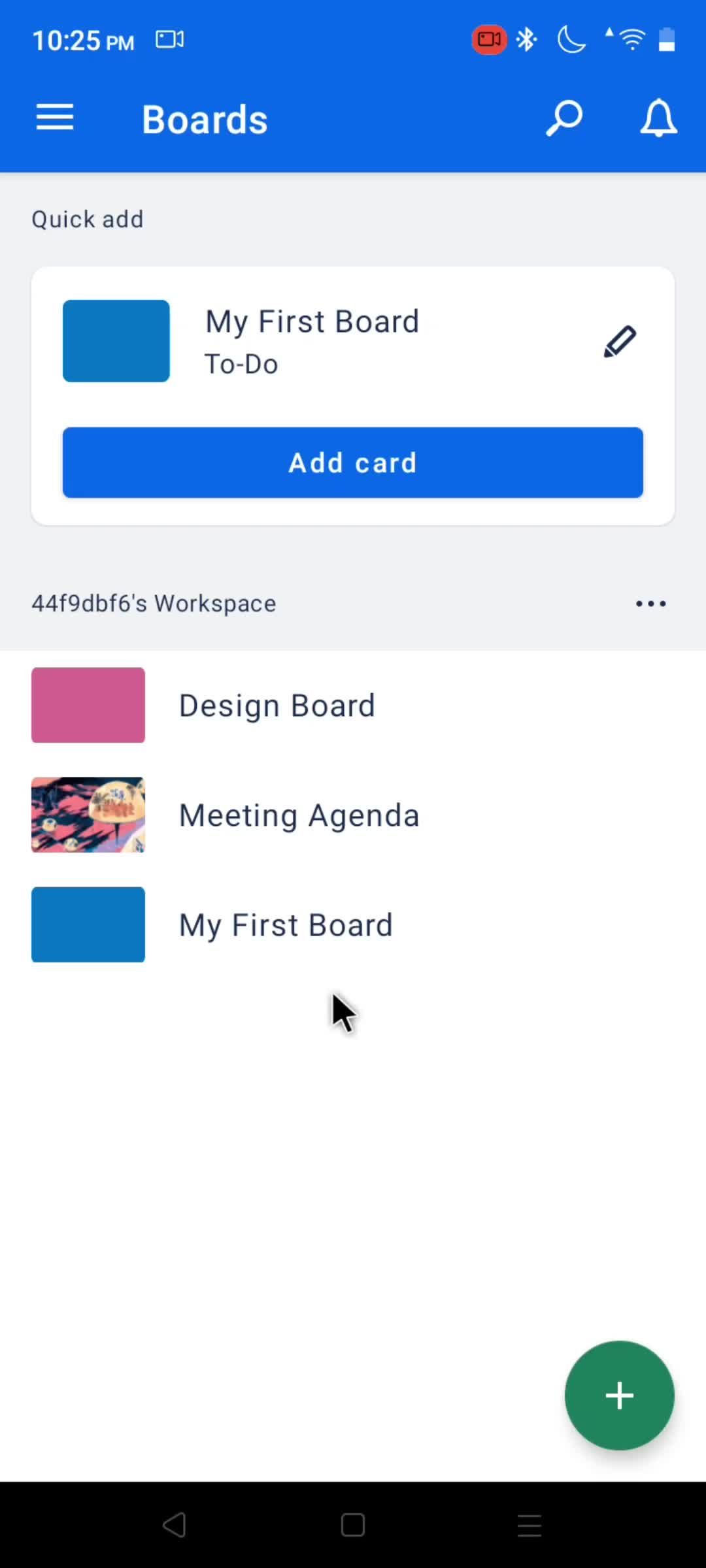
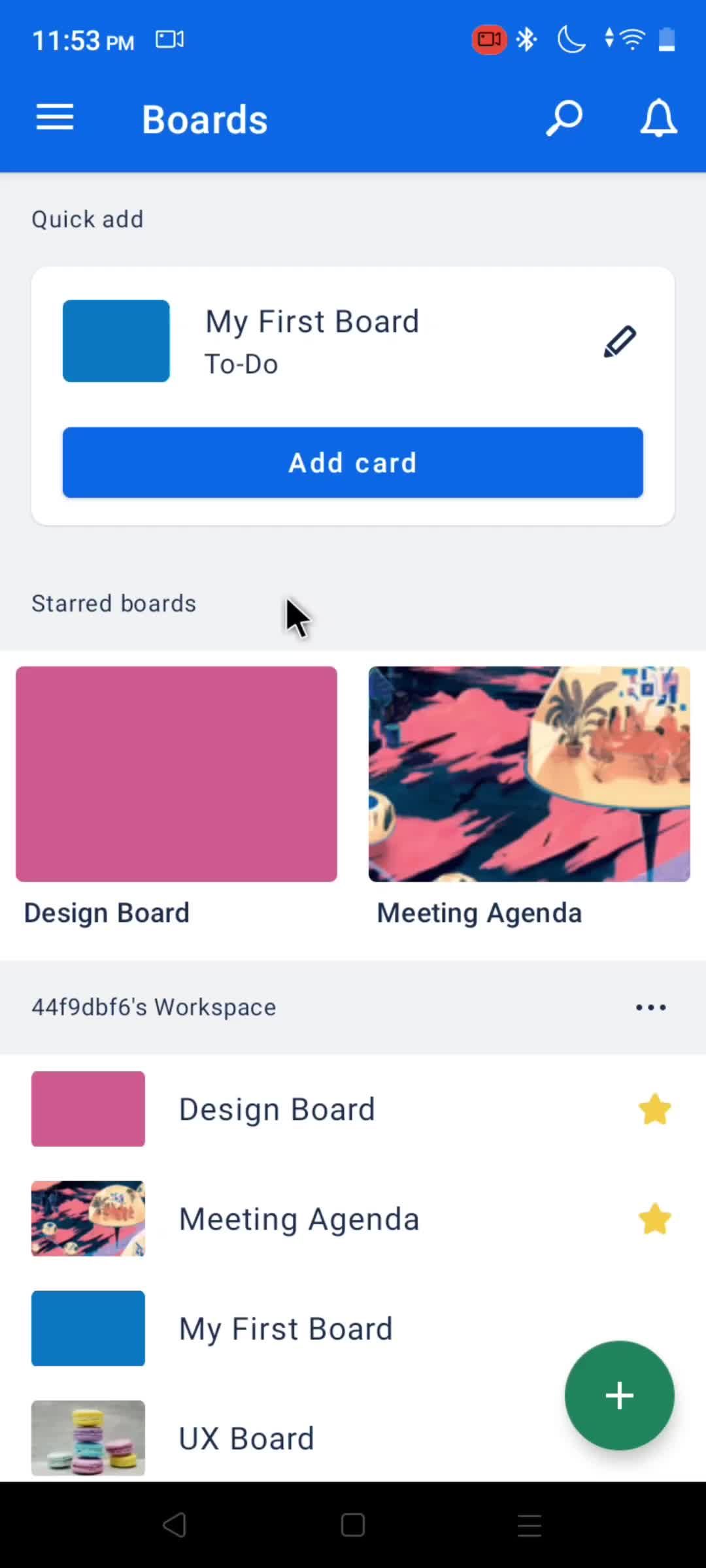
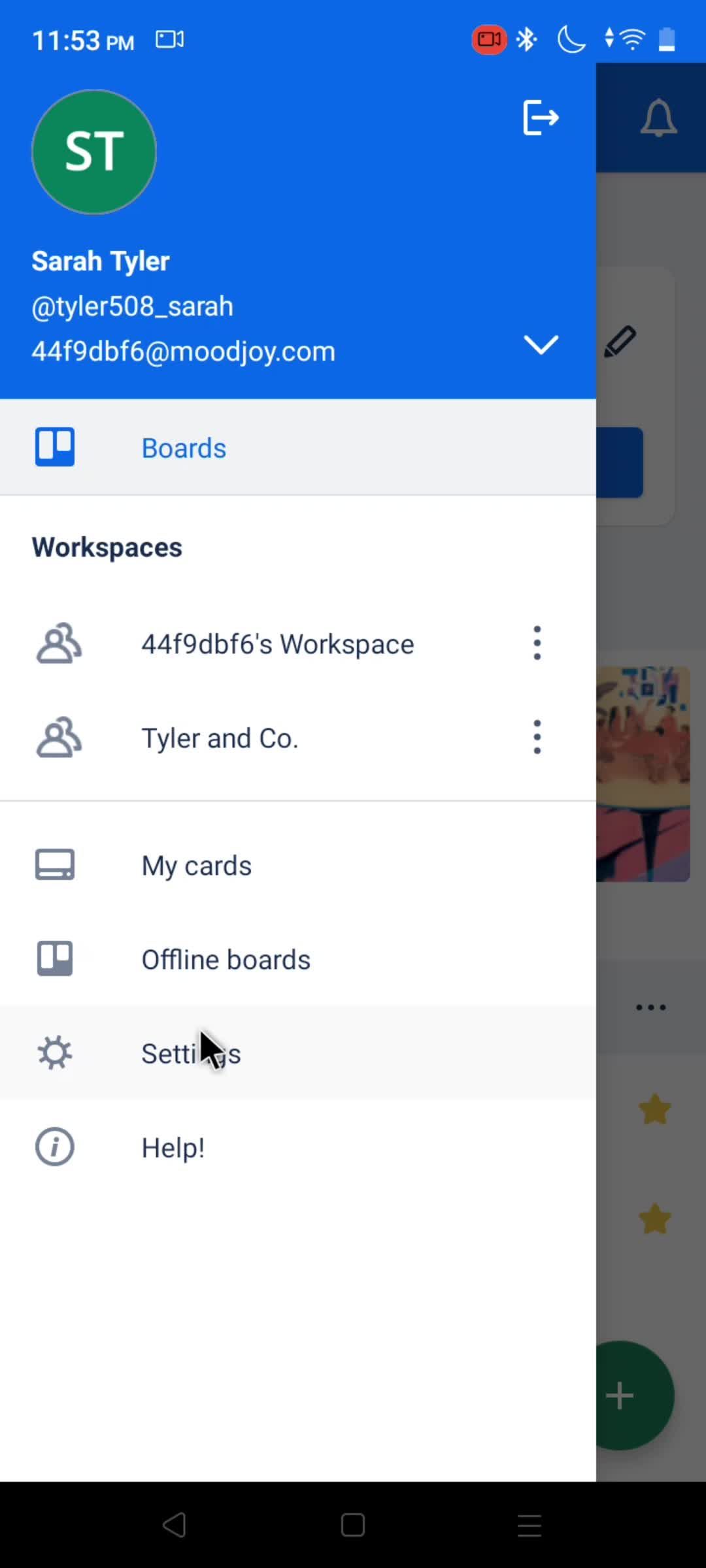
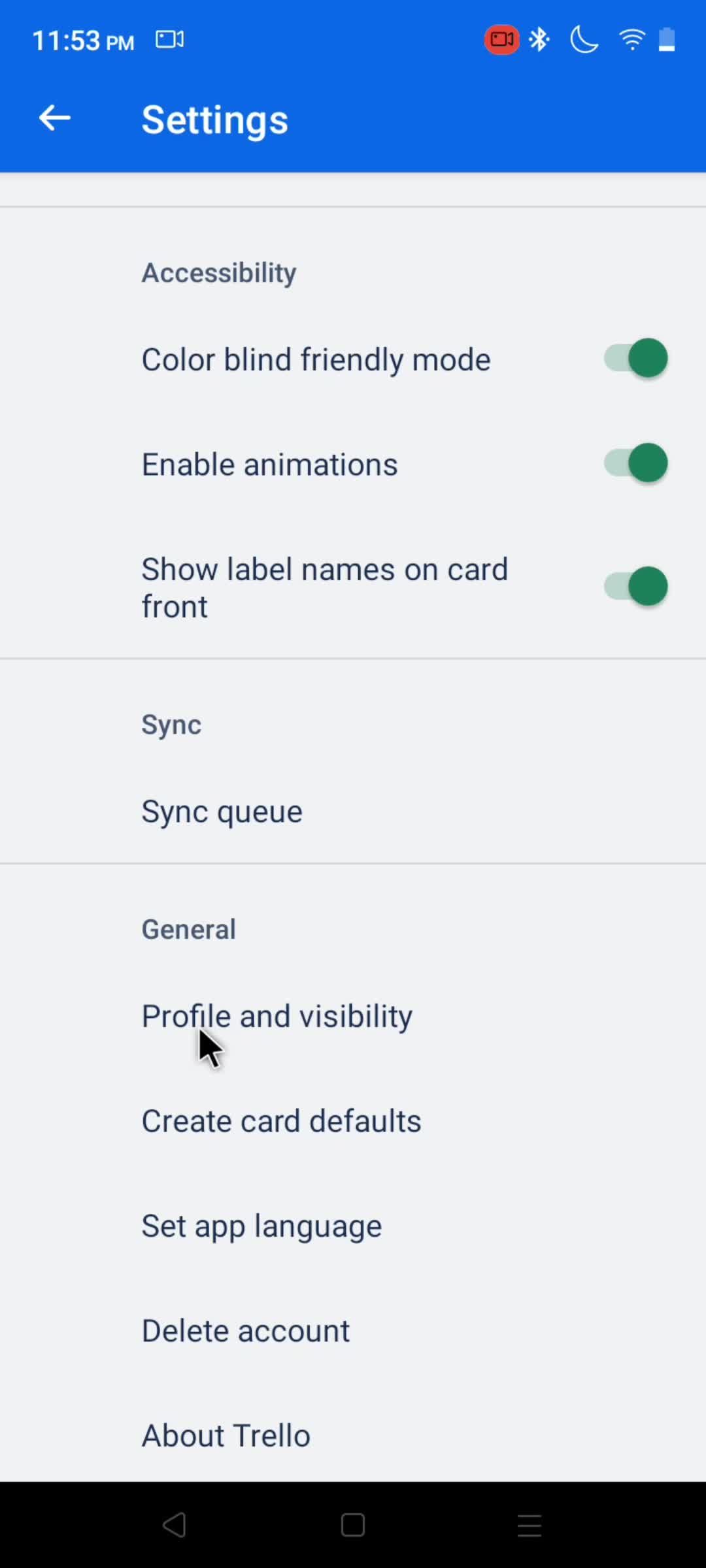
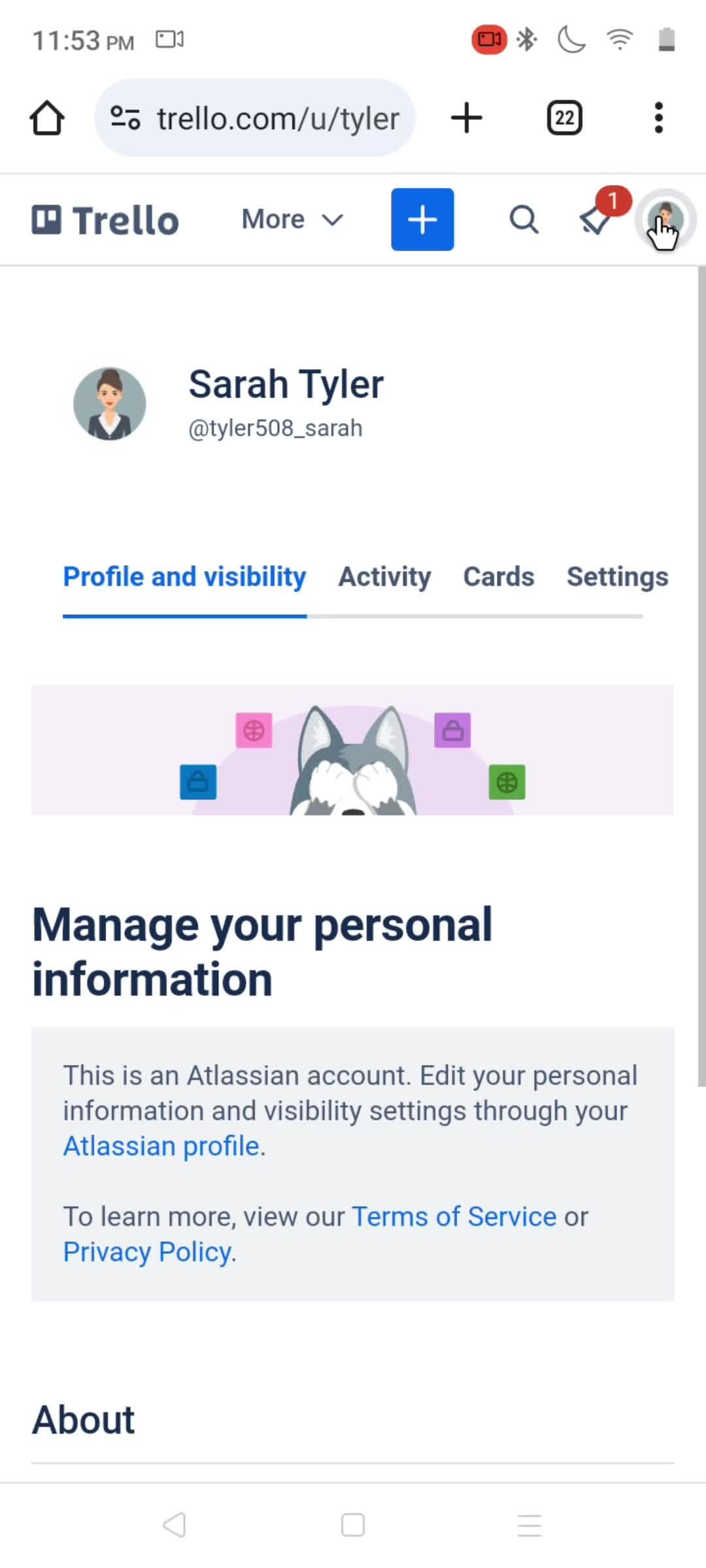
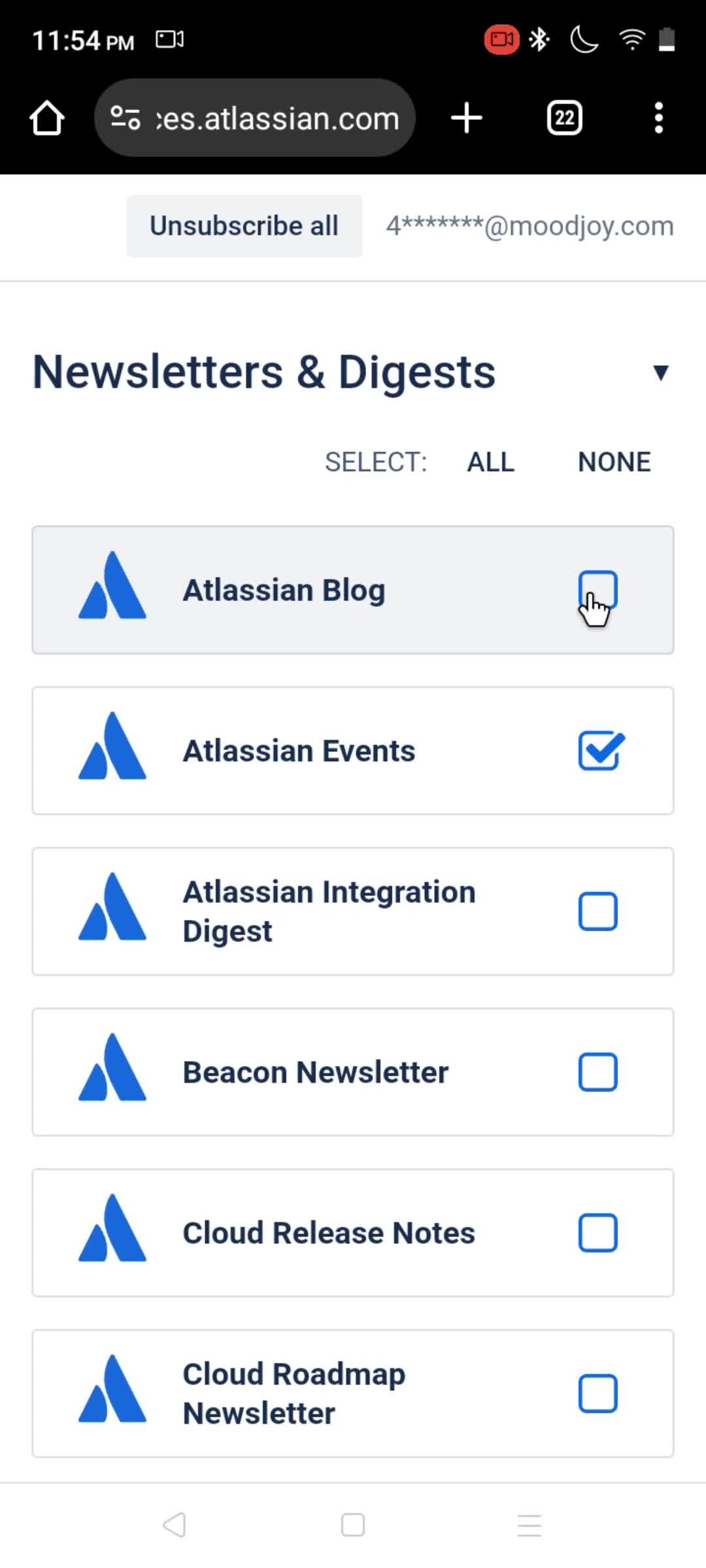
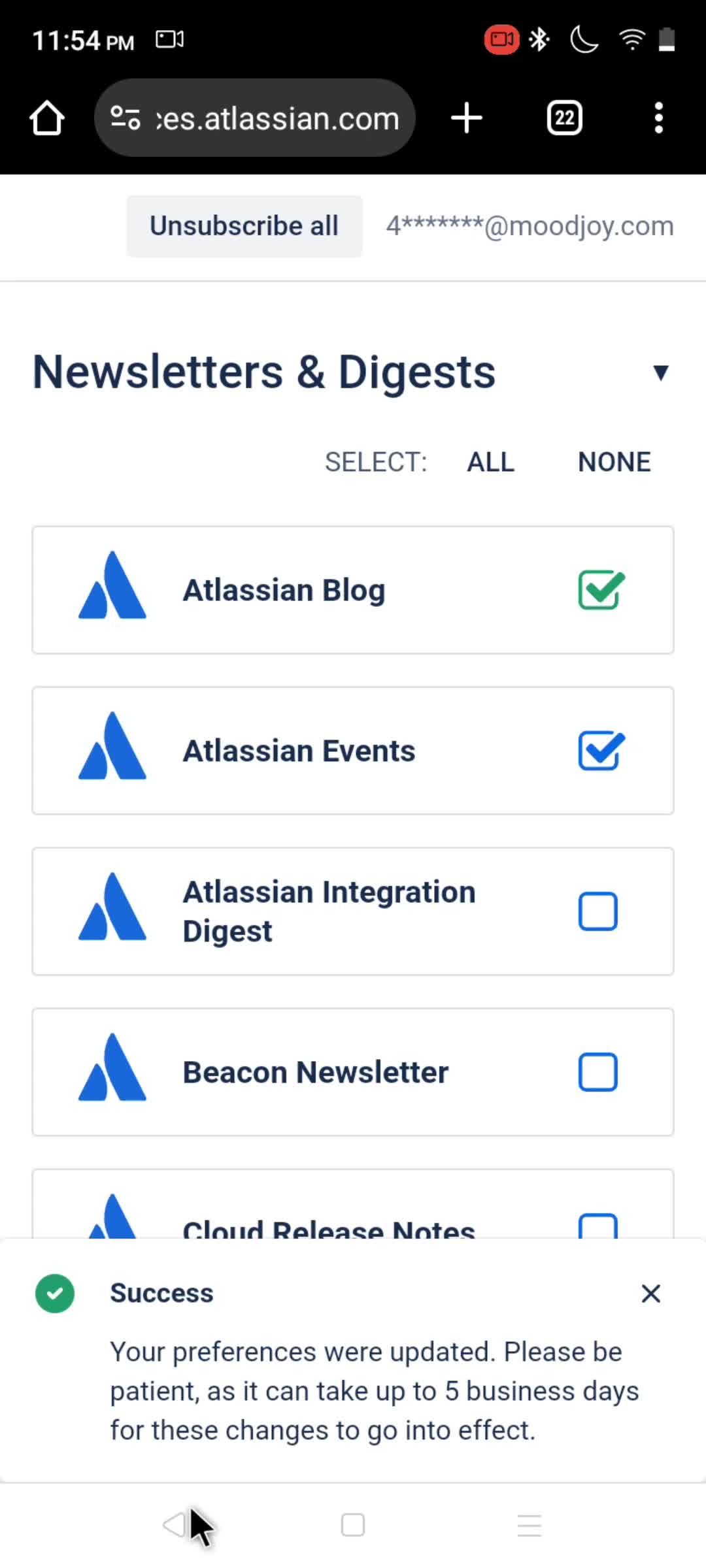
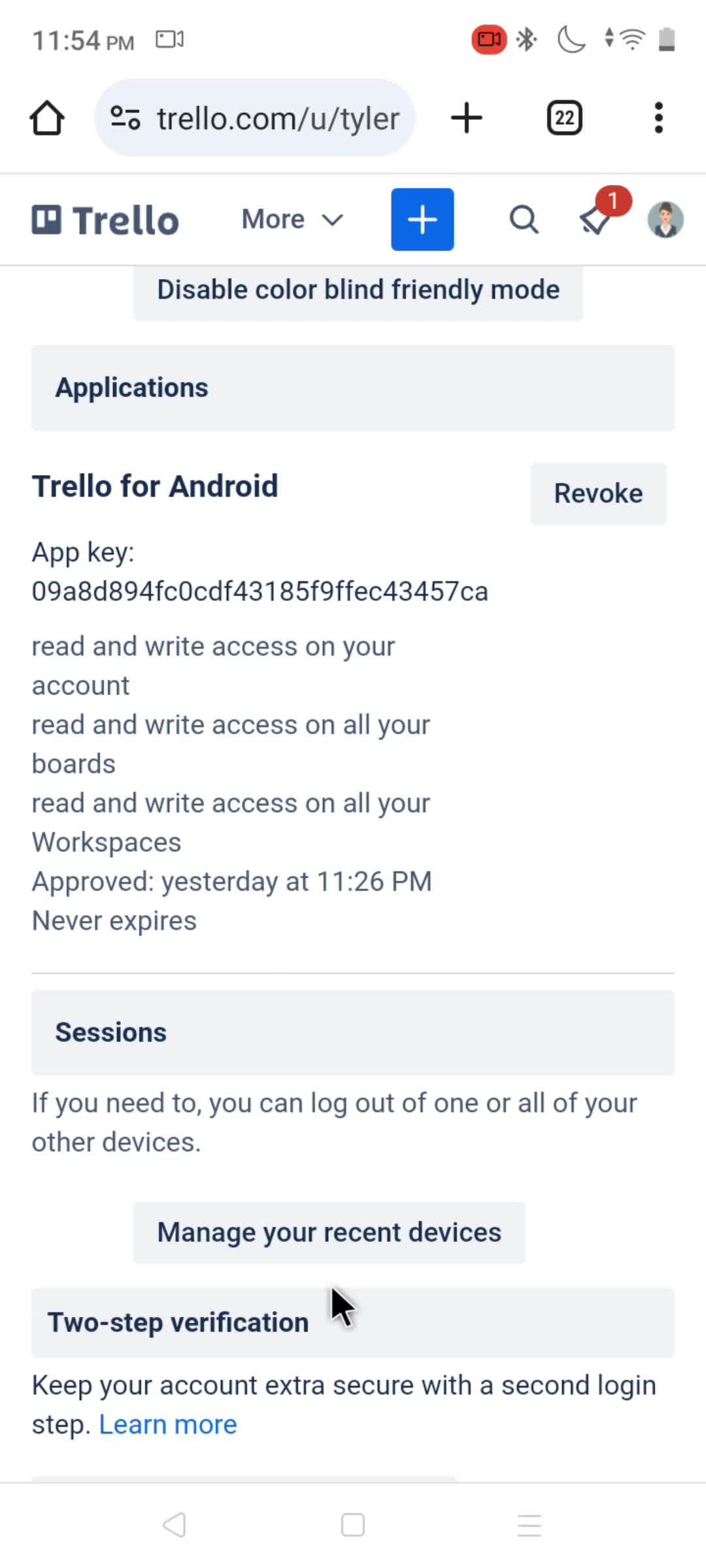
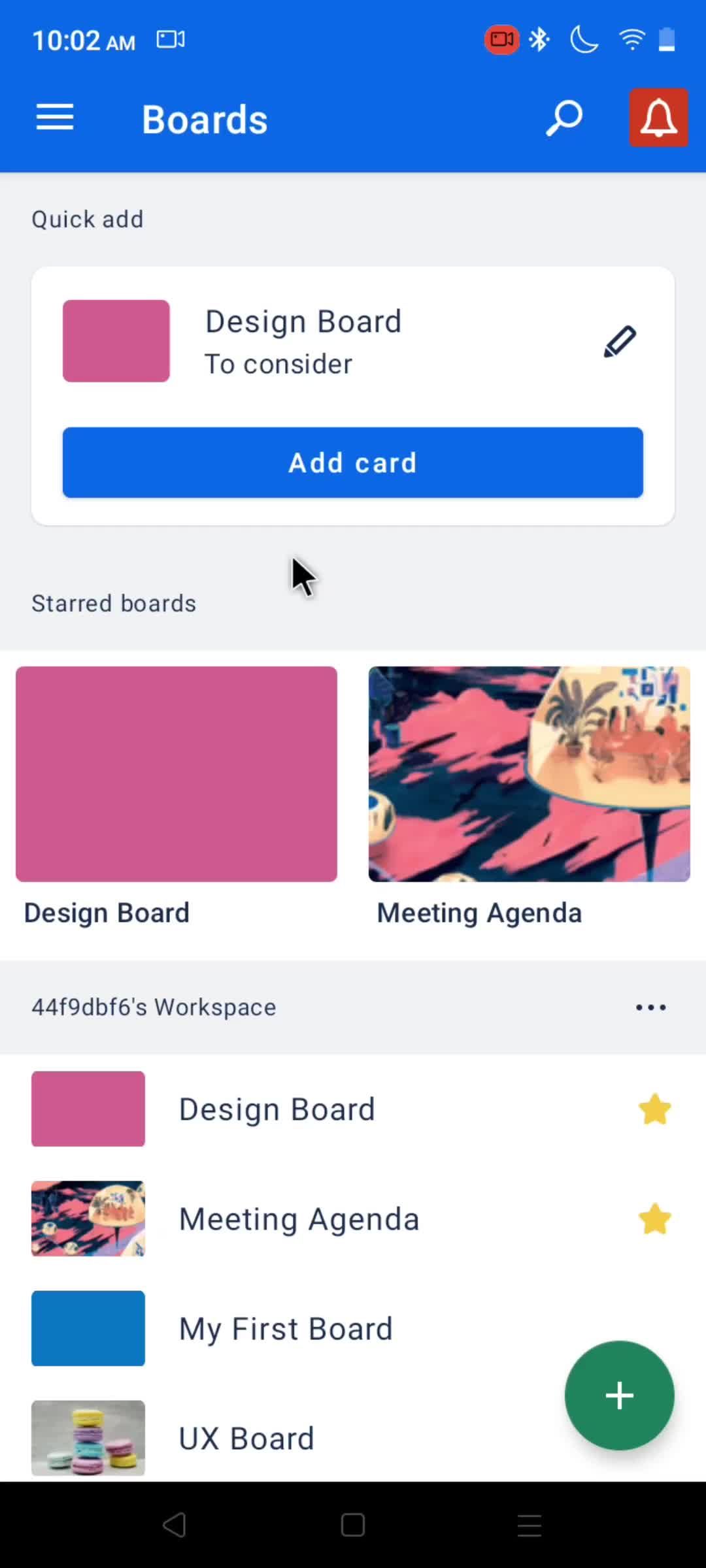
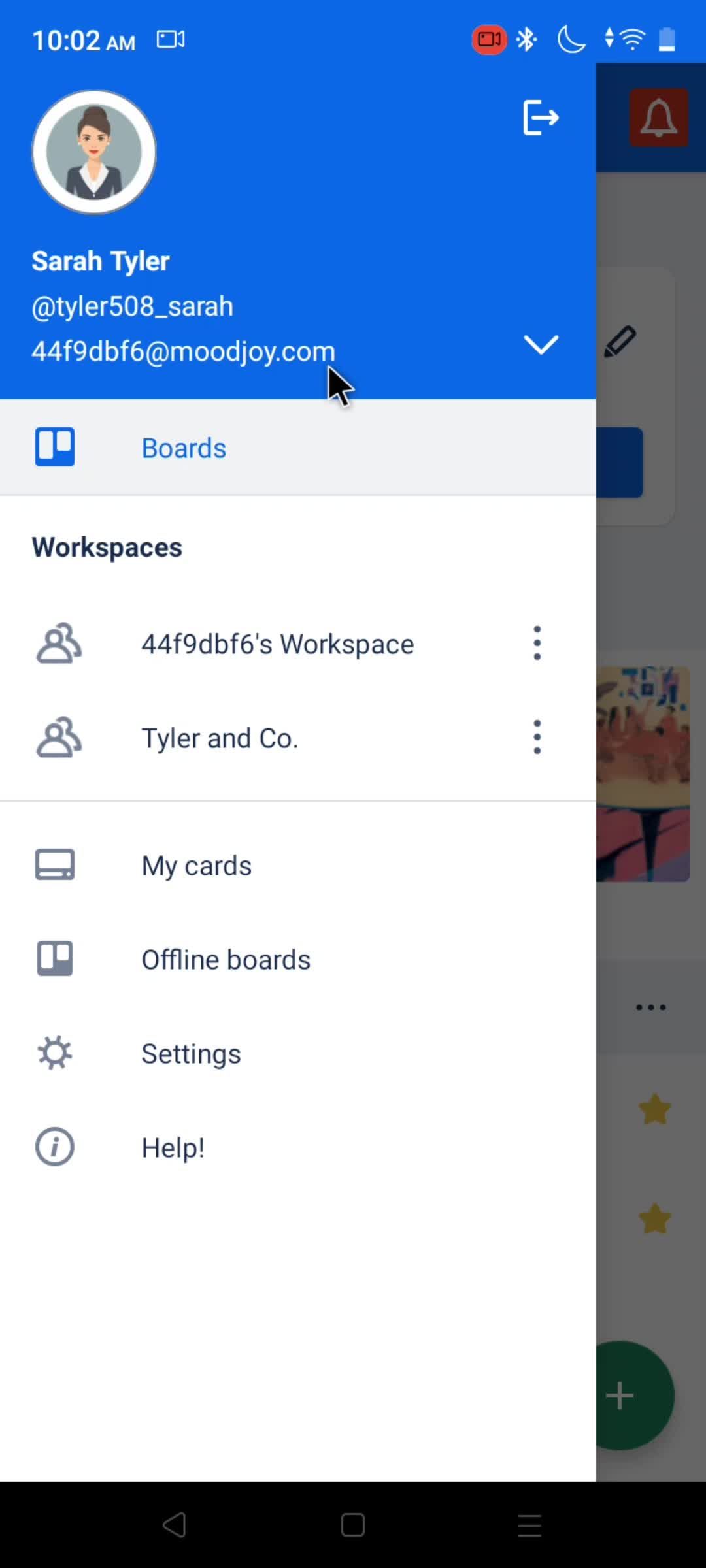
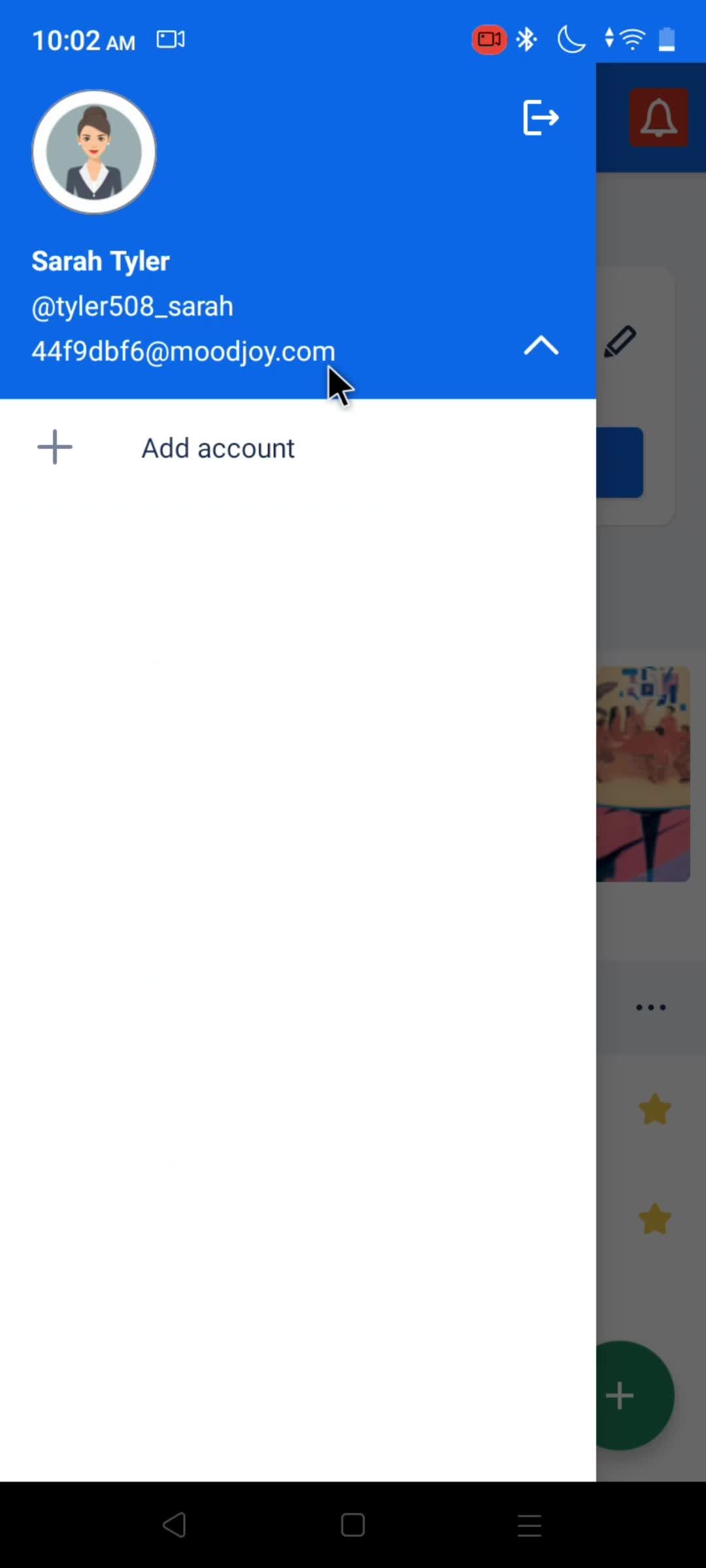
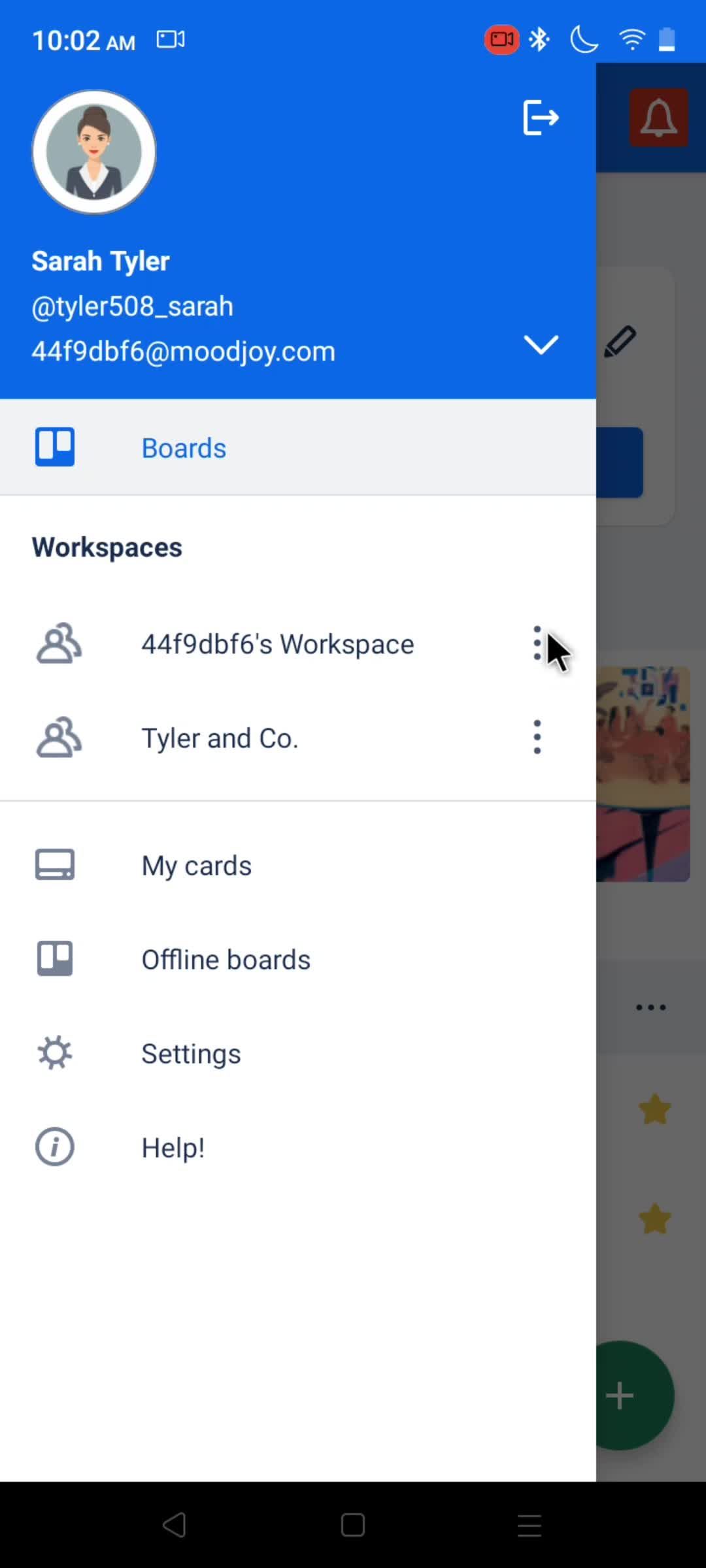
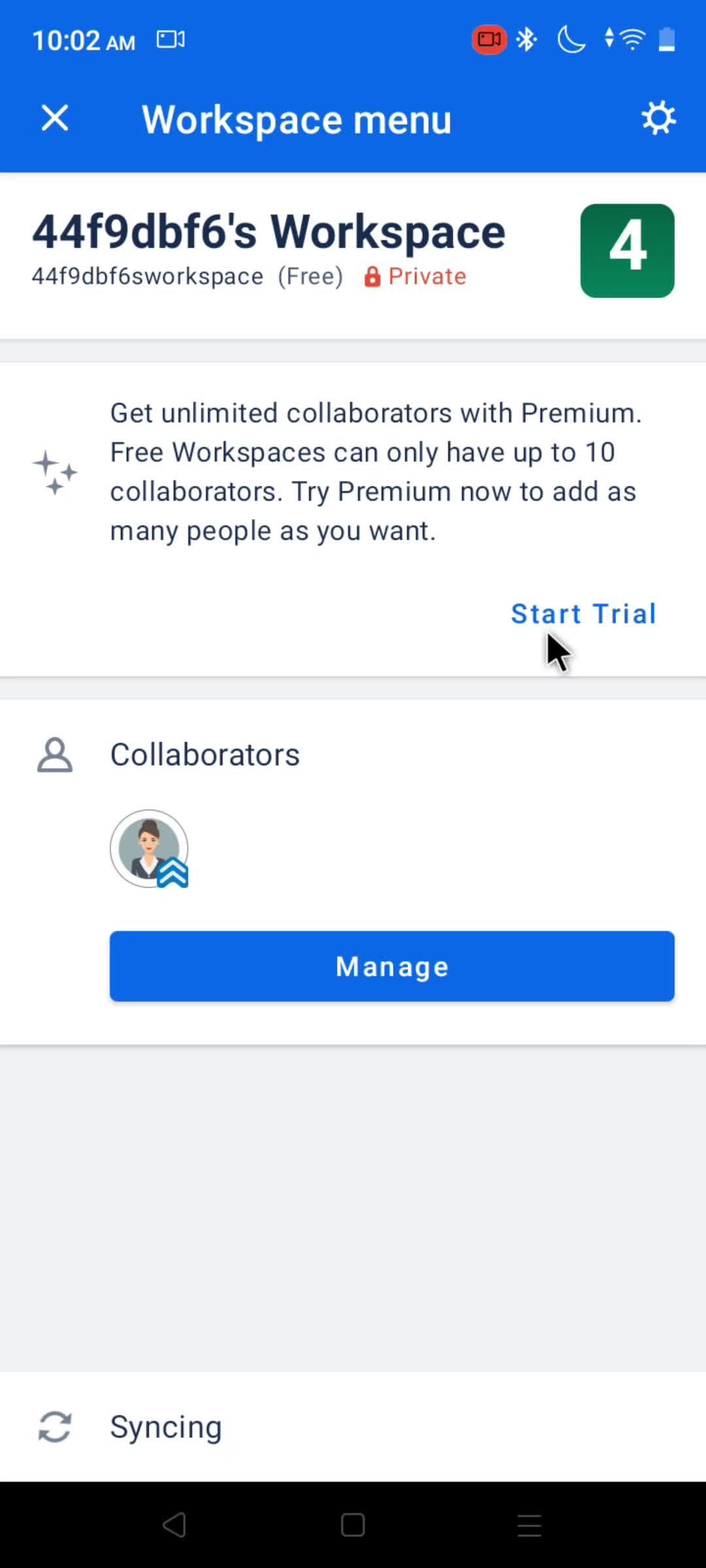
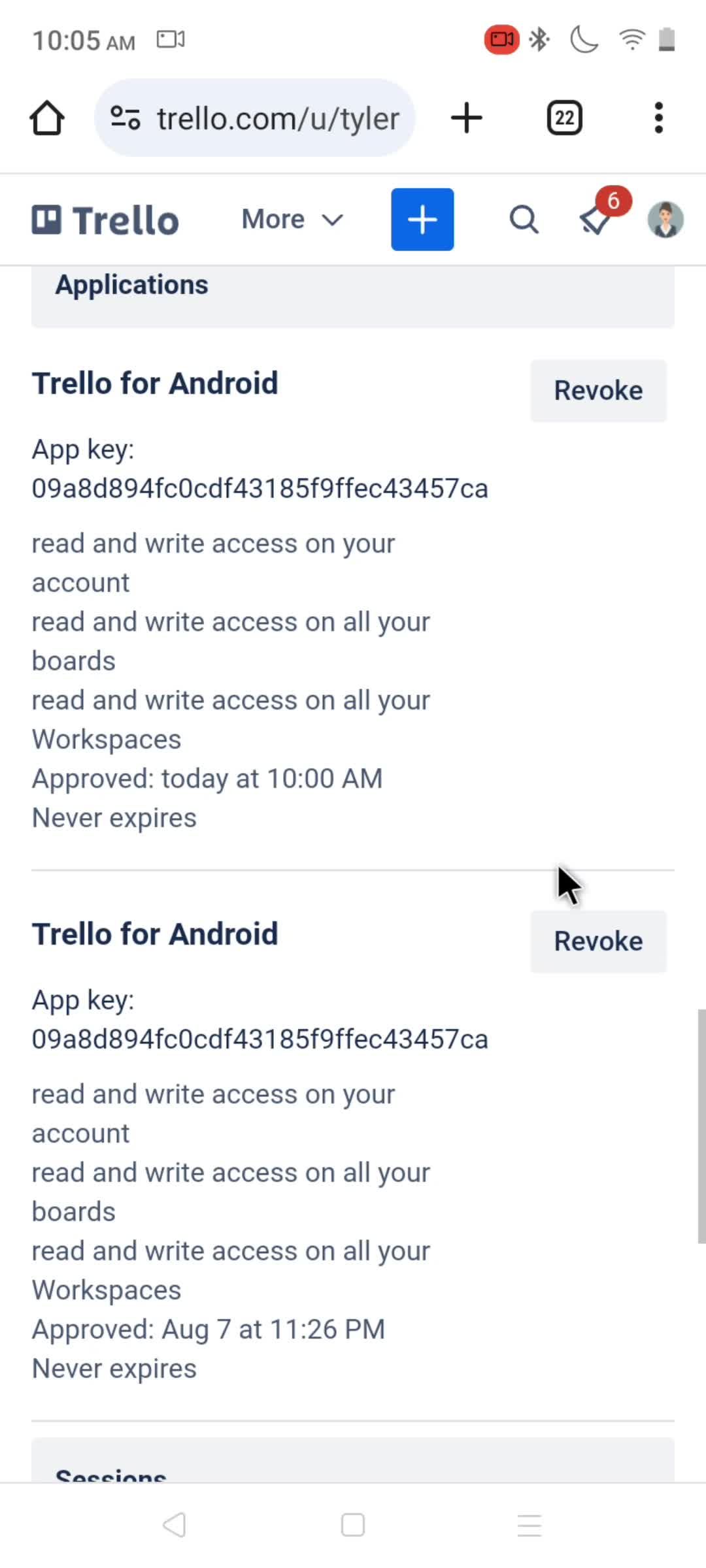
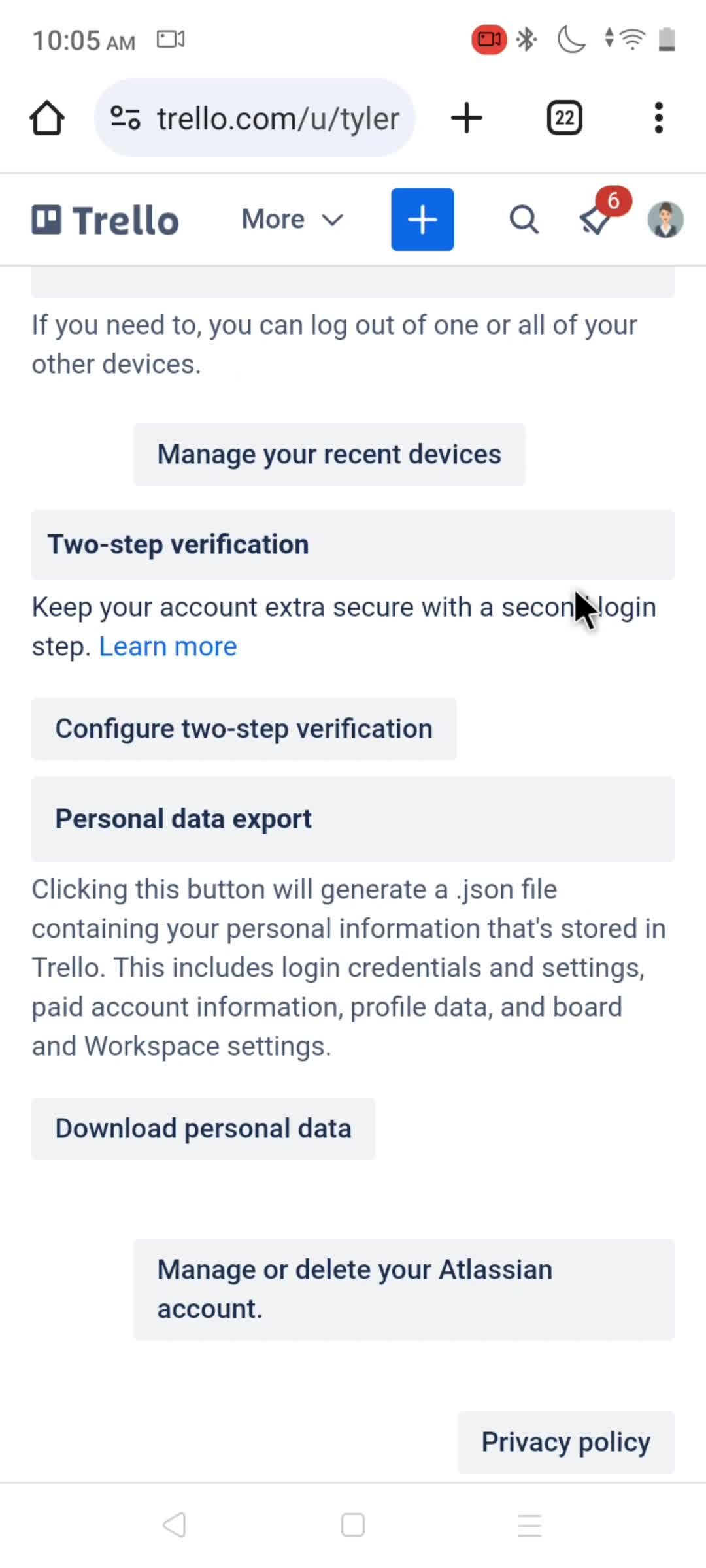
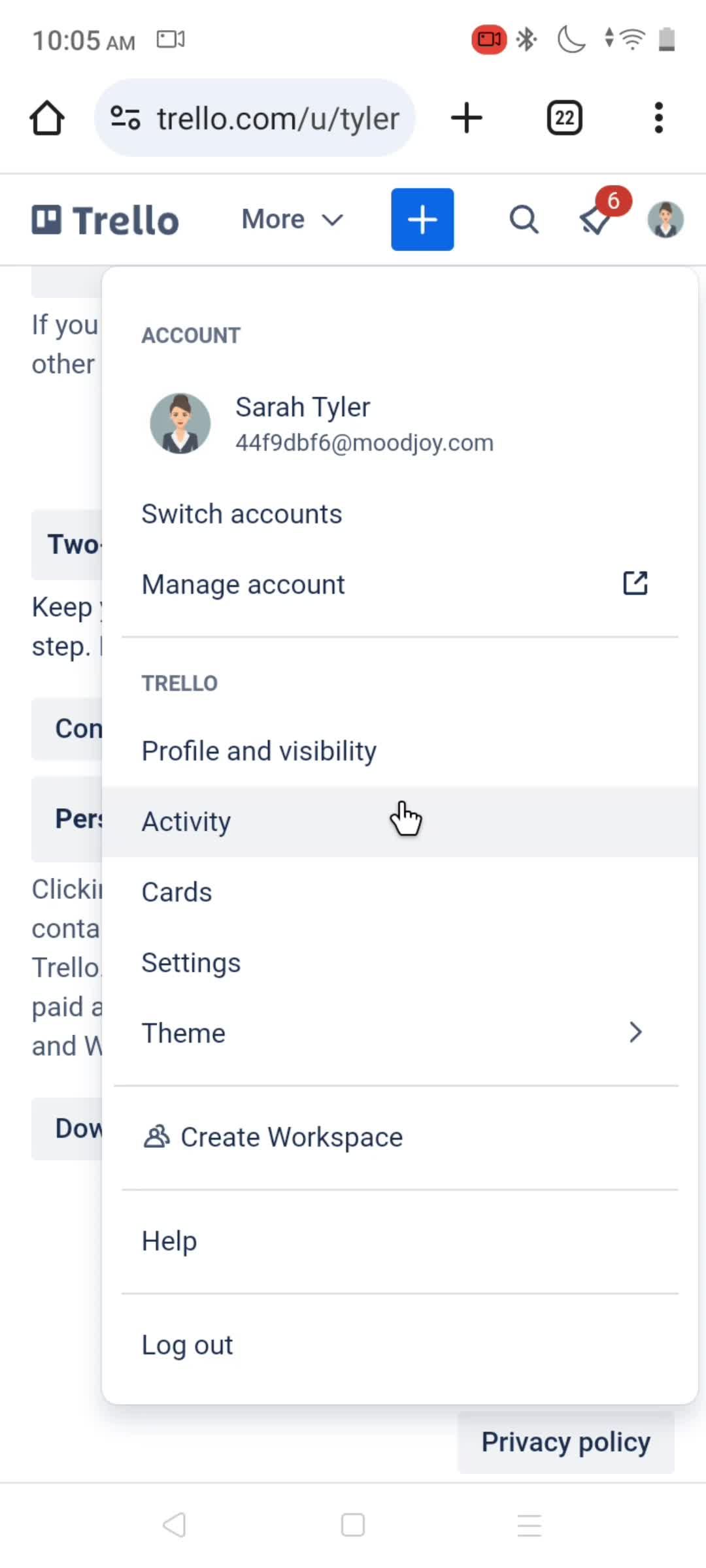
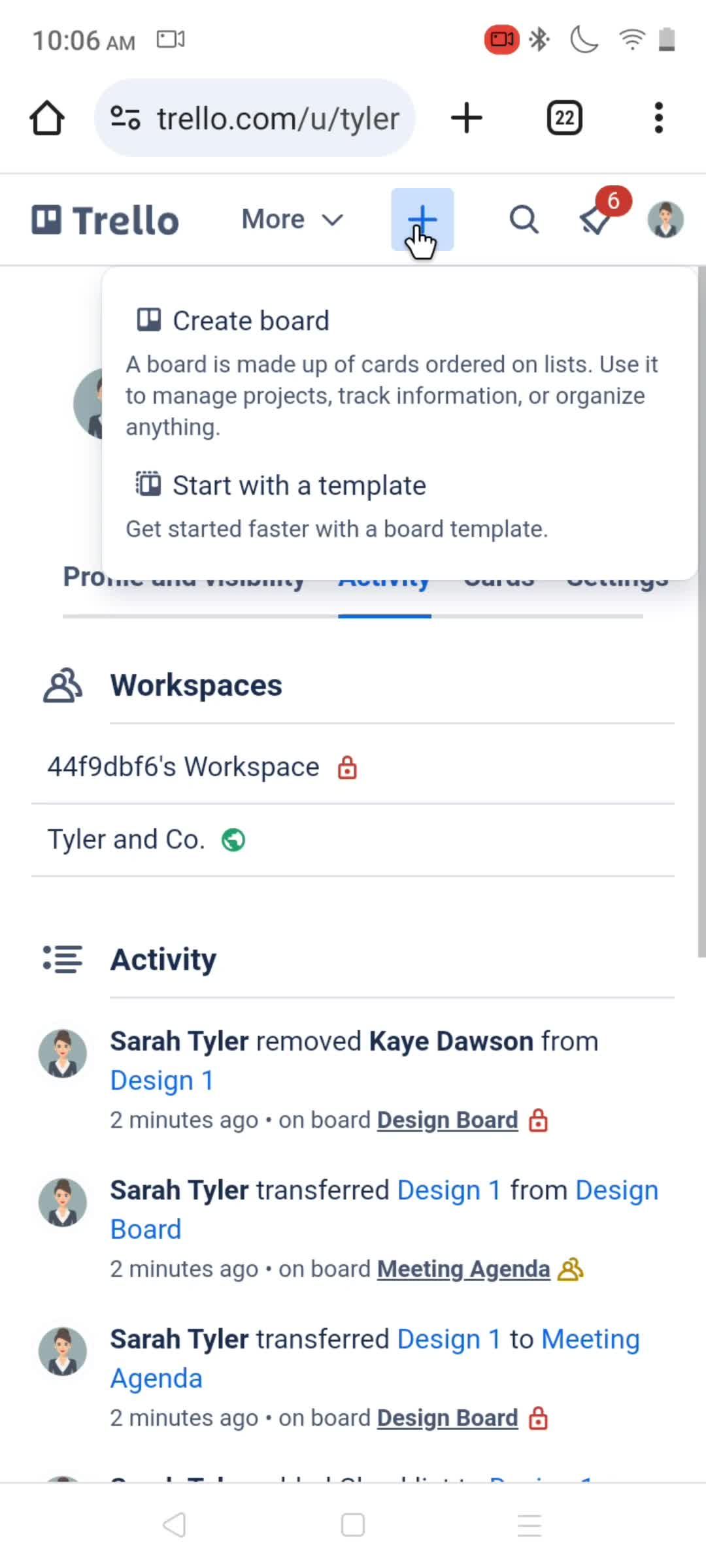
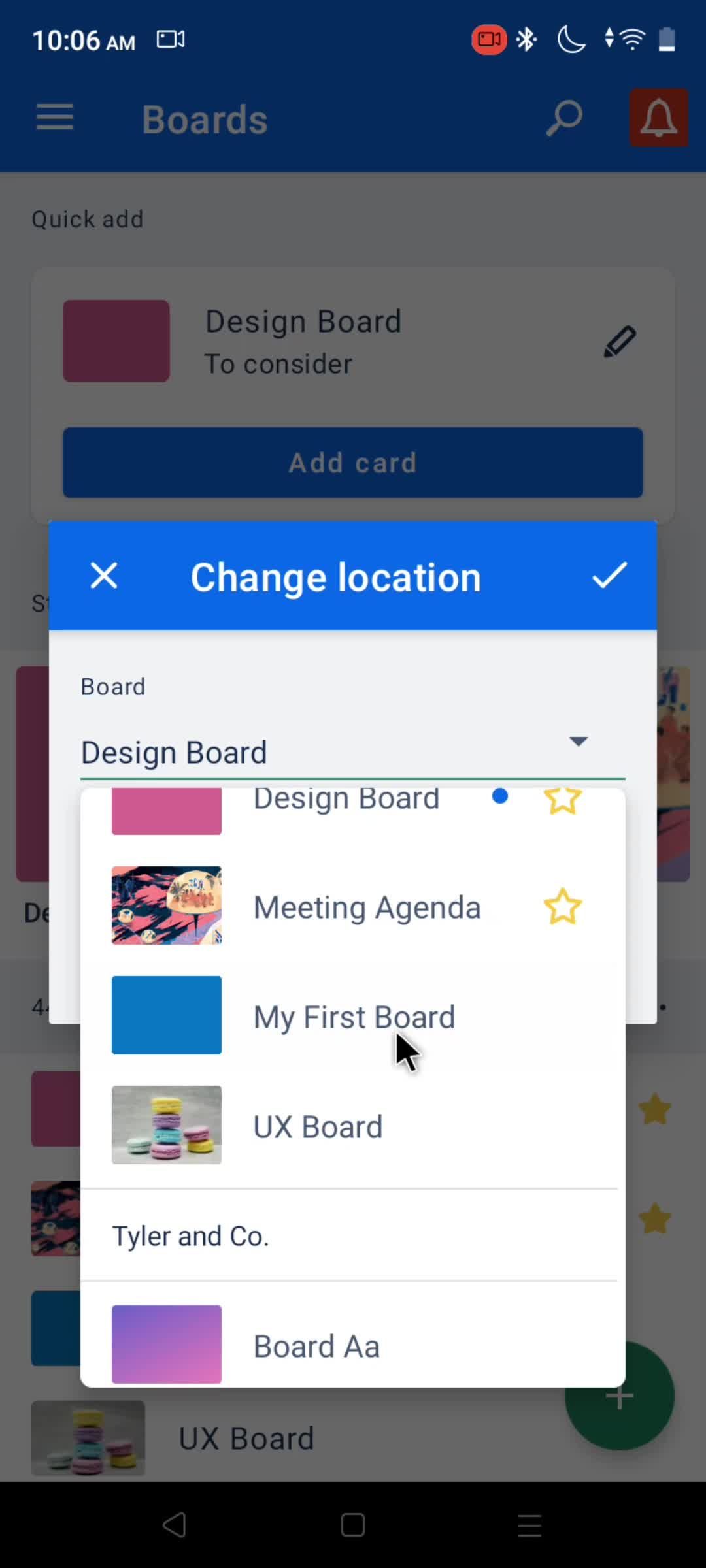
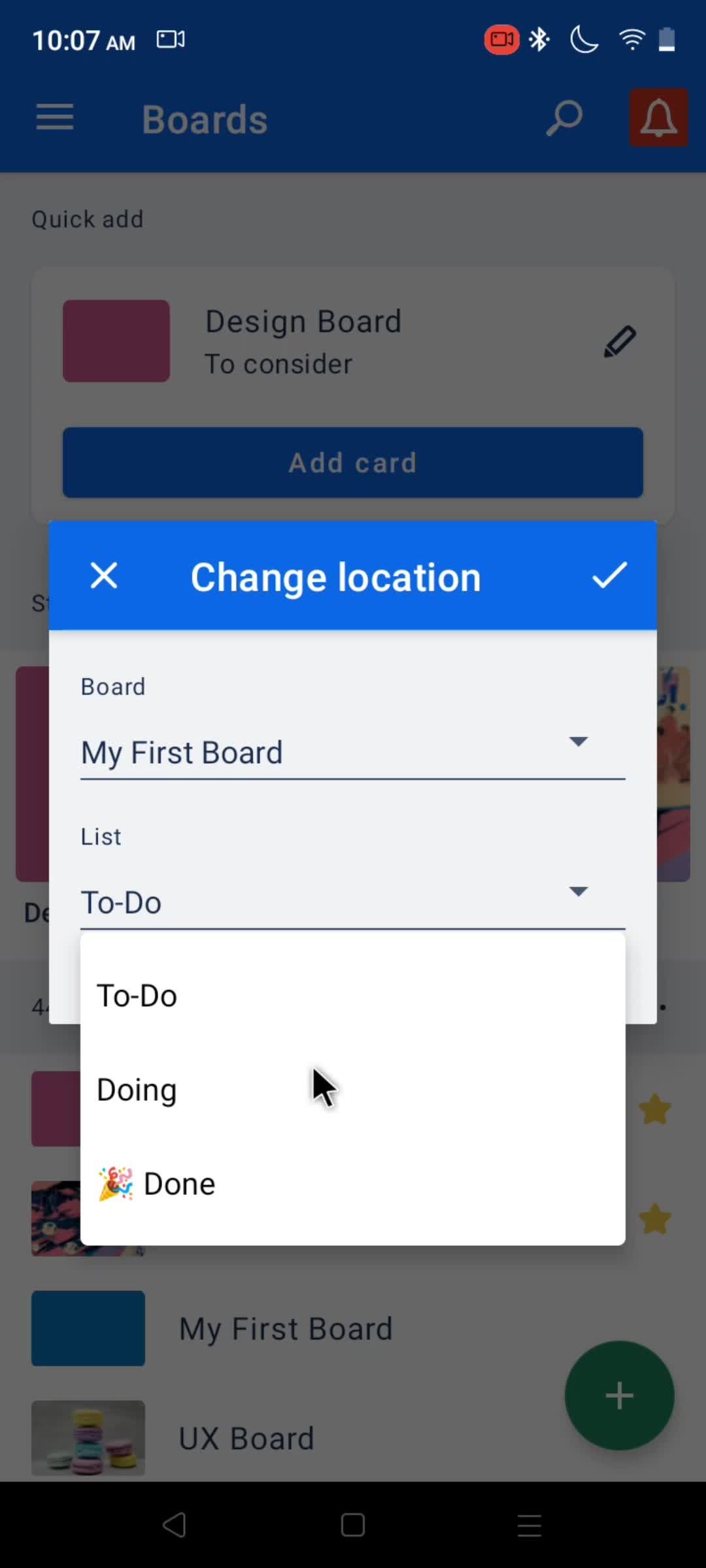
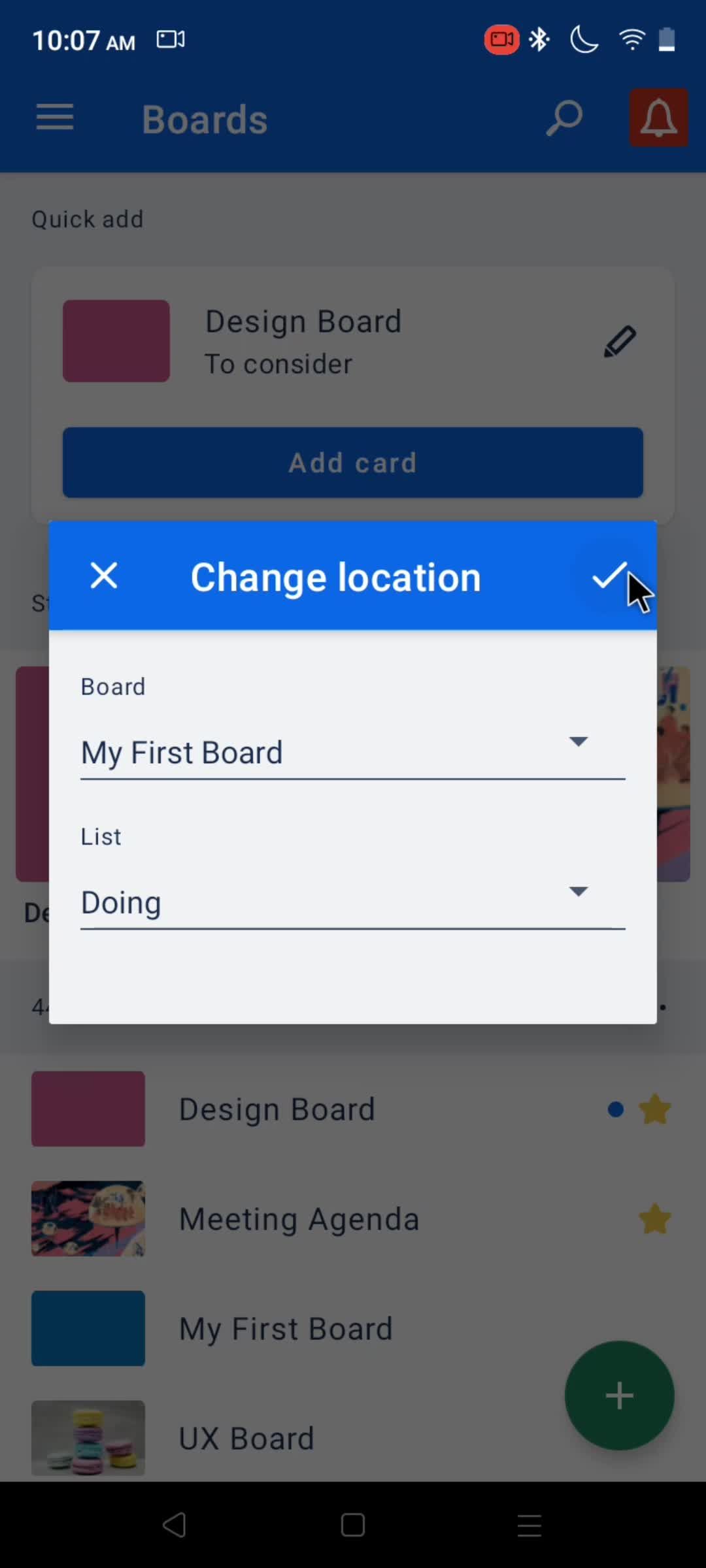
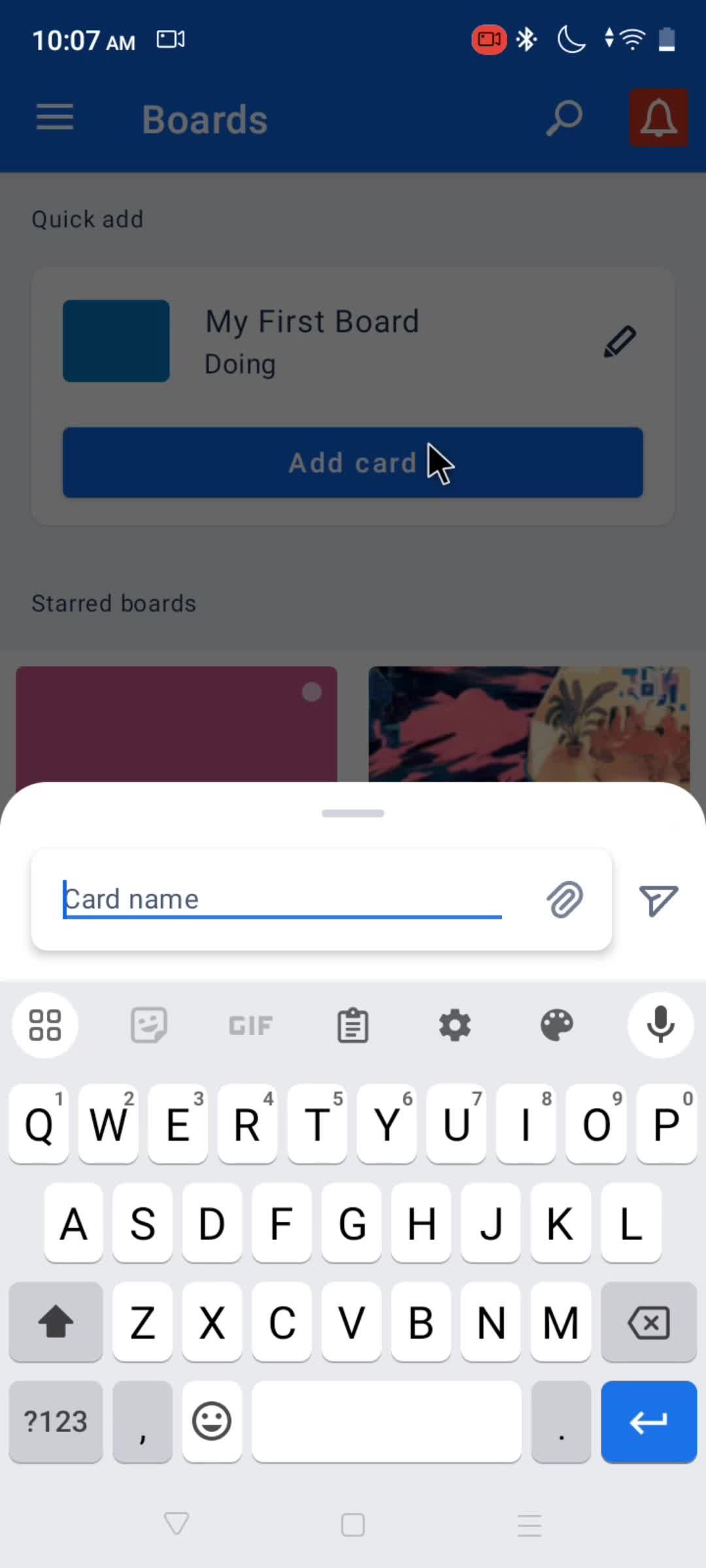
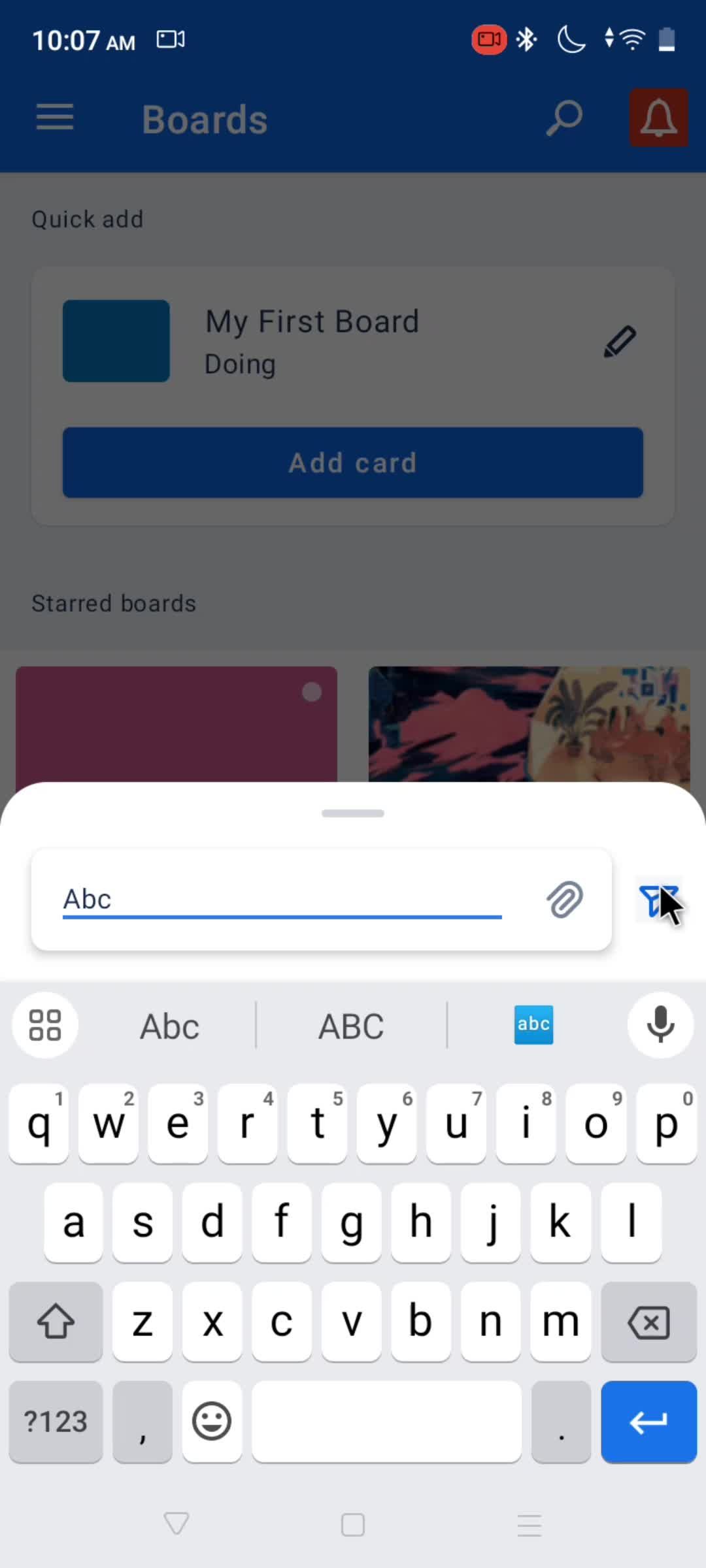
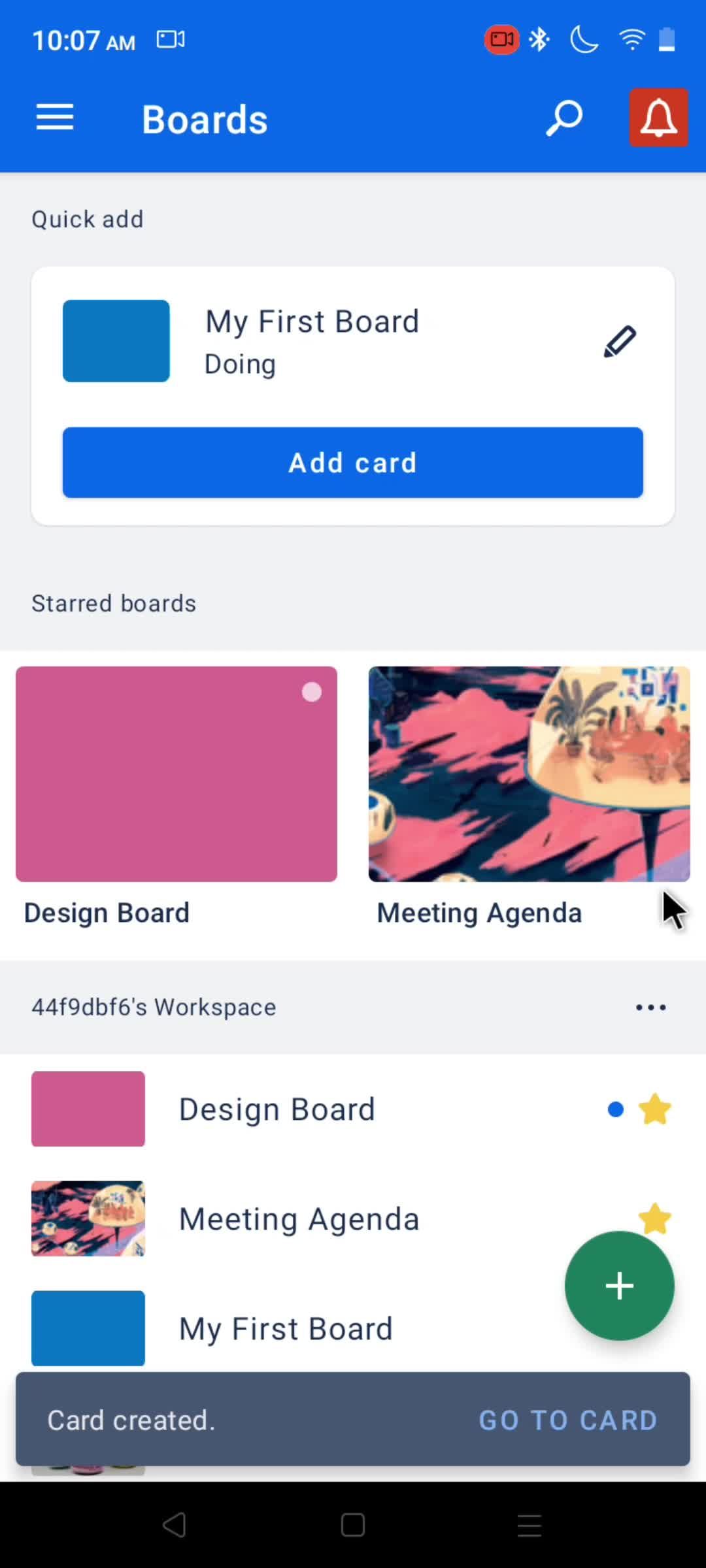
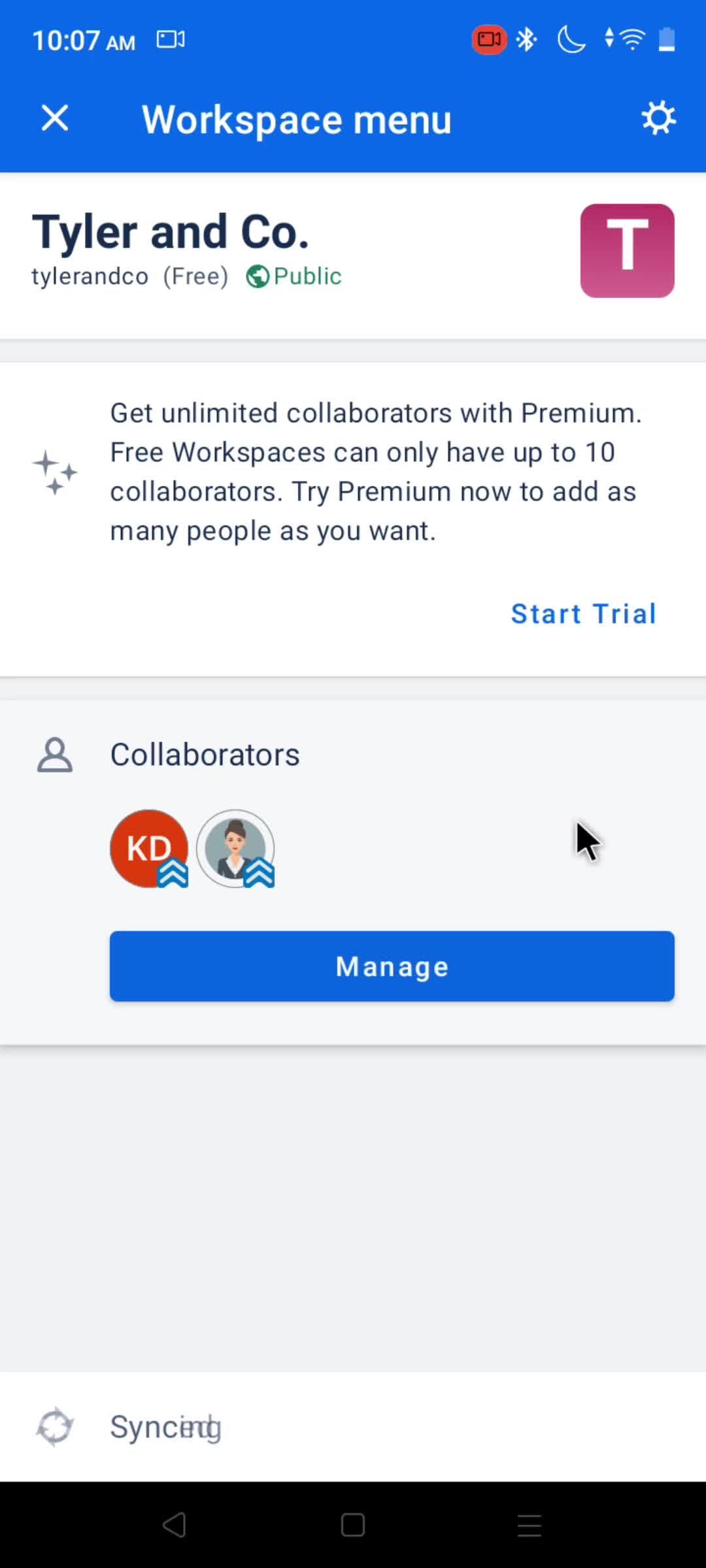
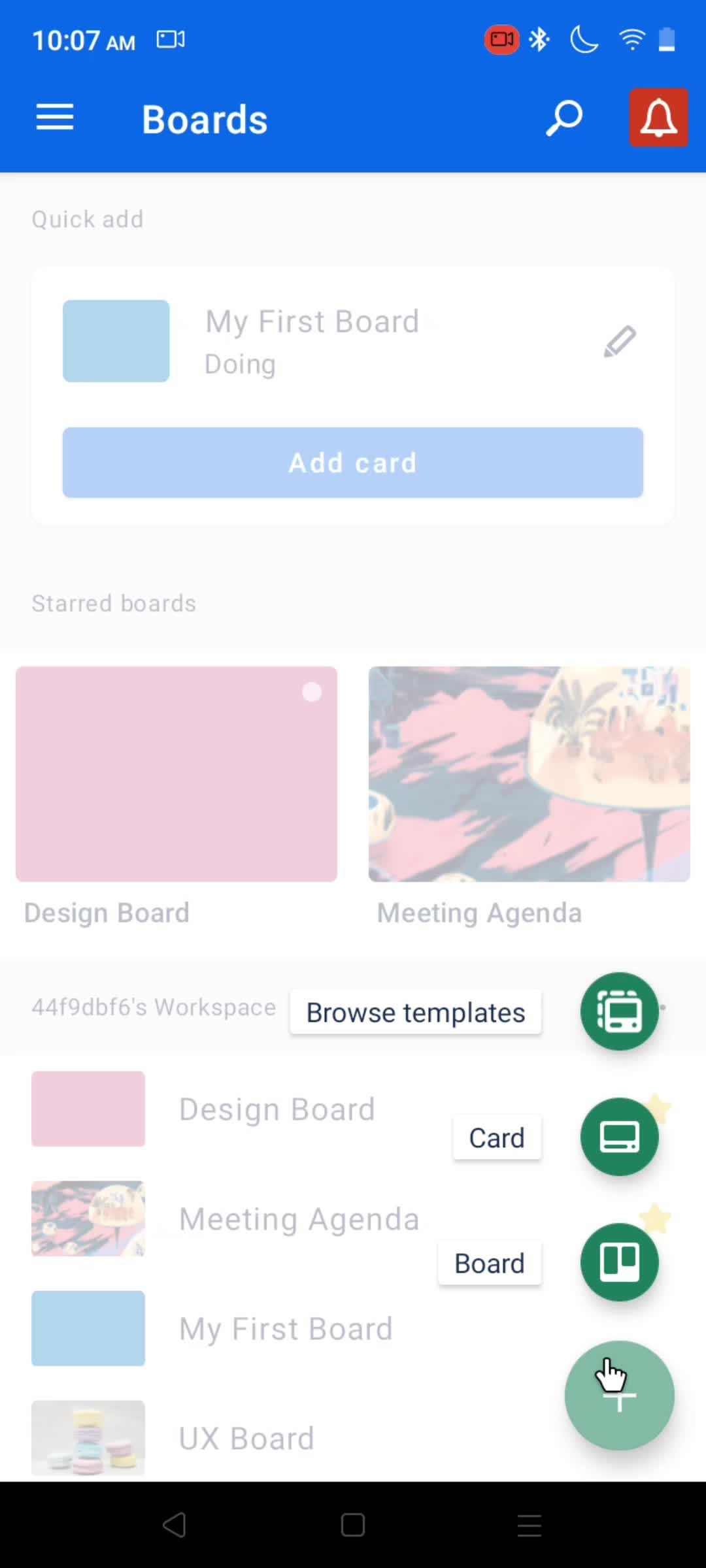
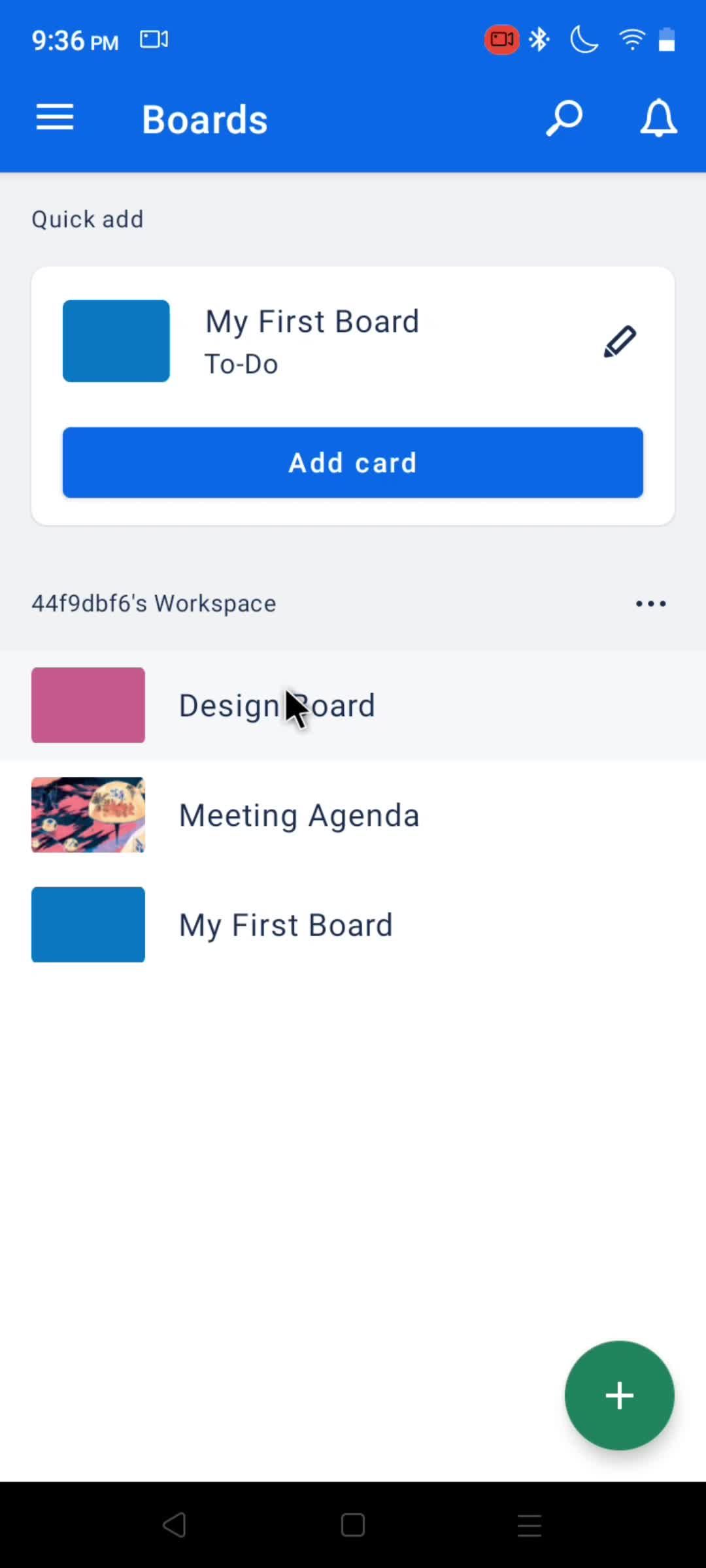
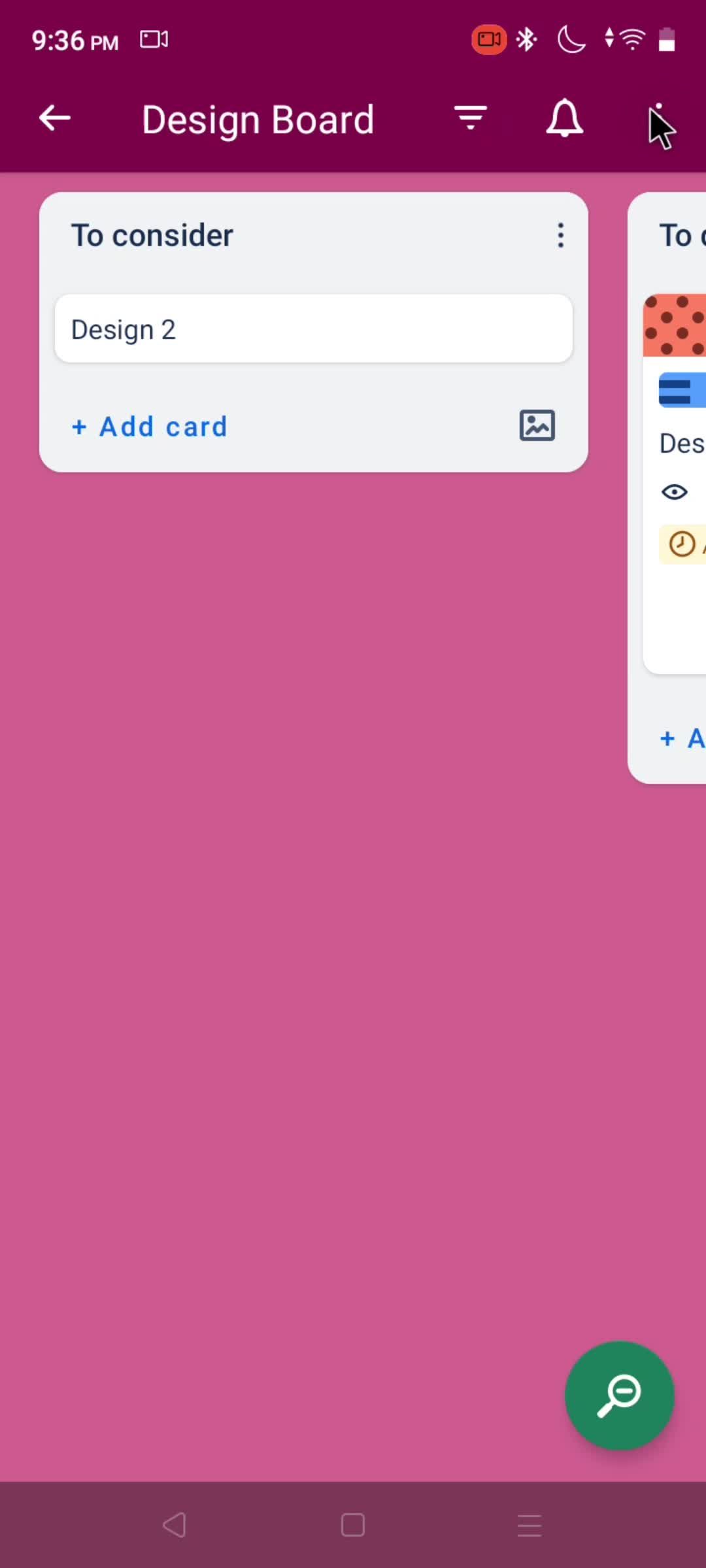
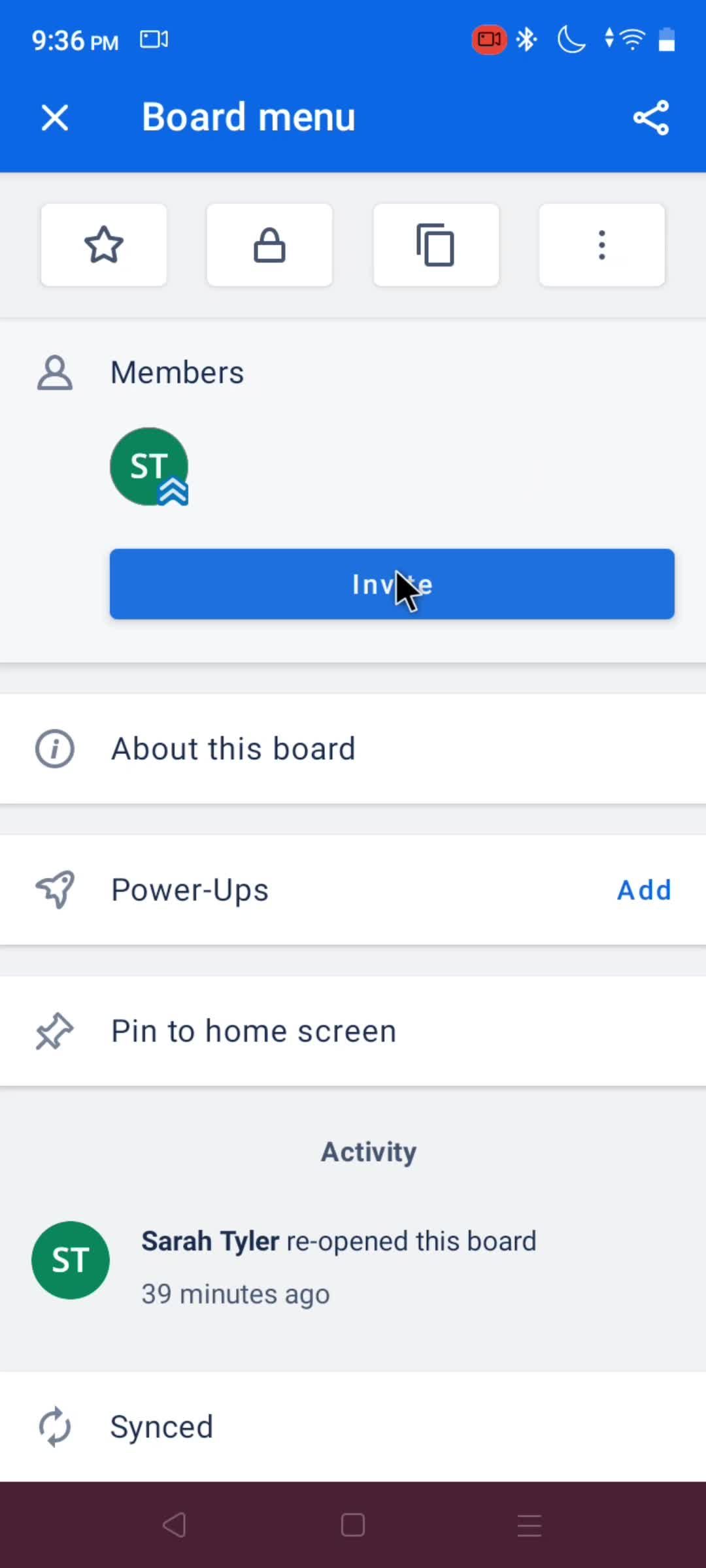
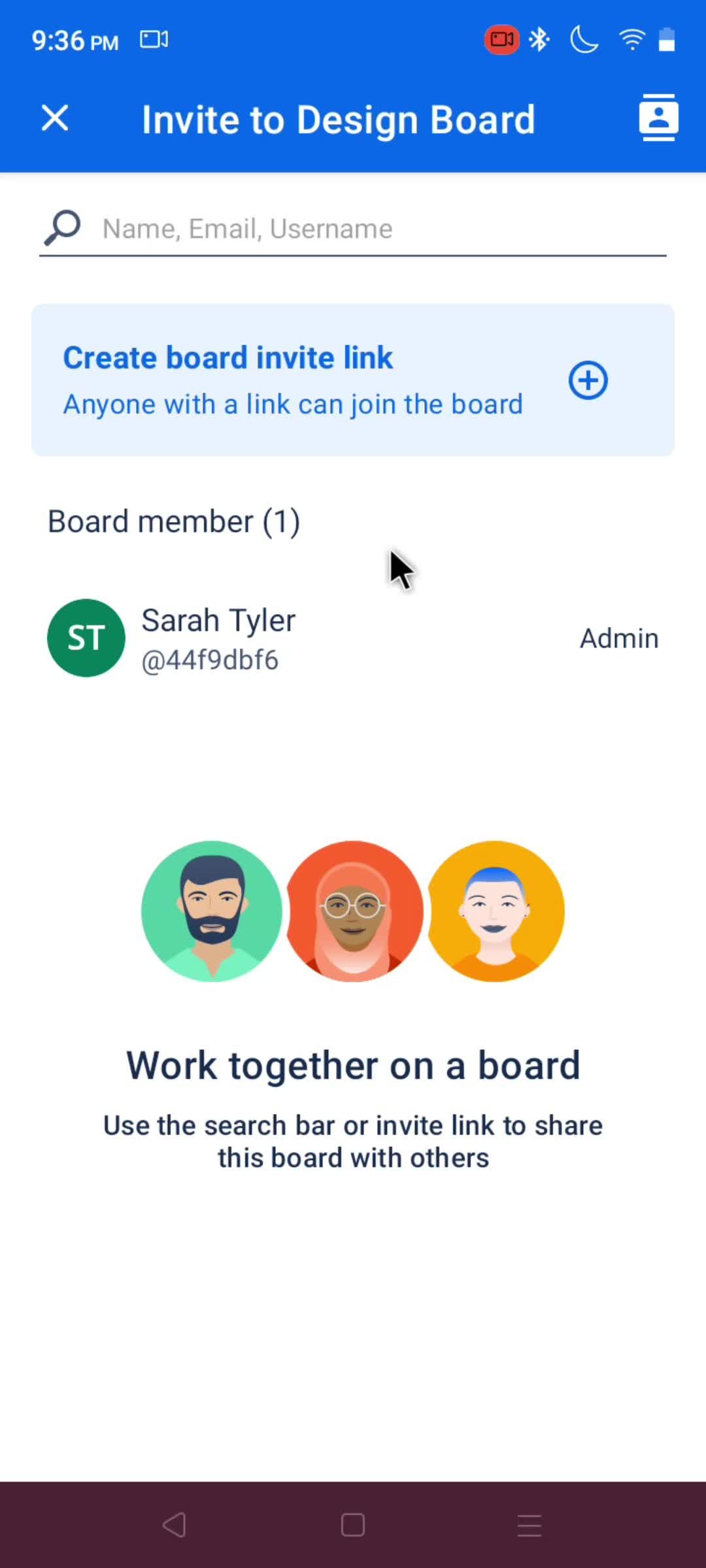
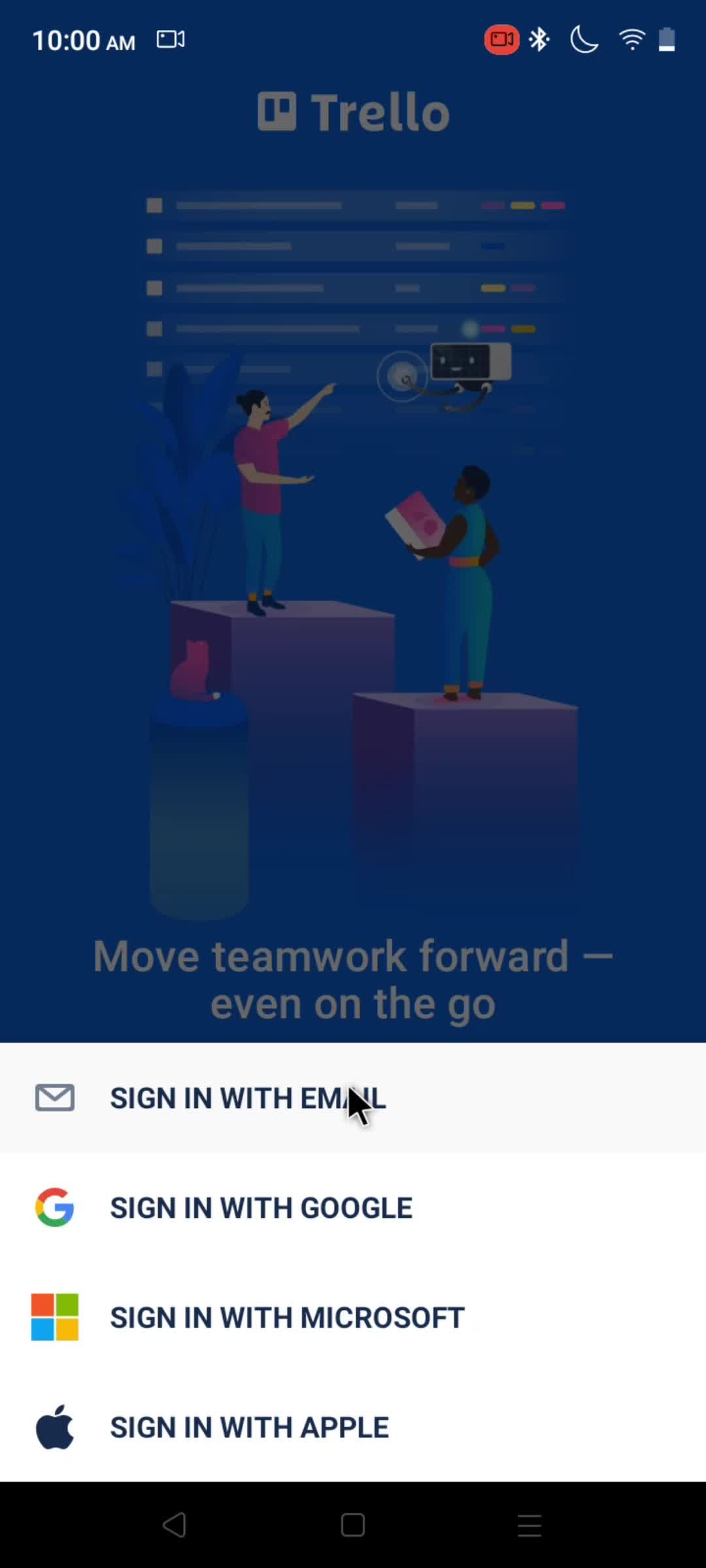
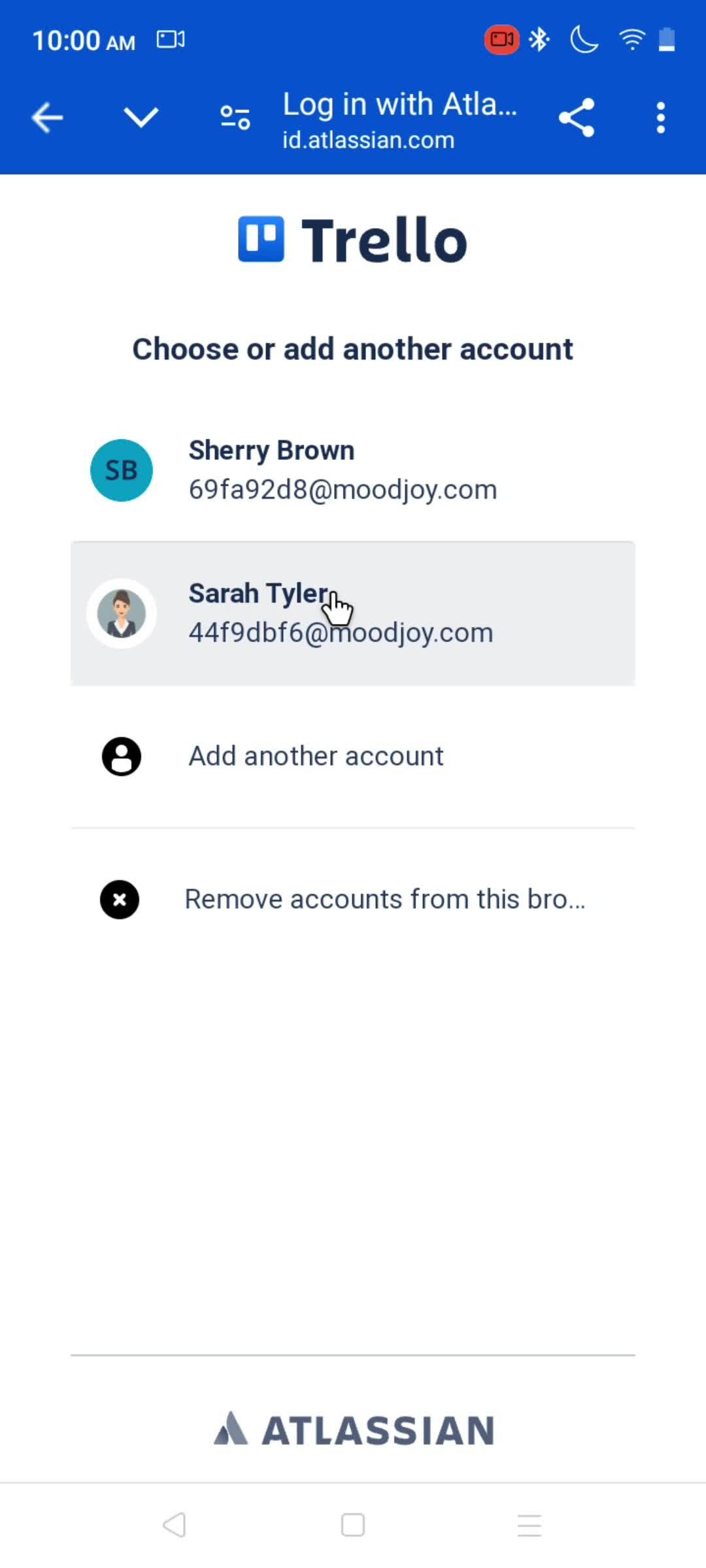
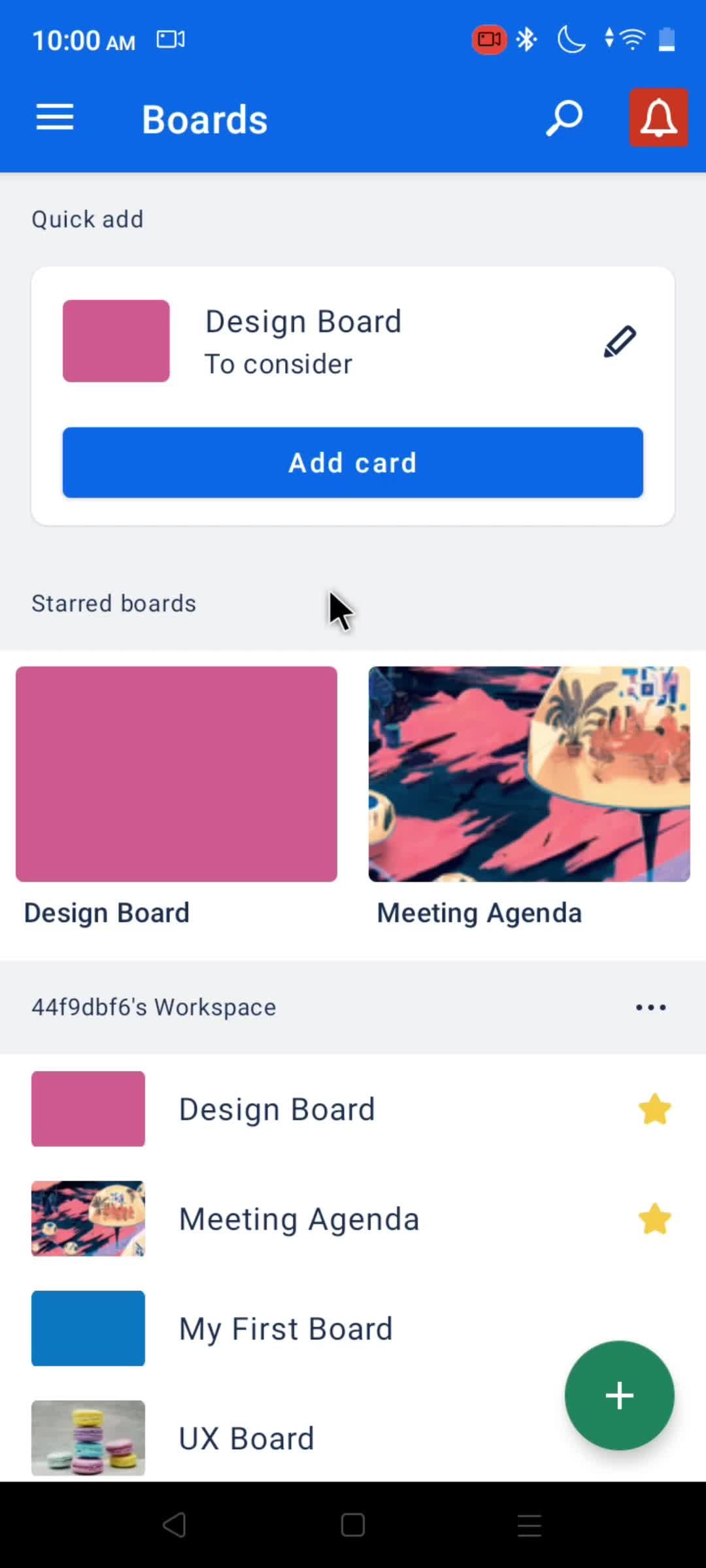
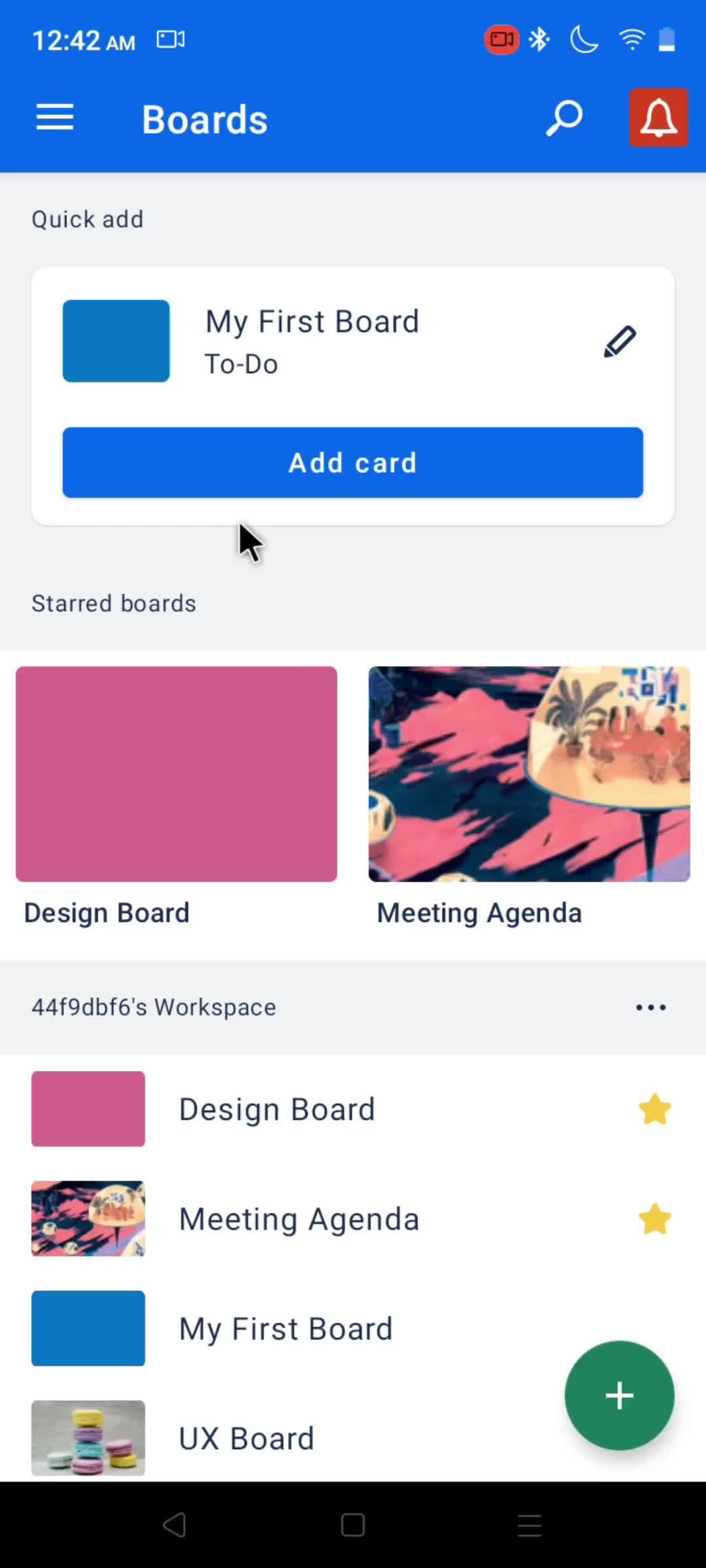
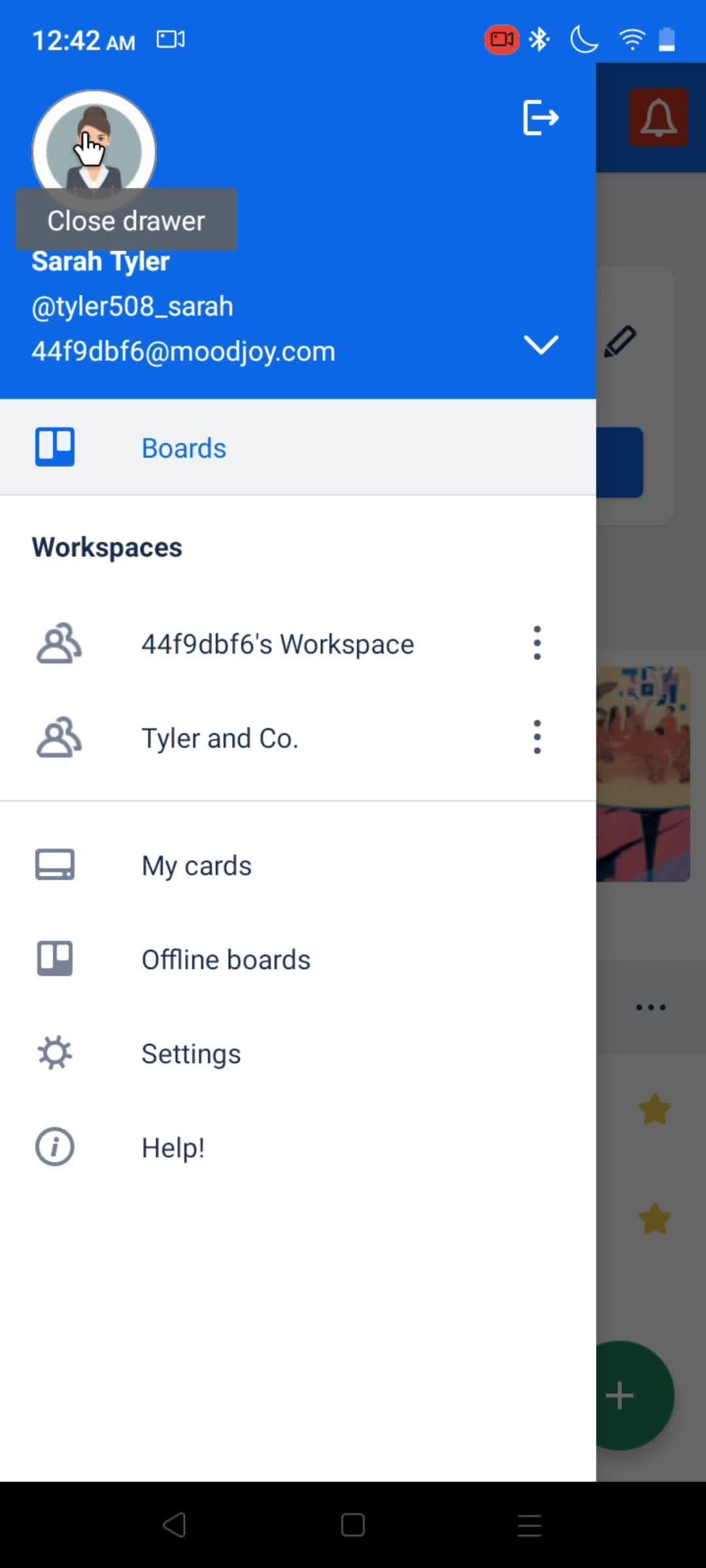
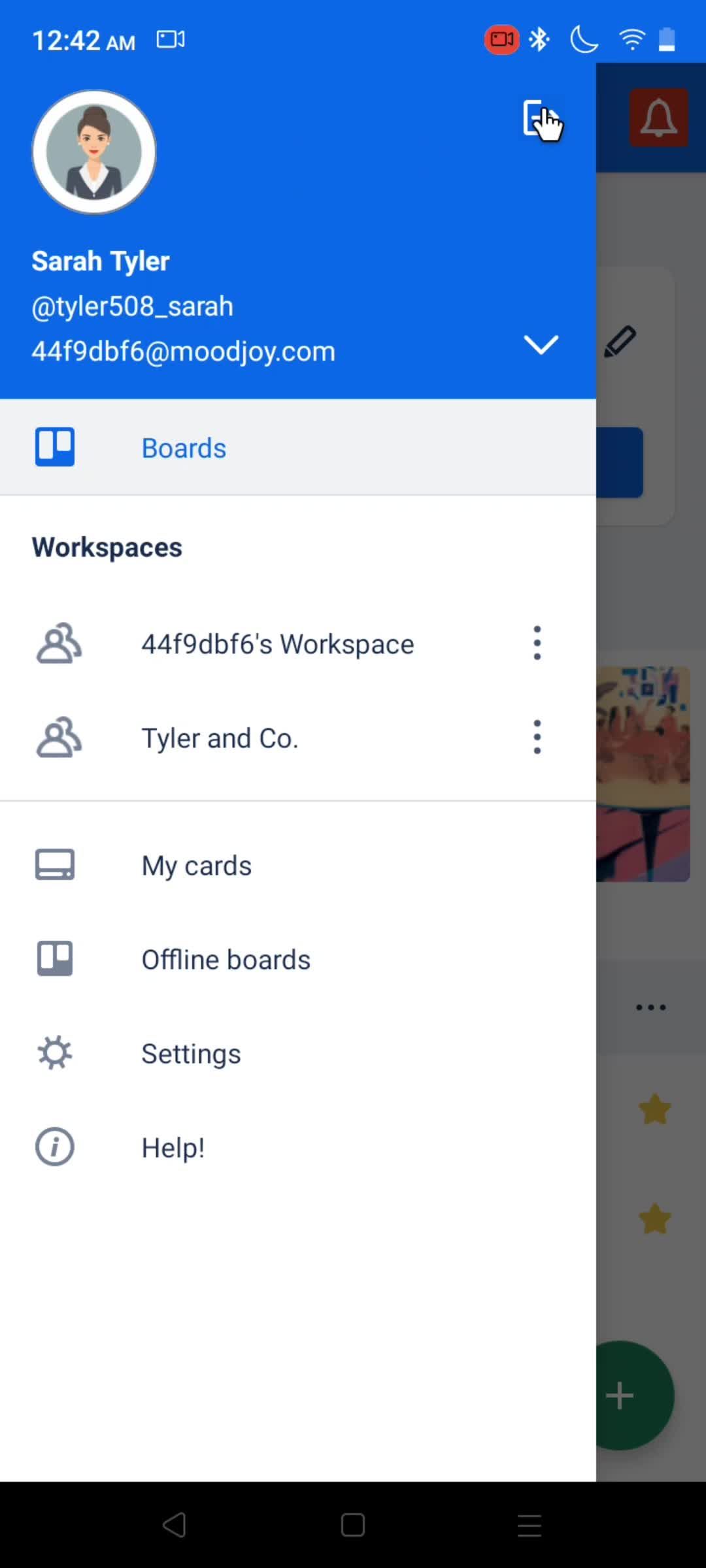
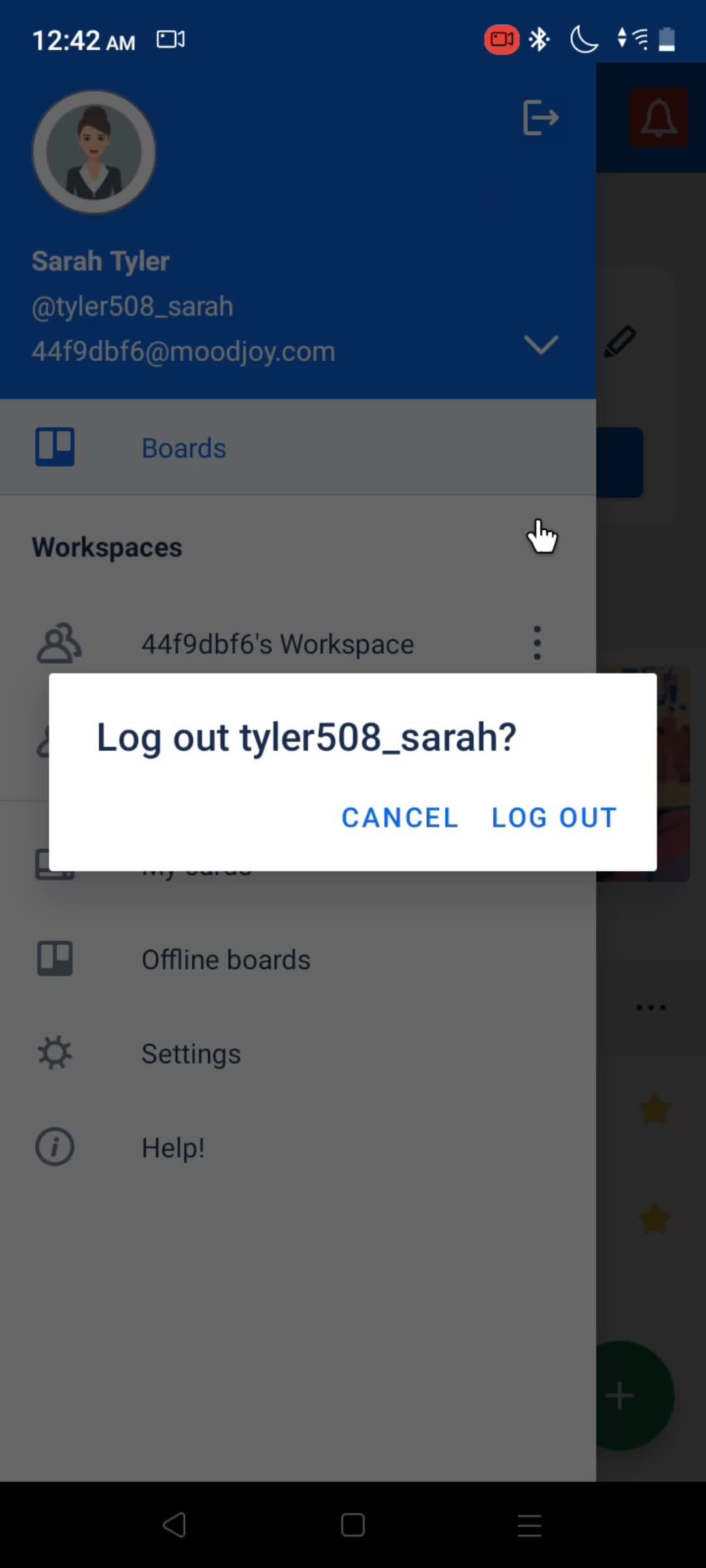
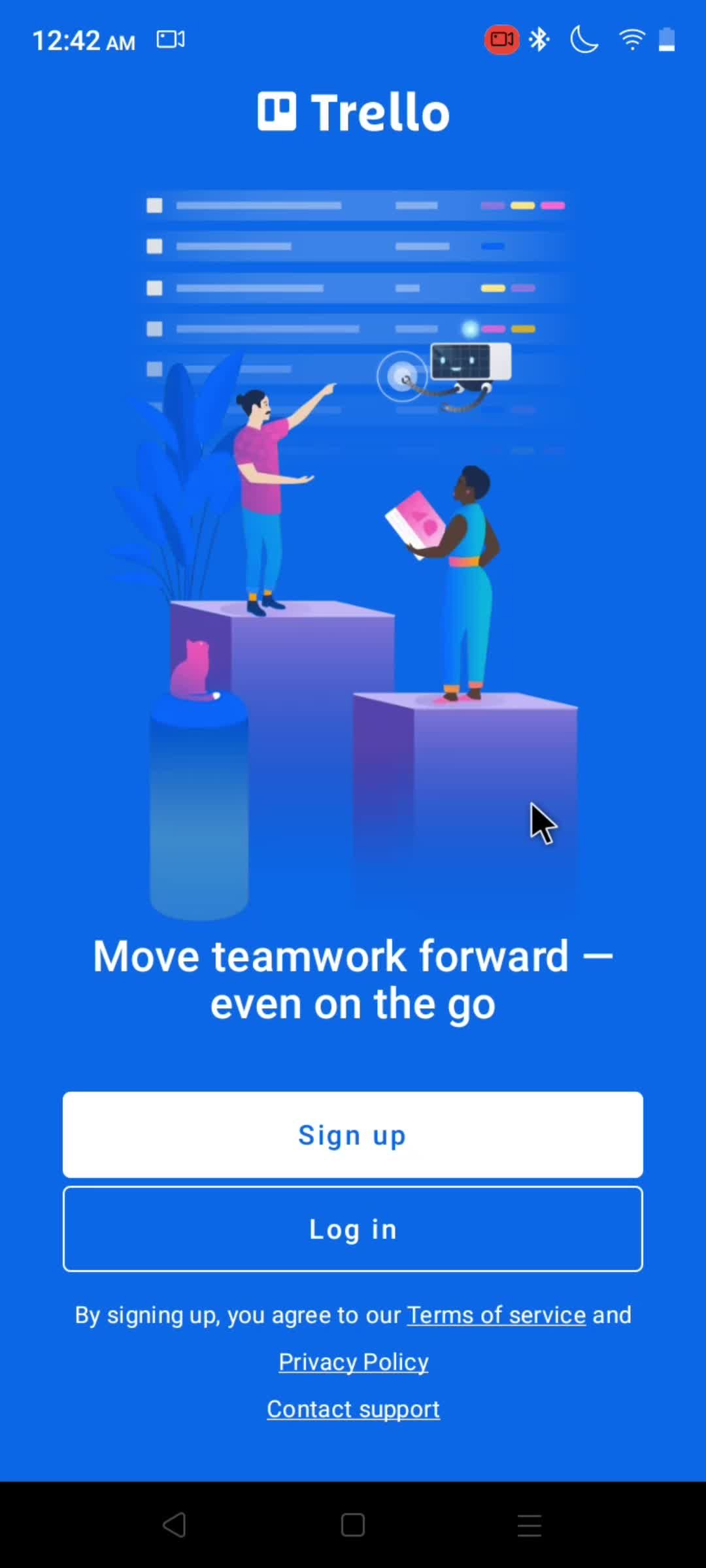
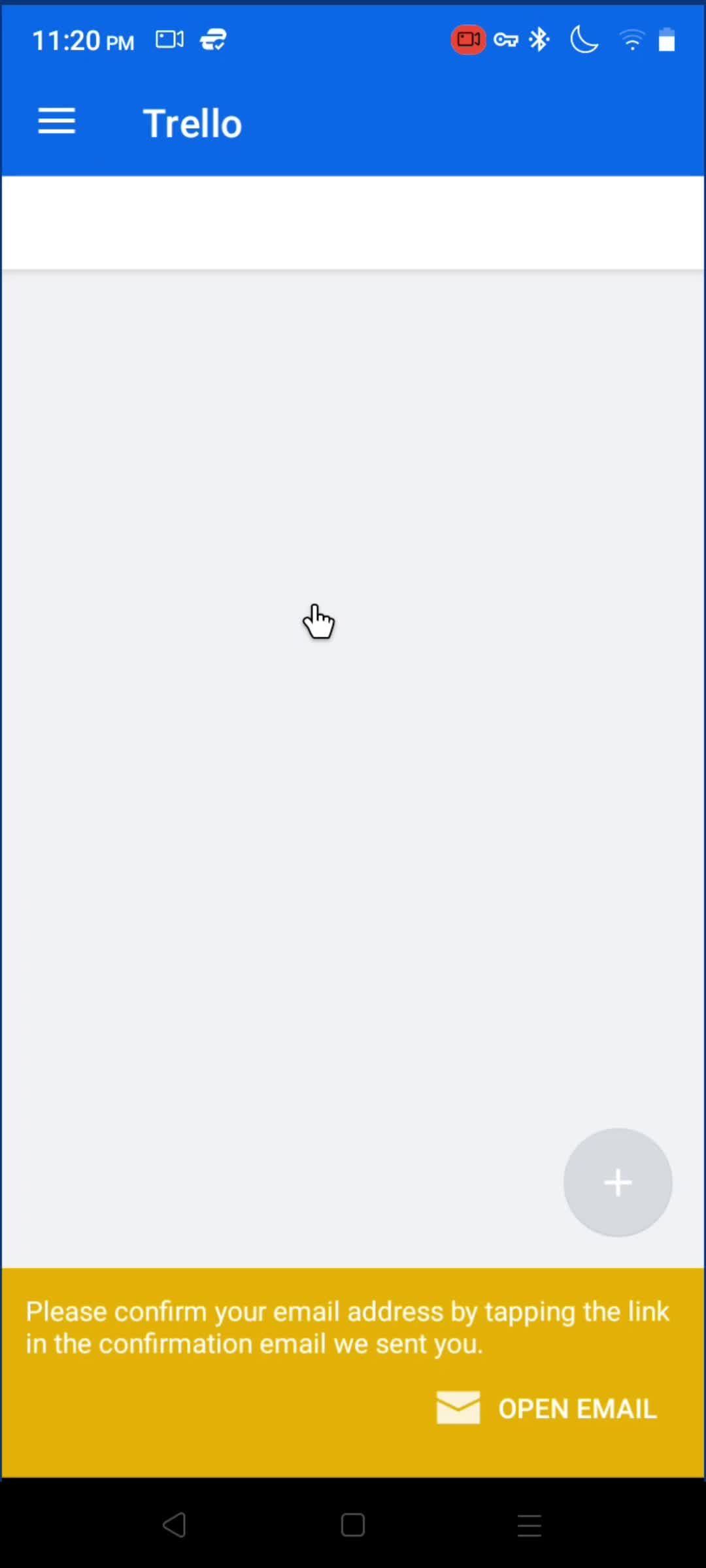
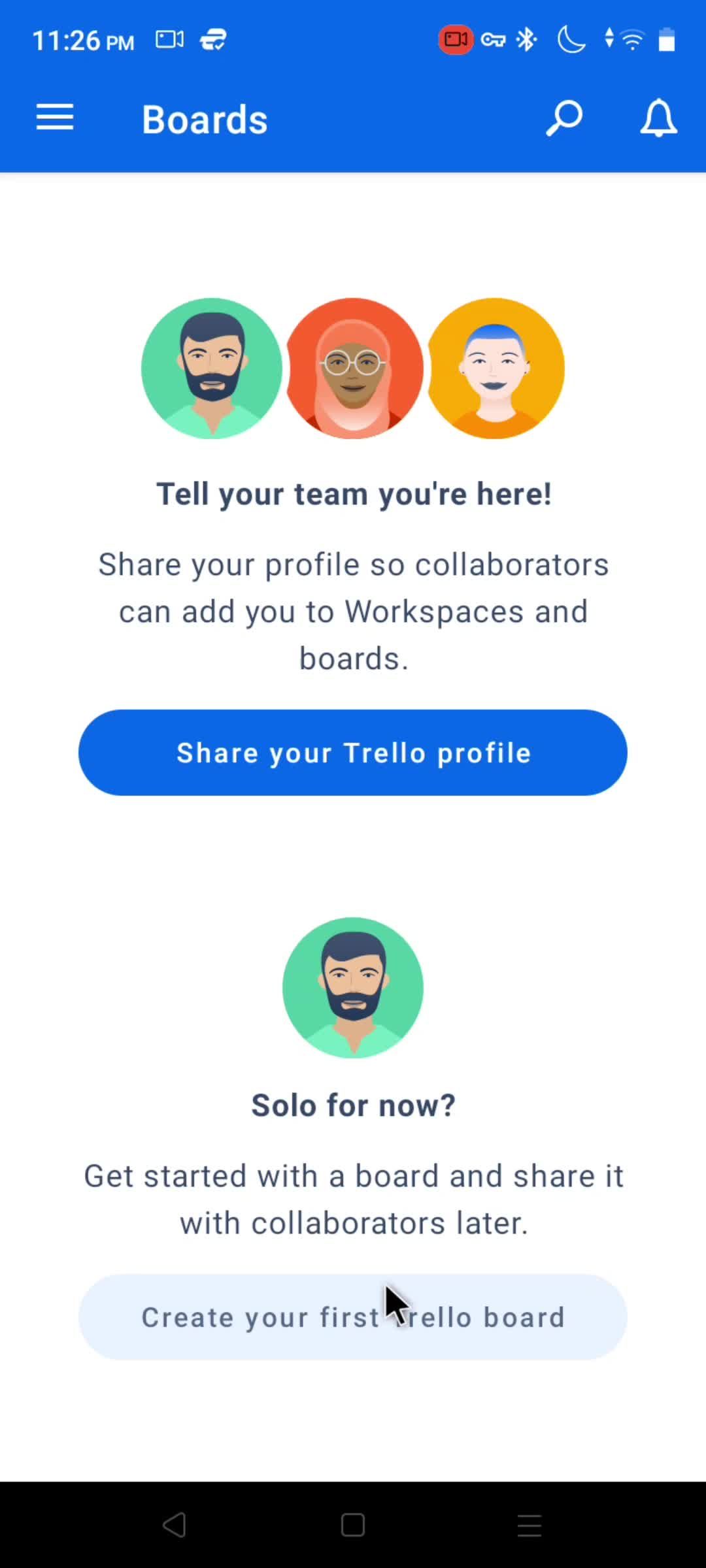
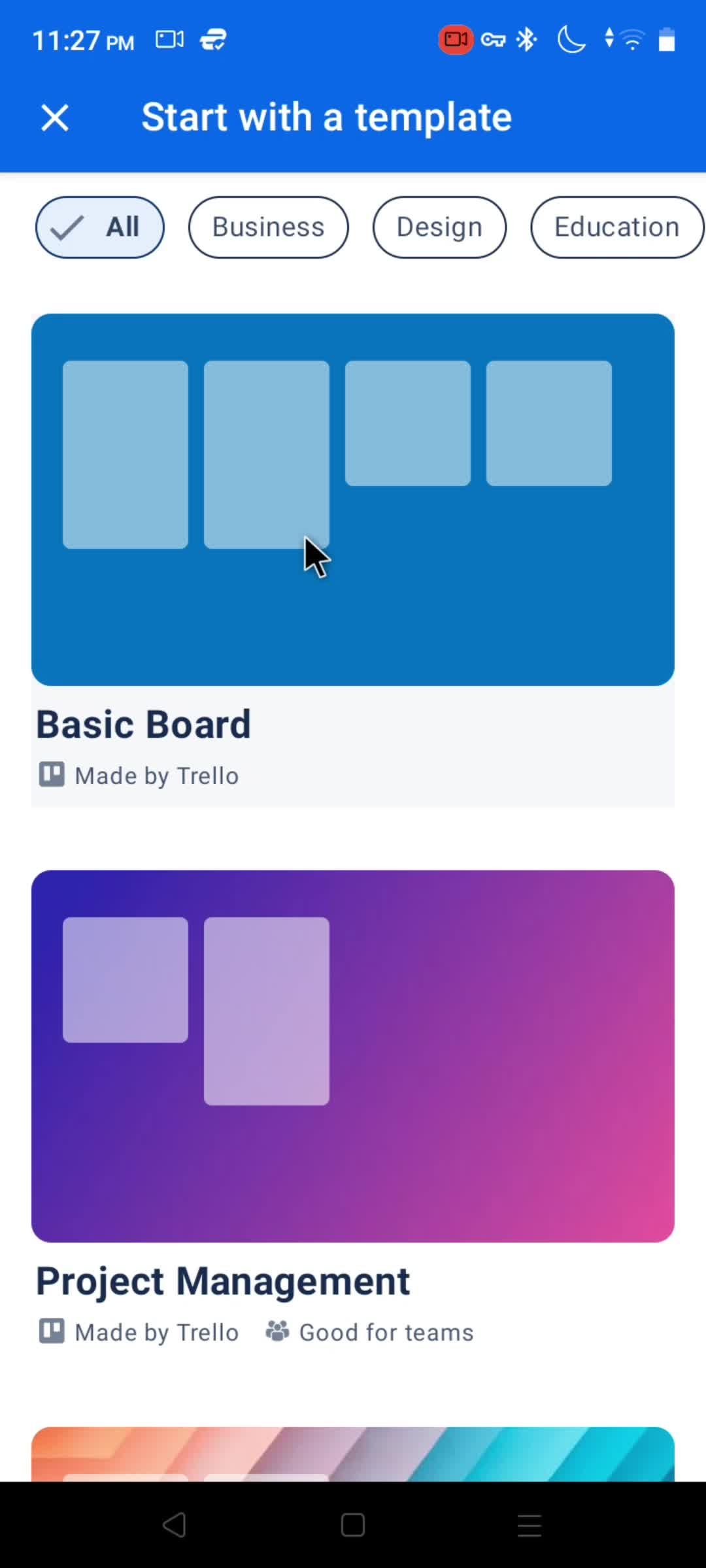
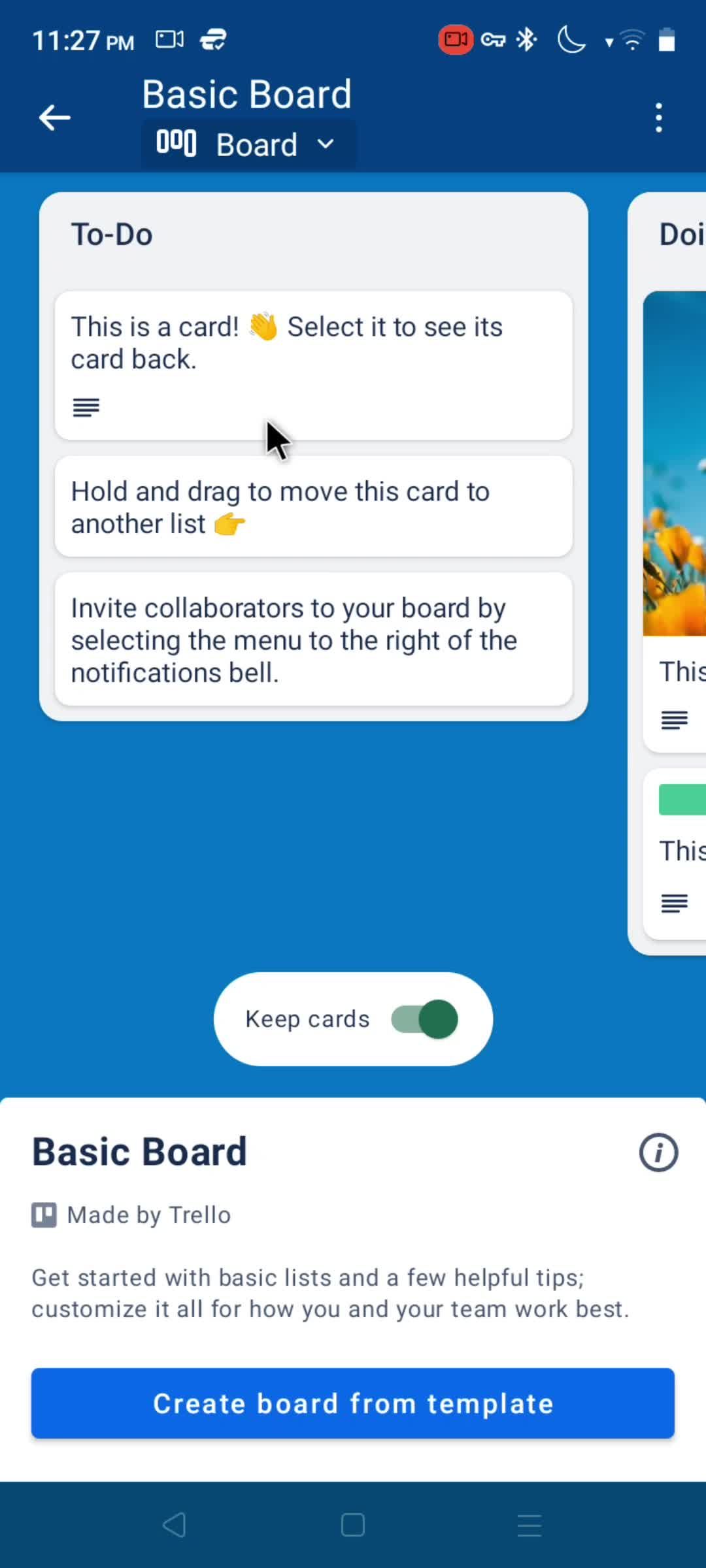
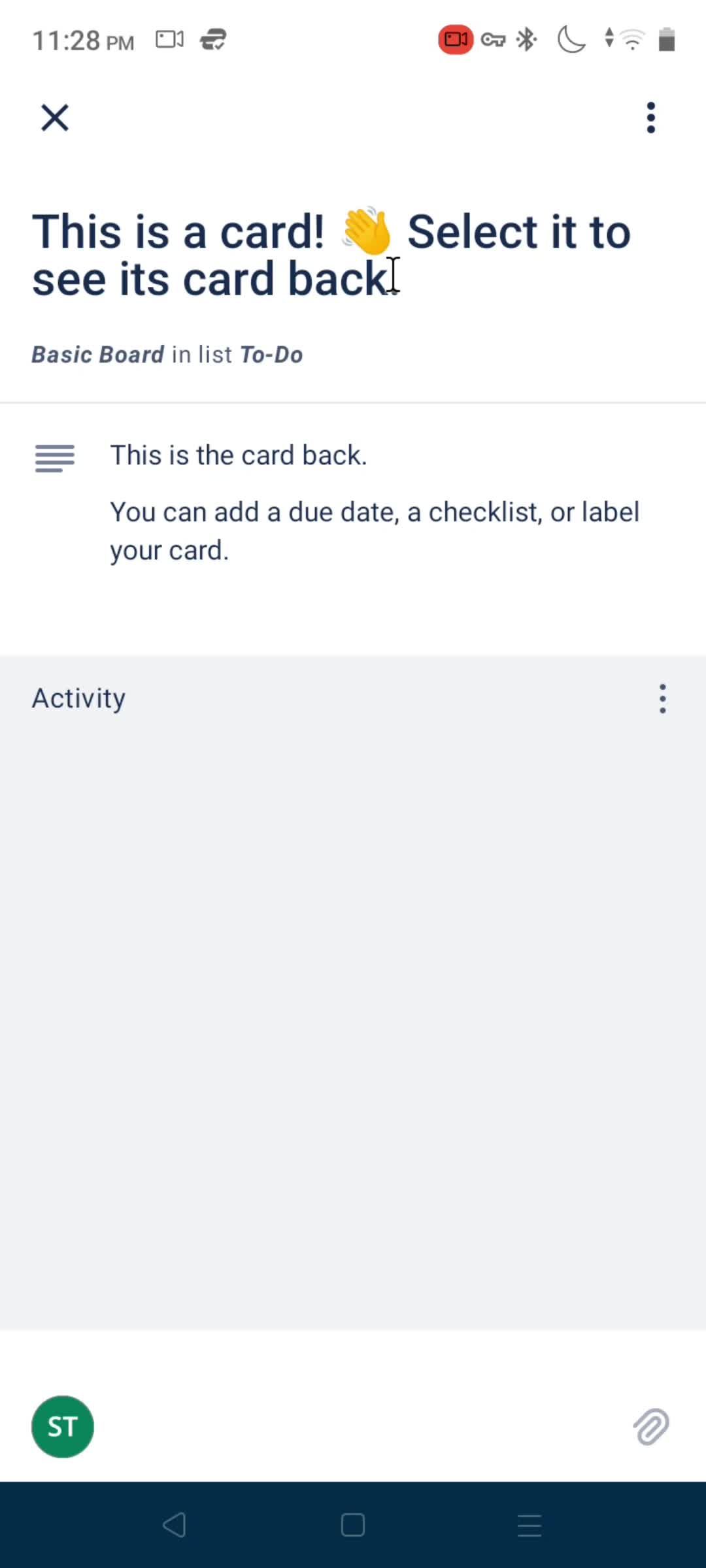
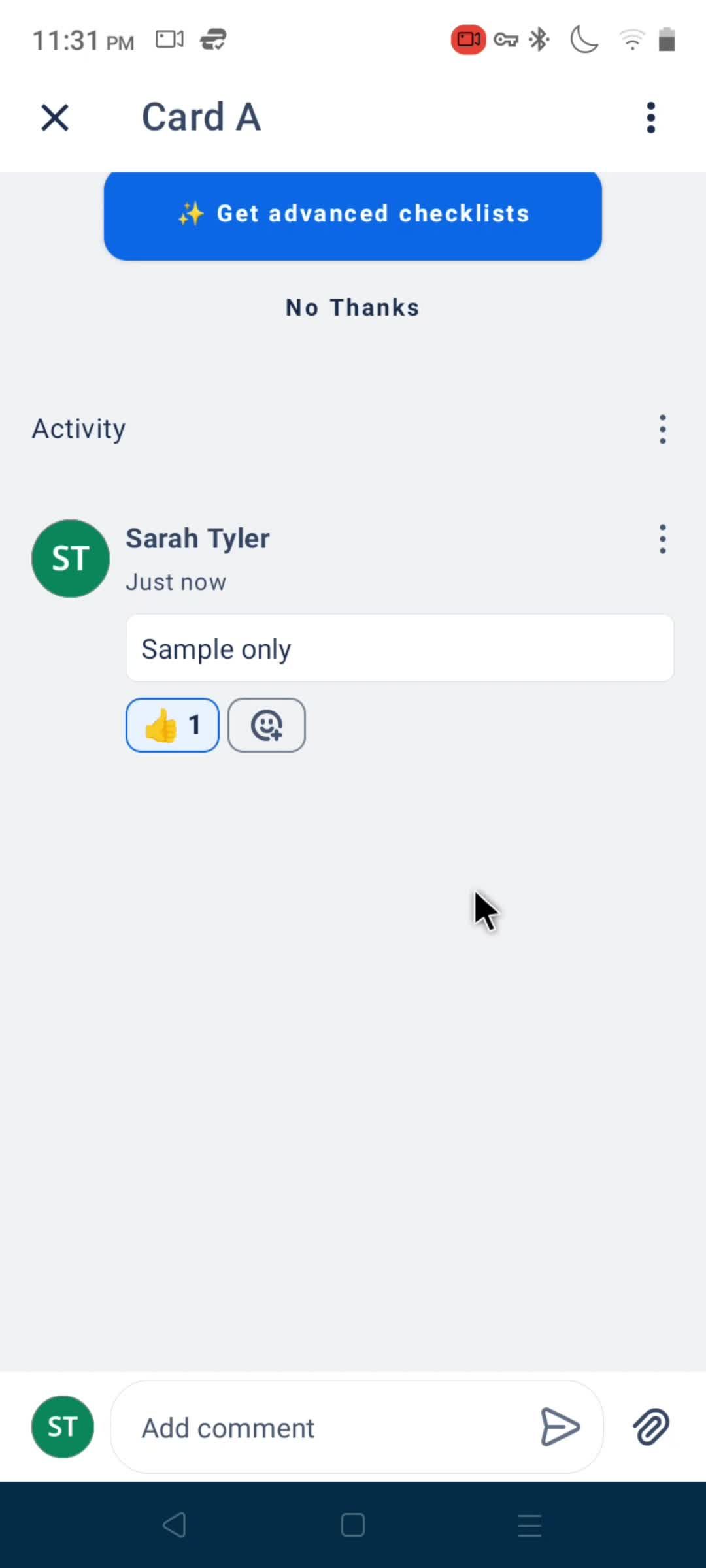
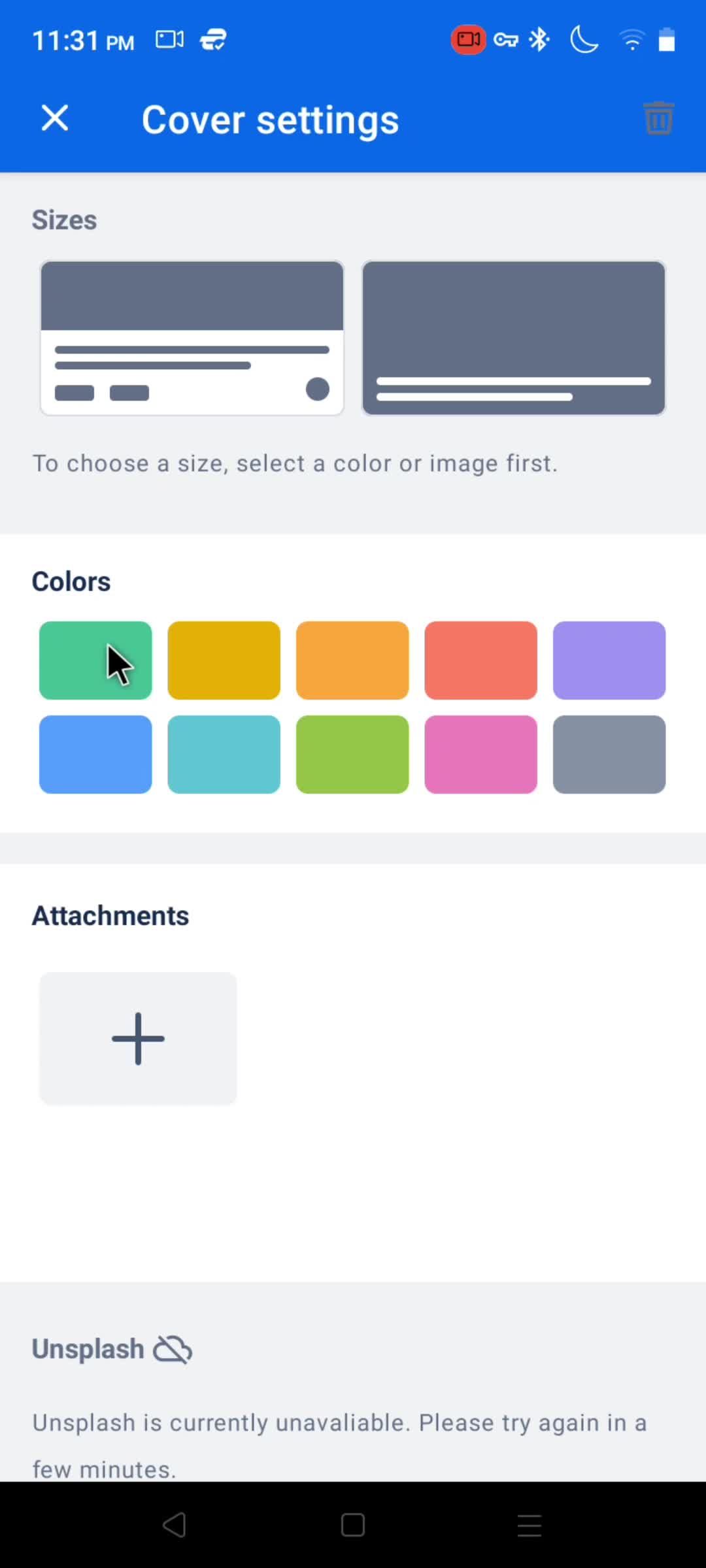
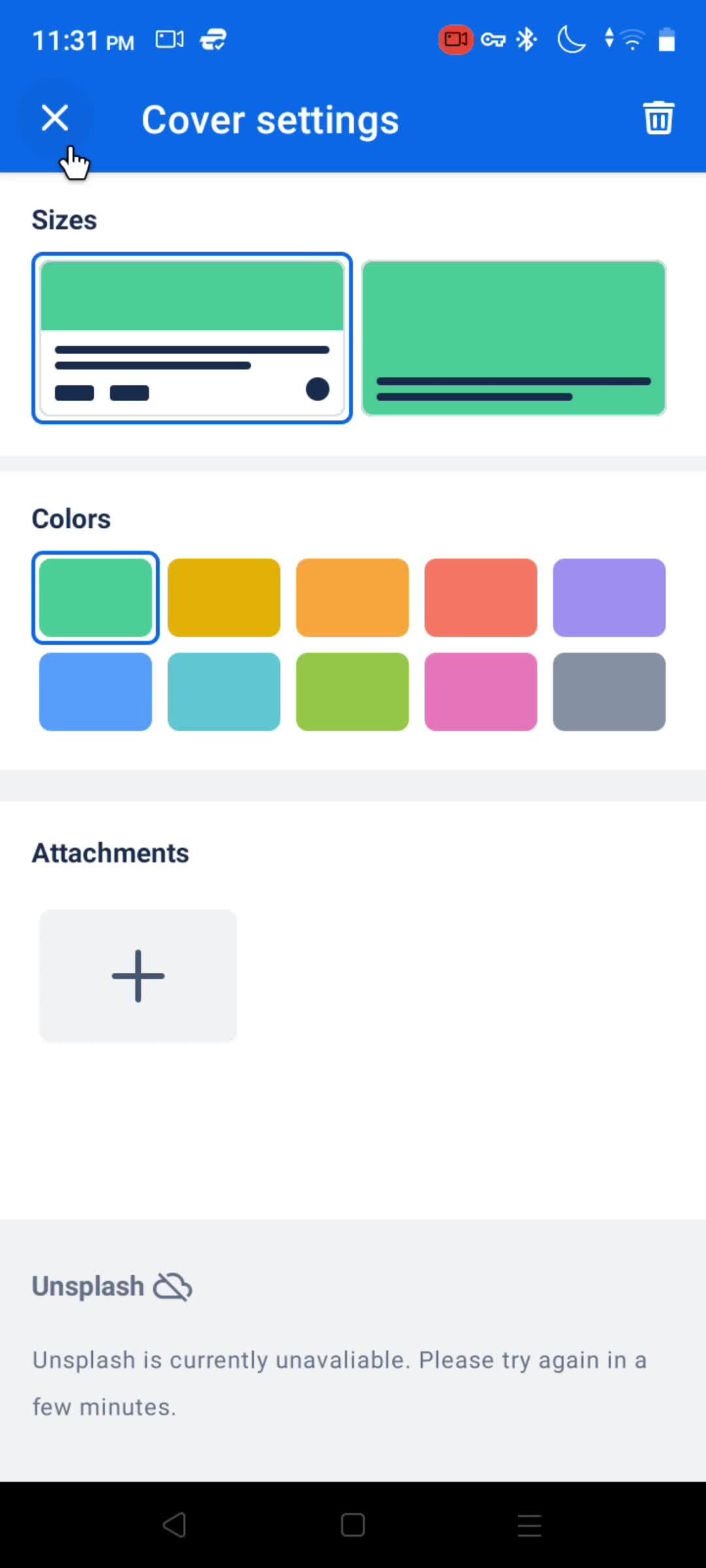
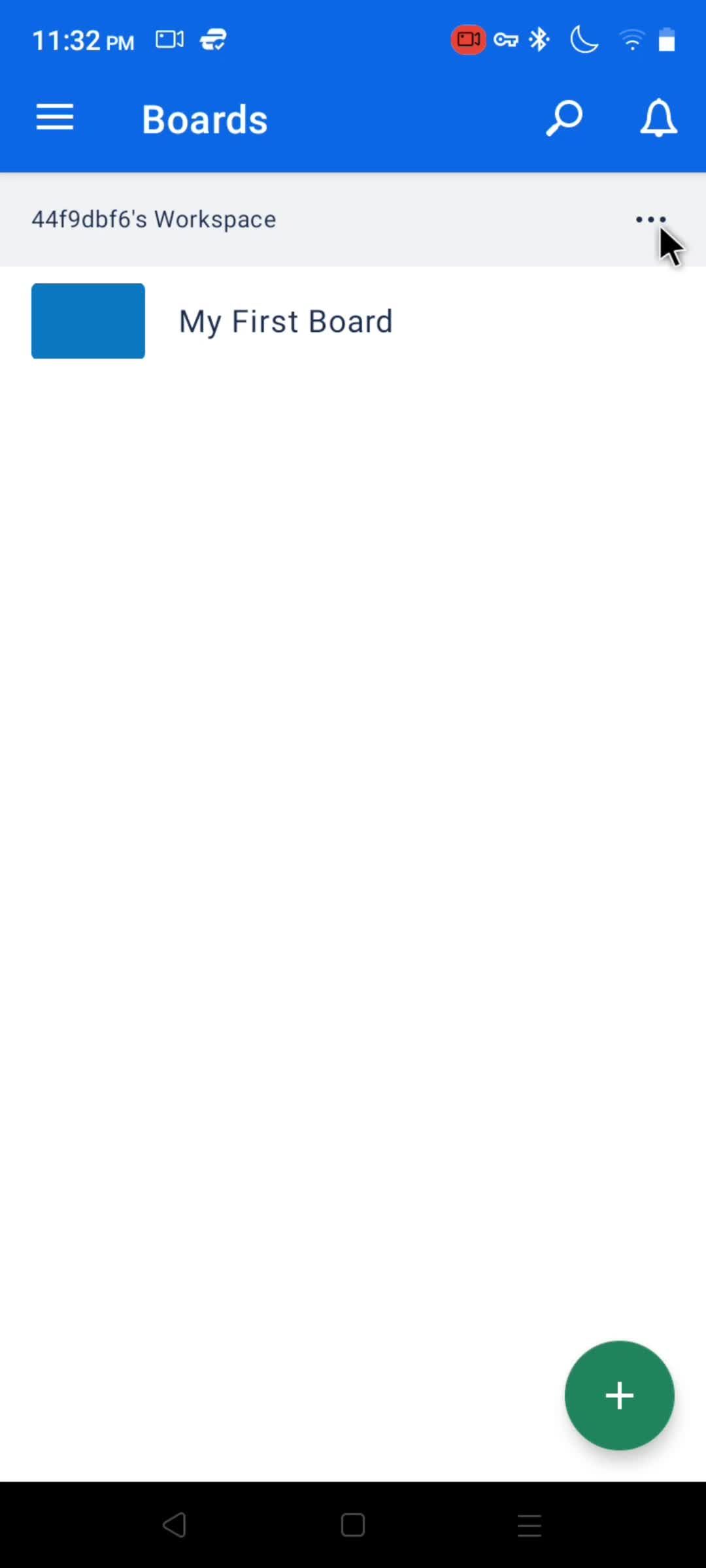
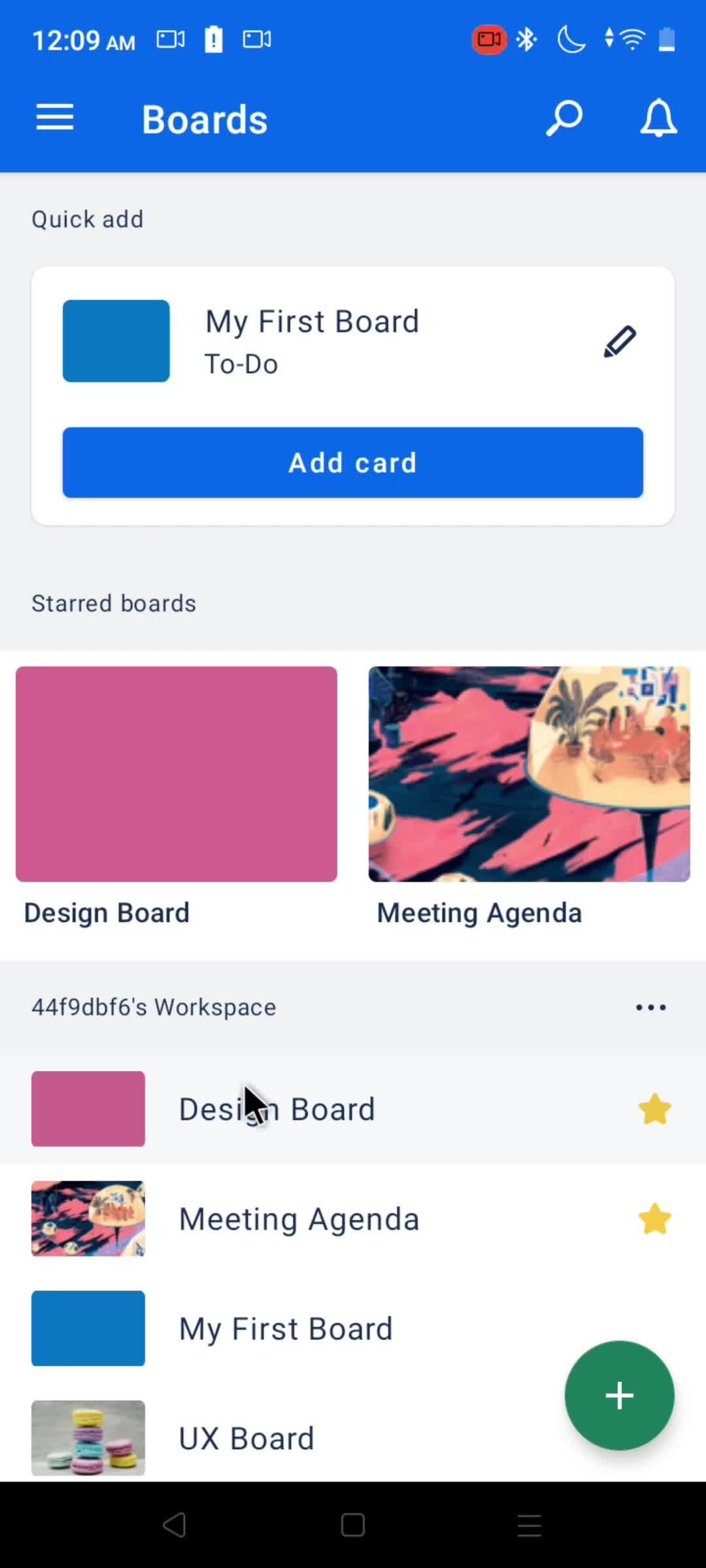
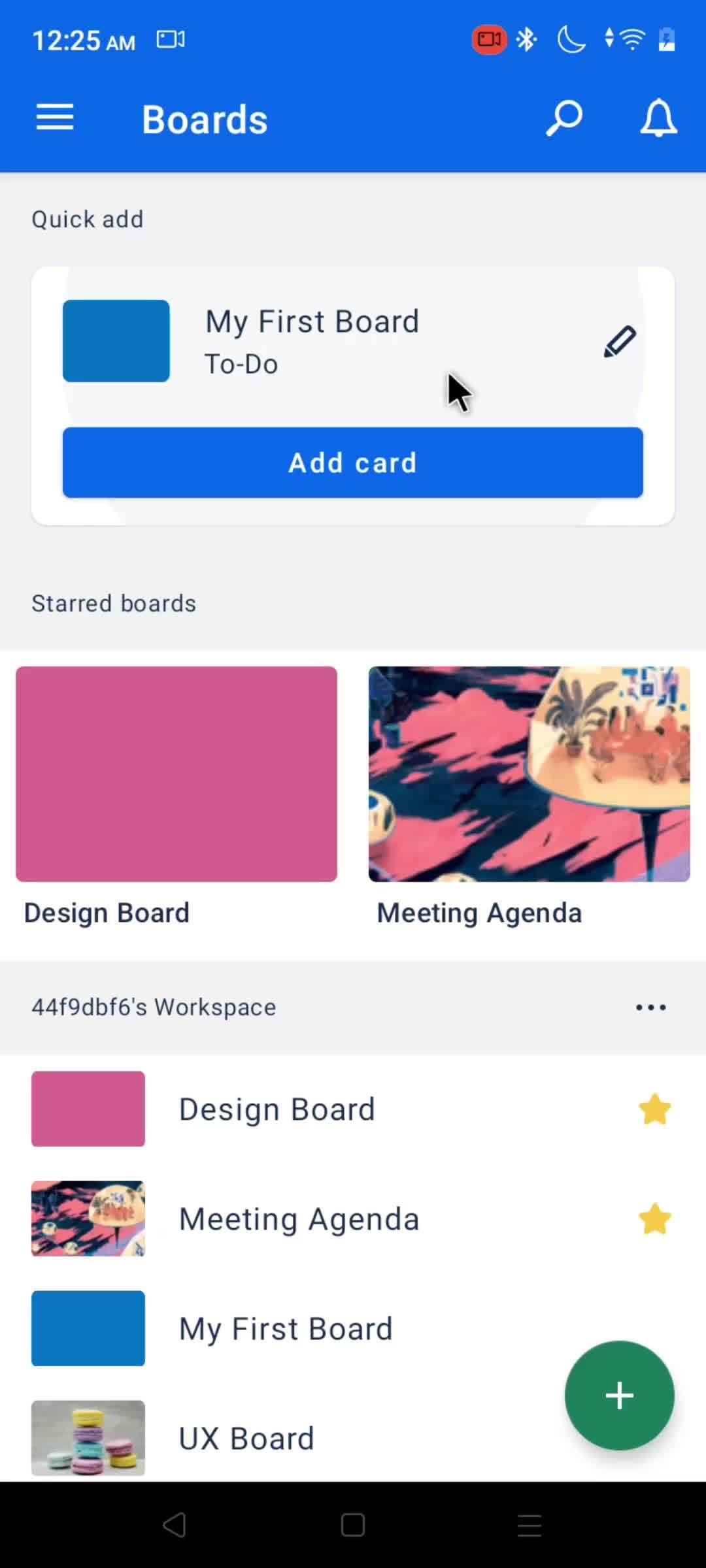
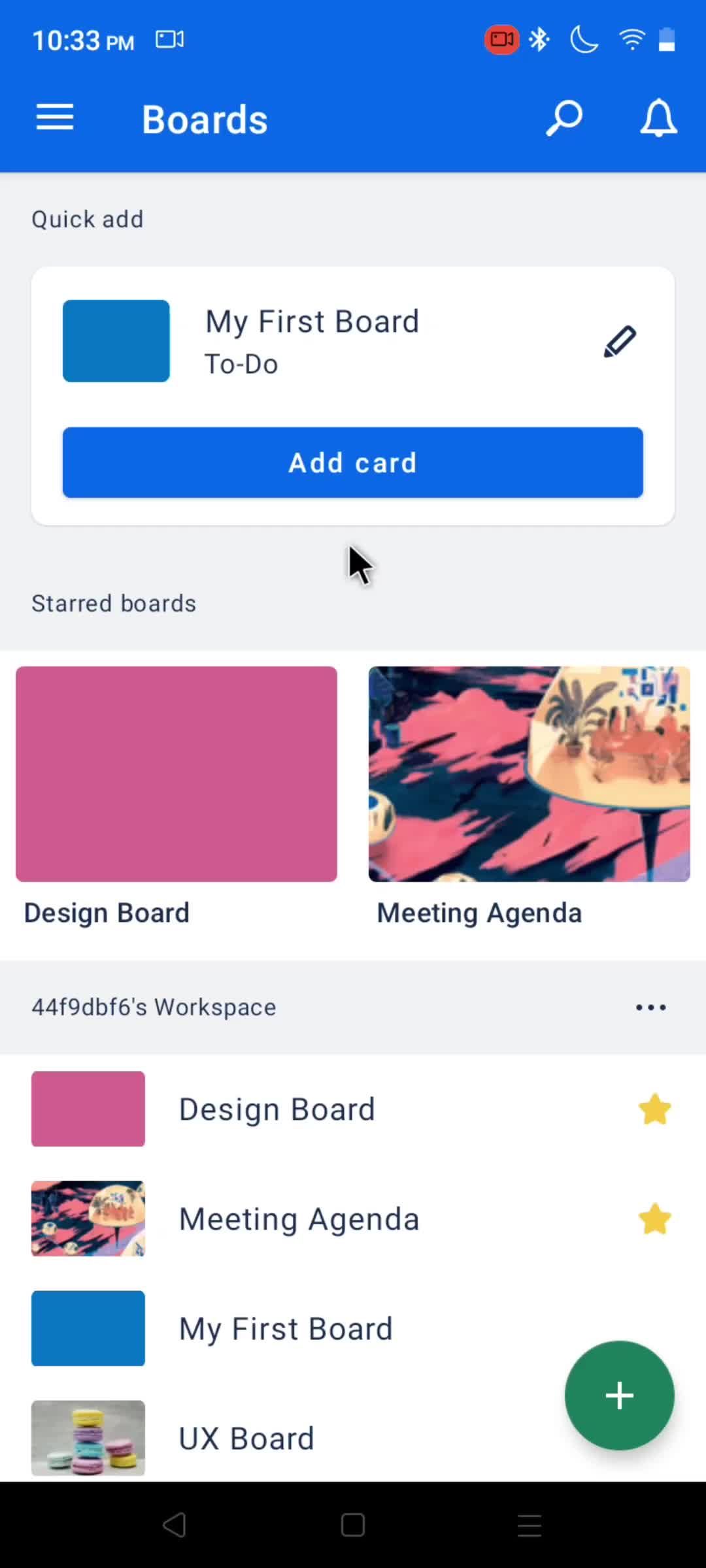
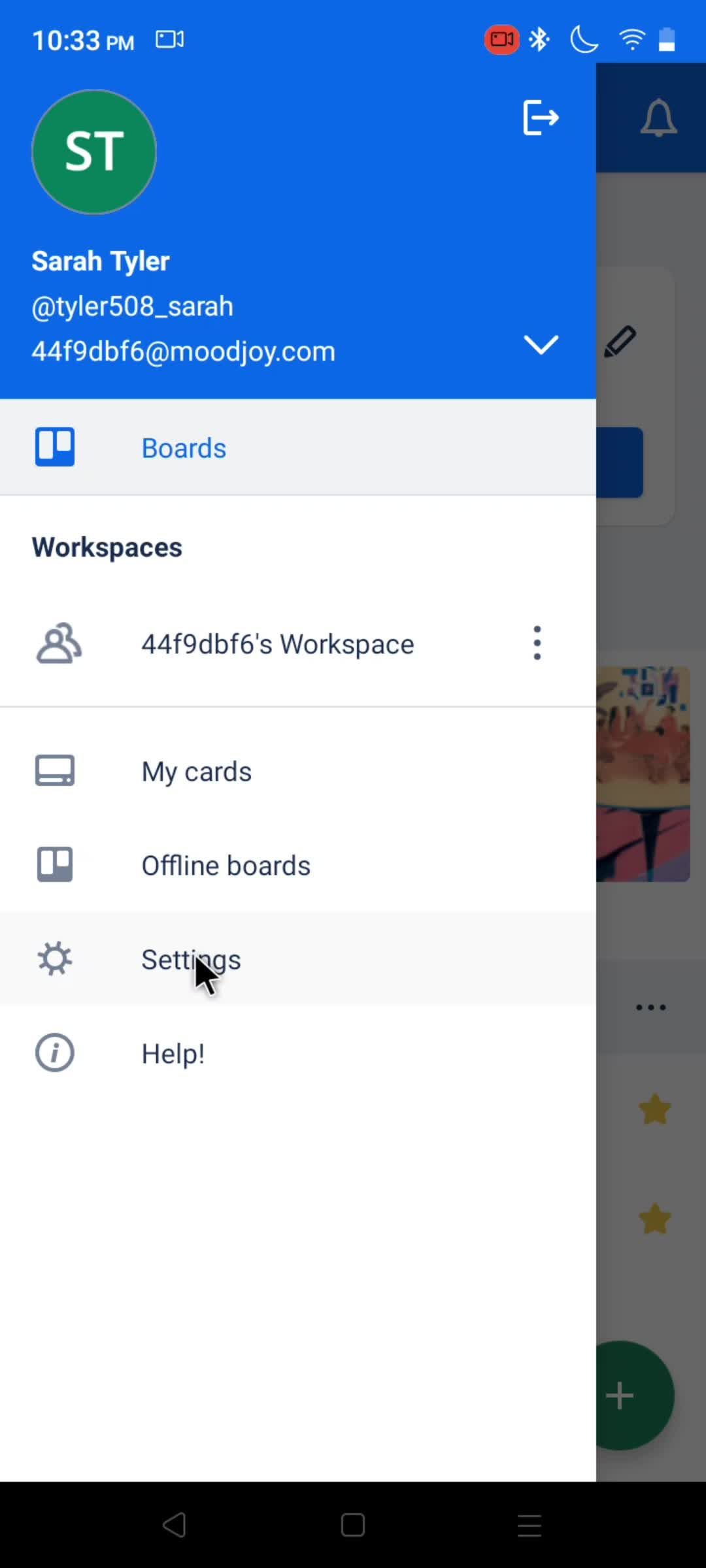
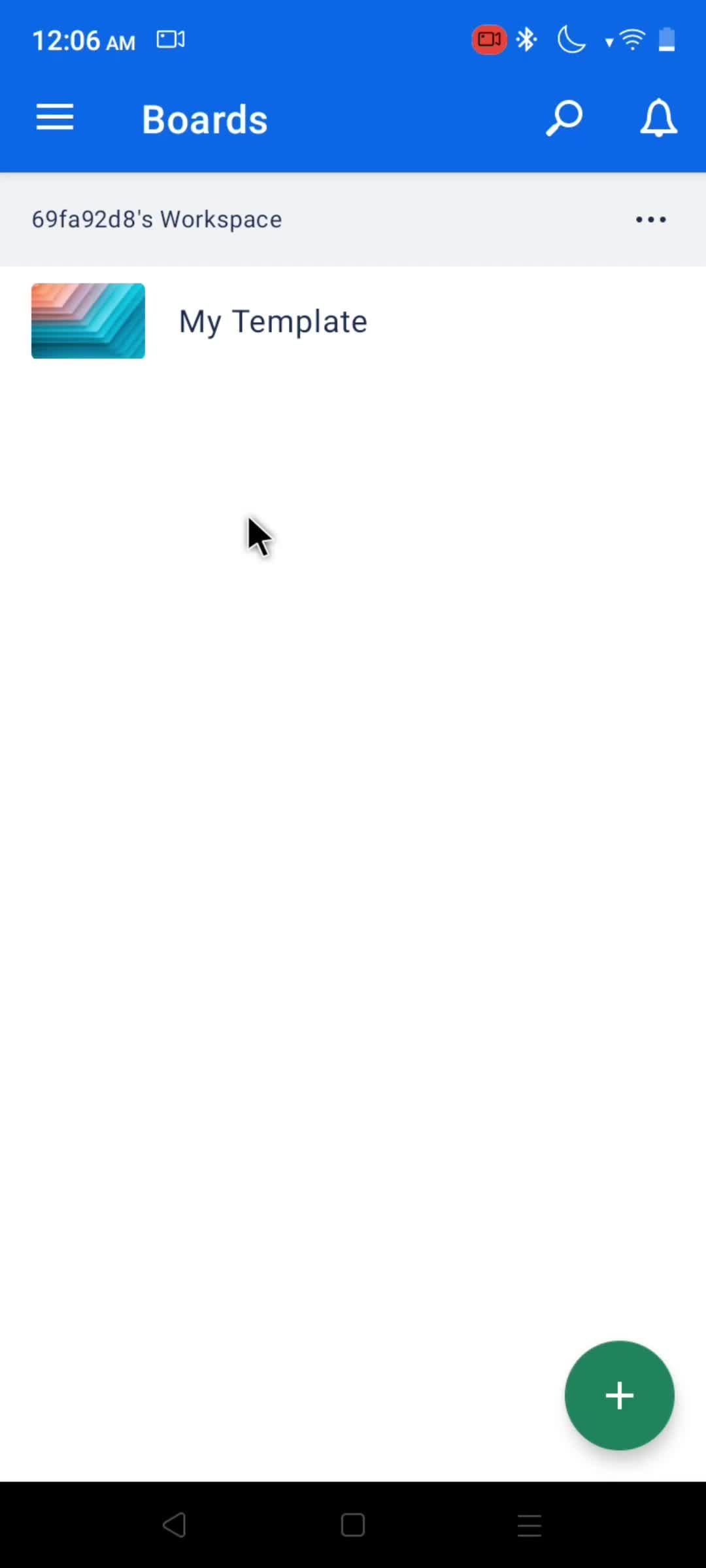
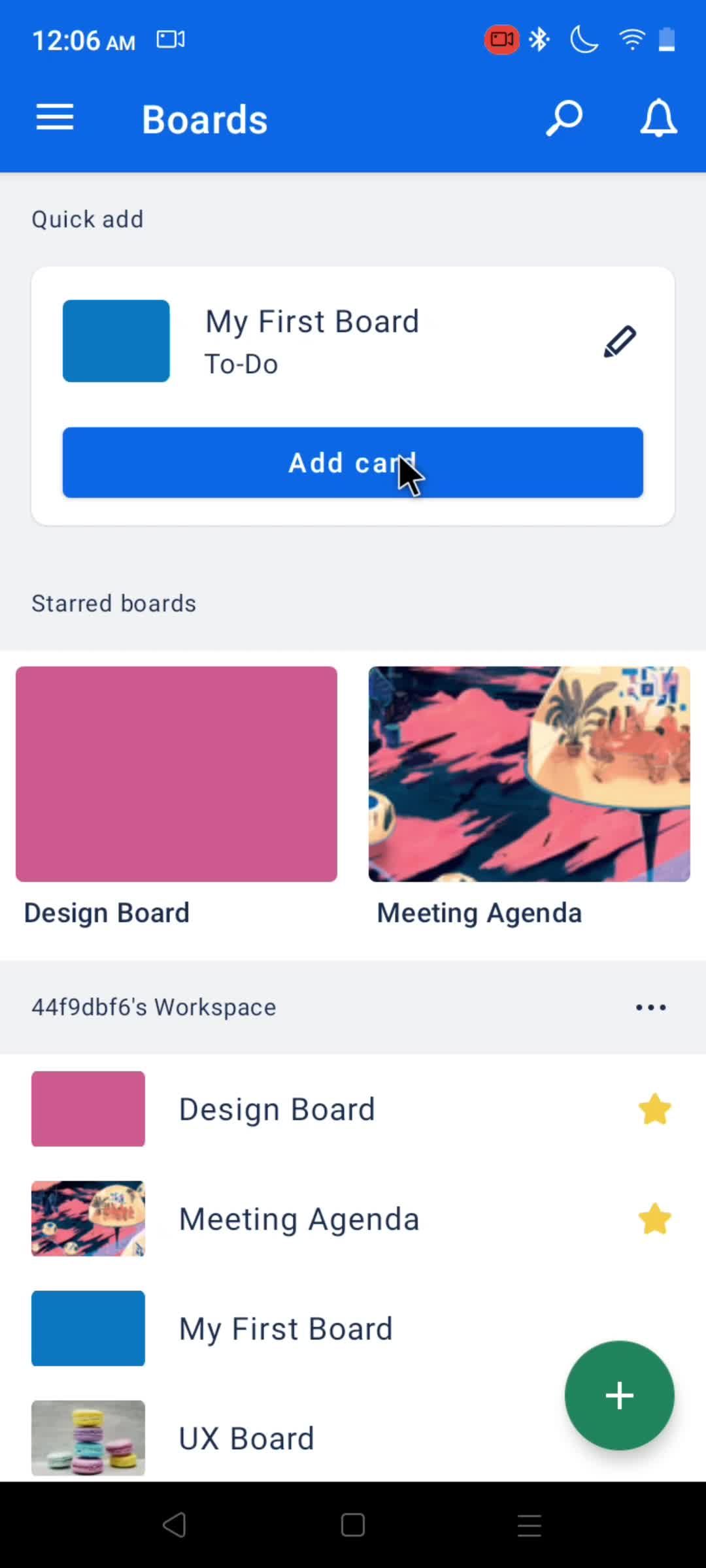
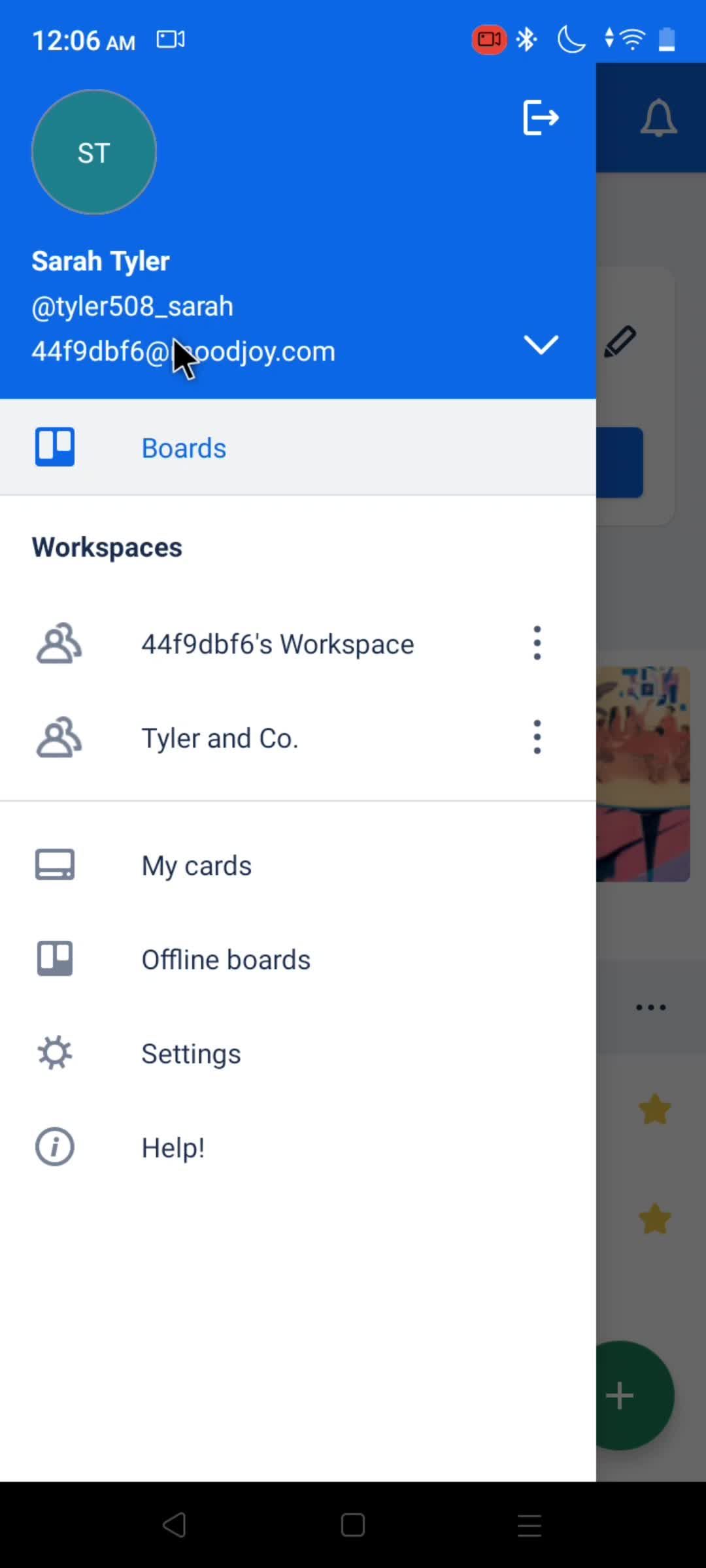
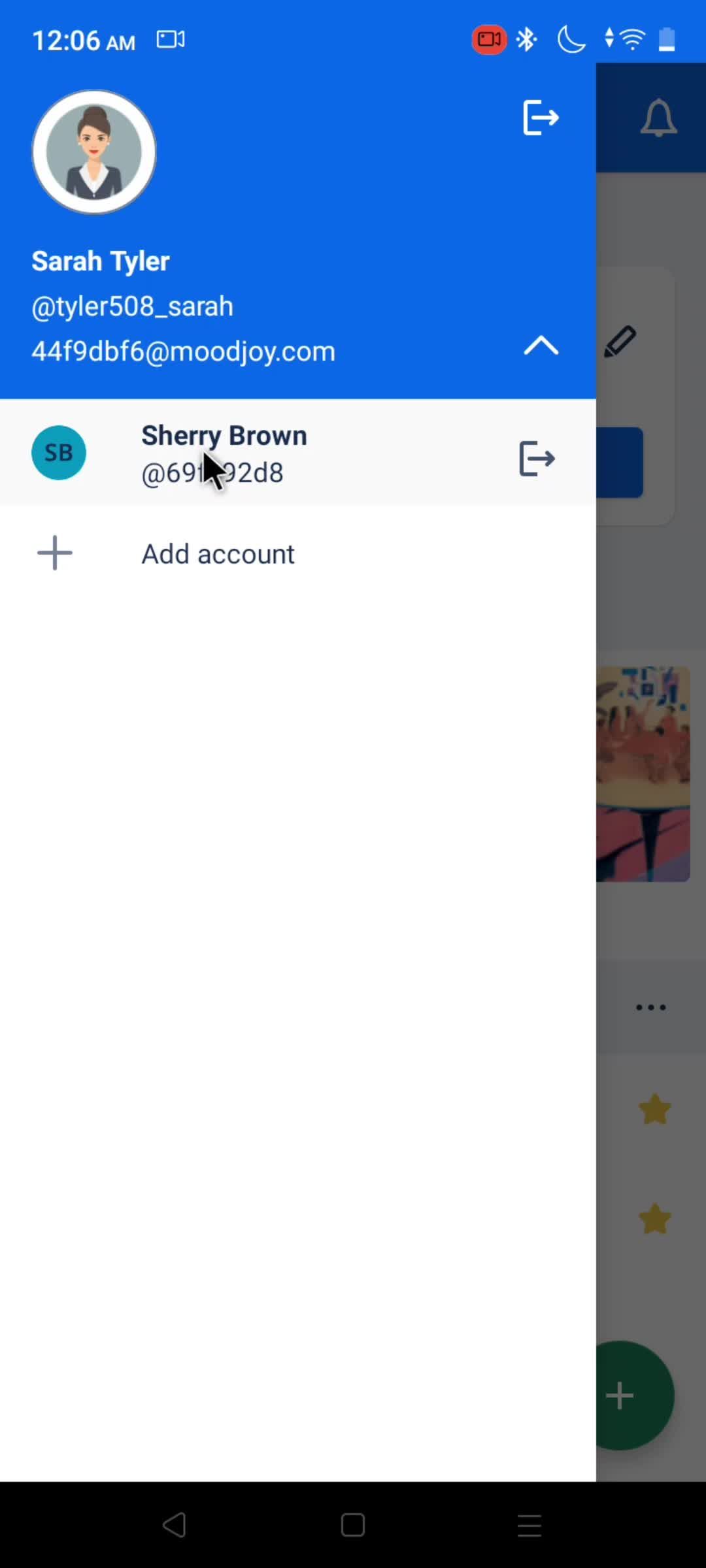
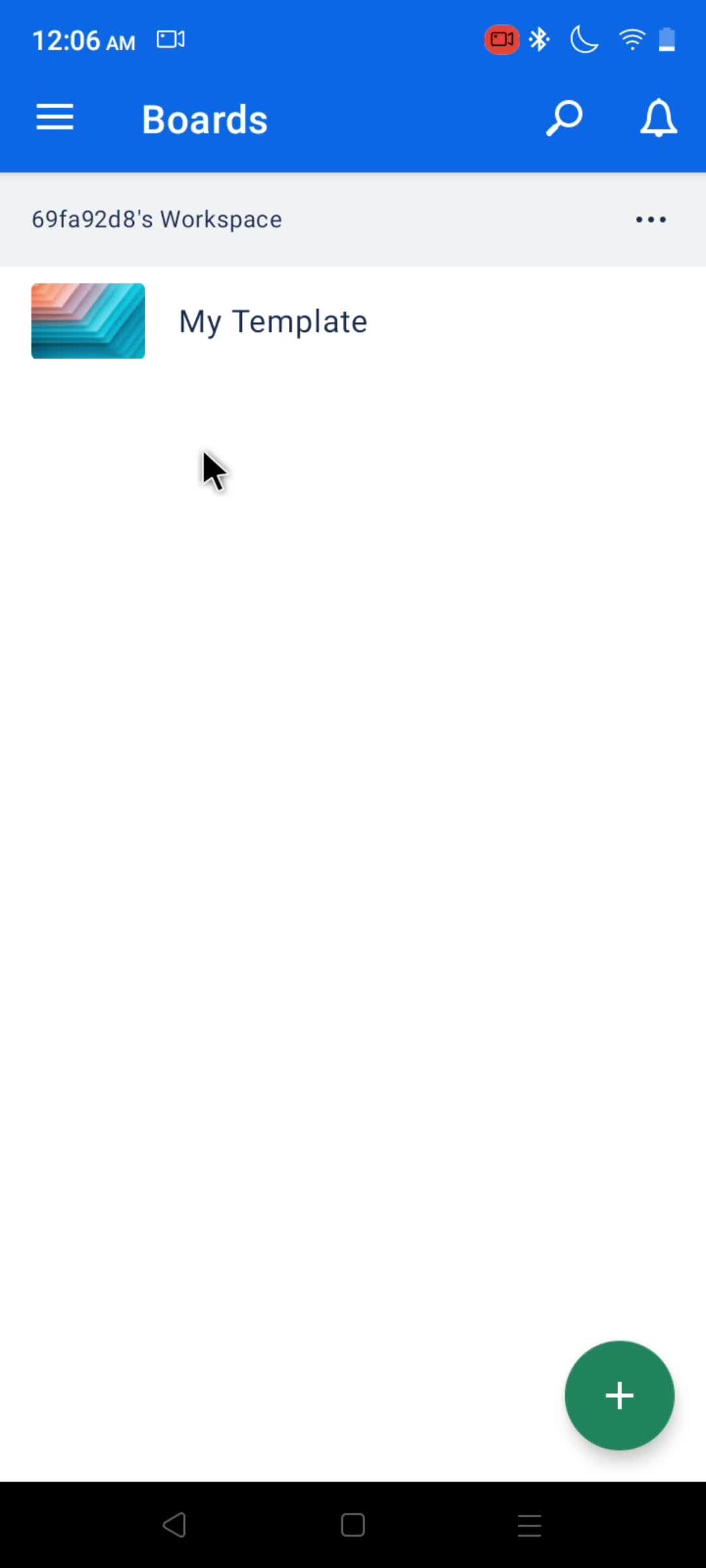
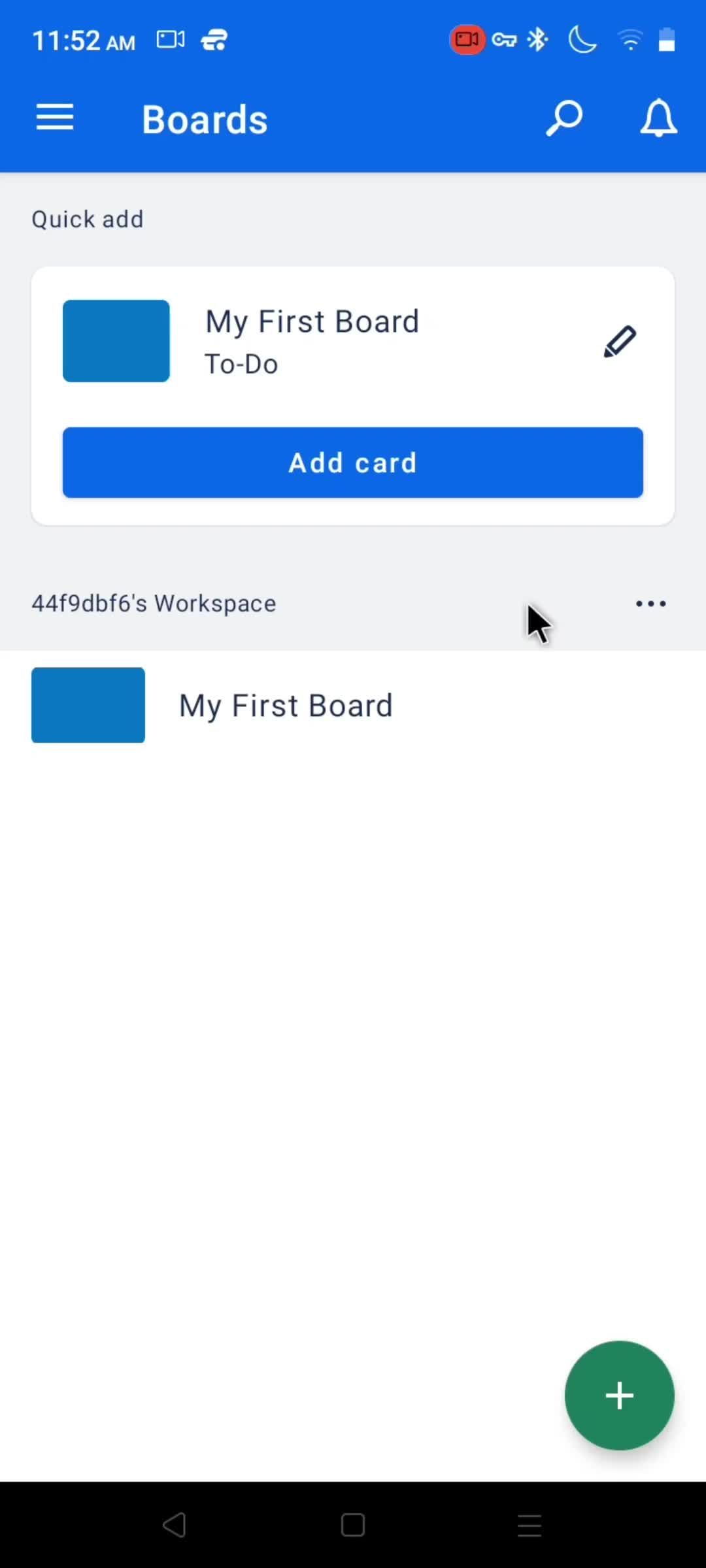
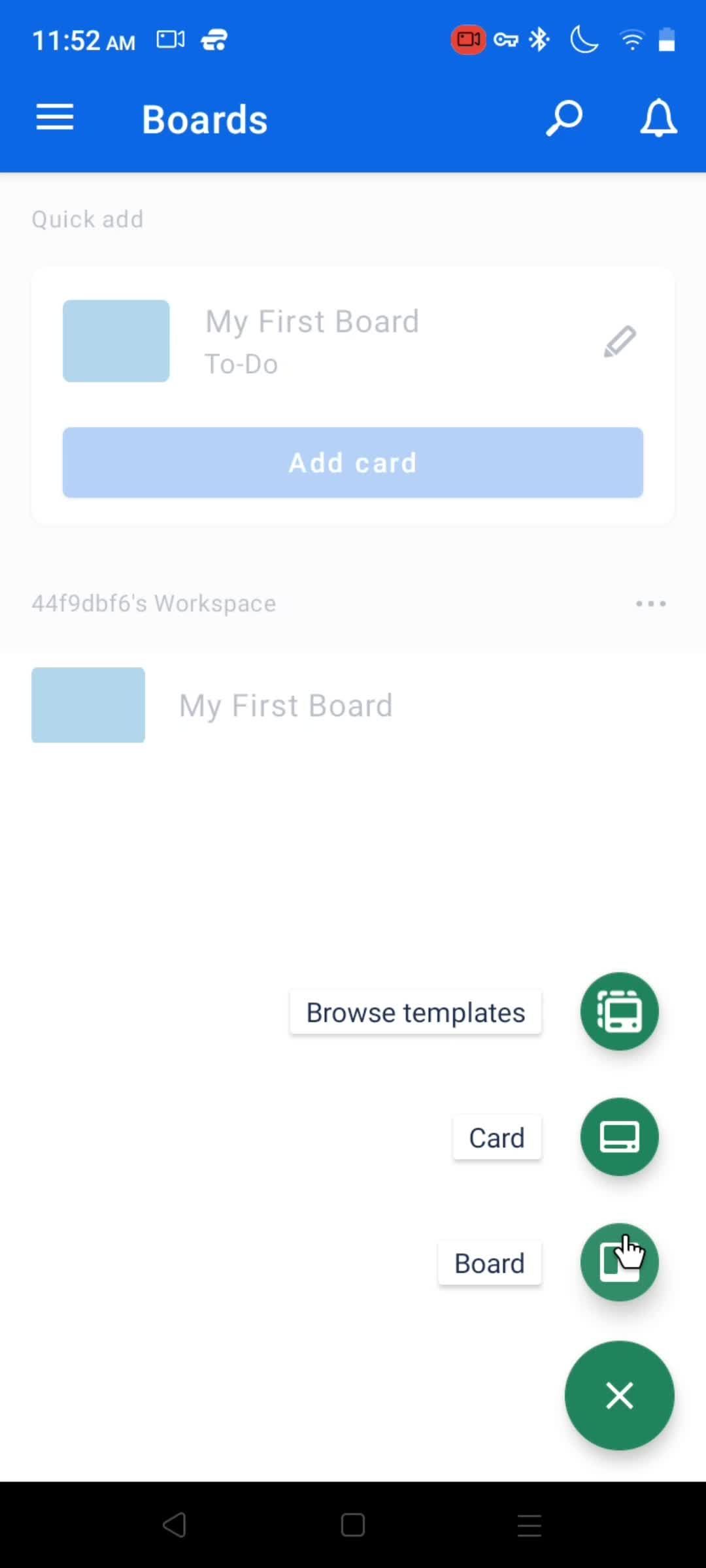
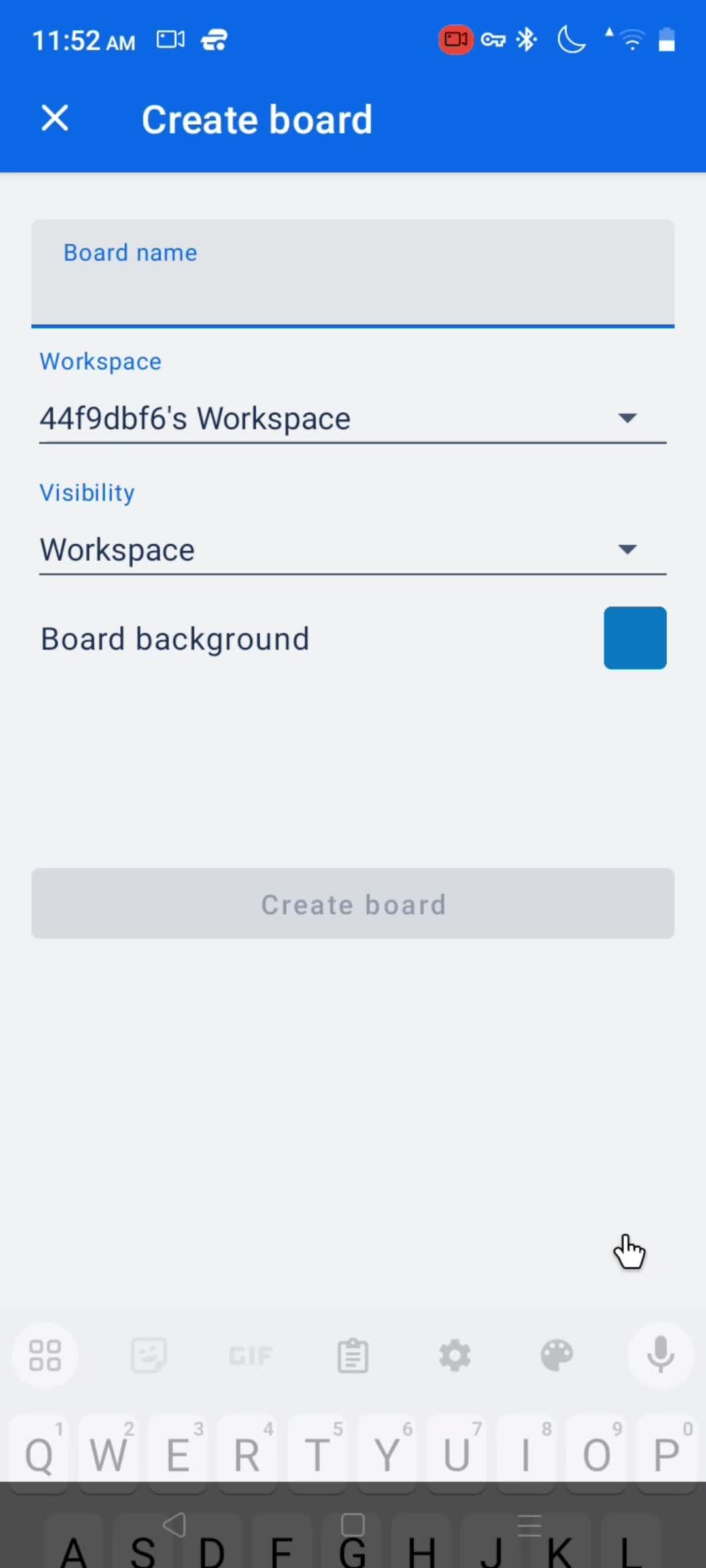
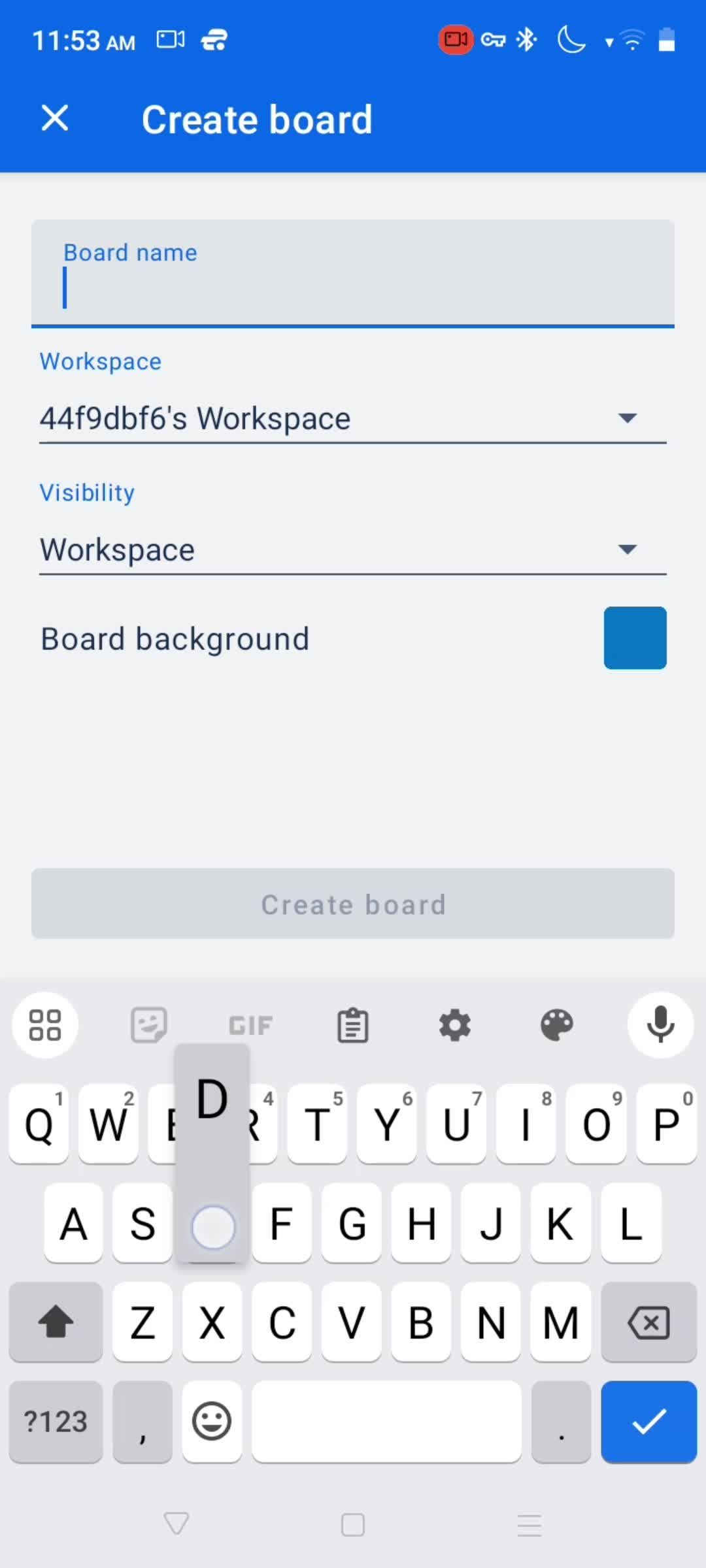
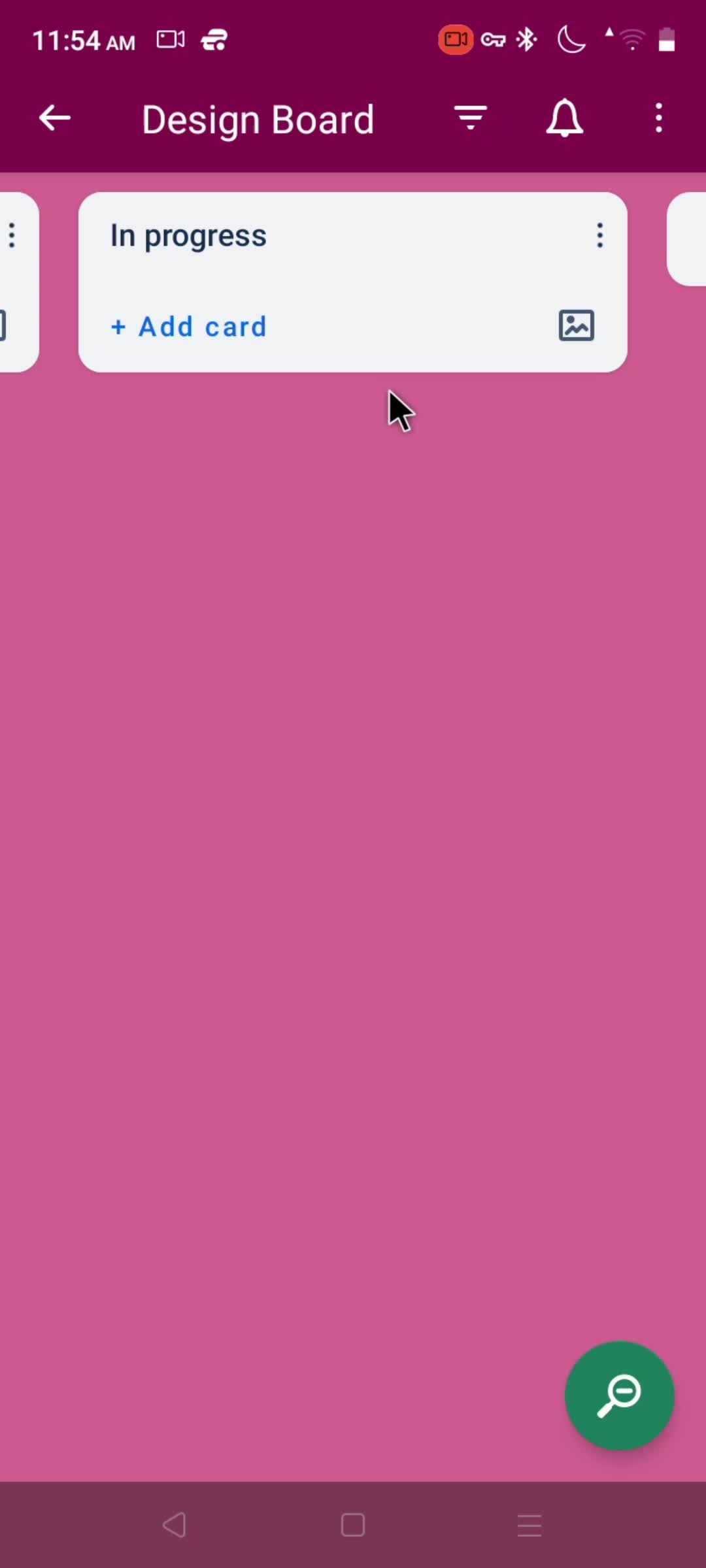
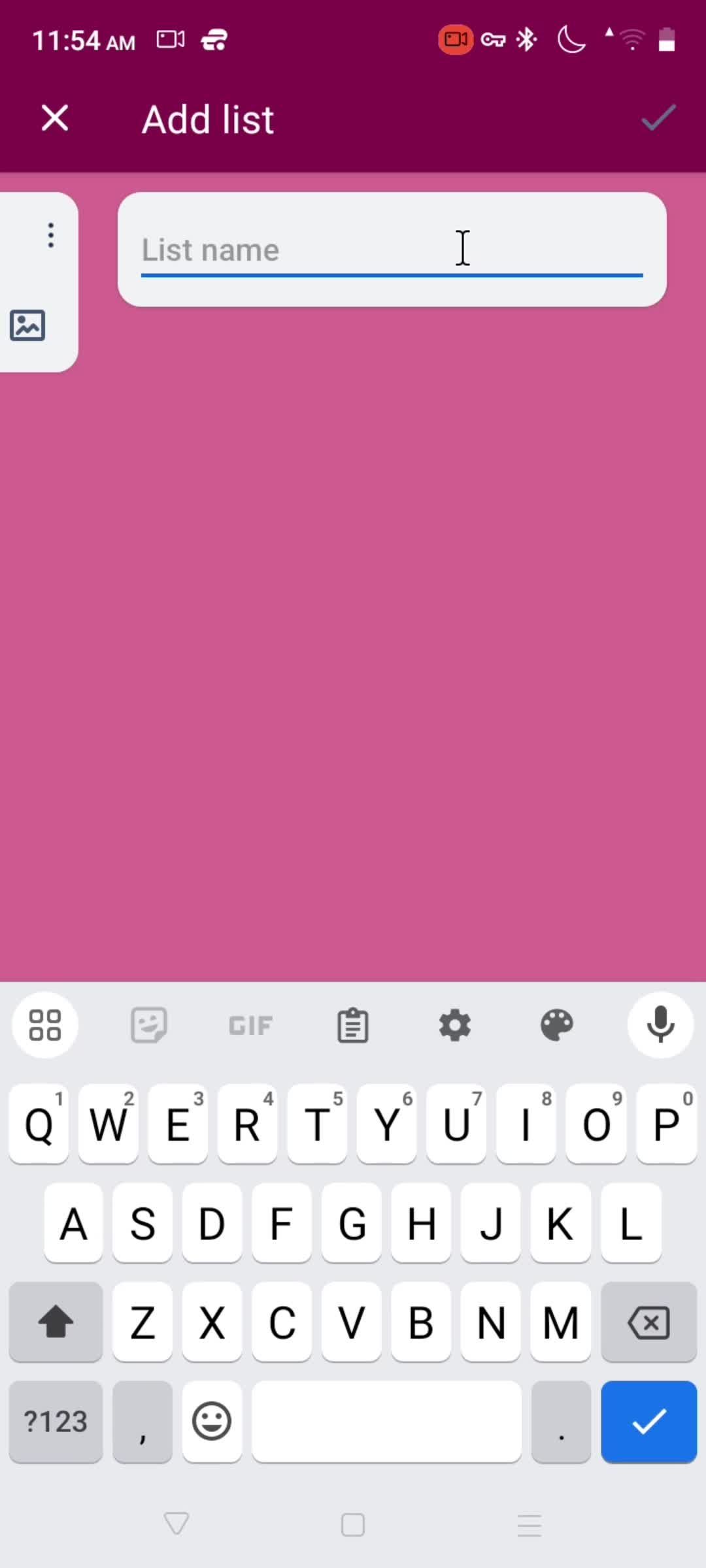
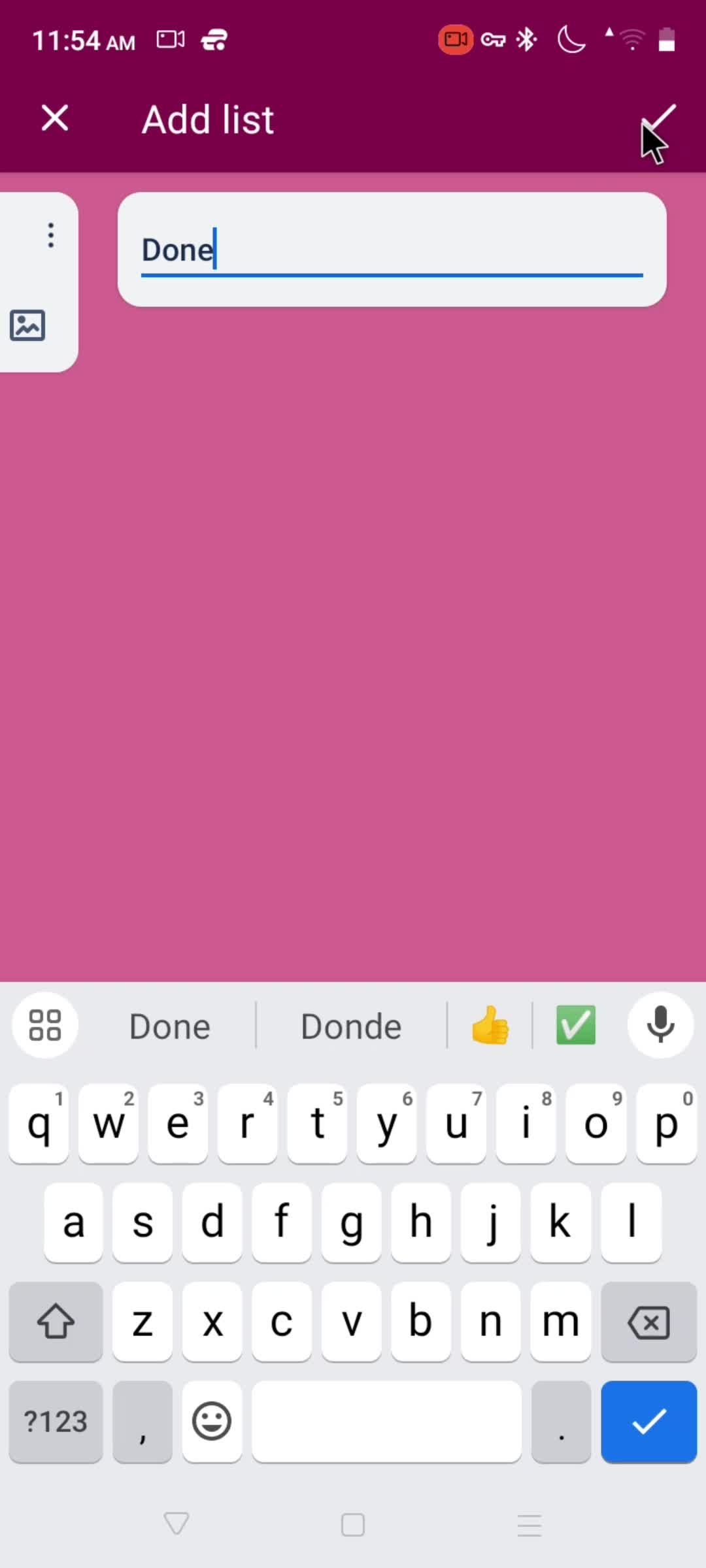
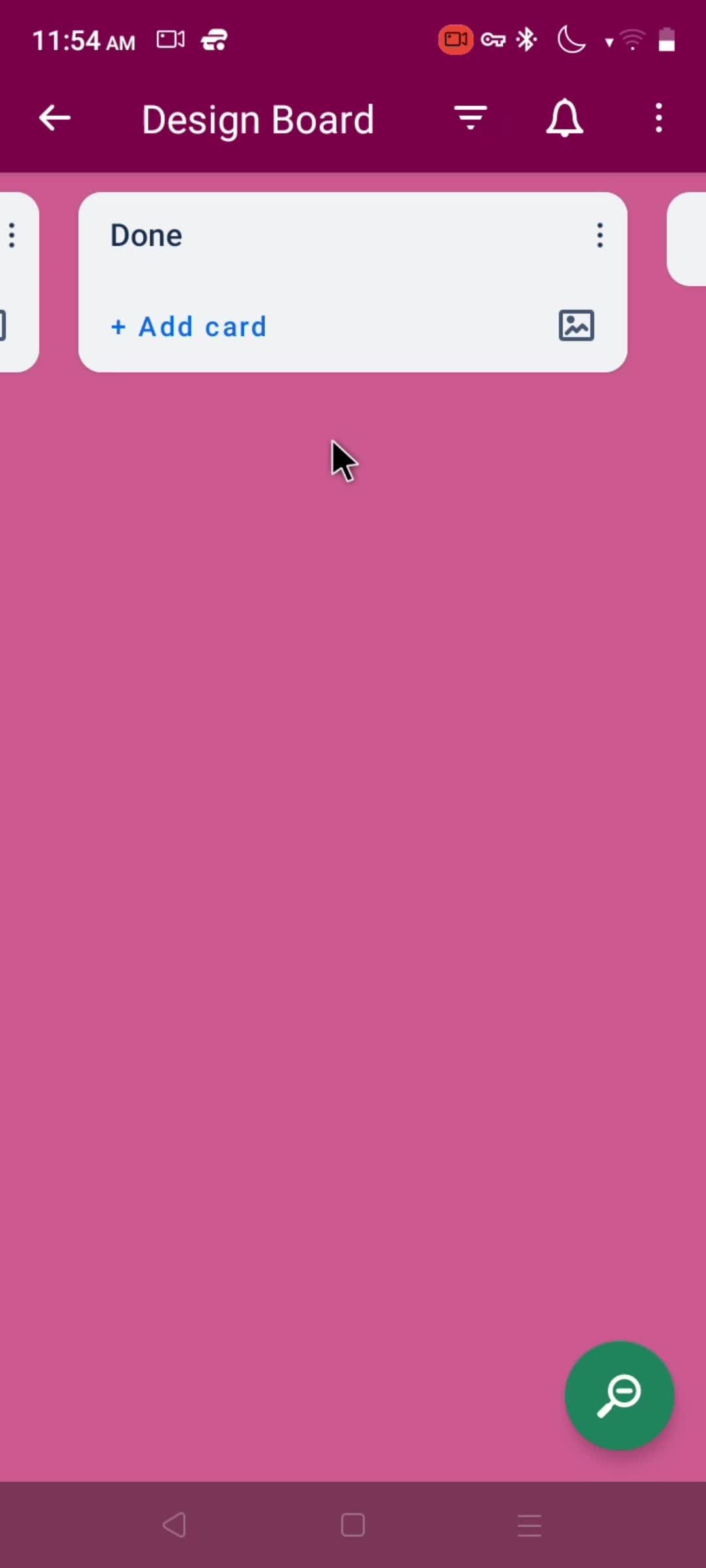
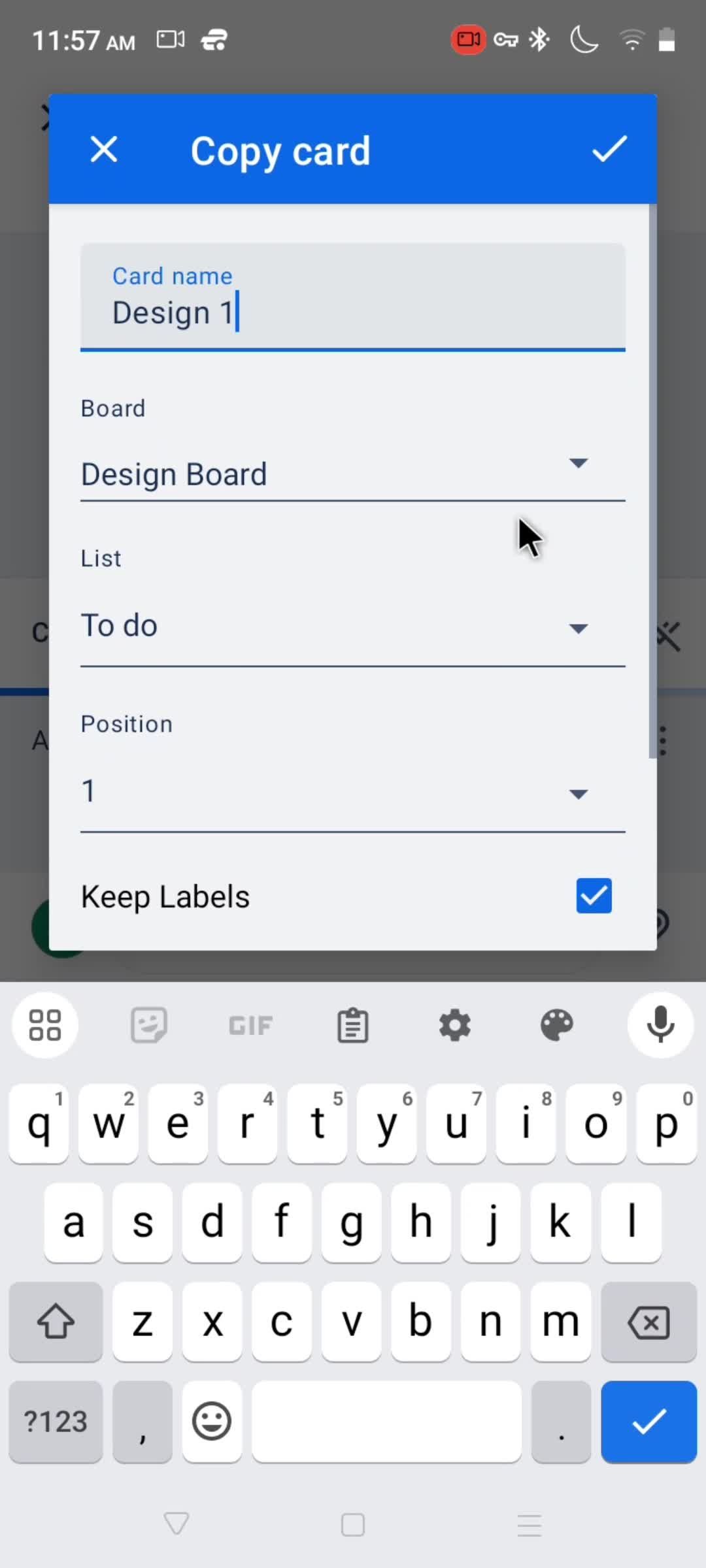
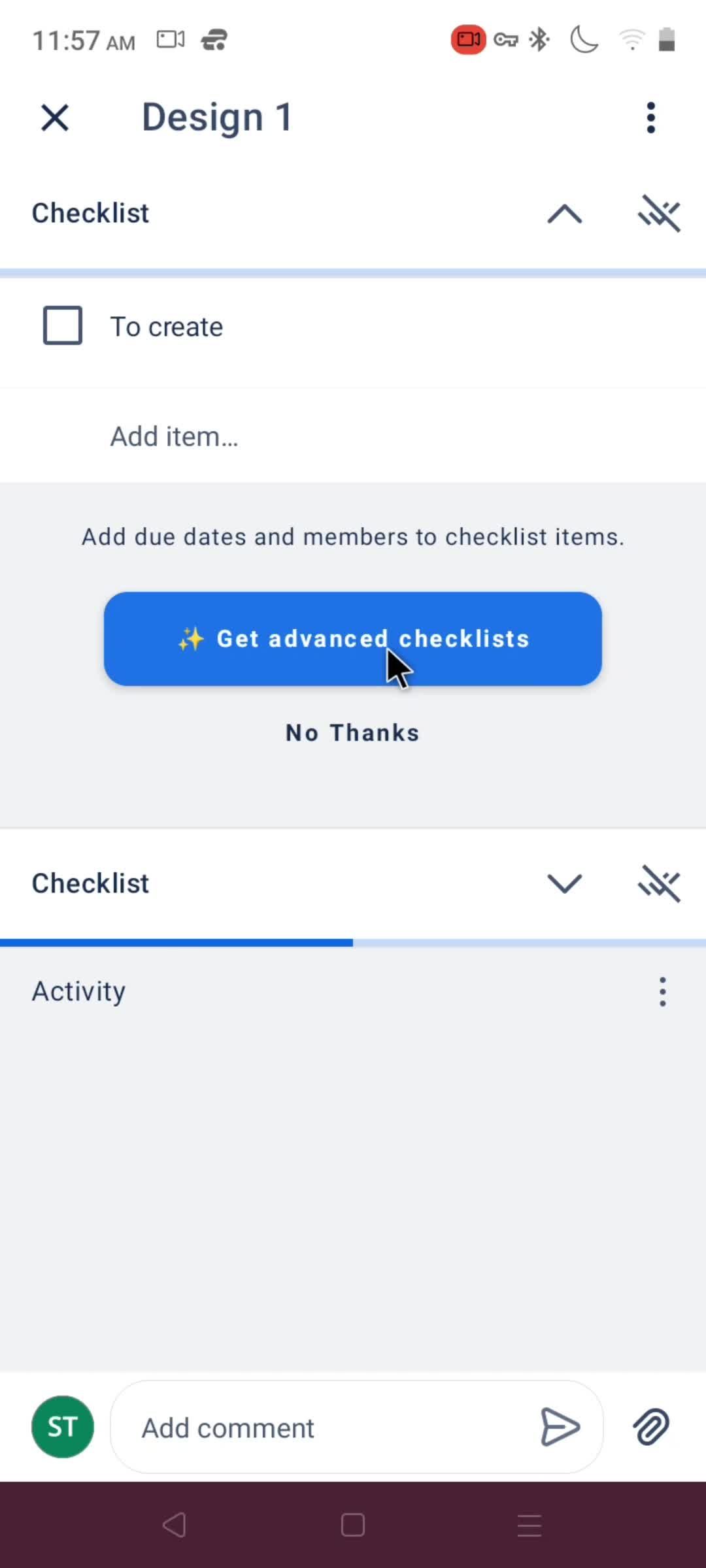
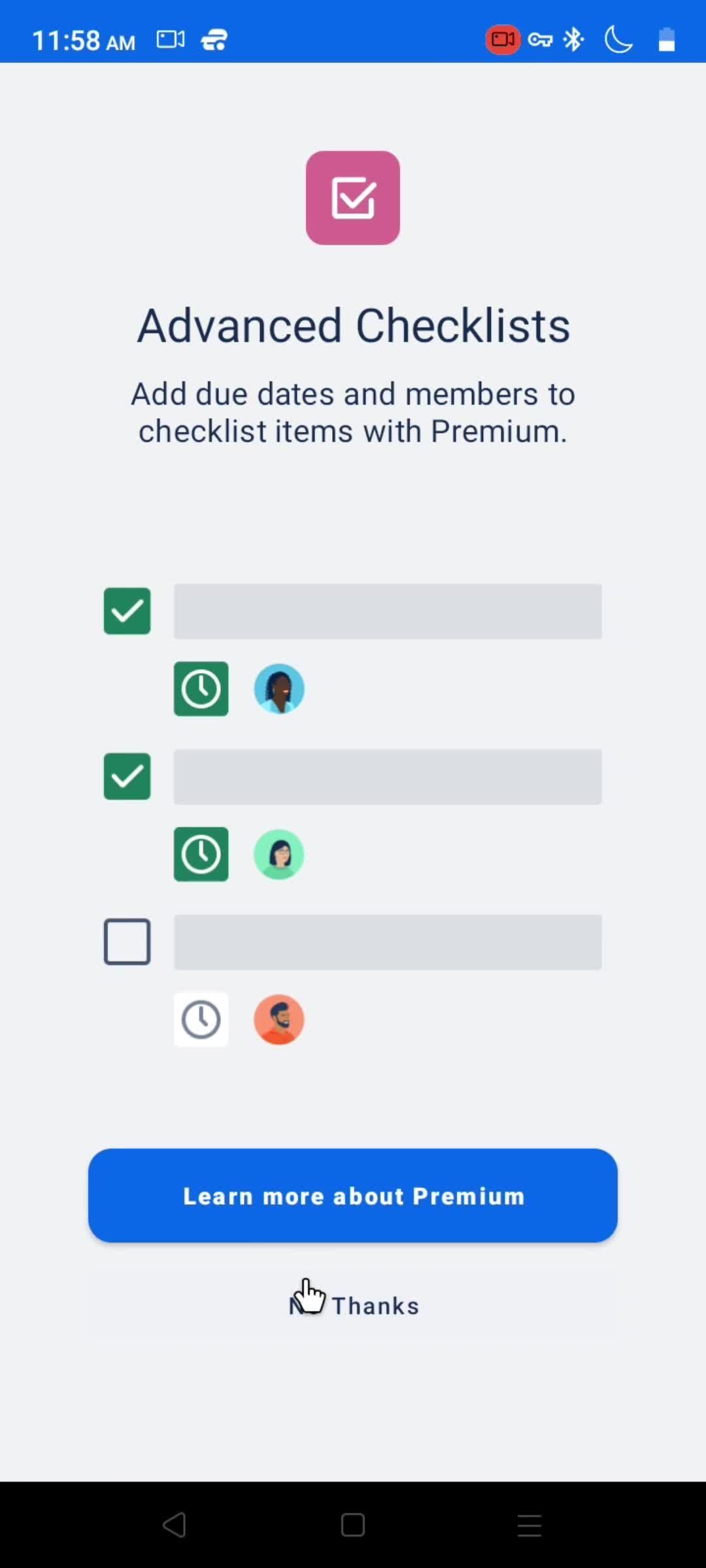
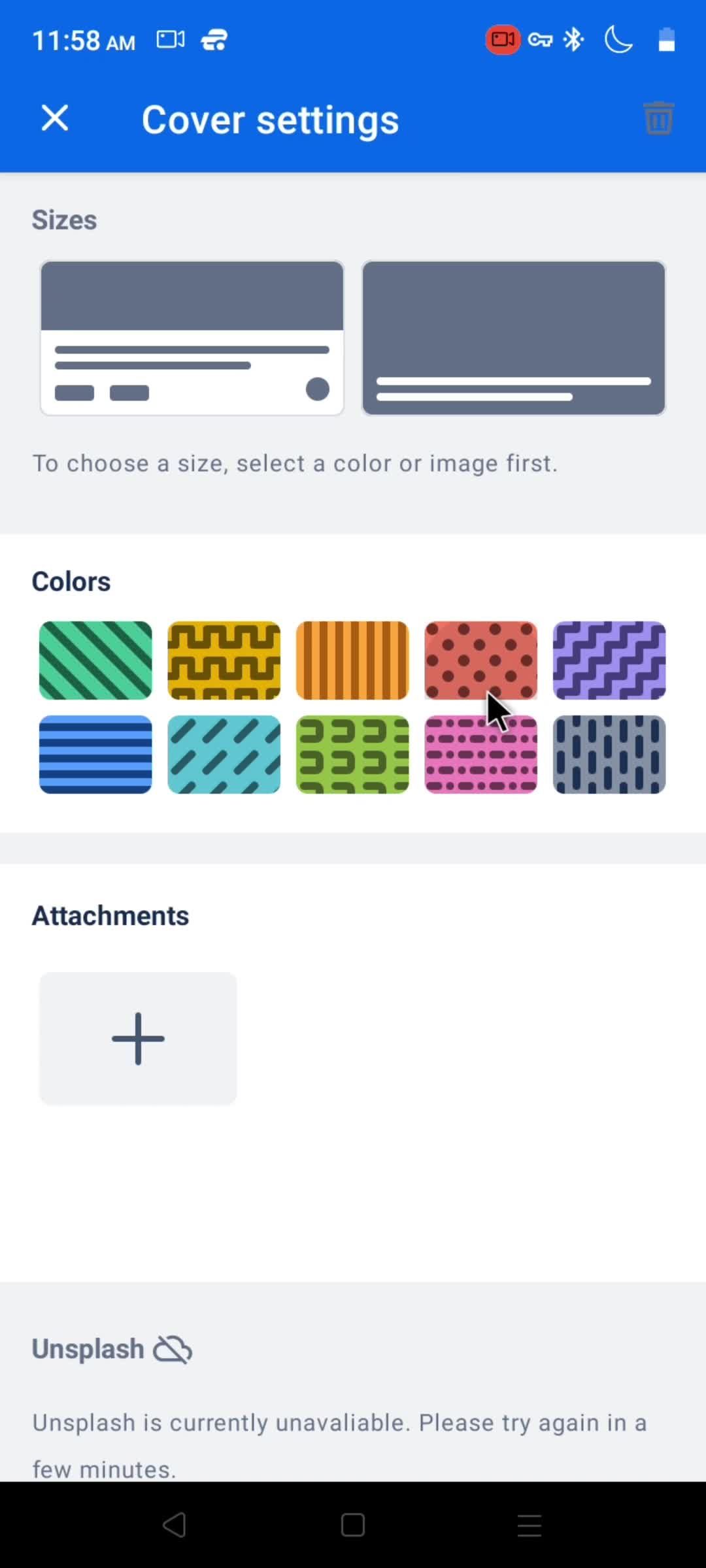
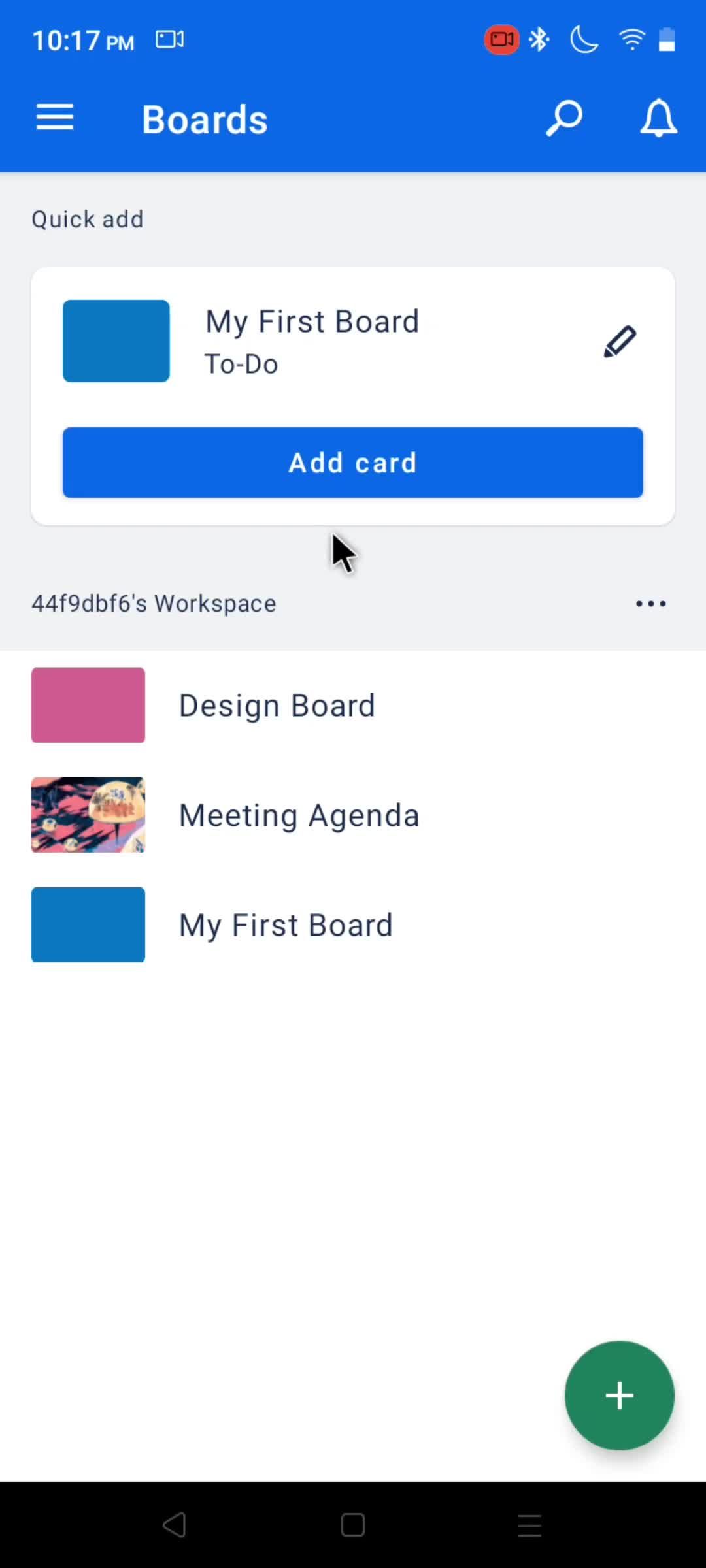
Boards
this is title
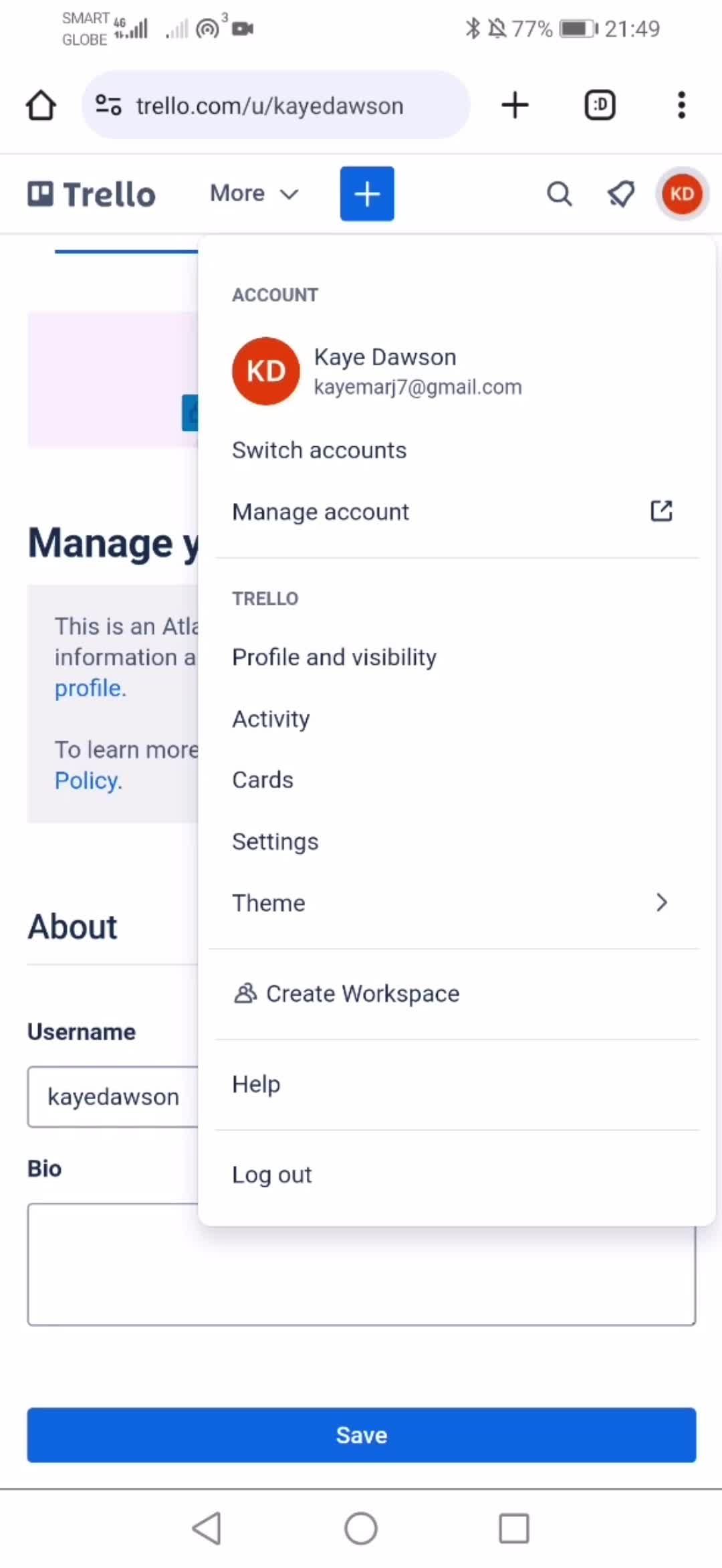
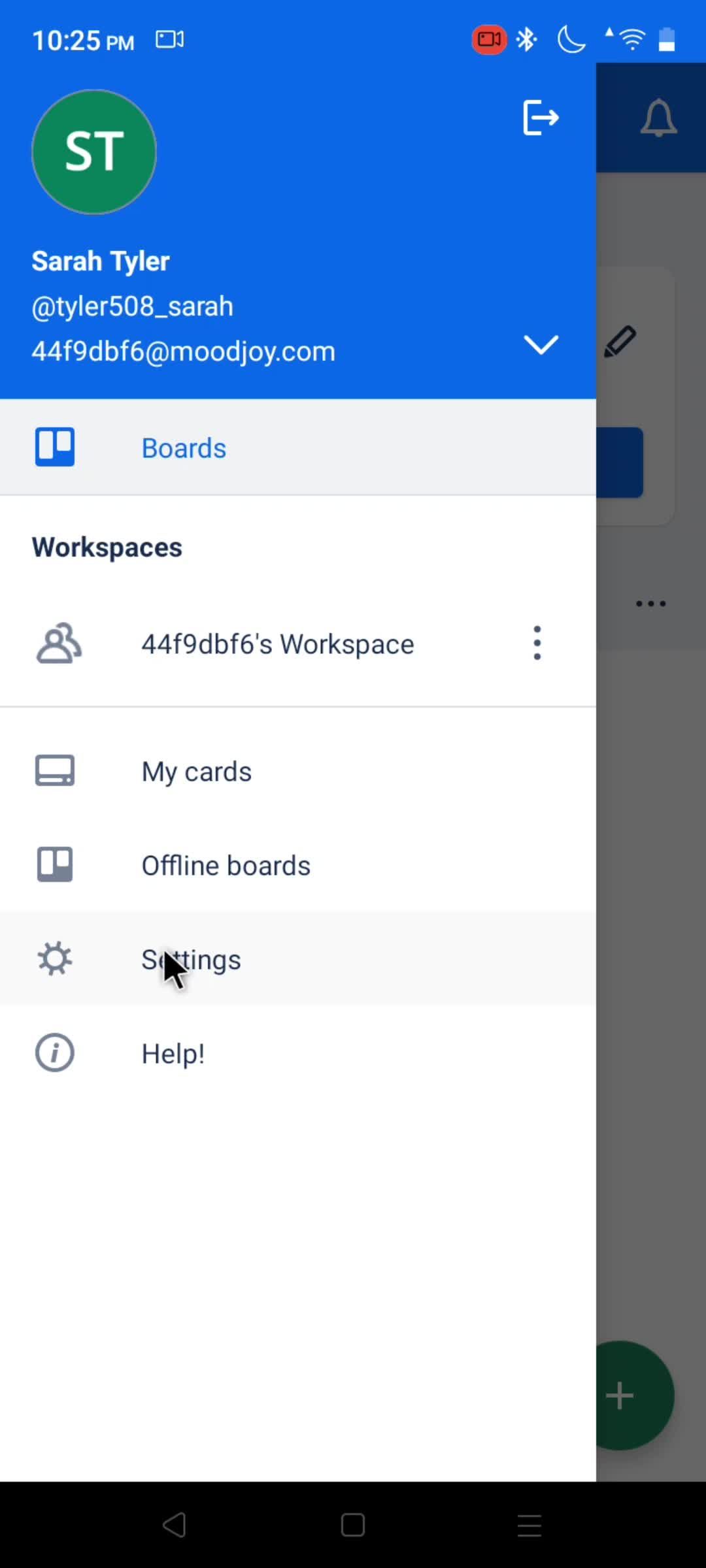
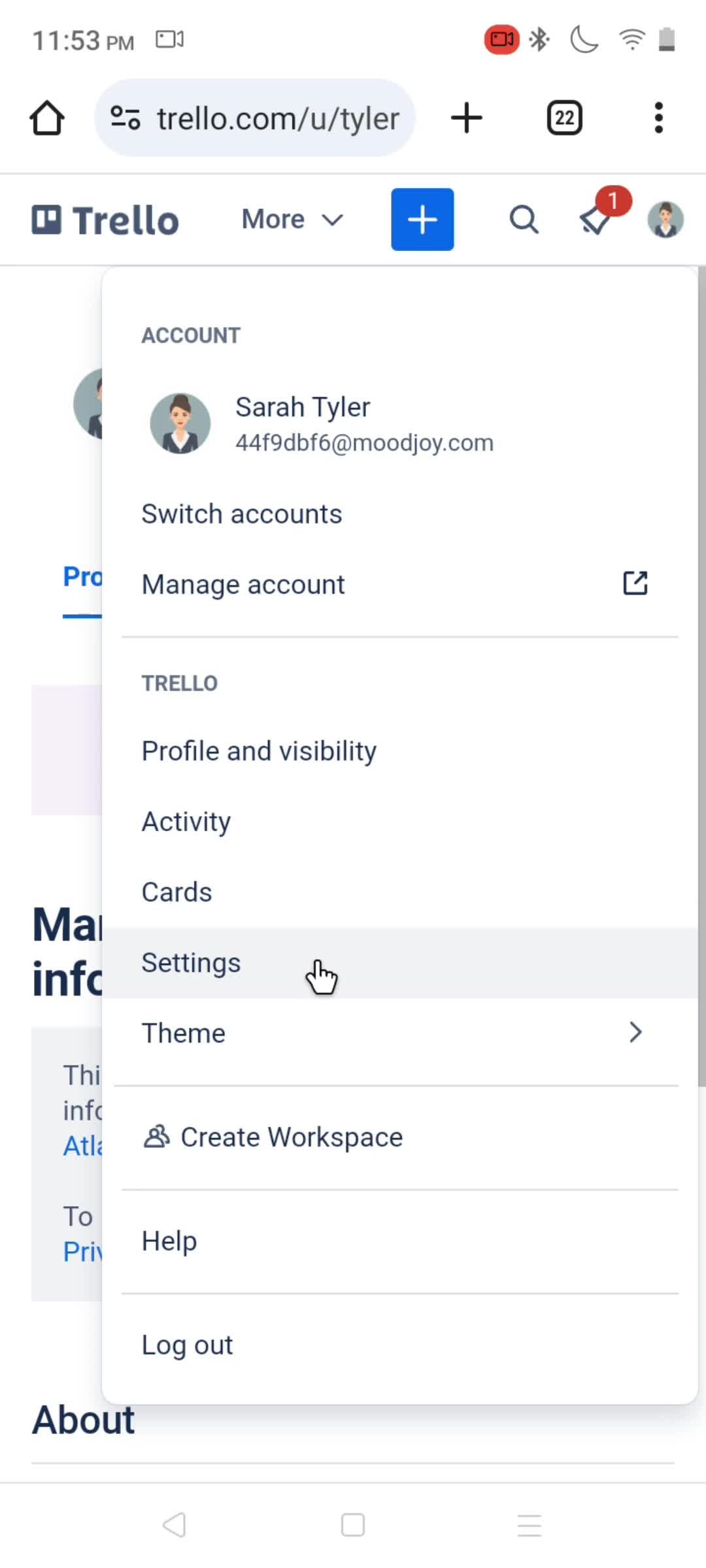
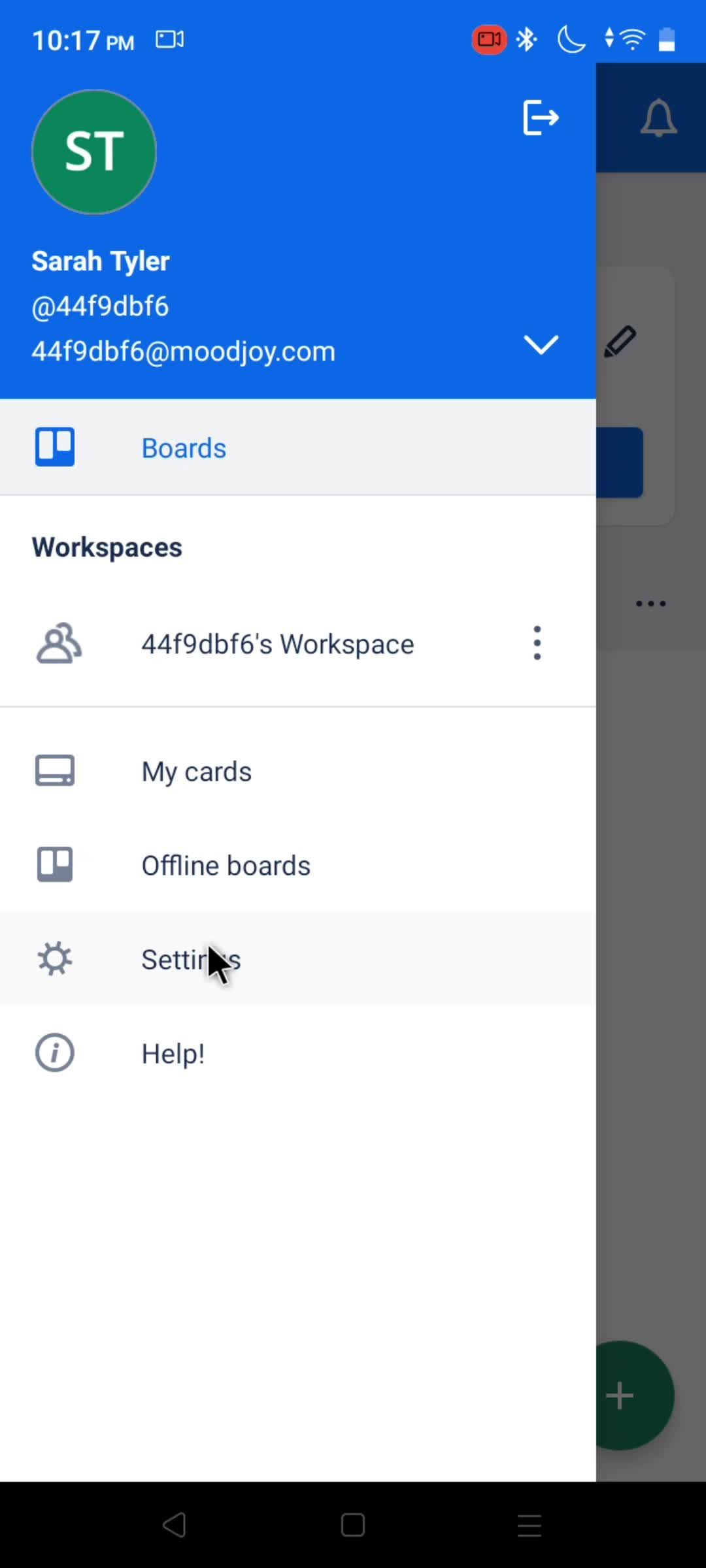
Profile menu
this is title
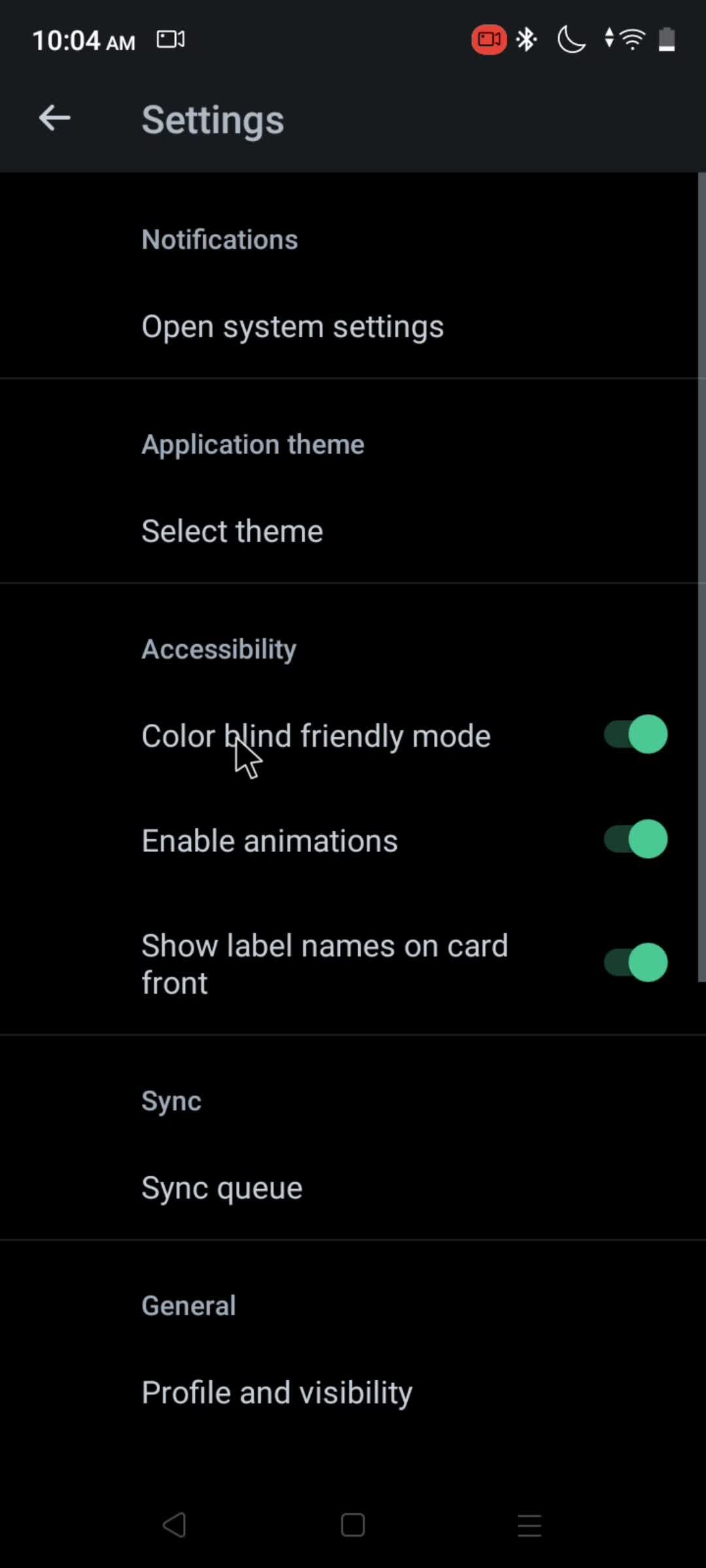
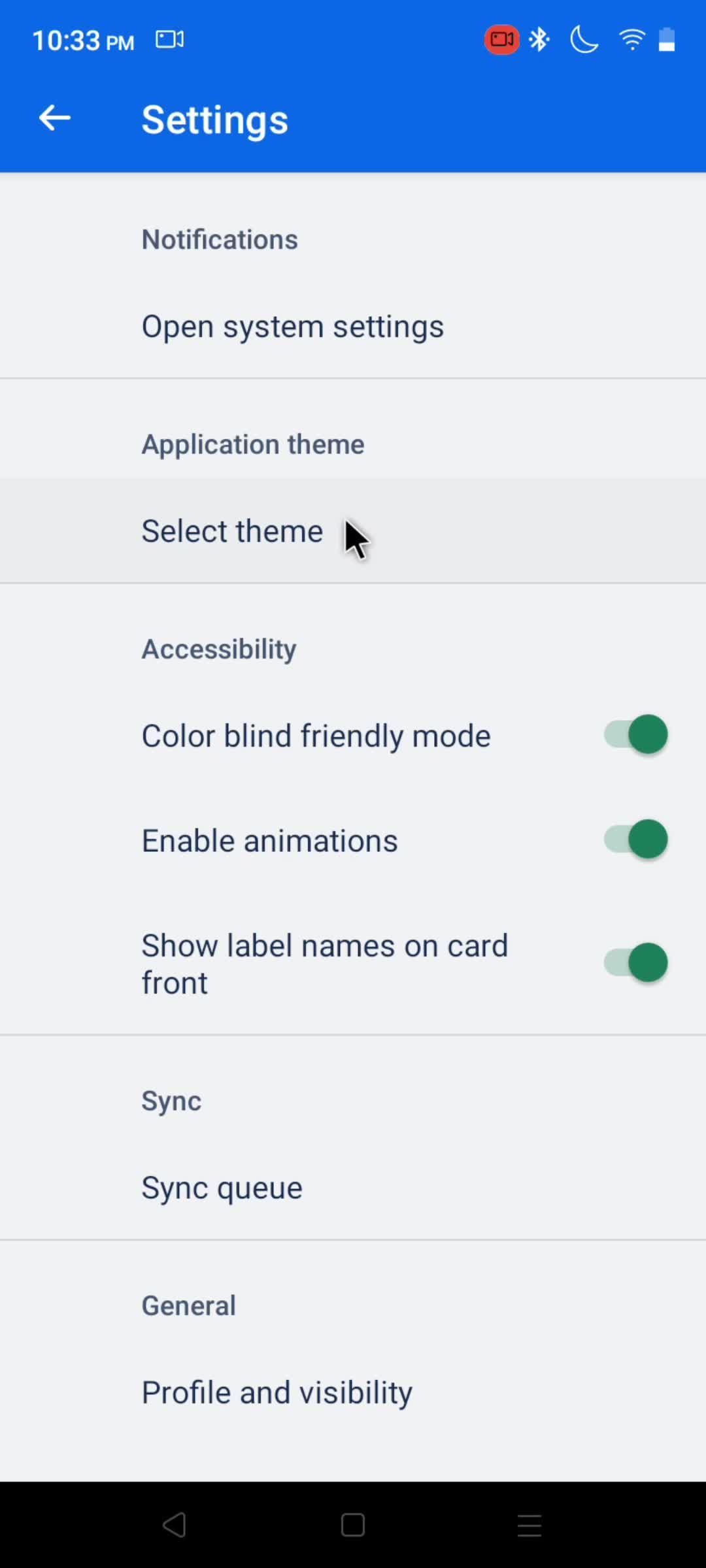
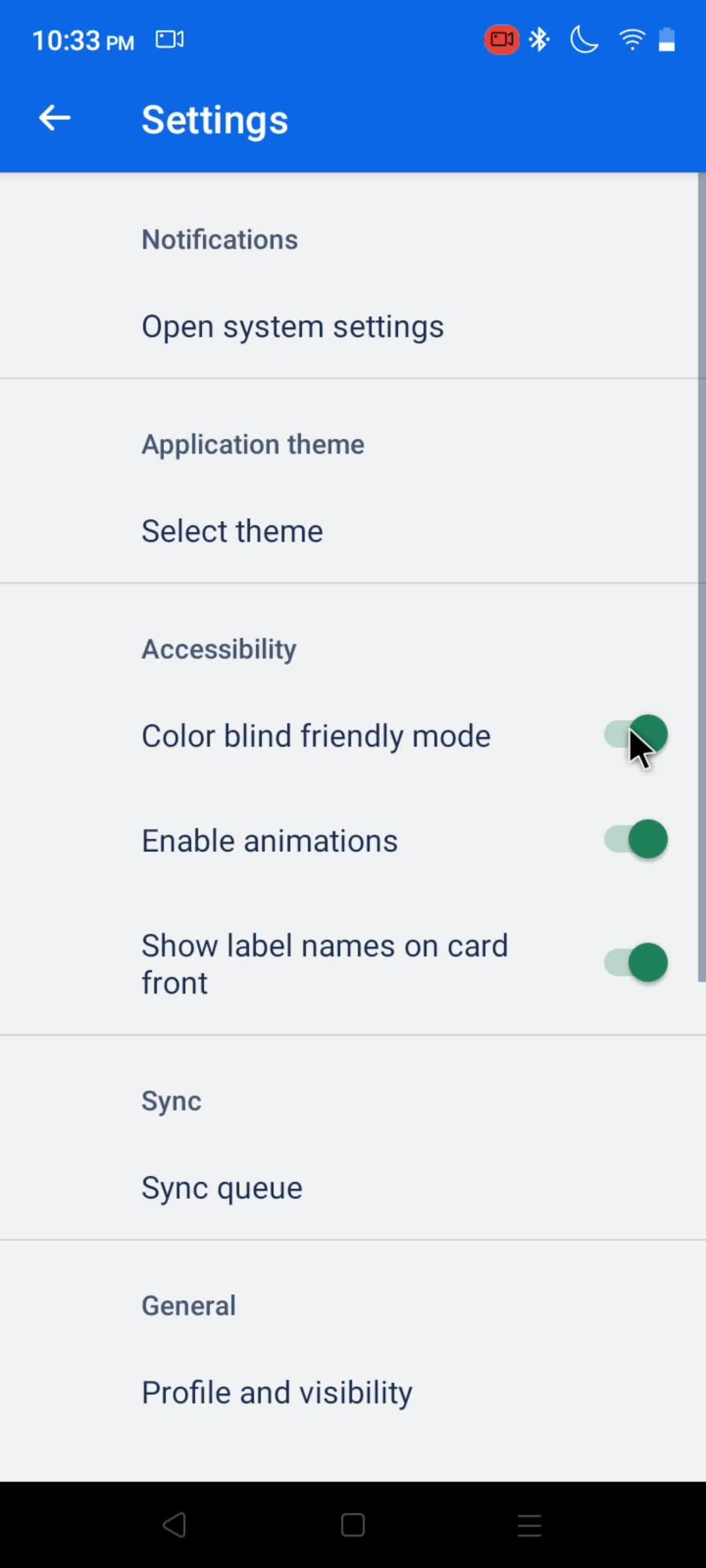
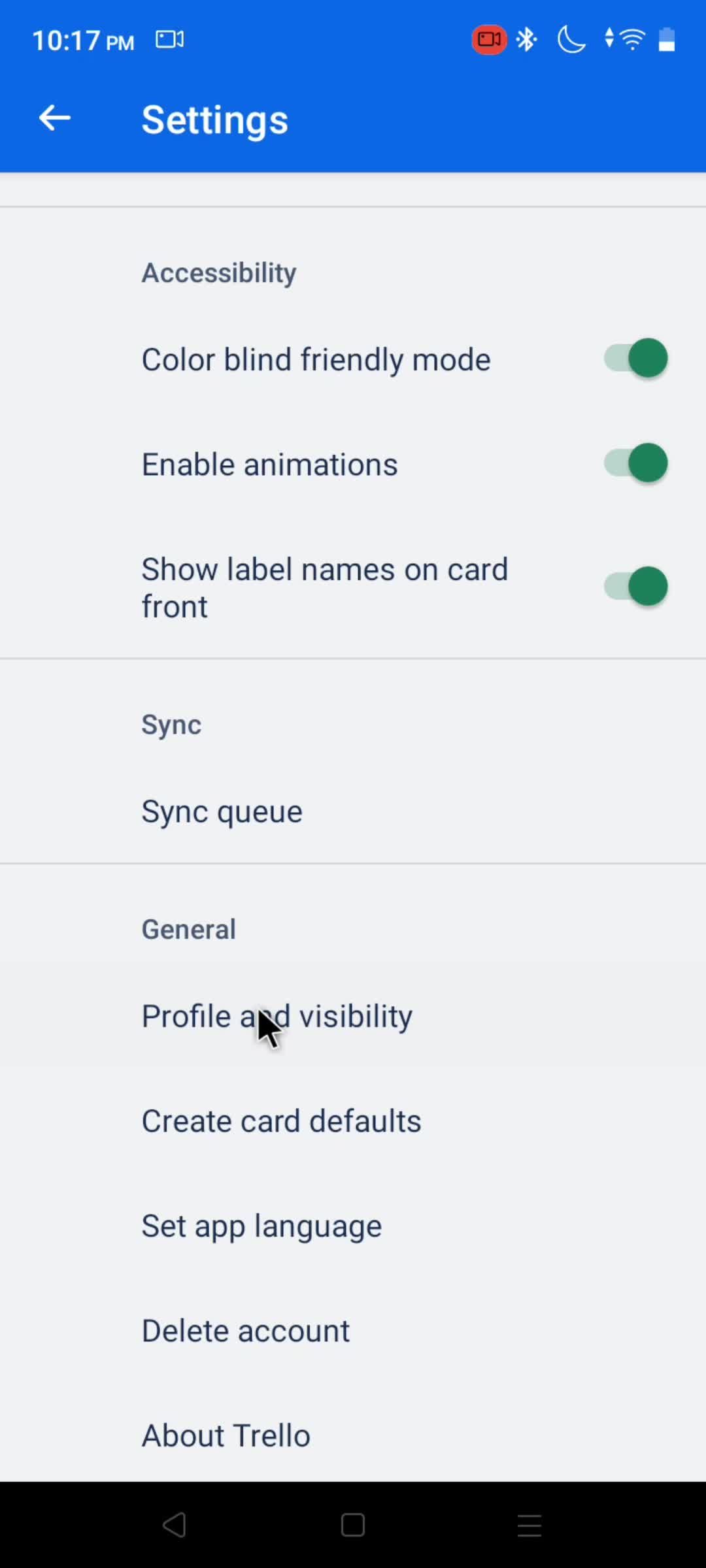
Settings
this is title
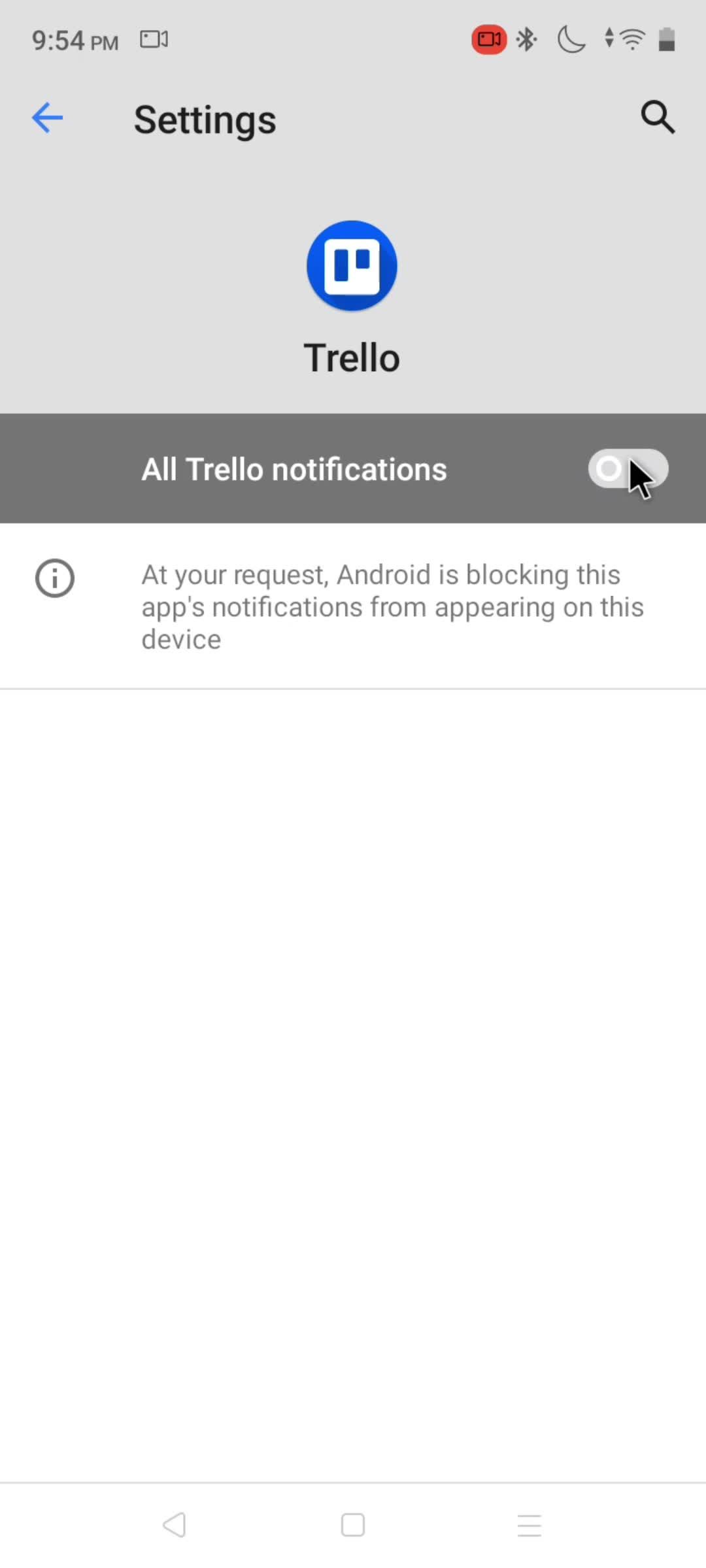
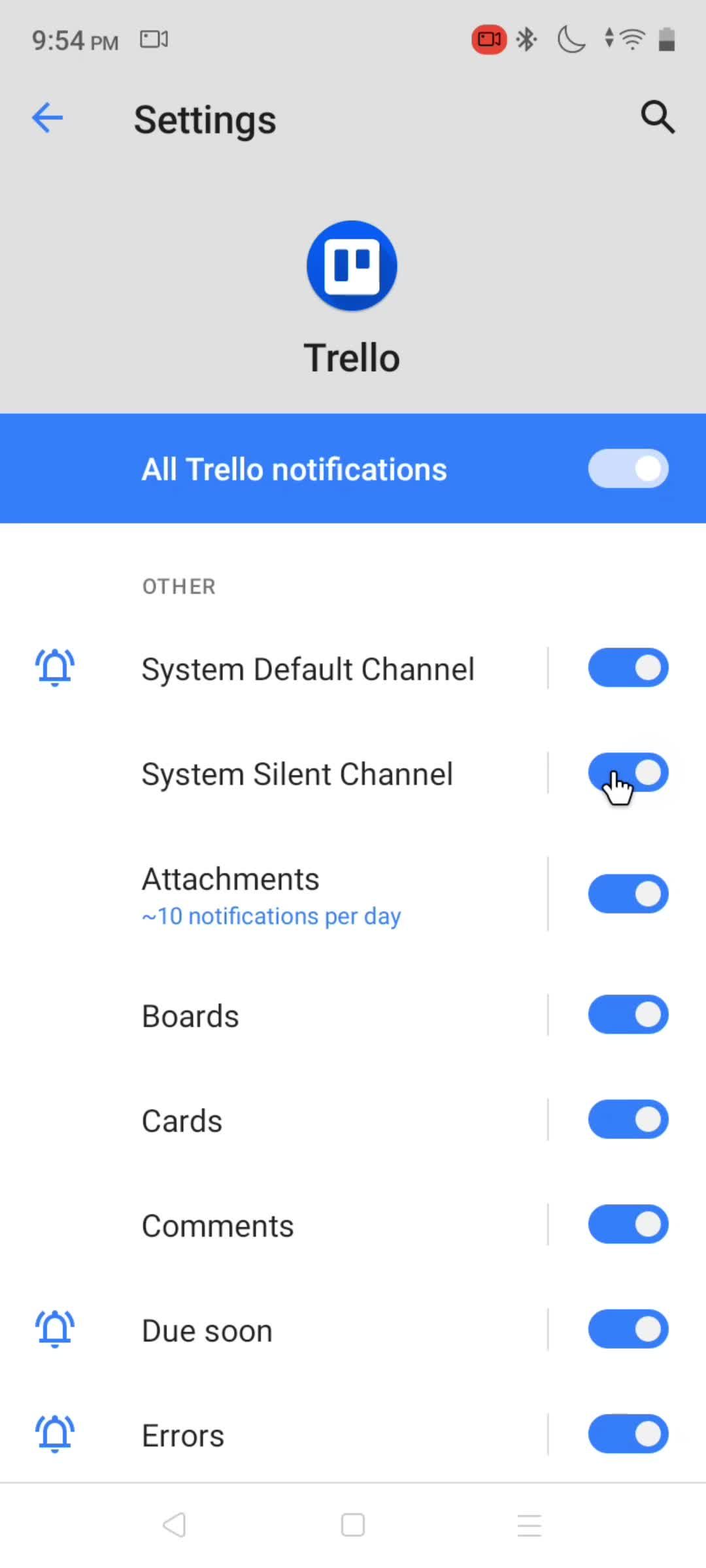
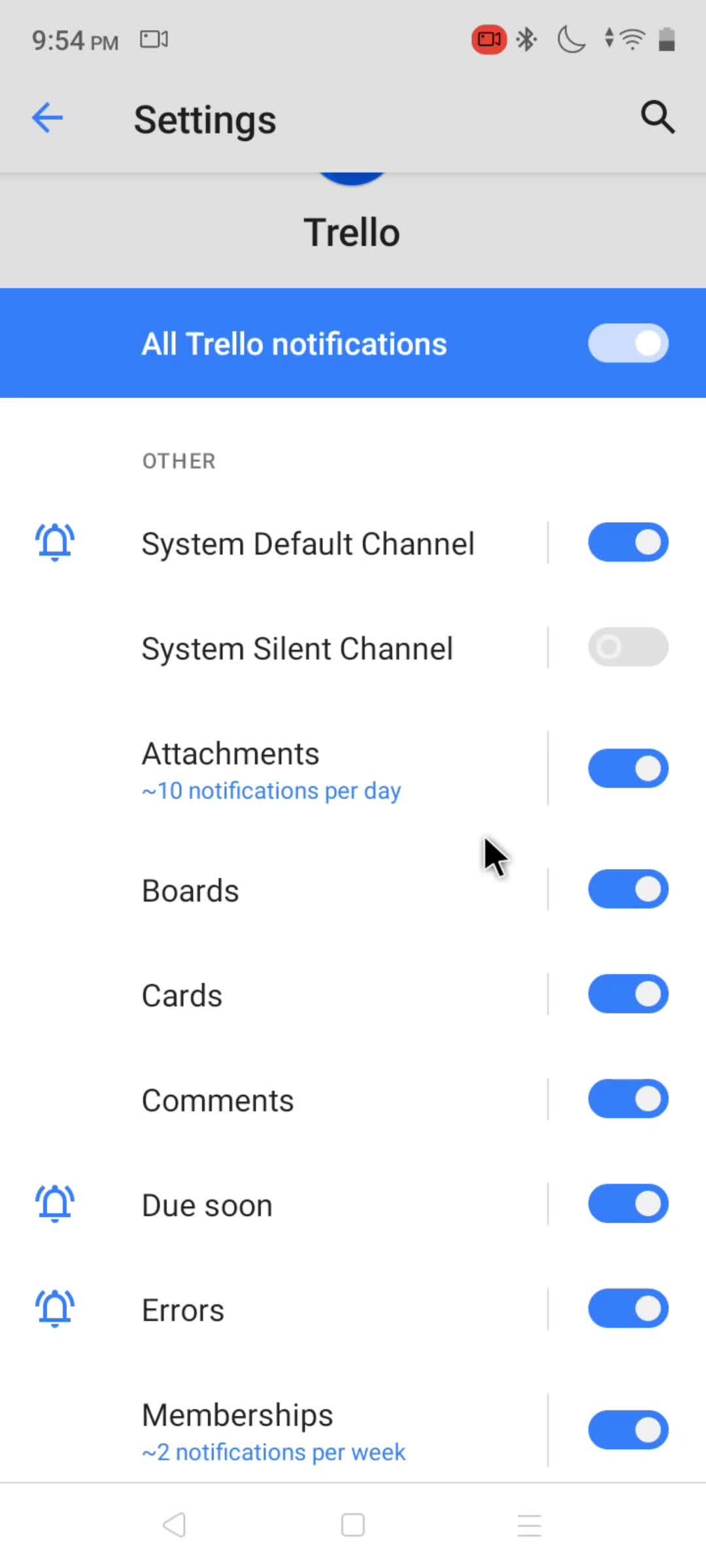
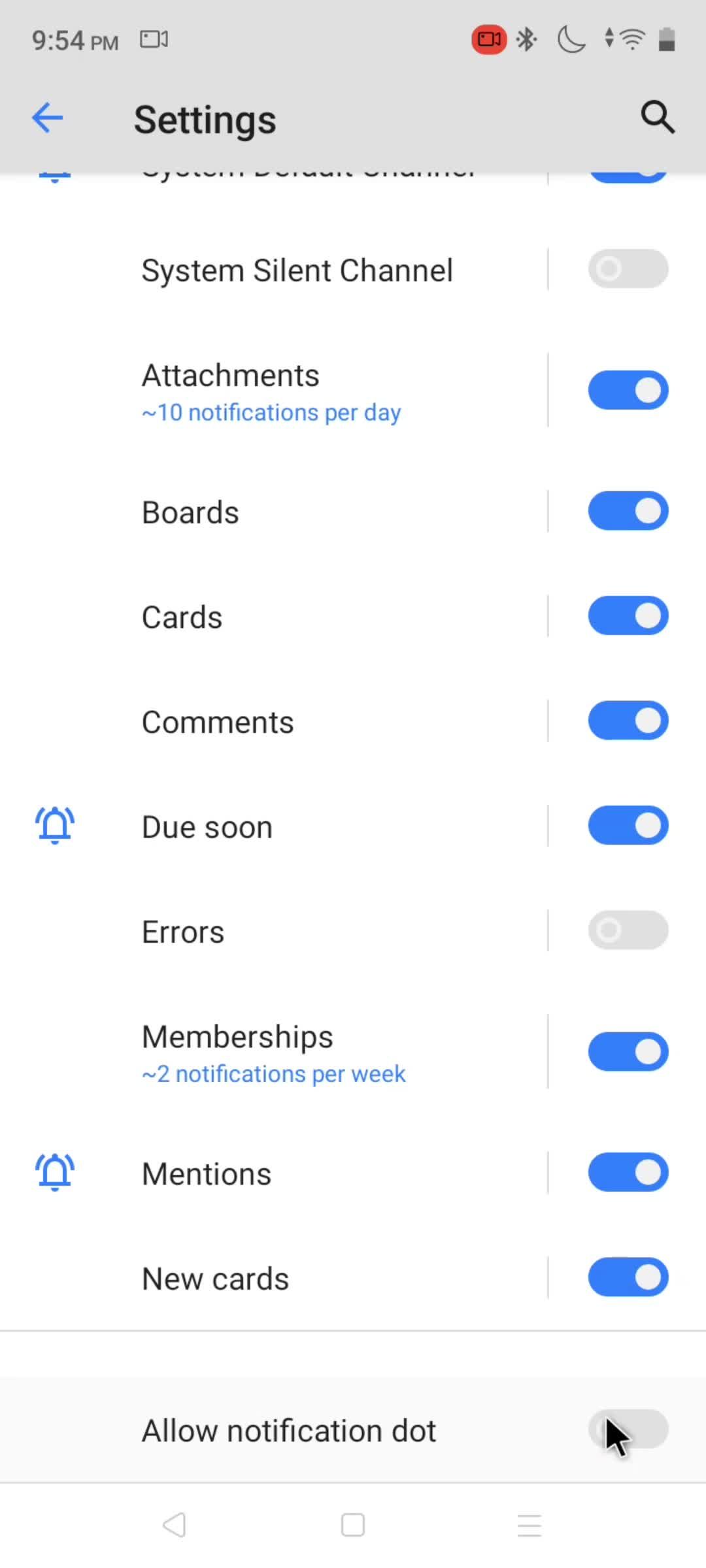
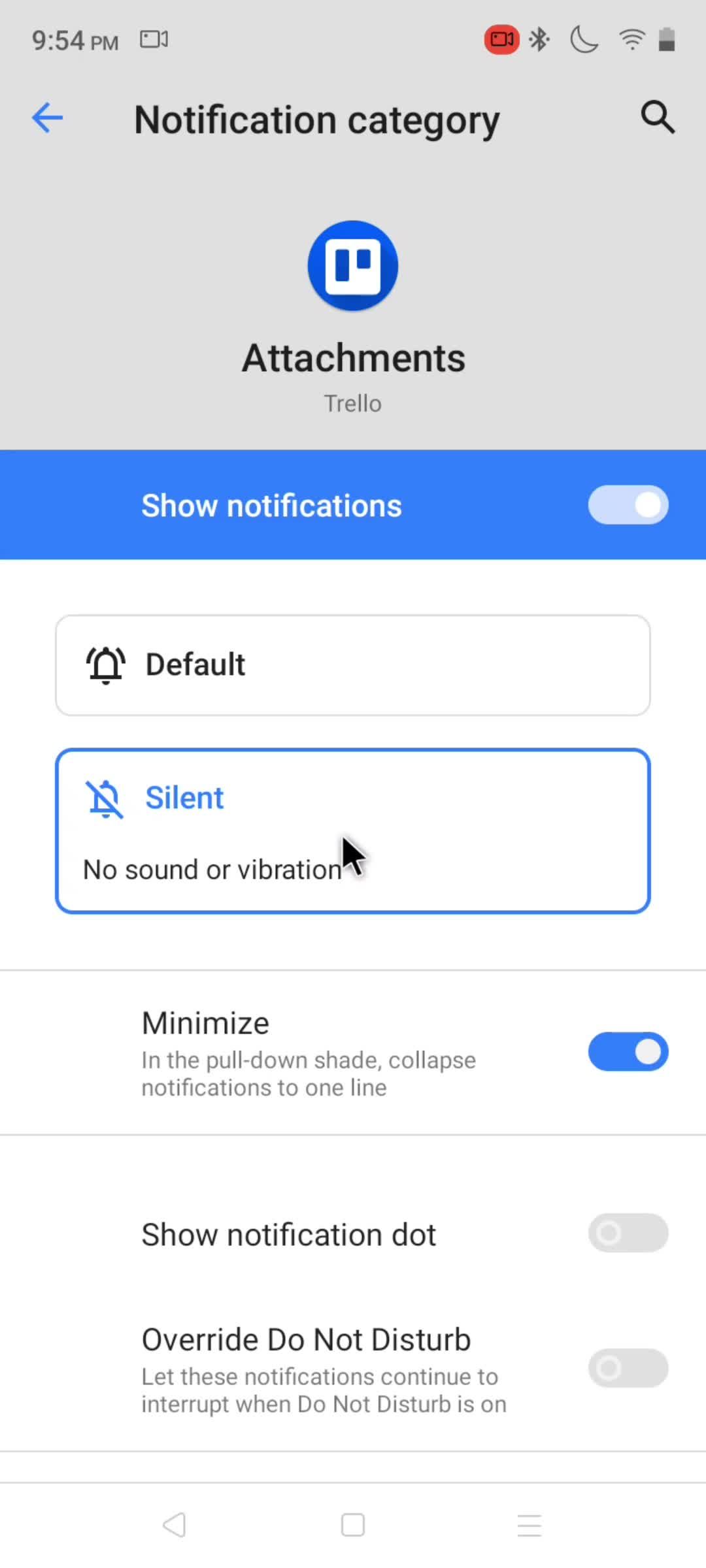
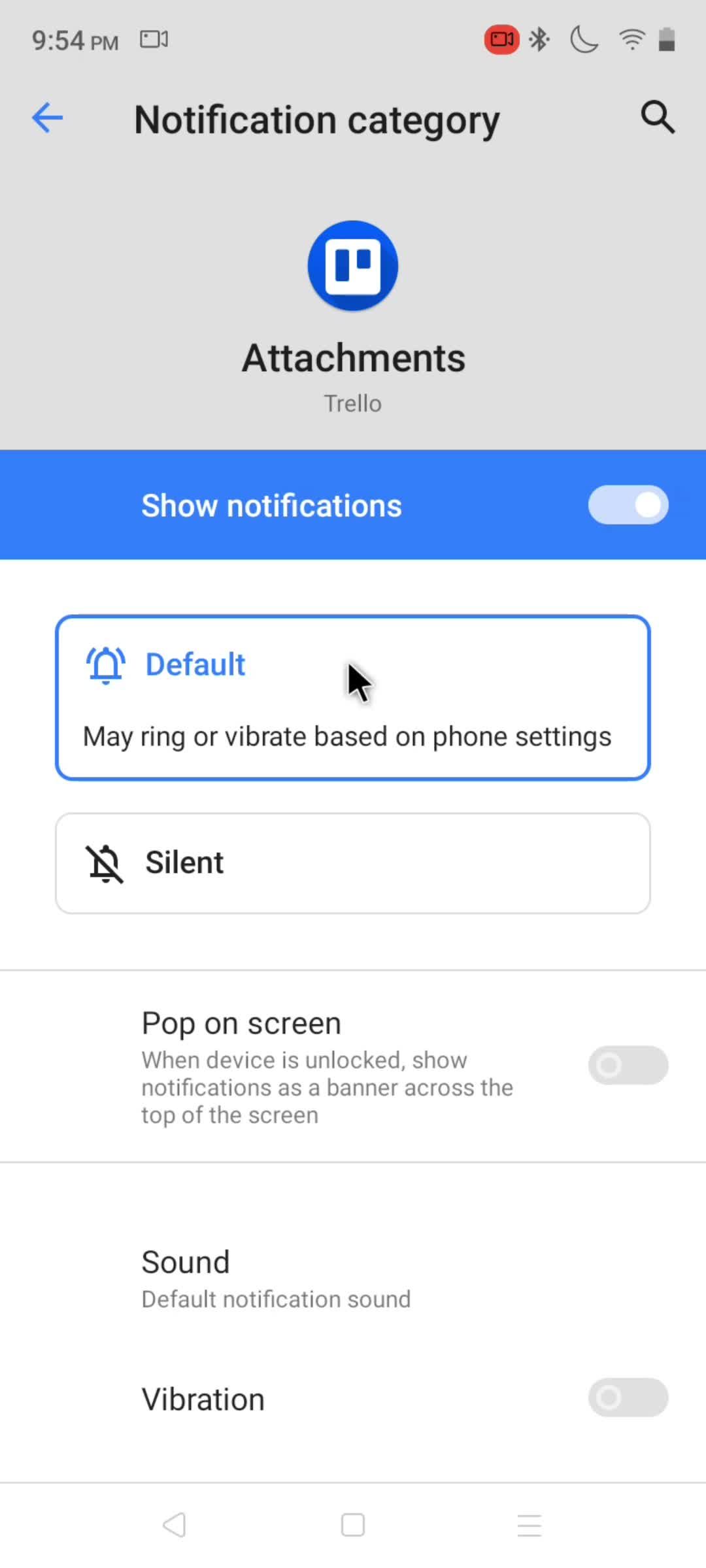
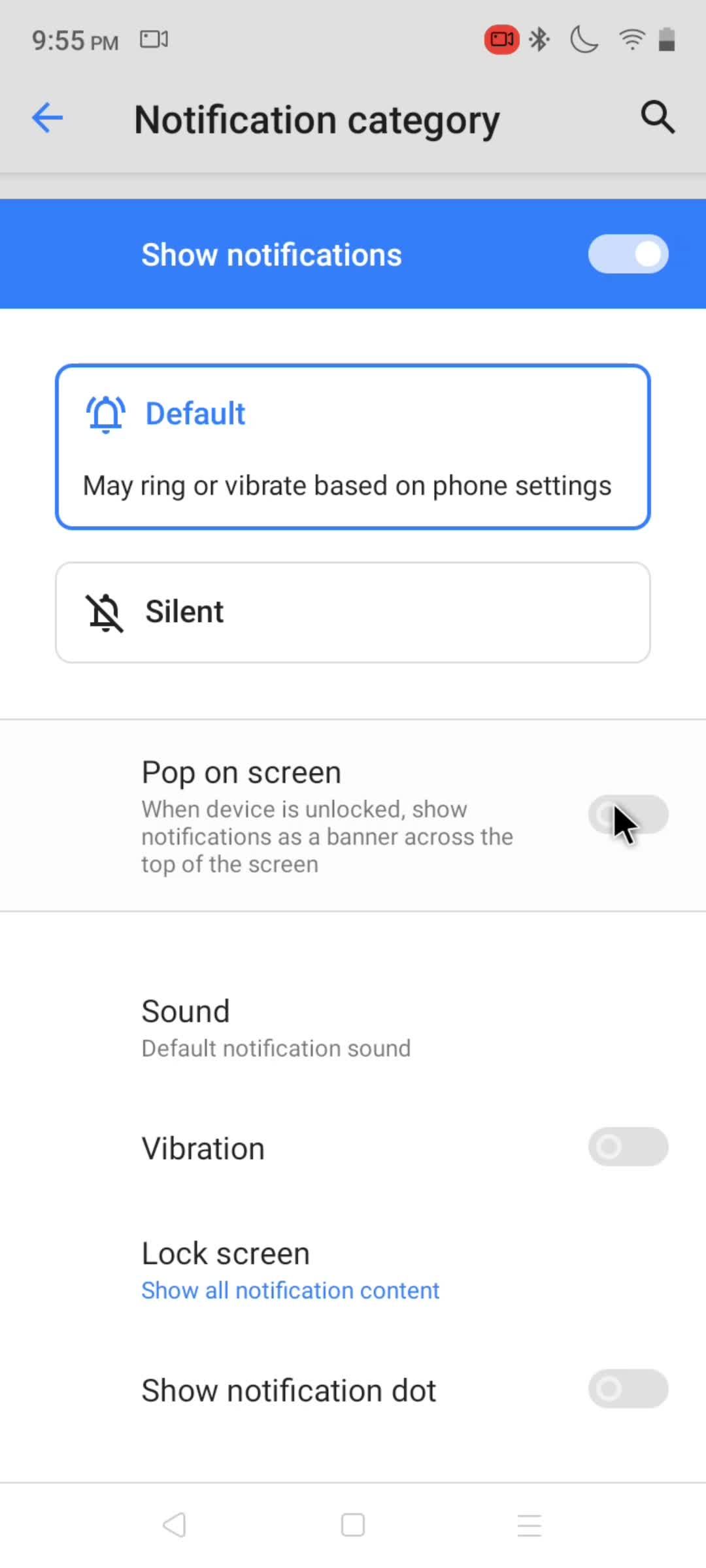
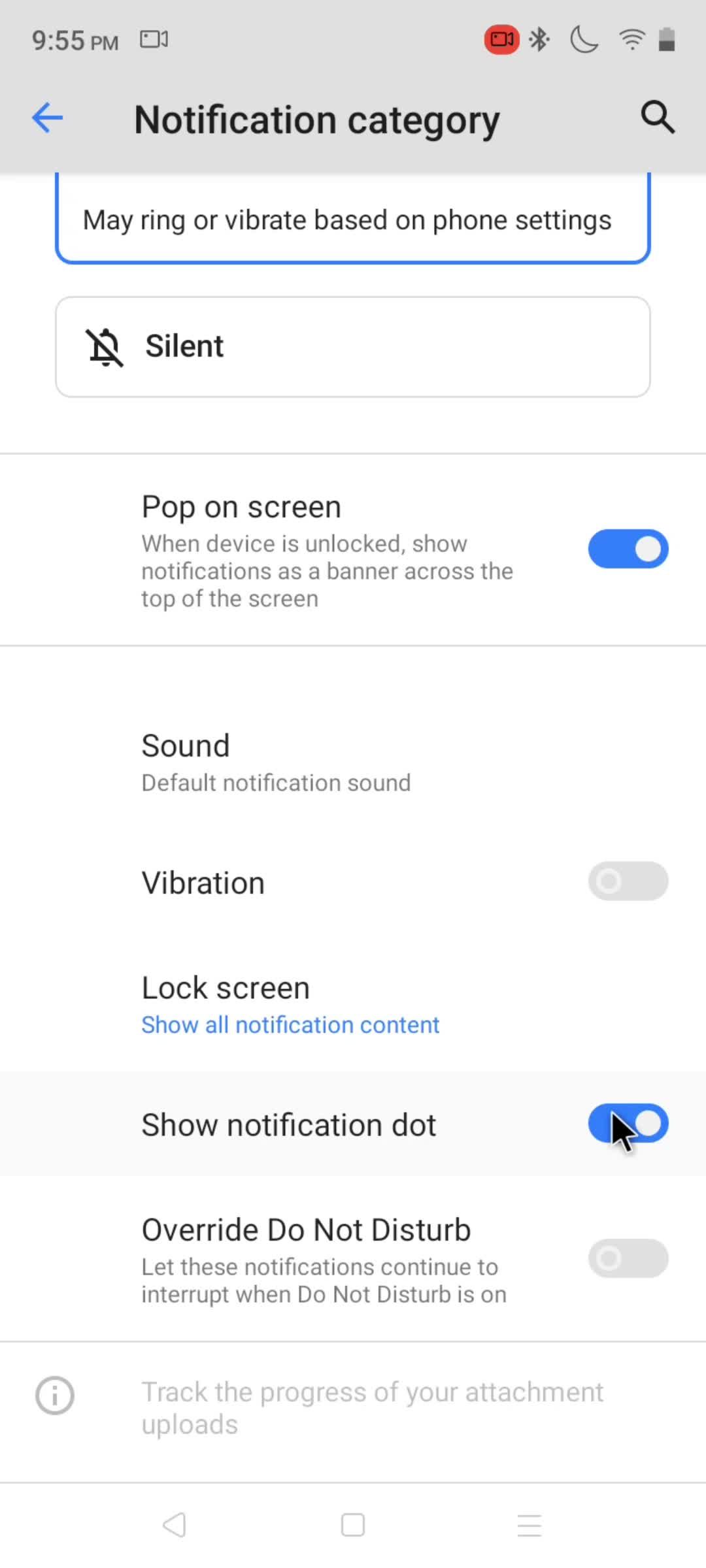
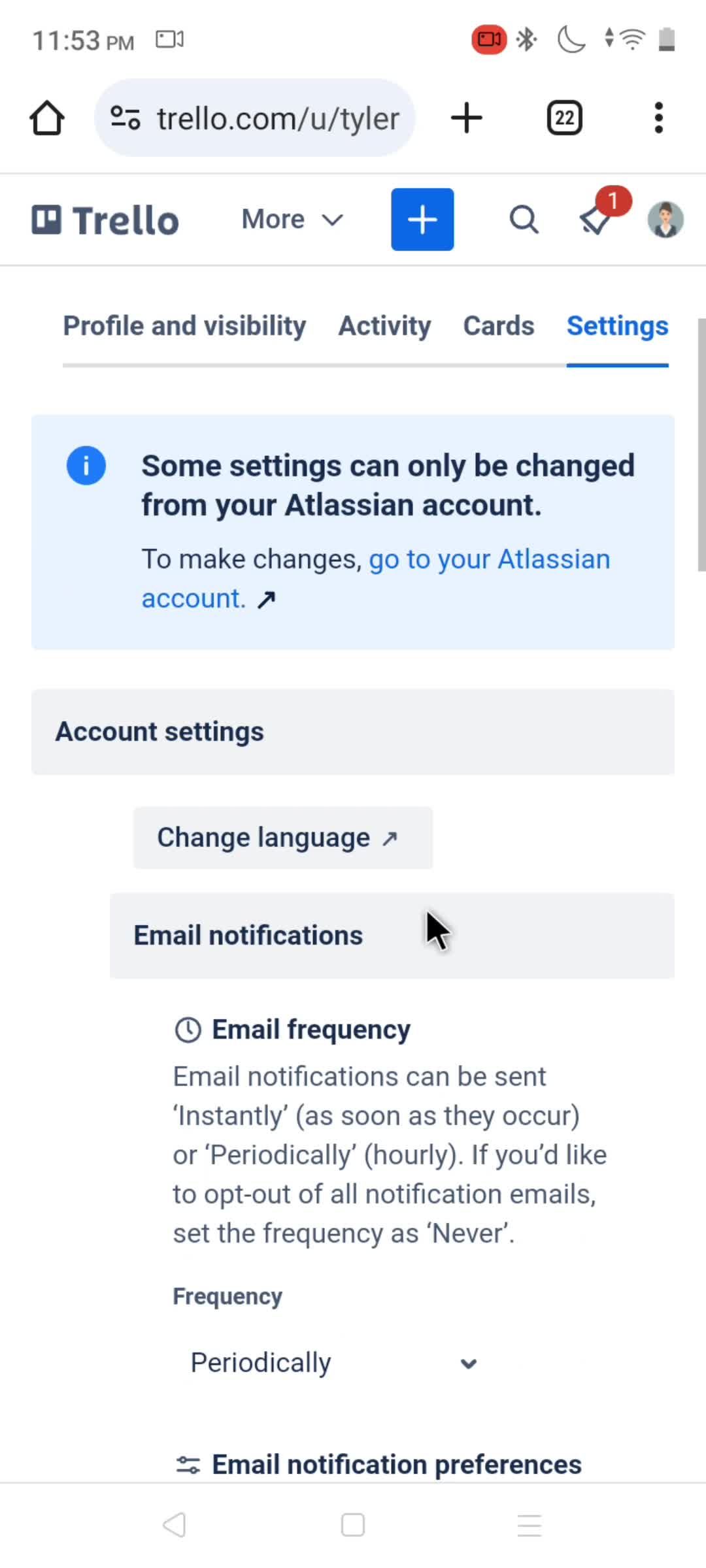
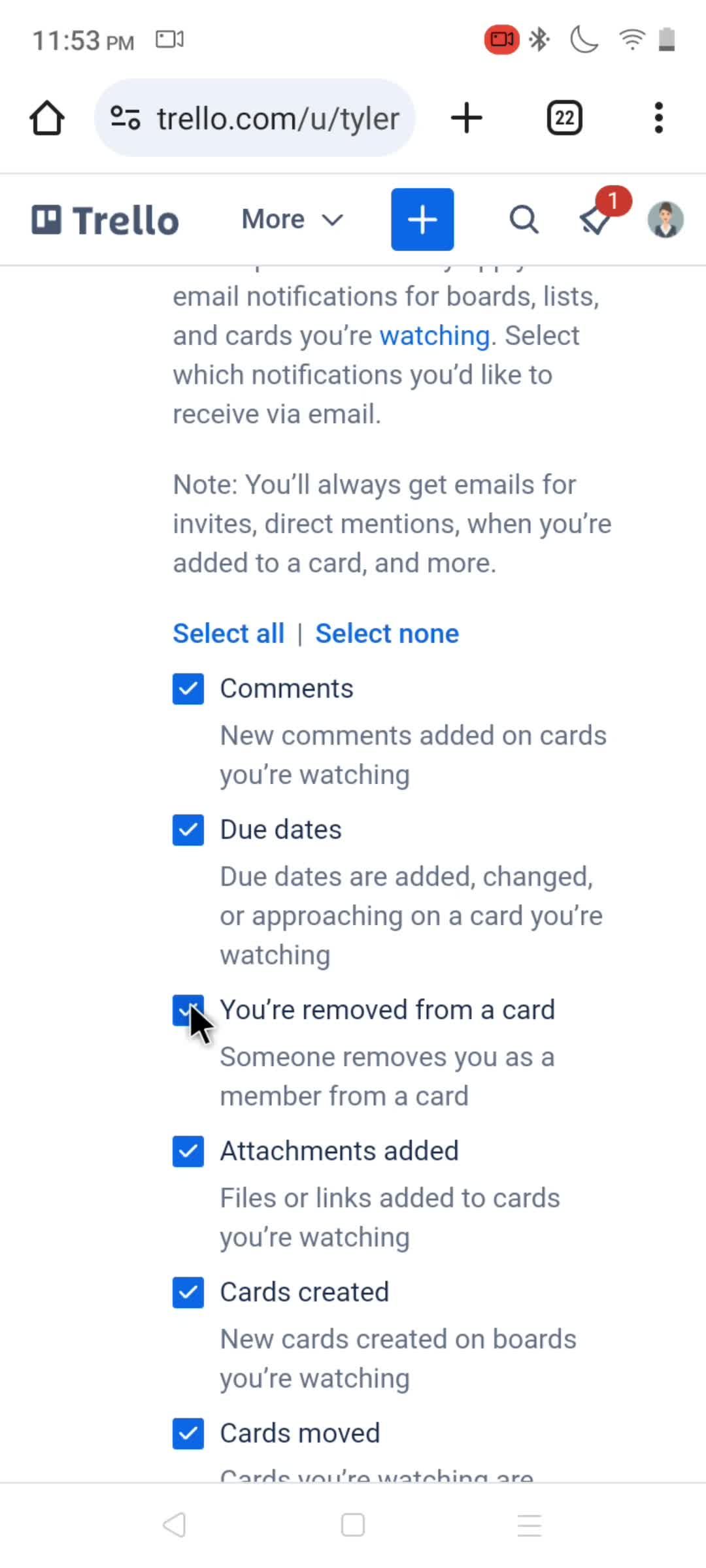
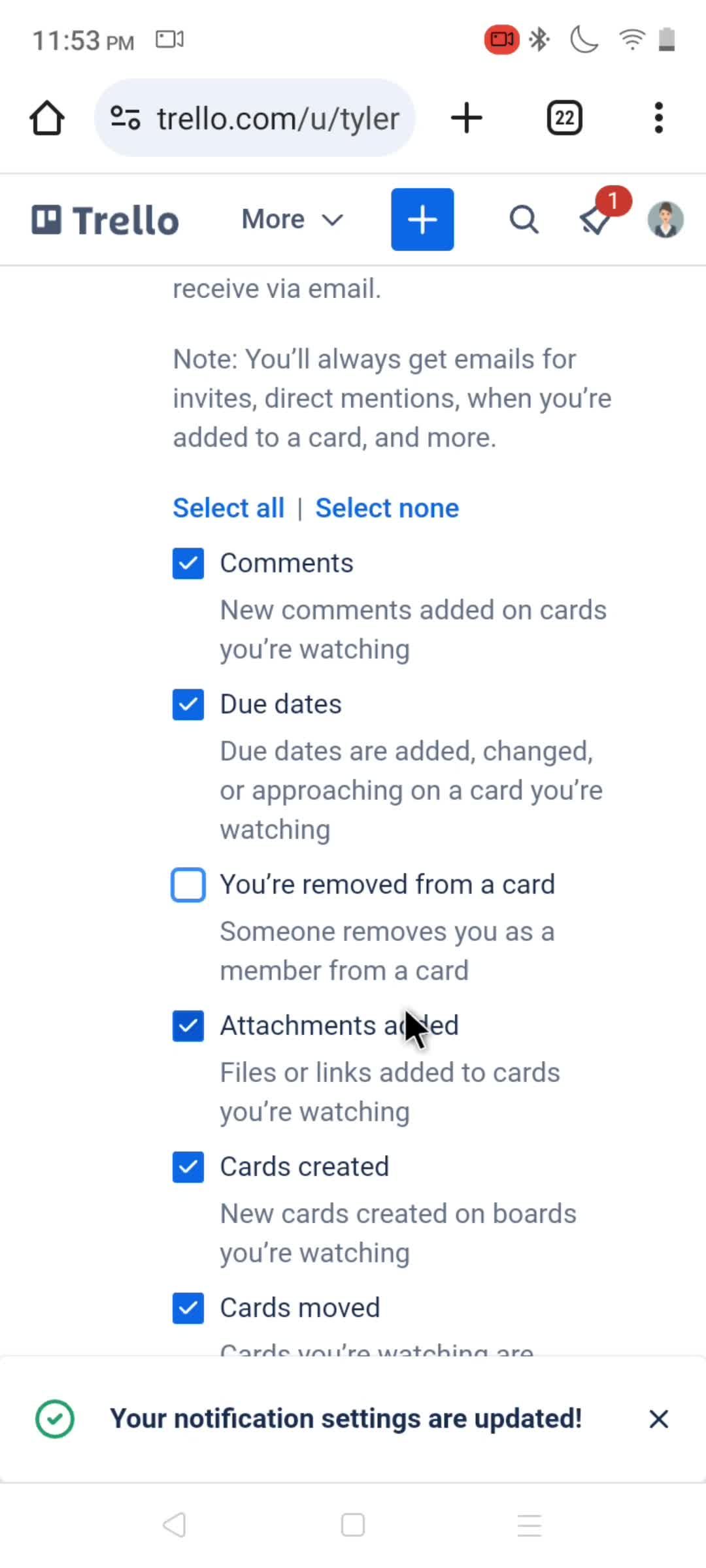
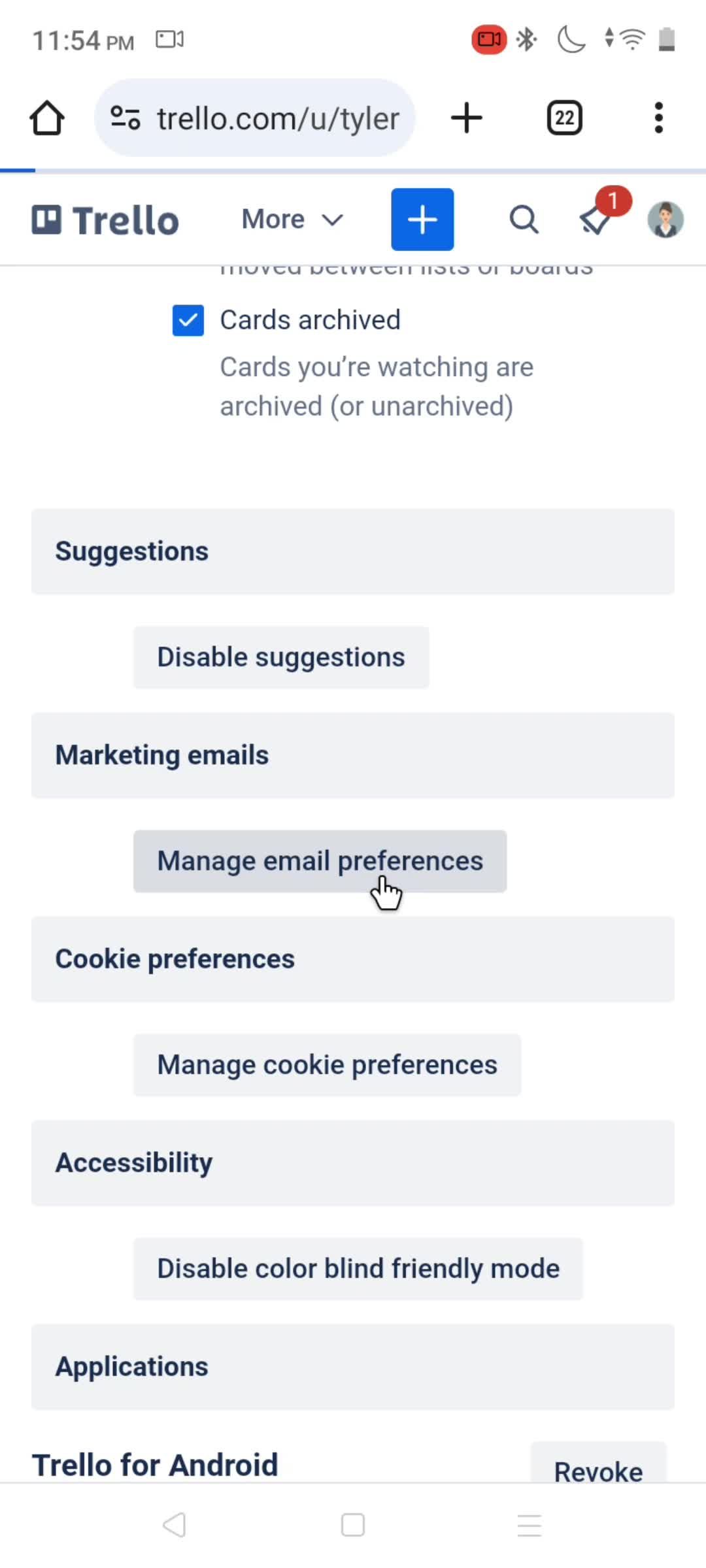
Notification settings
this is title
this is title
this is title
this is title
this is title
this is title
Category
this is title
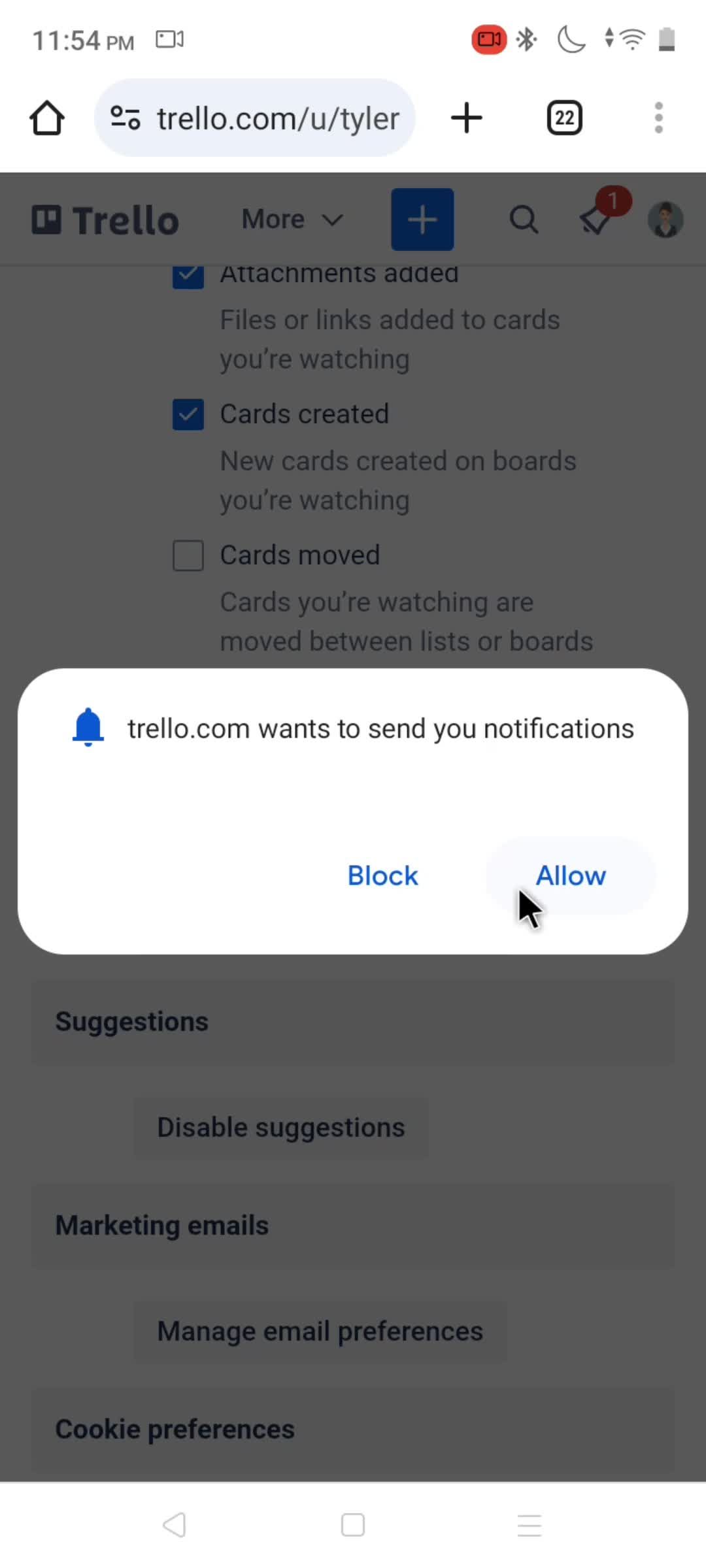
Enable notifications
this is title
this is title
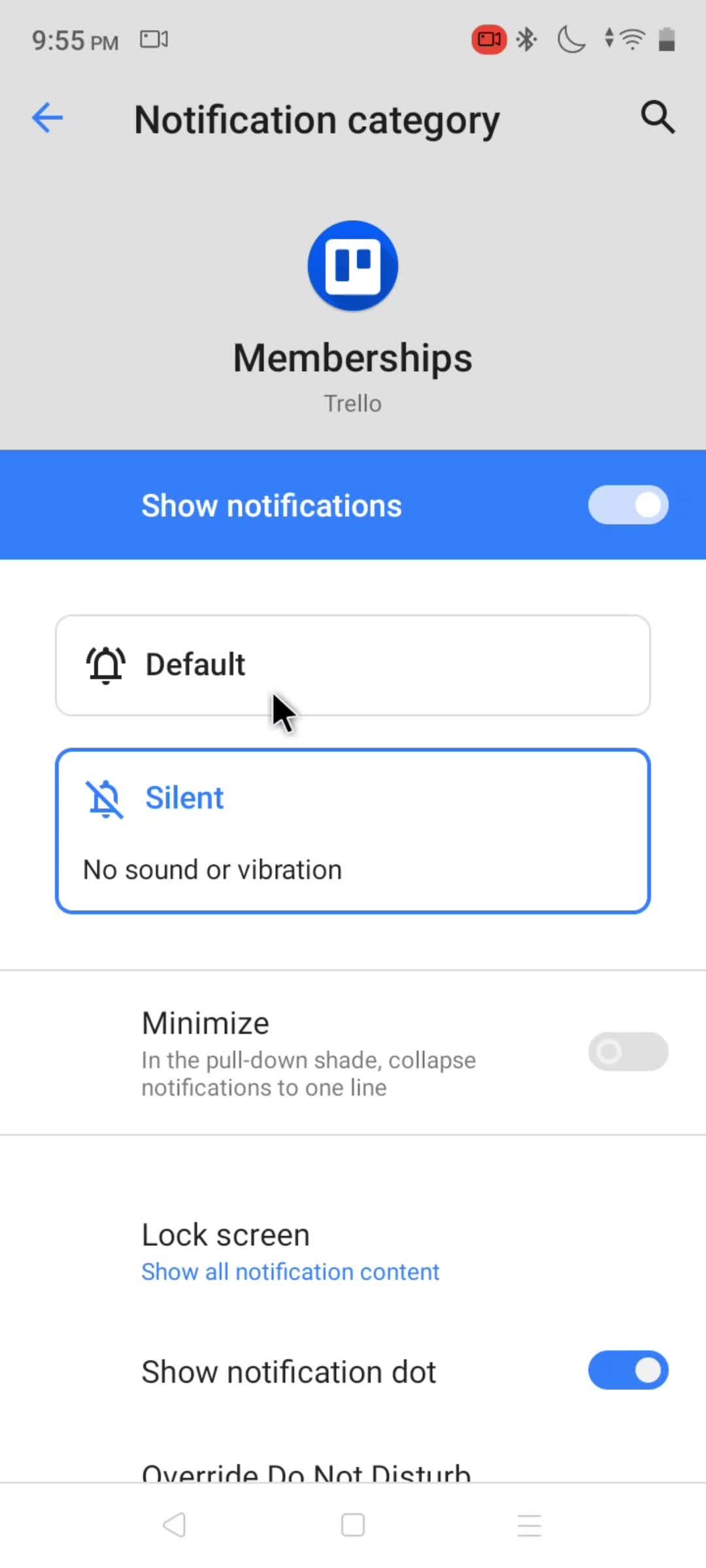
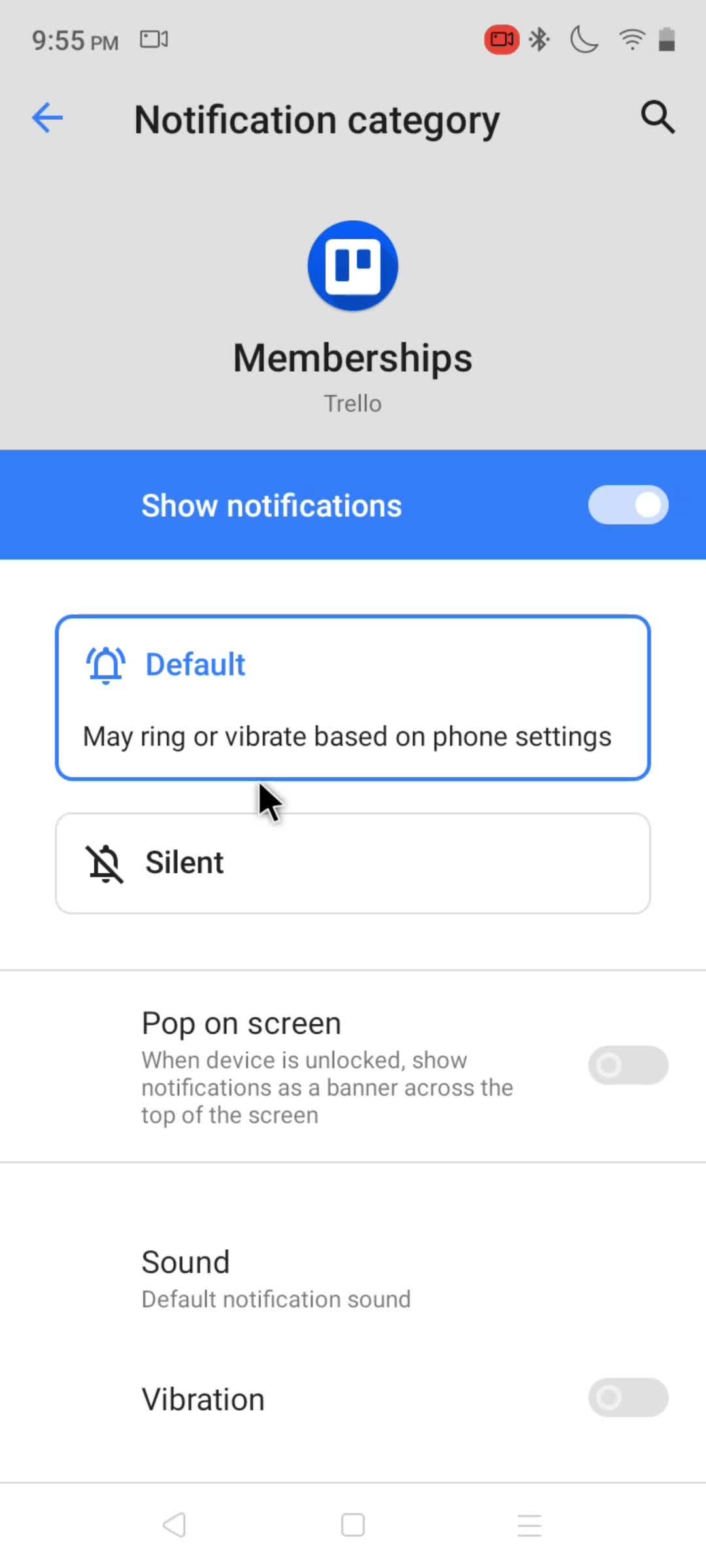
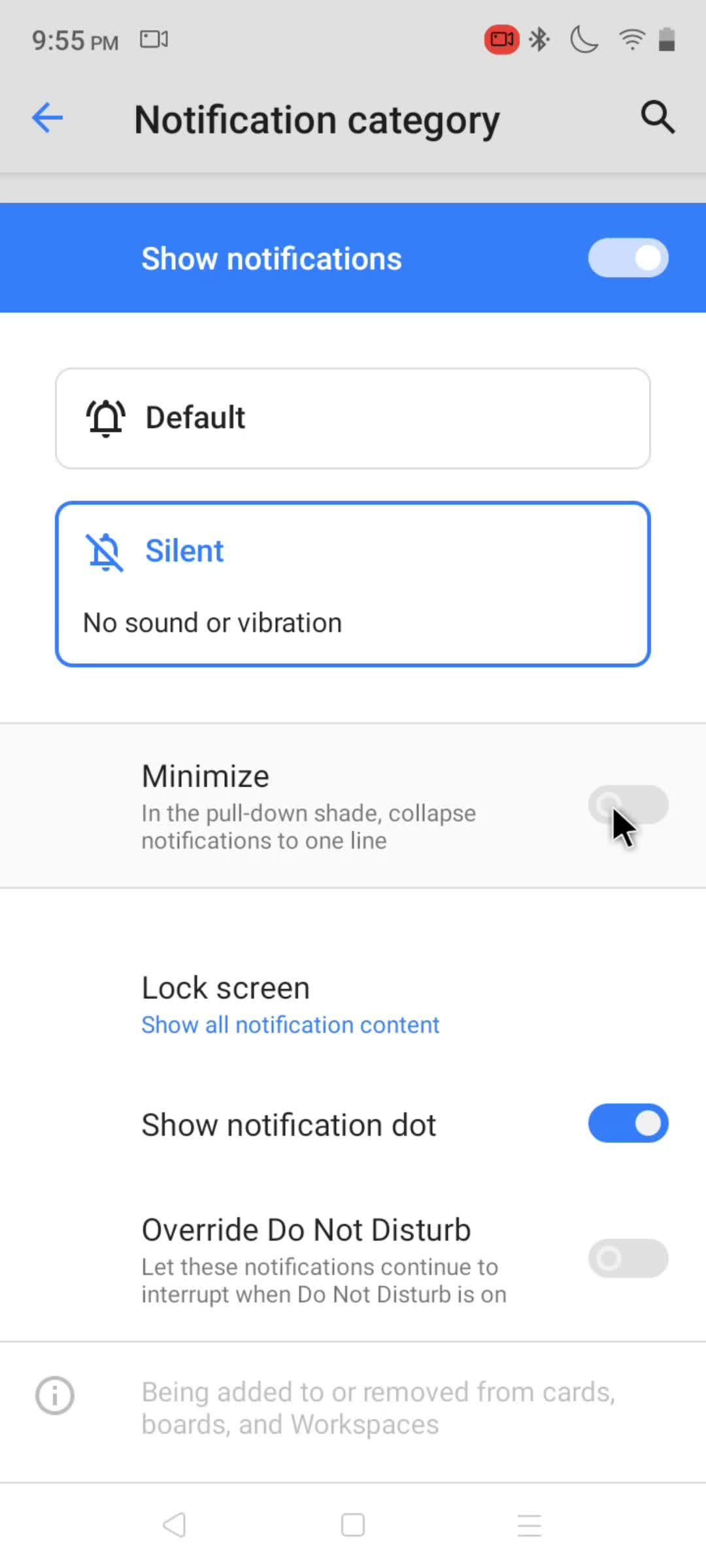
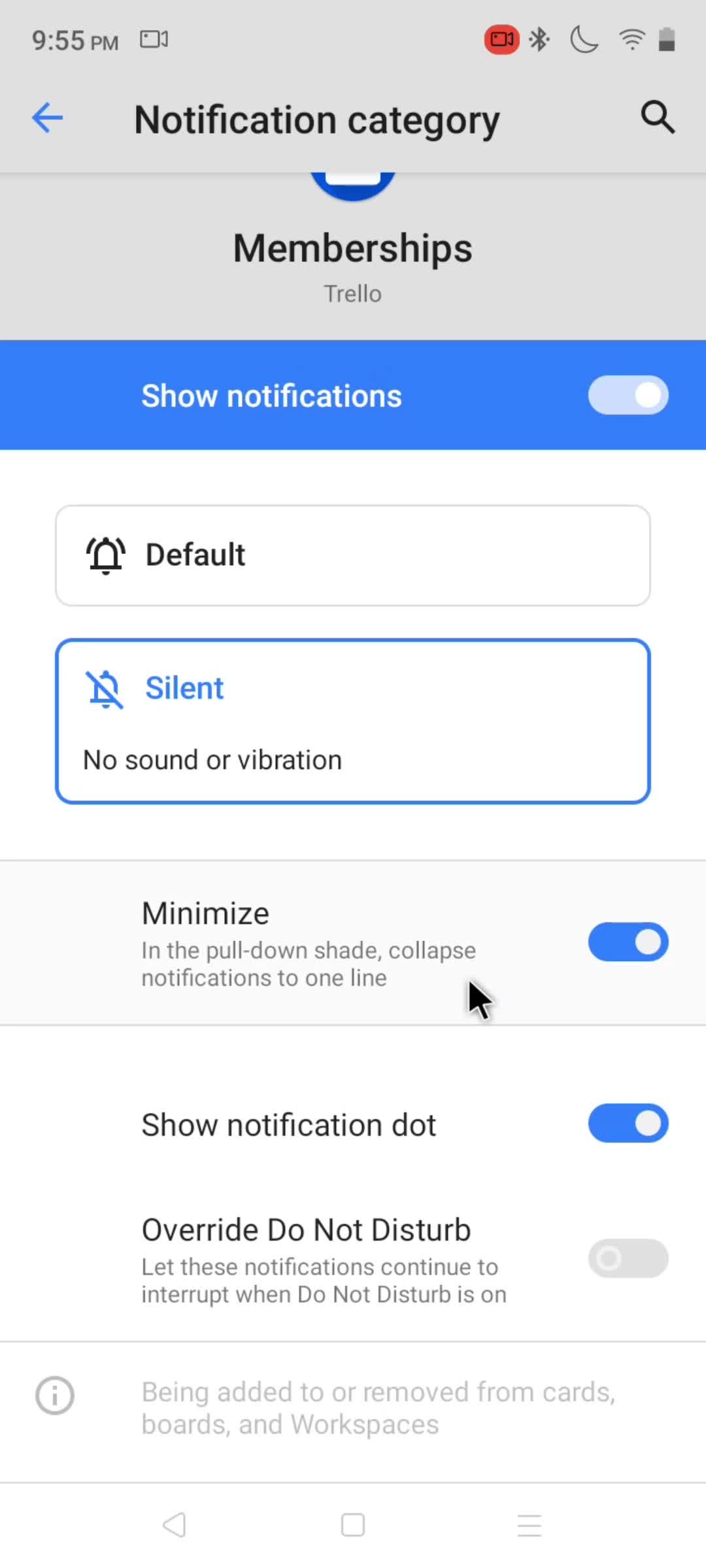
Memberships
this is title
this is title
this is title
this is title
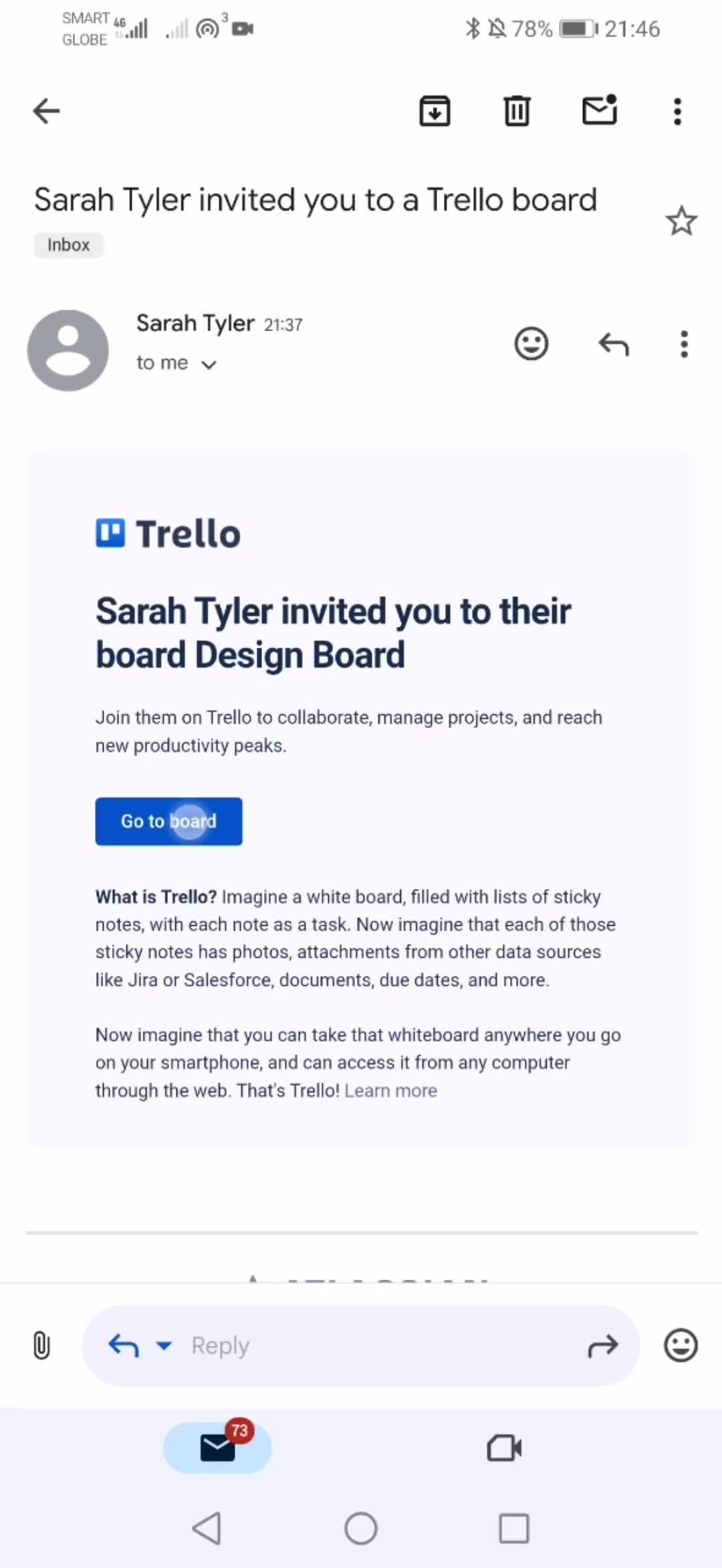
Invite email
this is title
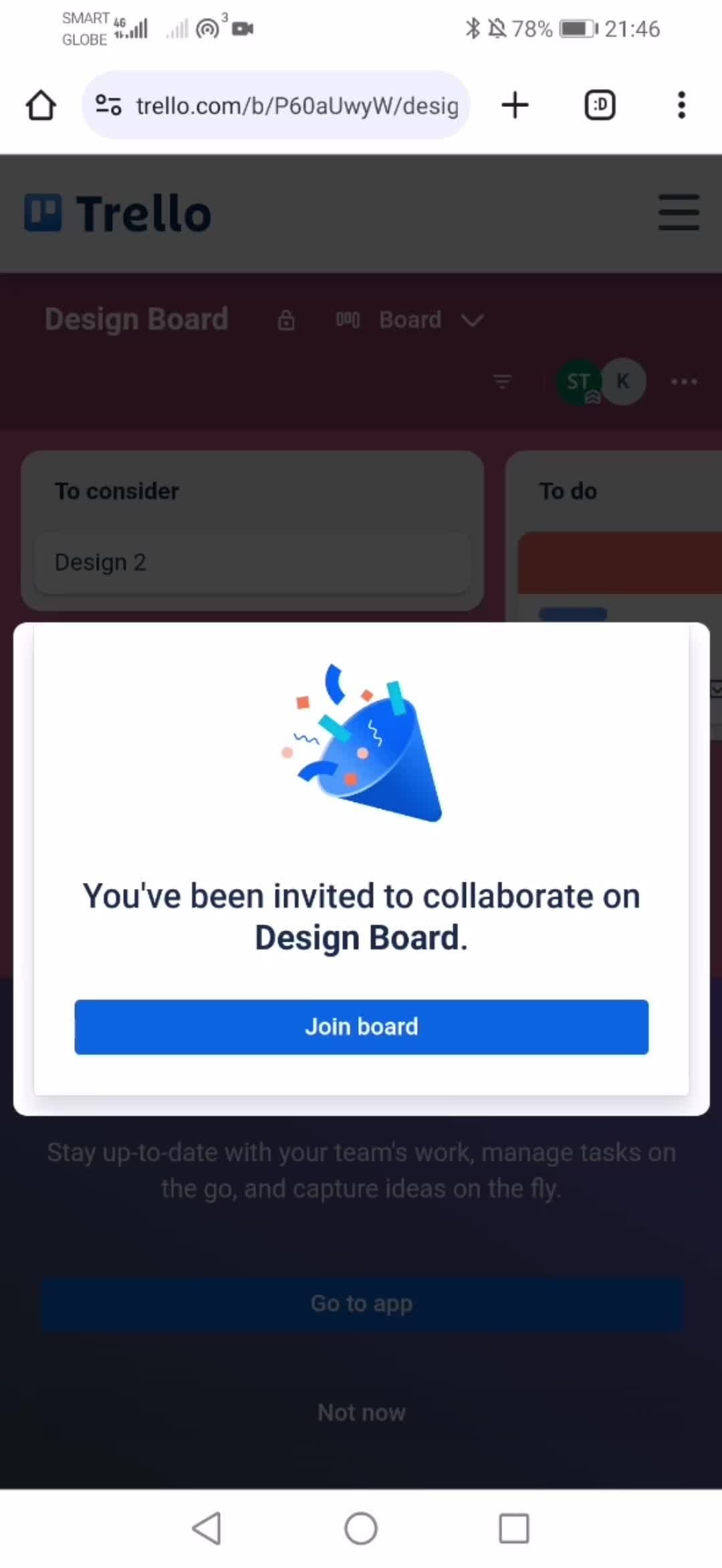
Join
this is title
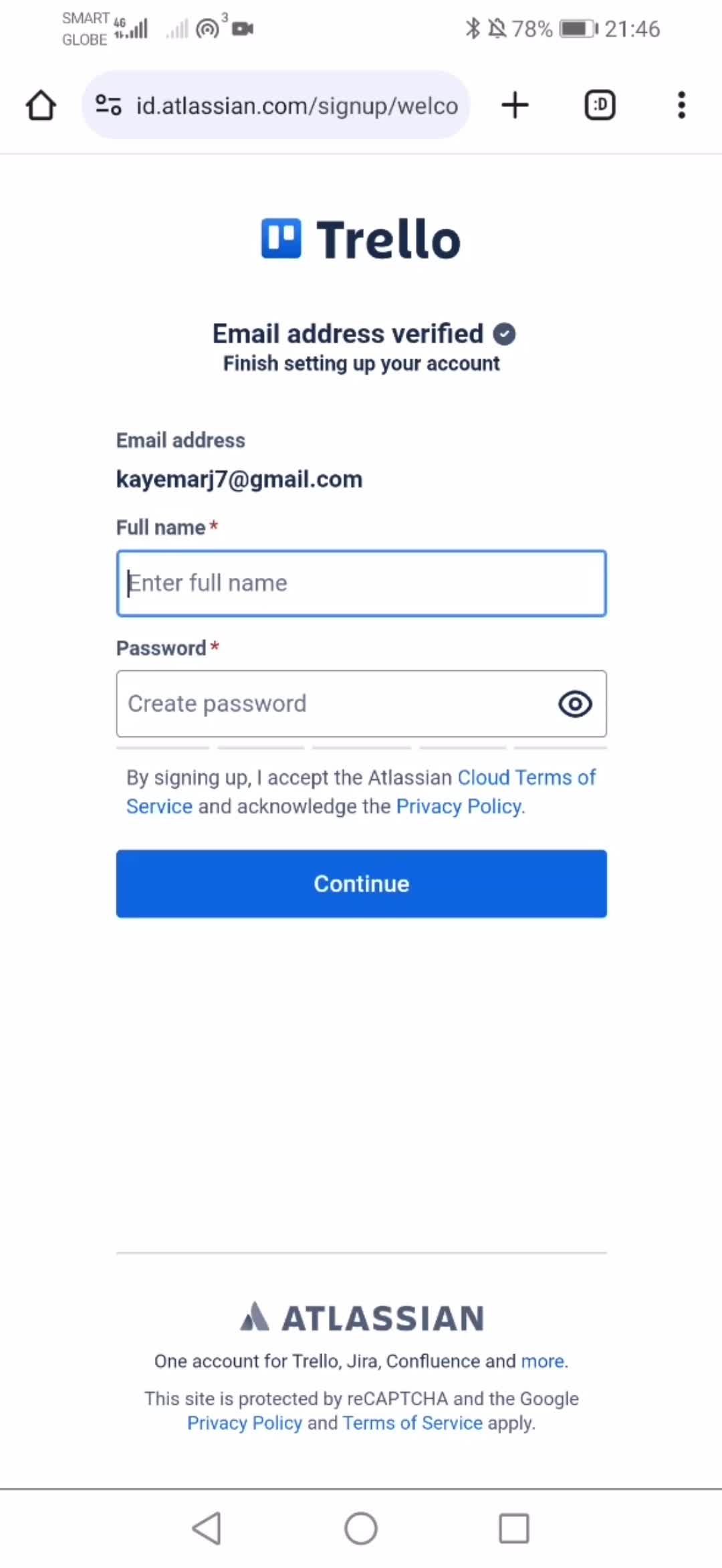
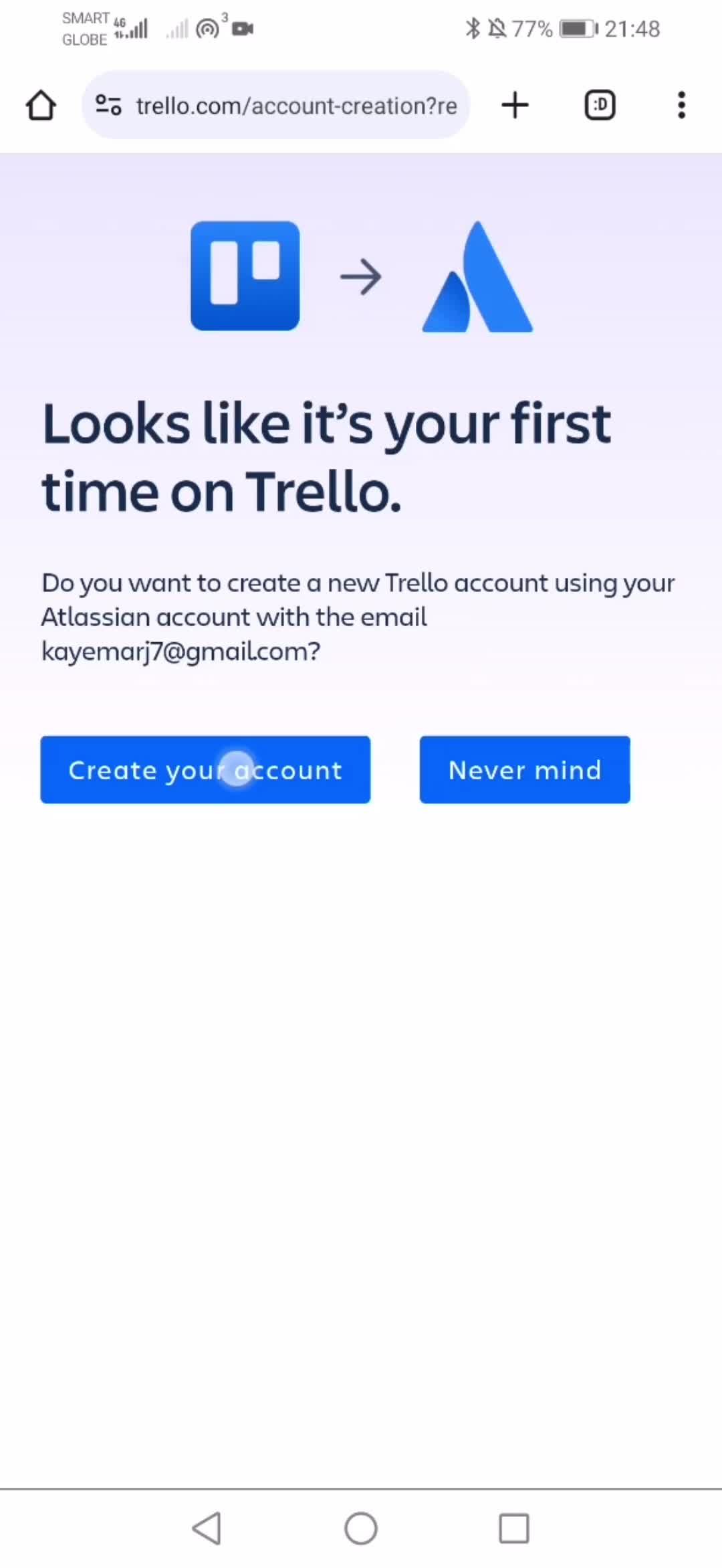
Create account
this is title
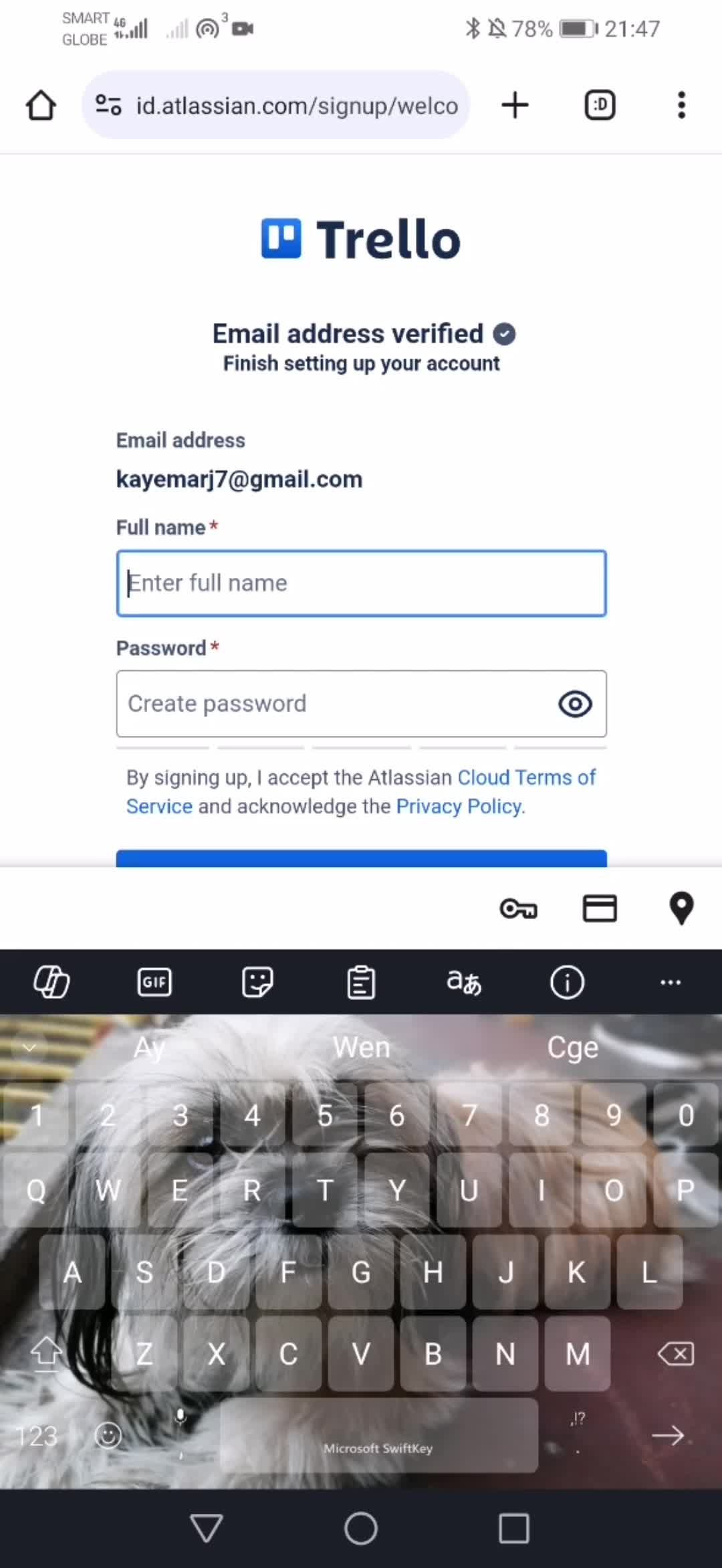
Enter name
this is title
this is title
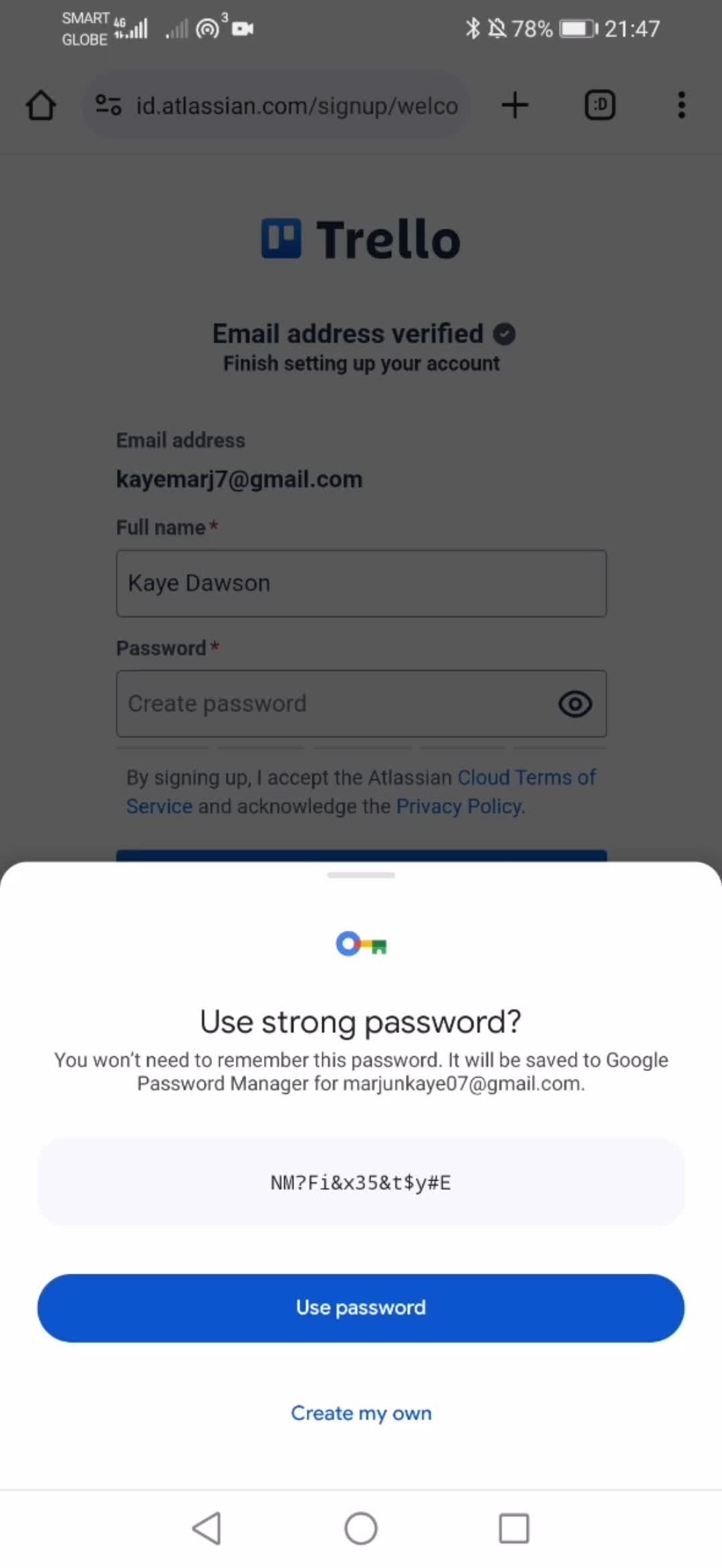
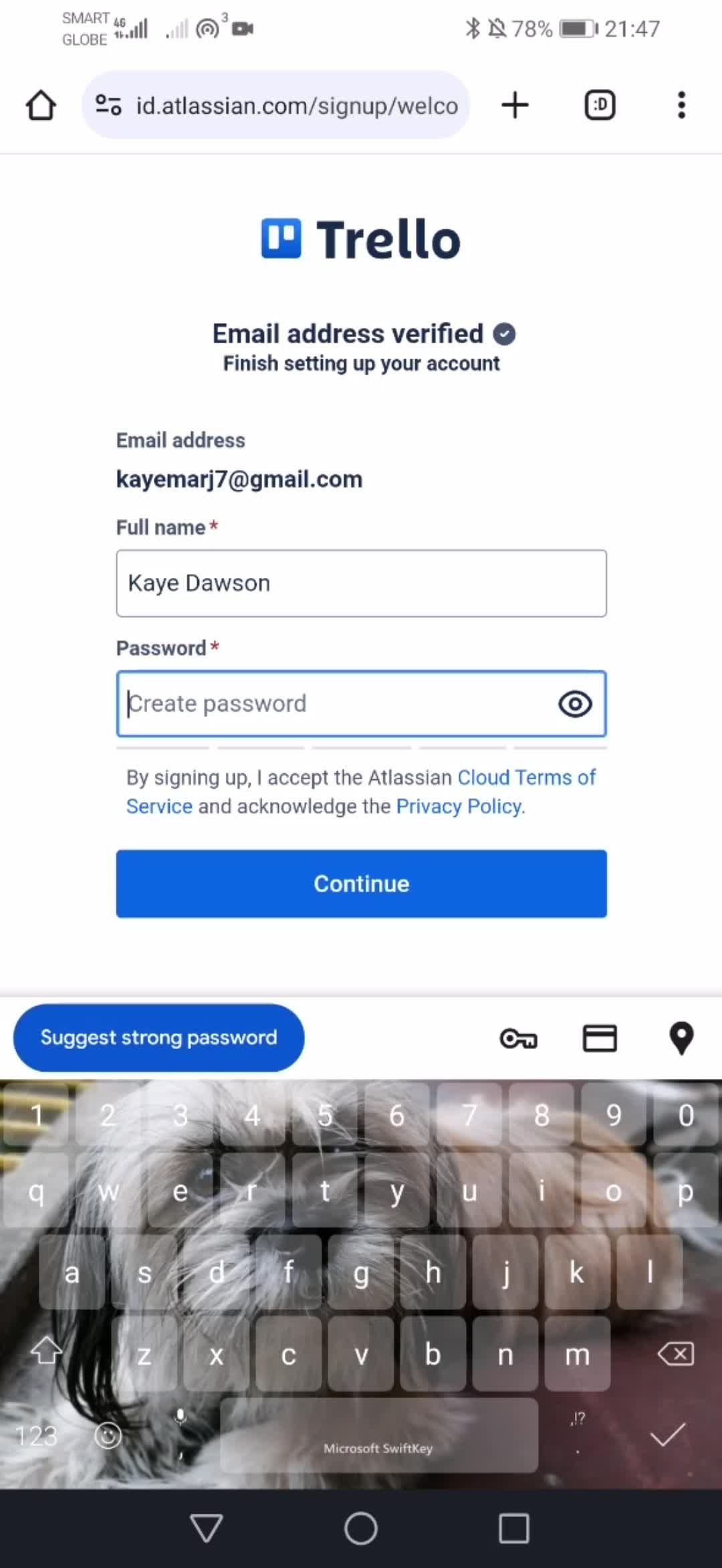
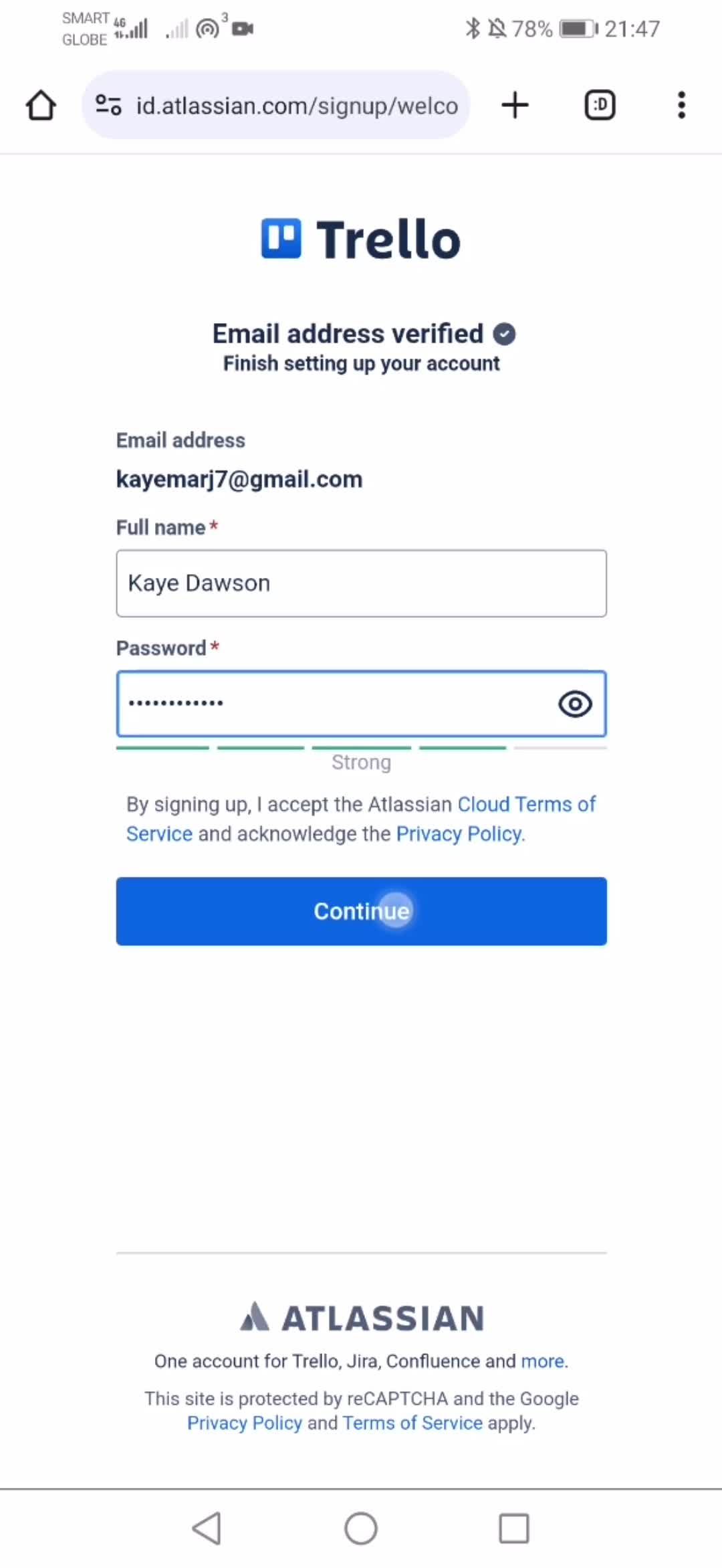
Set password
this is title
this is title
Confirm
this is title
this is title
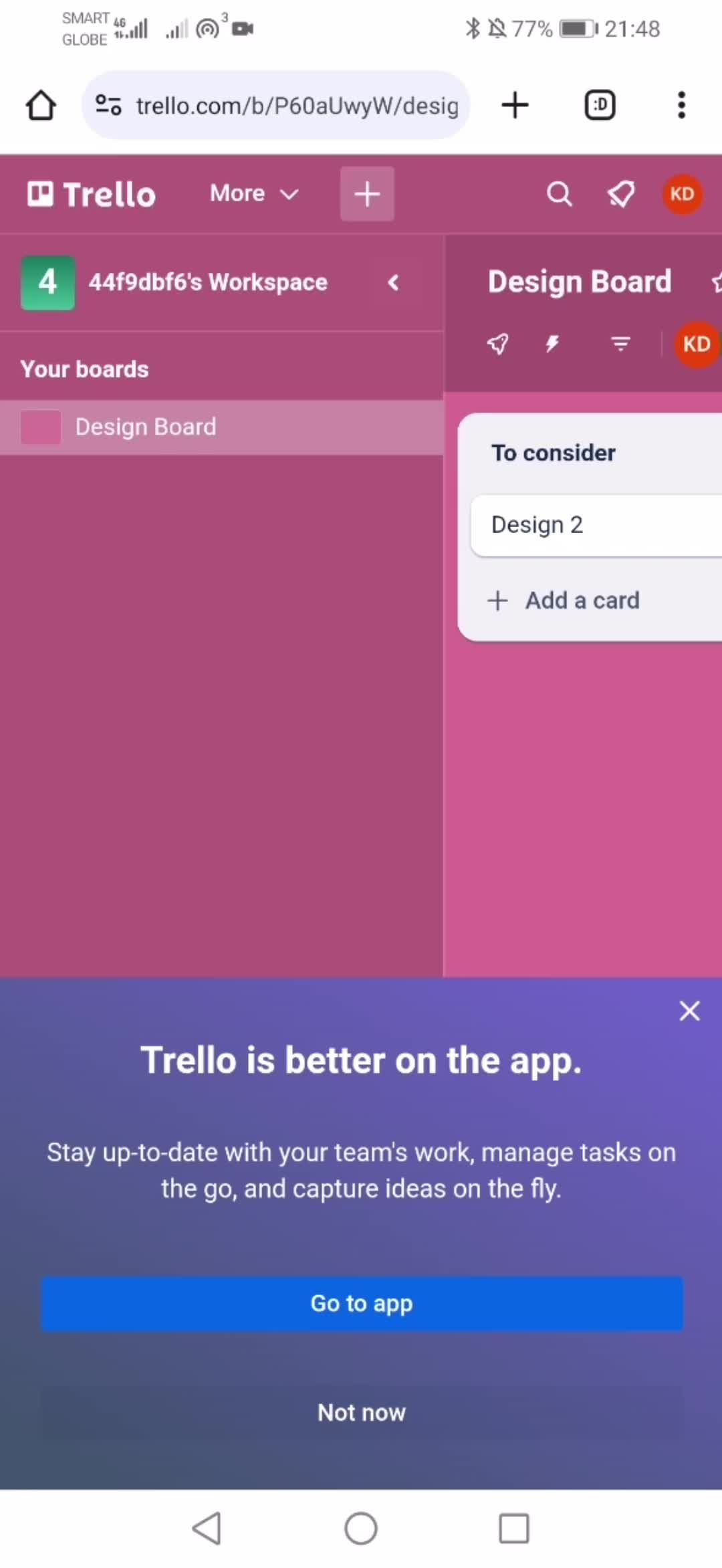
Workspace
this is title
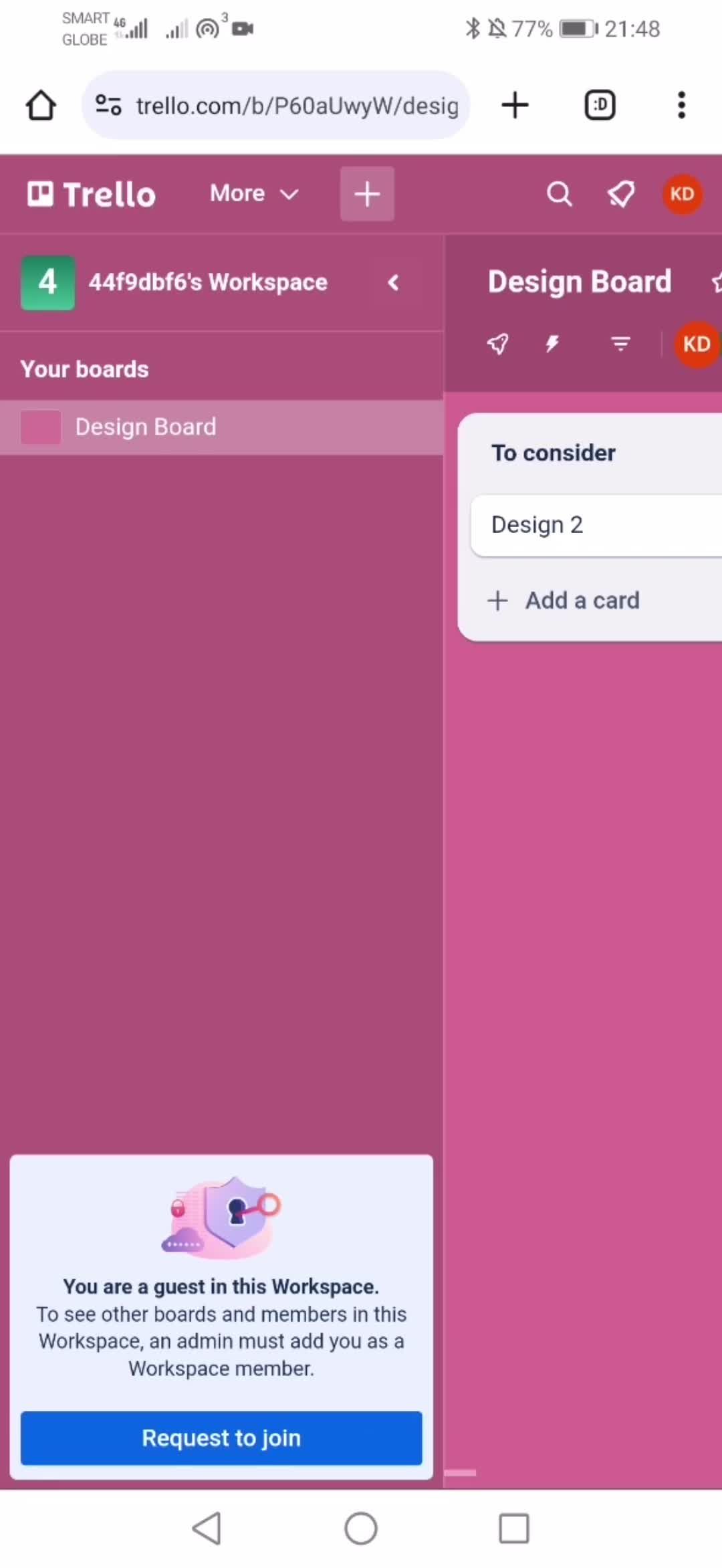
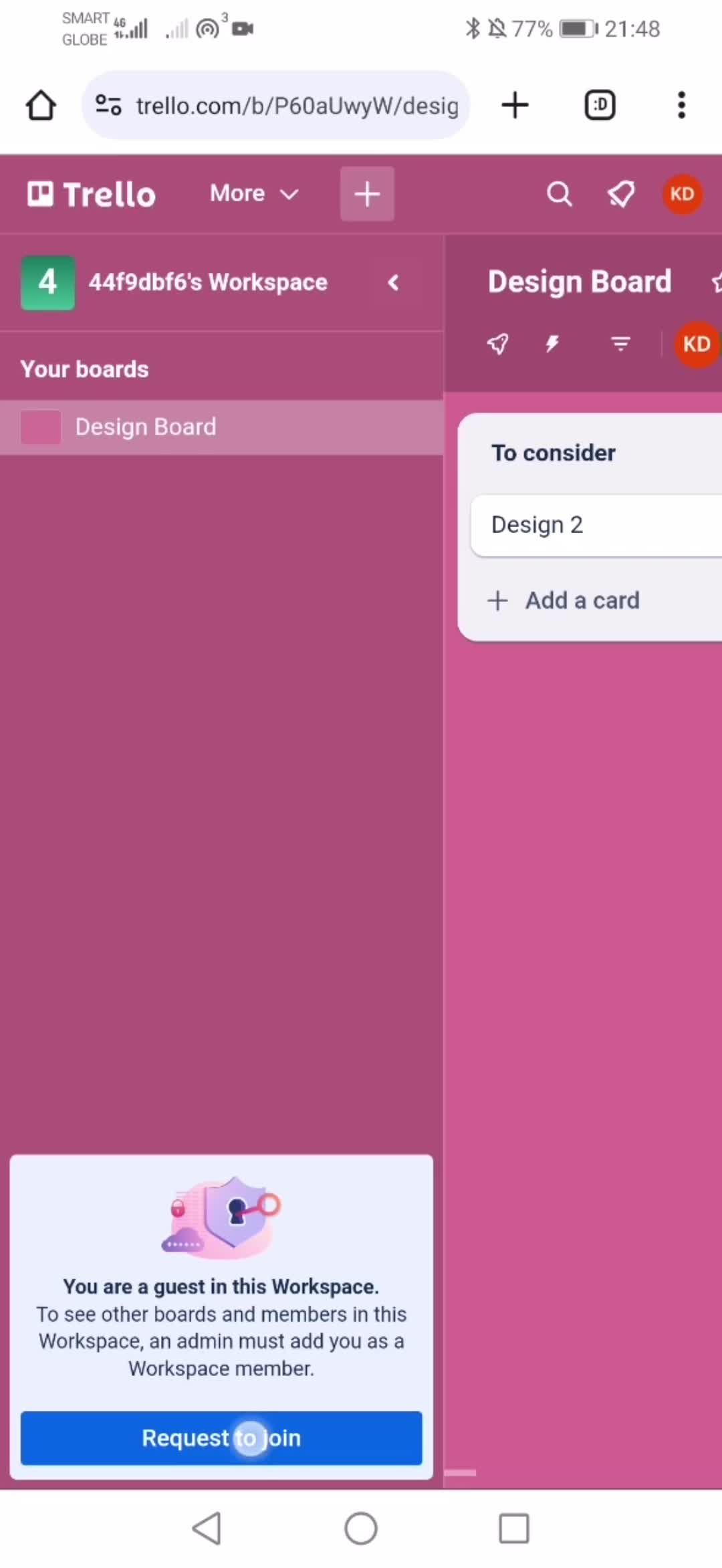
Request to join
this is title
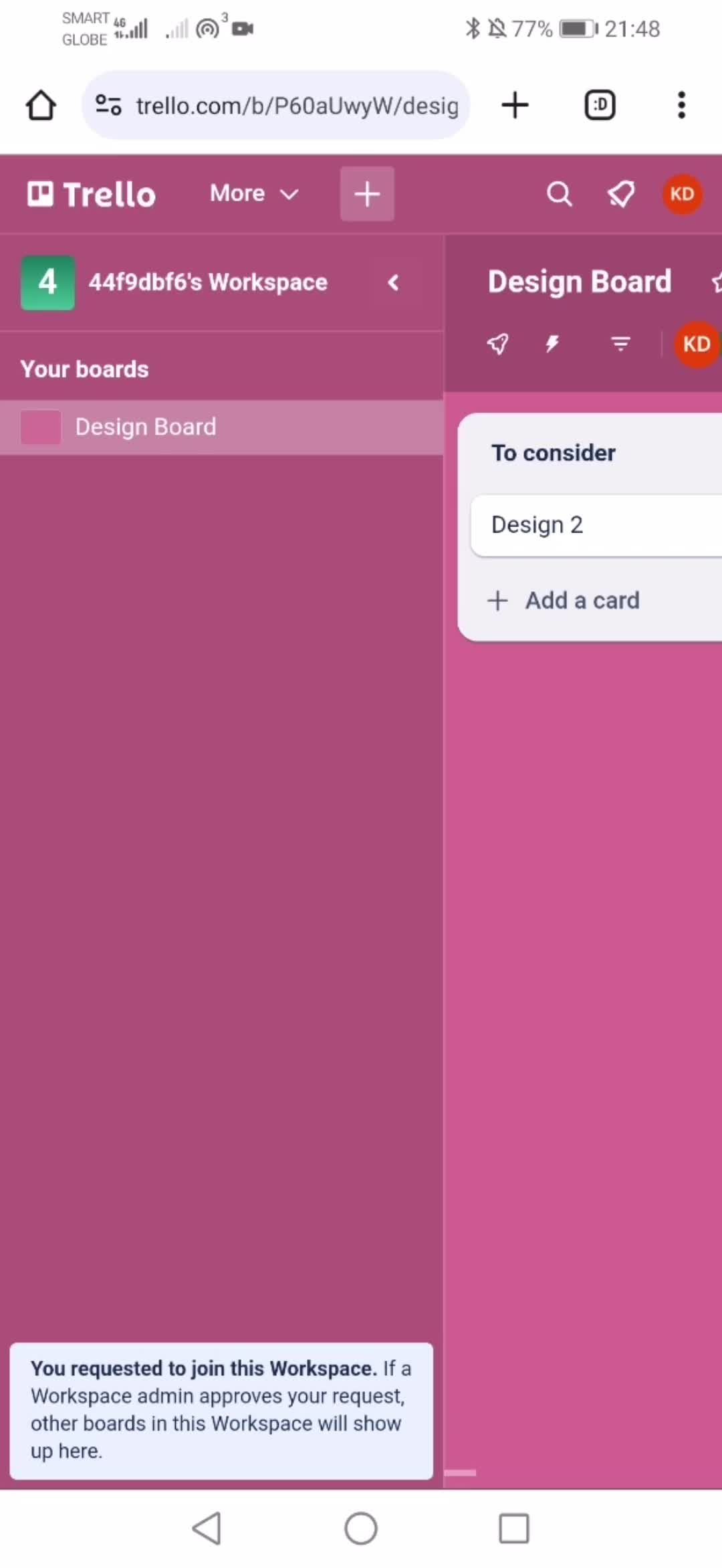
Request sent
this is title
this is title
this is title
this is title
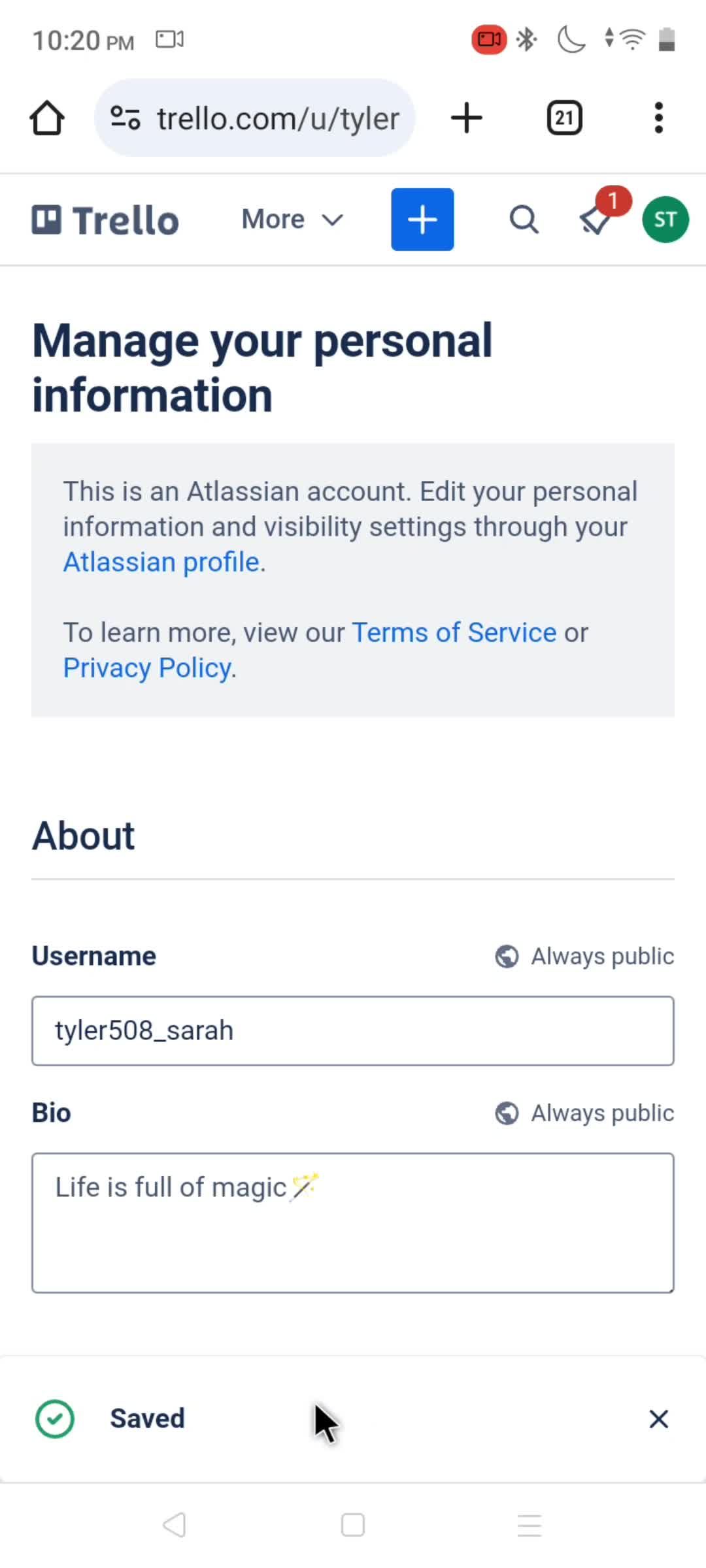
Profile details
this is title
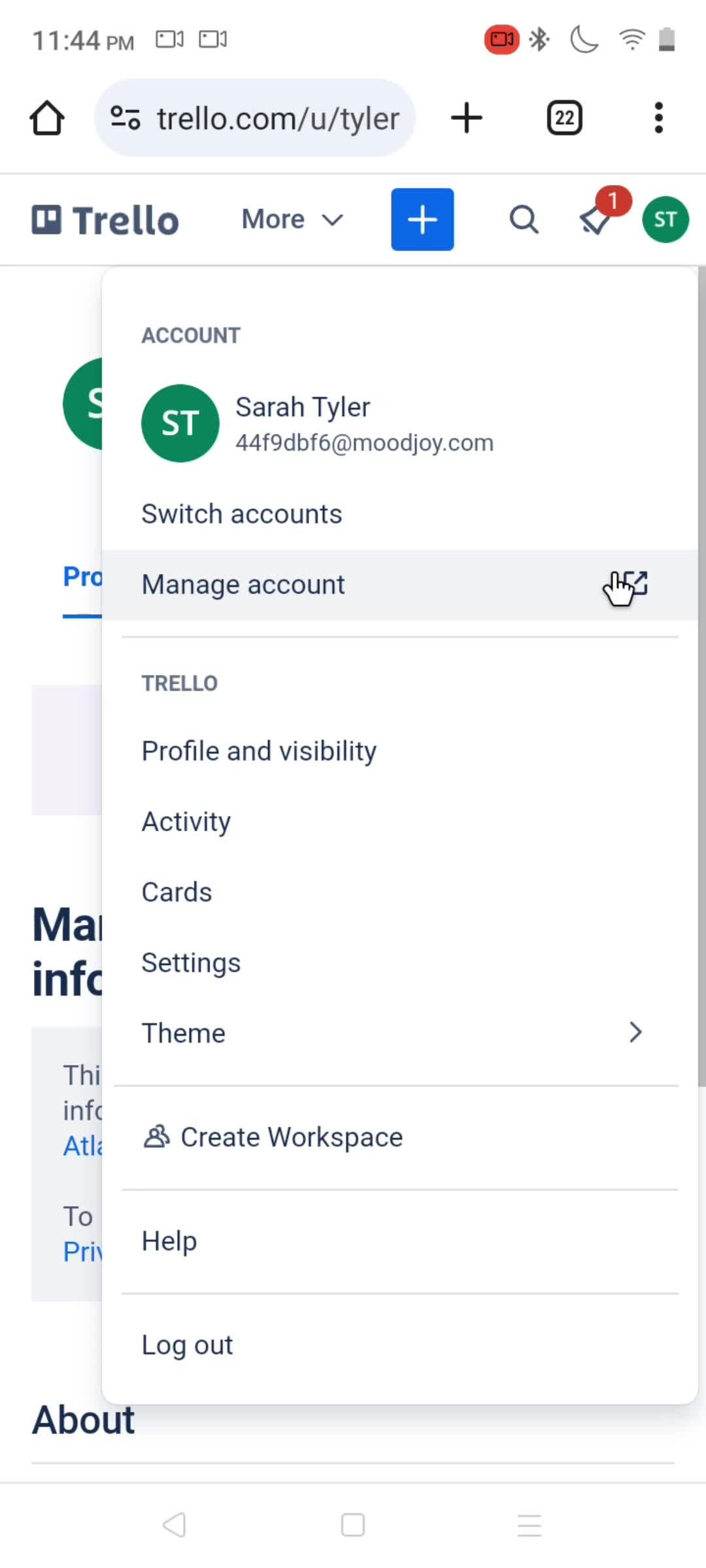
Account menu
this is title
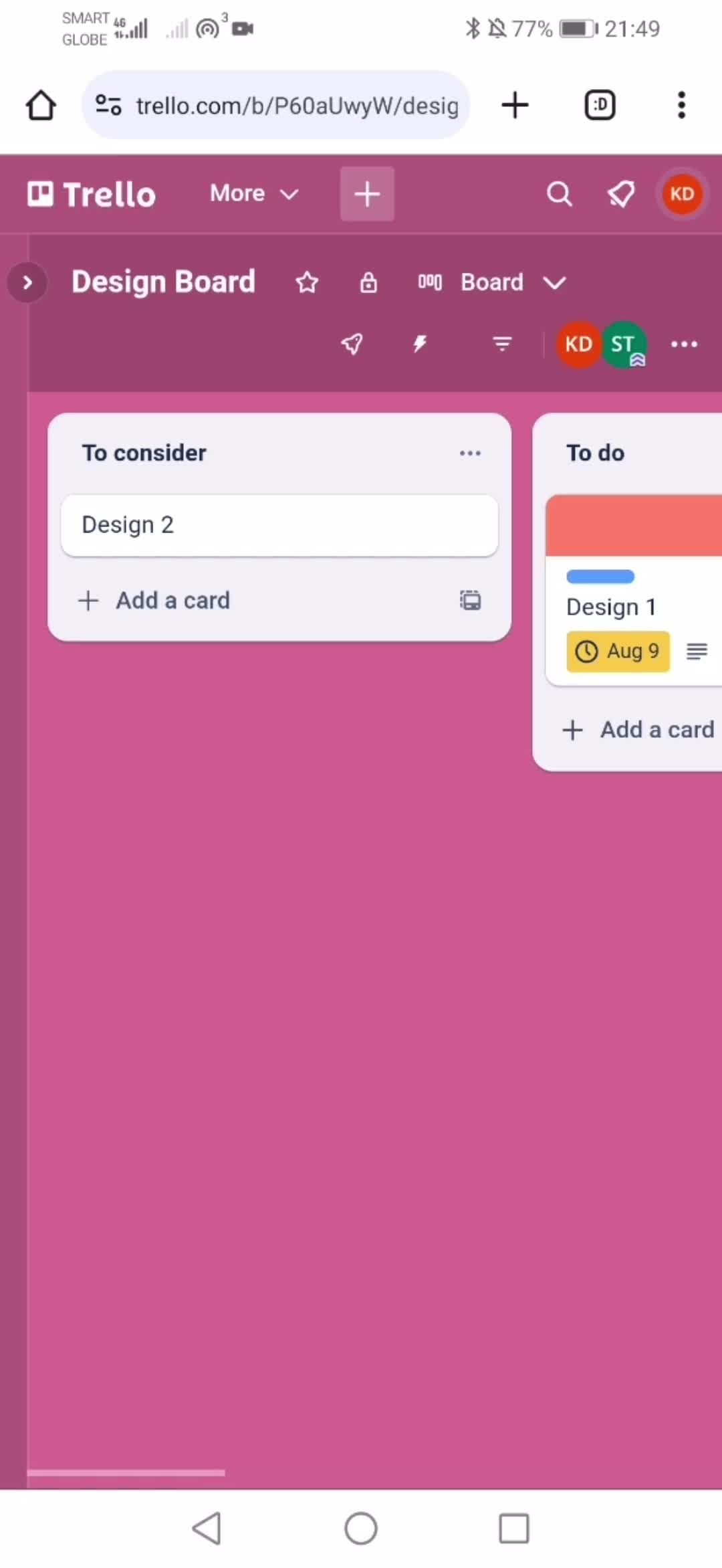
Board
this is title
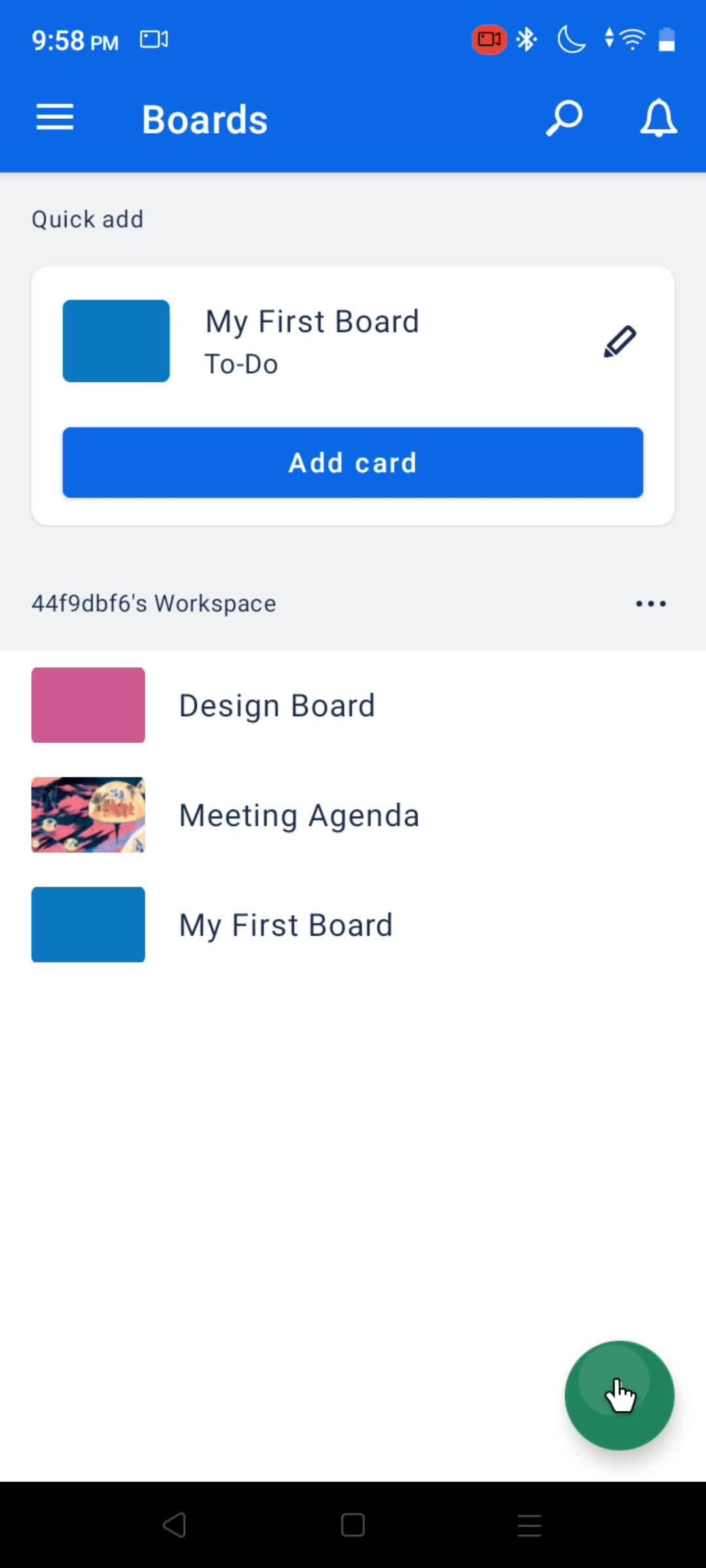
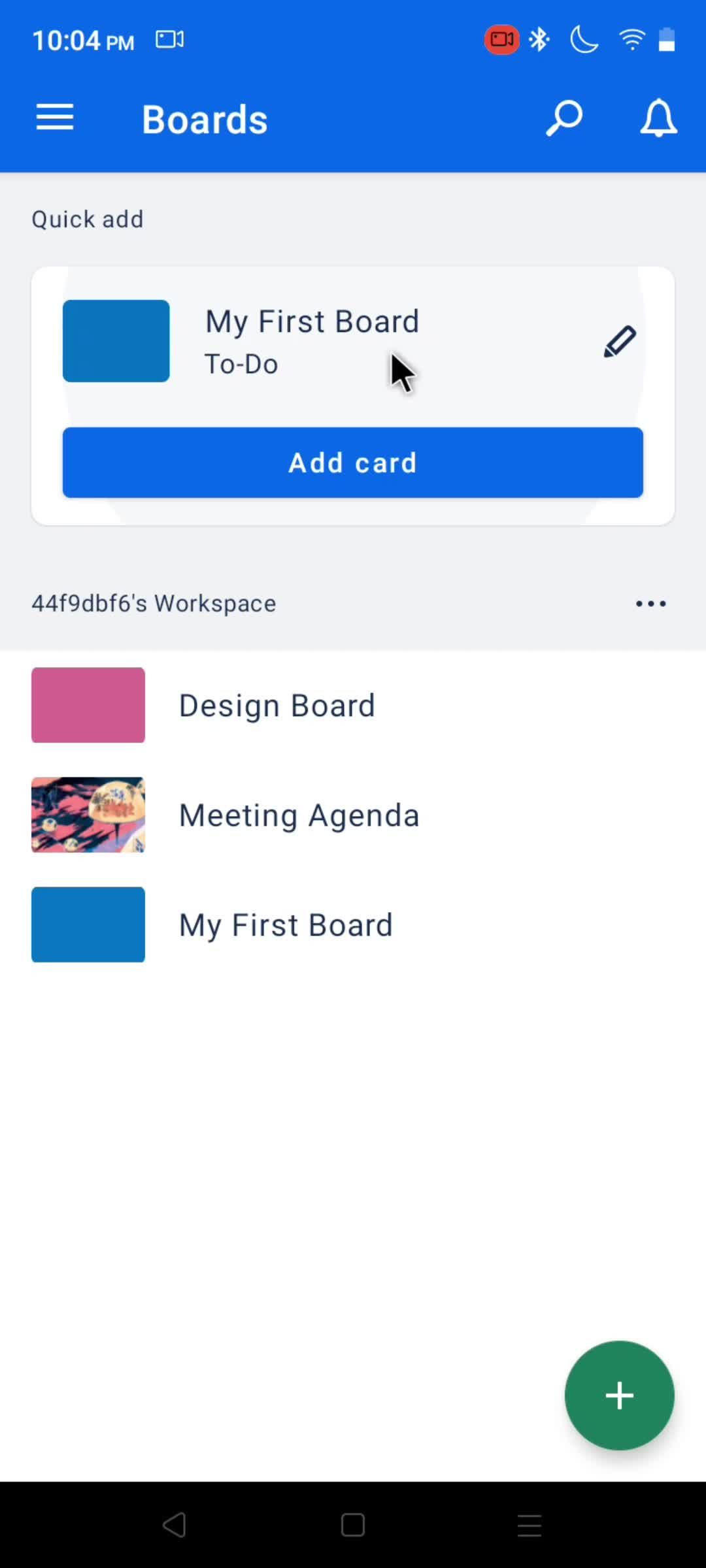
Boards
this is title
this is title
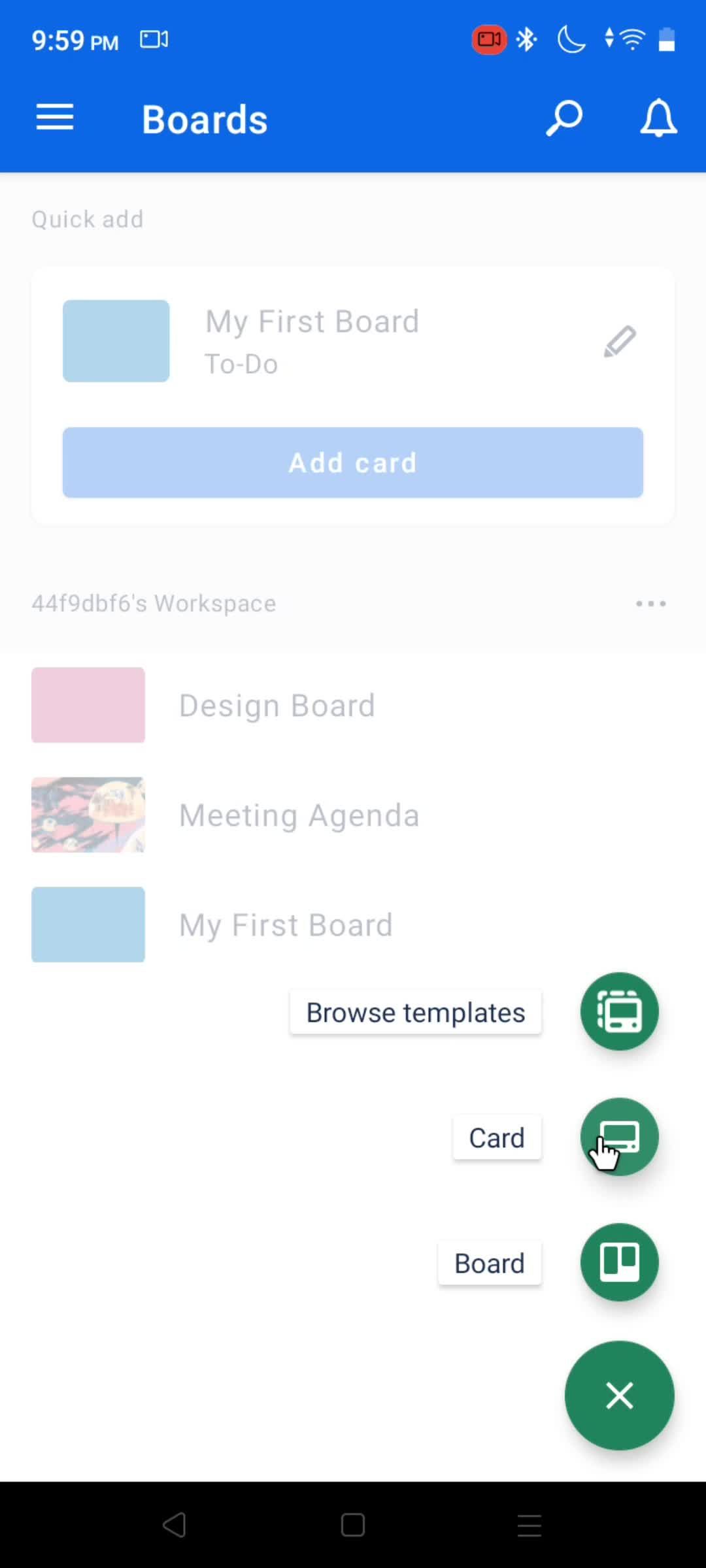
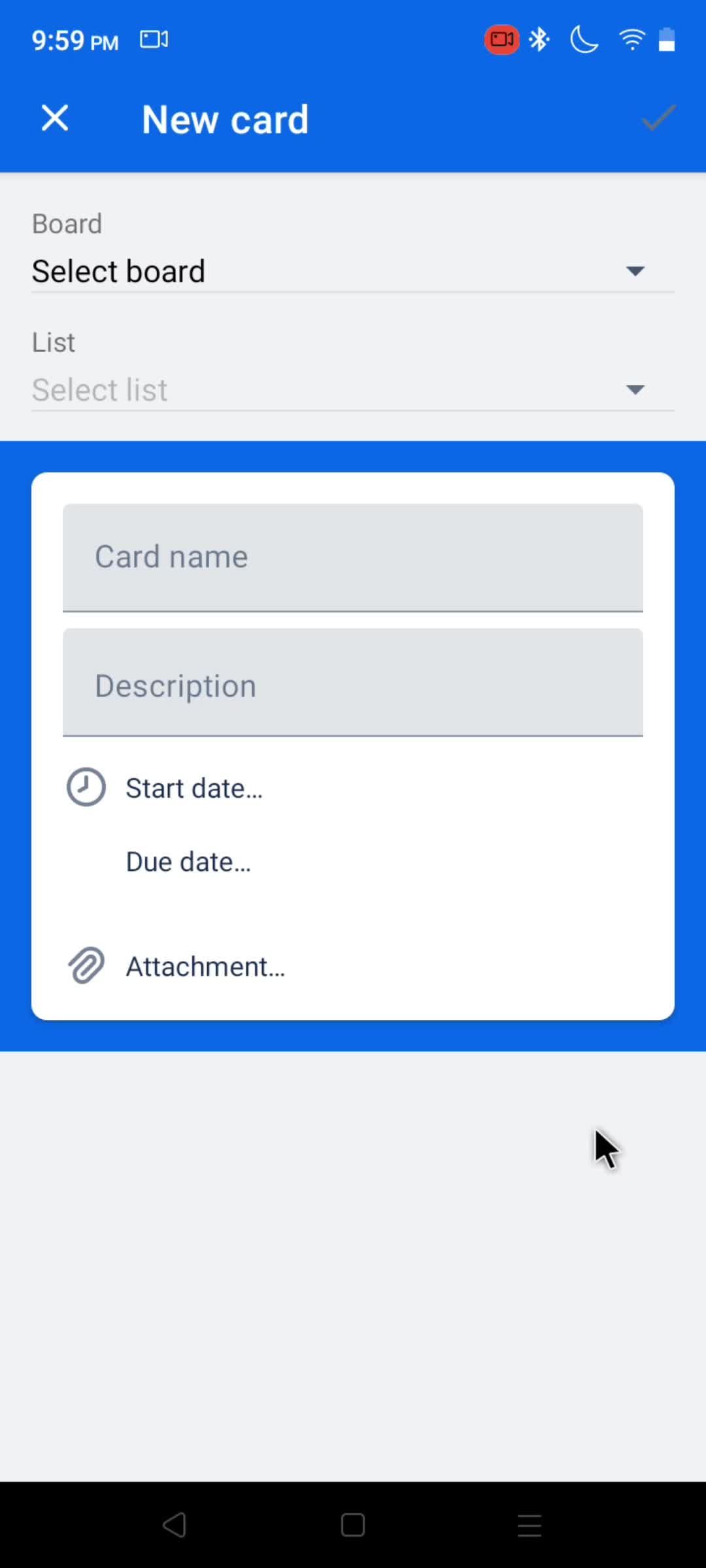
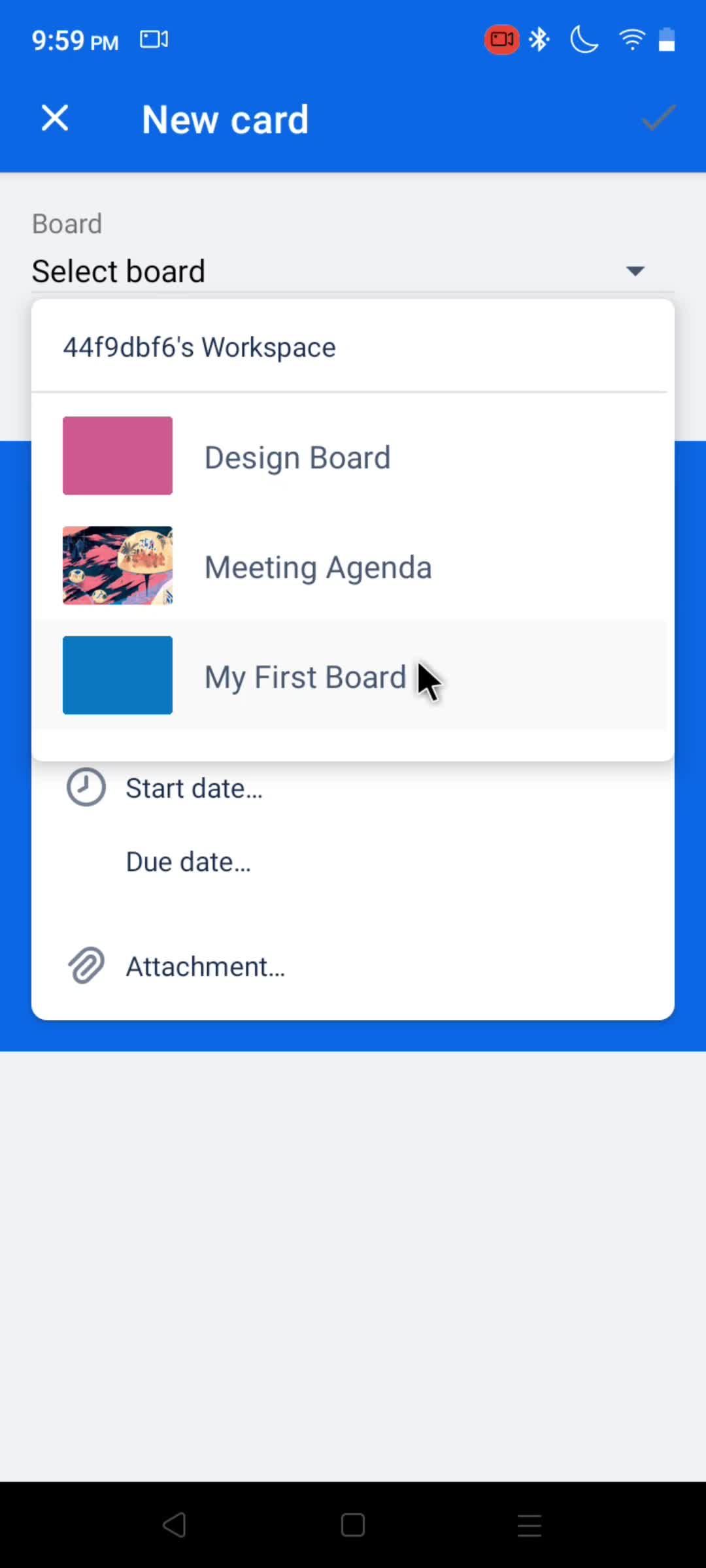
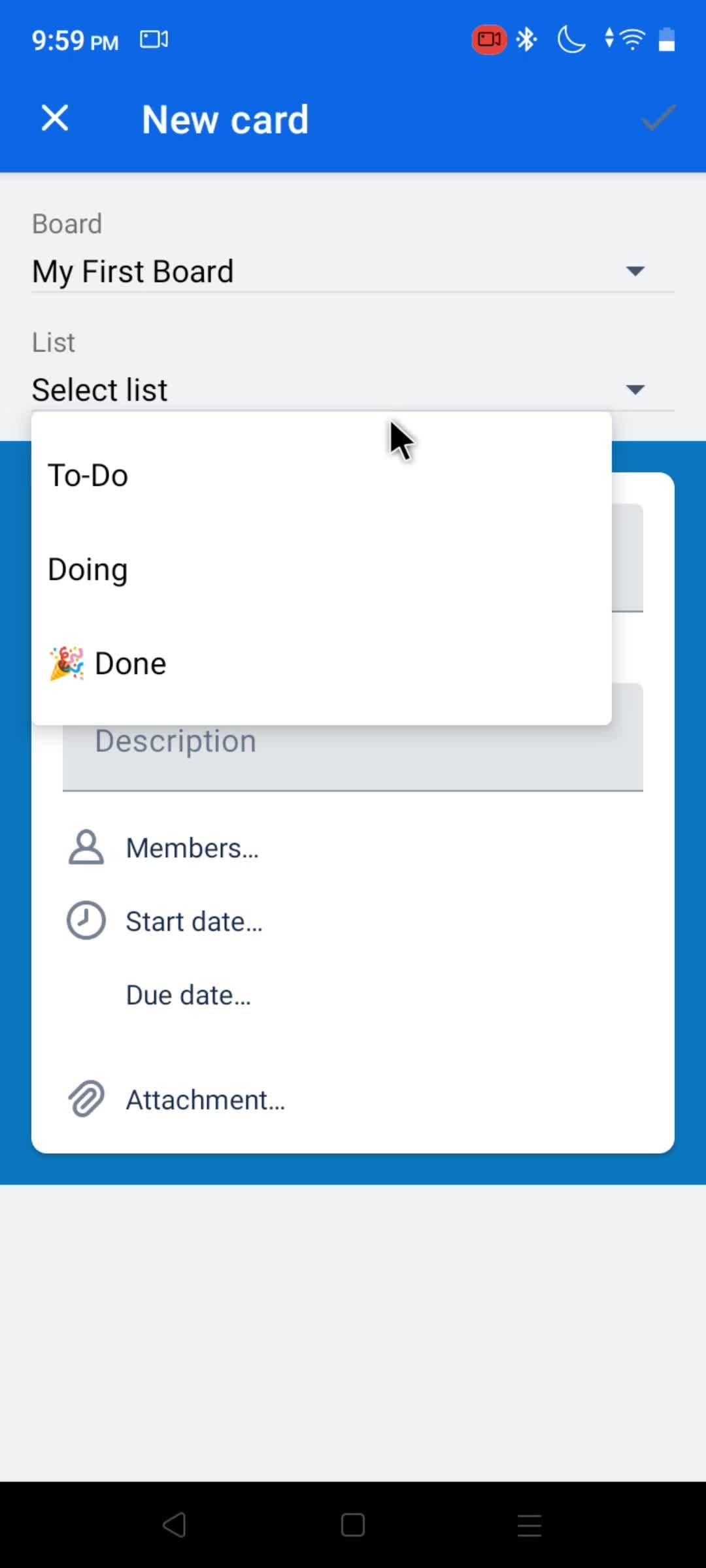
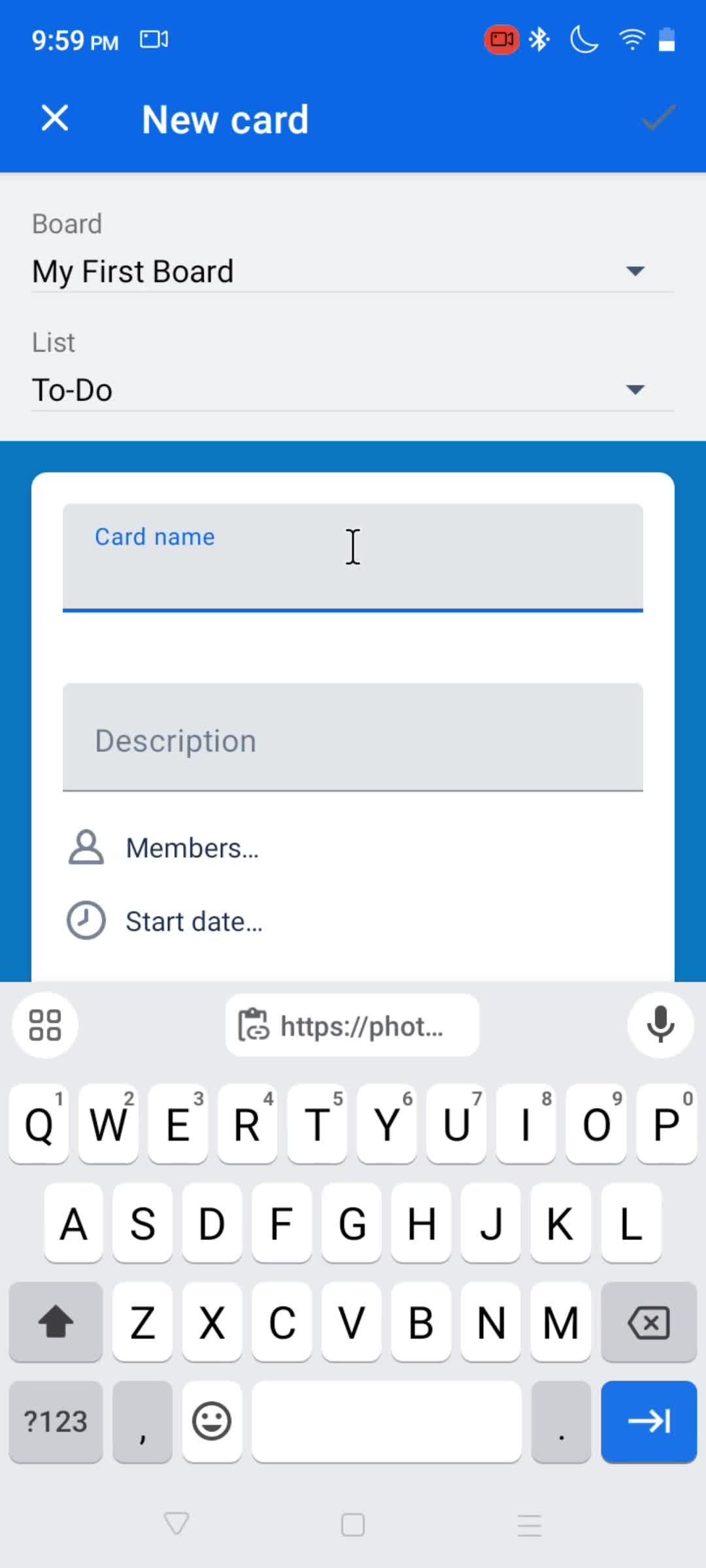
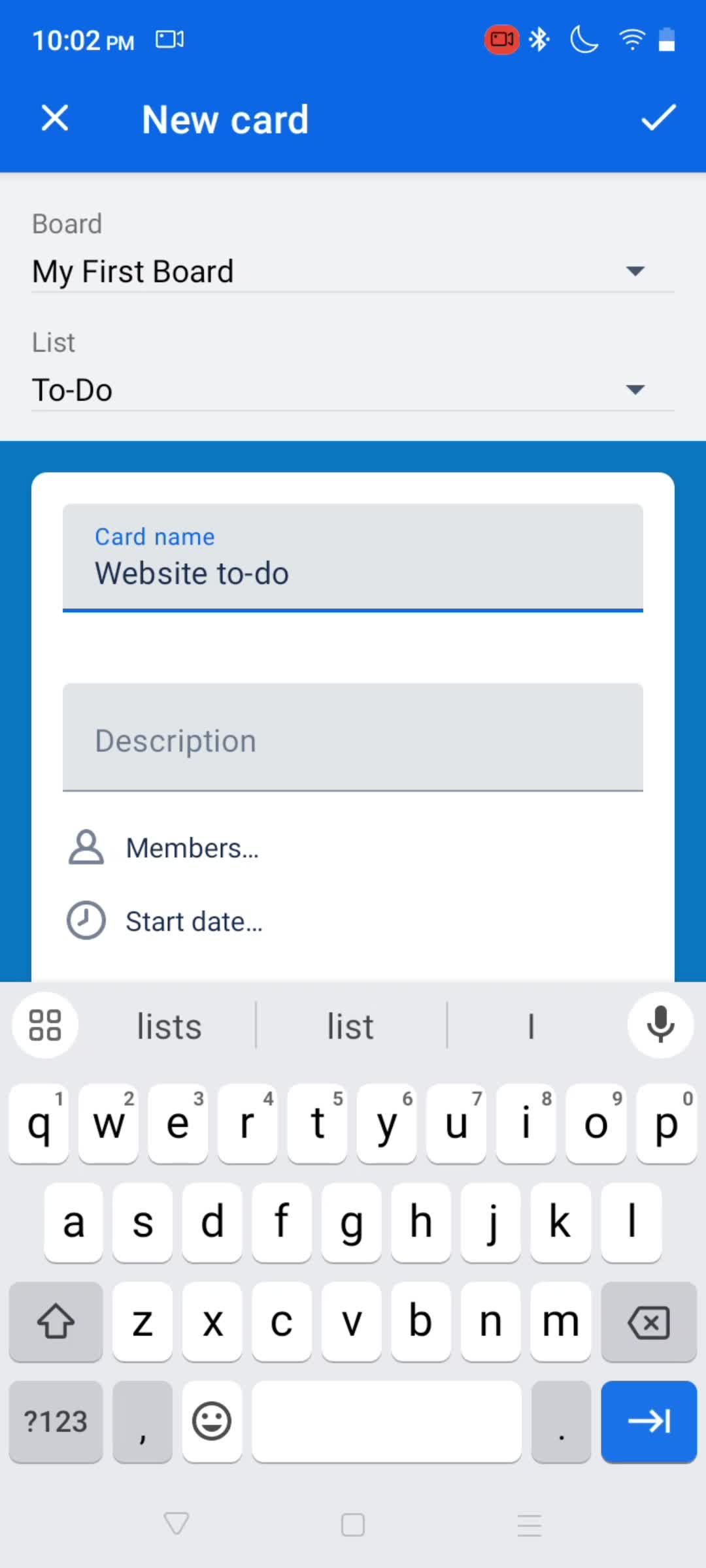
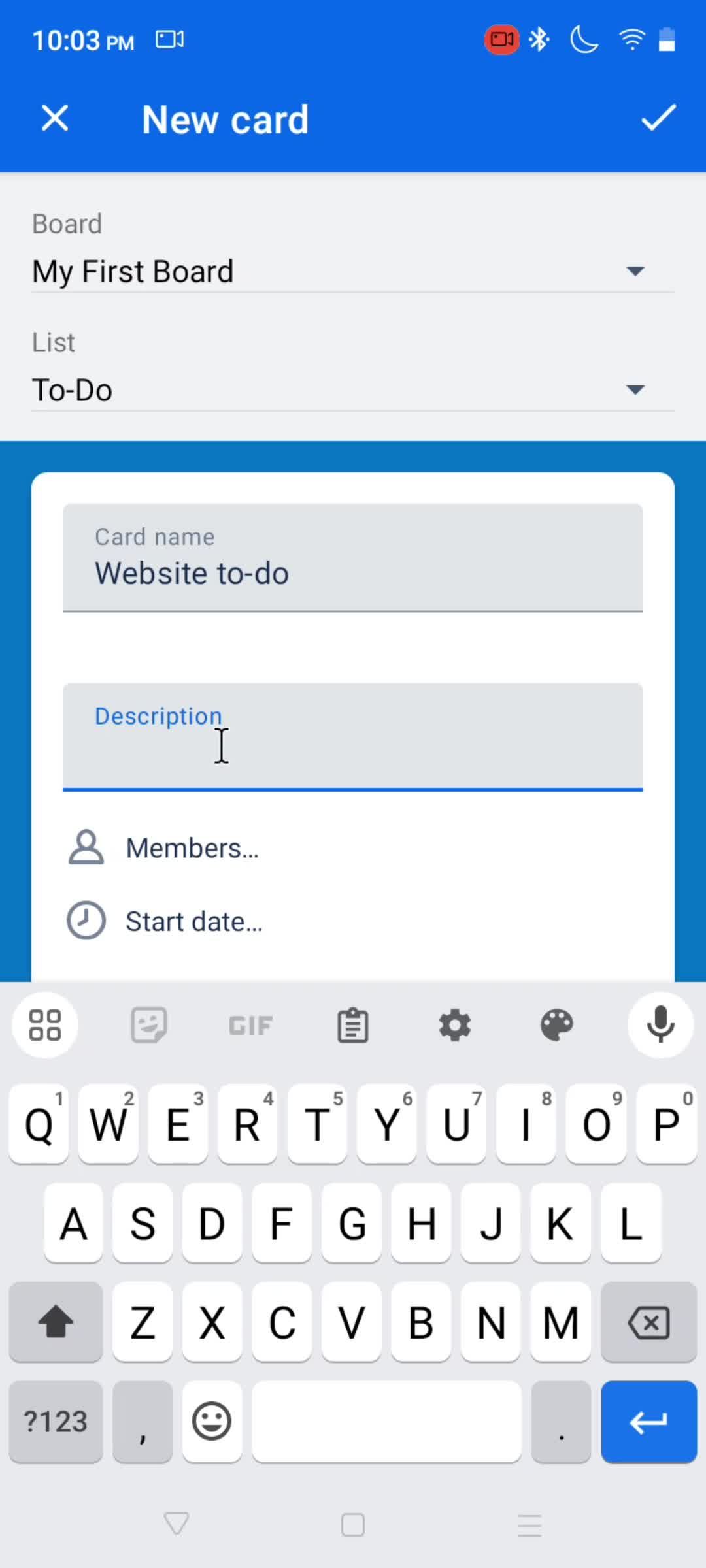
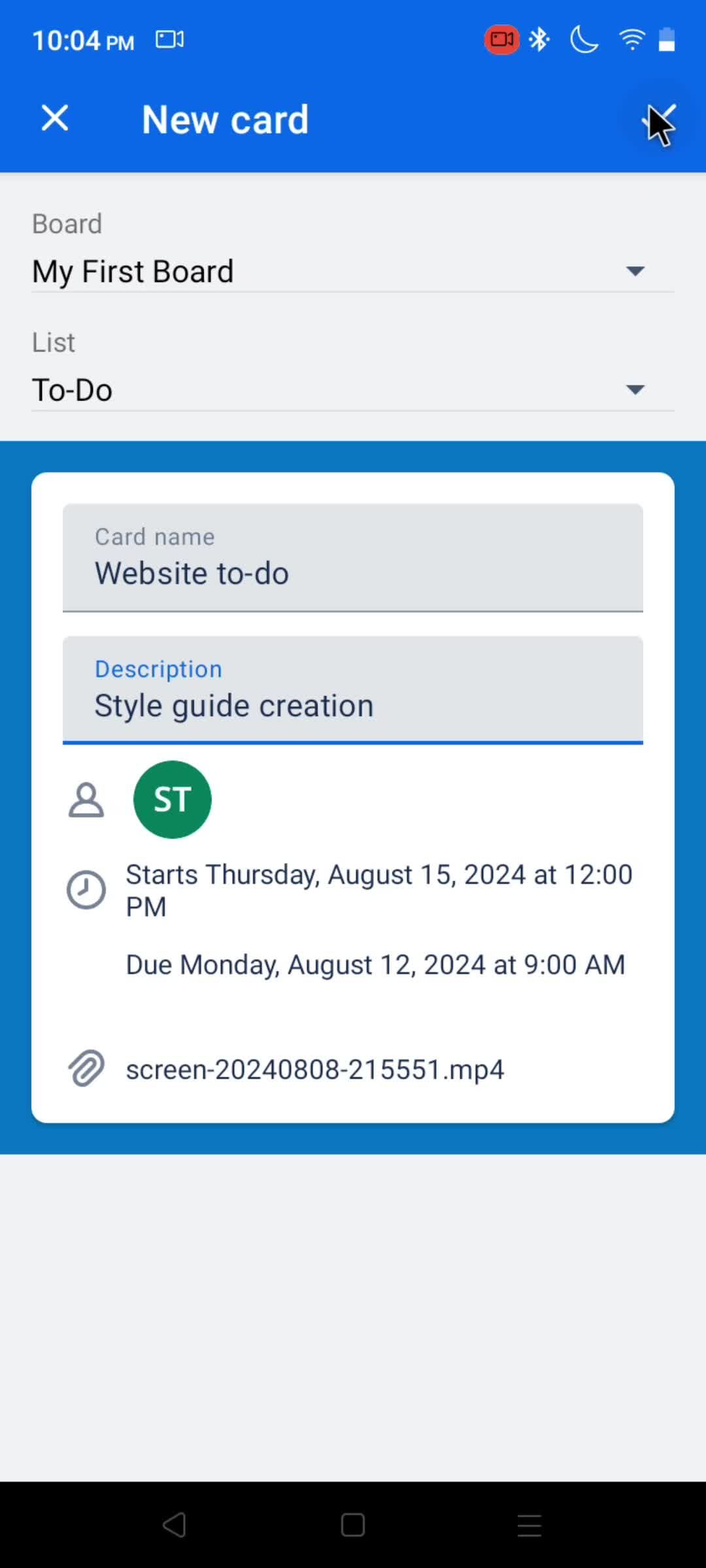
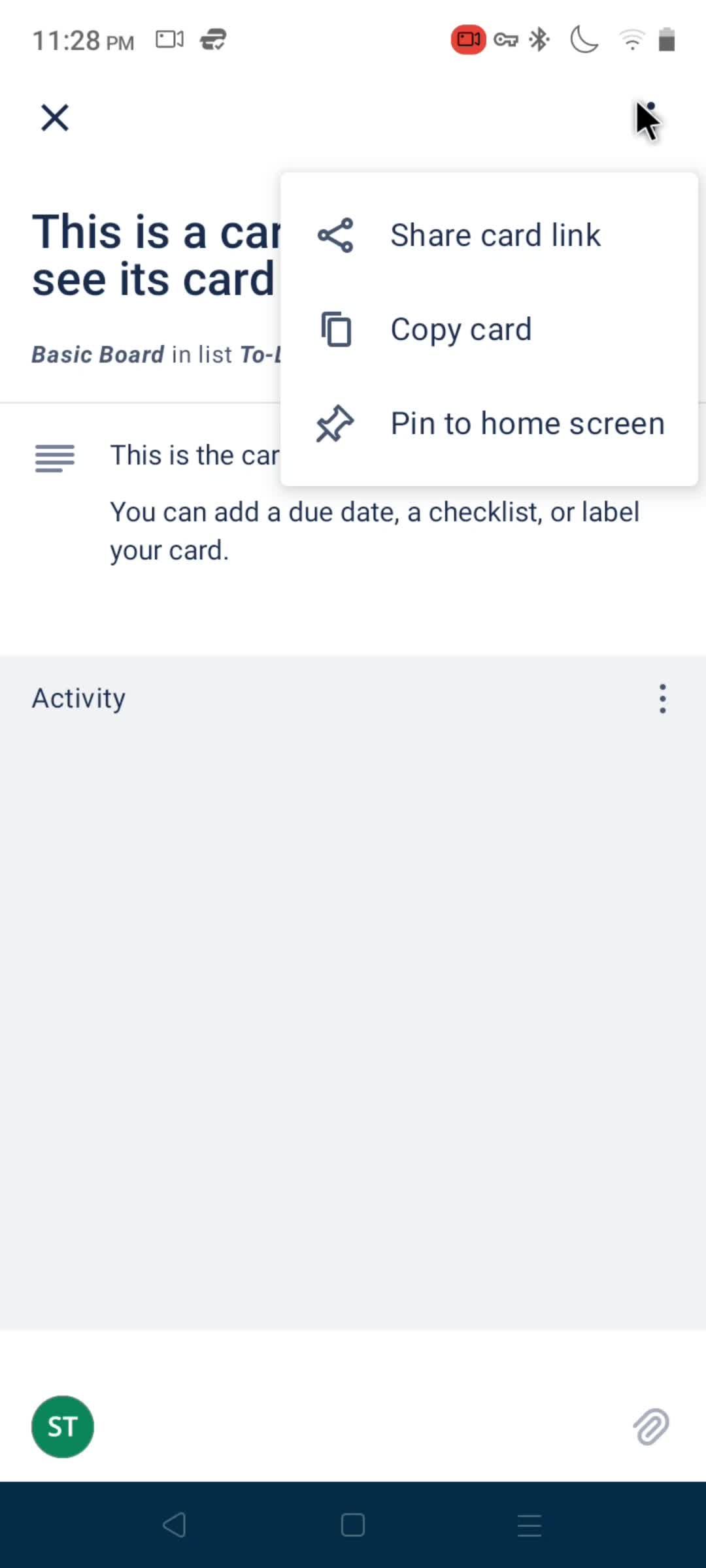
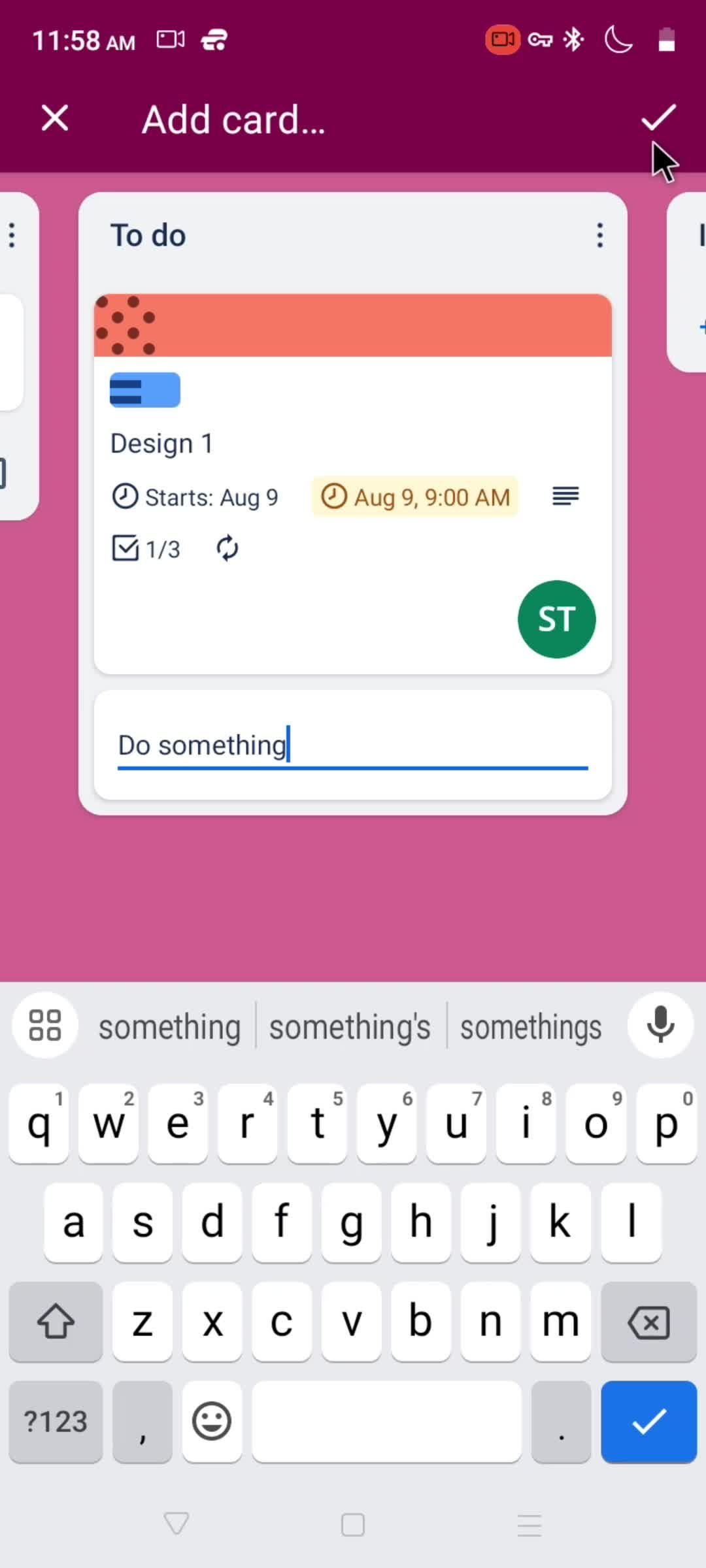
Create card
this is title
Choose board
this is title
Select list
this is title
Enter title
this is title
this is title
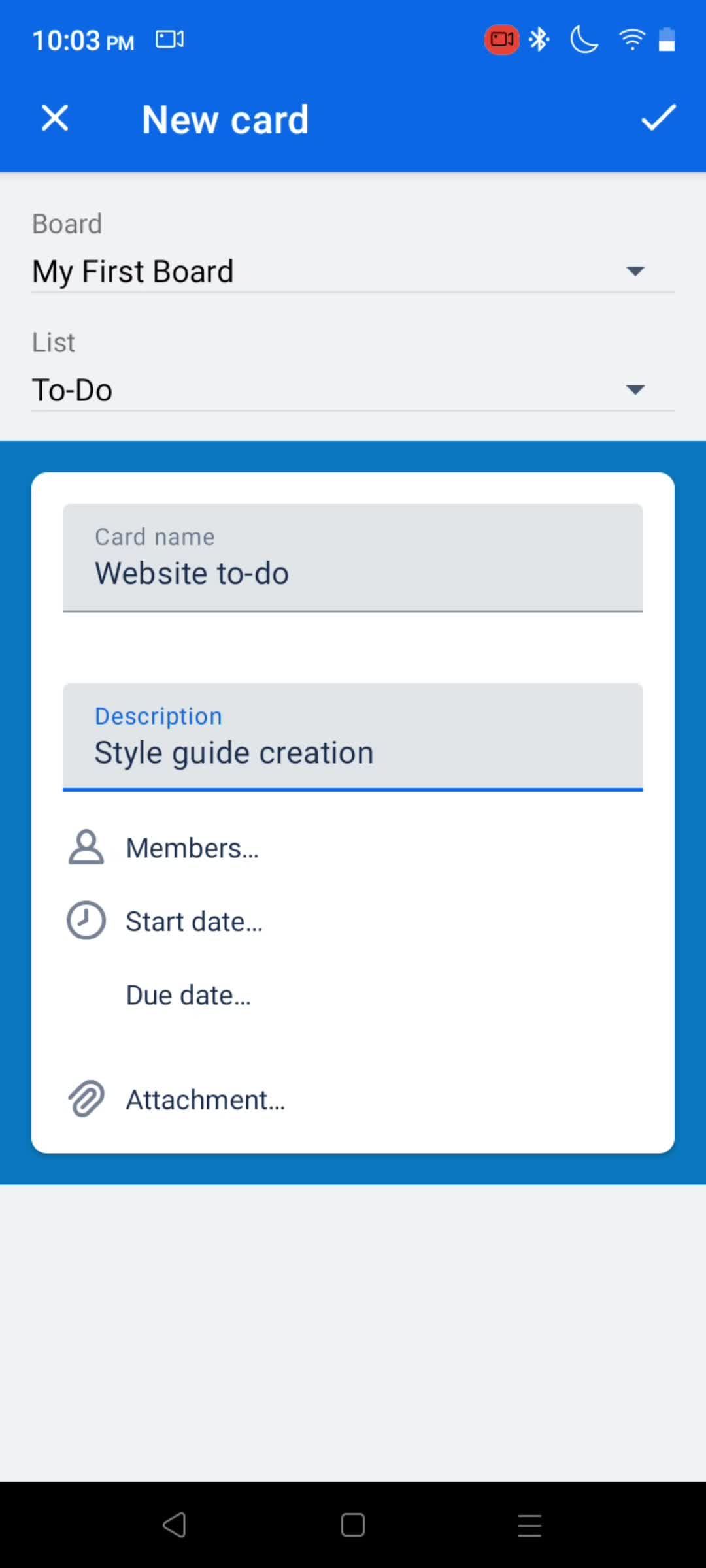
Enter description
this is title
this is title
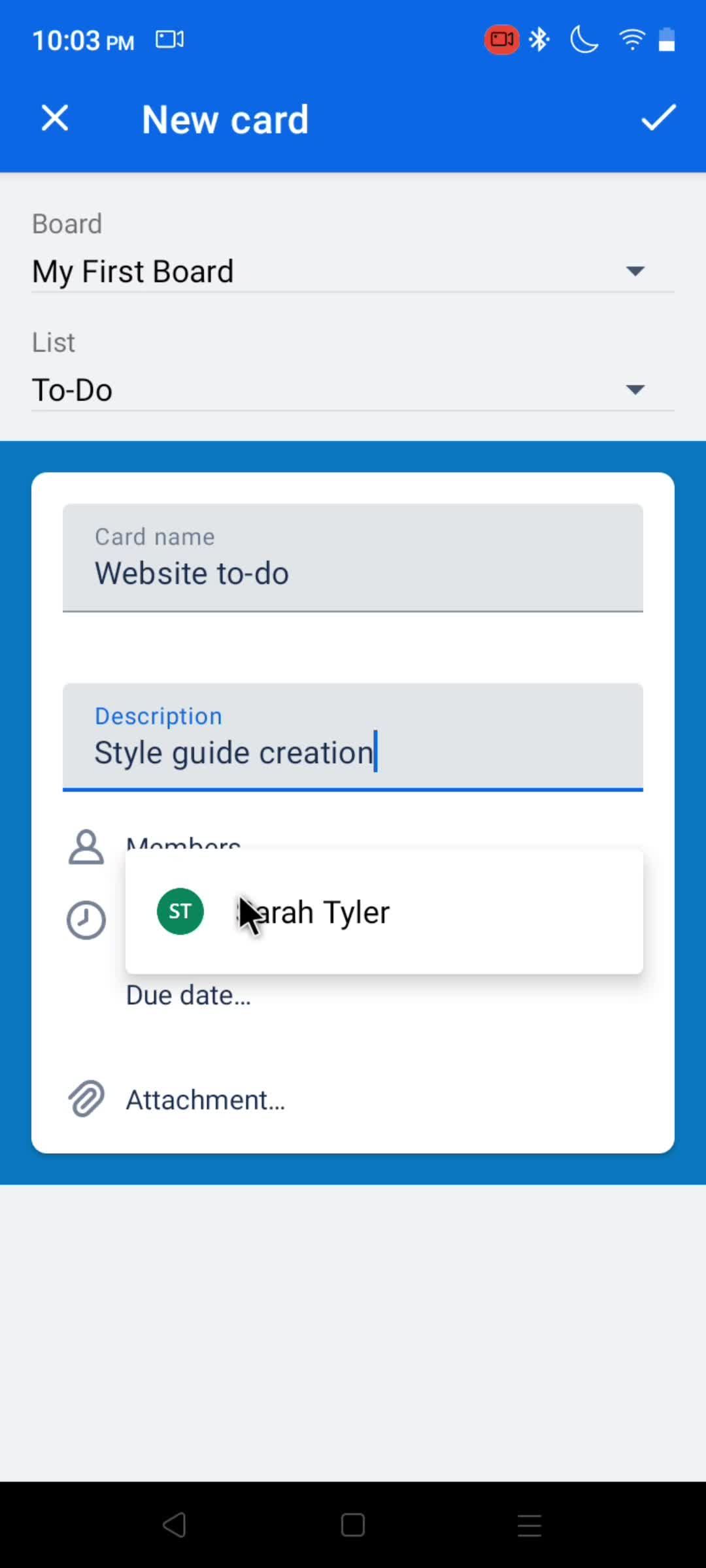
Select team member
this is title
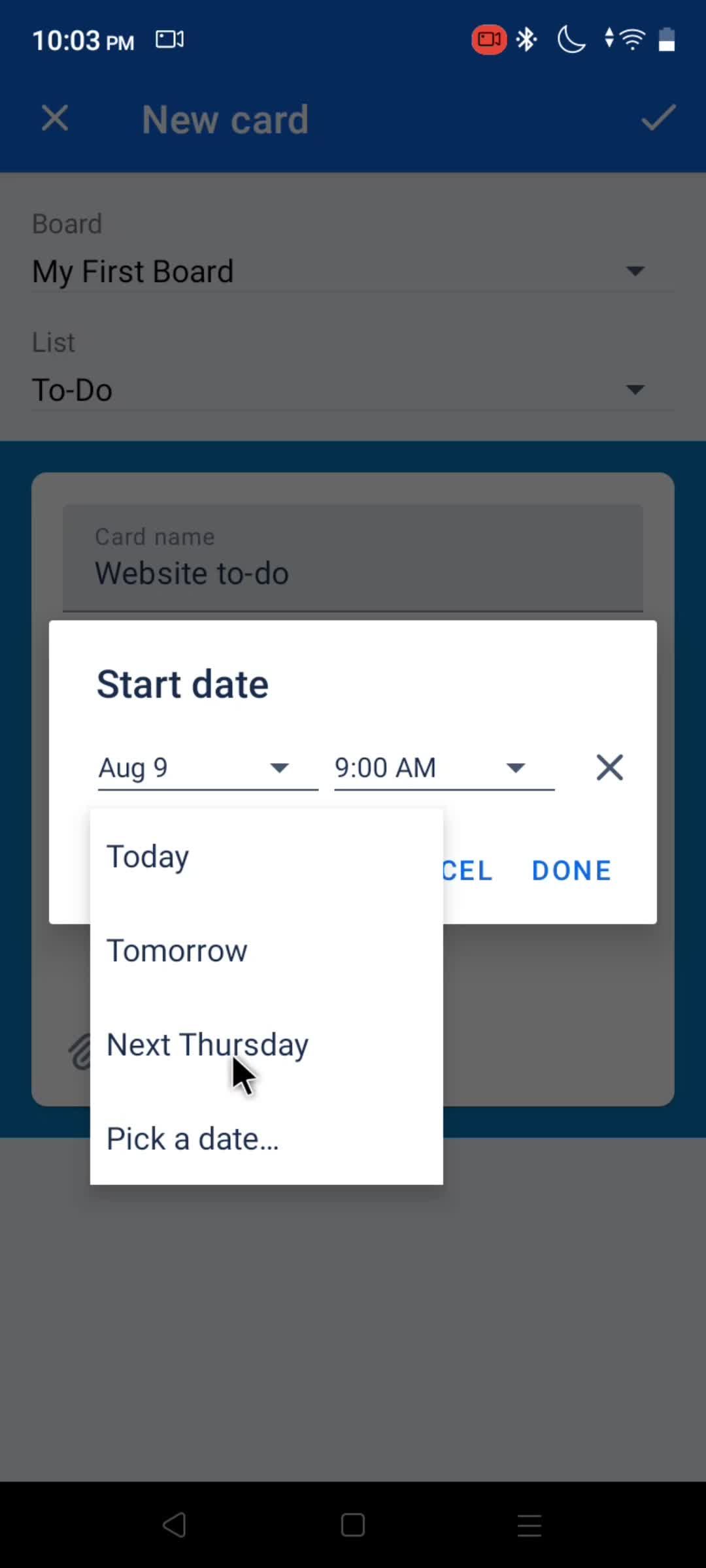
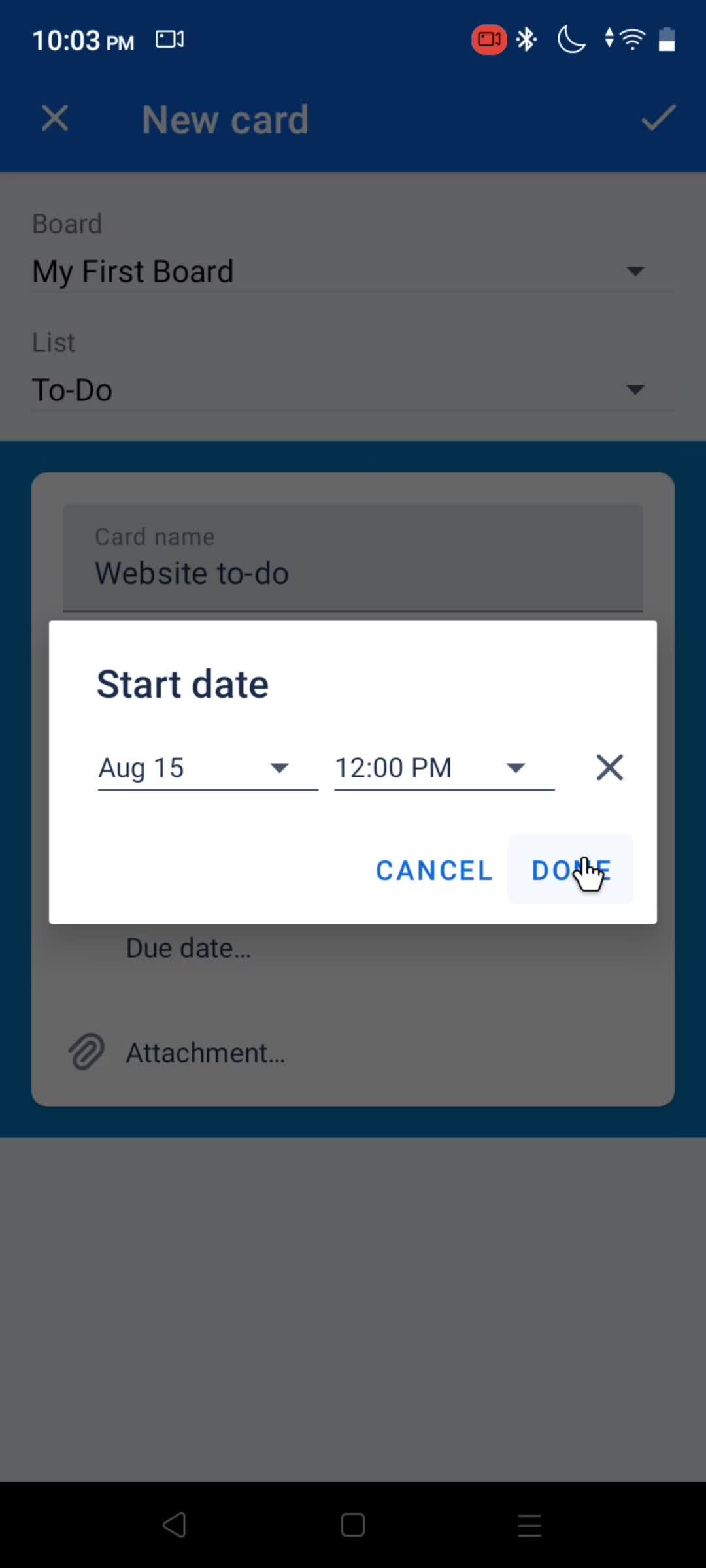
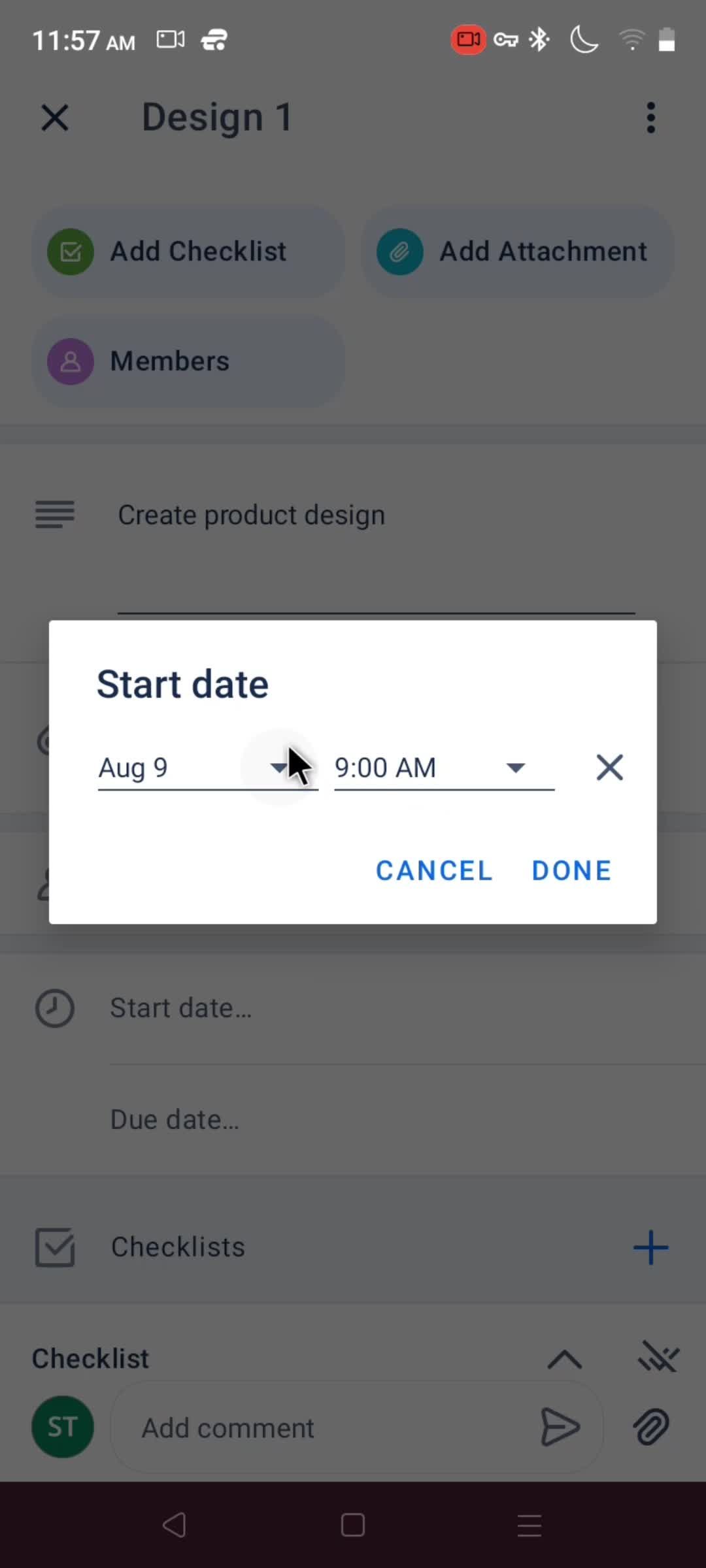
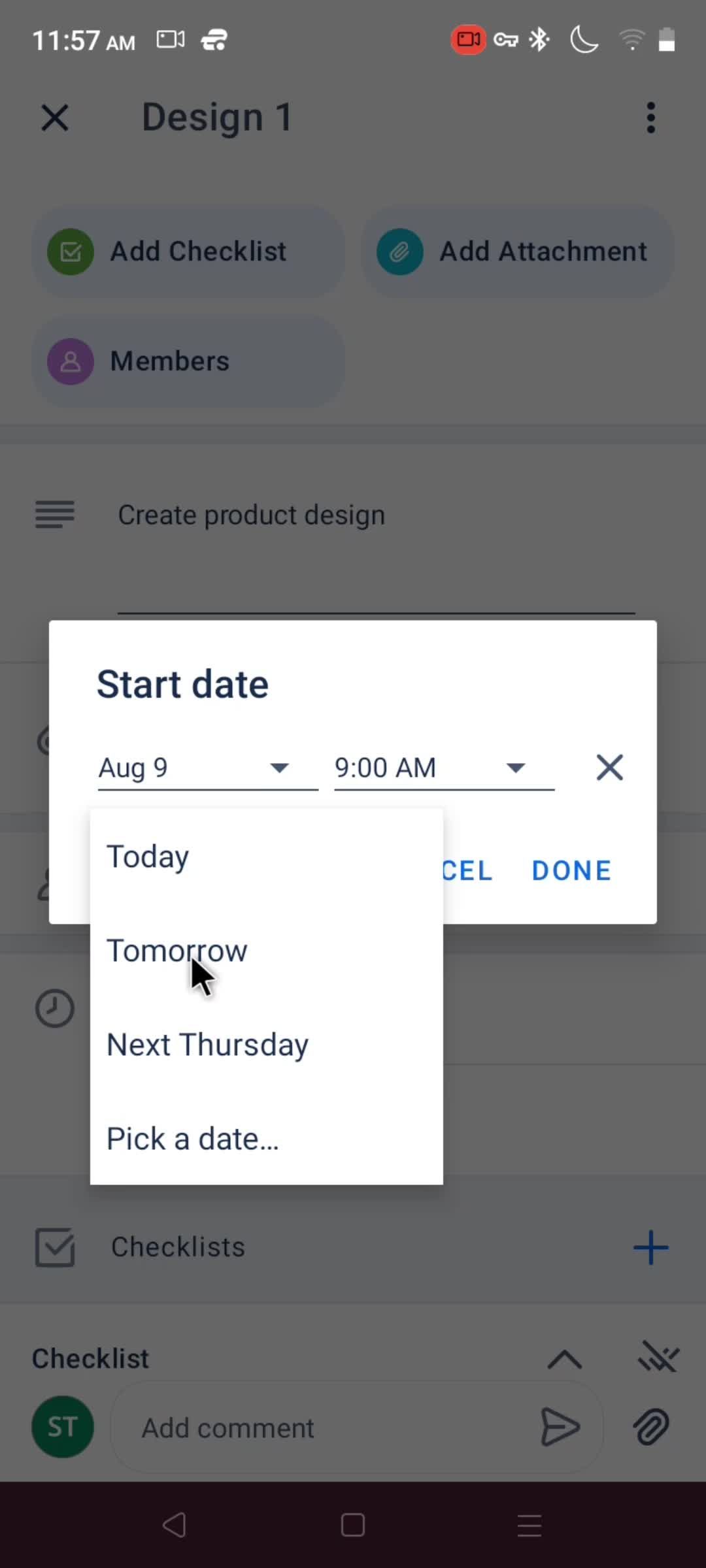
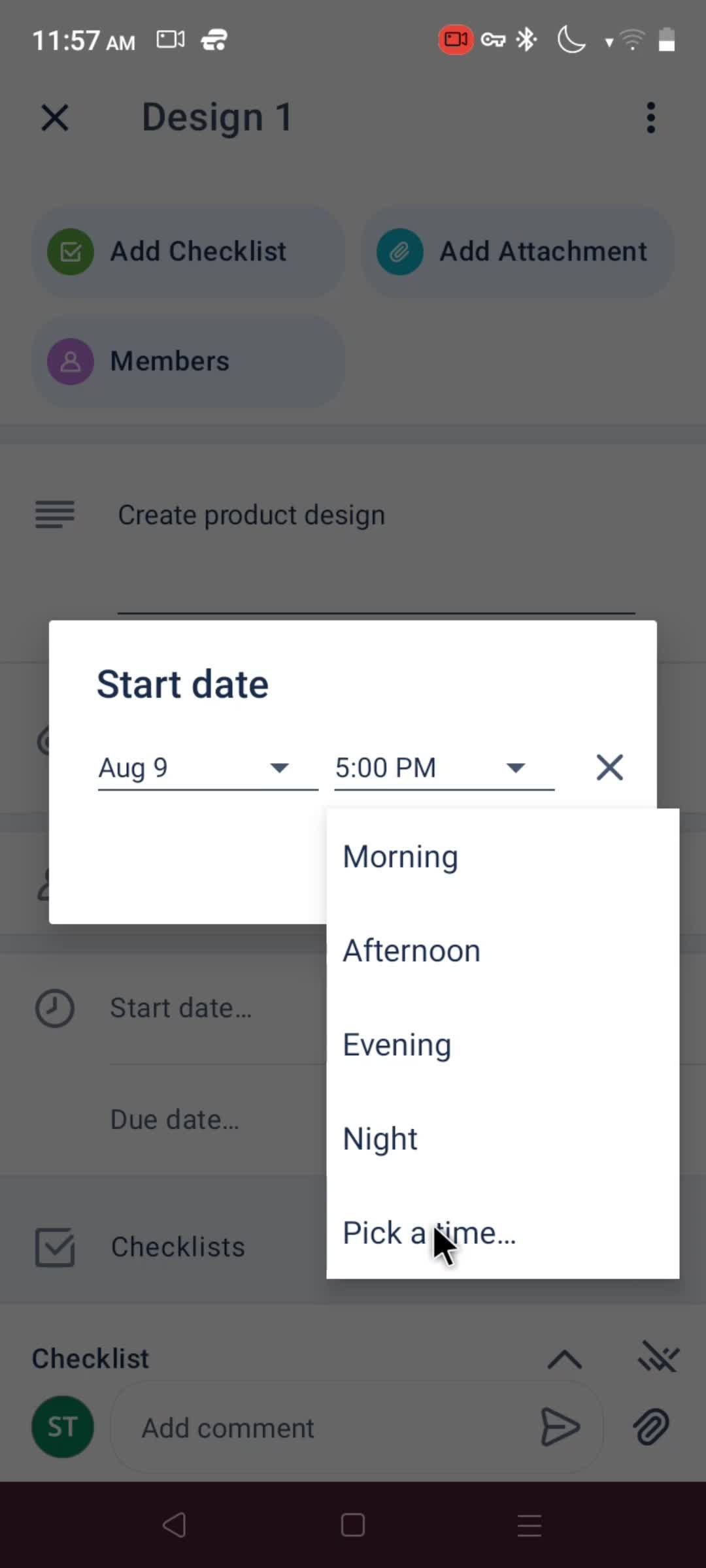
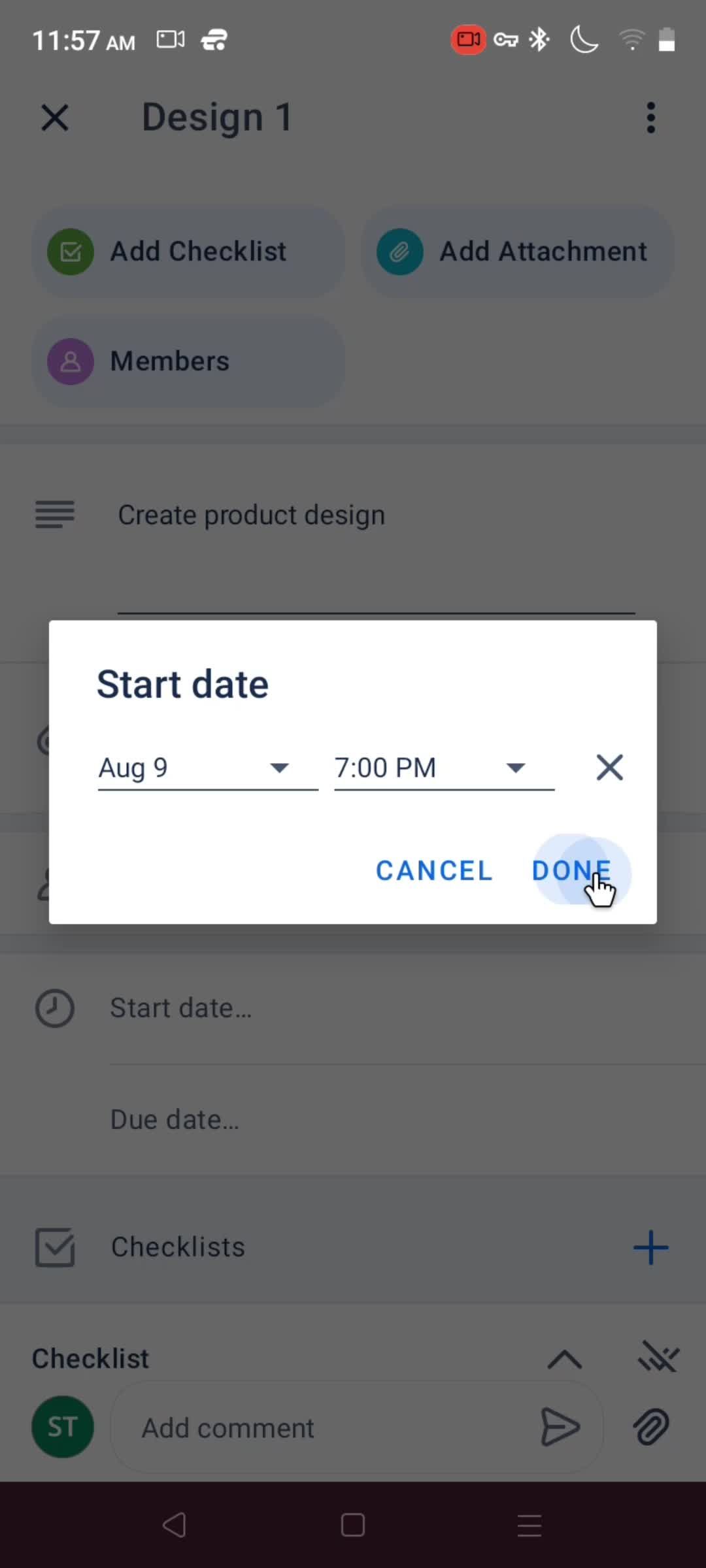
Select start date
this is title
this is title
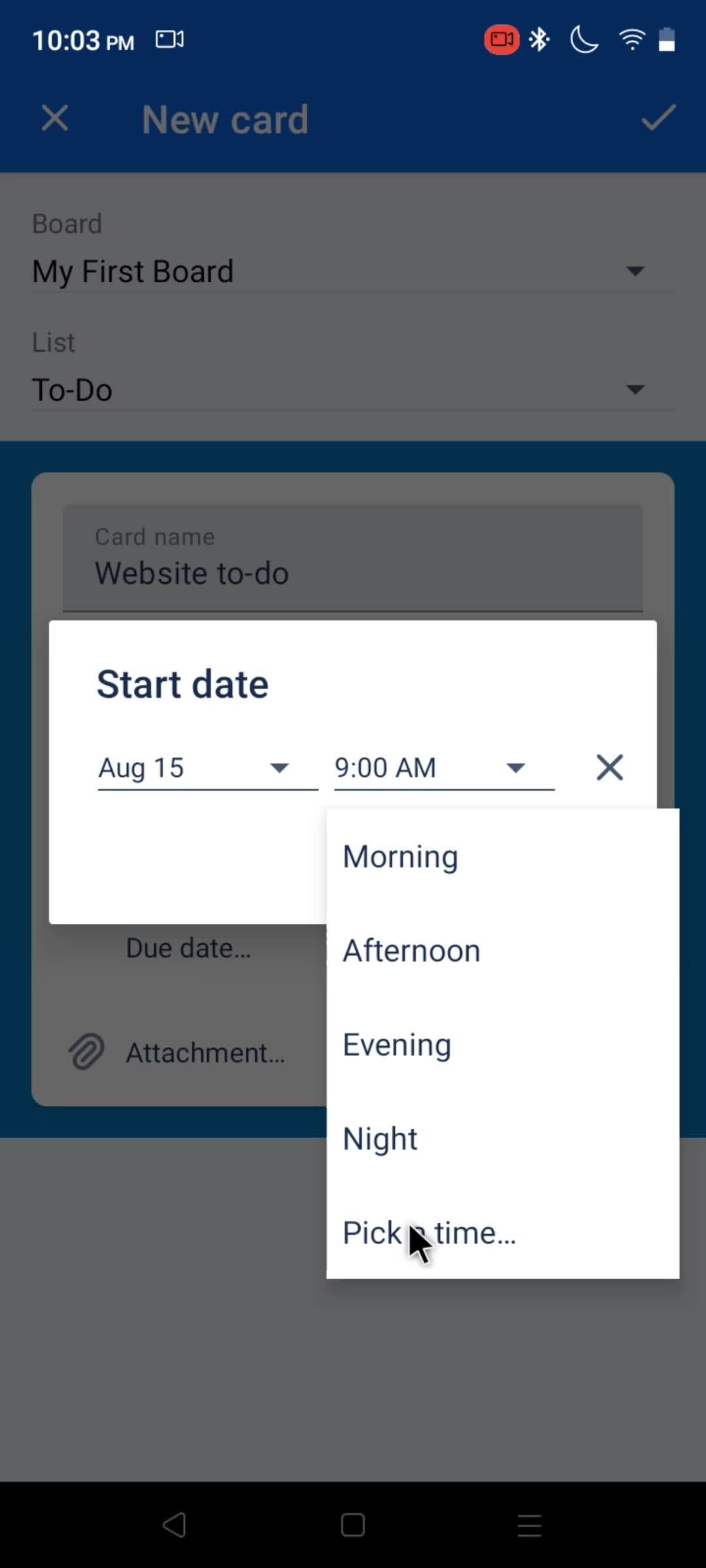
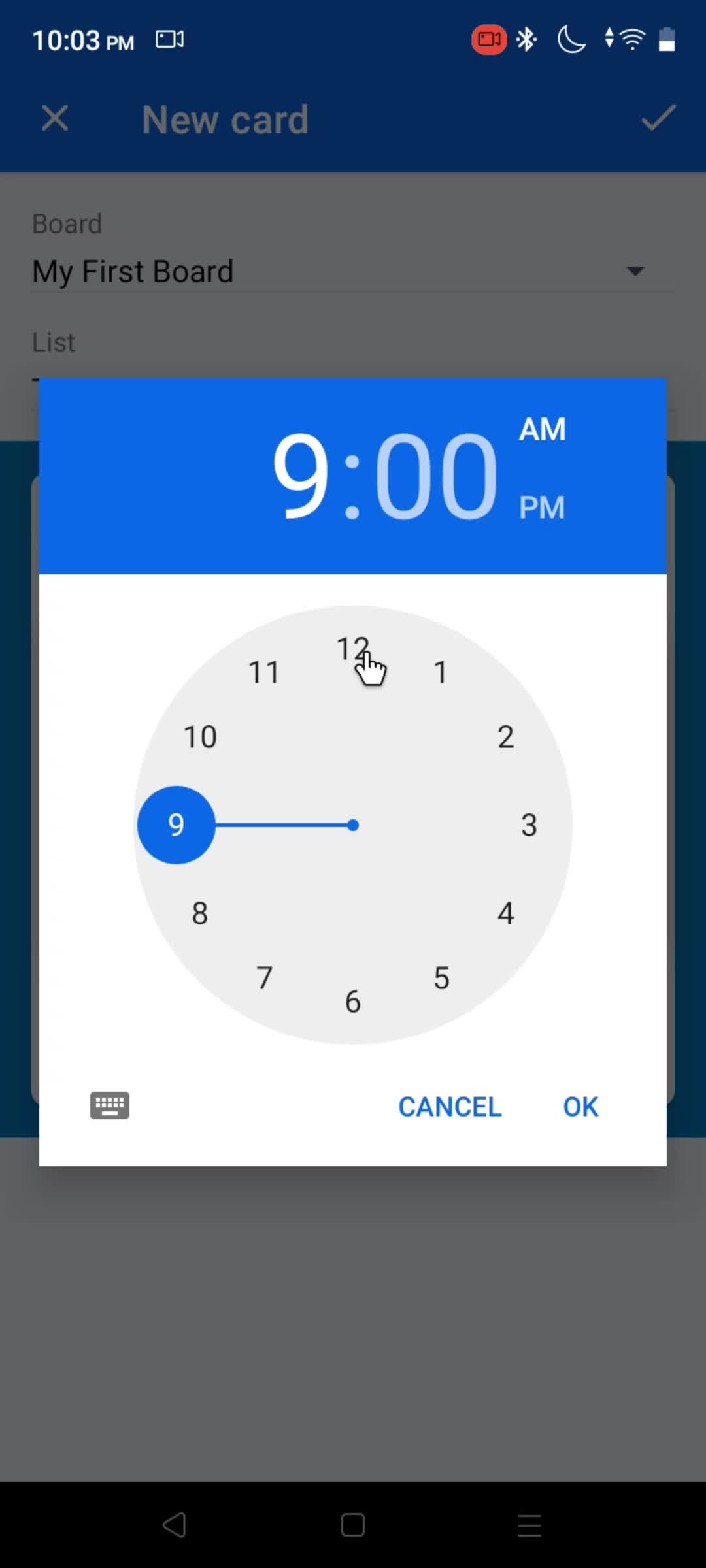
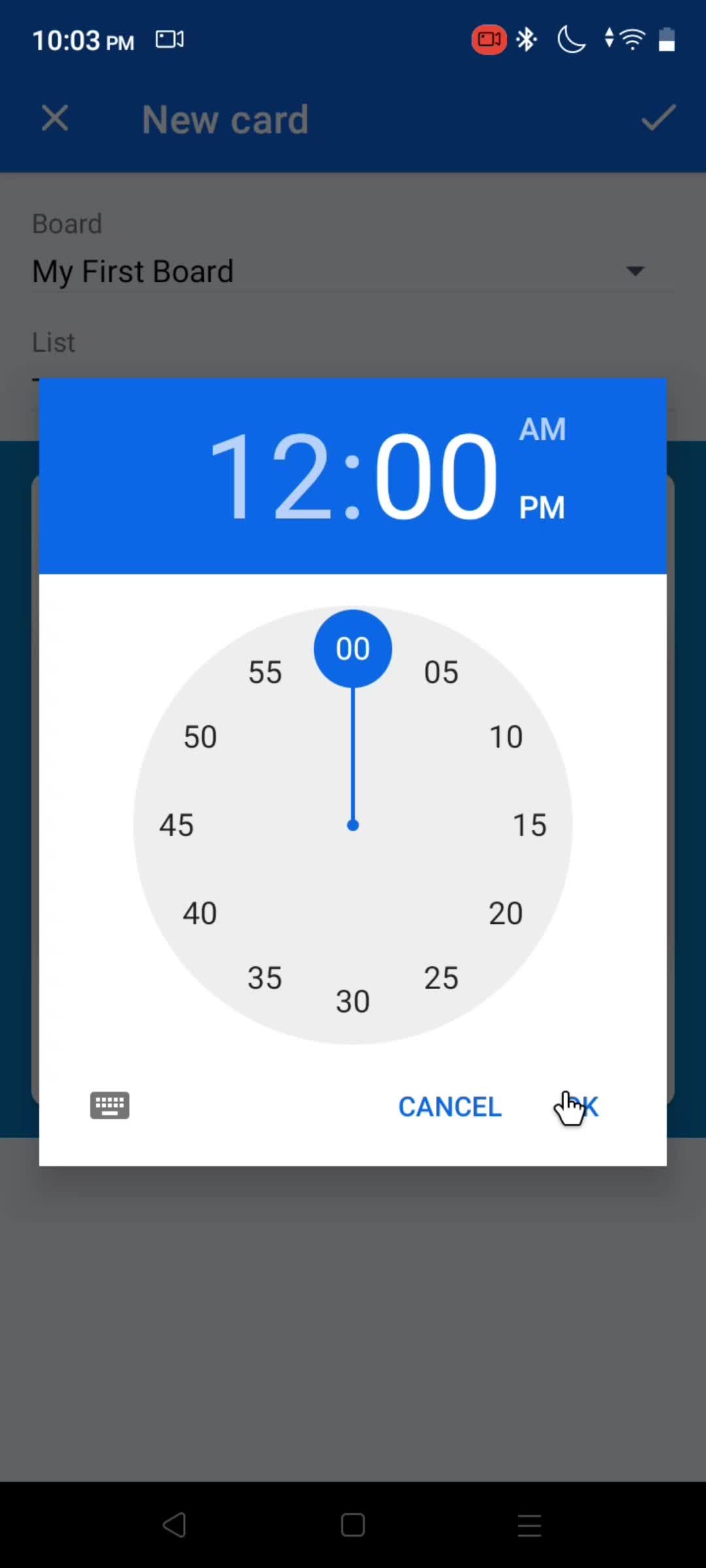
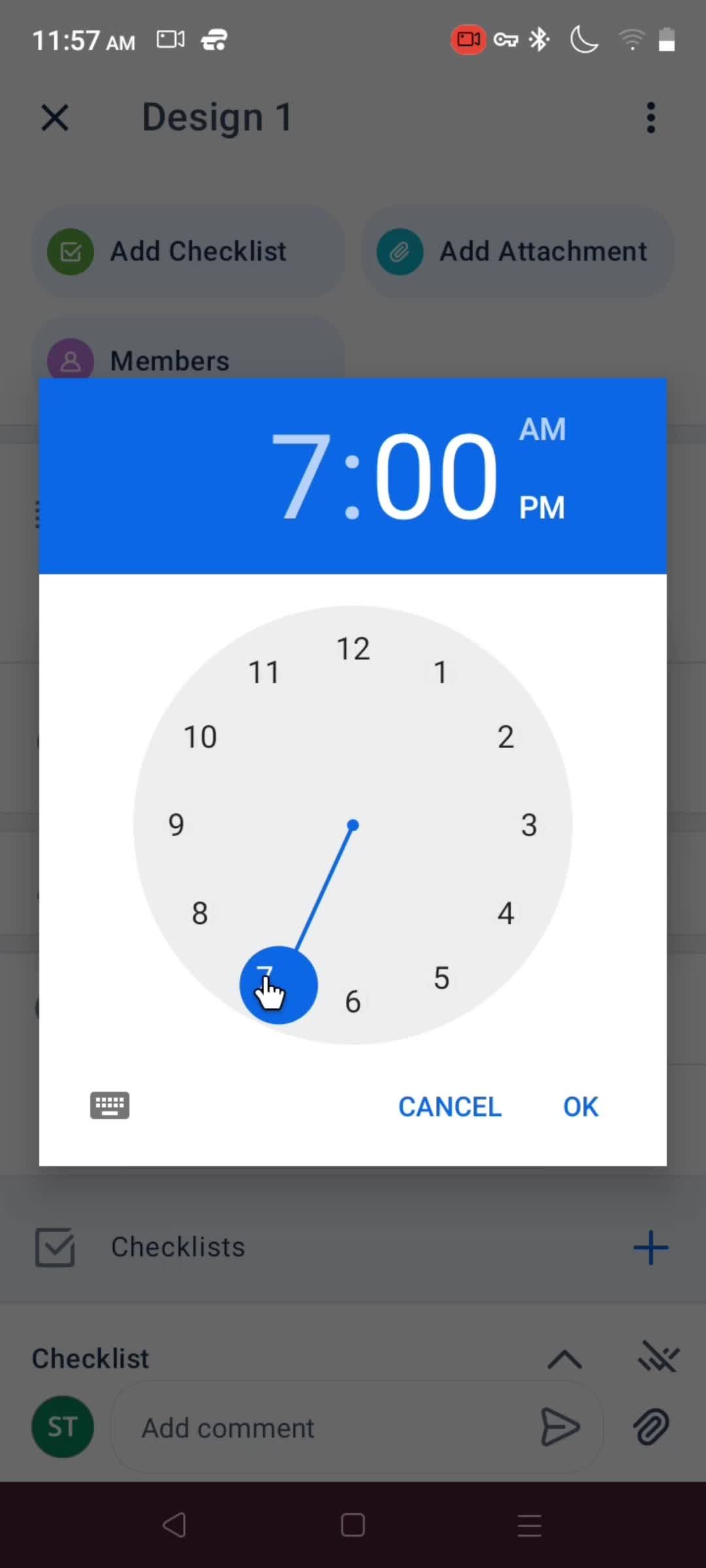
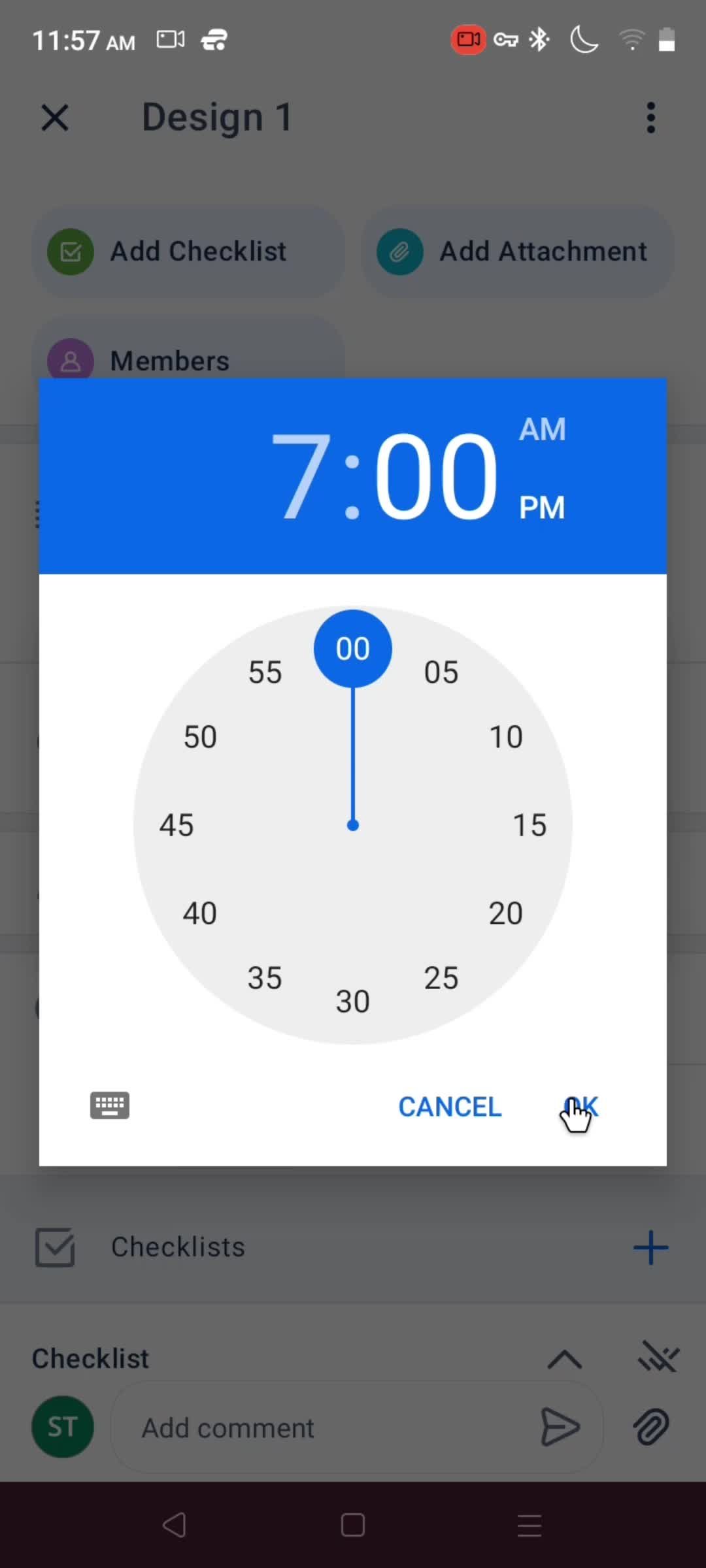
Select time
this is title
this is title
this is title
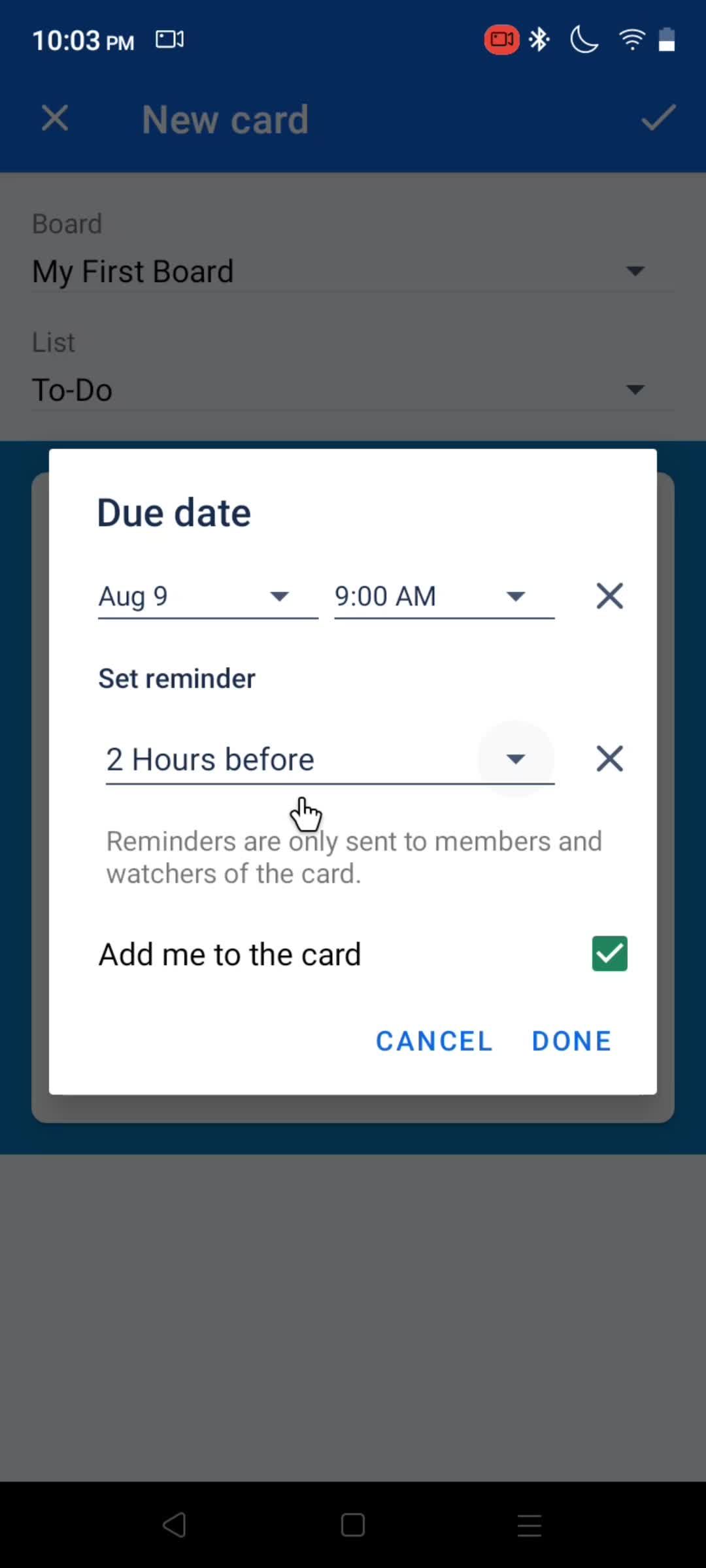
Set due date
this is title
this is title
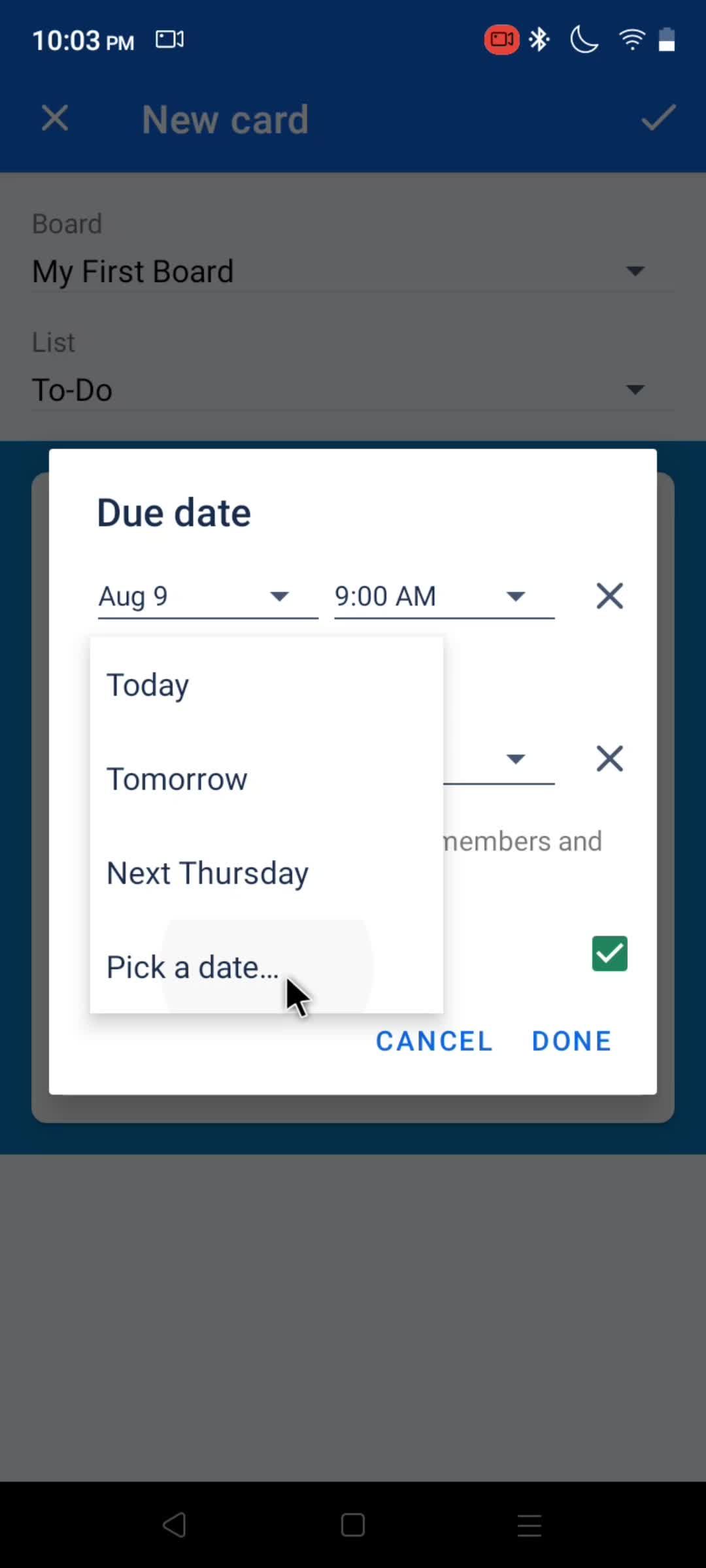
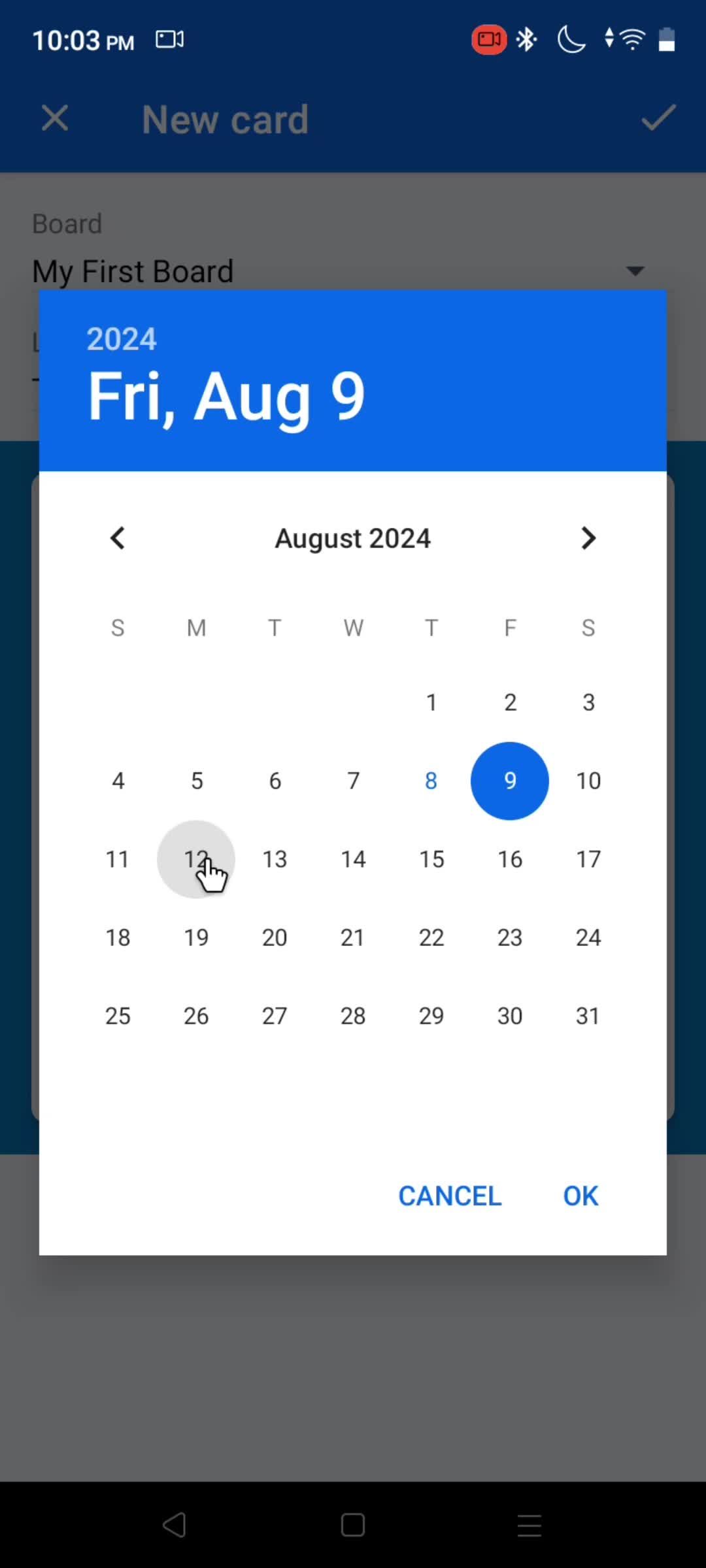
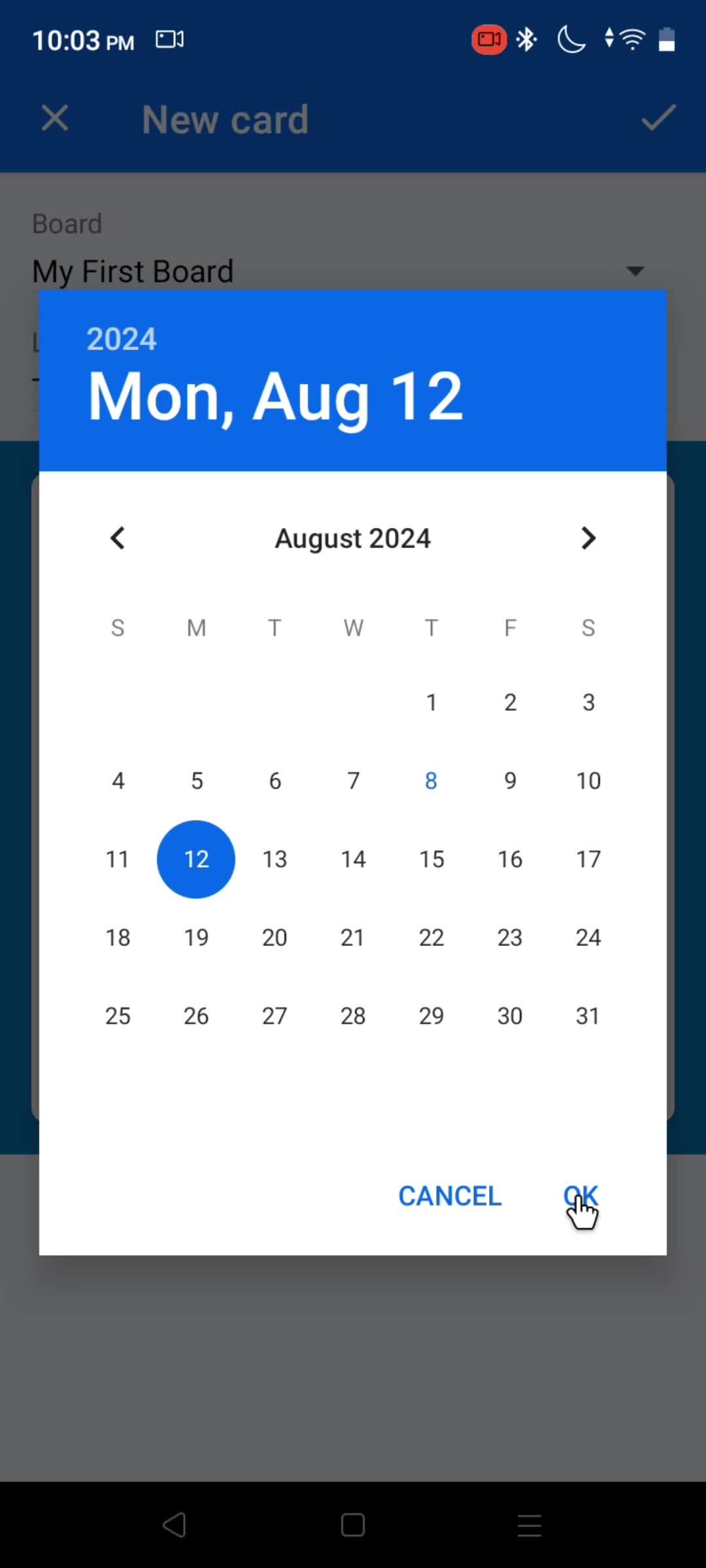
Select date
this is title
this is title
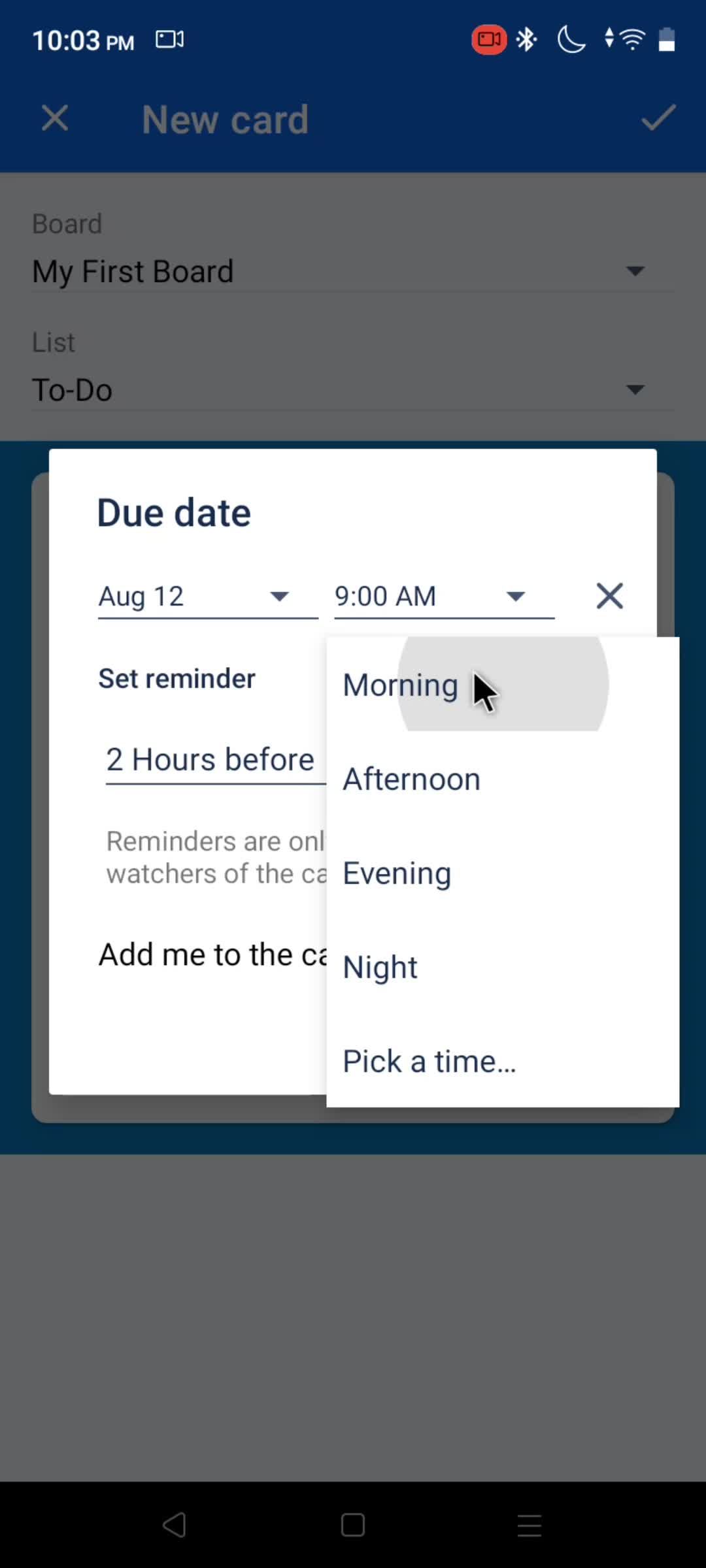
Select time
this is title
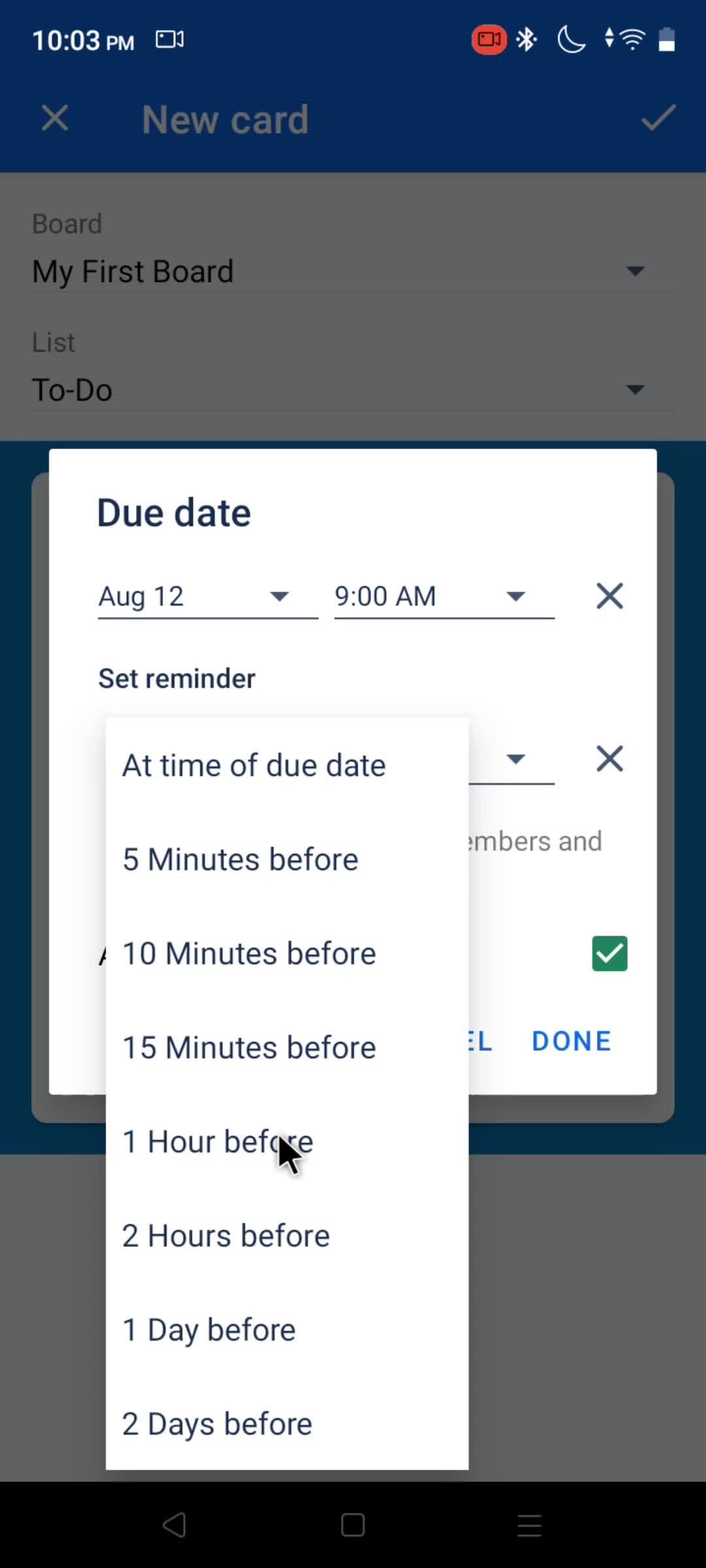
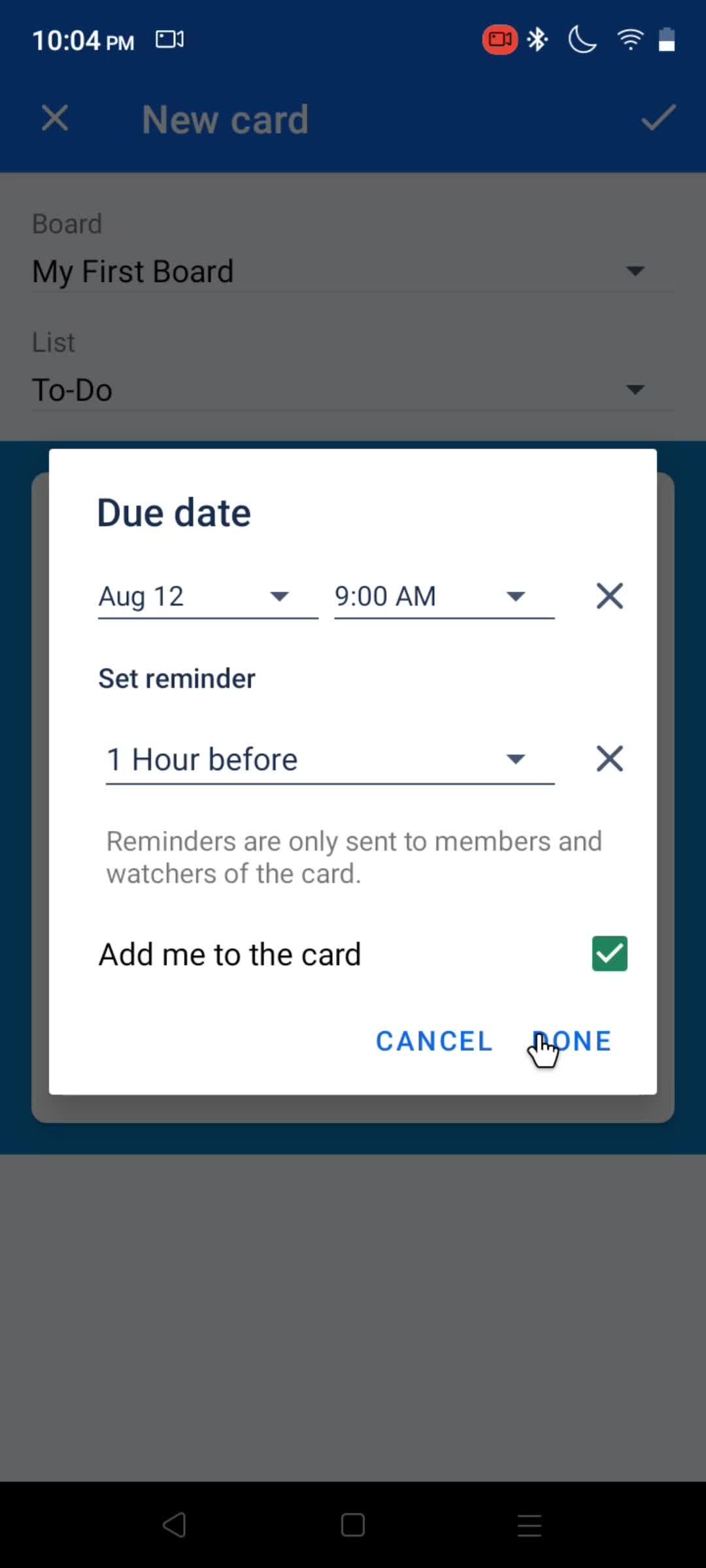
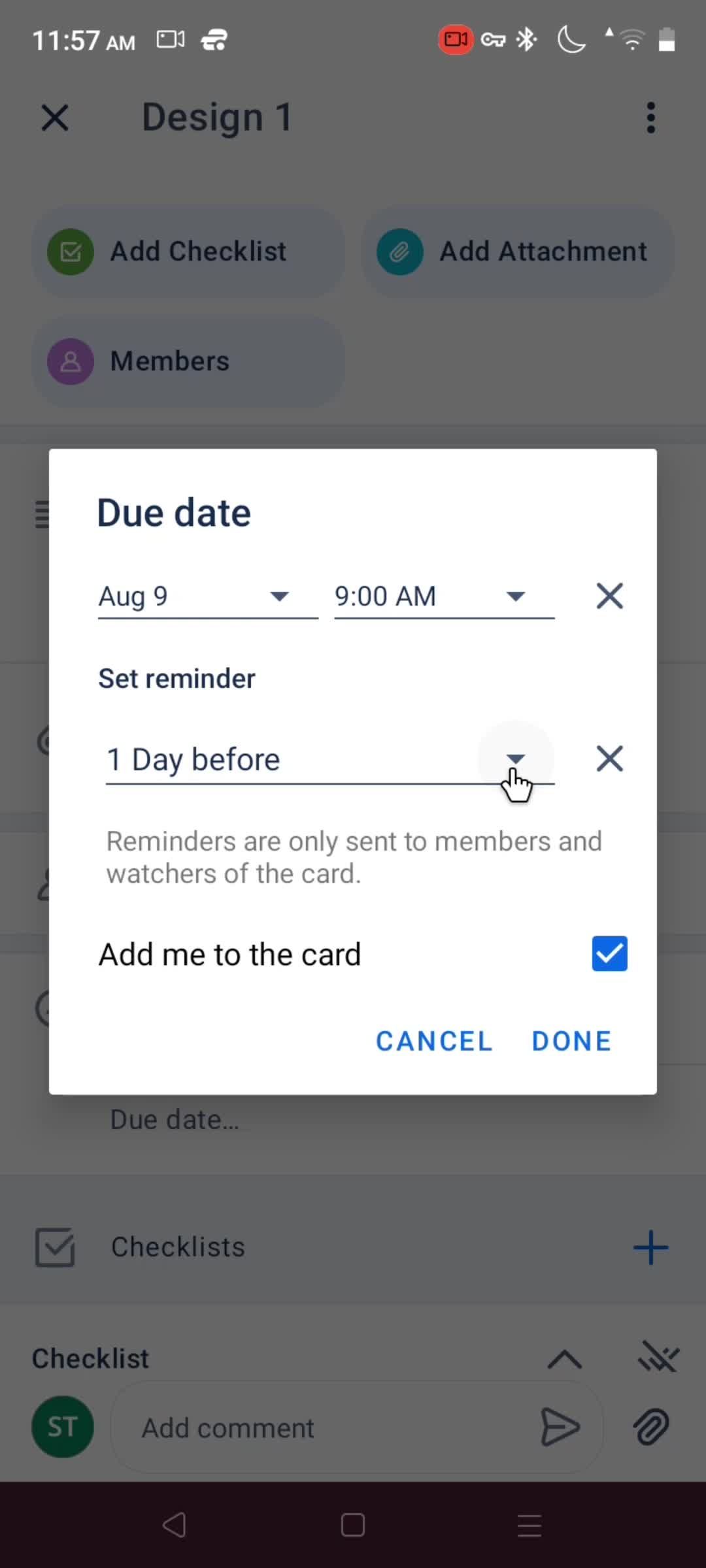
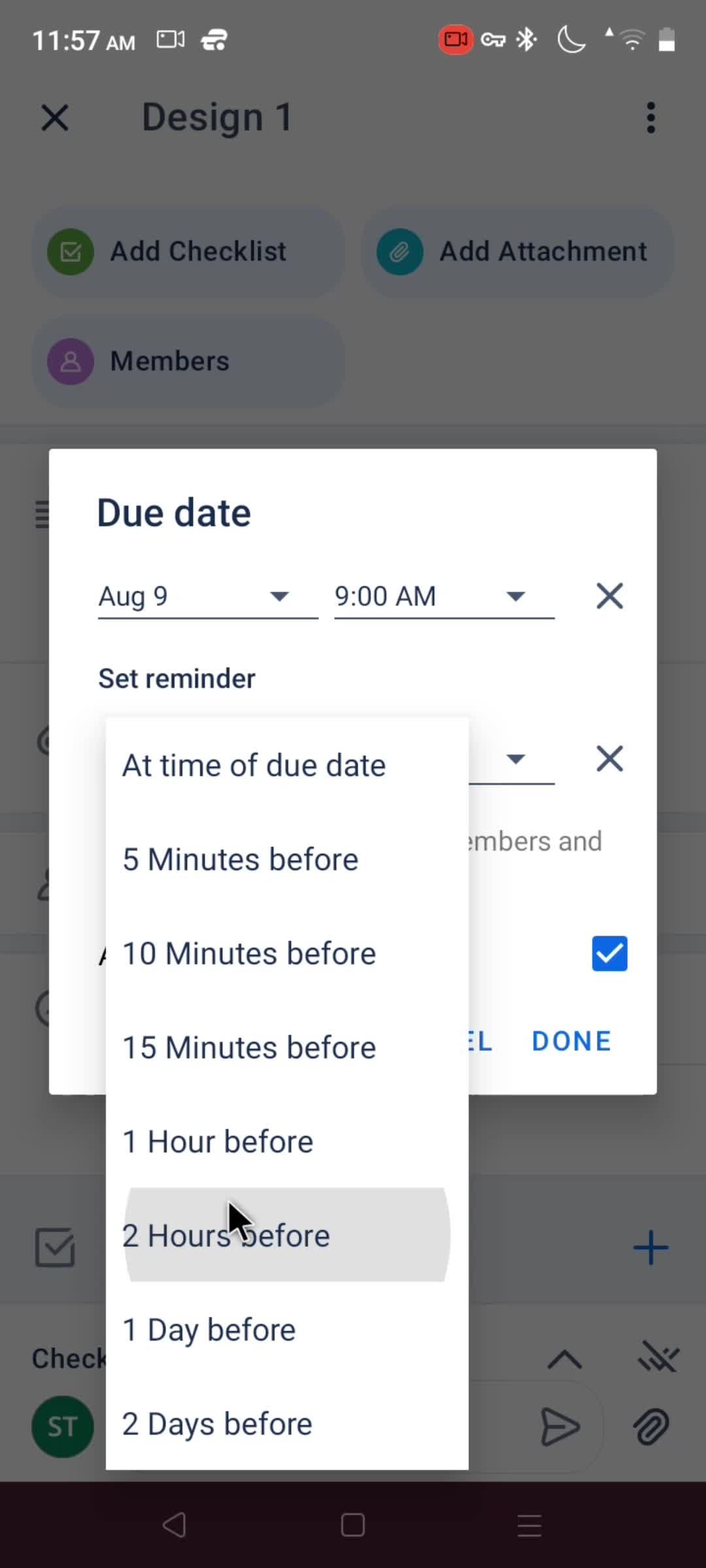
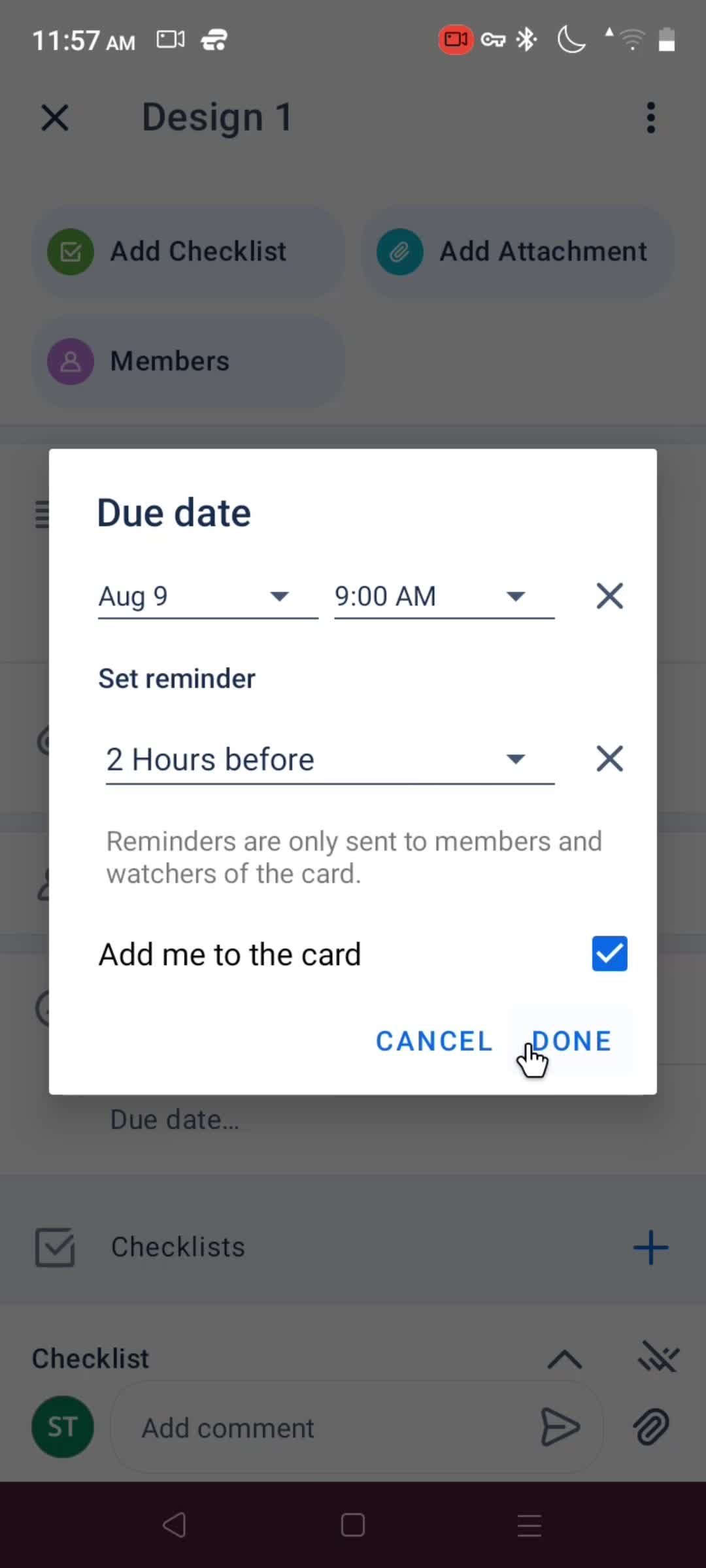
Set reminder
this is title
this is title
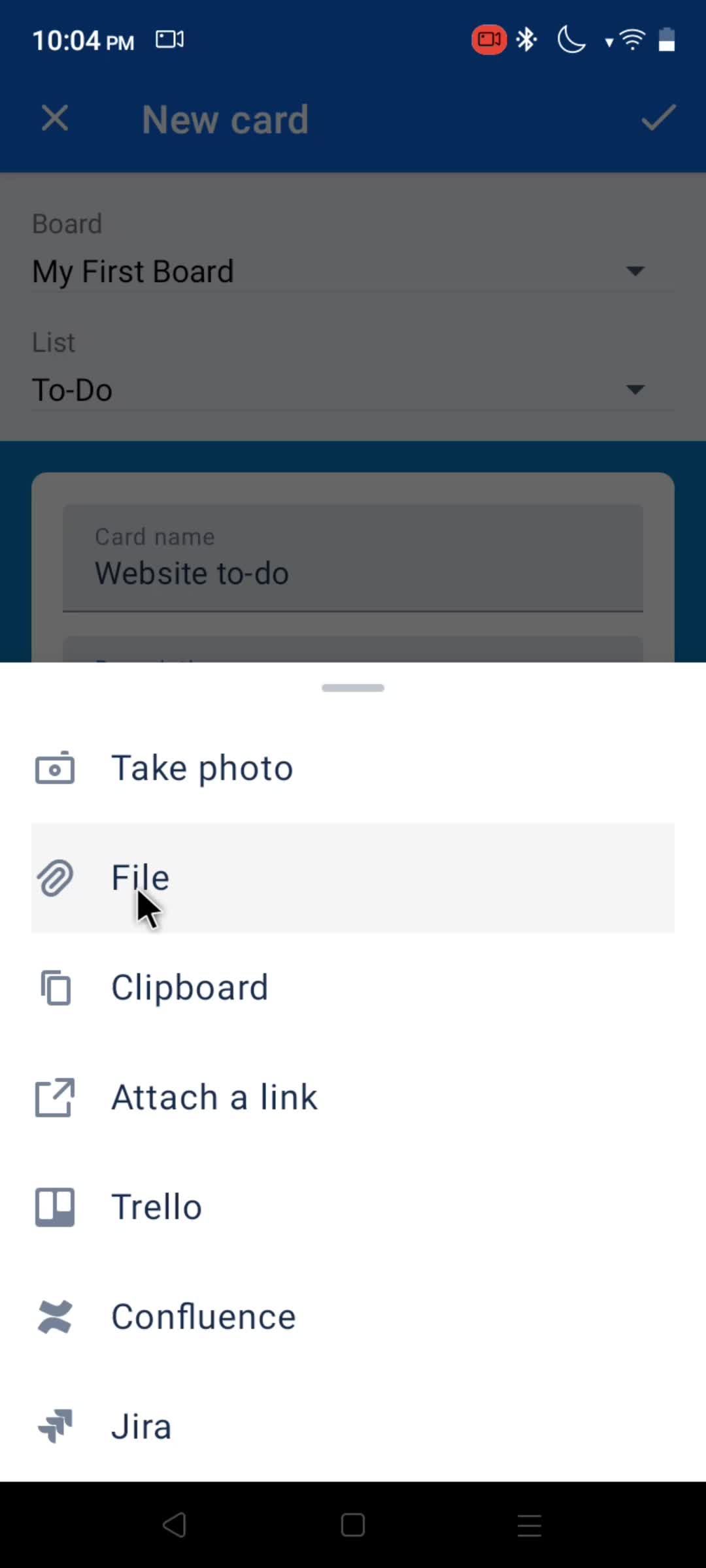
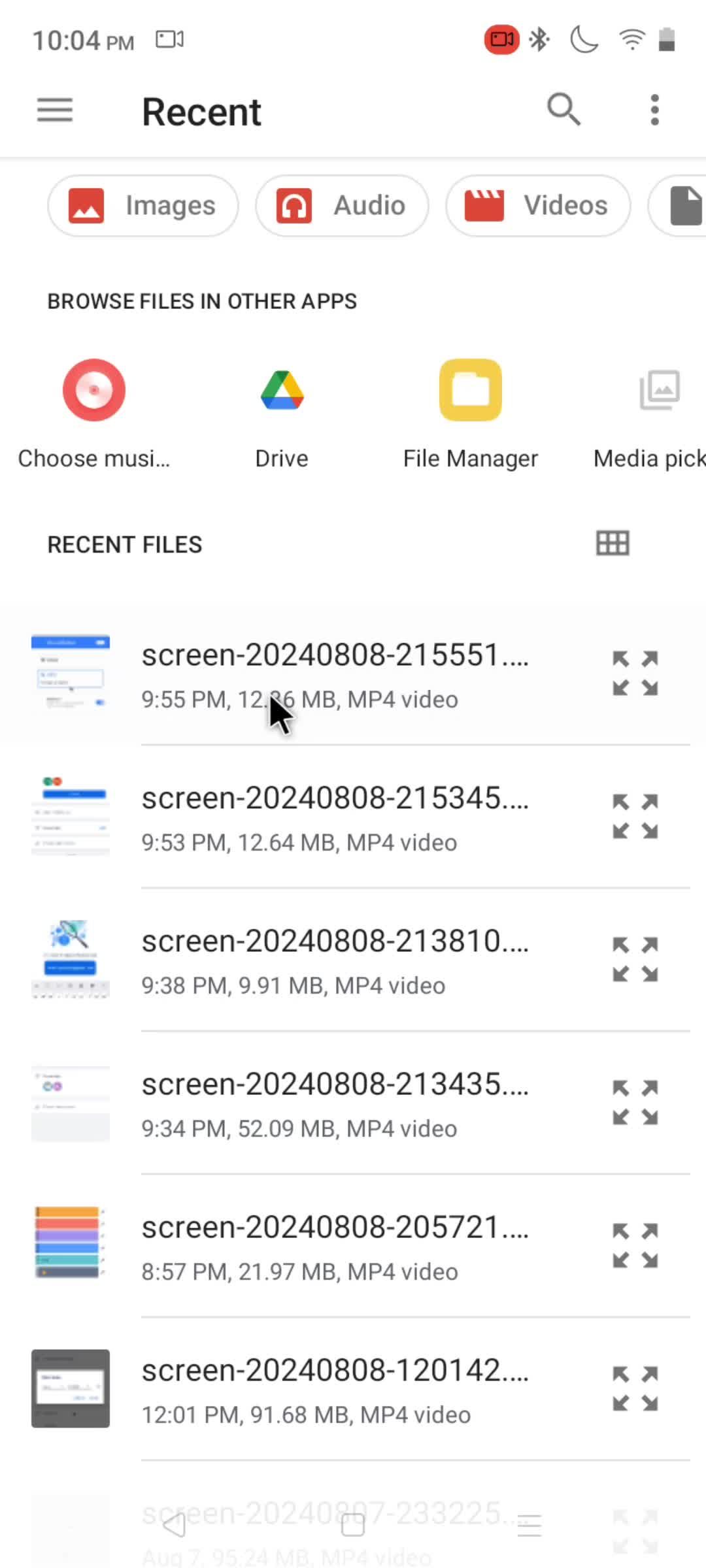
Attach a file
this is title
this is title
this is title
this is title
Board
this is title
Details
this is title
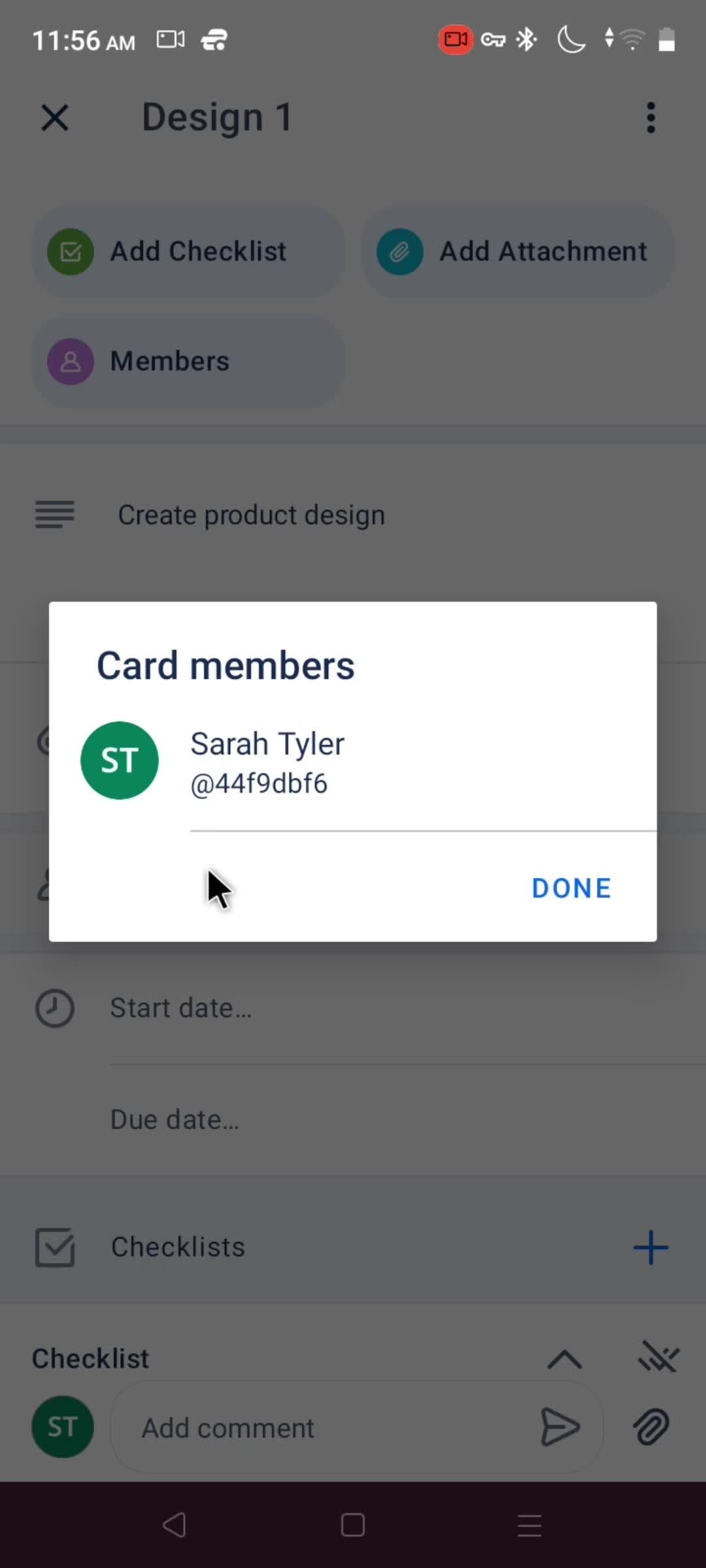
Card members
this is title
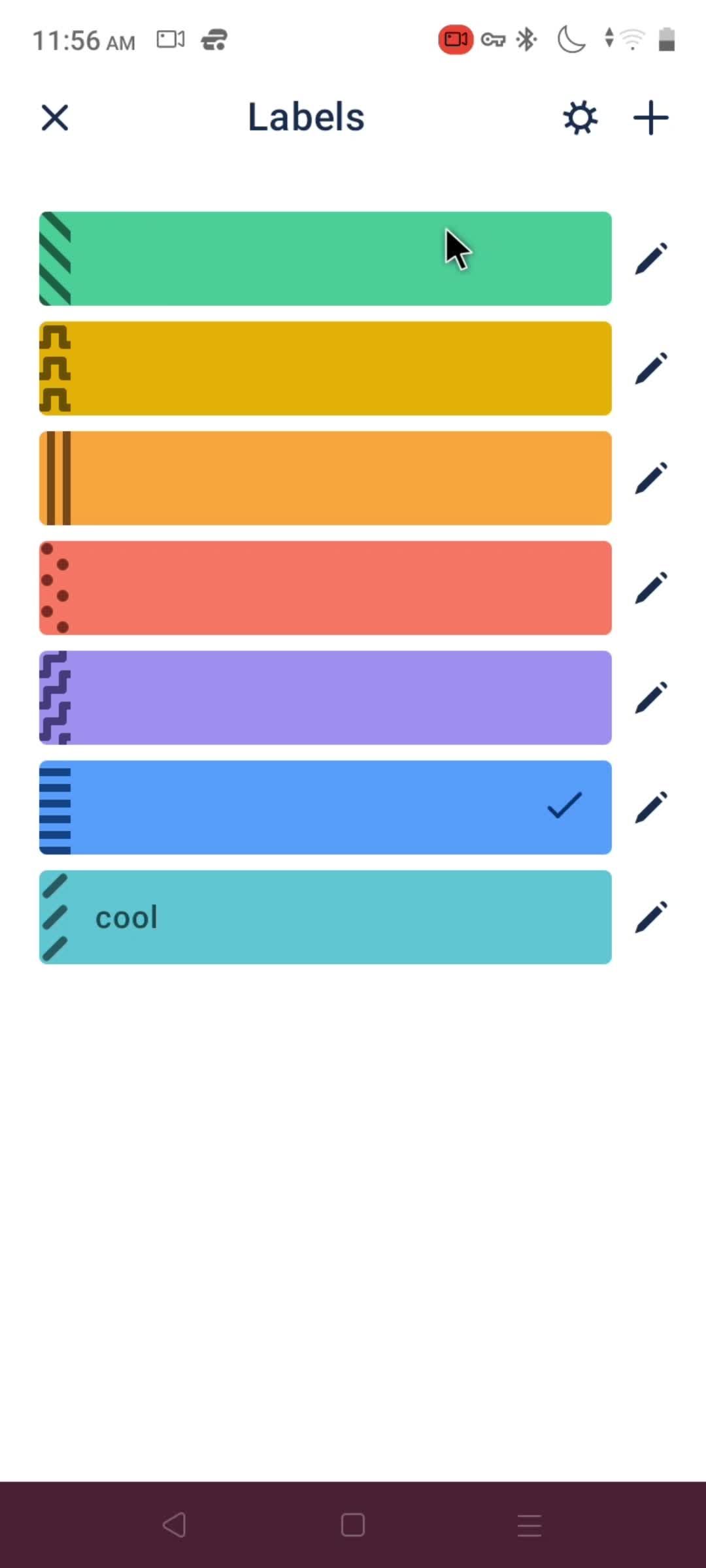
Select label
this is title
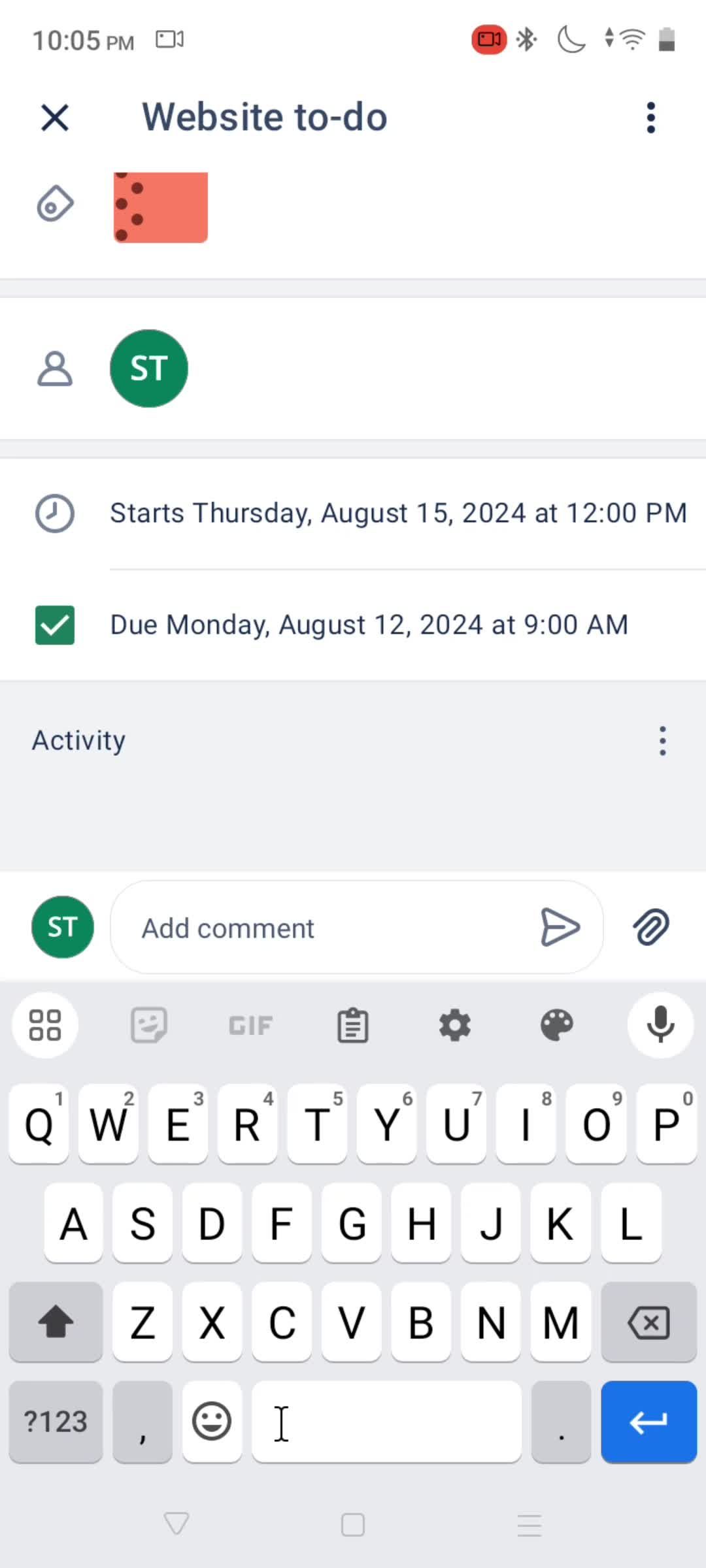
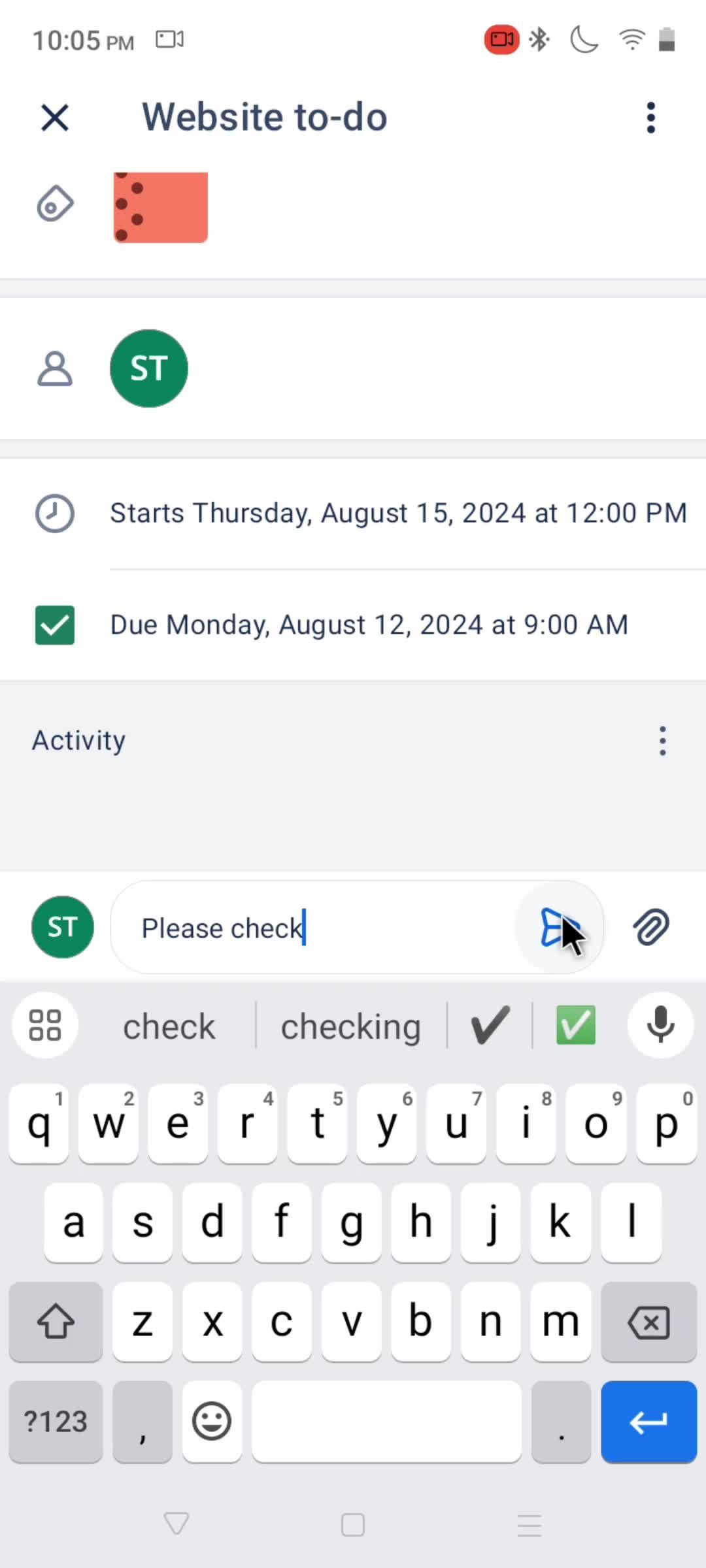
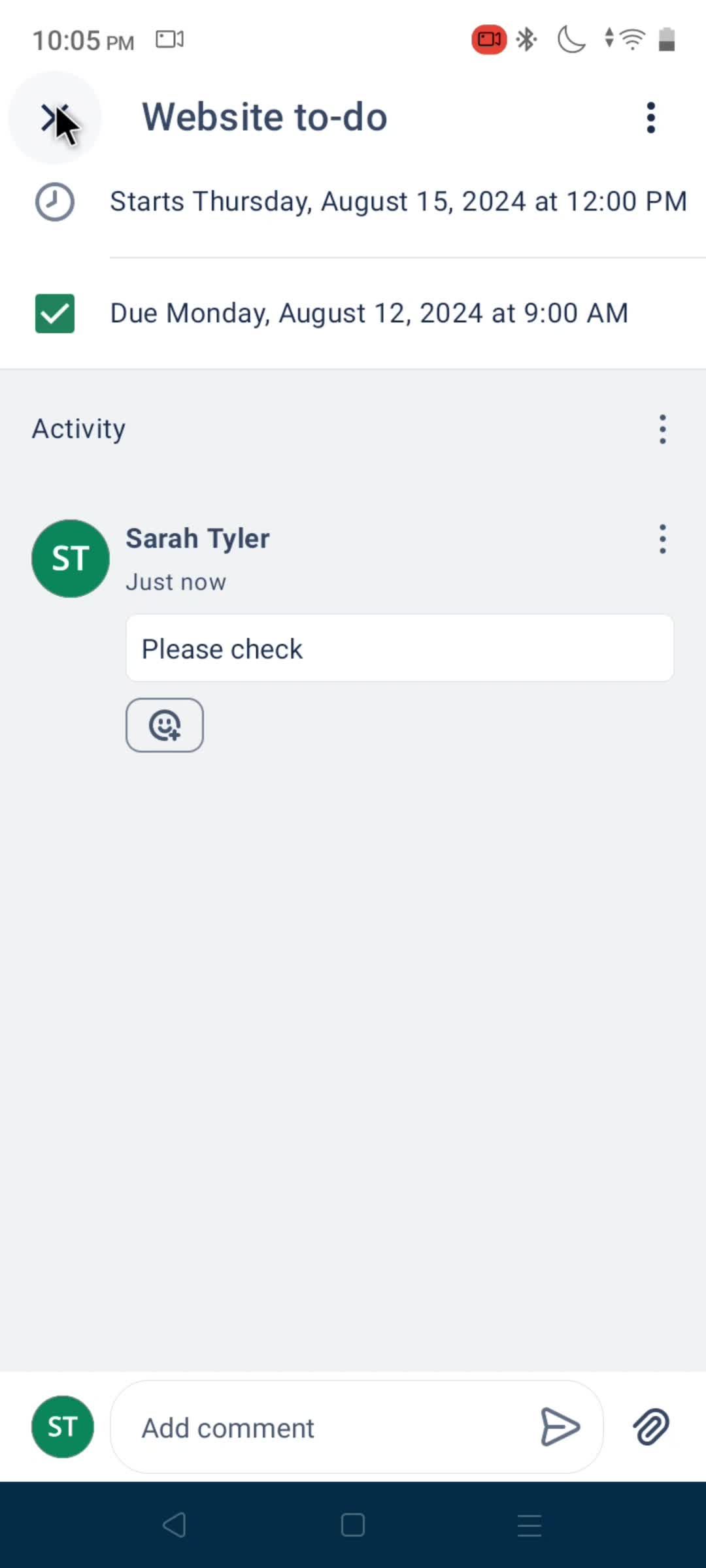
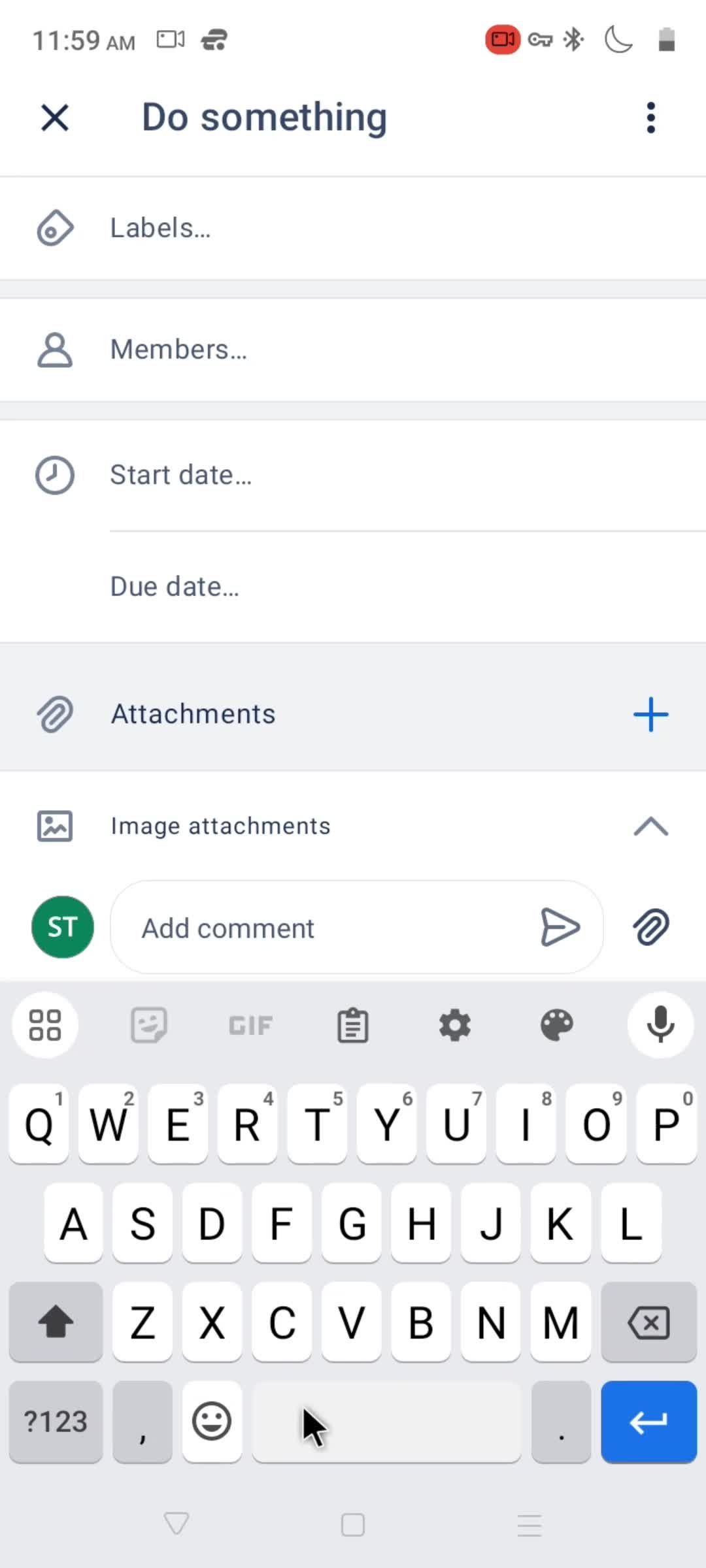
Add comment
this is title
this is title
this is title
Home
this is title
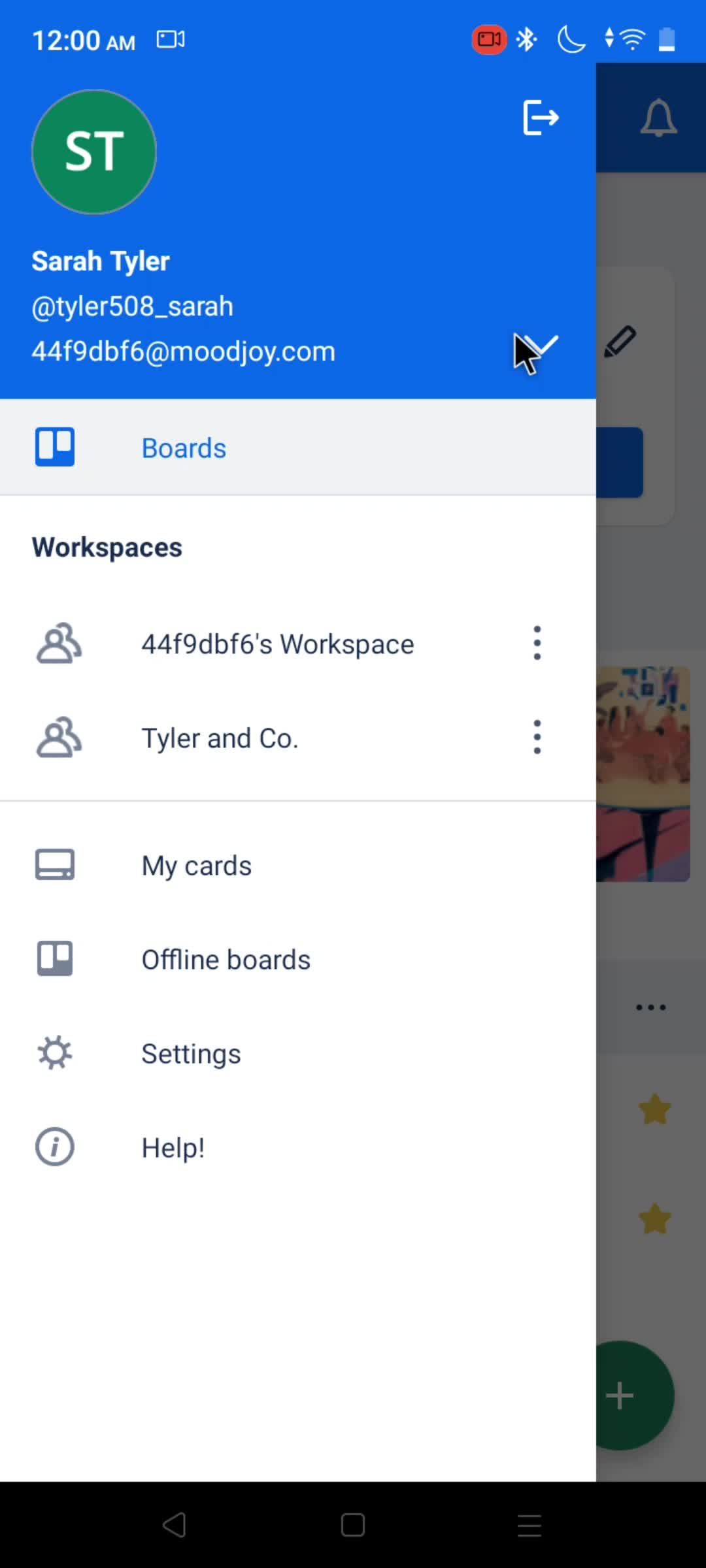
Profile menu
this is title
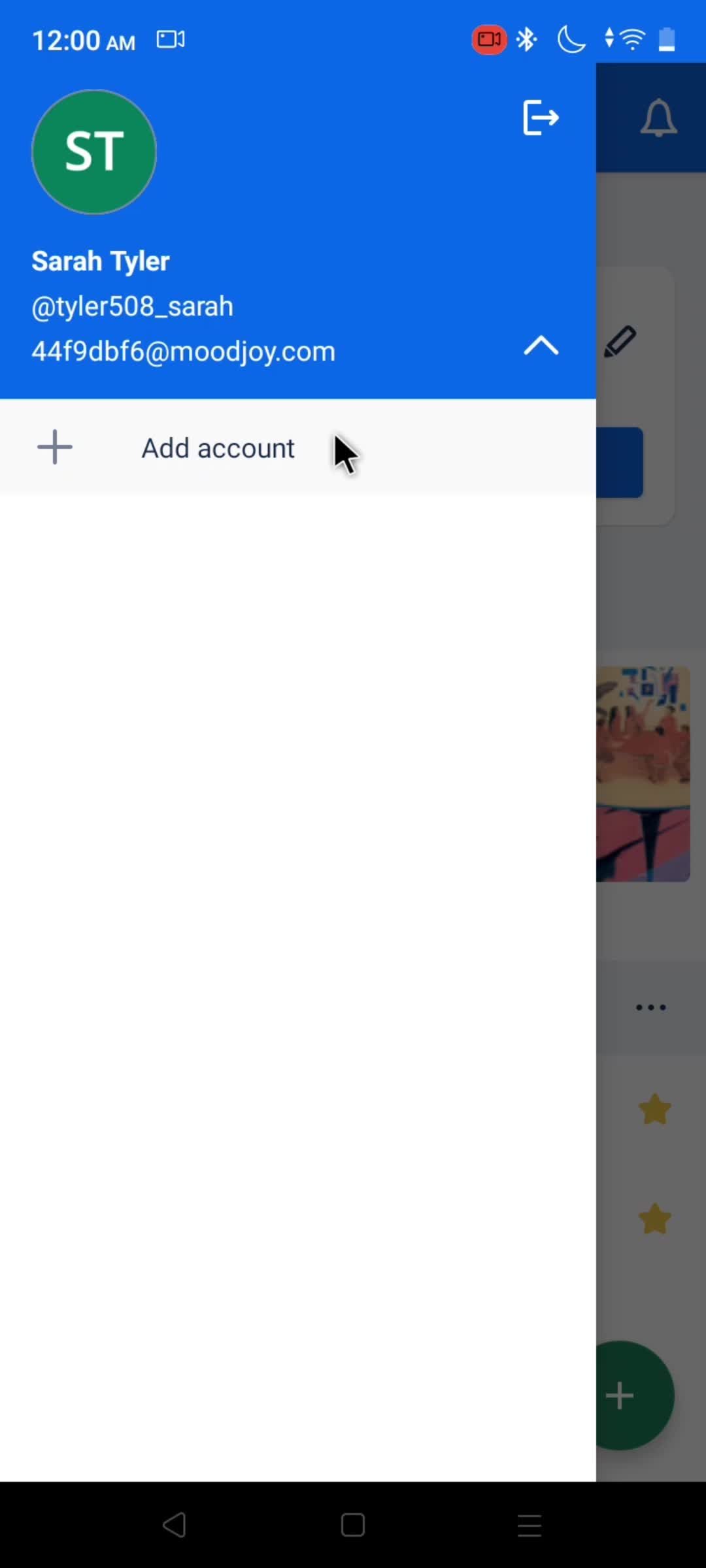
Add account
this is title
this is title
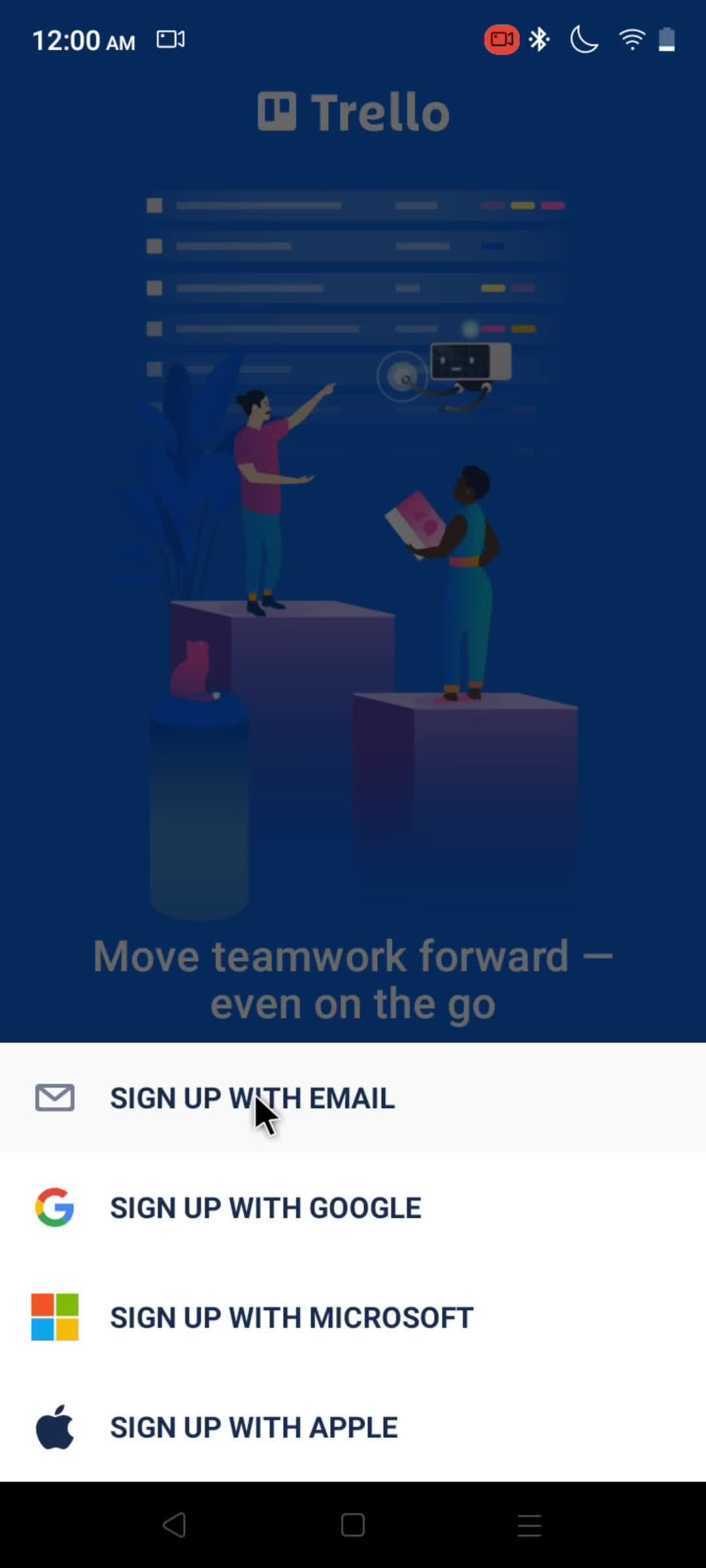
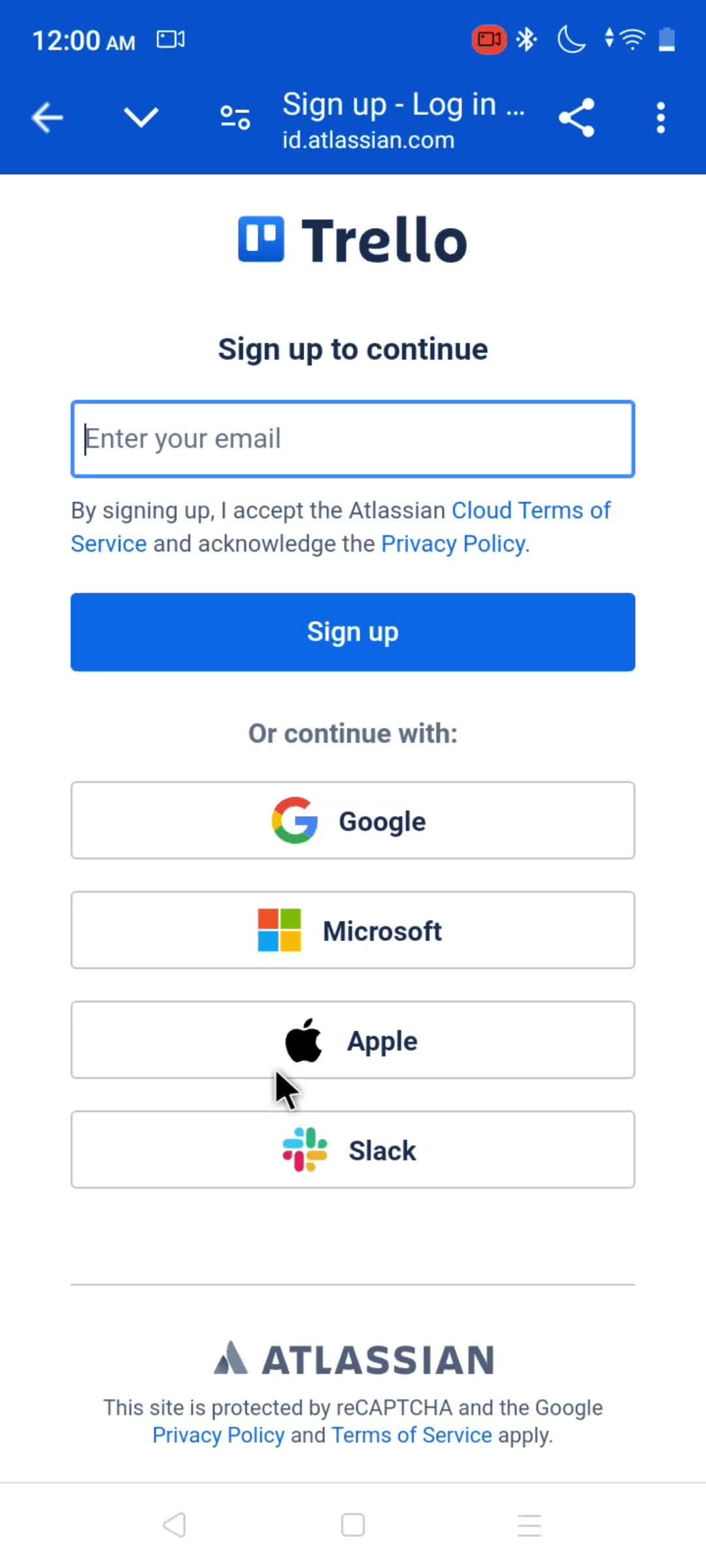
Sign up with email
this is title
Sign up
this is title
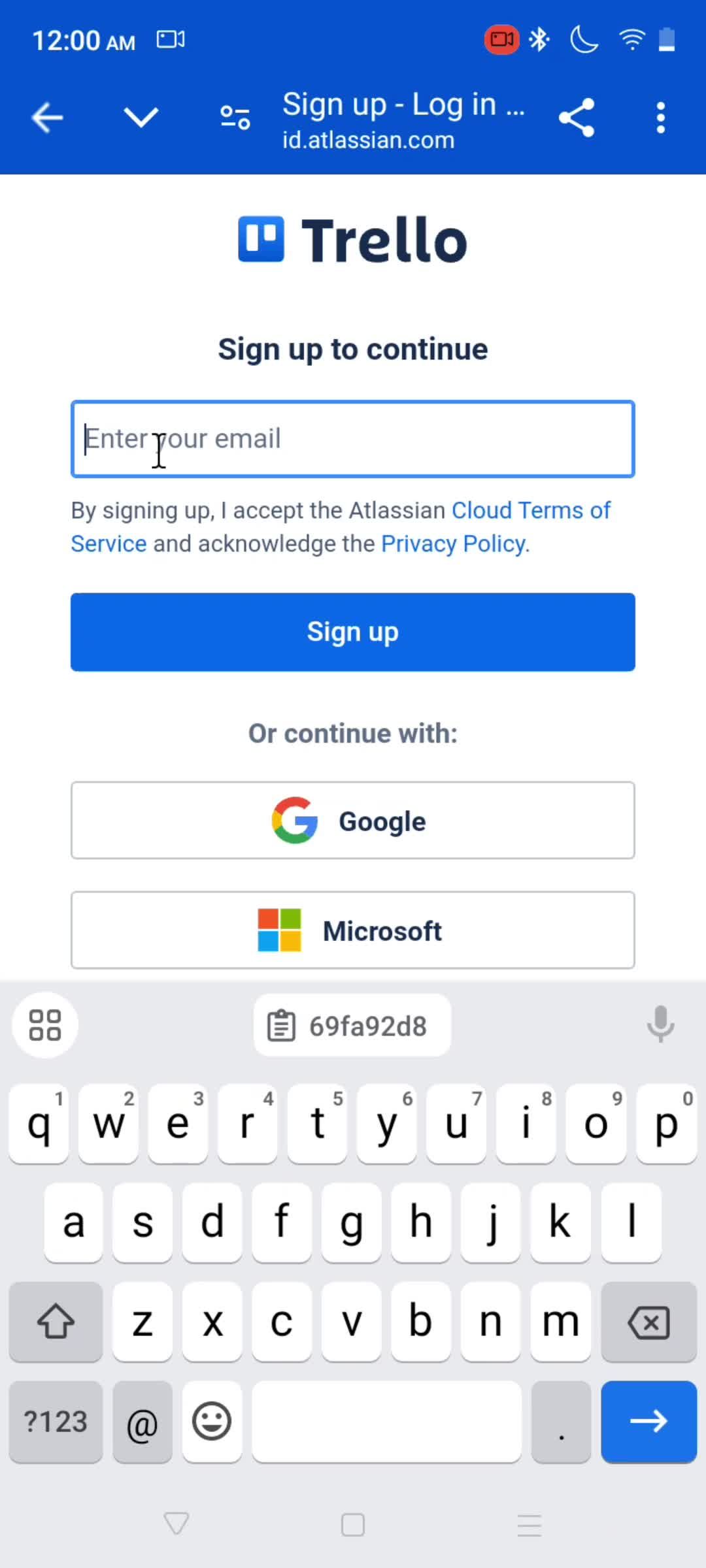
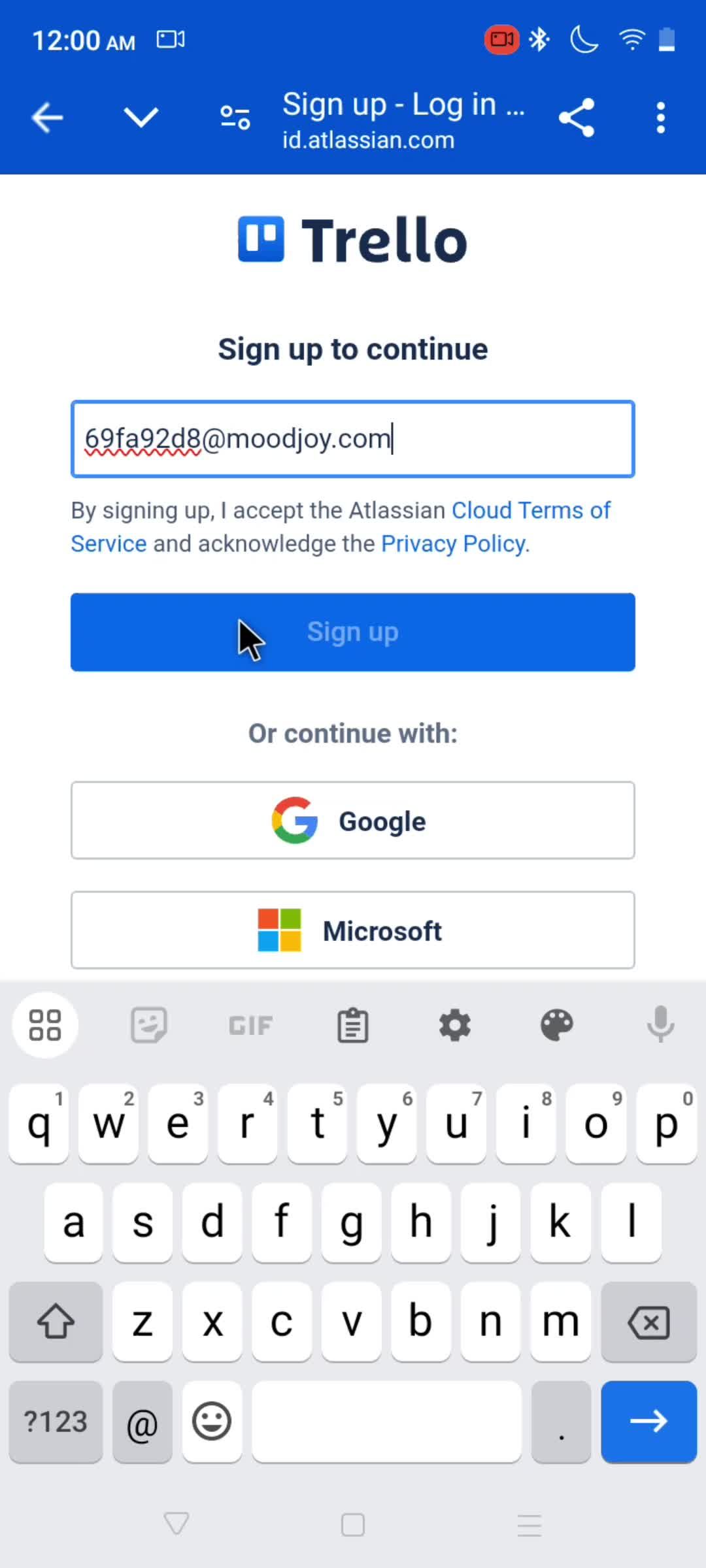
Enter email
this is title
this is title
this is title
Setting up account
this is title
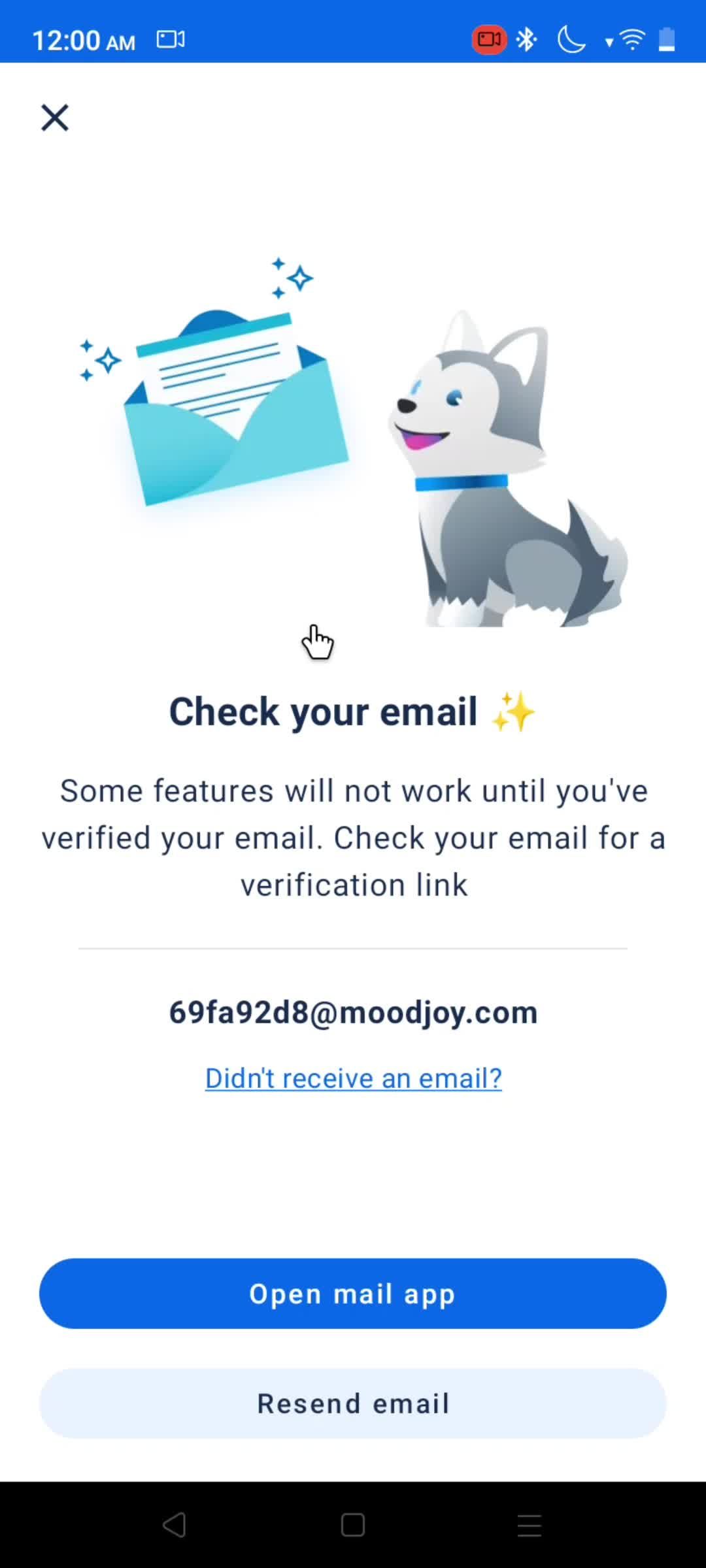
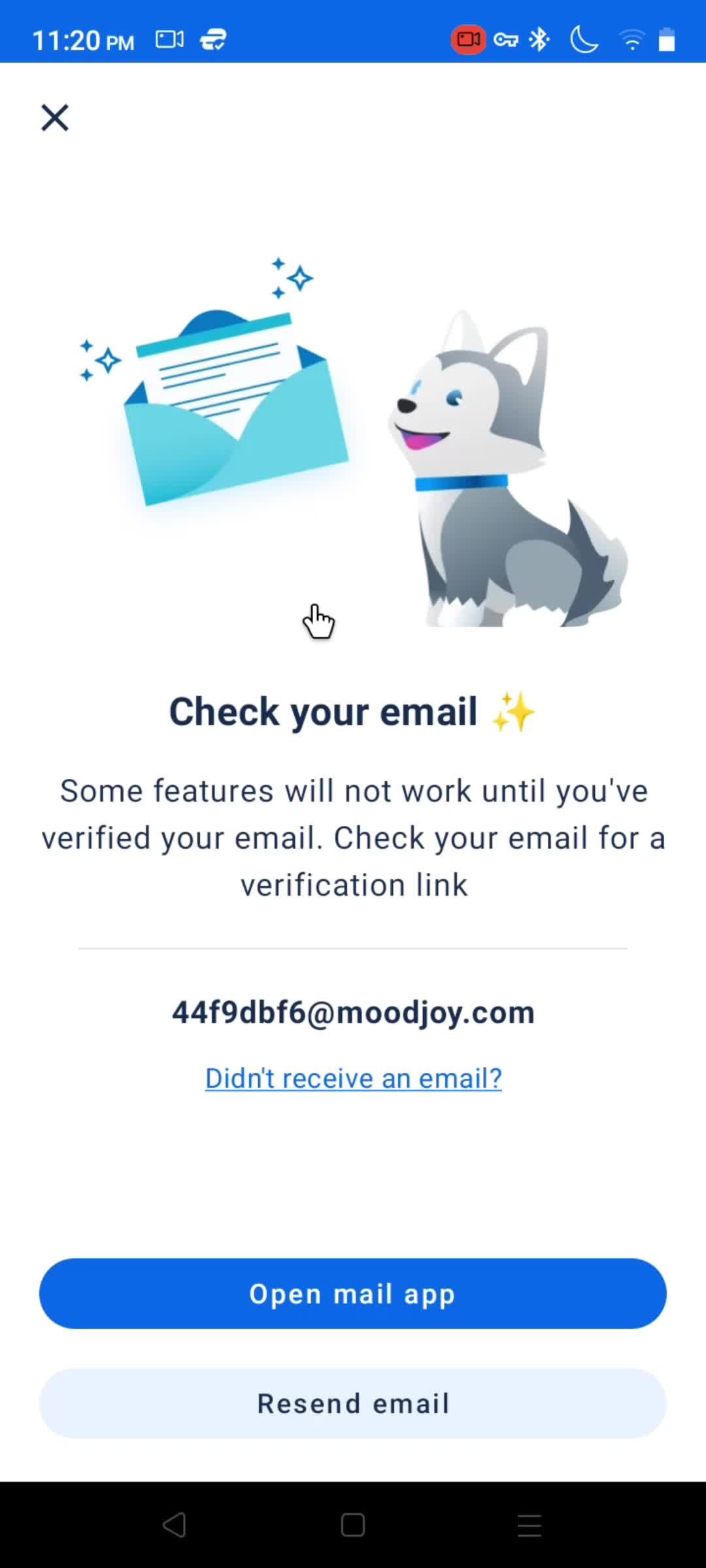
Check your inbox
this is title
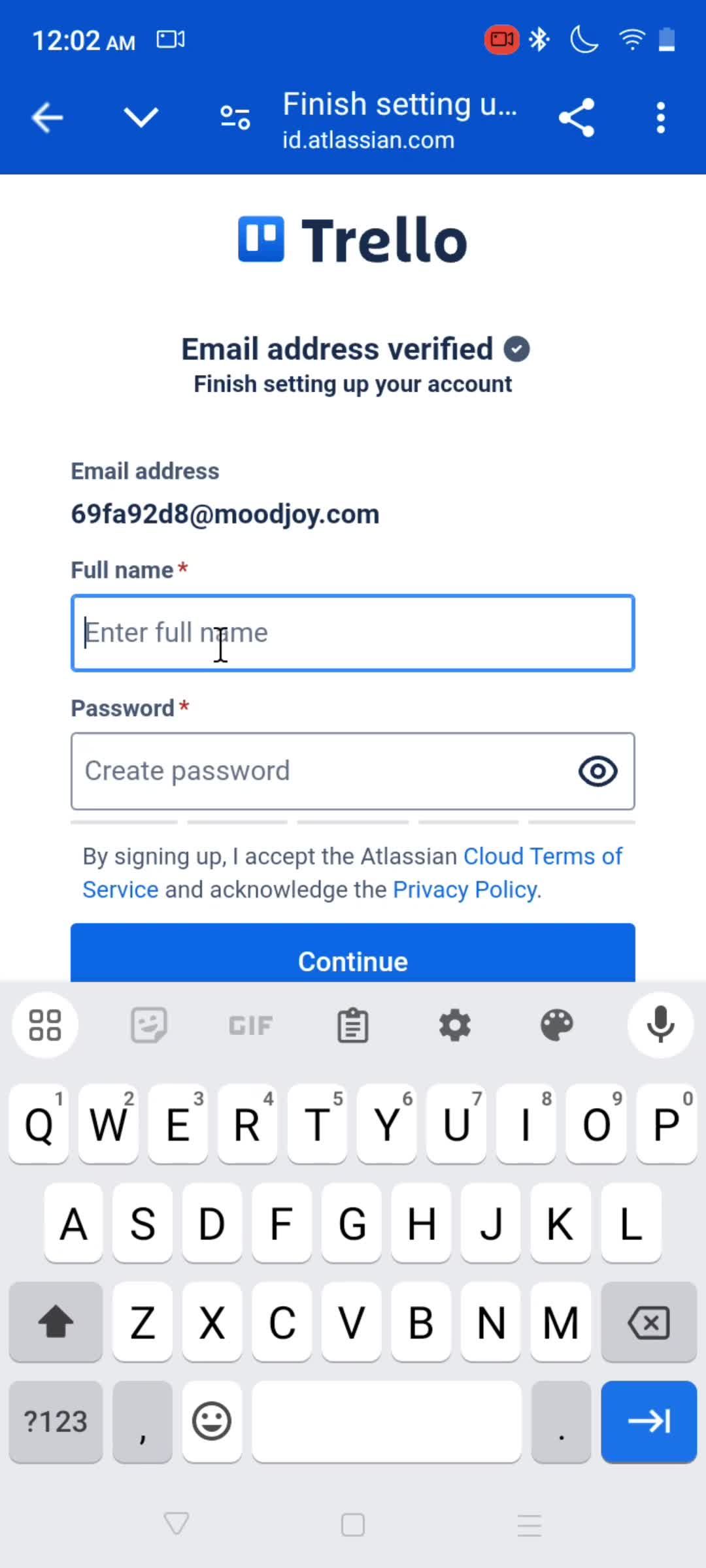
Enter name
this is title
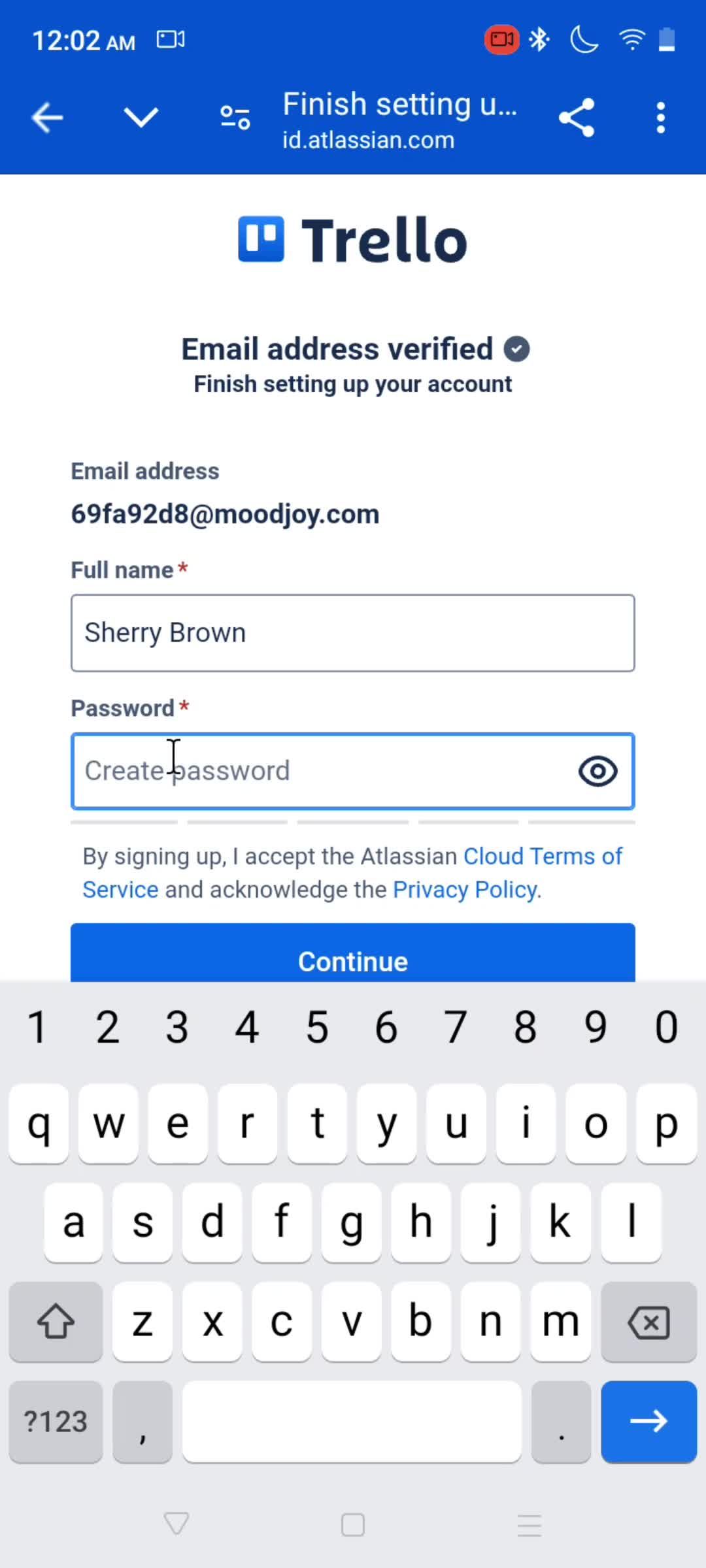
Set password
this is title
this is title
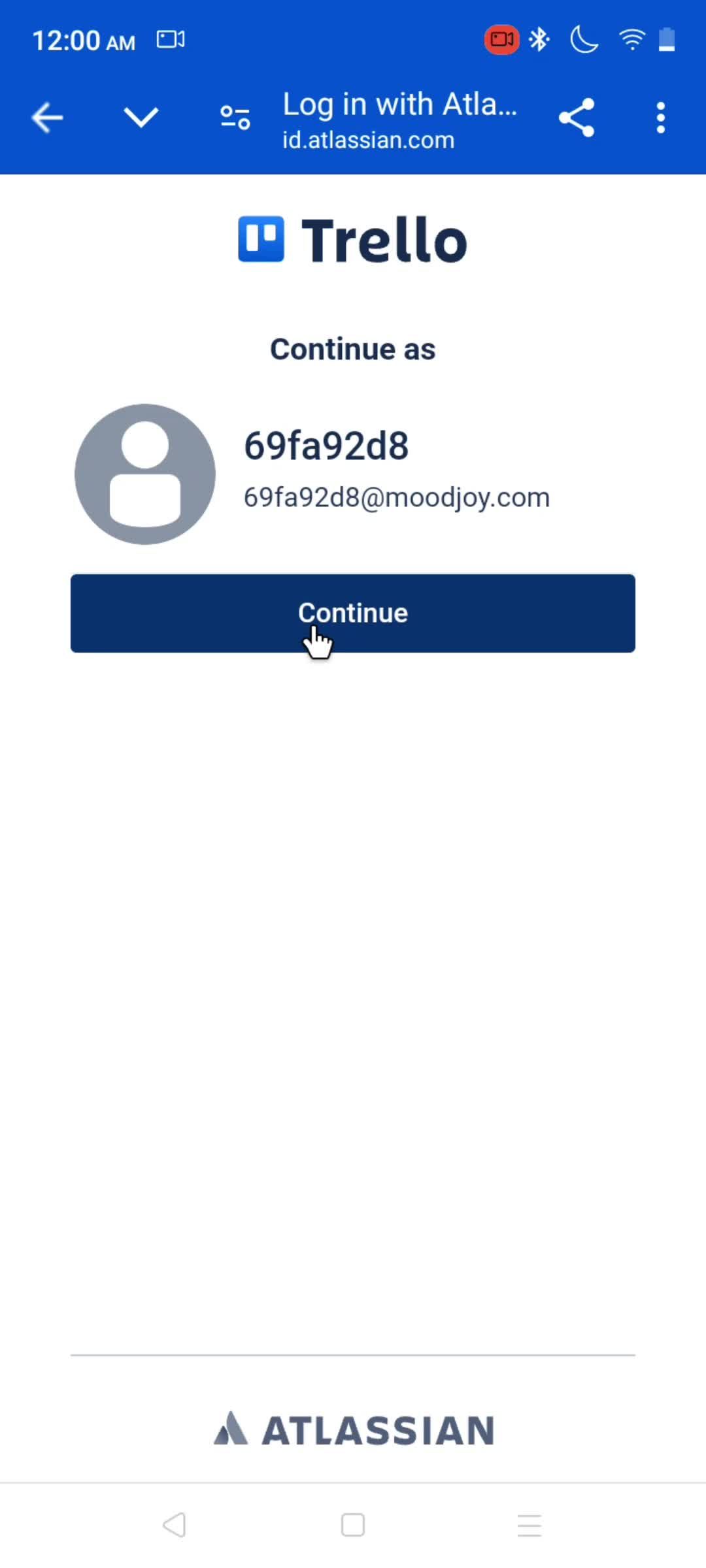
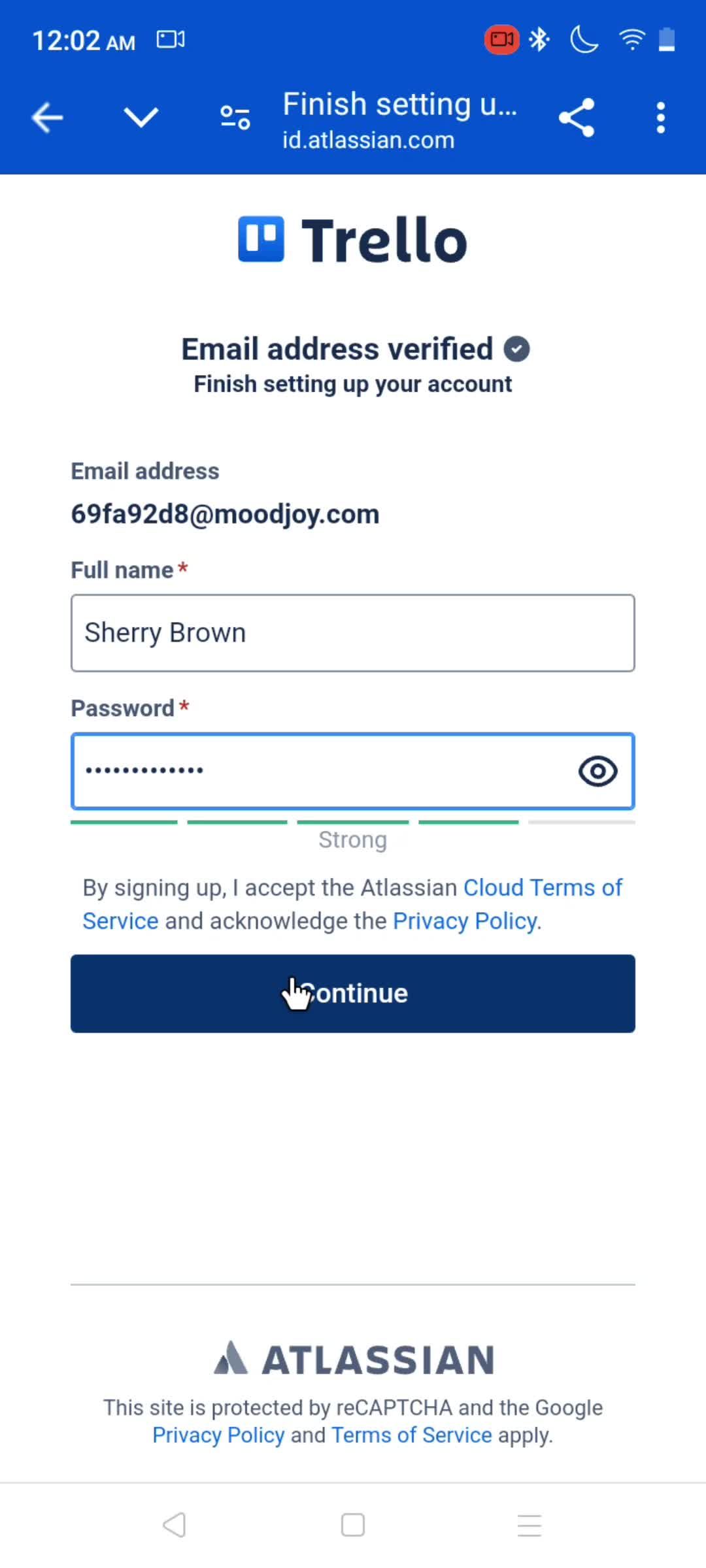
Continue
this is title
this is title
this is title
Share
this is title
this is title
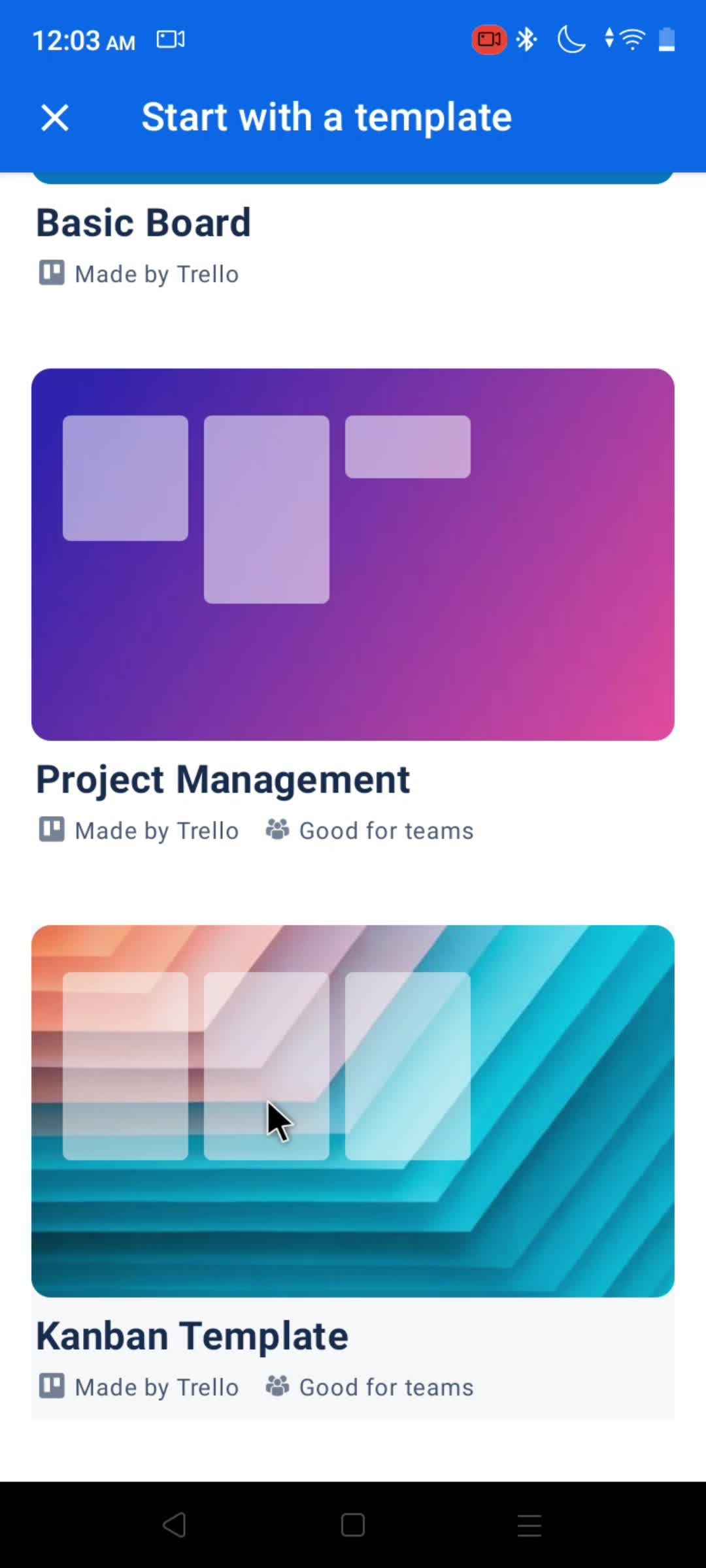
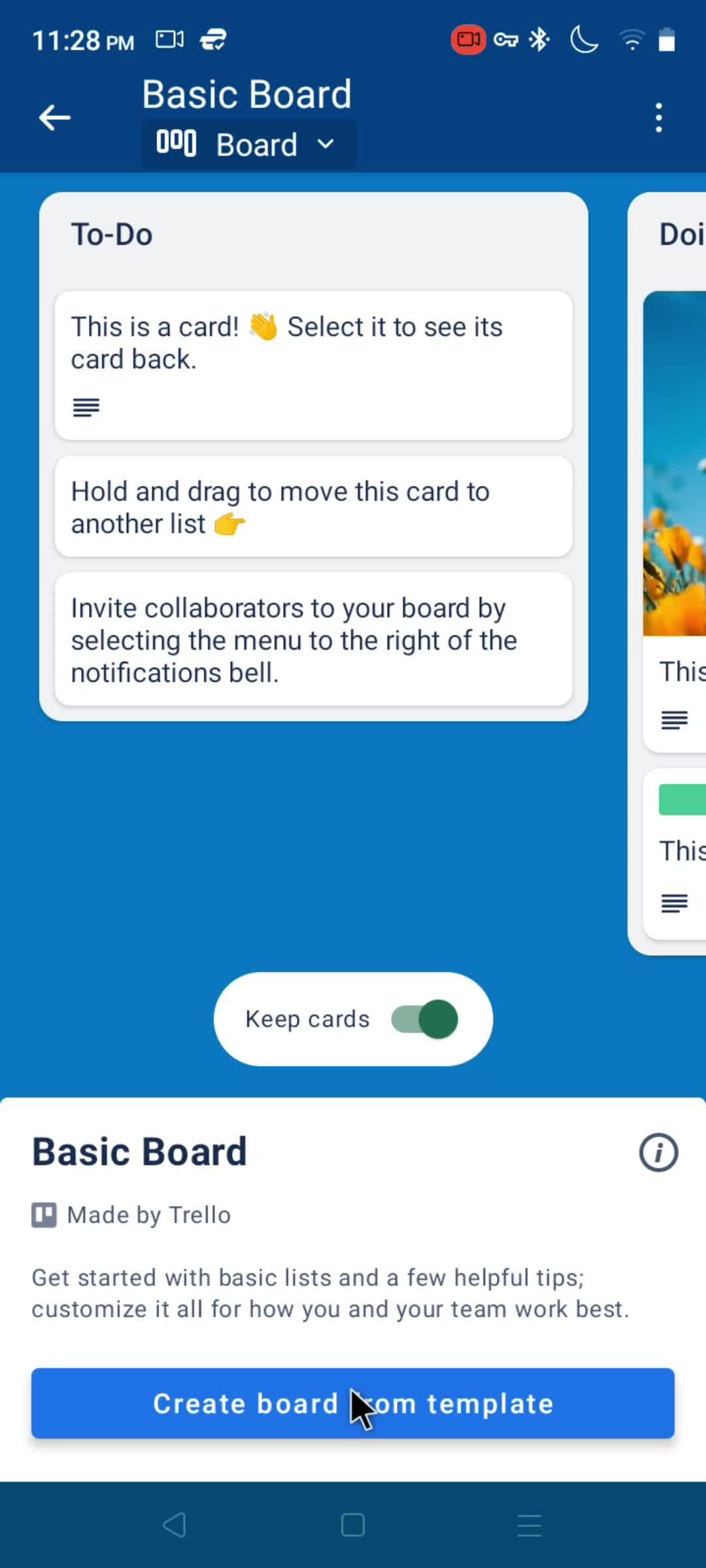
Select template
this is title
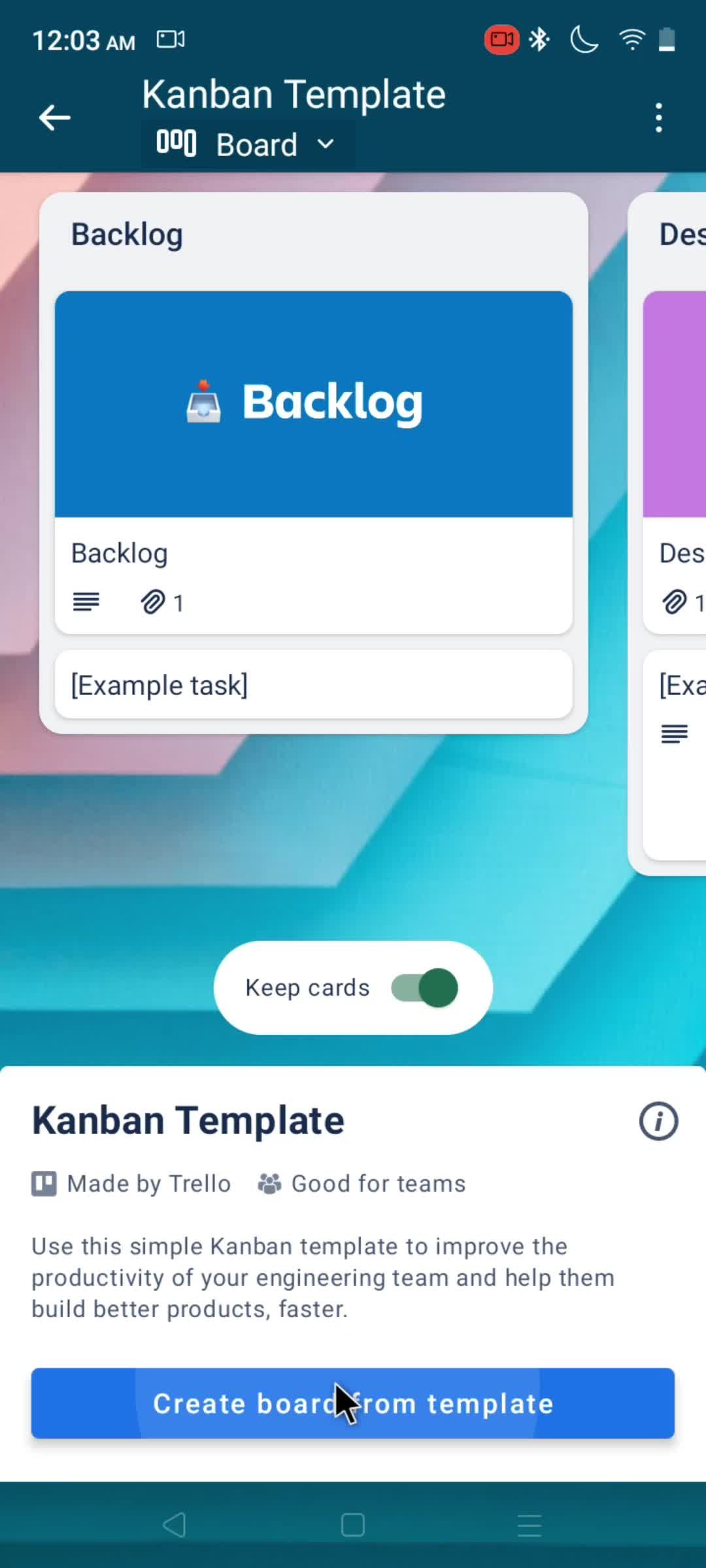
Kanban board
this is title
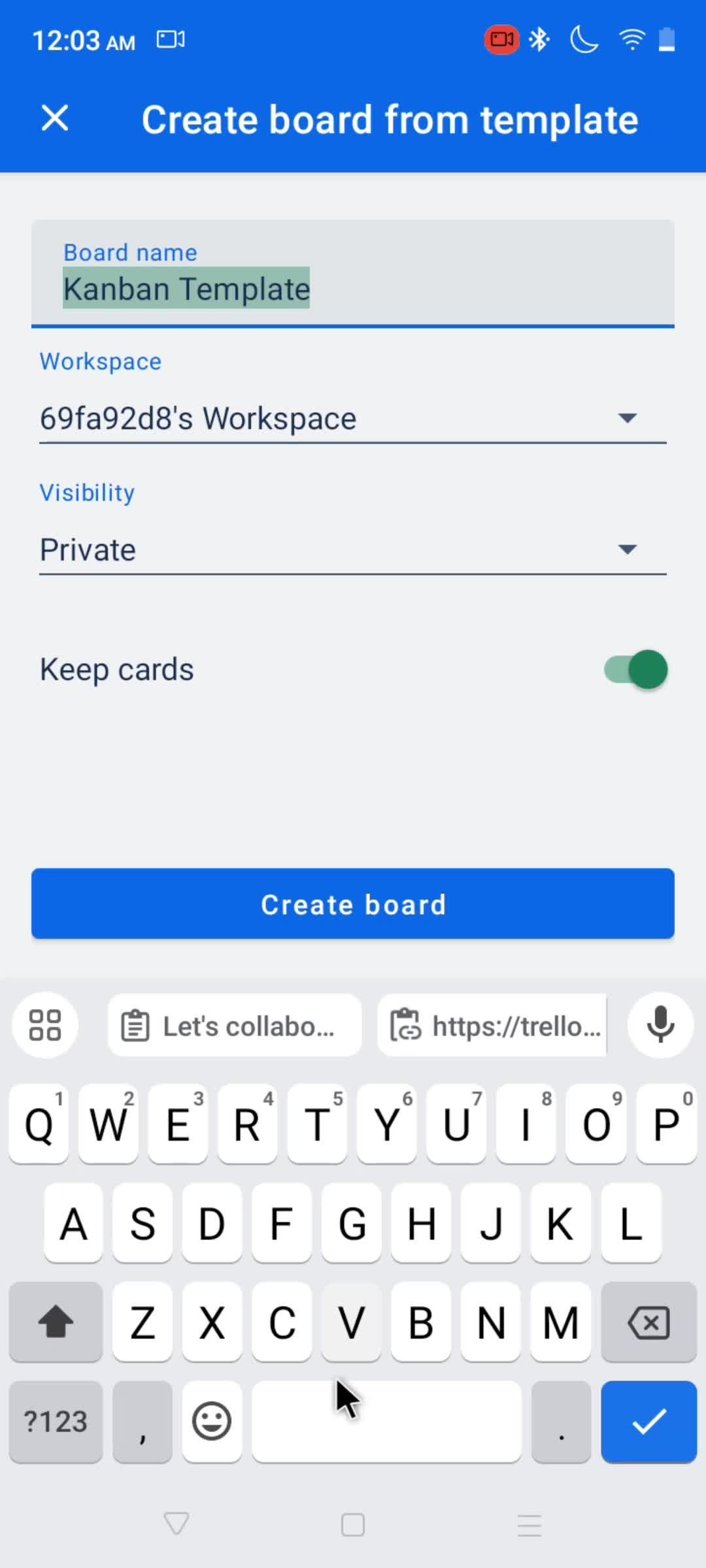
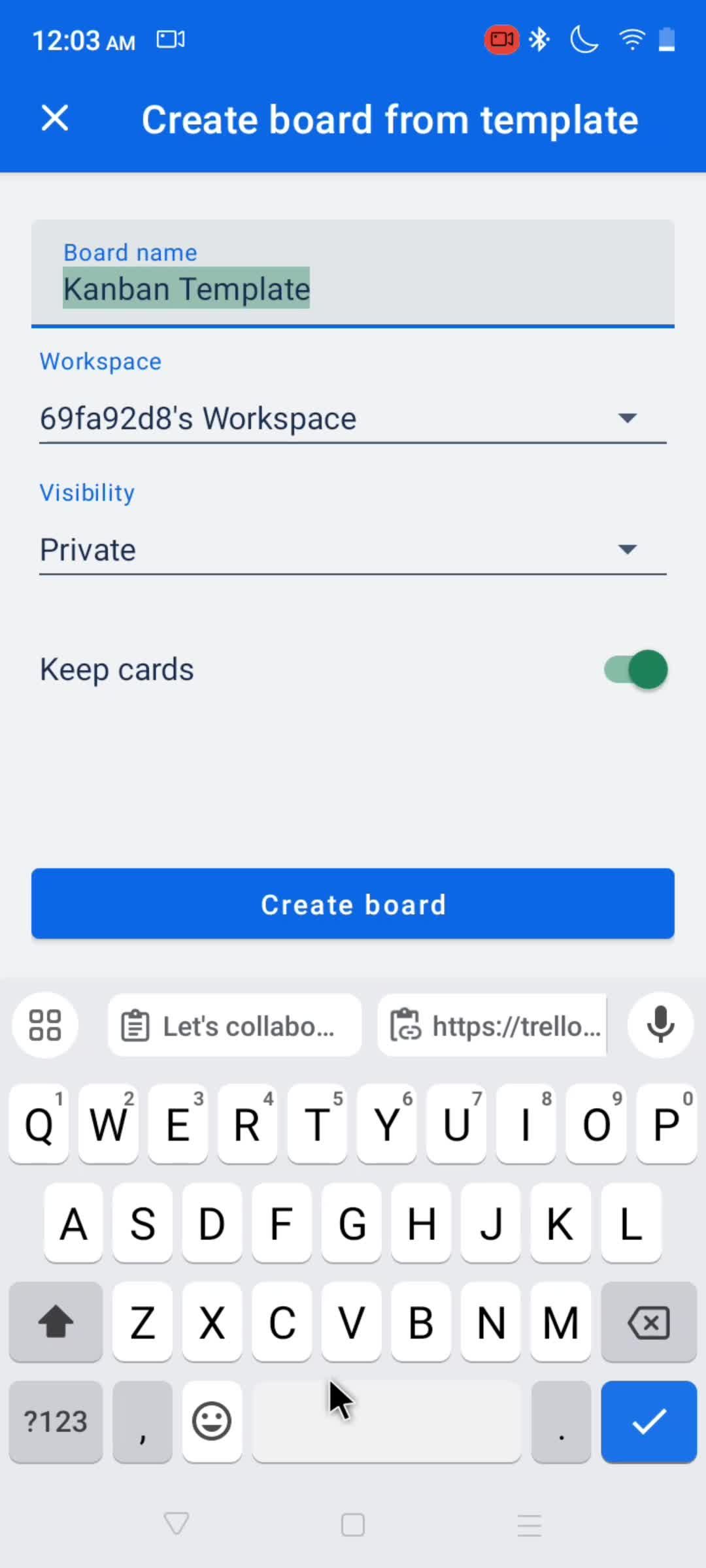
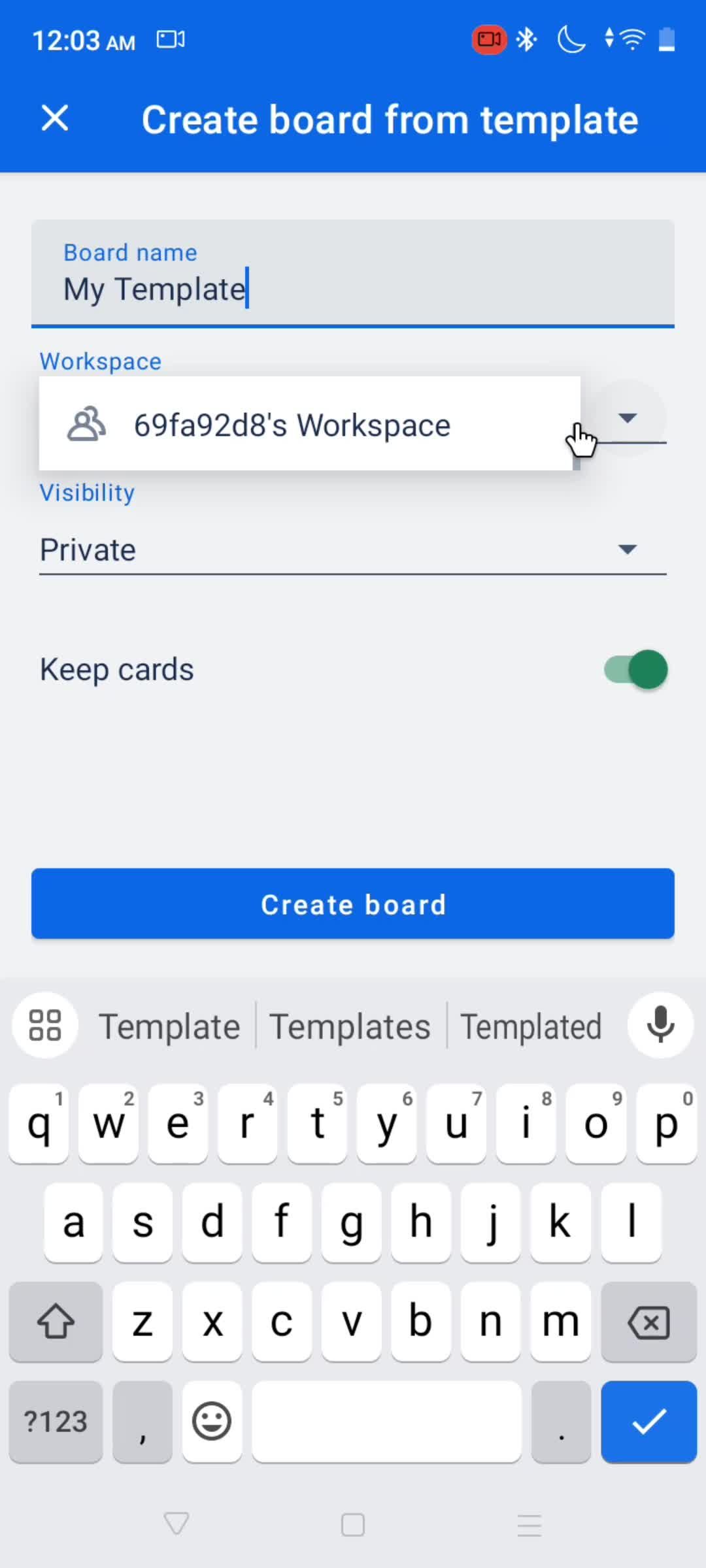
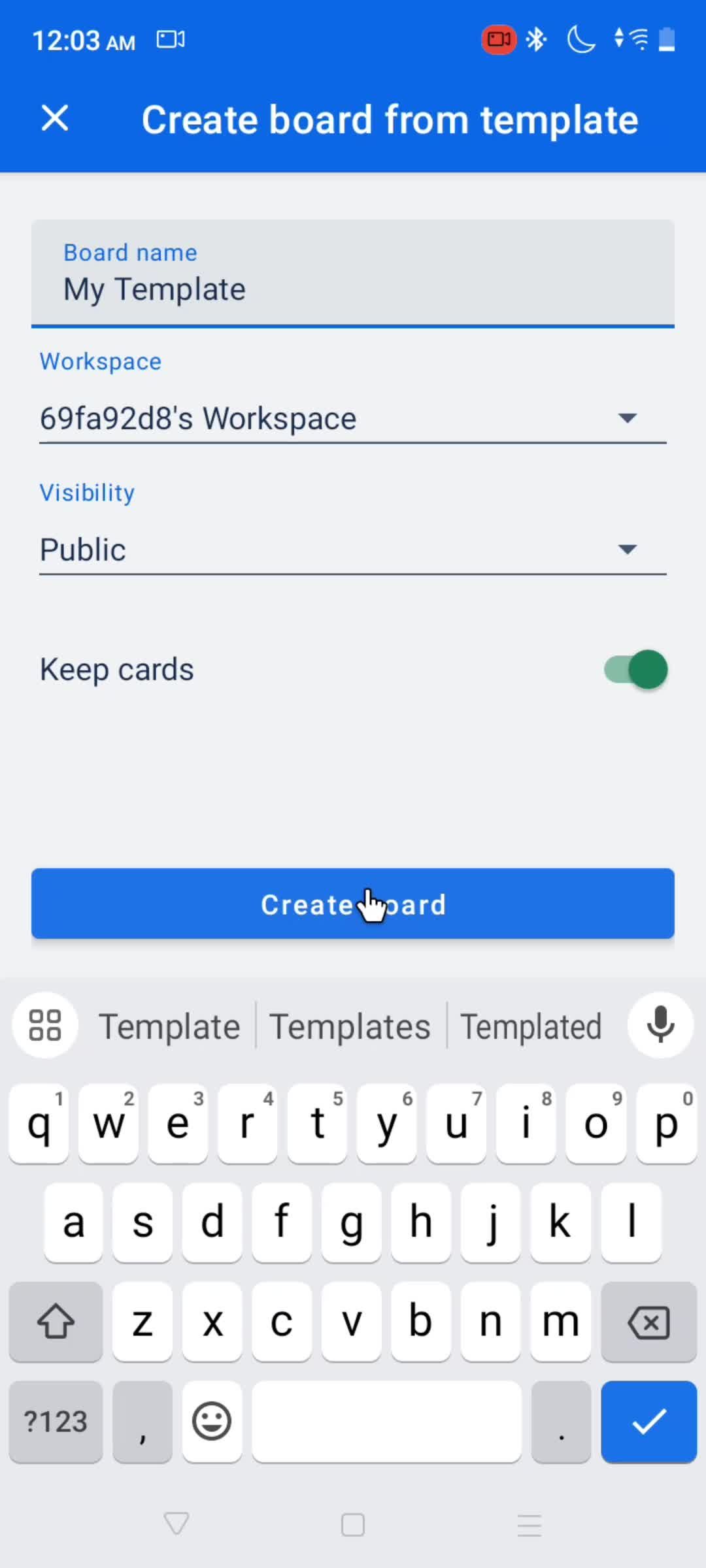
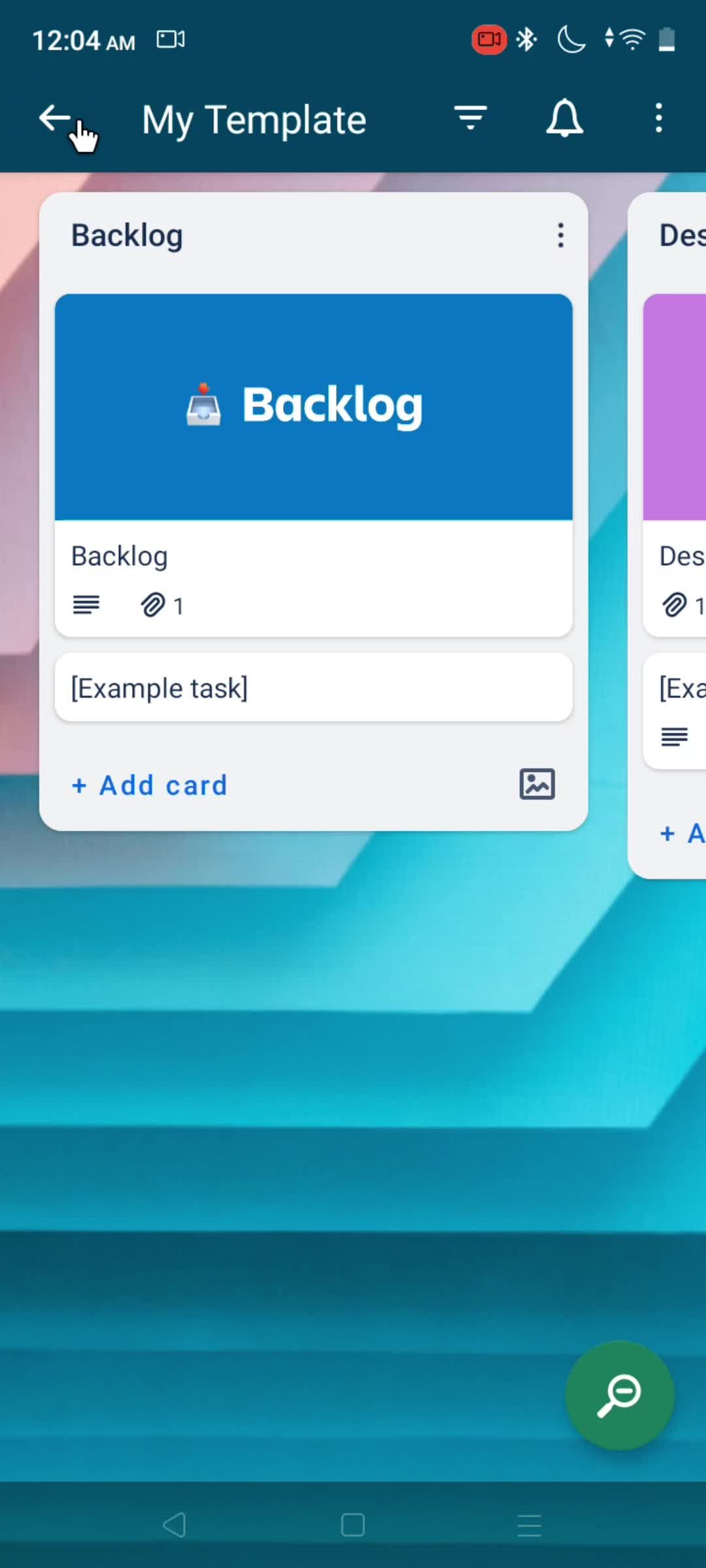
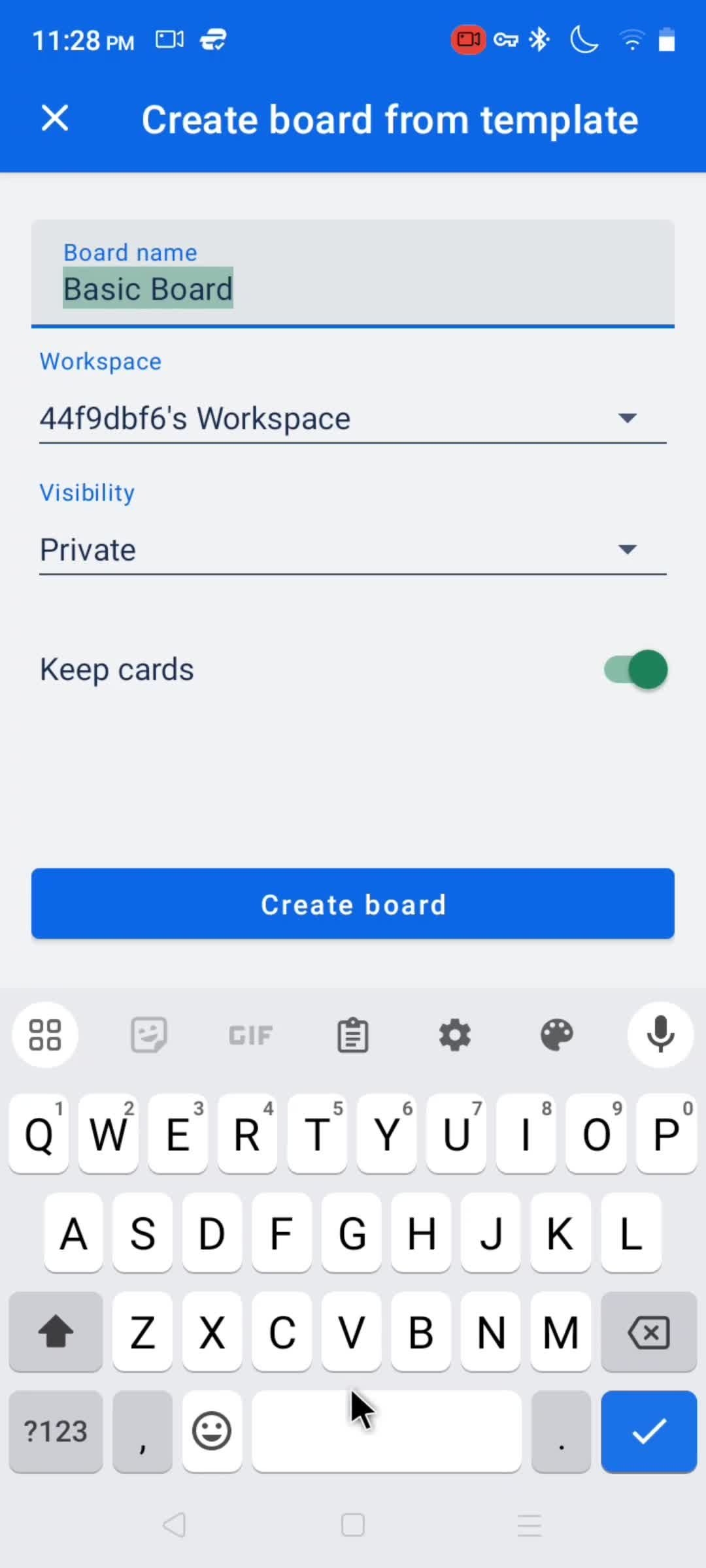
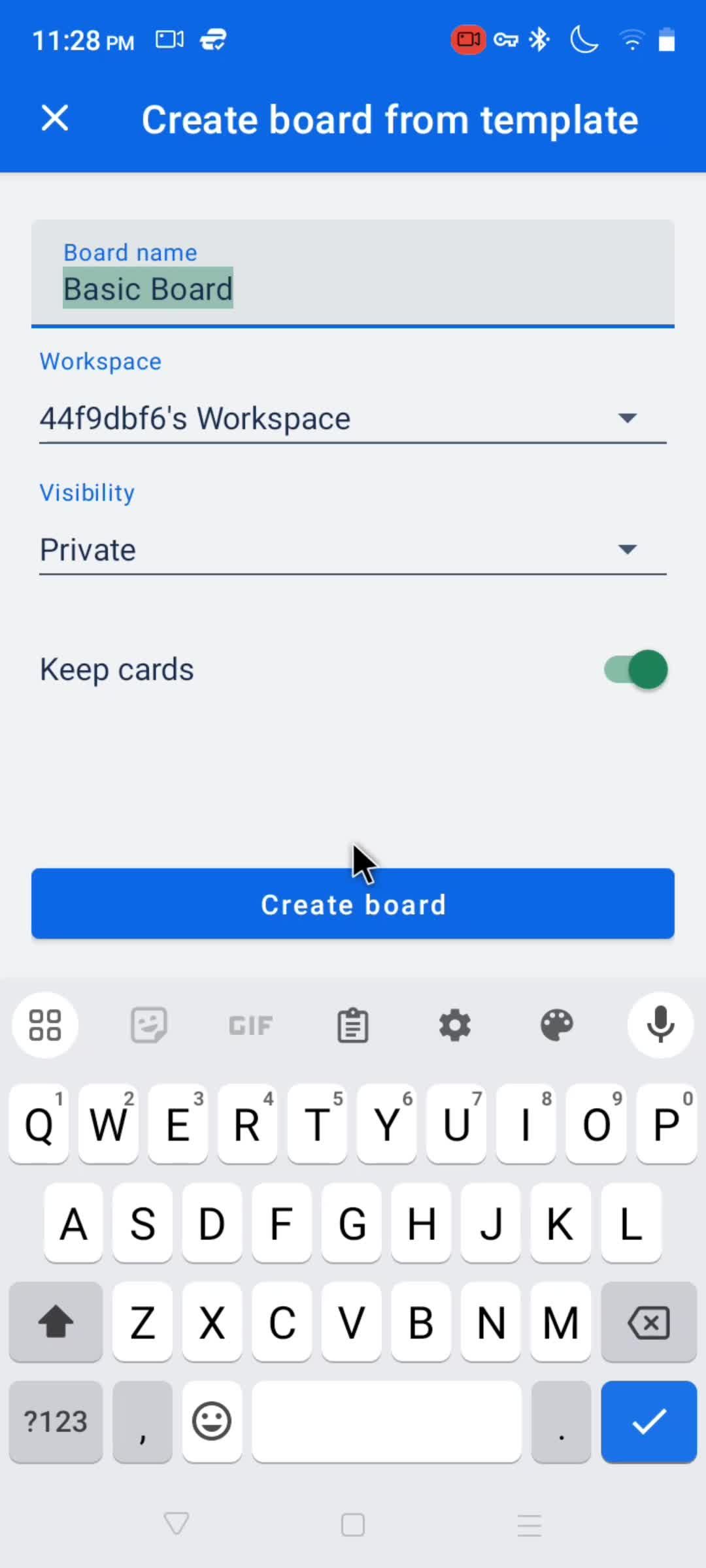
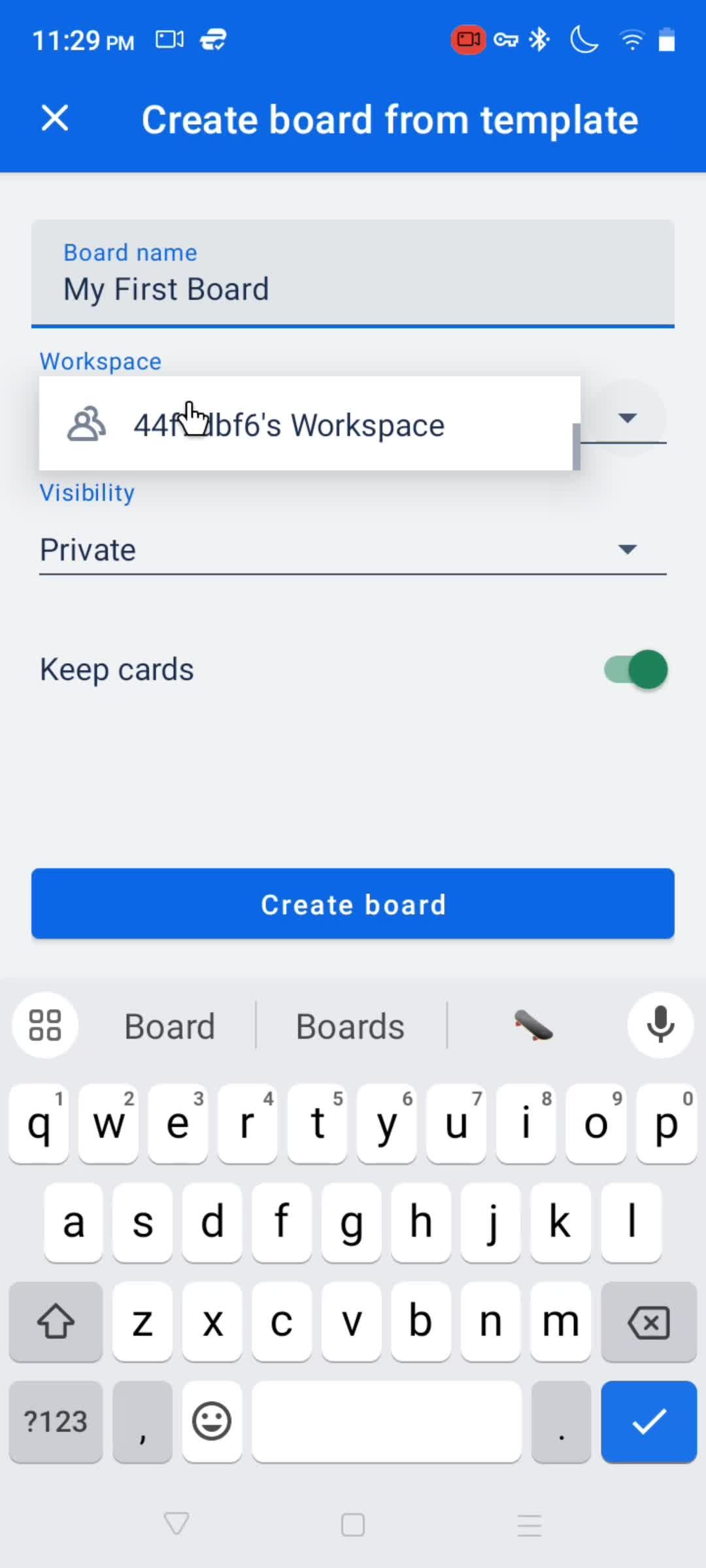
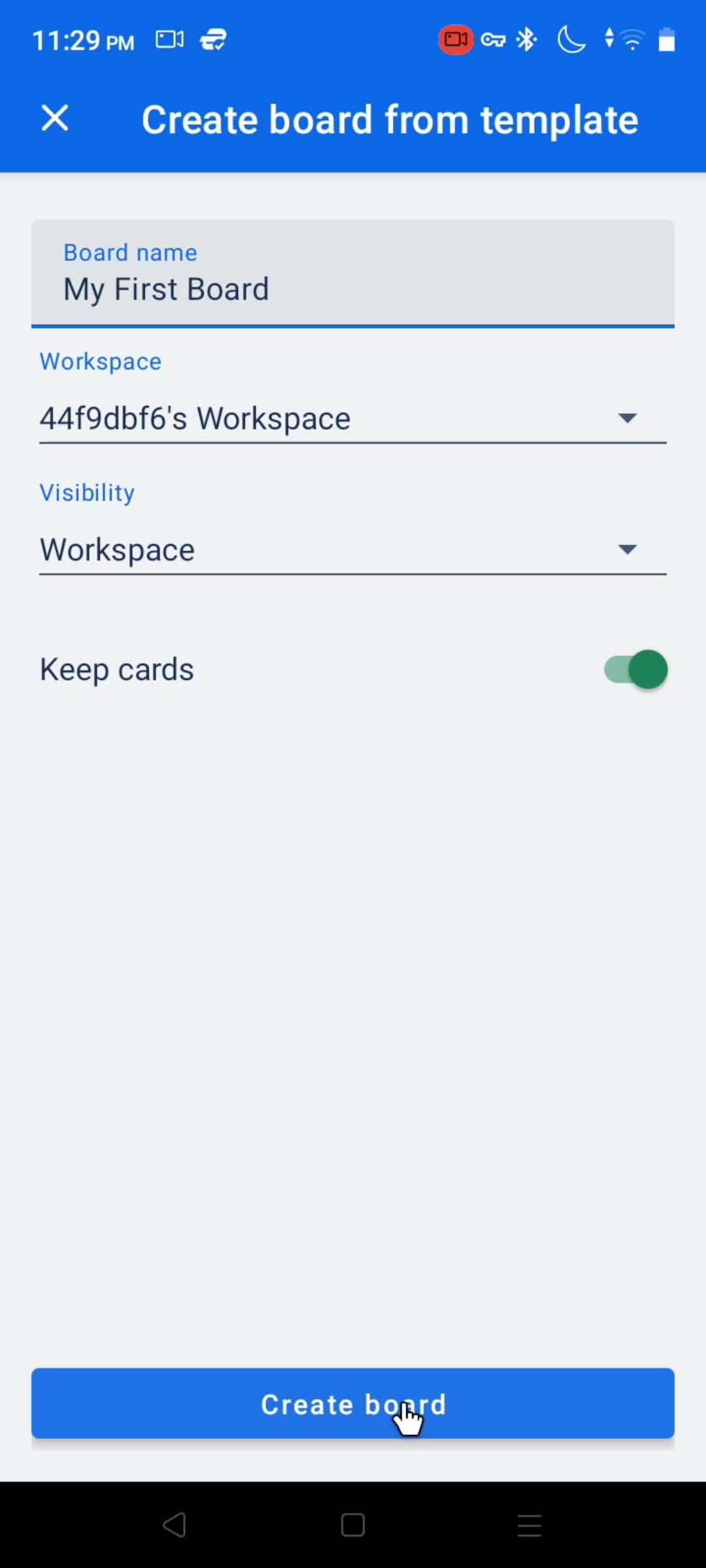
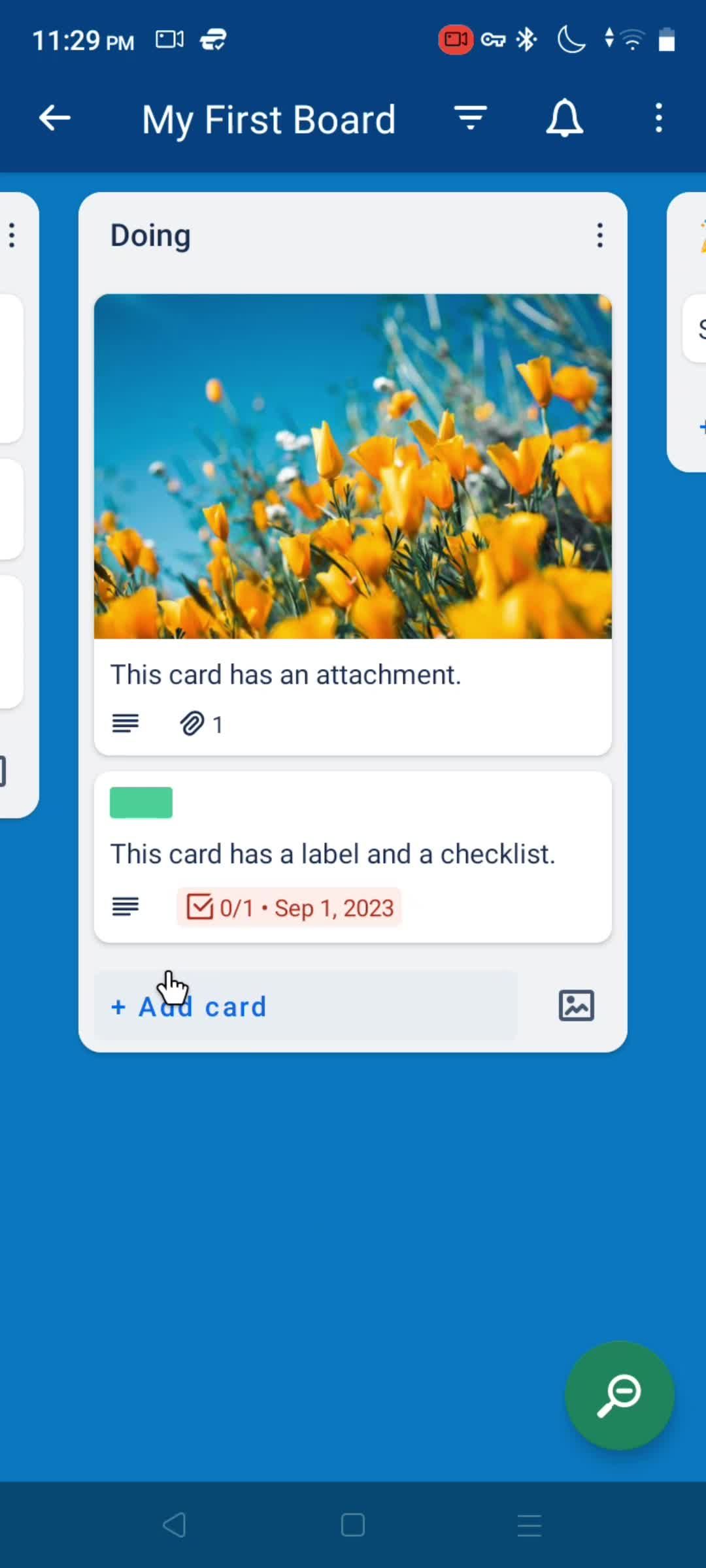
Create board
this is title
Enter title
this is title
Select template
this is title
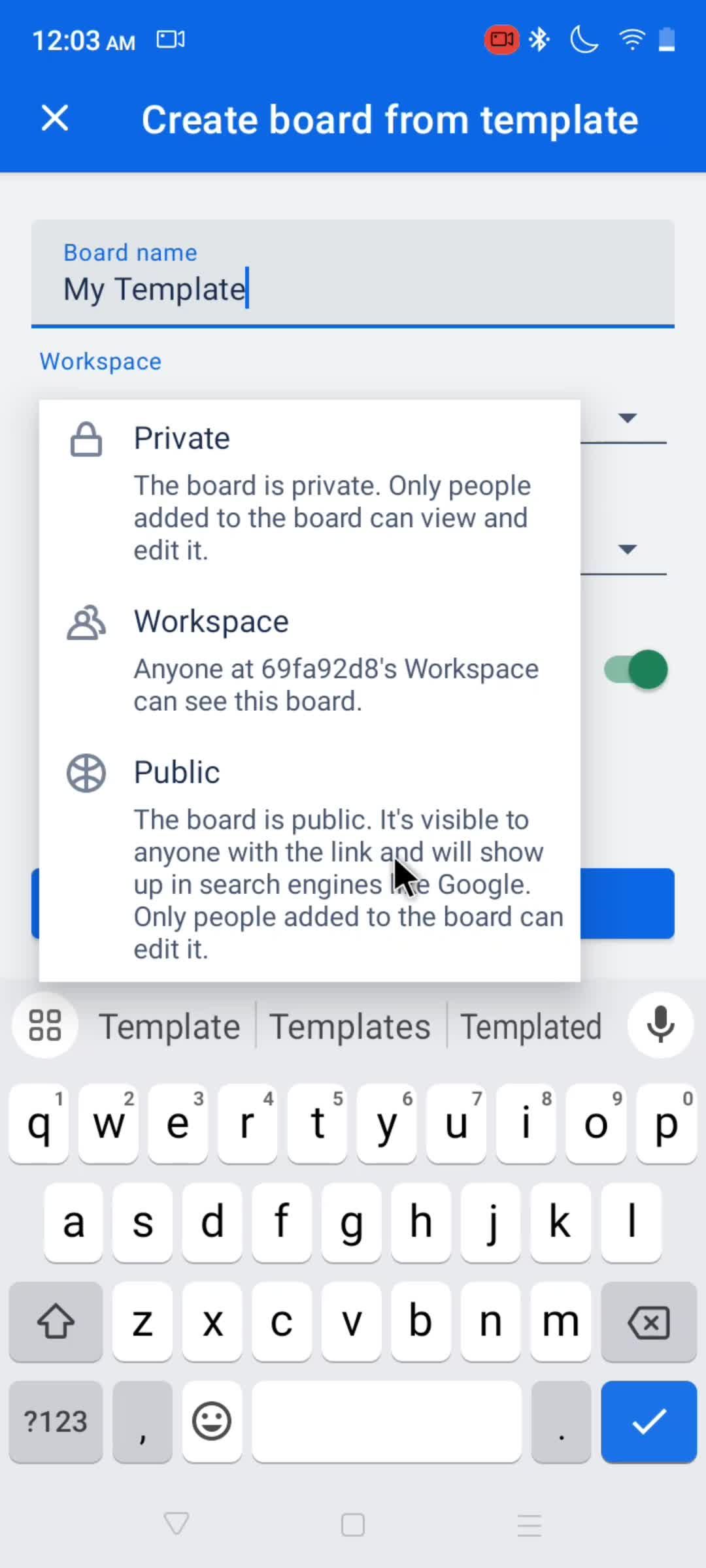
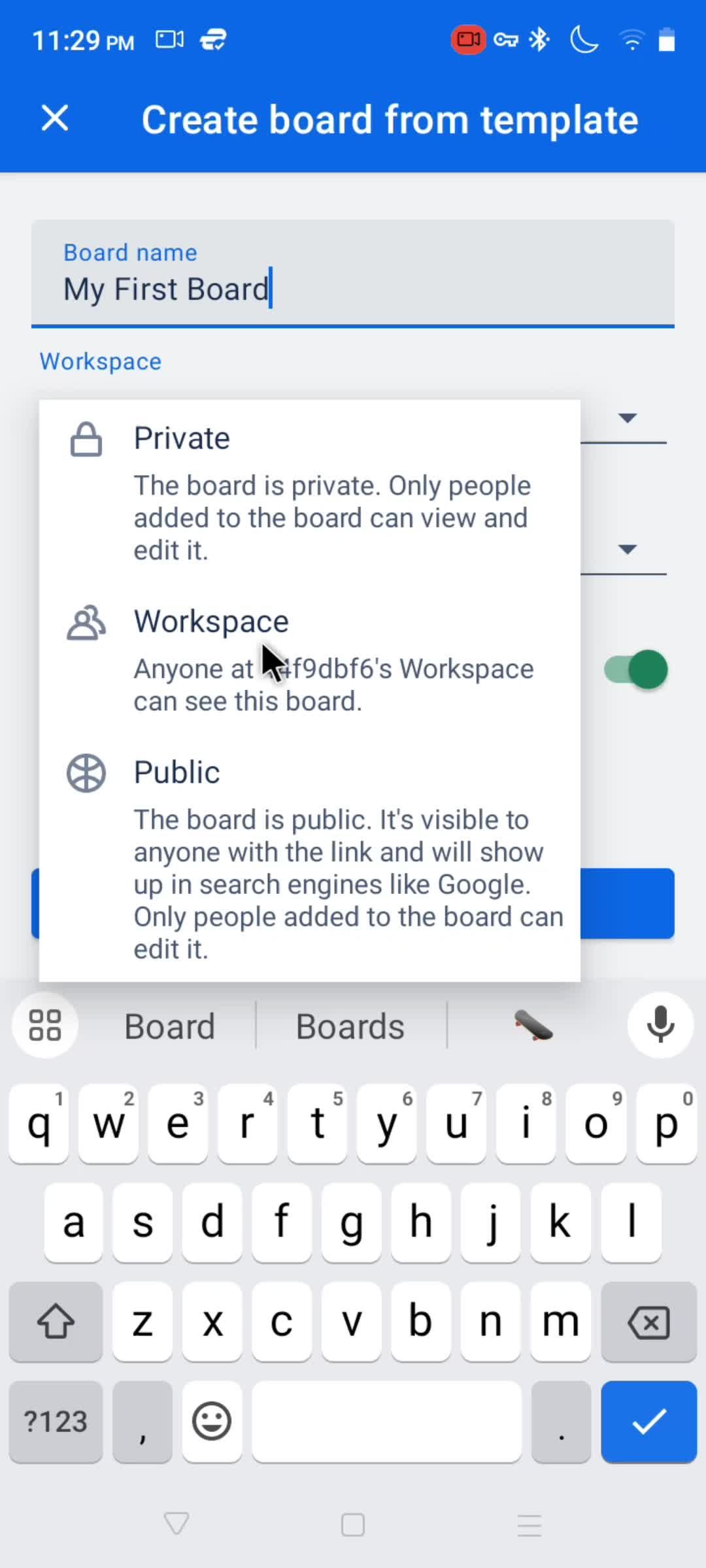
Set visibility
this is title
this is title
this is title
Boards
this is title
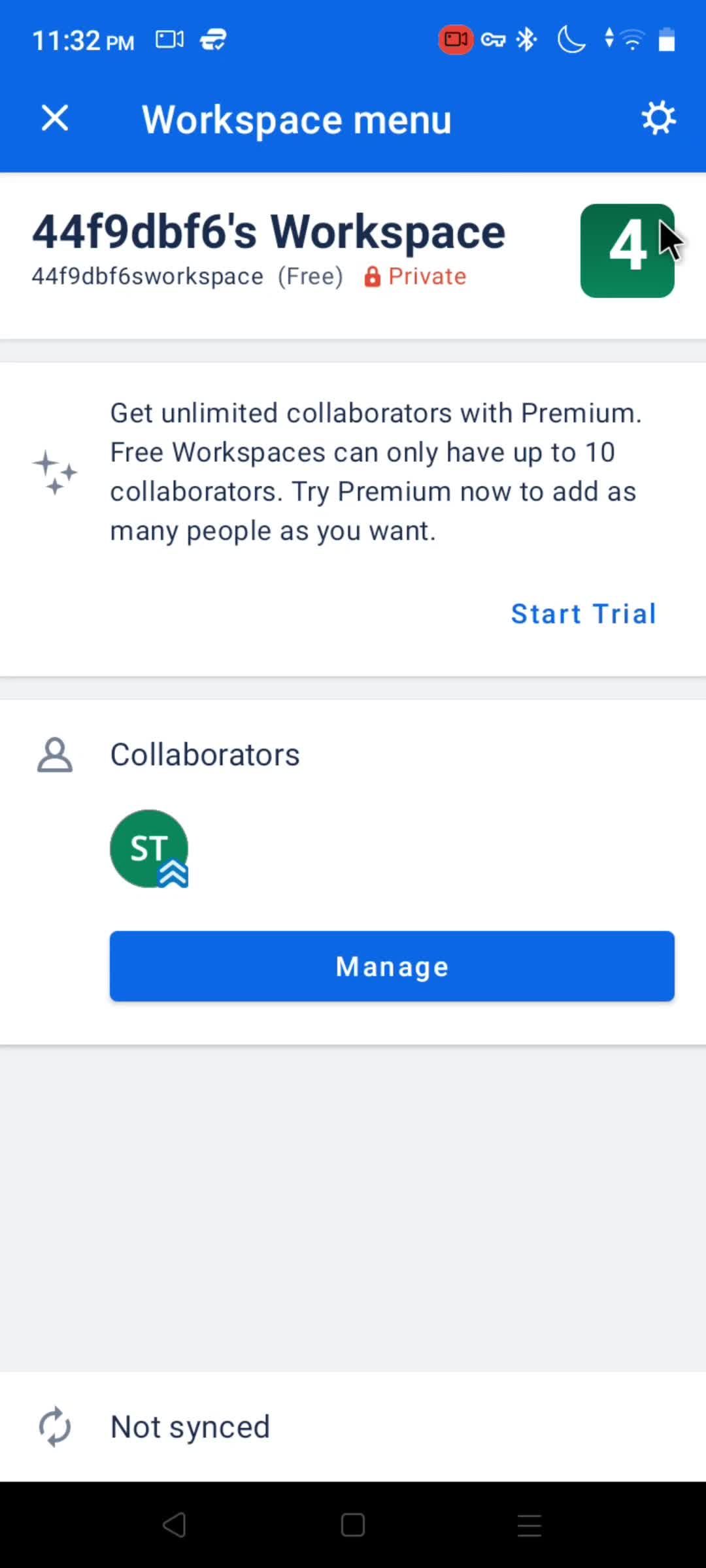
Workspace menu
this is title
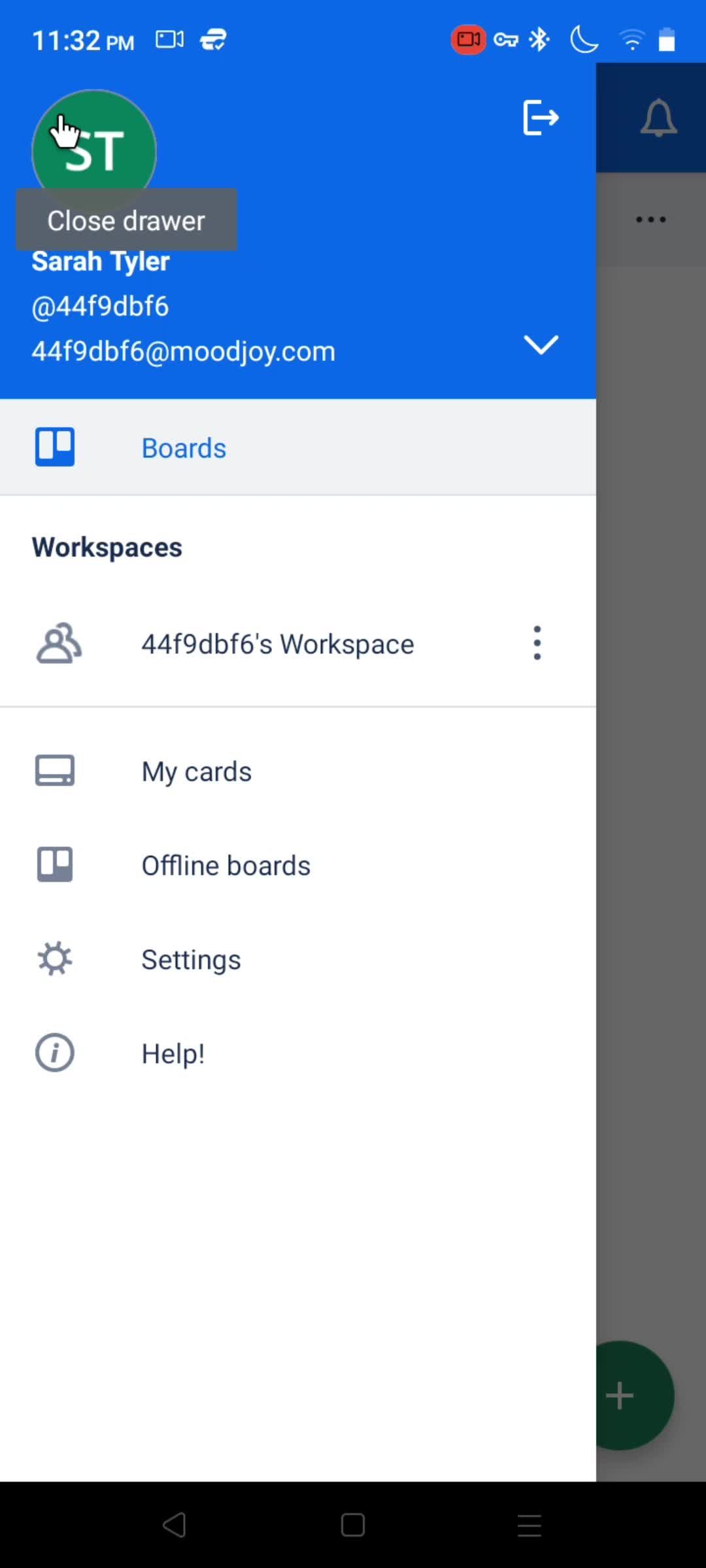
Profile menu
this is title
this is title
Boards
this is title
Profile menu
this is title
Workspace menu
this is title
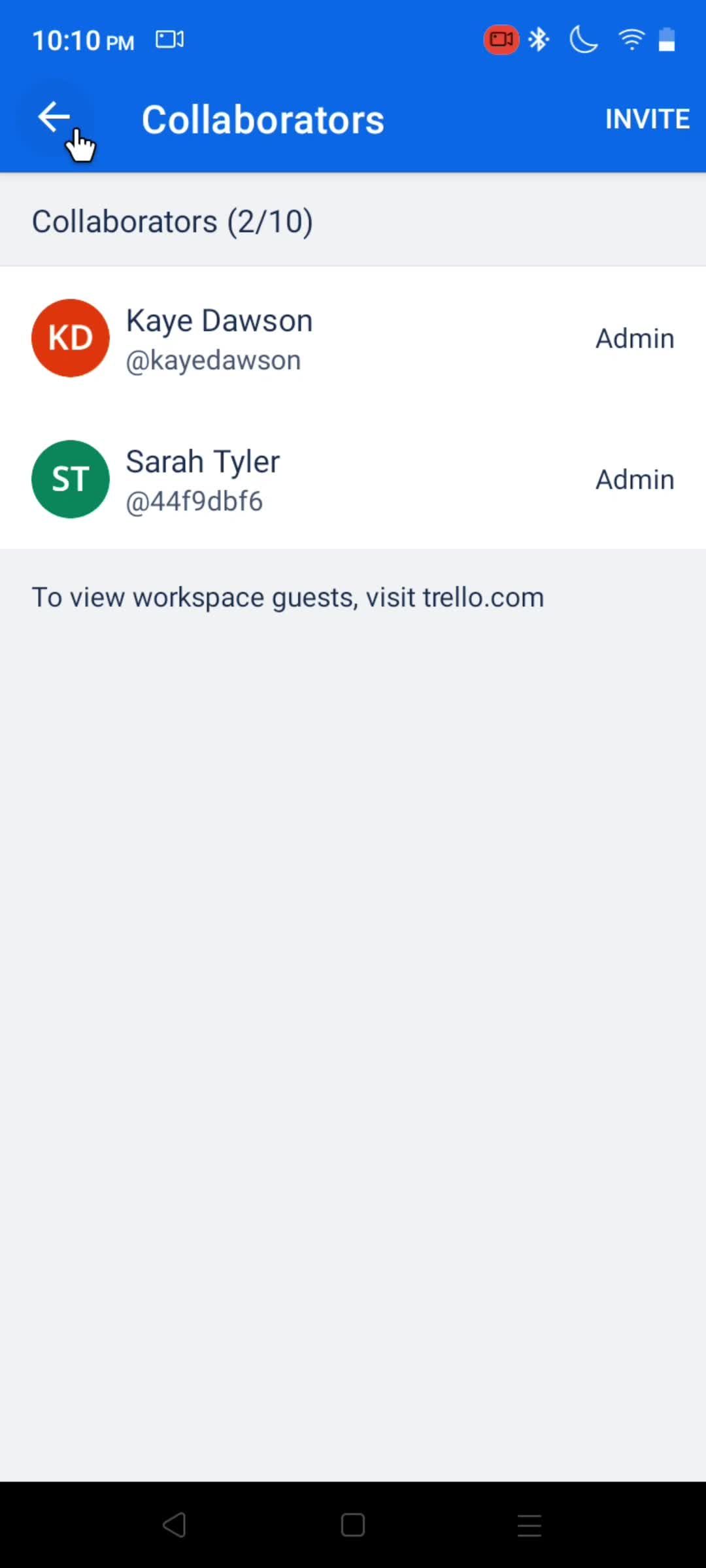
Collaborators
this is title
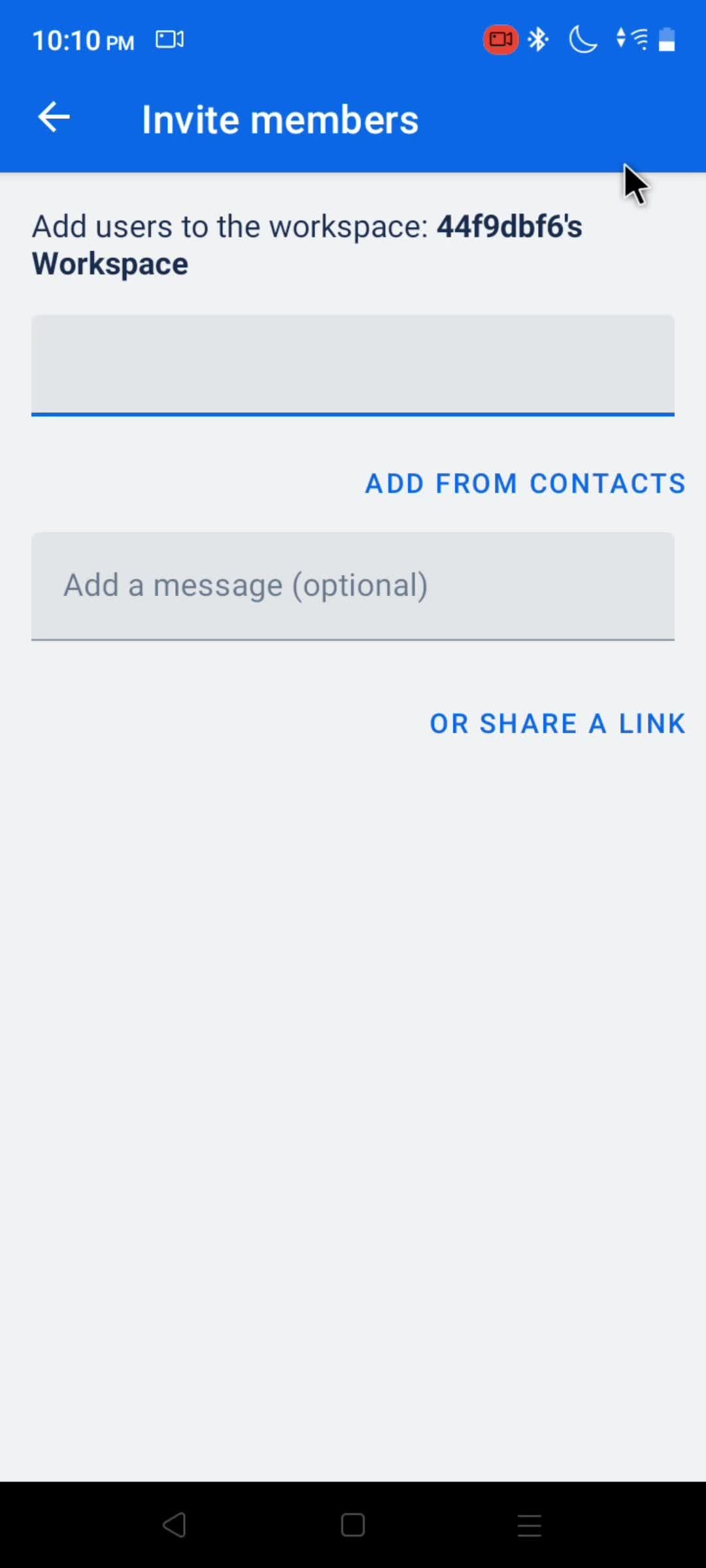
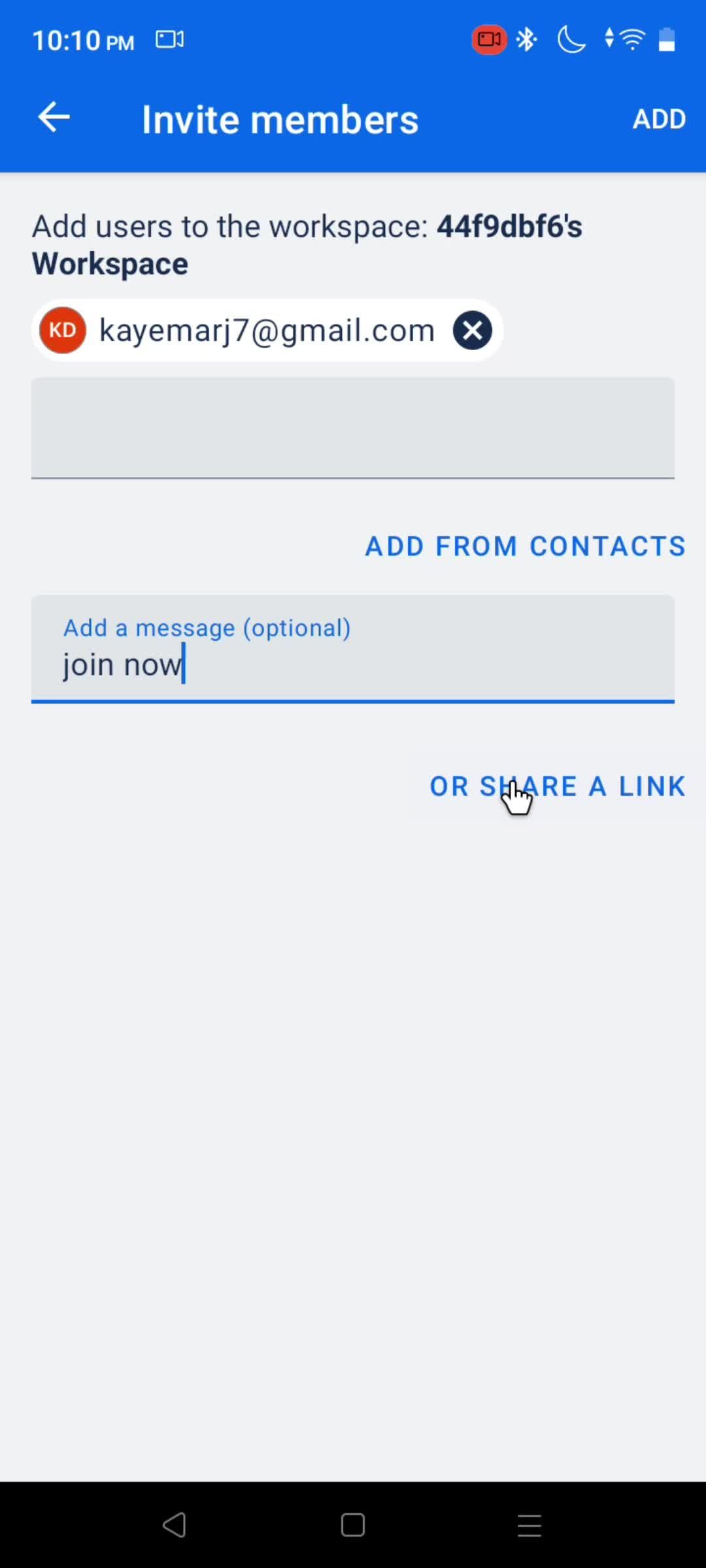
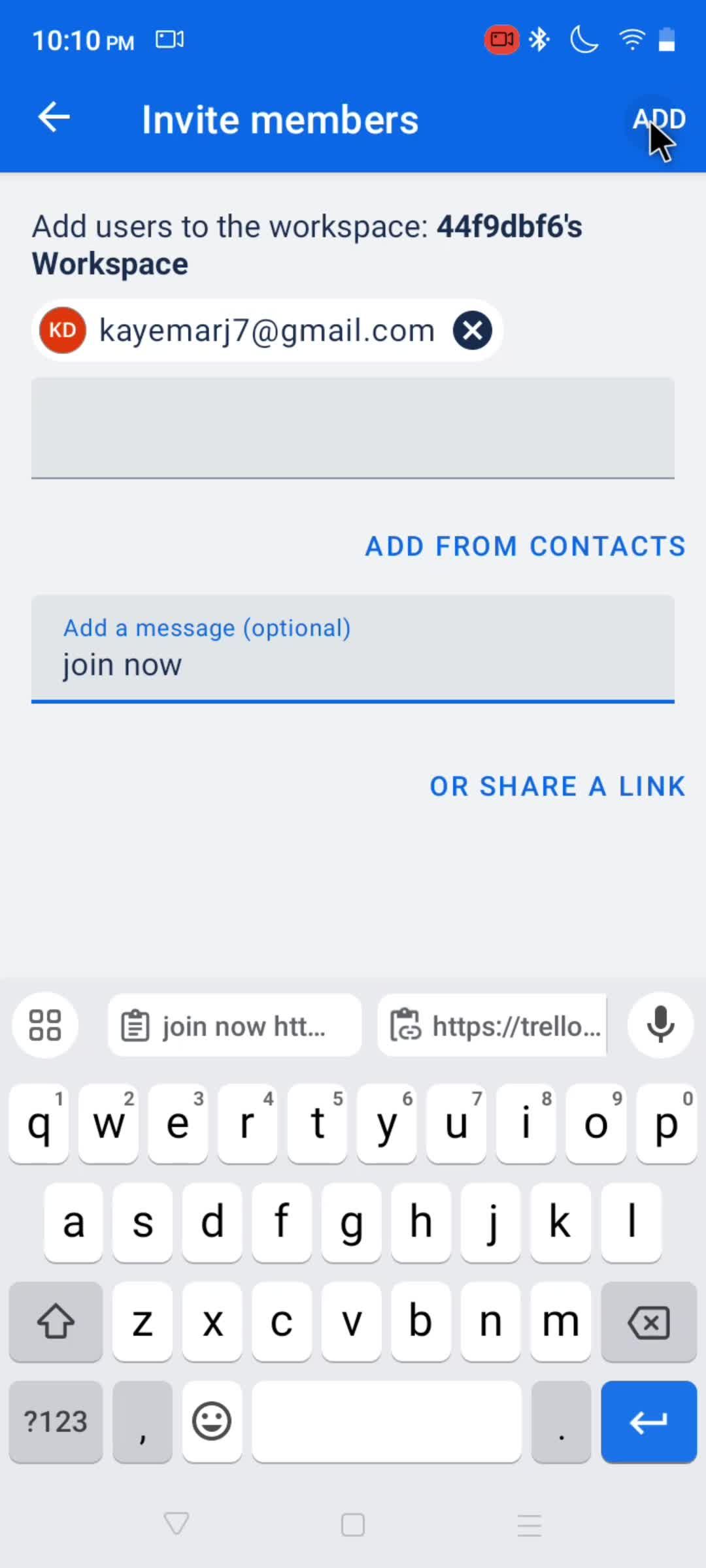
Invite members
this is title
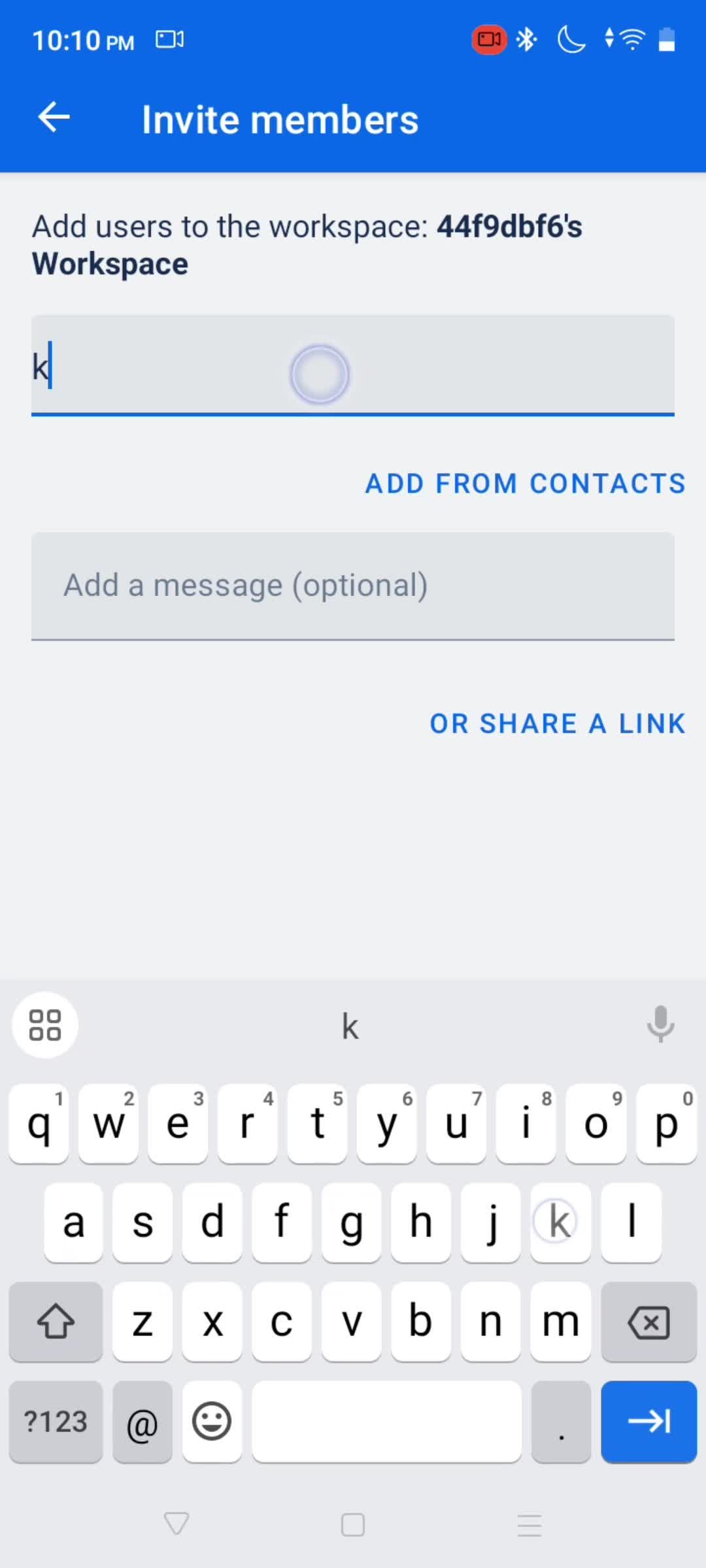
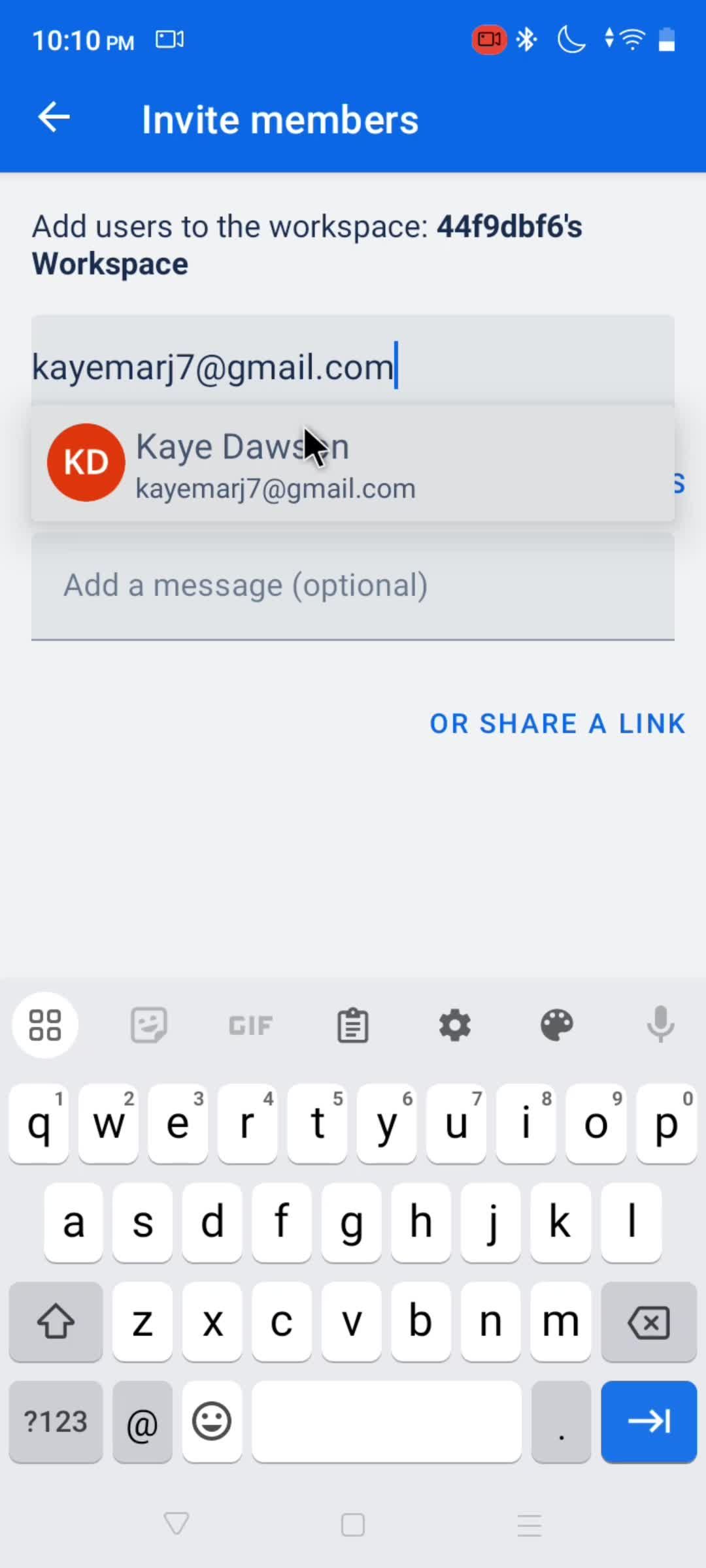
Enter email
this is title
this is title
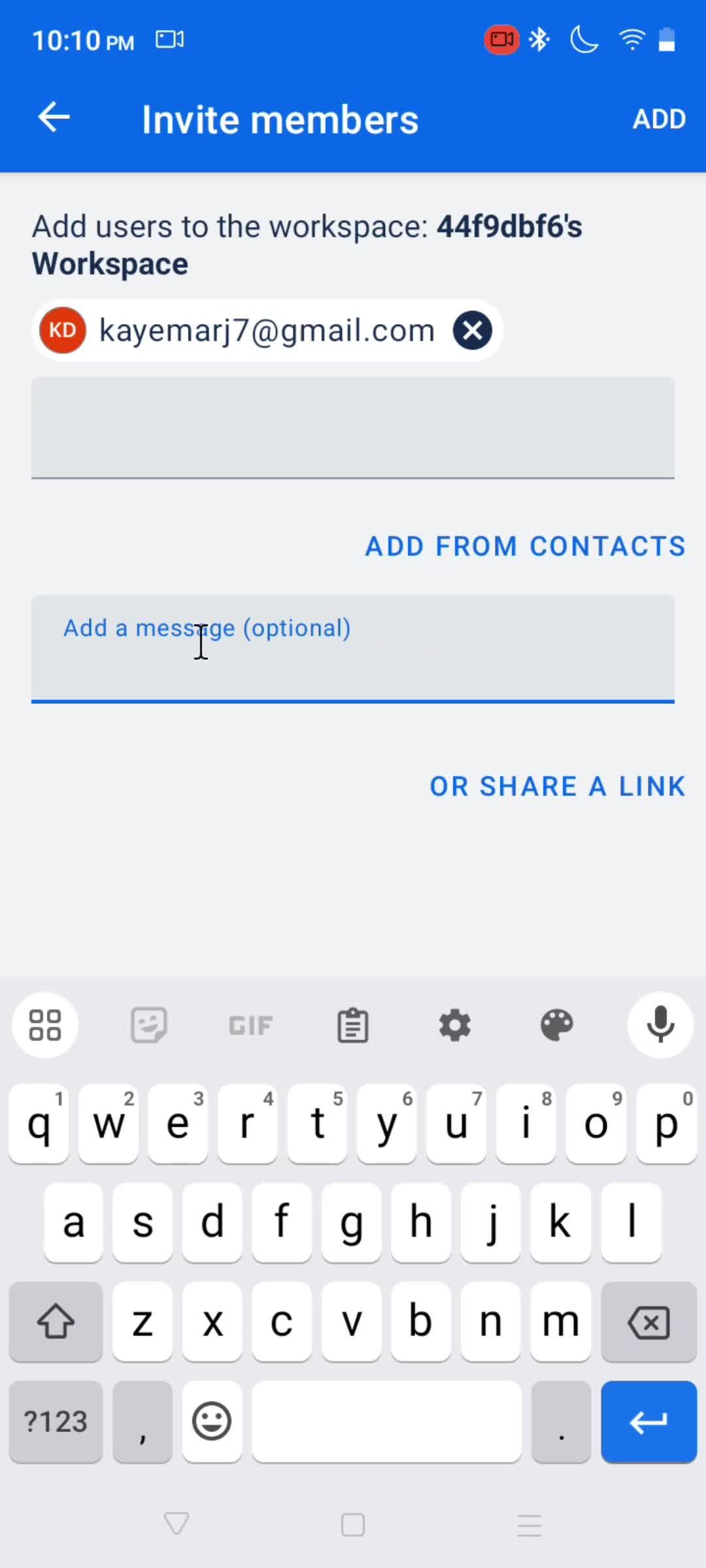
Add message
this is title
this is title
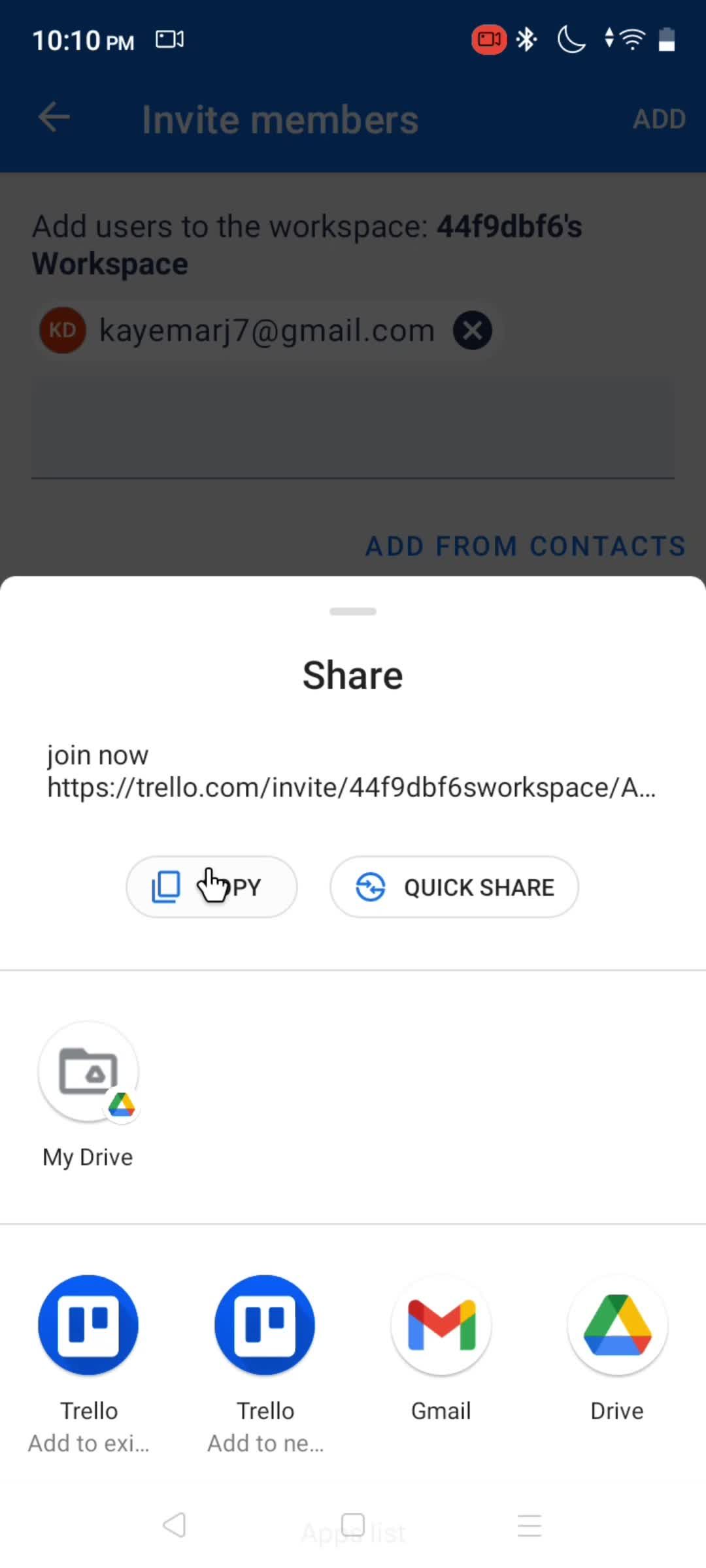
Share
this is title
this is title
Collaborators
this is title
Boards
this is title
this is title
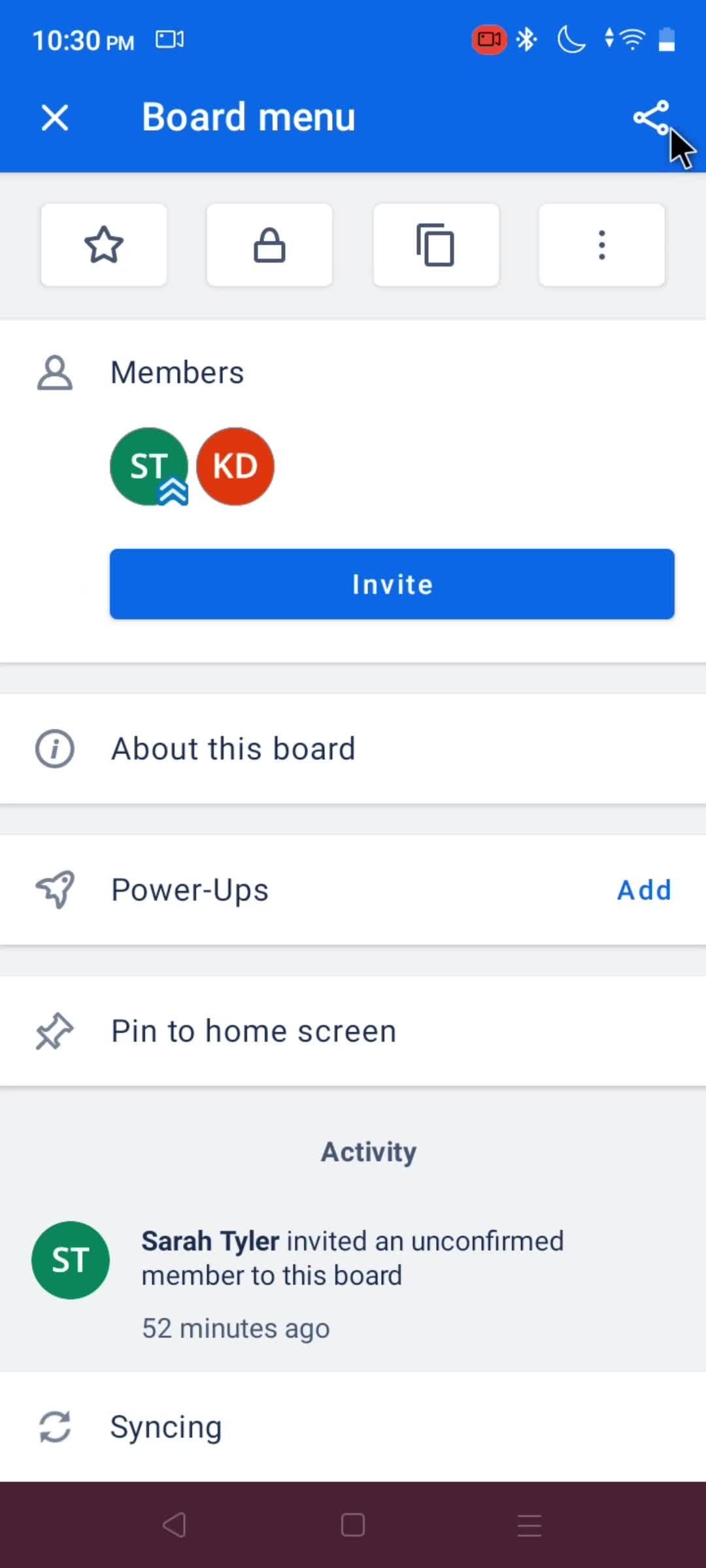
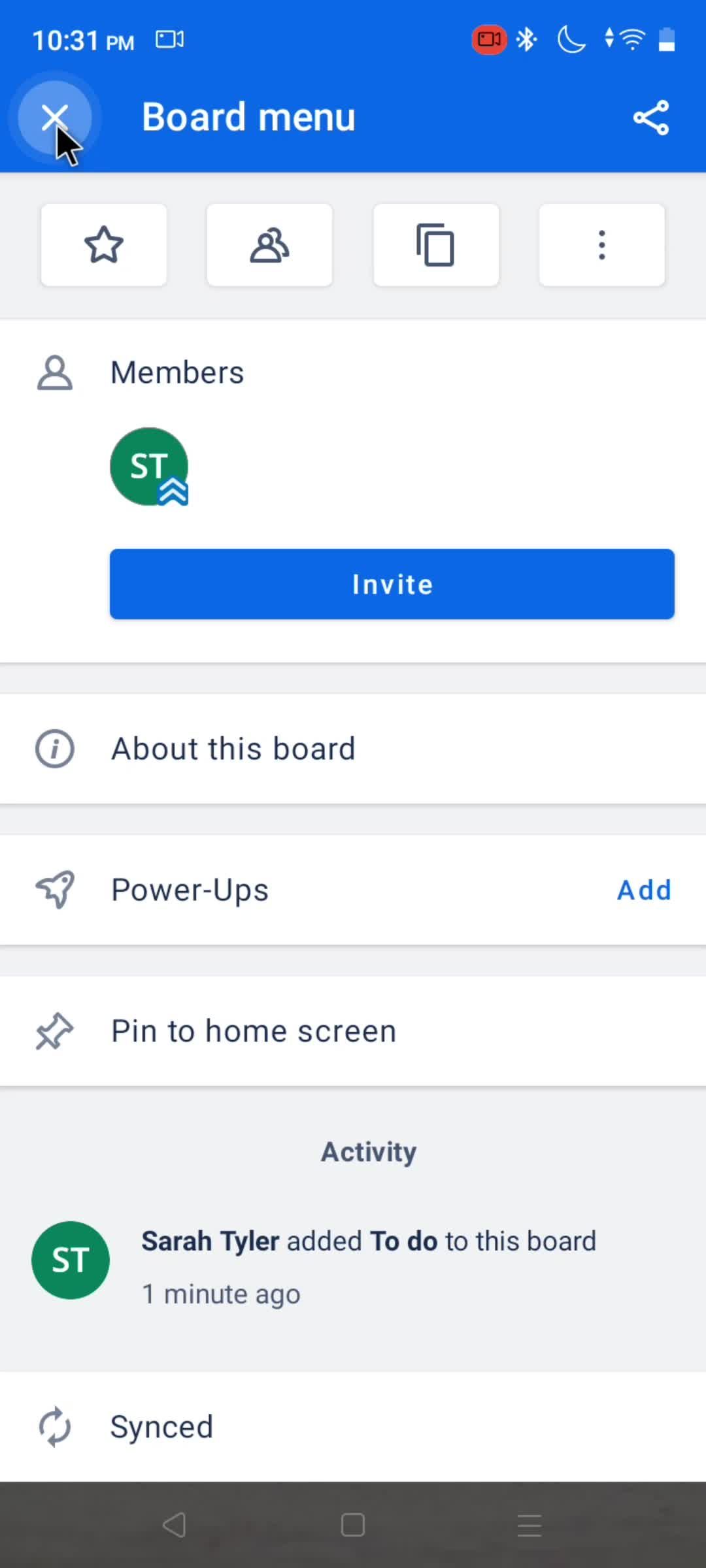
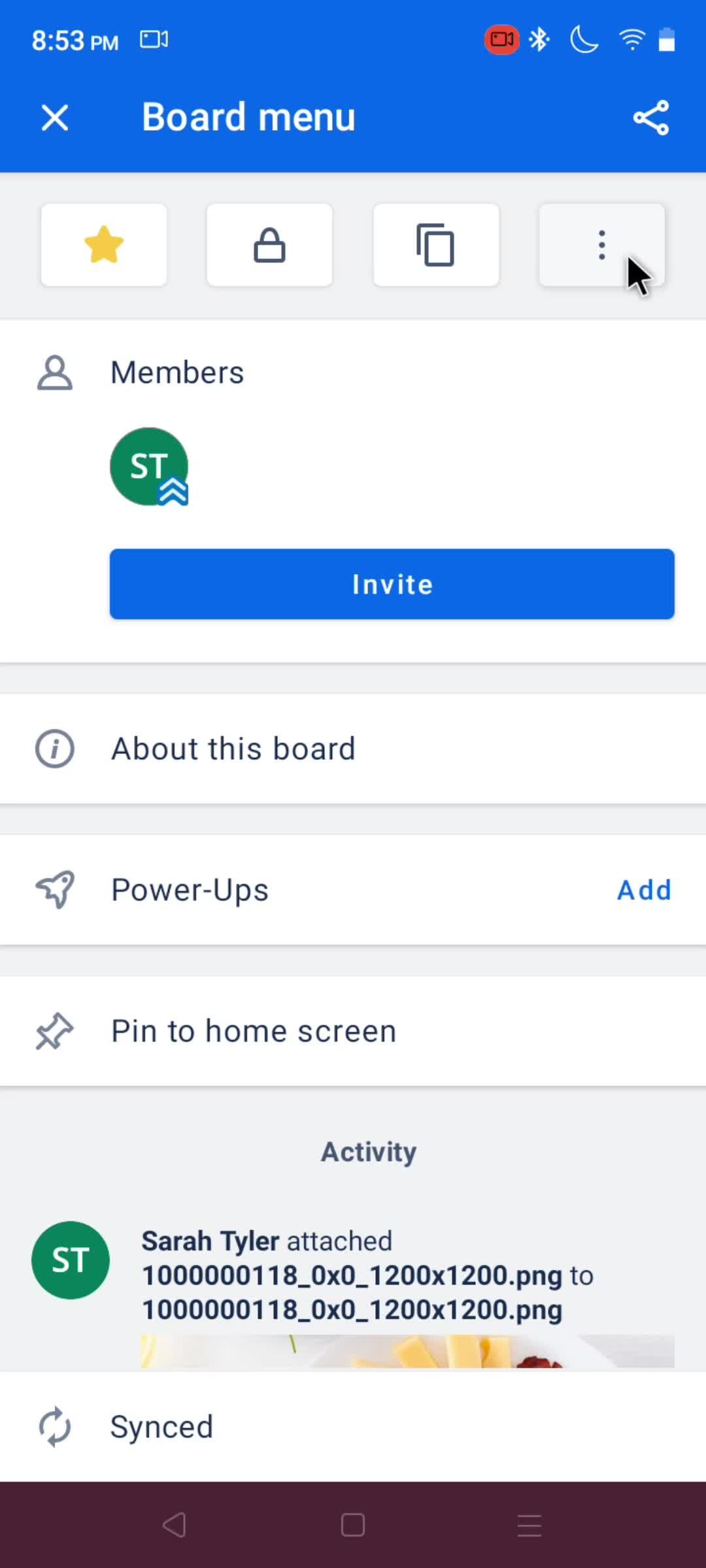
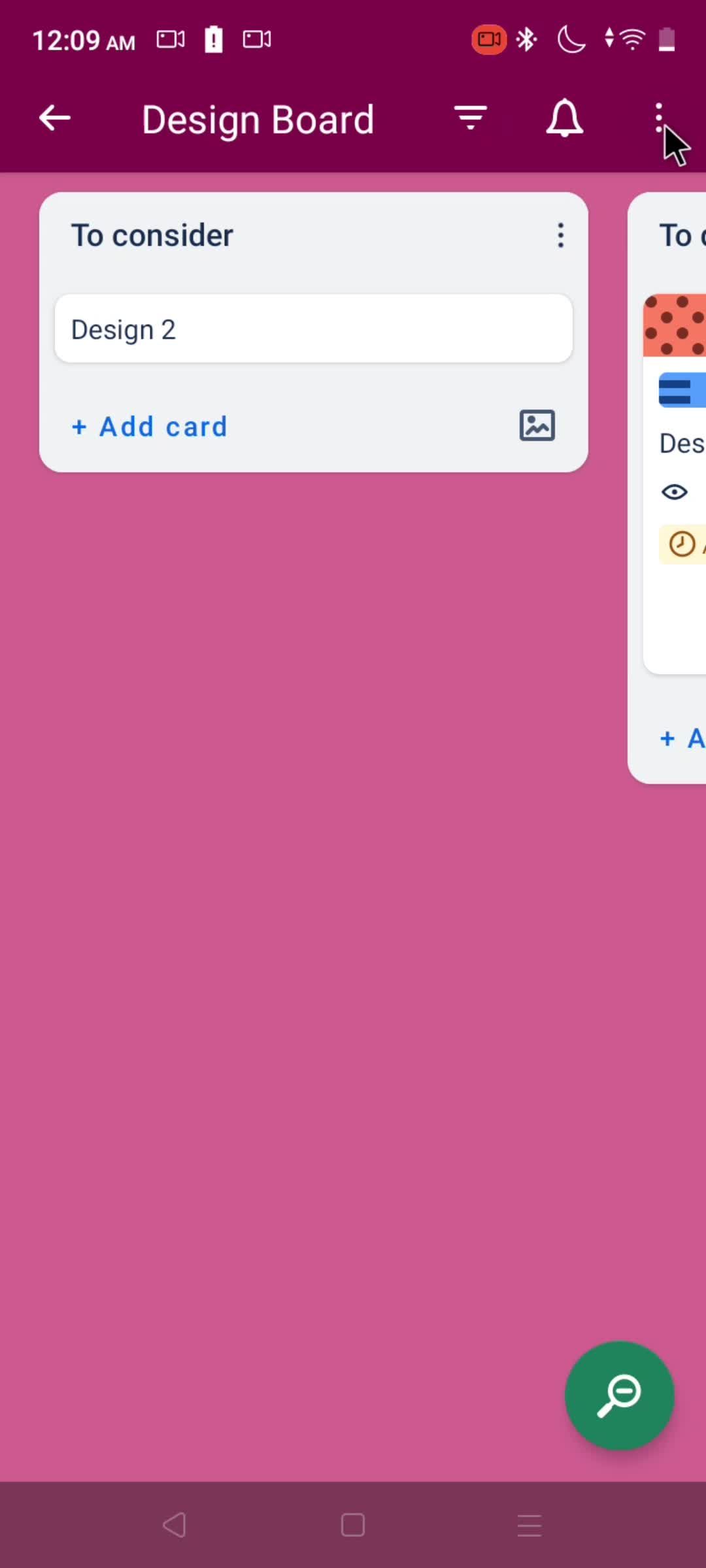
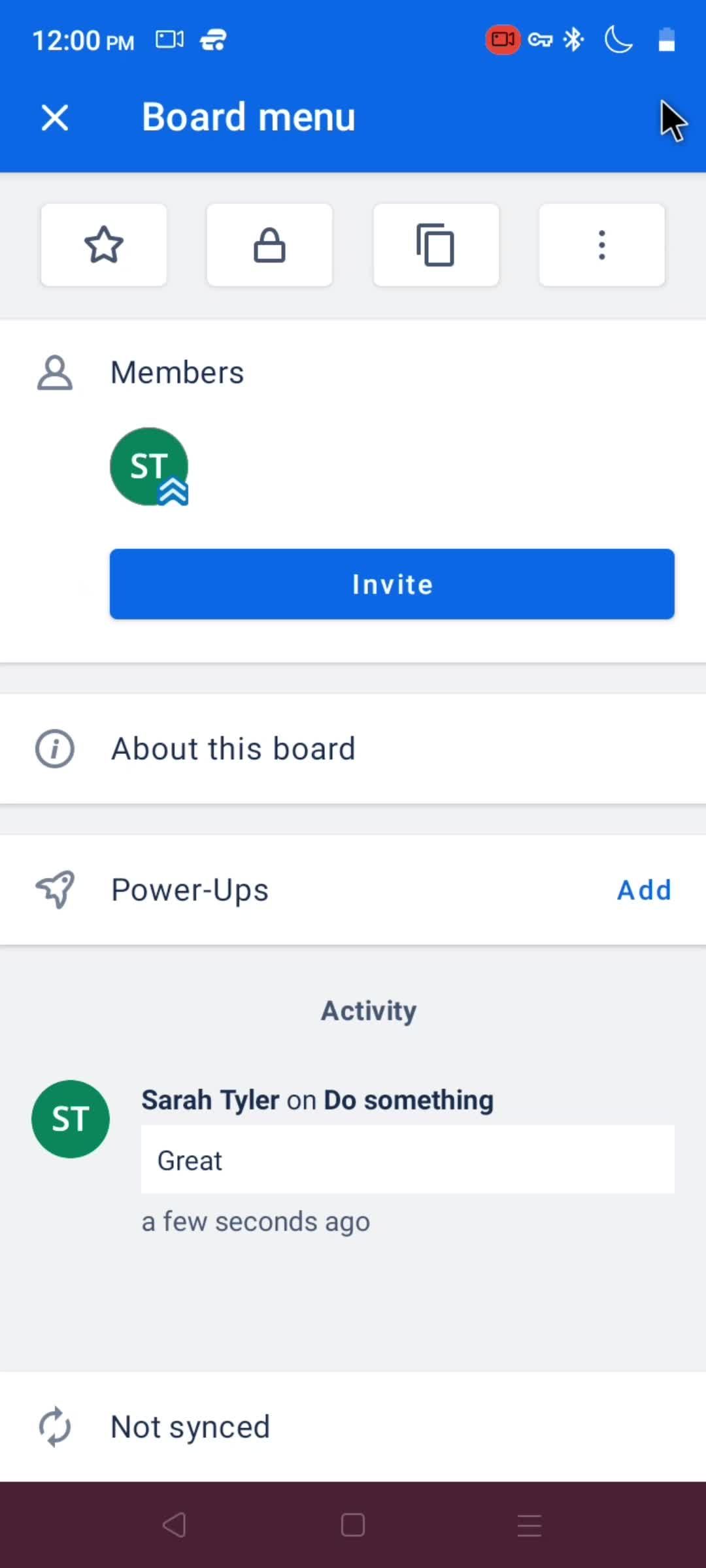
Board menu
this is title
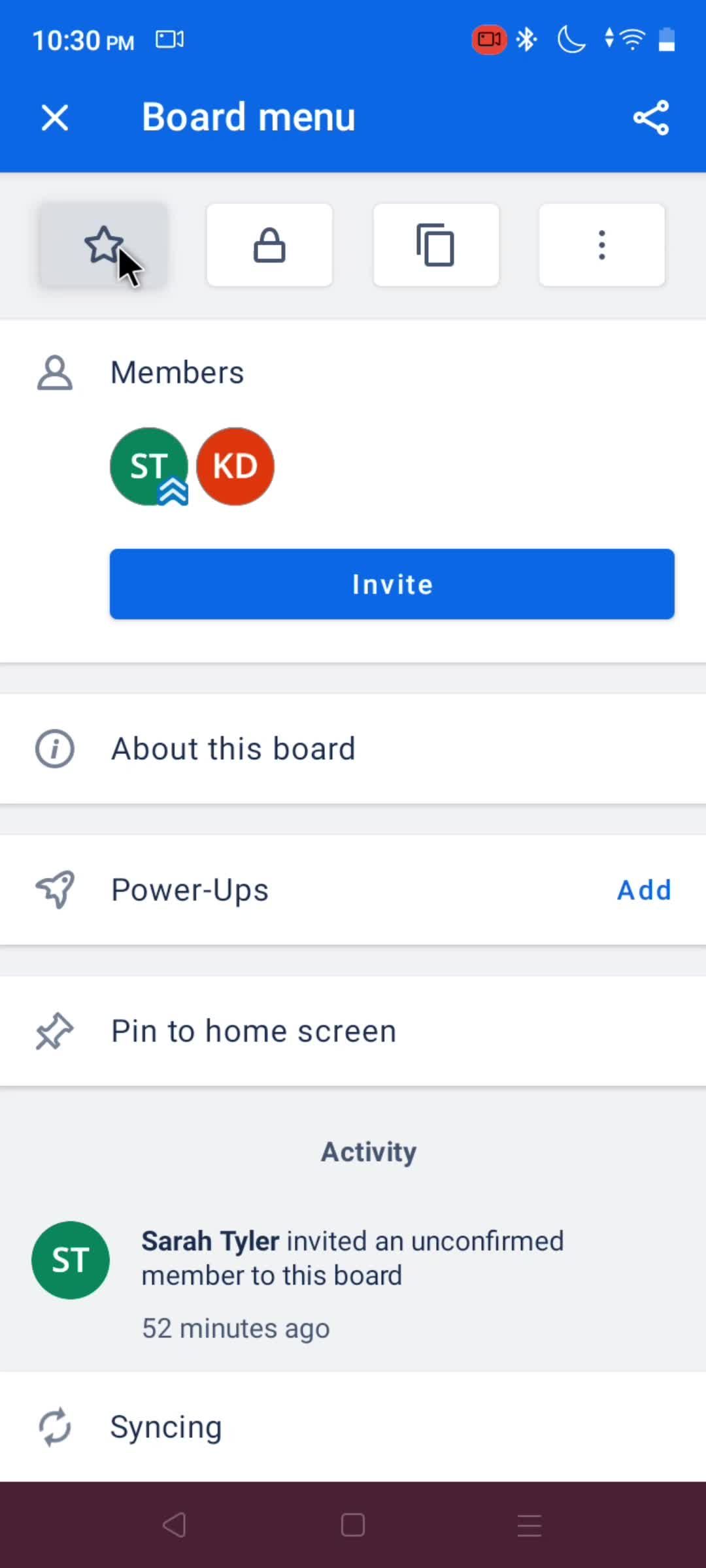
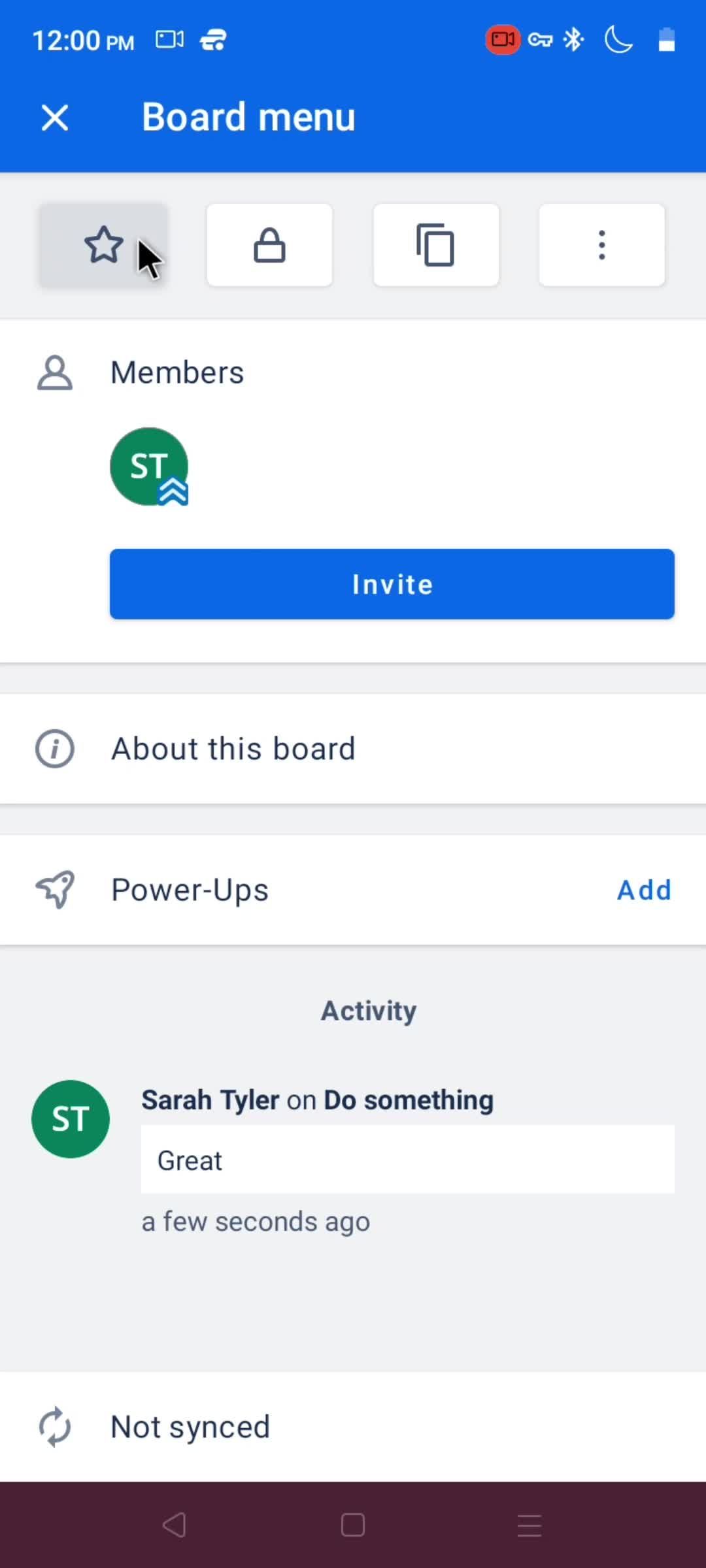
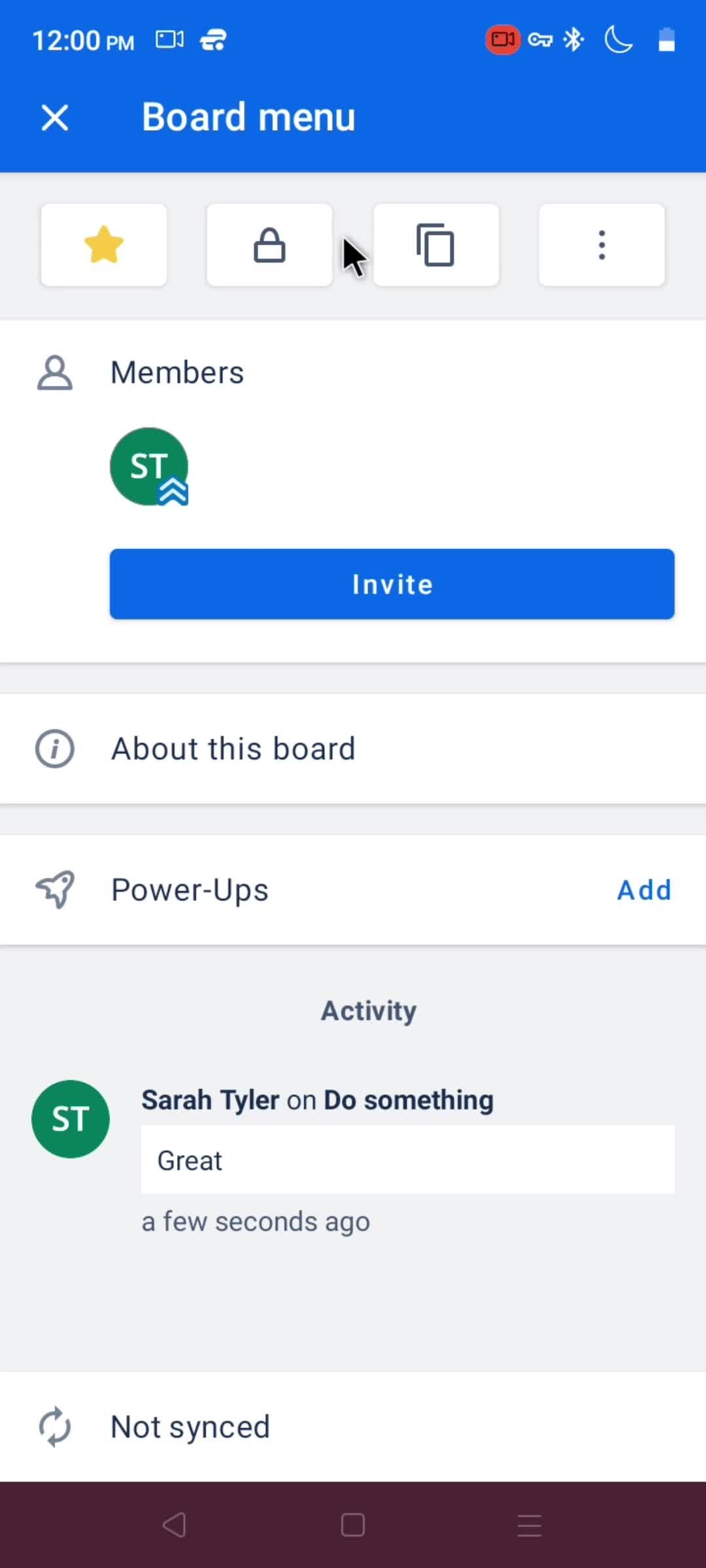
Add to favorites
this is title
this is title
this is title
this is title
Remove
this is title
Removed from favorites
this is title
this is title
Boards
this is title
Board
this is title
Board menu
this is title
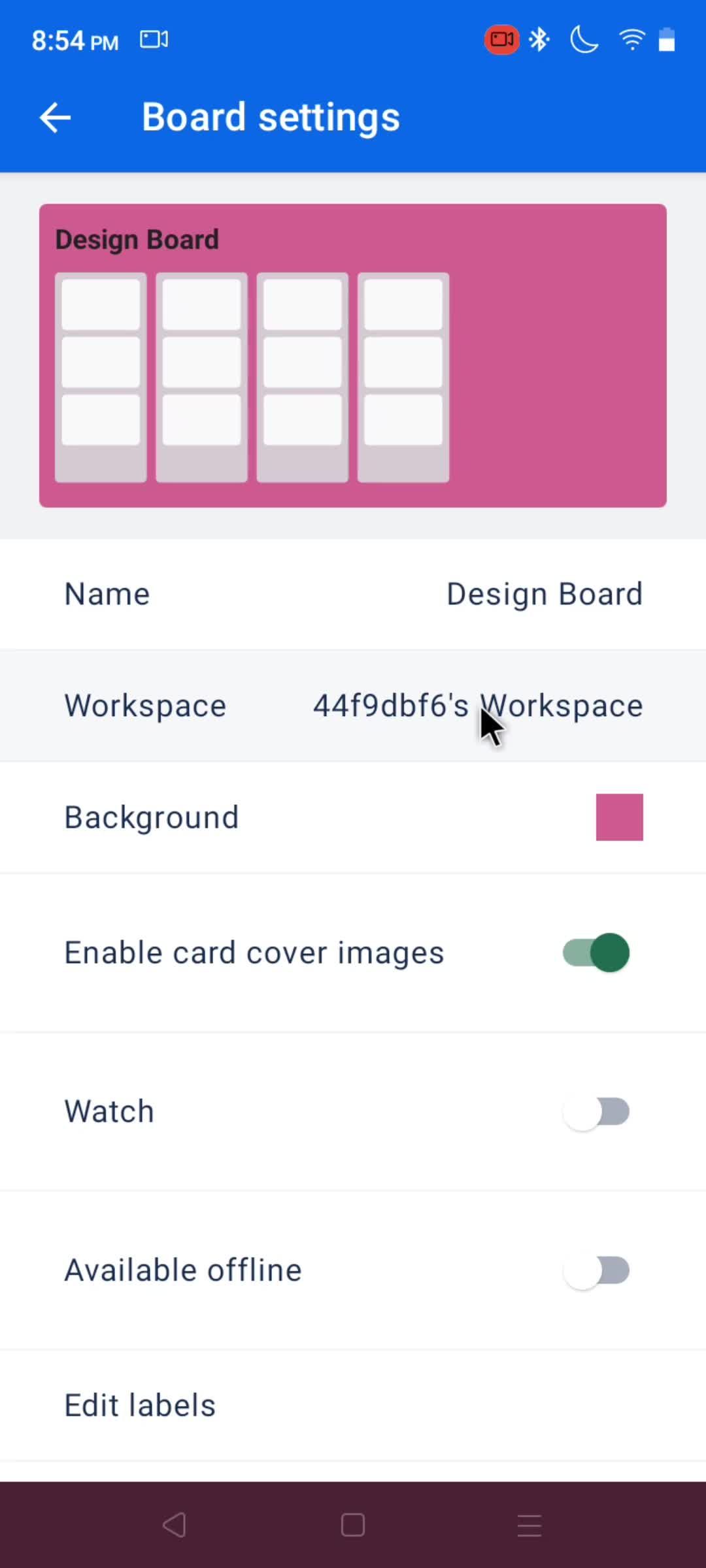
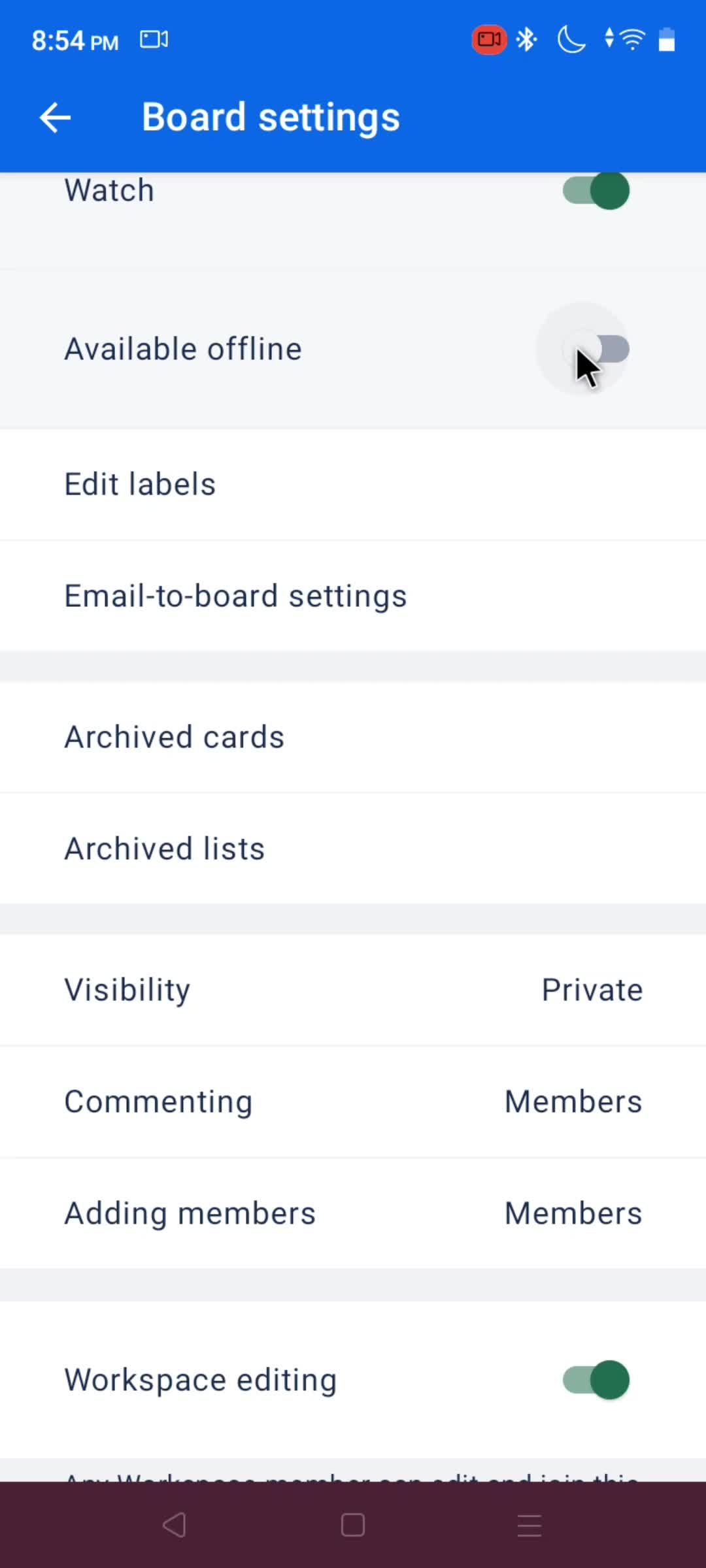
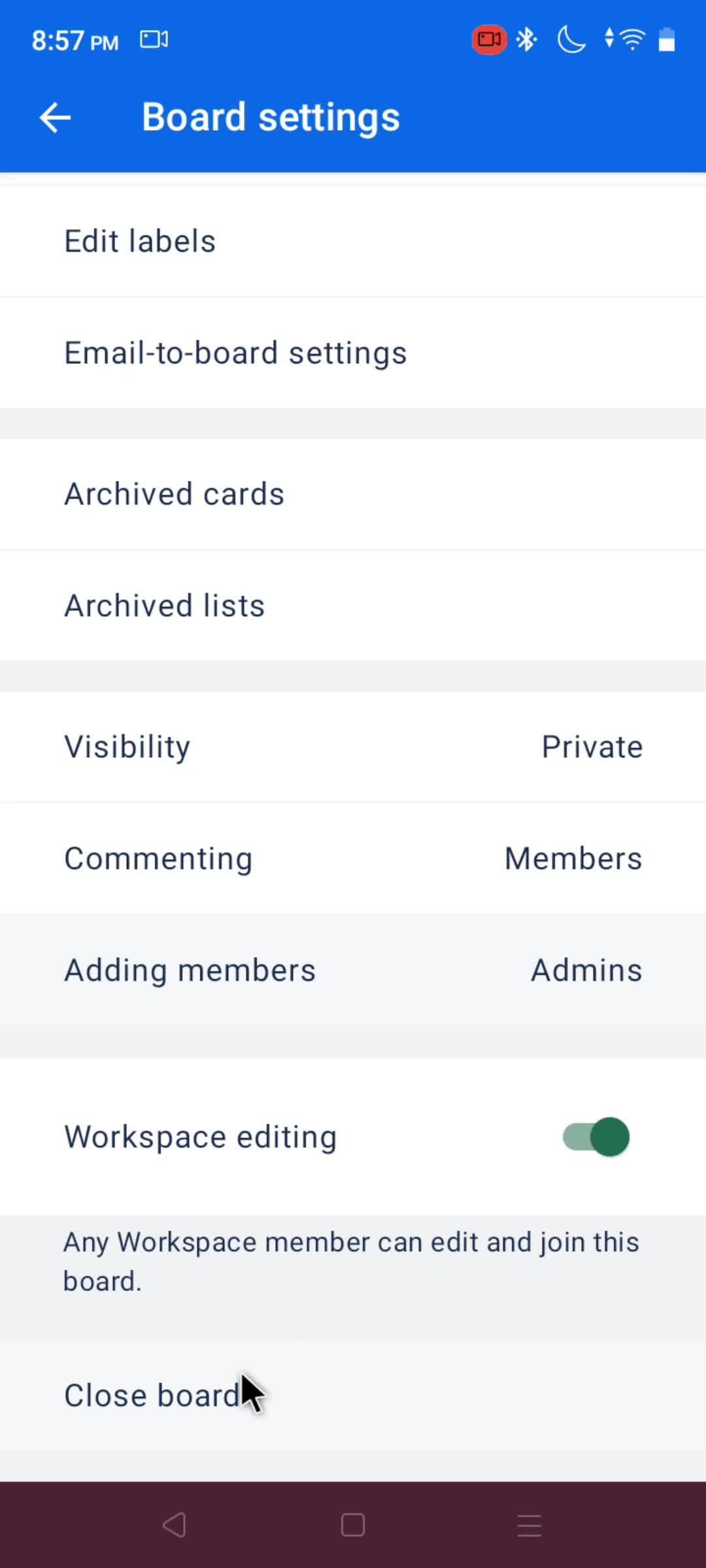
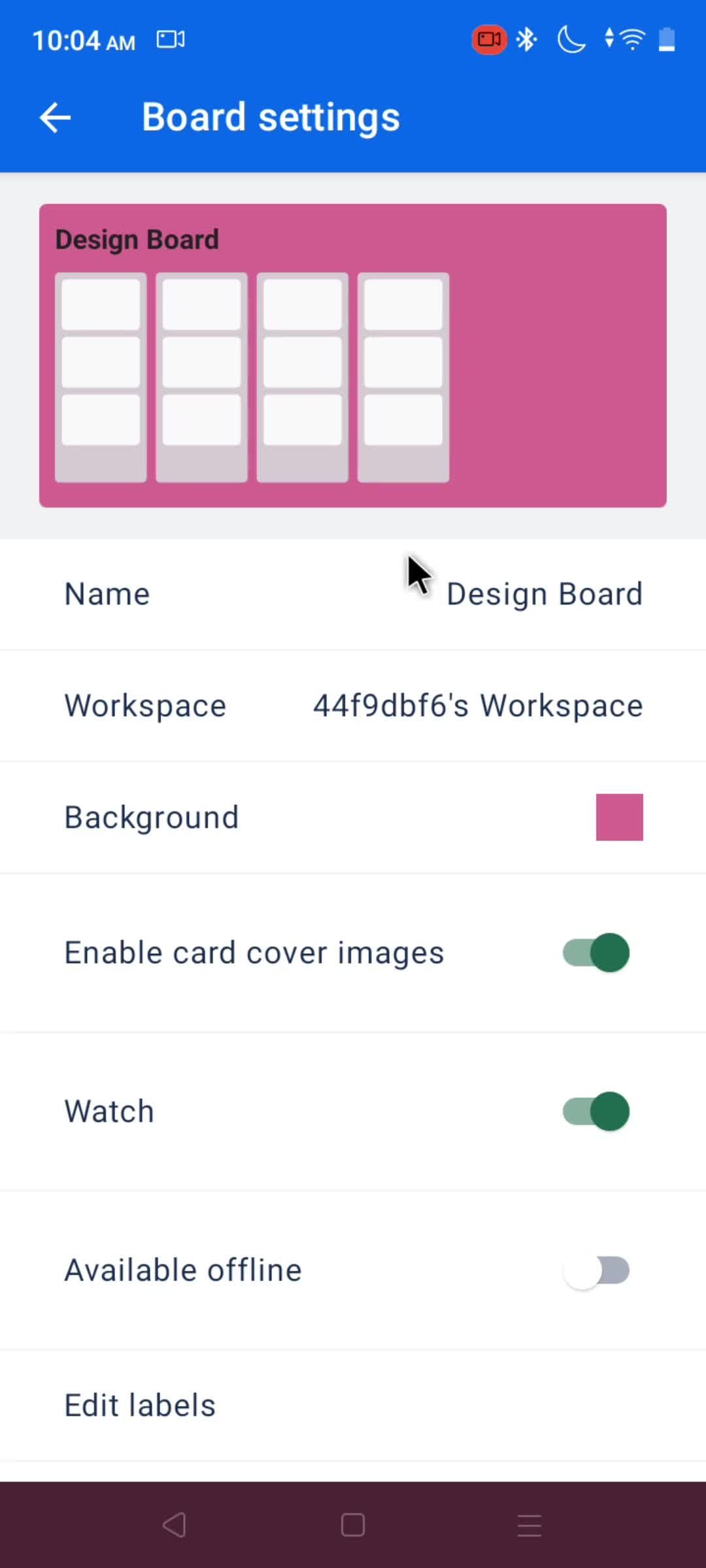
Board settings
this is title
this is title
this is title
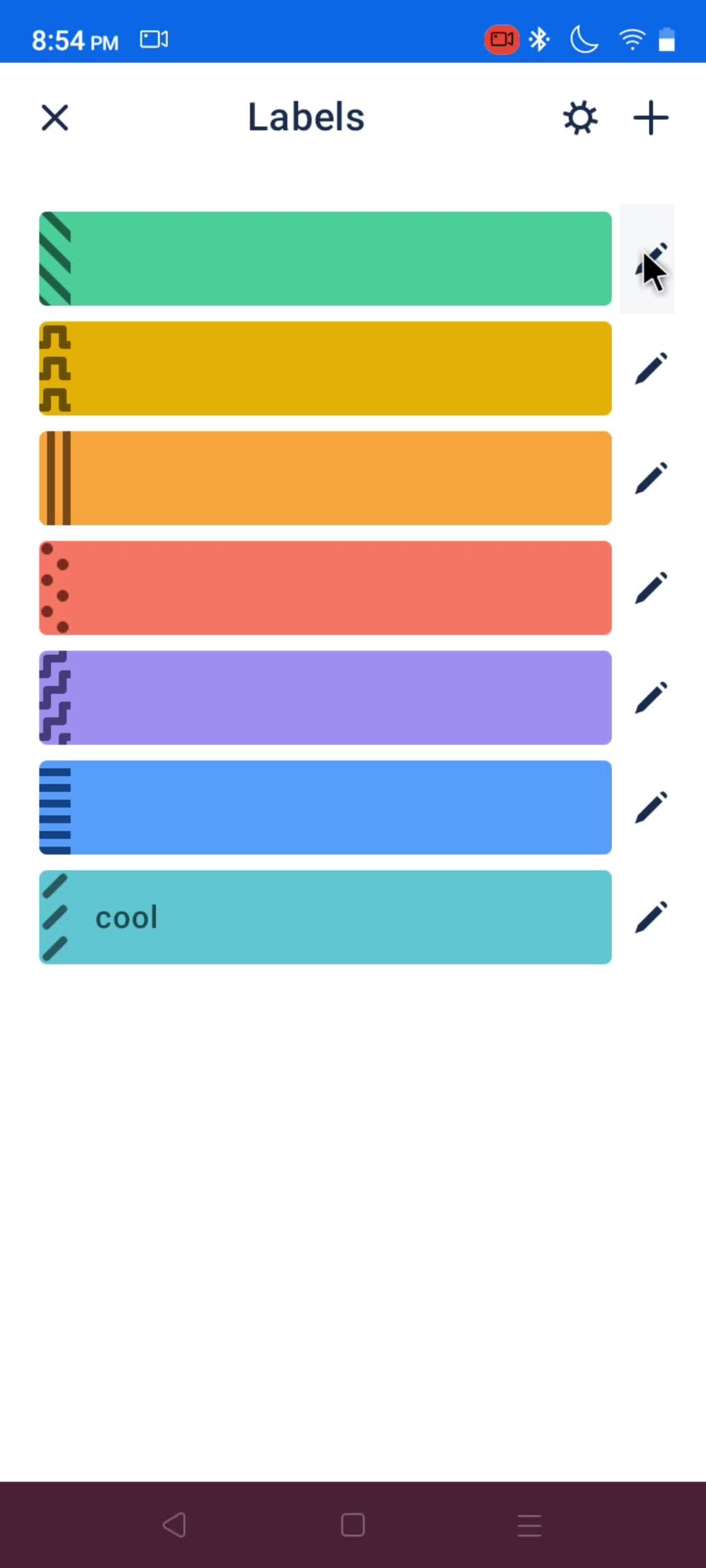
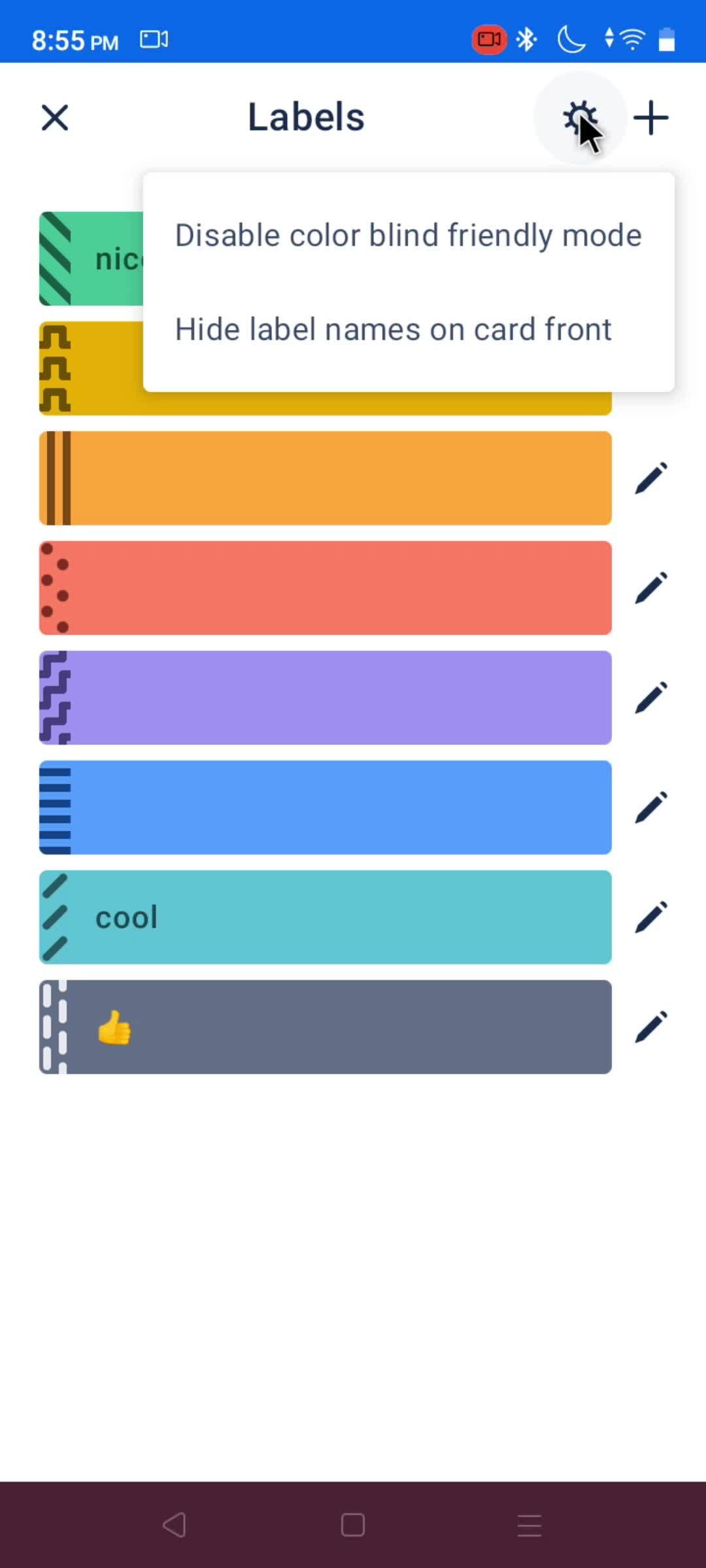
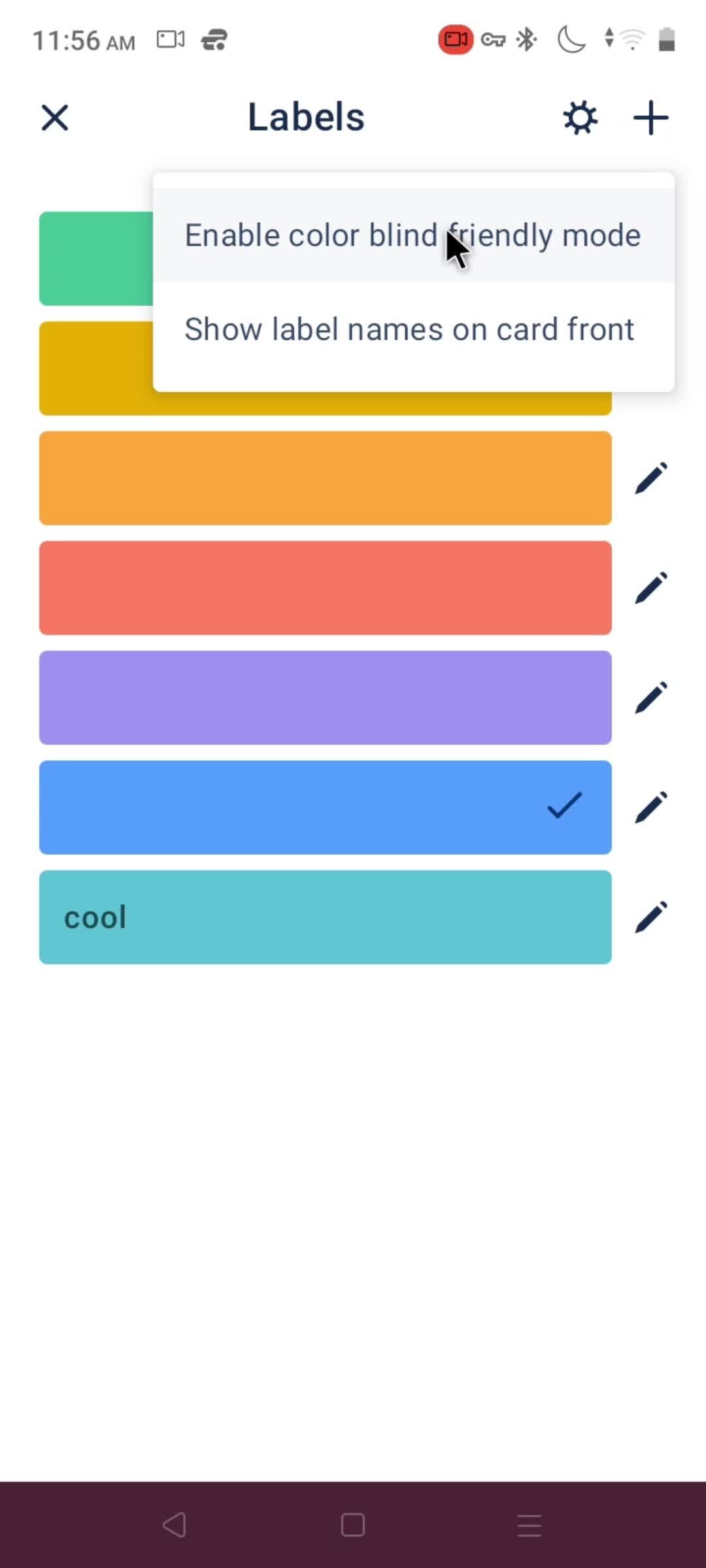
Labels
this is title
Edit
this is title
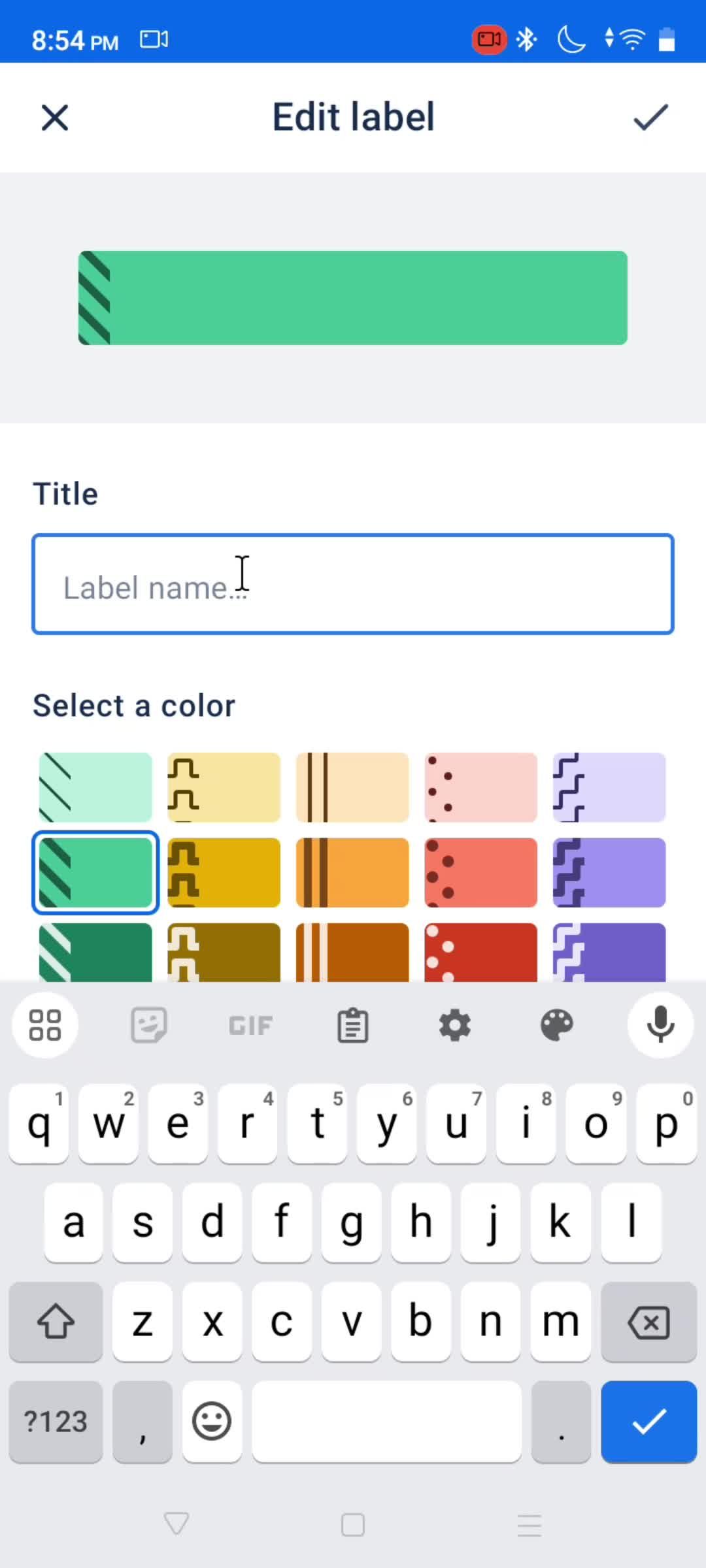
Enter title
this is title
this is title
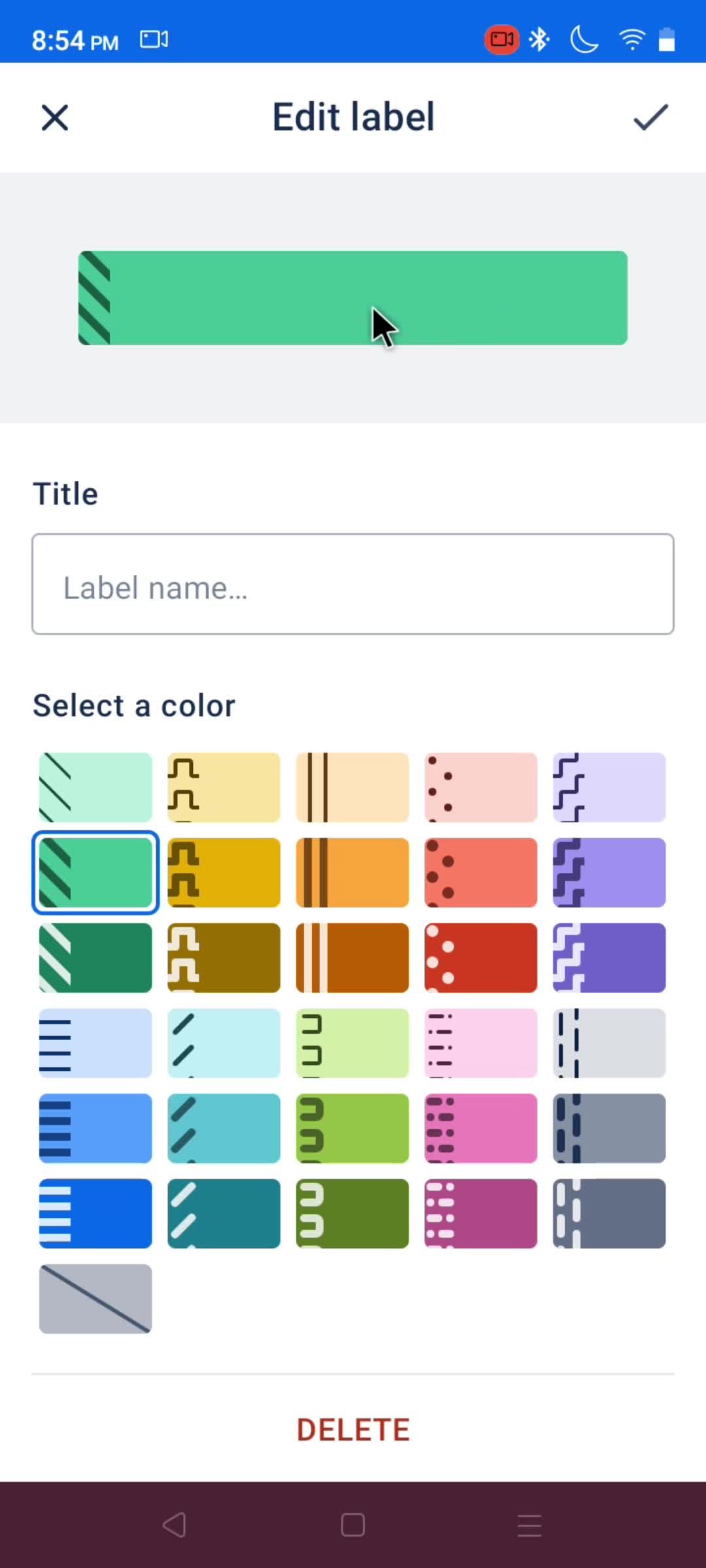
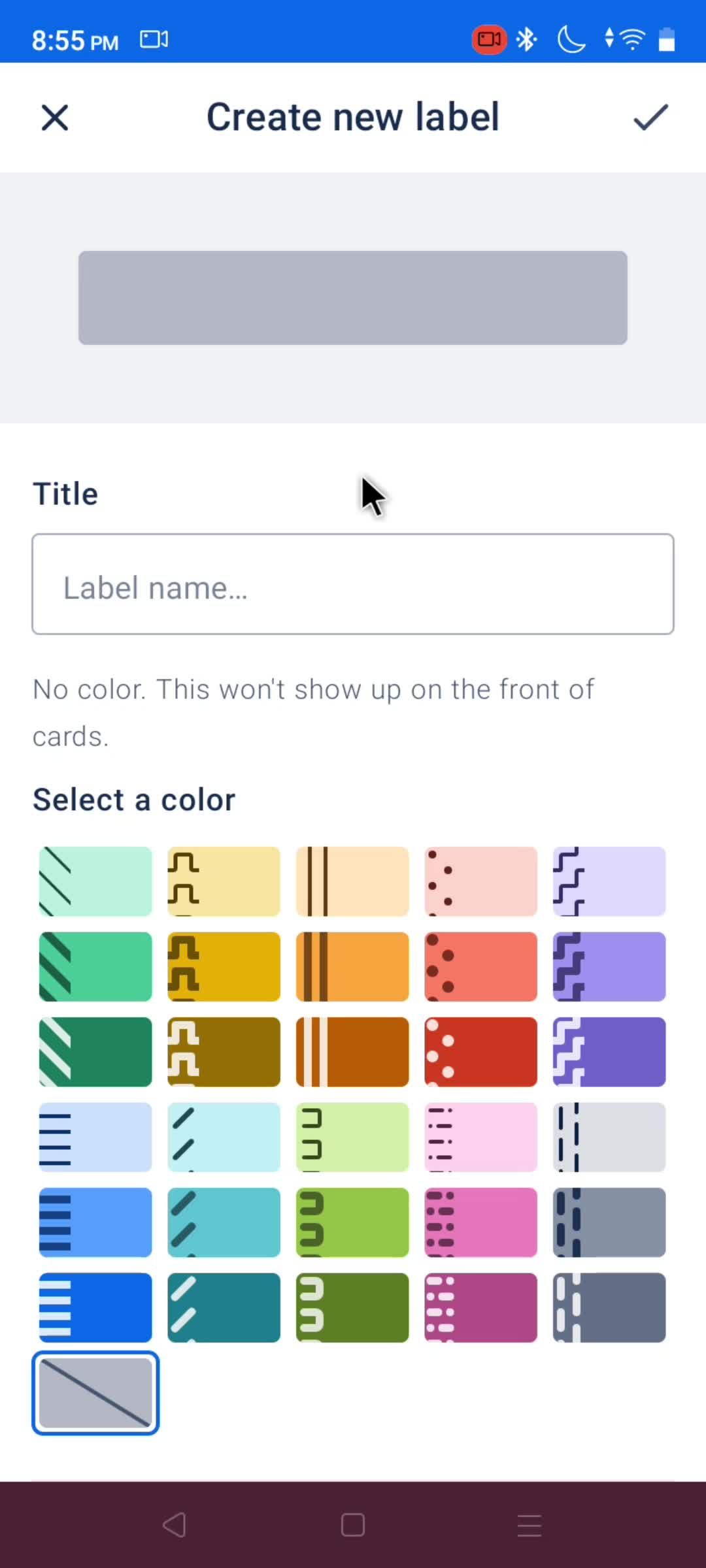
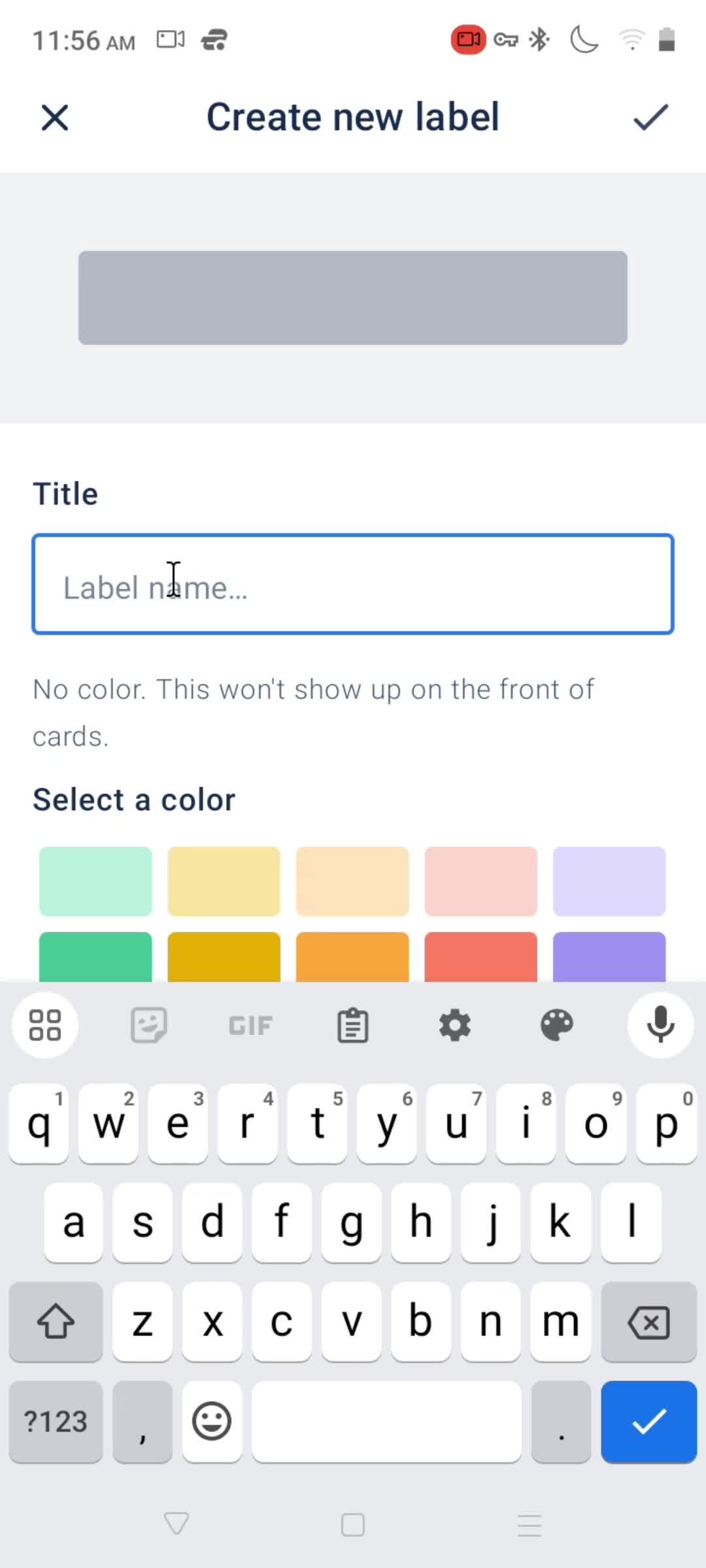
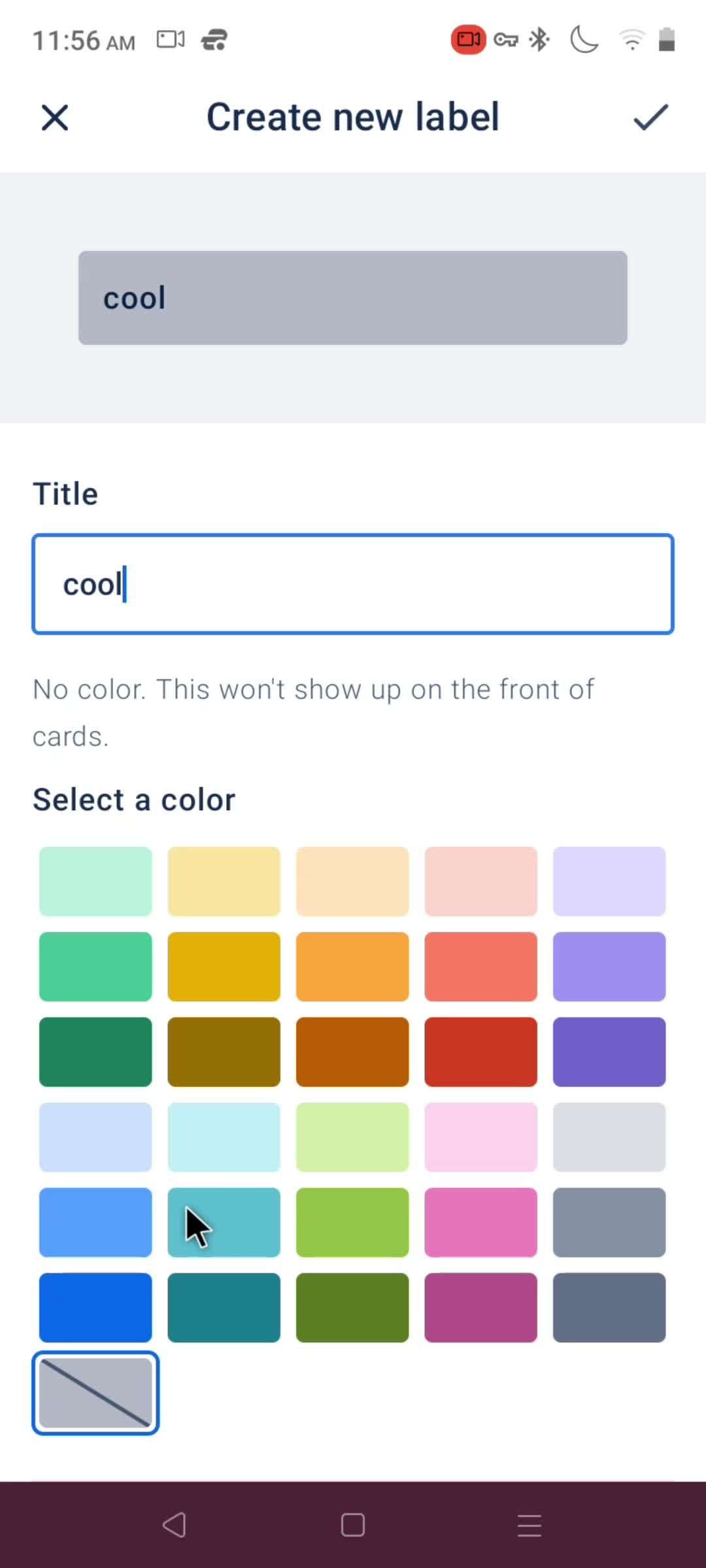
Create label
this is title
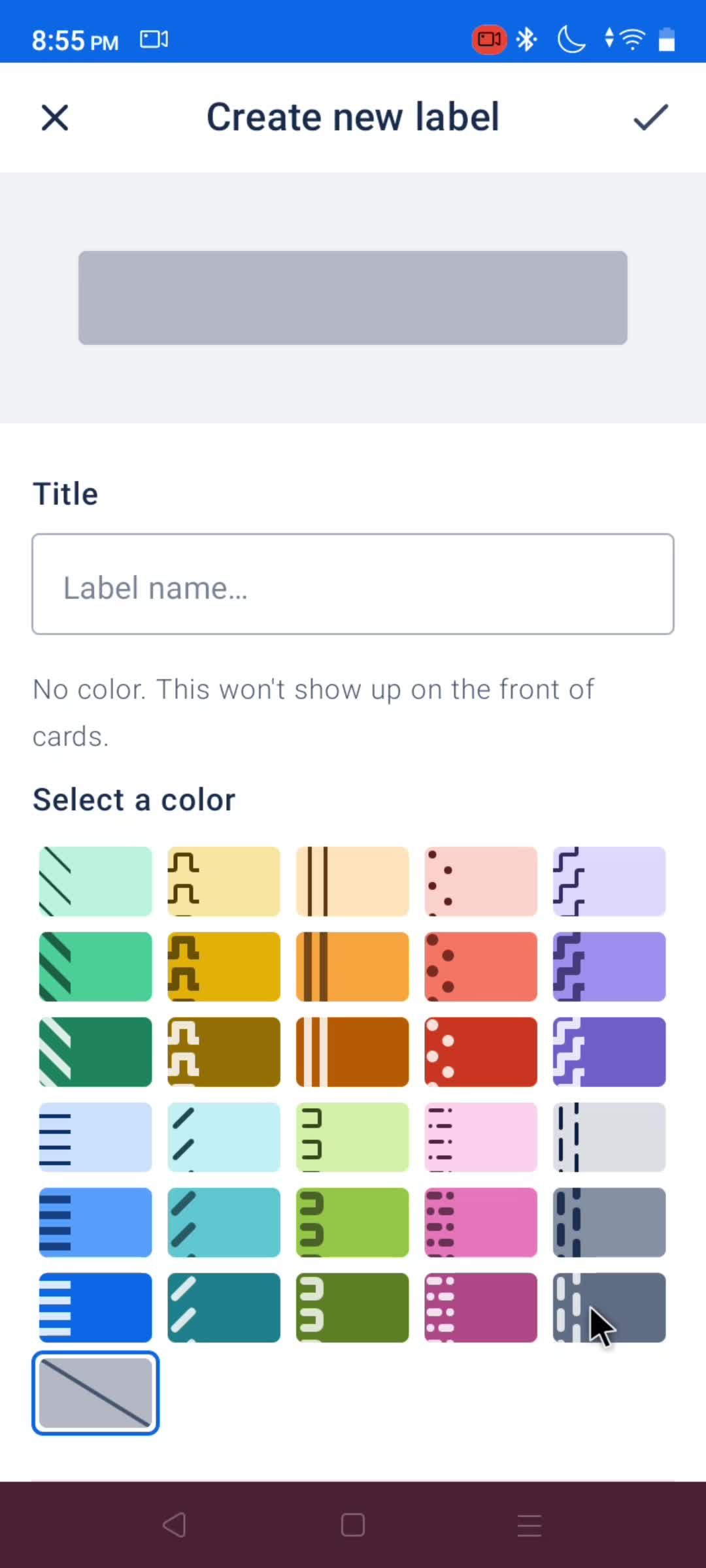
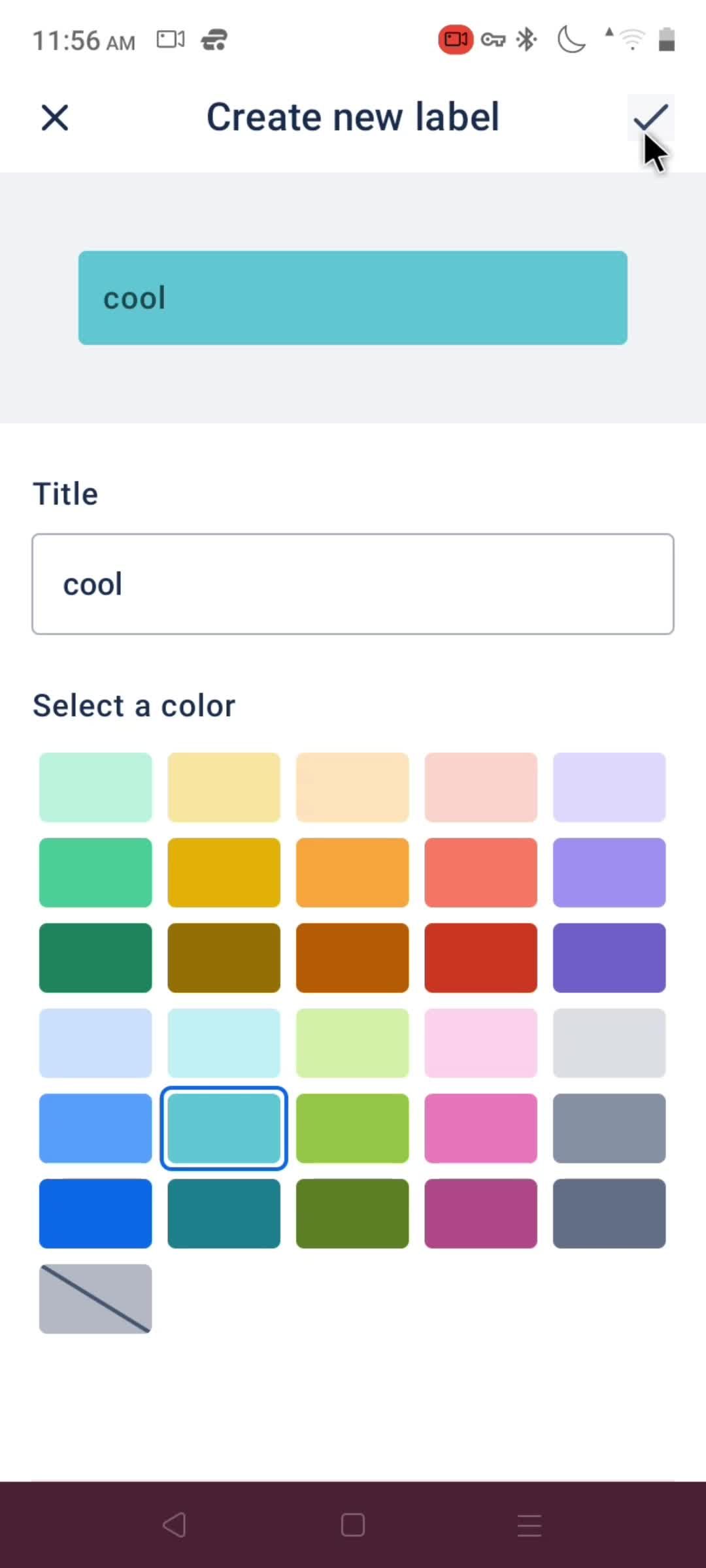
Select color
this is title
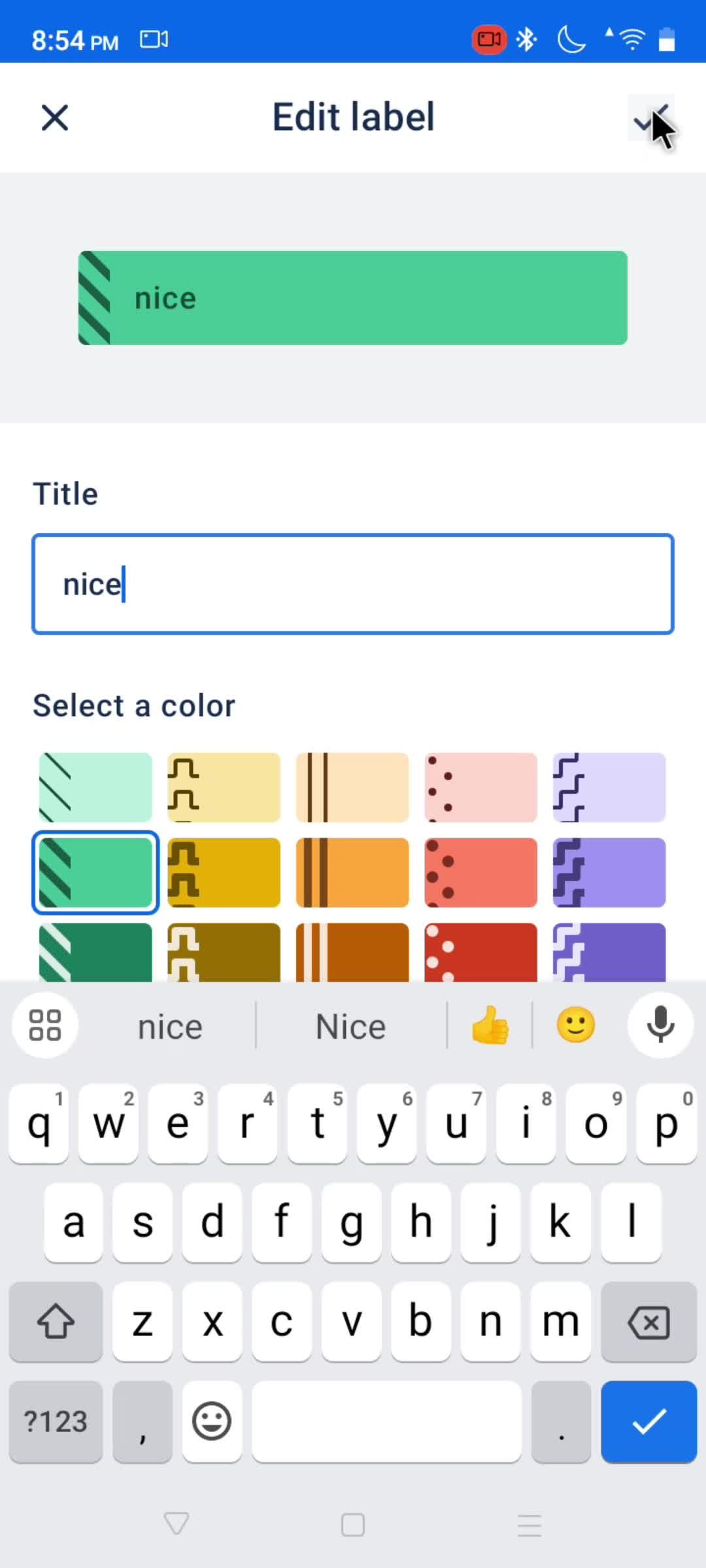
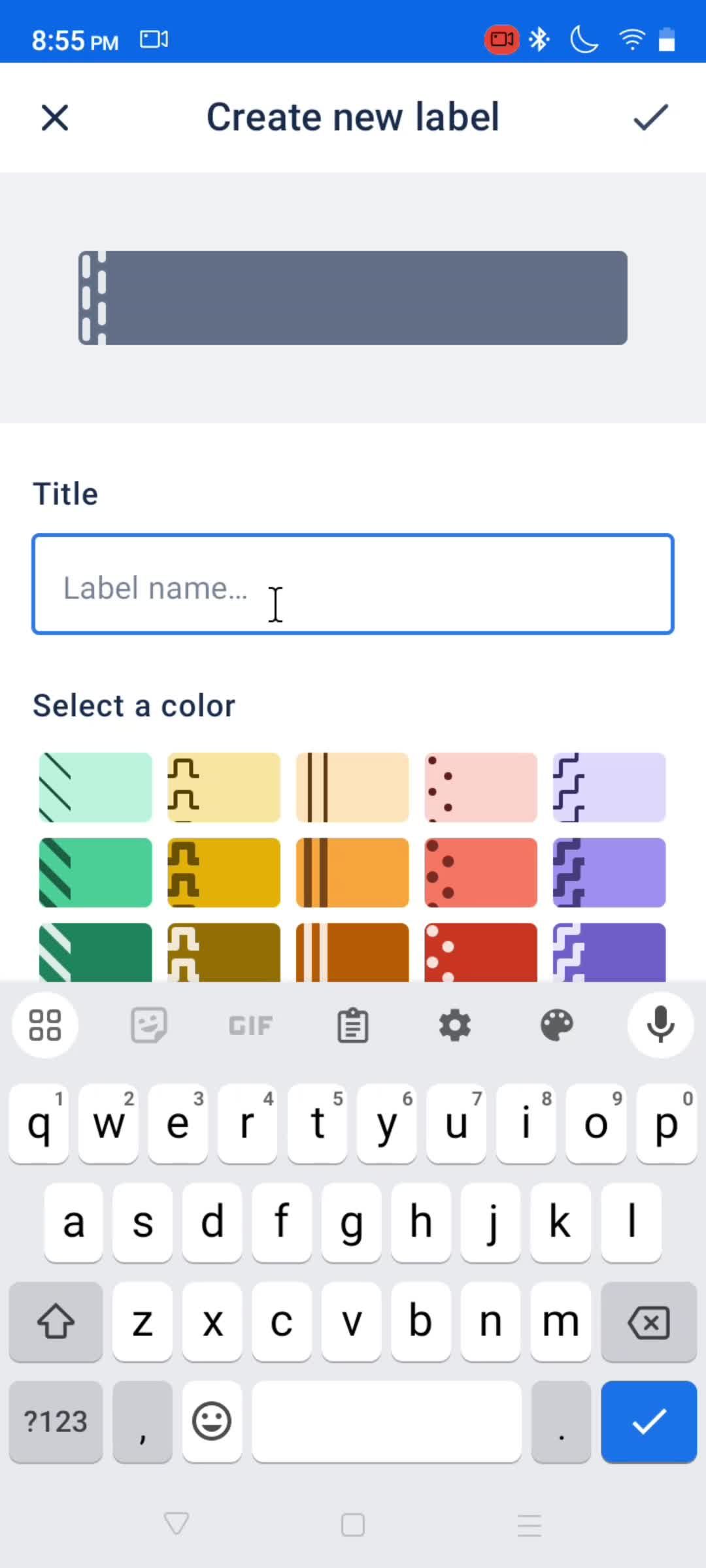
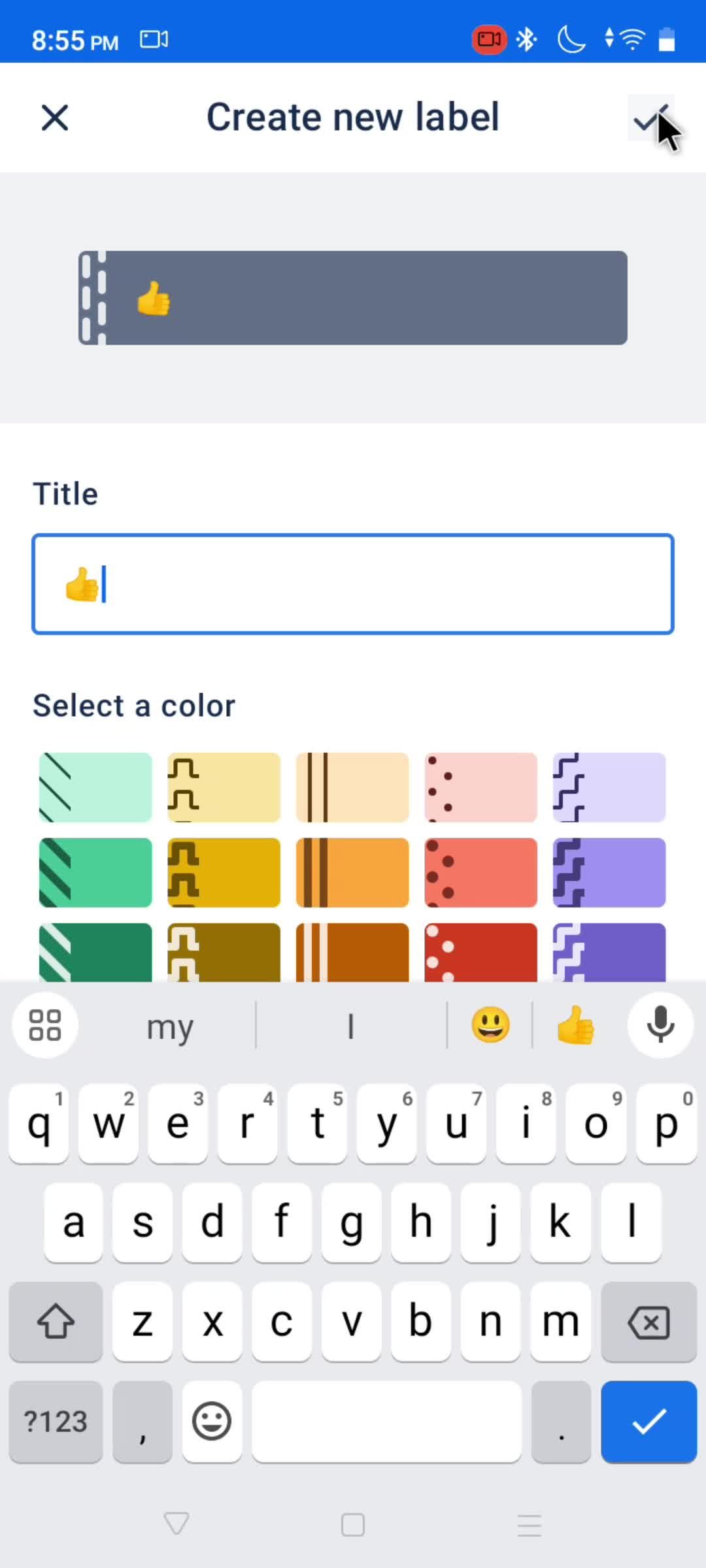
Enter title
this is title
this is title
this is title
this is title
this is title
Archived
this is title
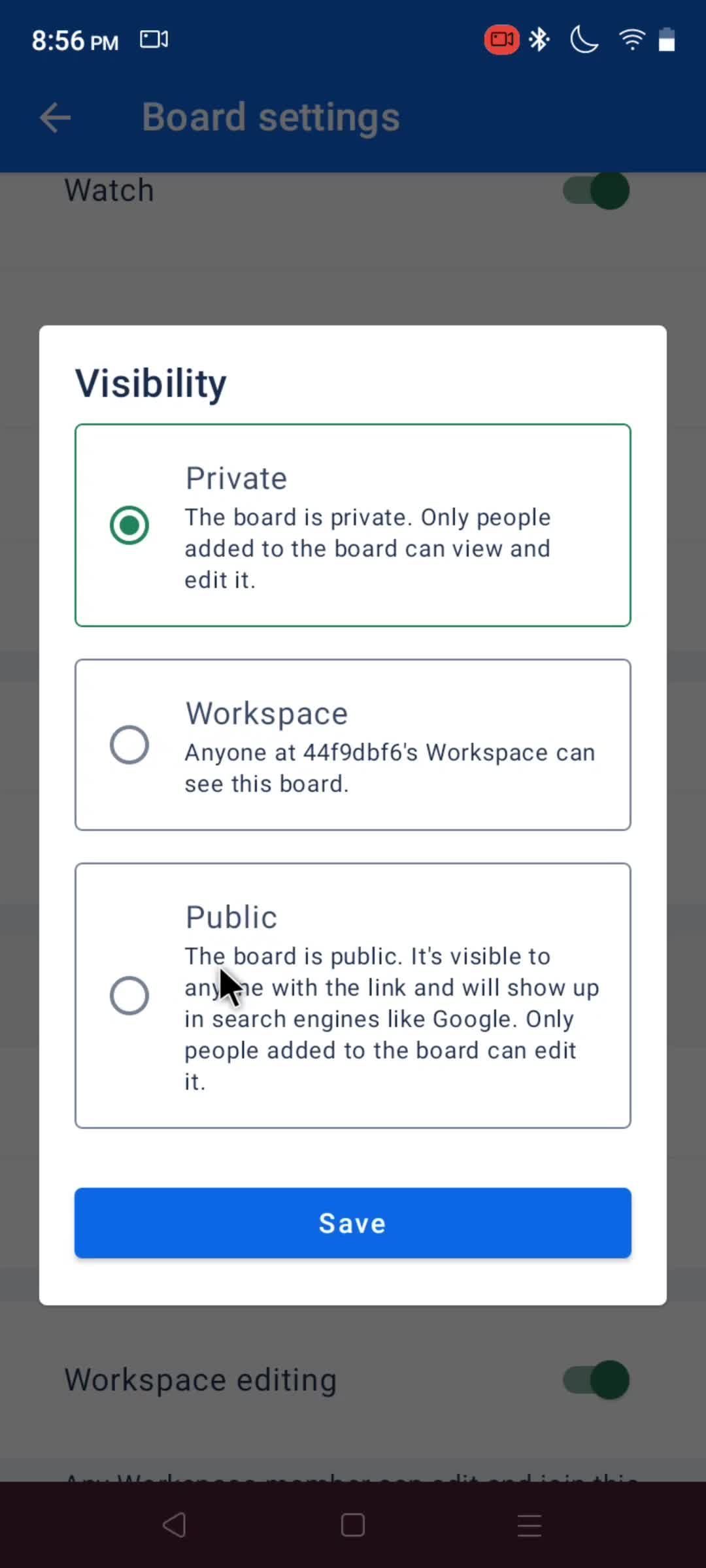
Visibility
this is title
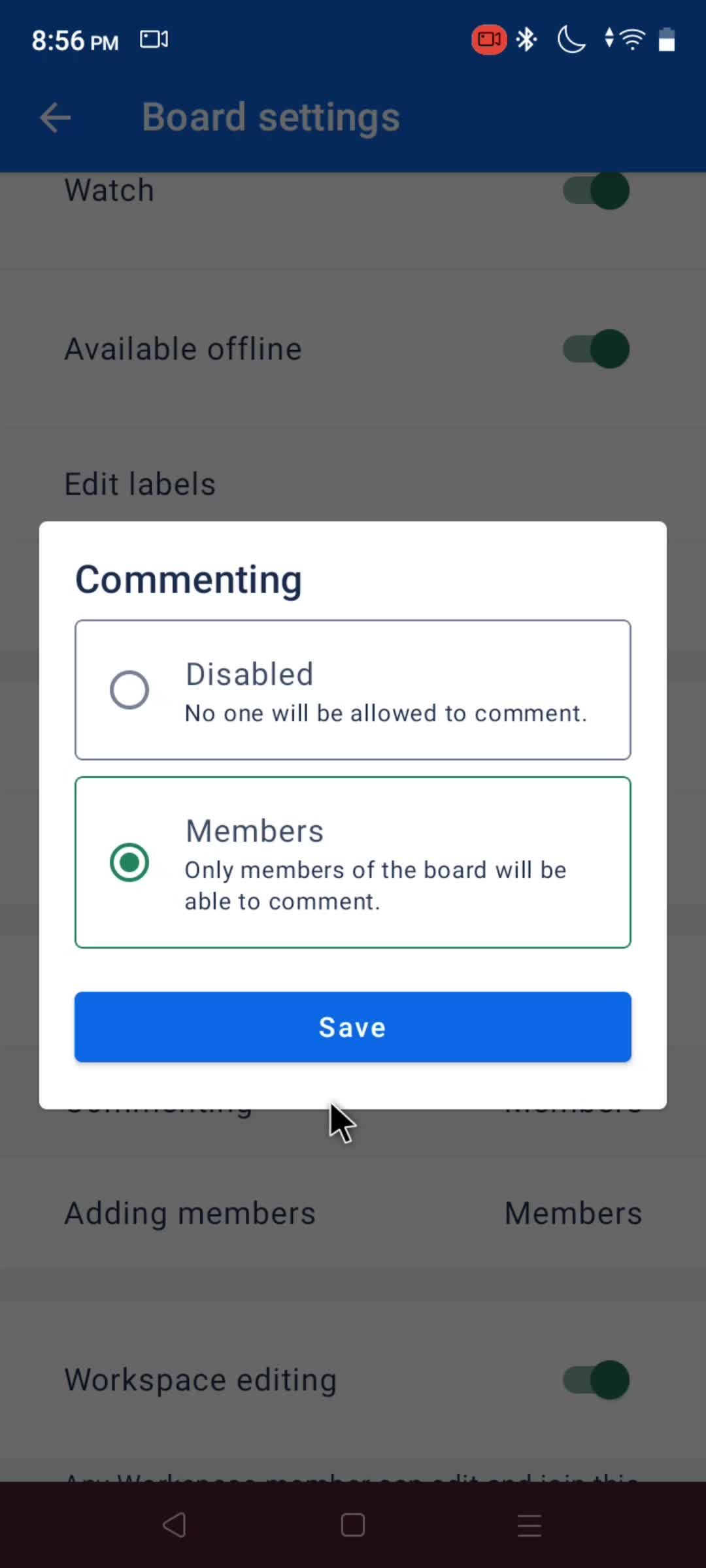
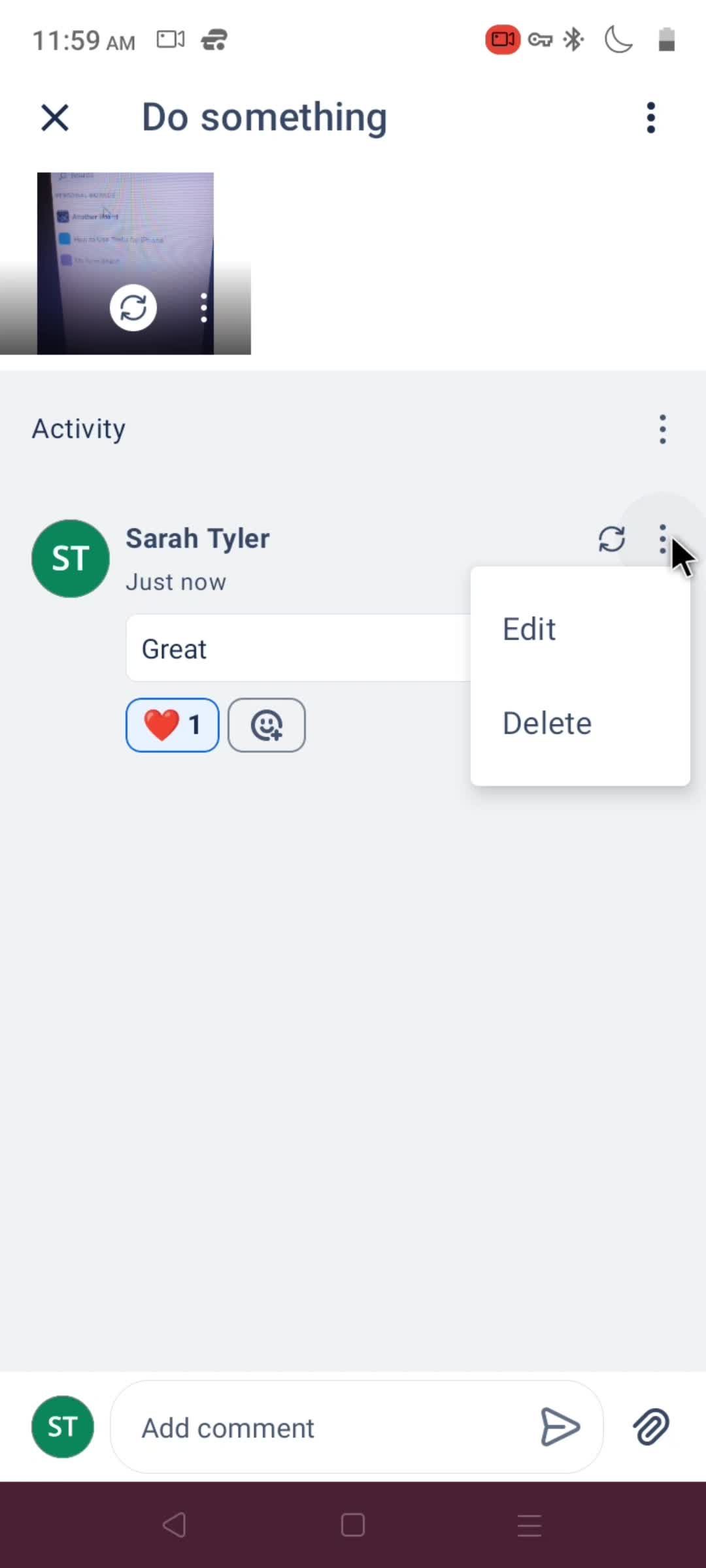
Comment options
this is title
this is title
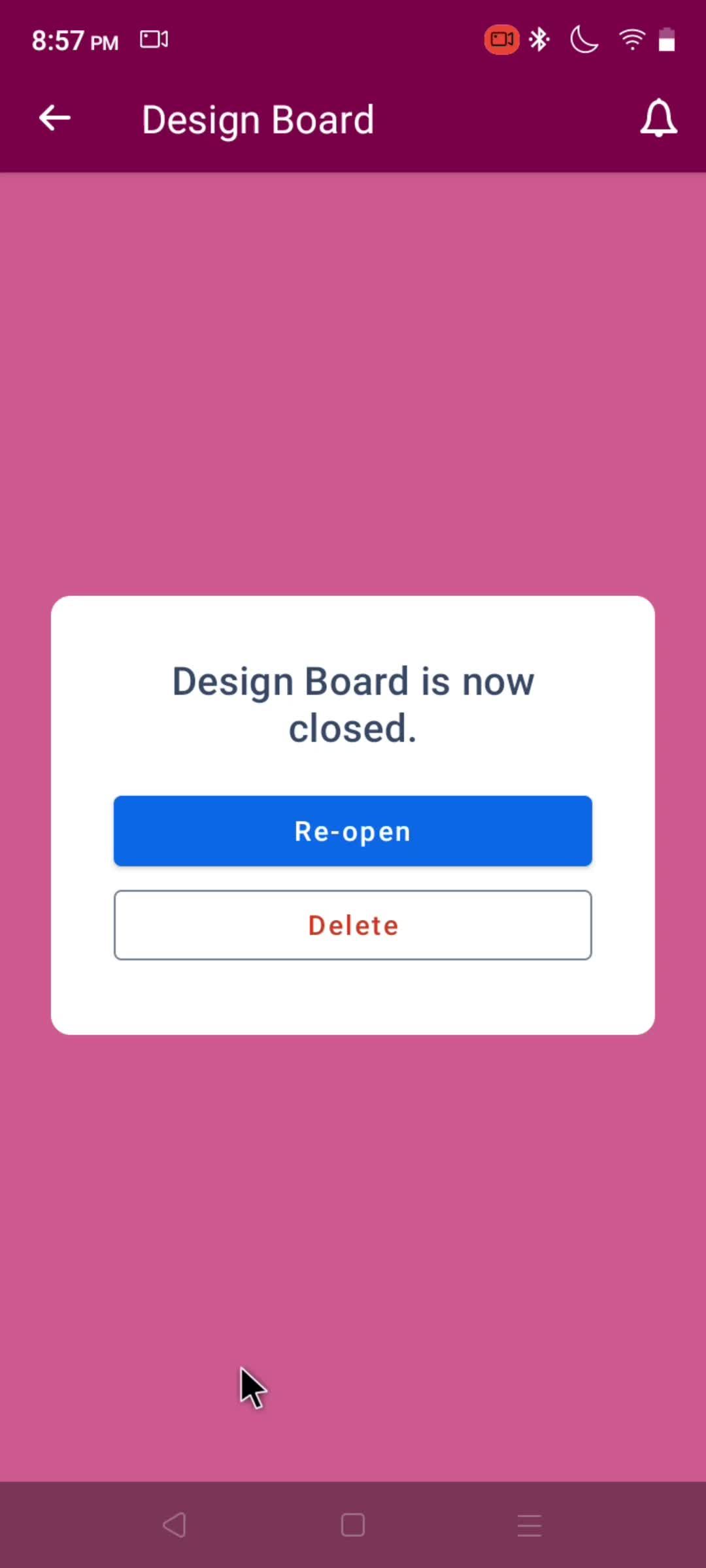
Close
this is title
Closed
this is title
this is title
this is title
this is title
Board
this is title
this is title
this is title
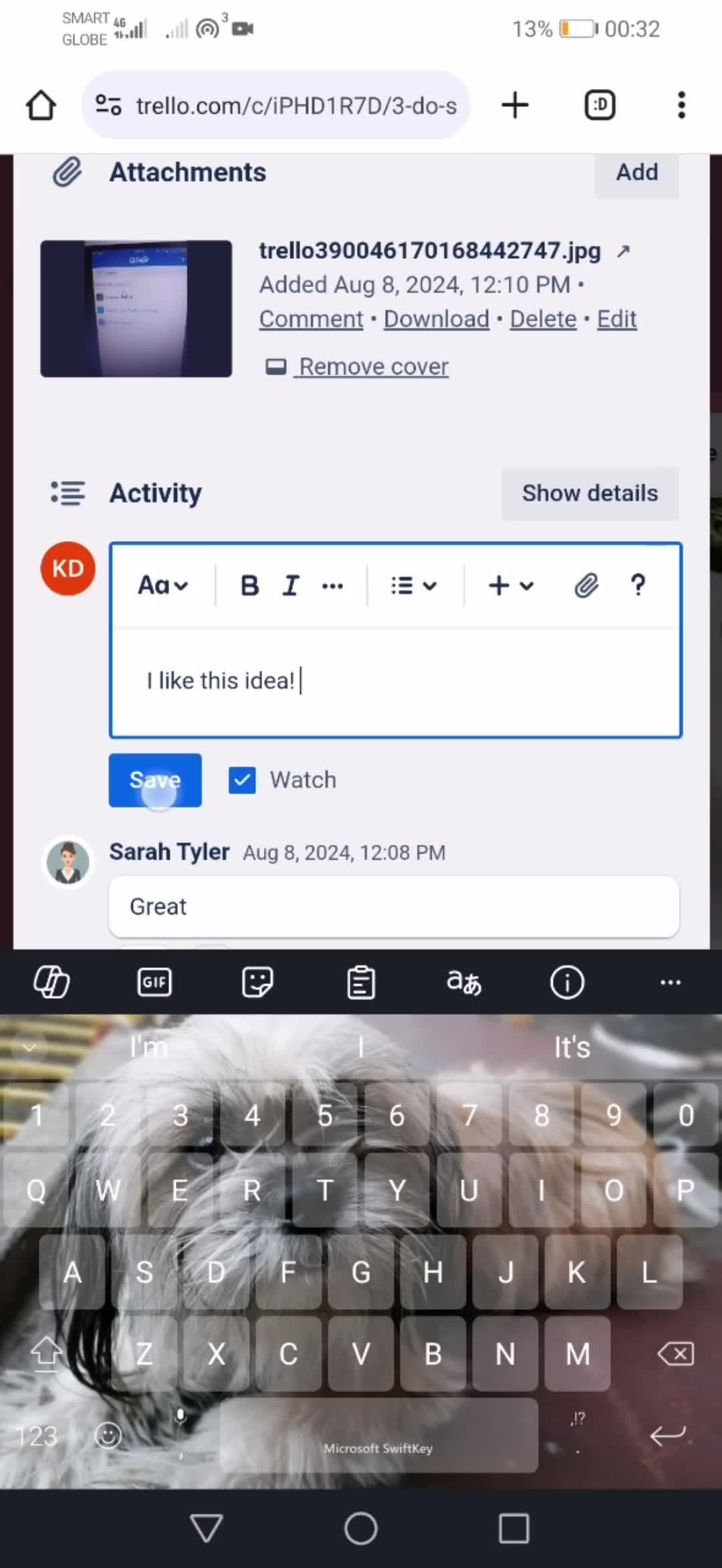
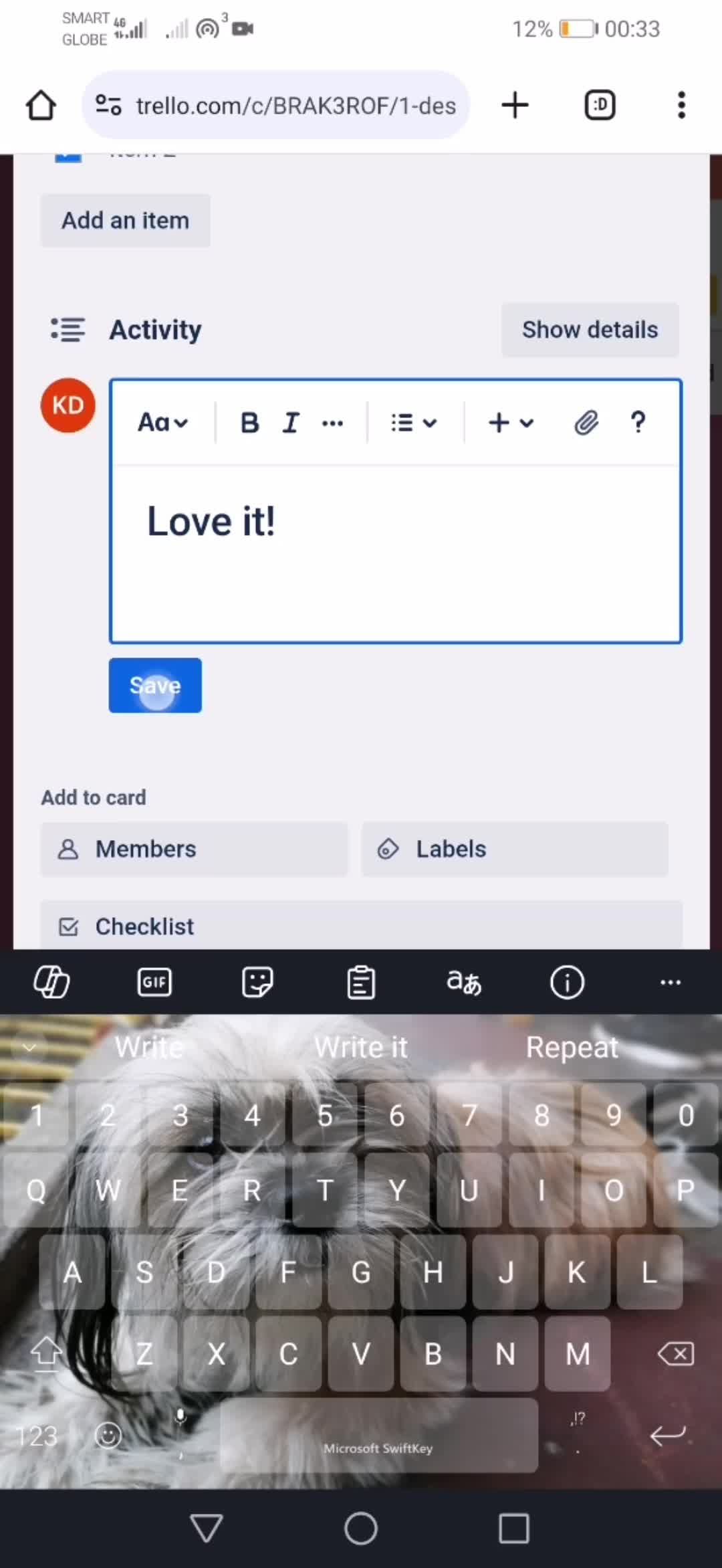
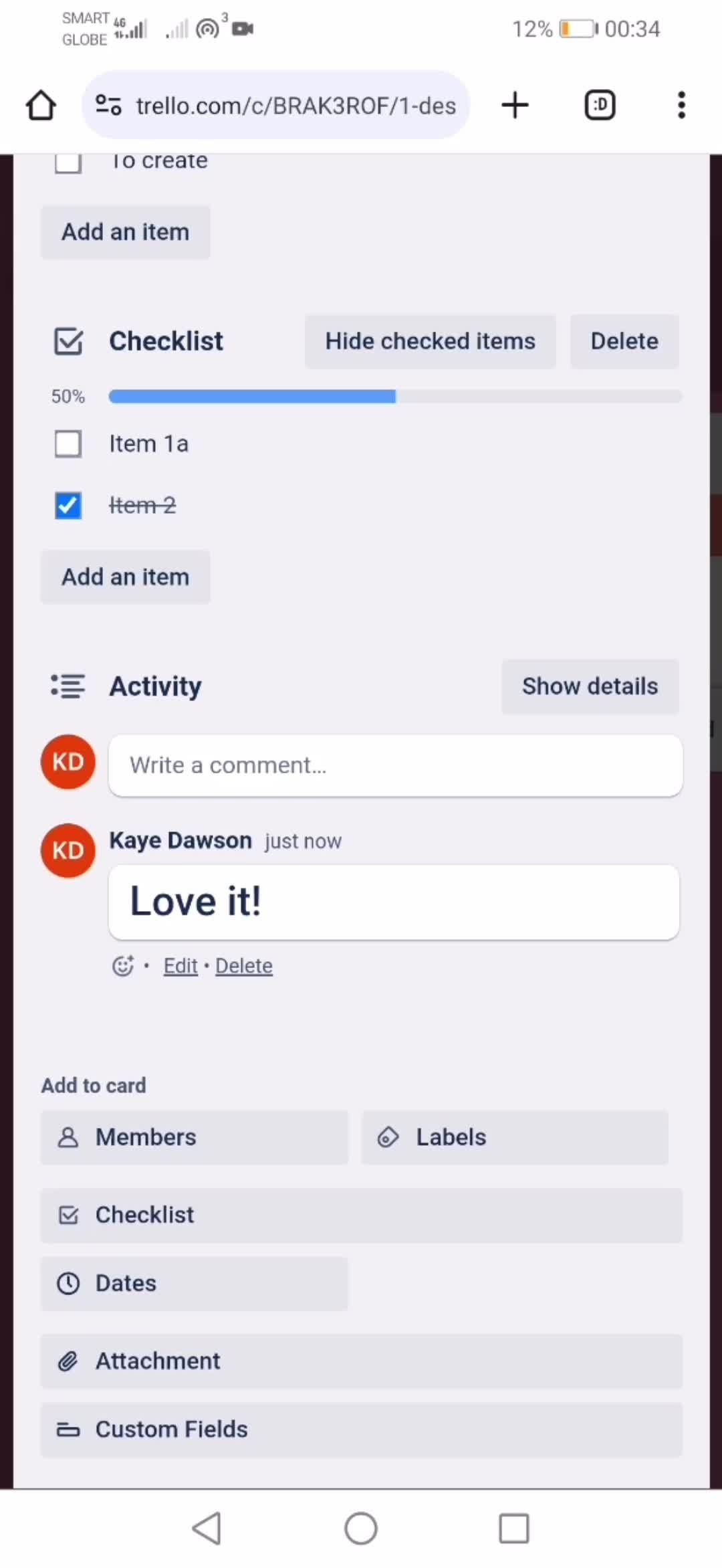
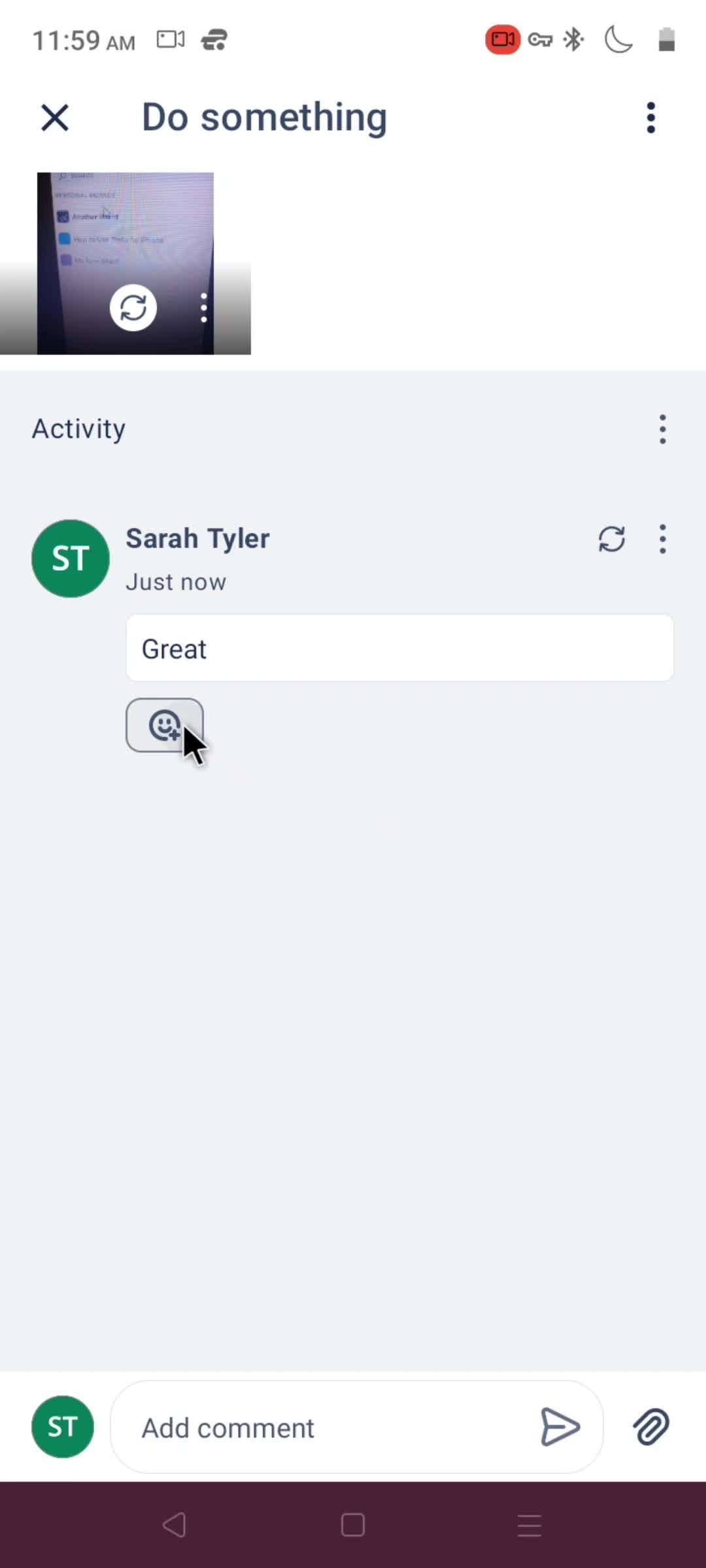
Add comment
this is title
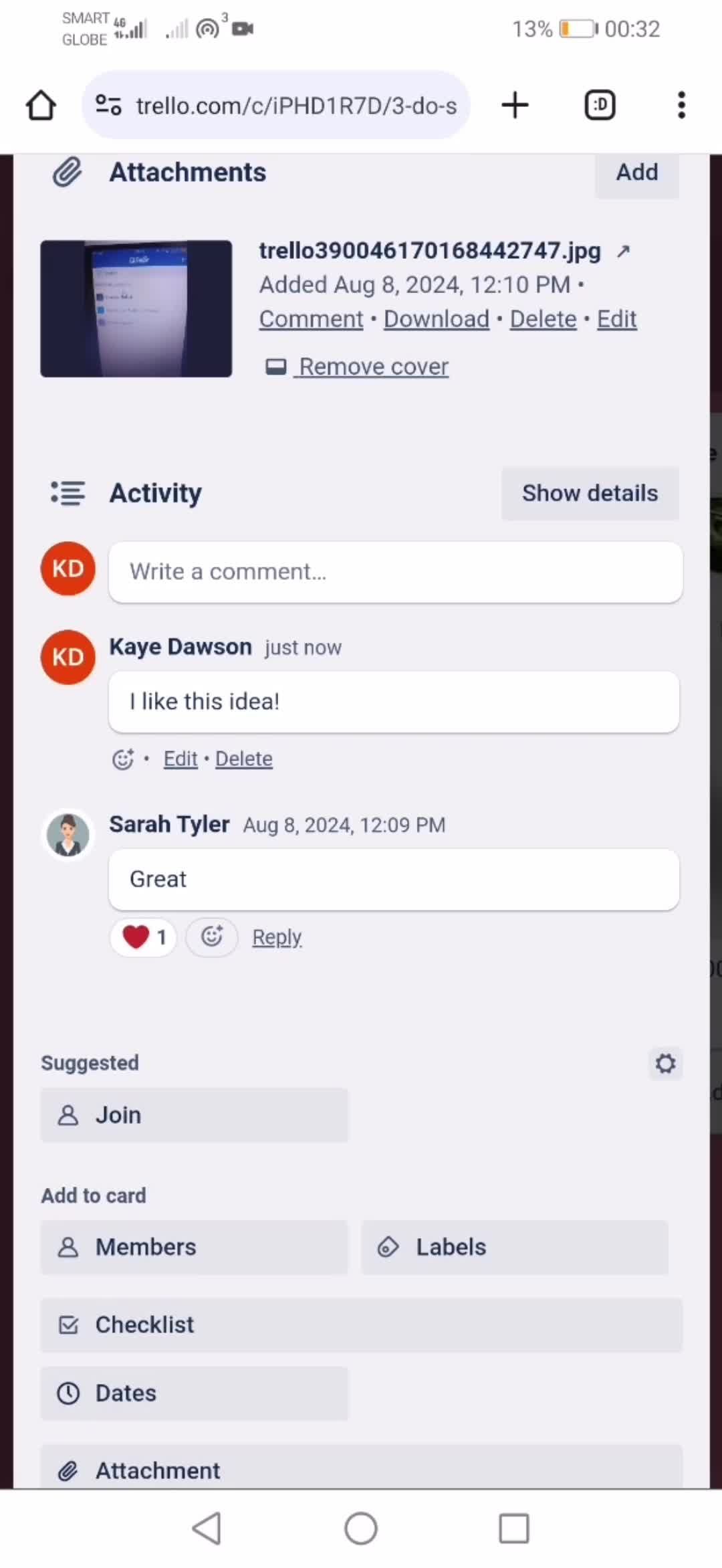
Save
this is title
this is title
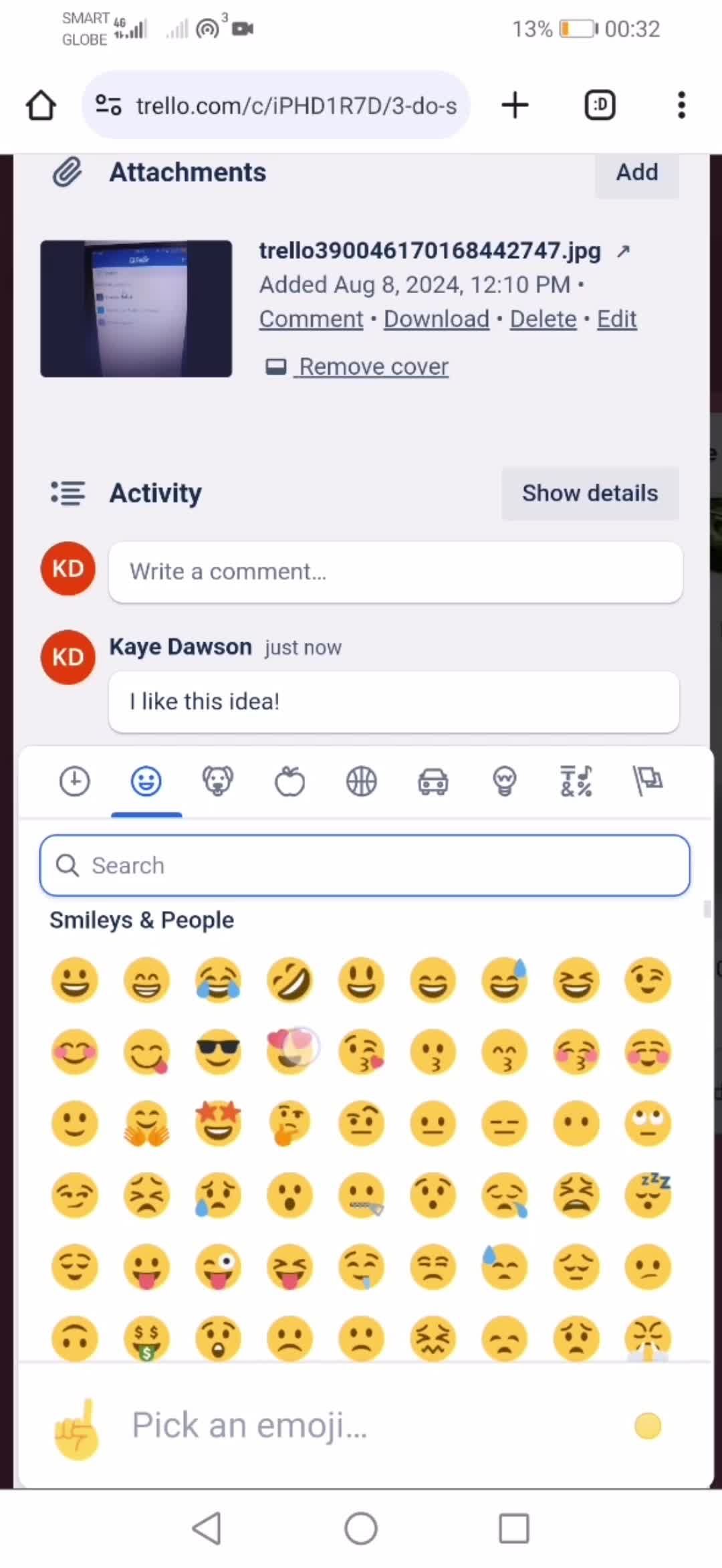
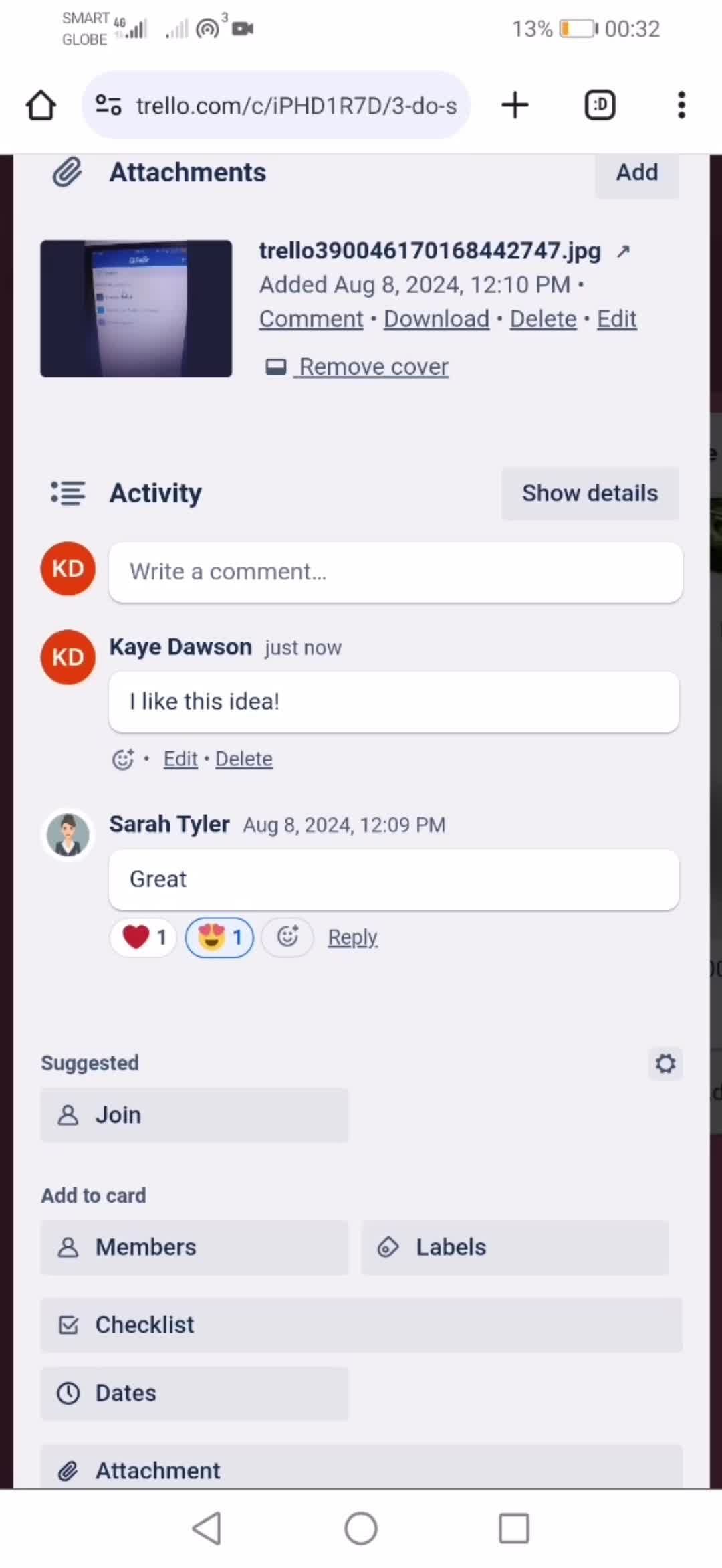
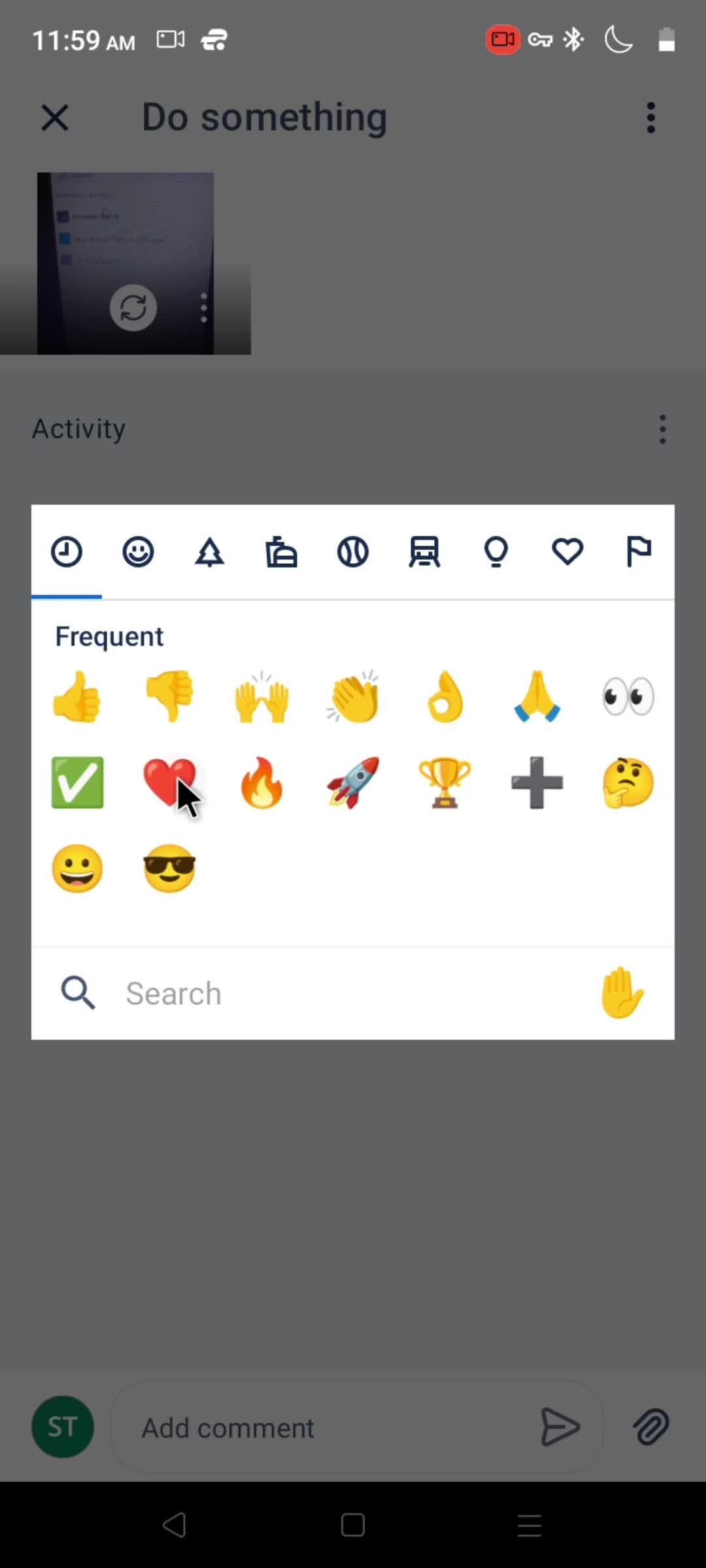
Emoji picker
this is title
this is title
Board
this is title
this is title
Add comment
this is title
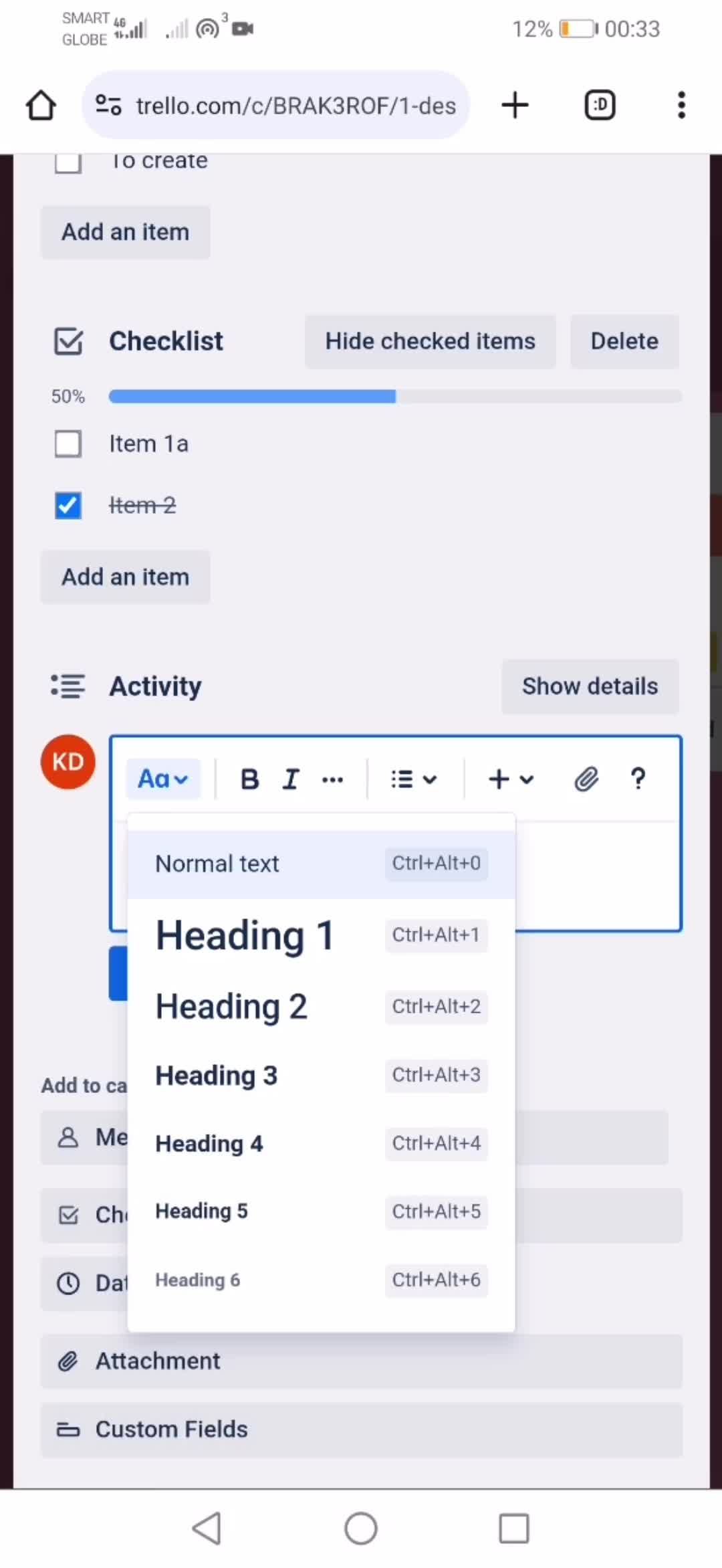
Edit heading
this is title
this is title
this is title
Boards
this is title
Profile menu
this is title
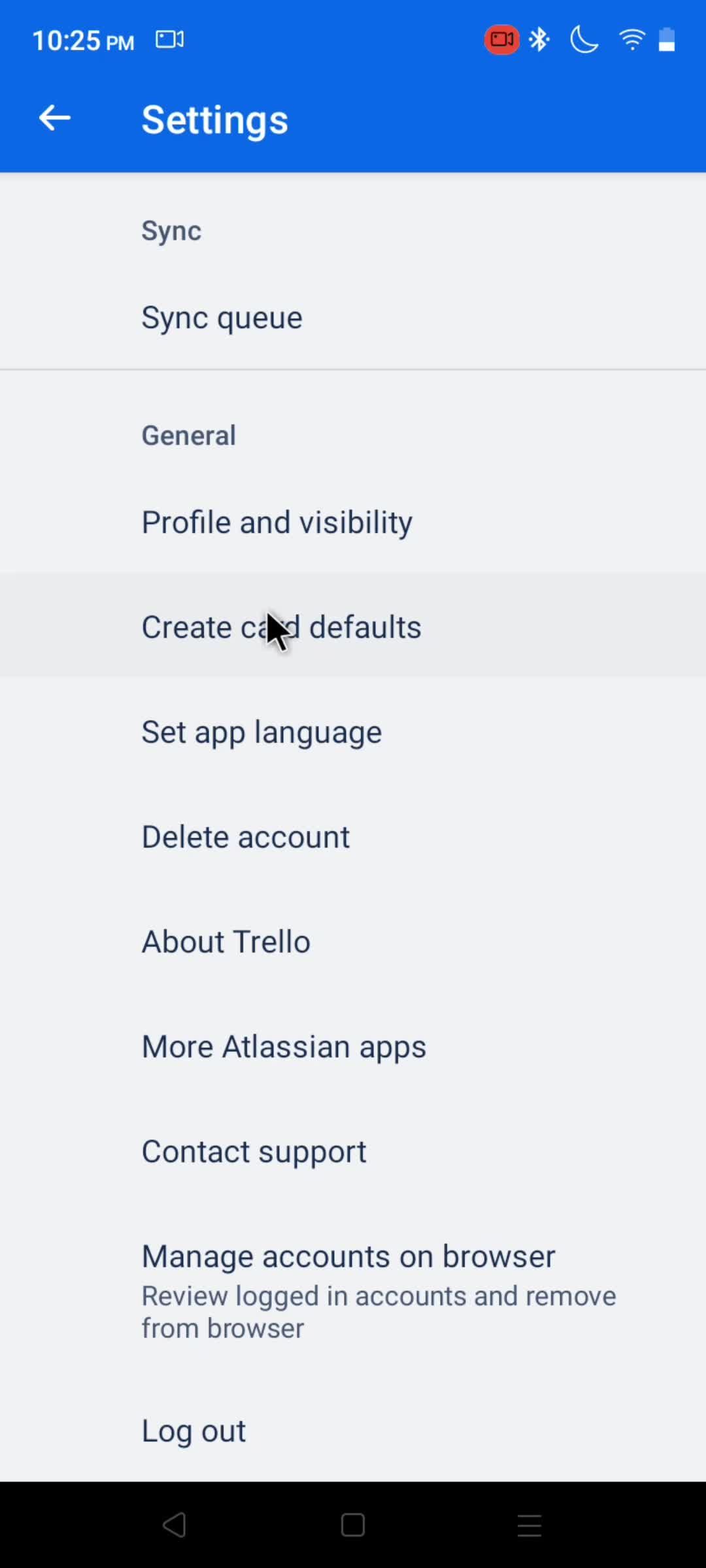
Settings
this is title
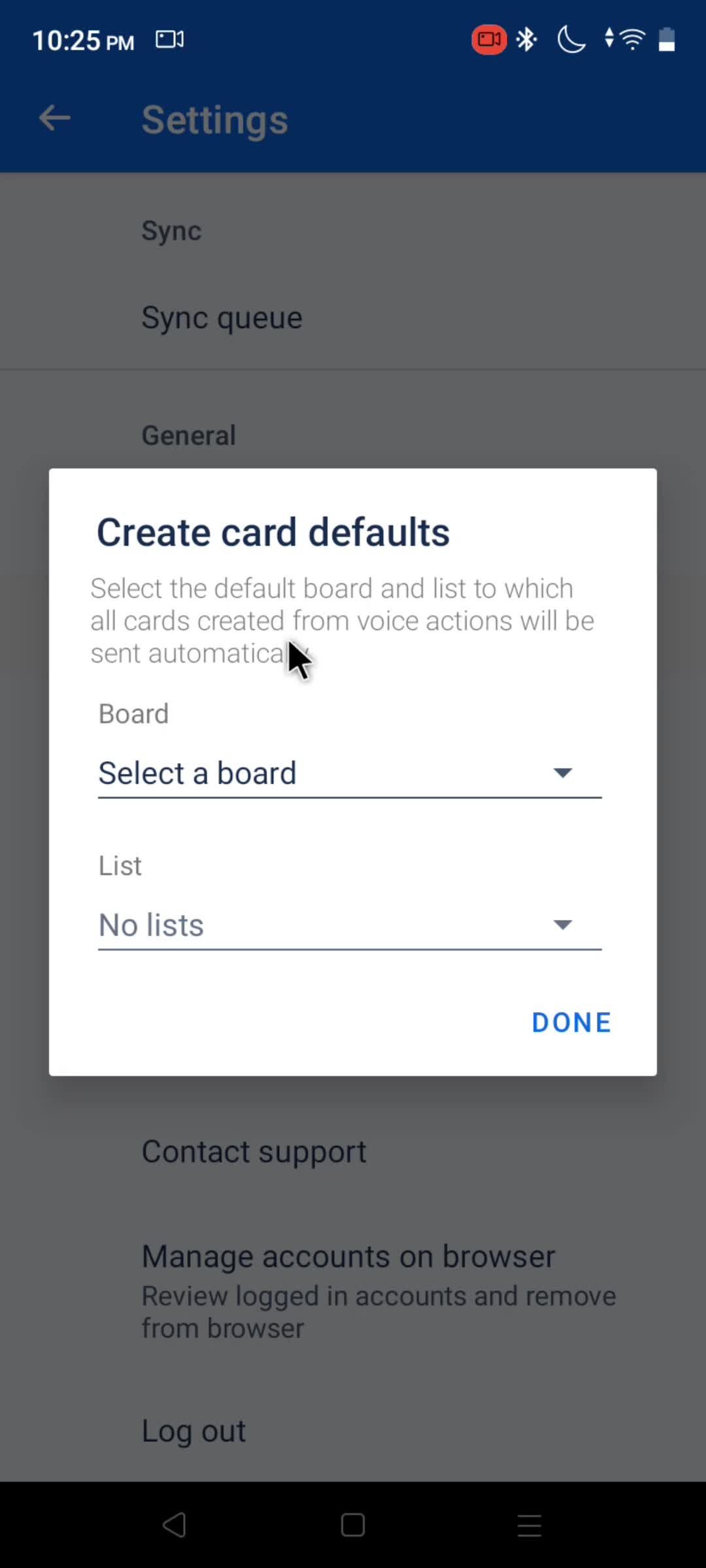
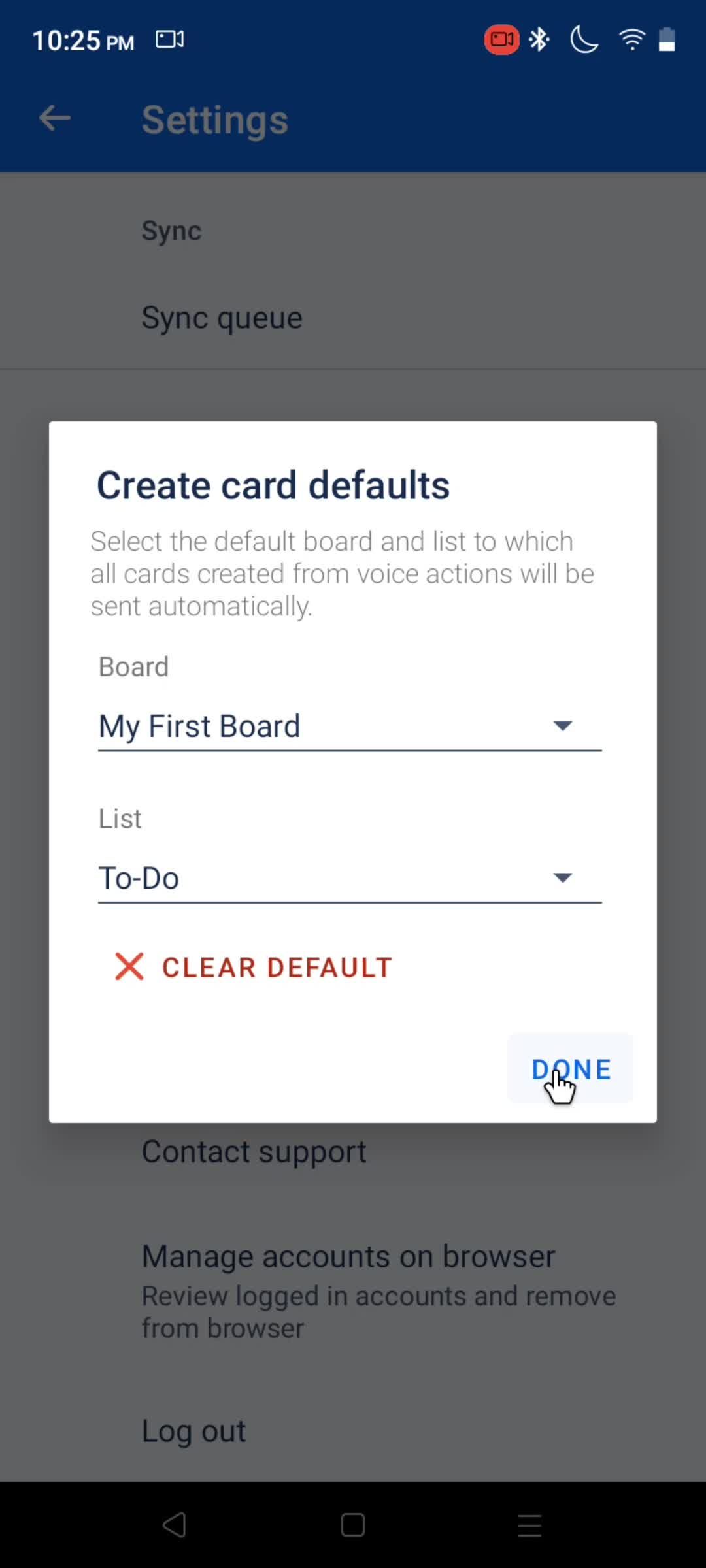
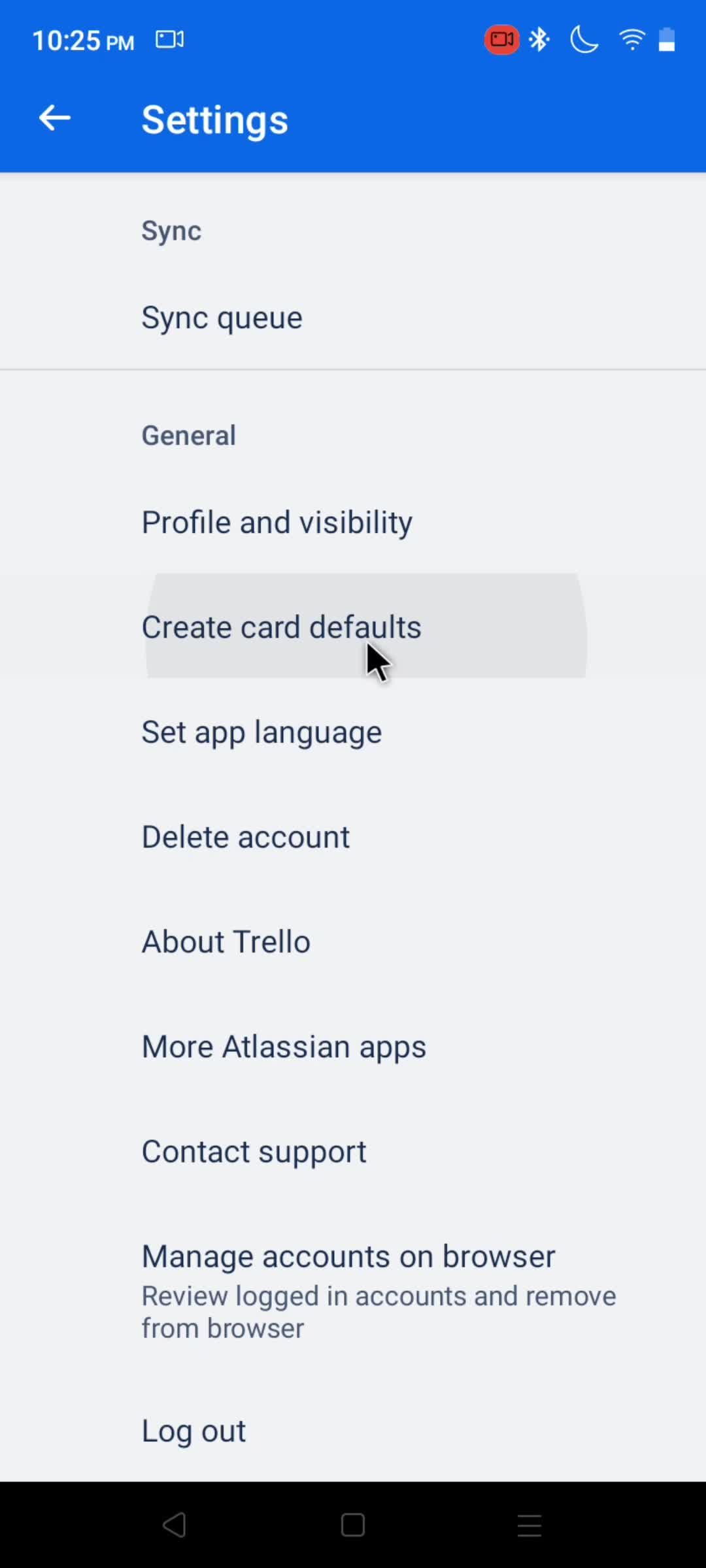
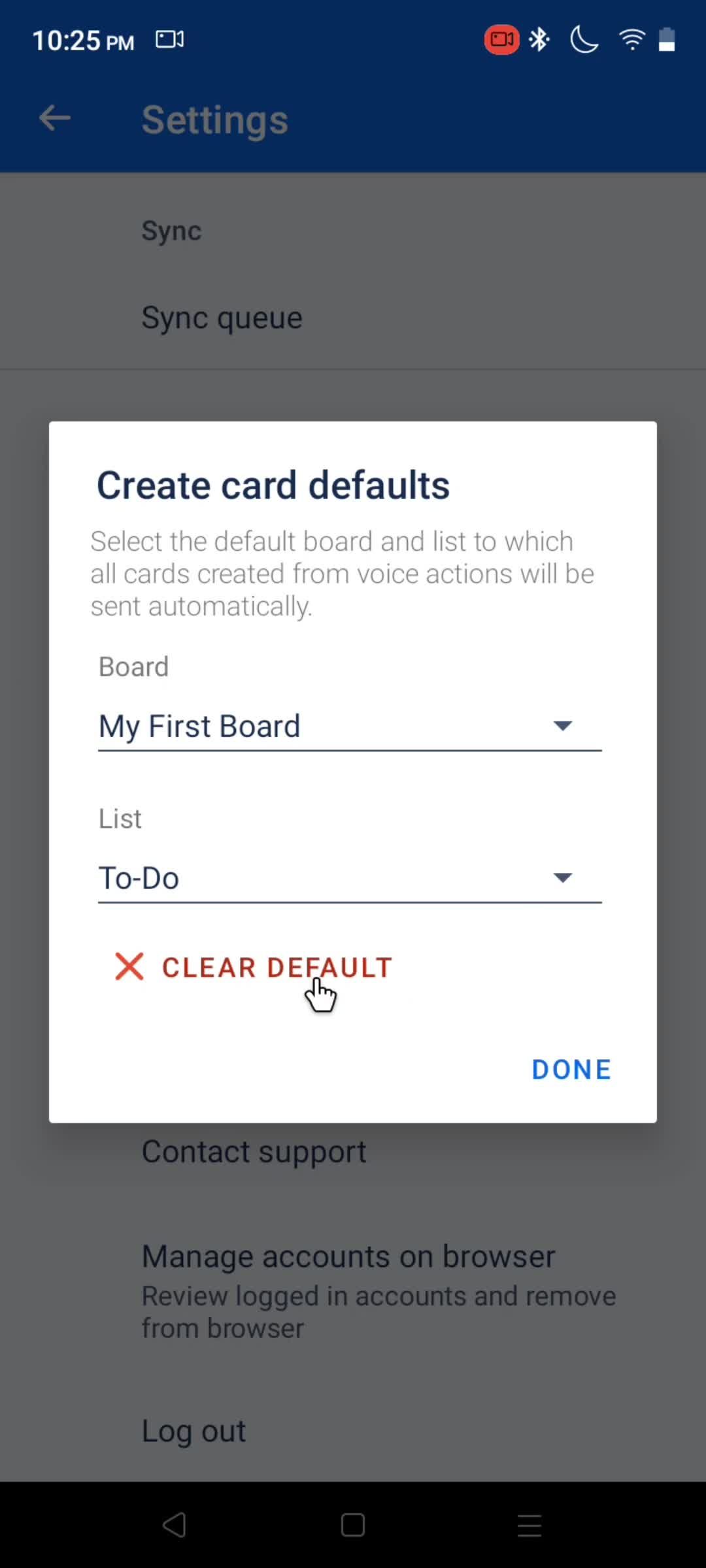
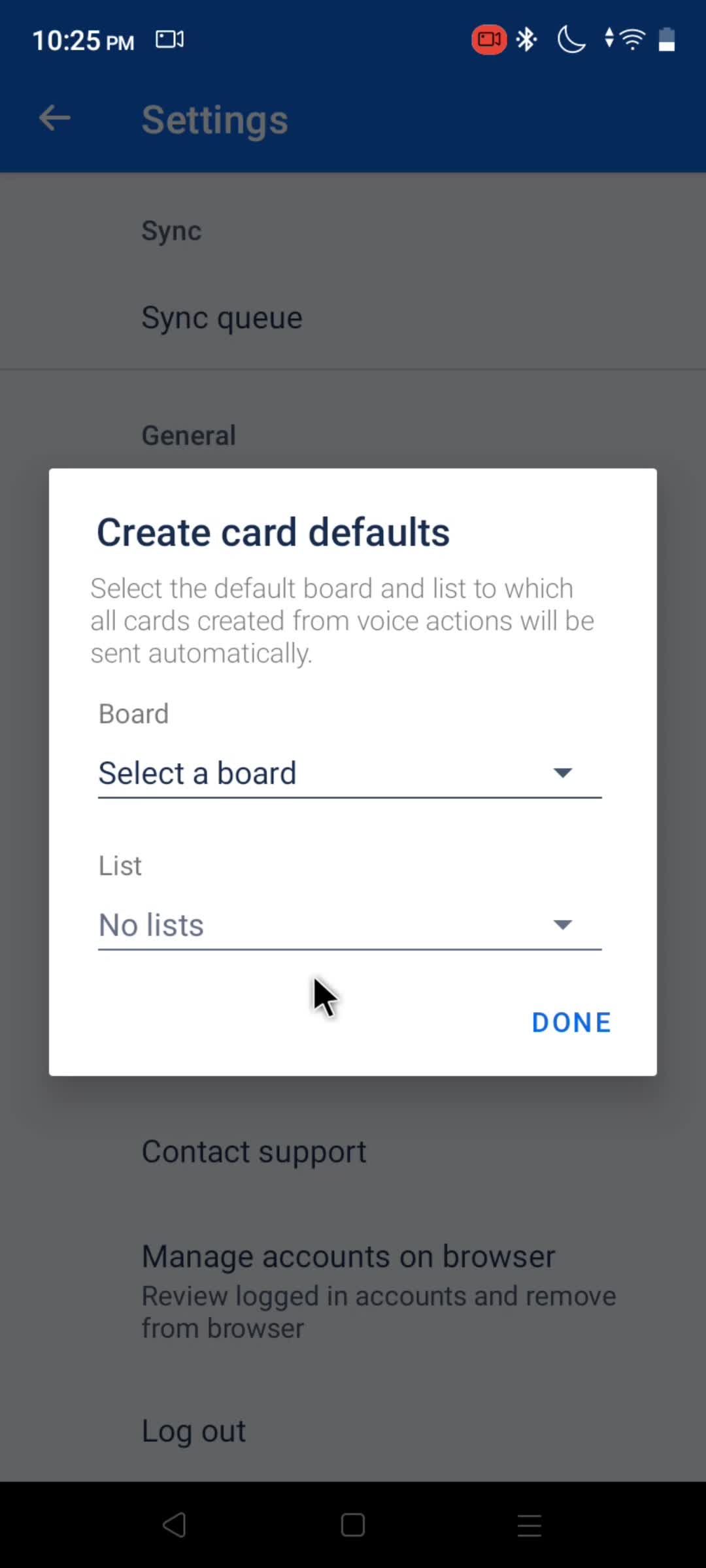
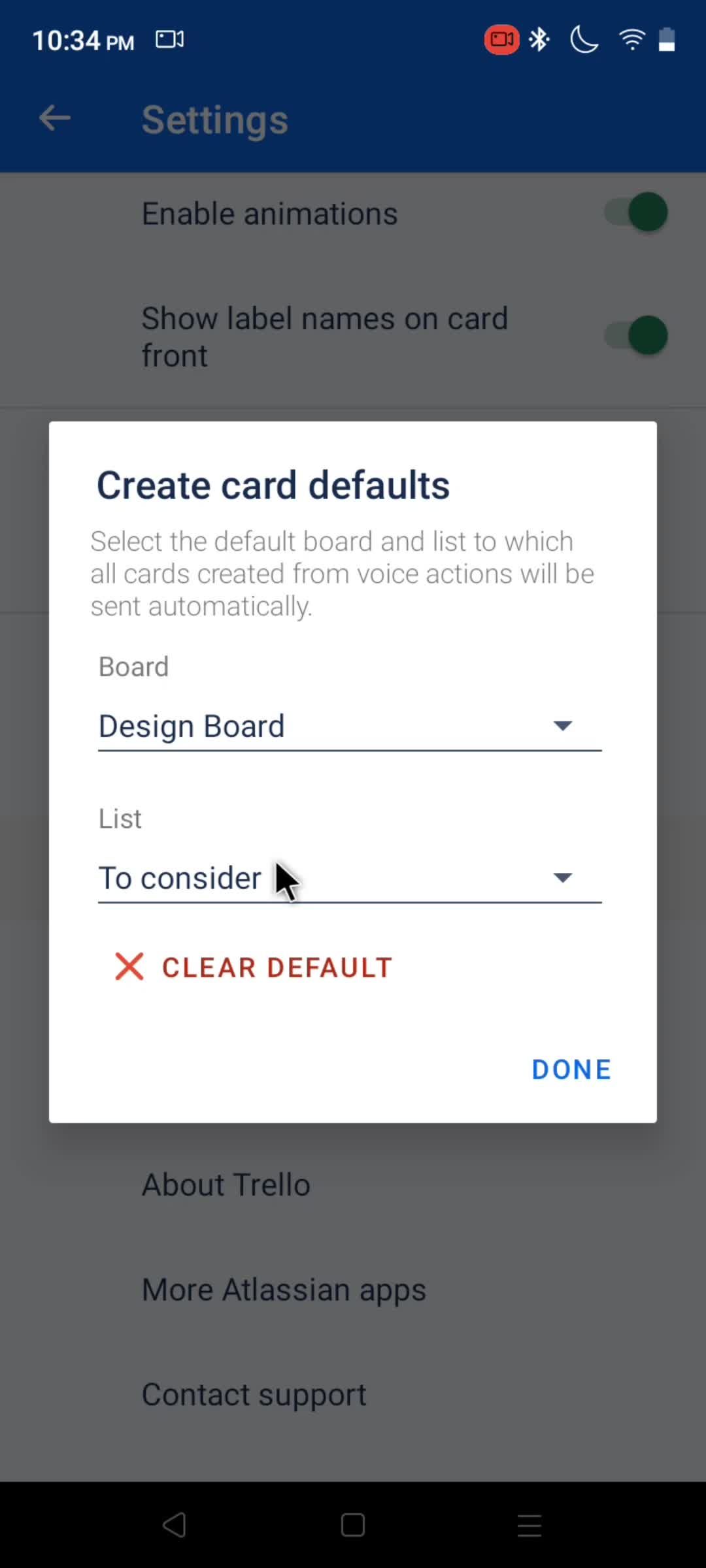
Create card defaults
this is title
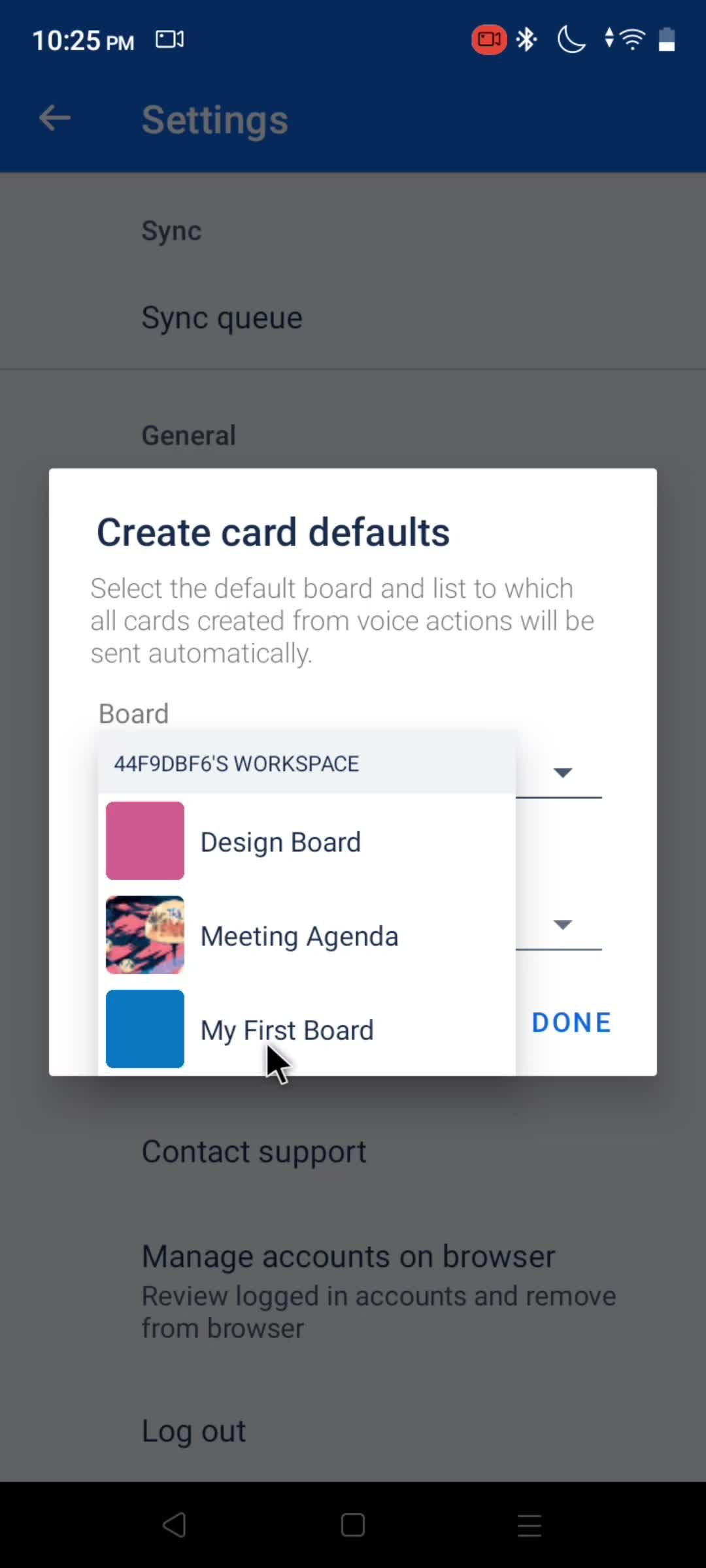
Choose board
this is title
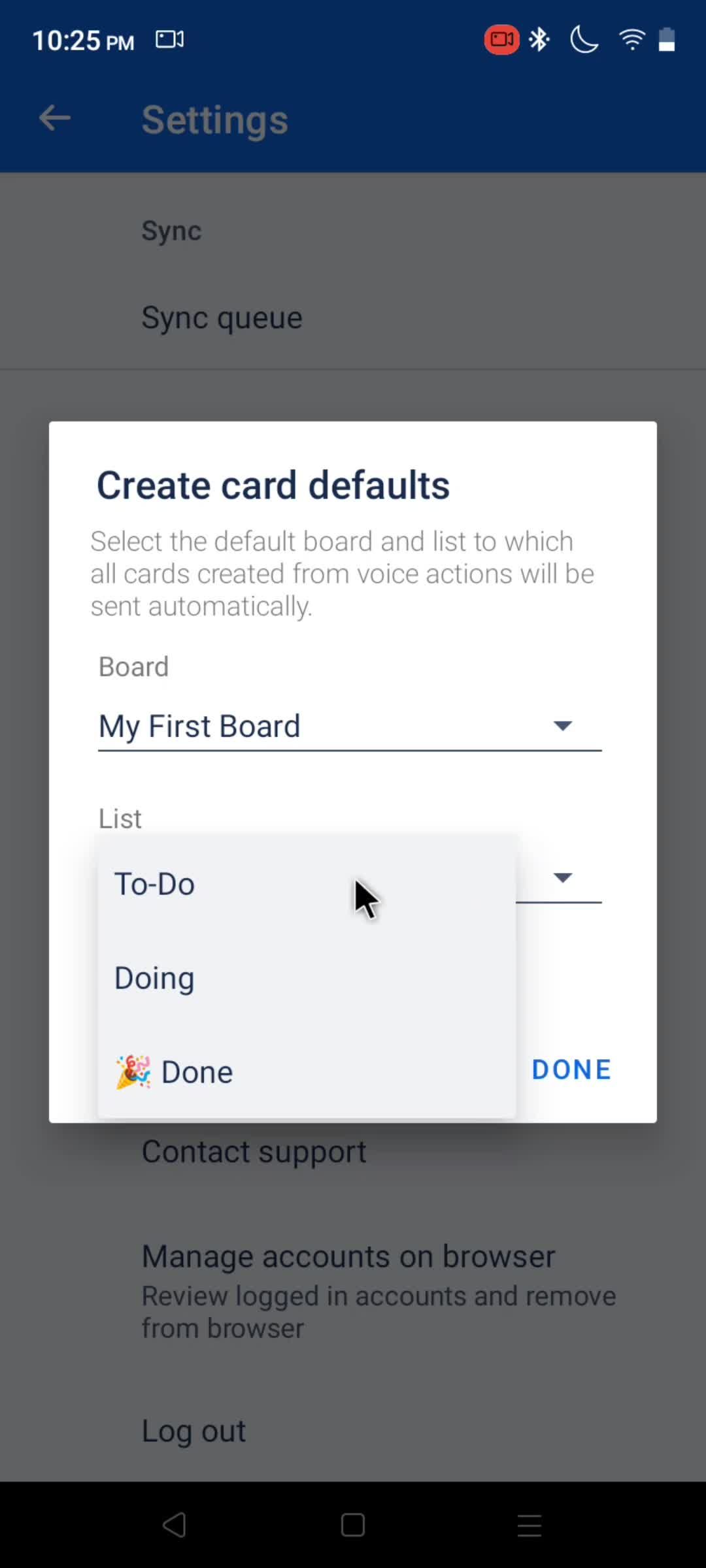
Select list
this is title
this is title
this is title
Delete
this is title
this is title
Boards
this is title
Profile menu
this is title
Settings
this is title
Profile
this is title
Account menu
this is title
Settings
this is title
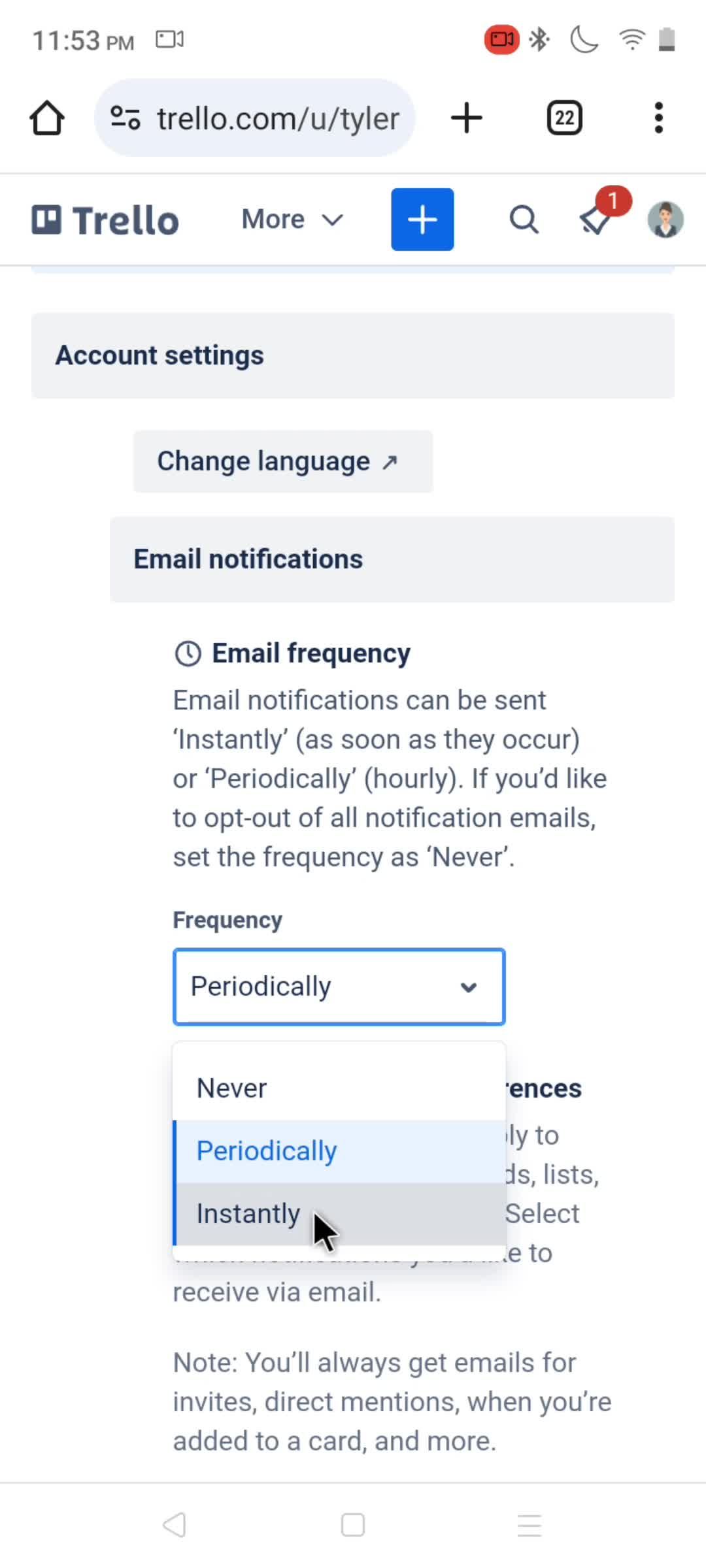
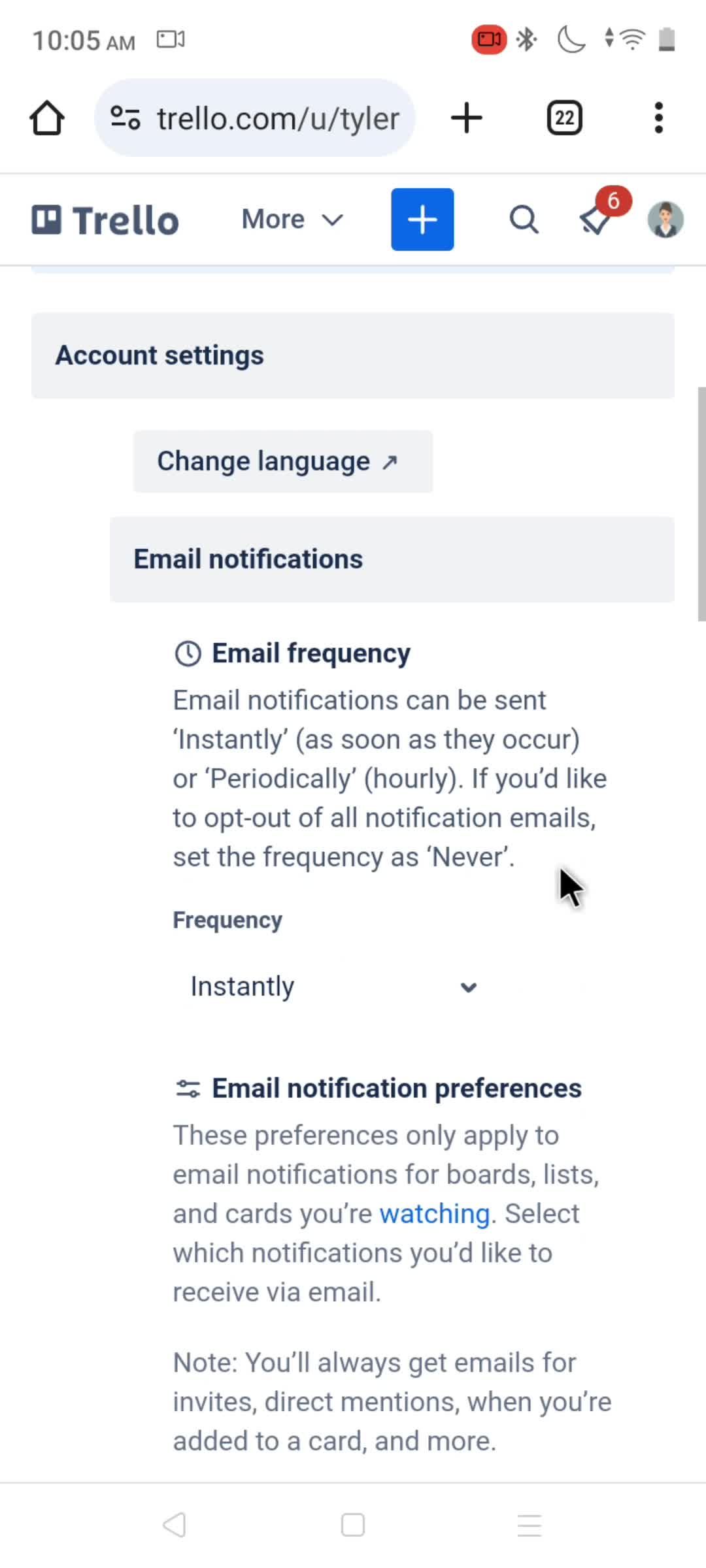
Select frequency
this is title
this is title
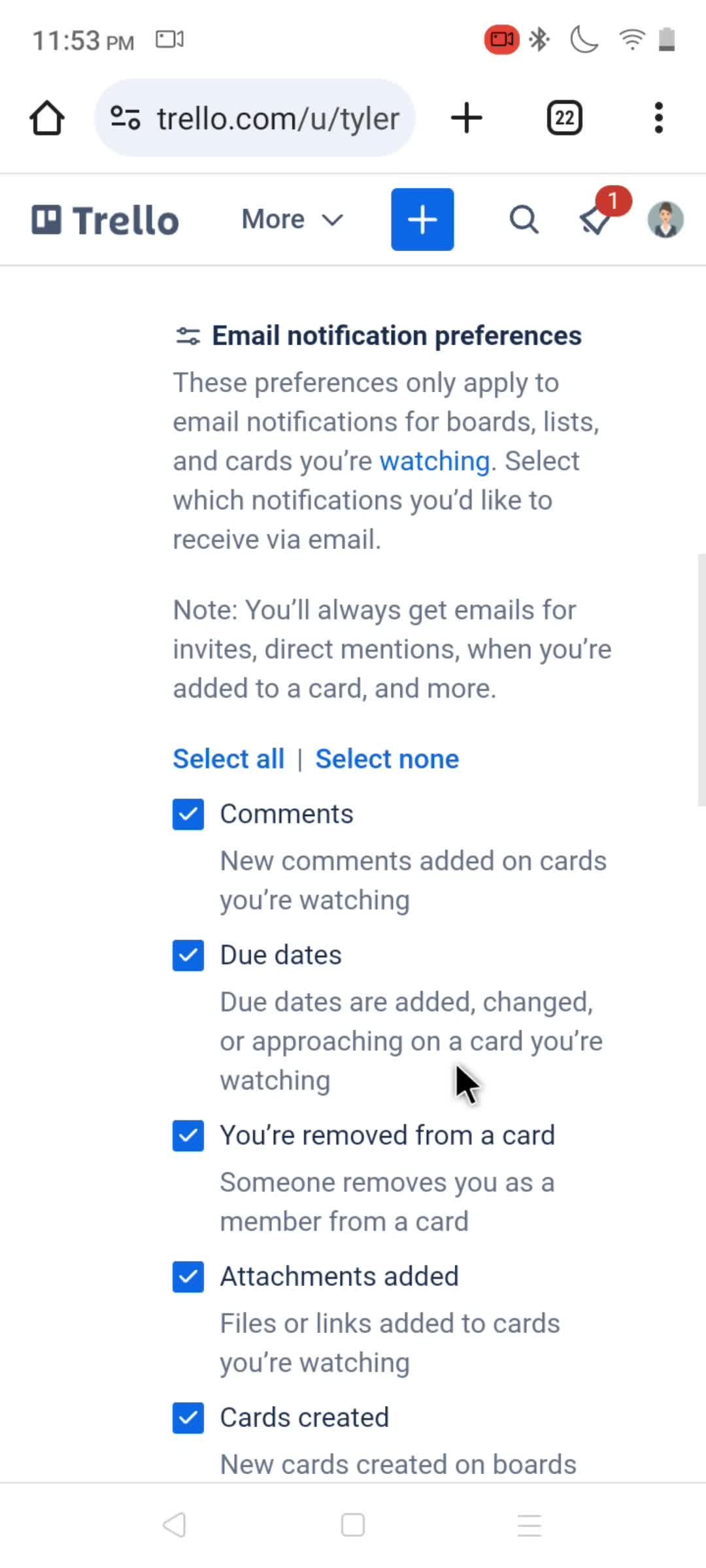
Update preferences
this is title
this is title
Enable notifications
this is title
this is title
Select preference
this is title
this is title
this is title
Boards
this is title
Profile menu
this is title
this is title
this is title
Workspace menu
this is title
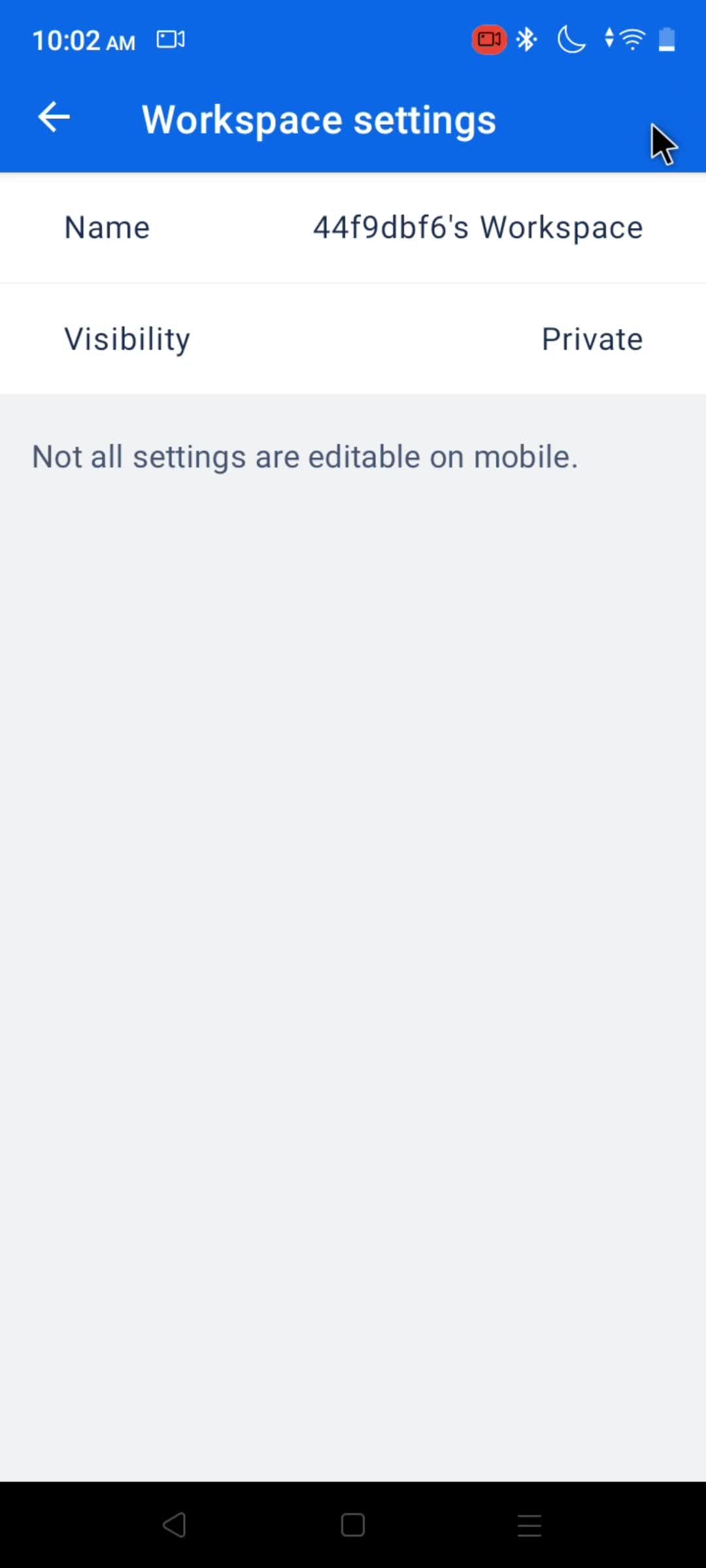
Workspace settings
this is title
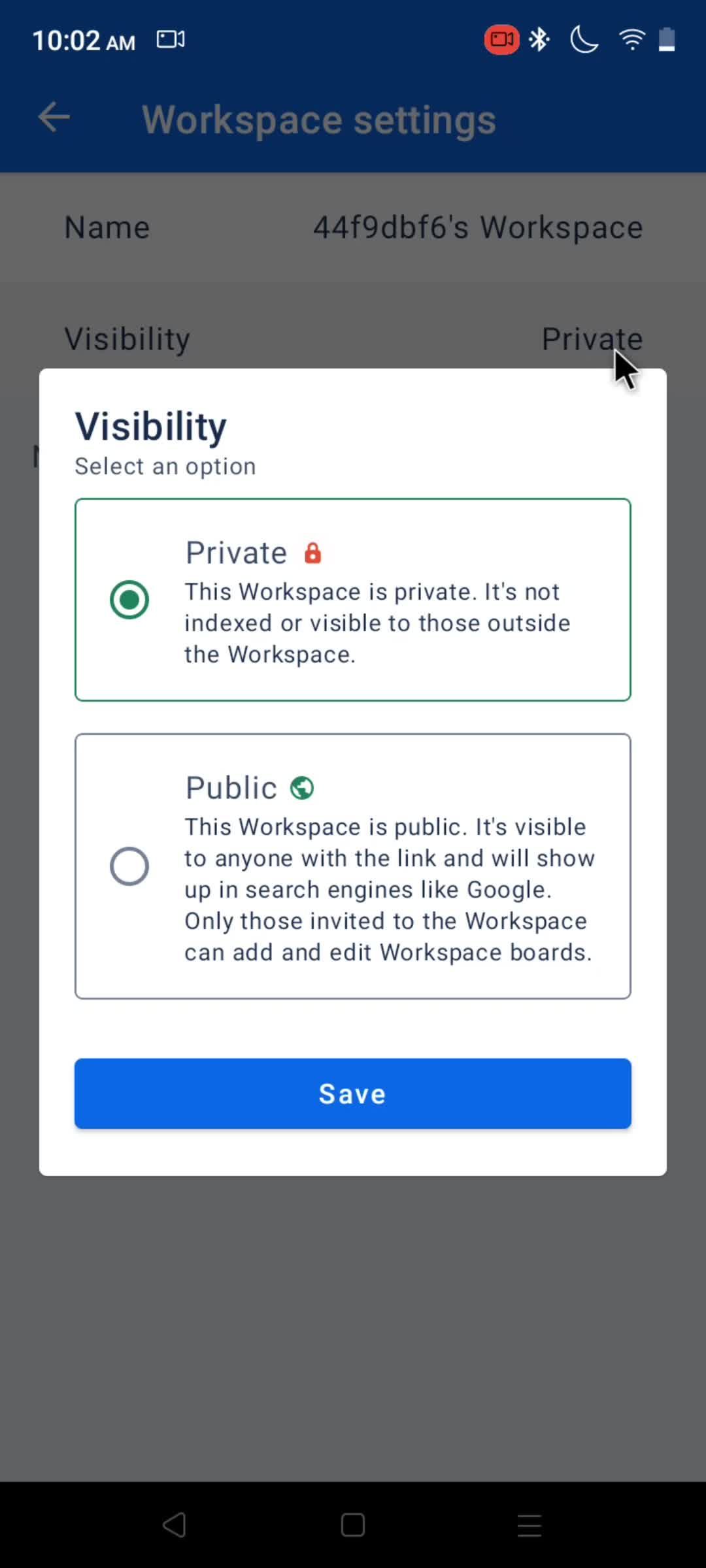
Visibility
this is title
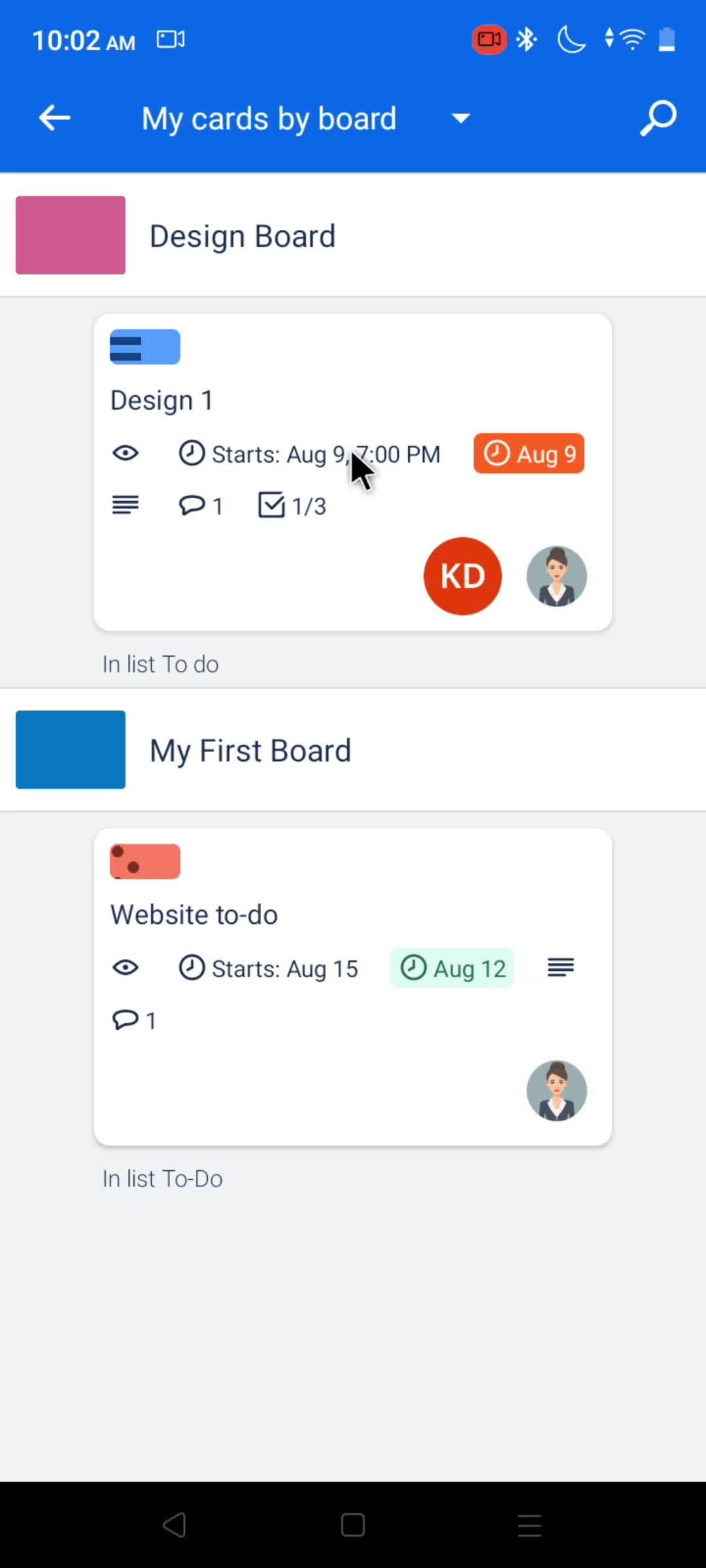
Cards
this is title
this is title
this is title
this is title
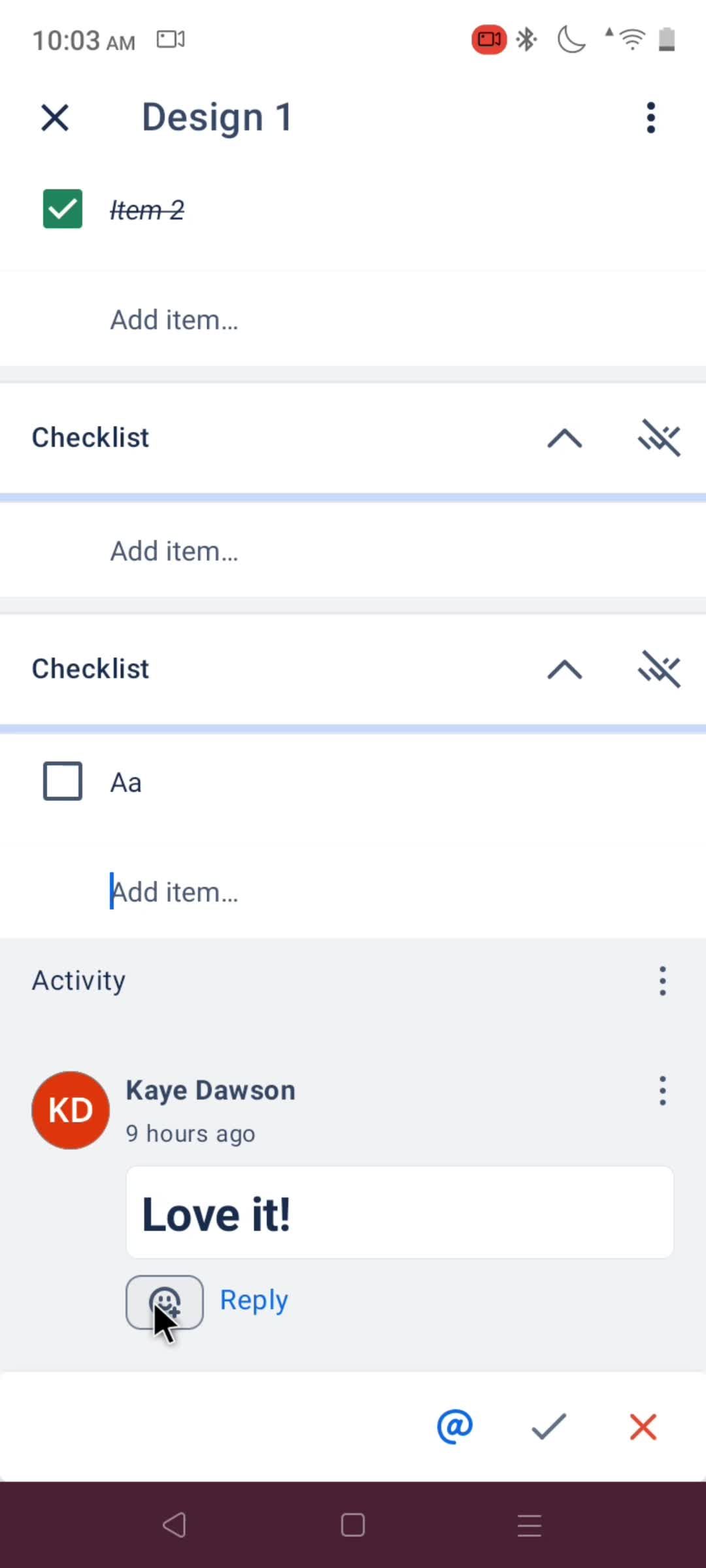
Add item
this is title
this is title
this is title
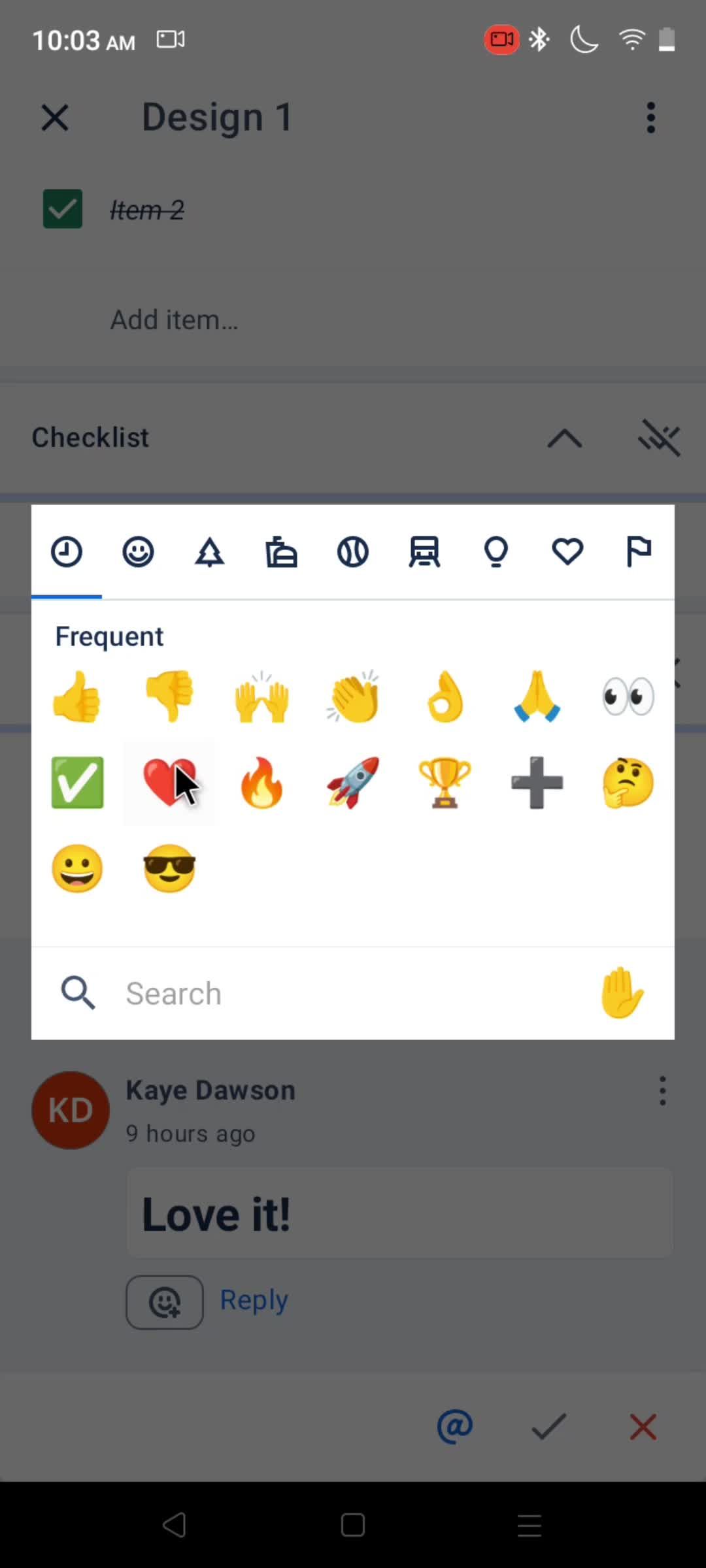
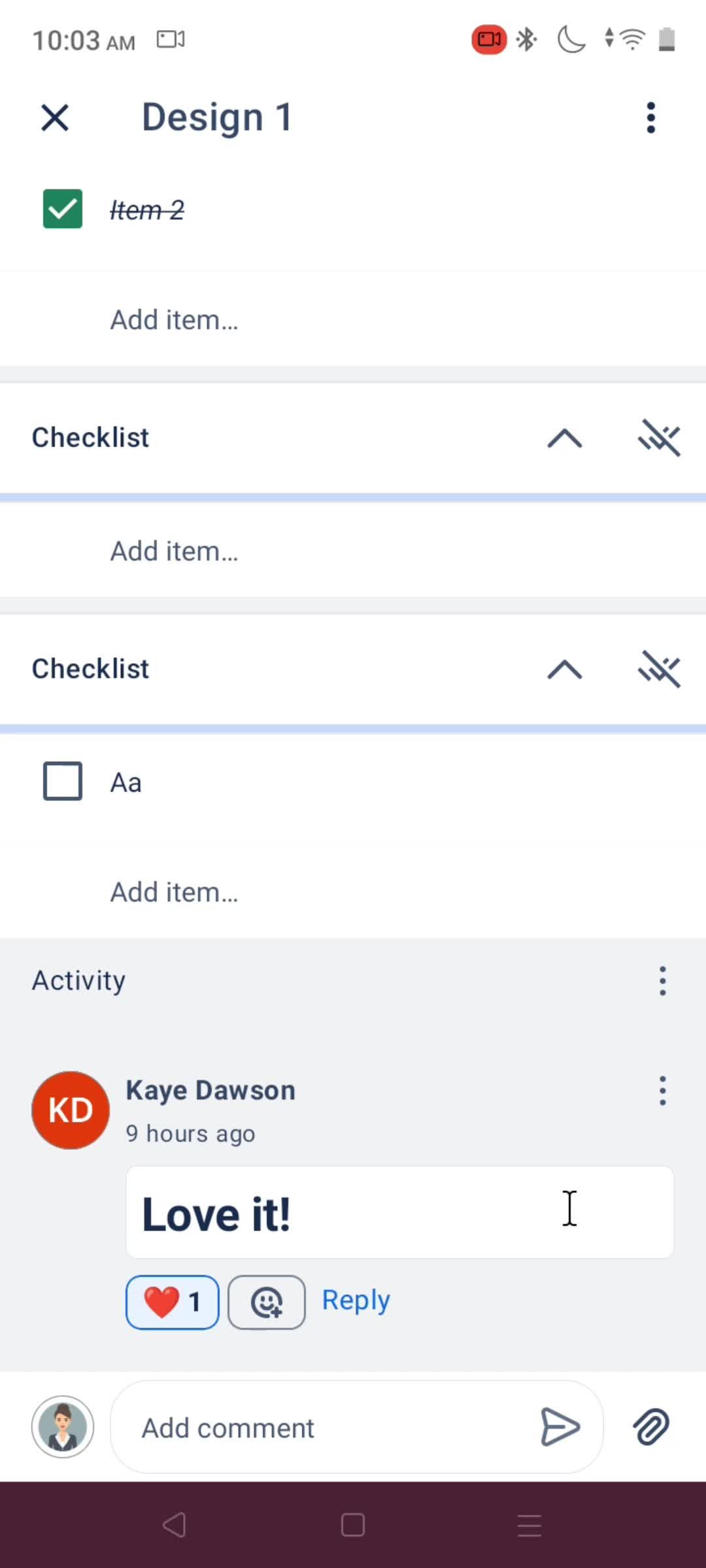
Select reaction
this is title
this is title
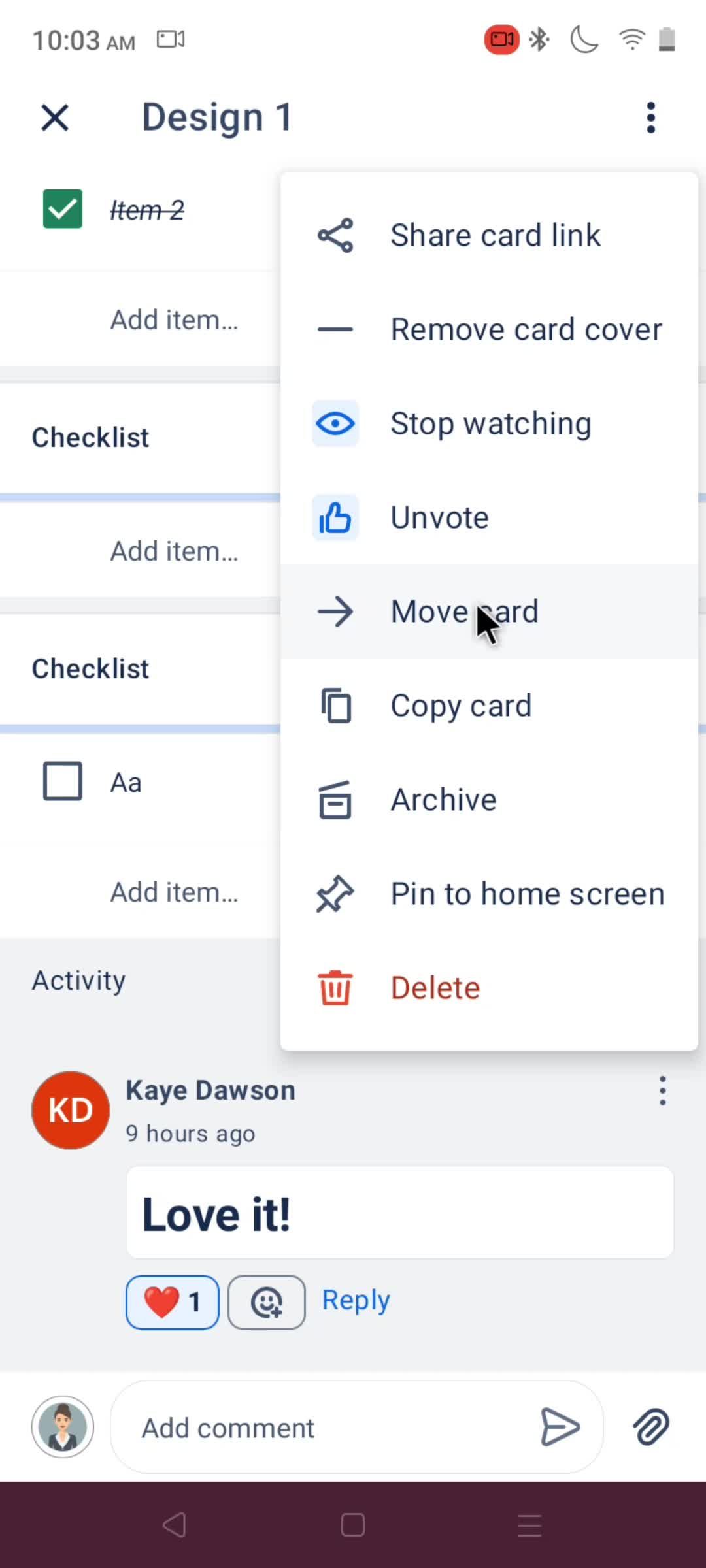
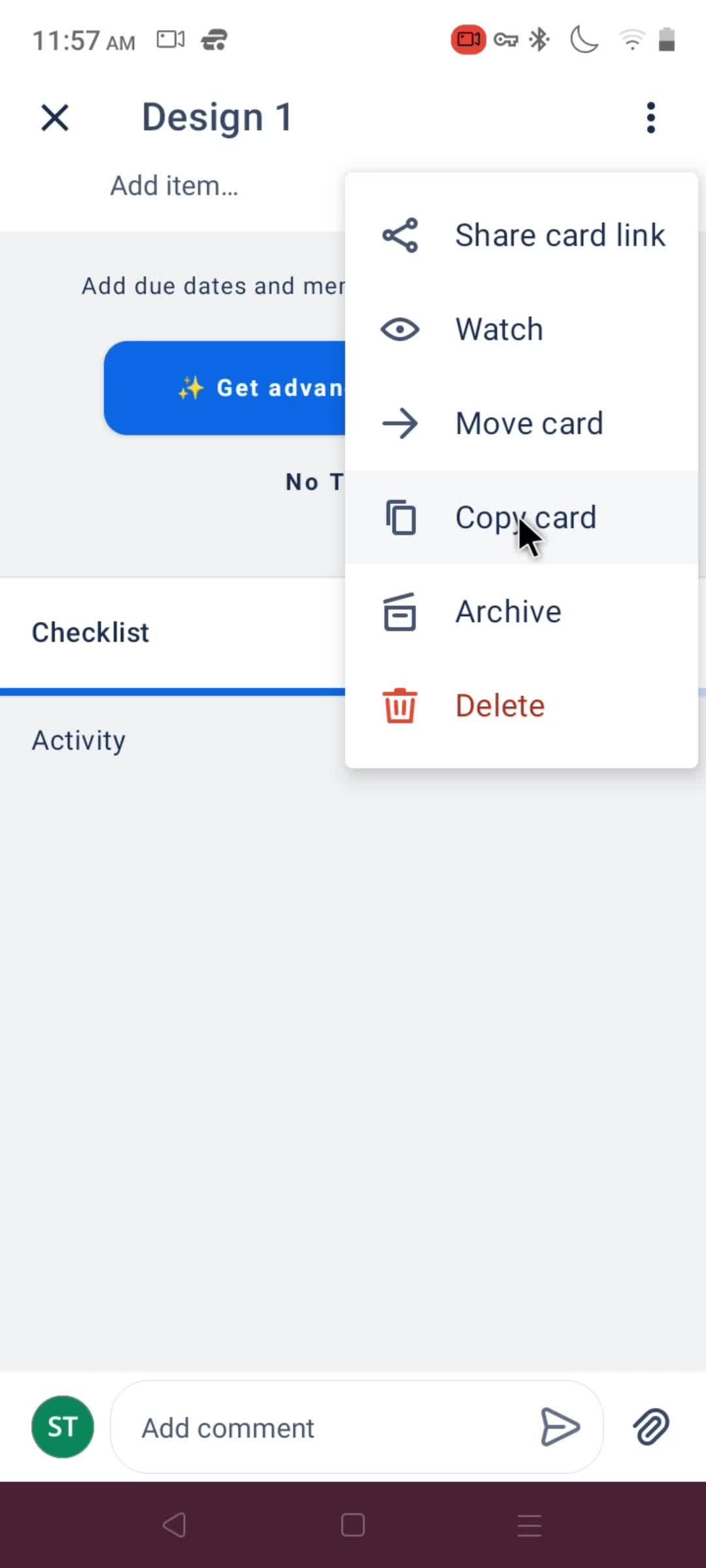
Action menu
this is title
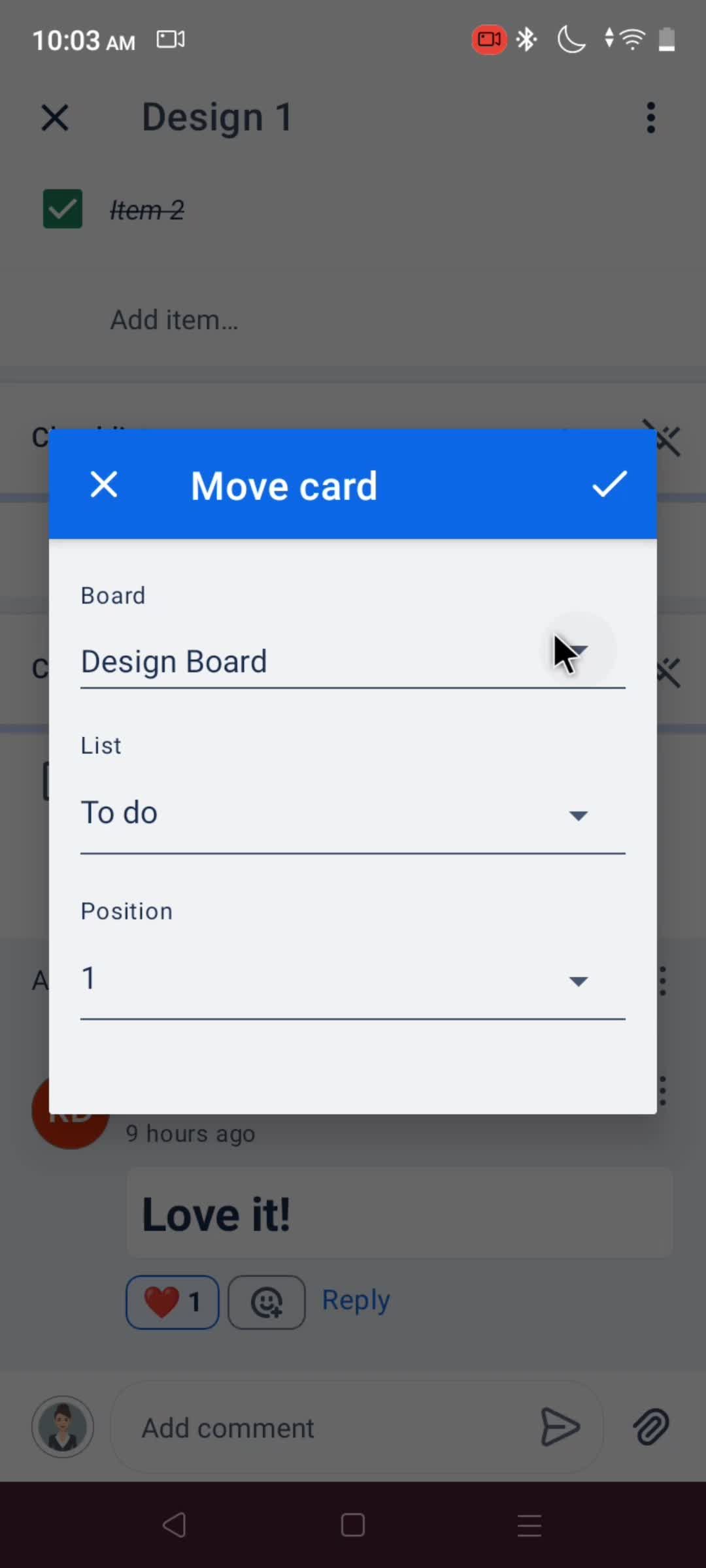
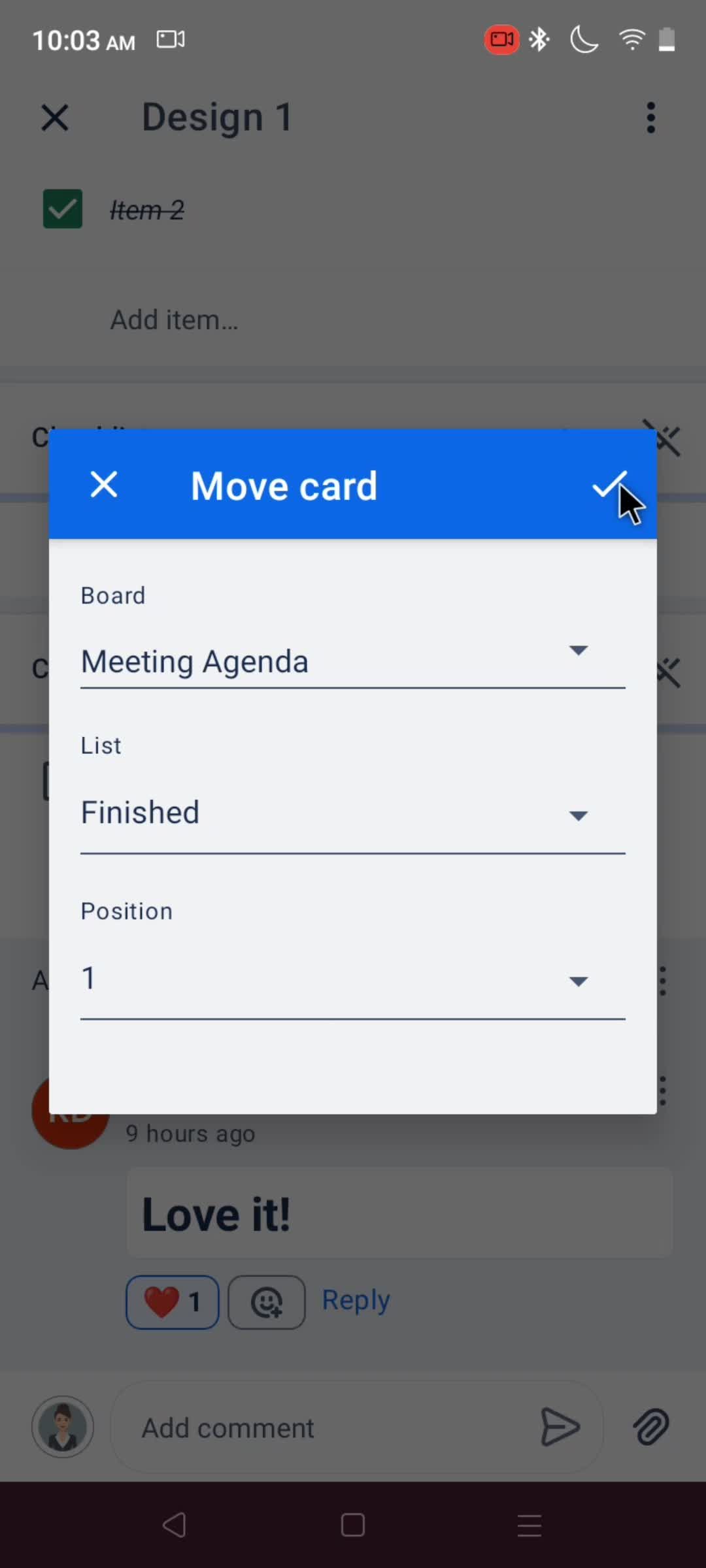
Move card
this is title
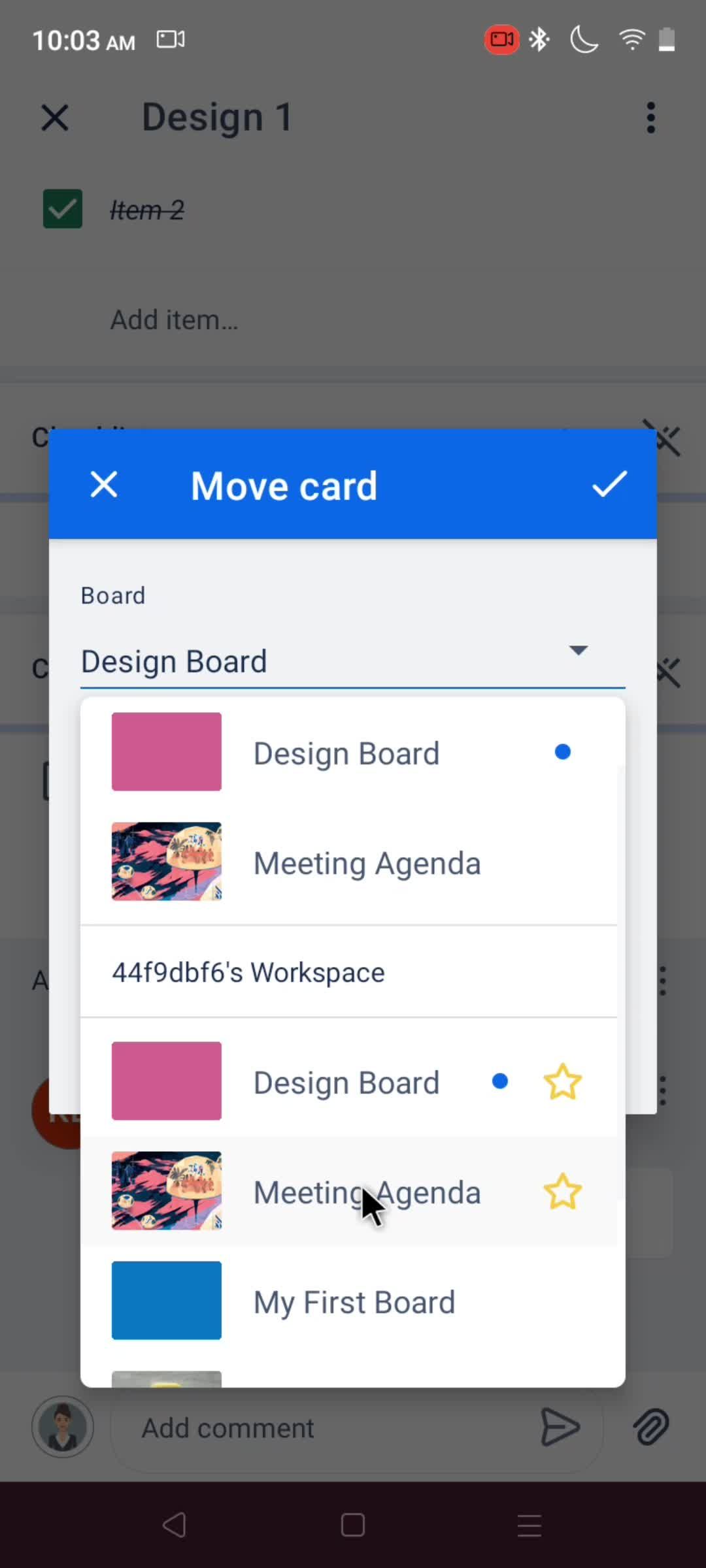
Choose board
this is title
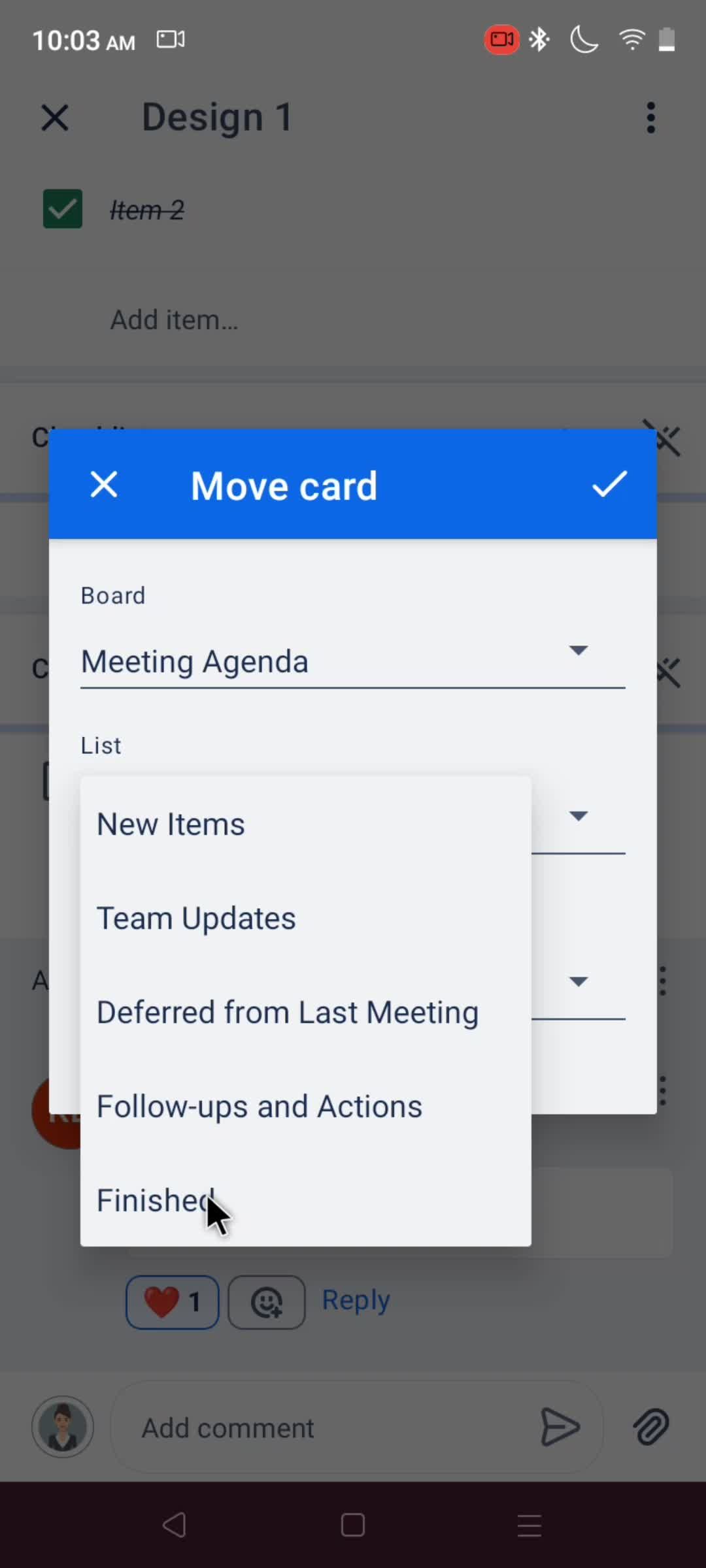
Select list
this is title
this is title
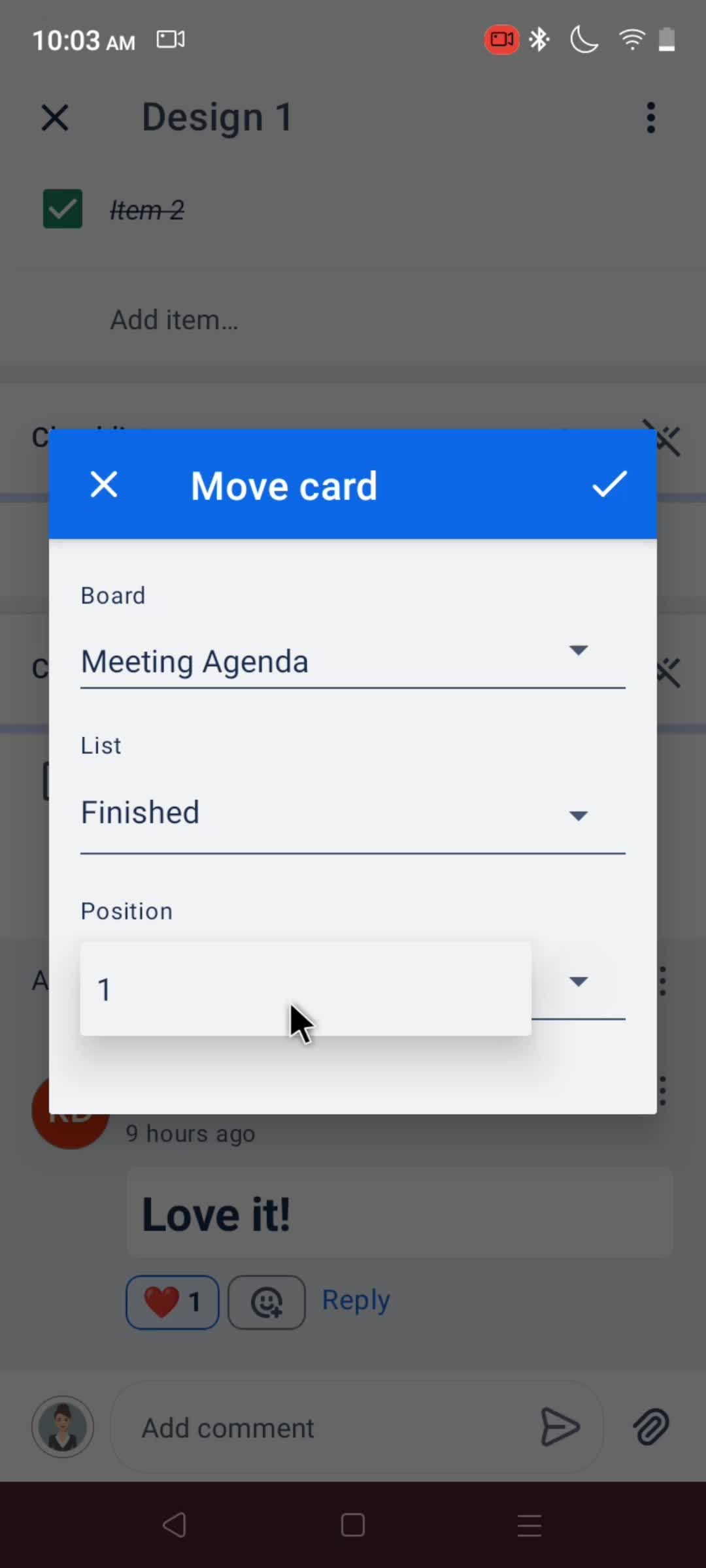
Save
this is title
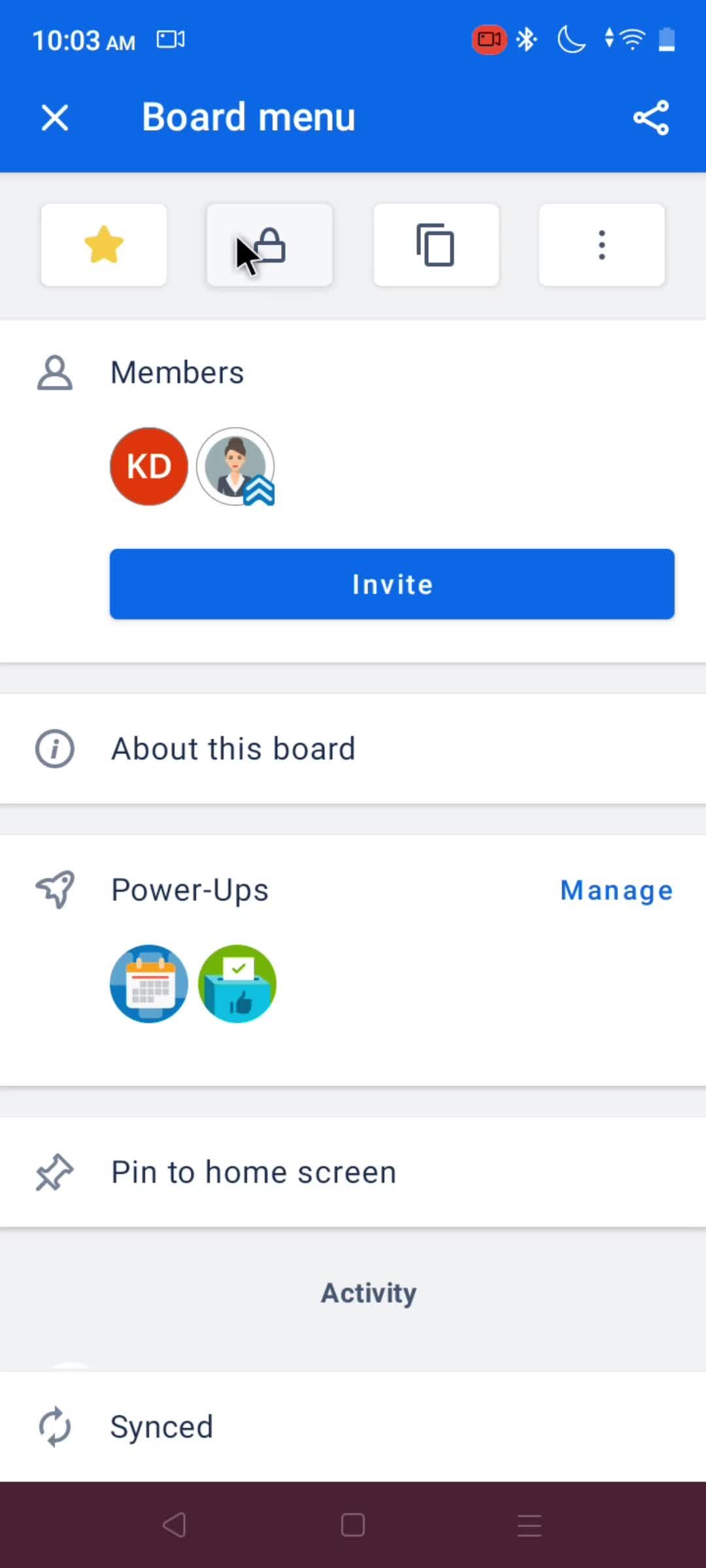
Board menu
this is title
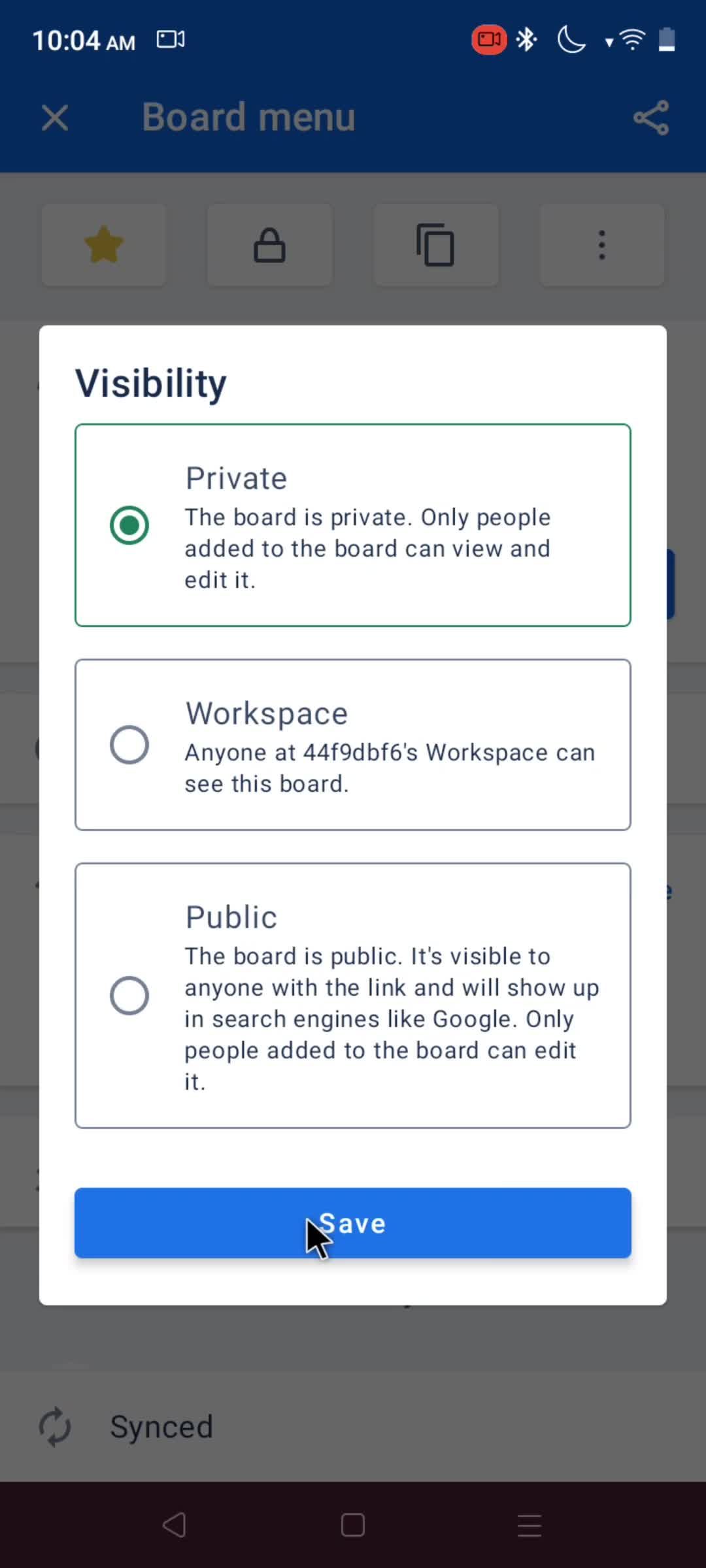
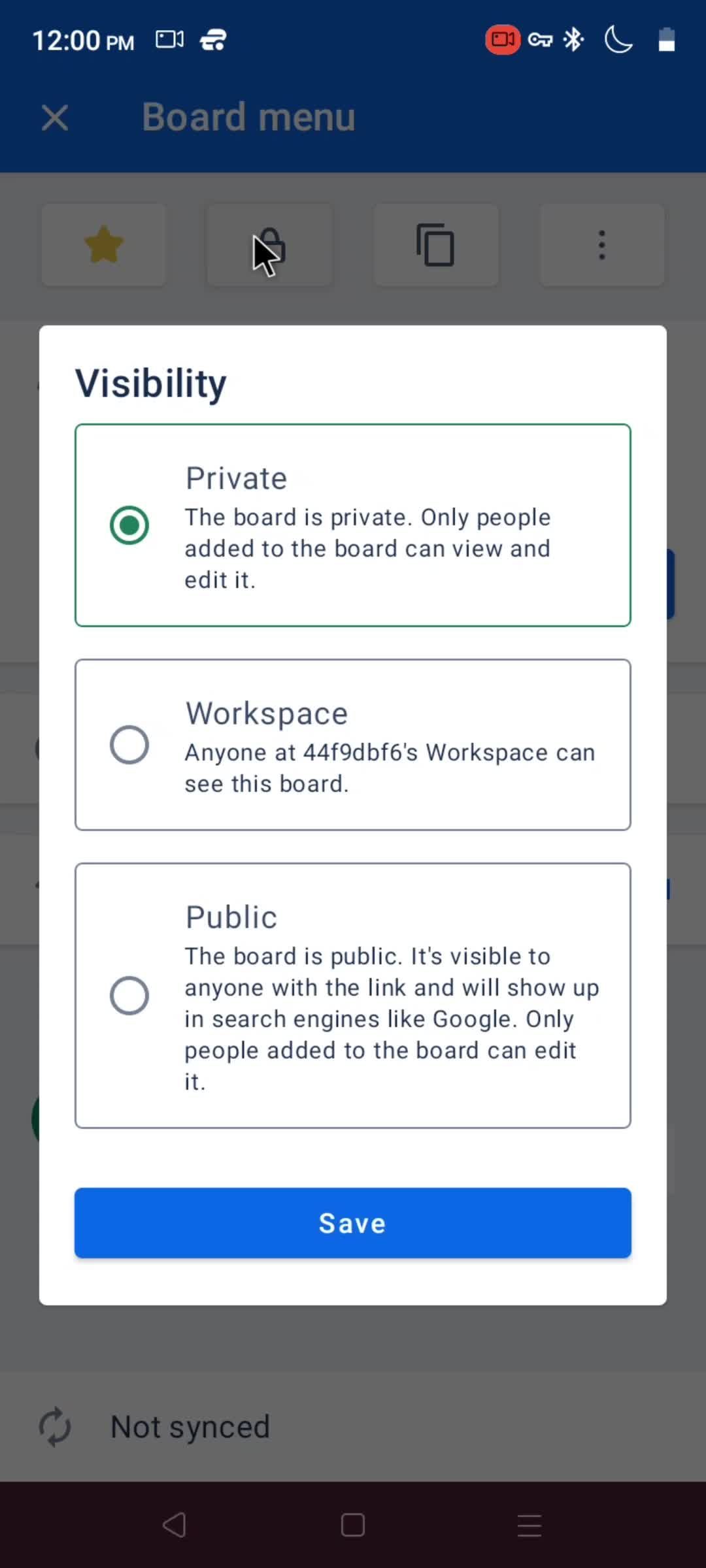
Visibility
this is title
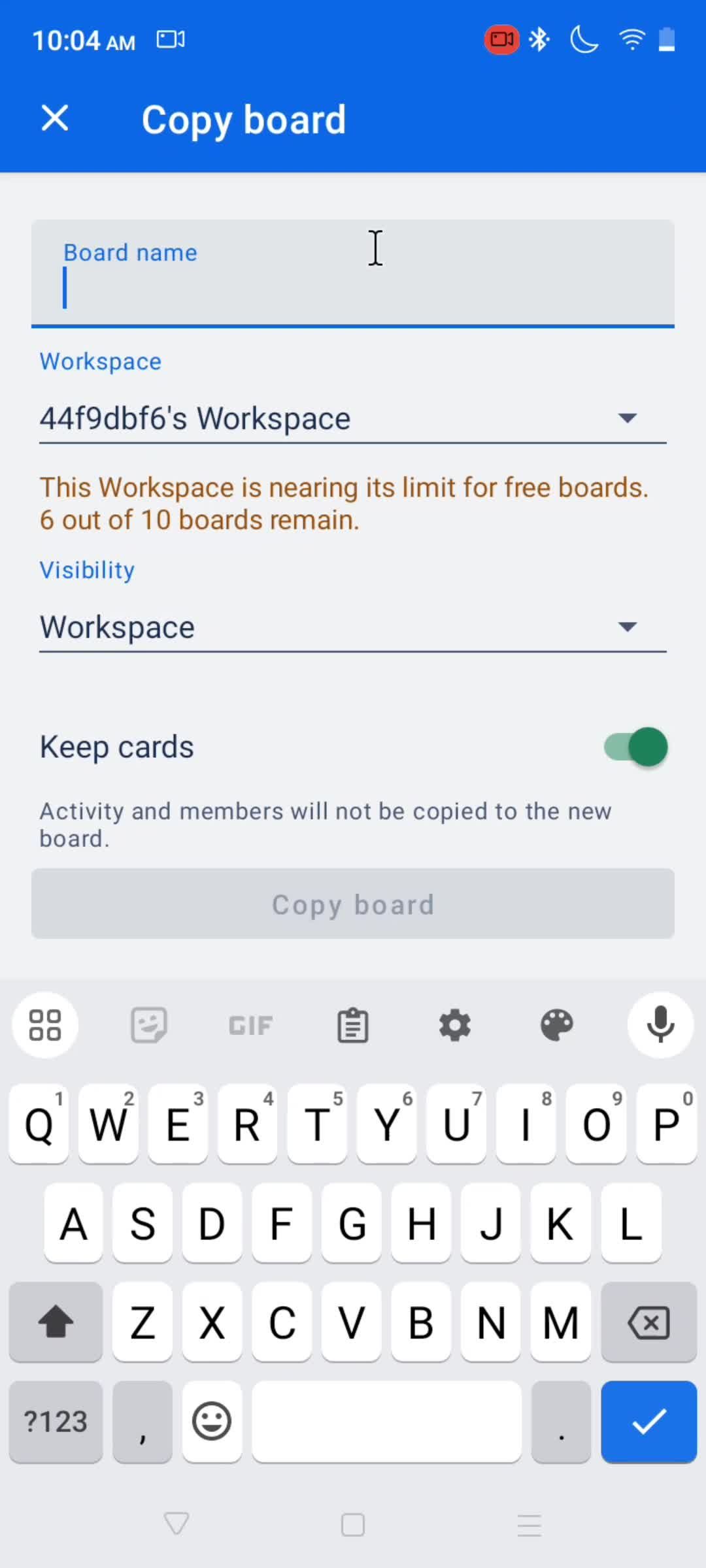
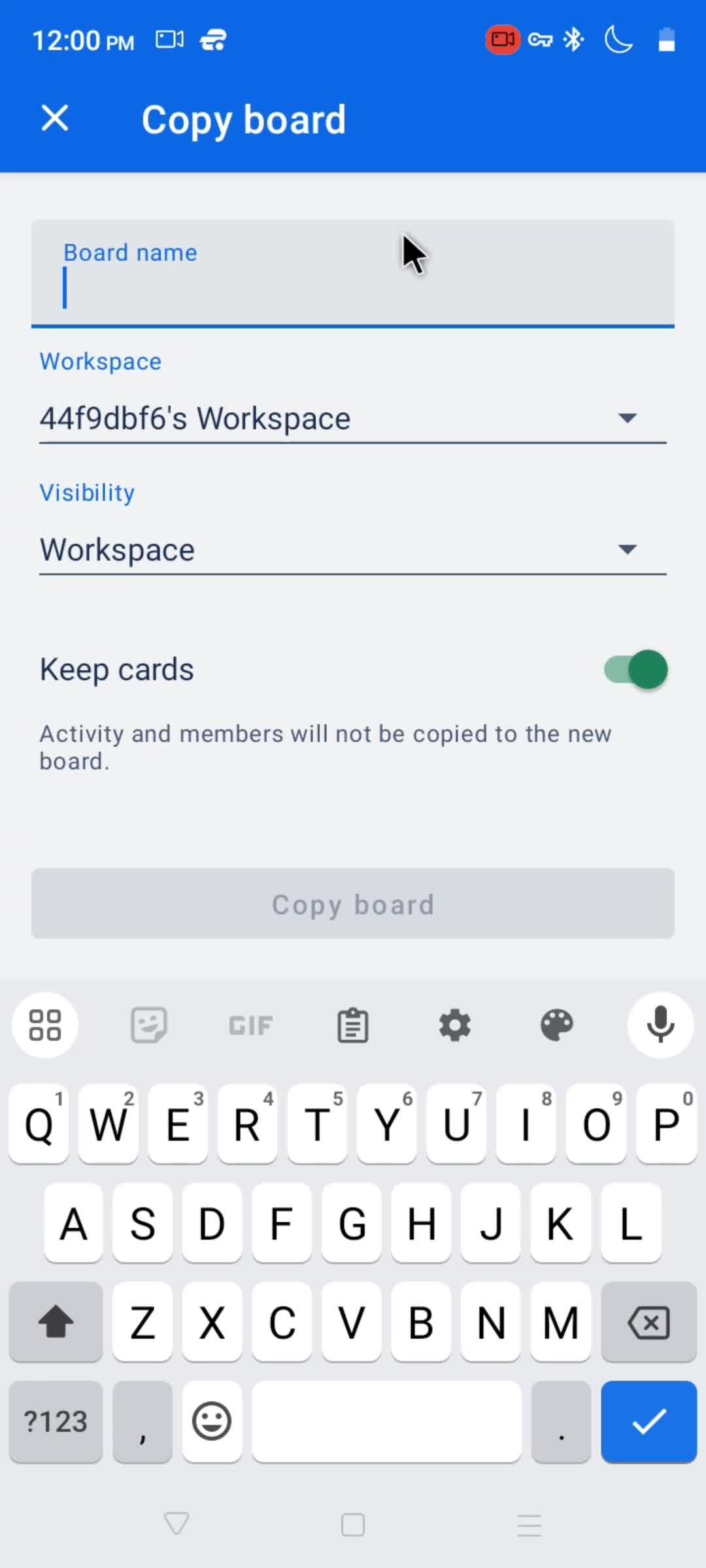
Copy board
this is title
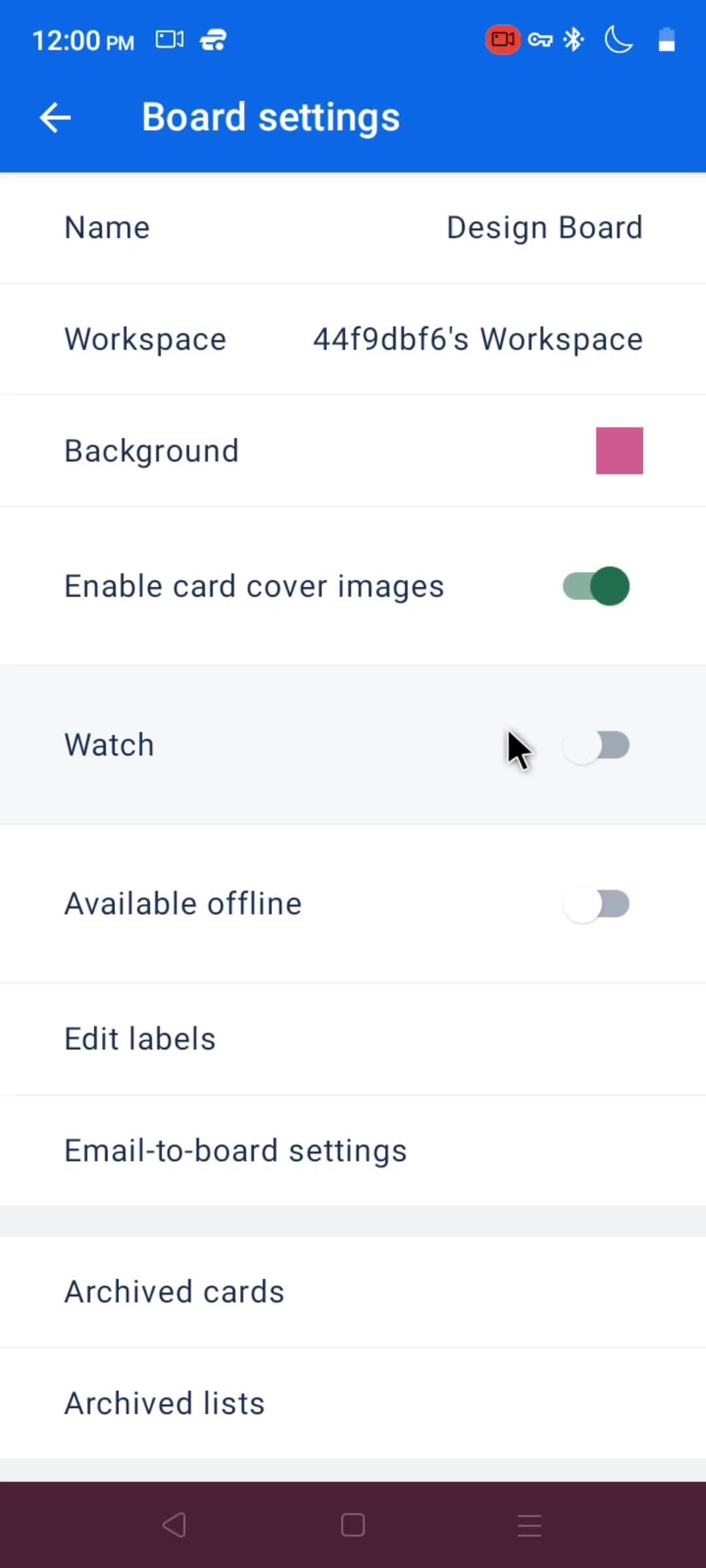
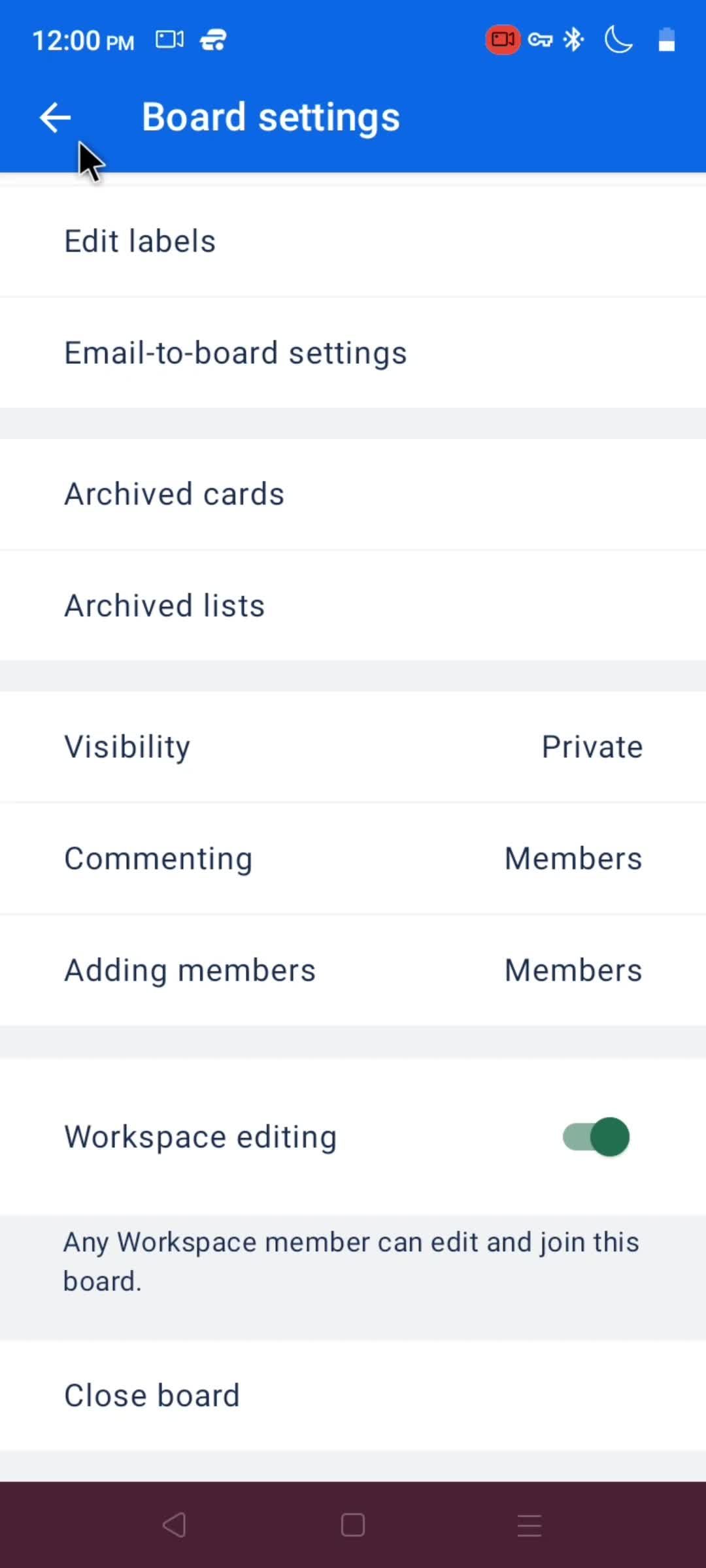
Board settings
this is title
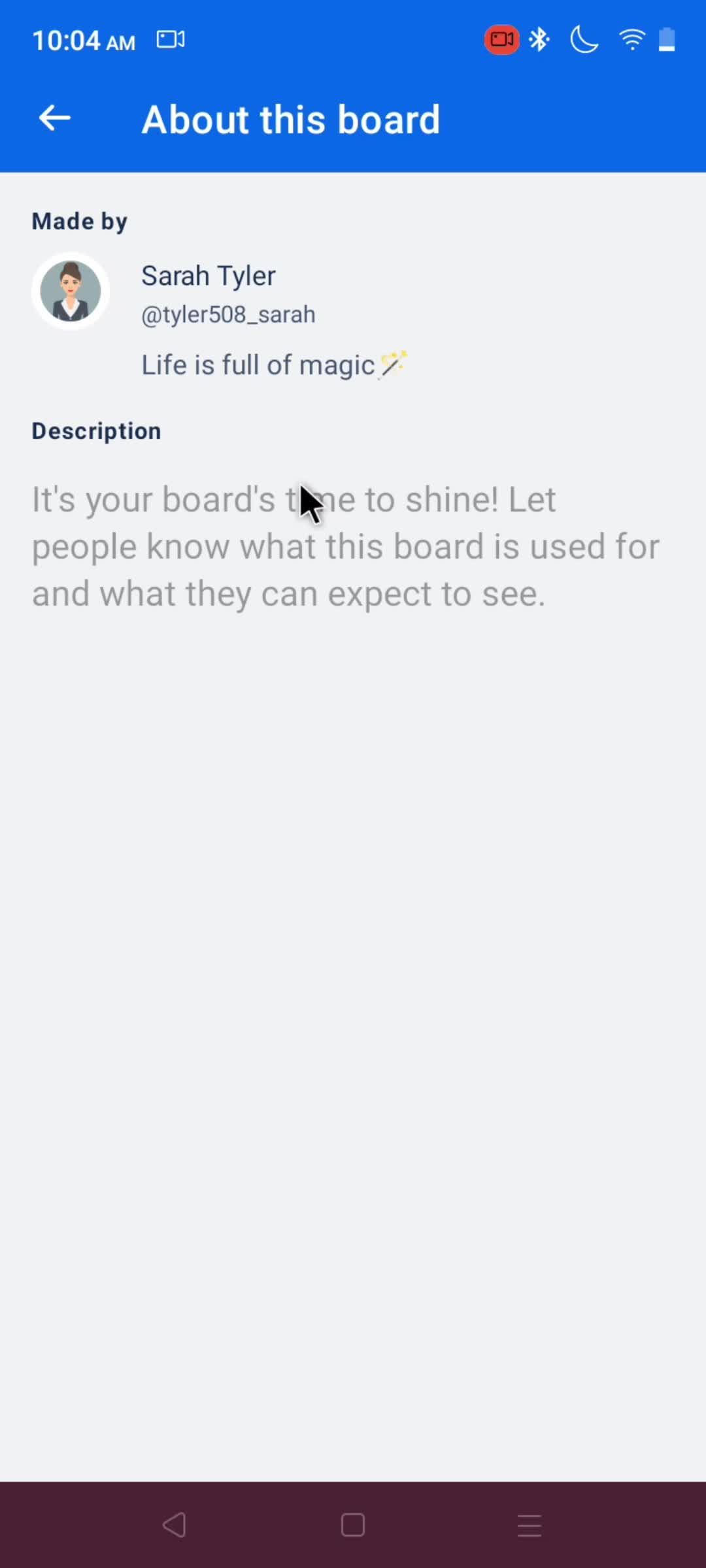
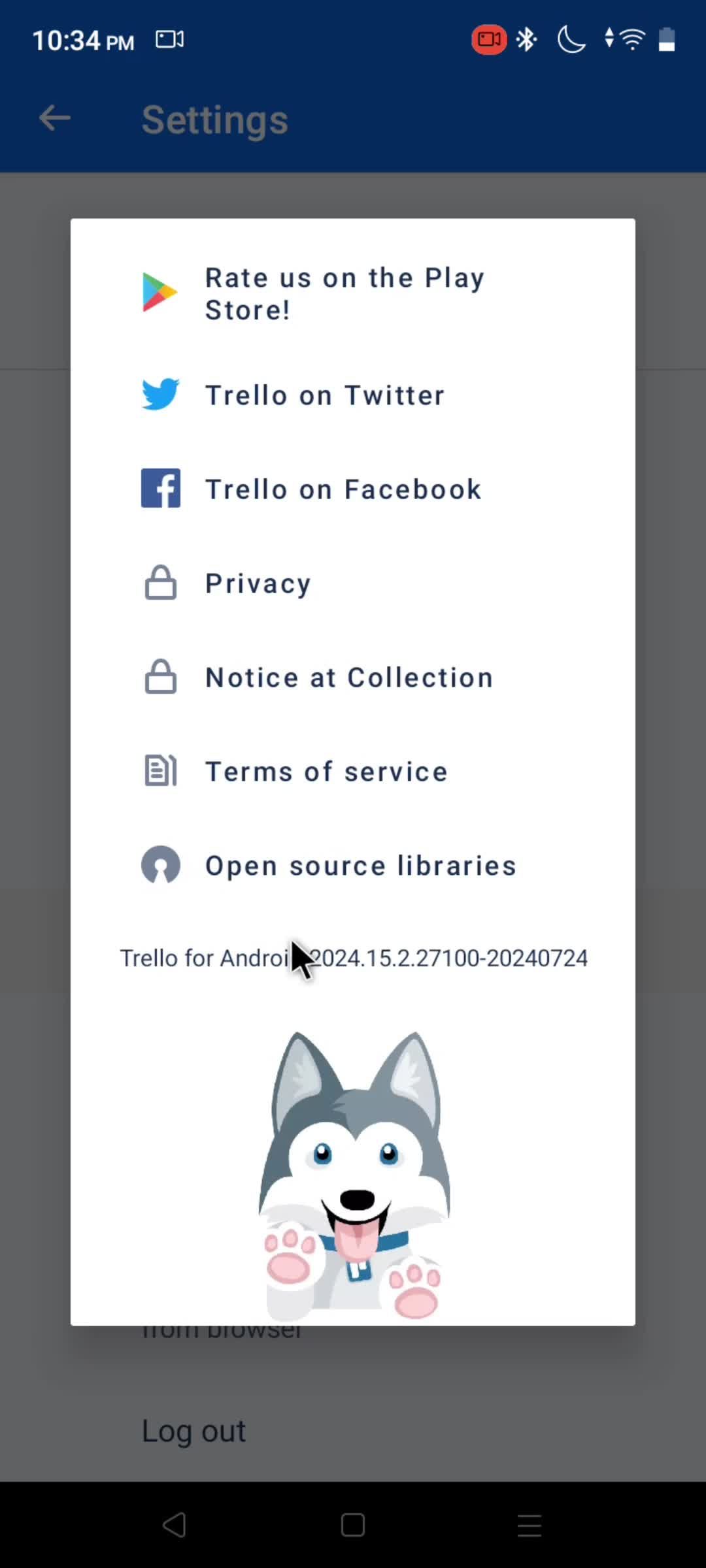
About
this is title
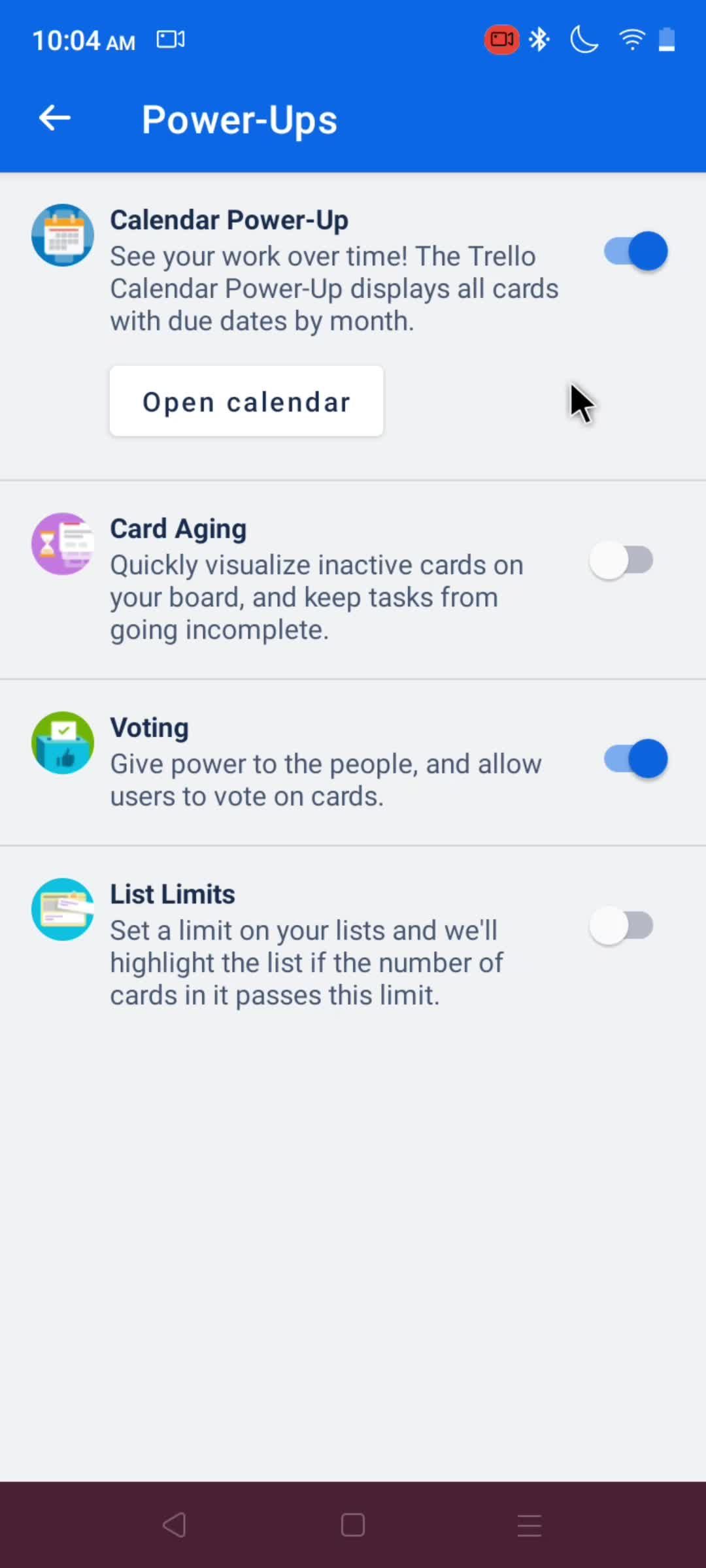
Power-ups
this is title
this is title
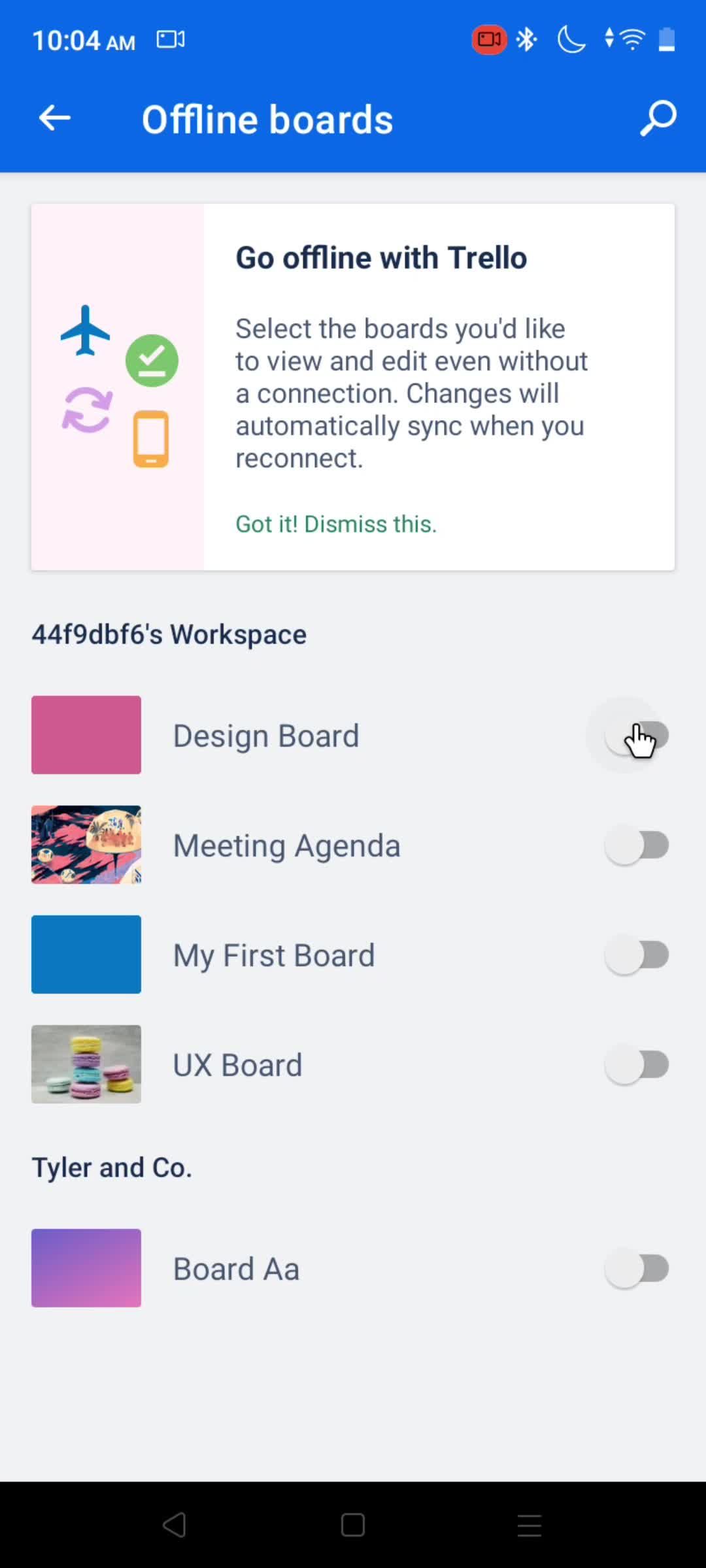
Offline boards
this is title
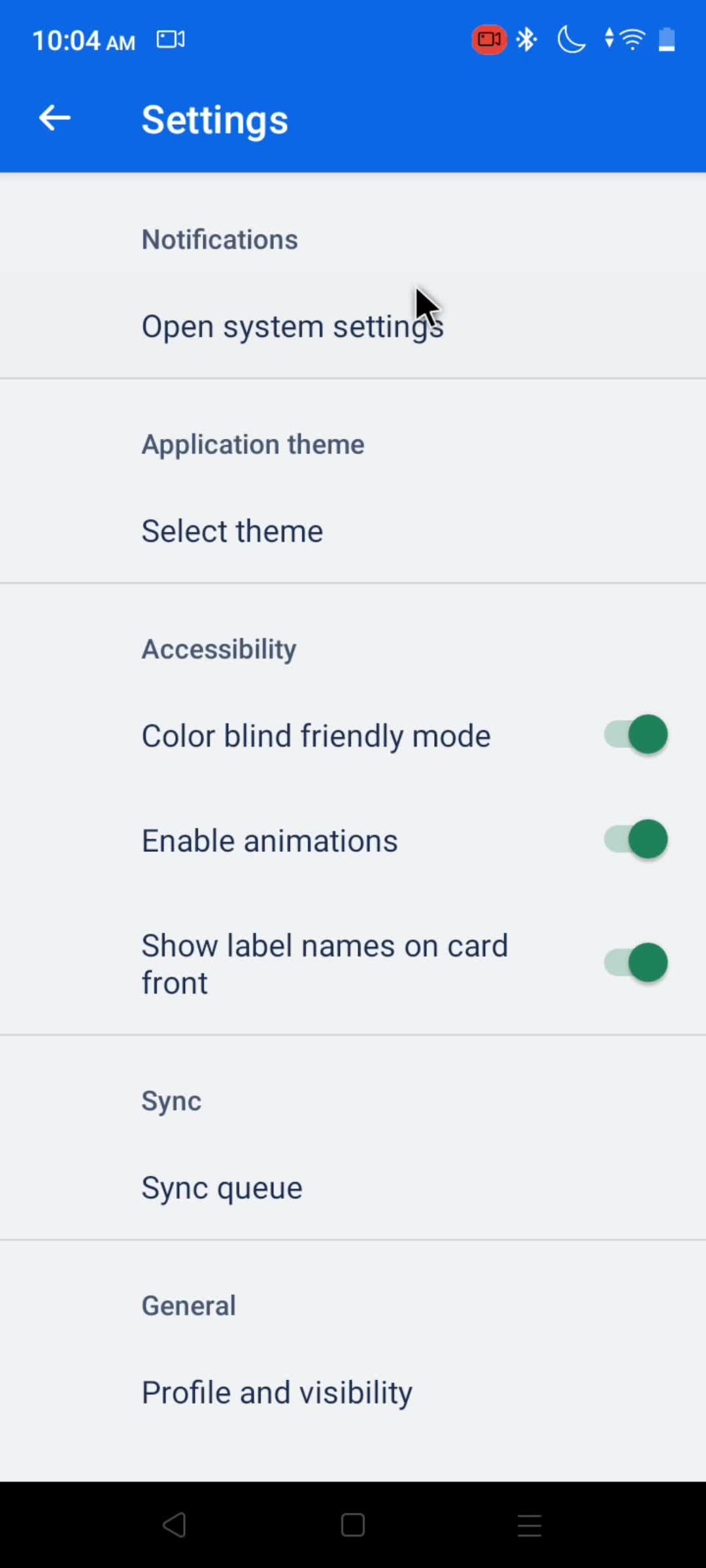
Settings
this is title
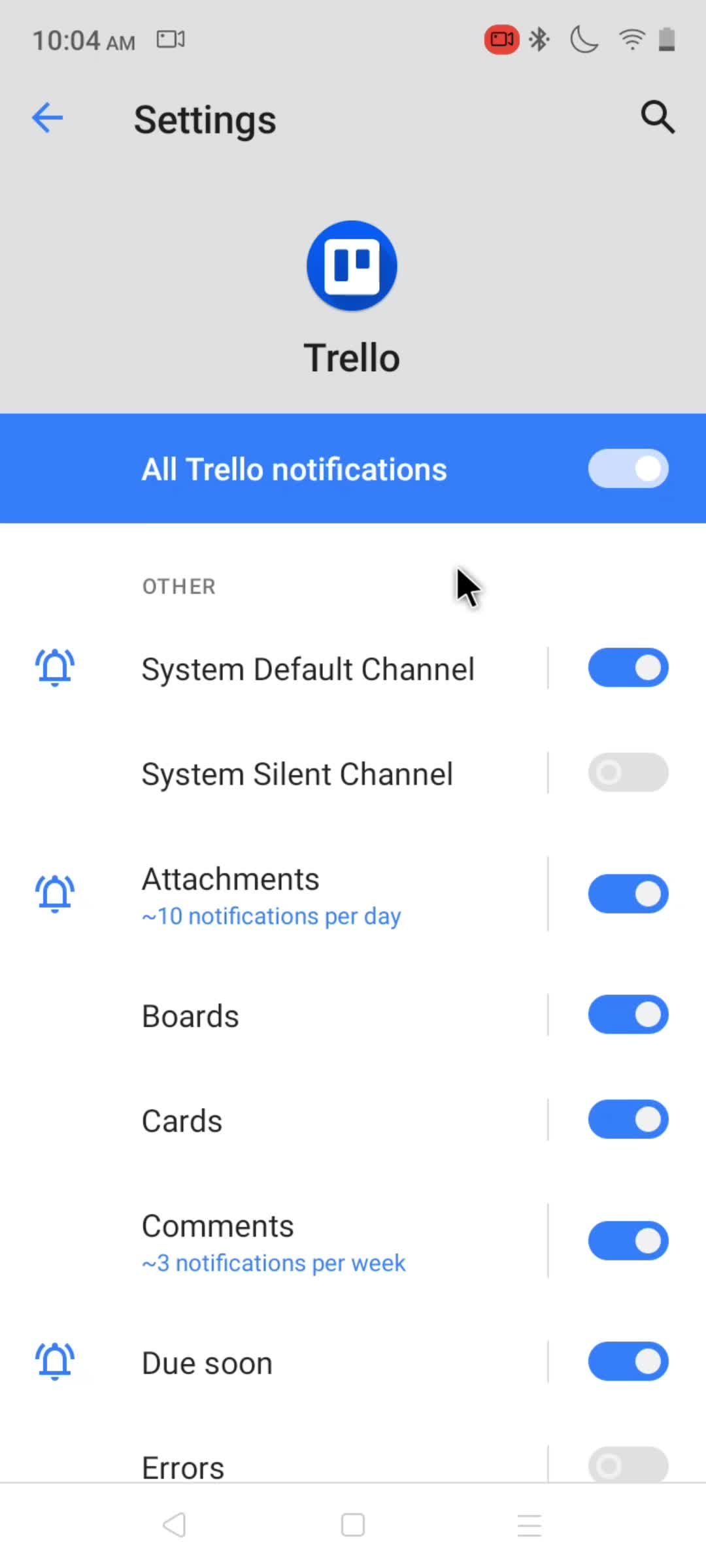
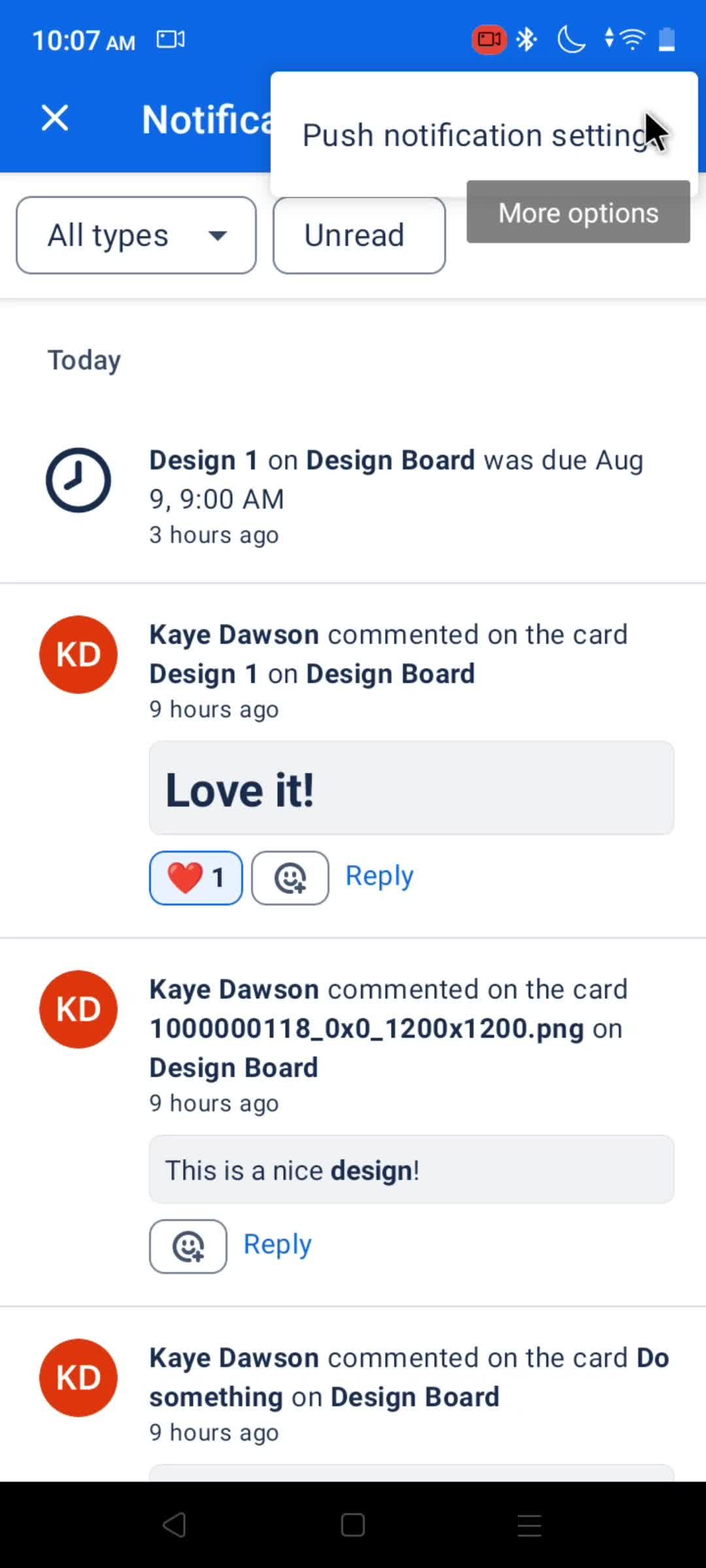
Notification settings
this is title
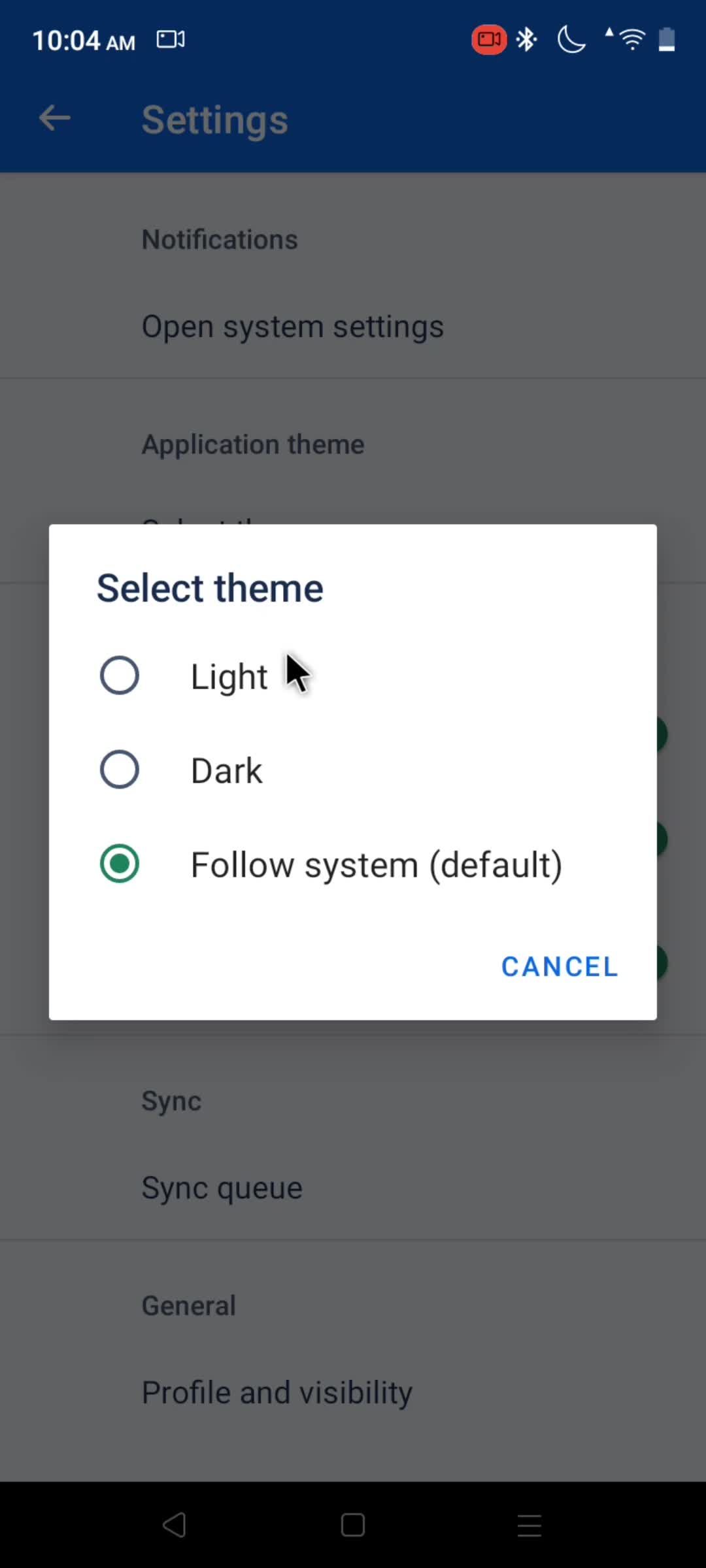
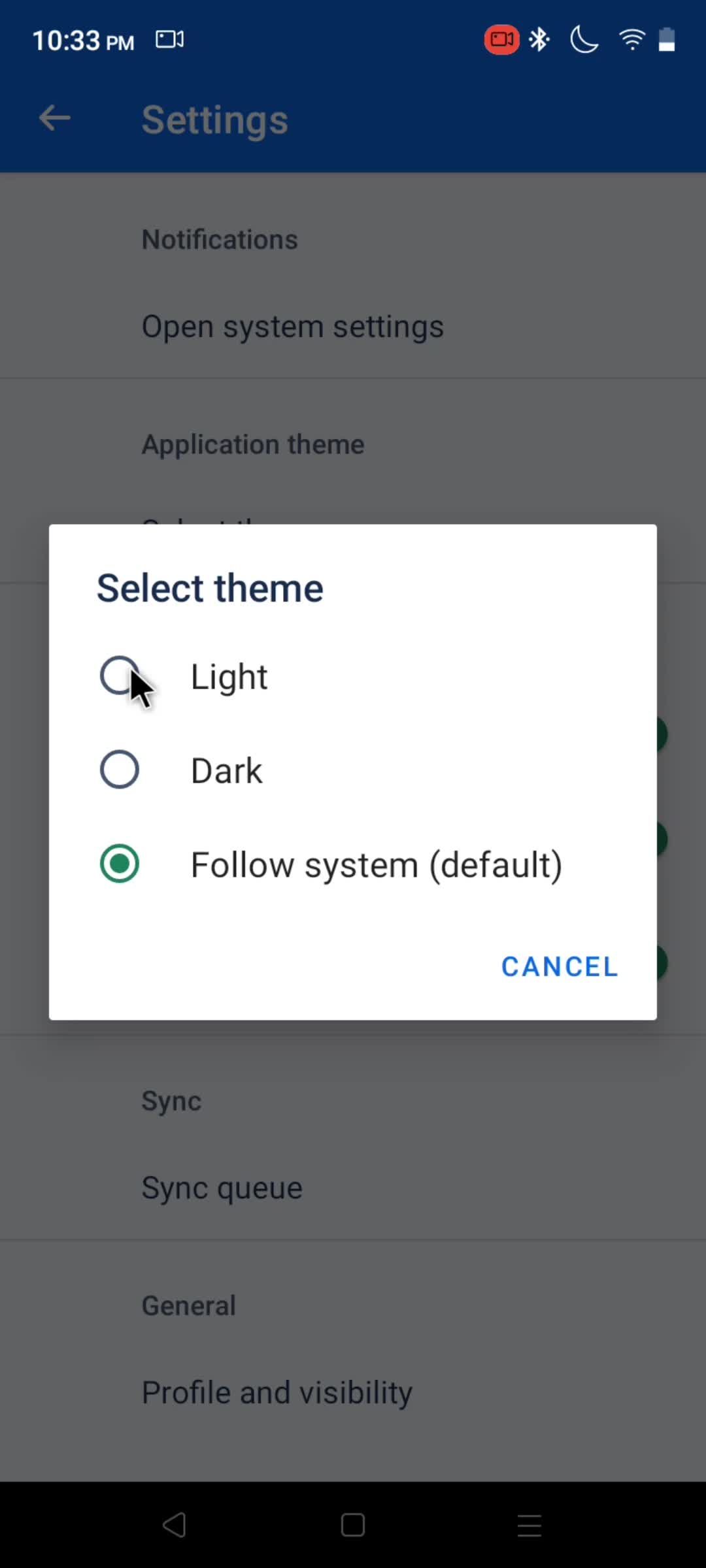
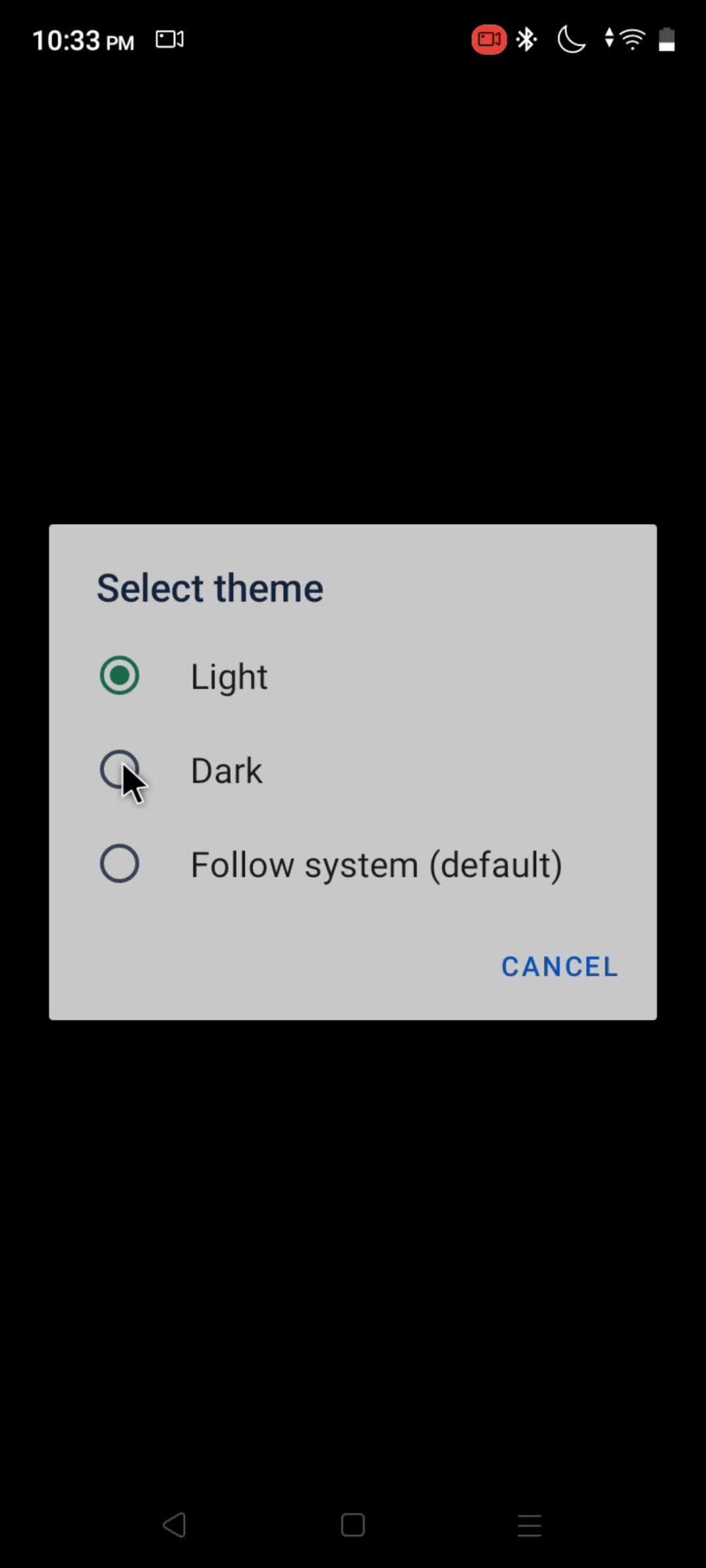
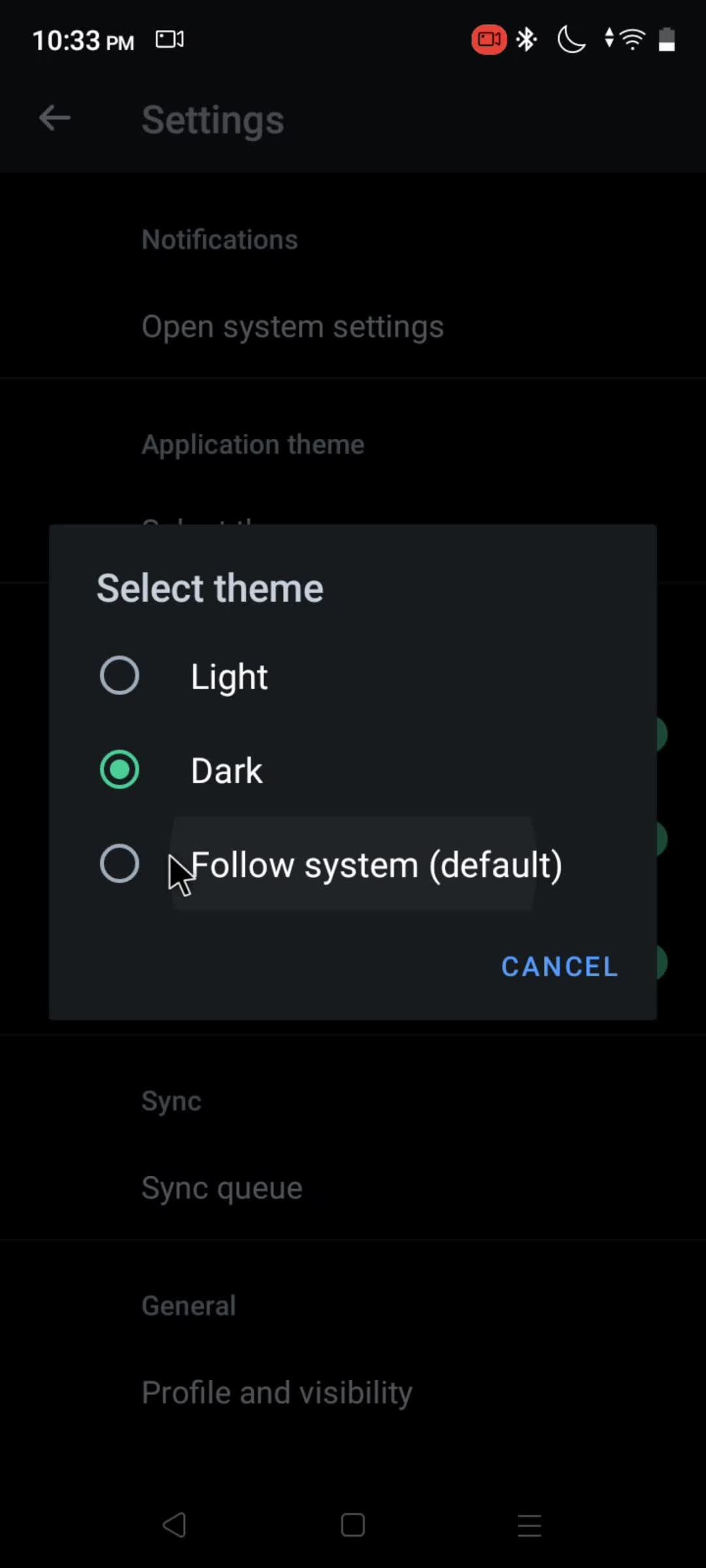
Select theme
this is title
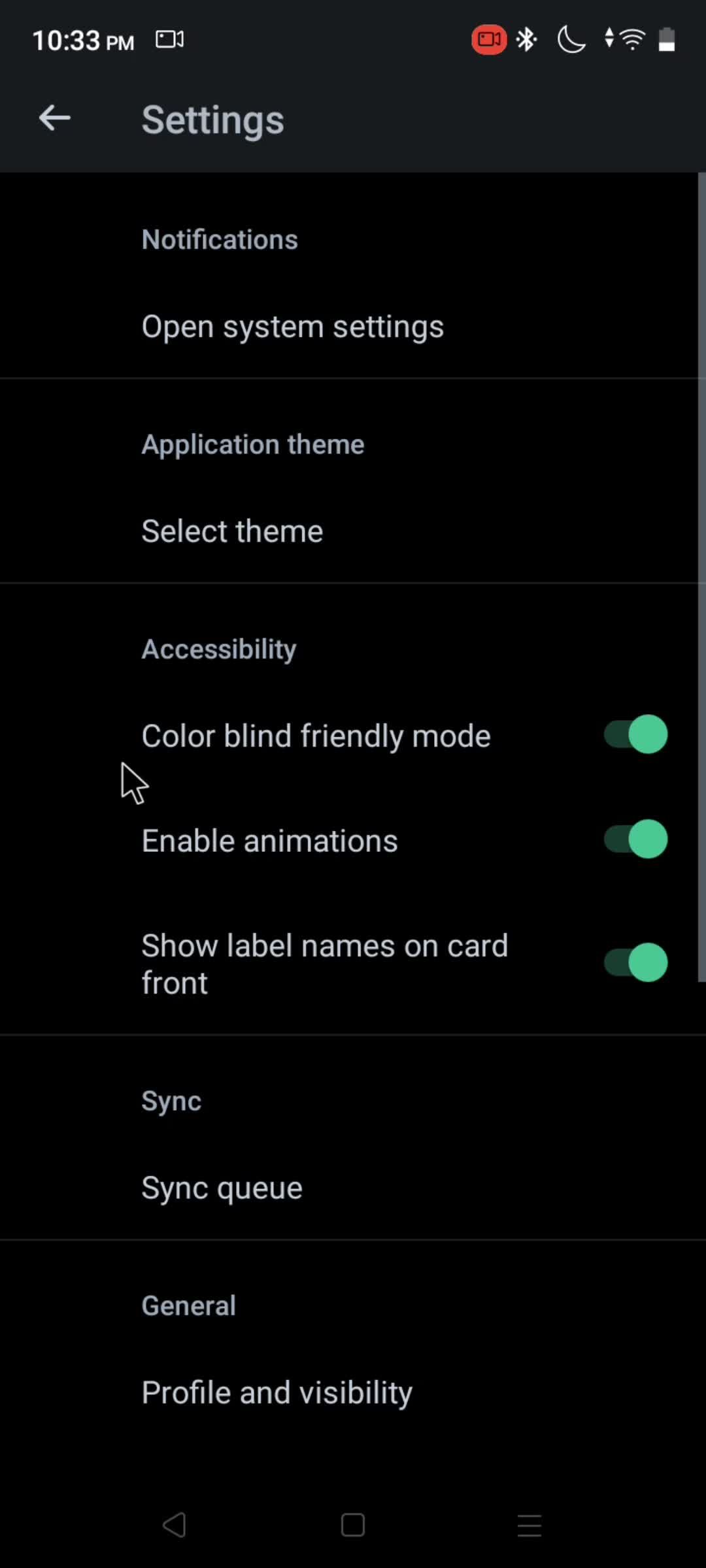
Dark mode
this is title
Profile
this is title
this is title
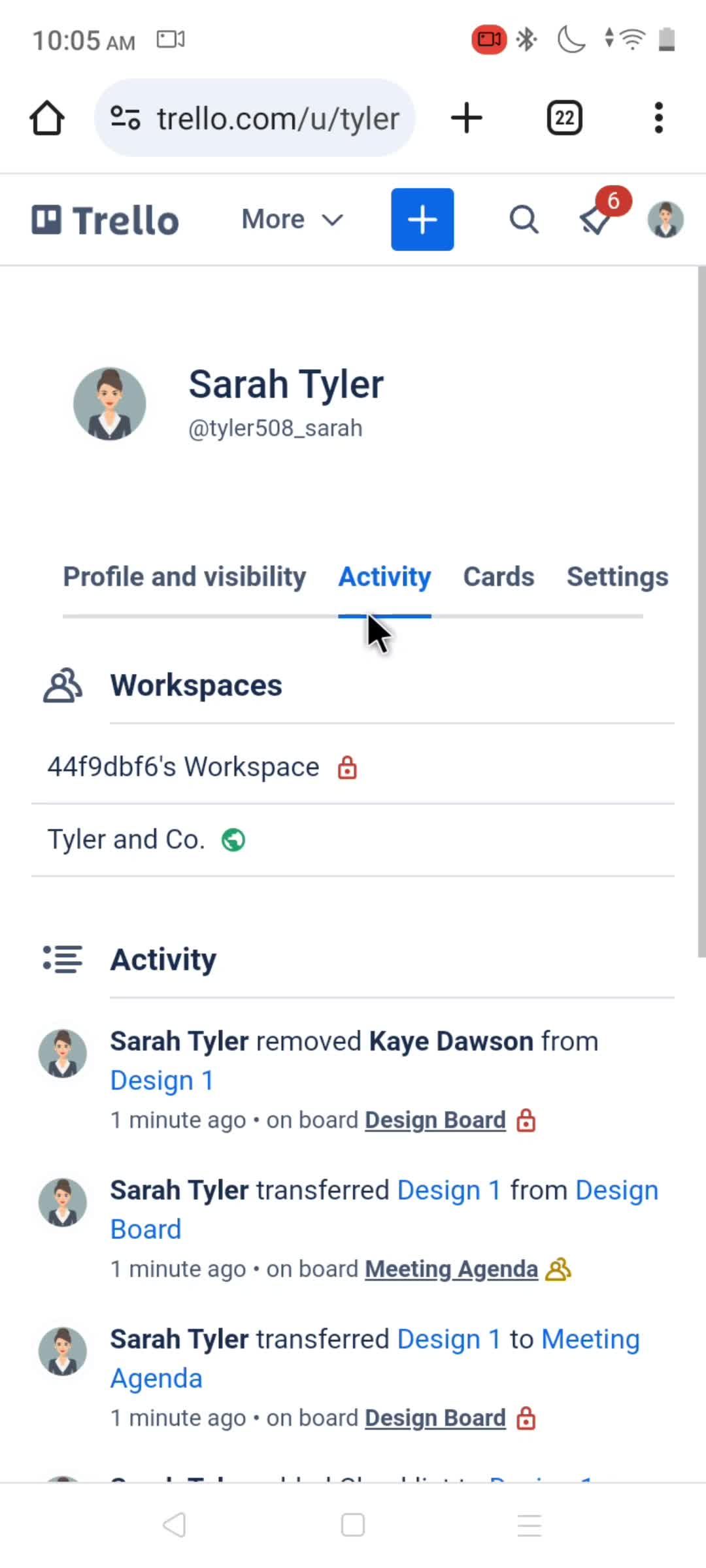
Activity log
this is title
Cards
this is title
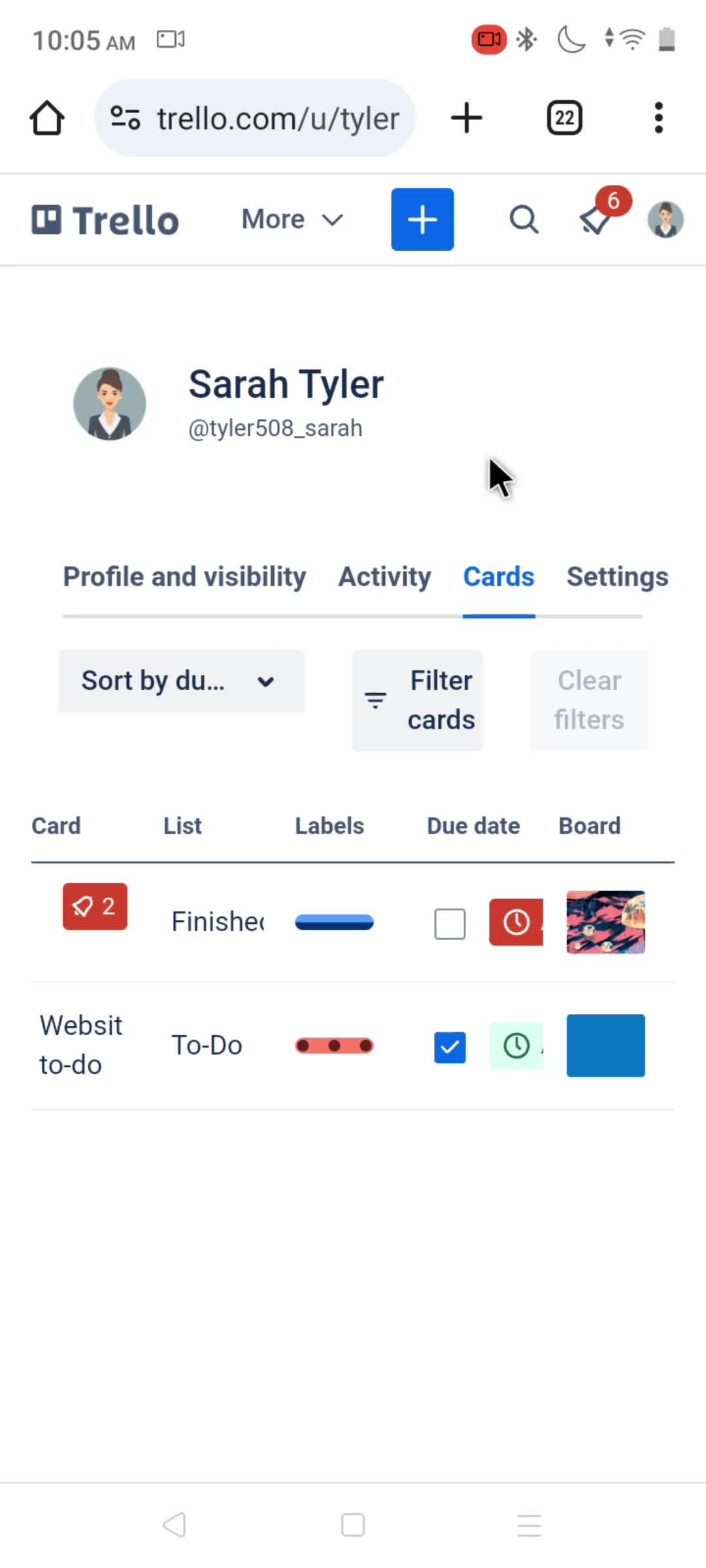
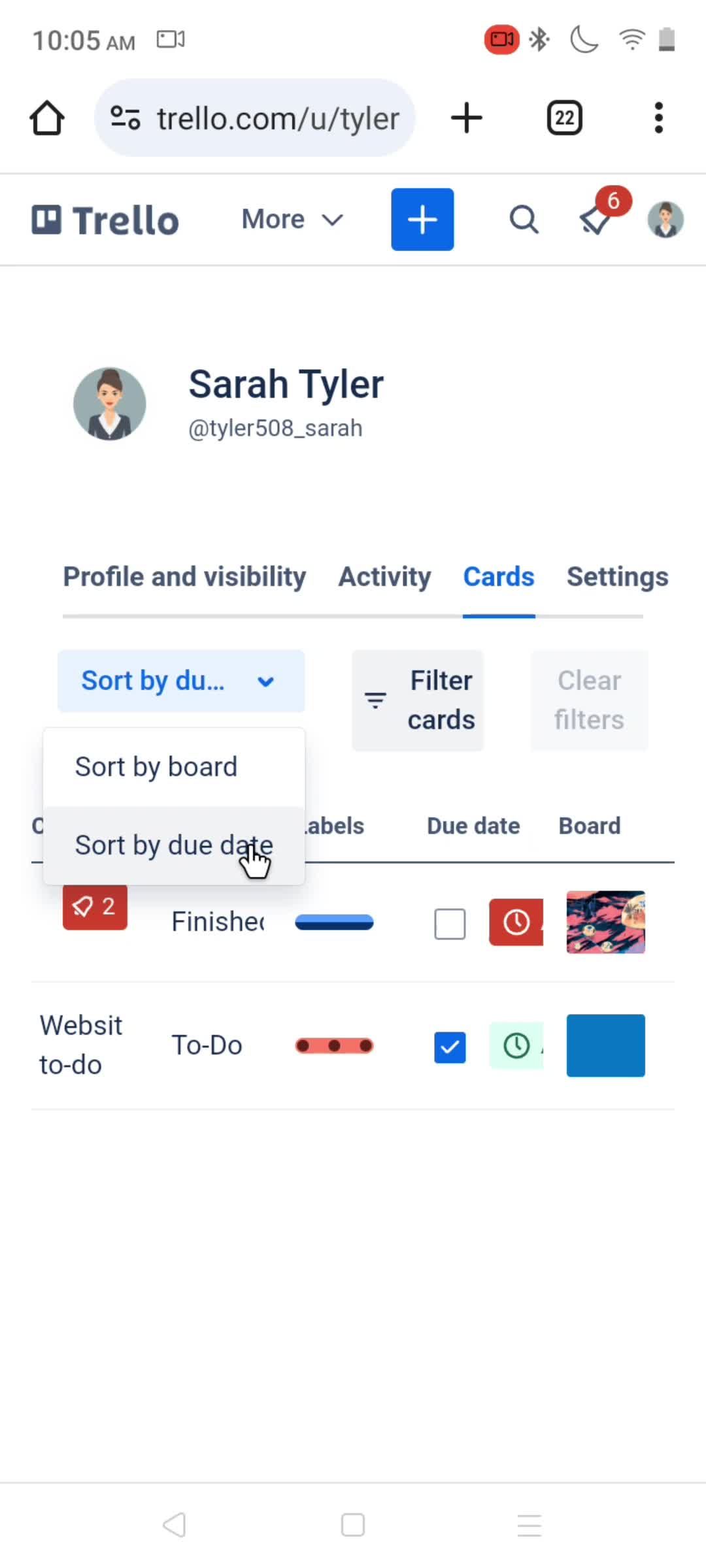
Sort
this is title
Settings
this is title
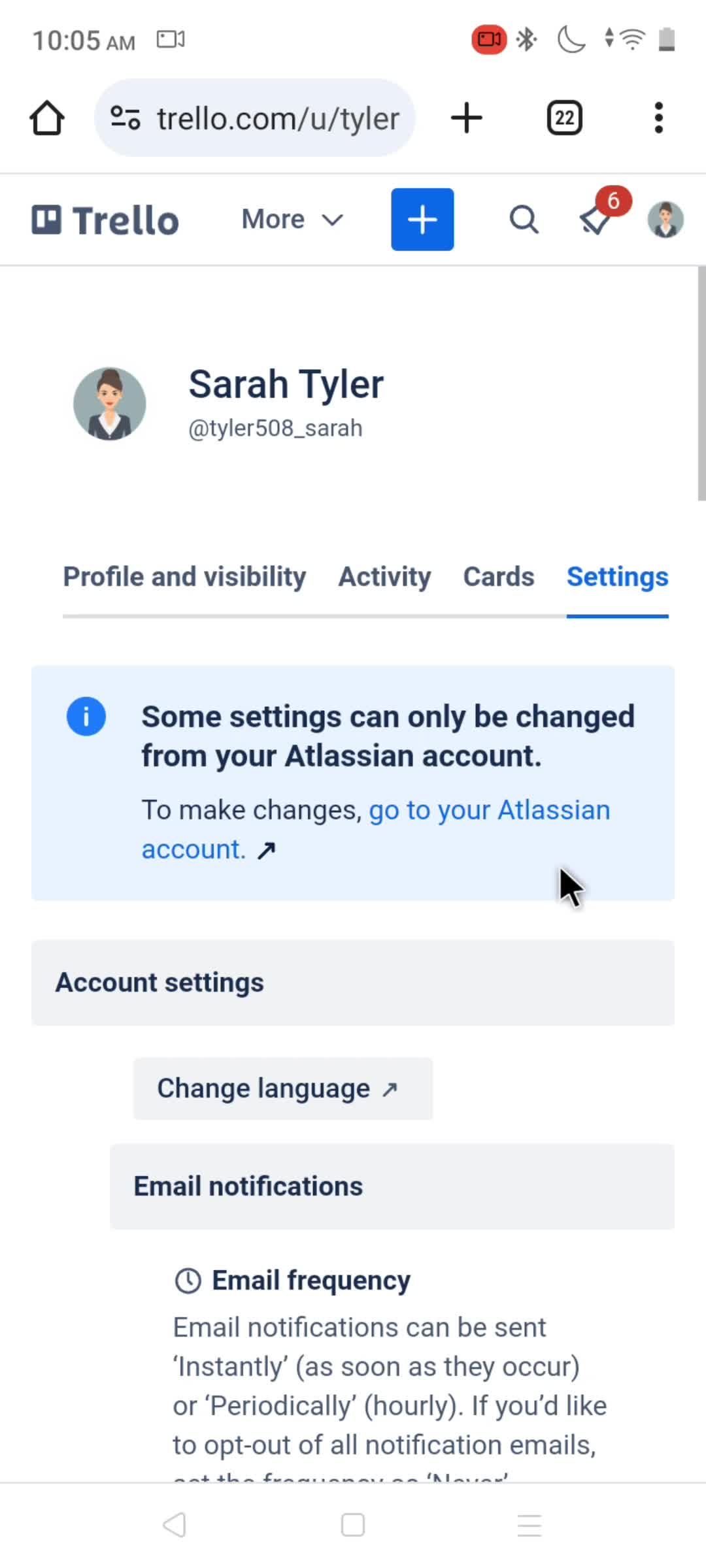
Account settings
this is title
this is title
this is title
Account menu
this is title
this is title
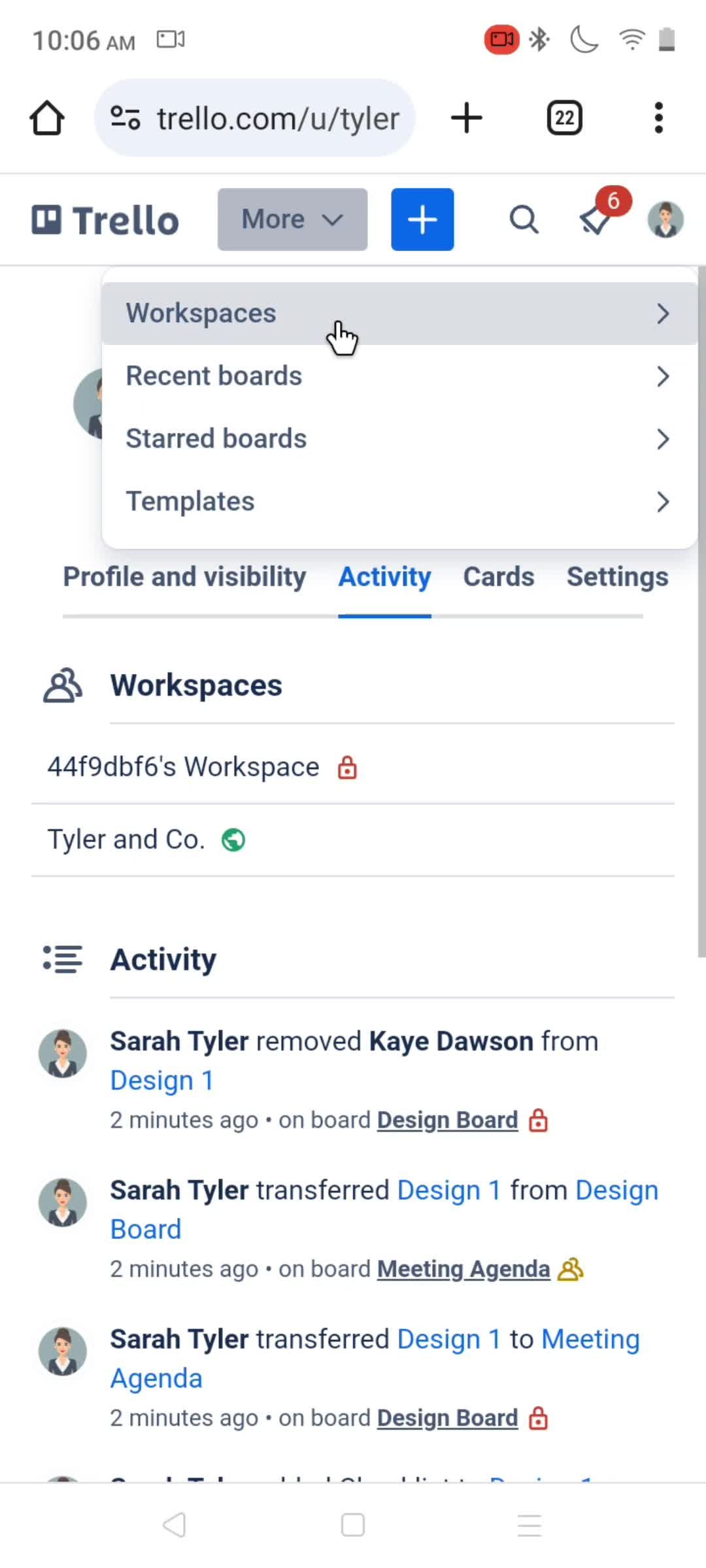
More
this is title
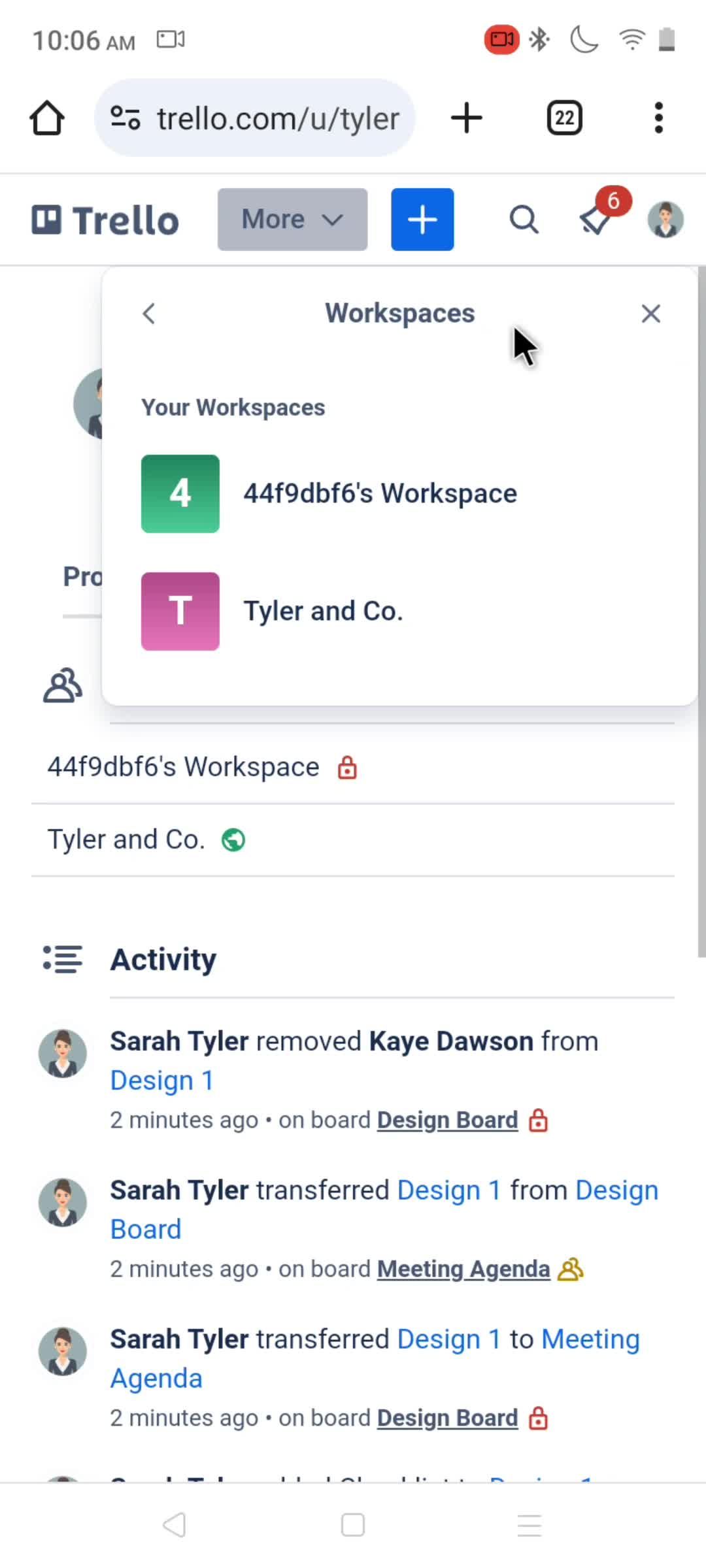
Workspaces
this is title
this is title
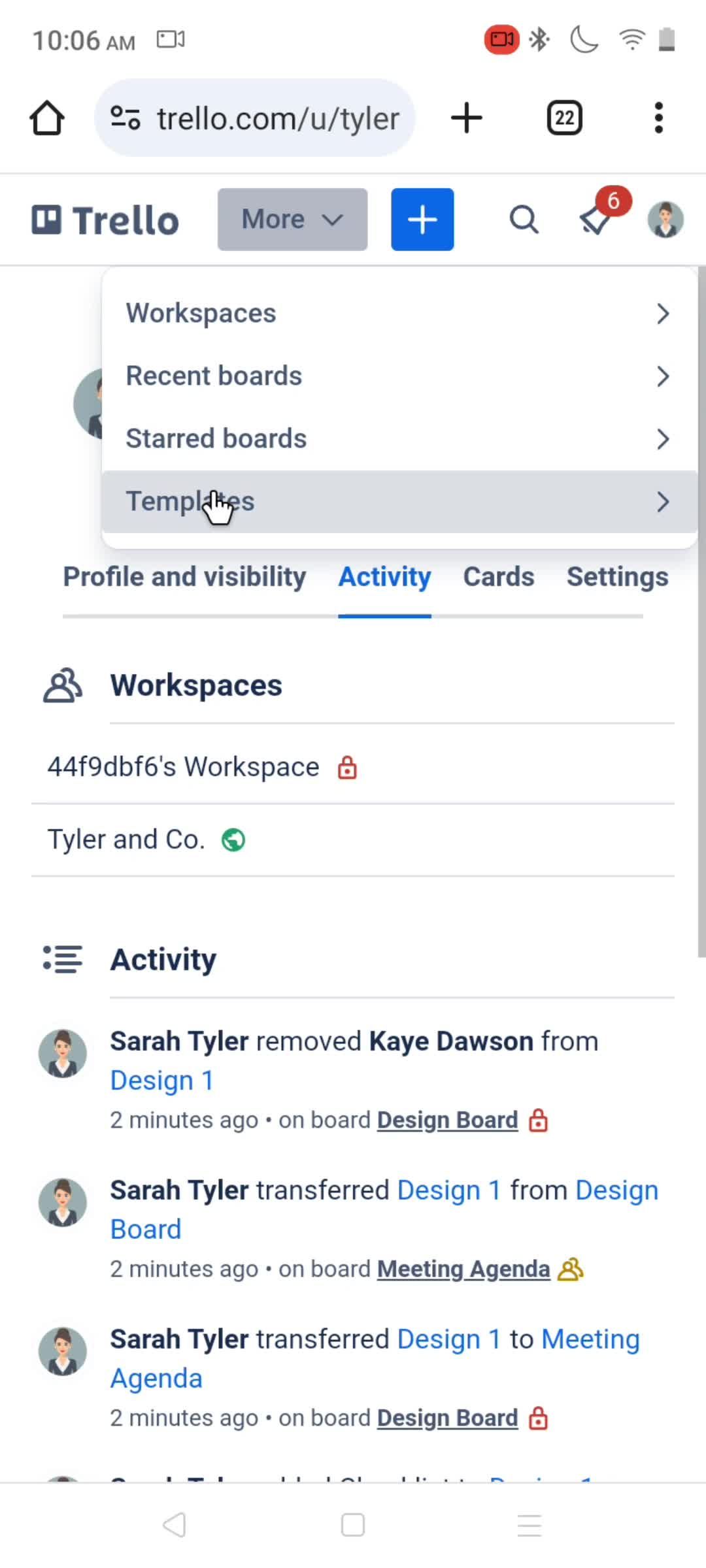
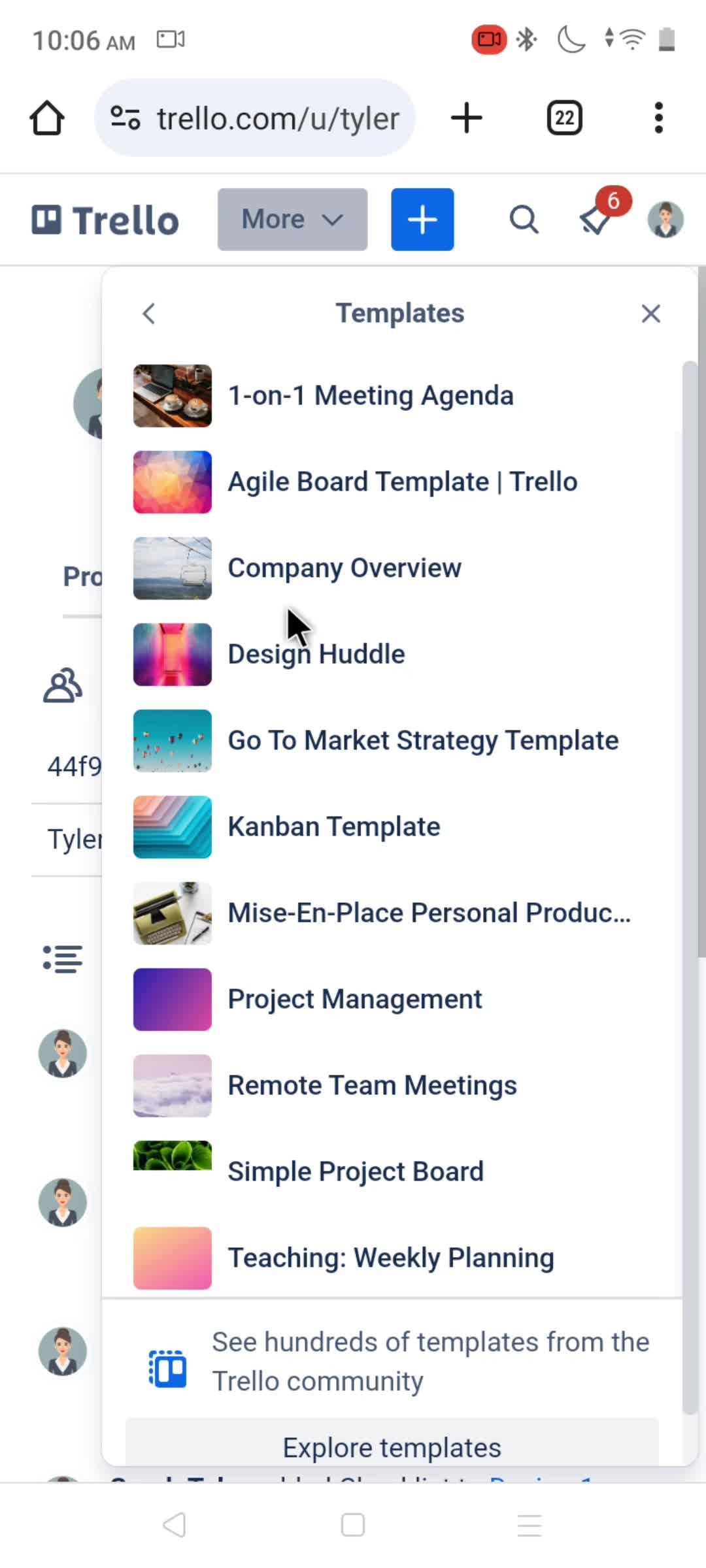
Templates
this is title
Notifications
this is title
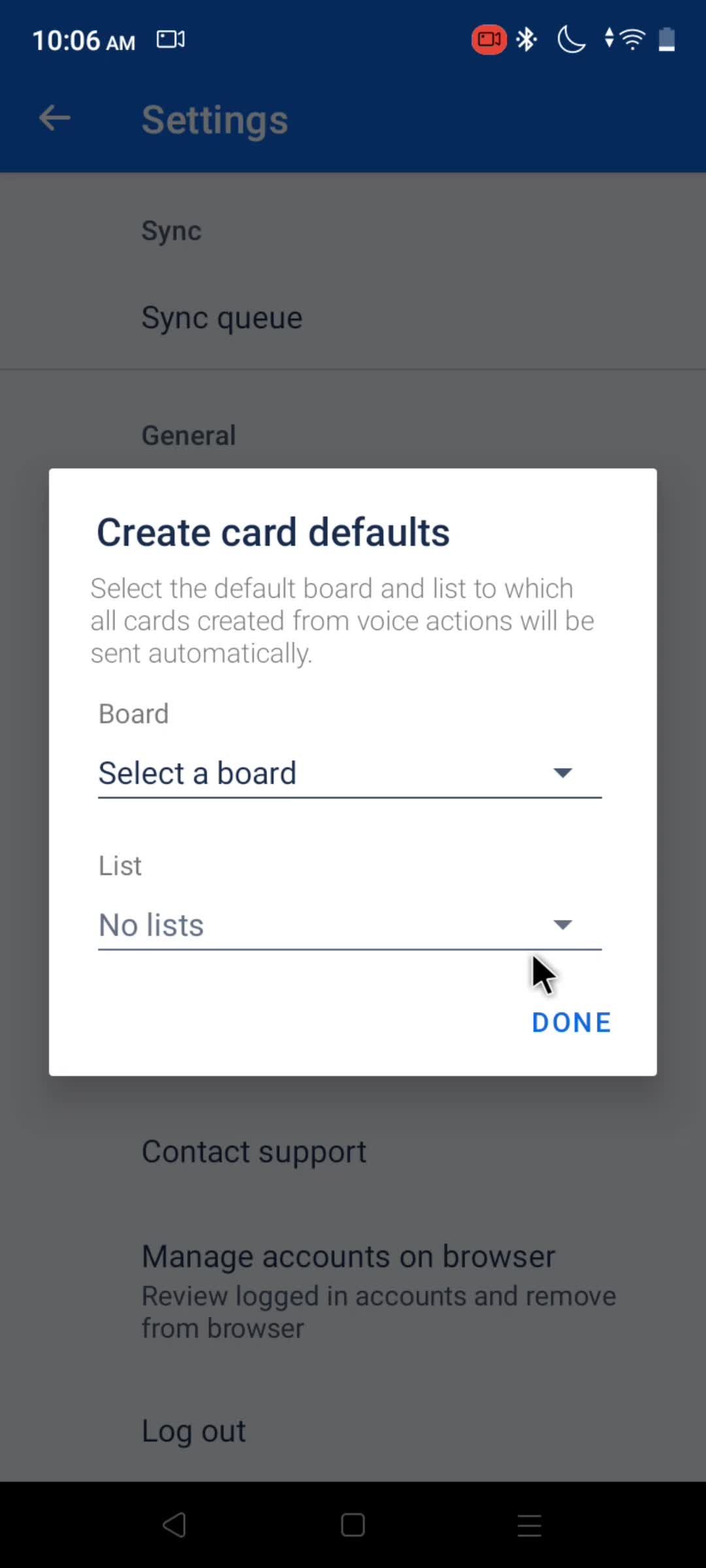
Create card defaults
this is title
this is title
this is title
Choose board
this is title
Select list
this is title
this is title
Add card
this is title
this is title
Card created
this is title
Workspace menu
this is title
this is title
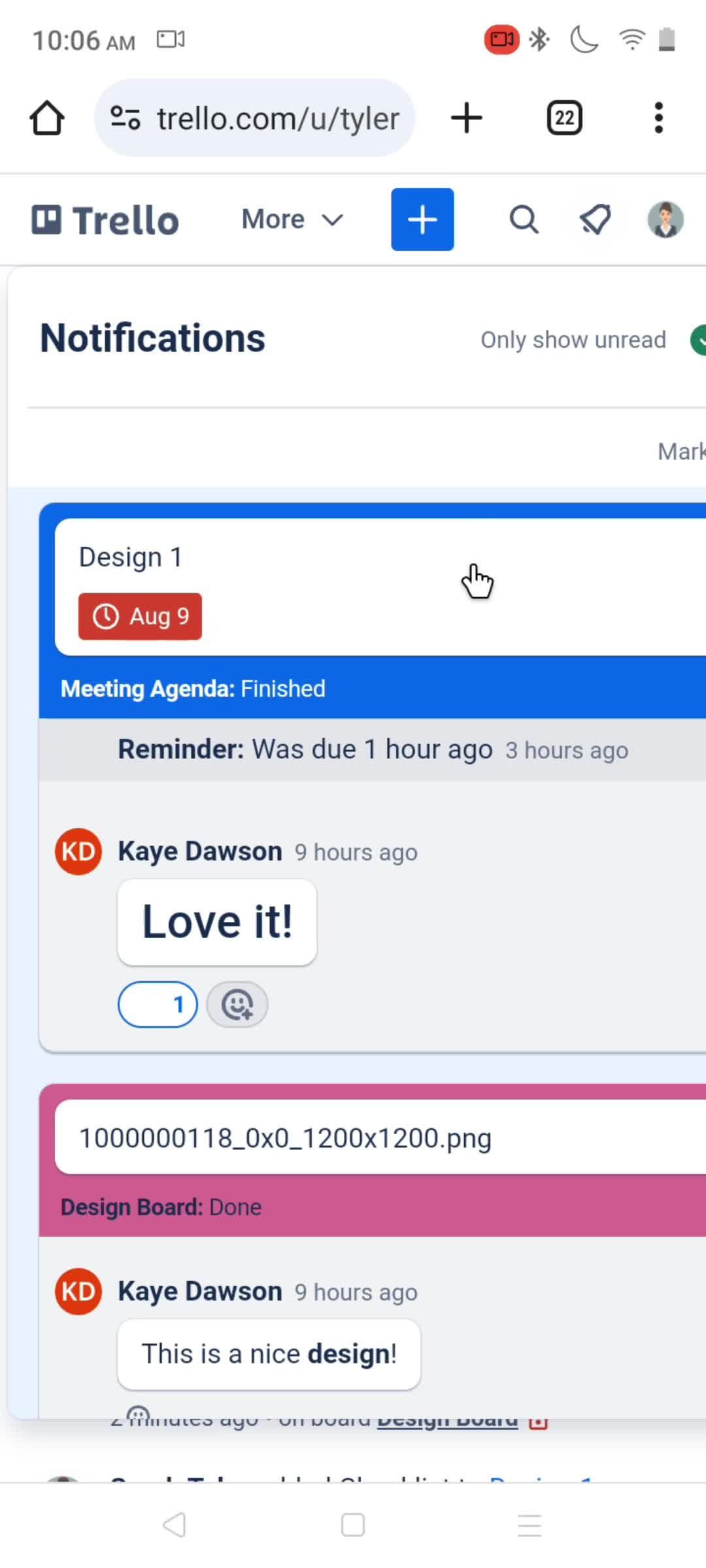
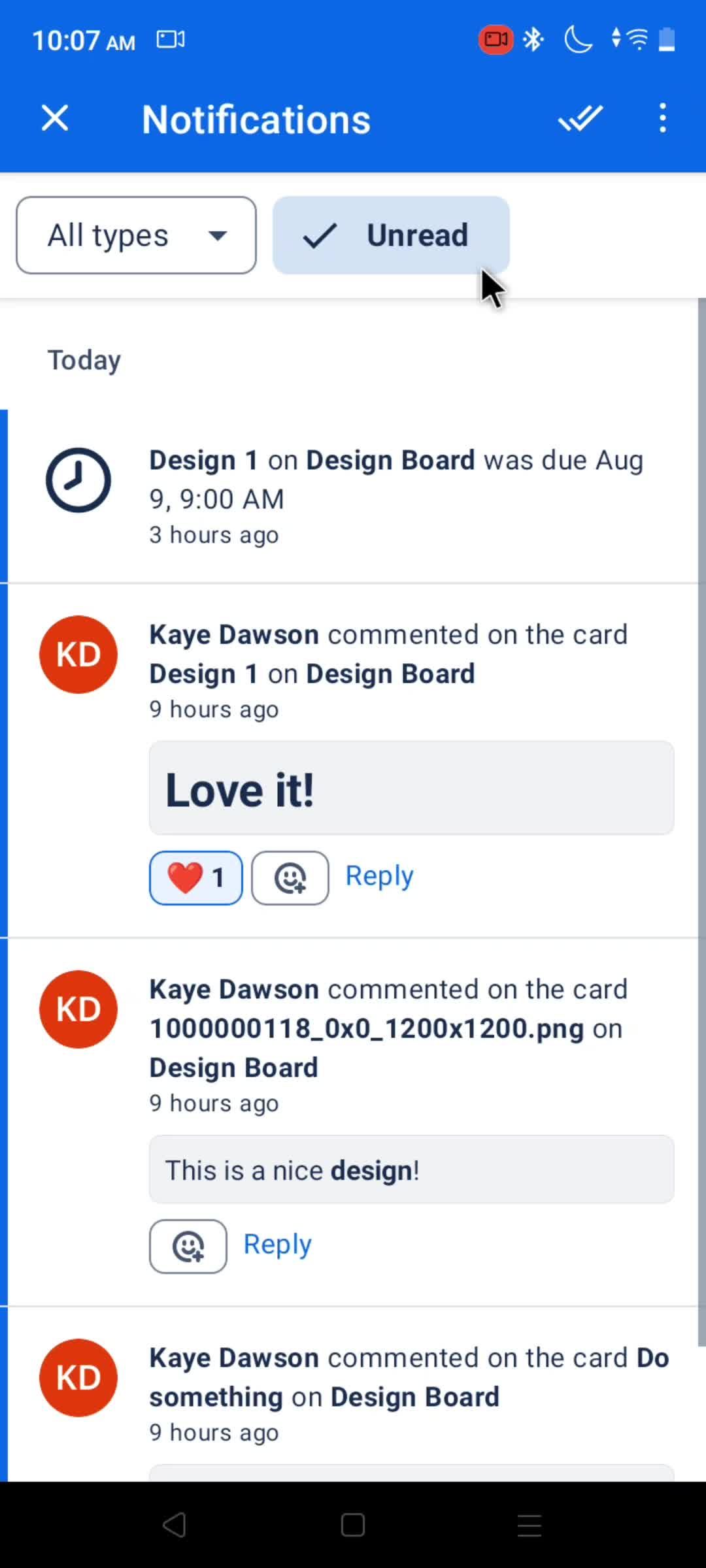
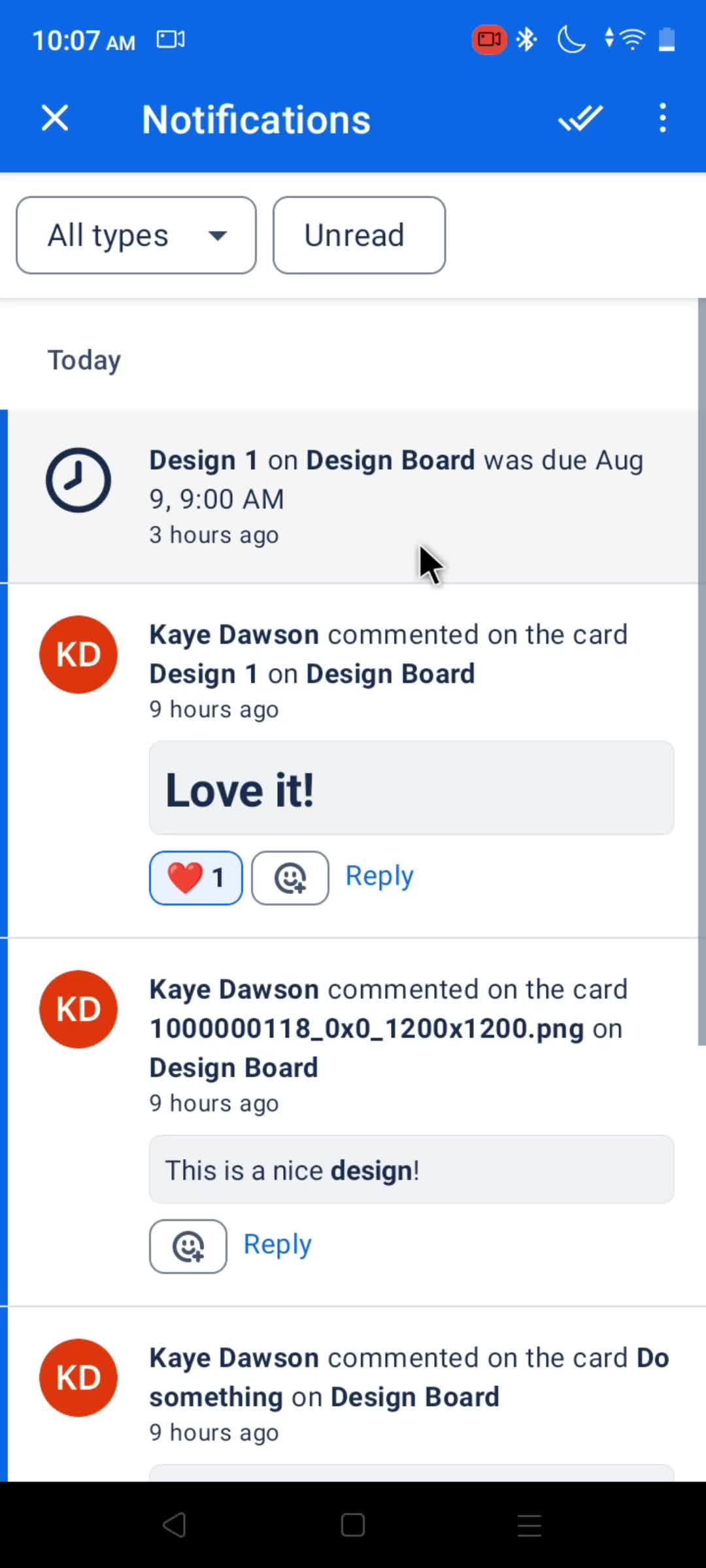
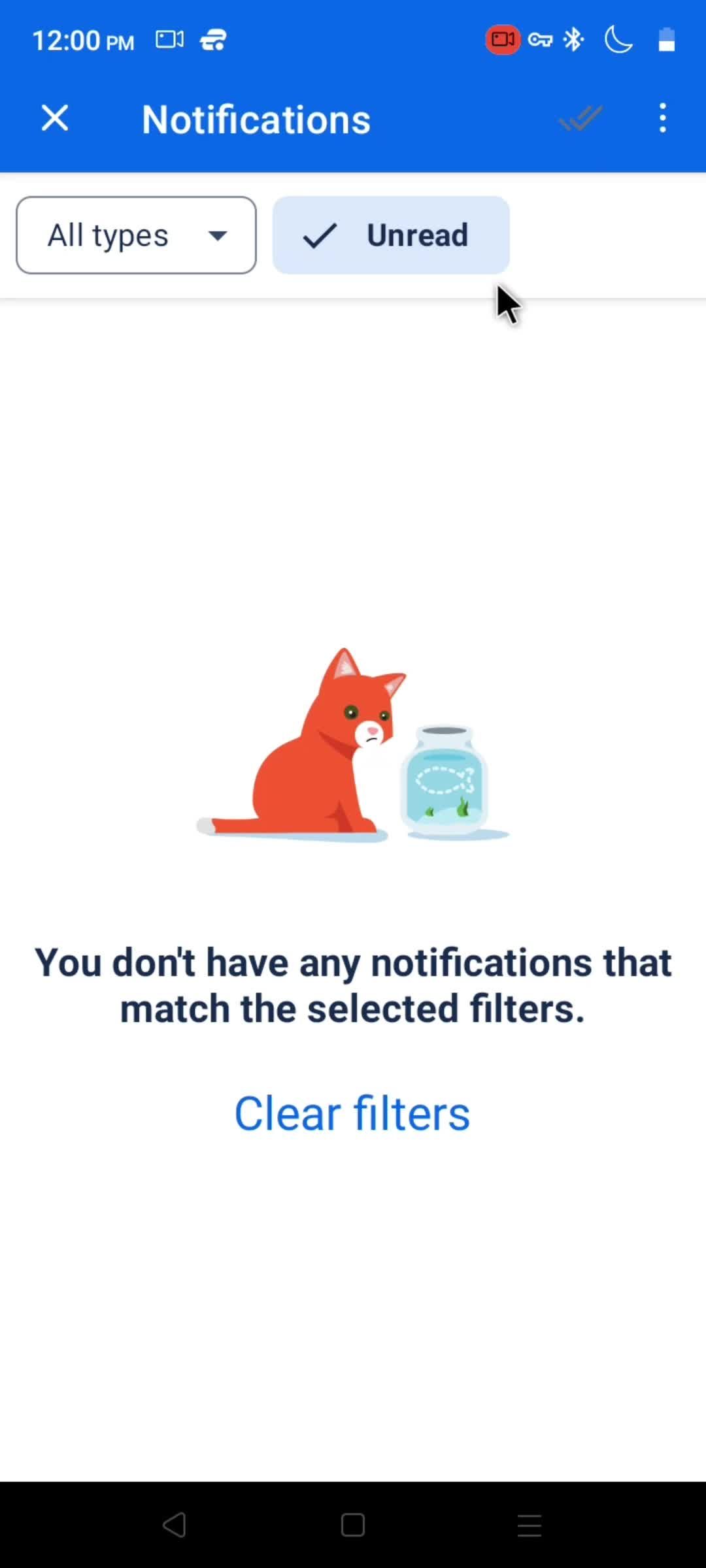
Notifications
this is title
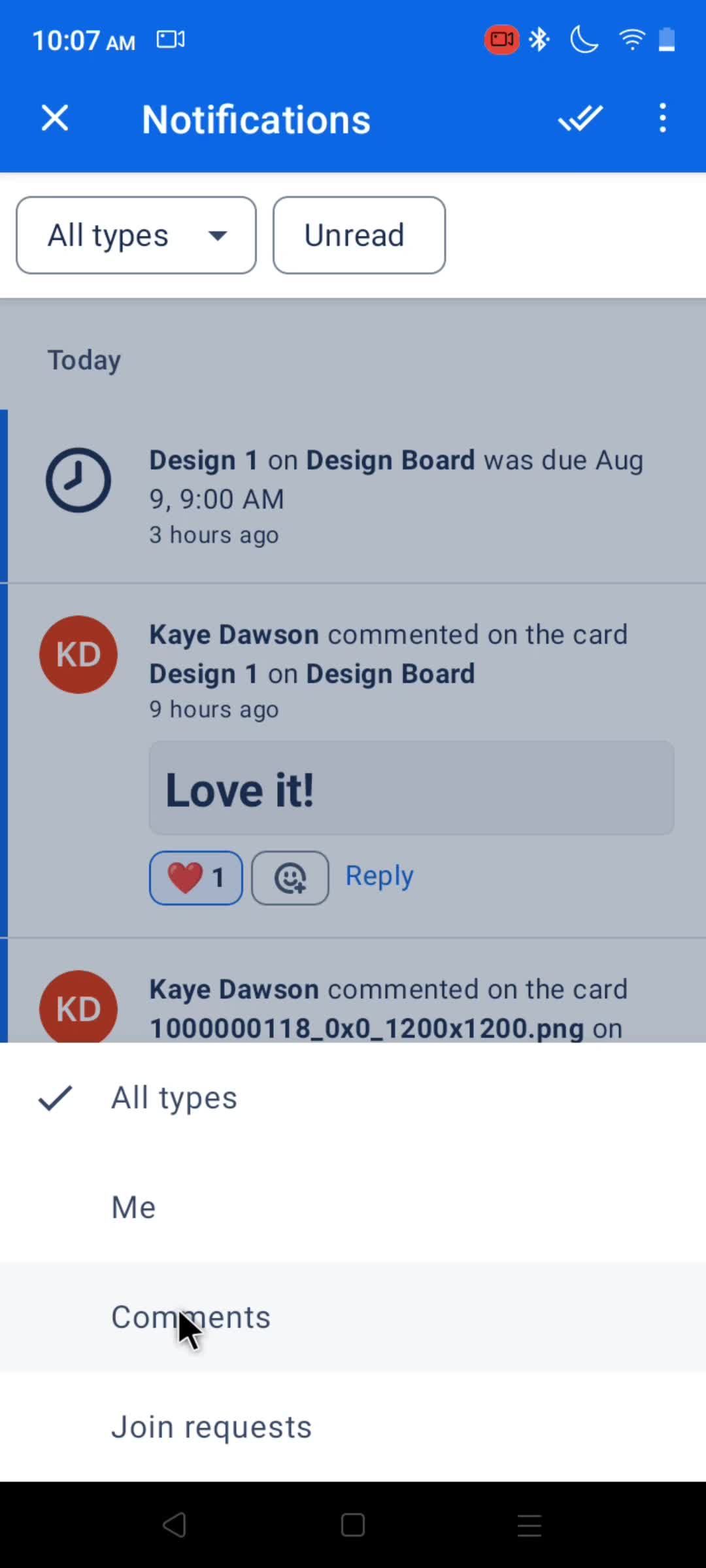
Select filter
this is title
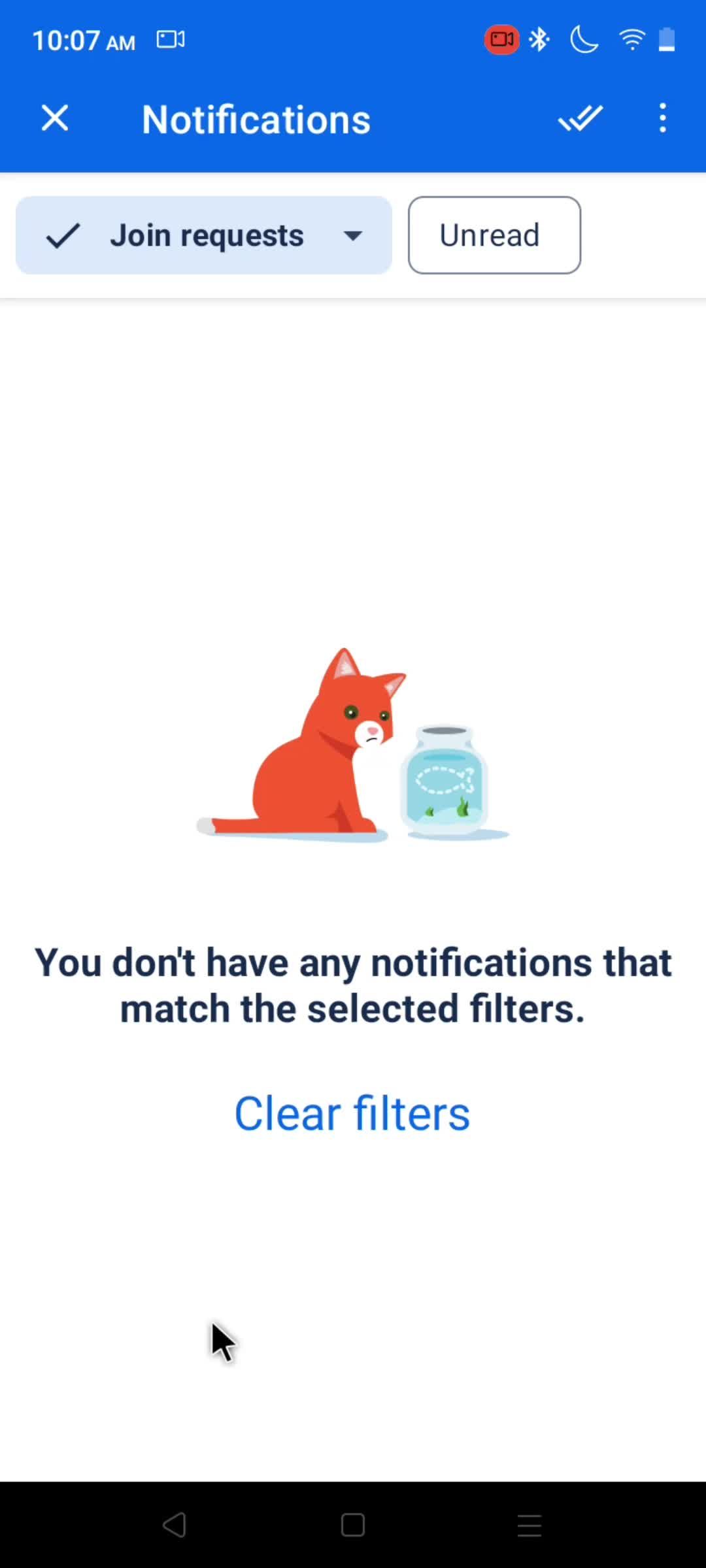
Filtered results
this is title
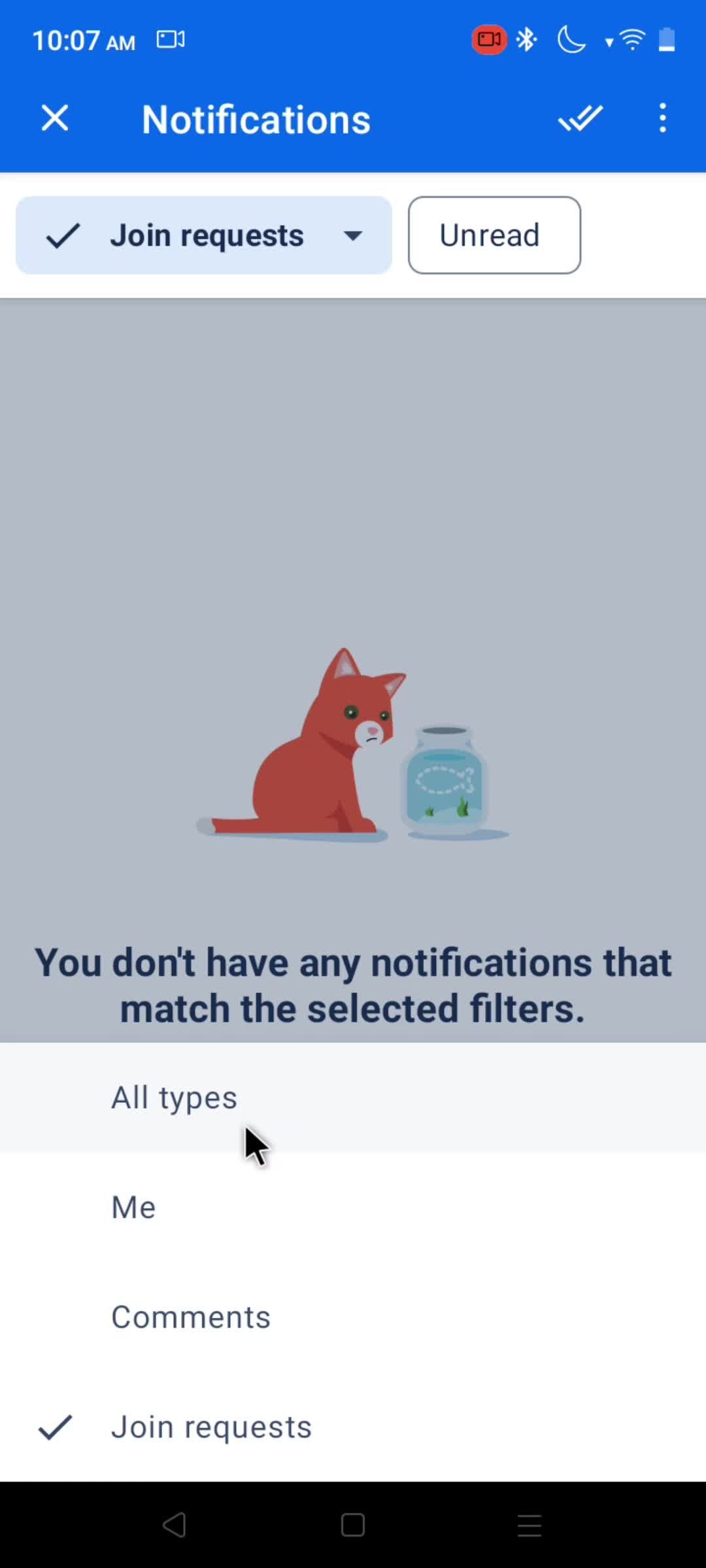
Select filter
this is title
this is title
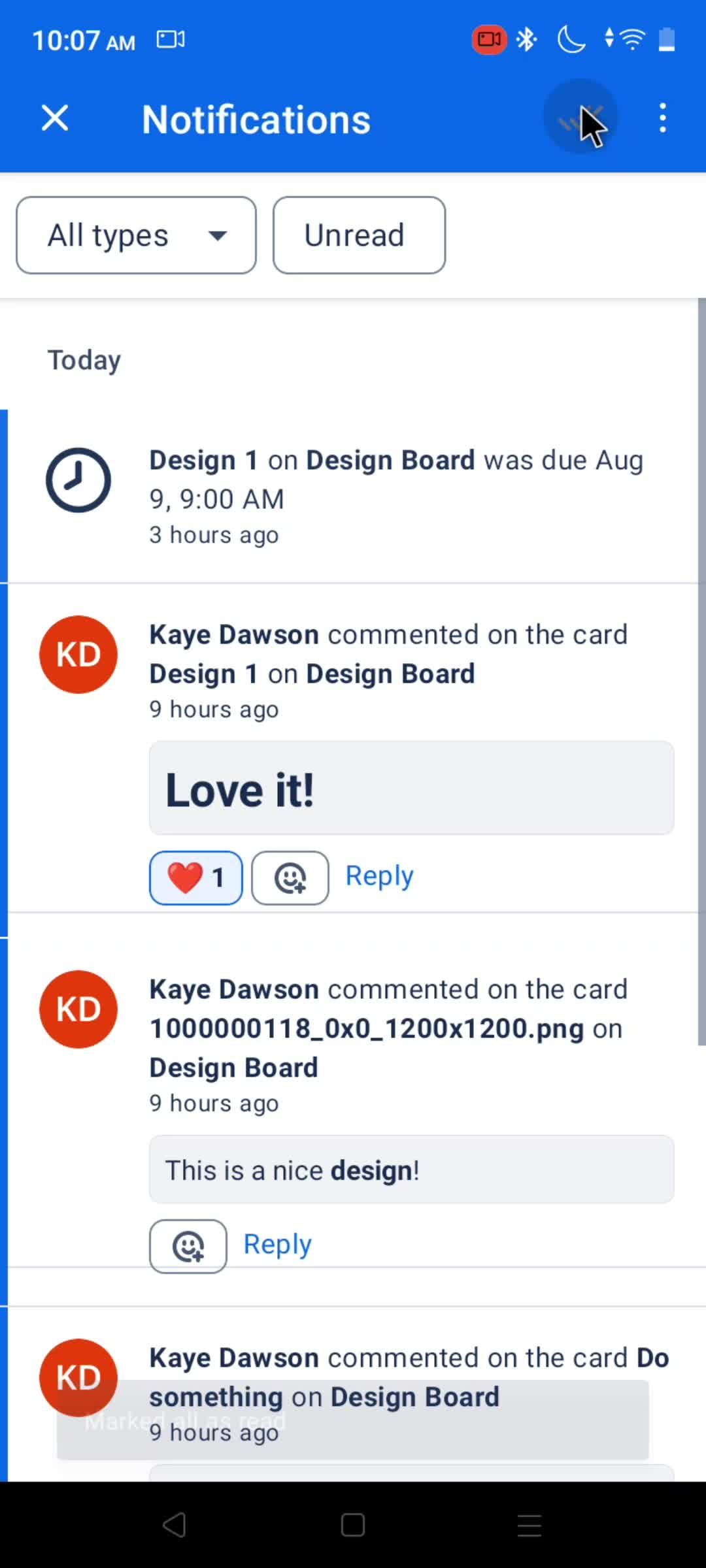
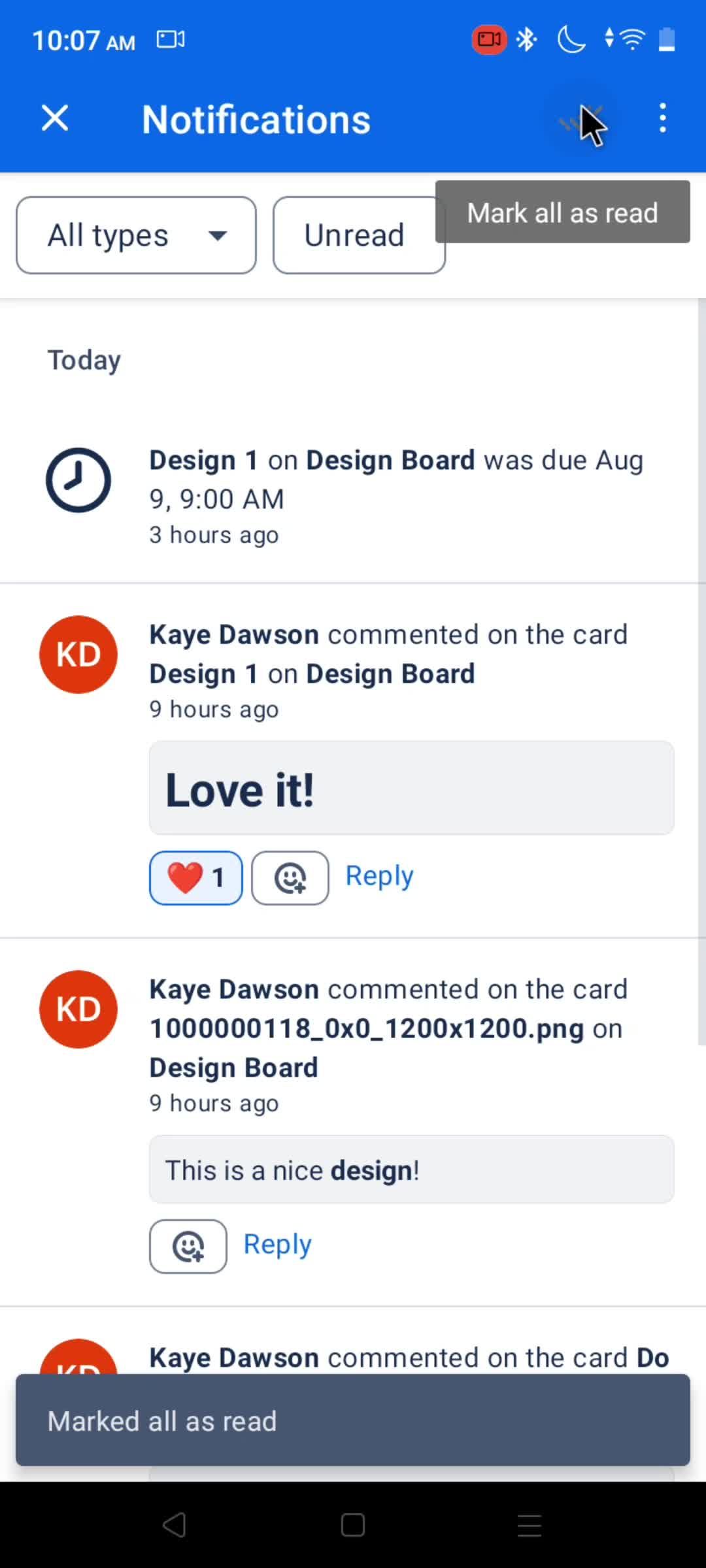
Mark as read
this is title
this is title
this is title
Boards
this is title
this is title
Board menu
this is title
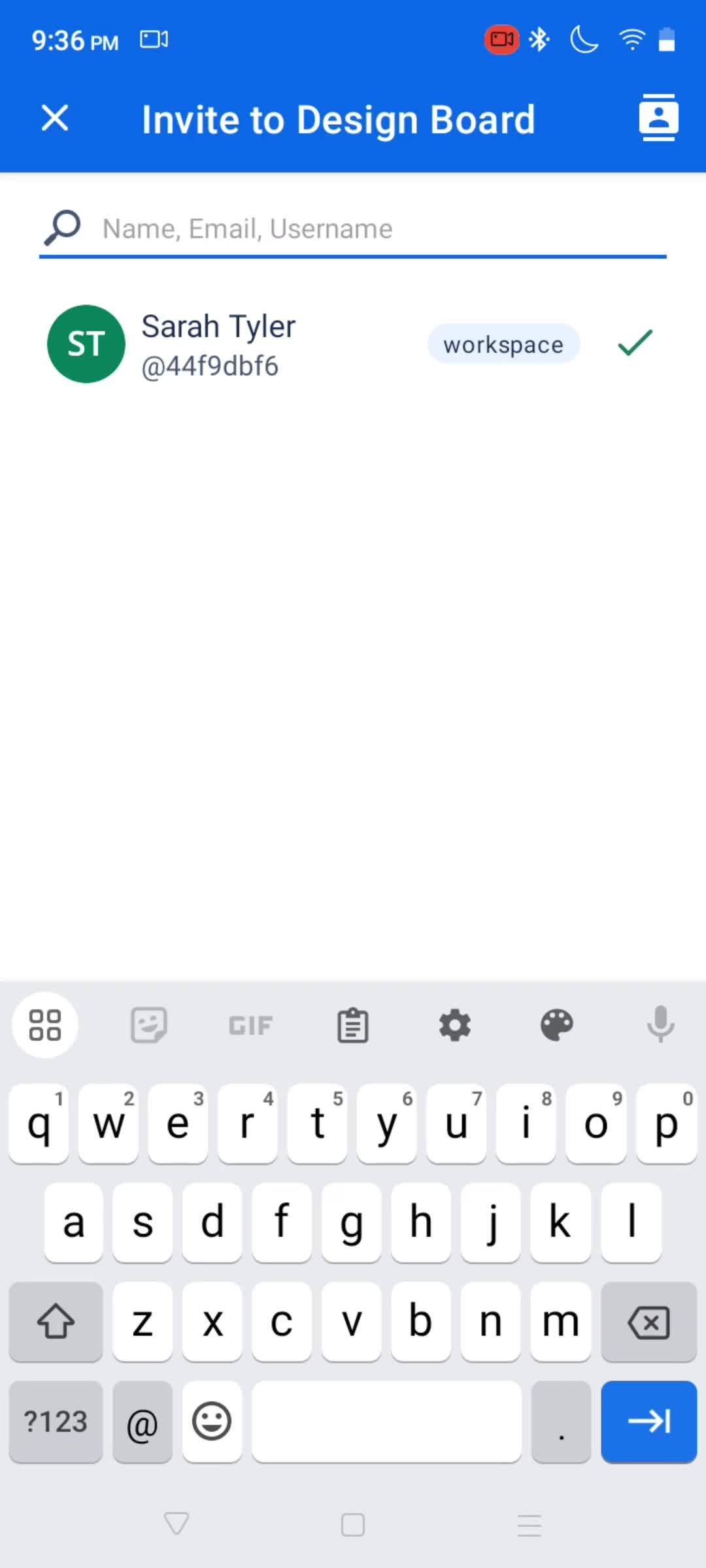
Invite people
this is title
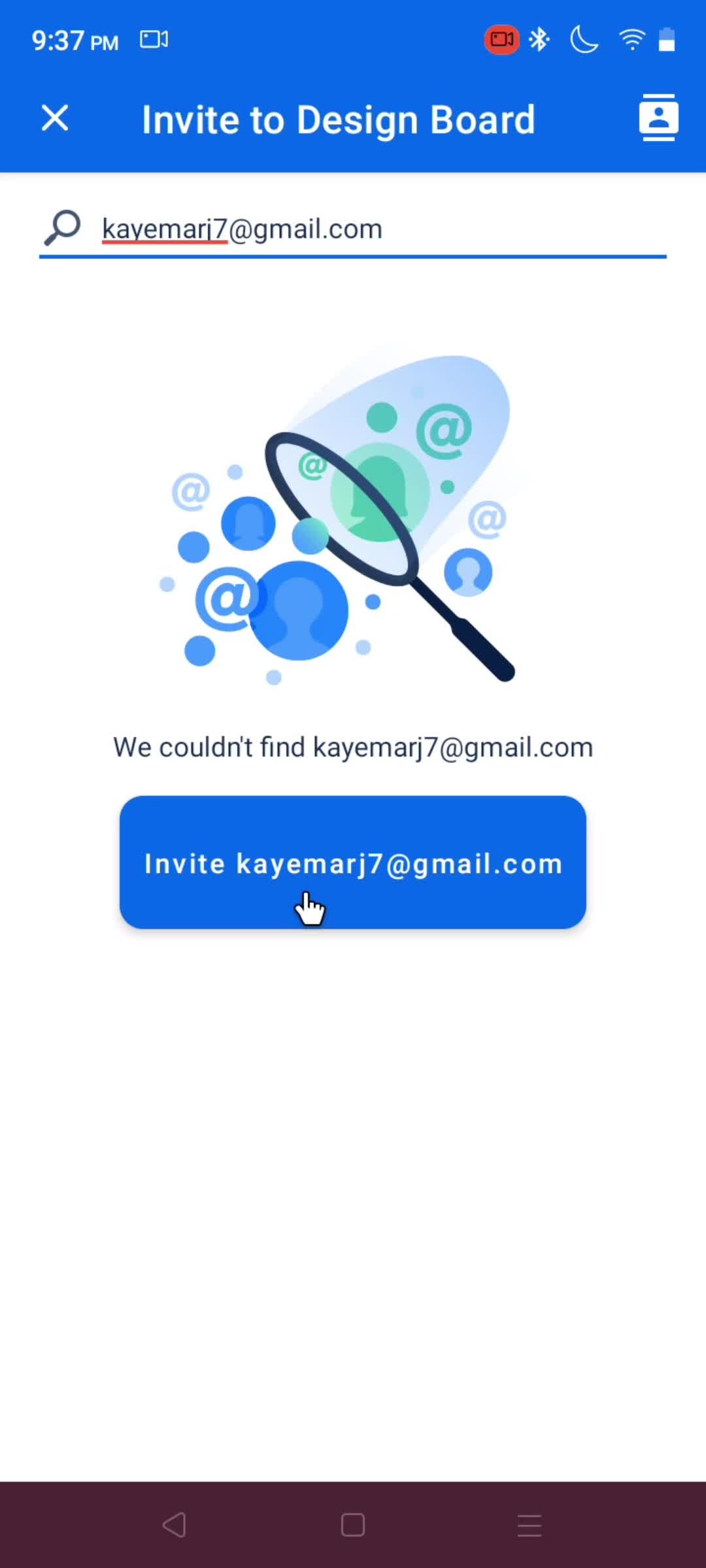
Enter email
this is title
this is title
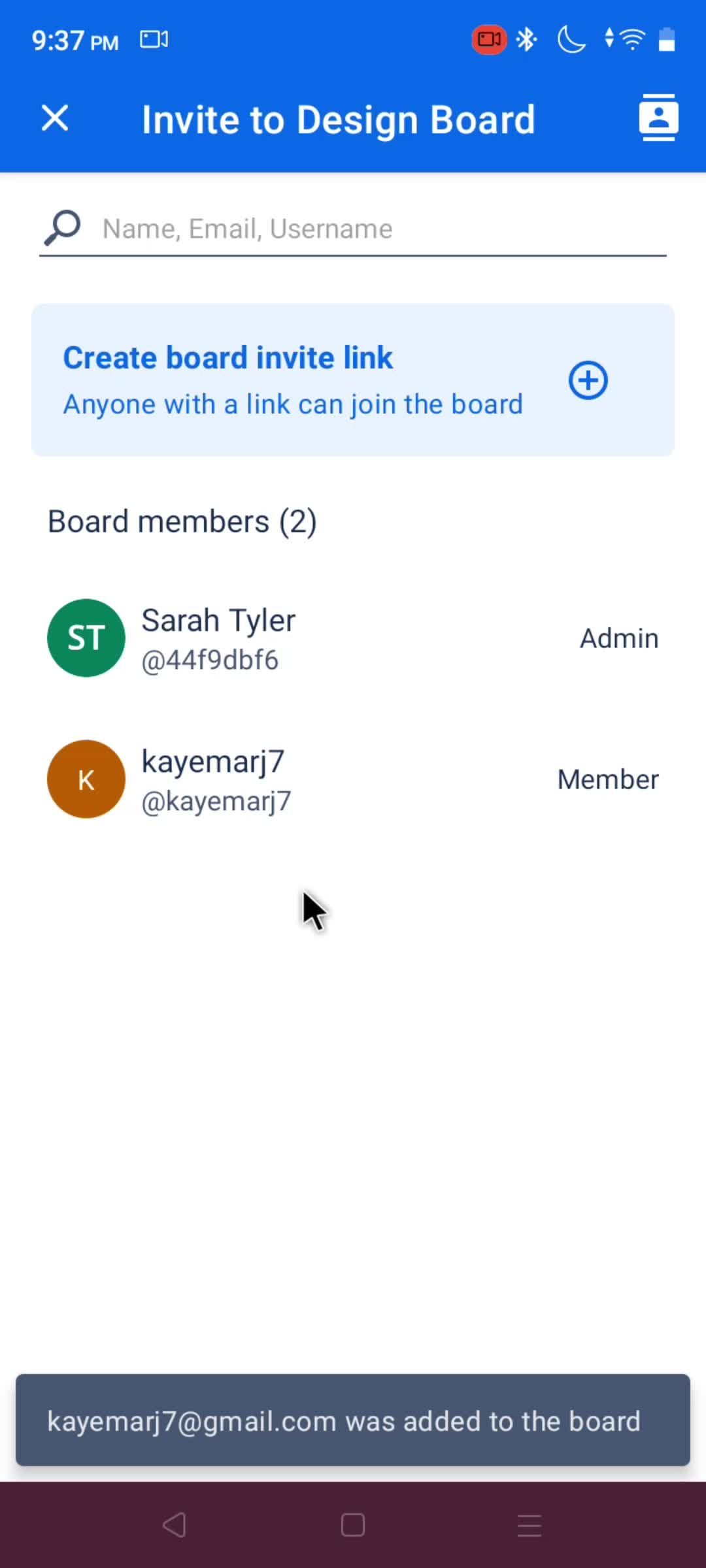
Added
this is title
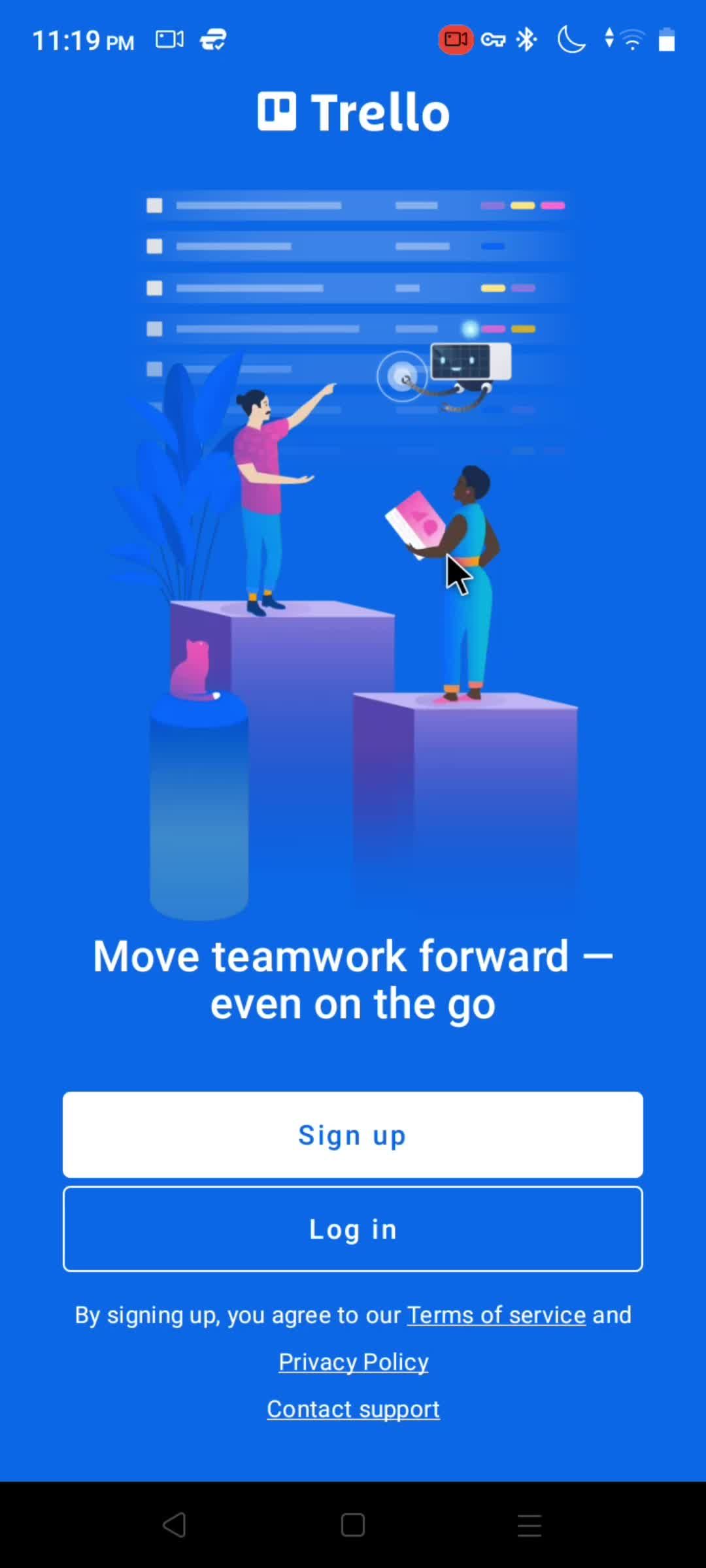
Log in page
this is title
this is title
Select account
this is title
this is title
Boards
this is title
Boards
this is title
Account menu
this is title
Log out
this is title
Confirm log out
this is title
Log in page
this is title
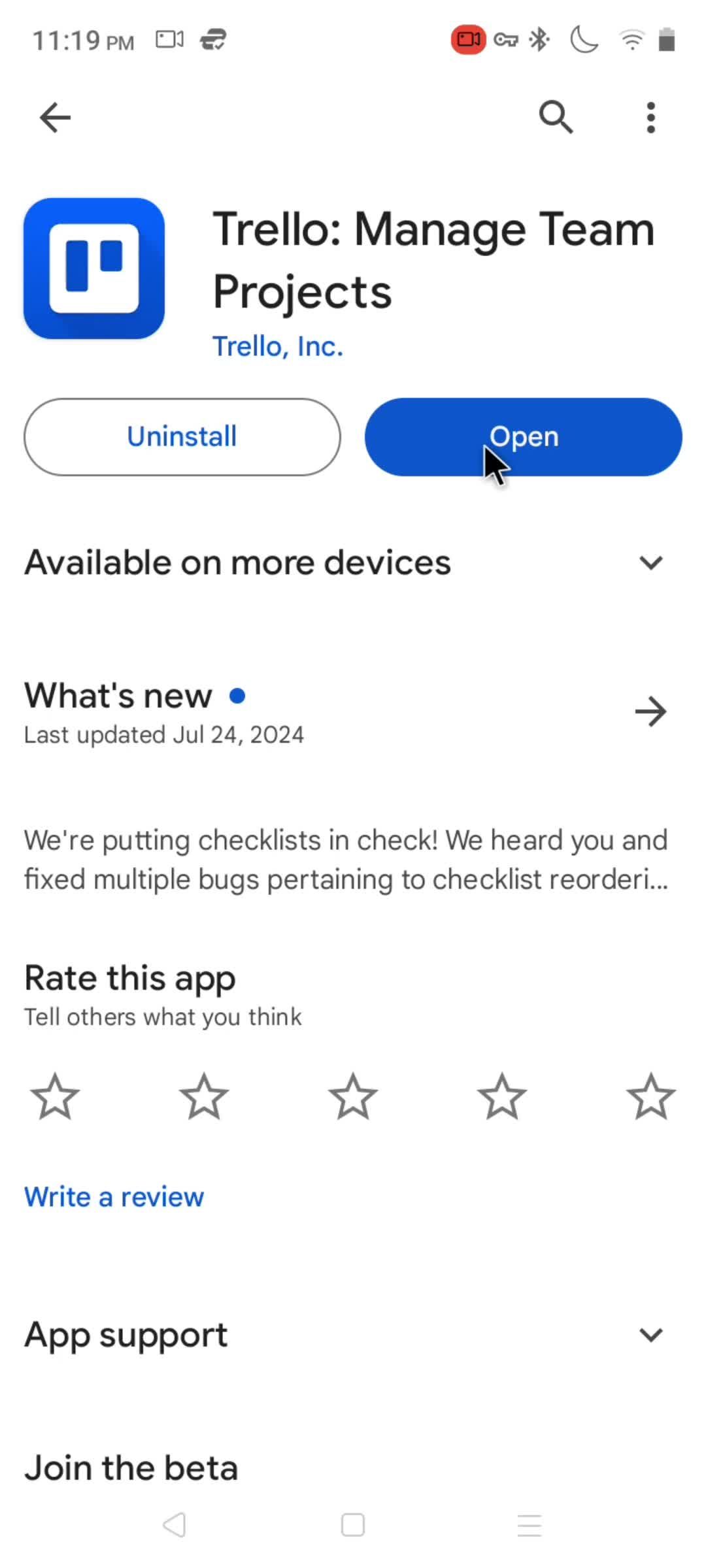
Play Store page
this is title
Login
this is title
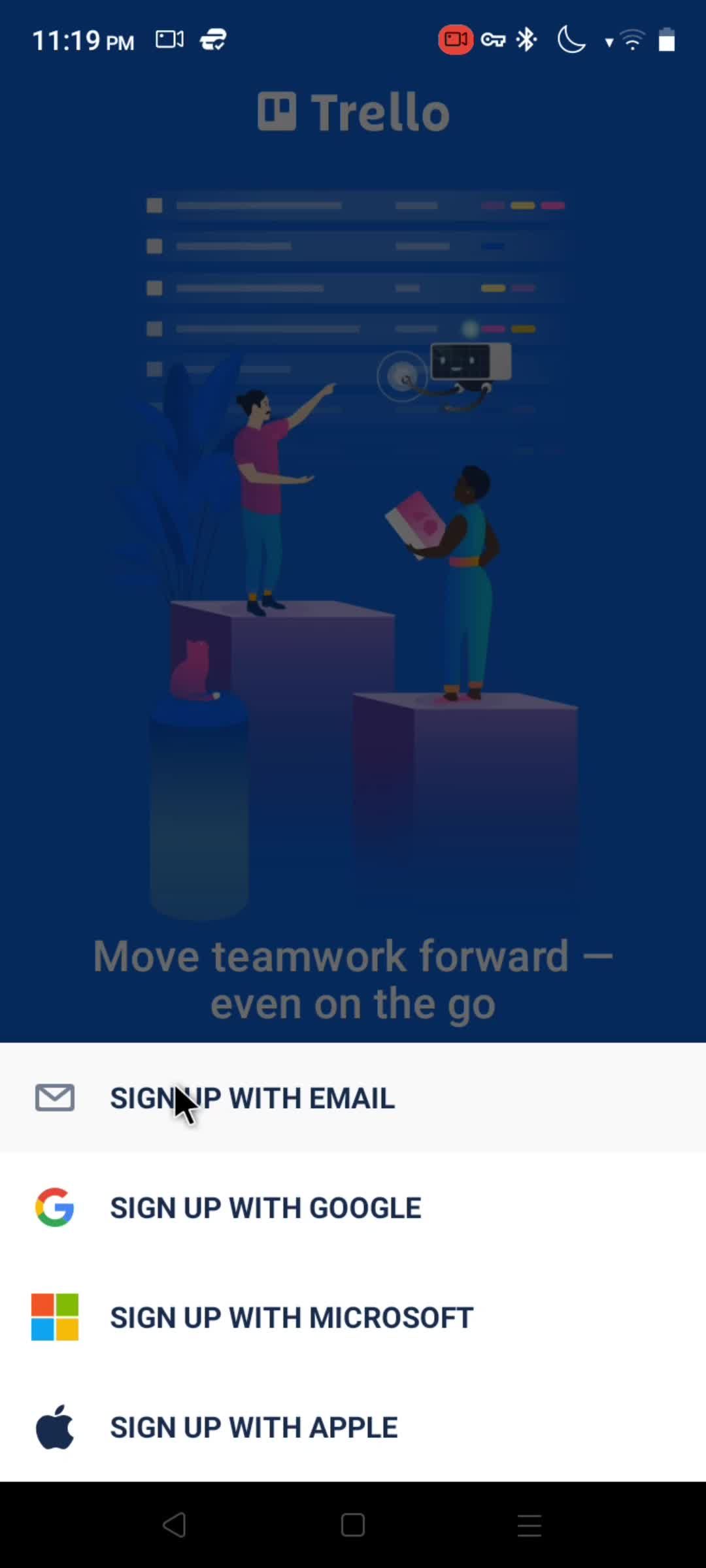
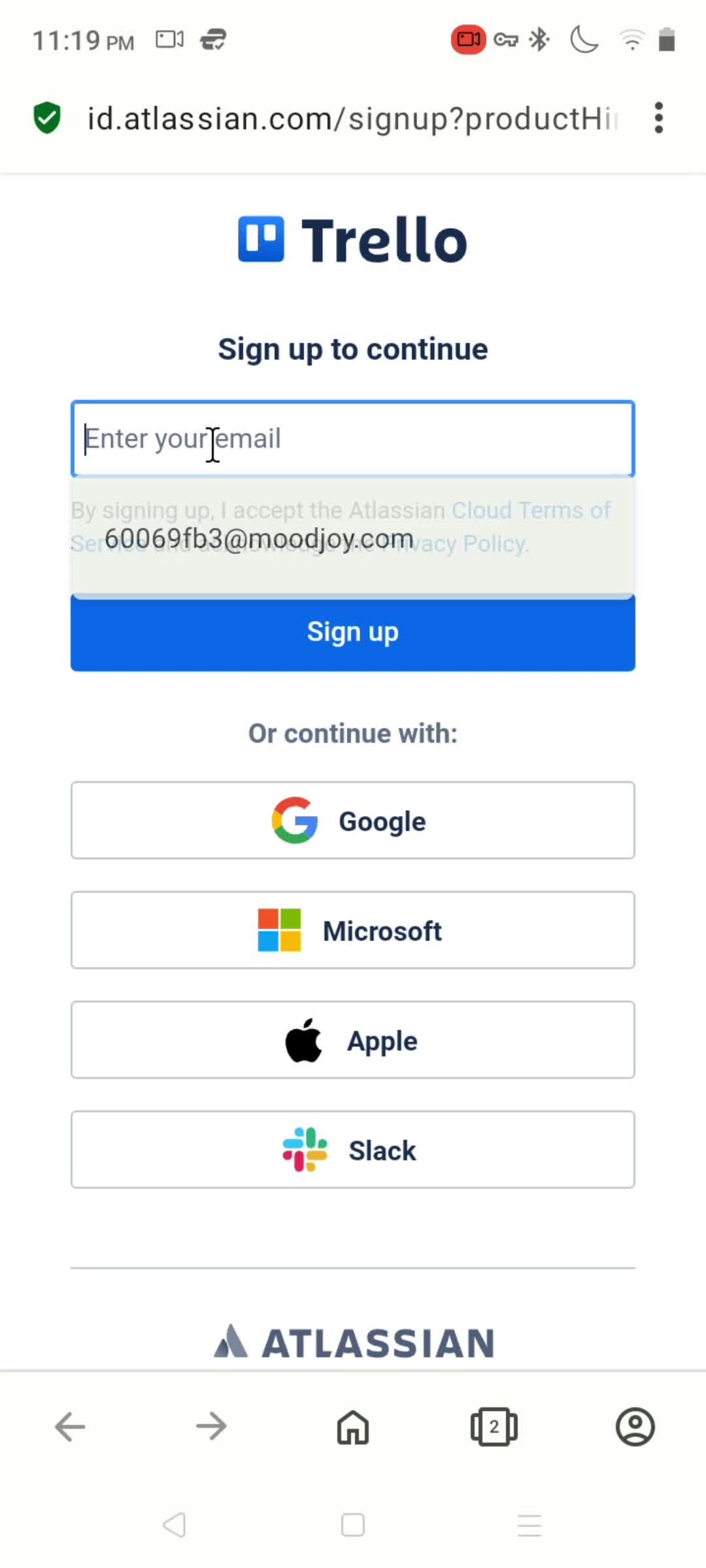
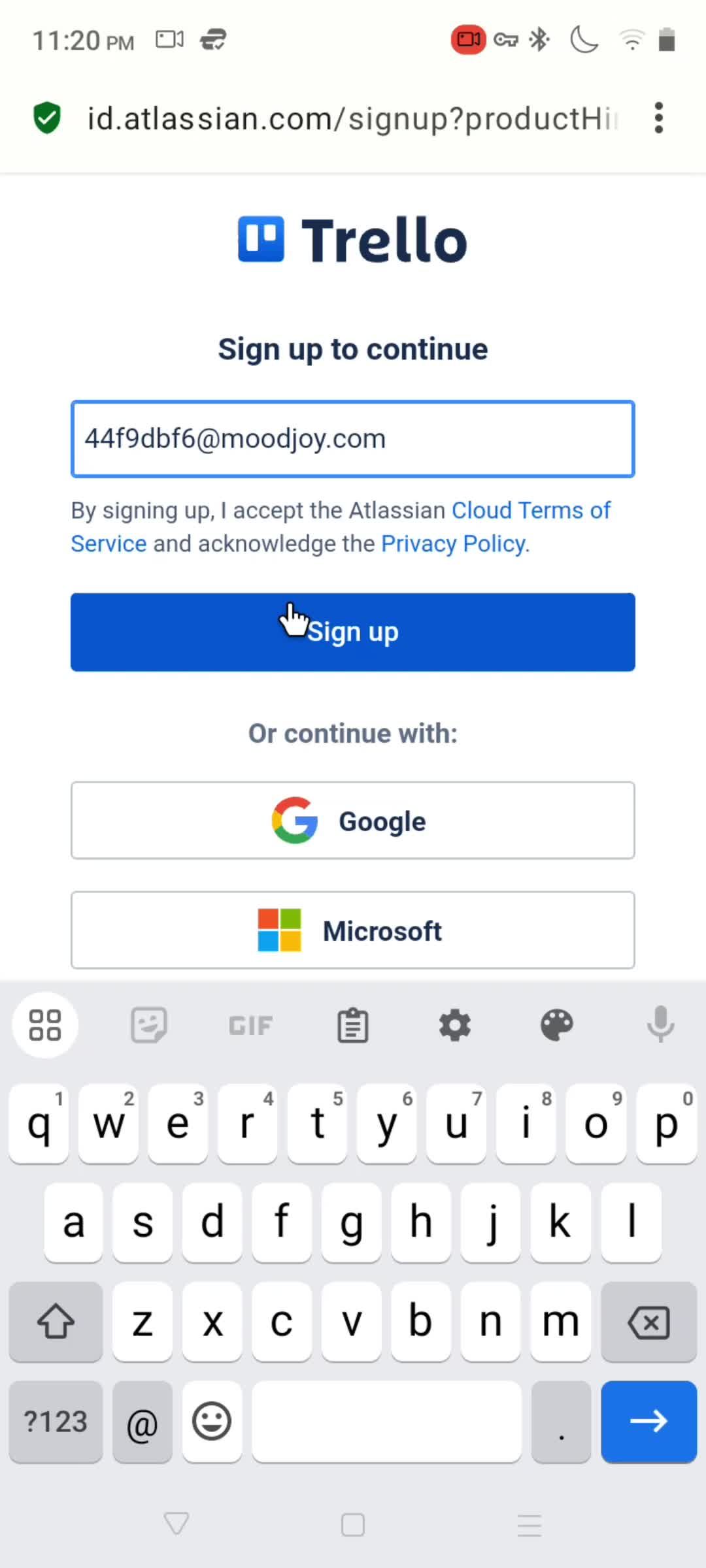
Sign up with email
this is title
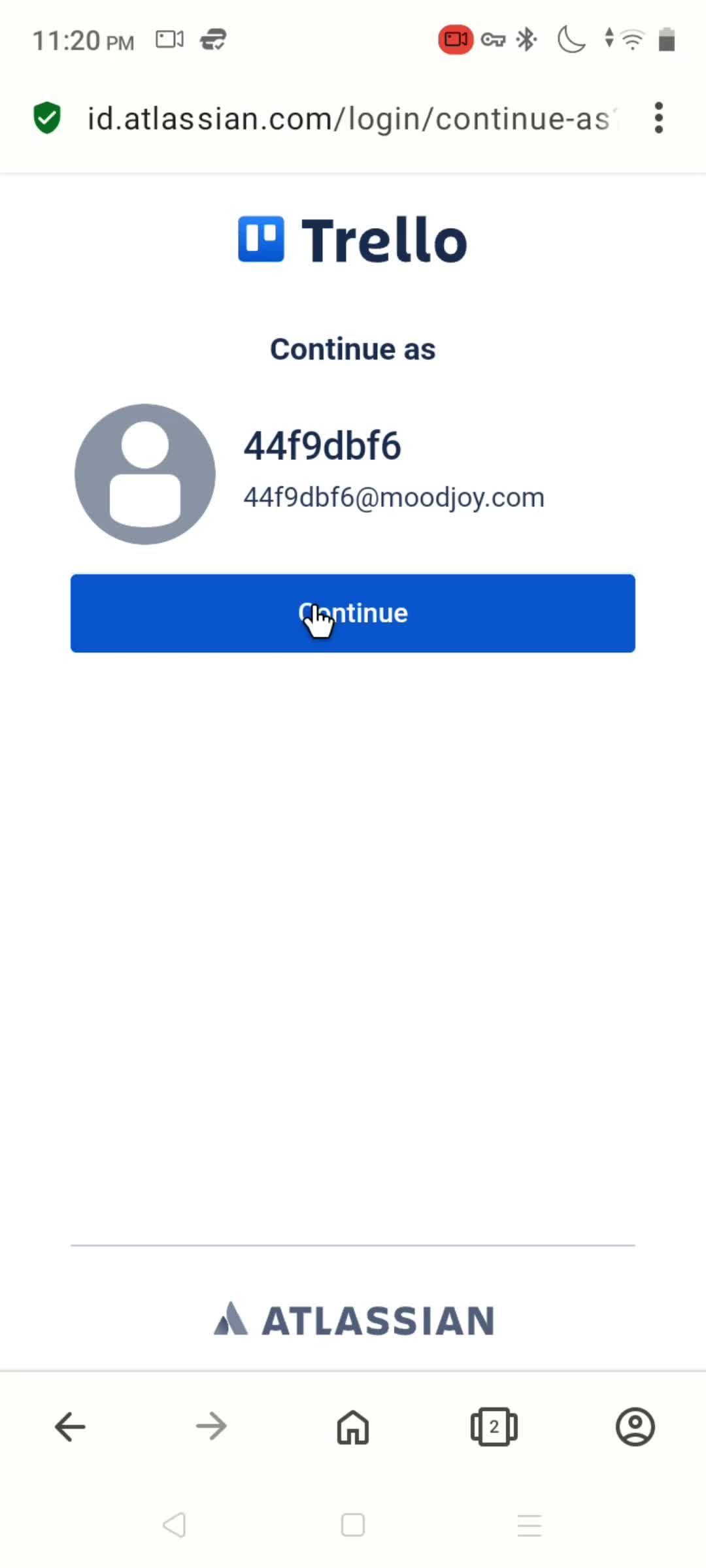
Setting up account
this is title
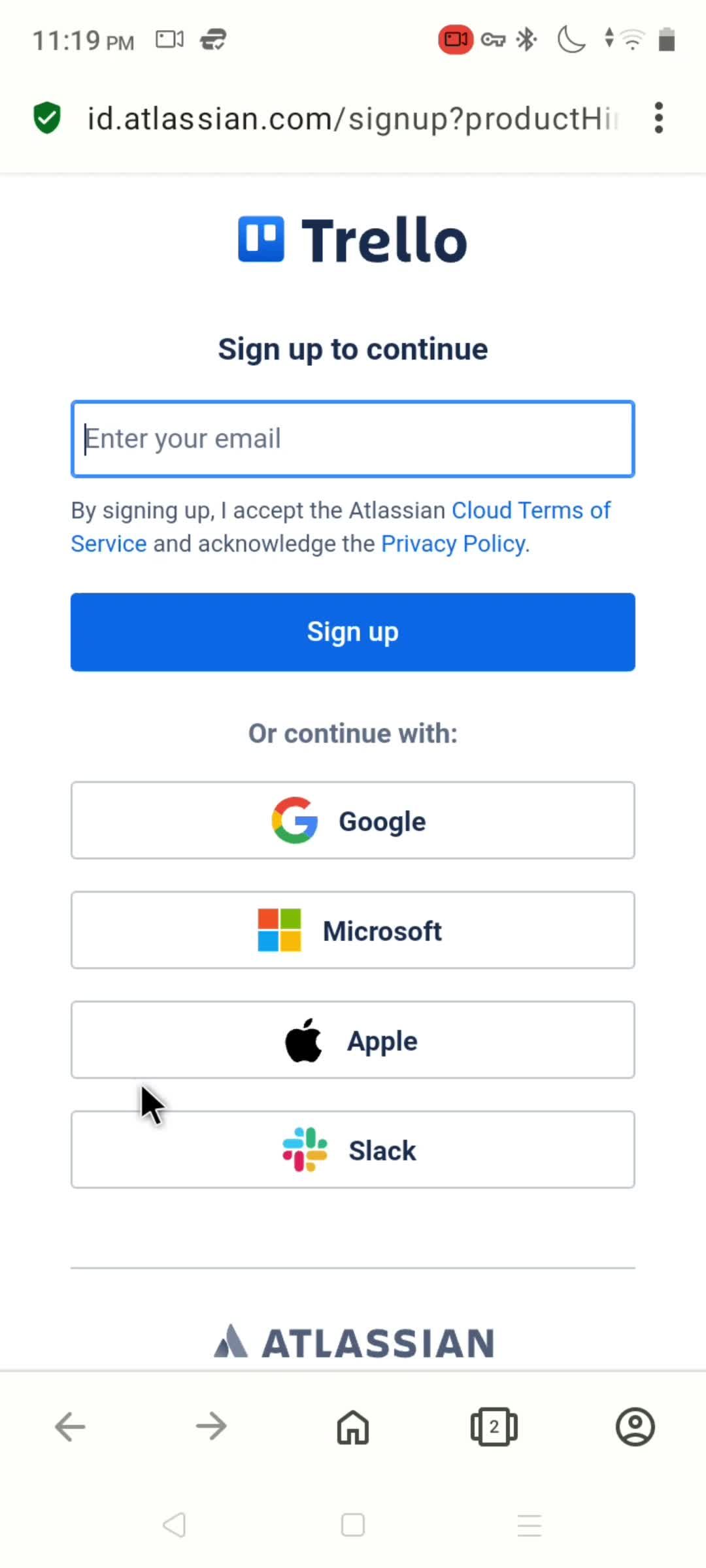
Sign up
this is title
Enter email
this is title
this is title
this is title
Loading
this is title
Setting up account
this is title
this is title
Check your inbox
this is title
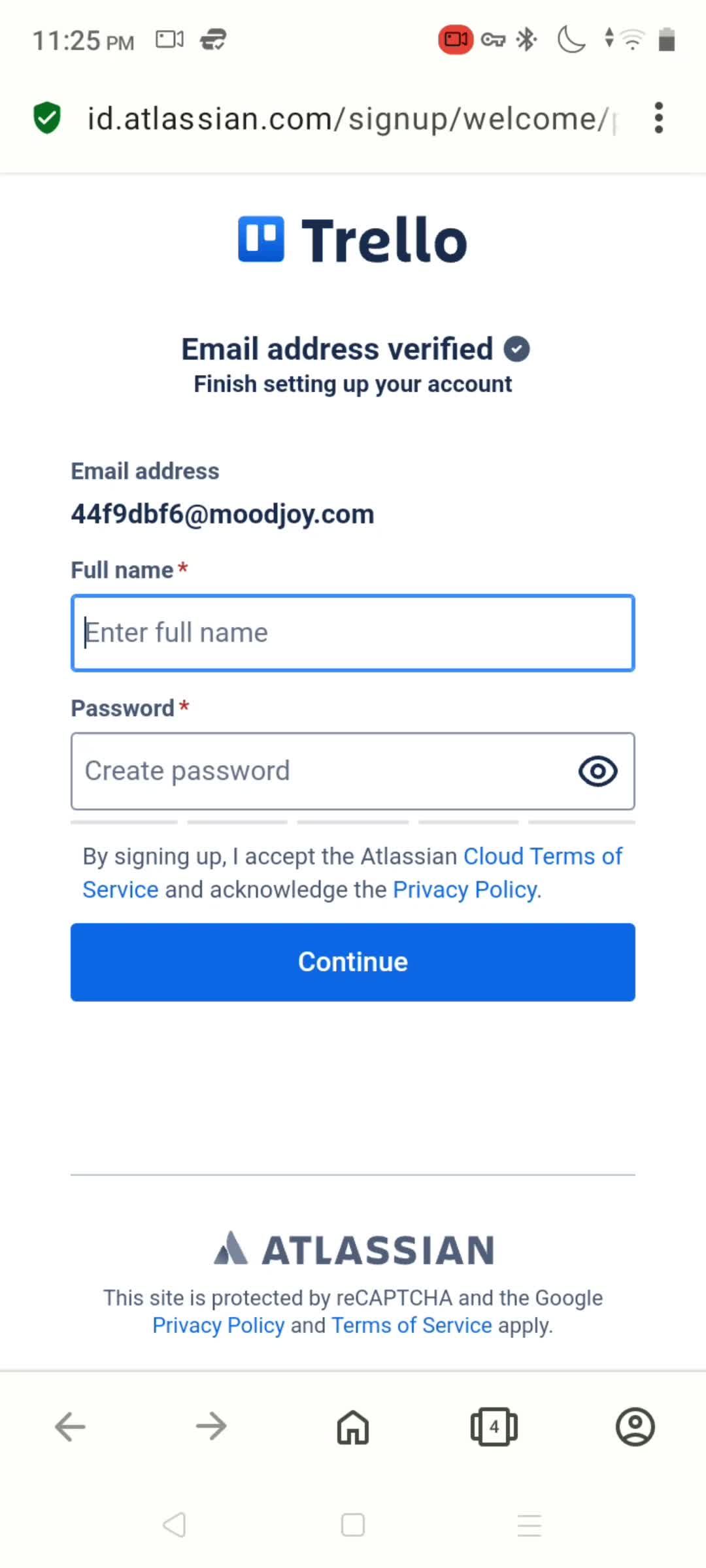
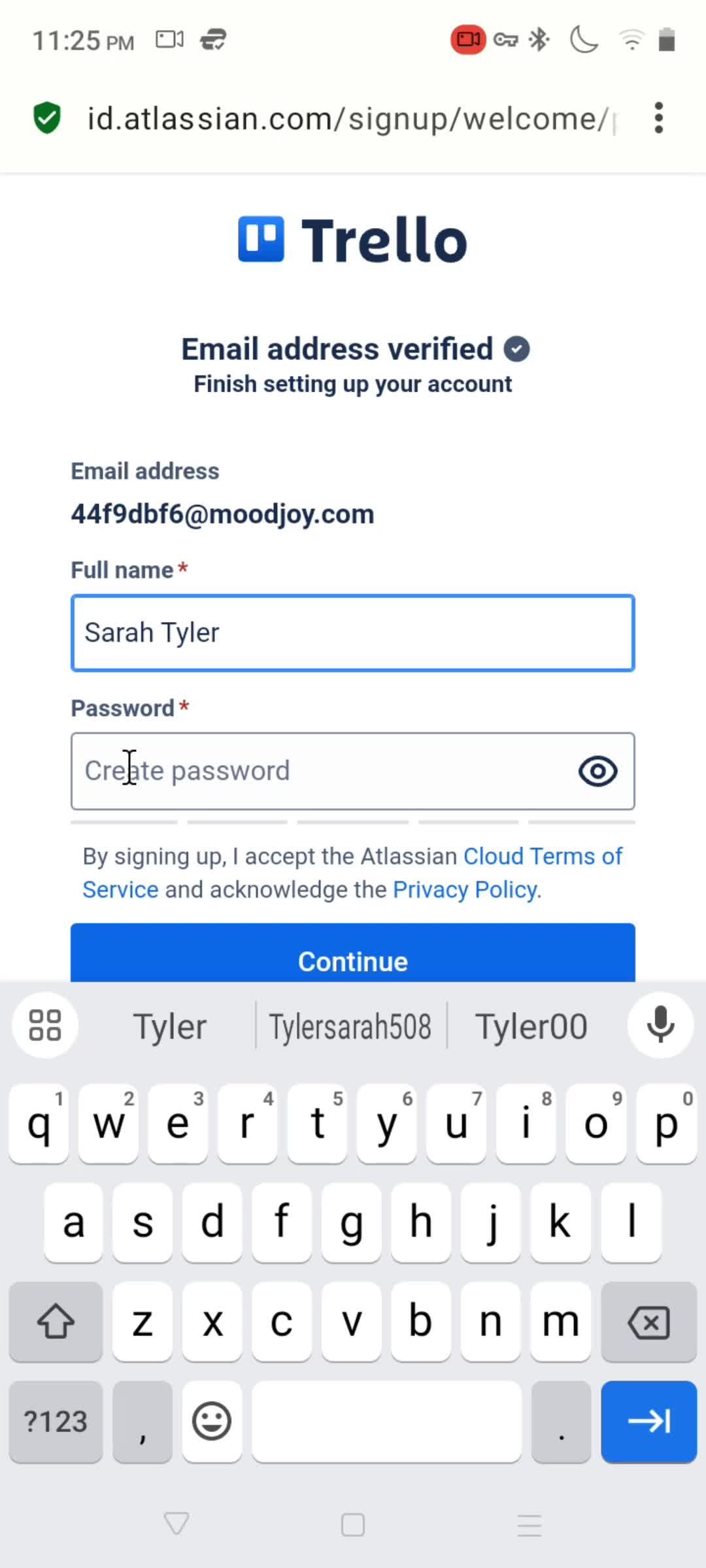
Finish setting up account
this is title
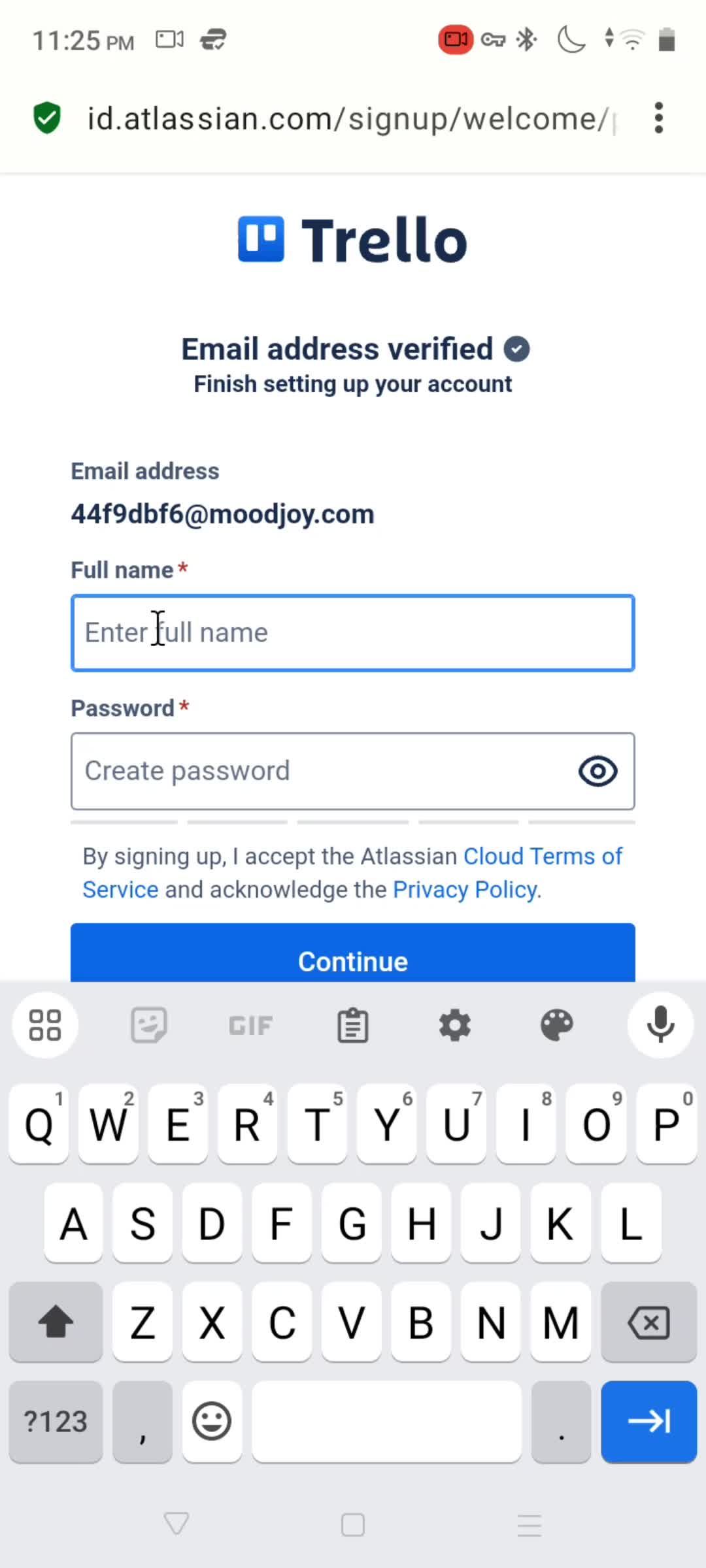
Enter name
this is title
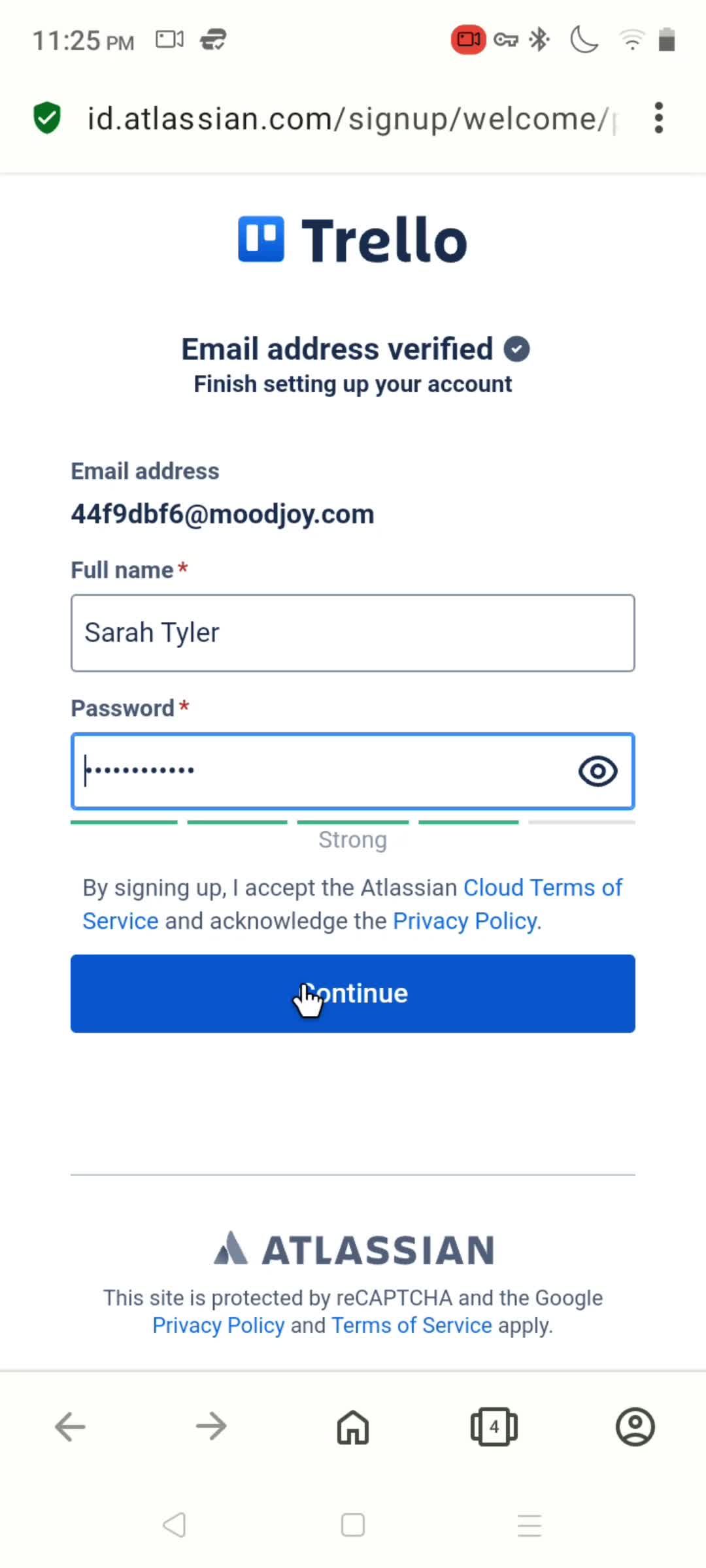
Set password
this is title
this is title
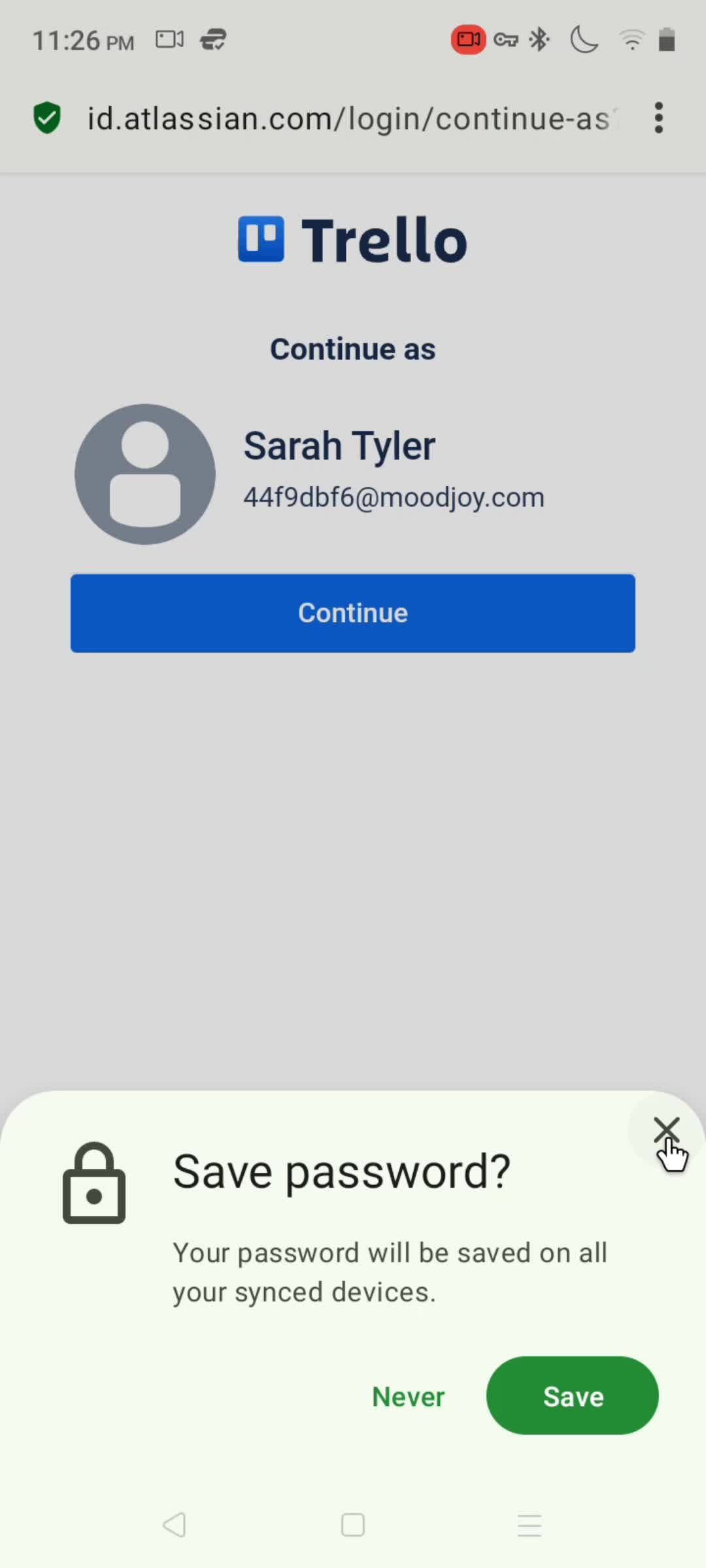
Save password
this is title
this is title
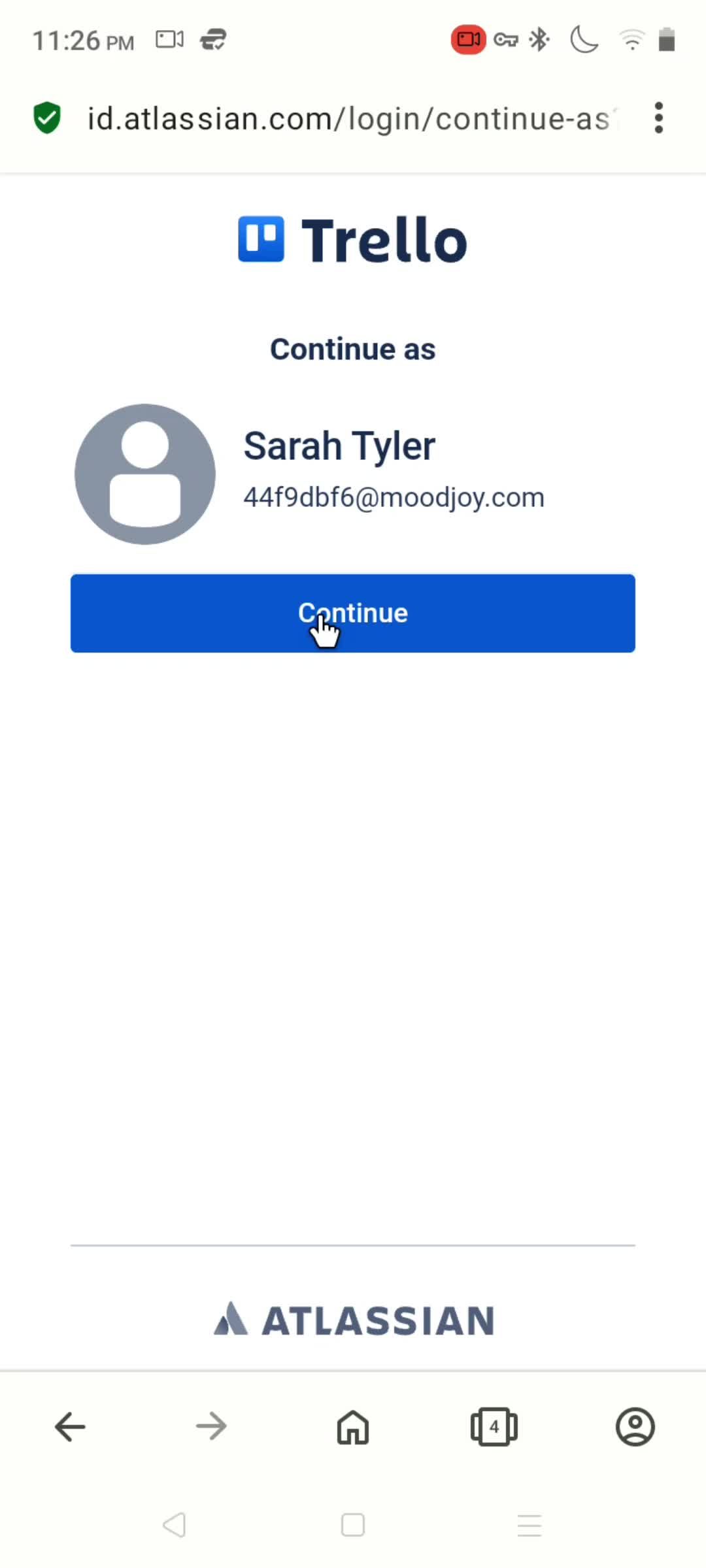
this is title
Get started
this is title
Select template
this is title
Board menu
this is title
this is title
Action menu
this is title
this is title
Create board
this is title
Enter title
this is title
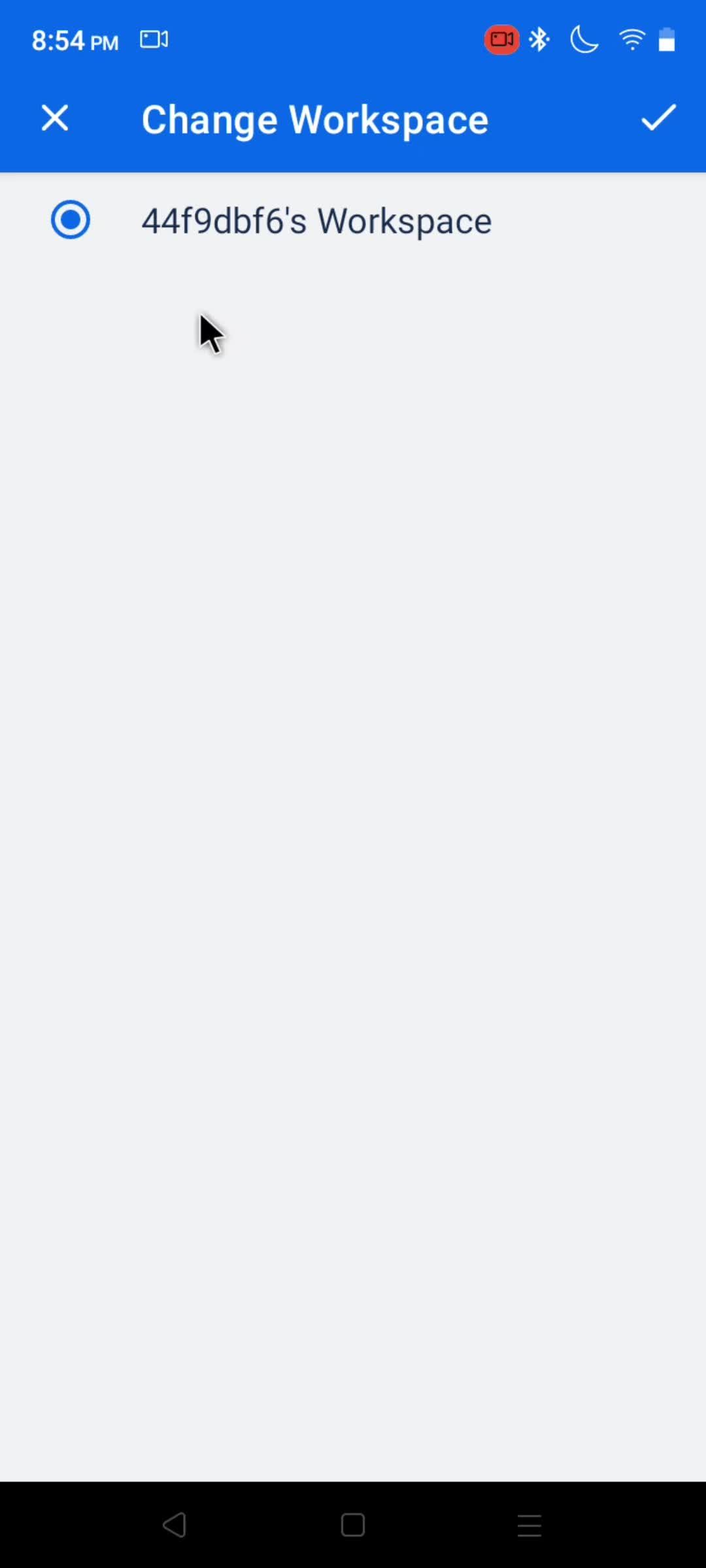
Select workspace
this is title
Set visibility
this is title
this is title
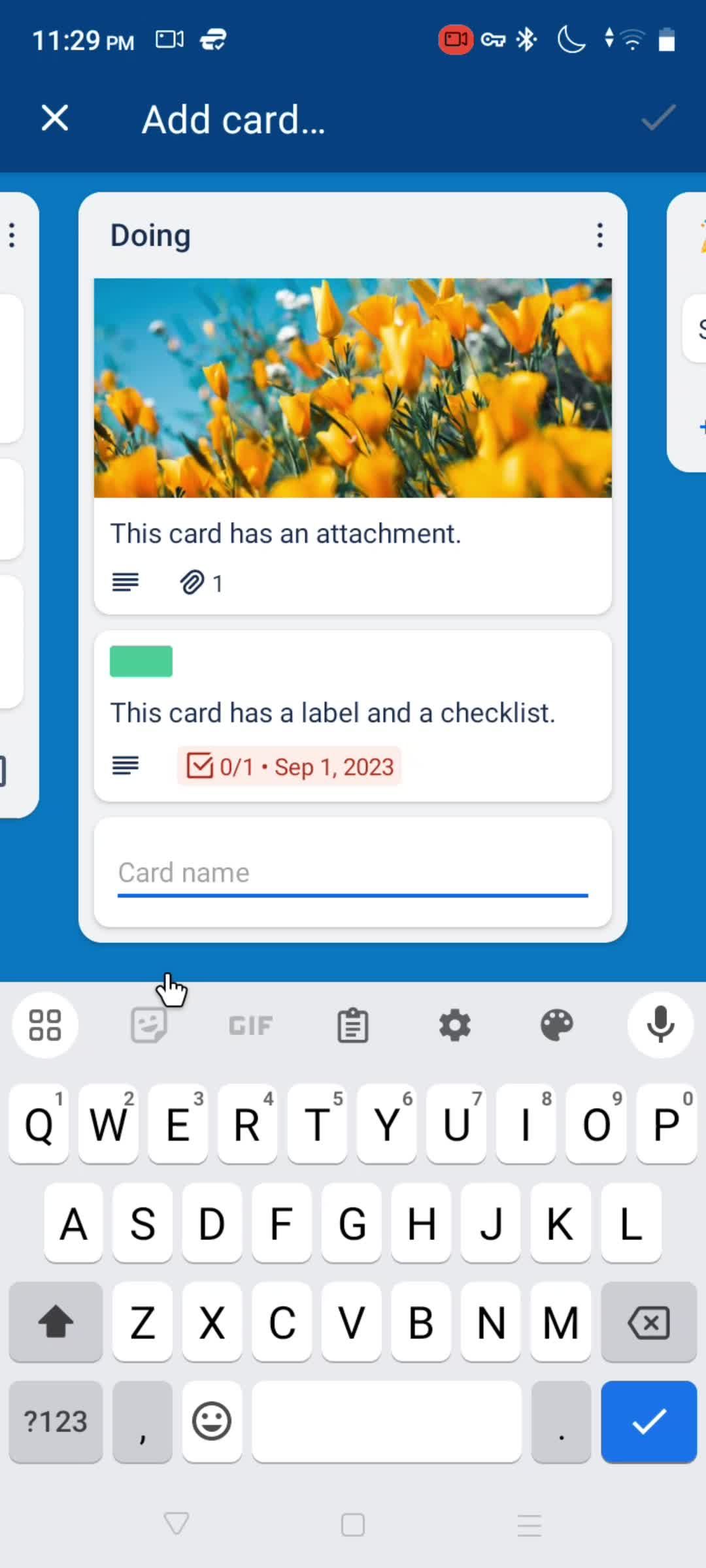
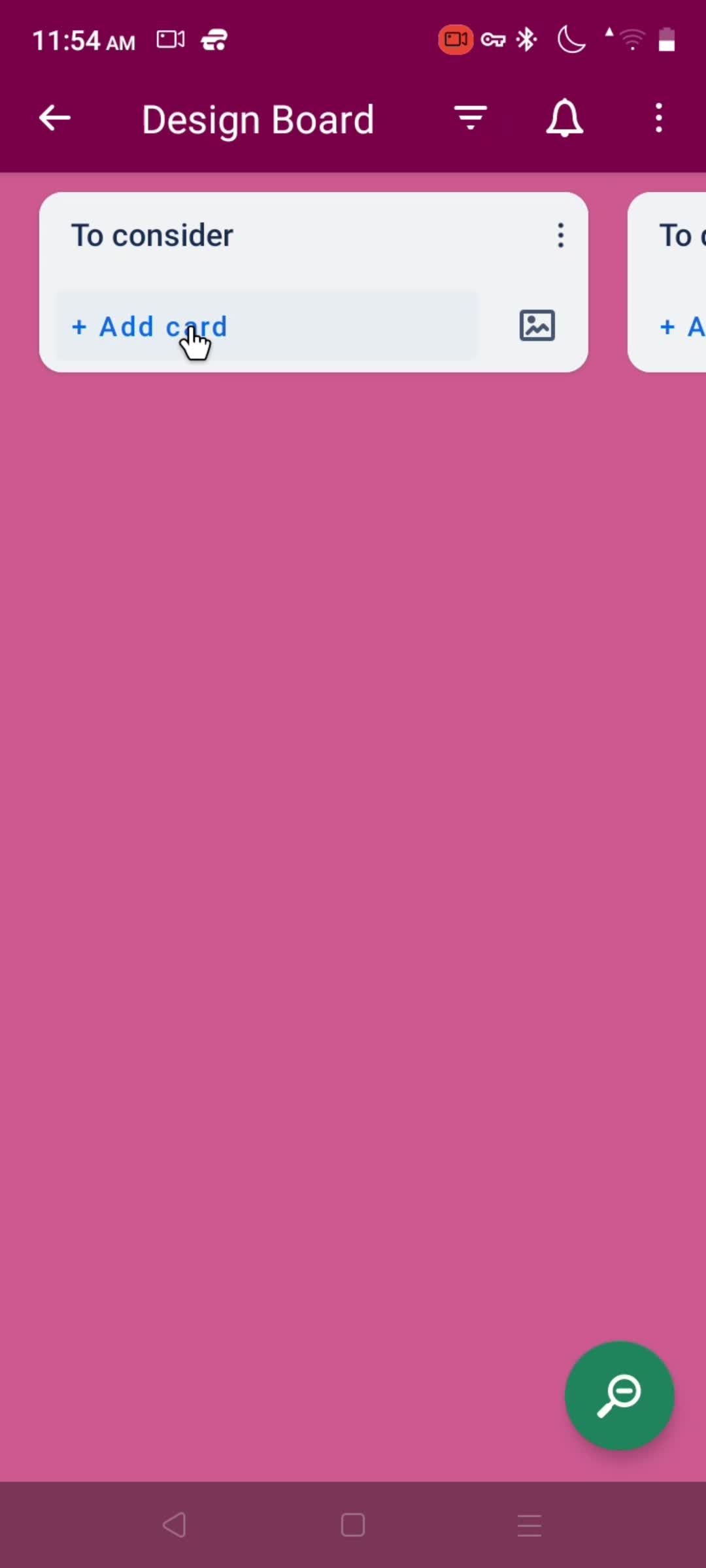
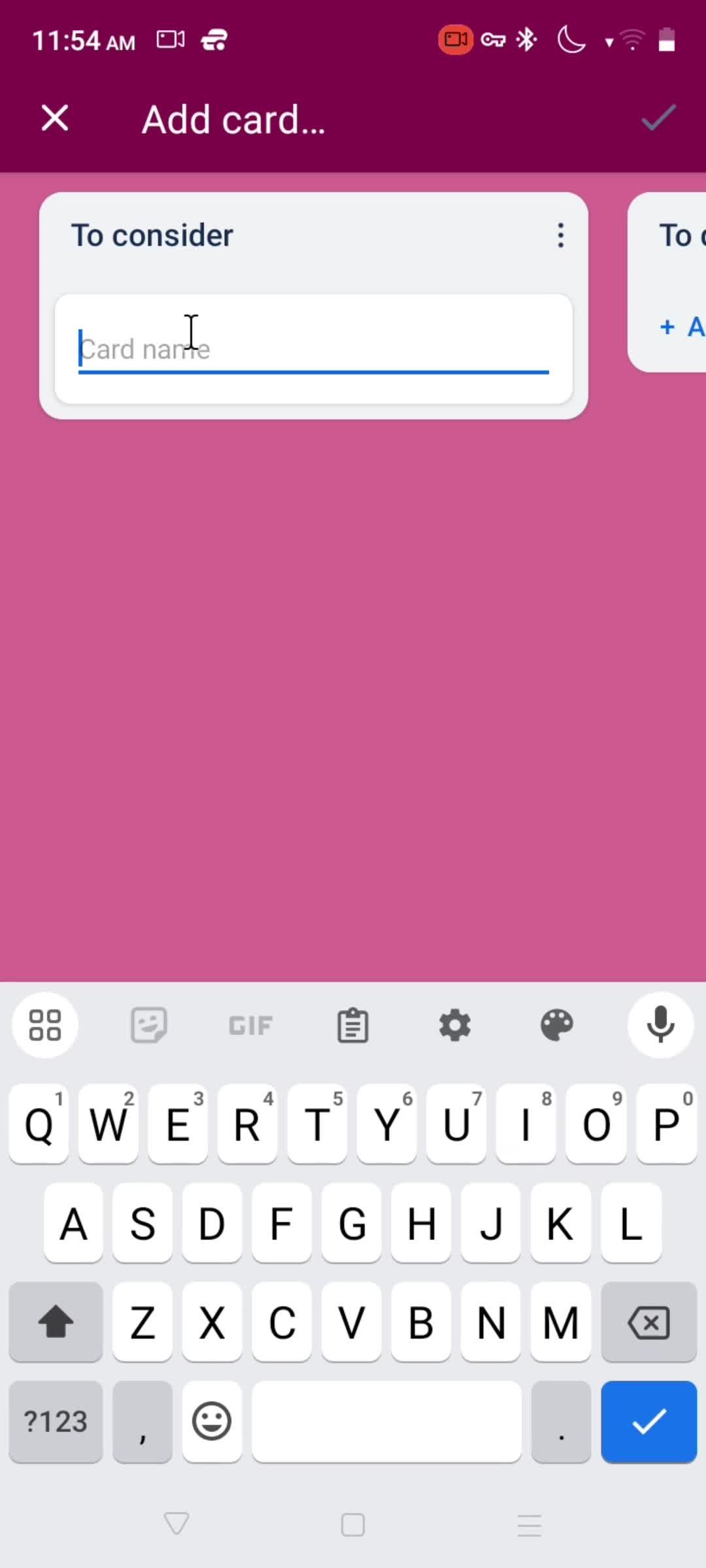
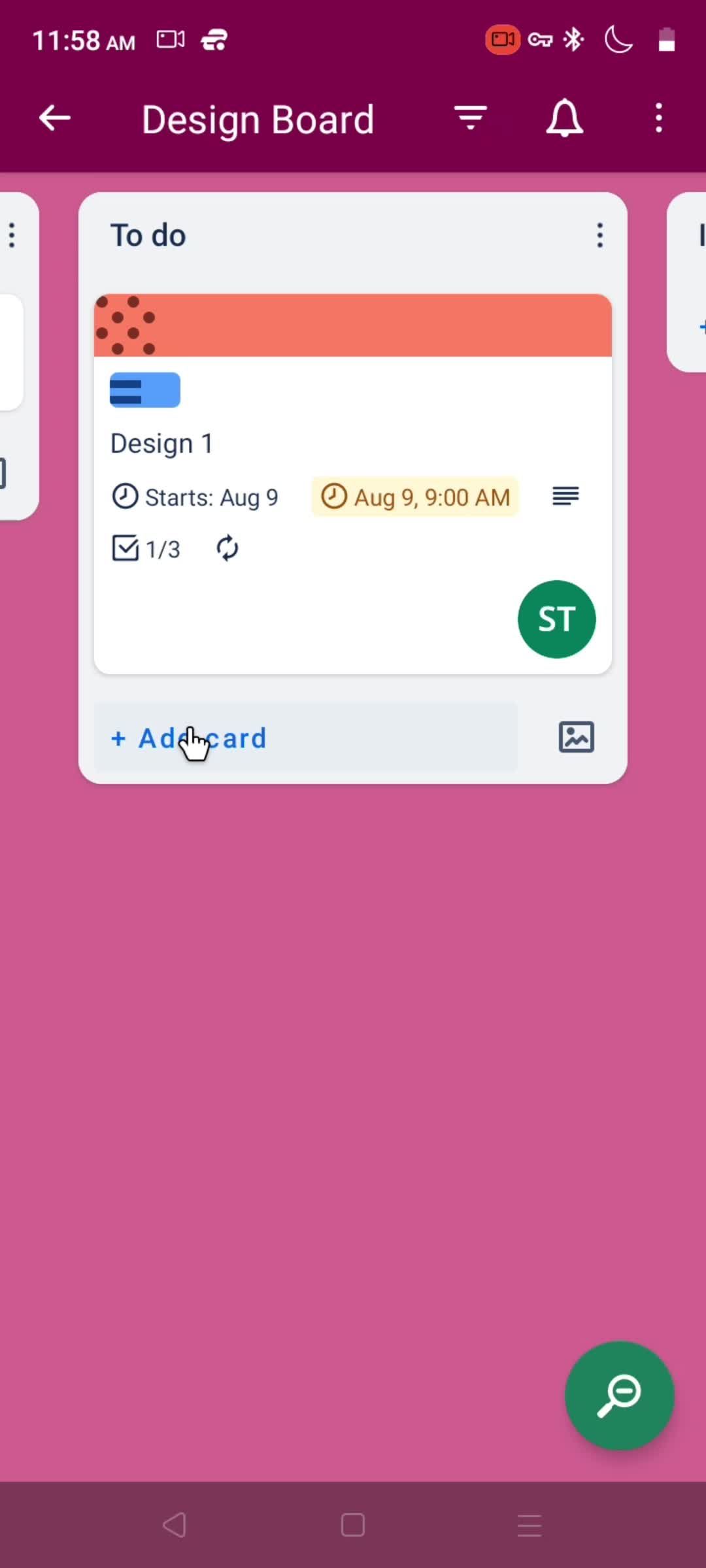
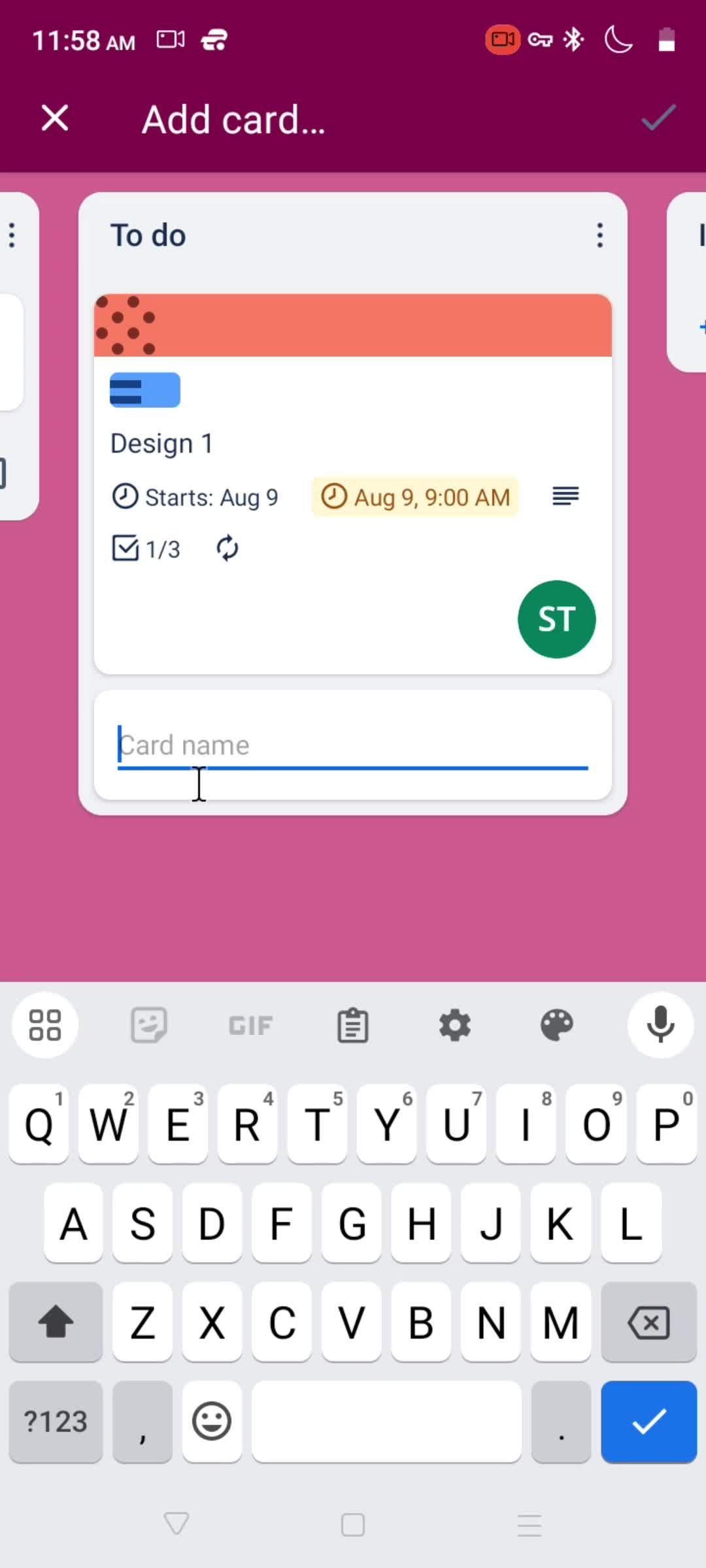
Add card
this is title
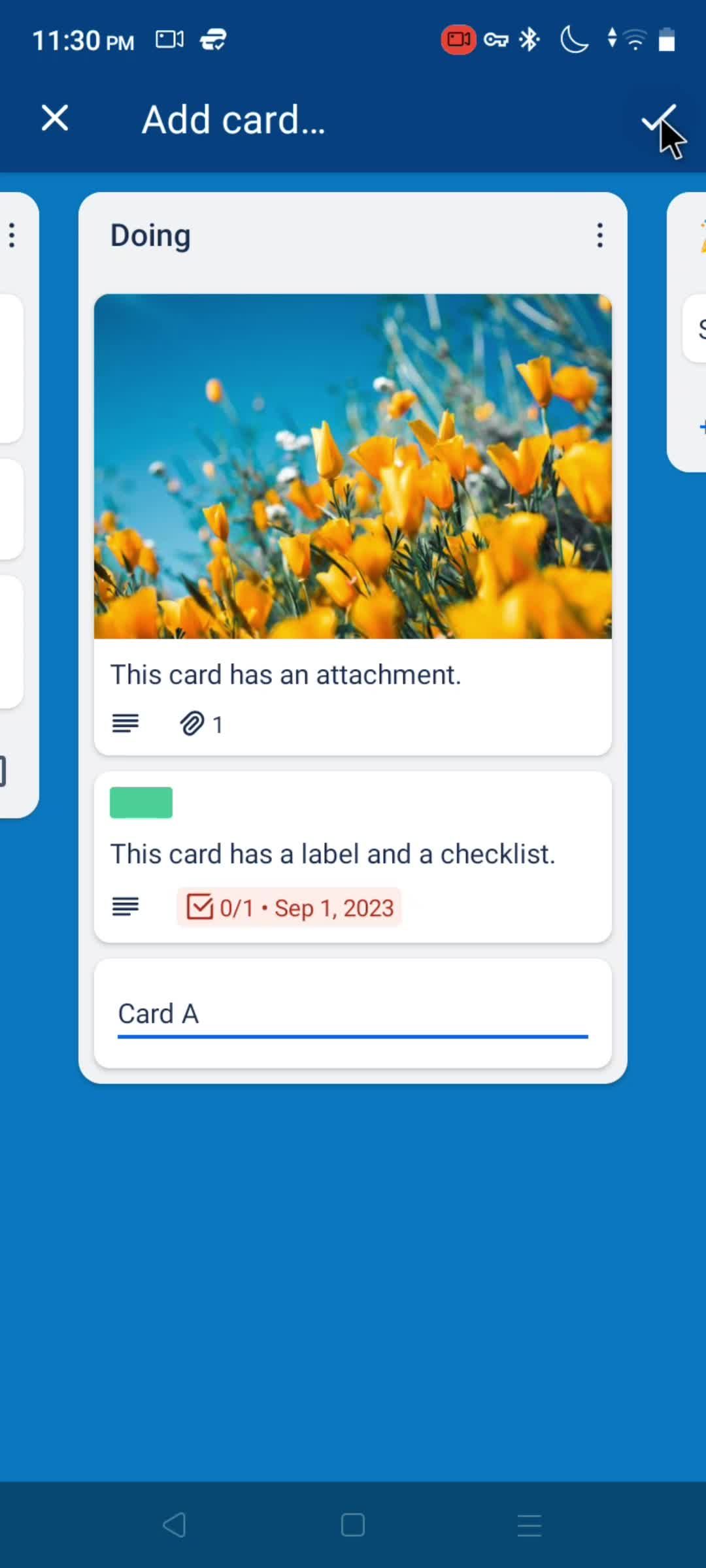
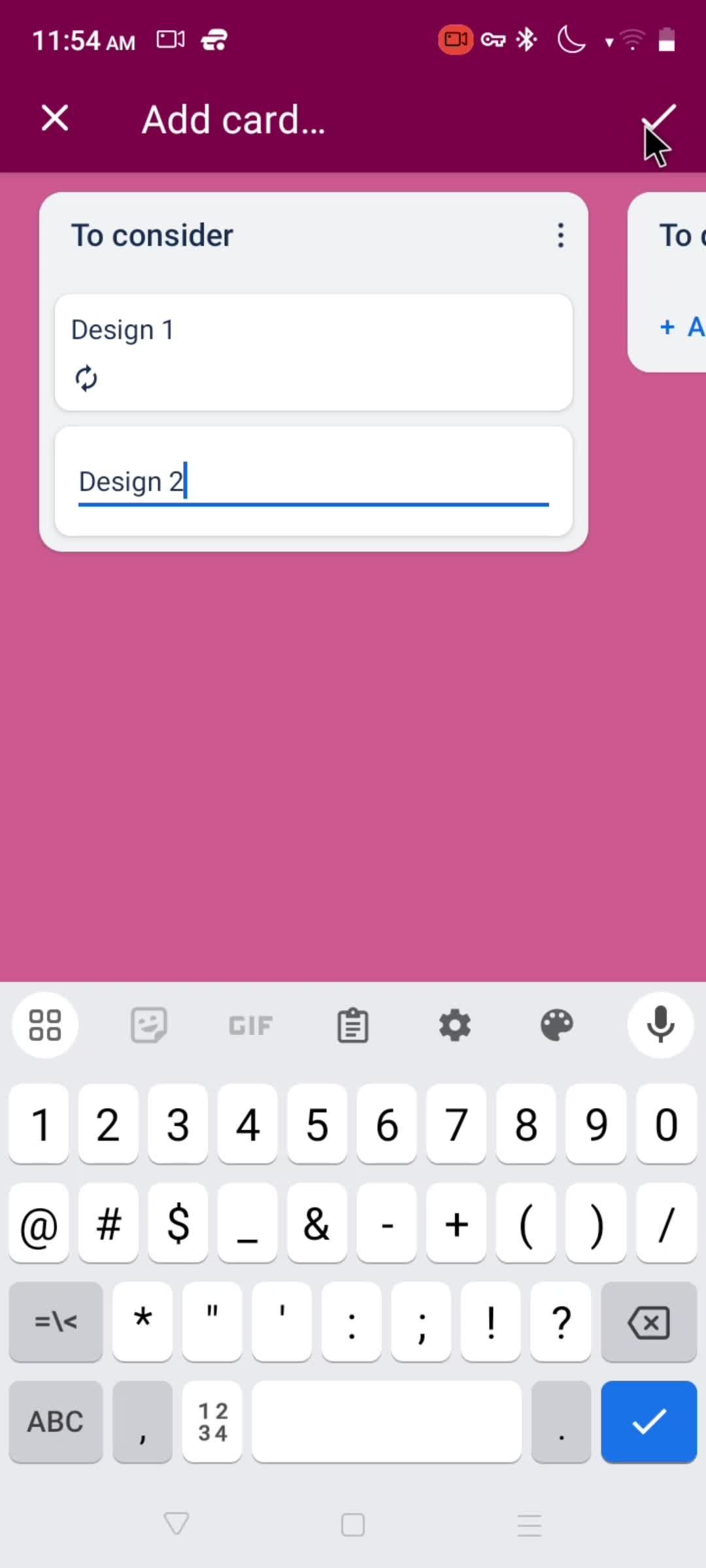
Enter name
this is title
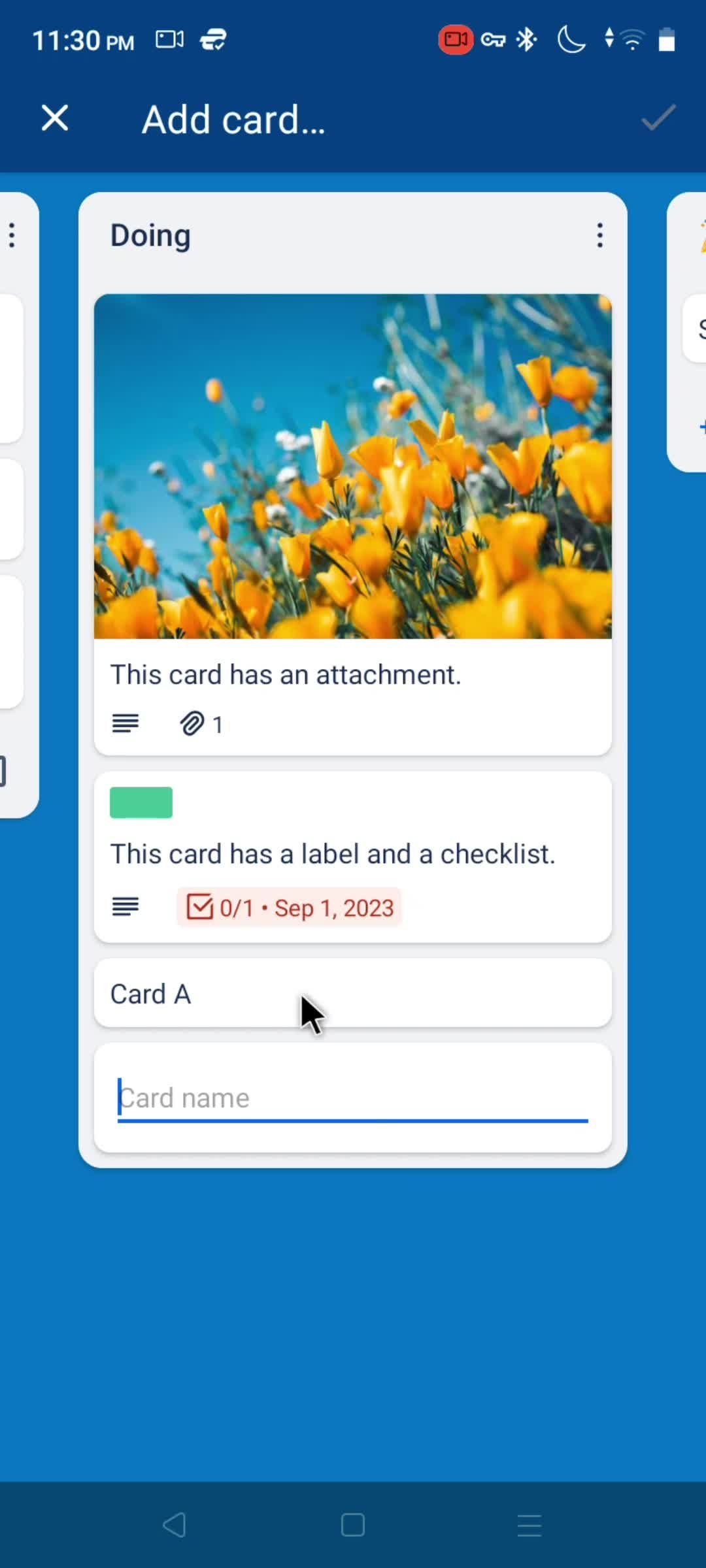
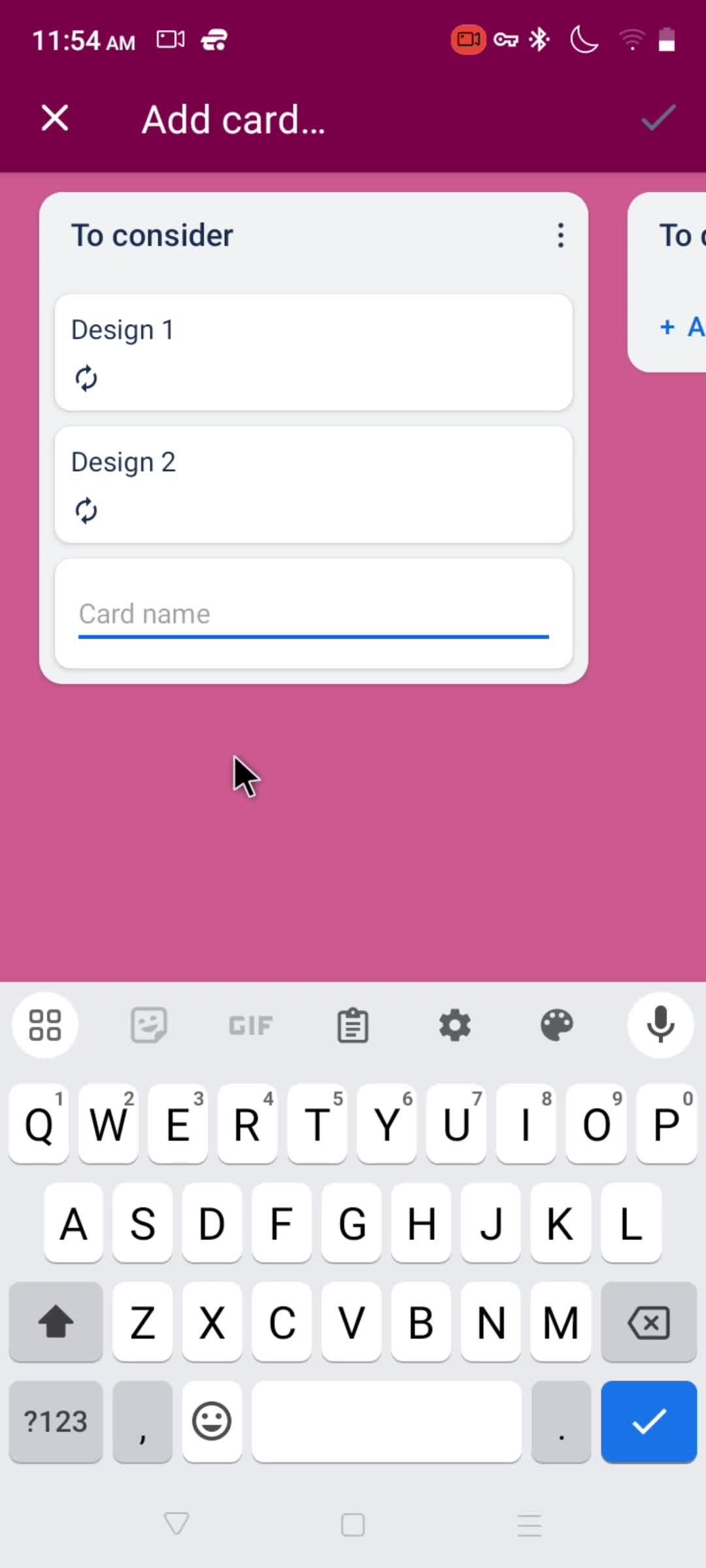
Save
this is title
this is title
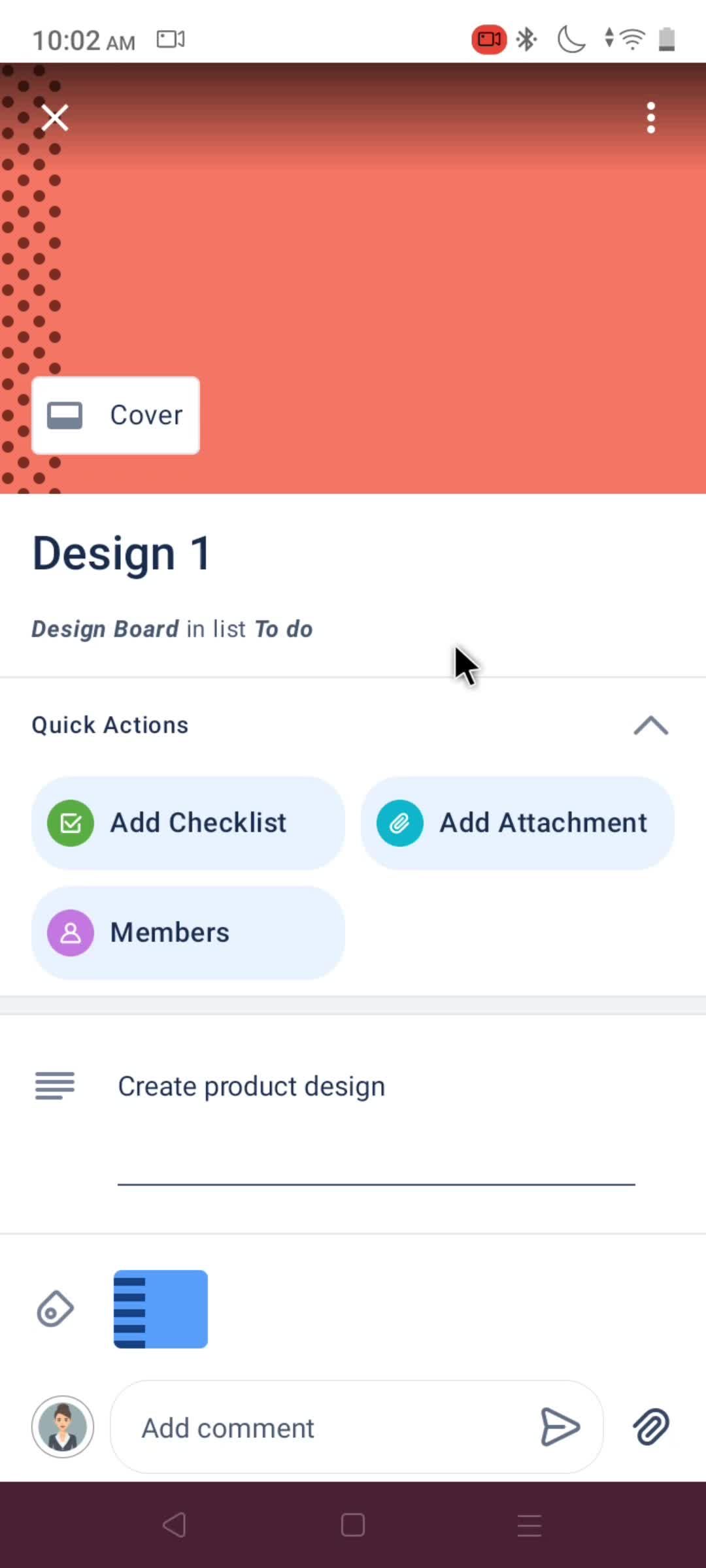
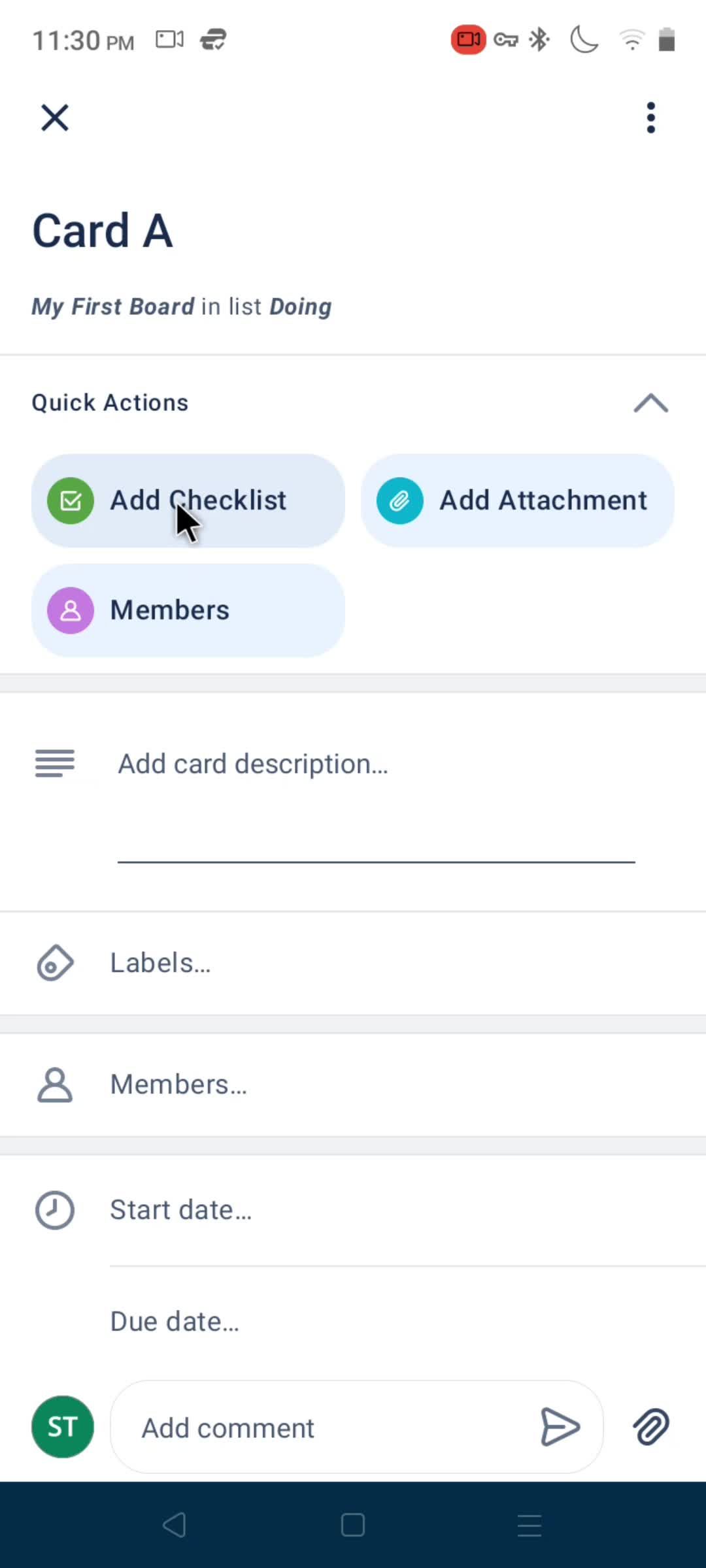
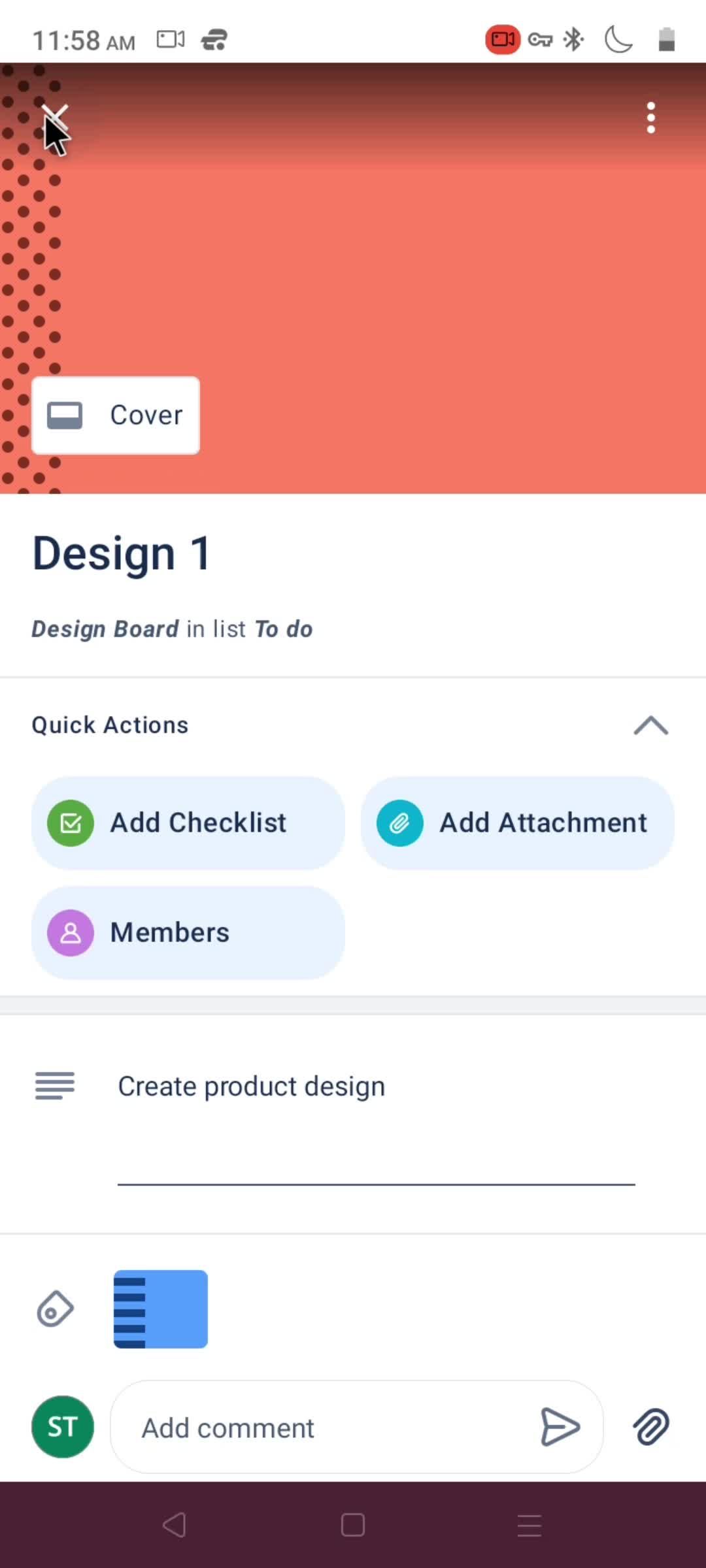
Edit card
this is title
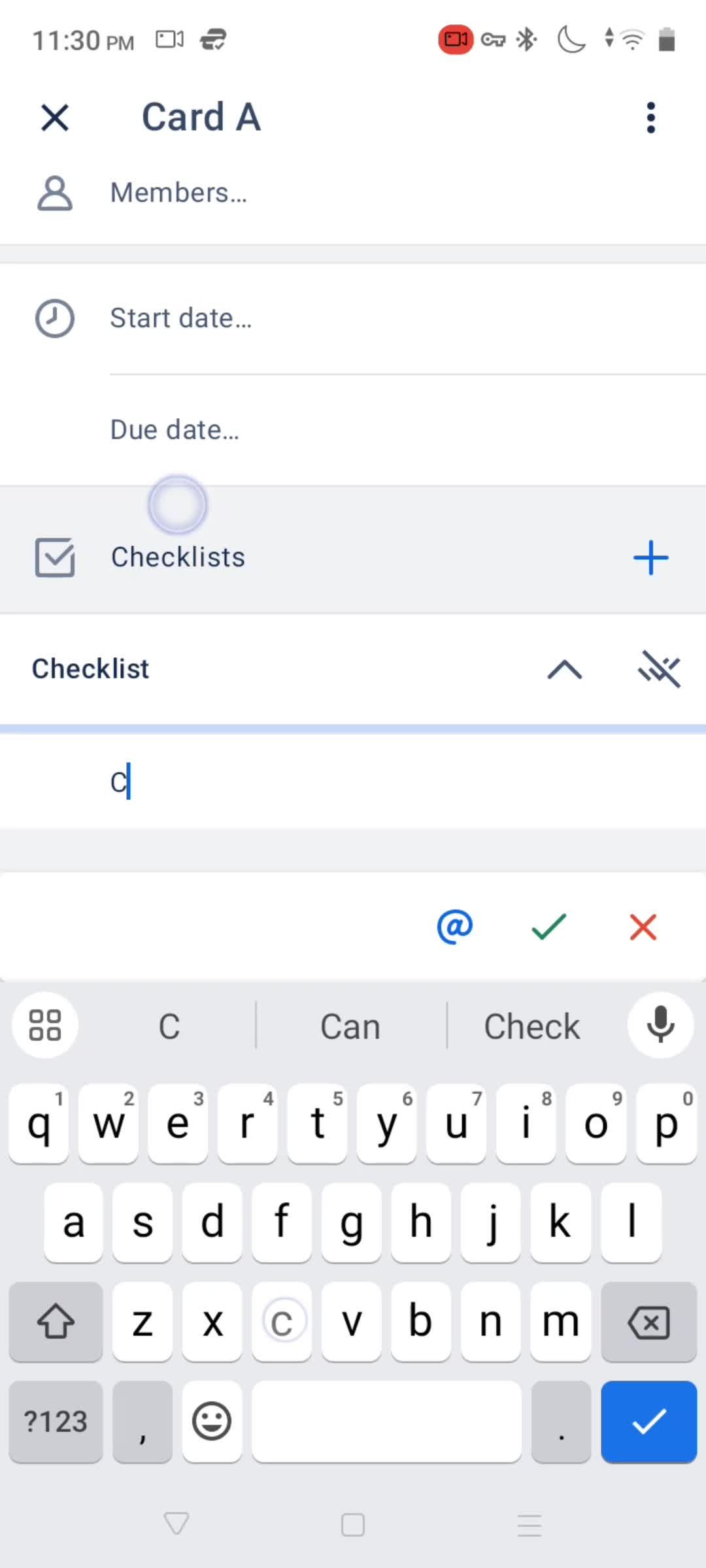
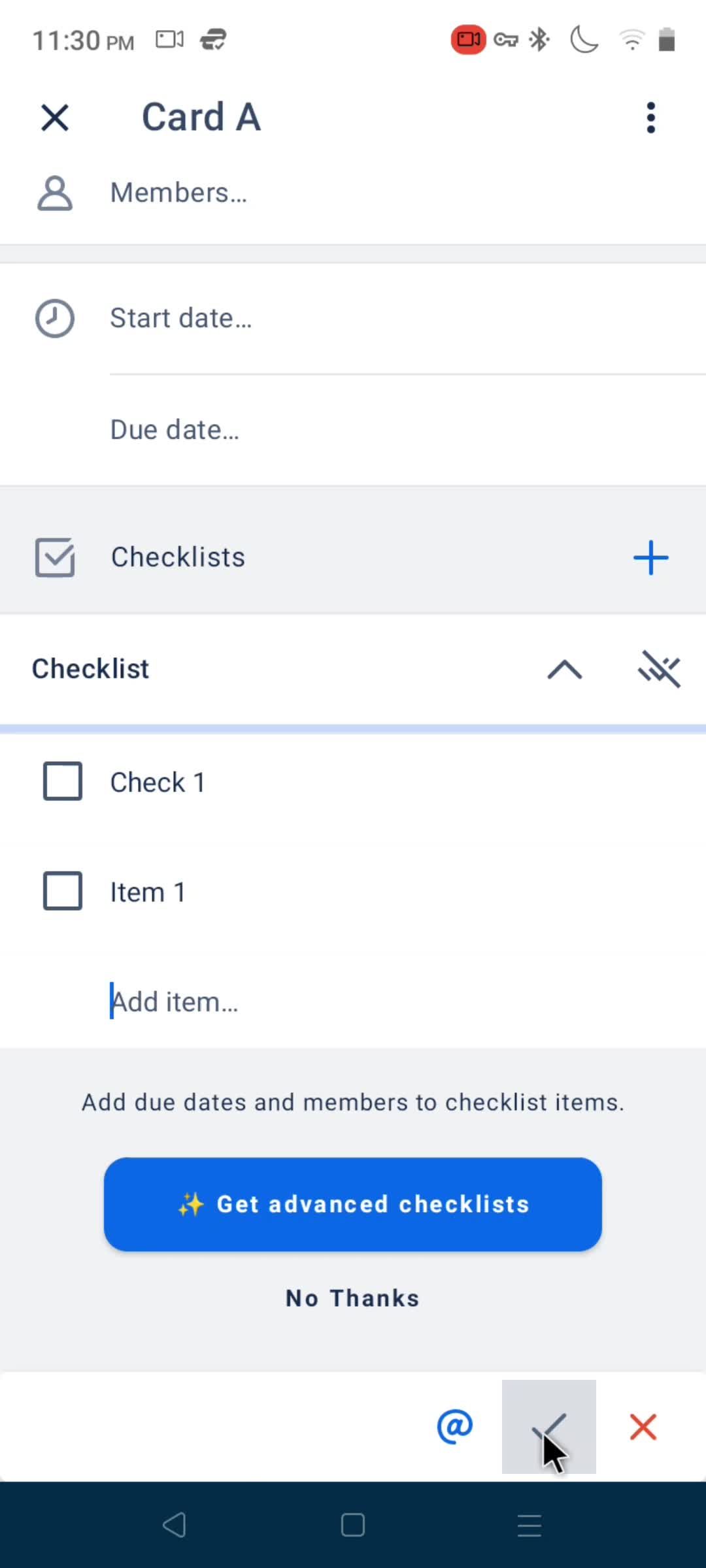
Add checklist
this is title
this is title
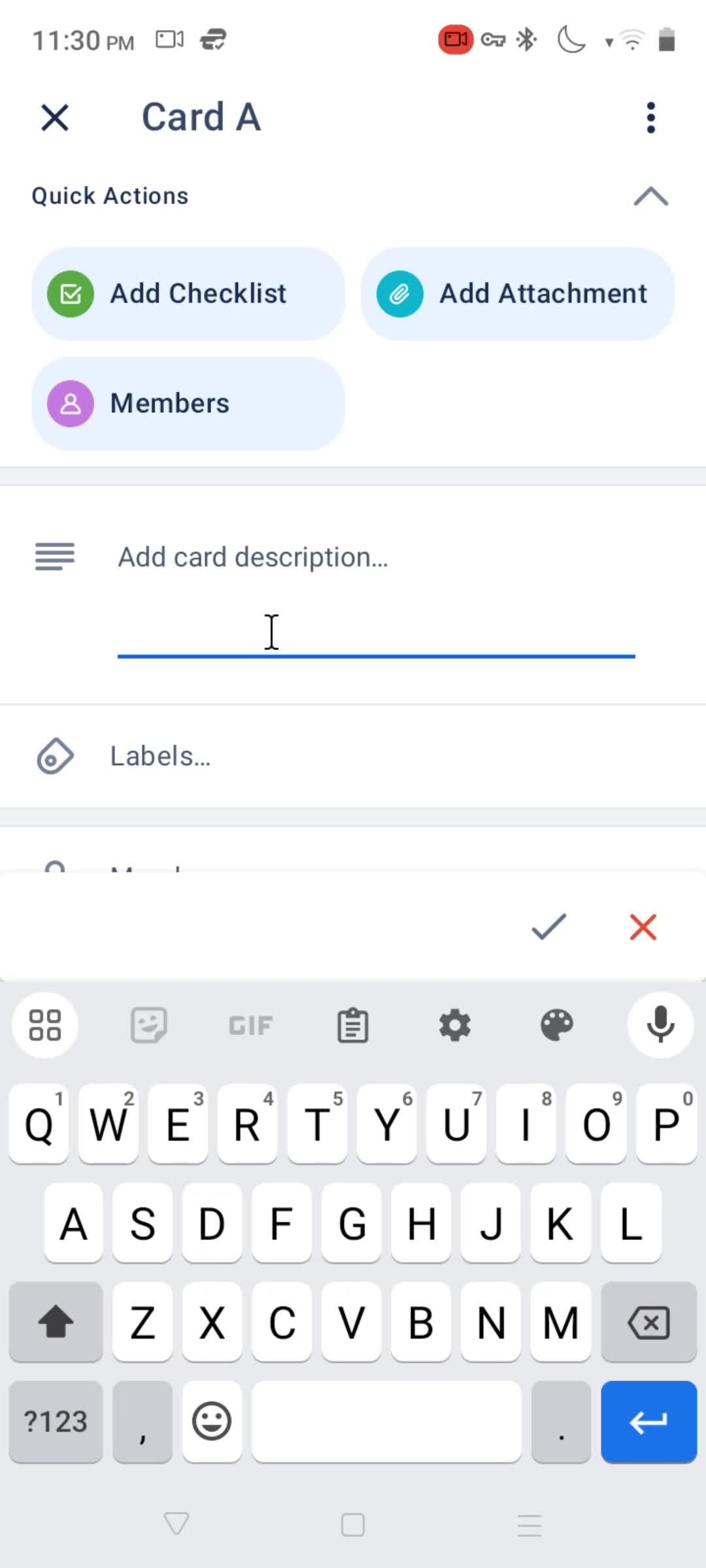
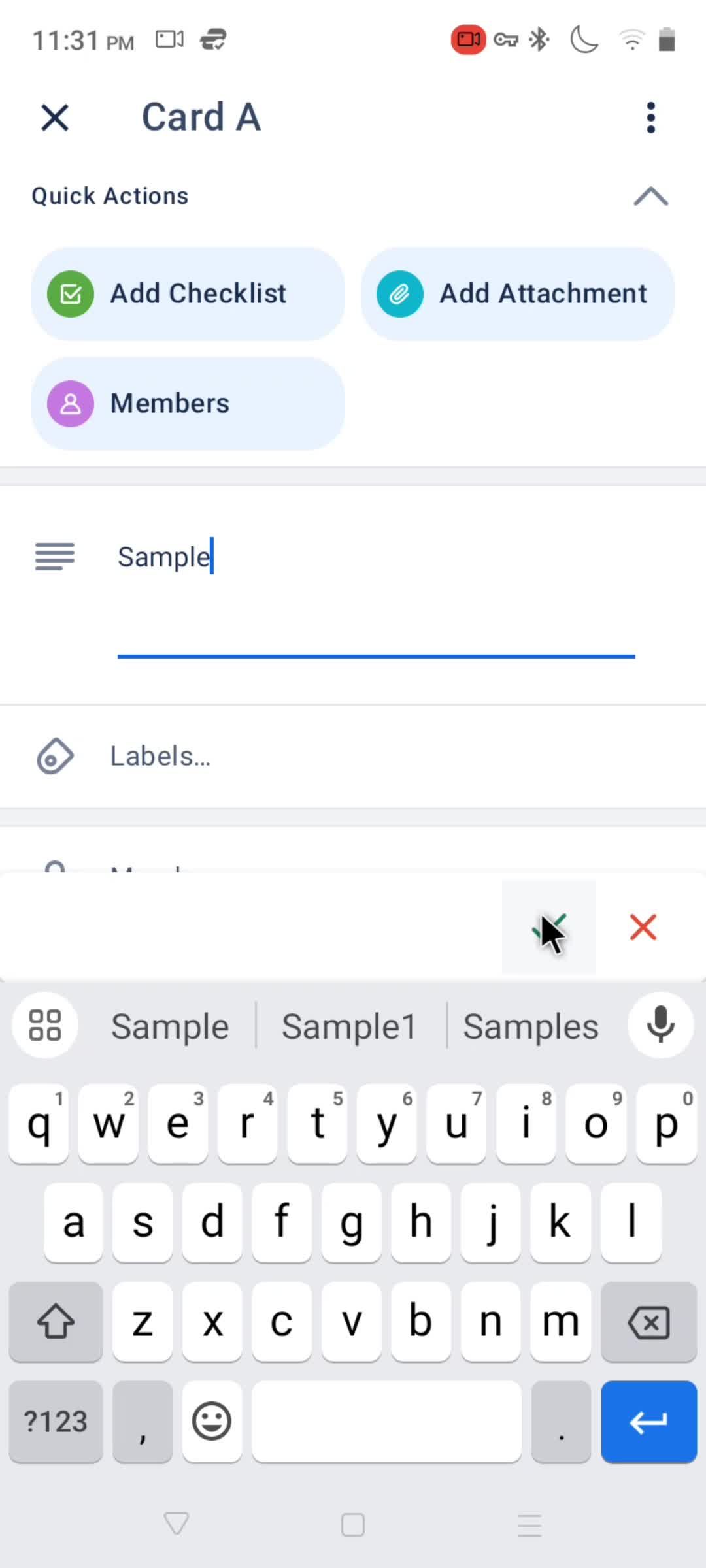
Enter description
this is title
this is title
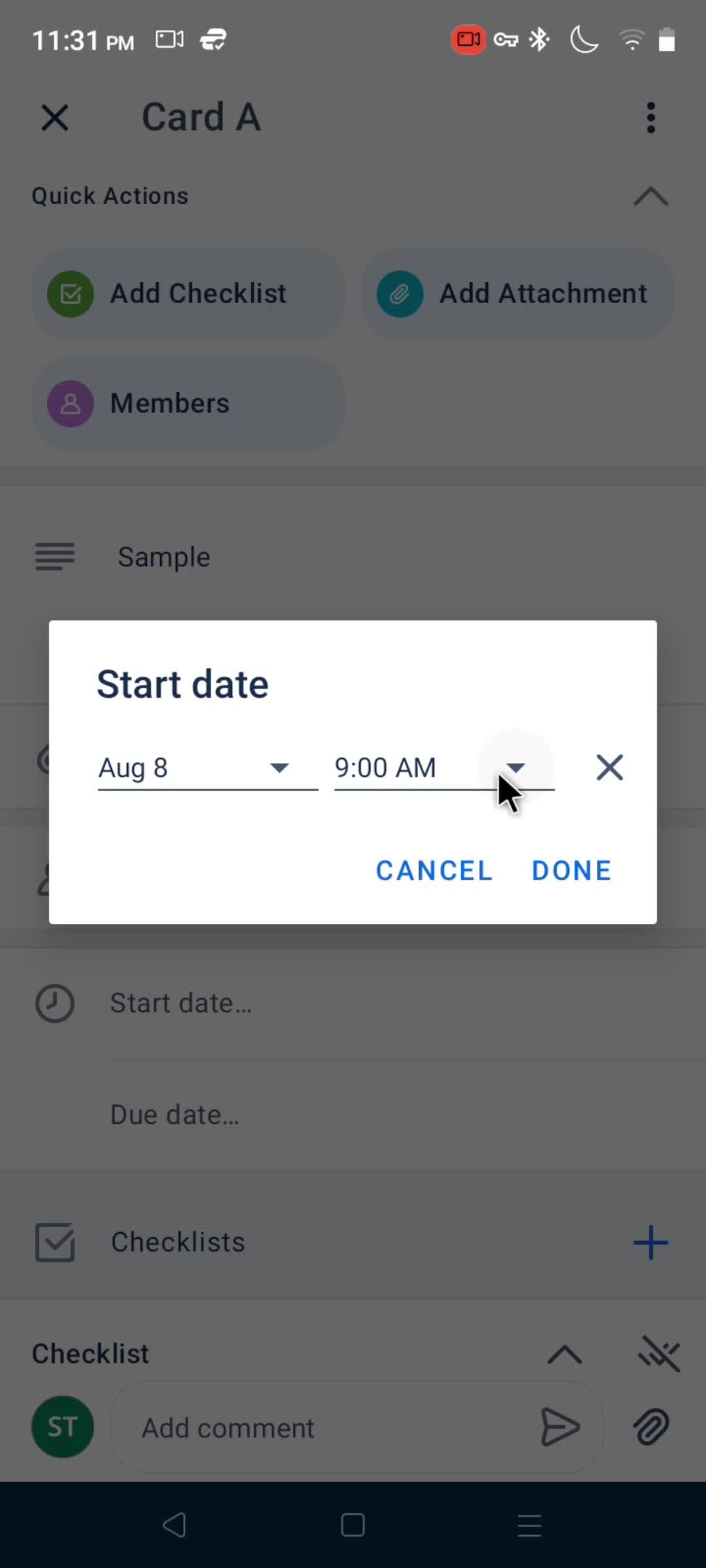
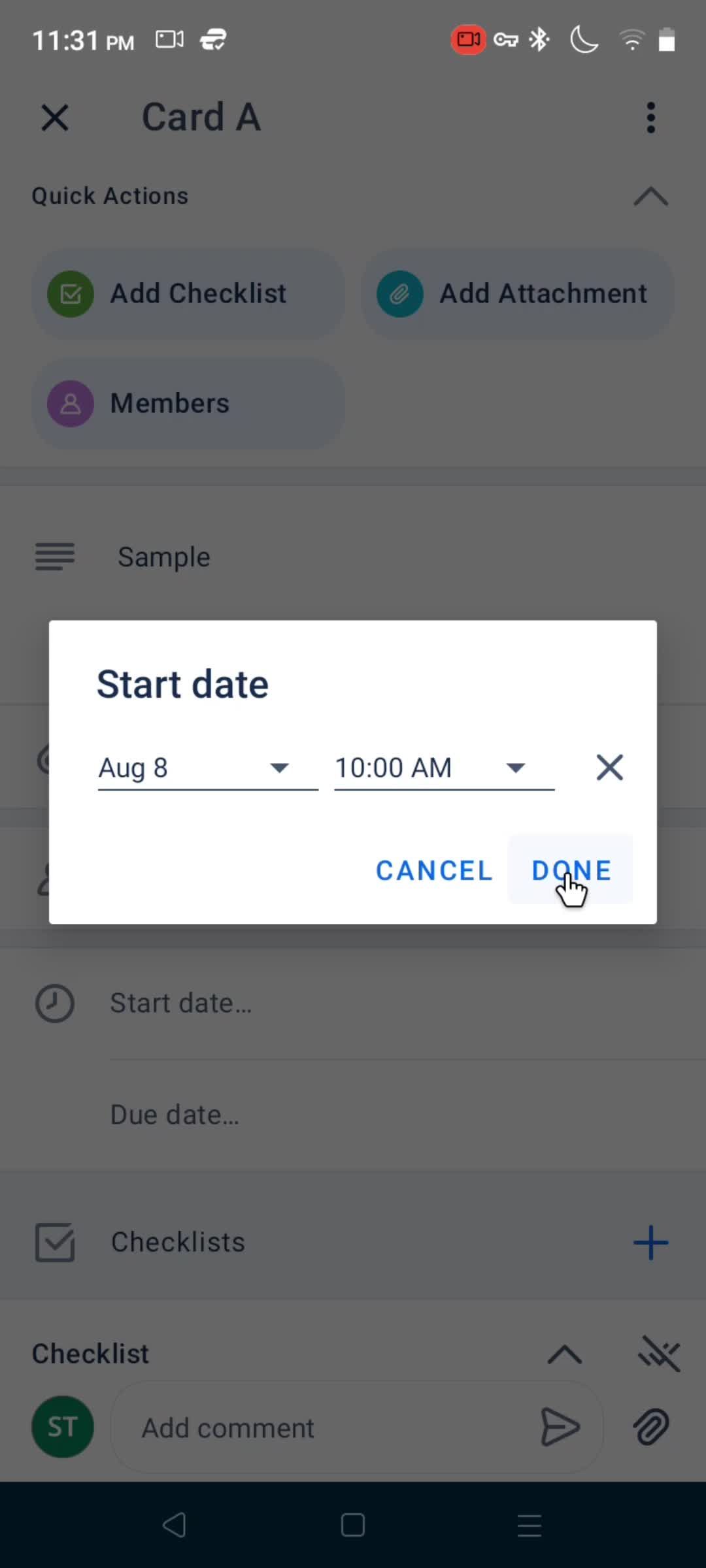
Select start date
this is title
this is title
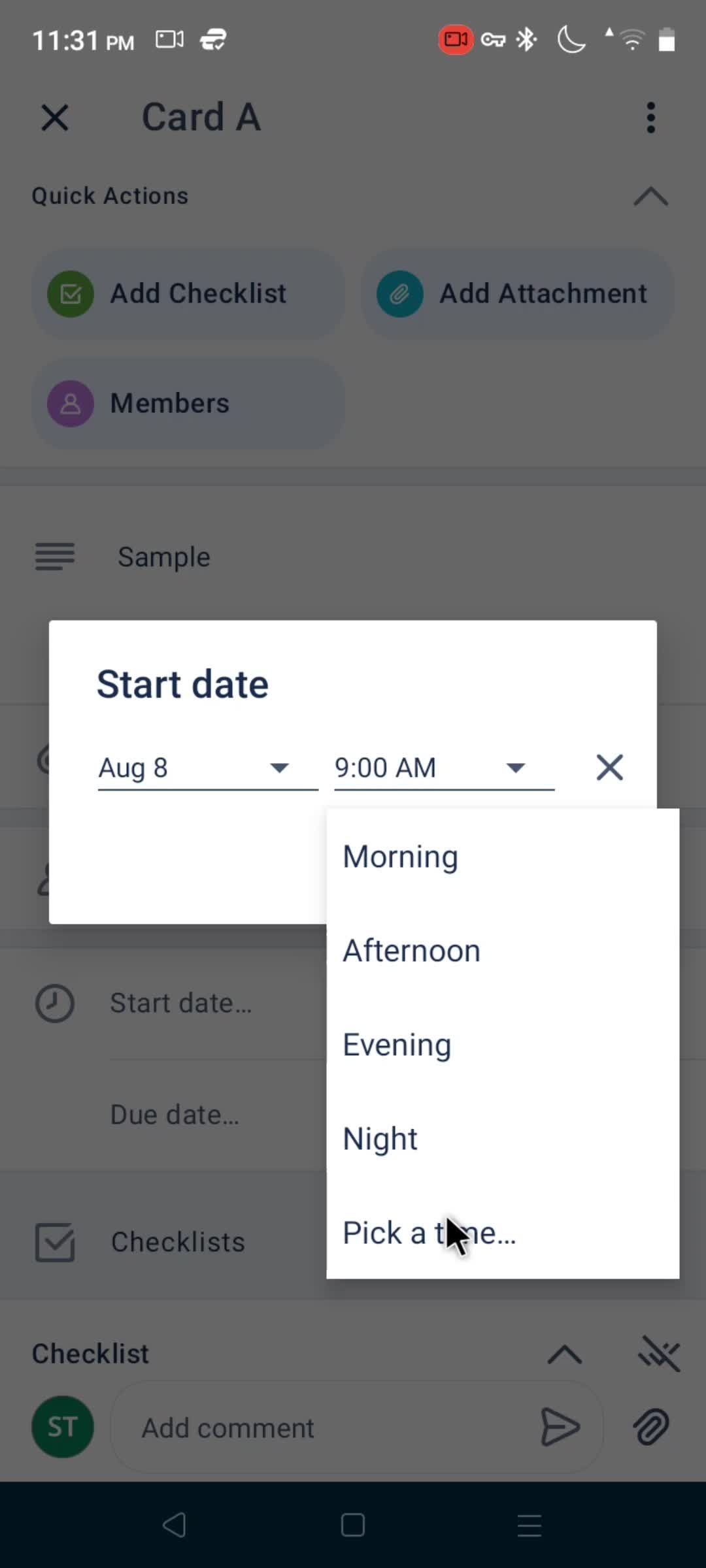
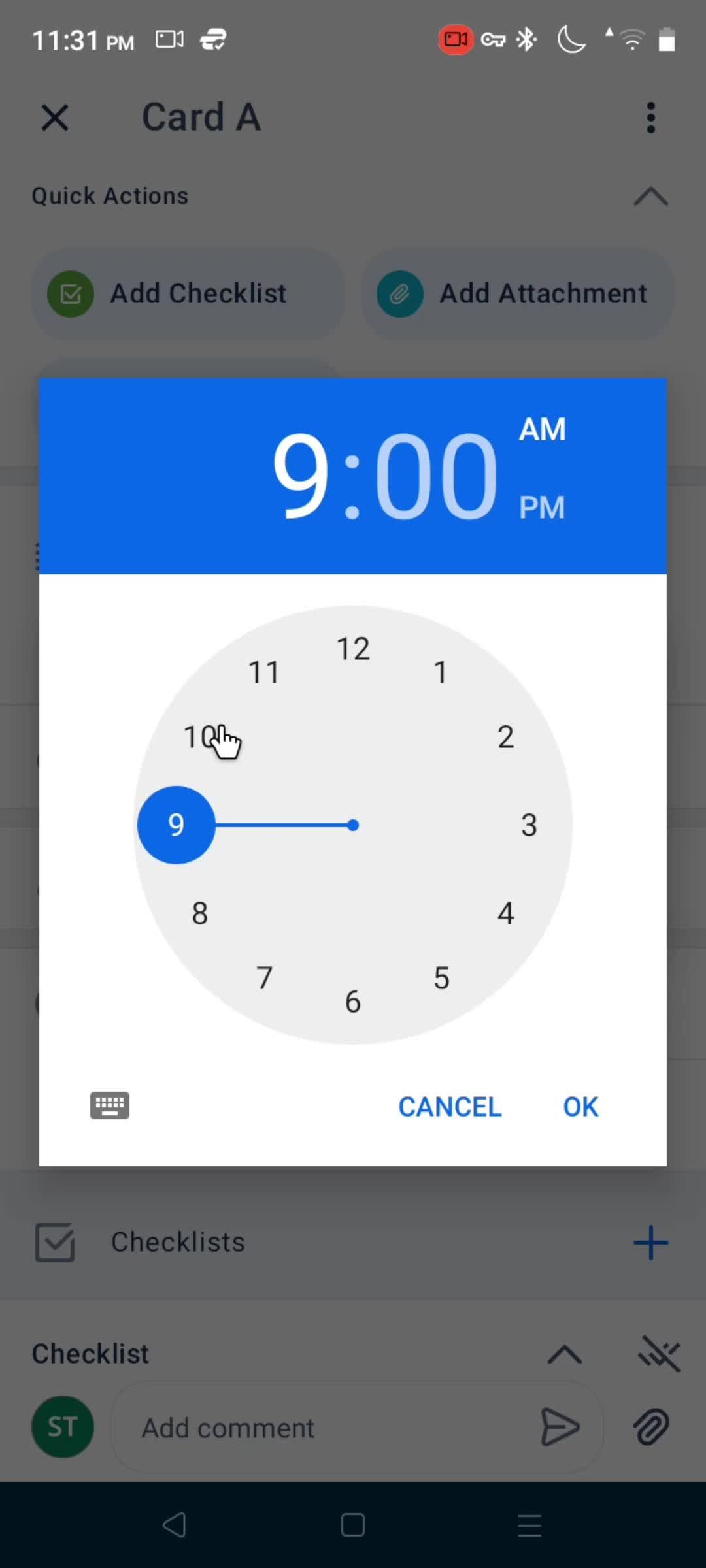
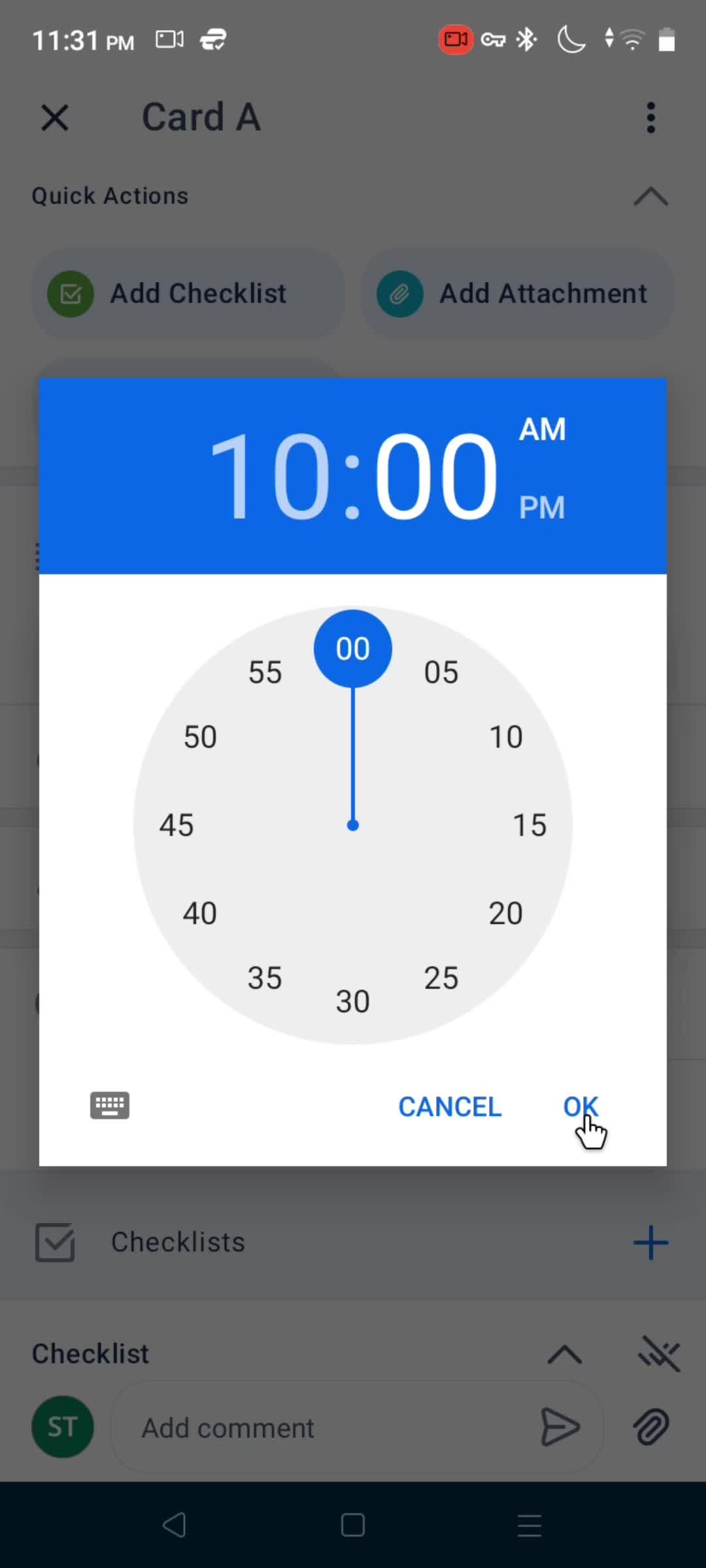
Select time
this is title
this is title
this is title
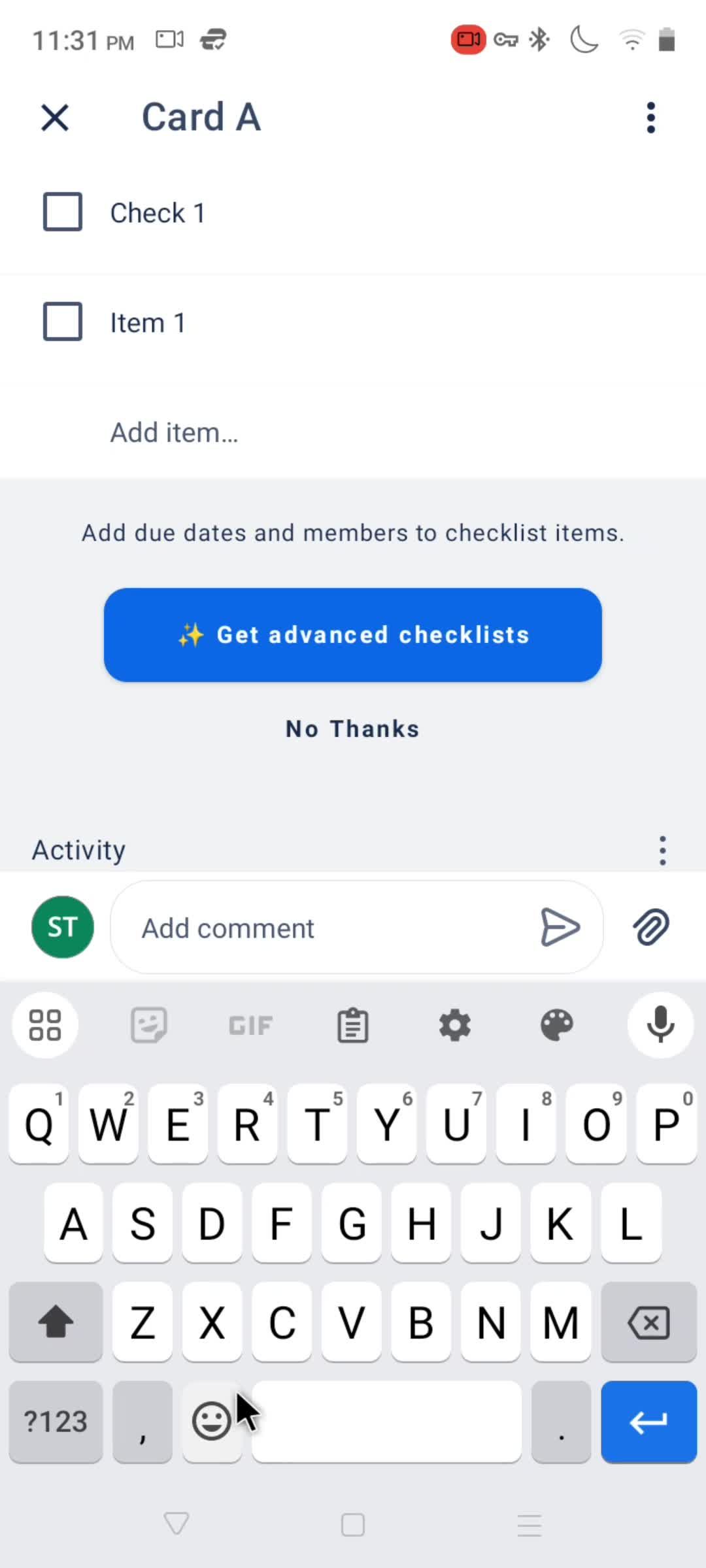
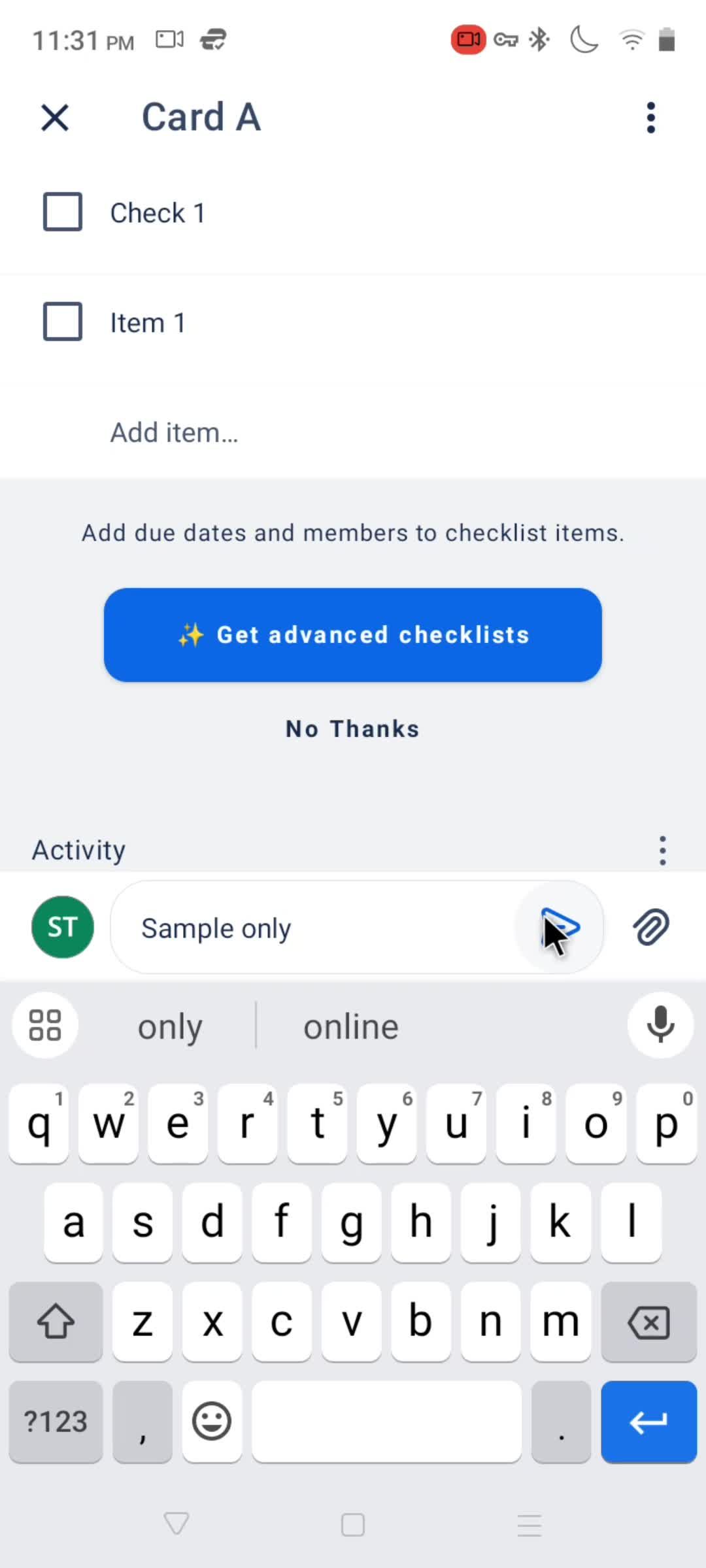
Add comment
this is title
this is title
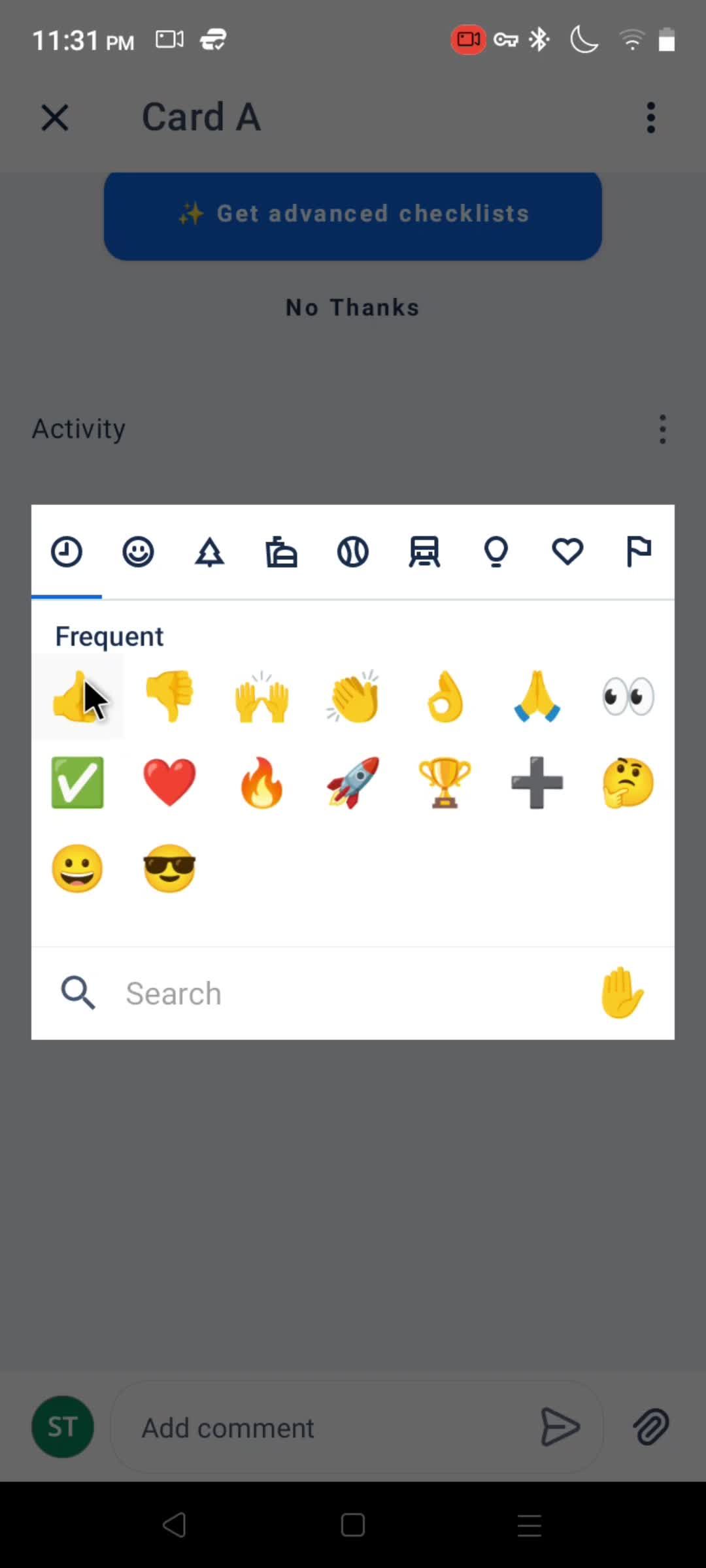
Emoji picker
this is title
this is title
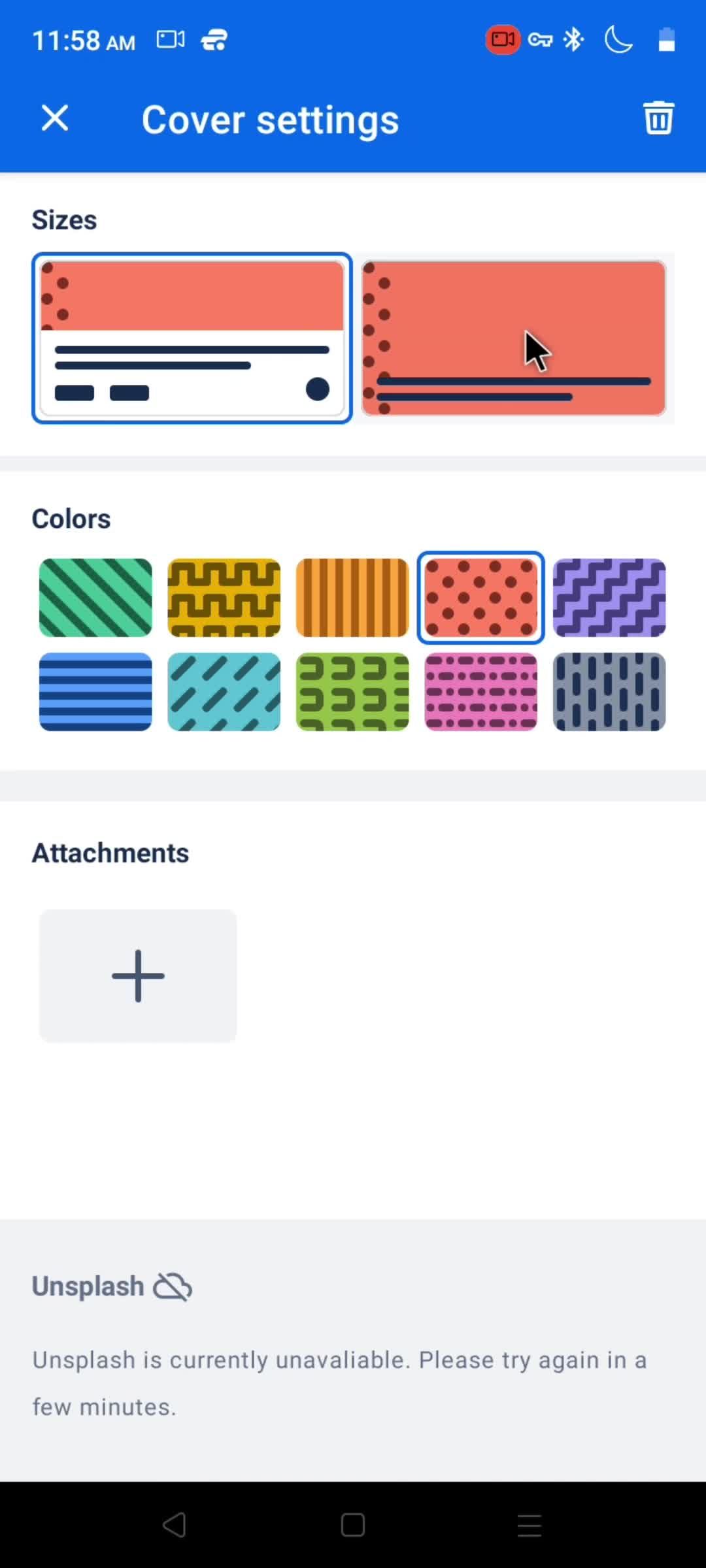
Select cover
this is title
this is title
Boards
this is title
Workspace menu
this is title
Profile menu
this is title
Boards
this is title
Board
this is title
Board menu
this is title
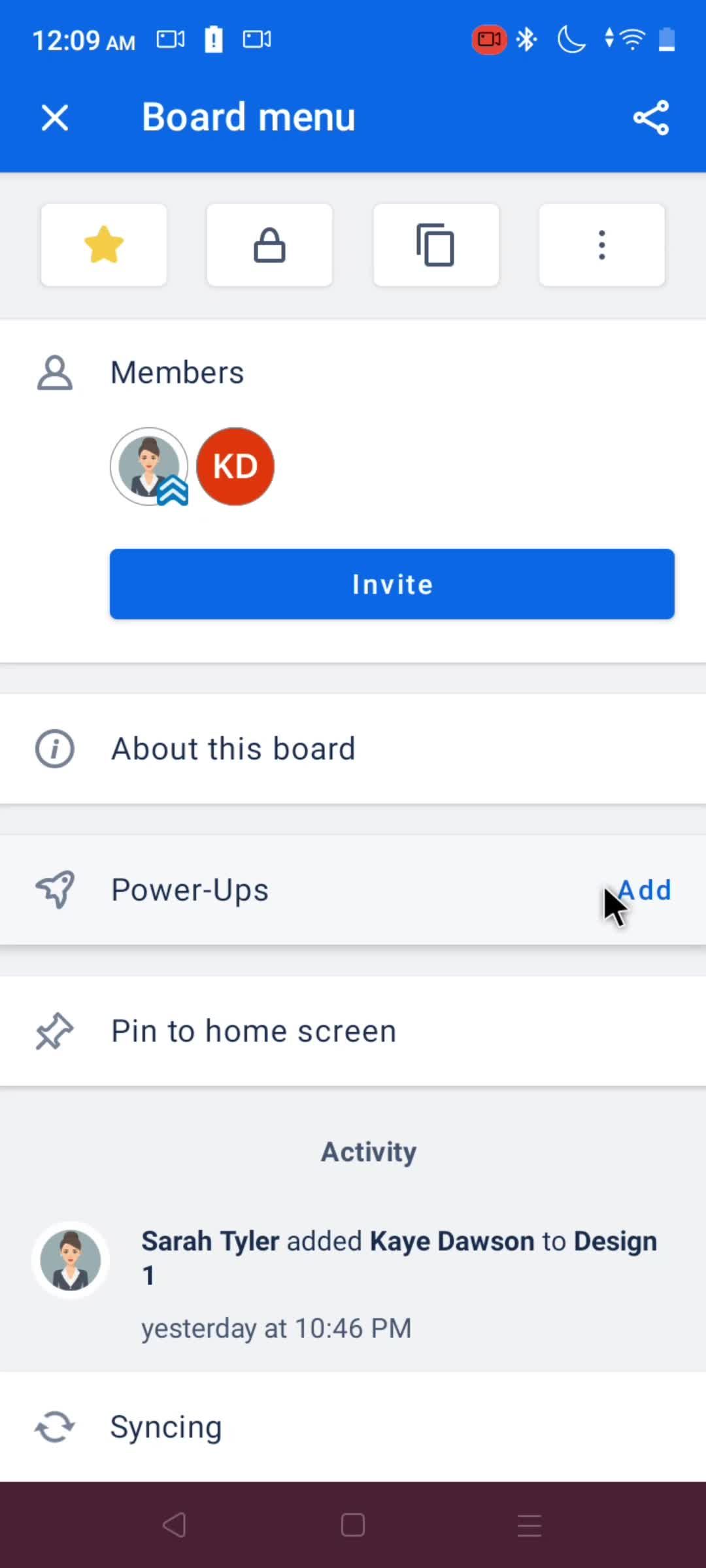
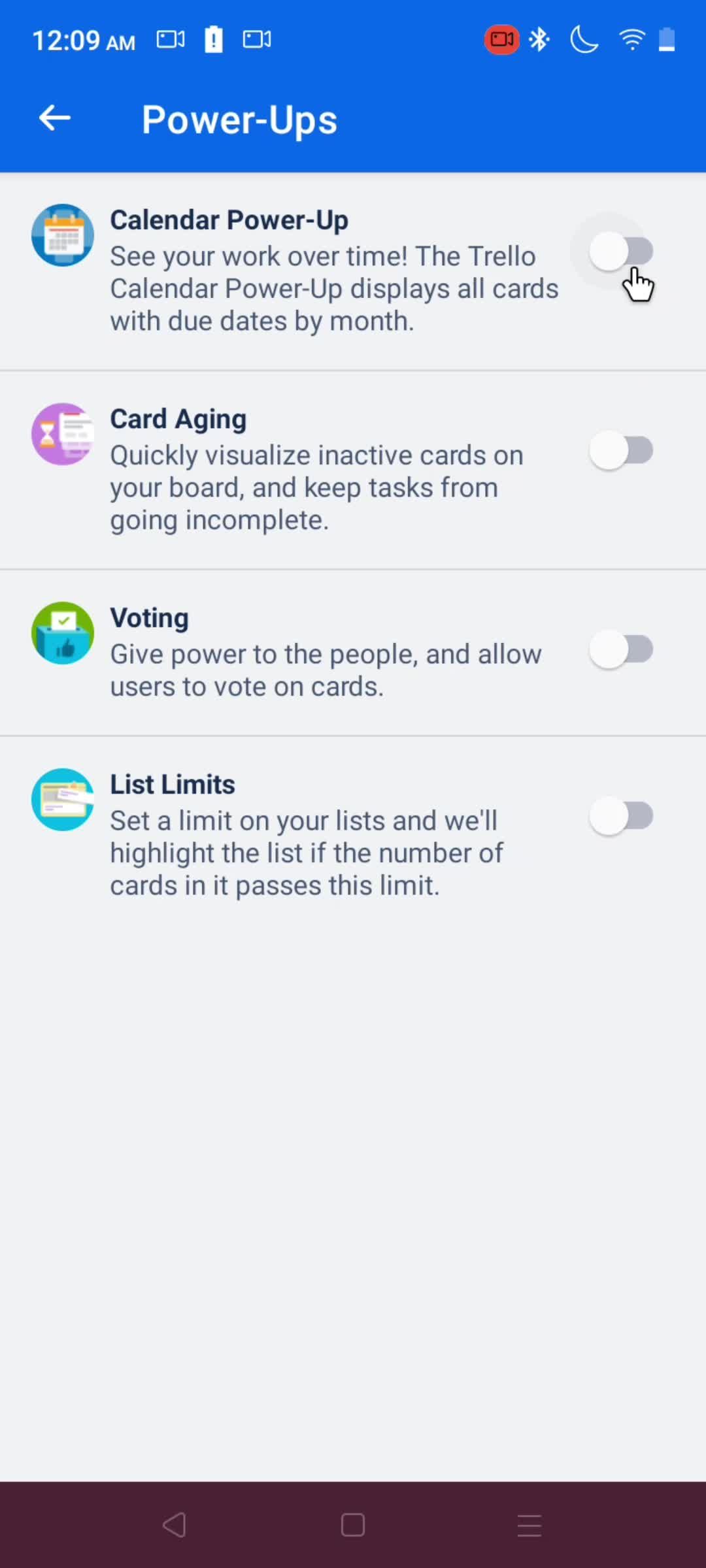
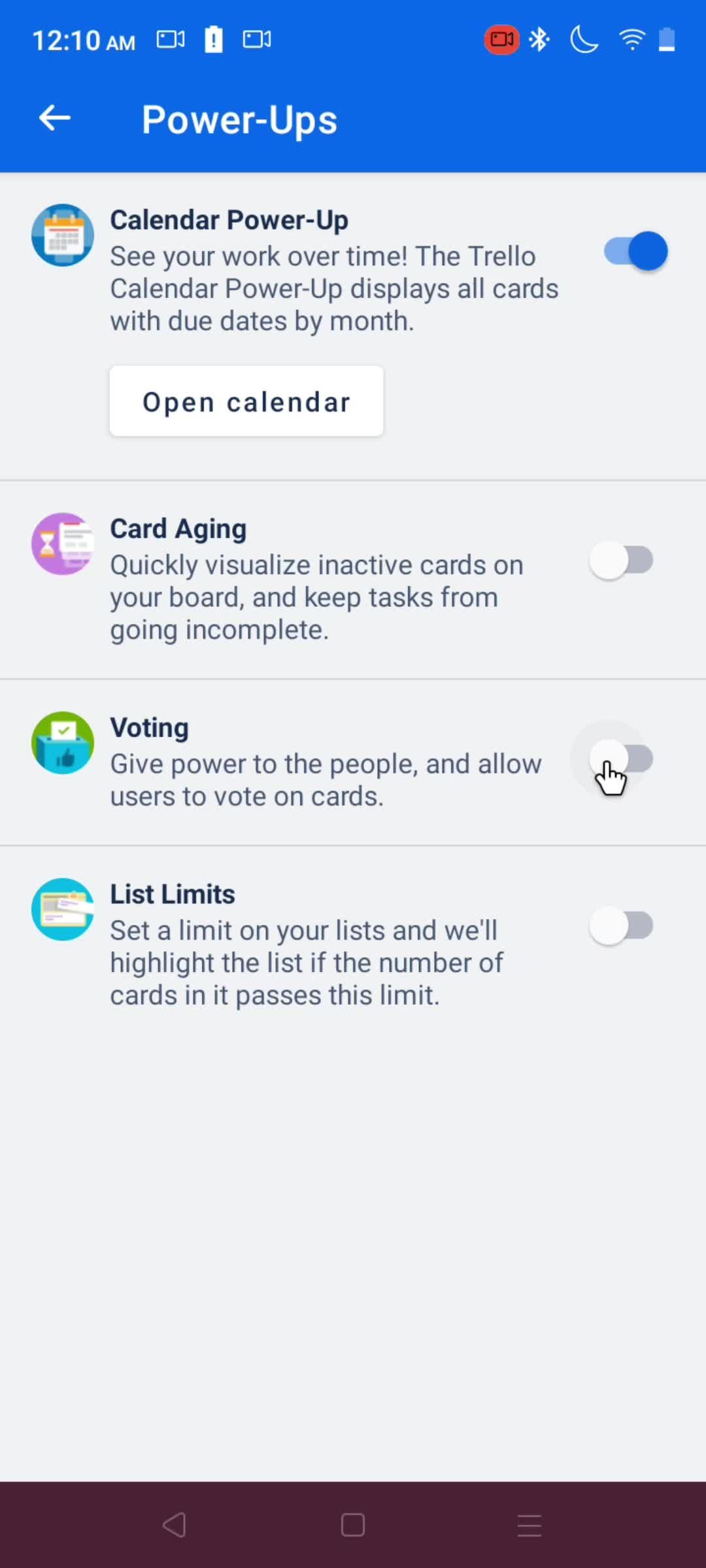
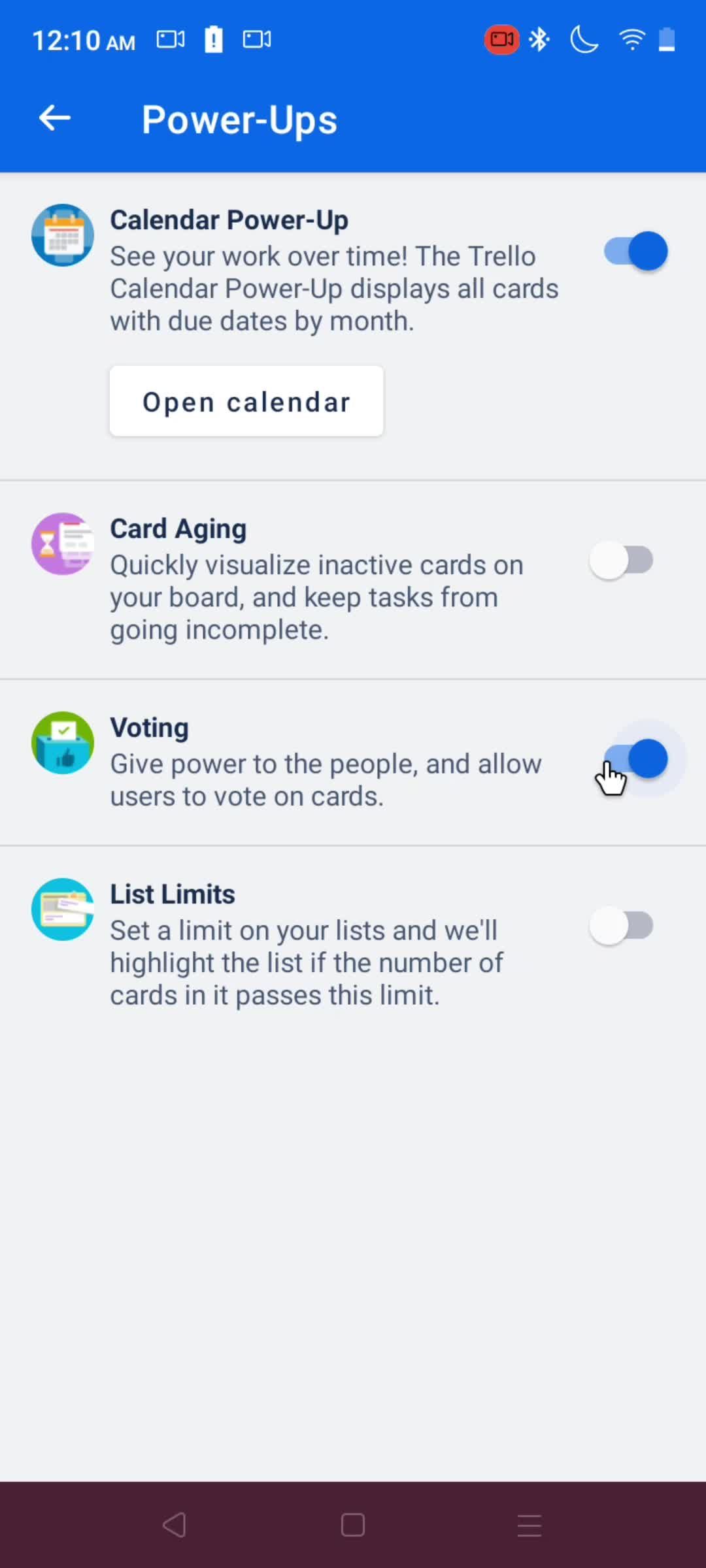
Power-ups
this is title
this is title
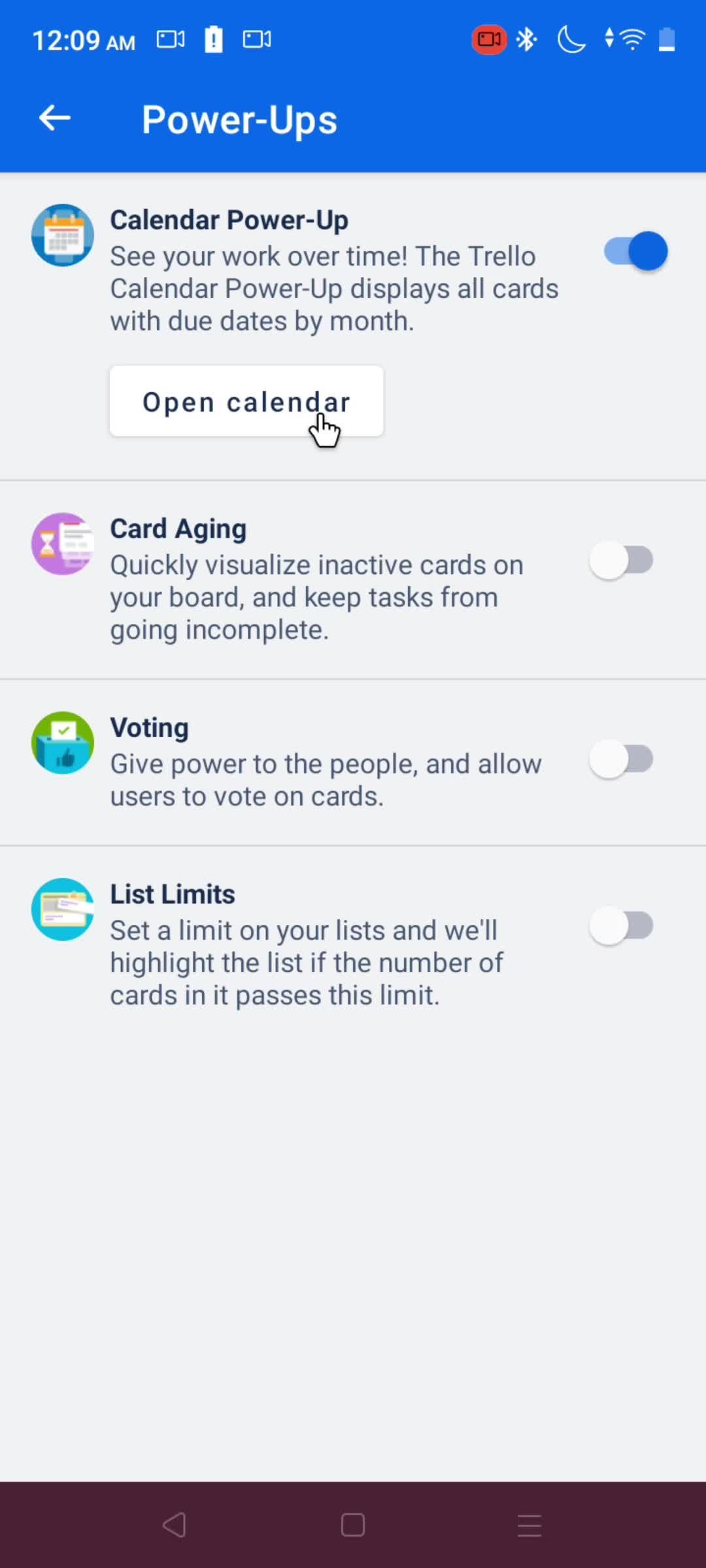
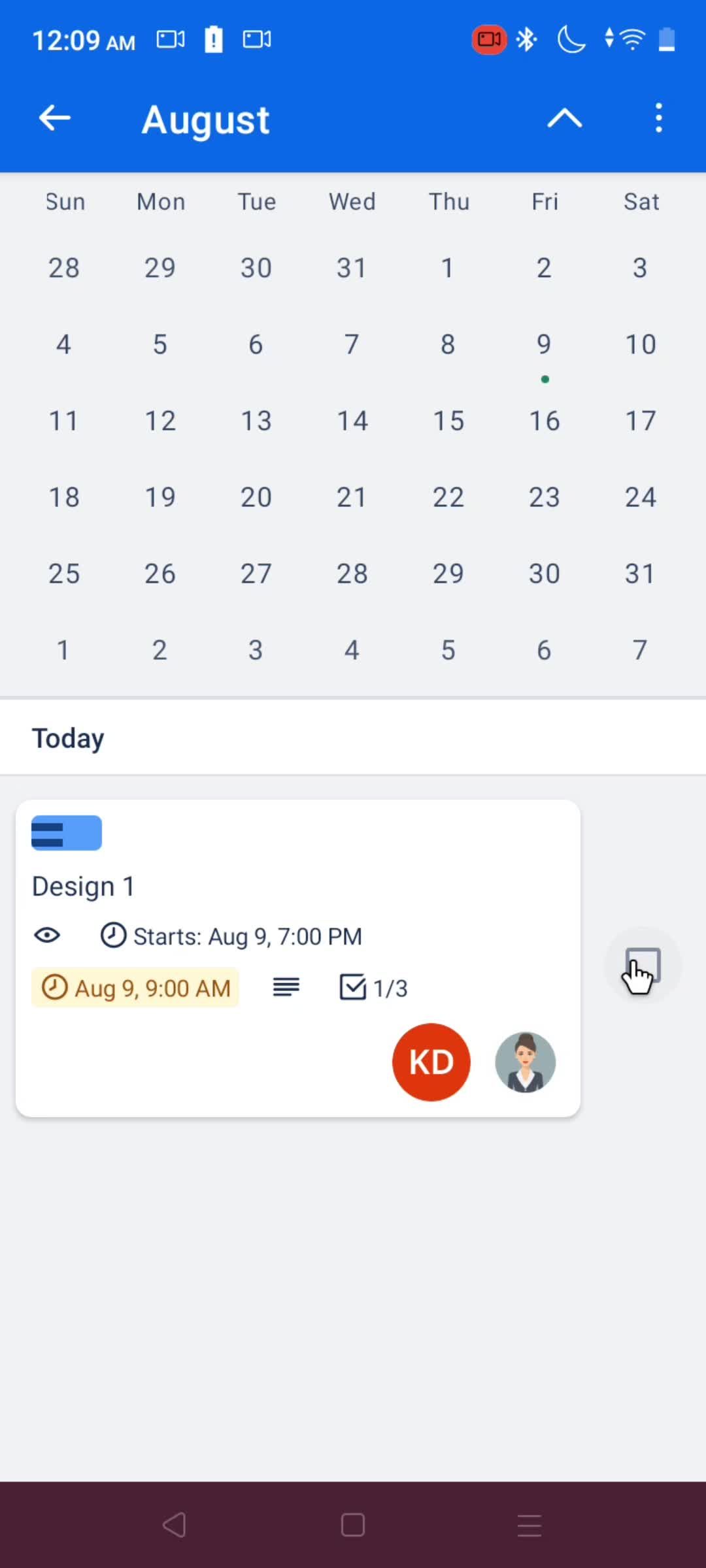
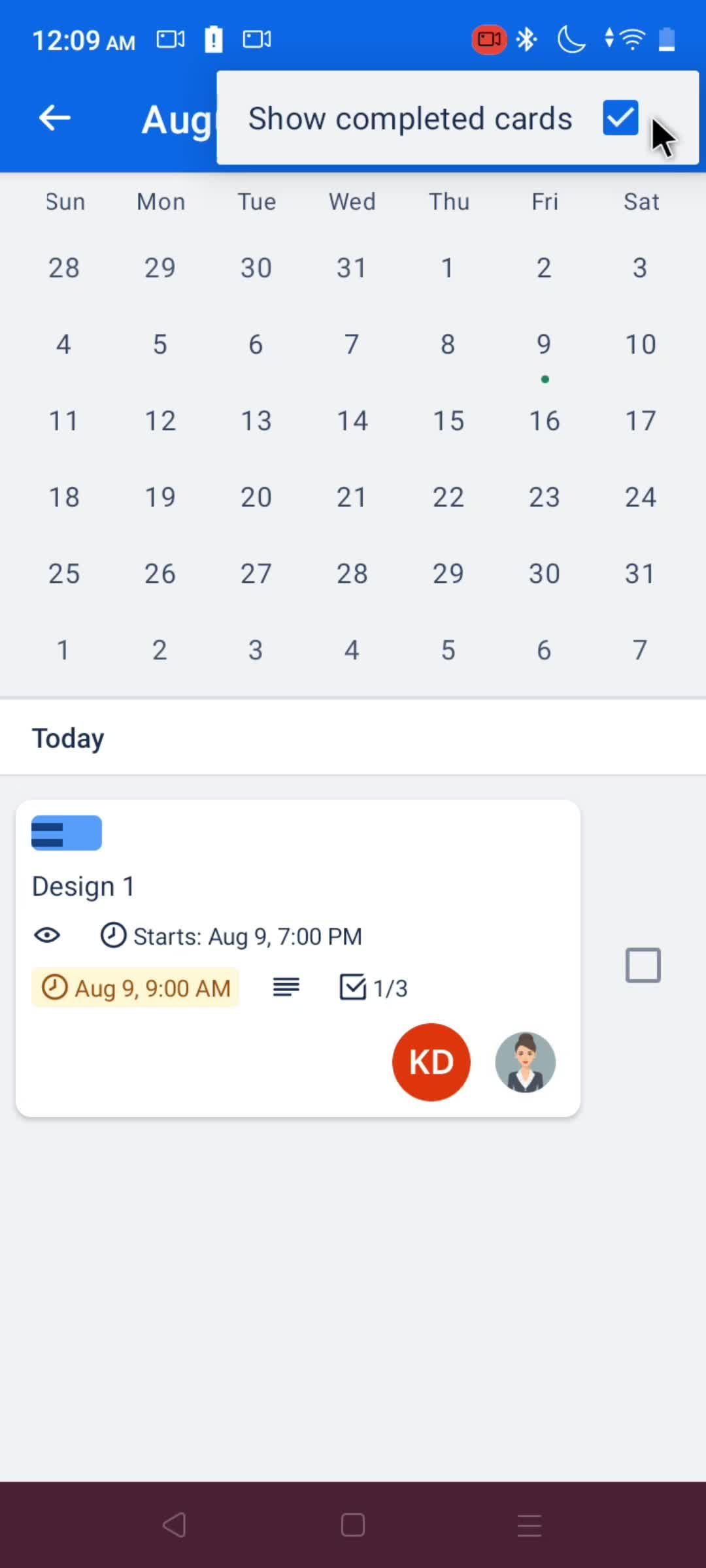
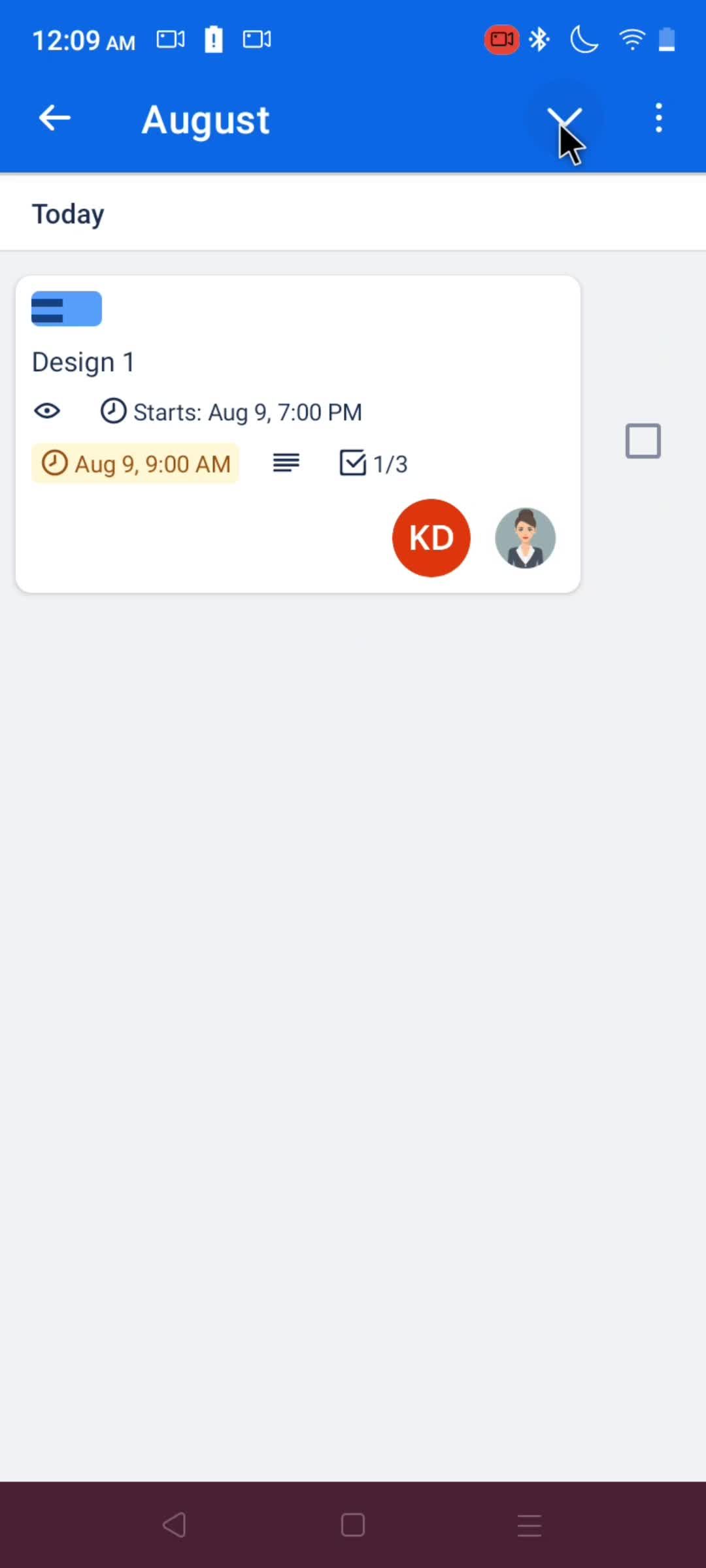
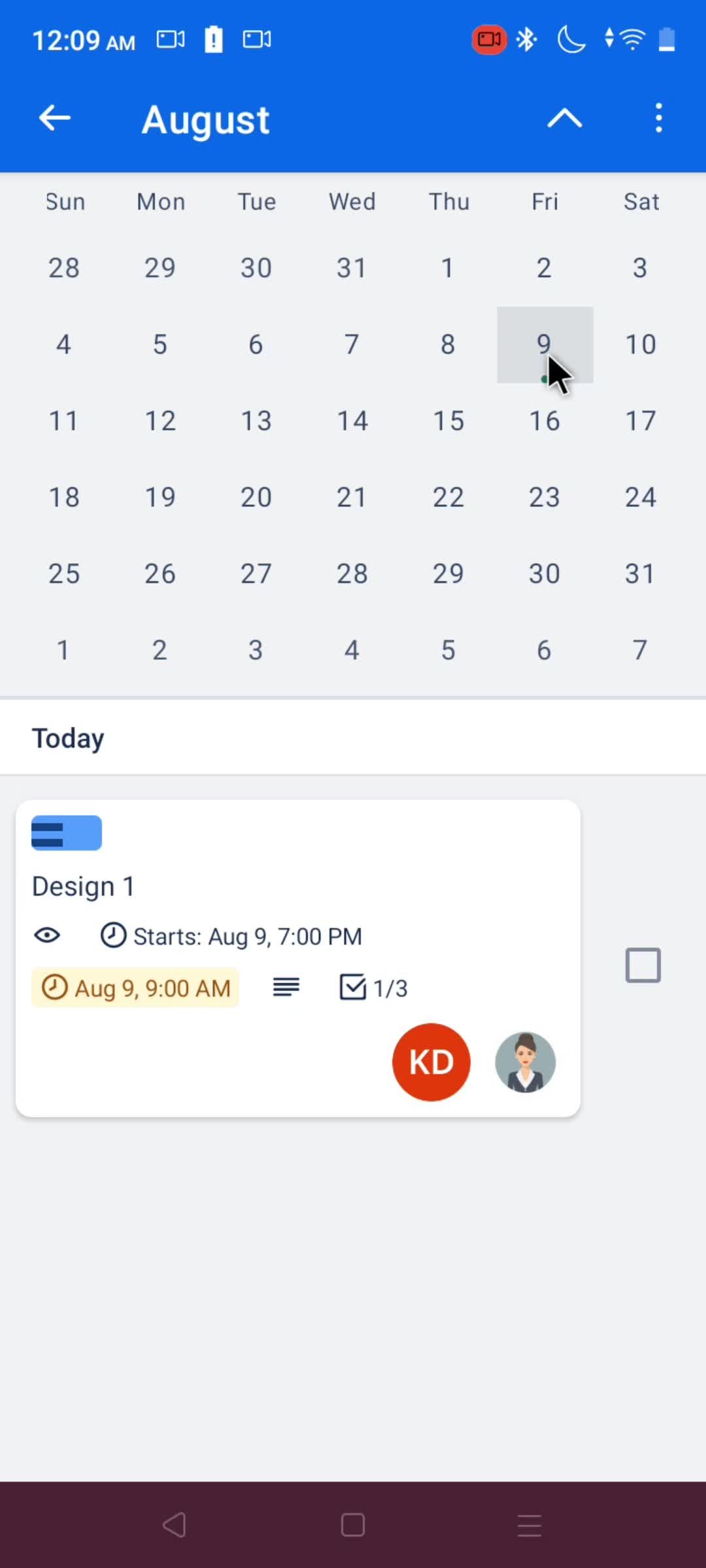
Calendar
this is title
Action menu
this is title
this is title
Select date
this is title
this is title
this is title
Boards
this is title
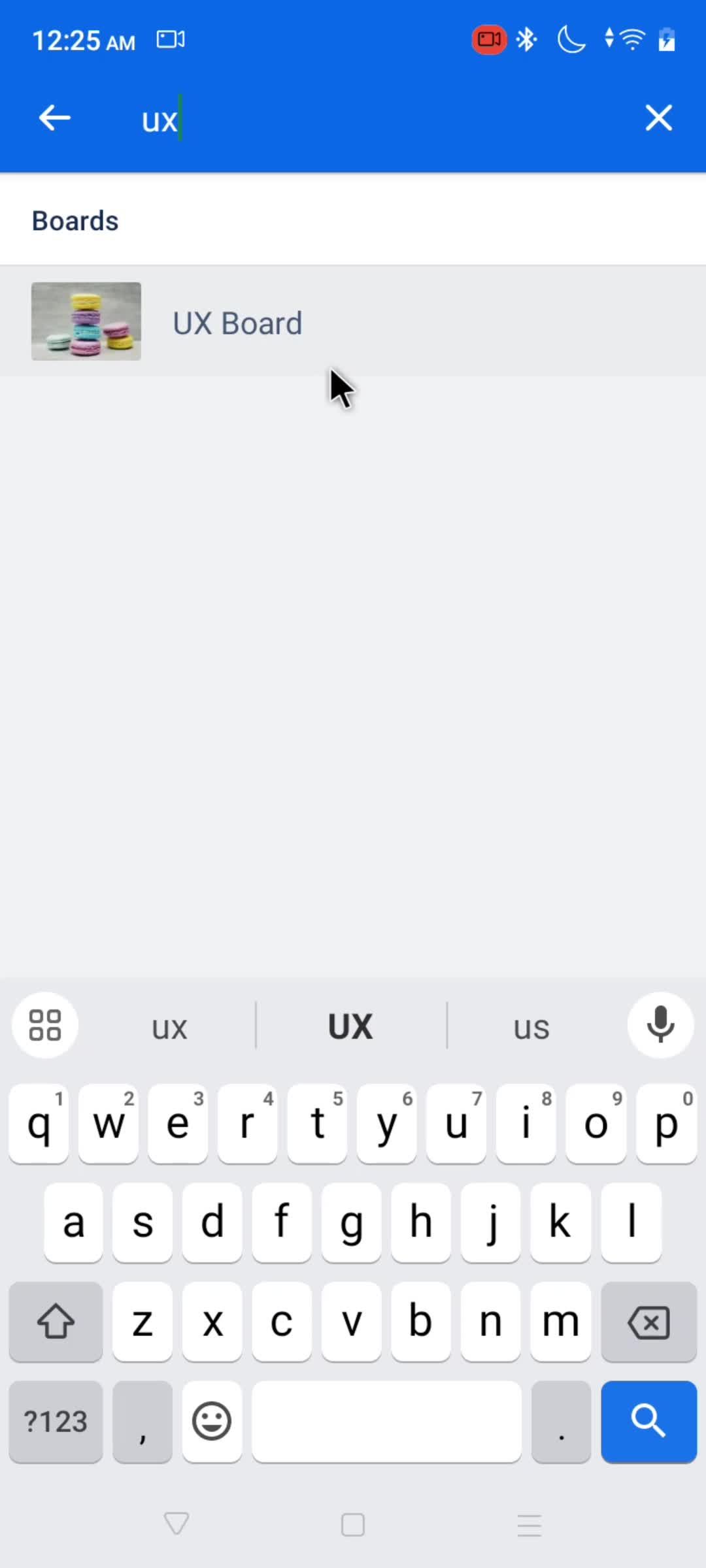
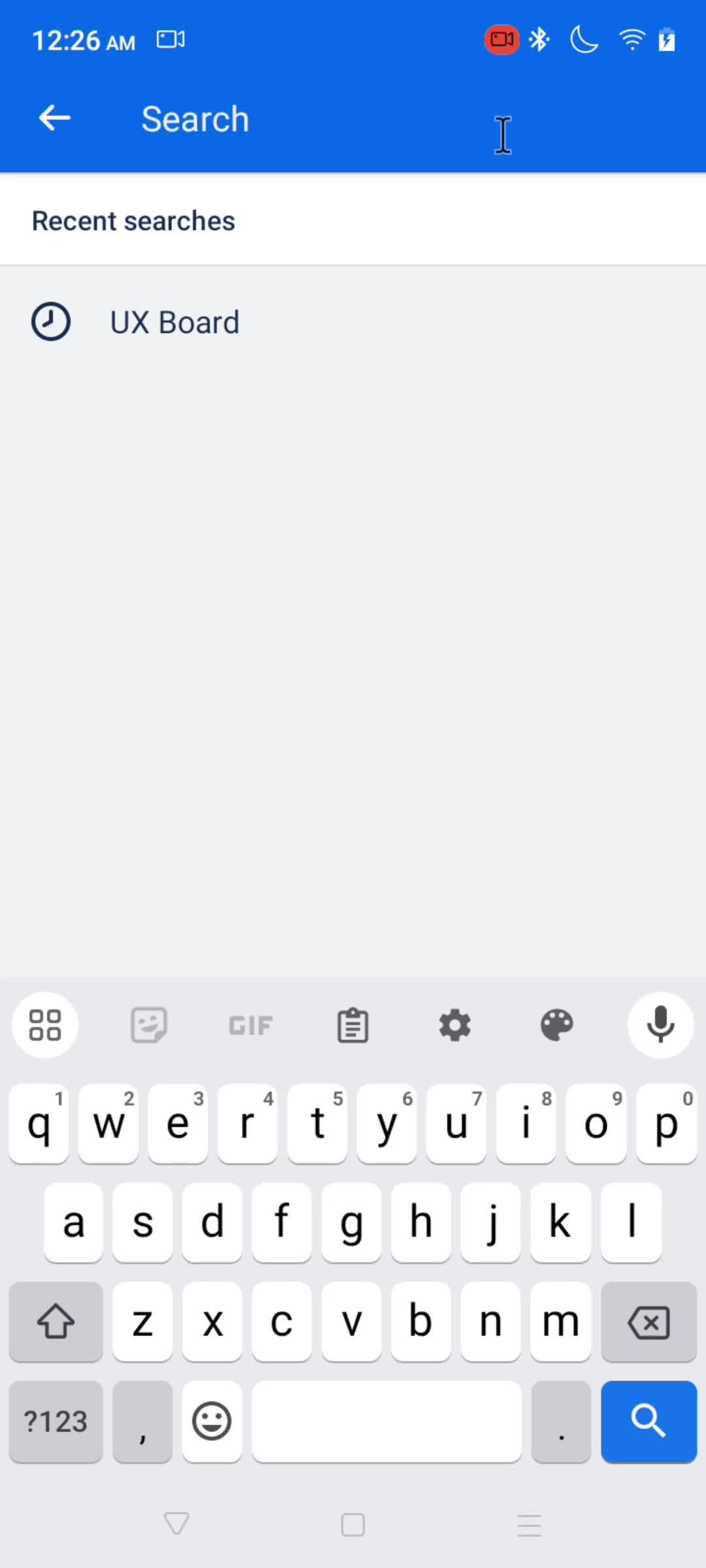
Search
this is title
Search results
this is title
this is title
Search
this is title
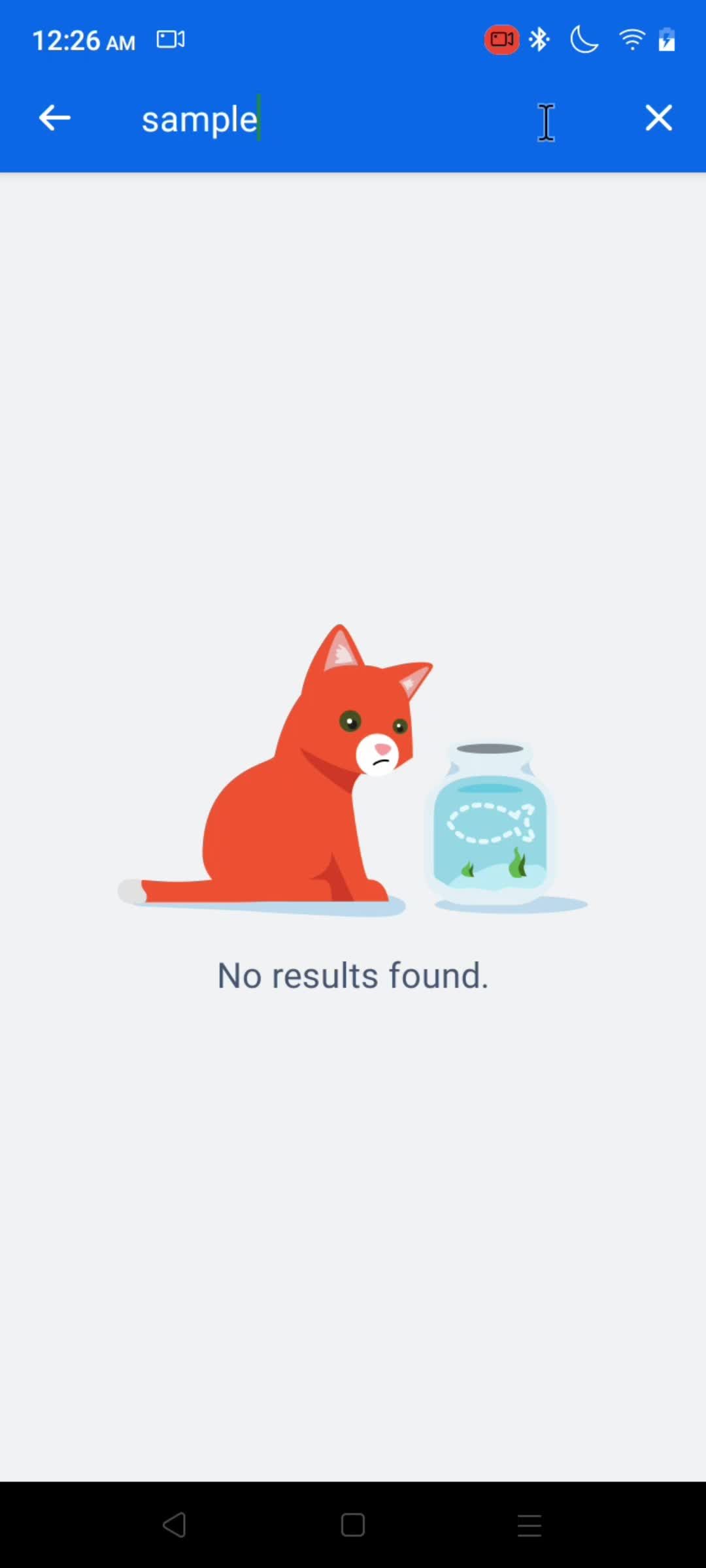
No search results
this is title
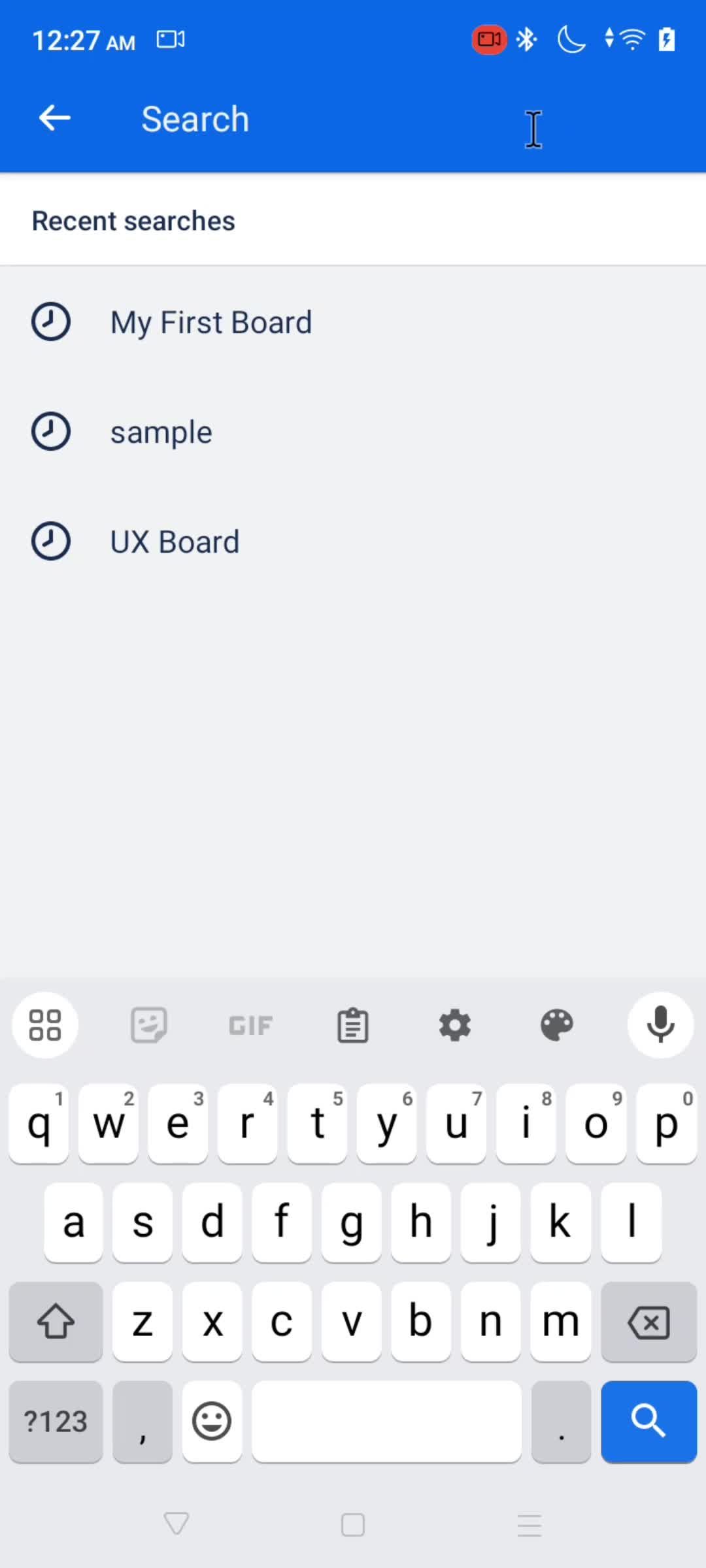
Recent searches
this is title
Boards
this is title
Profile menu
this is title
Settings
this is title
Select theme
this is title
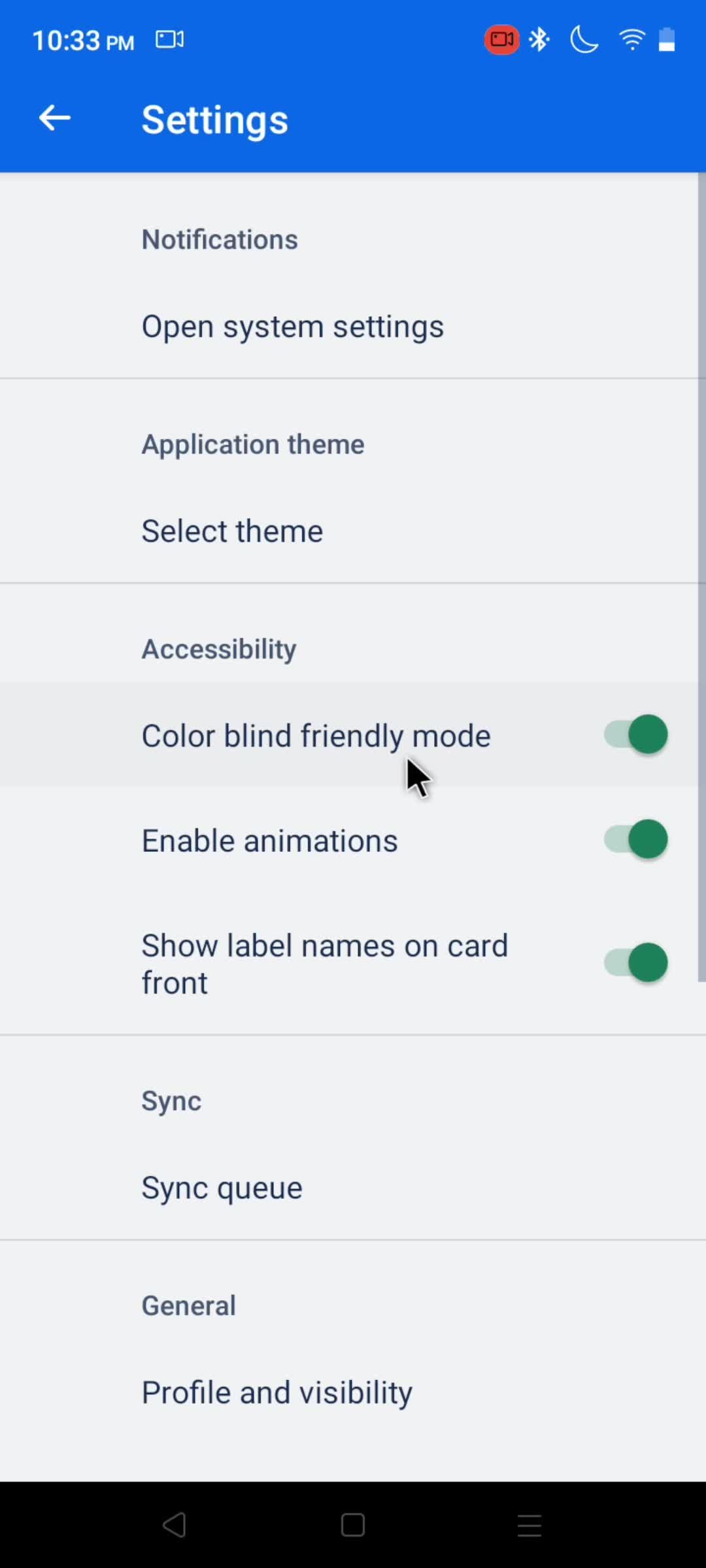
Light mode
this is title
this is title
Dark mode
this is title
this is title
this is title
Accessibility settings
this is title
Sync
this is title
Action menu
this is title
Create card defaults
this is title
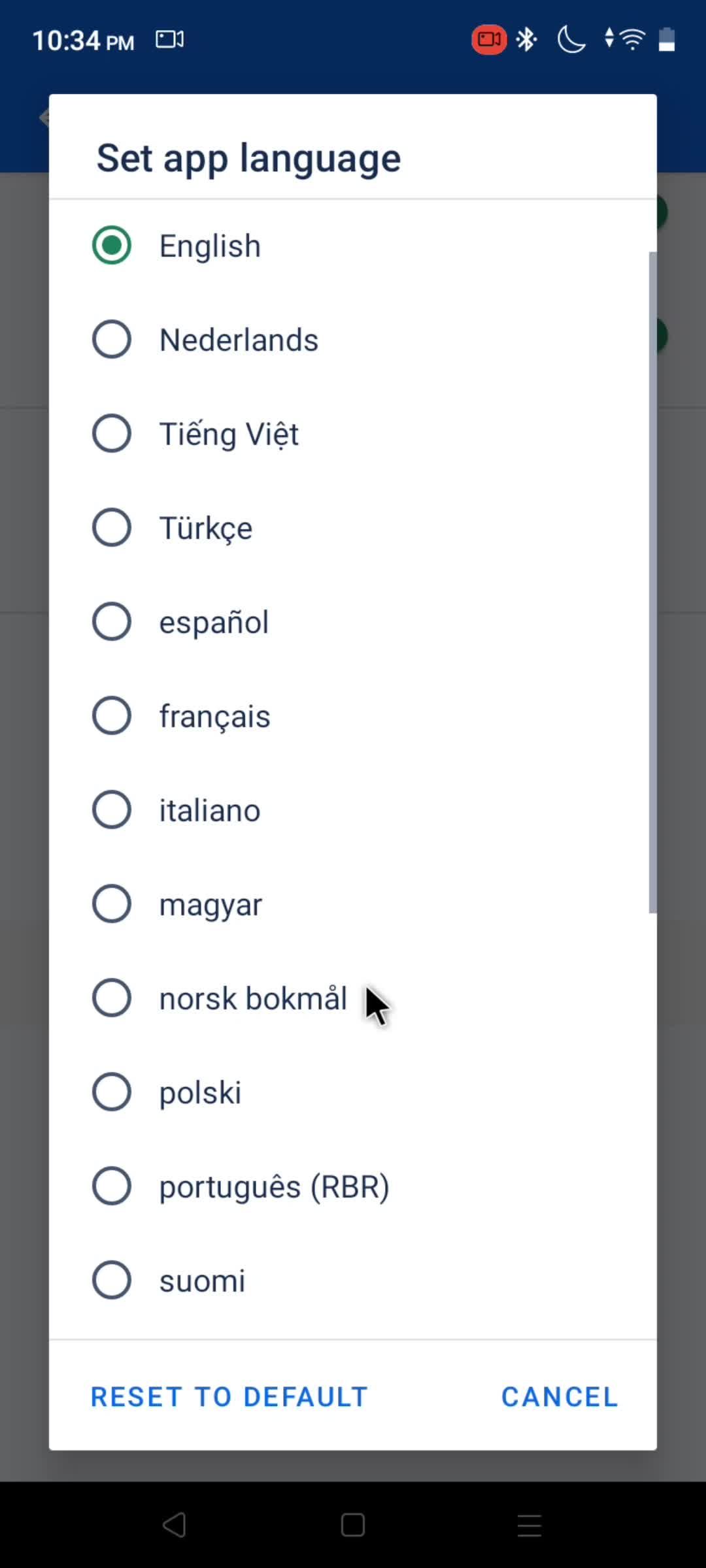
Languages
this is title
this is title
this is title
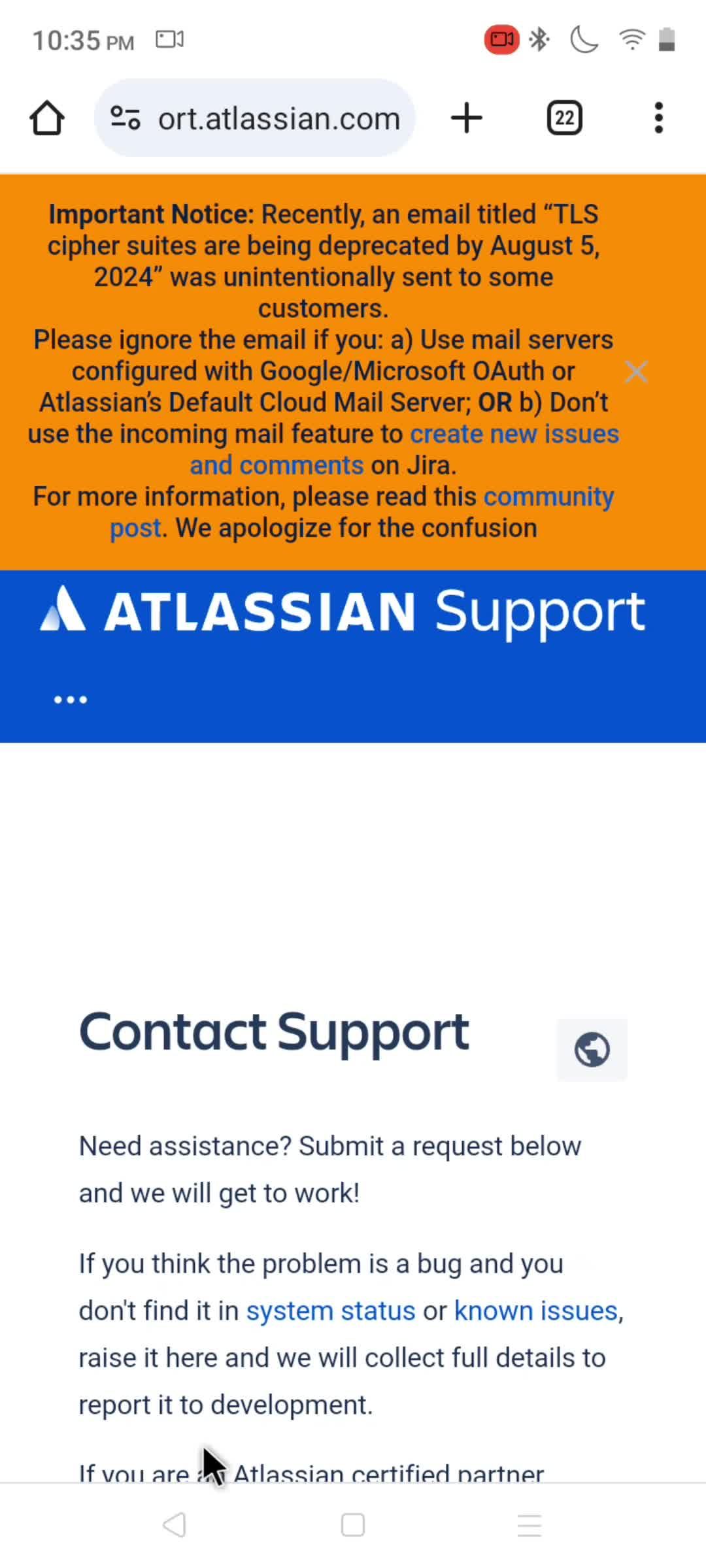
Support
this is title
this is title
Boards
this is title
Profile menu
this is title
Switch account
this is title
this is title
Profile menu
this is title
Switch account
this is title
this is title
Boards
this is title
Create menu
this is title
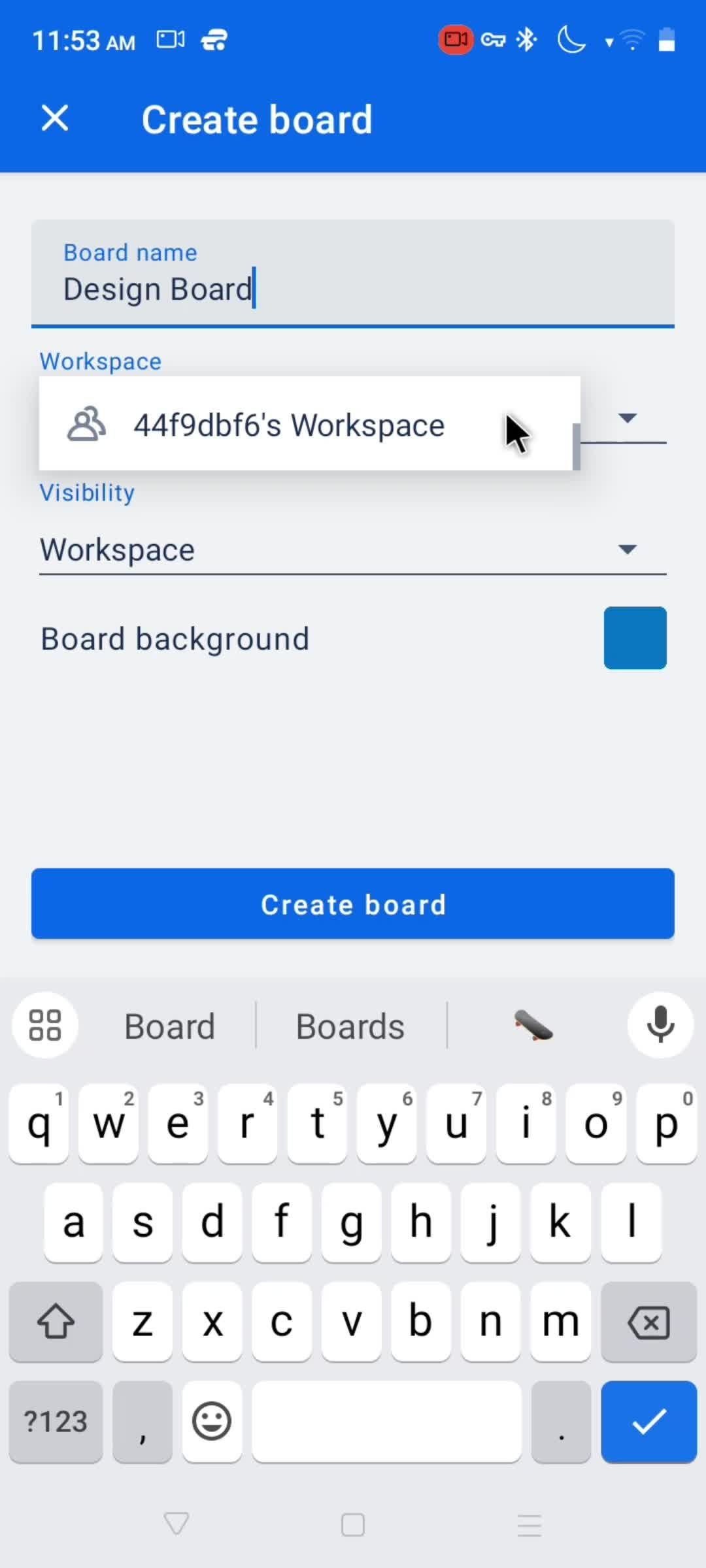
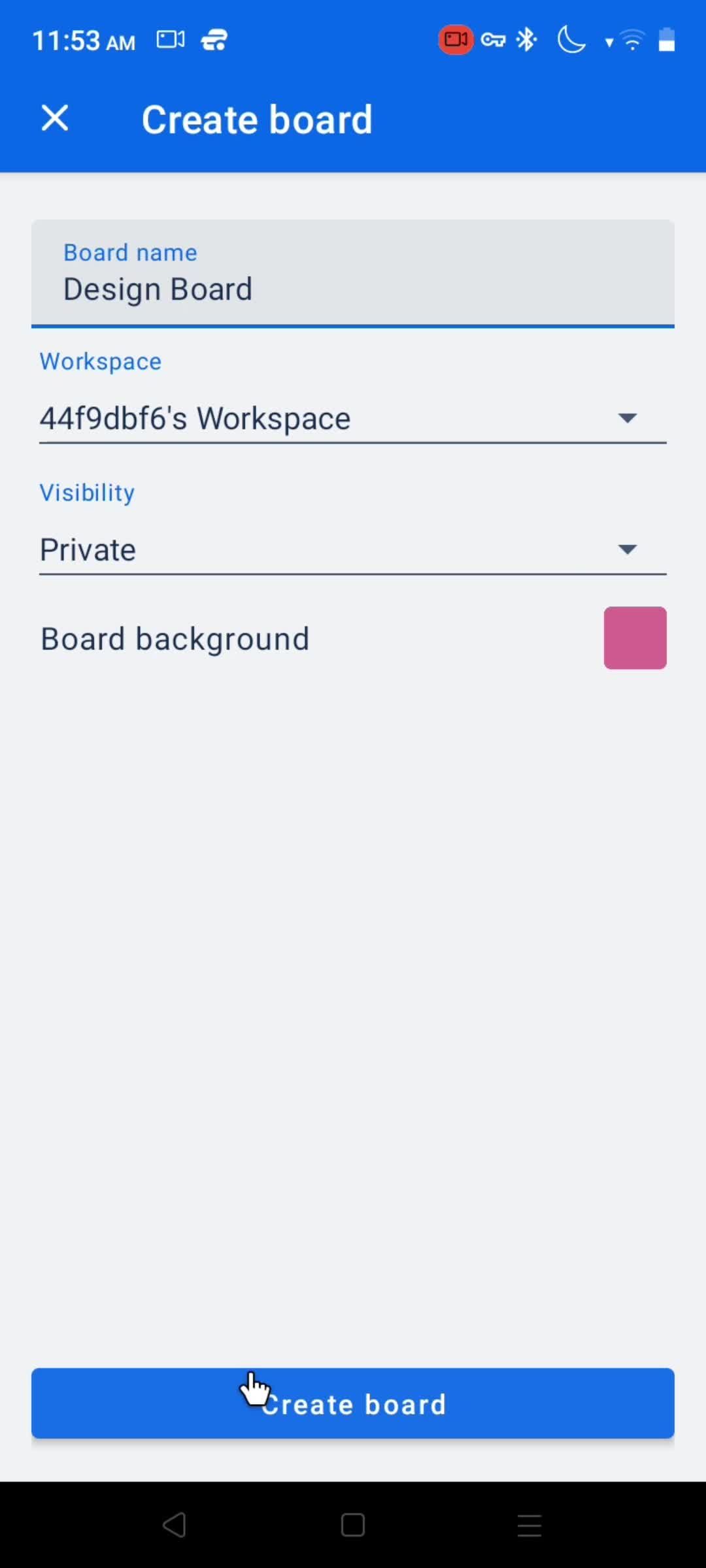
Create board
this is title
Enter title
this is title
Select workspace
this is title
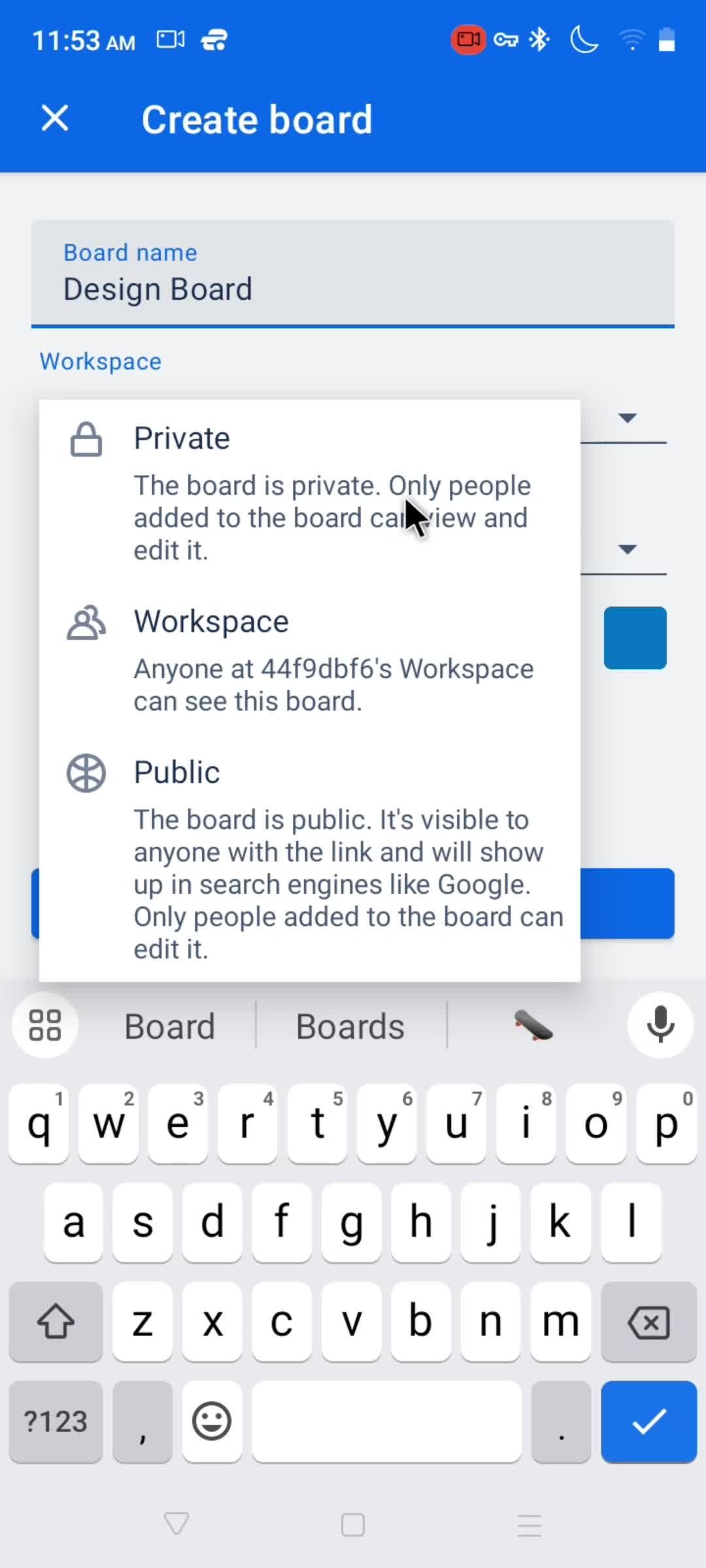
Set visibility
this is title
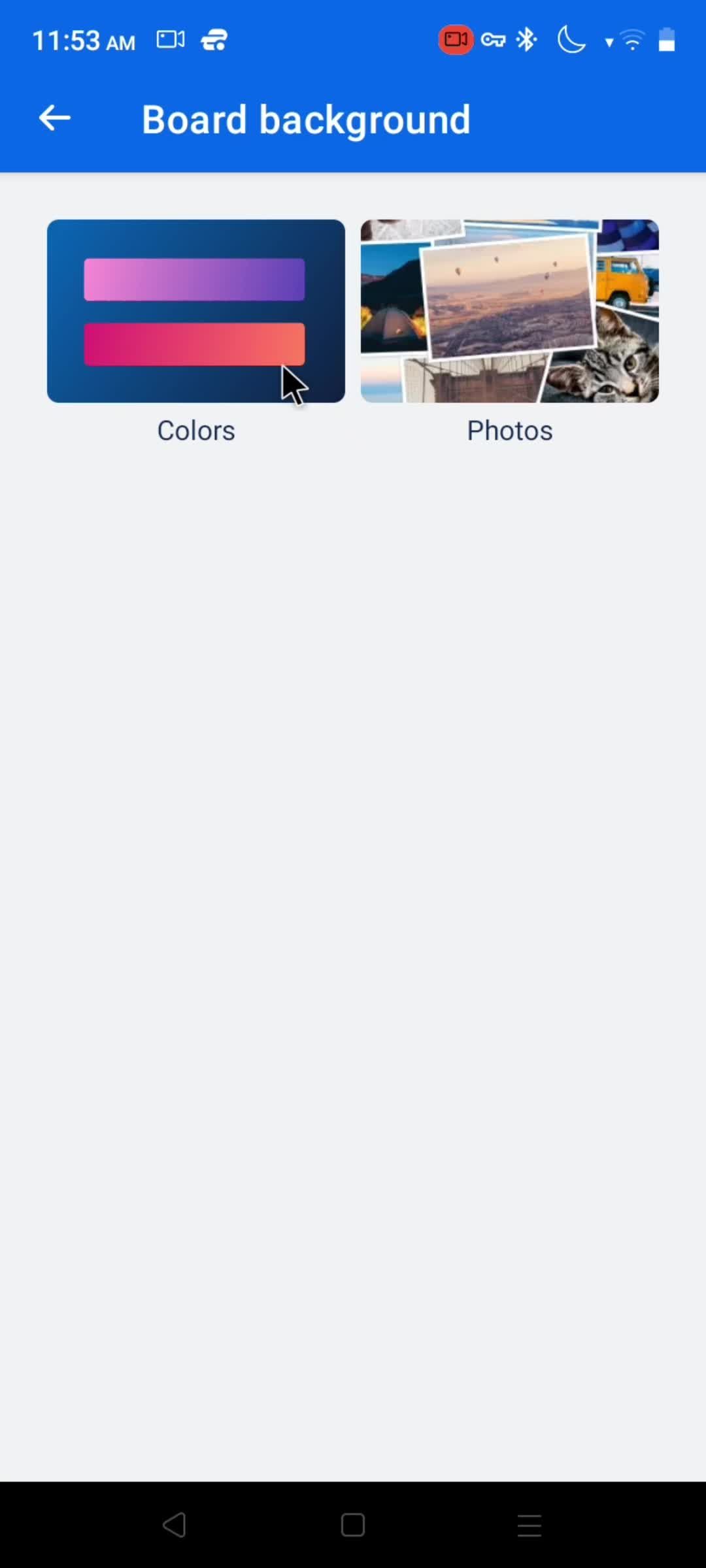
Backgrounds
this is title
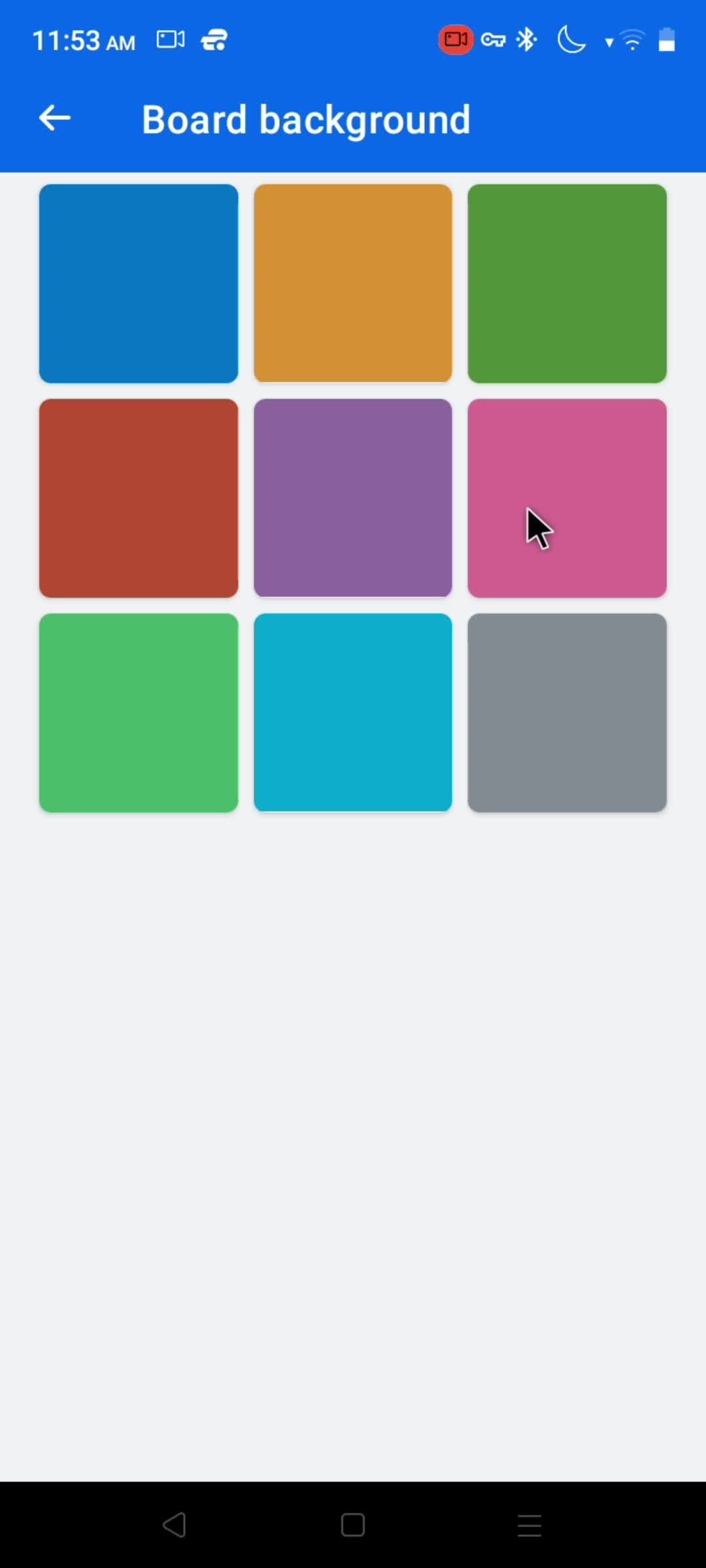
Choose background color
this is title
this is title
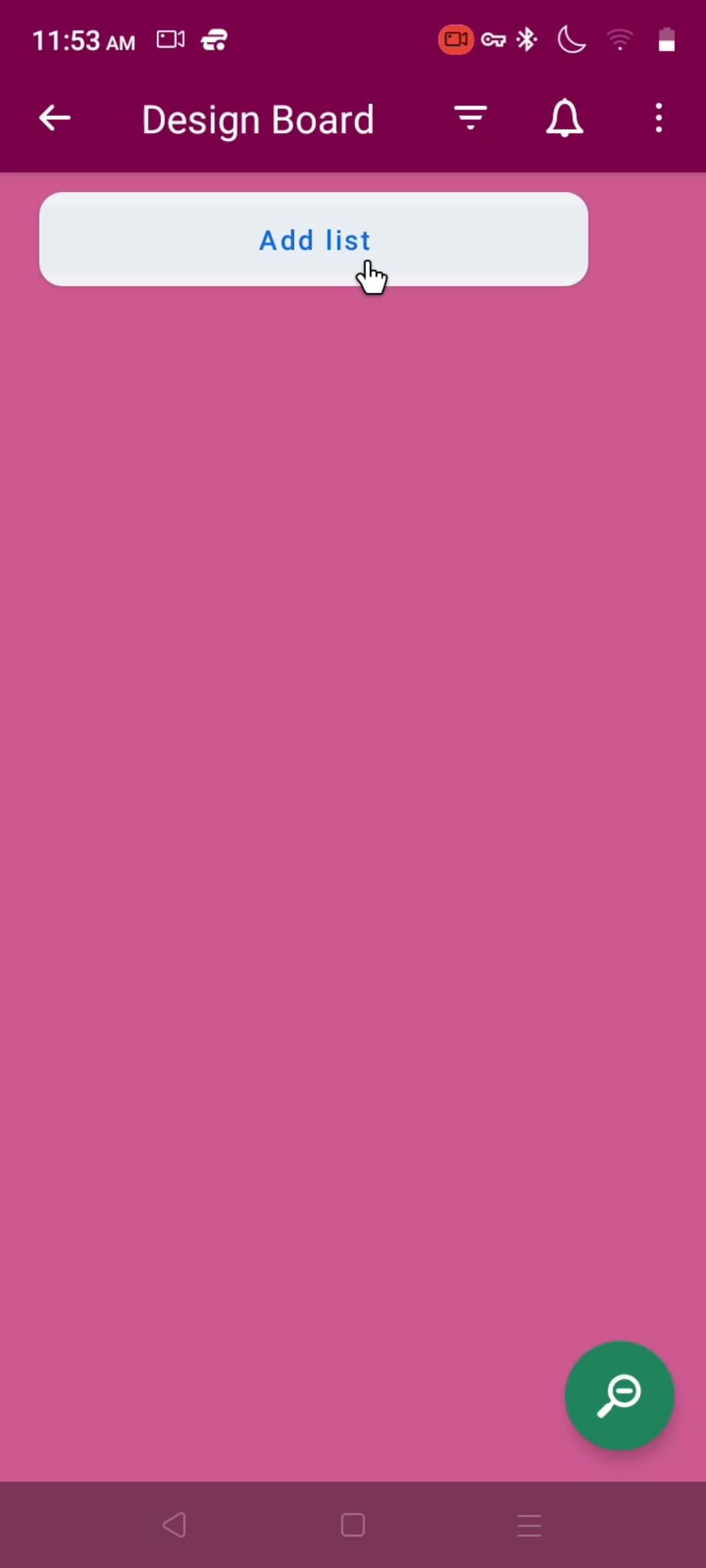
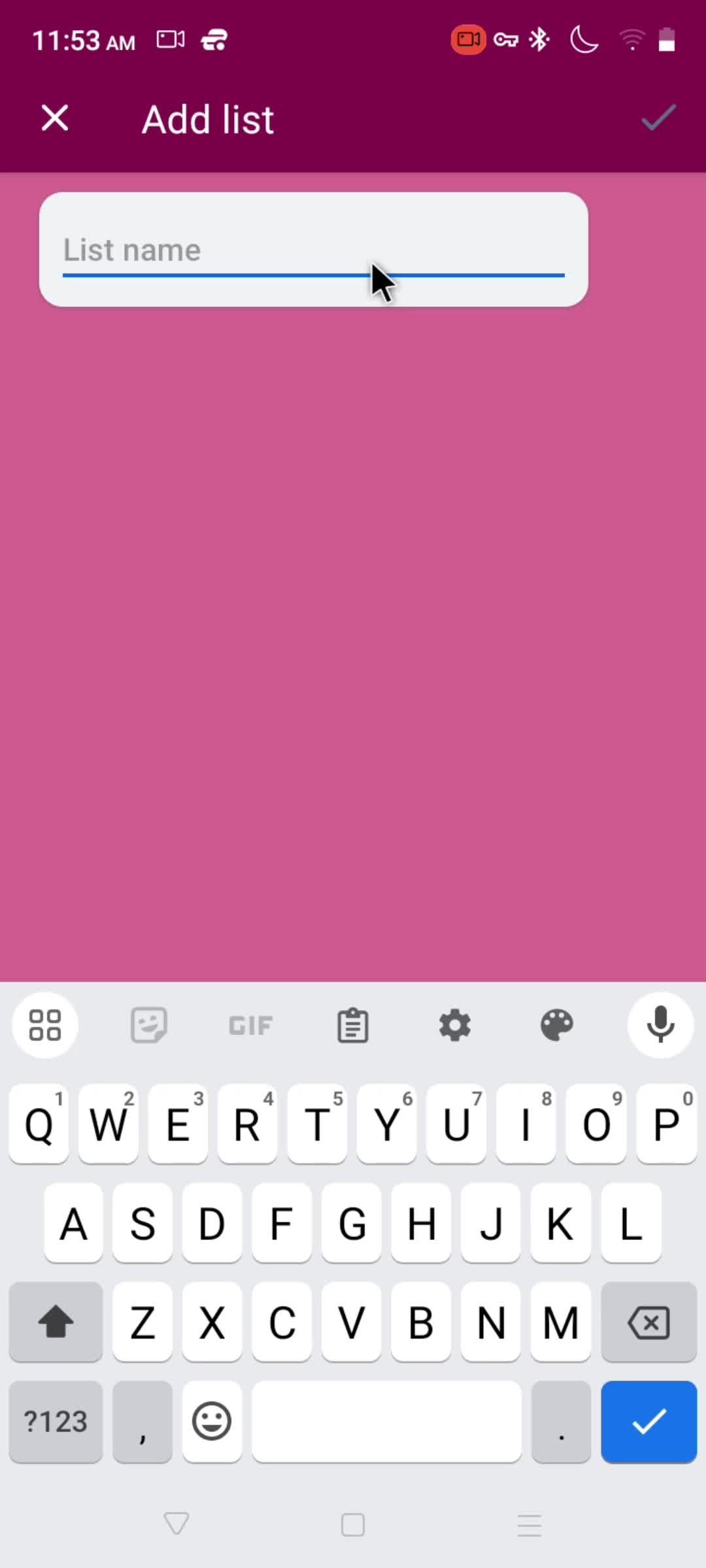
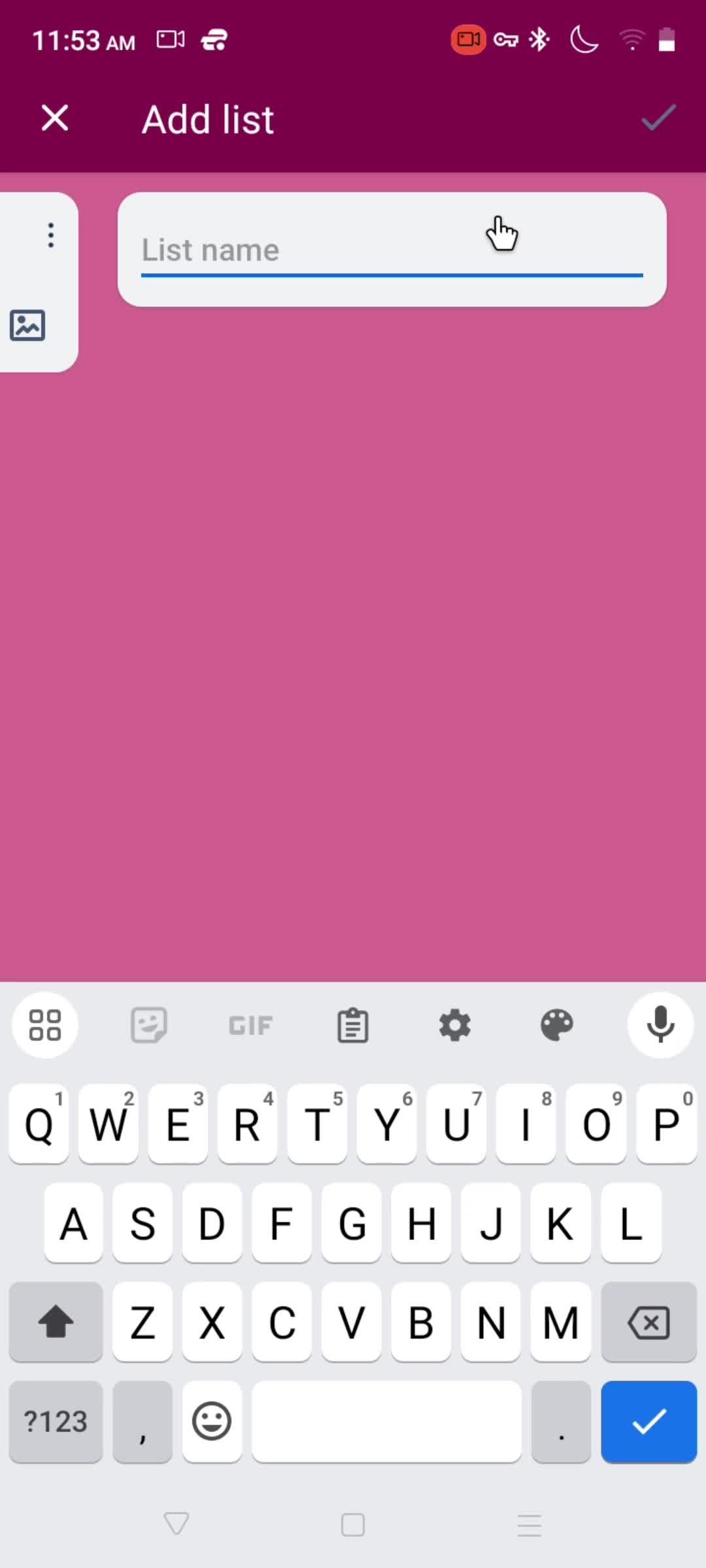
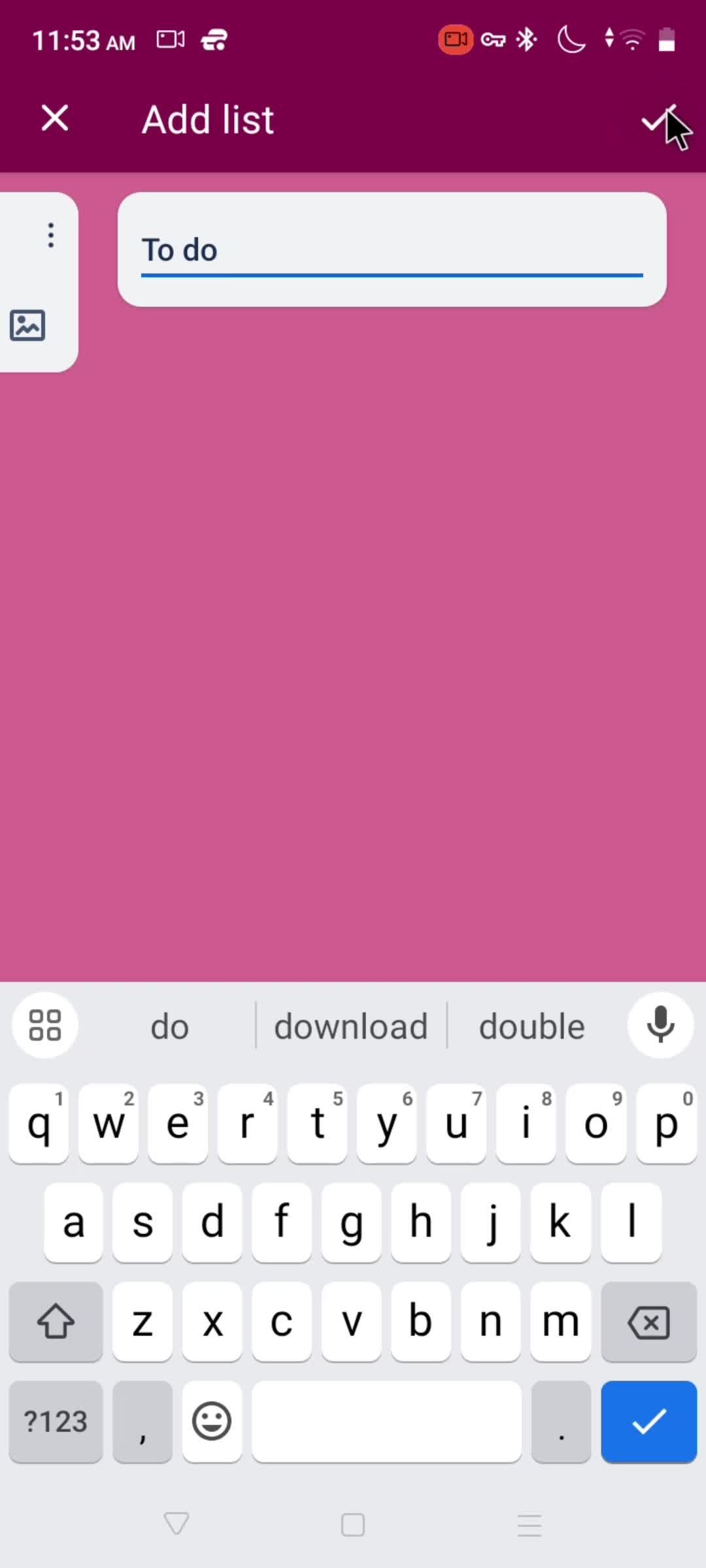
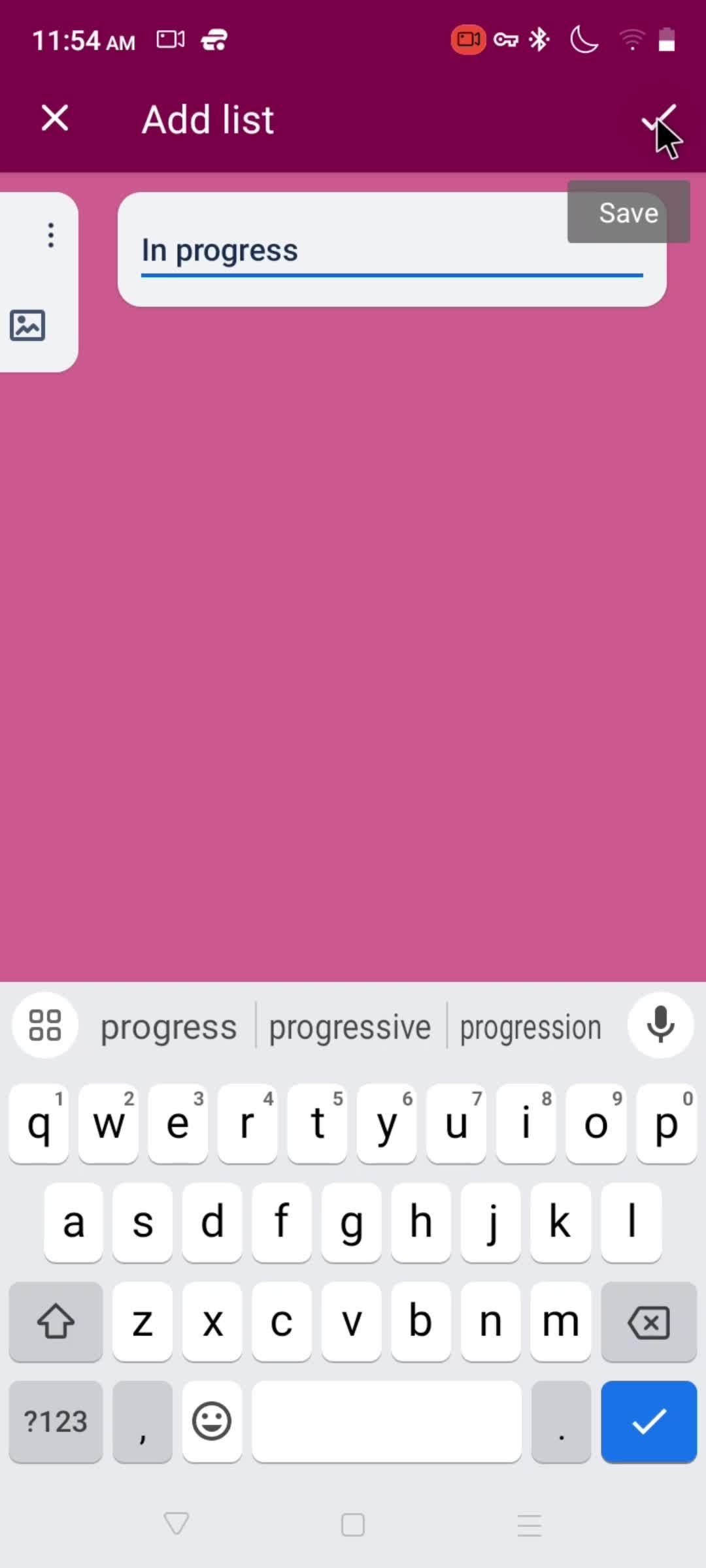
Add lists
this is title
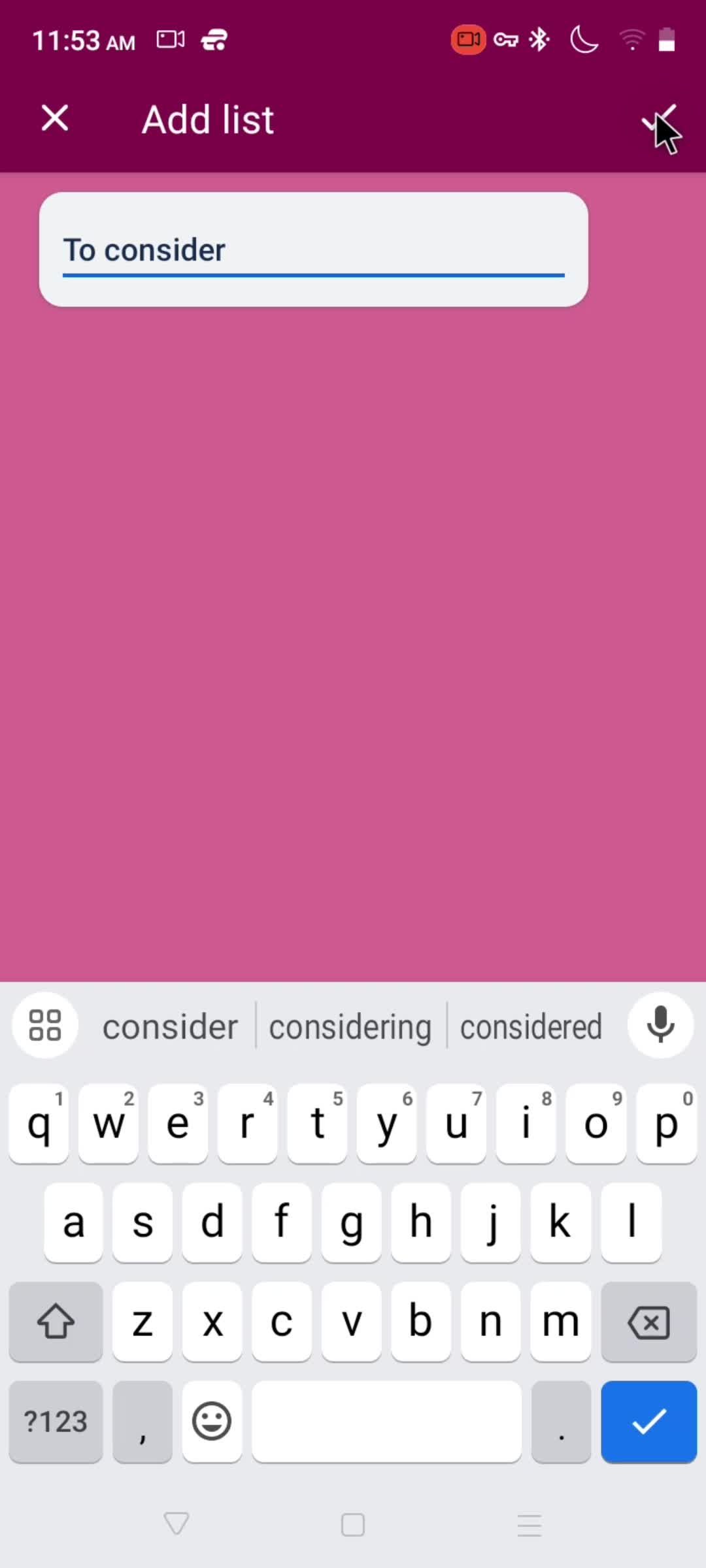
Enter list title
this is title
this is title
this is title
this is title
this is title
this is title
this is title
this is title
this is title
this is title
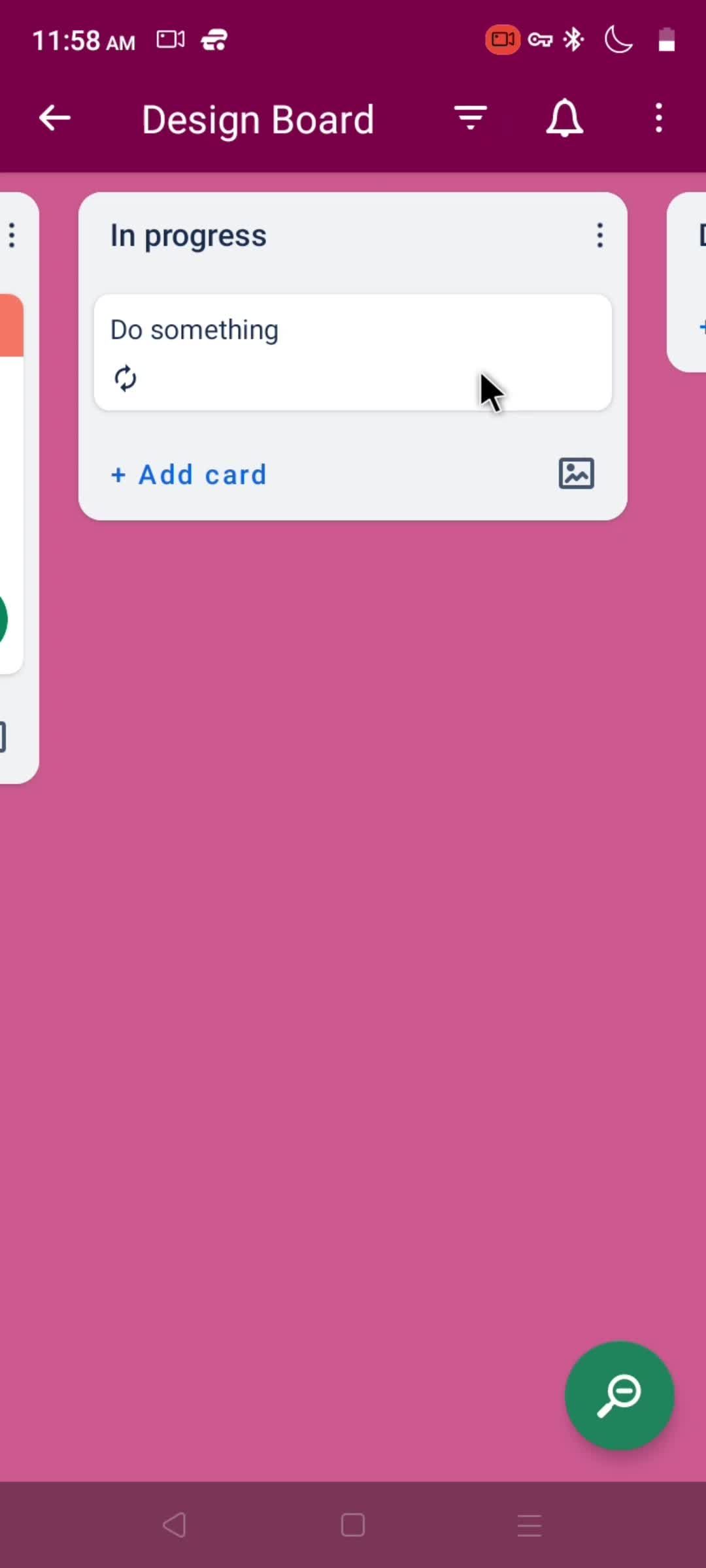
Add card
this is title
Enter name
this is title
this is title
this is title
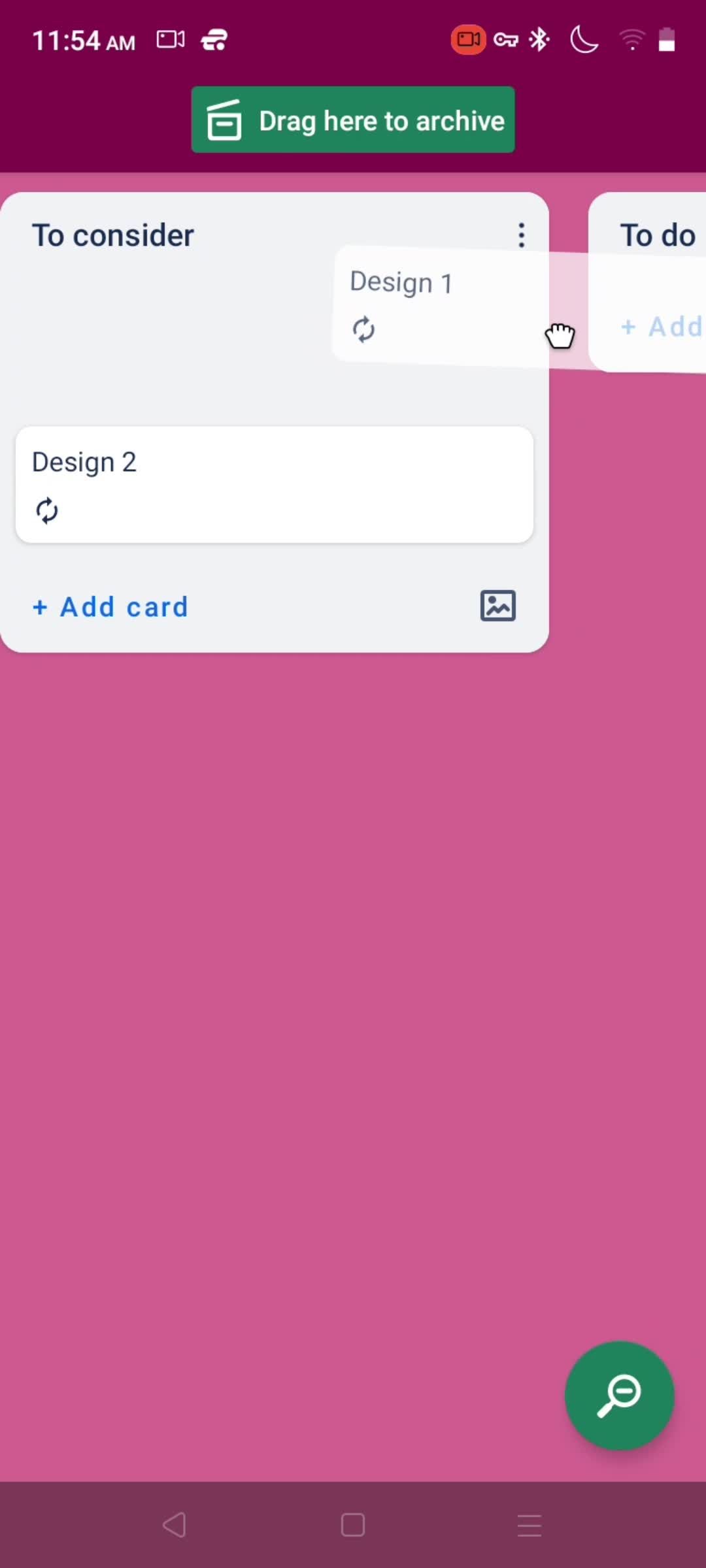
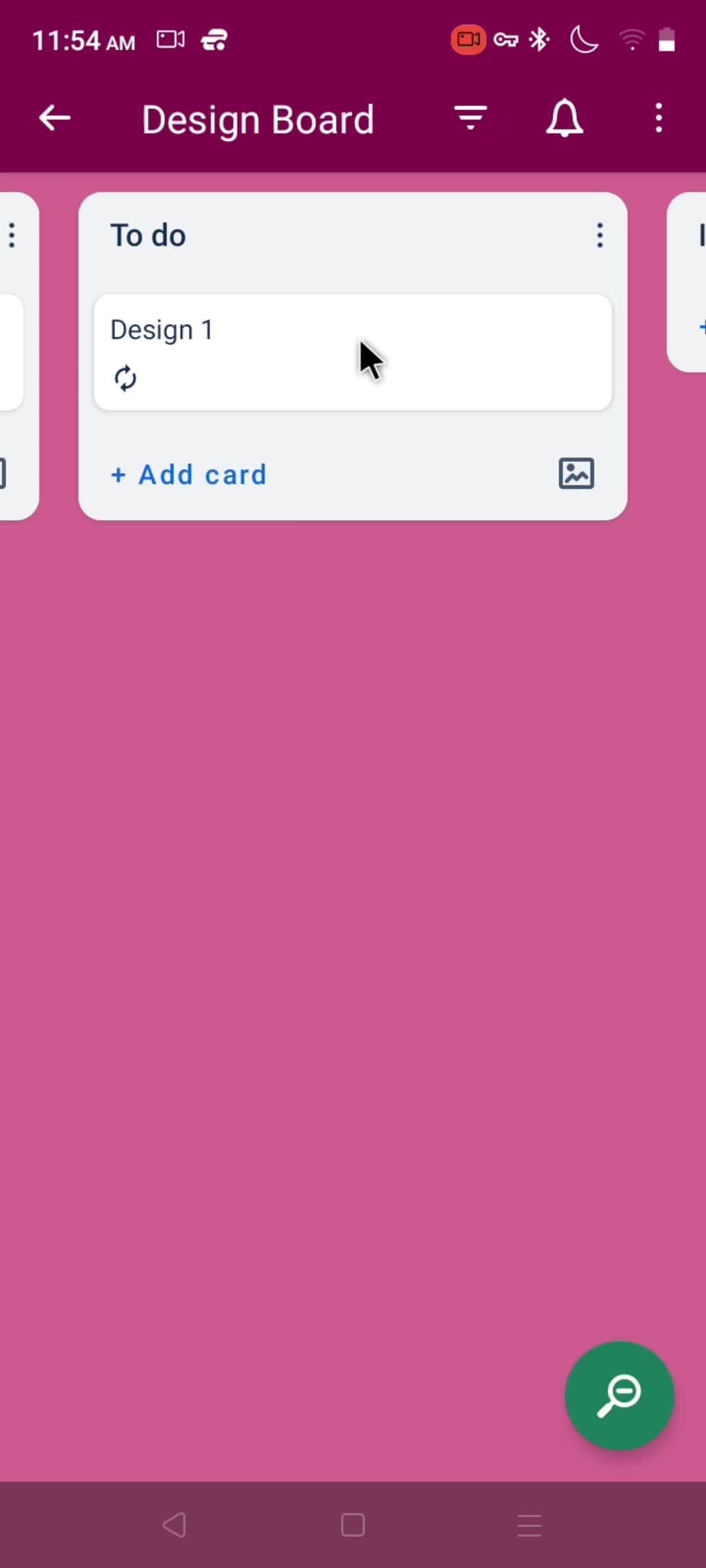
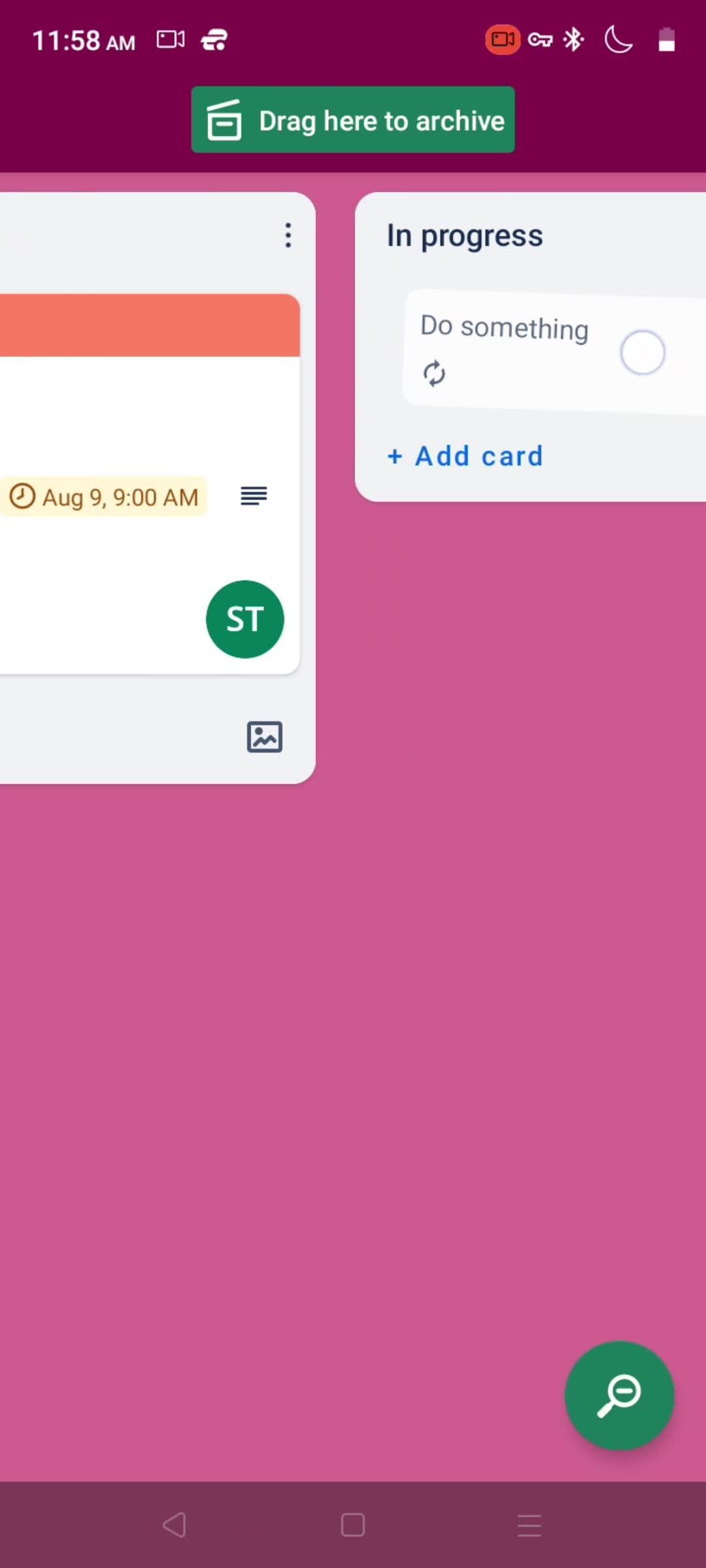
Drag & drop
this is title
this is title
this is title
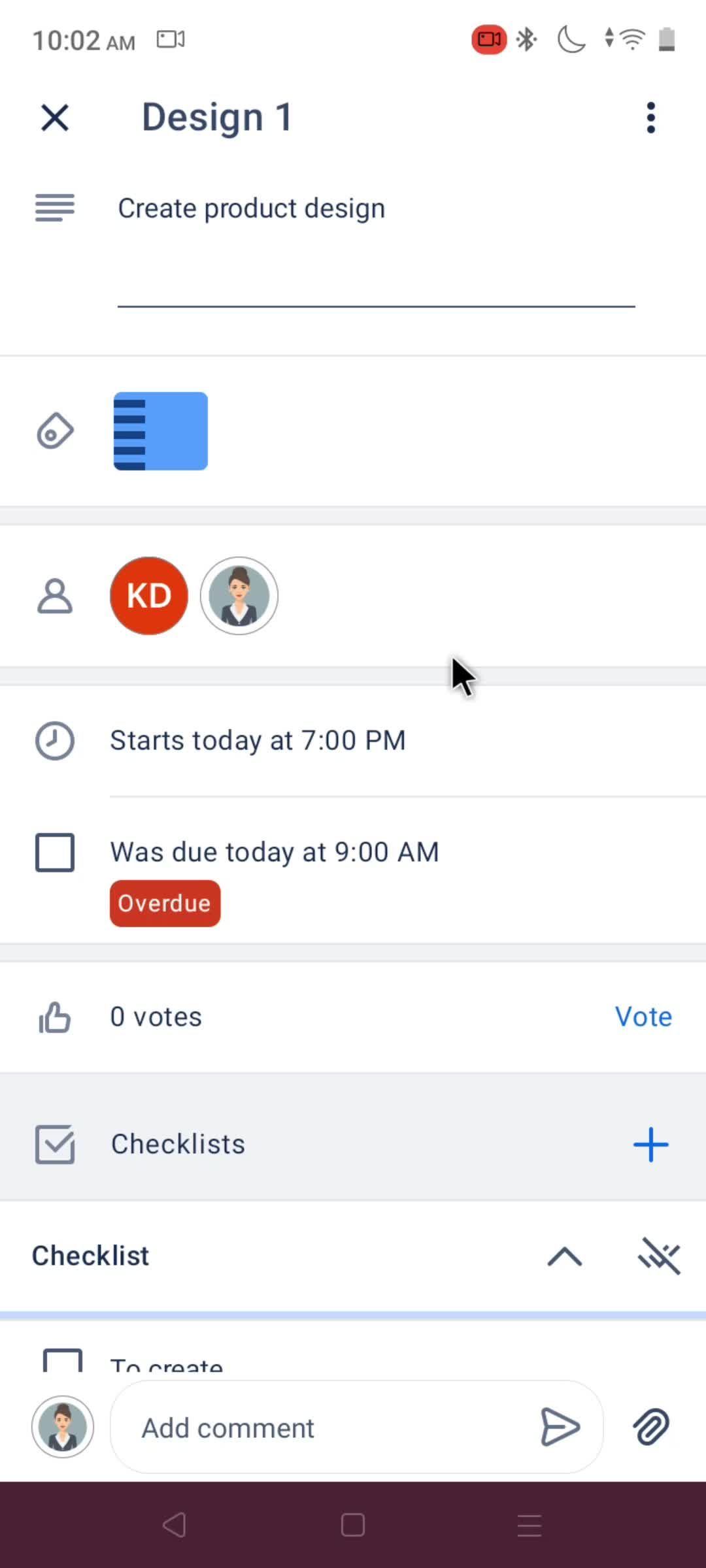
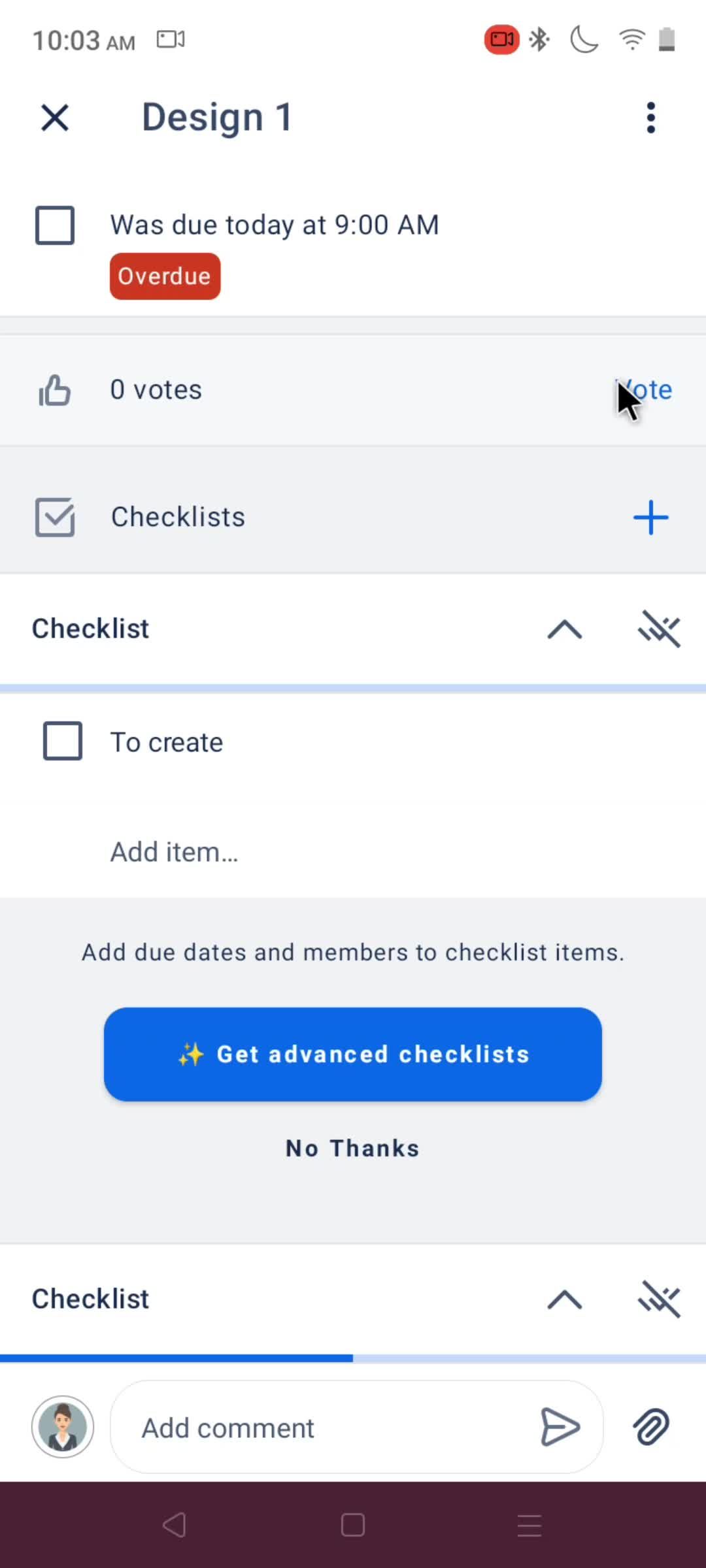
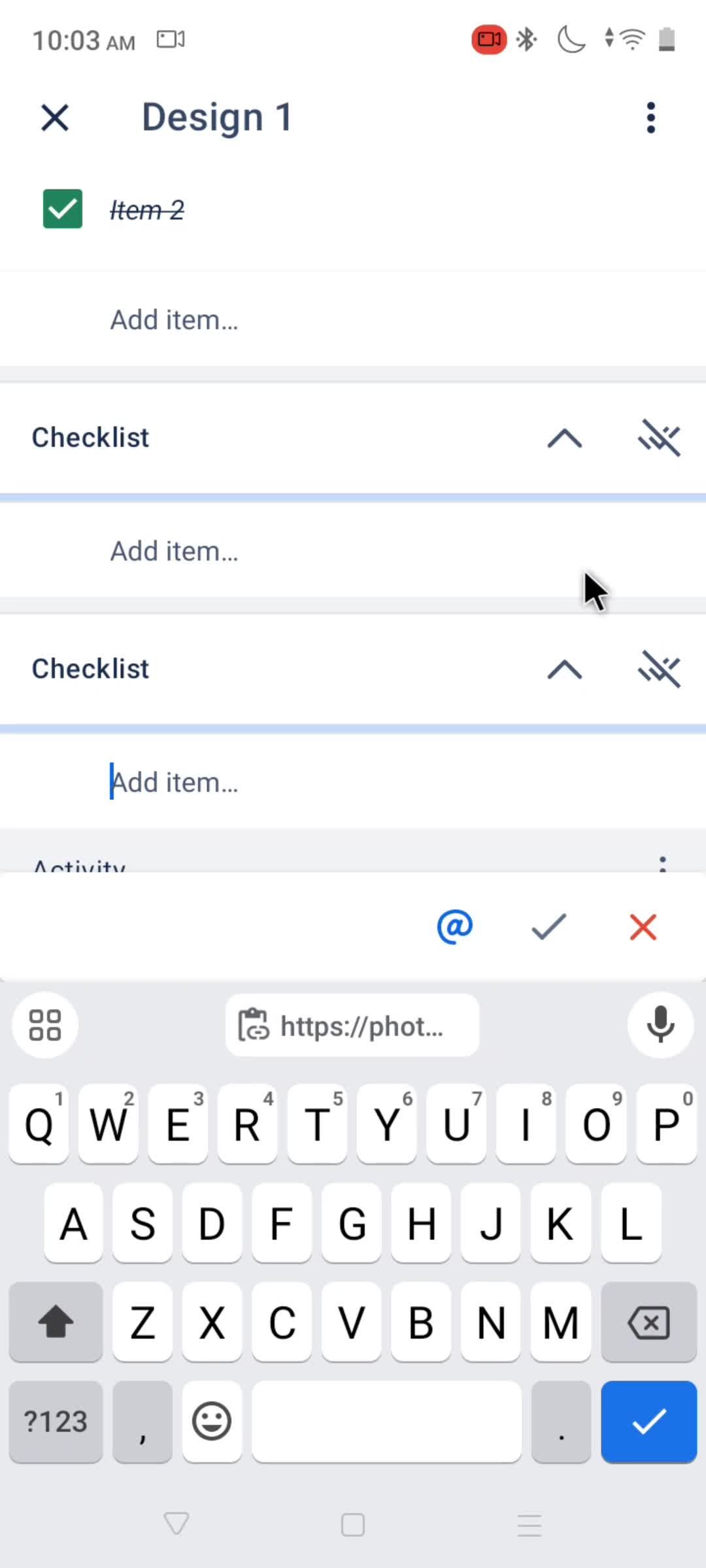
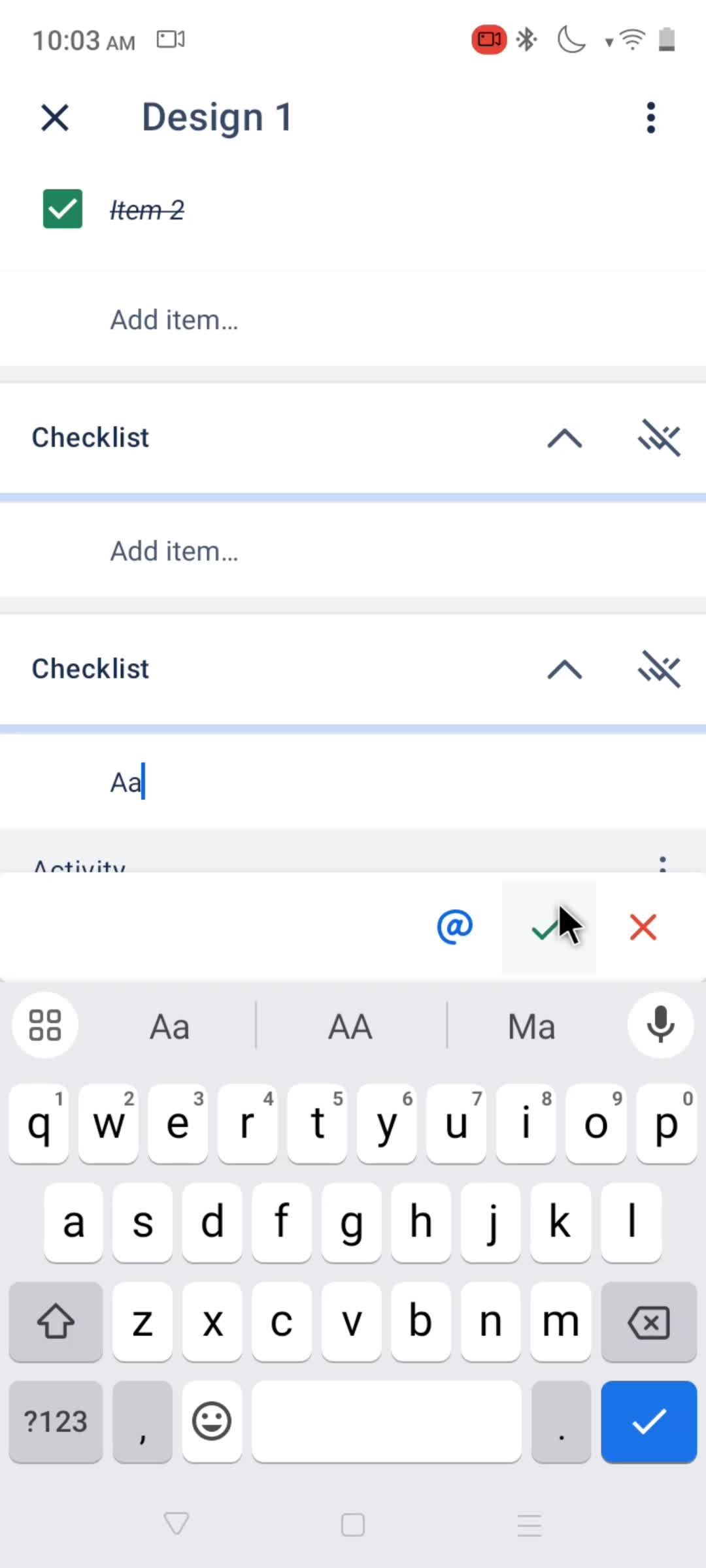
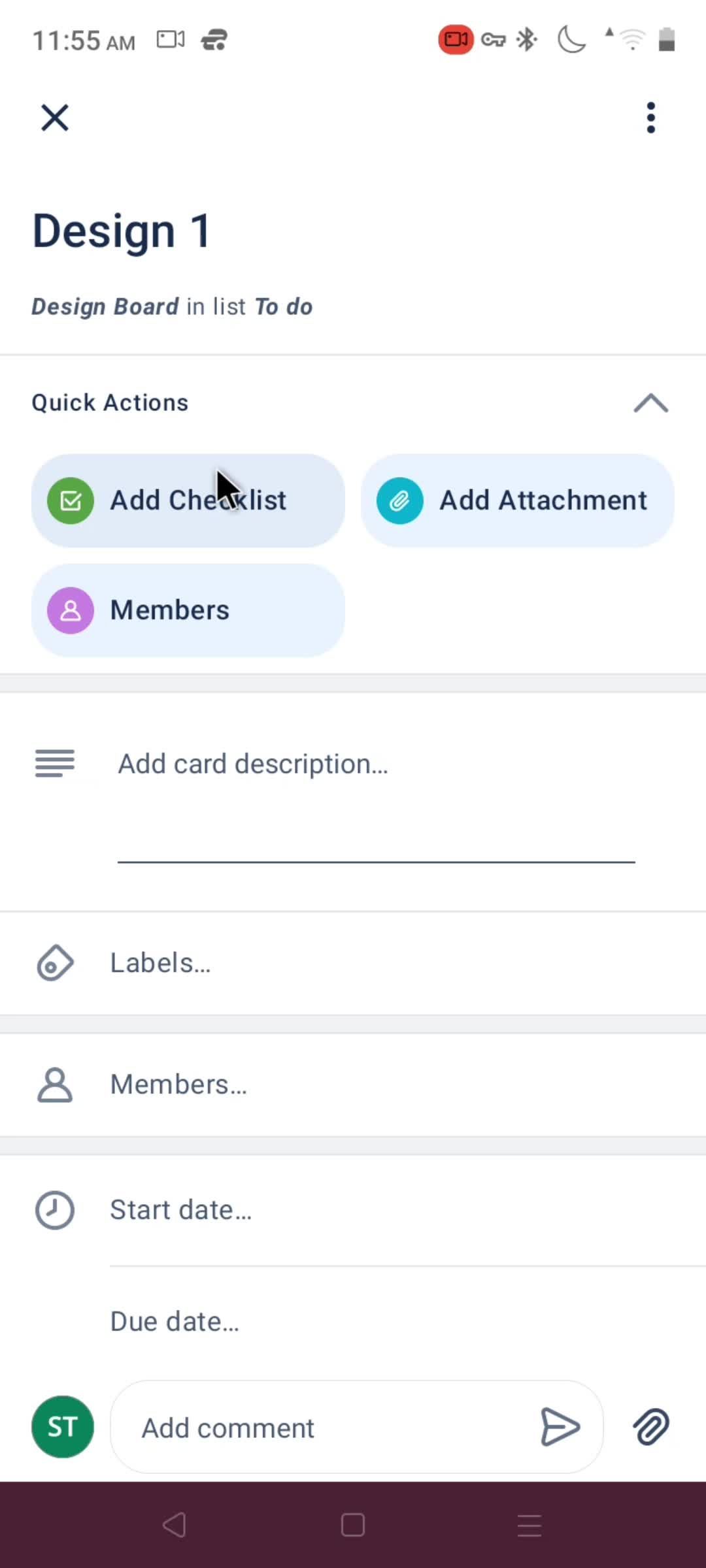
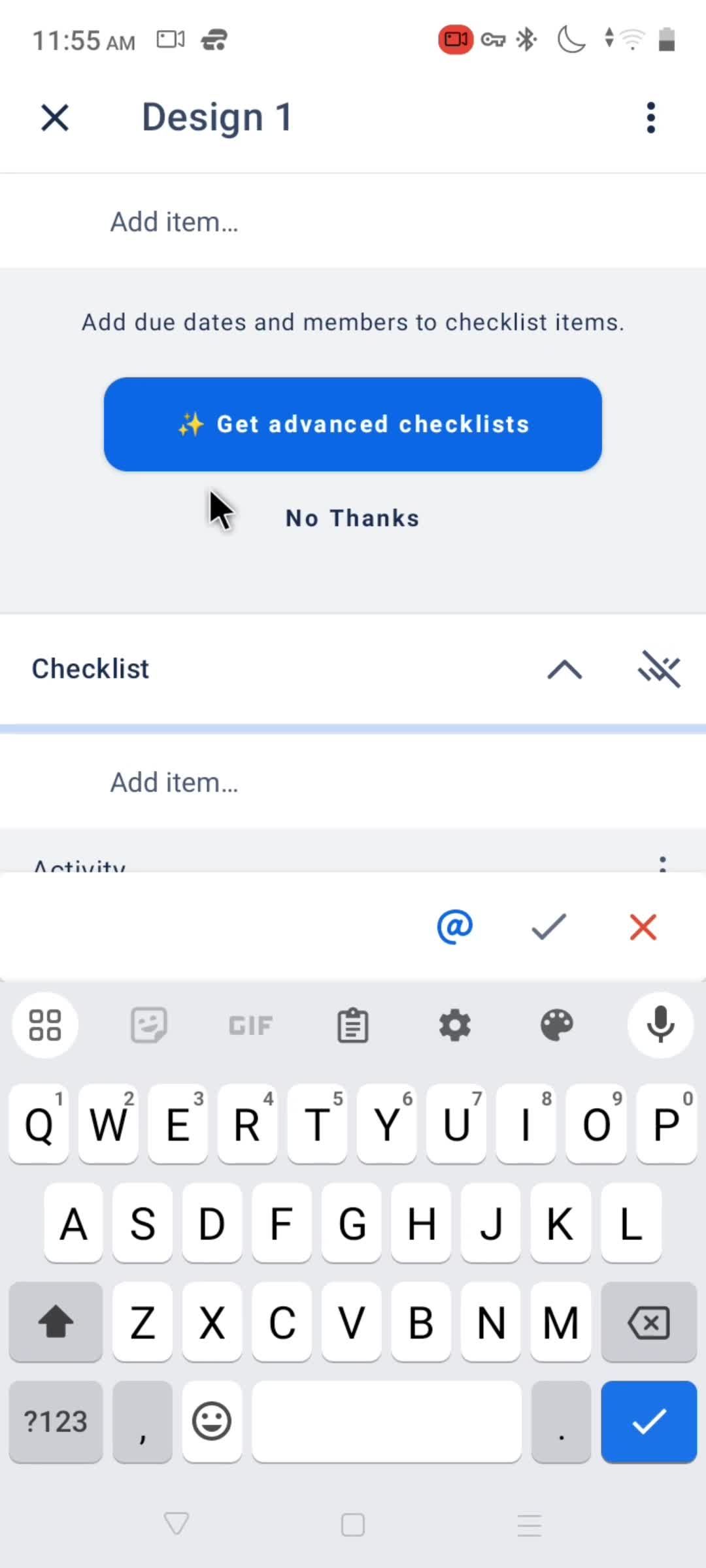
Add checklist
this is title
this is title
this is title
this is title
Marked as done
this is title
Enter description
this is title
this is title
Select label
this is title
Create label
this is title
Enter title
this is title
Select color
this is title
this is title
this is title
this is title
Card members
this is title
Select start date
this is title
this is title
this is title
Select time
this is title
this is title
this is title
Set due date
this is title
this is title
this is title
Action menu
this is title
this is title
this is title
this is title
Select cover
this is title
this is title
this is title
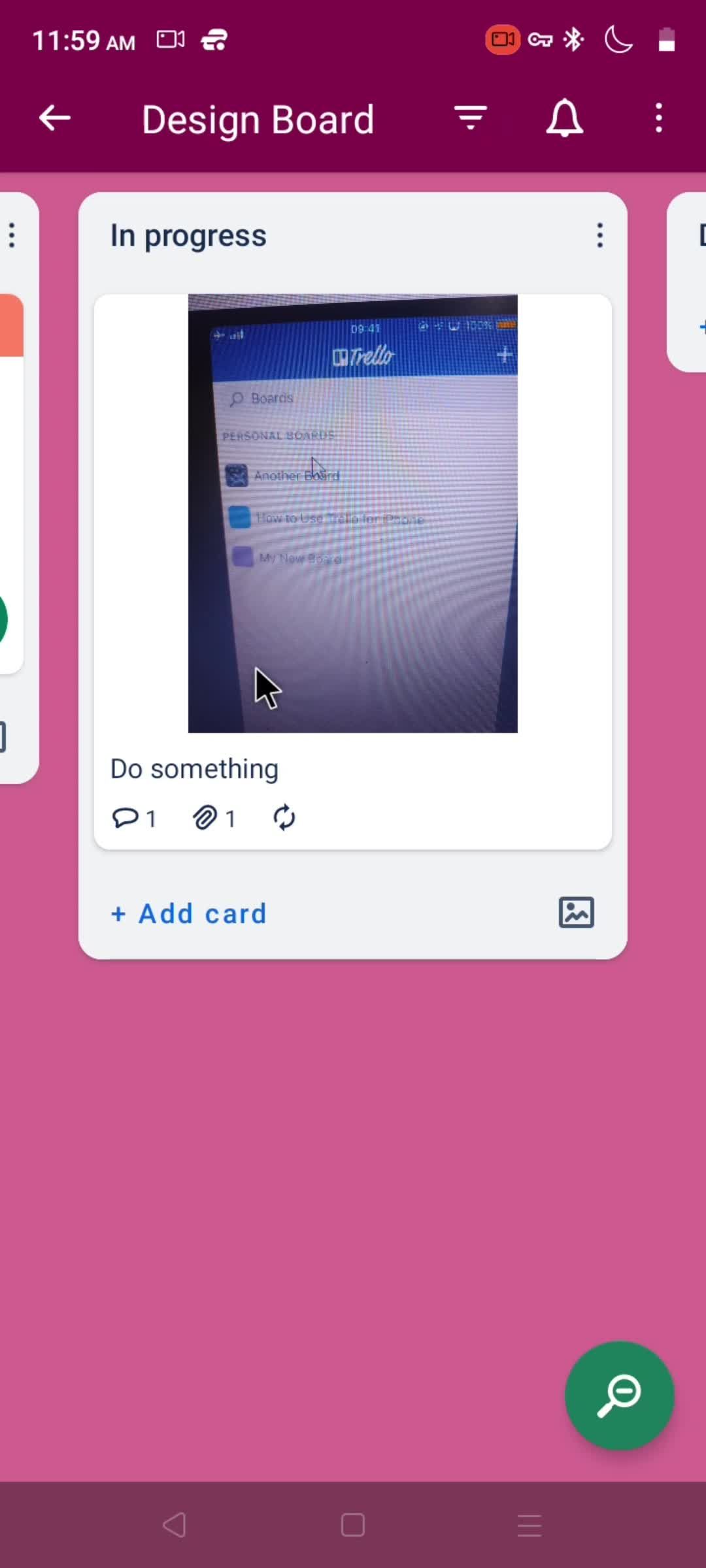
Add card
this is title
Enter name
this is title
this is title
Drag & drop
this is title
this is title
this is title
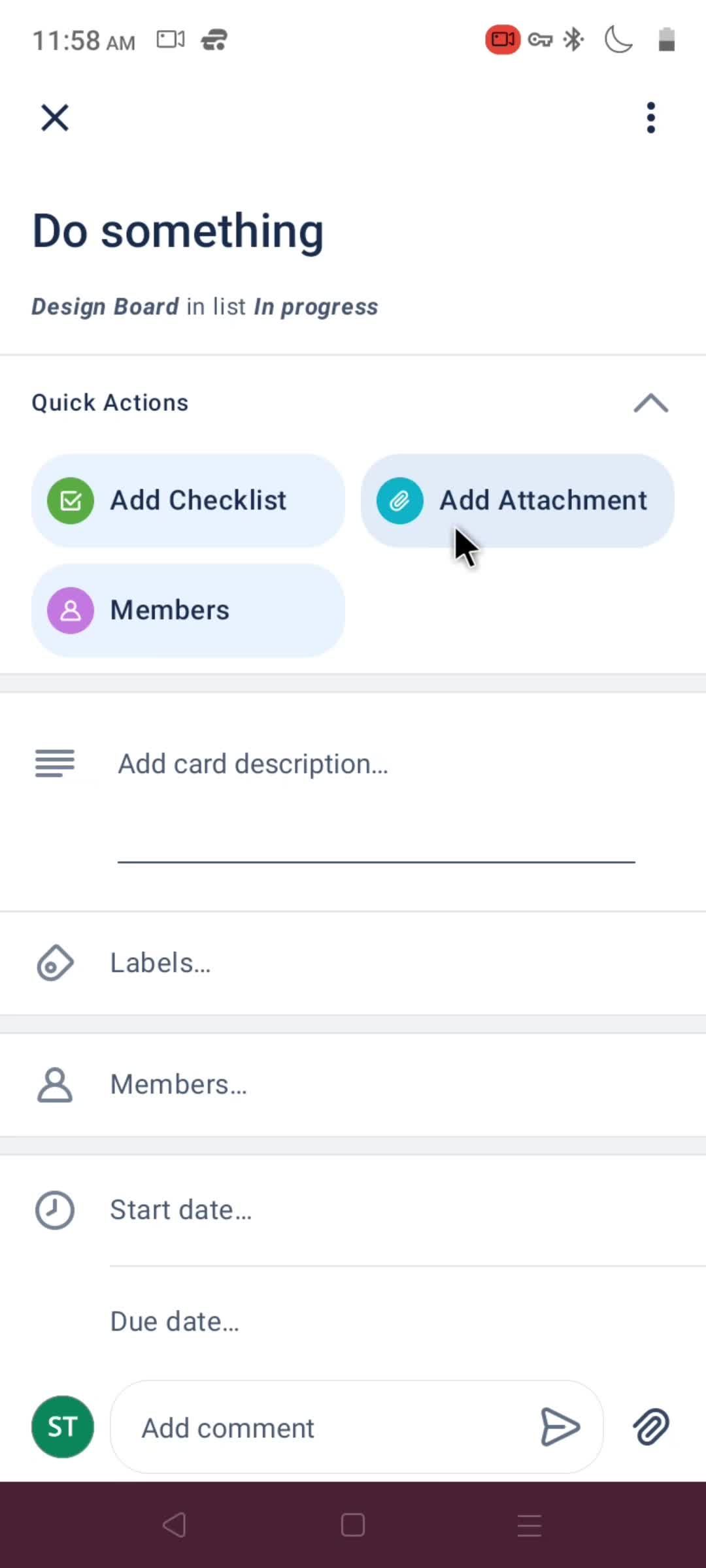
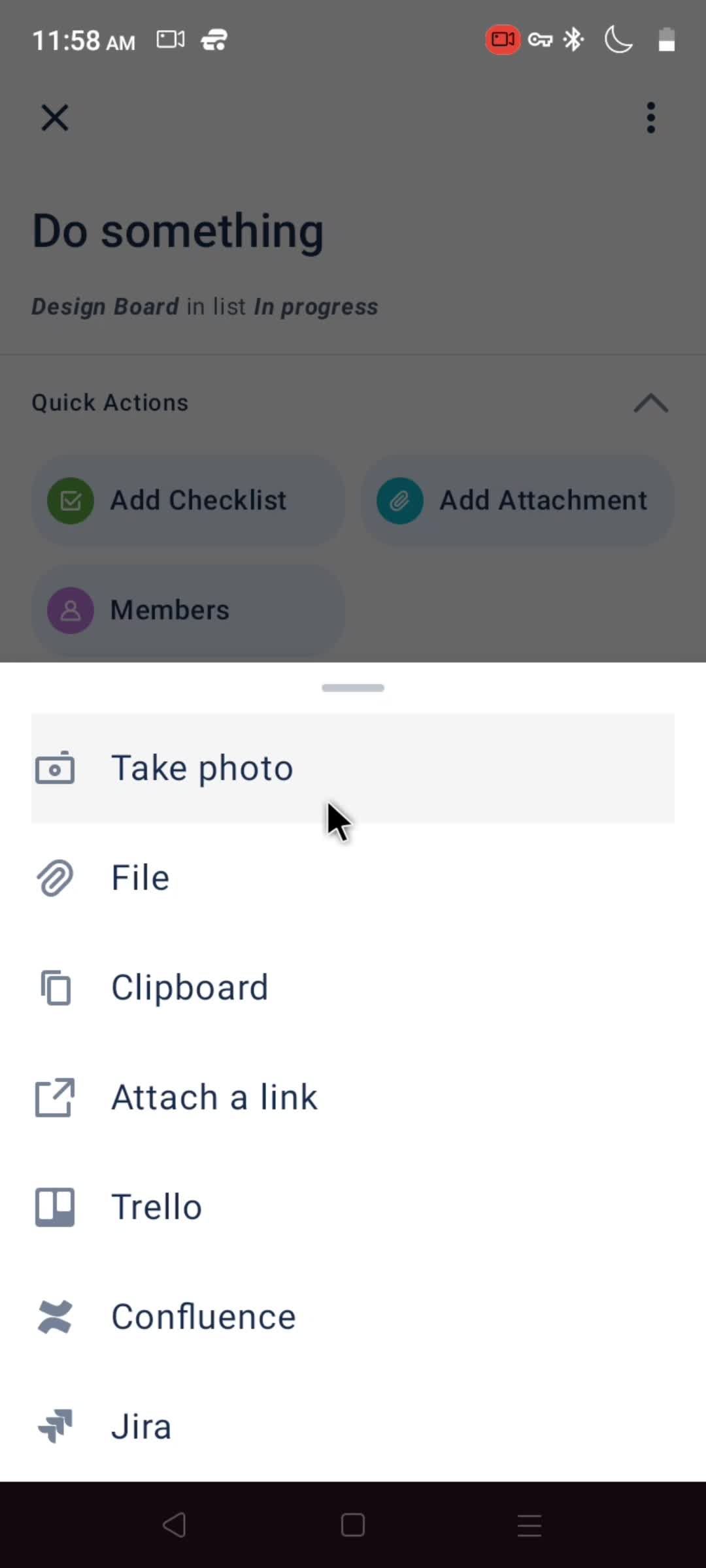
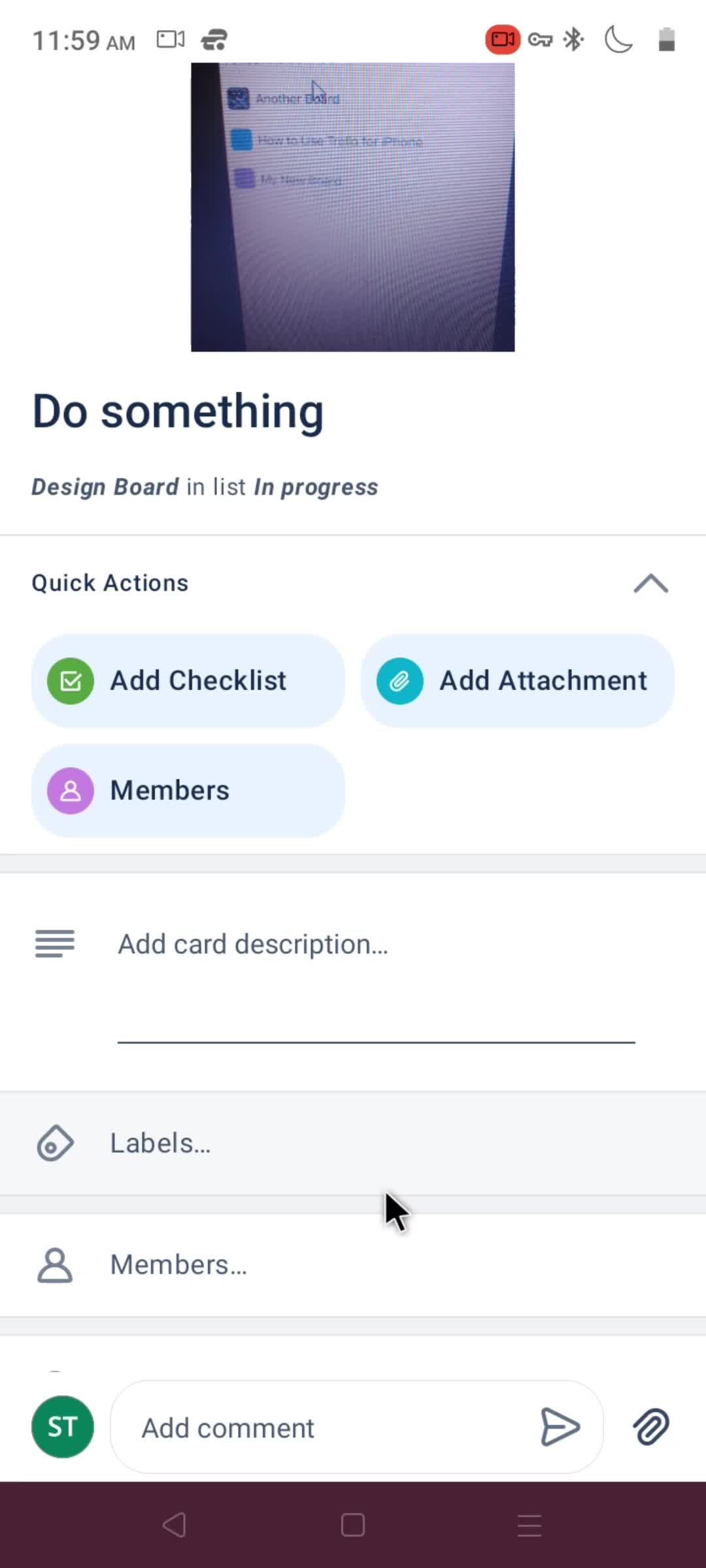
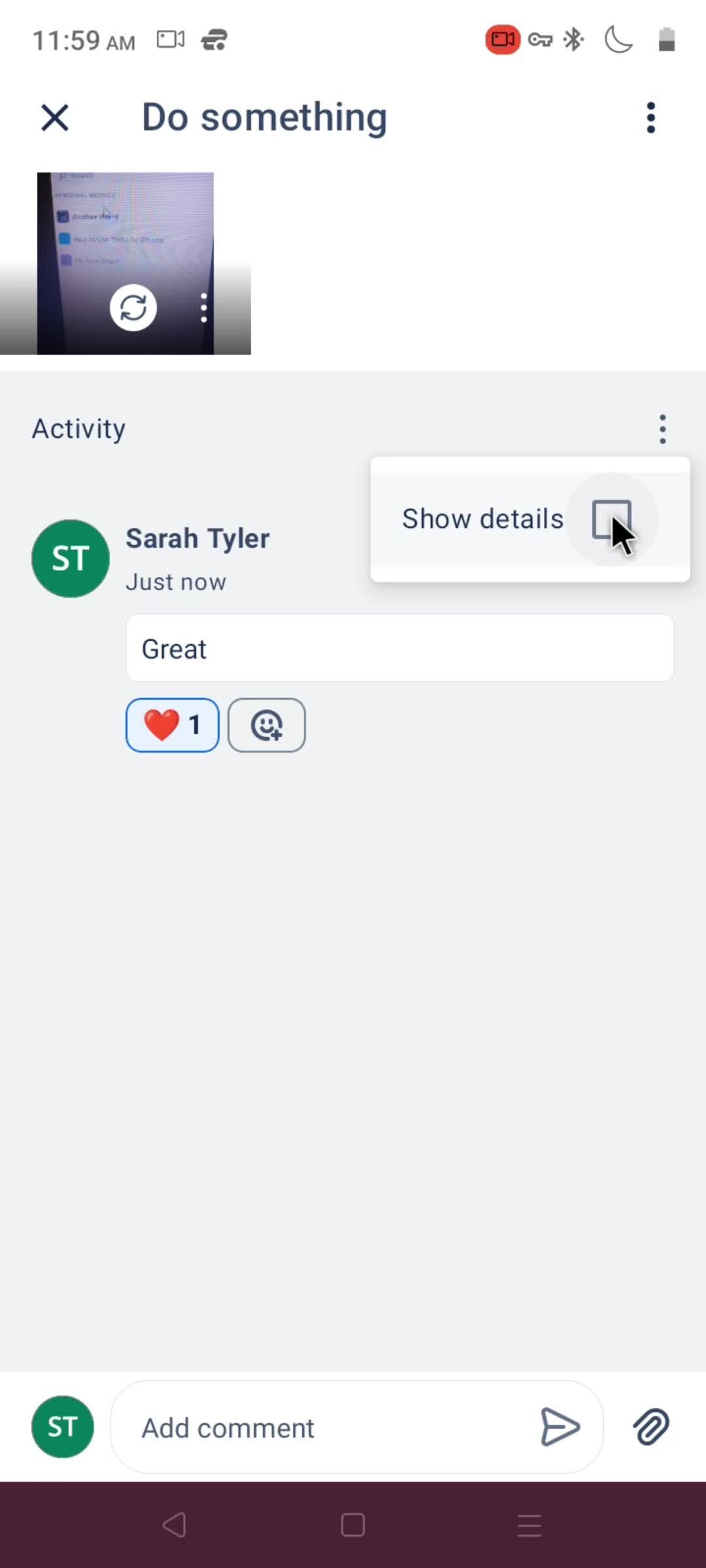
Add attachment
this is title
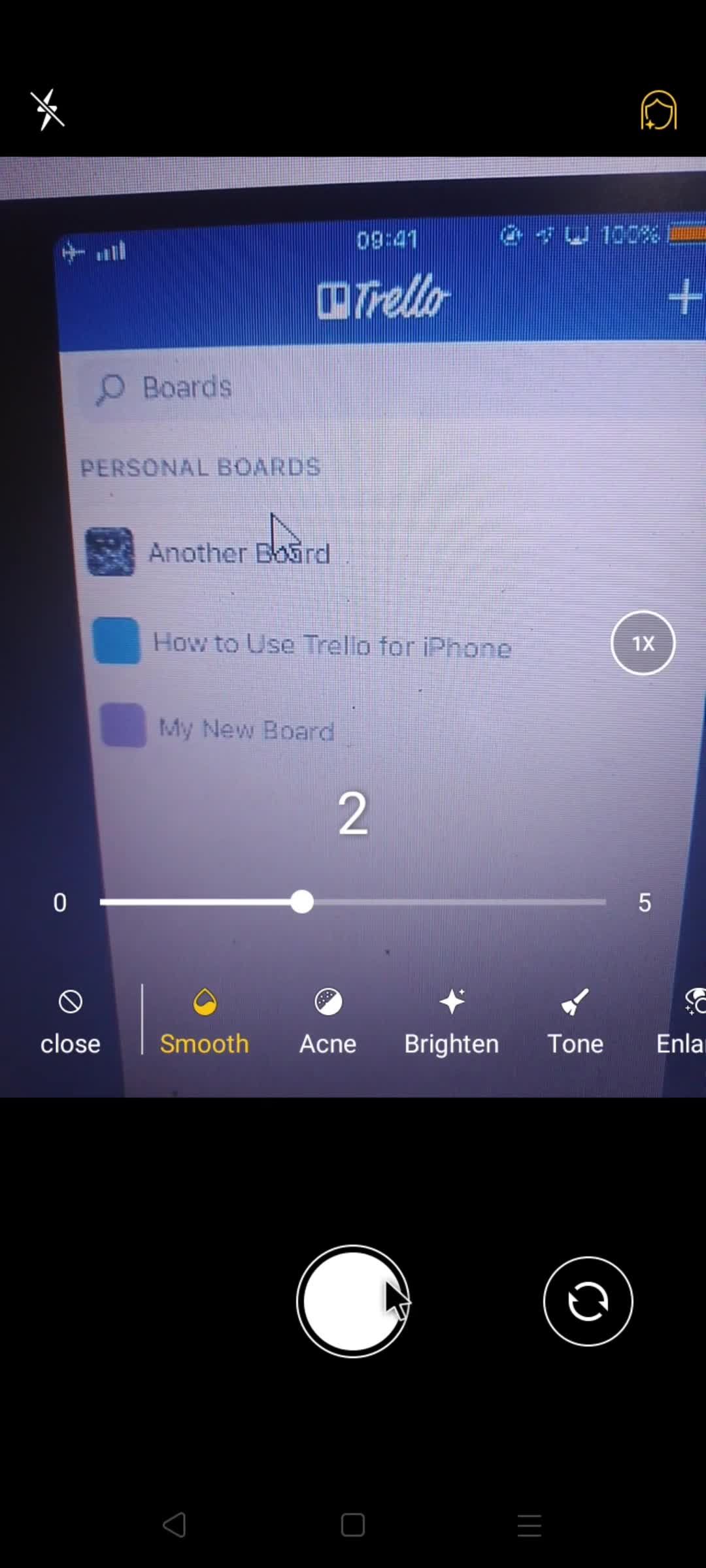
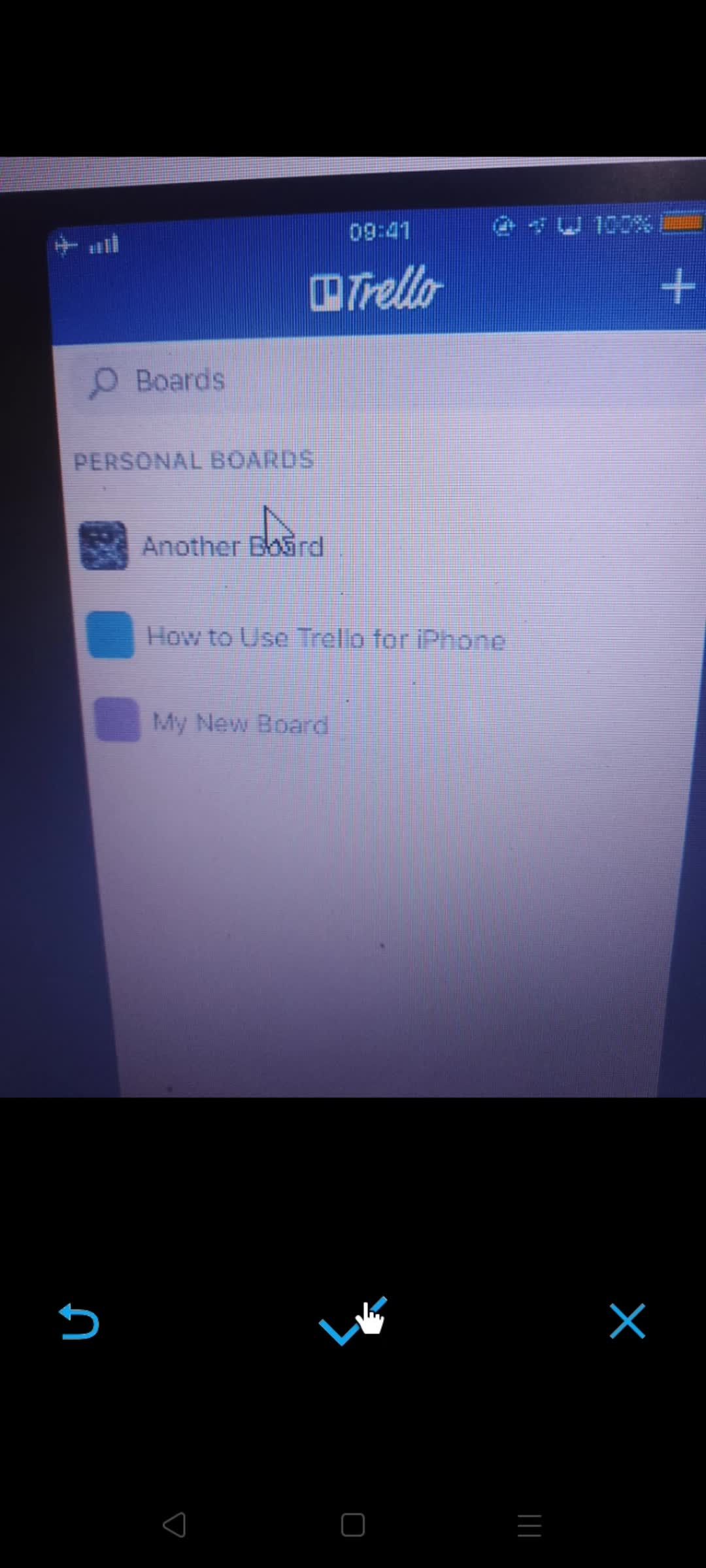
Take a photo
this is title
this is title
this is title
Add comment
this is title
this is title
Select reaction
this is title
Action menu
this is title
this is title
this is title
this is title
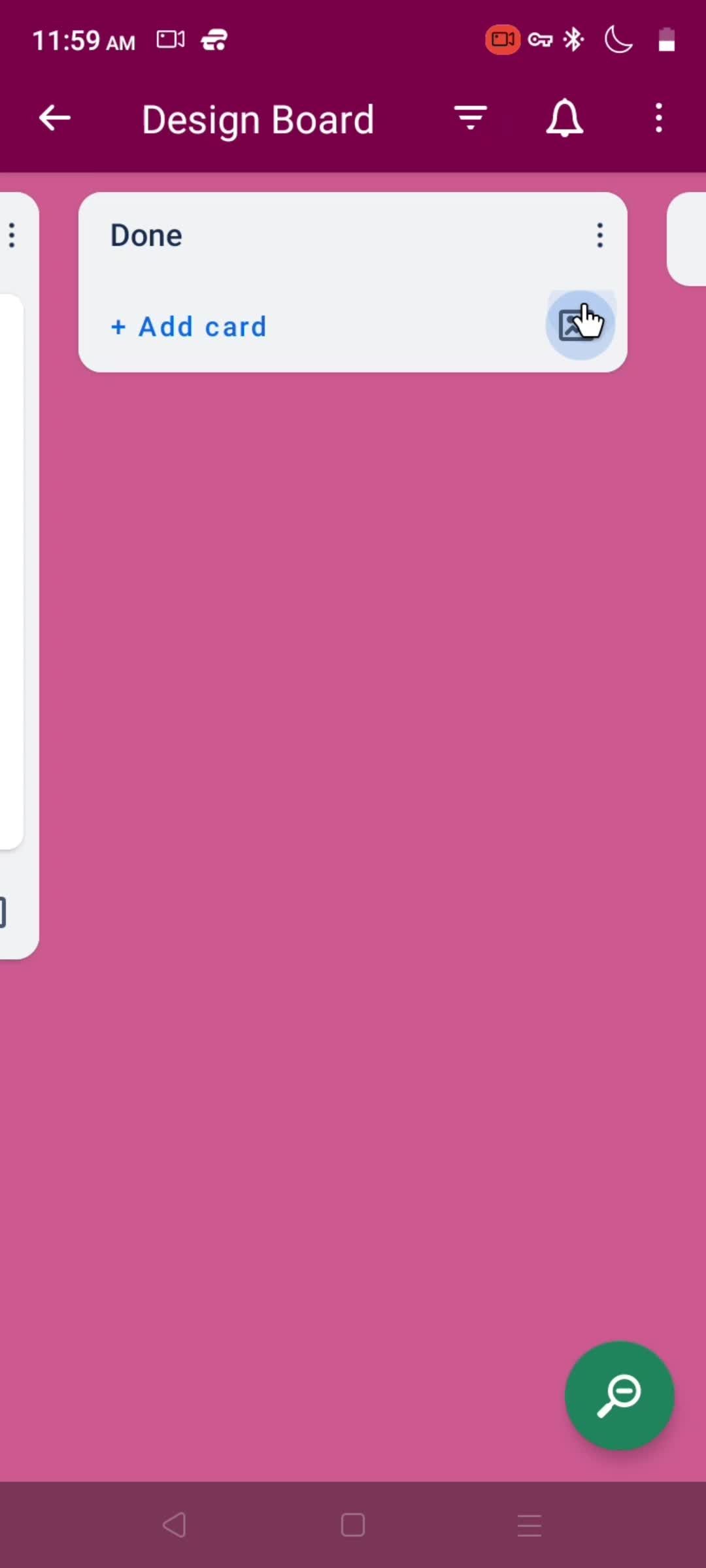
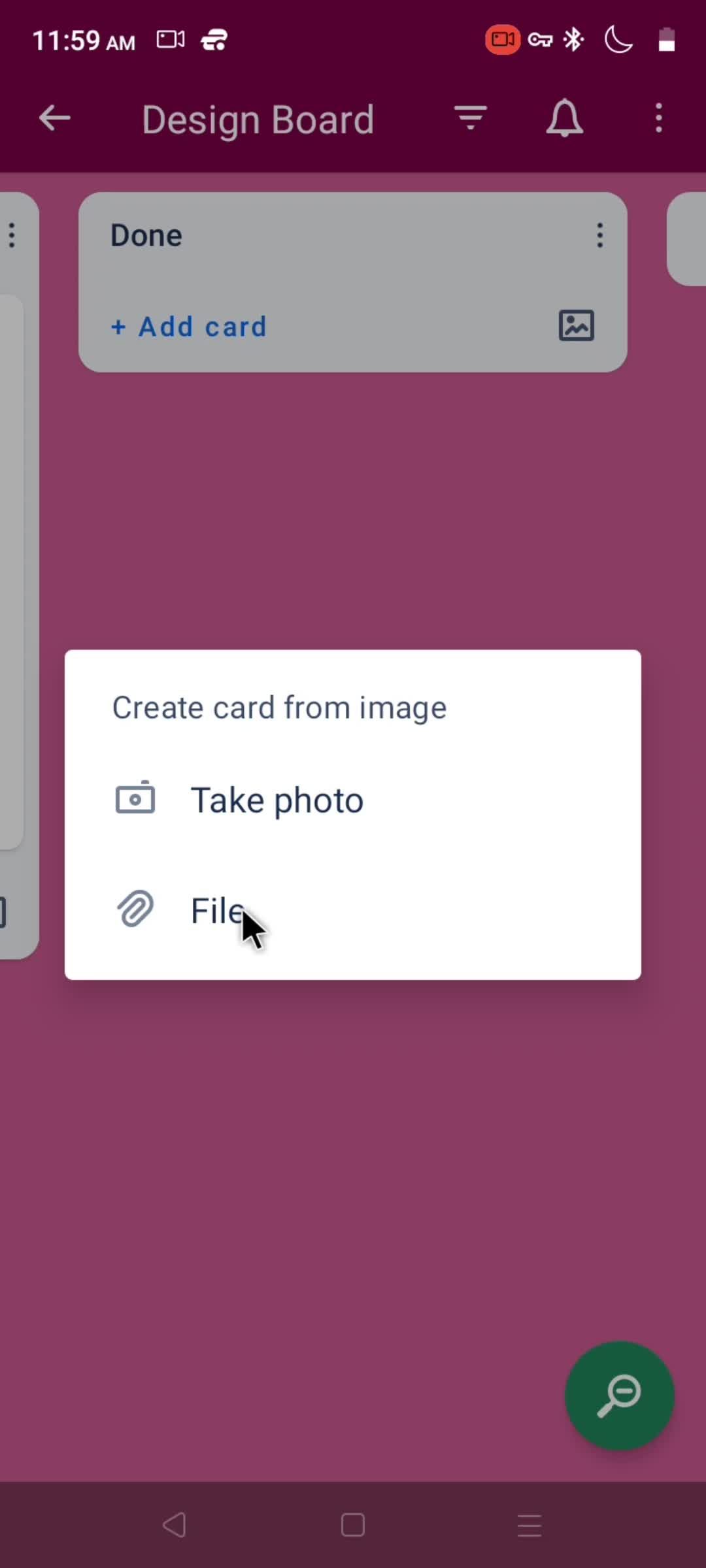
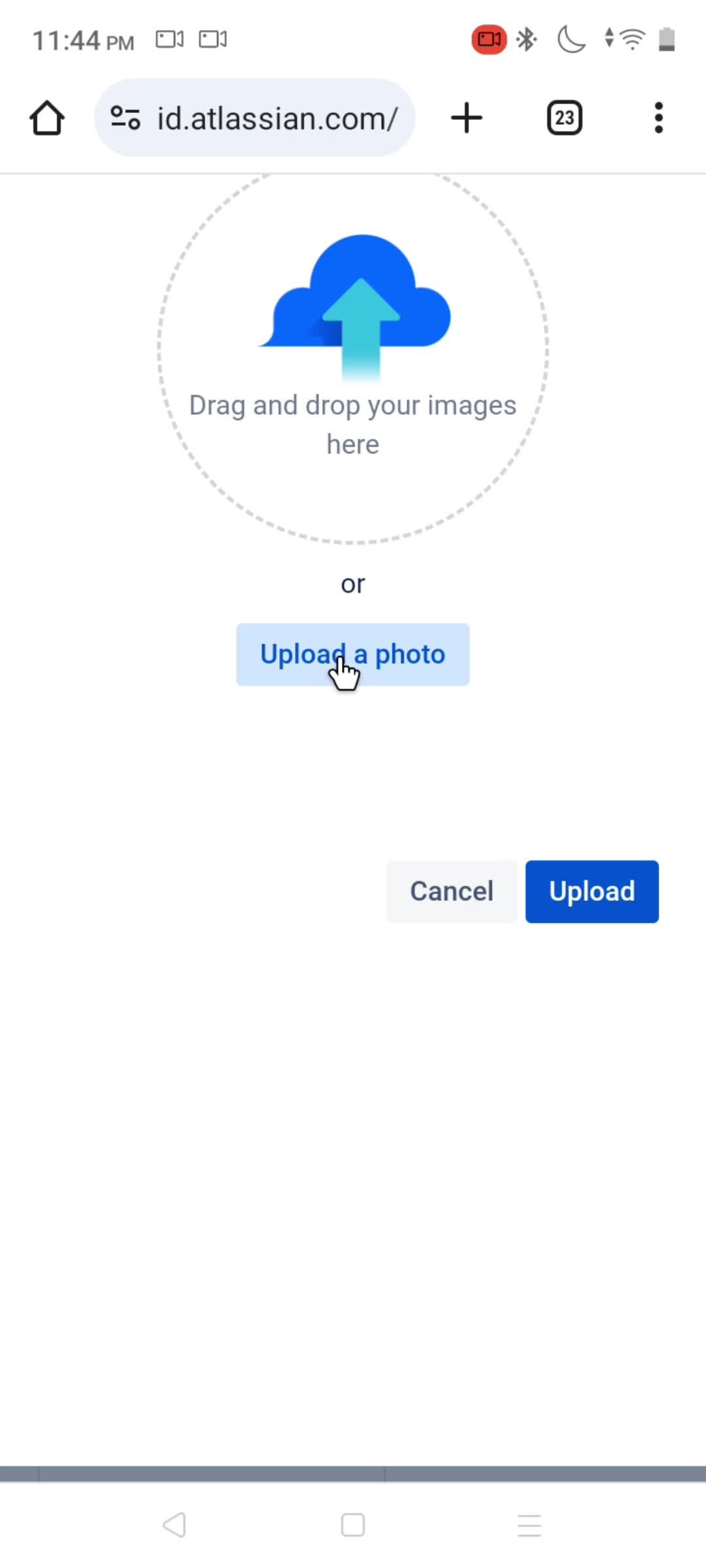
Upload file
this is title
this is title
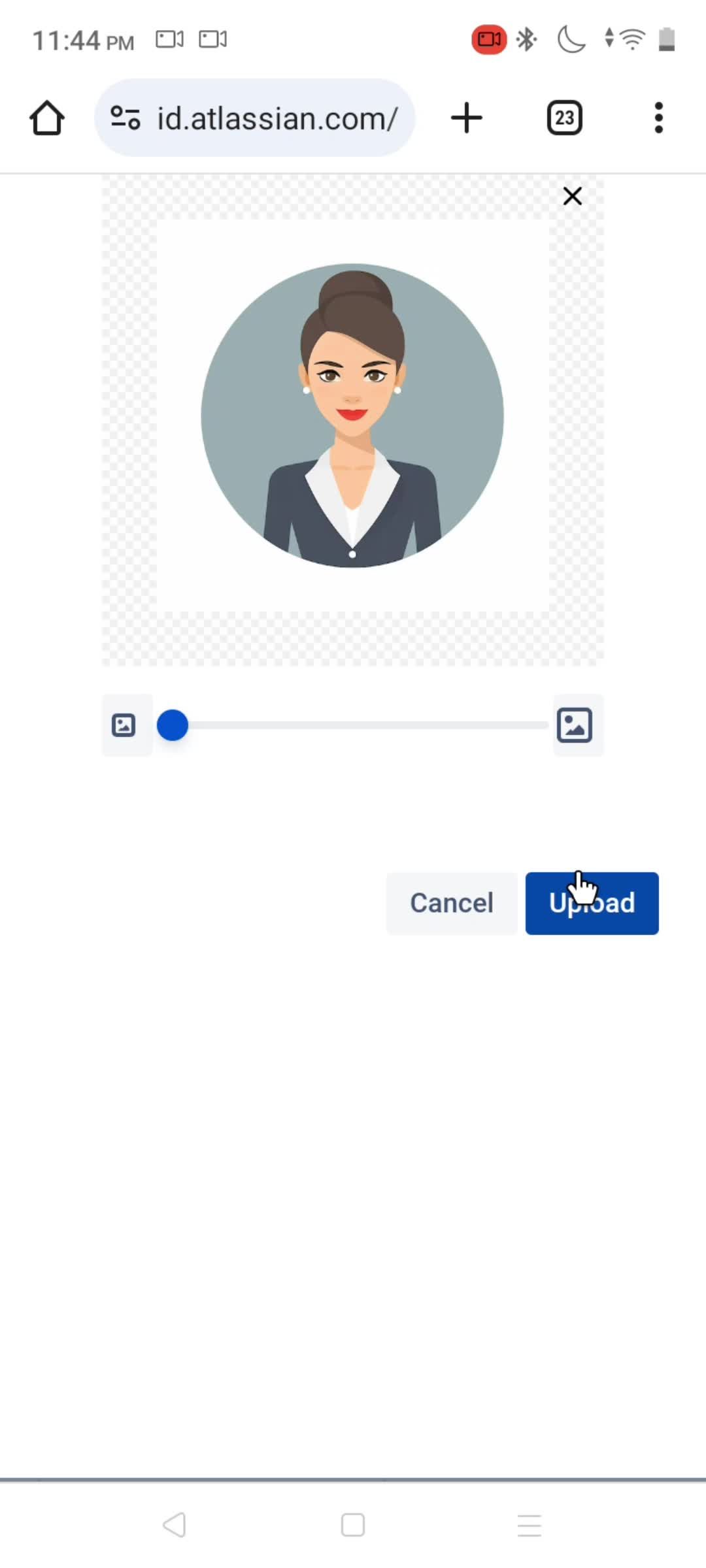
Crop image
this is title
Board menu
this is title
Add to favorites
this is title
this is title
this is title
Visibility
this is title
Board settings
this is title
this is title
Notifications
this is title
Boards
this is title
Account menu
this is title
Settings
this is title
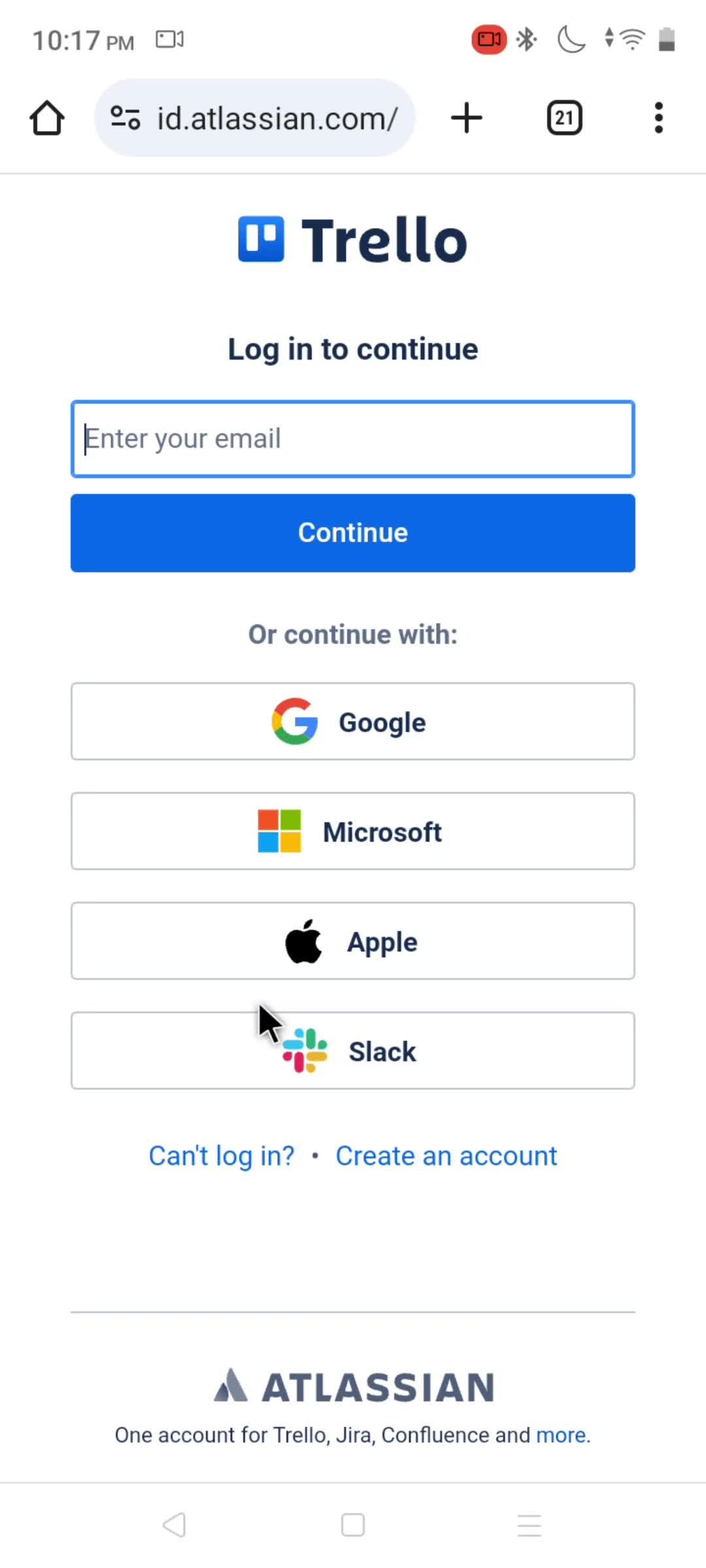
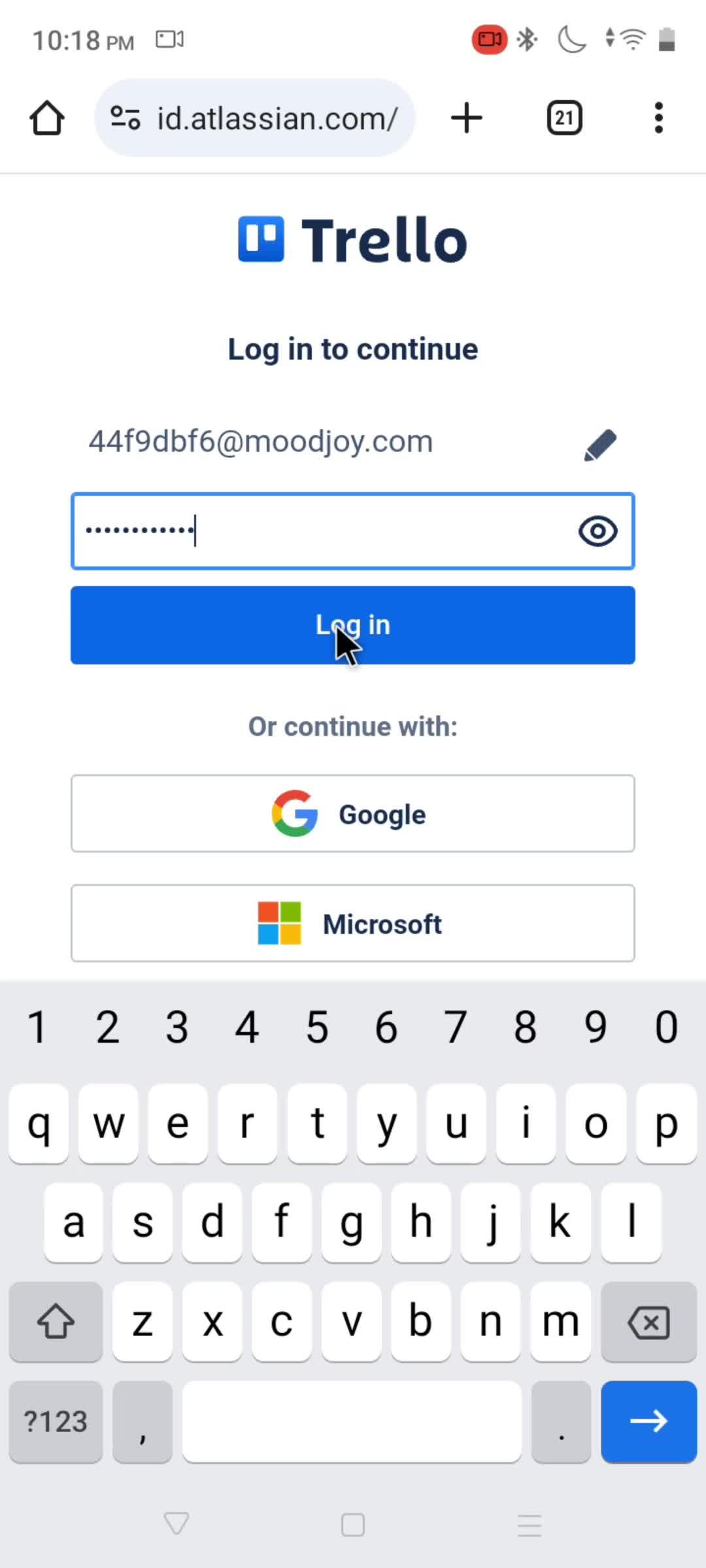
Login
this is title
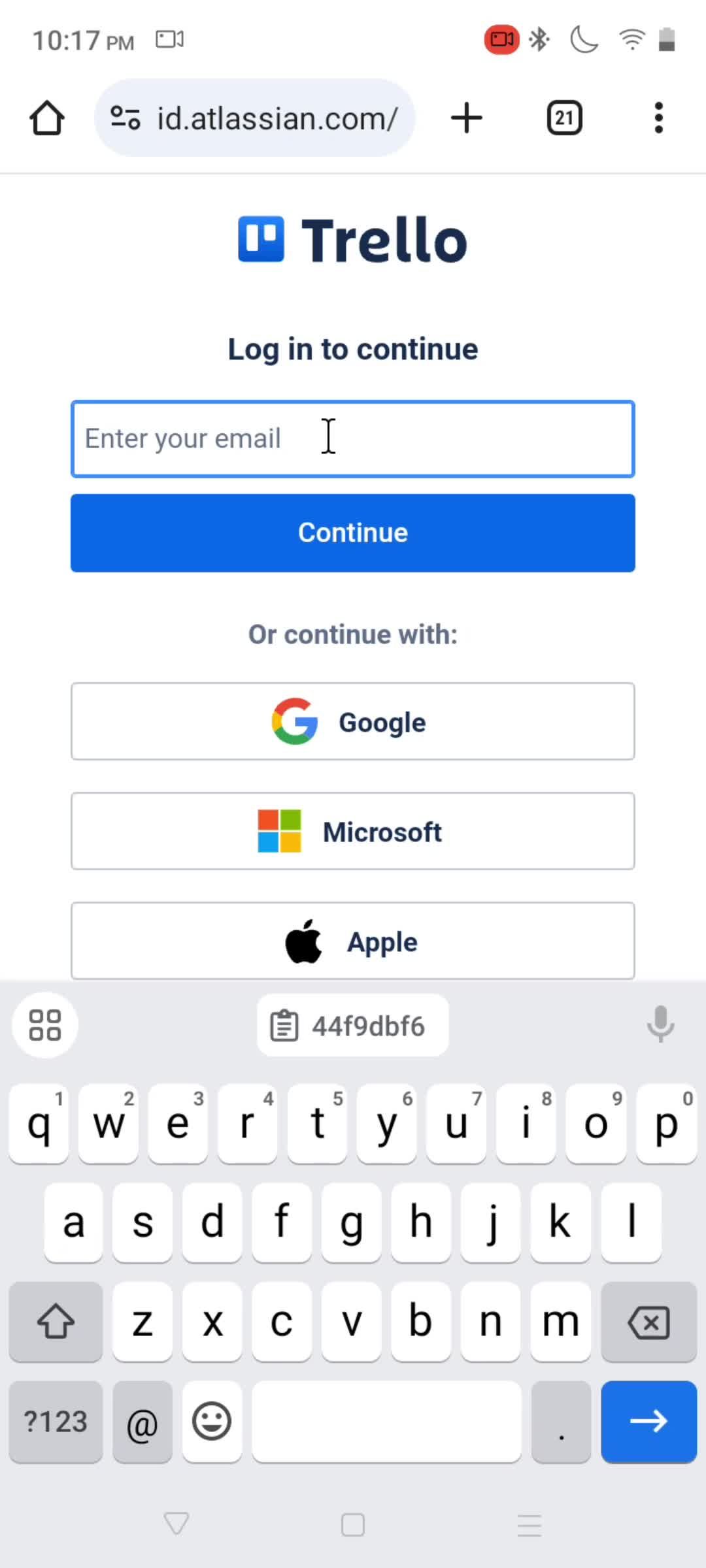
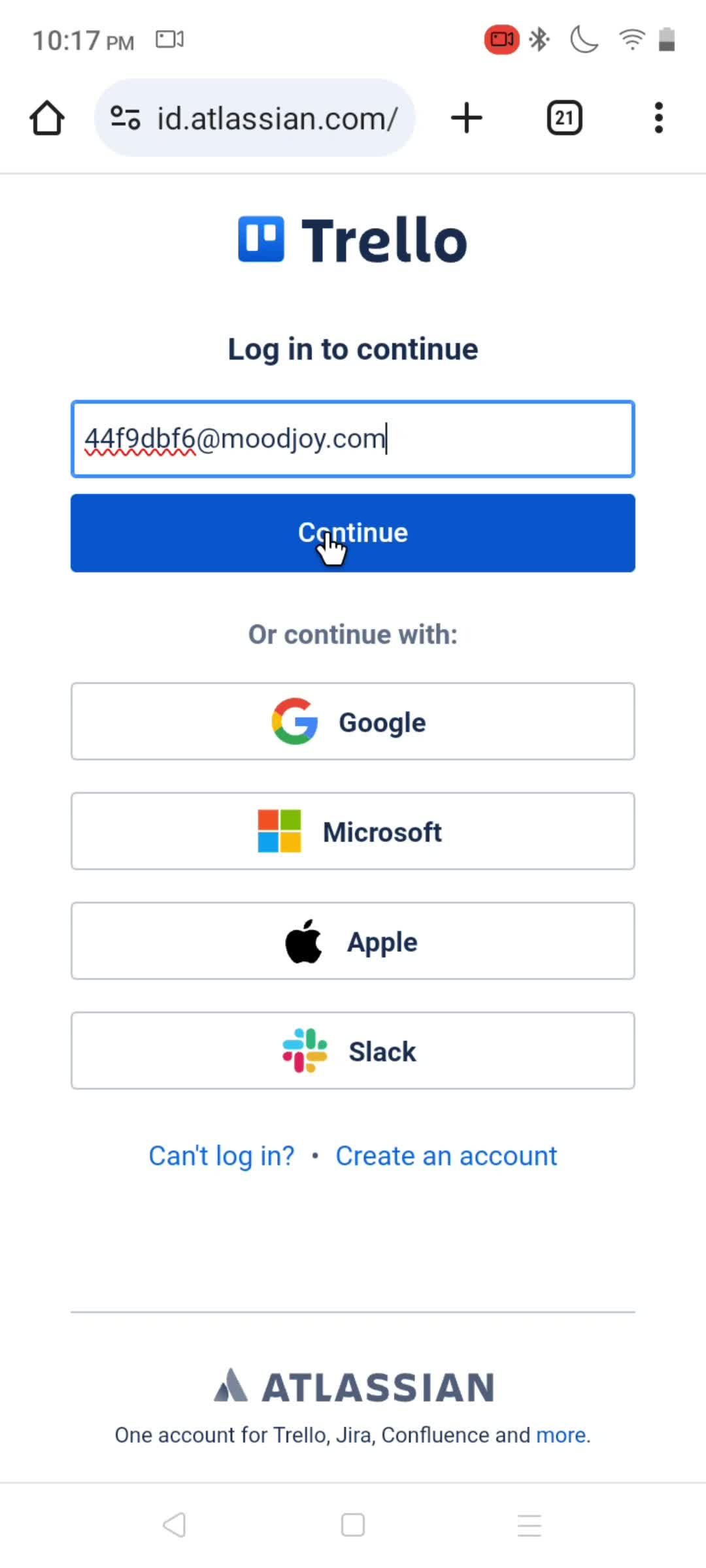
Enter email
this is title
this is title
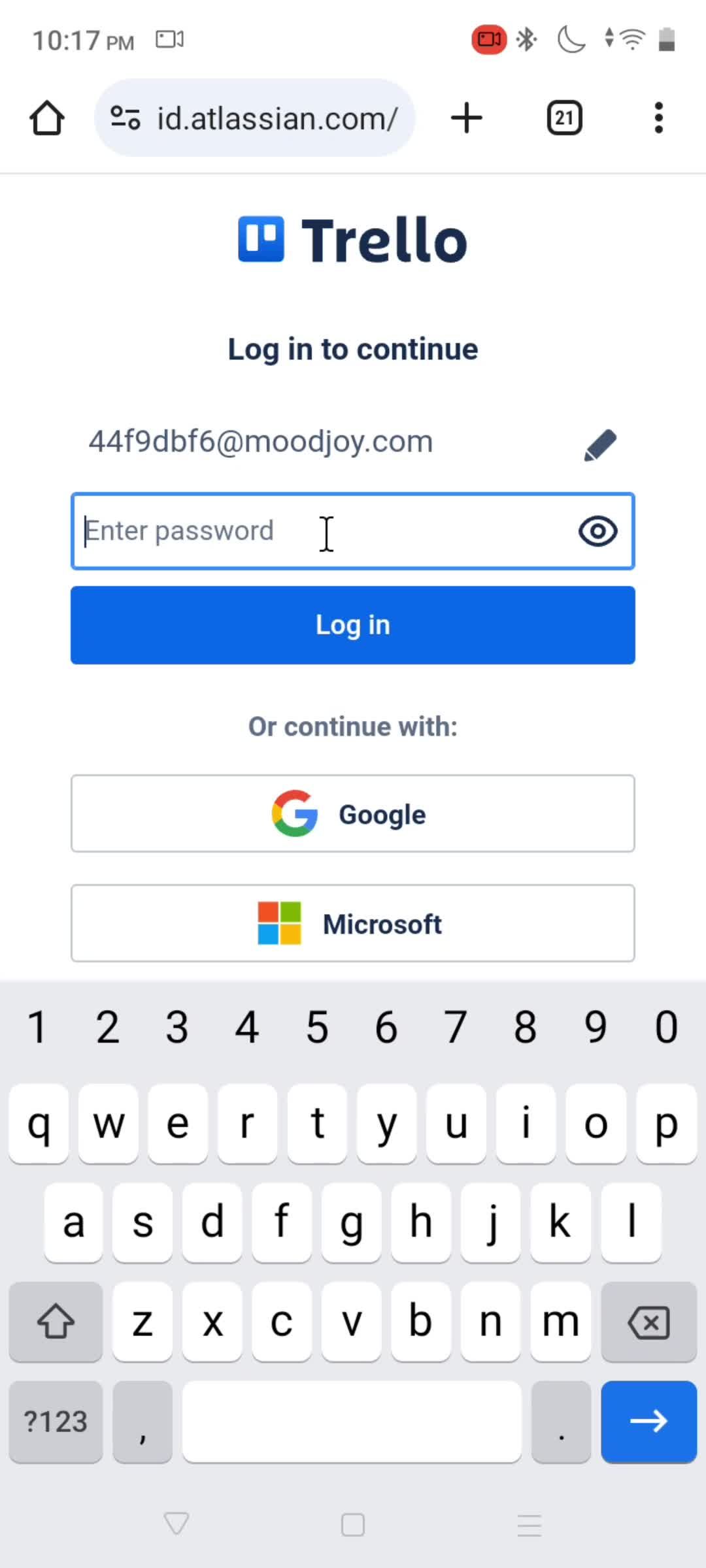
Enter password
this is title
this is title
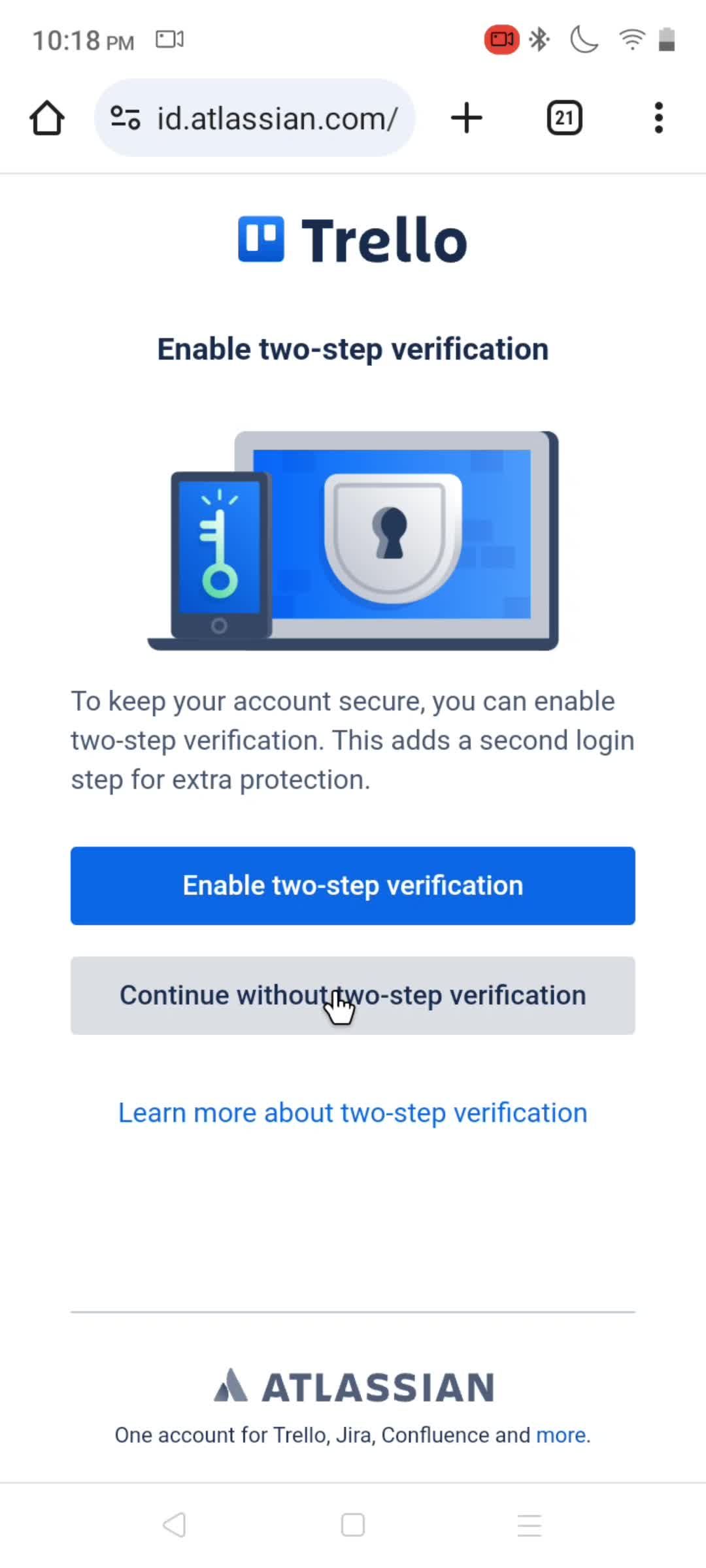
Two-factor authentication
this is title
this is title
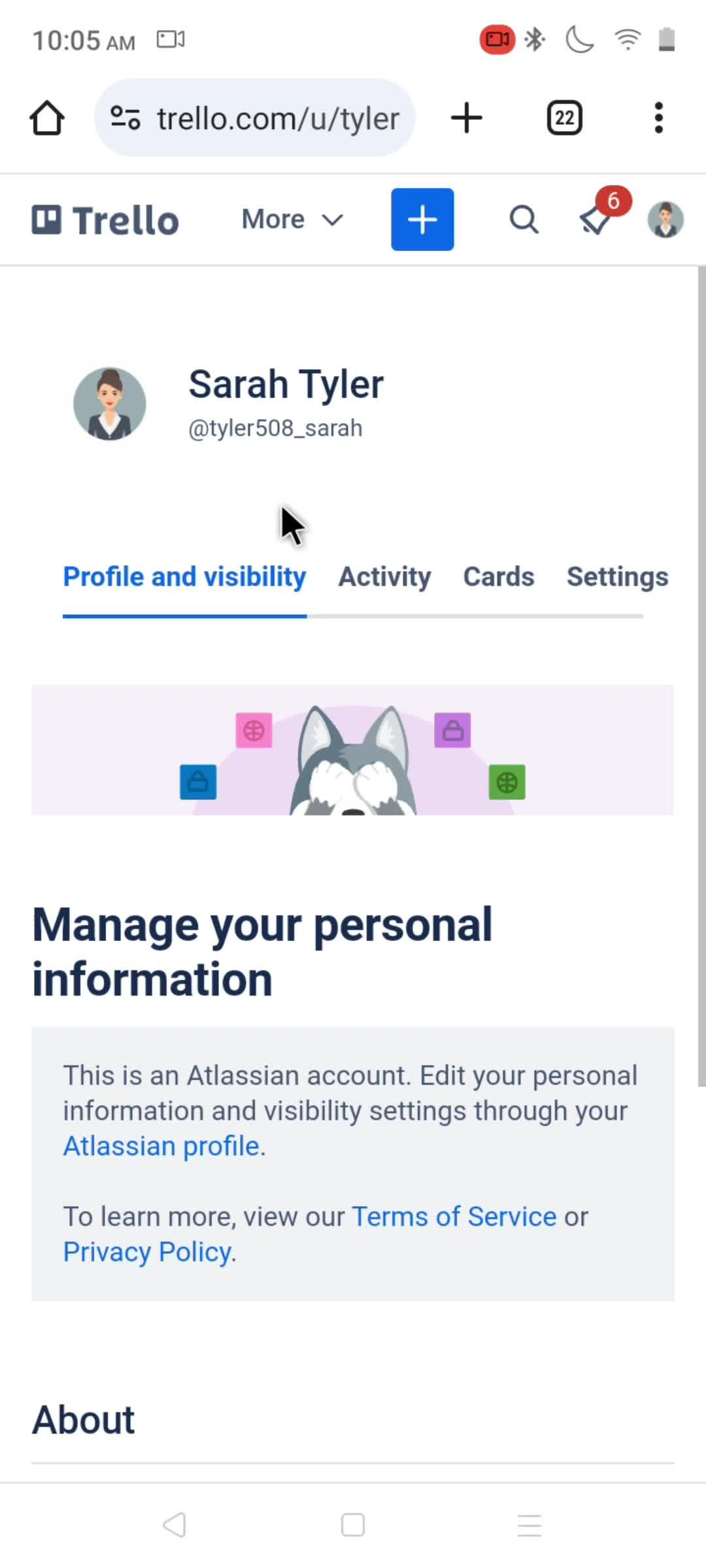
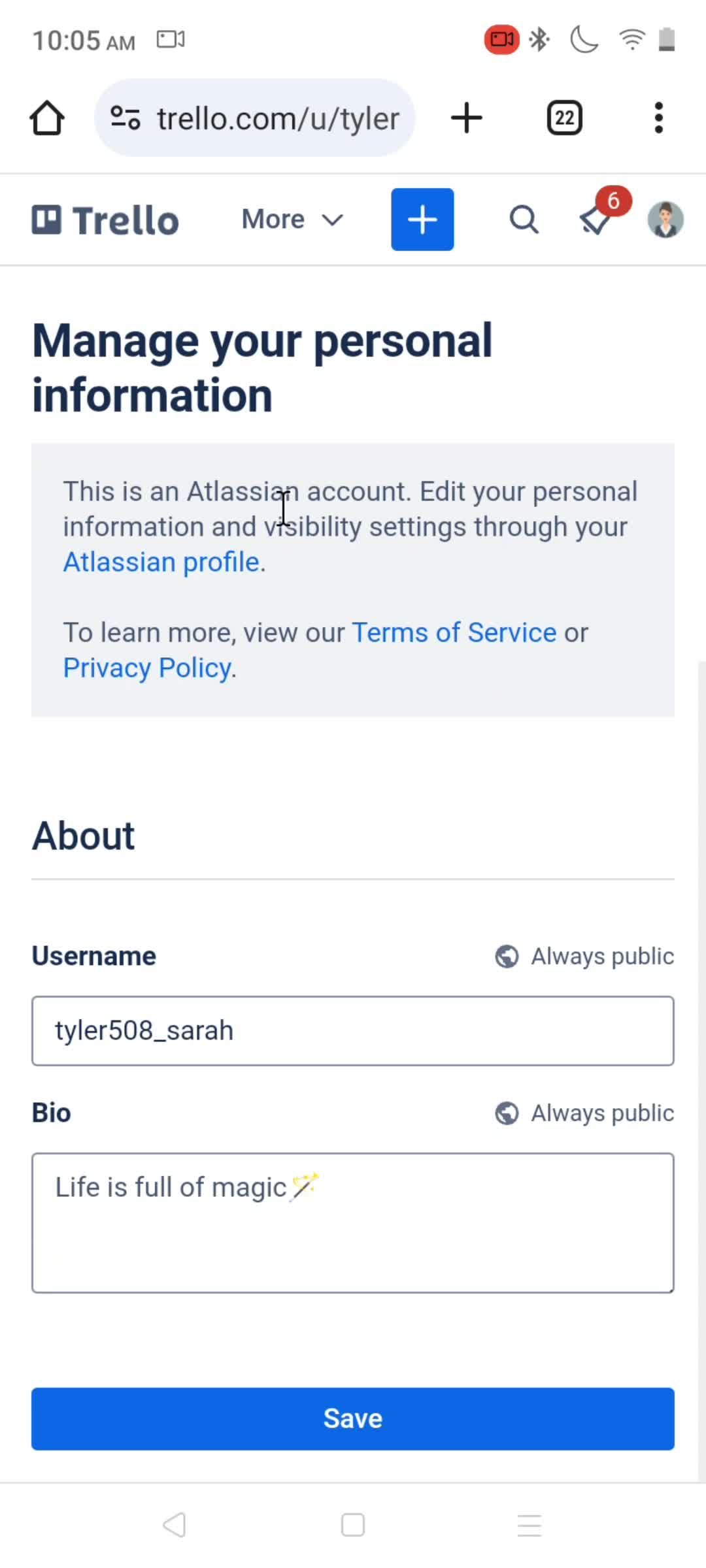
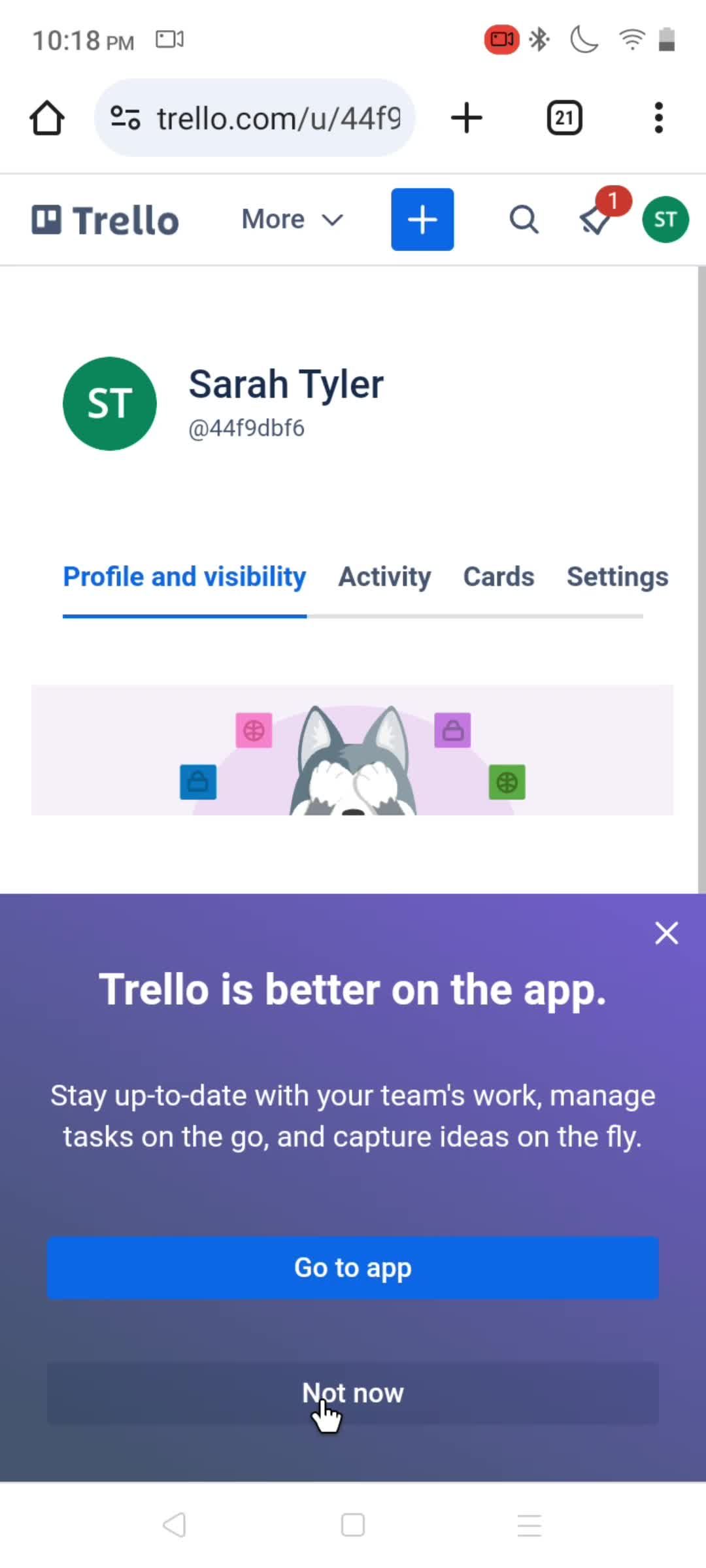
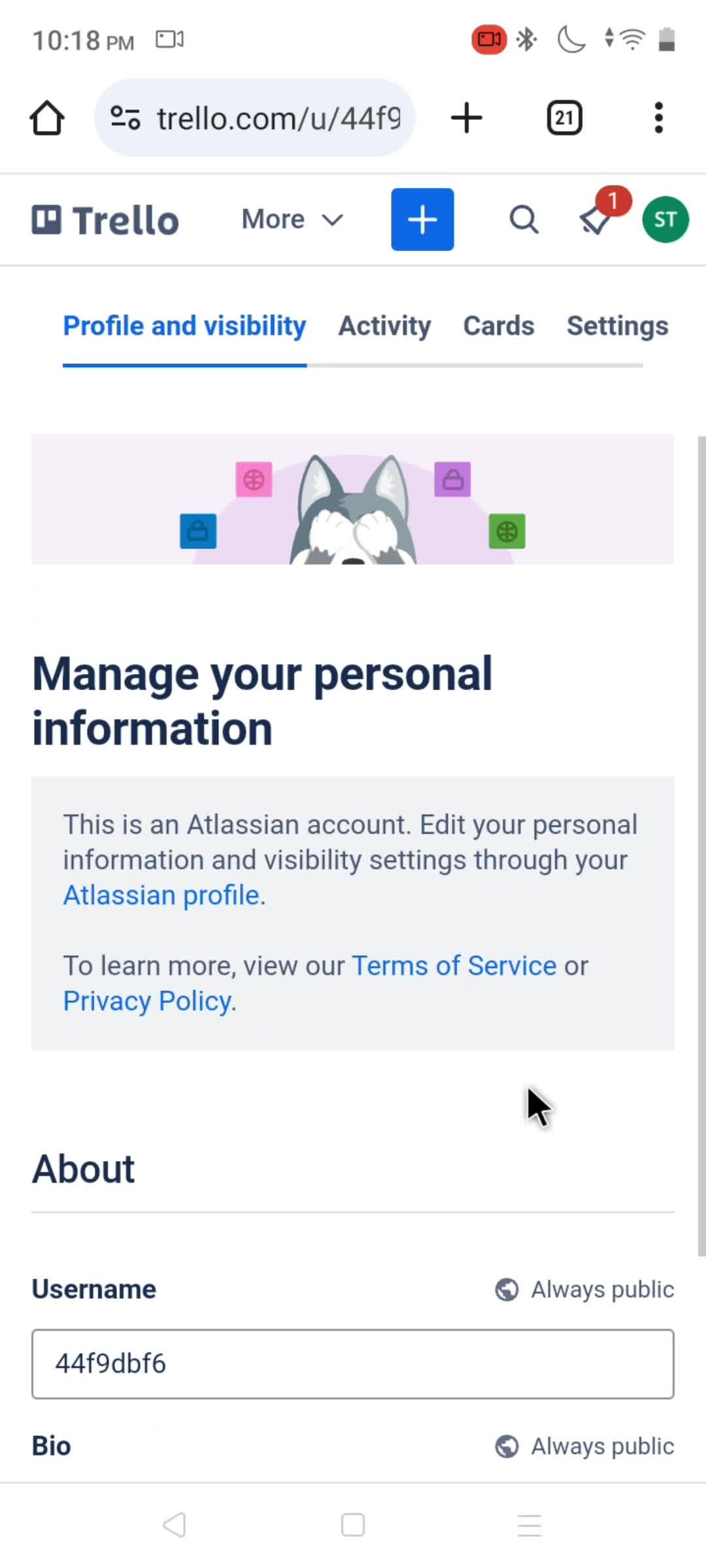
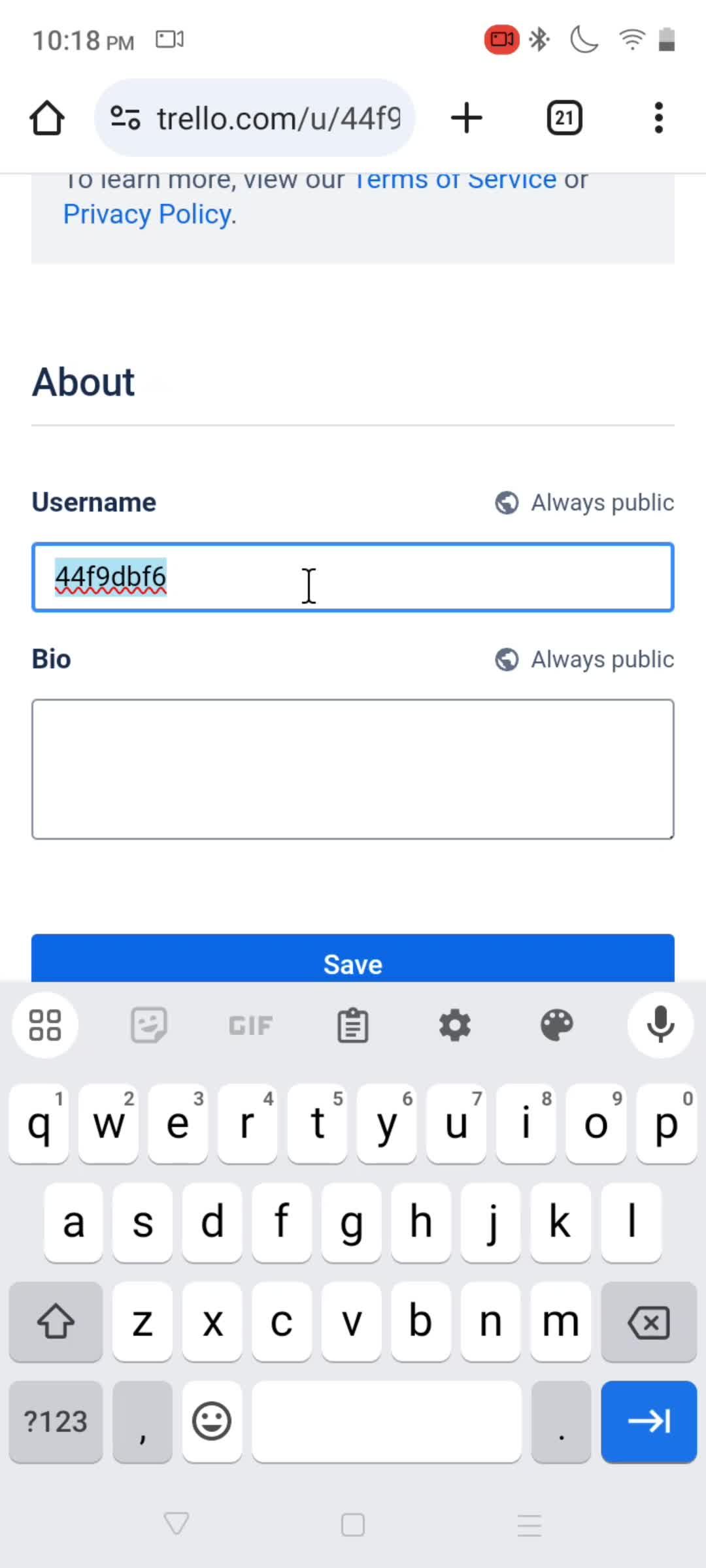
Profile details
this is title
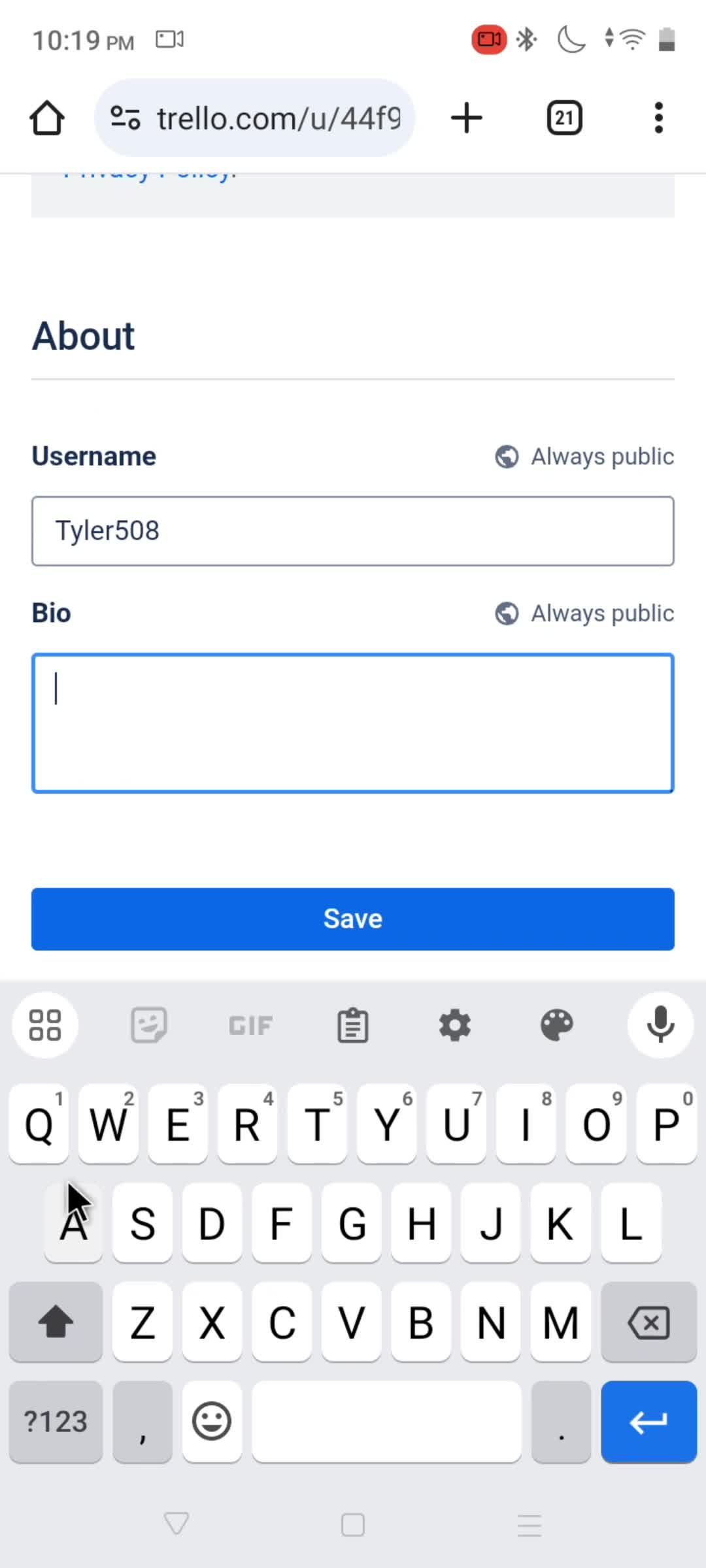
Edit username
this is title
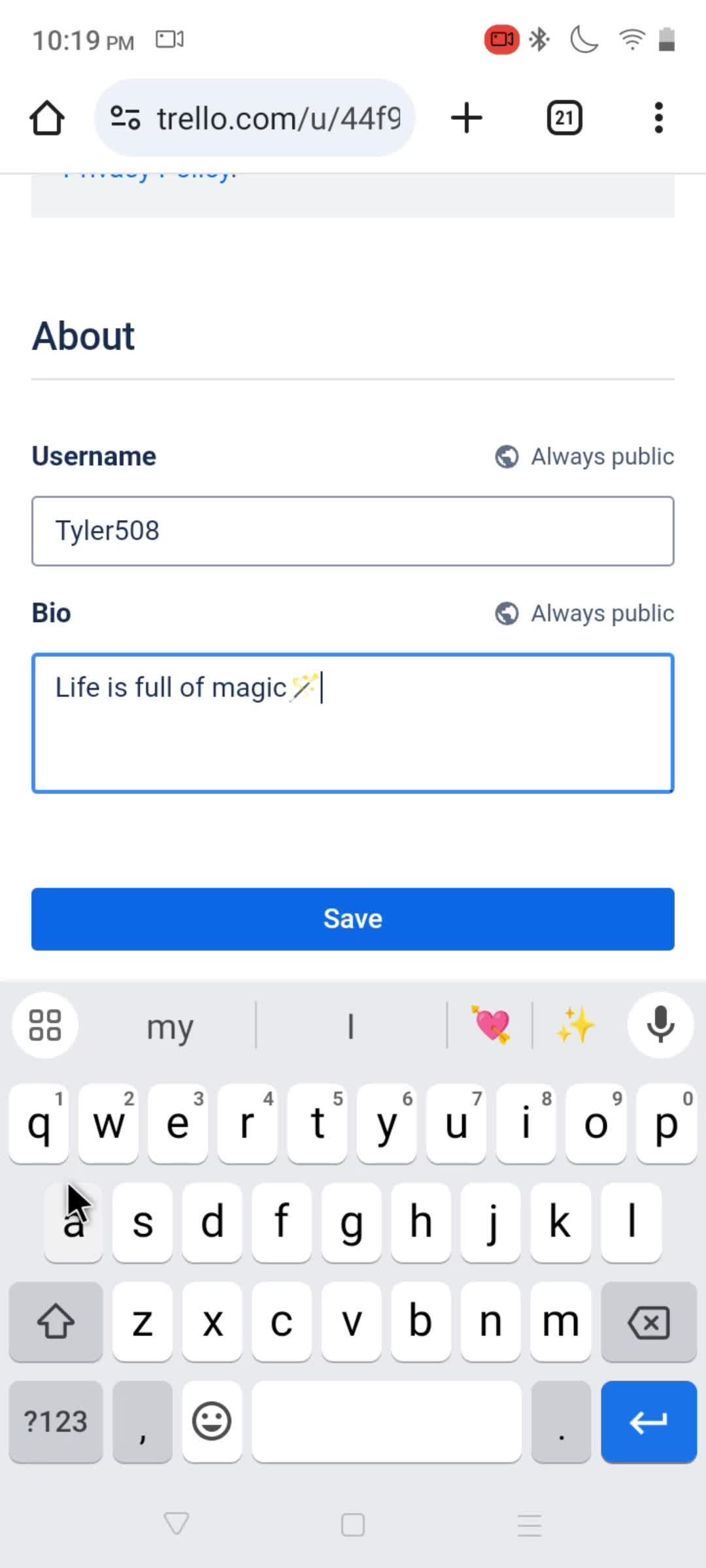
Add bio
this is title
this is title
this is title
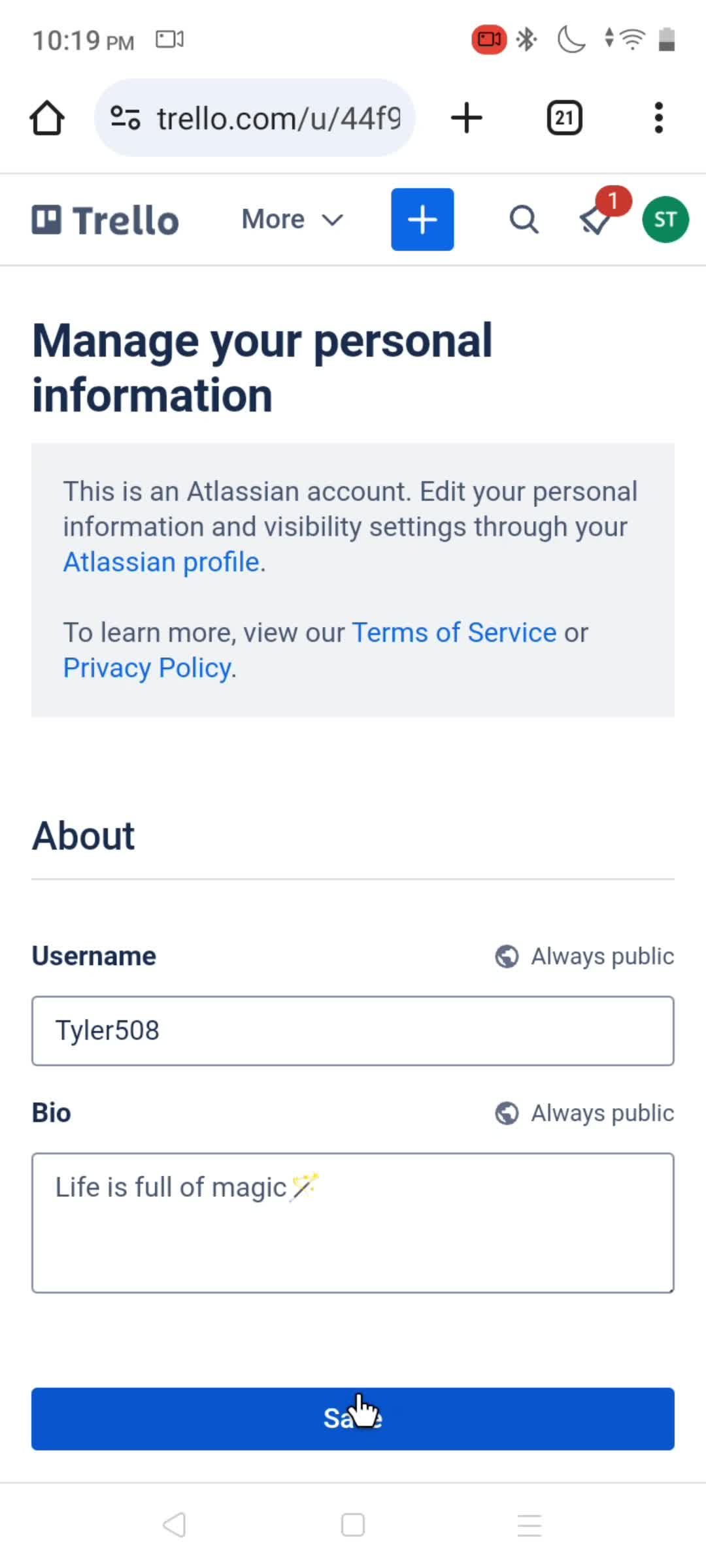
Saved
this is title
Account menu
this is title
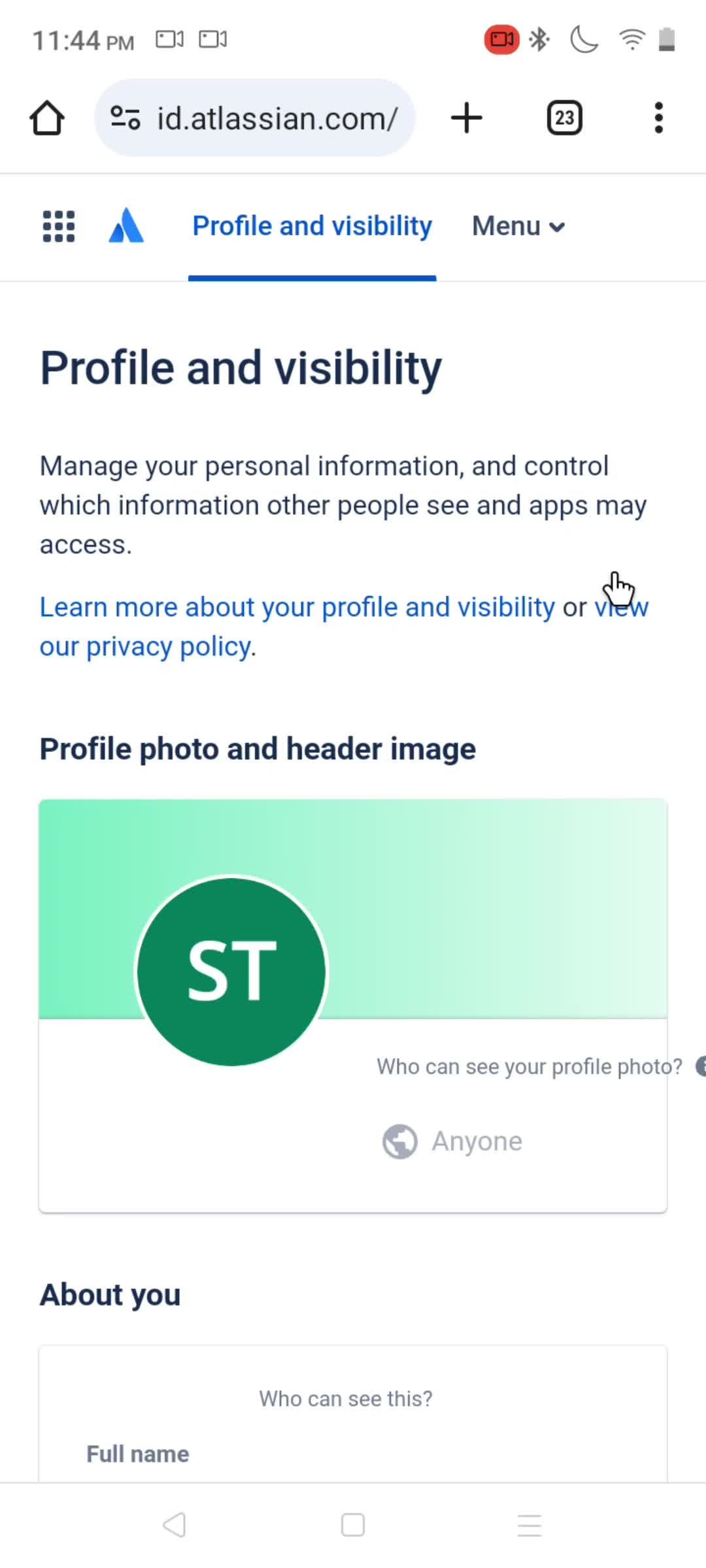
Profile
this is title
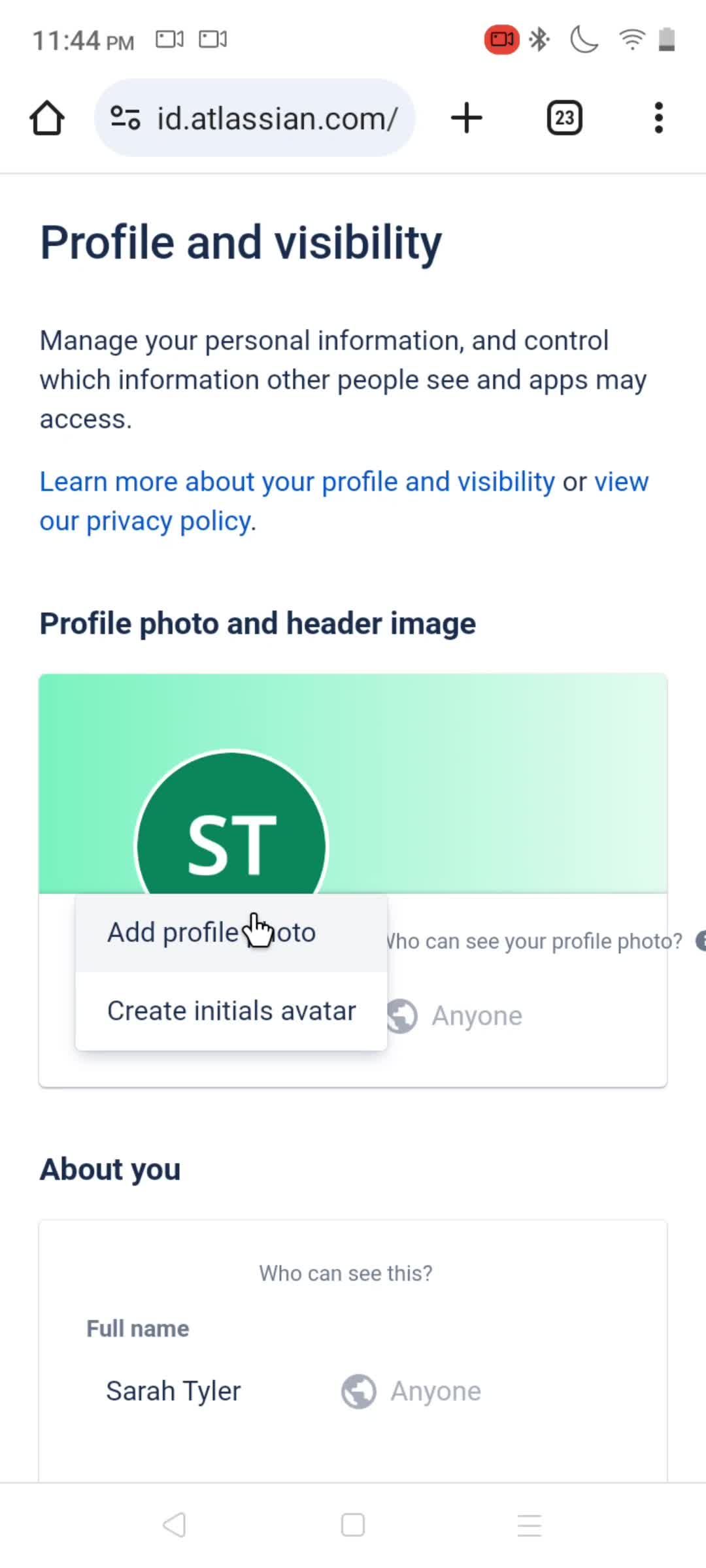
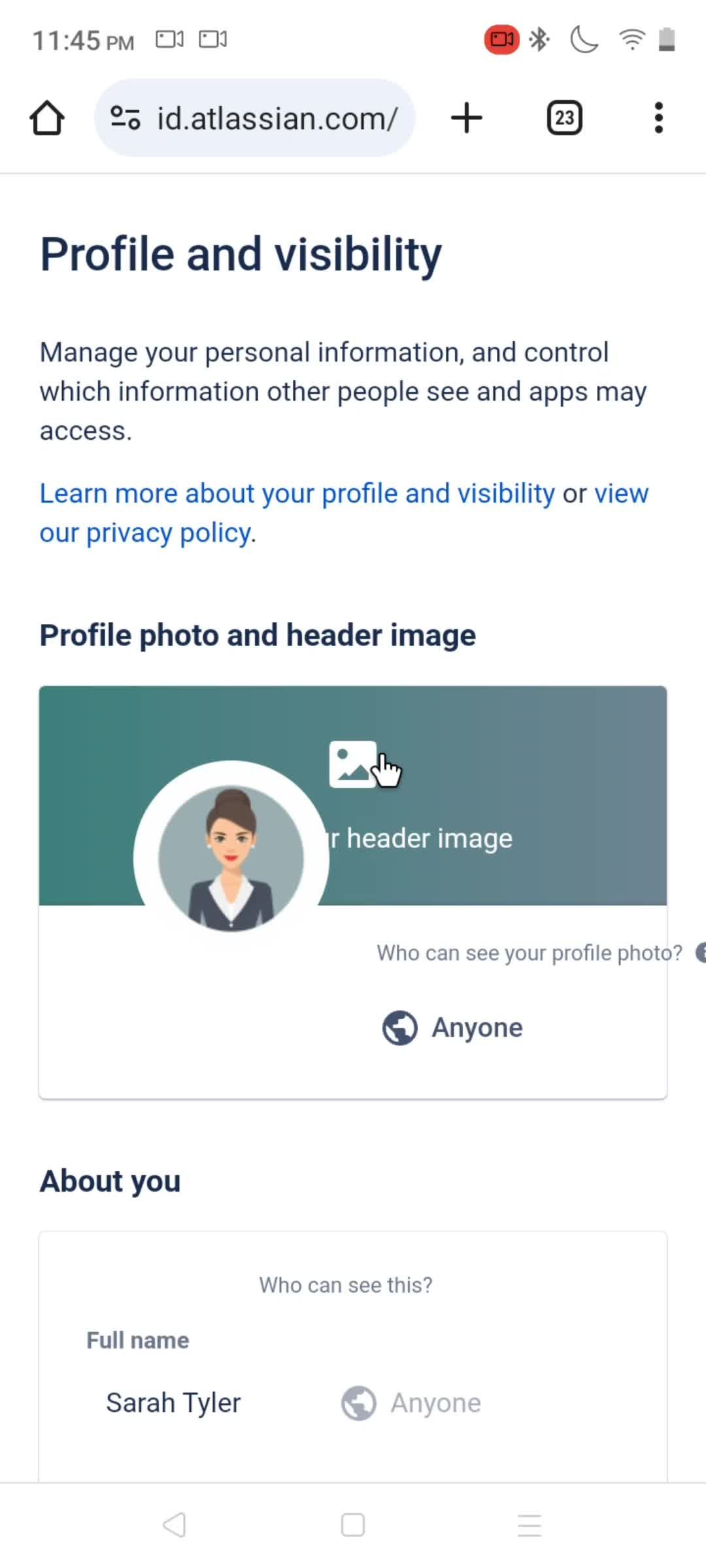
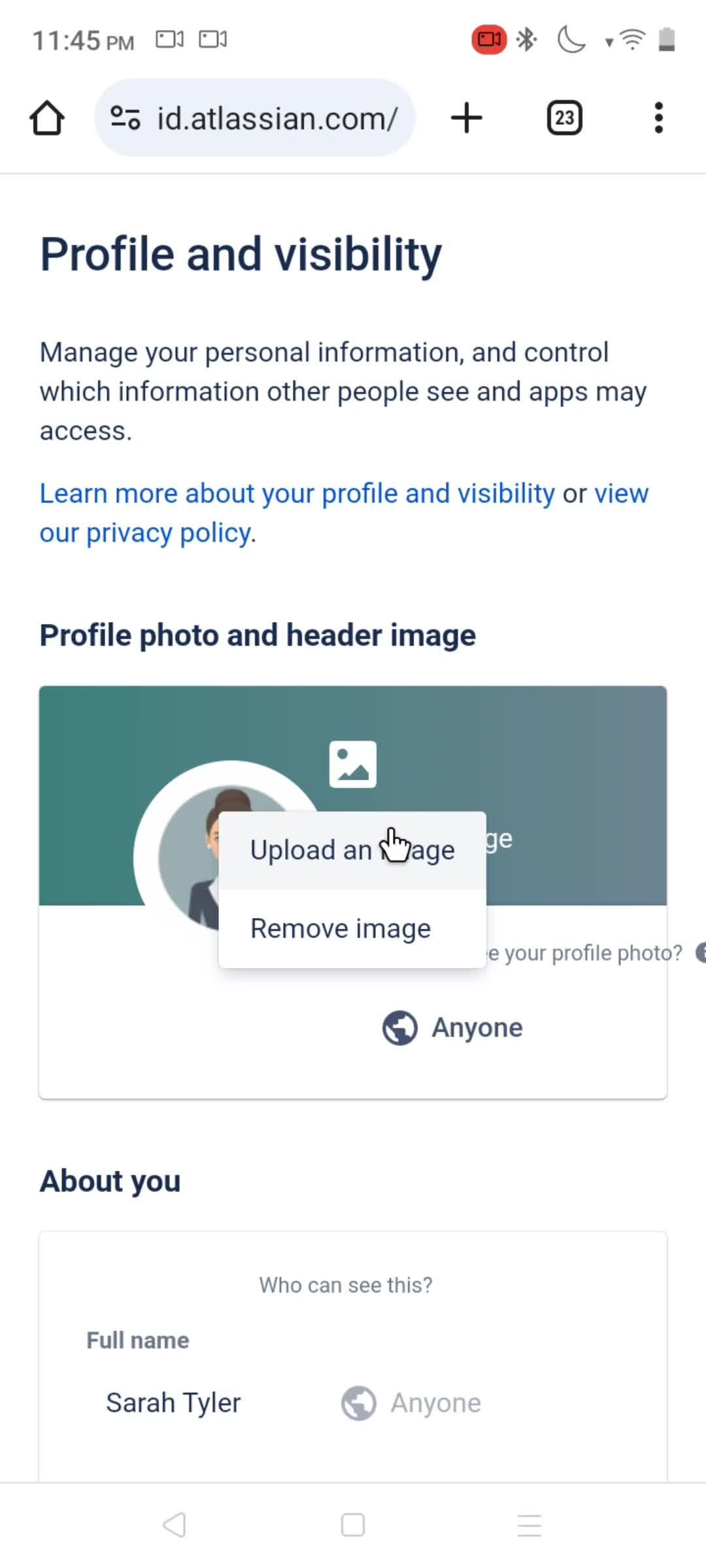
Update profile photo
this is title
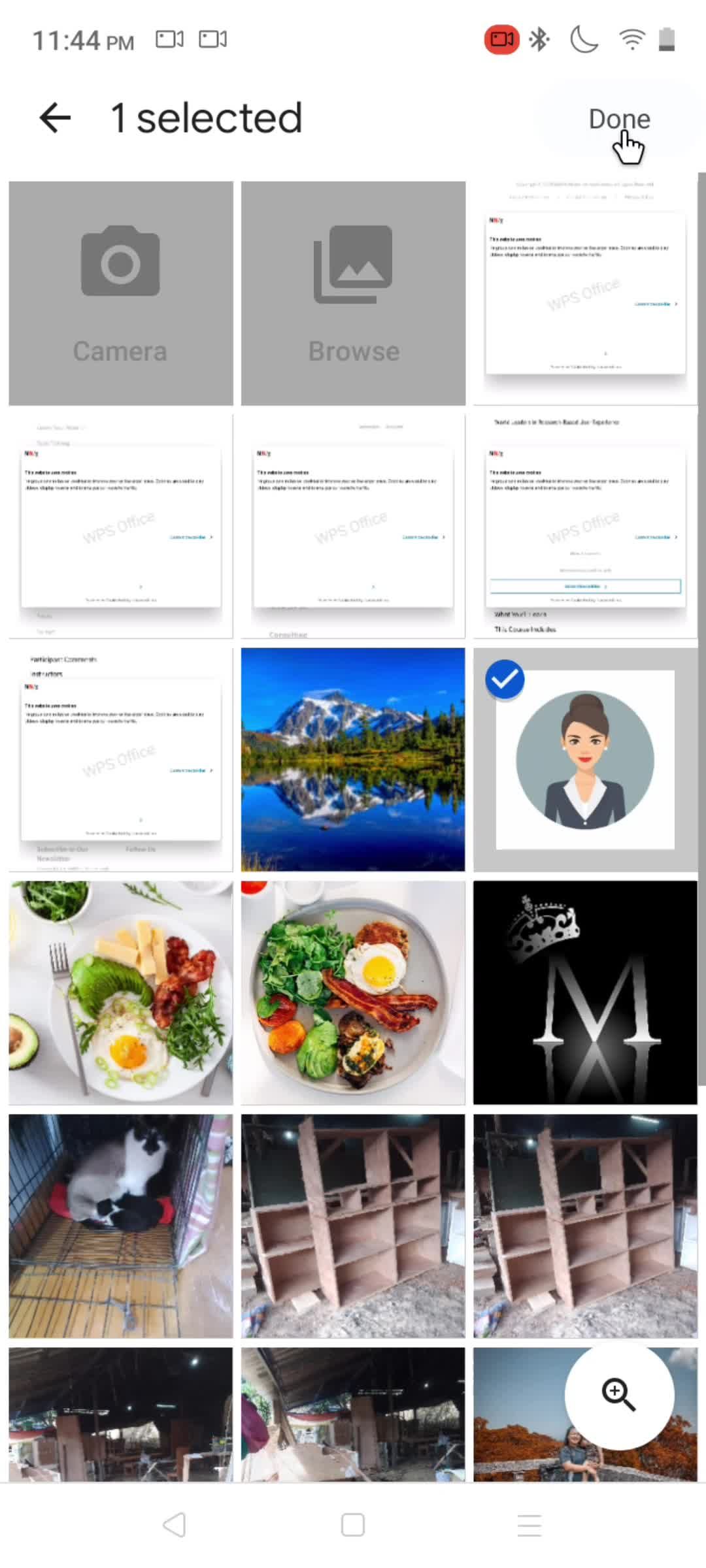
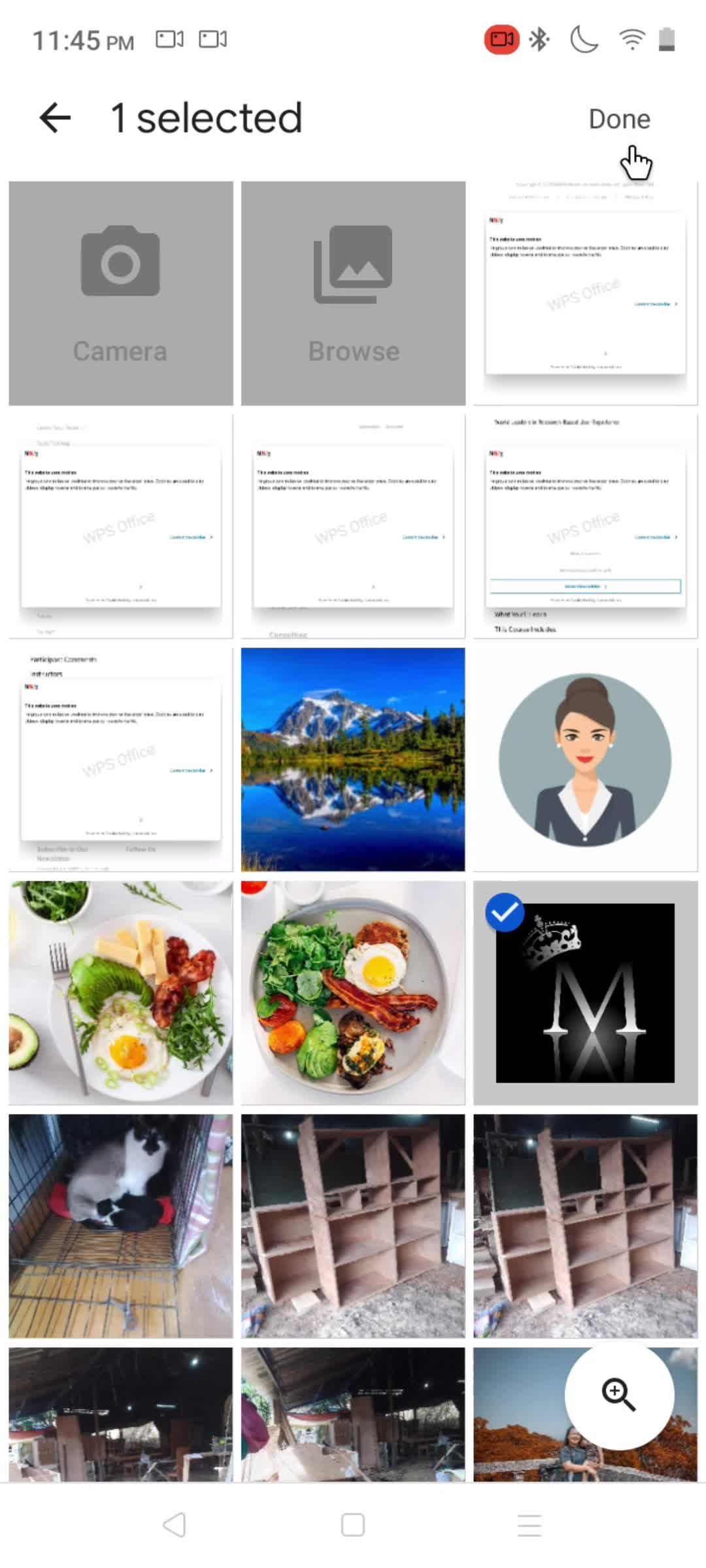
Upload profile picture
this is title
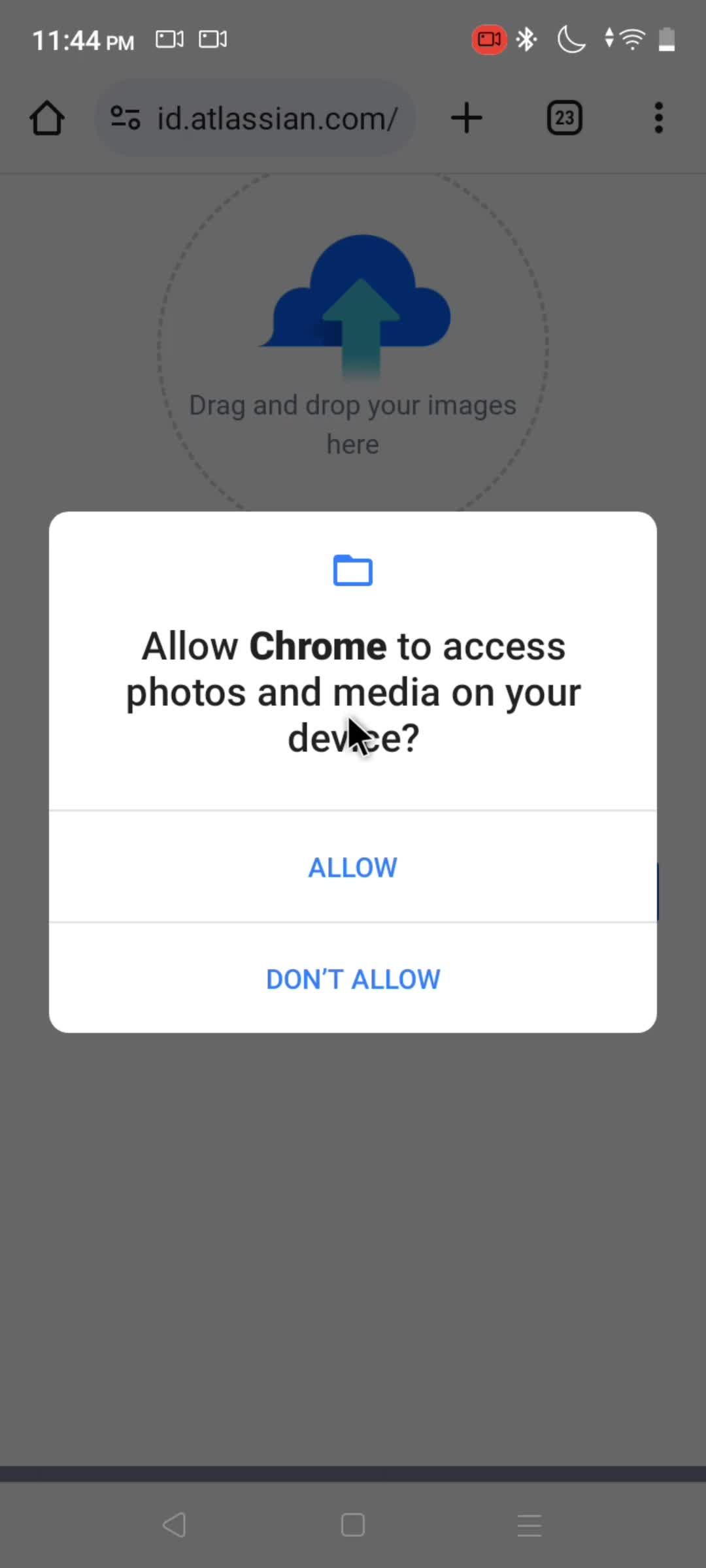
Enable access to photos
this is title
this is title
this is title
Profile photo added
this is title
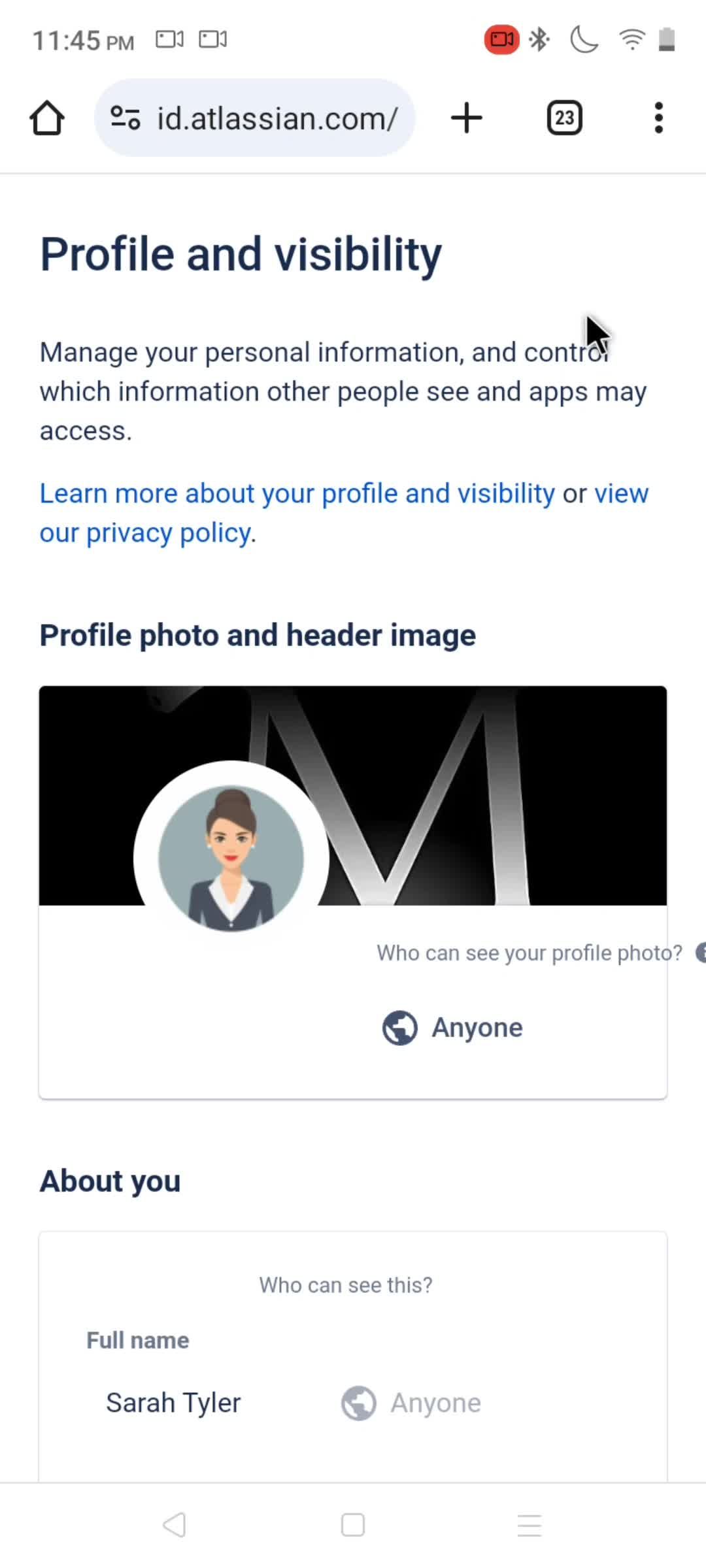
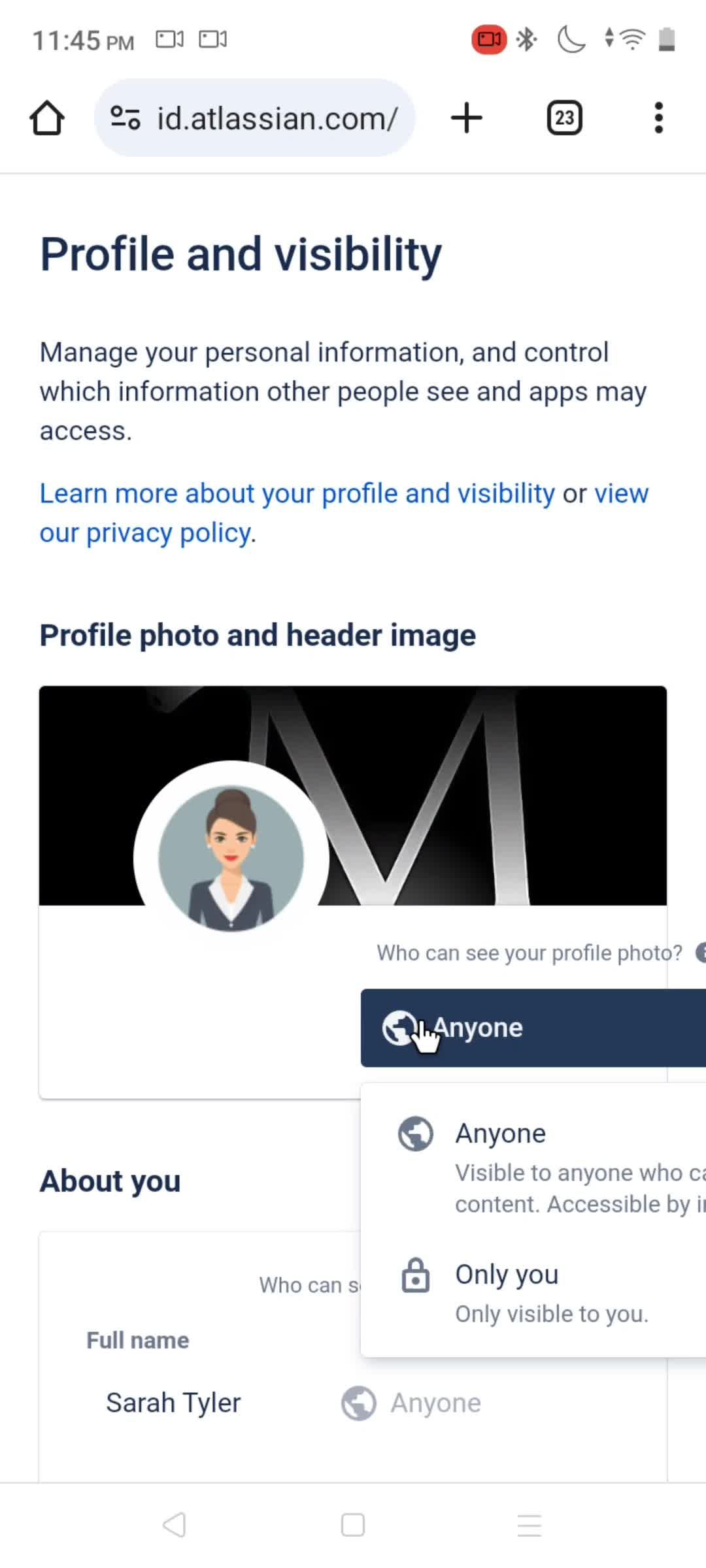
Add cover image
this is title
this is title
this is title
this is title
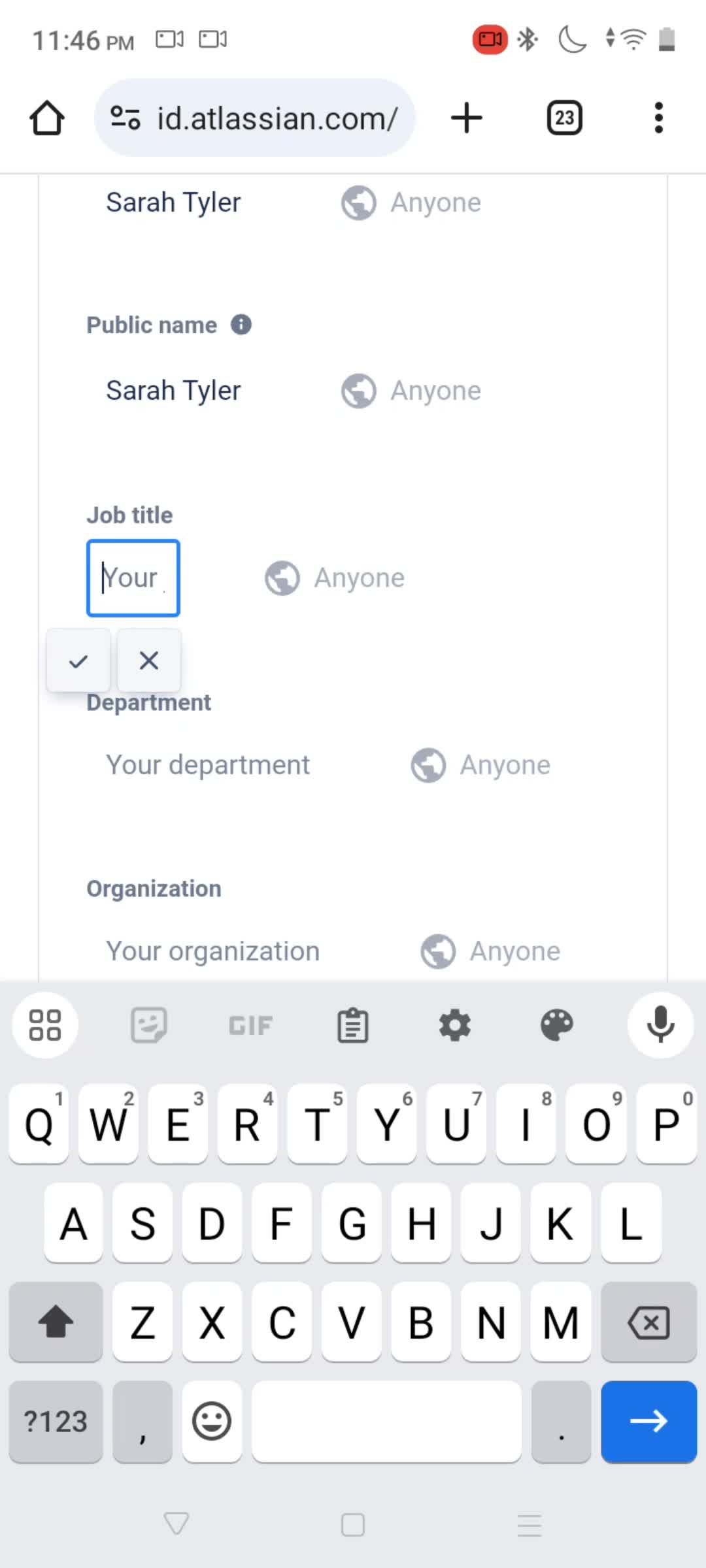
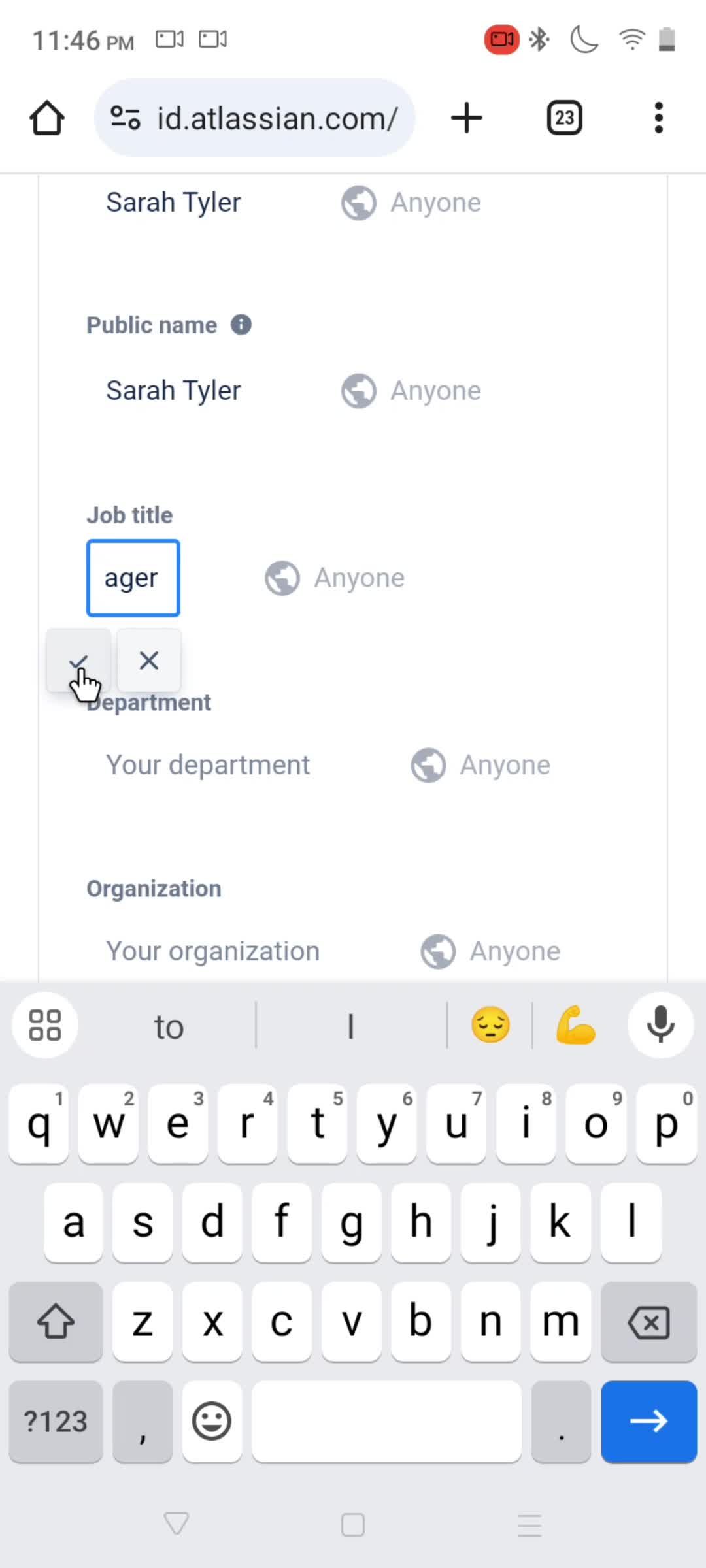
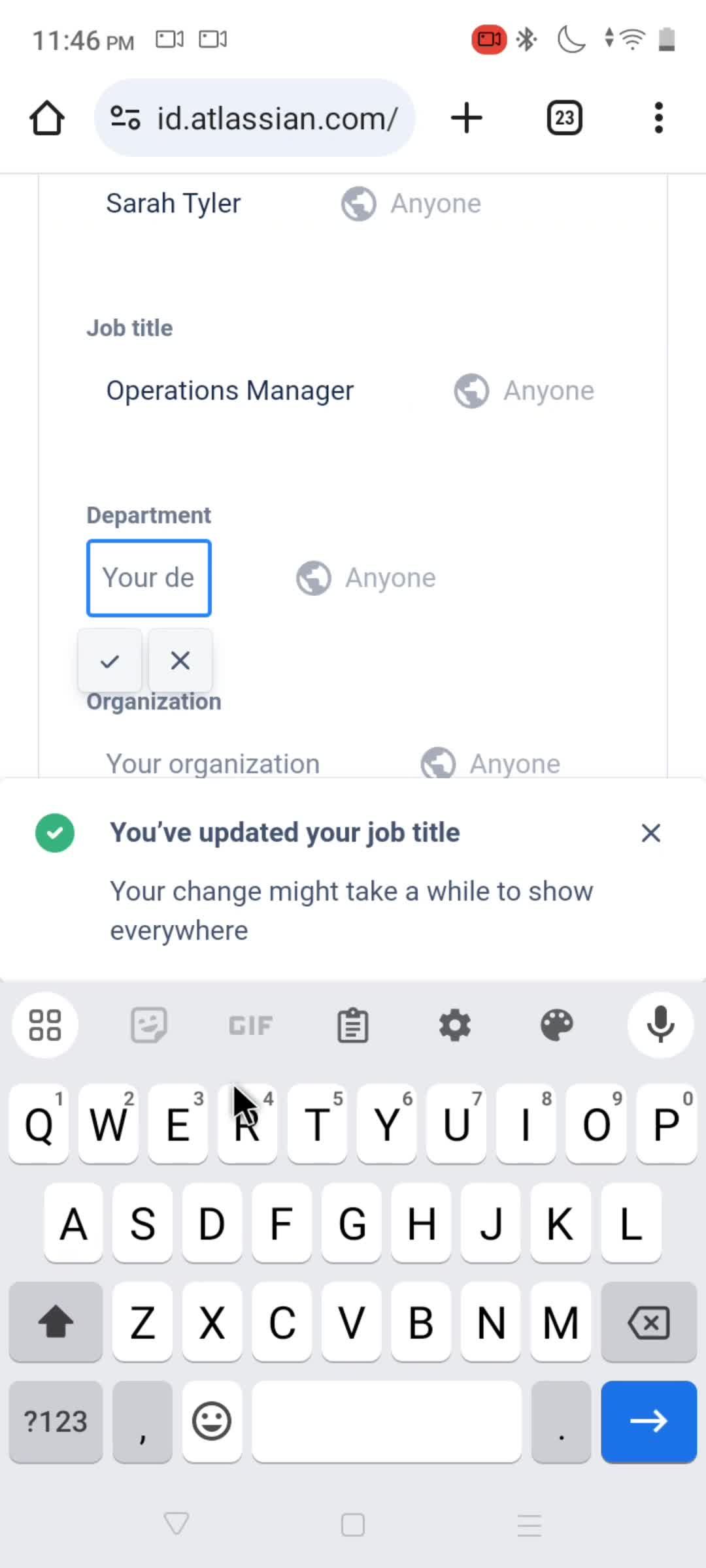
Enter job title
this is title
this is title
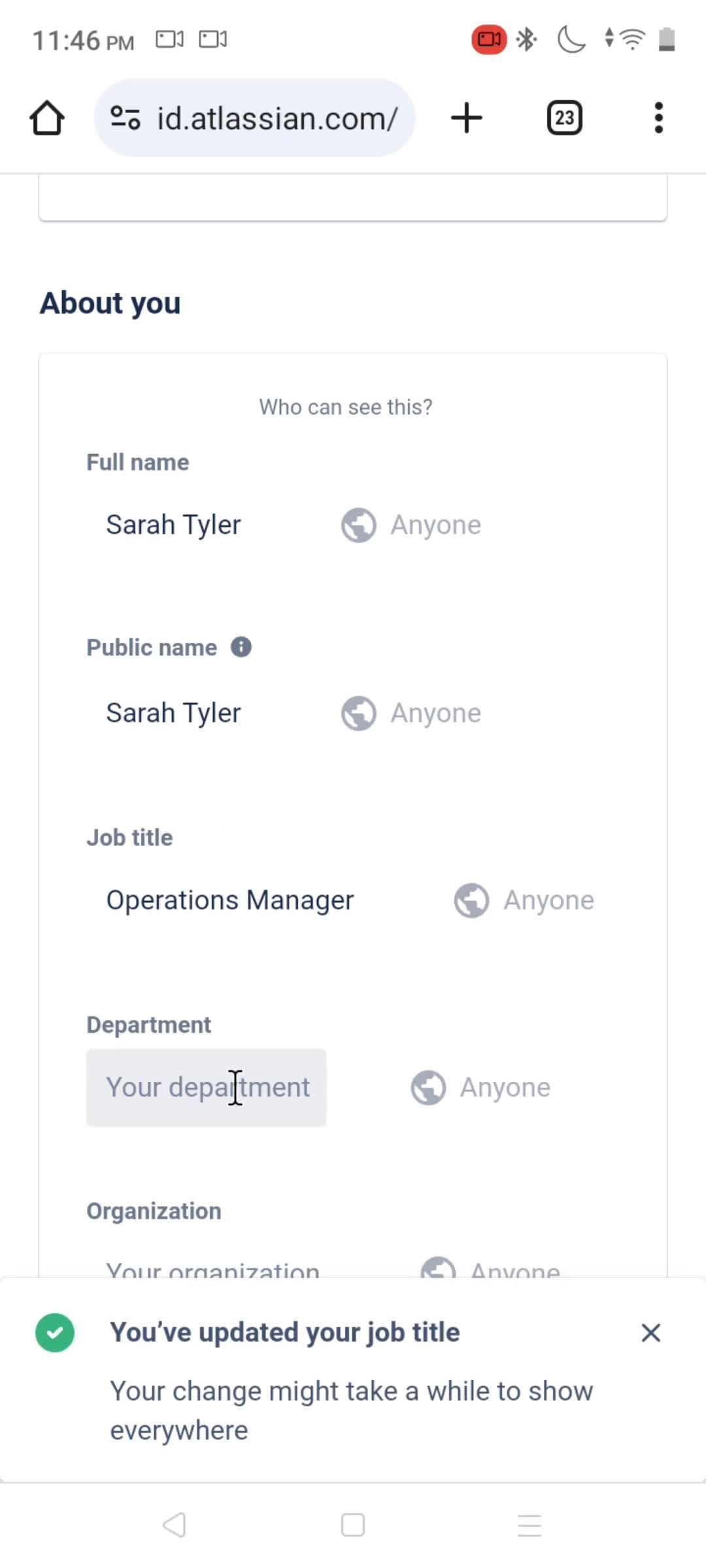
Updated
this is title
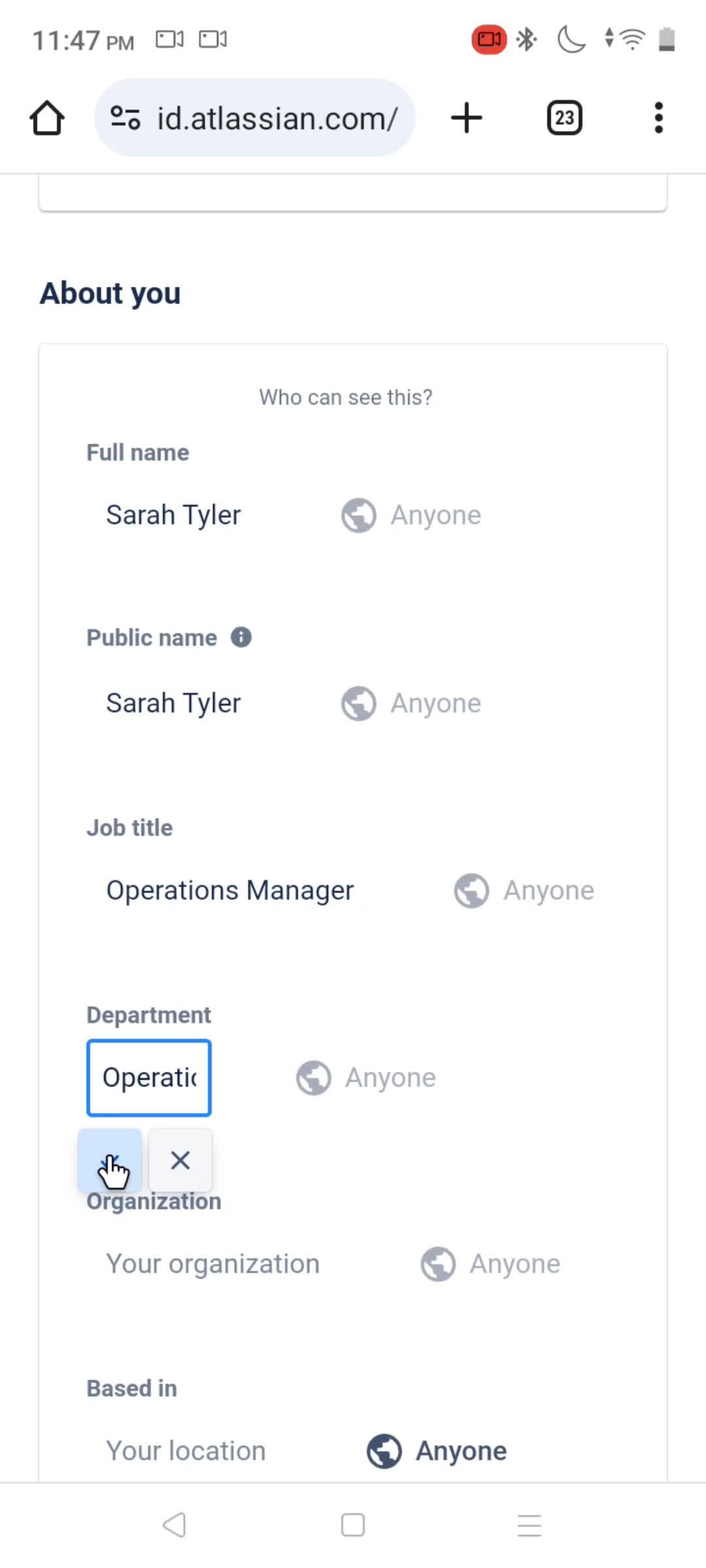
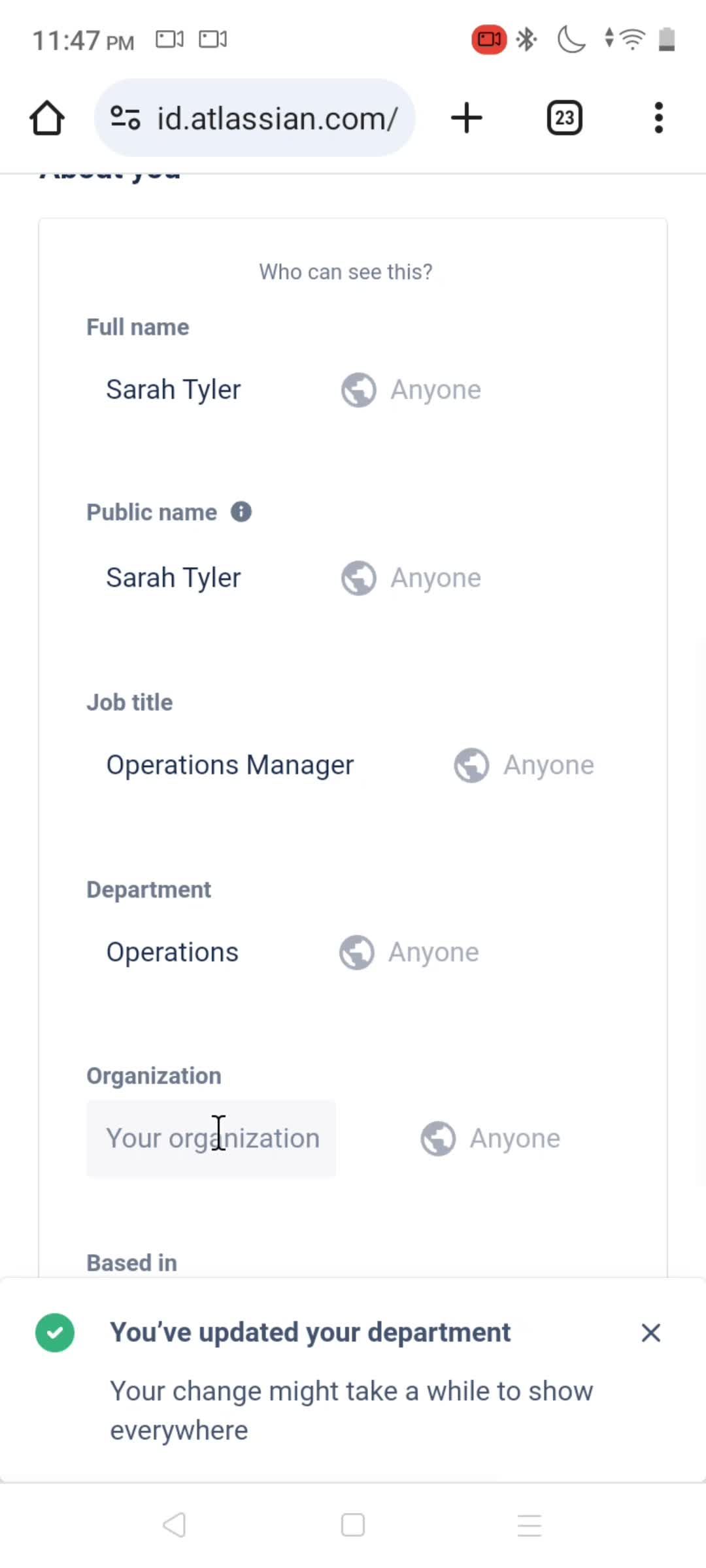
Enter department
this is title
this is title
Updated
this is title
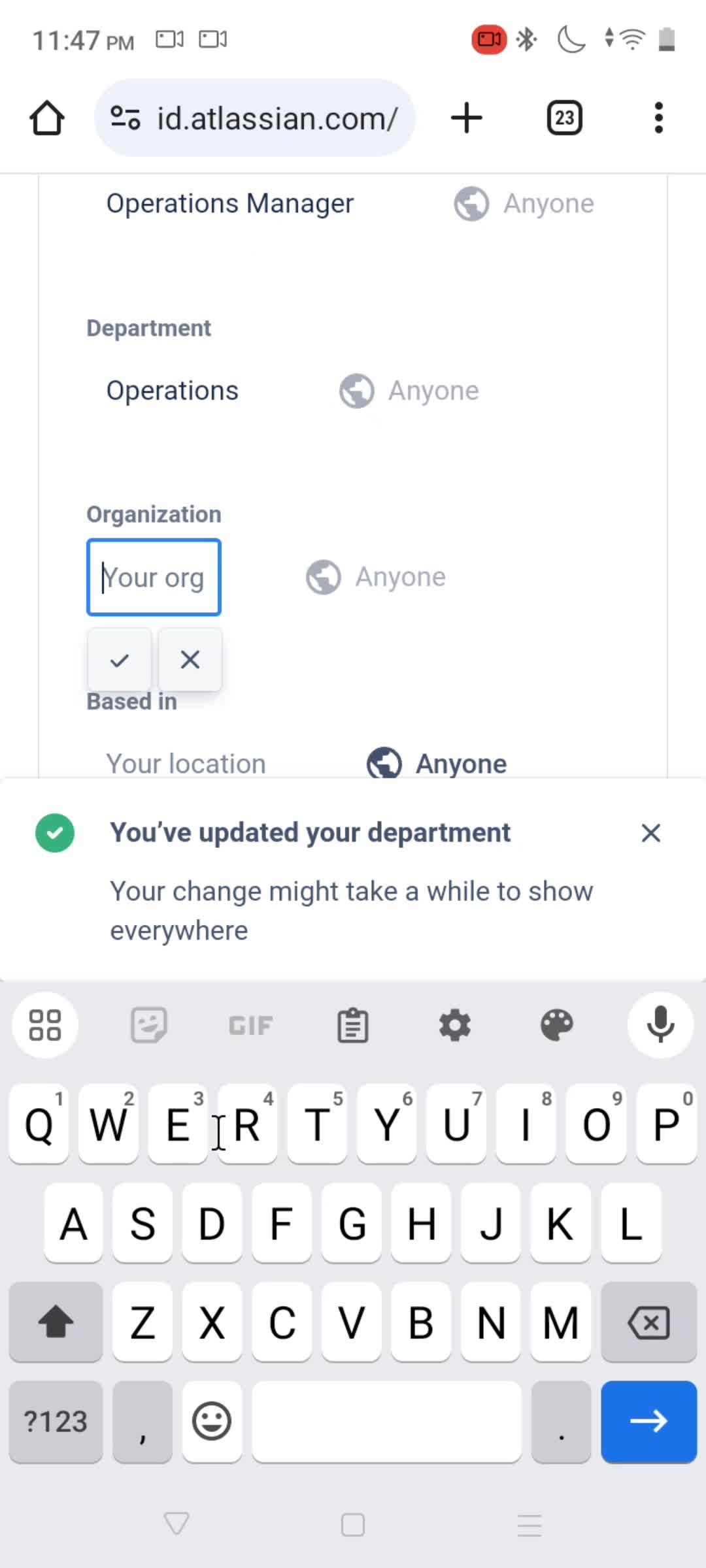
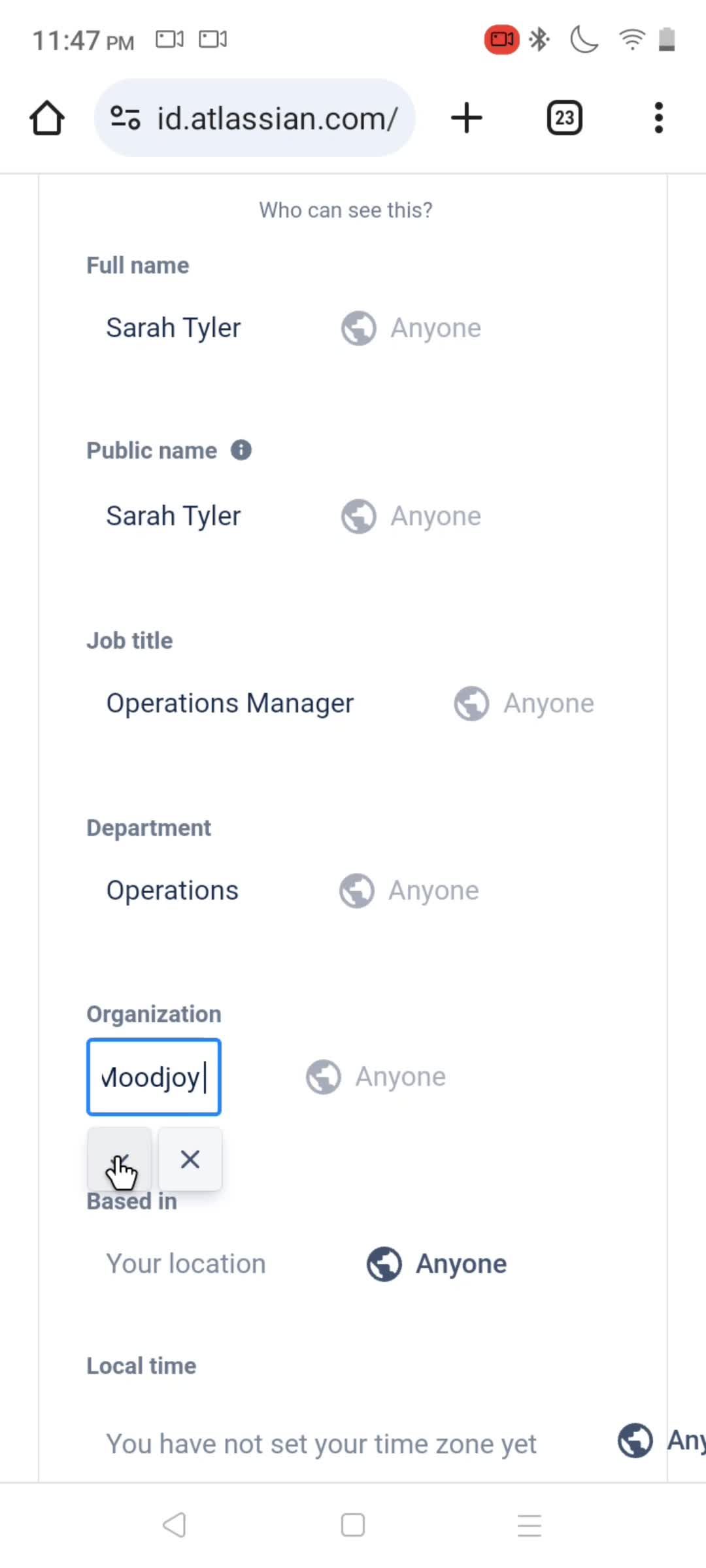
Enter company name
this is title
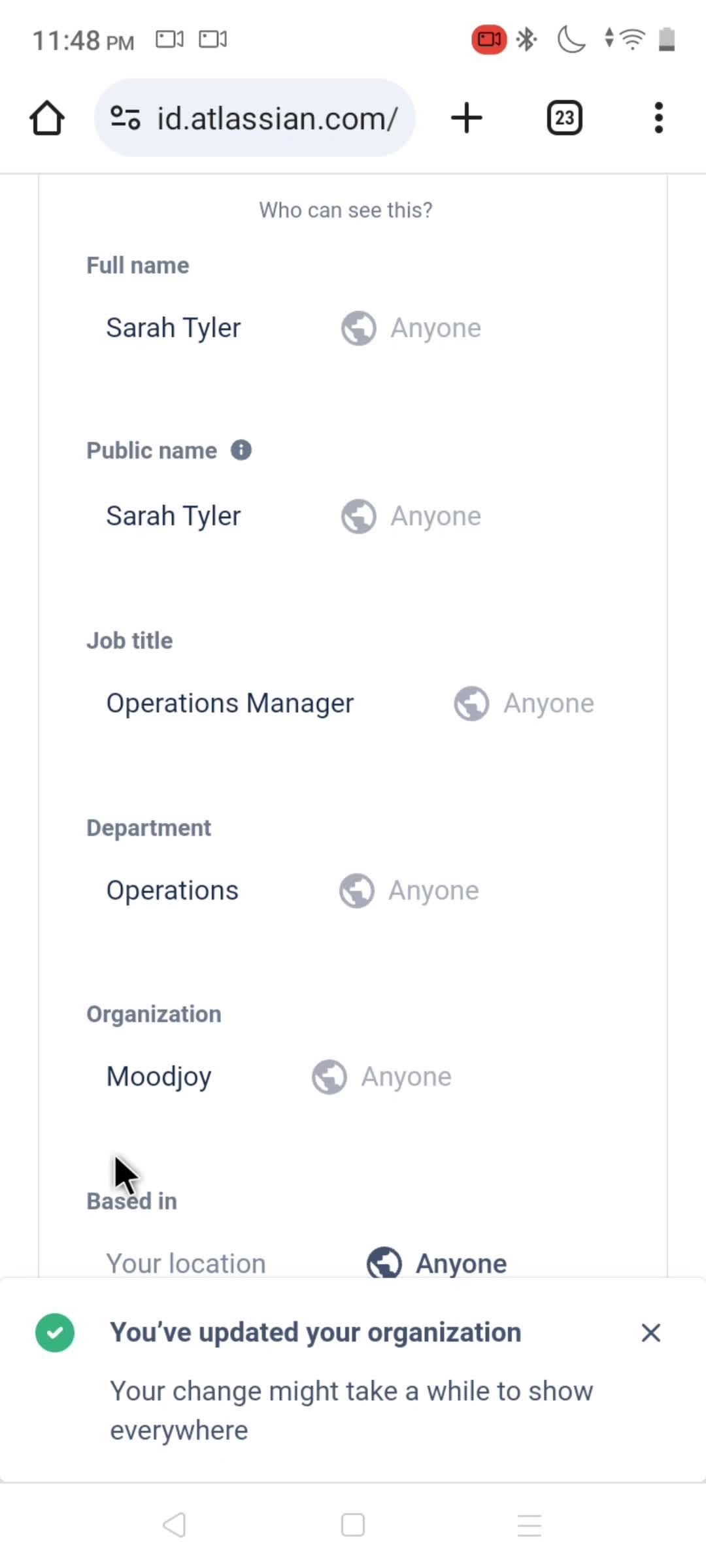
this is title
Updated
this is title
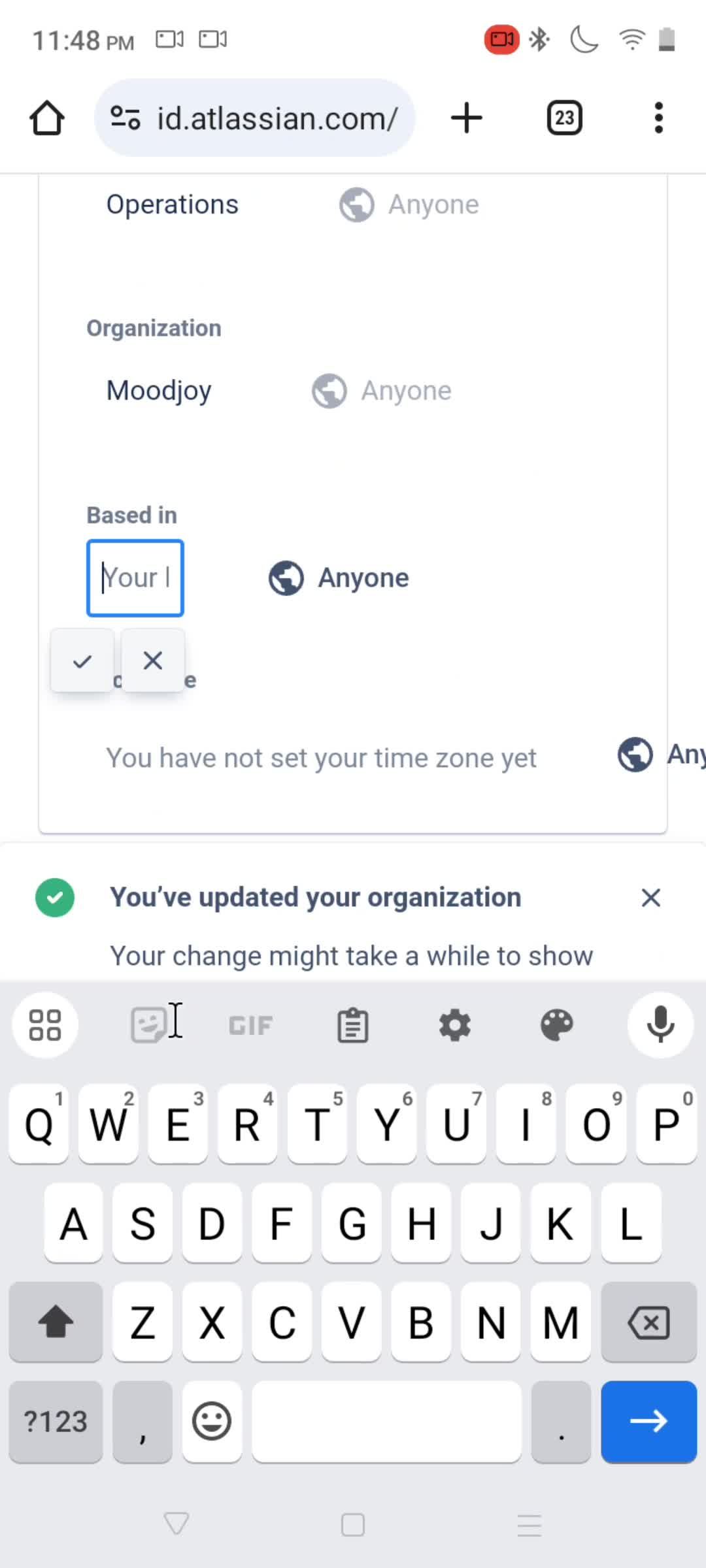
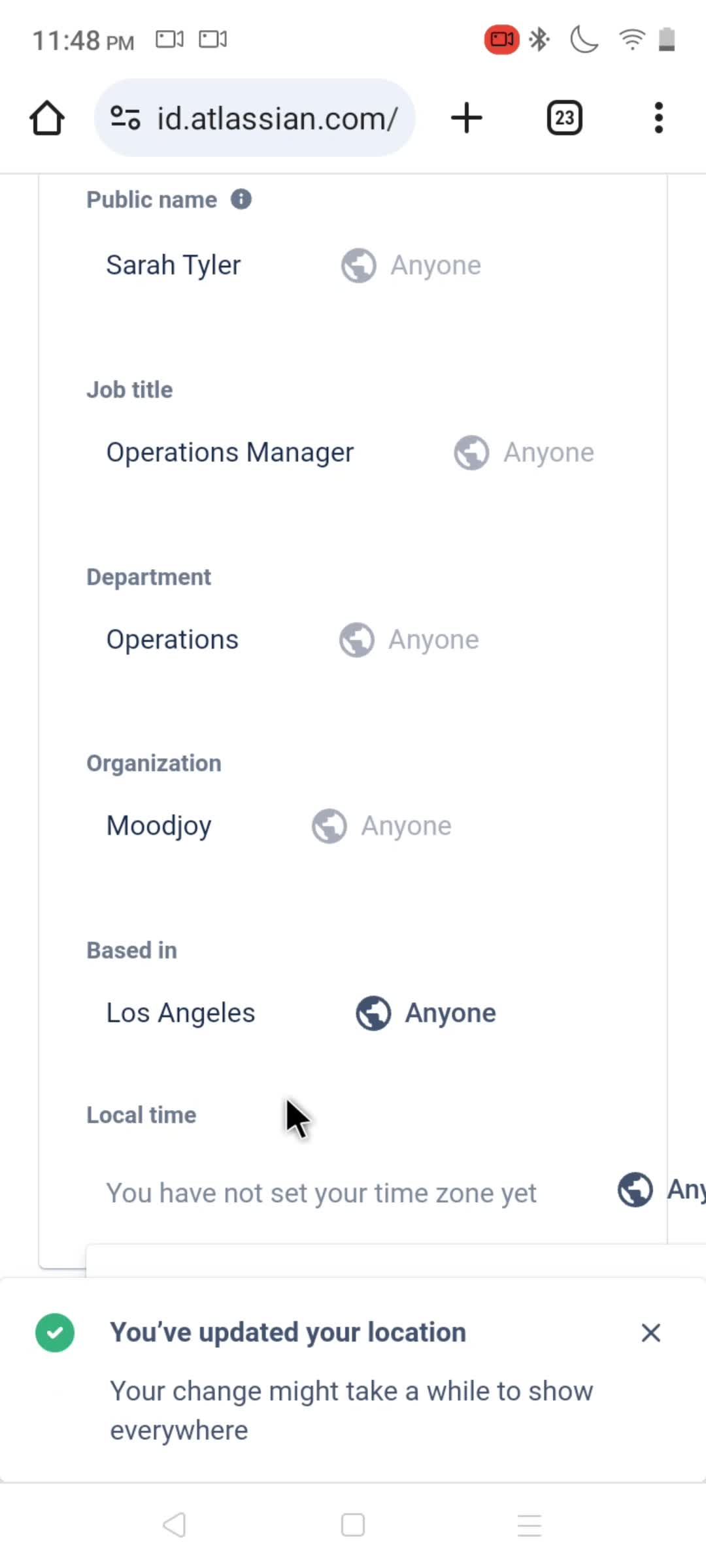
Enter location
this is title
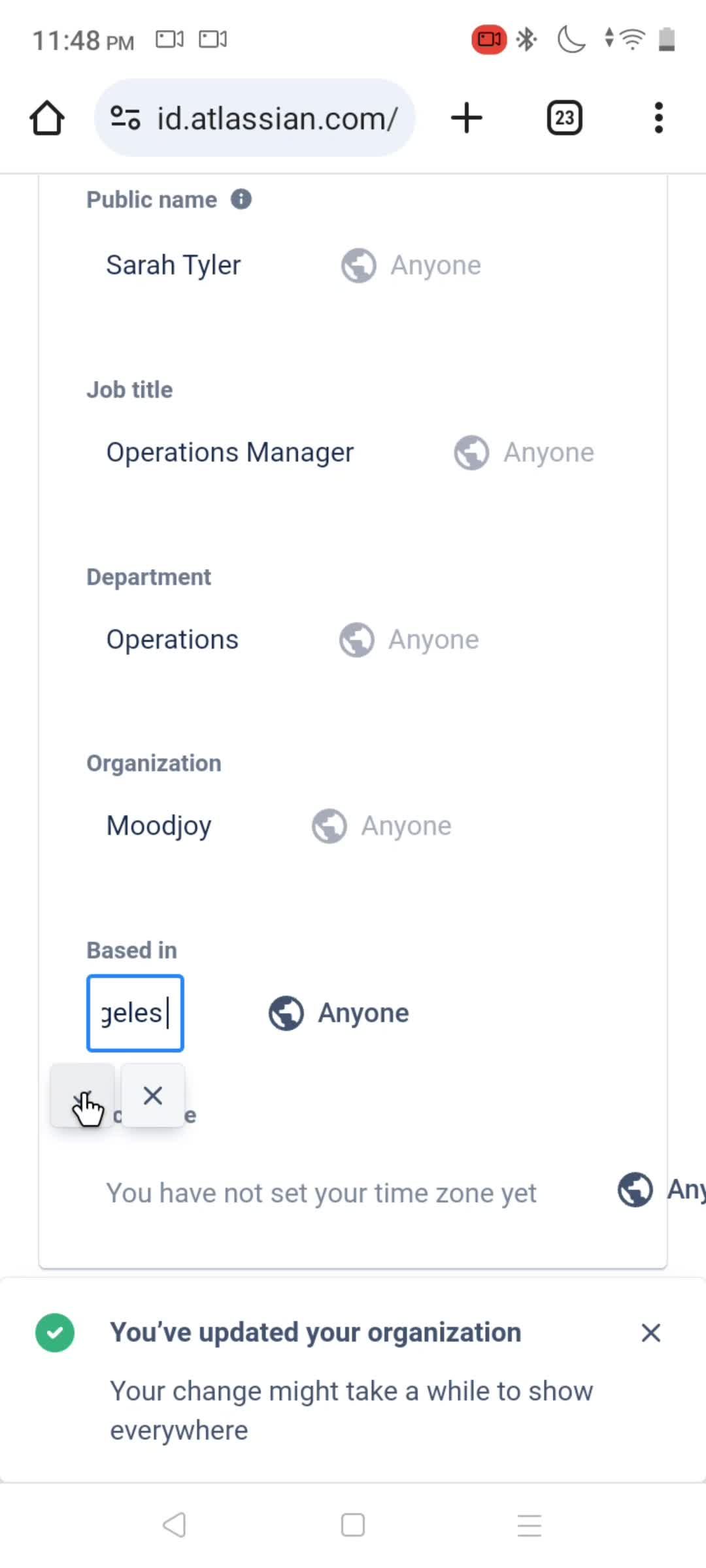
this is title
Updated
this is title
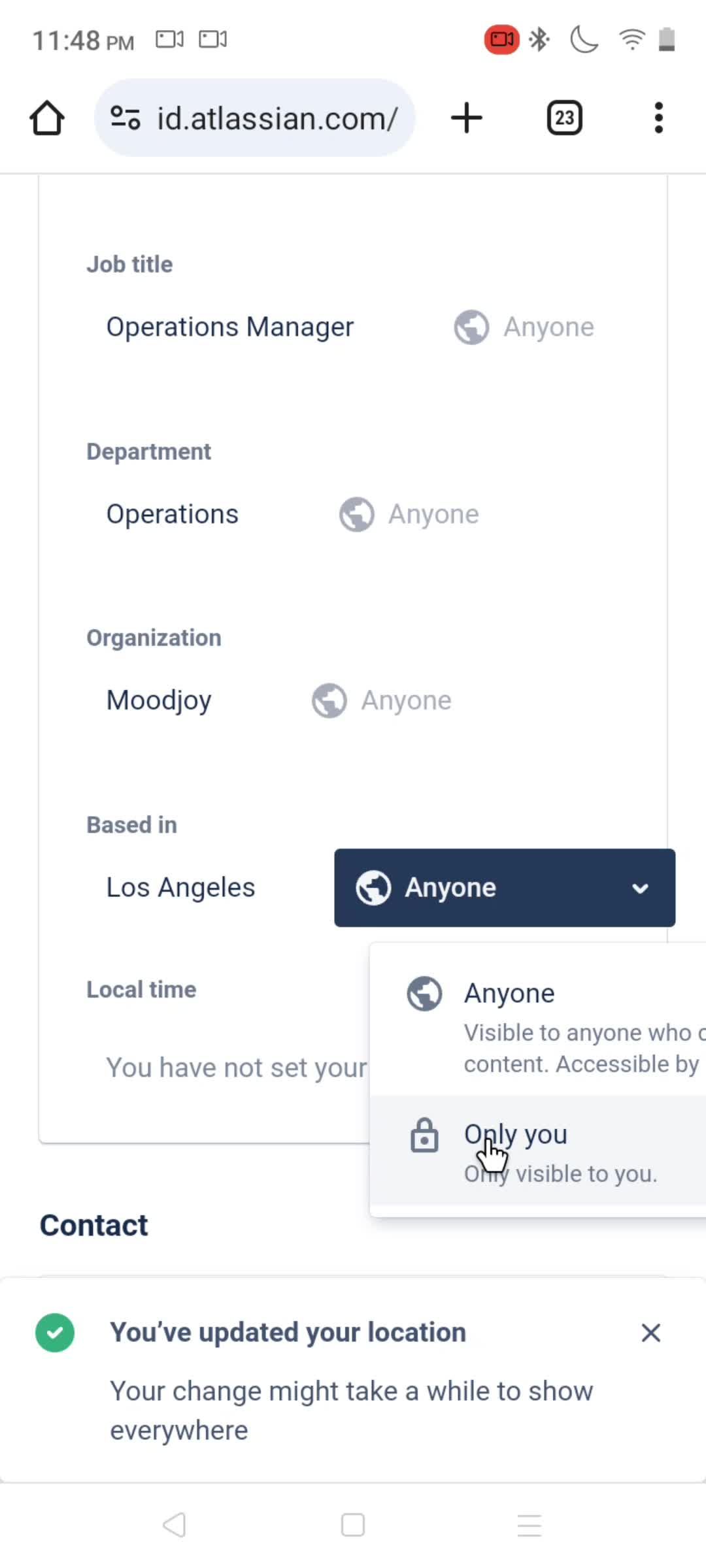
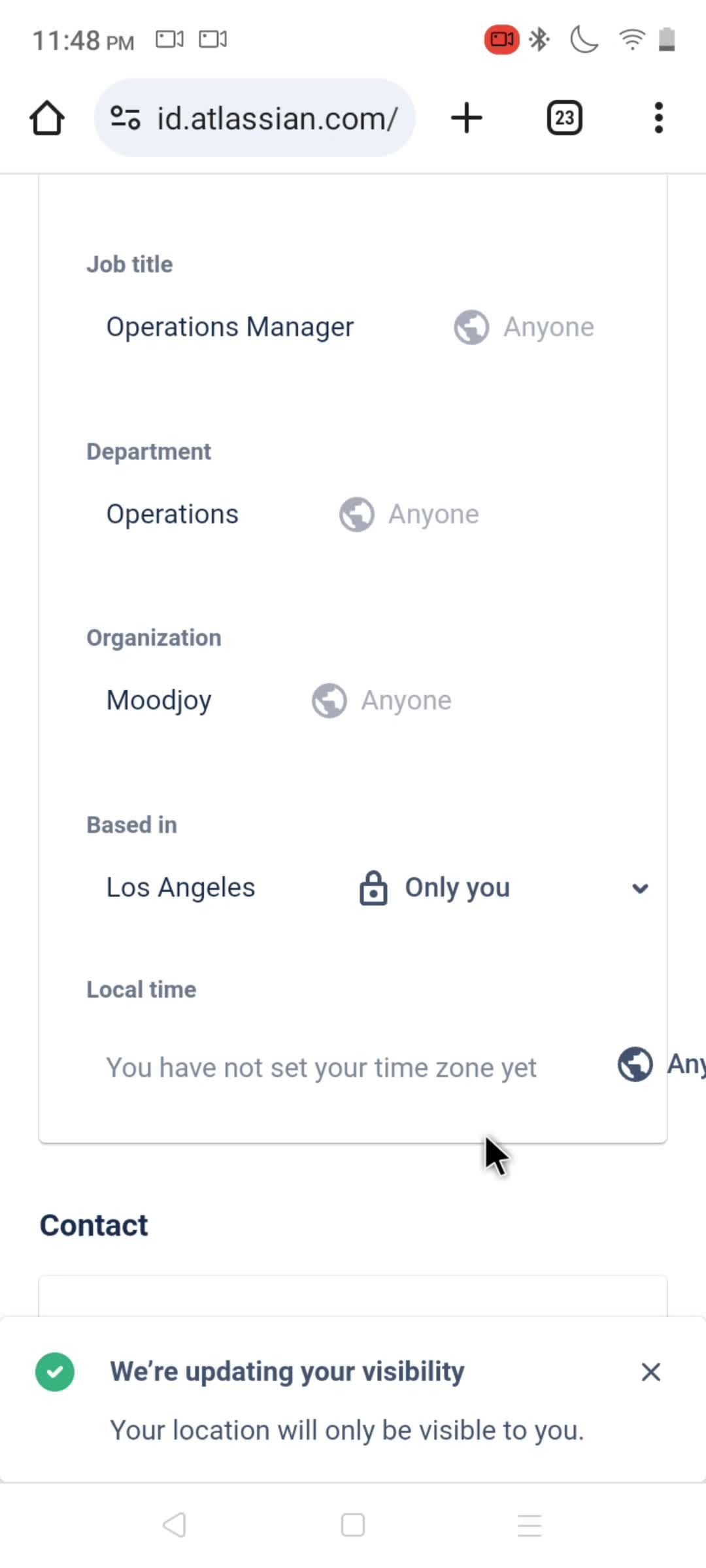
Set visibility
this is title
this is title
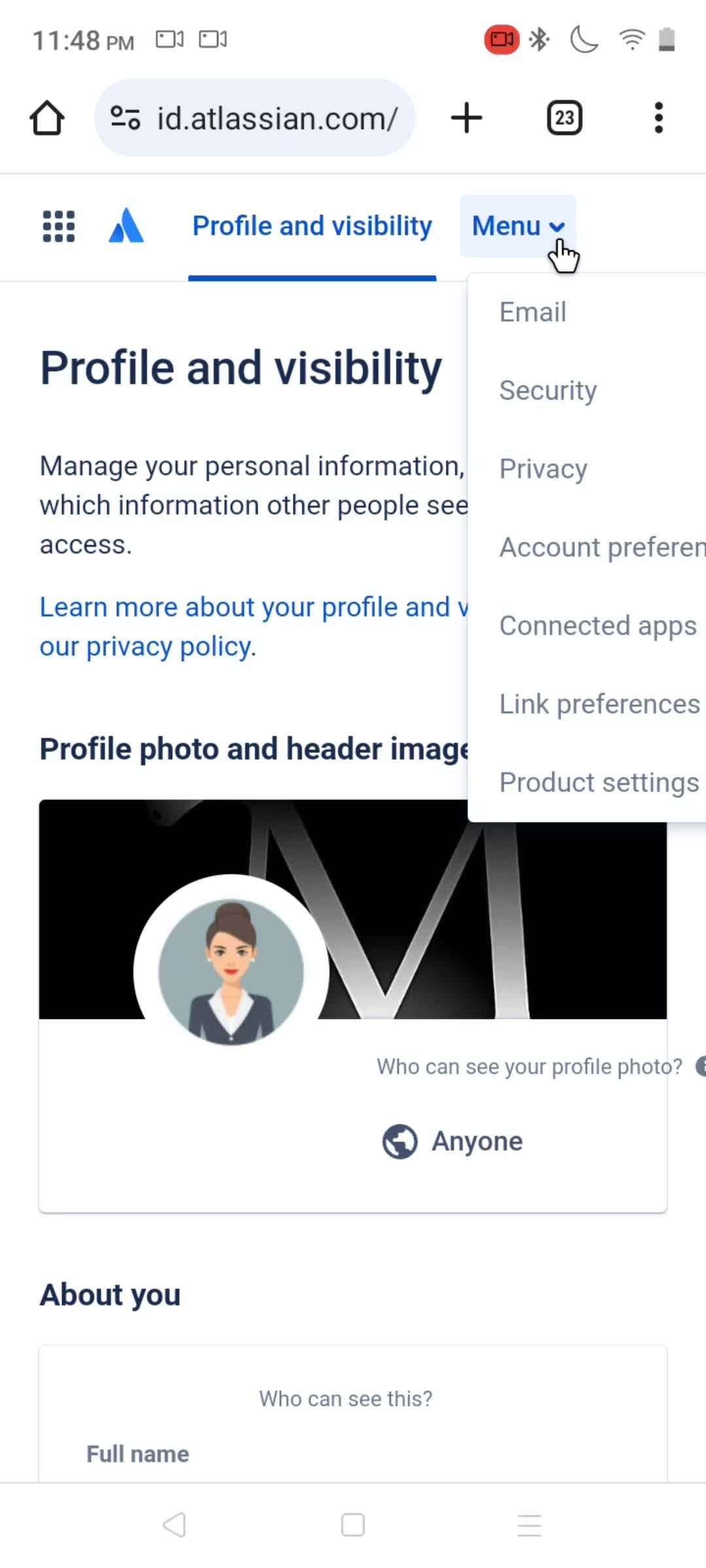
Menu
this is title
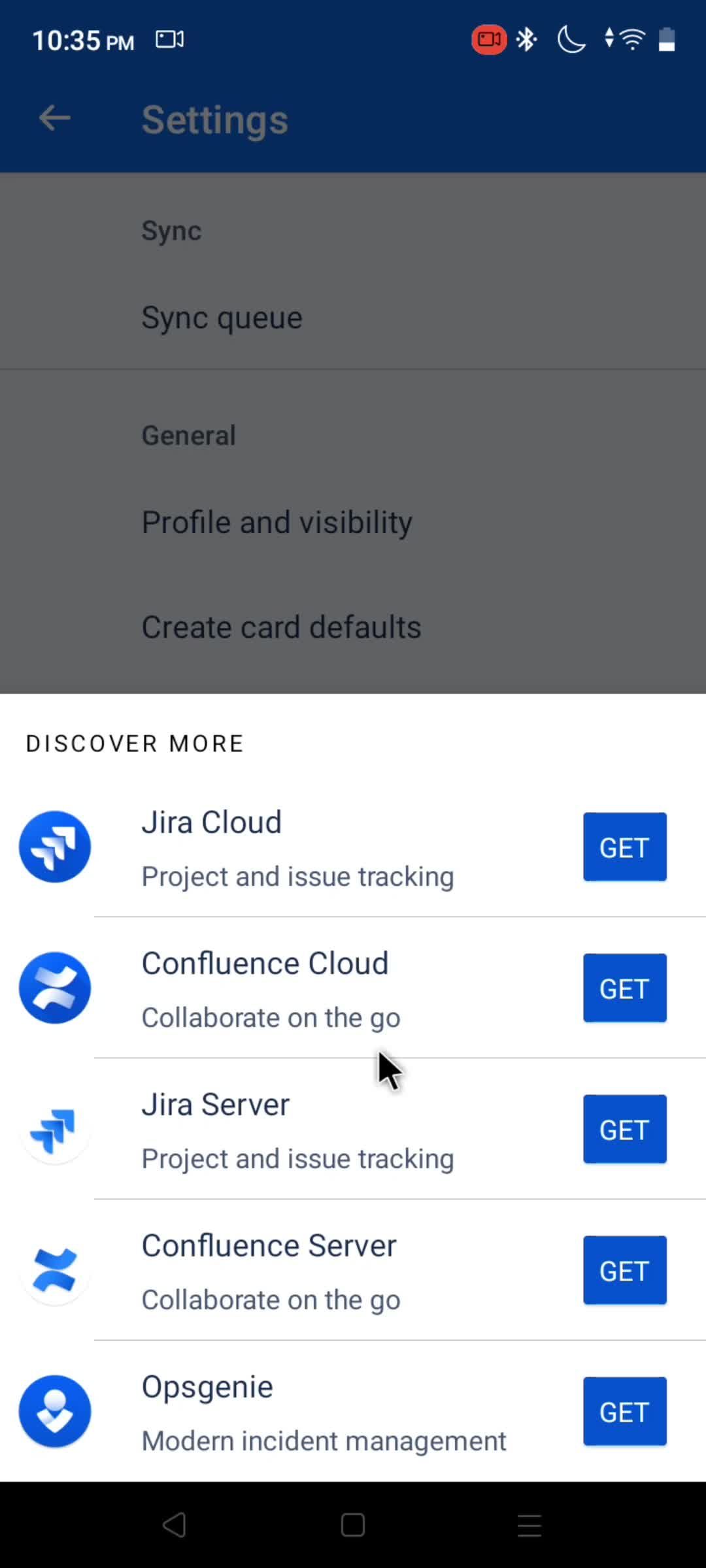
My apps
this is title