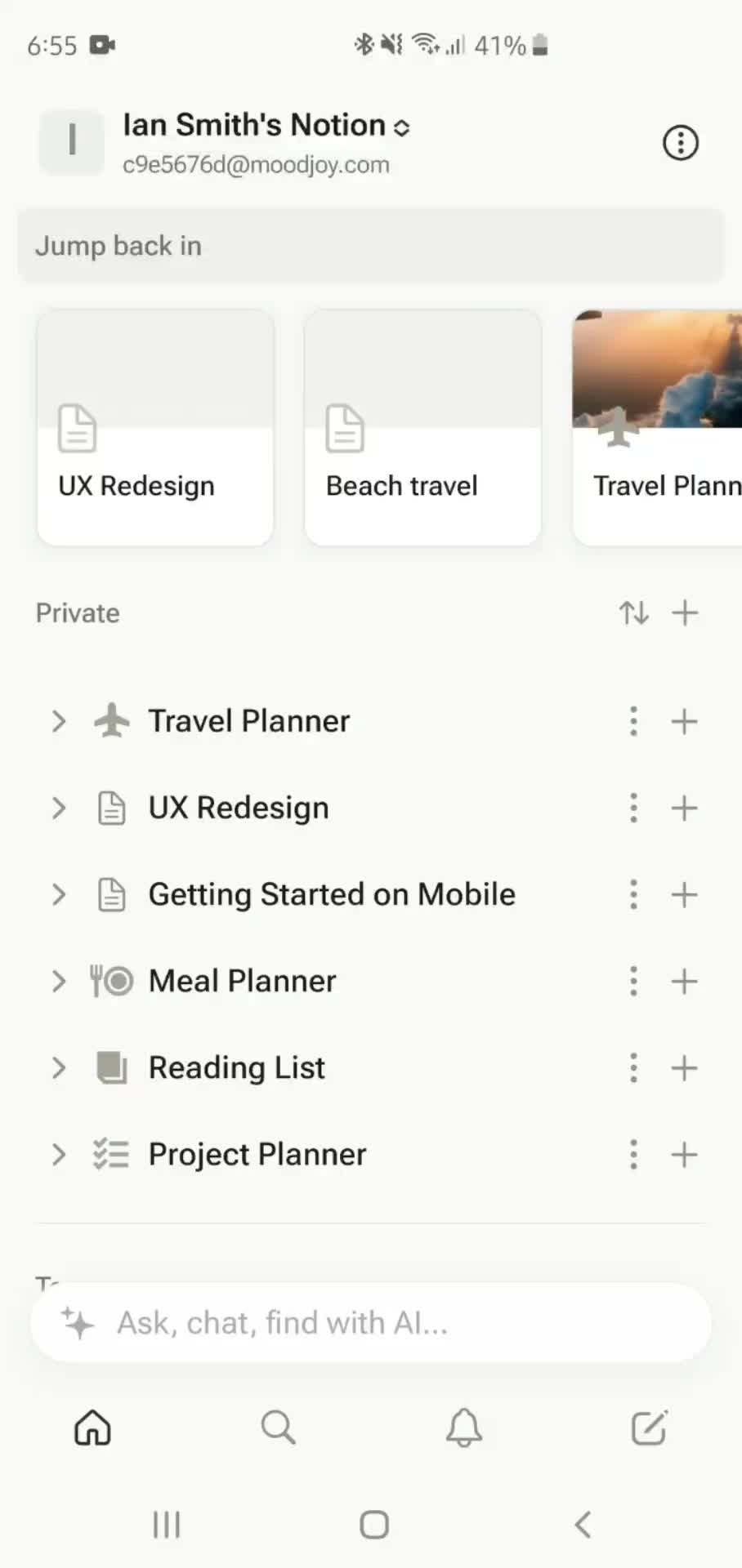
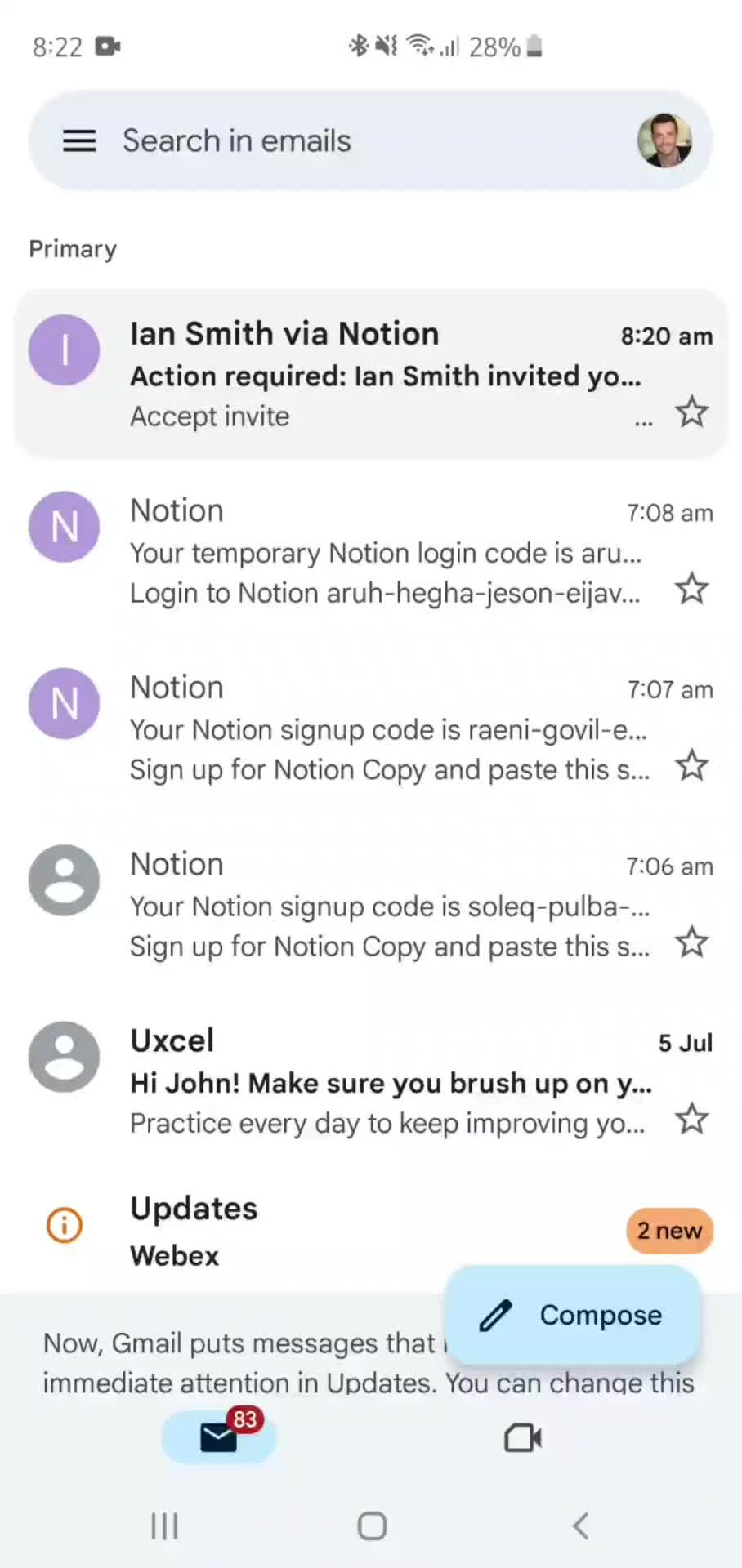
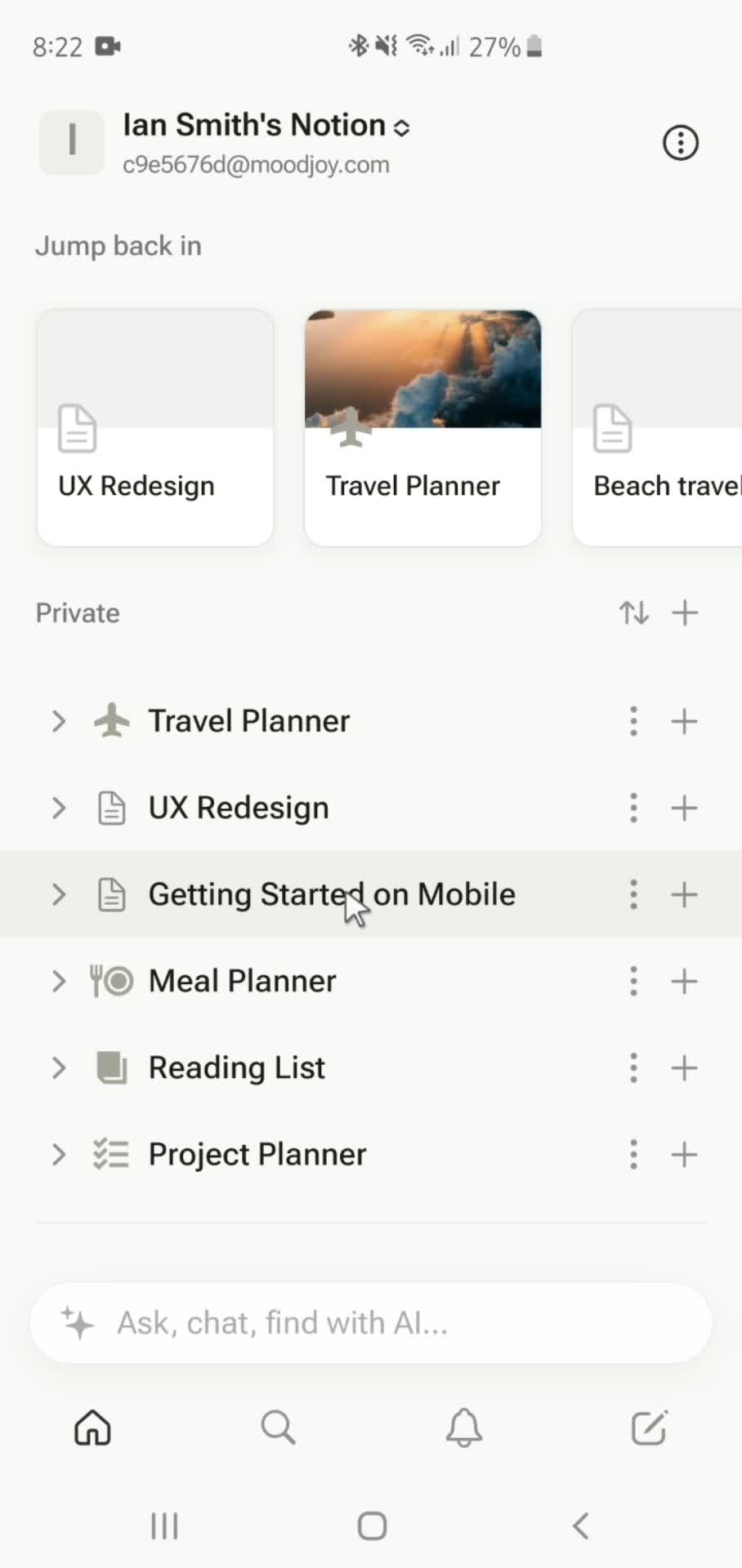
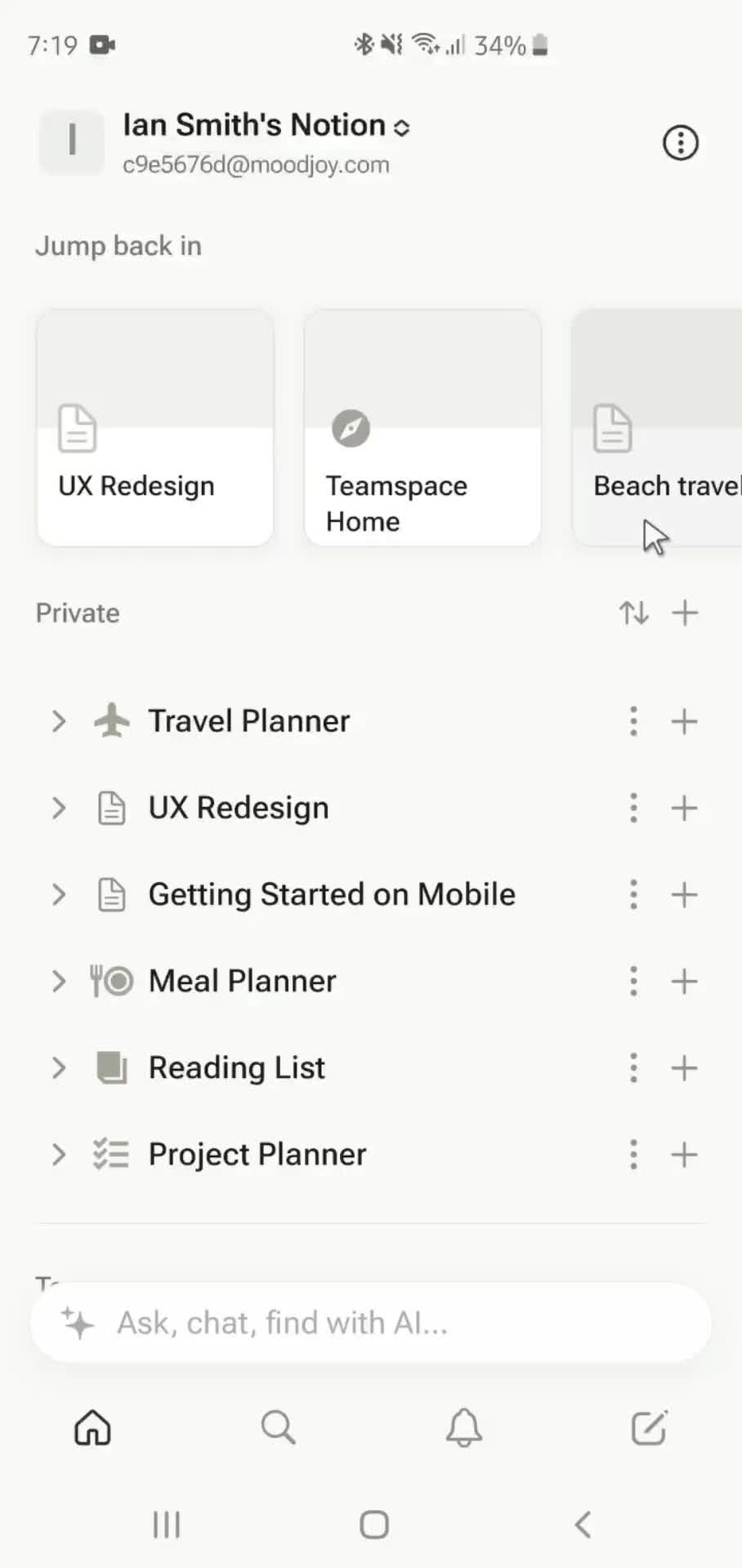
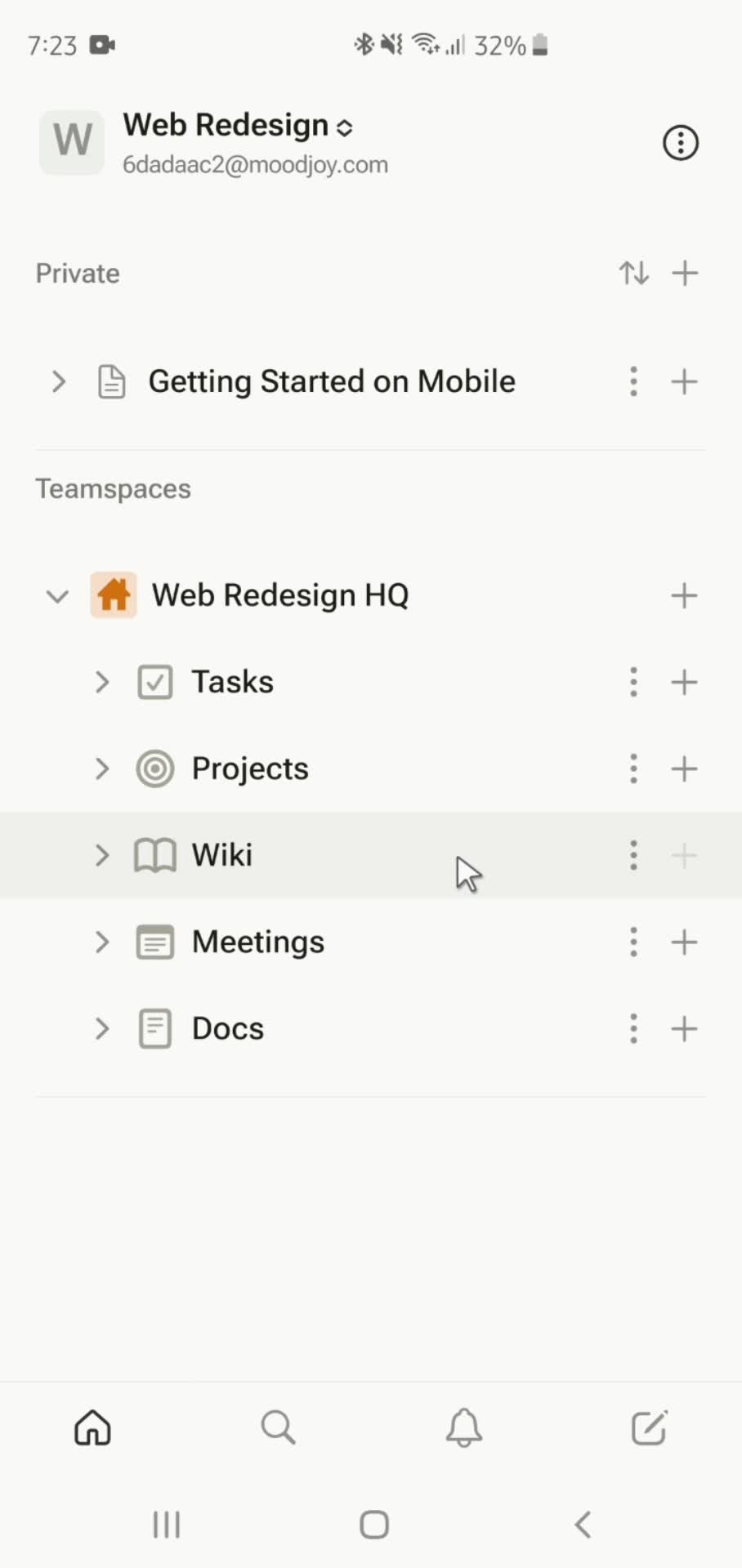
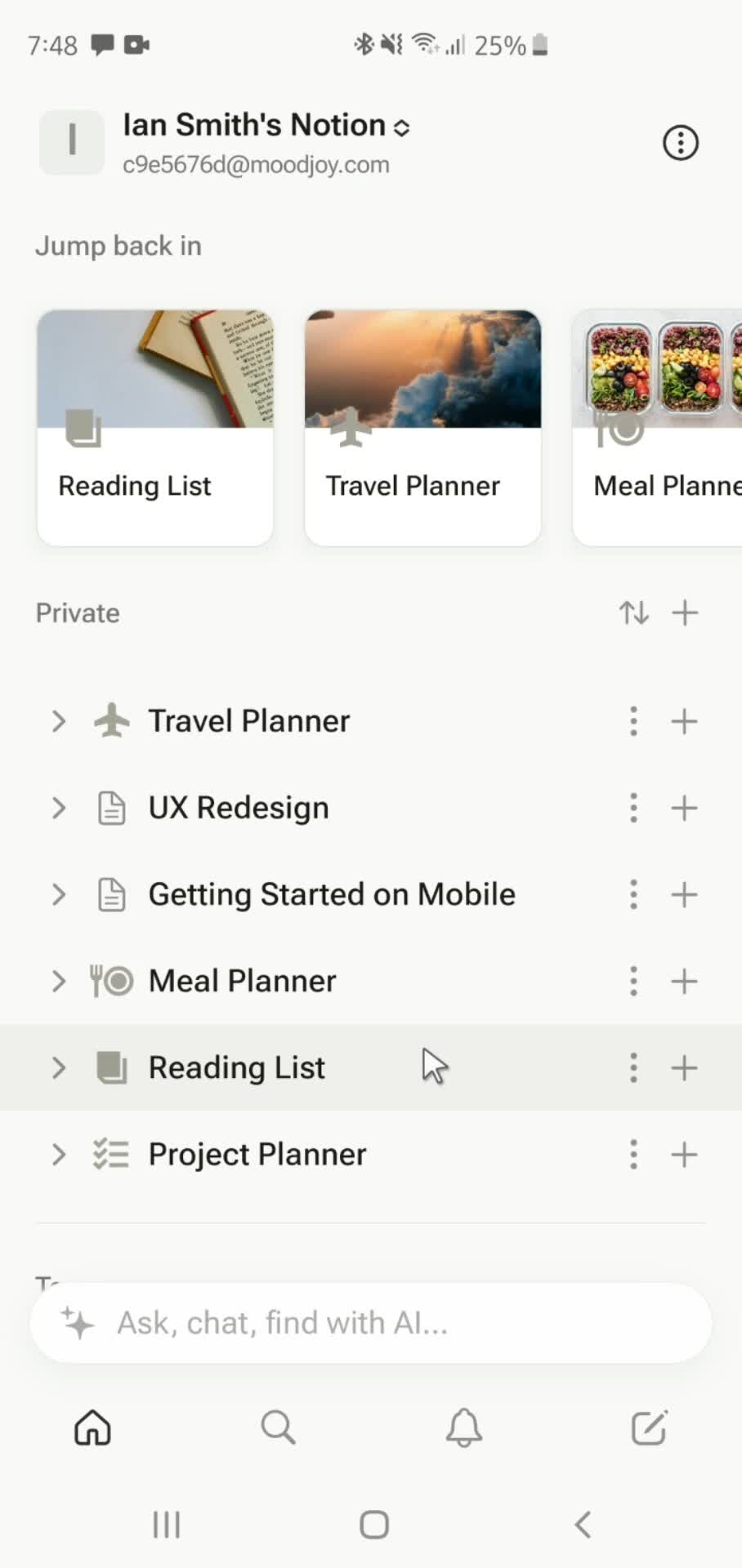
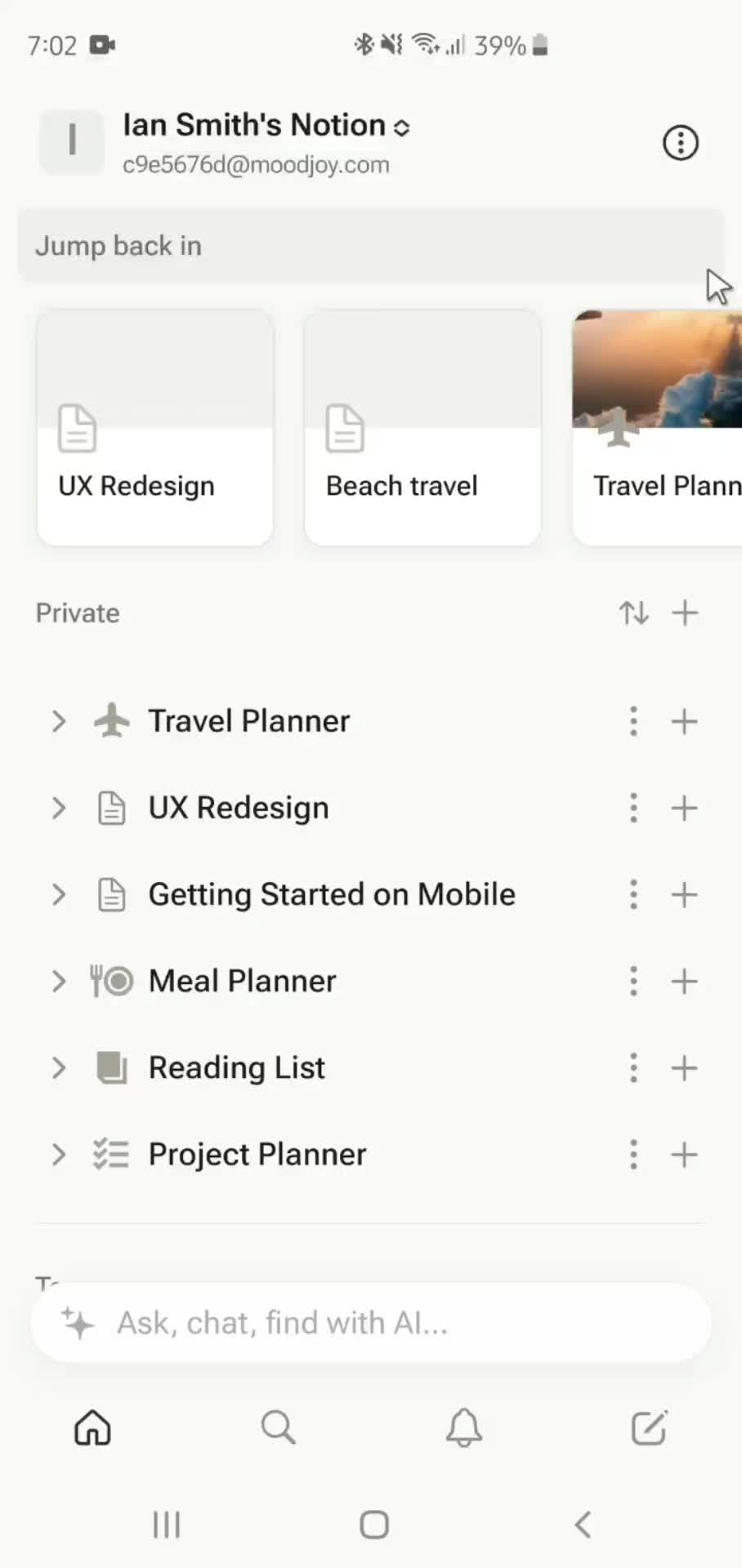
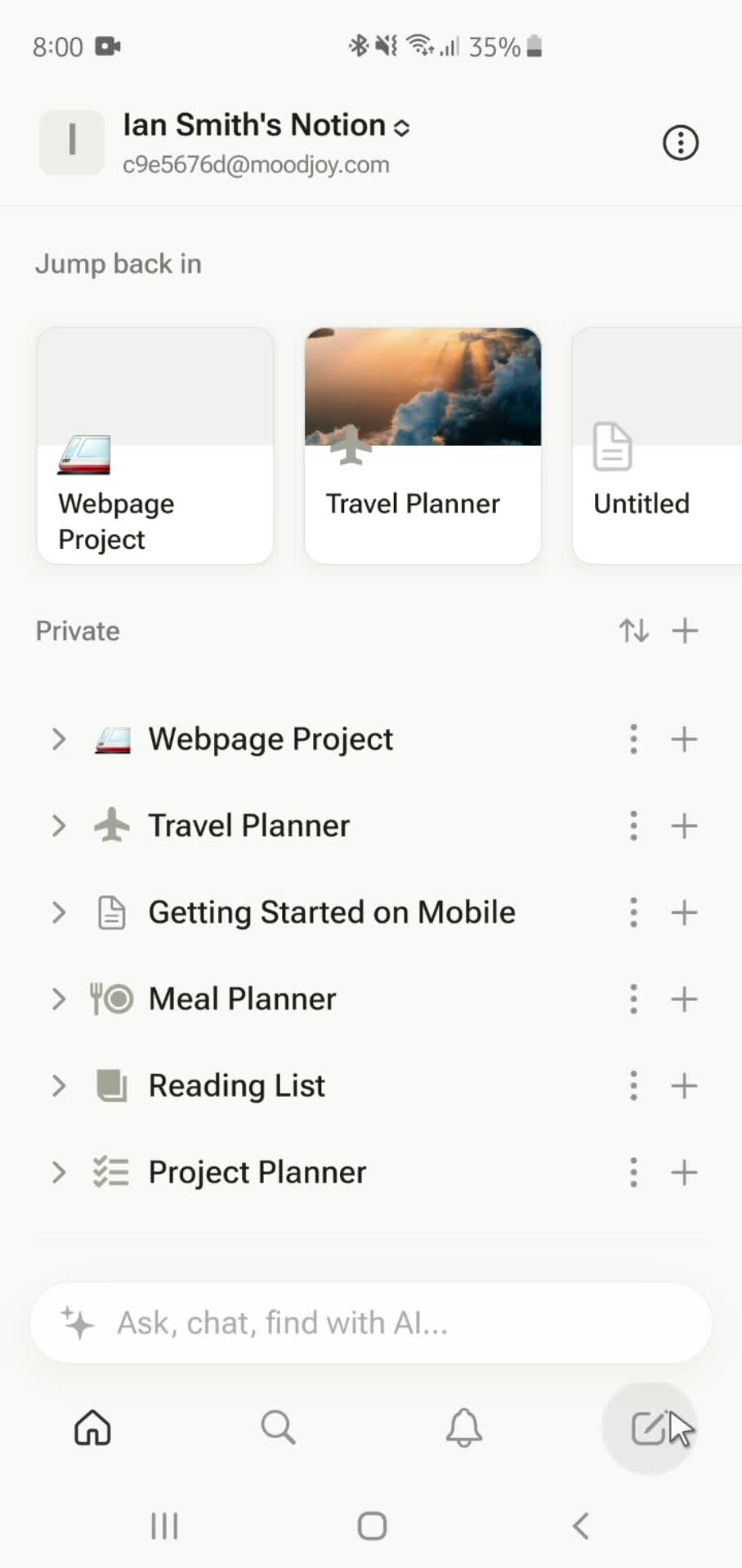
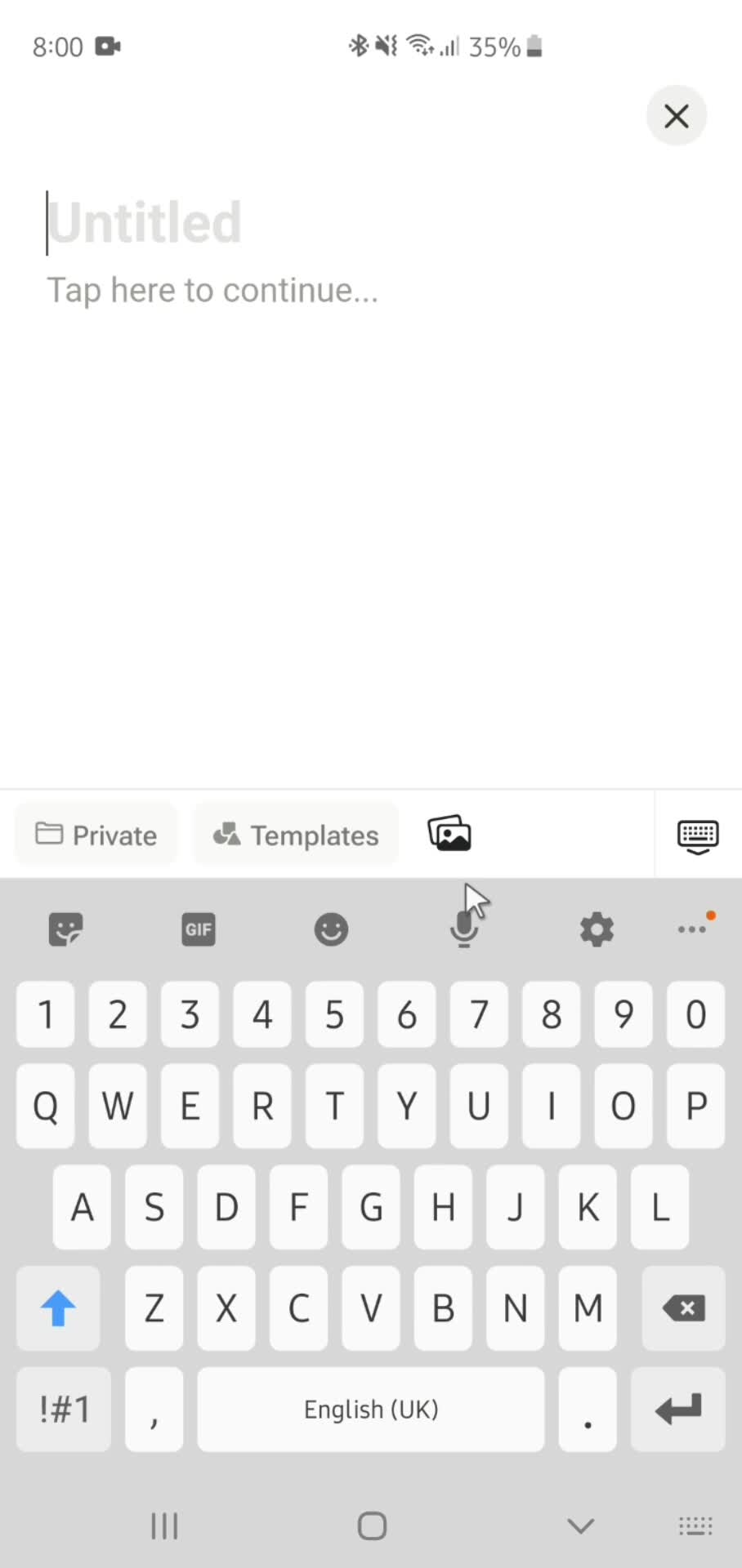
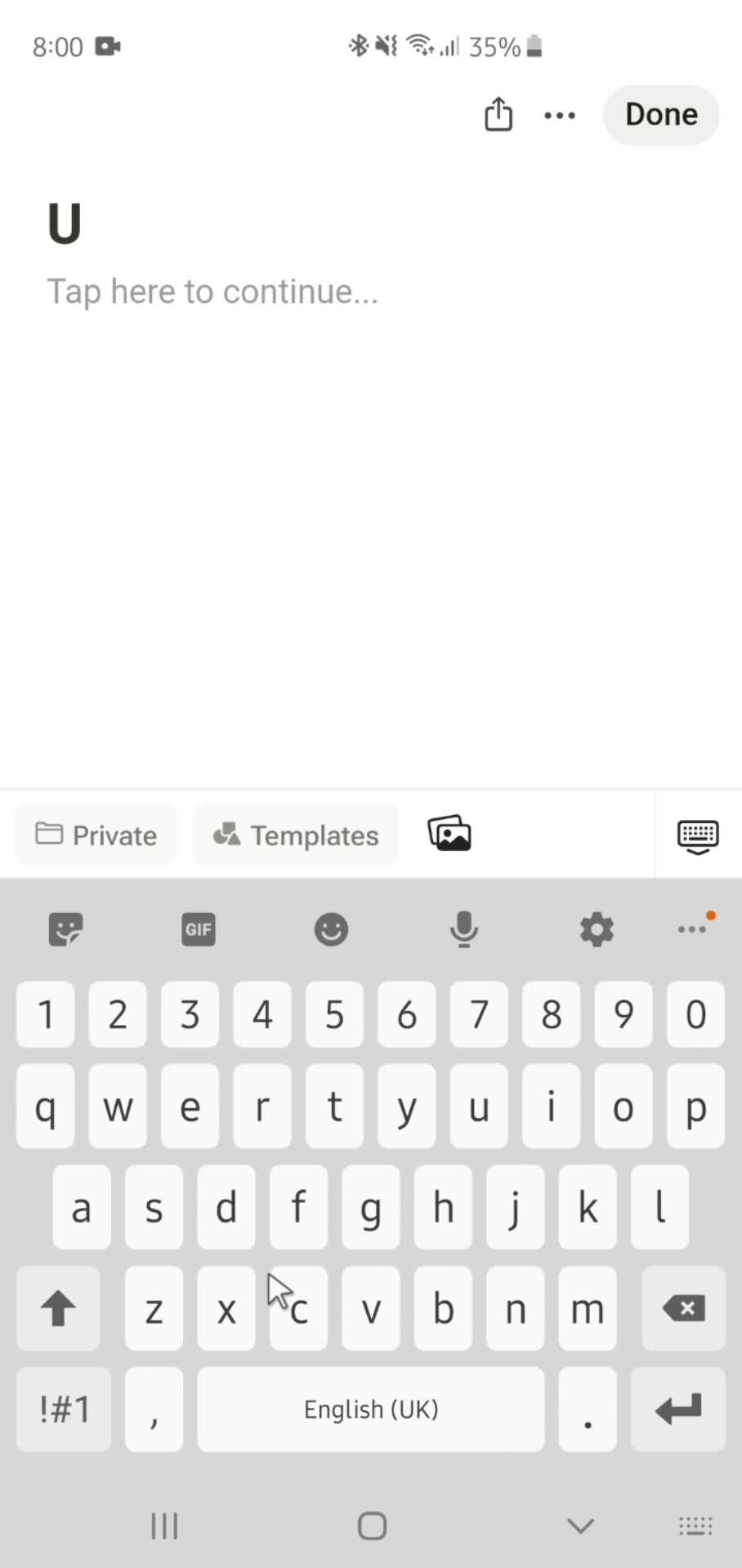
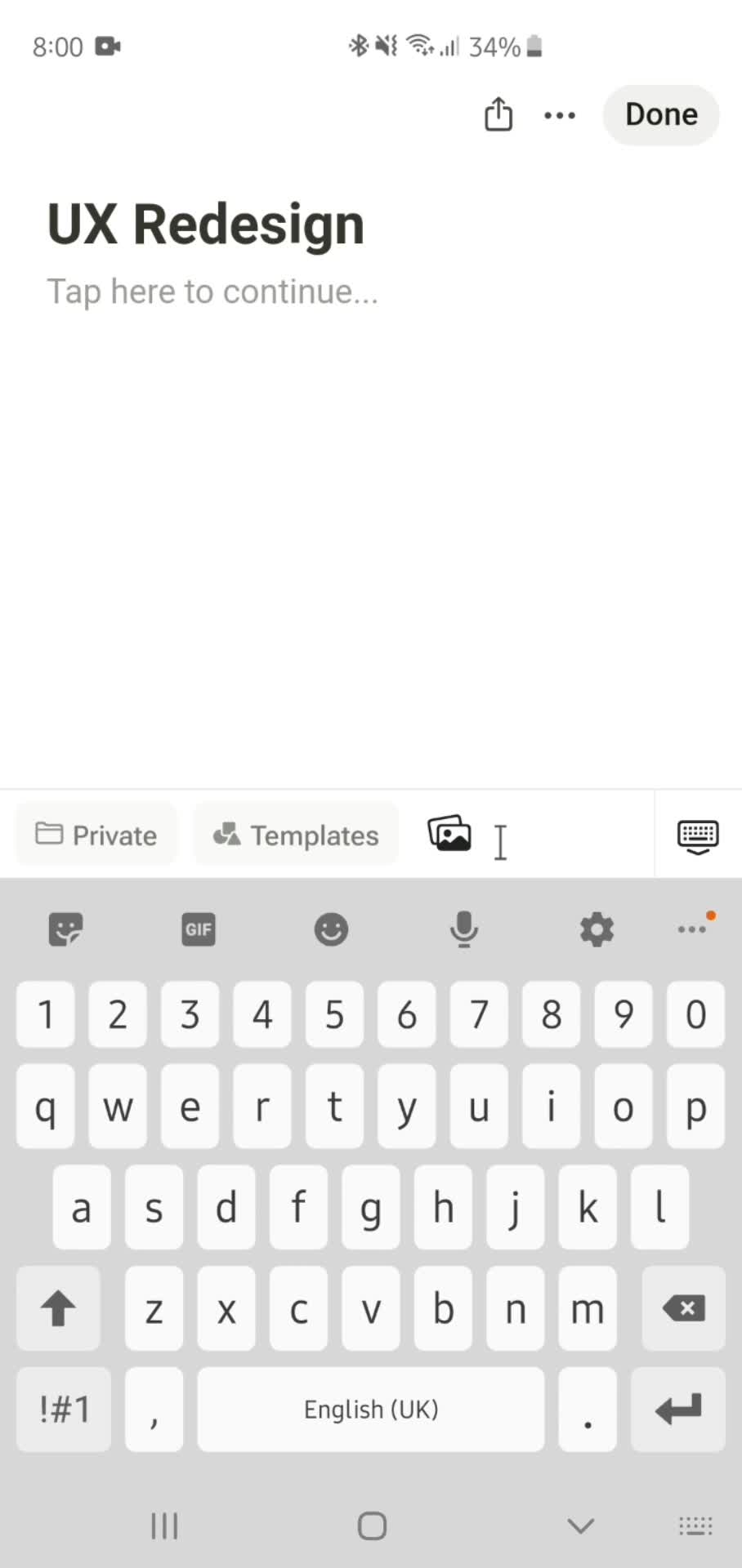
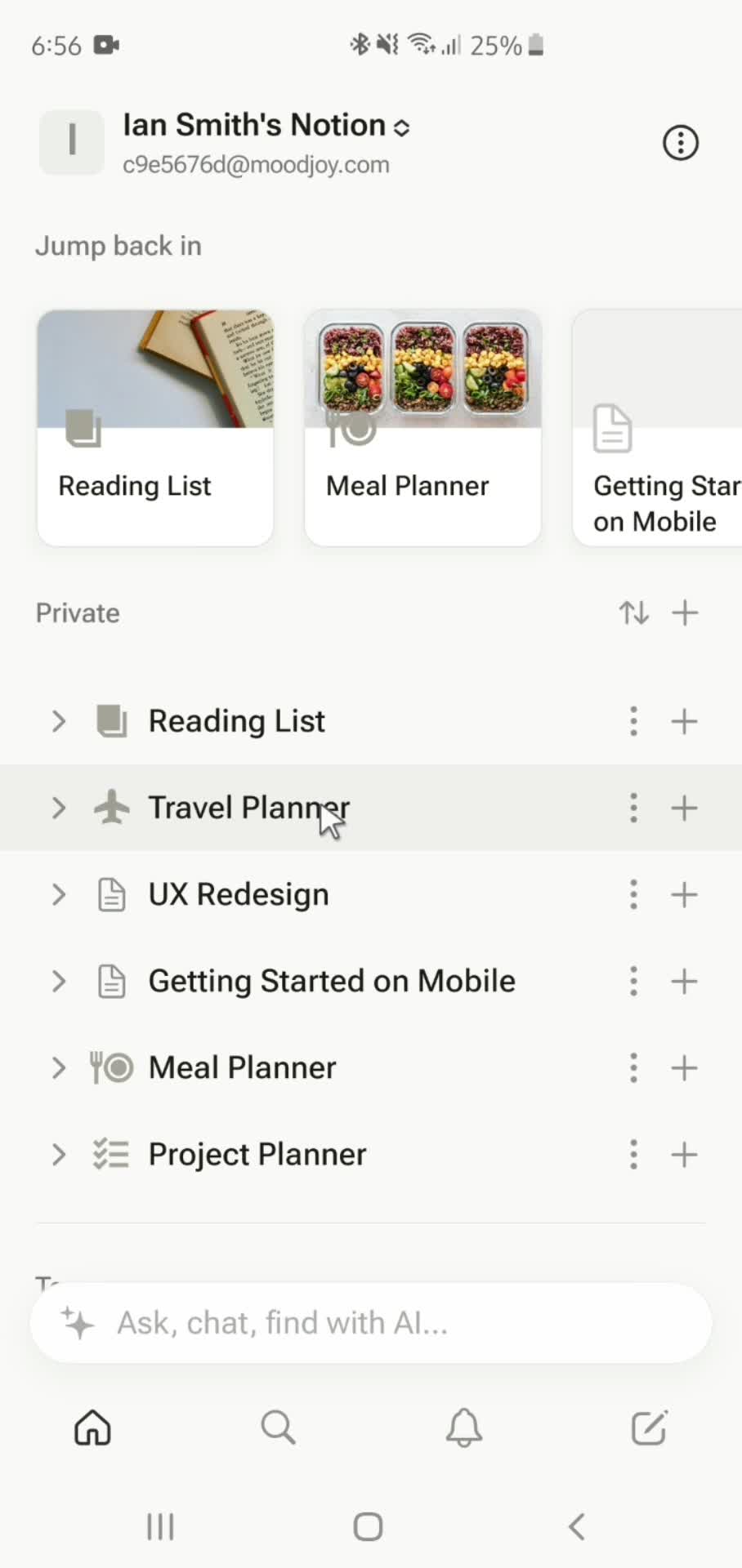
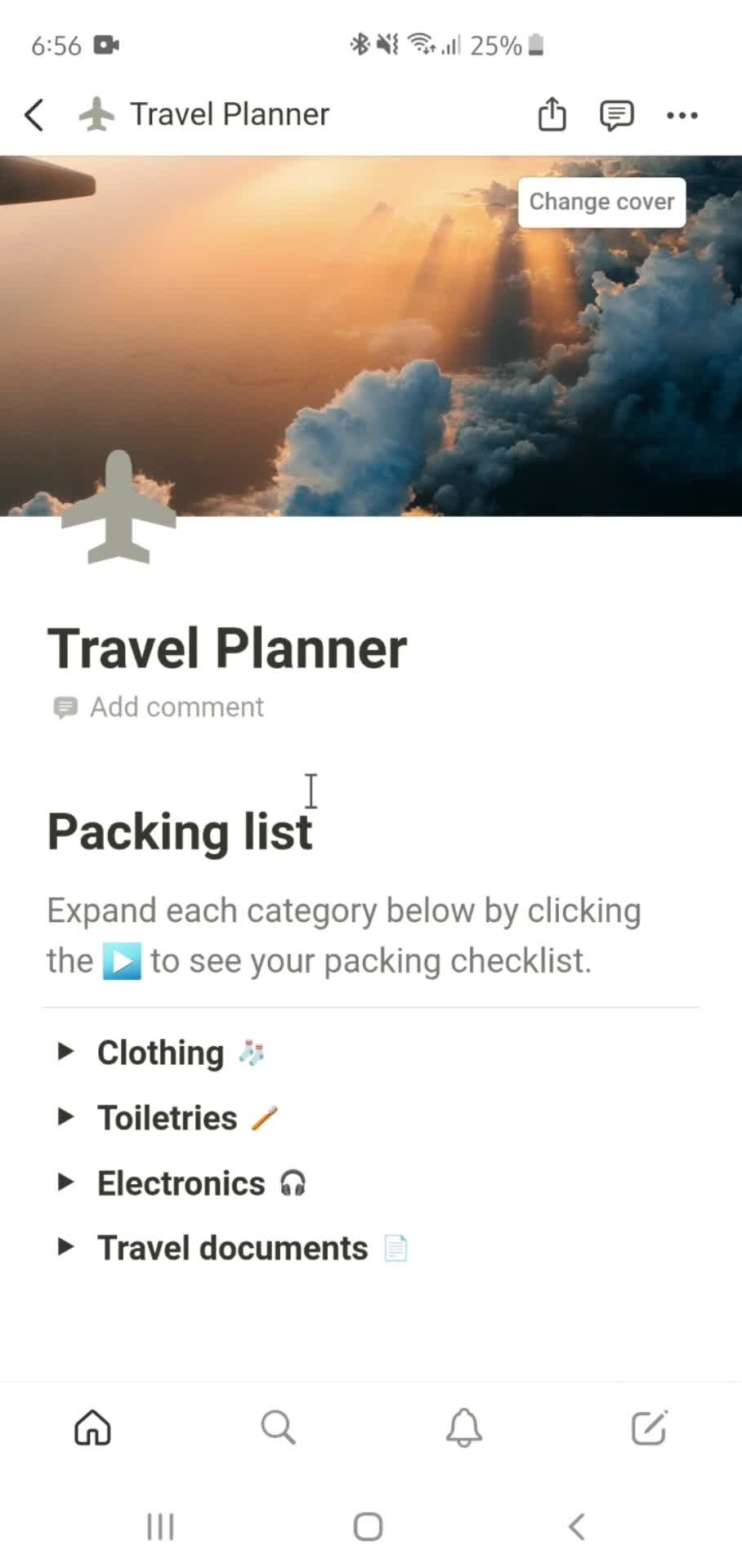
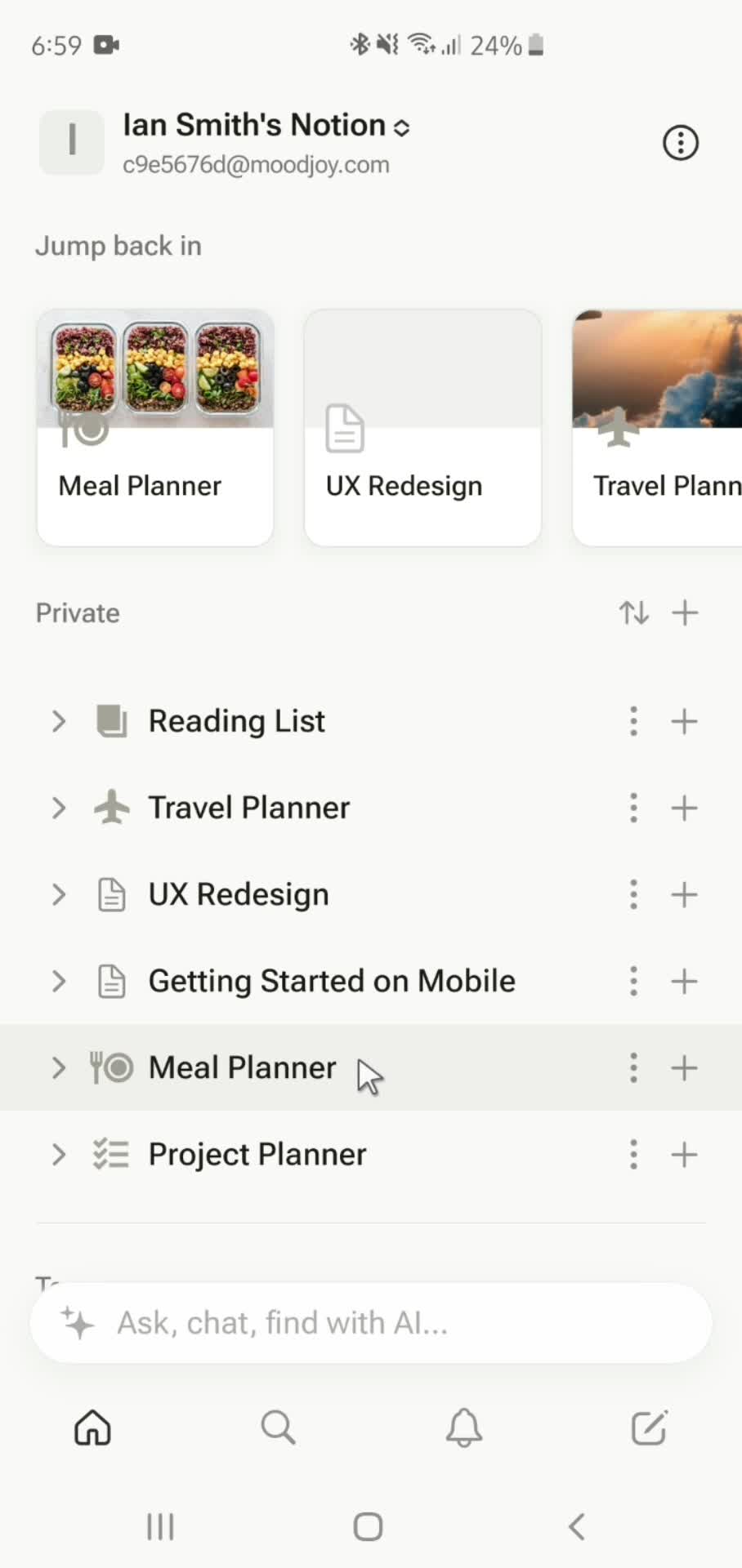
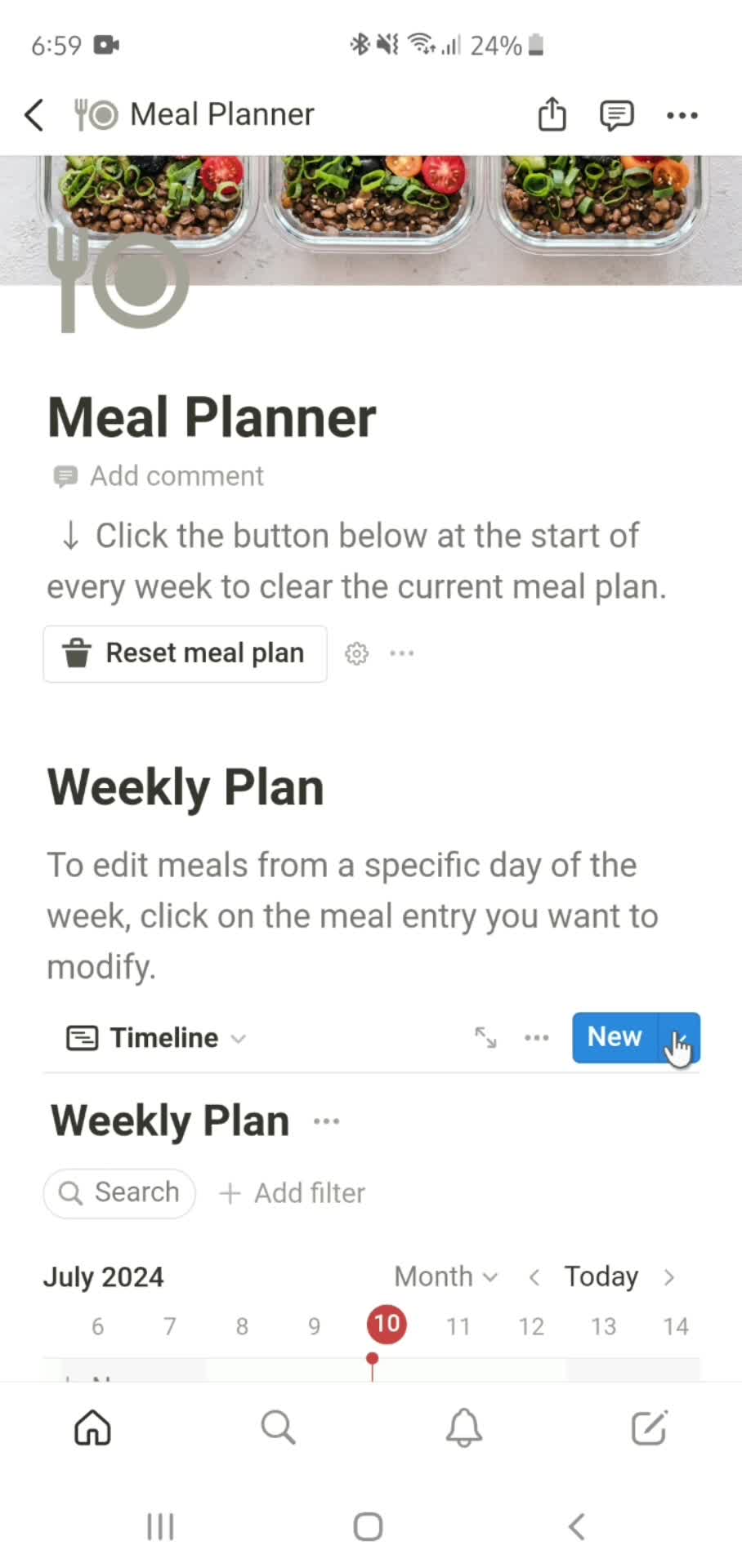
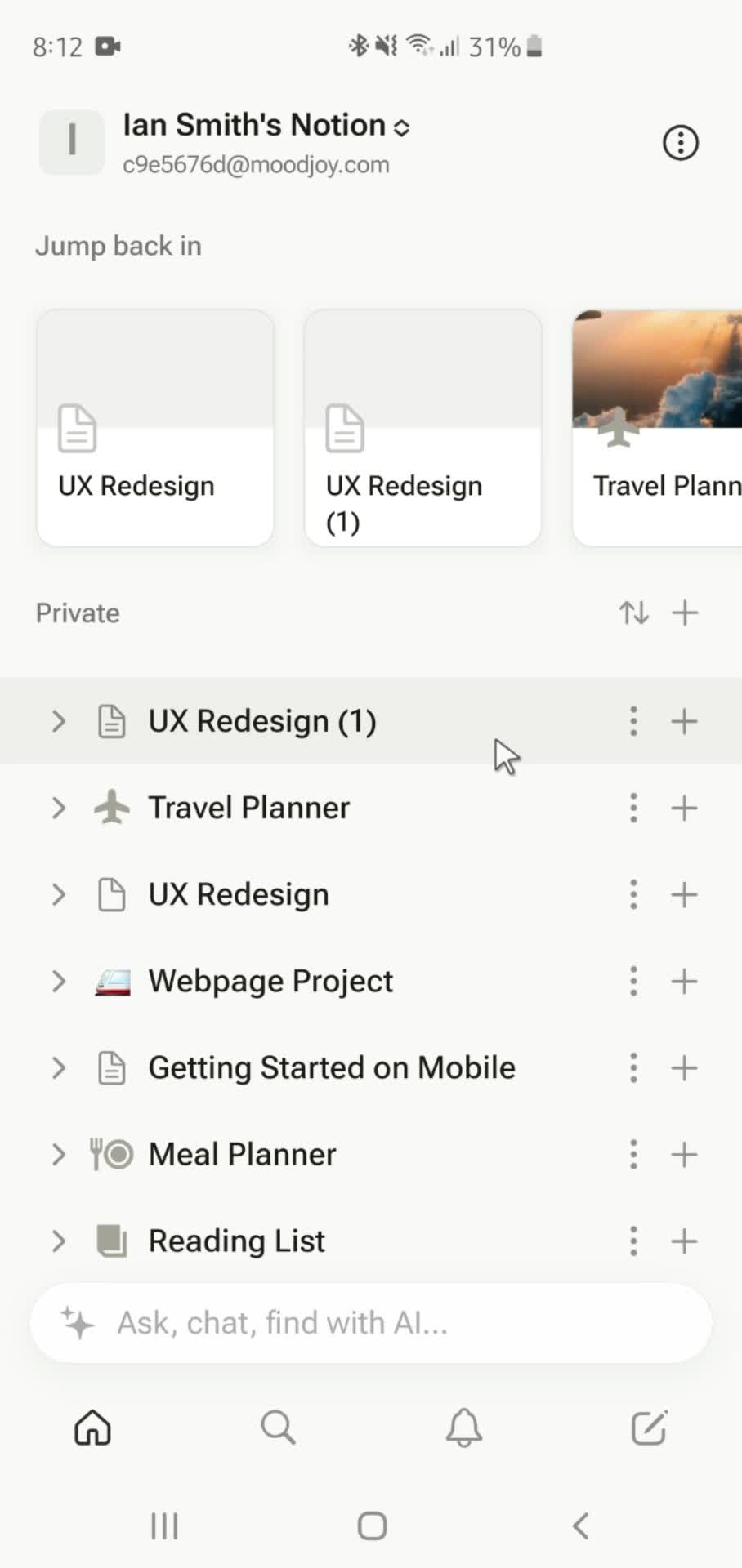
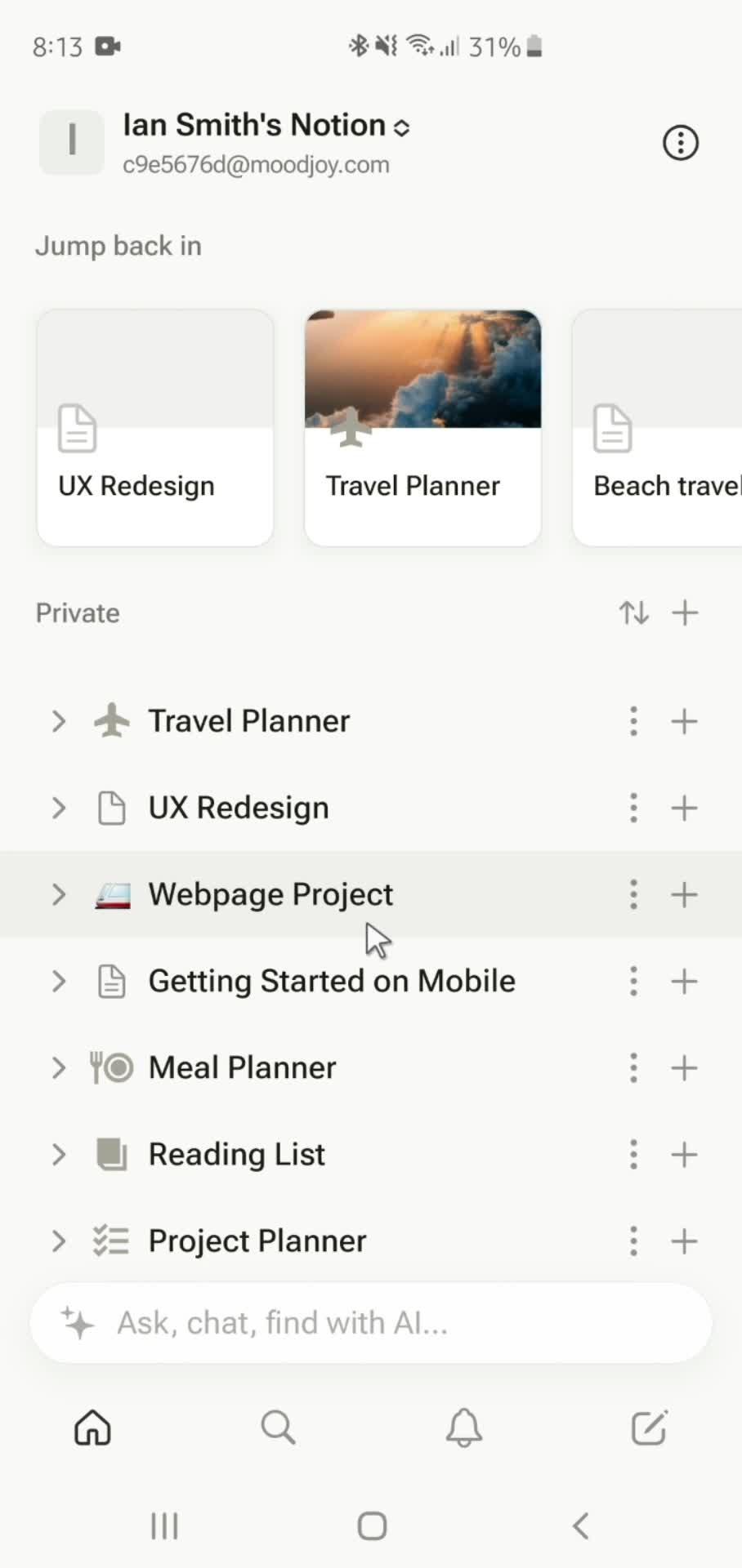
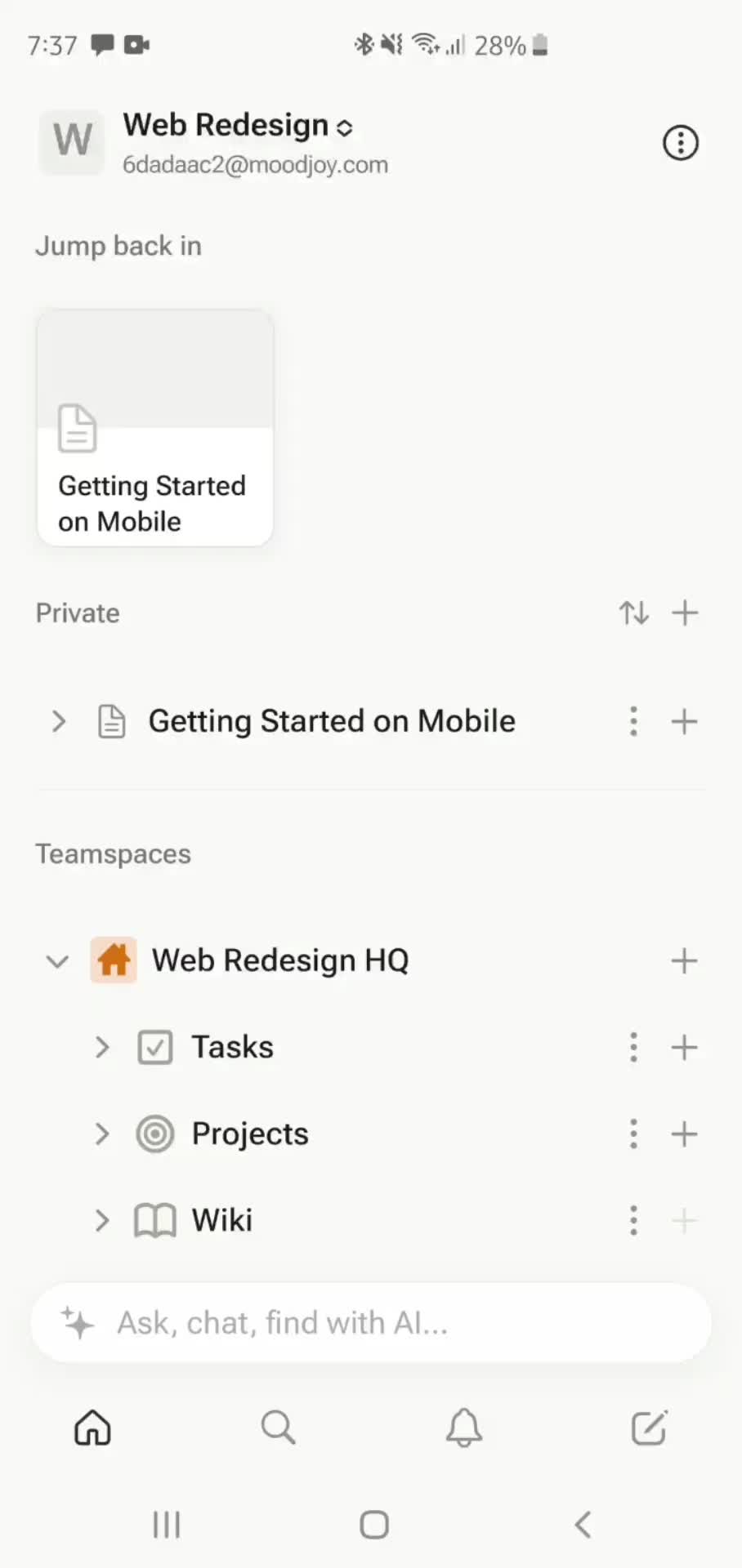
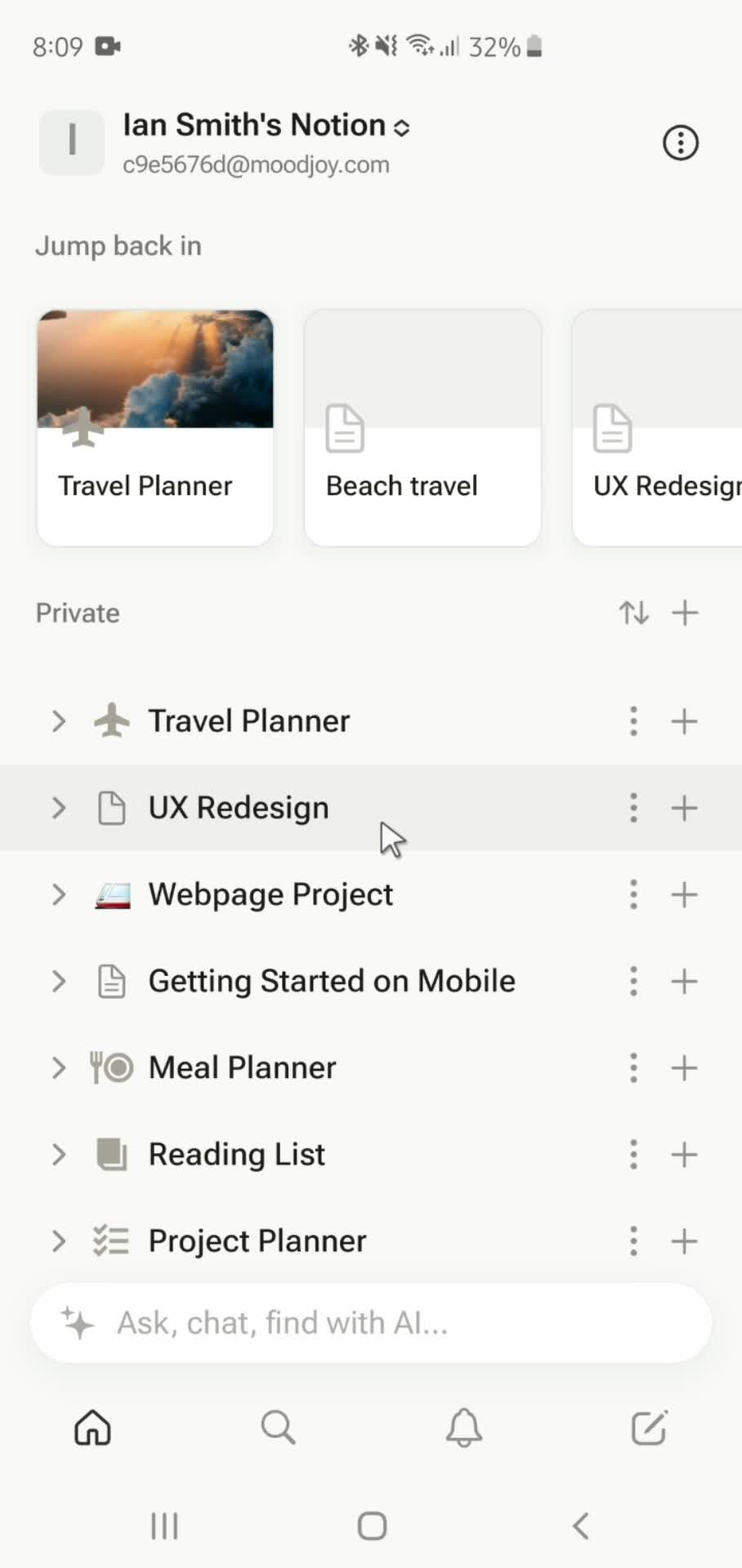
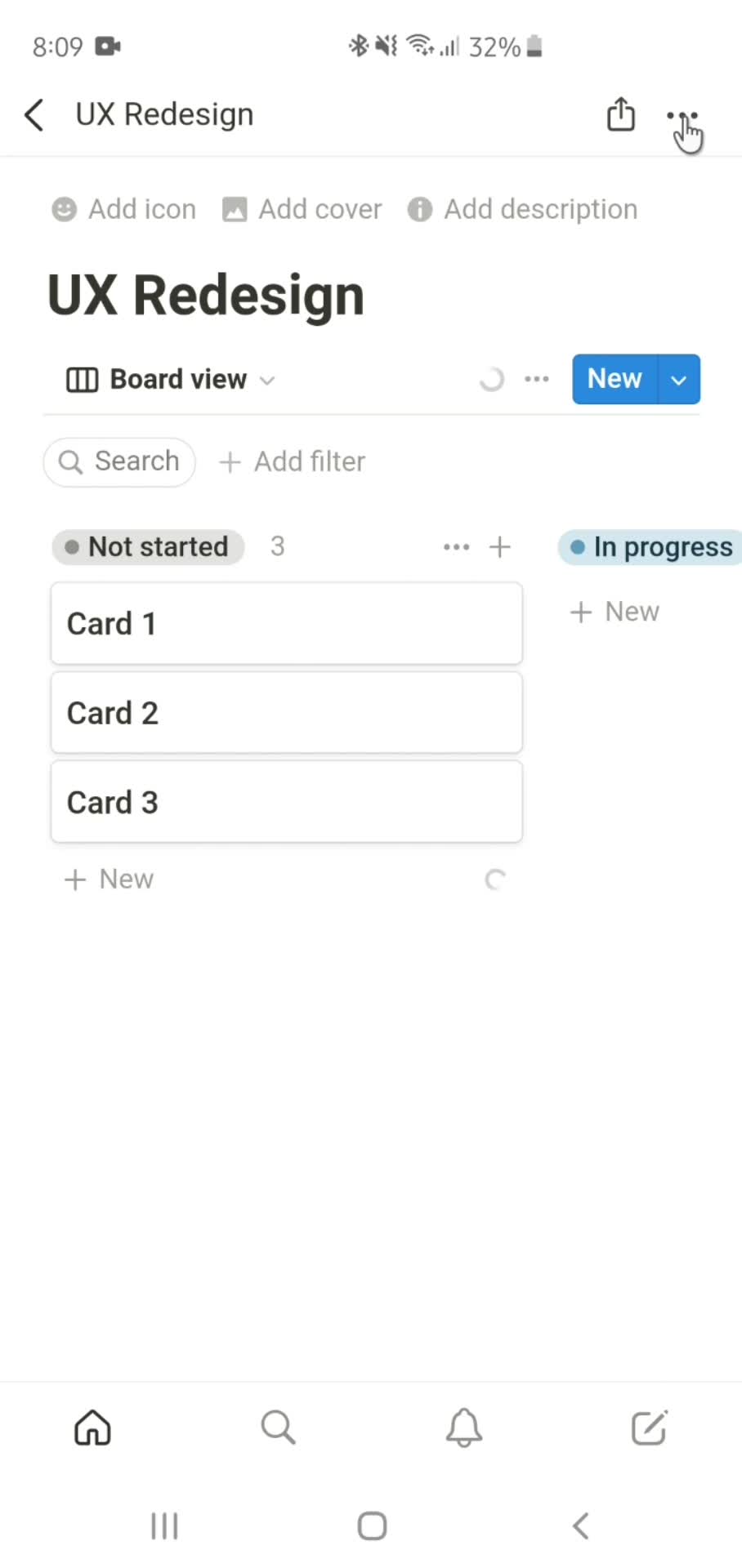
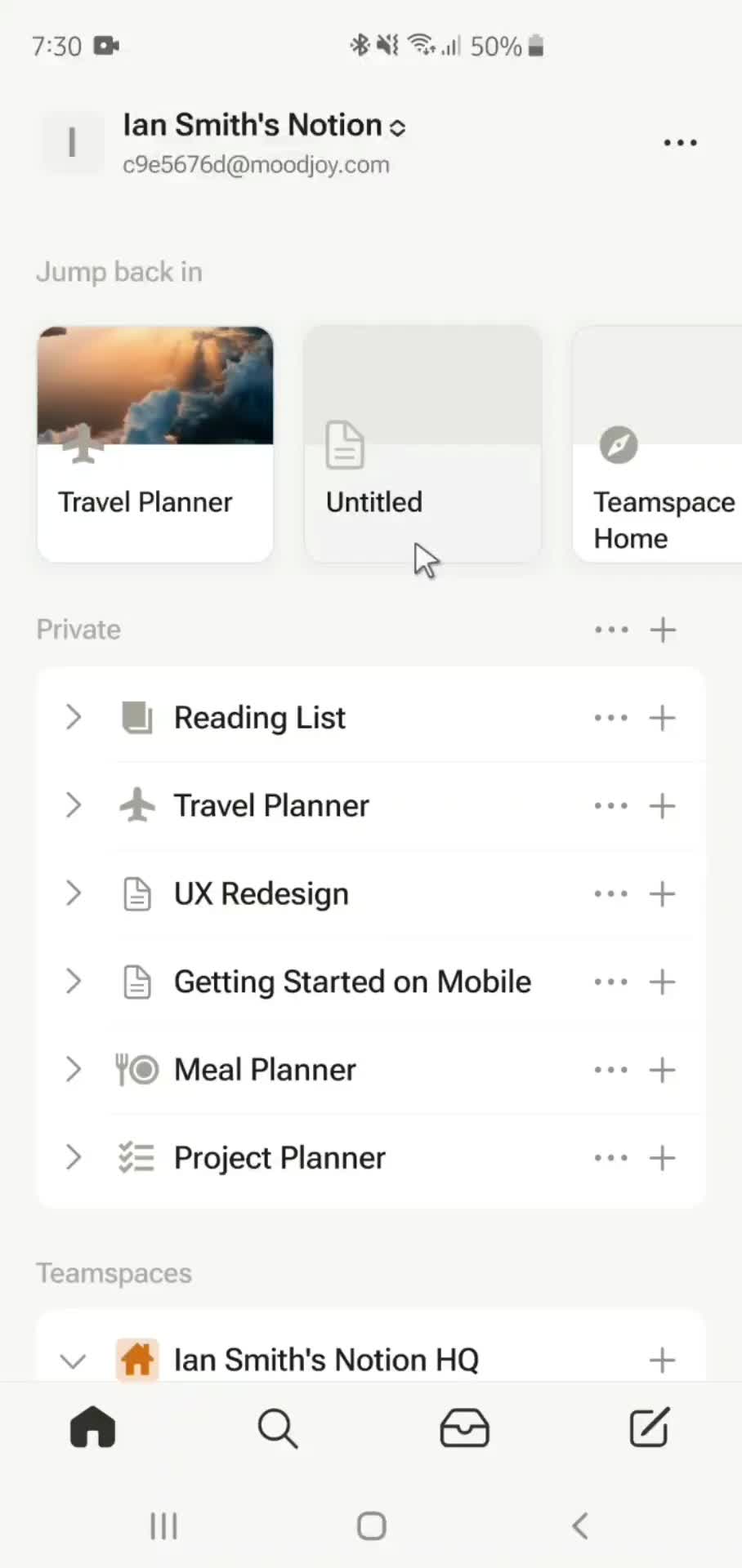
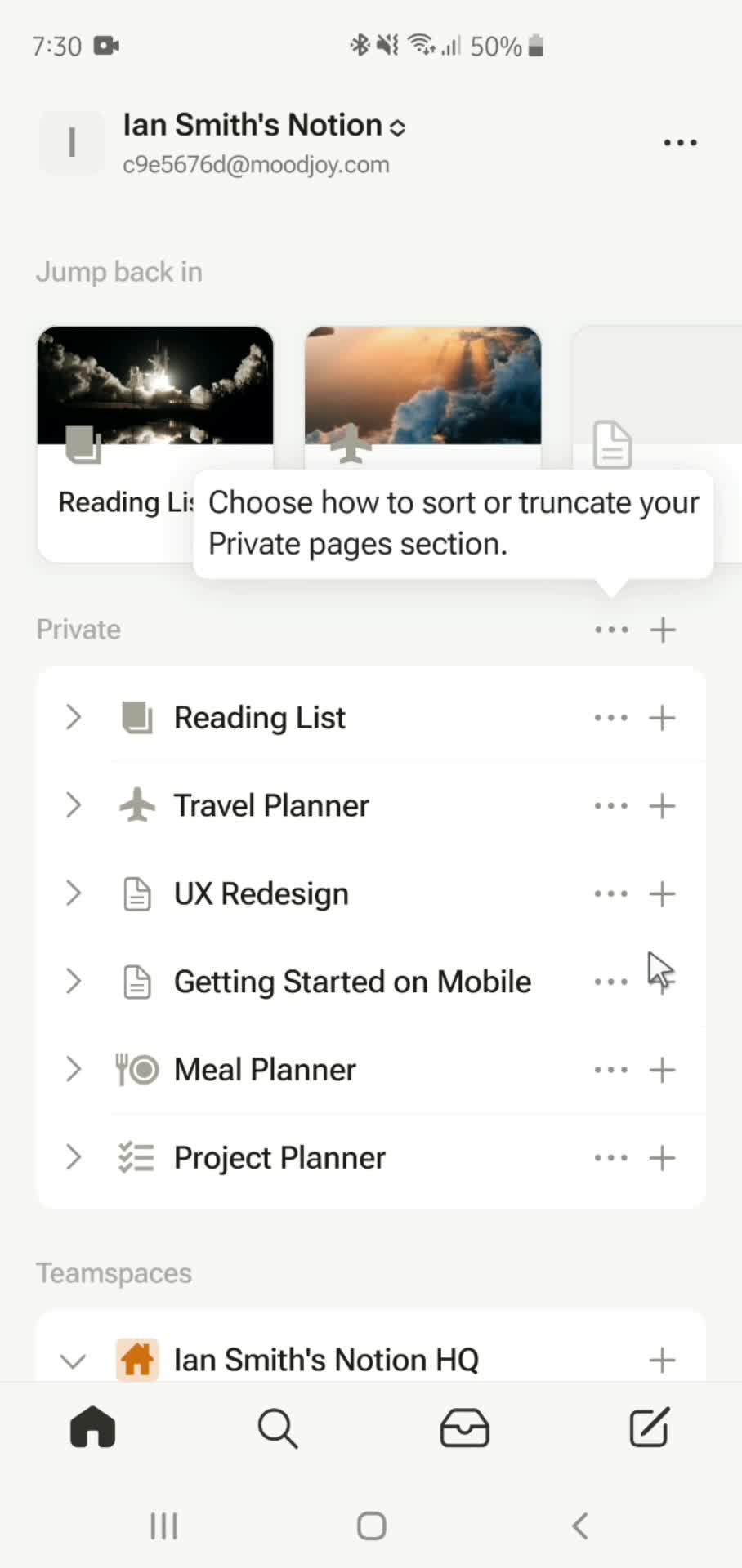
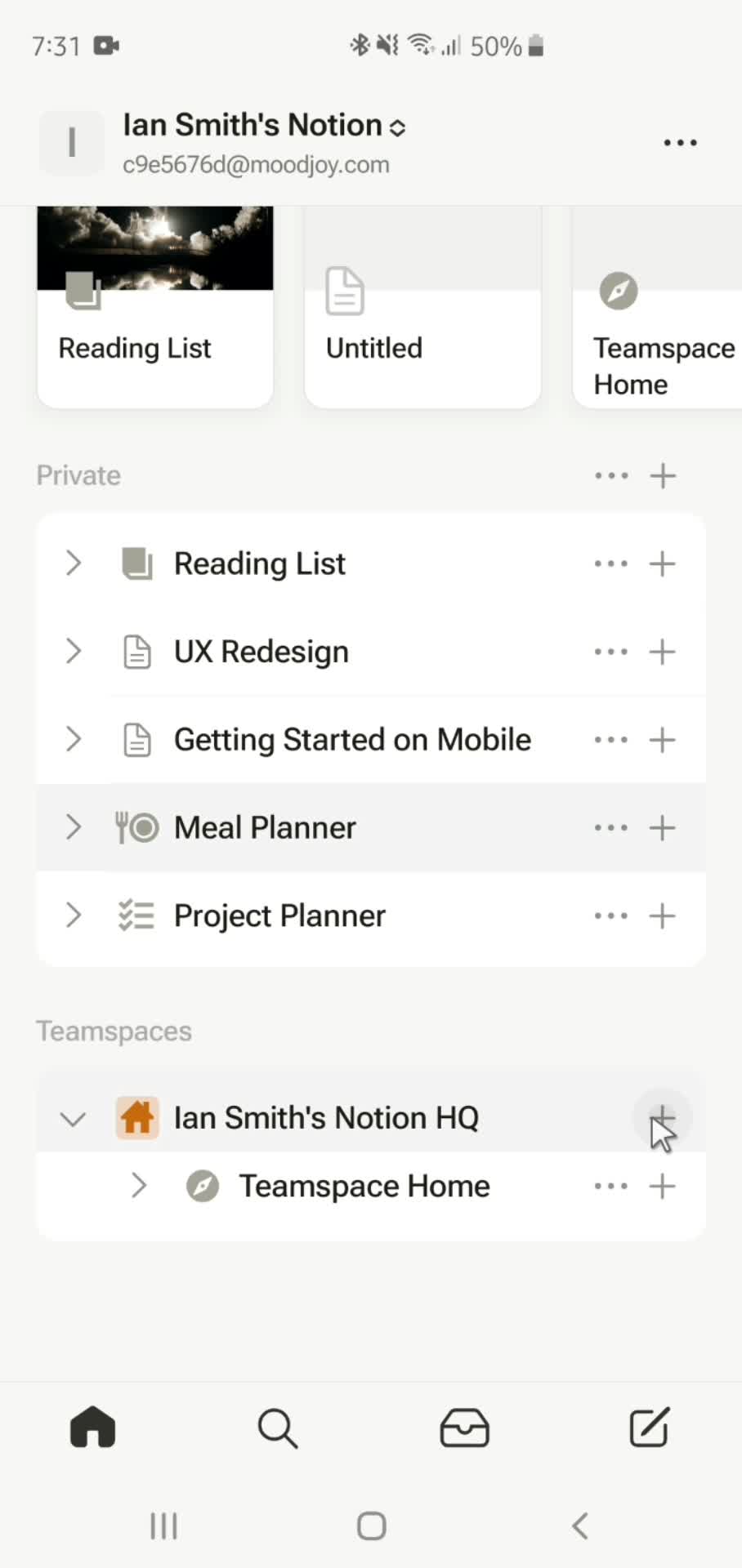
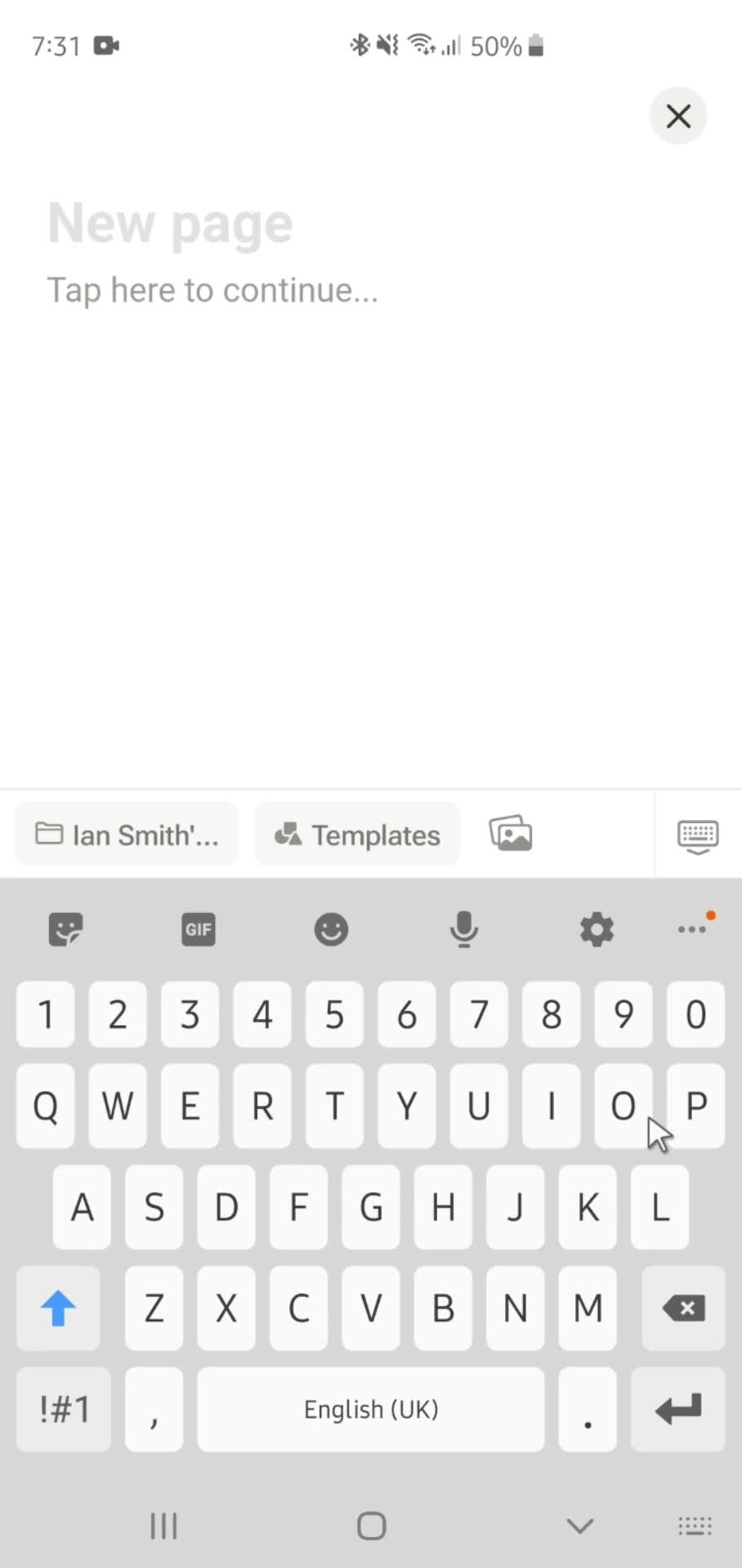
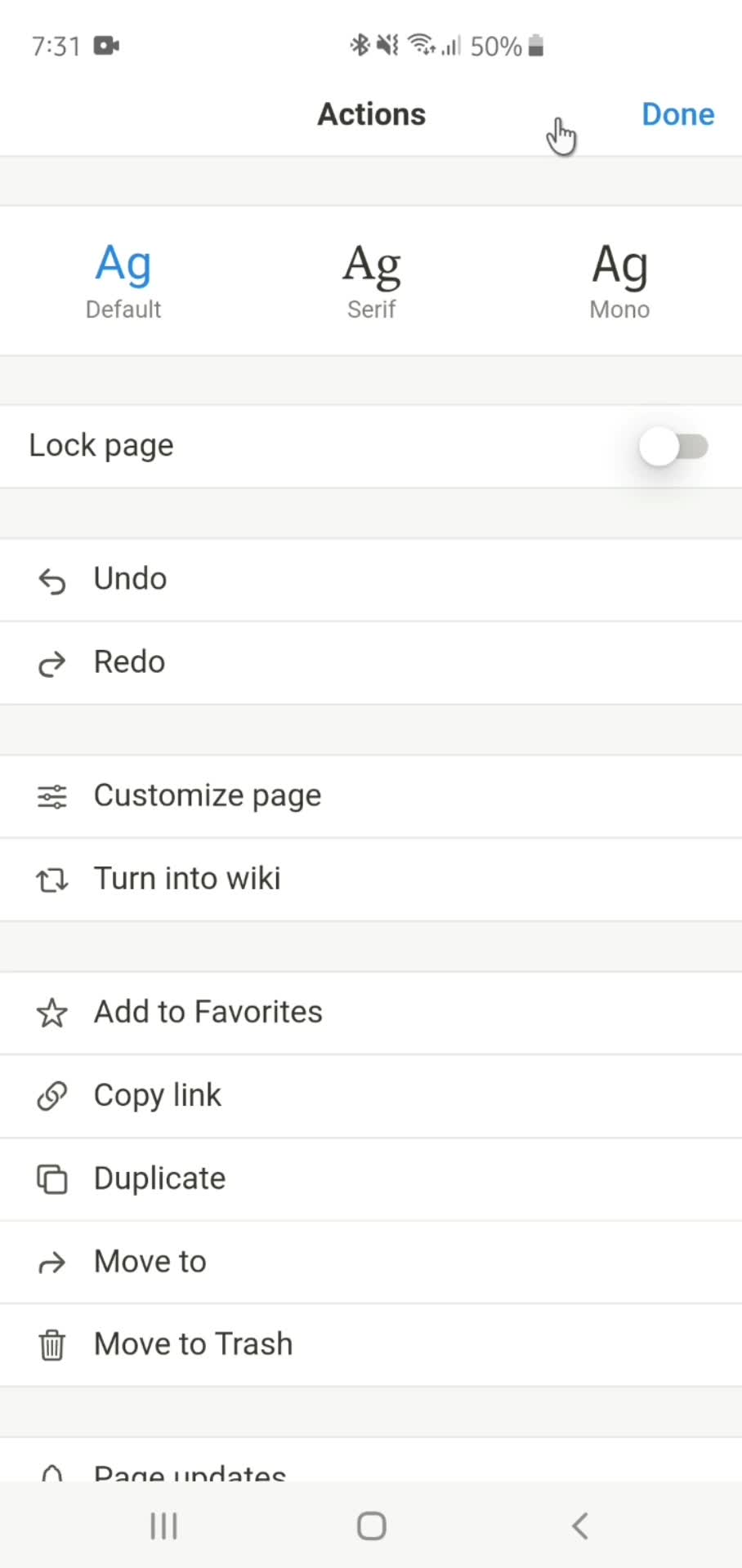
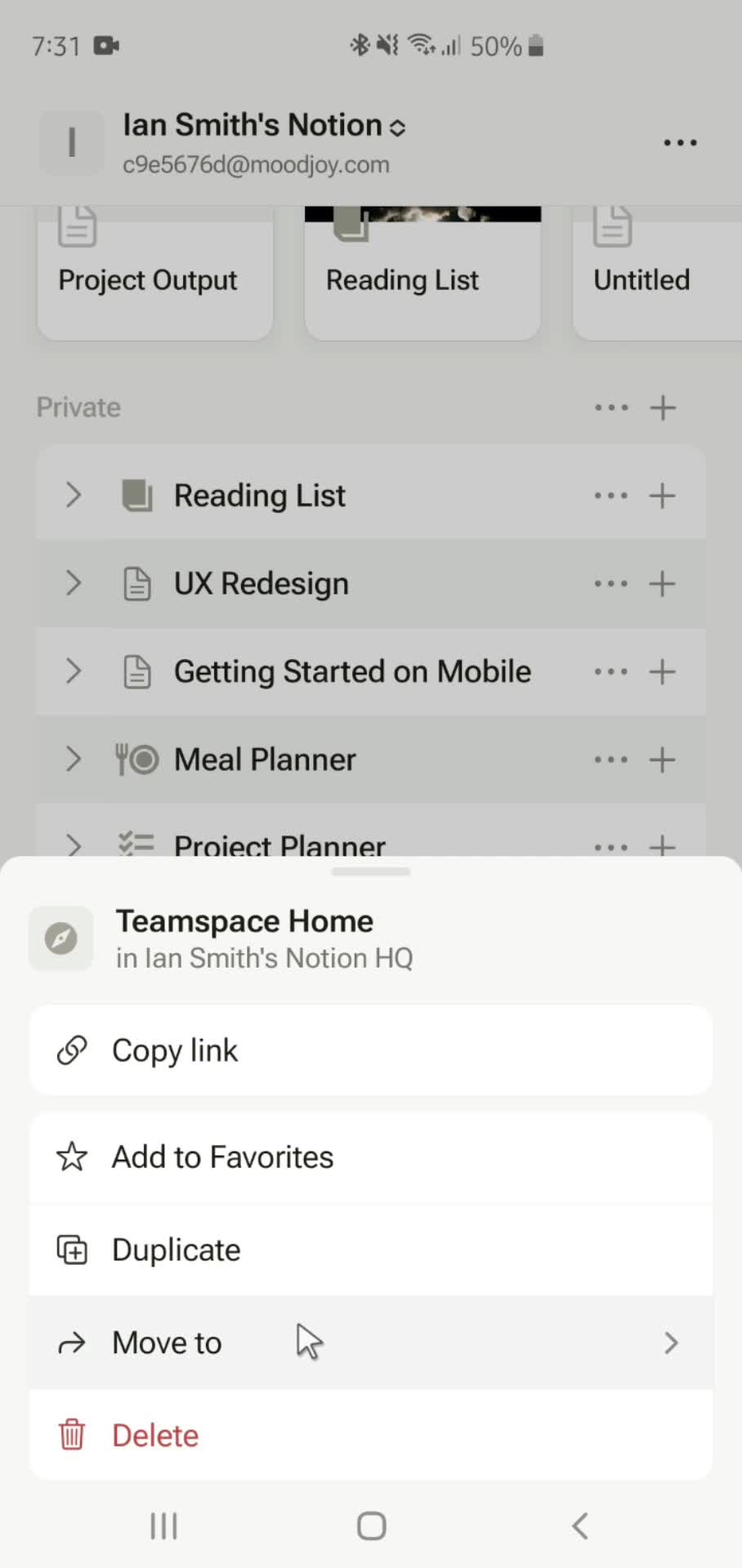
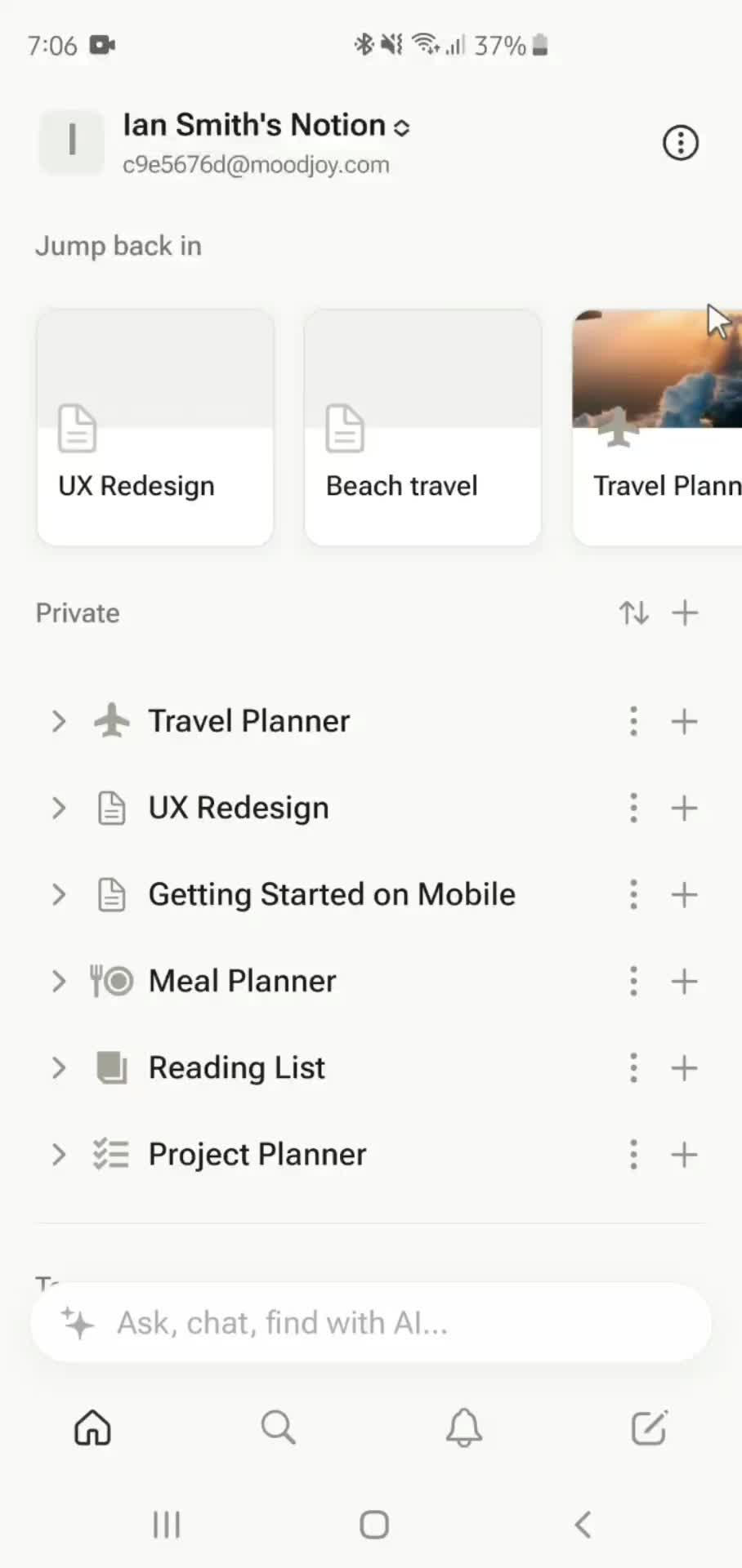
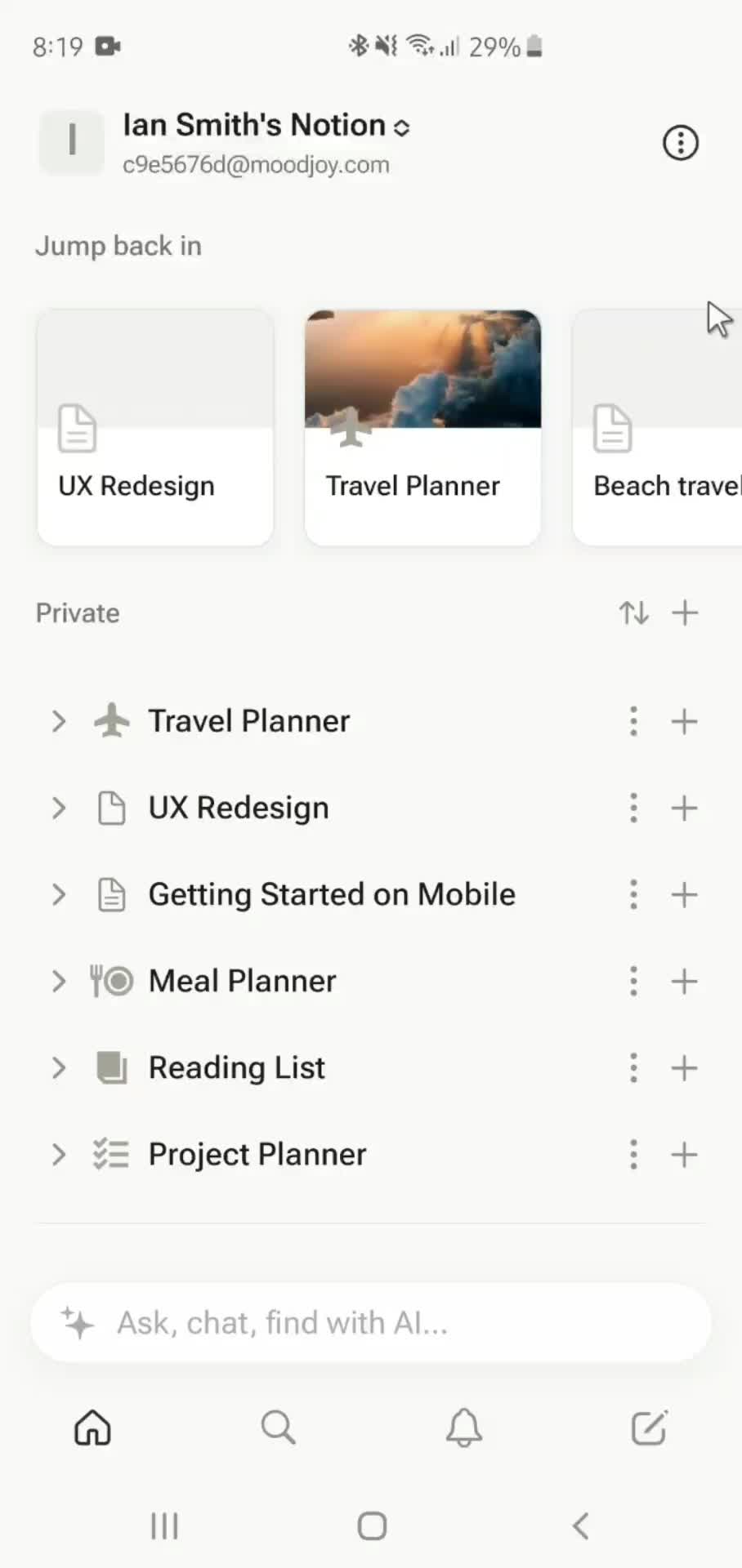
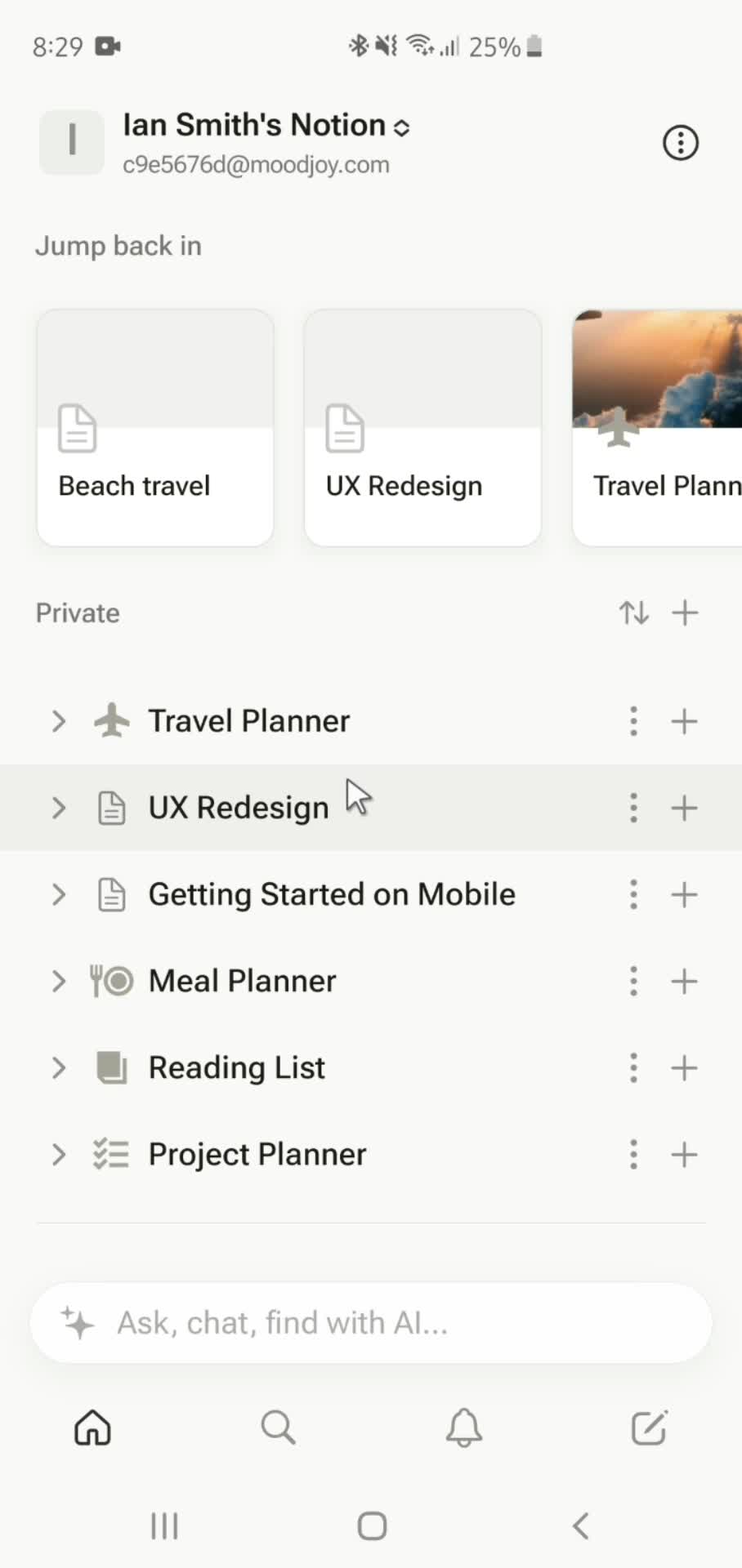
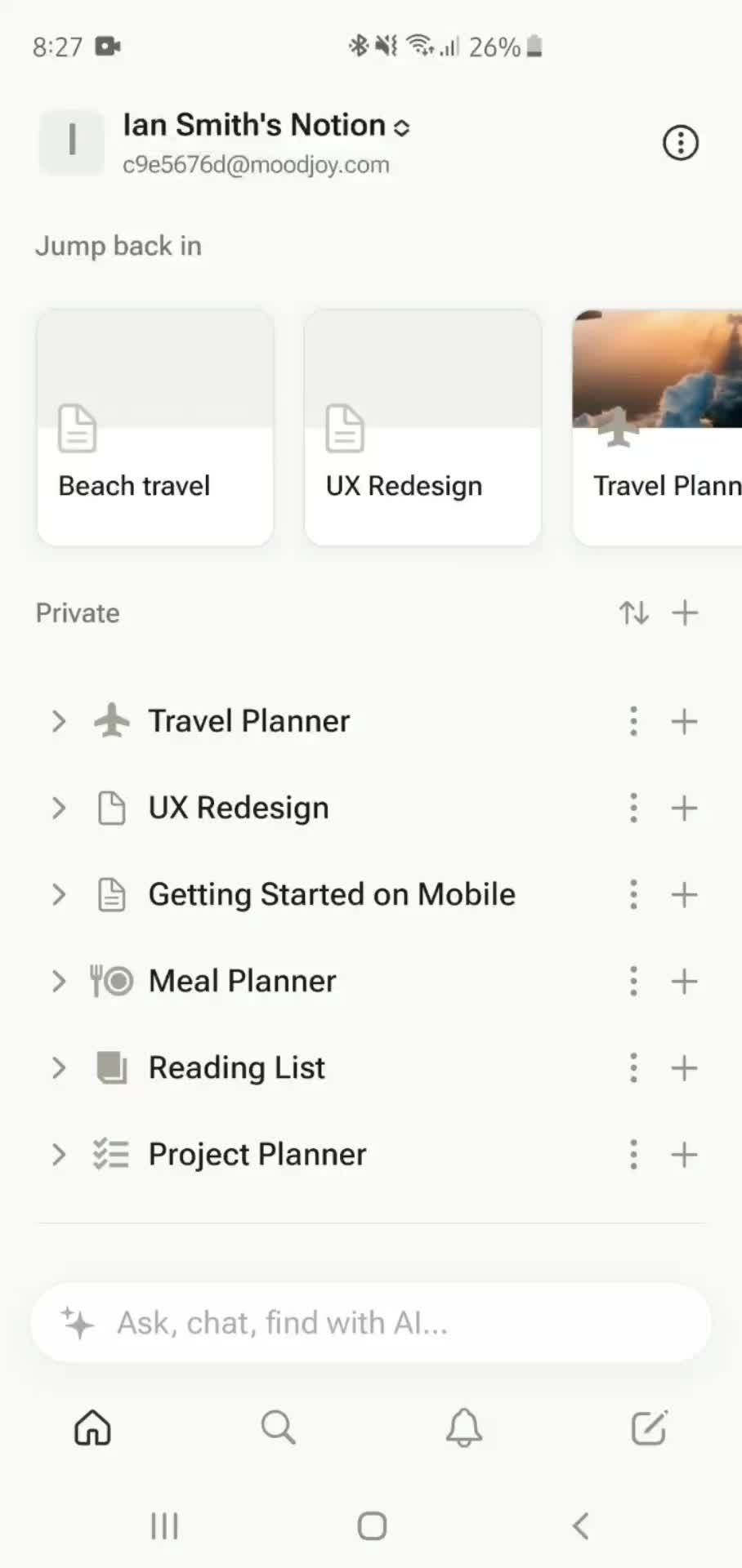
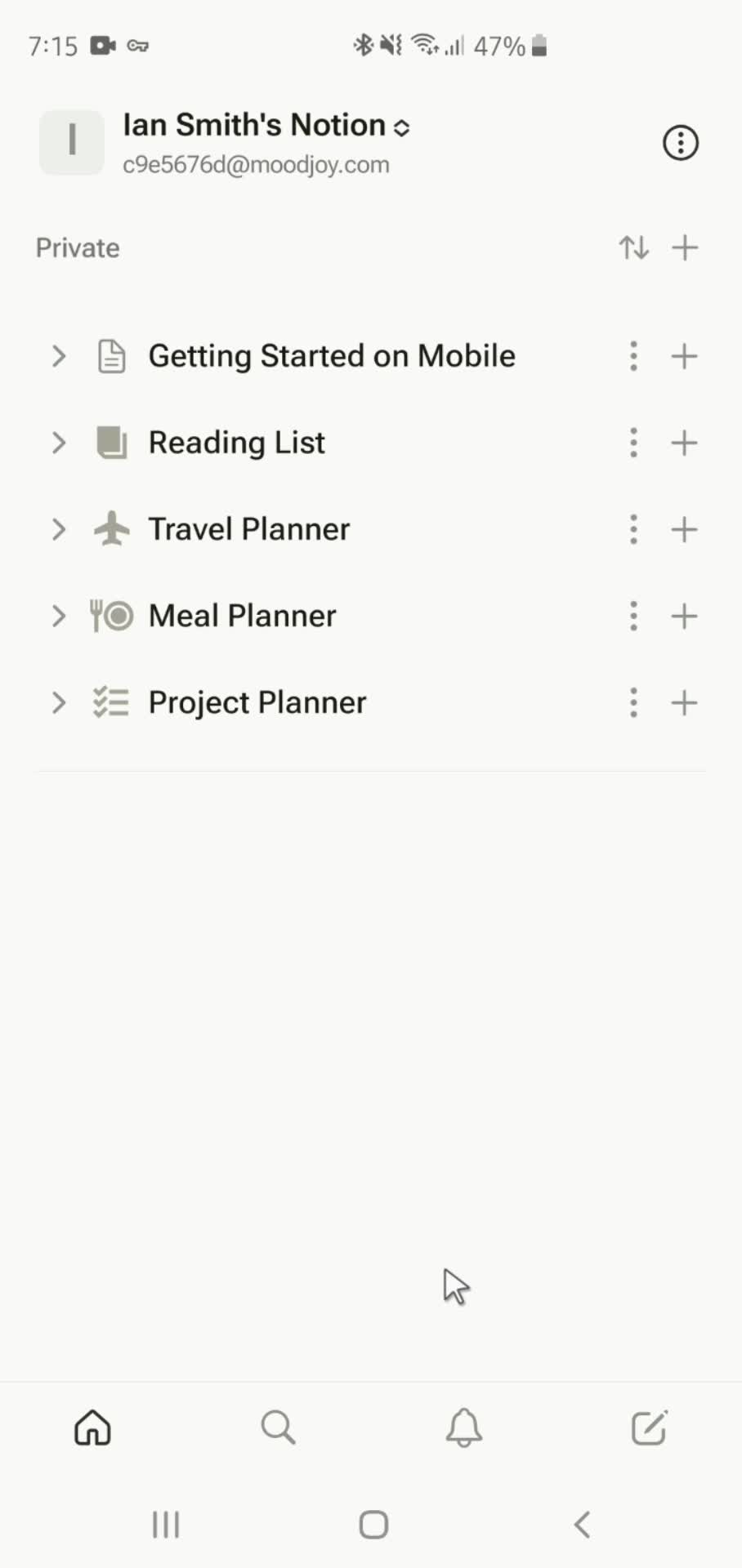
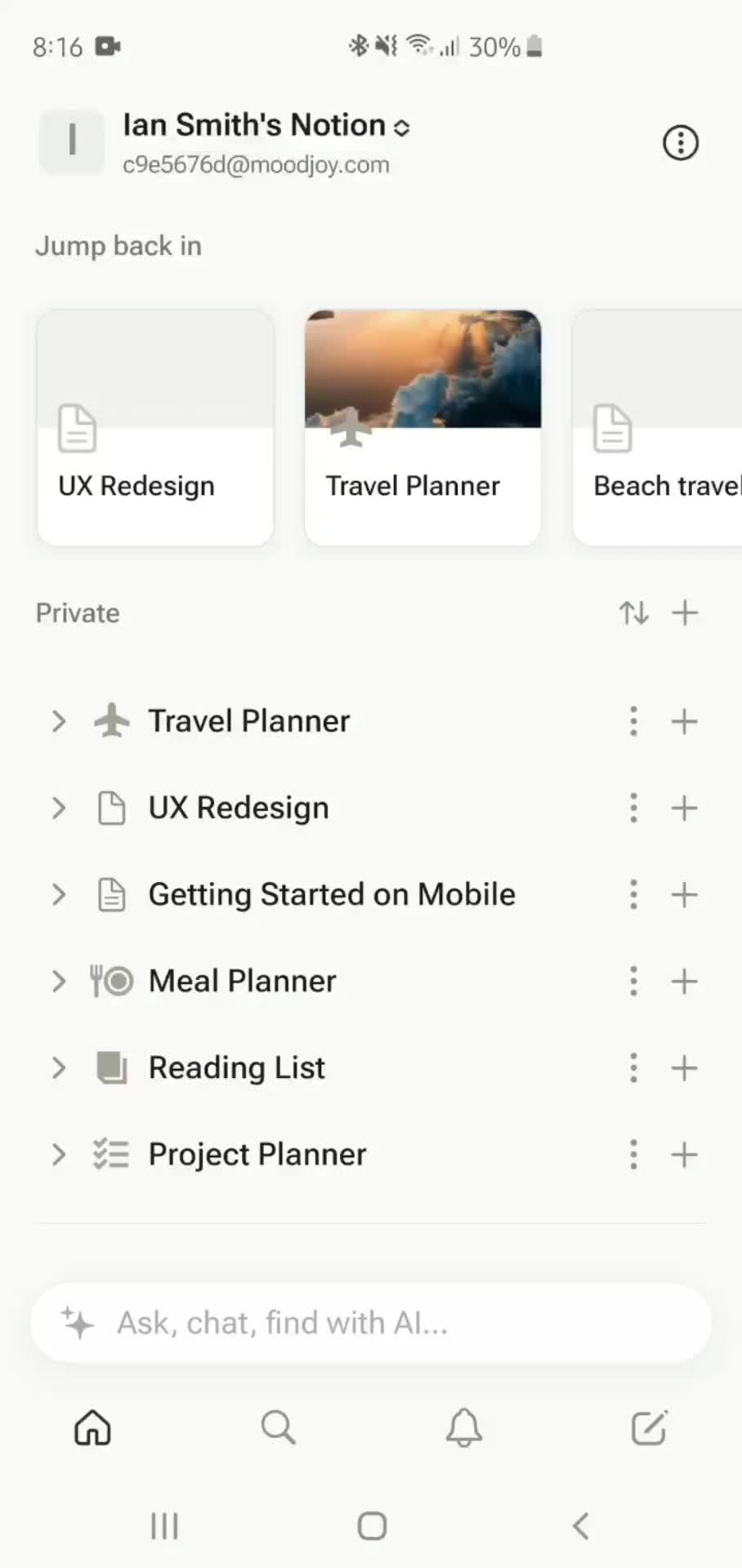
Home
this is title
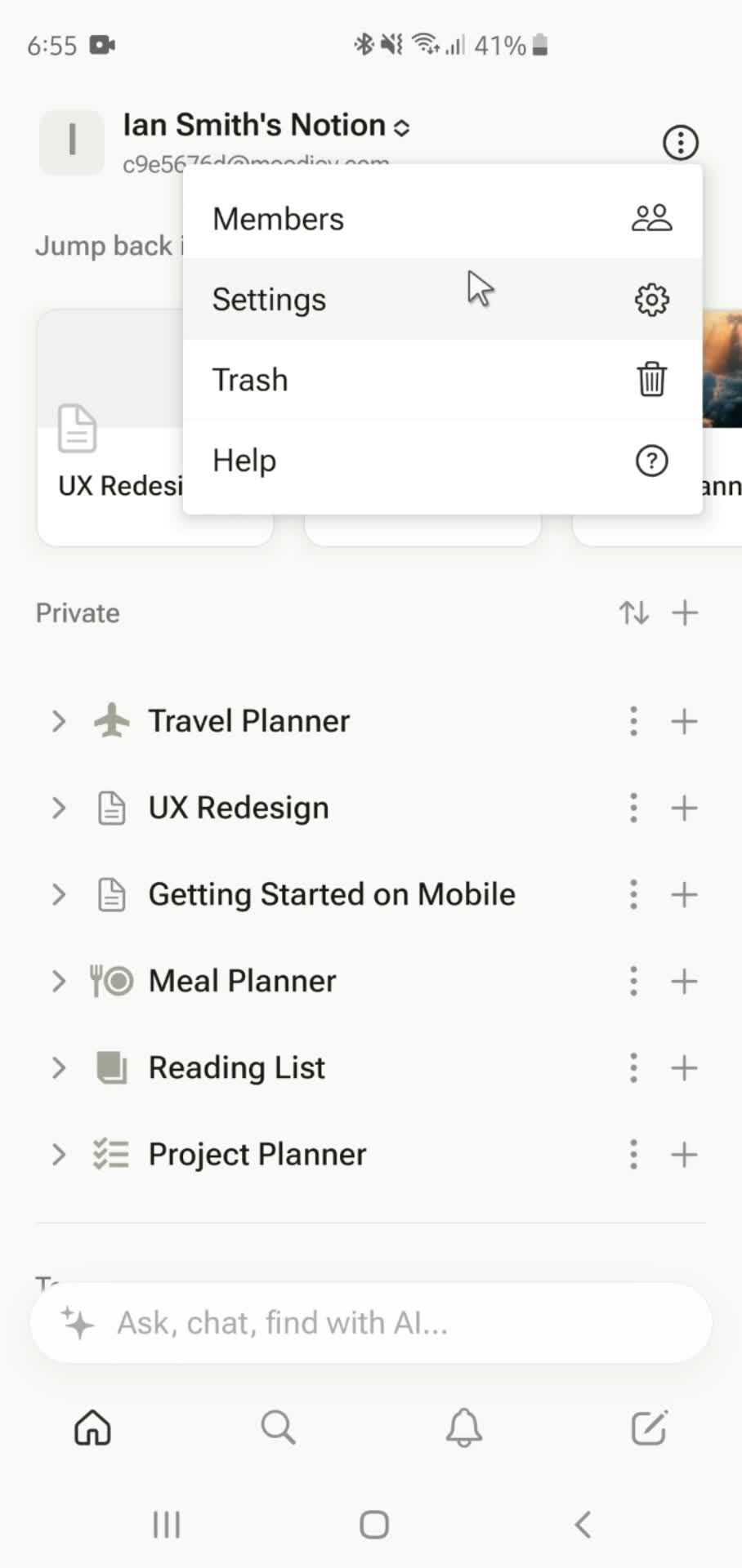
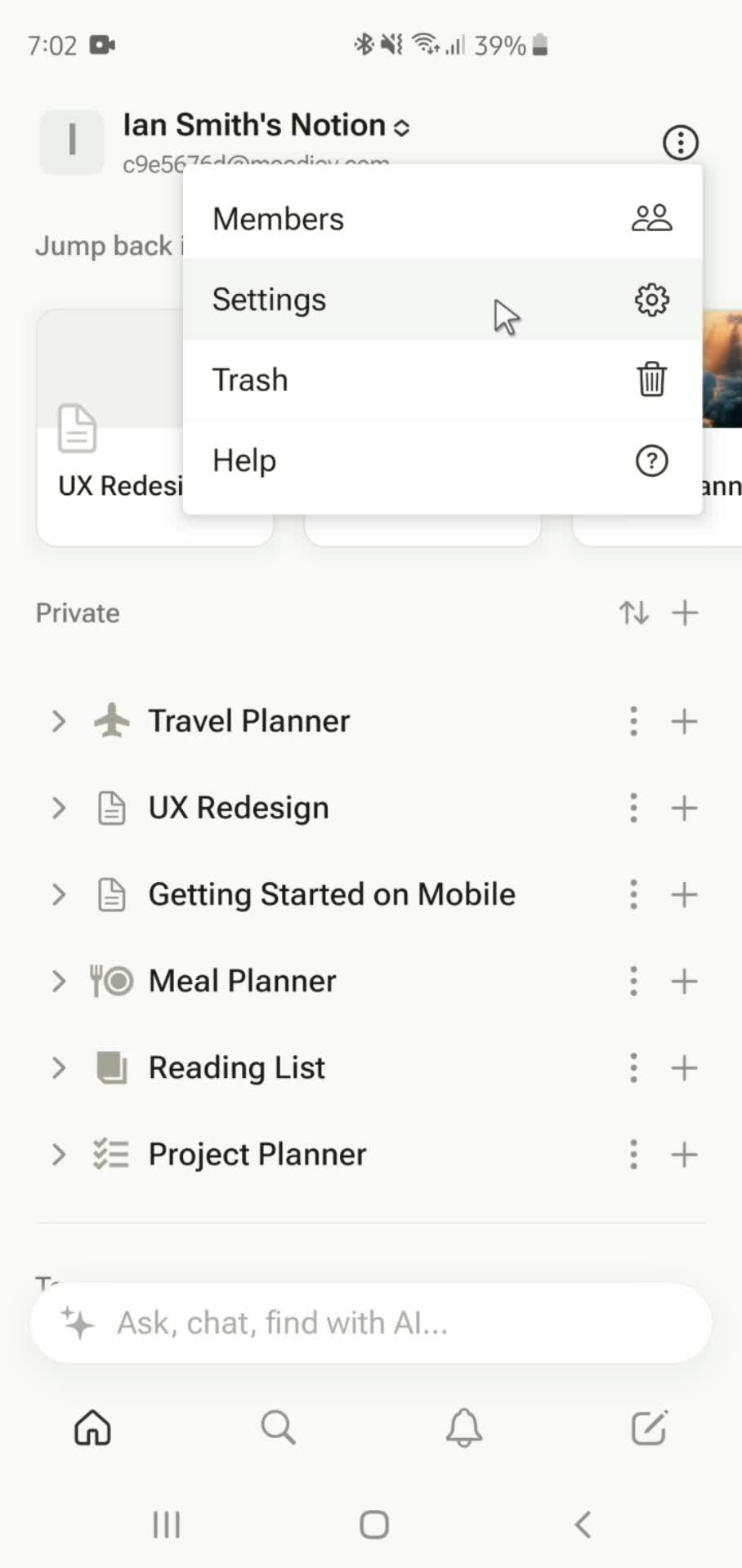
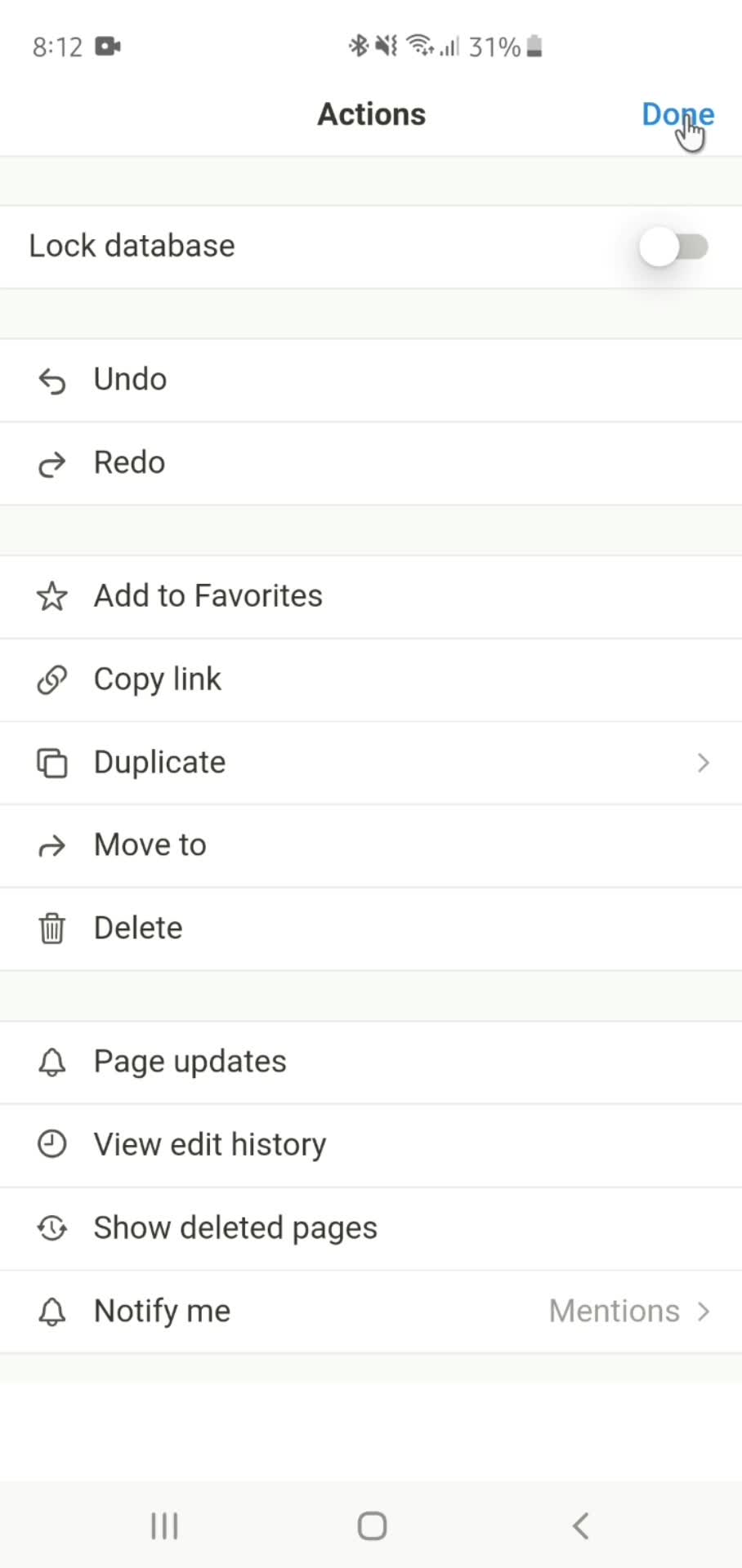
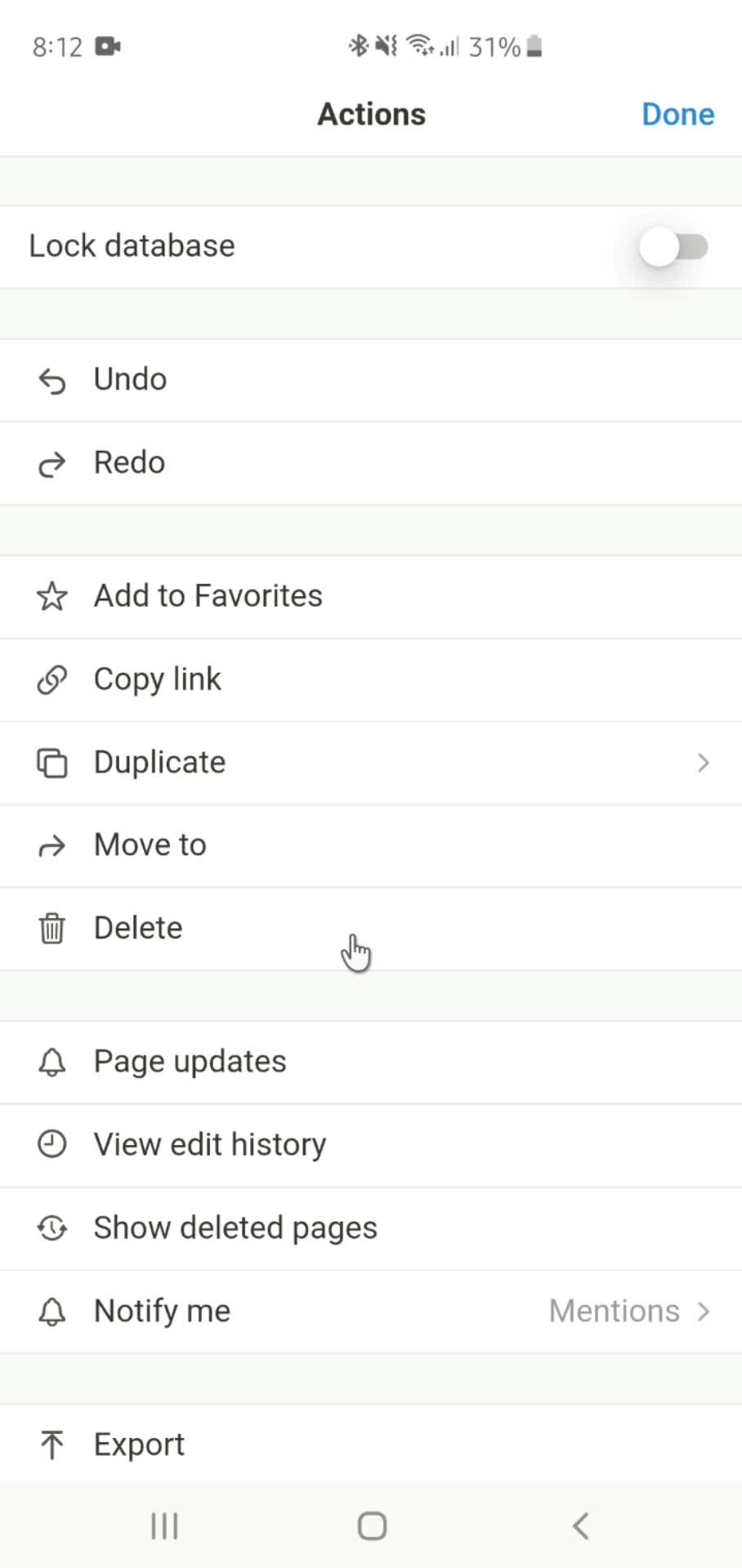
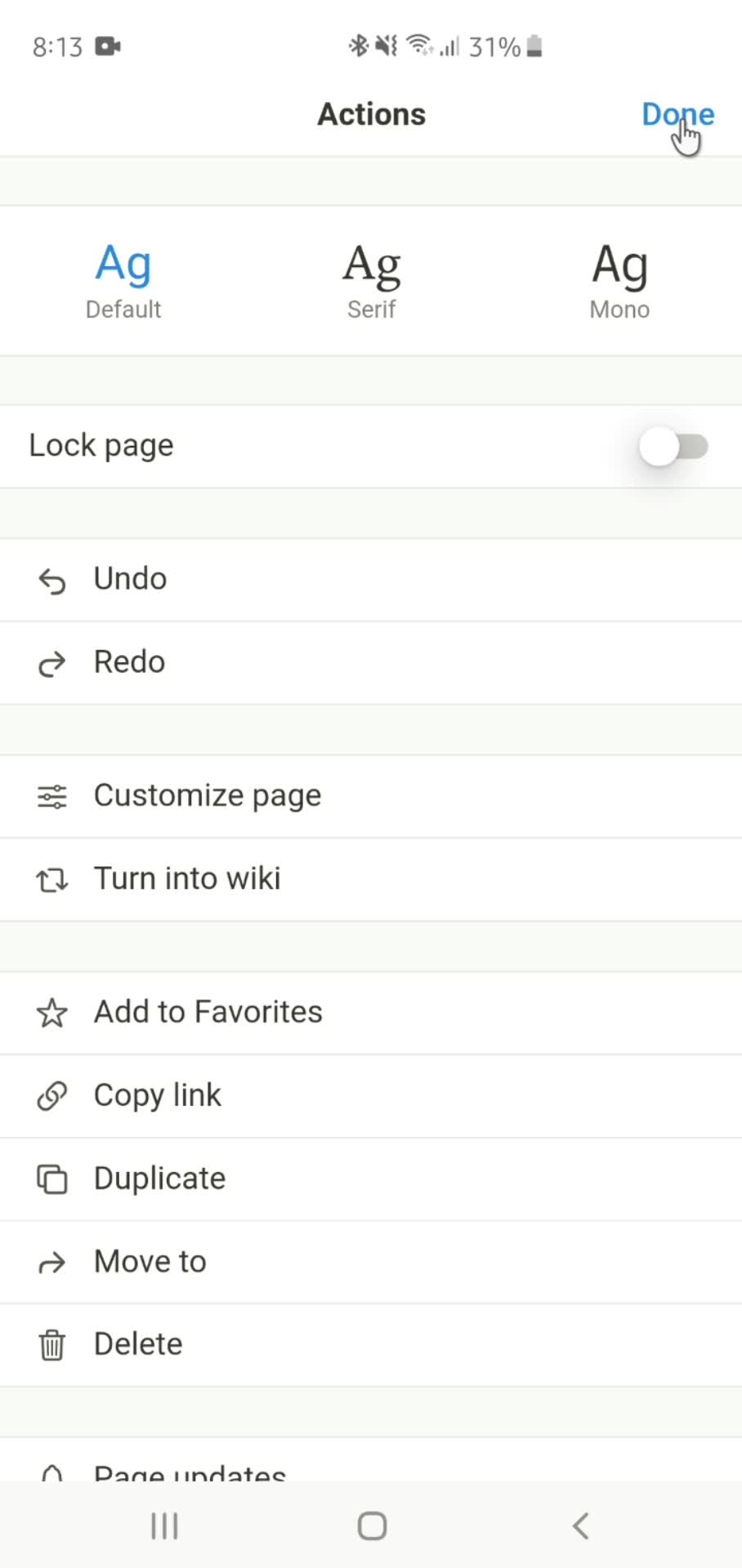
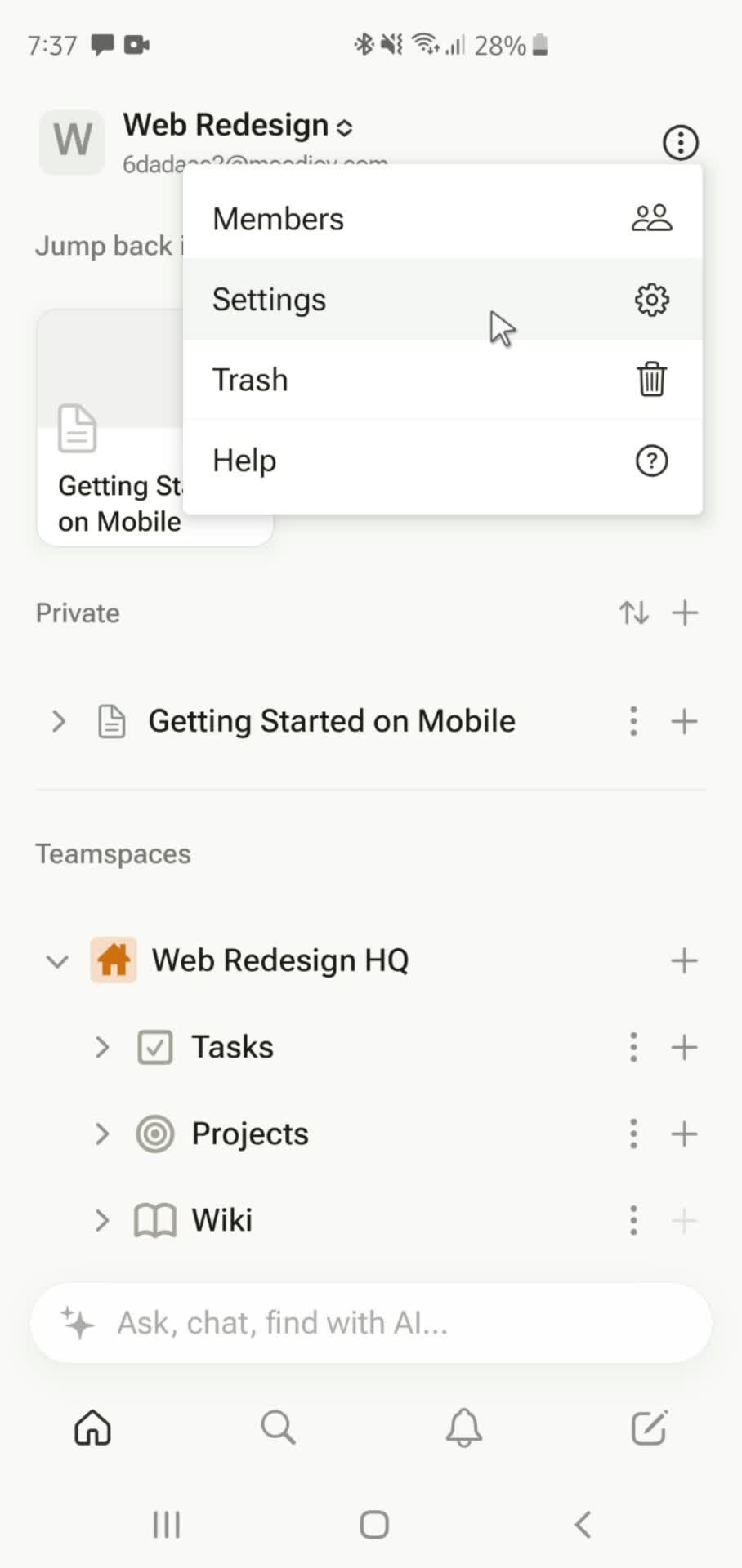
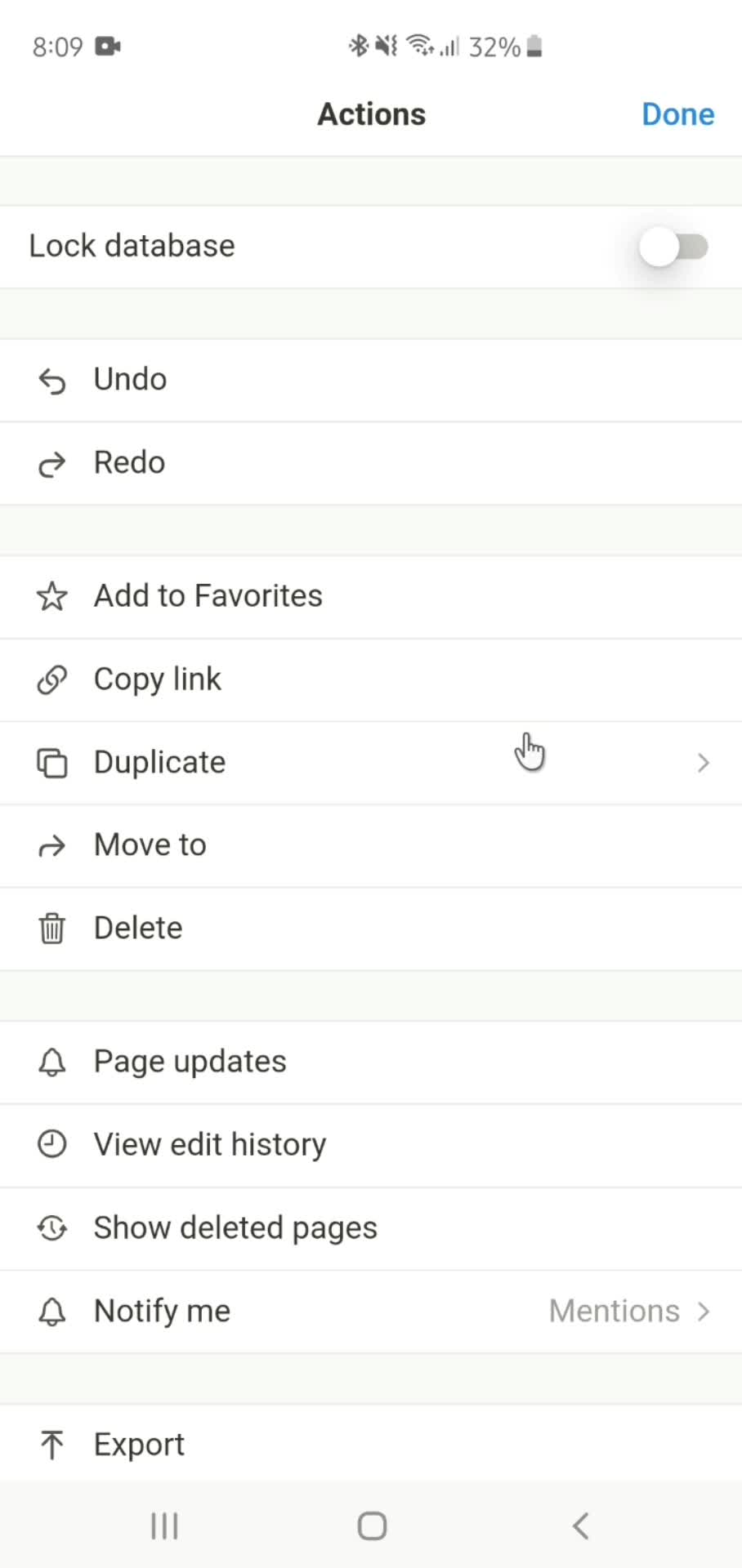
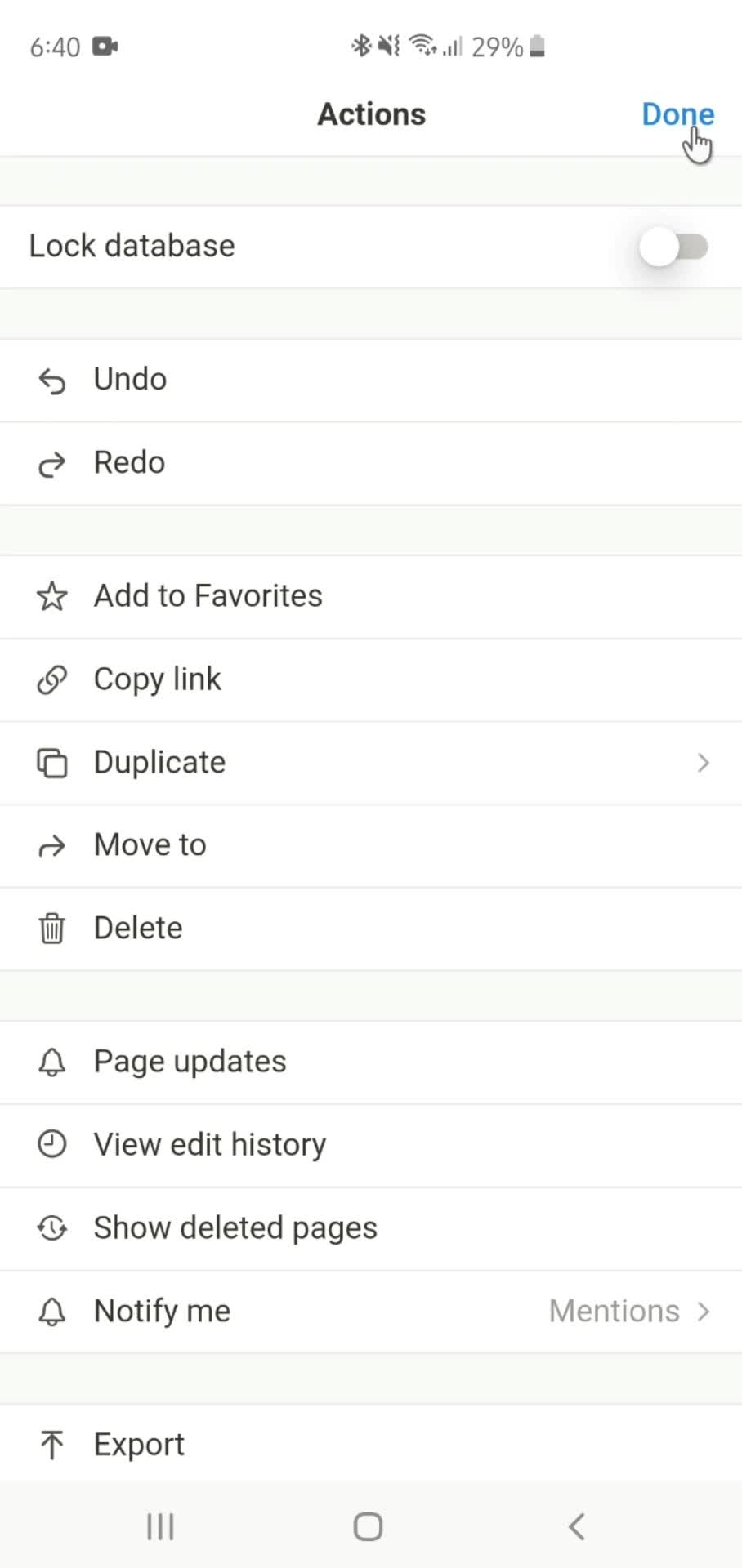
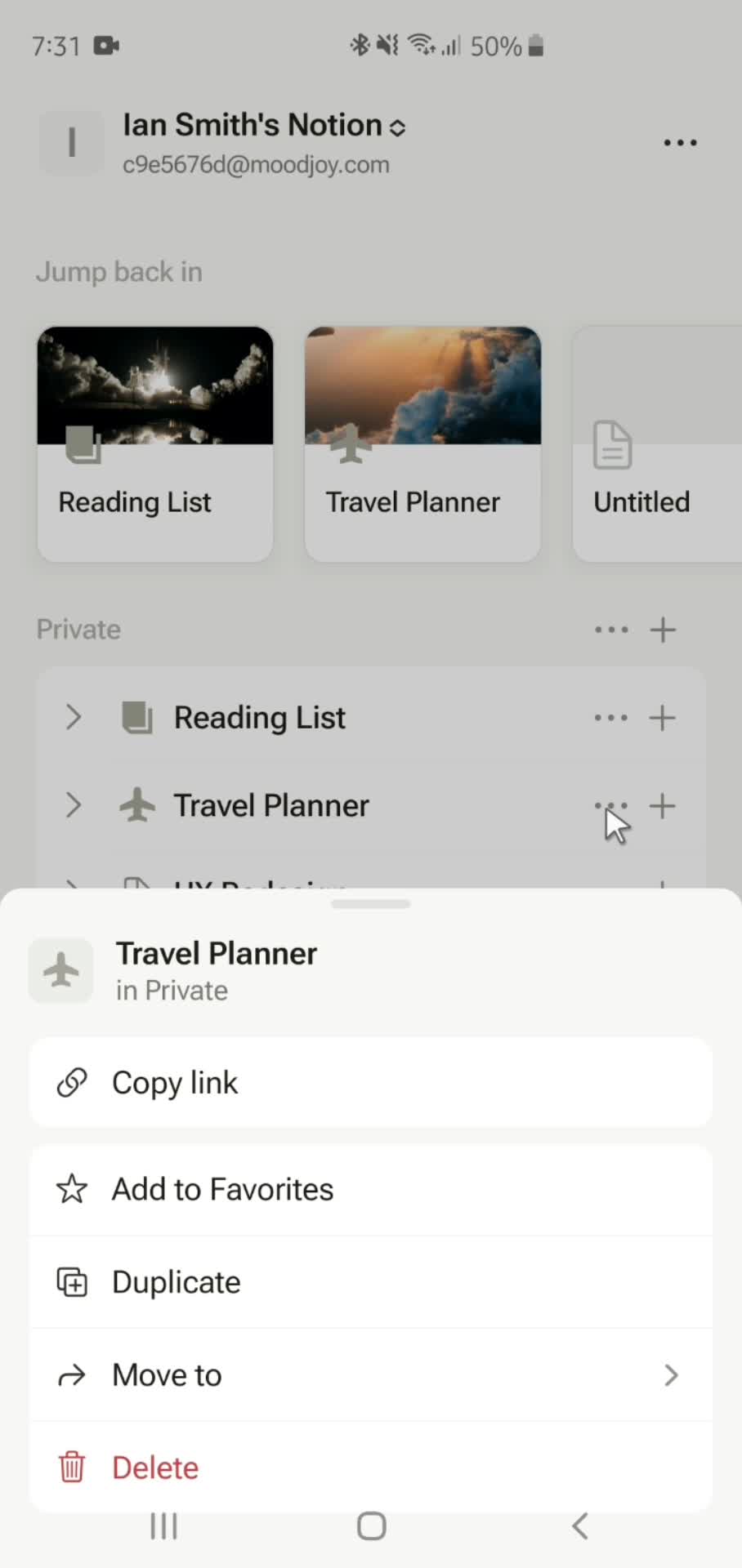
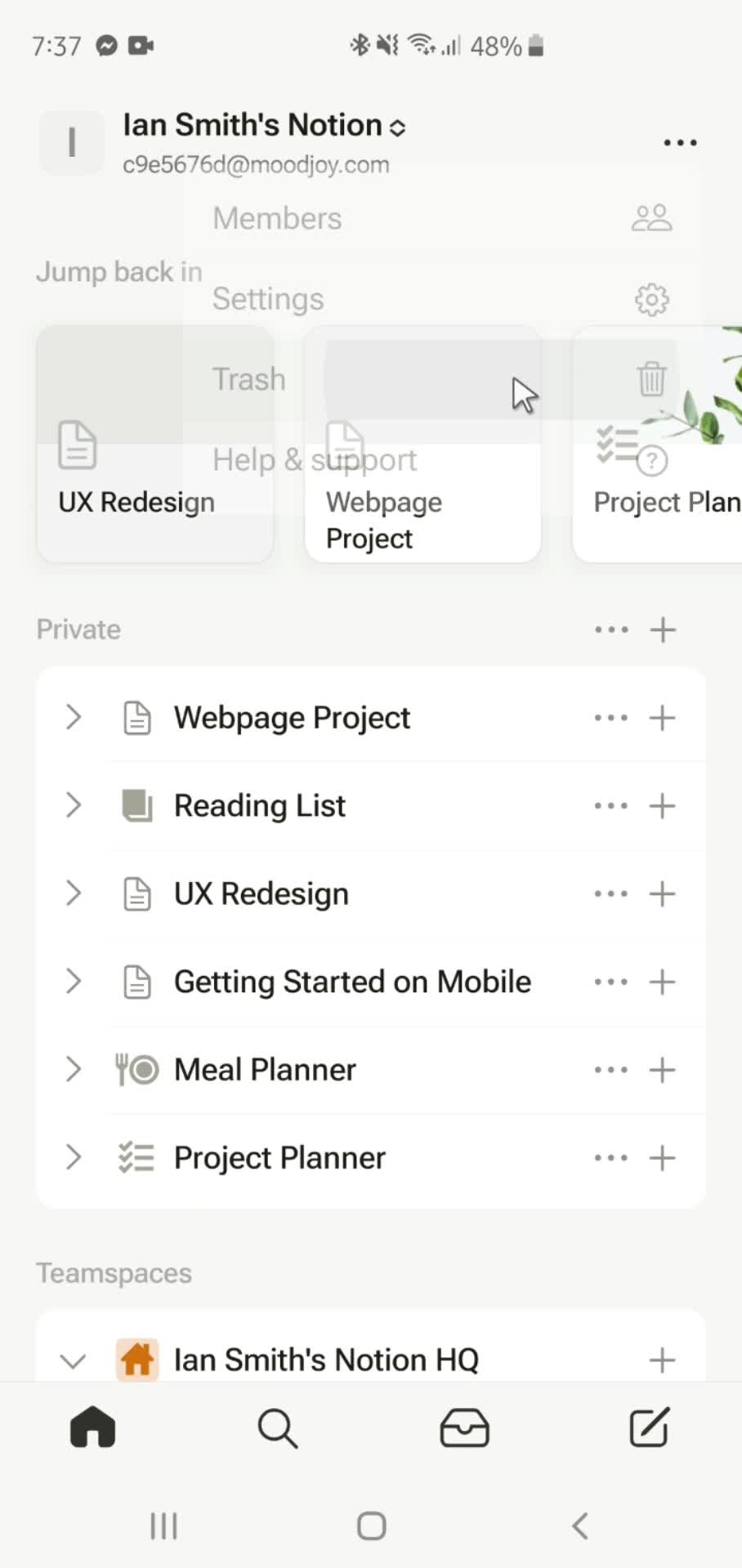
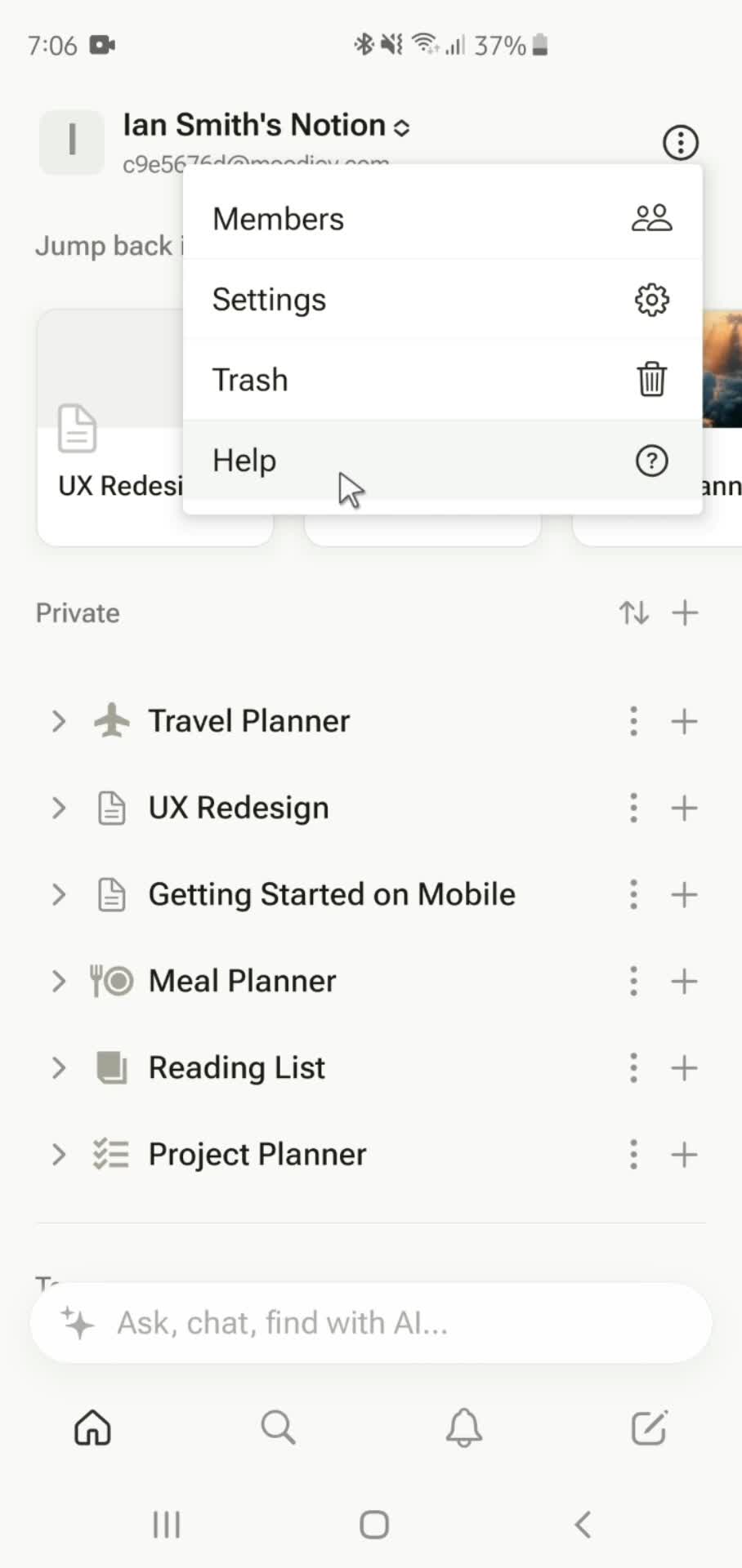
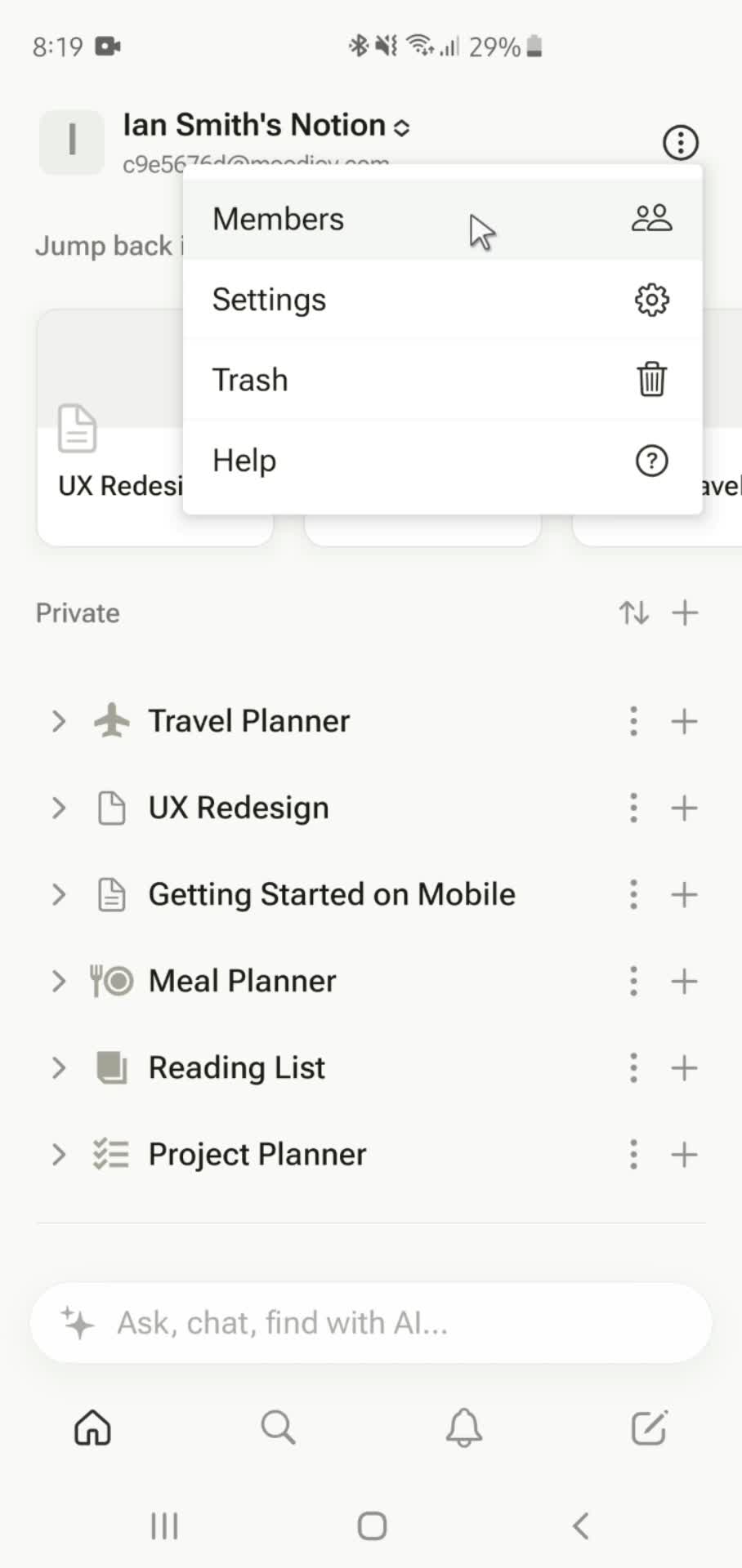
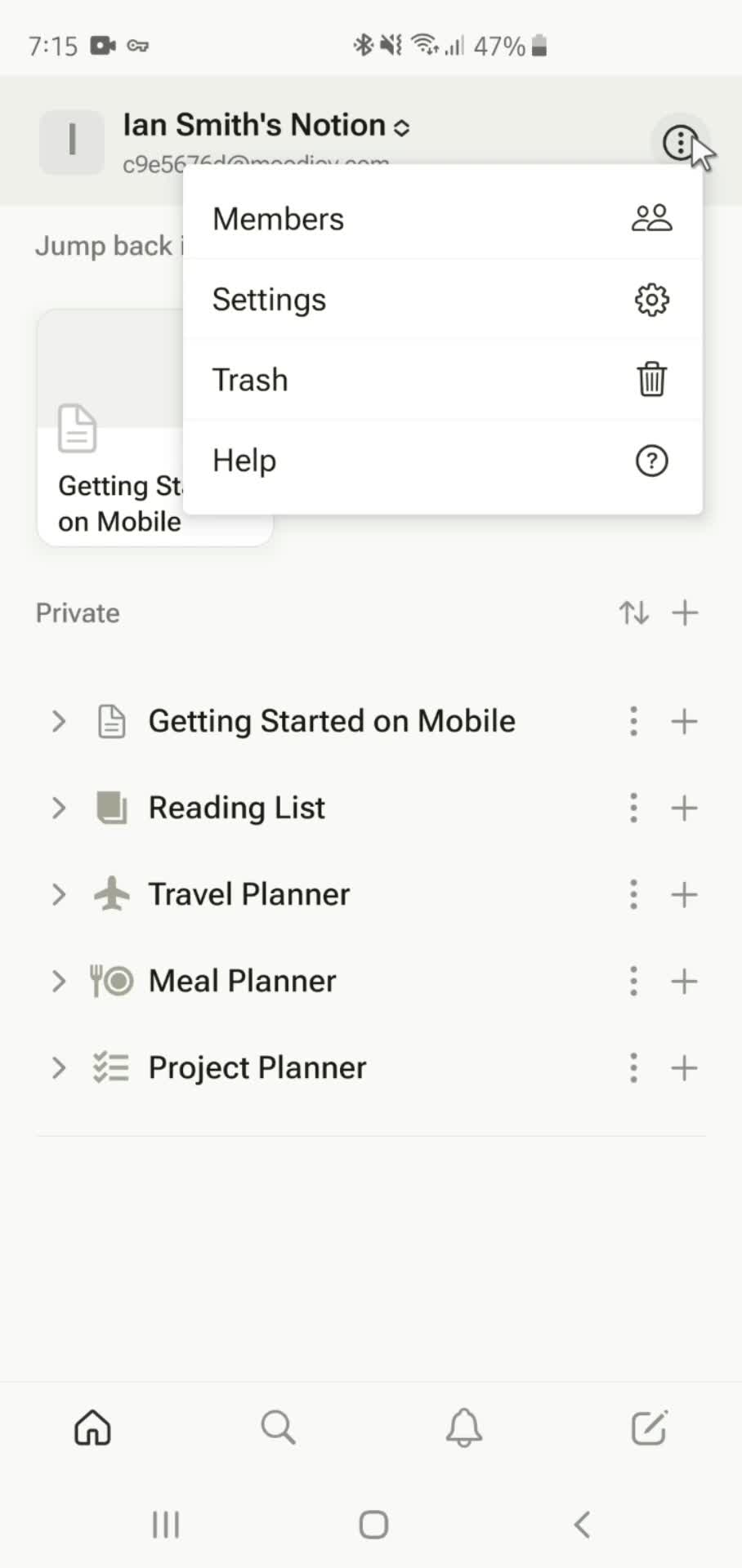
Action menu
this is title
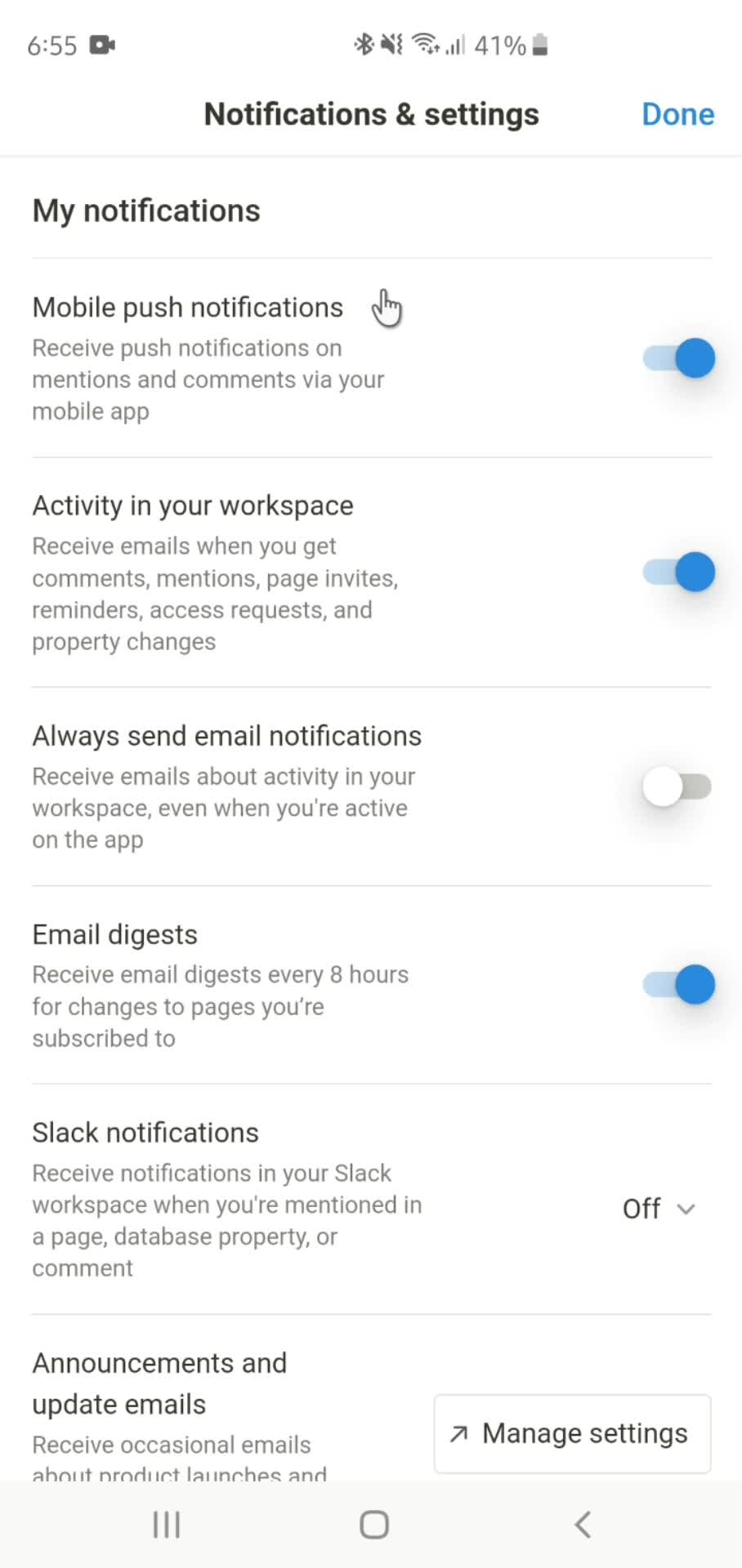
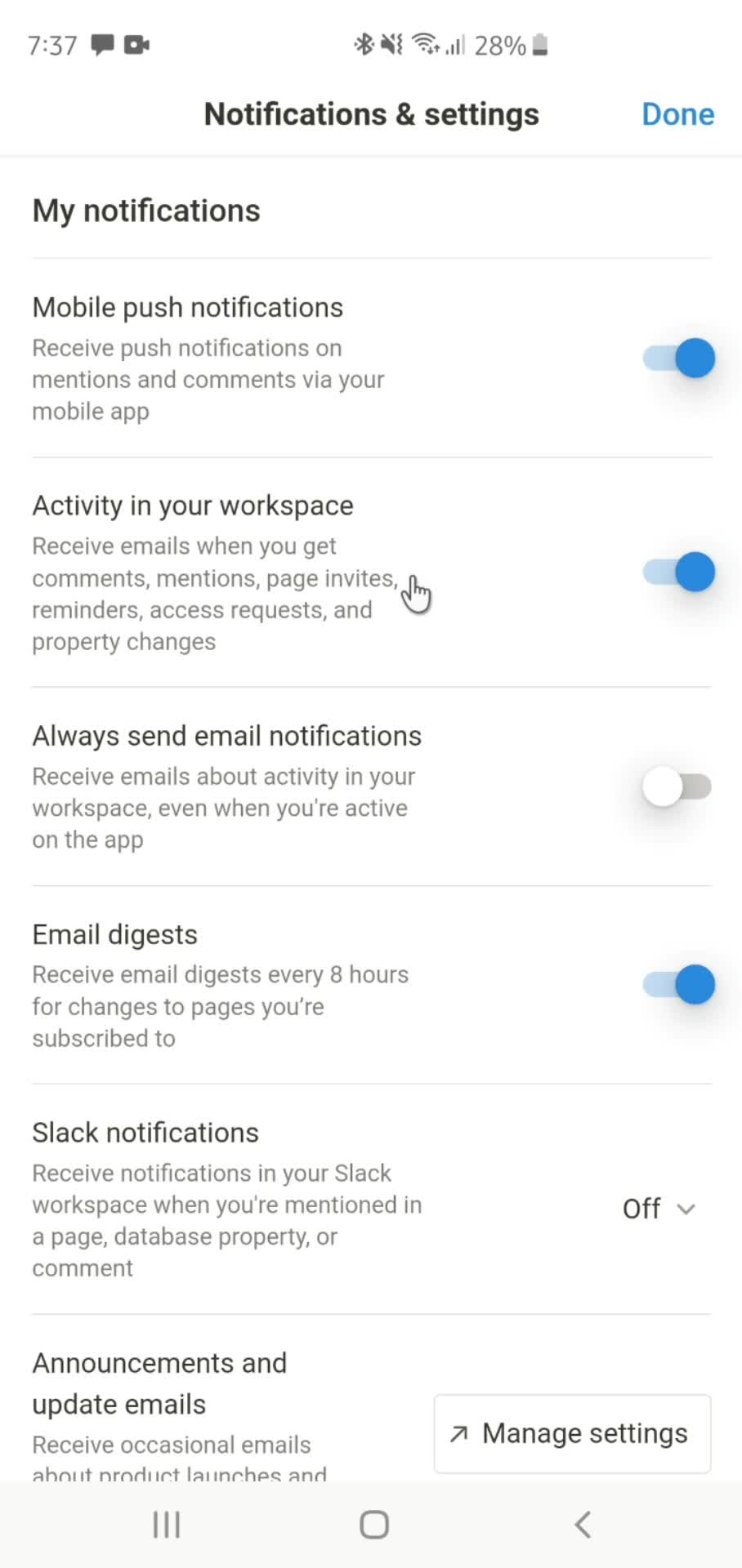
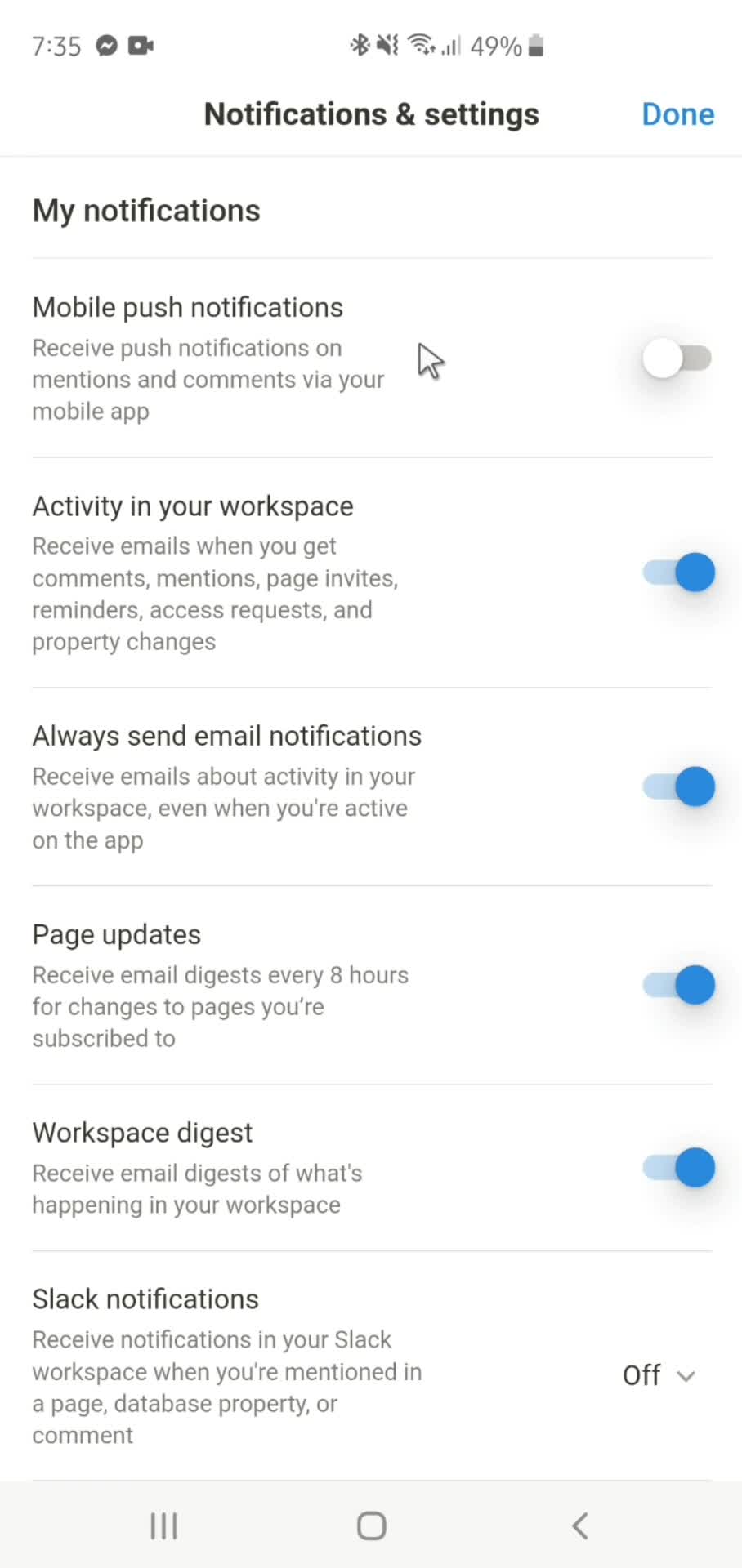
Settings
this is title
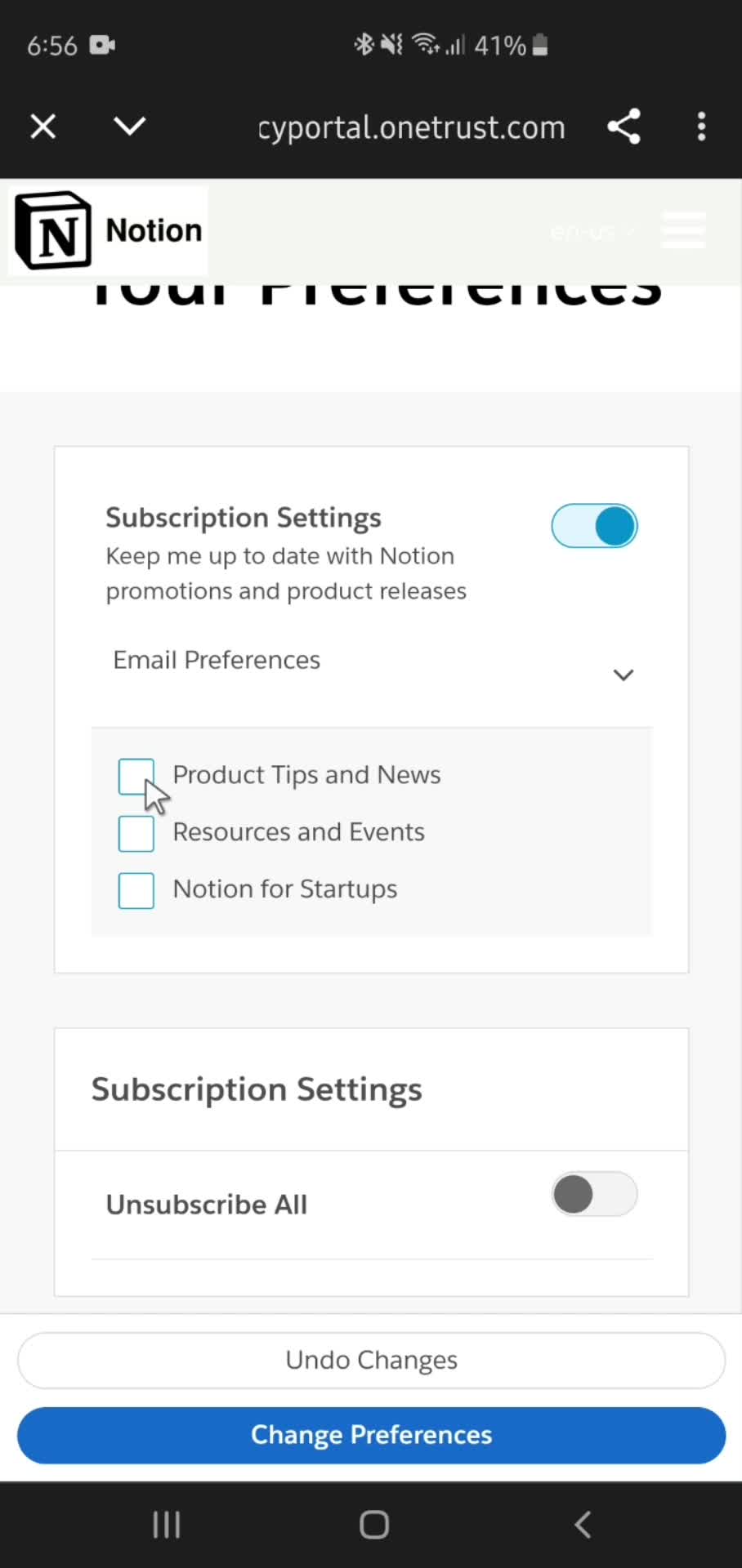
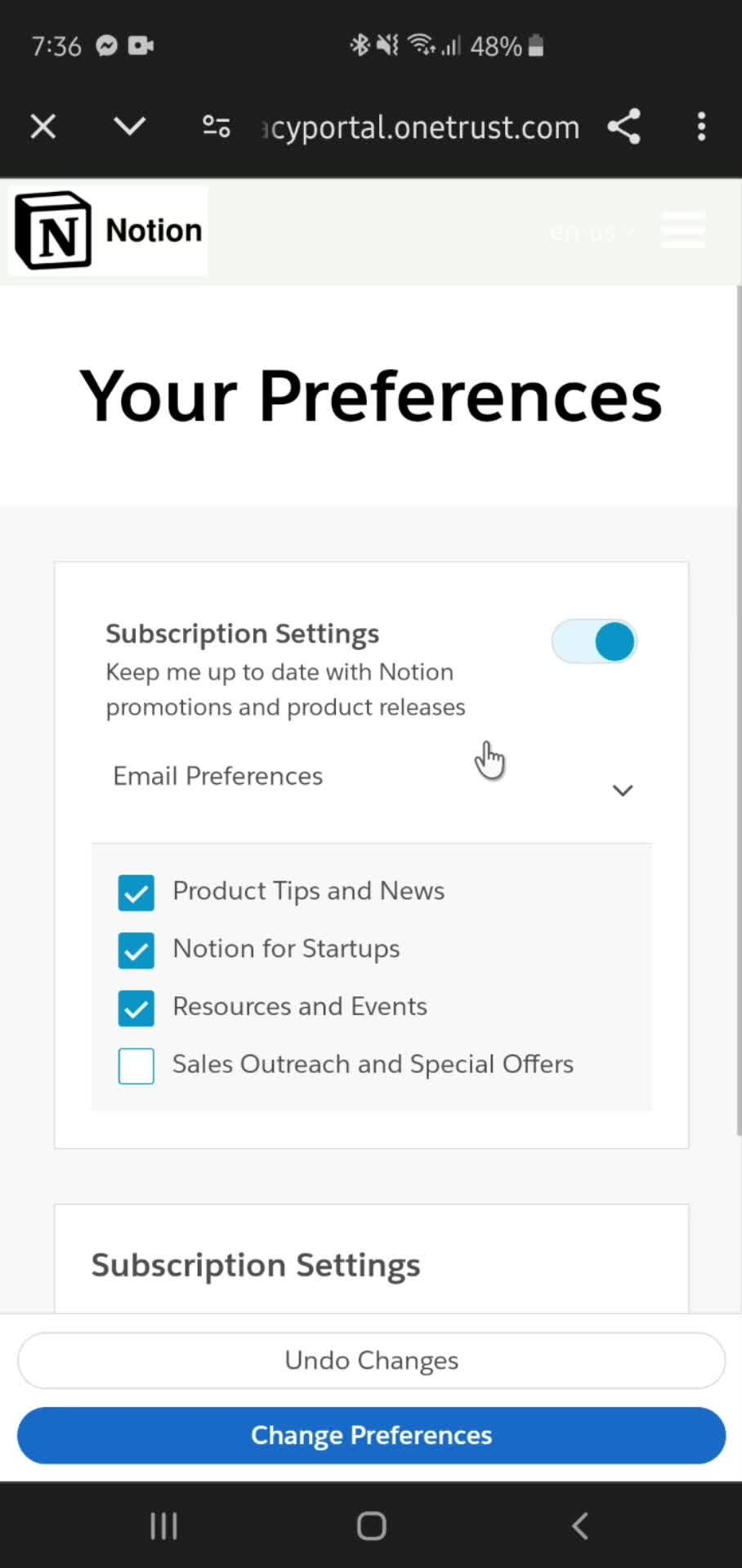
Preferences
this is title
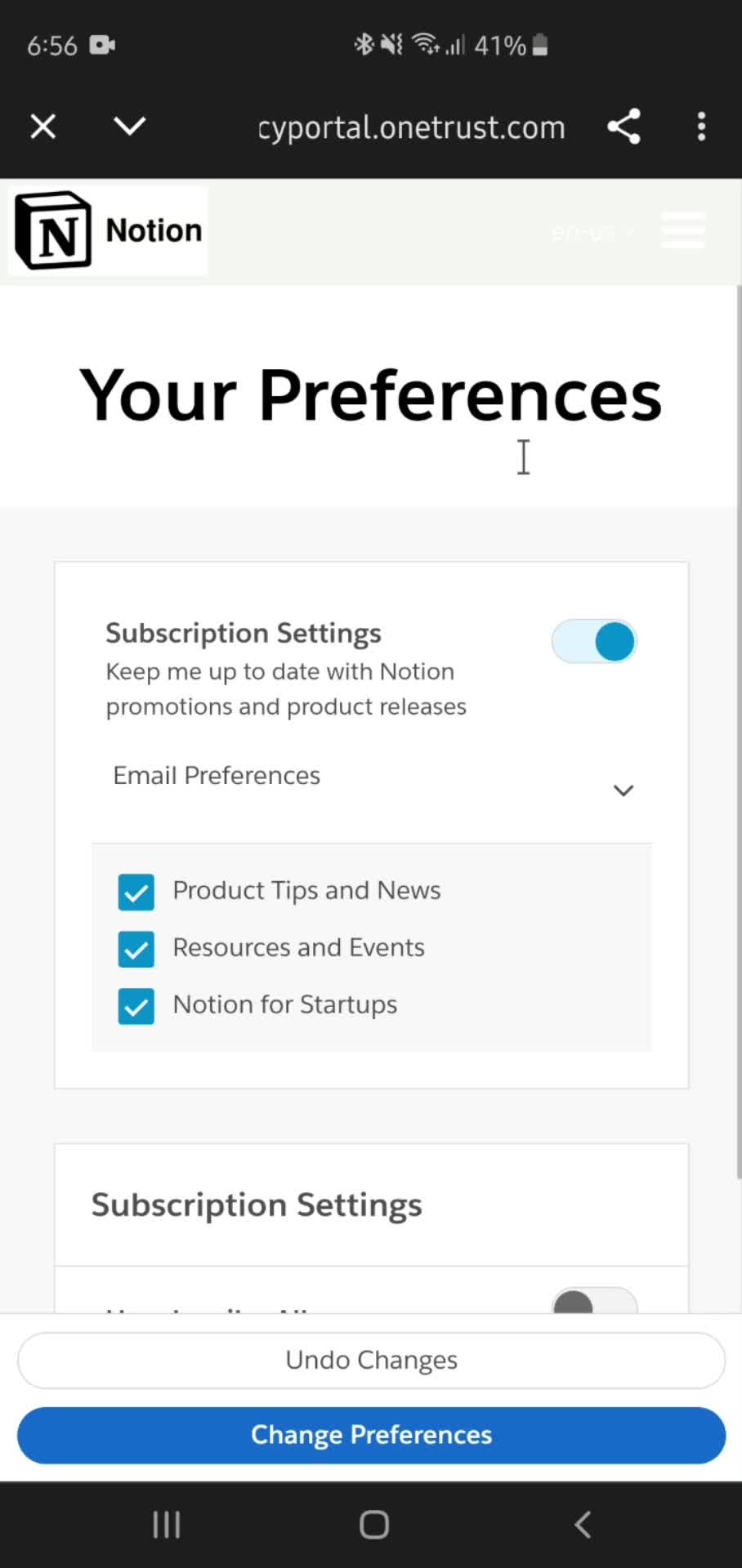
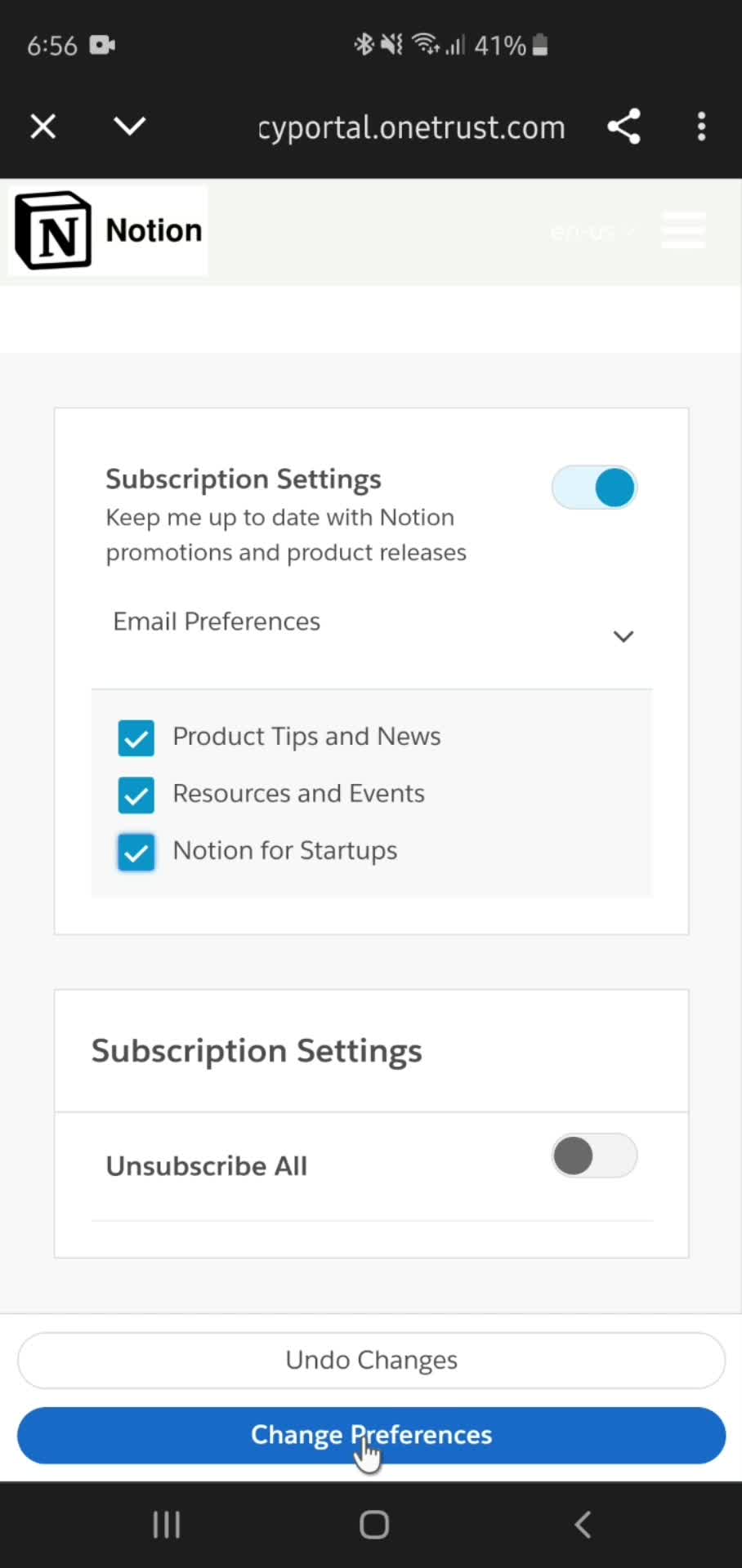
Select preference
this is title
Save changes
this is title
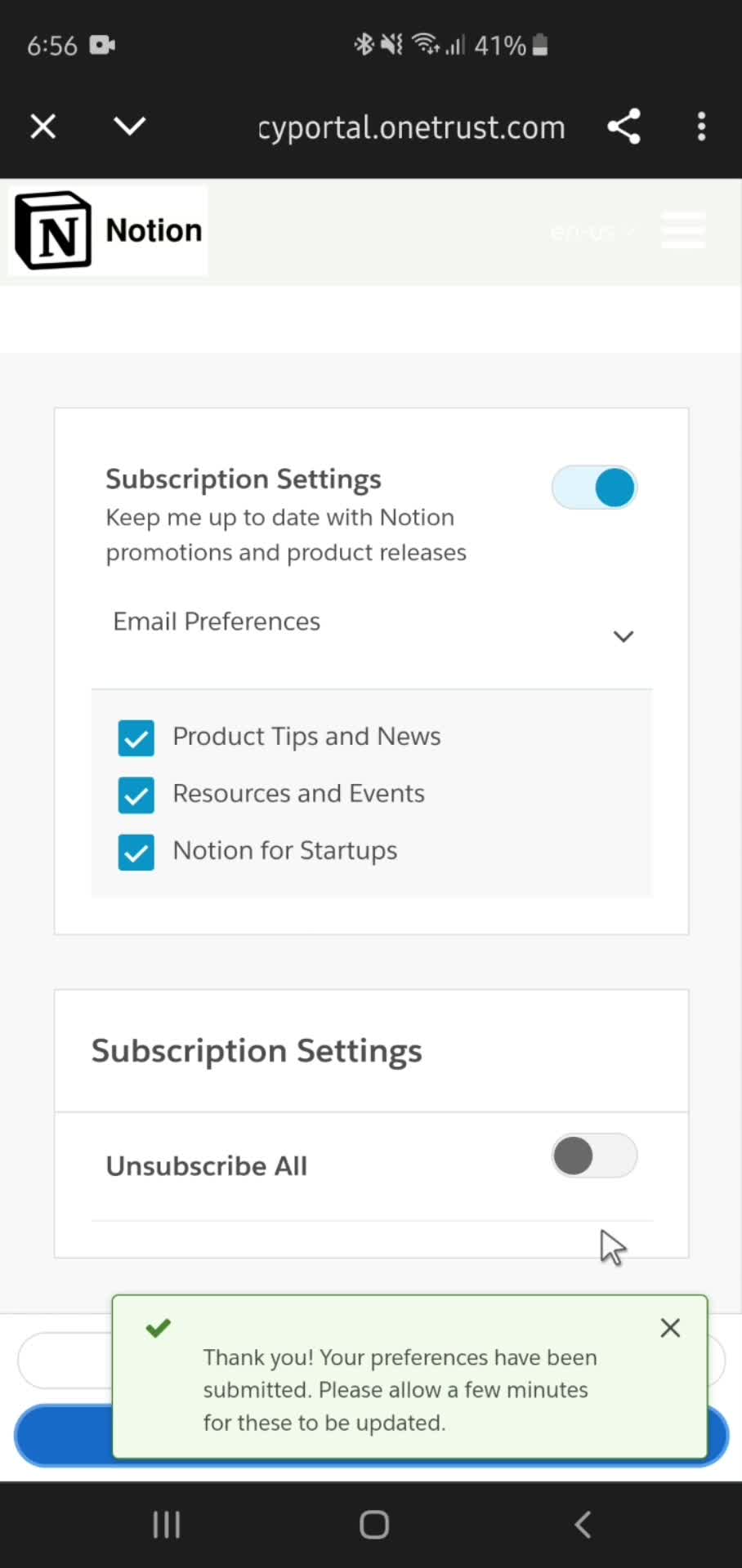
Submitted
this is title
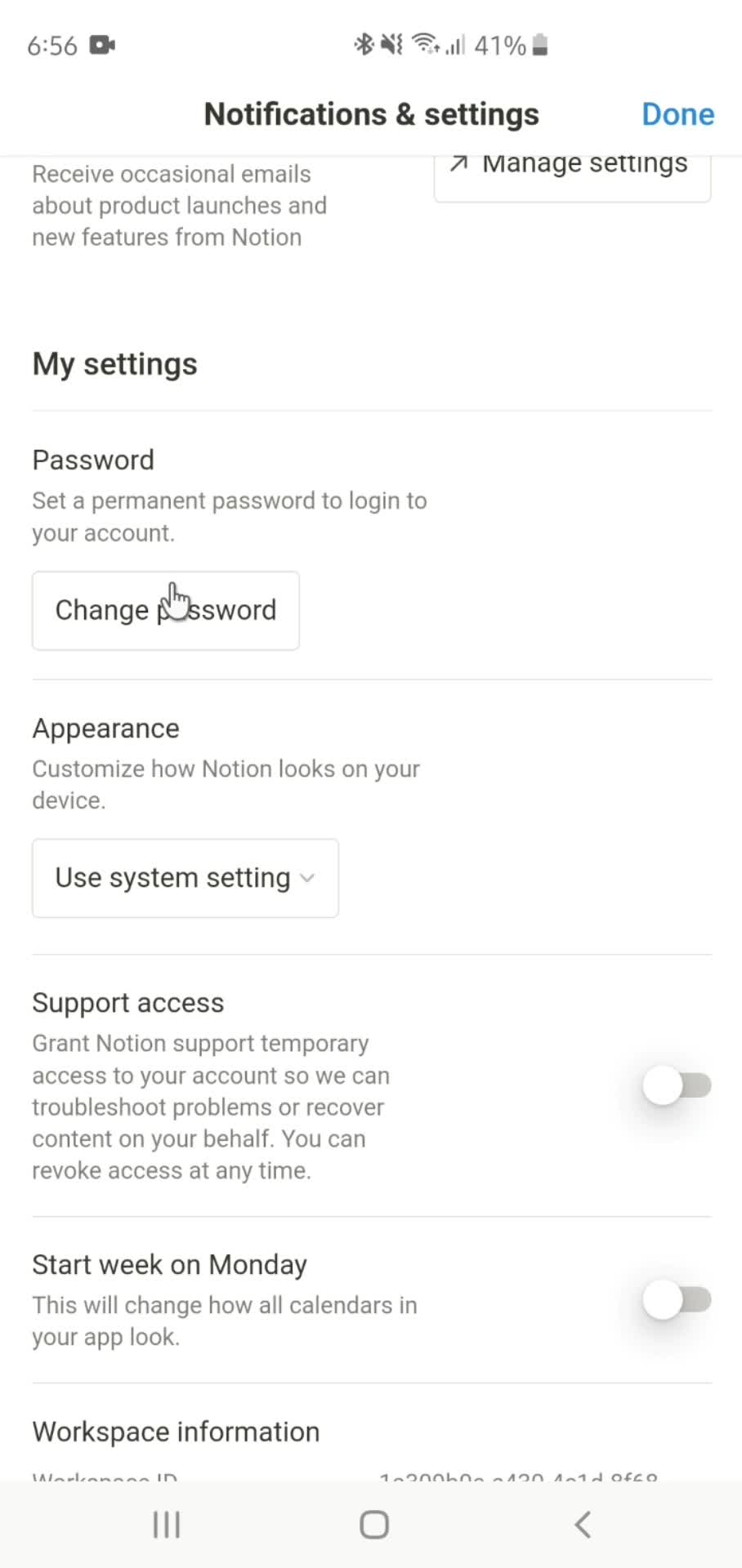
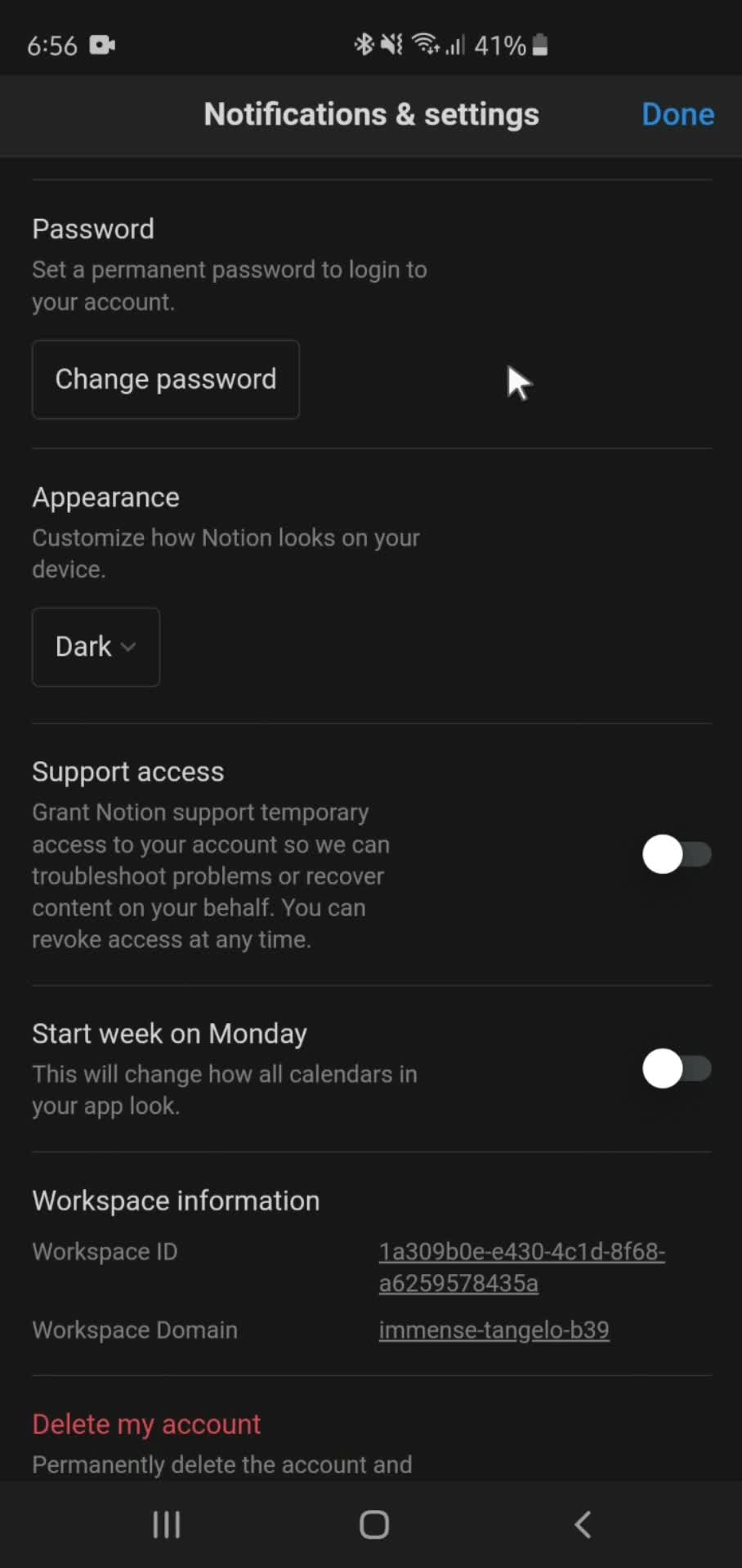
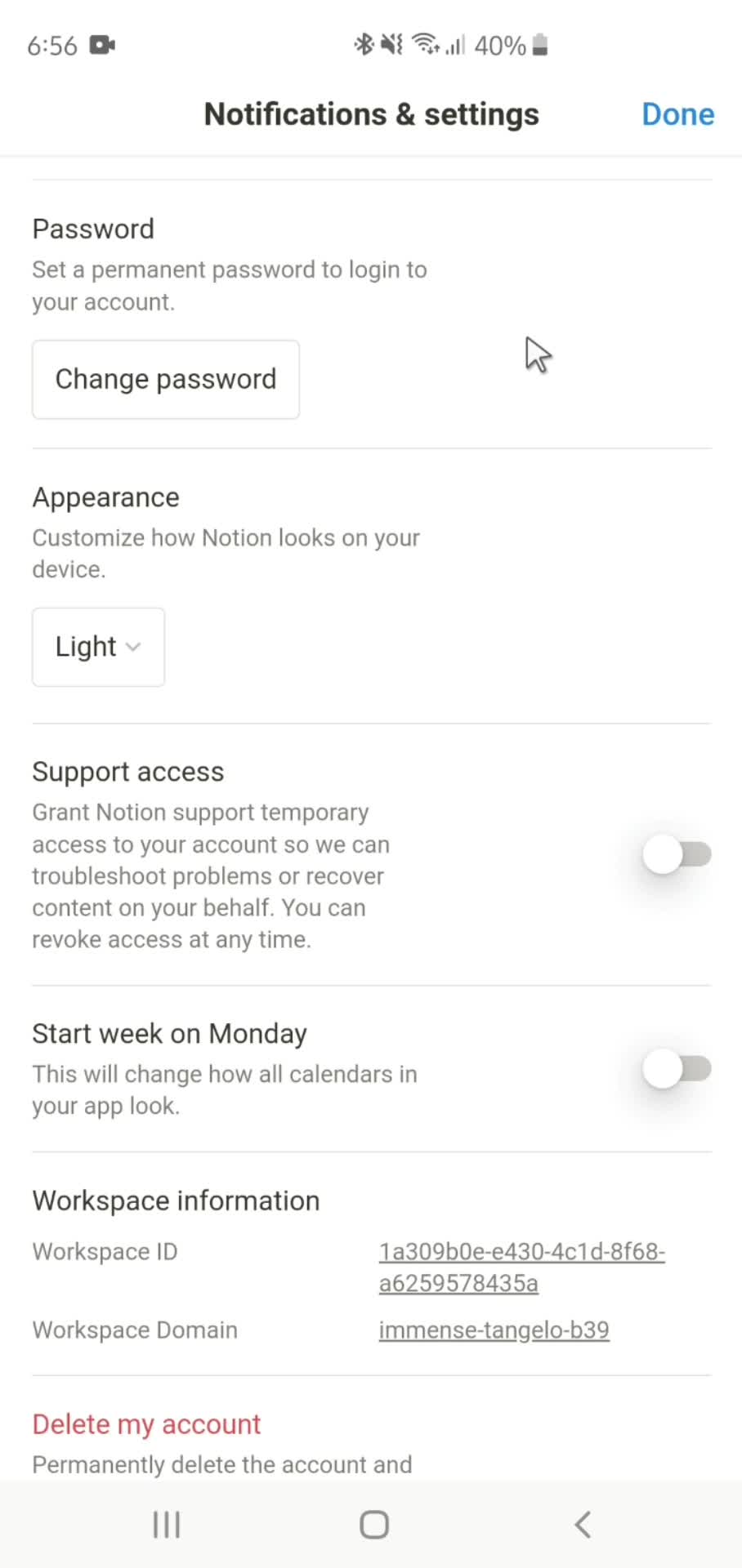
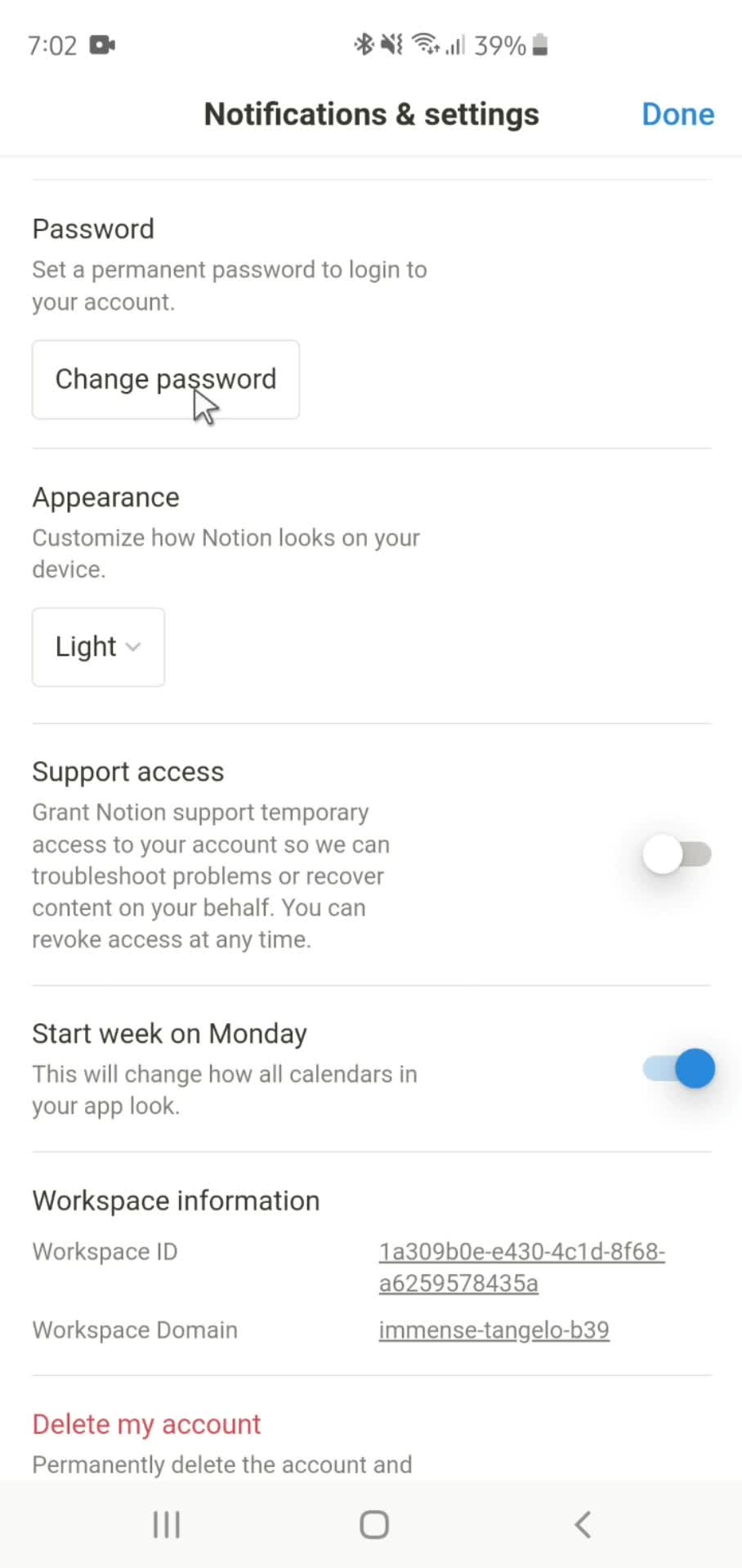
Settings
this is title
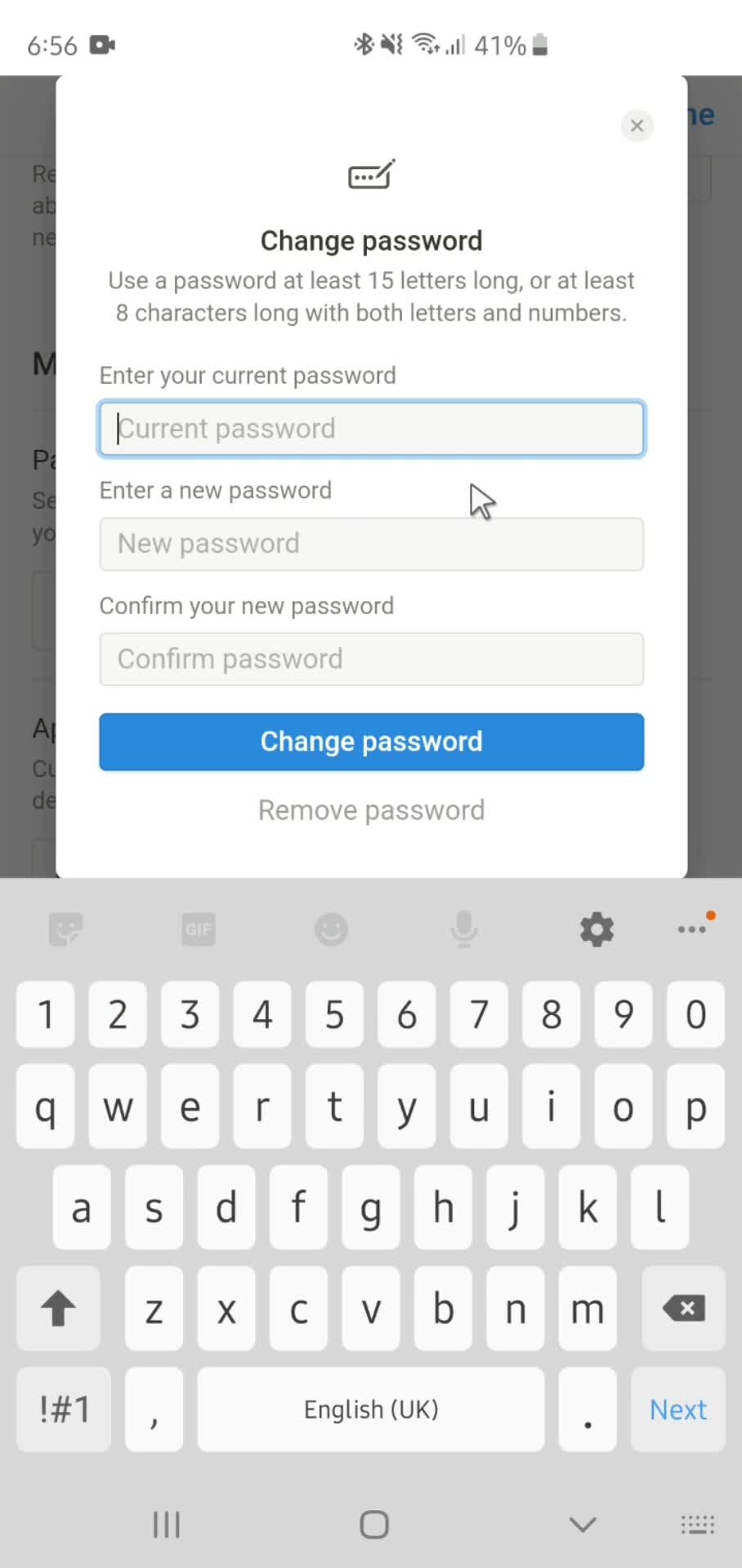
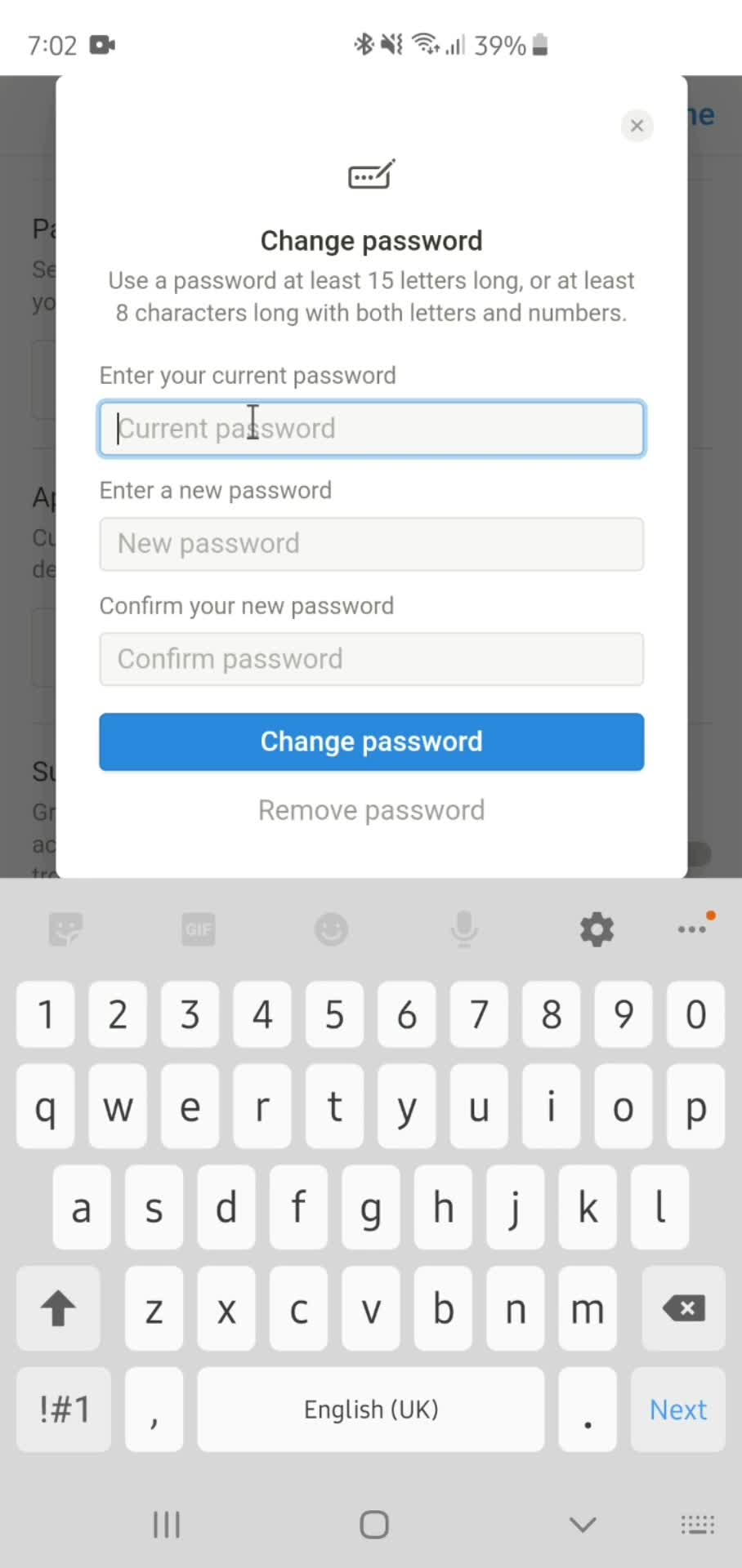
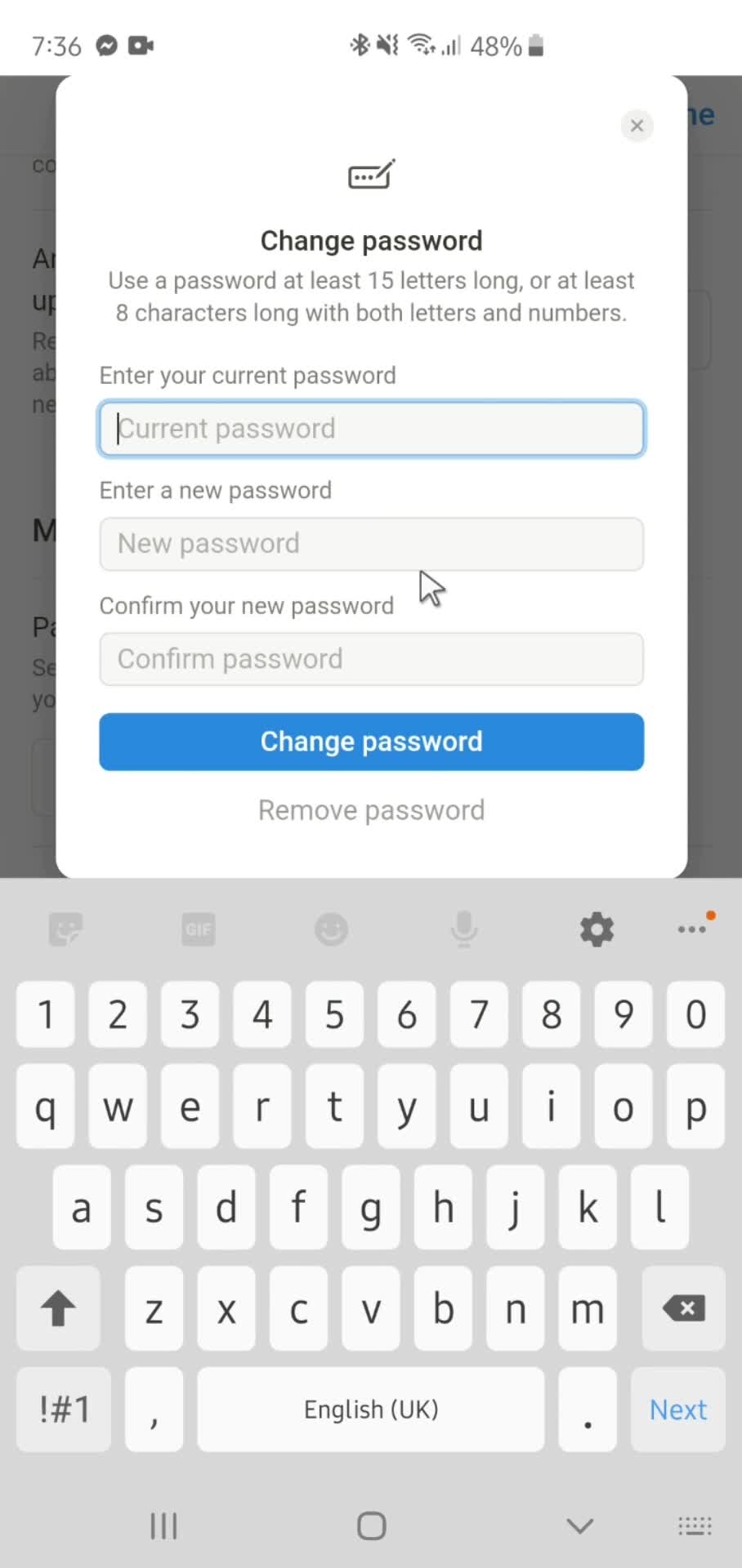
Change password
this is title
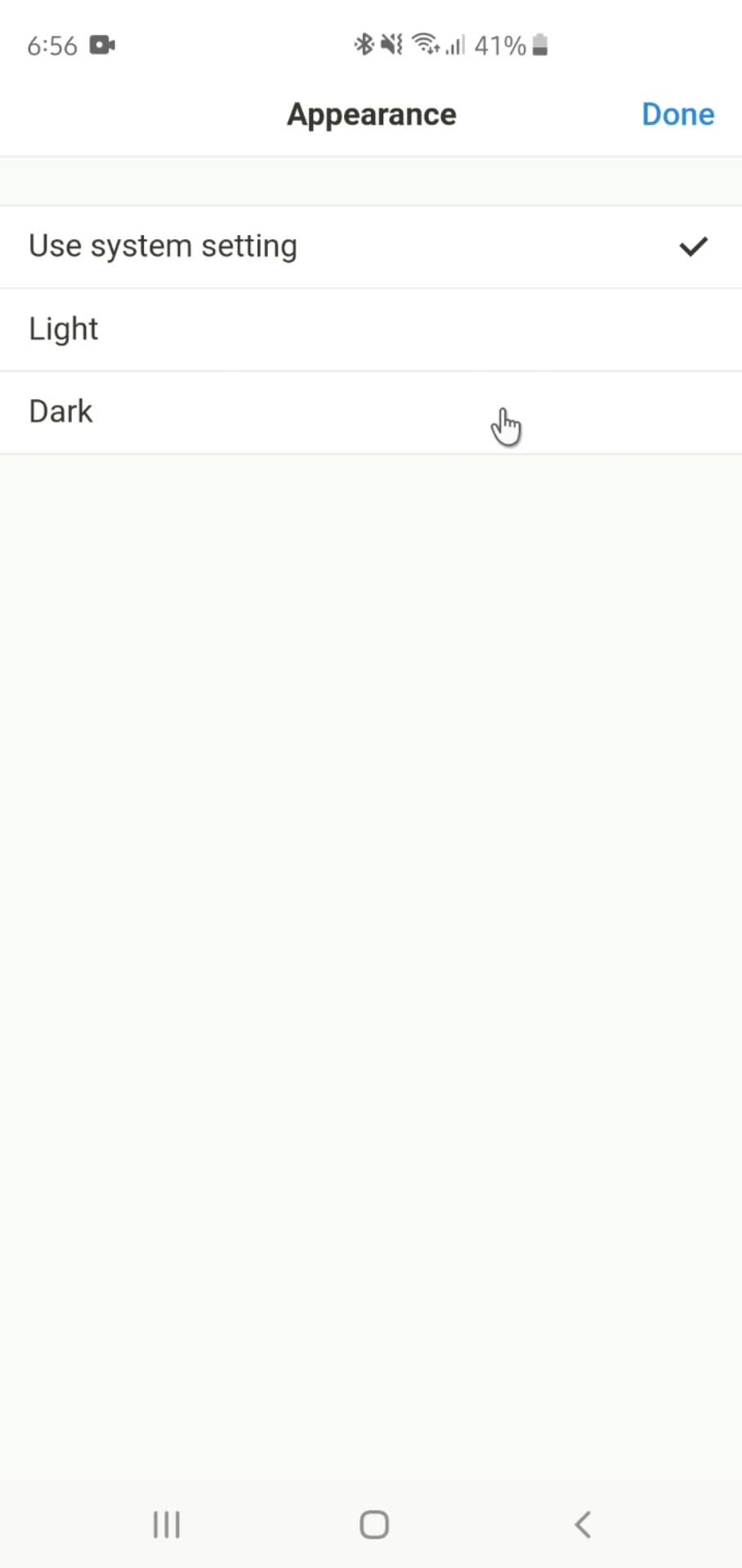
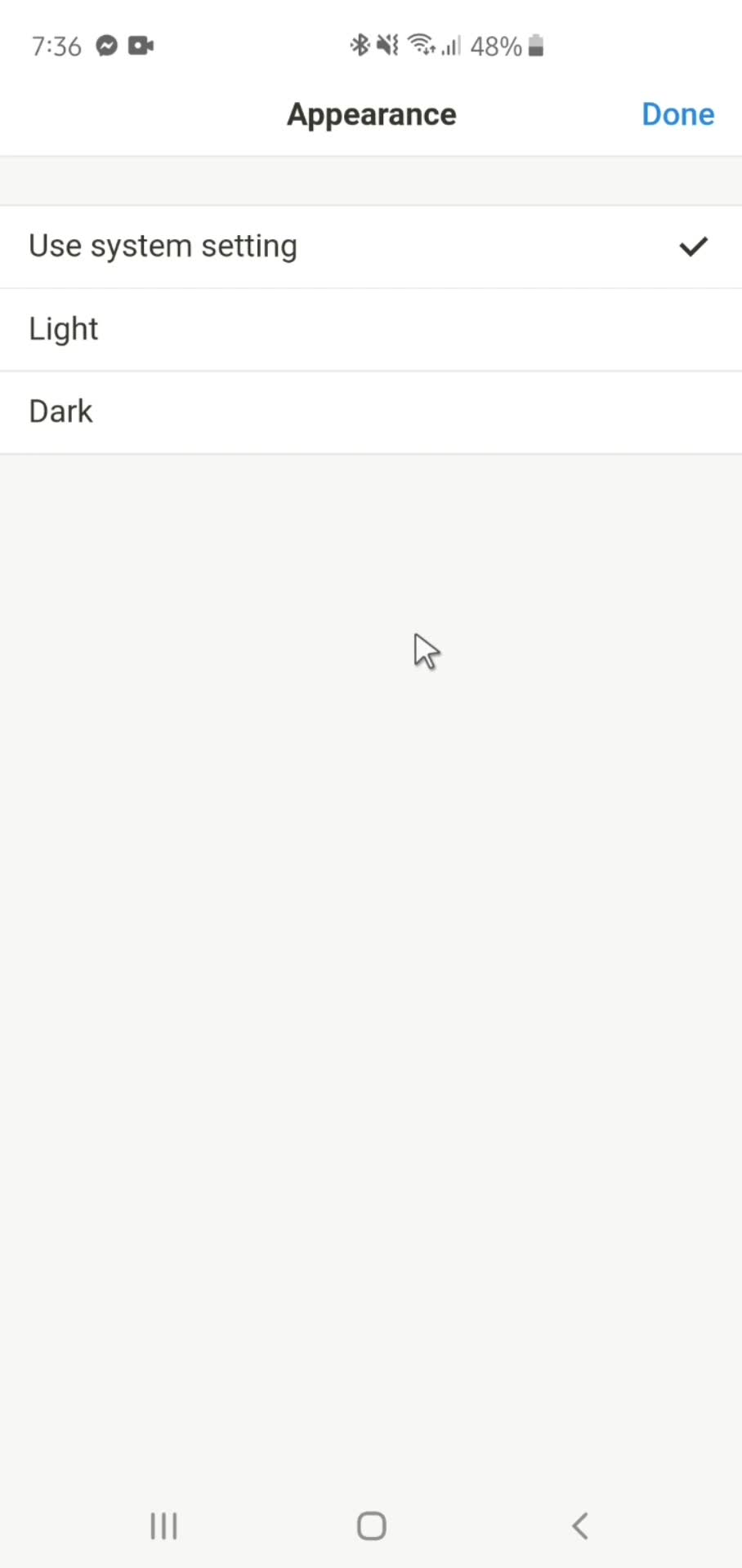
Customize appearance
this is title
Dark mode
this is title
Light mode
this is title
Email
this is title
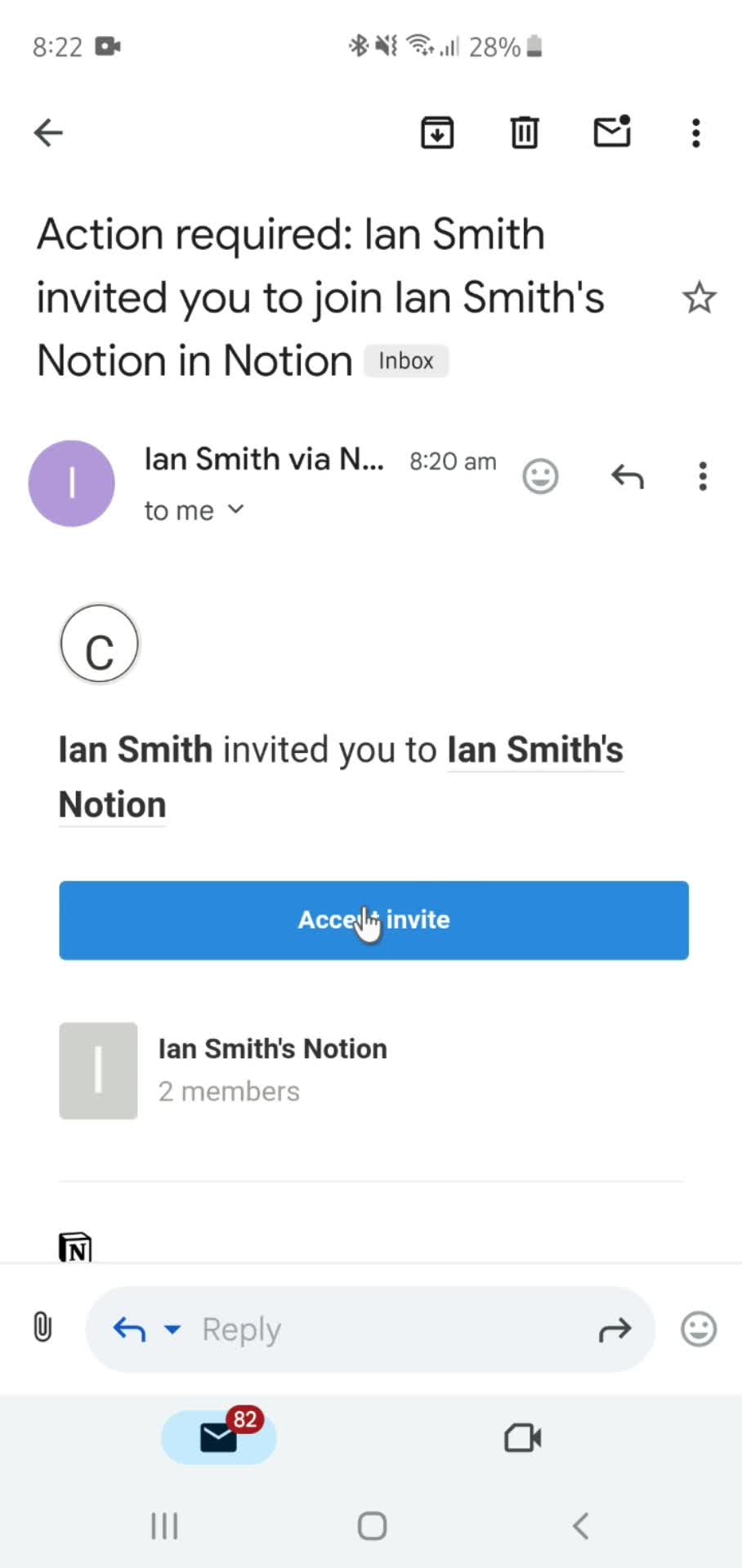
Accept invite
this is title
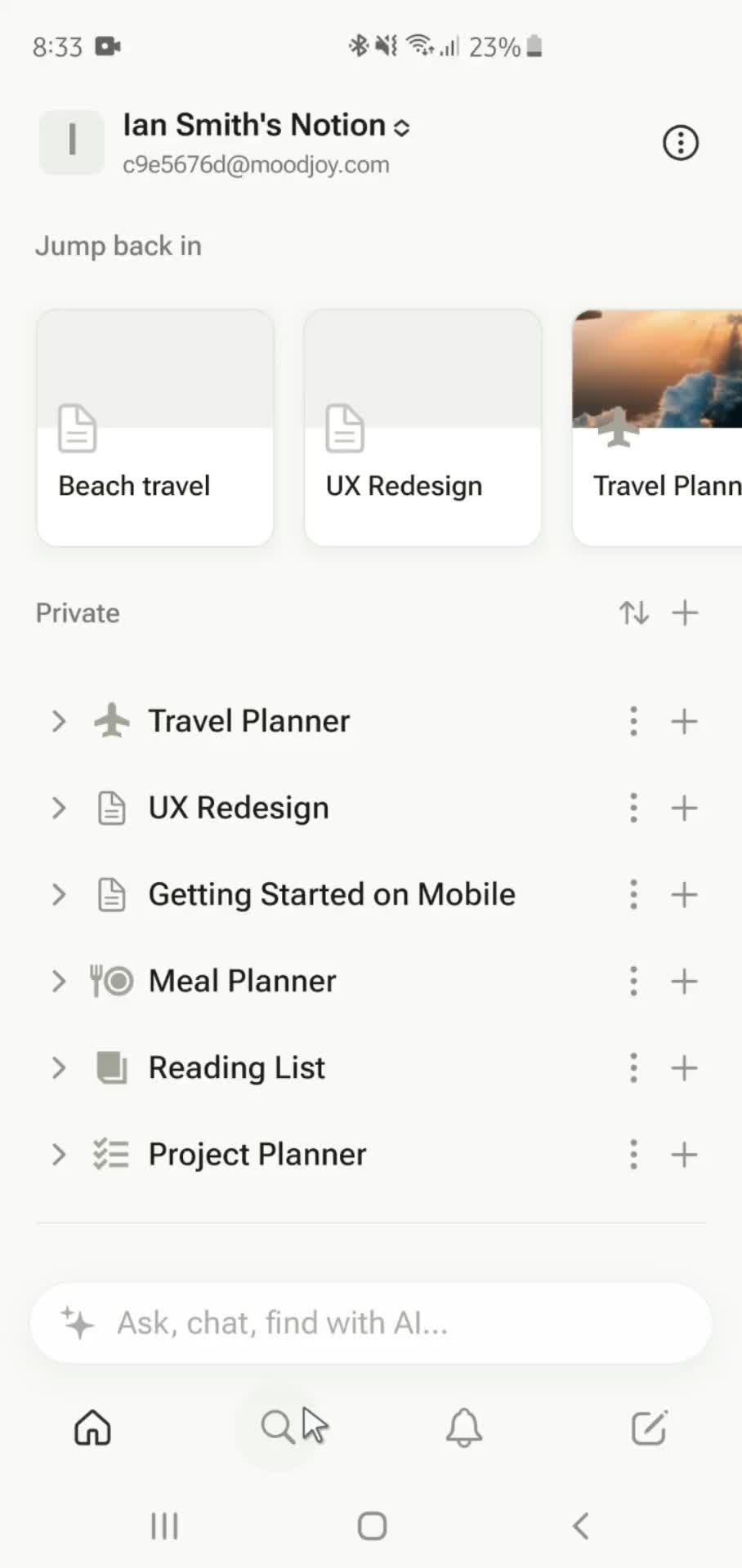
Home
this is title
Home
this is title
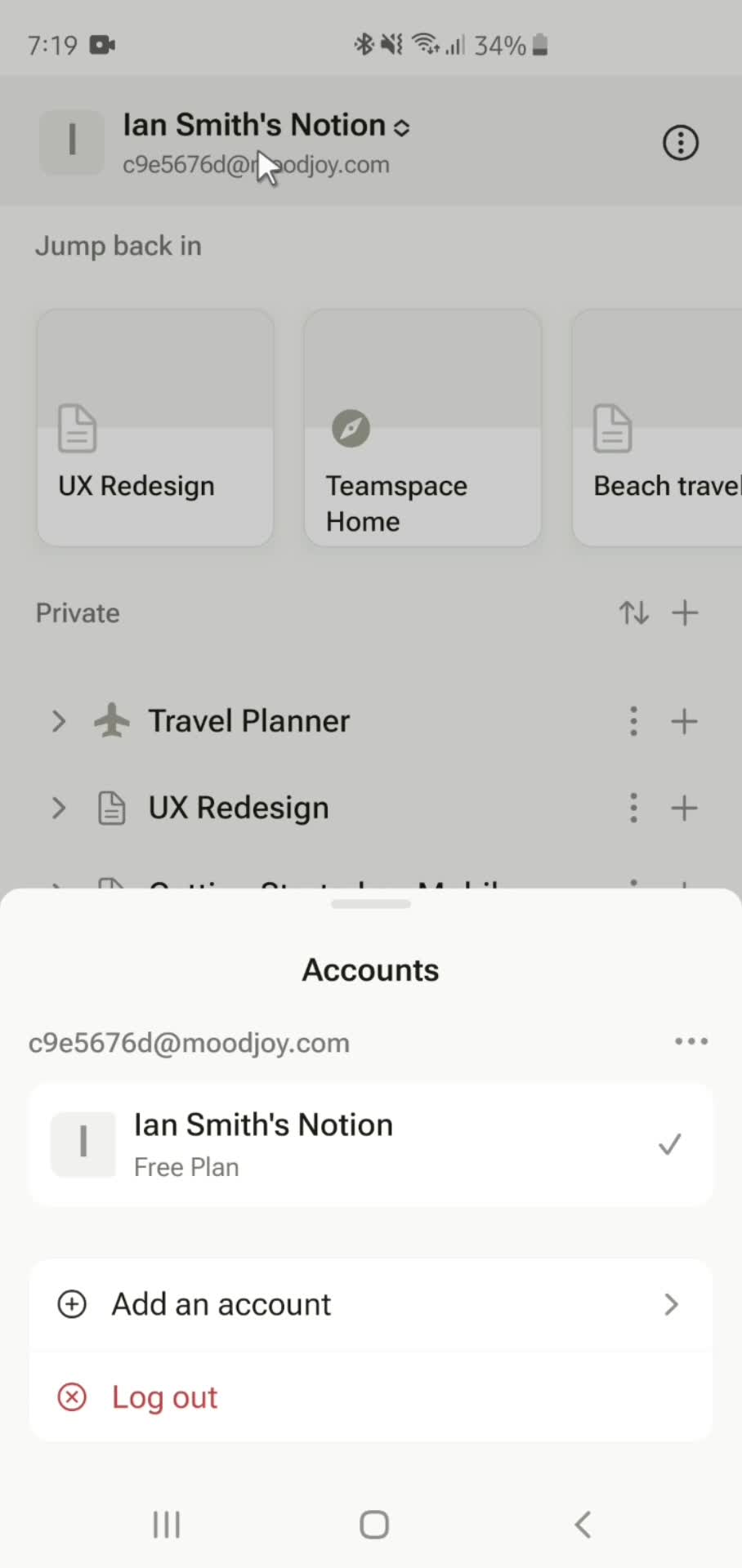
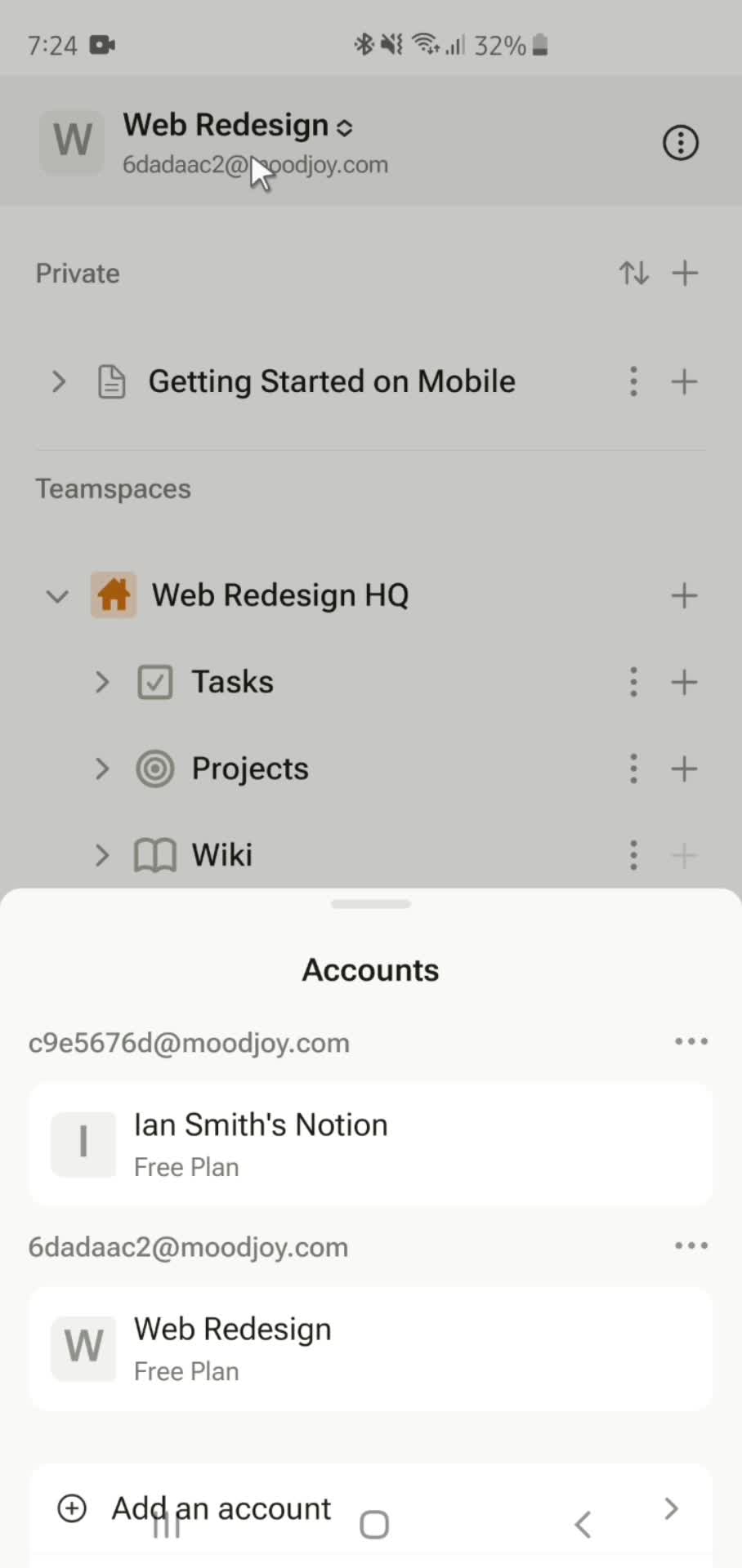
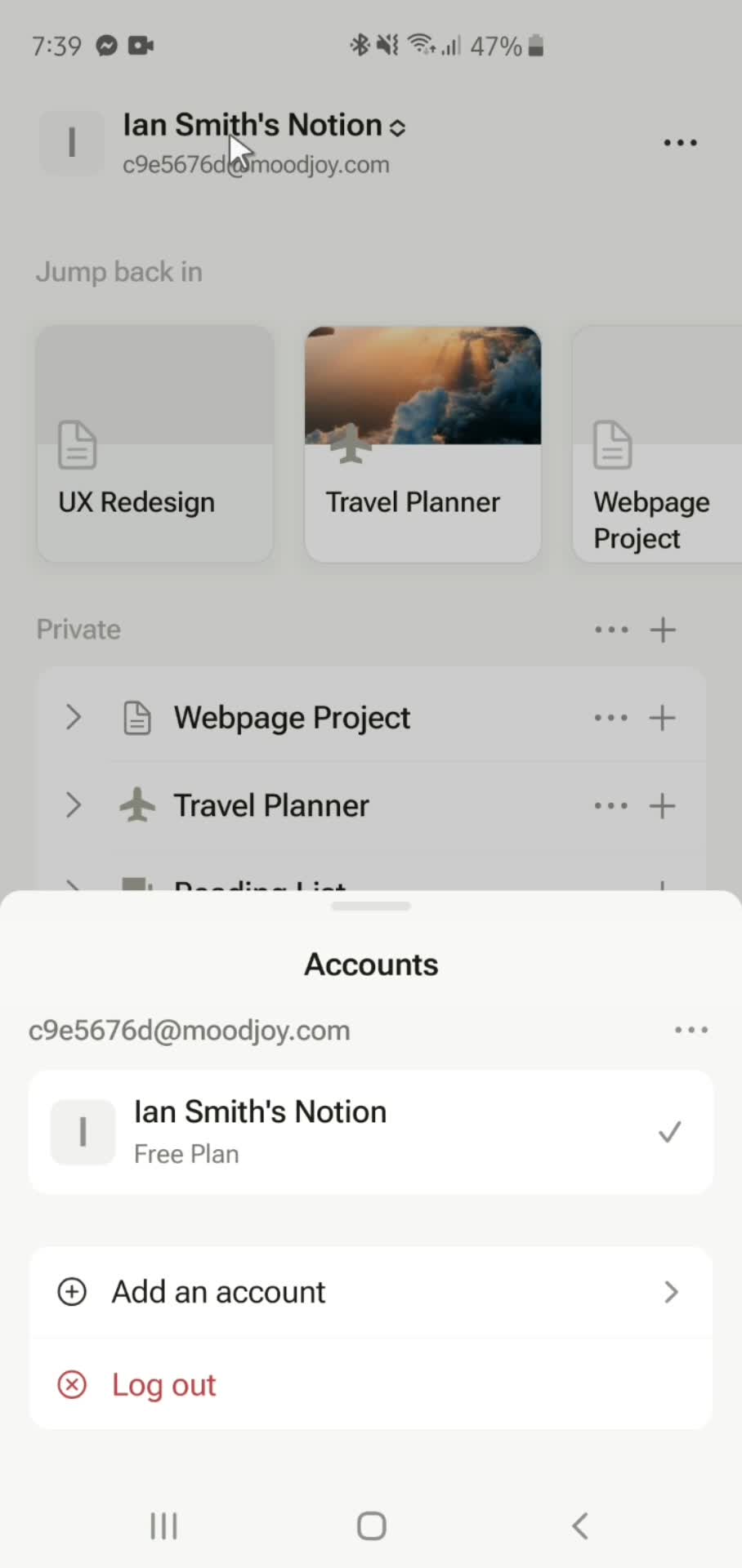
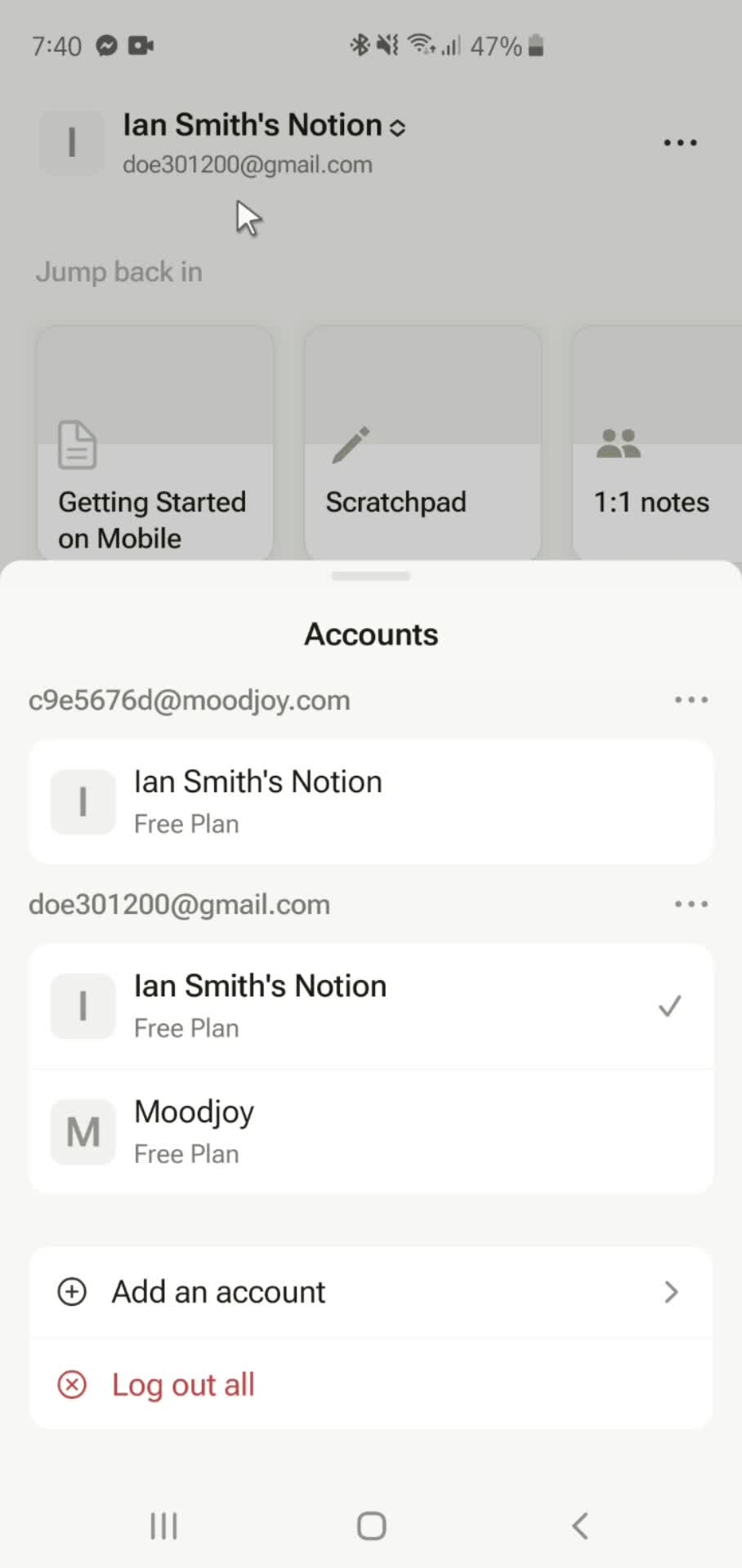
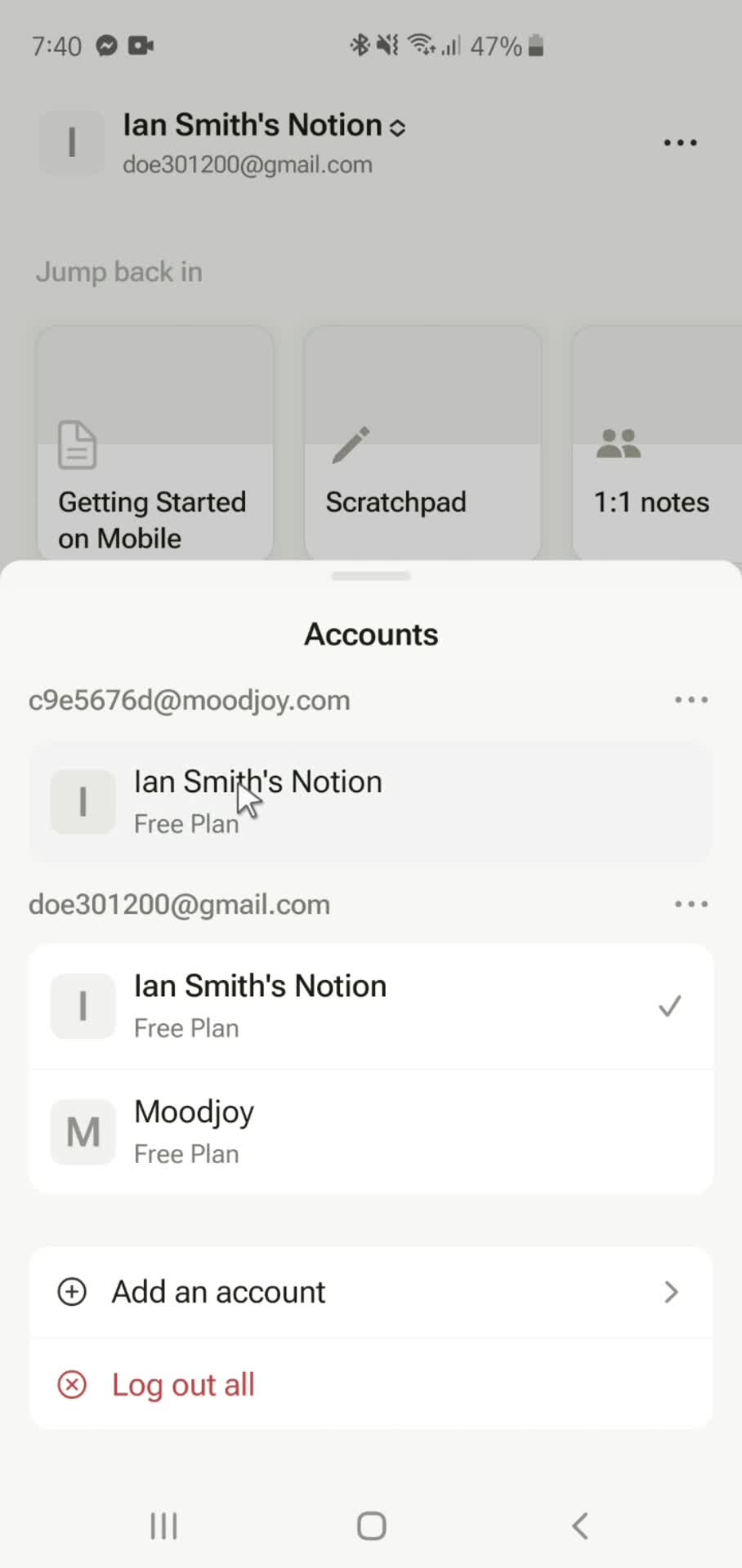
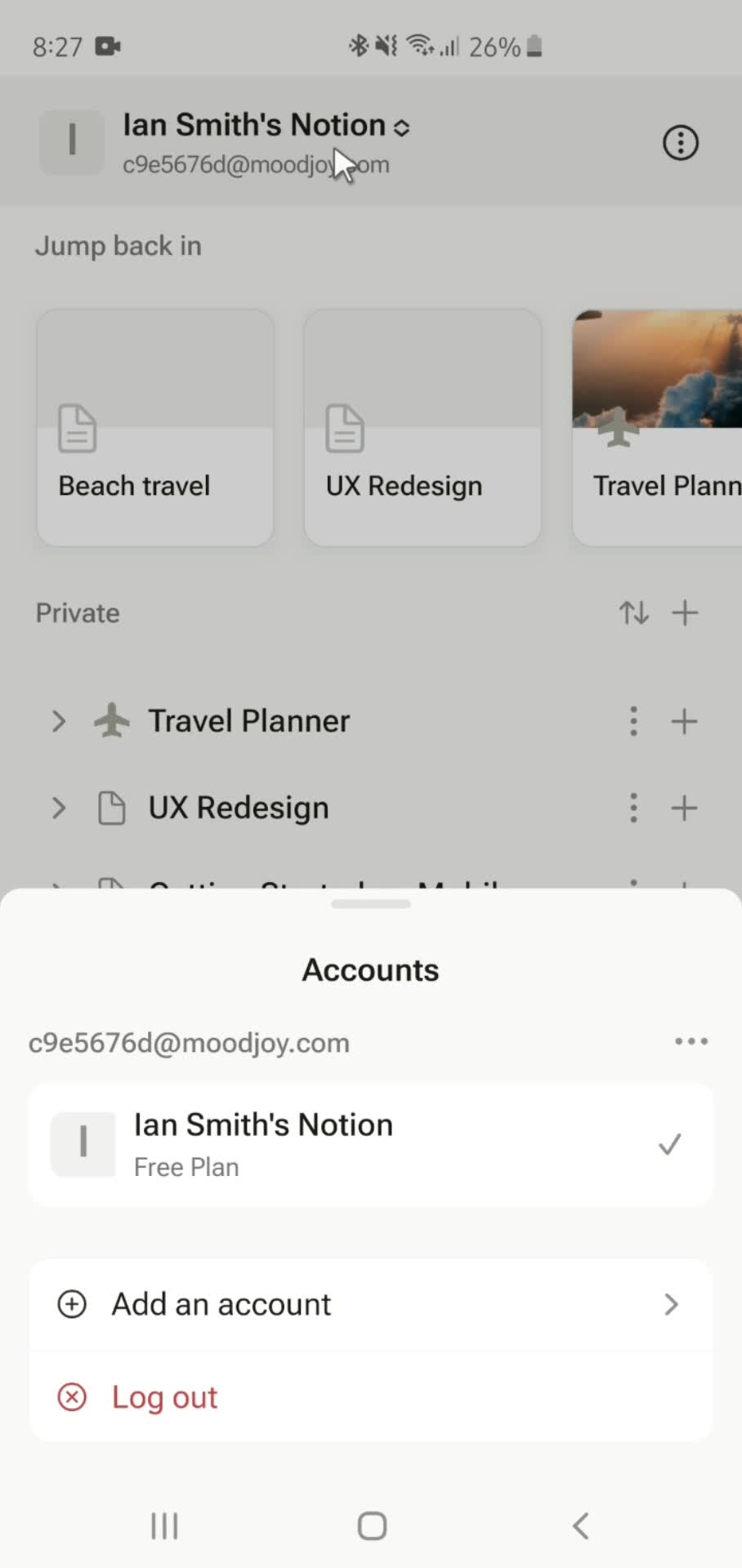
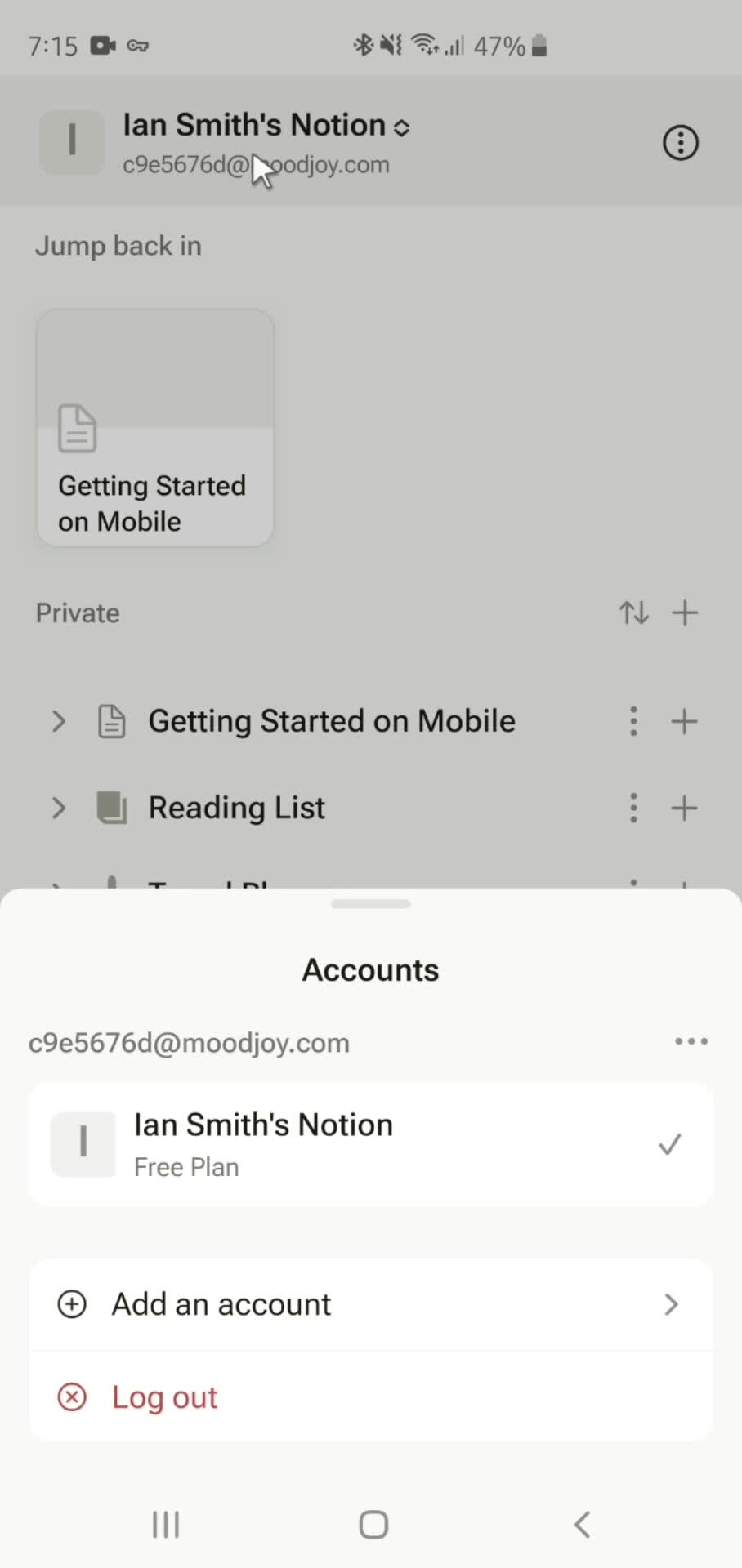
Accounts
this is title
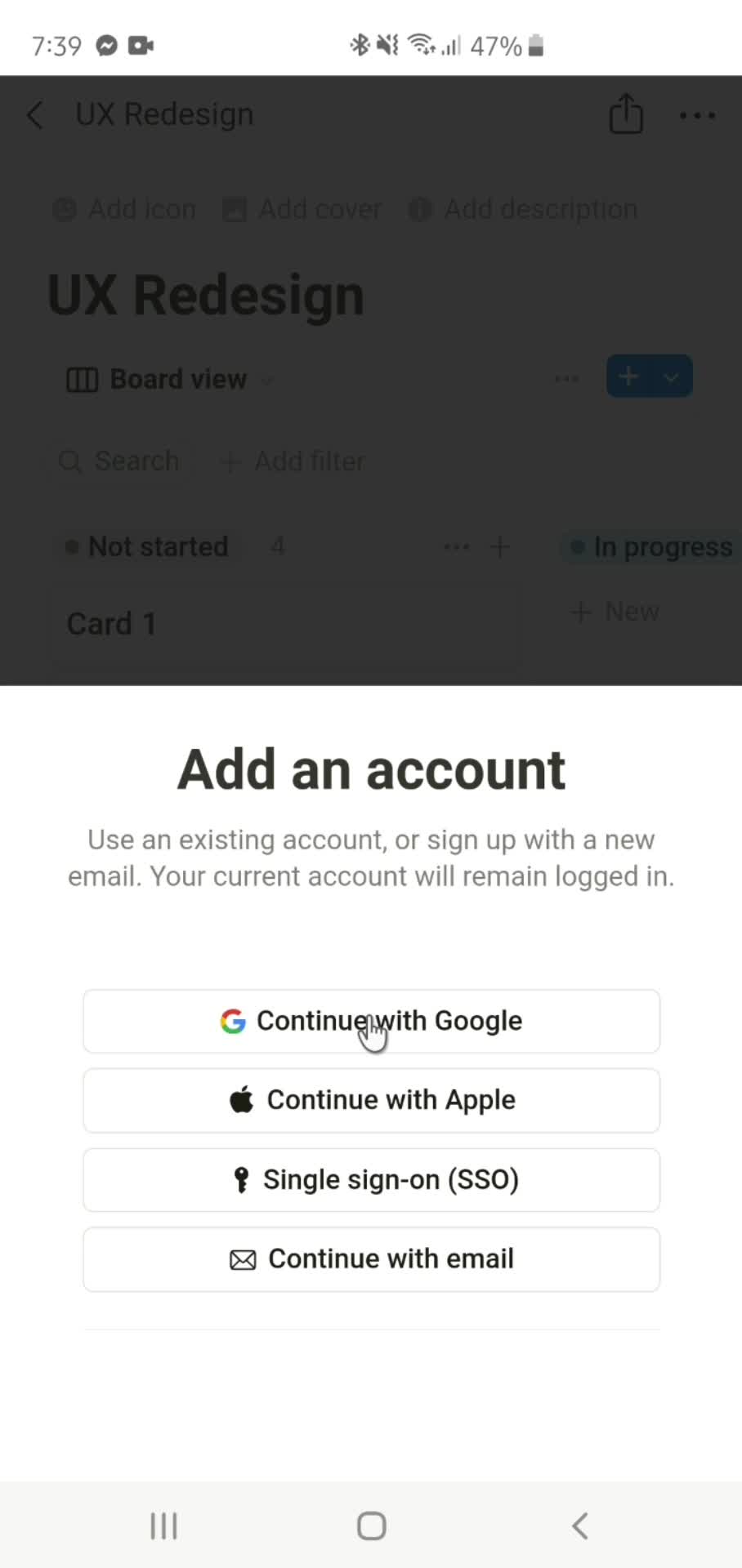
Add account
this is title
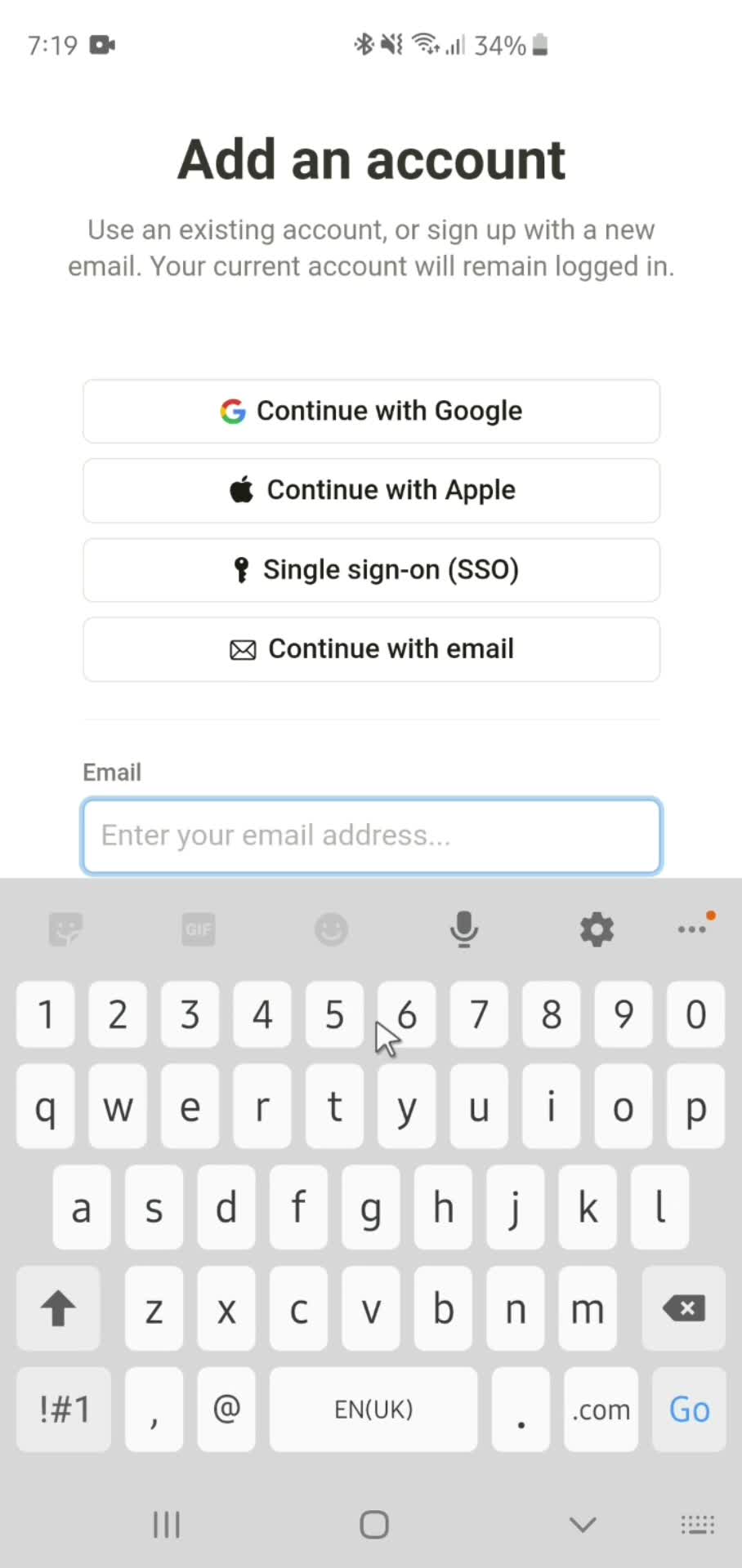
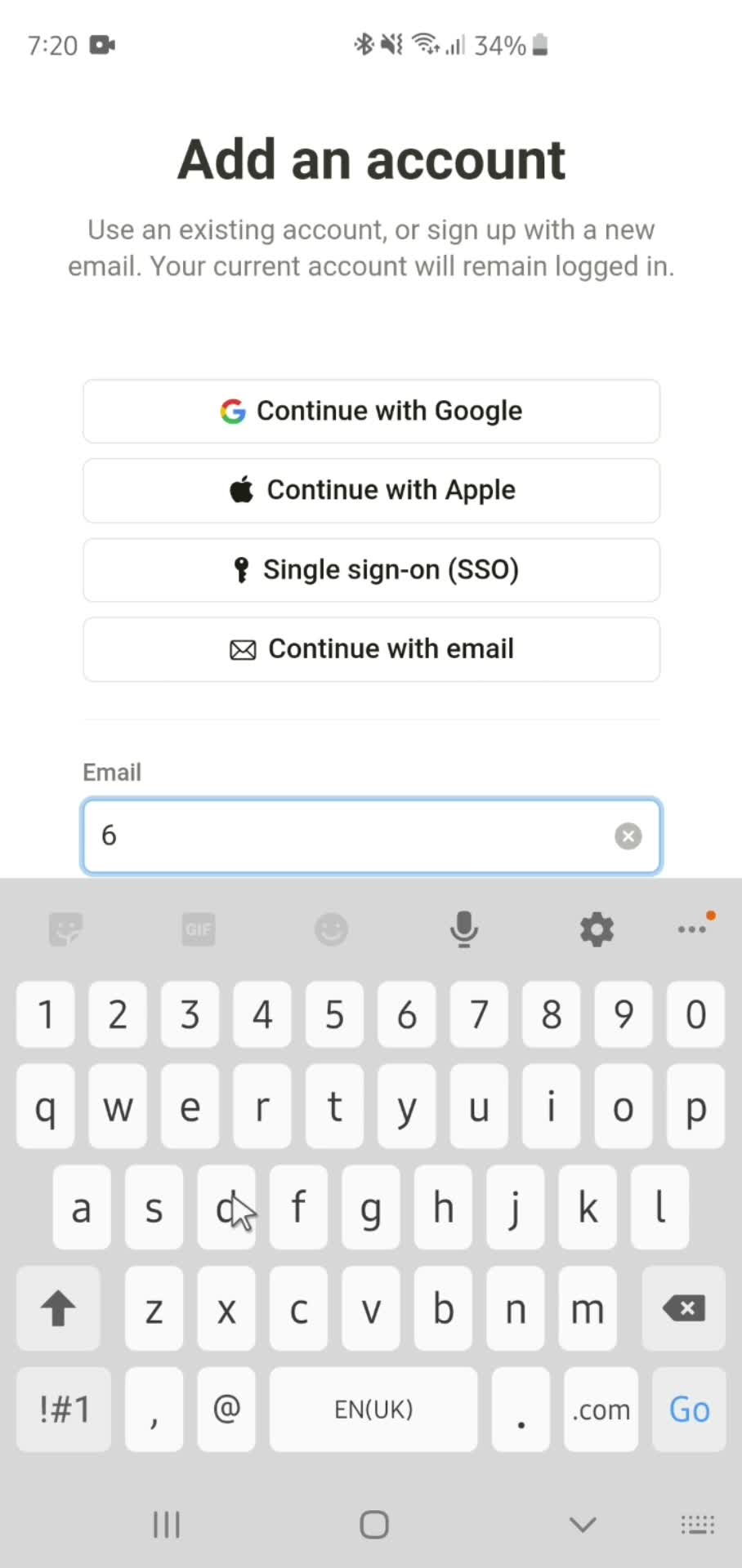
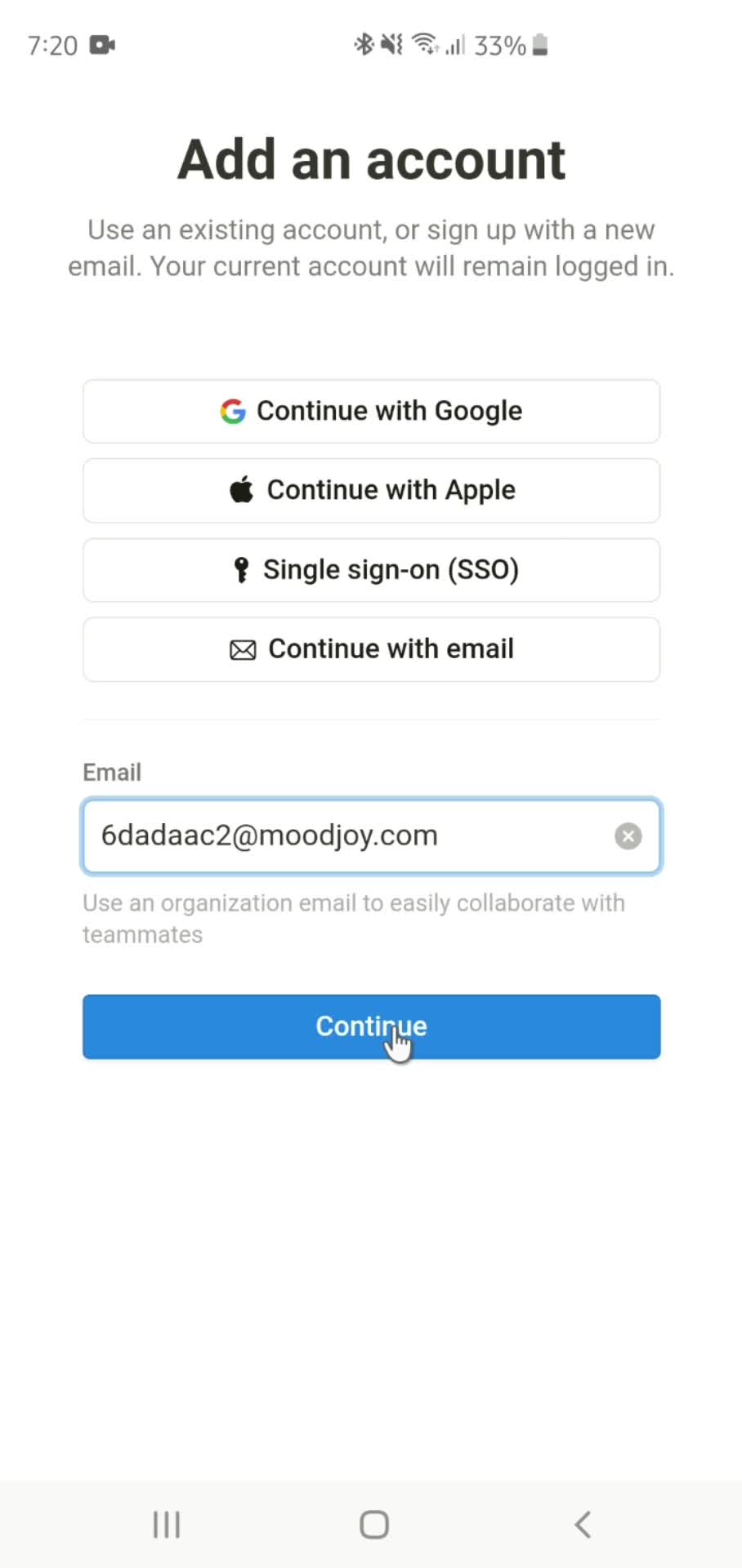
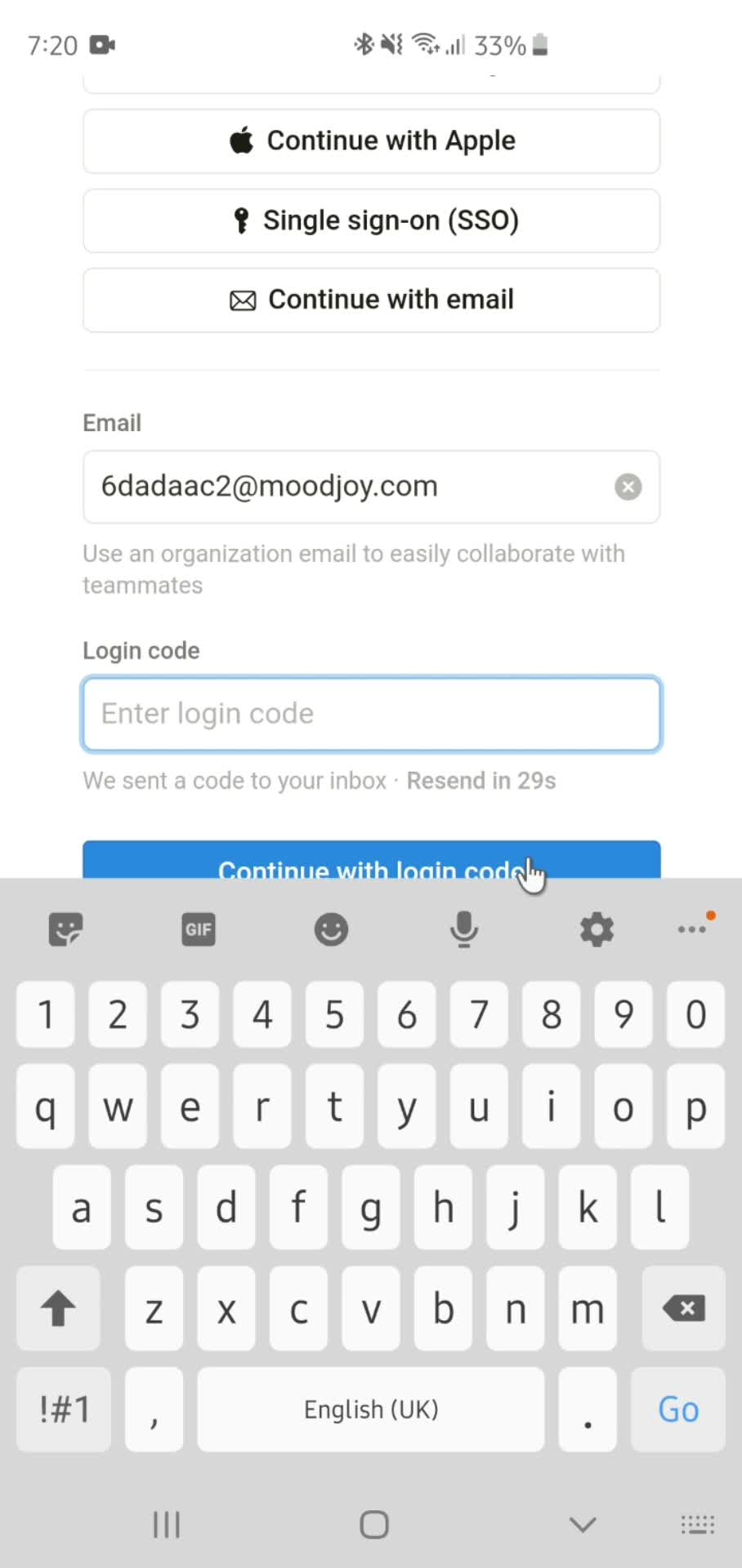
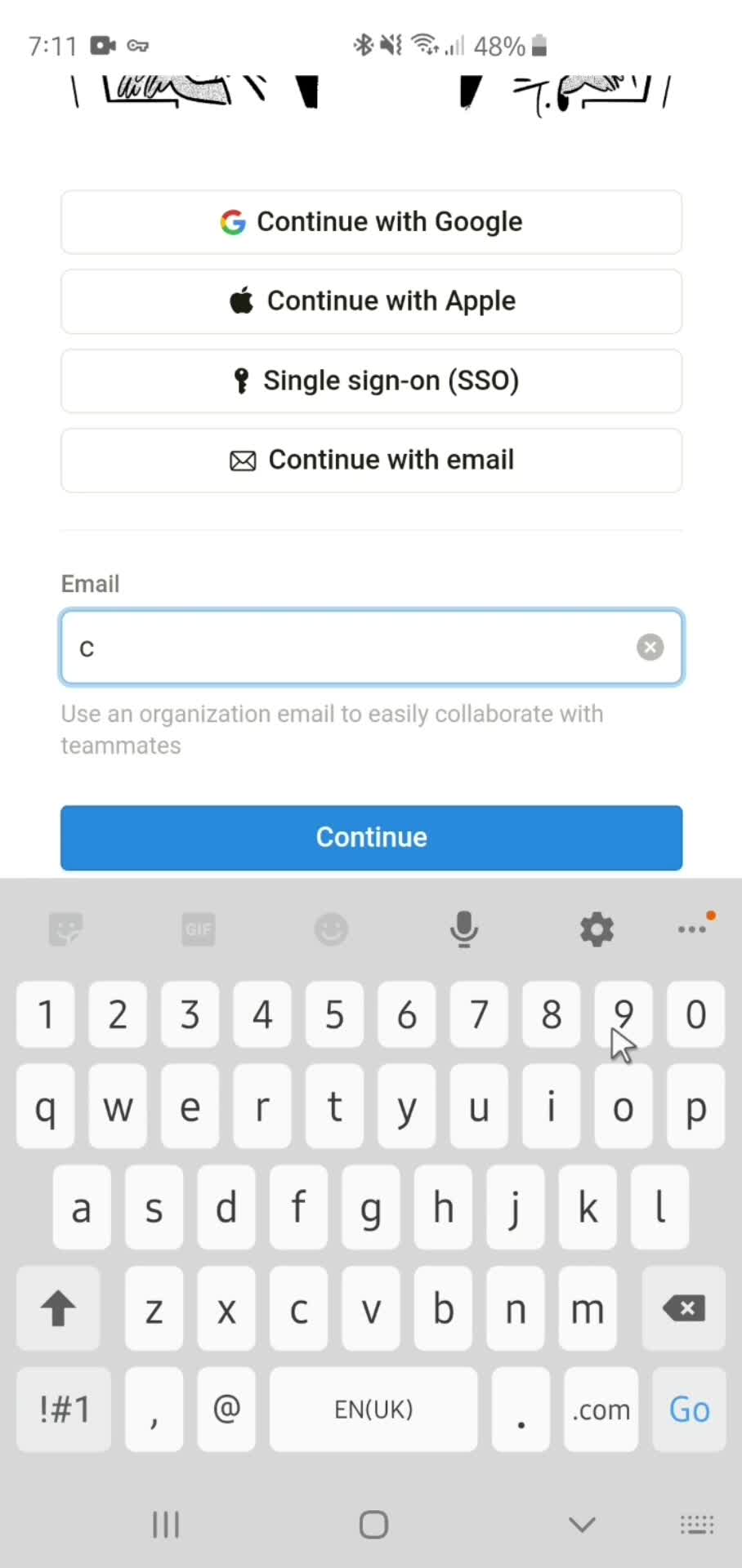
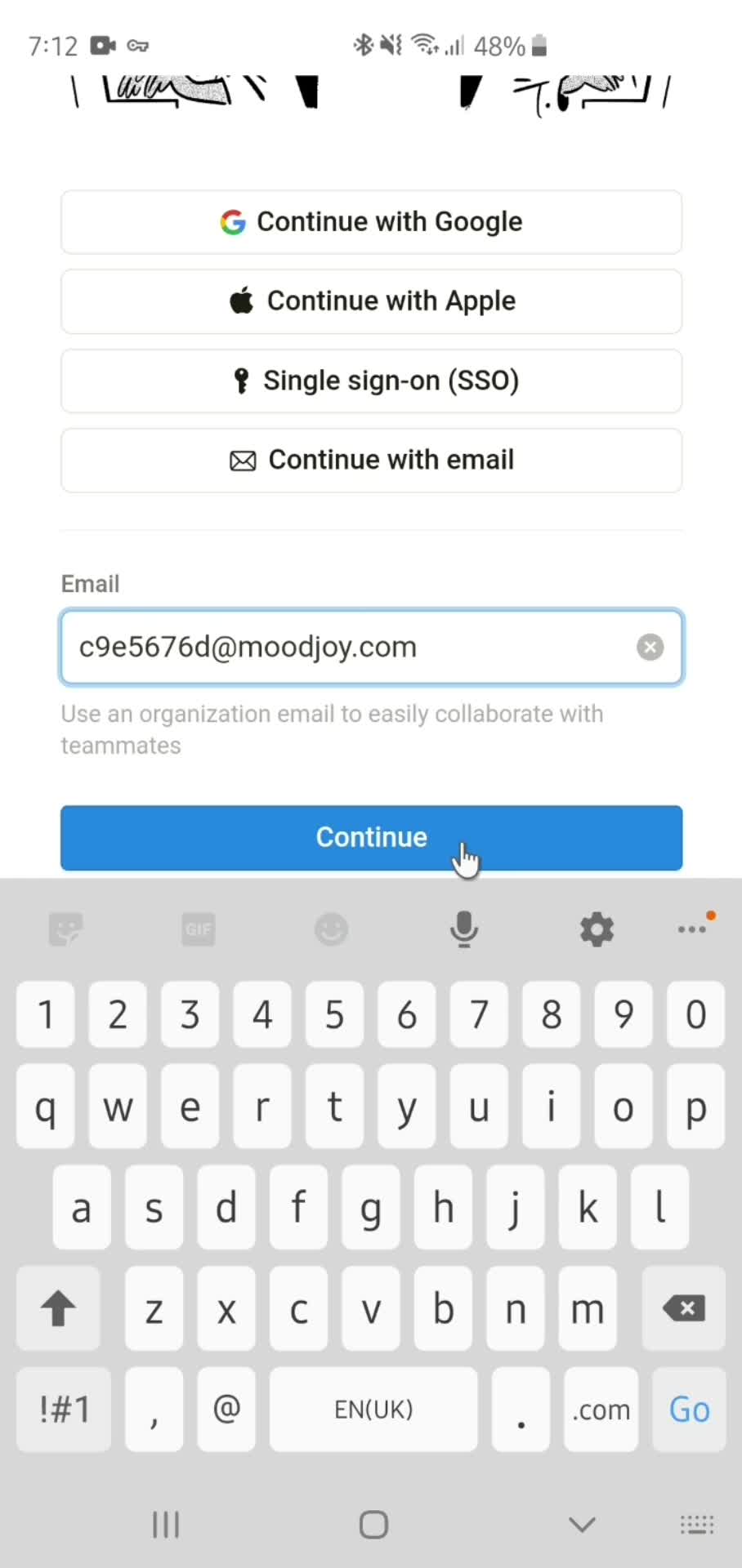
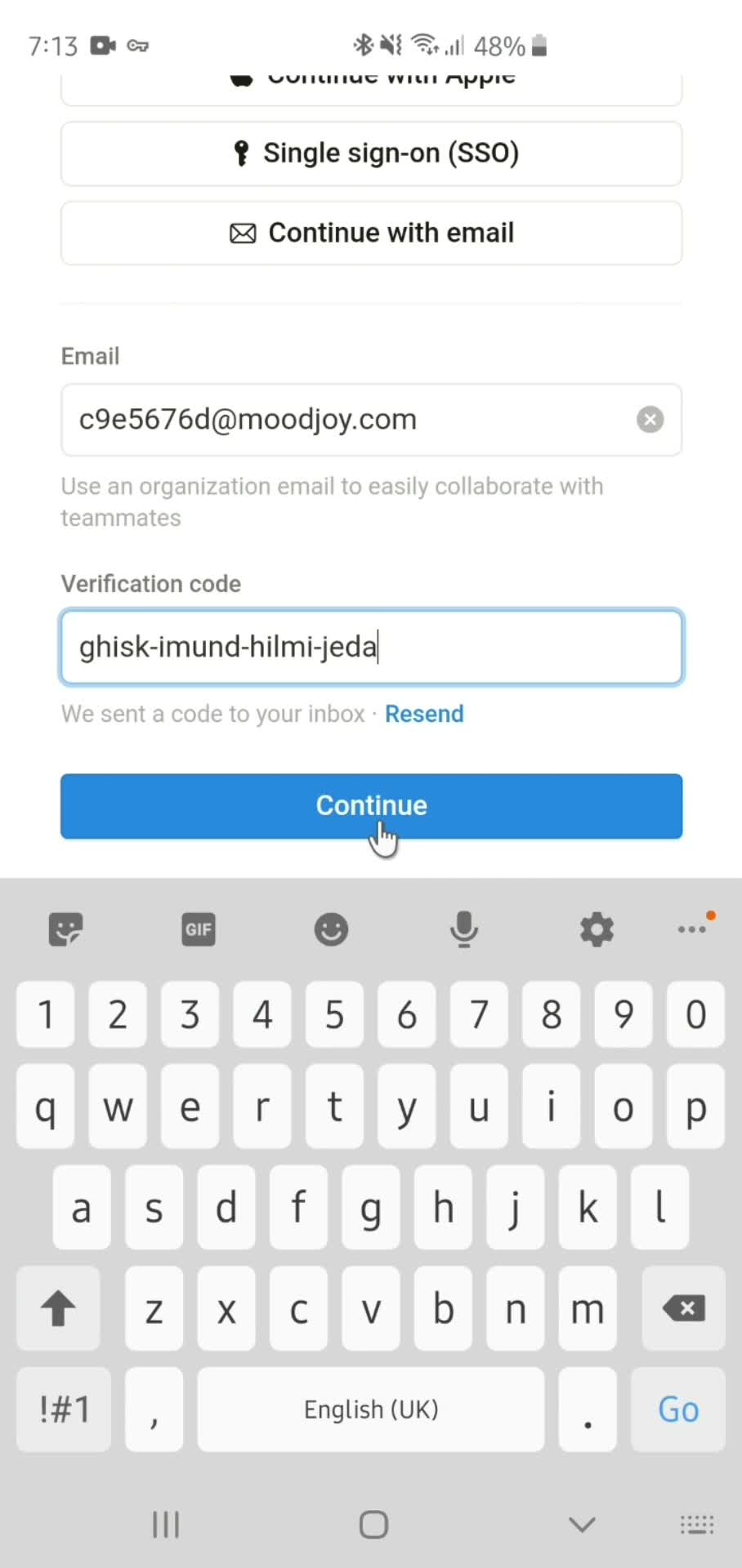
Enter email
this is title
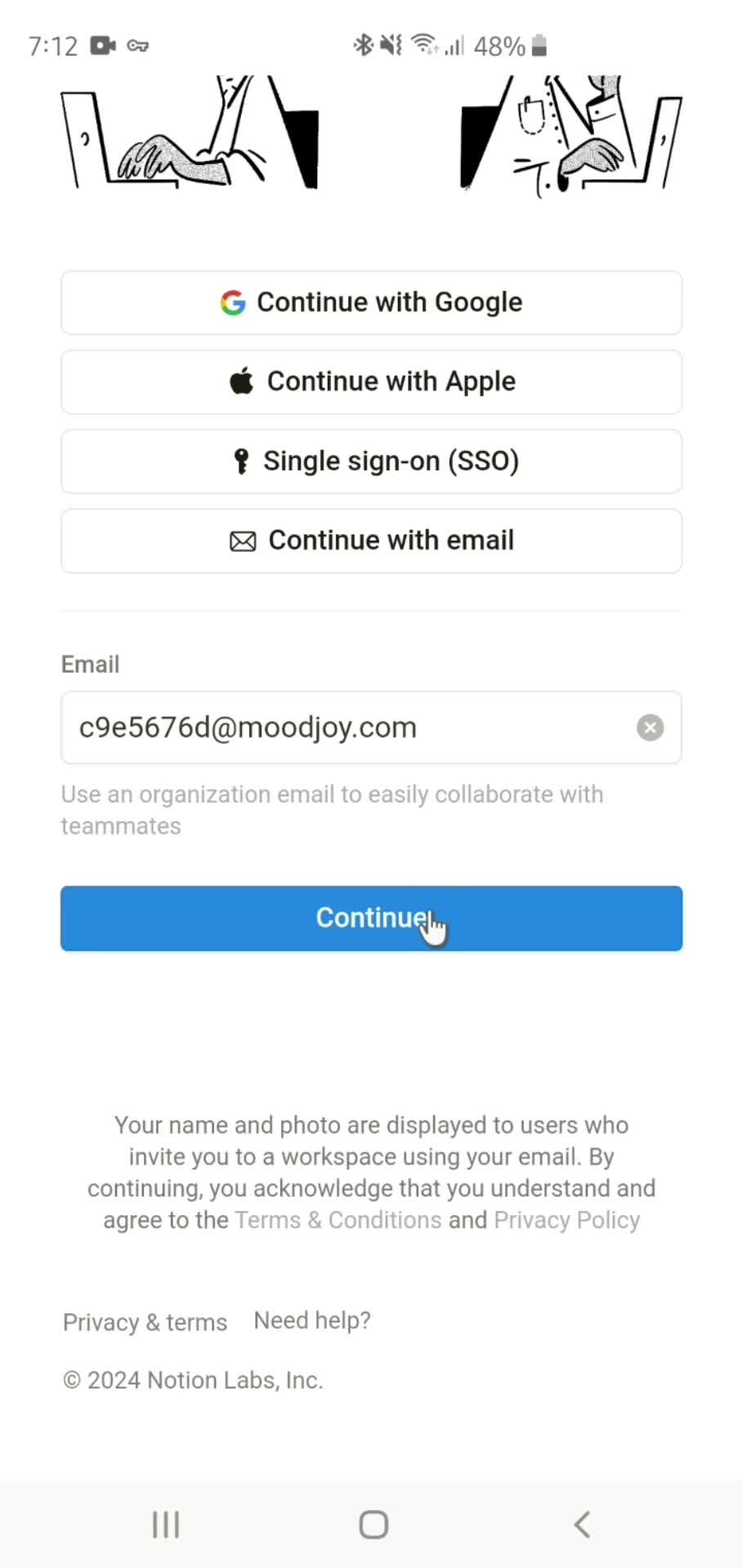
Continue
this is title
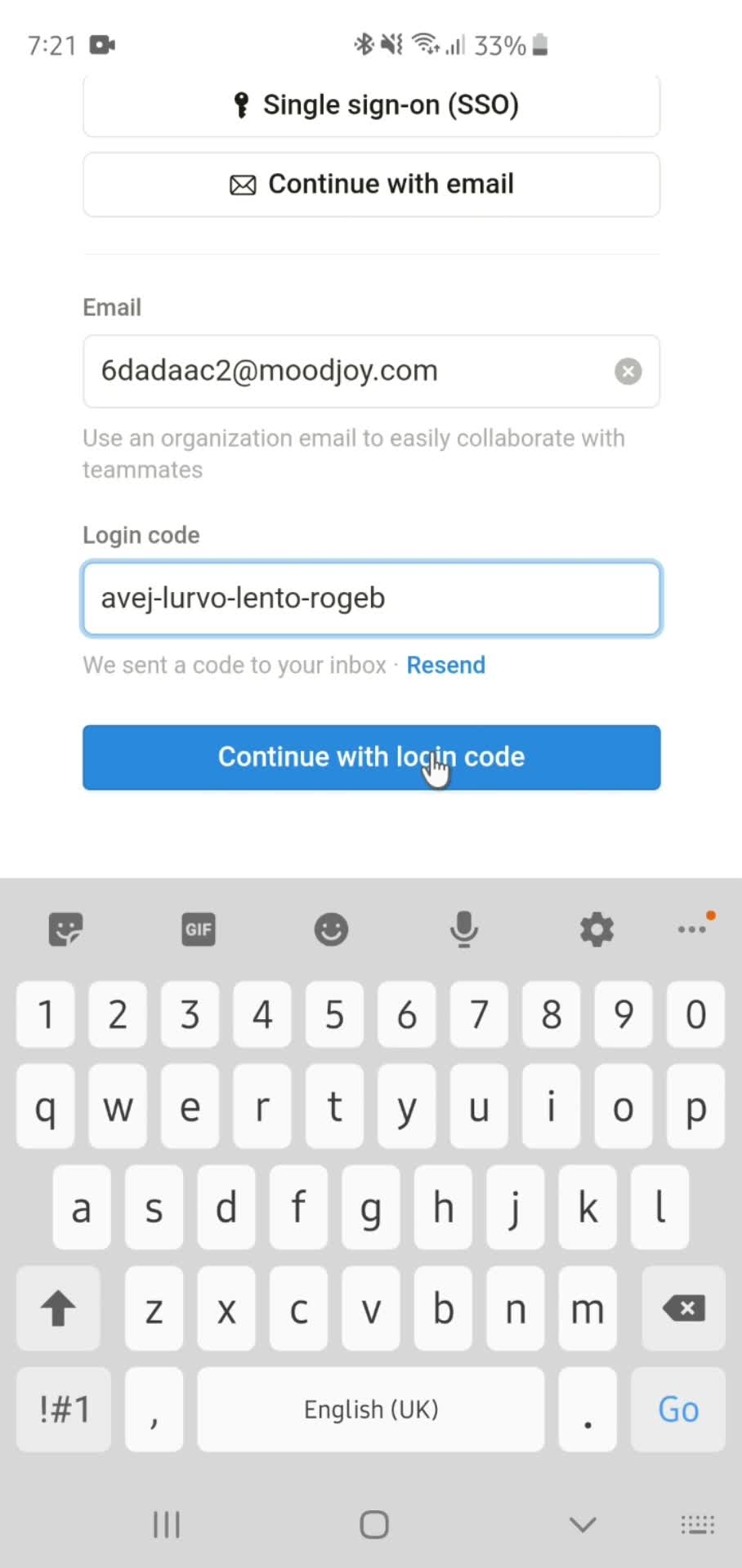
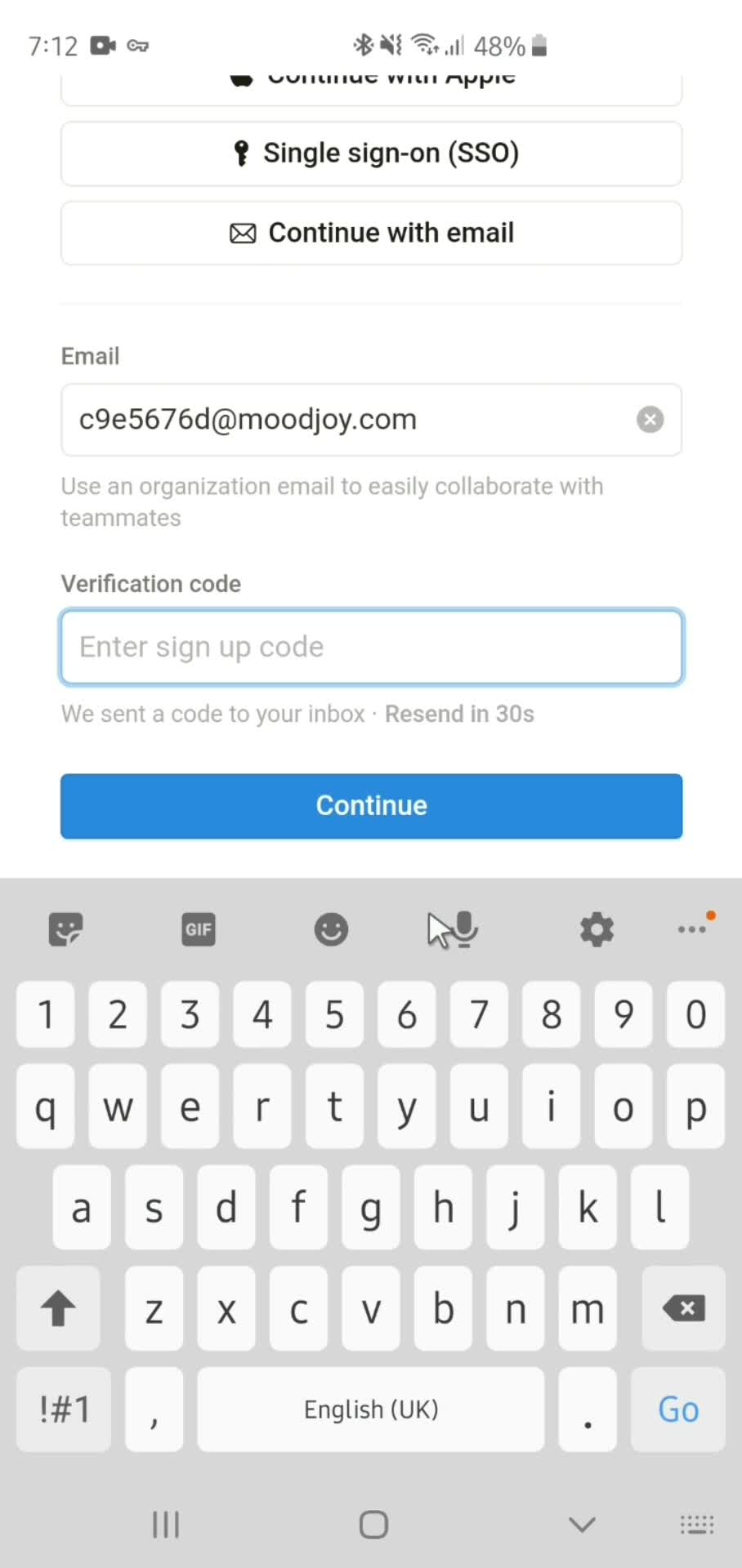
Enter code
this is title
Continue
this is title
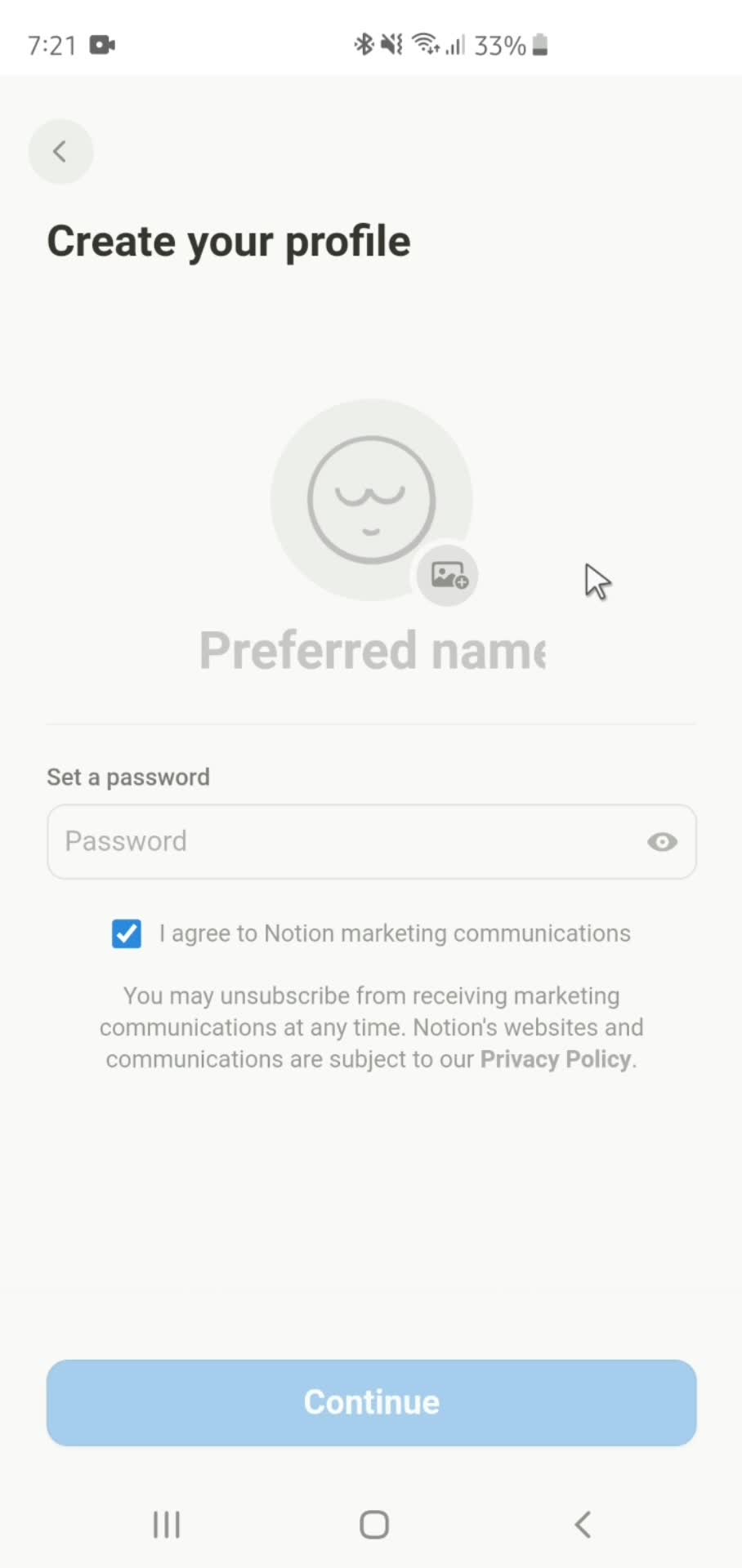
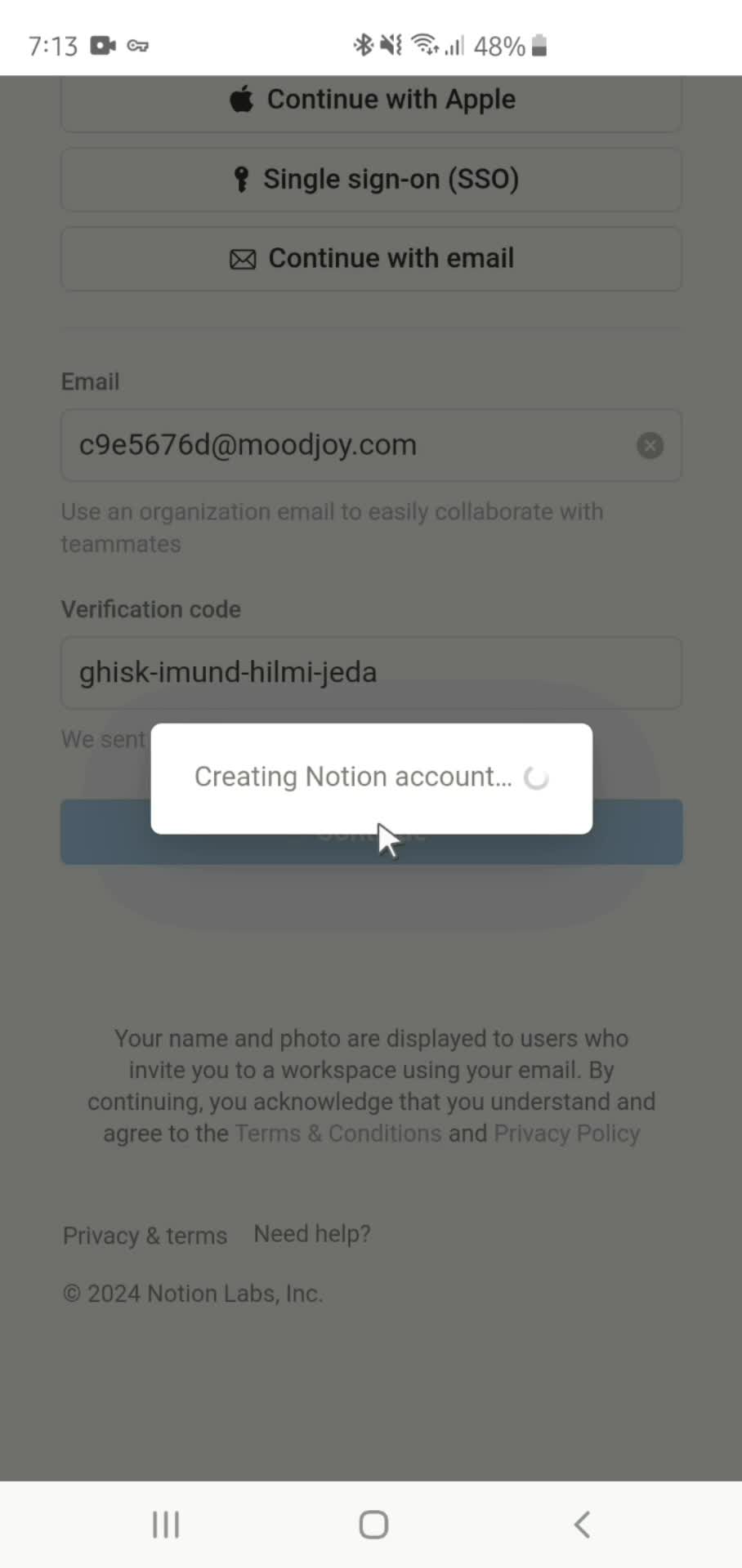
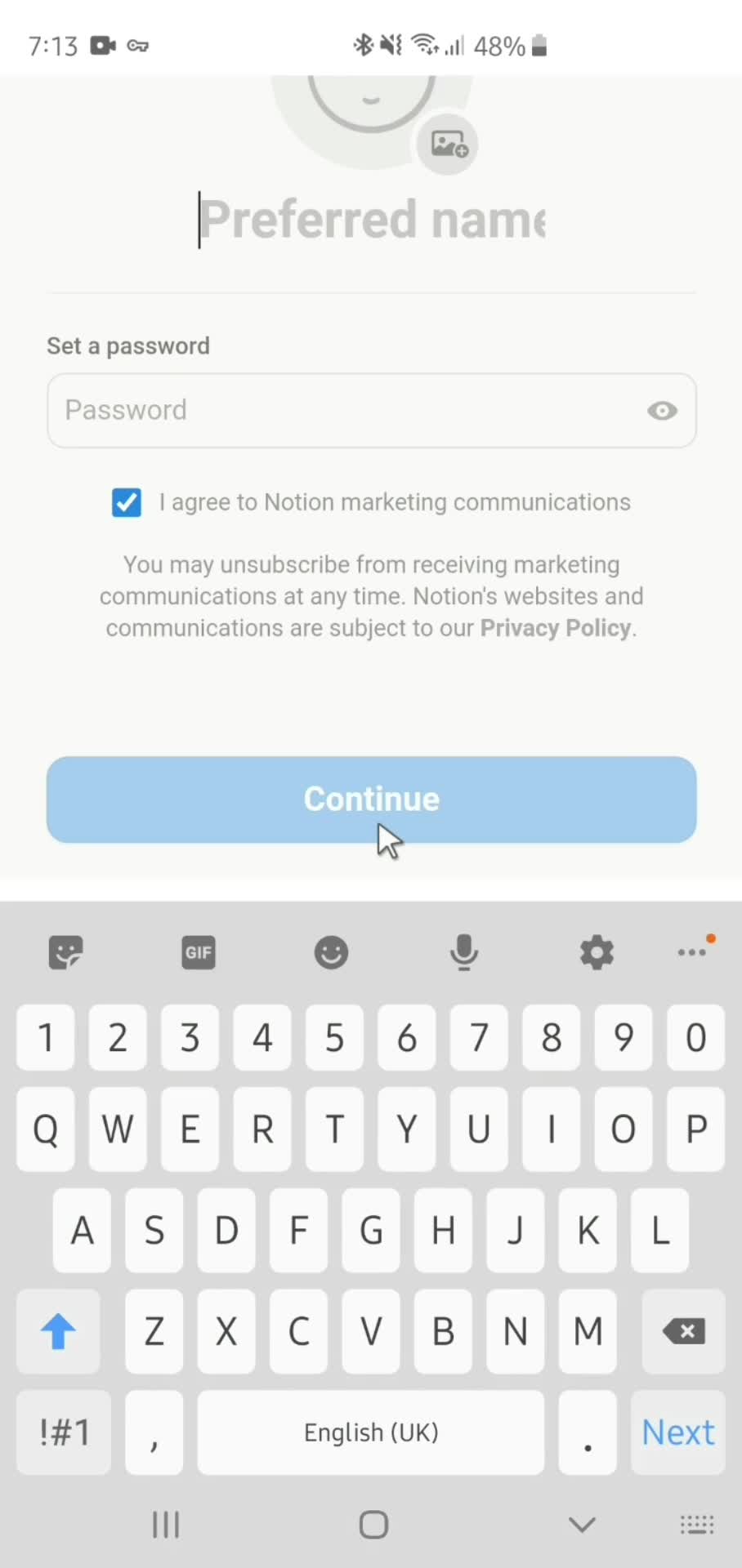
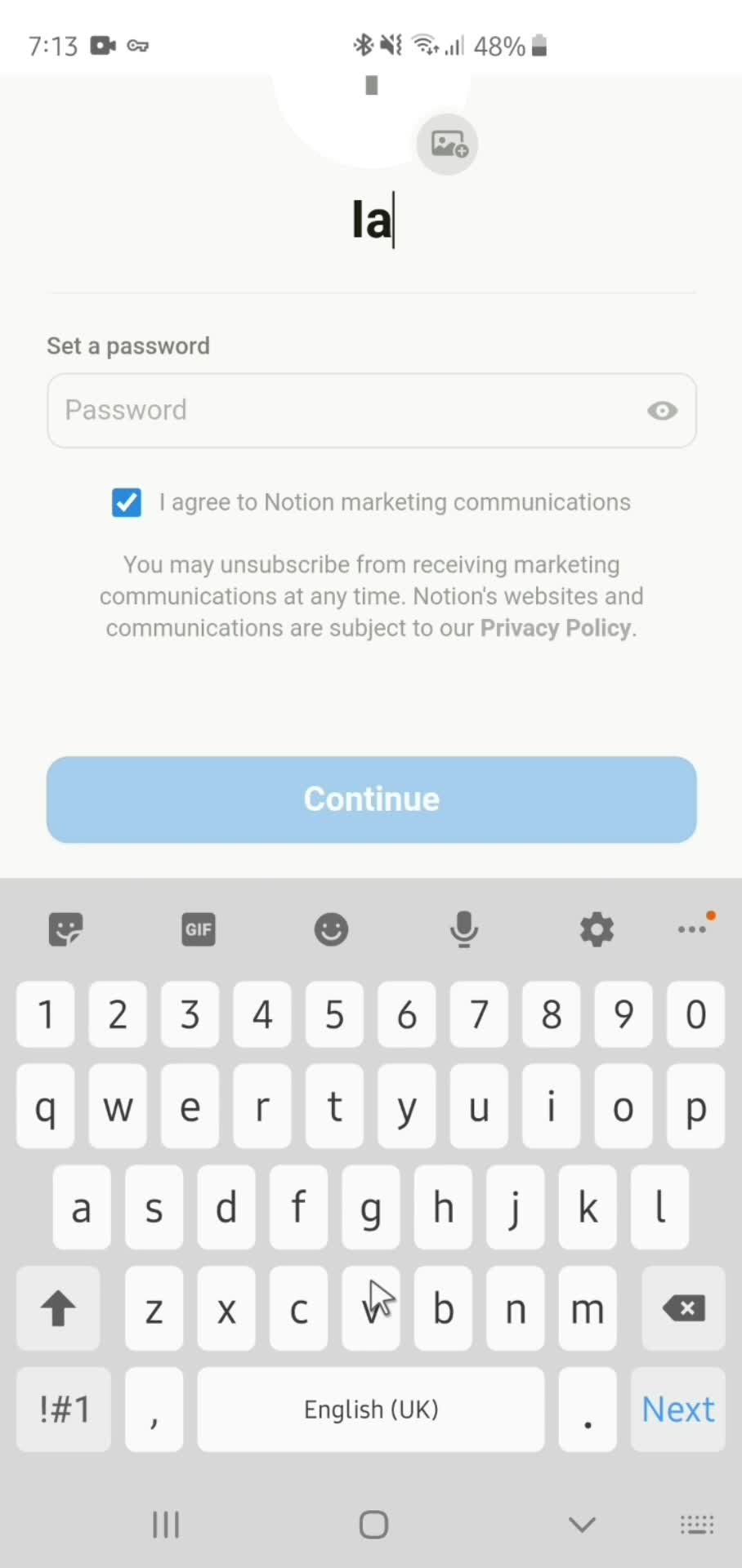
Create profile
this is title
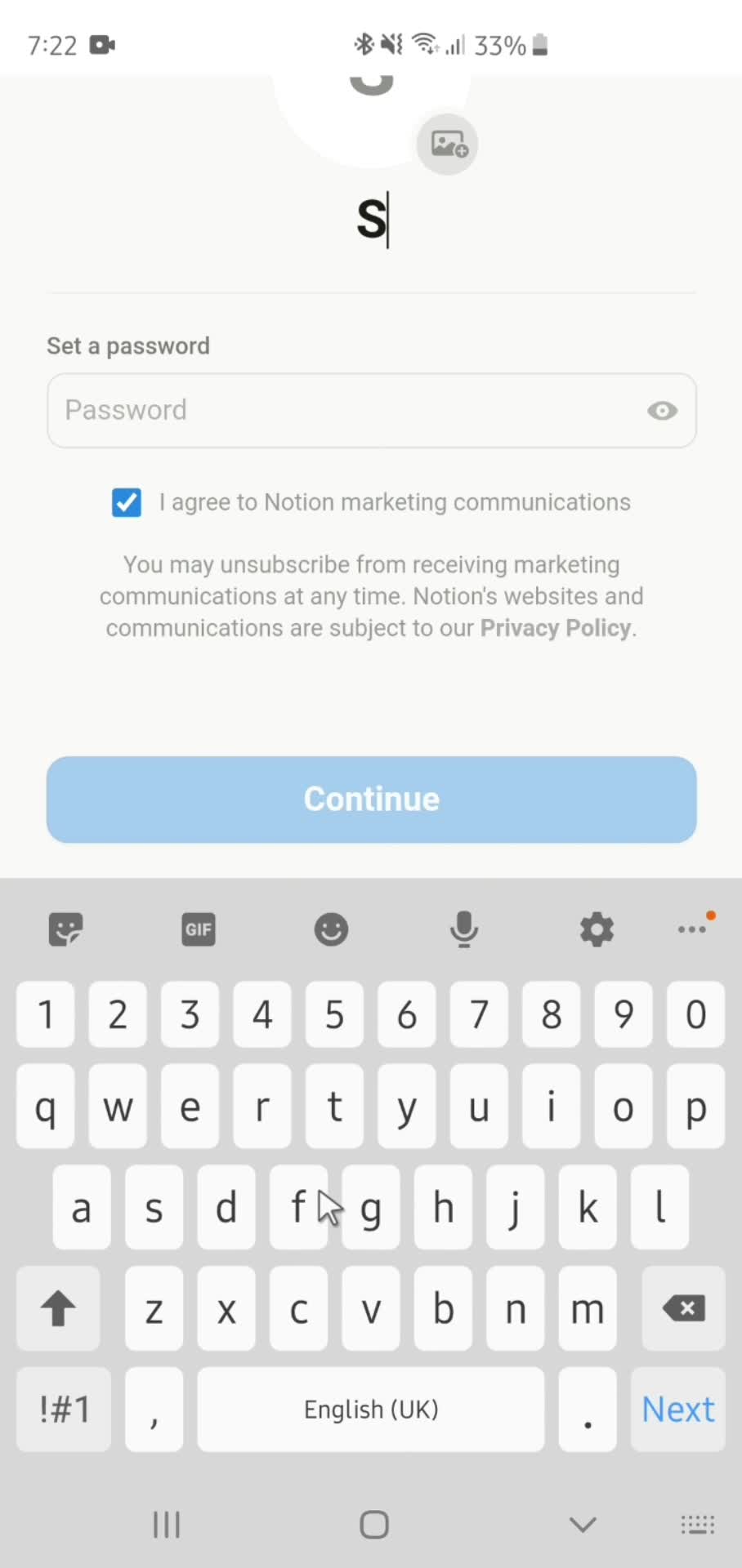
Set name
this is title
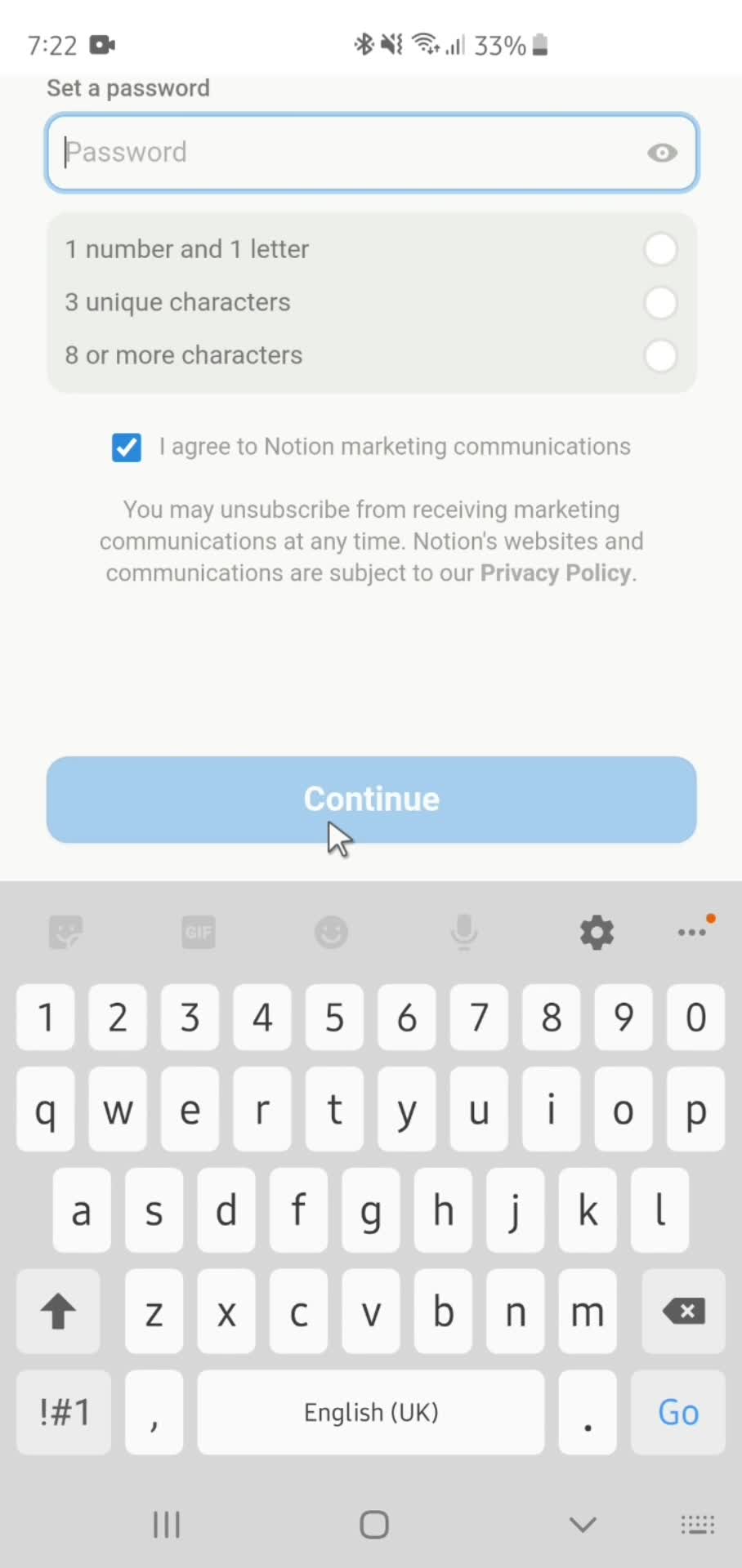
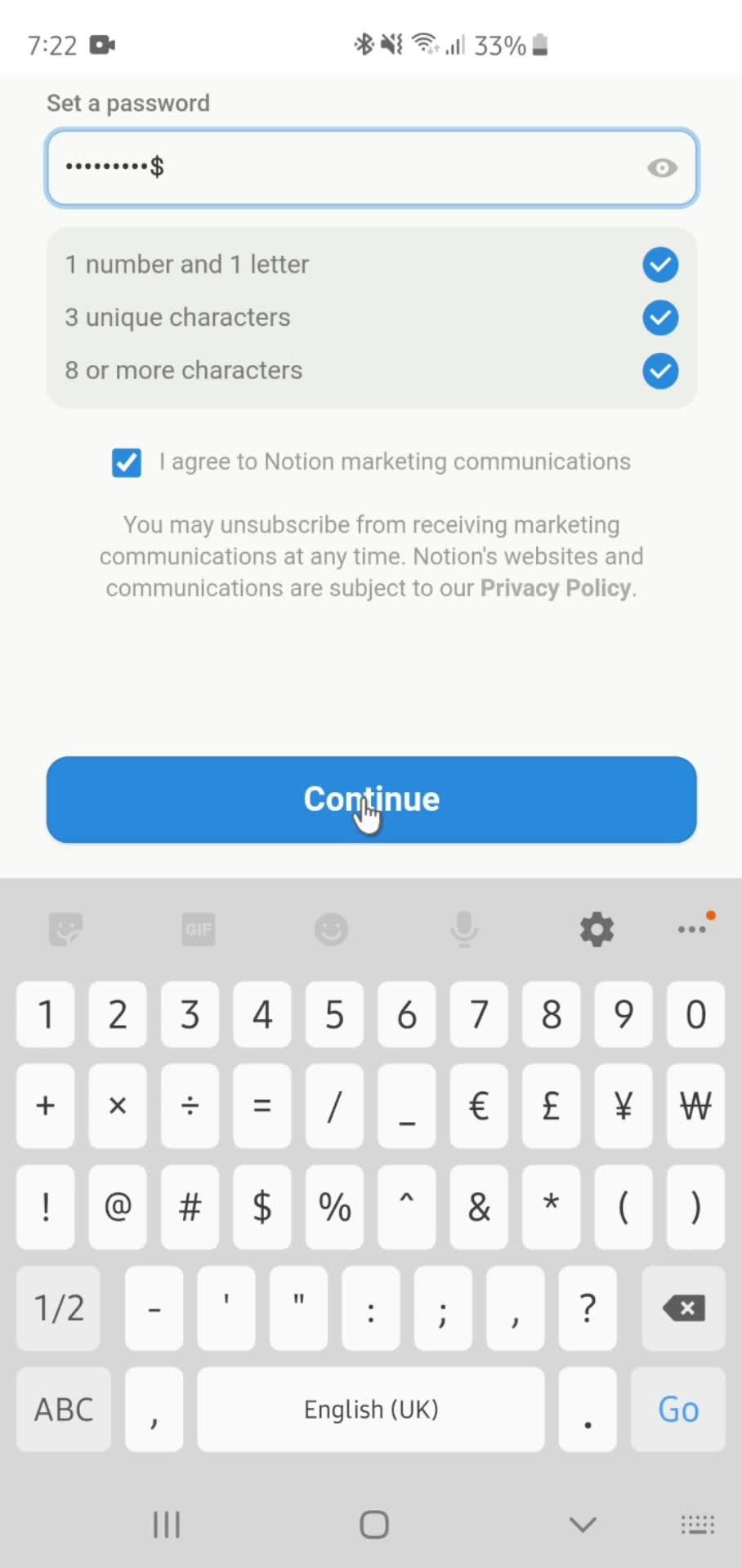
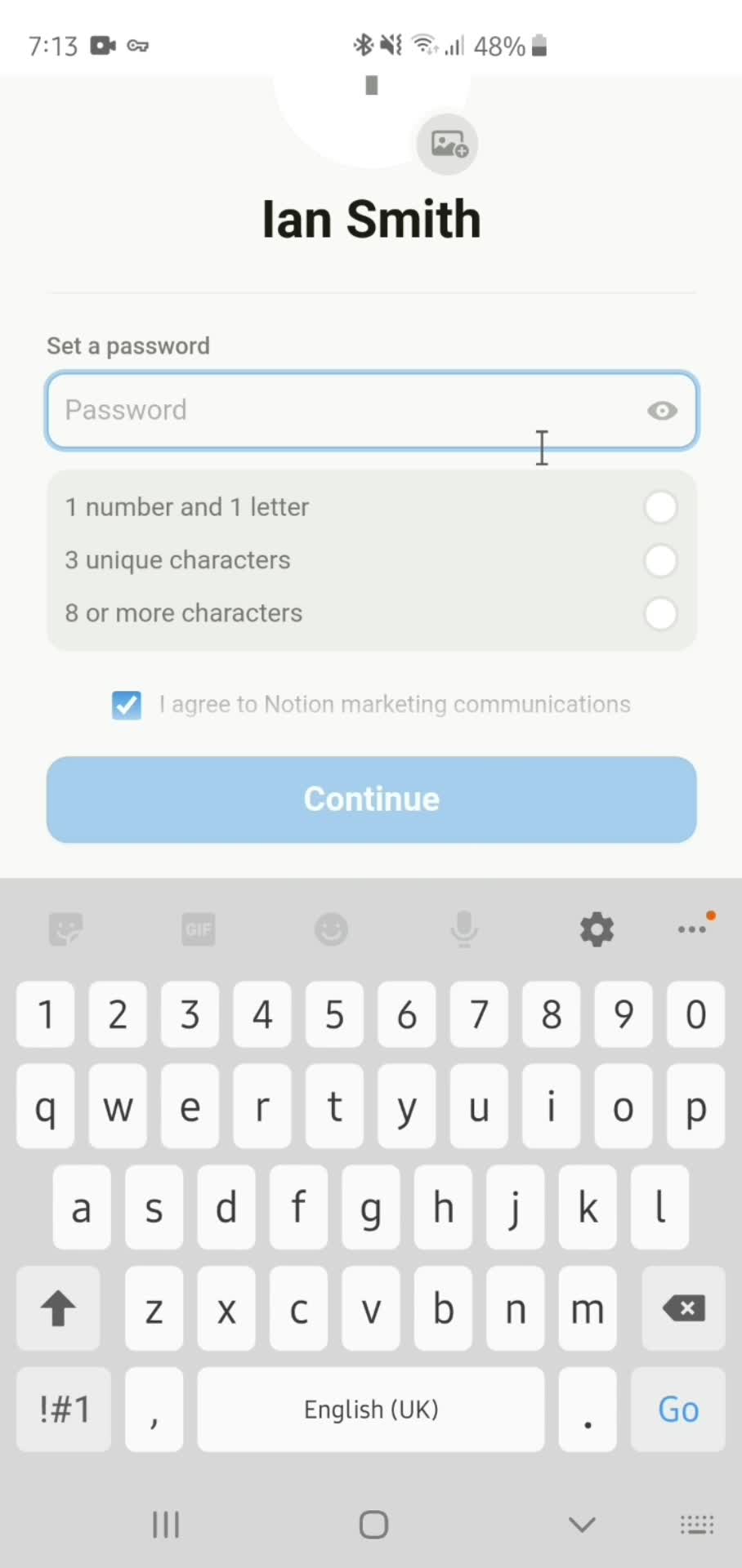
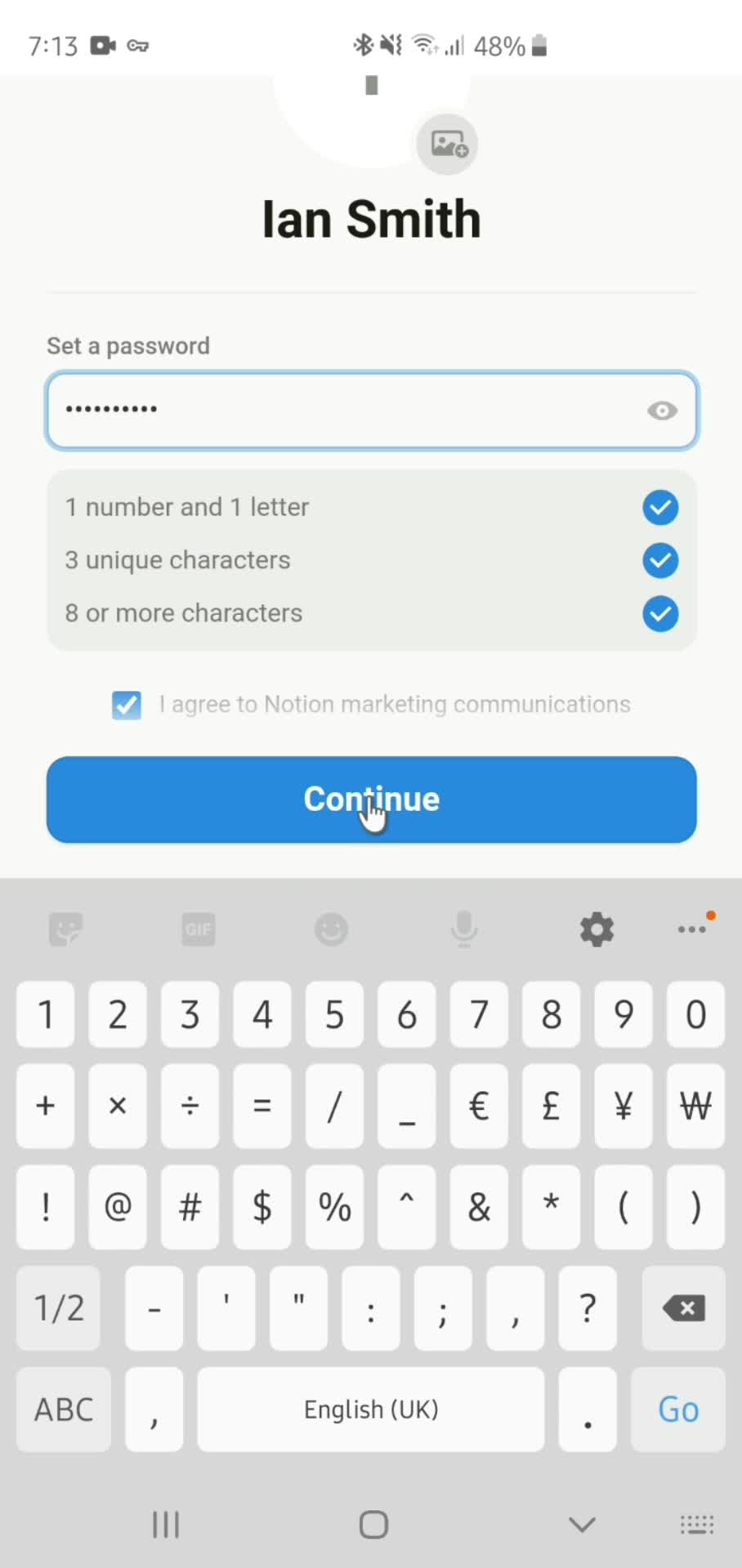
Set password
this is title
this is title
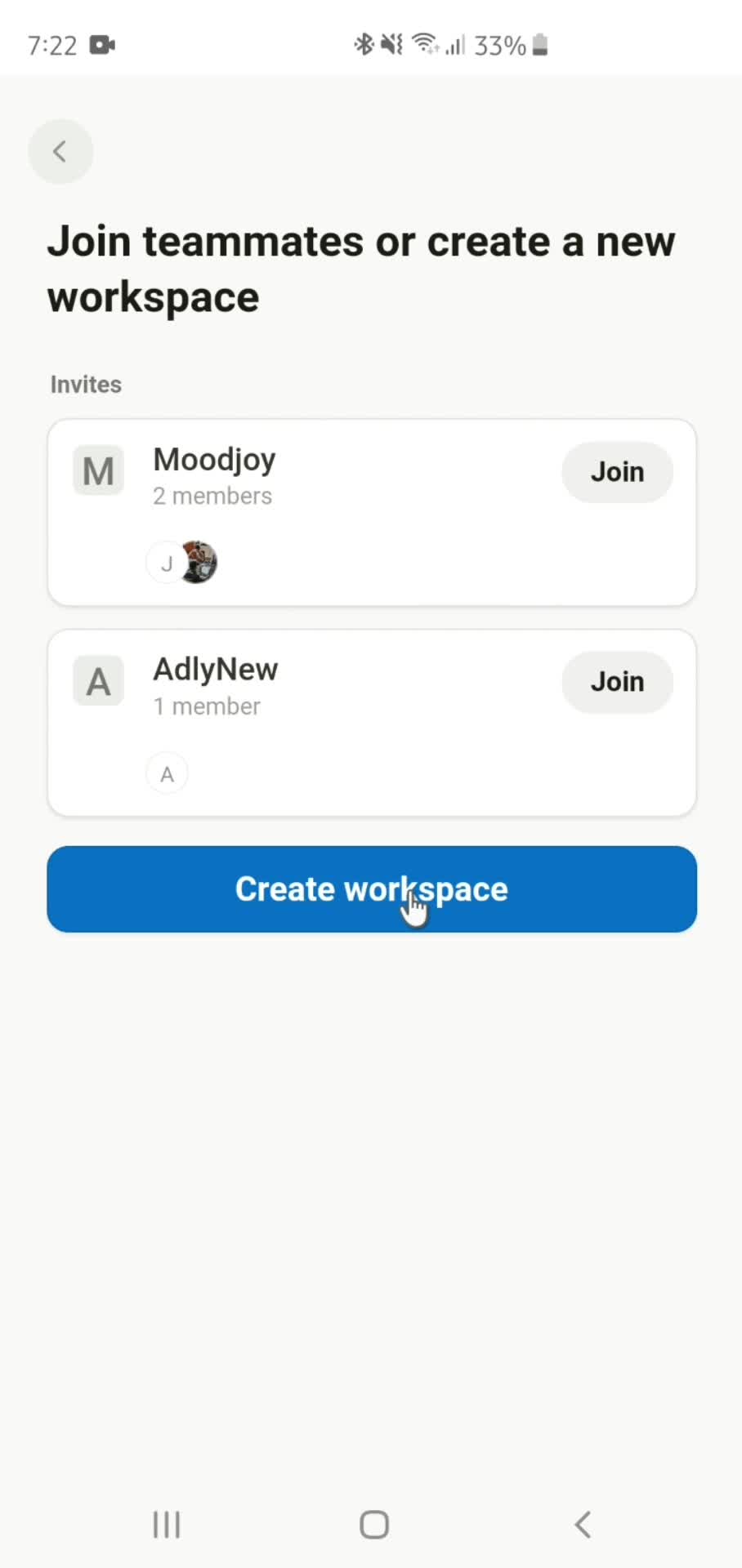
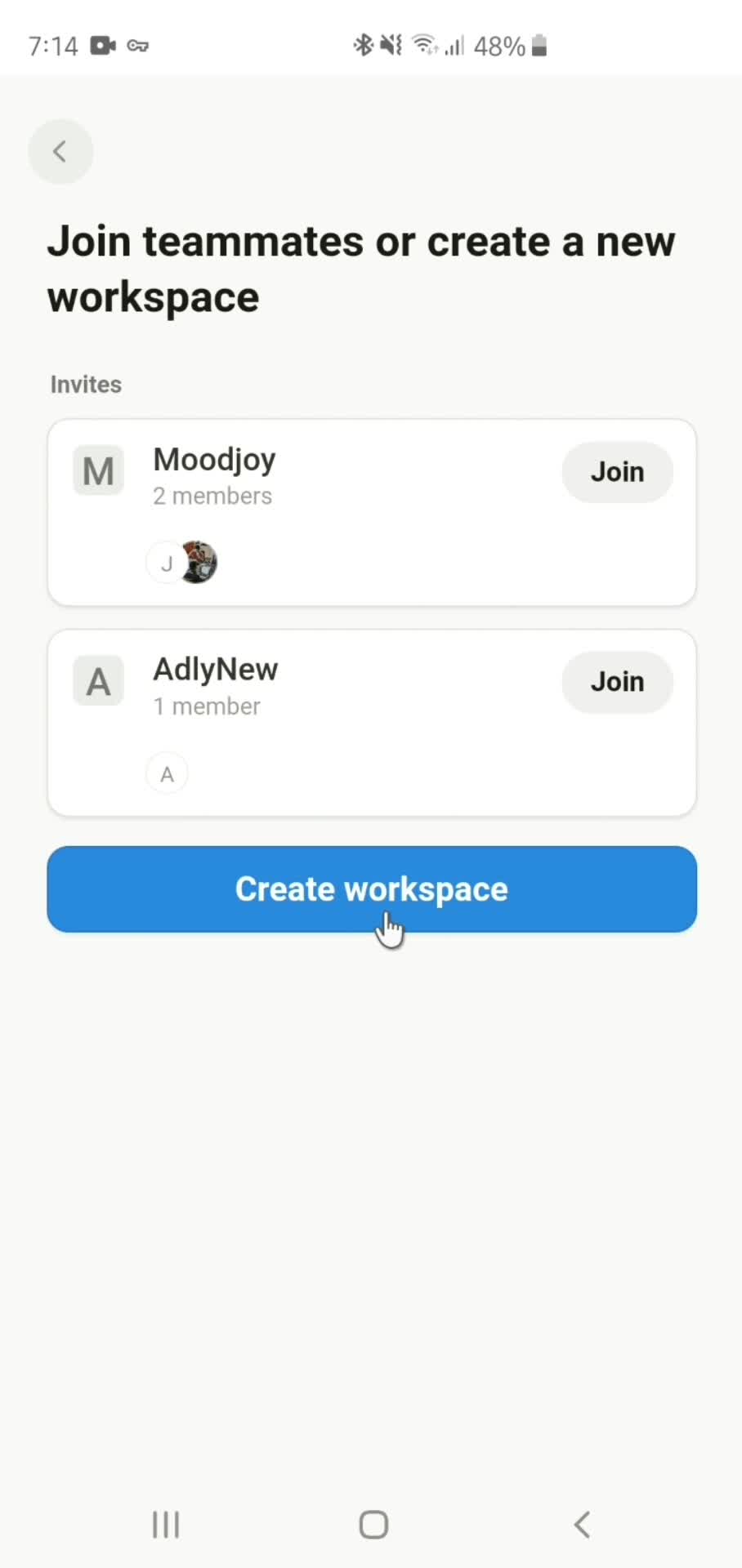
Create workspace
this is title
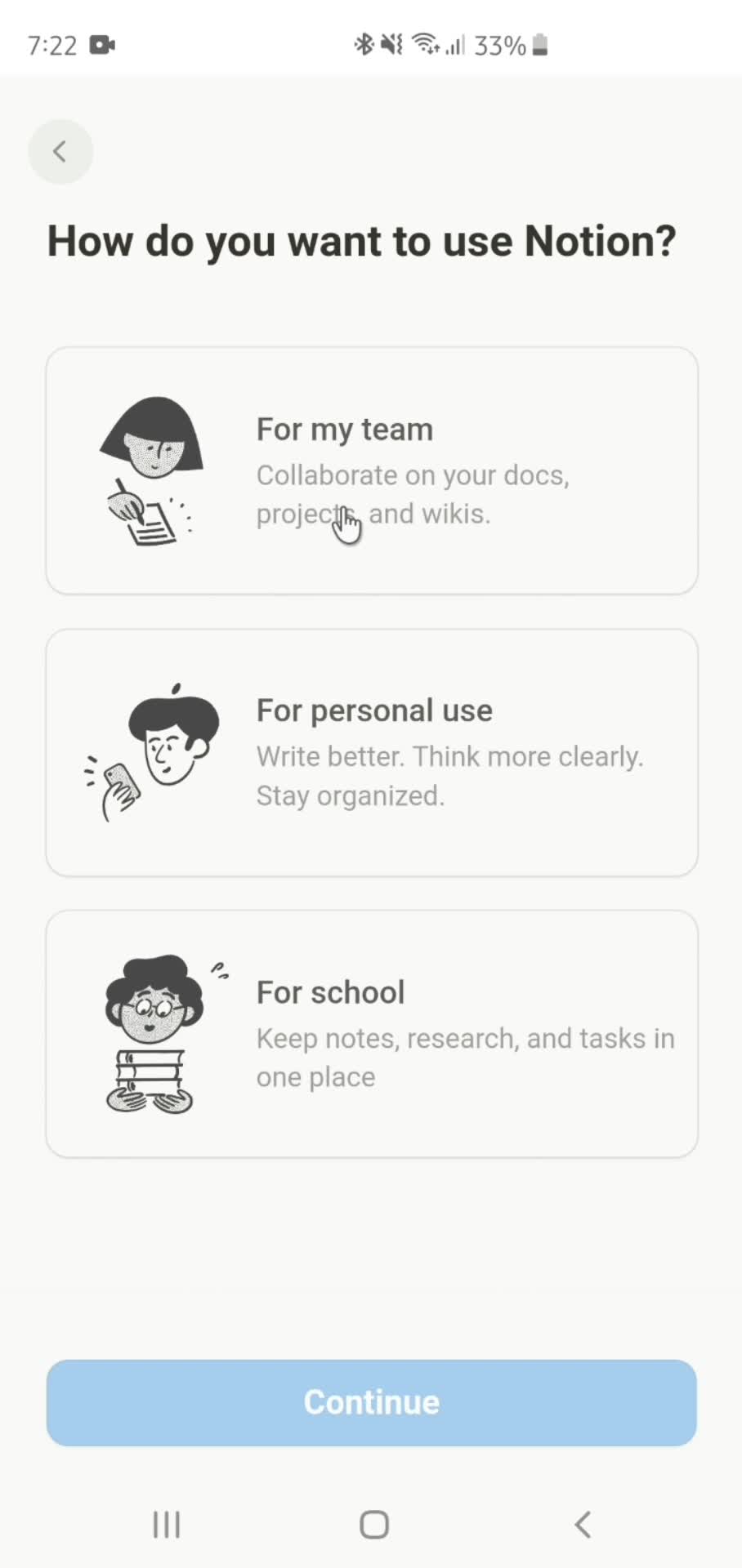
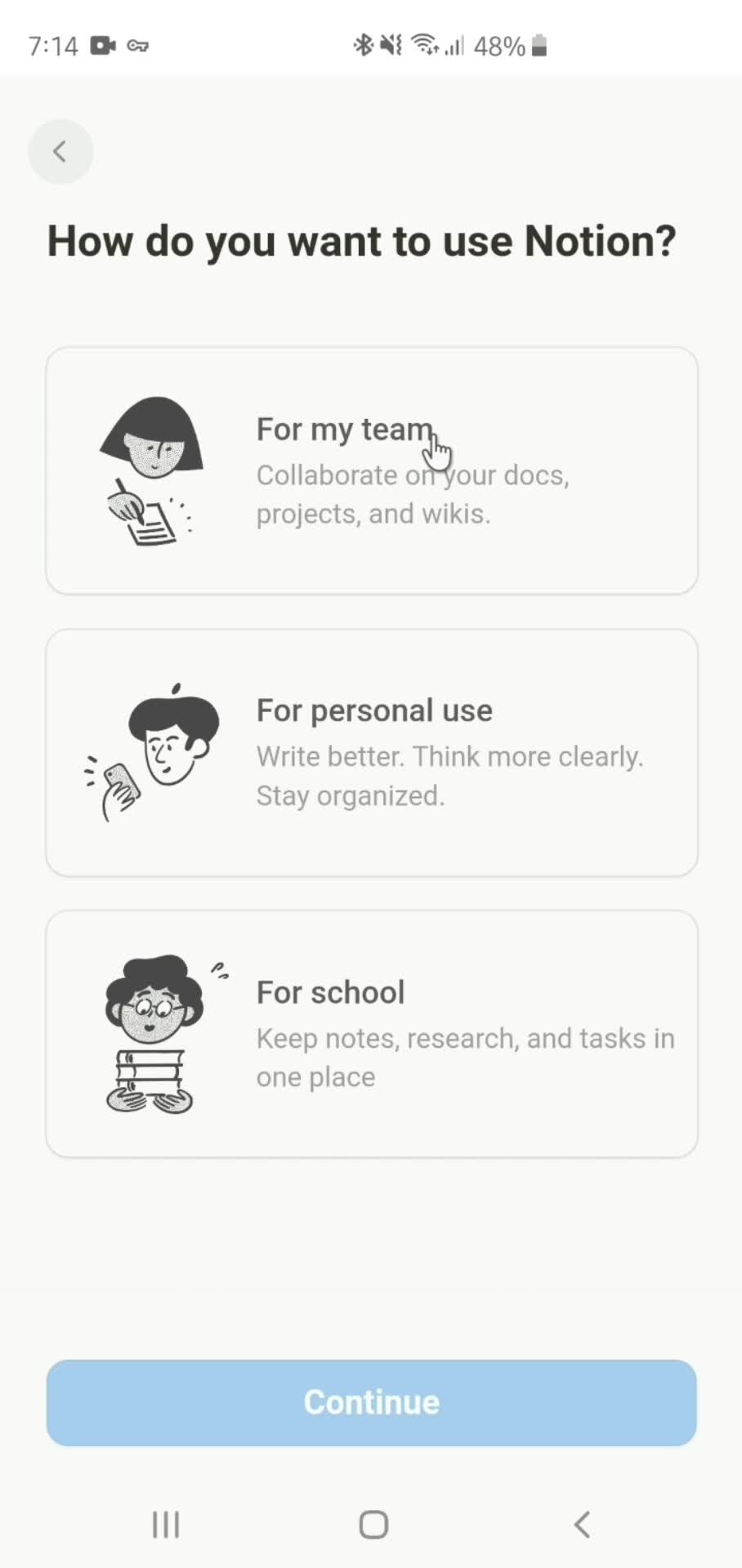
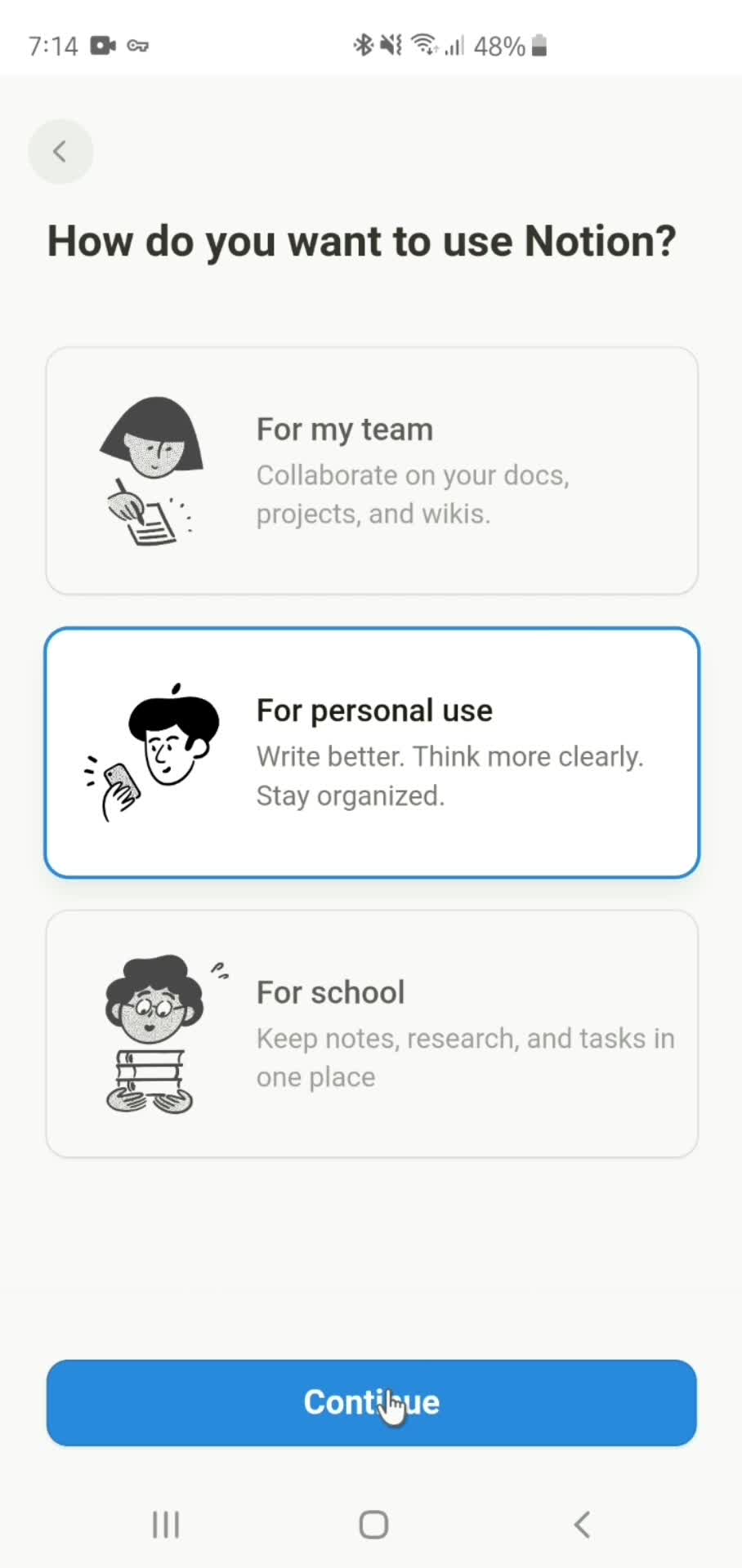
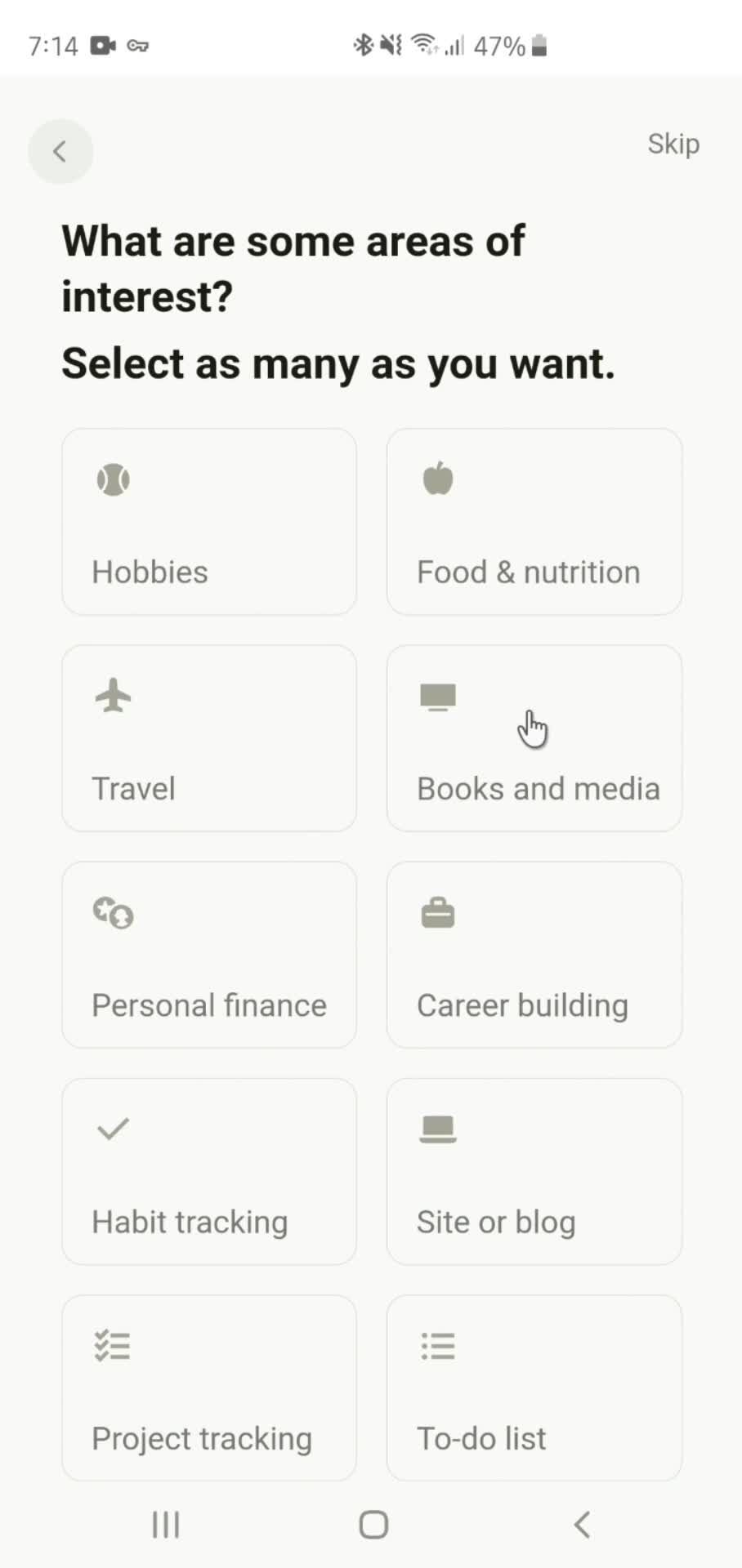
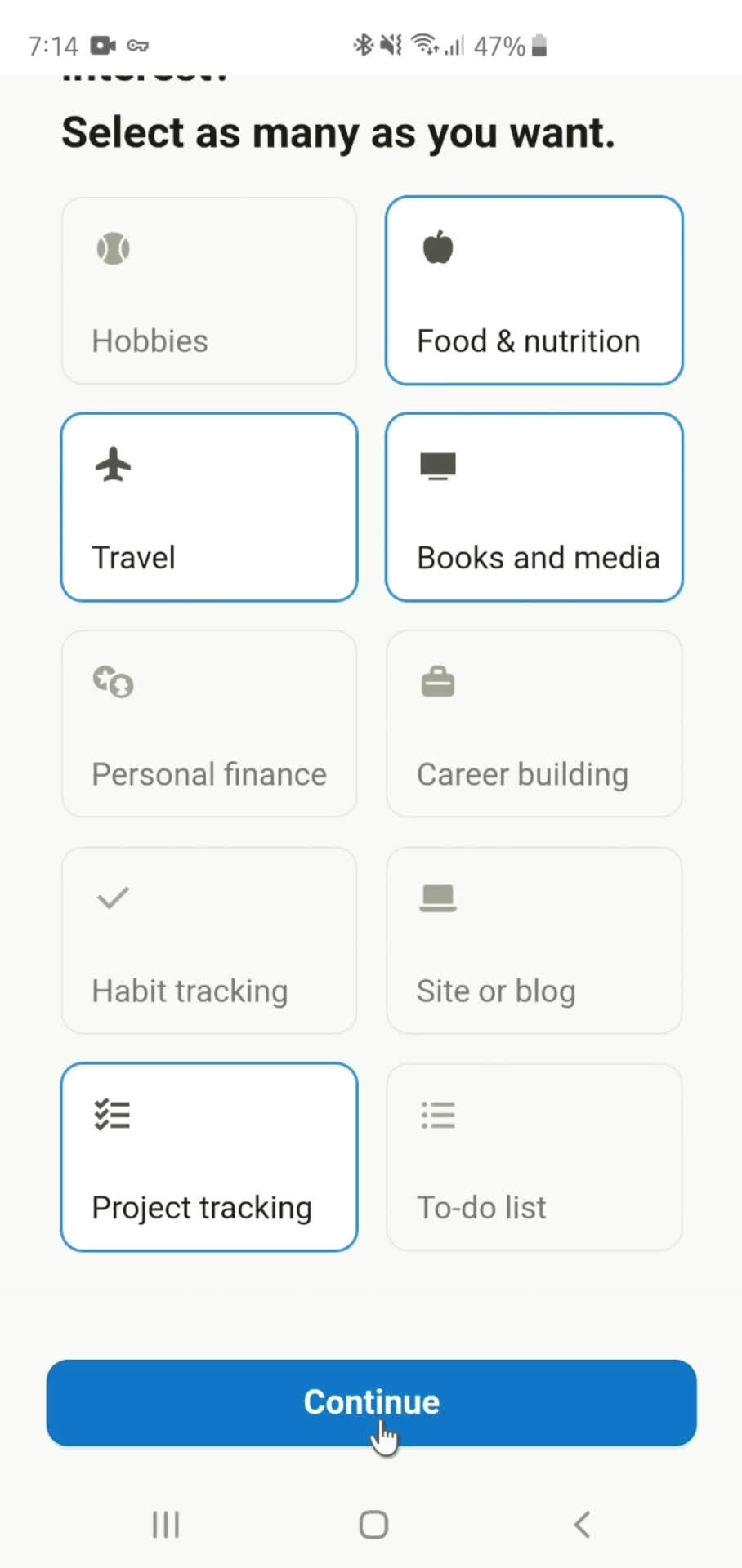
Setup question
this is title
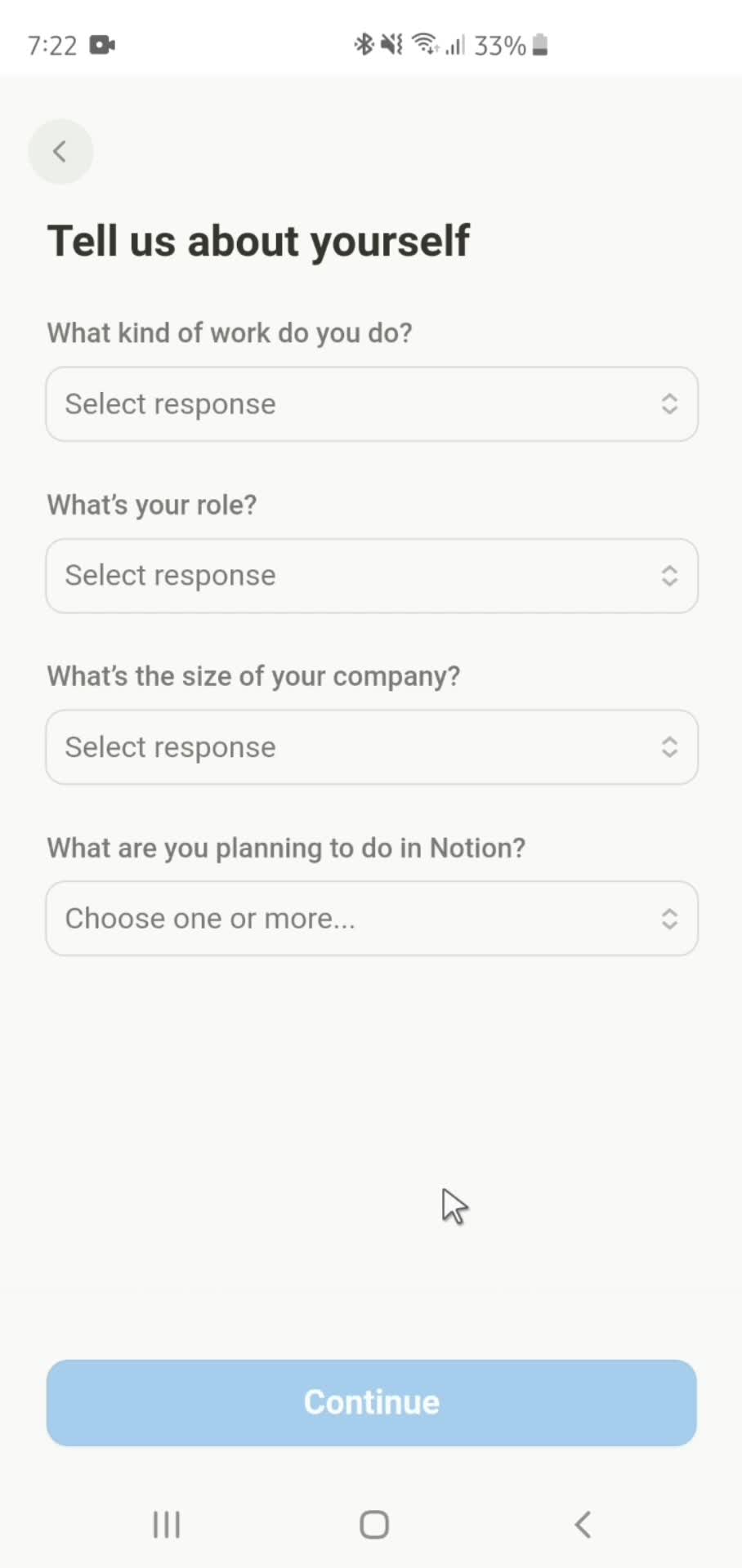
Tell us about yourself
this is title
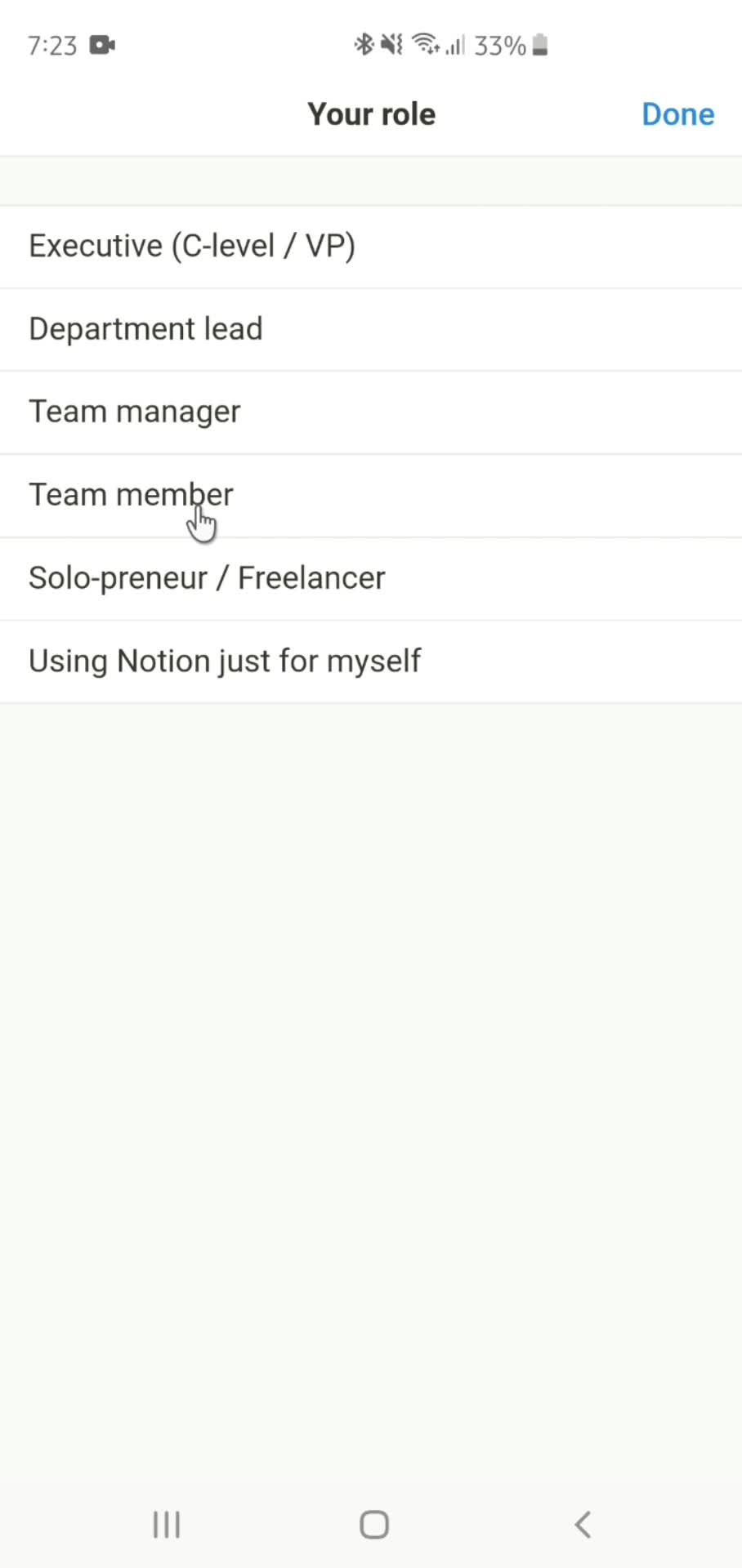
Select role
this is title
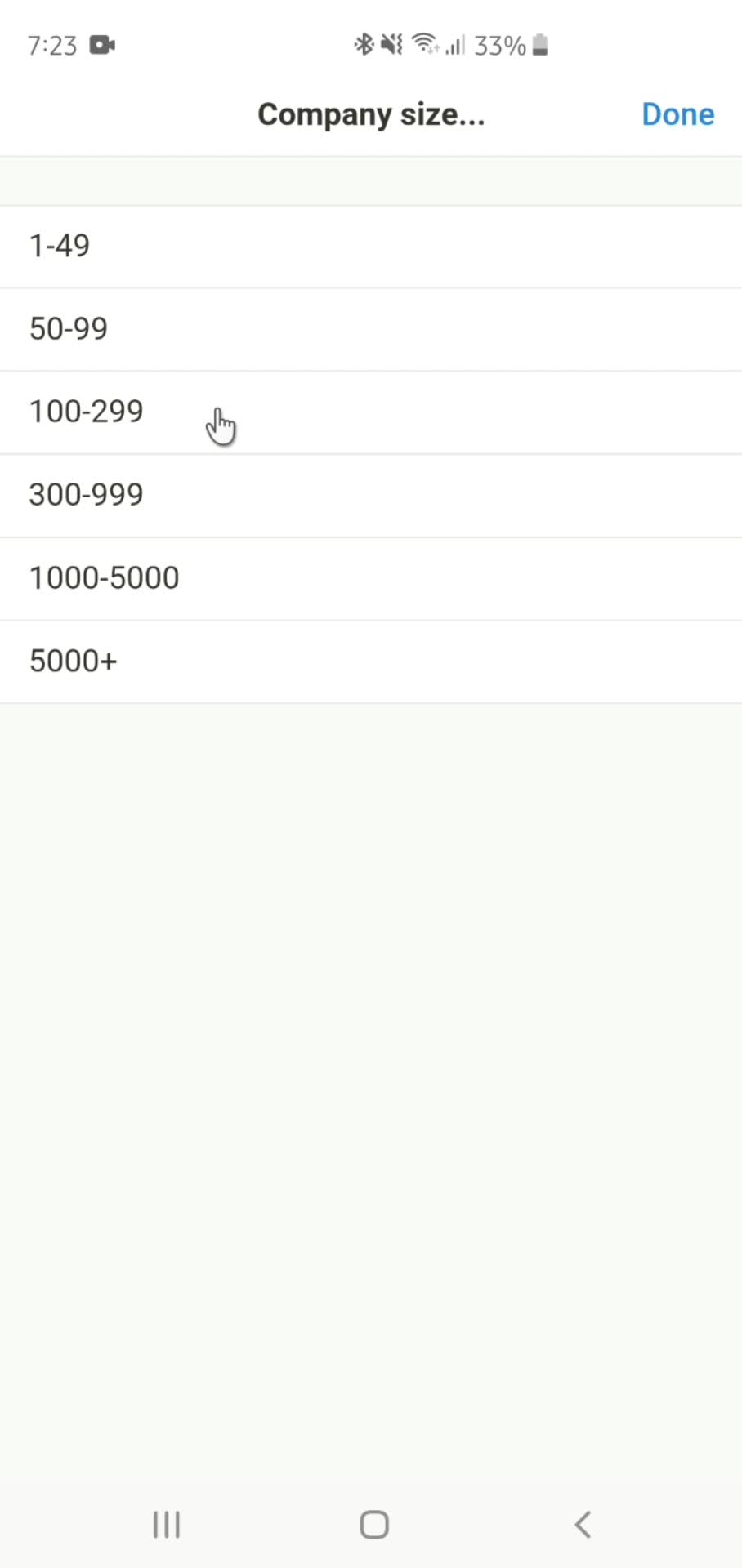
Select company size
this is title
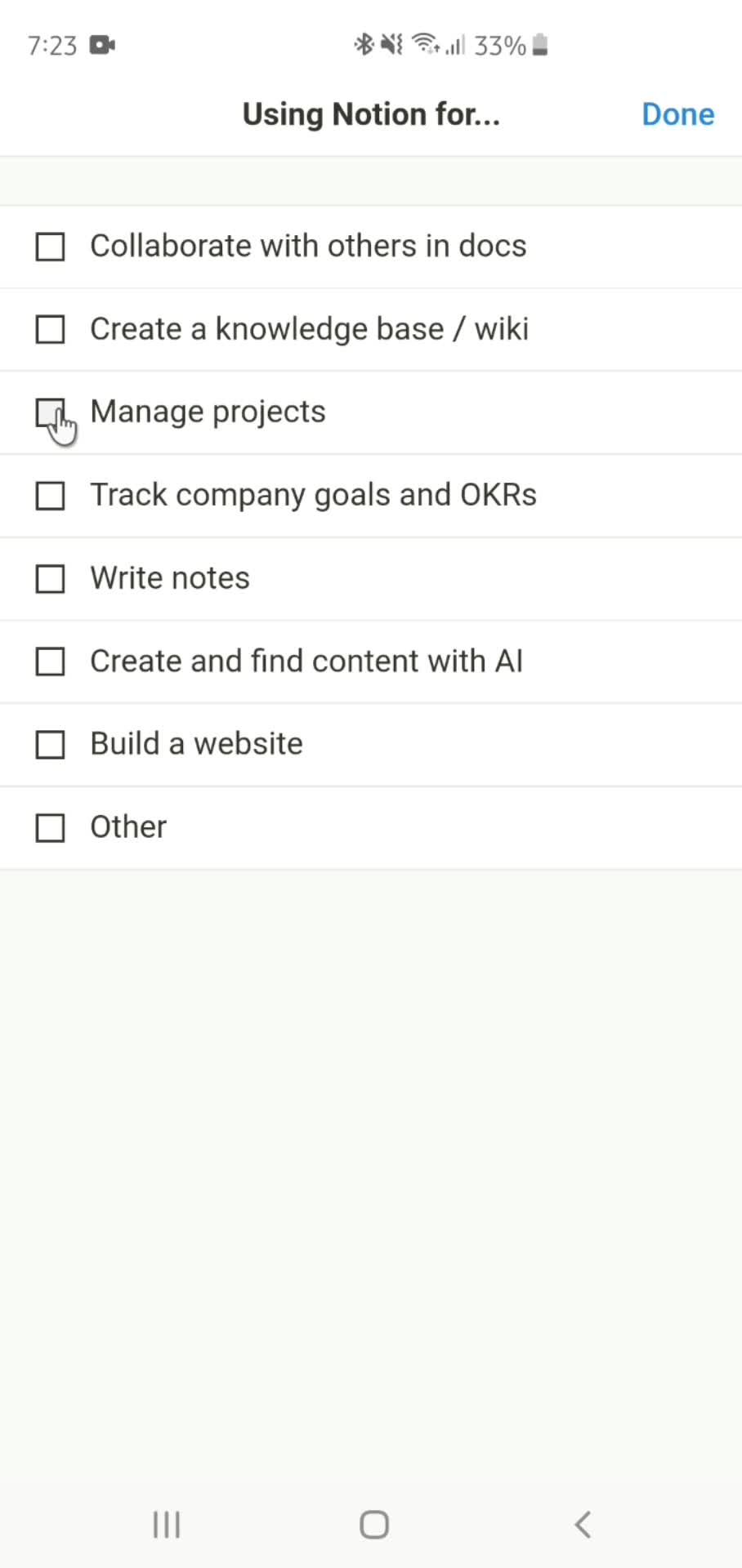
Select reason
this is title
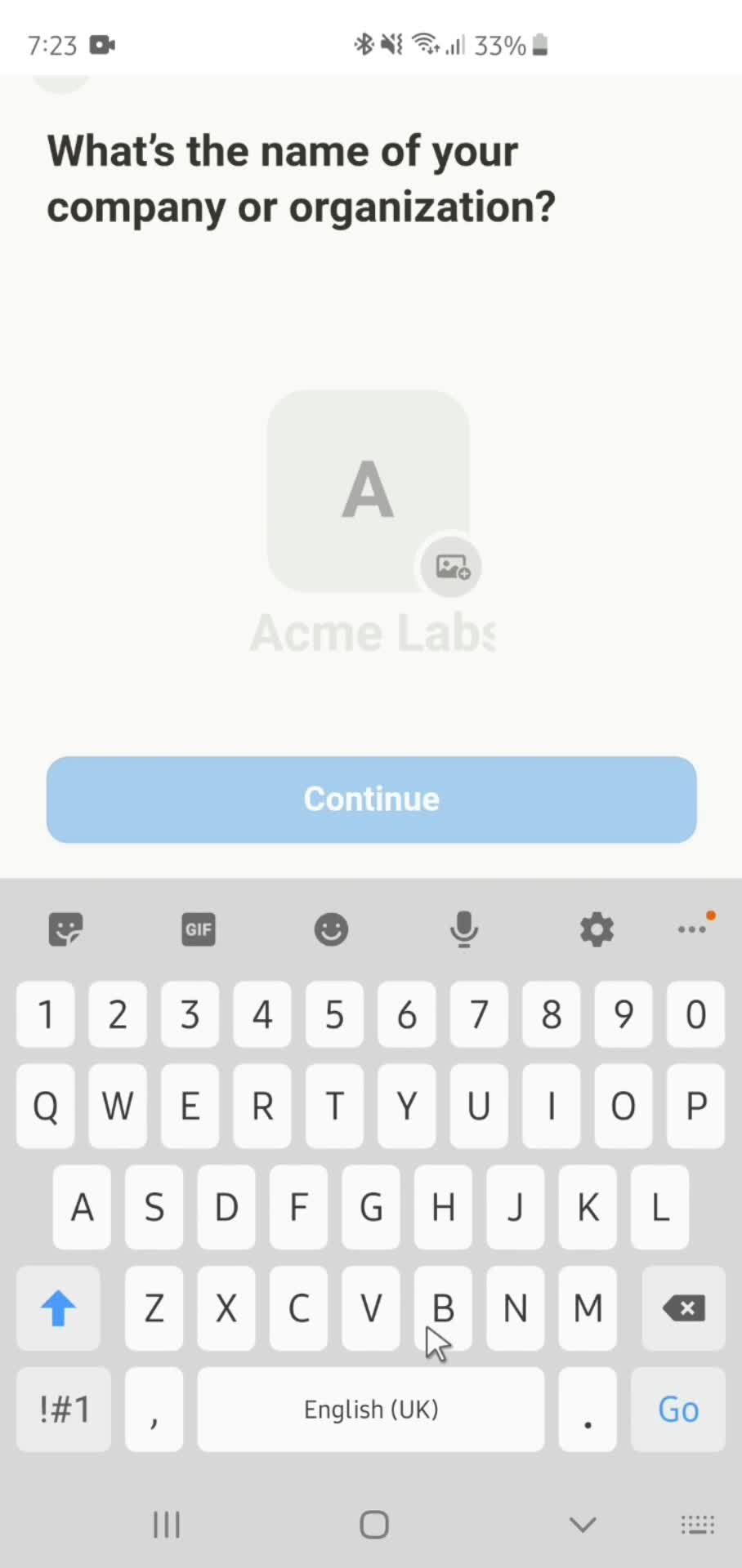
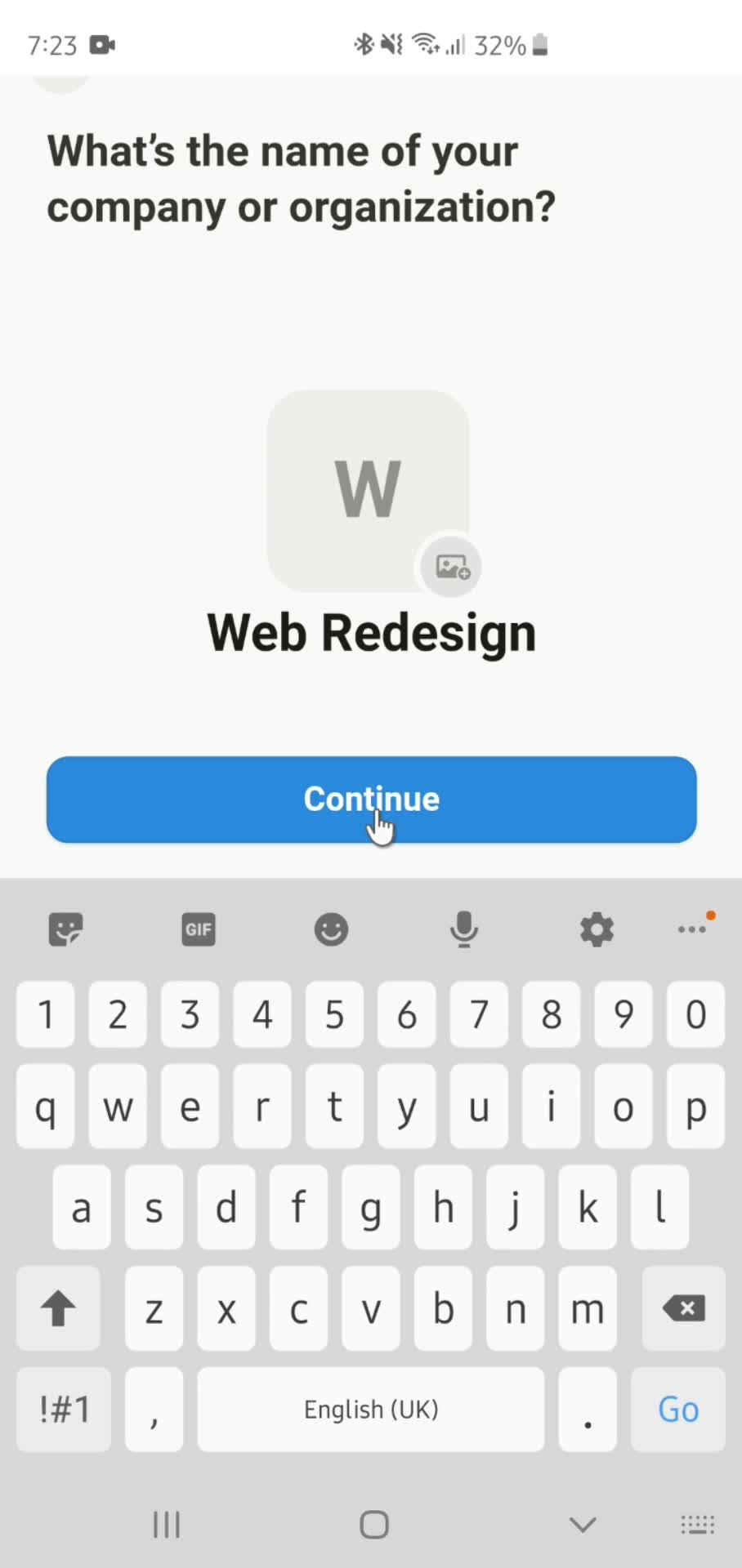
Enter company name
this is title
this is title
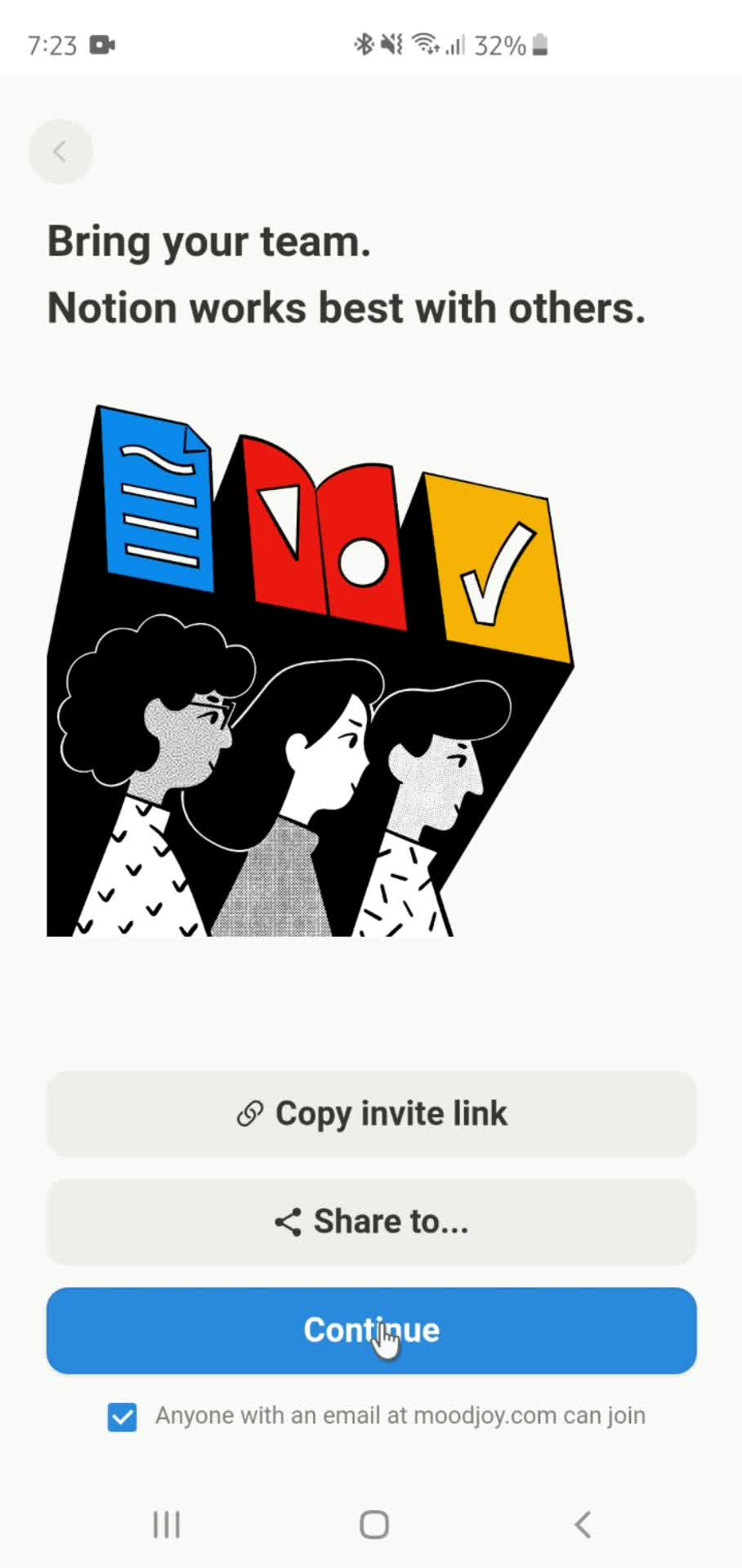
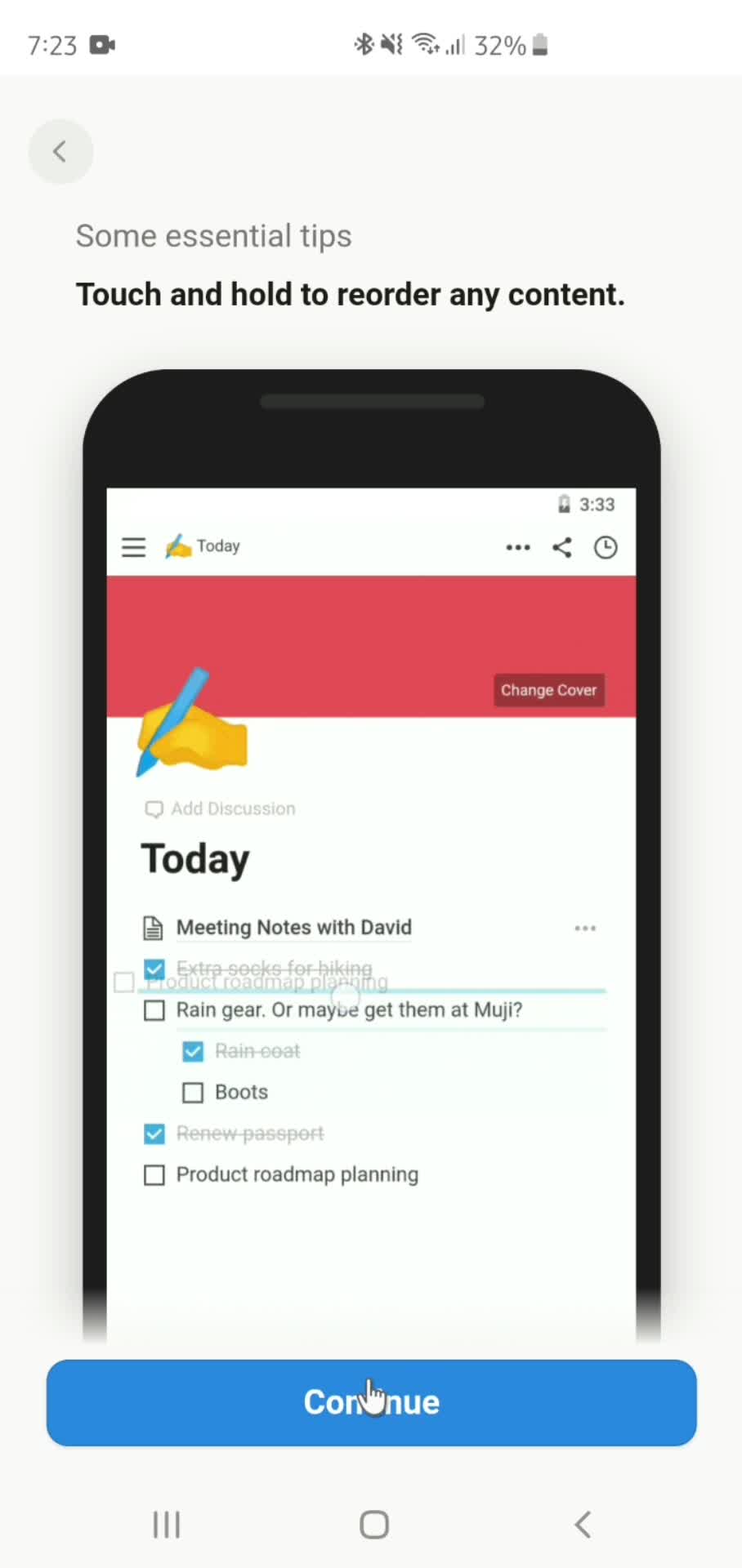
Onboarding tour
this is title
Onboarding tasks
this is title
Home
this is title
Accounts
this is title
Home
this is title
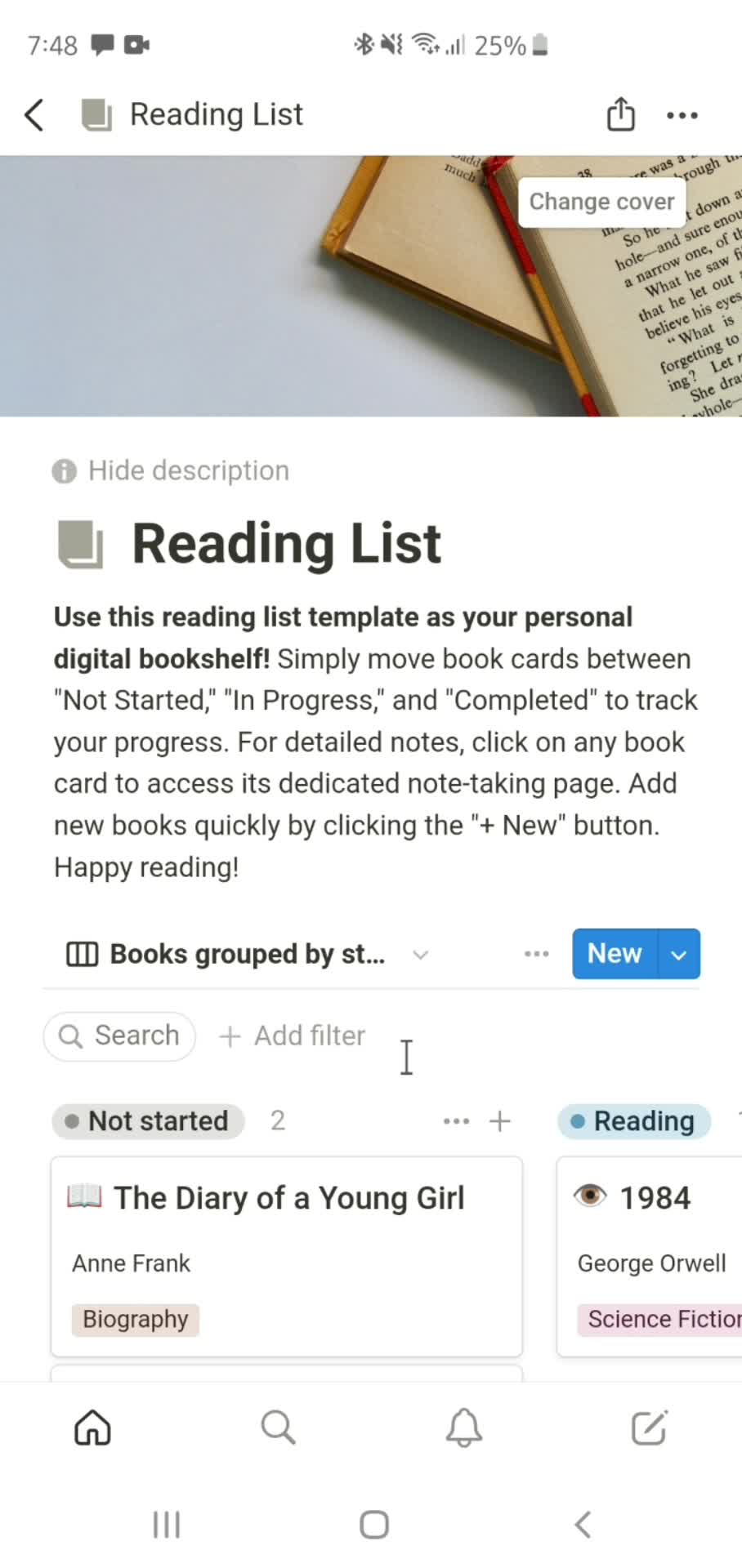
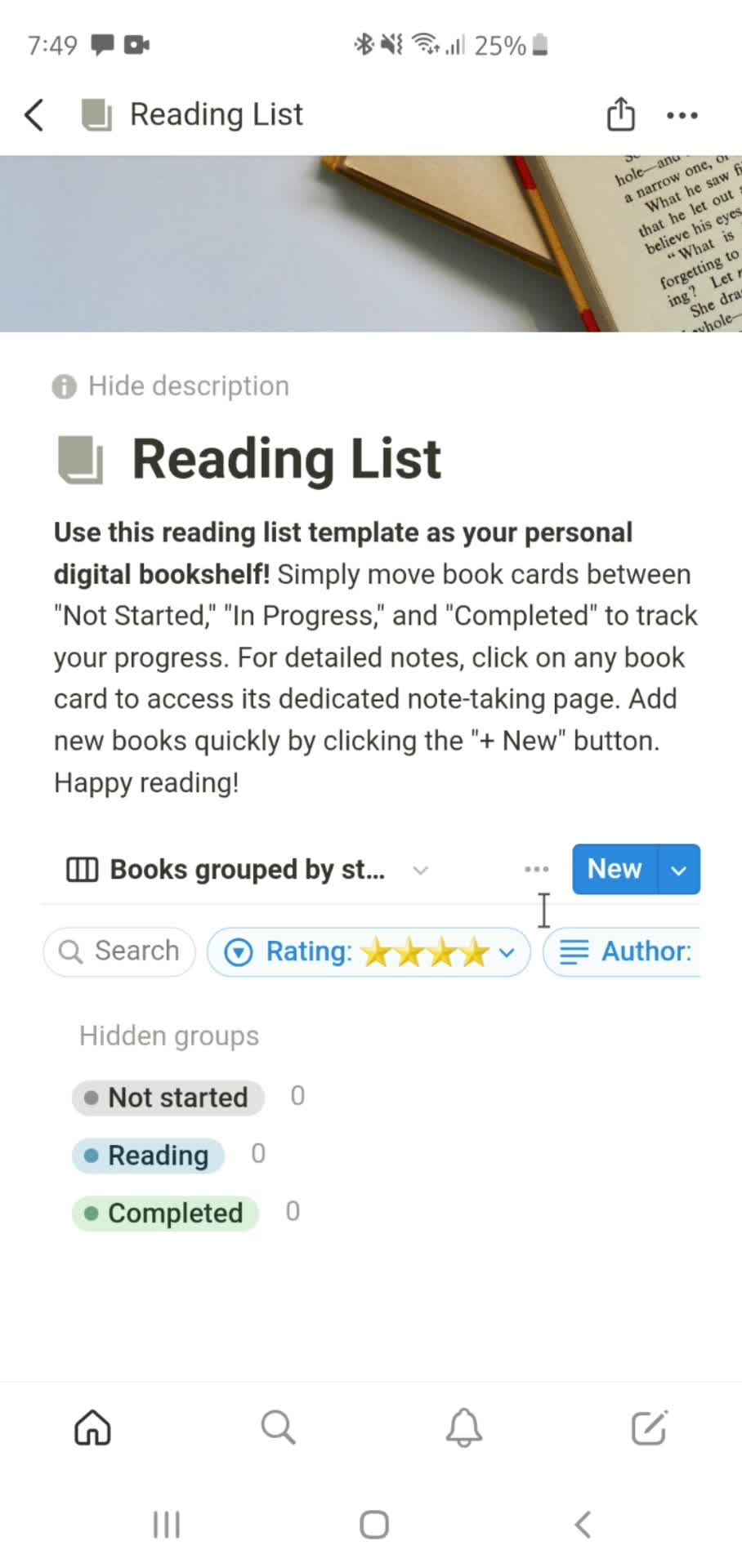
Document
this is title
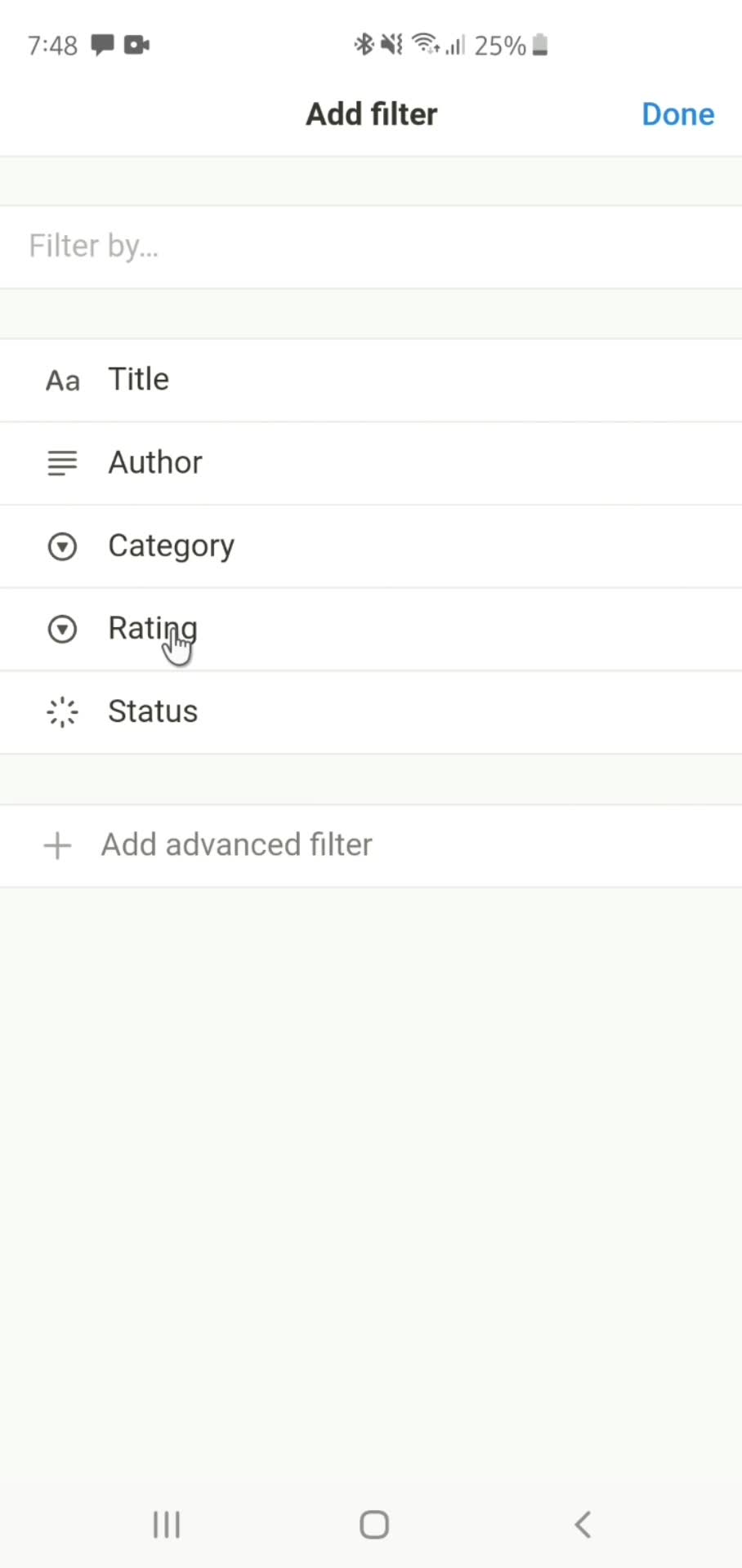
Add filter
this is title
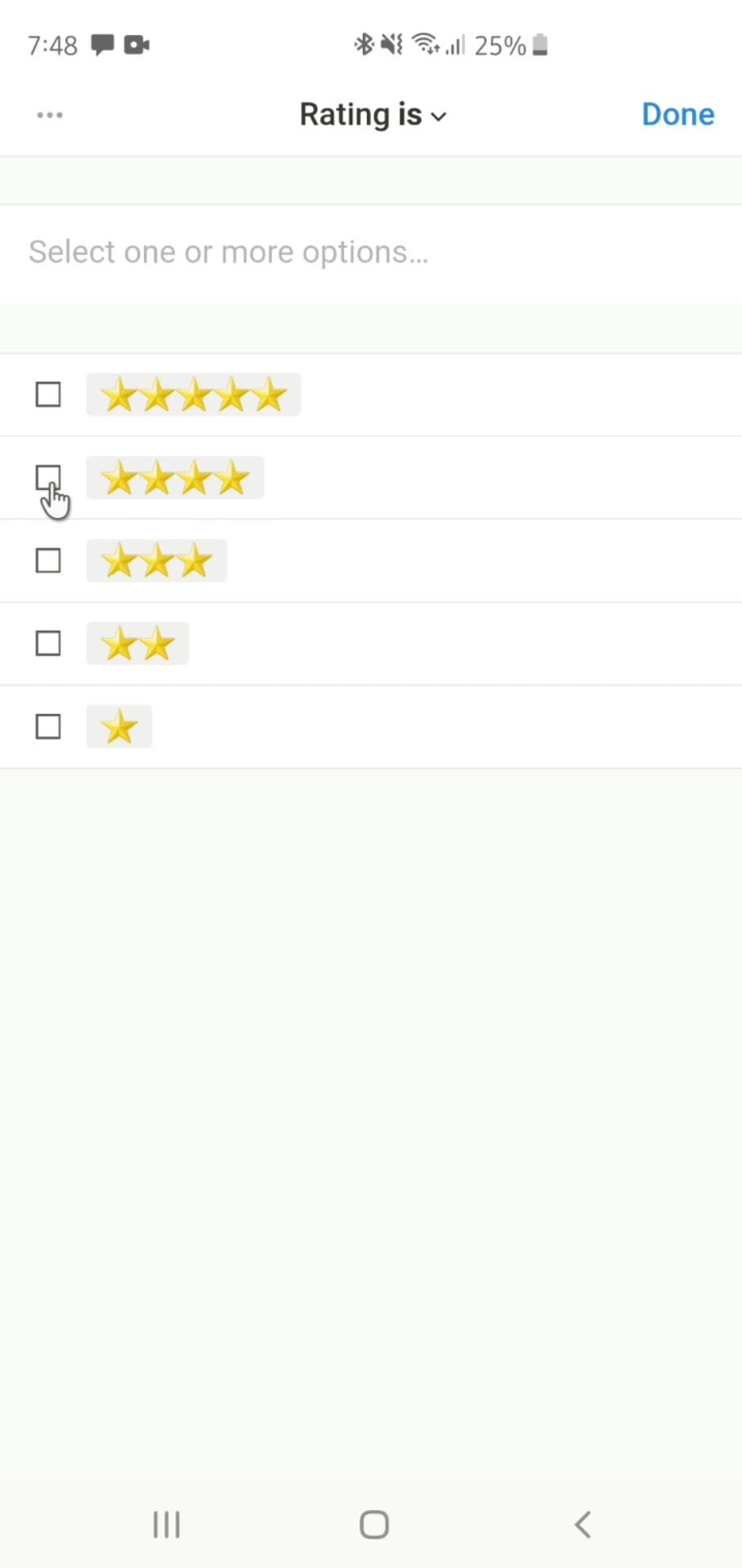
Select options
this is title
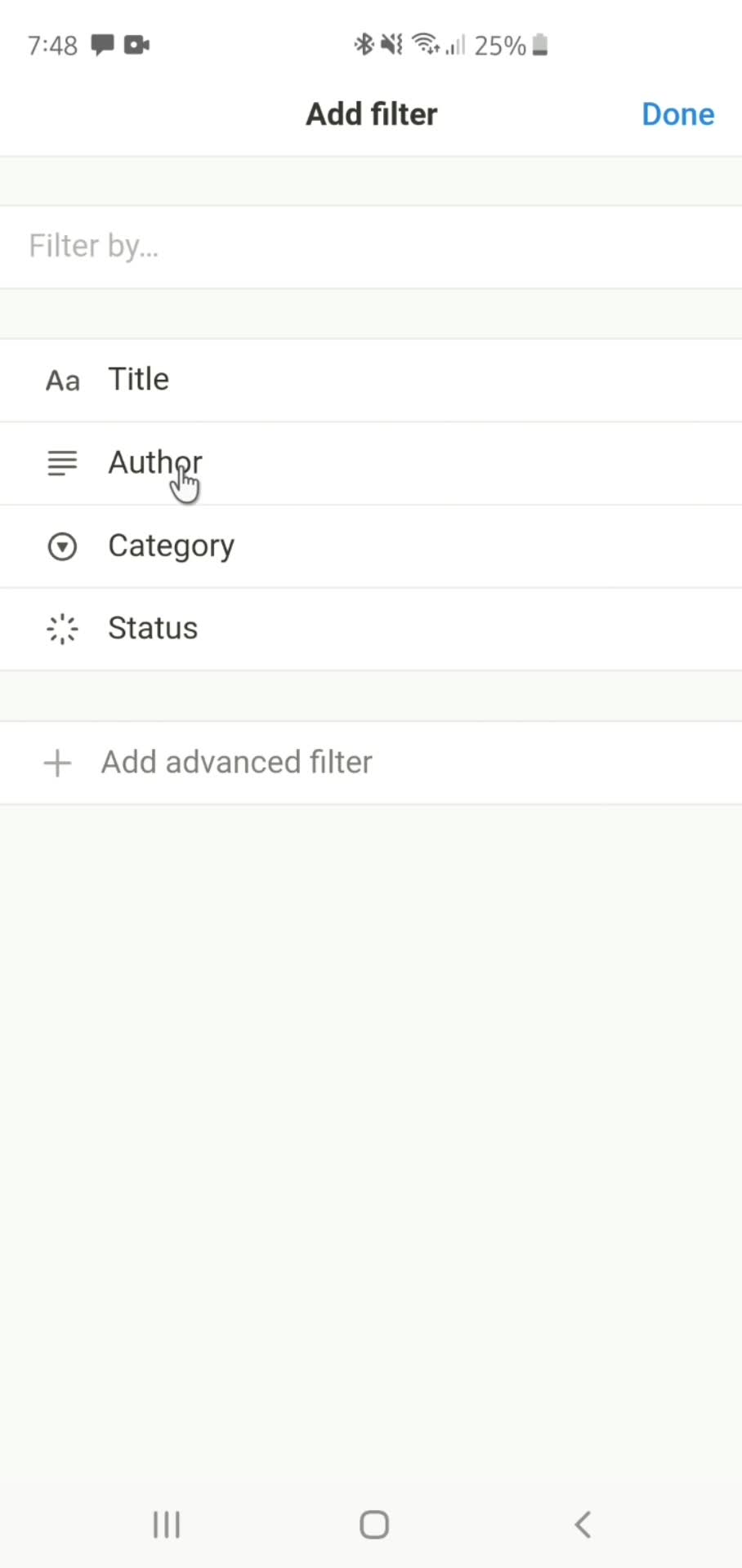
Add filter
this is title
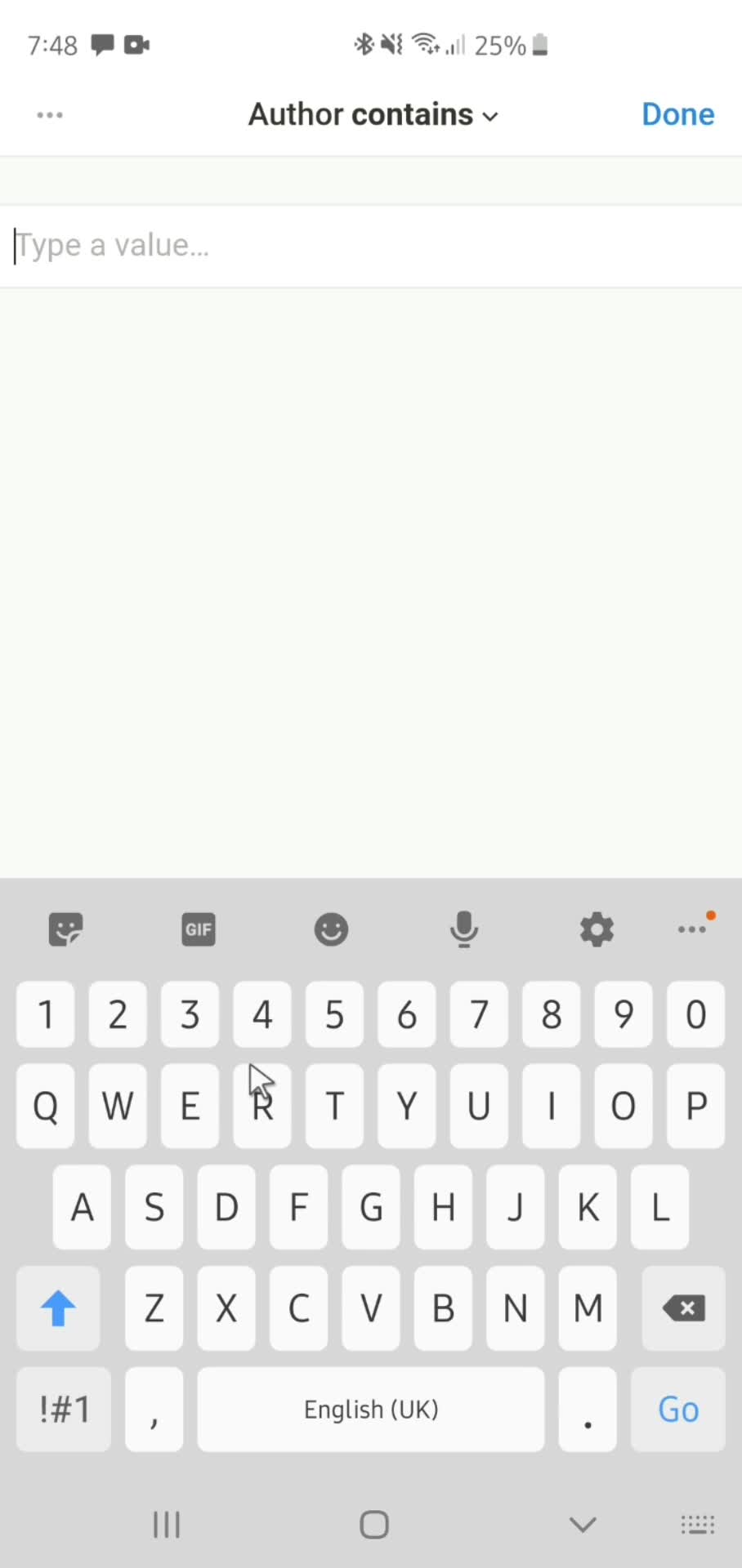
Add value
this is title
Added
this is title
Home
this is title
Action menu
this is title
Settings
this is title
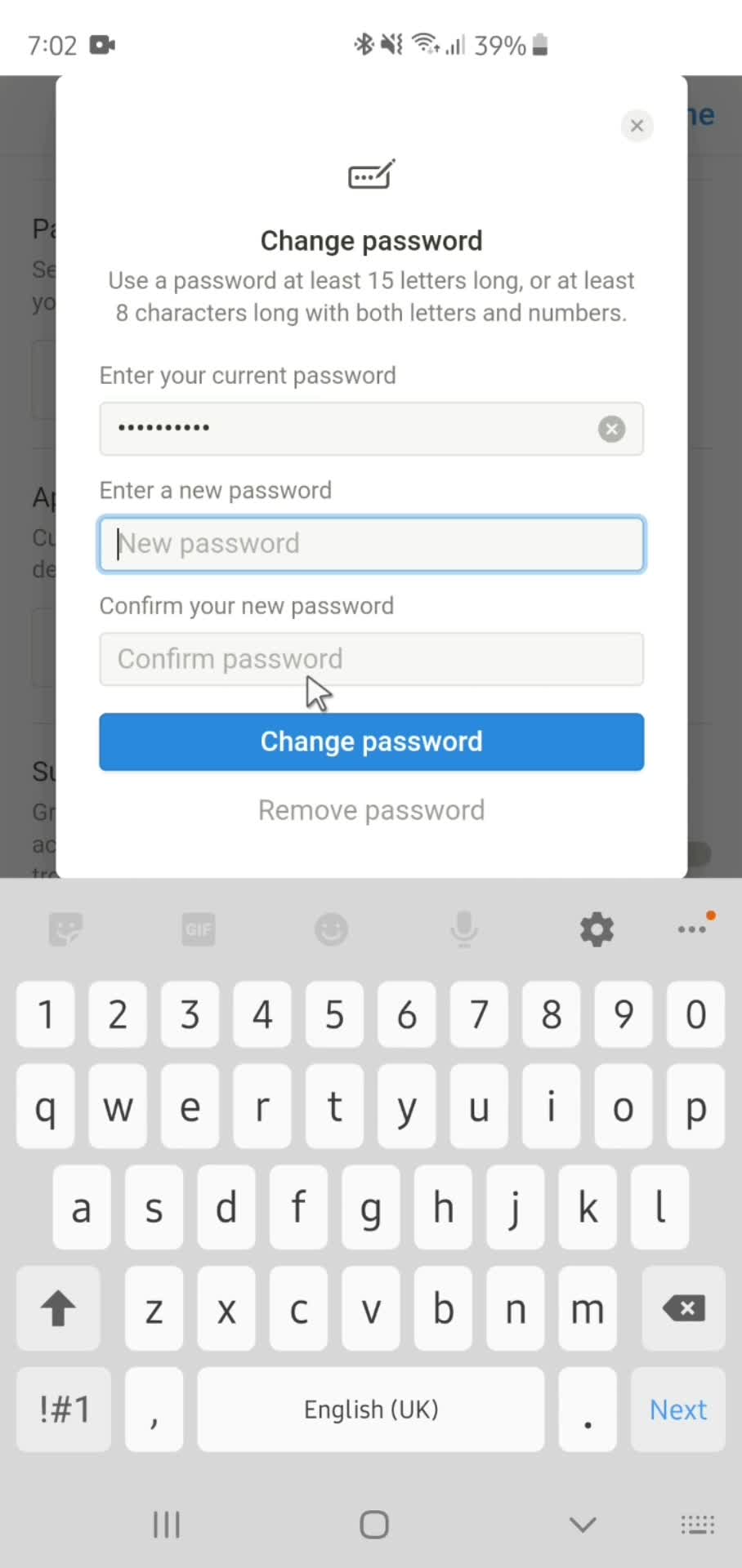
Change password
this is title
Set new password
this is title
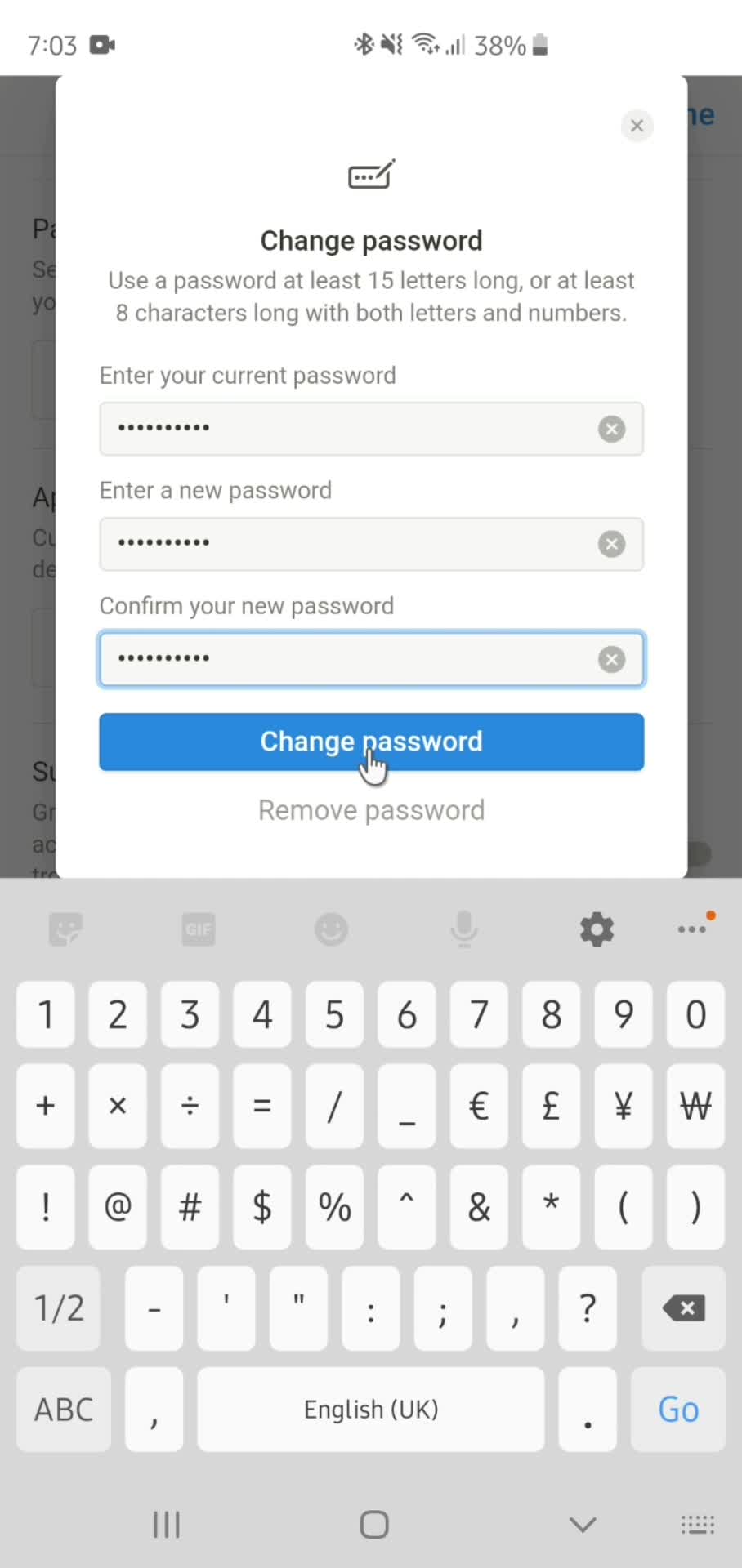
Confirm
this is title
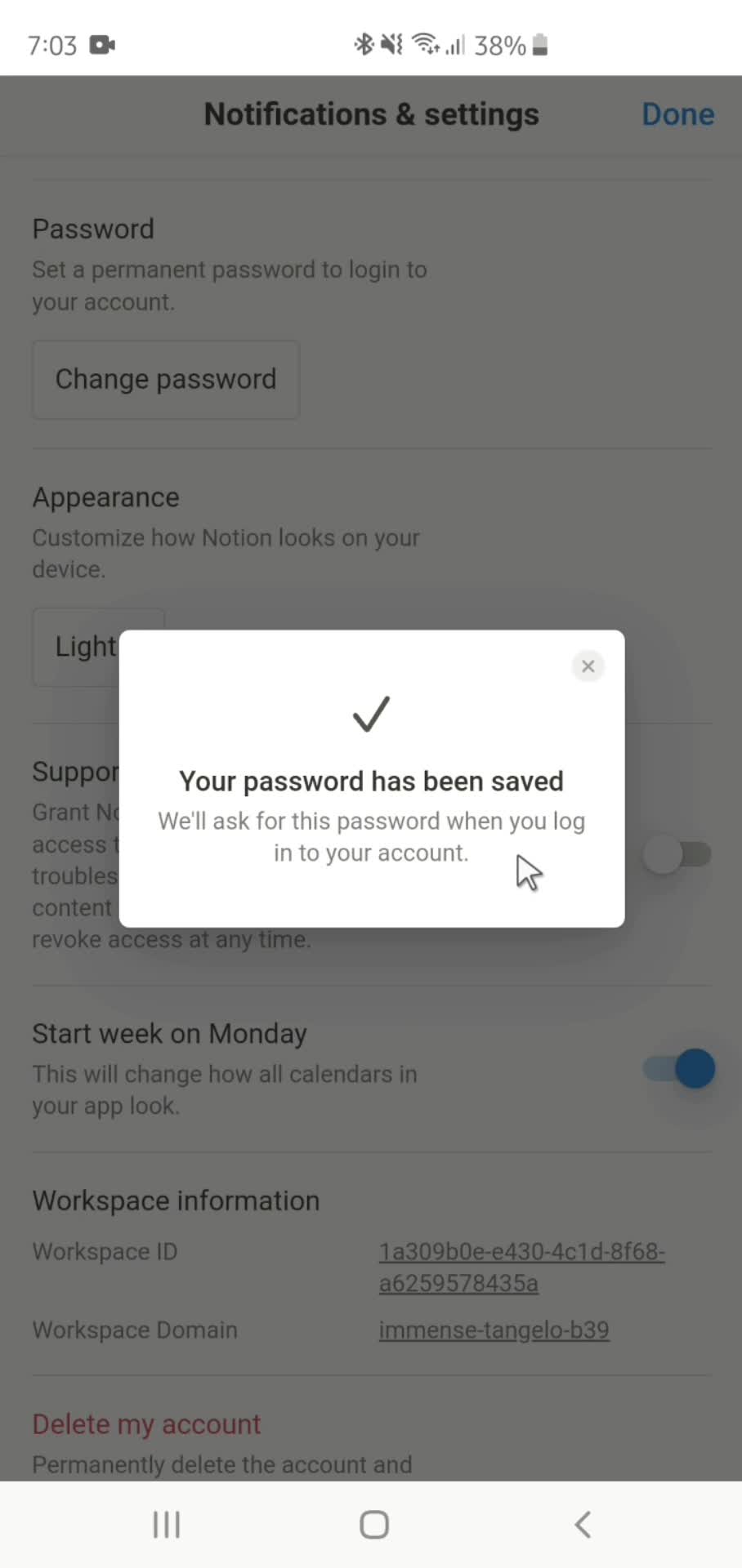
Password saved
this is title
Home
this is title
Create document
this is title
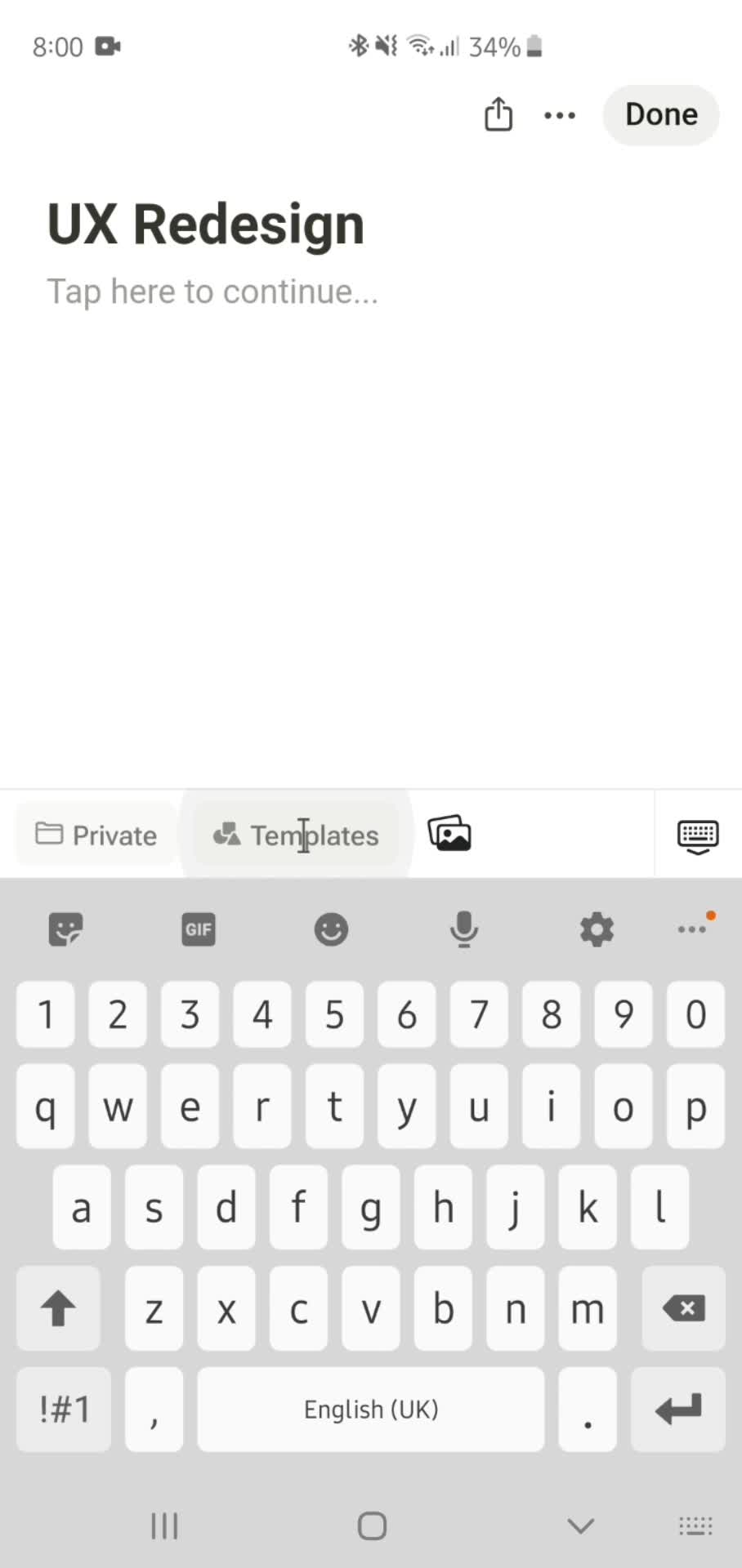
Set title
this is title
this is title
Use template
this is title
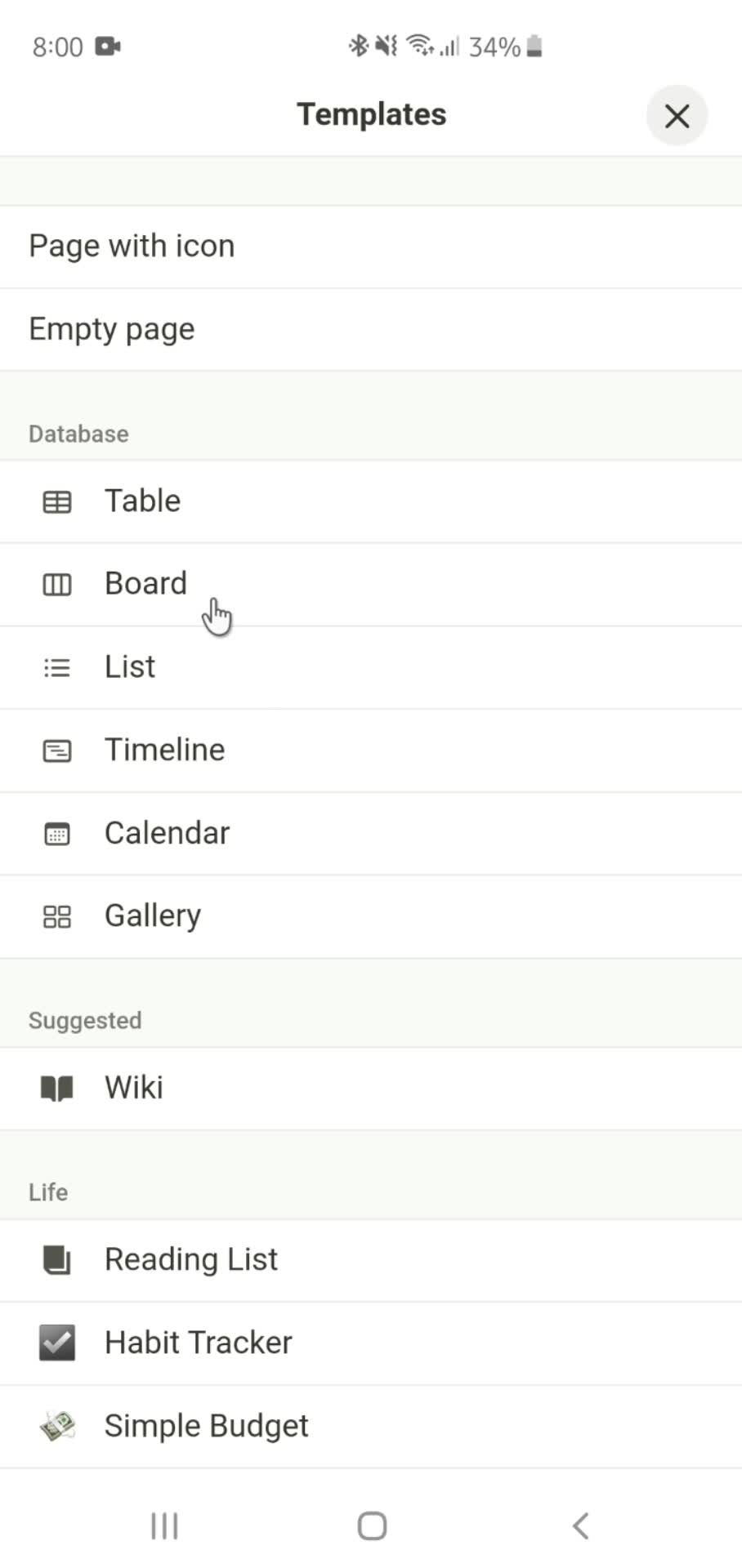
Select template
this is title
View
this is title
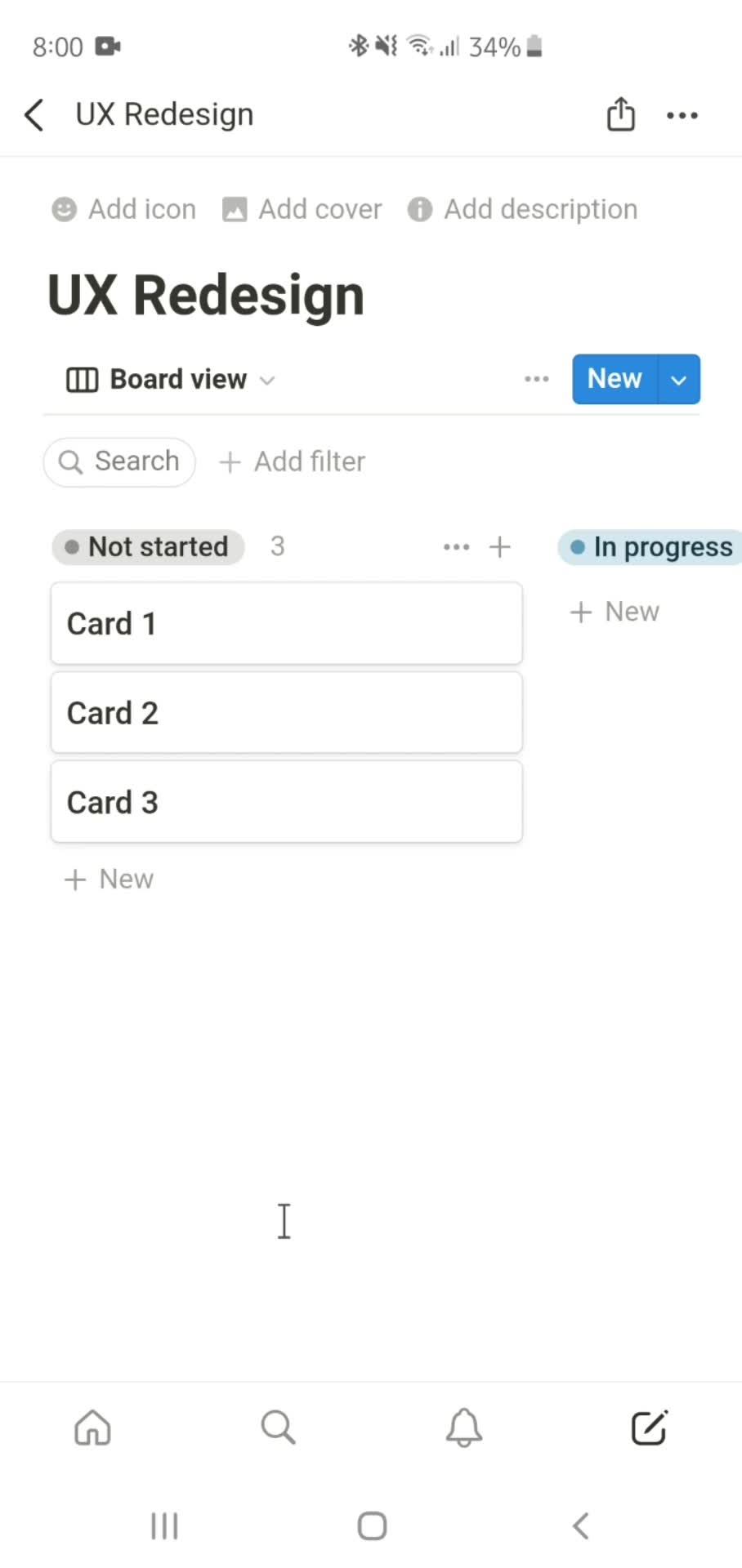
Created
this is title
Home
this is title
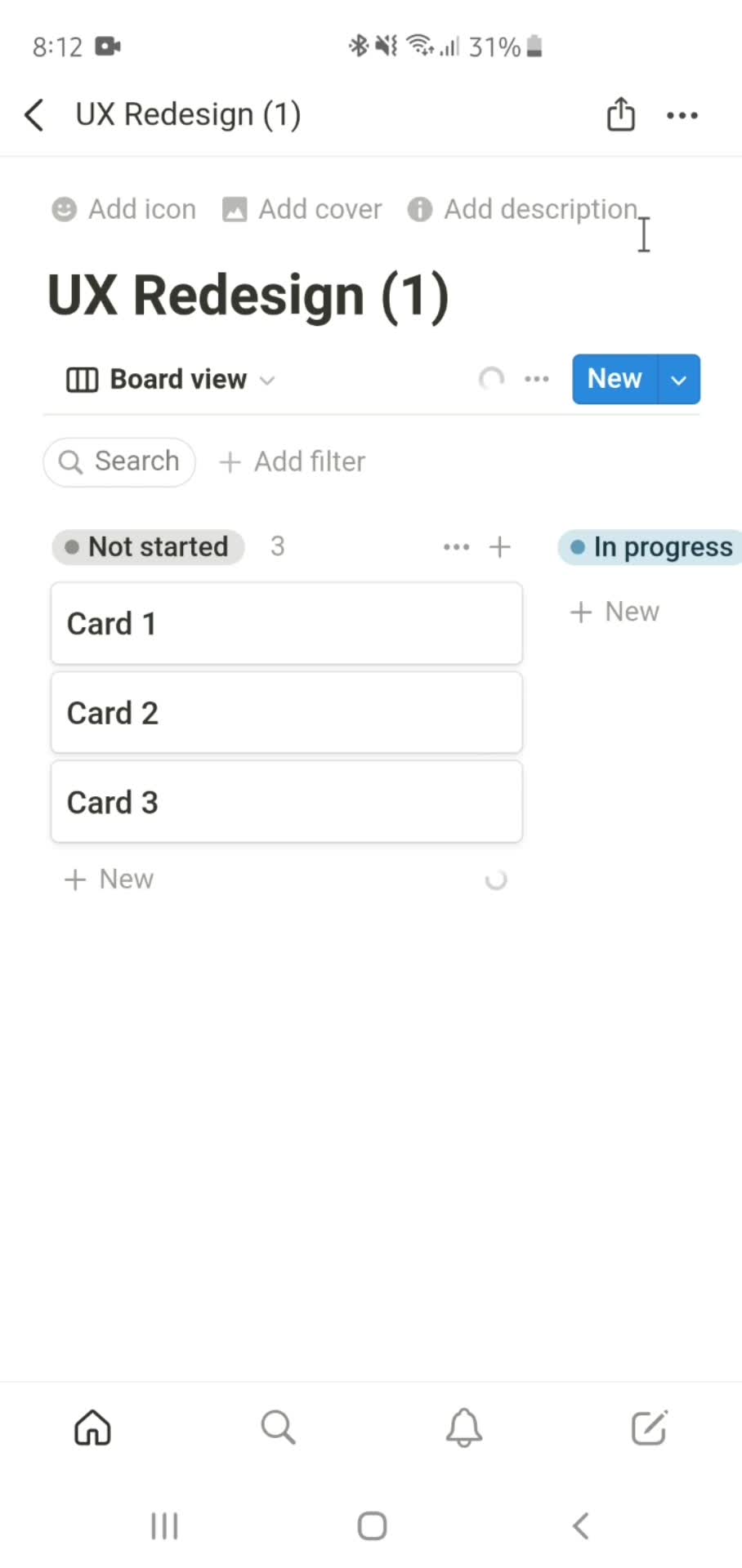
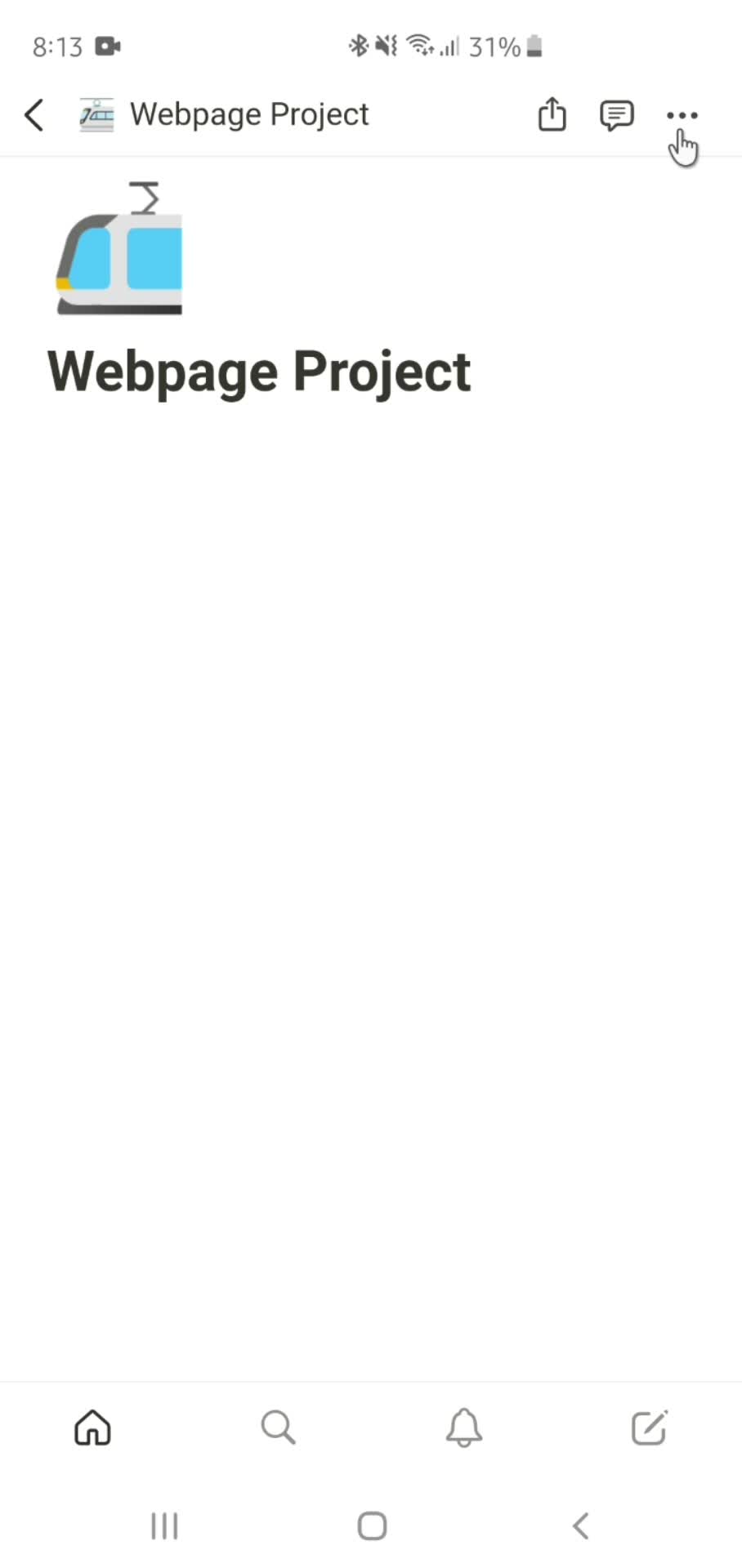
Document
this is title
View
this is title
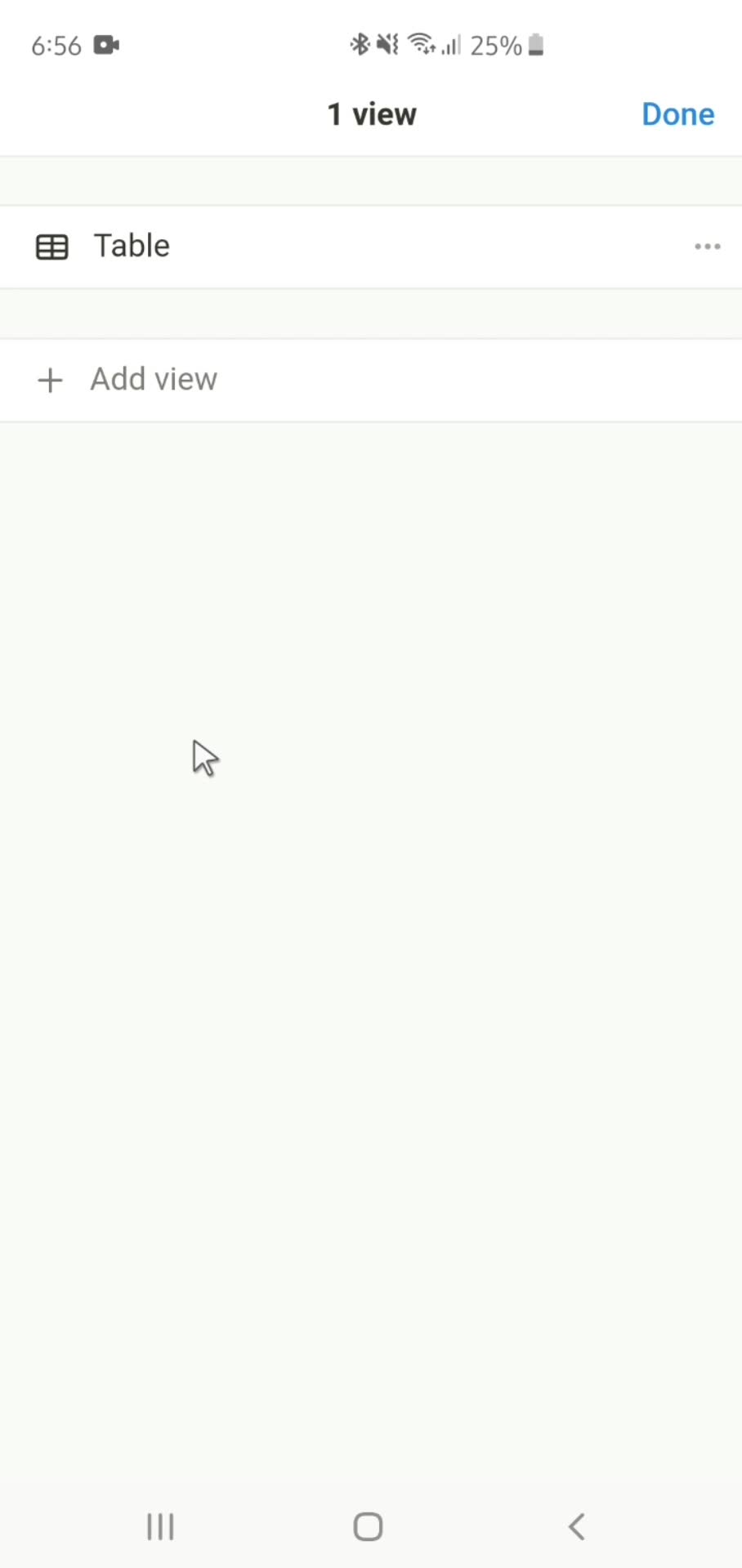
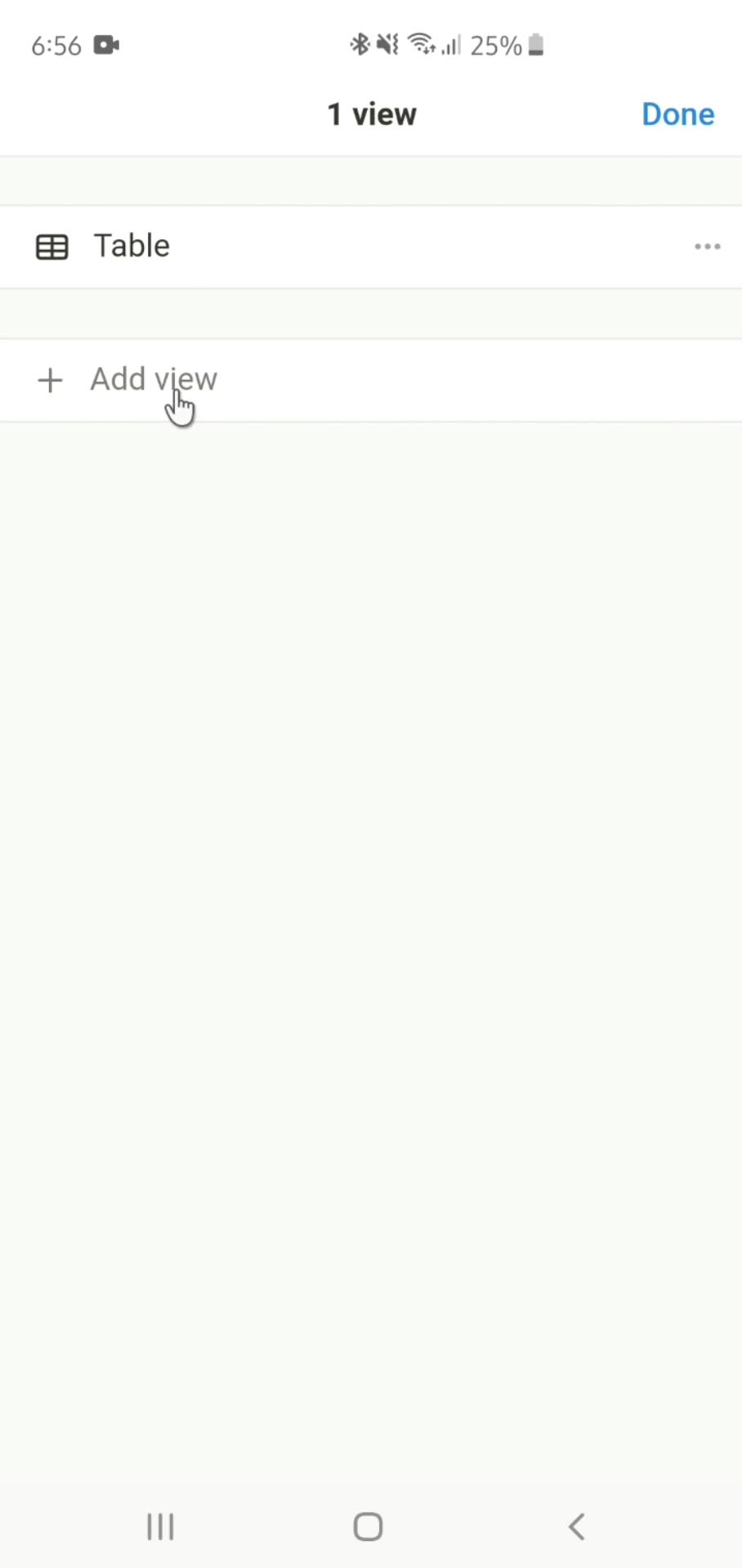
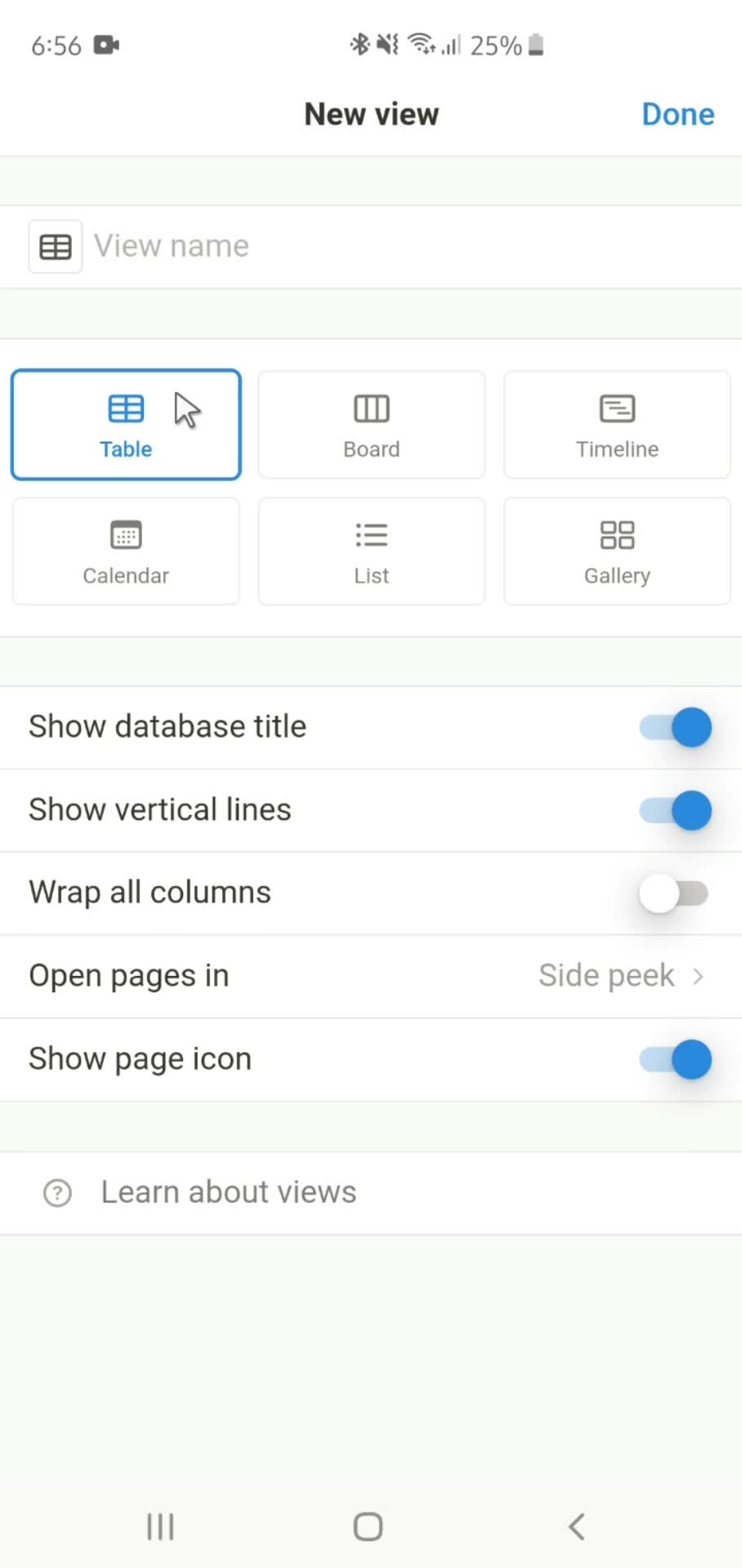
Add view
this is title
Create view
this is title
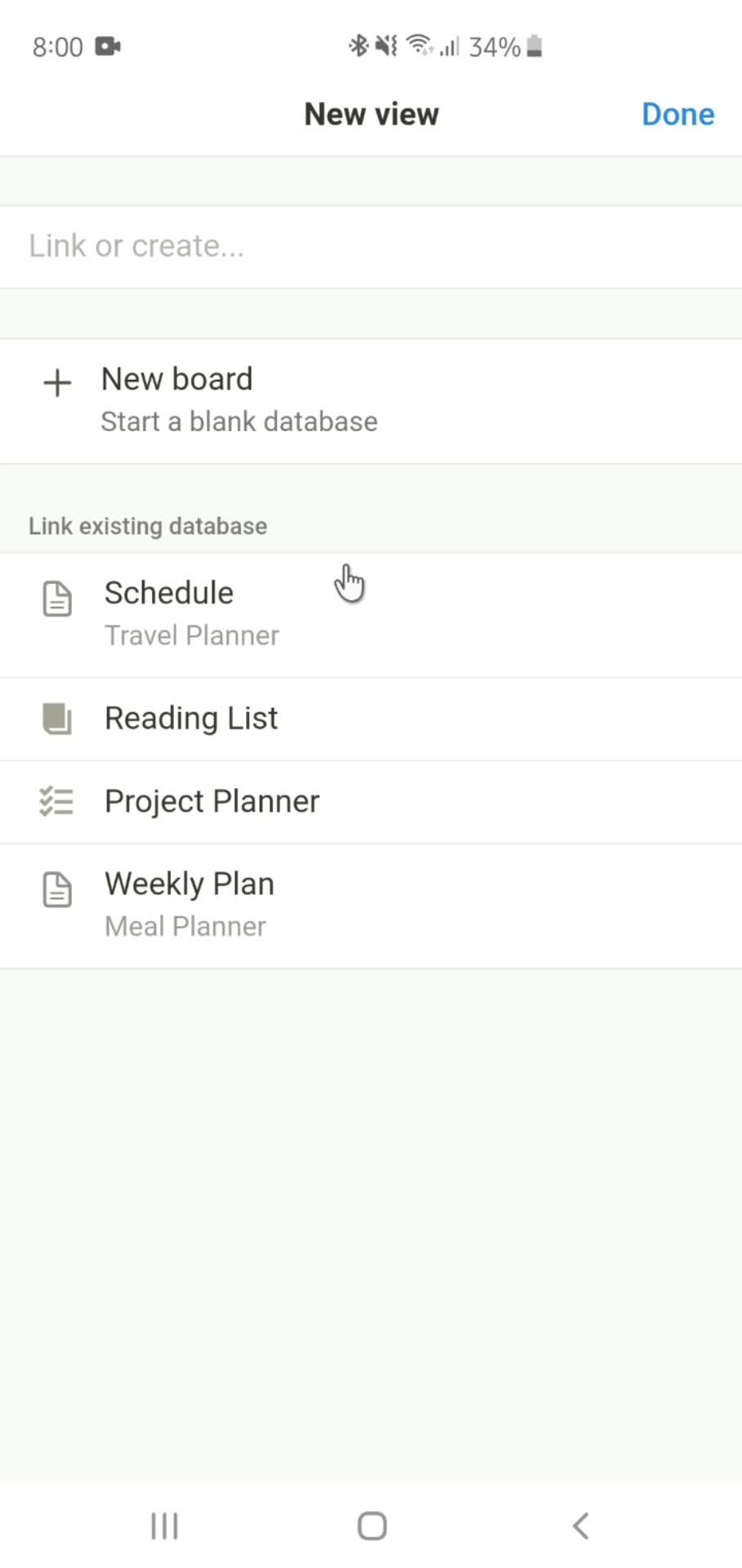
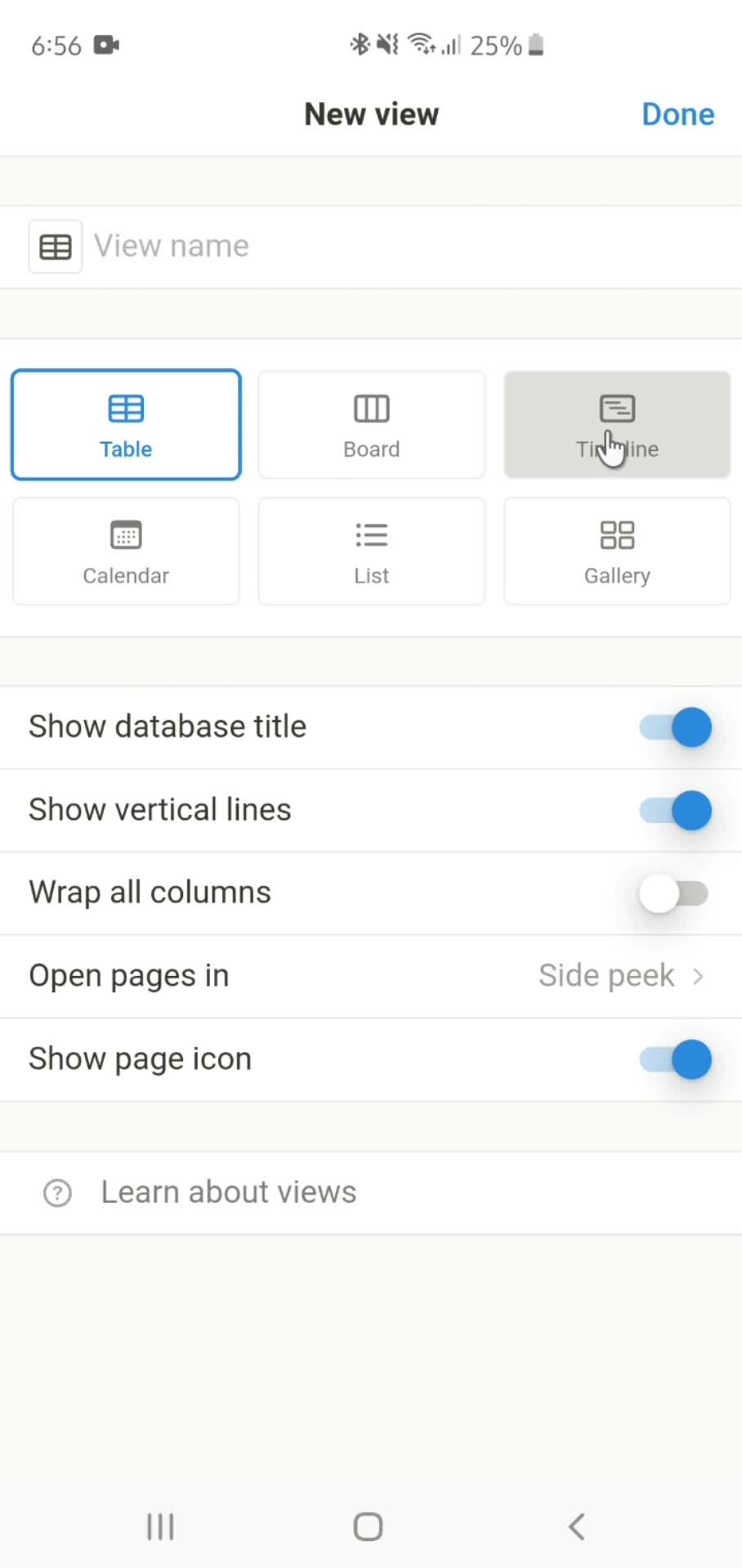
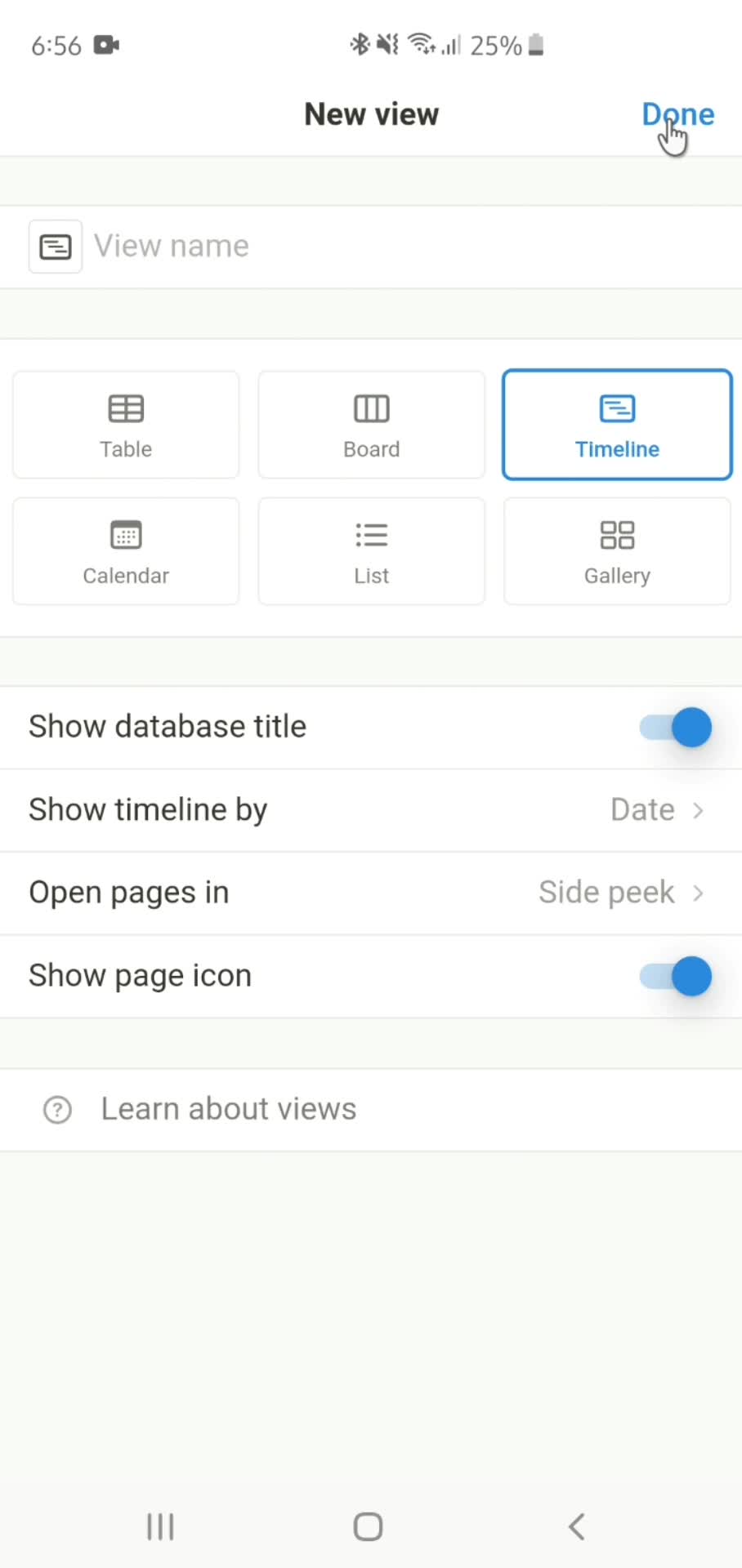
Select view
this is title
Done
this is title
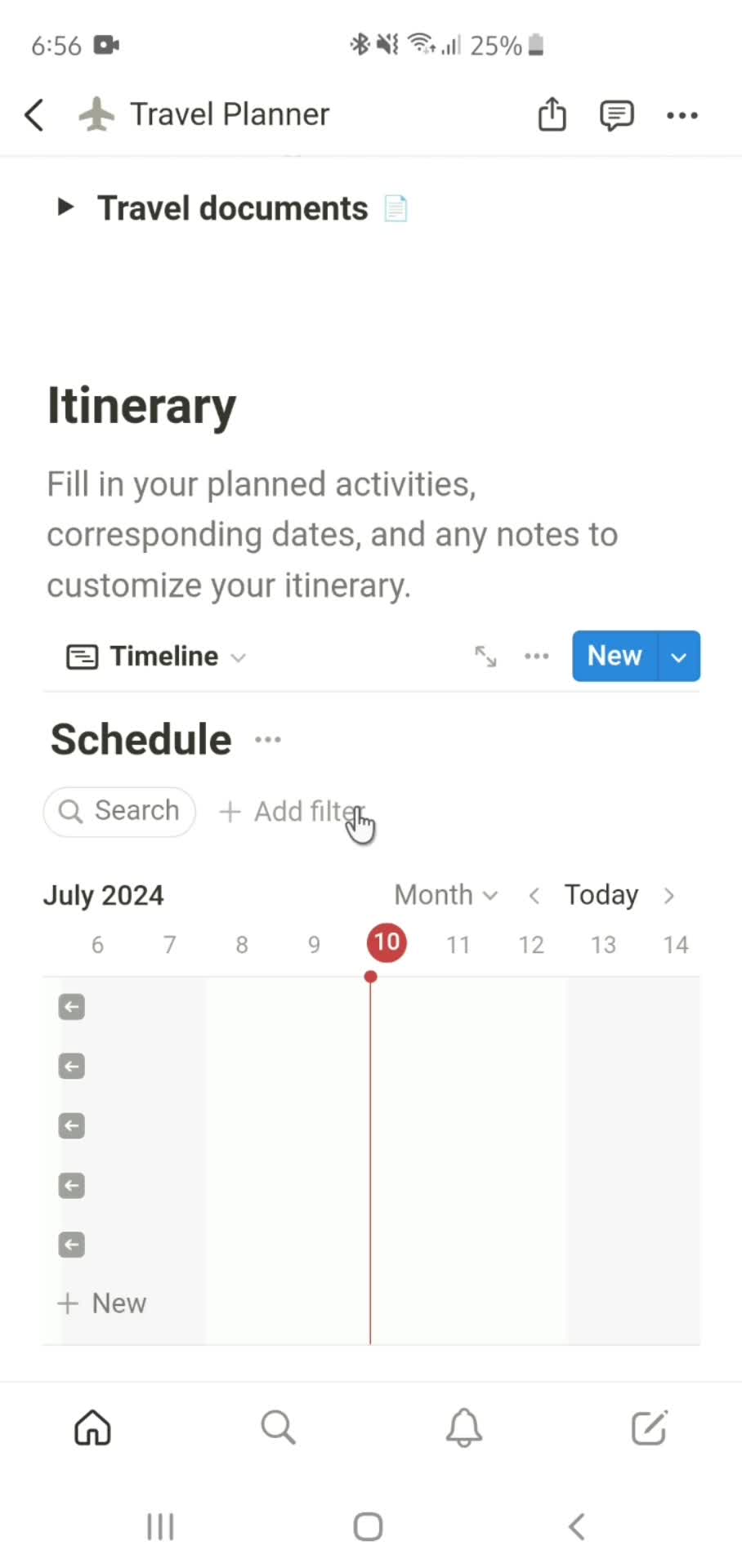
View created
this is title
Home
this is title
Document
this is title
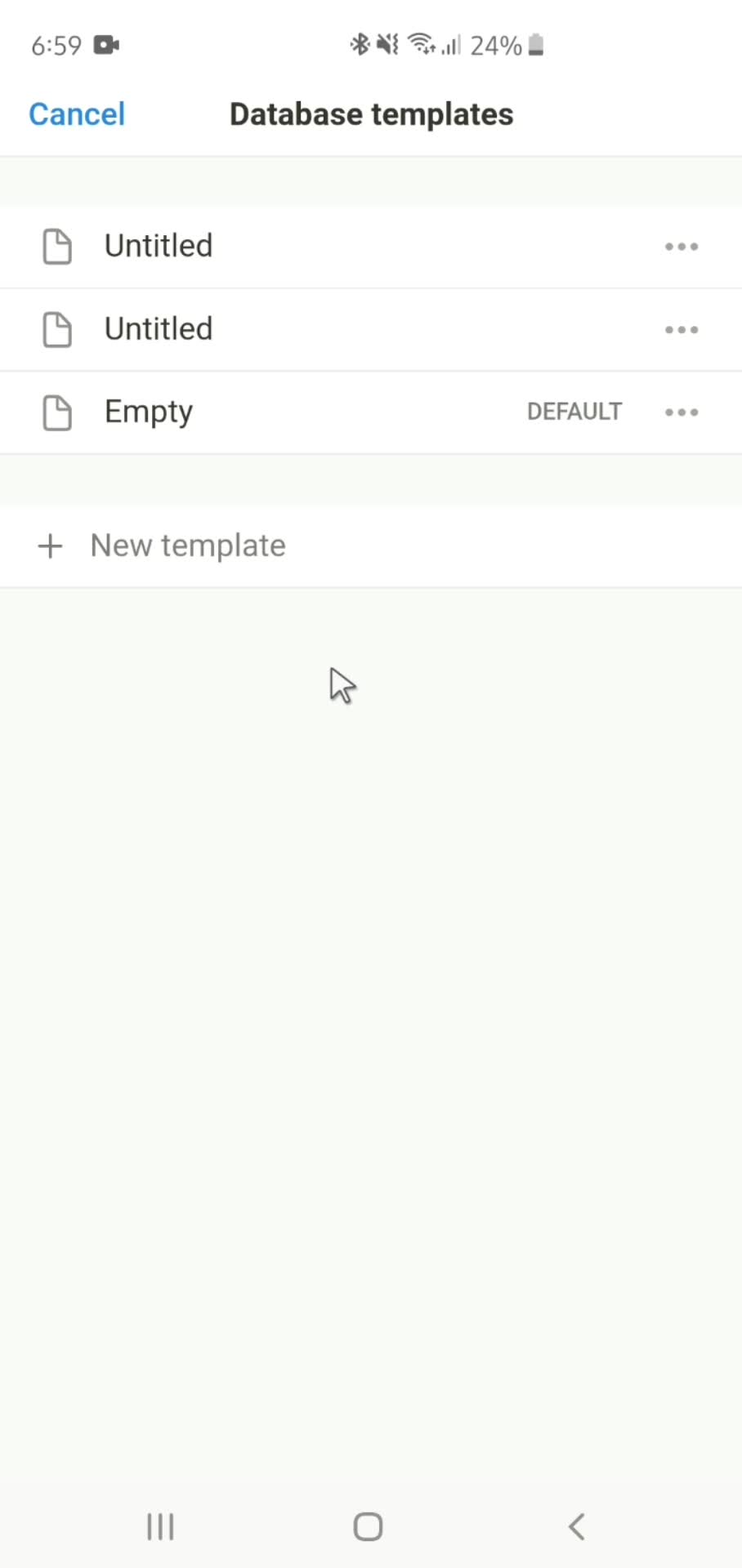
Templates
this is title
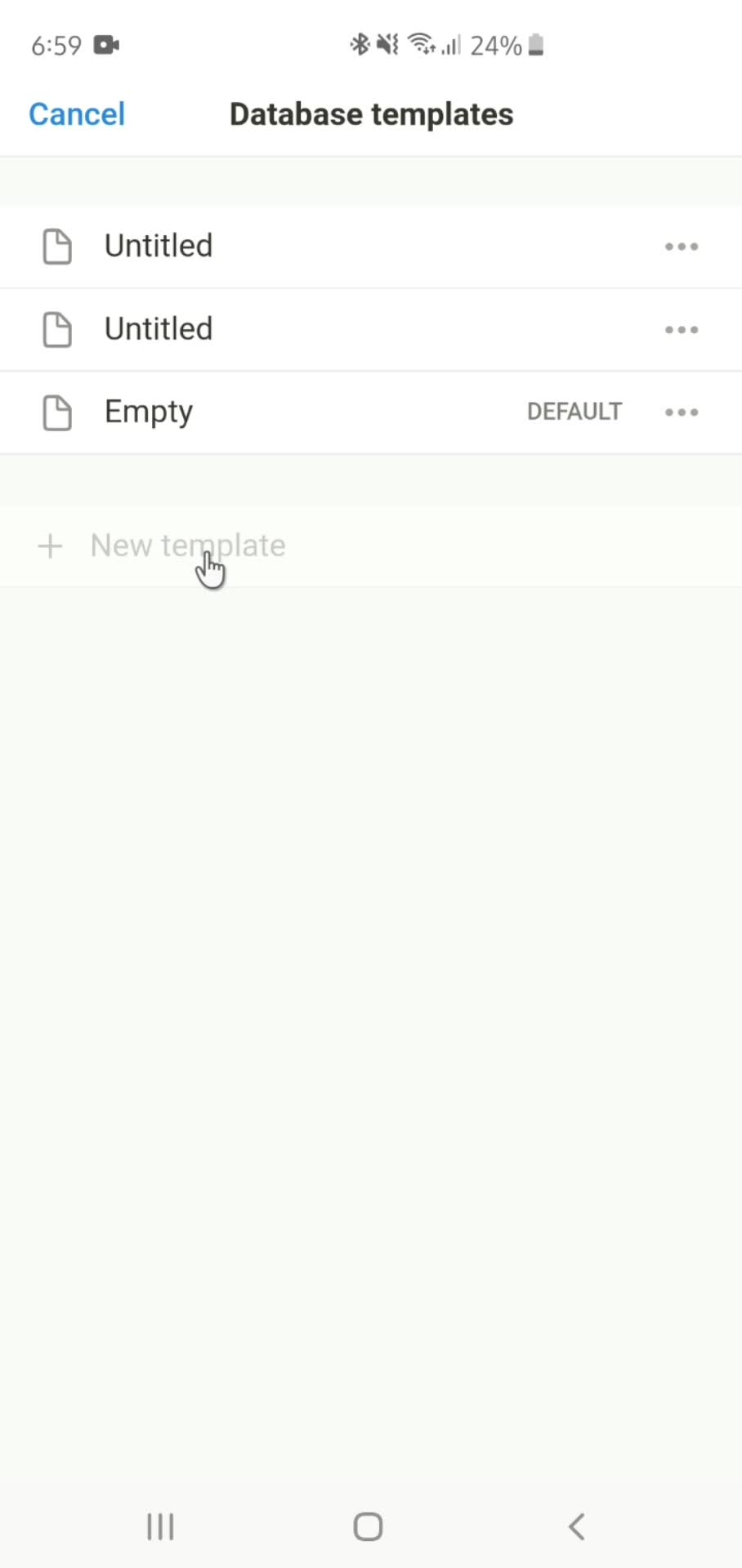
Create template
this is title
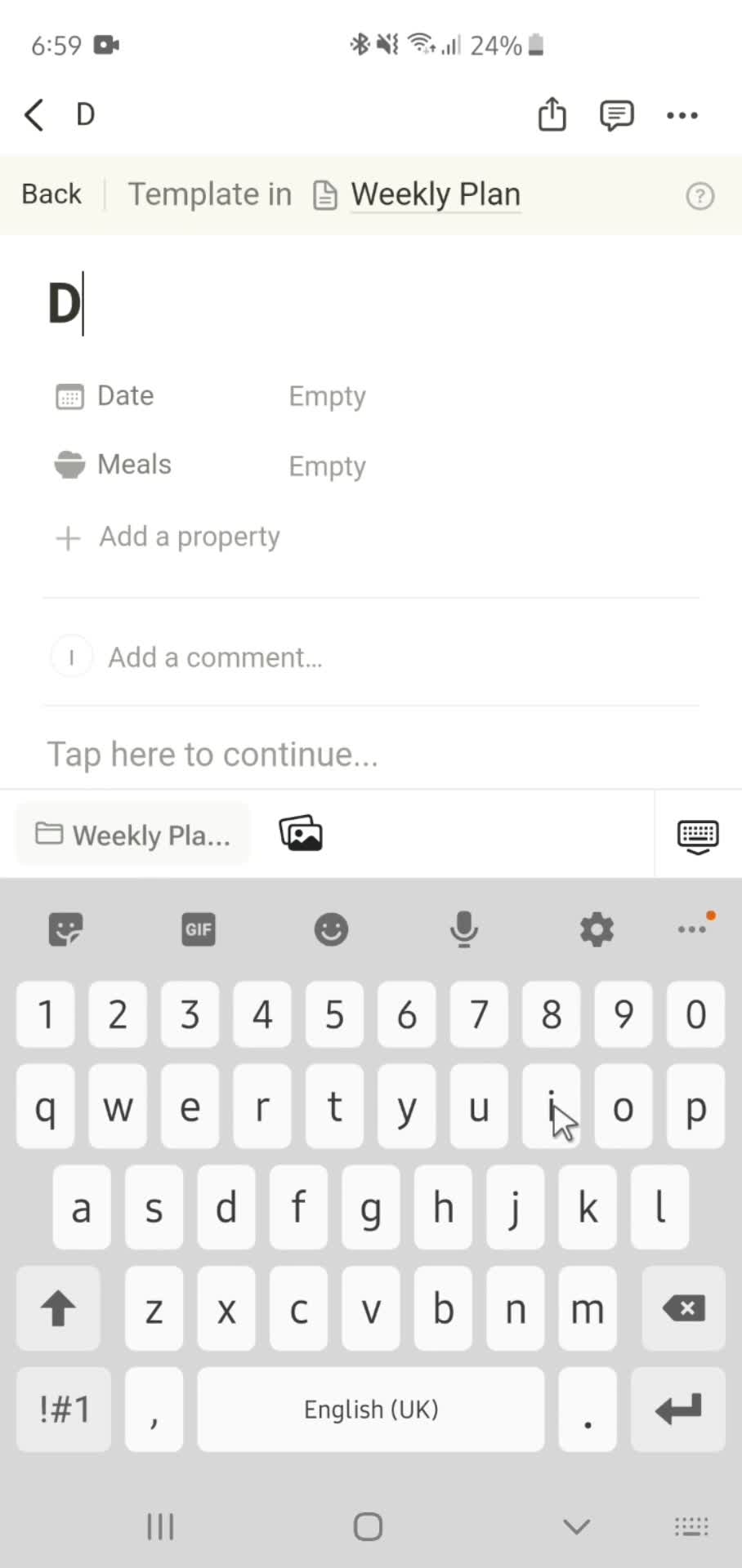
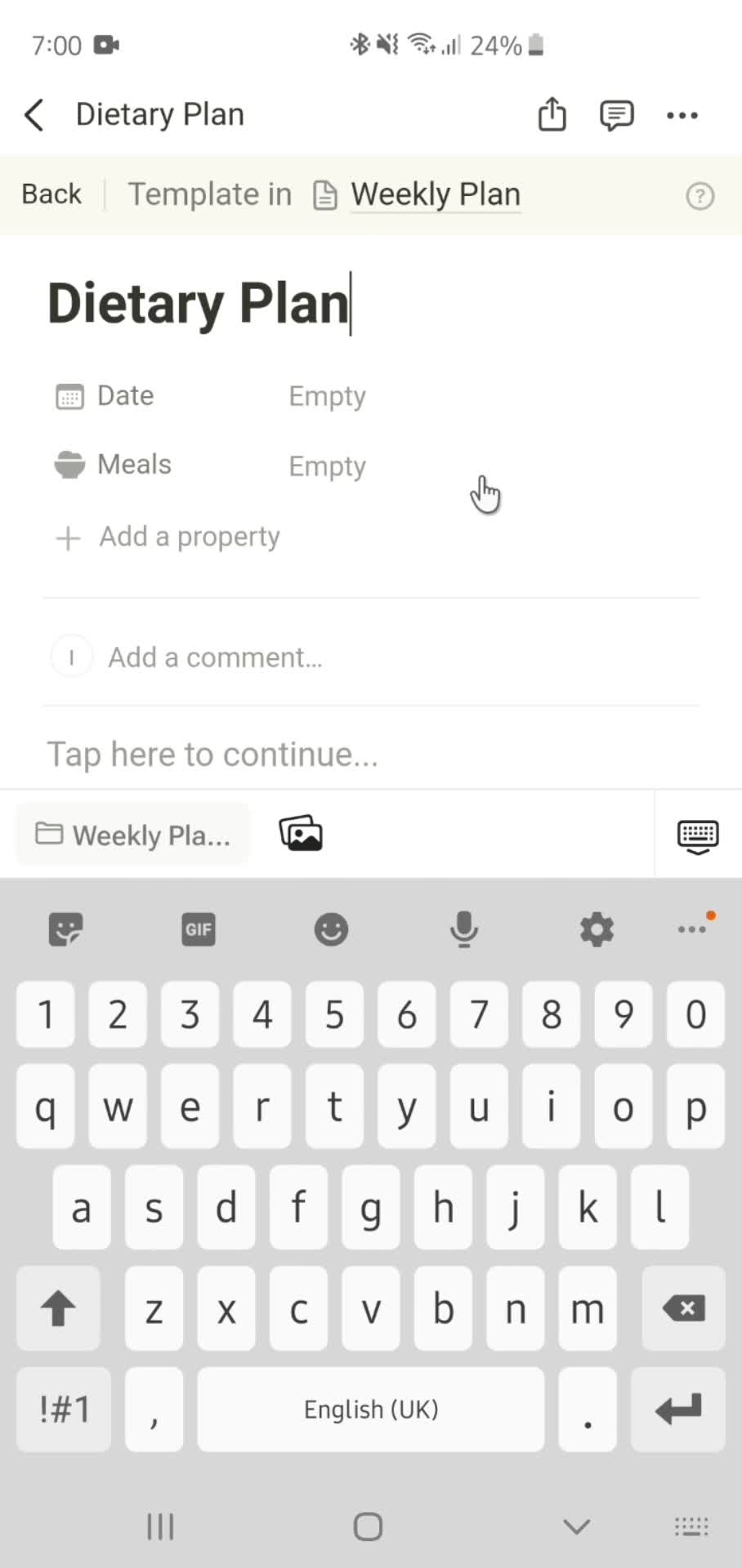
Enter name
this is title
this is title
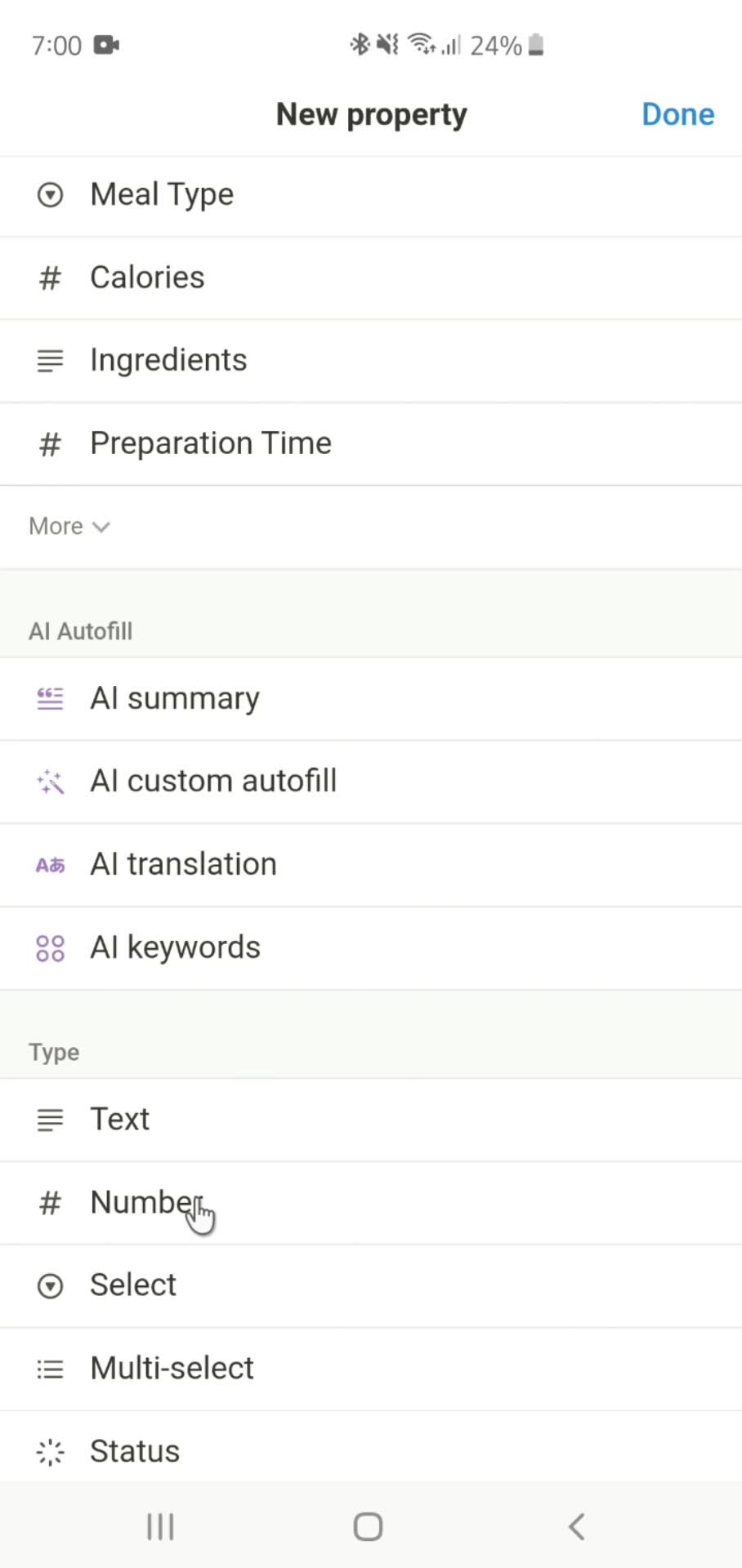
Add property
this is title
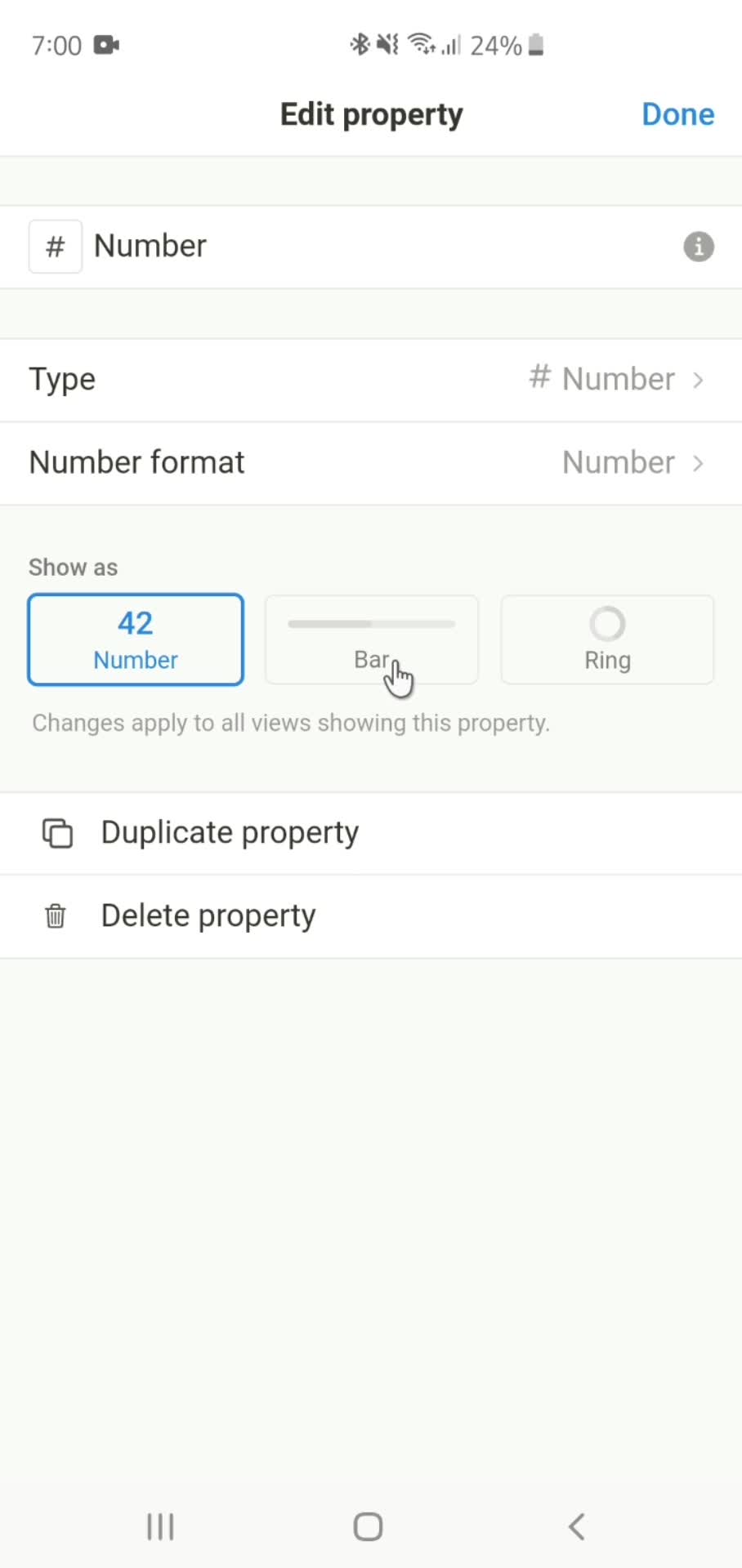
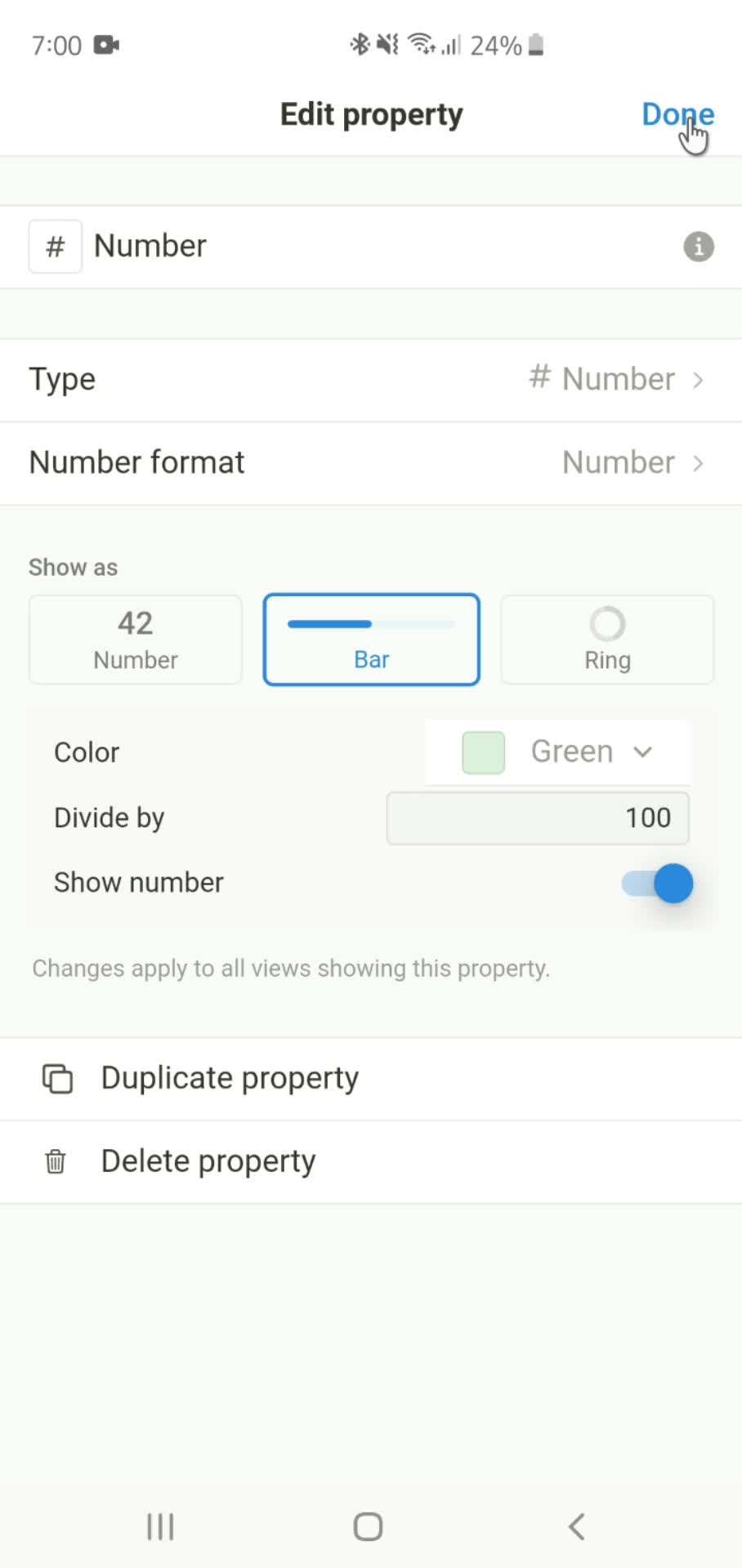
Edit properties
this is title
Done
this is title
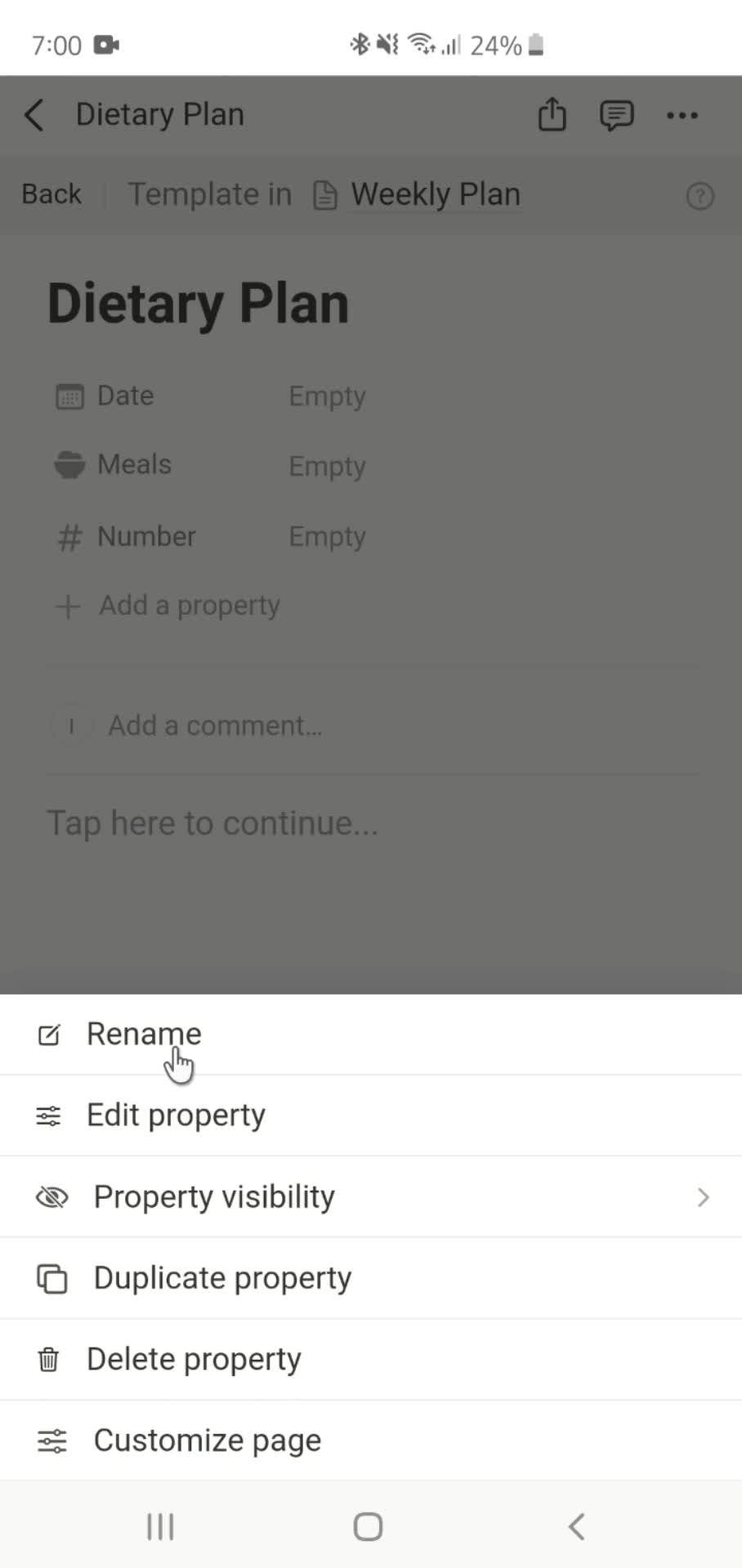
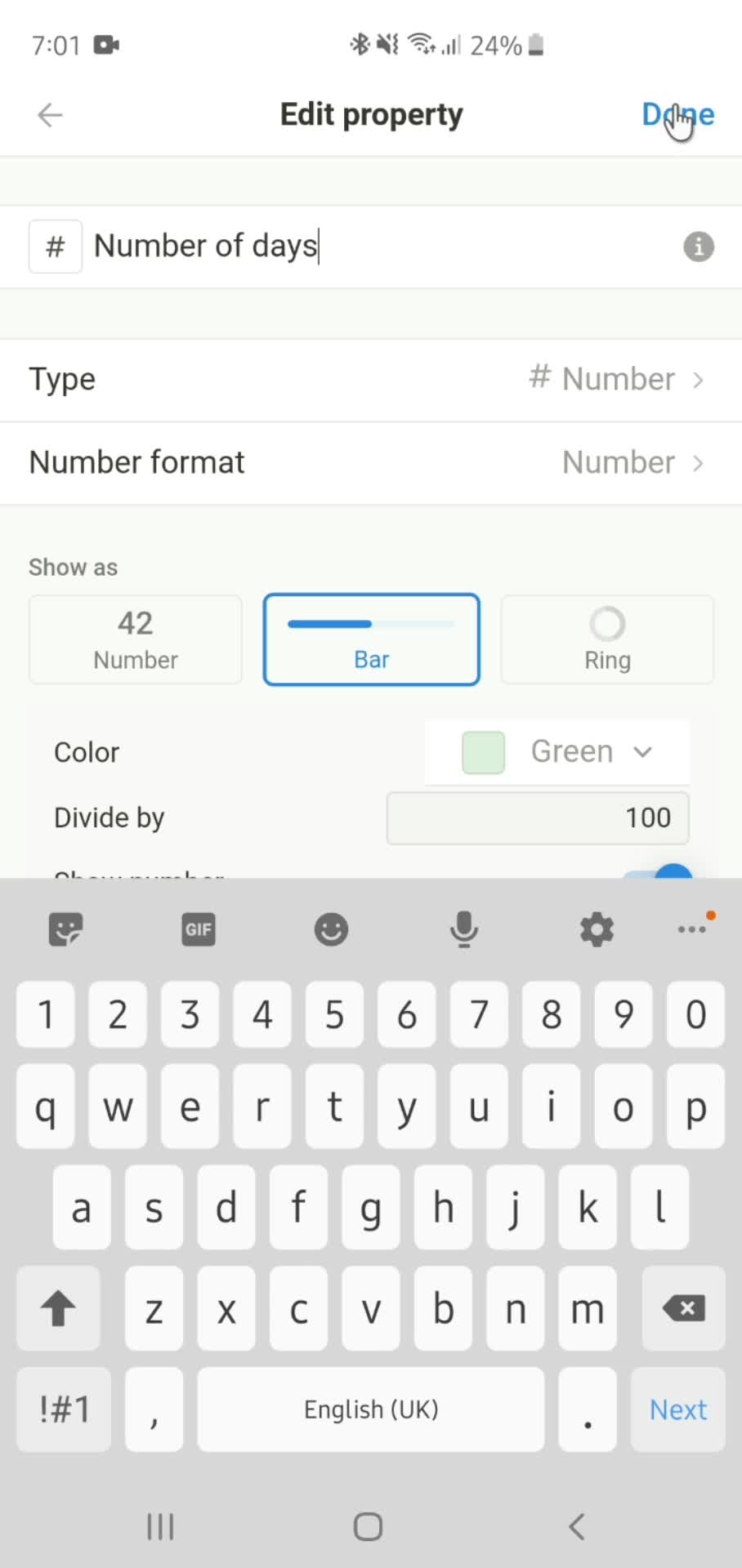
Rename
this is title
this is title
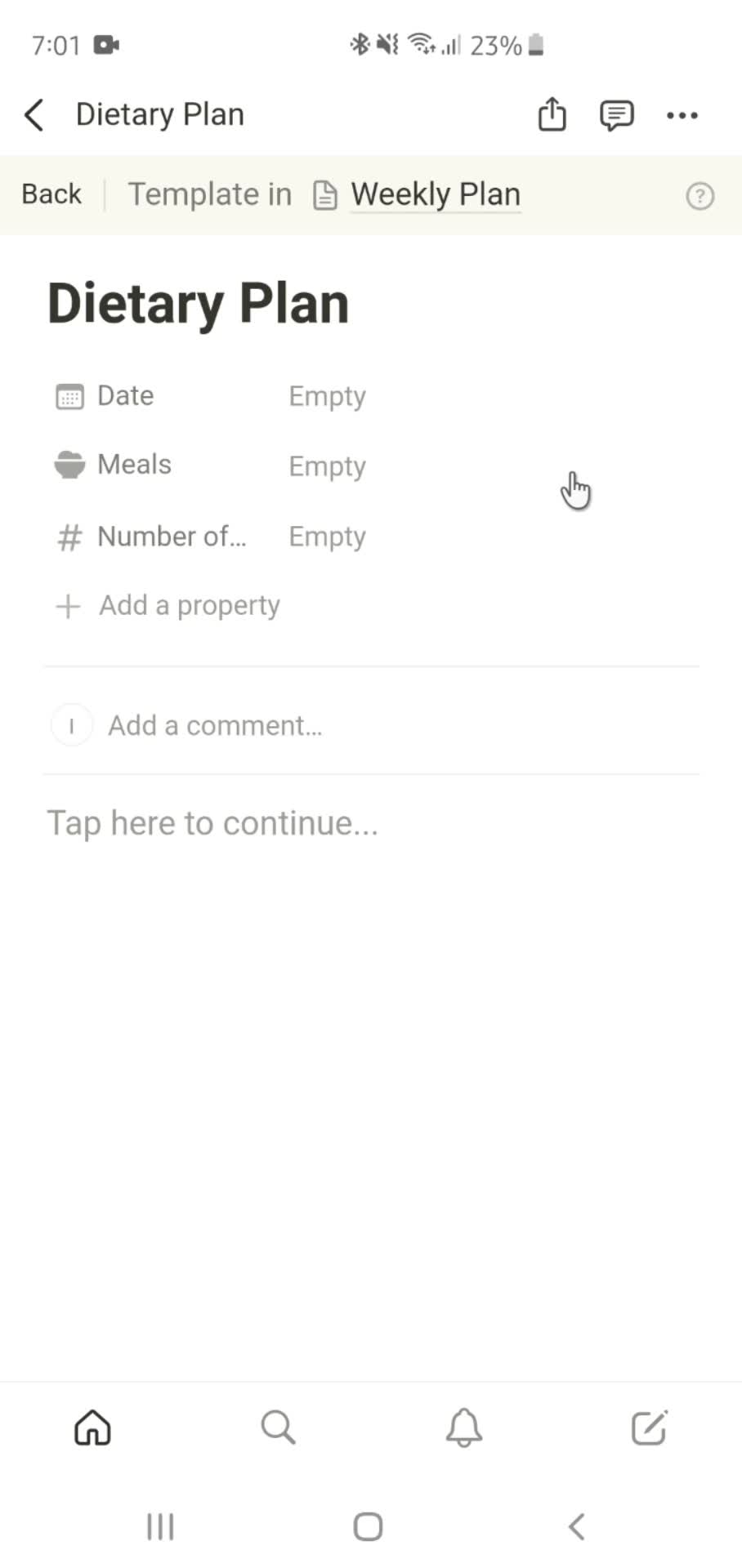
Template created
this is title
Home
this is title
Document
this is title
Action menu
this is title
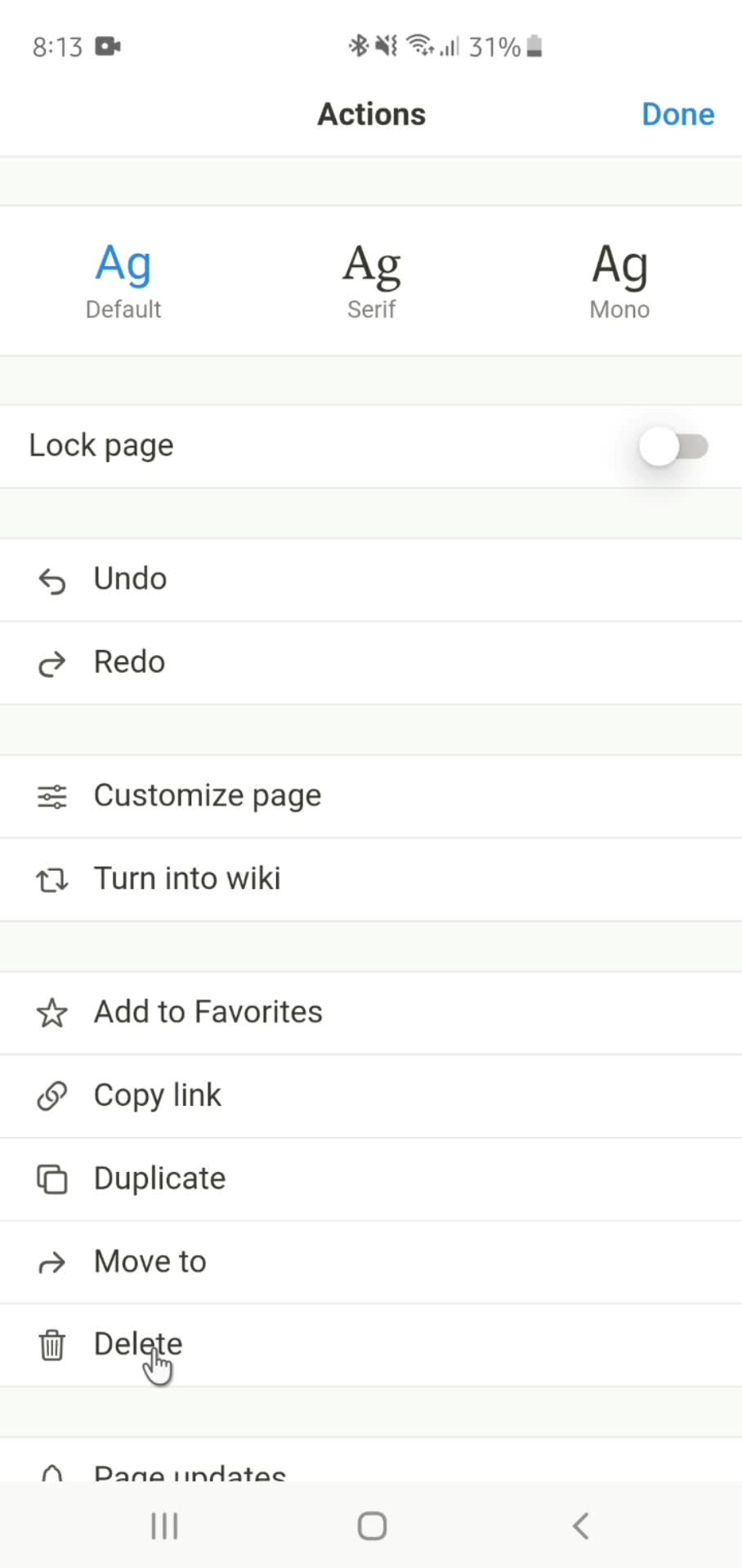
Delete
this is title
Home
this is title
Document
this is title
Action menu
this is title
Delete
this is title
Home
this is title
Action menu
this is title
Settings
this is title
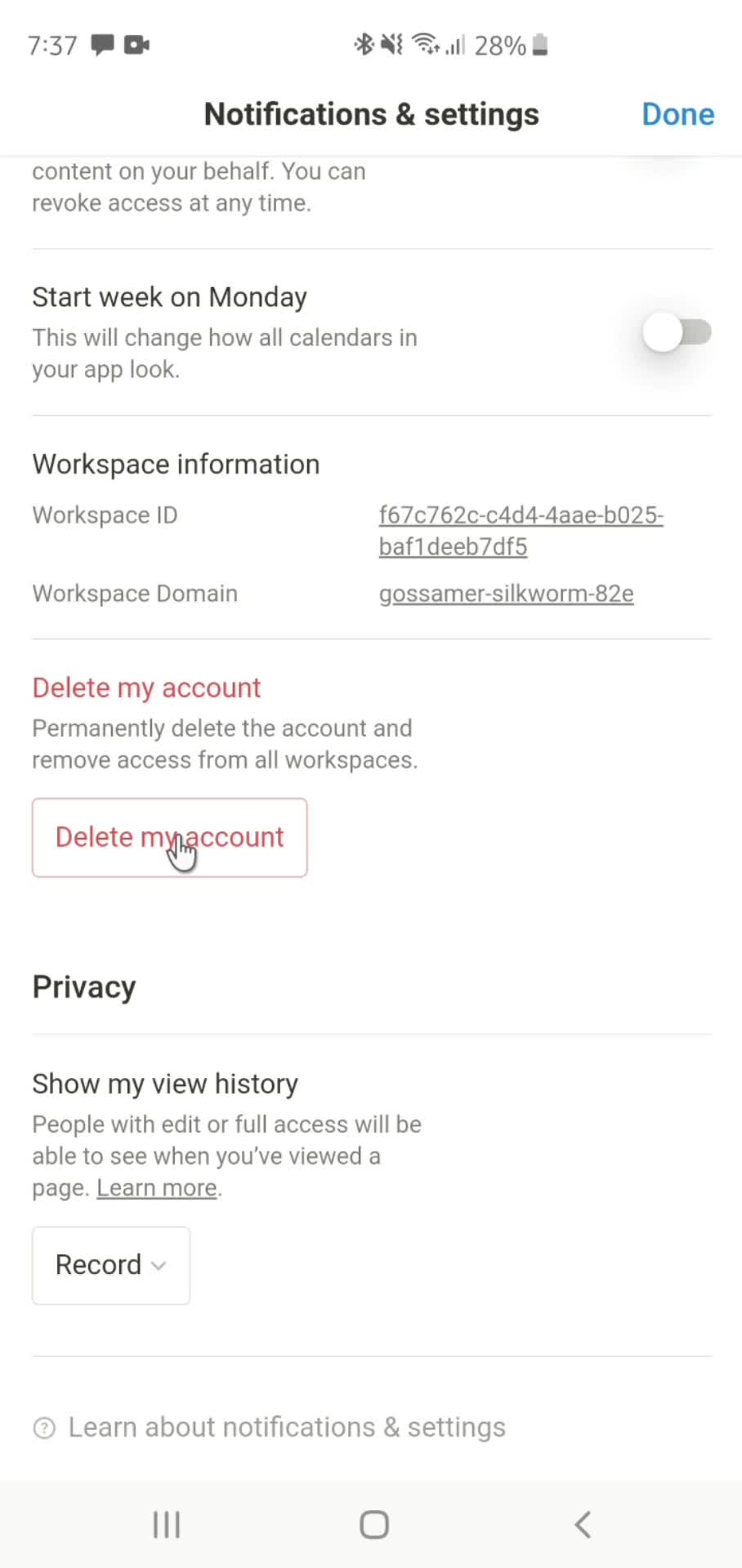
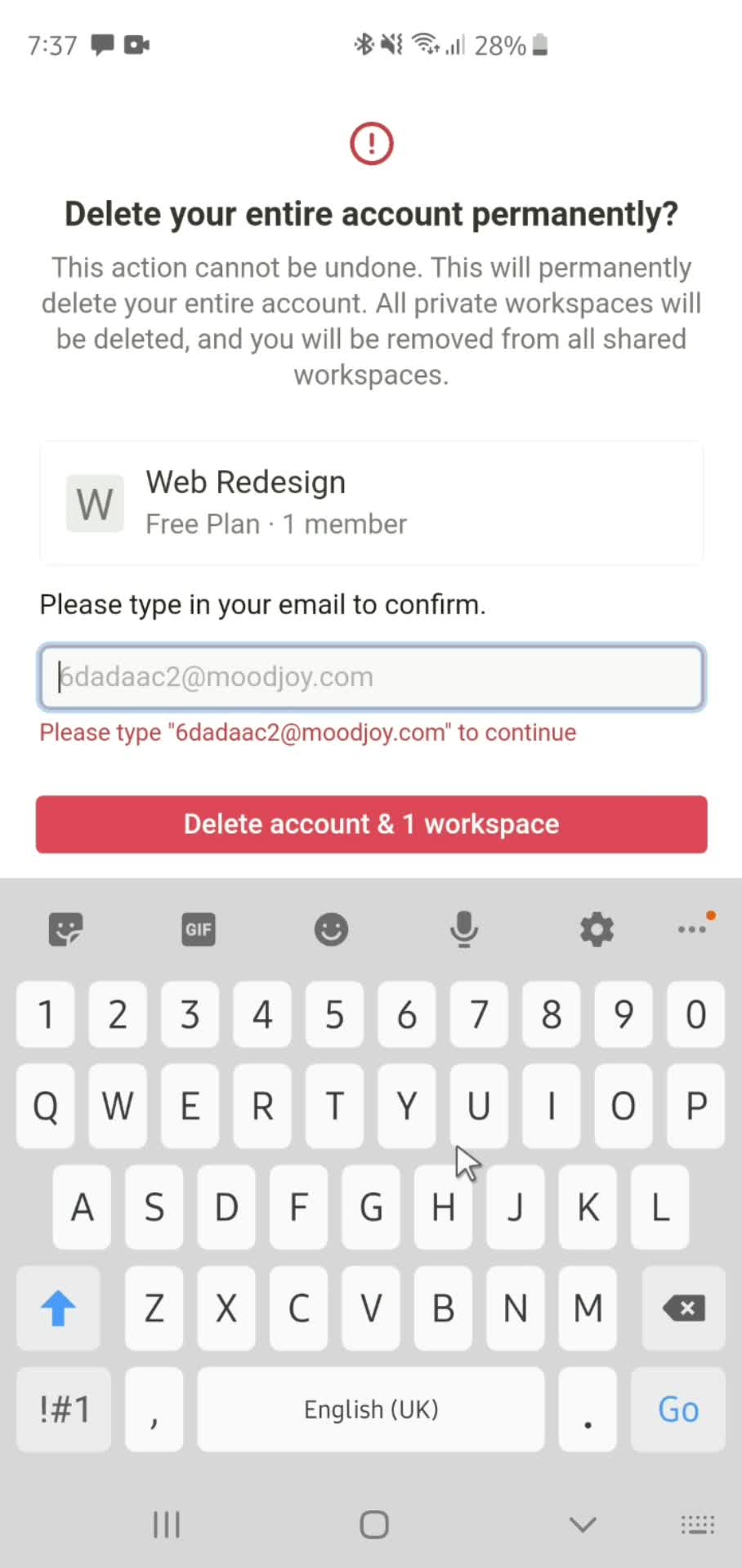
Delete account
this is title
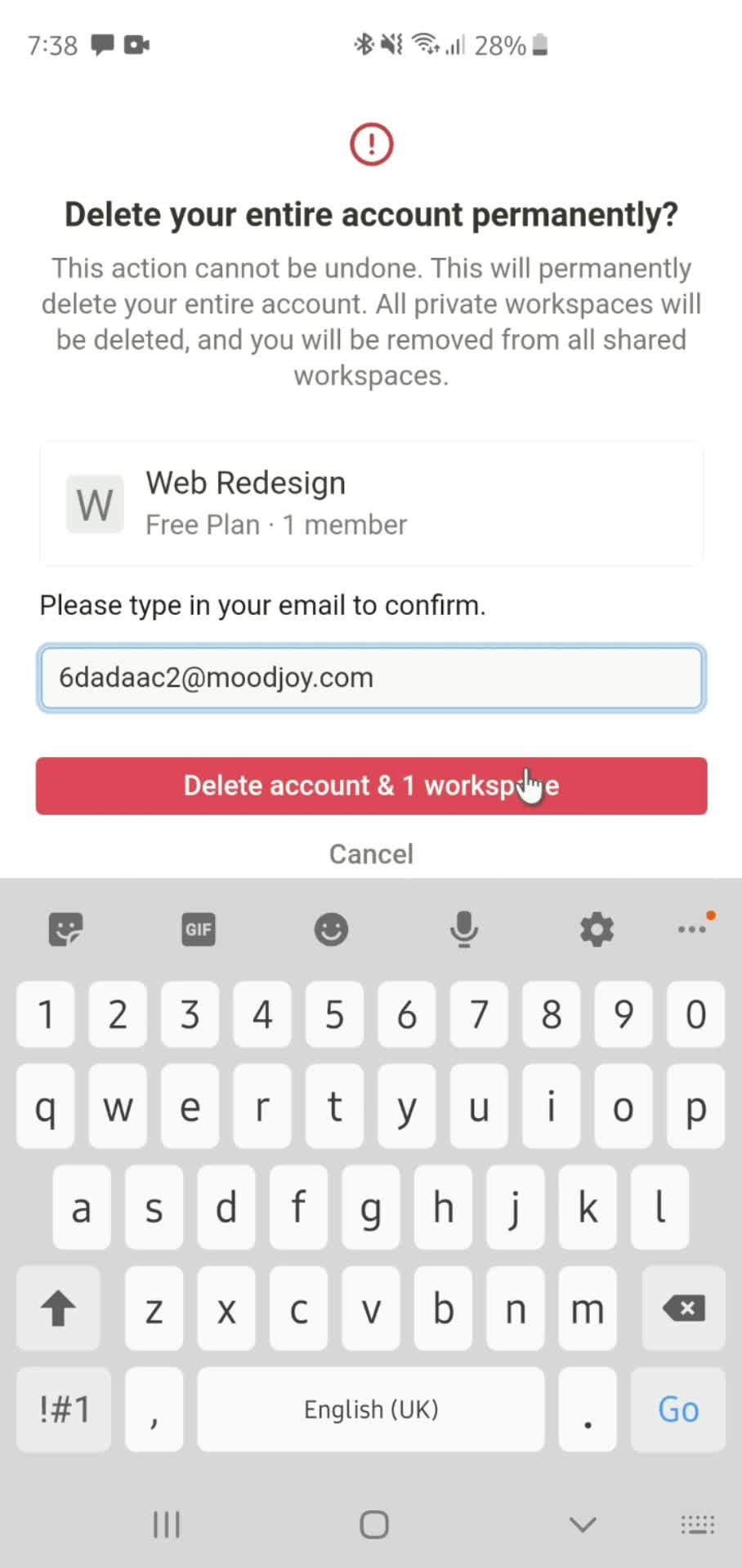
Enter email
this is title
this is title
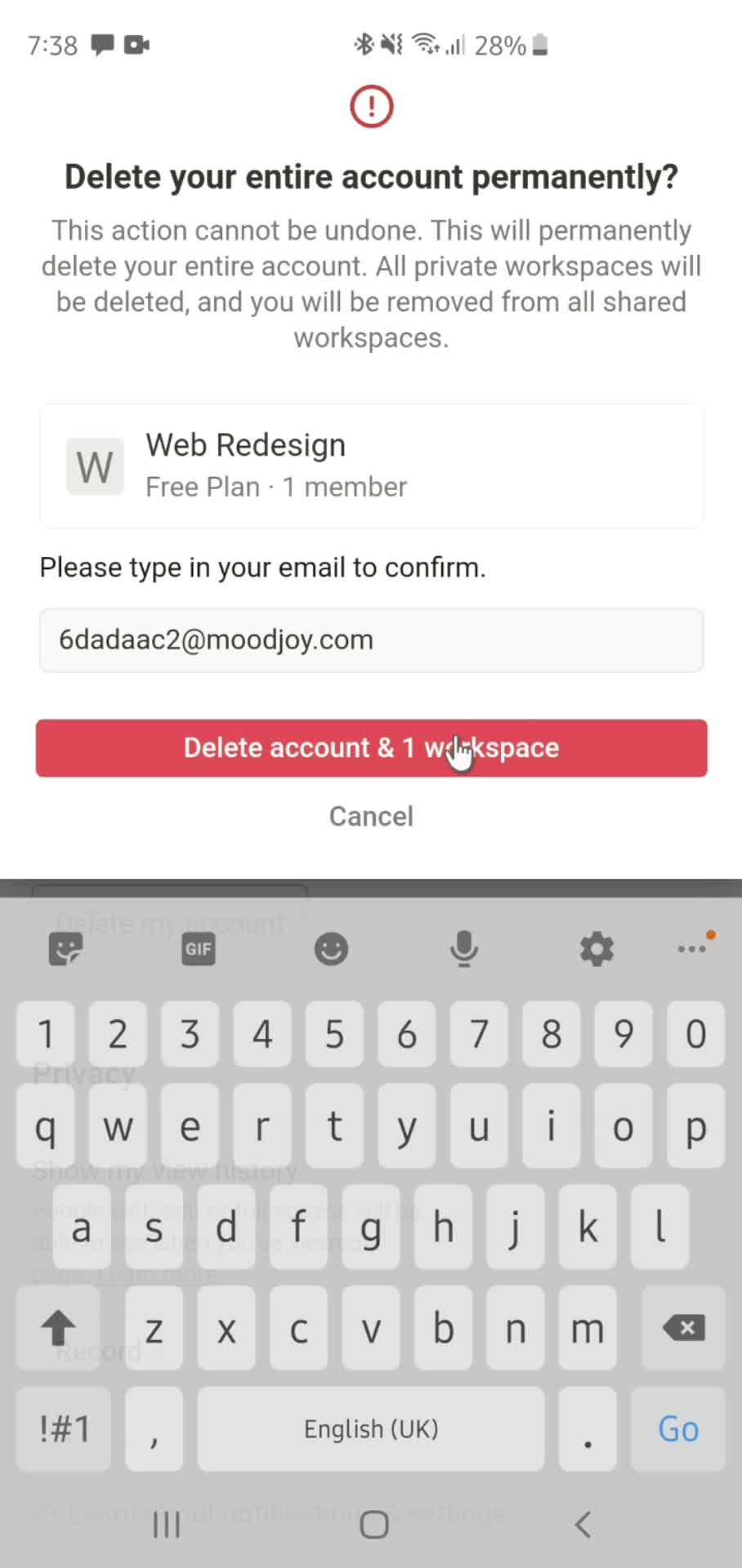
Confirm delete
this is title
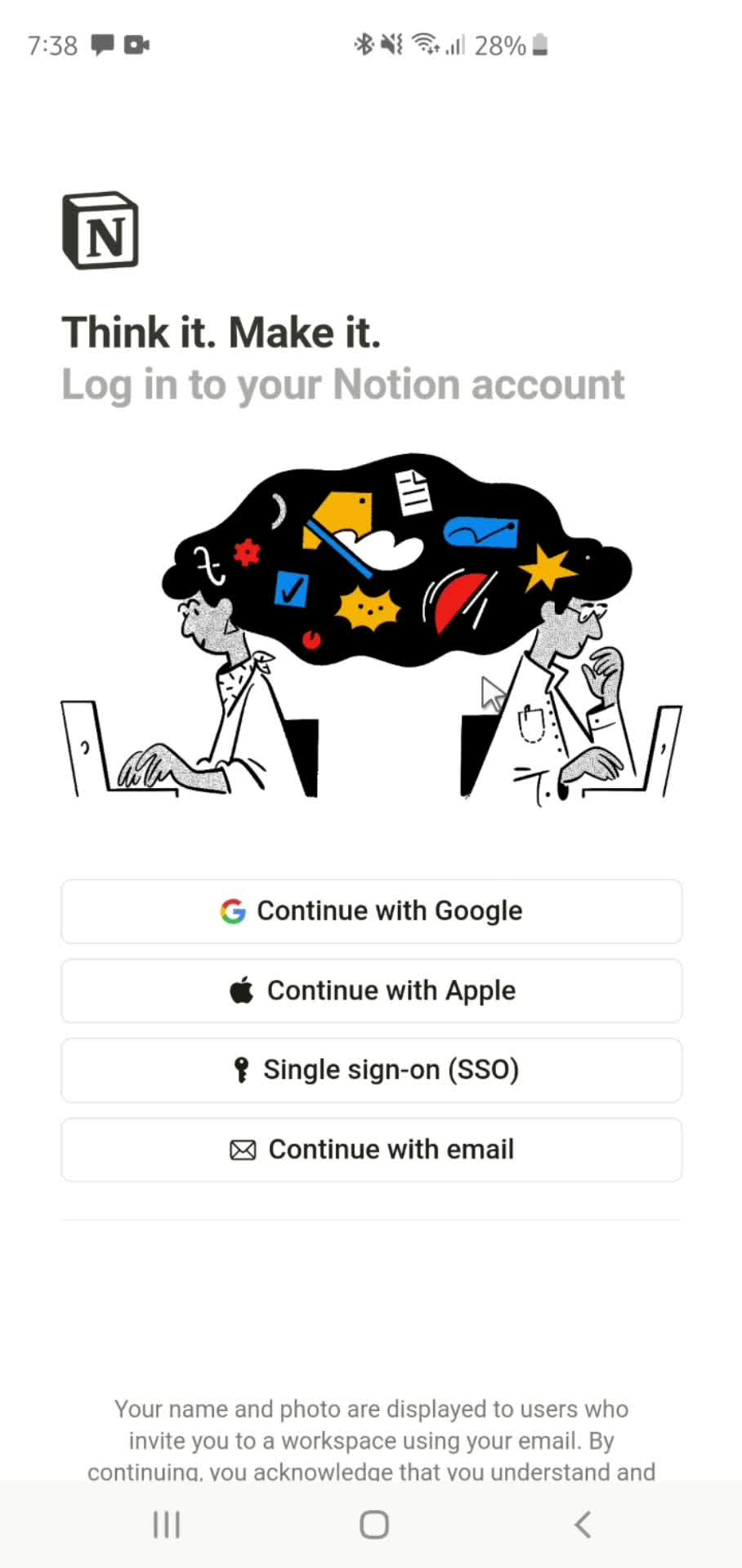
Log in
this is title
Home
this is title
Document
this is title
Action menu
this is title
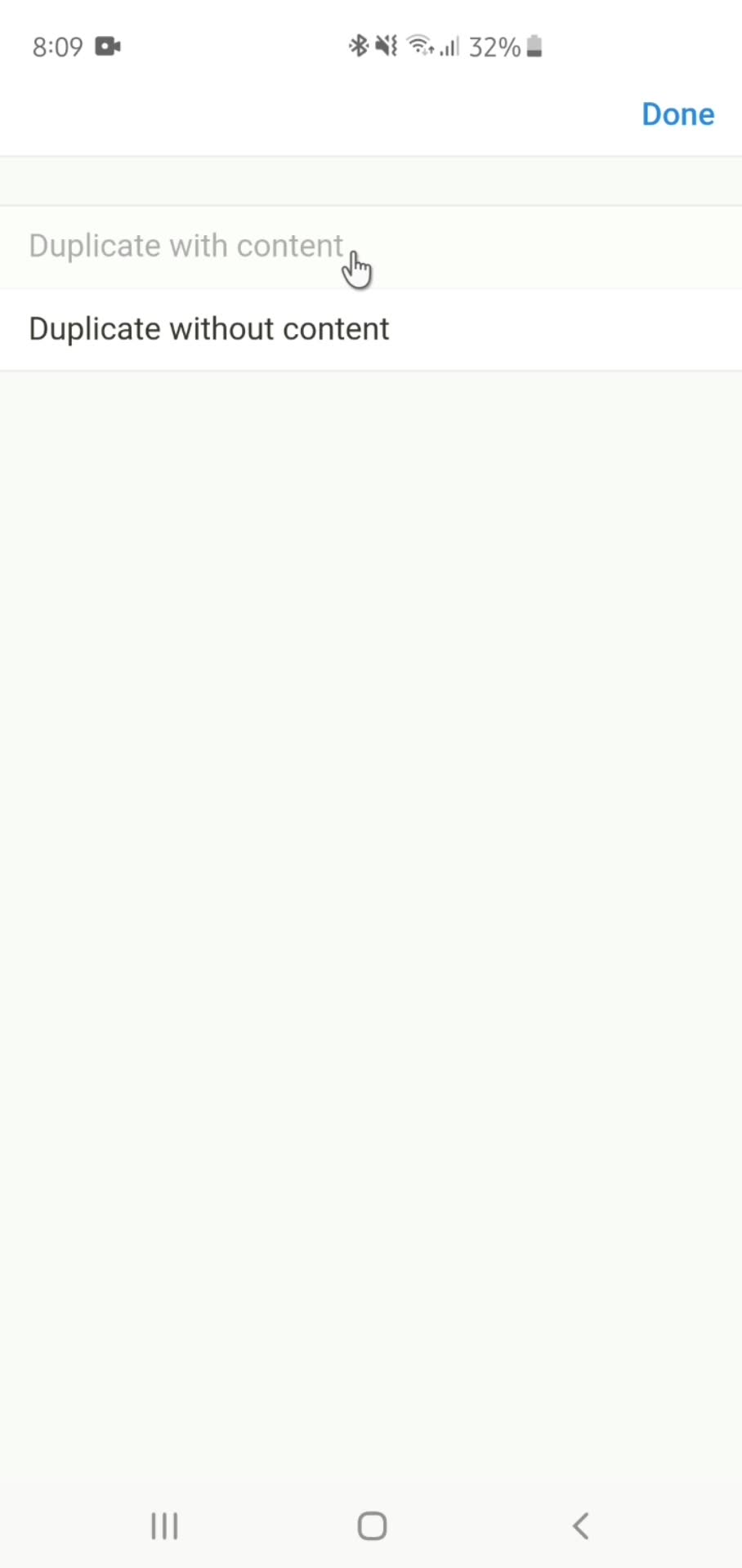
Duplicate
this is title
Duplicate created
this is title
Home
this is title
Action menu
this is title
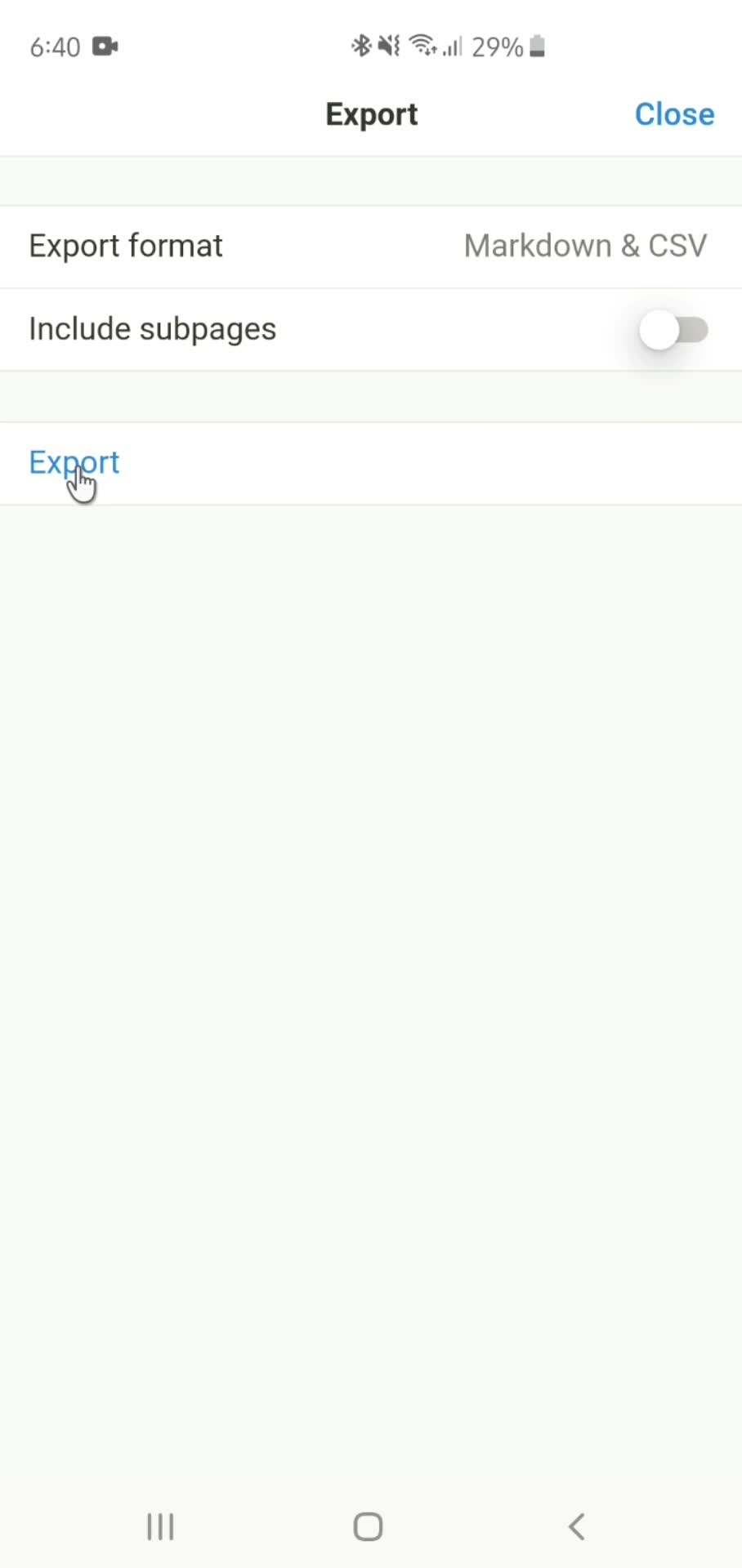
Export data
this is title
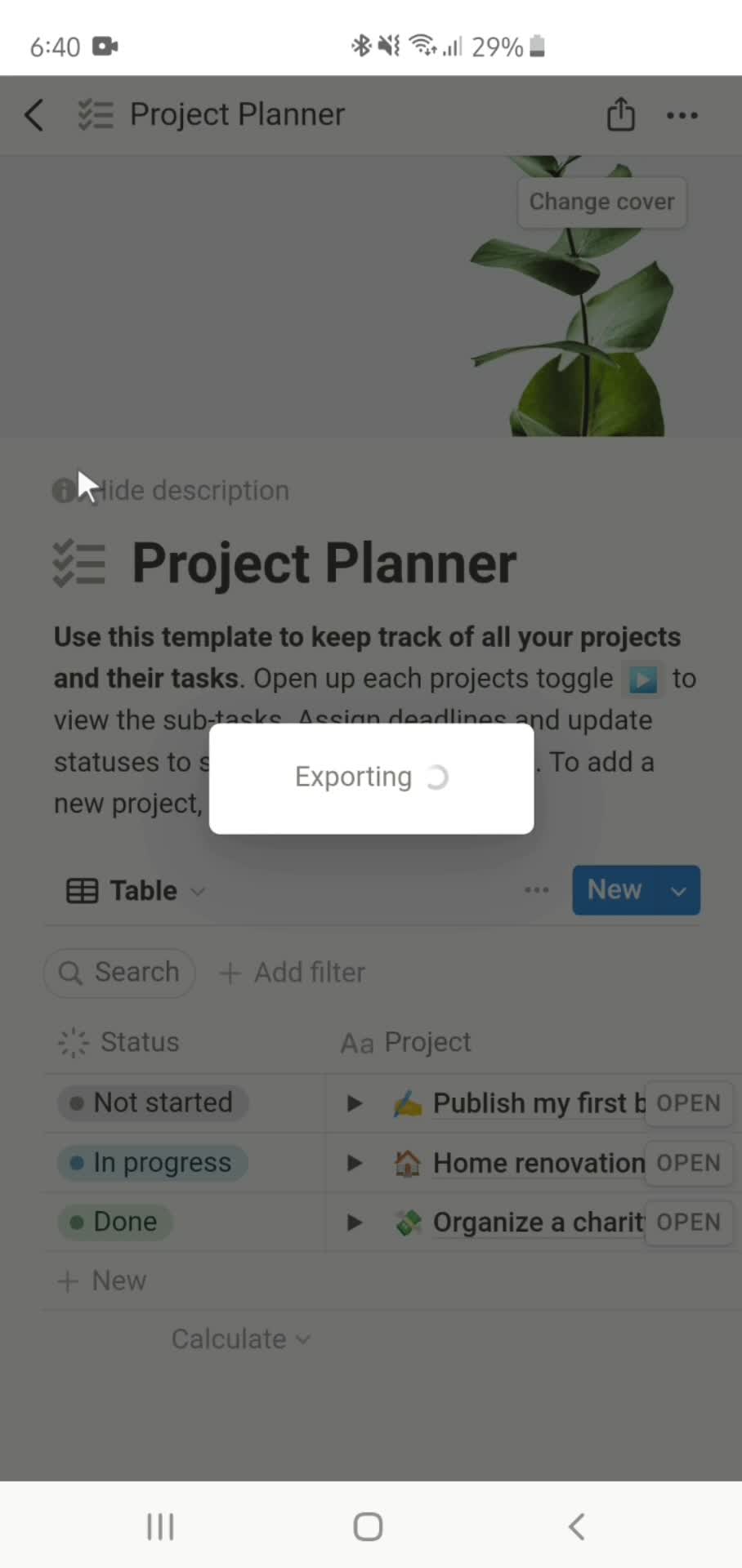
Export in progress
this is title
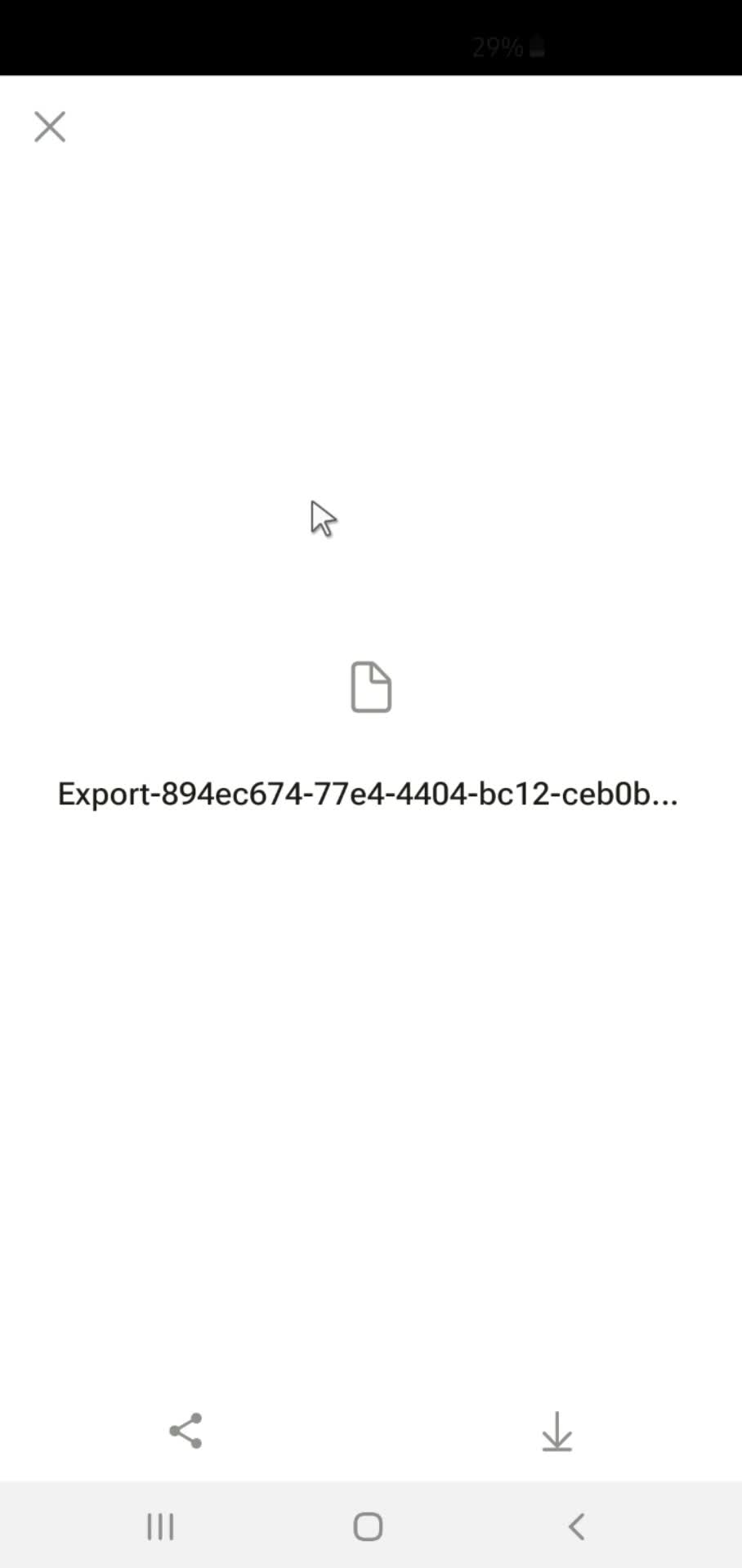
Export complete
this is title
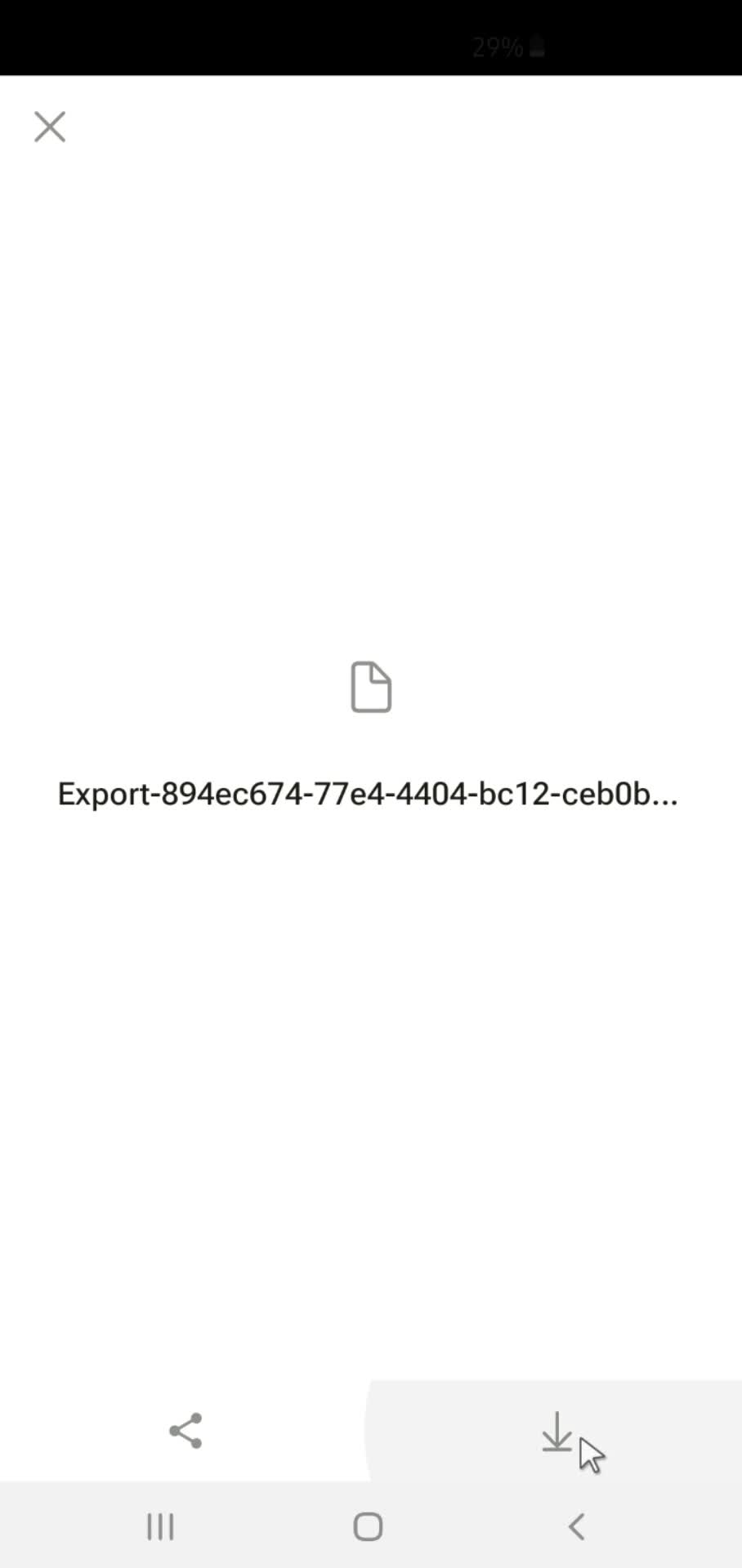
Download
this is title
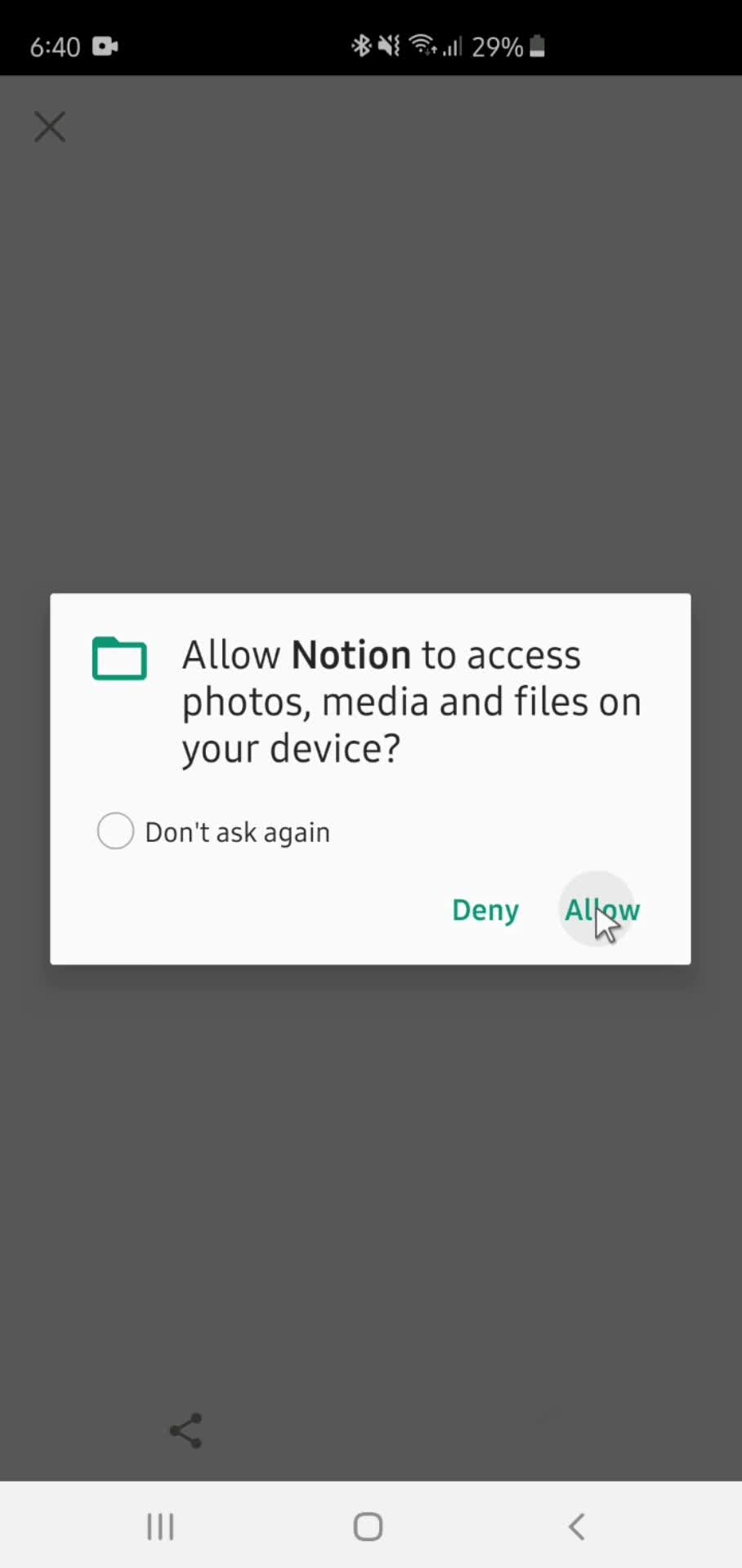
Confirm permissions
this is title
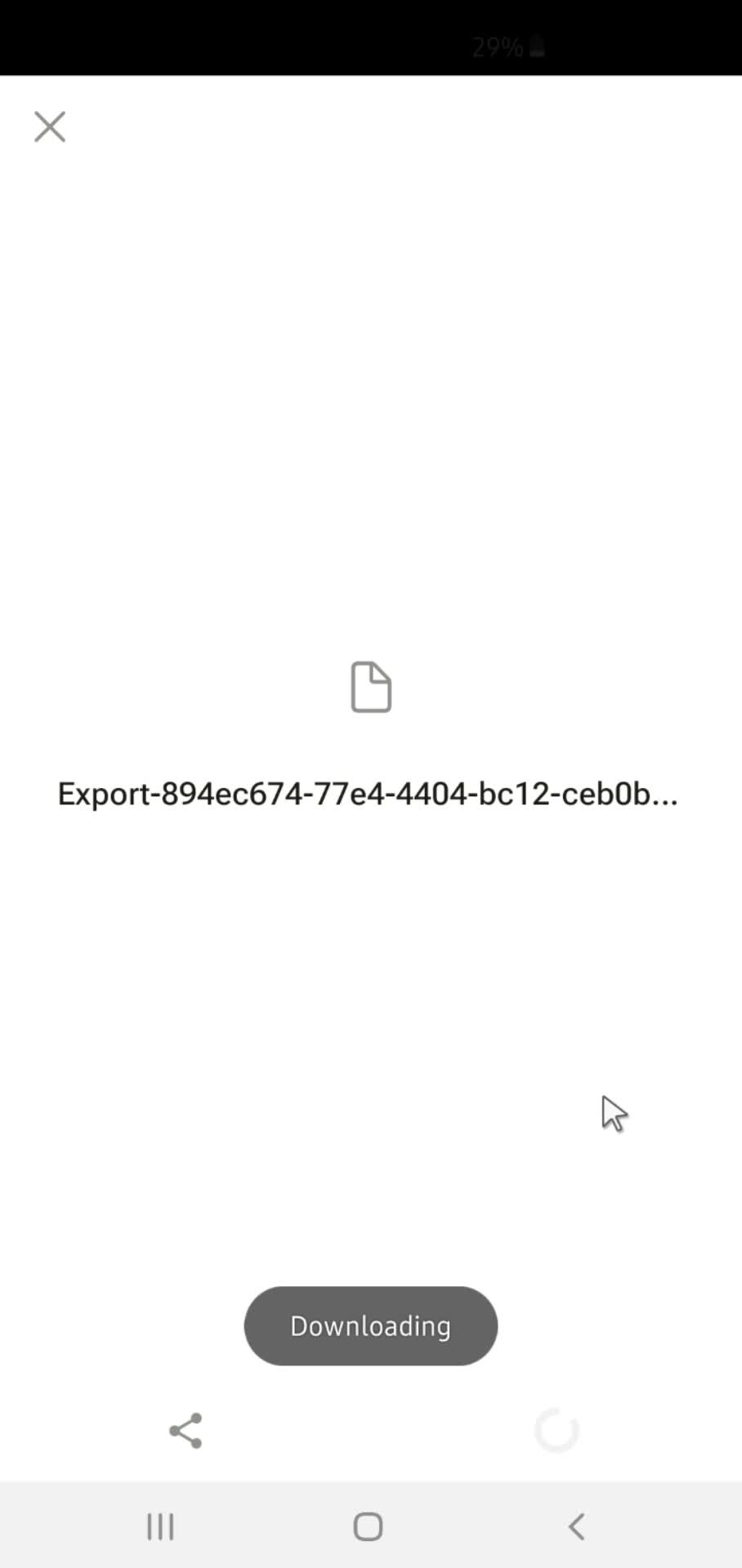
Downloading
this is title
Home
this is title
Document
this is title
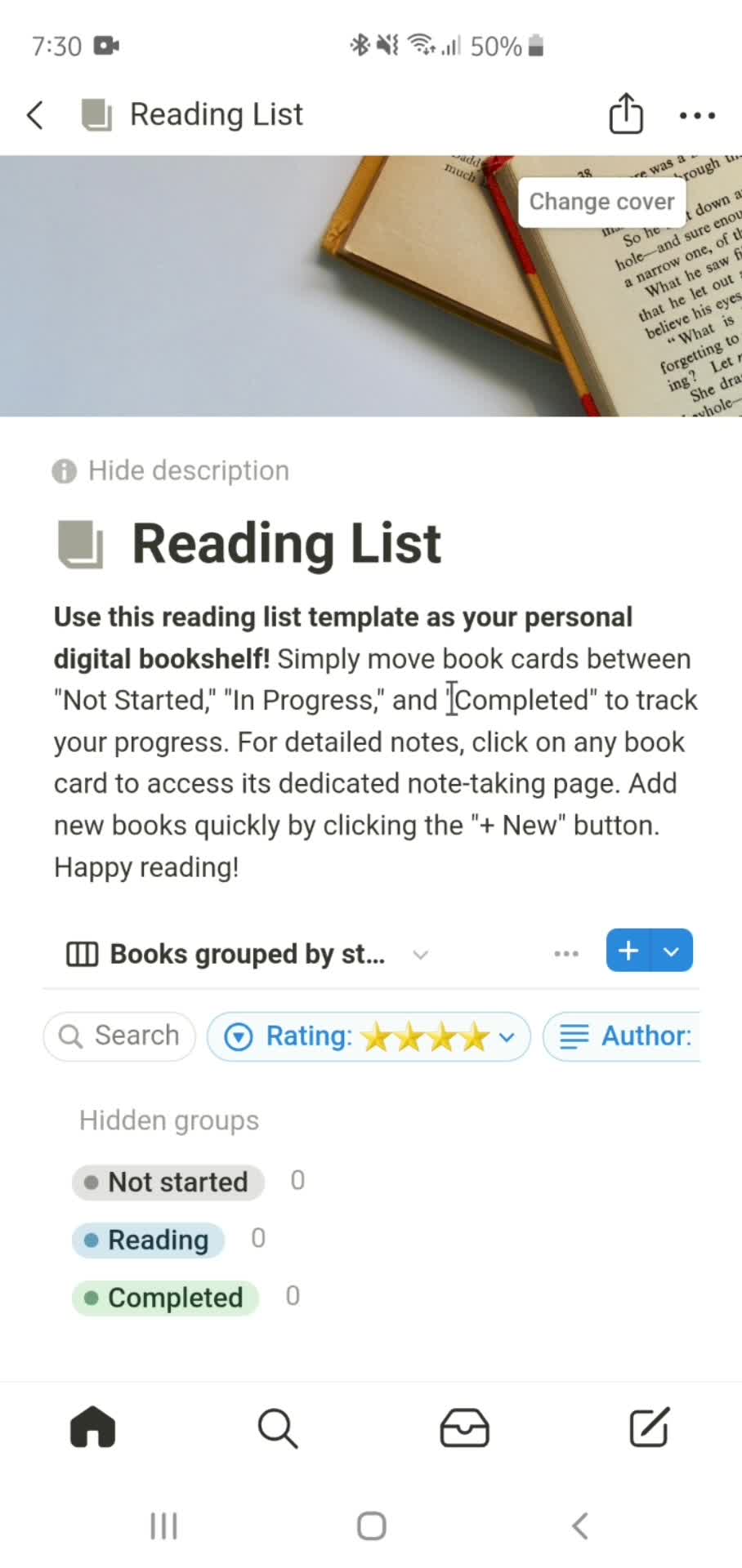
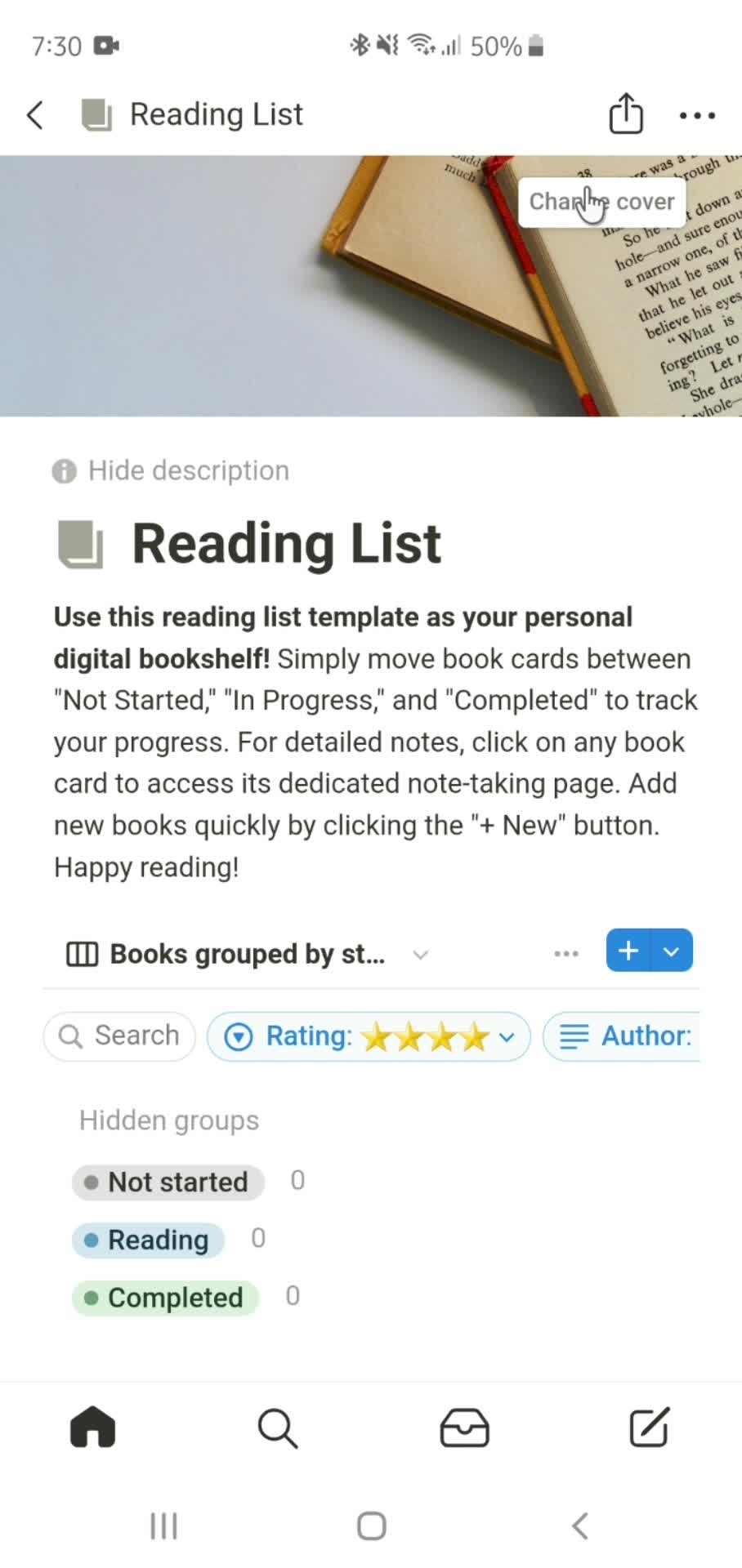
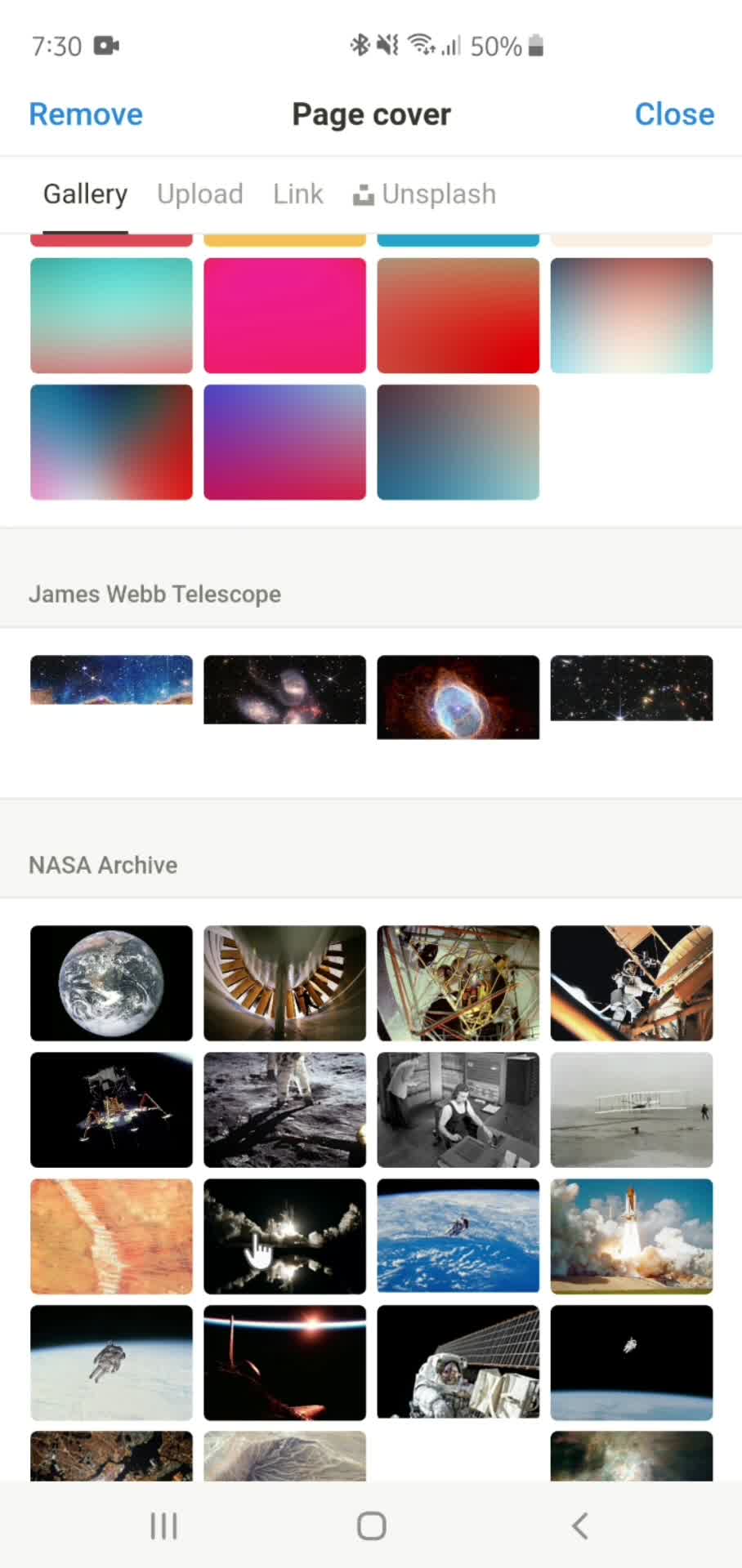
Change cover
this is title
Select cover
this is title
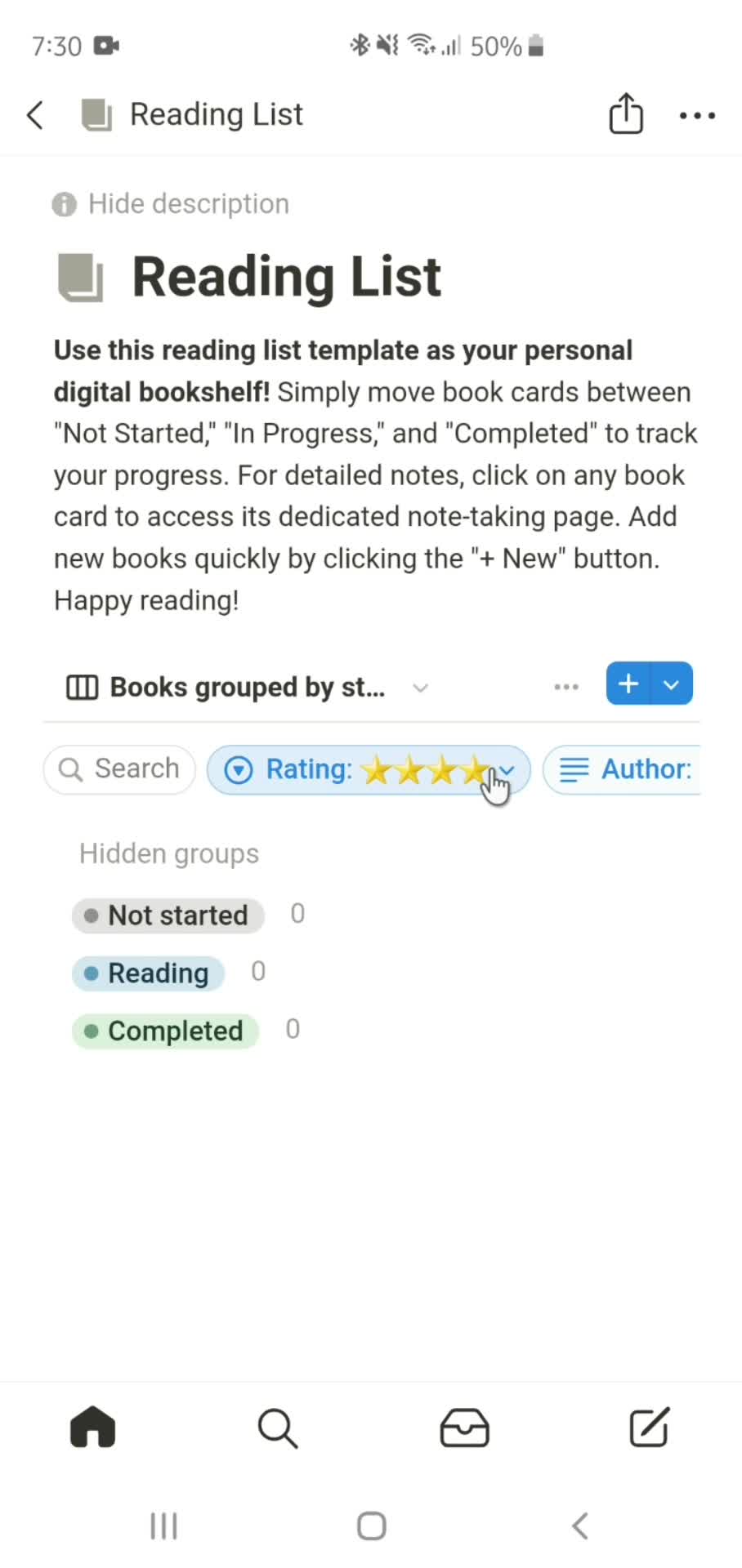
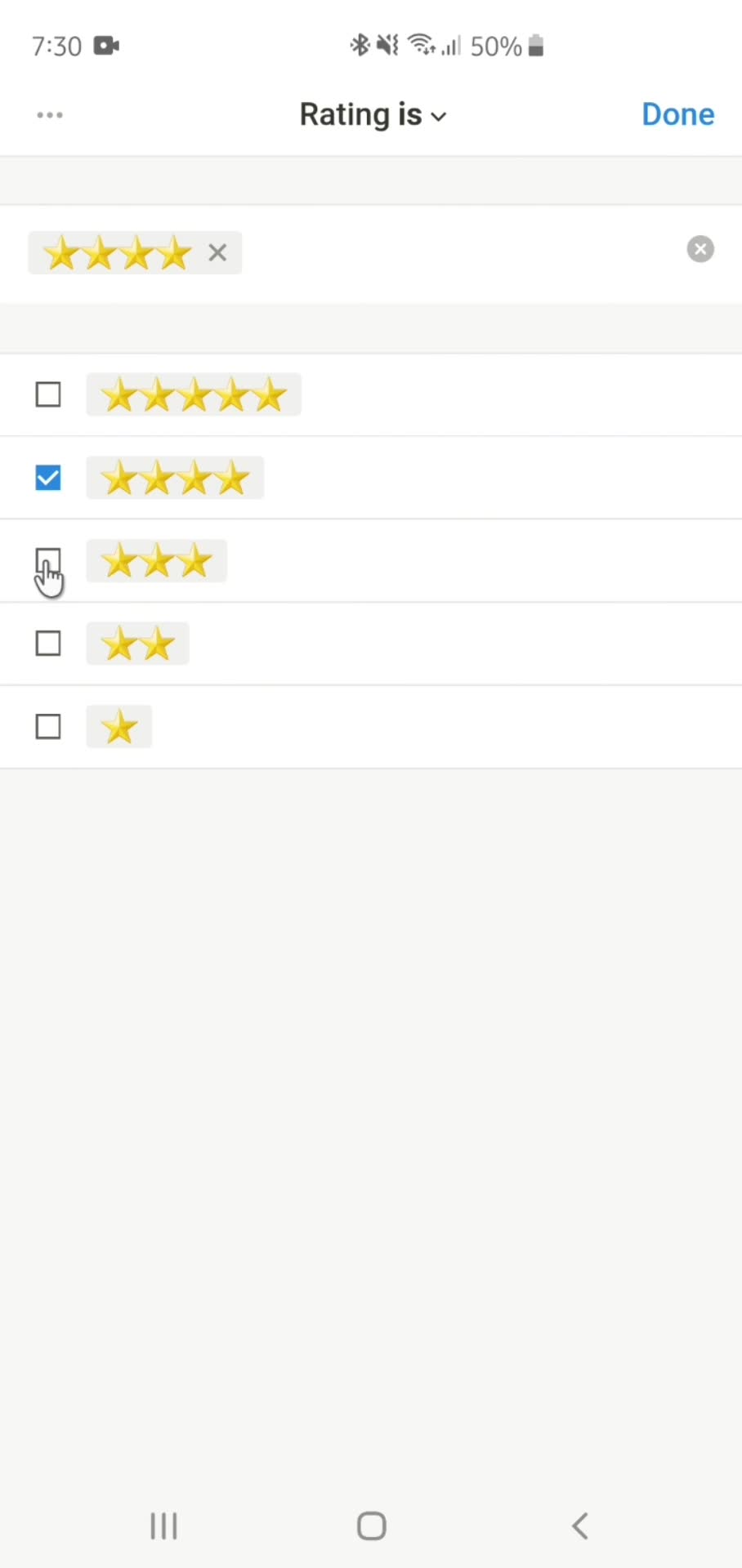
Select filter
this is title
Edit filter
this is title
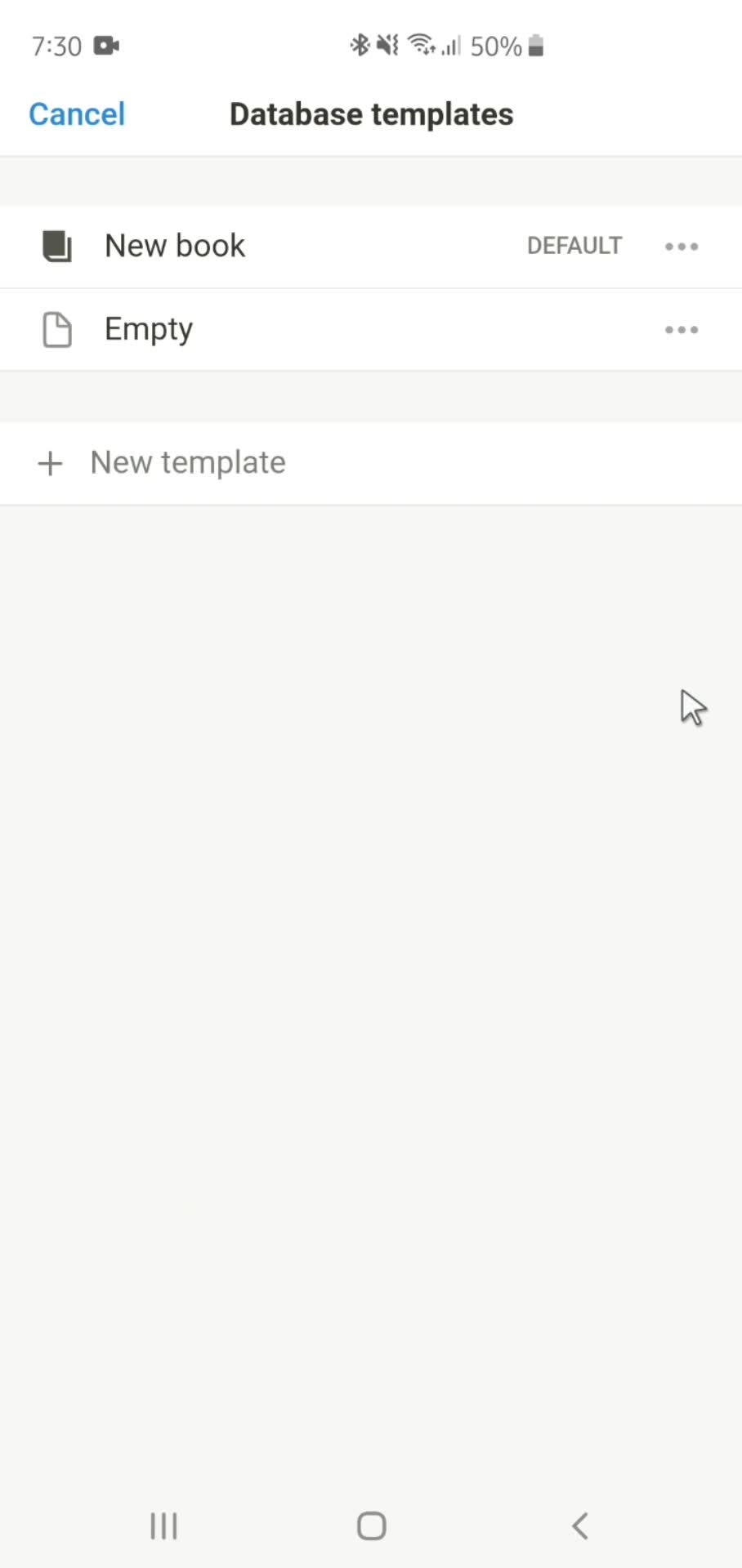
Templates
this is title
Home
this is title
Action menu
this is title
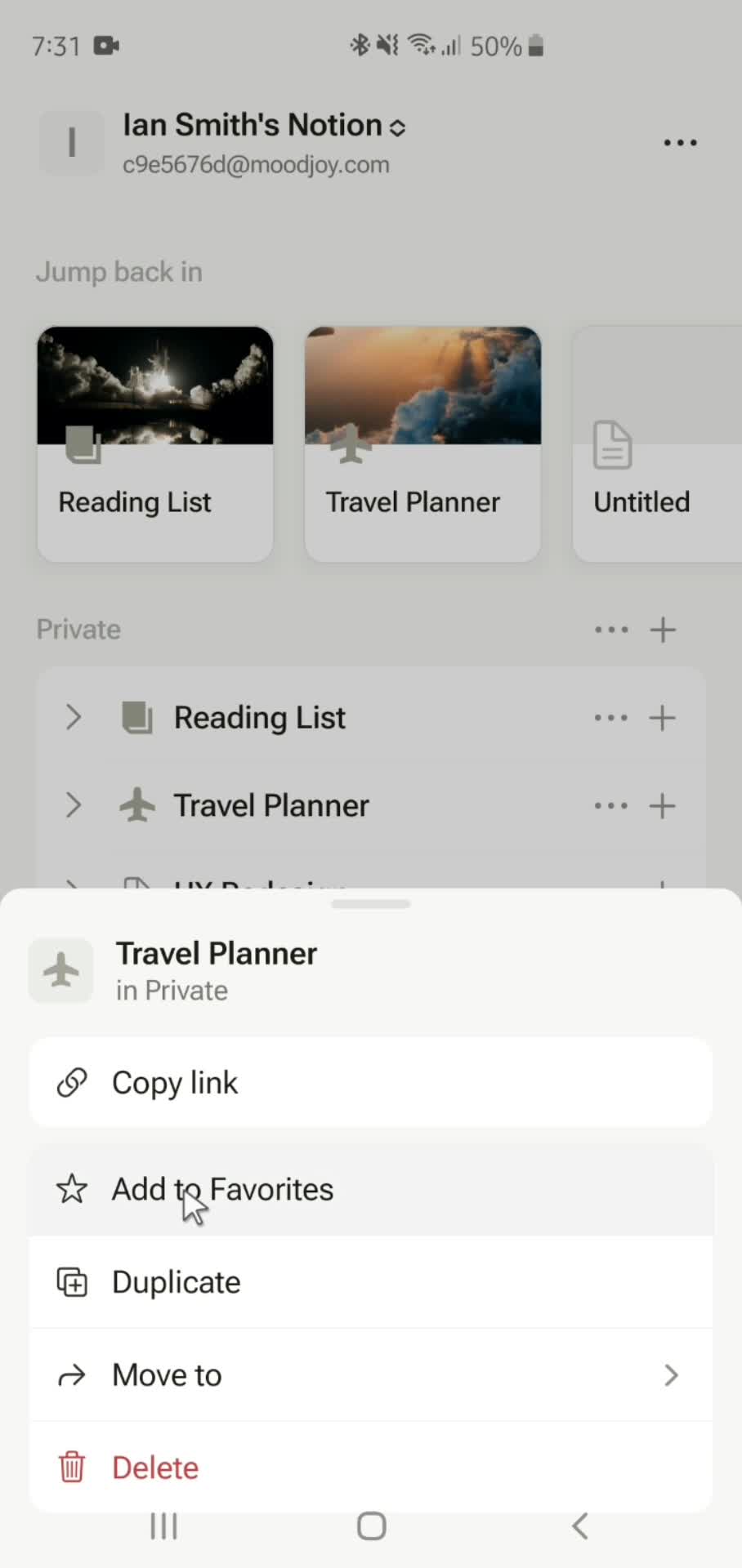
Add to favorites
this is title
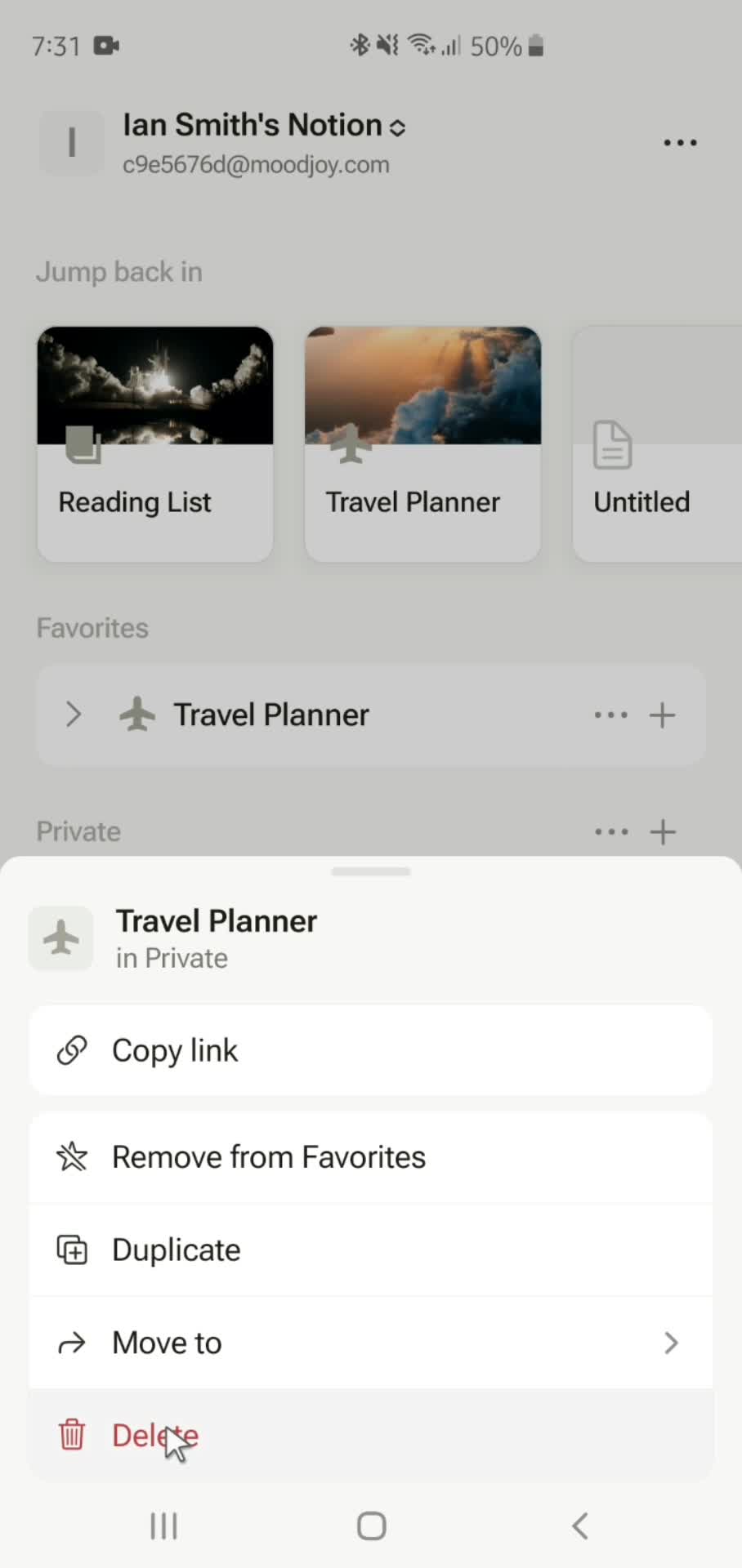
Delete
this is title
Add
this is title
Create space
this is title
Actions
this is title
Action menu
this is title
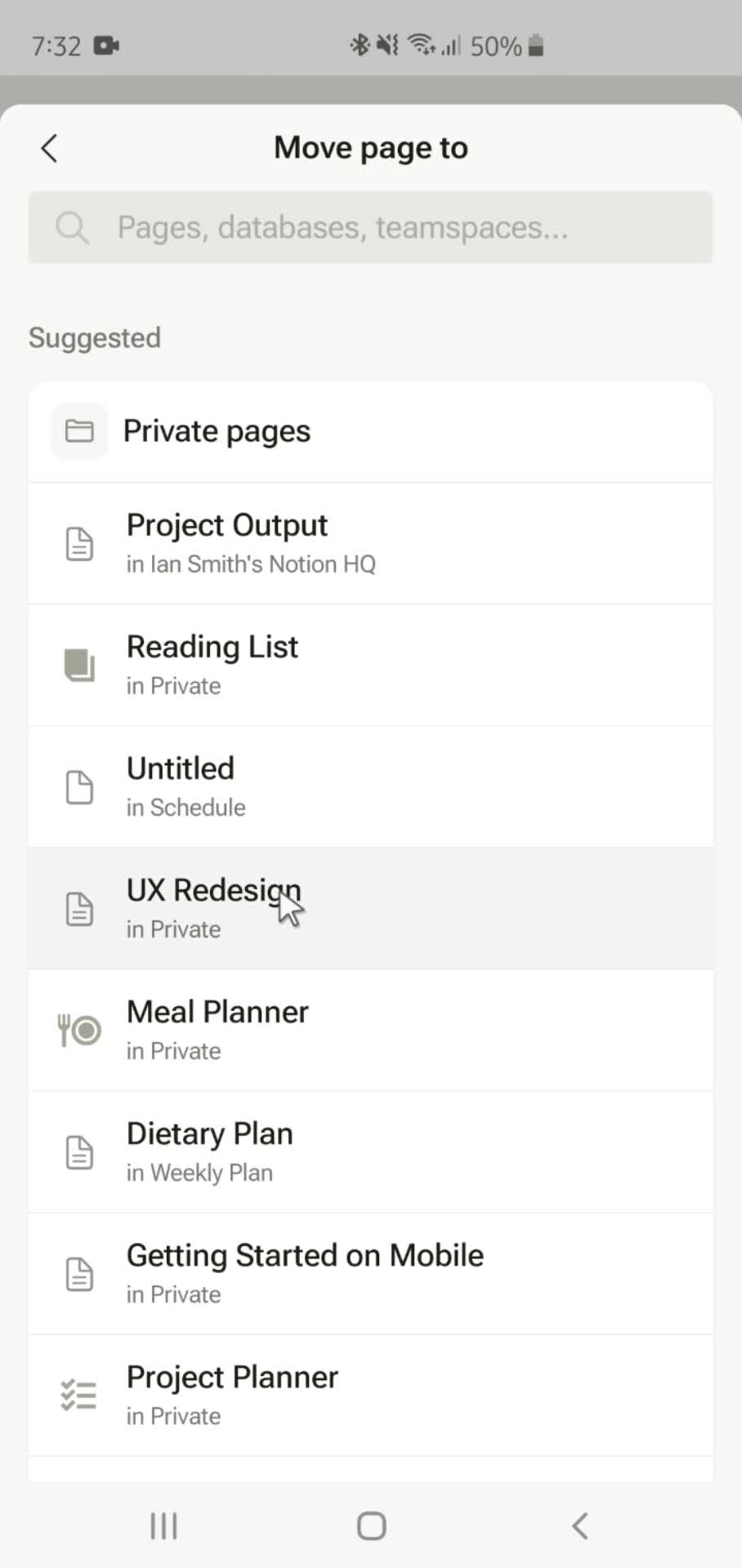
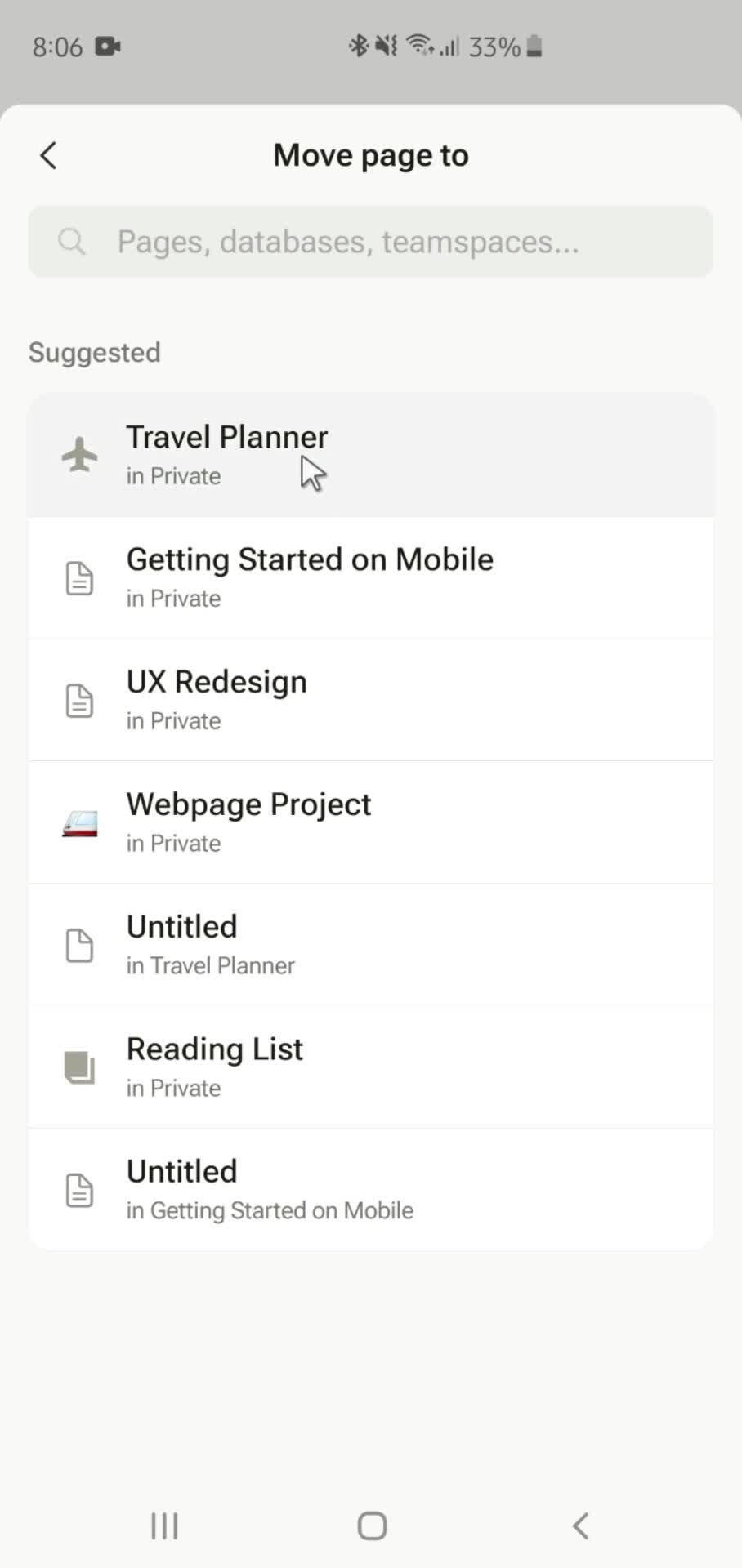
Move page
this is title
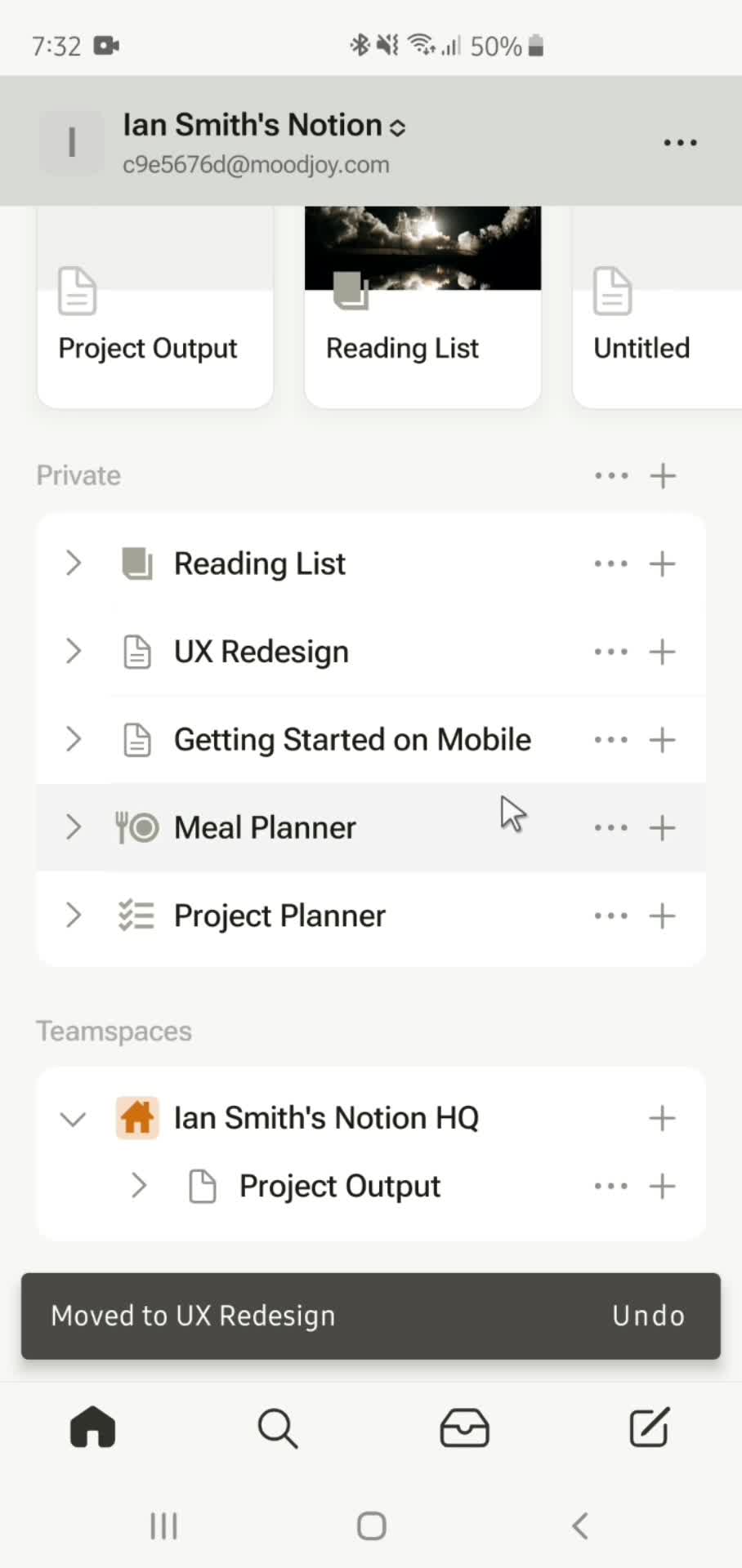
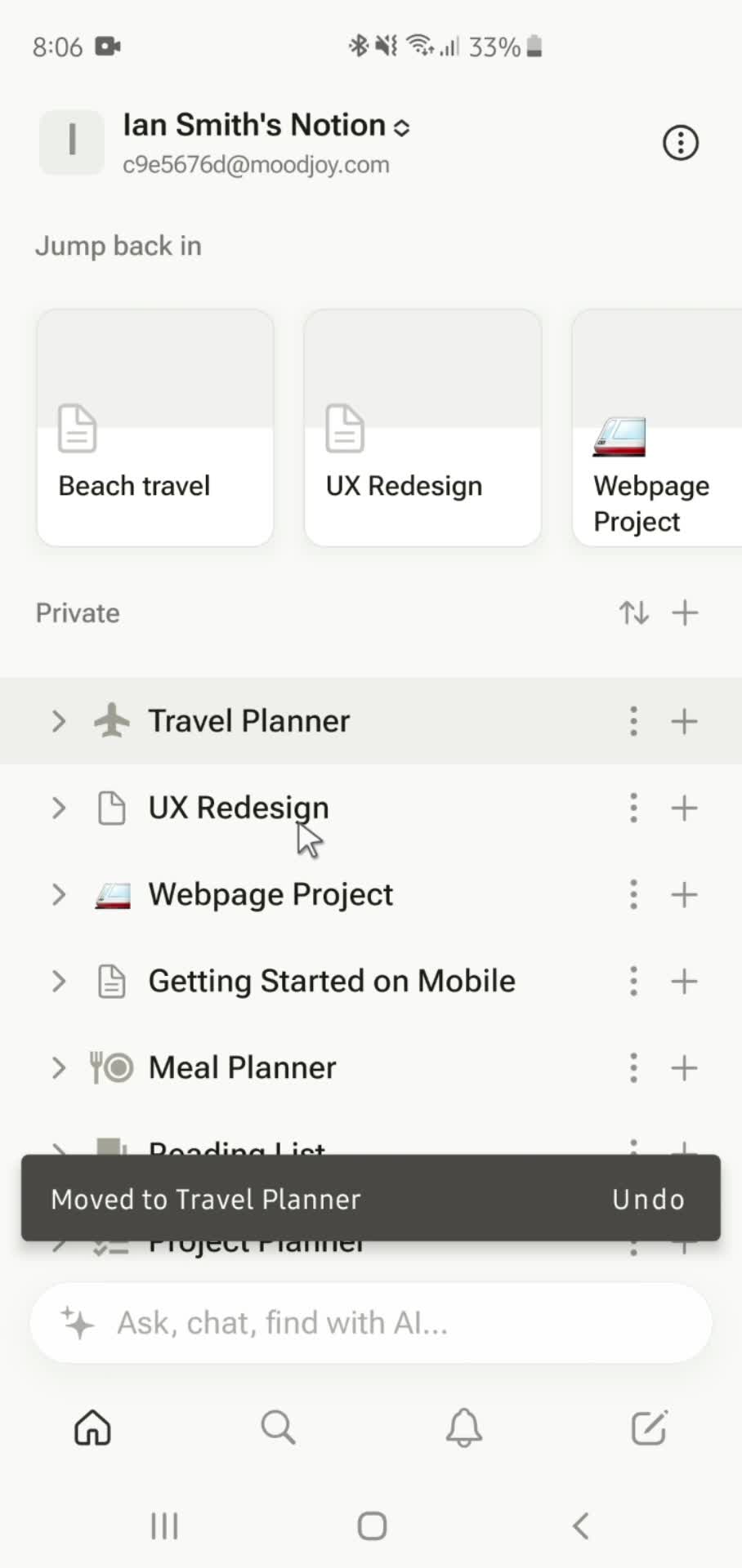
Moved
this is title
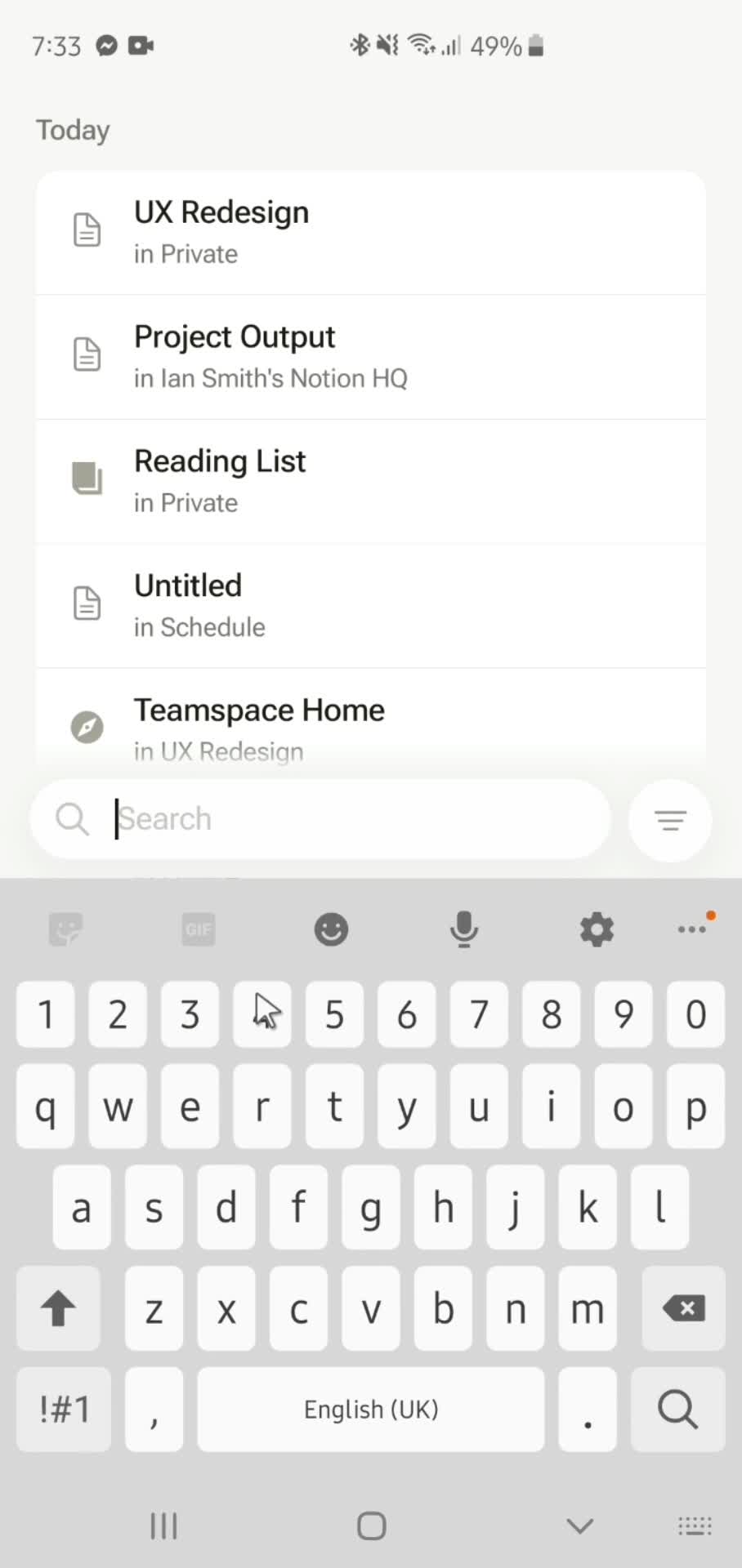
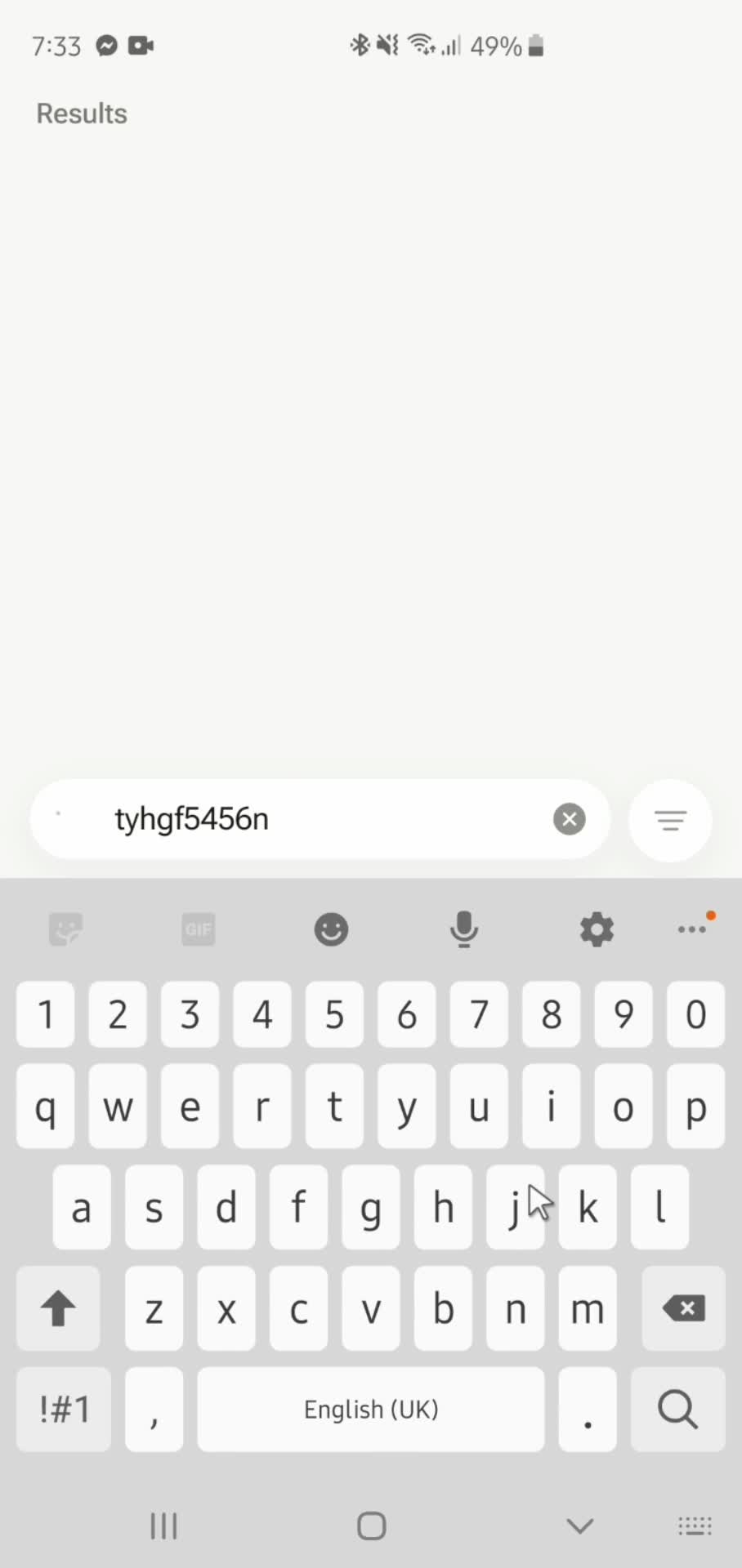
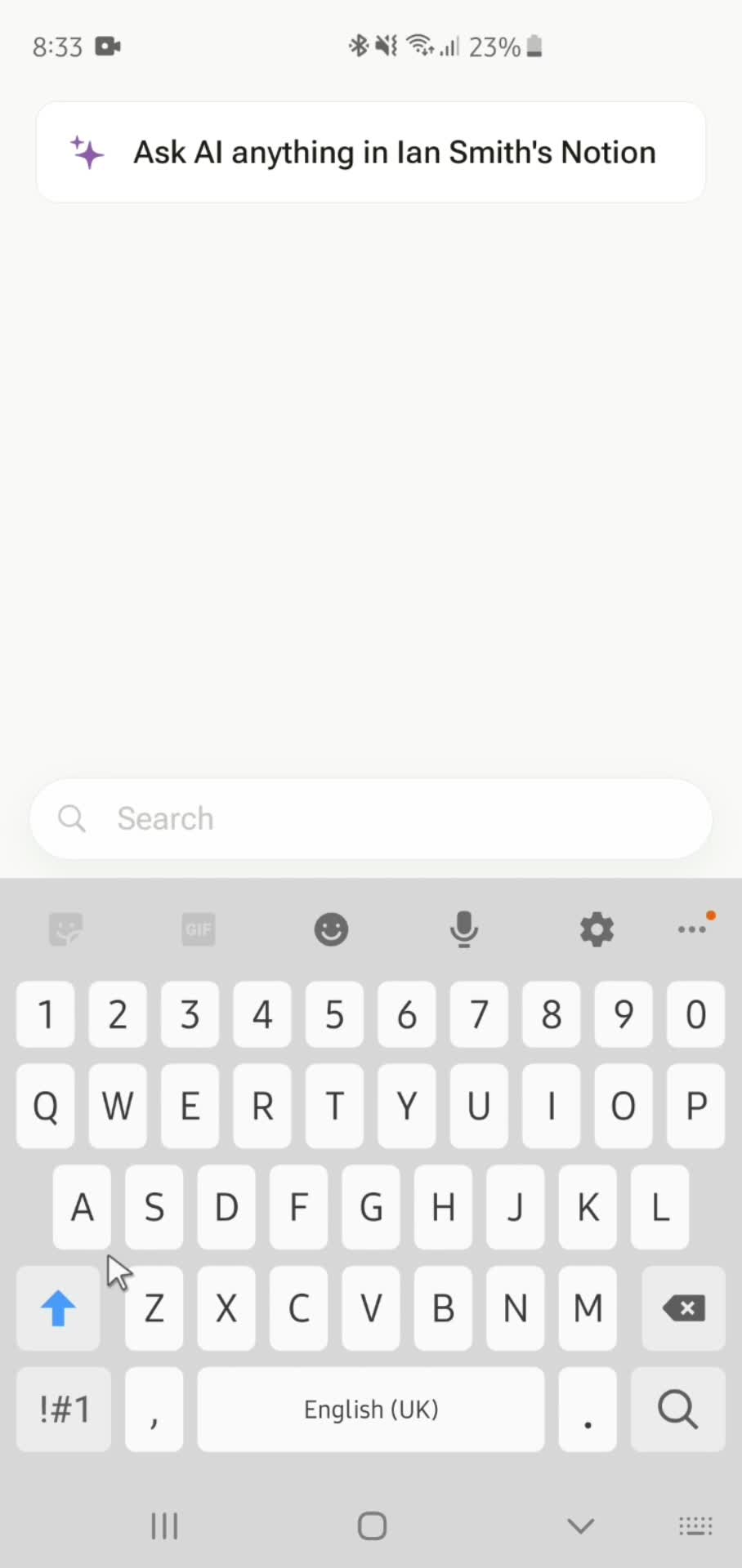
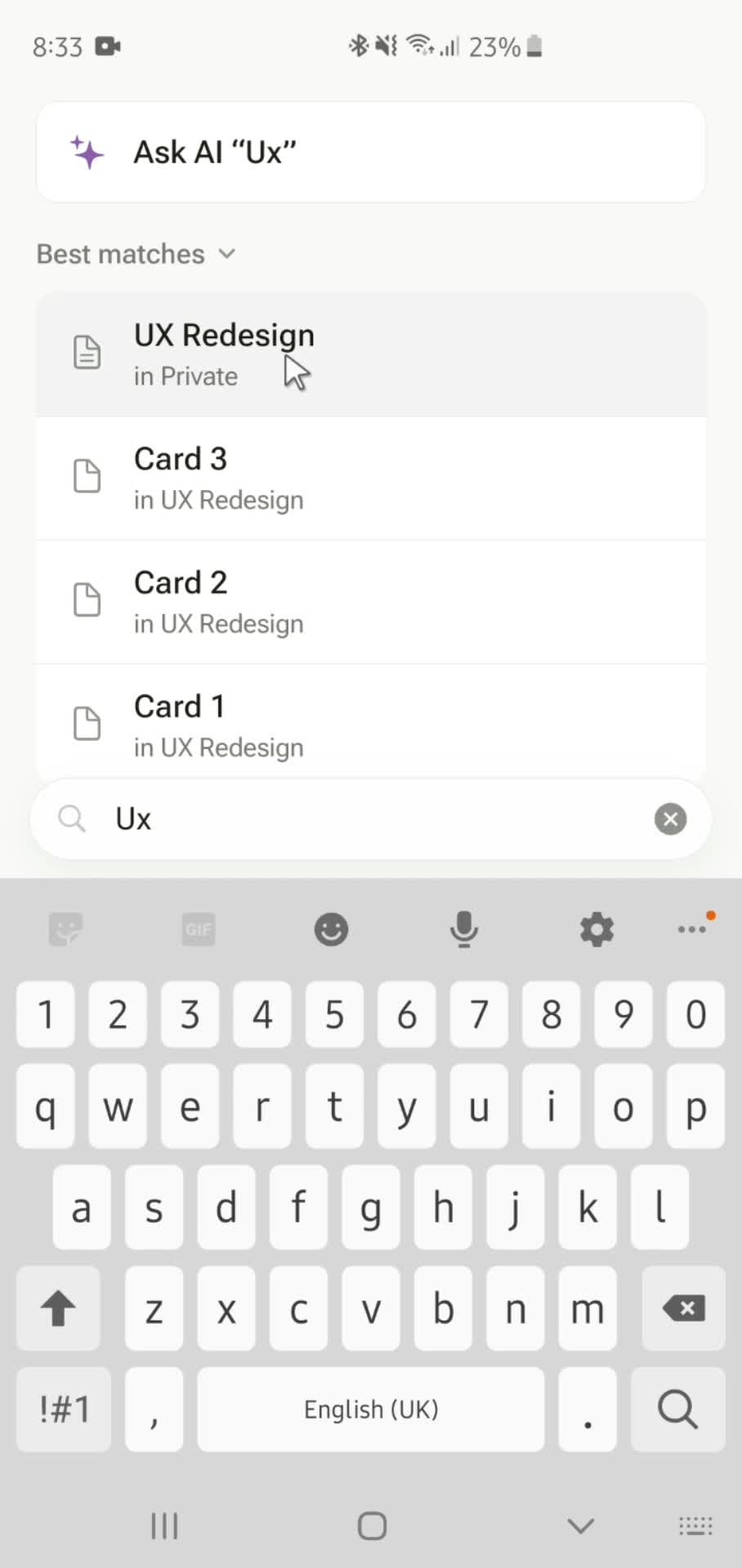
Search
this is title
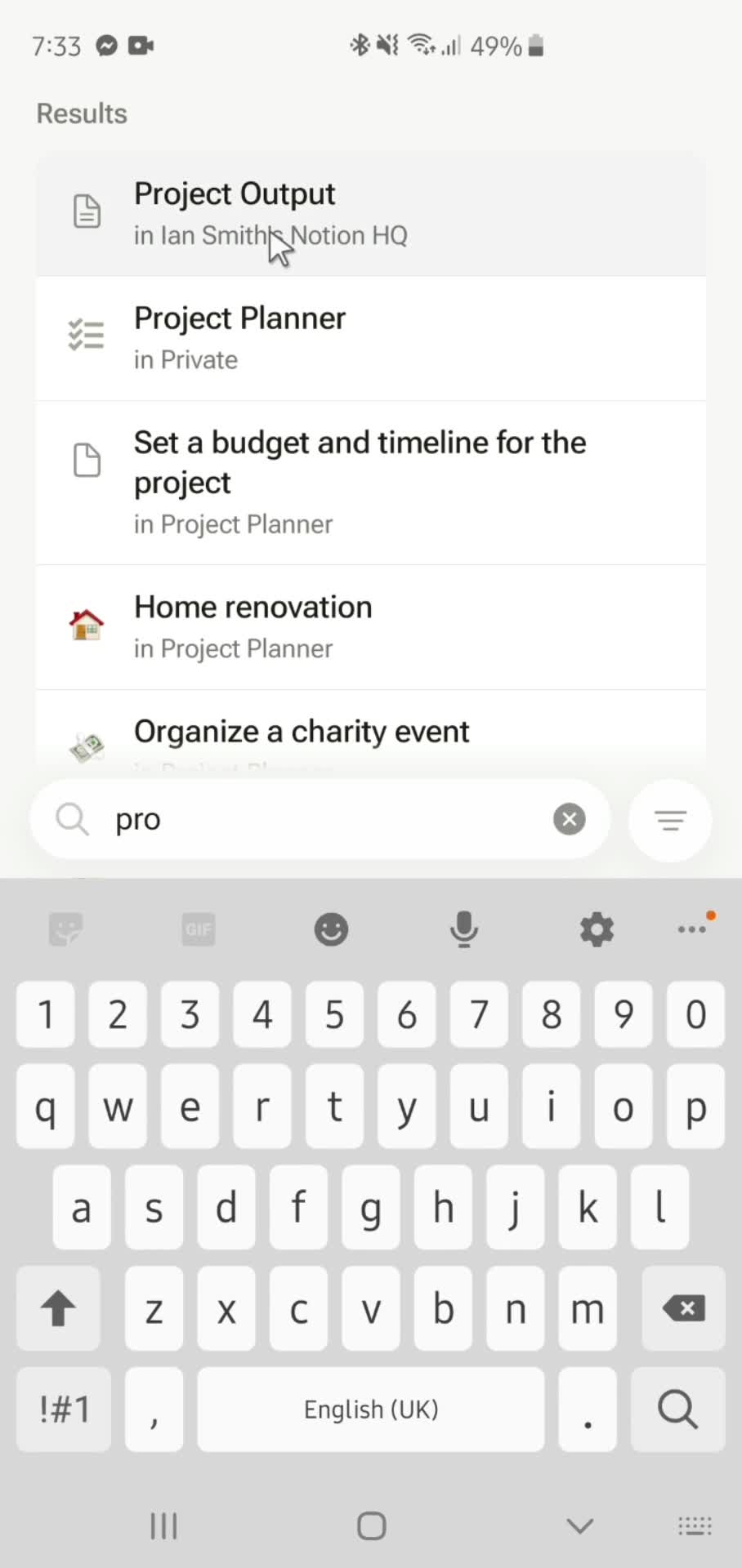
Search results
this is title
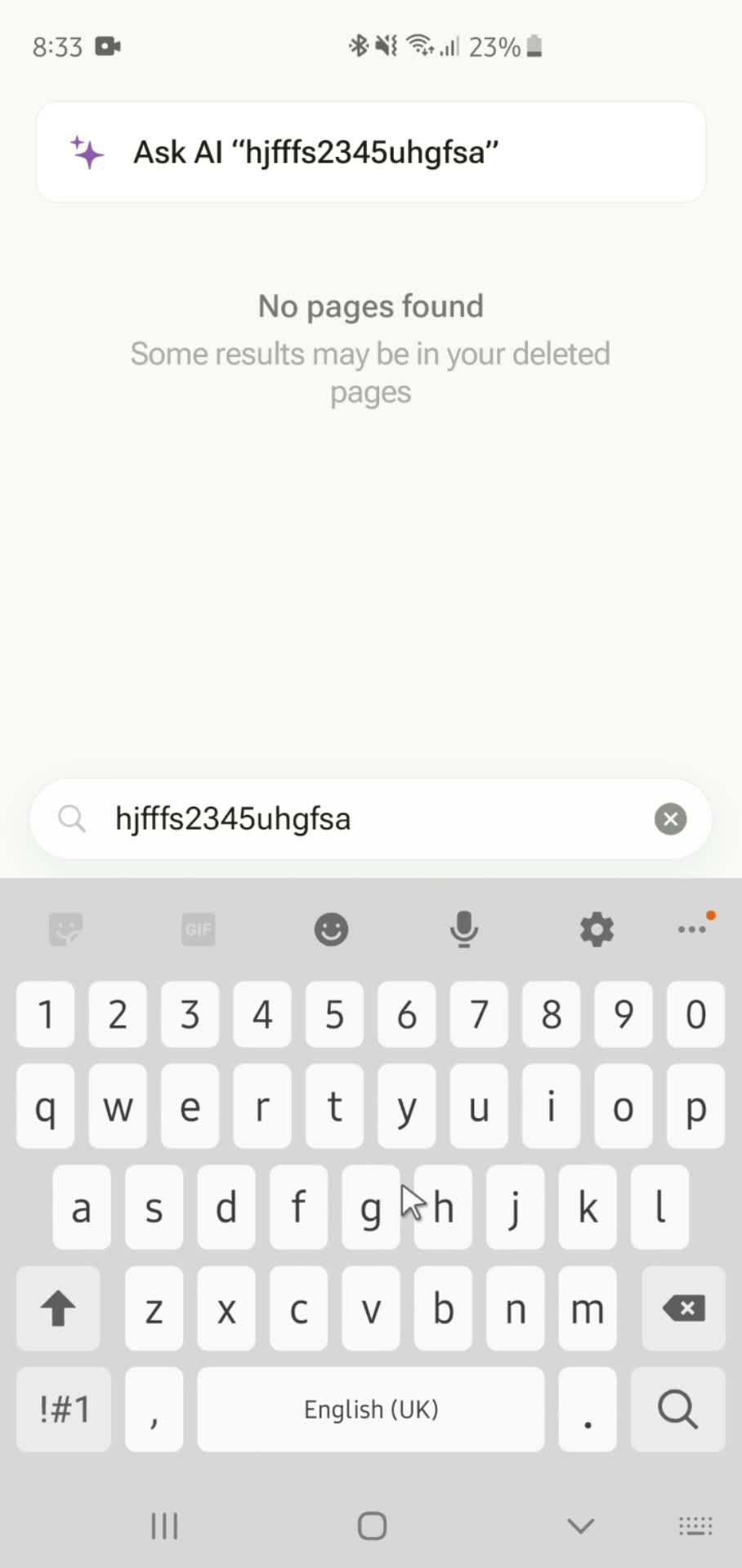
No search results
this is title
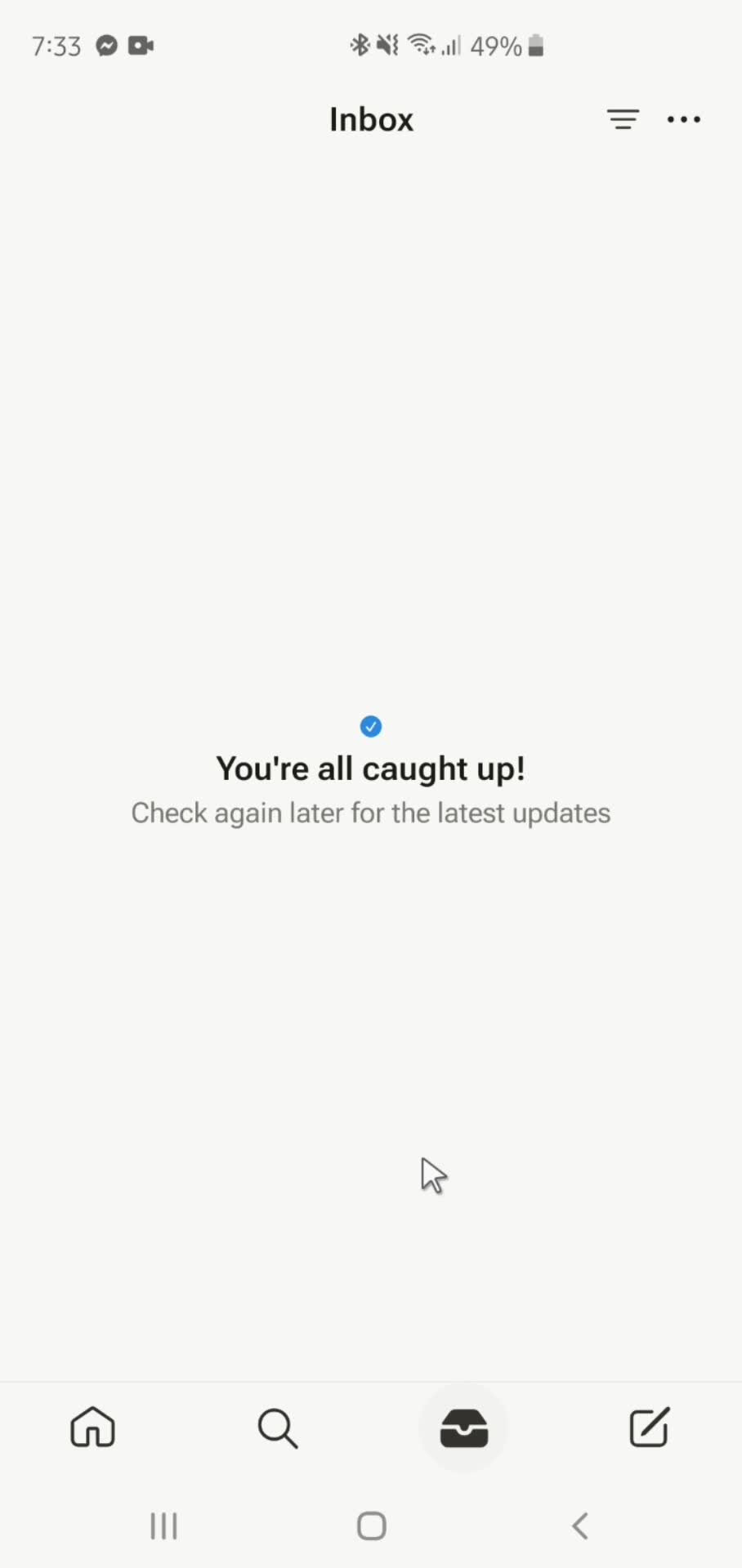
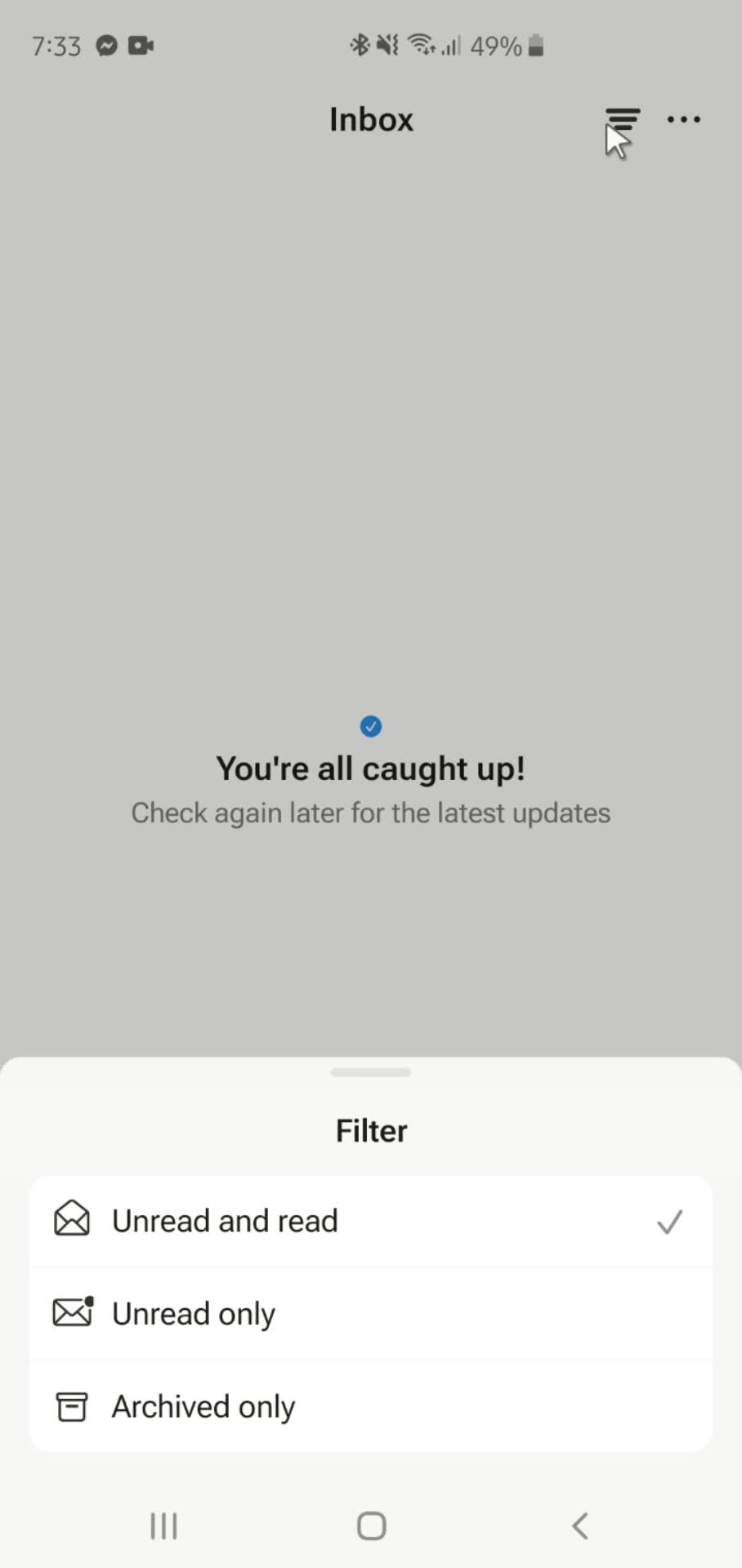
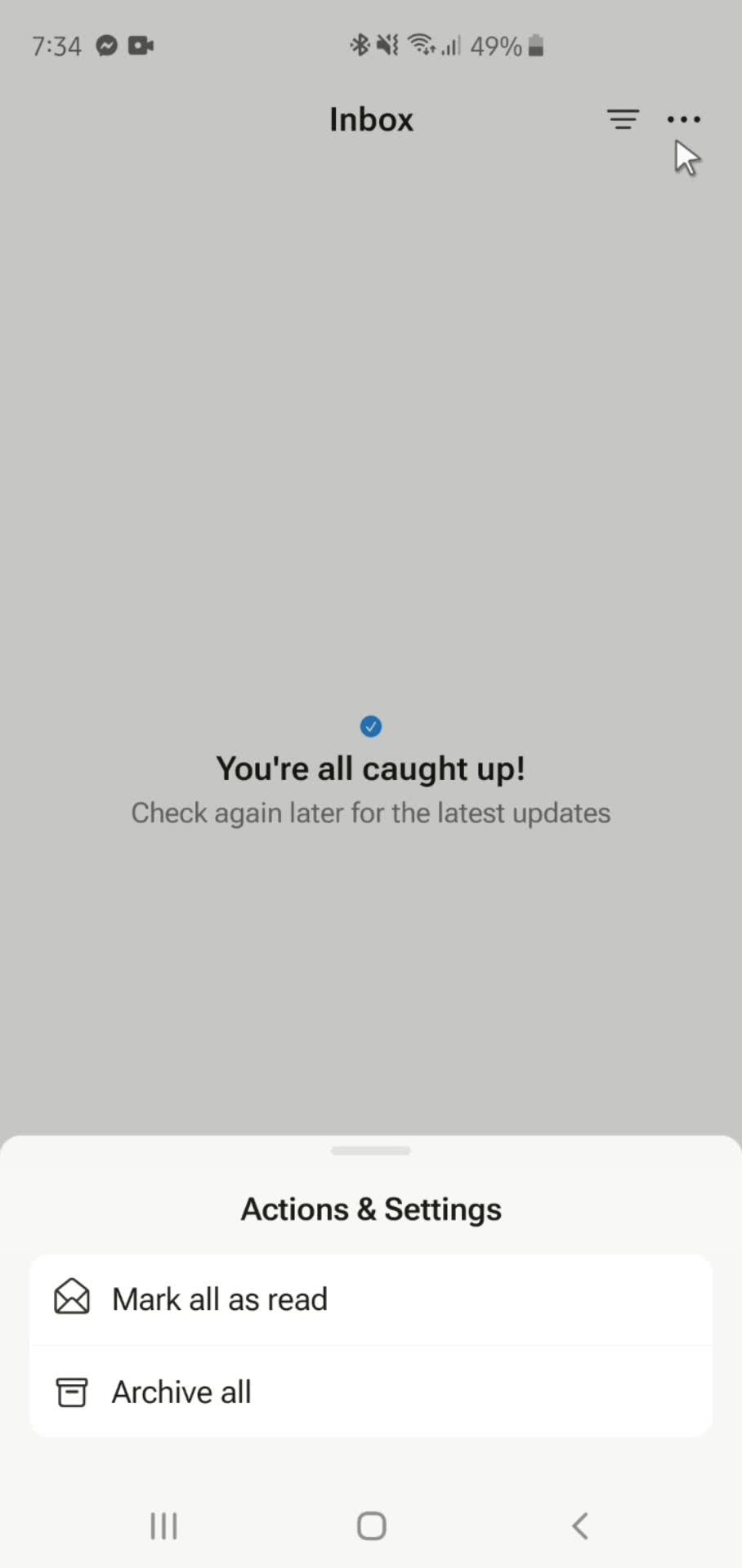
Inbox
this is title
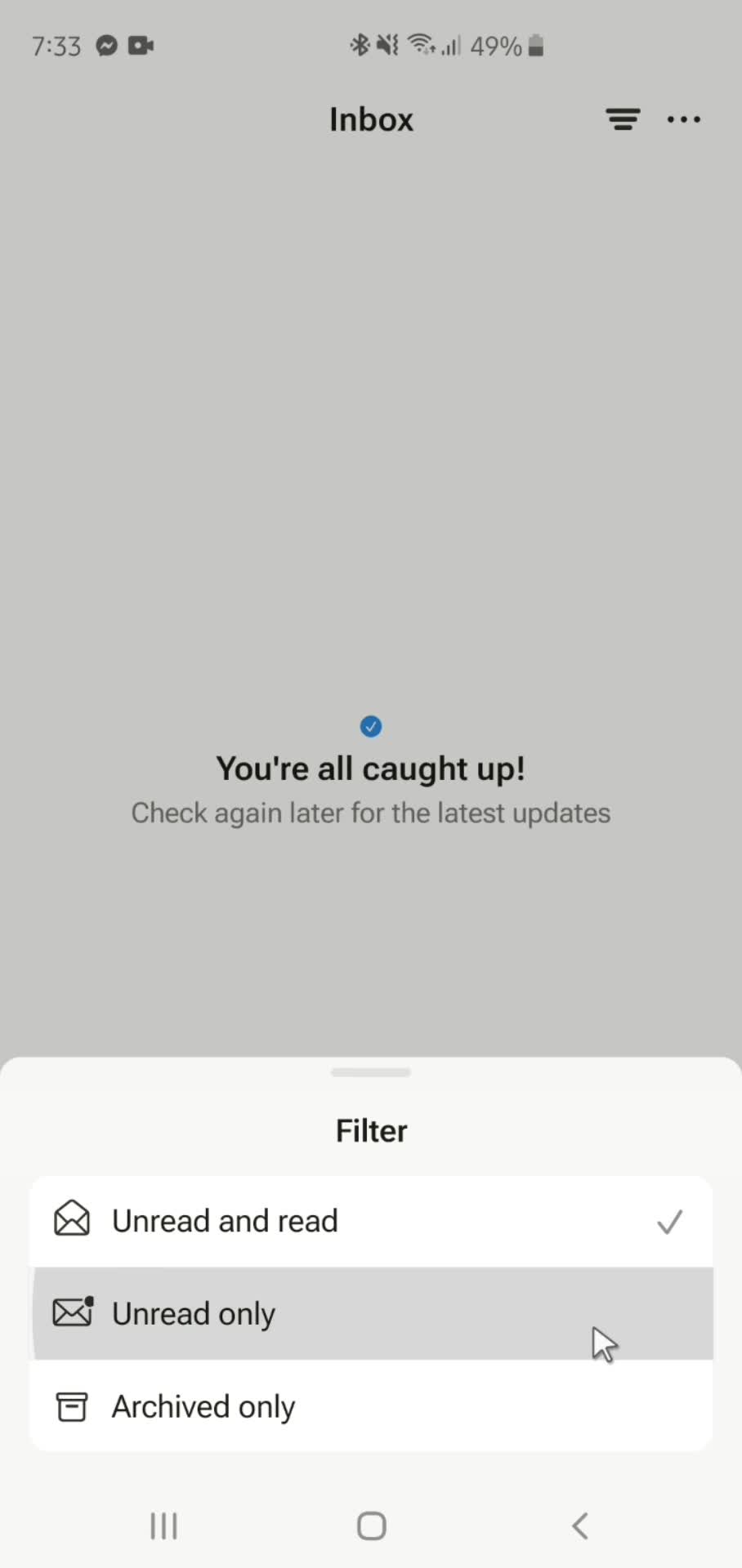
Filter
this is title
Select filter
this is title
Action menu
this is title
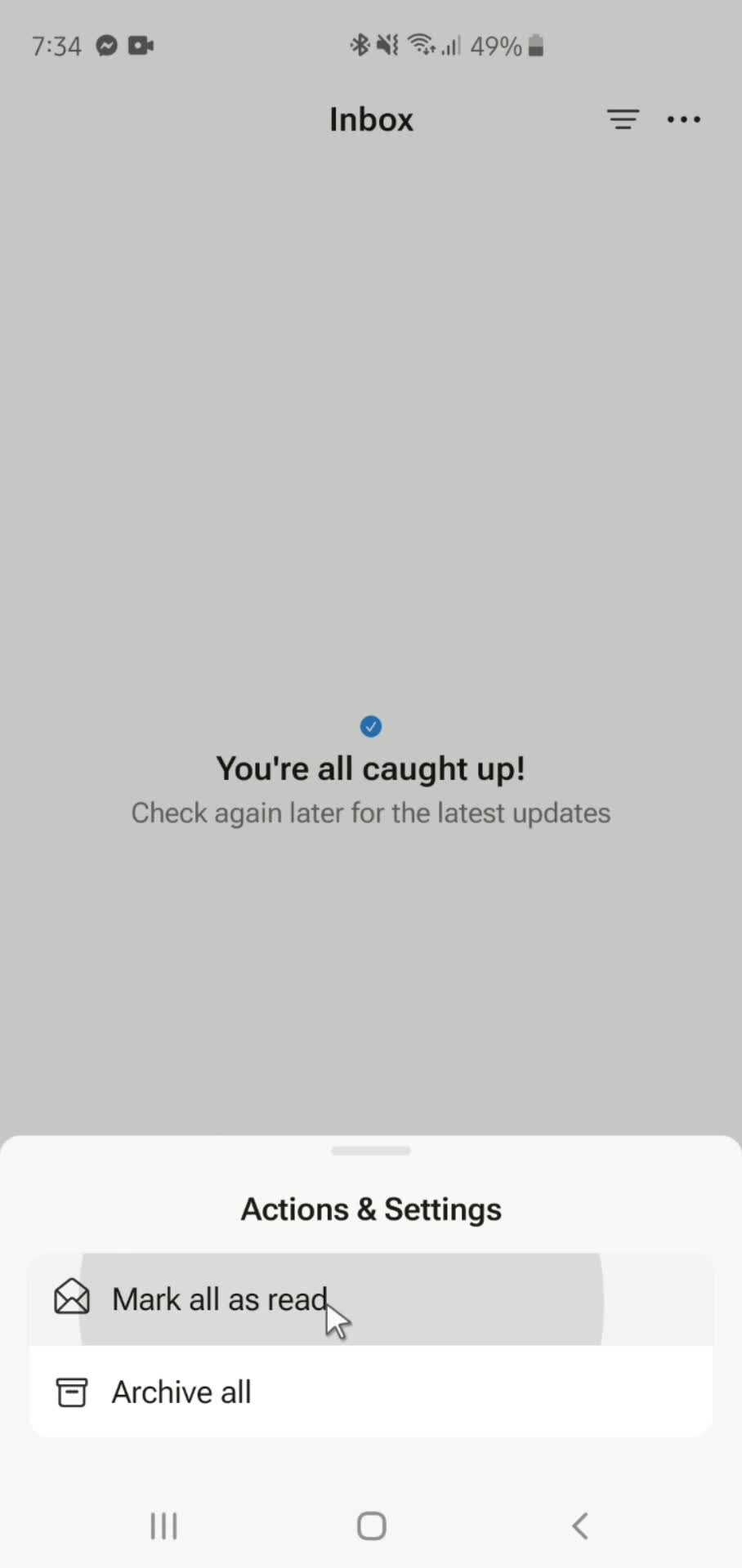
Mark as read
this is title
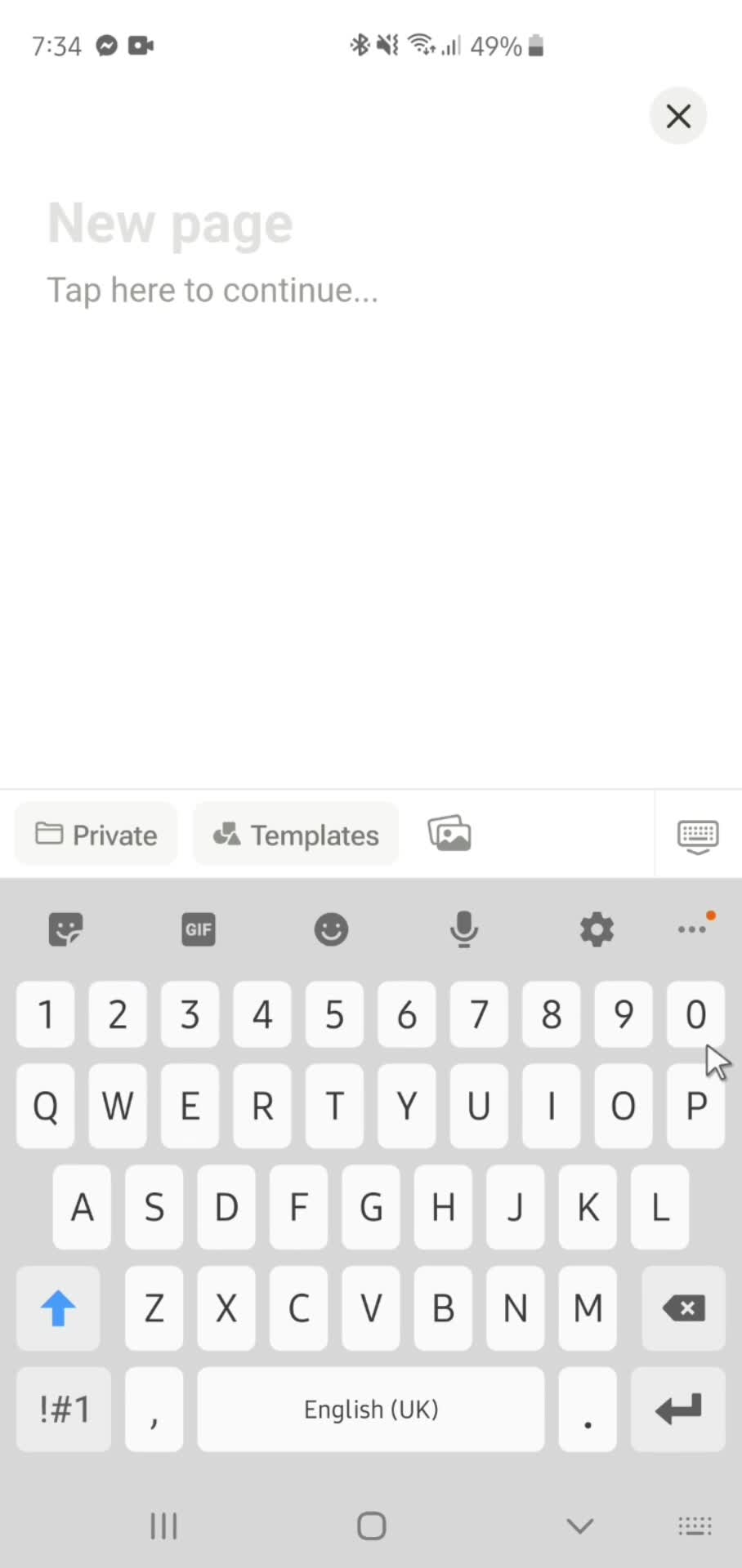
Create page
this is title
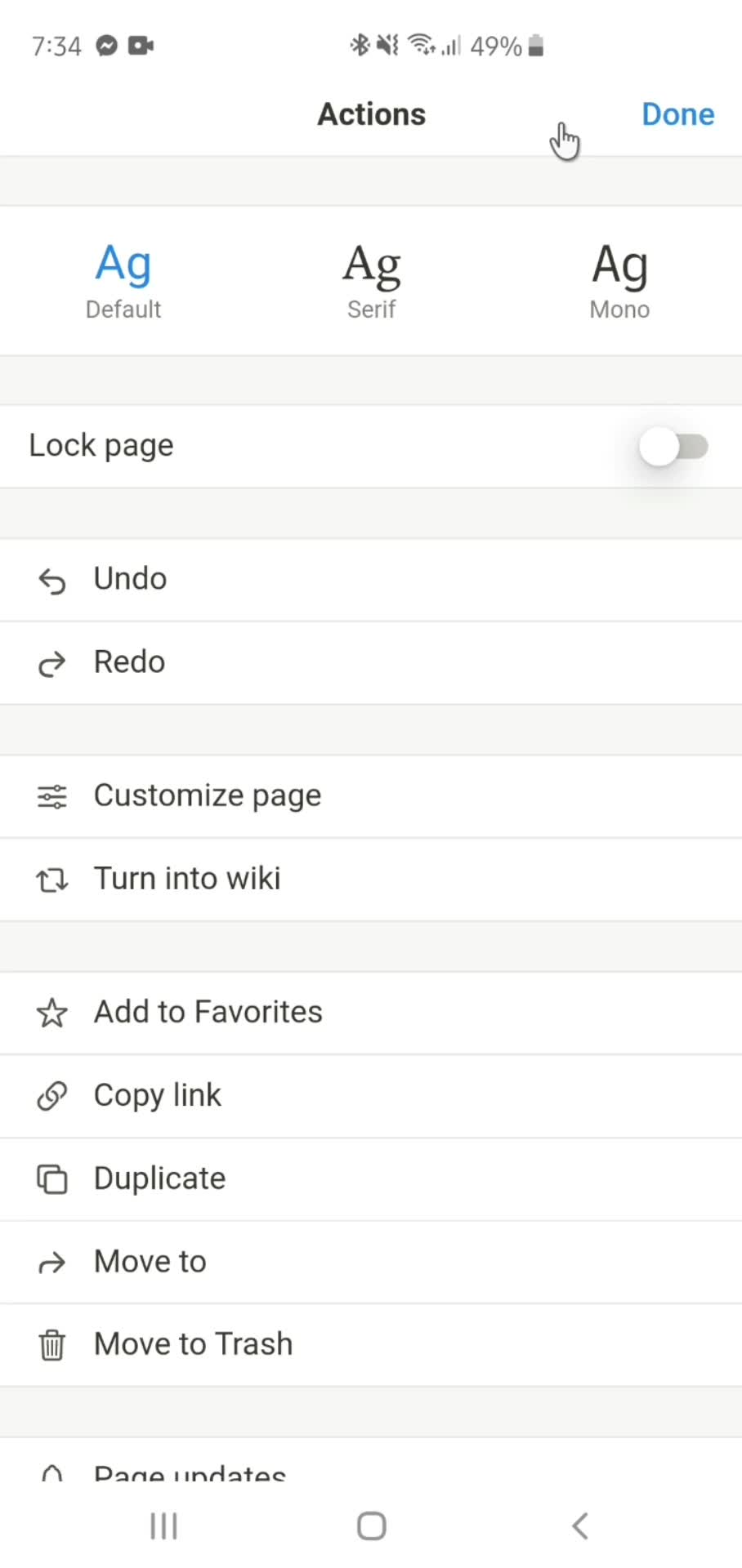
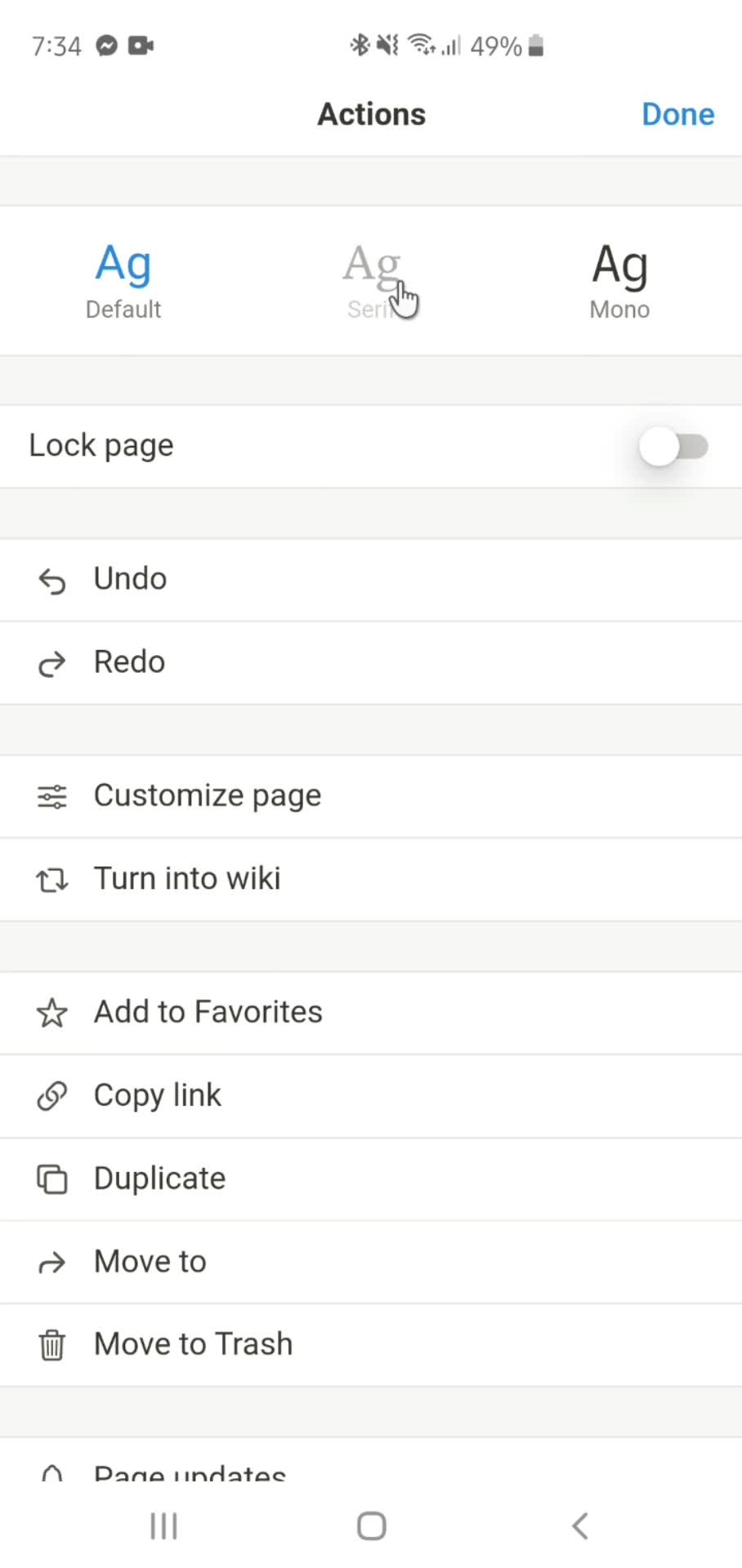
Actions
this is title
Select font
this is title
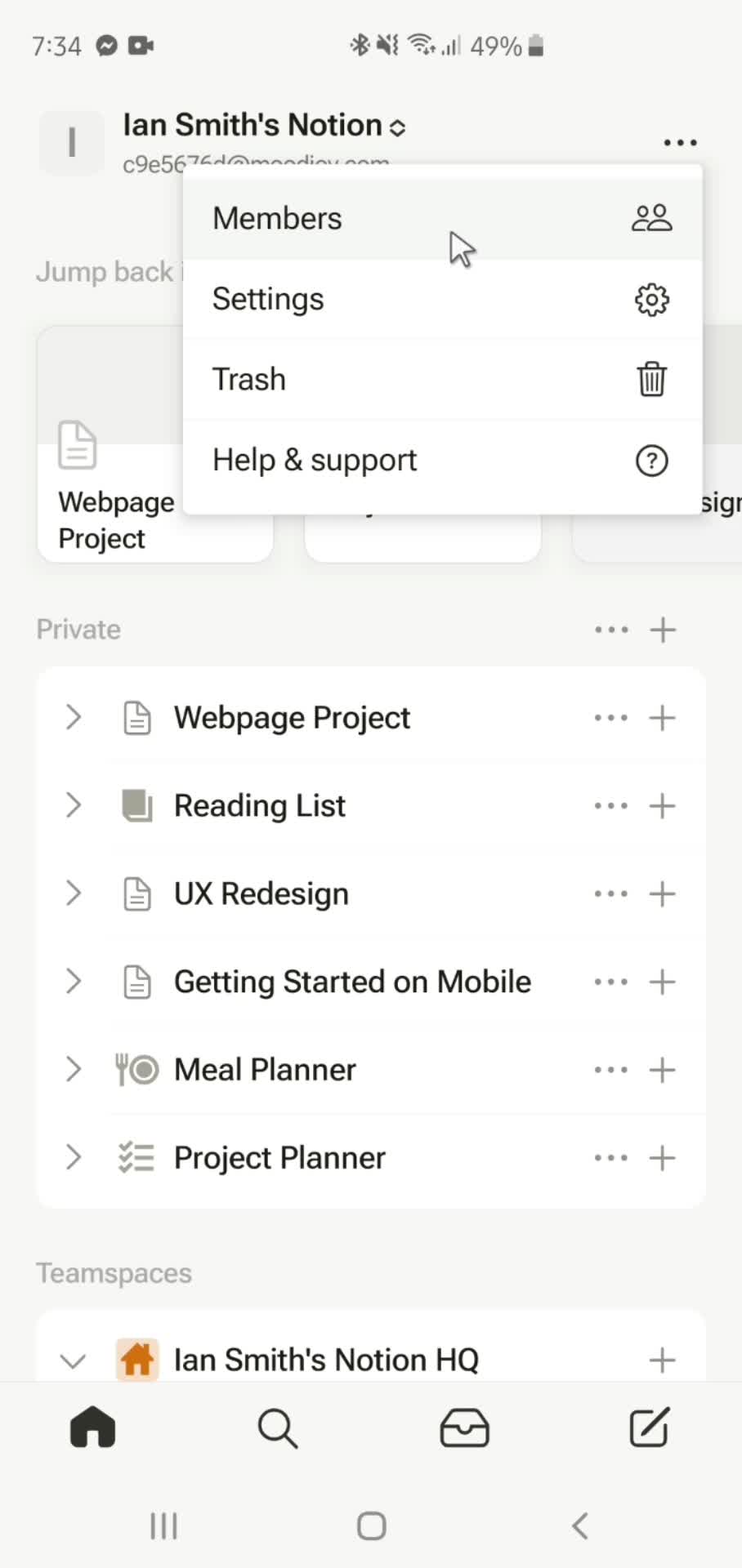
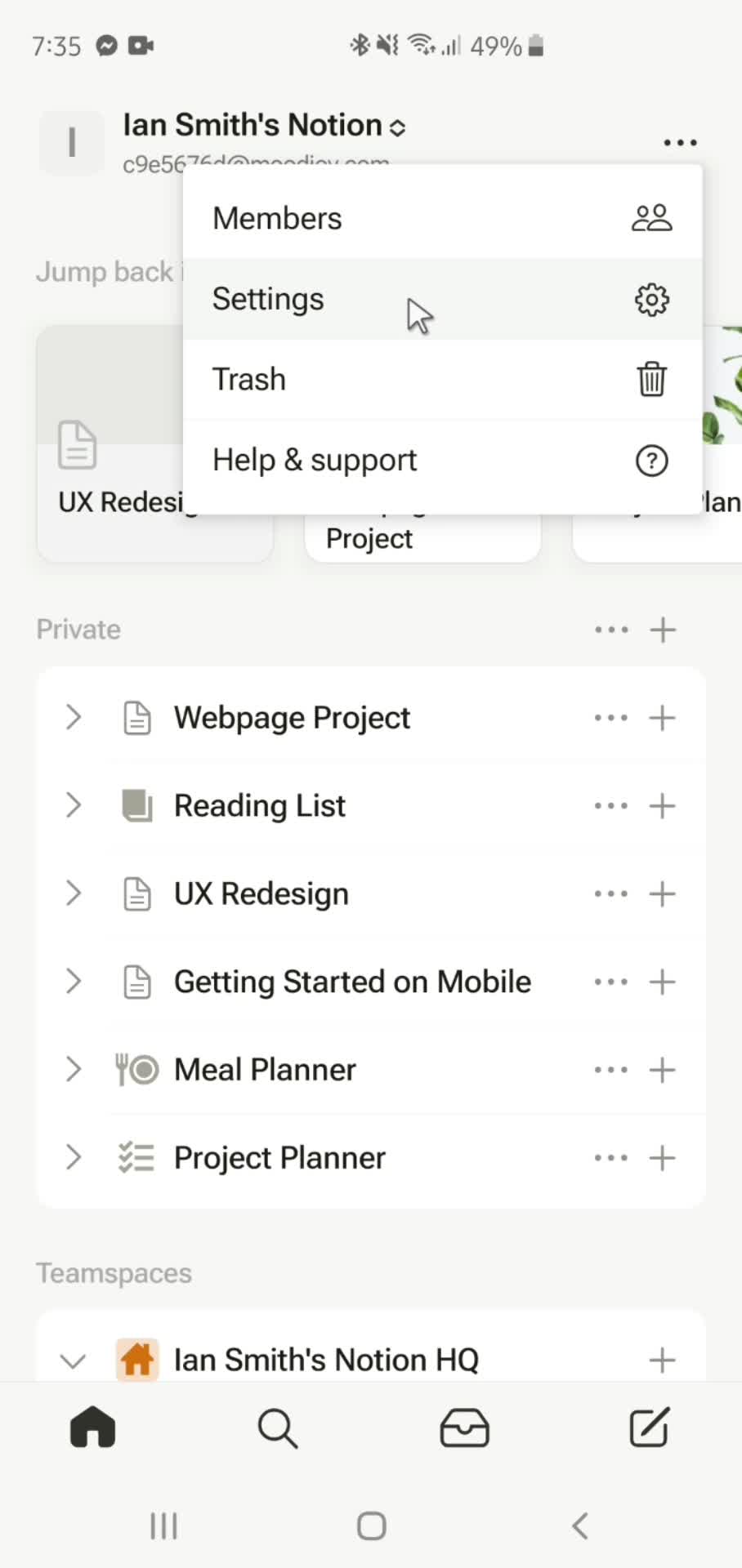
Action menu
this is title
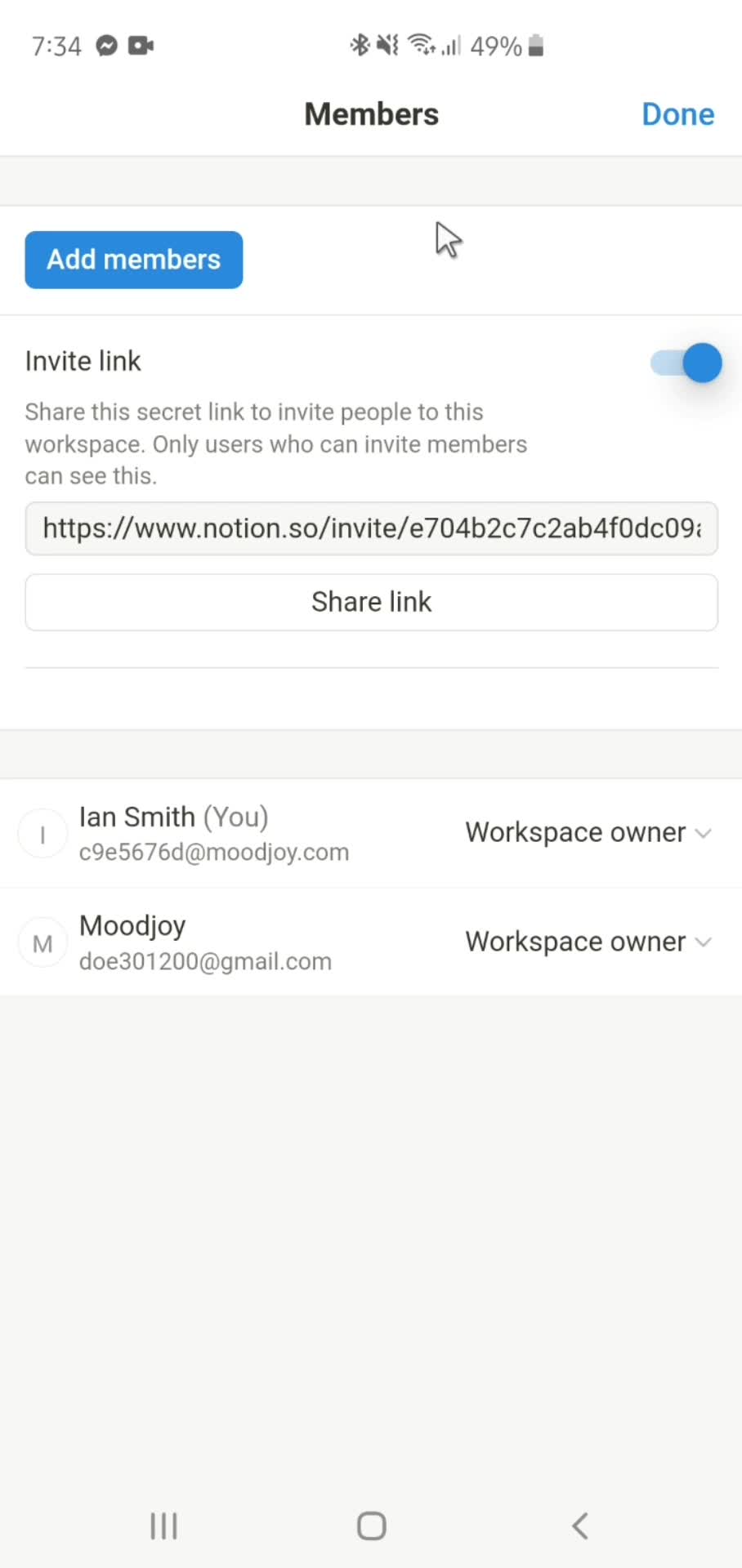
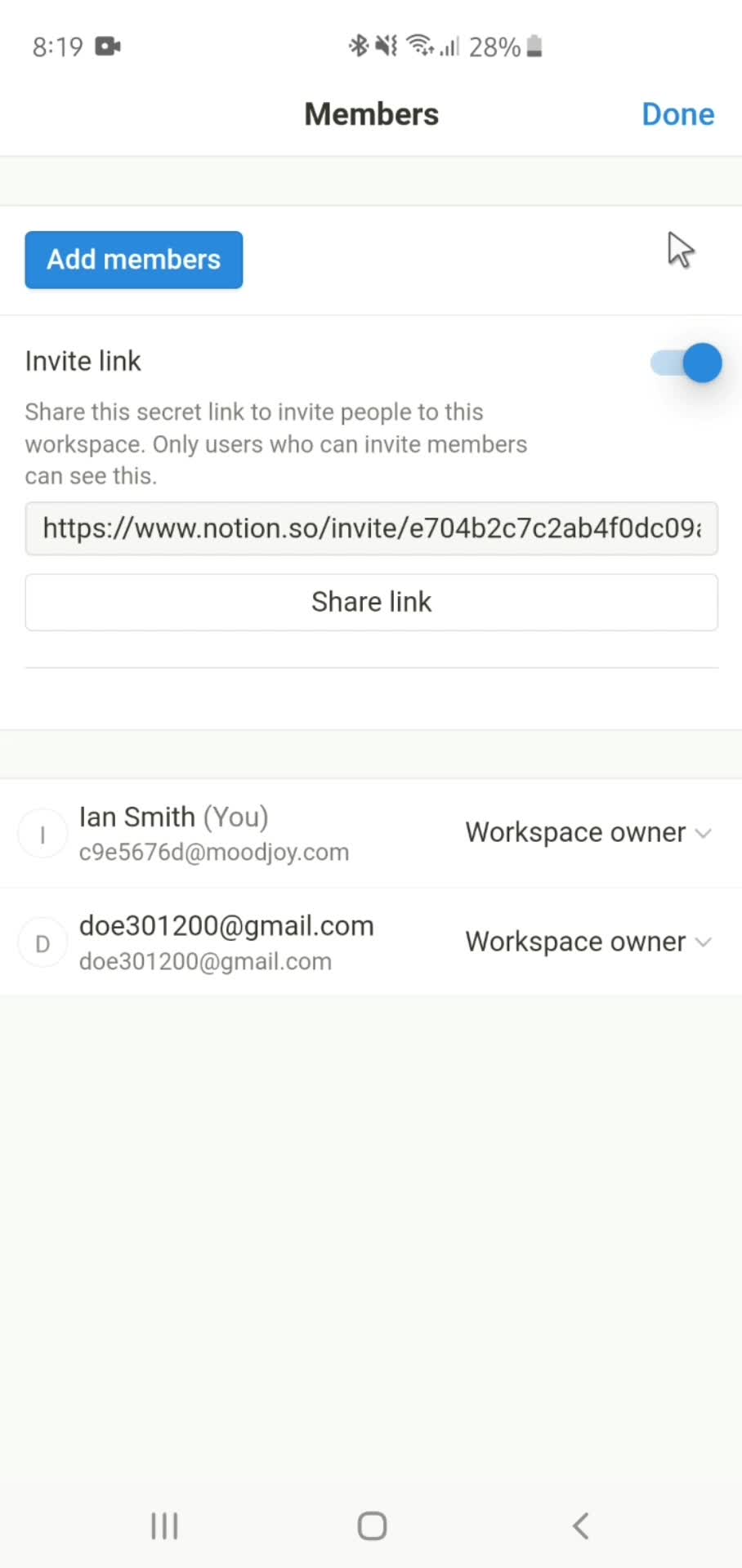
Members
this is title
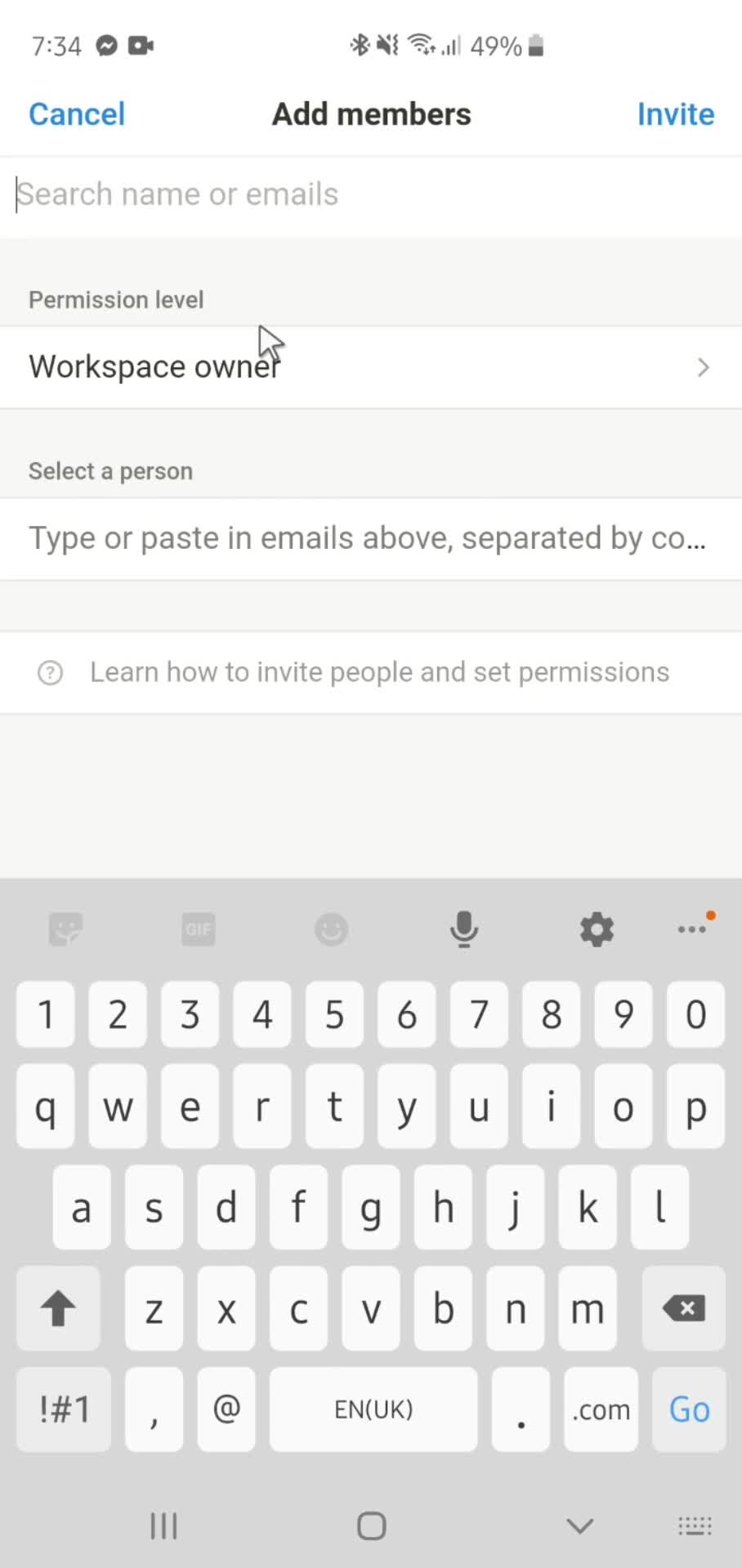
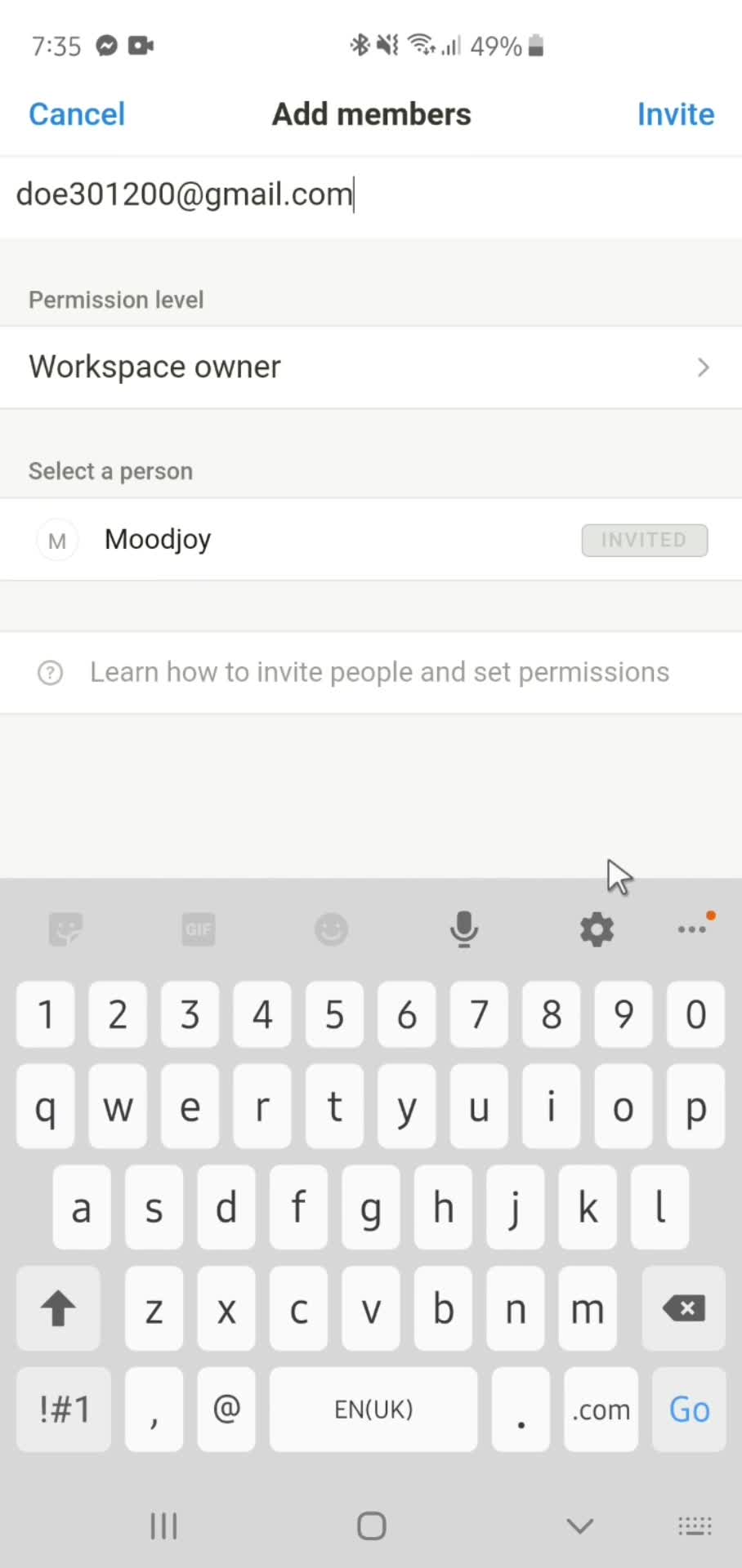
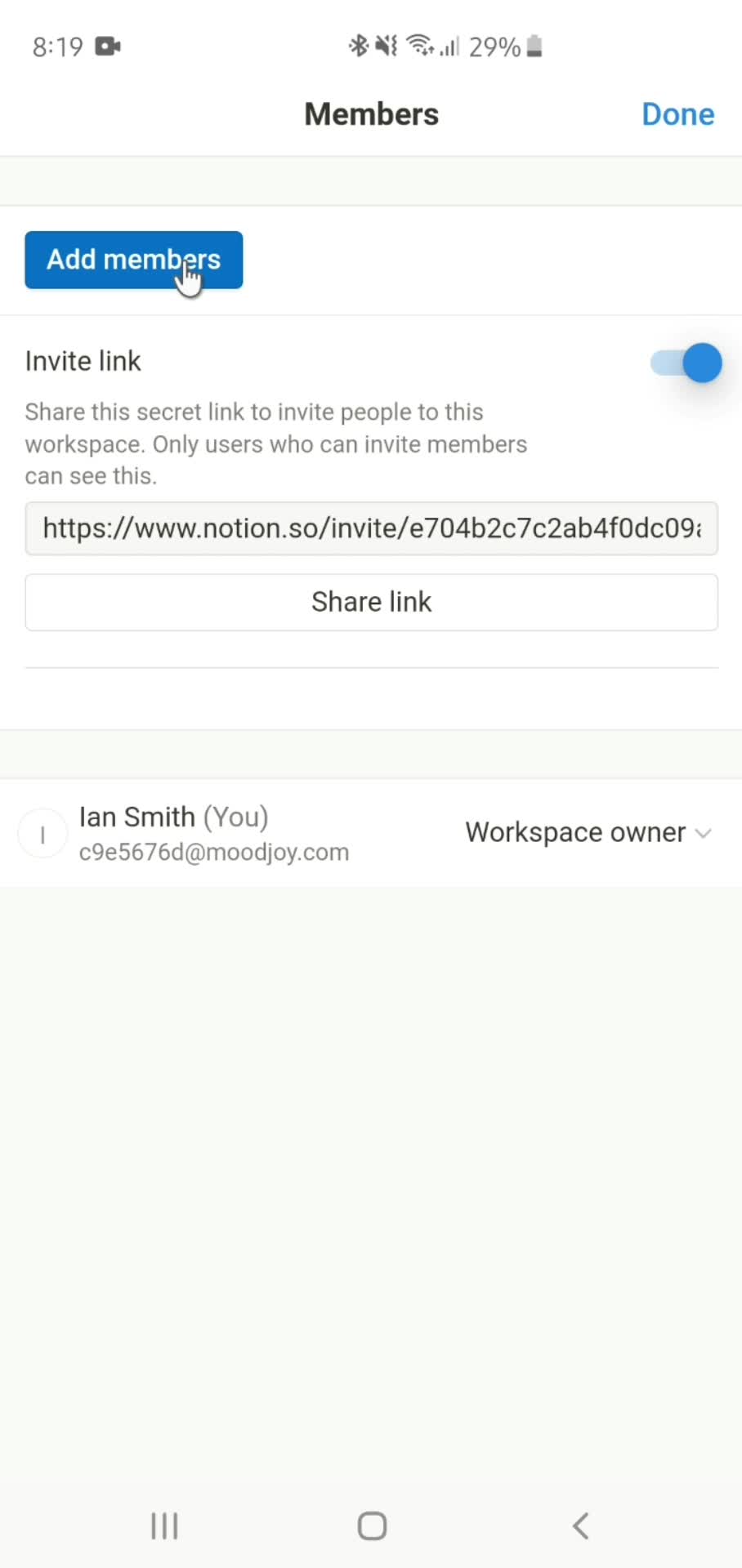
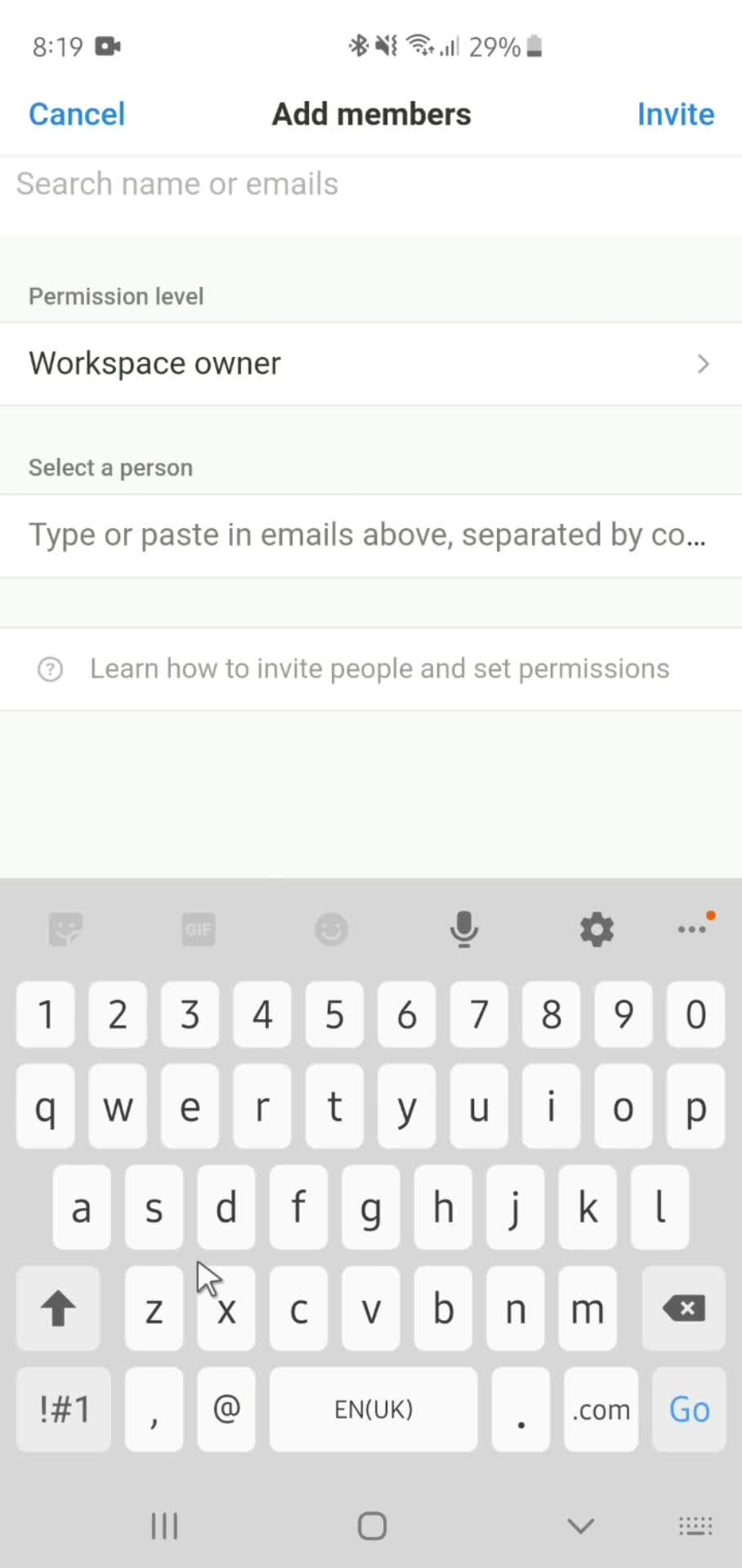
Add members
this is title
this is title
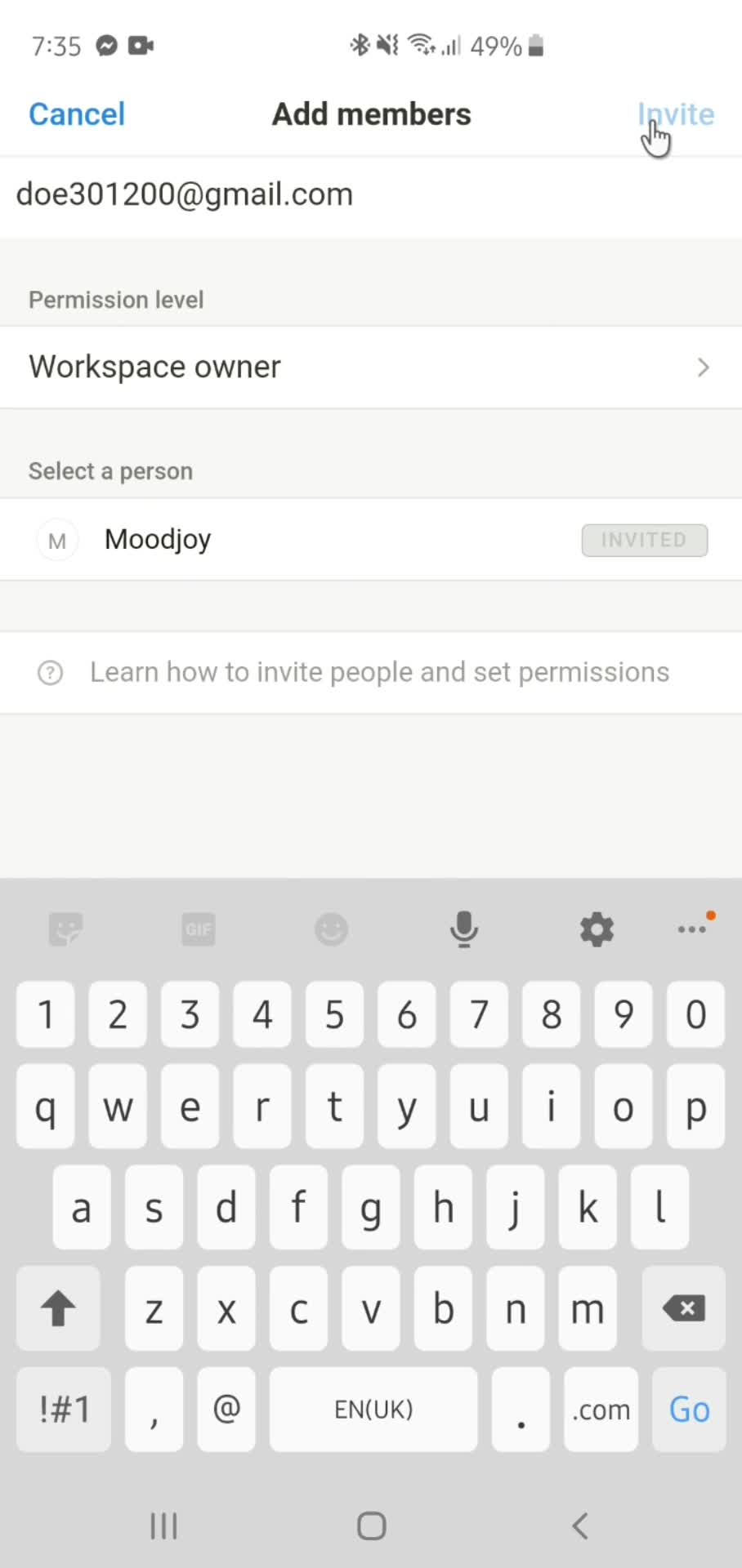
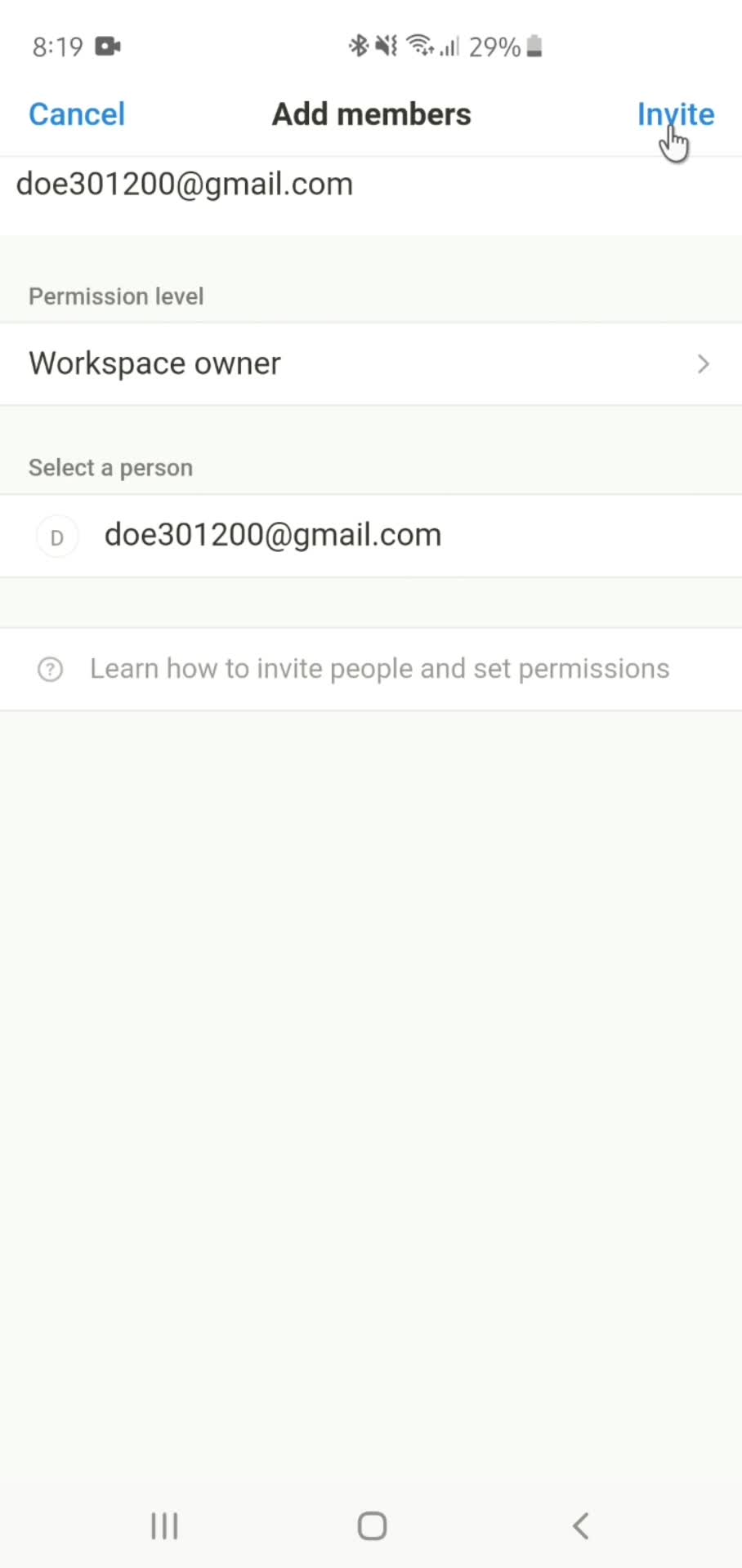
Send invite
this is title
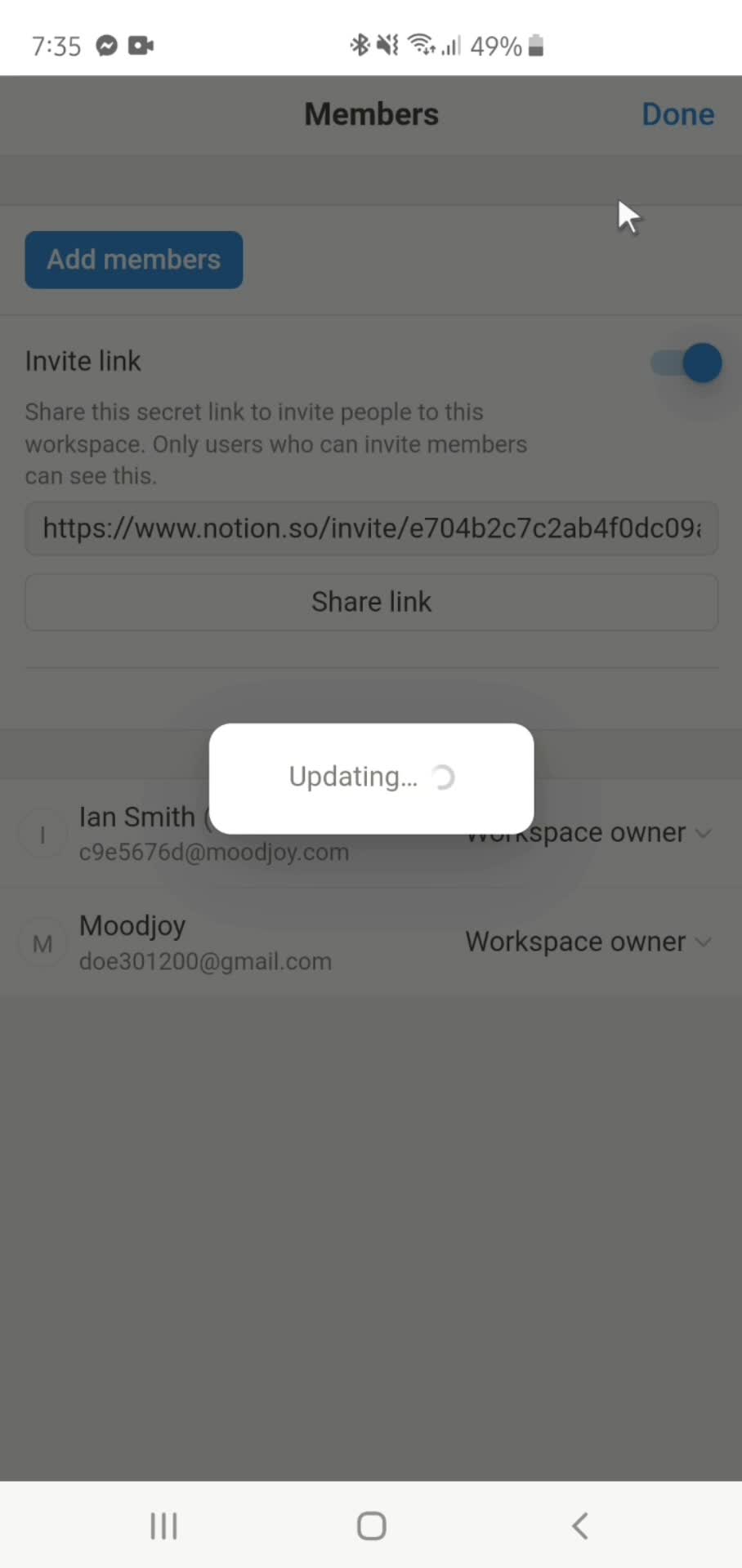
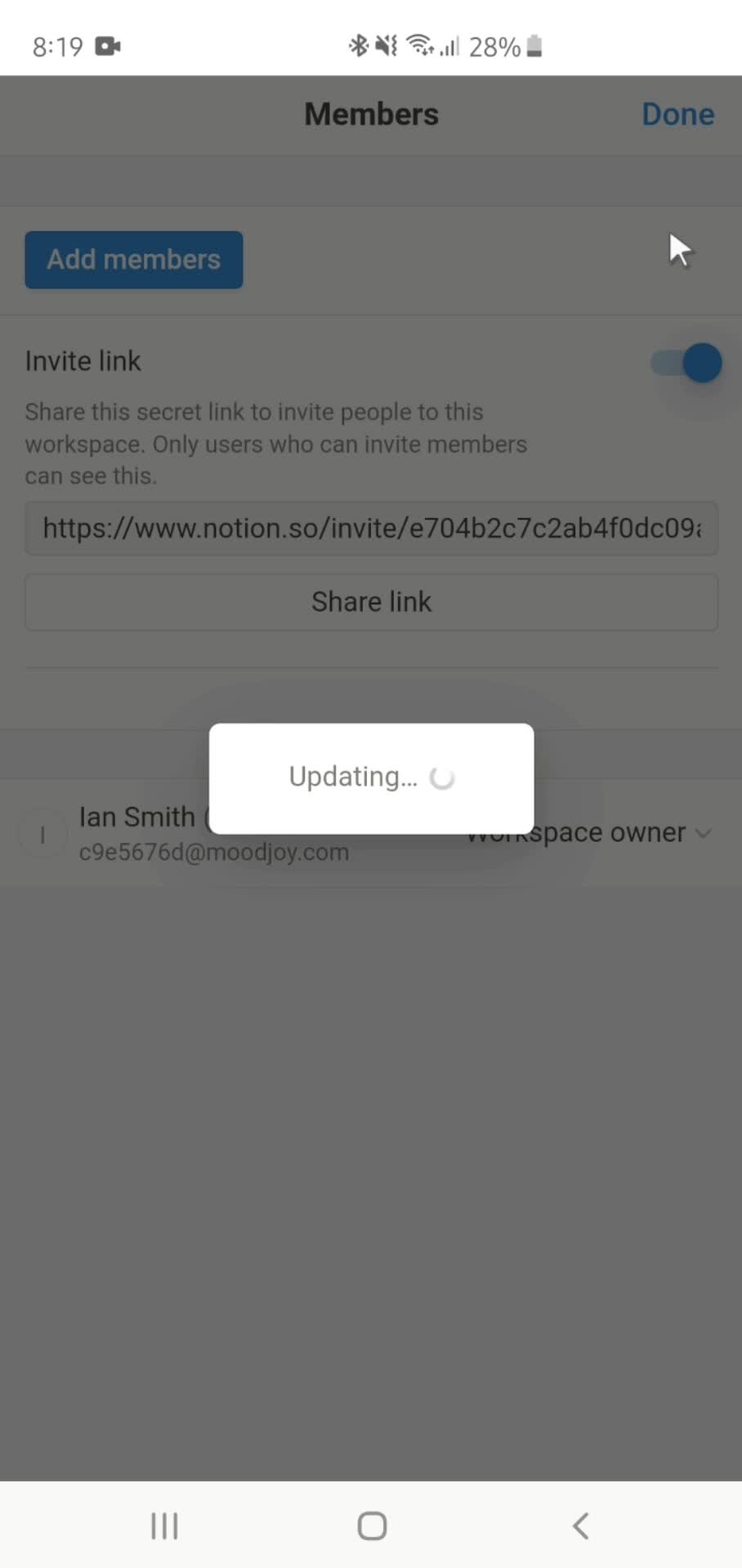
Updating
this is title
Action menu
this is title
Settings
this is title
Preferences
this is title
Change password
this is title
Display settings
this is title
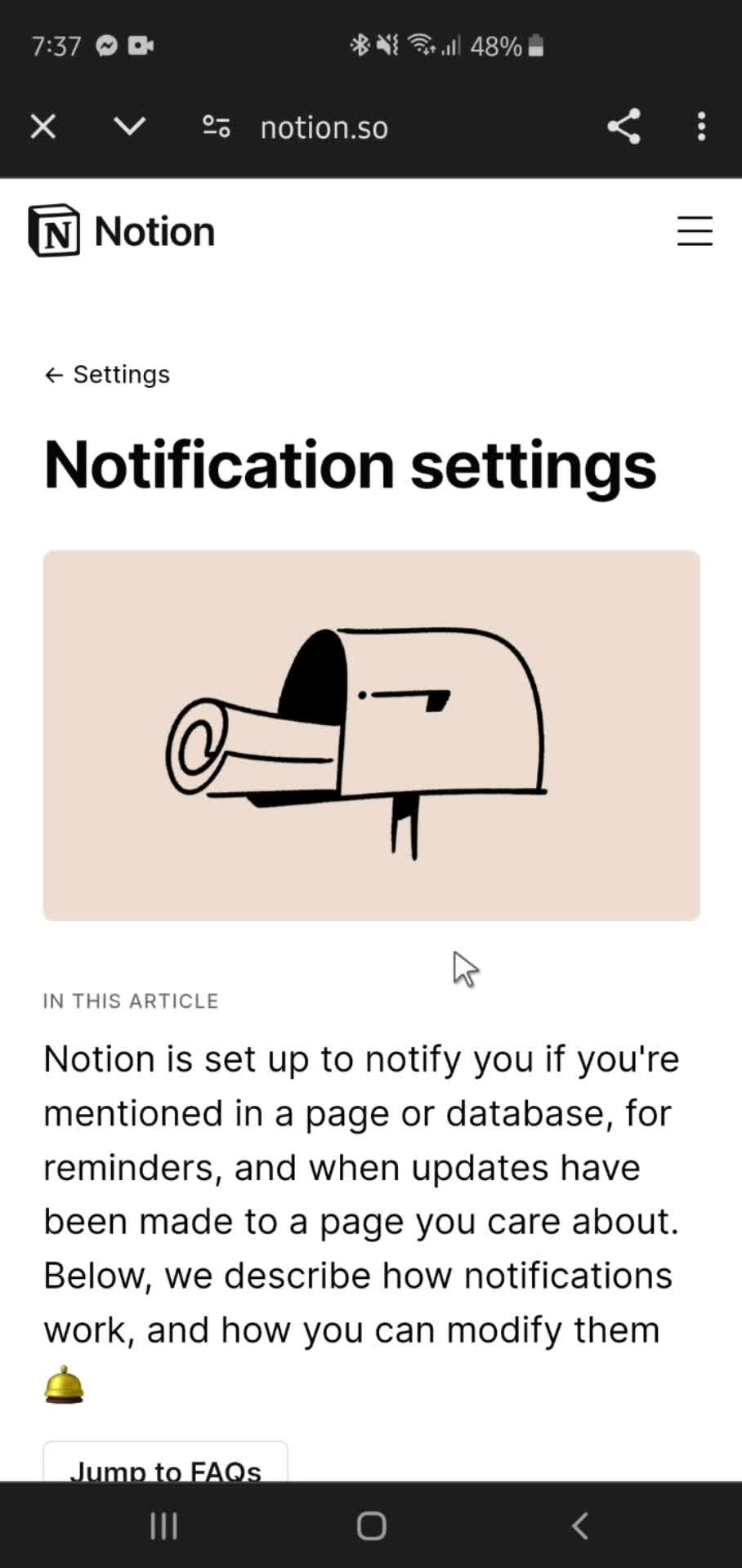
Help center article
this is title
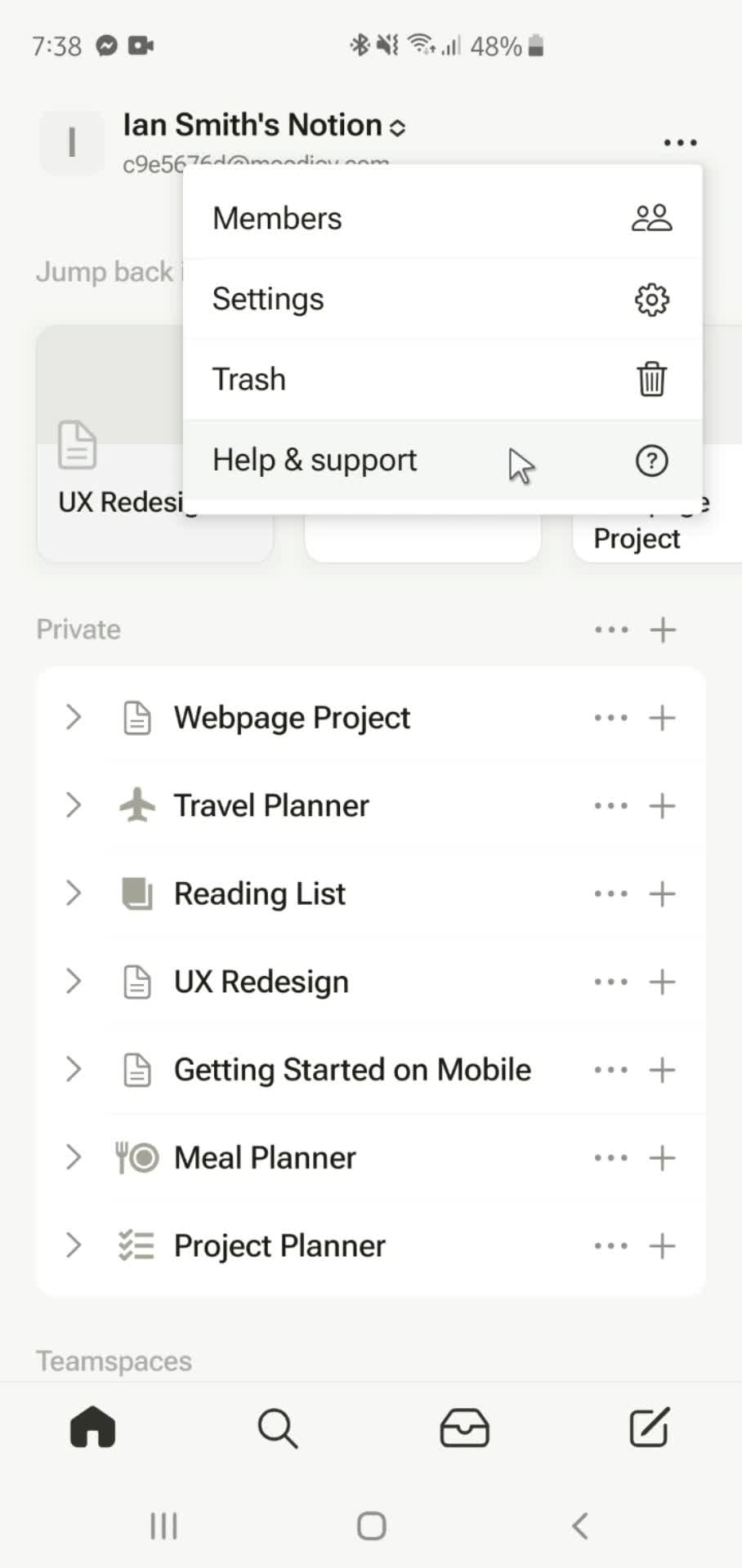
Action menu
this is title
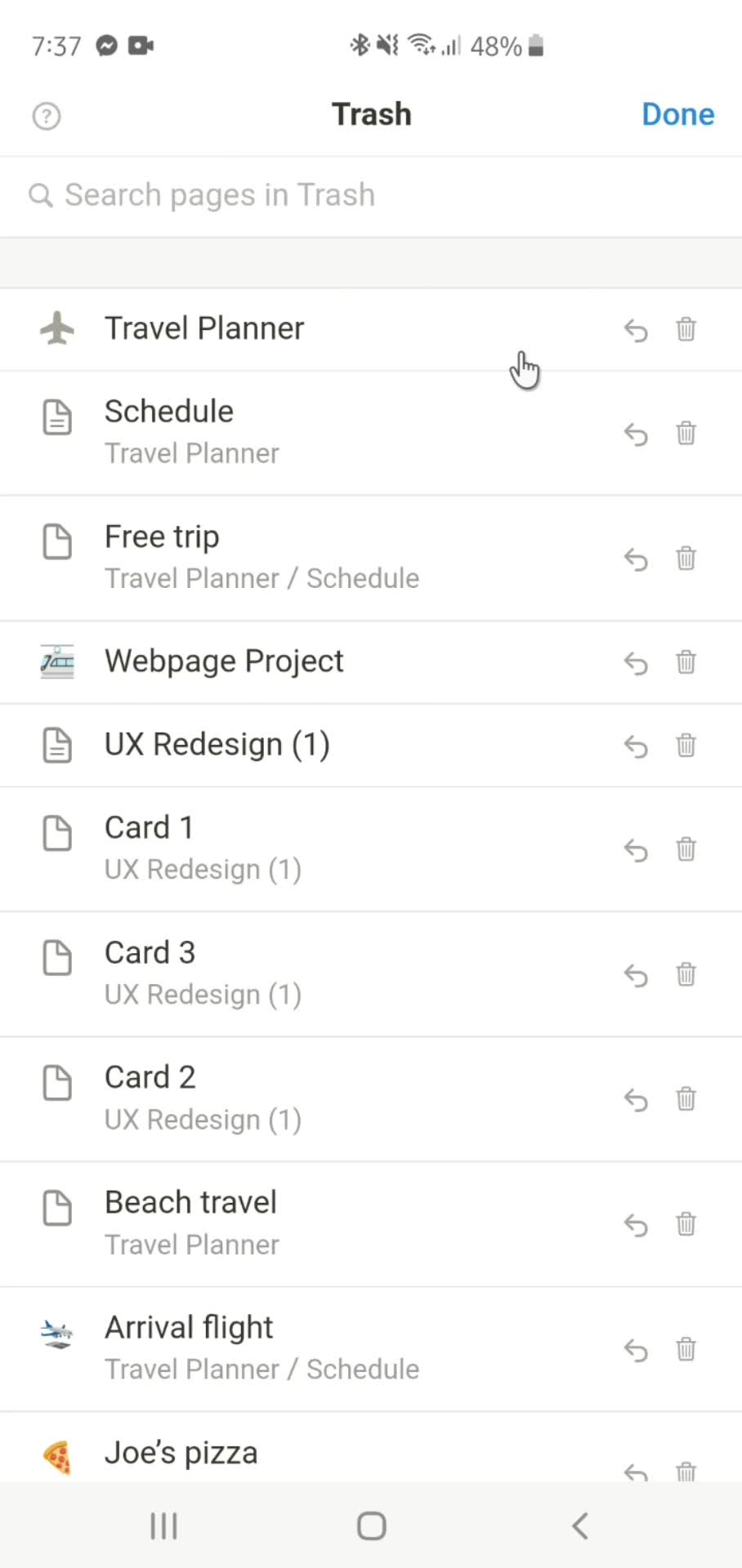
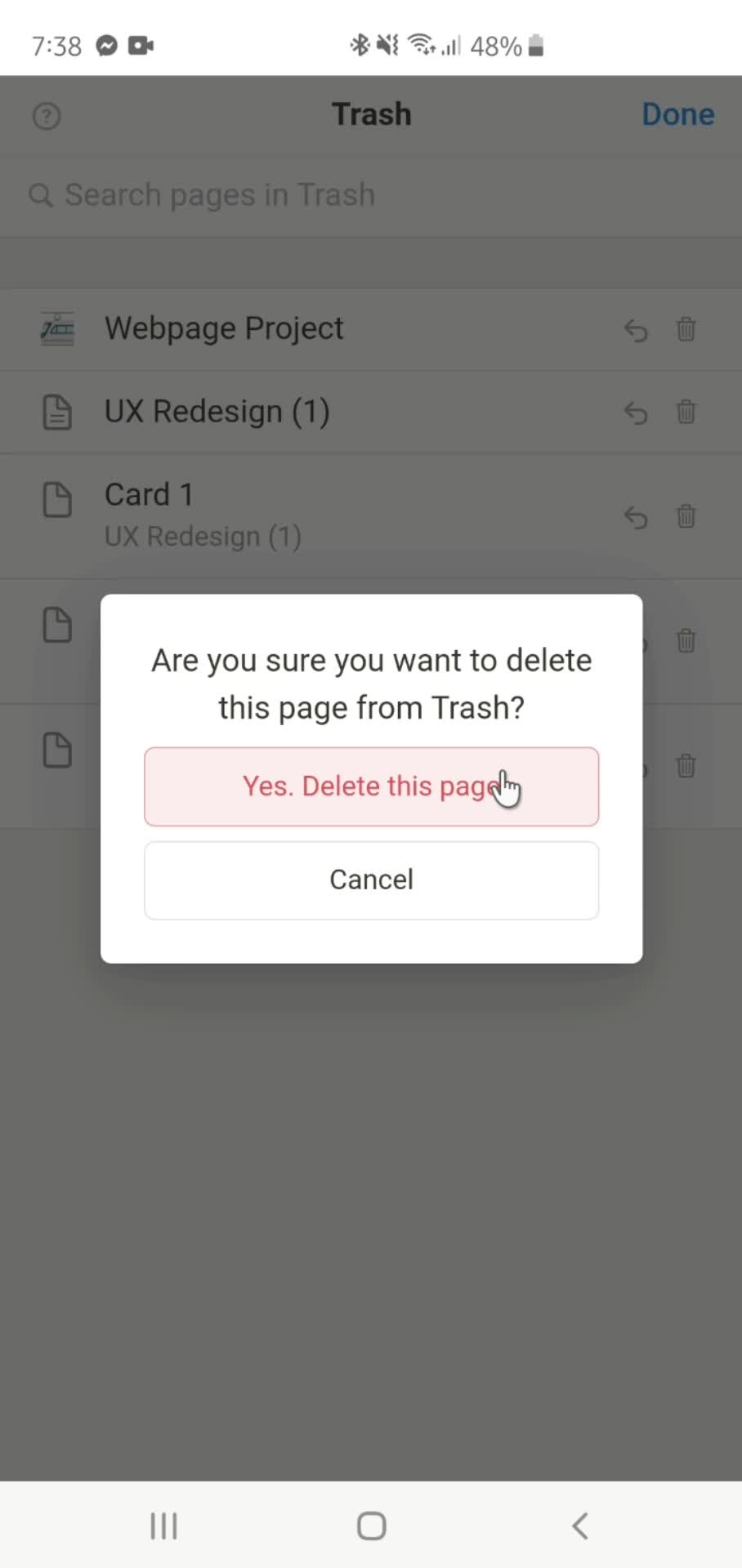
Trash
this is title
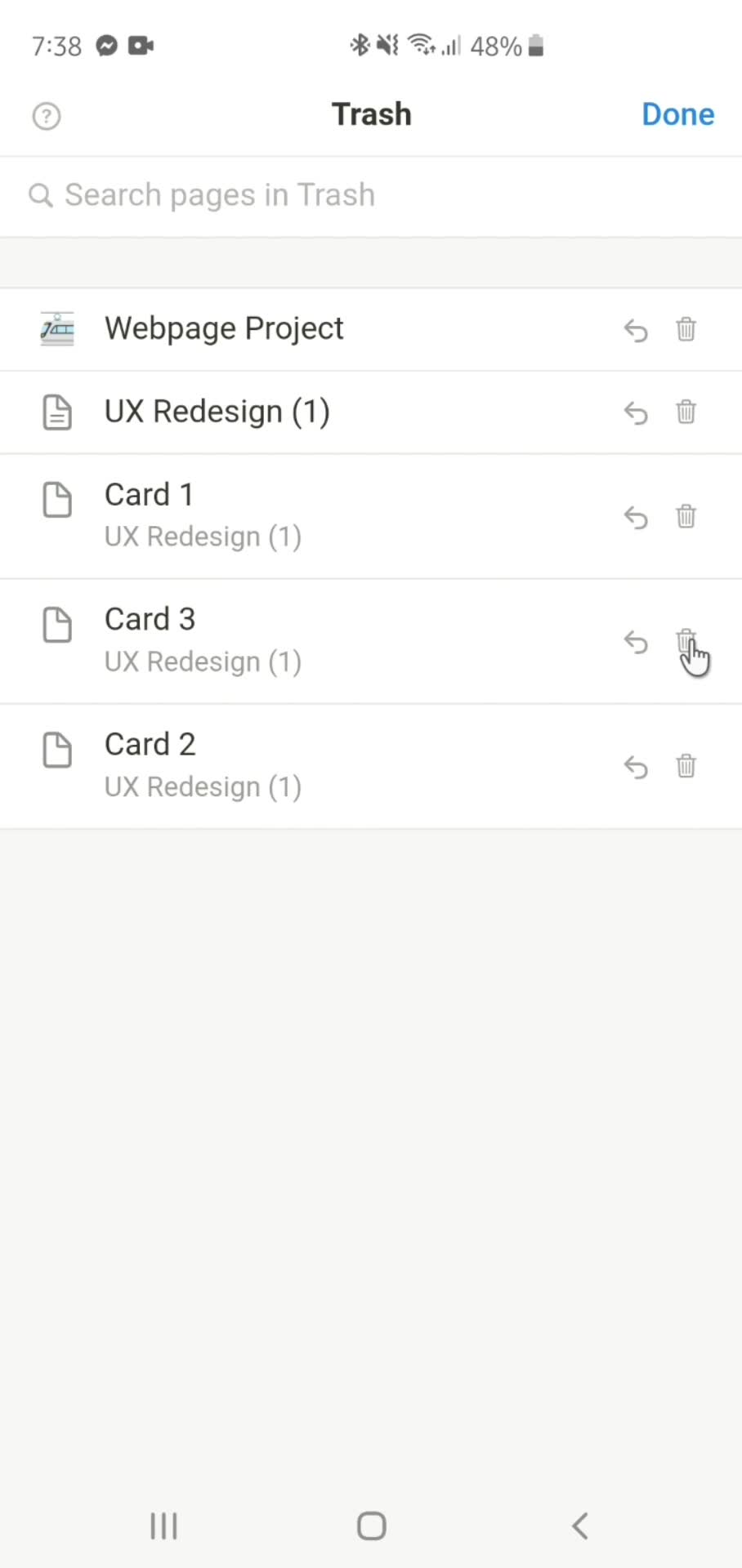
Delete
this is title
Confirm delete
this is title
Action menu
this is title
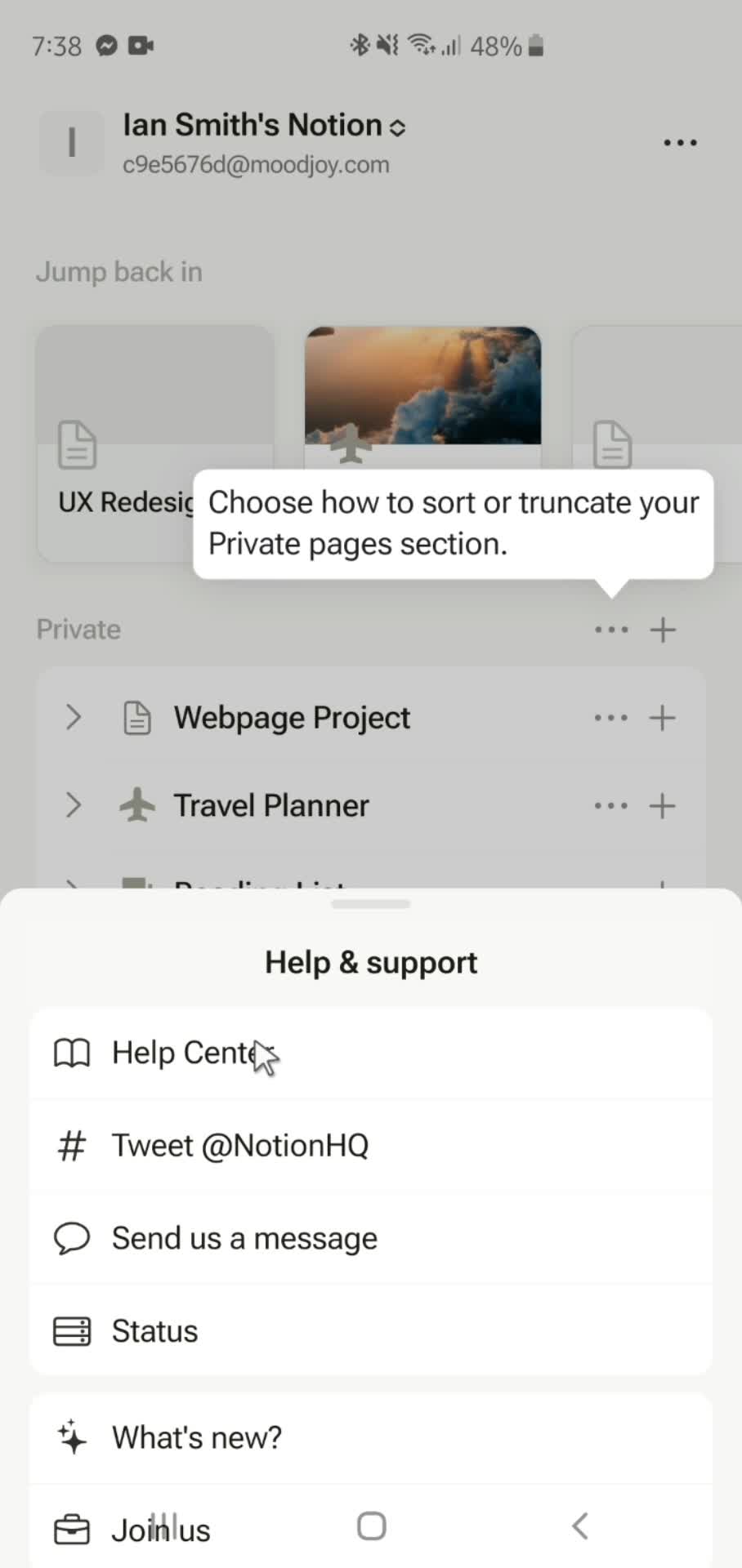
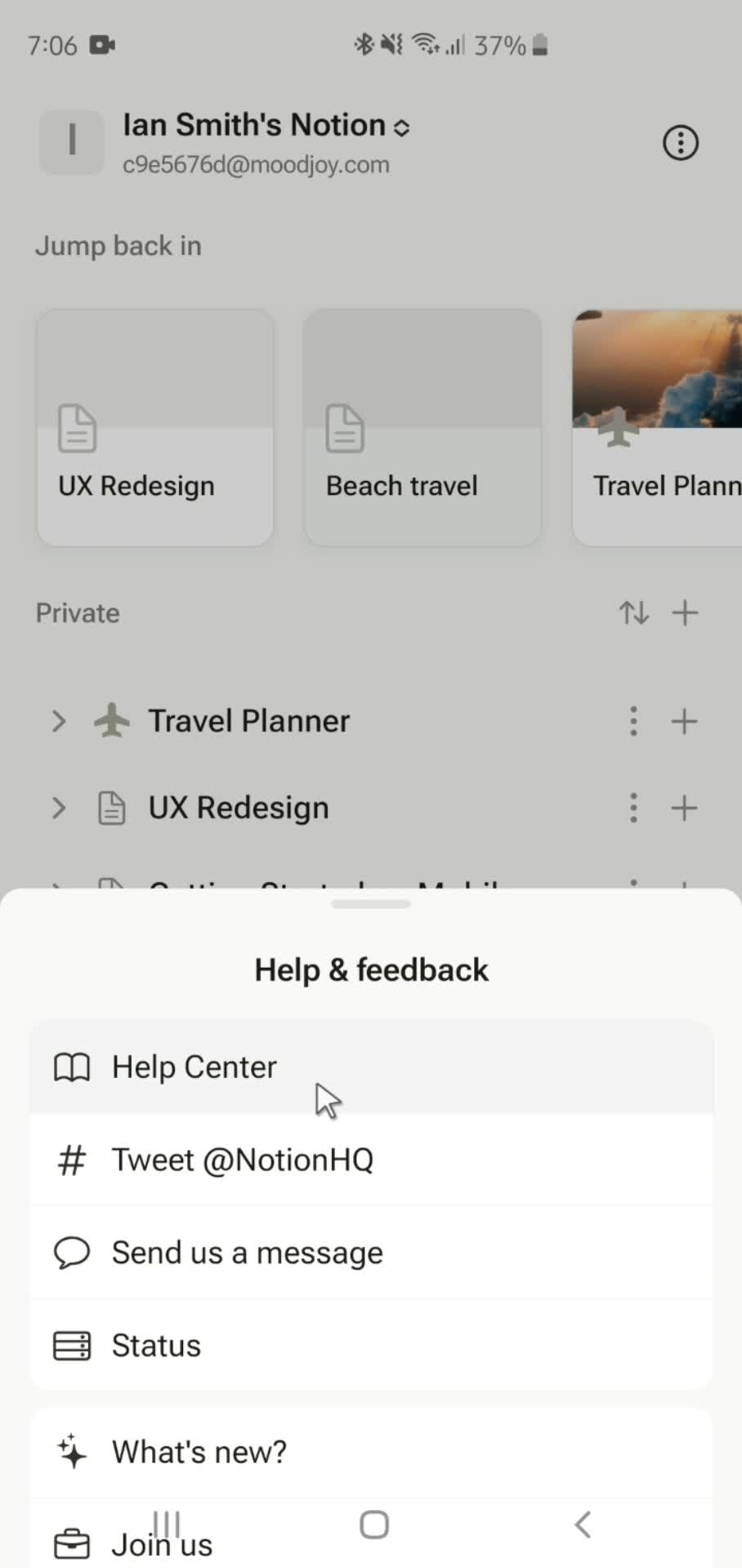
Help center
this is title
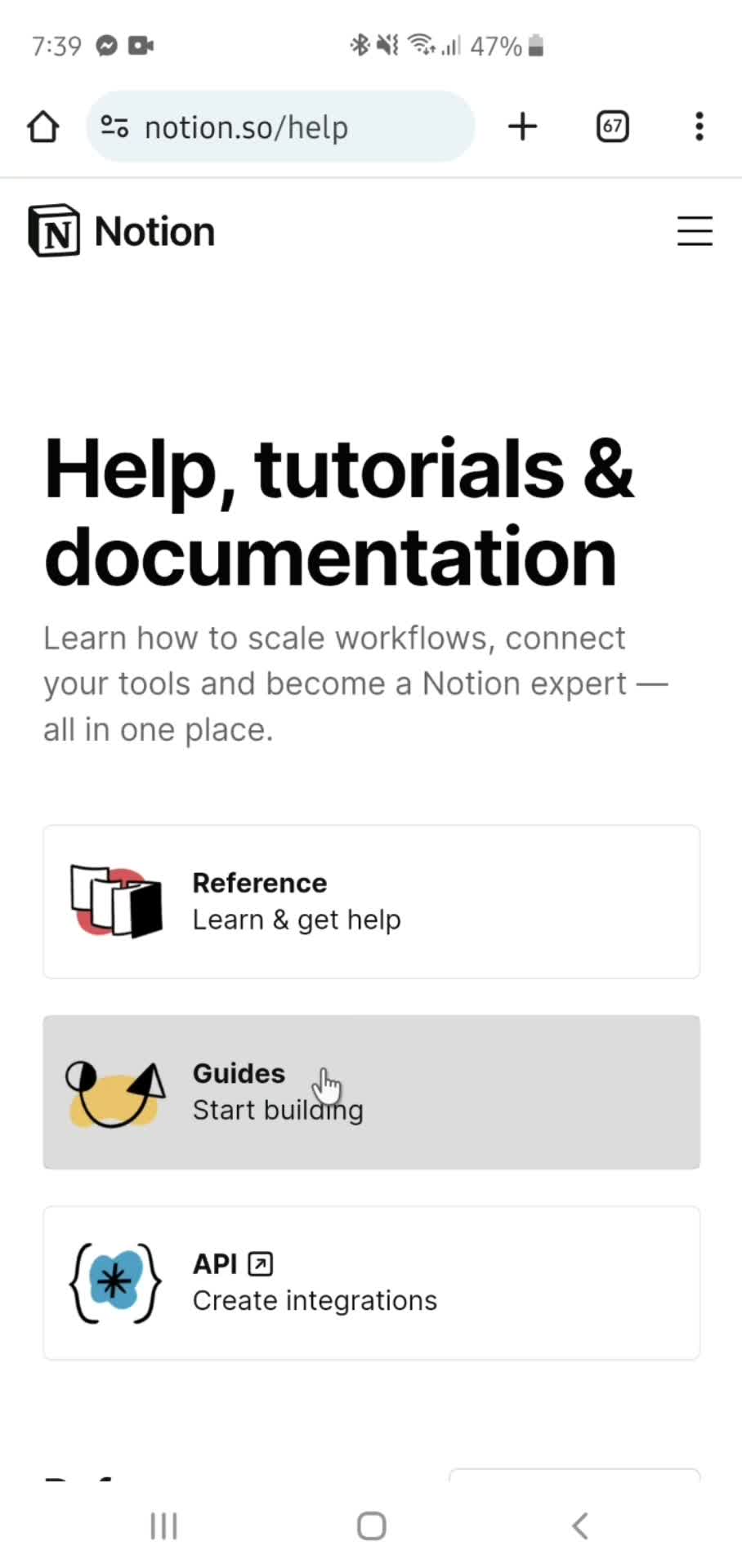
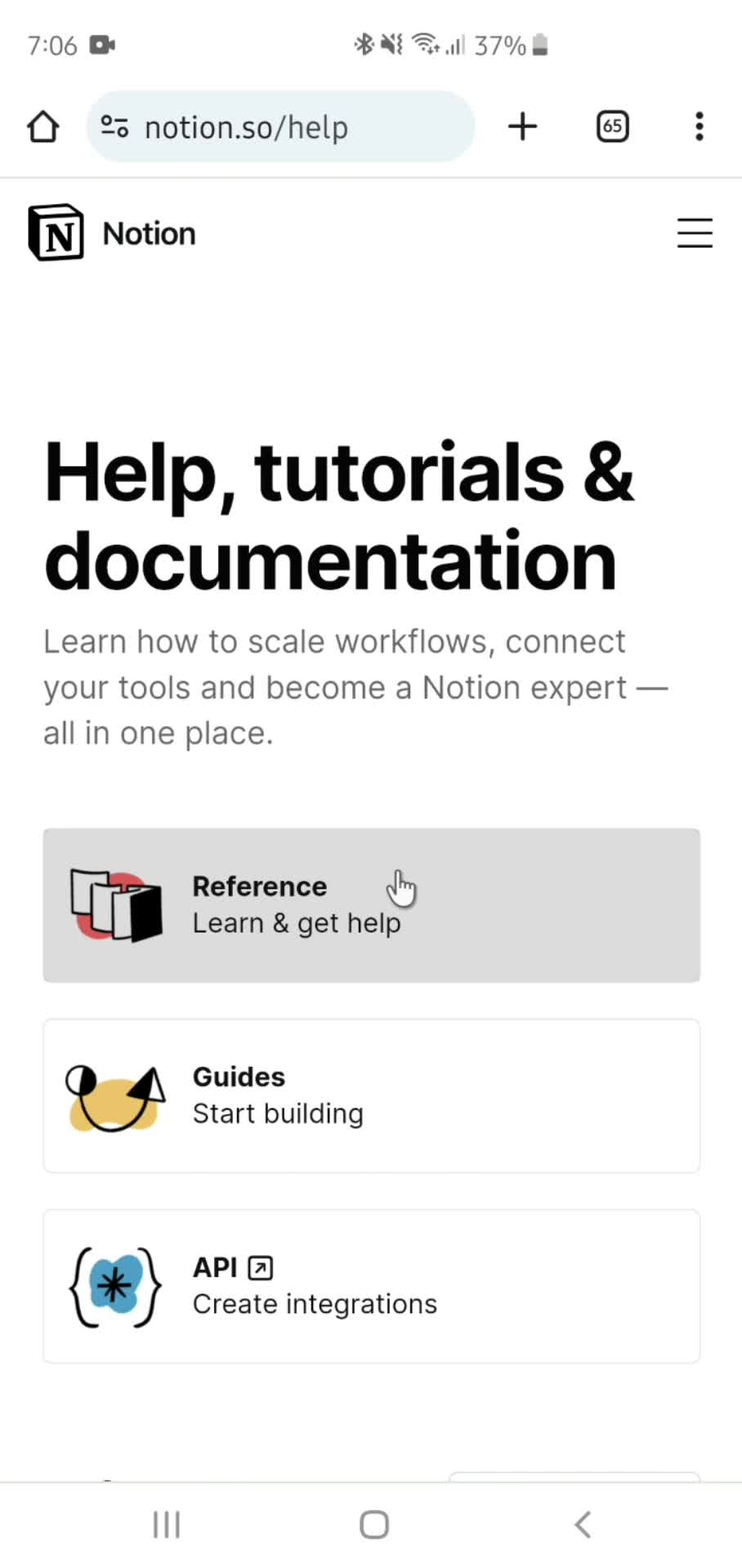
Help center categories
this is title
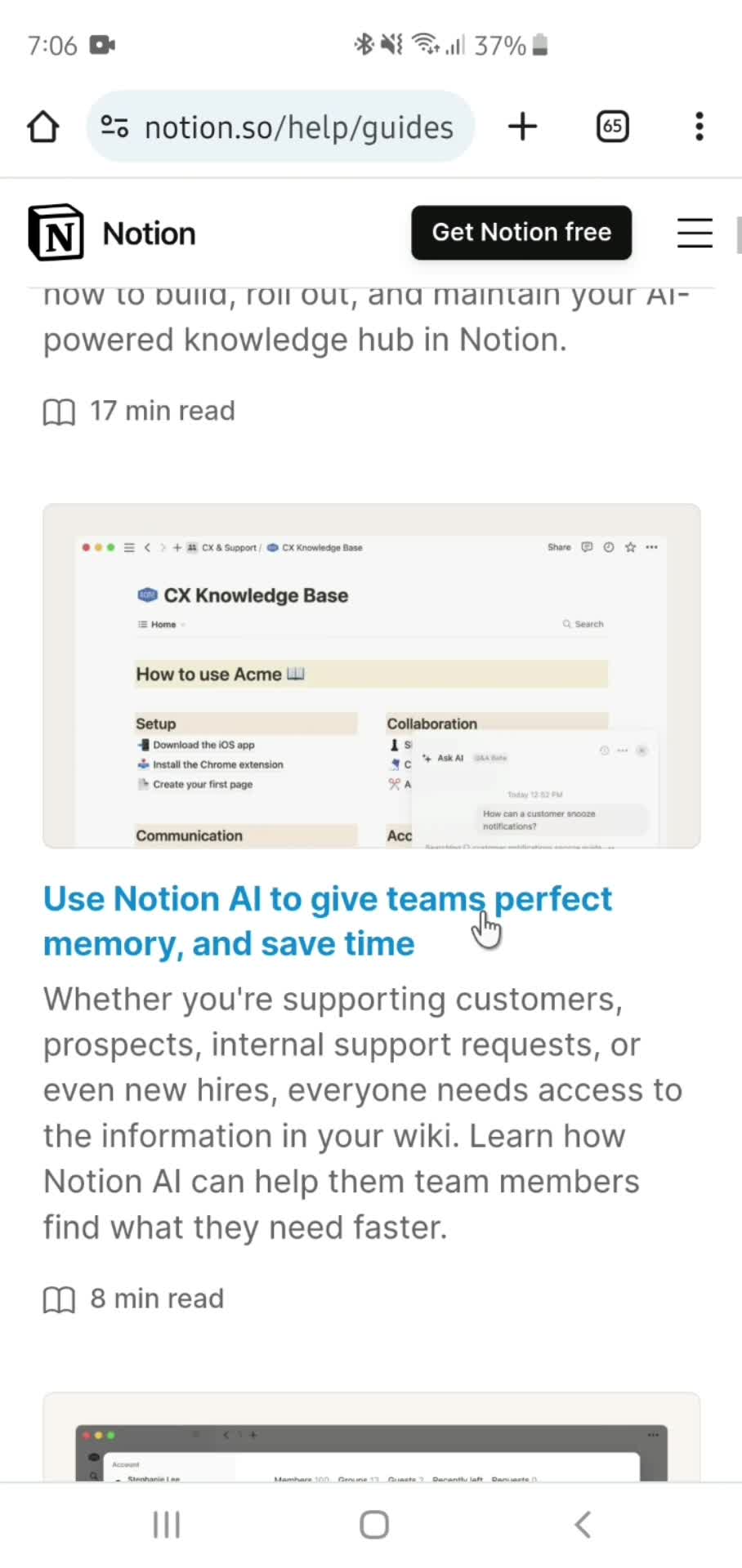
Help center article
this is title
Accounts
this is title
Add account
this is title
Log in
this is title
Accounts
this is title
Switch account
this is title
Home
this is title
Action menu
this is title
Help center
this is title
Help center categories
this is title
Help center article
this is title
Help center categories
this is title
Help center article
this is title
Home
this is title
Action menu
this is title
Members
this is title
Add members
this is title
Send invite
this is title
Updating
this is title
Invite sent
this is title
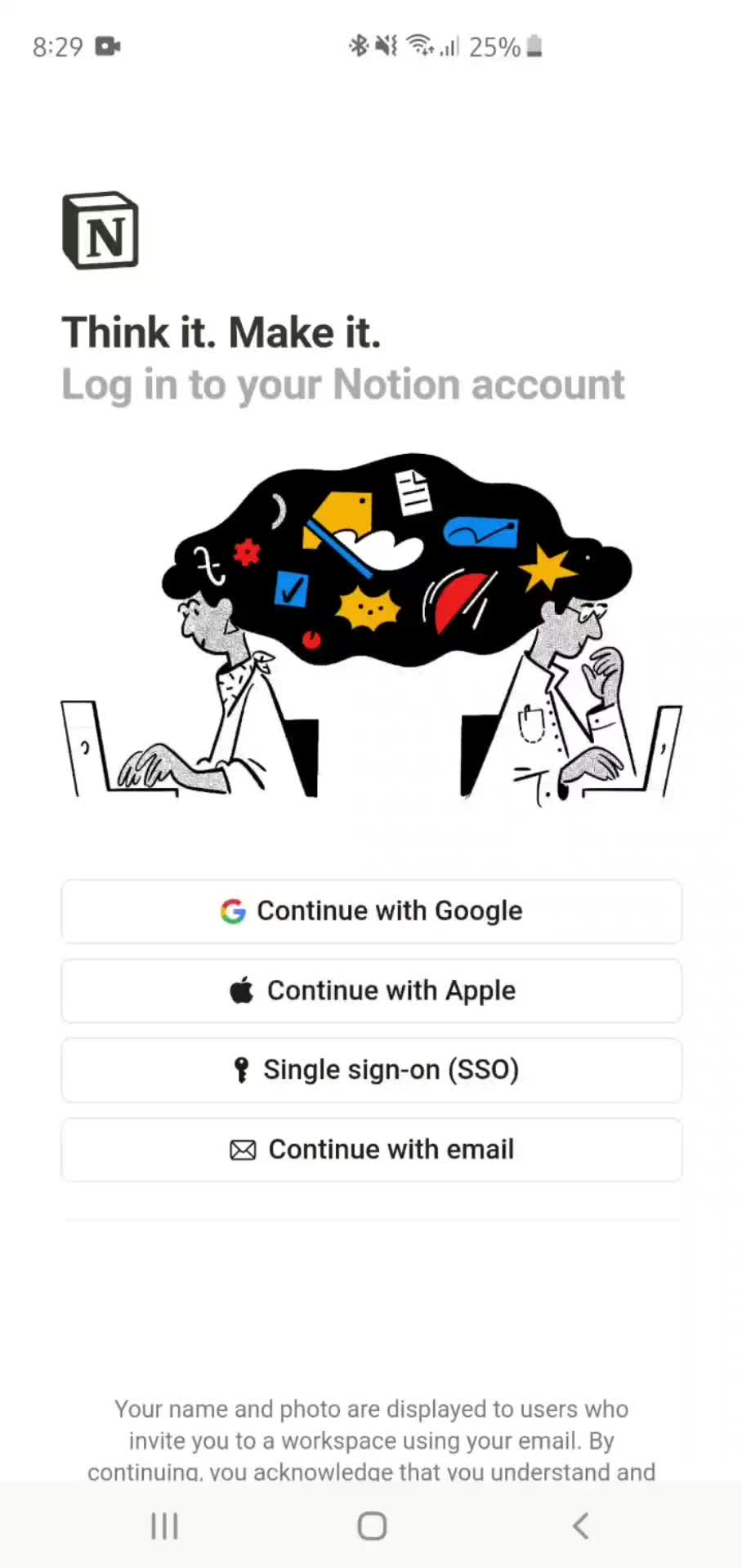
Log in
this is title
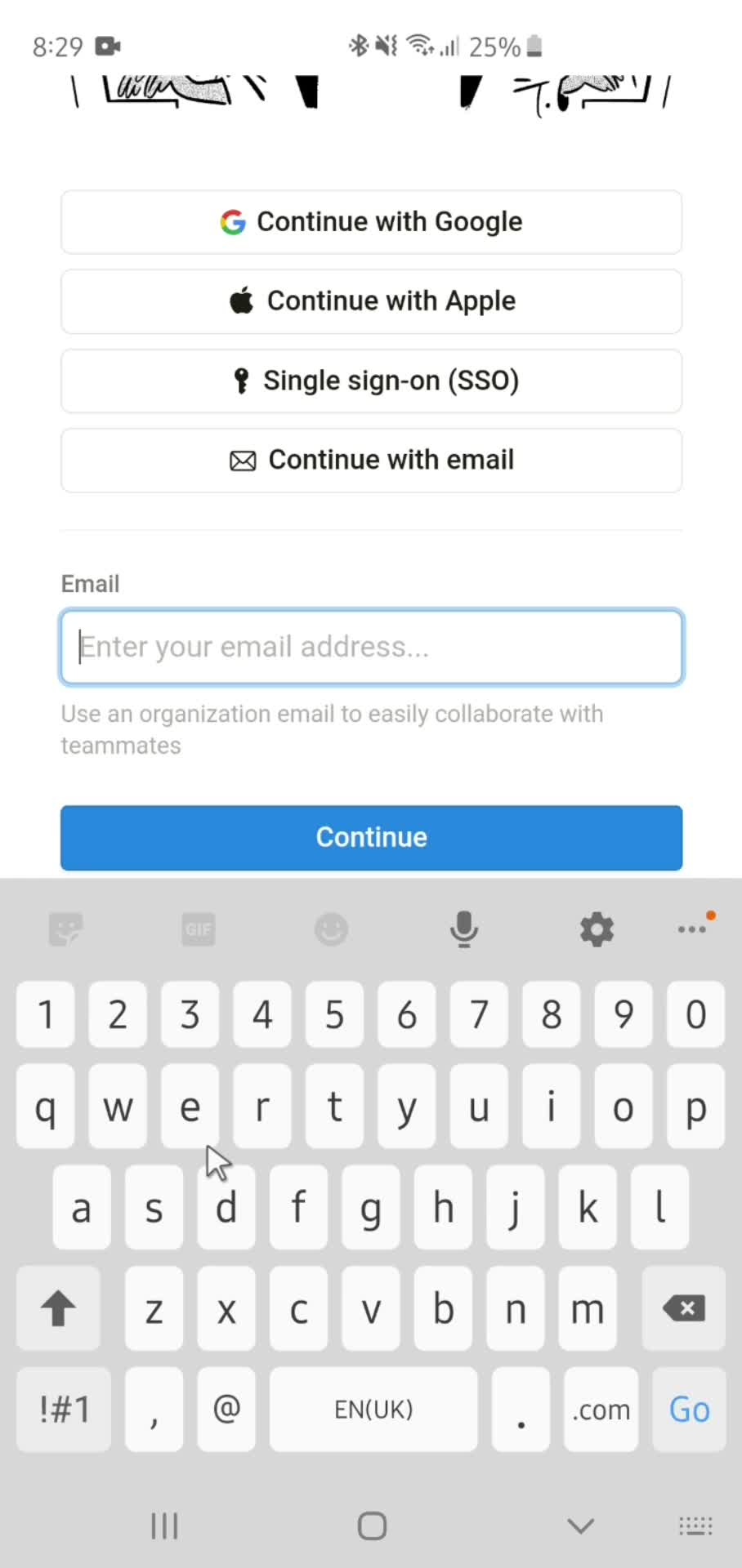
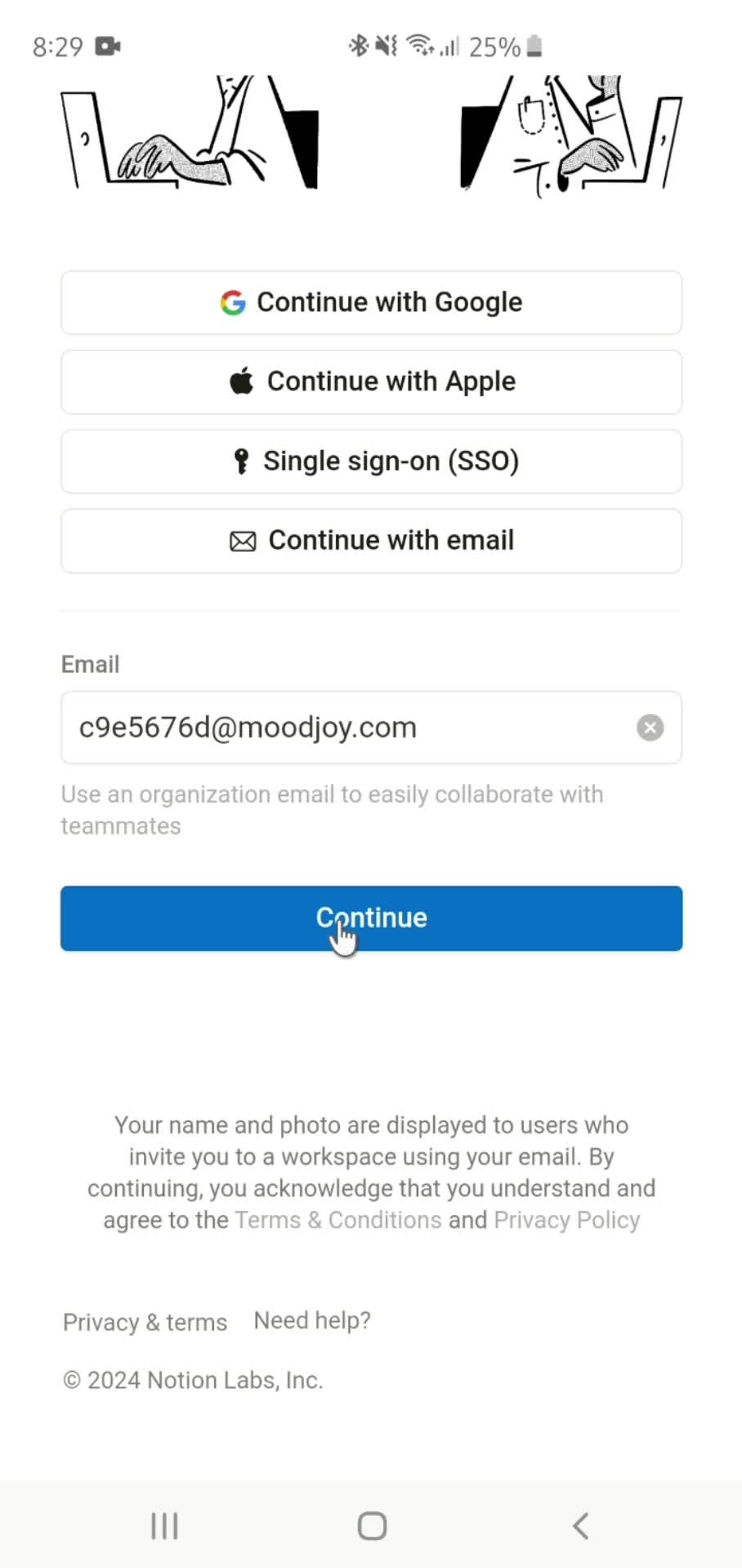
Enter email
this is title
this is title
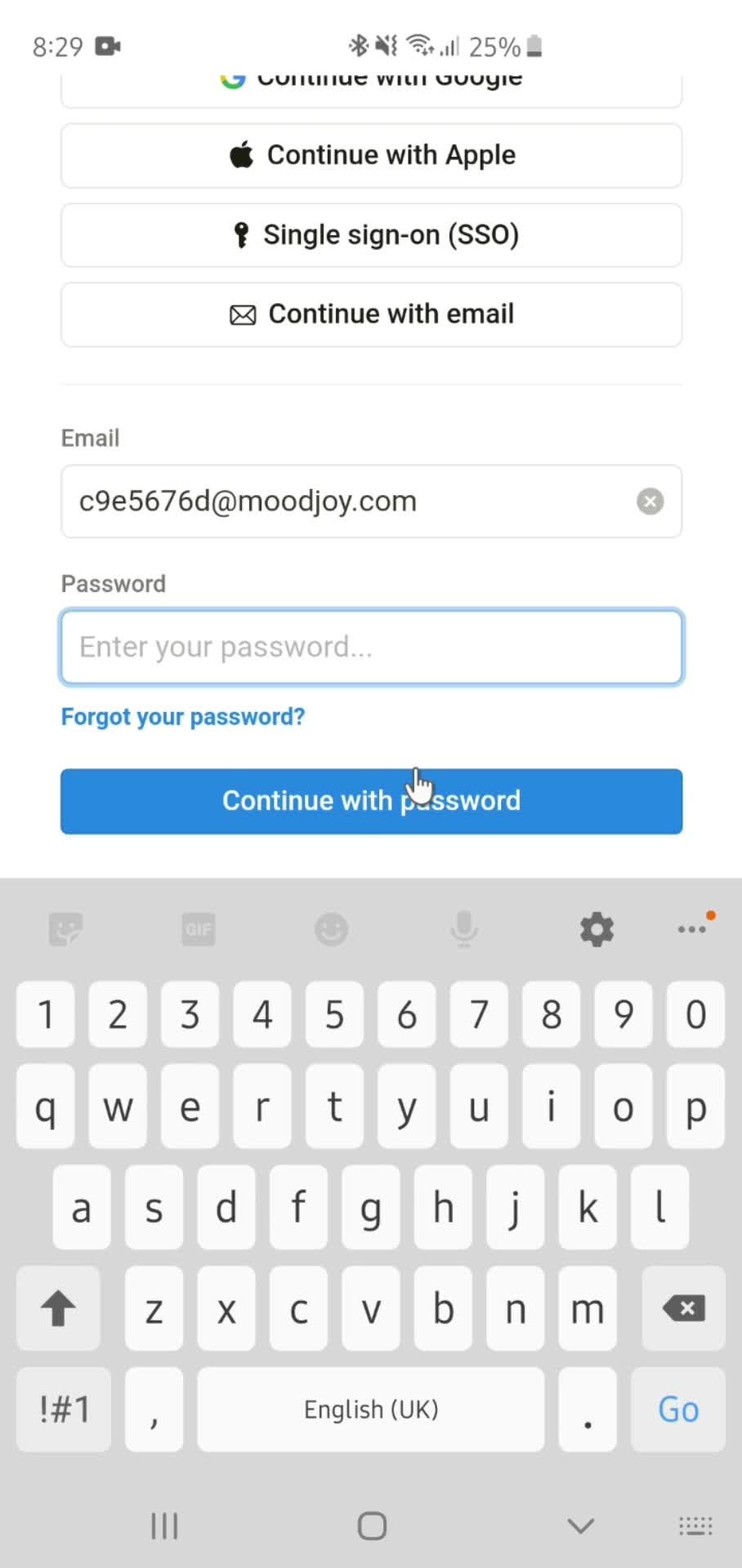
Enter password
this is title
Home
this is title
Home
this is title
Accounts
this is title
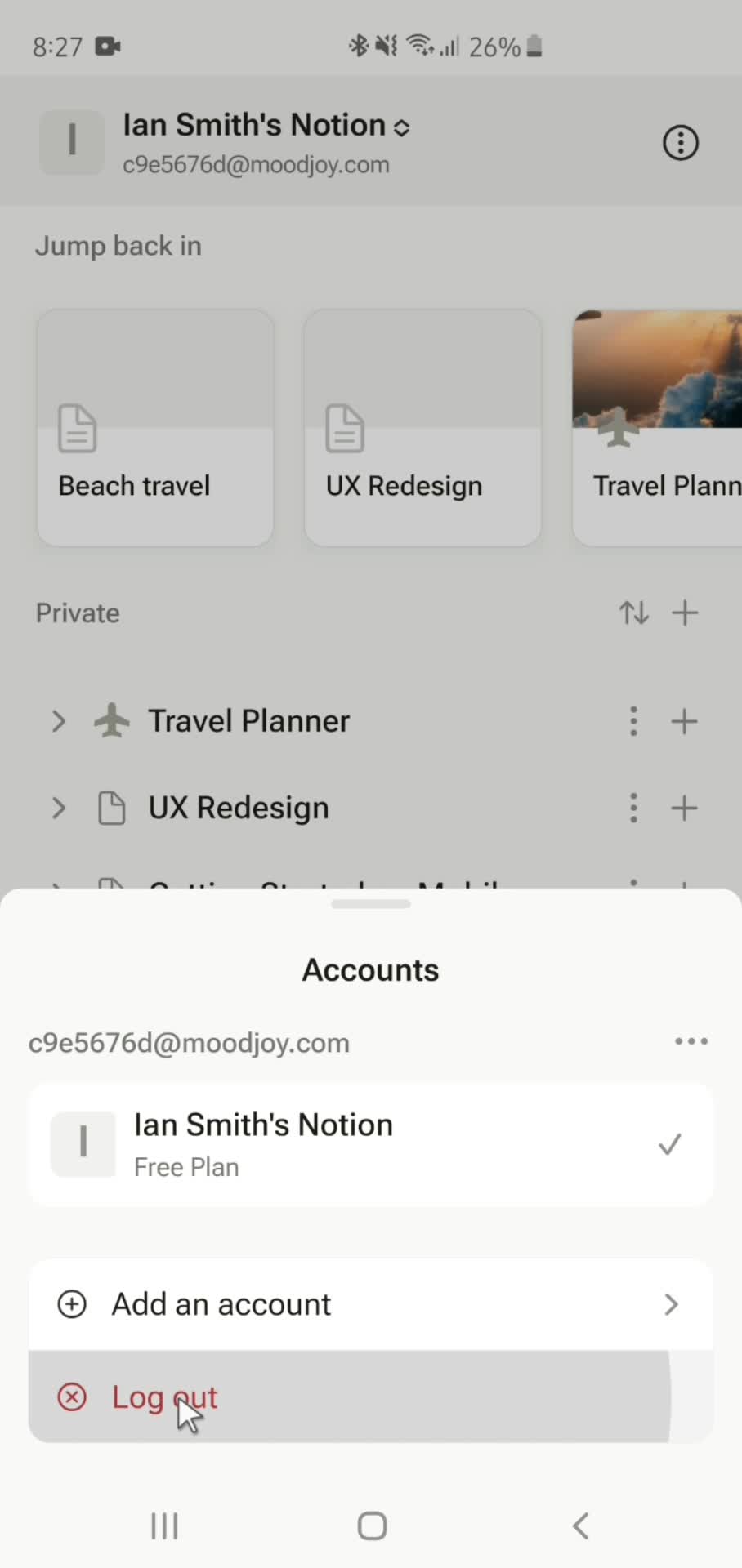
Log out
this is title
Loading
this is title
Log in
this is title
Home
this is title
Action menu
this is title
Move page
this is title
Moved
this is title
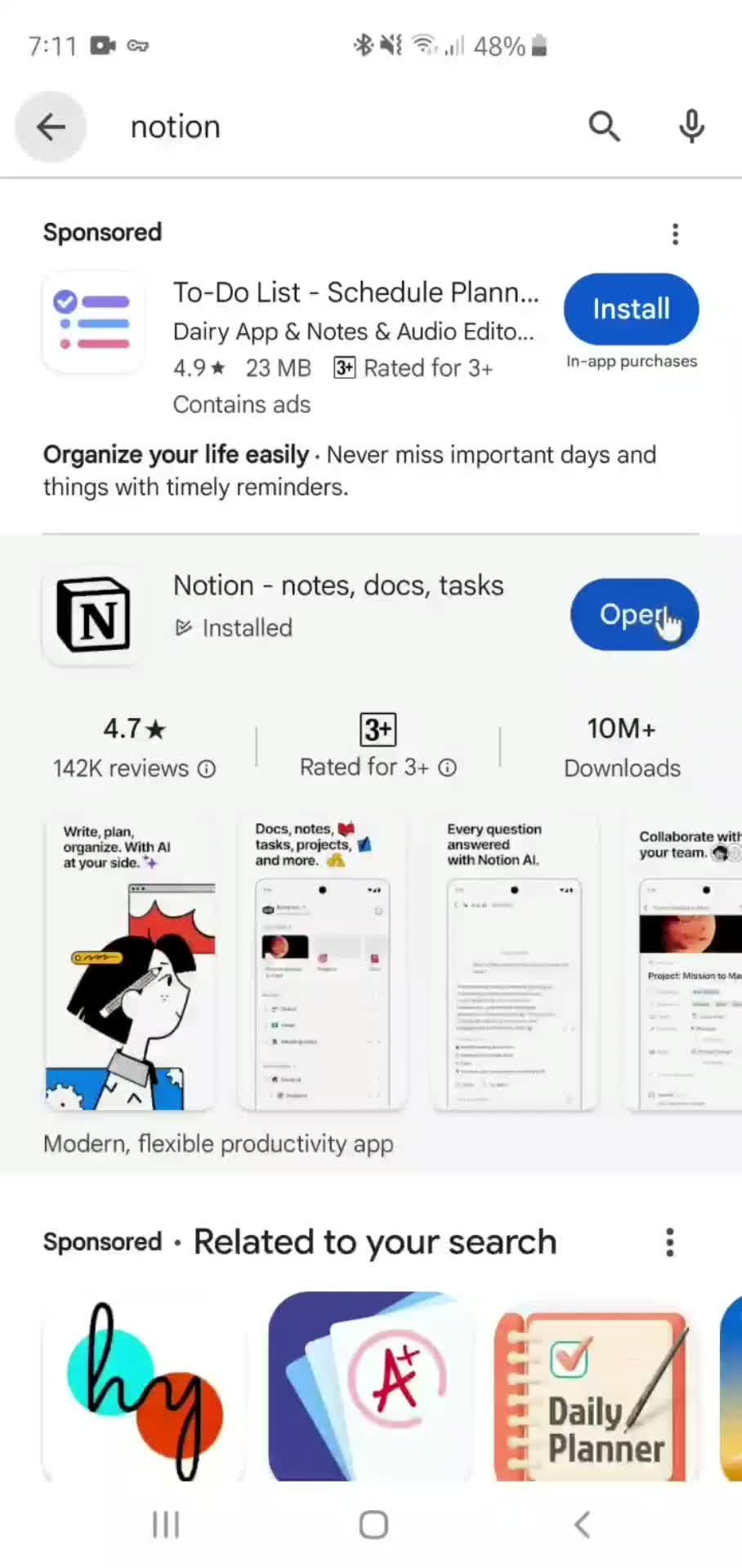
Play Store page
this is title
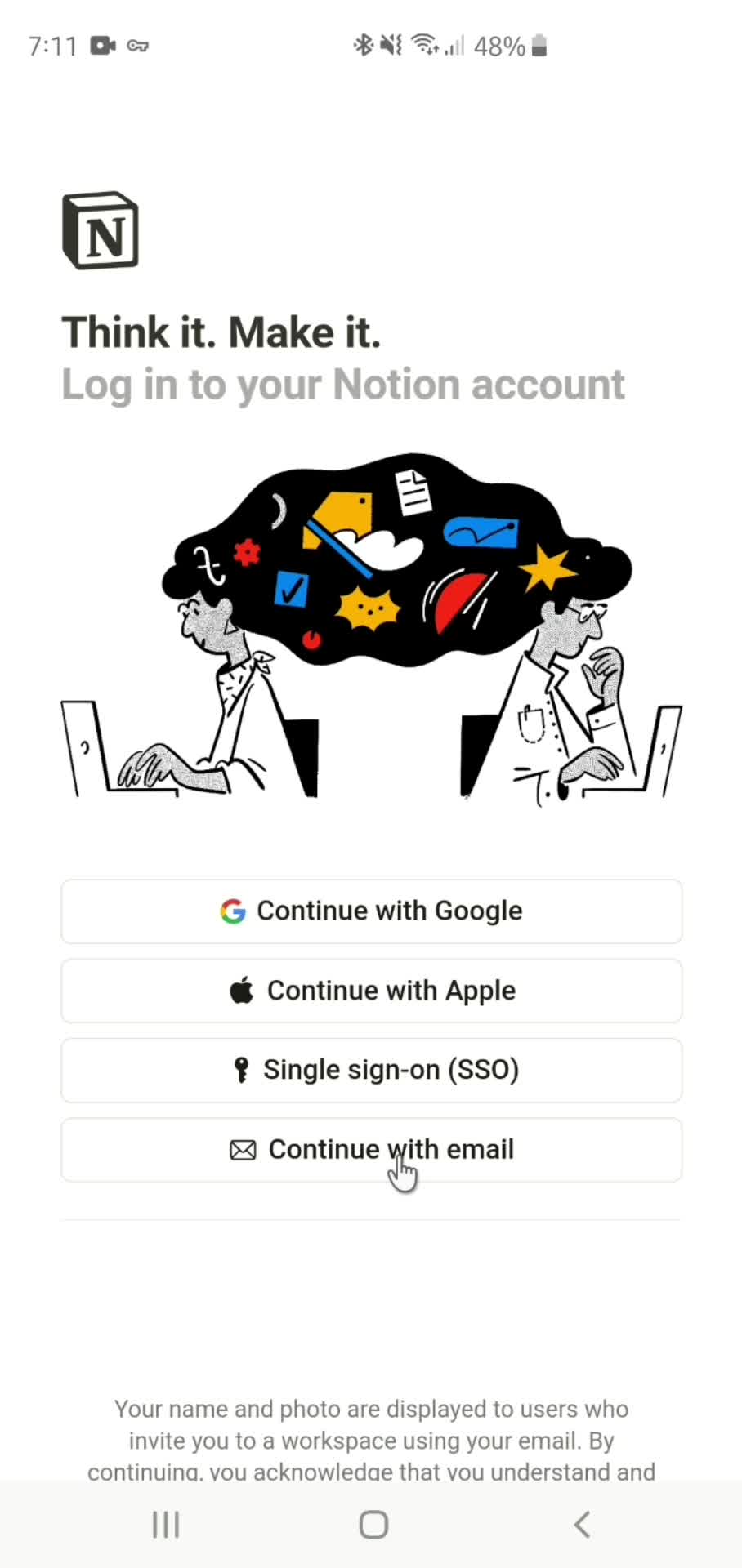
Log in
this is title
Enter email
this is title
this is title
this is title
Enter verification code
this is title
this is title
Loading
this is title
Create profile
this is title
Set name
this is title
Set password
this is title
this is title
Create workspace
this is title
Onboarding question
this is title
Continue
this is title
Onboarding tasks
this is title
Continue
this is title
Loading
this is title
Onboarding tasks
this is title
Continue
this is title
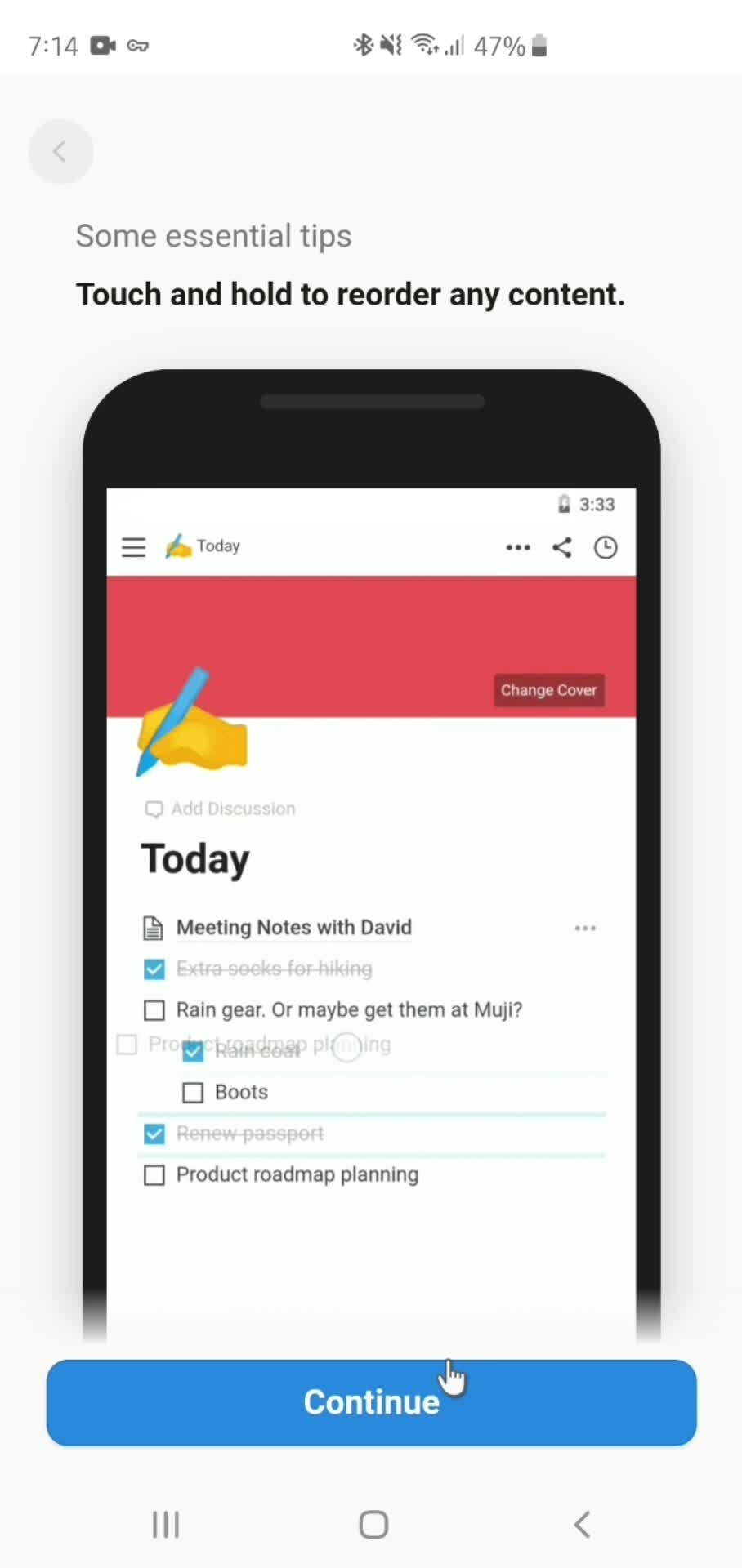
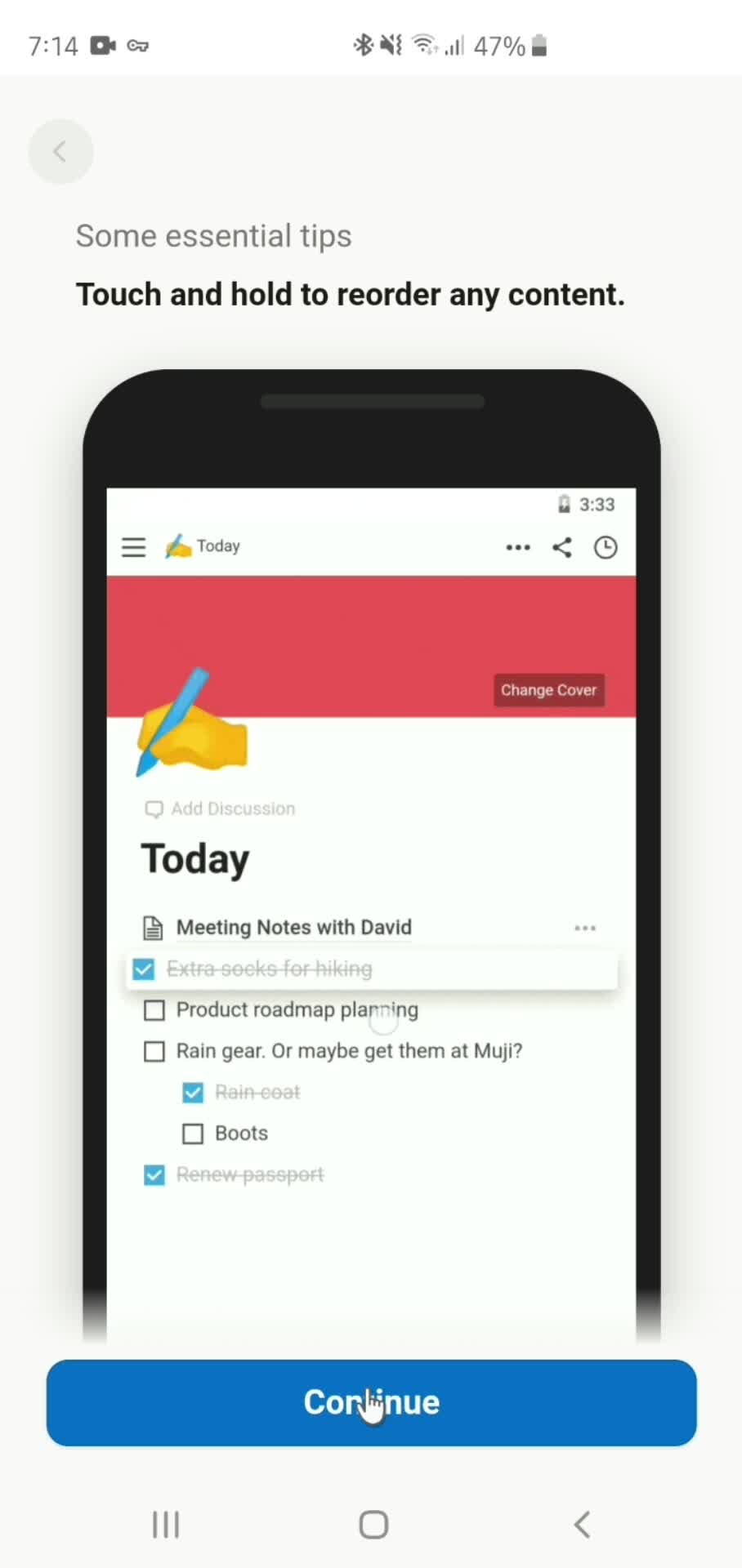
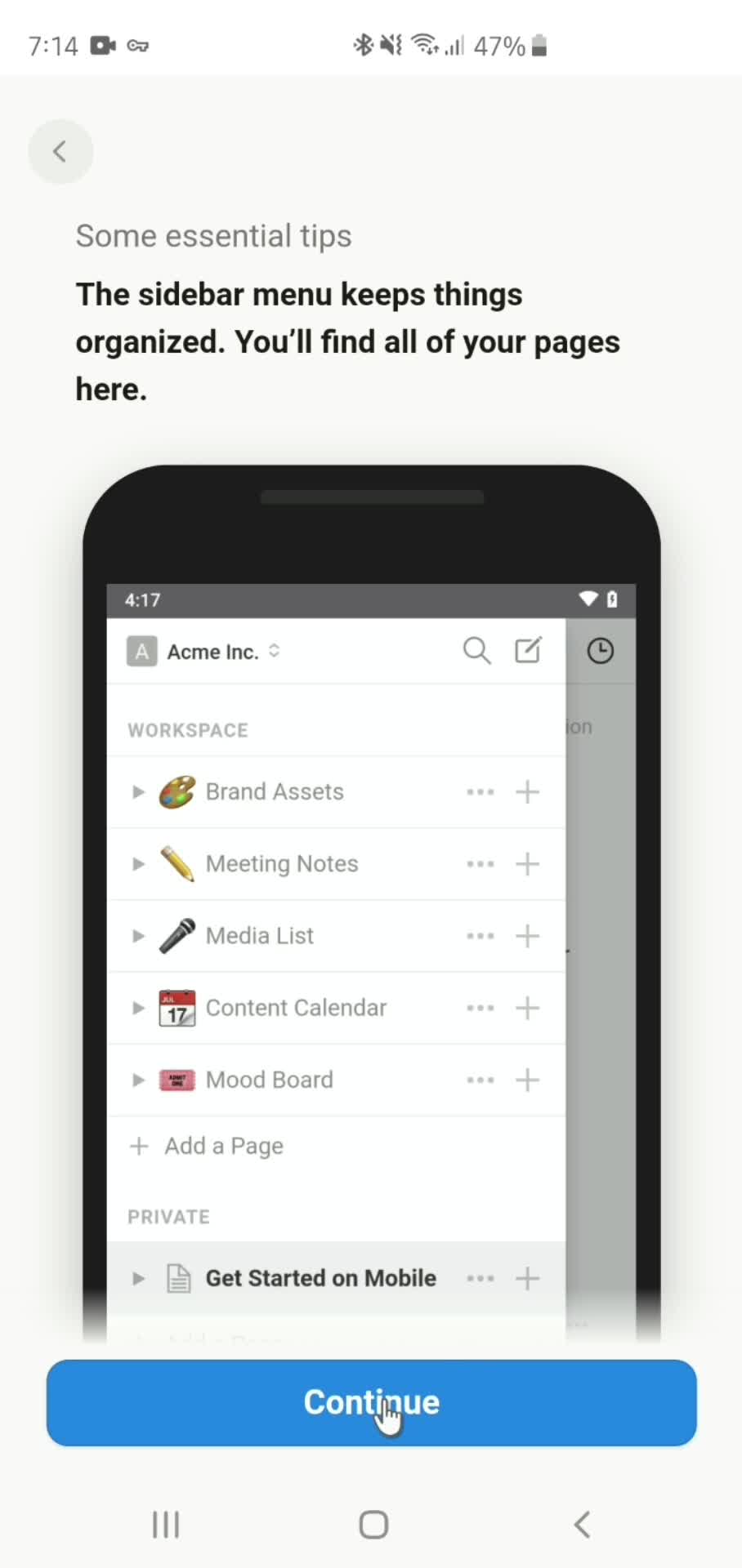
Onboarding tour
this is title
Home
this is title
Action menu
this is title
Accounts
this is title
Home
this is title
Search
this is title
Search results
this is title
Search
this is title
No search results
this is title
Home
this is title
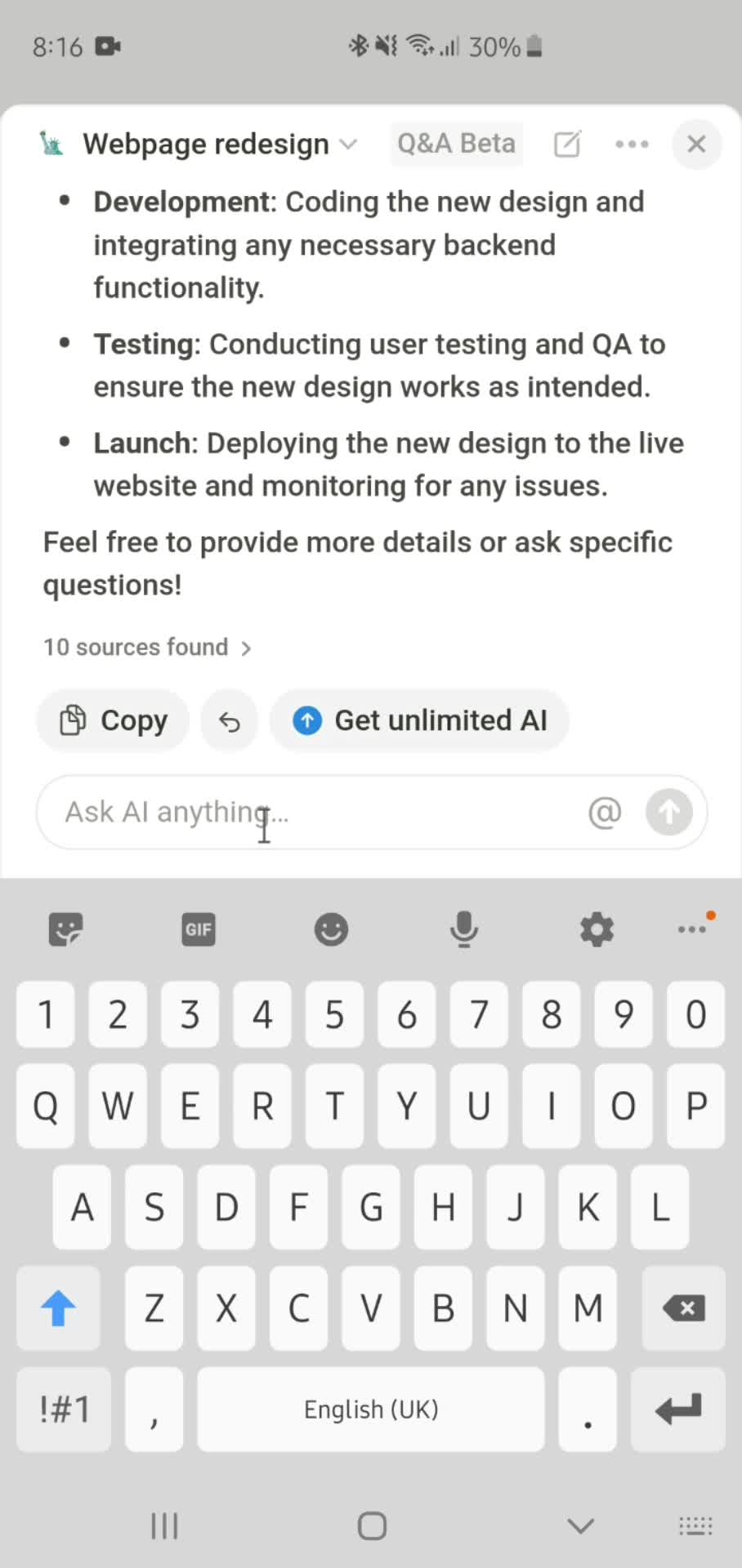
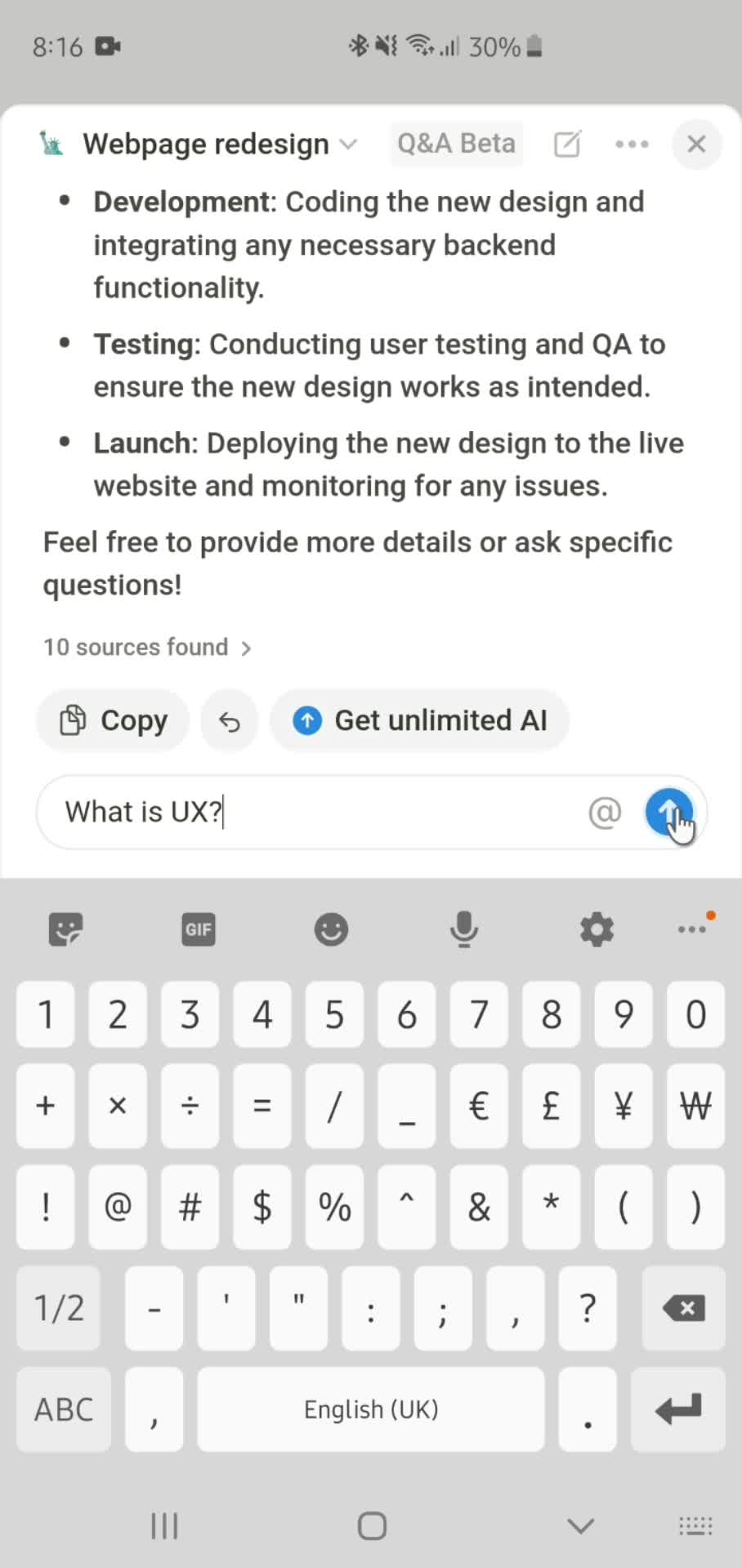
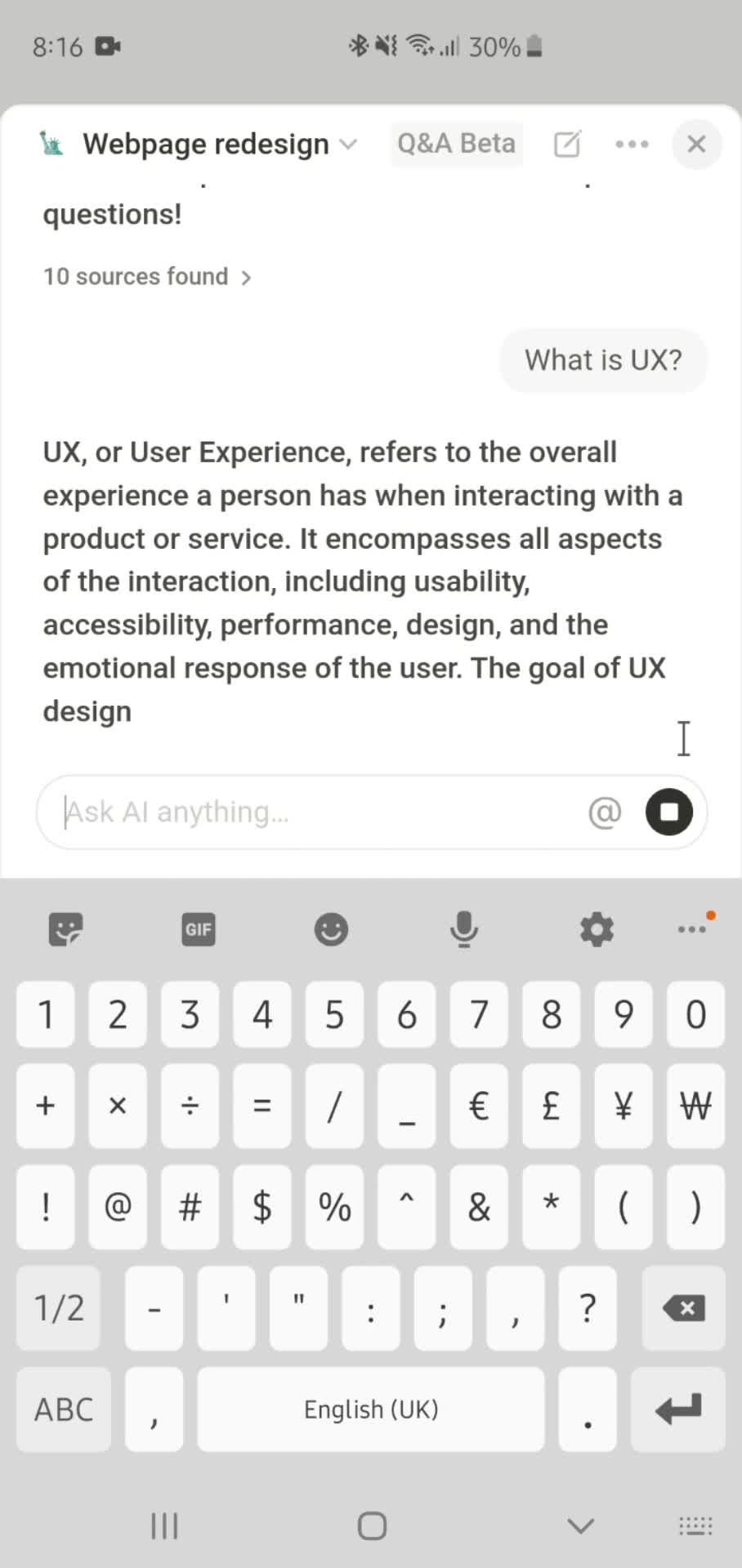
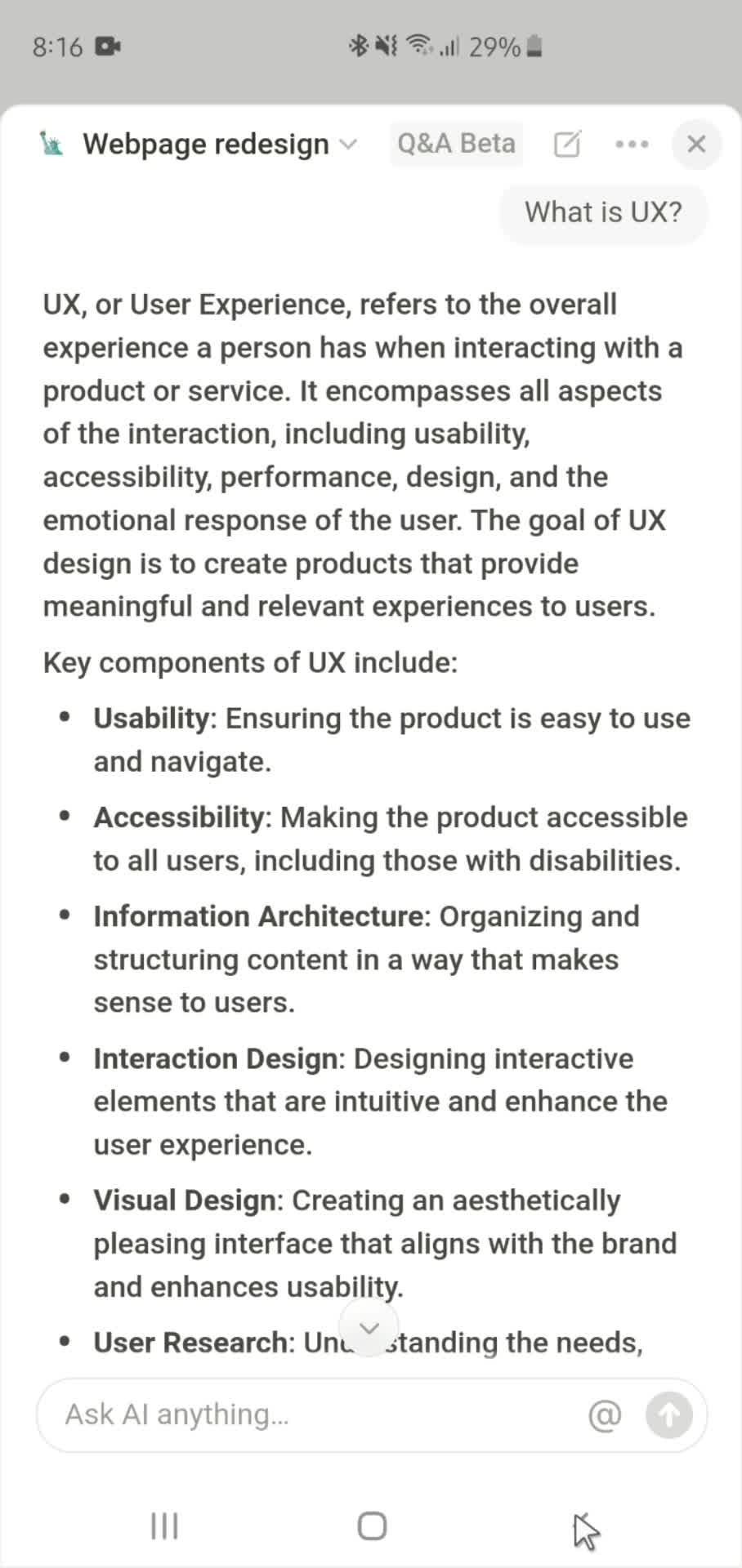
AI Chat
this is title
Ask a question
this is title
Generate
this is title
Results
this is title