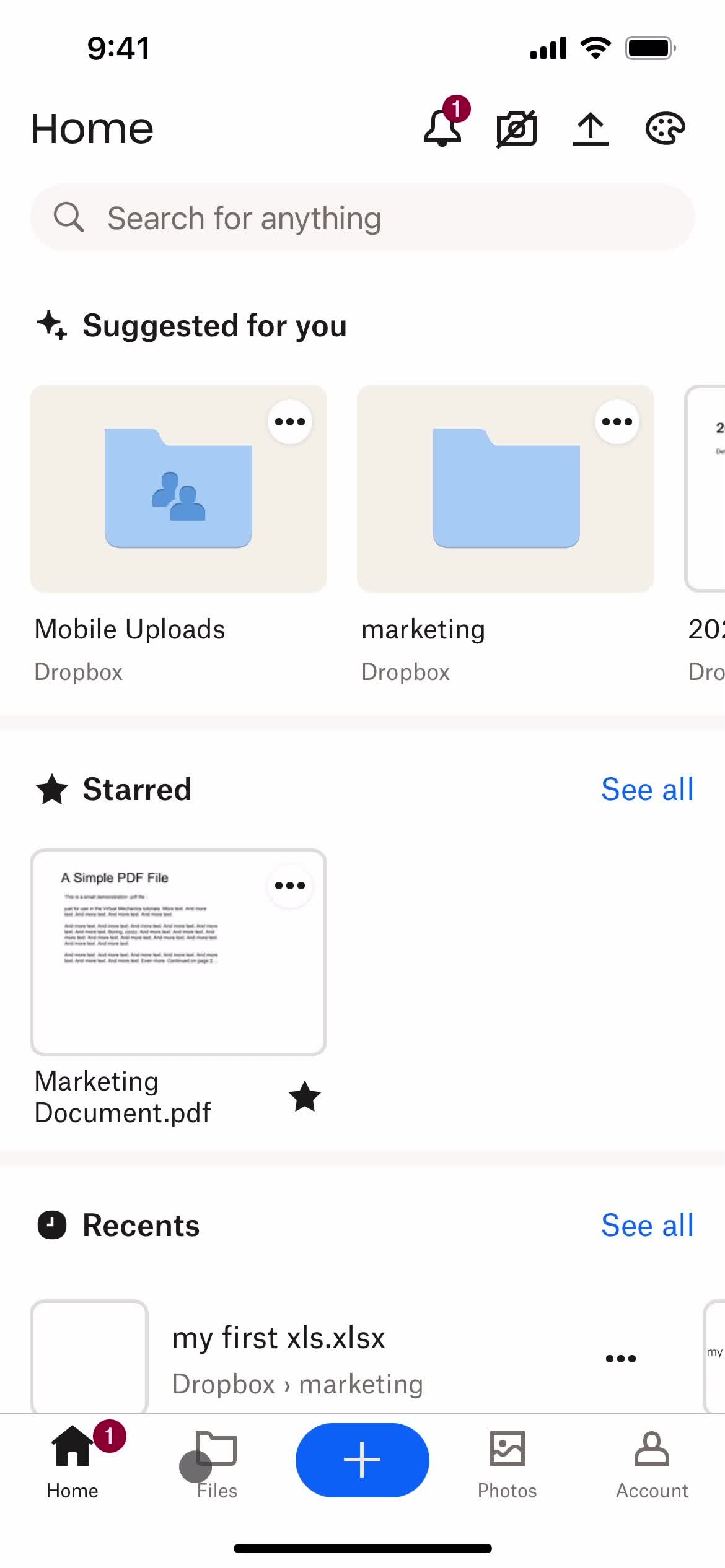
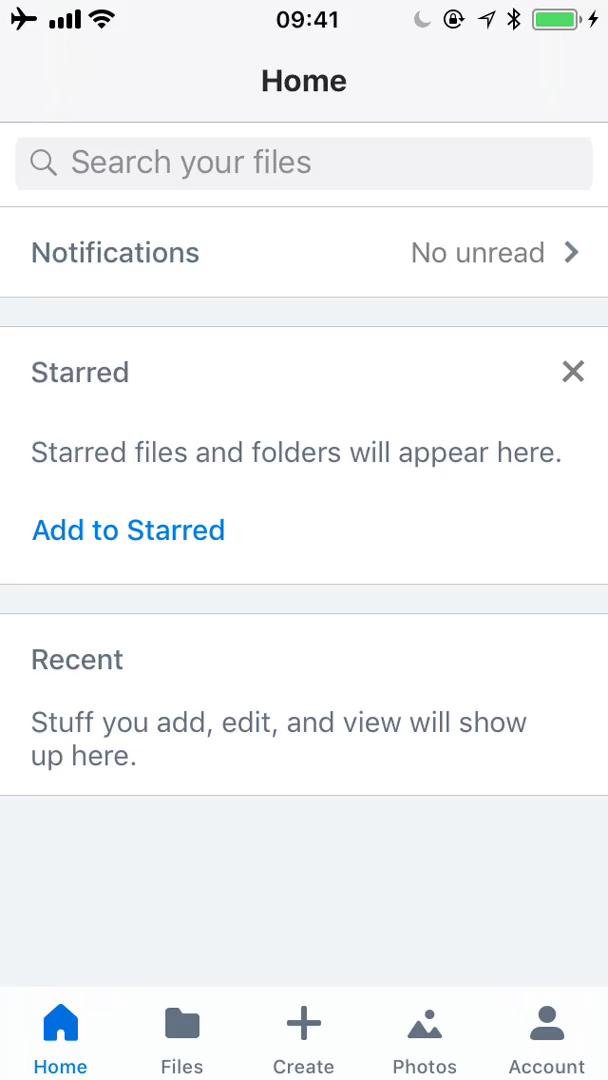
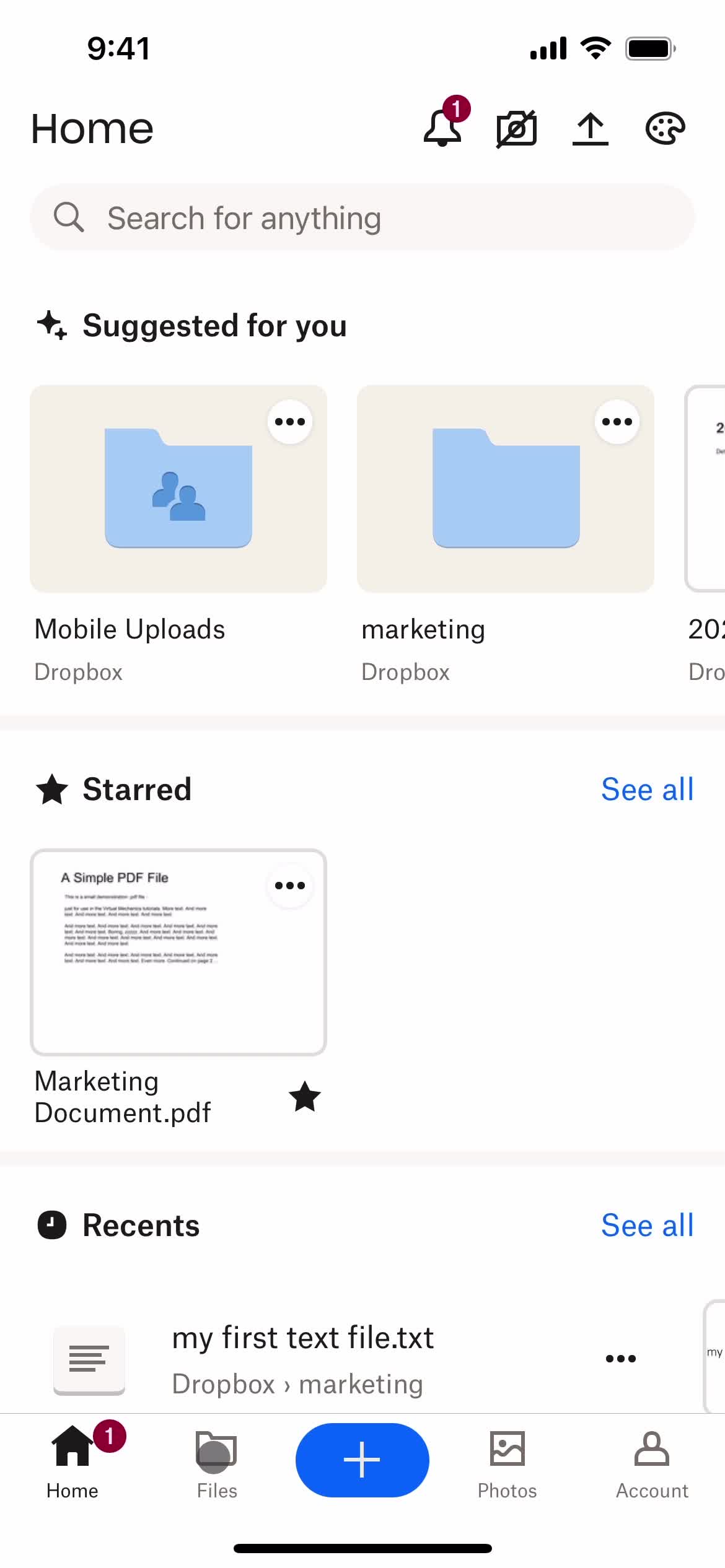
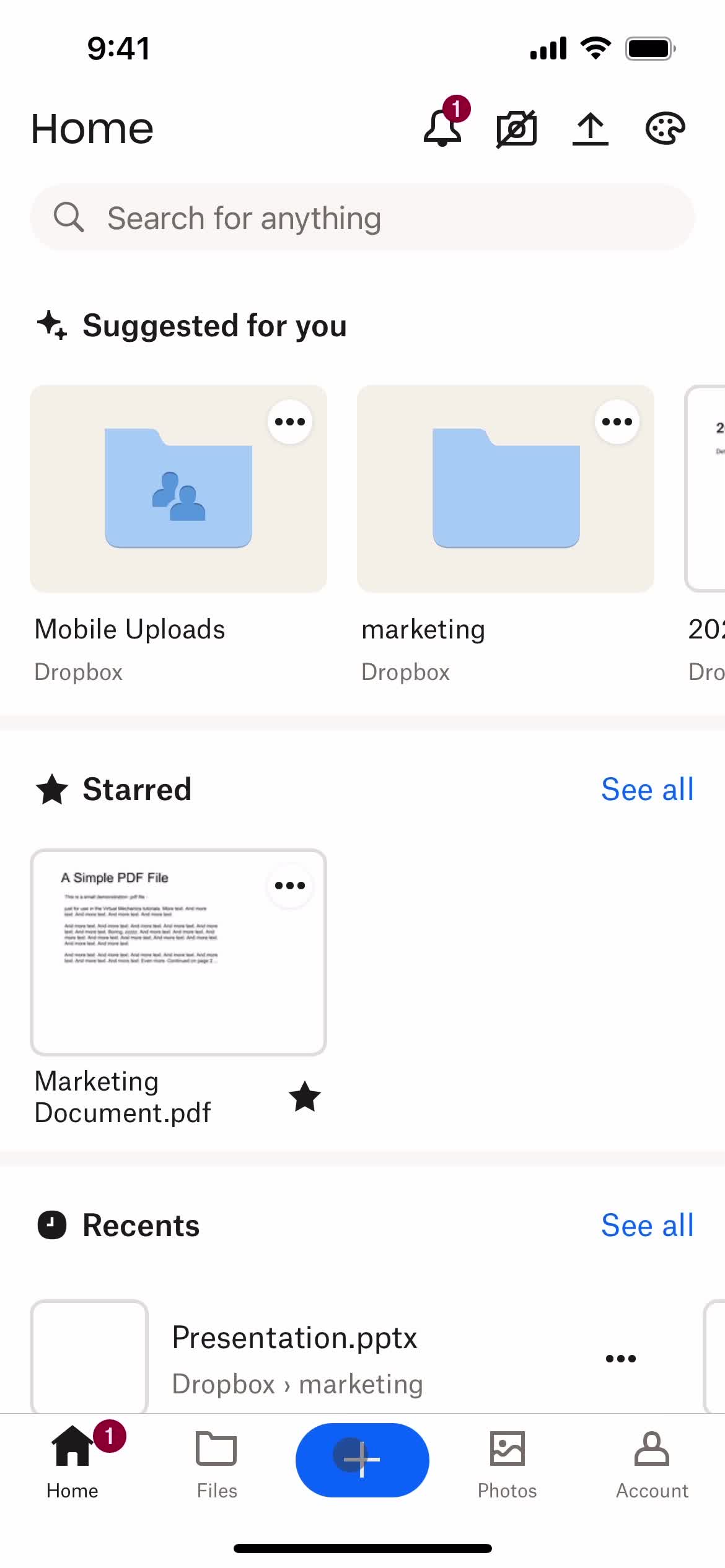
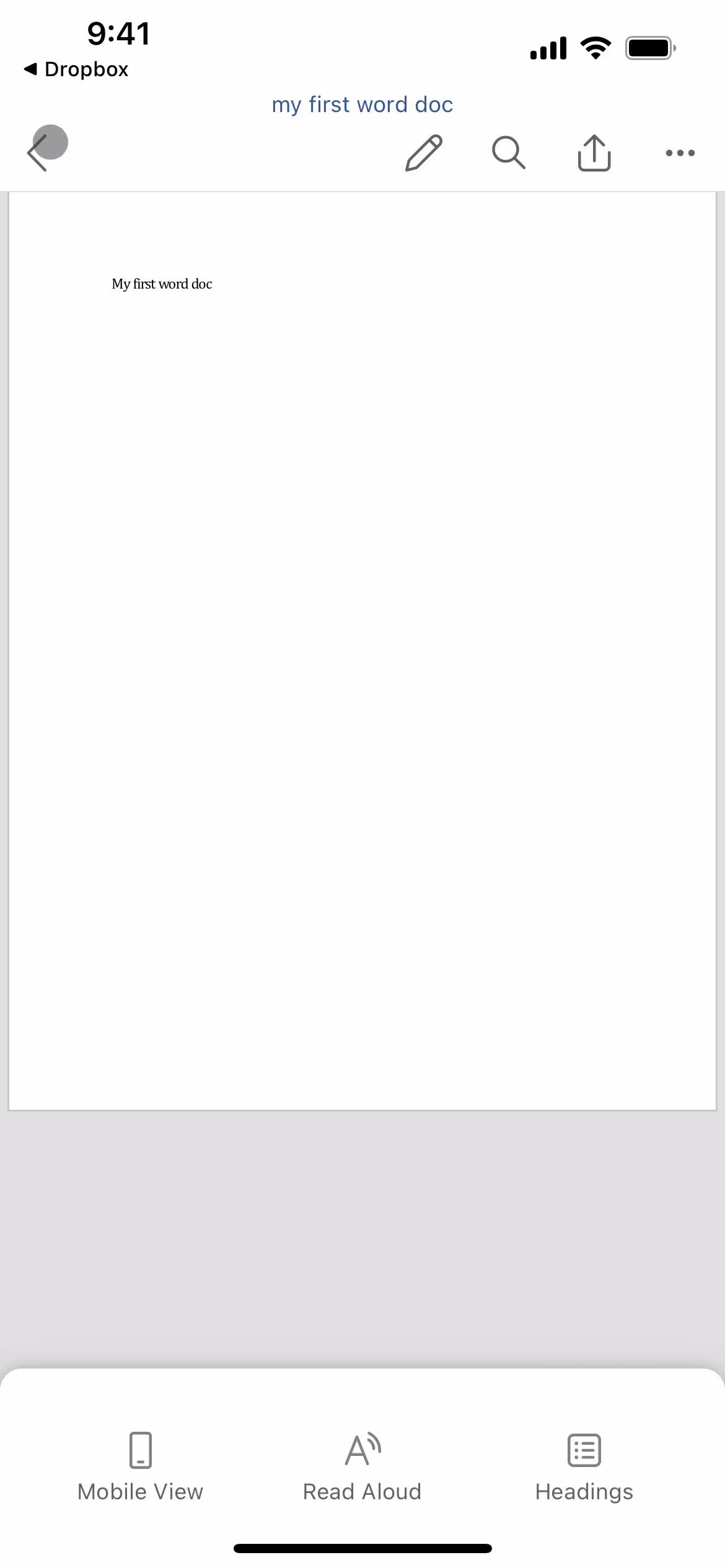
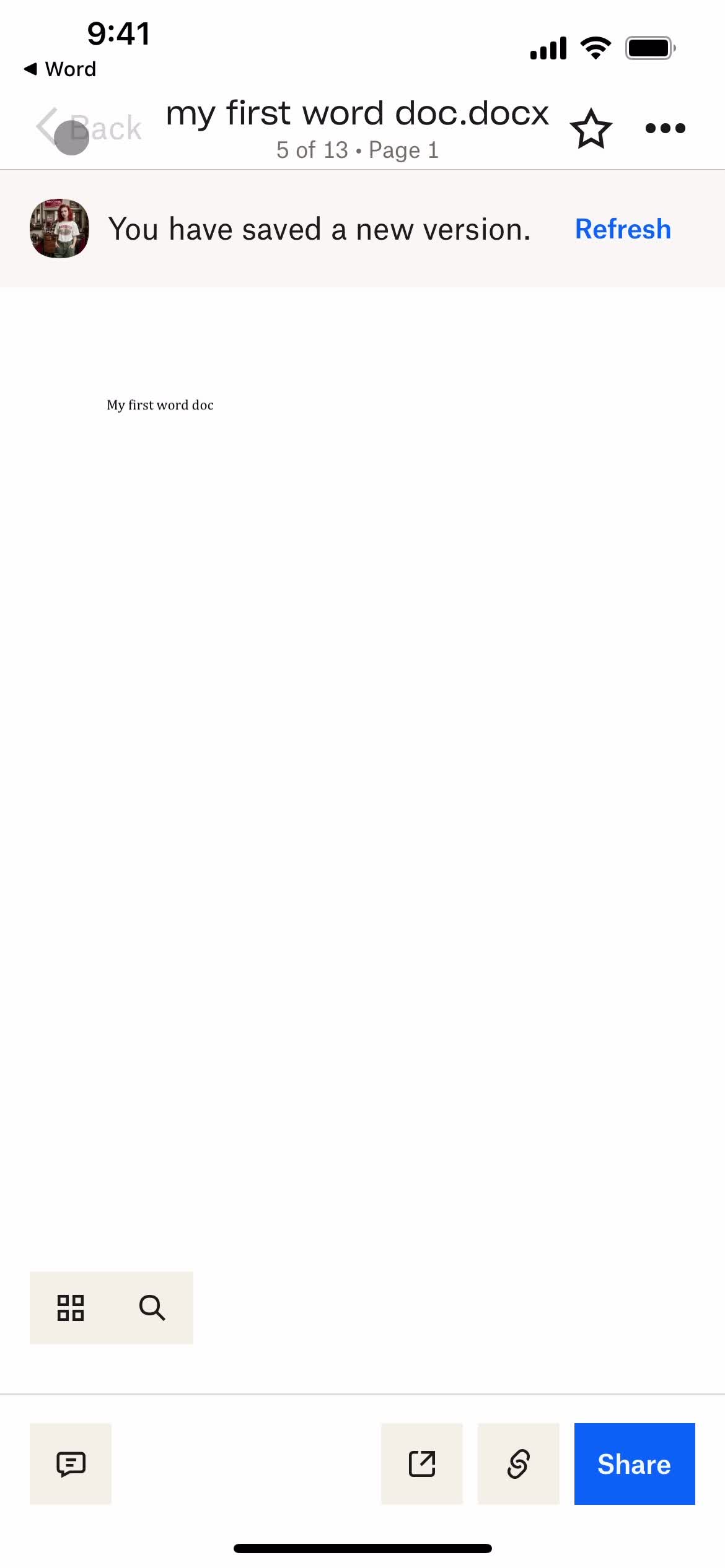
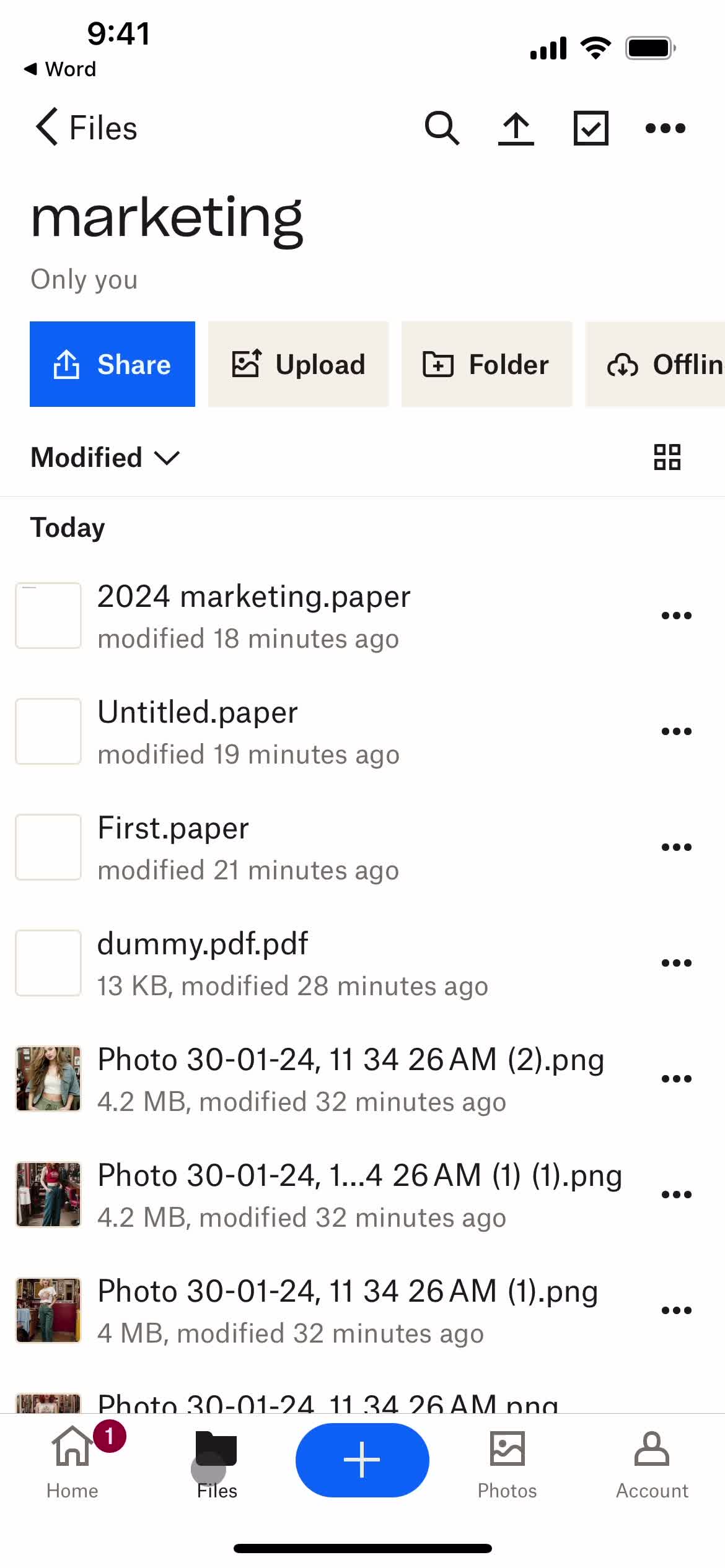
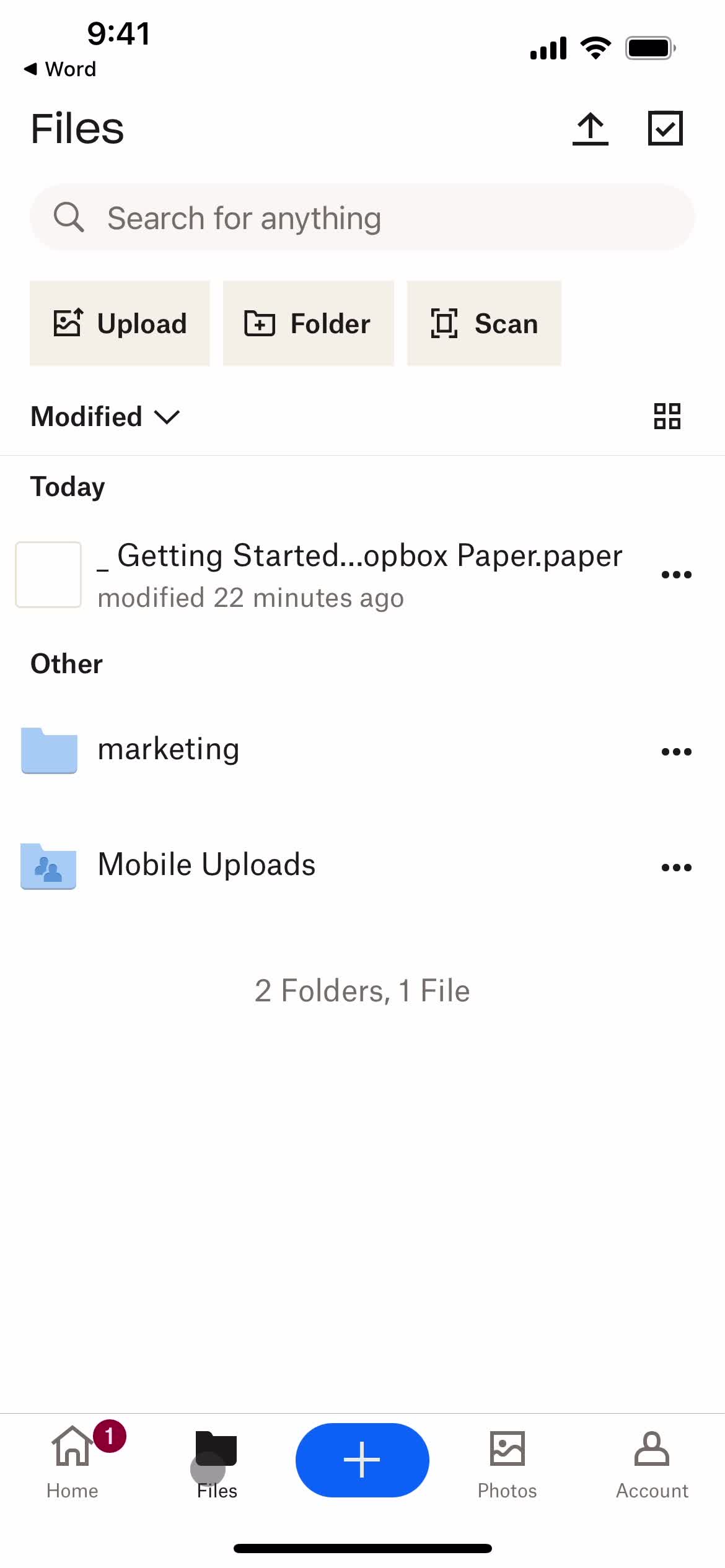
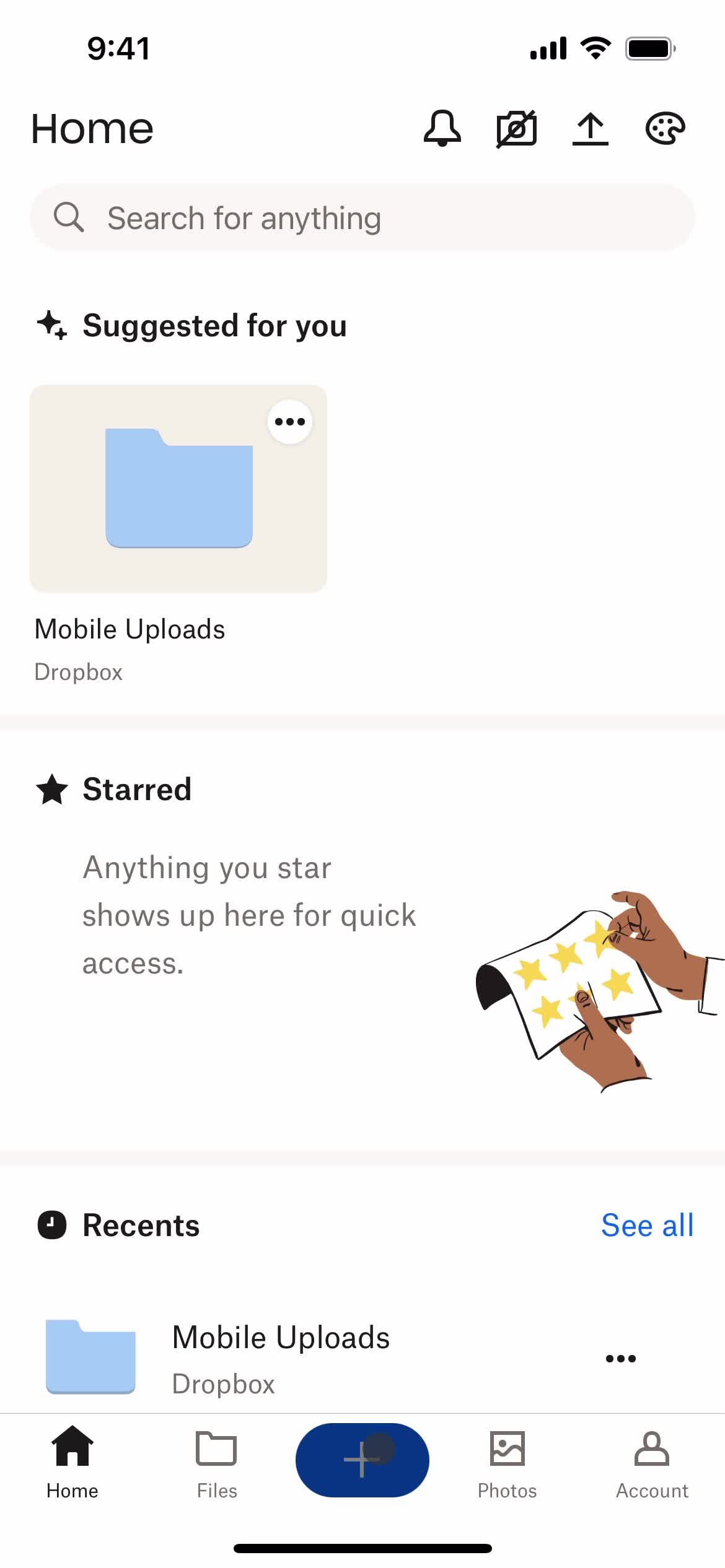
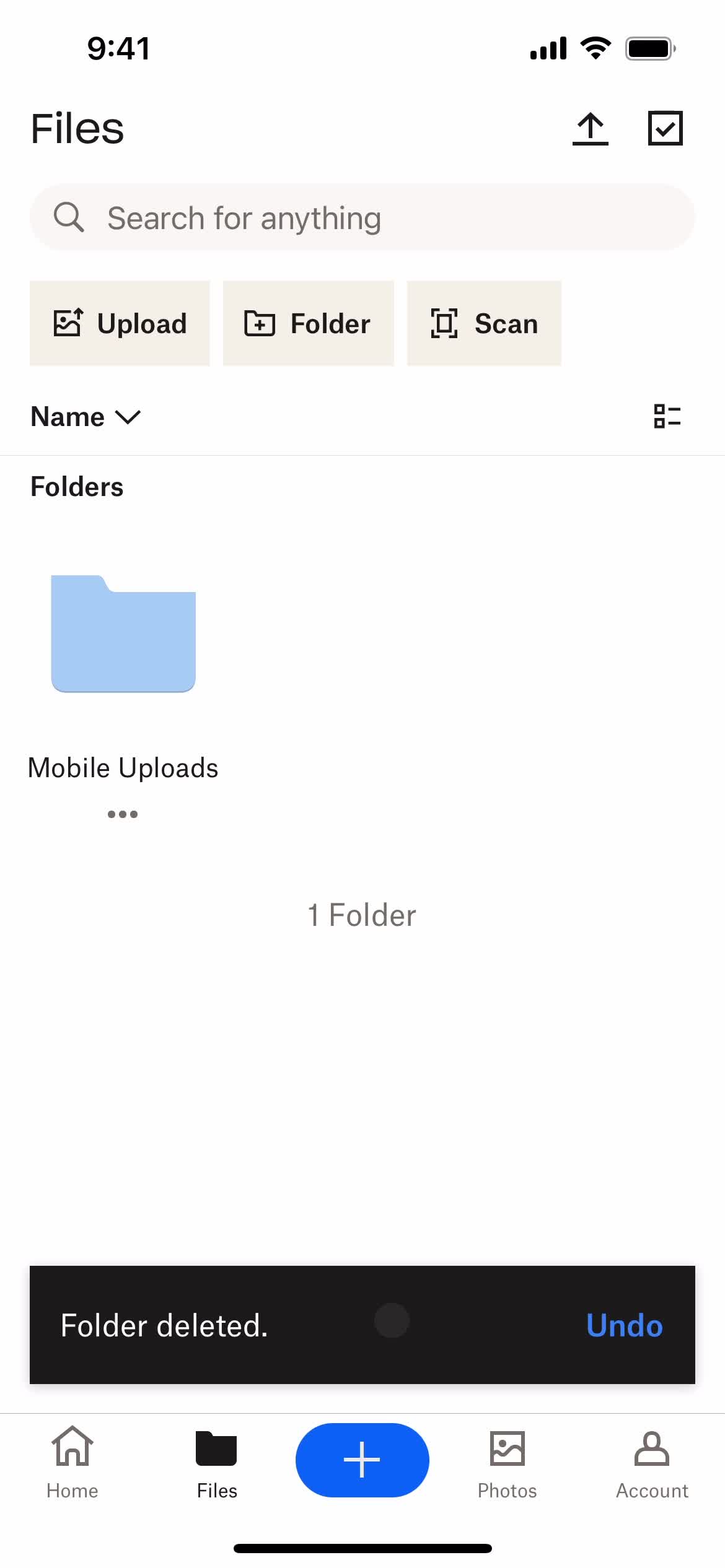
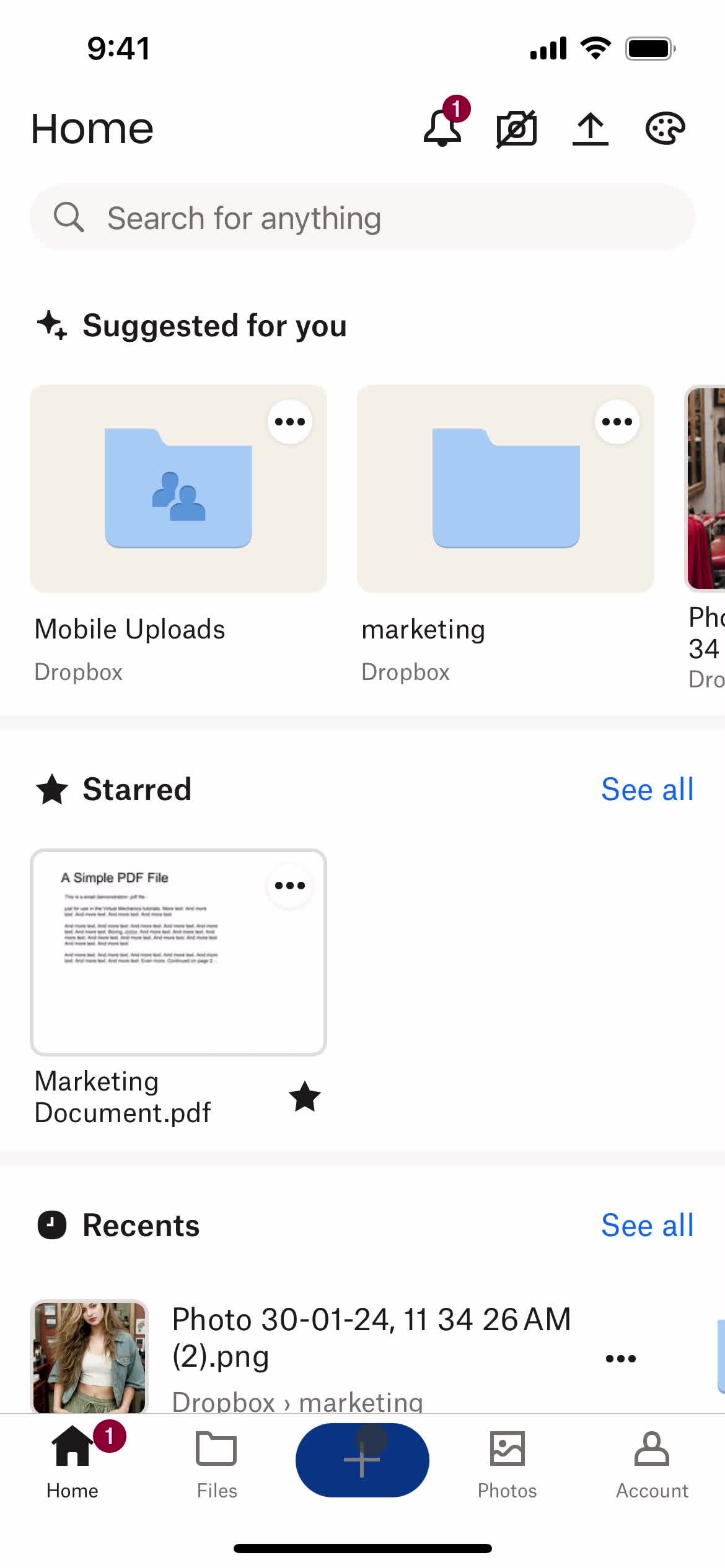
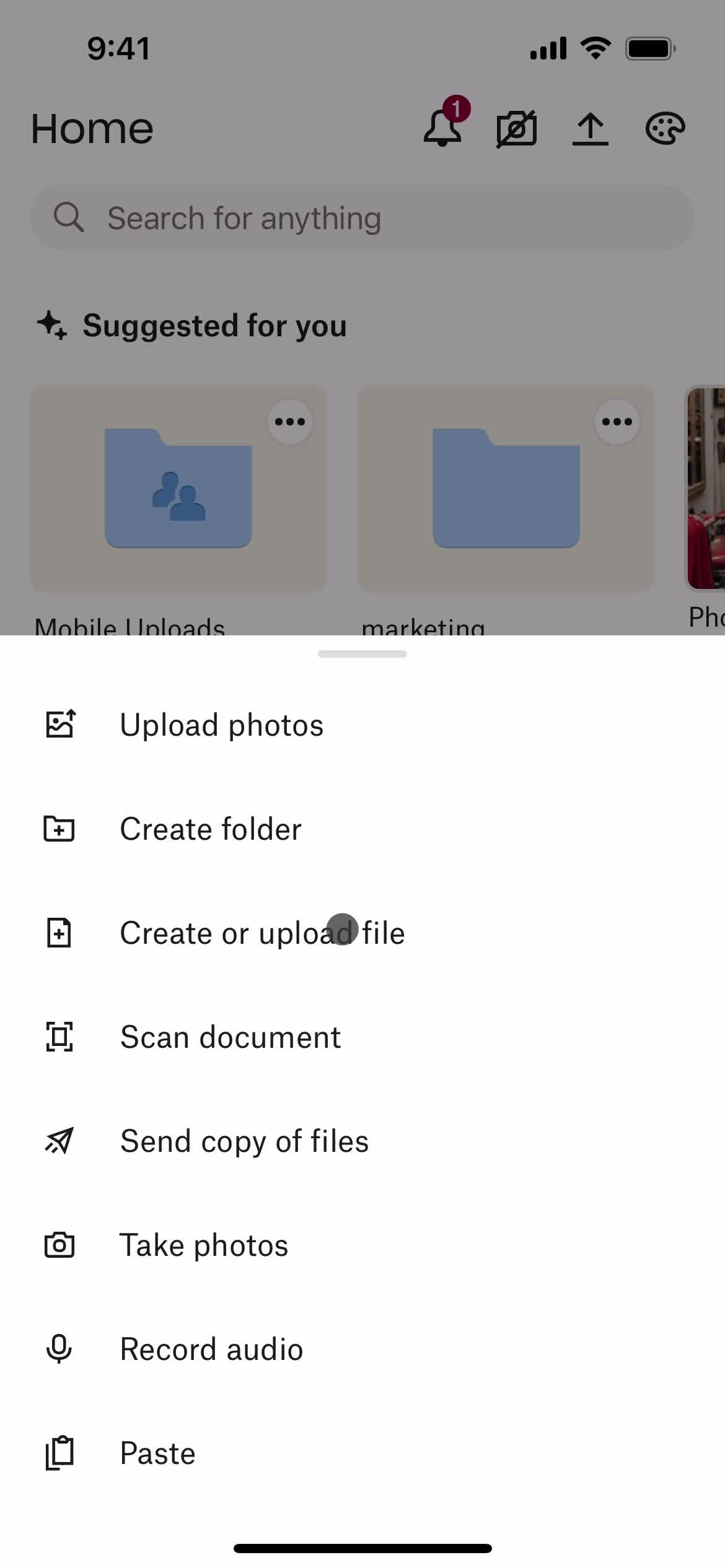
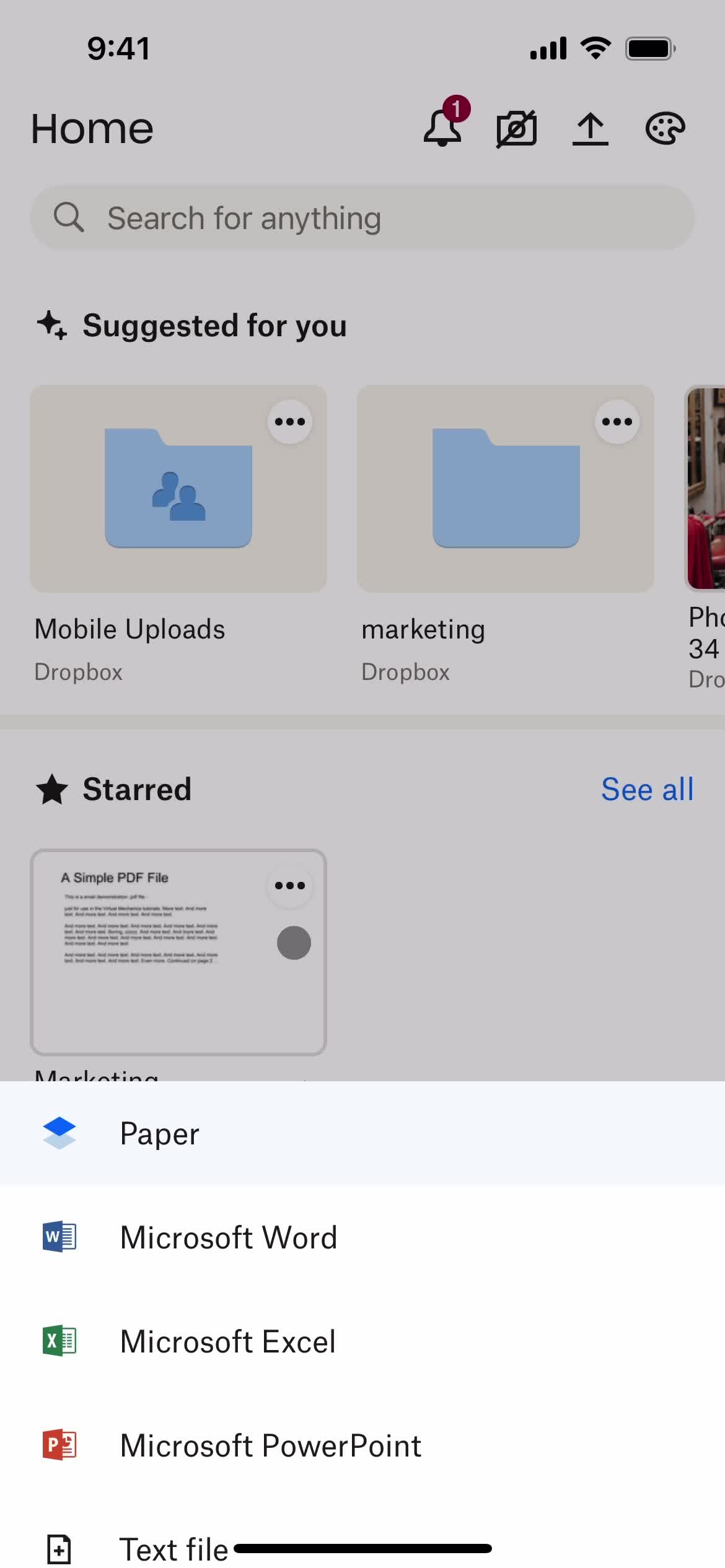
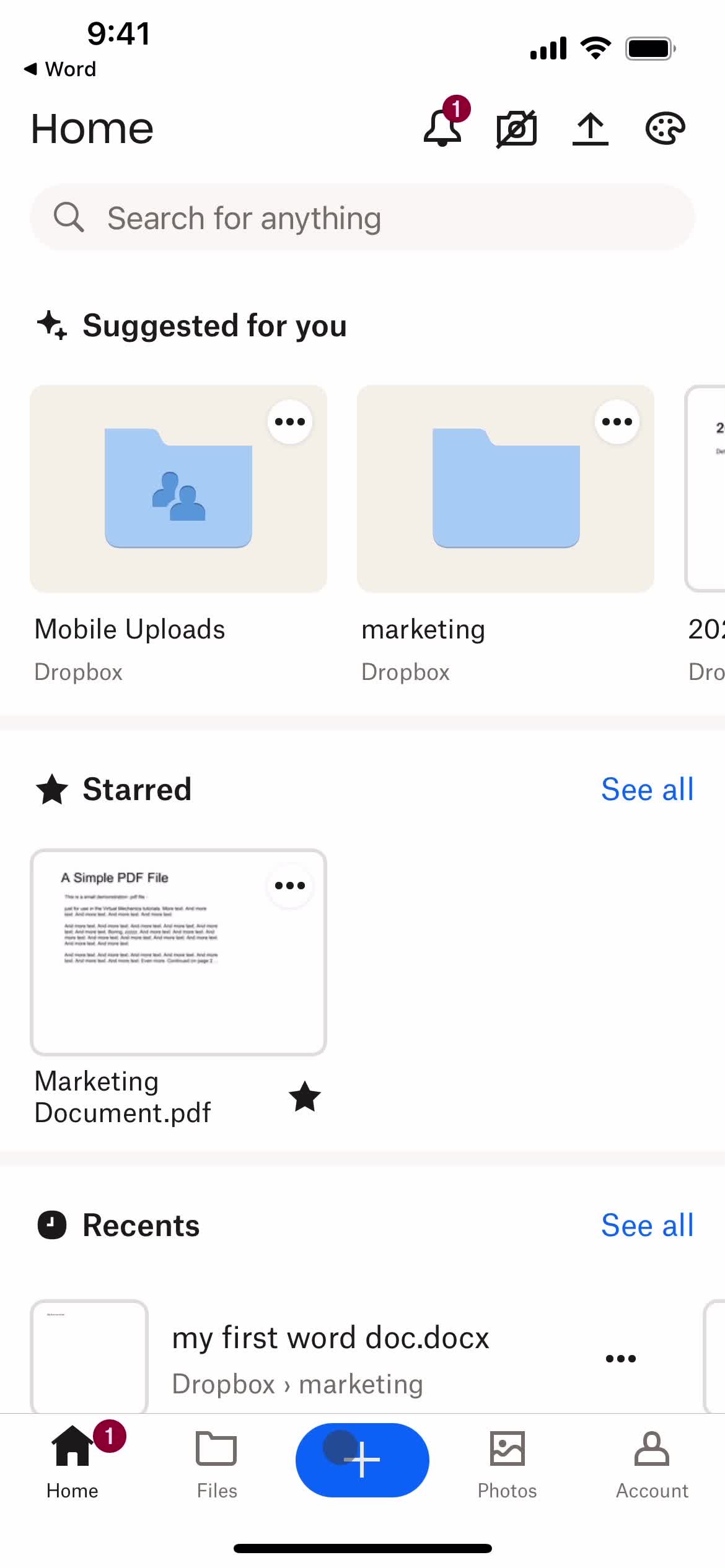
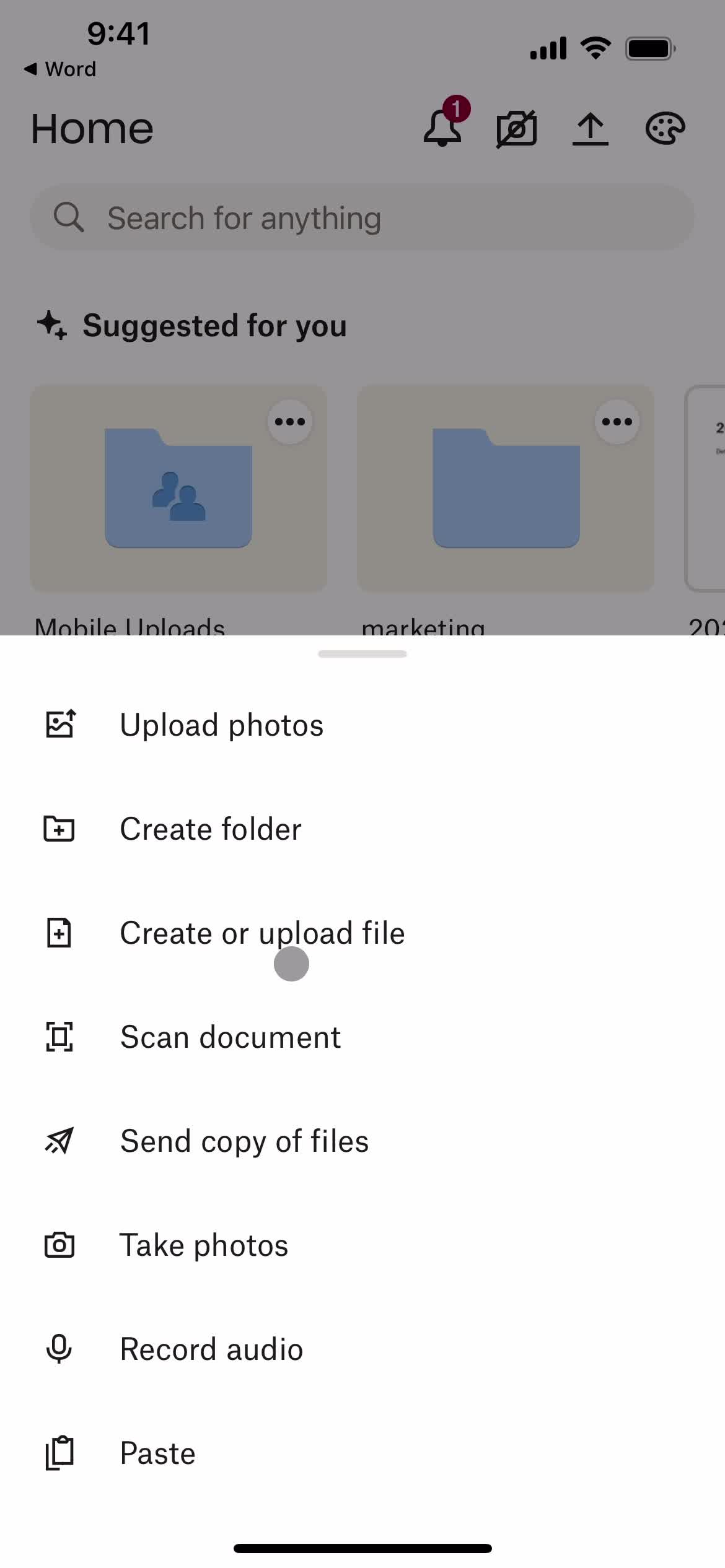
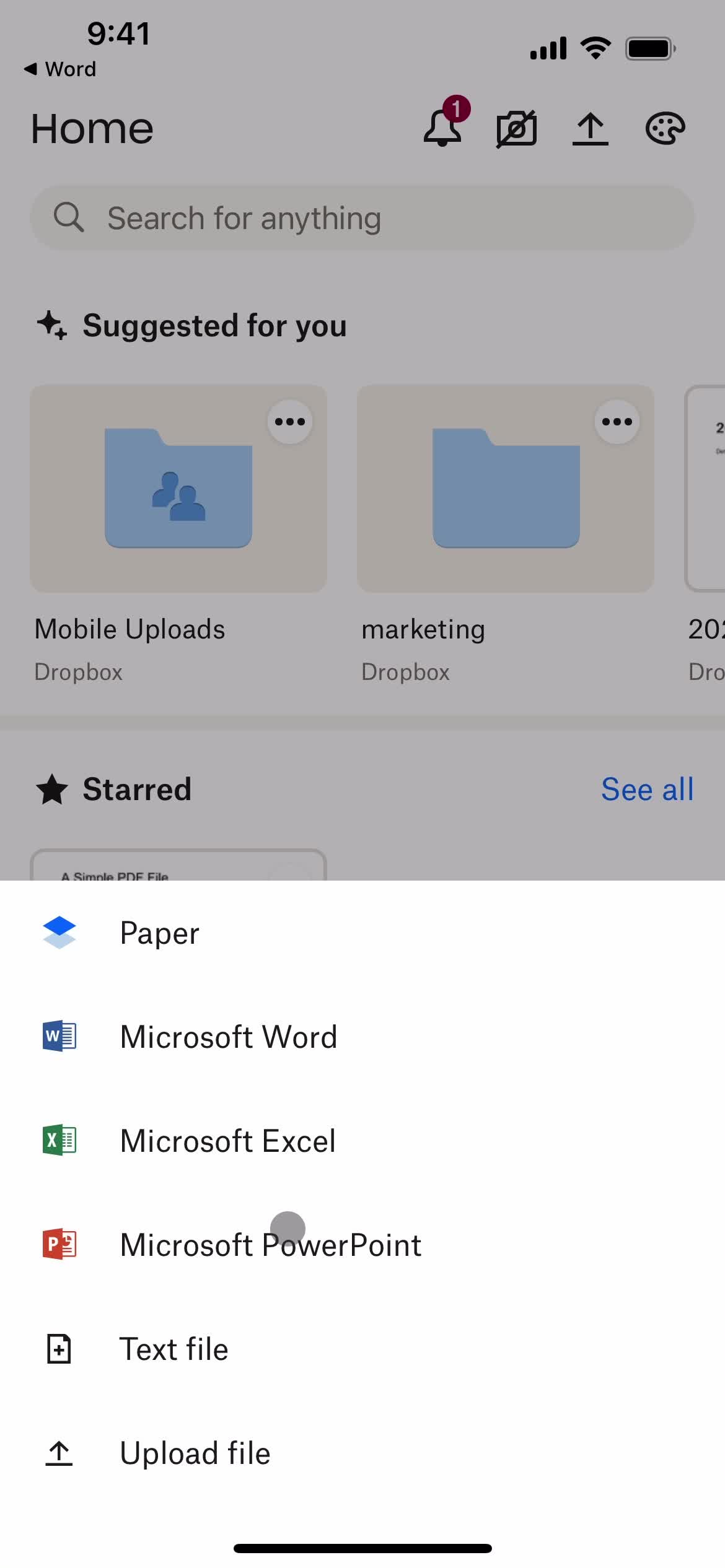
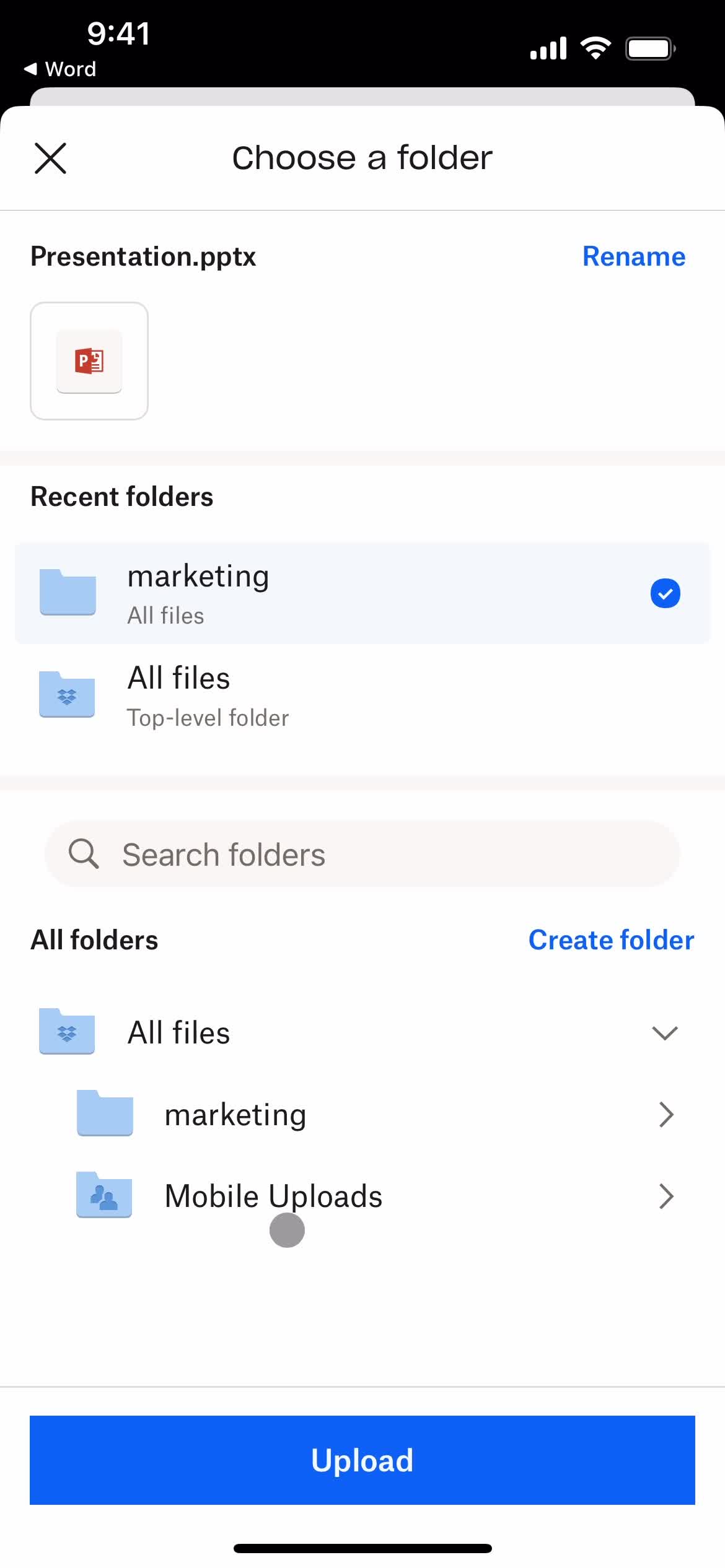
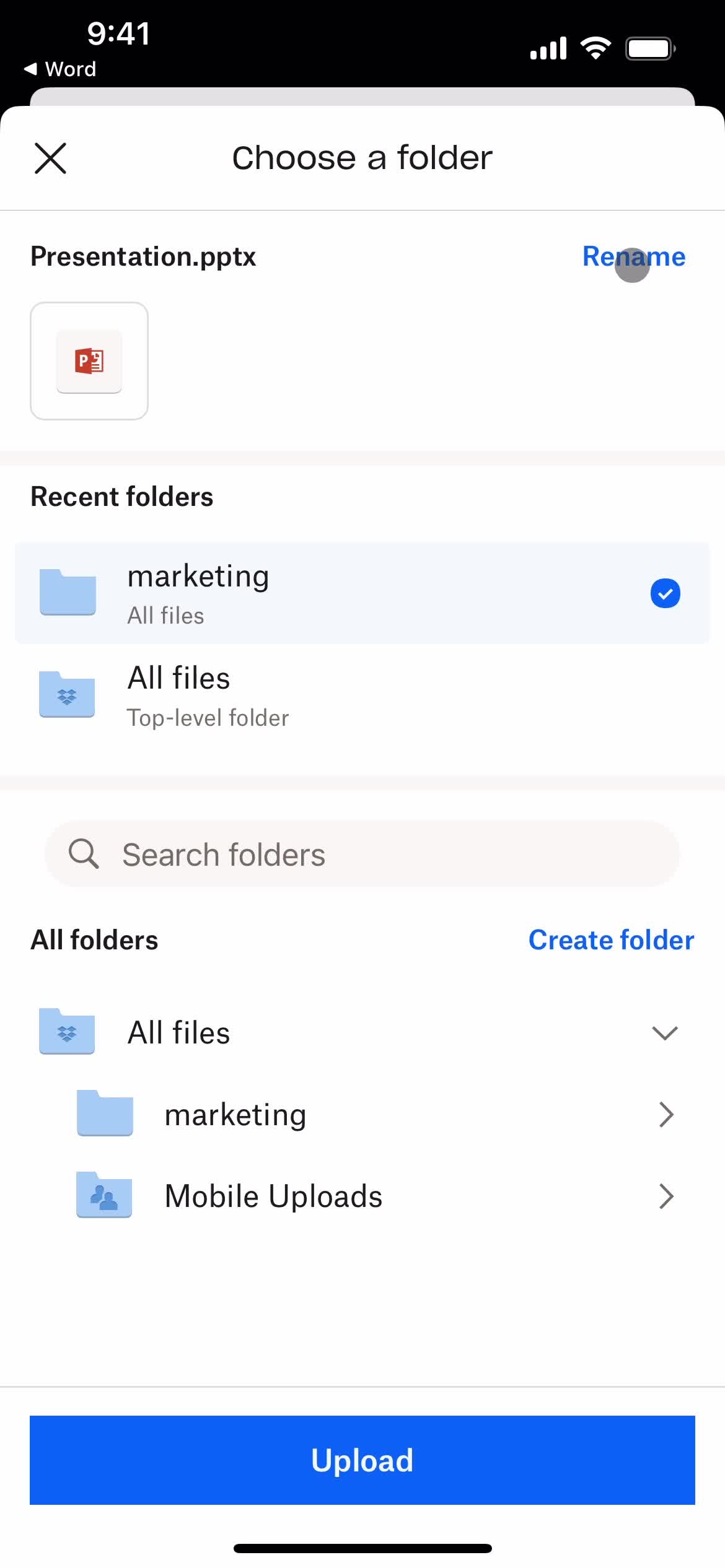
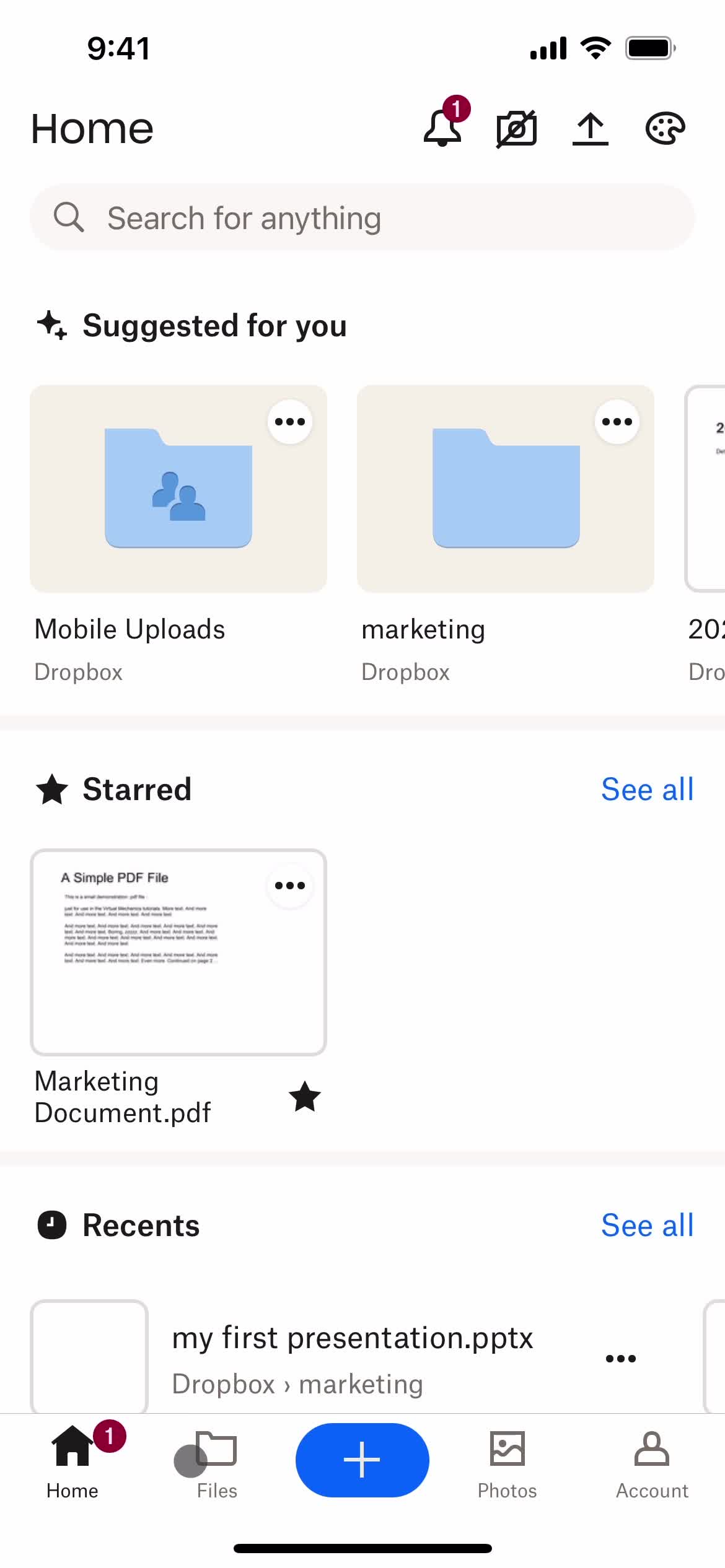
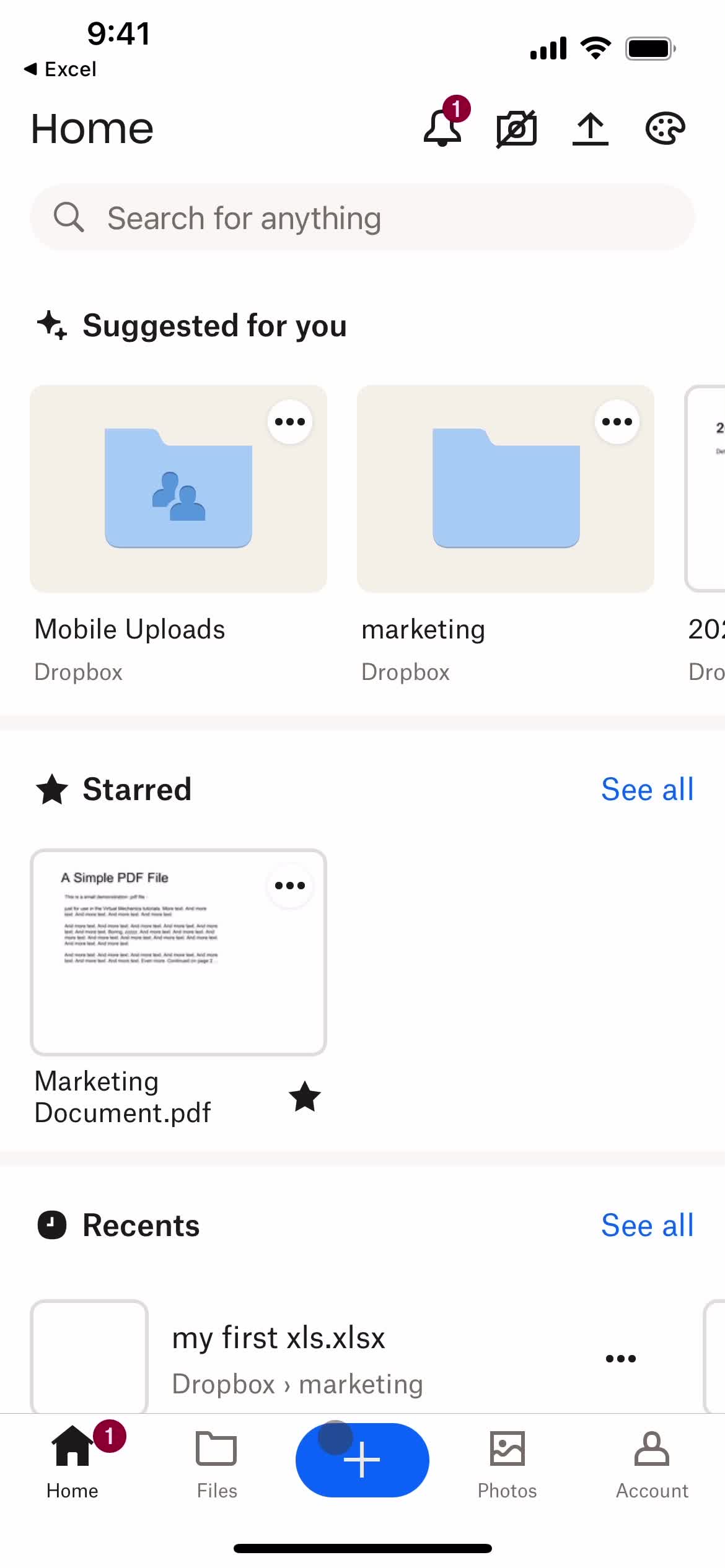
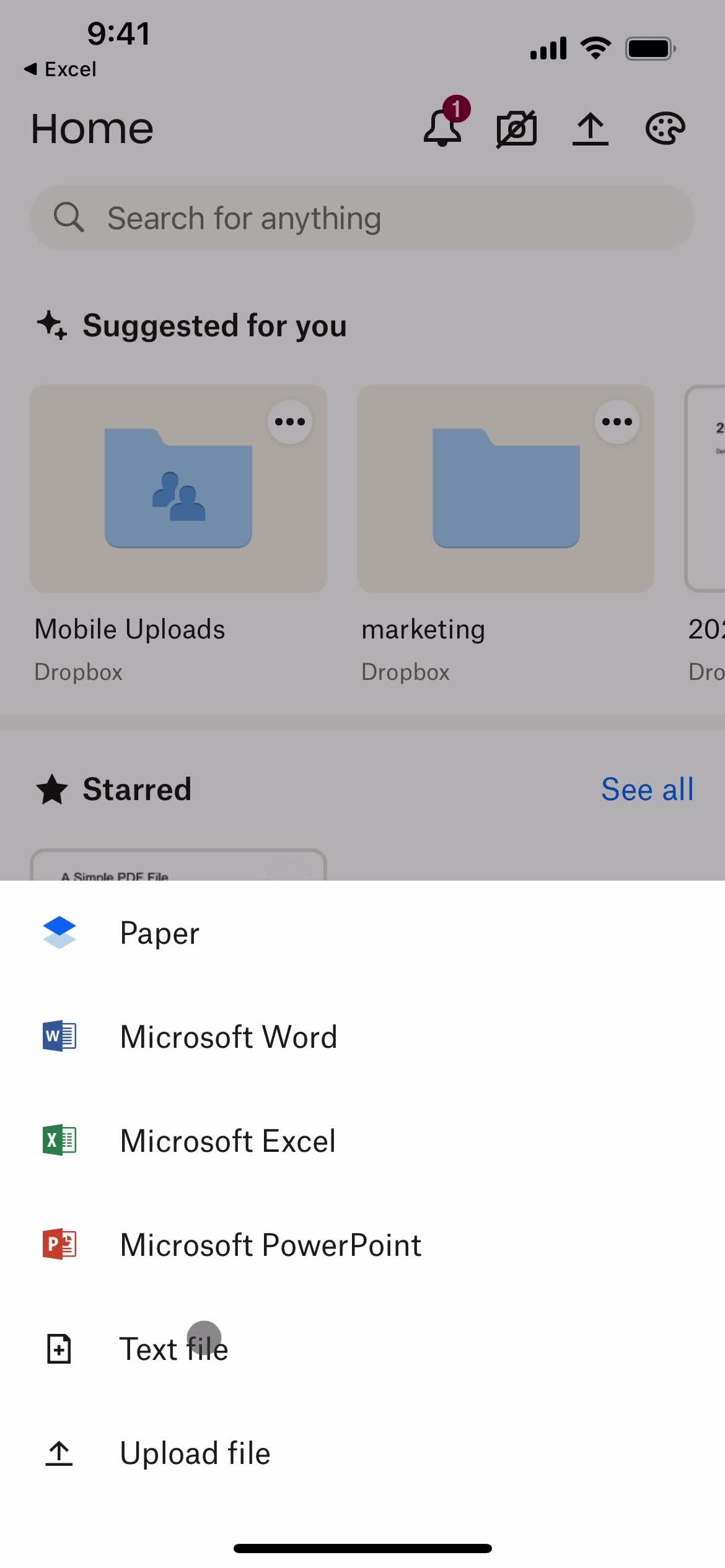
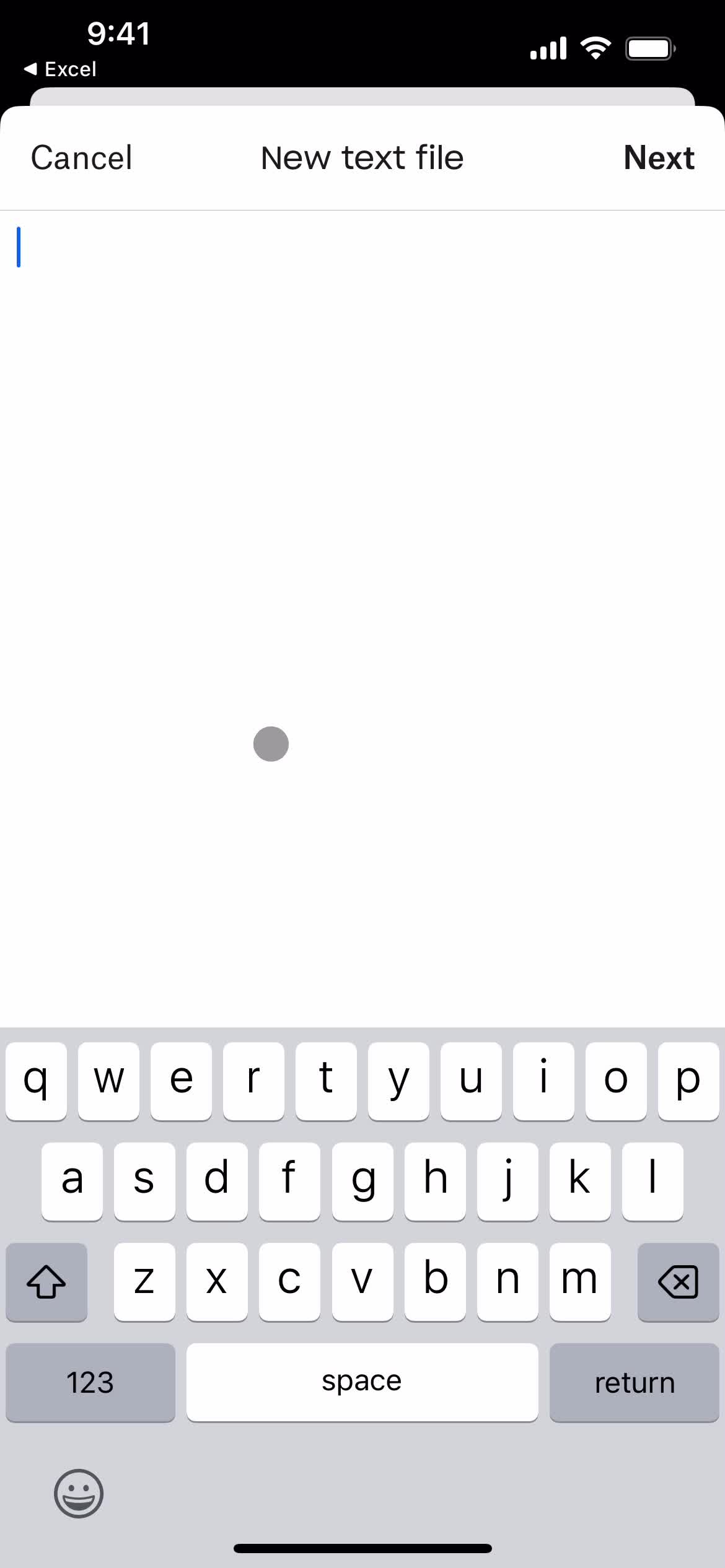
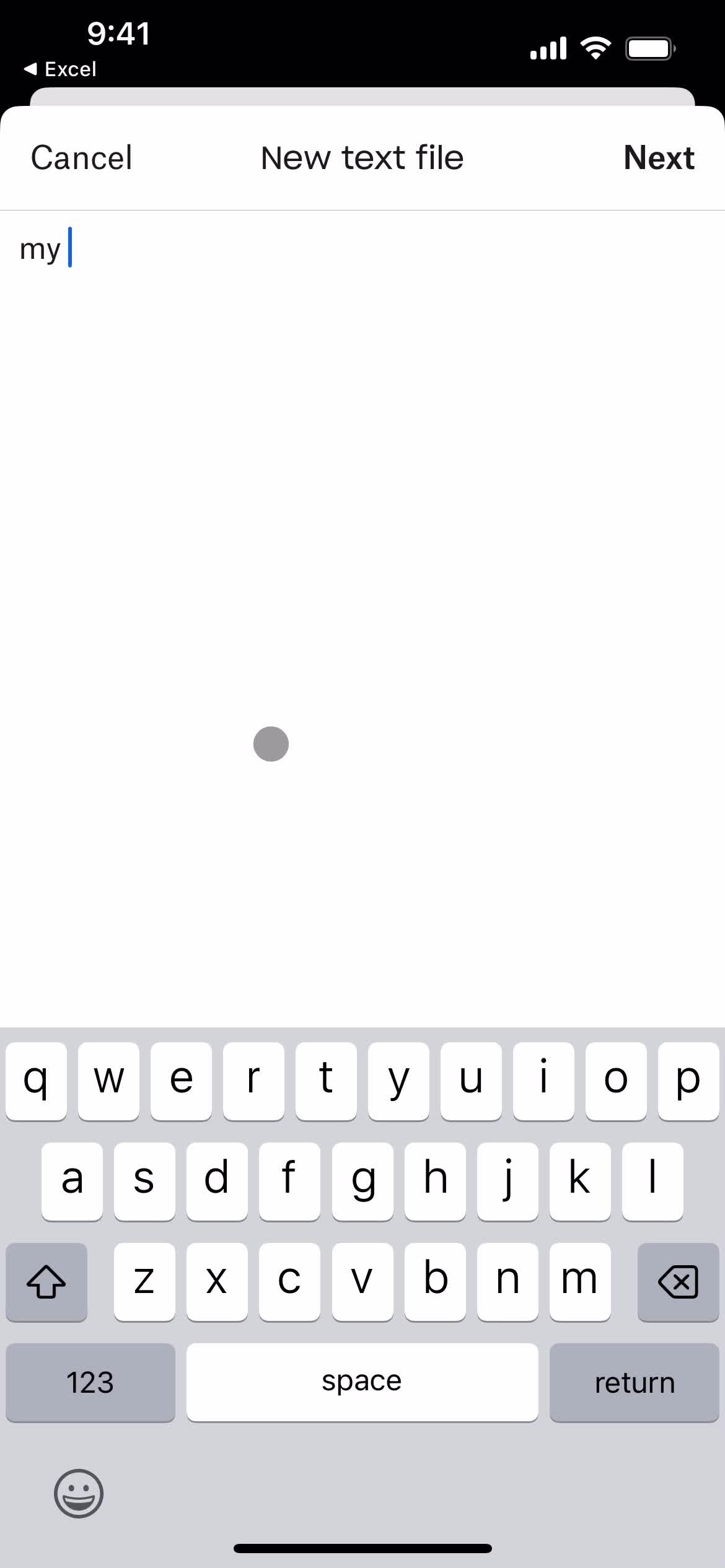
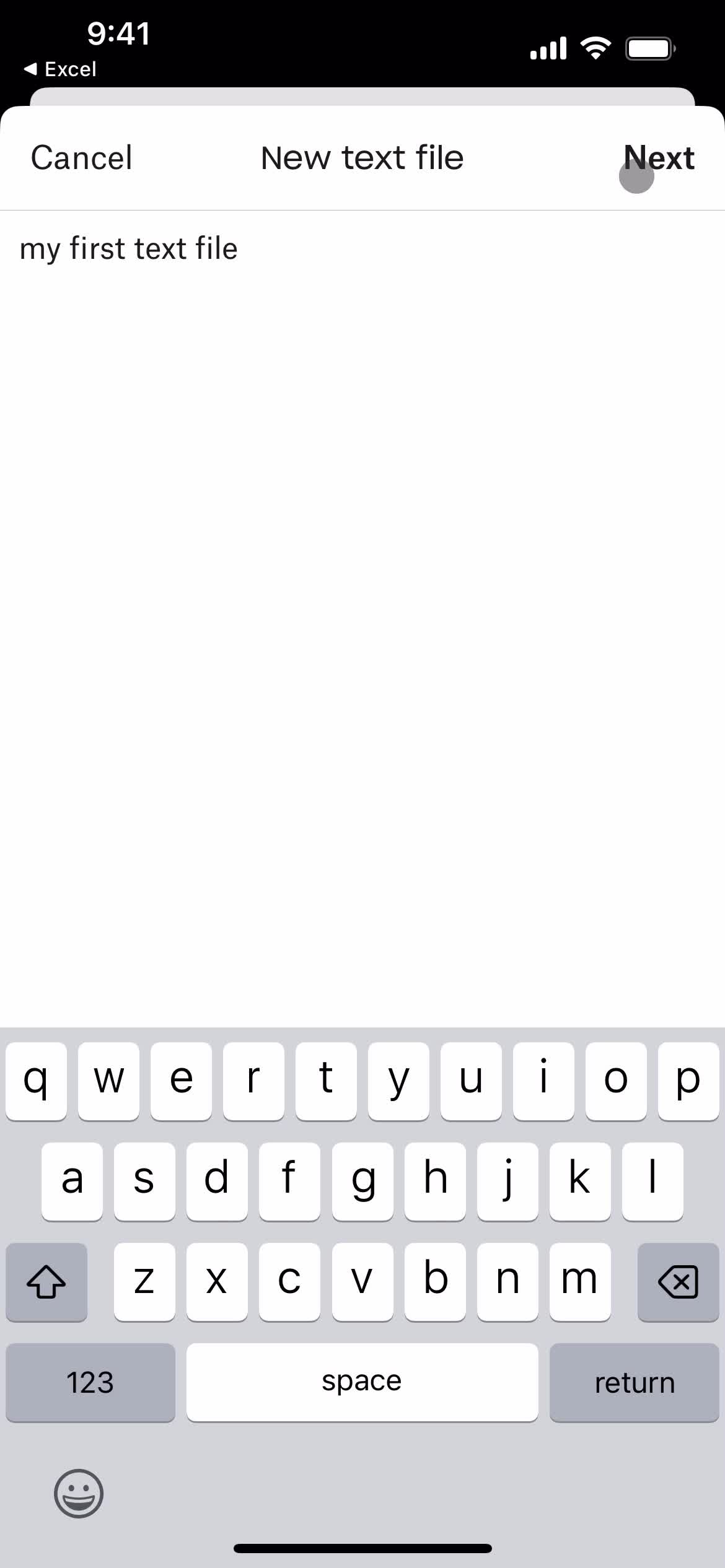
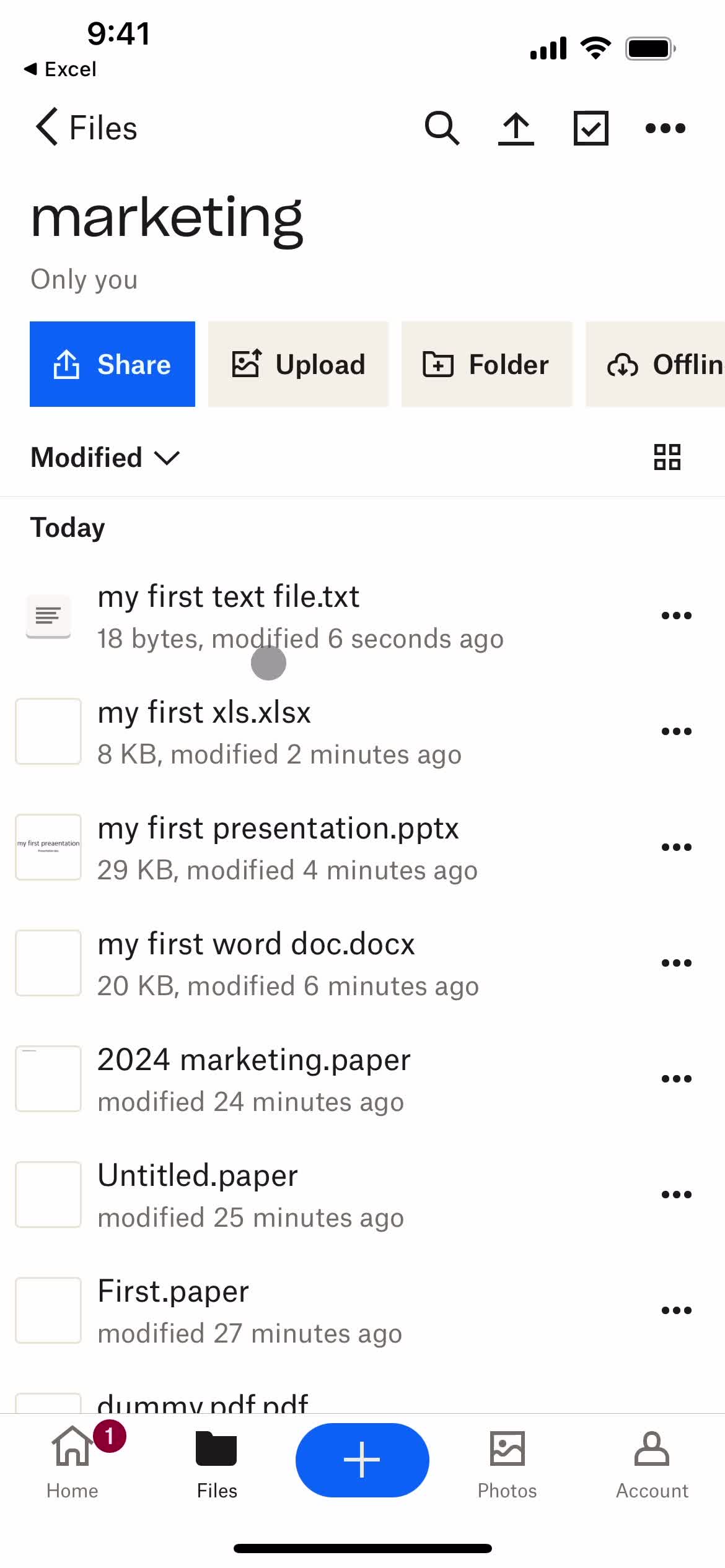
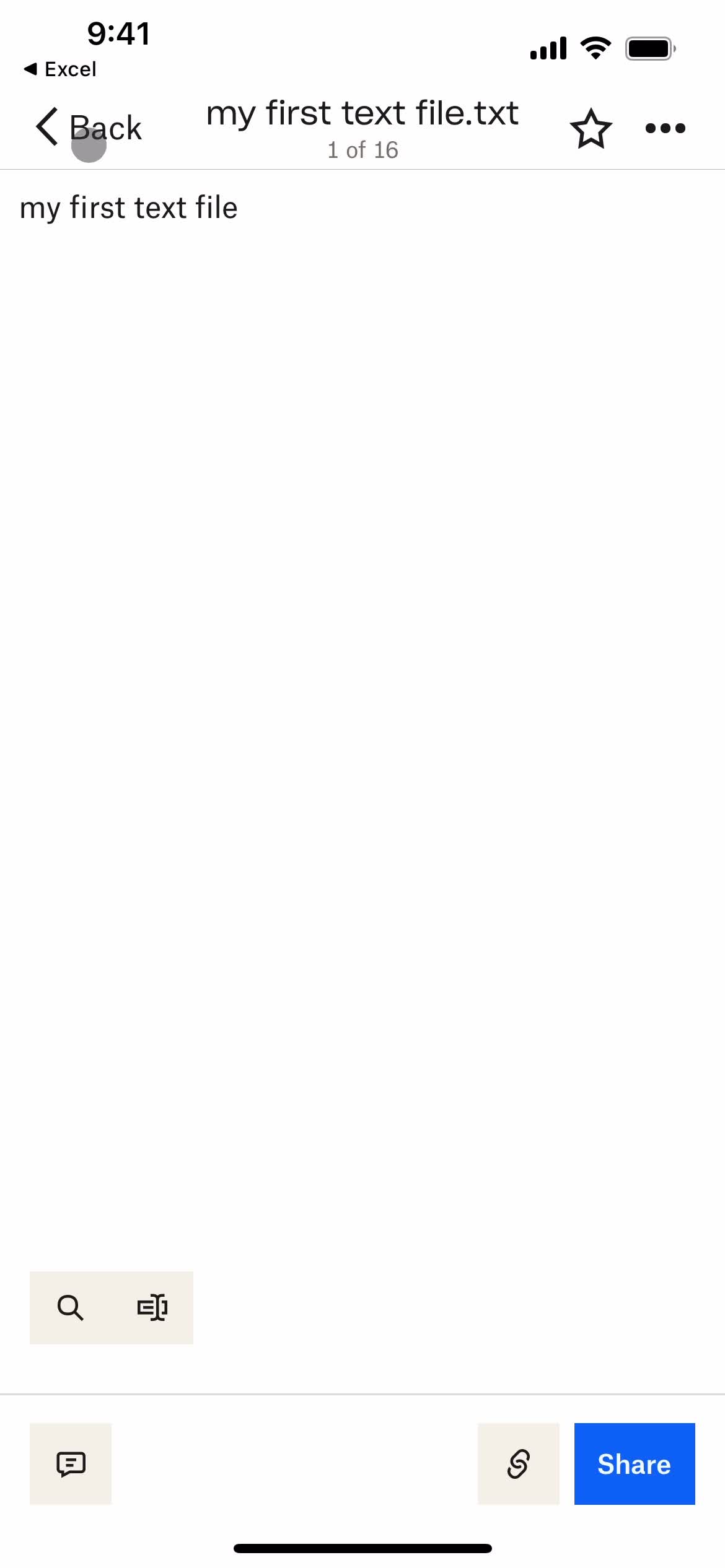
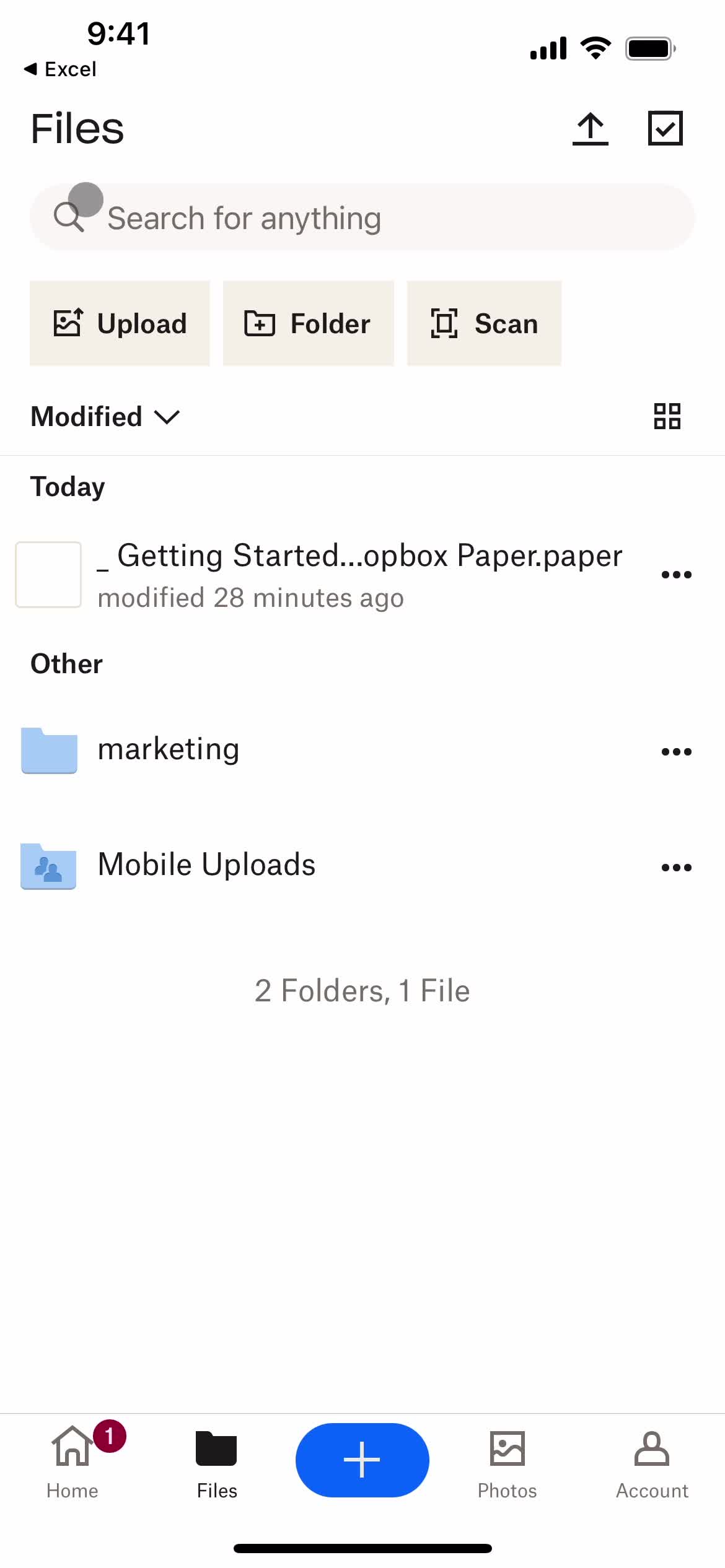
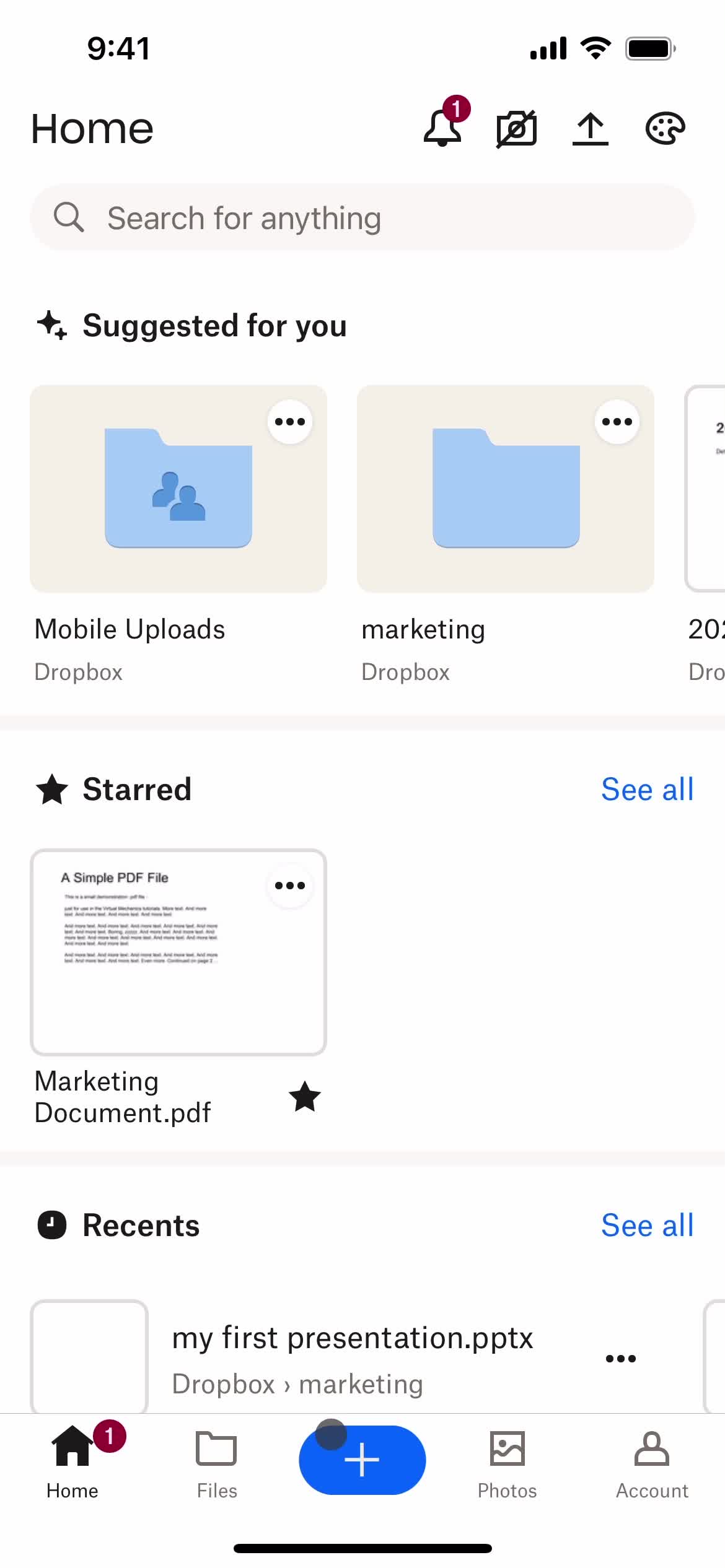
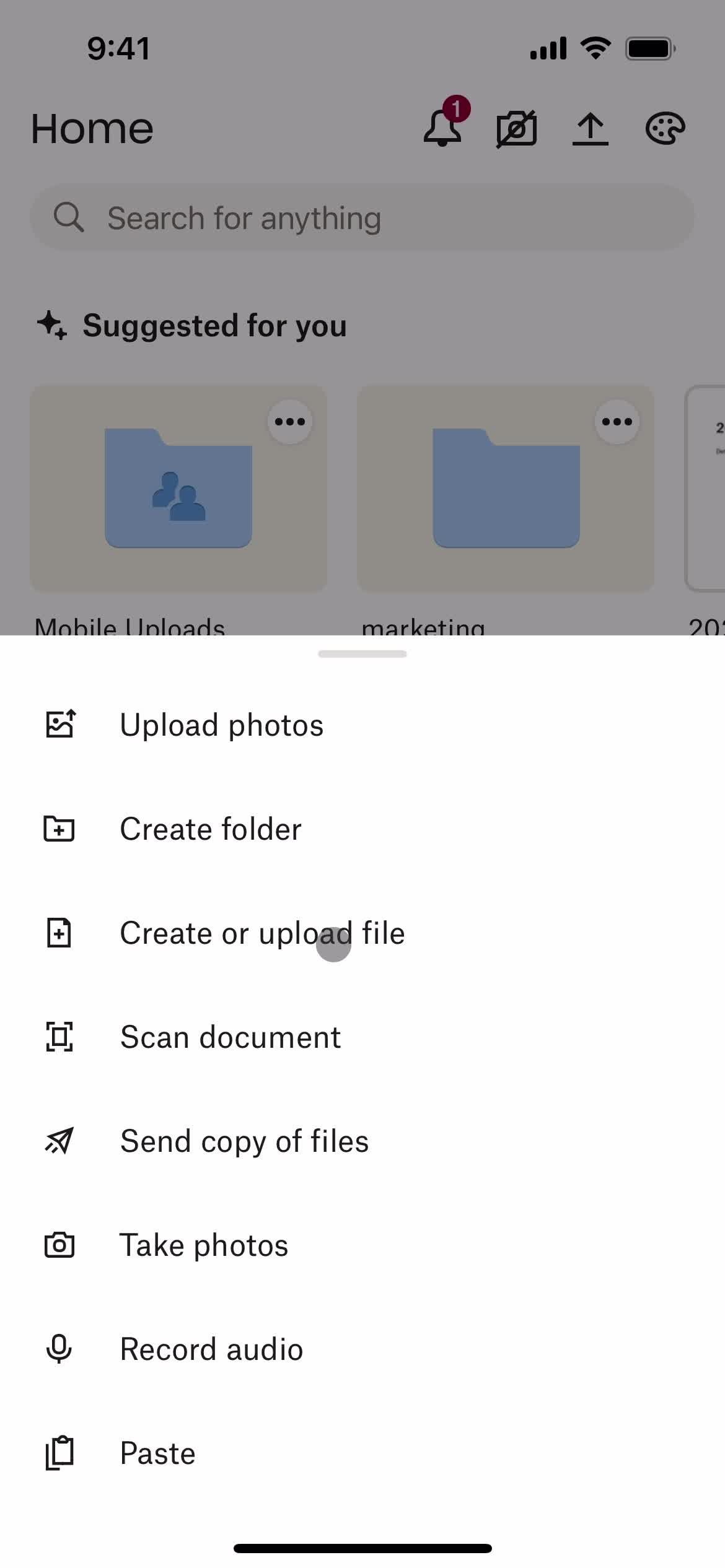
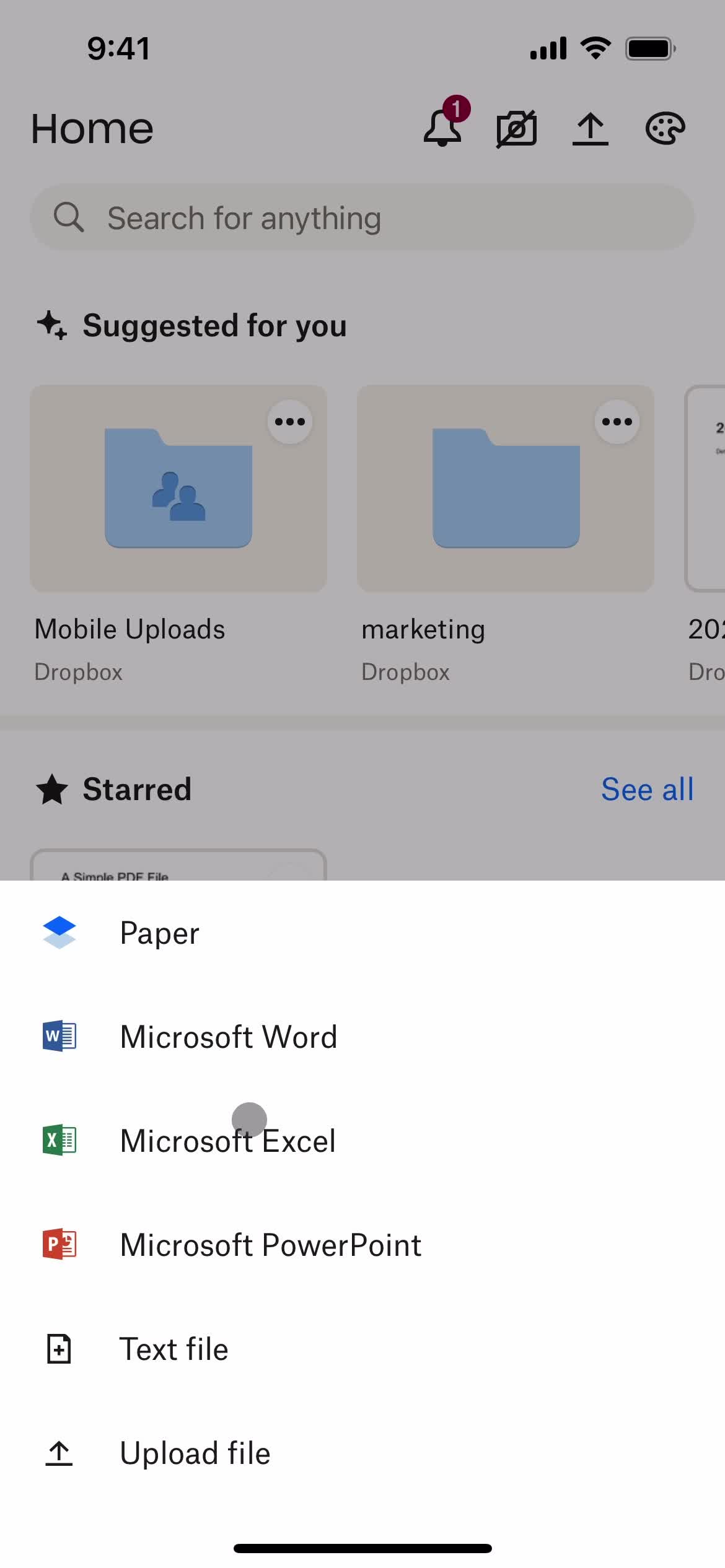
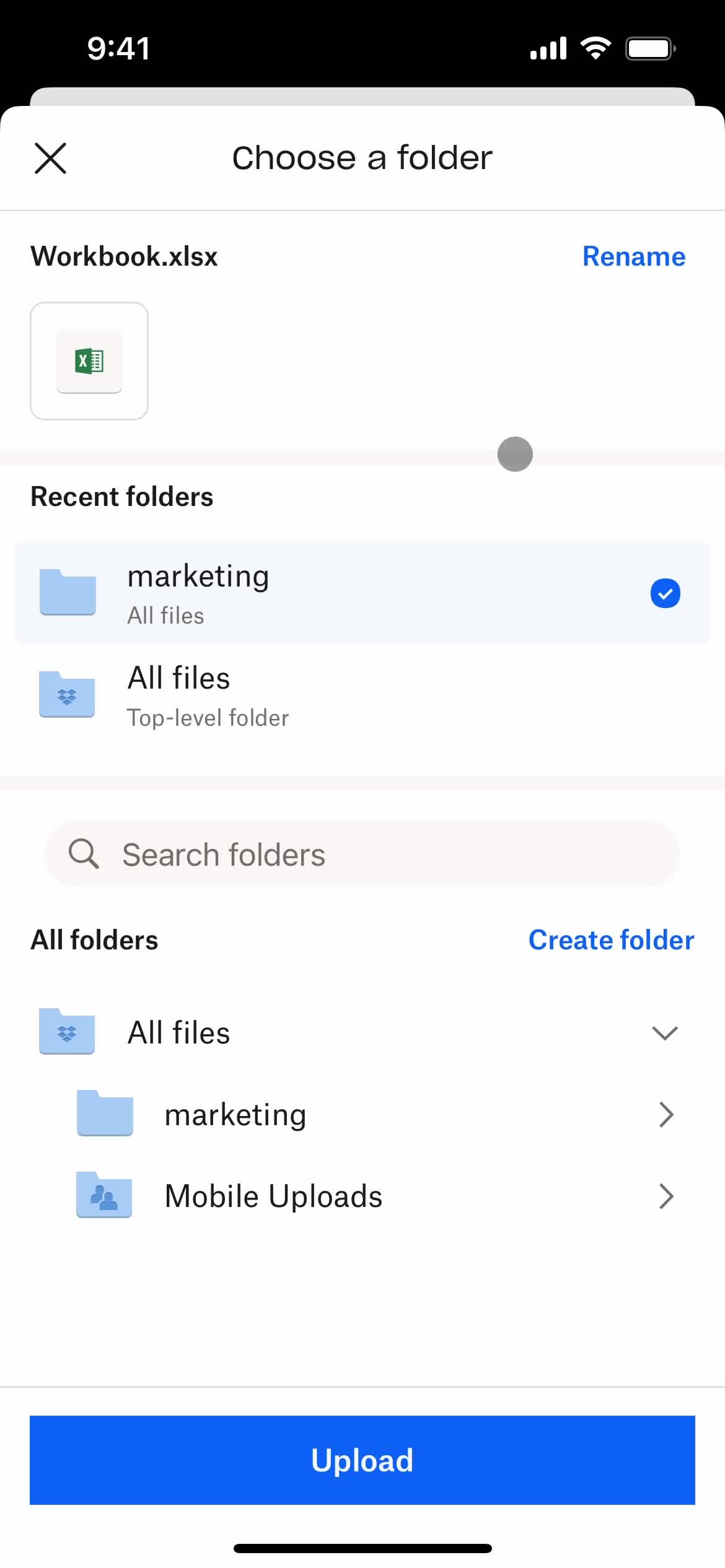
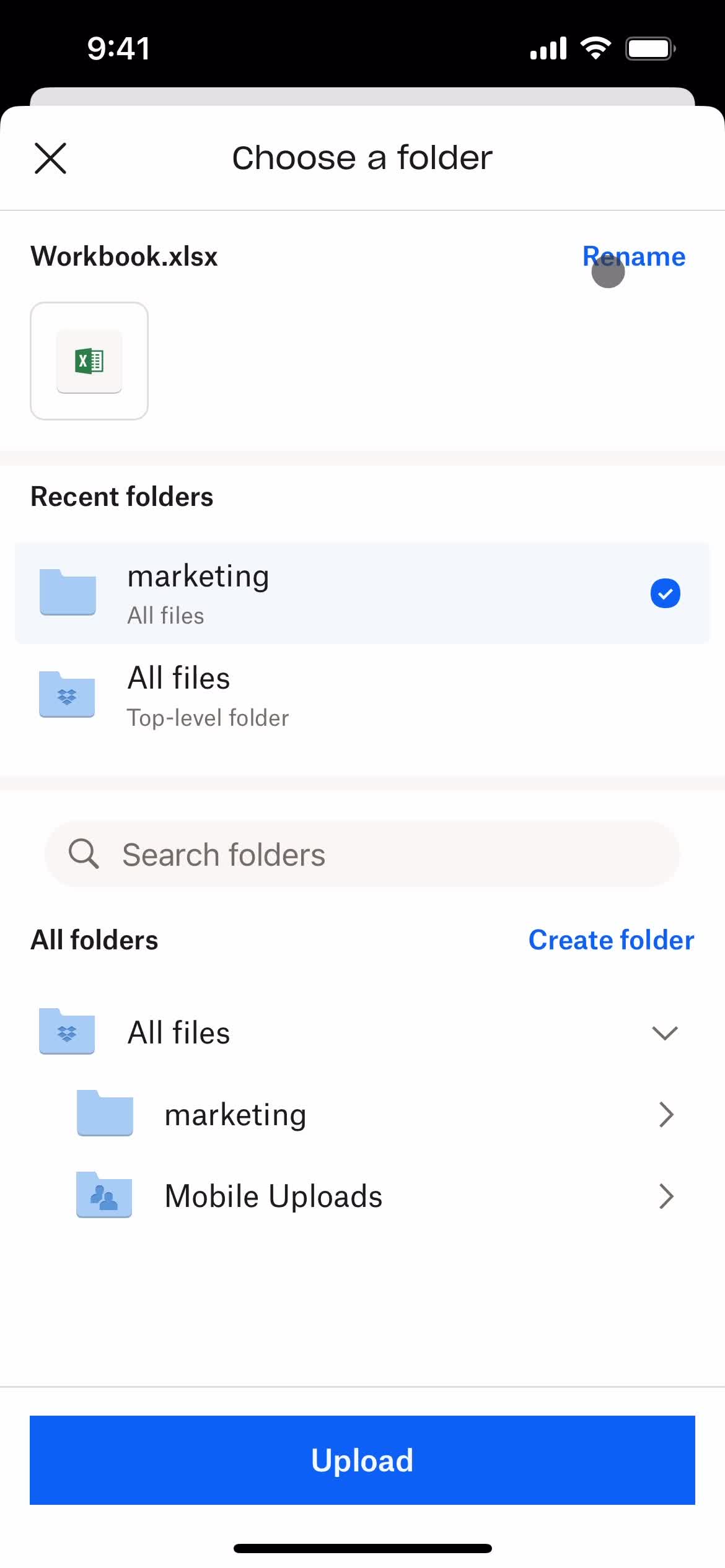
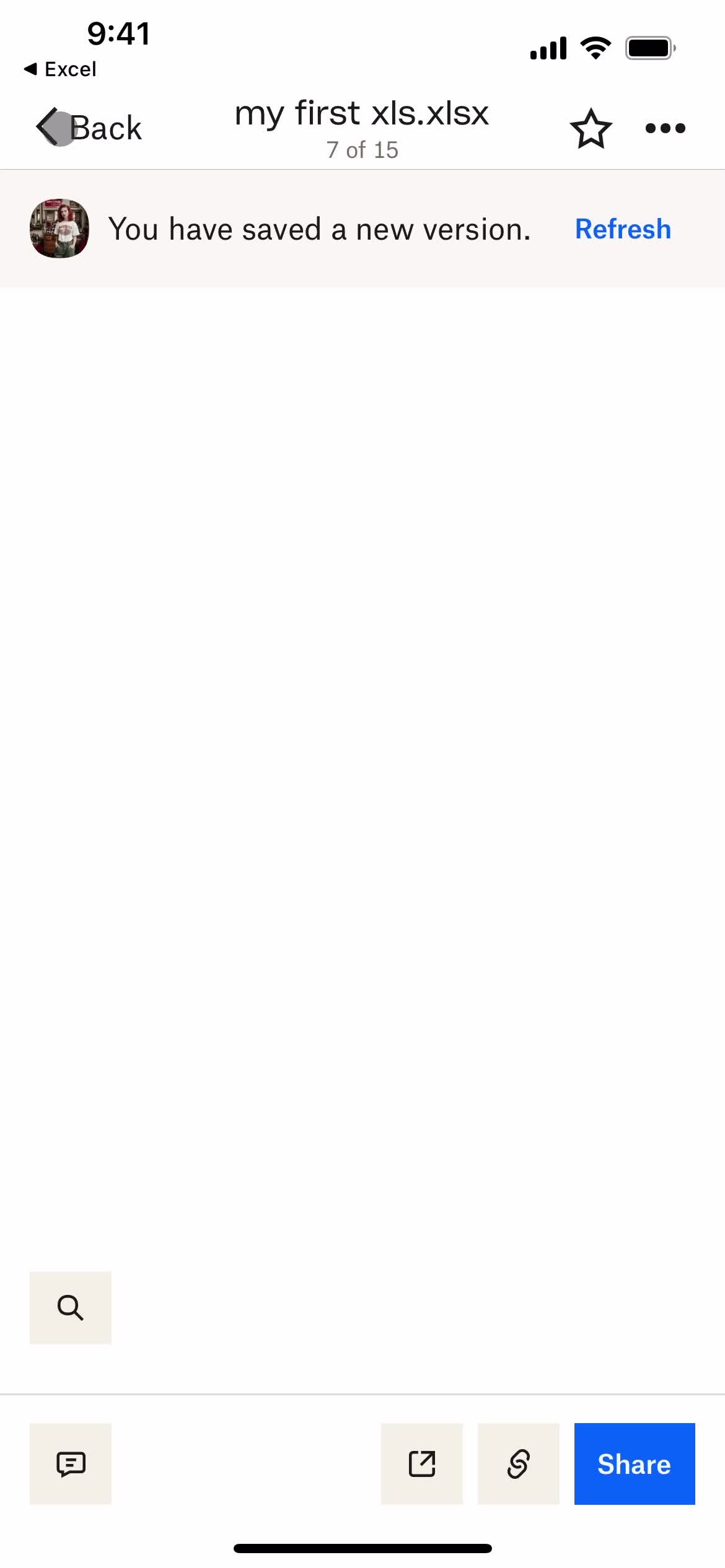
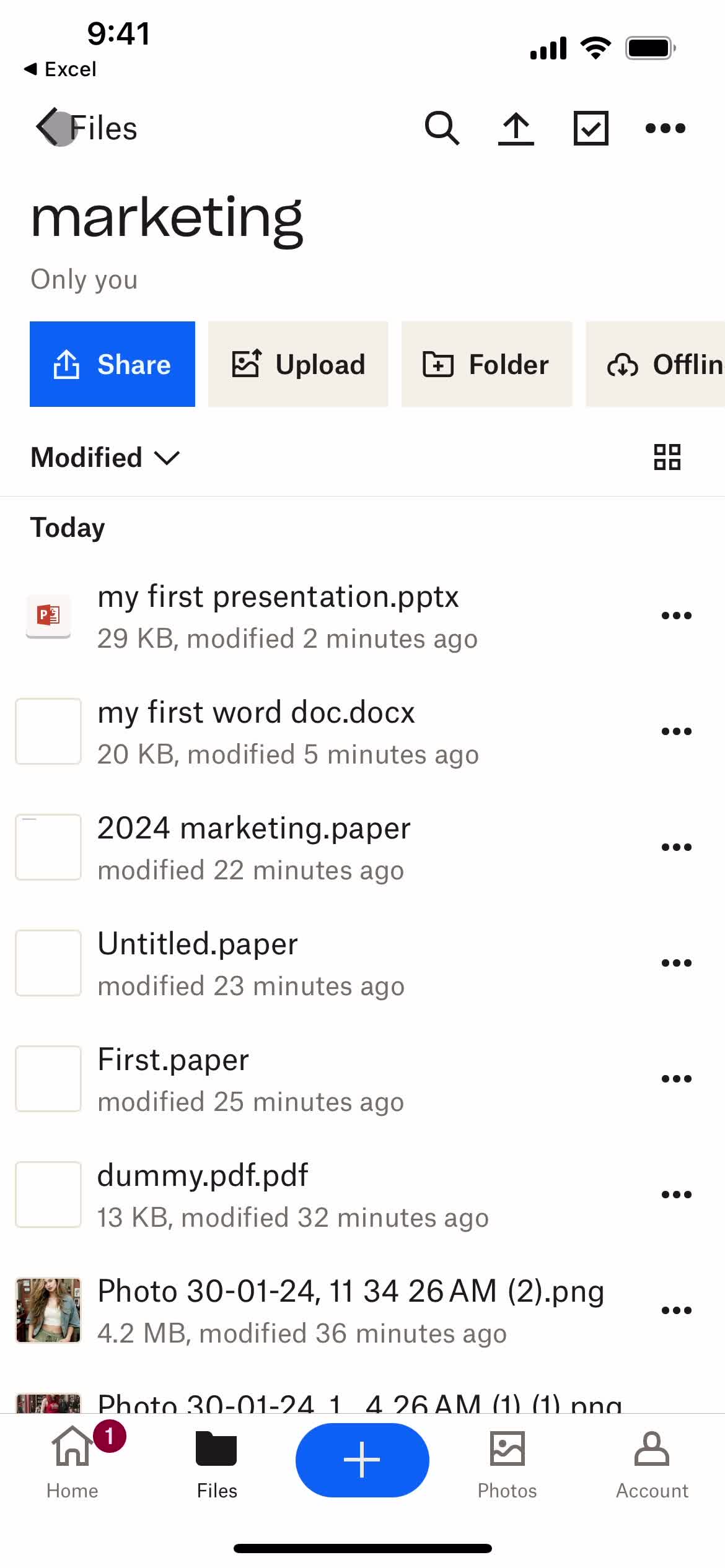
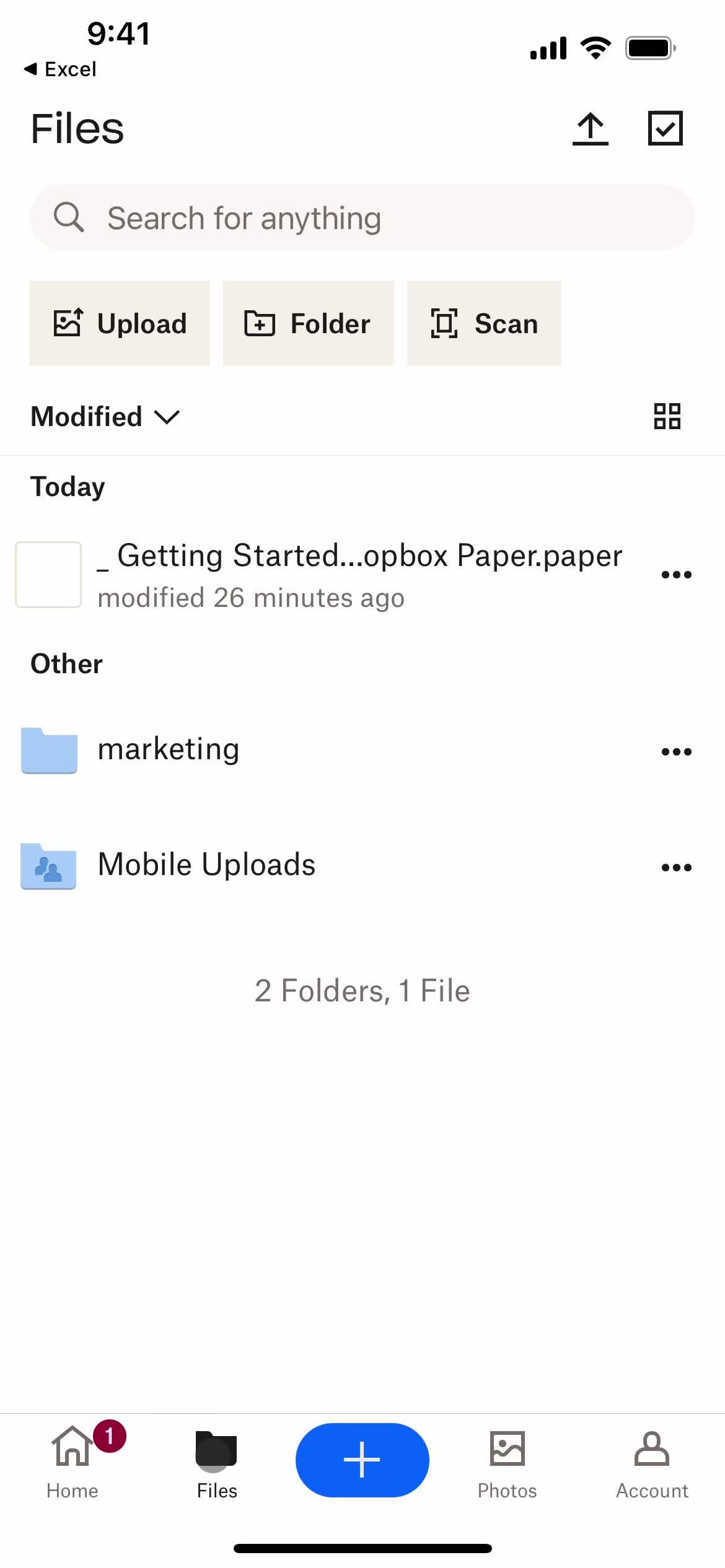
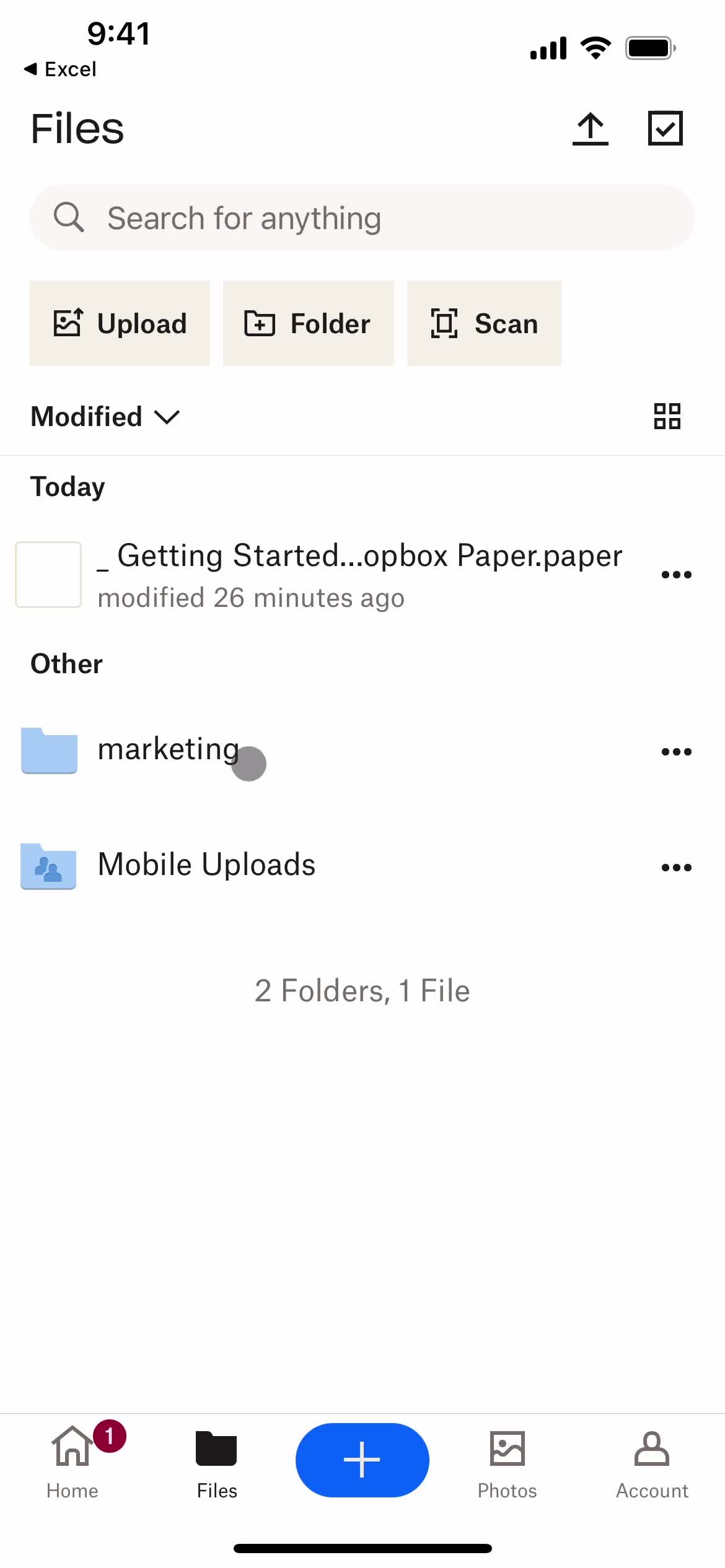
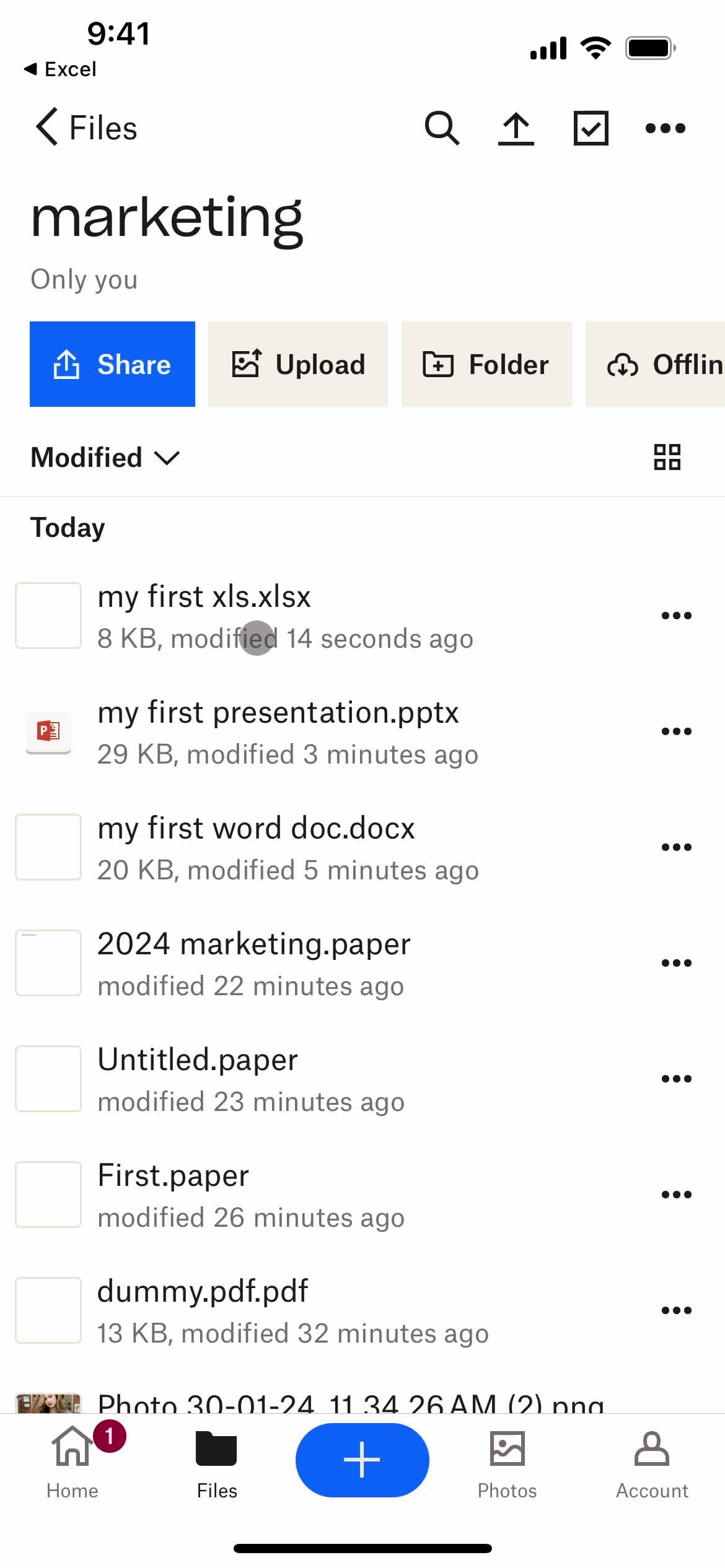
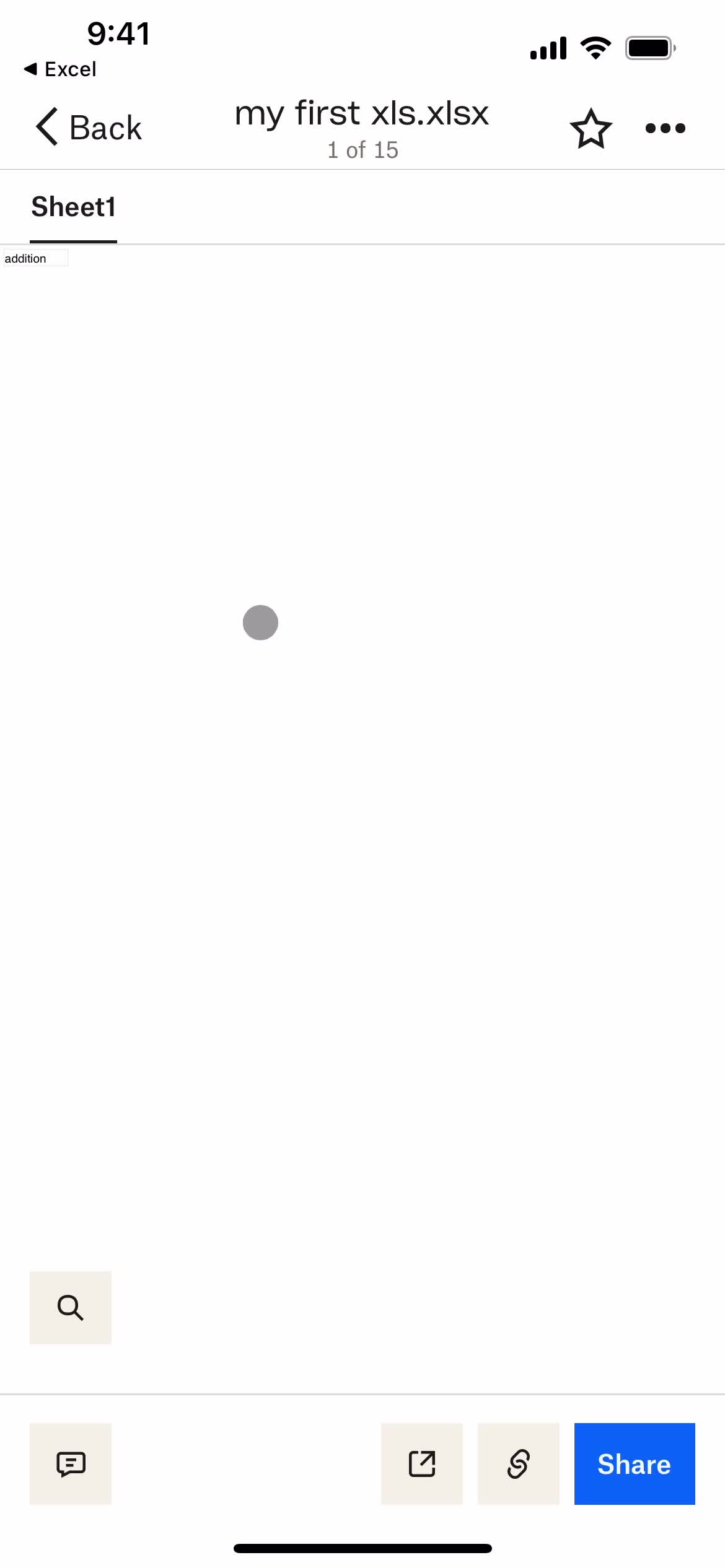
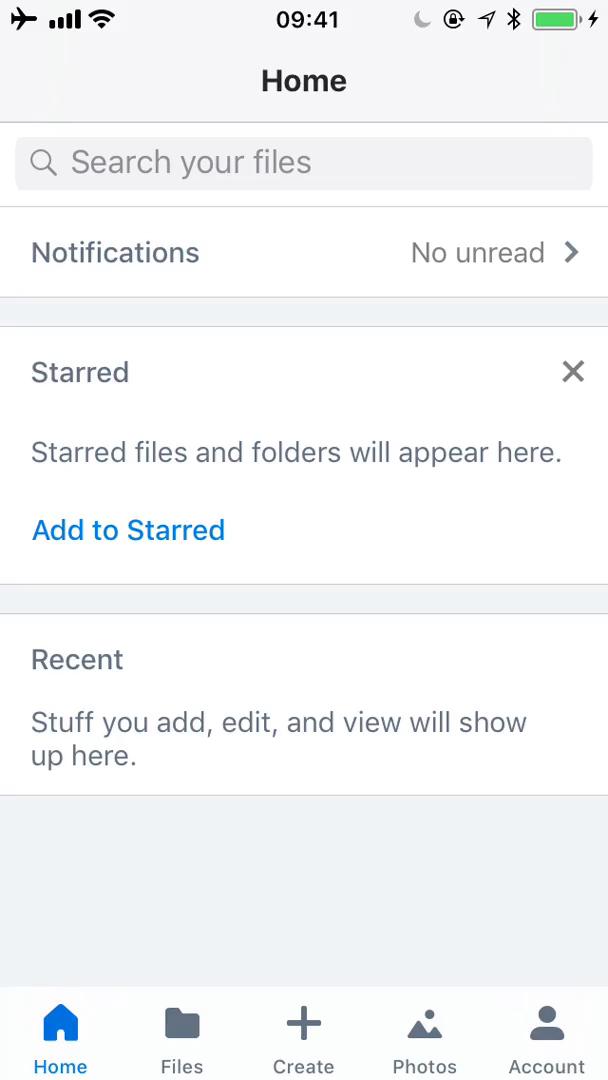
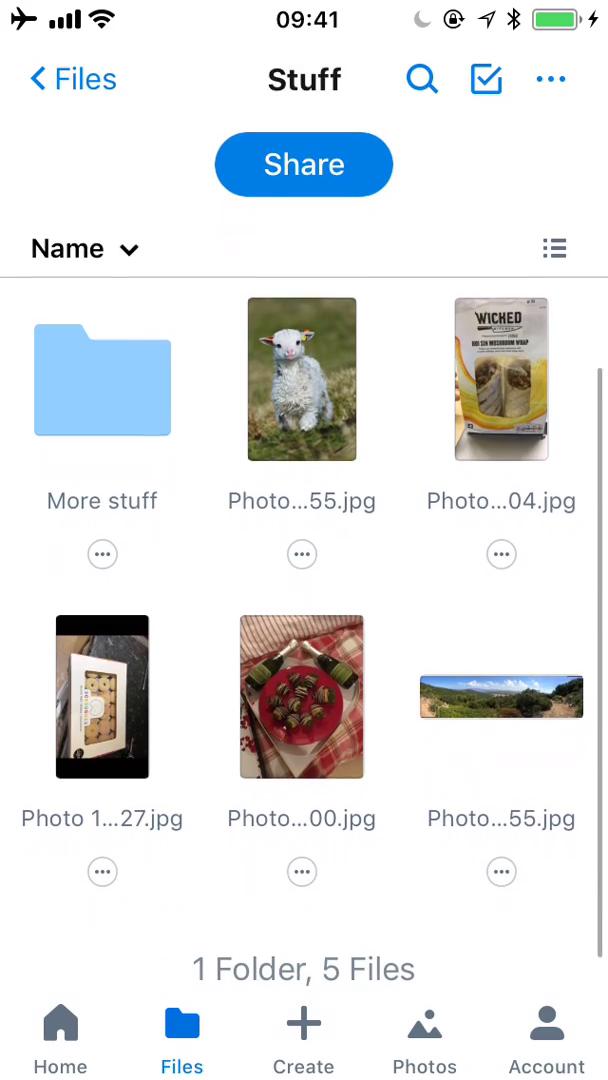
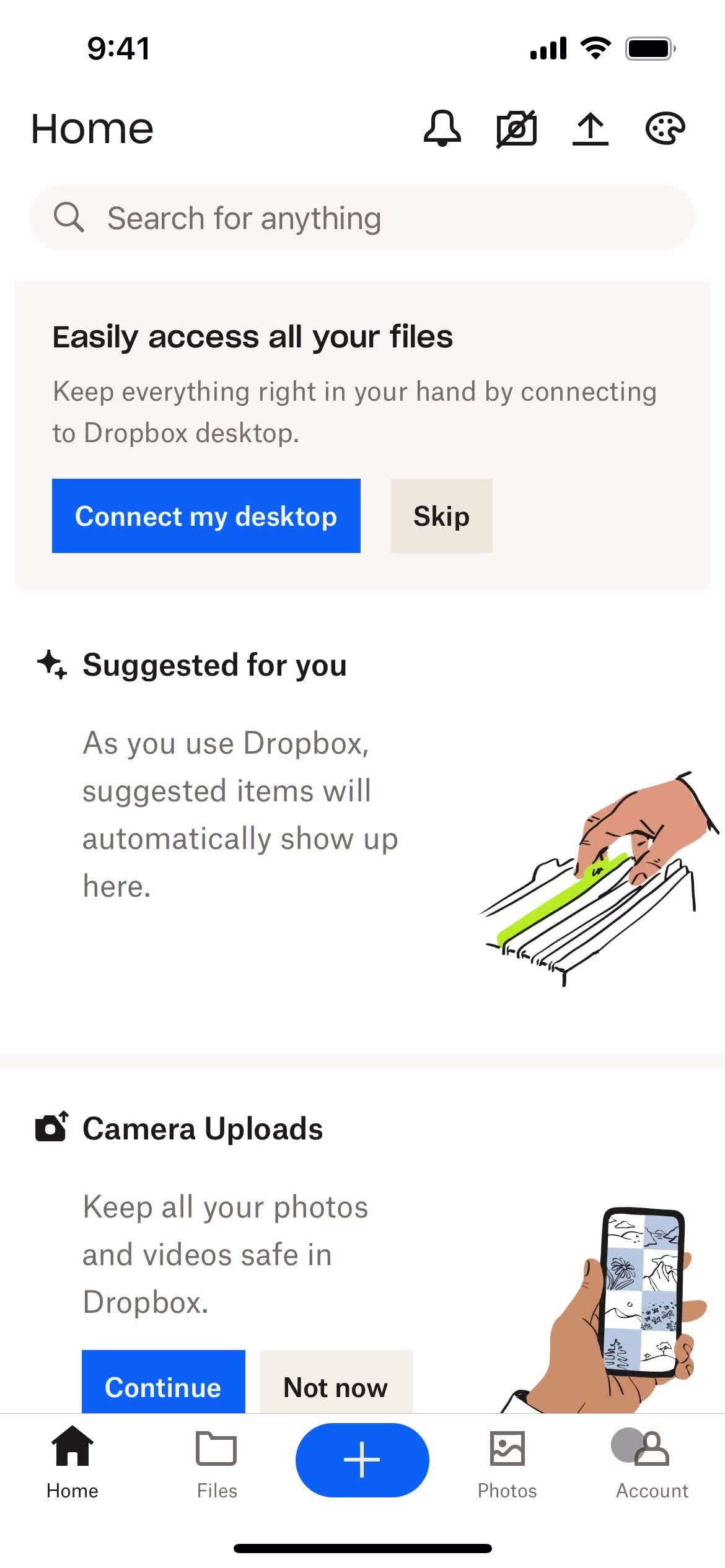
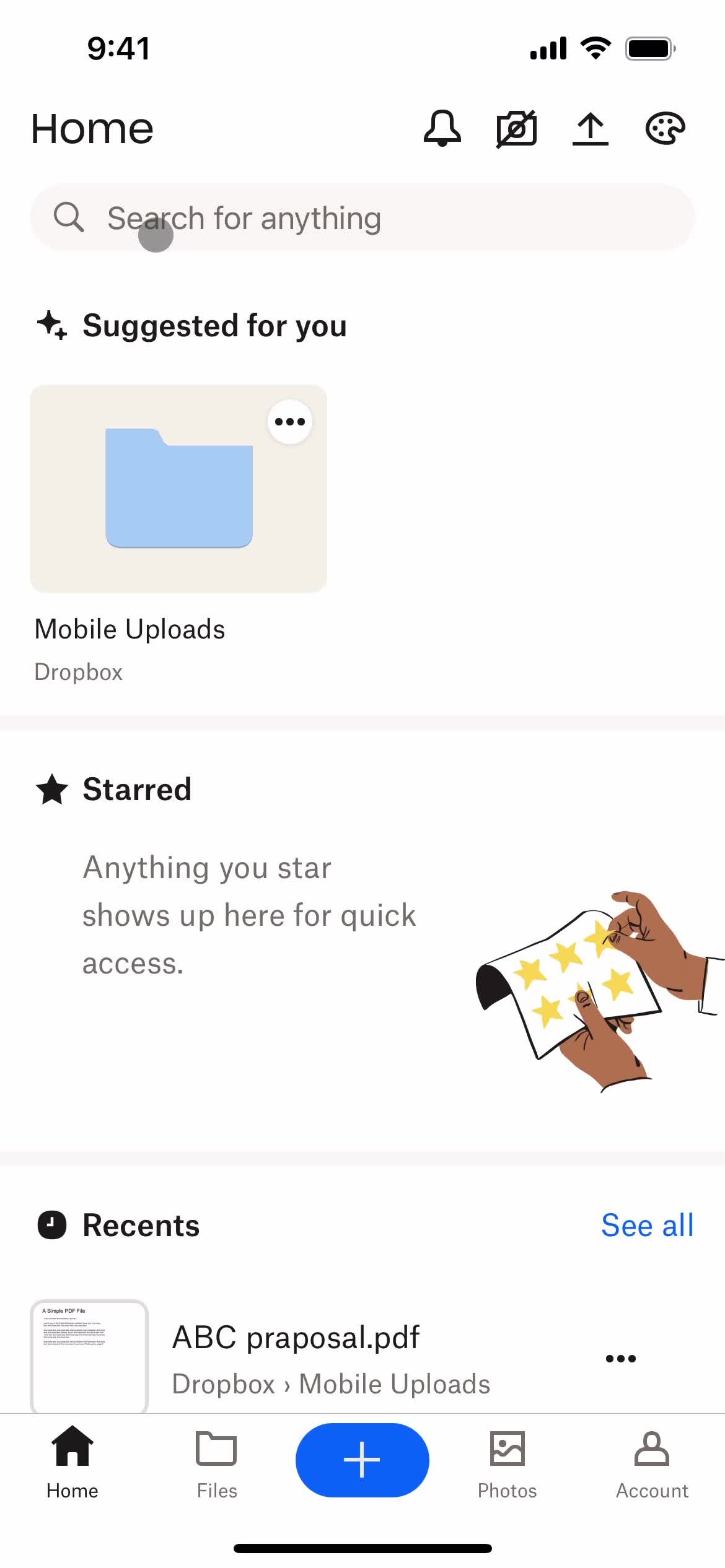
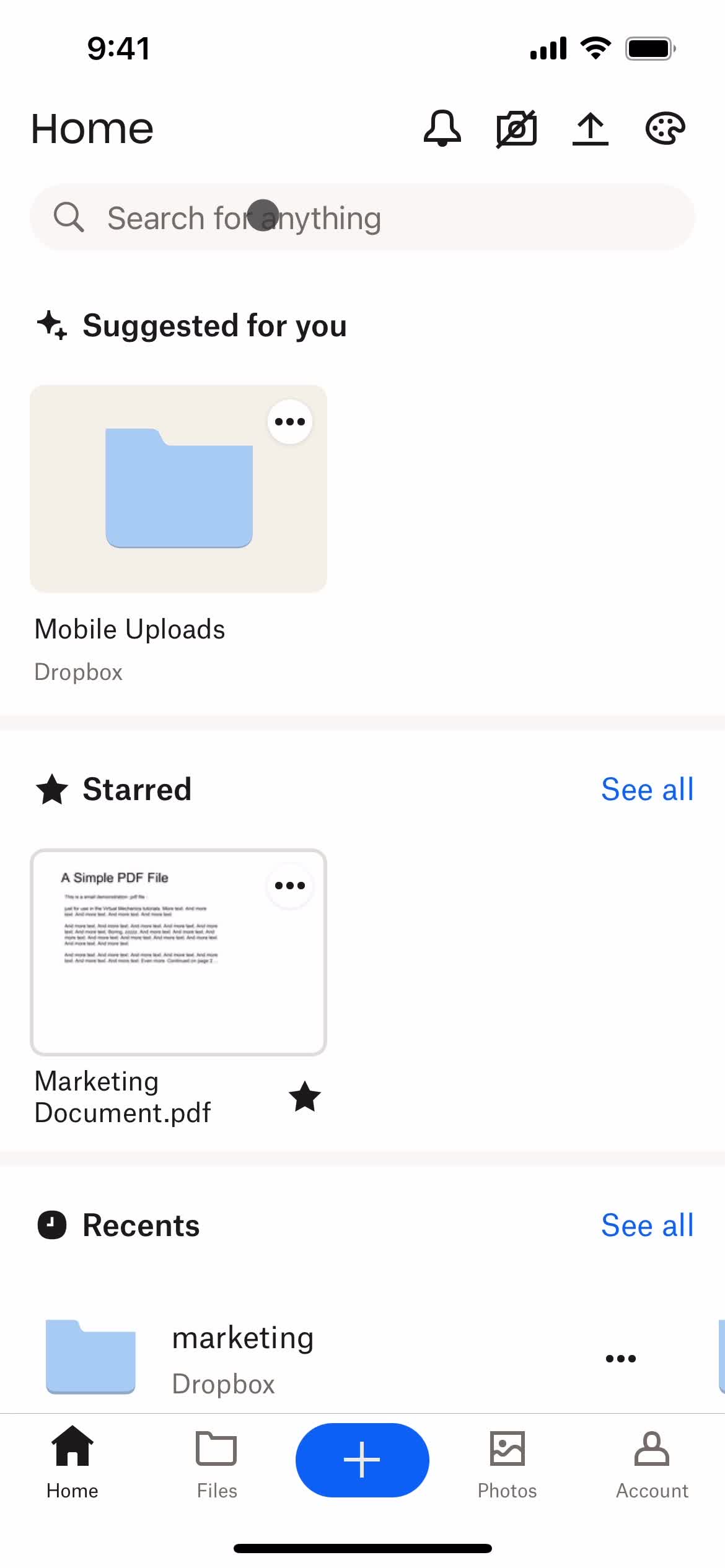
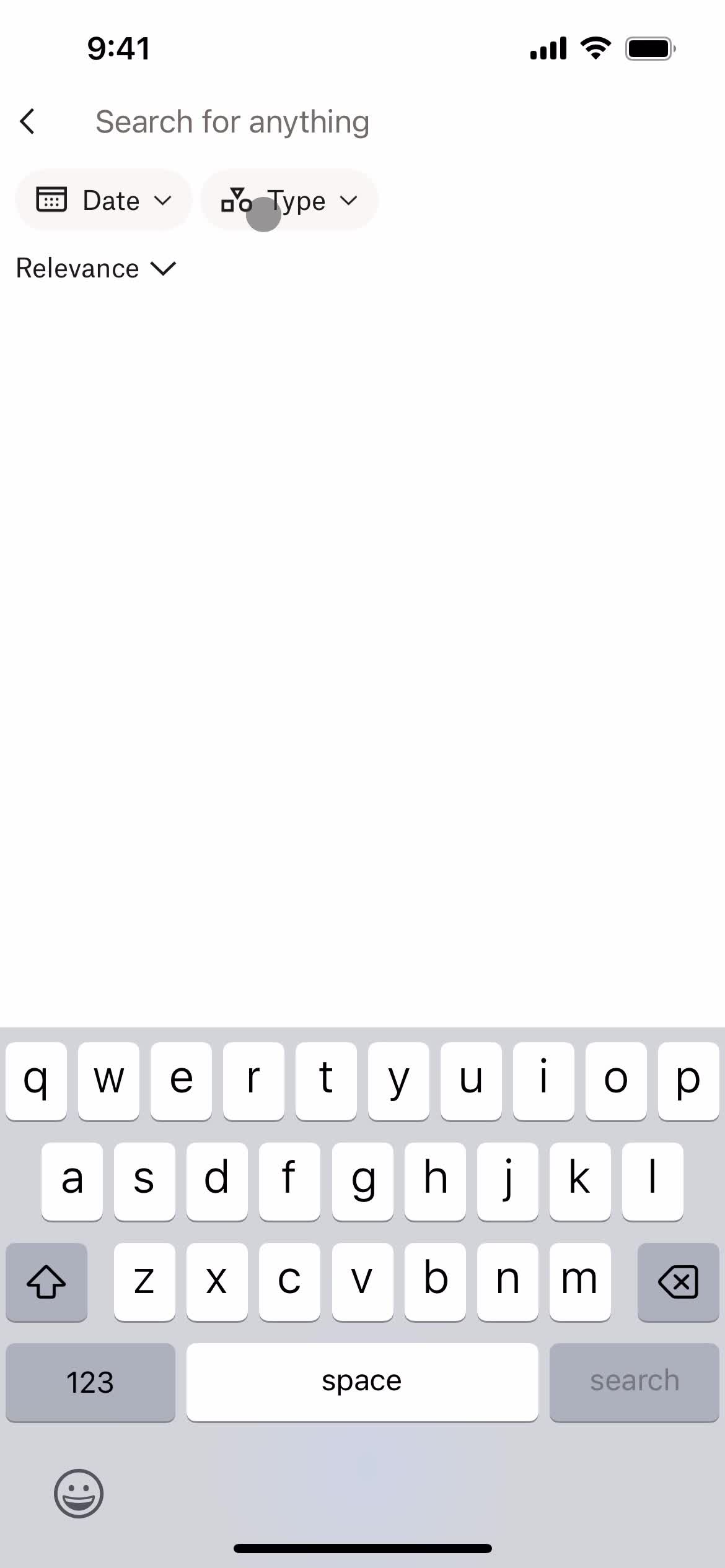
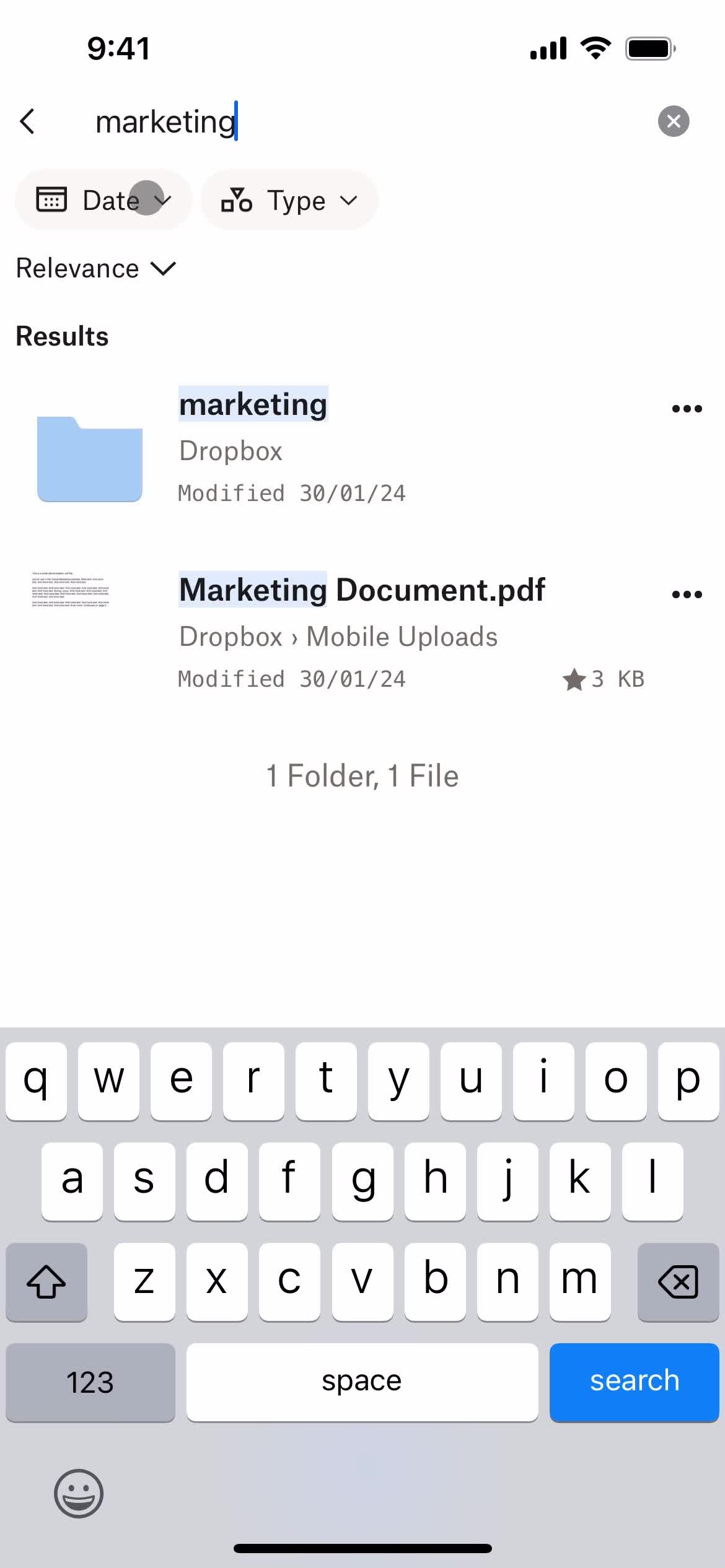
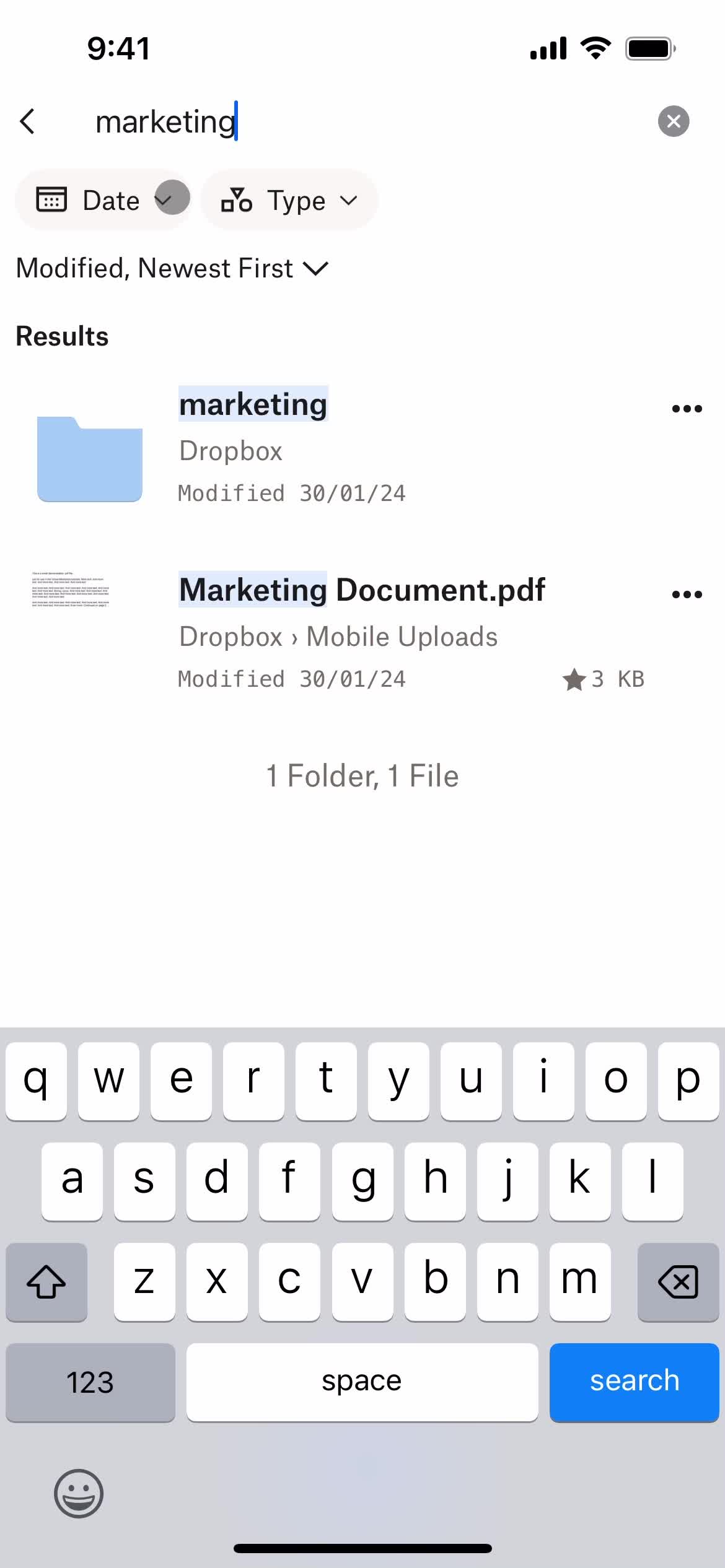
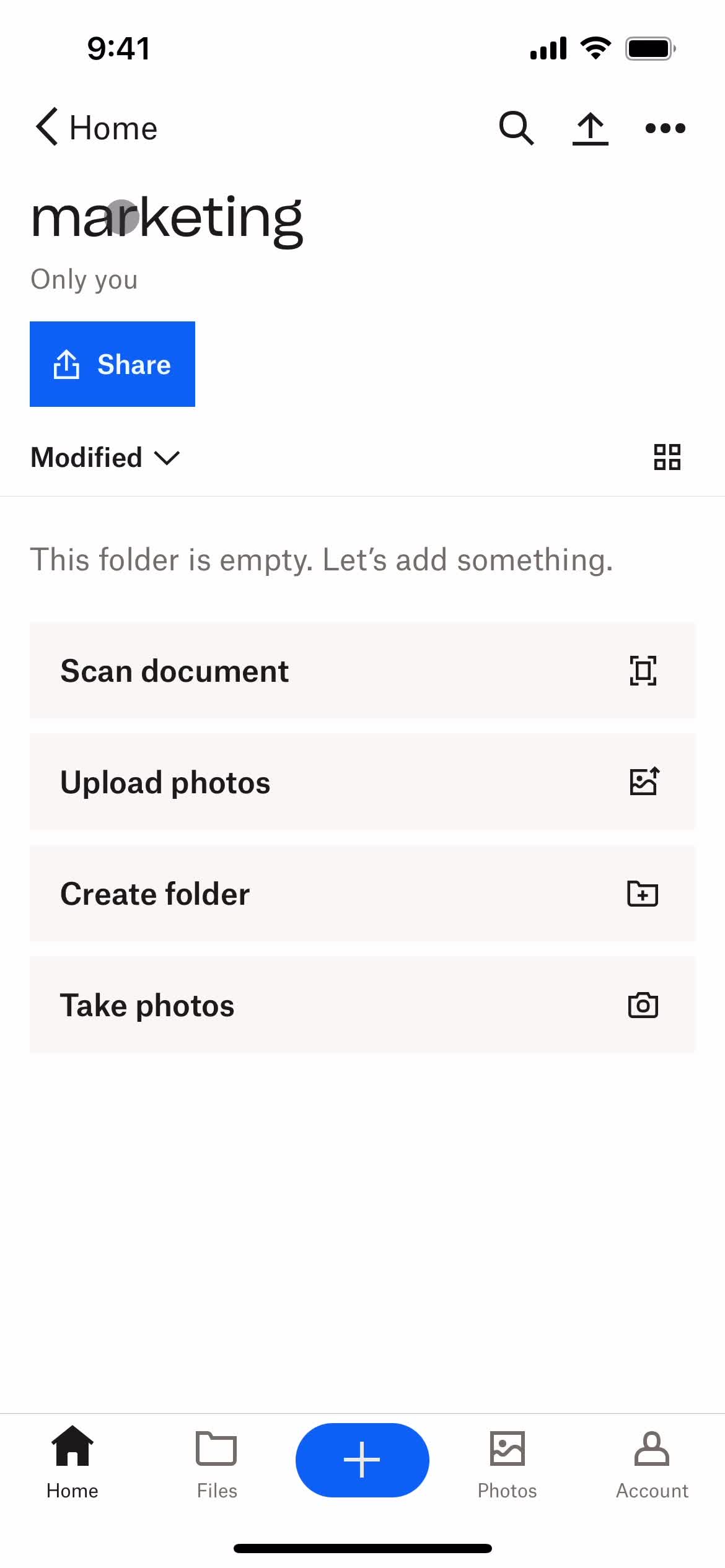
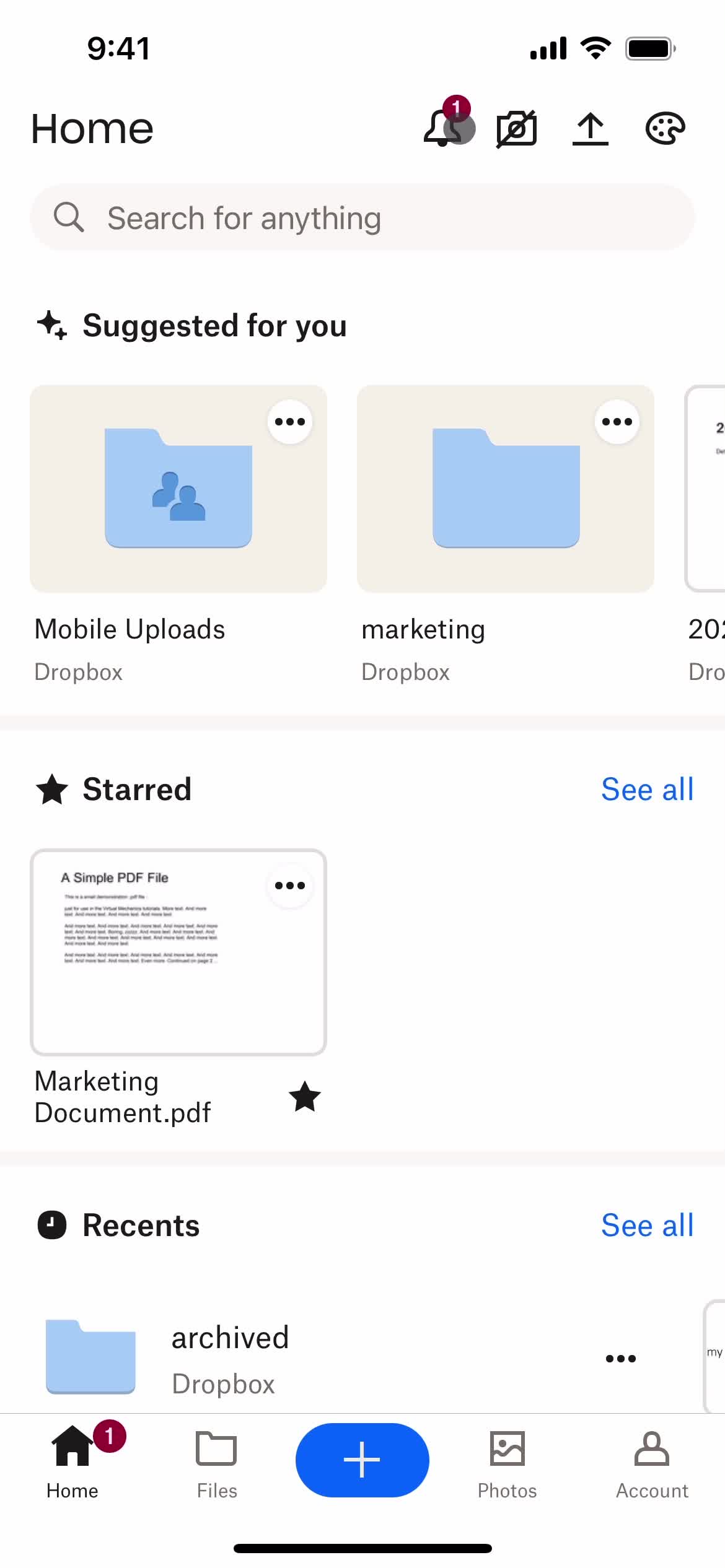
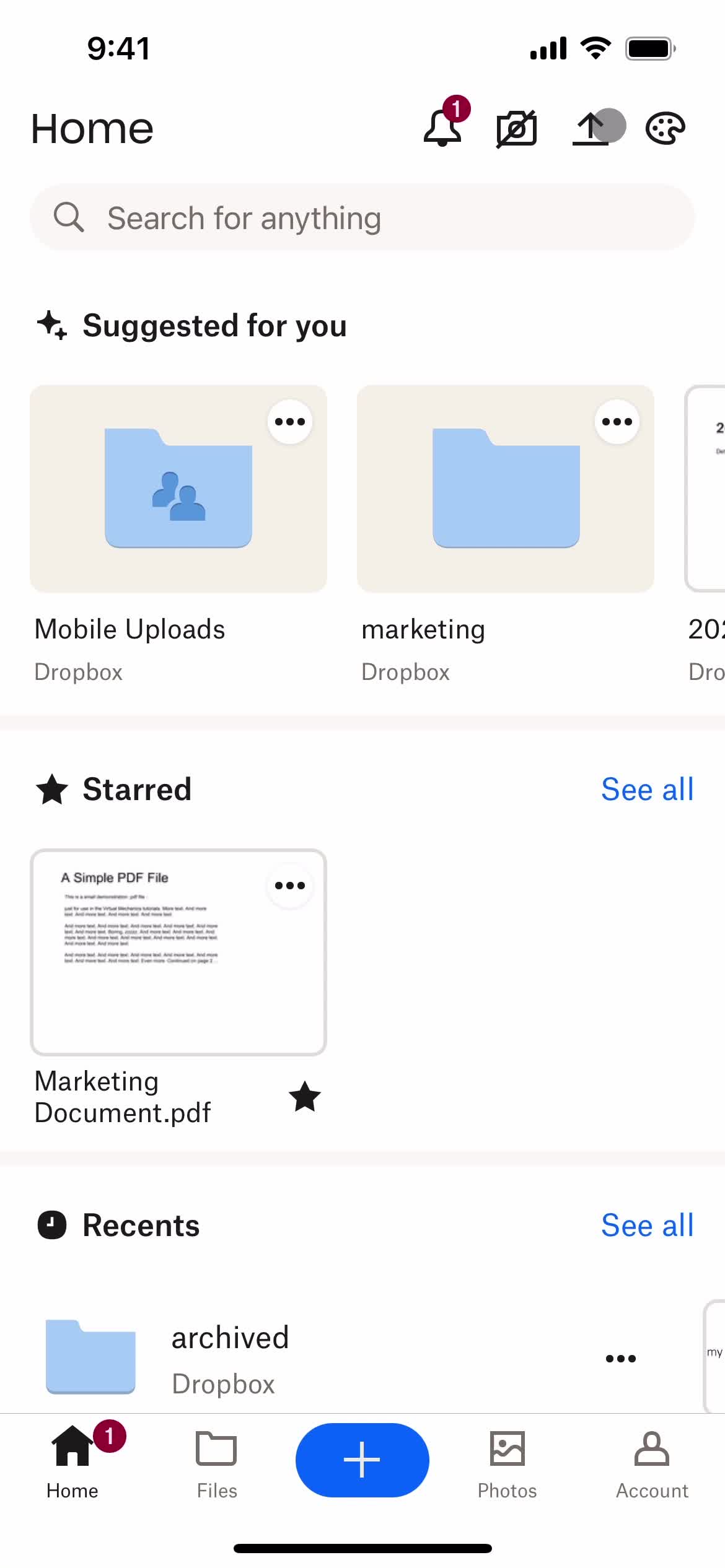
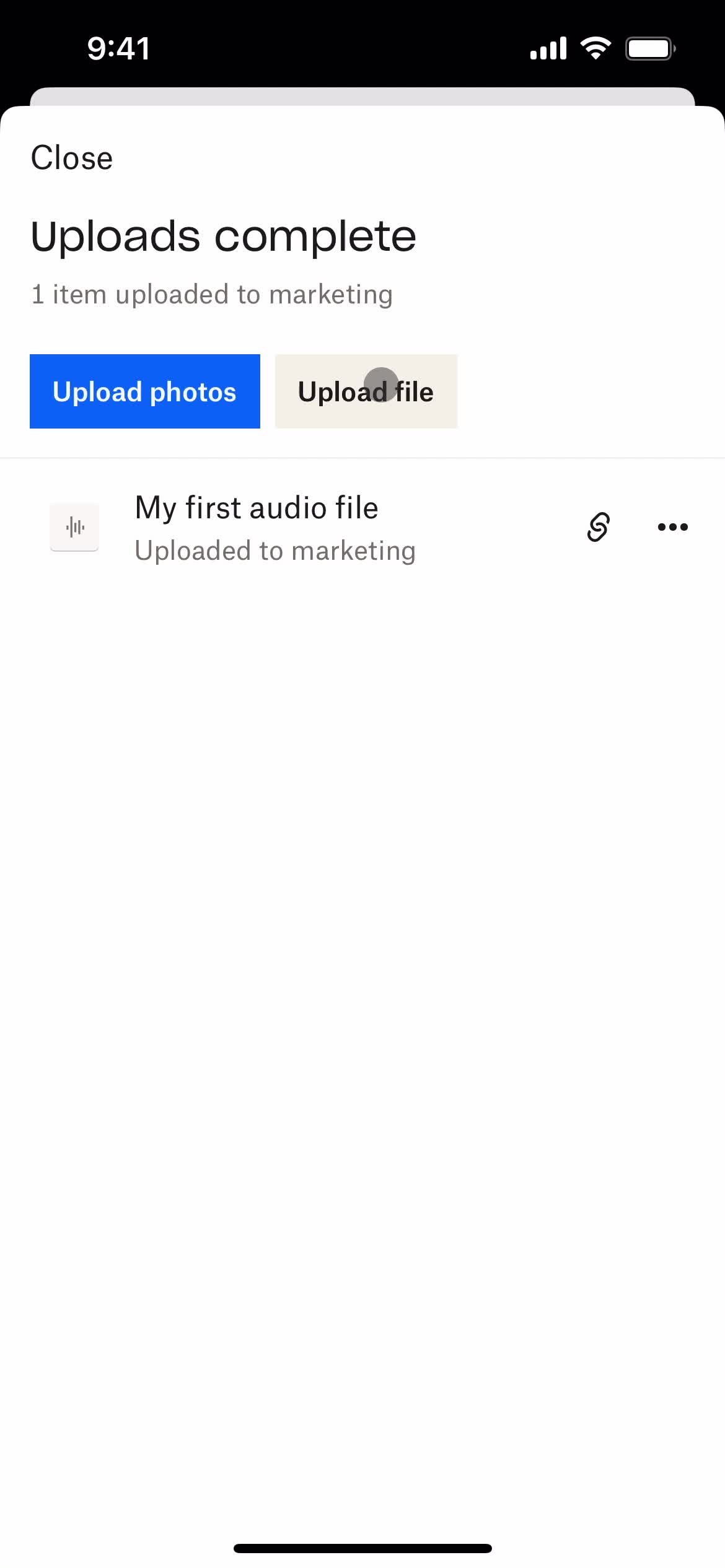
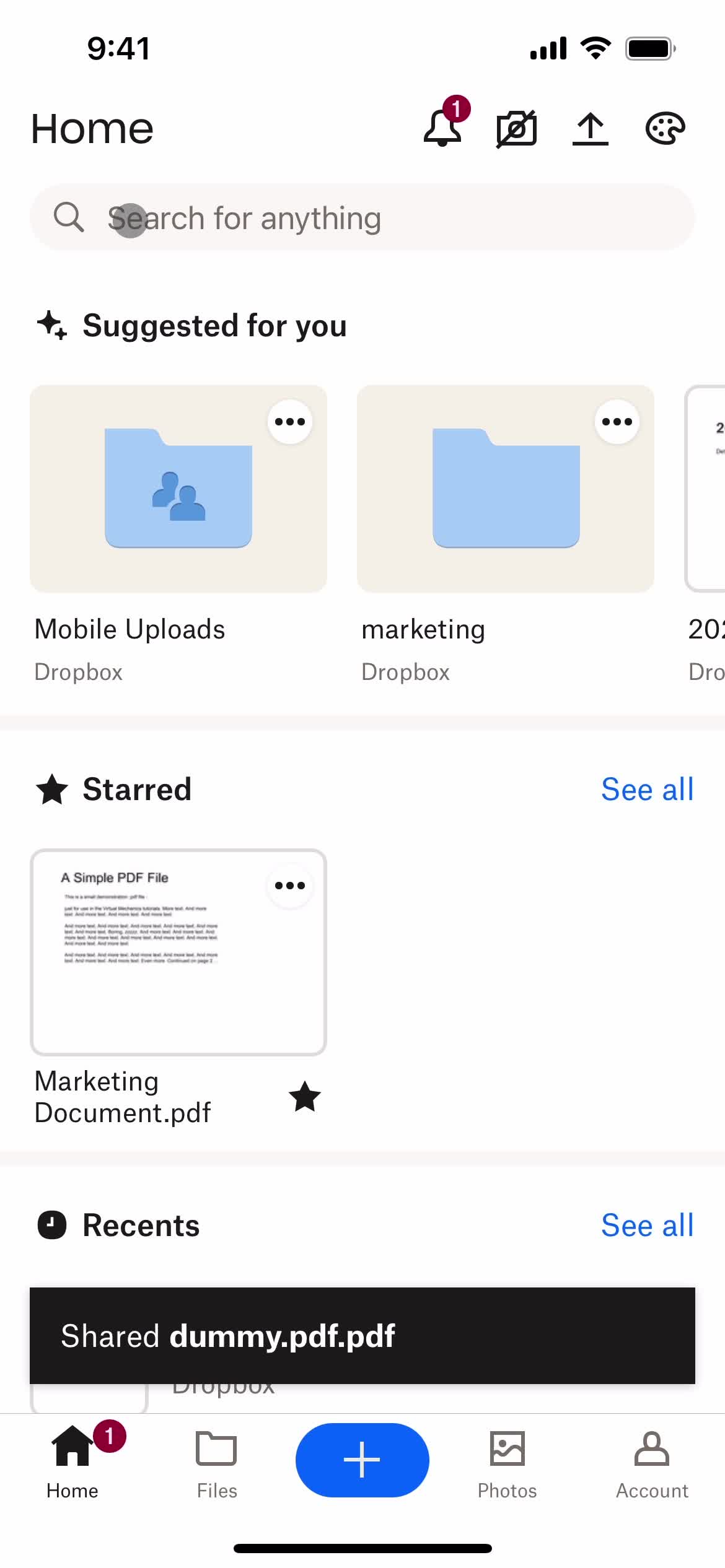
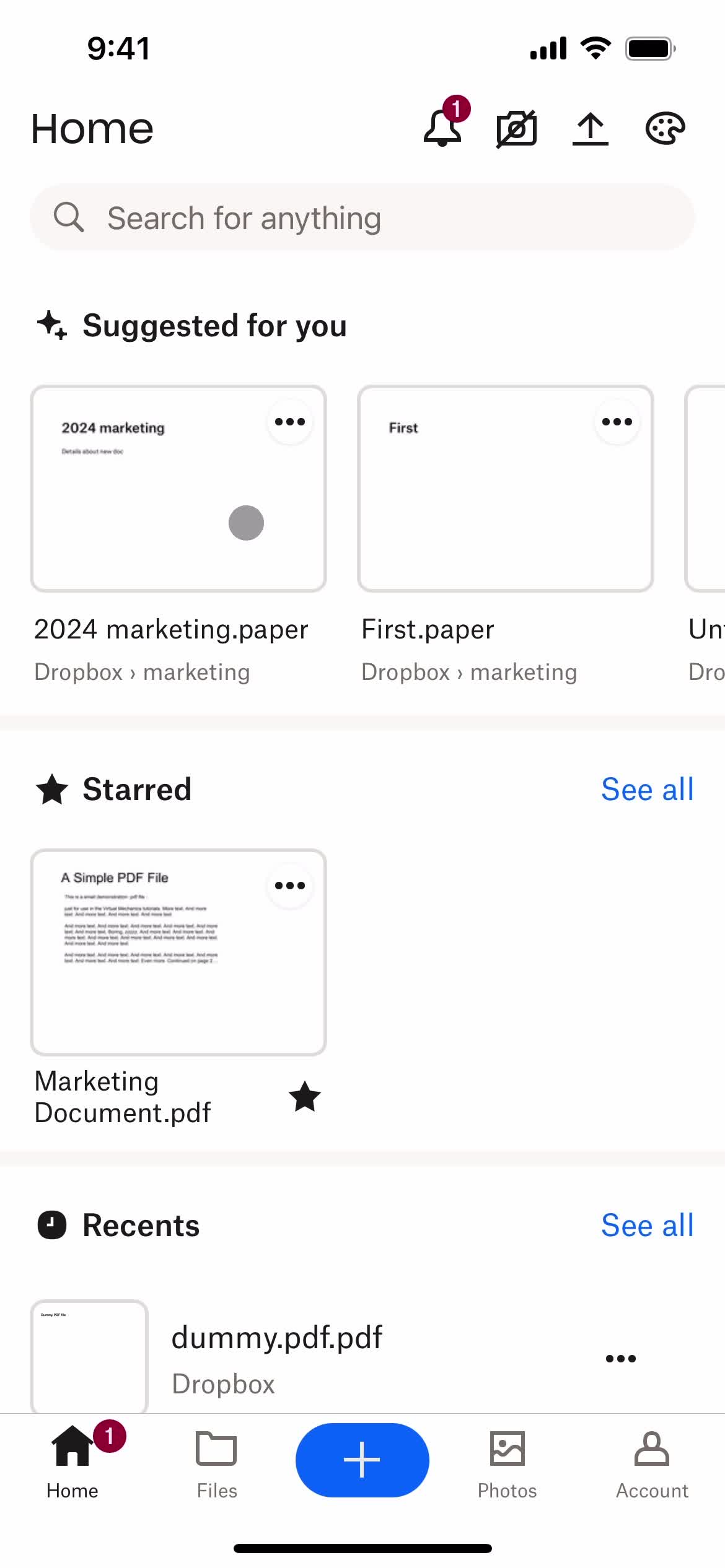
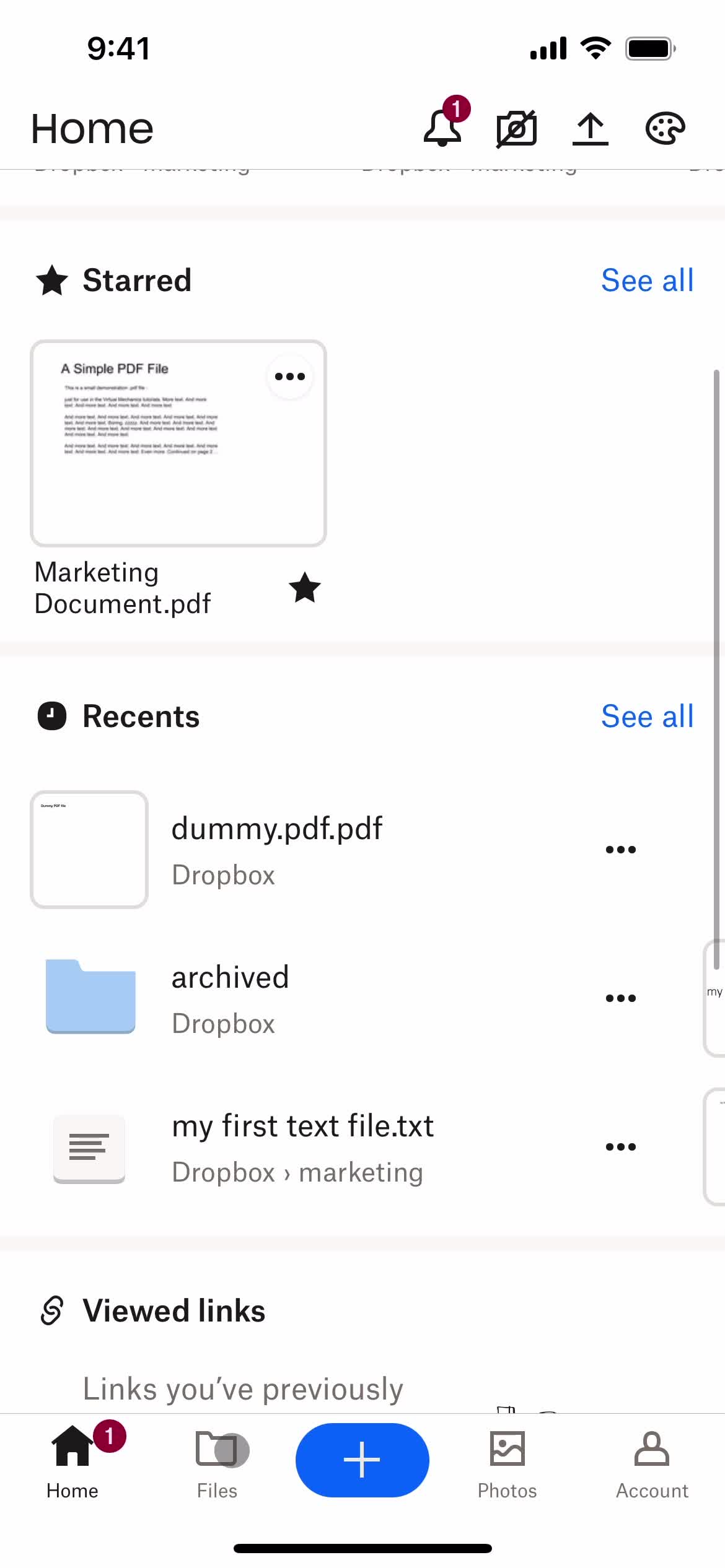
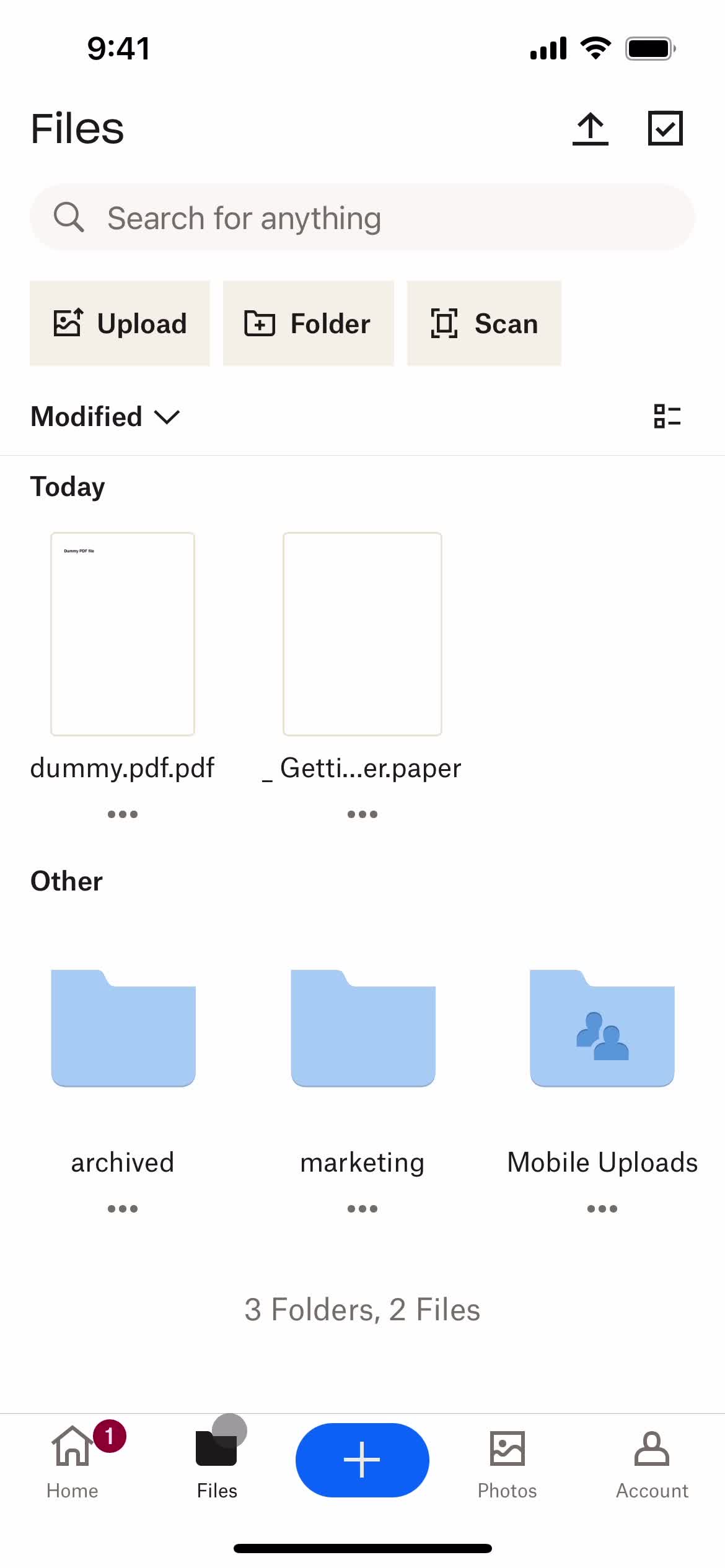
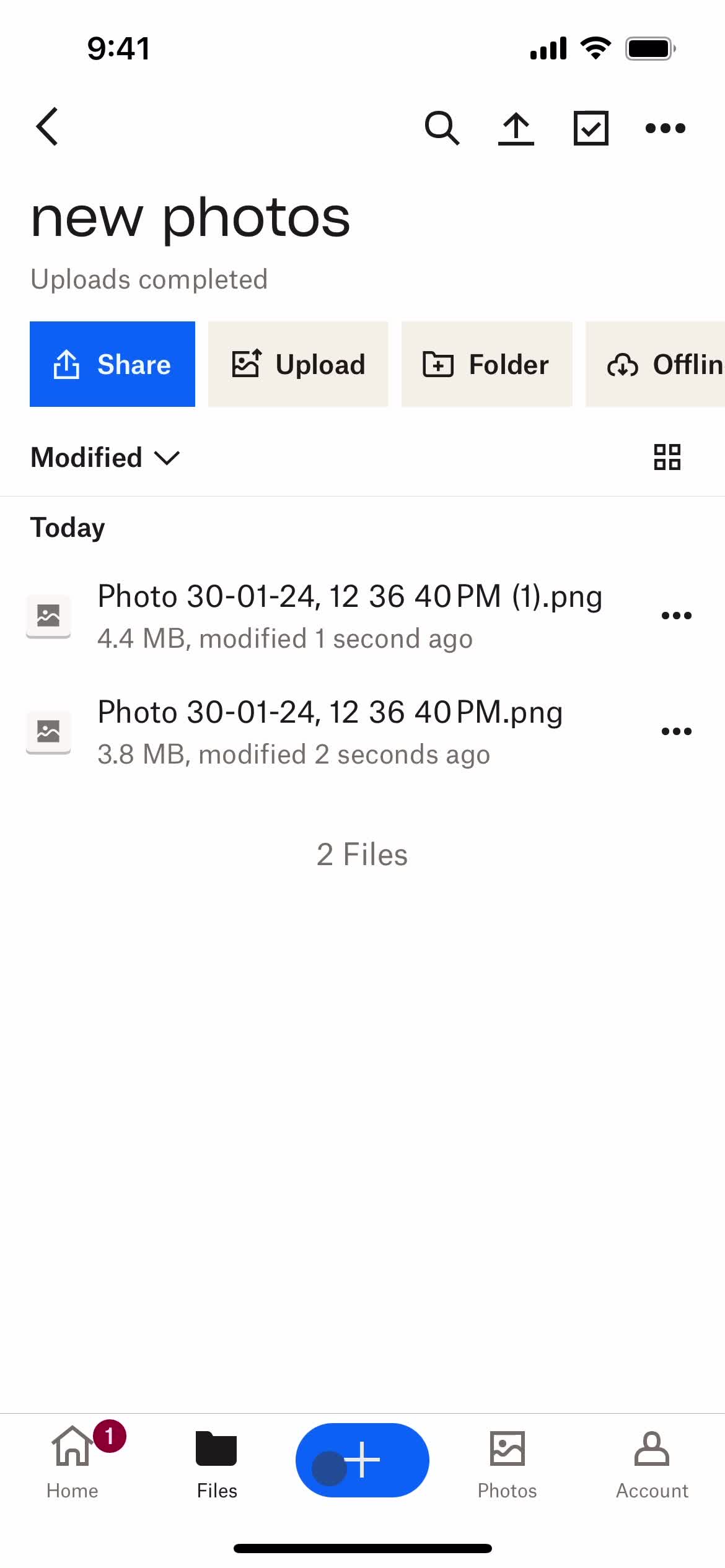
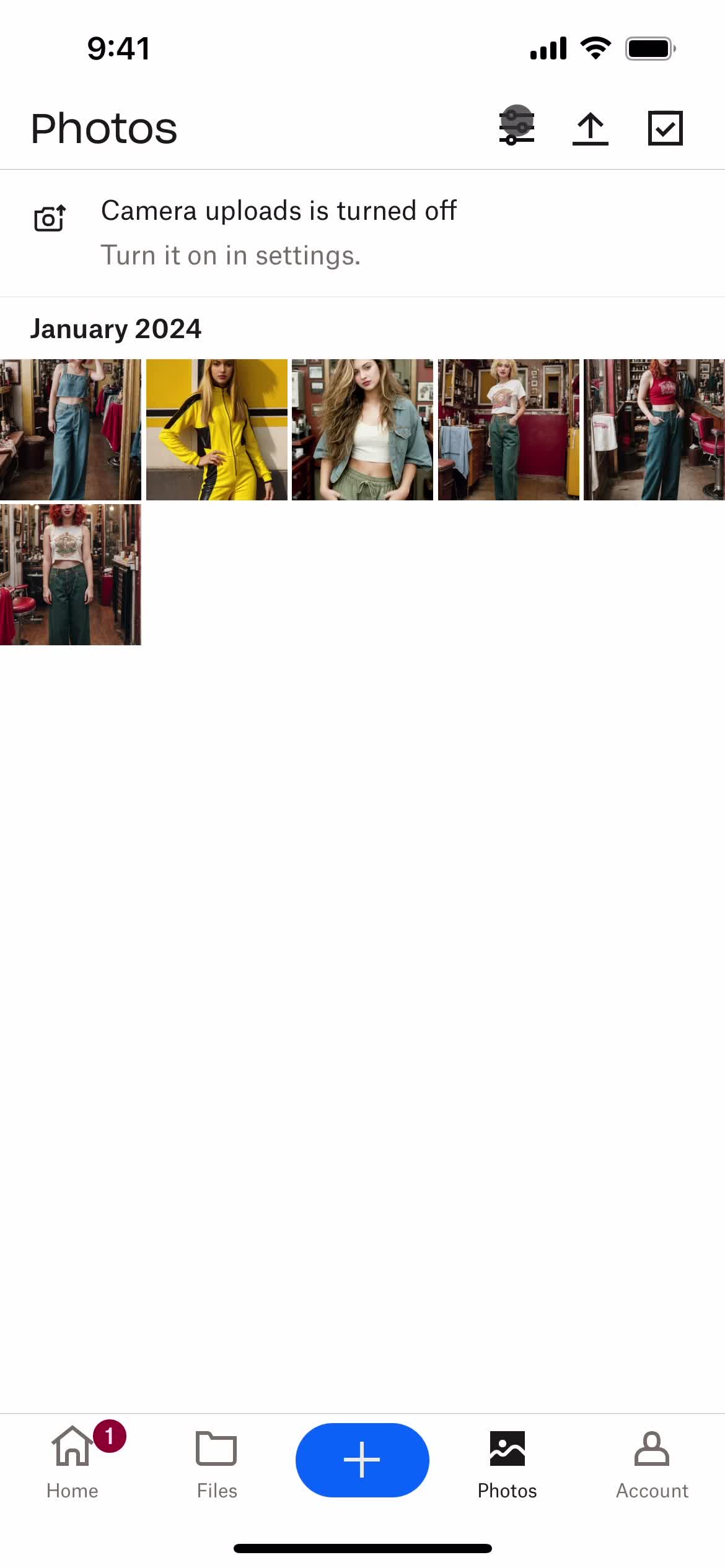
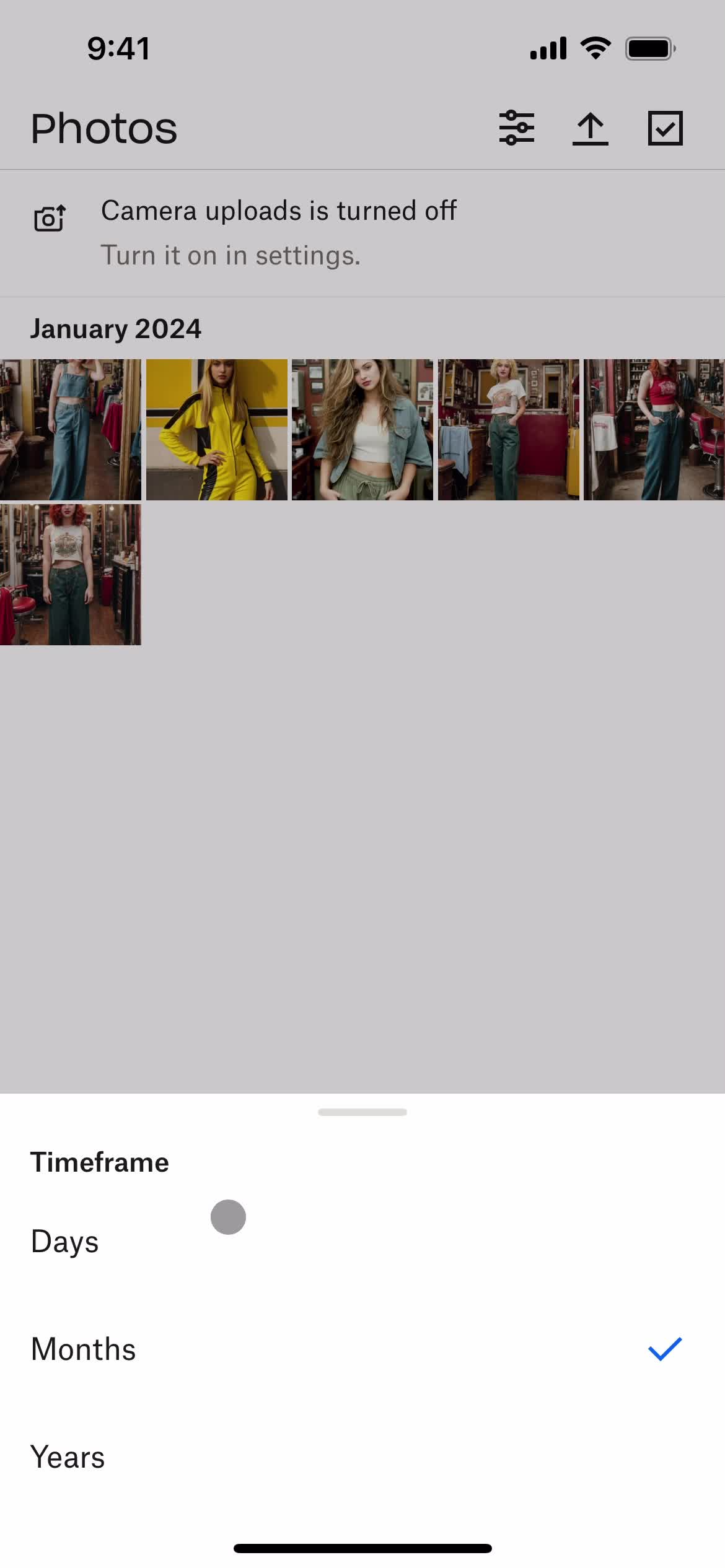
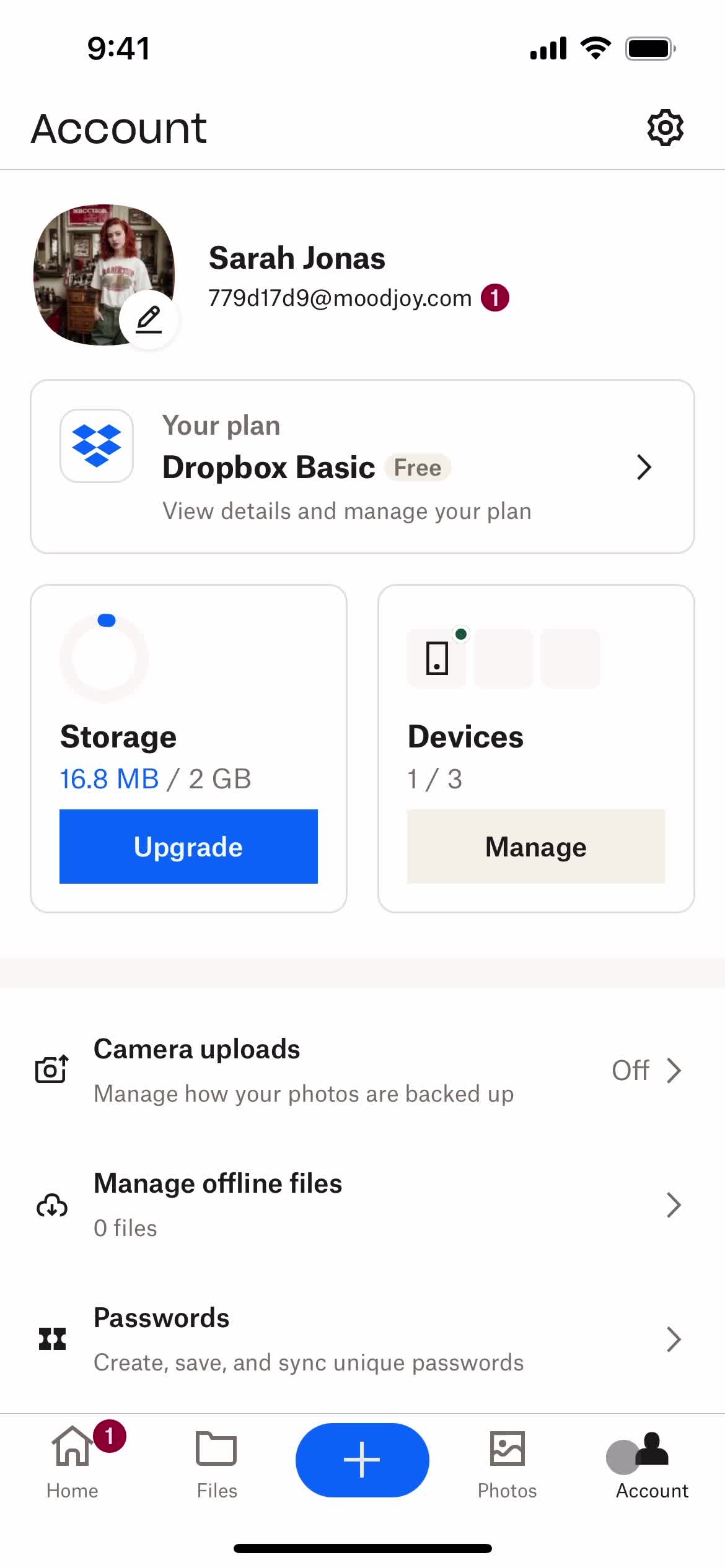
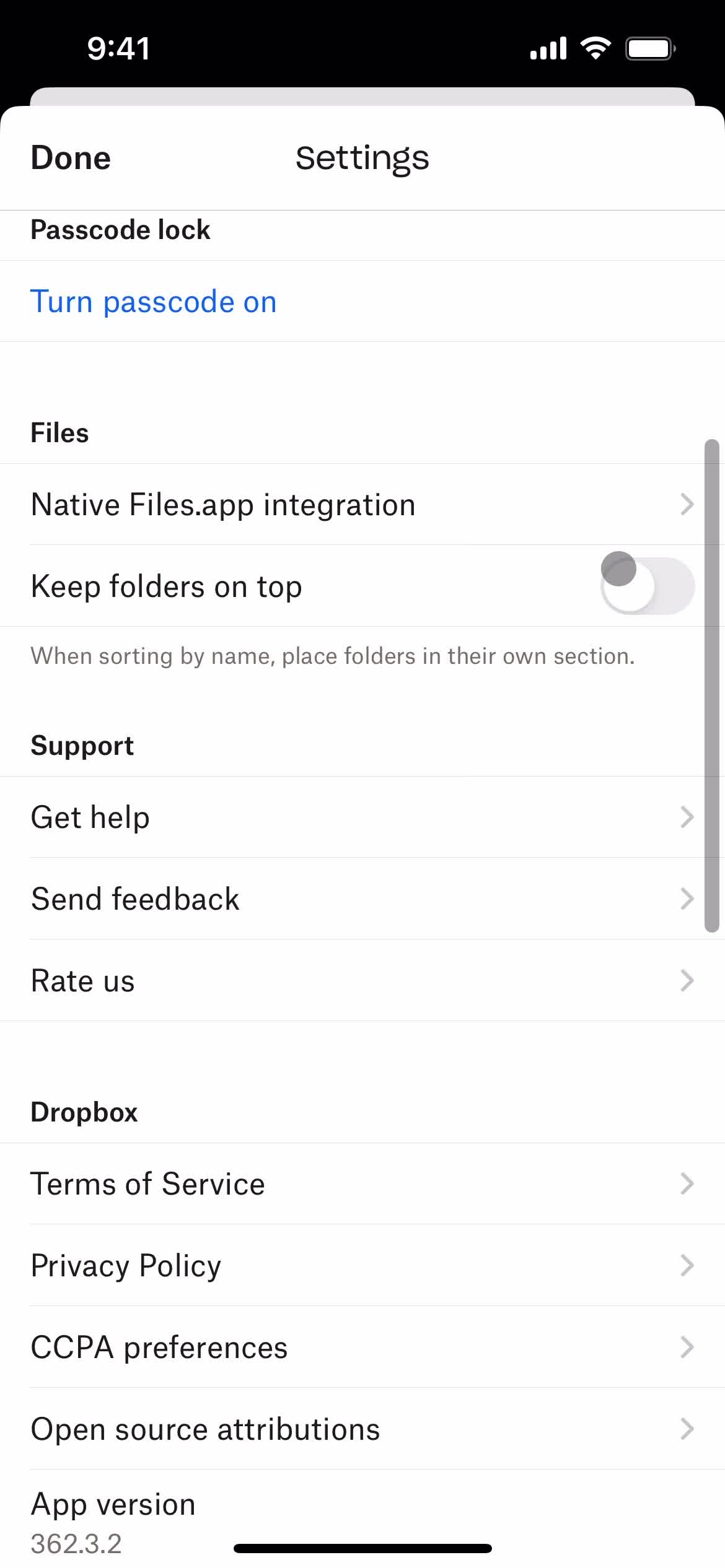
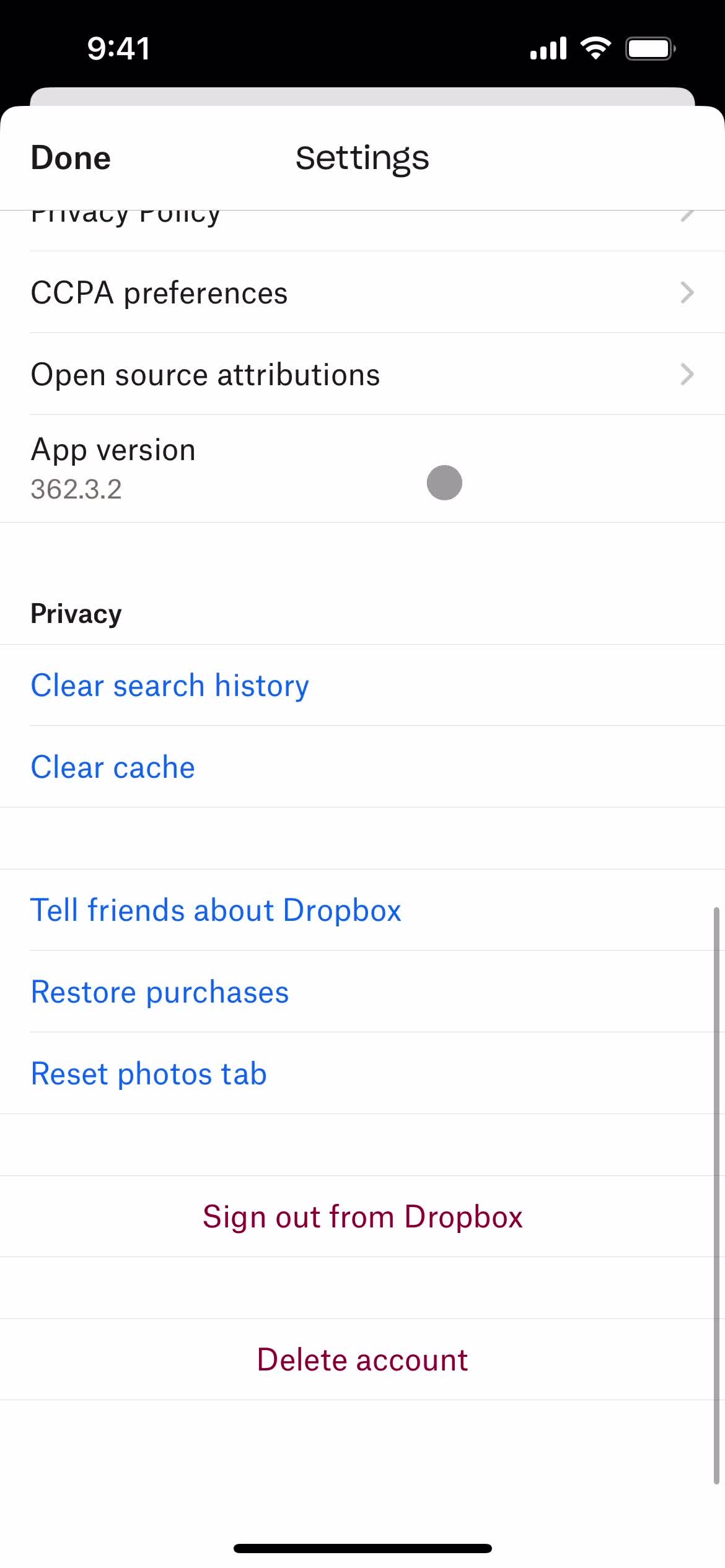
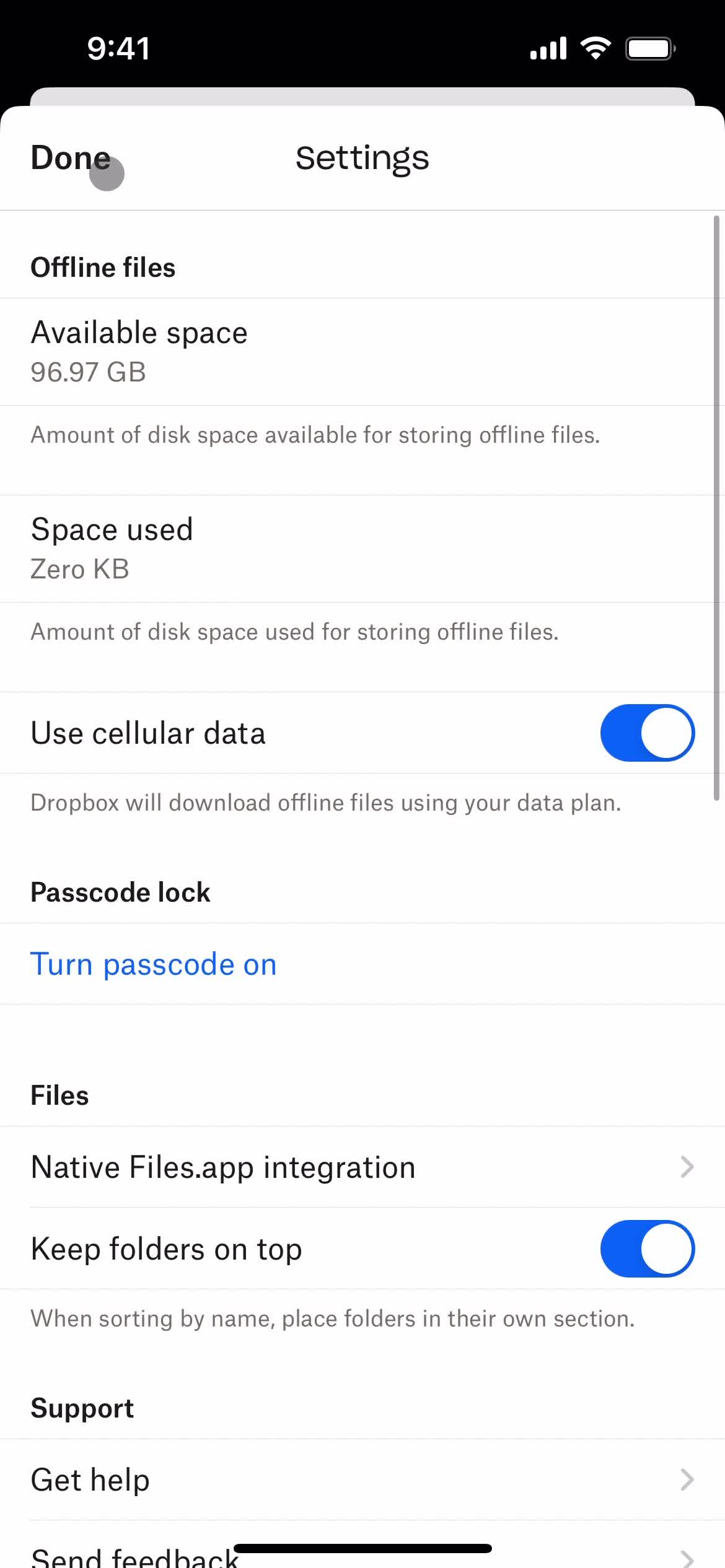
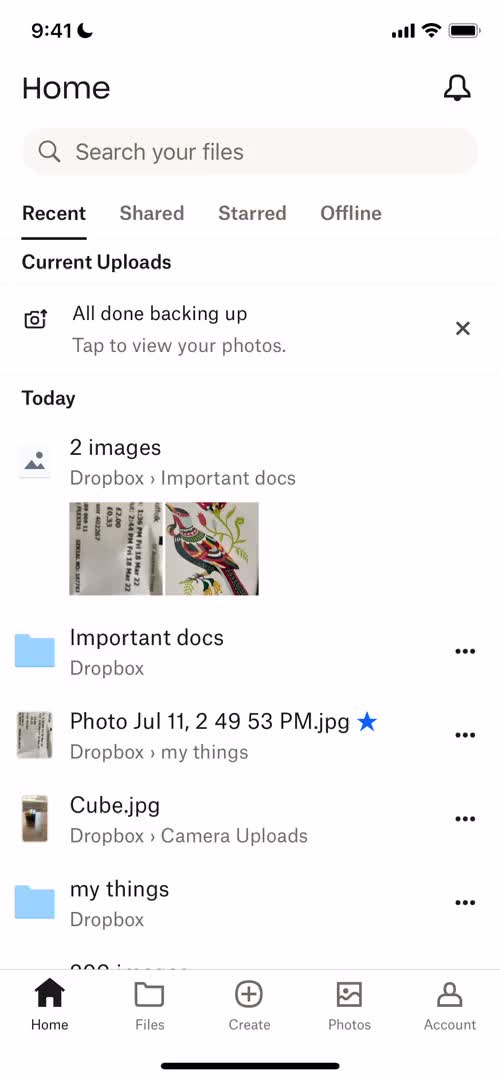
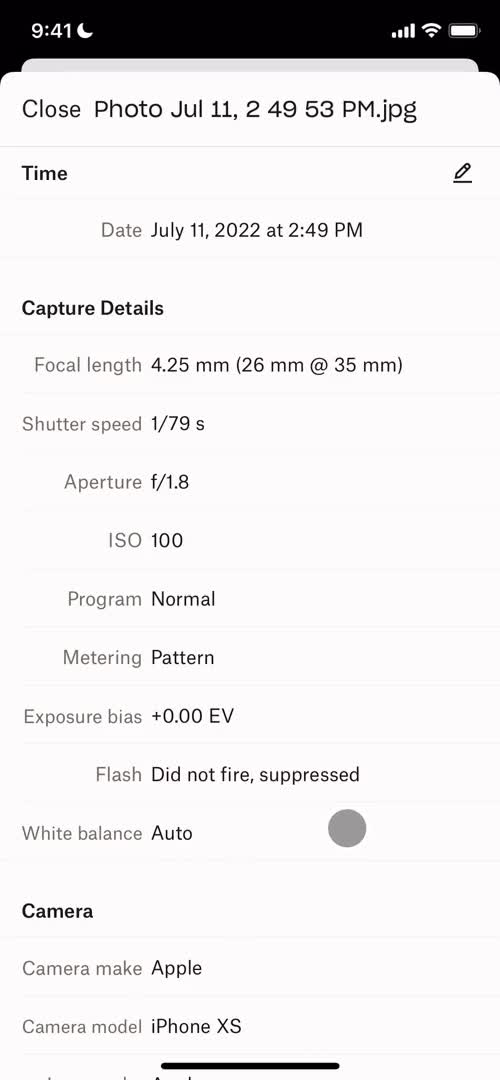
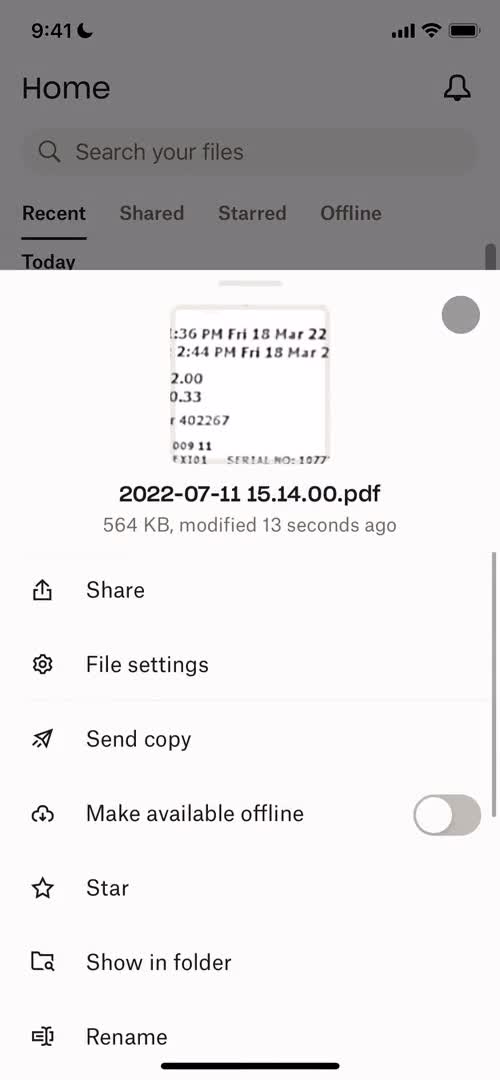
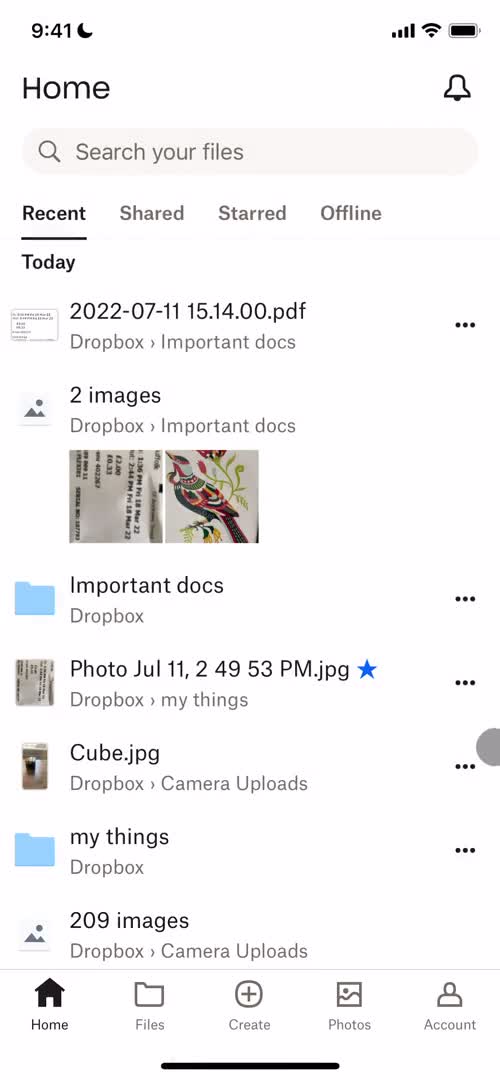
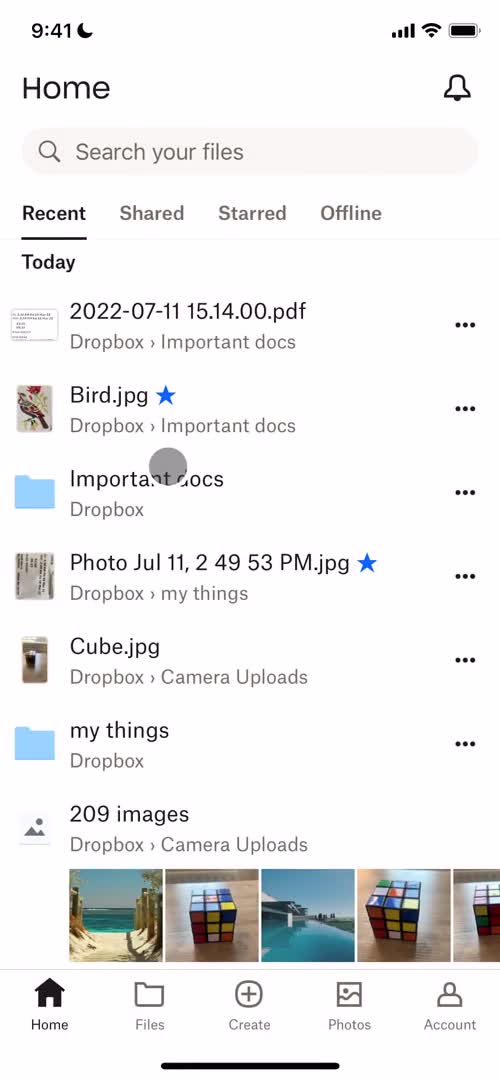
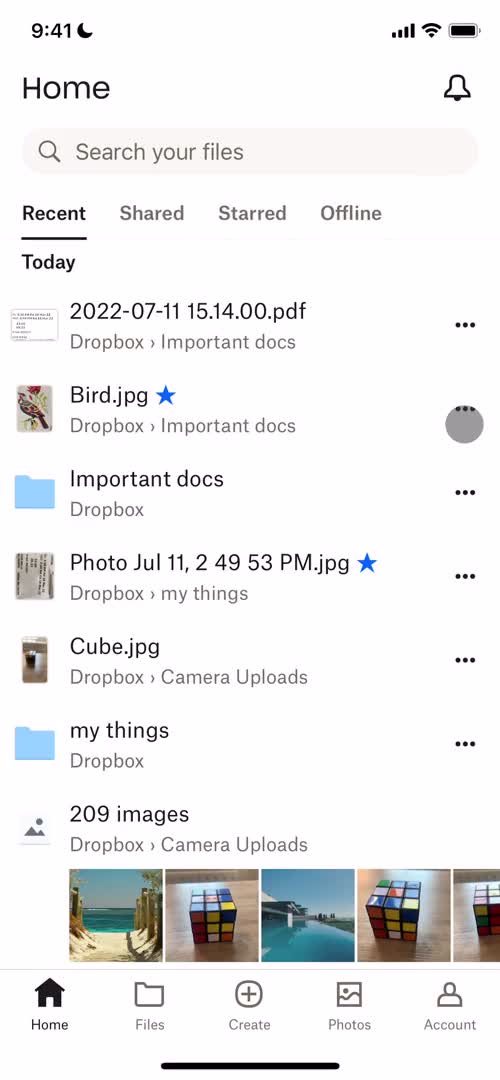
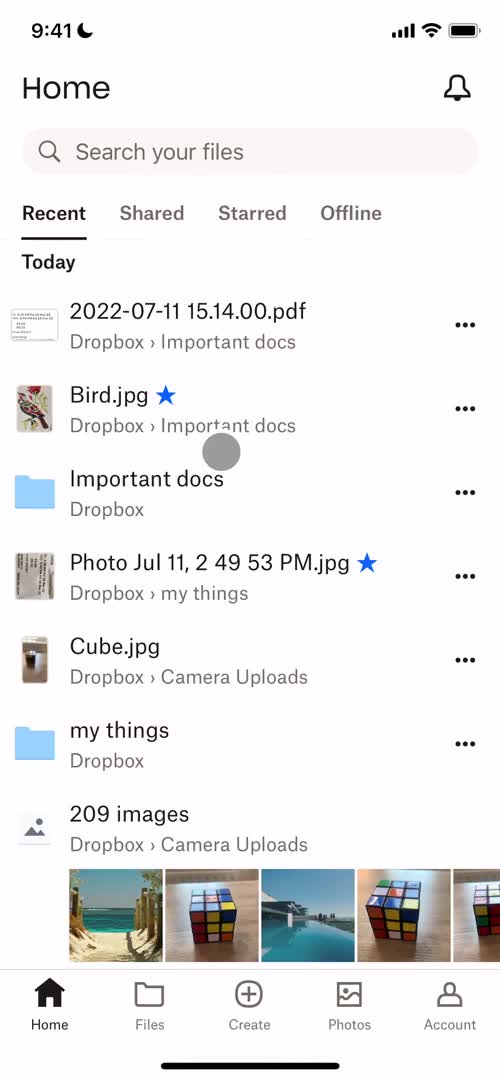
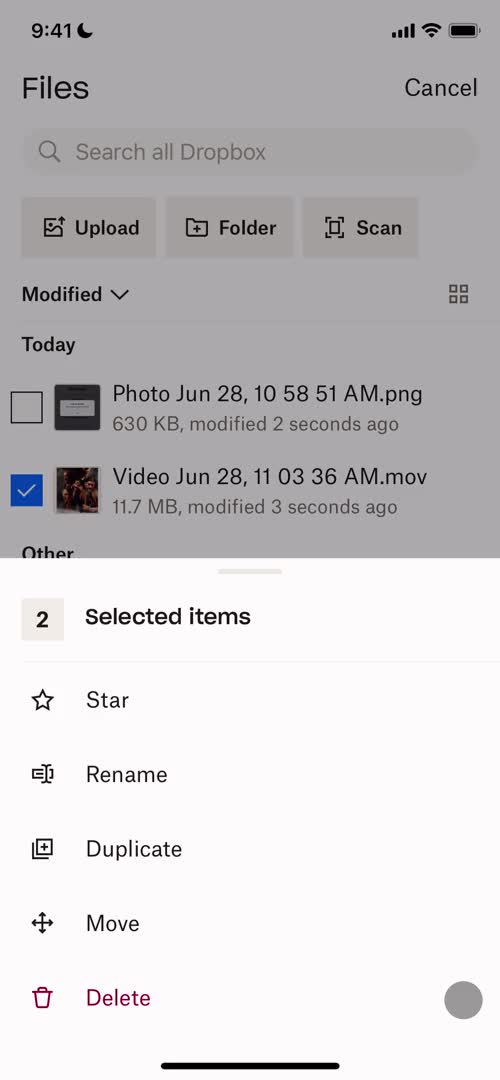
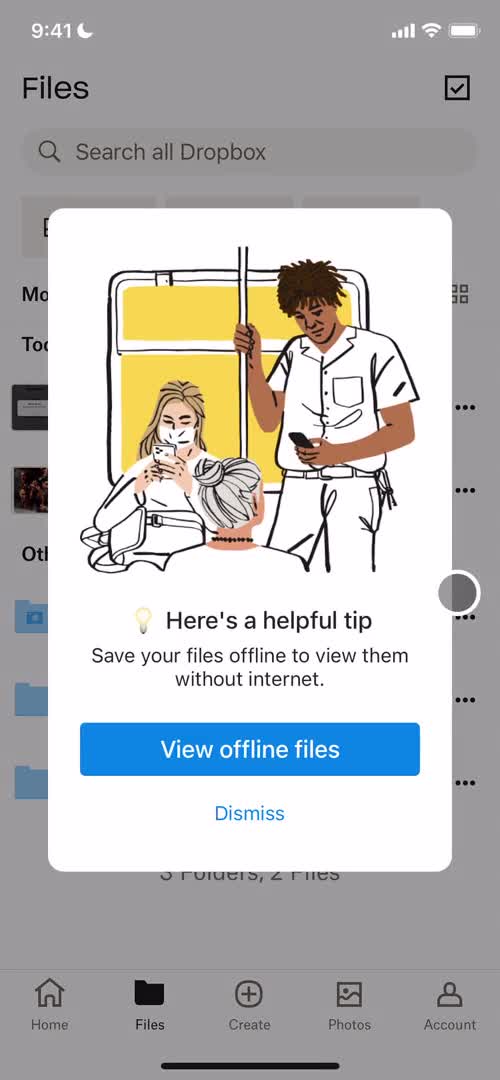
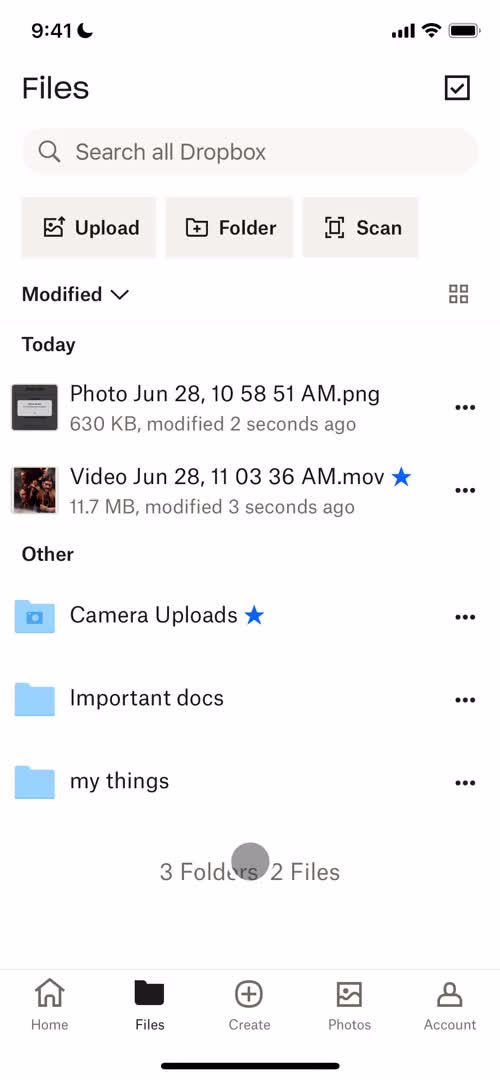
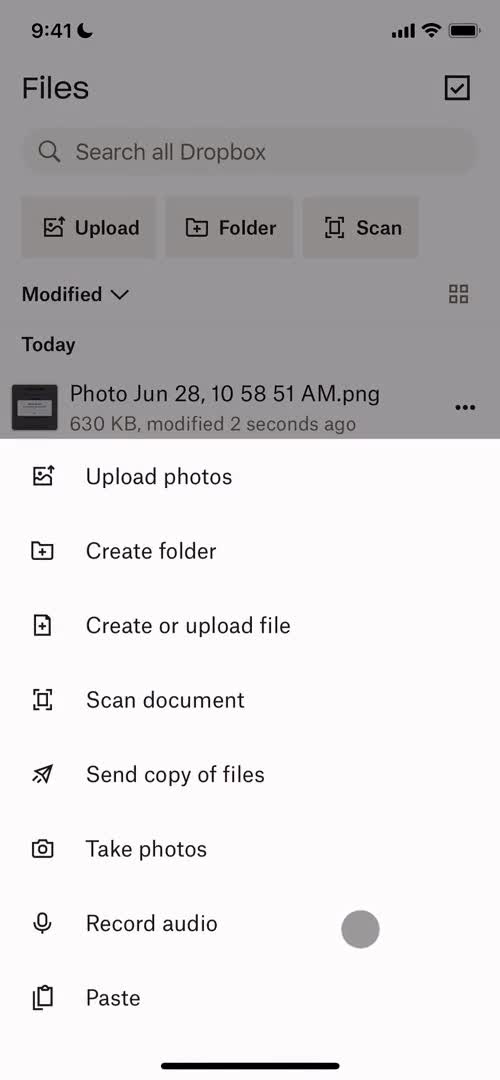
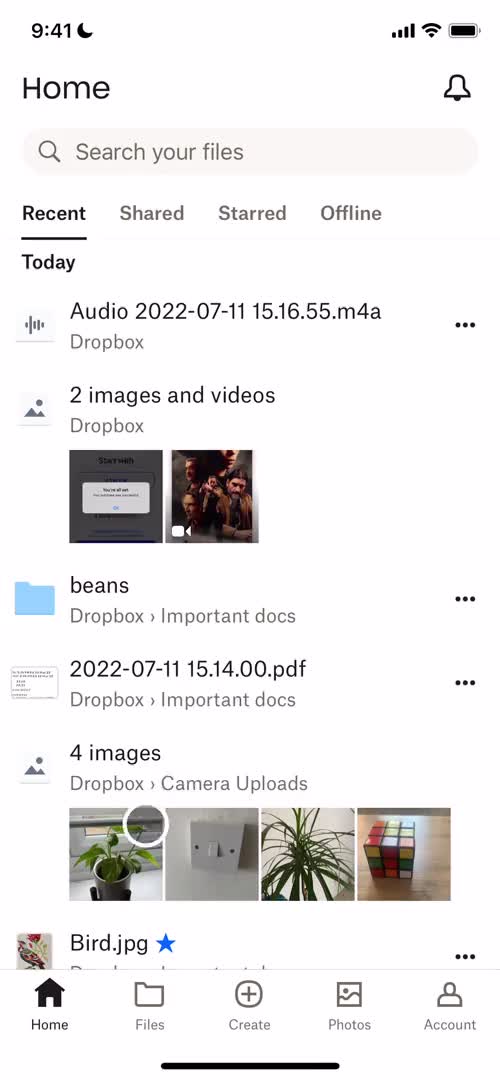
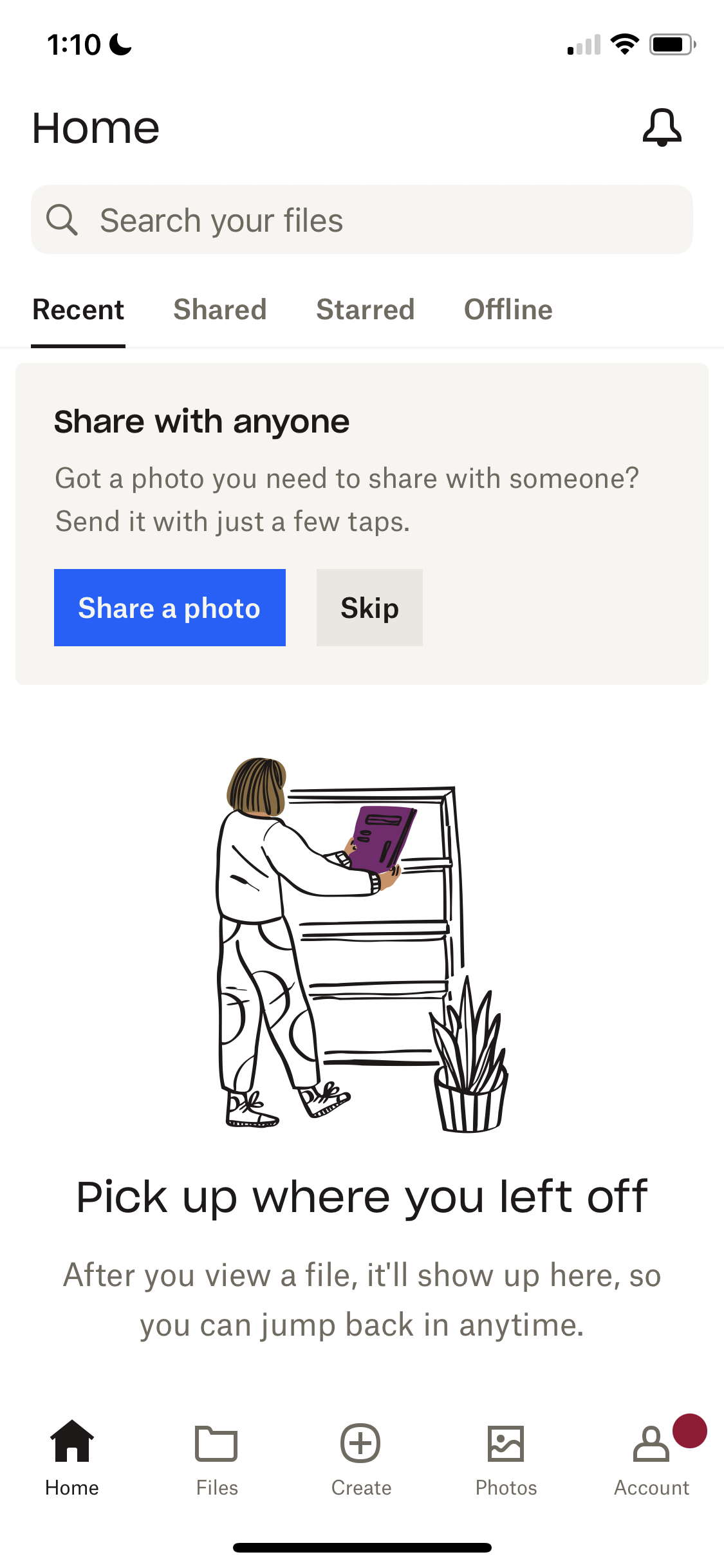
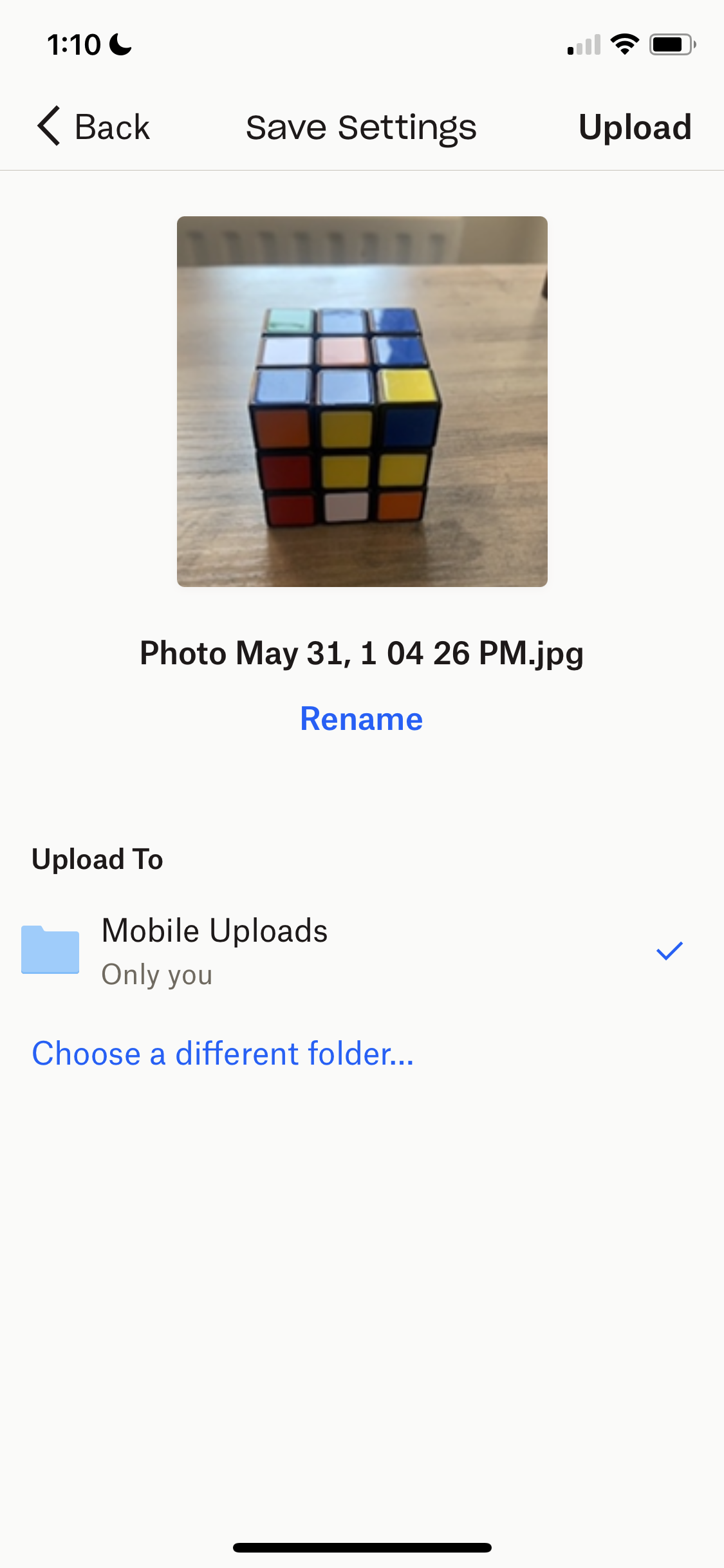
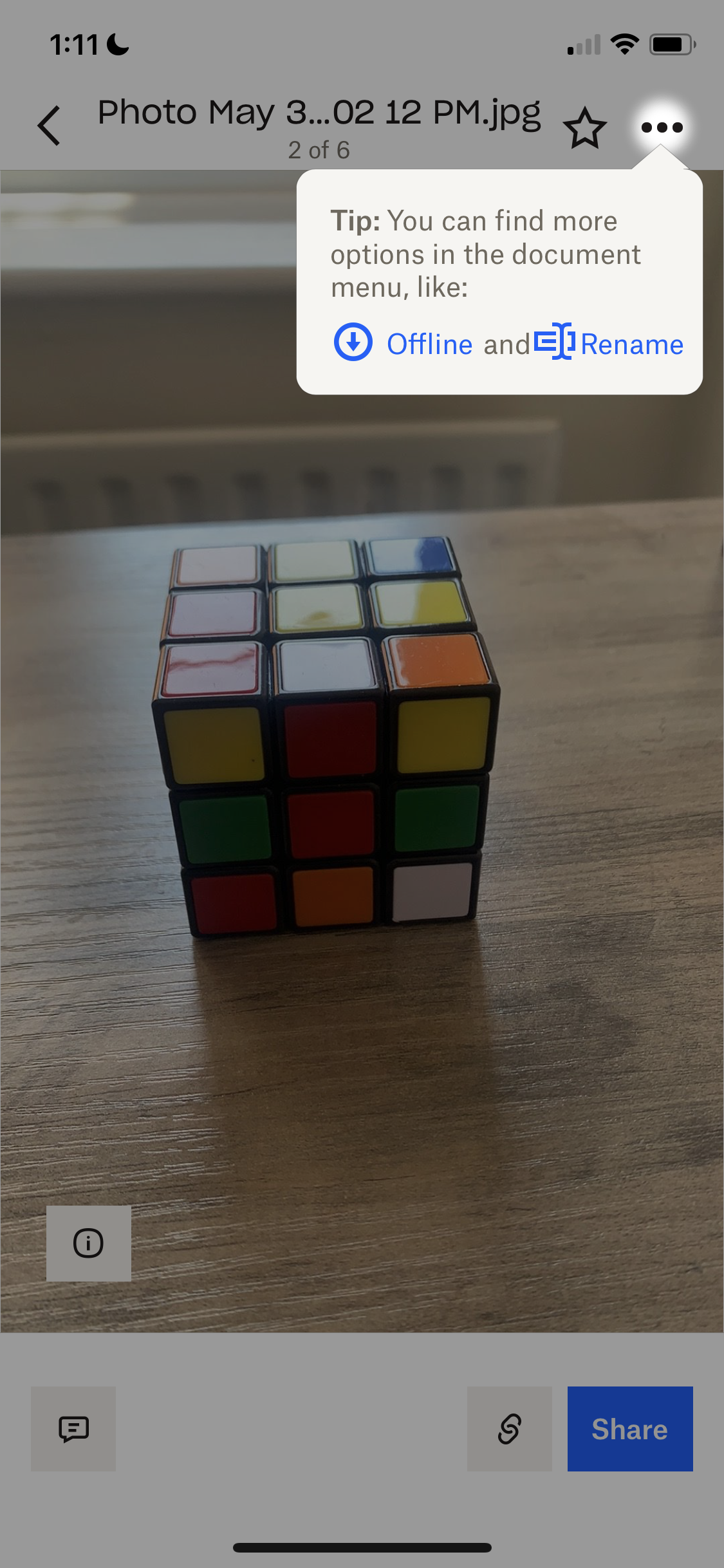
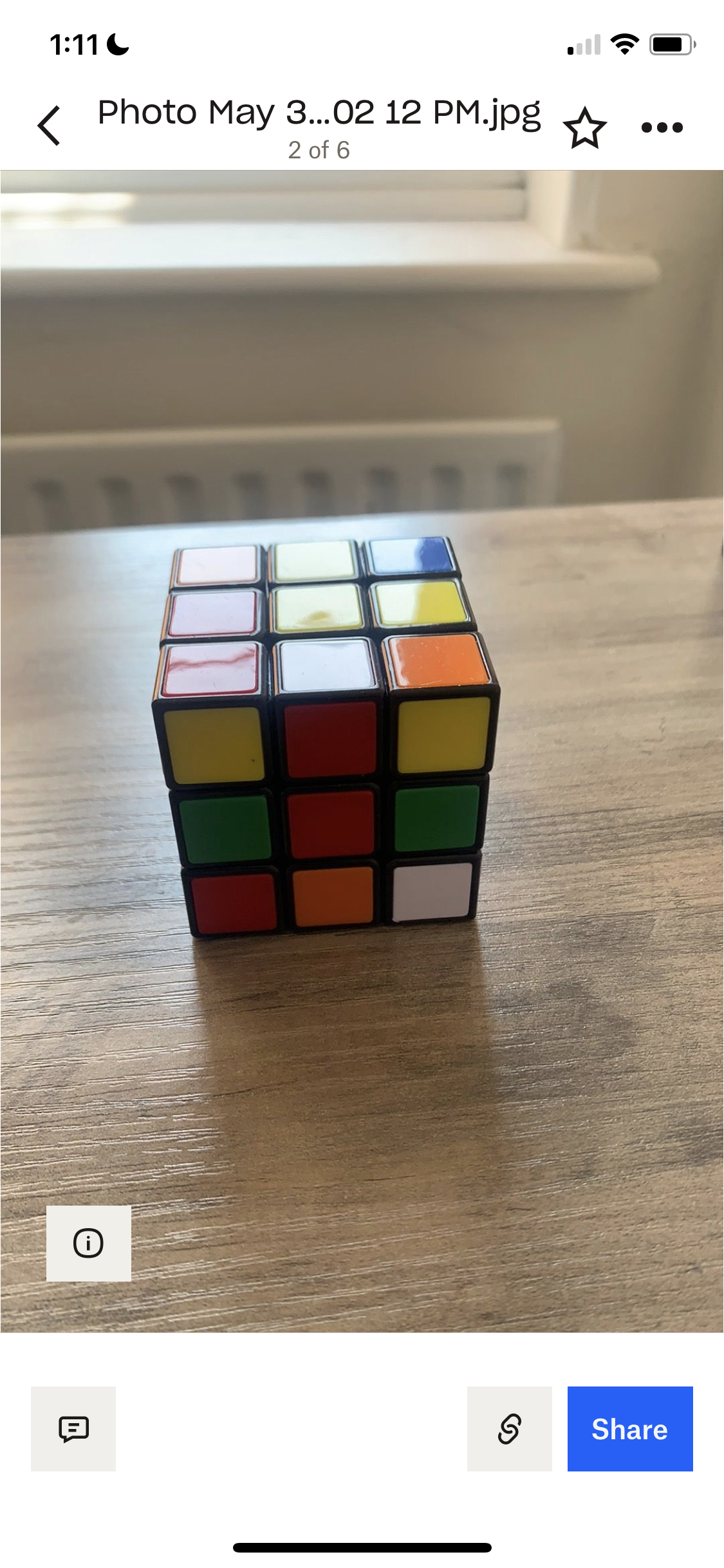
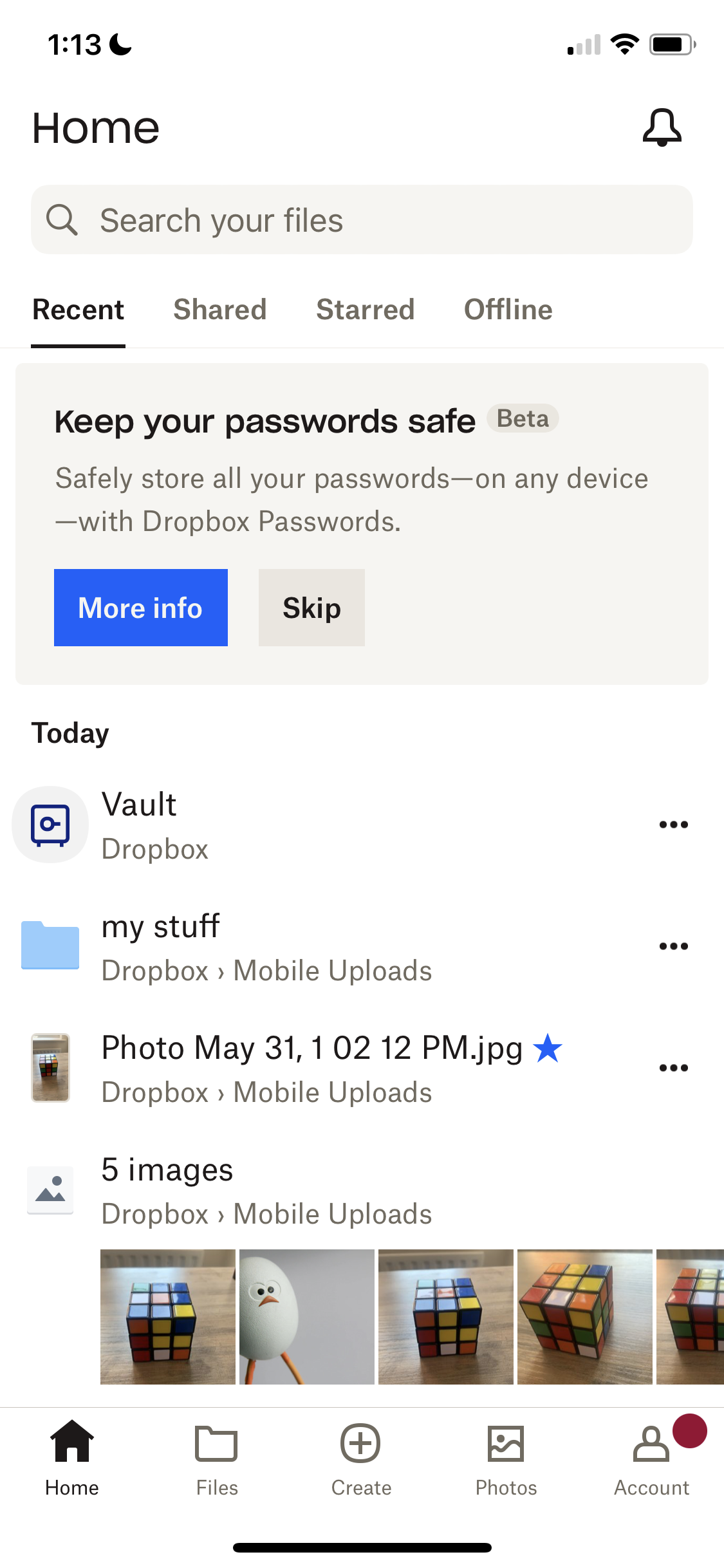
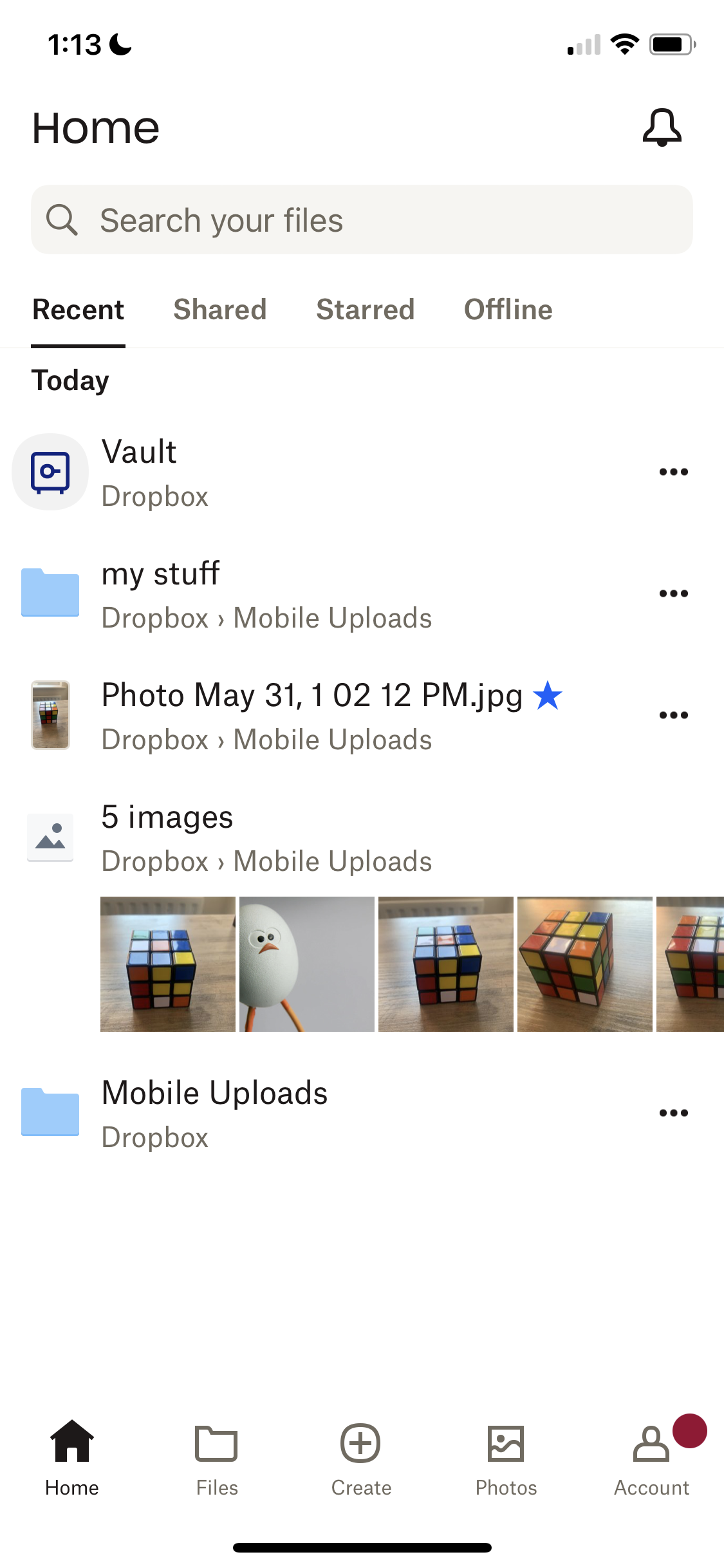
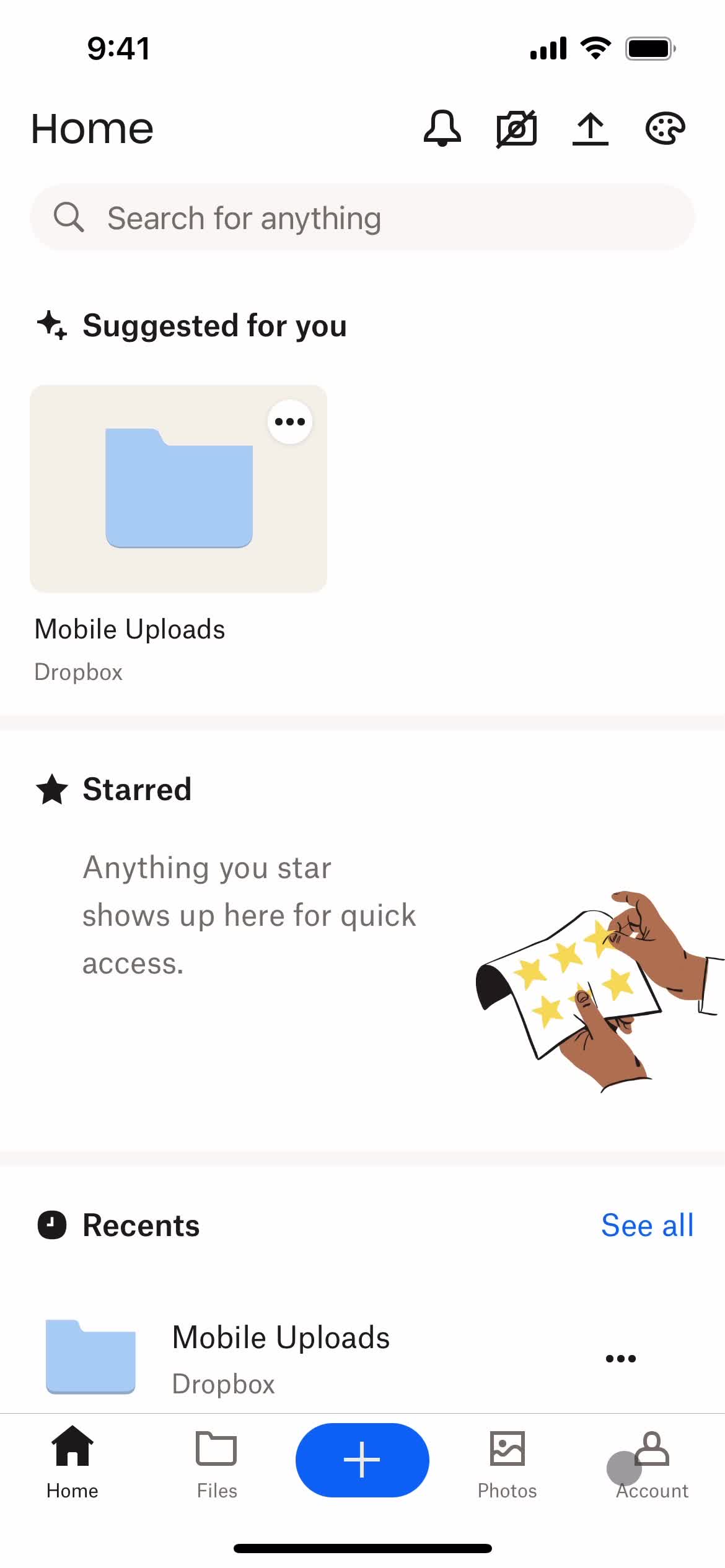
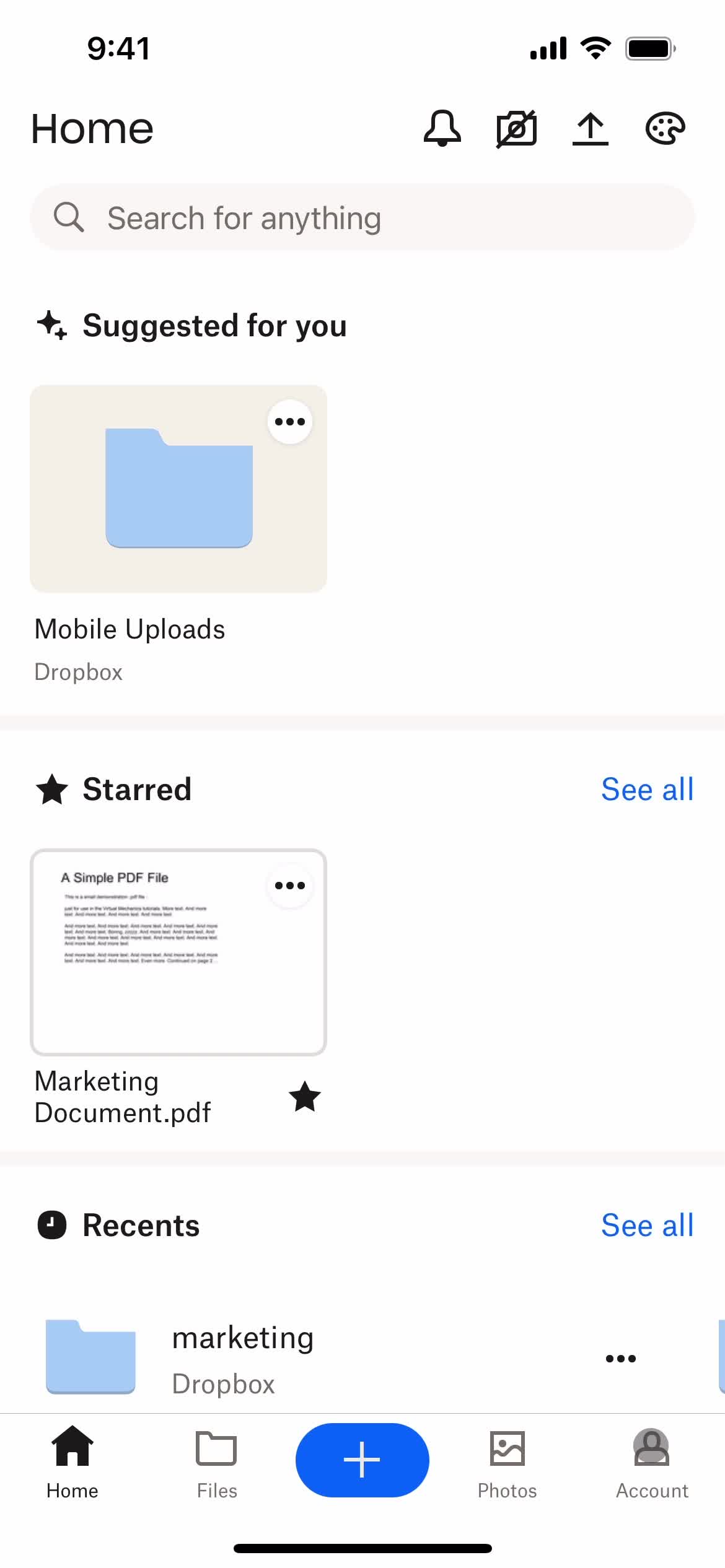
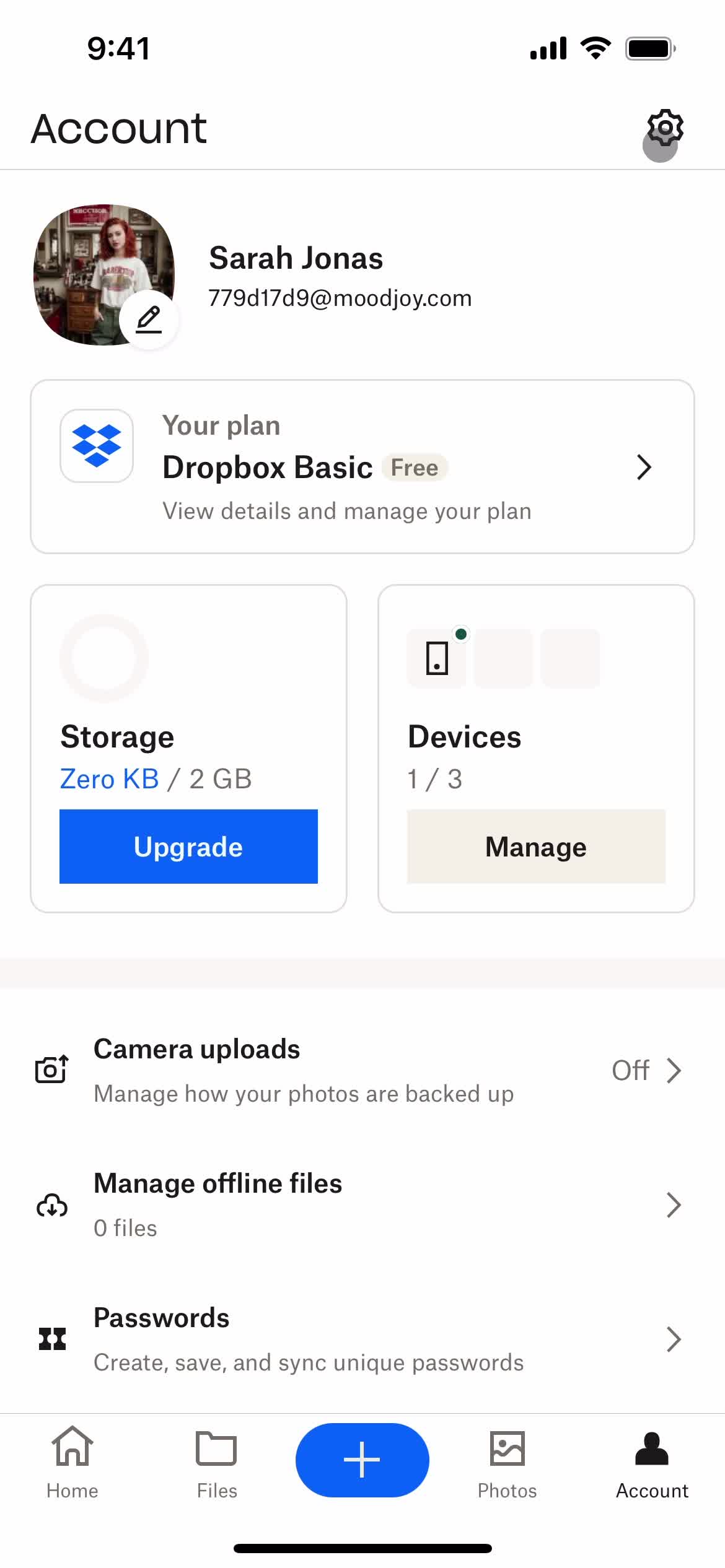
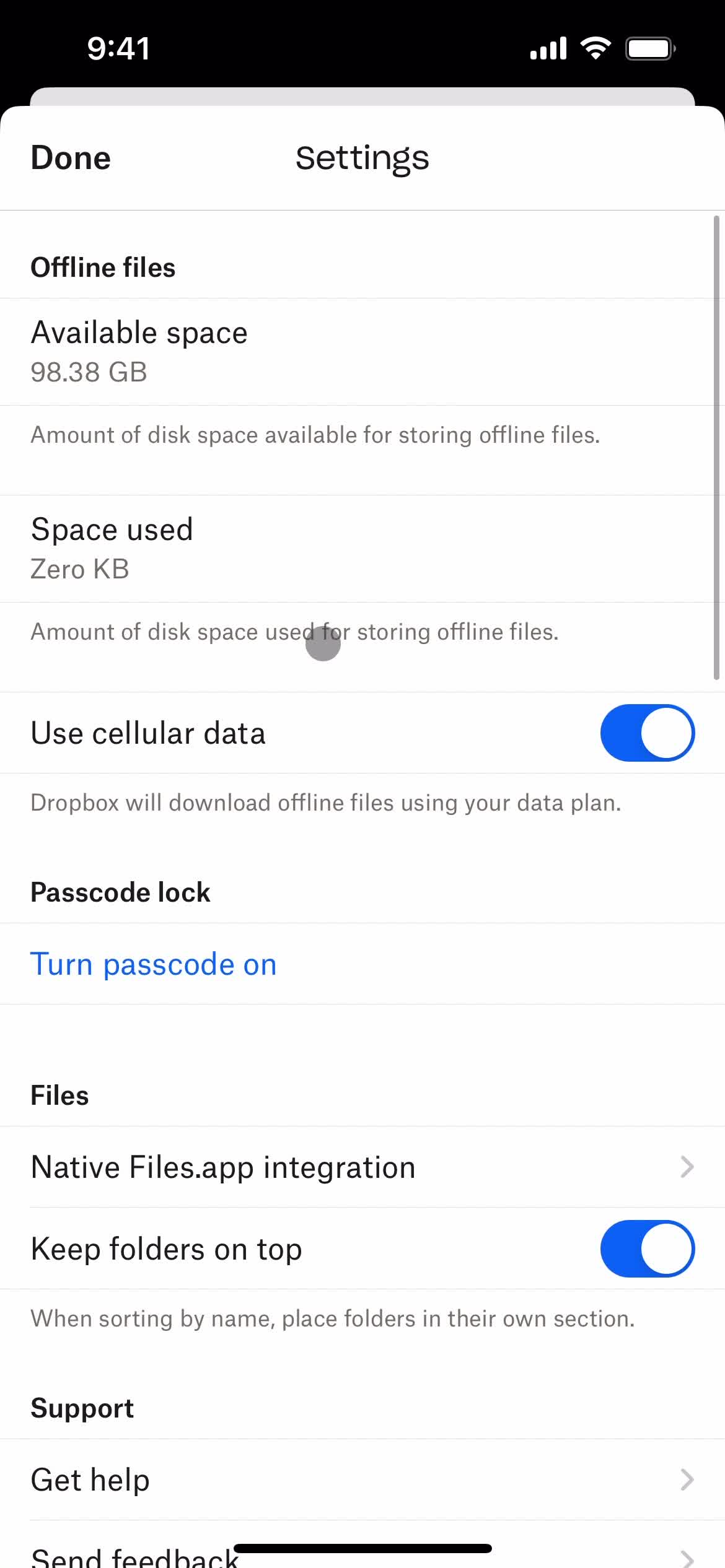
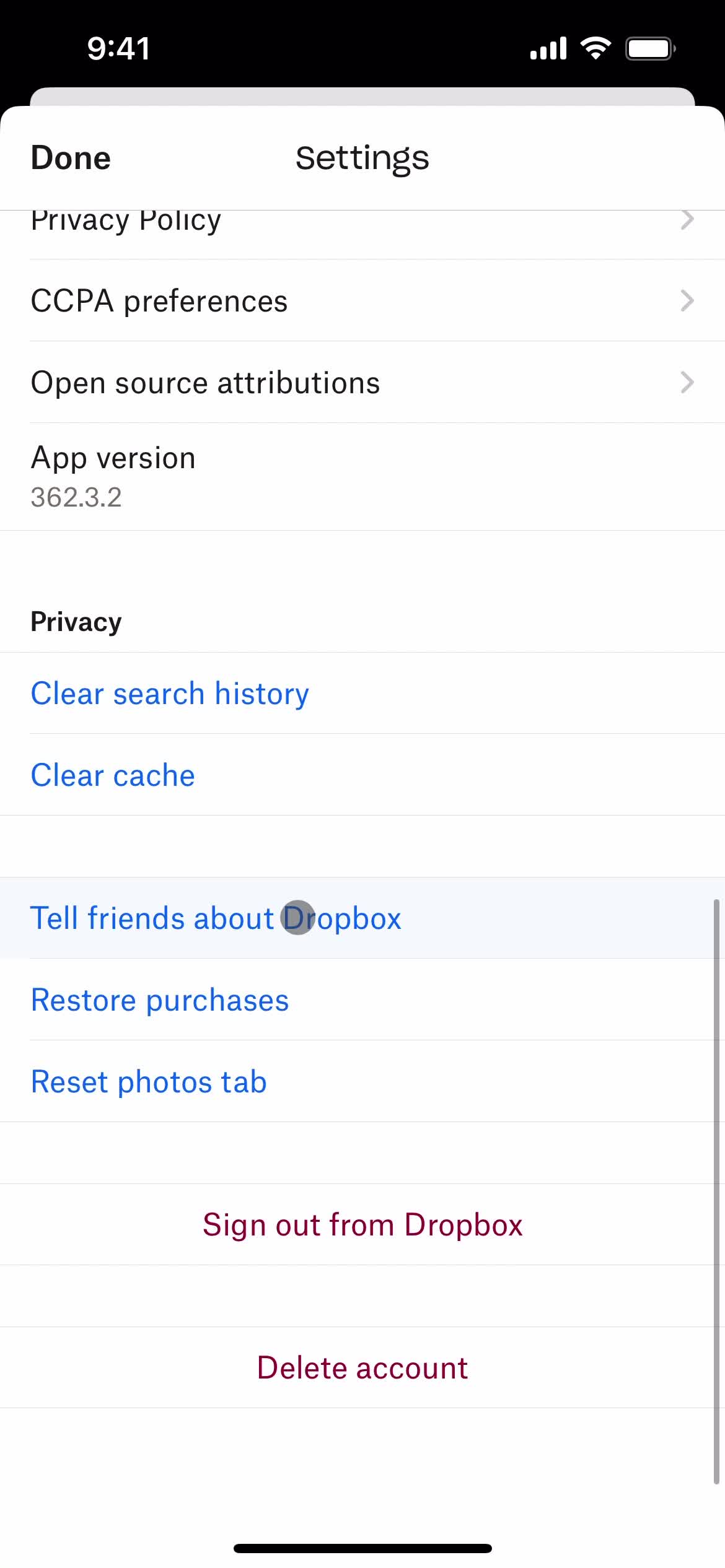
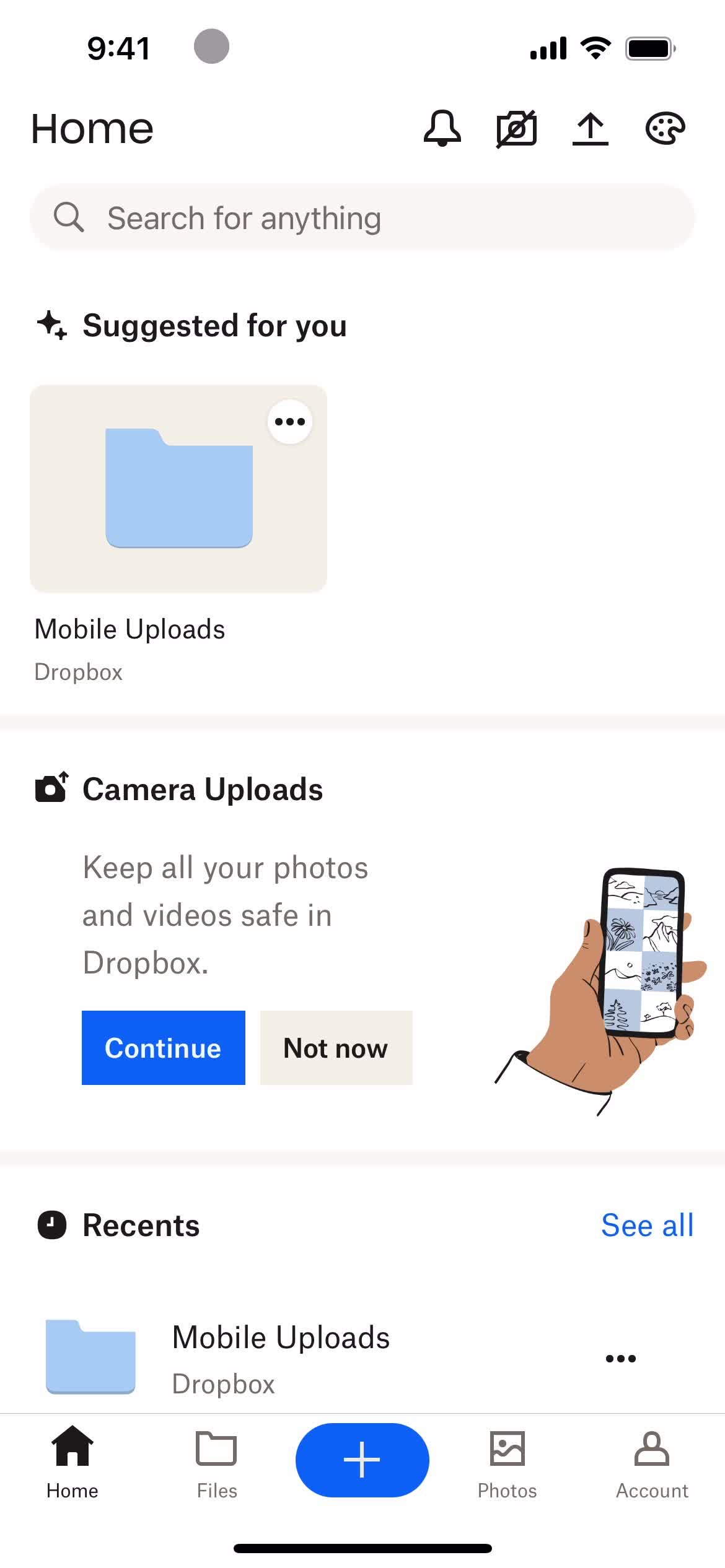
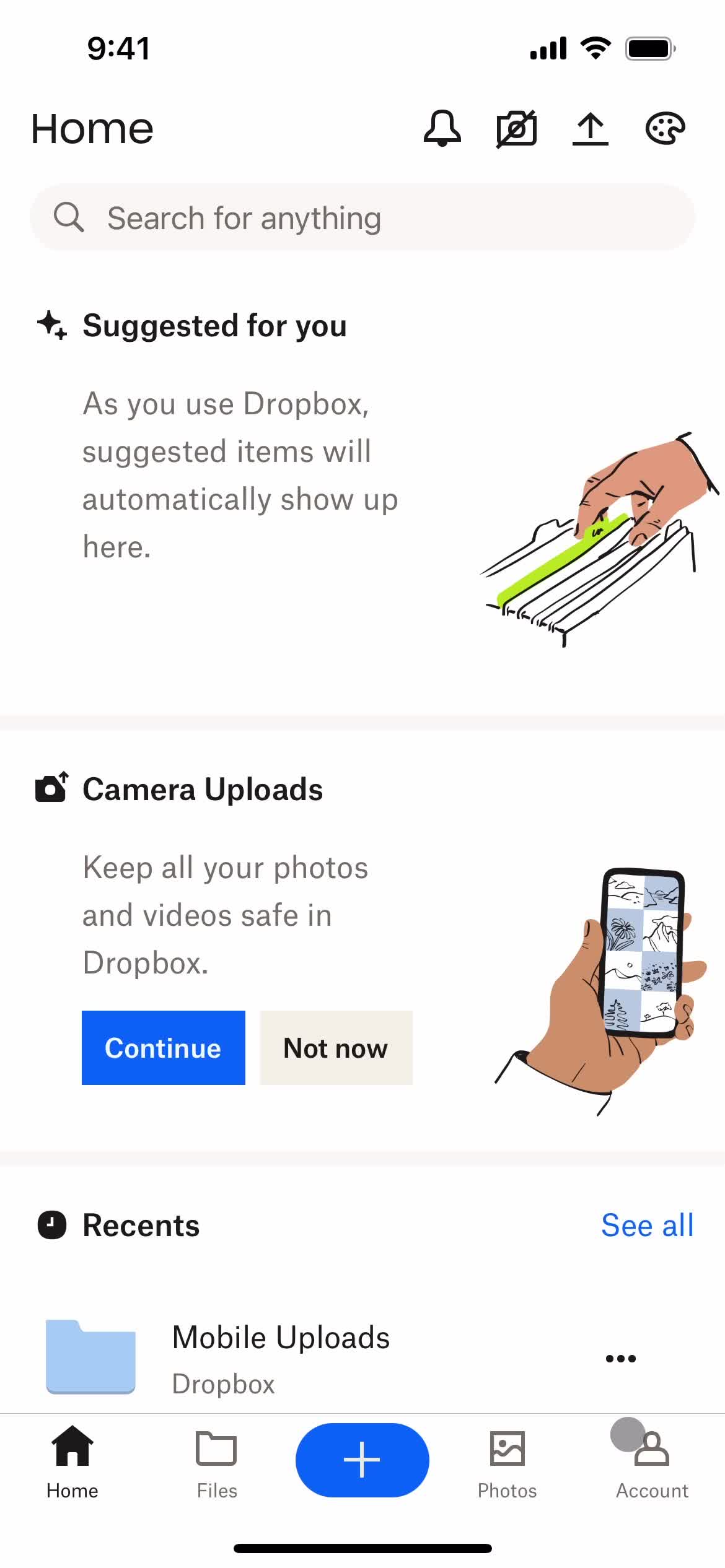
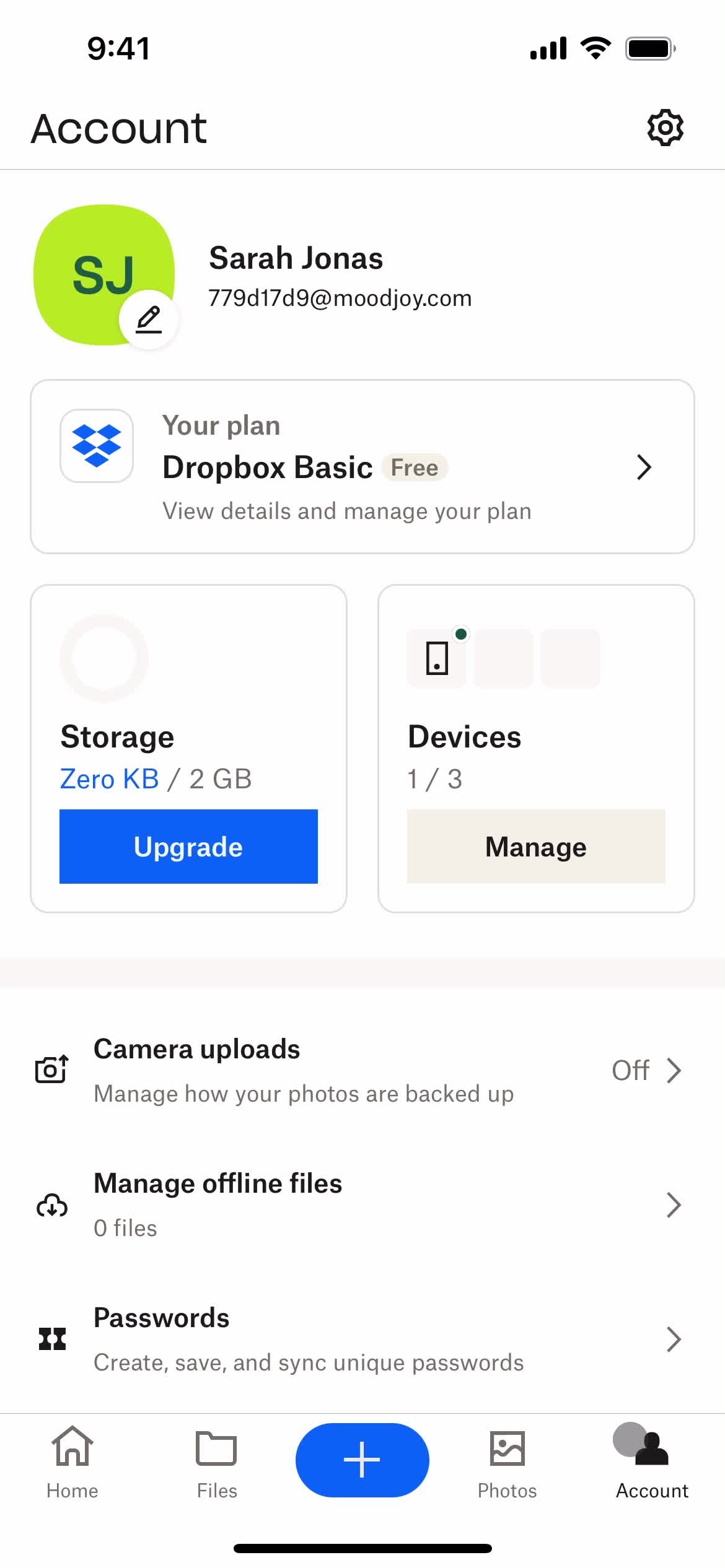
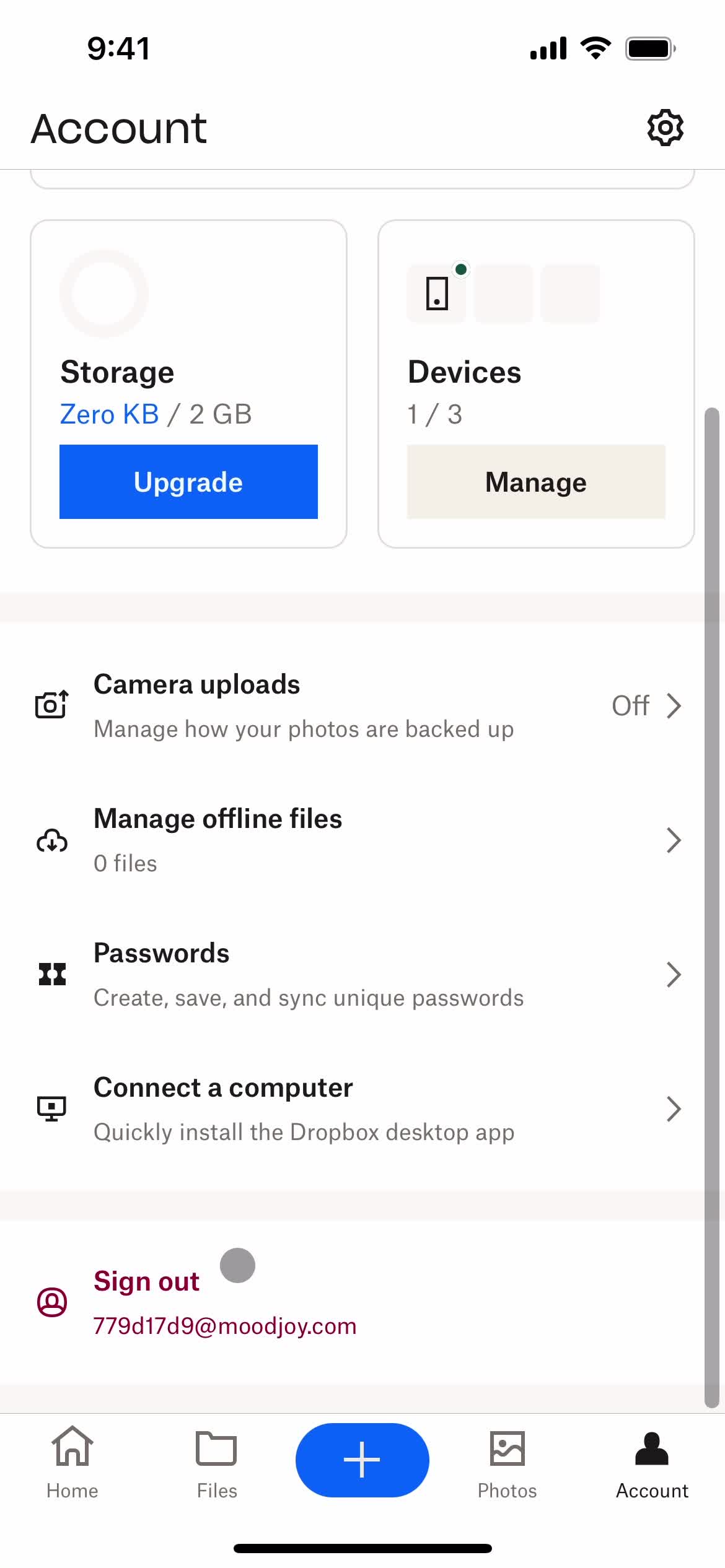
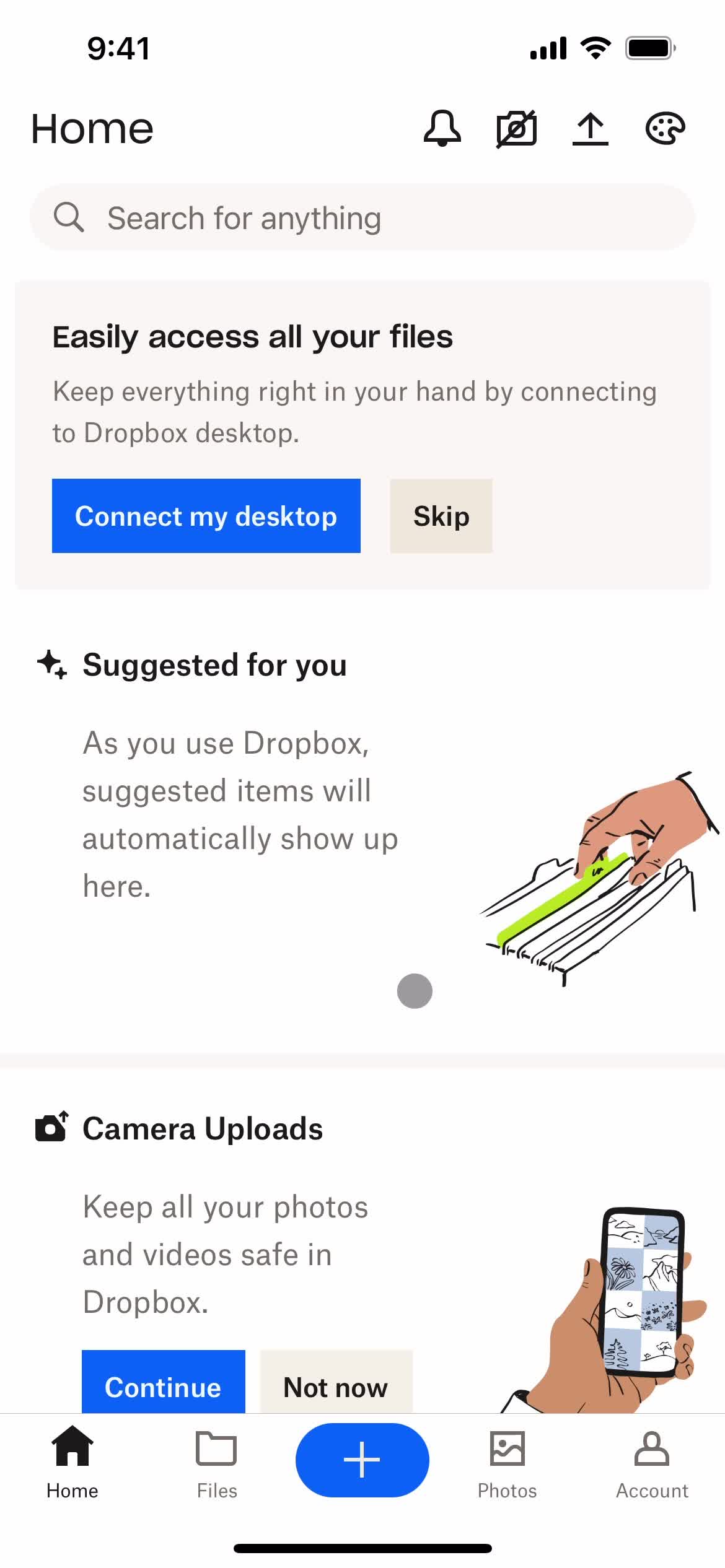
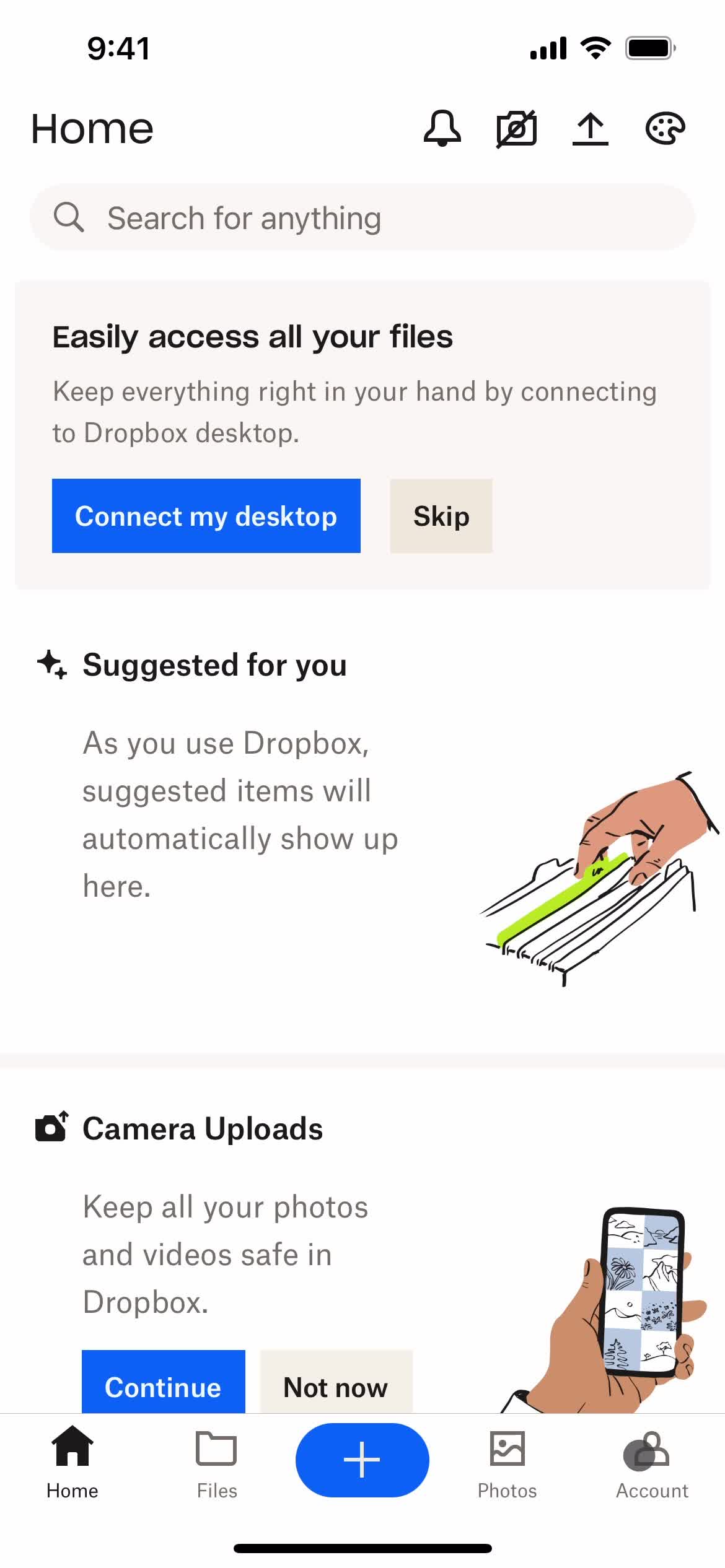
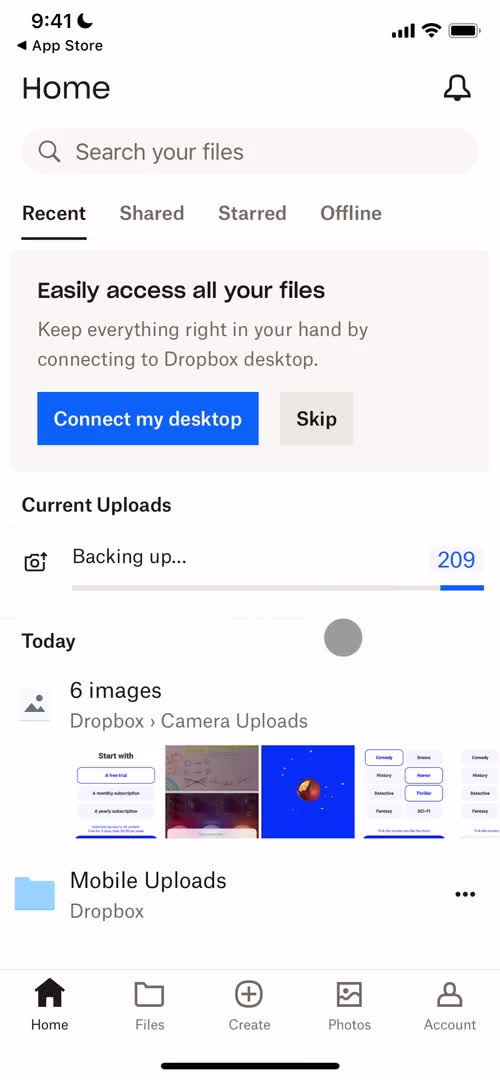
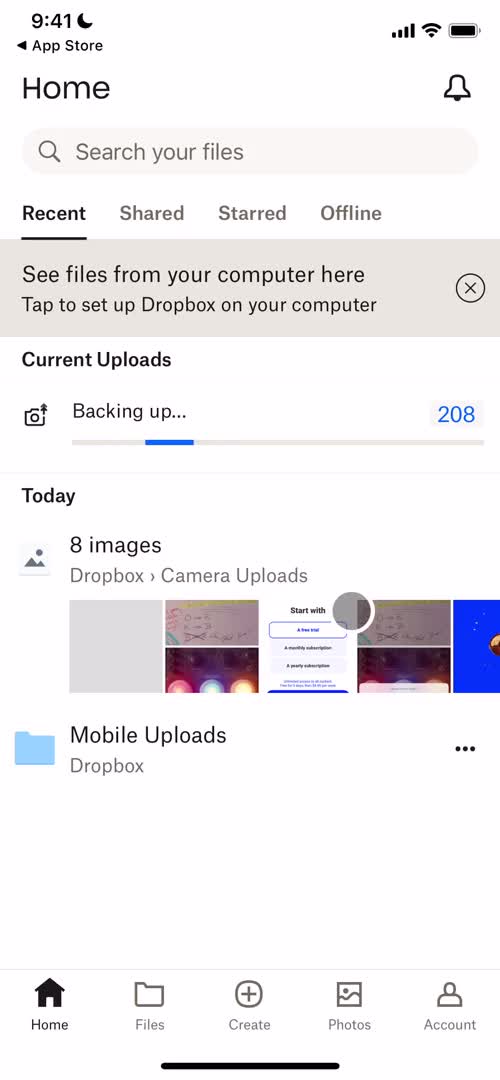
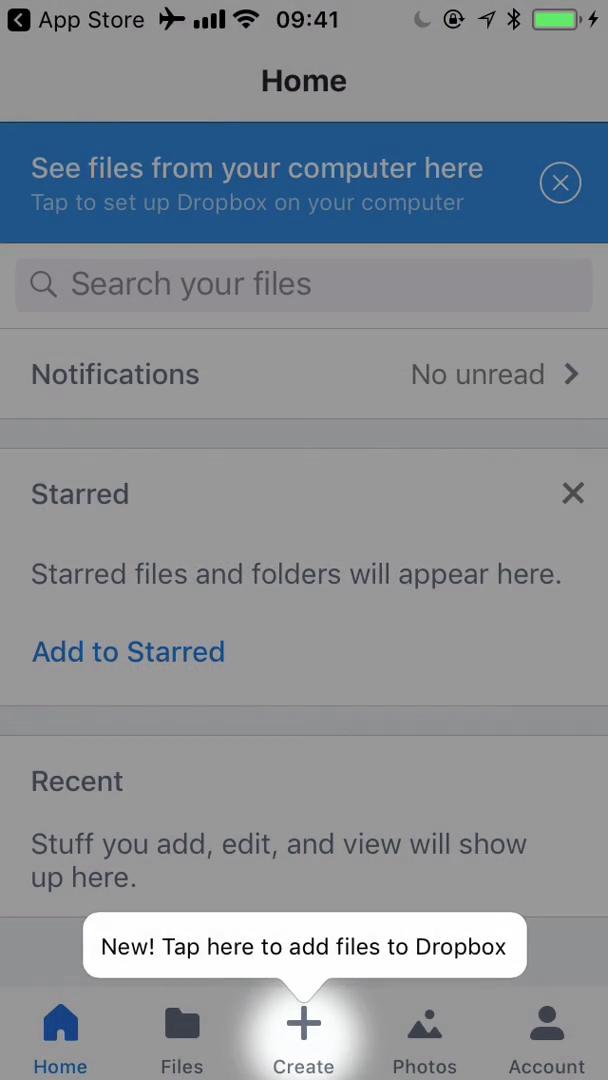
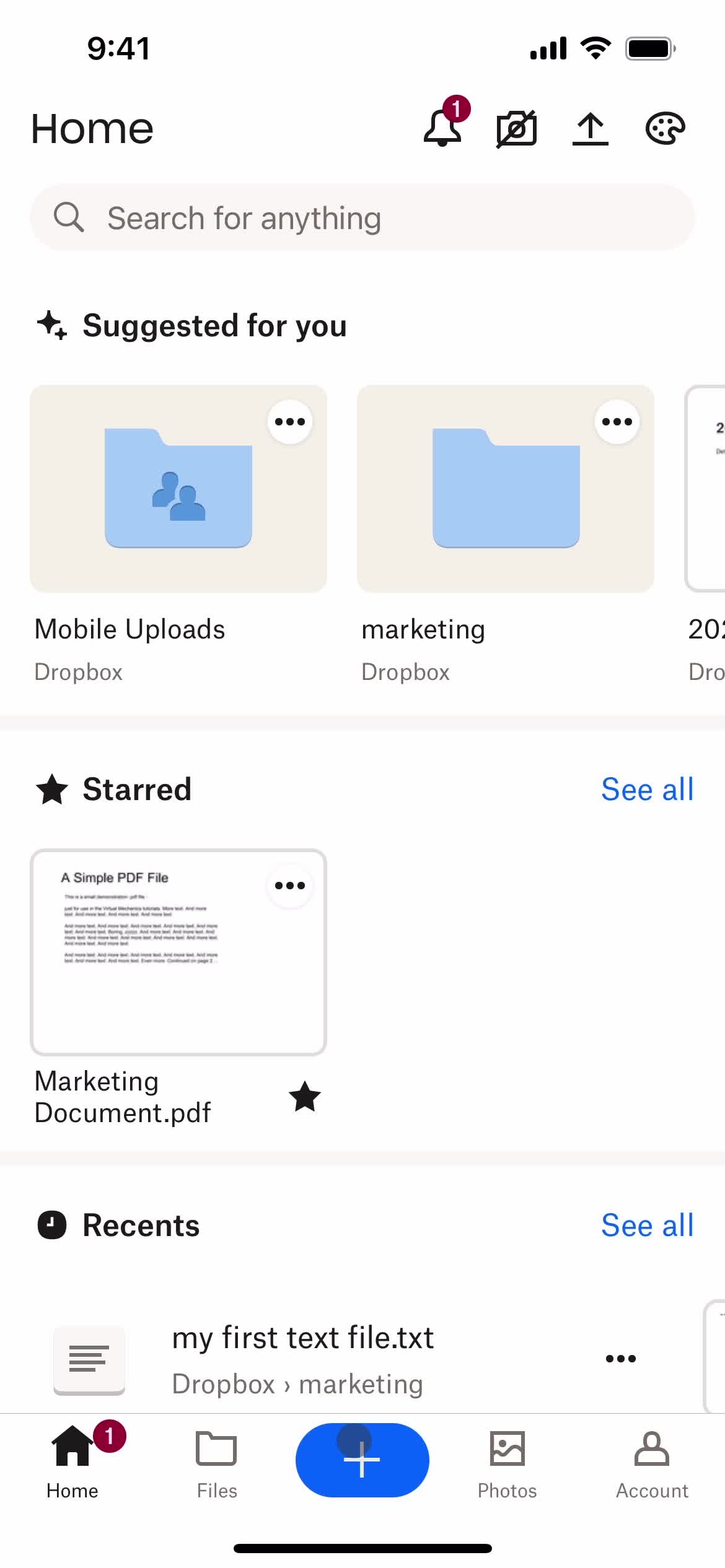
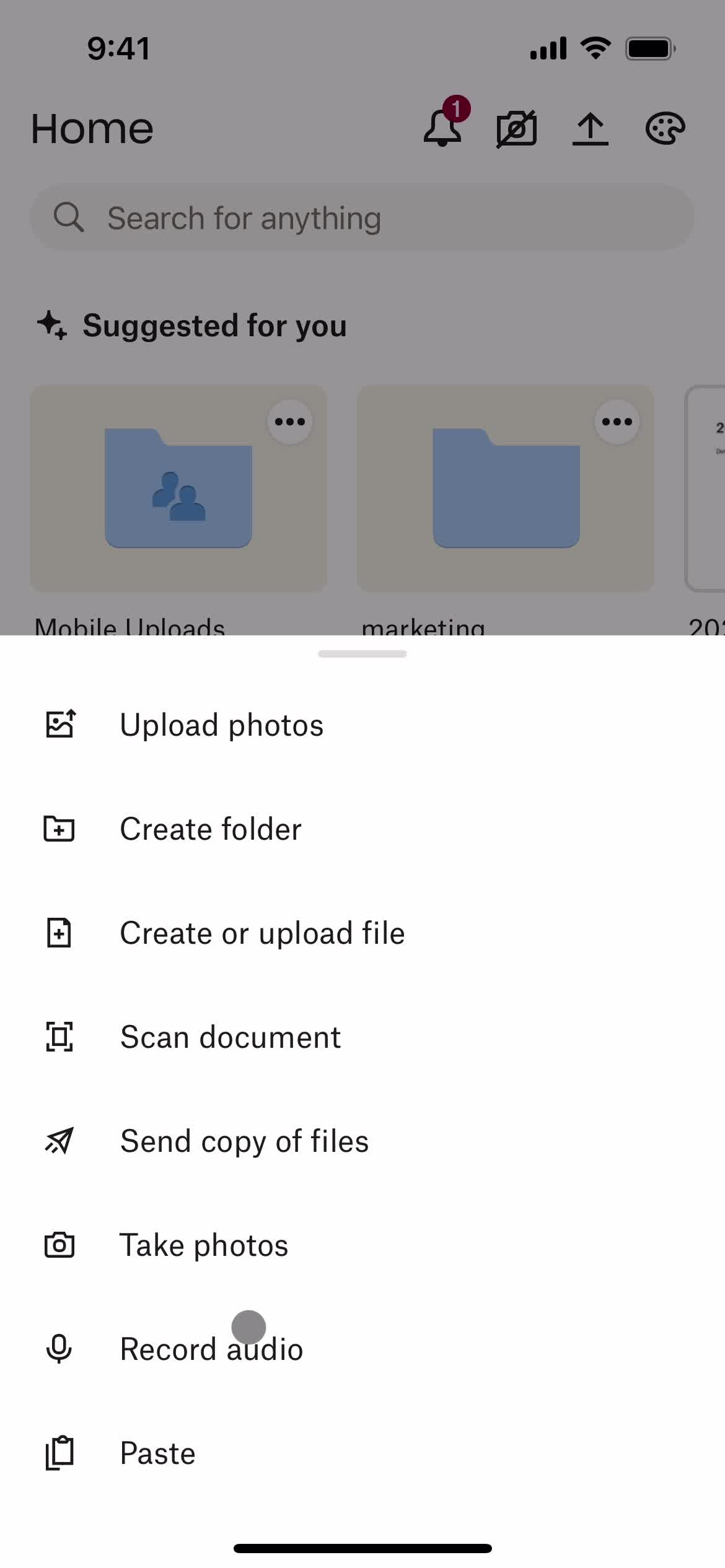
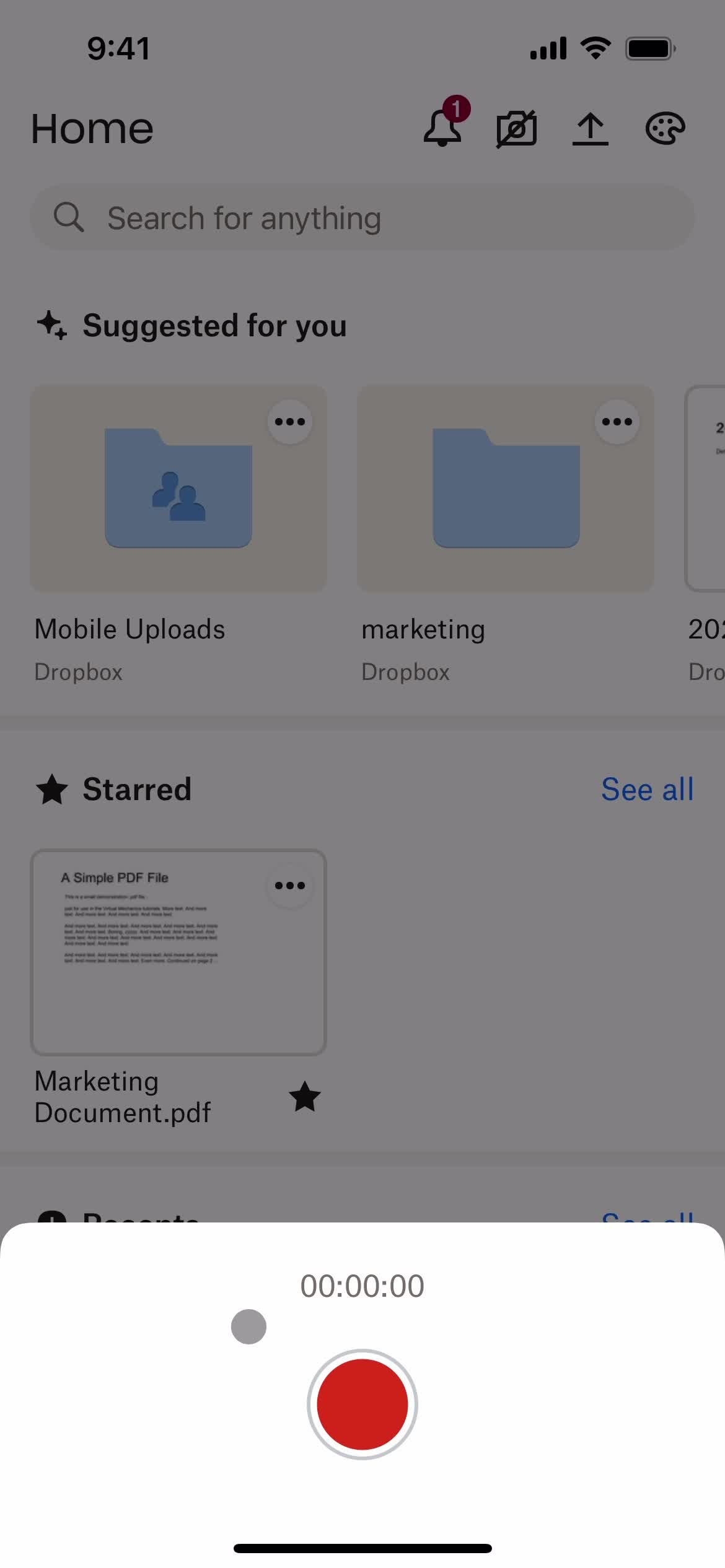
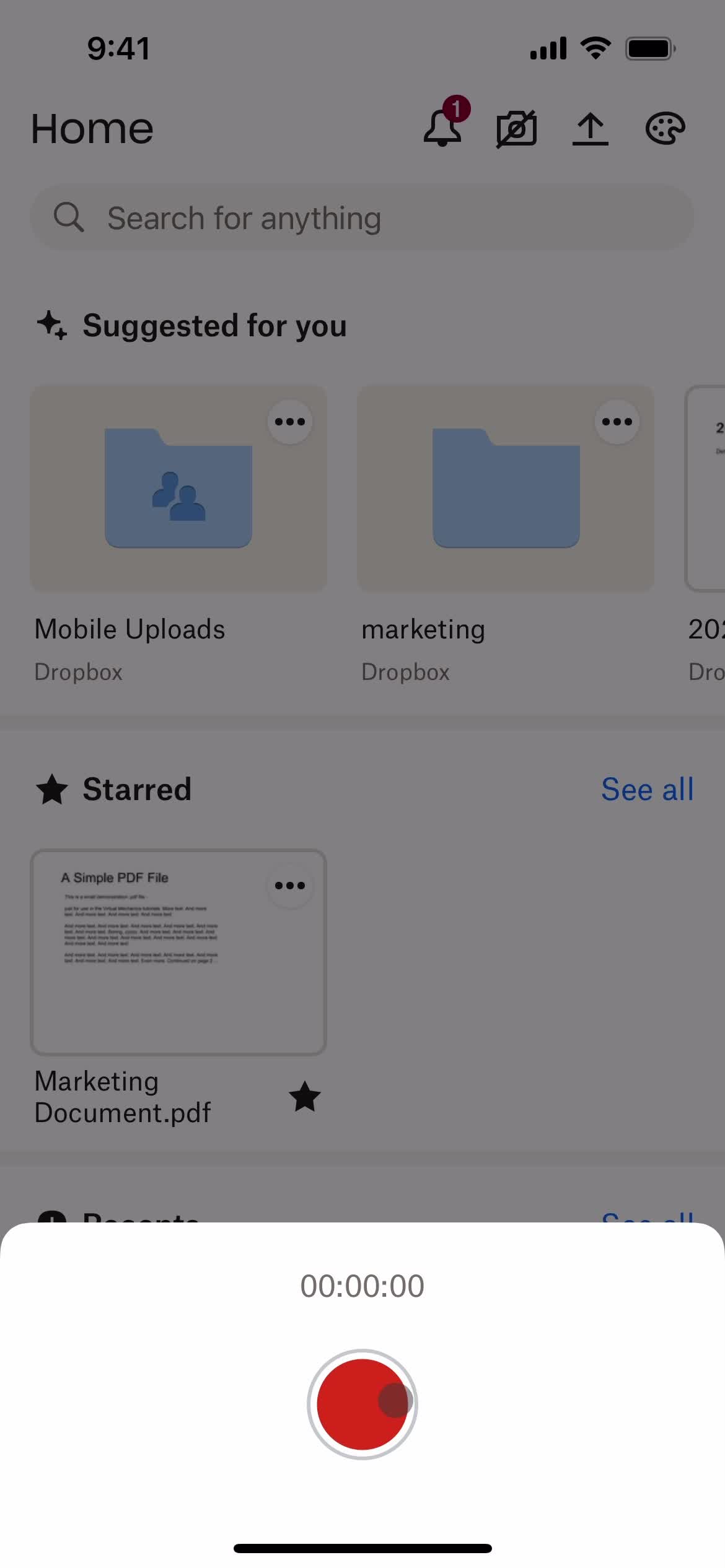
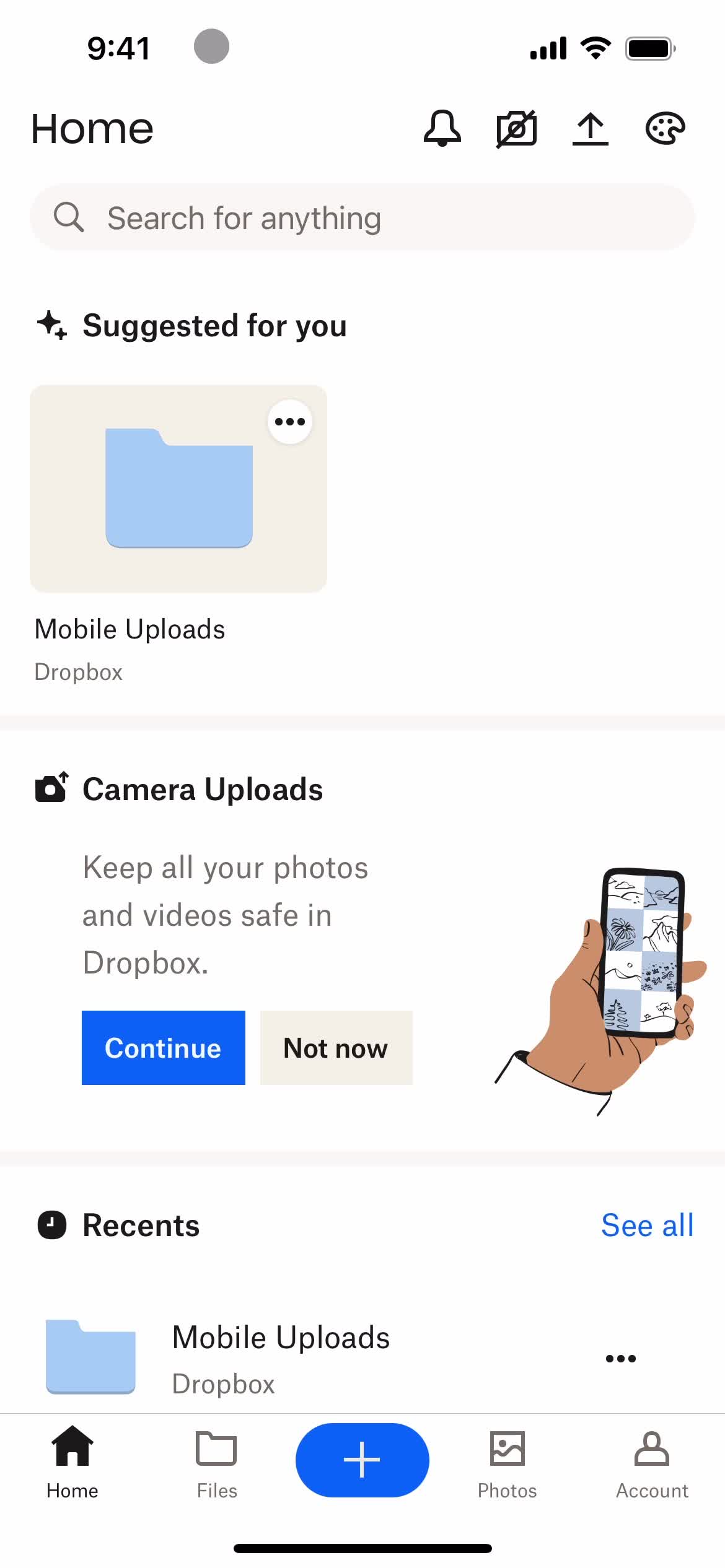
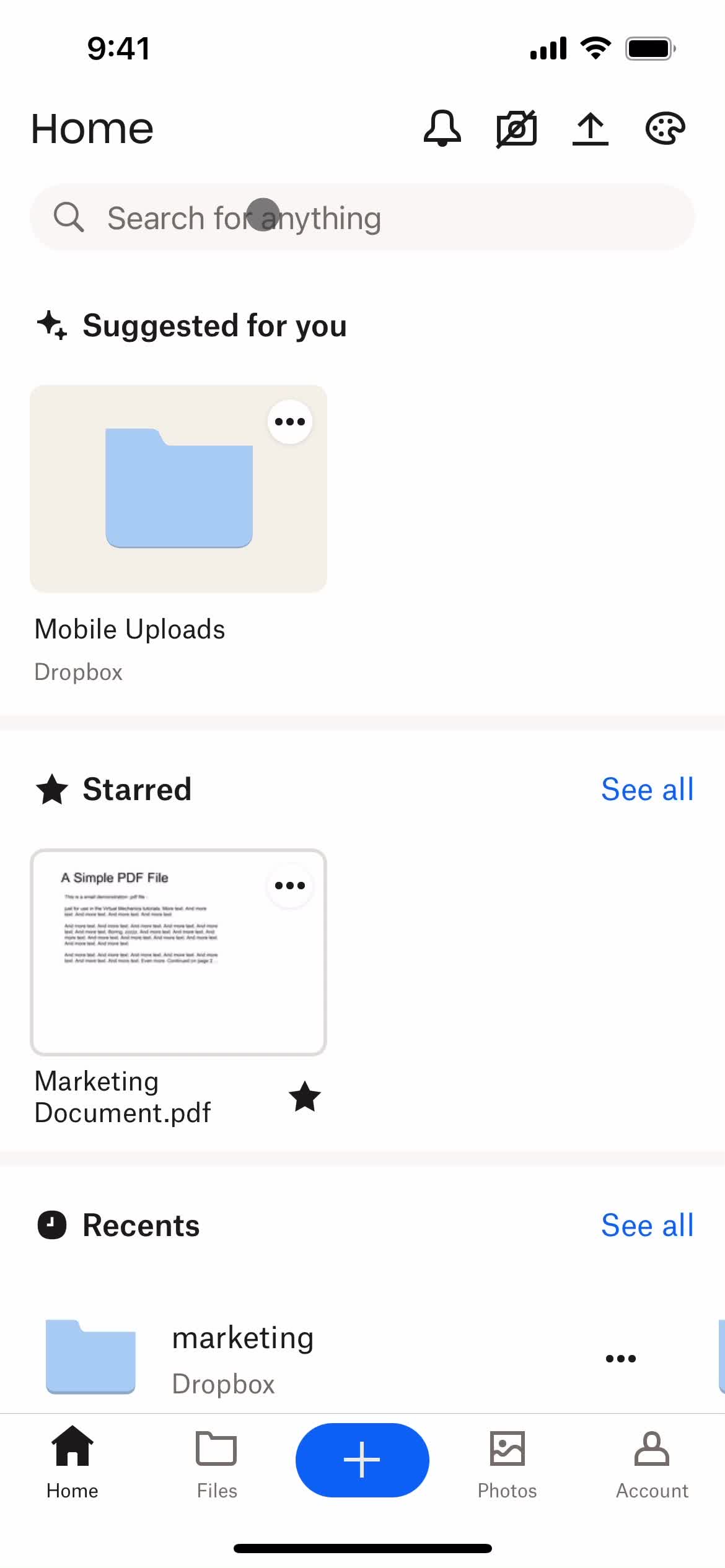
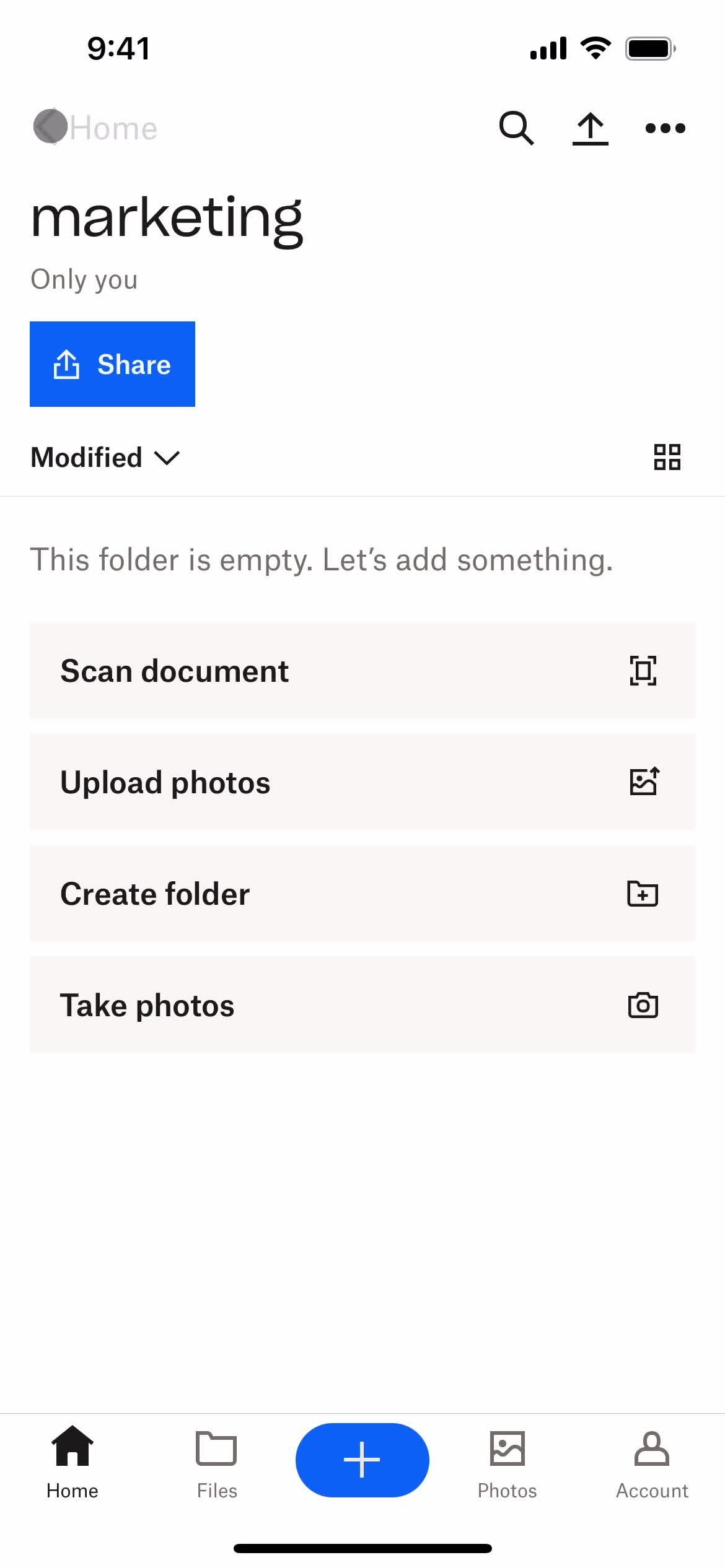
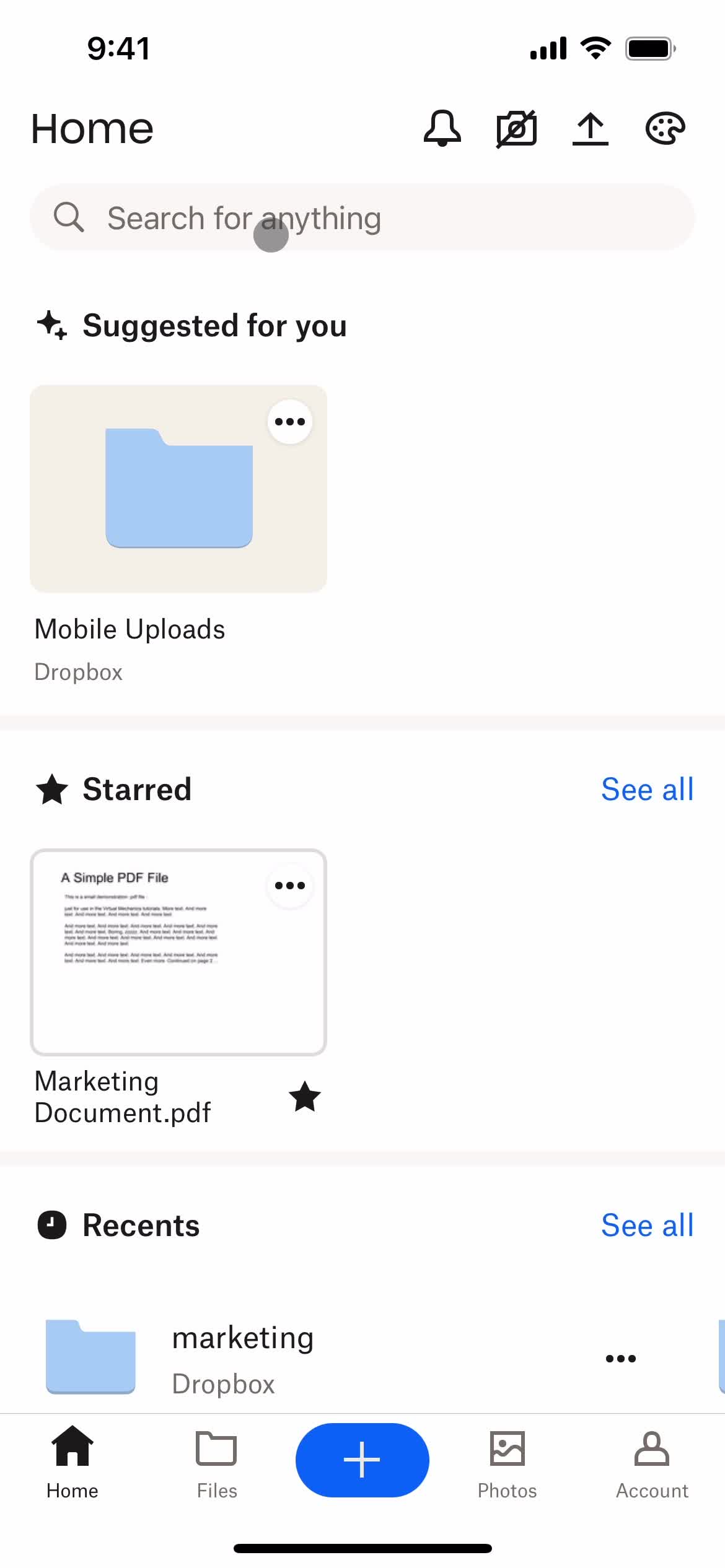
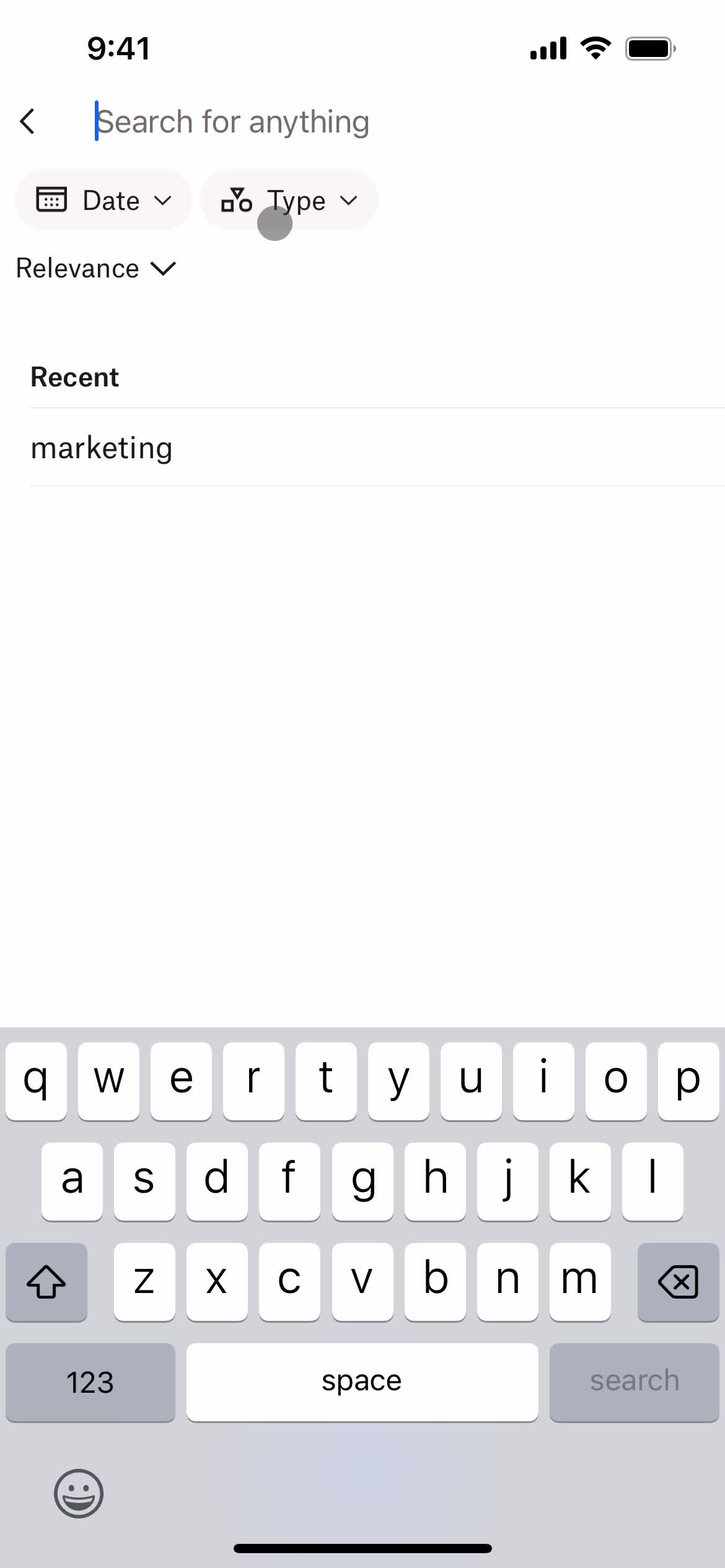
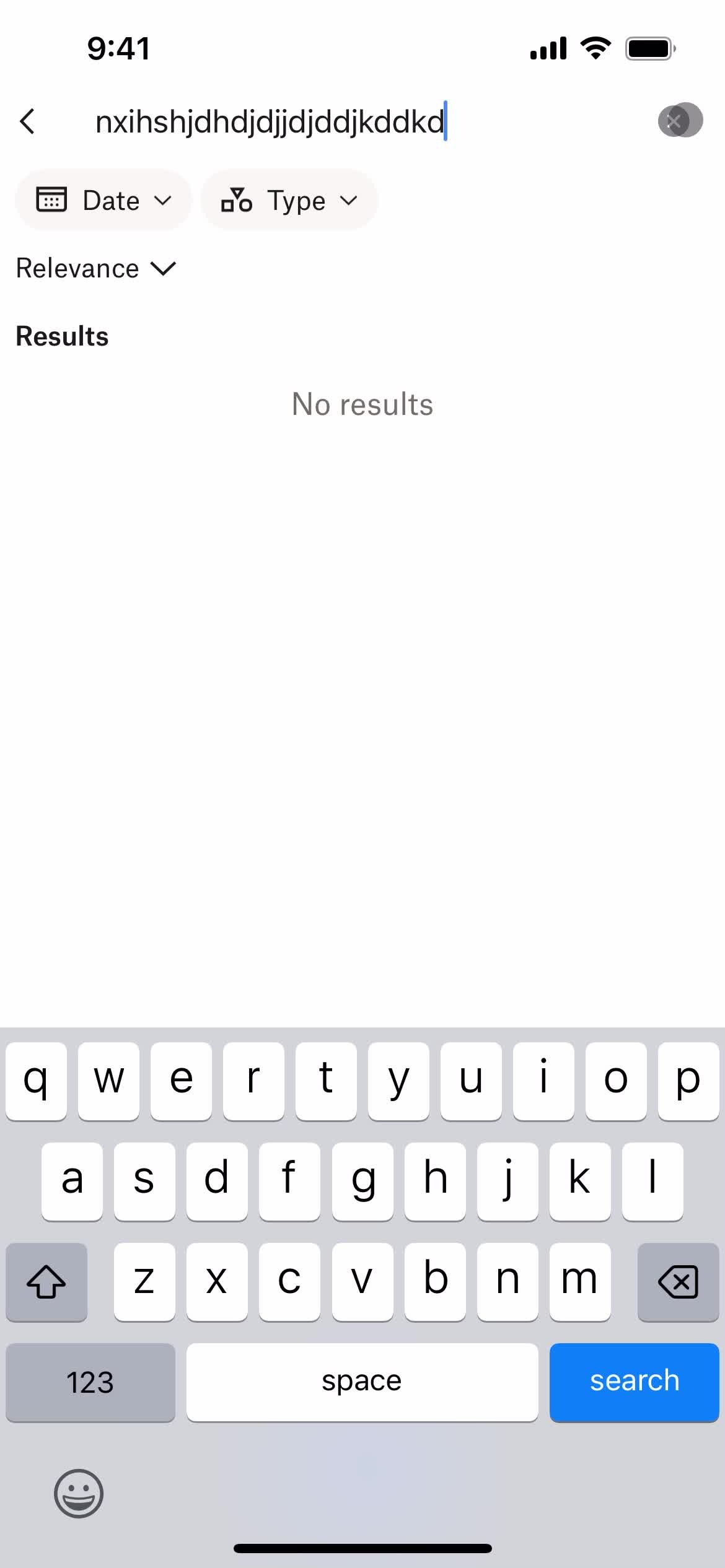
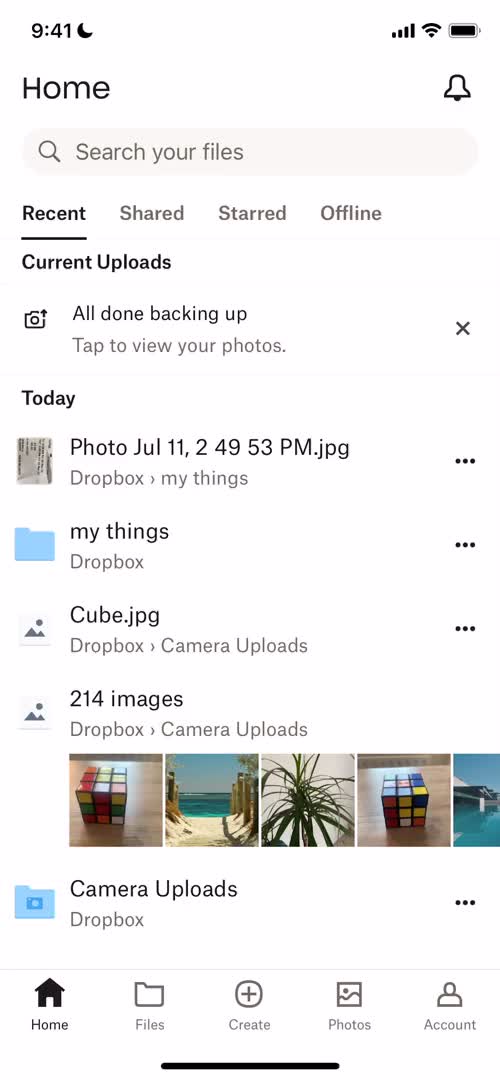
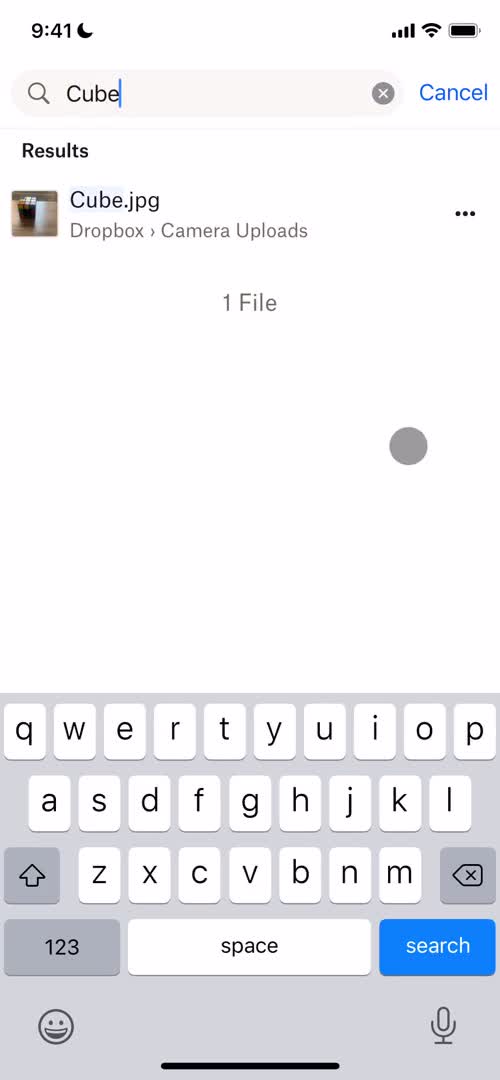
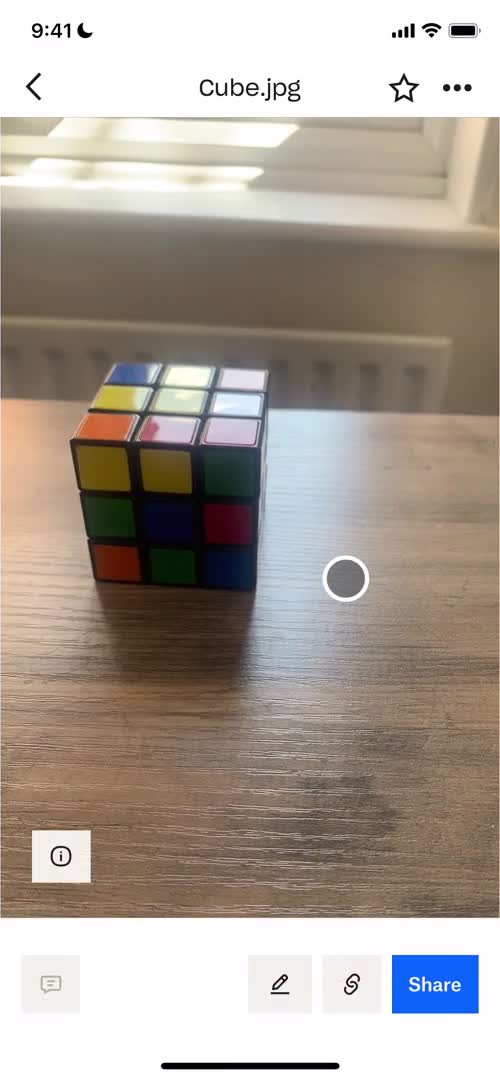
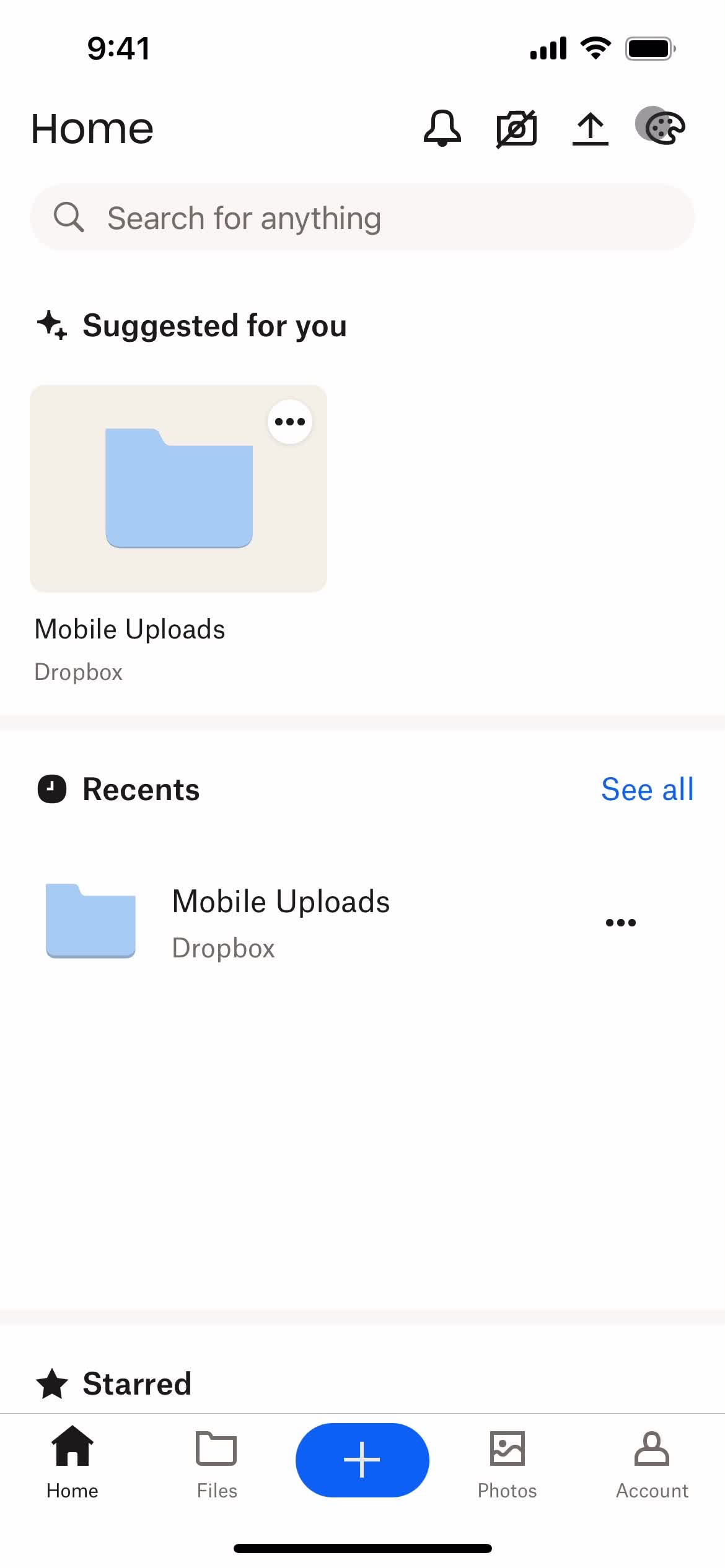
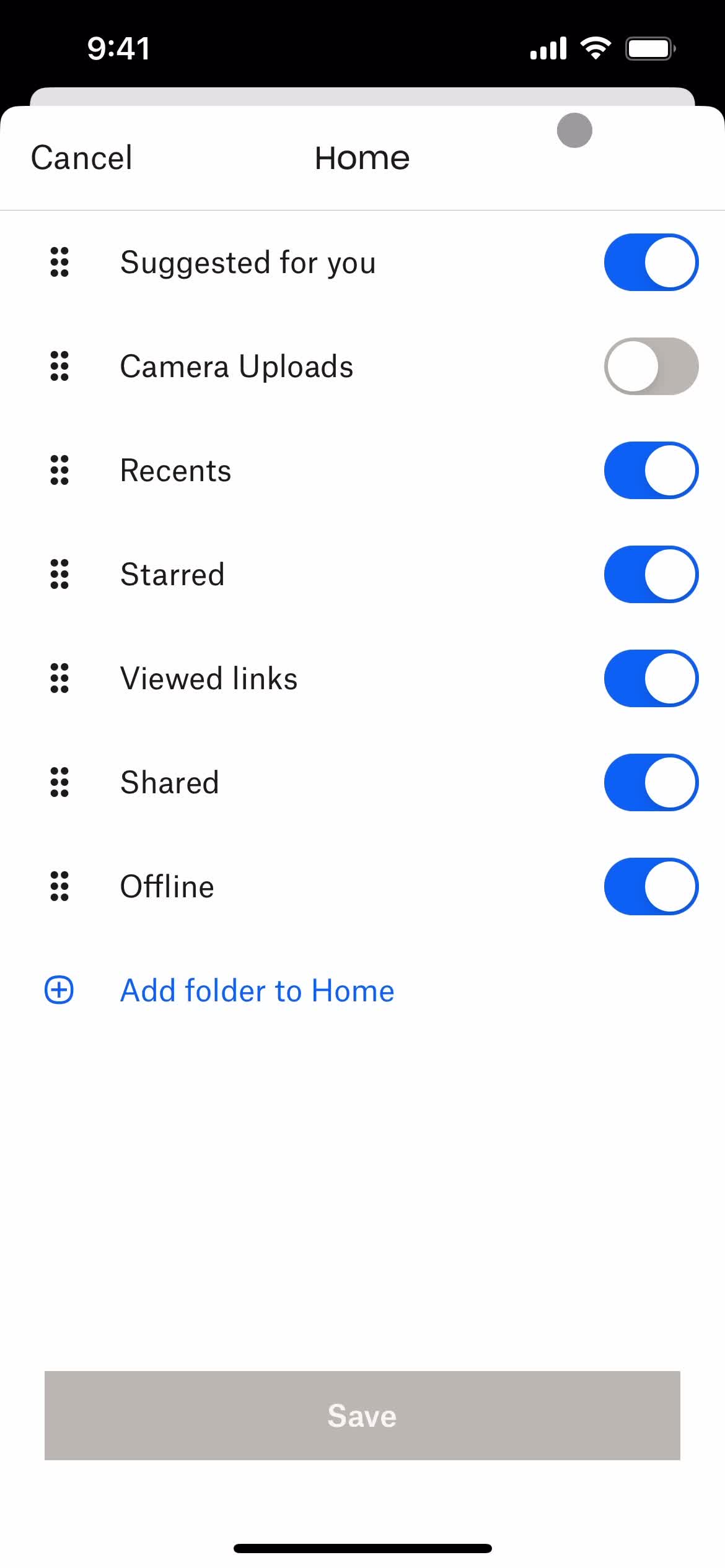
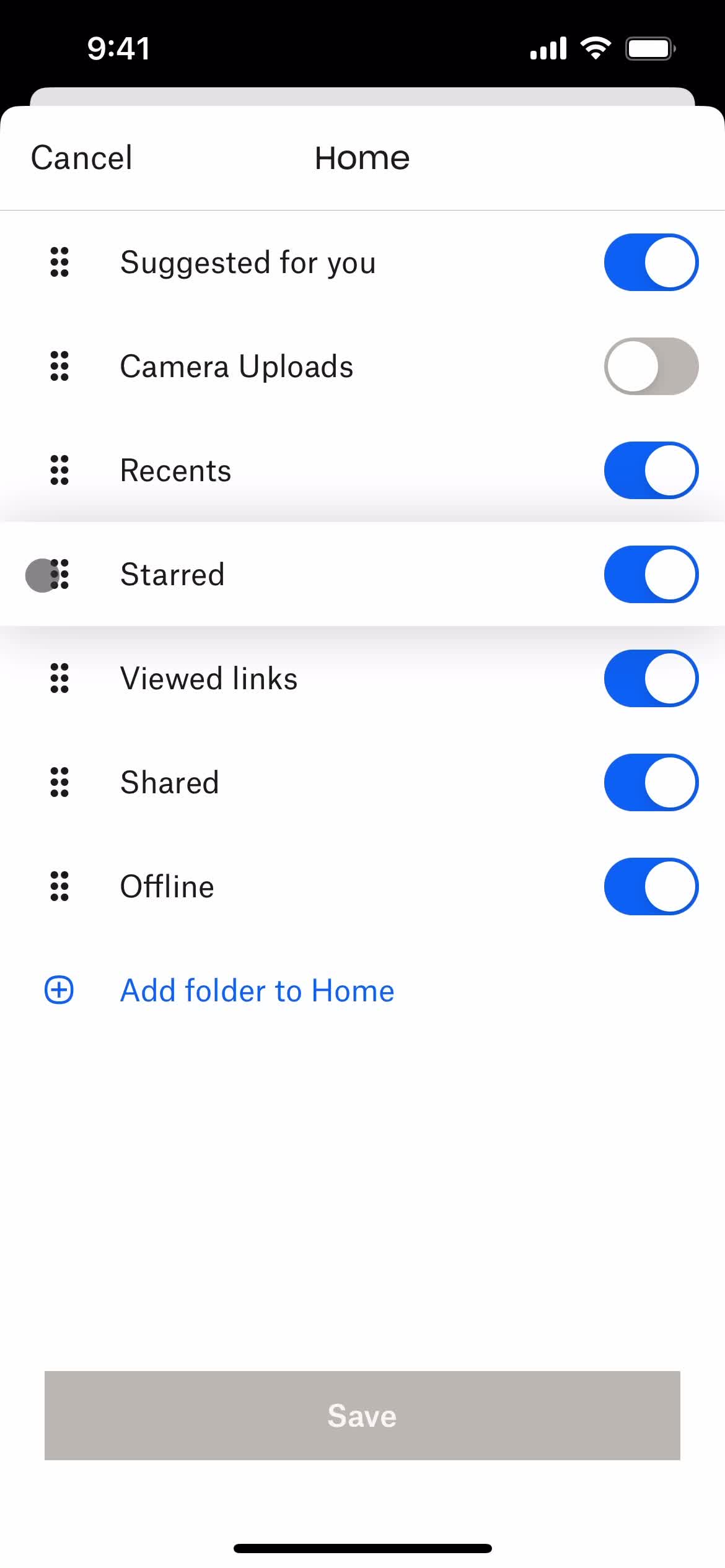
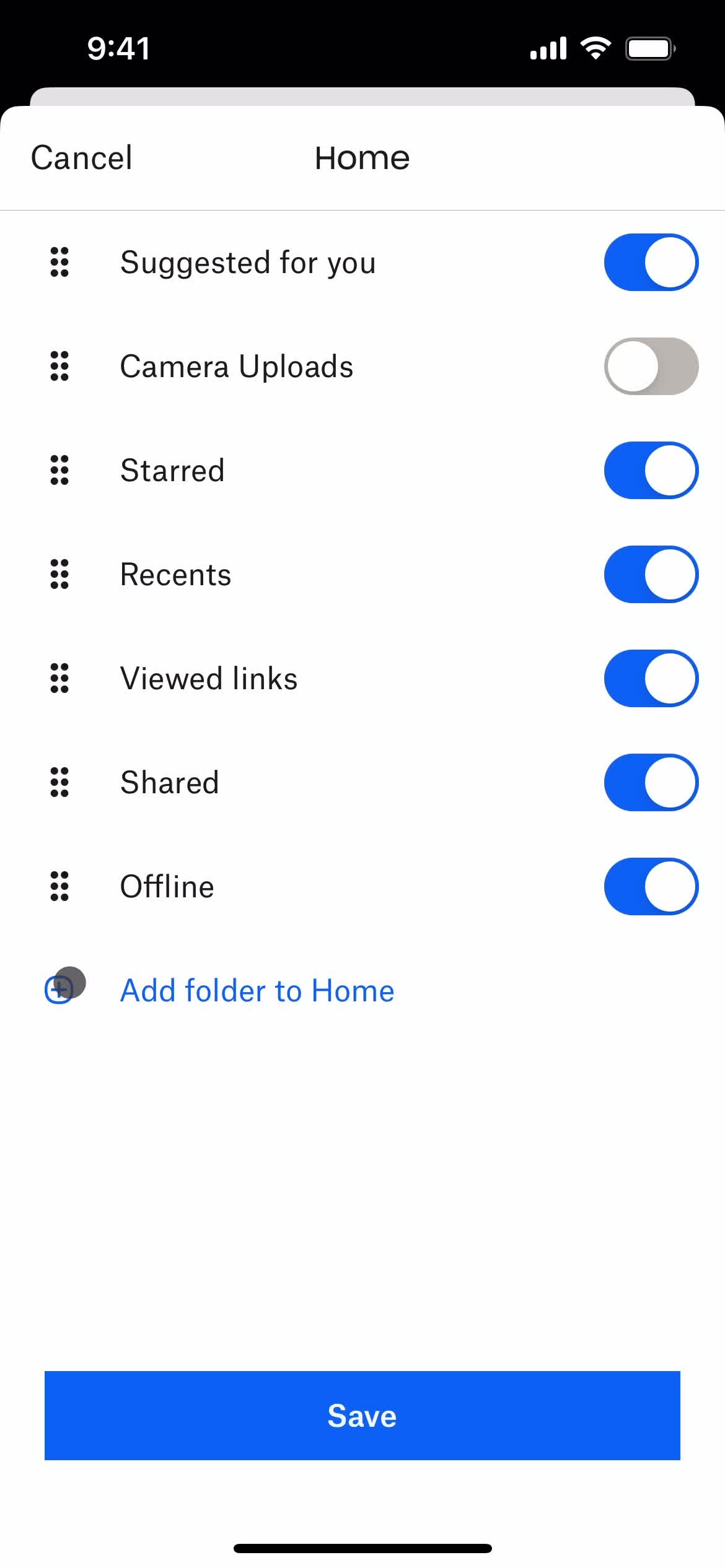
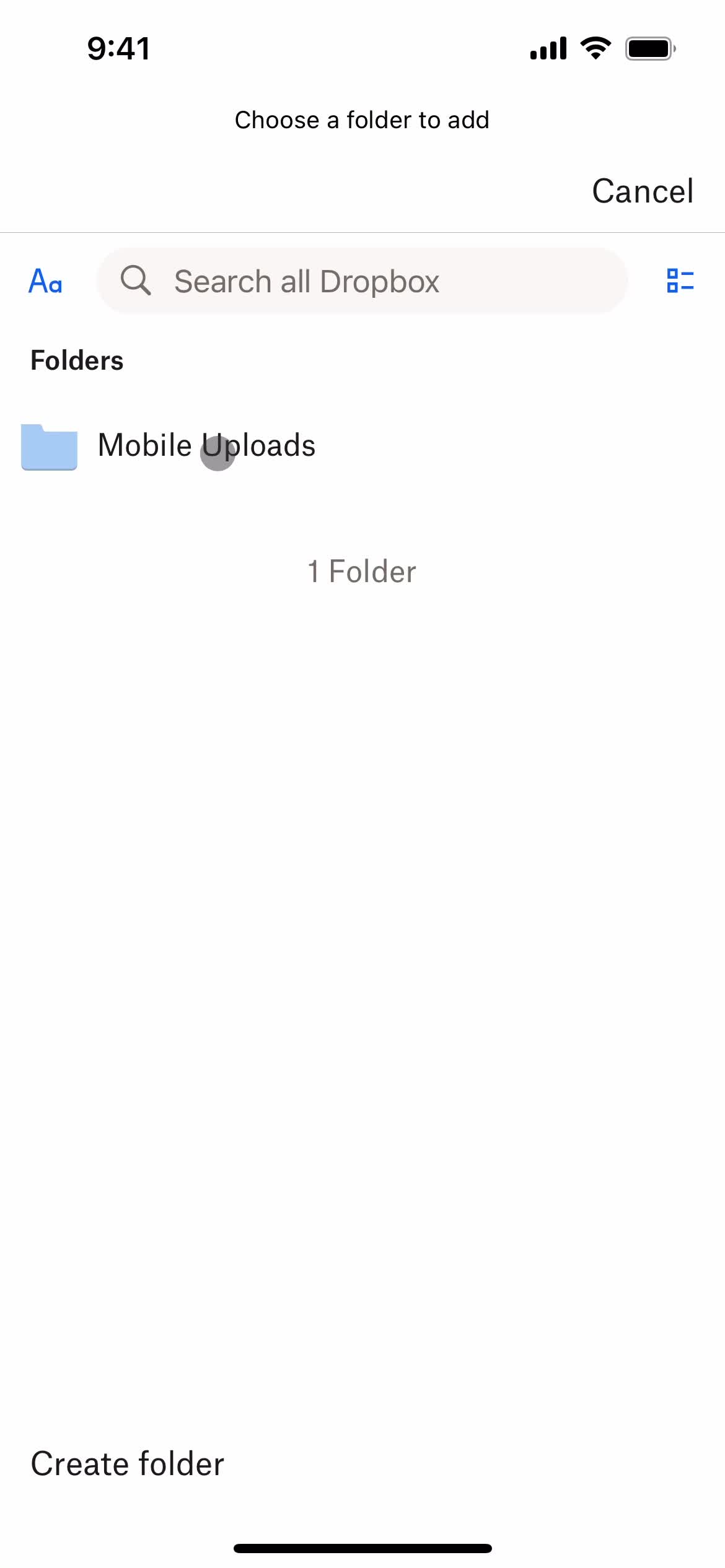
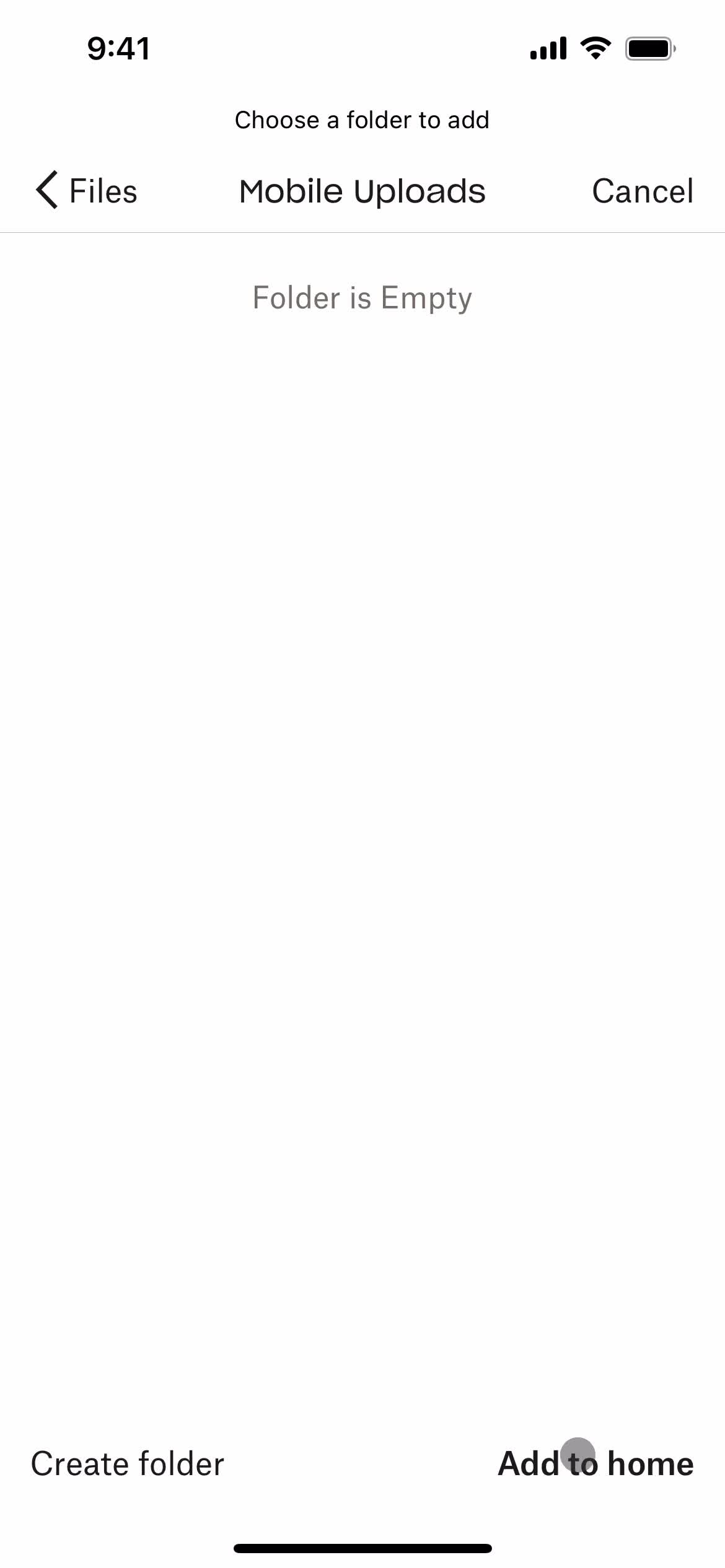
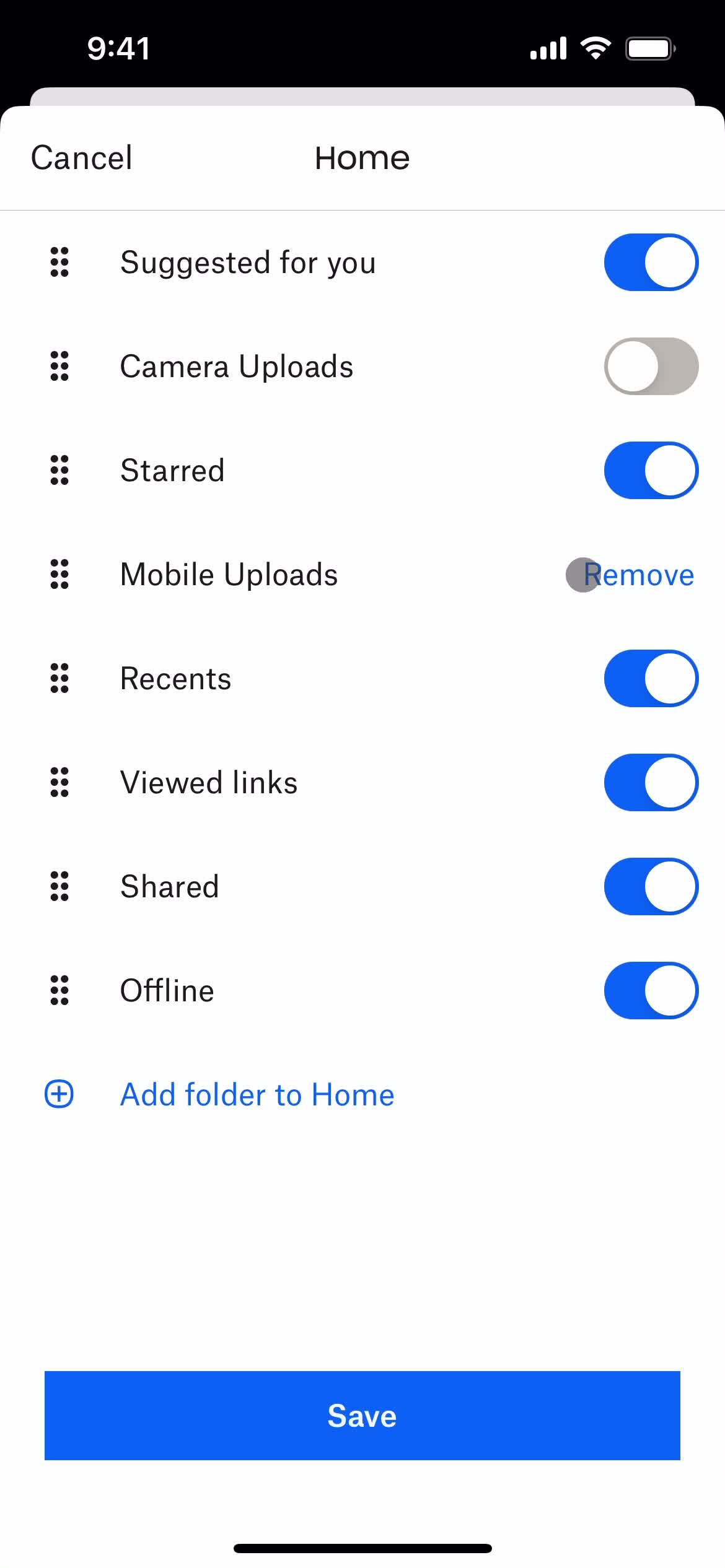
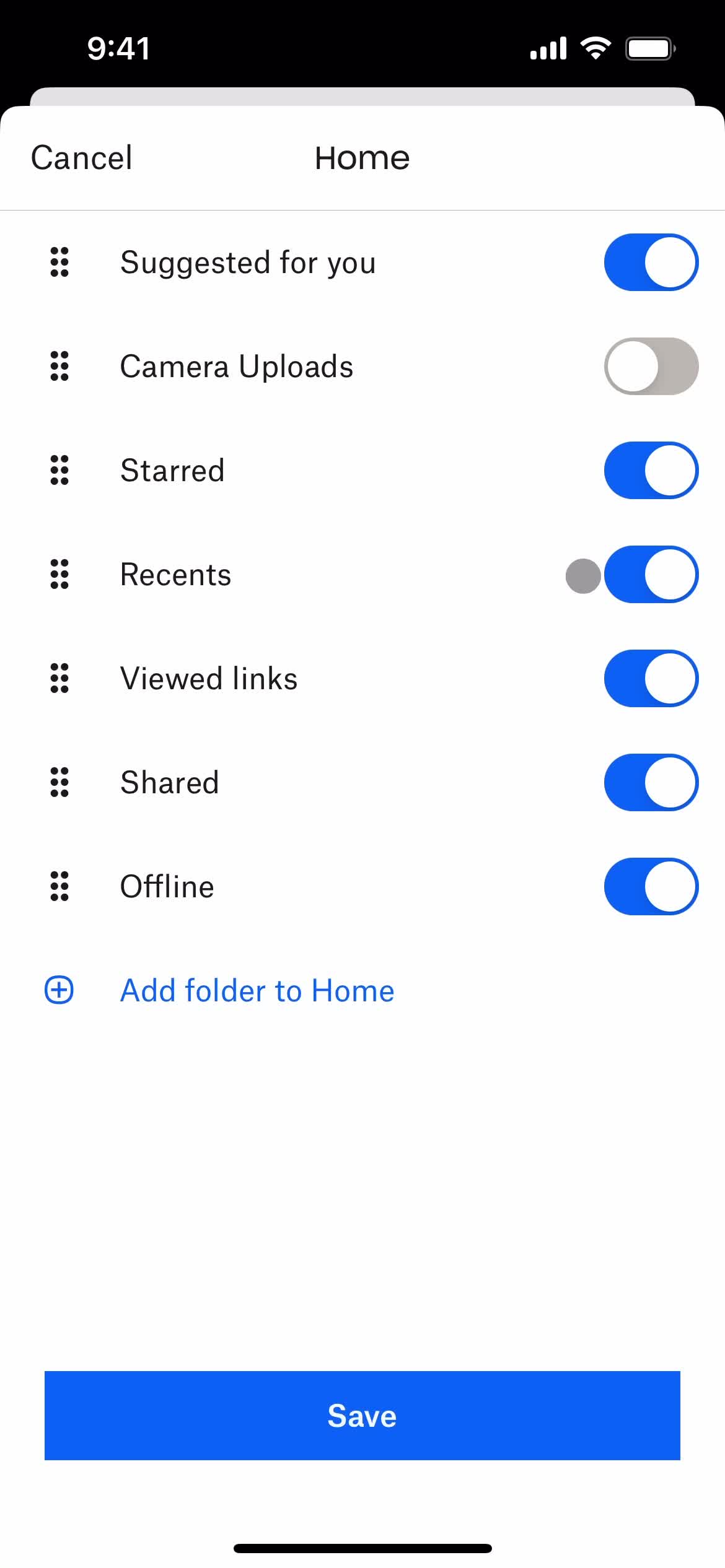
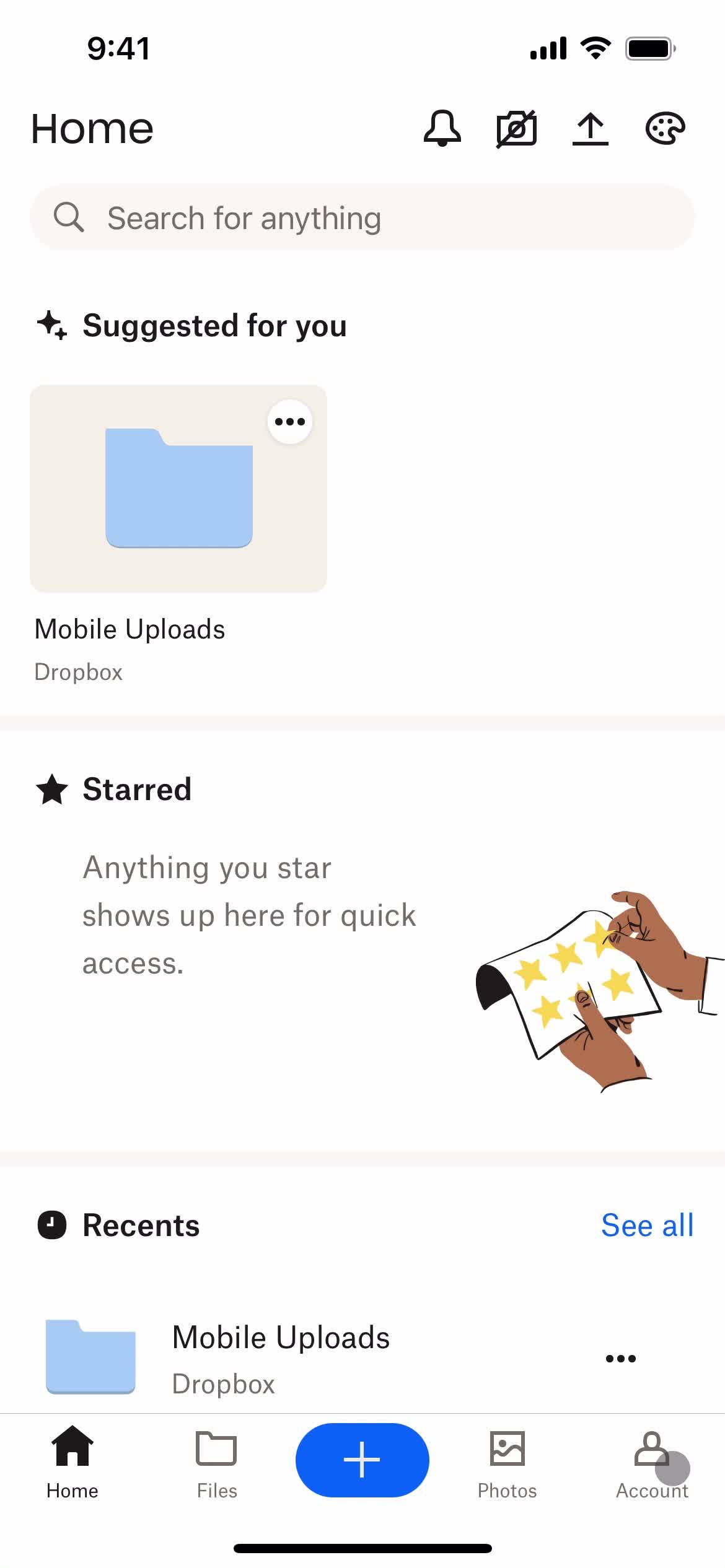
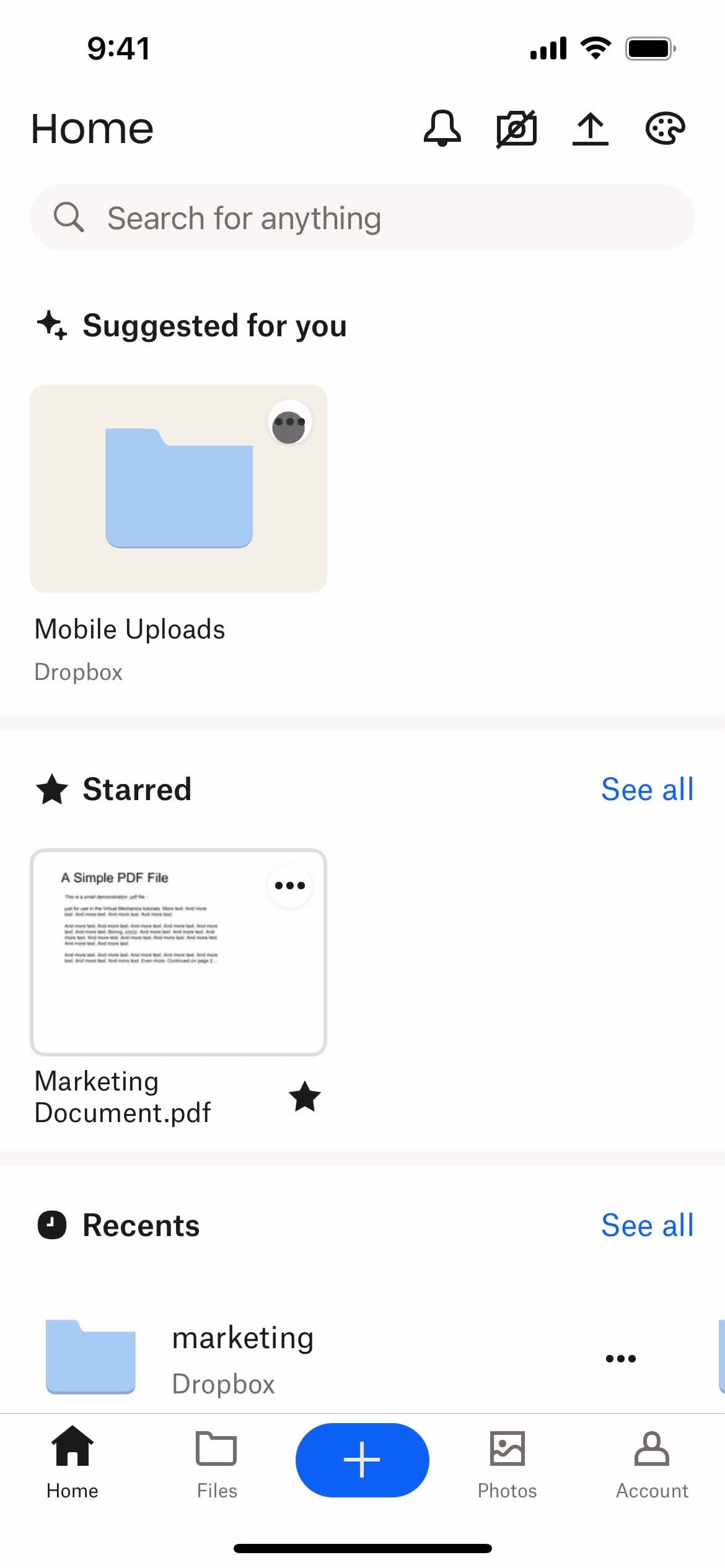
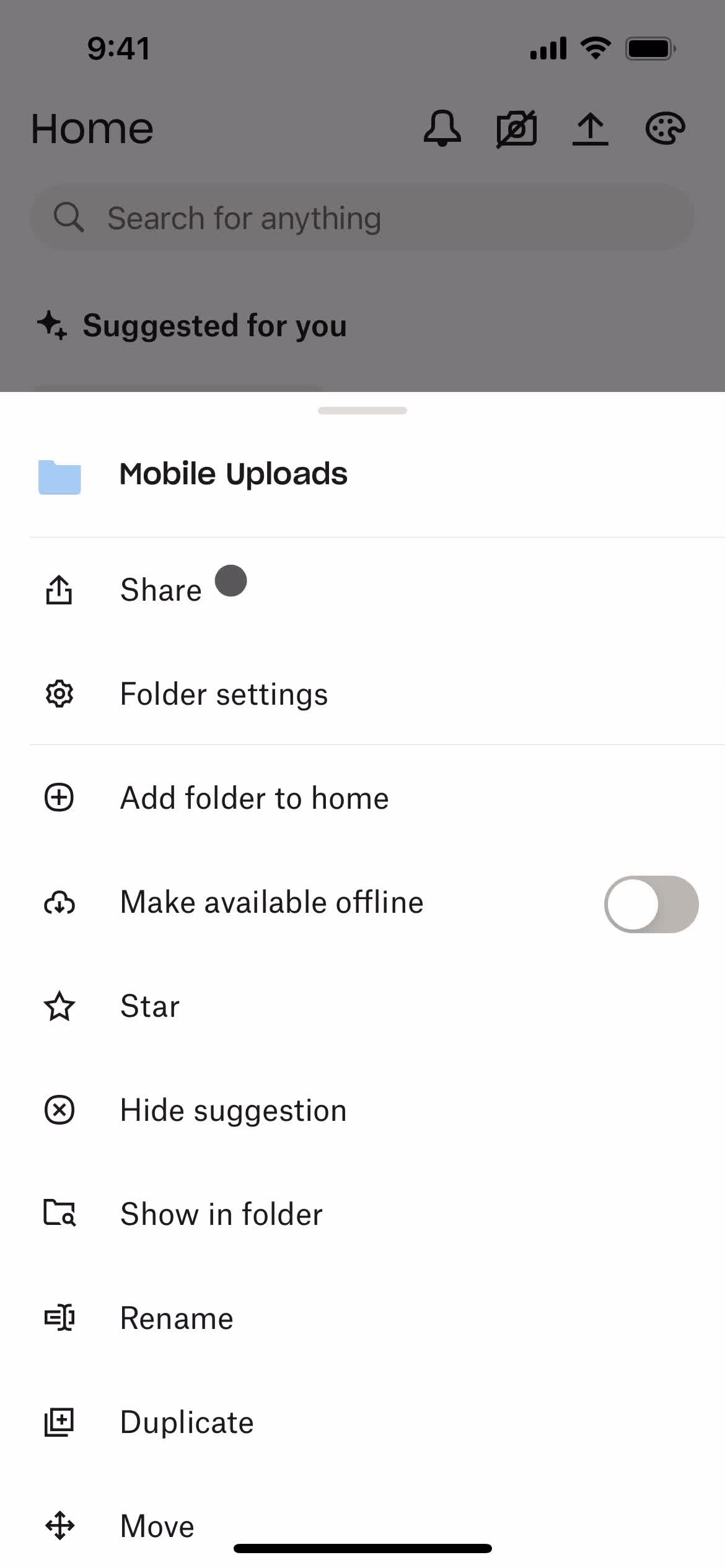
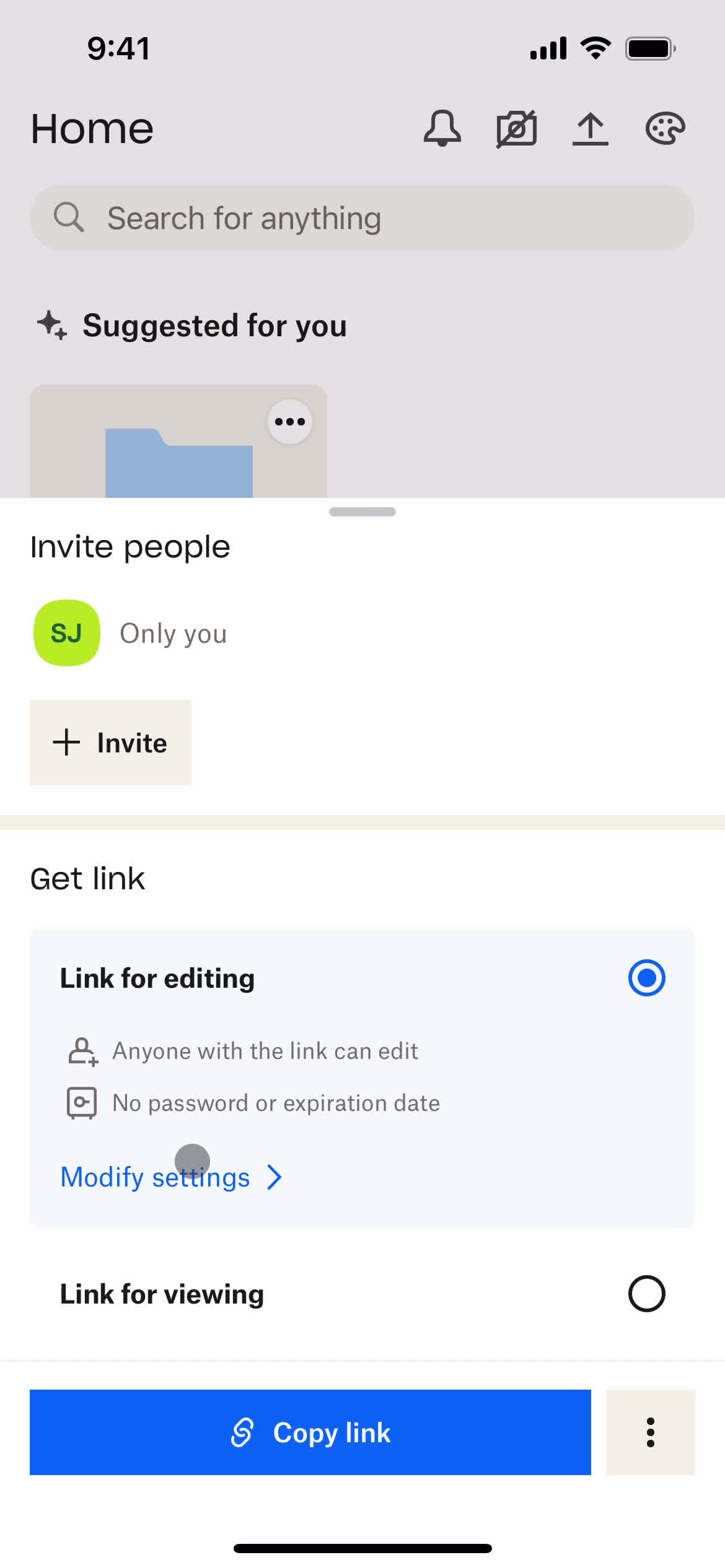
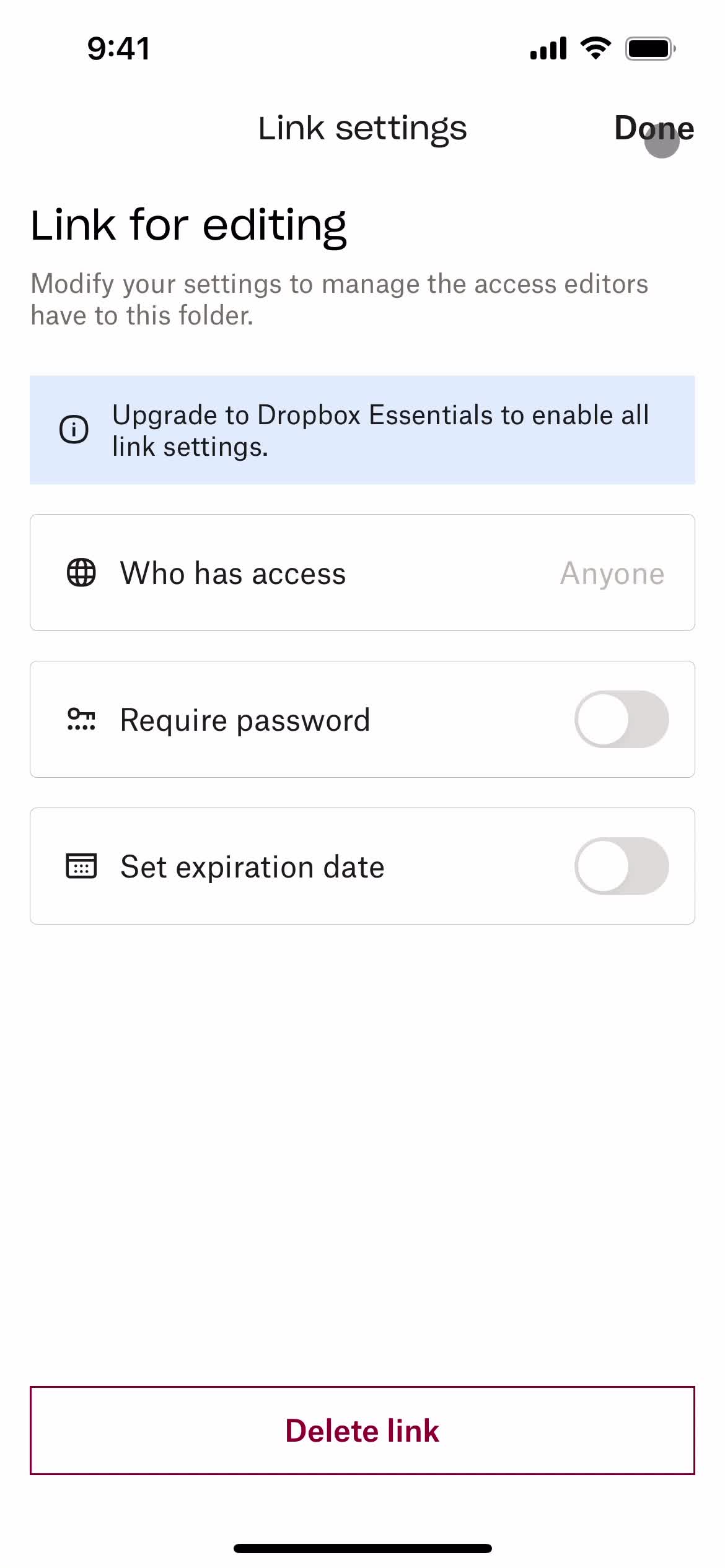
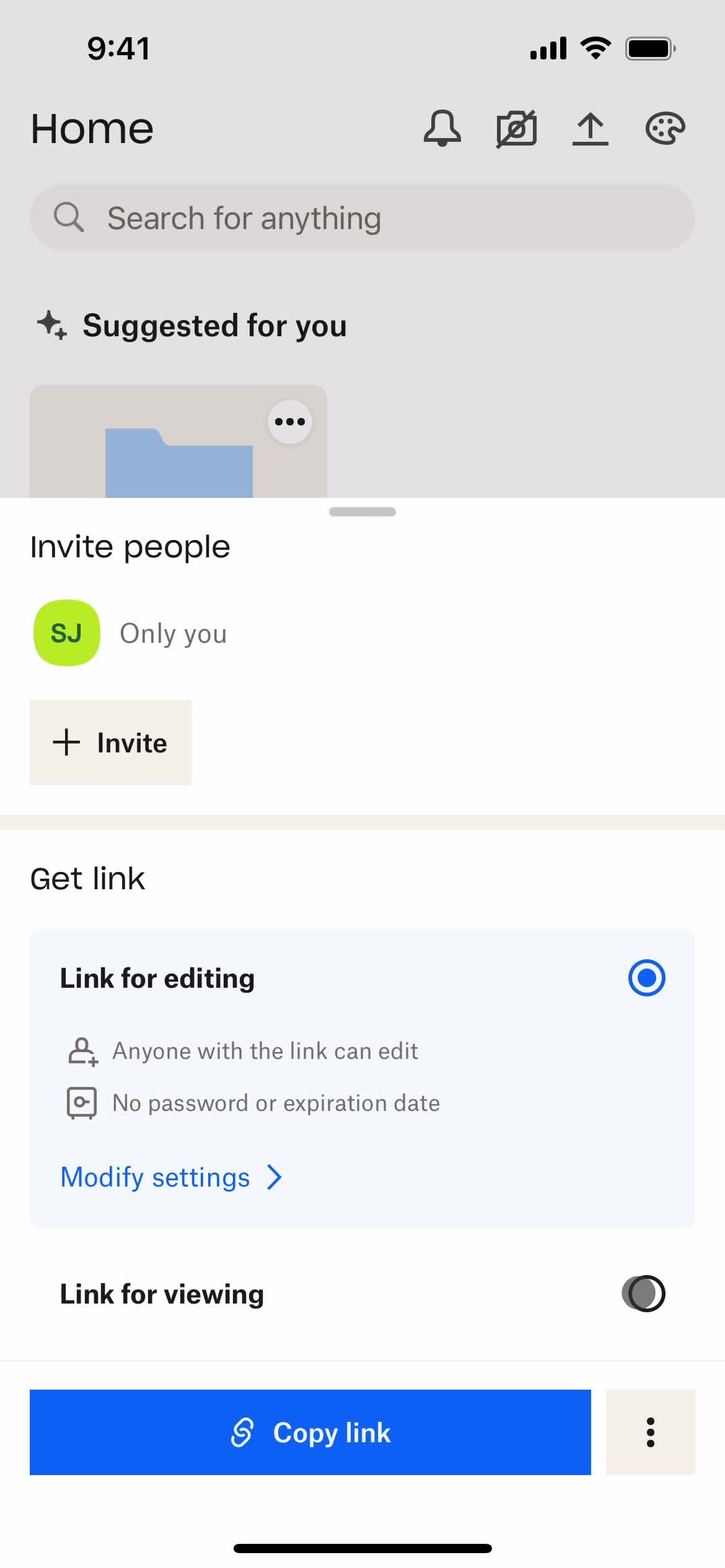
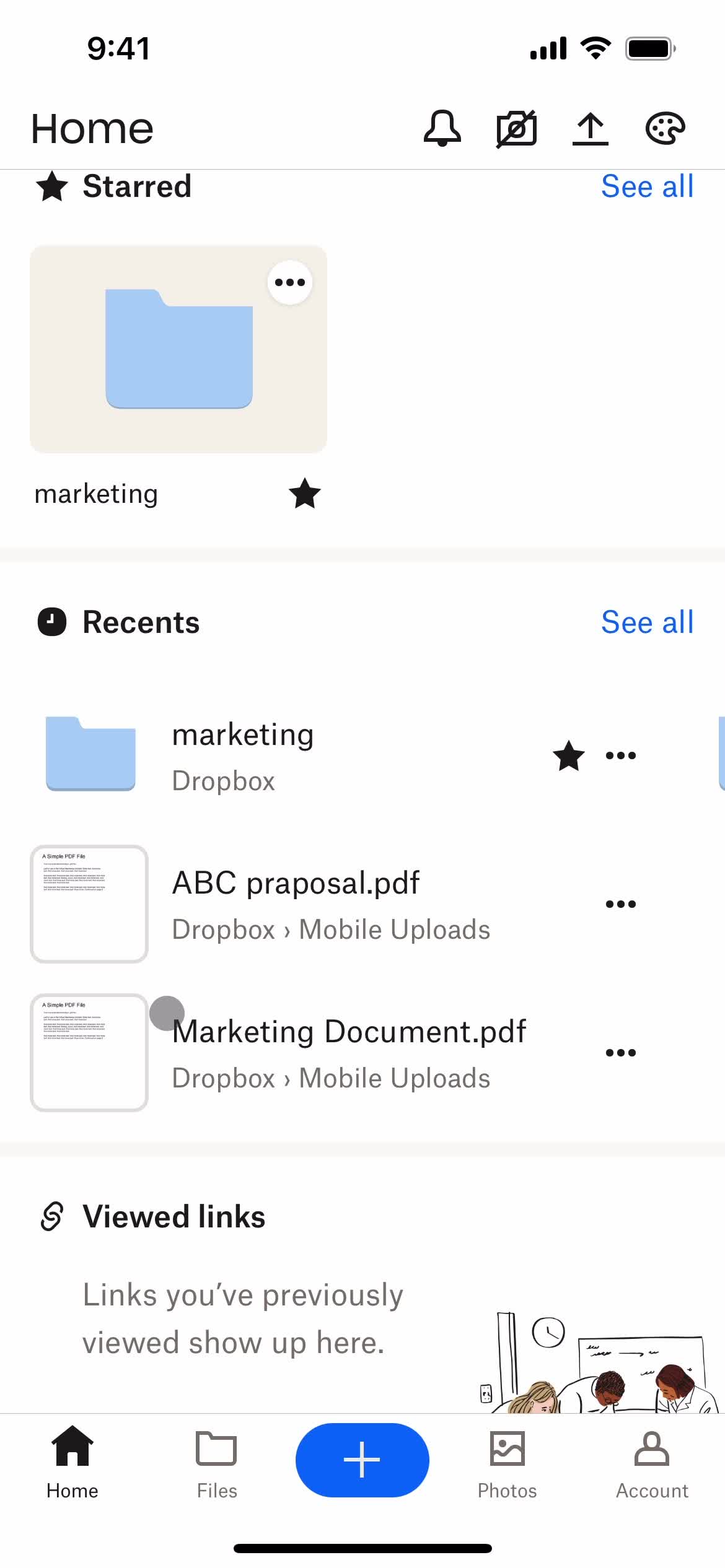
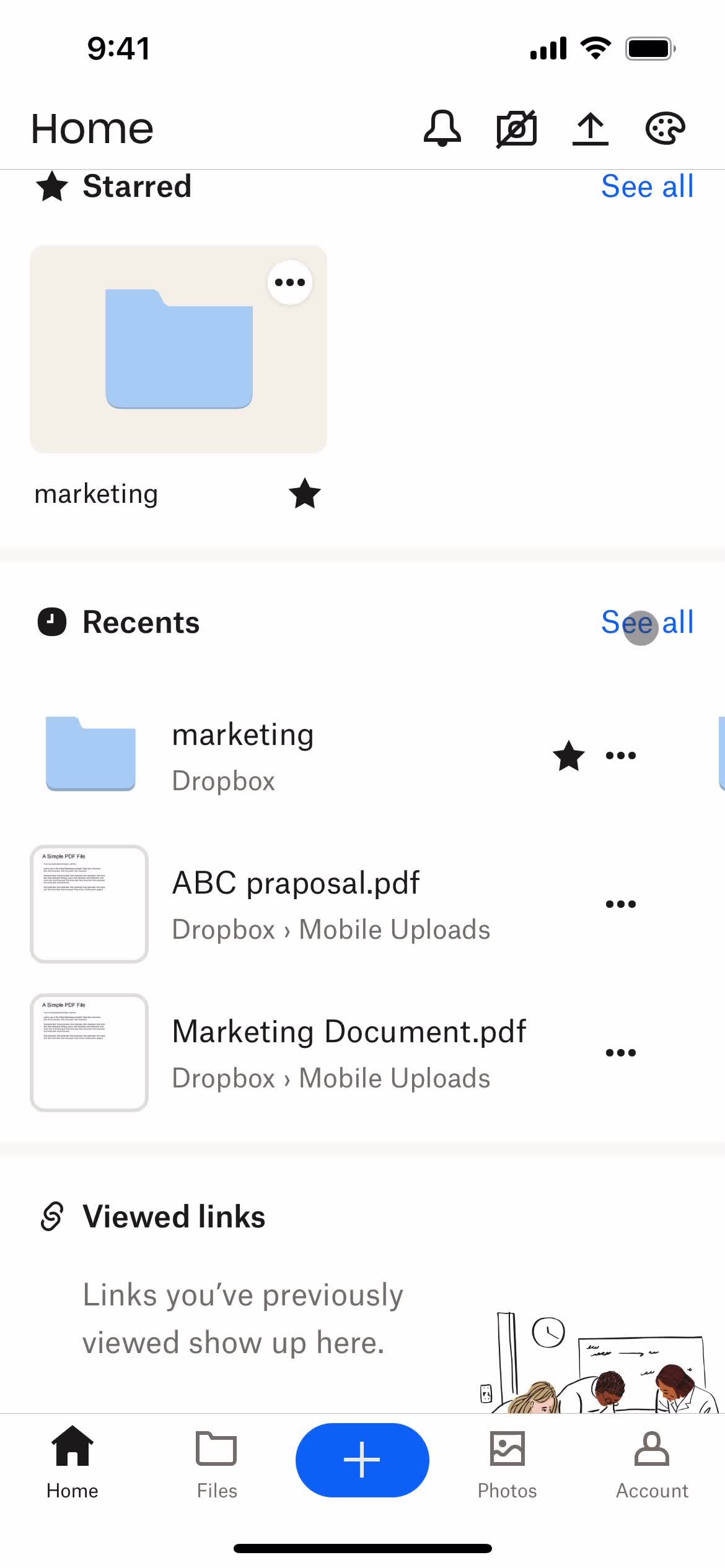
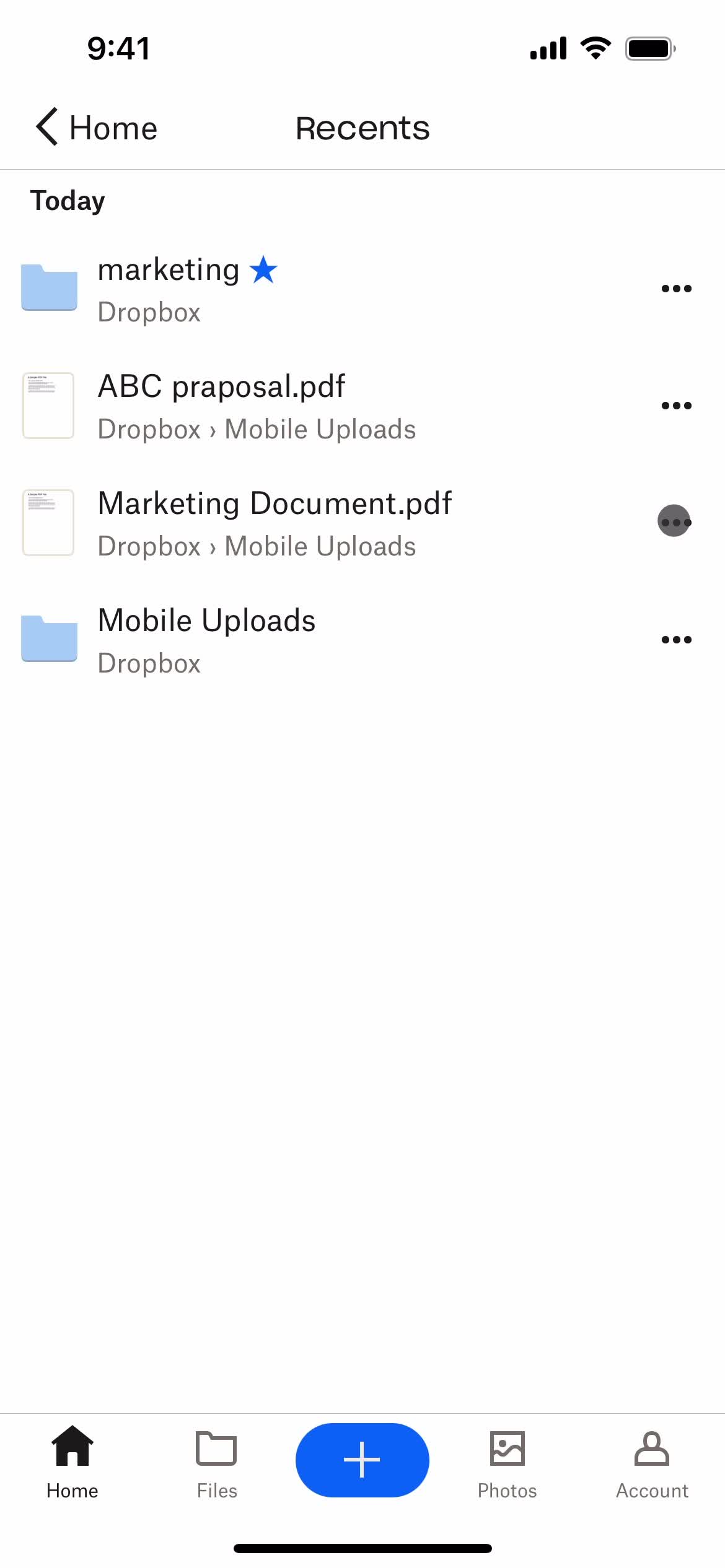
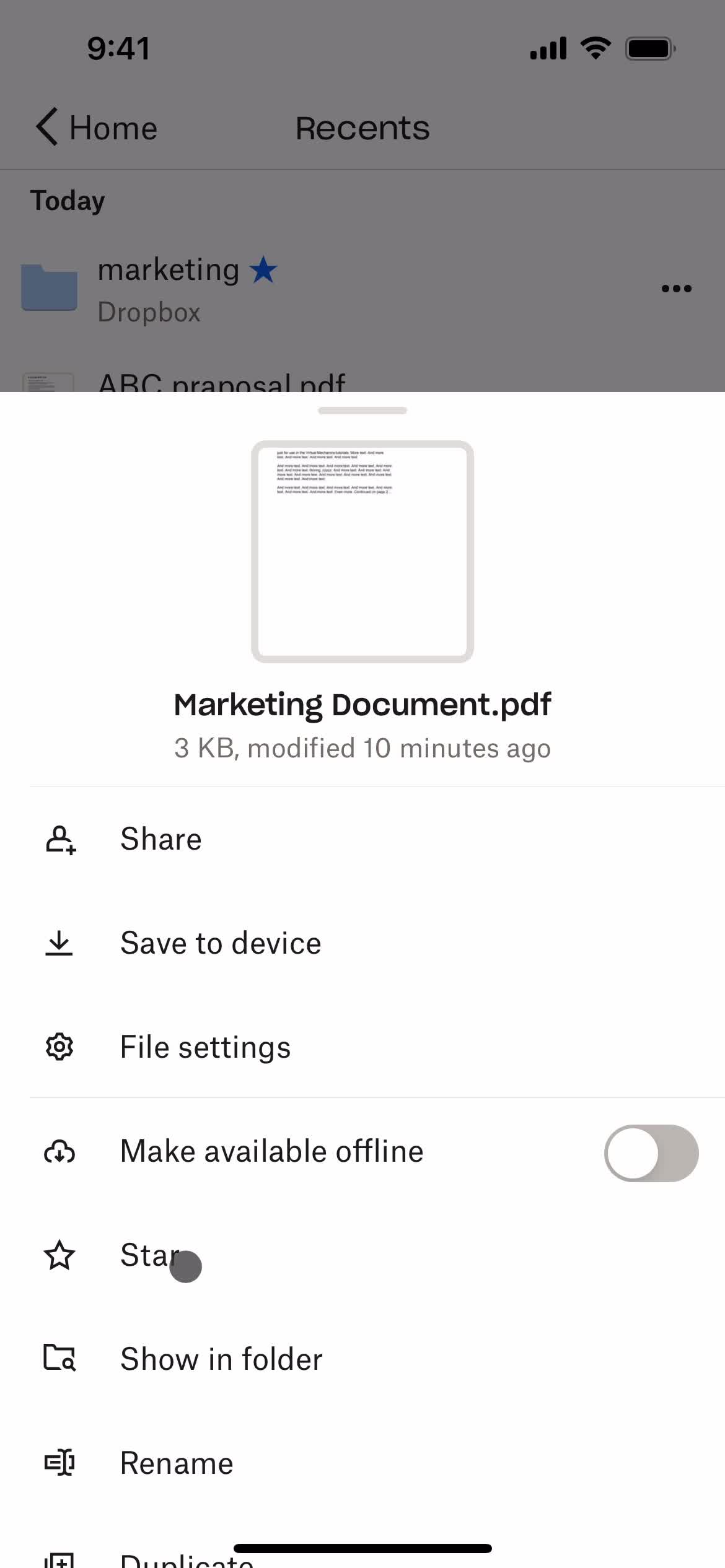
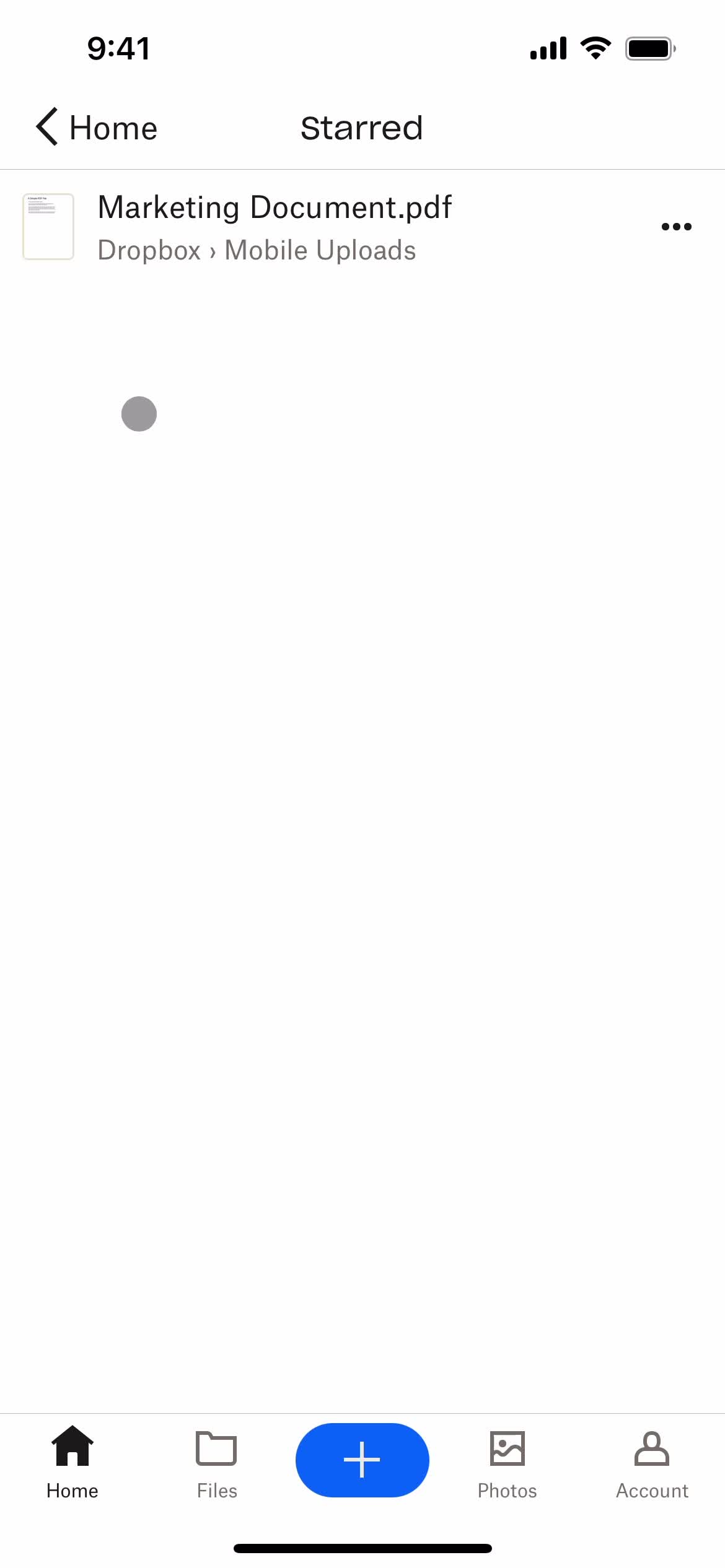
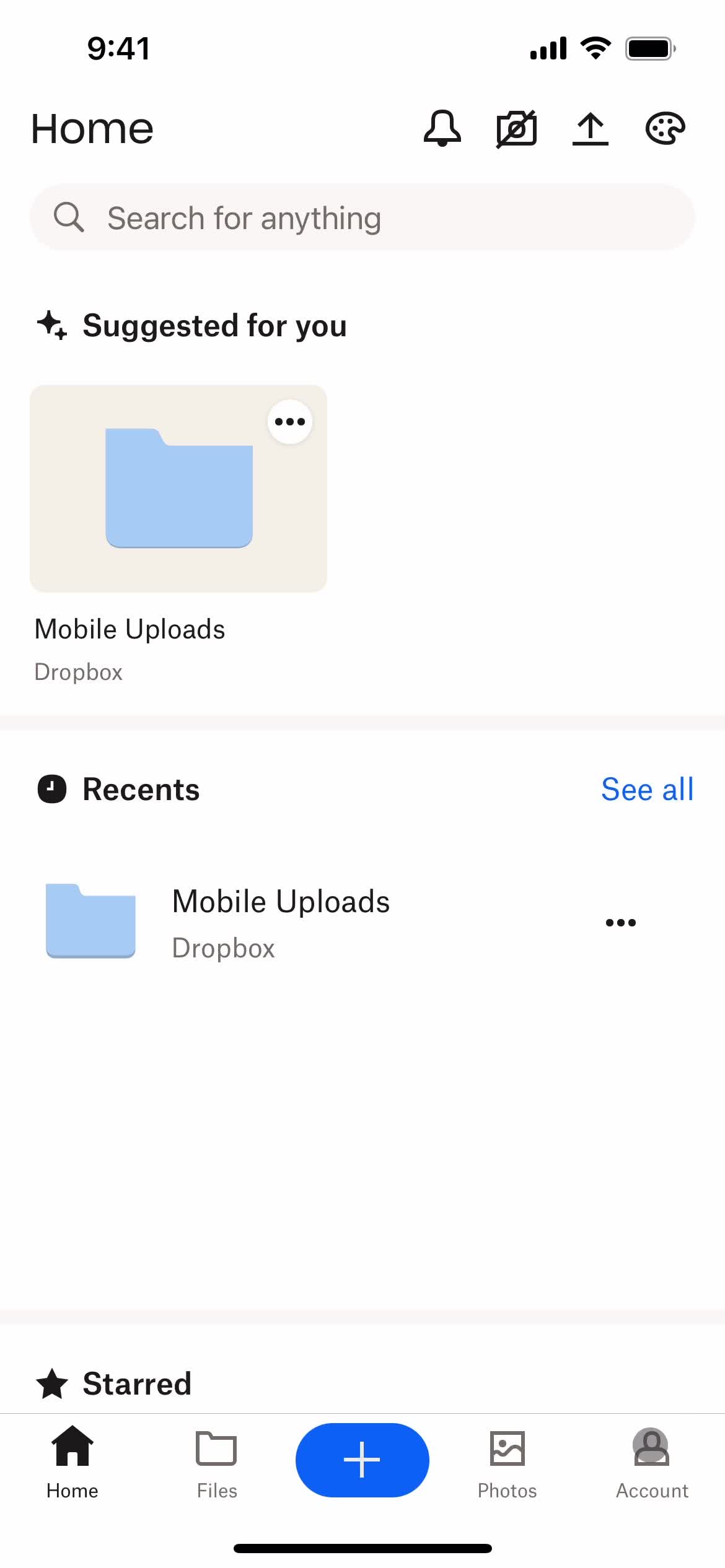
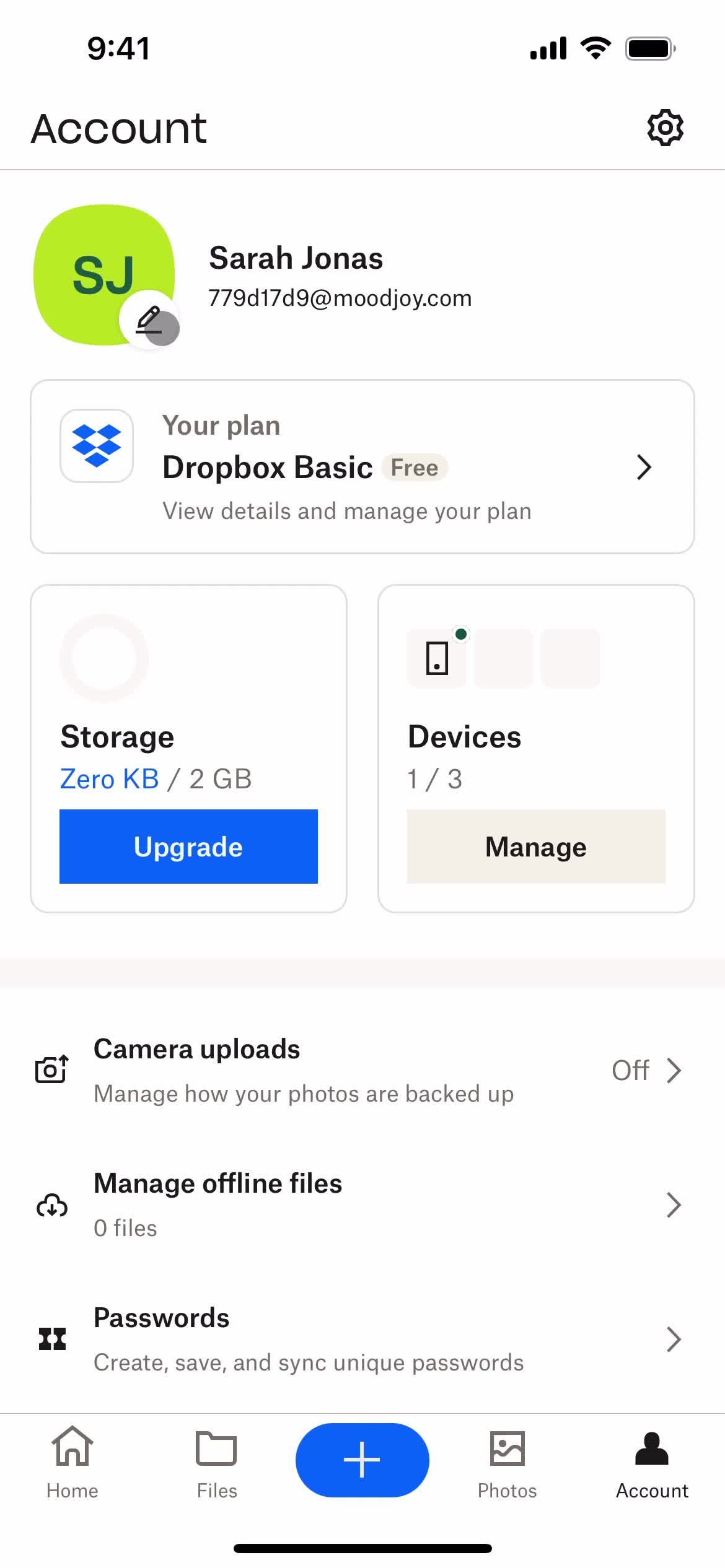
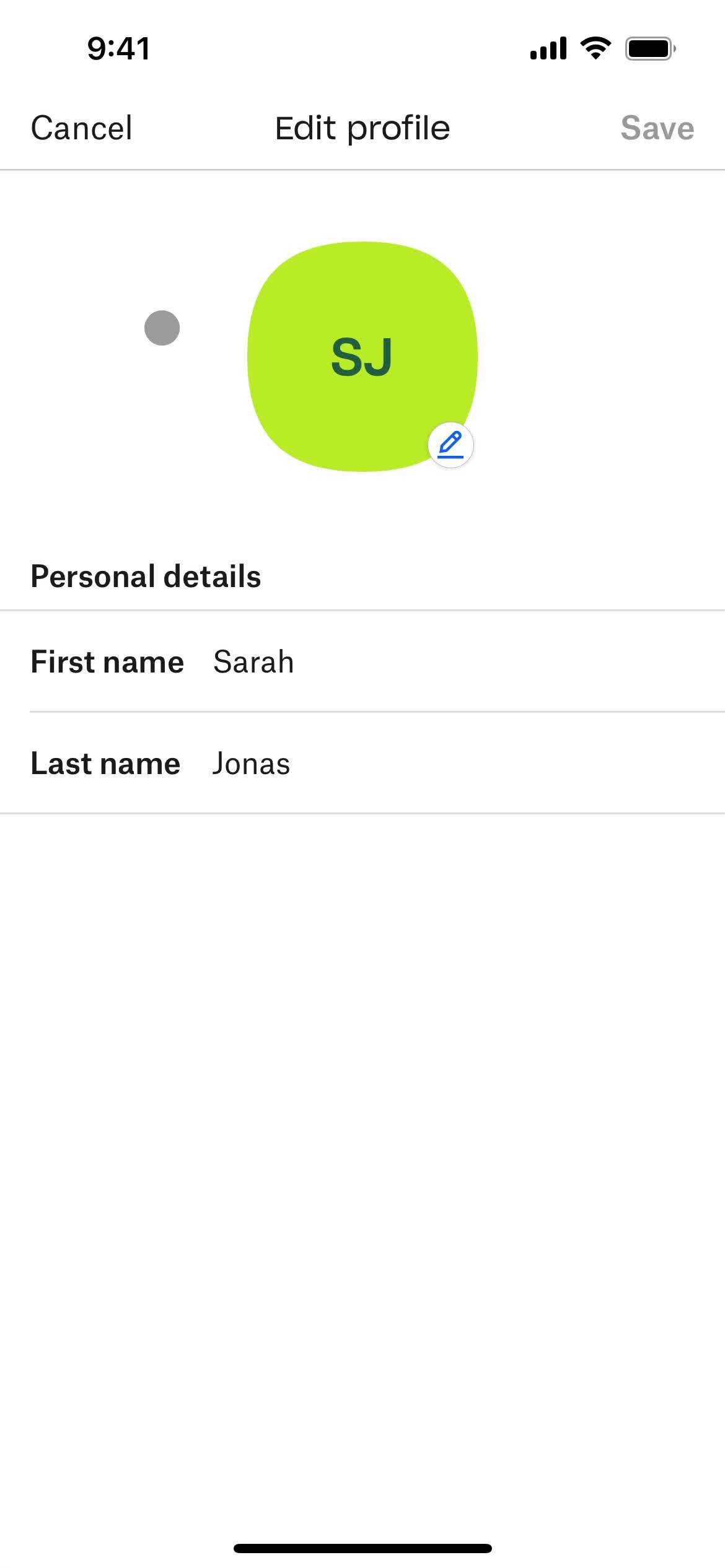
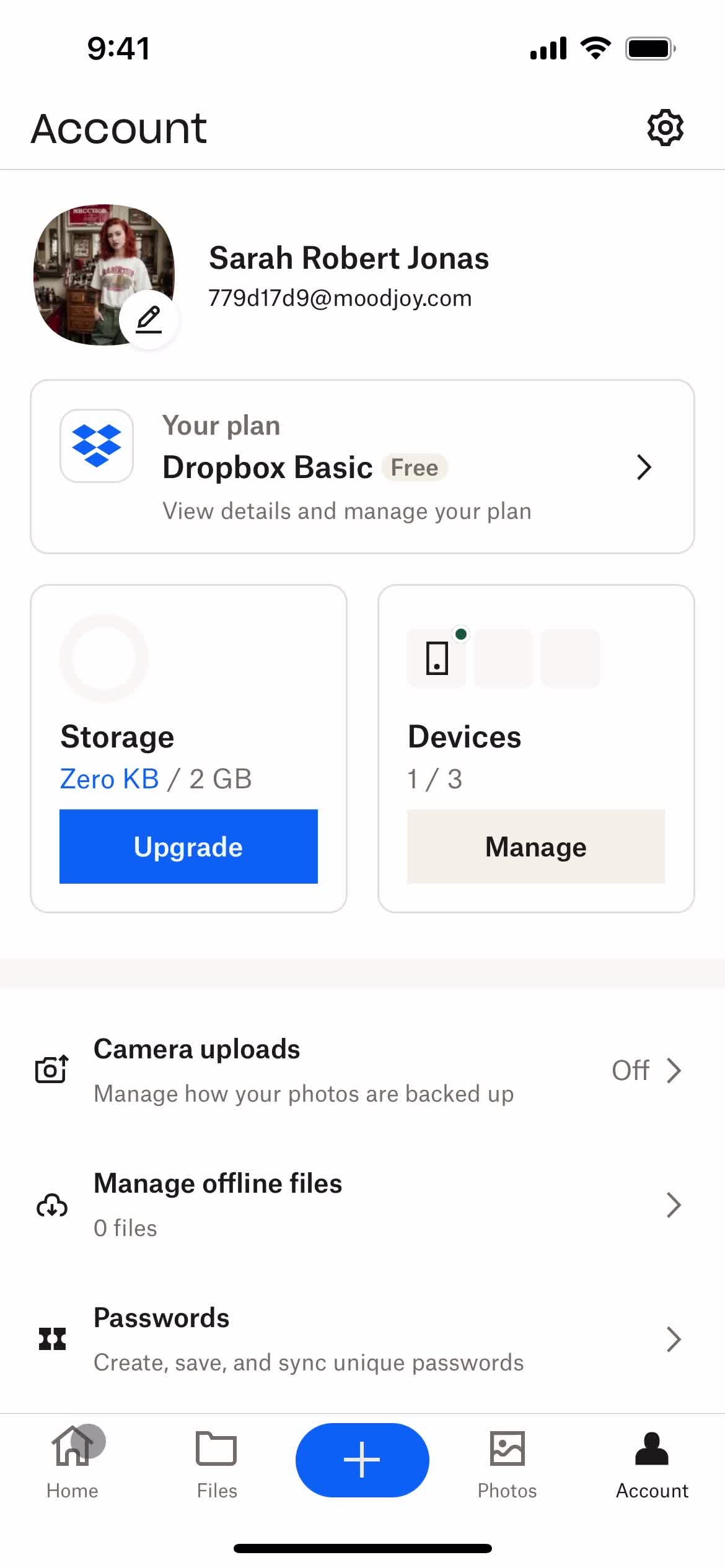
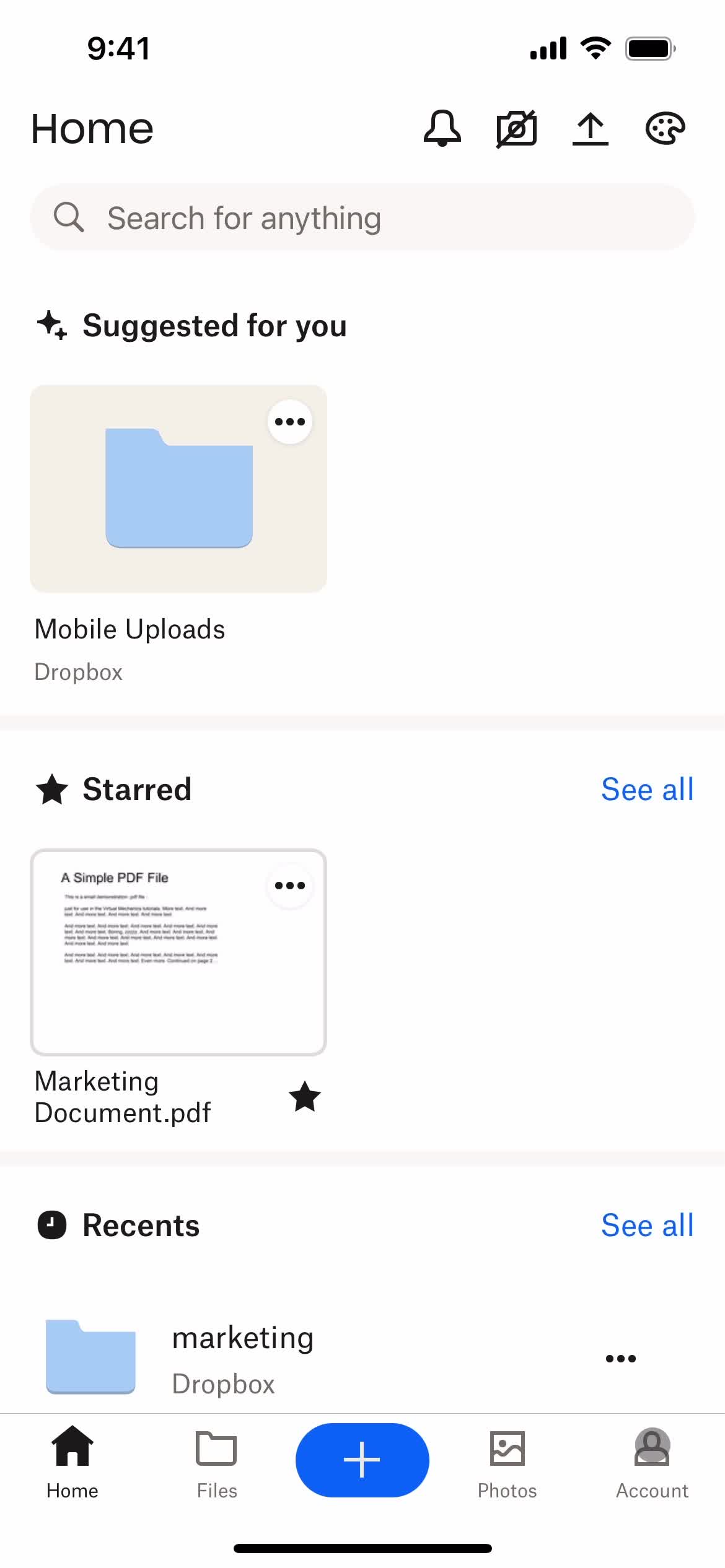
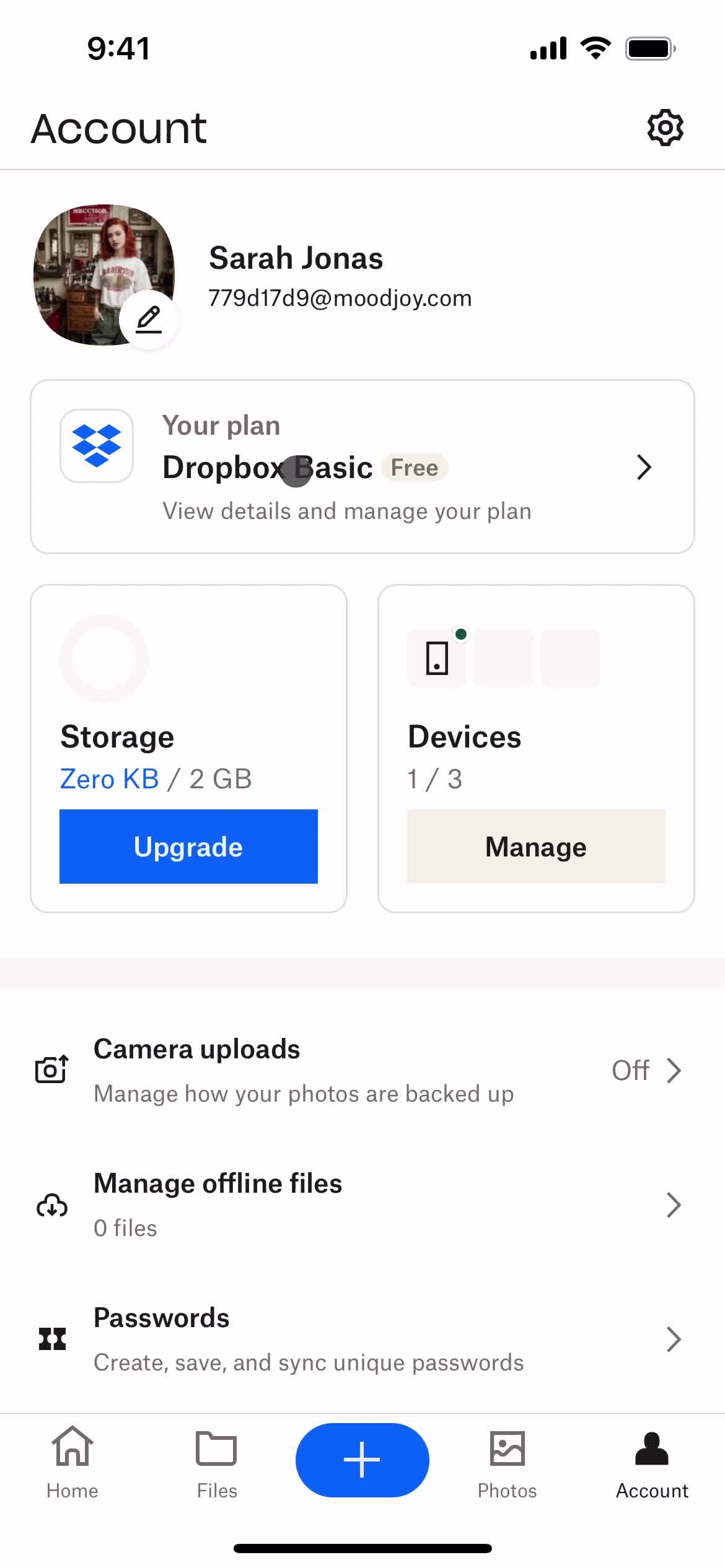
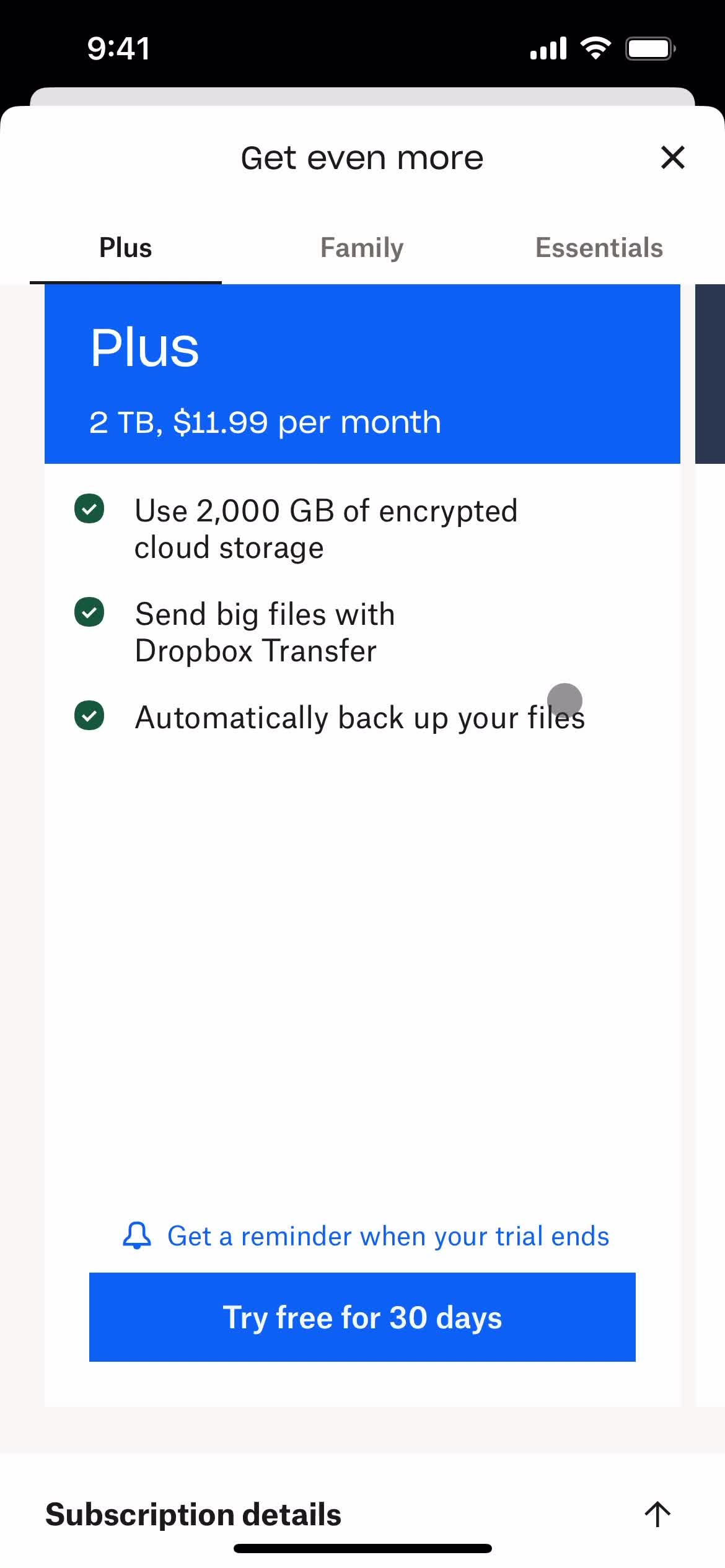
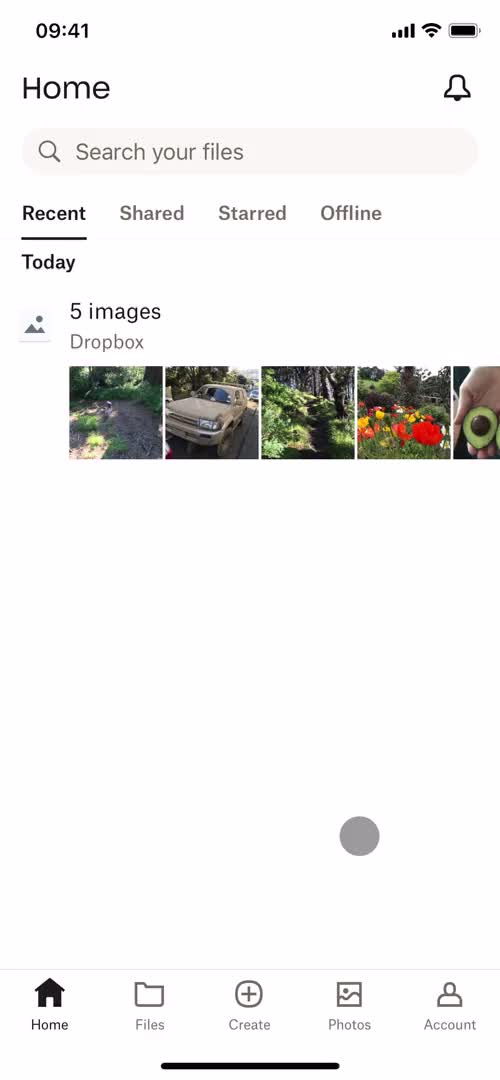
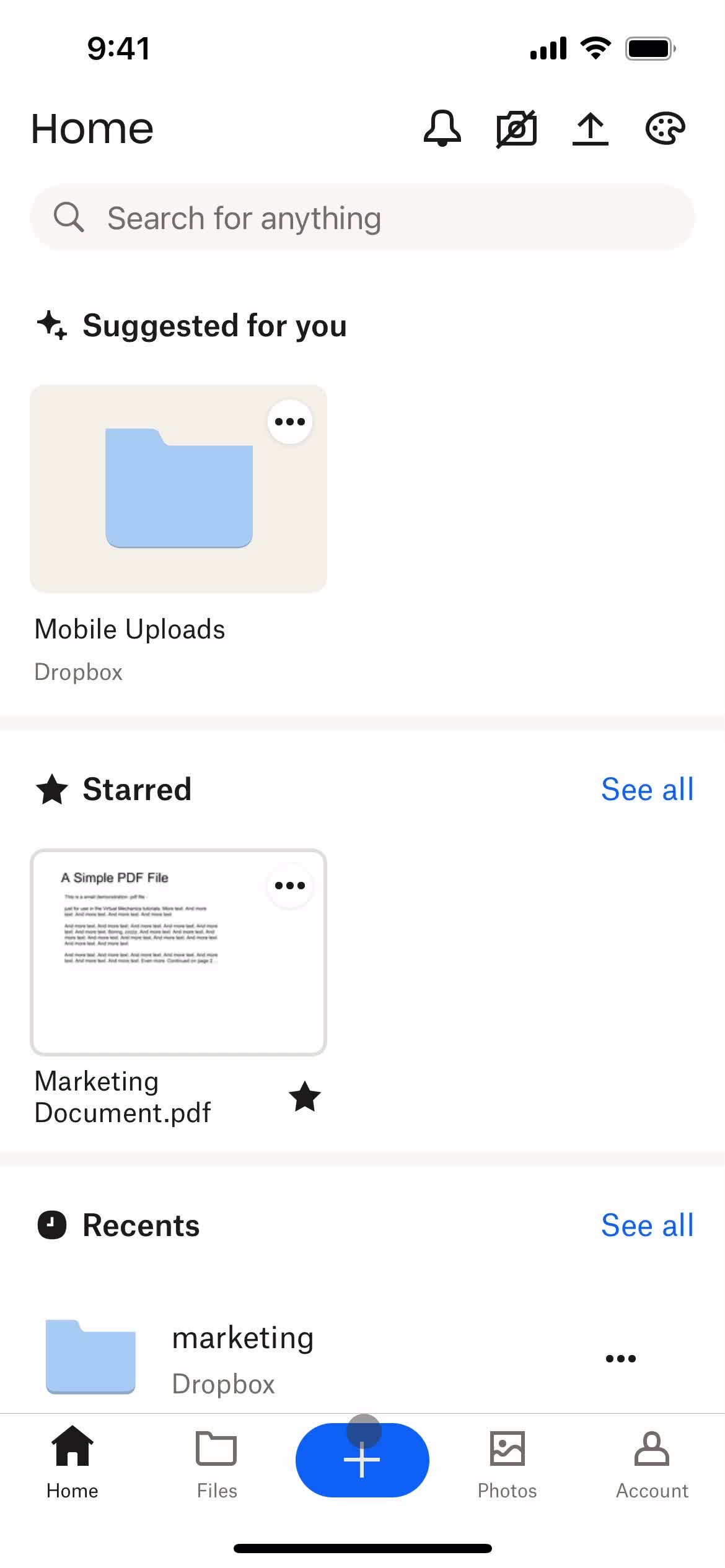
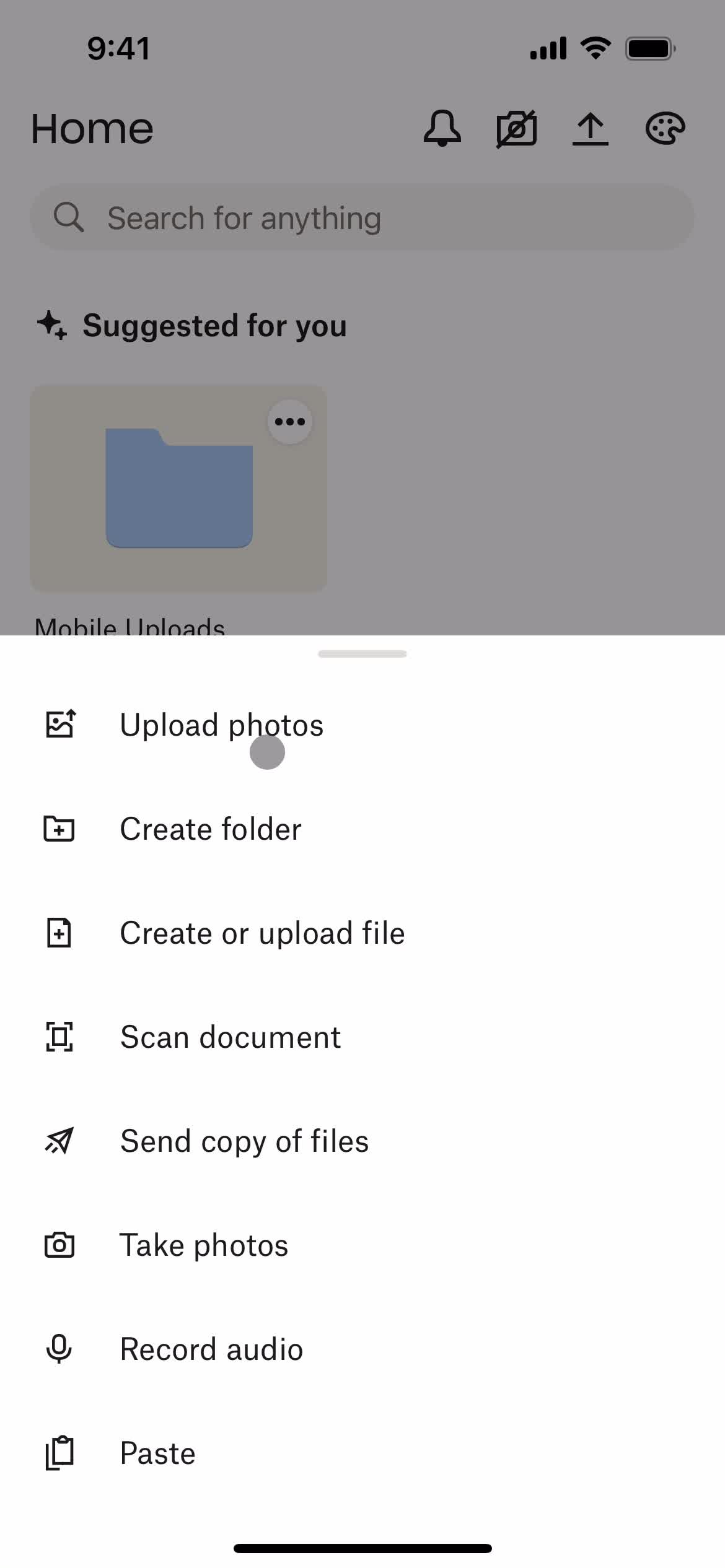
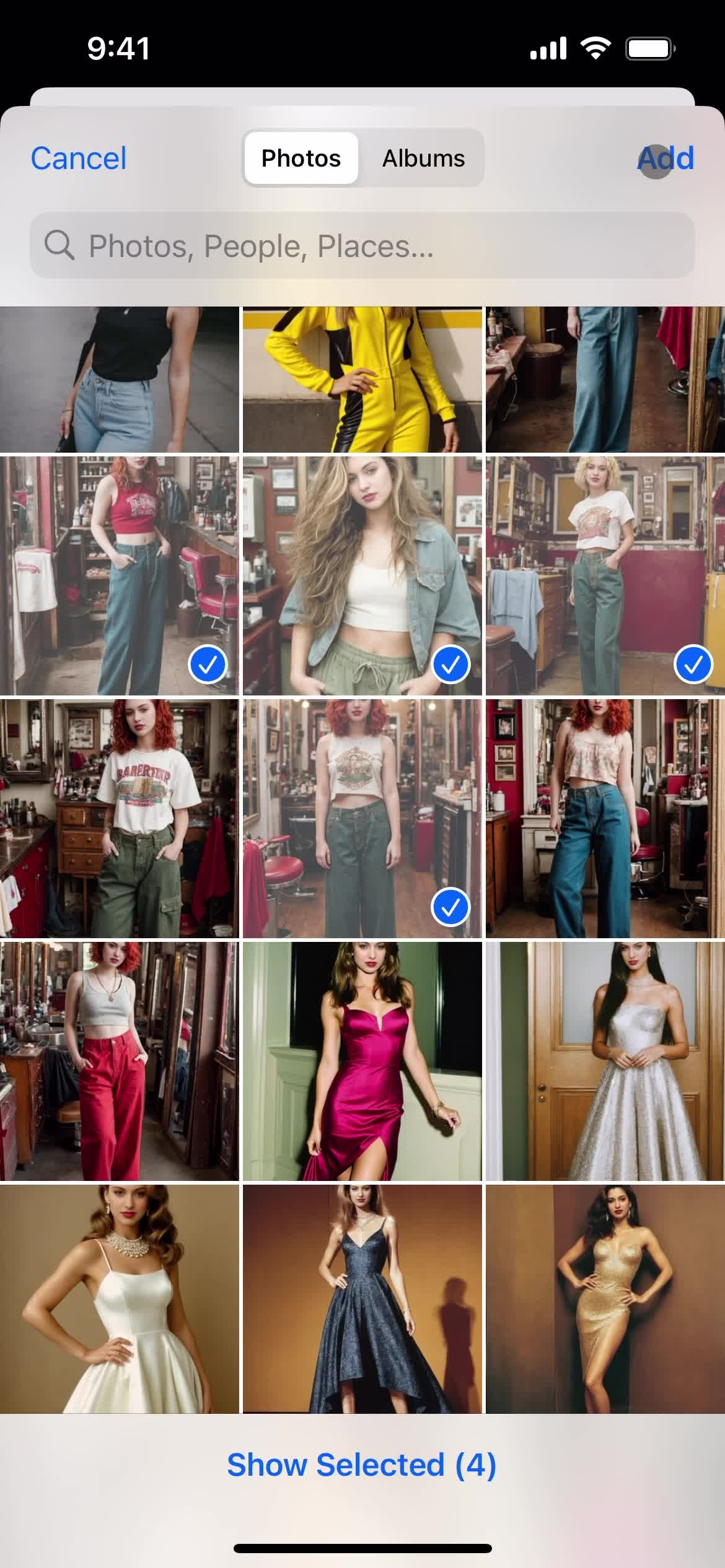
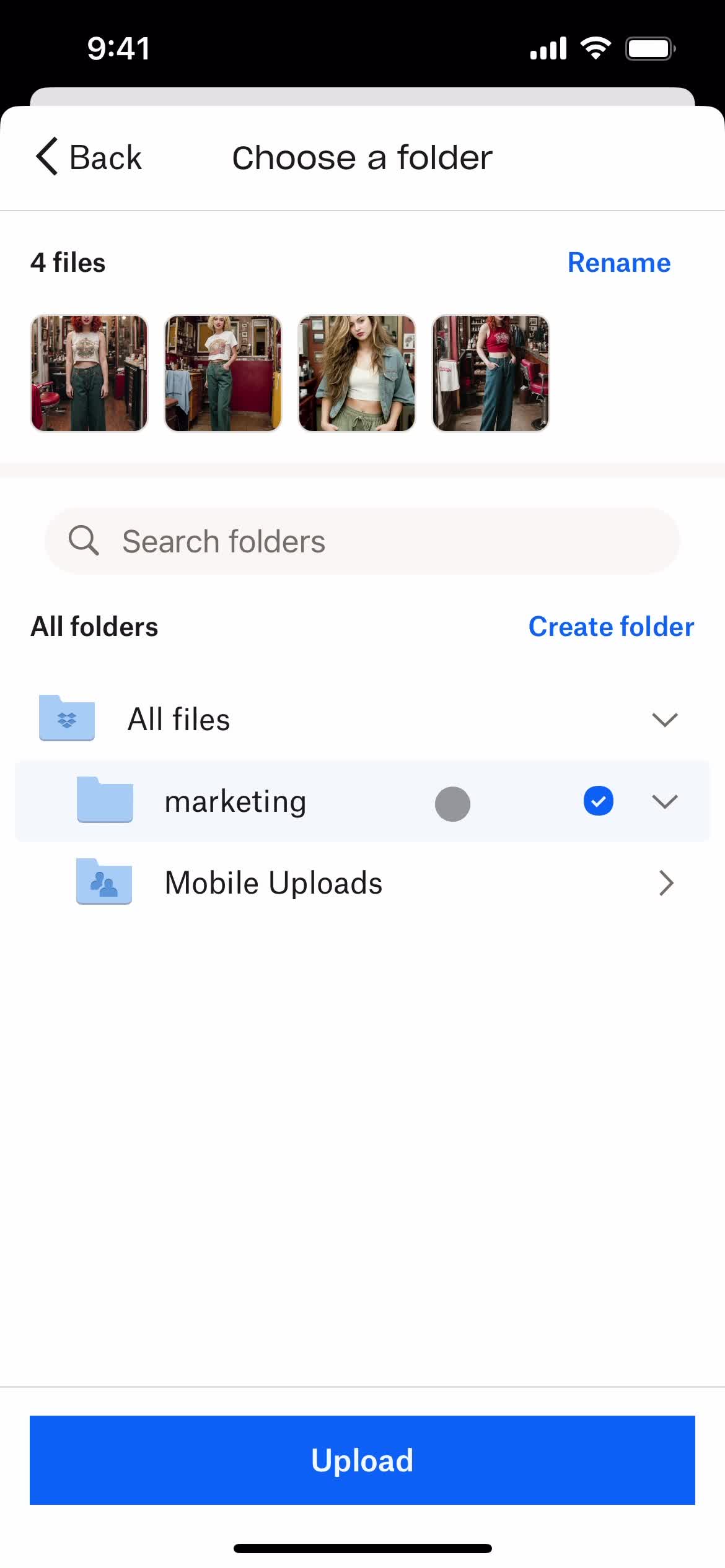
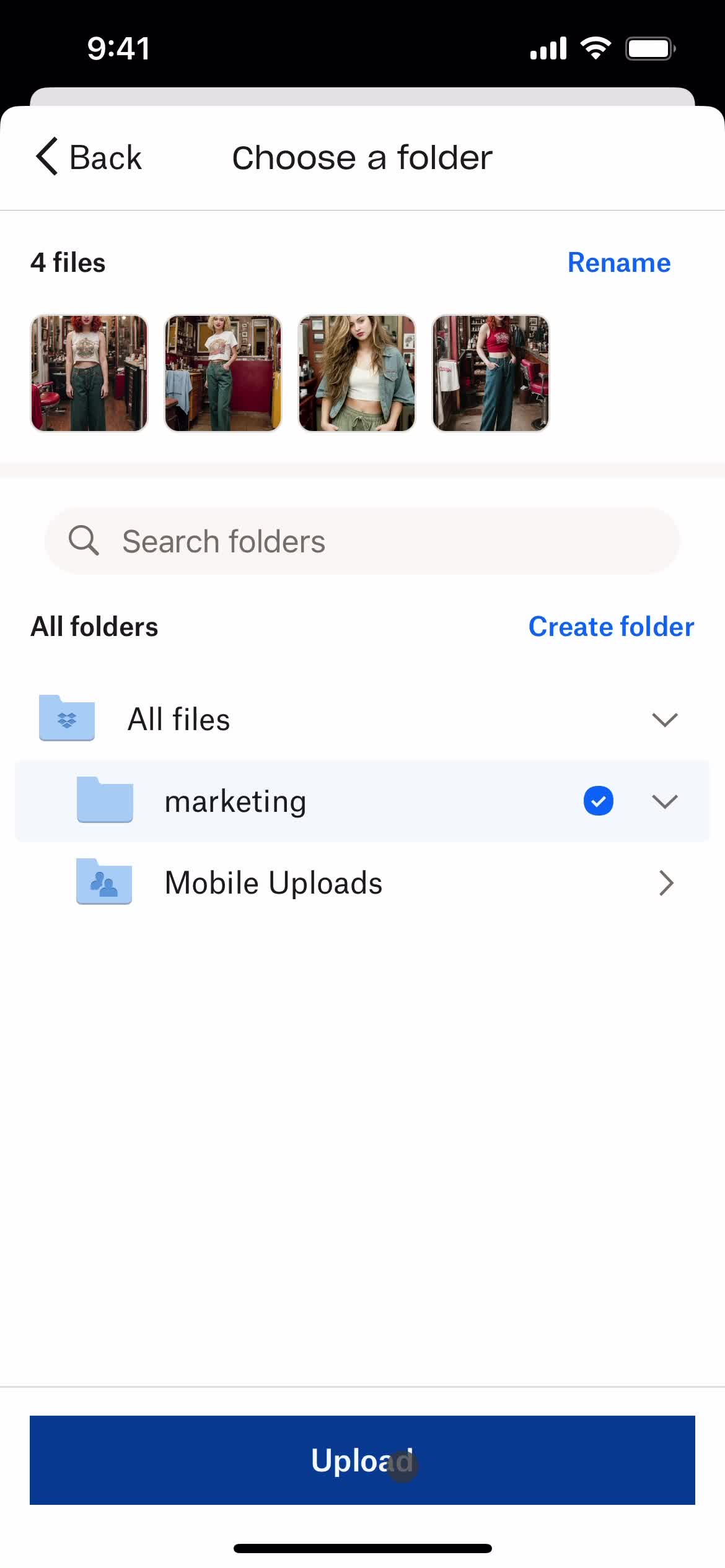
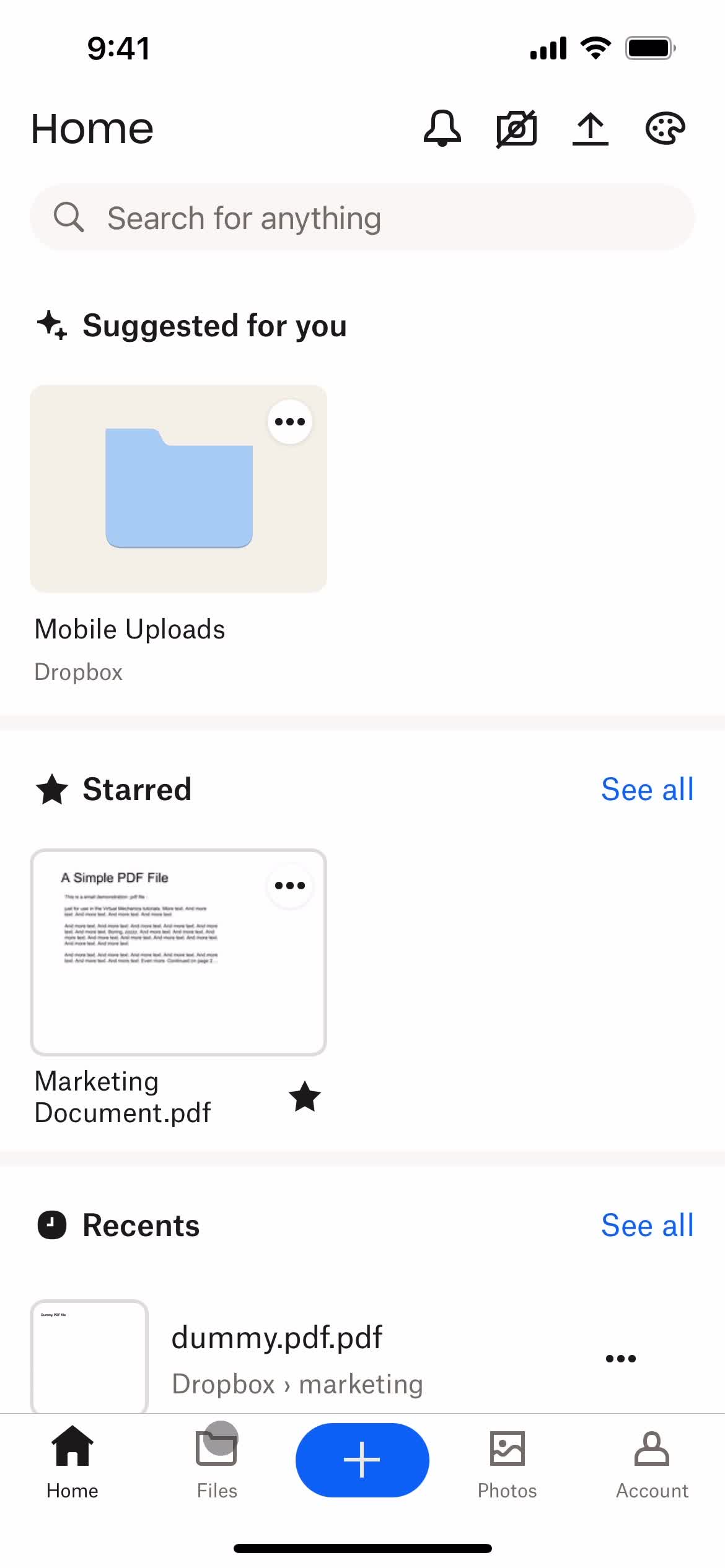
Home
this is title
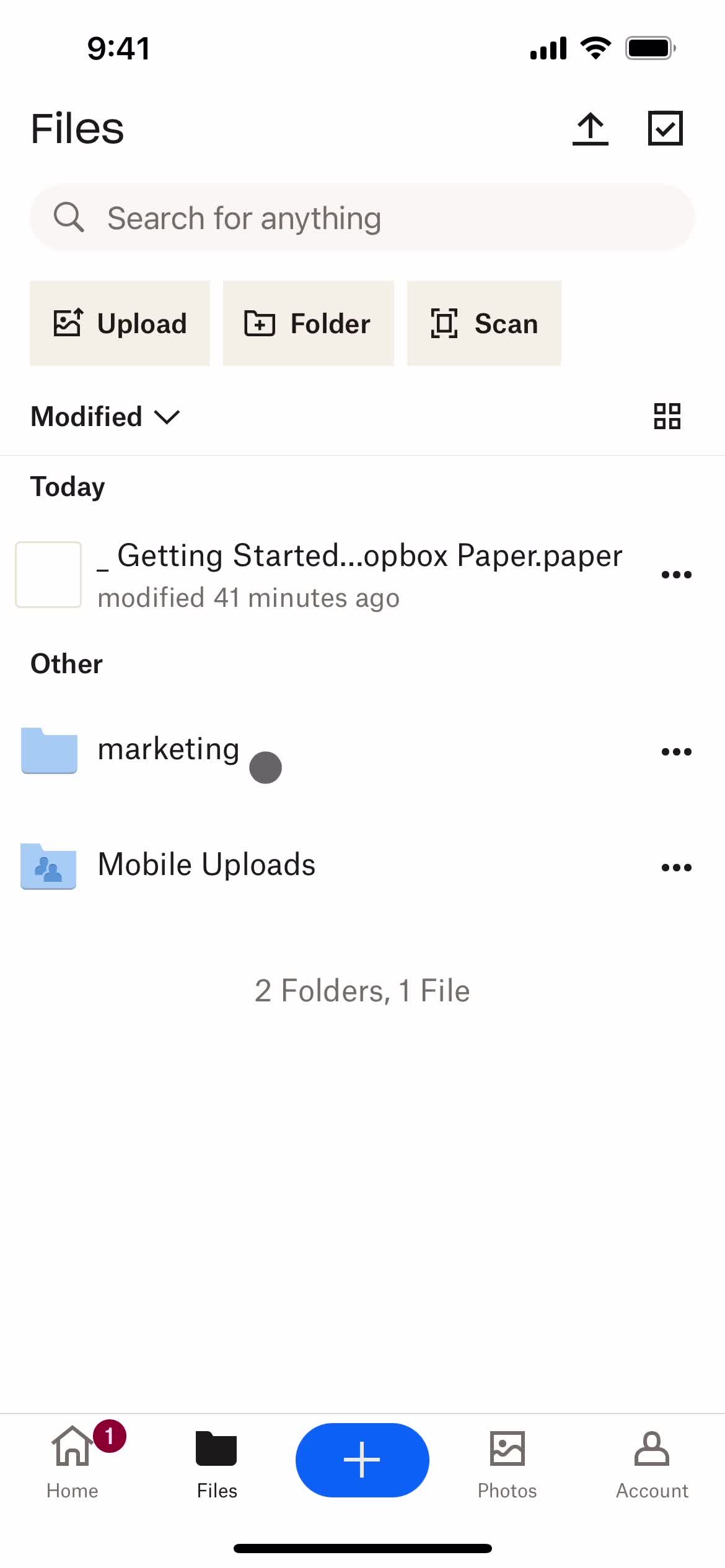
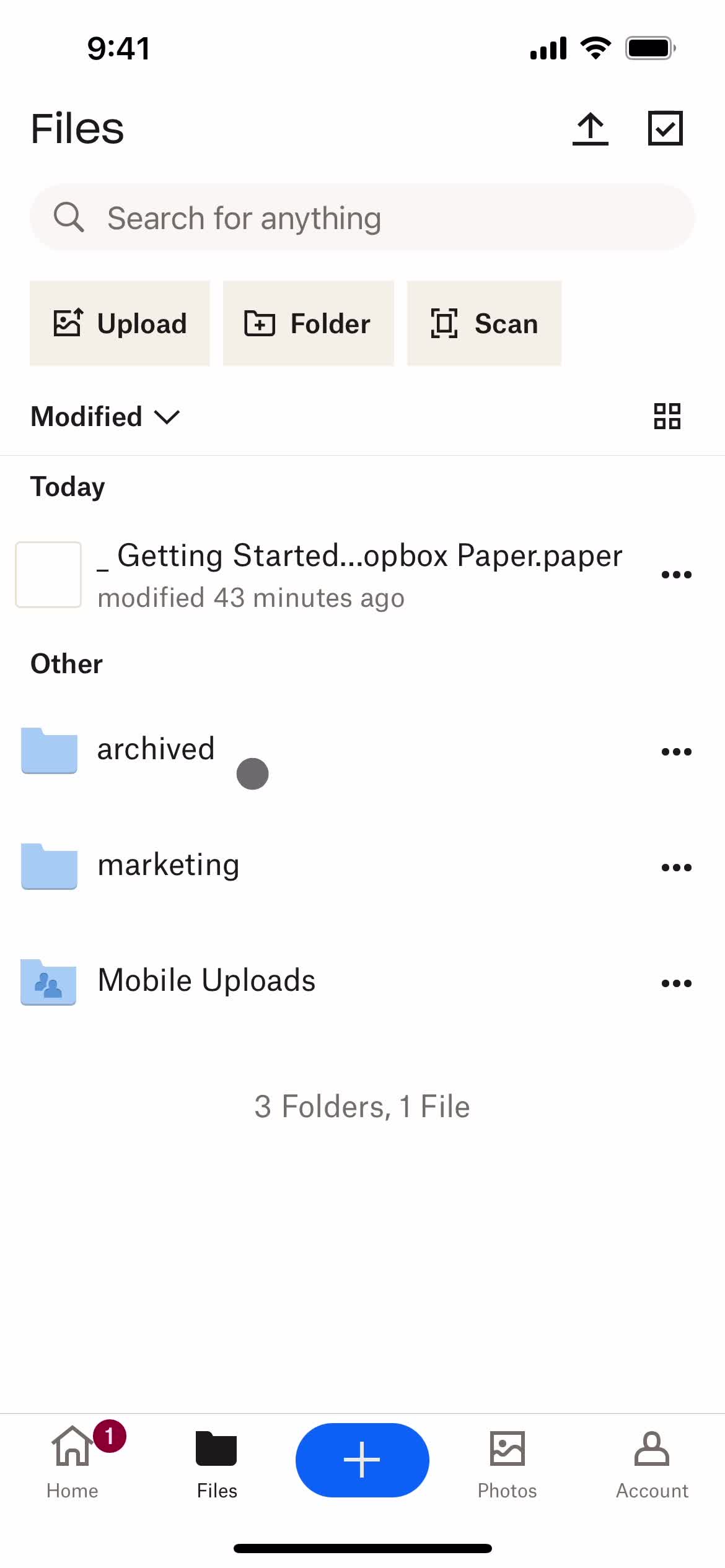
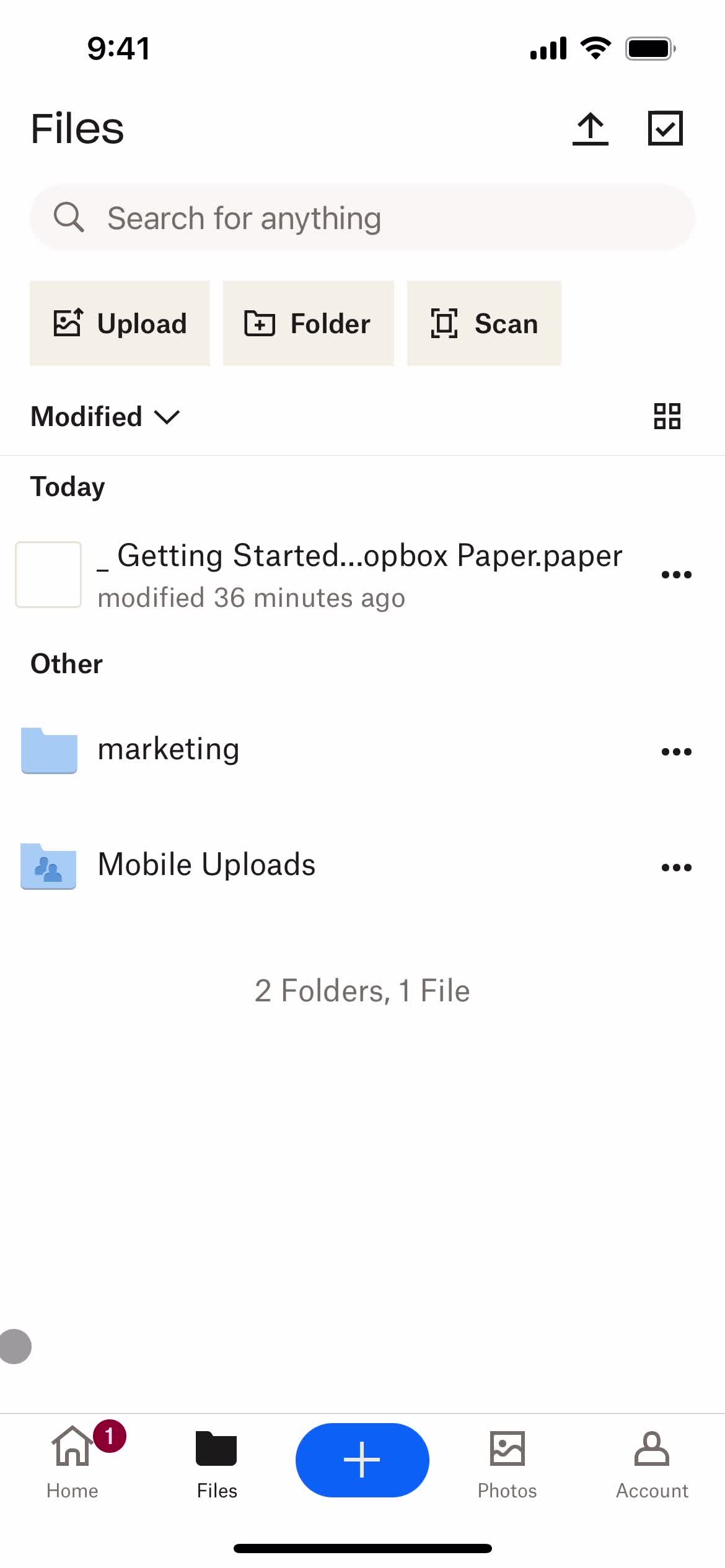
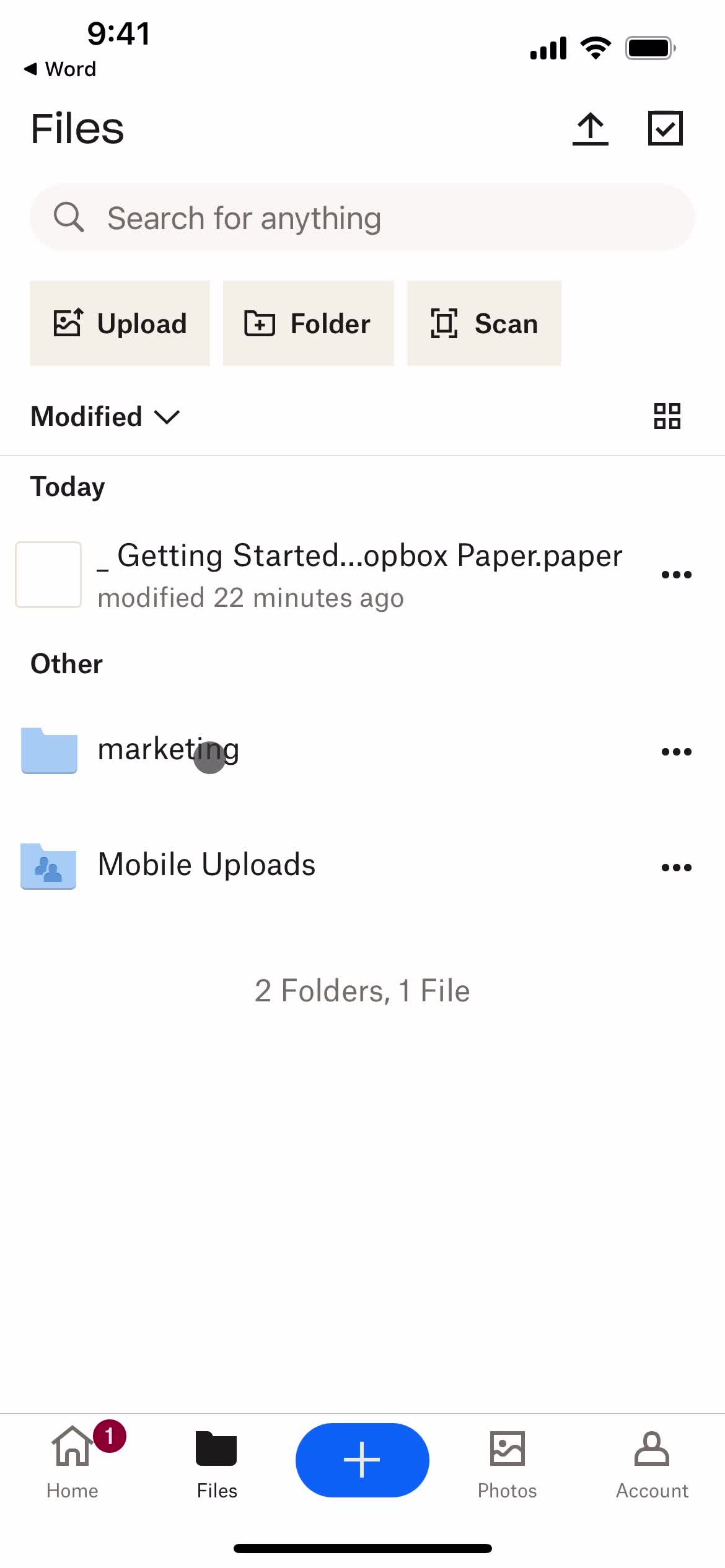
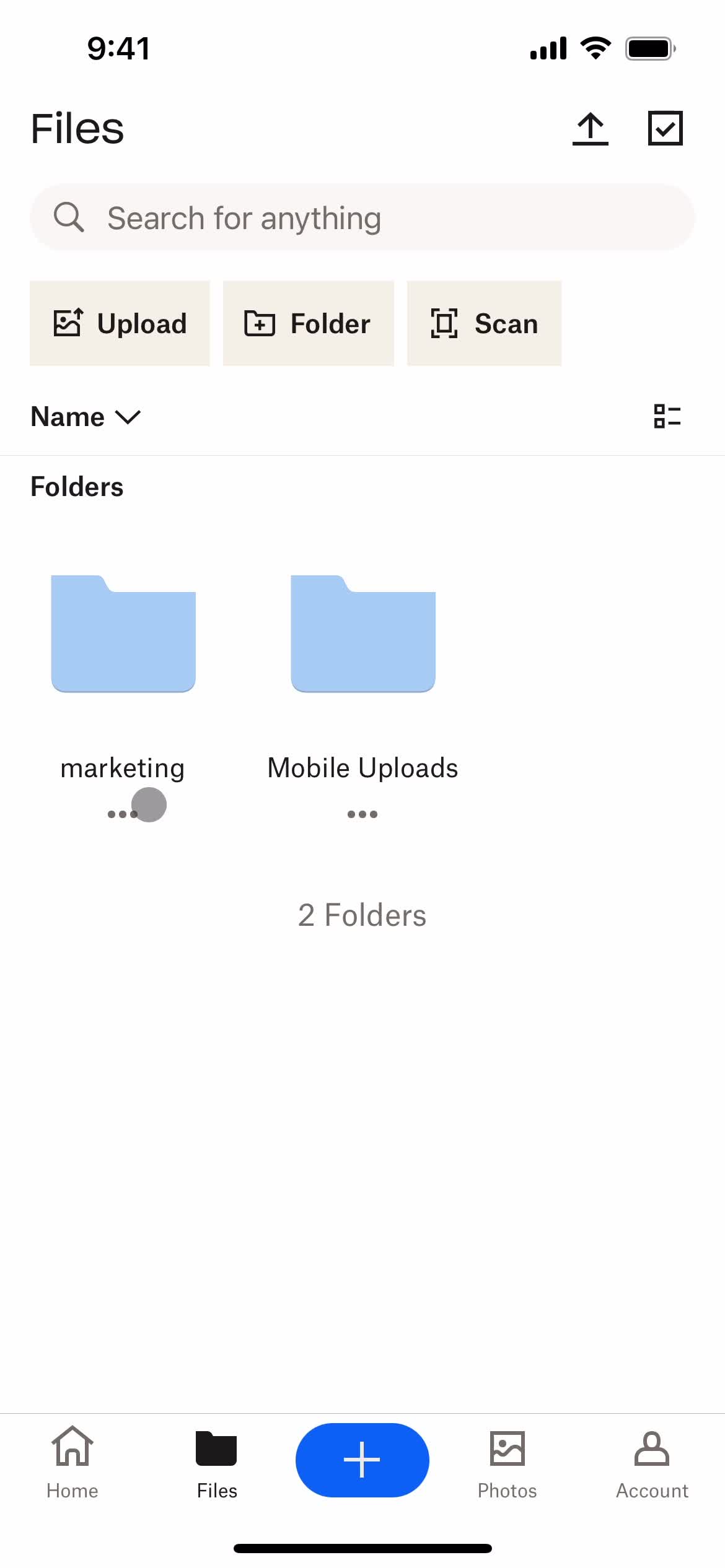
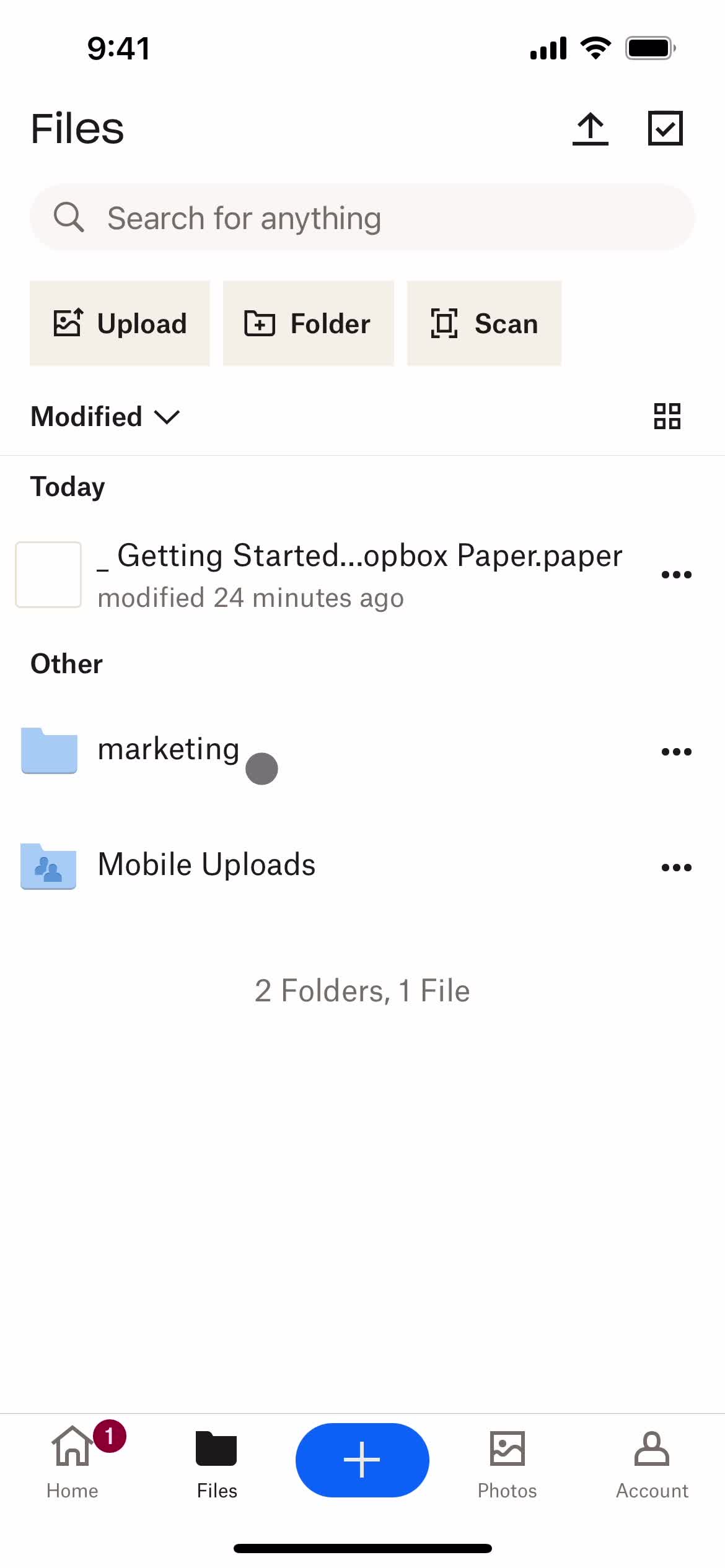
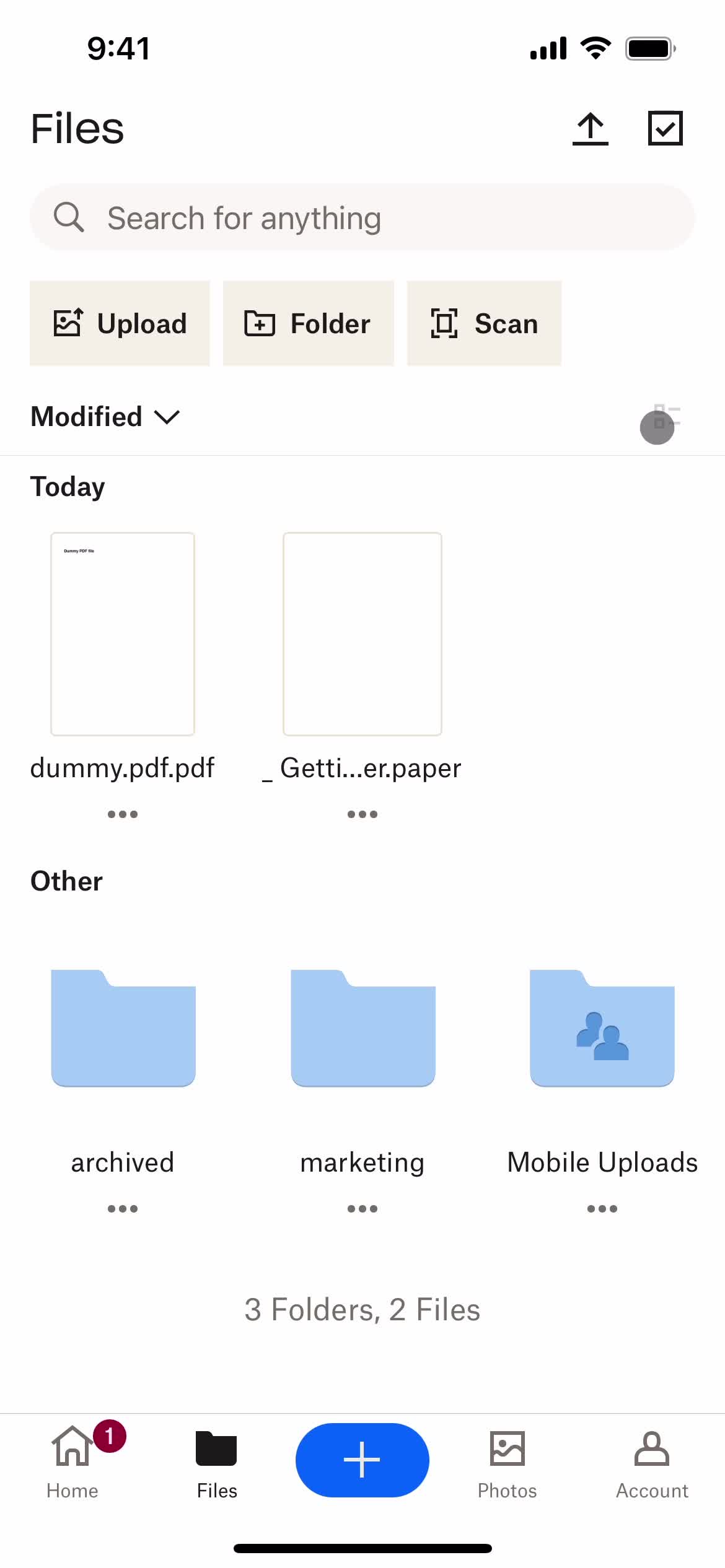
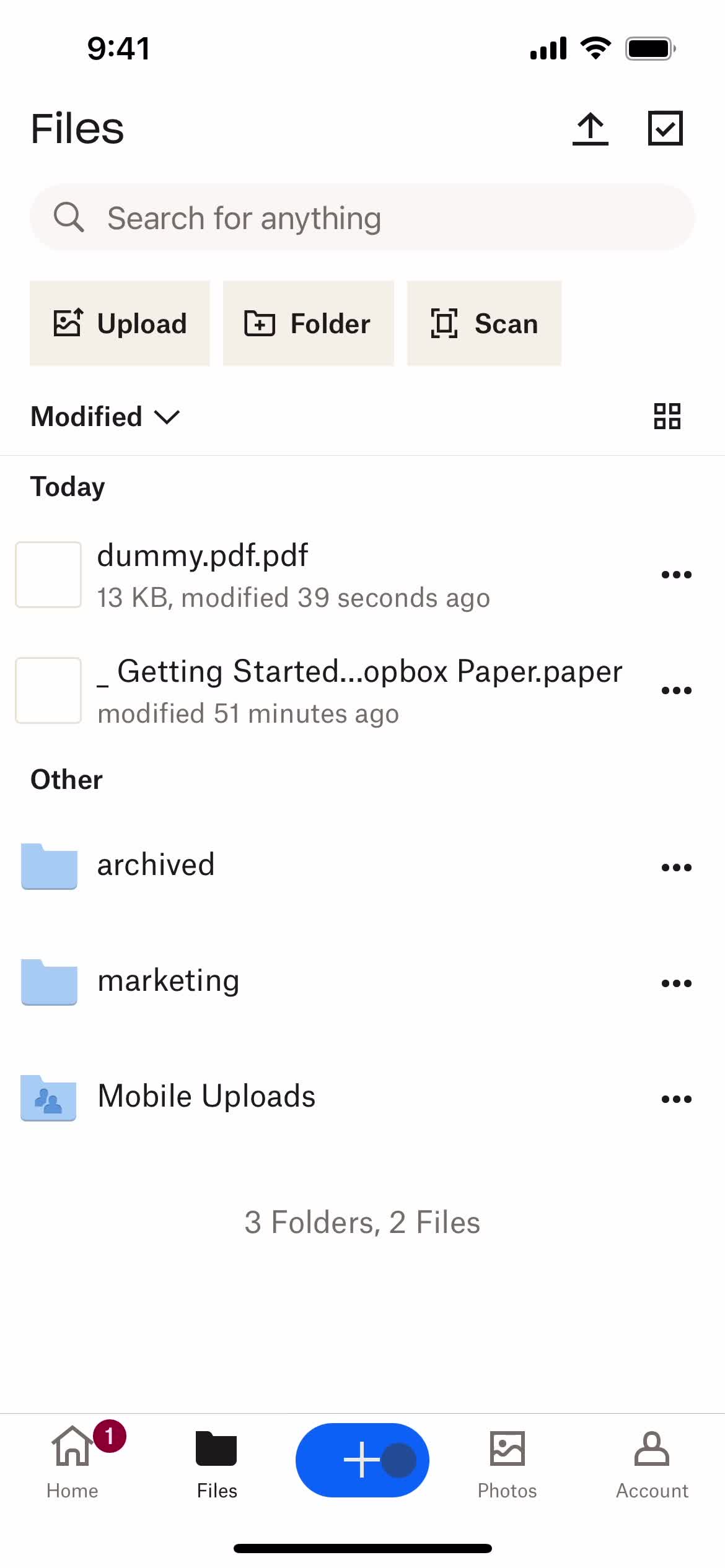
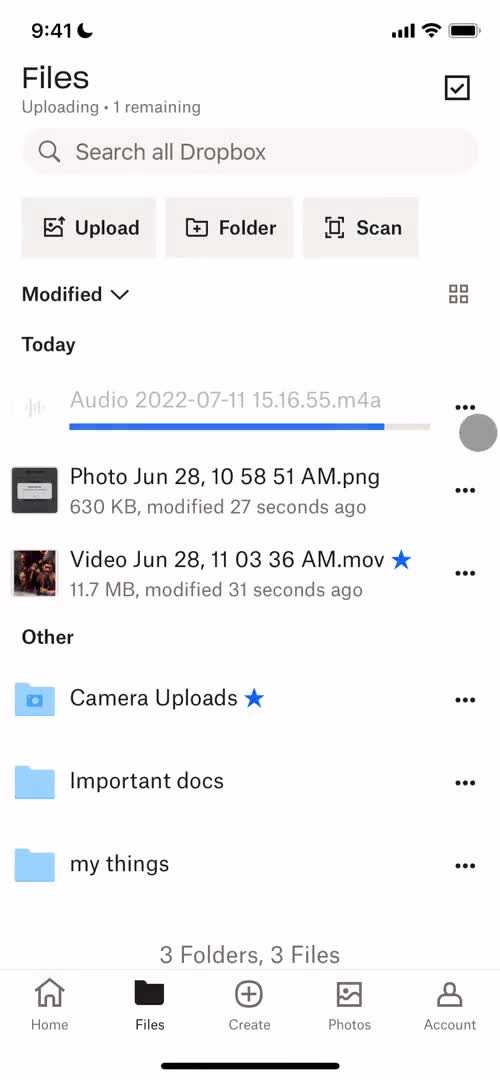
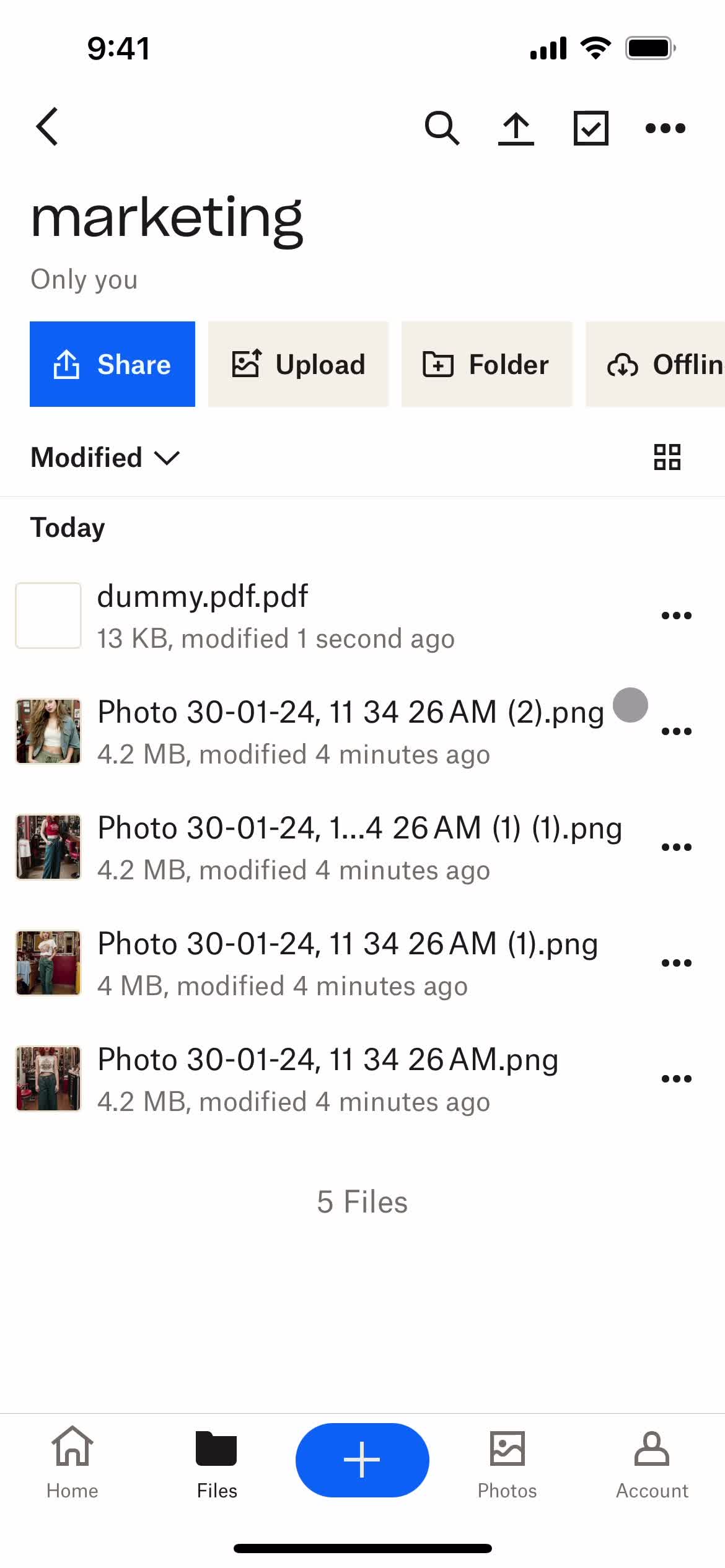
Files
this is title
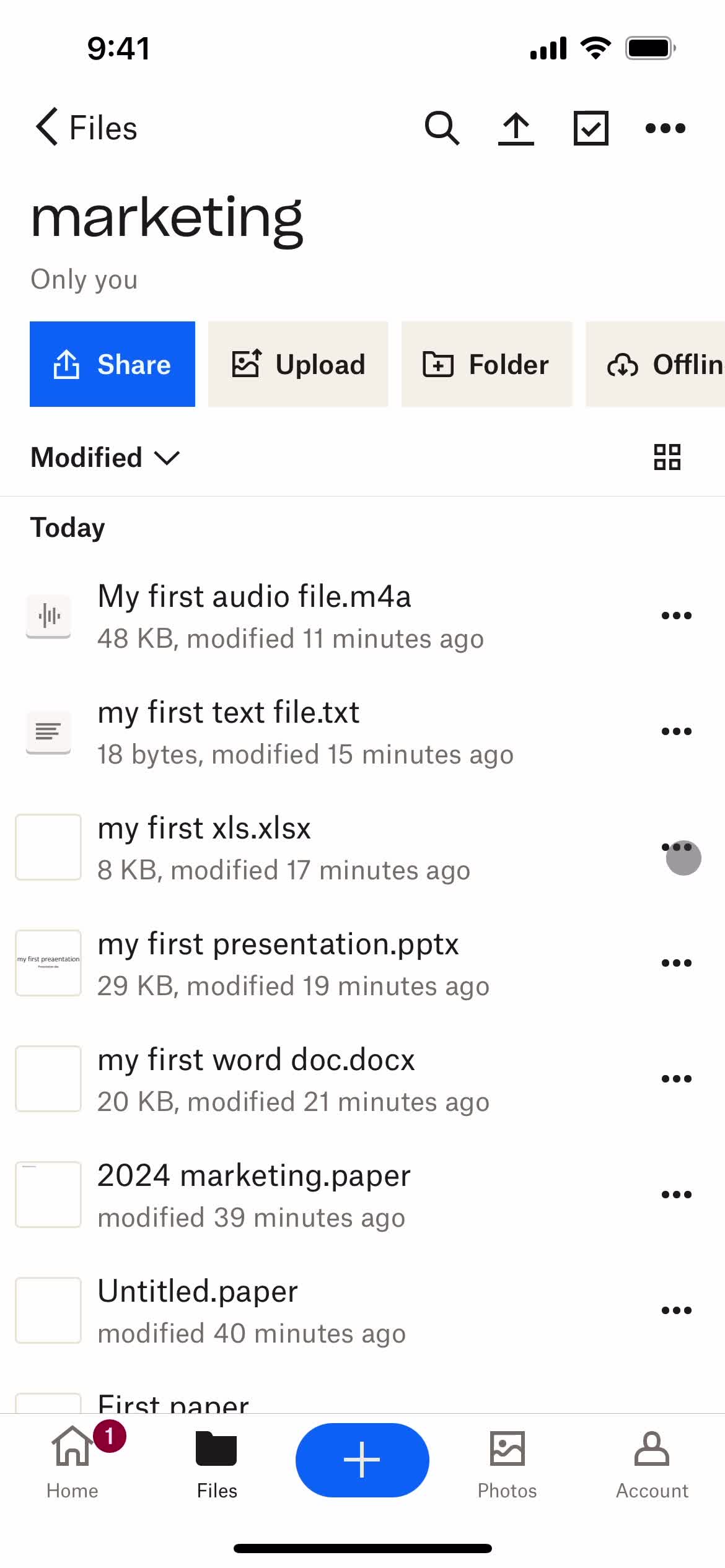
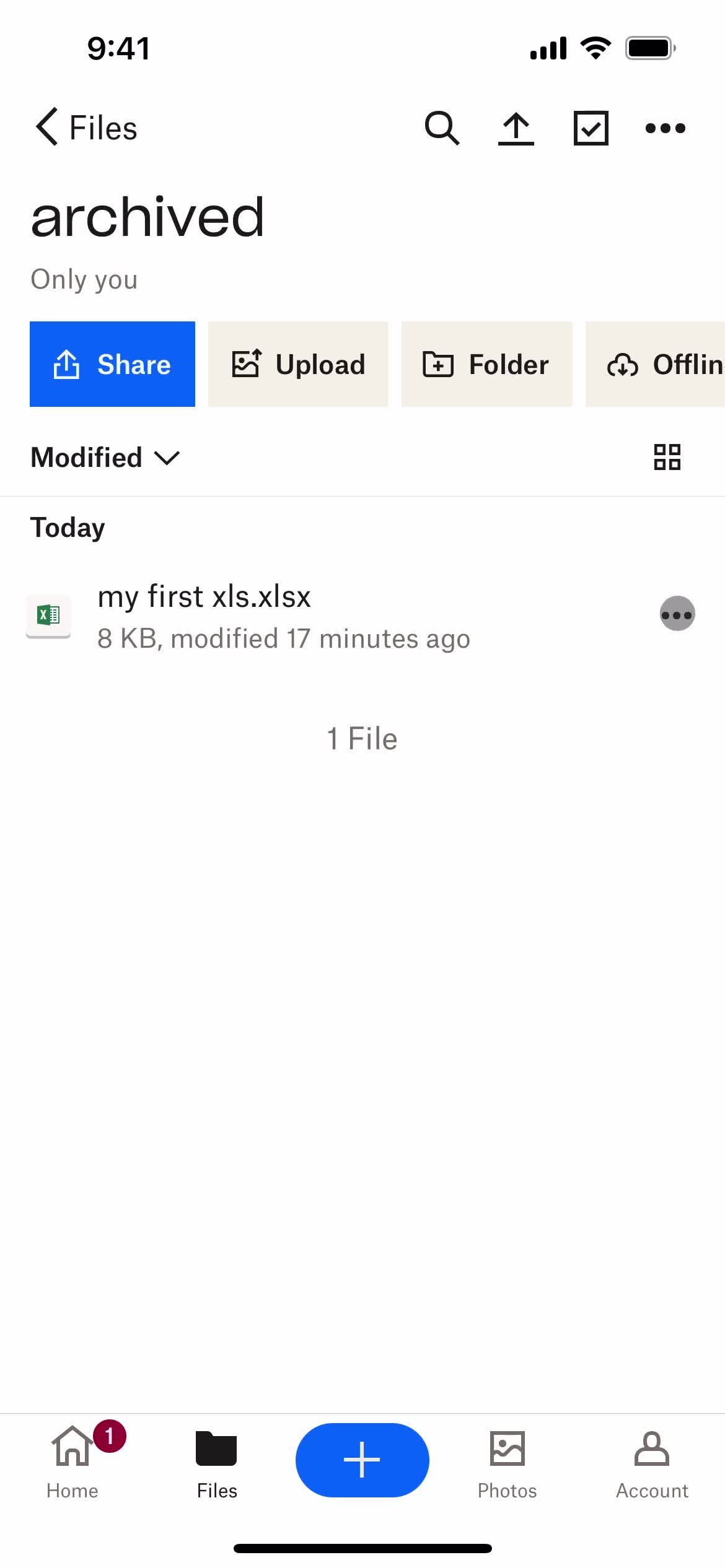
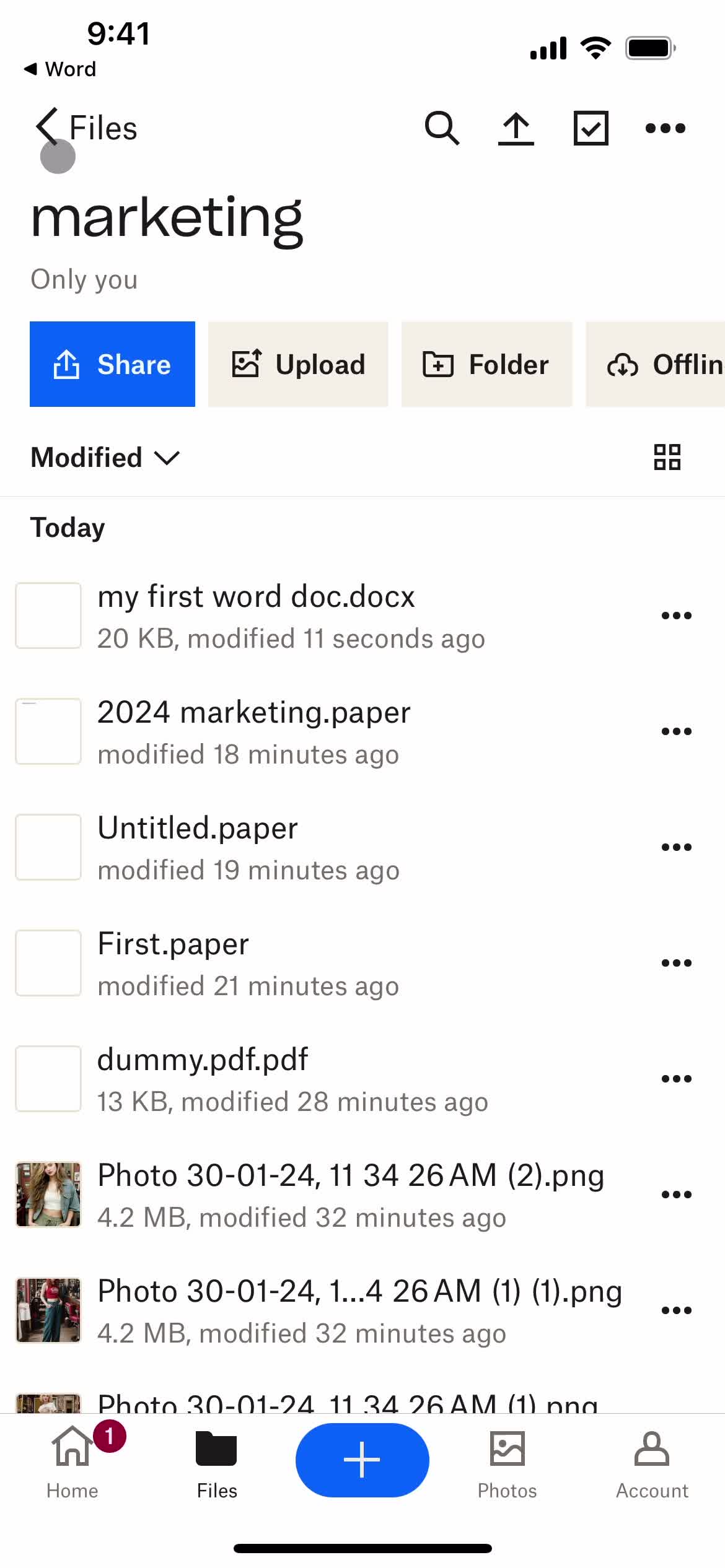
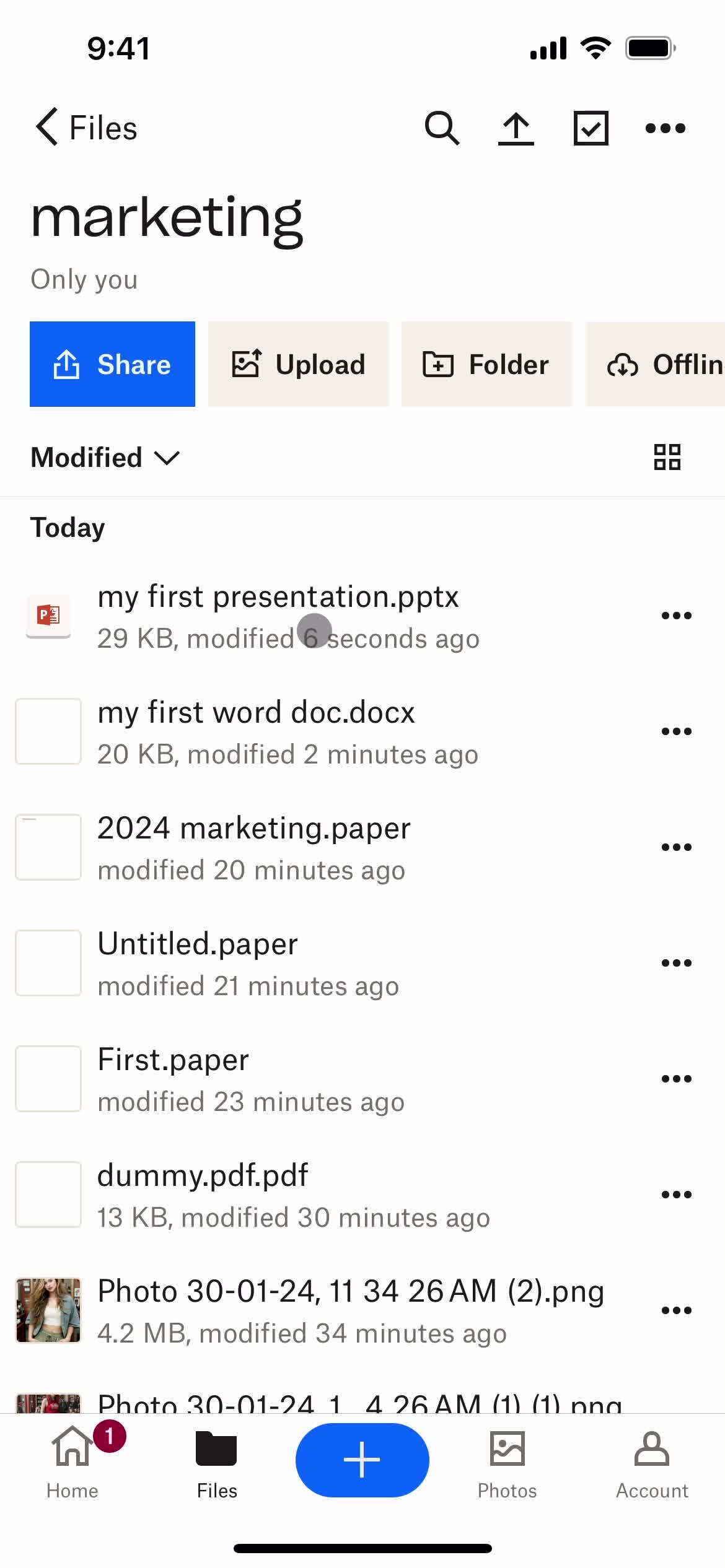
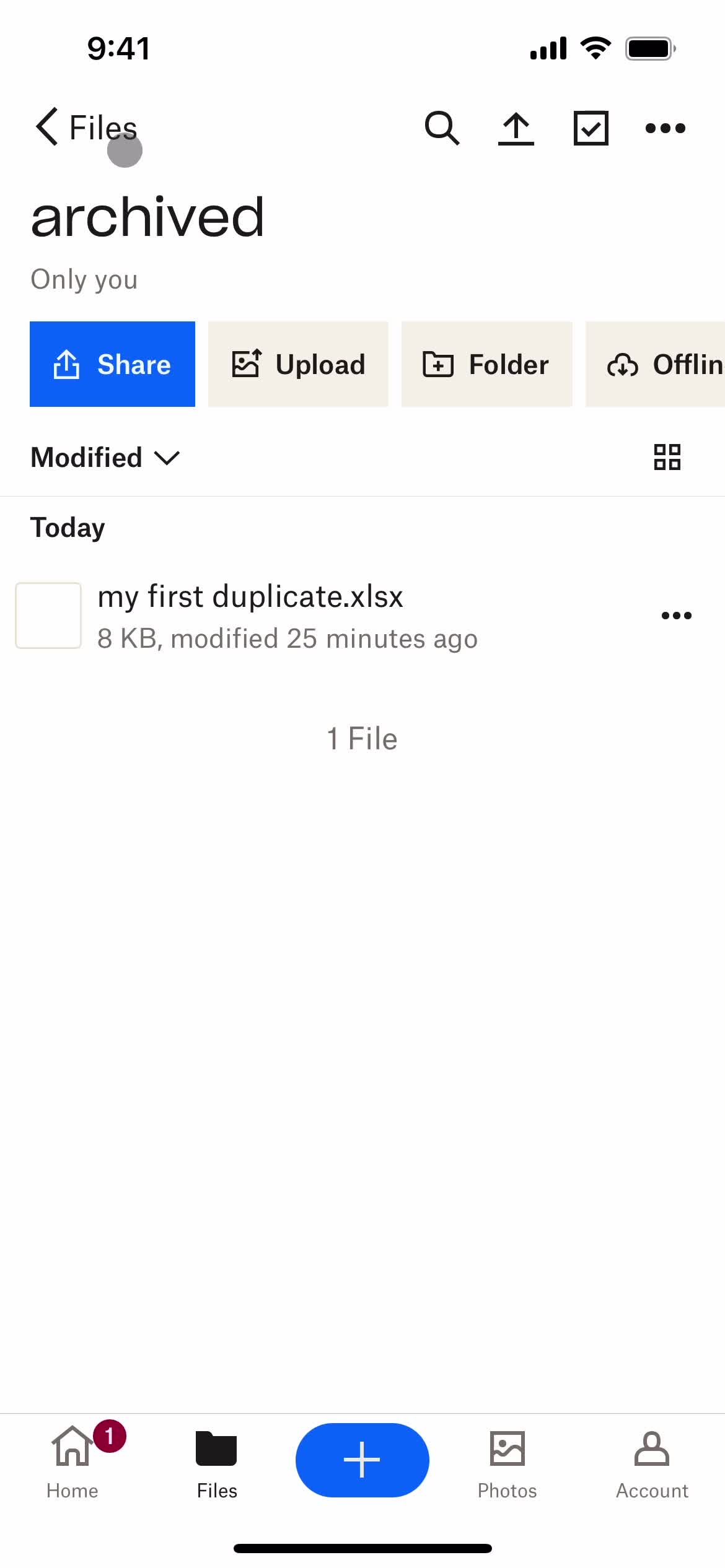
Folder
this is title
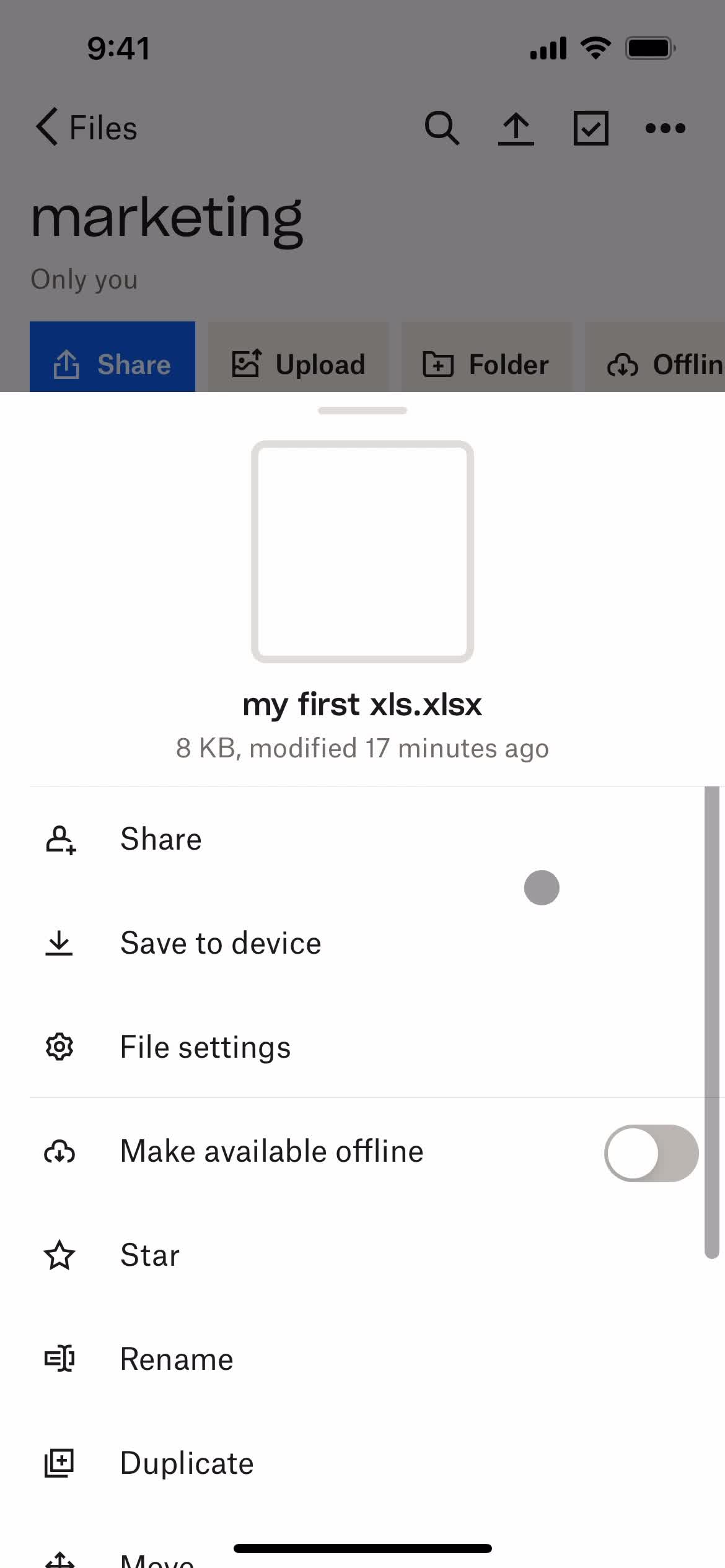
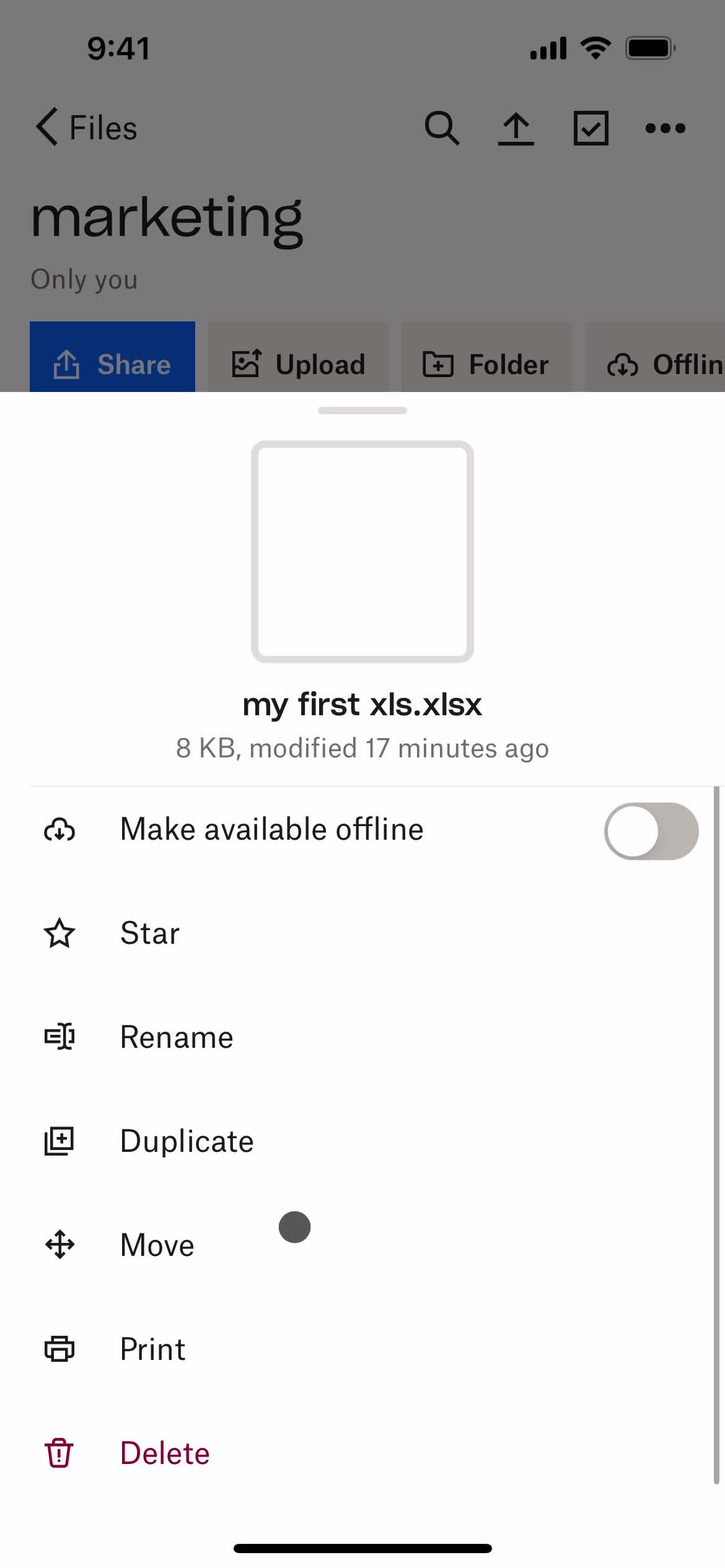
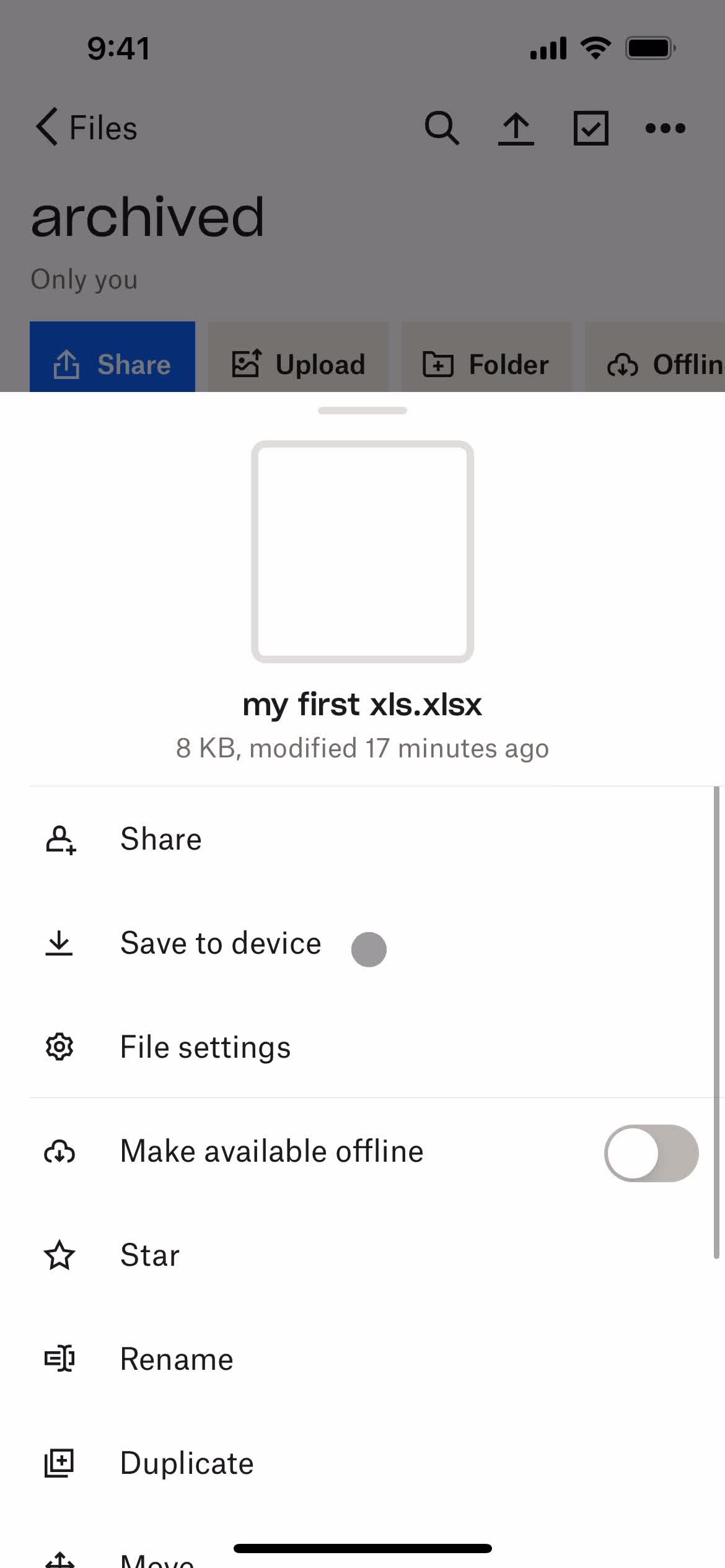
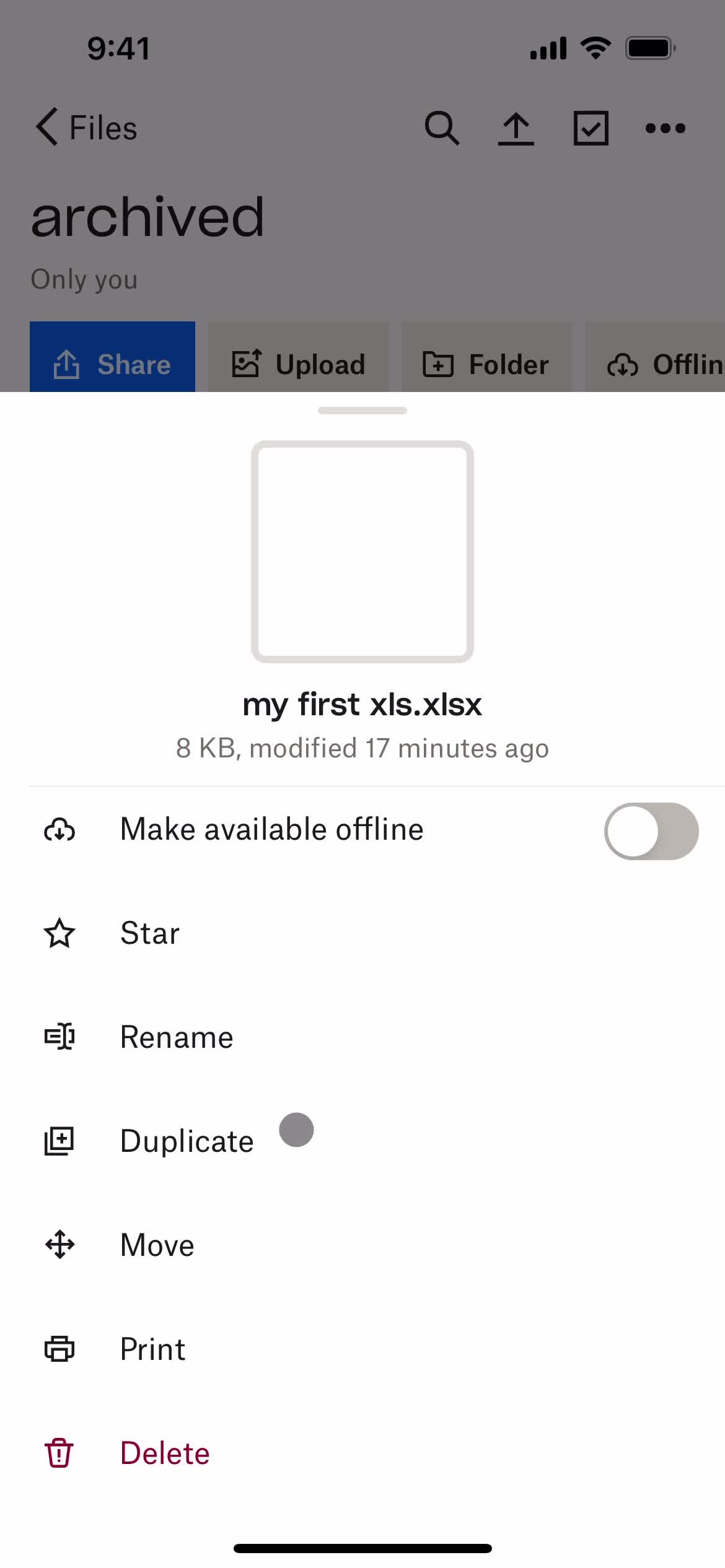
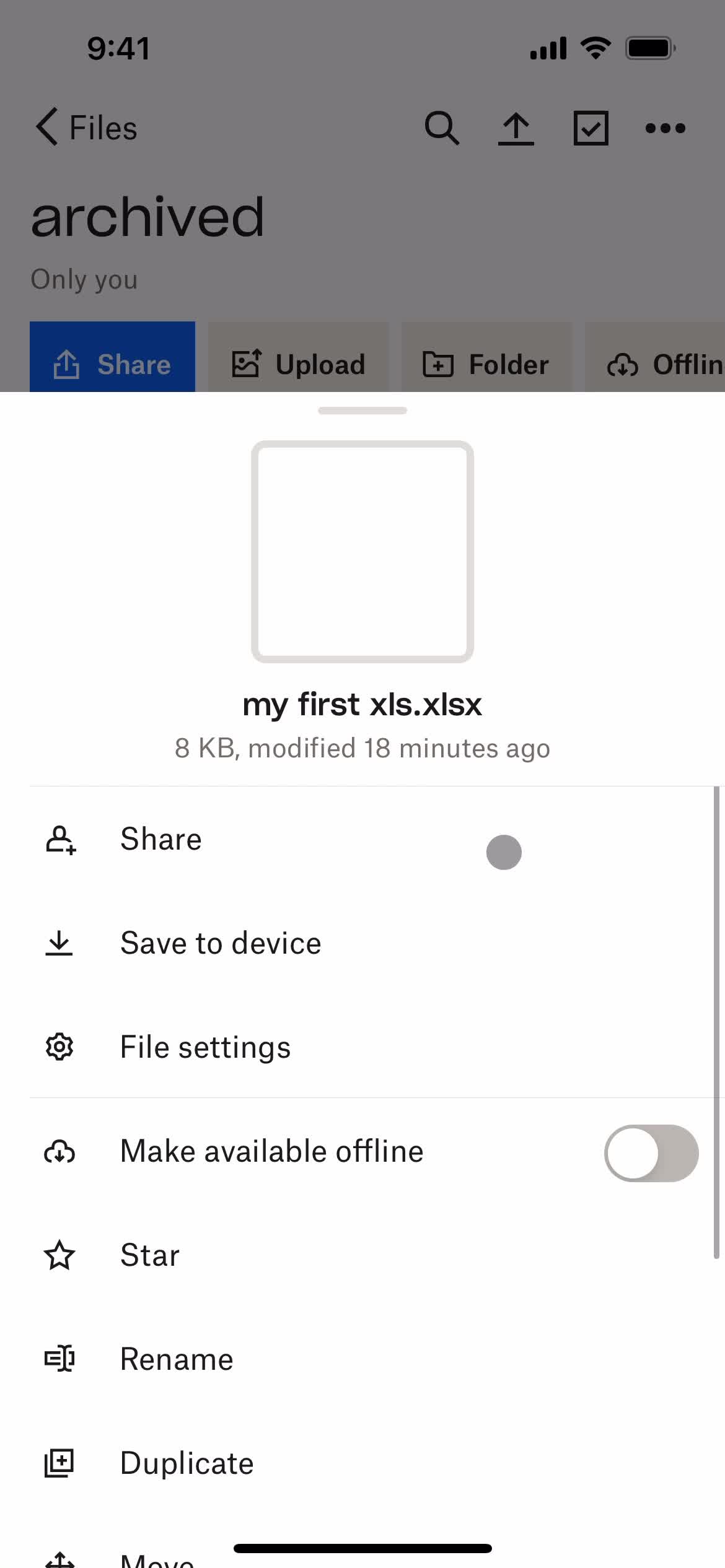
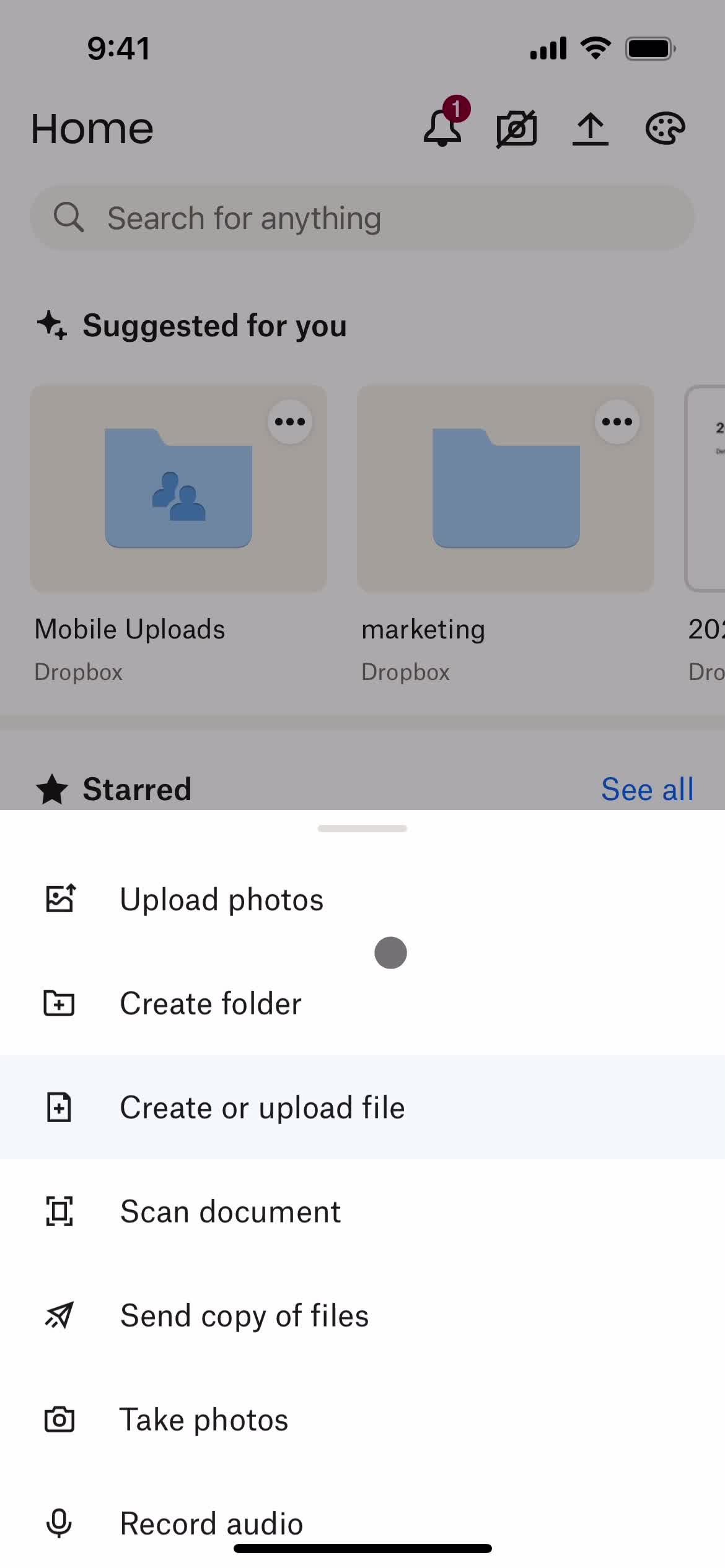
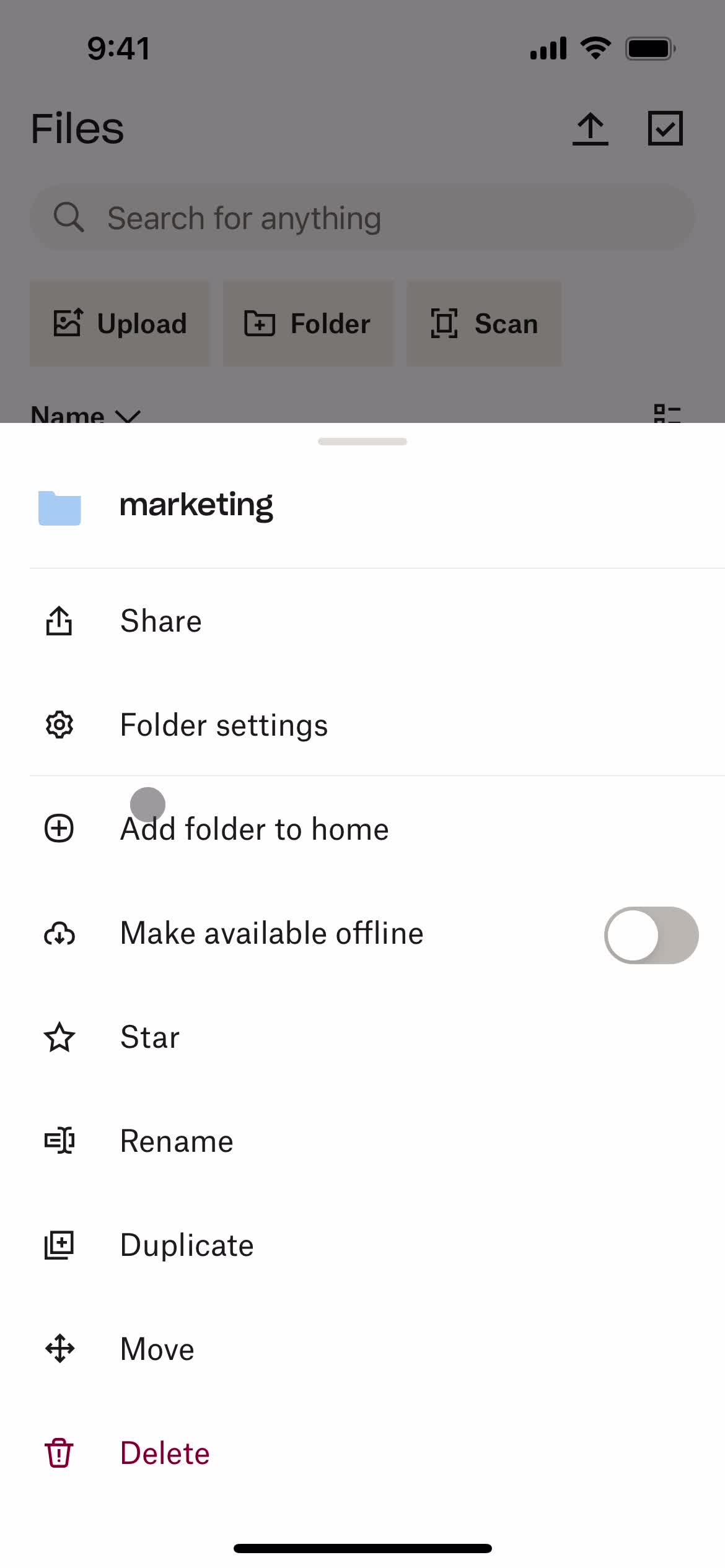
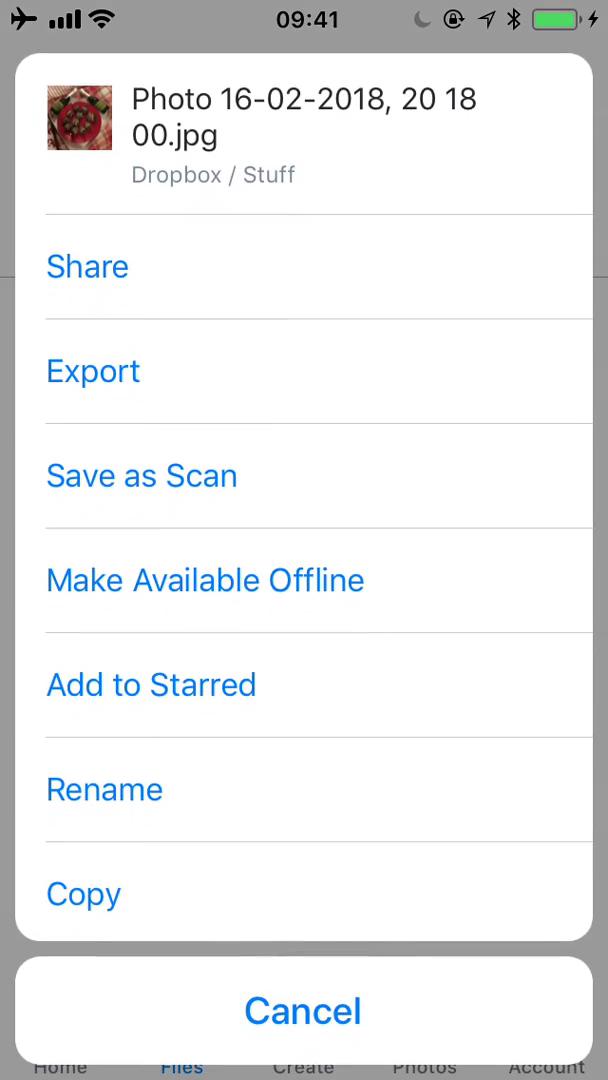
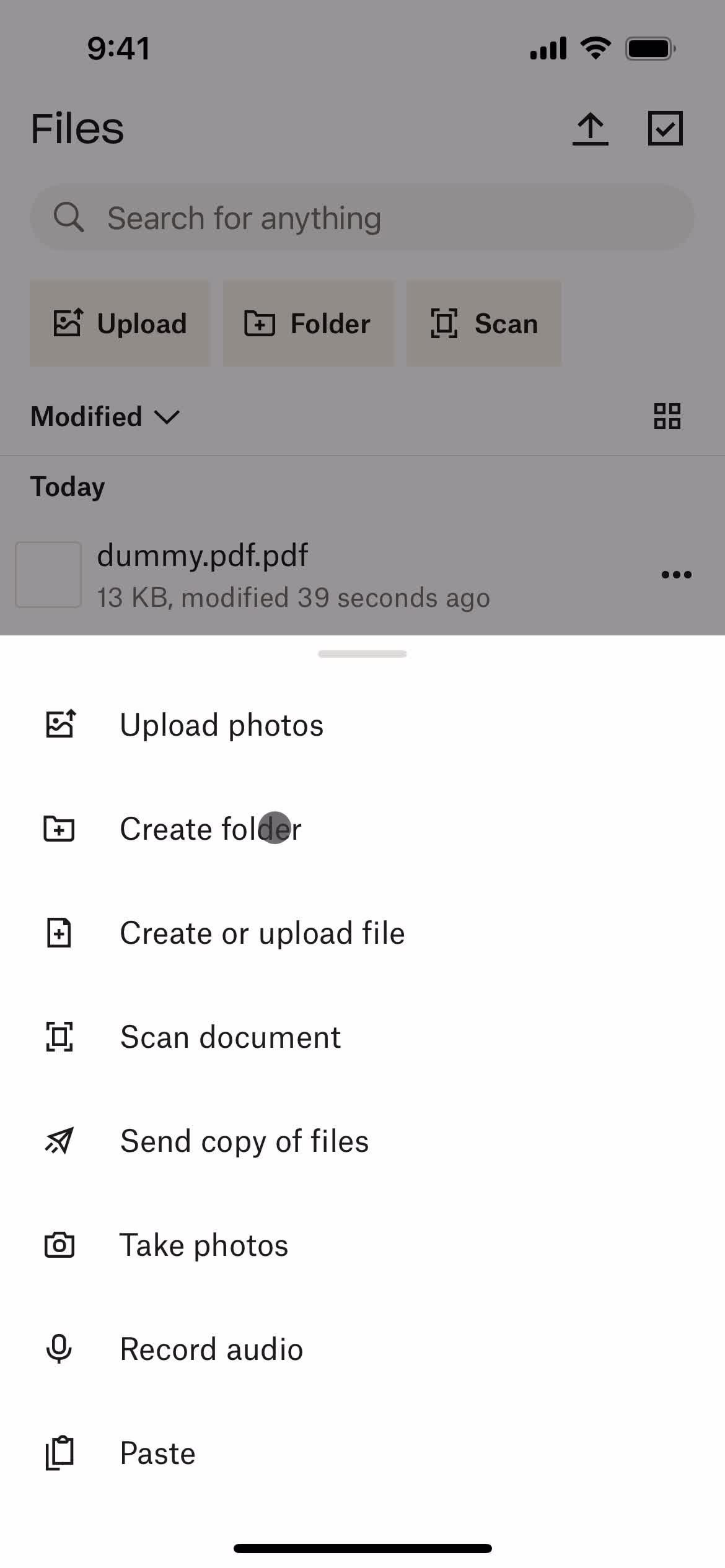
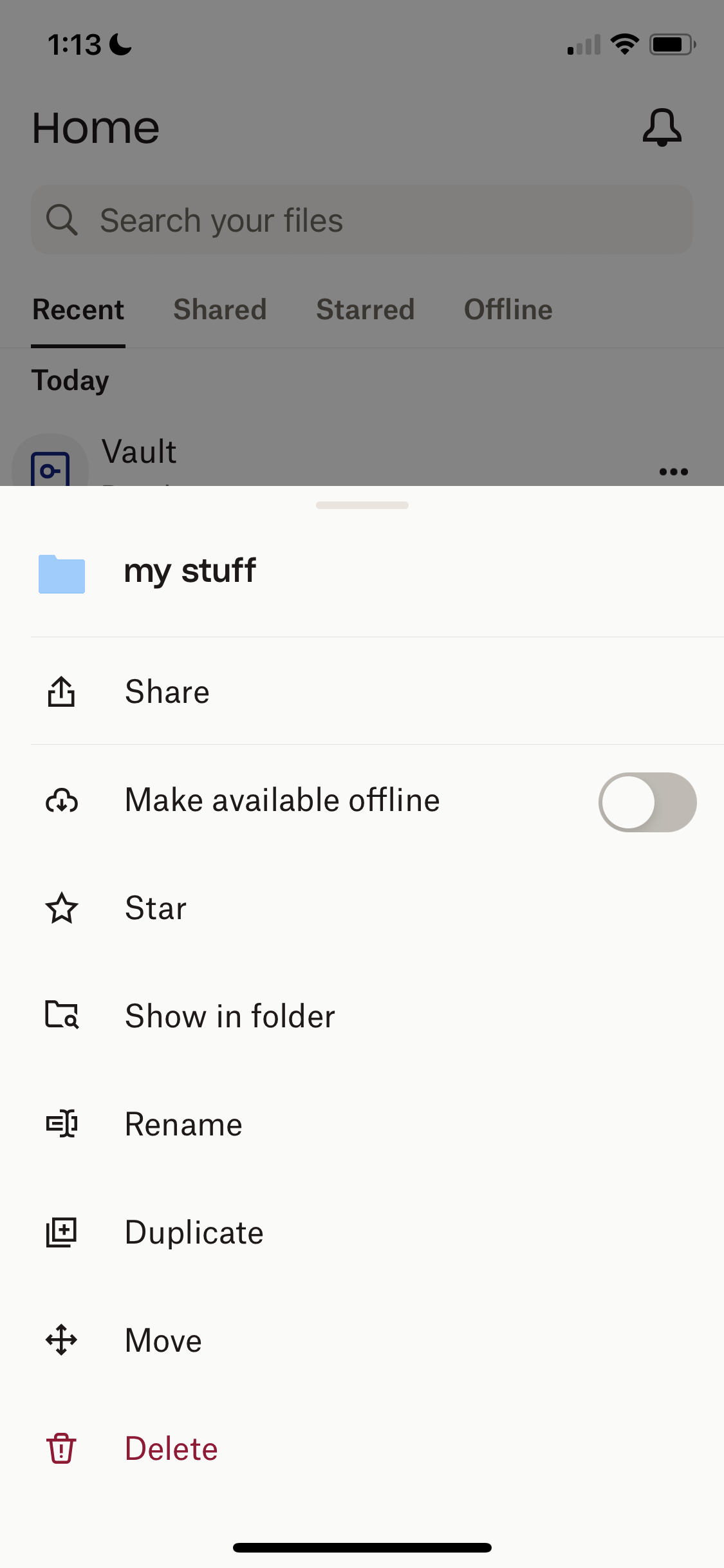
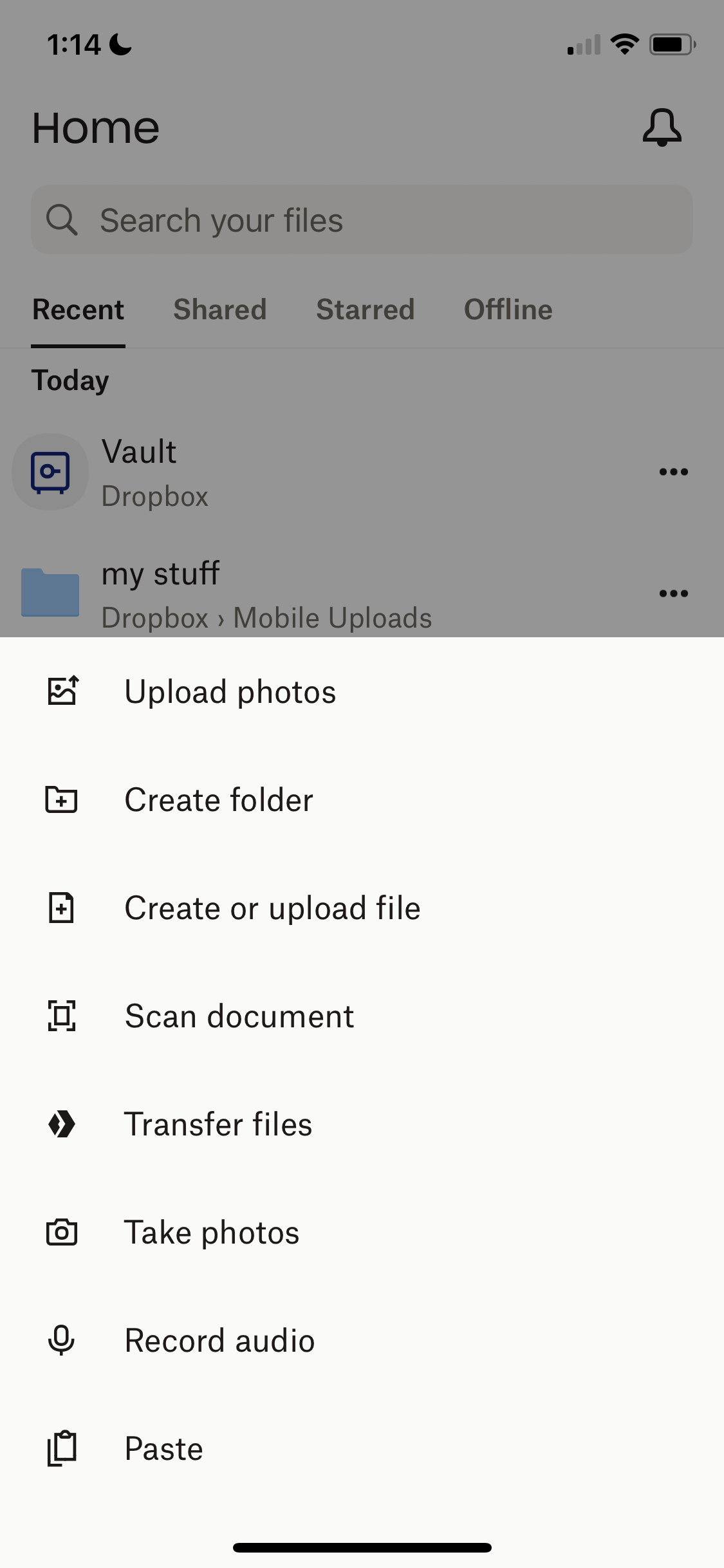
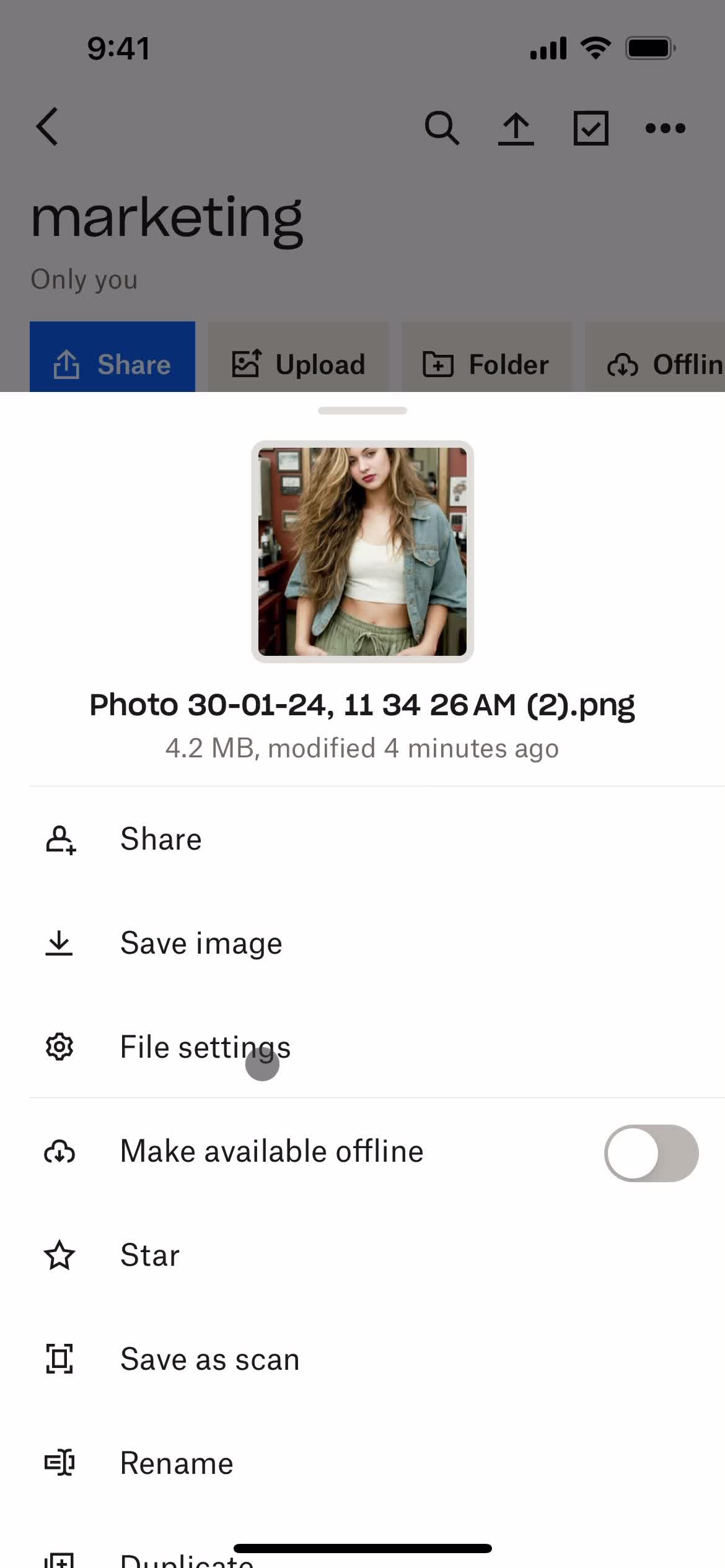
Action menu
this is title
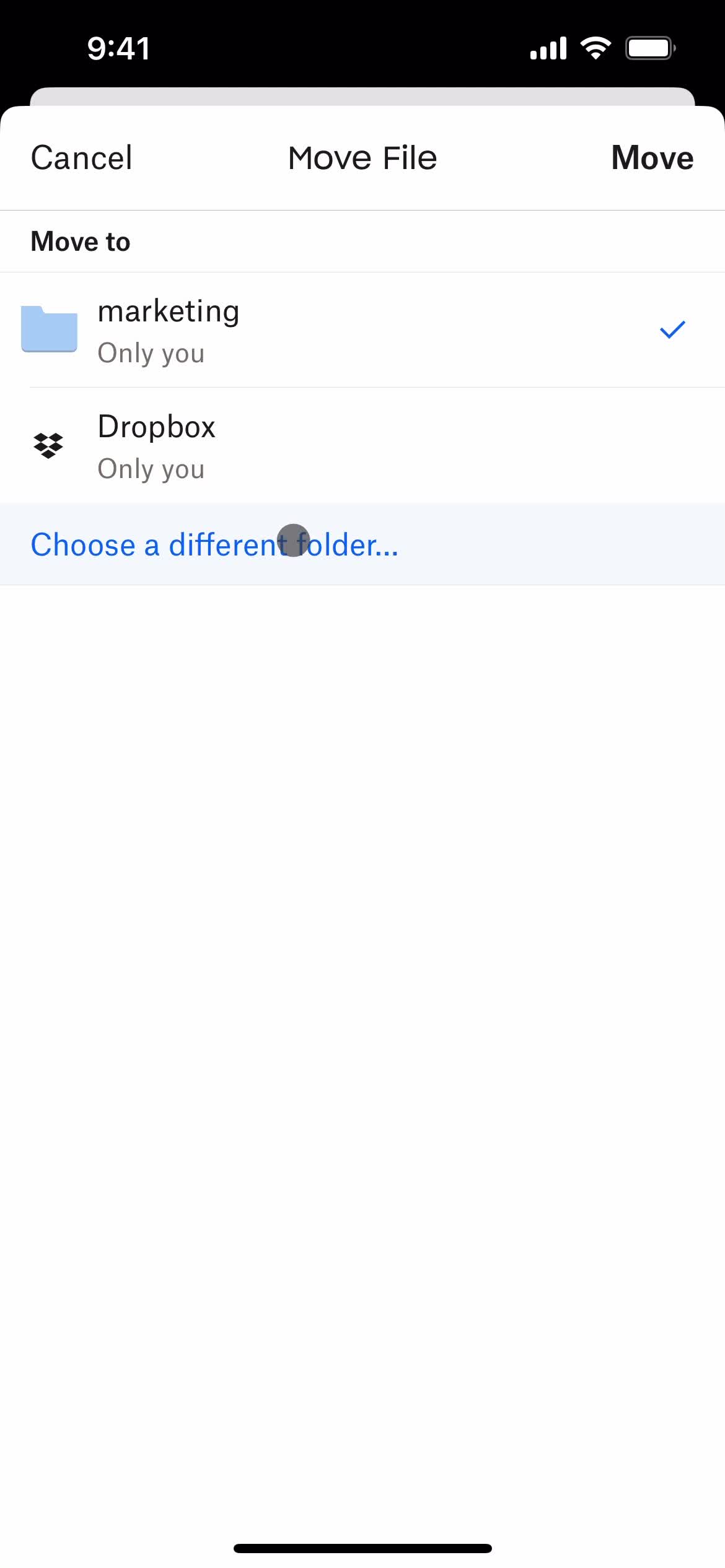
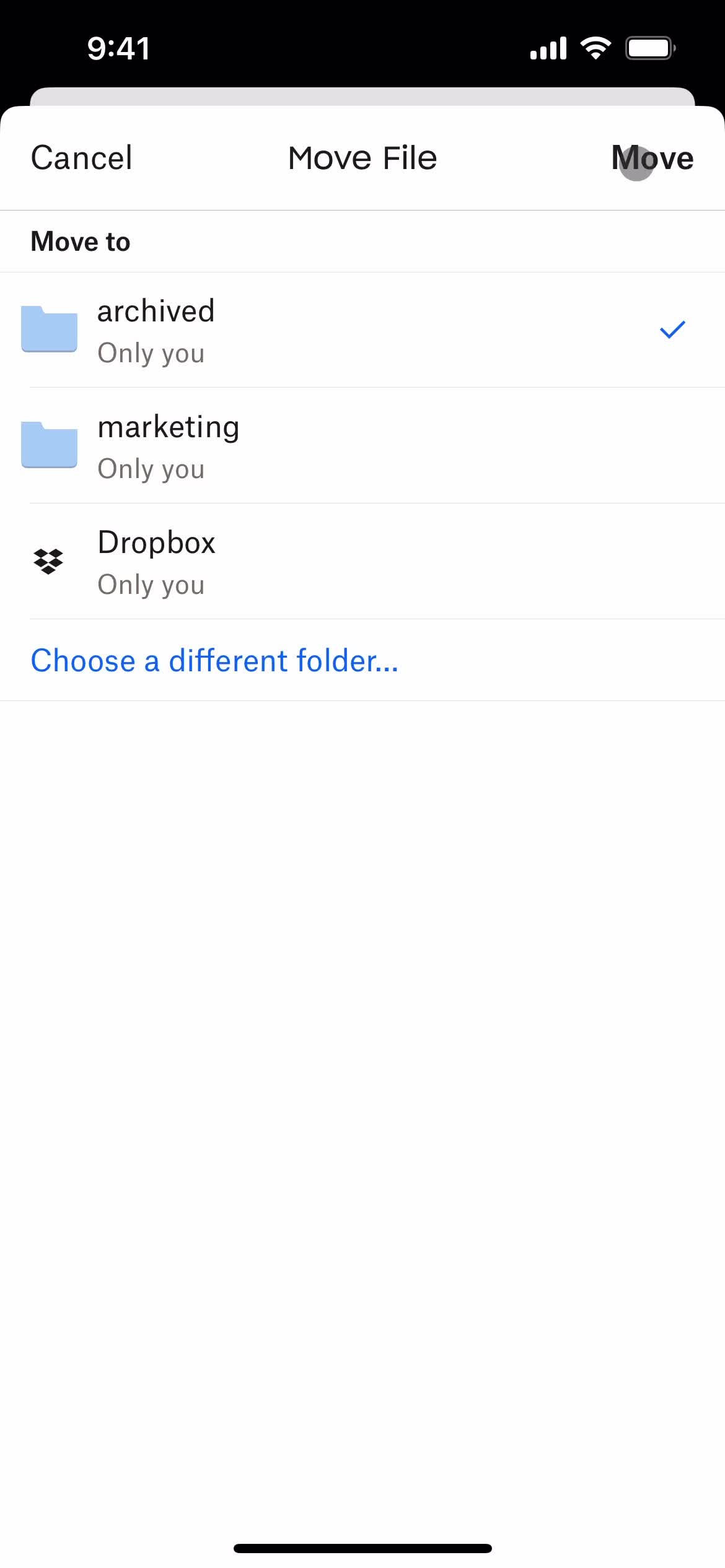
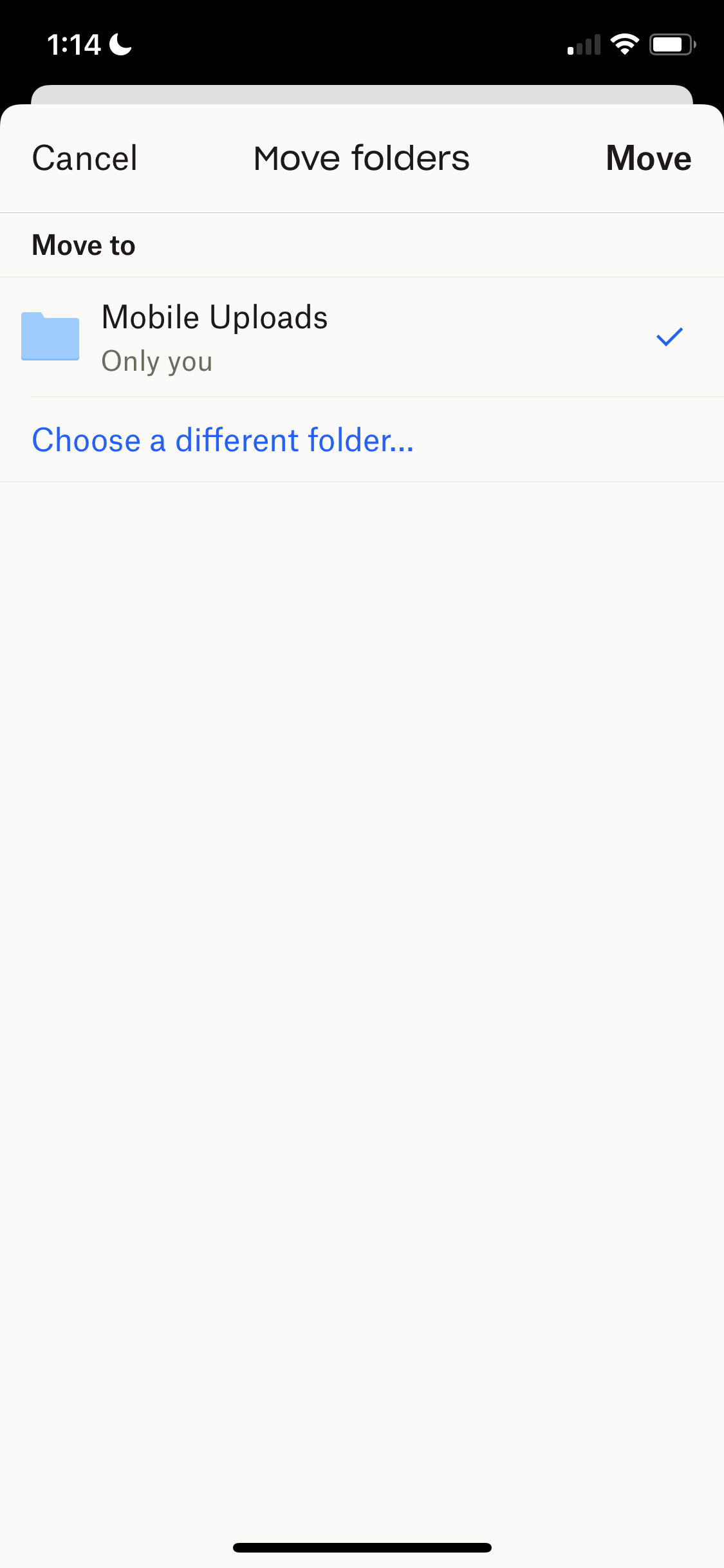
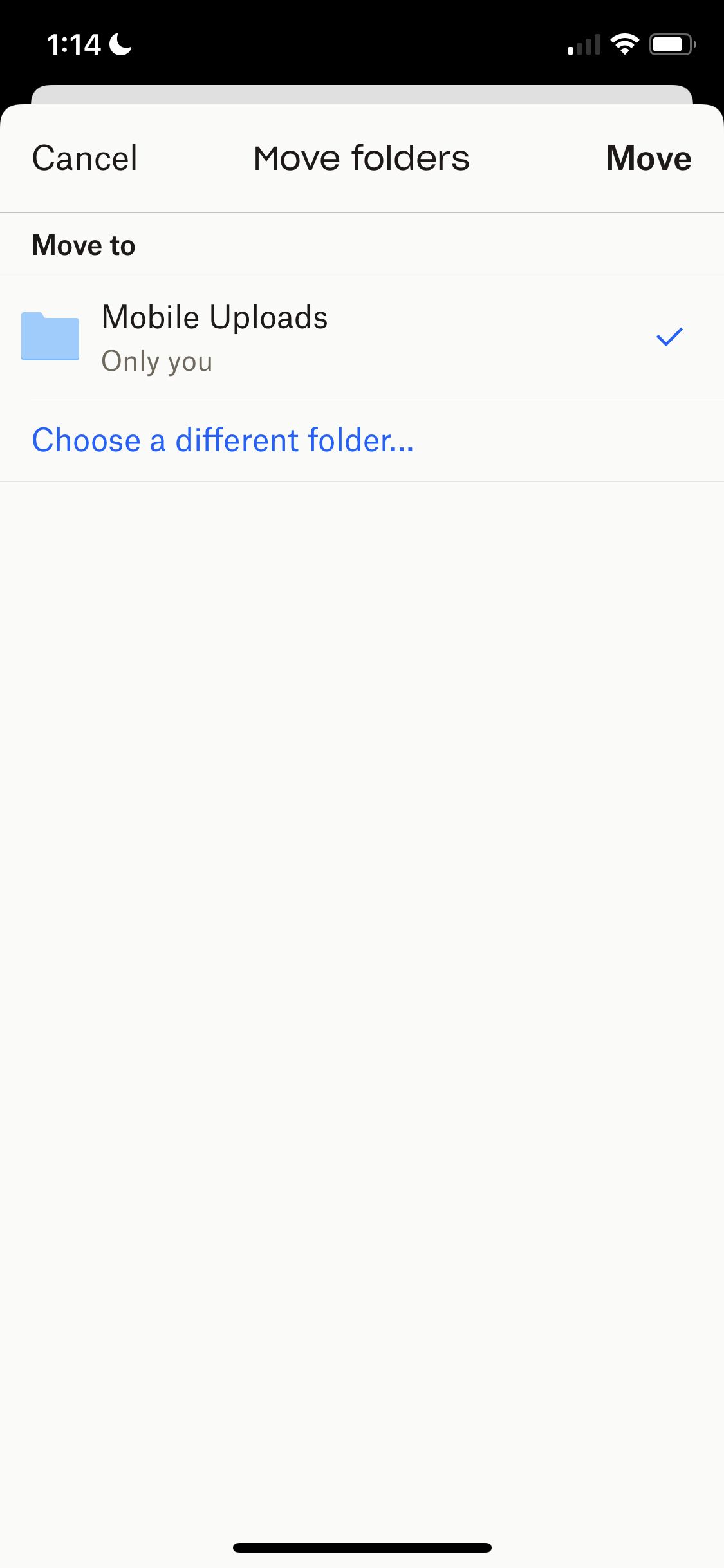
Move files
this is title
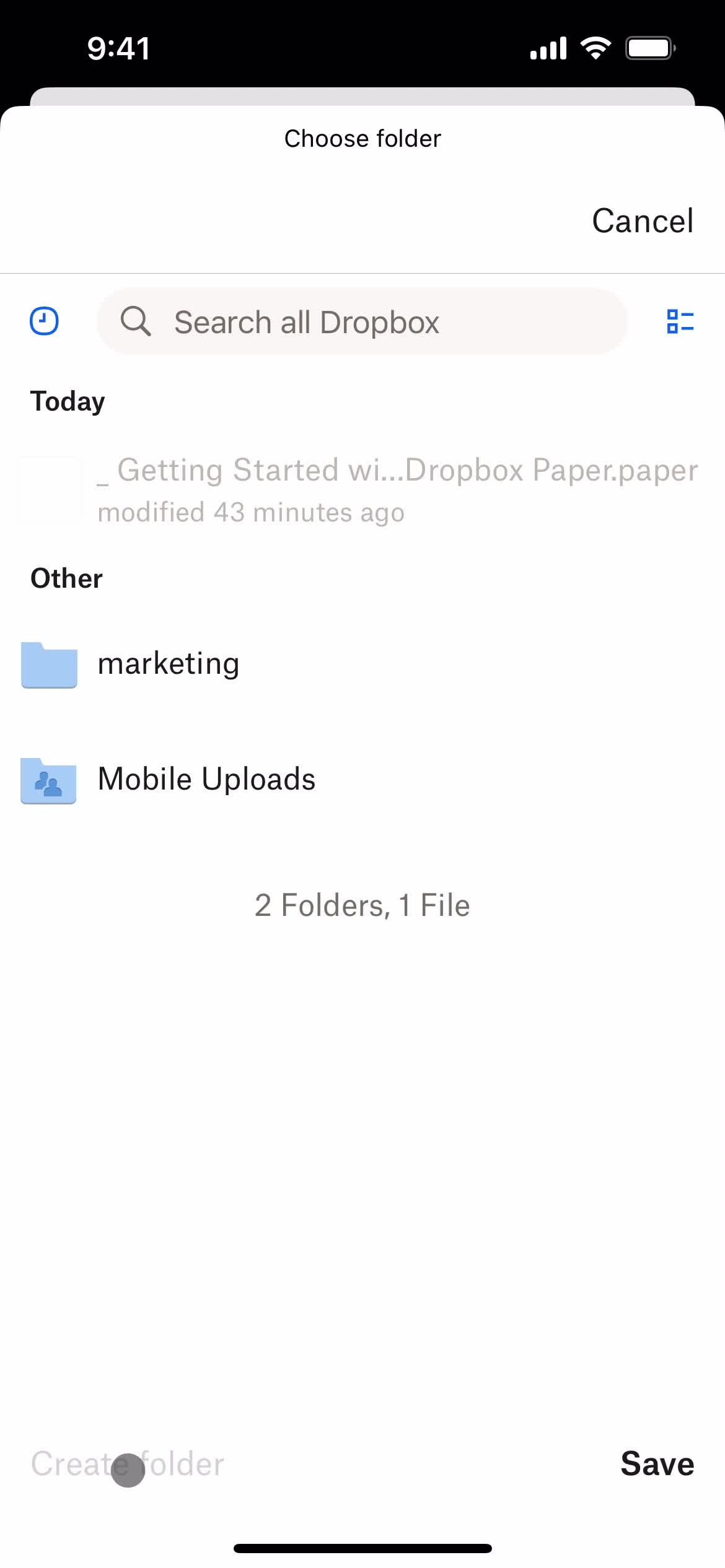
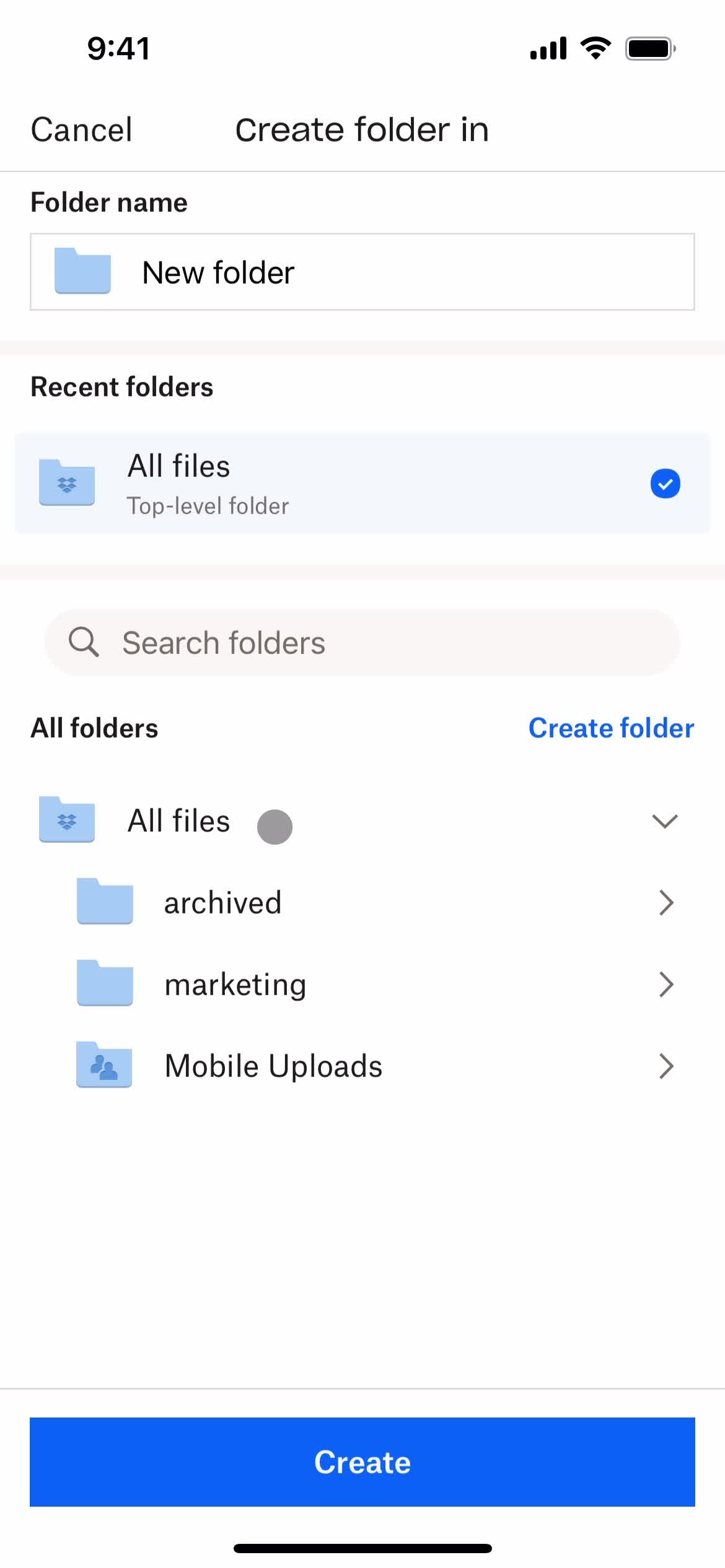
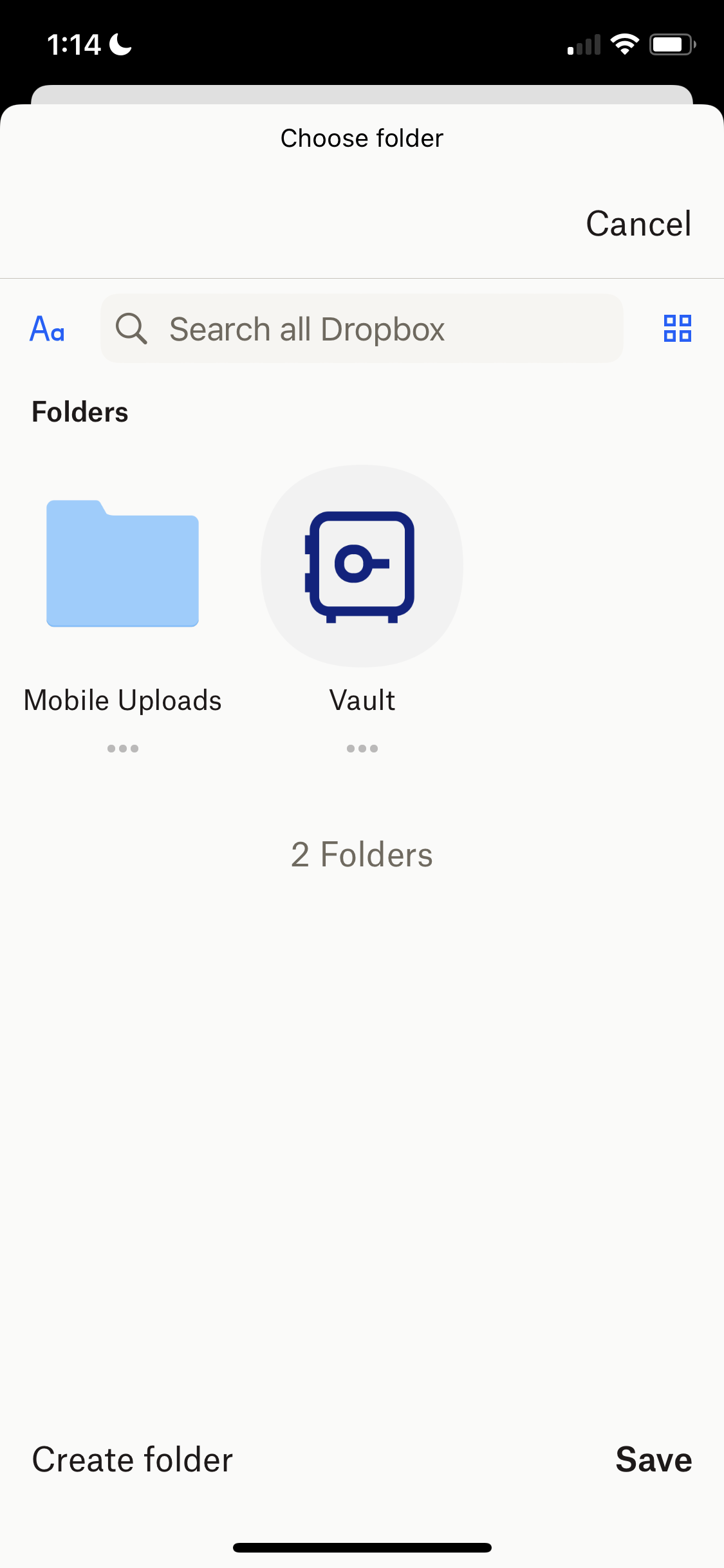
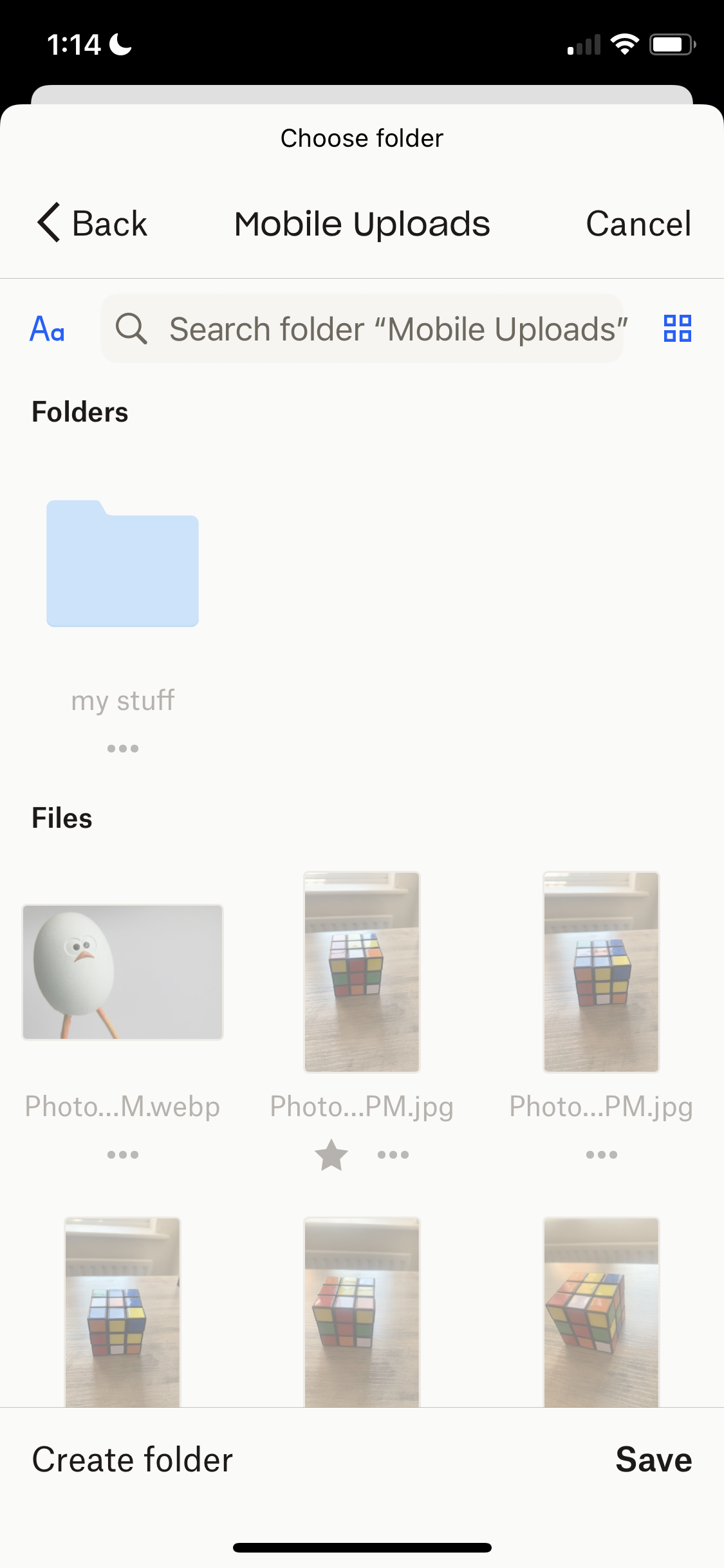
Select folder
this is title
this is title
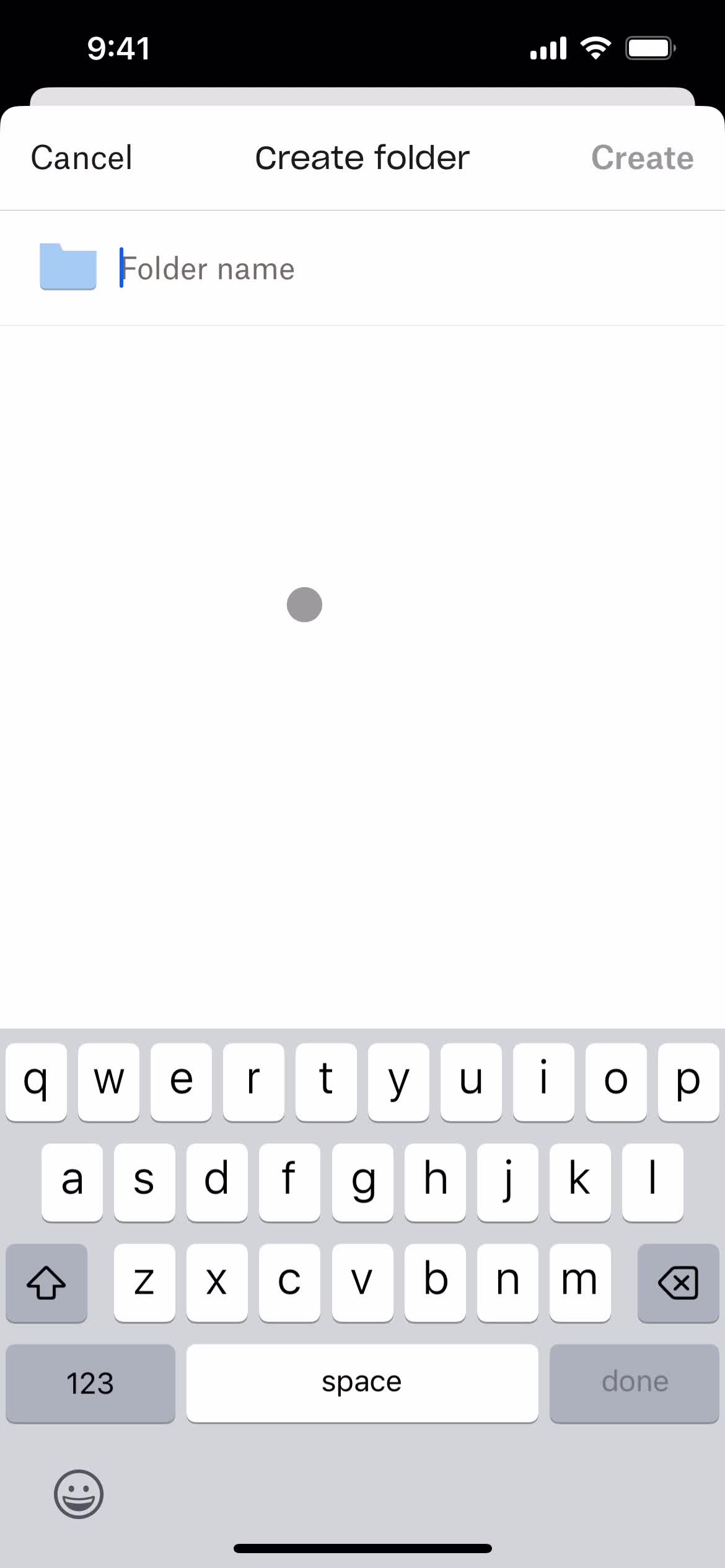
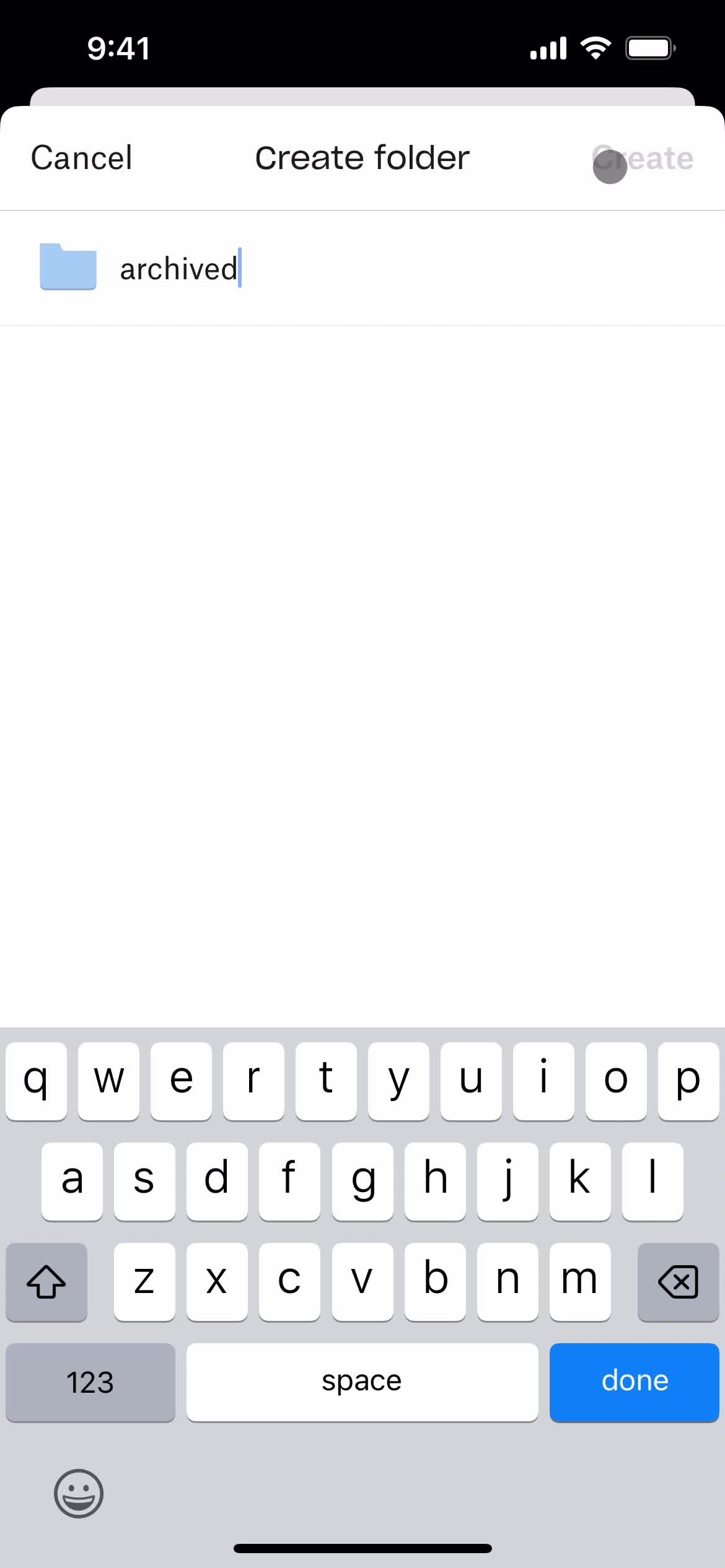
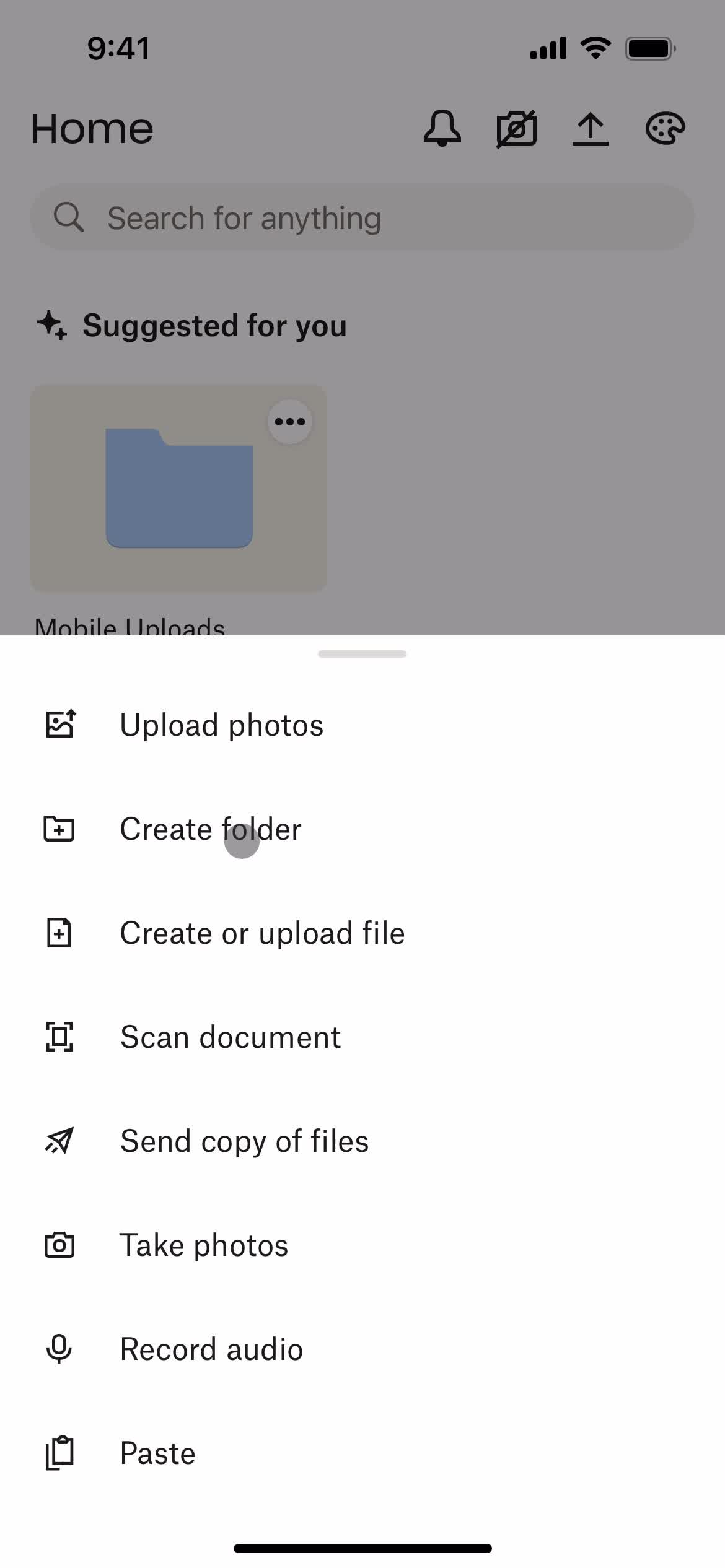
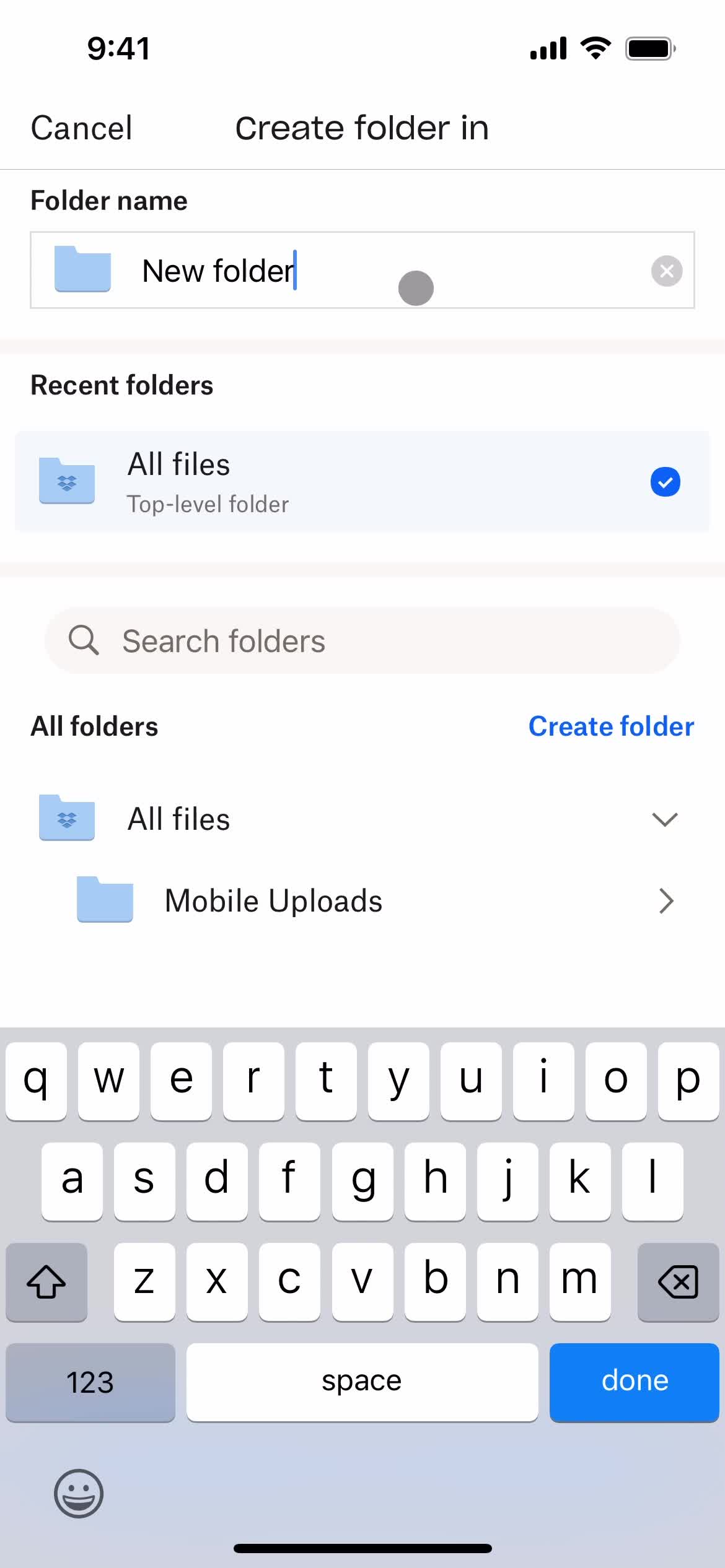
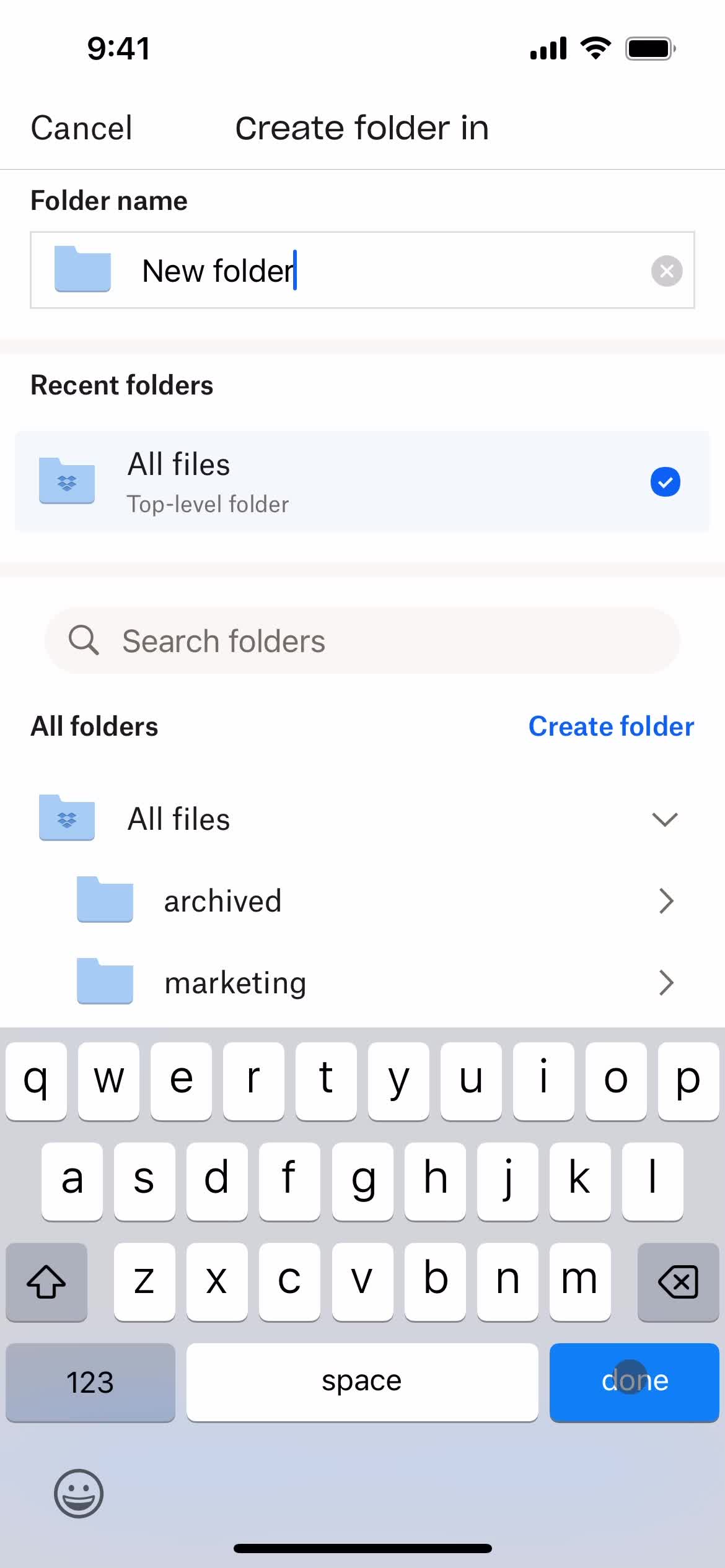
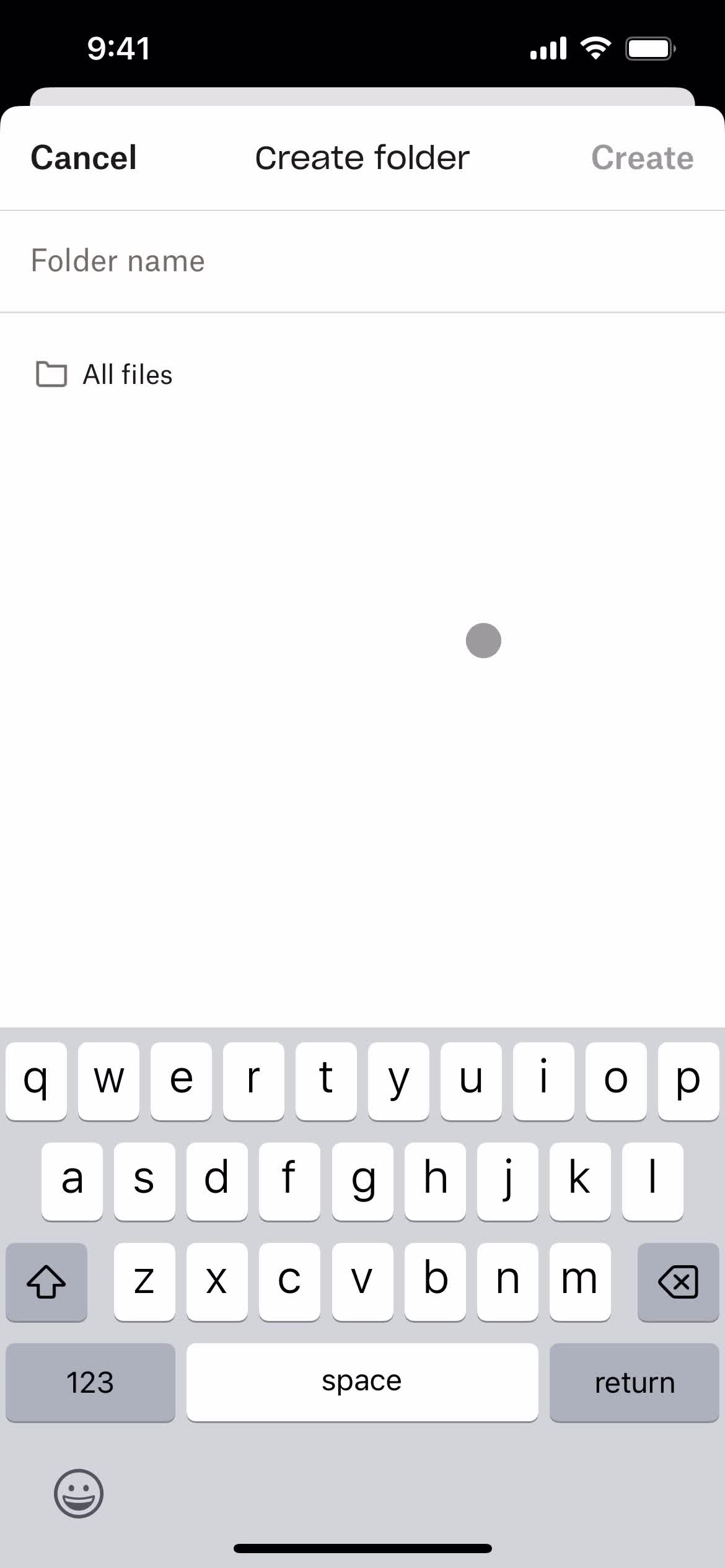
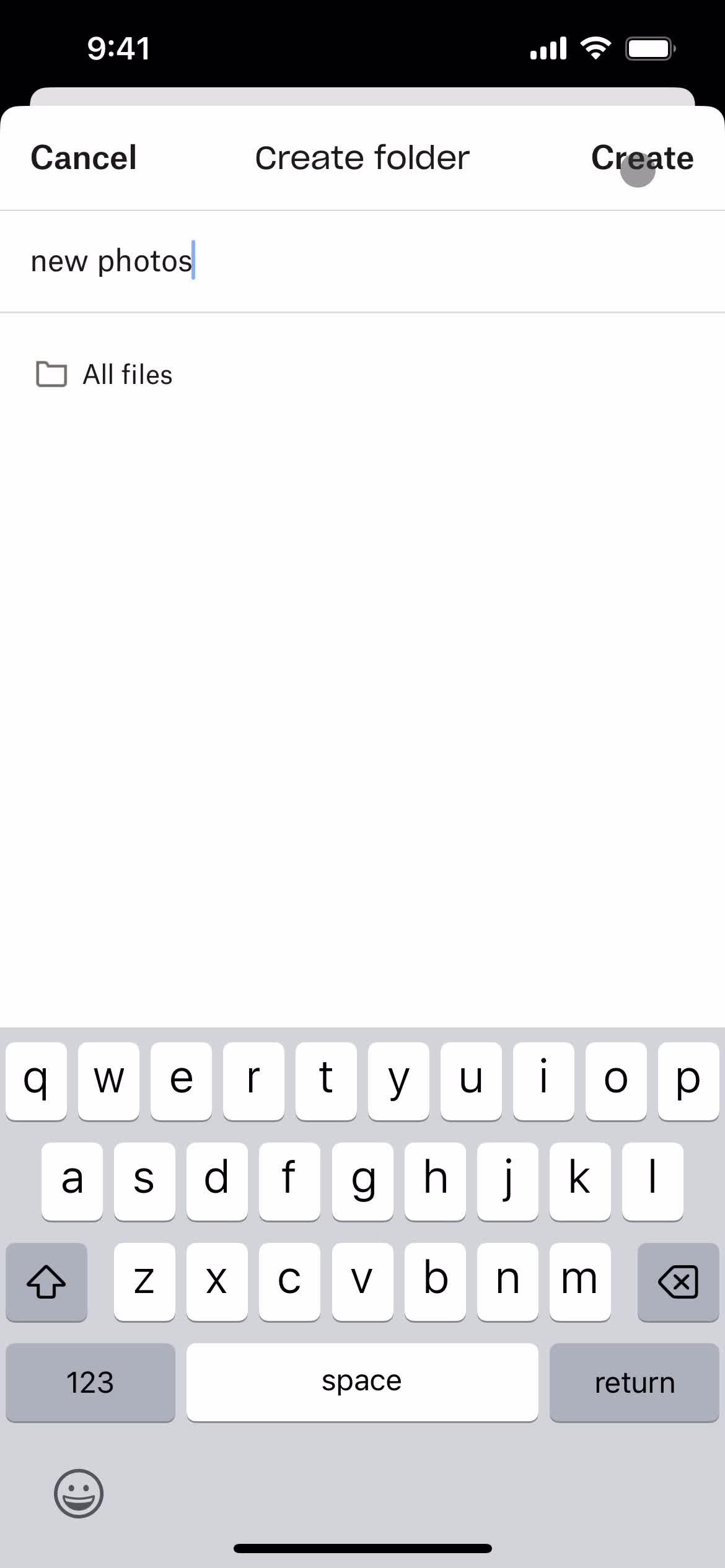
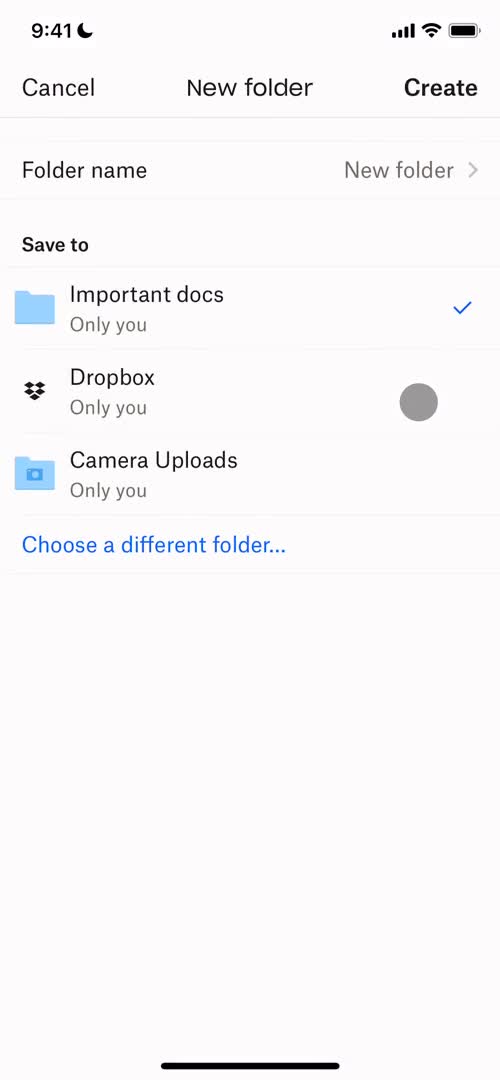
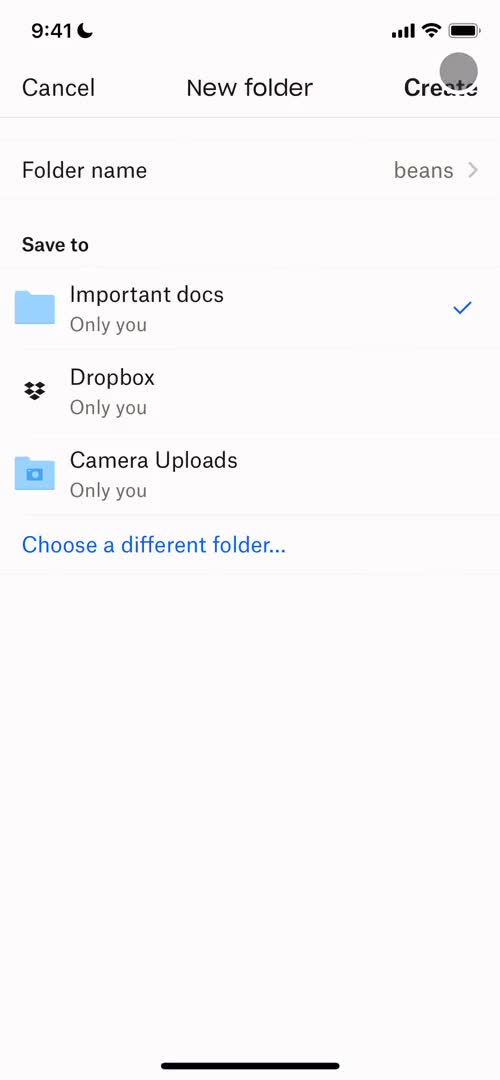
Create folder
this is title
Continue
this is title
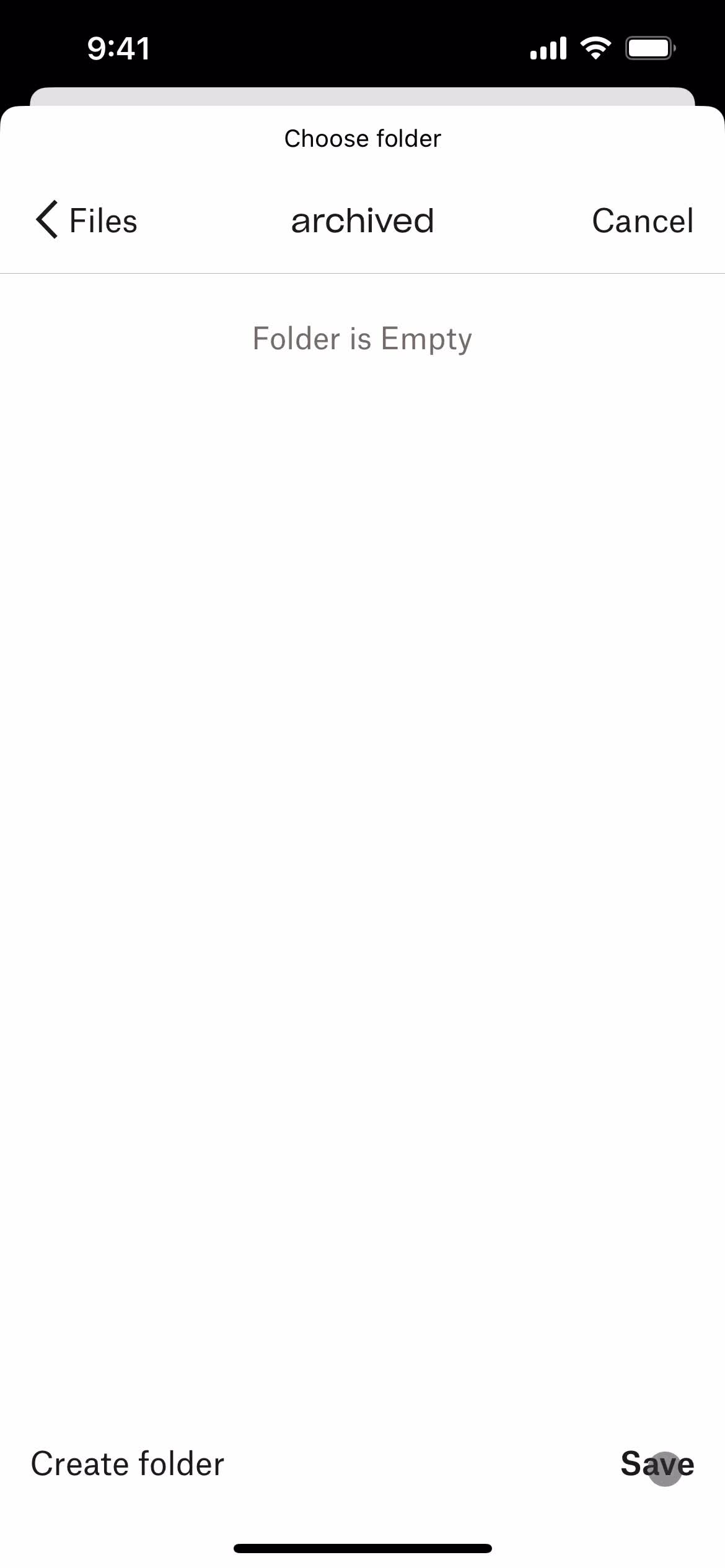
Save
this is title
Move files
this is title
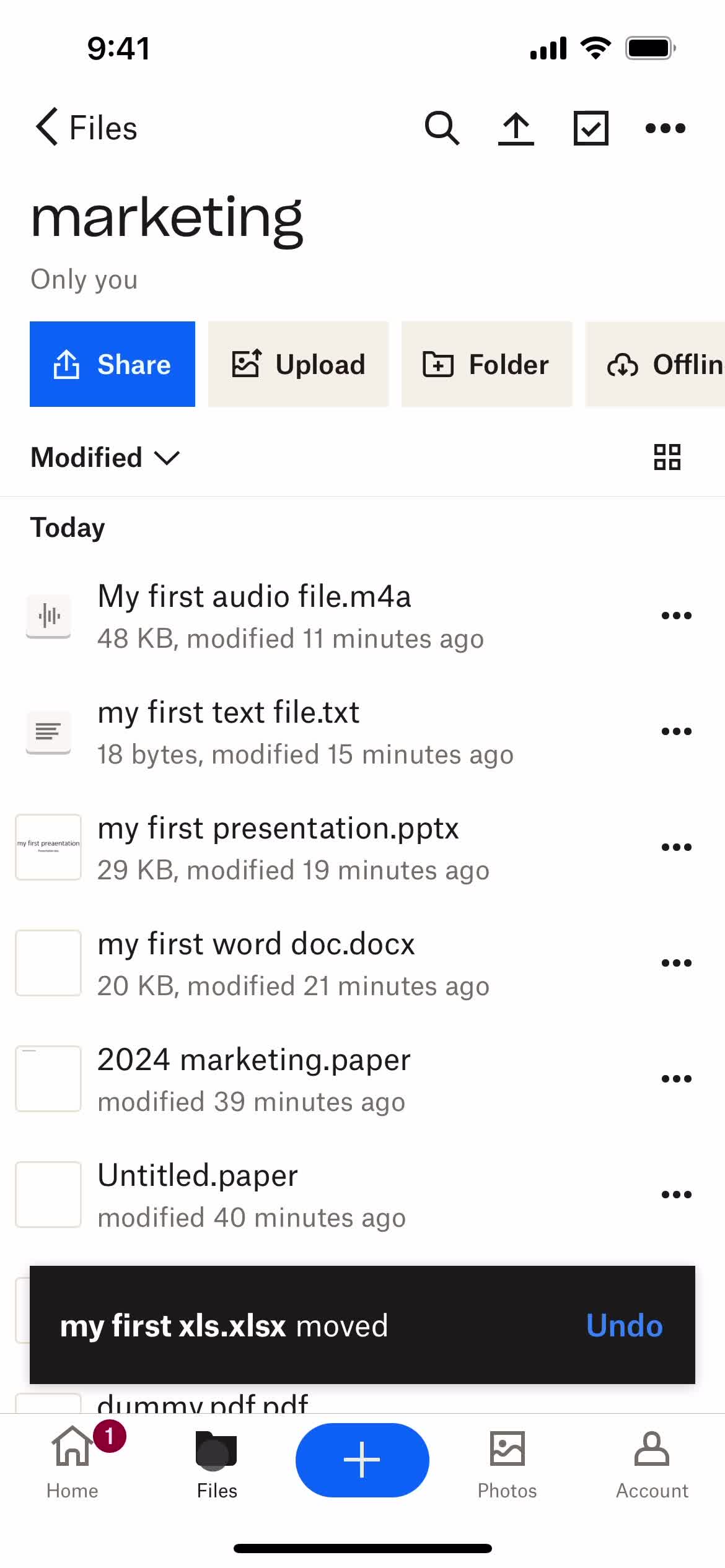
File moved
this is title
Files
this is title
Folder
this is title
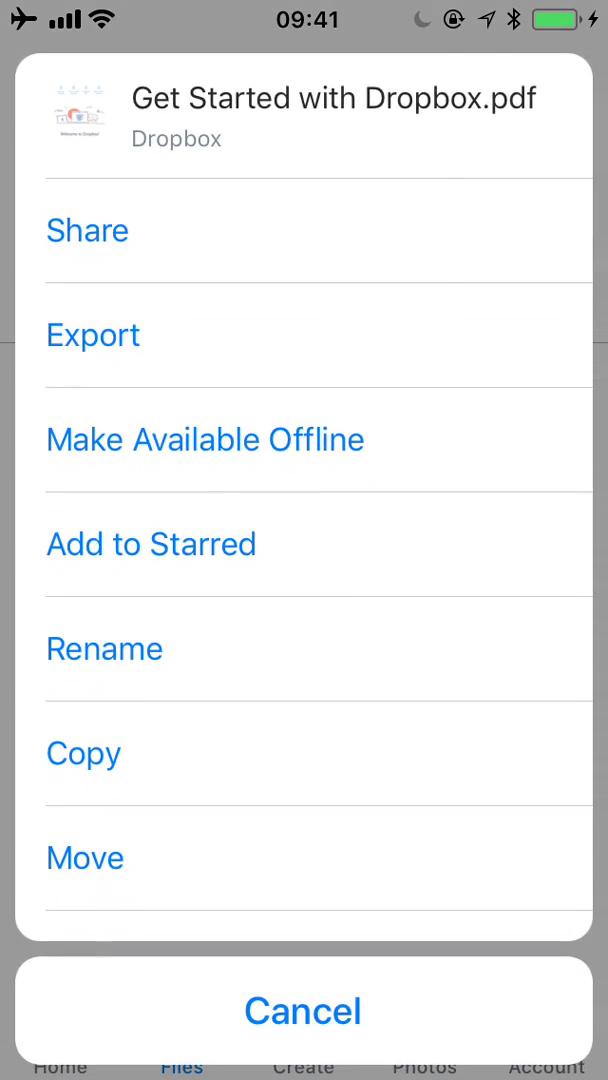
Action menu
this is title
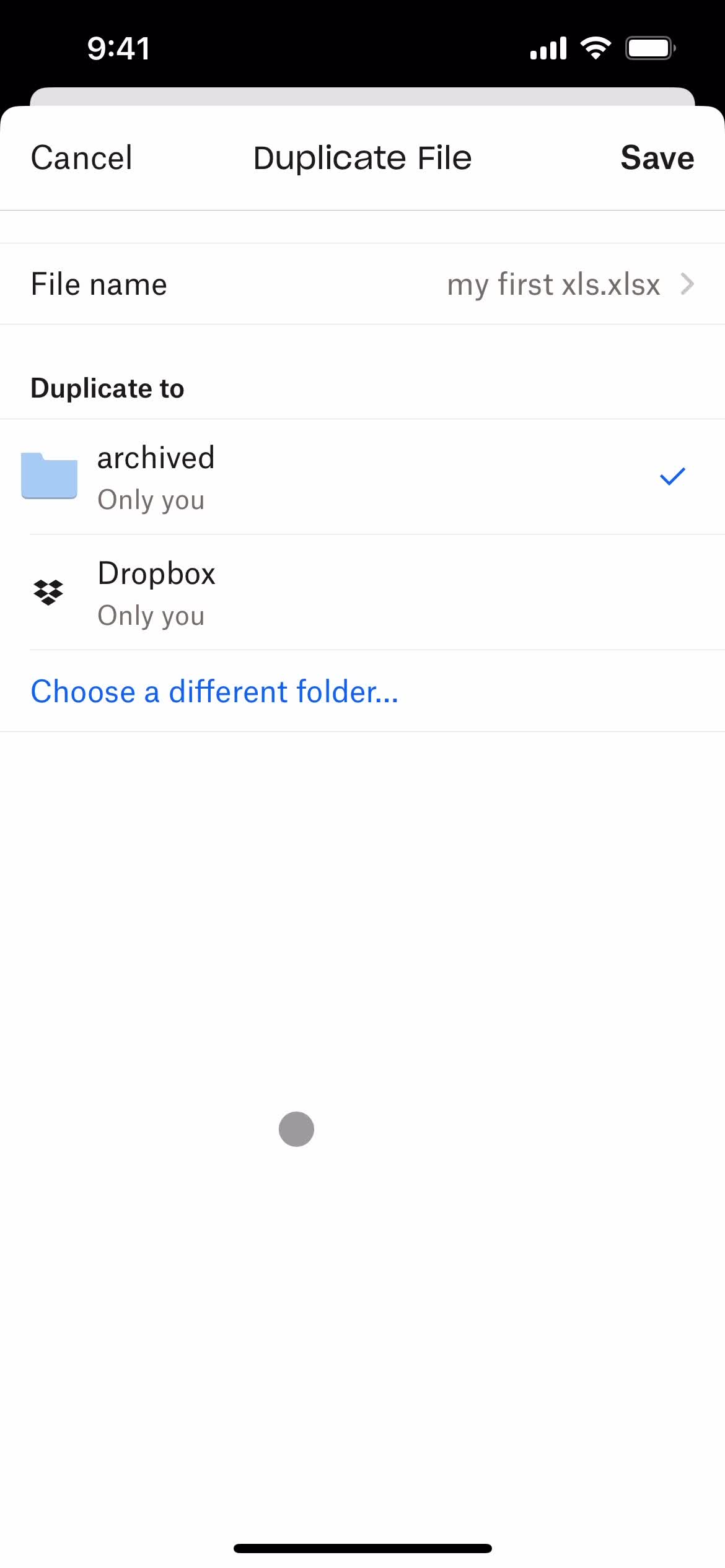
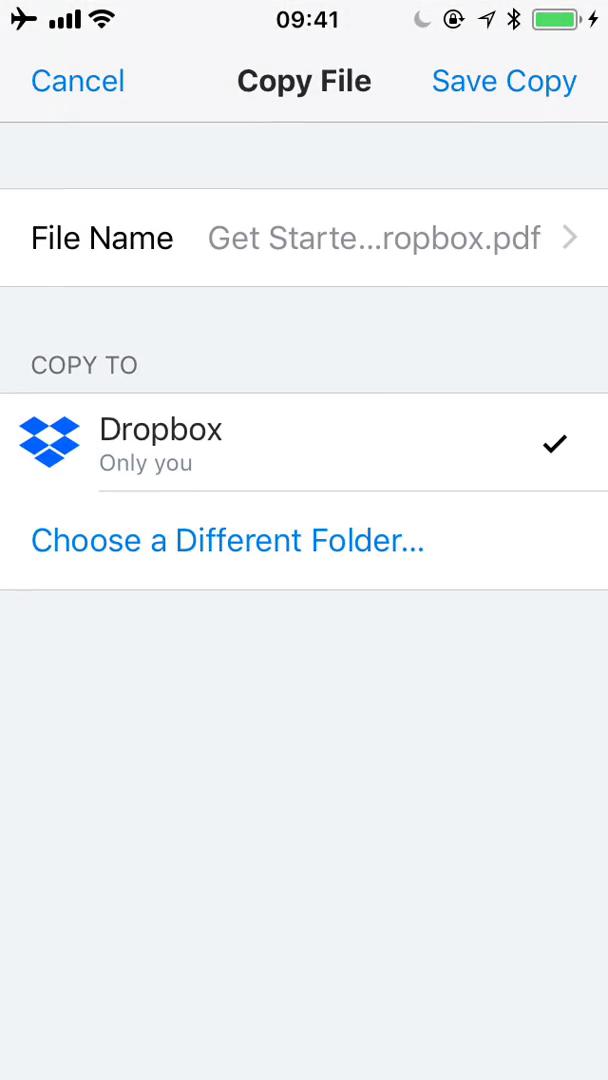
Duplicate
this is title
Select folder
this is title
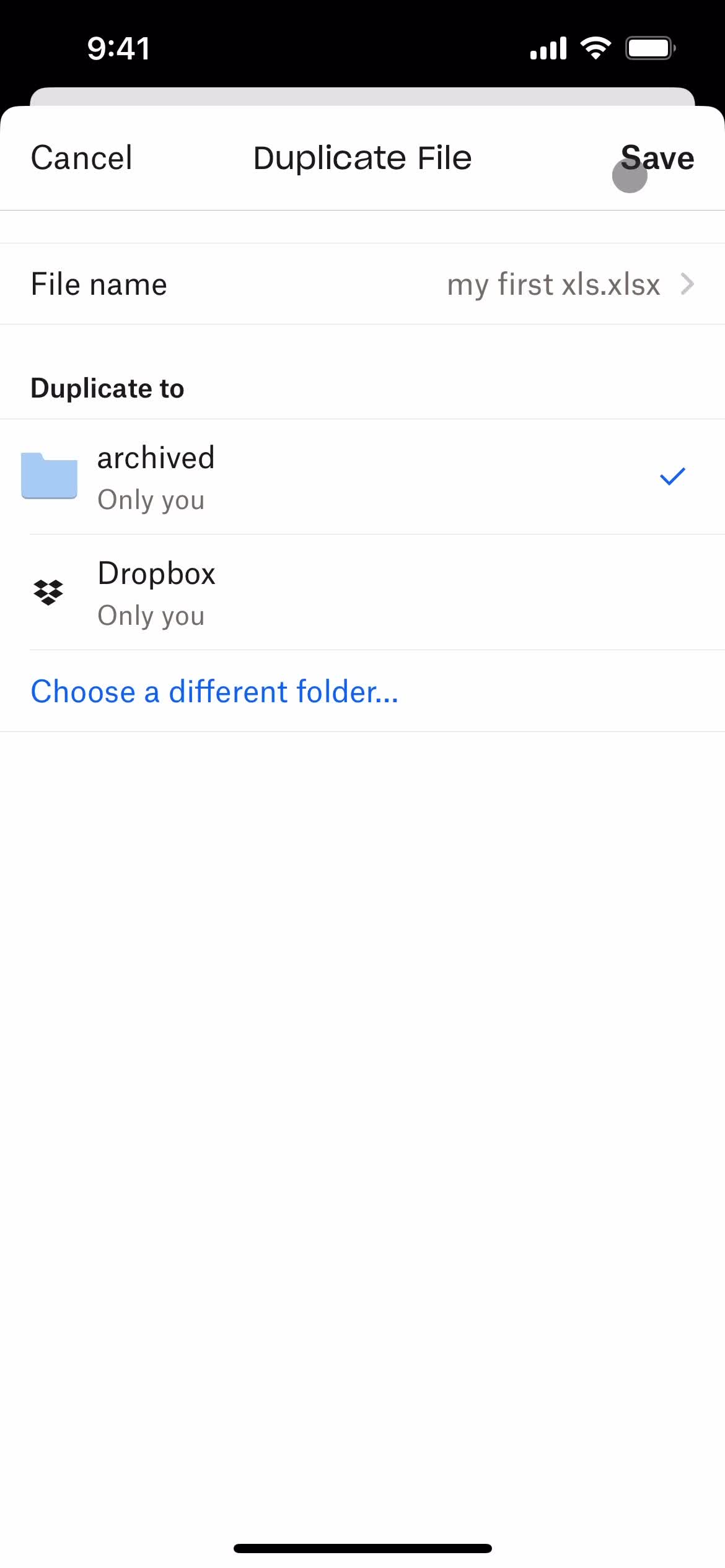
Save
this is title
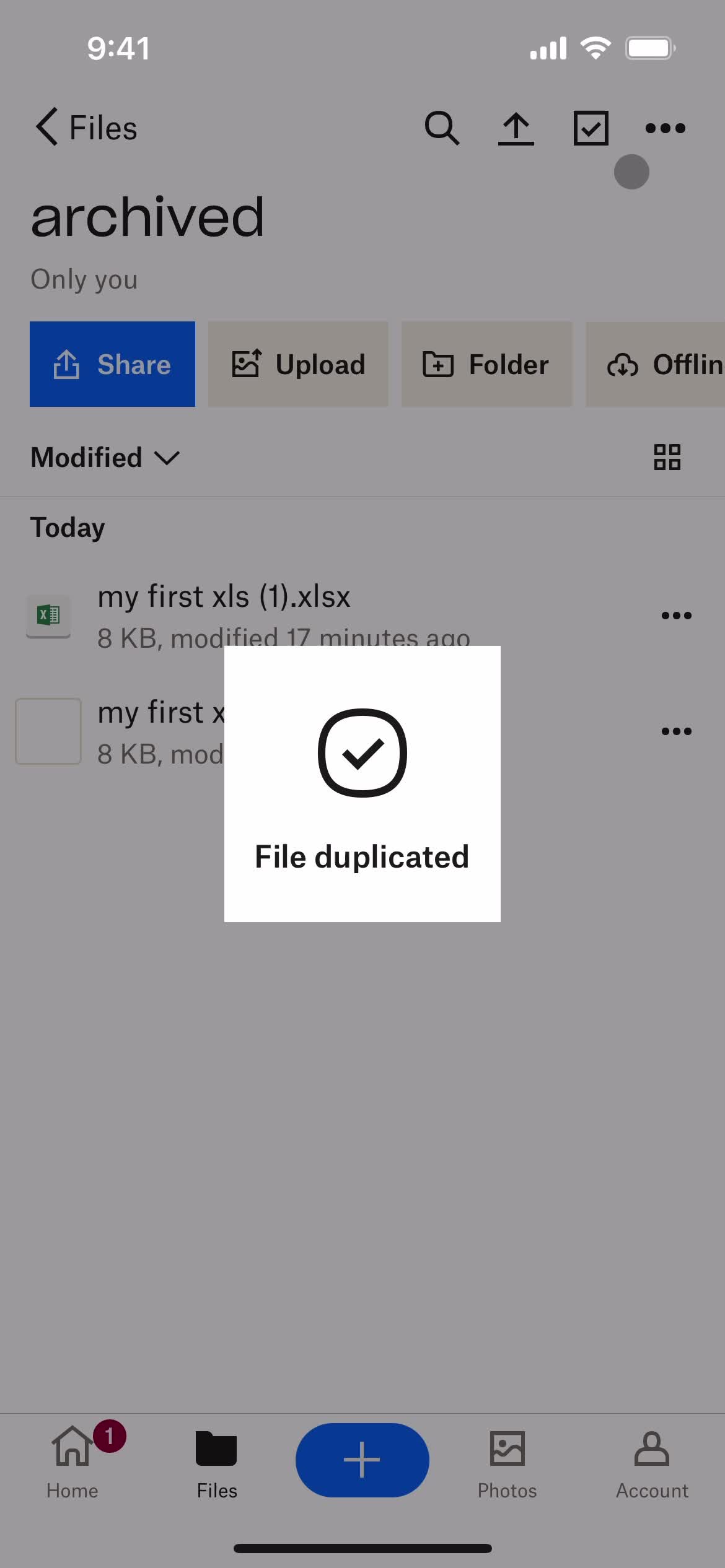
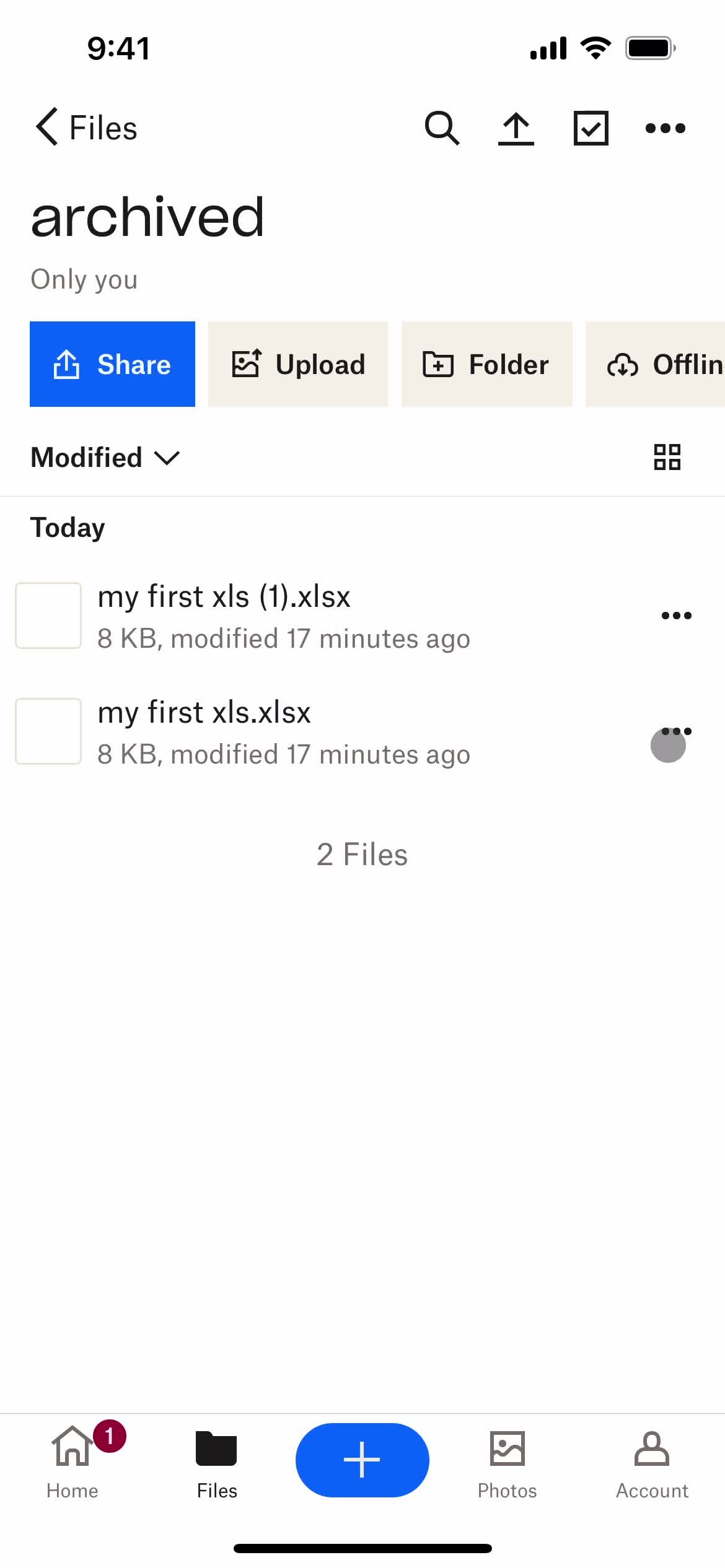
Duplicate created
this is title
Folder
this is title
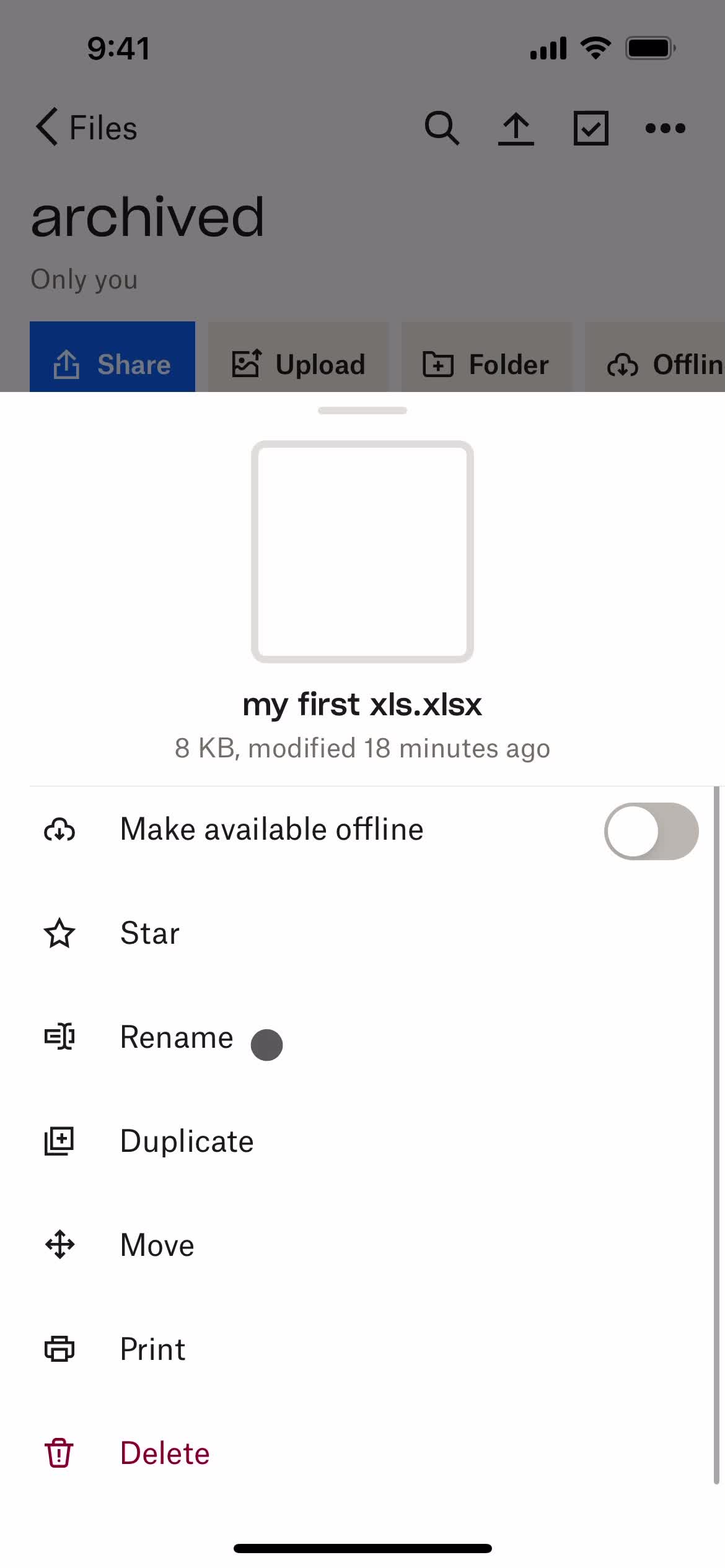
Action menu
this is title
this is title
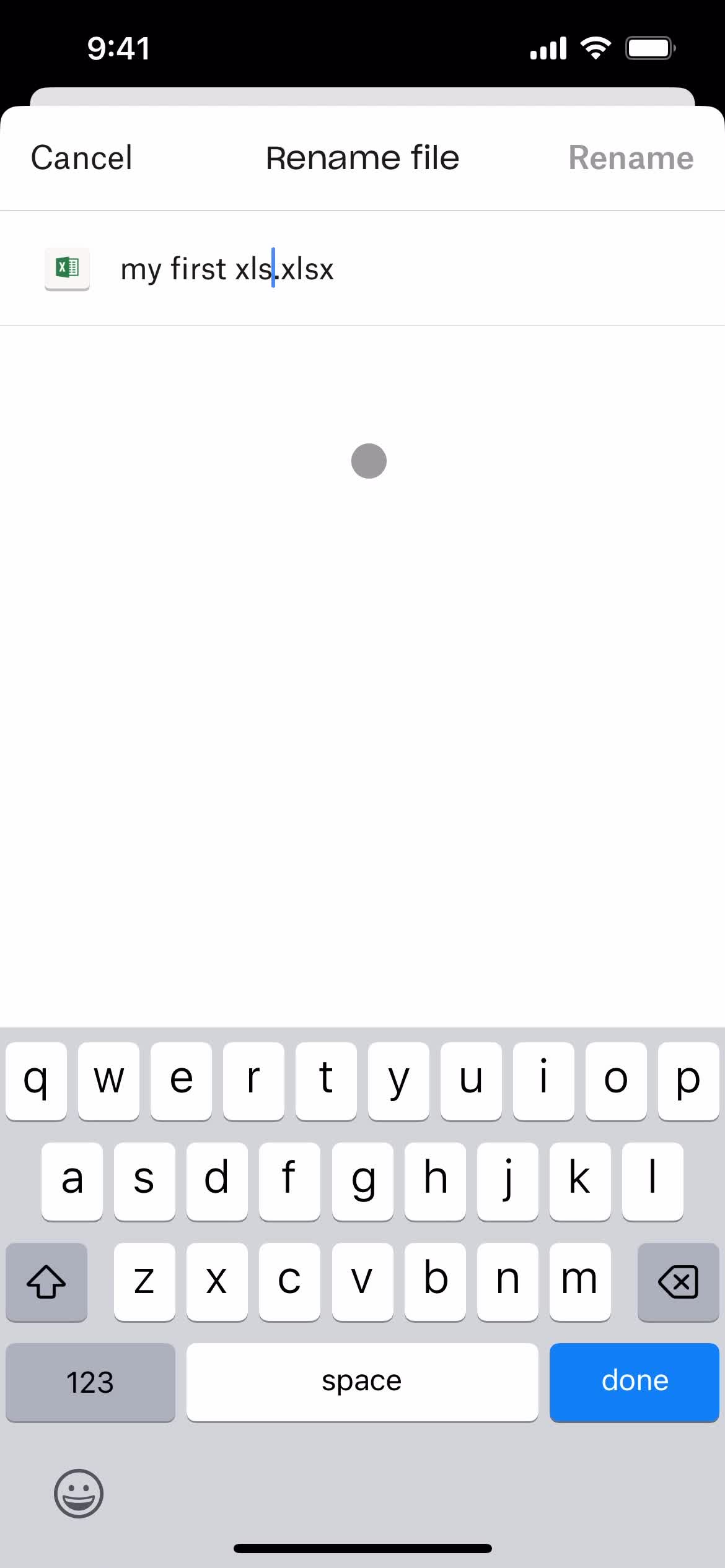
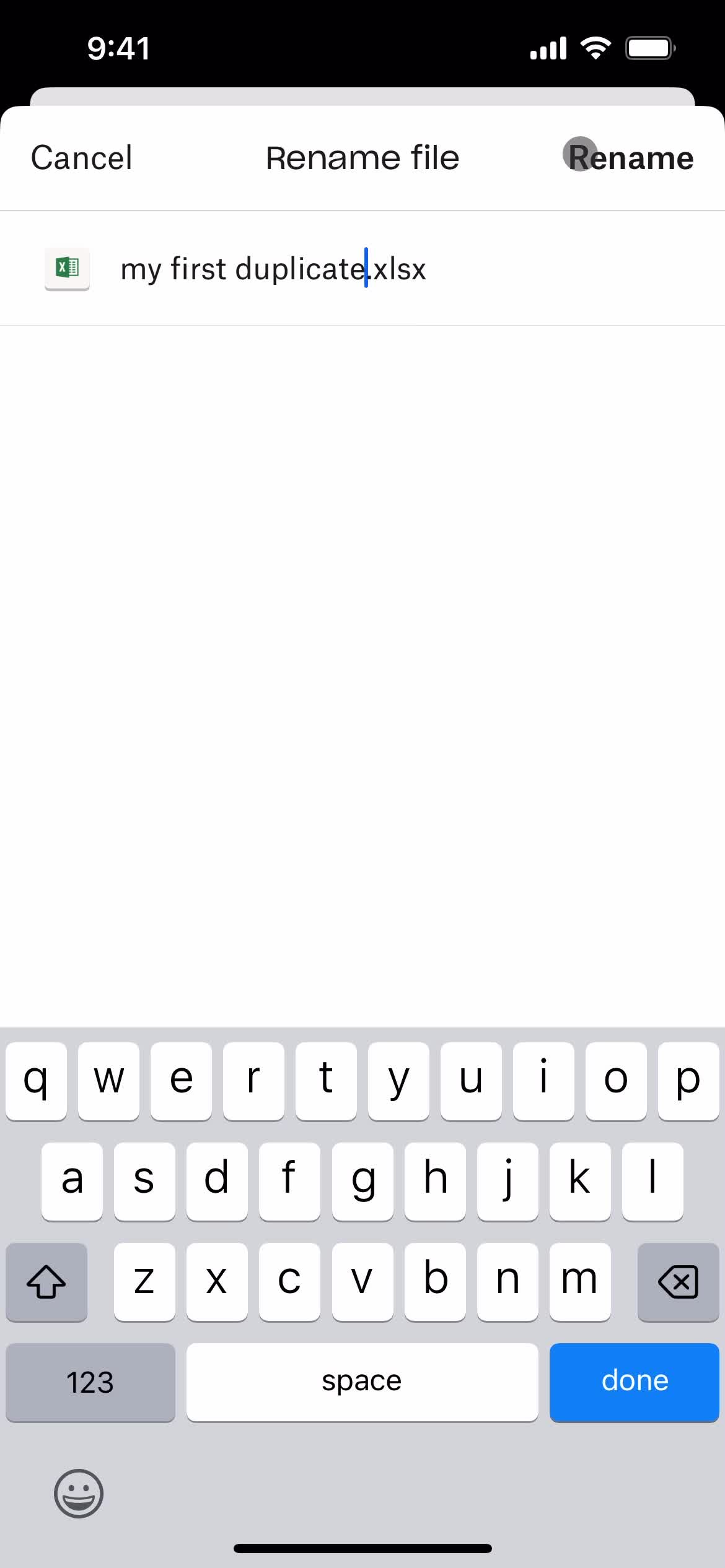
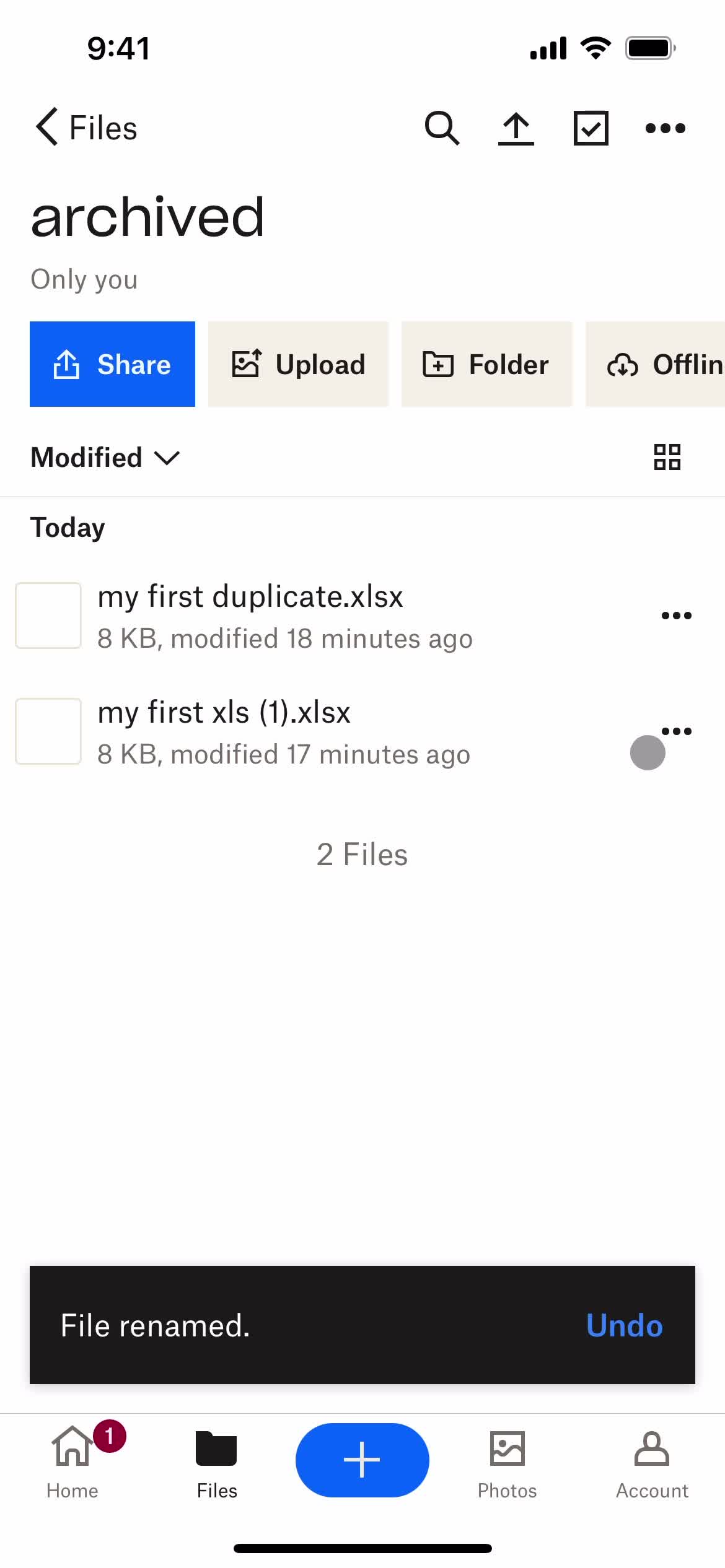
Rename
this is title
Continue
this is title
Folder
this is title
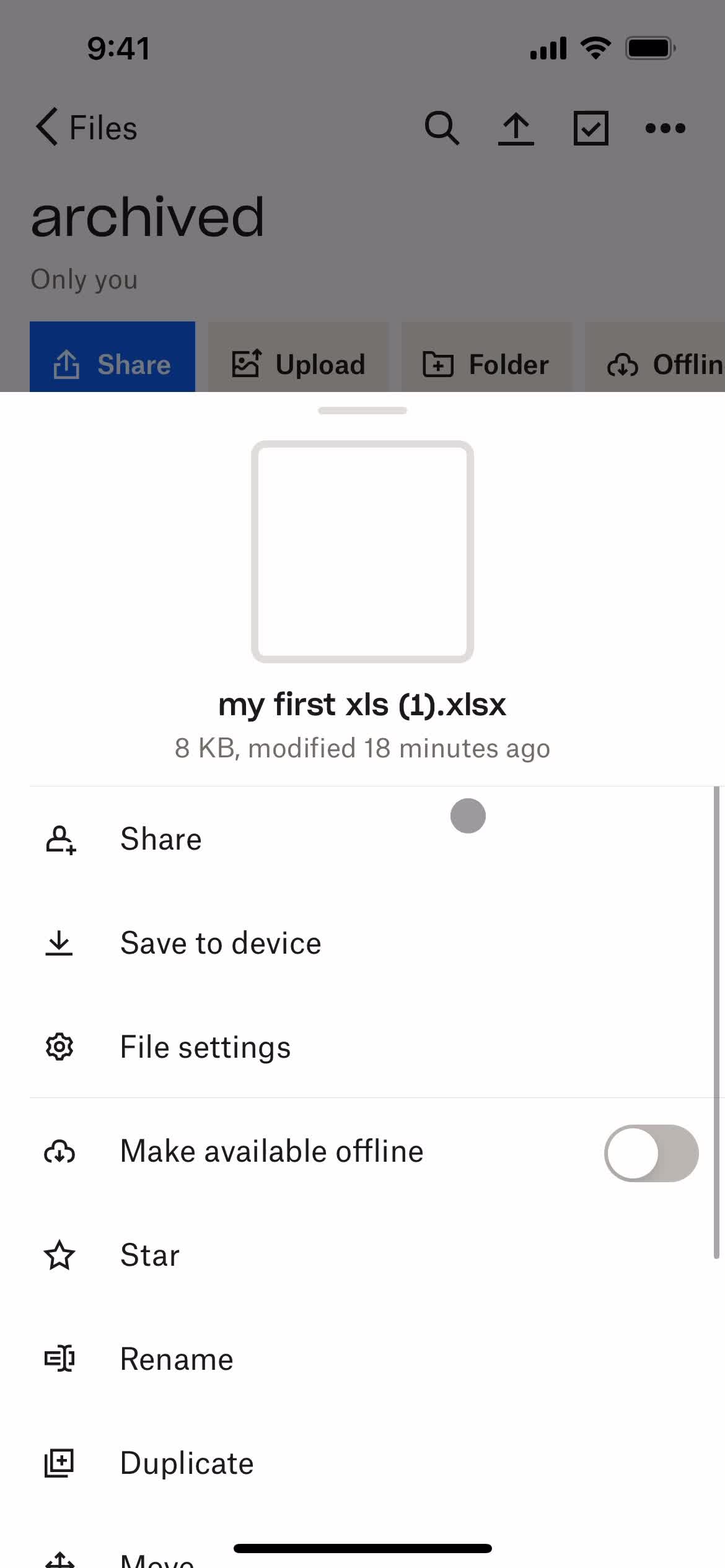
Action menu
this is title
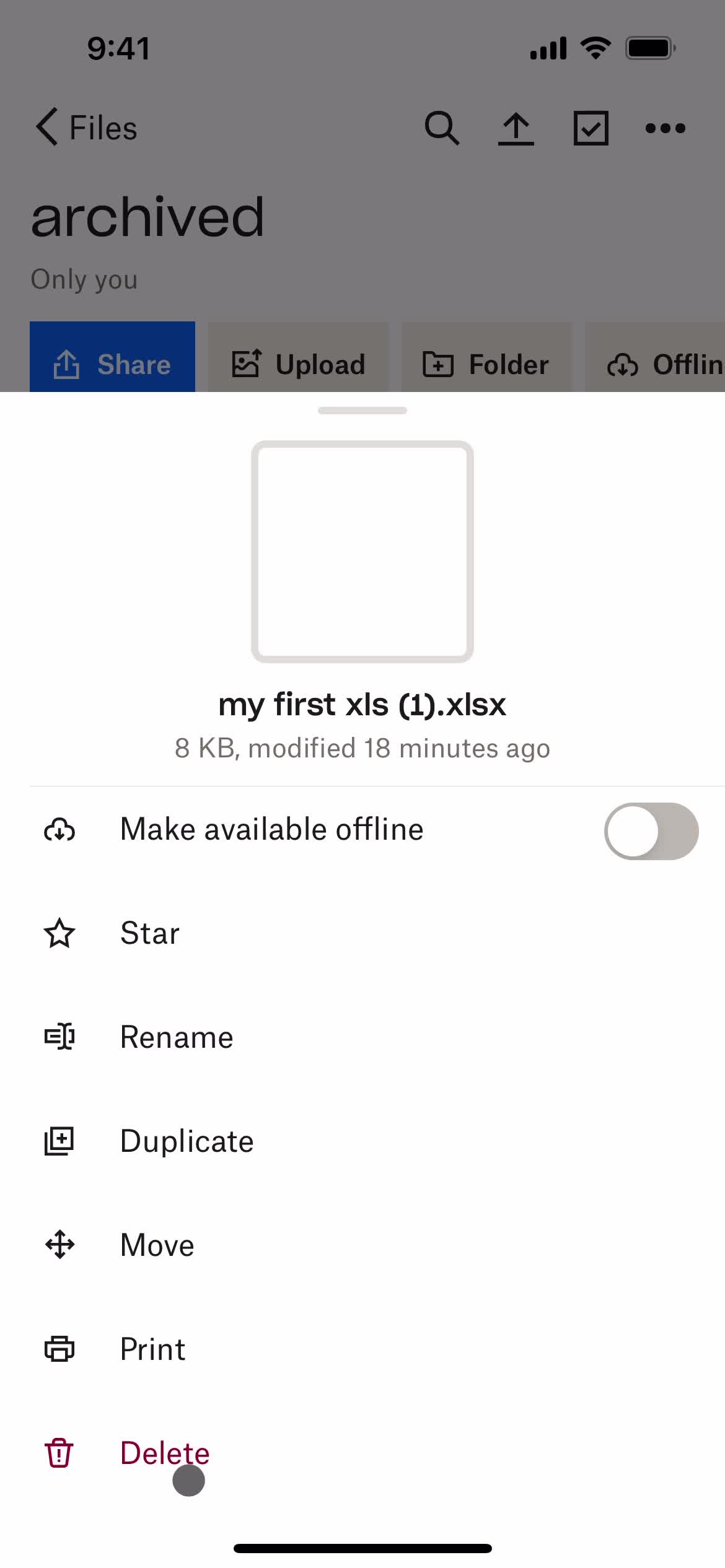
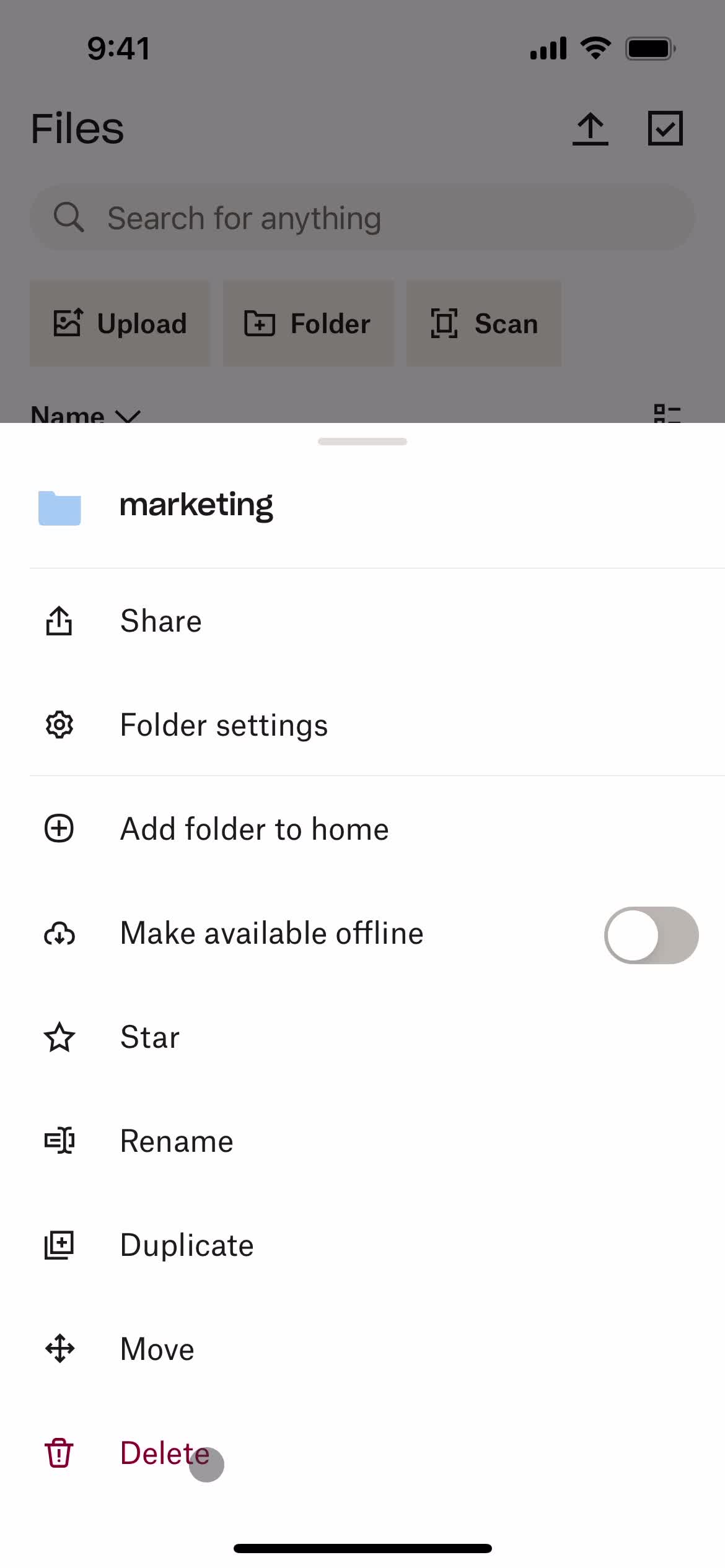
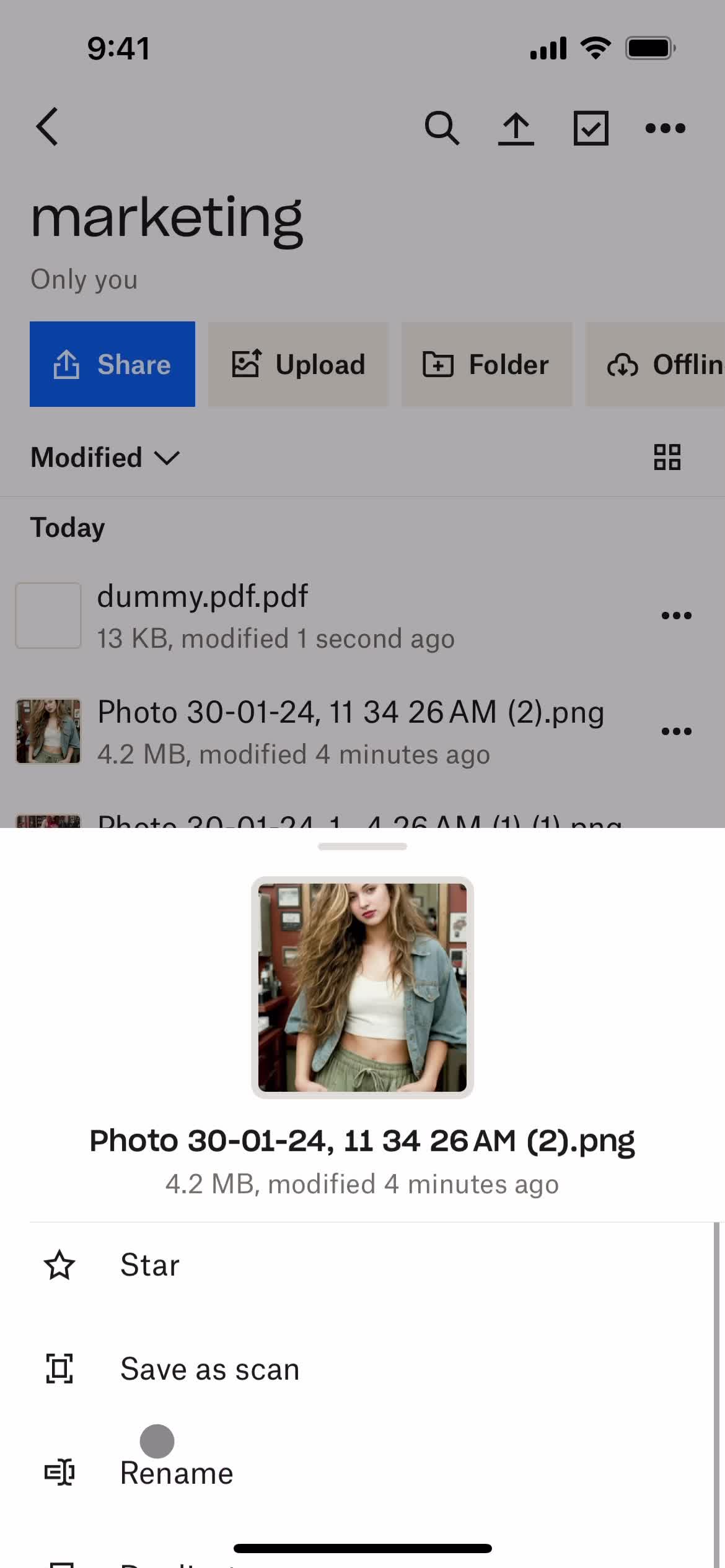
Delete file
this is title
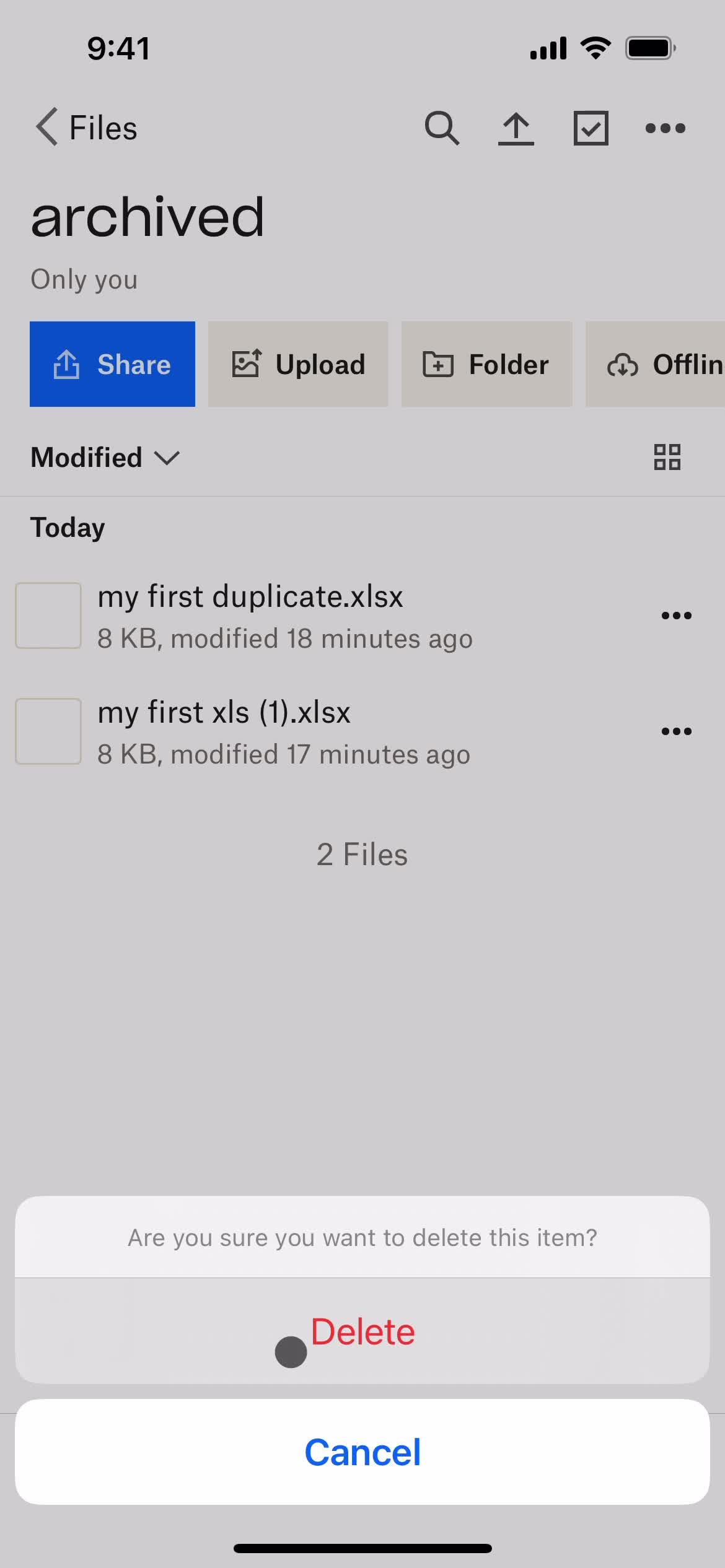
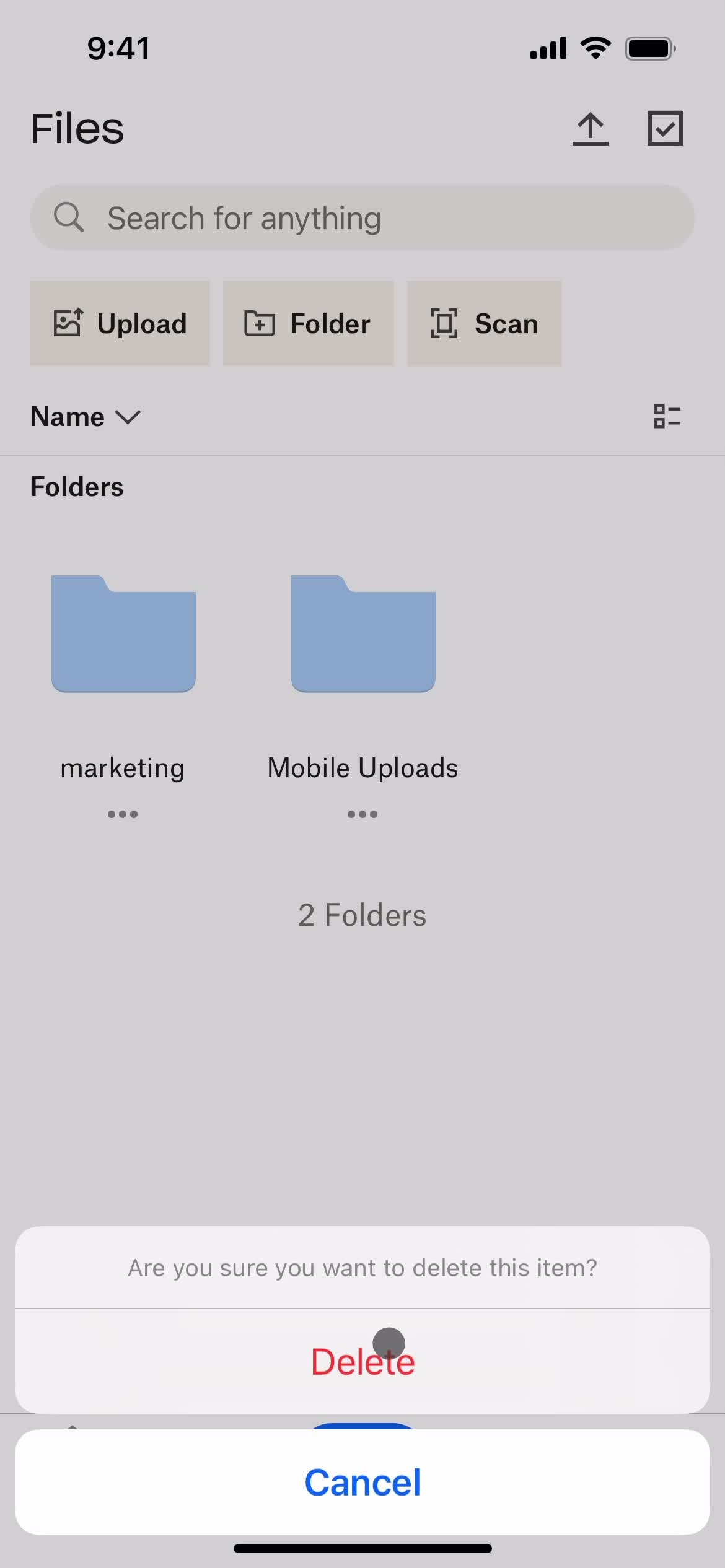
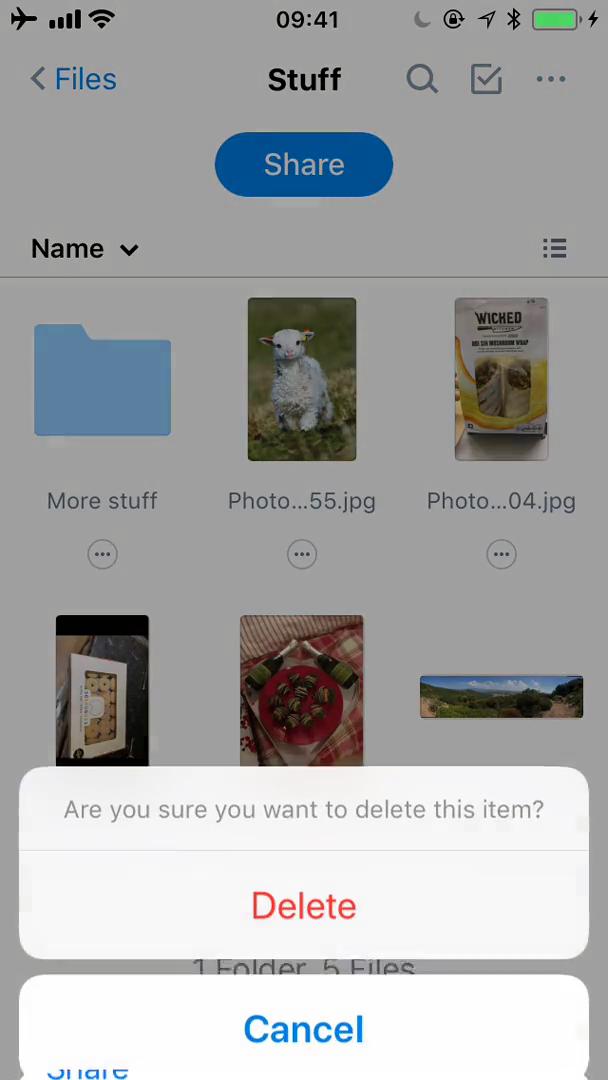
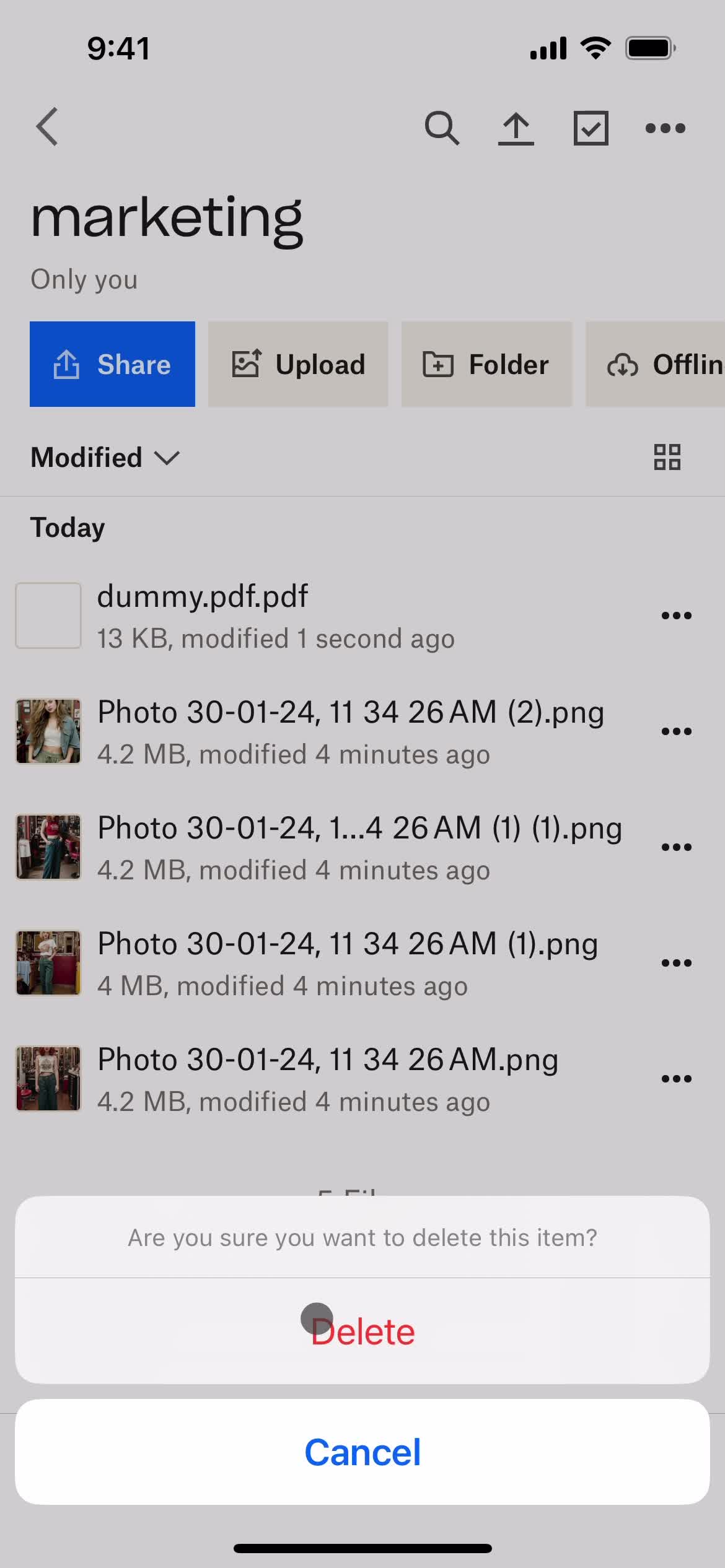
Confirm delete
this is title
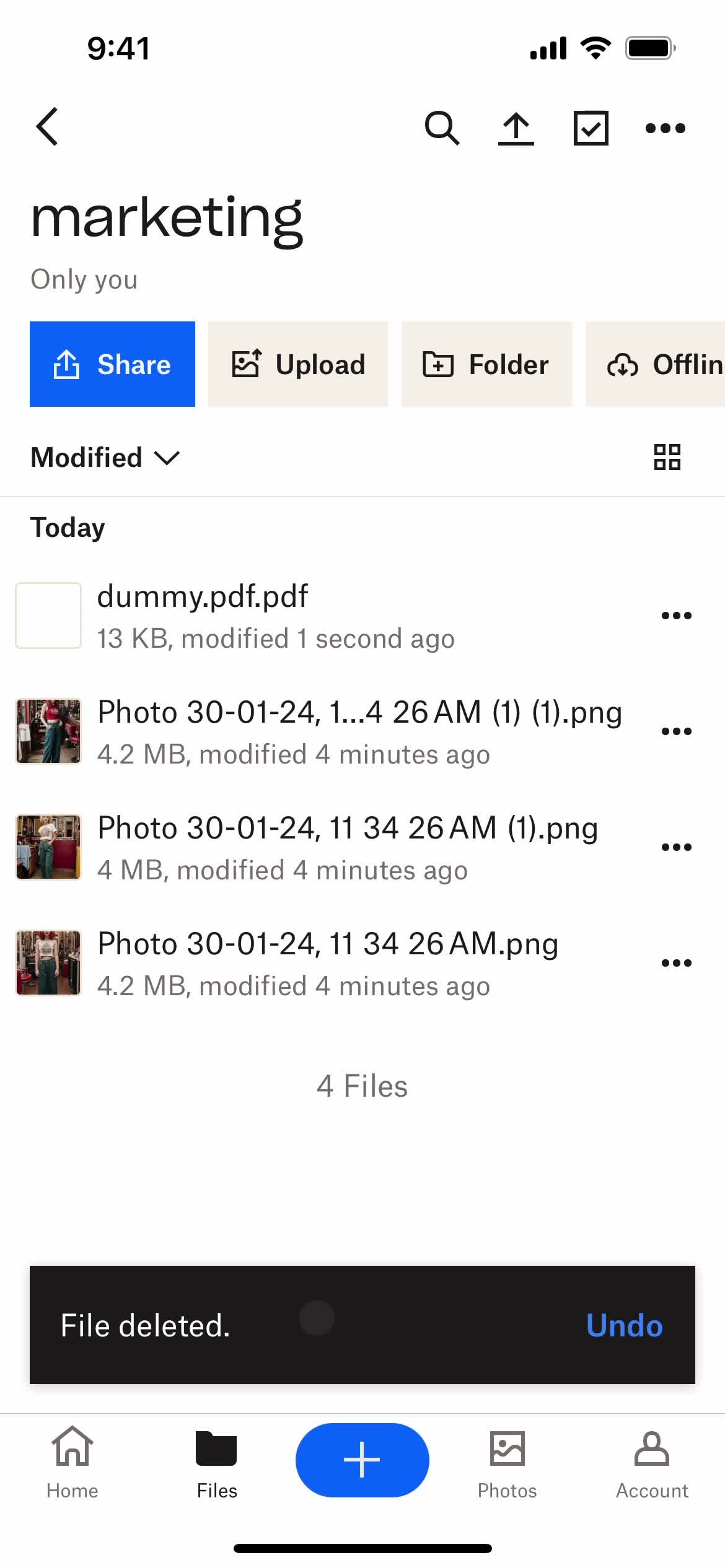
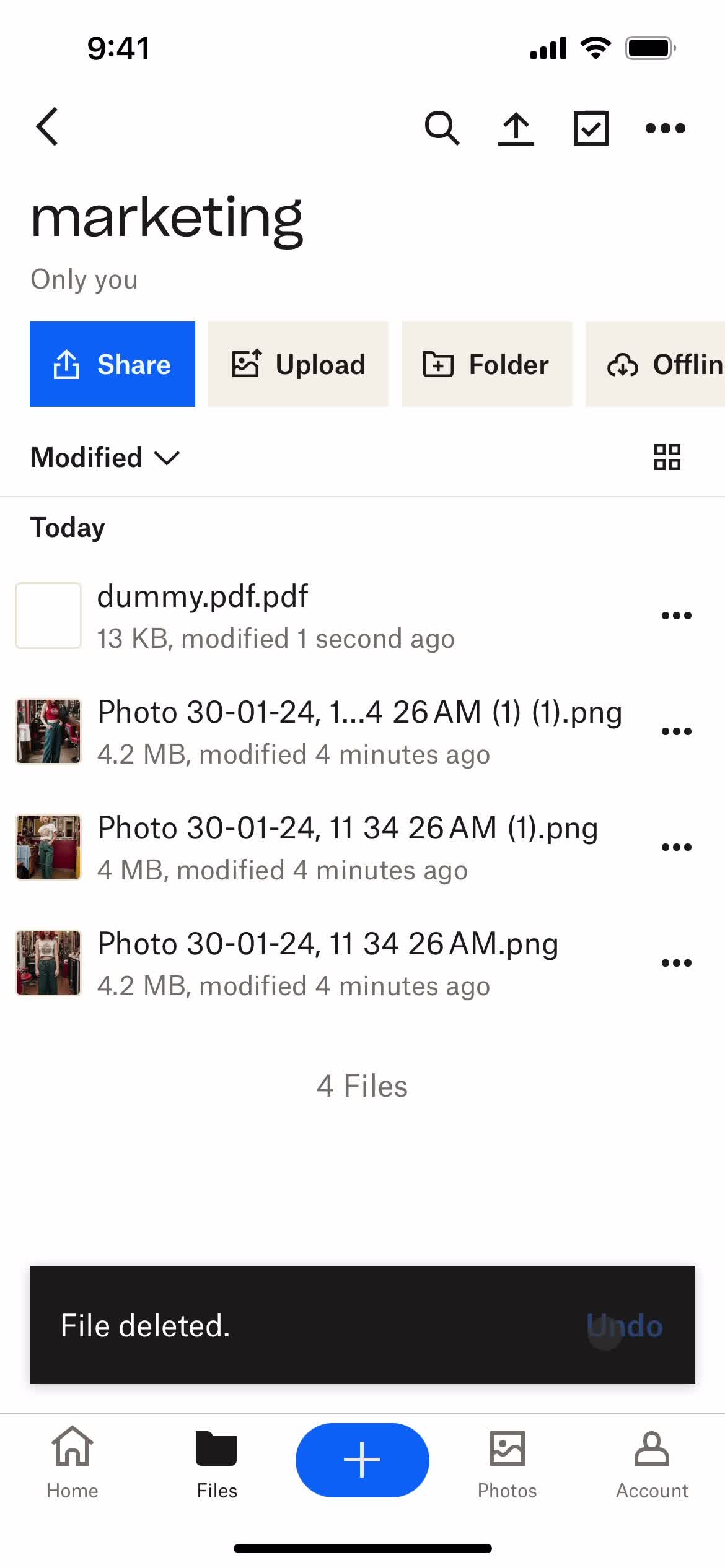
Deleted
this is title
this is title
this is title
this is title
this is title
this is title
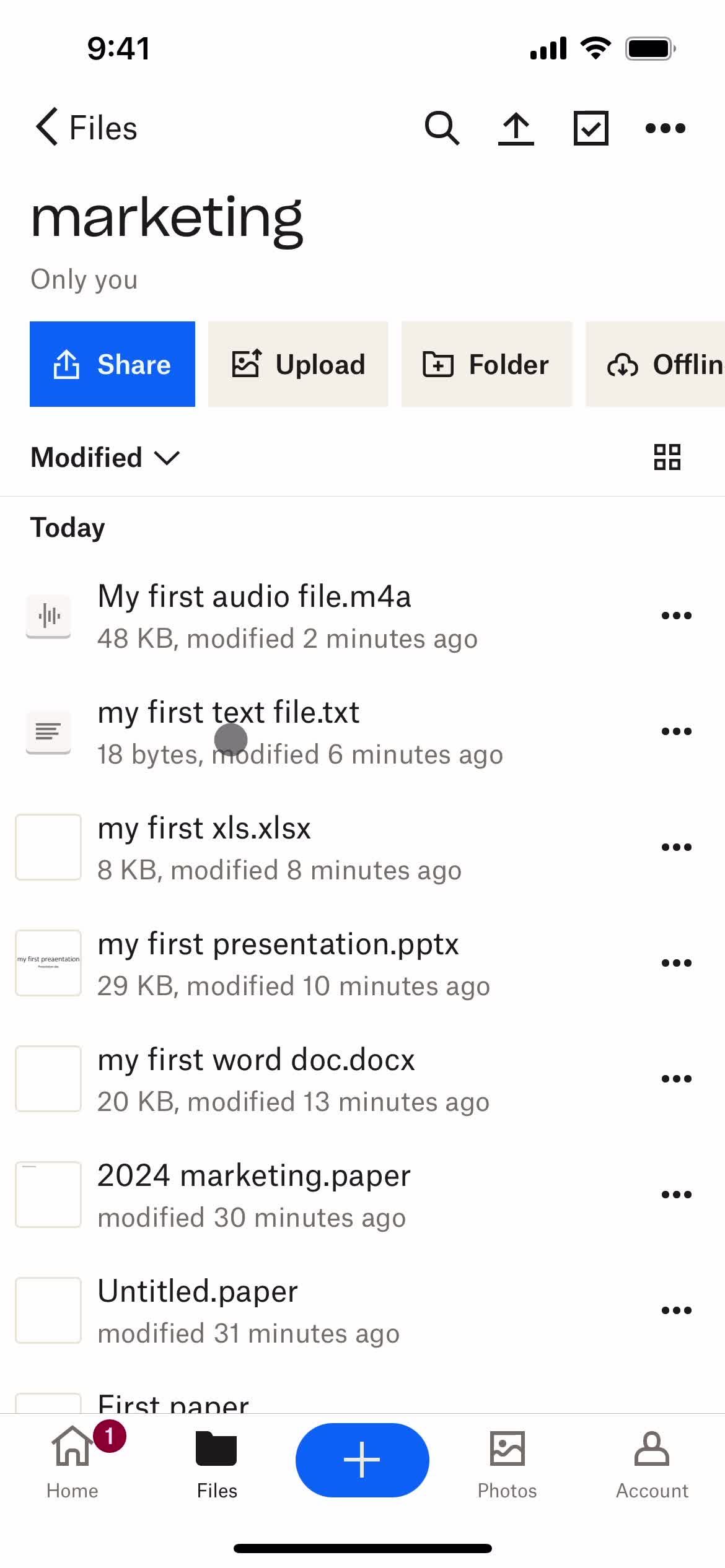
Home
this is title
Files
this is title
Folder
this is title
this is title
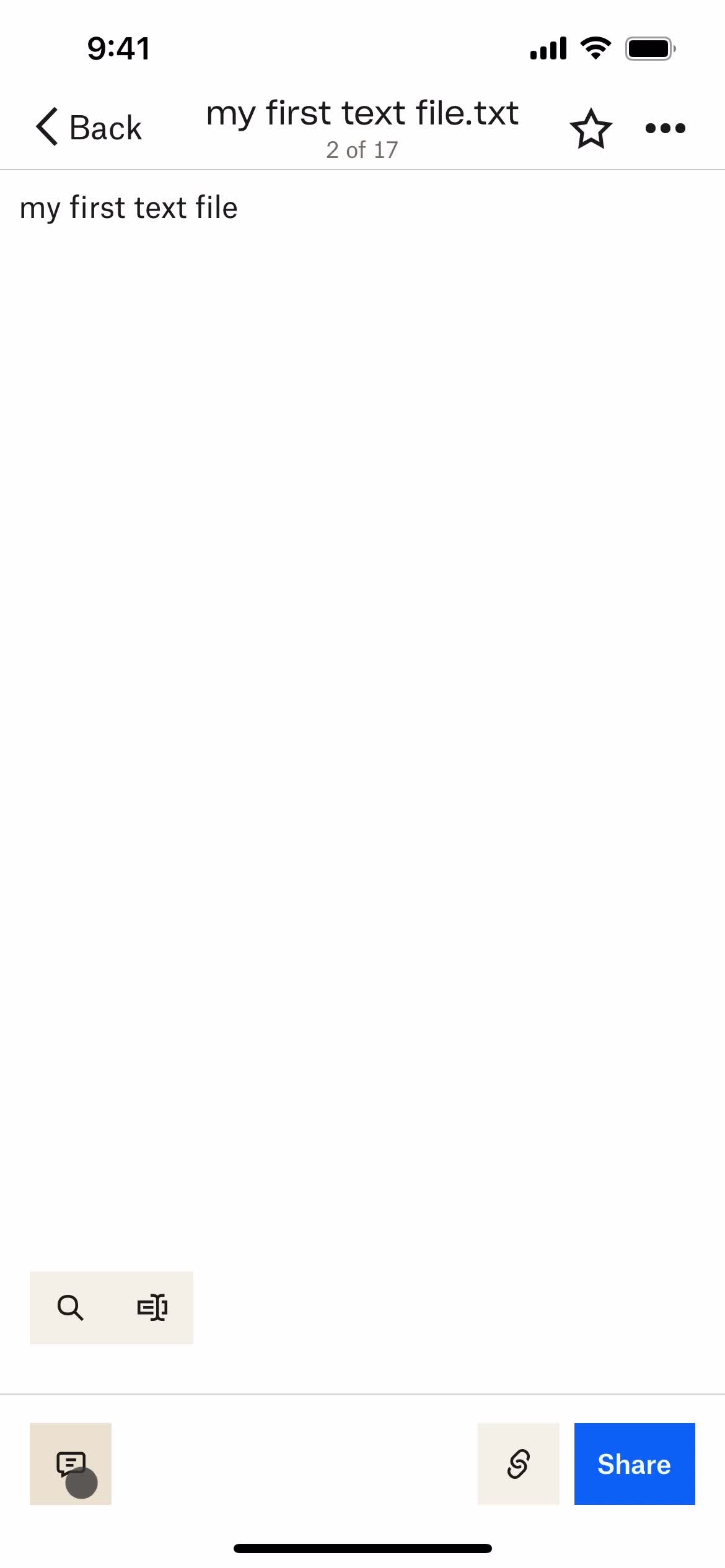
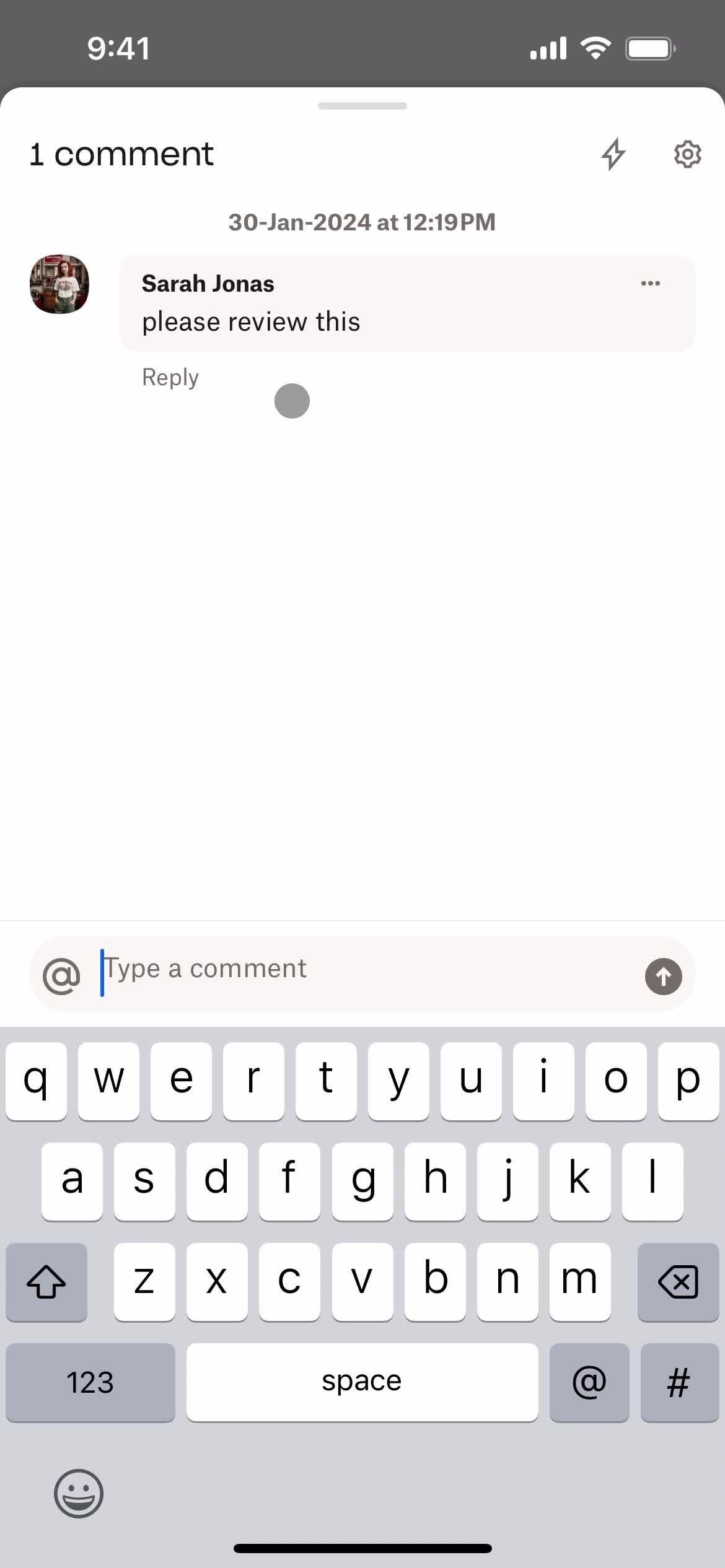
Add comment
this is title
this is title
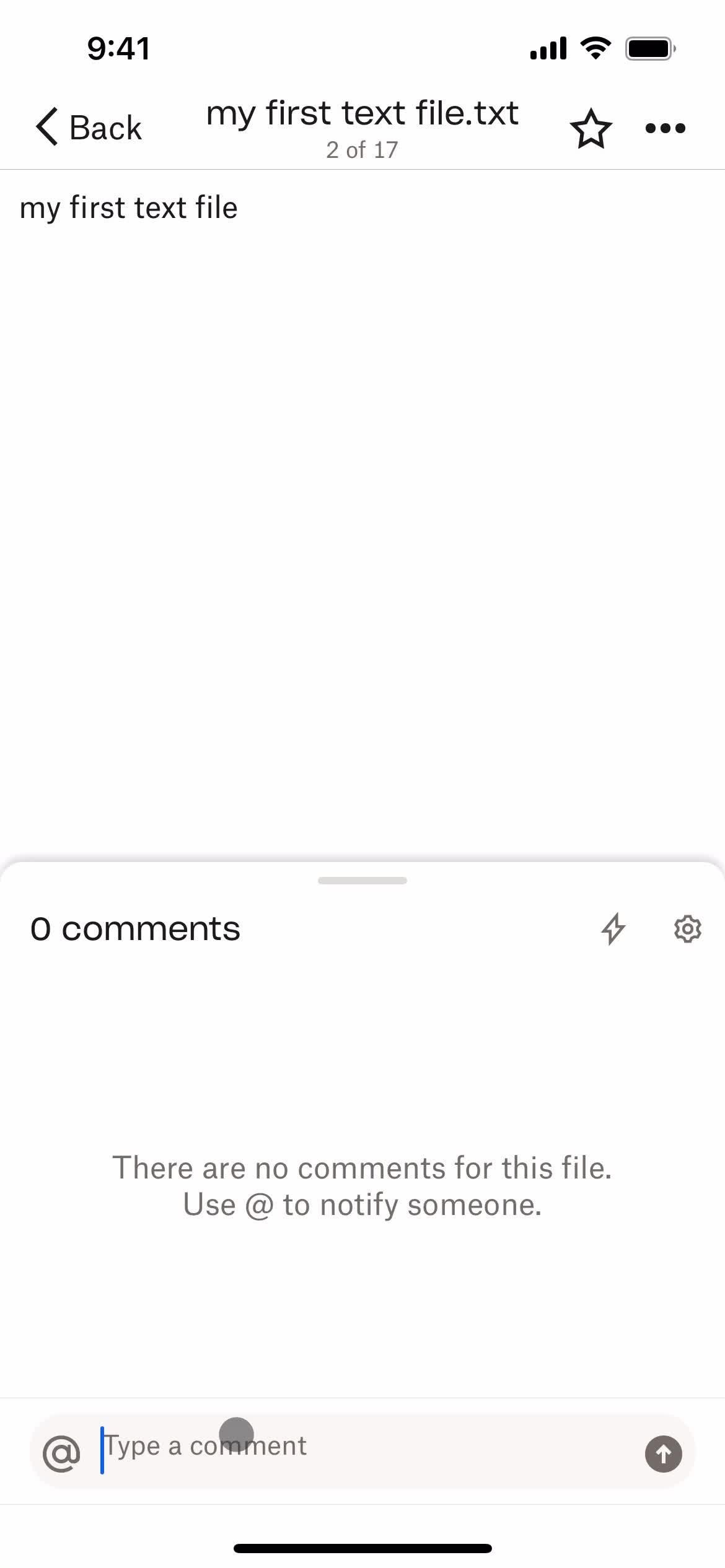
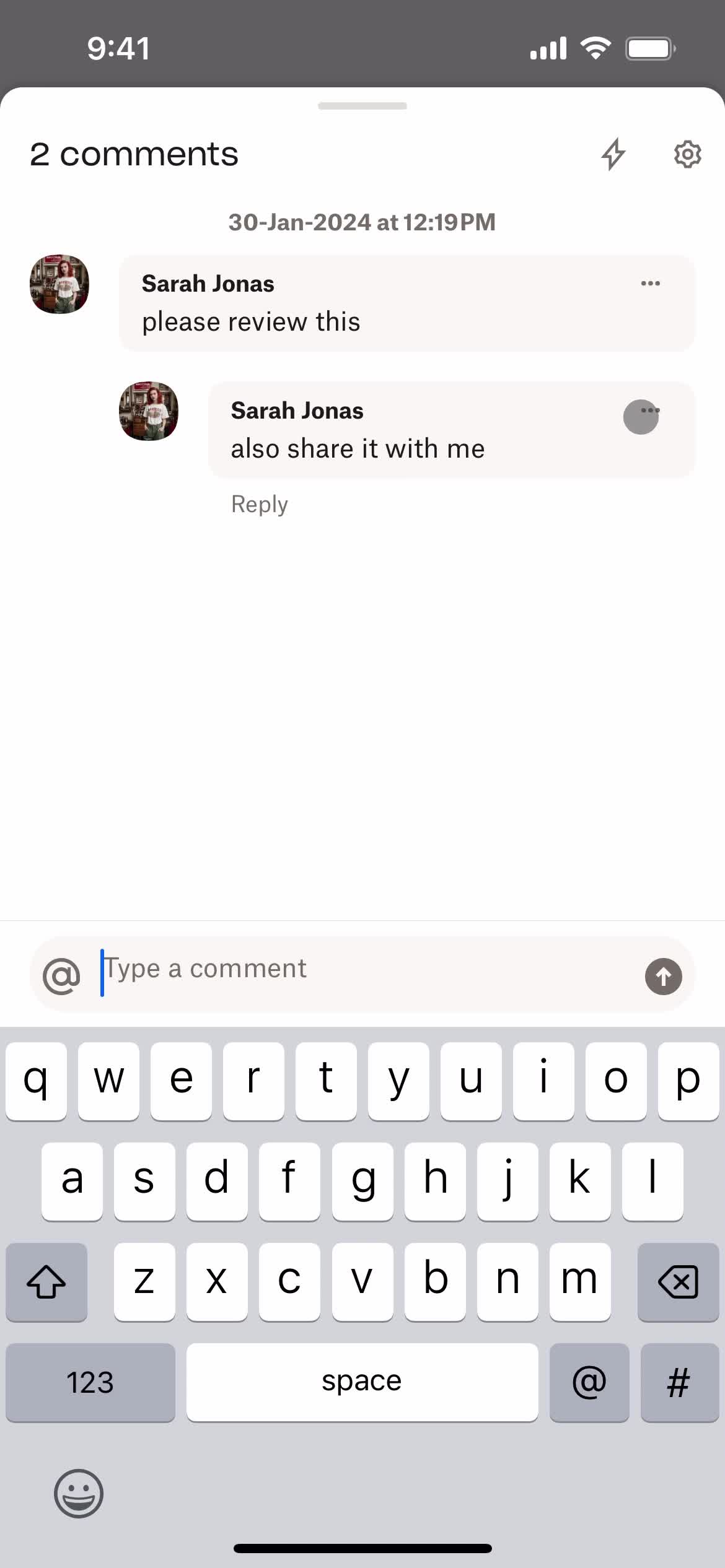
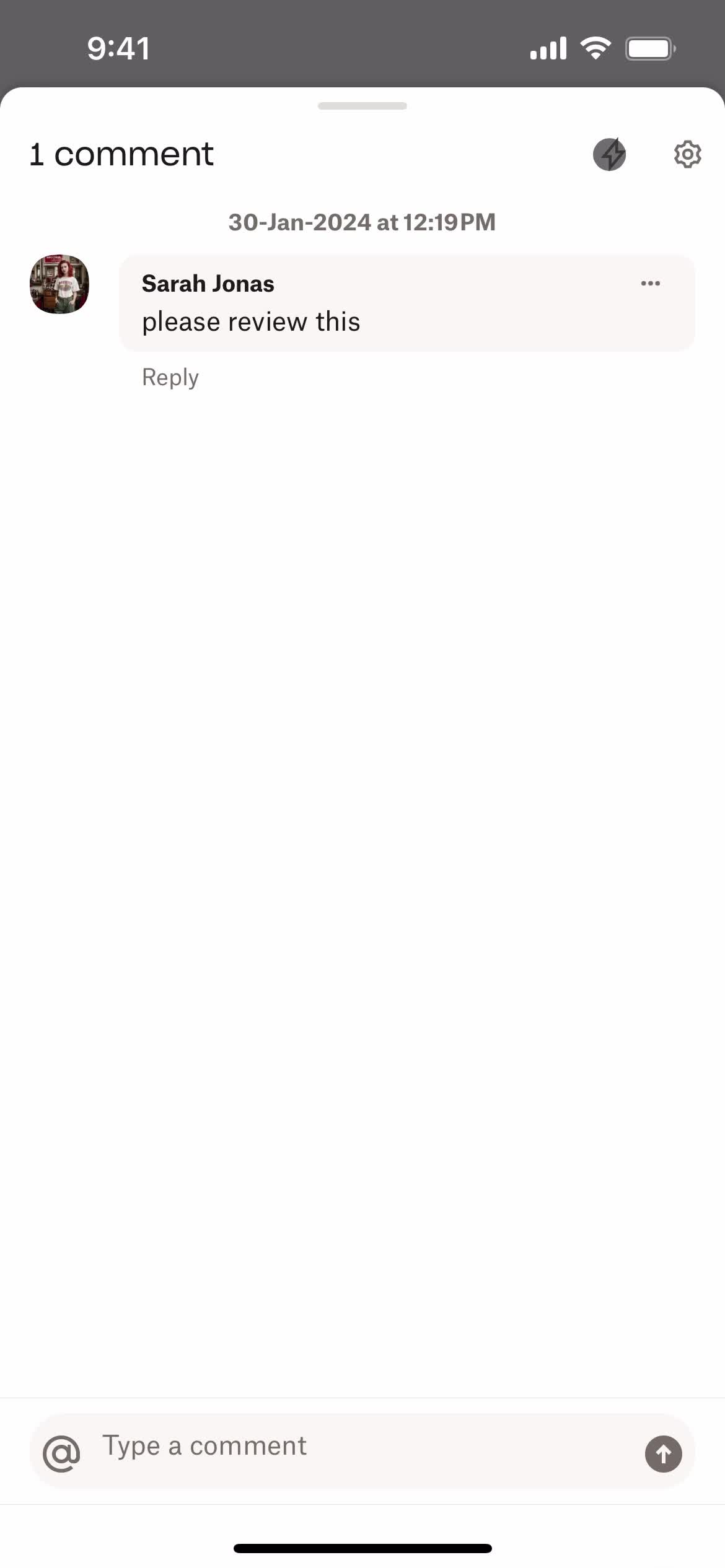
Comments
this is title
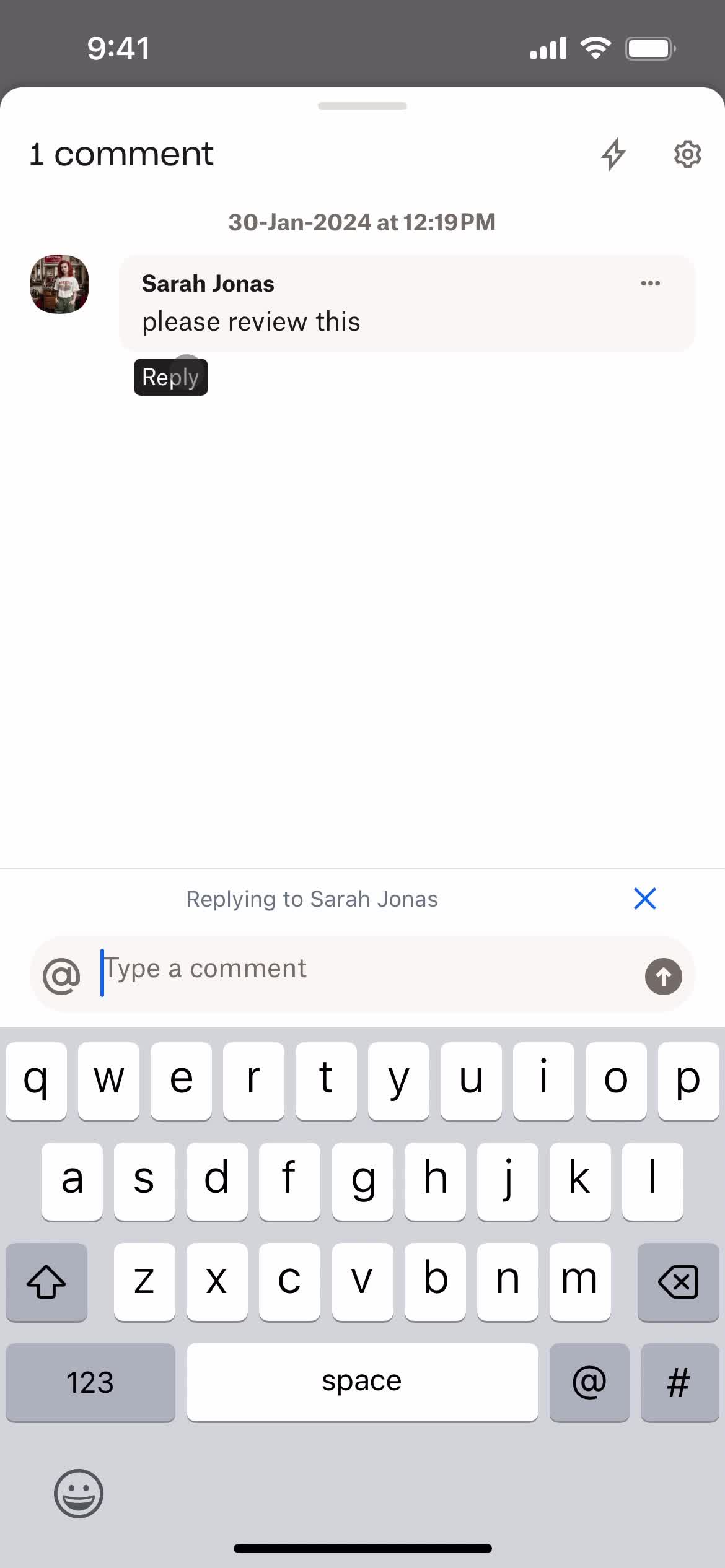
Reply to comment
this is title
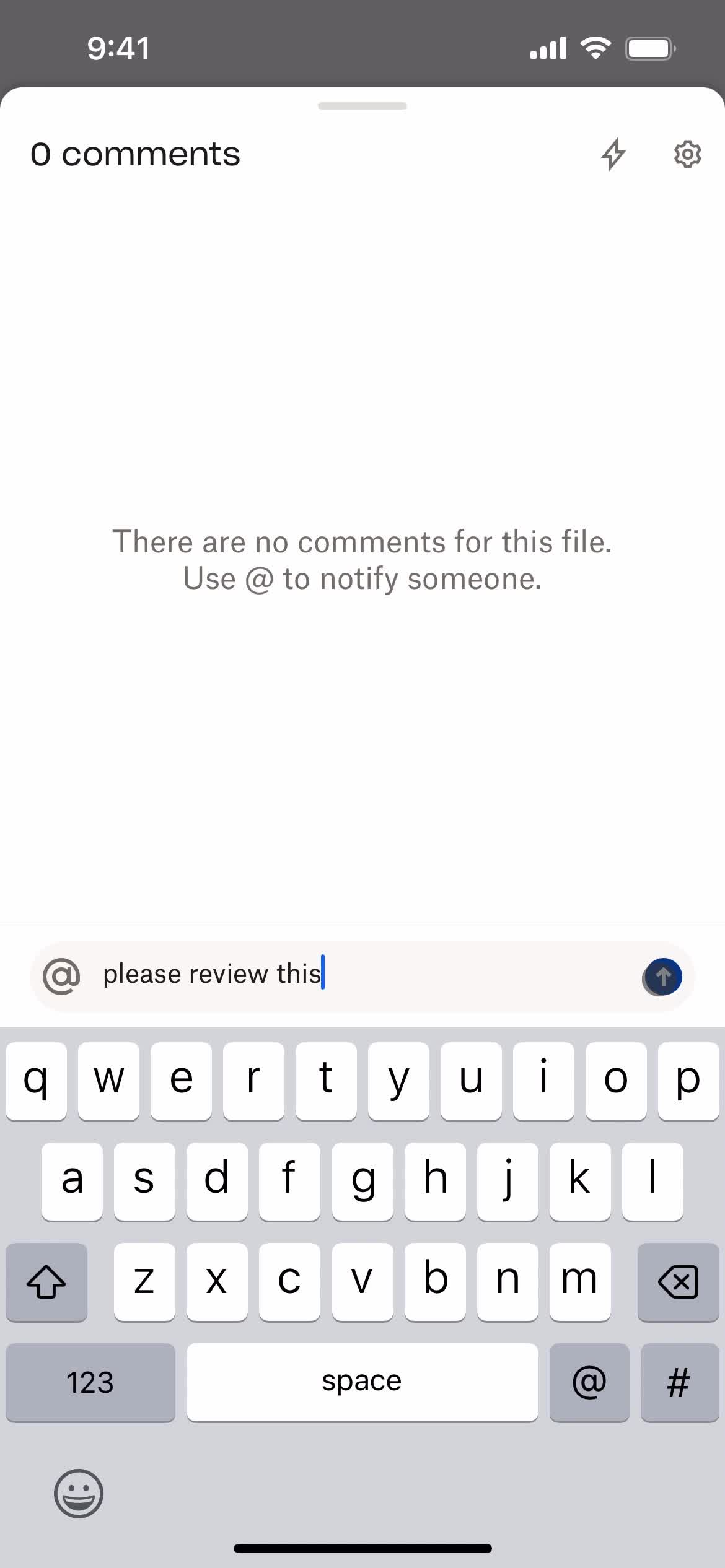
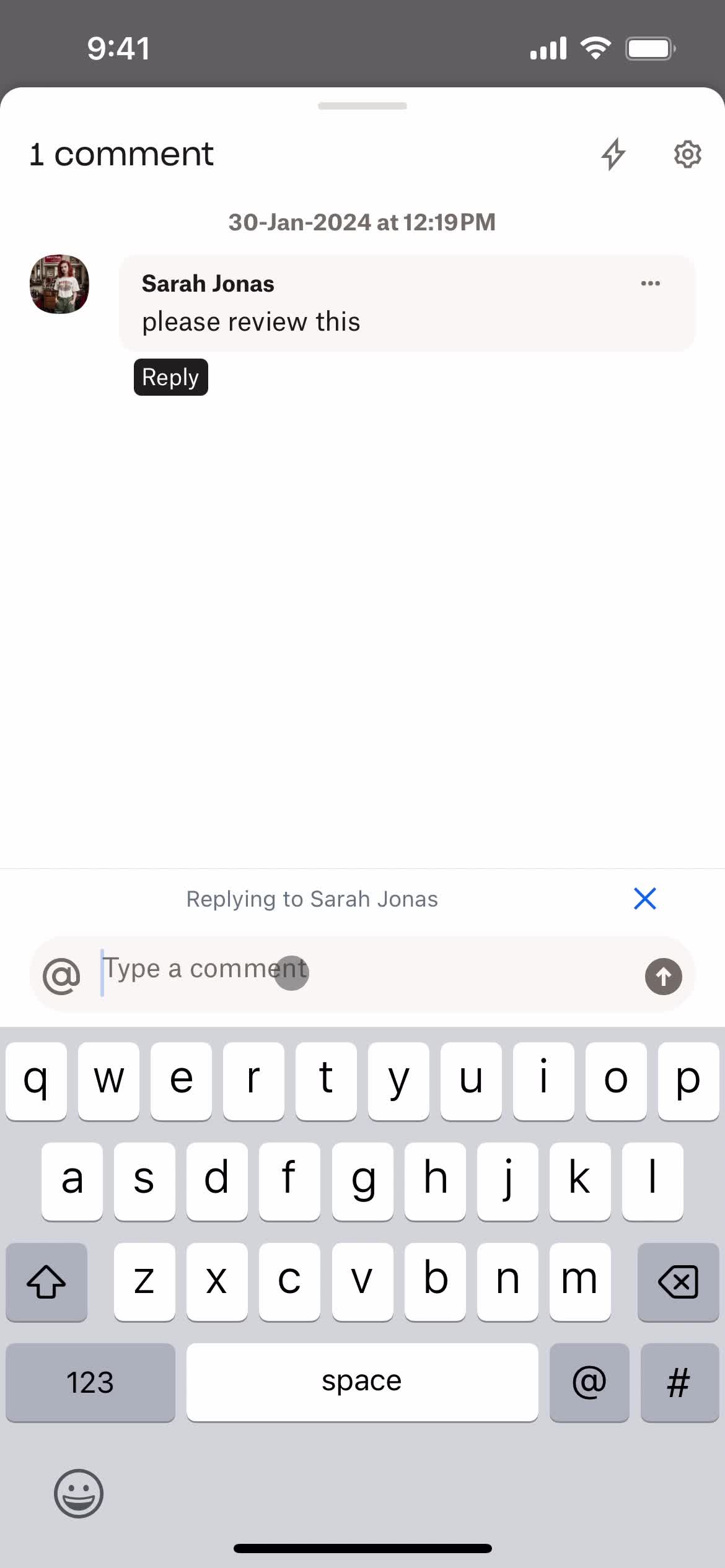
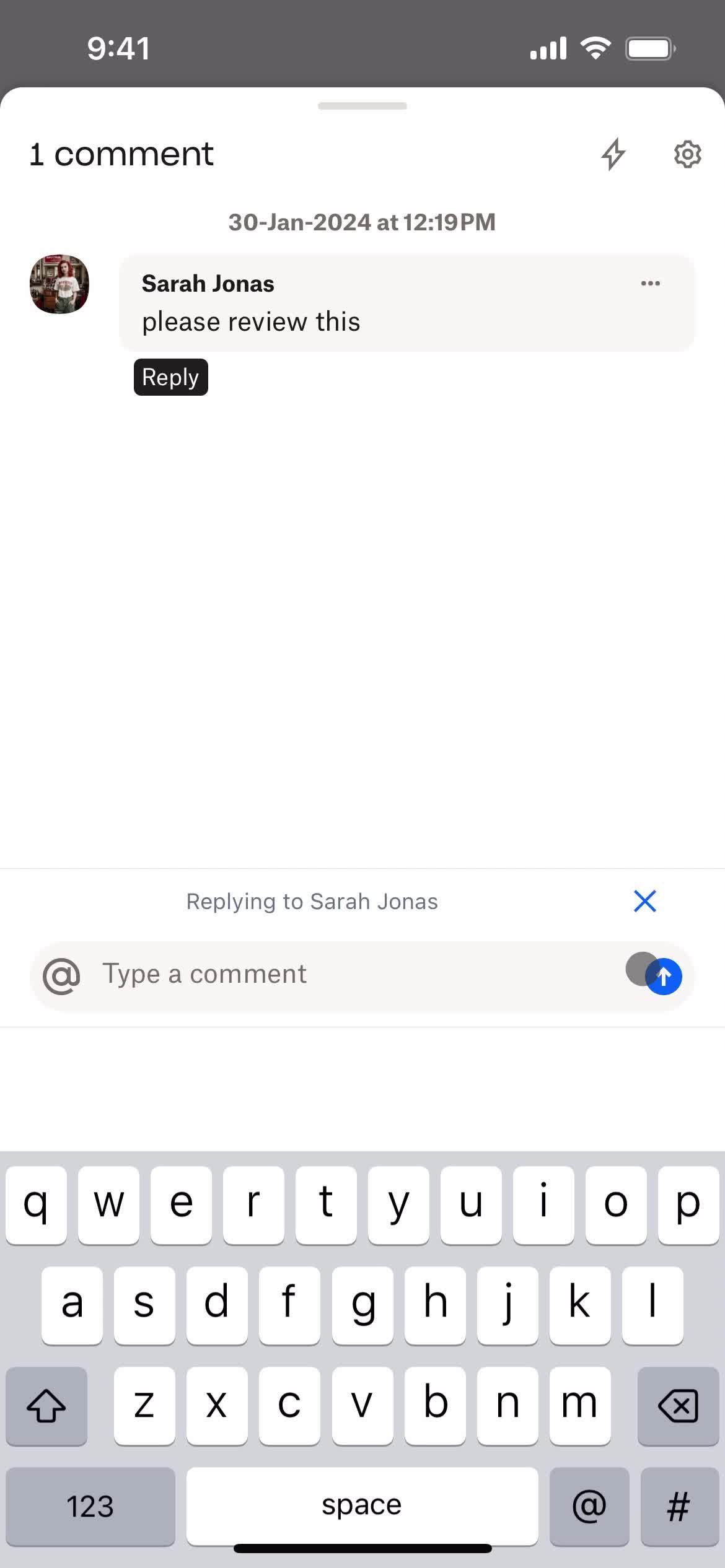
Add comment
this is title
this is title
Comments
this is title
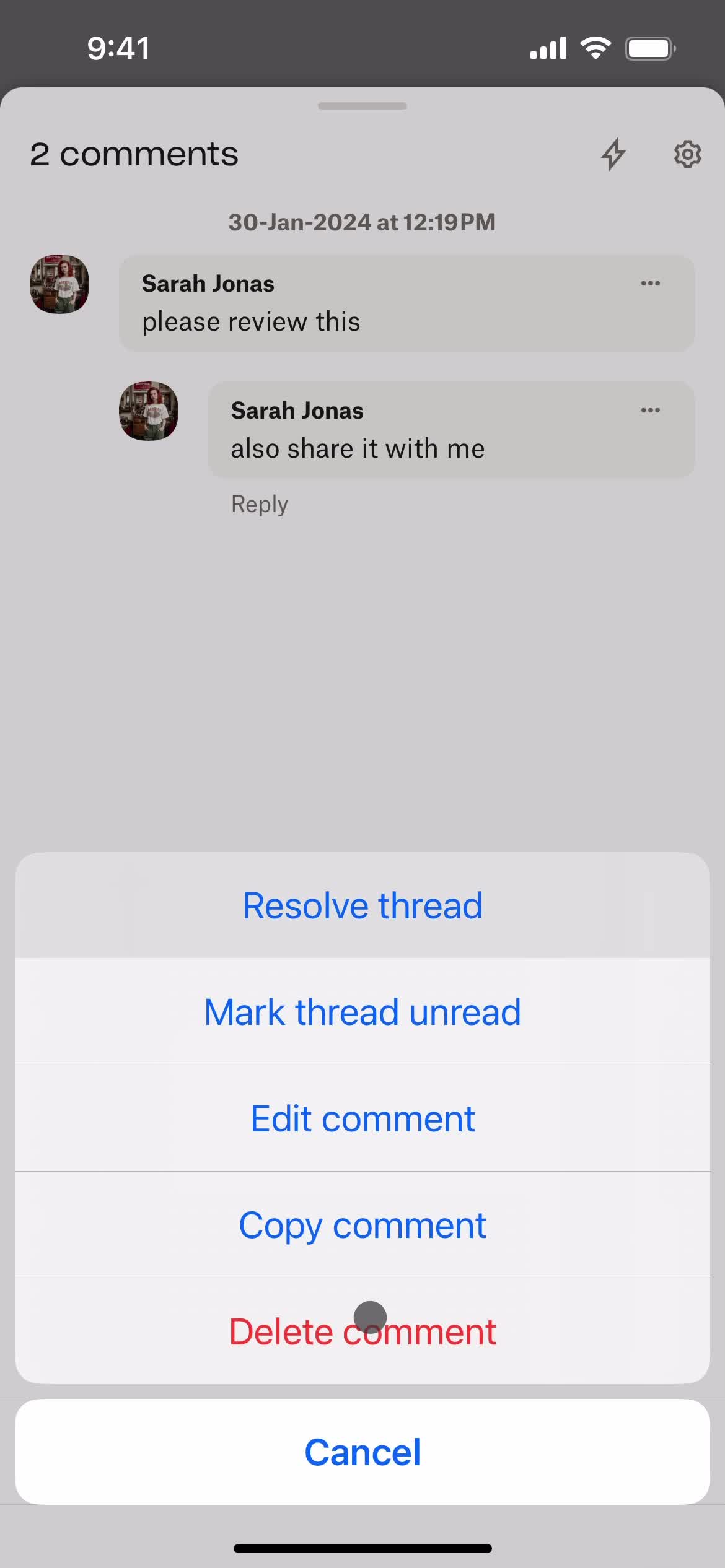
Delete comment
this is title
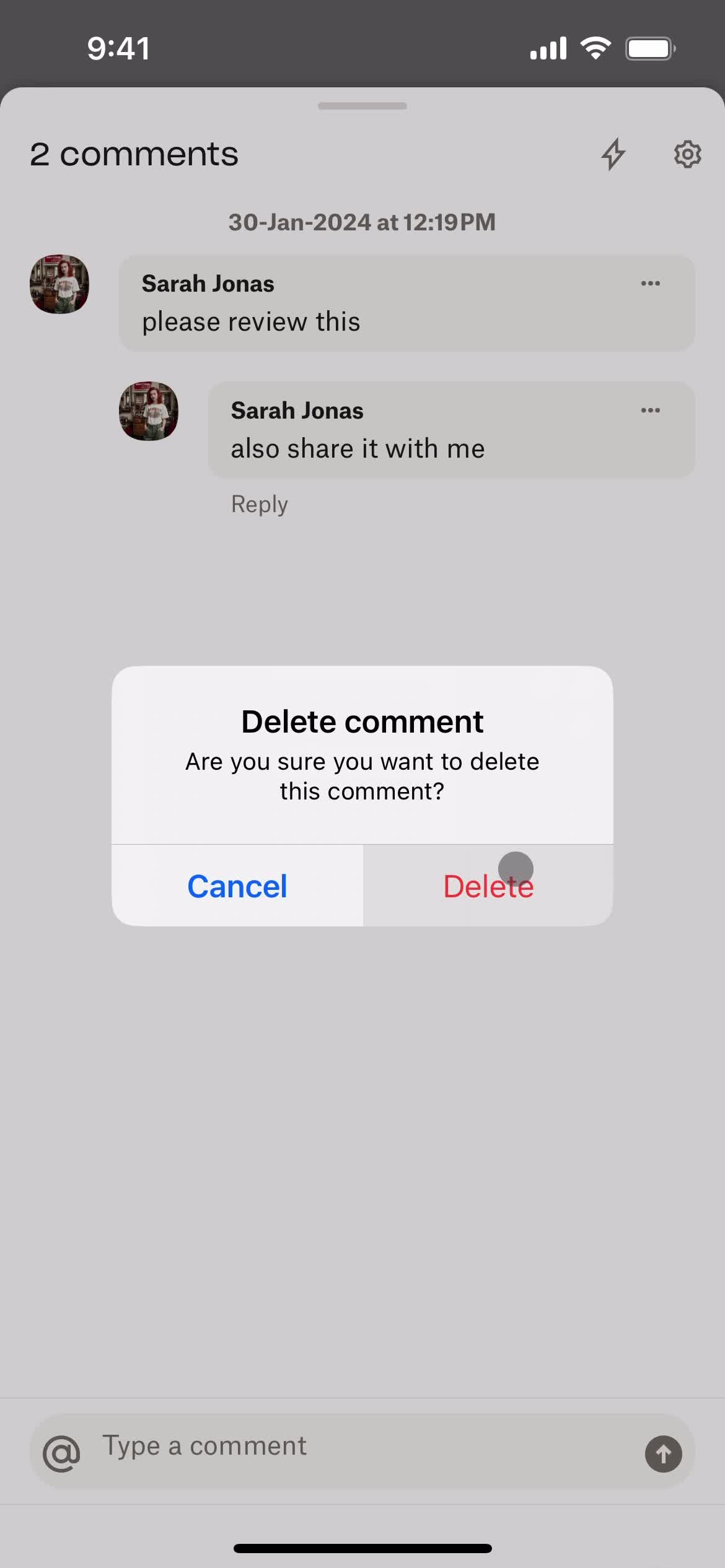
Confirm delete
this is title
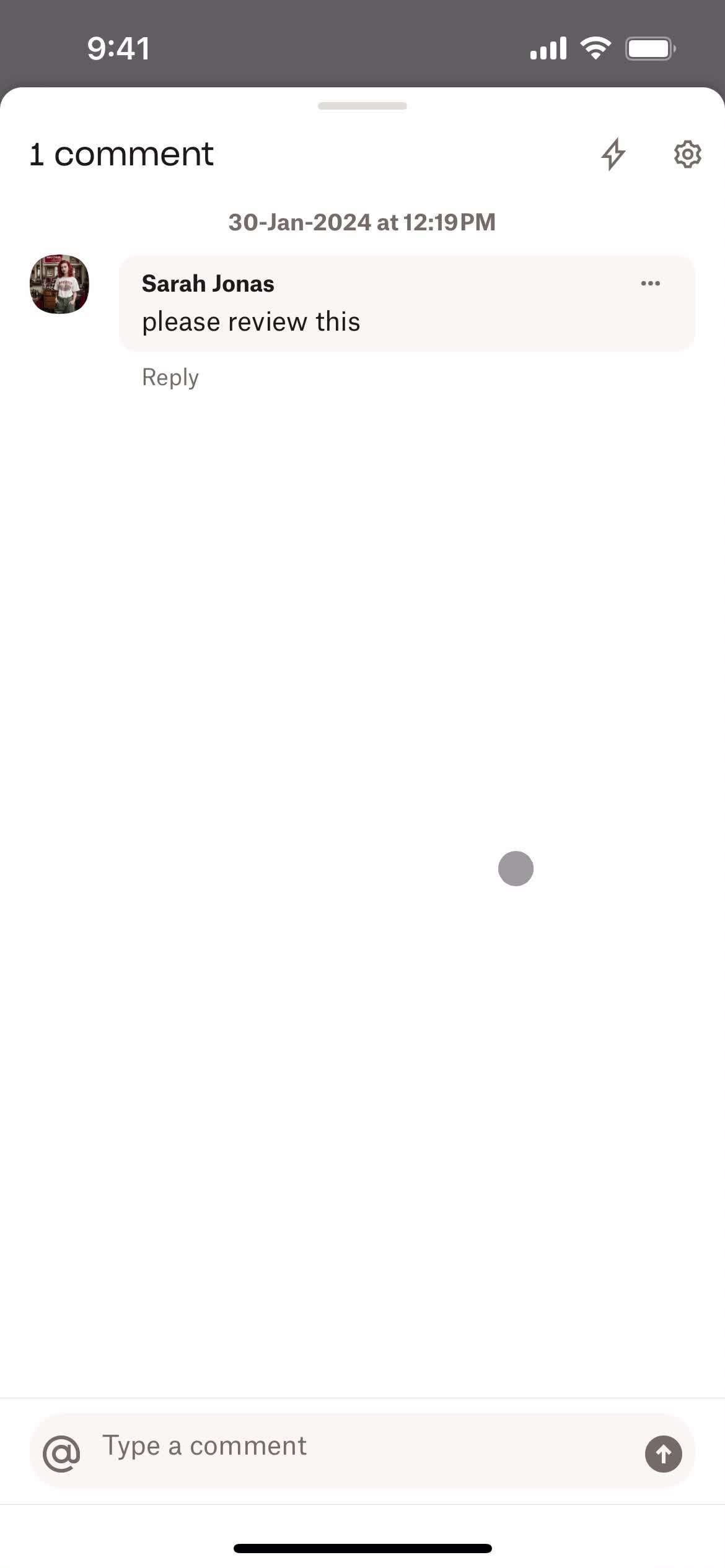
Deleted
this is title
this is title
Activity feed
this is title
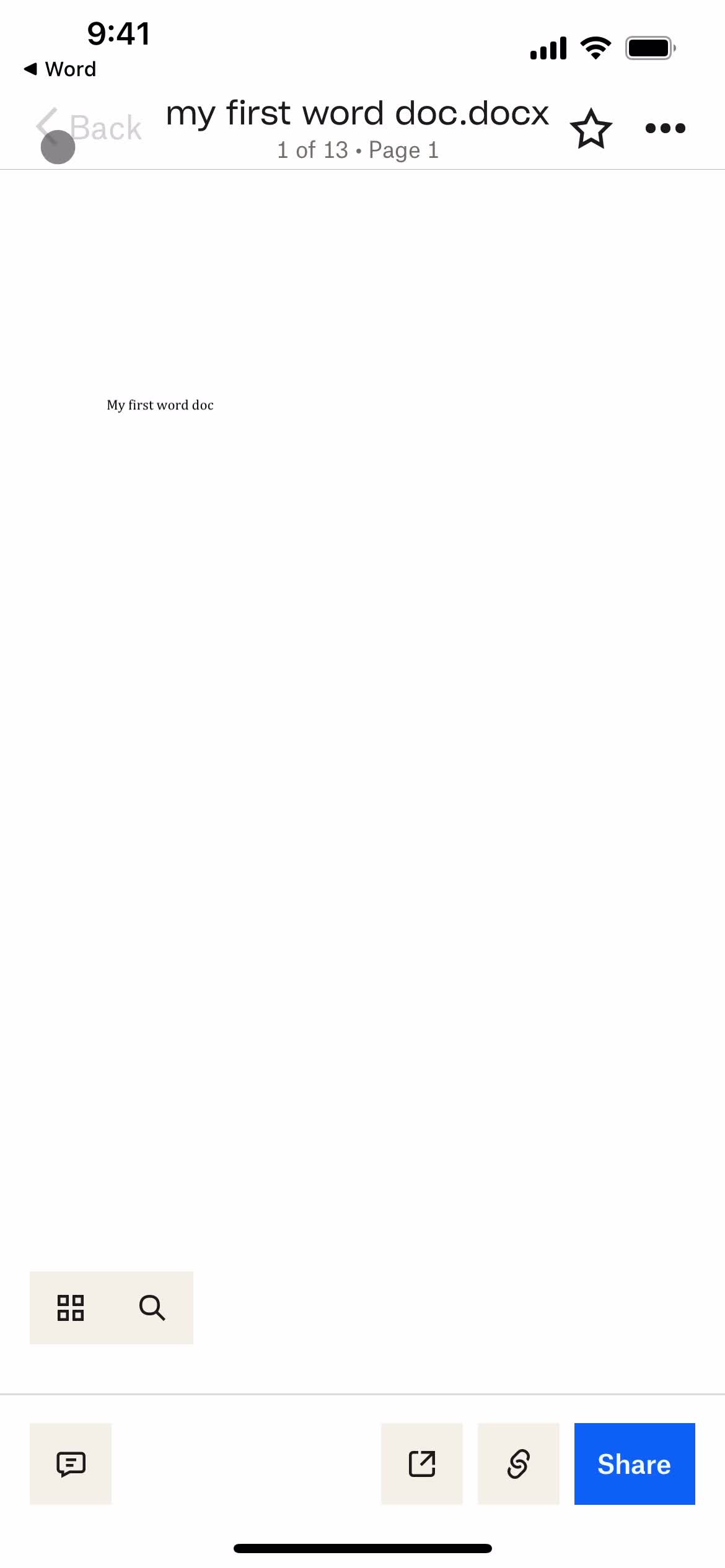
File detail
this is title
Folder
this is title
Files
this is title
Home
this is title
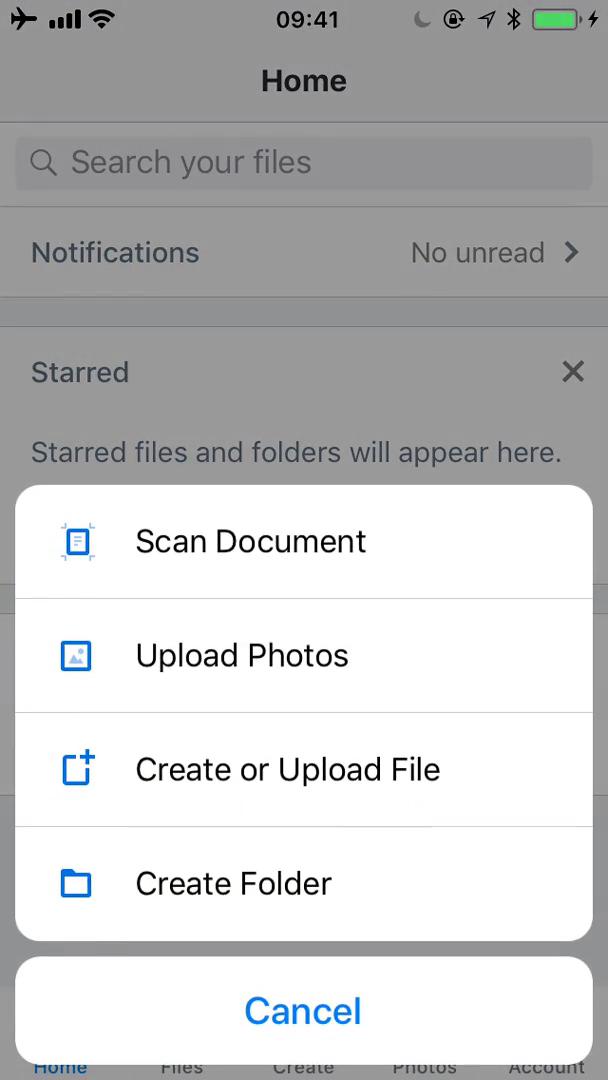
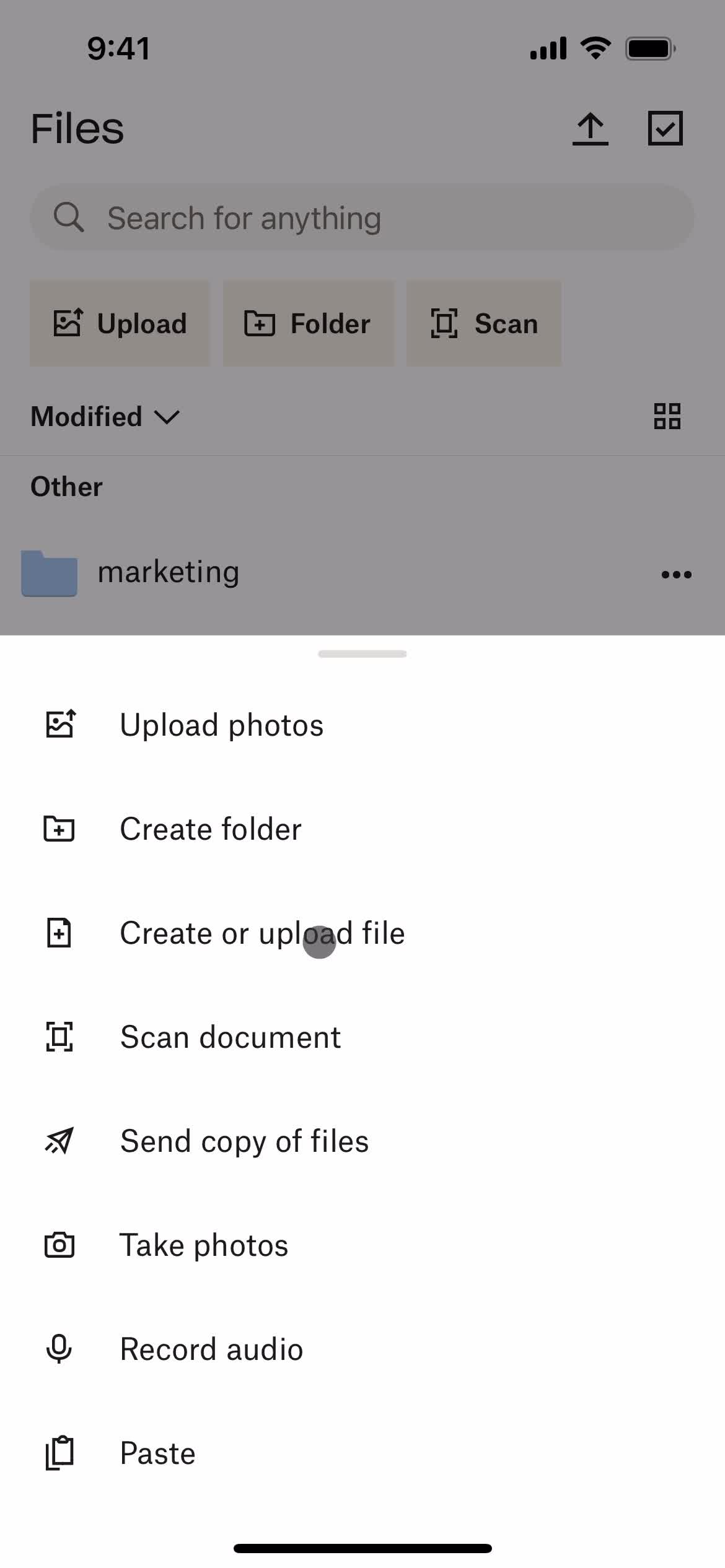
Create menu
this is title
Create document
this is title
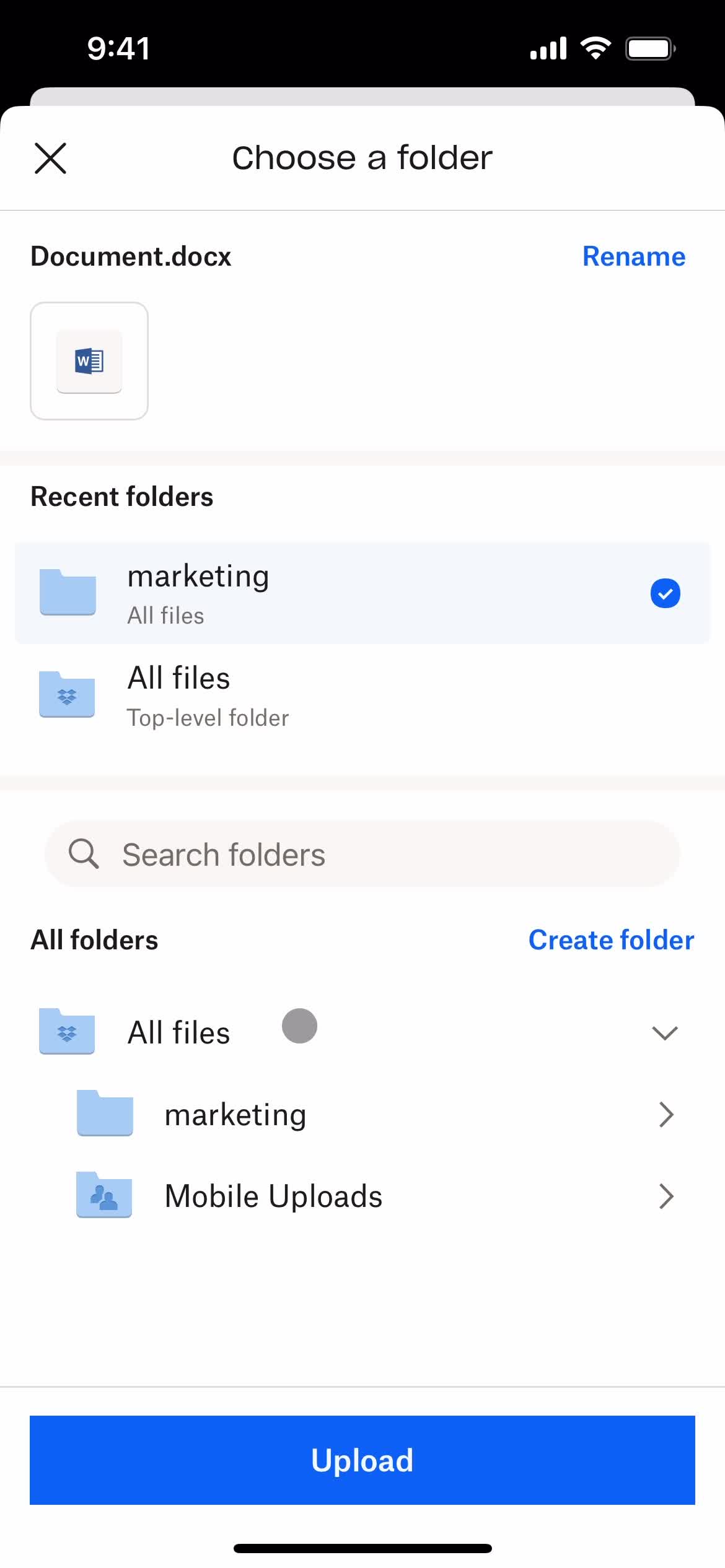
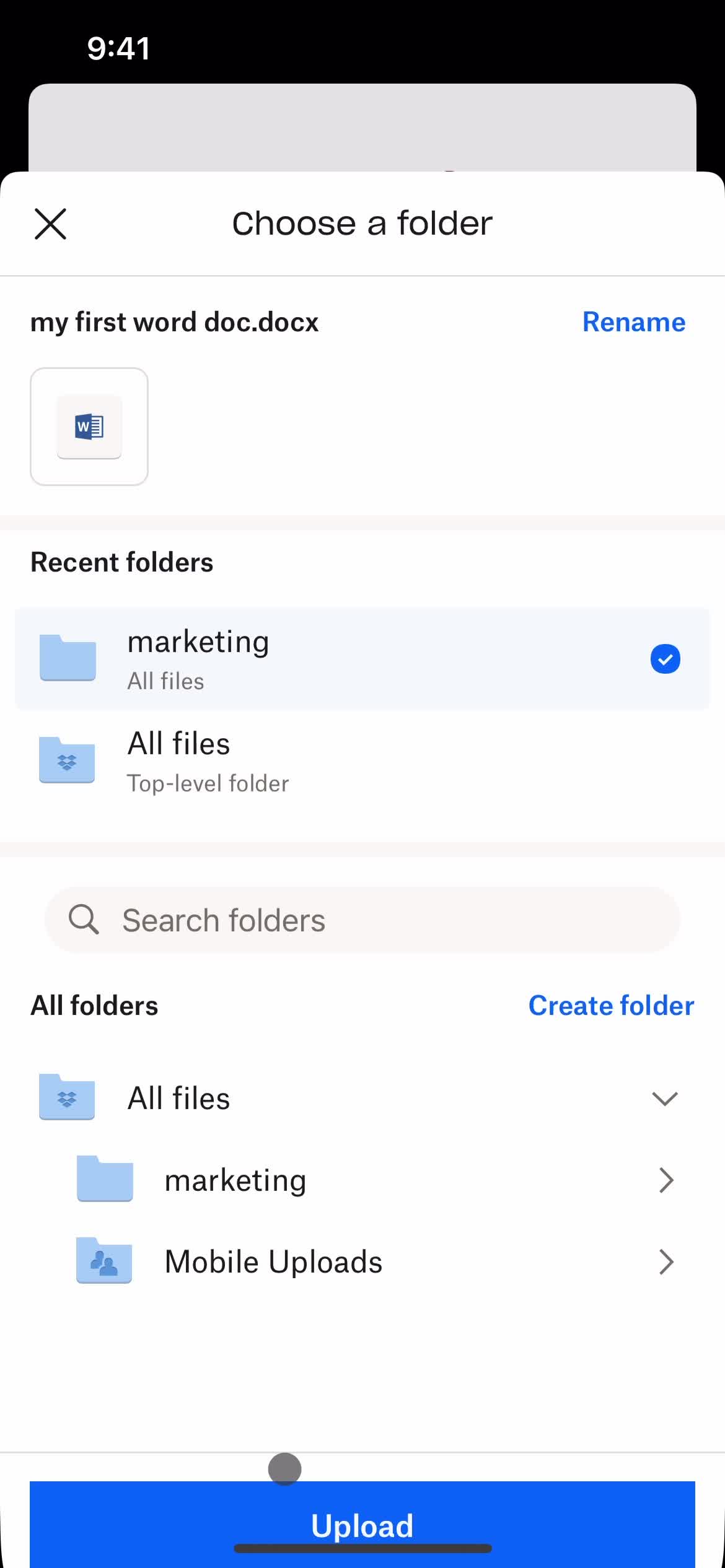
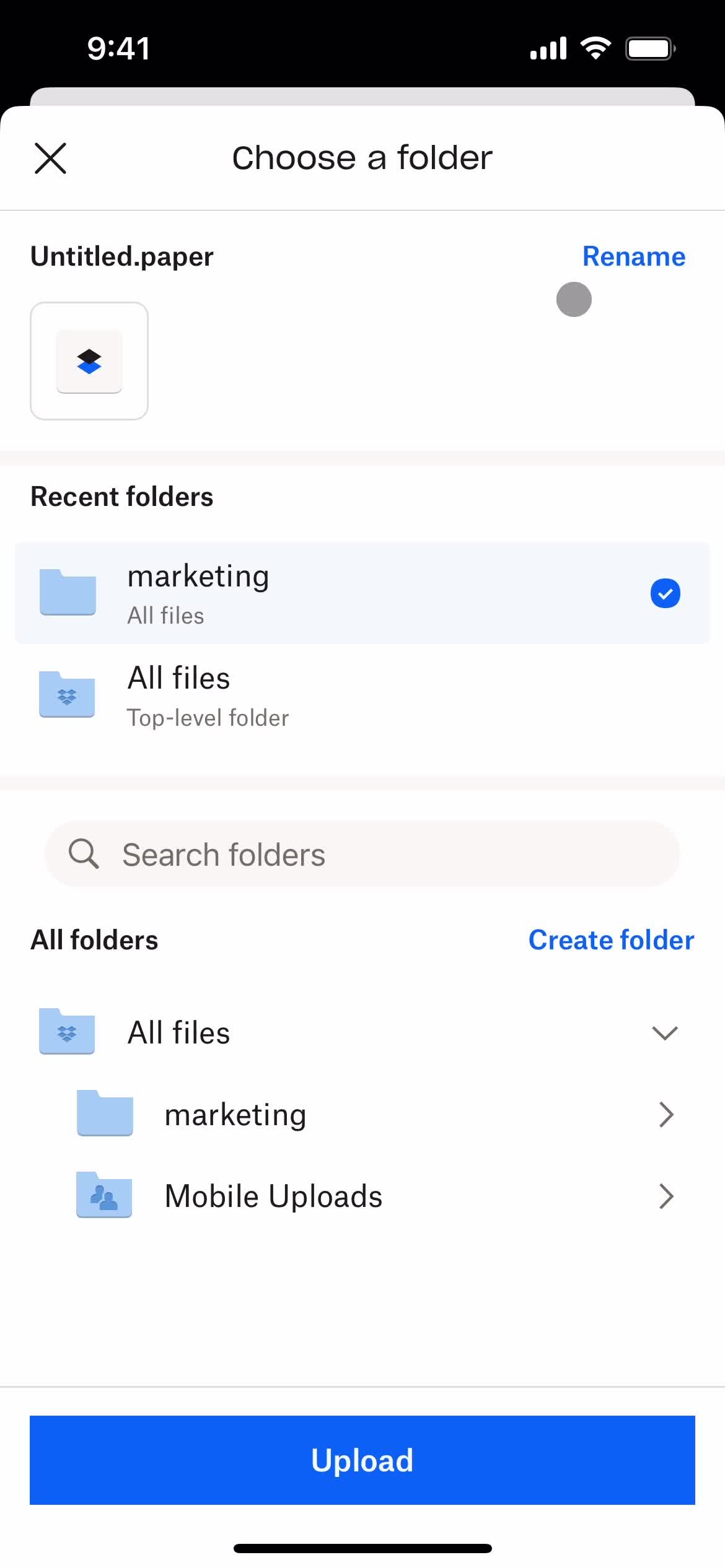
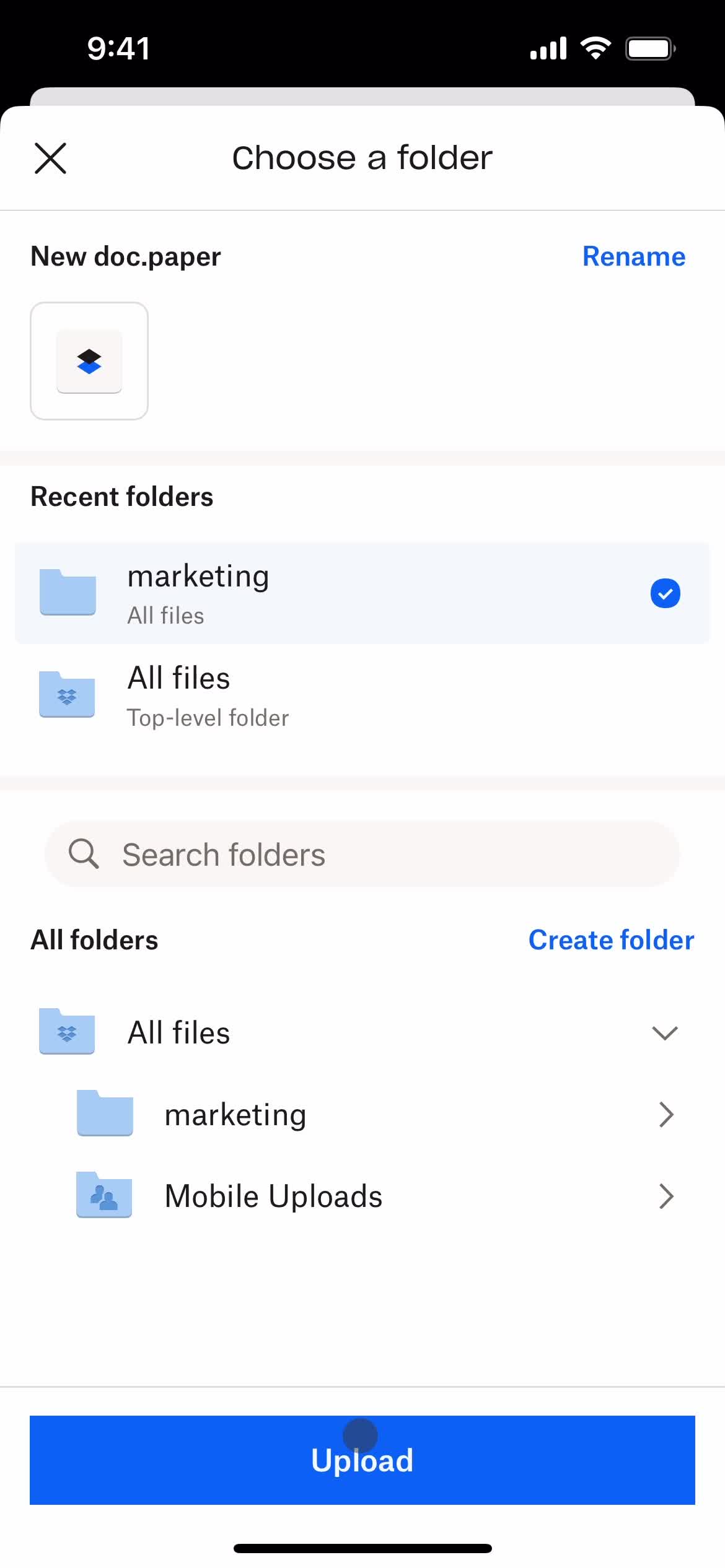
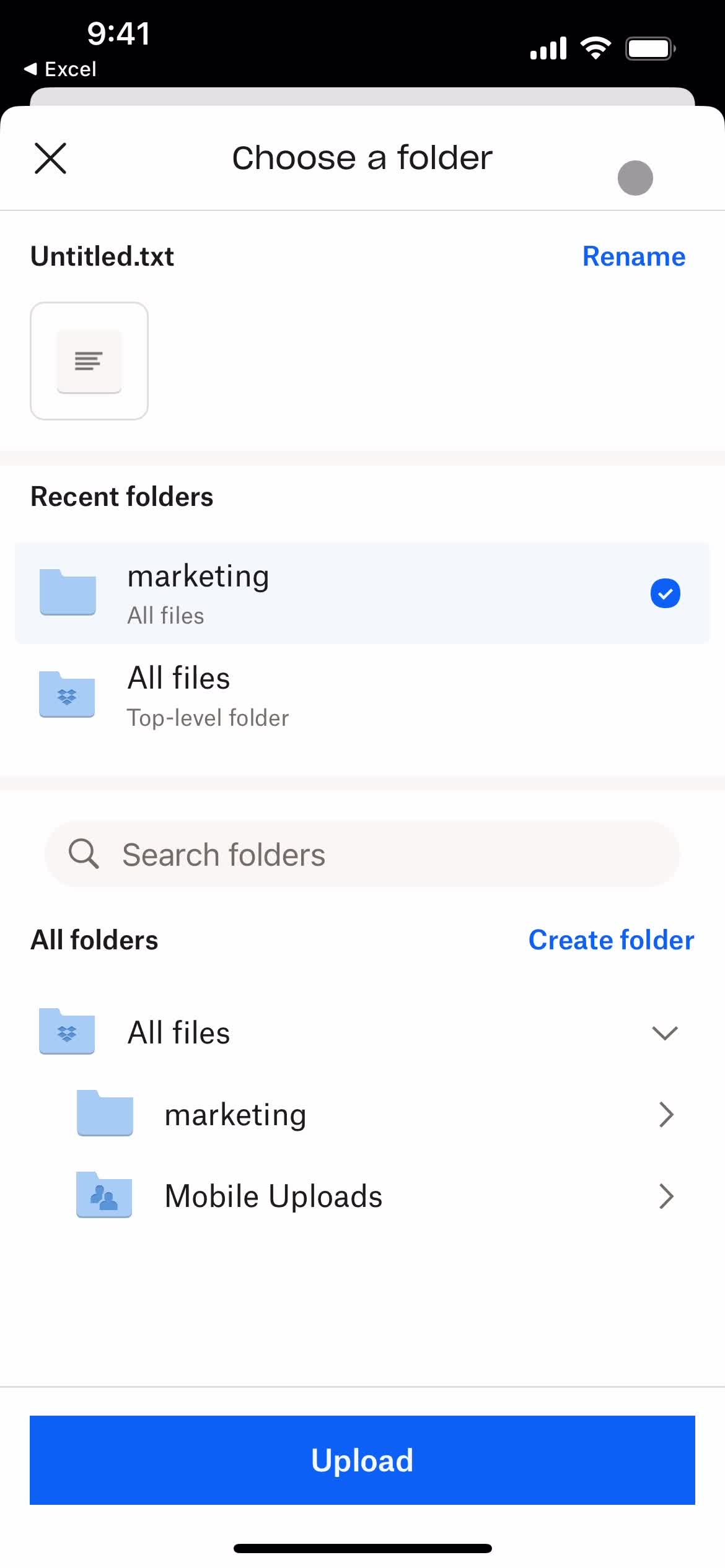
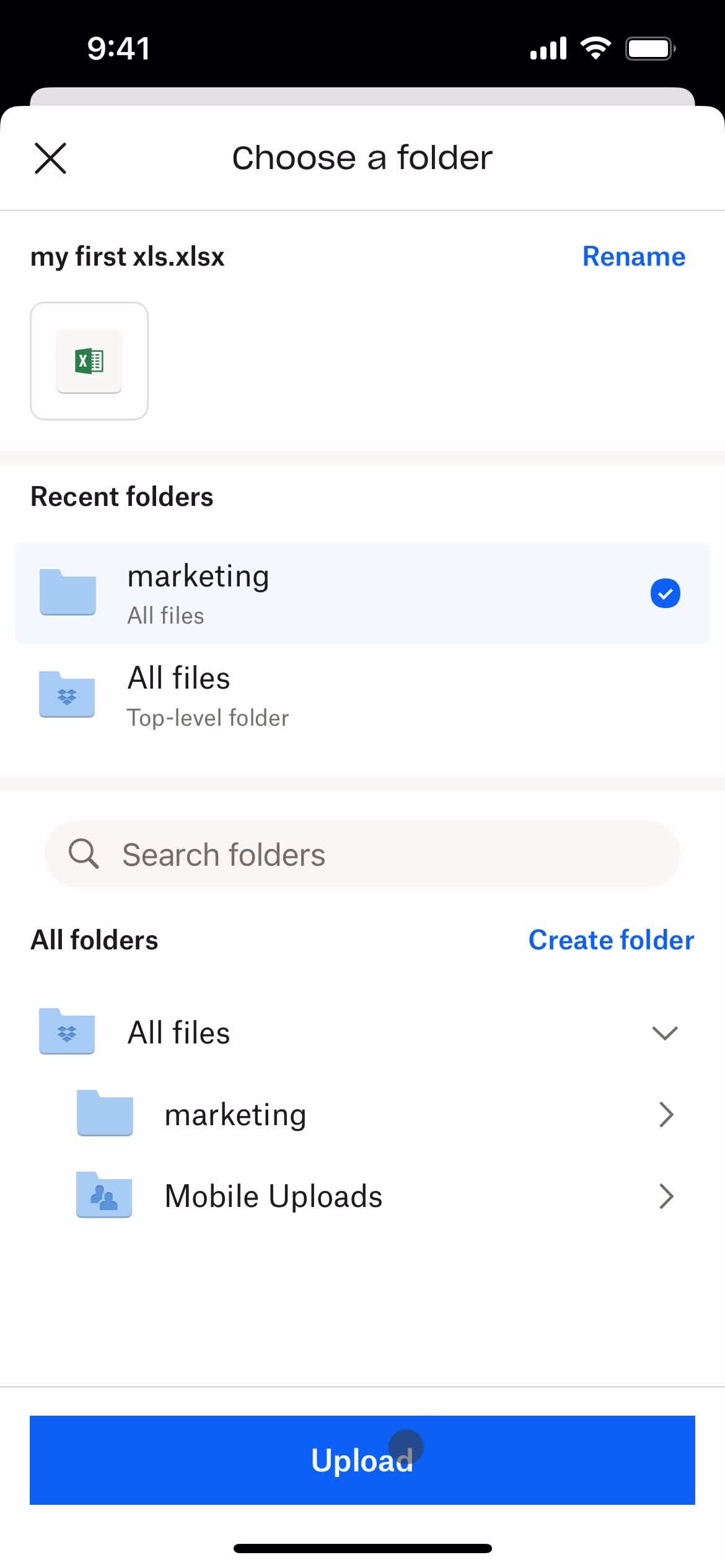
Select folder
this is title
this is title
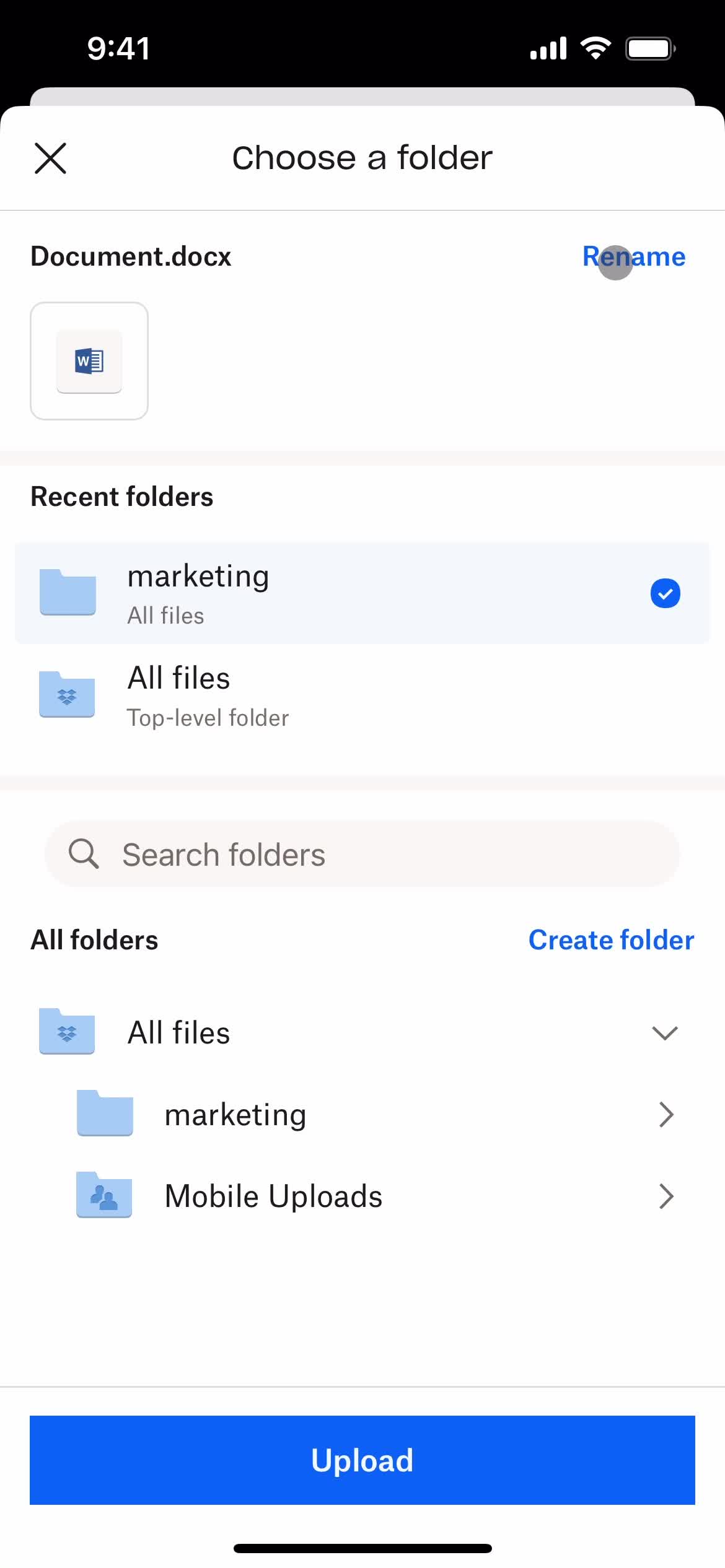
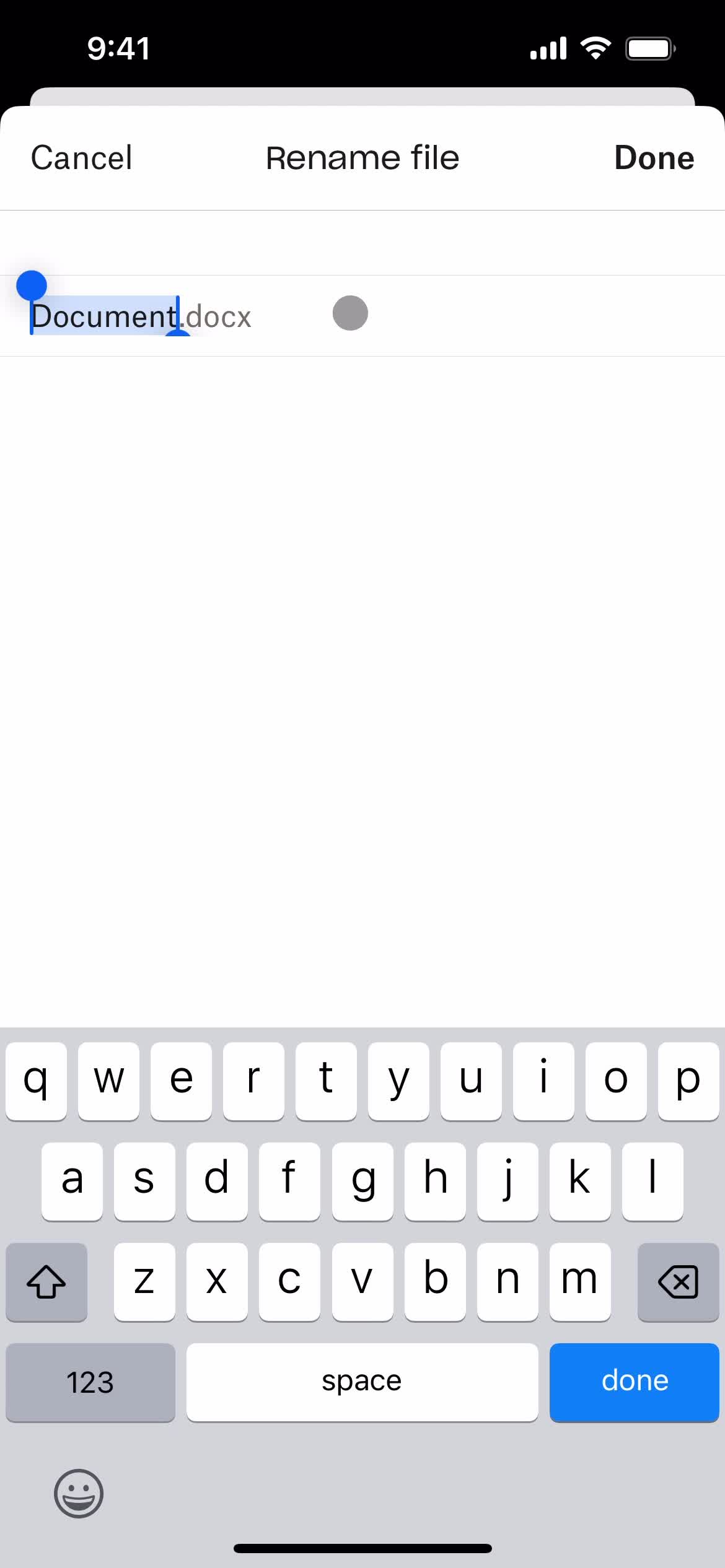
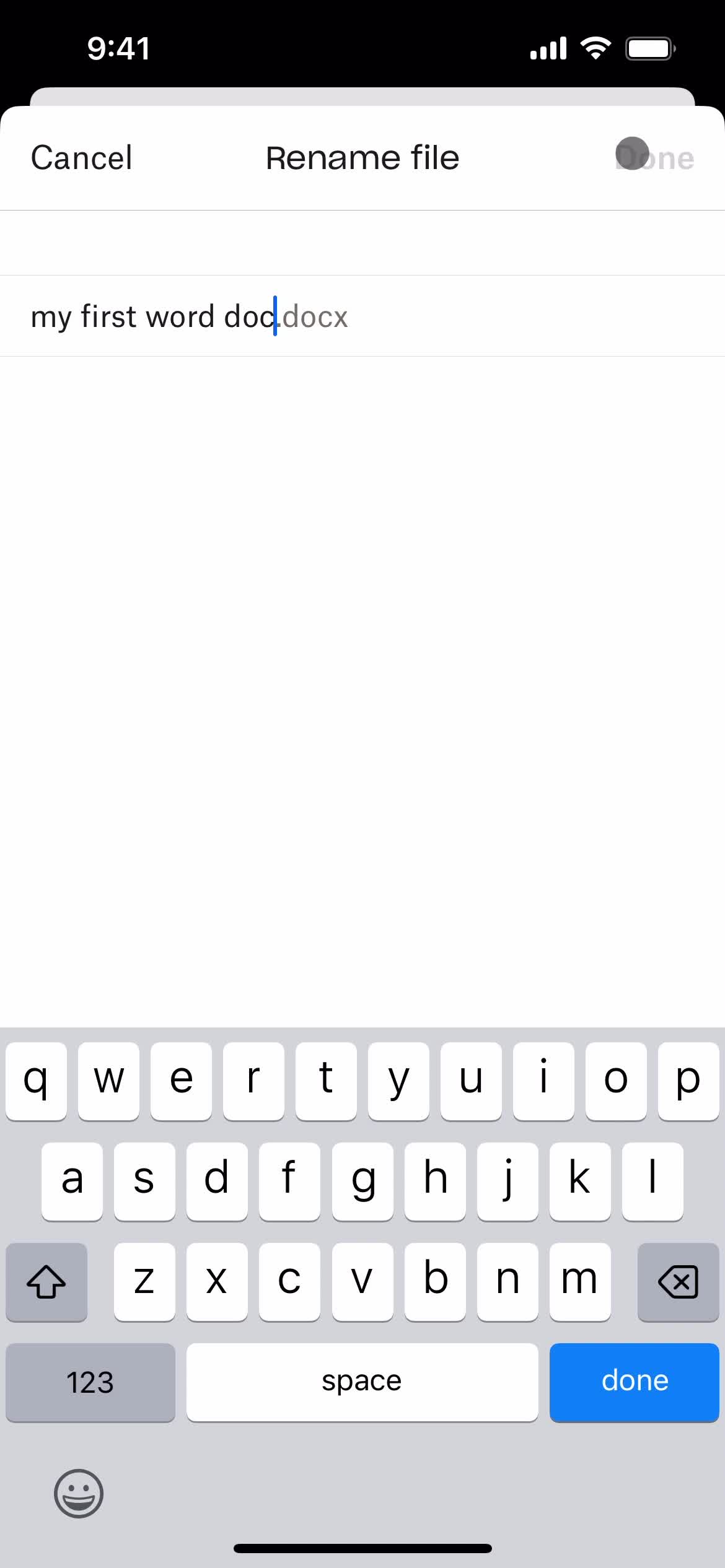
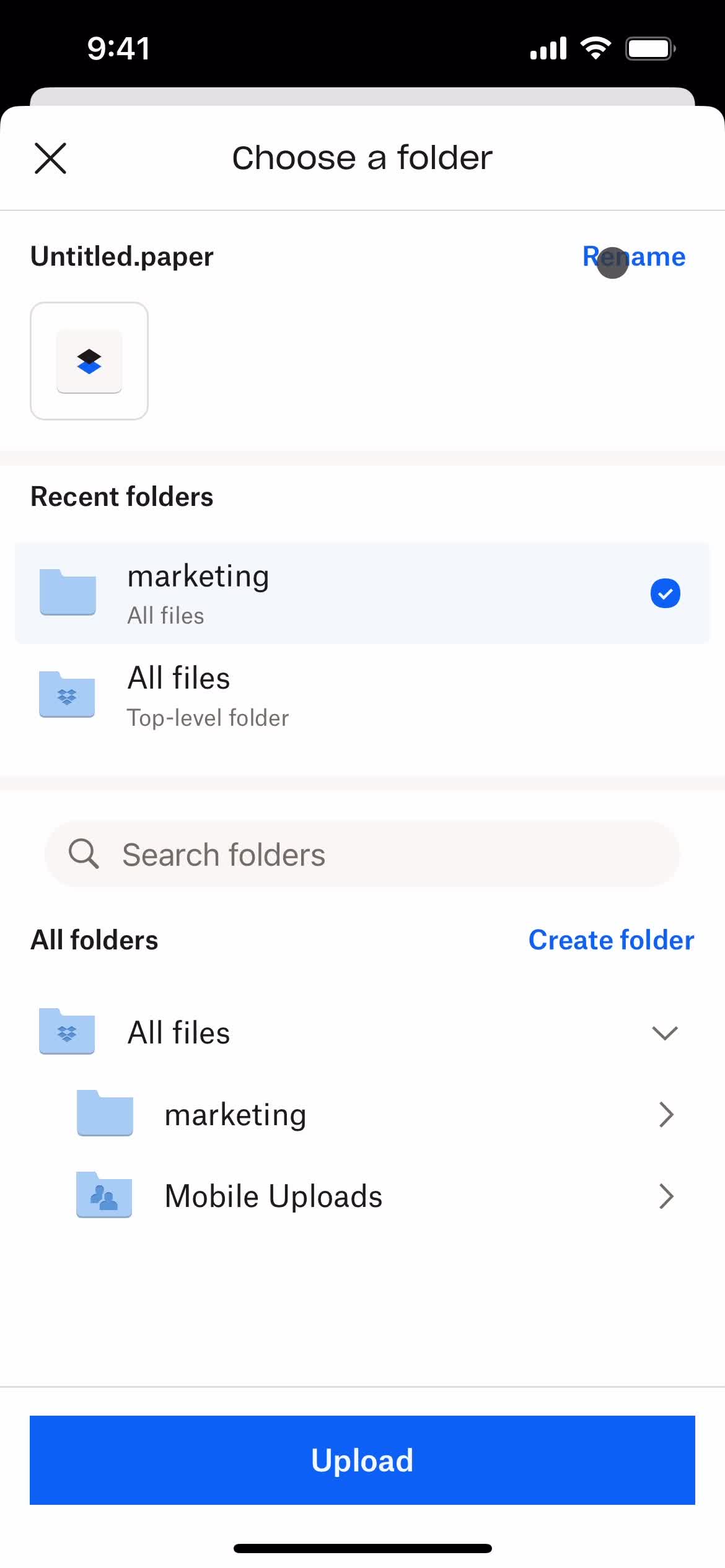
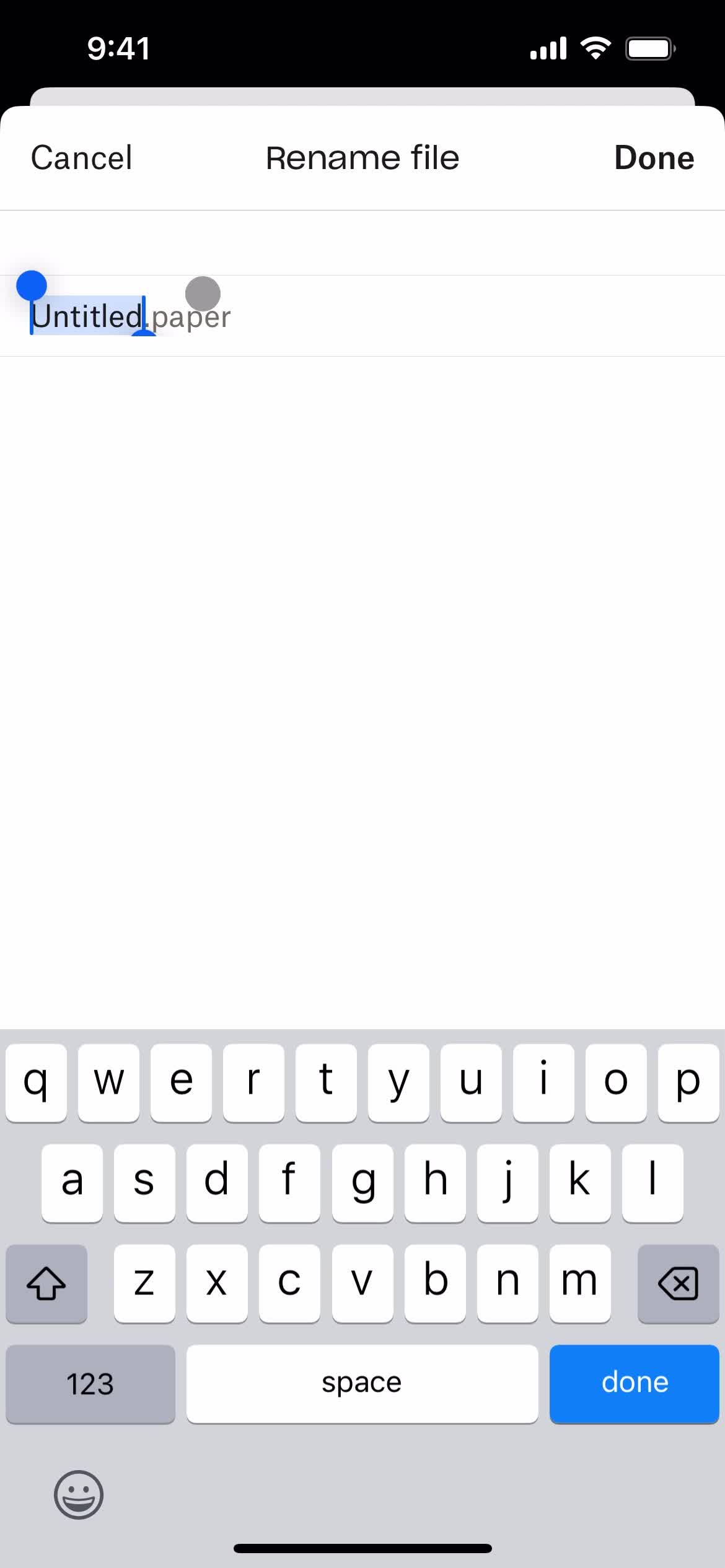
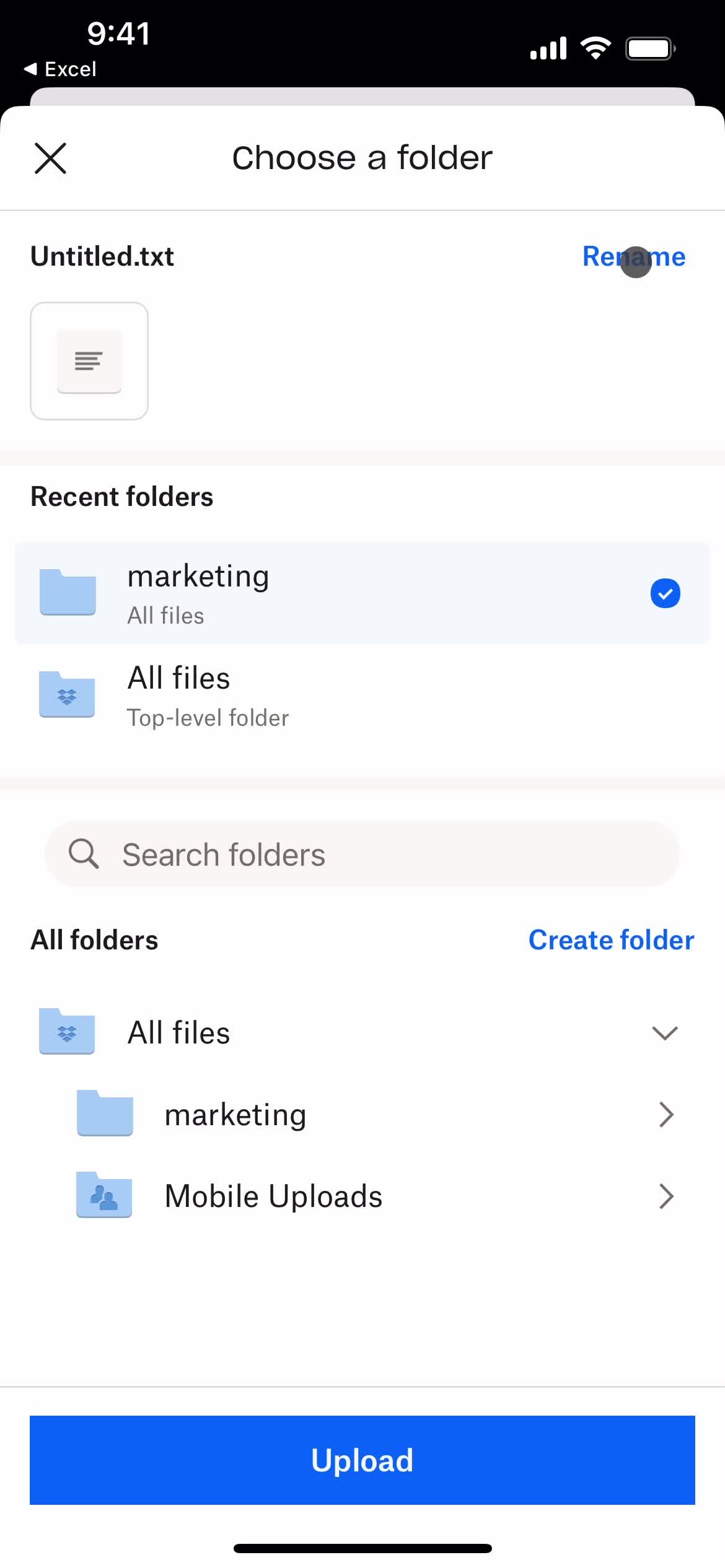
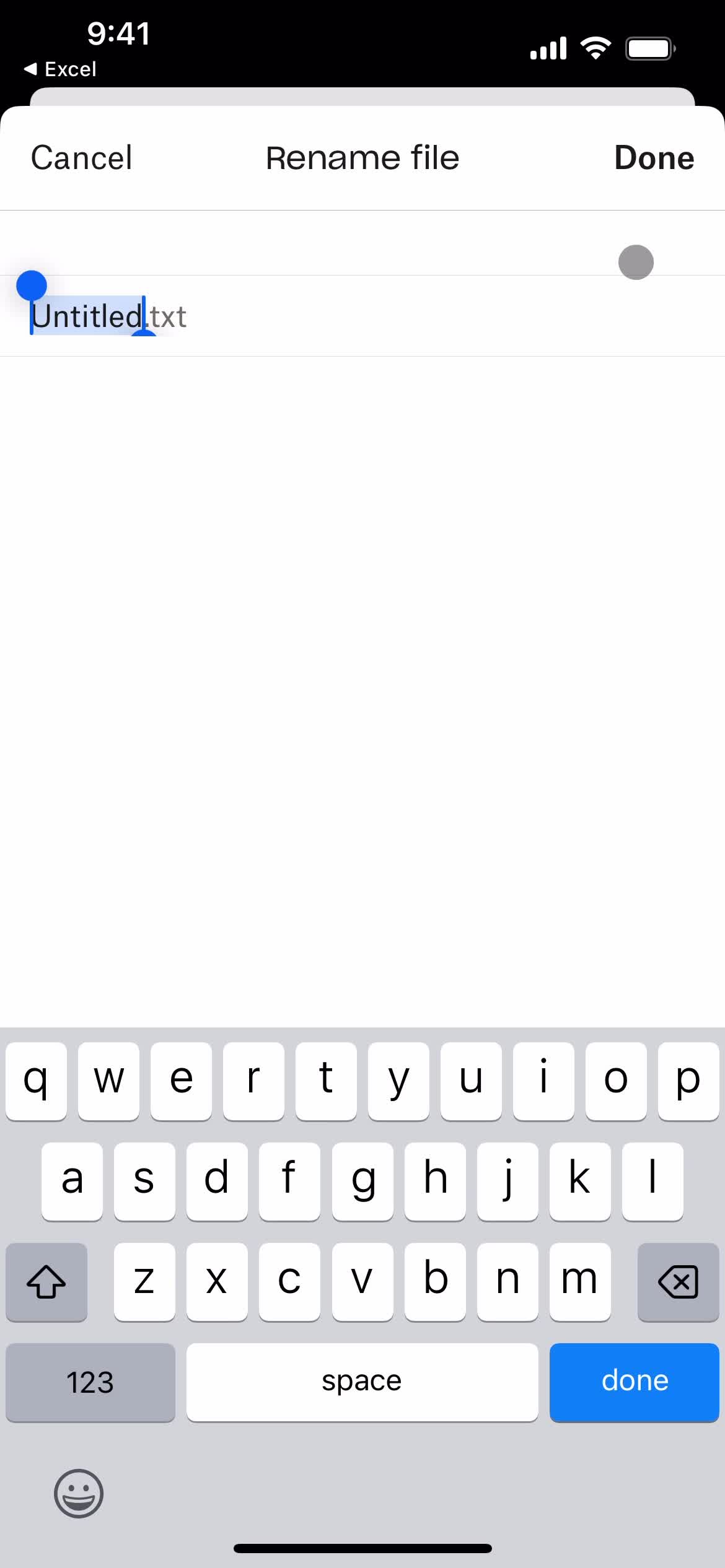
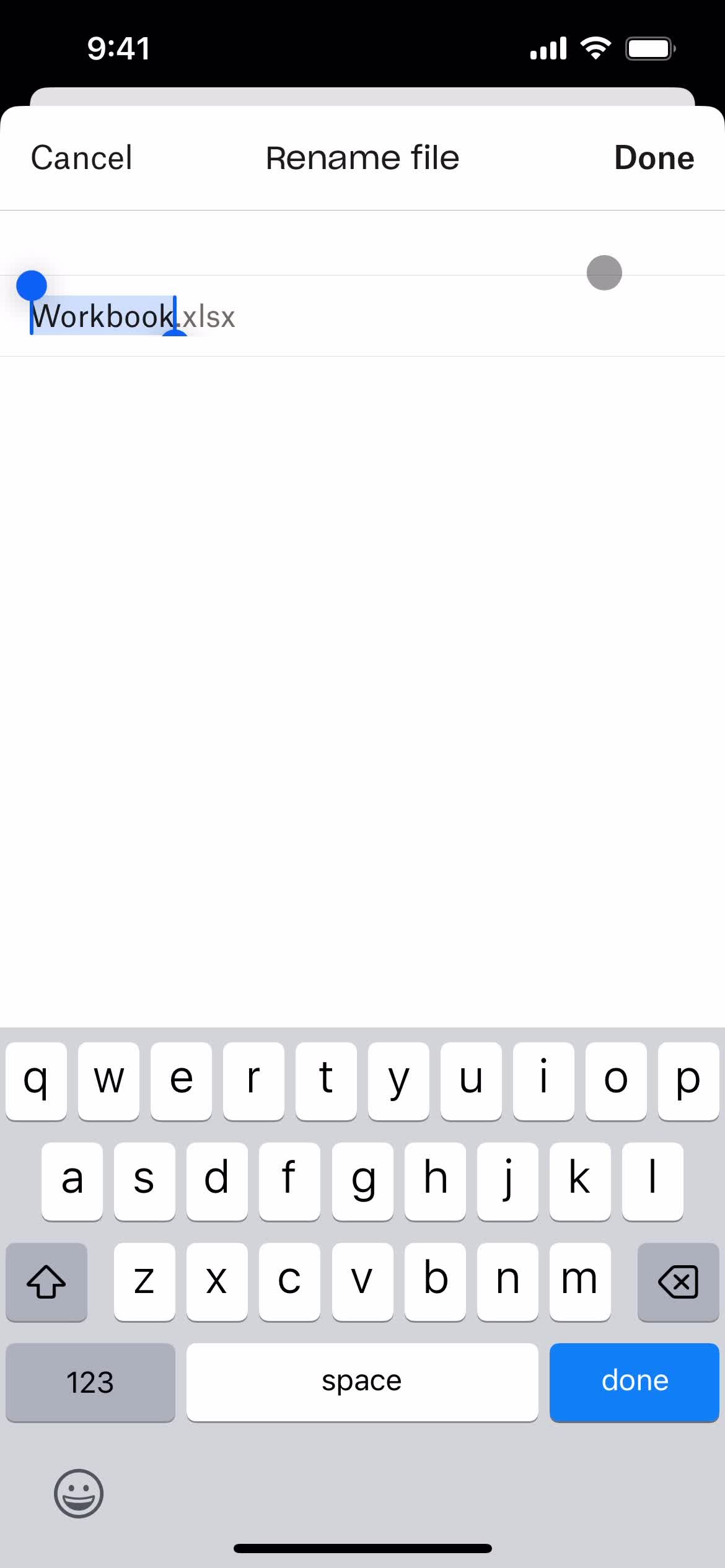
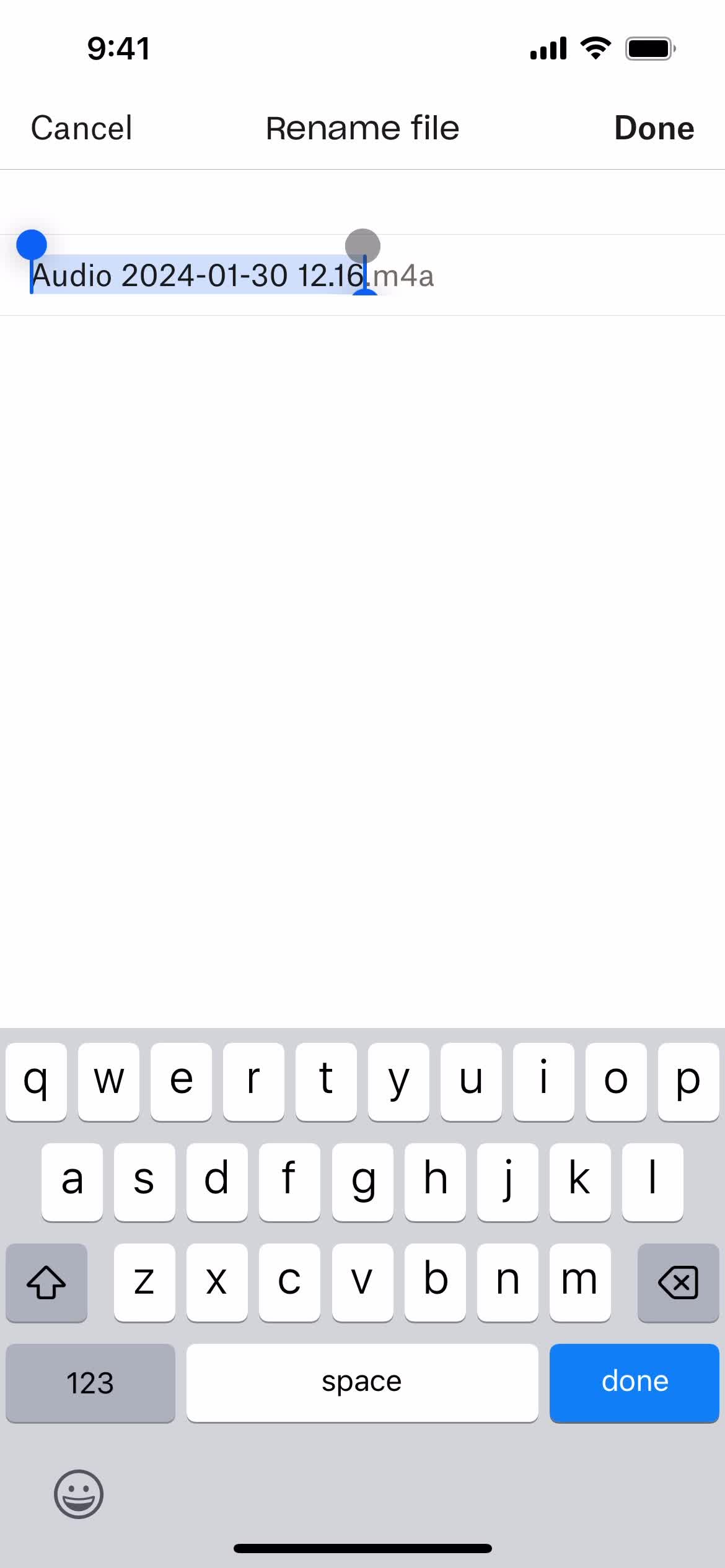
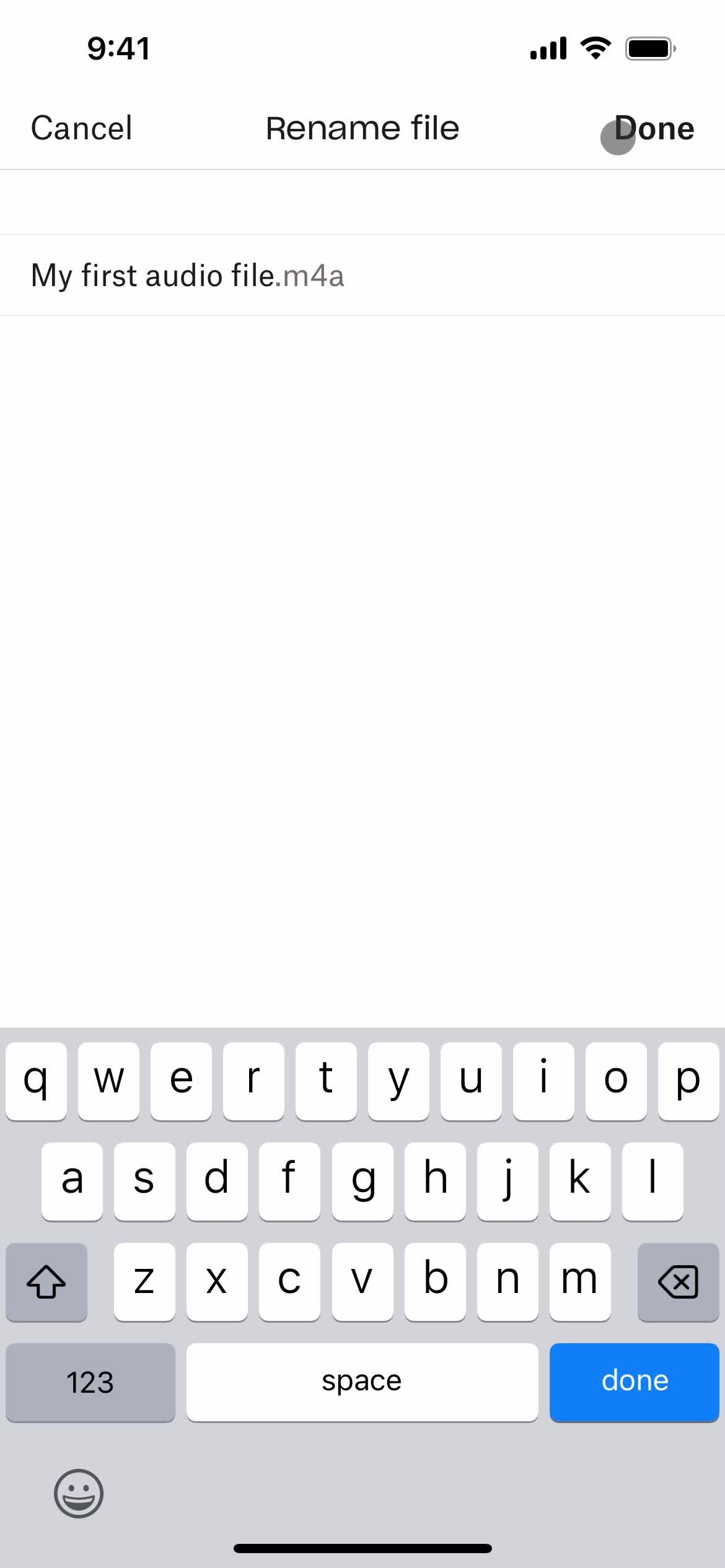
Rename
this is title
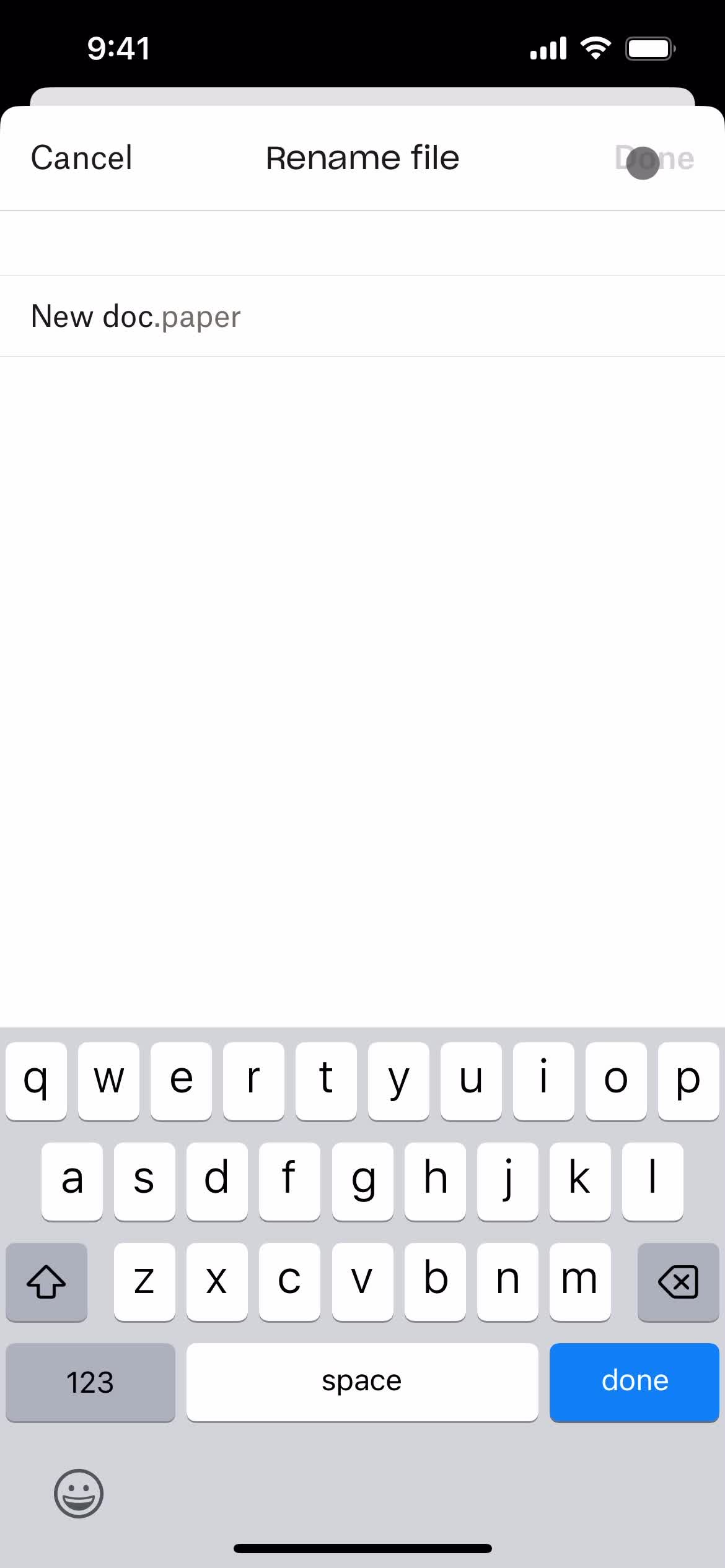
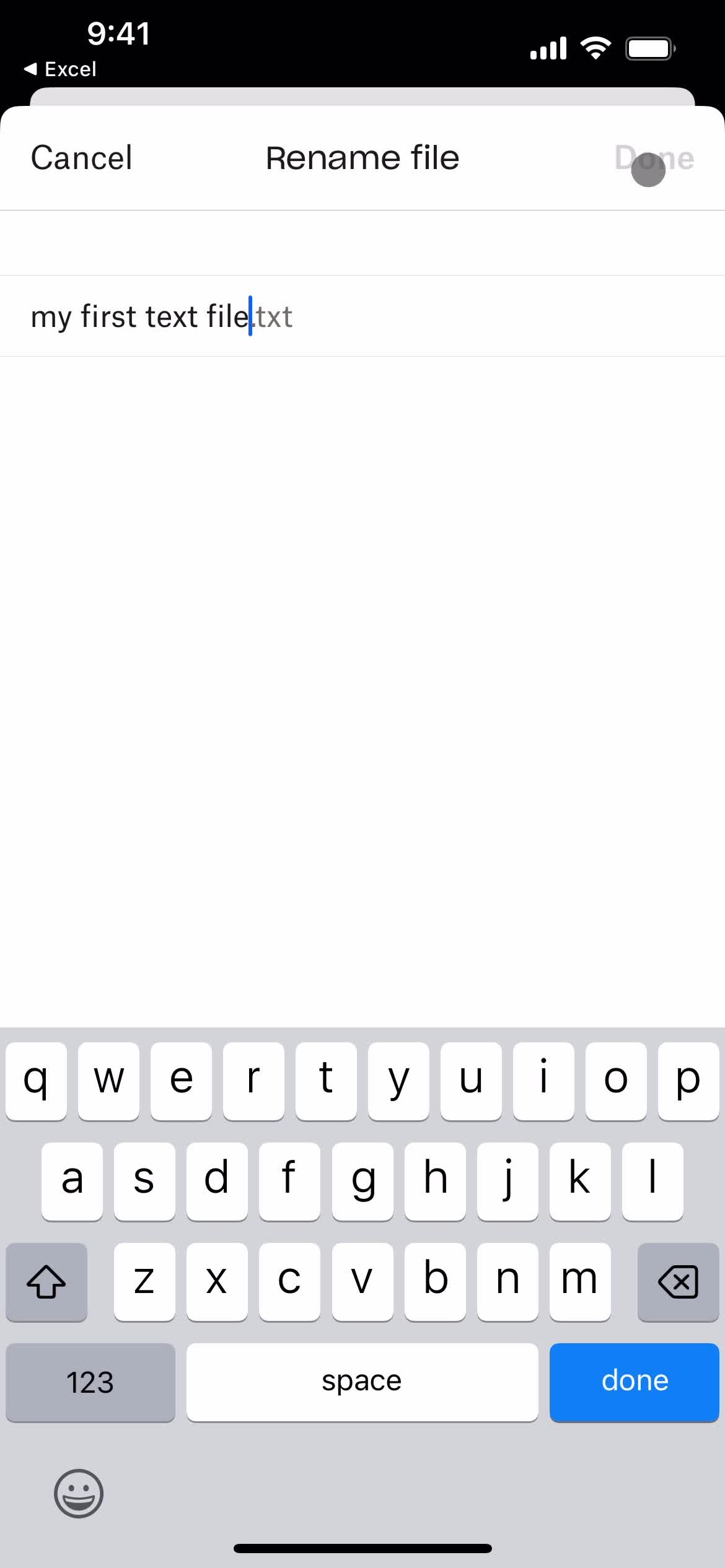
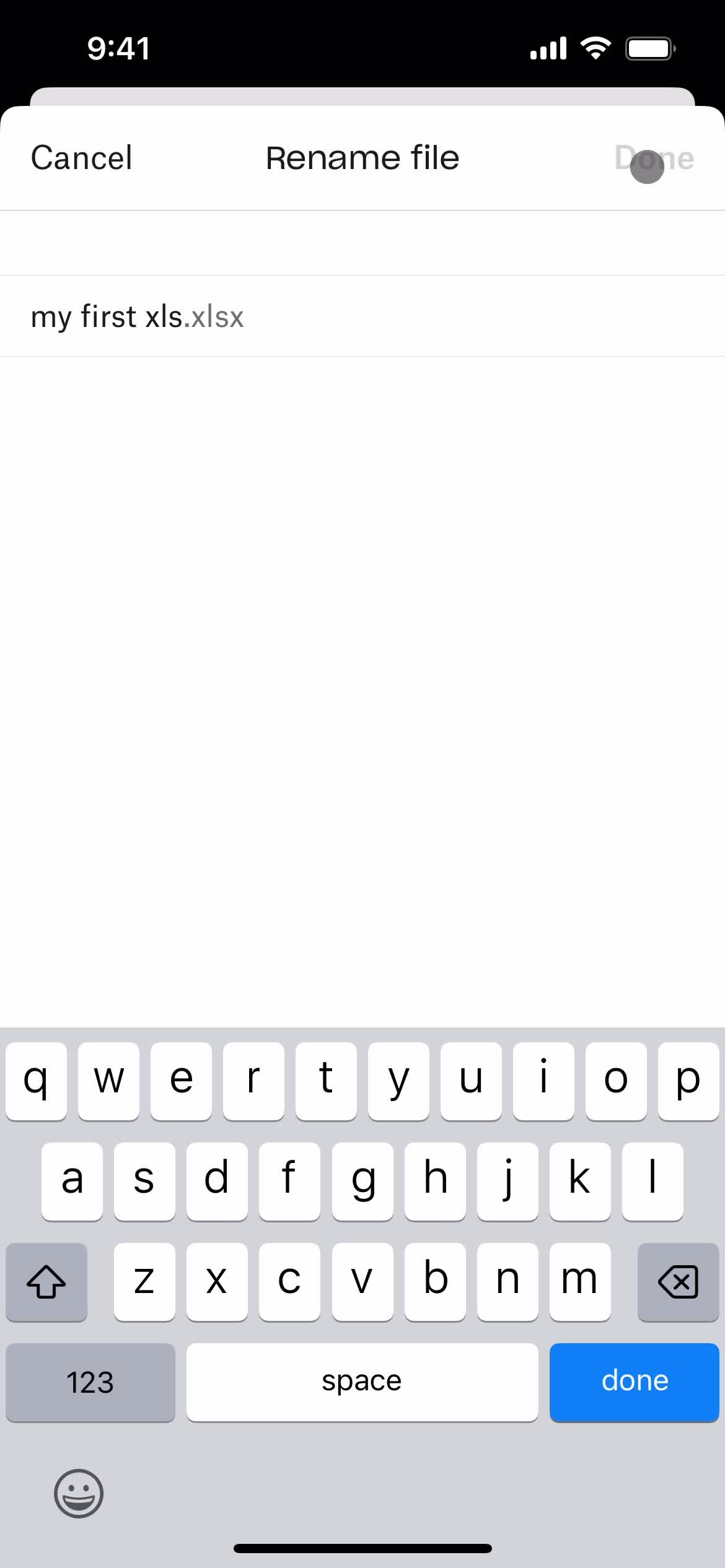
Continue
this is title
Upload file
this is title
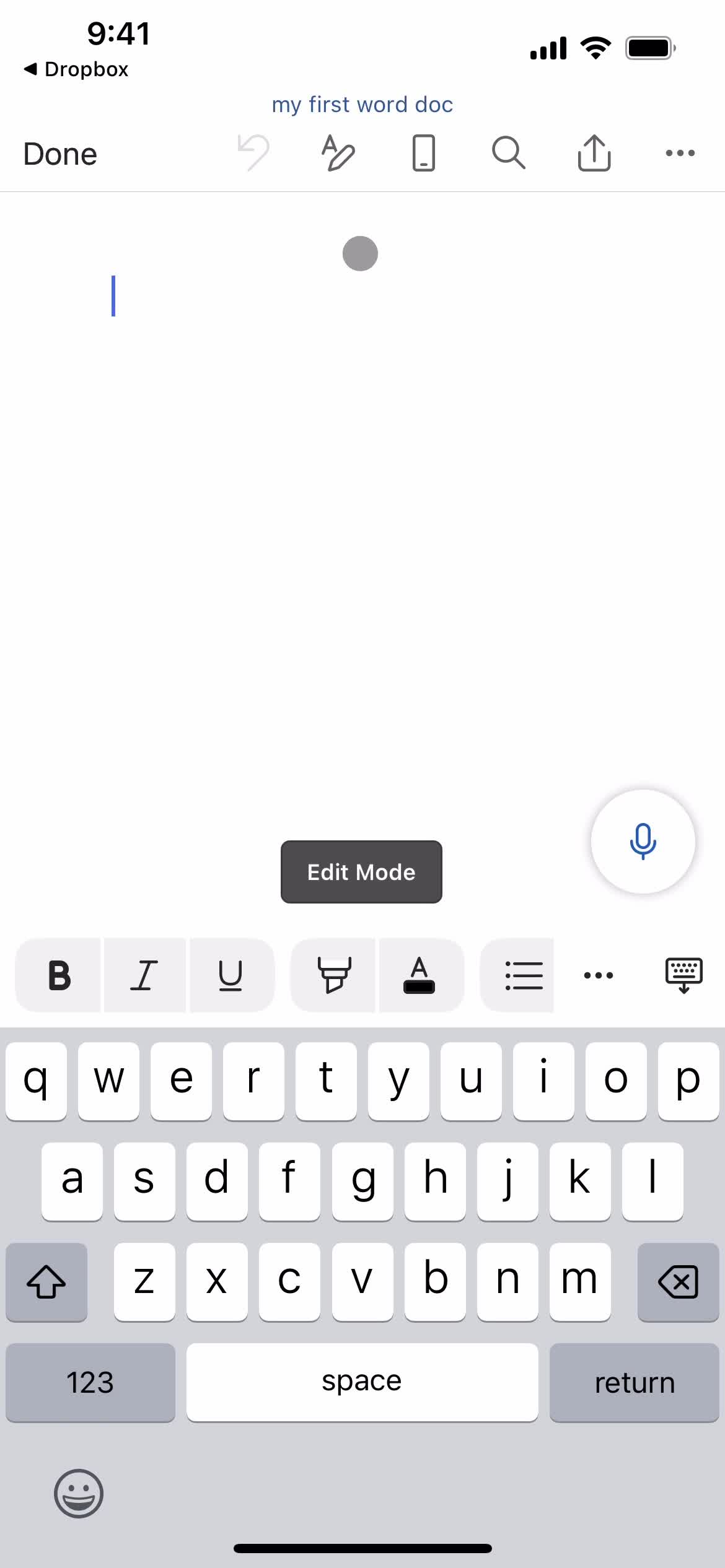
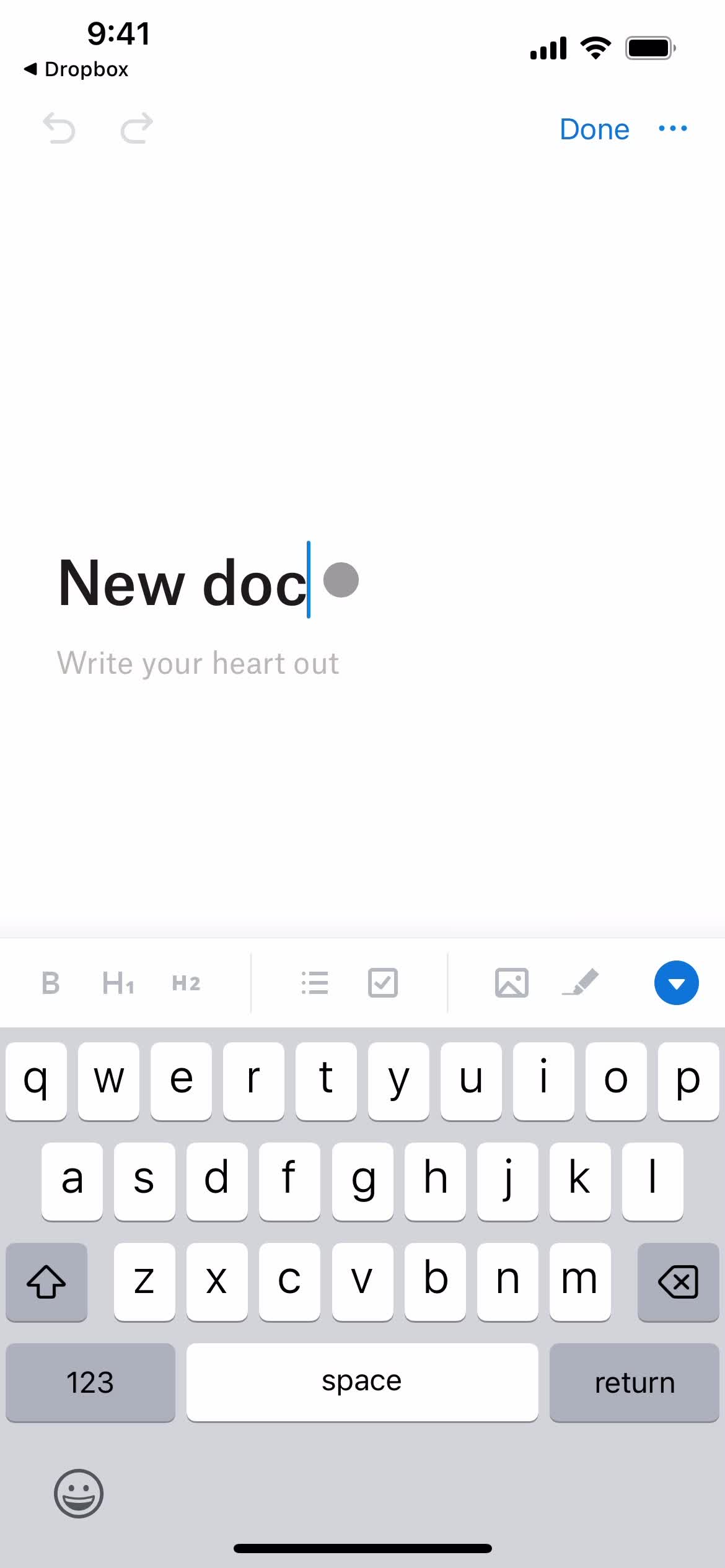
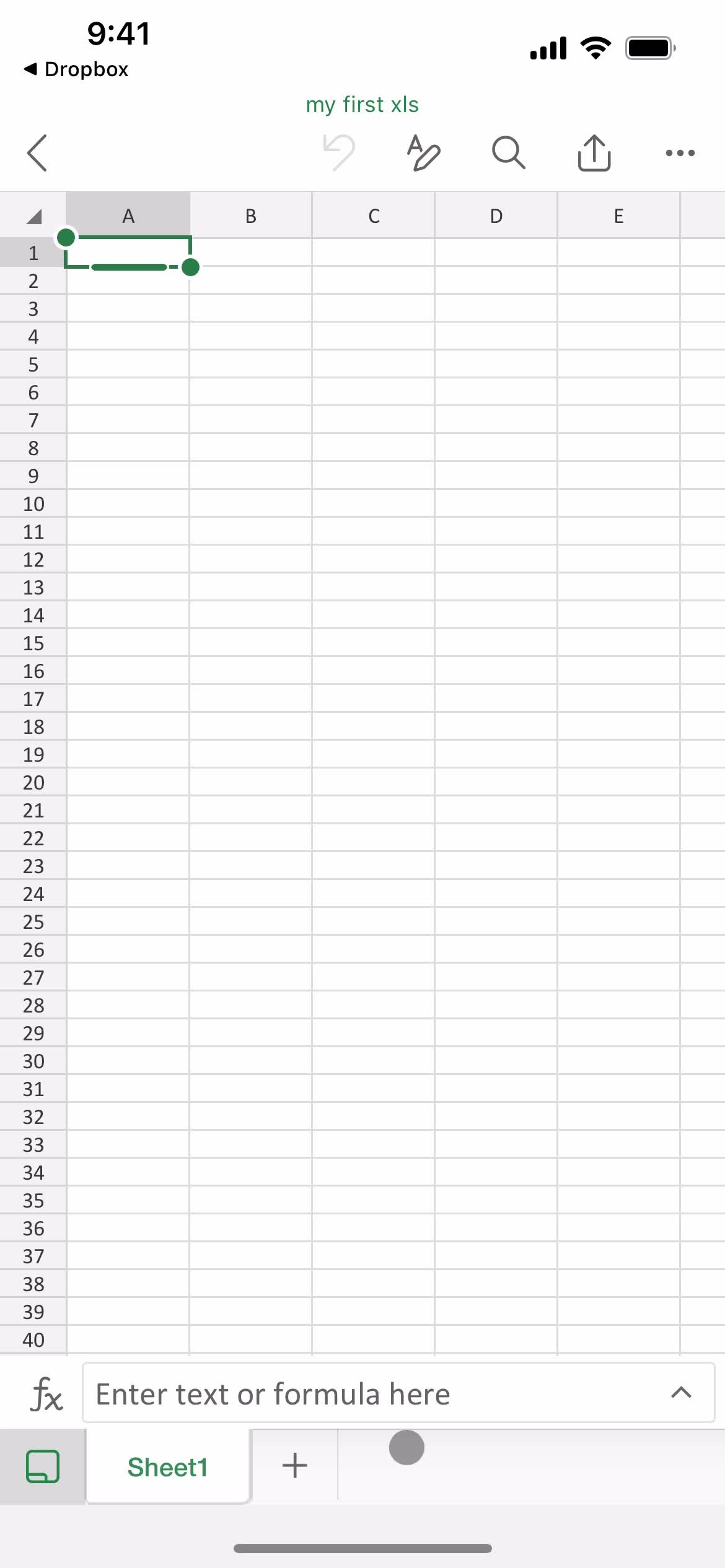
Document editor
this is title
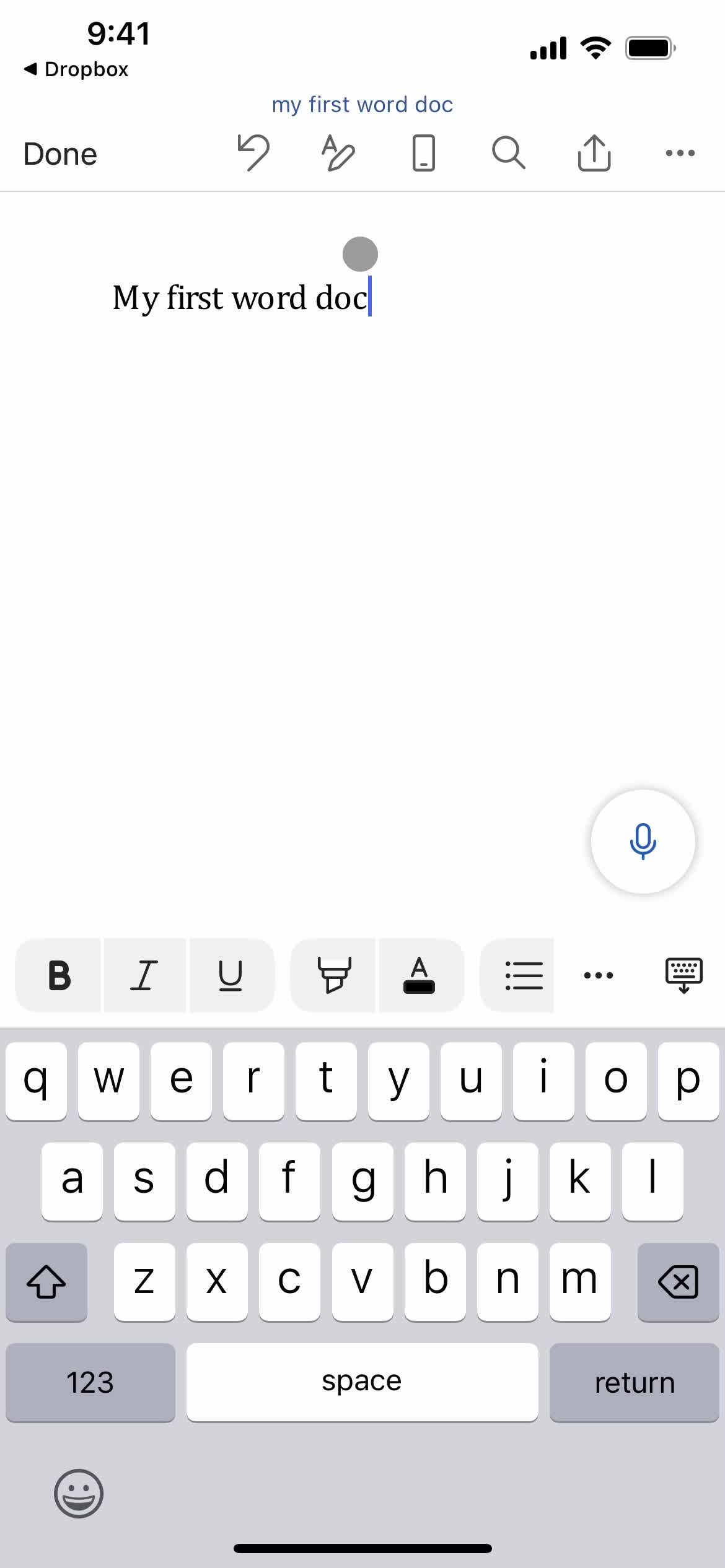
Add text
this is title
Continue
this is title
this is title
this is title
Folder
this is title
Files
this is title
this is title
Folder
this is title
File detail
this is title
Files
this is title
Home
this is title
Create menu
this is title
Create folder
this is title
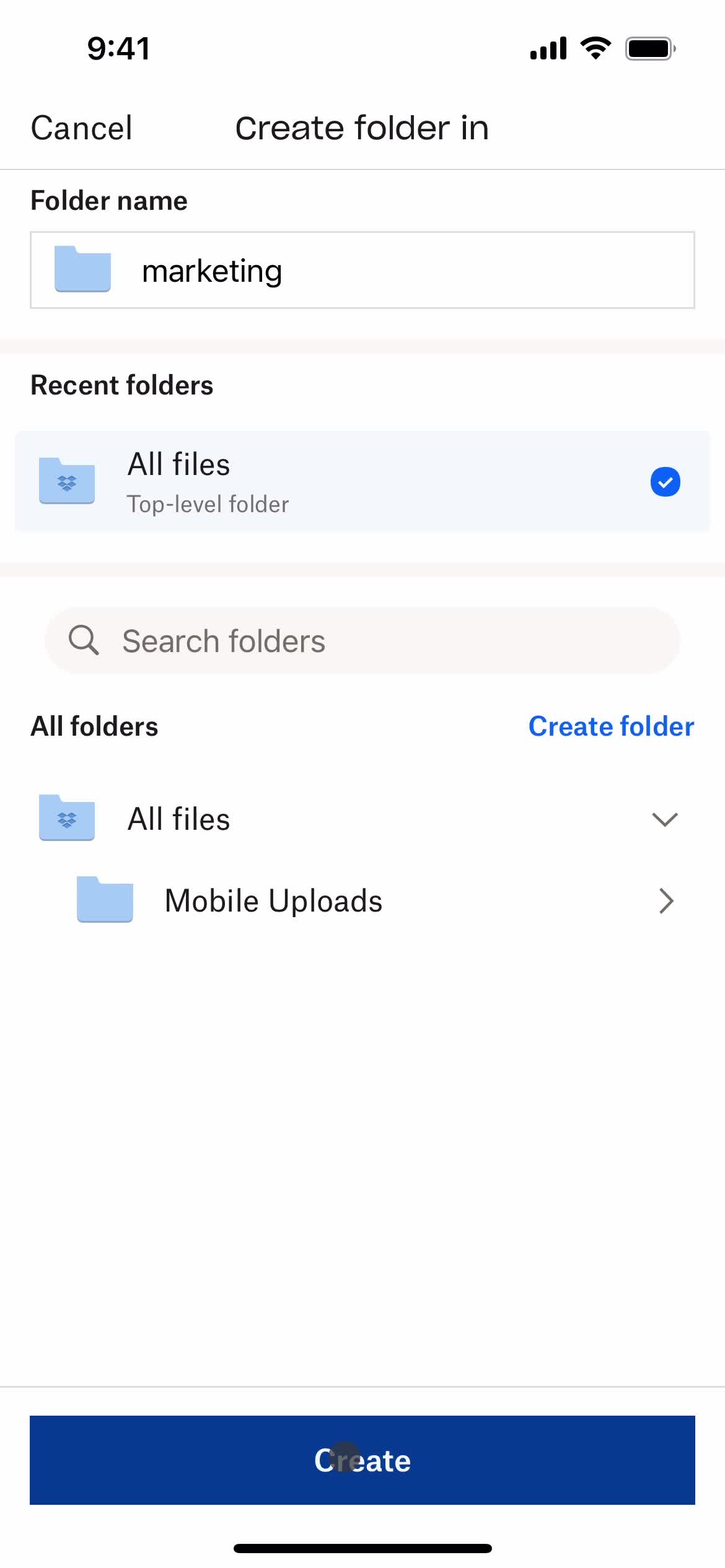
Continue
this is title
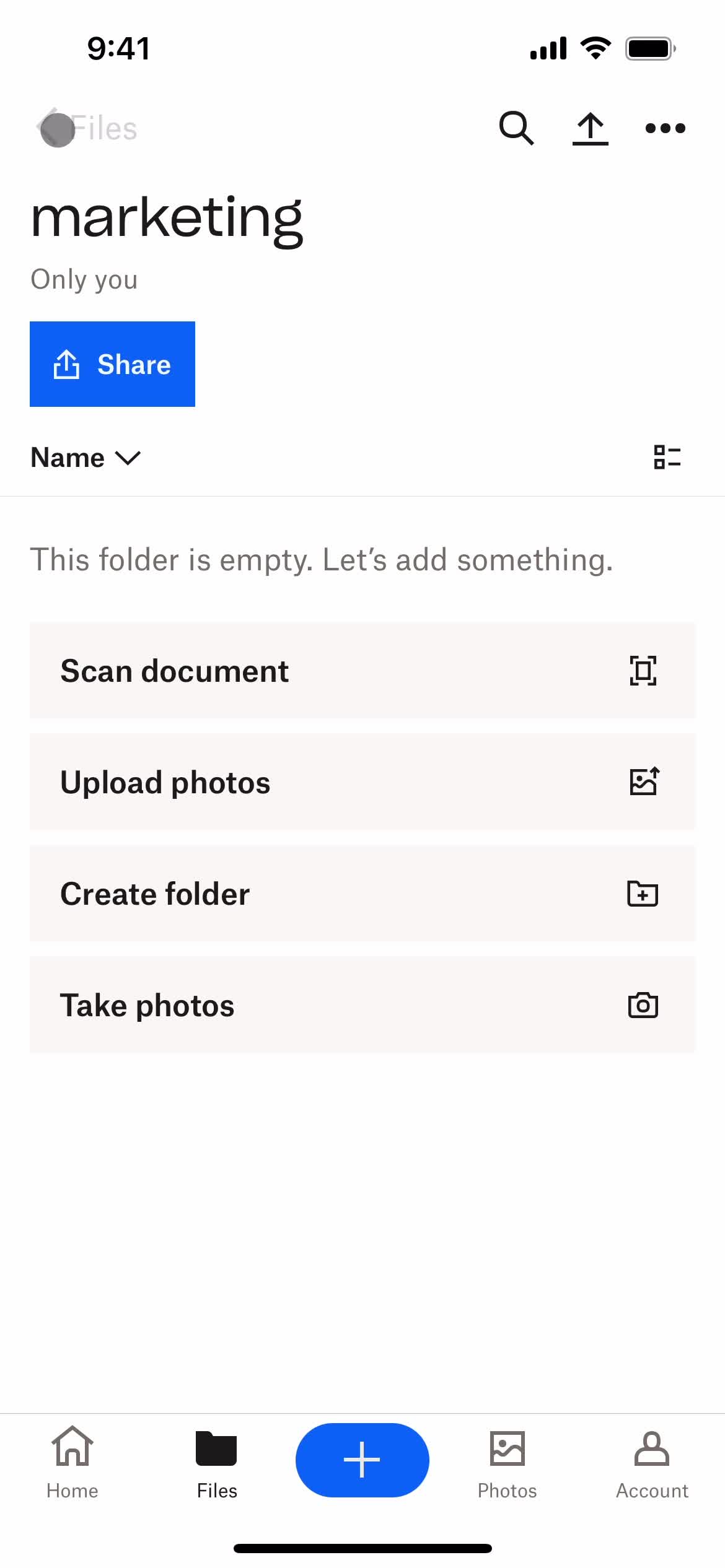
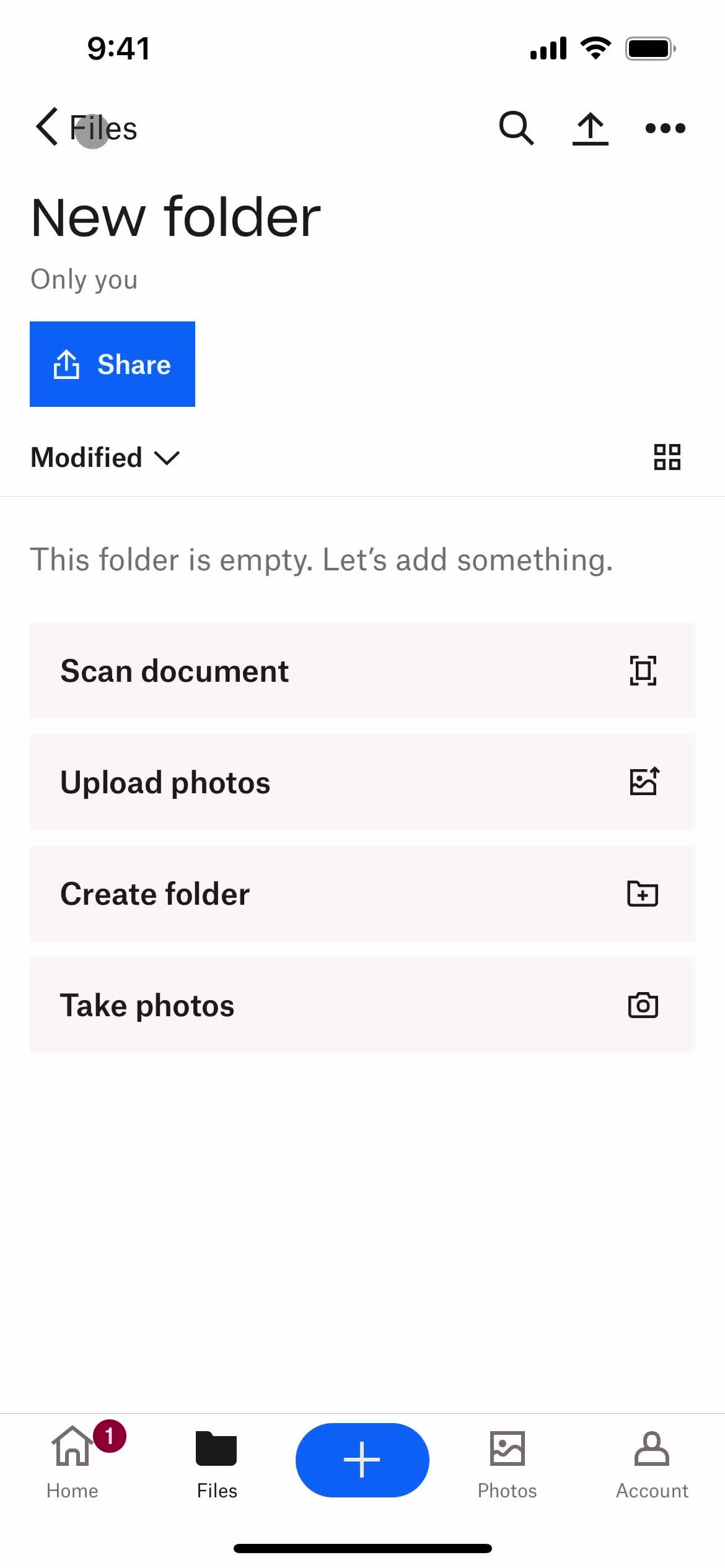
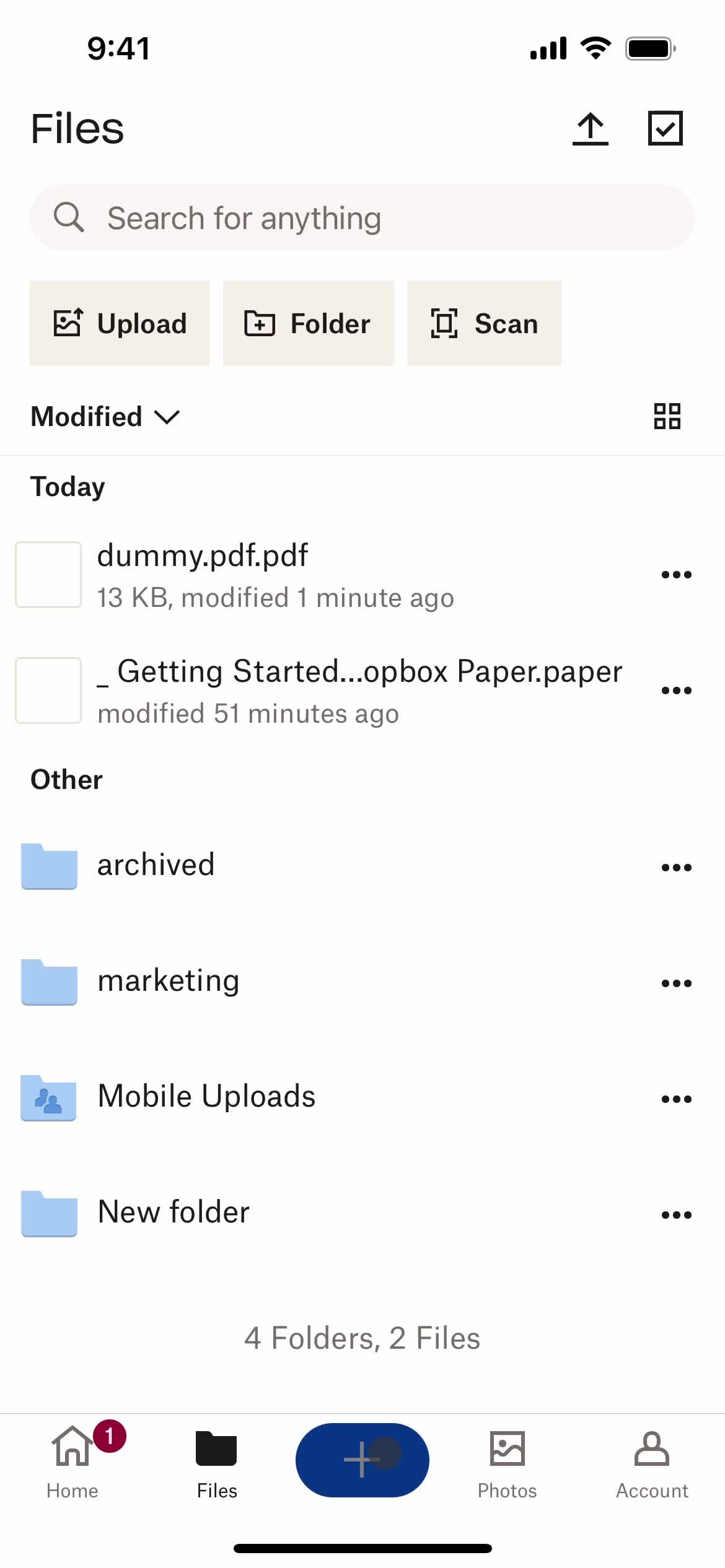
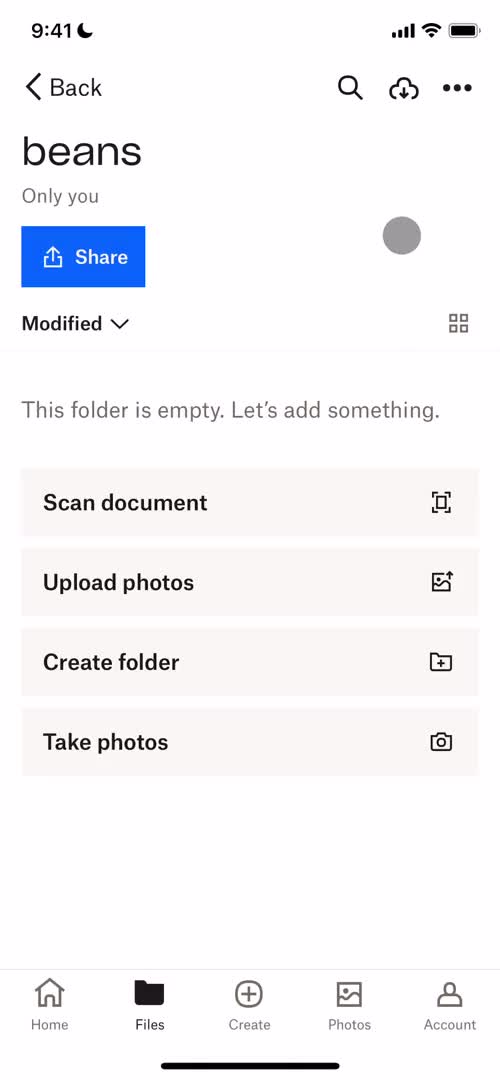
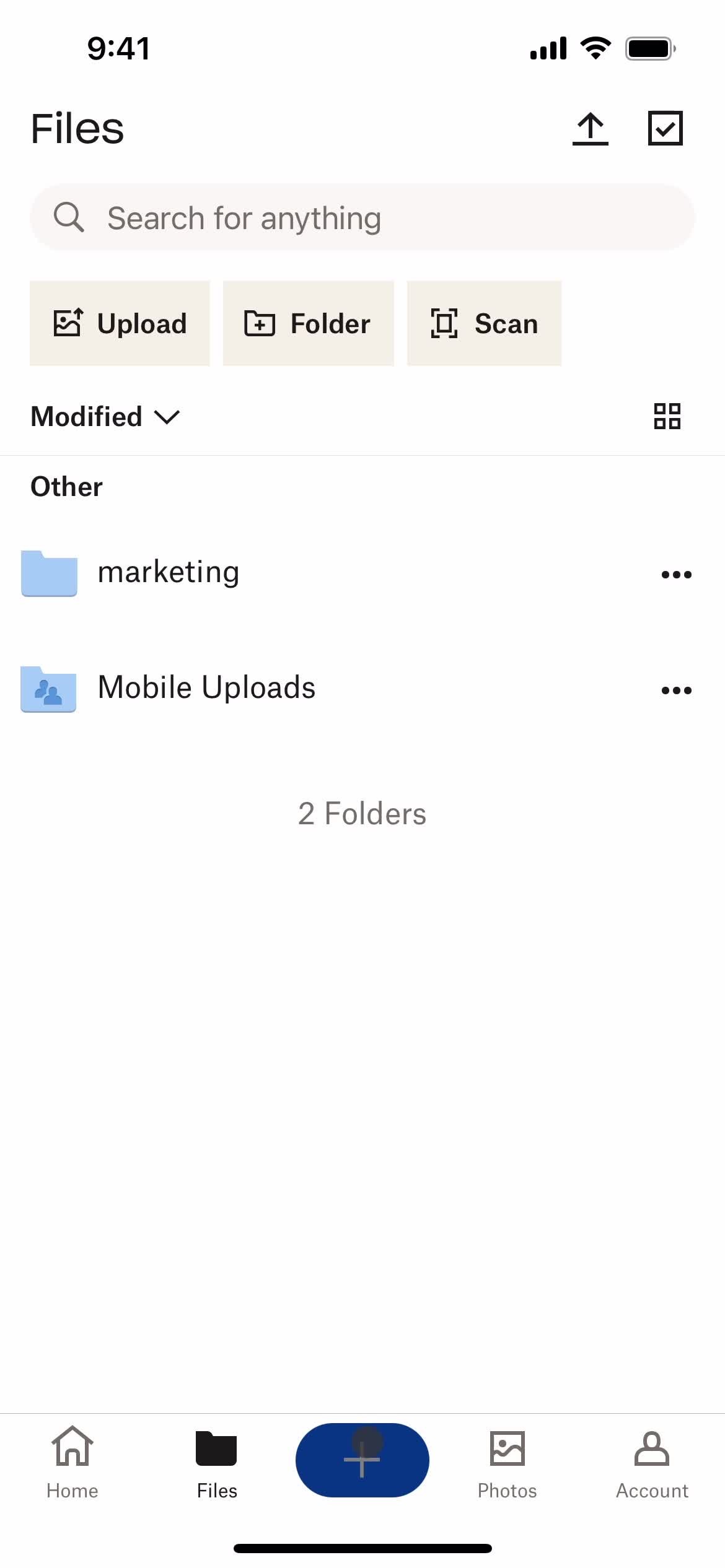
Folder created
this is title
Files
this is title
Action menu
this is title
Delete item
this is title
Confirm delete
this is title
Deleted
this is title
Home
this is title
Create menu
this is title
Create document
this is title
Select folder
this is title
this is title
Rename
this is title
Continue
this is title
Upload file
this is title
Document editor
this is title
Add text
this is title
Add text
this is title
Continue
this is title
this is title
Home
this is title
Create menu
this is title
this is title
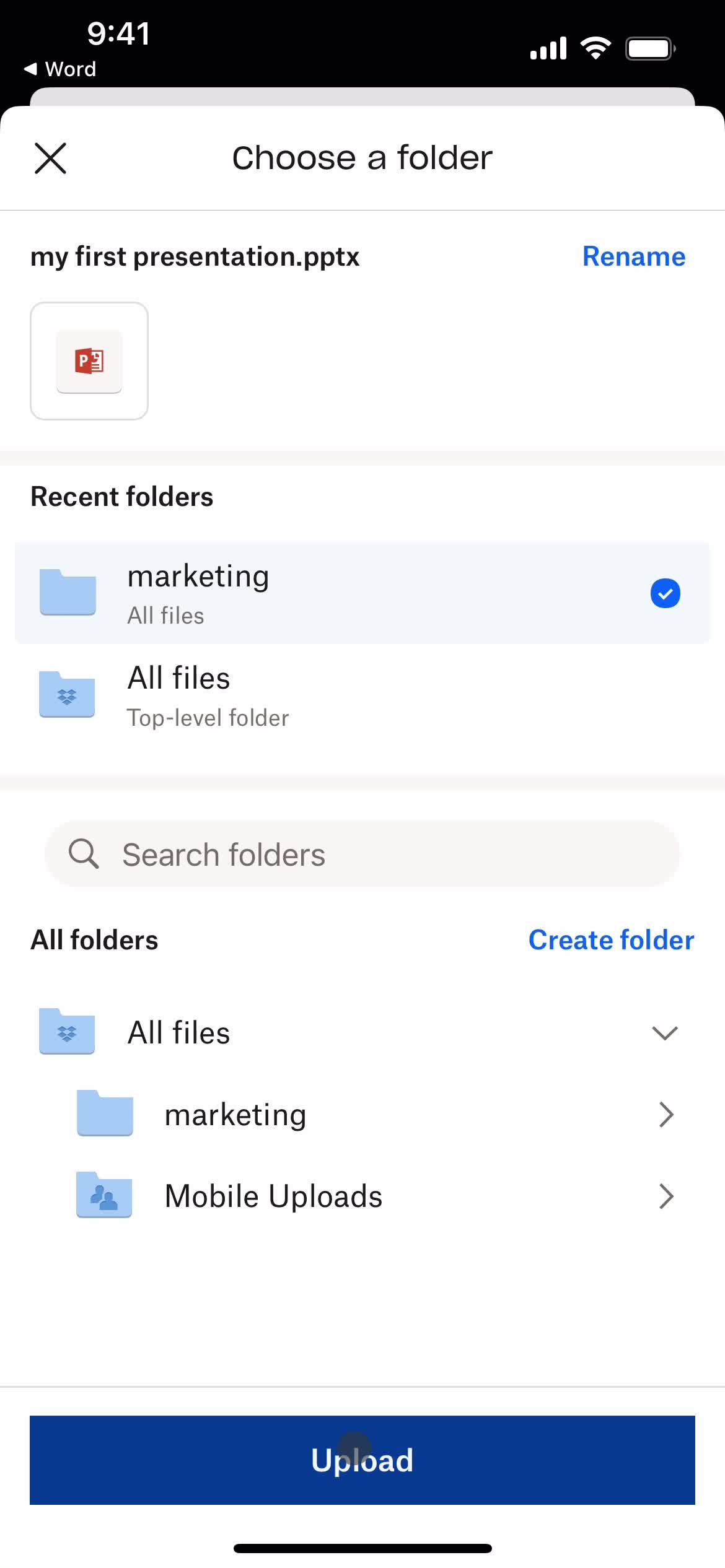
Select folder
this is title
this is title
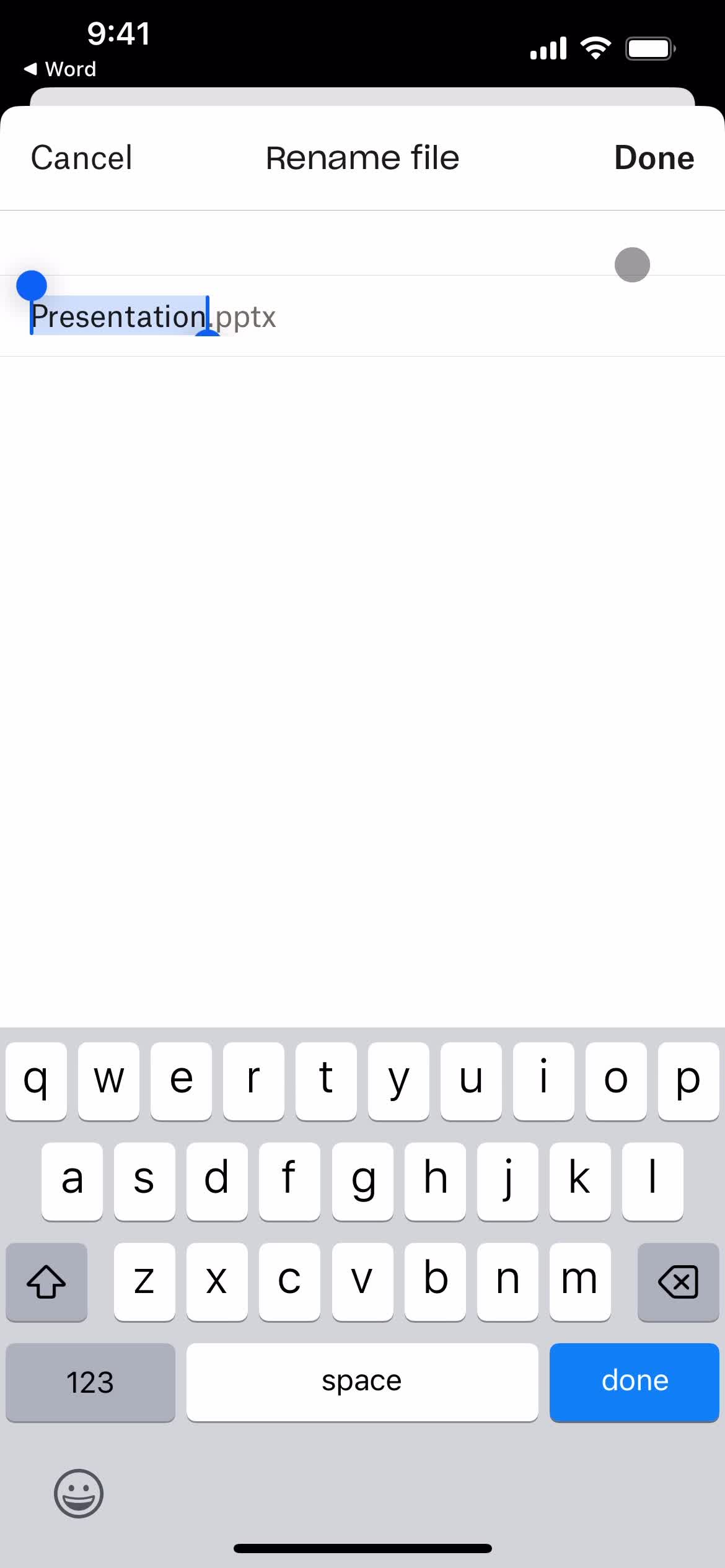
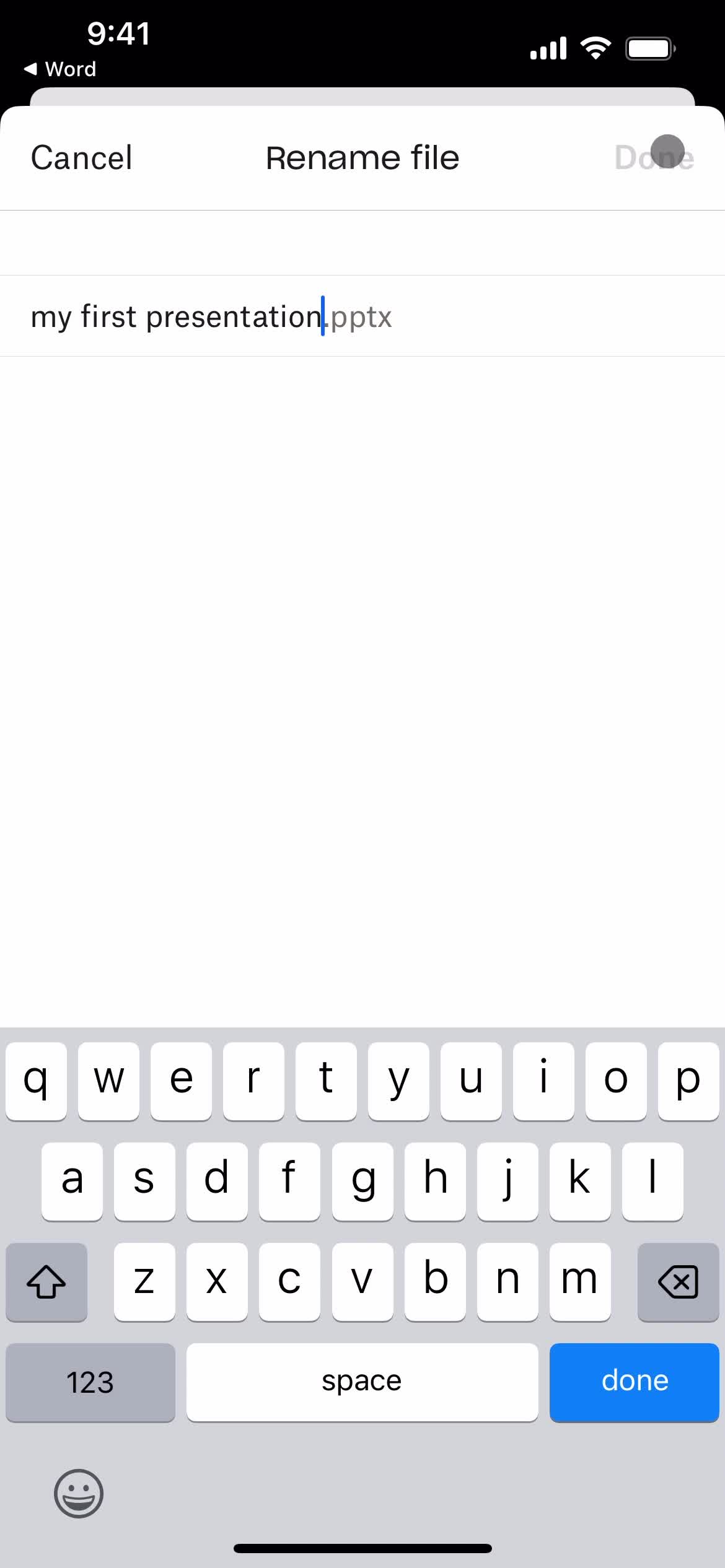
Rename
this is title
Continue
this is title
Upload file
this is title
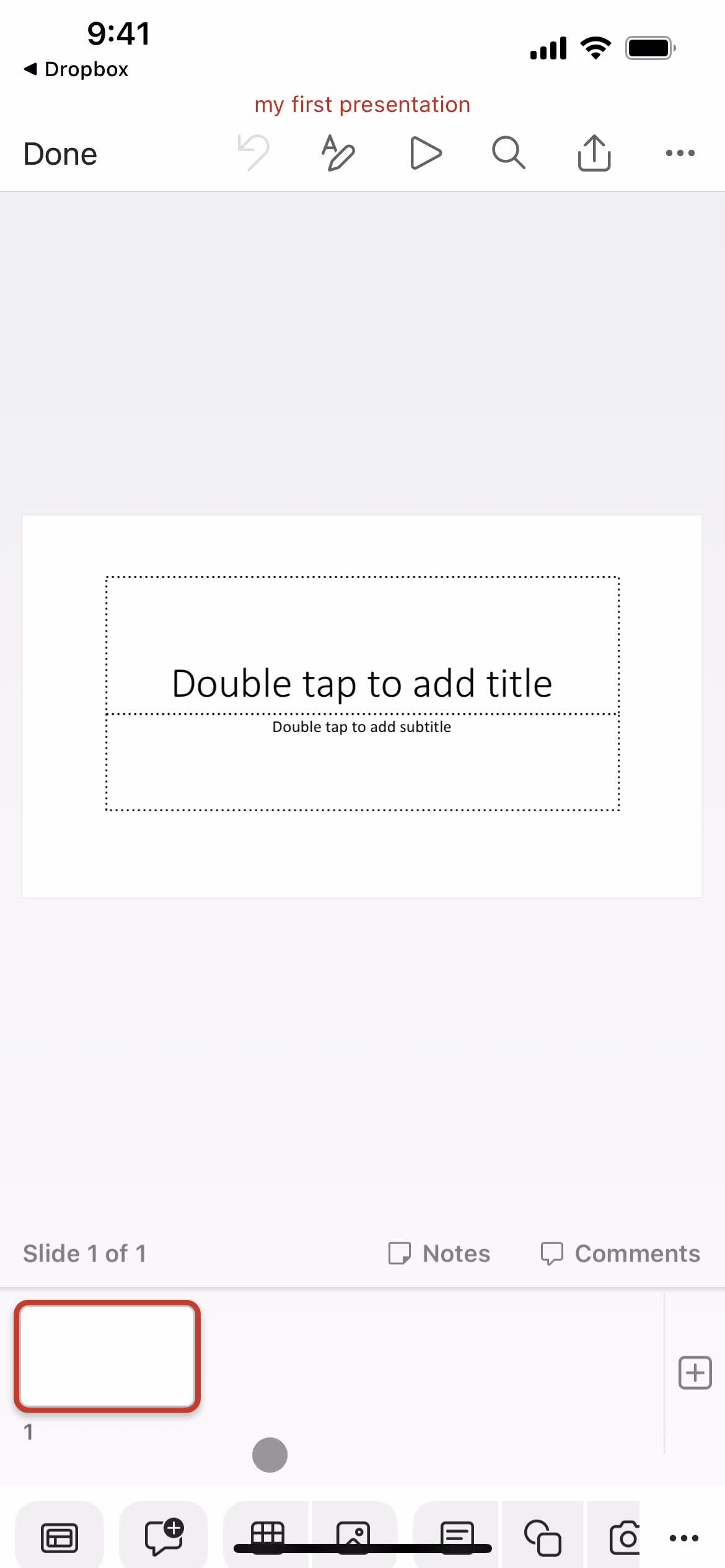
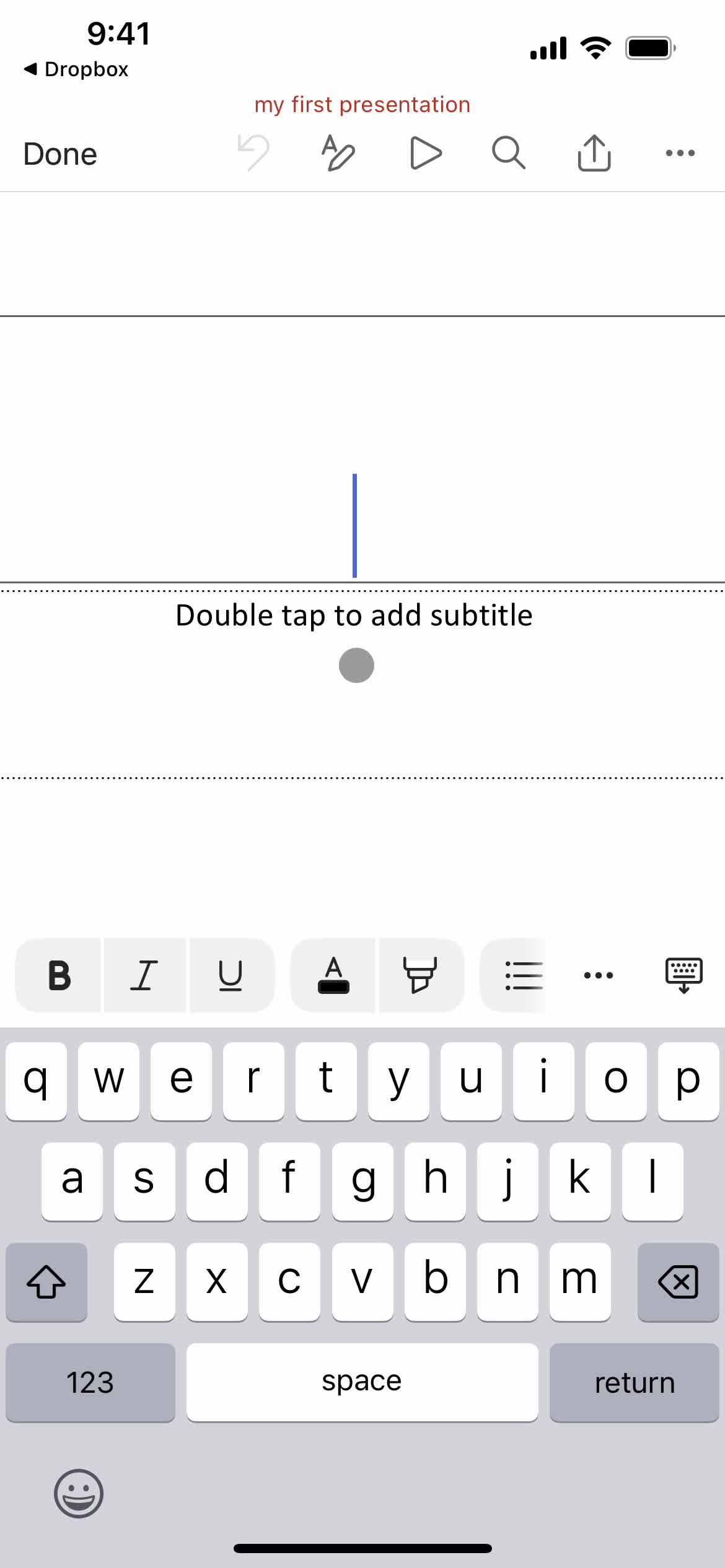
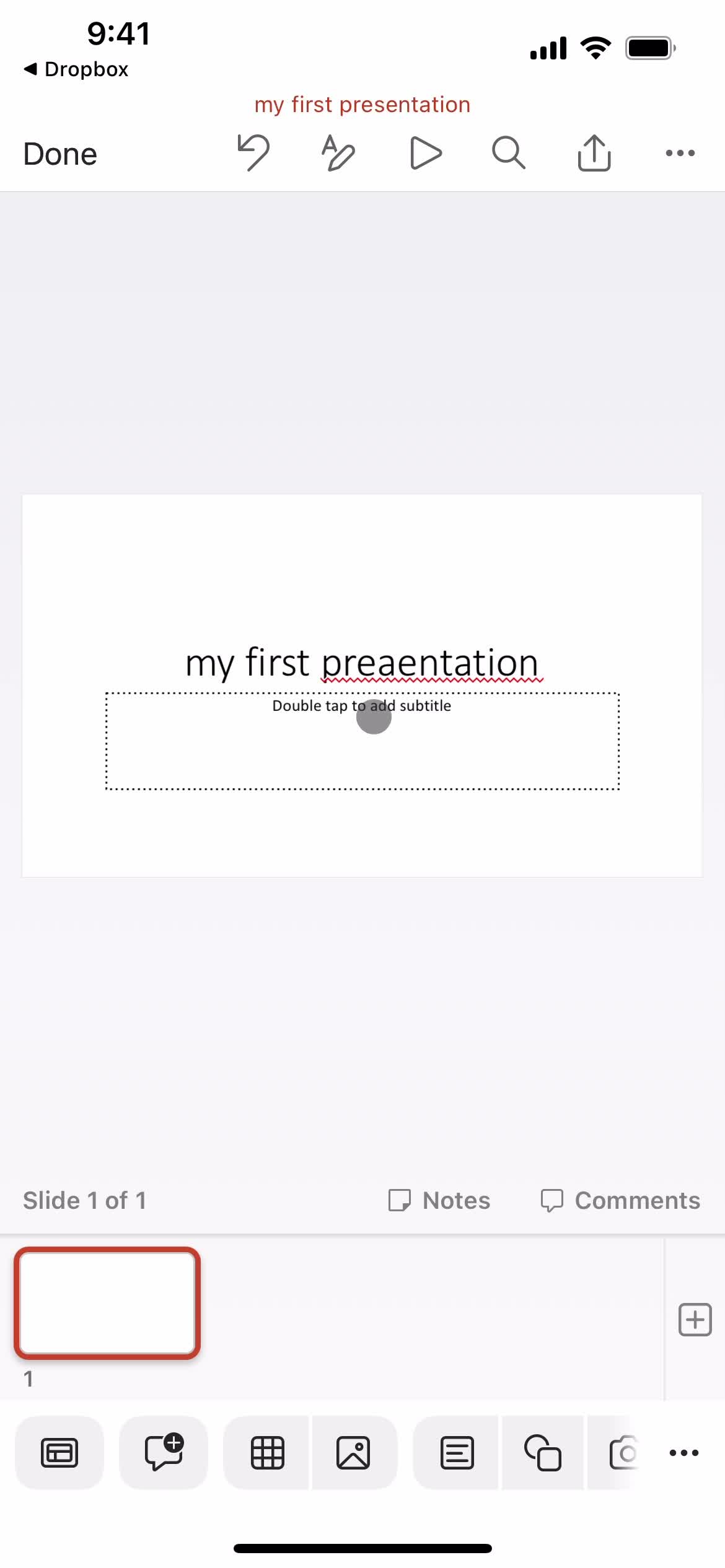
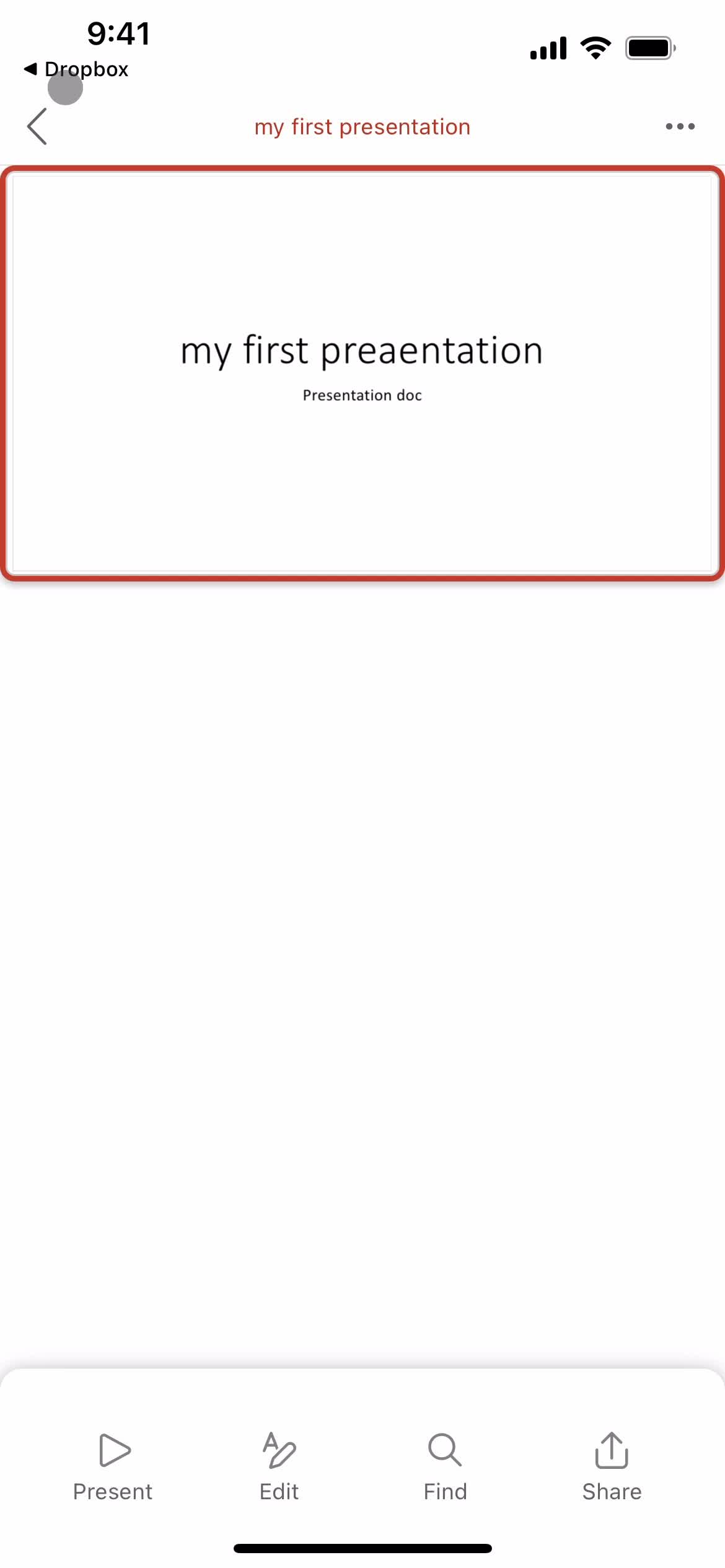
Presentation editor
this is title
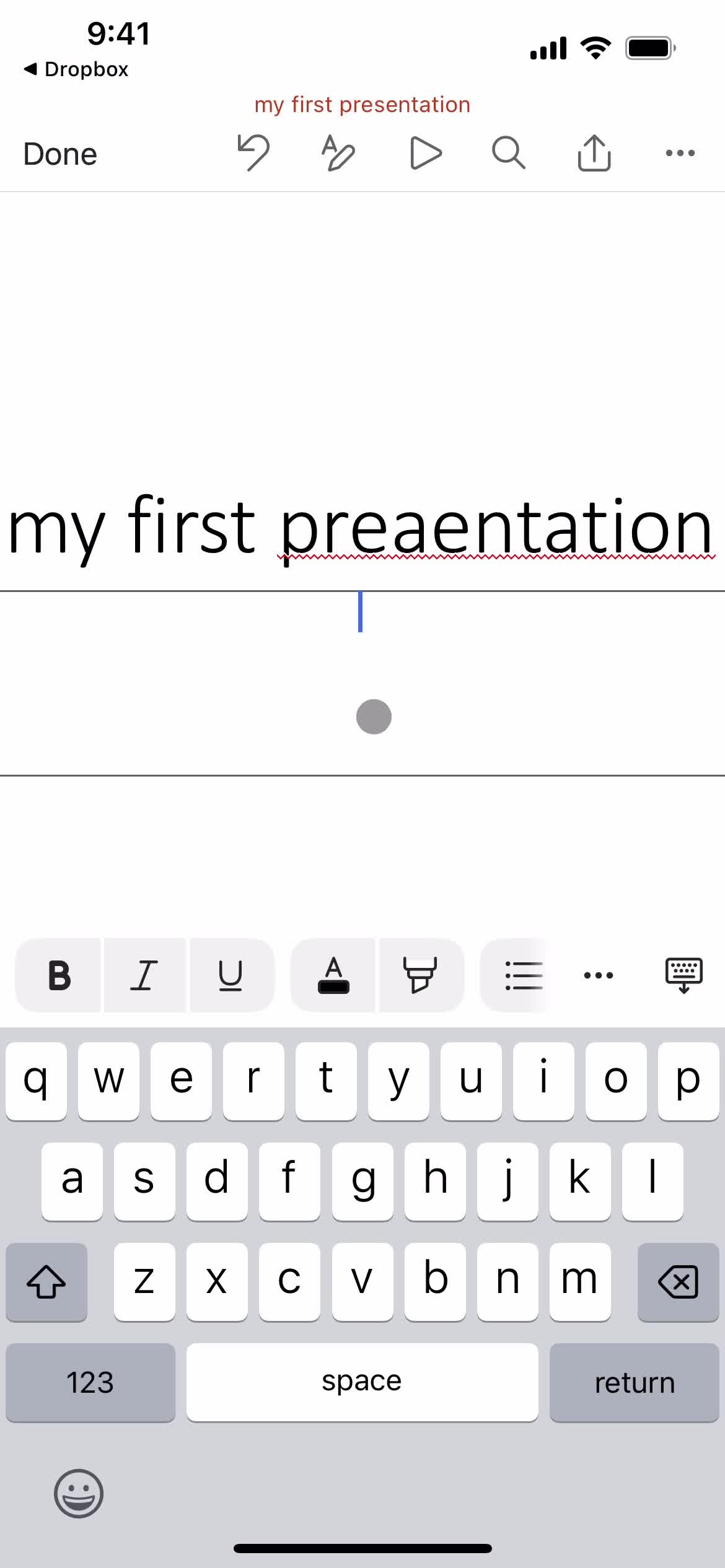
Set title
this is title
this is title
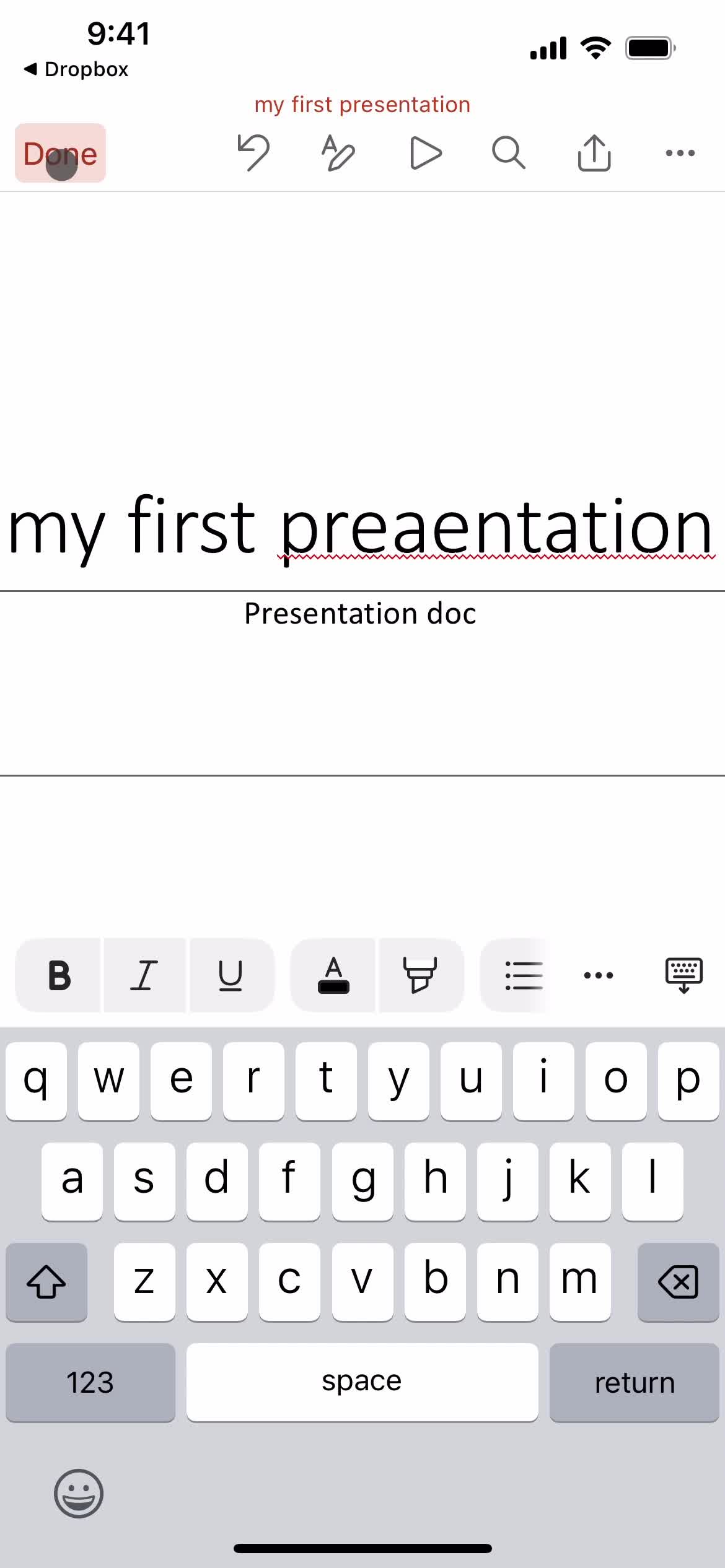
Add text
this is title
Continue
this is title
Presentation editor
this is title
Home
this is title
Files
this is title
Folder
this is title
File detail
this is title
Files
this is title
Home
this is title
Create menu
this is title
Create document
this is title
Document editor
this is title
Add text
this is title
Continue
this is title
Select folder
this is title
this is title
Rename
this is title
Continue
this is title
Upload file
this is title
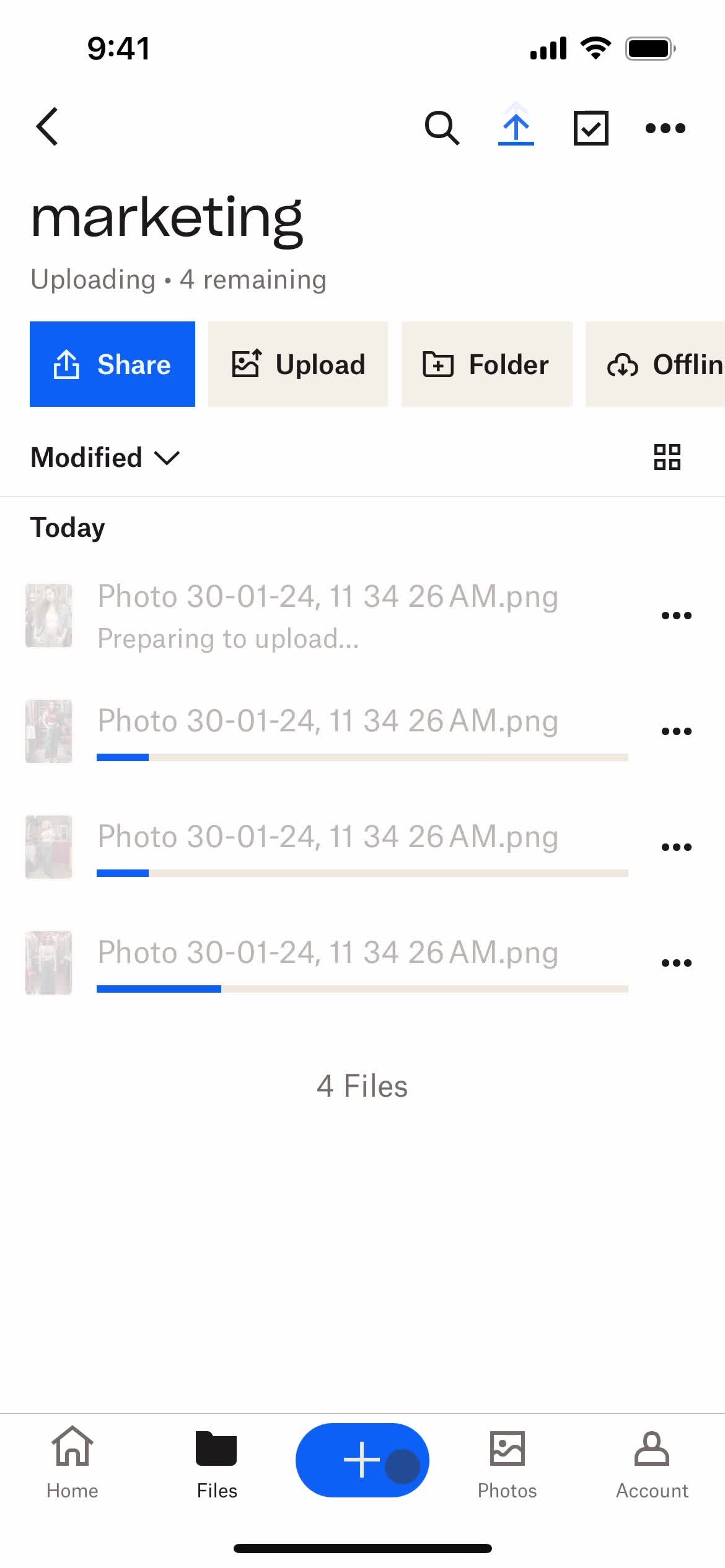
Uploading
this is title
Folder
this is title
Files
this is title
Folder
this is title
File detail
this is title
Files
this is title
Home
this is title
Create menu
this is title
Create document
this is title
Select folder
this is title
this is title
Rename
this is title
Continue
this is title
Upload file
this is title
this is title
Document editor
this is title
Add text
this is title
this is title
this is title
File detail
this is title
Folder
this is title
Files
this is title
this is title
Folder
this is title
File detail
this is title
this is title
this is title
this is title
this is title
this is title
Home
this is title
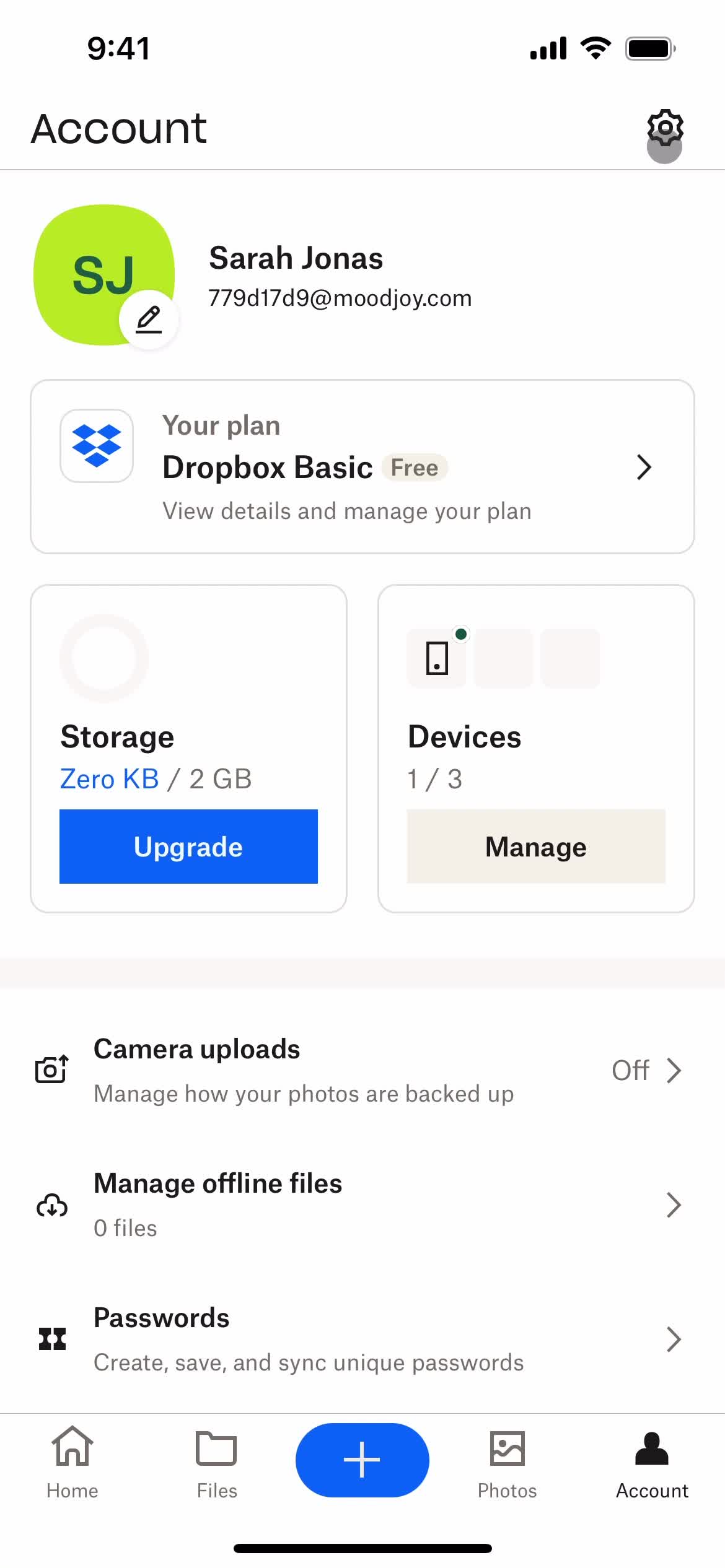
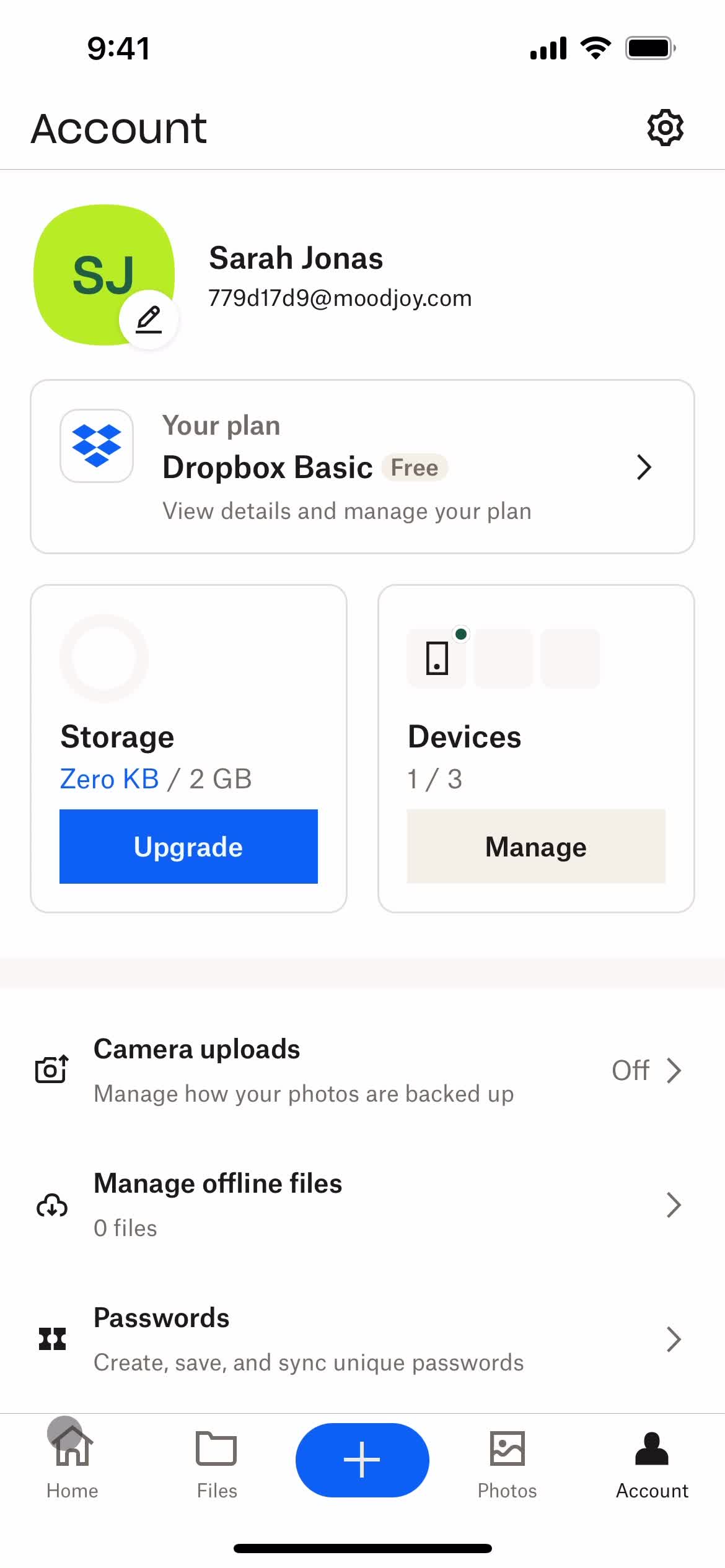
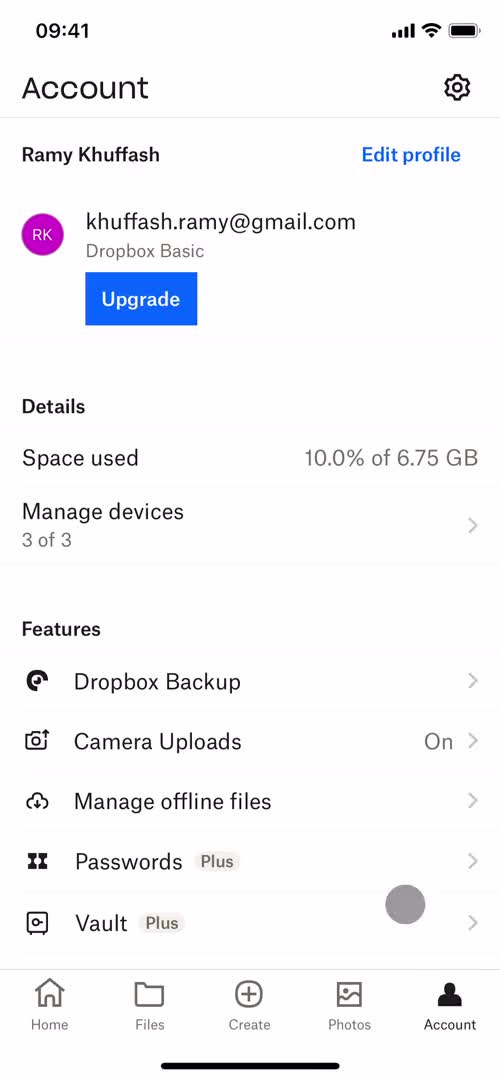
Account
this is title
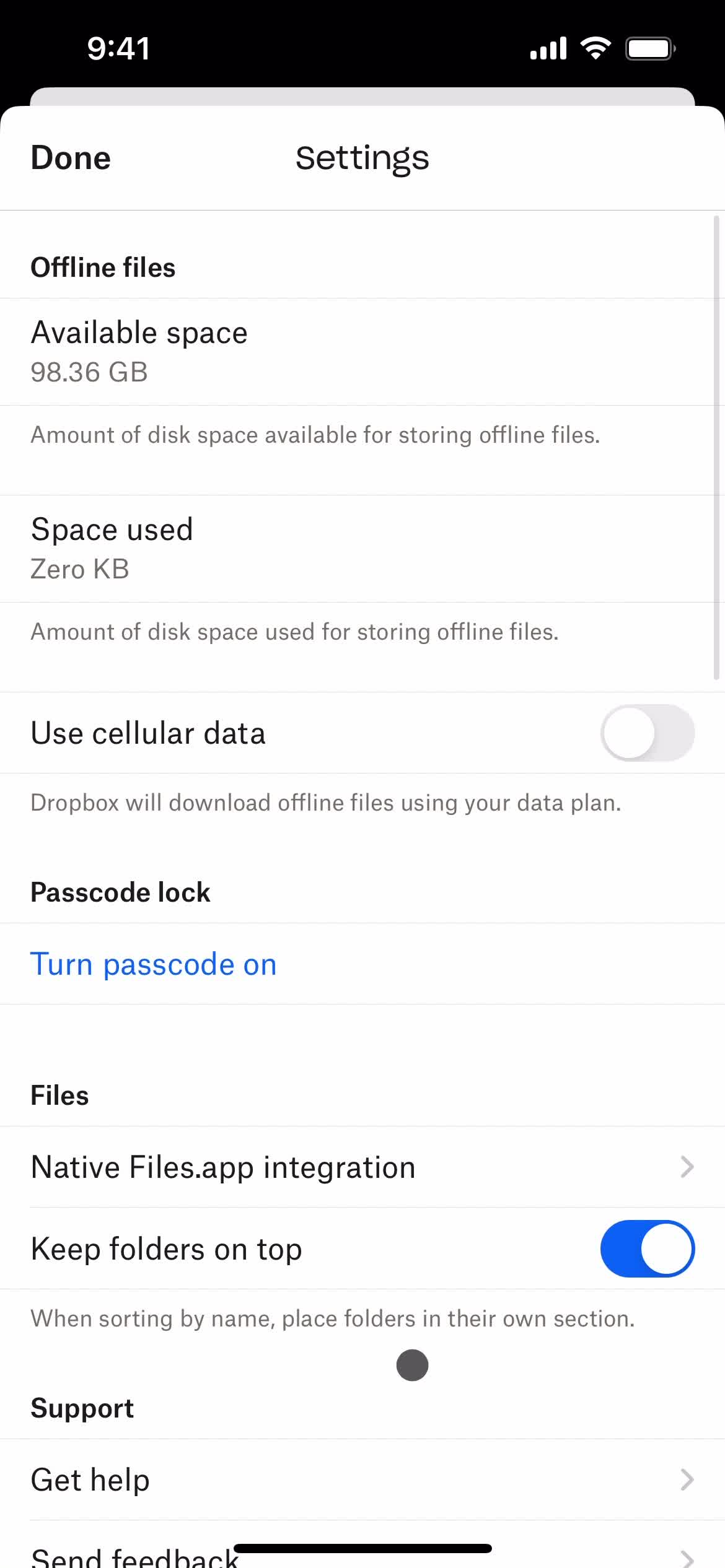
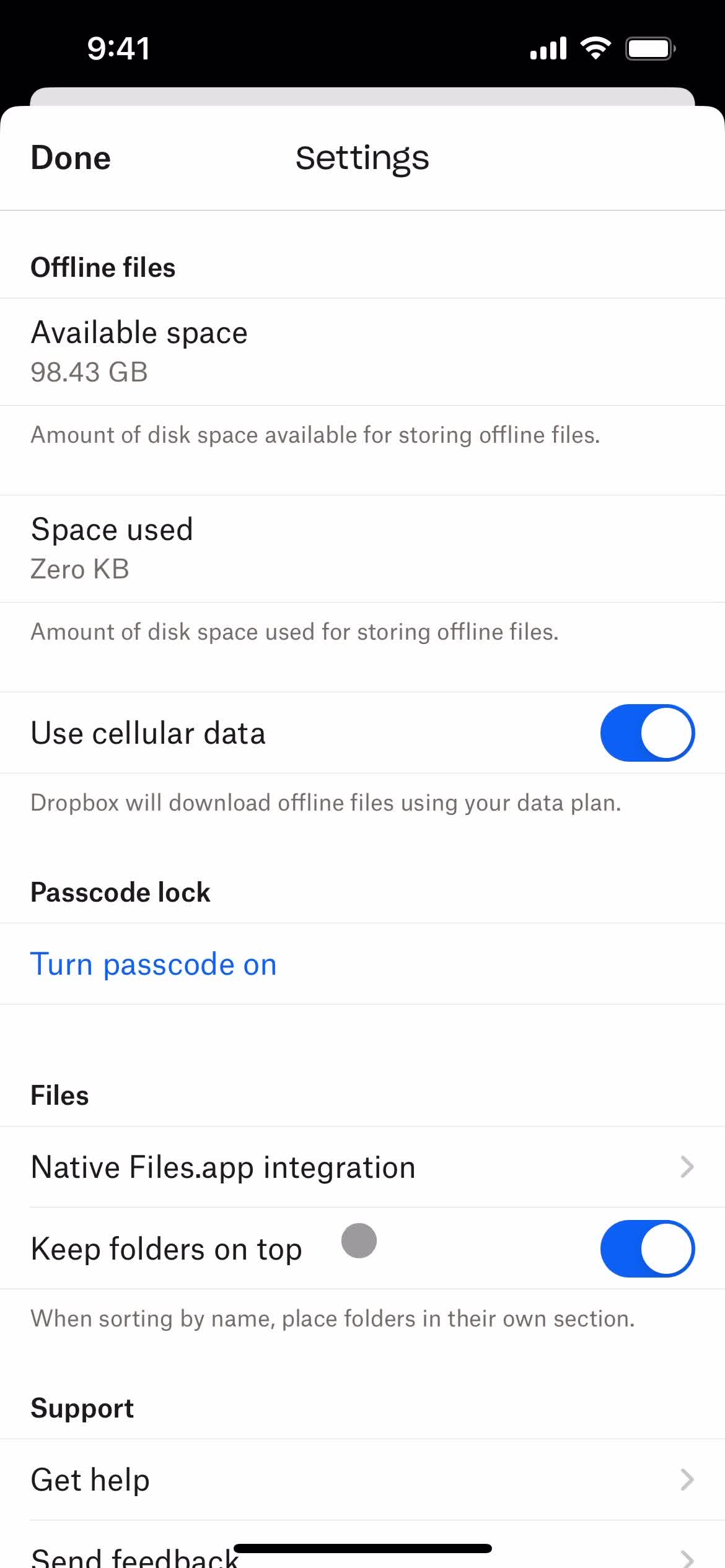
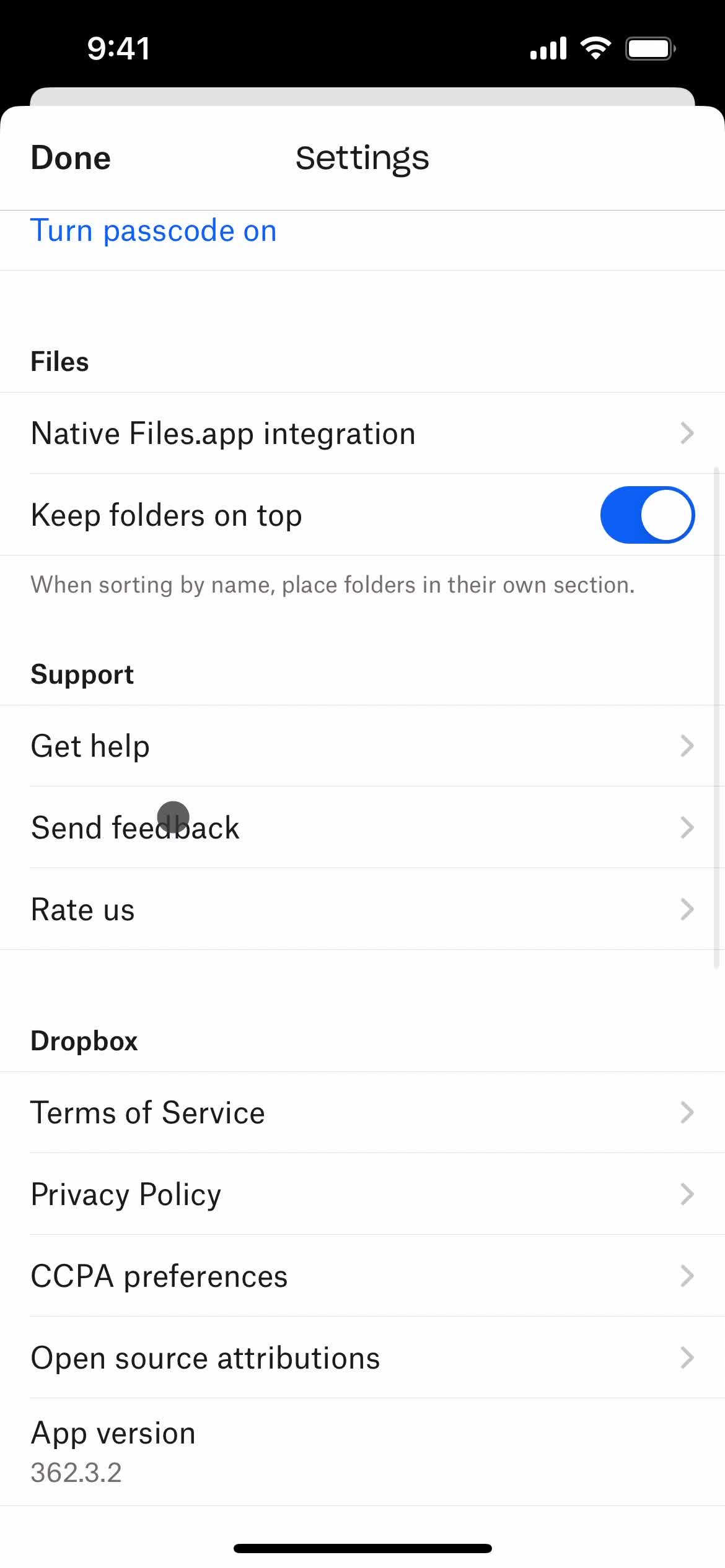
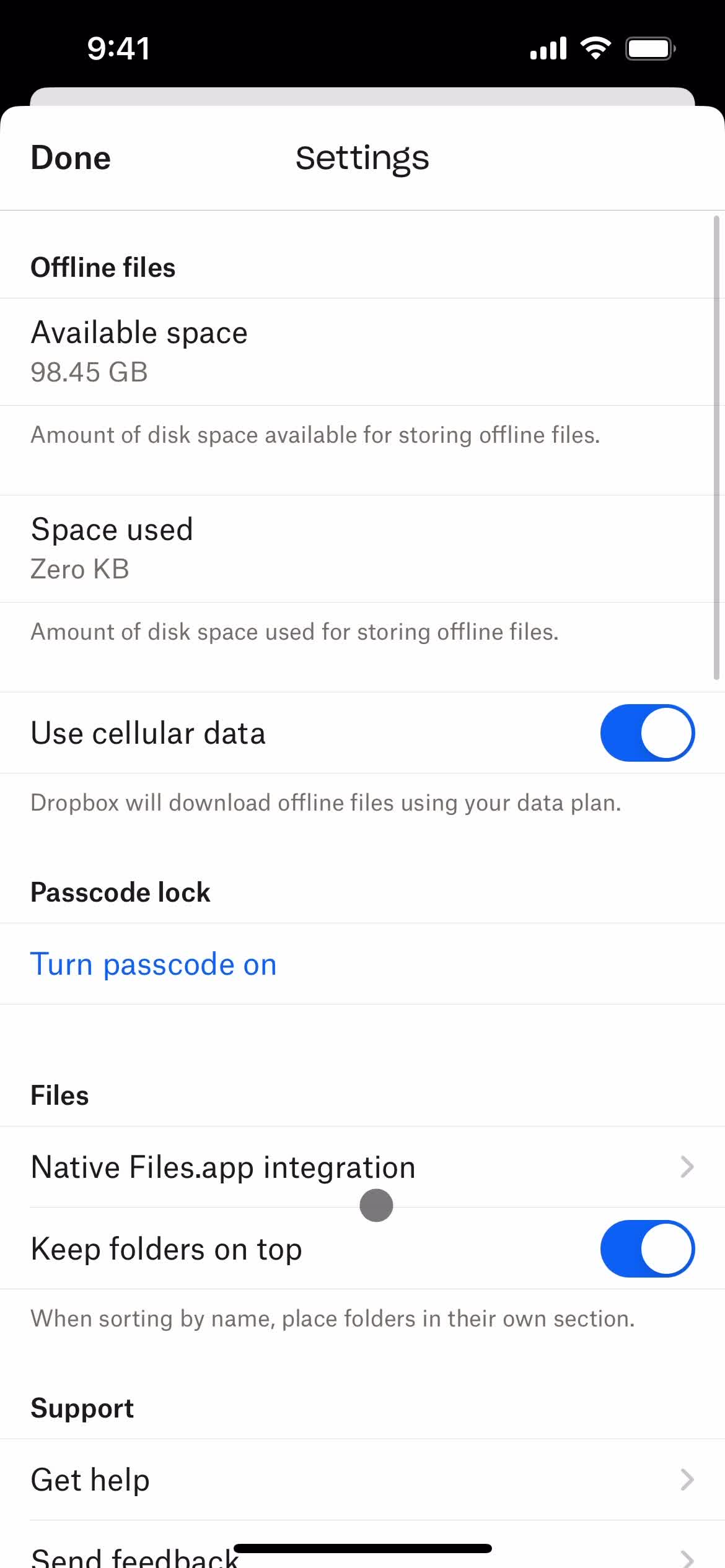
Settings
this is title
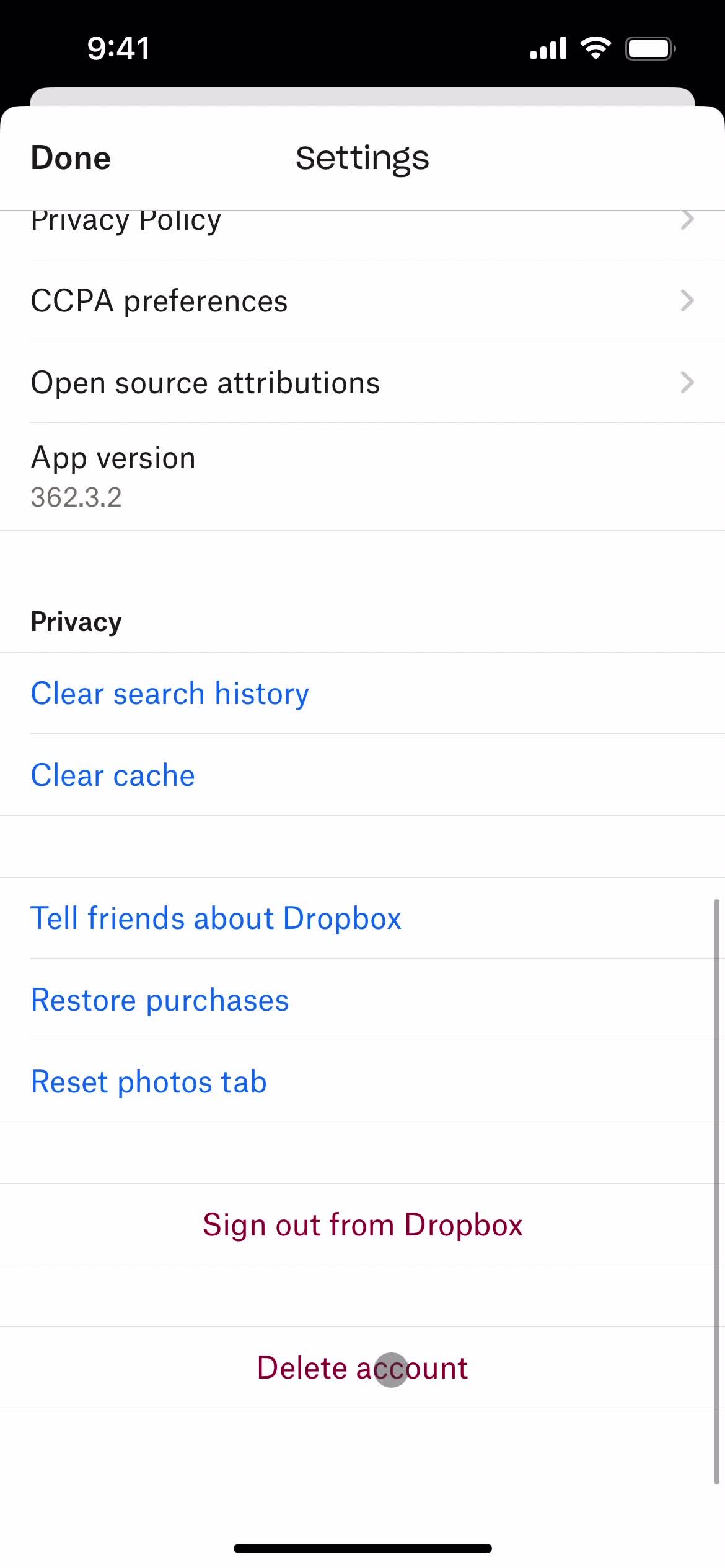
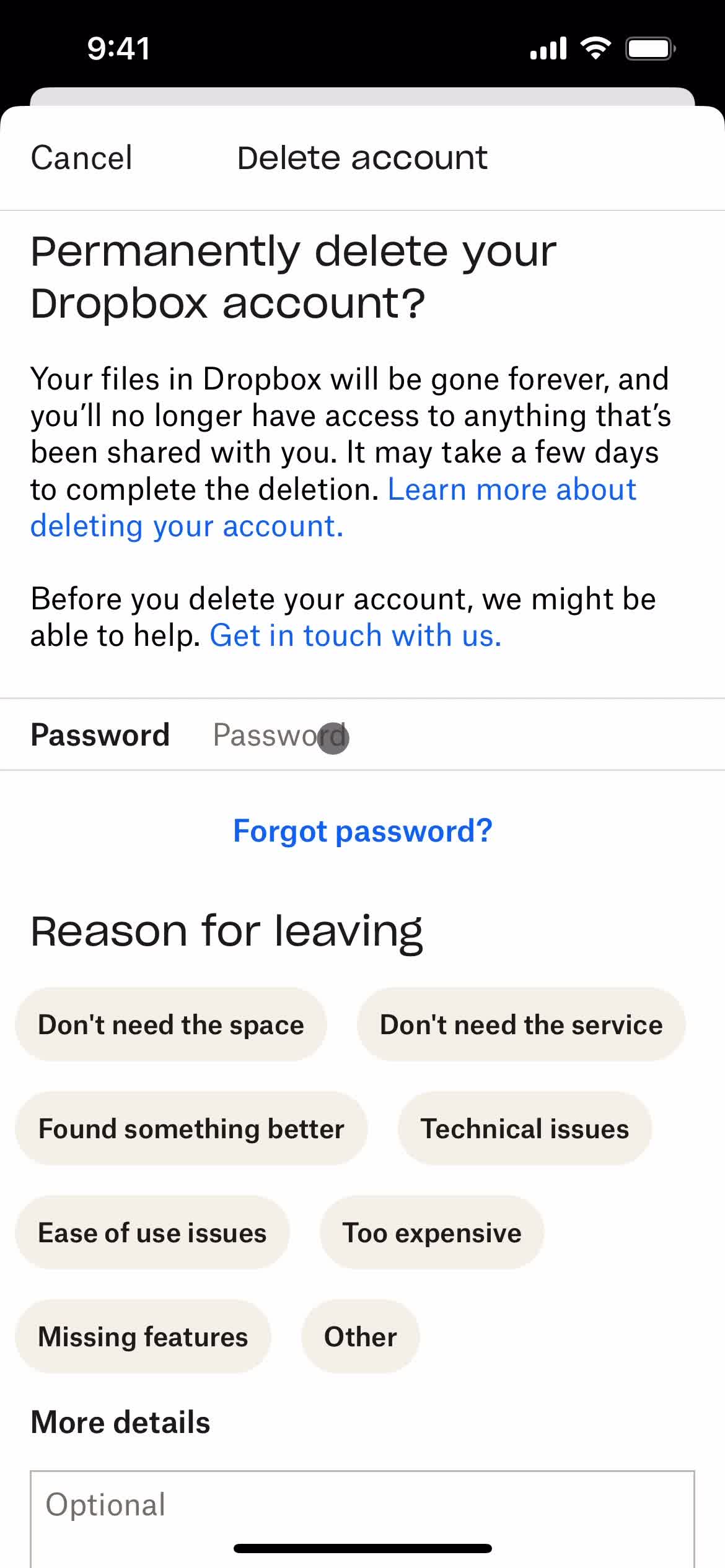
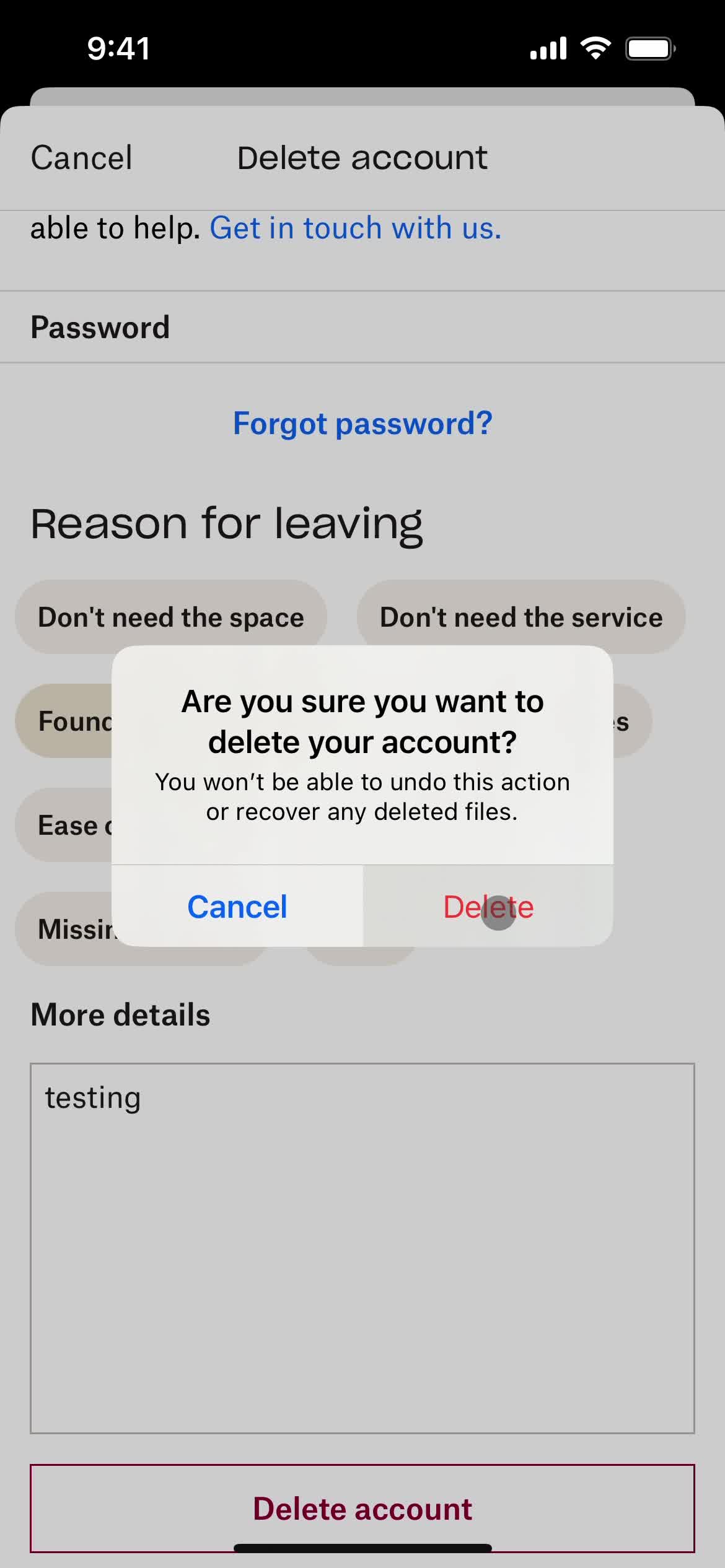
Delete account
this is title
Confirm delete
this is title
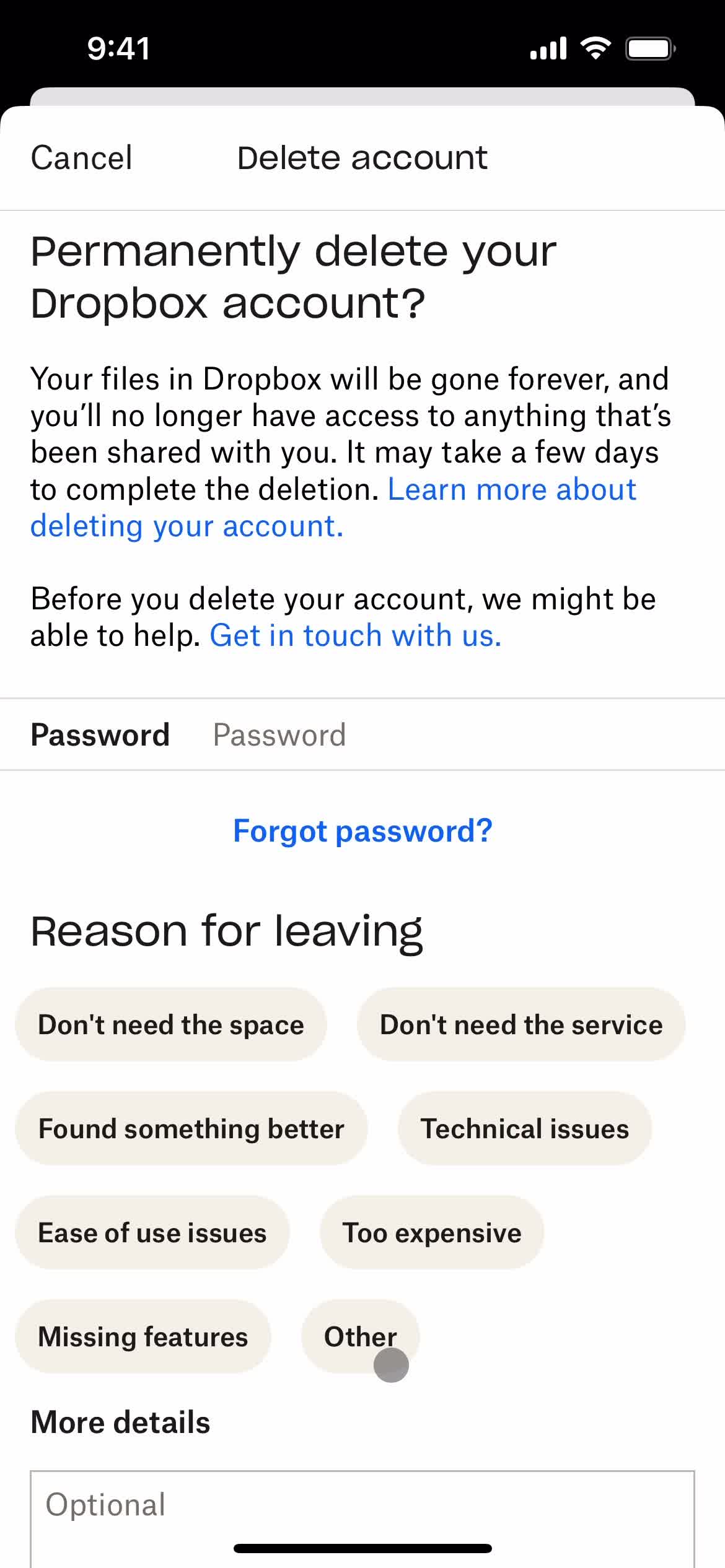
Enter password
this is title
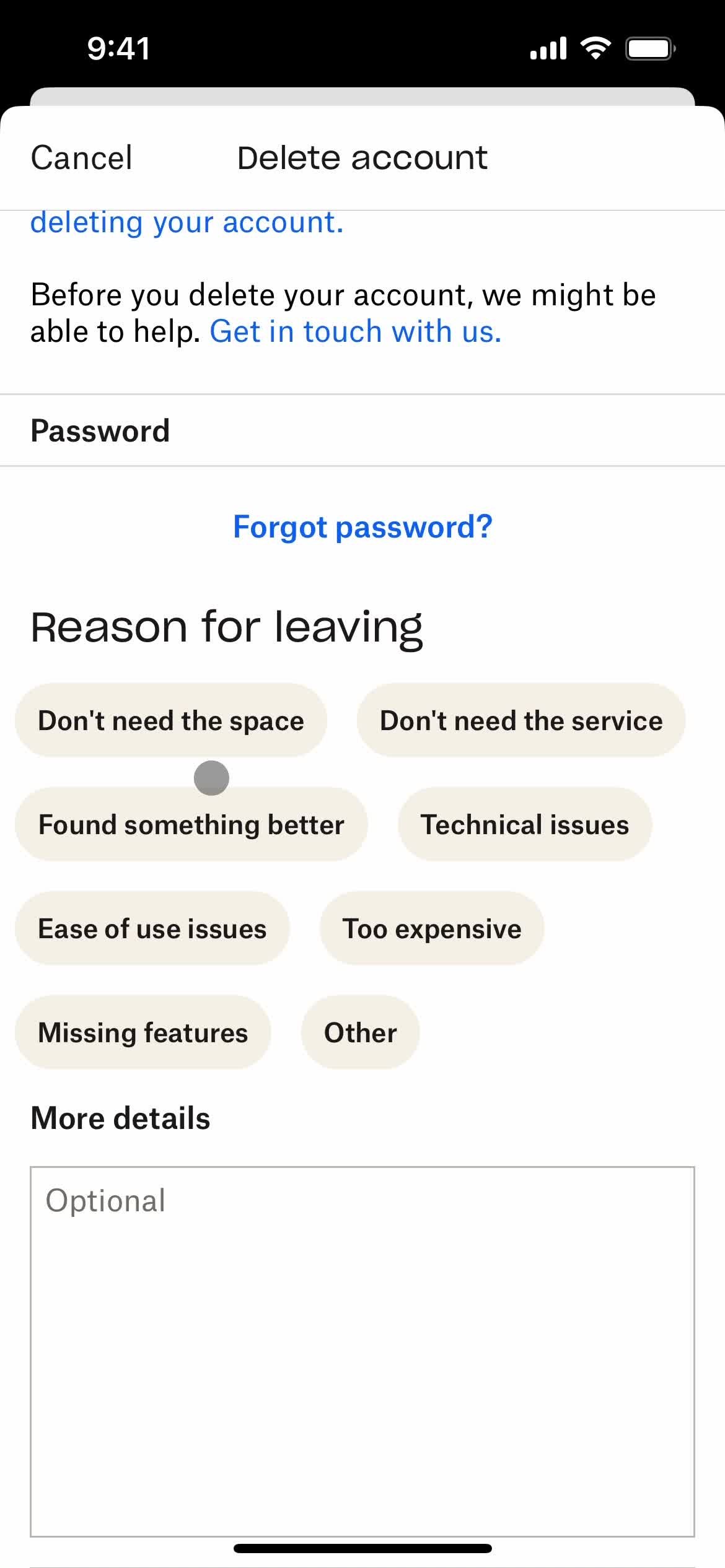
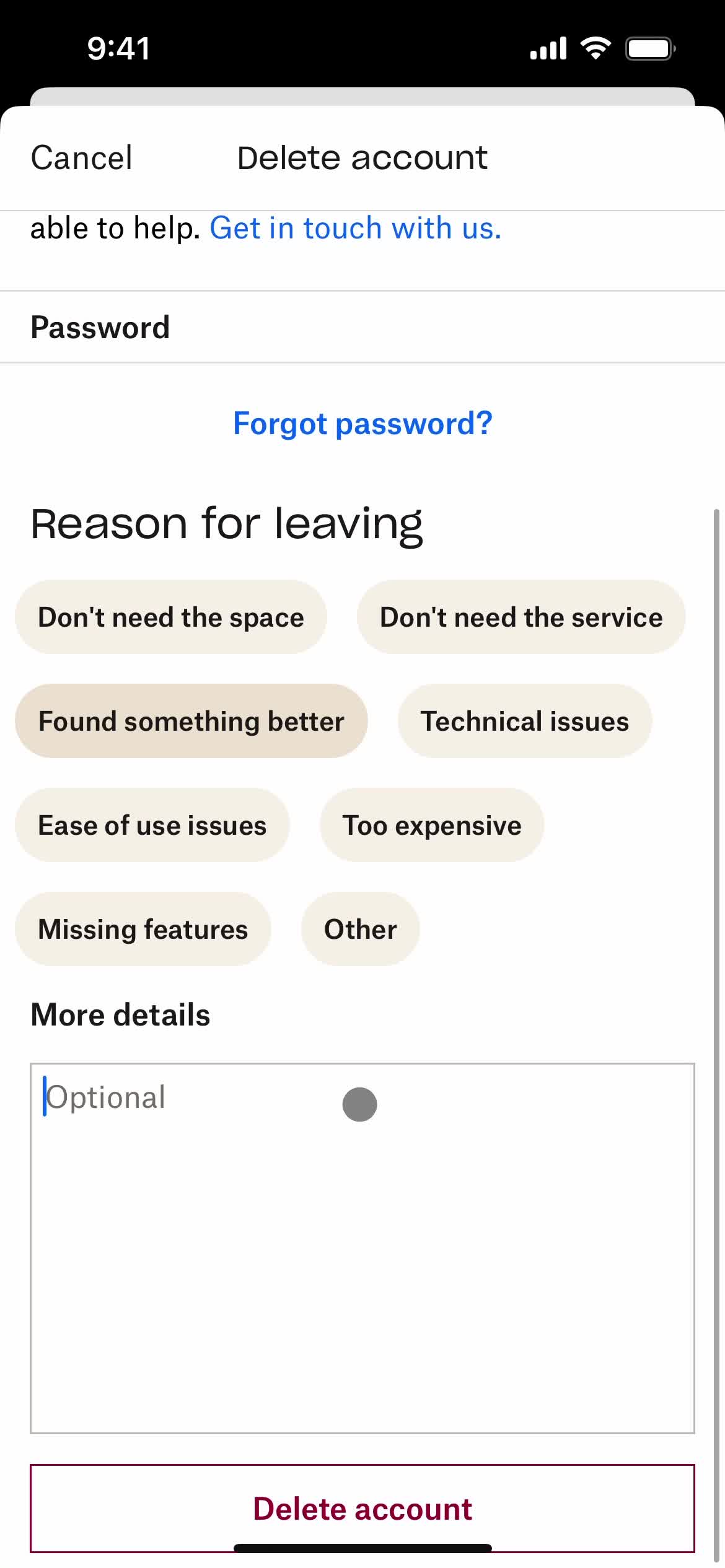
Select delete reason
this is title
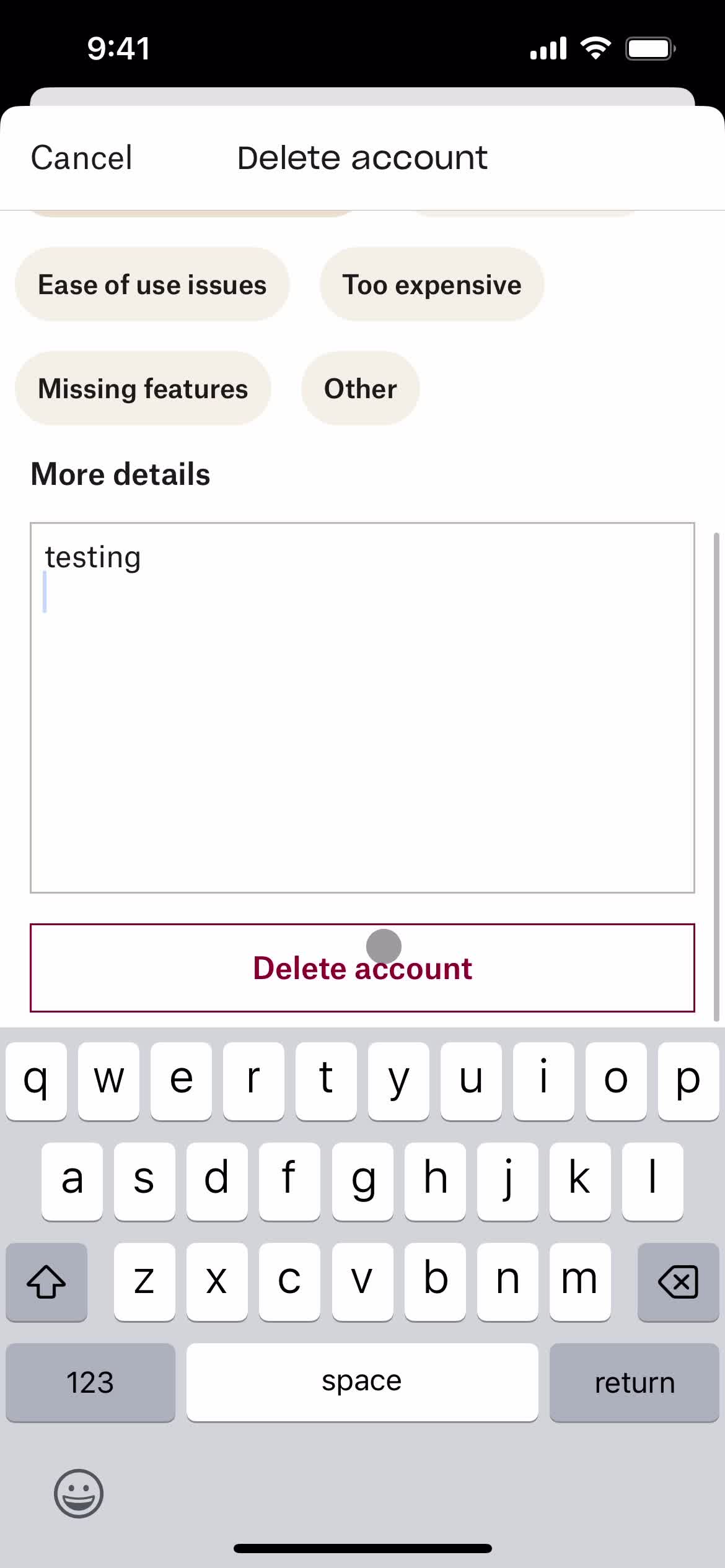
Add note
this is title
Delete account
this is title
Confirm delete
this is title
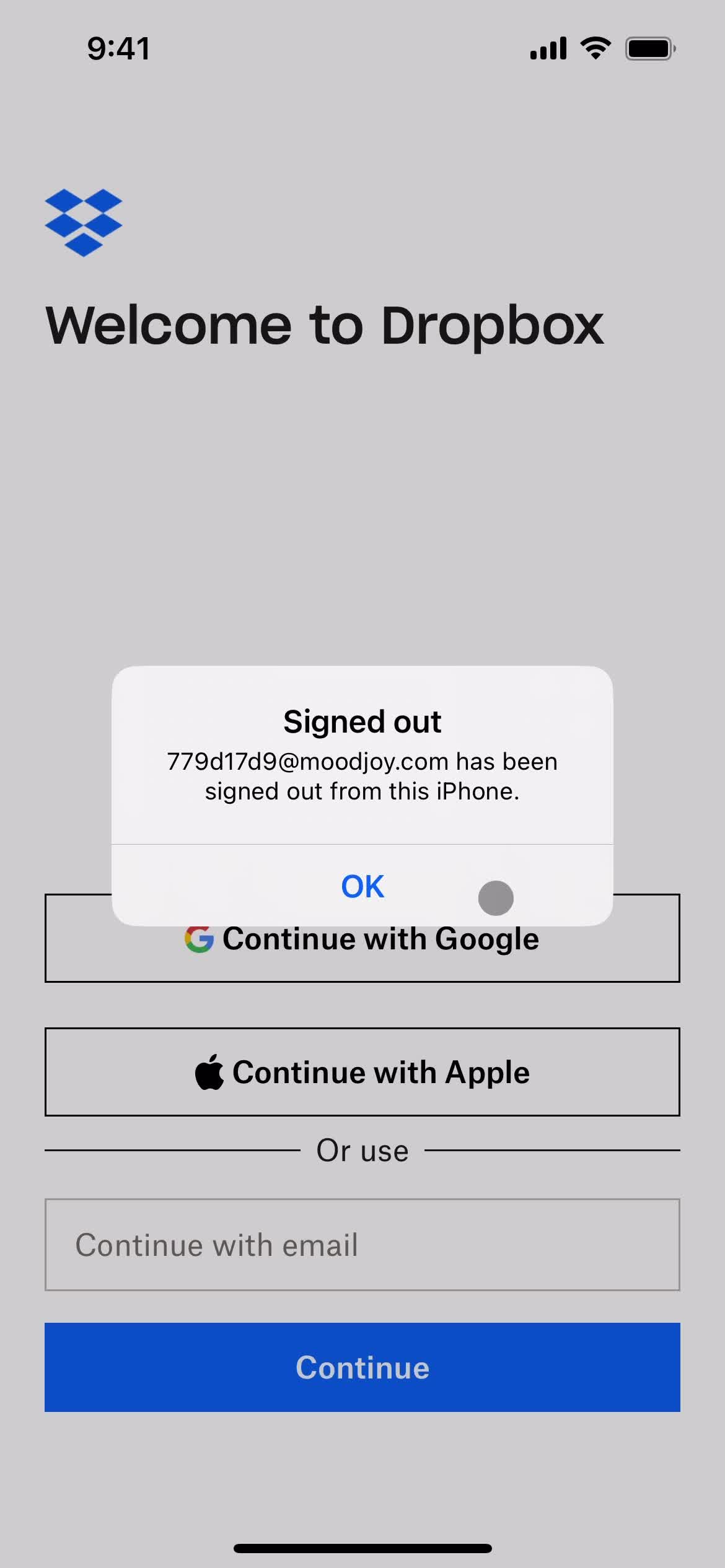
Account deleted
this is title
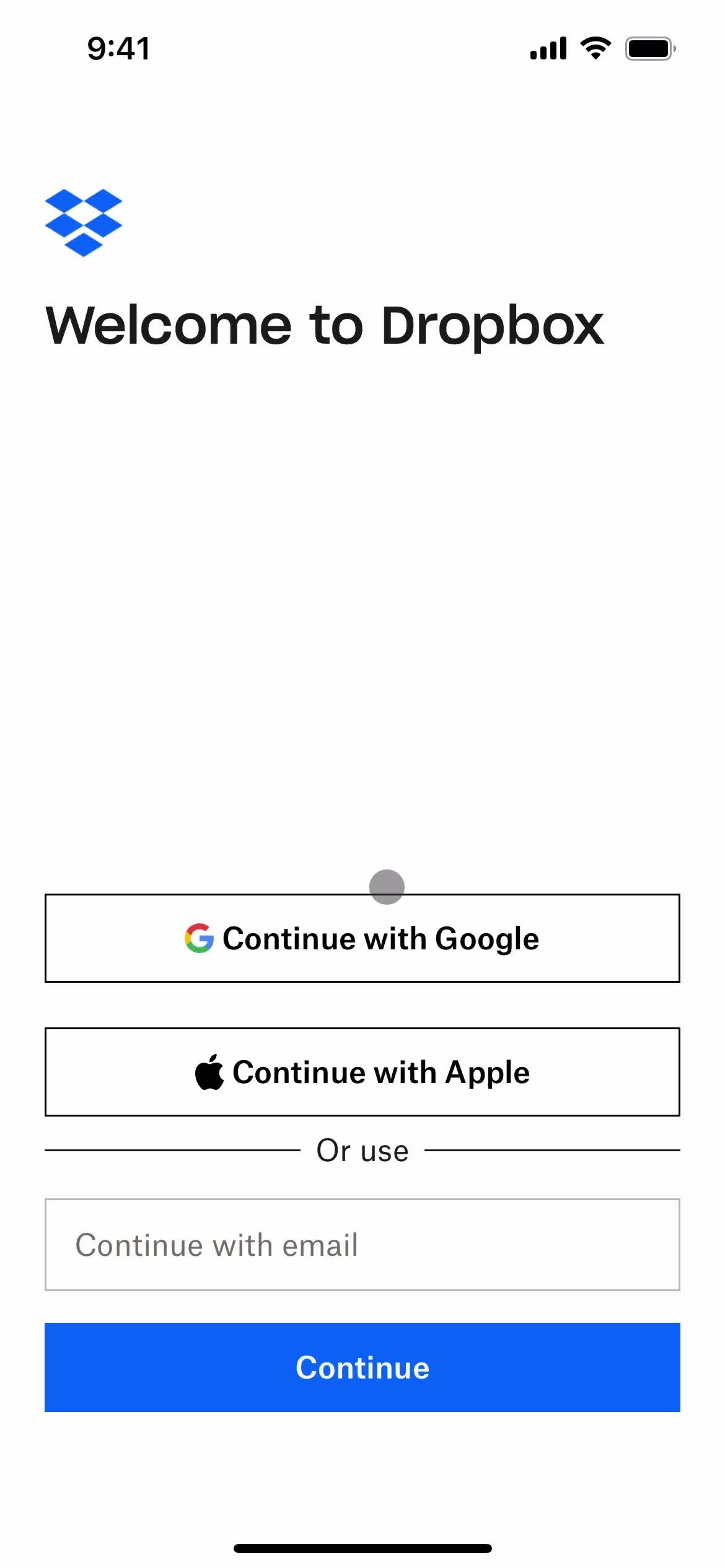
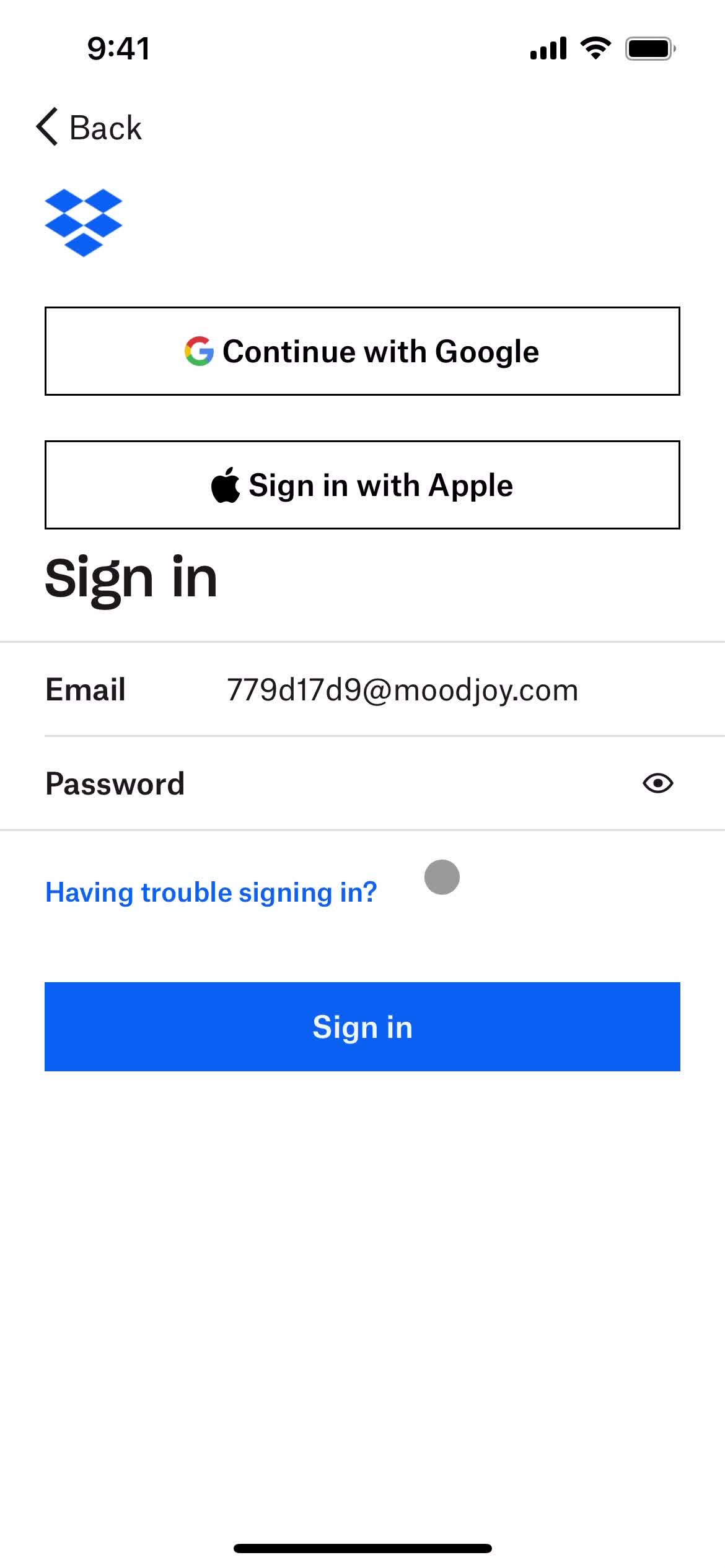
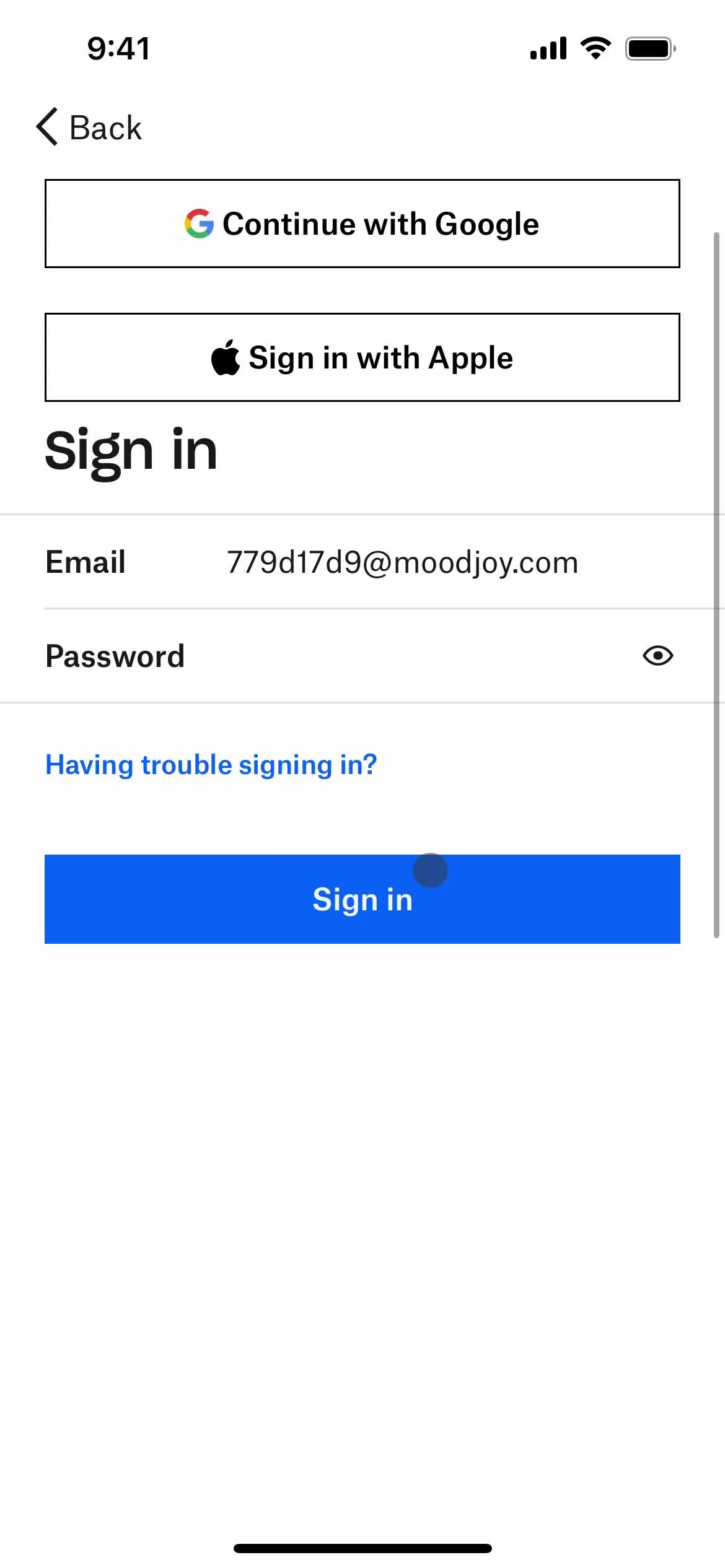
Sign in
this is title
Home
this is title
this is title
Folder
this is title
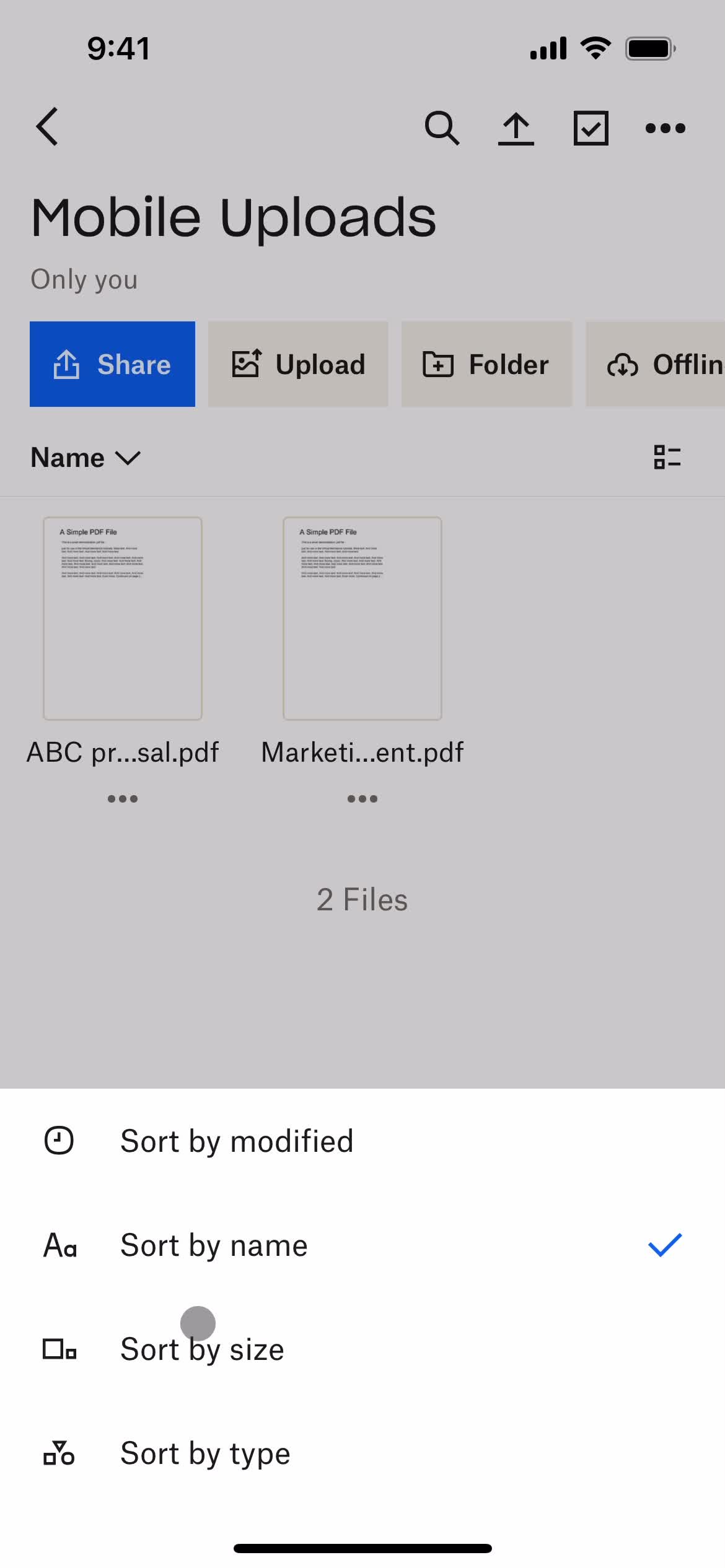
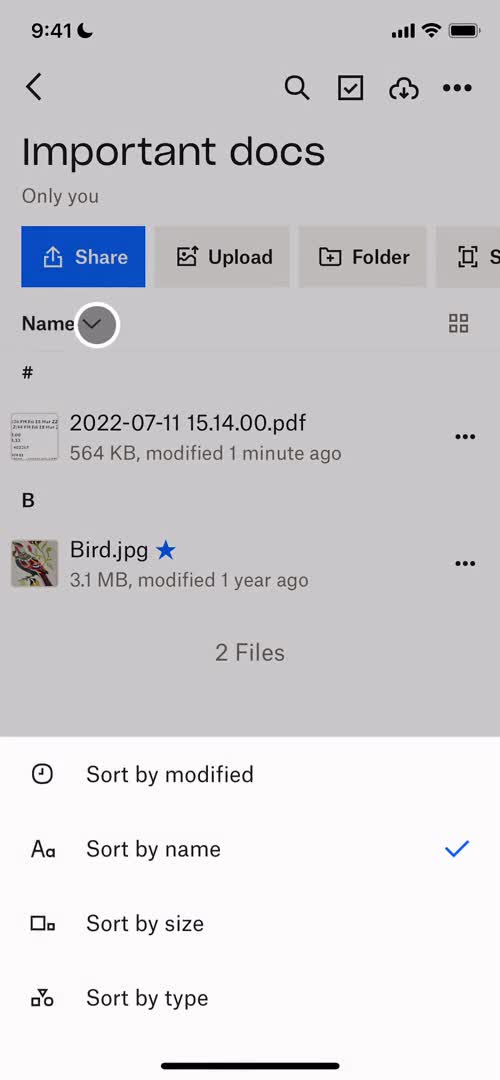
Sort
this is title
Filtered results
this is title
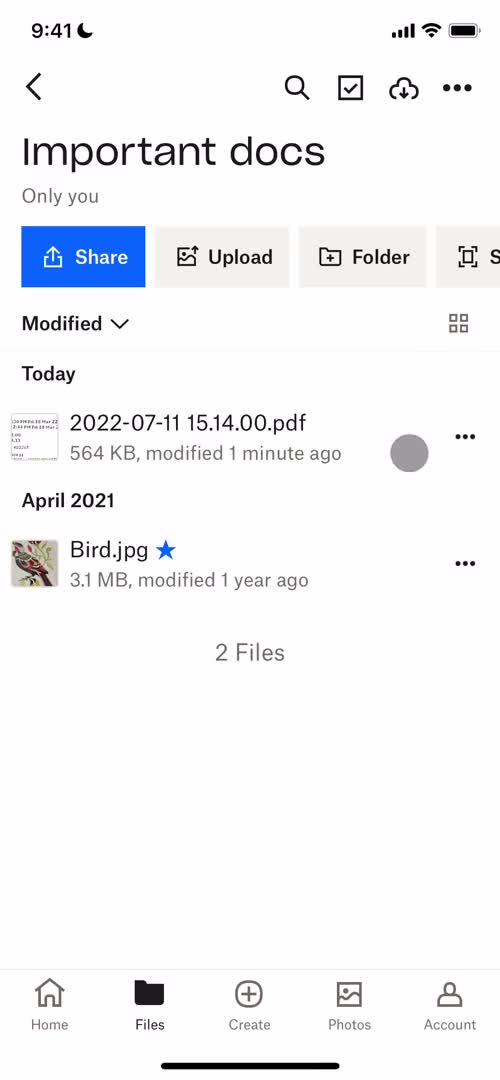
Change list view
this is title
this is title
Home
this is title
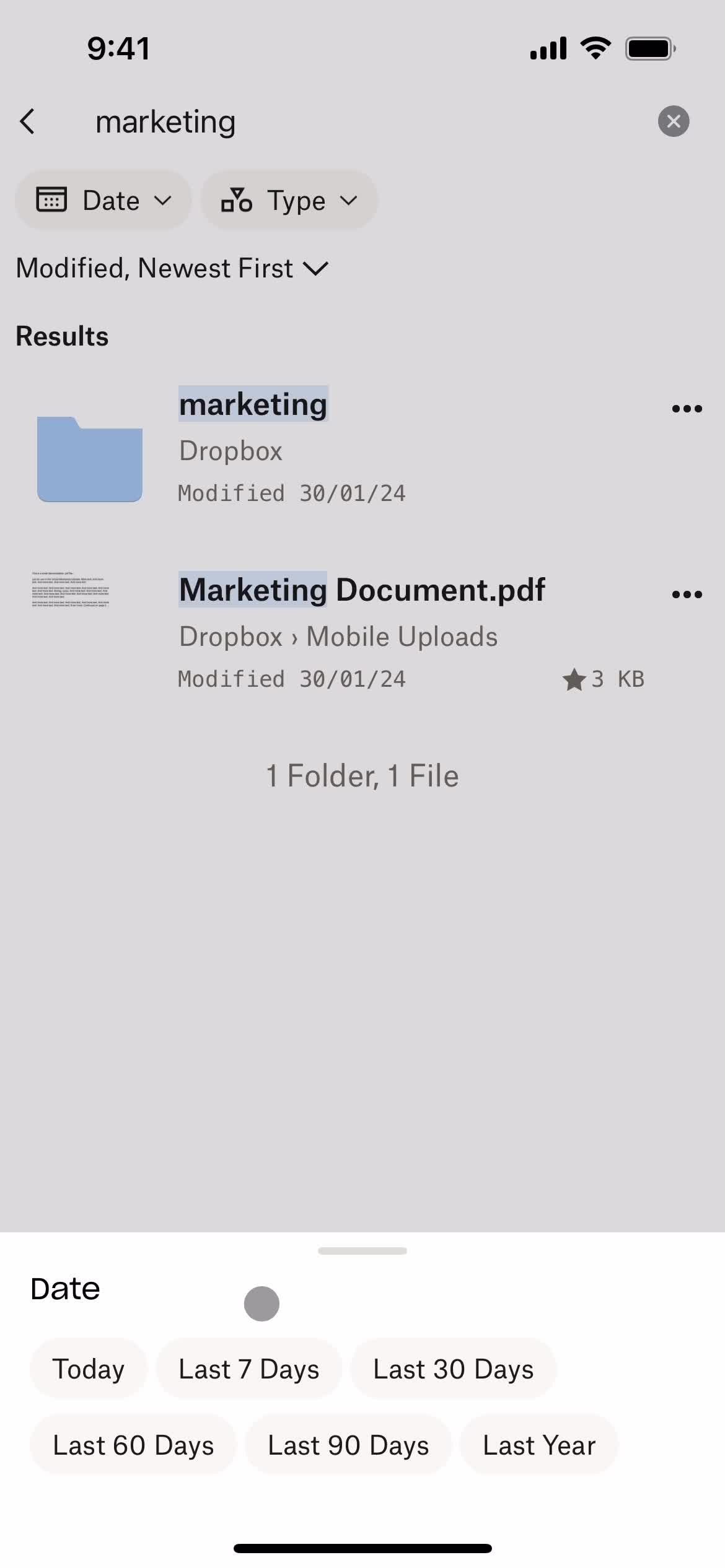
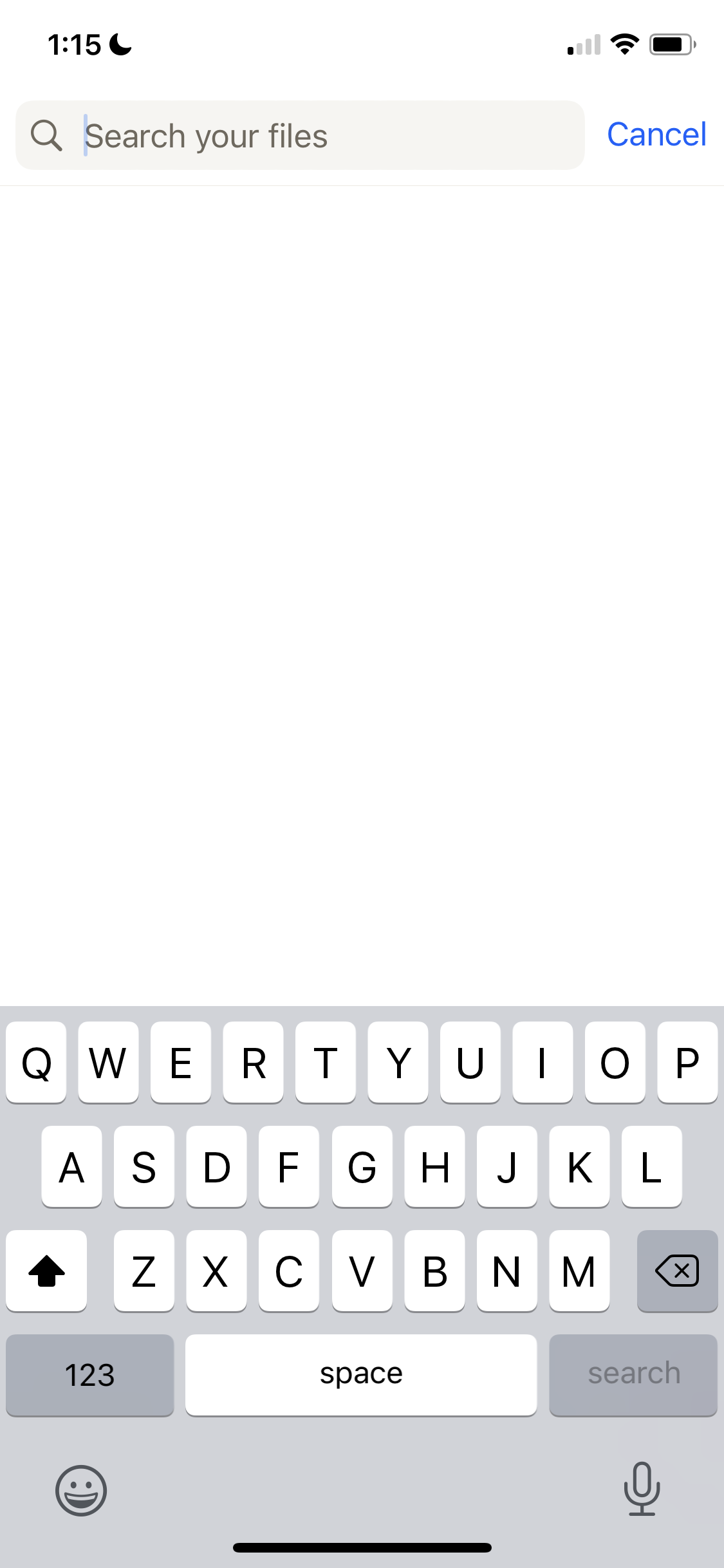
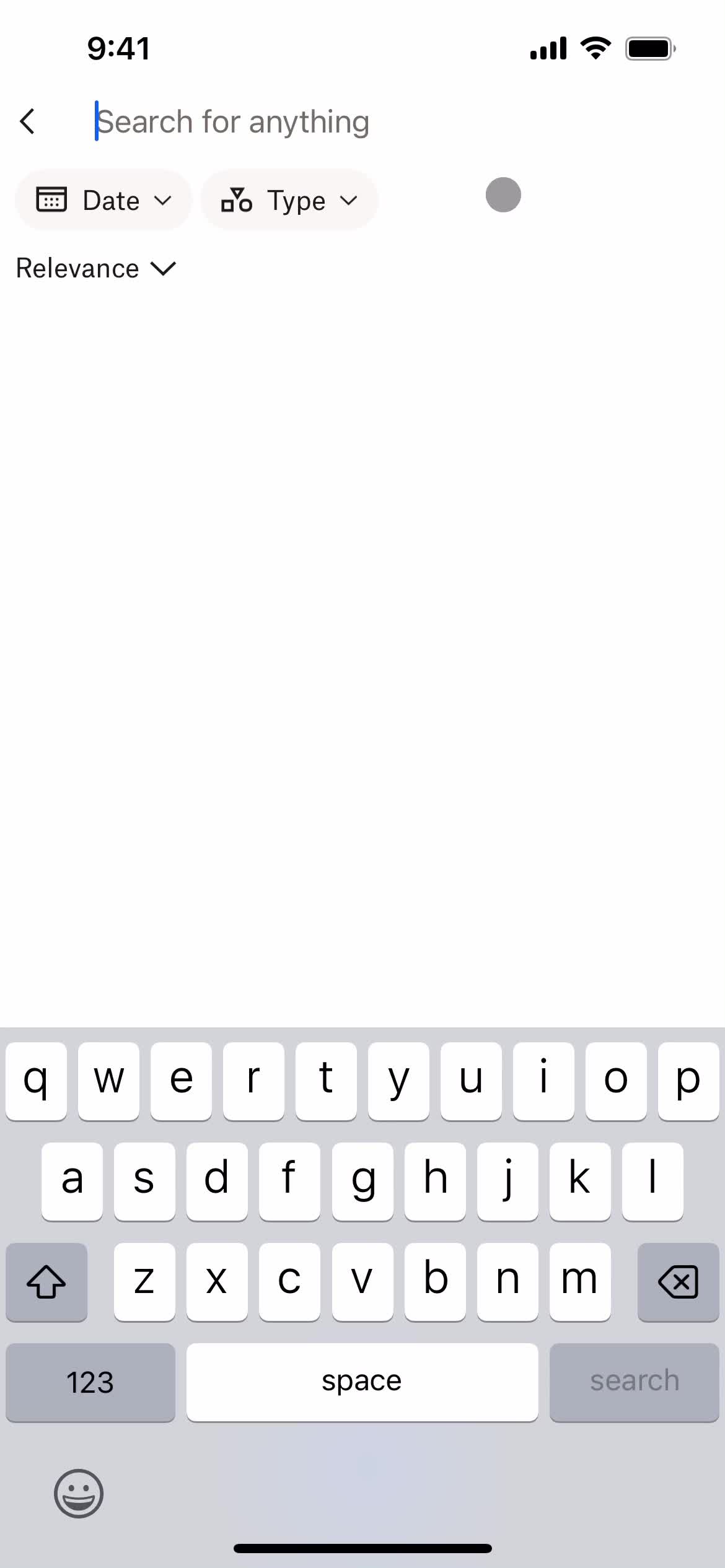
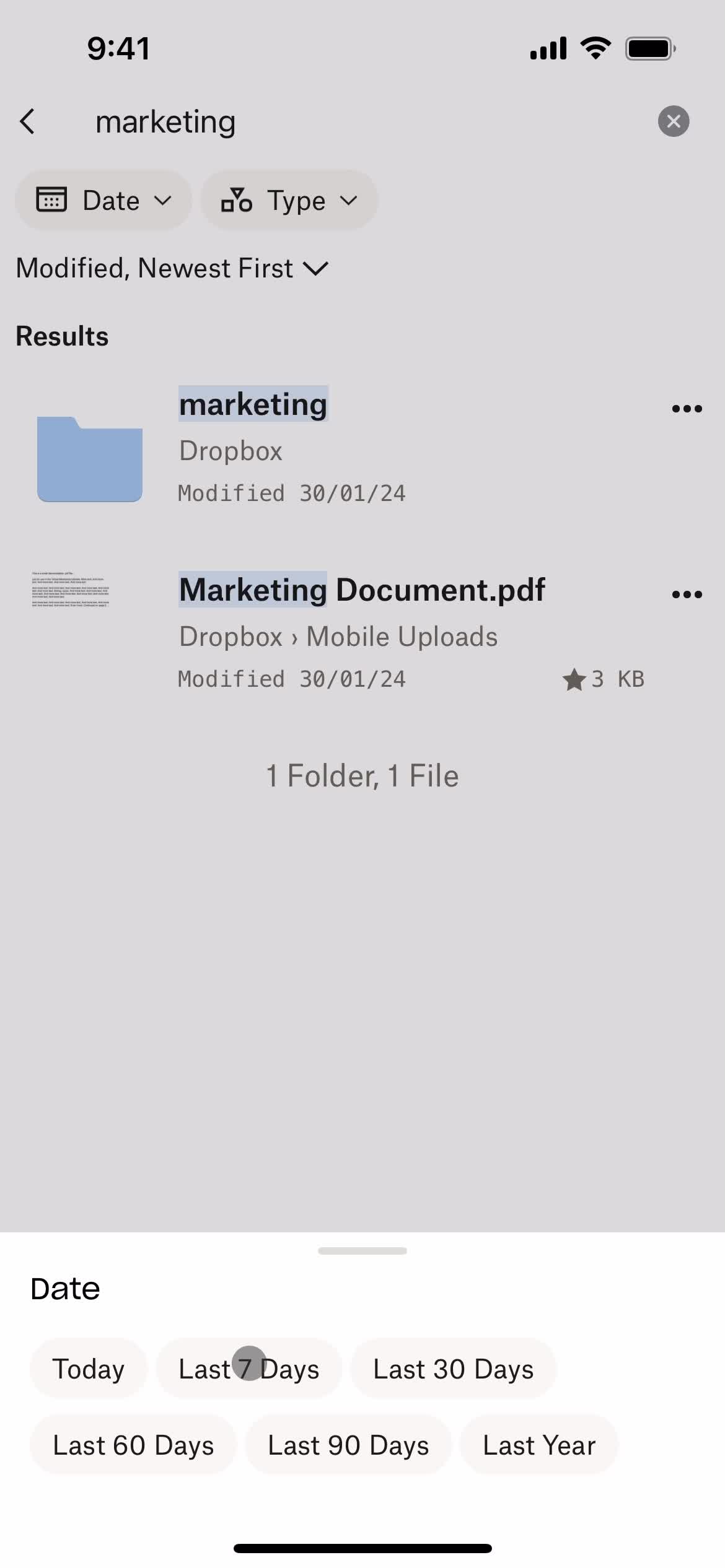
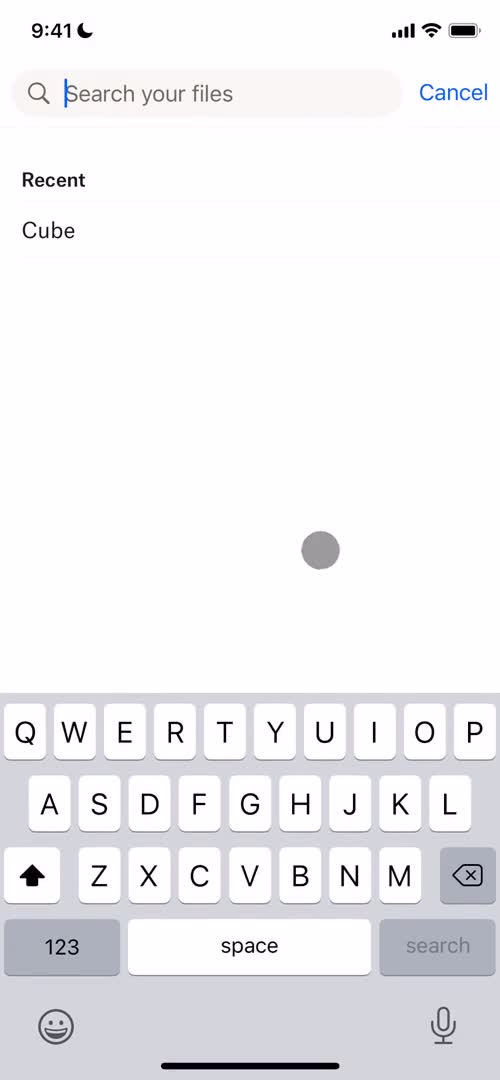
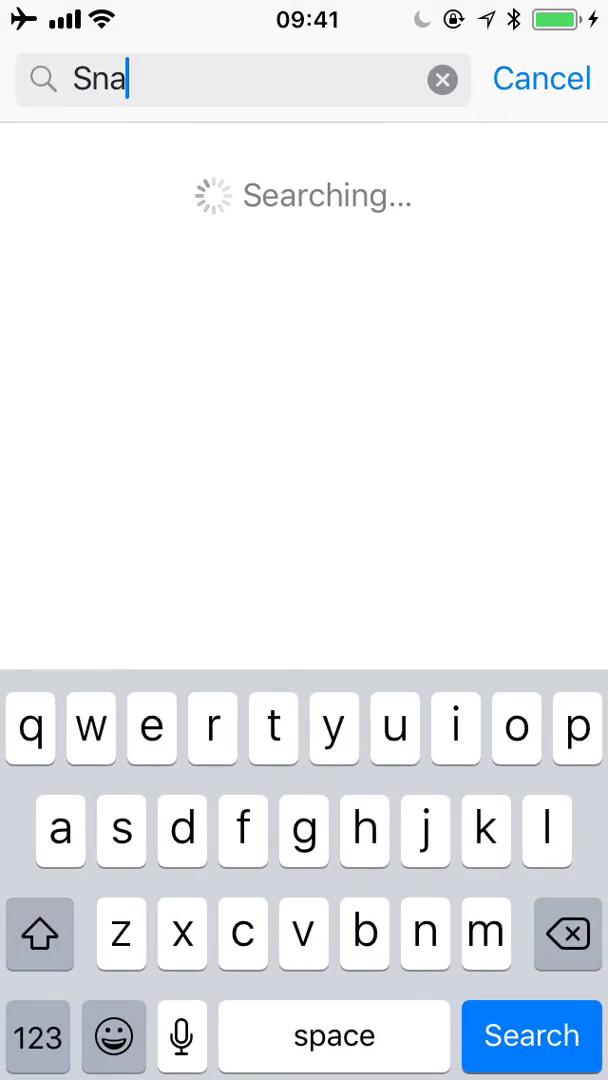
Search
this is title
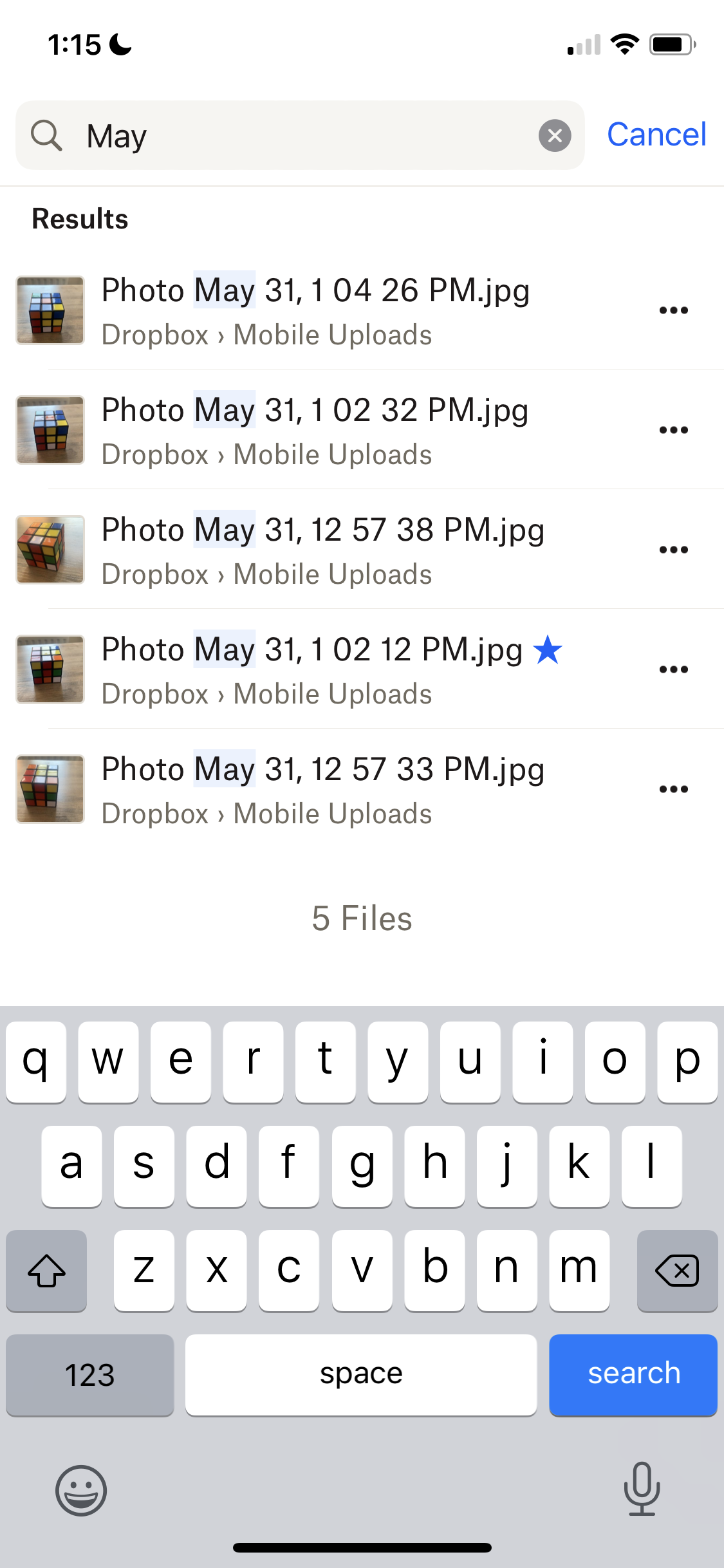
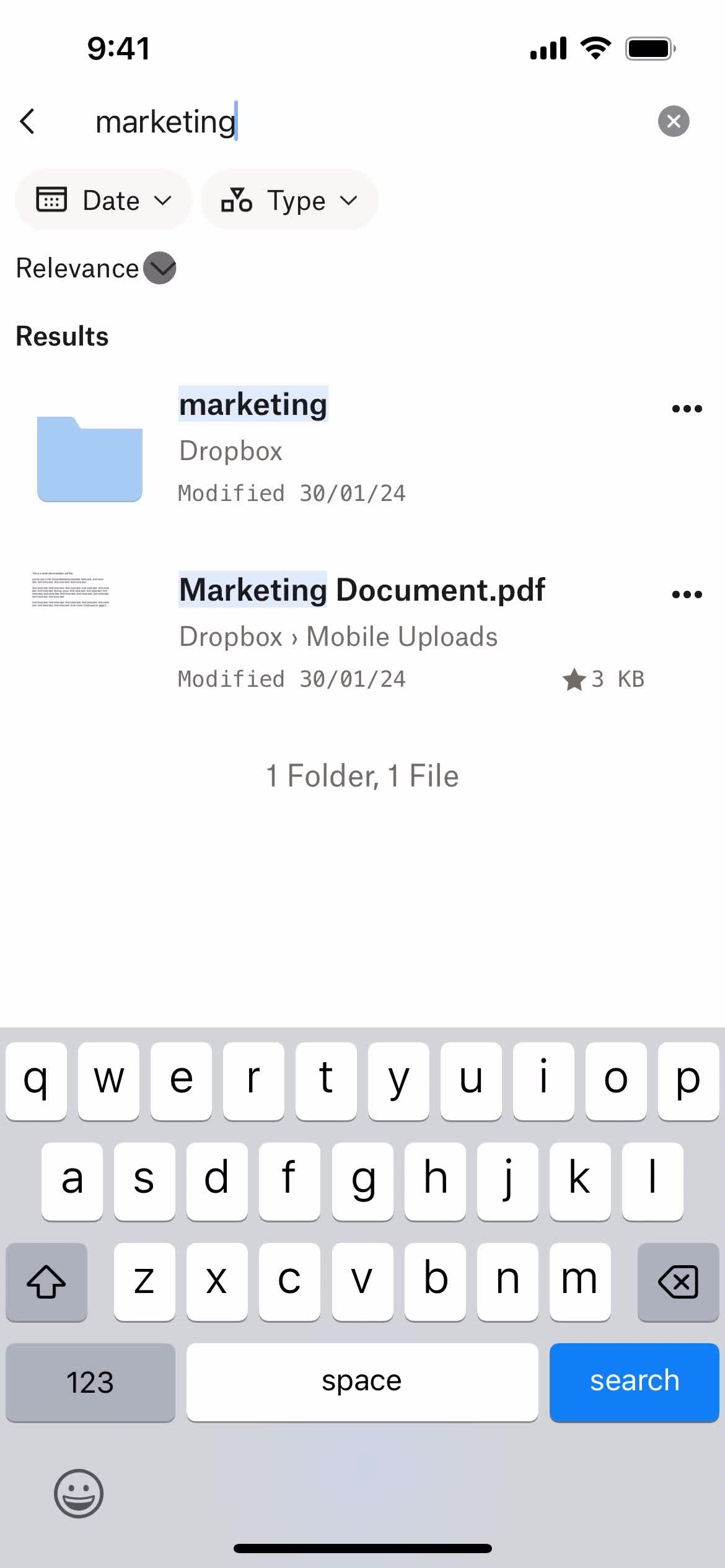
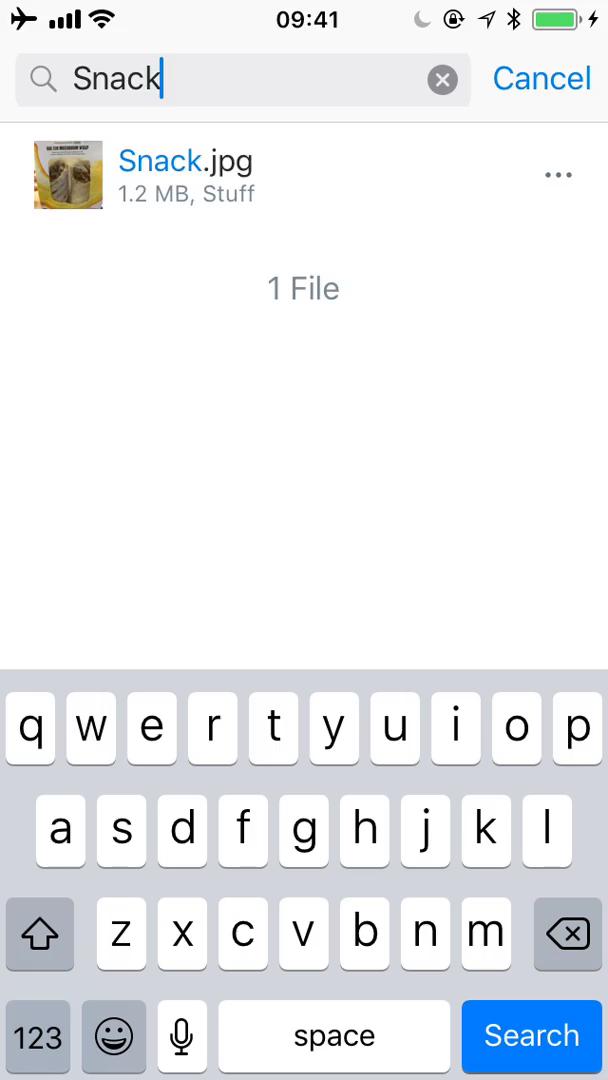
Search results
this is title
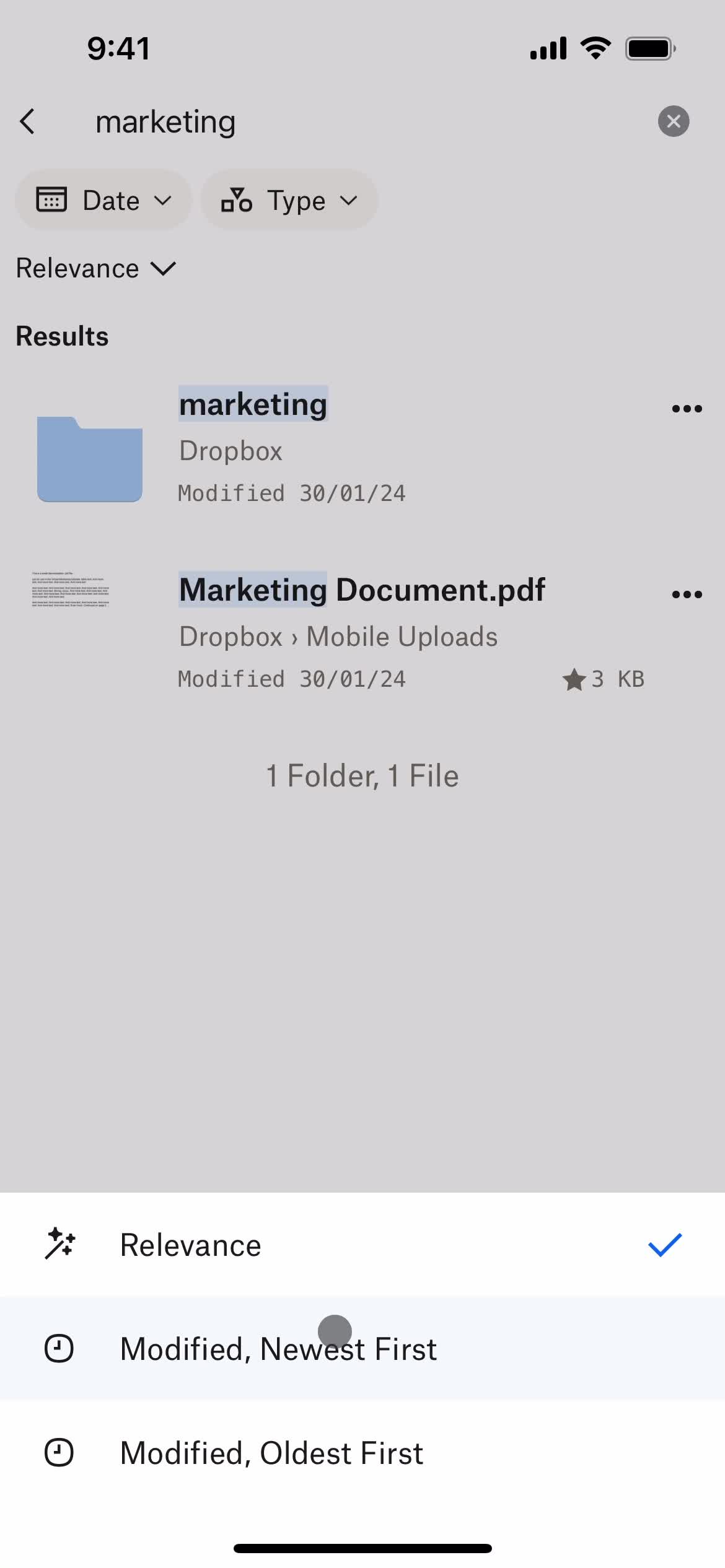
Sort
this is title
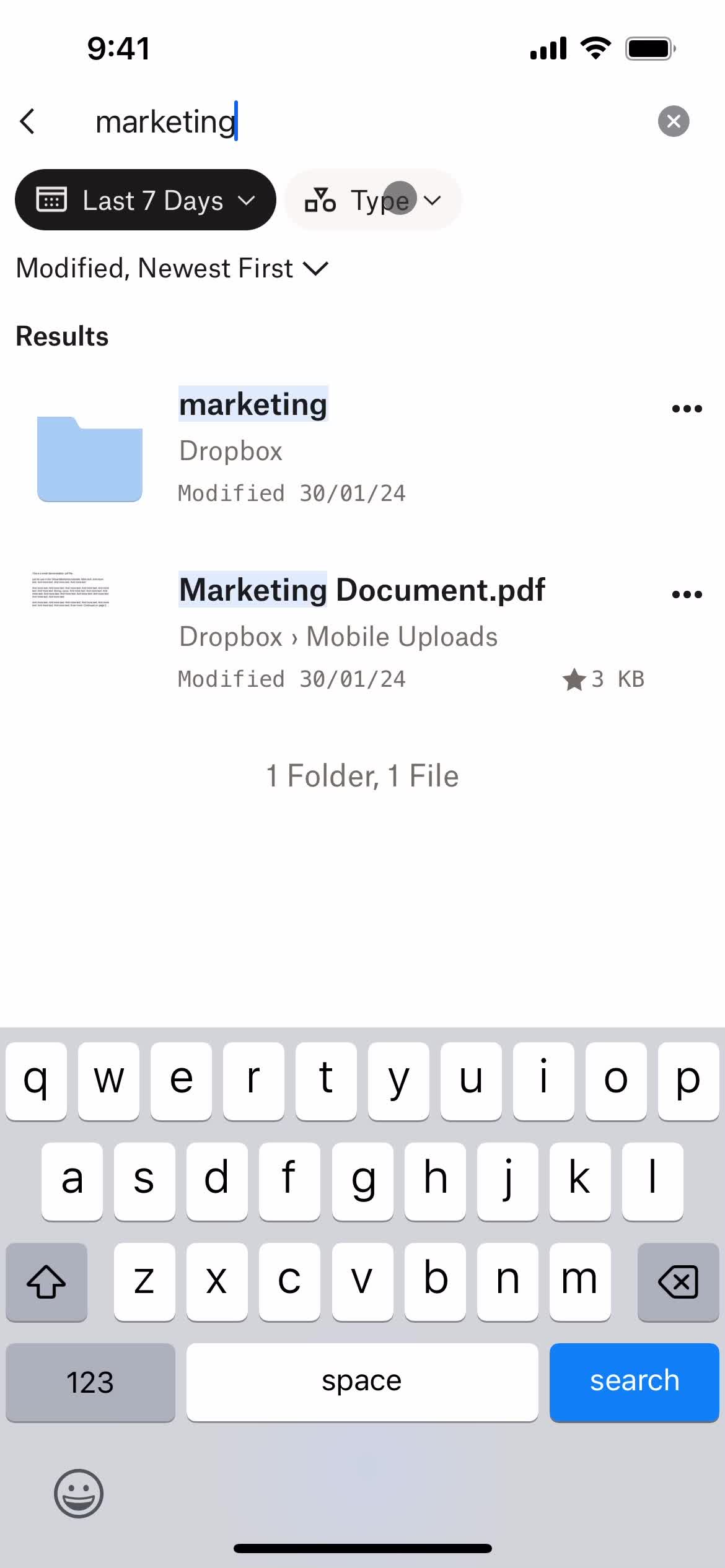
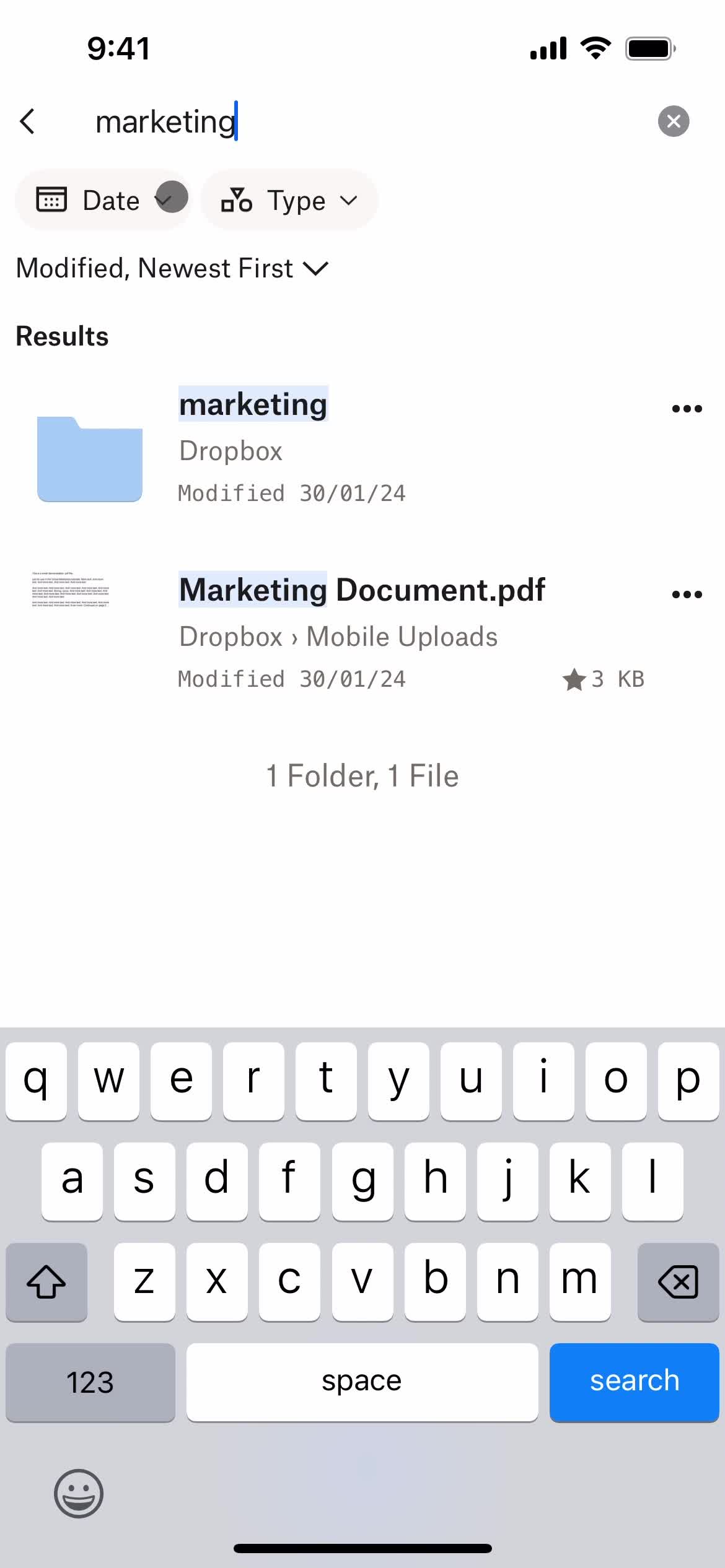
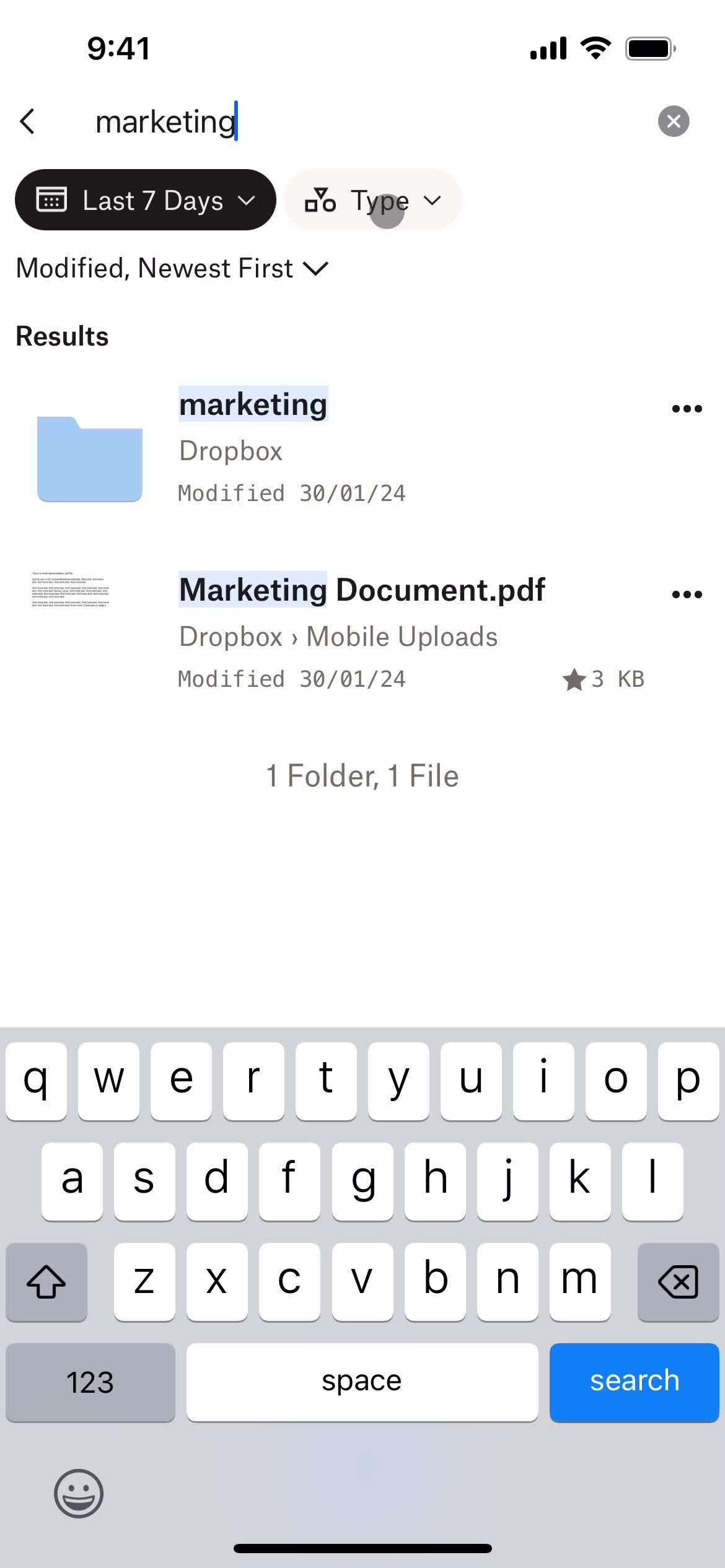
Filtered results
this is title
Filter
this is title
Filtered results
this is title
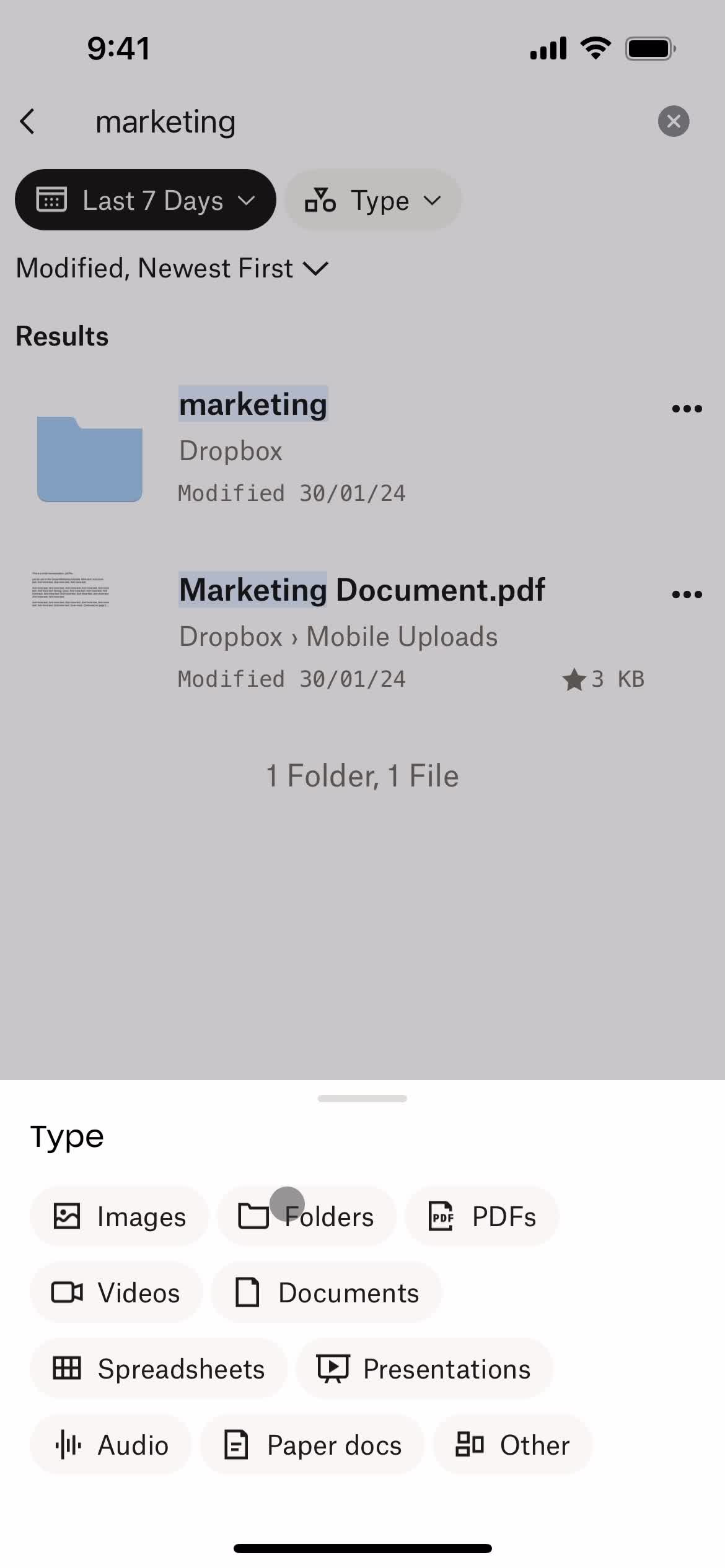
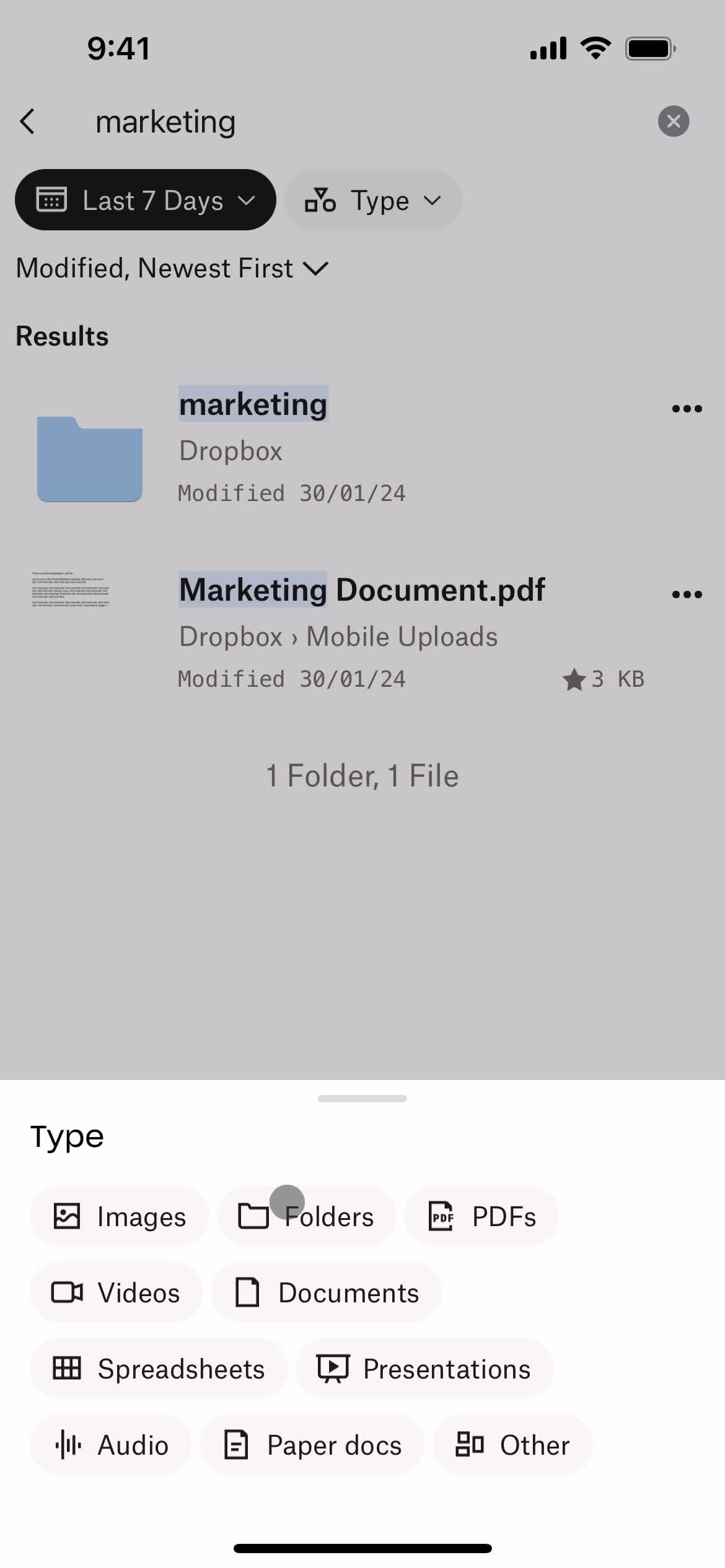
Filter
this is title
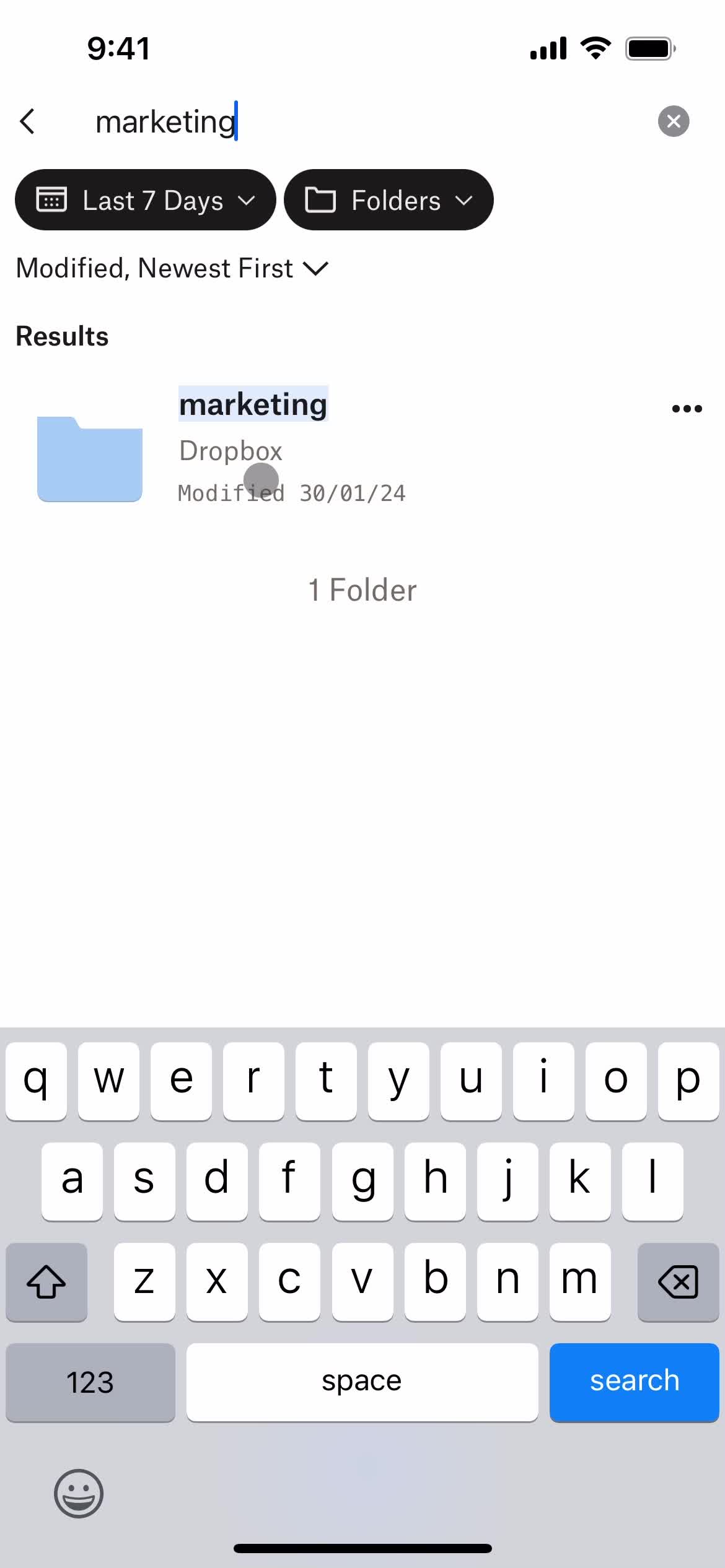
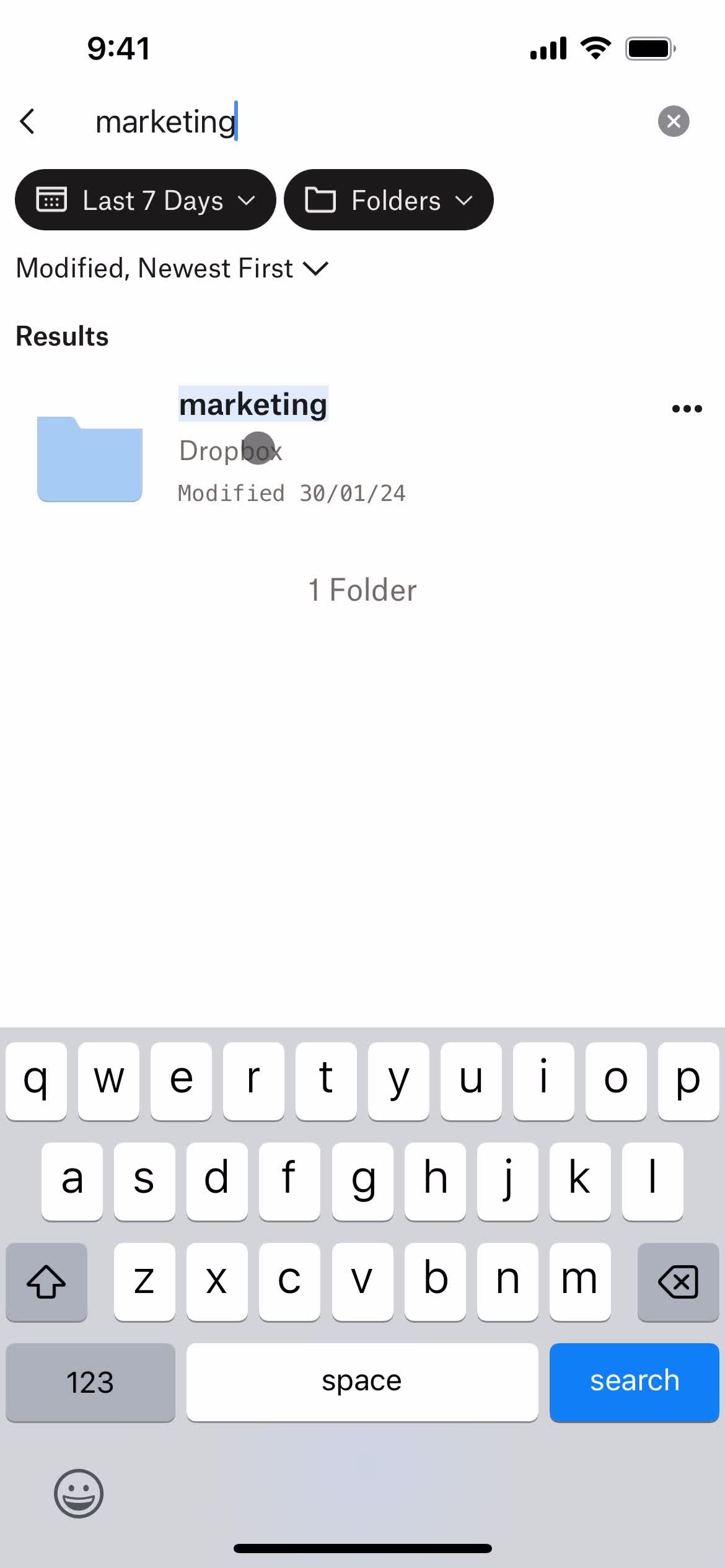
Filtered results
this is title
Folder
this is title
Home
this is title
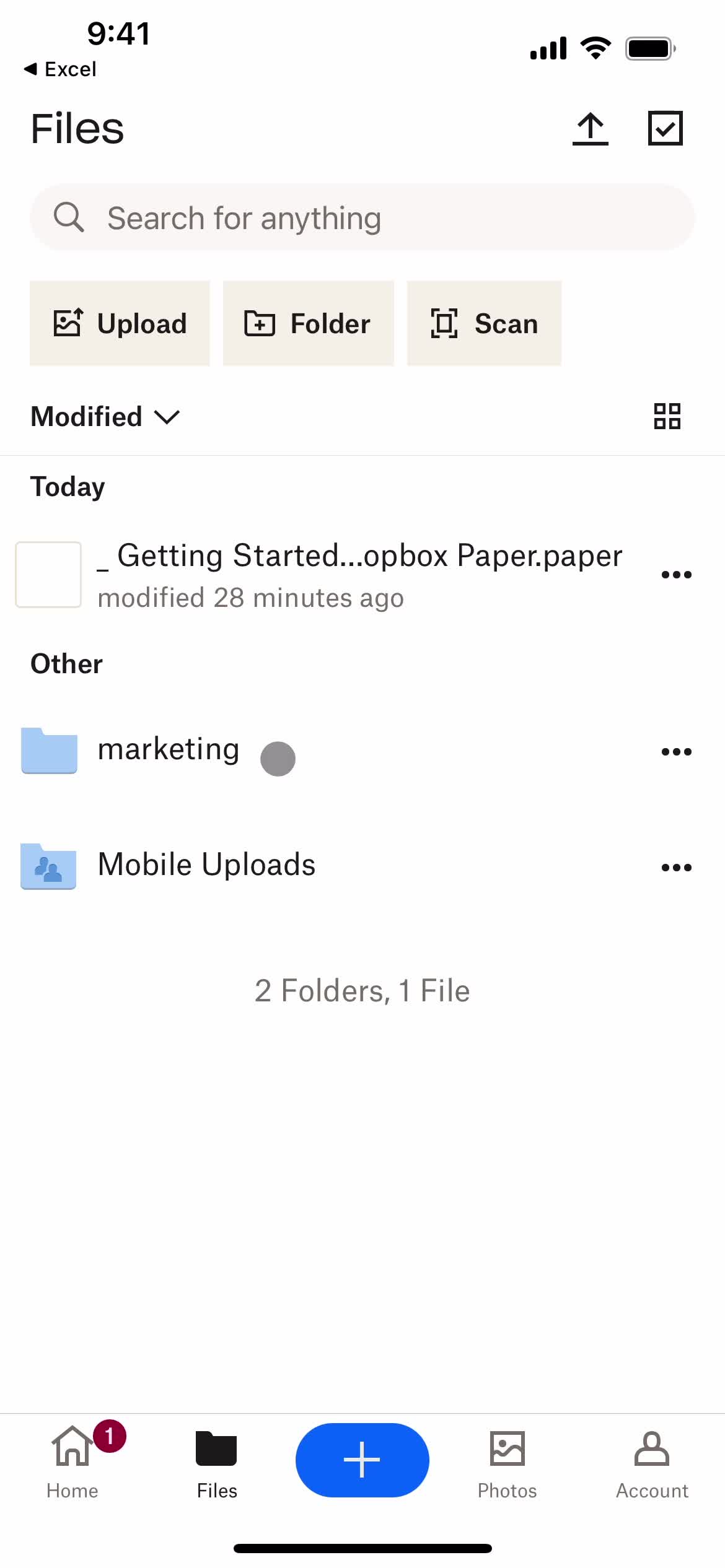
Notifications
this is title
this is title
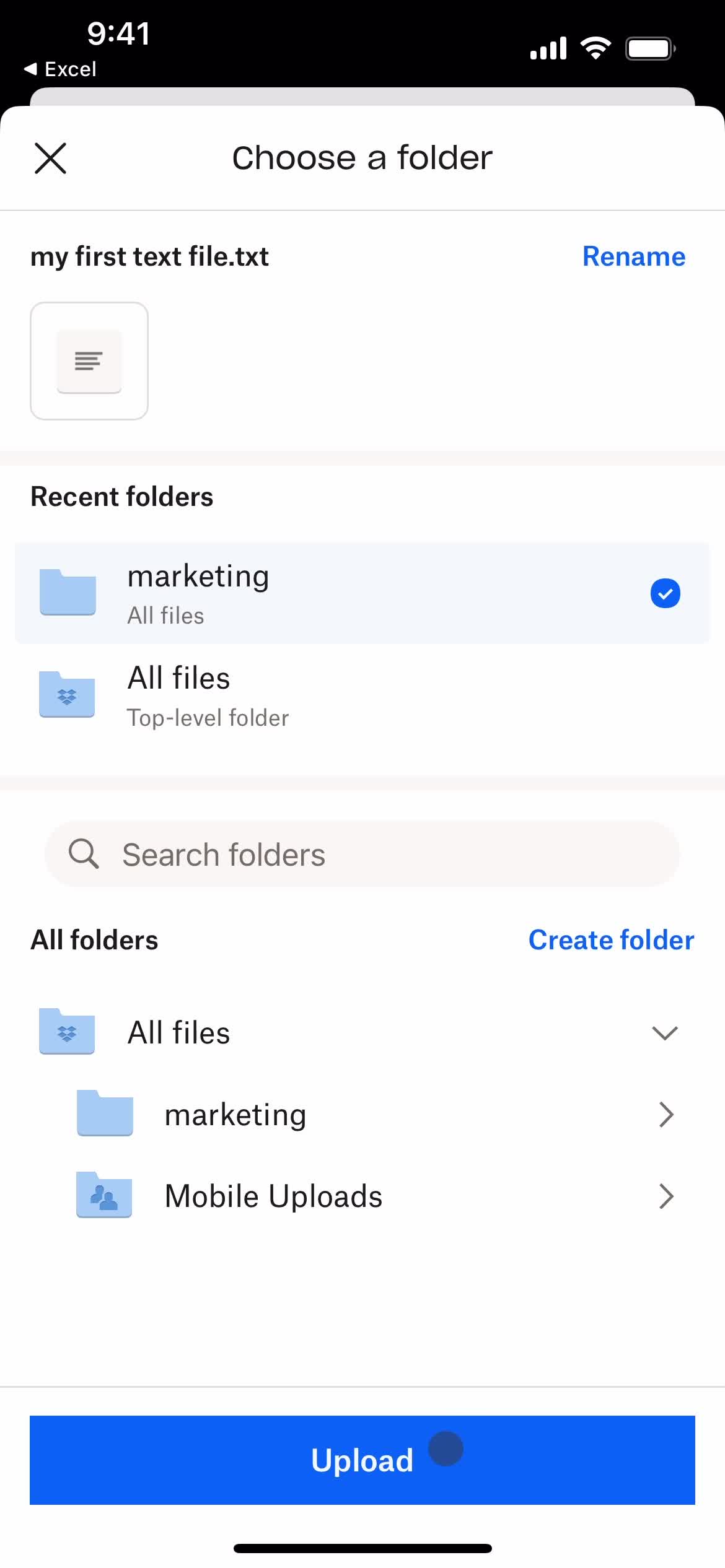
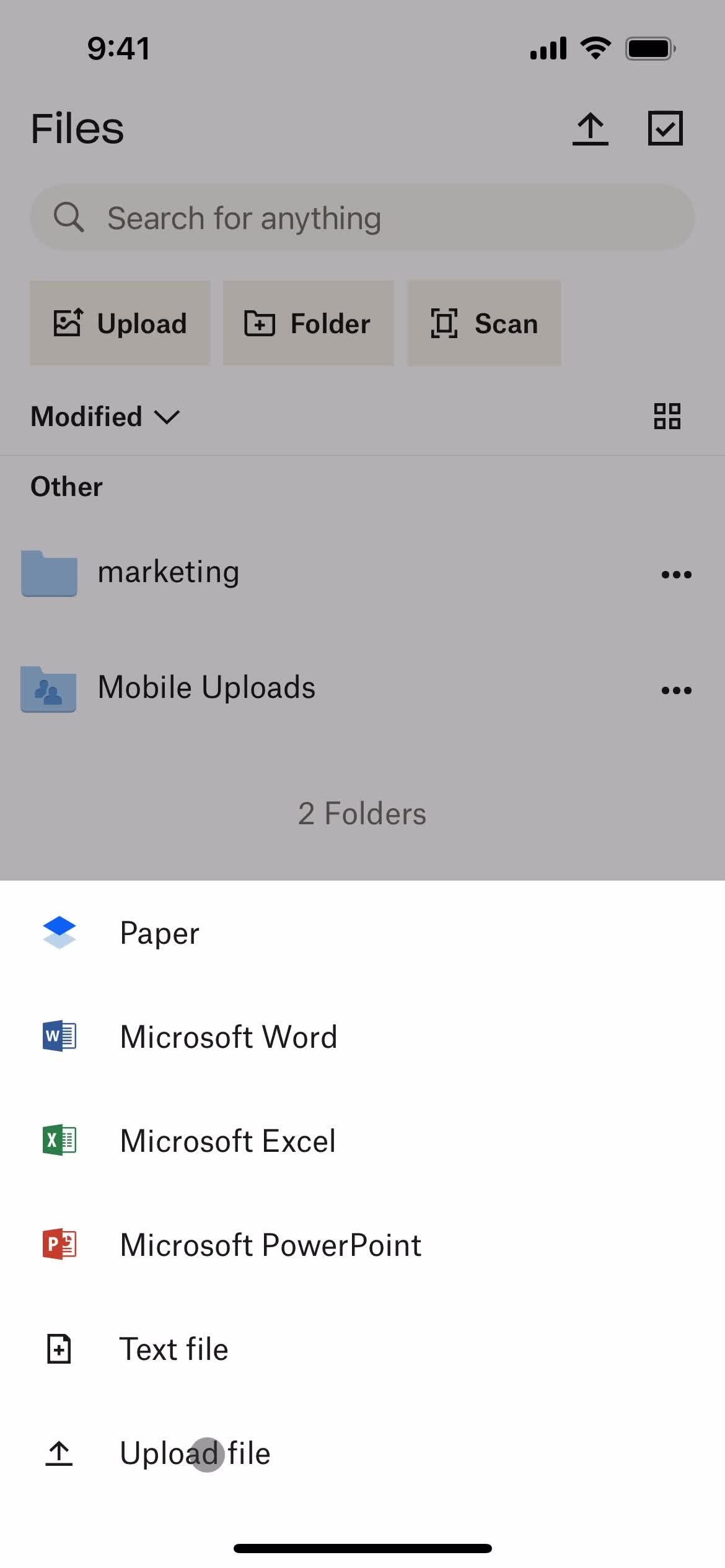
Upload file
this is title
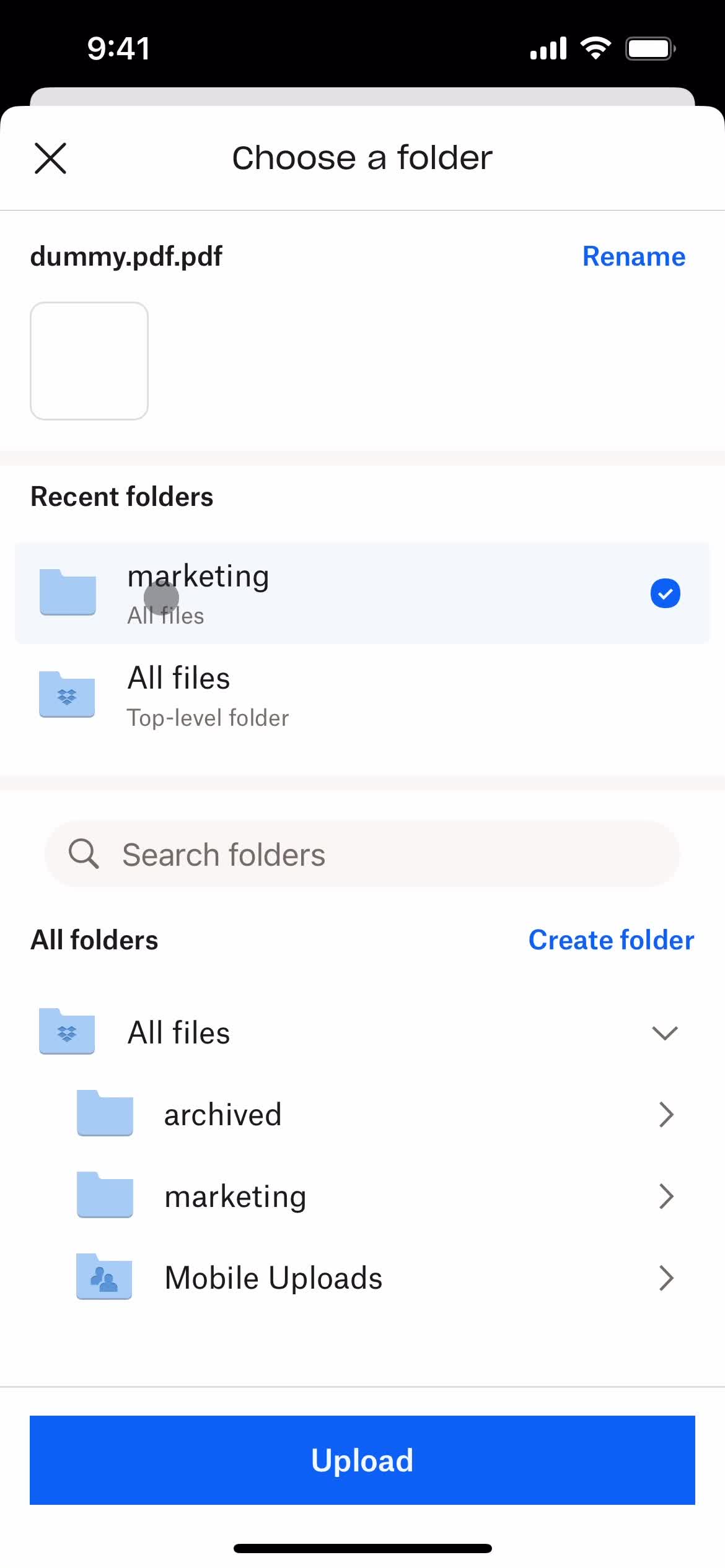
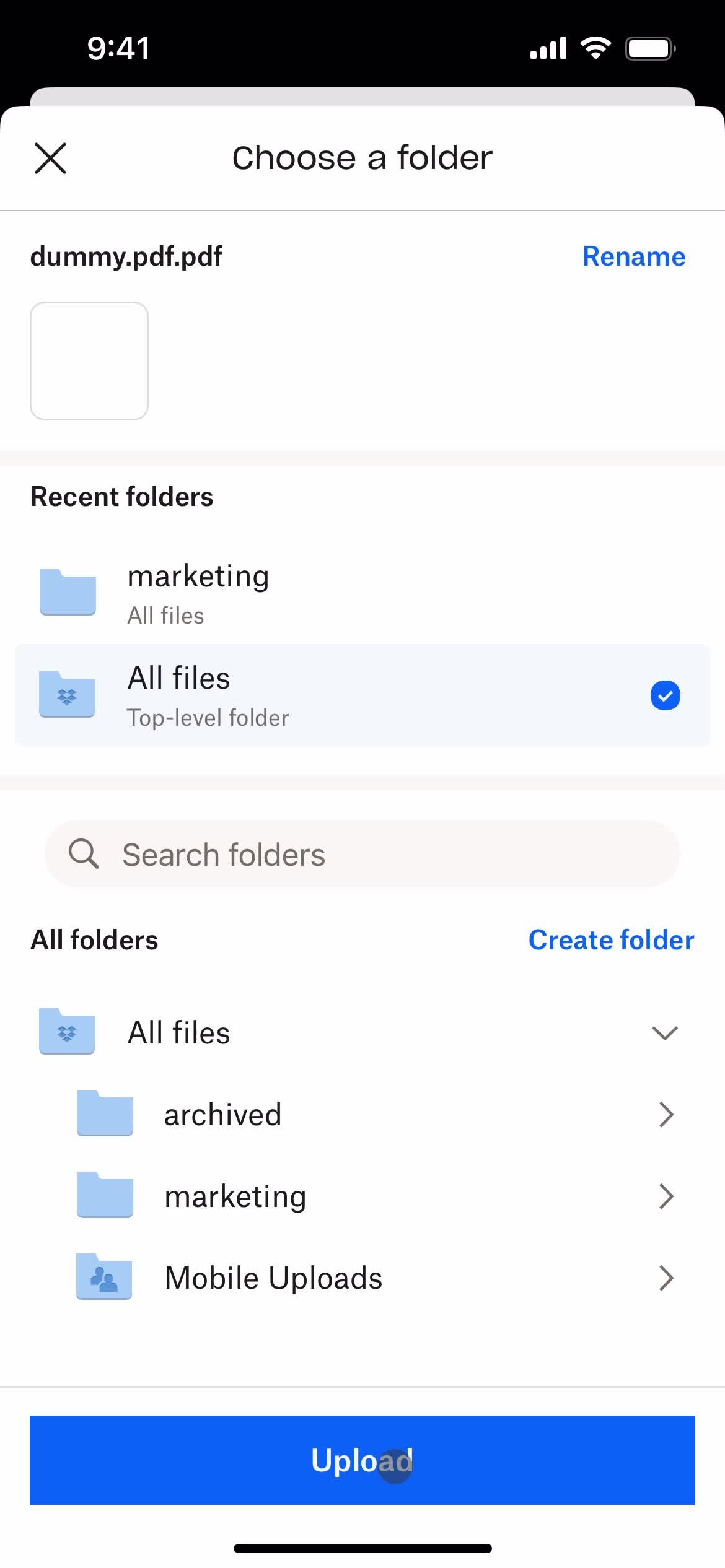
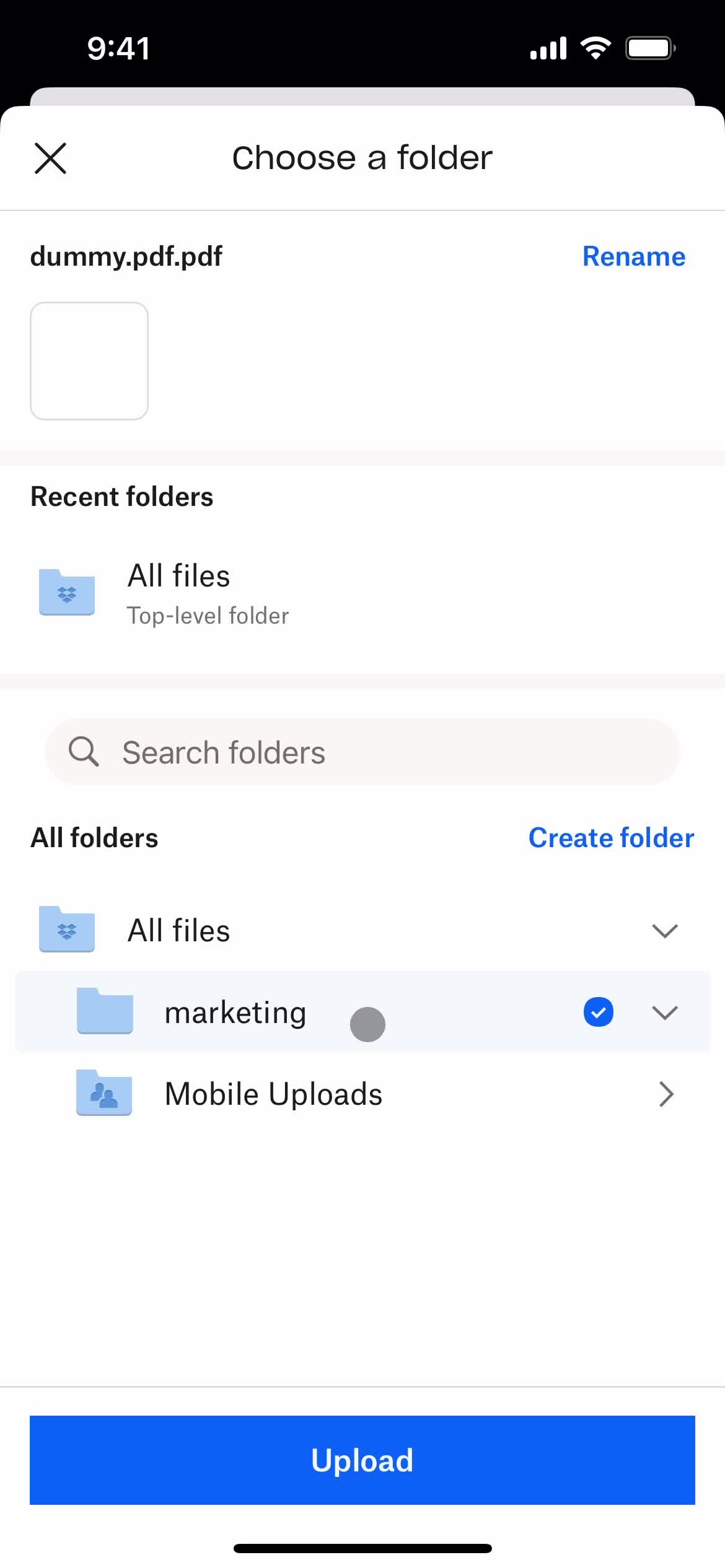
Select folder
this is title
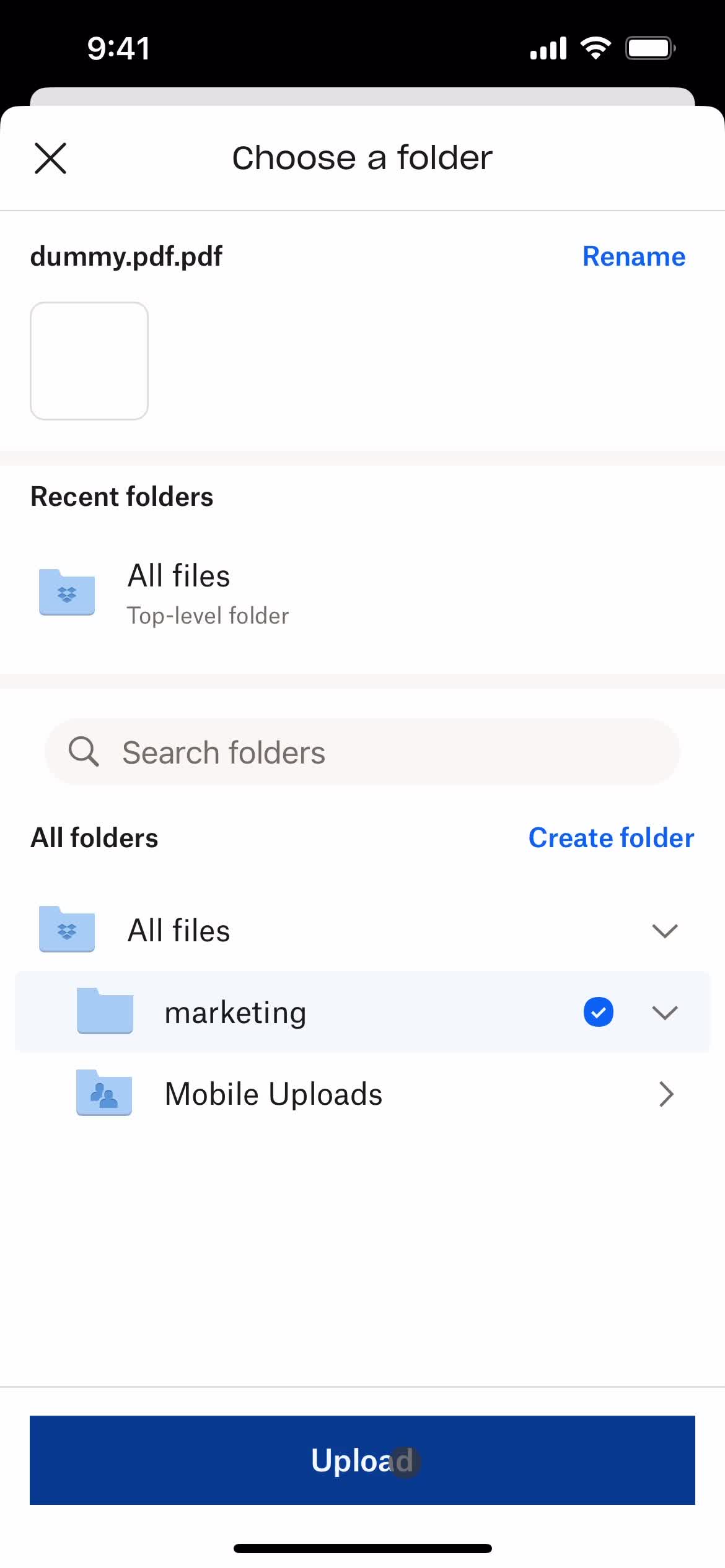
Upload file
this is title
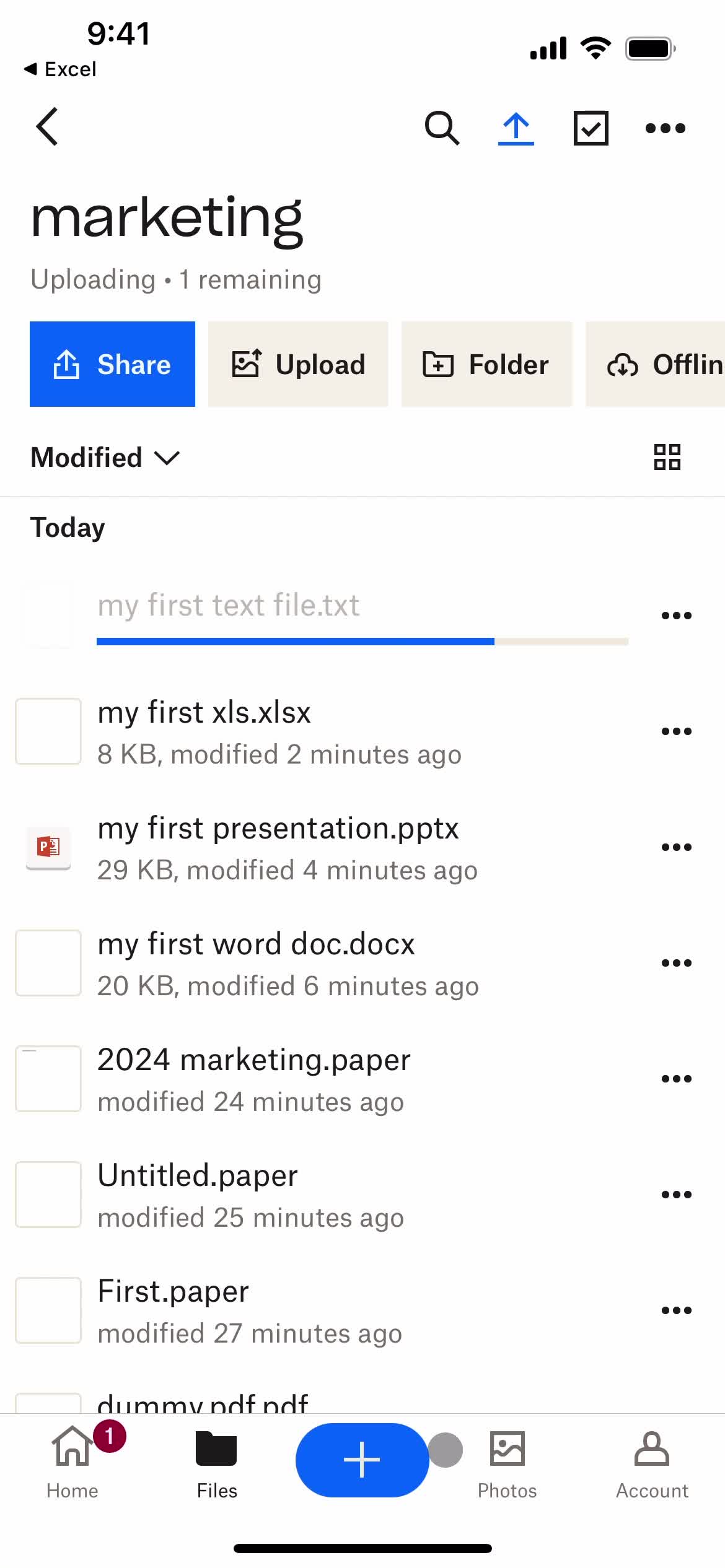
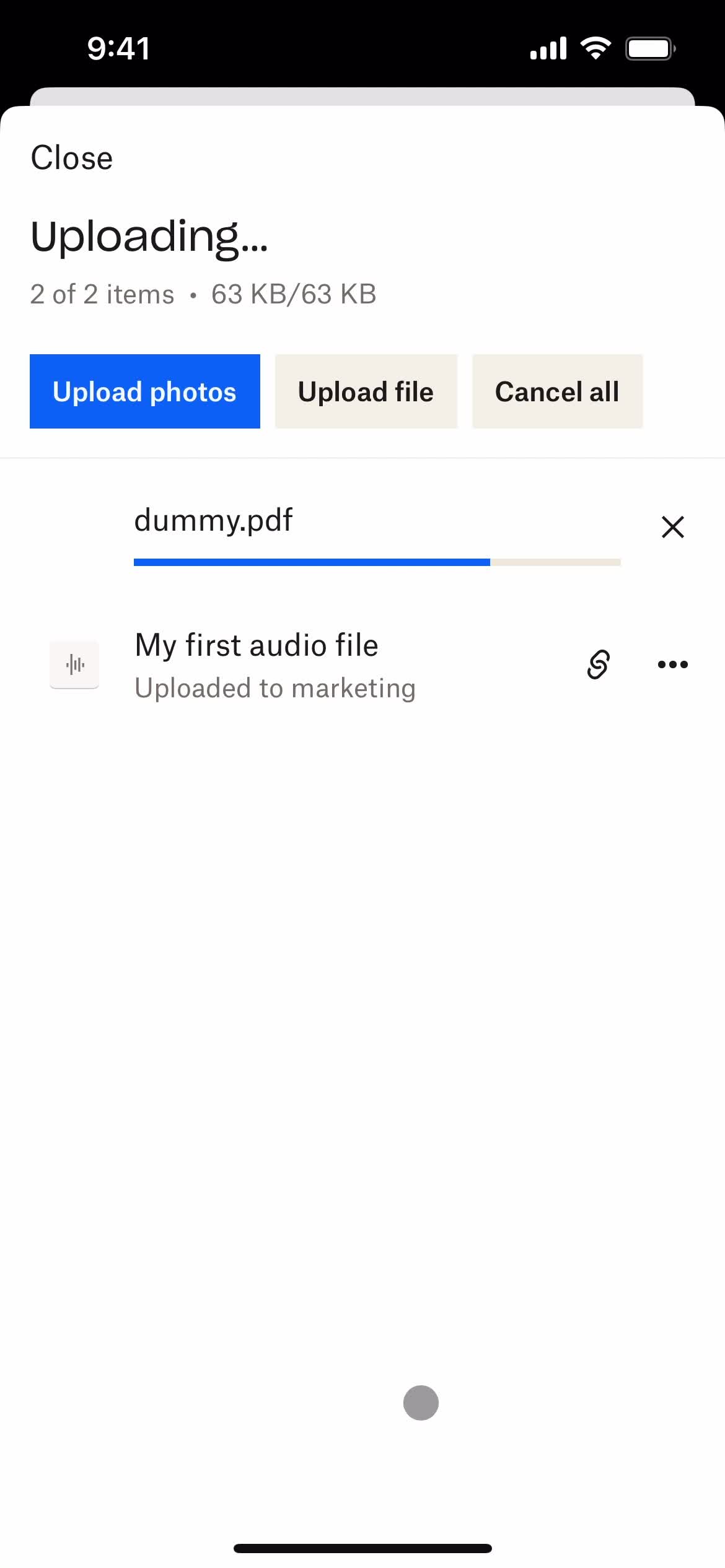
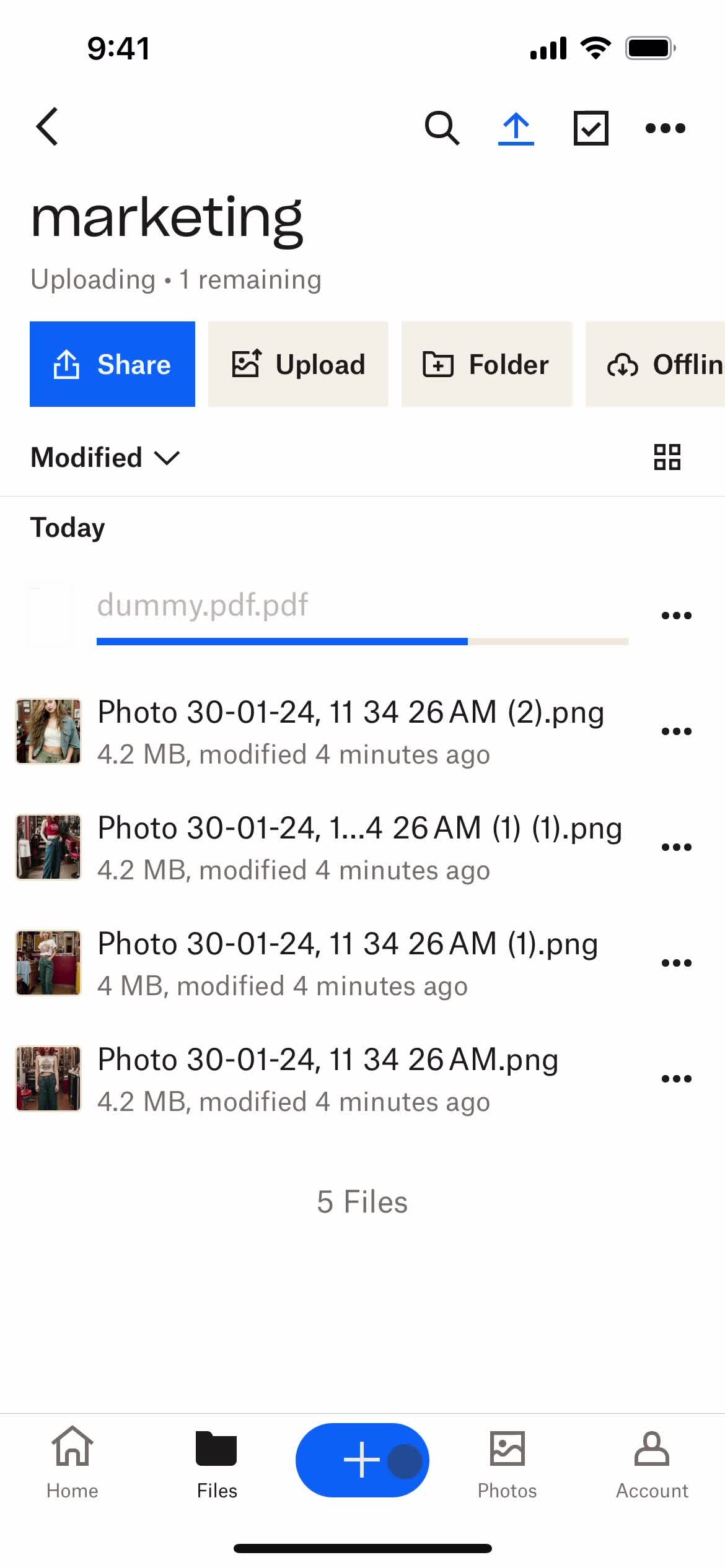
Uploading
this is title
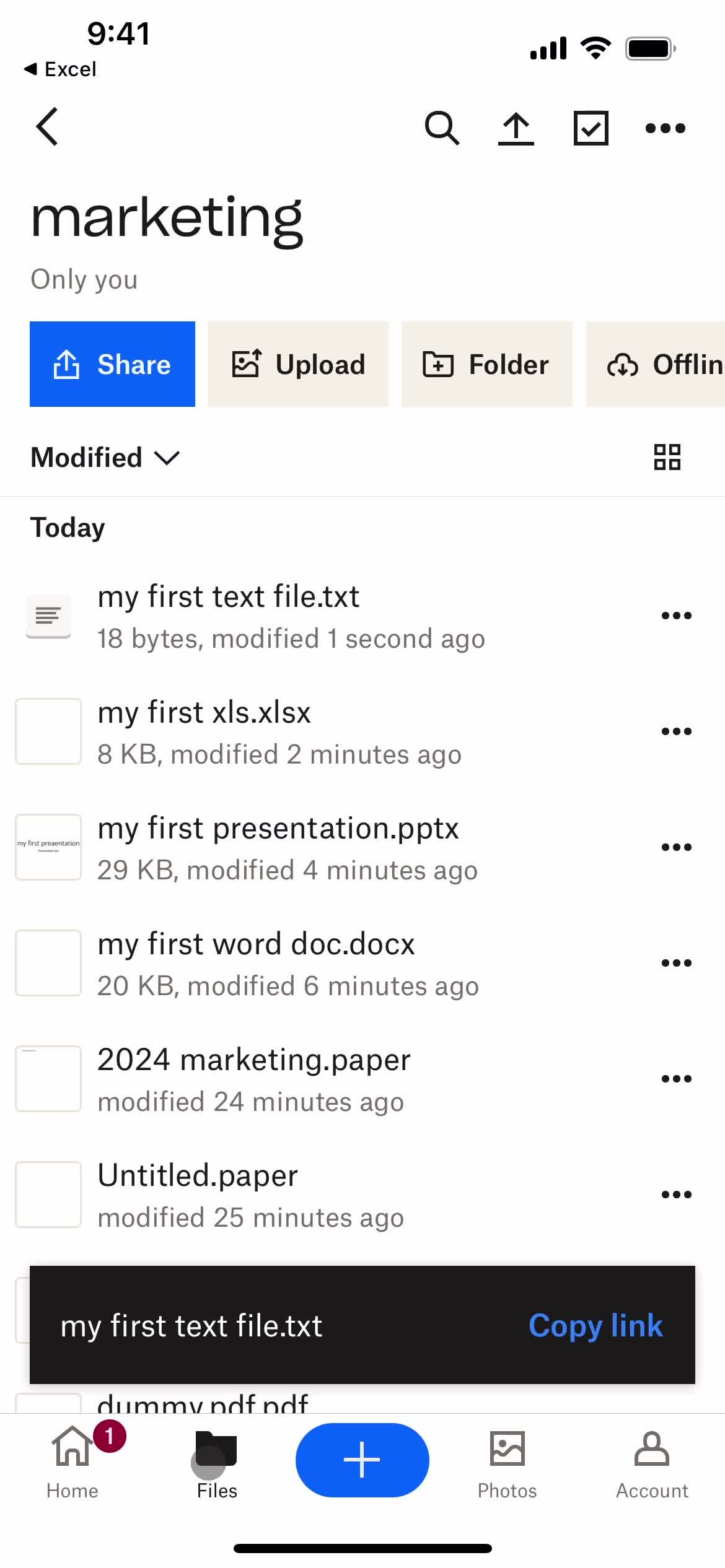
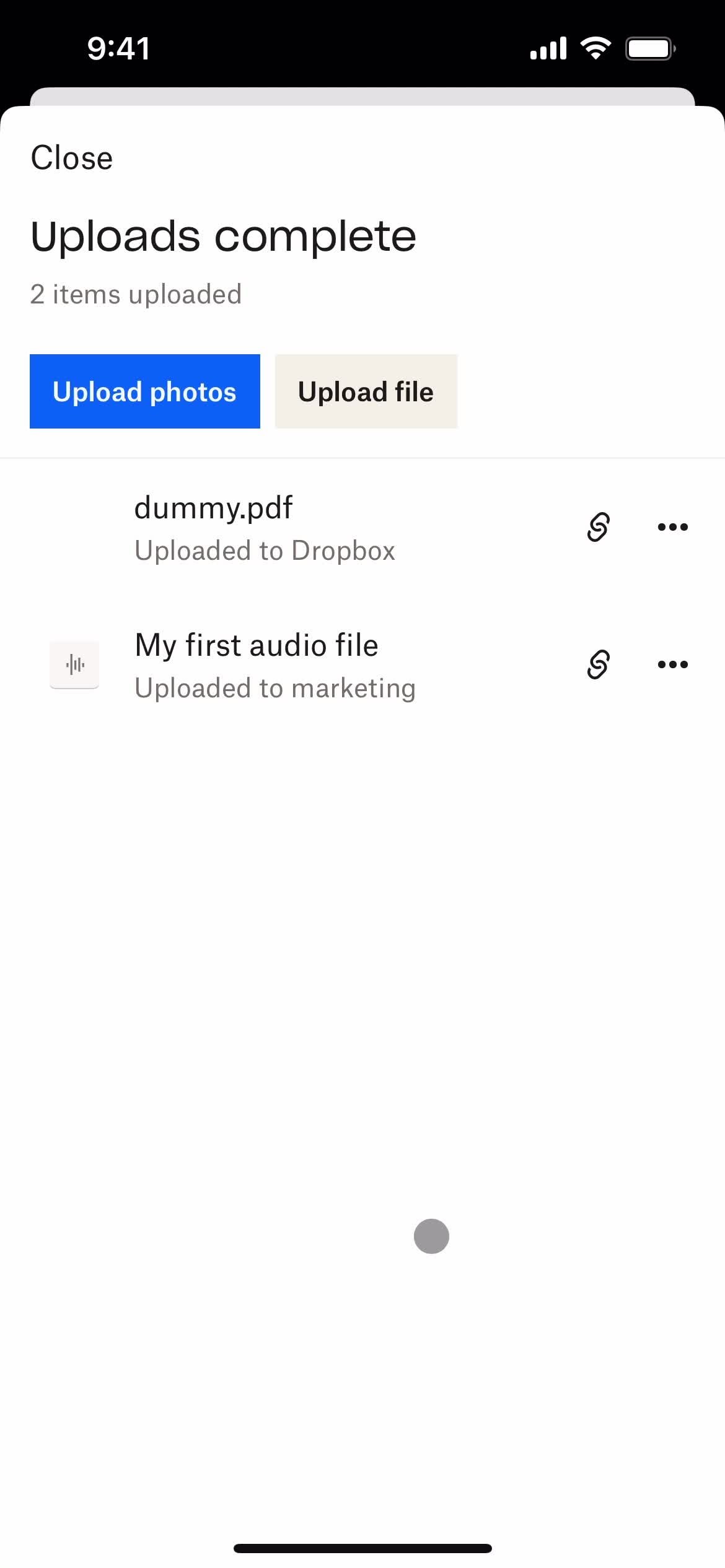
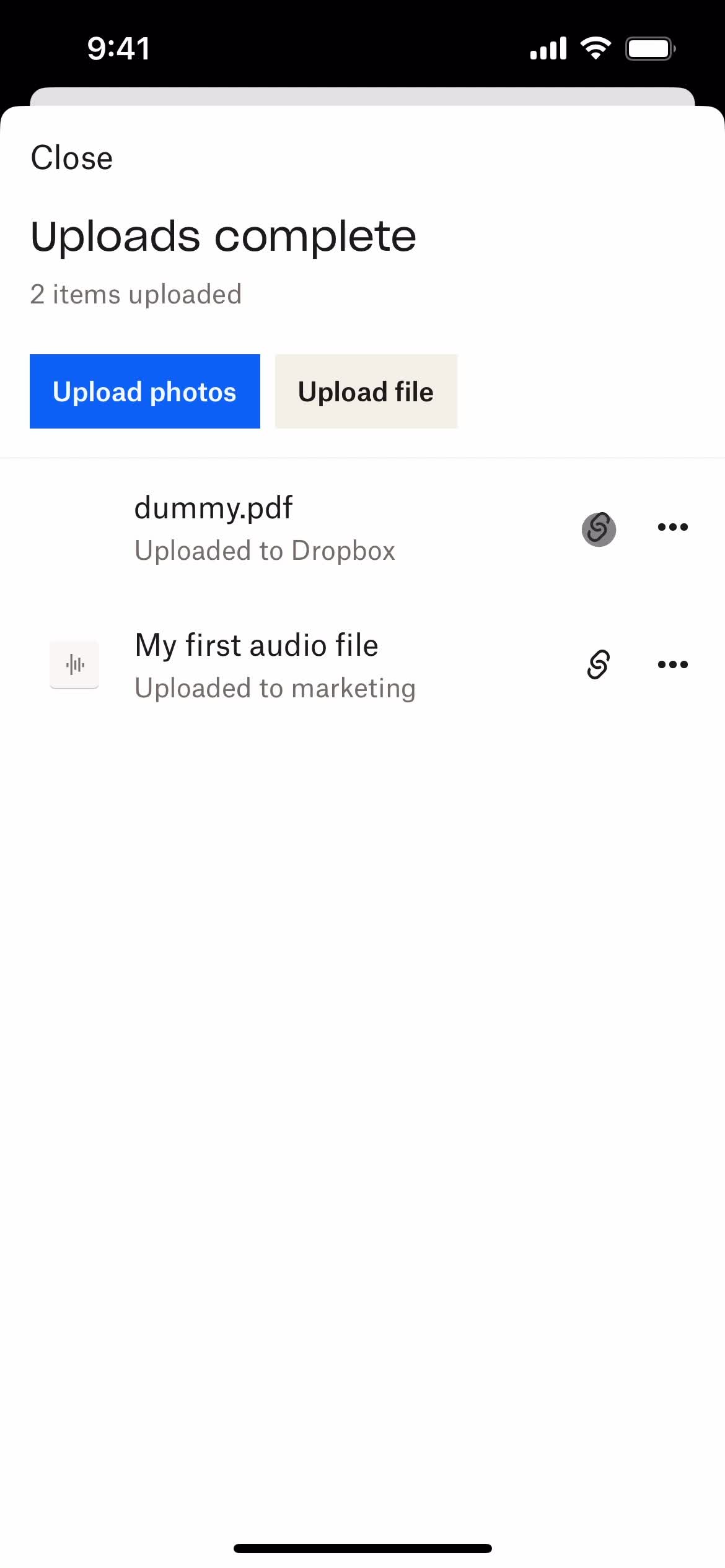
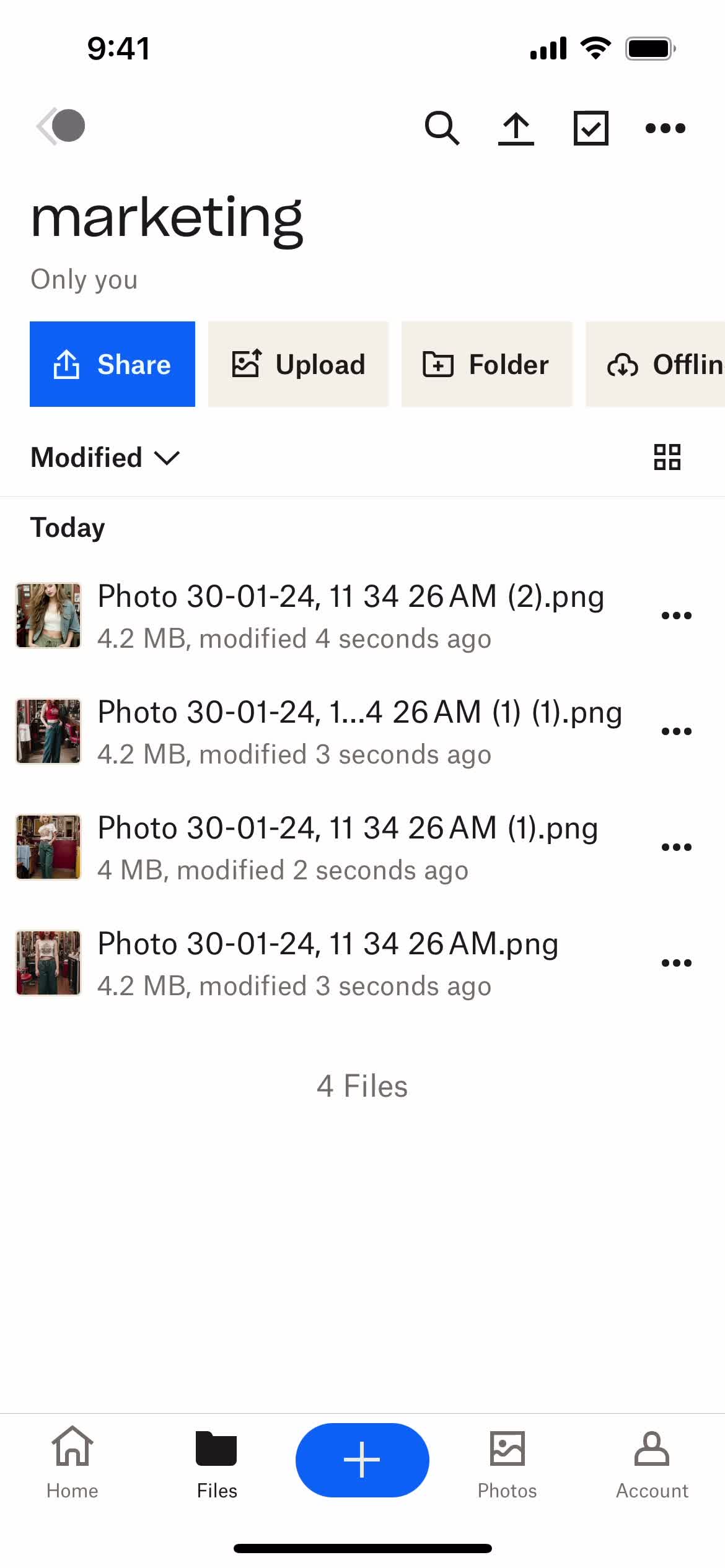
Upload complete
this is title
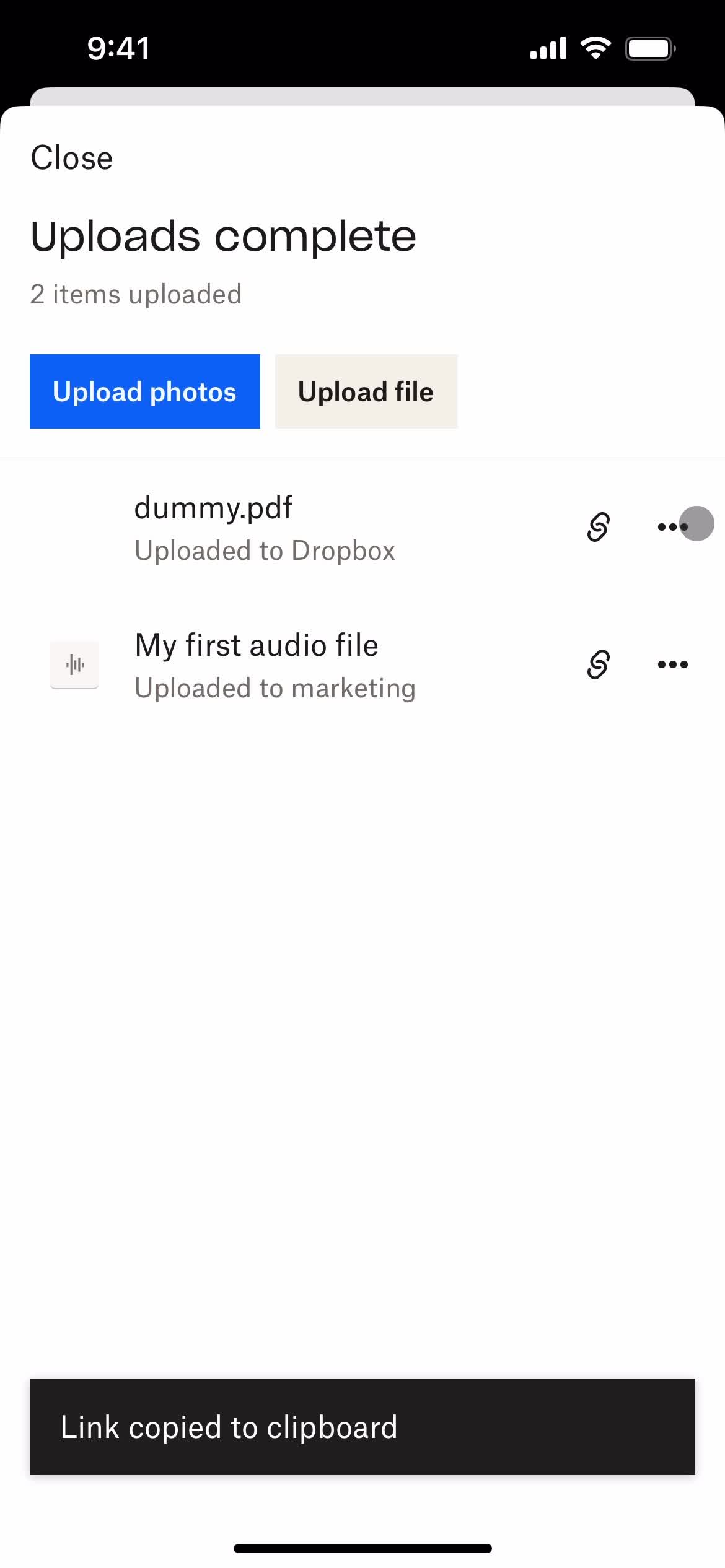
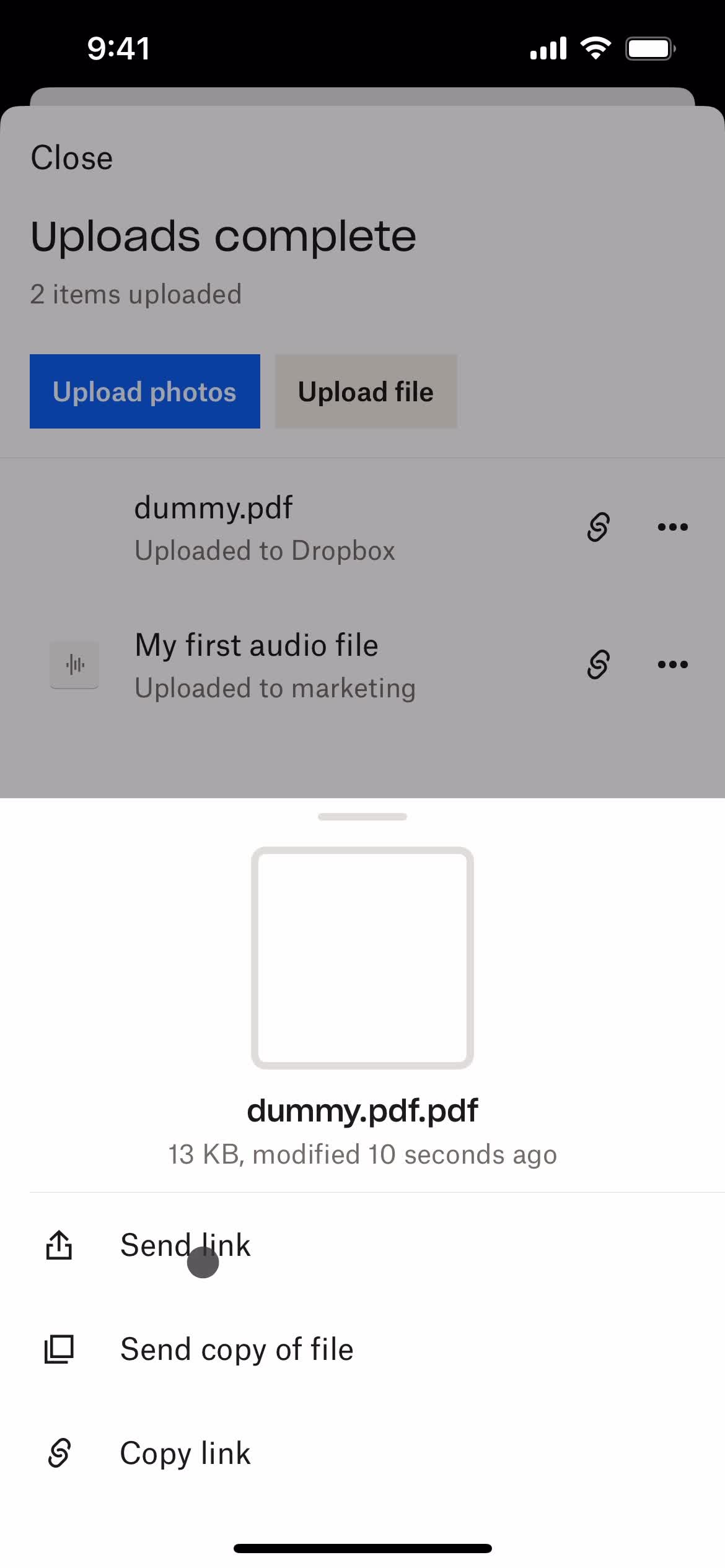
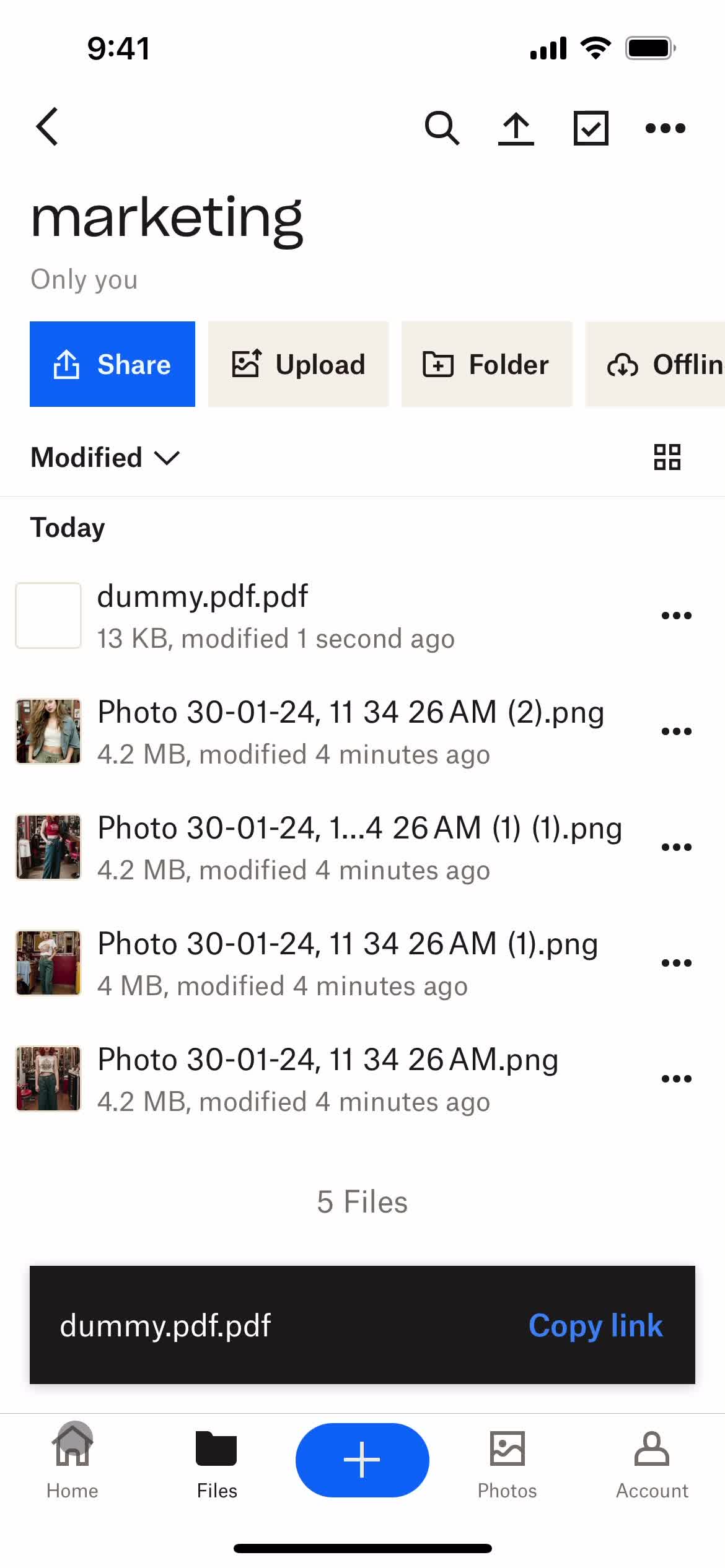
Copy link
this is title
this is title
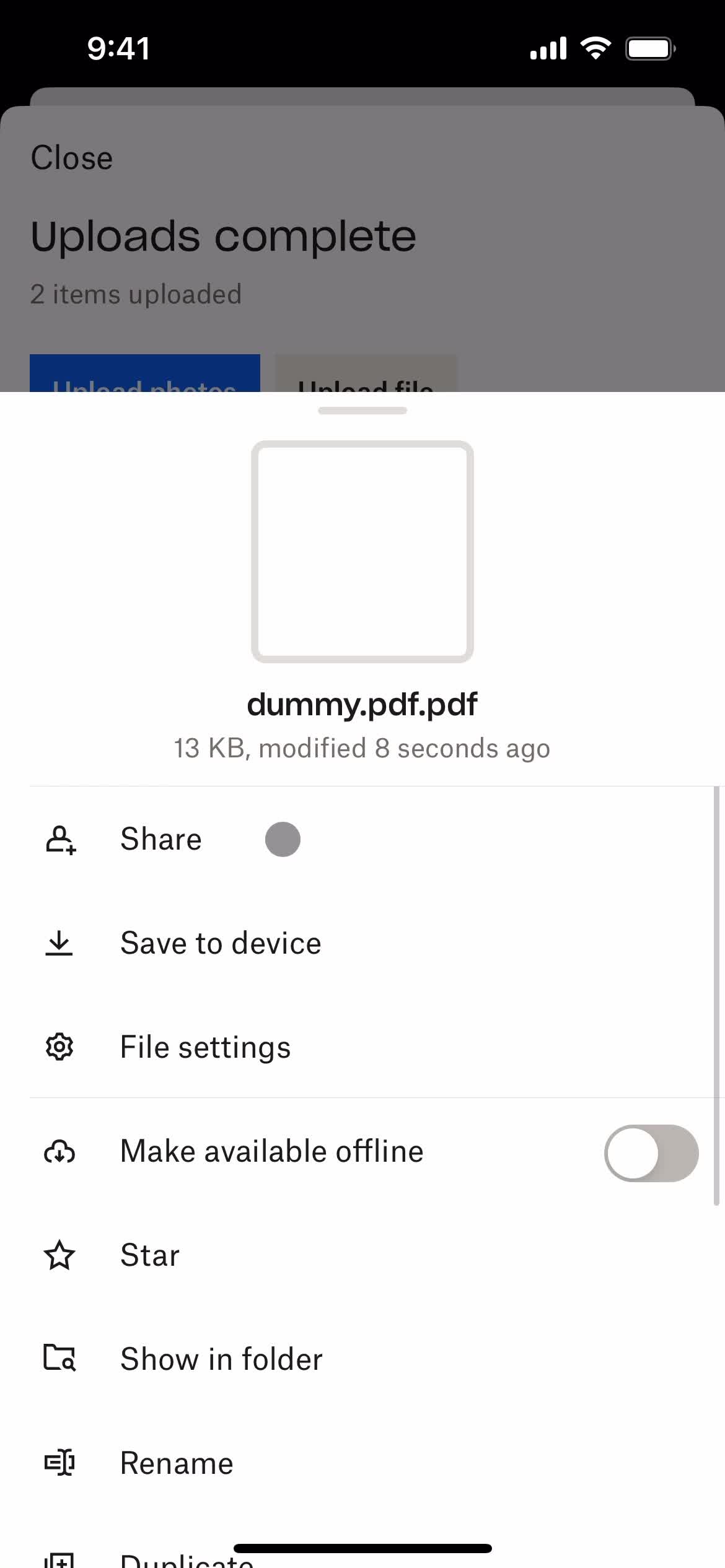
Action menu
this is title
Select options
this is title
Uploads
this is title
Shared
this is title
Home
this is title
this is title
Files
this is title
Change list view
this is title
this is title
Folder
this is title
Files
this is title
Create menu
this is title
Create folder
this is title
this is title
Folder created
this is title
Files
this is title
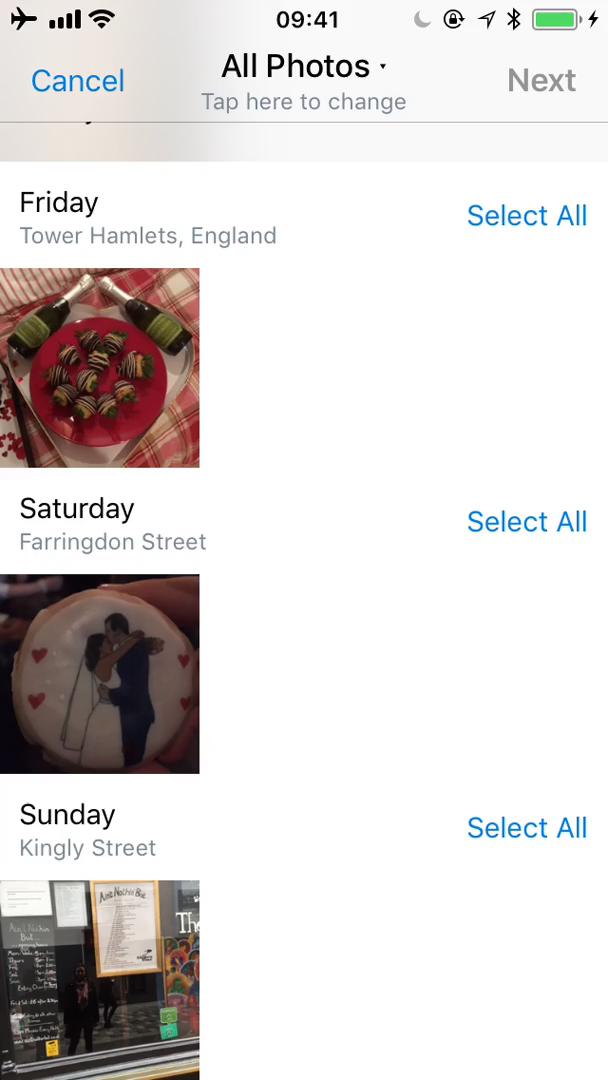
Upload images
this is title
this is title
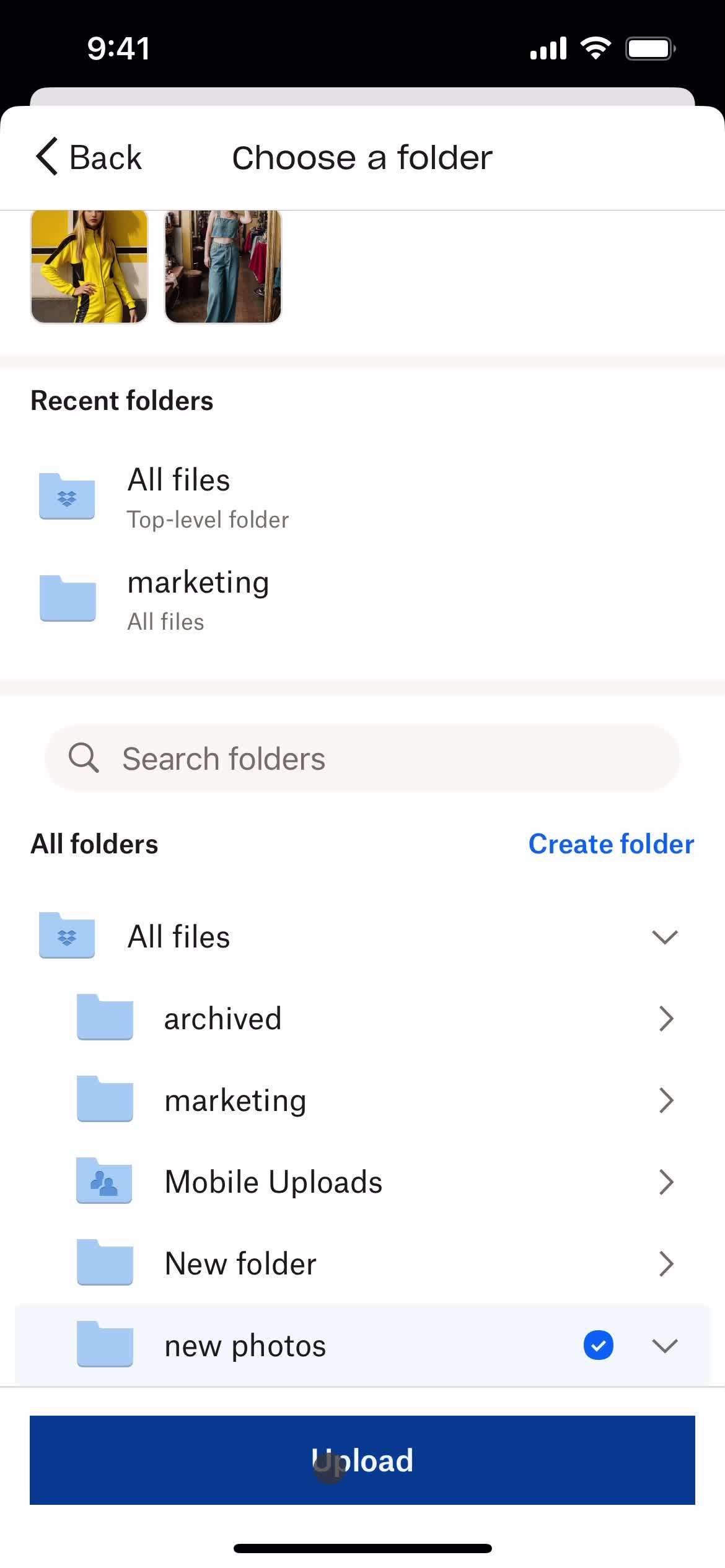
Select folder
this is title
this is title
Create folder
this is title
Continue
this is title
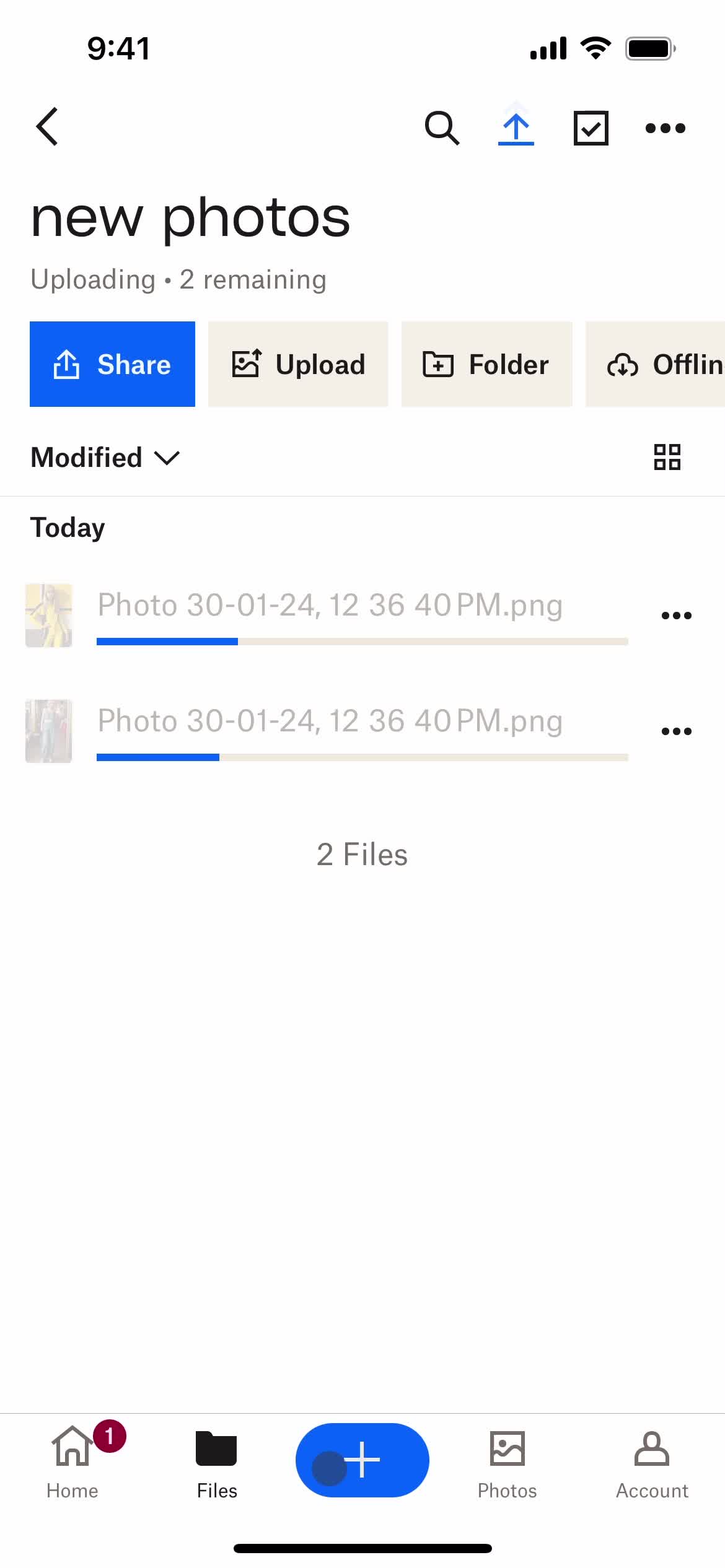
Upload images
this is title
Uploading
this is title
Upload complete
this is title
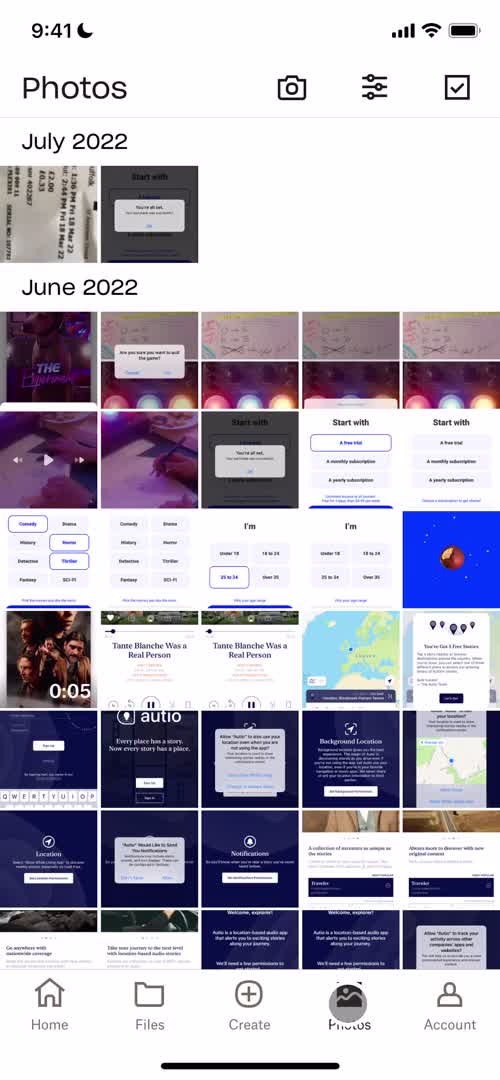
Photos
this is title
Sort
this is title
Account
this is title
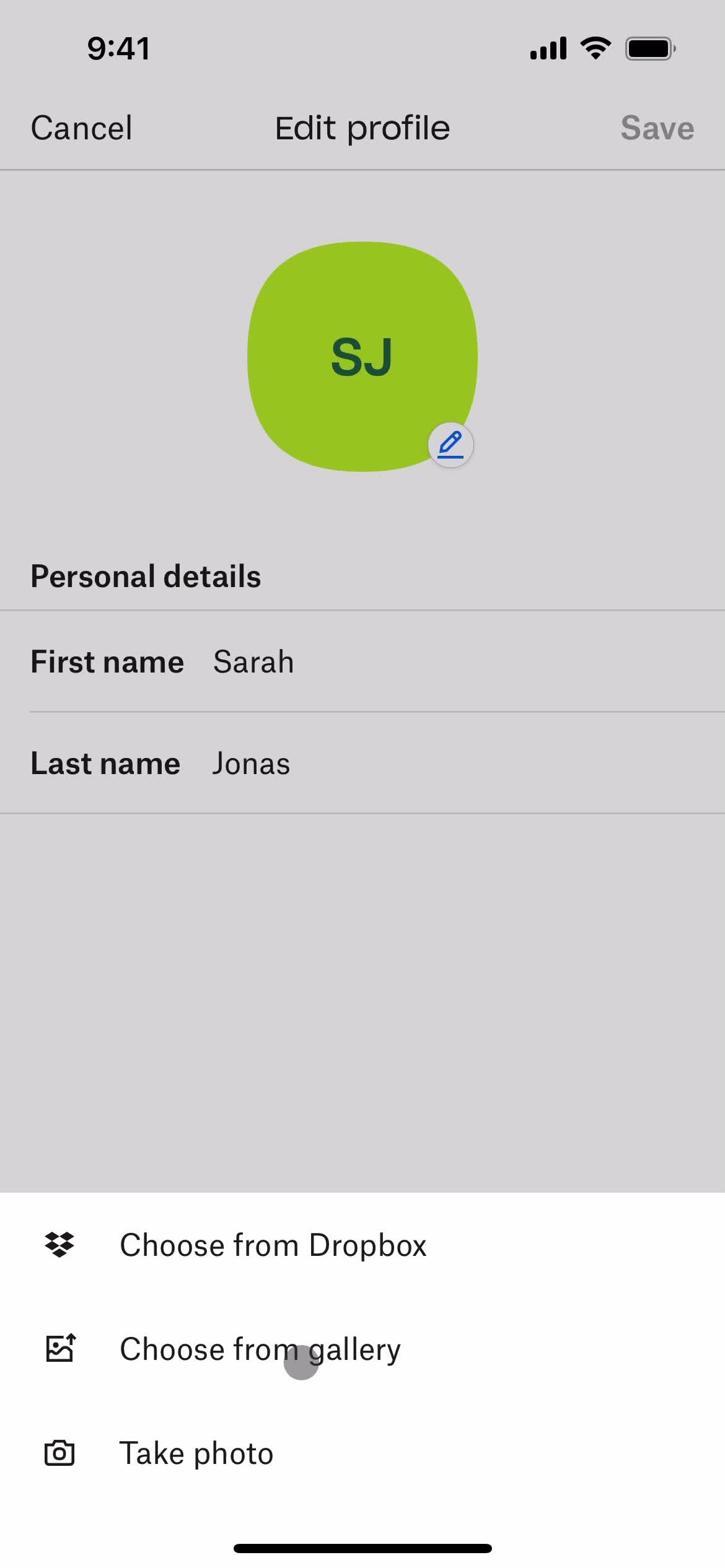
Upload profile picture
this is title
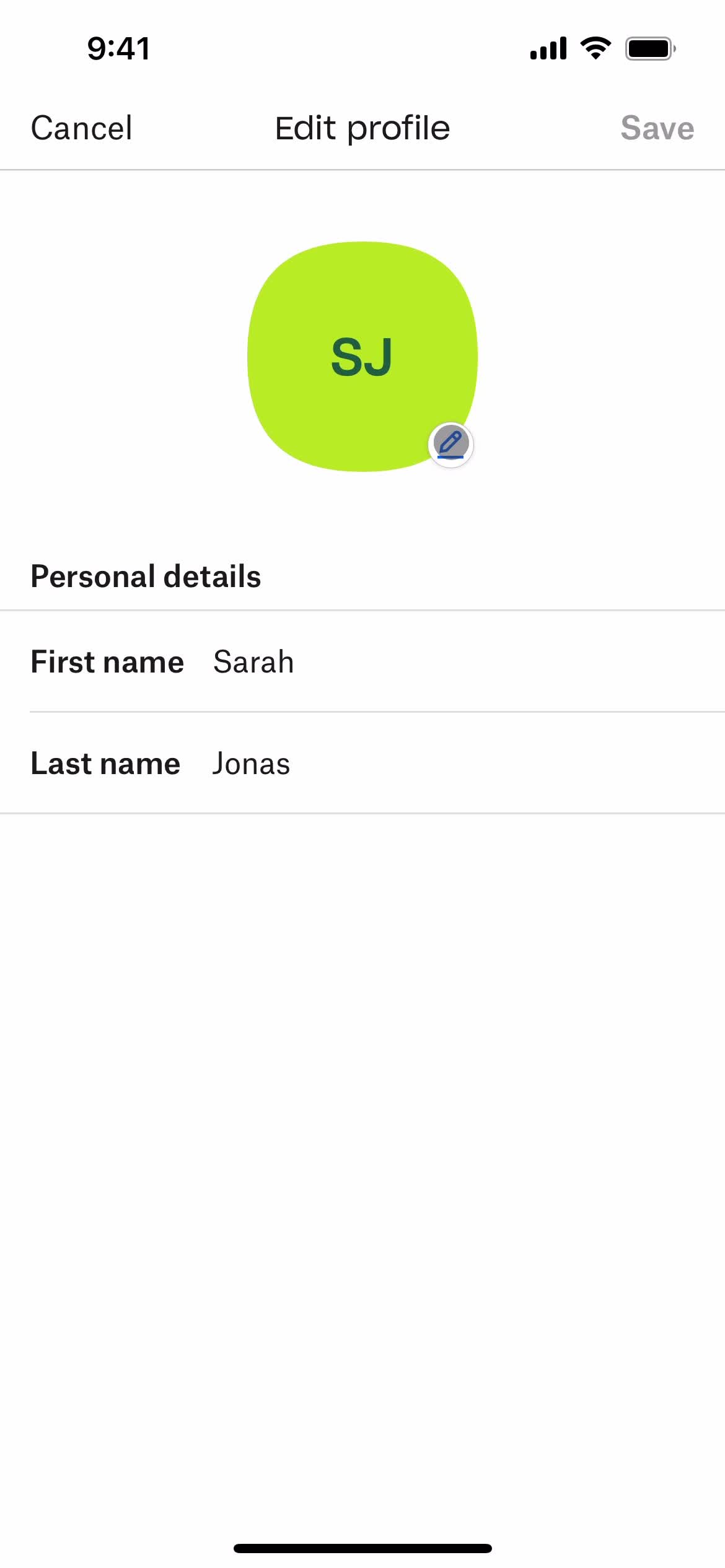
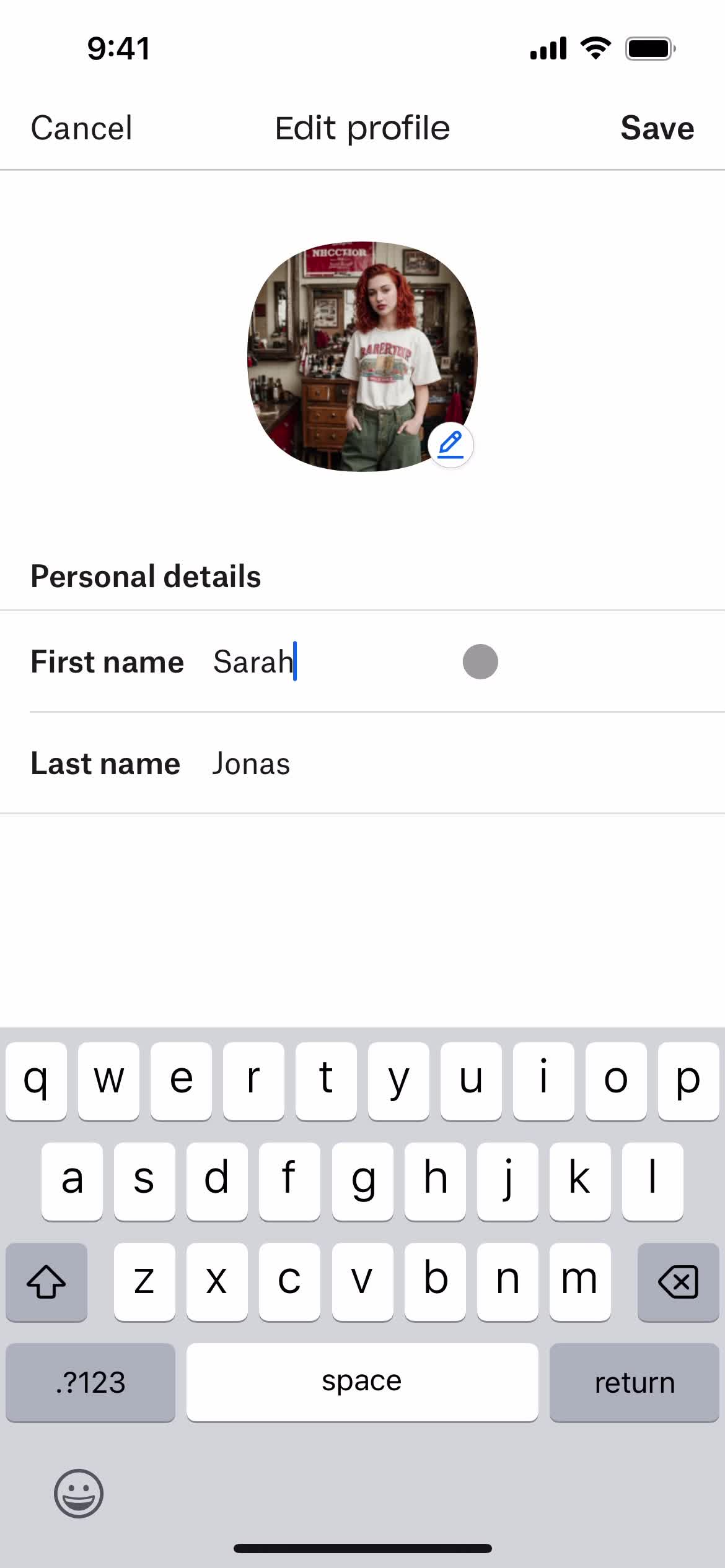
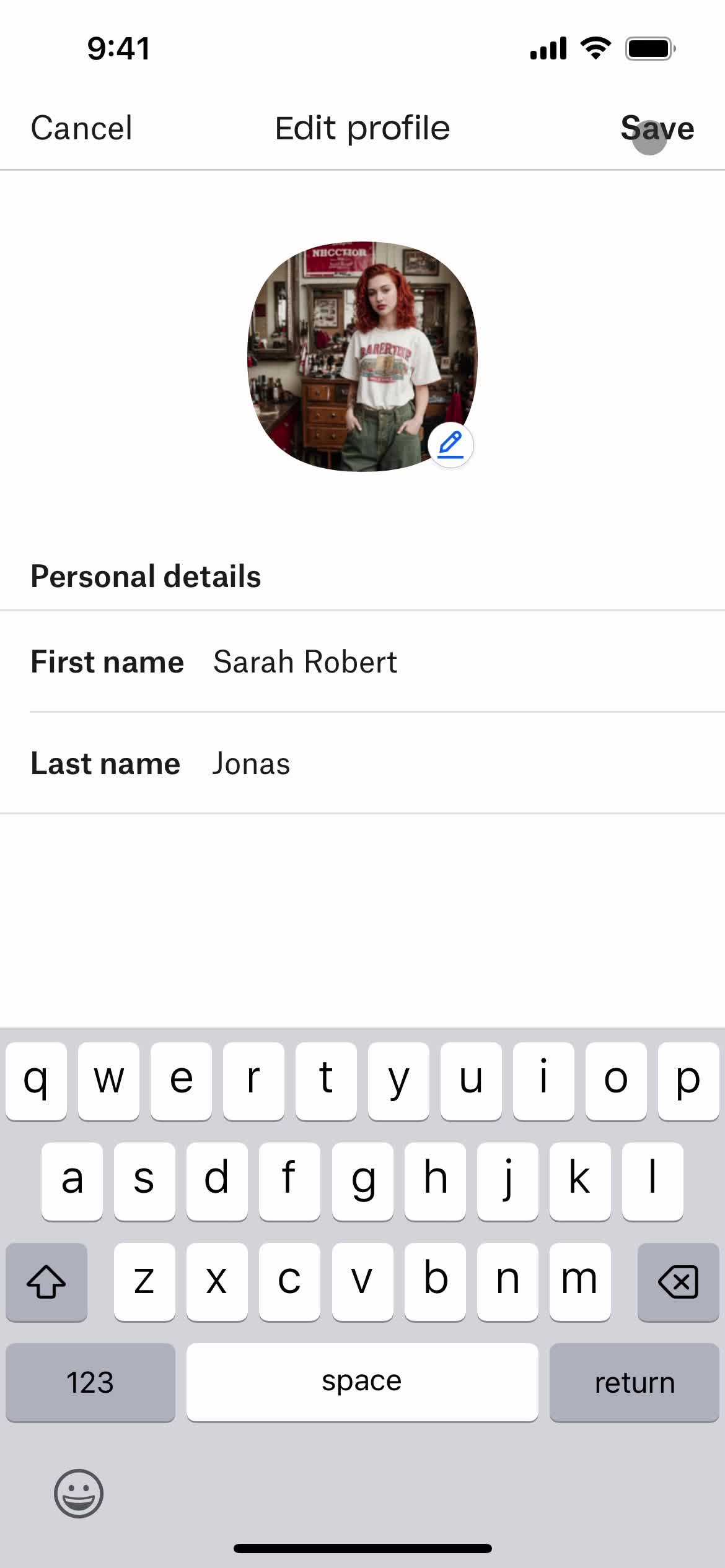
Edit profile
this is title
this is title
Settings
this is title
this is title
Settings
this is title
this is title
Home
this is title
Image
this is title
Metadata
this is title
Image
this is title
Edit image
this is title
Image
this is title
Verify email
this is title
Action menu
this is title
Error
this is title
Action menu
this is title
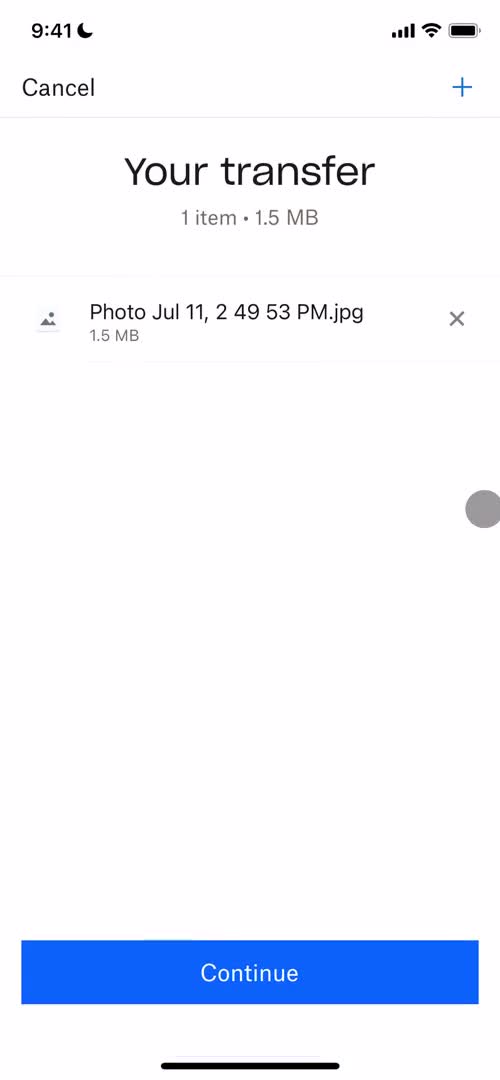
Transfer
this is title
Transfer
this is title
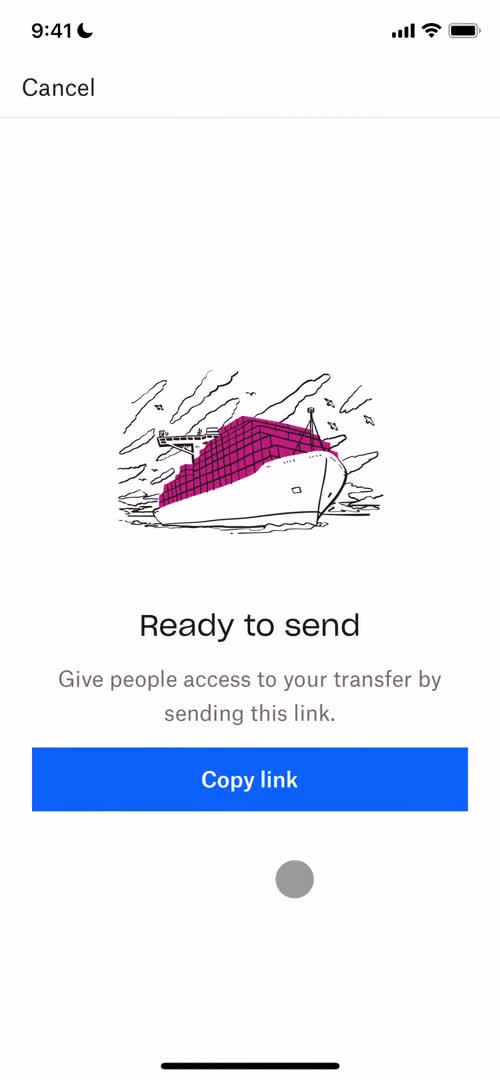
Copy link
this is title
Image
this is title
Scan document
this is title
Scan document
this is title
Save
this is title
Guide tooltip
this is title
Files
this is title
Image
this is title
Home
this is title
Action menu
this is title
Home
this is title
Image
this is title
Action menu
this is title
Delete item
this is title
Image
this is title
Home
this is title
Search
this is title
Home
this is title
Guide
this is title
Home
this is title
Files
this is title
Sort
this is title
Files
this is title
Create folder
this is title
Create folder
this is title
Create folder
this is title
Folder created
this is title
Files
this is title
Upload images
this is title
Upload images
this is title
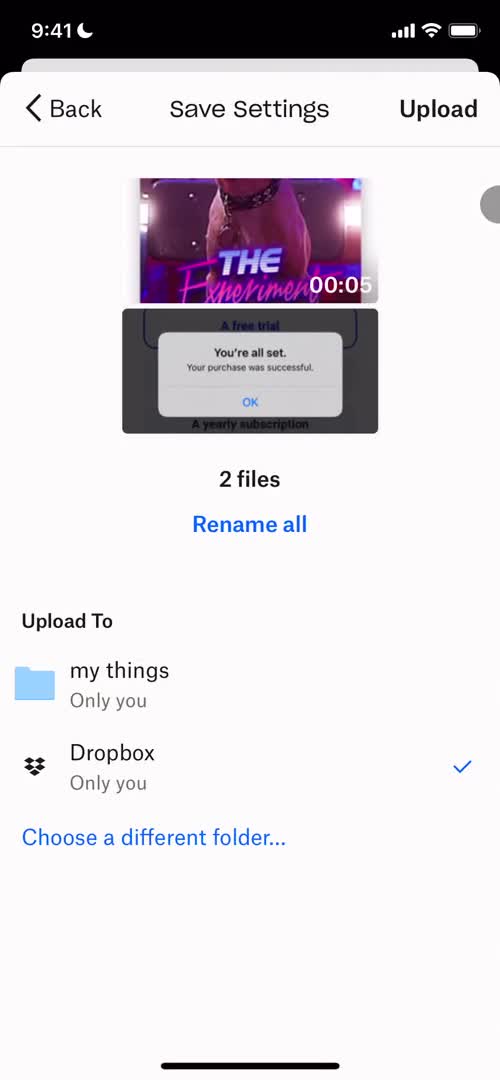
Save
this is title
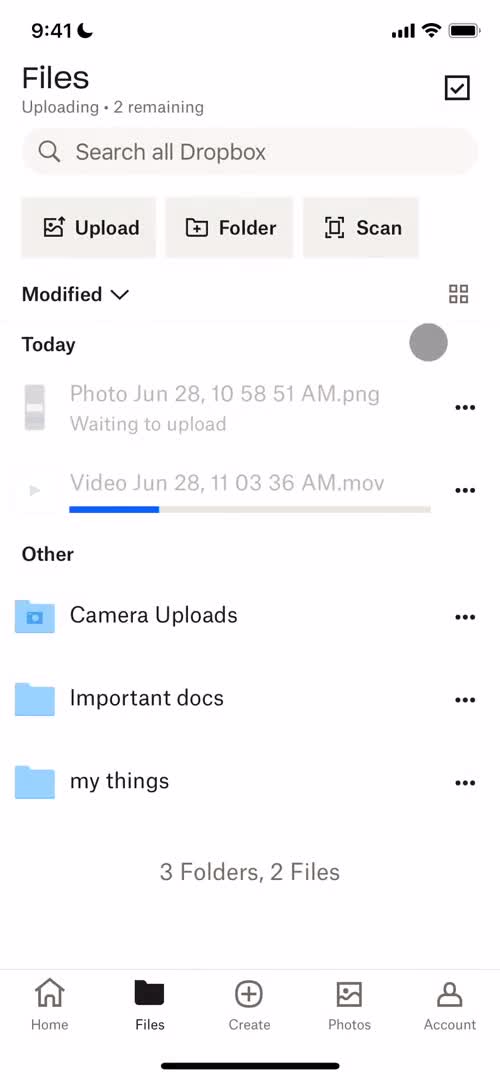
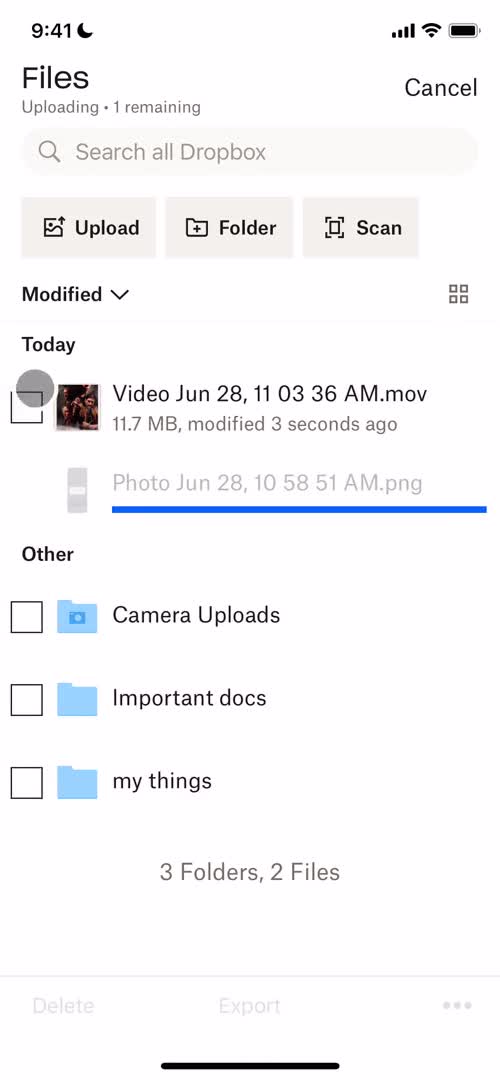
Uploading
this is title
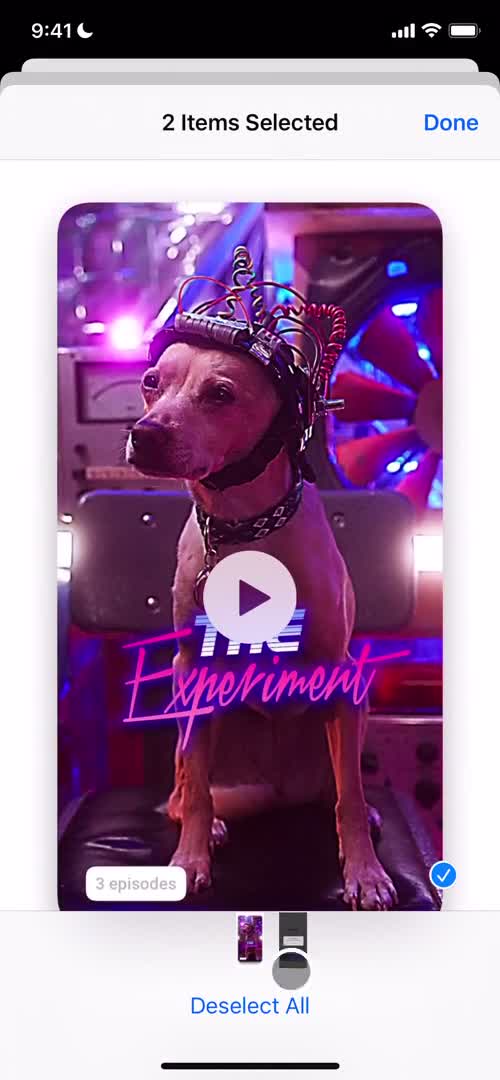
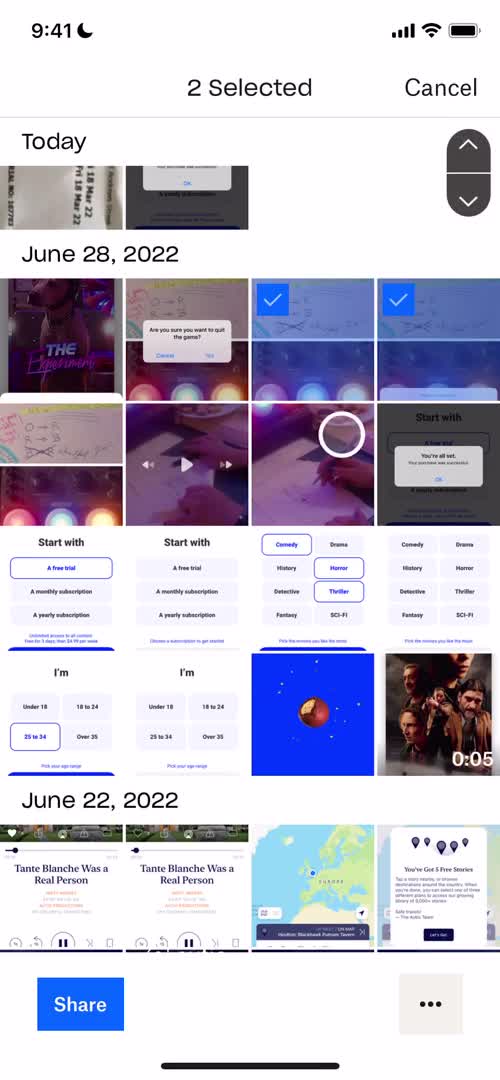
Multi-select
this is title
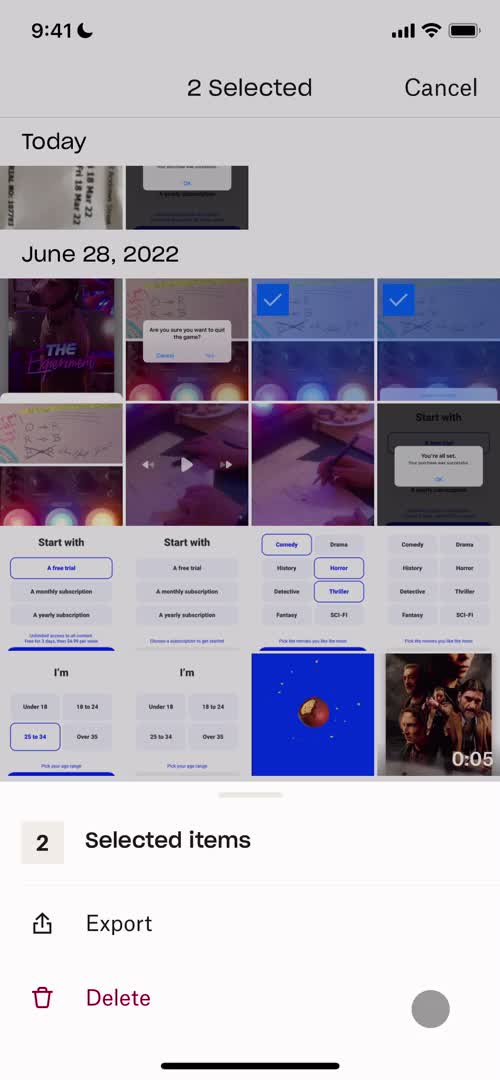
Action menu
this is title
Guide modal
this is title
Files
this is title
Action menu
this is title
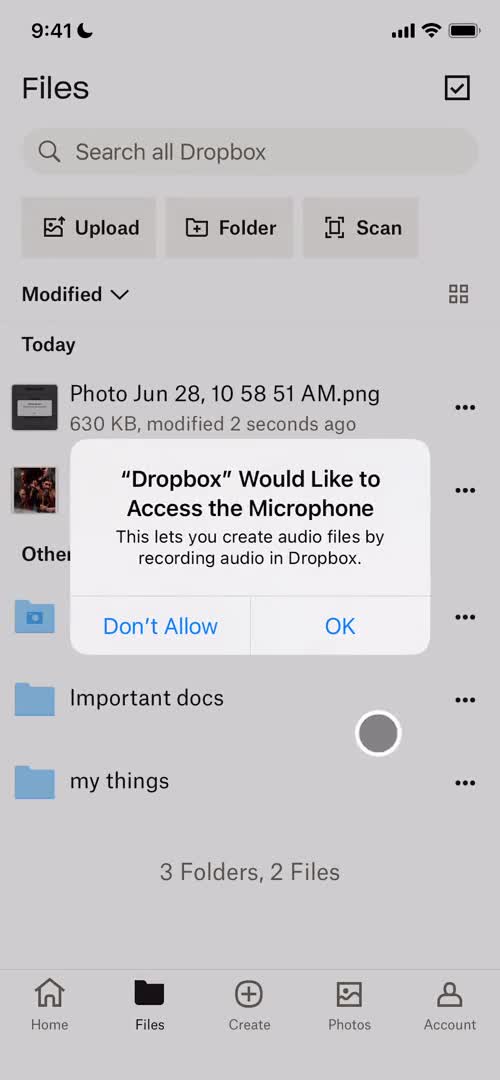
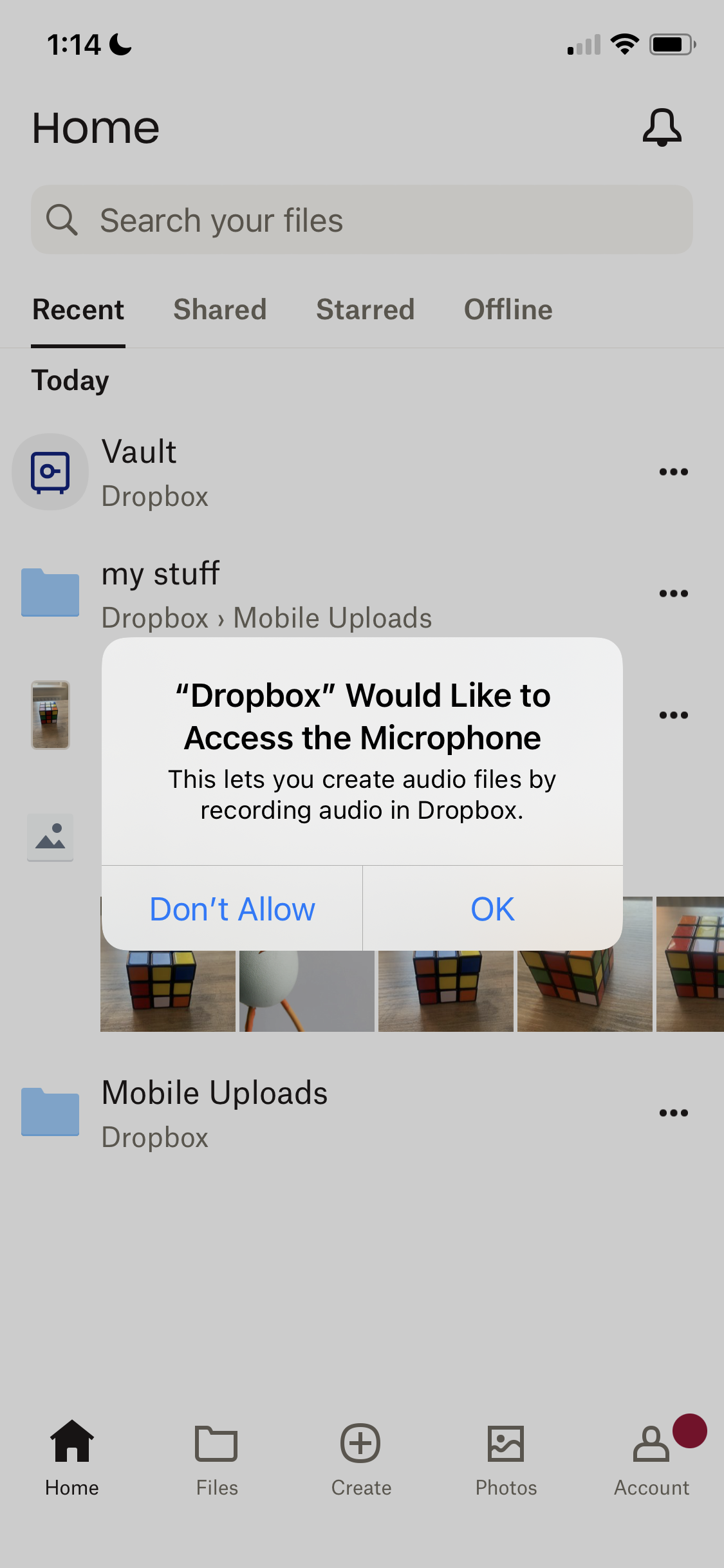
Enable microphone
this is title
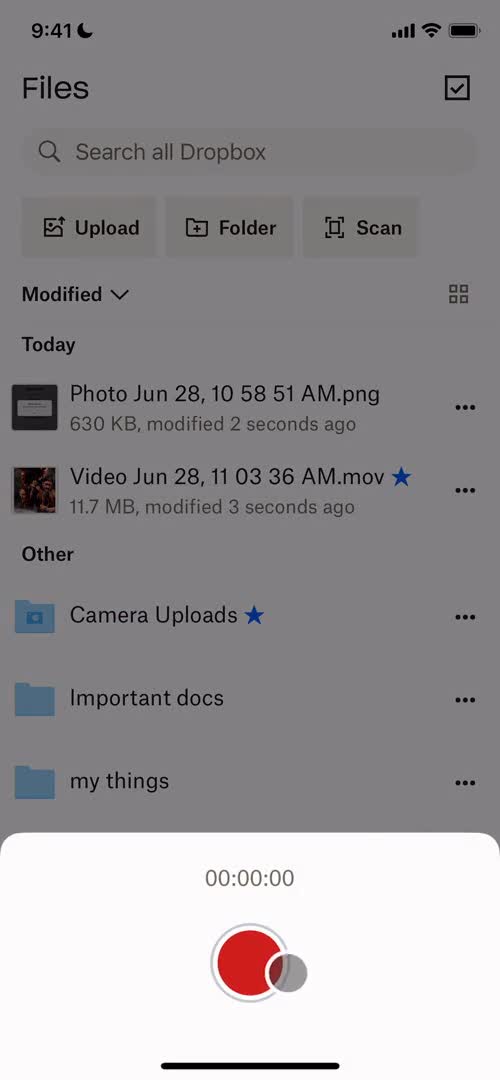
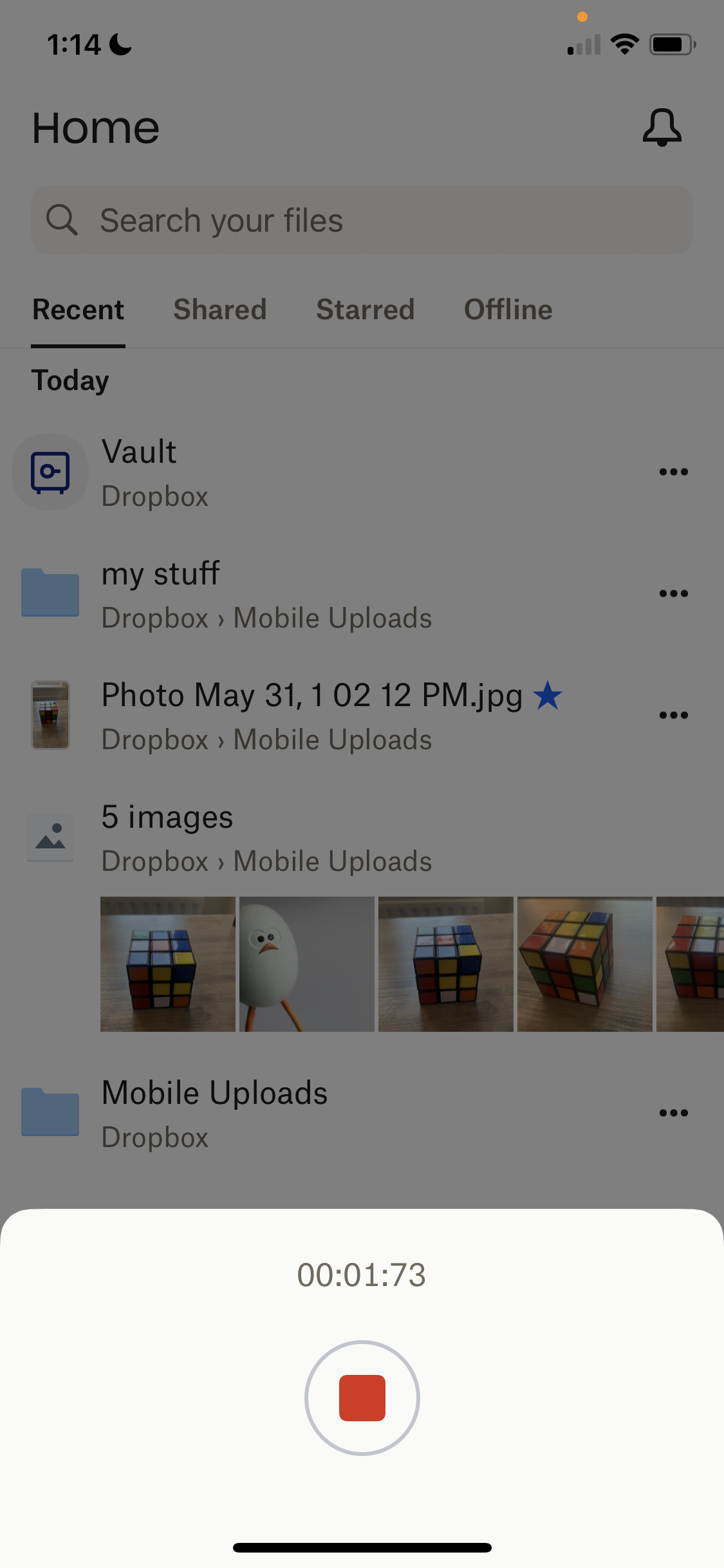
Record audio
this is title
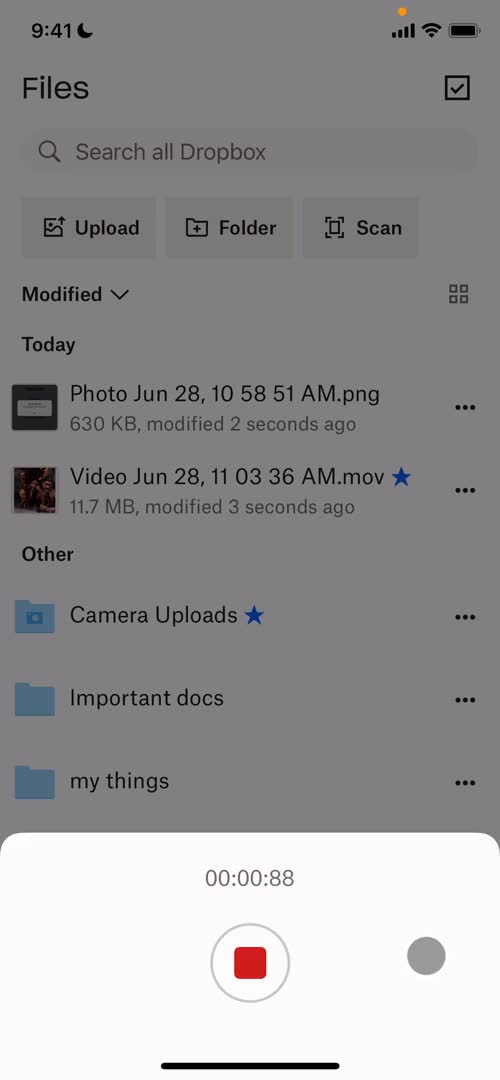
Record audio
this is title
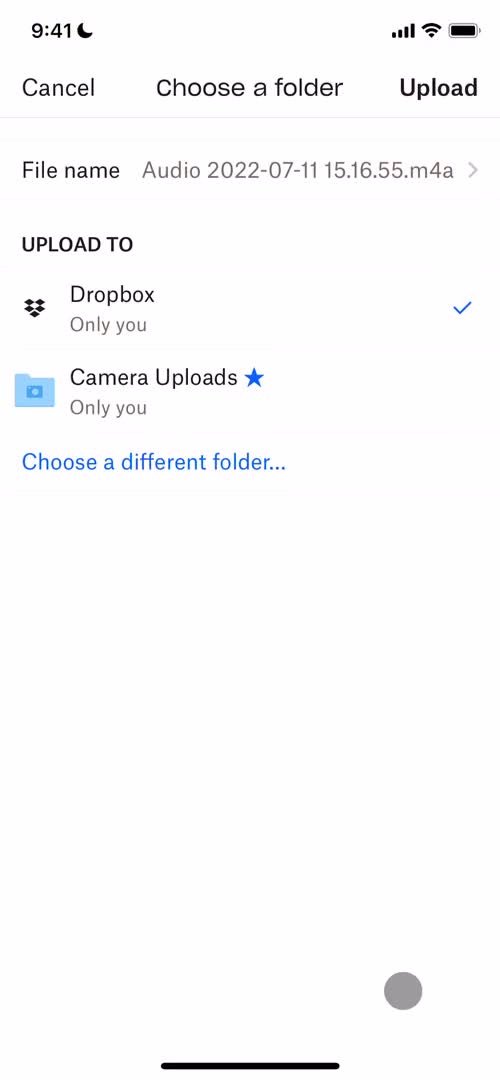
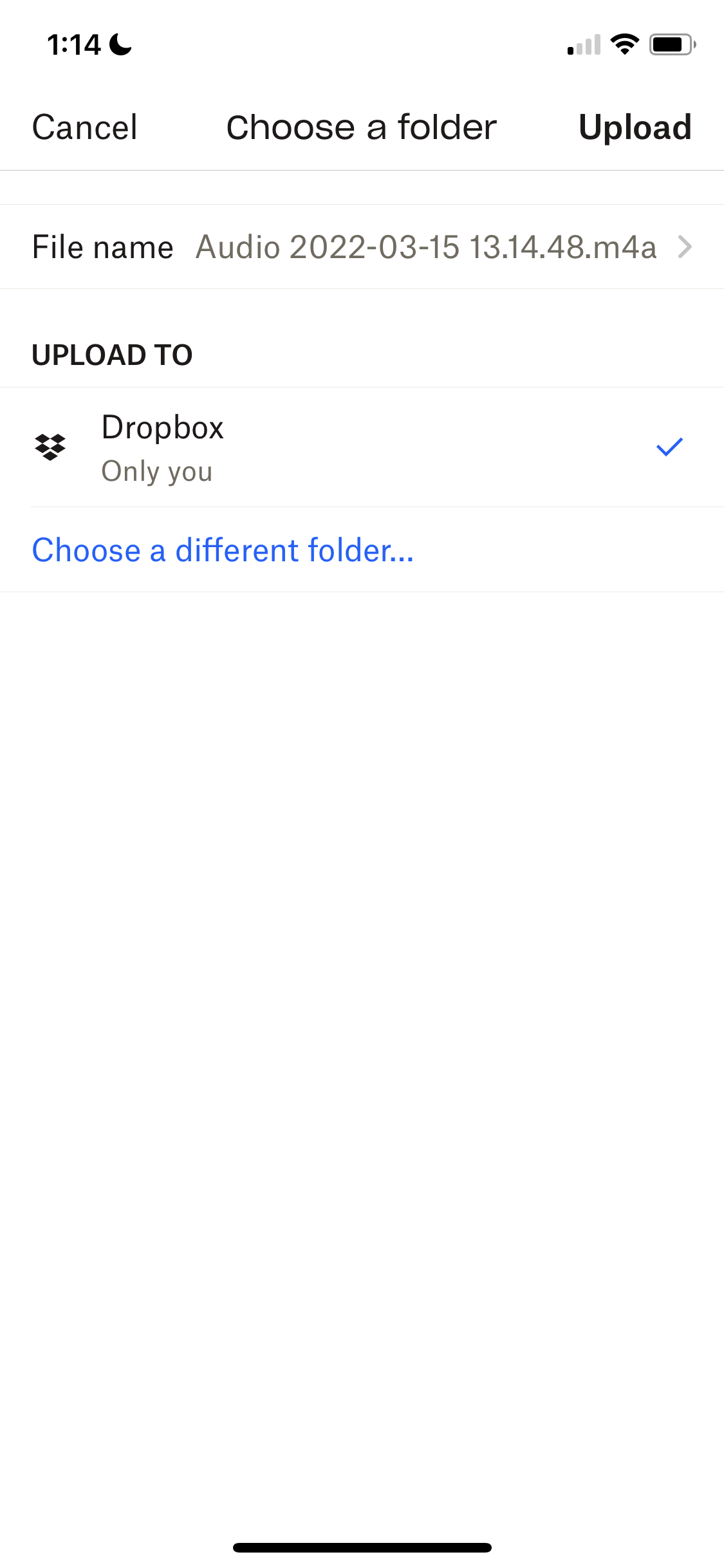
Select folder
this is title
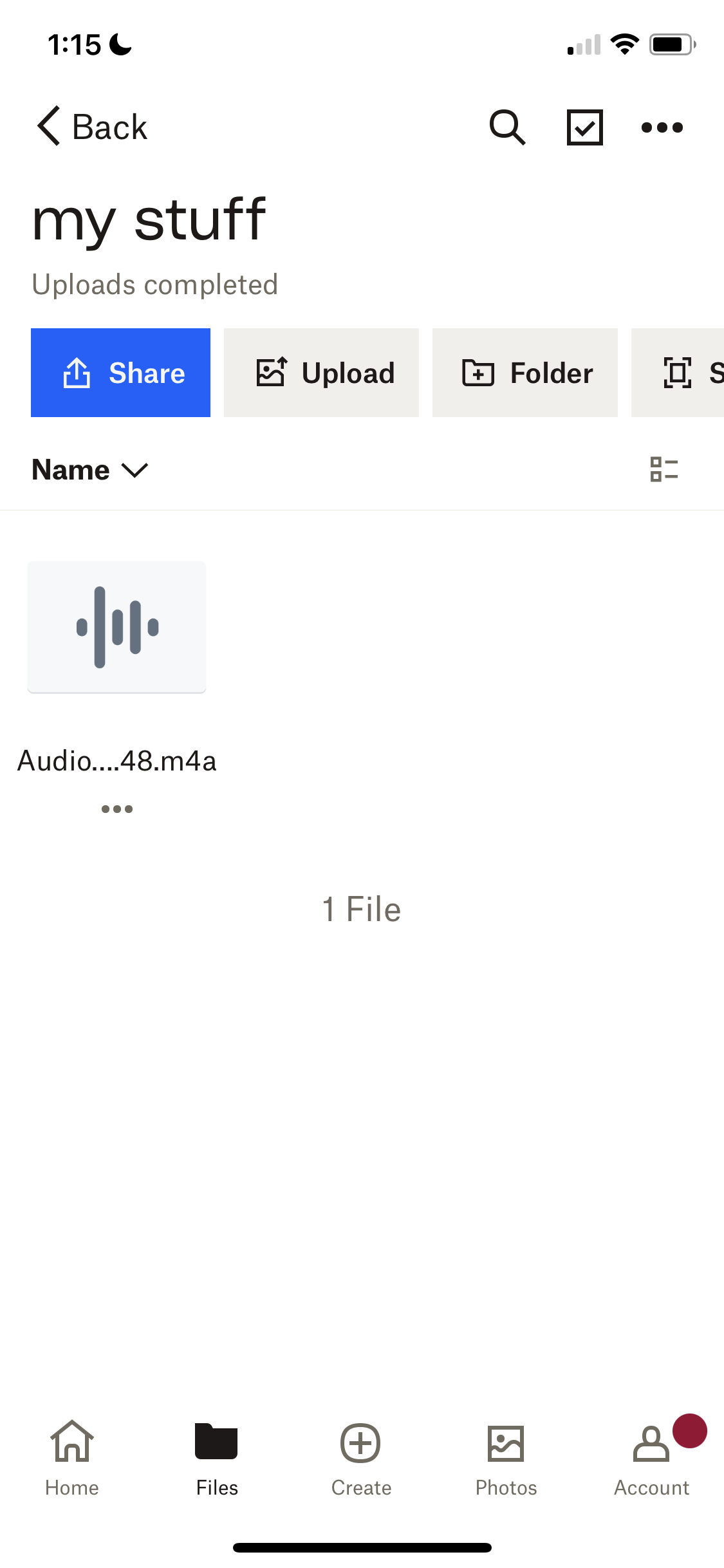
Uploading
this is title
Photos
this is title
Multi-select
this is title
Action menu
this is title
Account
this is title
Edit profile
this is title
Settings
this is title
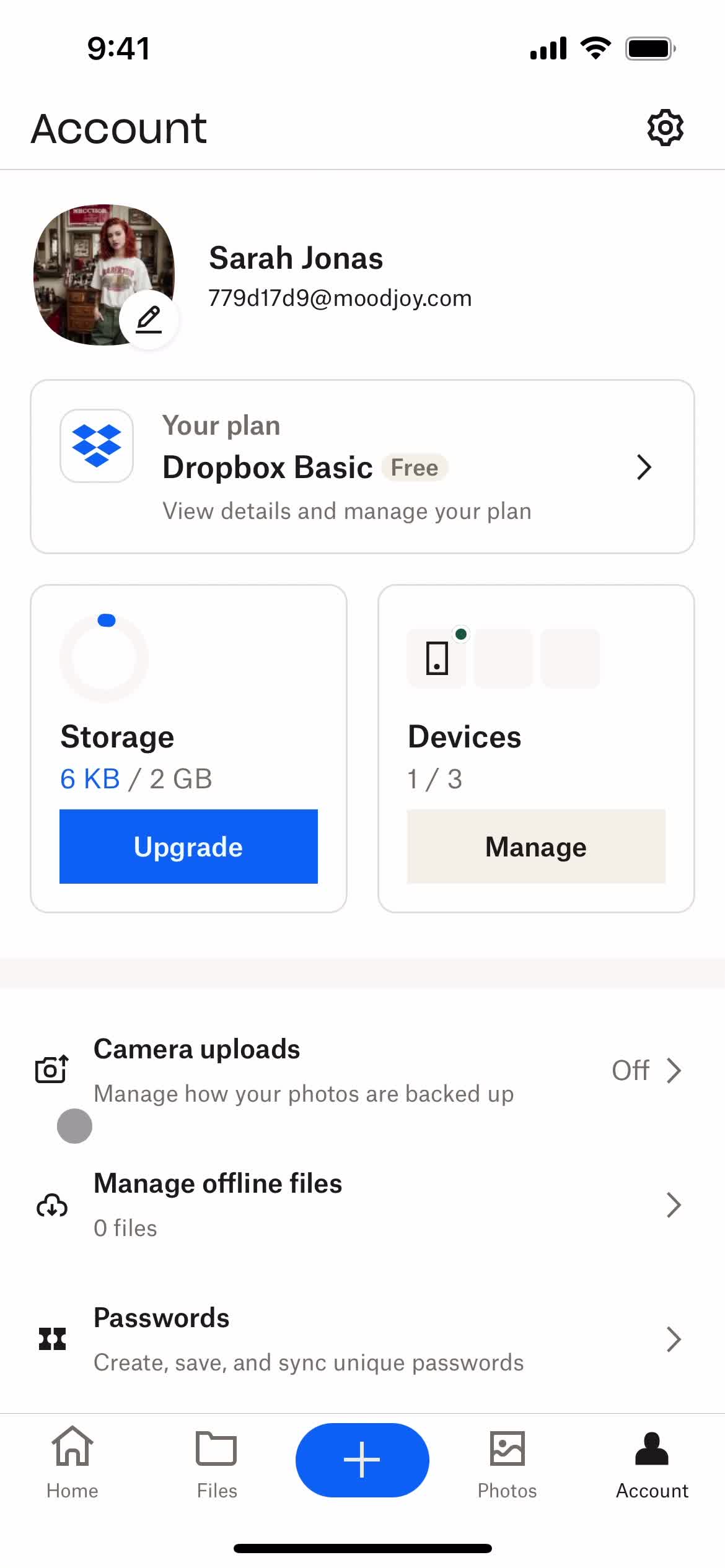
Account
this is title
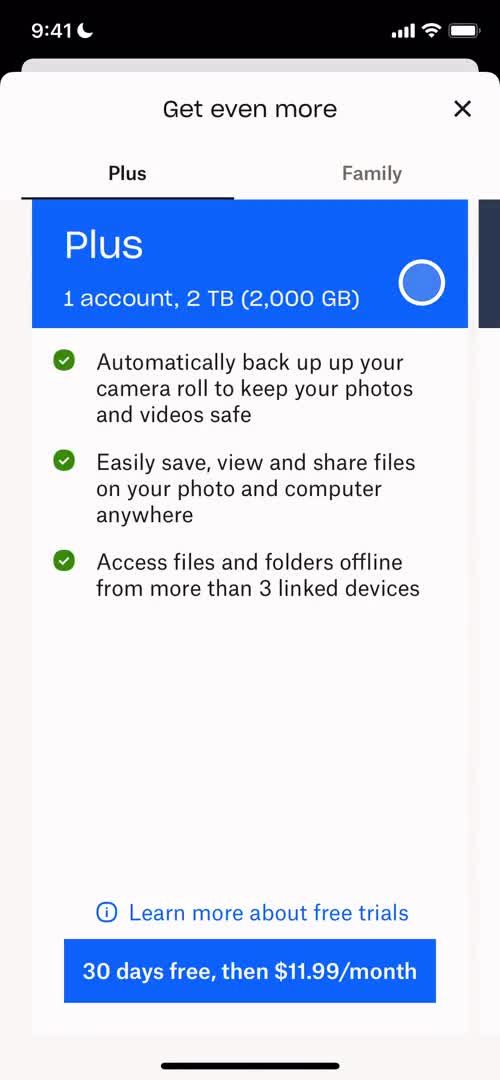
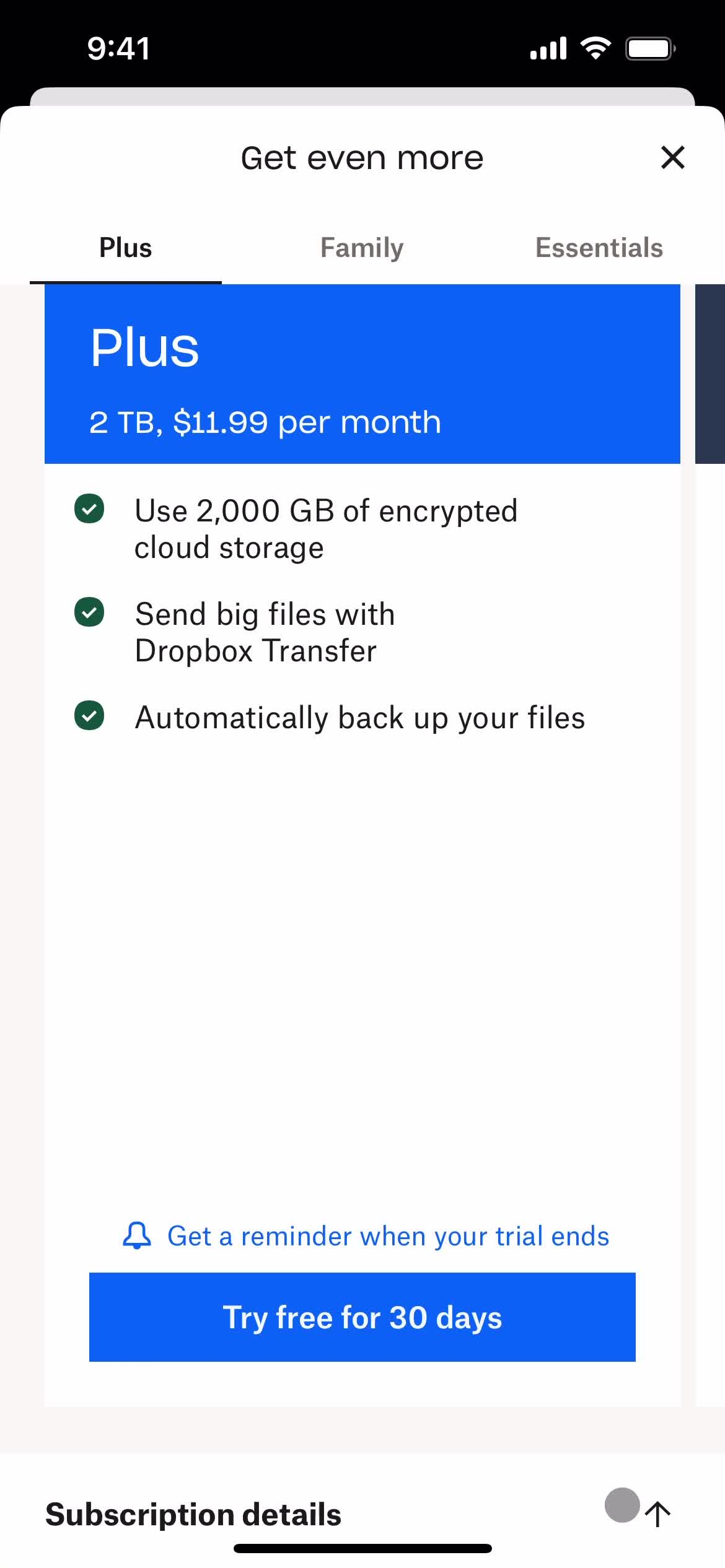
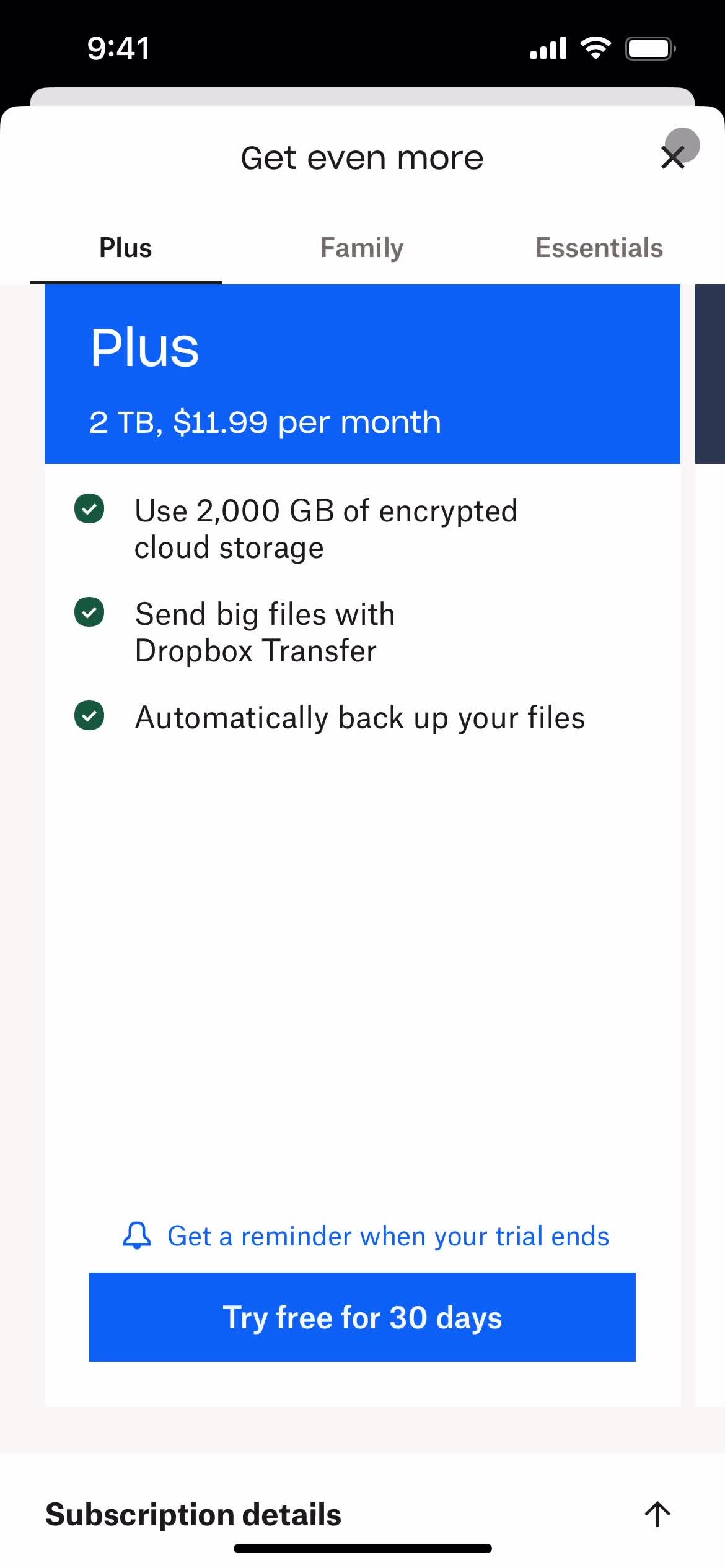
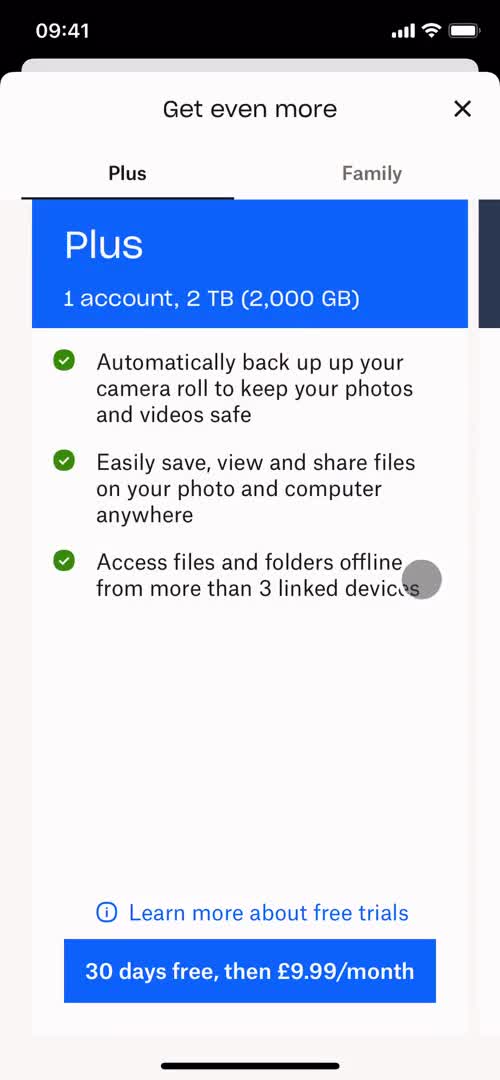
Upgrade
this is title
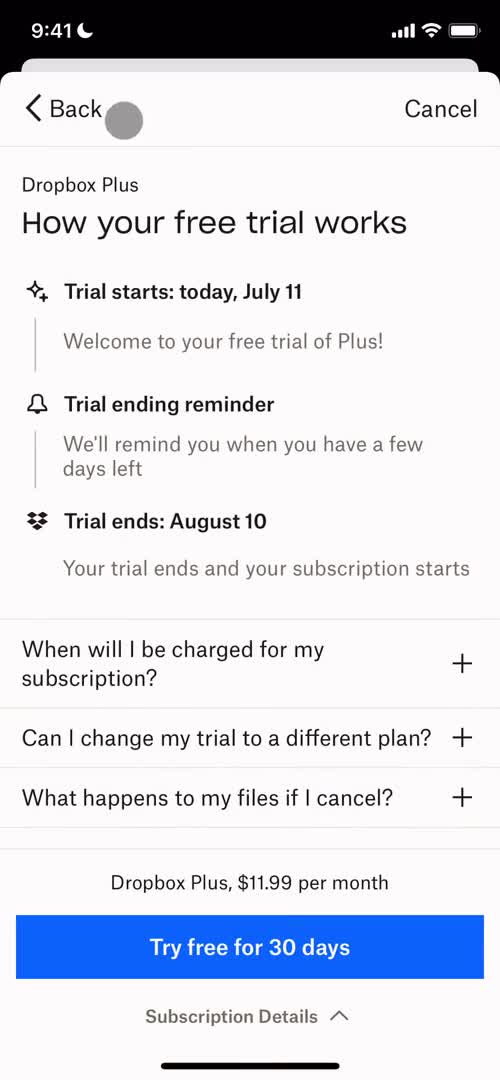
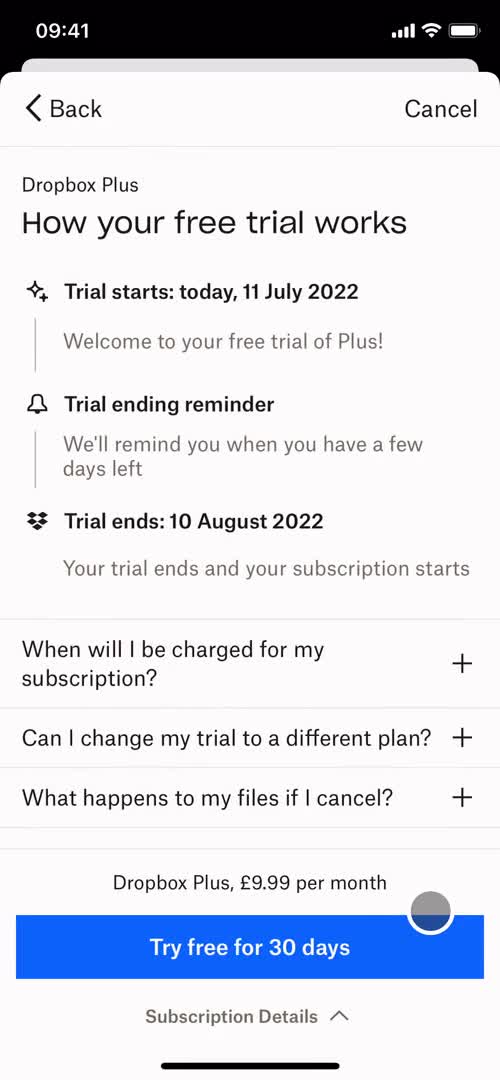
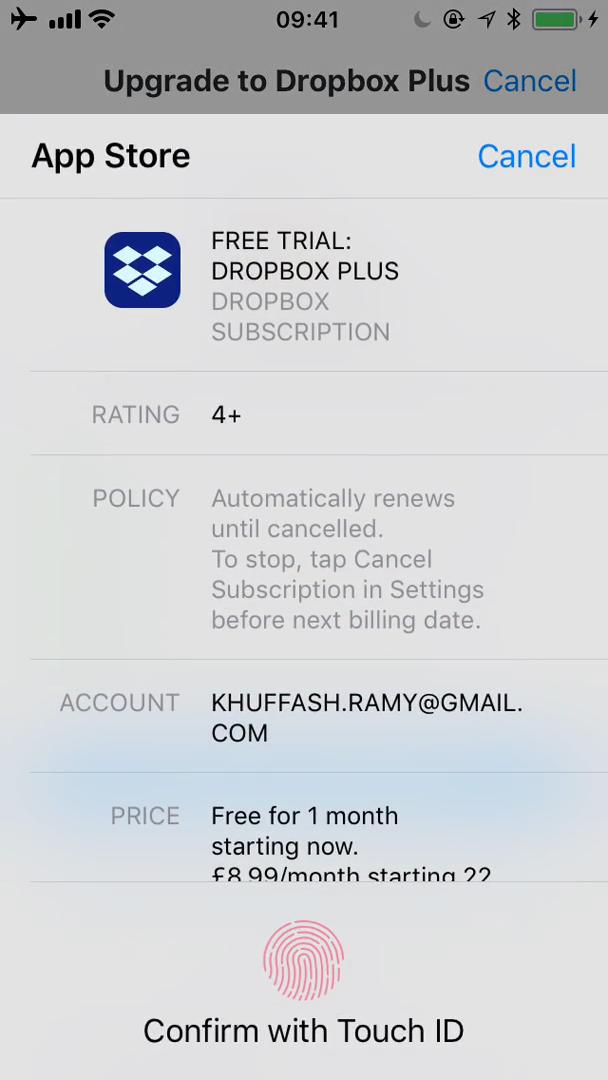
Free trial details
this is title
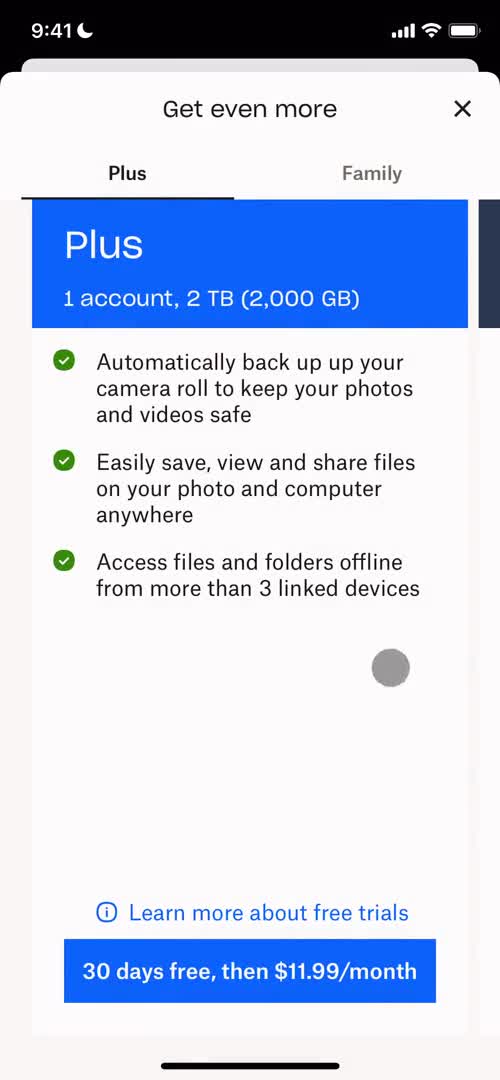
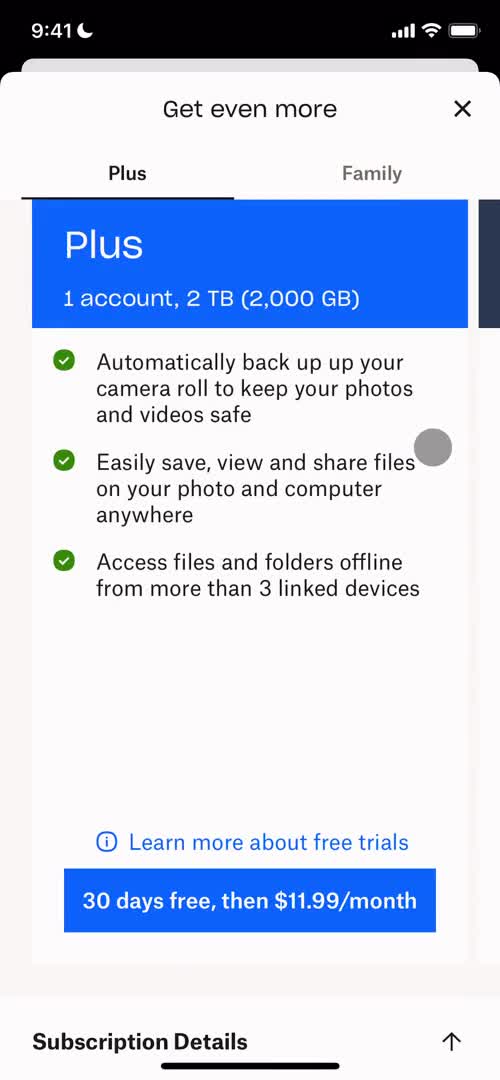
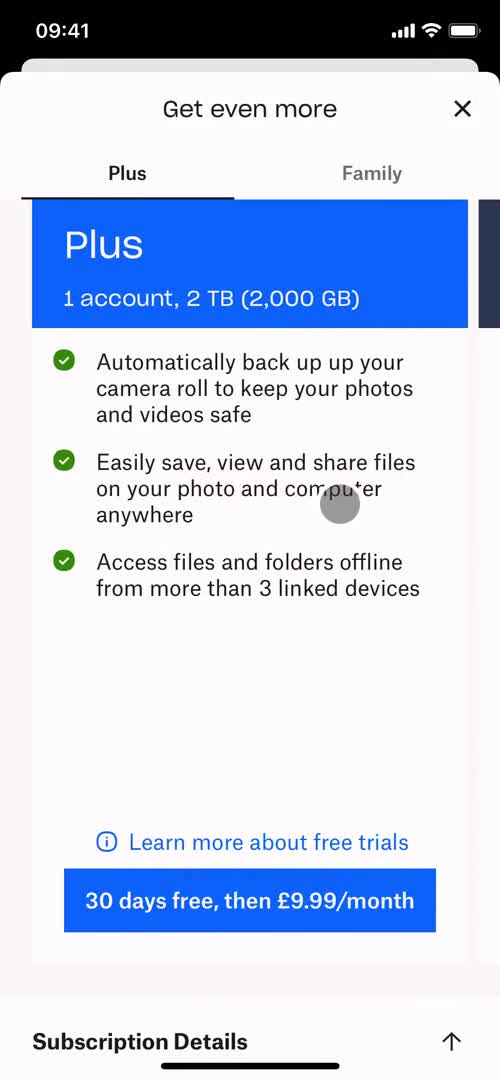
Plans
this is title
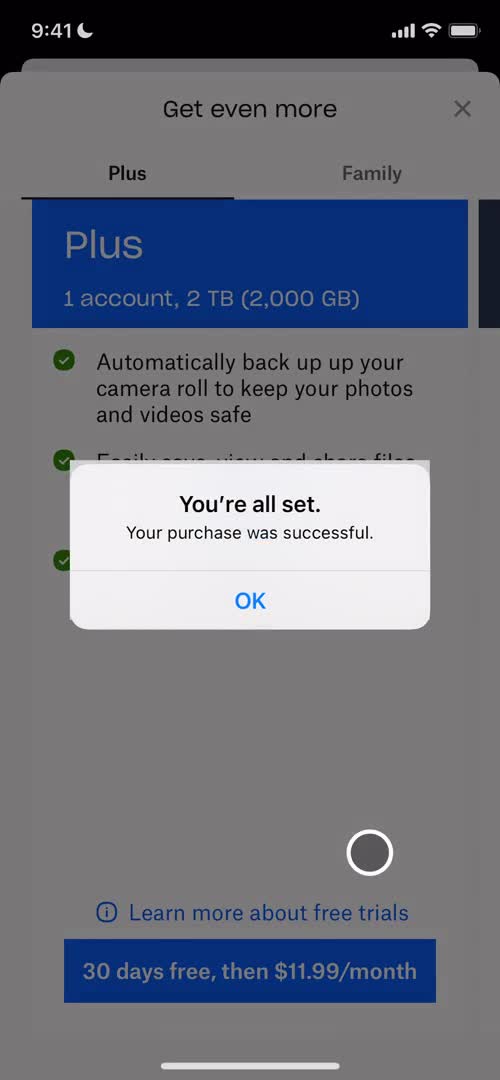
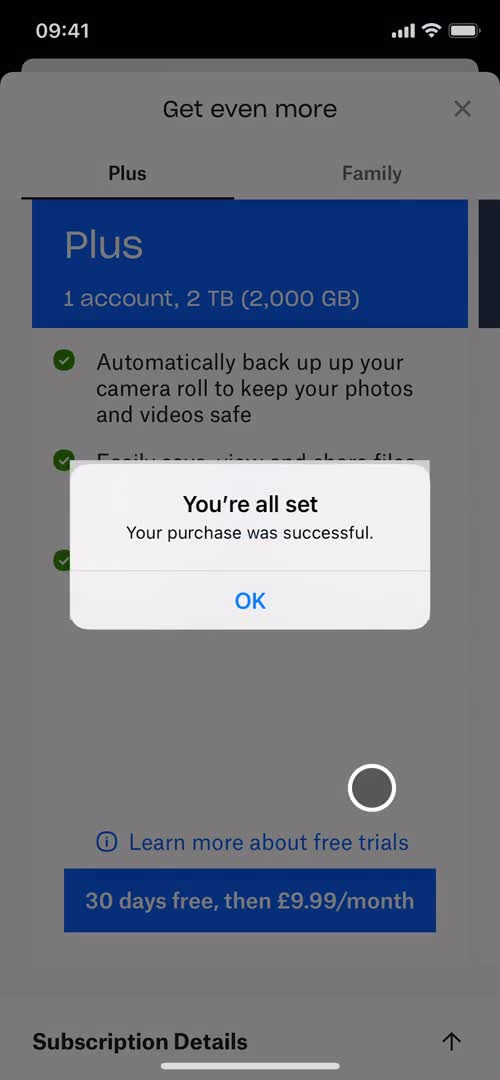
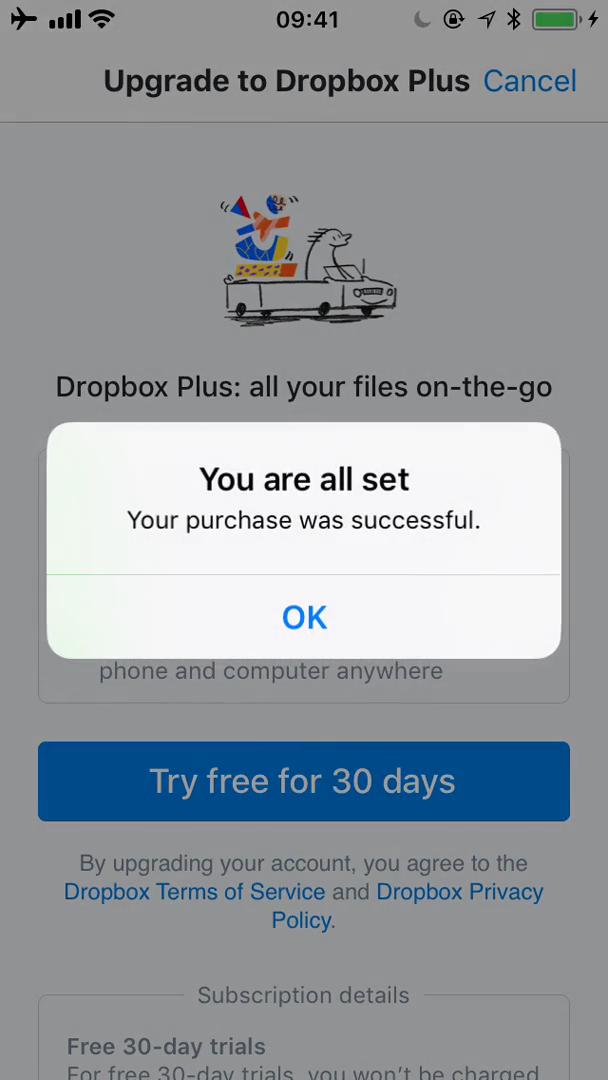
Purchase successful
this is title
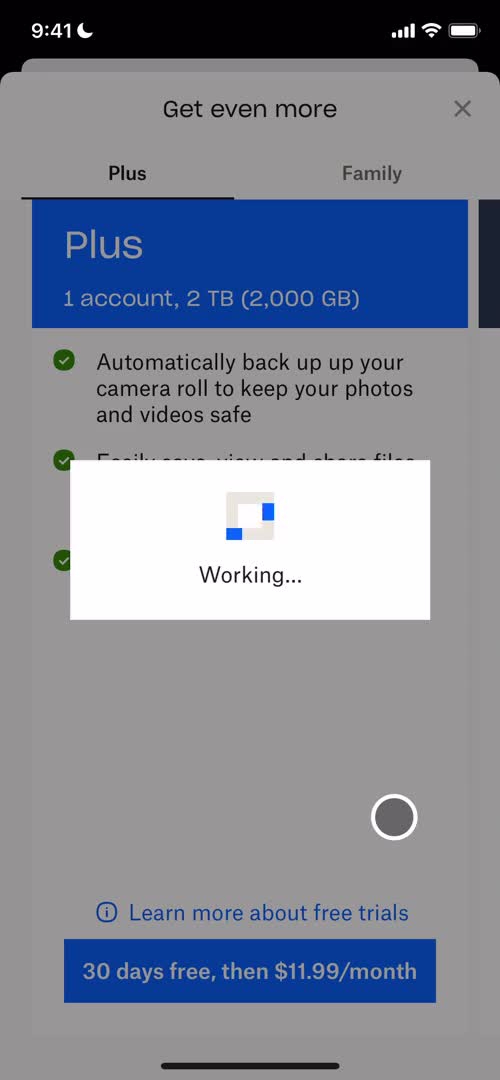
Loading
this is title
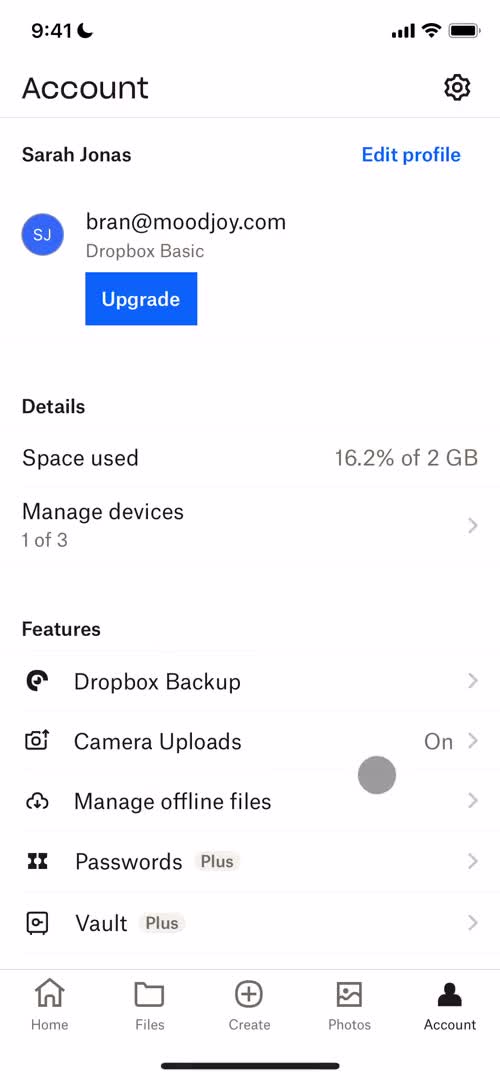
Account
this is title
Select plan
this is title
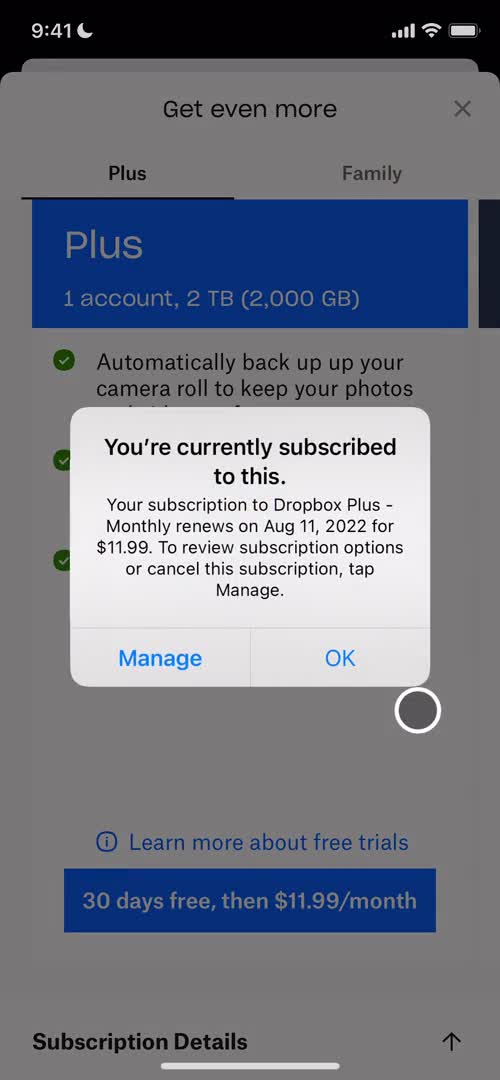
Error
this is title
Error
this is title
Account
this is title
Home
this is title
Splash screen
this is title
Start screen
this is title
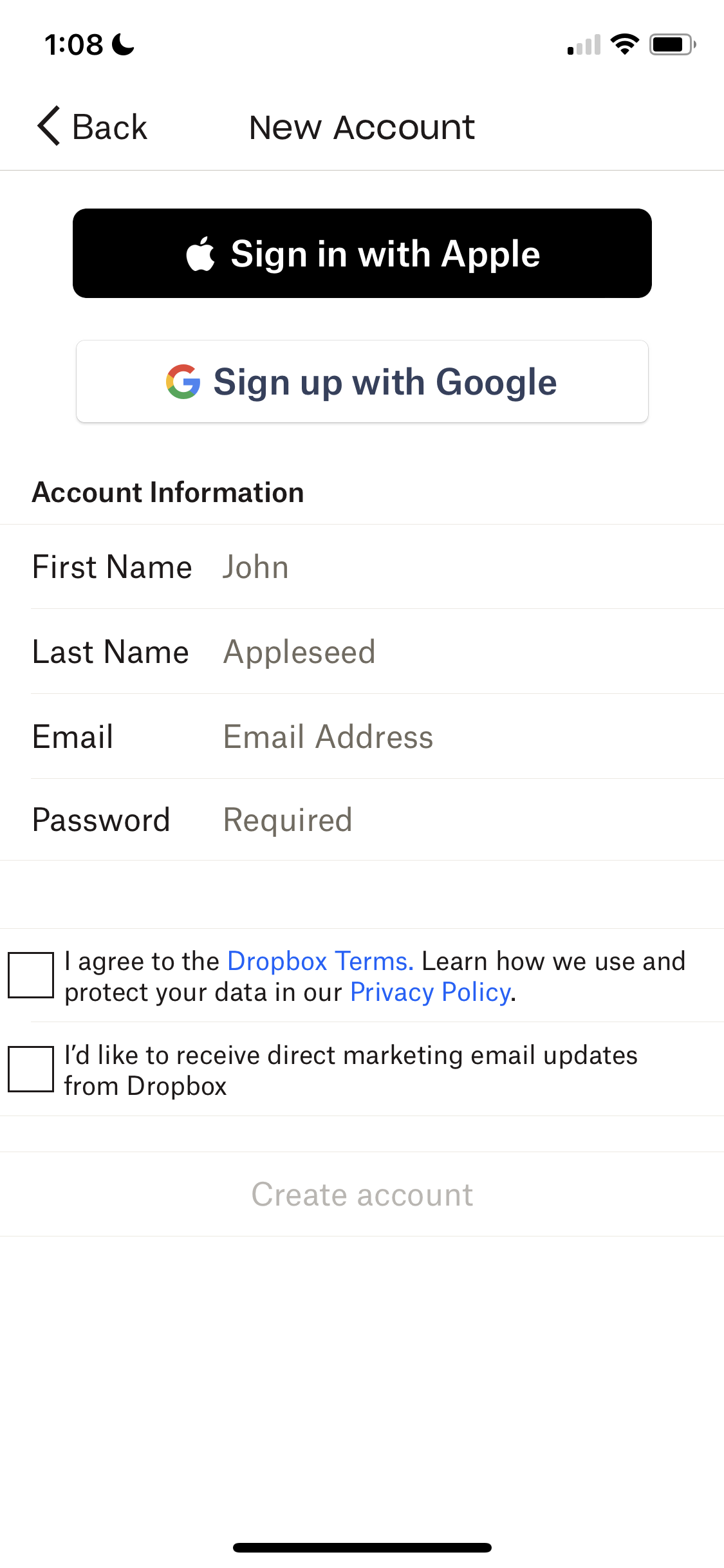
Sign up
this is title
Loading
this is title
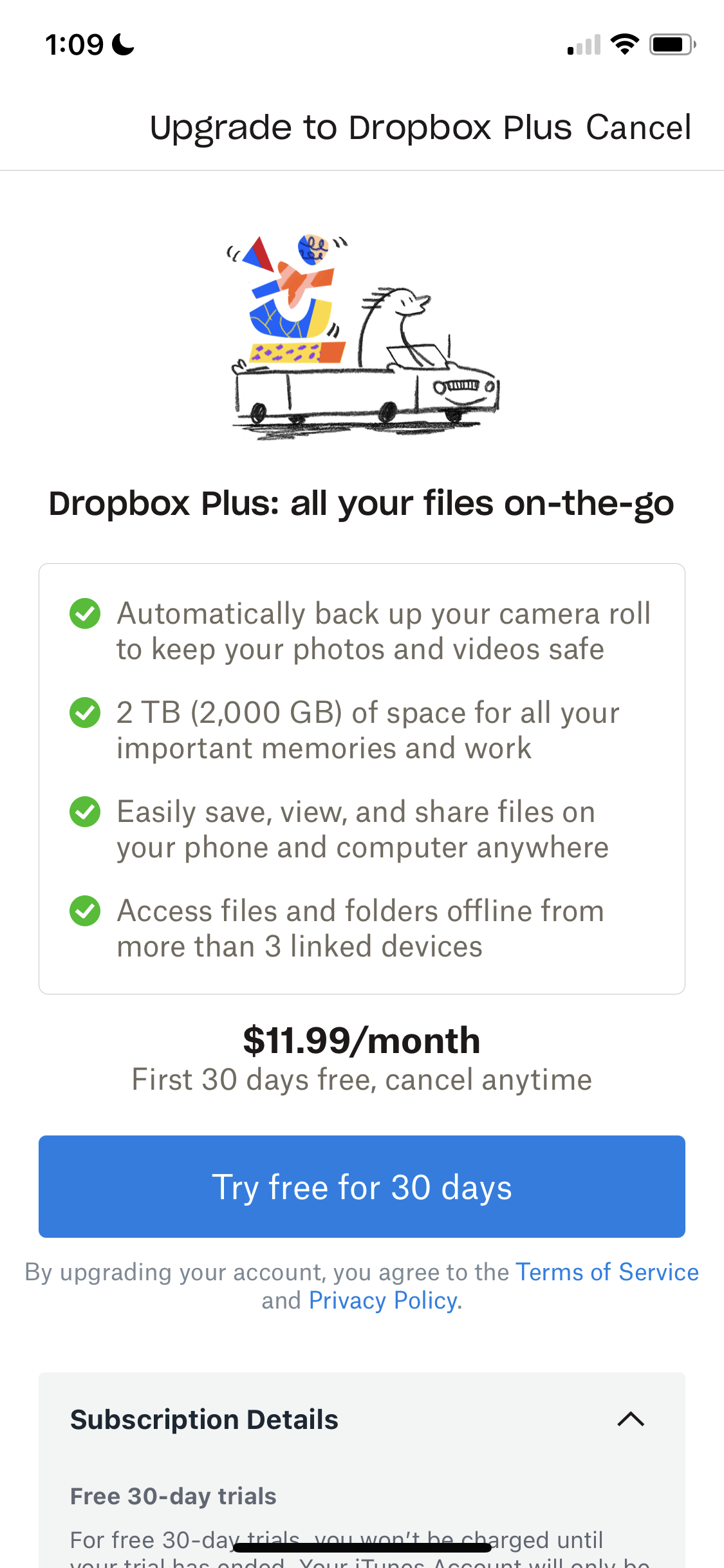
Start trial
this is title
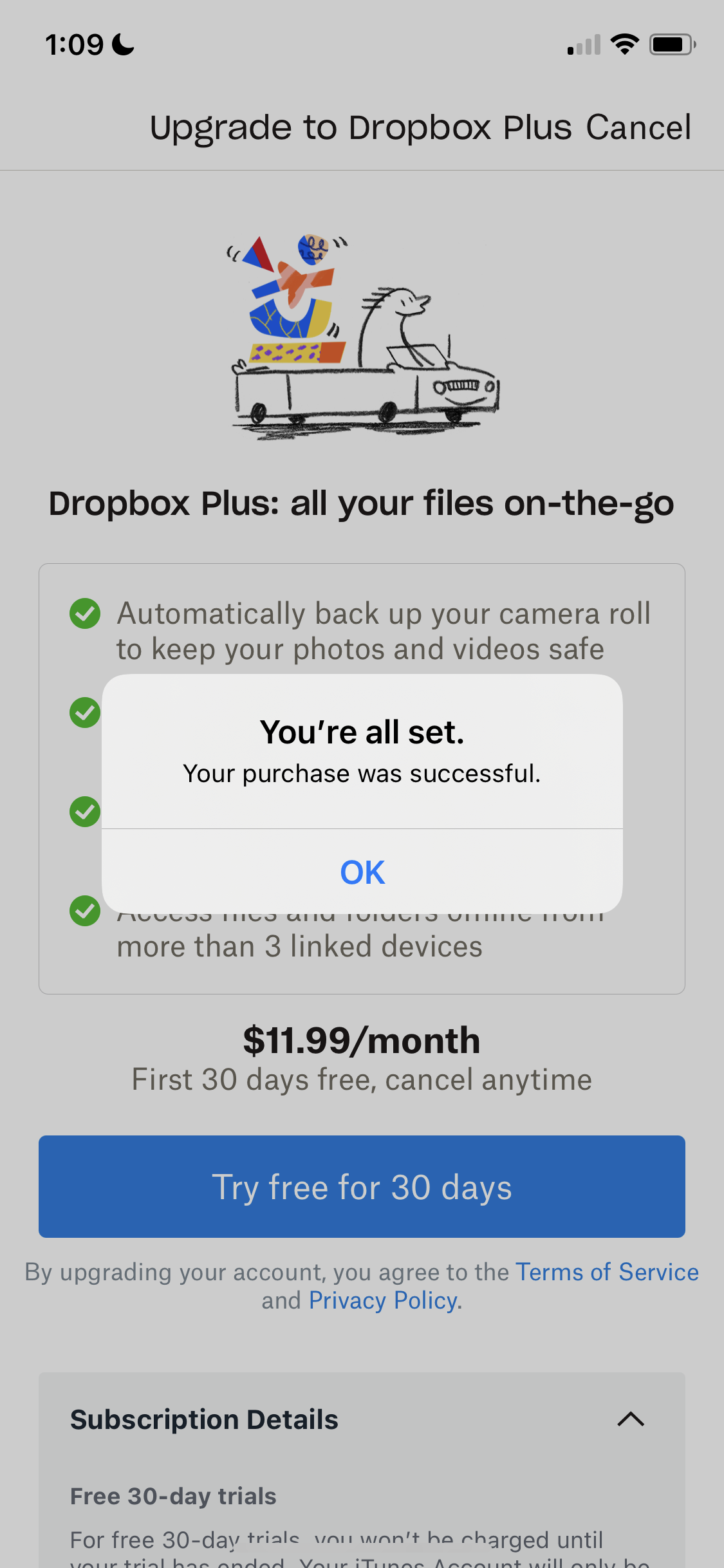
Purchase successful
this is title
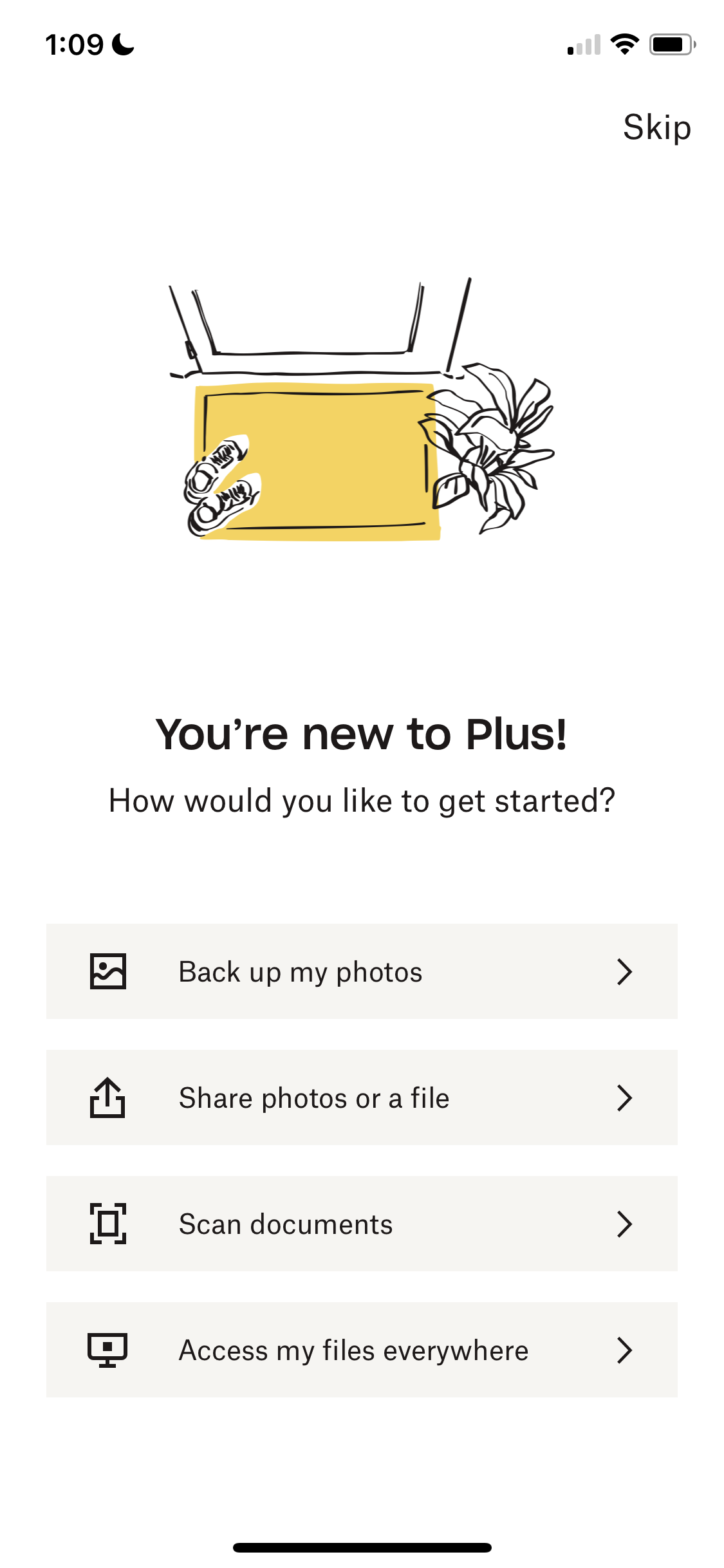
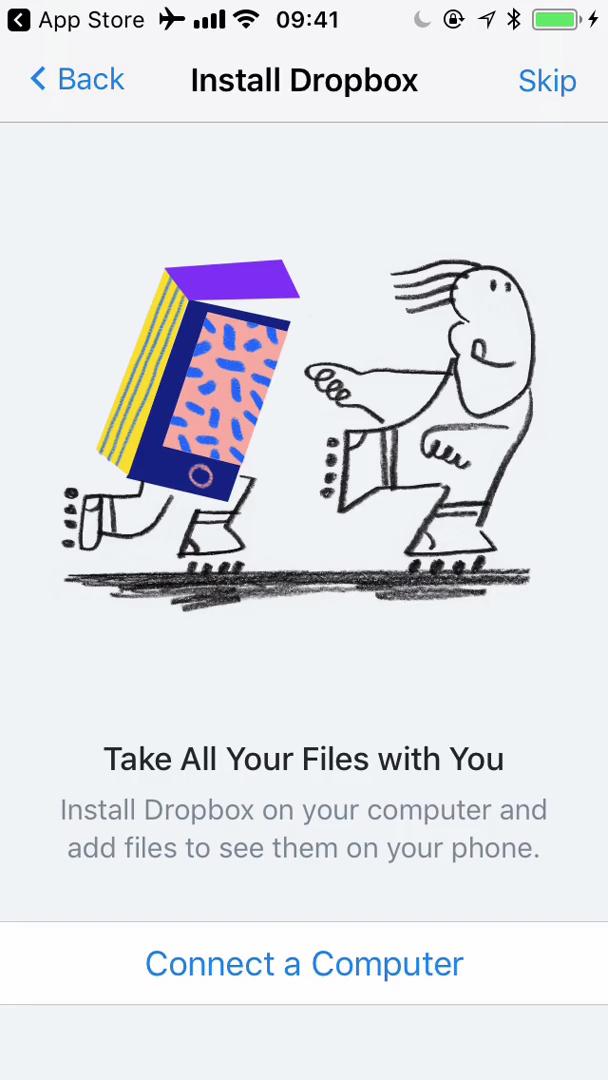
Select next step
this is title
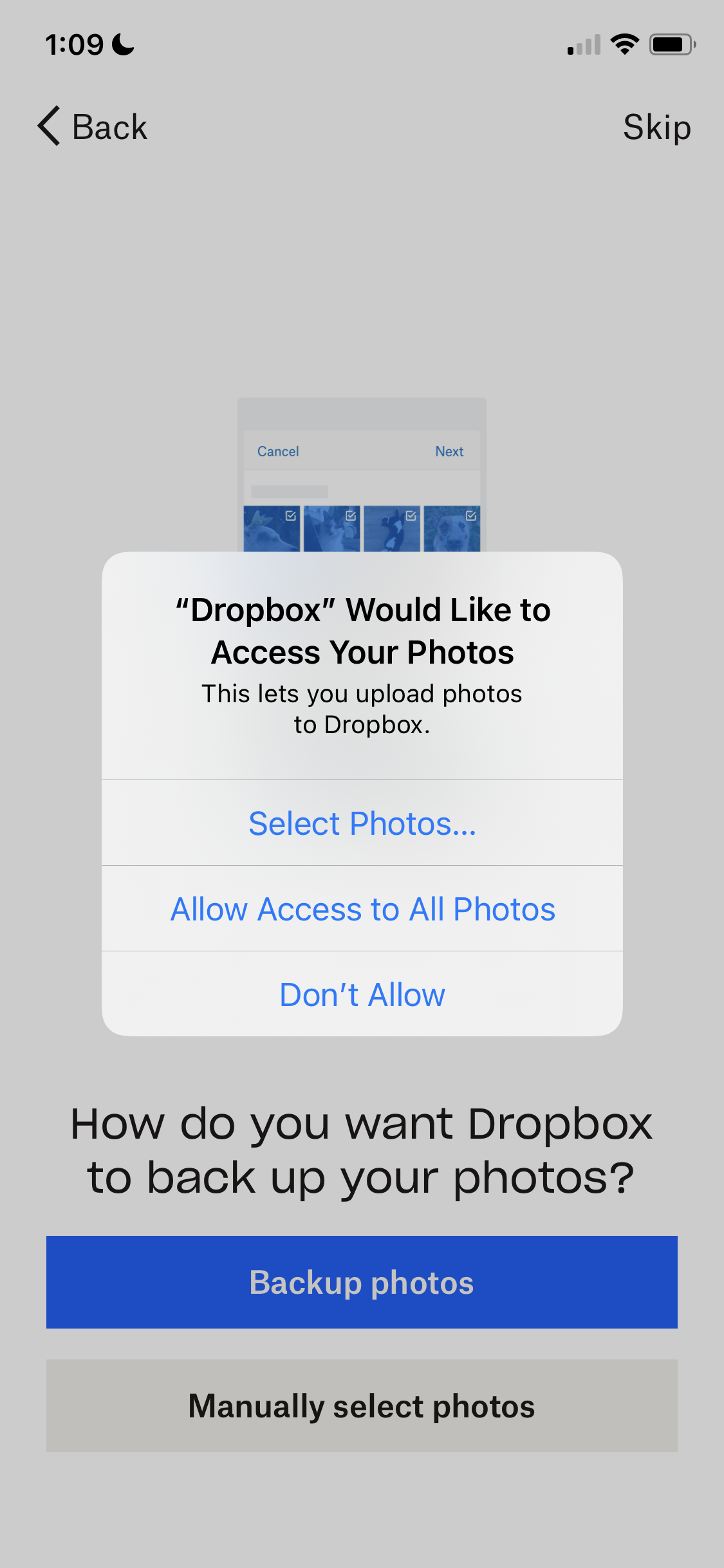
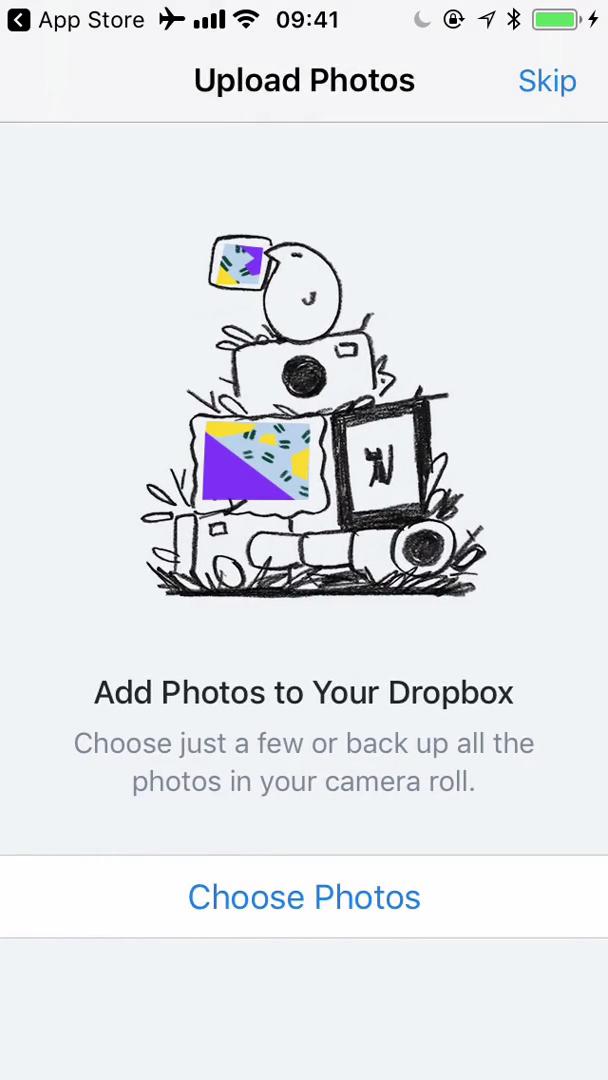
Enable photo access
this is title
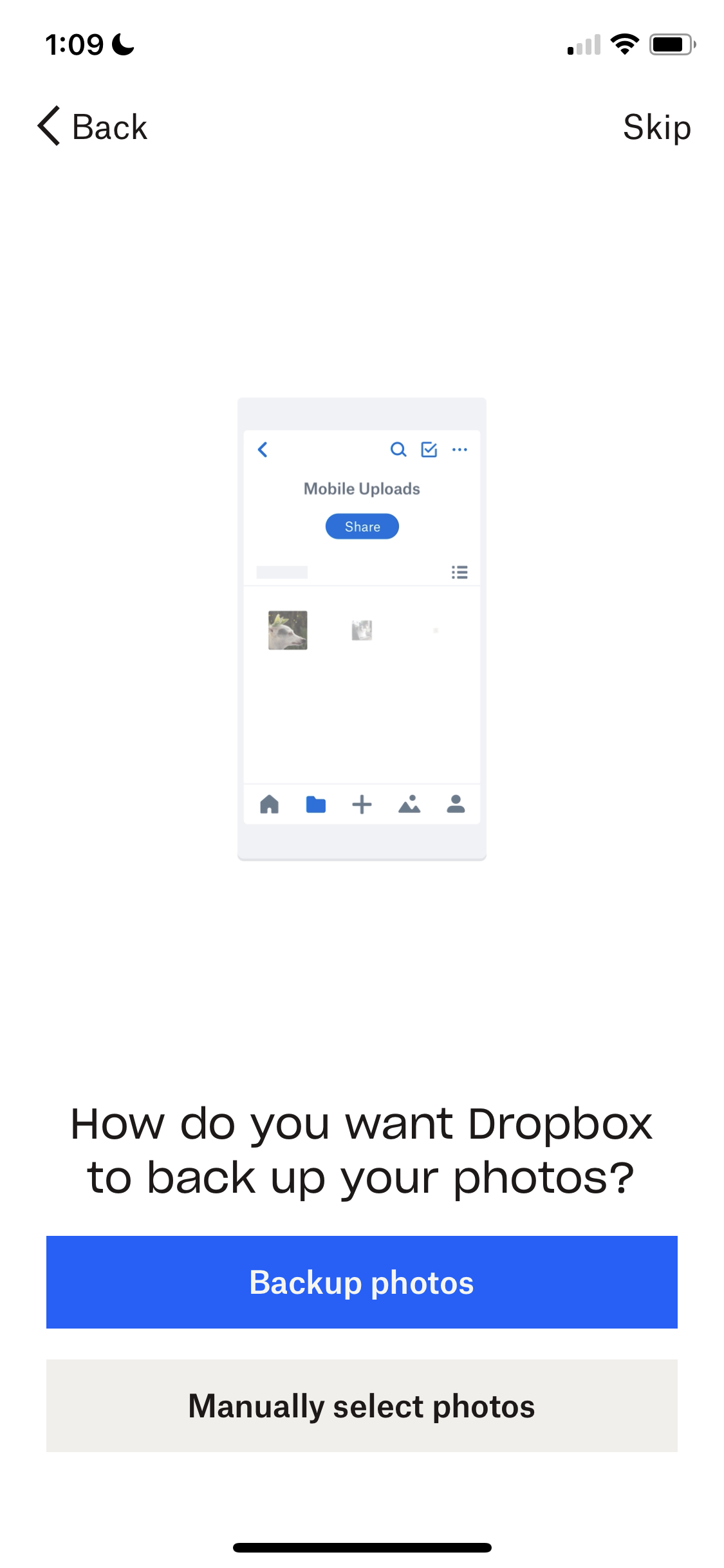
Set backup mode
this is title
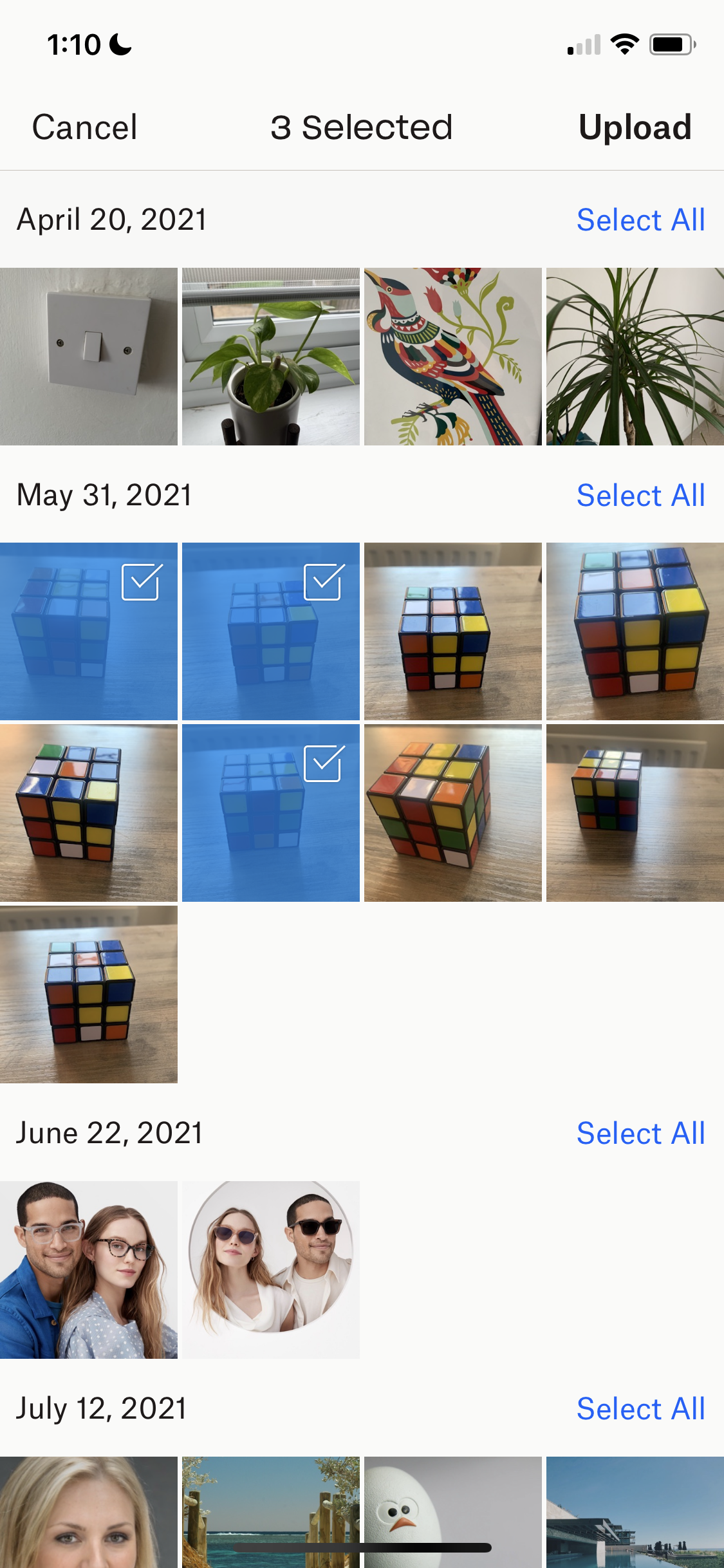
Select photos
this is title
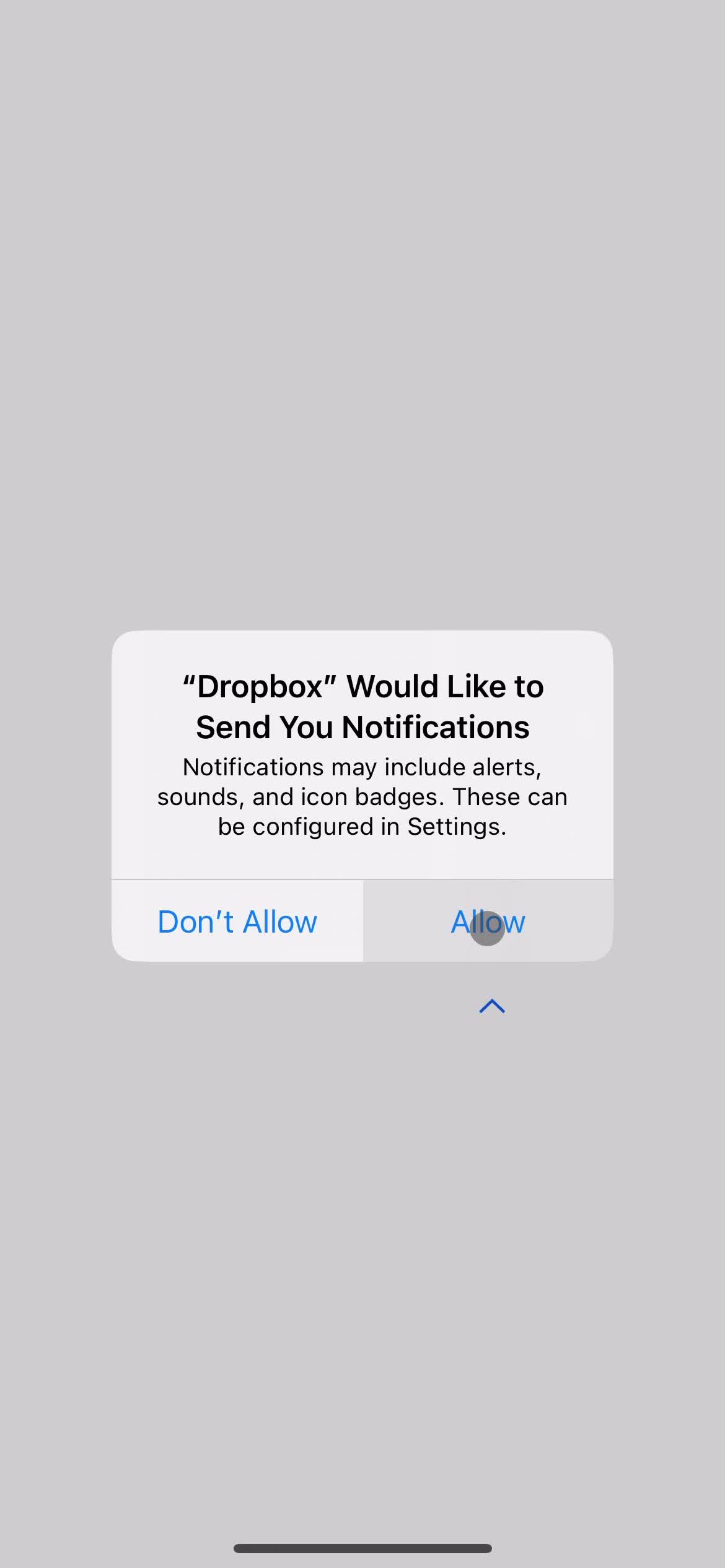
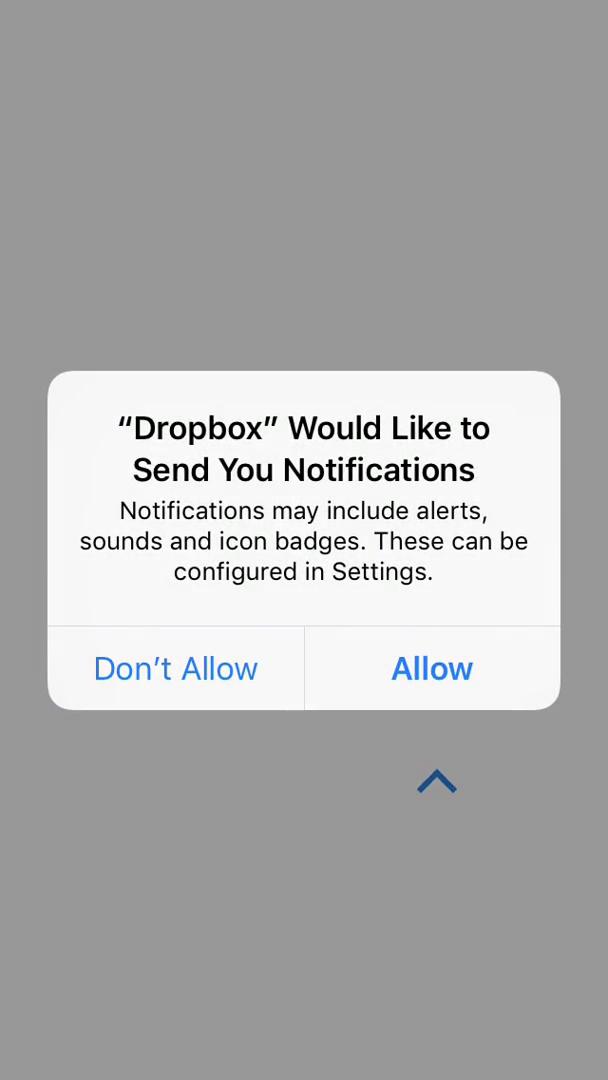
Enable notifications
this is title
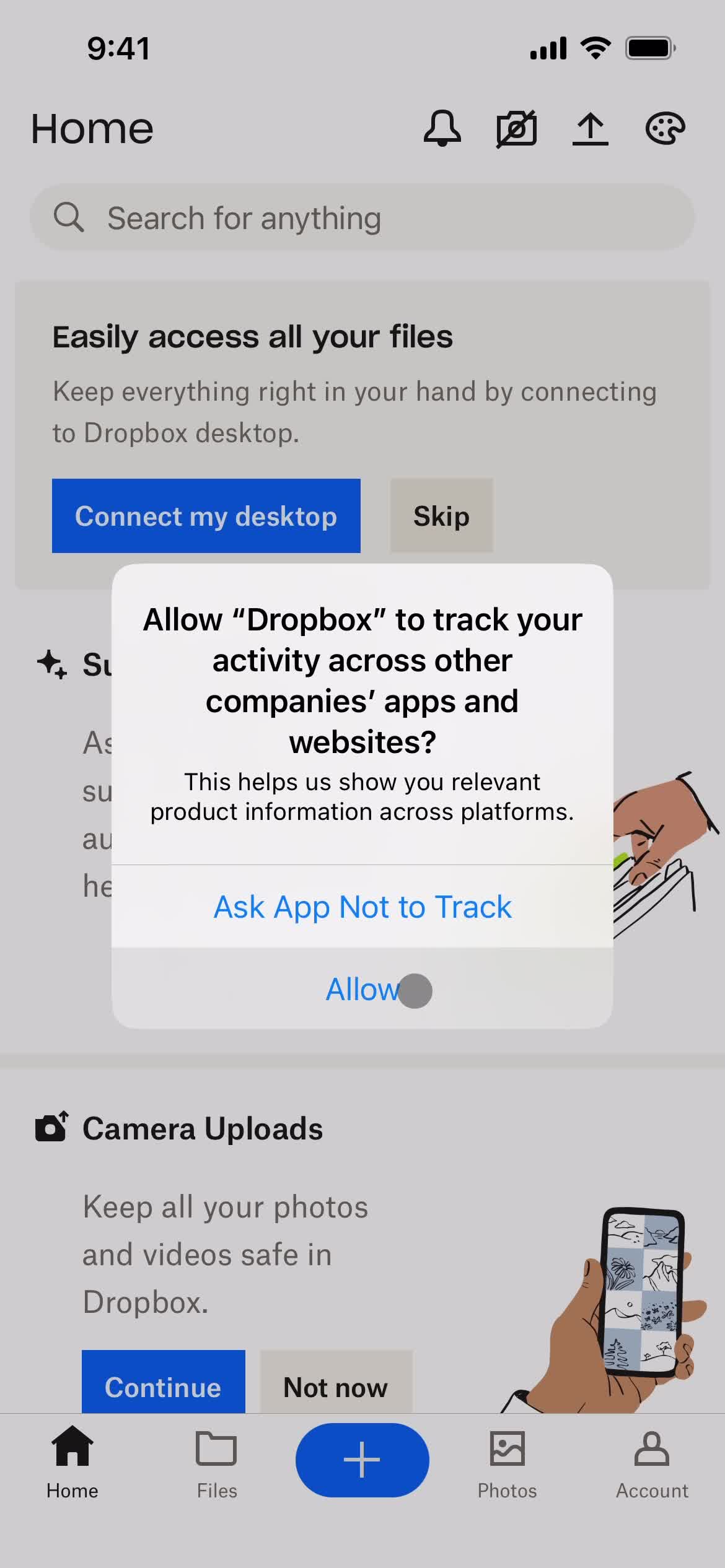
Enable tracking
this is title
Folder
this is title
Folder
this is title
Home
this is title
File upload
this is title
Guide tooltip
this is title
Photo
this is title
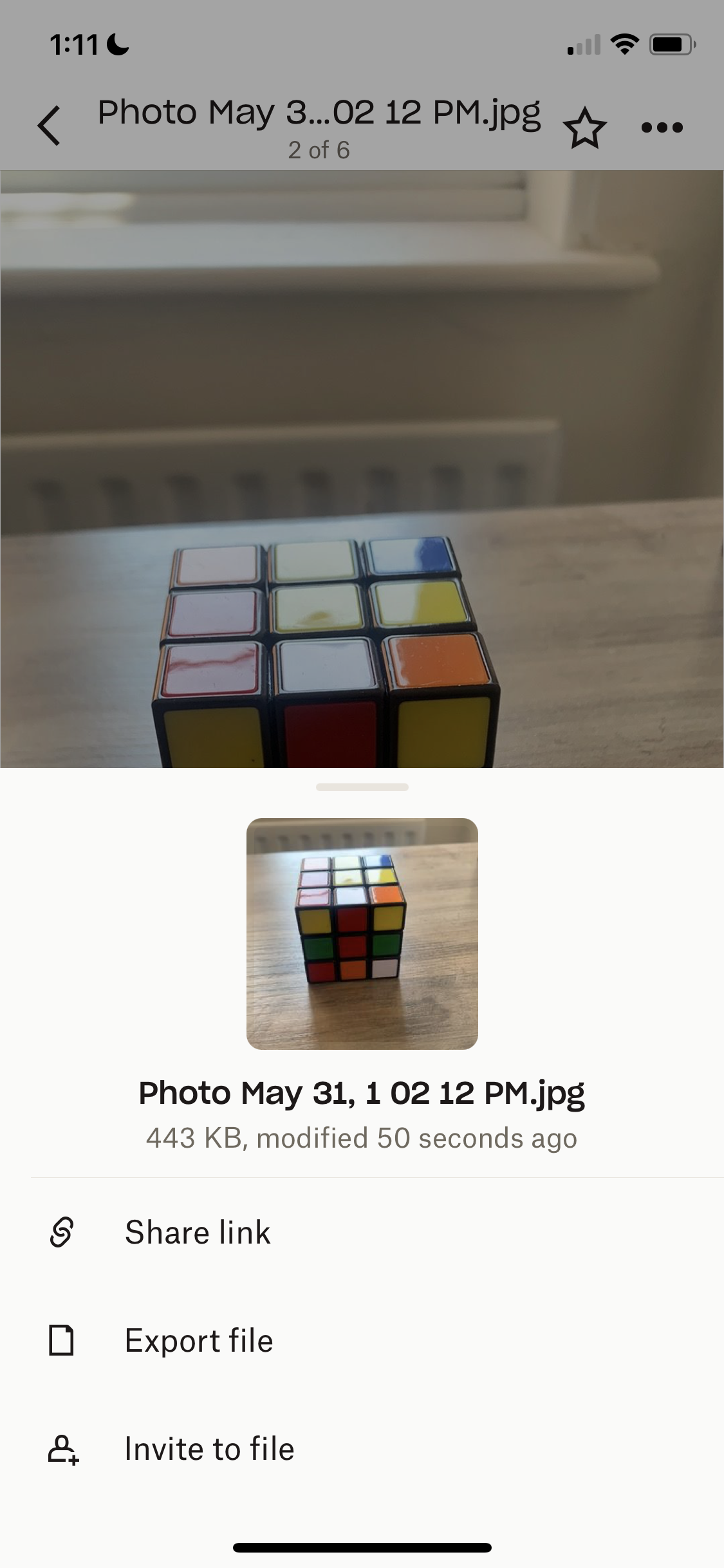
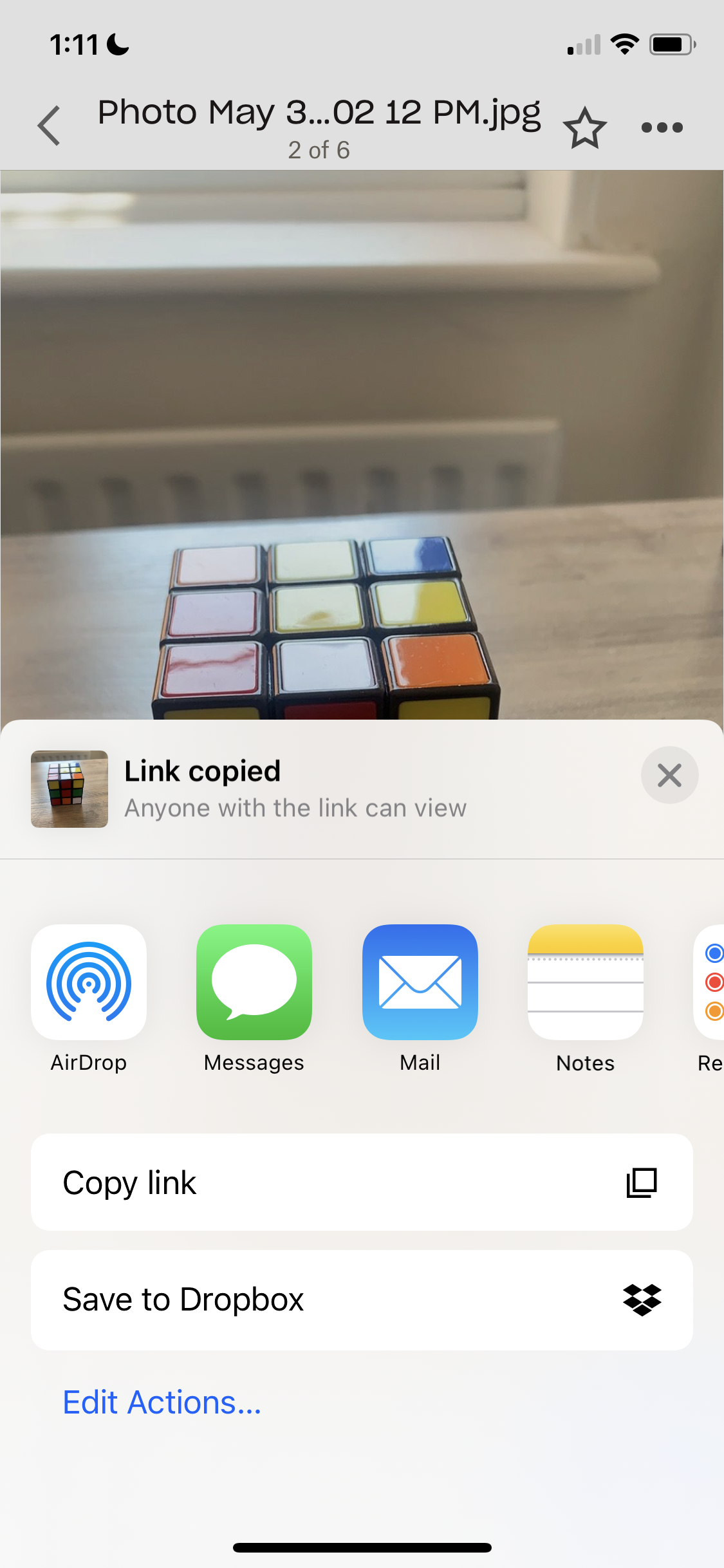
Share
this is title
Share
this is title
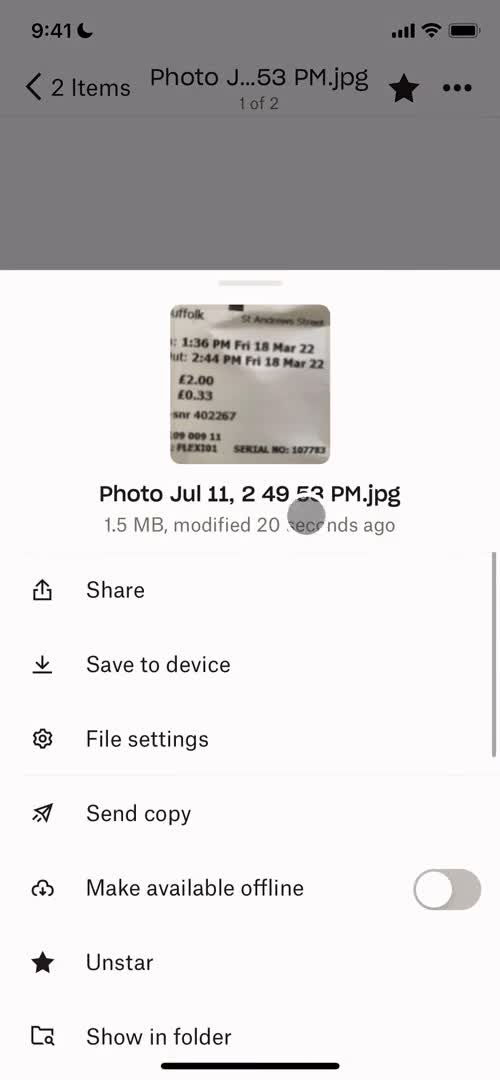
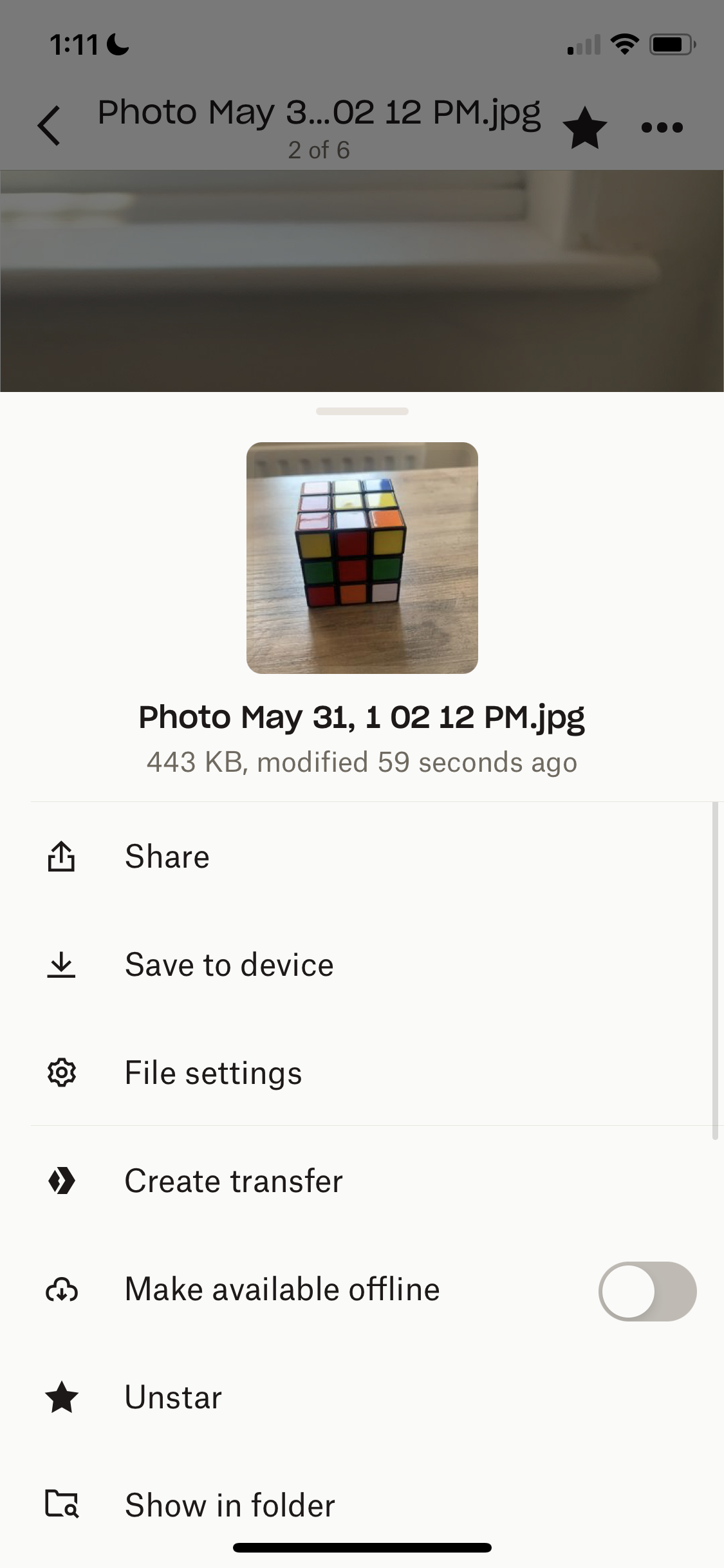
Action menu
this is title
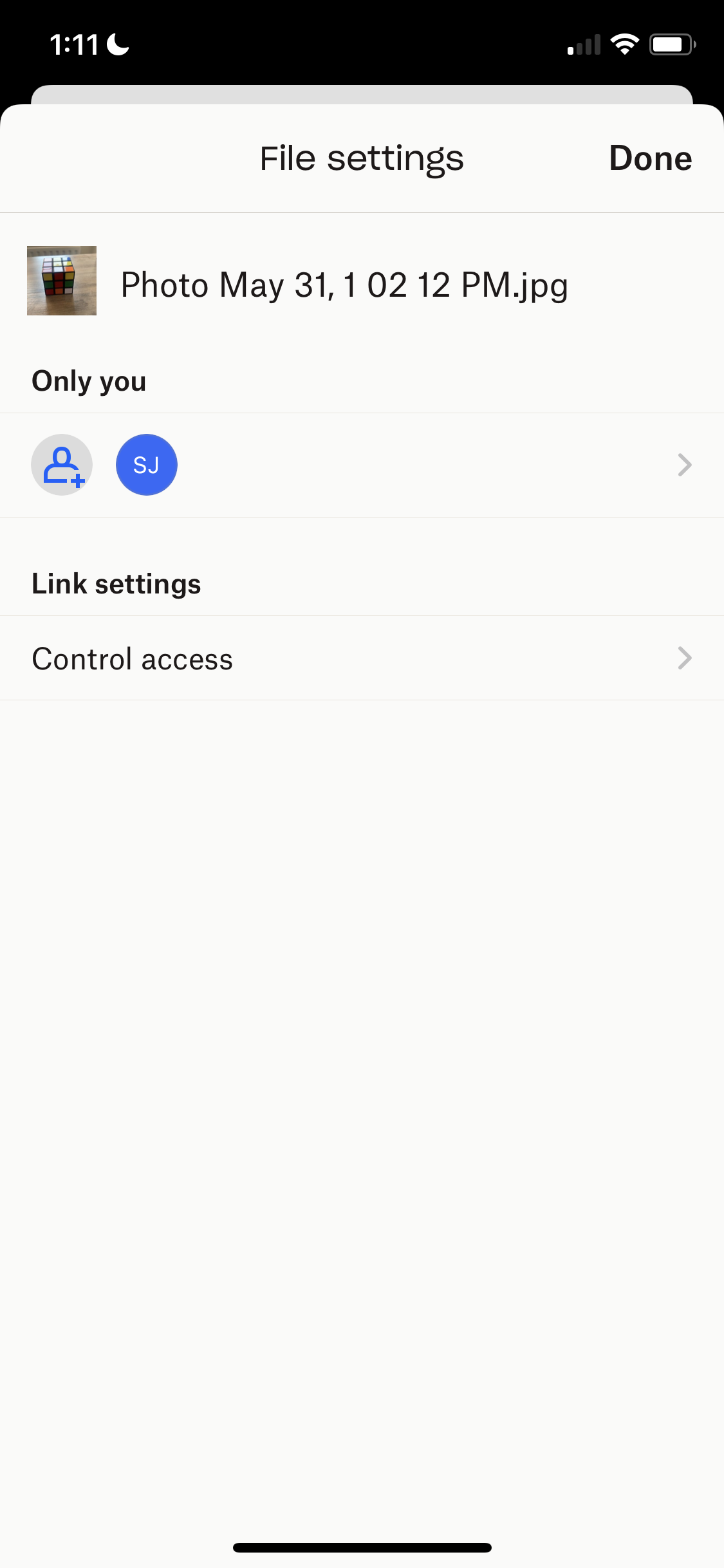
File settings
this is title
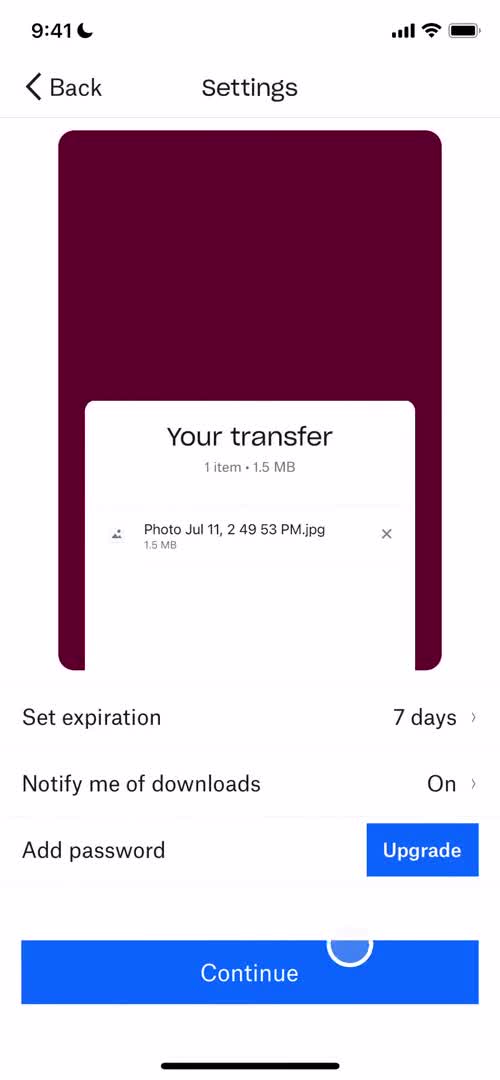
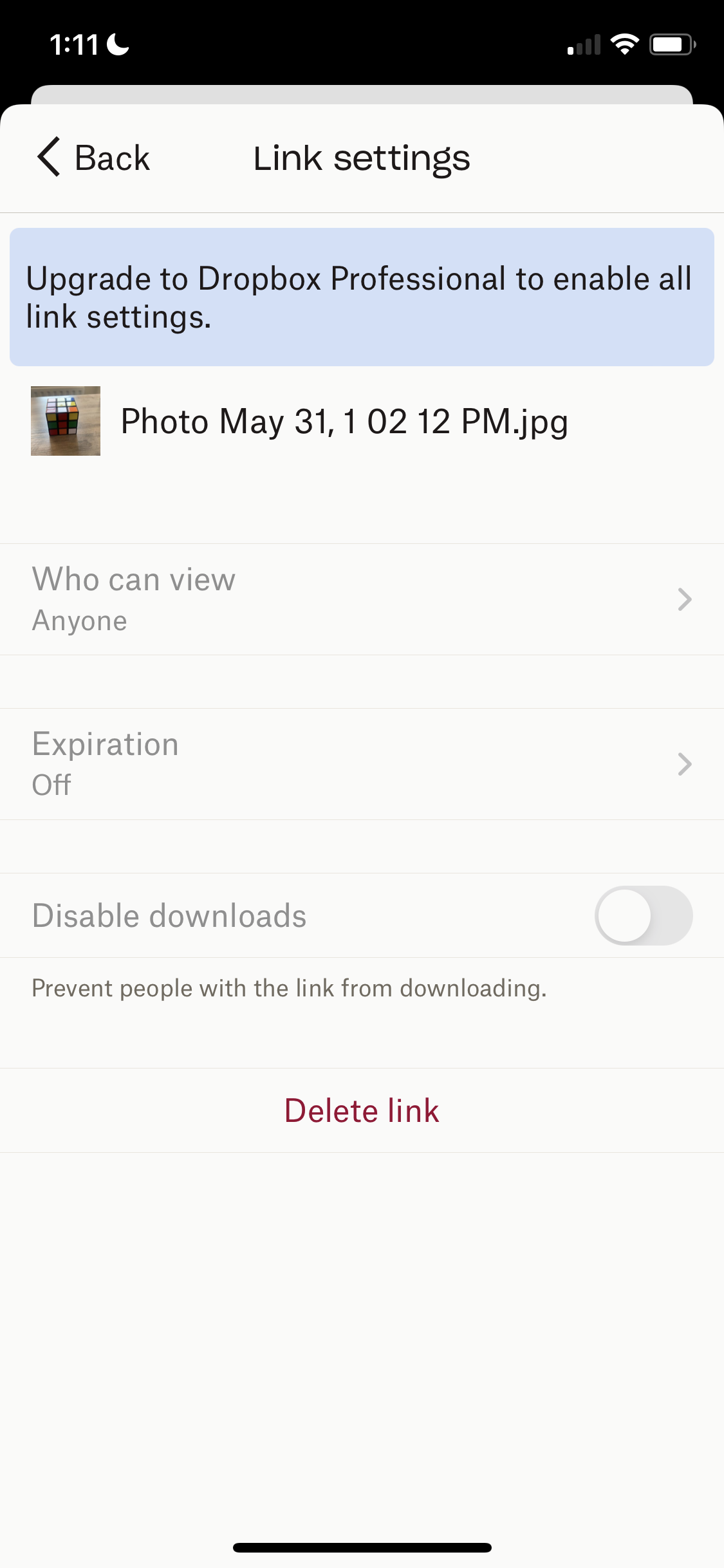
Link settings
this is title
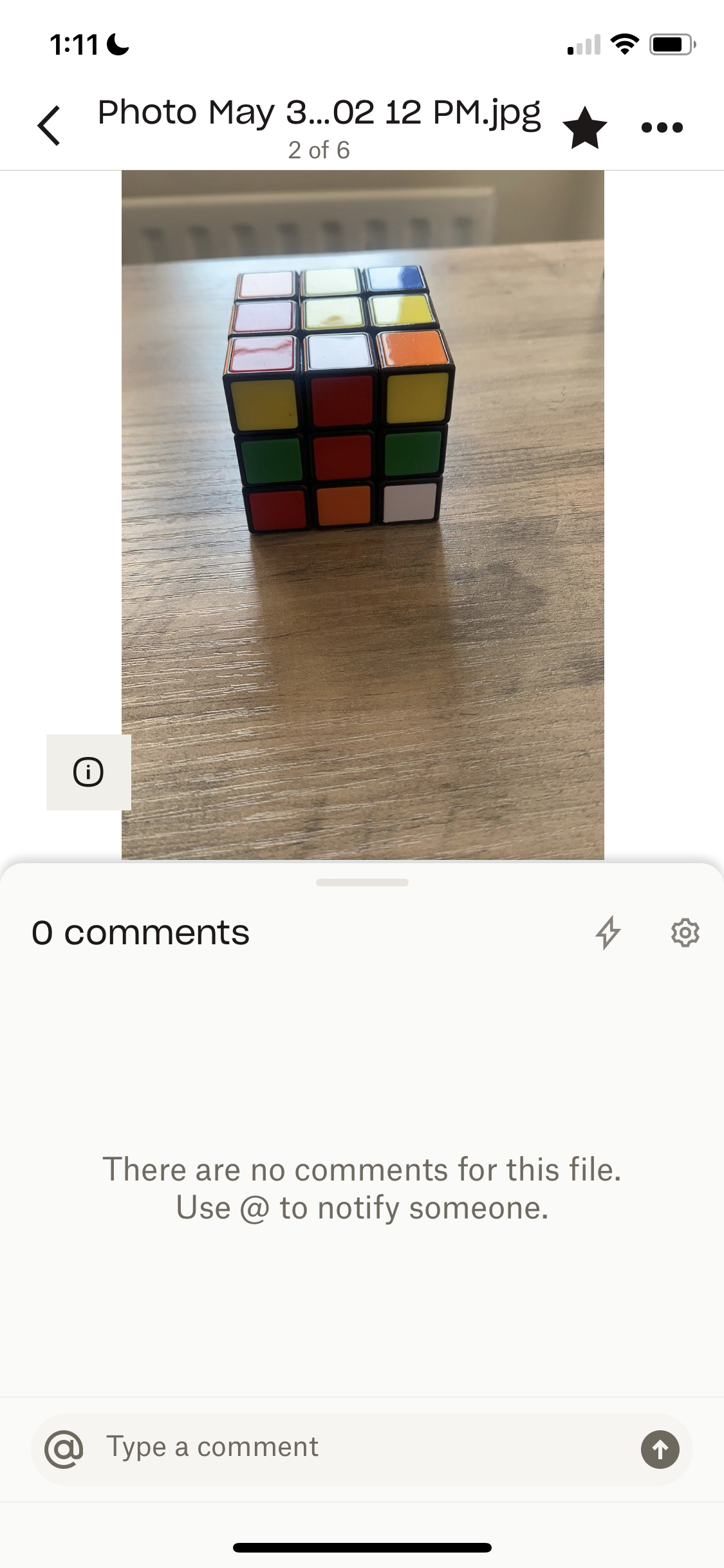
Comments
this is title
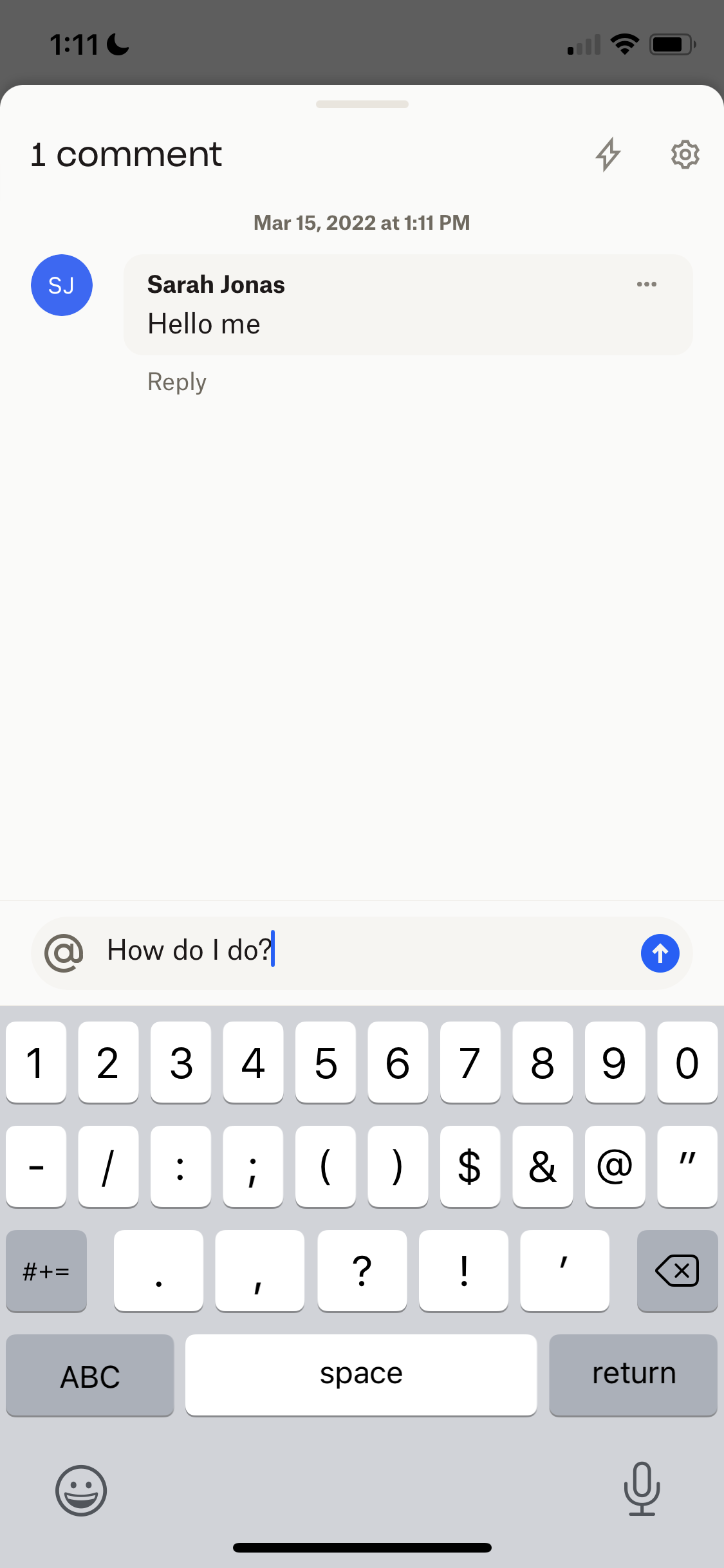
Comments
this is title
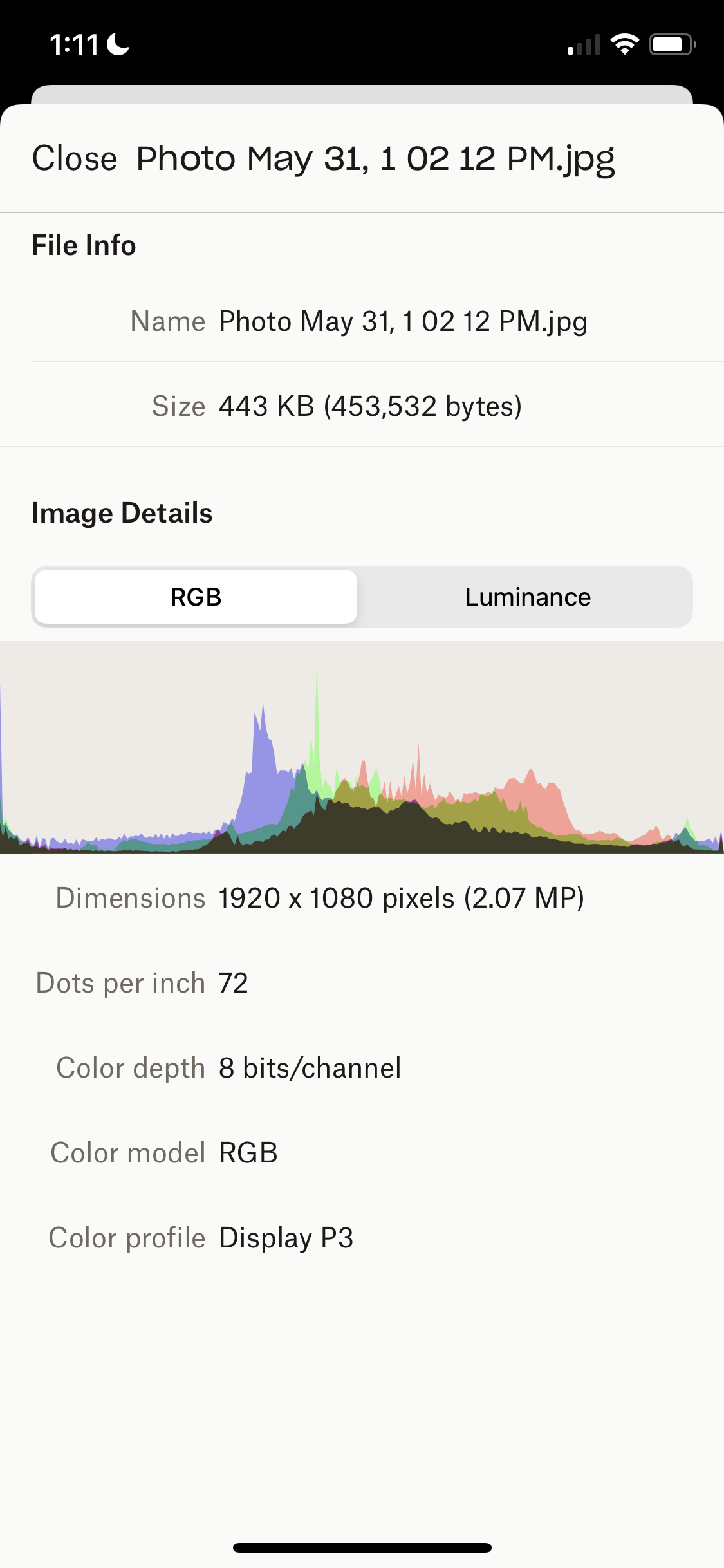
Photo details
this is title
Create folder
this is title
Folder
this is title
Home
this is title
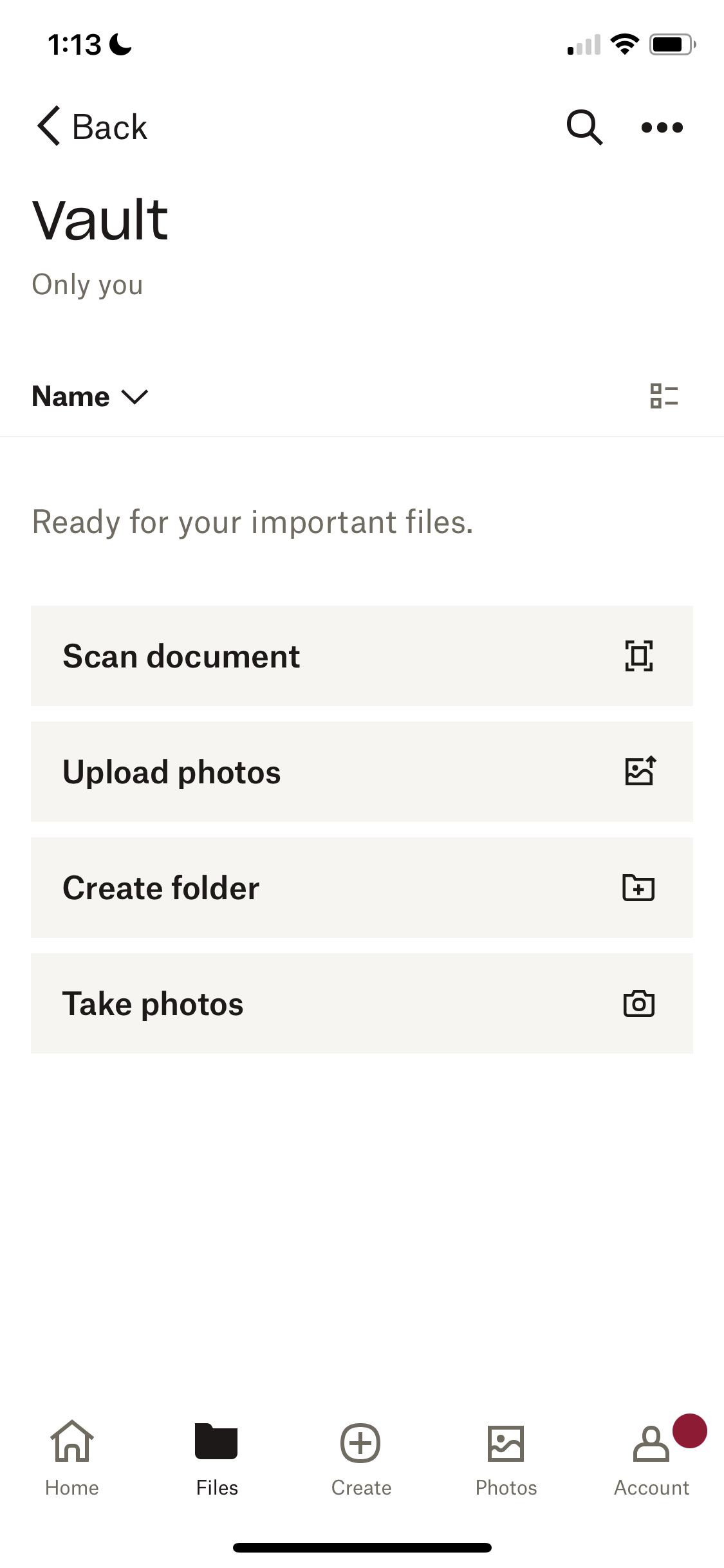
Create vault
this is title
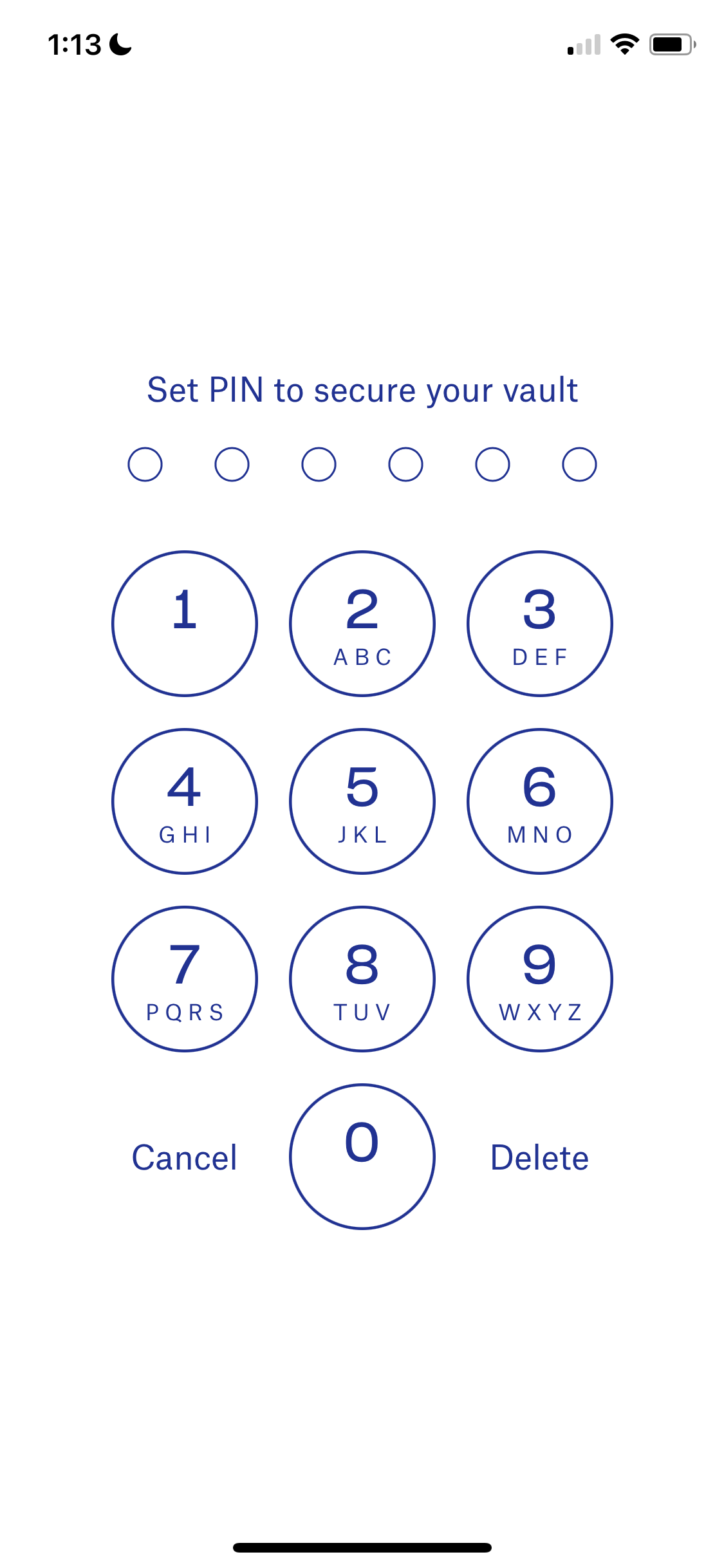
Set PIN
this is title
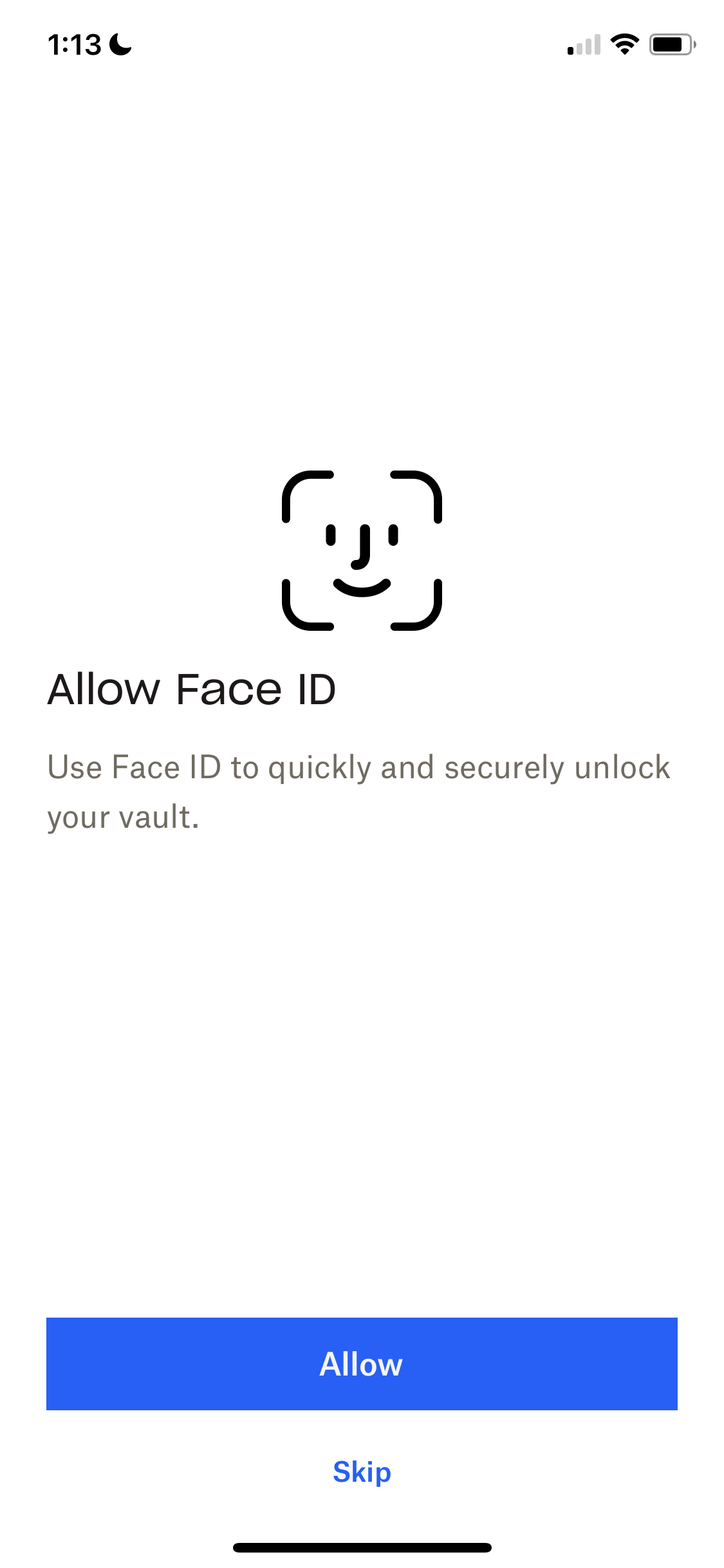
Enable Face ID
this is title
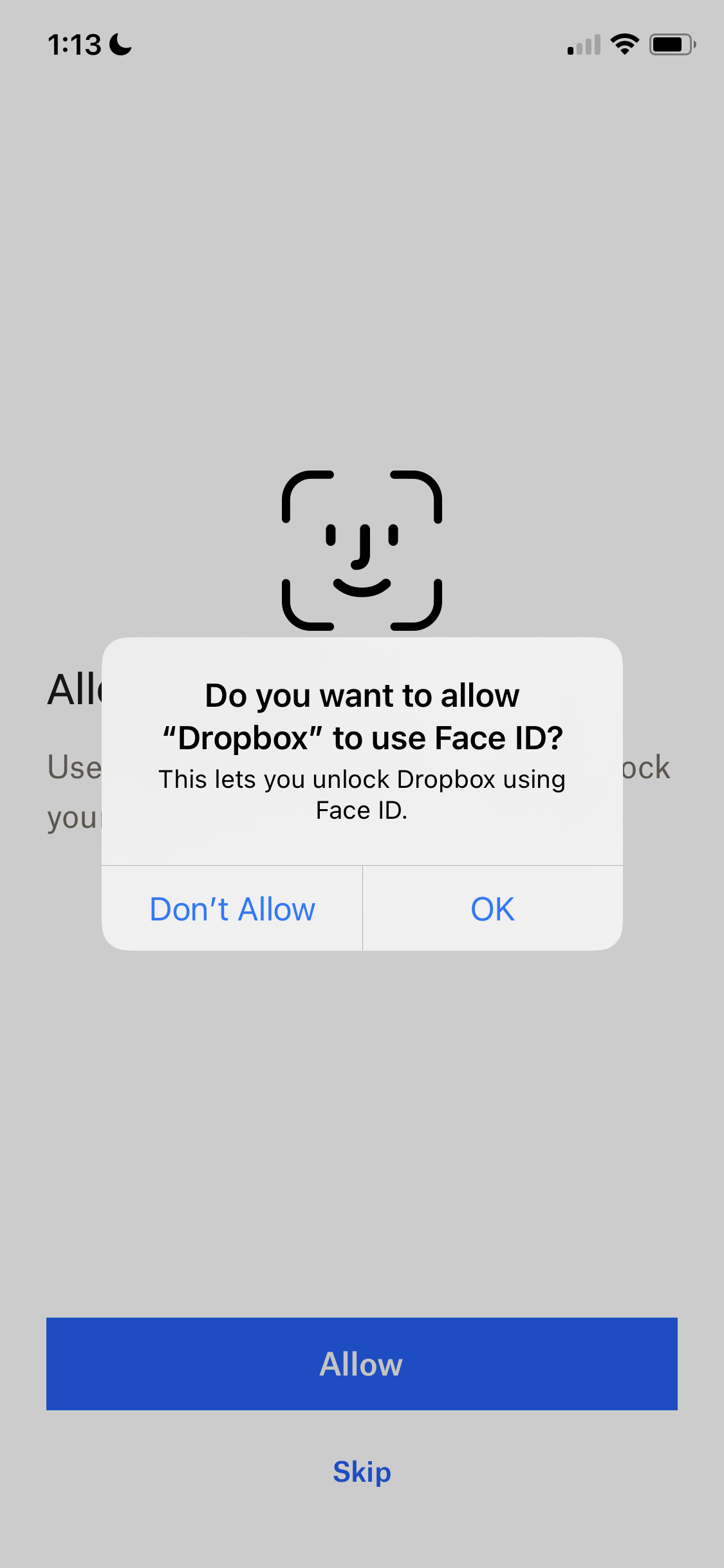
Enable Face ID
this is title
Folder
this is title
Home
this is title
Home
this is title
Action menu
this is title
Move item
this is title
Select folder
this is title
Select folder
this is title
Move item
this is title
Create menu
this is title
Enable microphone
this is title
Record audio
this is title
Select folder
this is title
Folder
this is title
Photos
this is title
Account
this is title
Settings
this is title
Notifications
this is title
Search
this is title
Search results
this is title
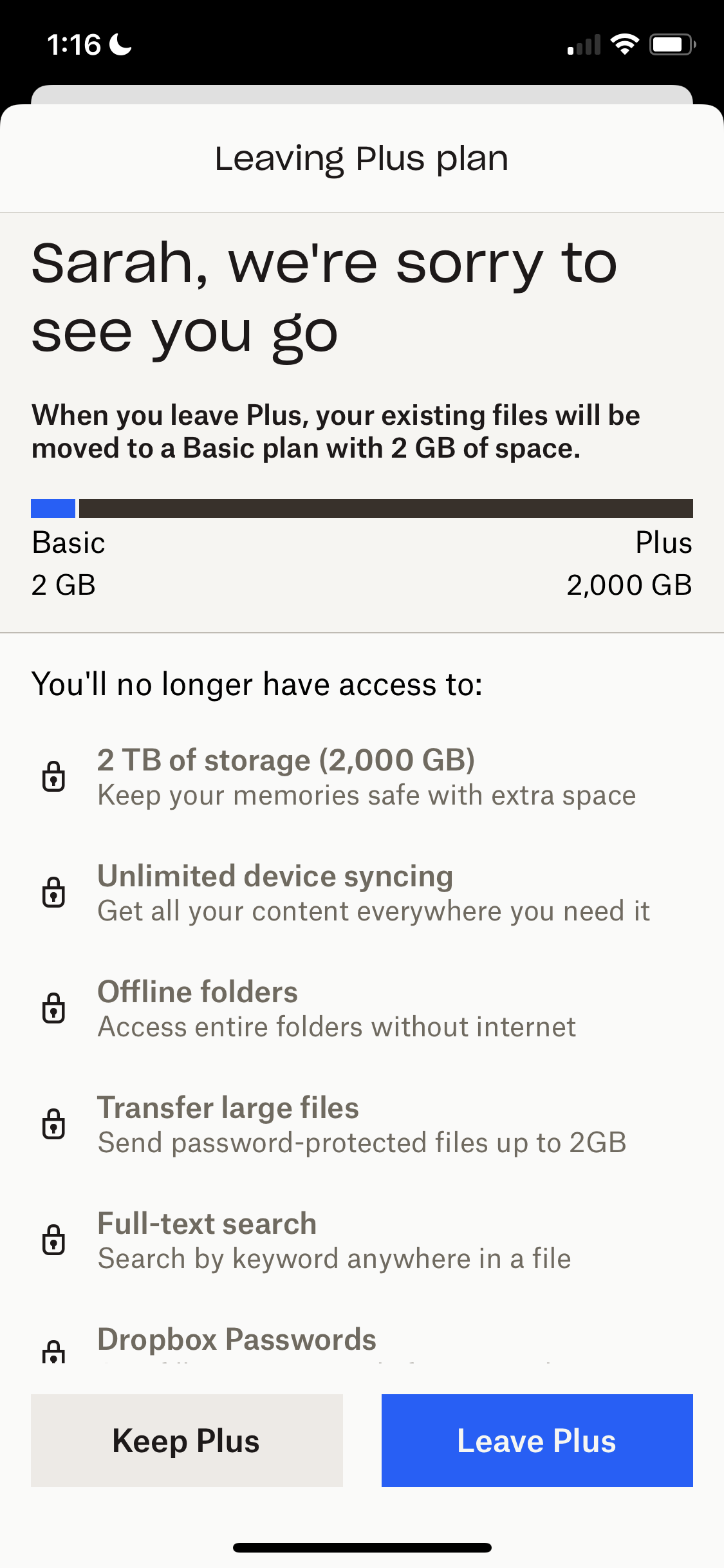
Cancel subscription
this is title
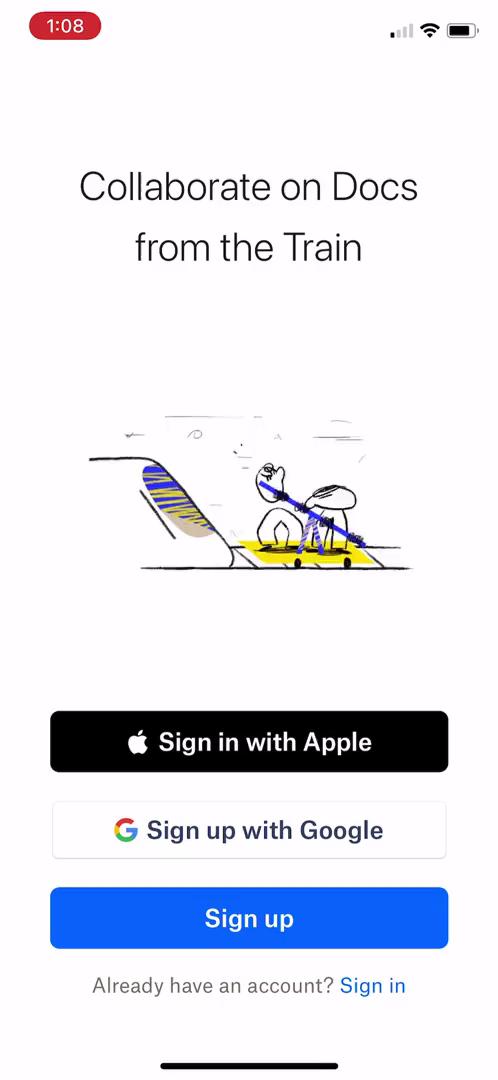
Start screen
this is title
Landing page
this is title
For teams
this is title
For Individuals
this is title
Home
this is title
Account
this is title
Settings
this is title
Submit feedback
this is title
this is title
Sign in
this is title
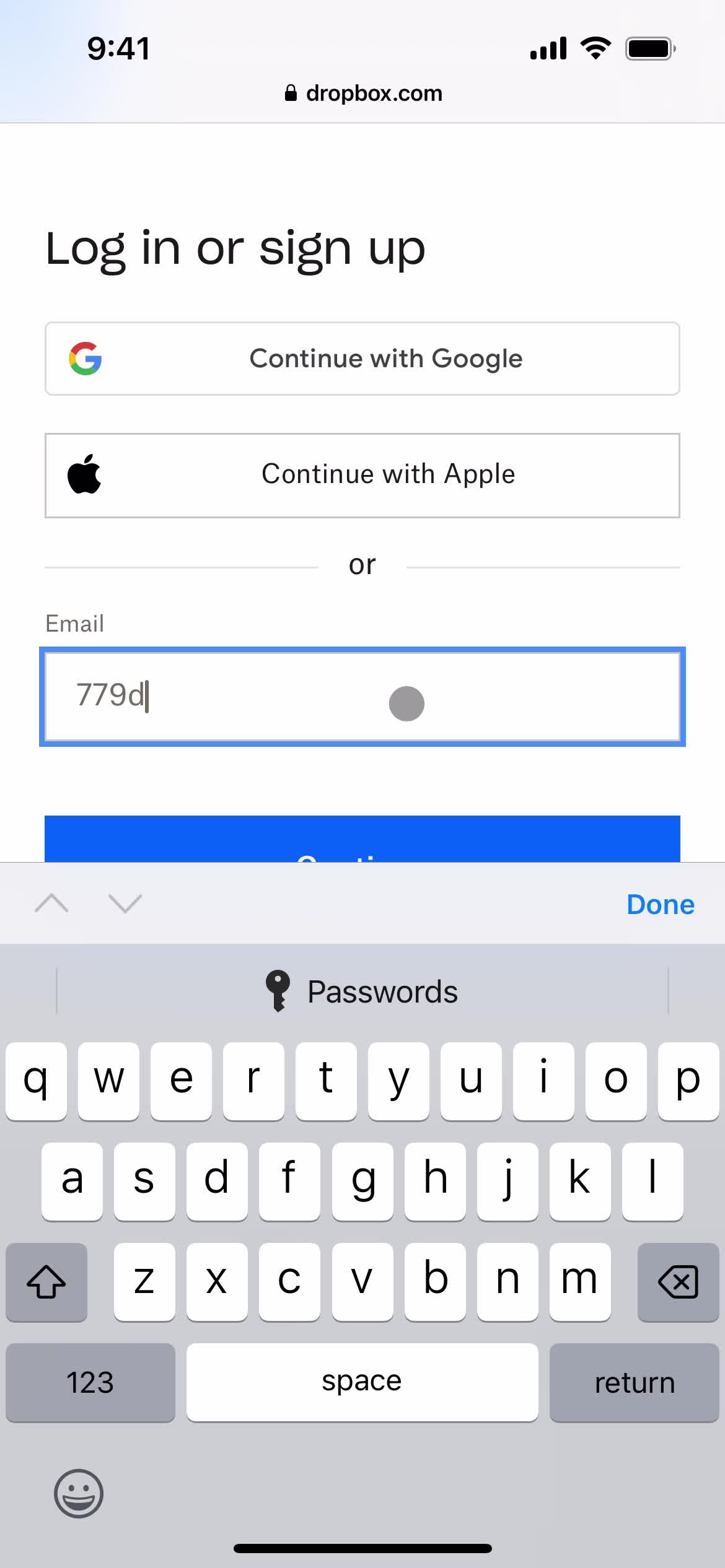
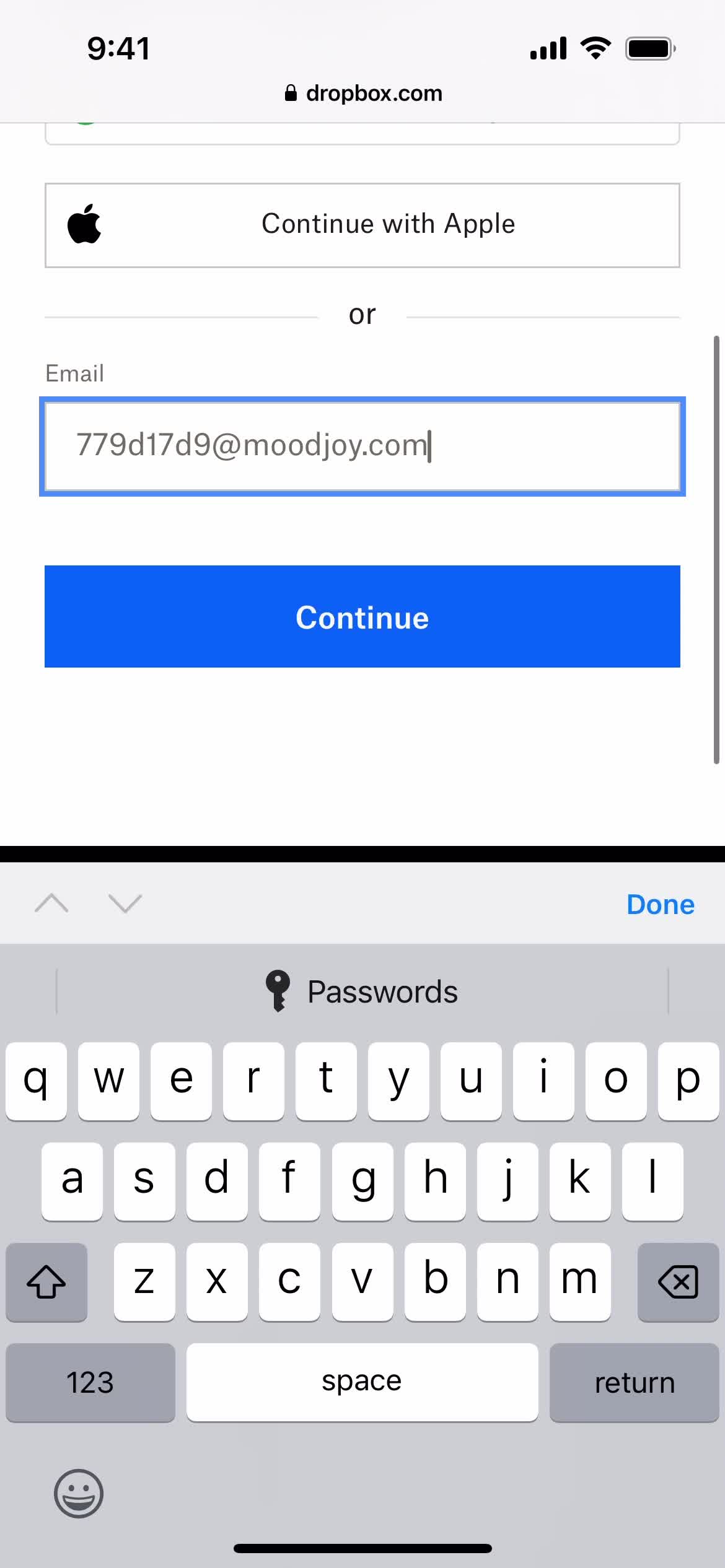
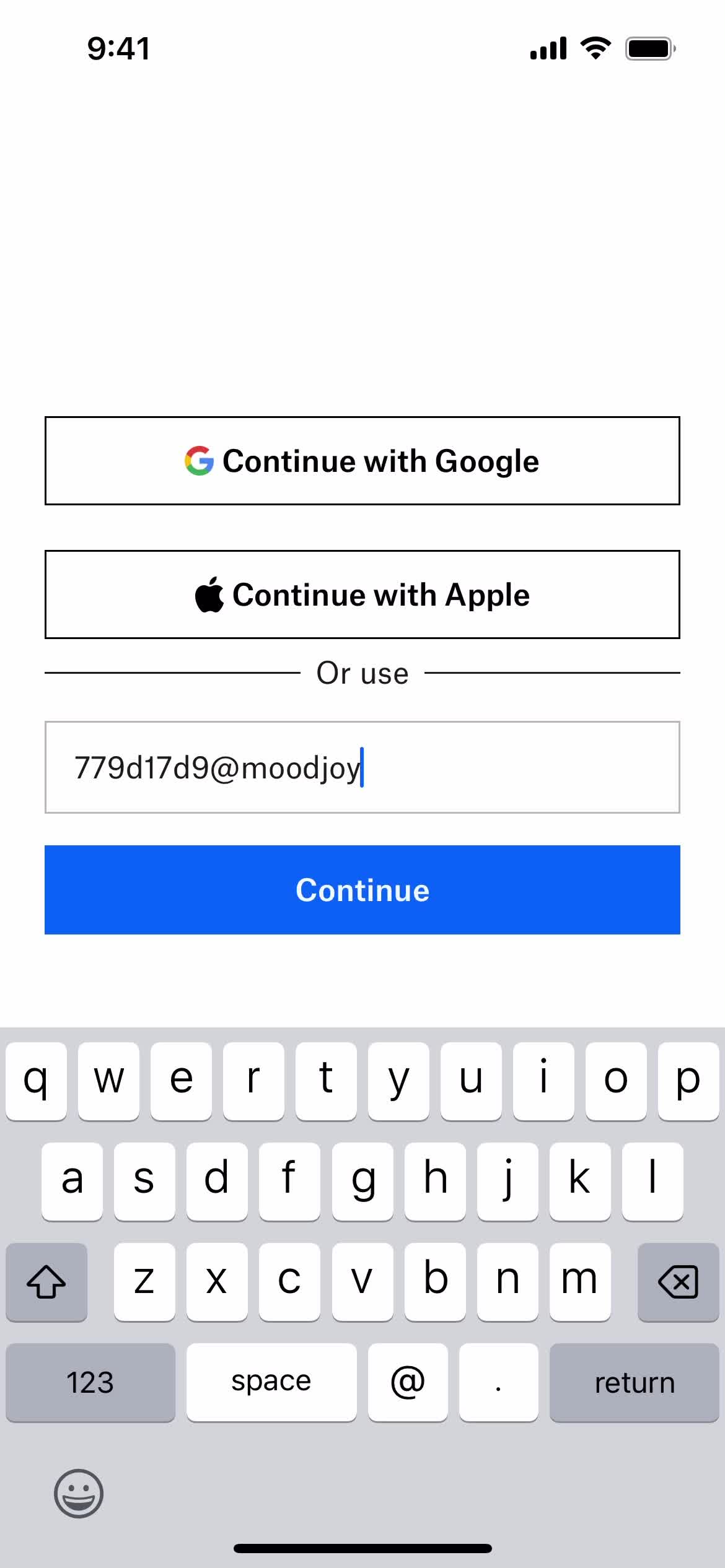
Enter email
this is title
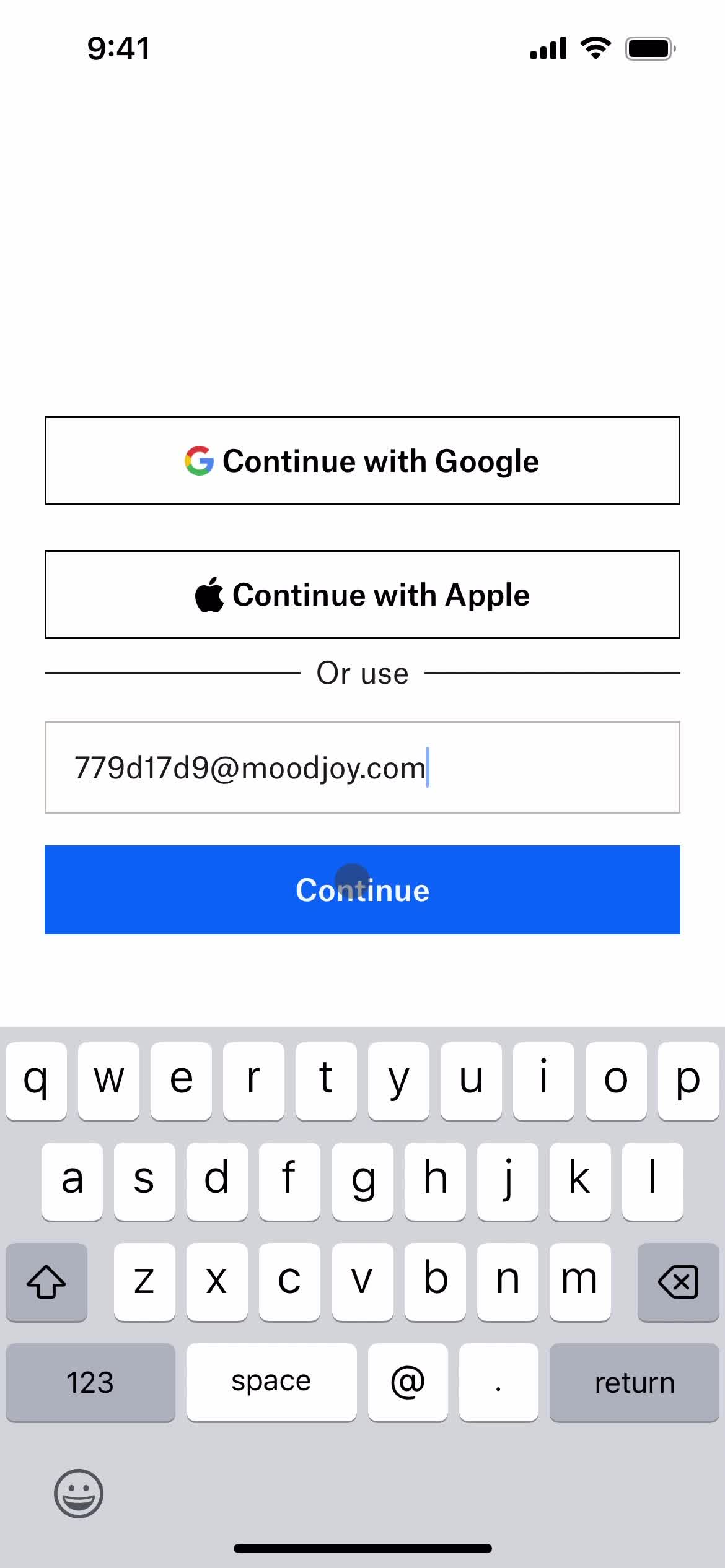
Continue
this is title
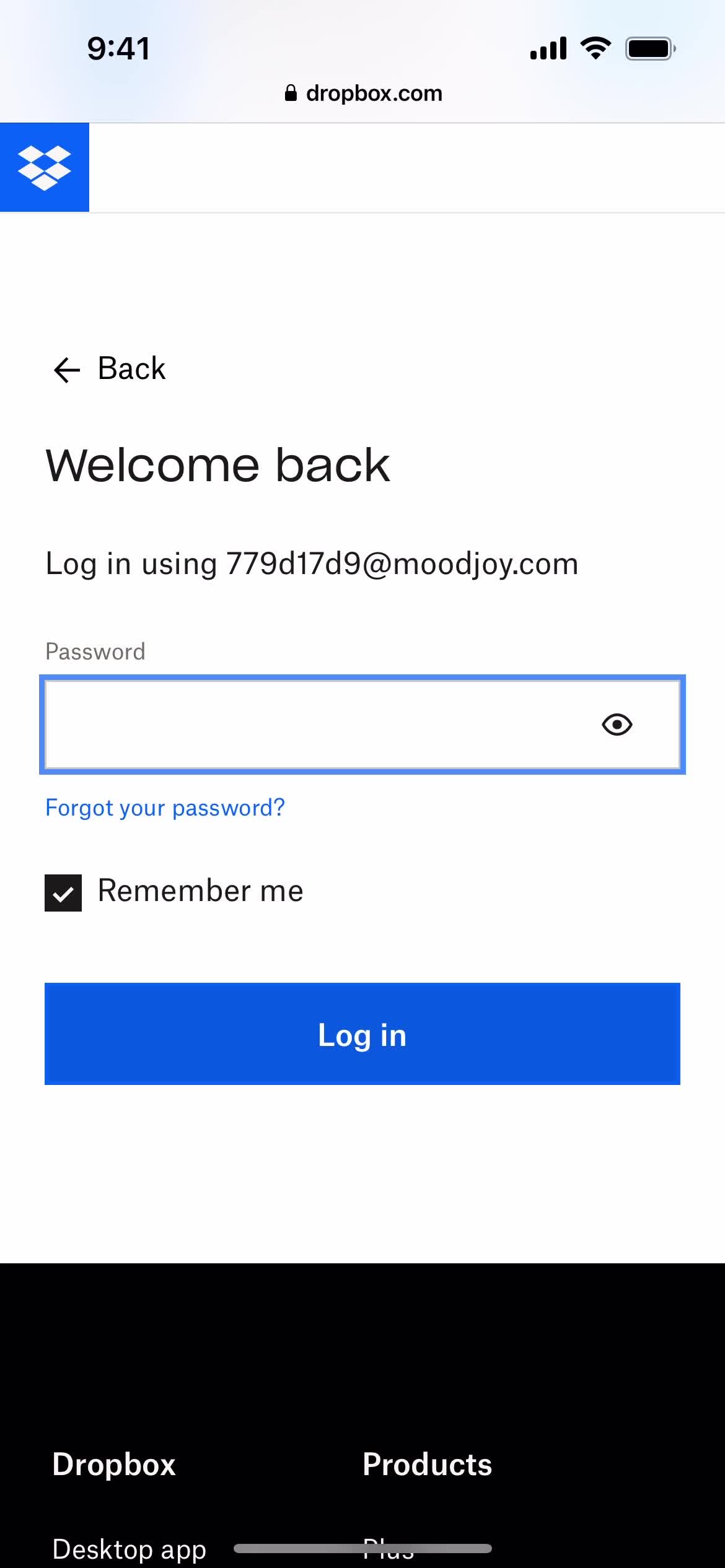
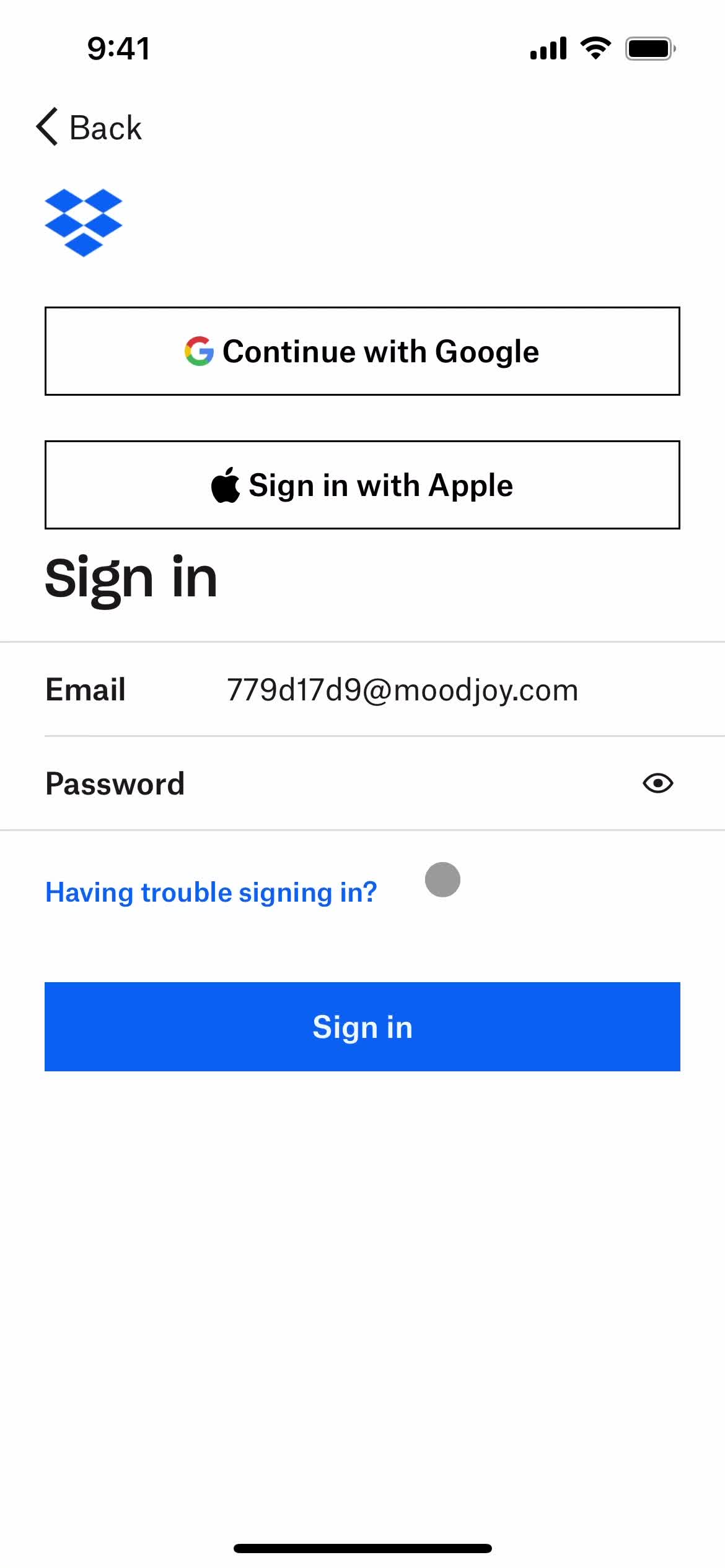
Enter password
this is title
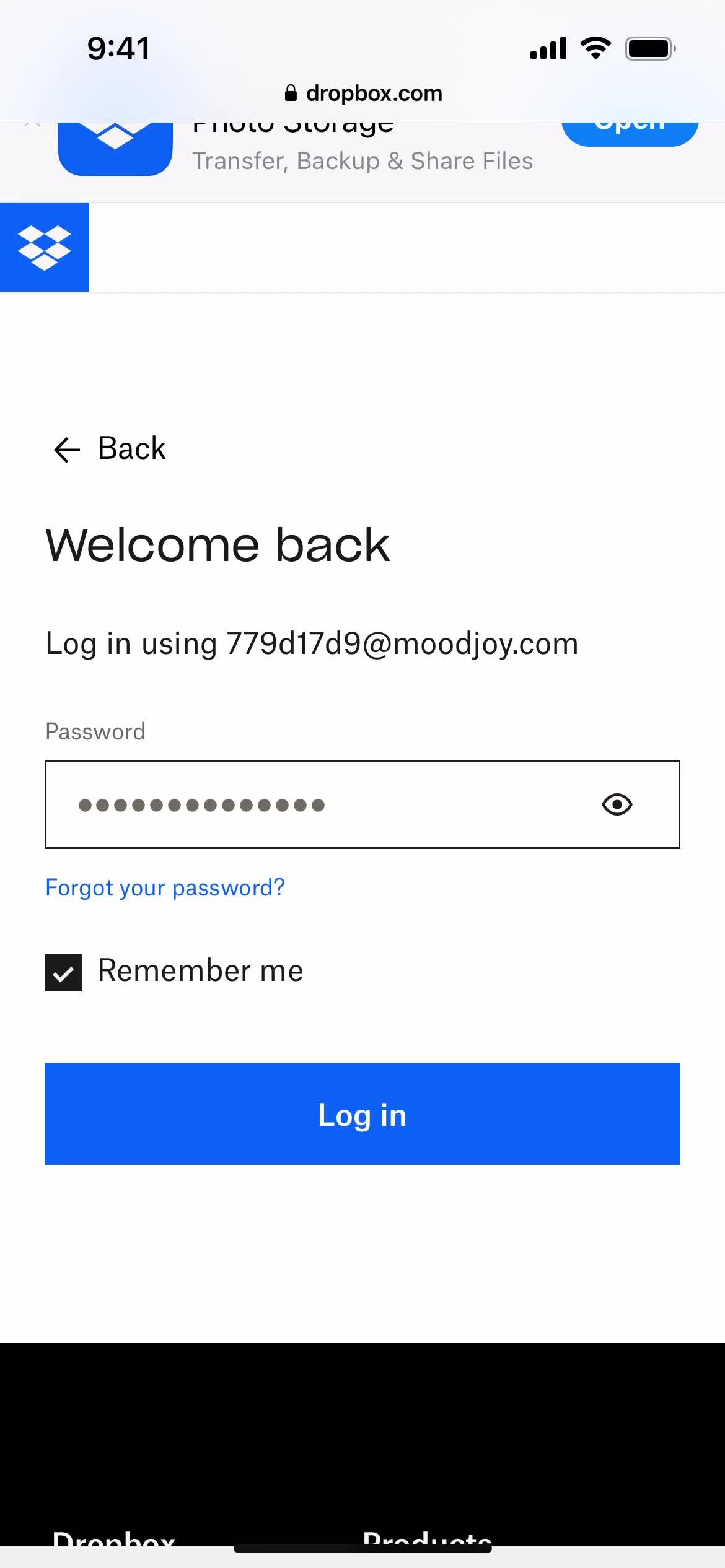
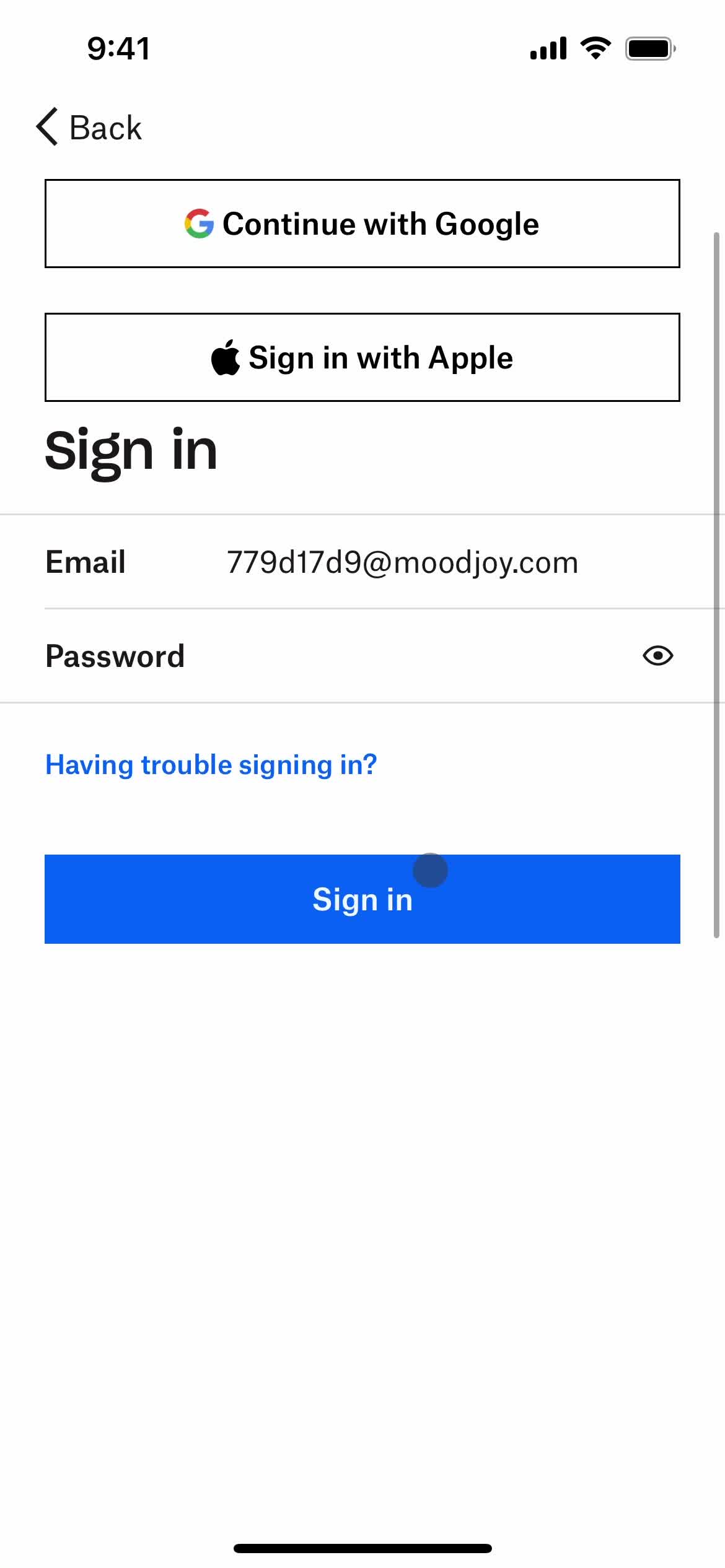
Sign in
this is title
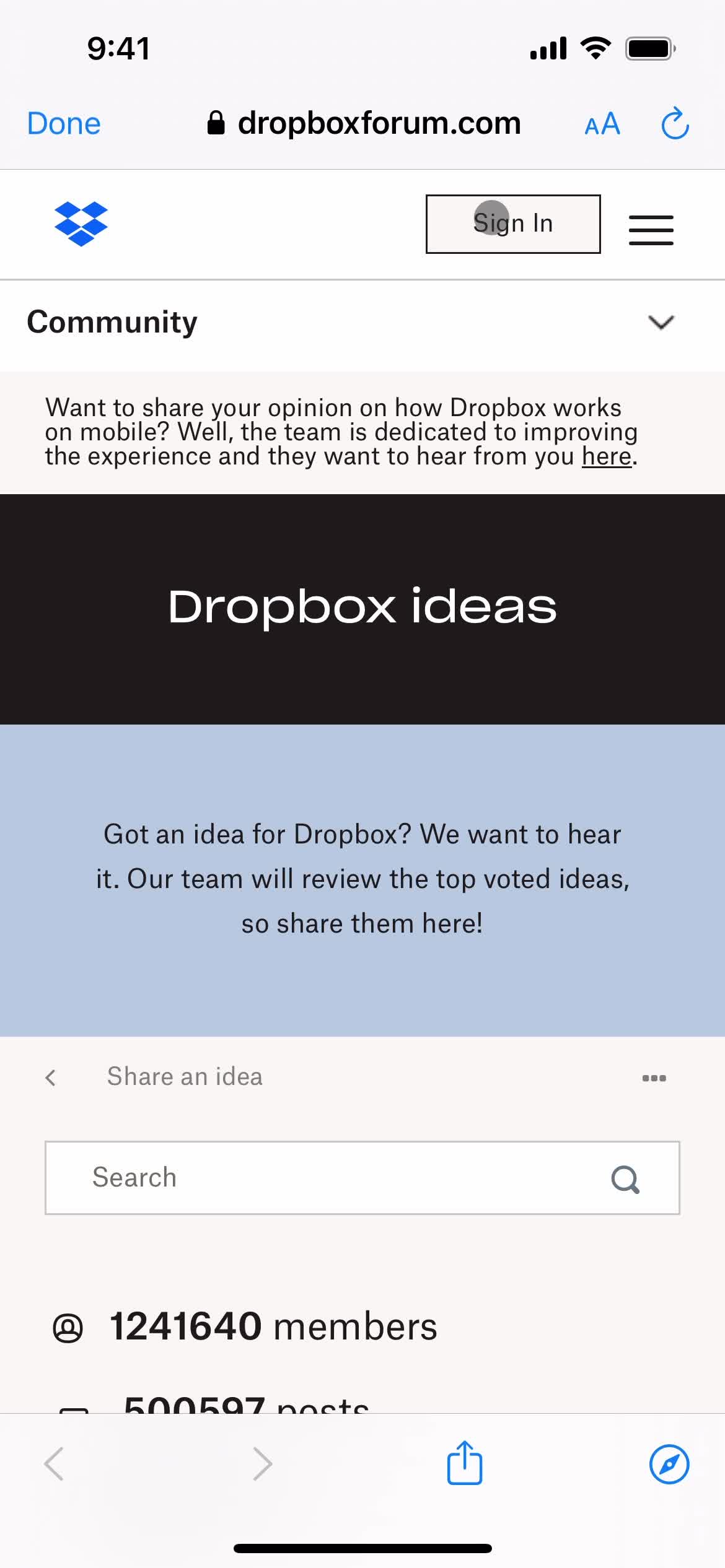
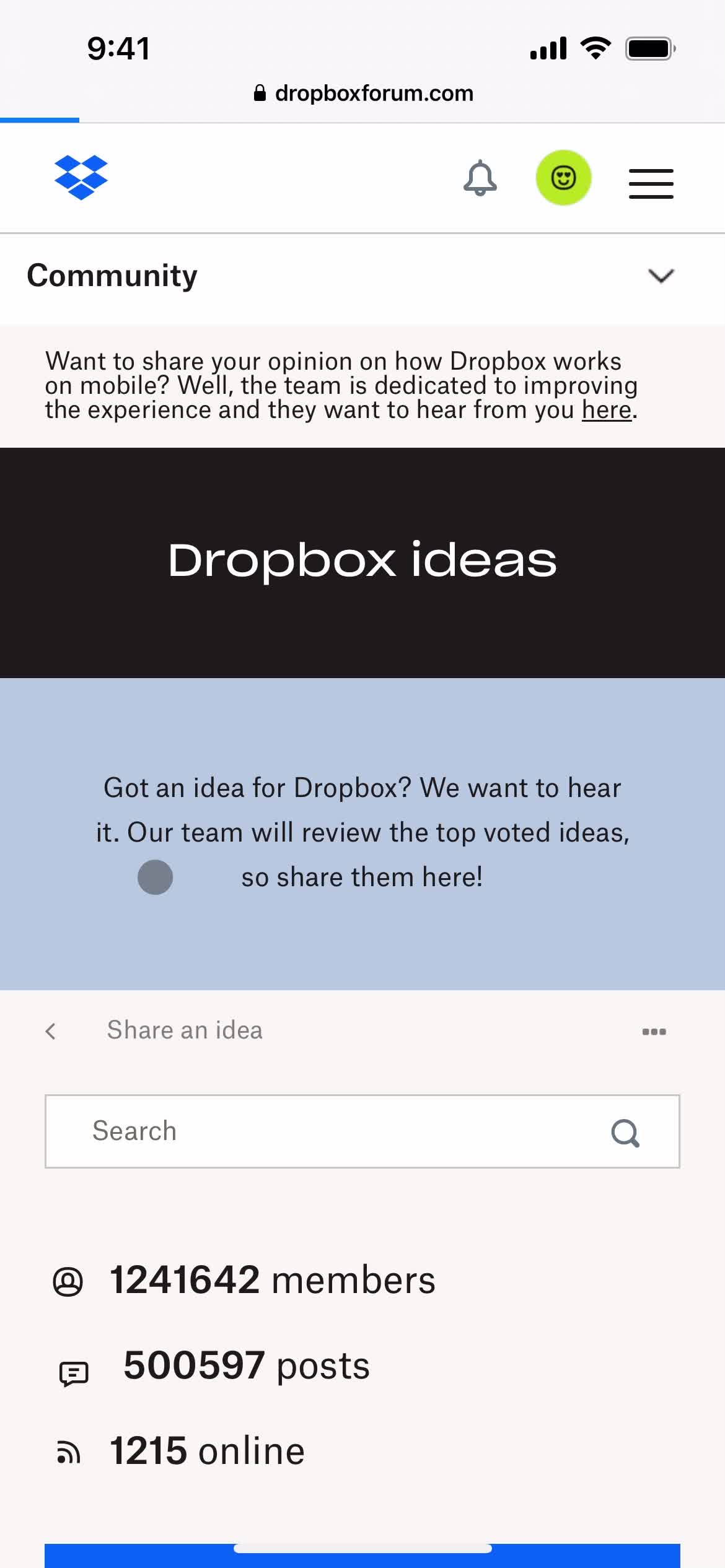
Community
this is title
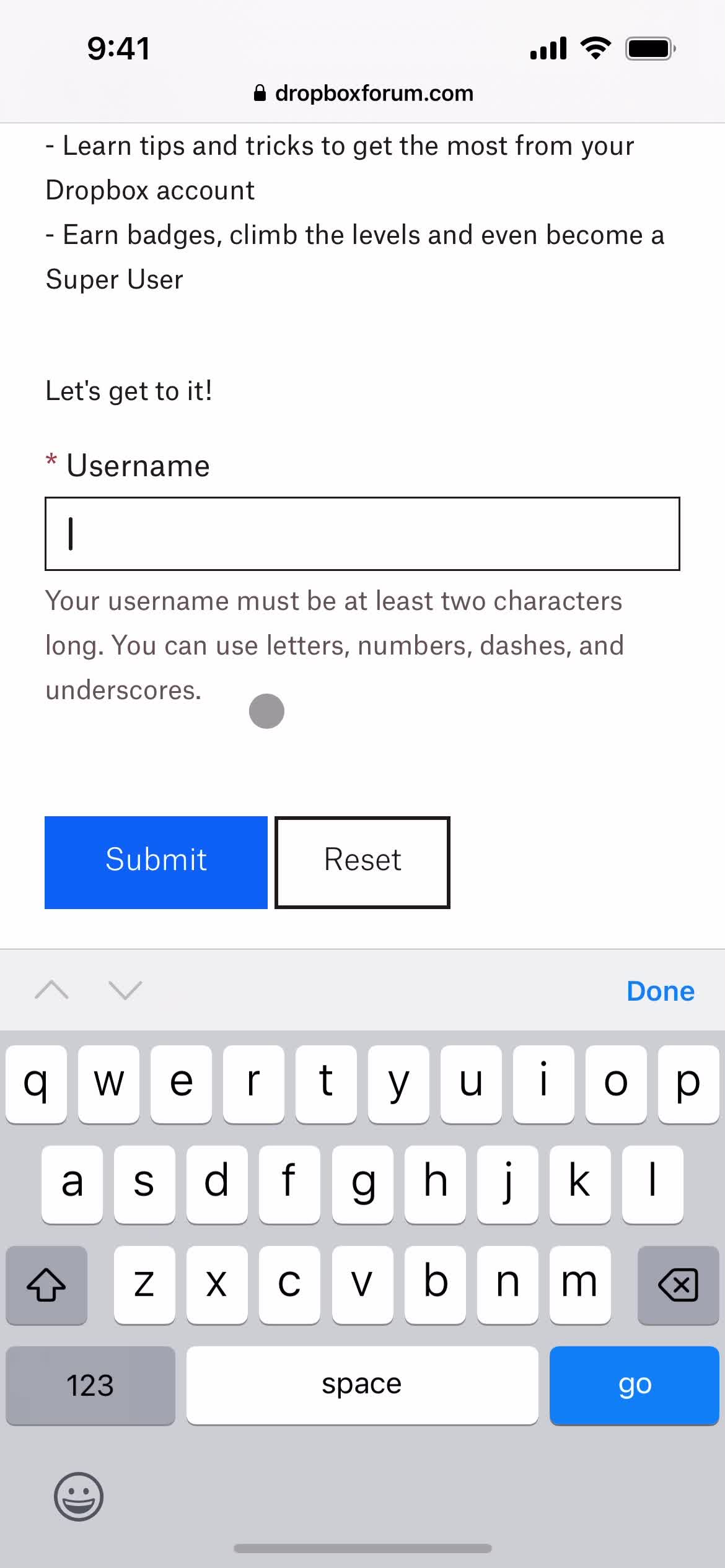
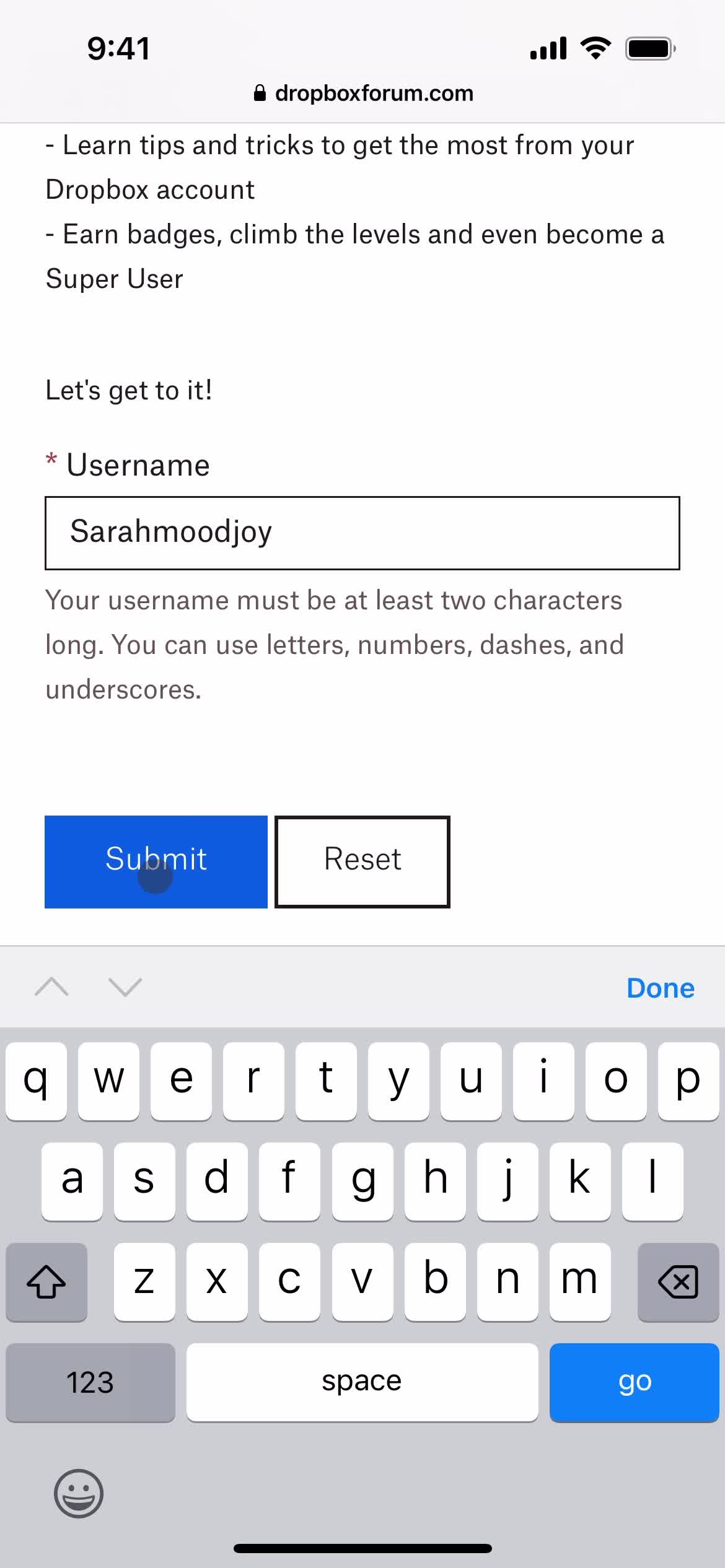
Set username
this is title
Submit
this is title
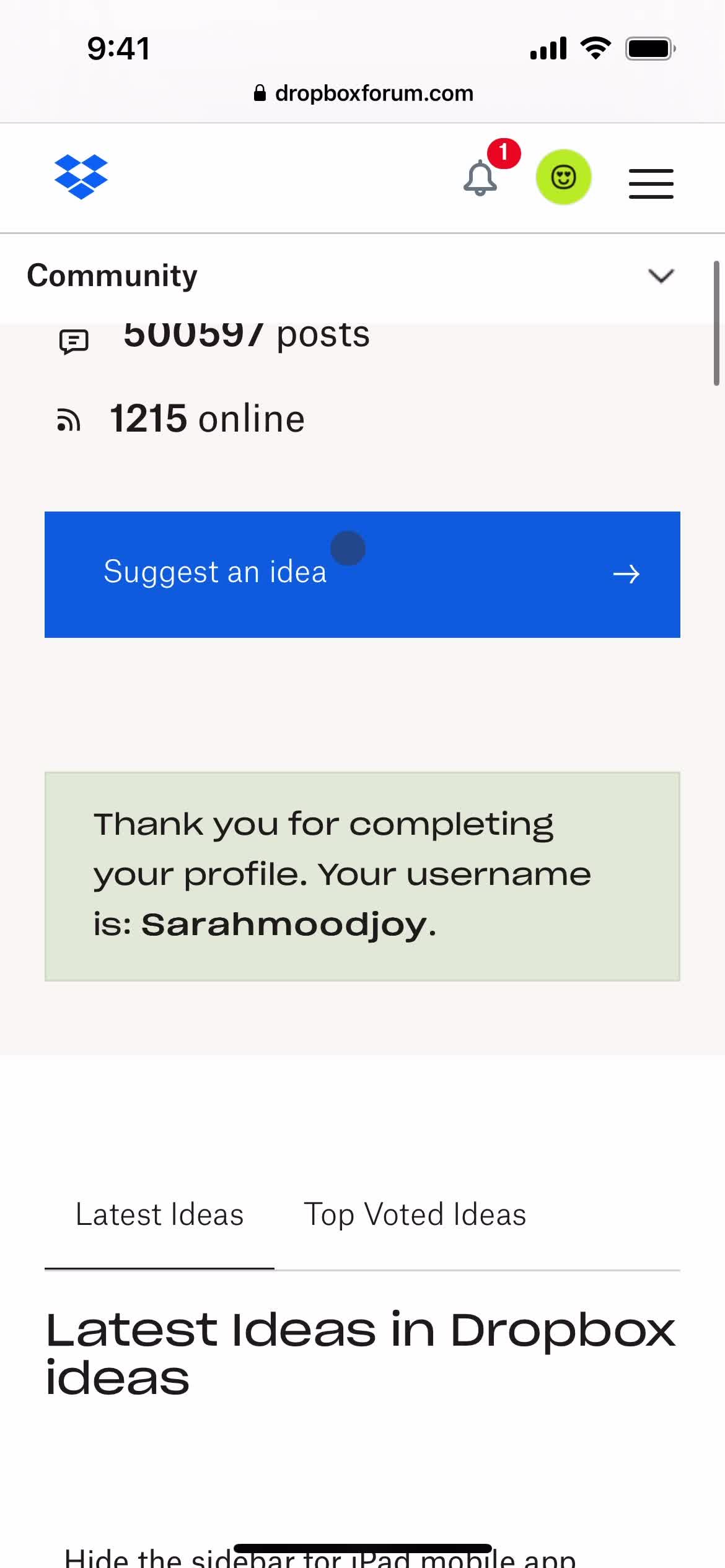
Community
this is title
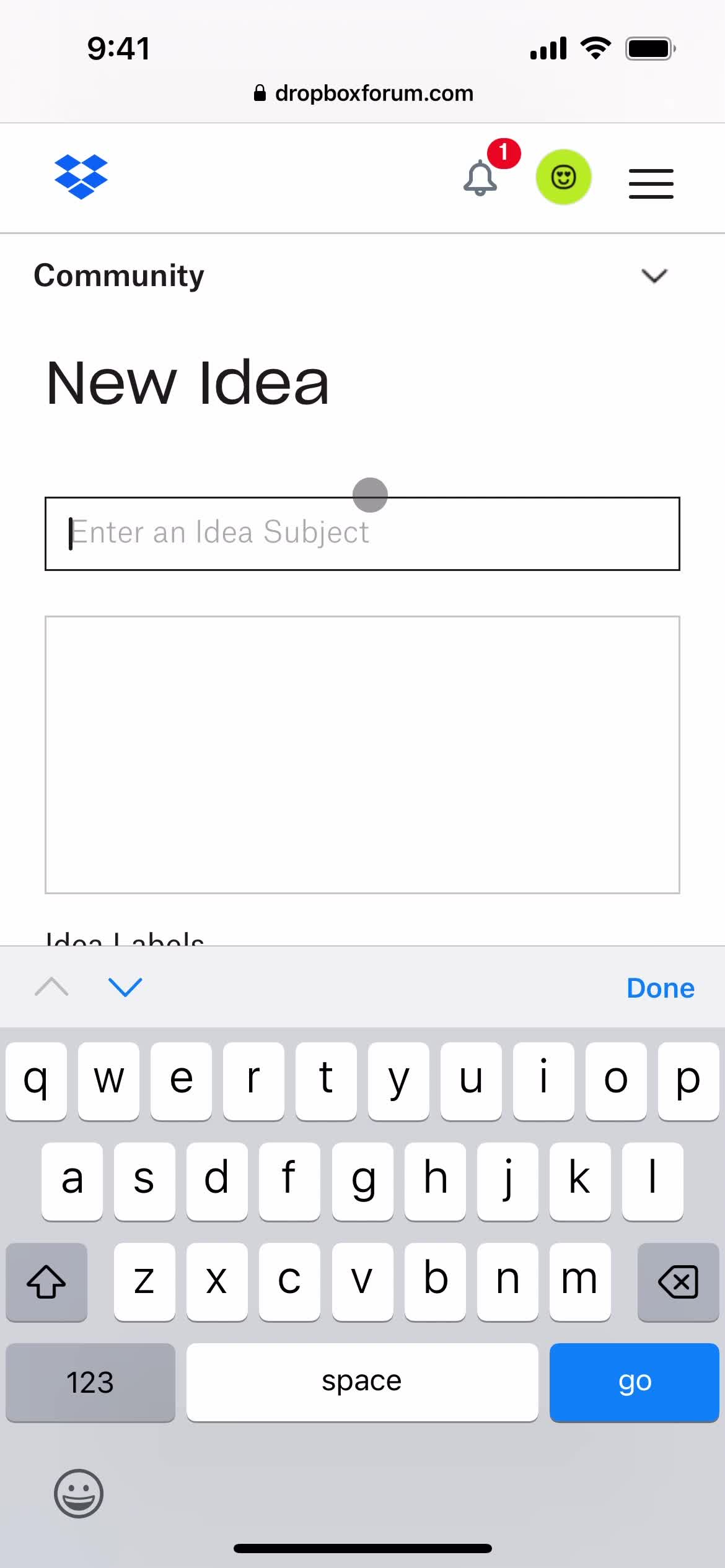
Submit feedback
this is title
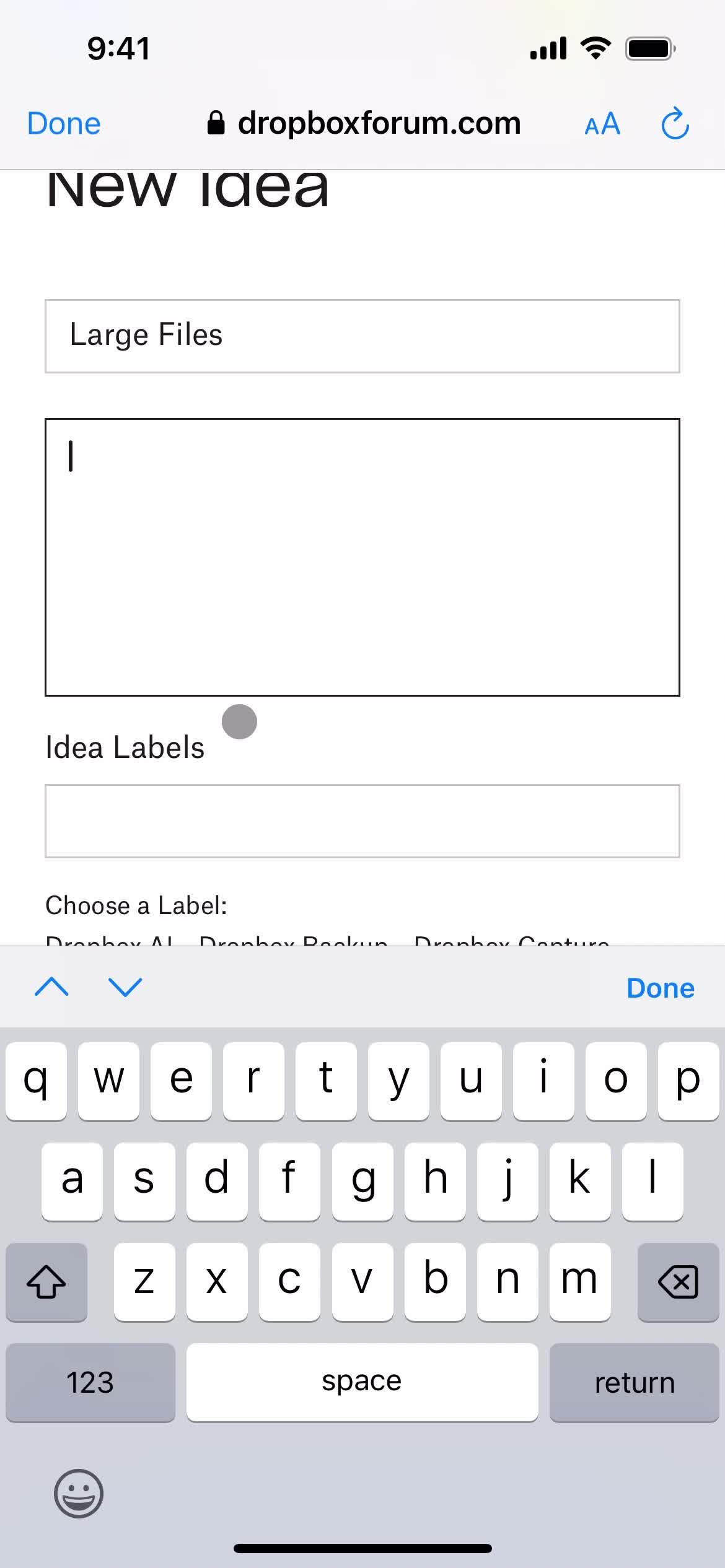
Add subject
this is title
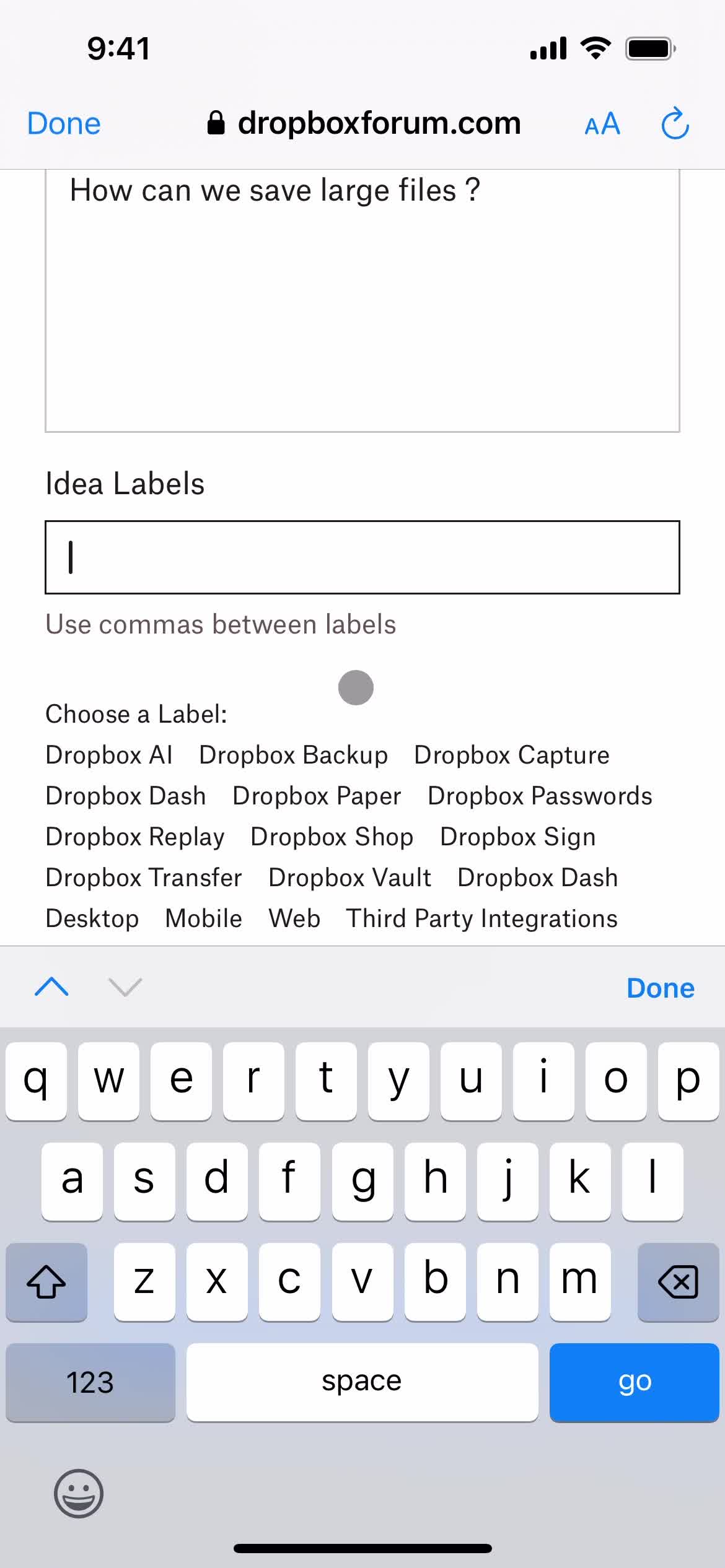
Add description
this is title
Add label
this is title
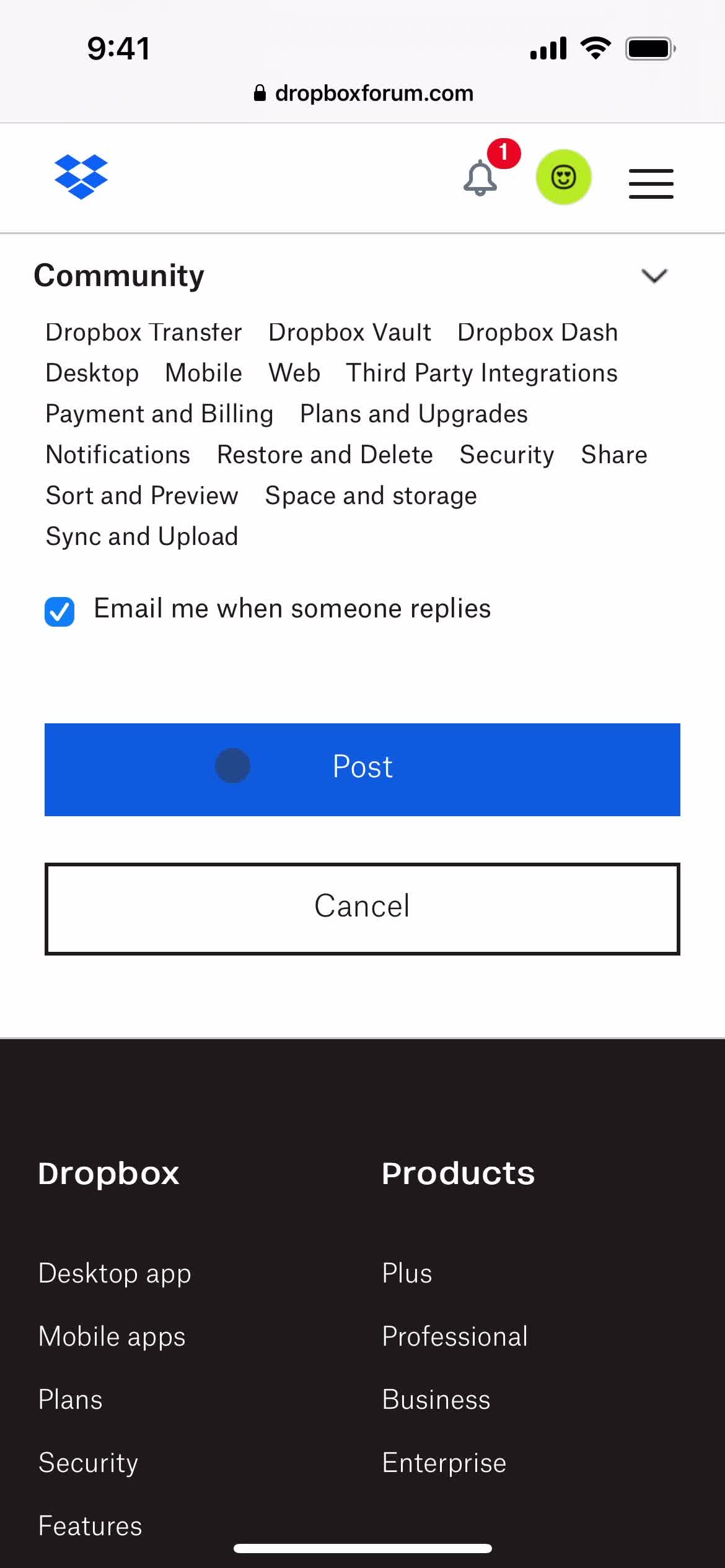
Post
this is title
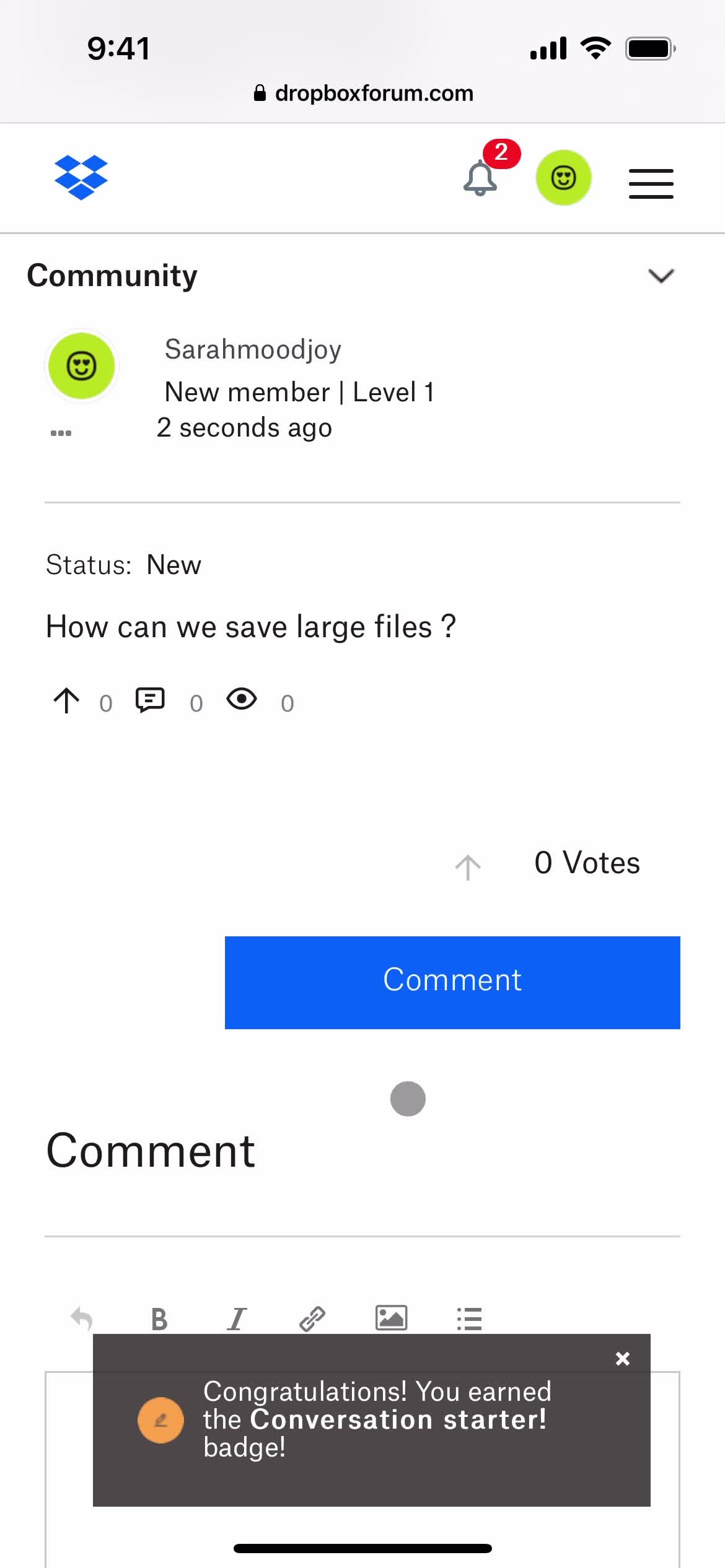
Feedback submitted
this is title
Continue
this is title
Settings
this is title
Home
this is title
Account
this is title
Settings
this is title
this is title
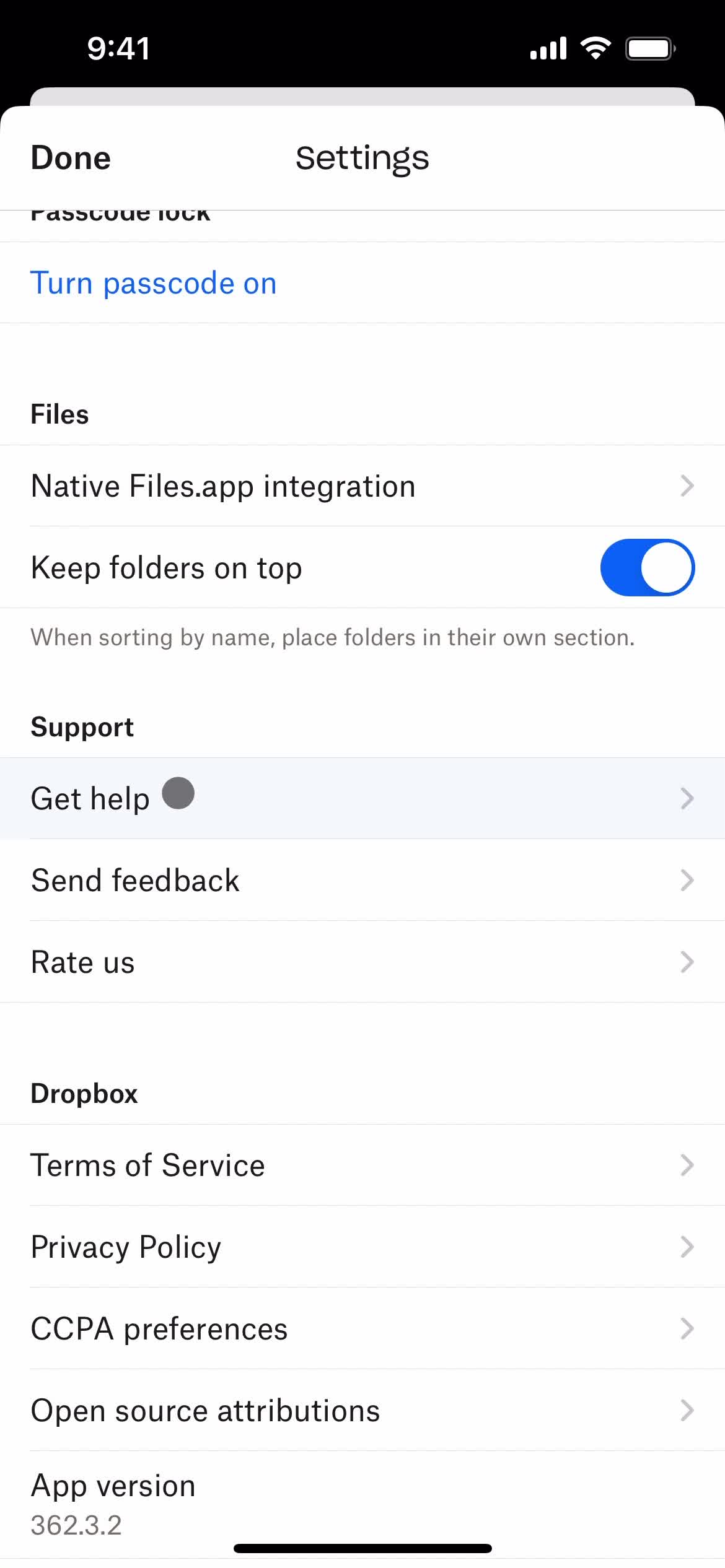
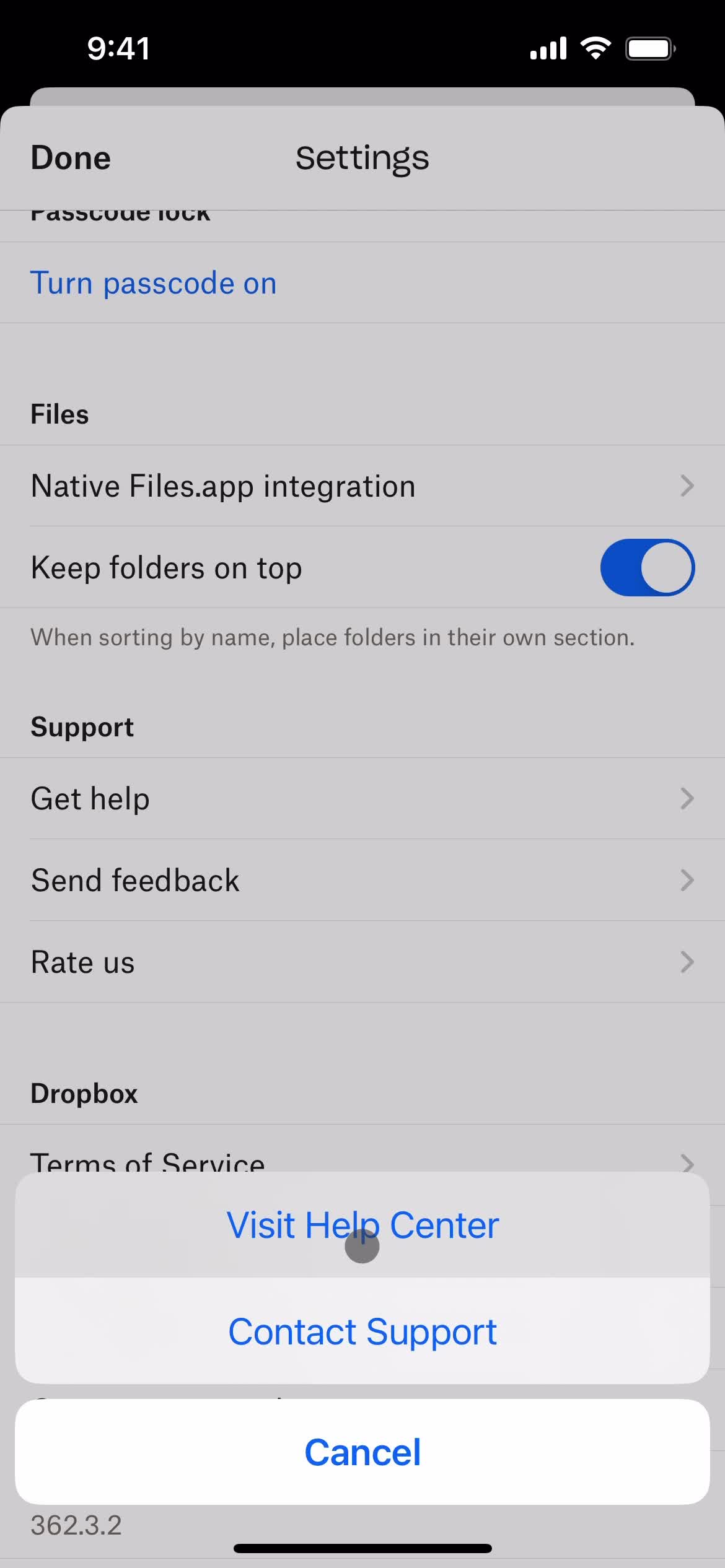
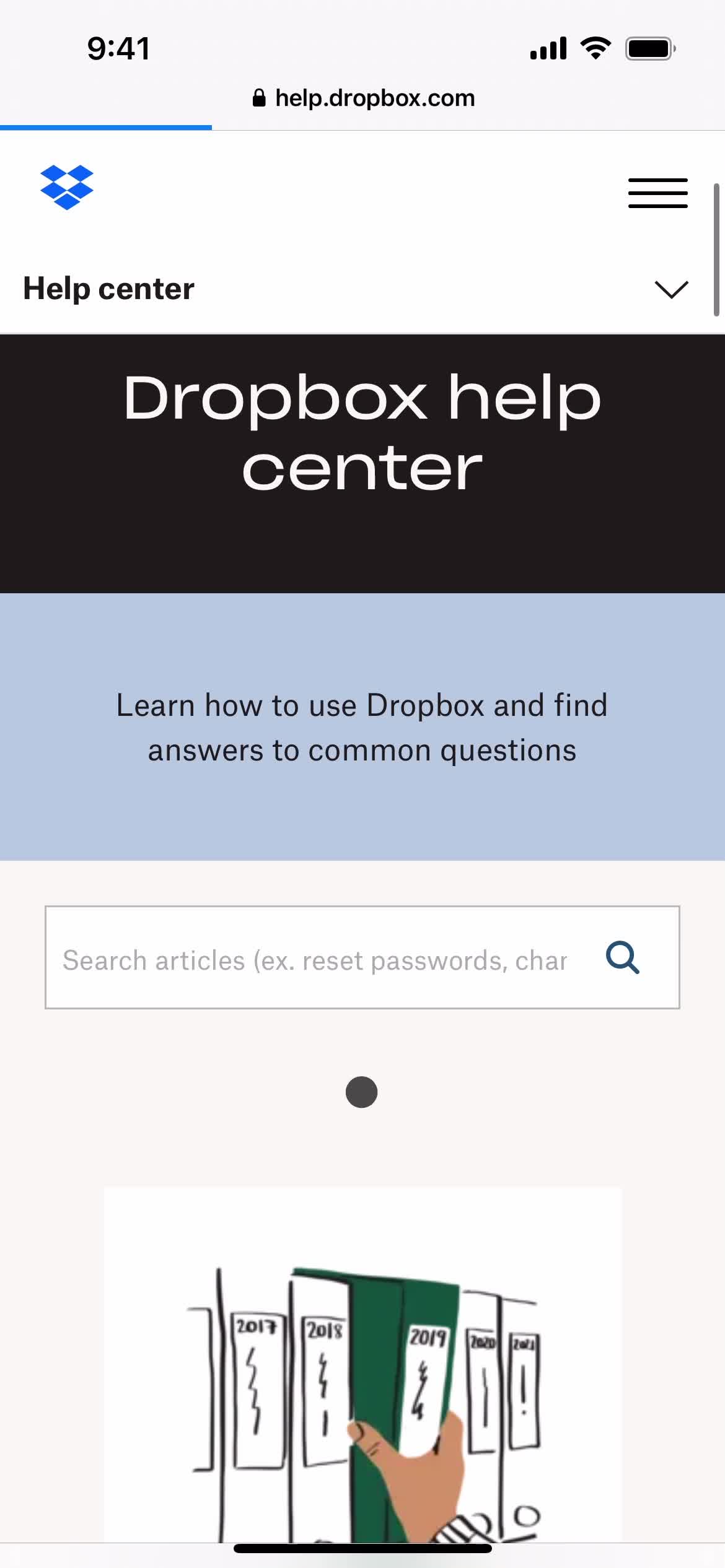
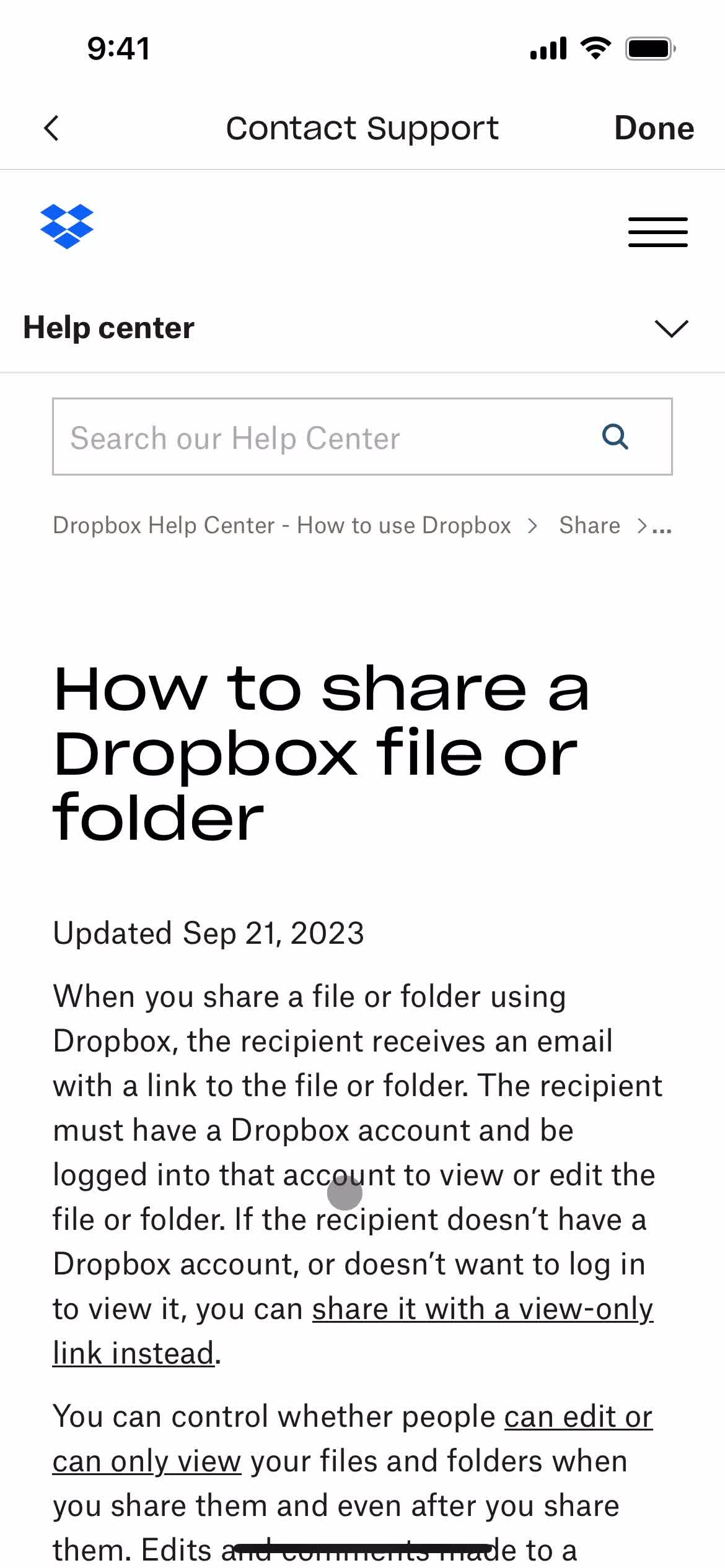
Help center
this is title
Help center
this is title
Help center categories
this is title
Help center category
this is title
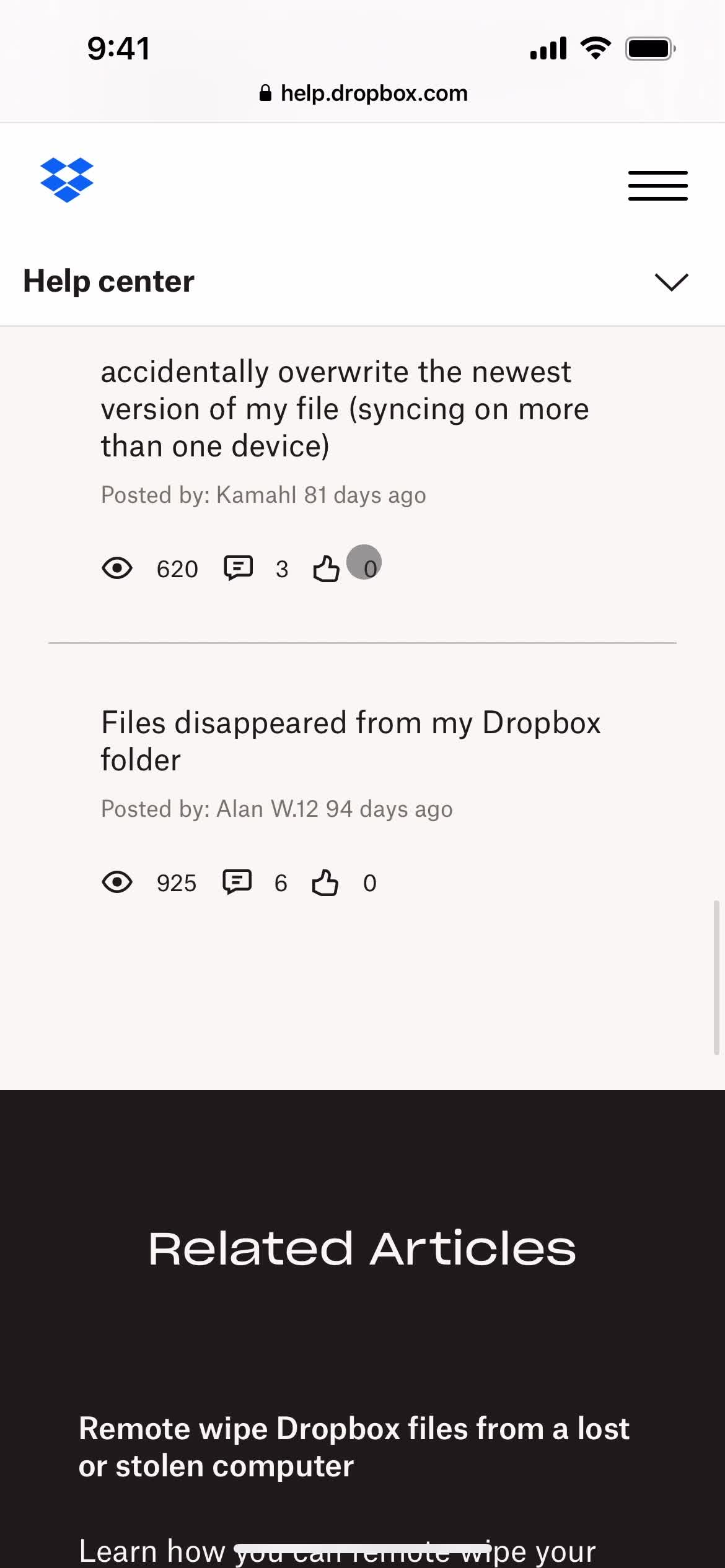
Help center article
this is title
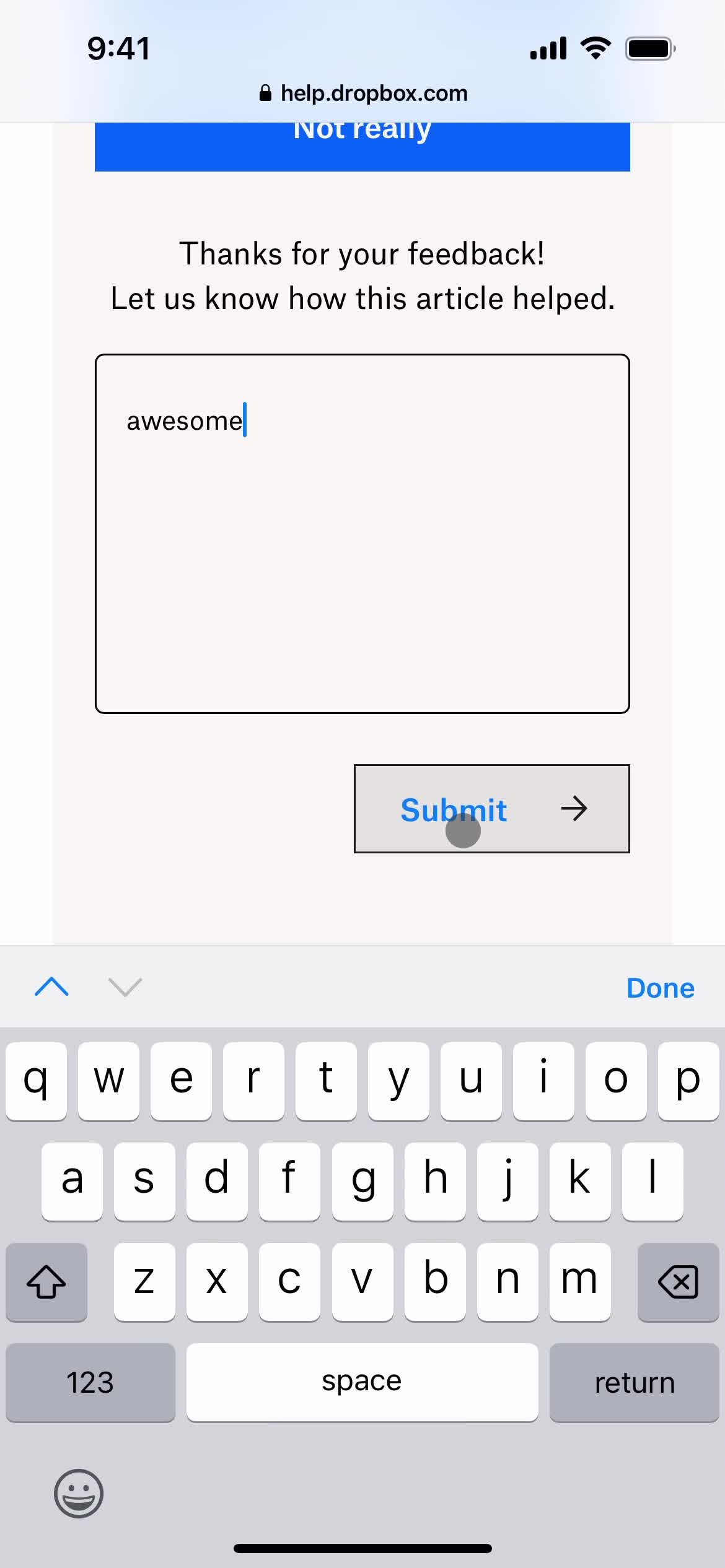
Submit feedback
this is title
Add note
this is title
Submit
this is title
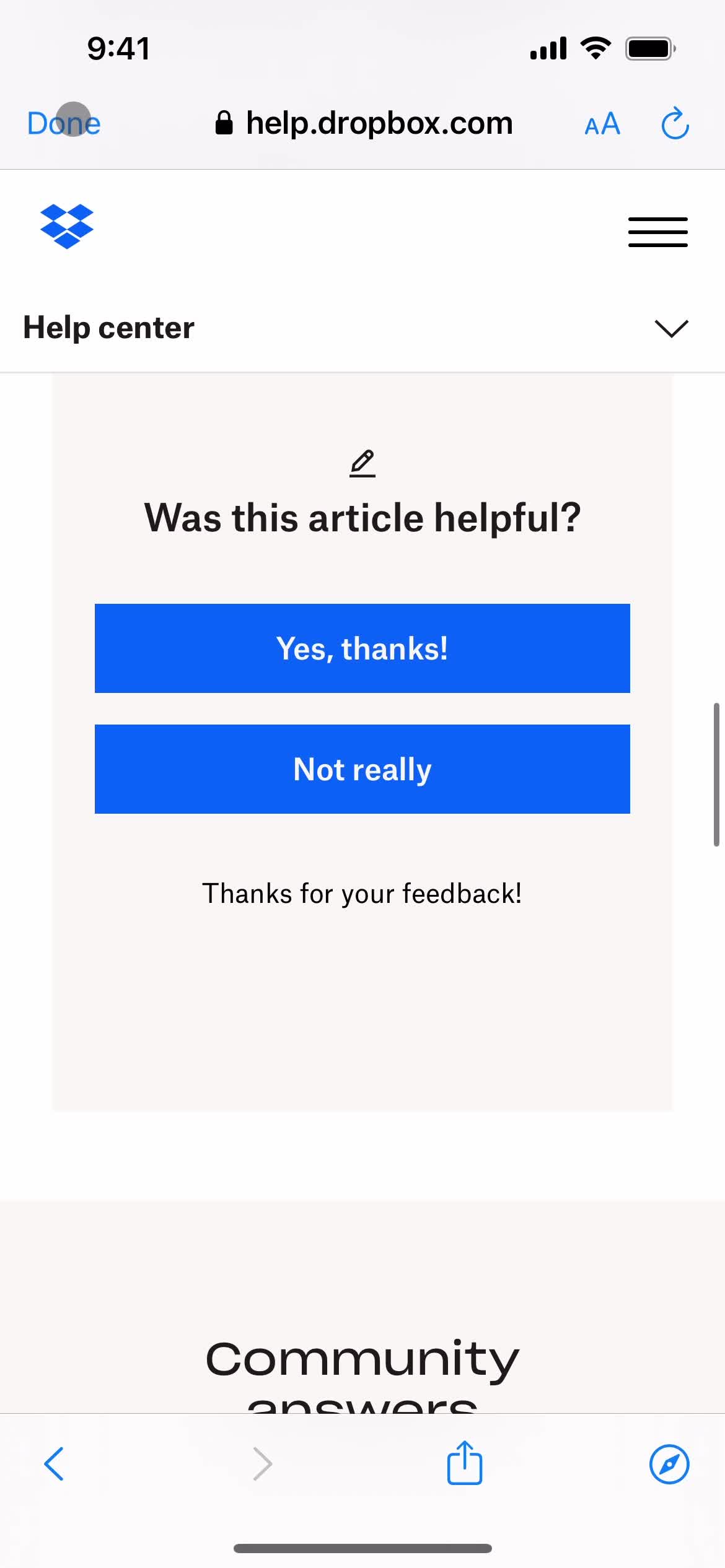
Feedback submitted
this is title
this is title
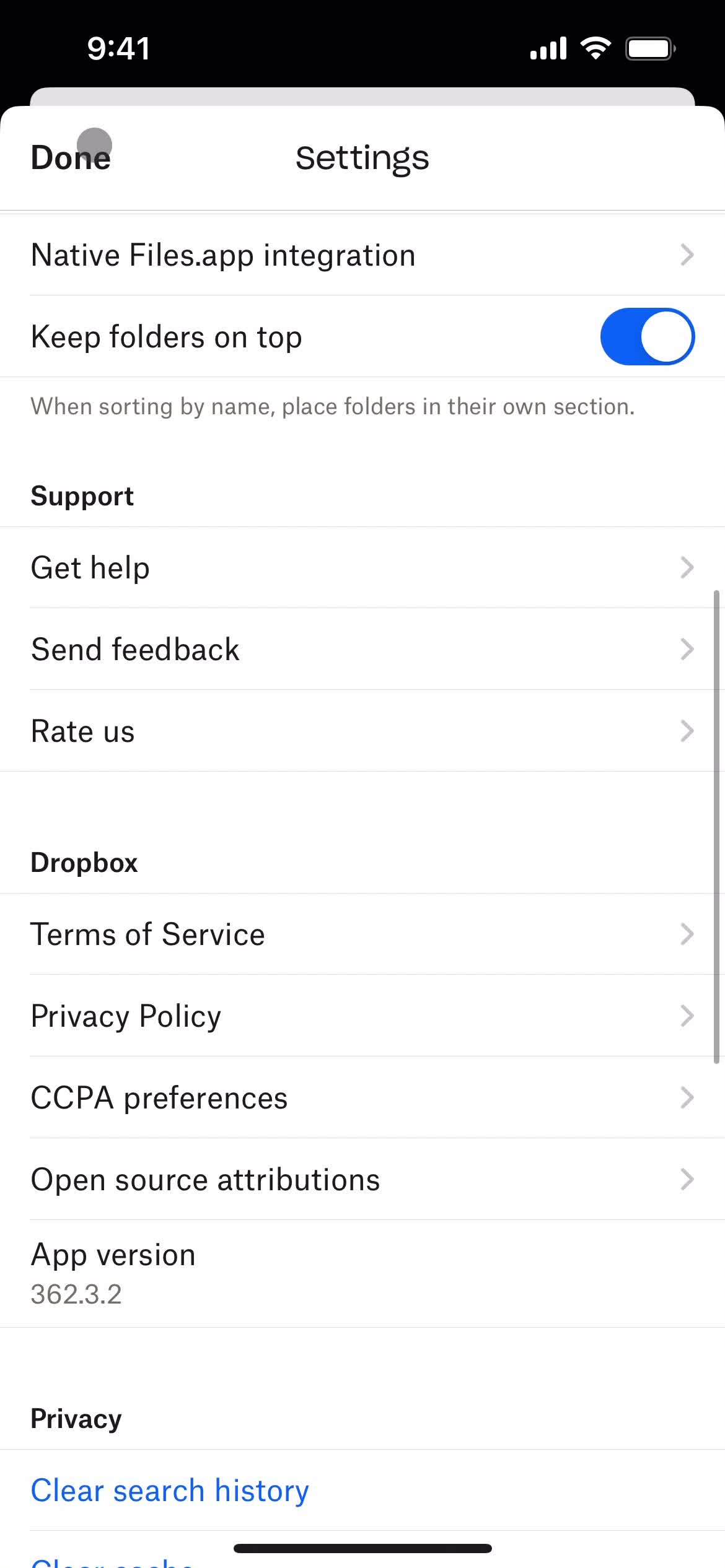
Settings
this is title
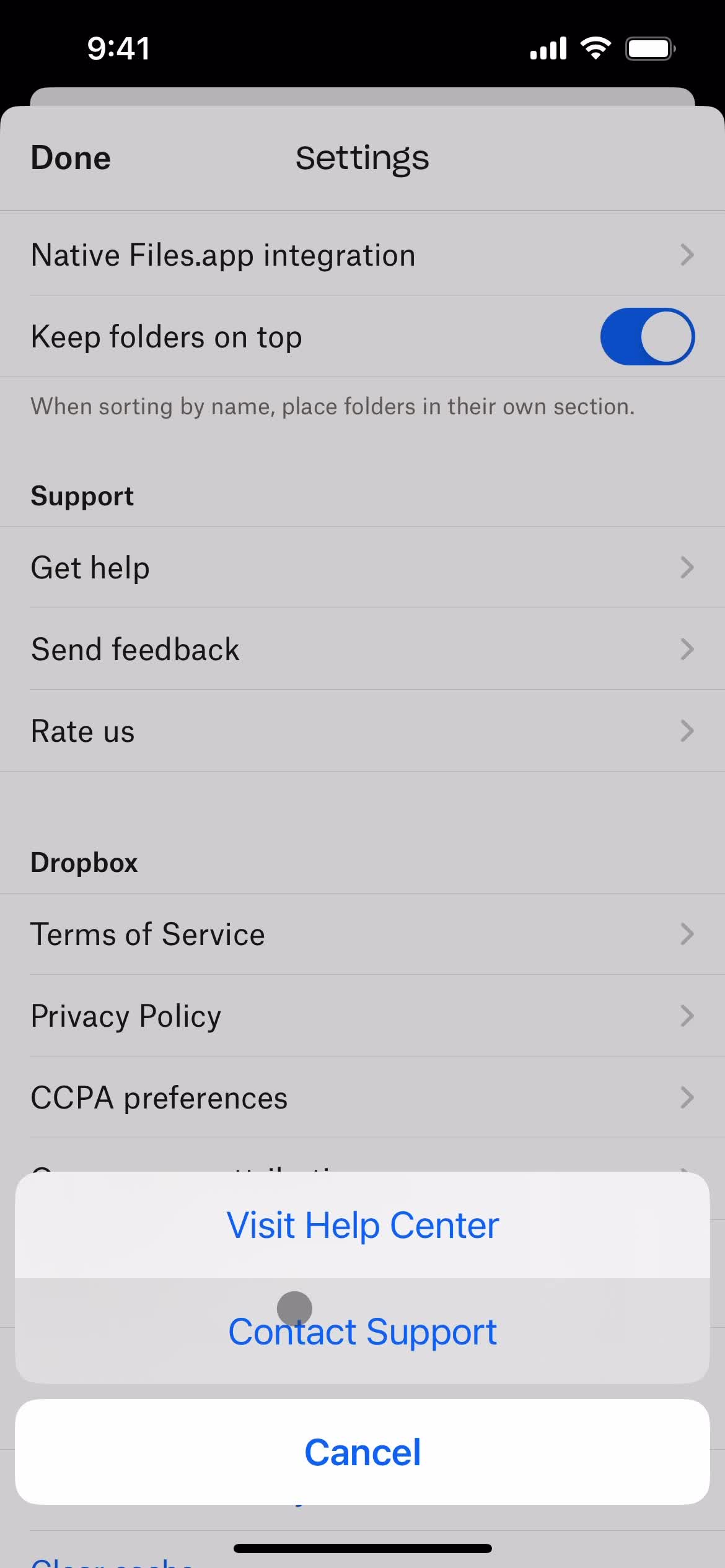
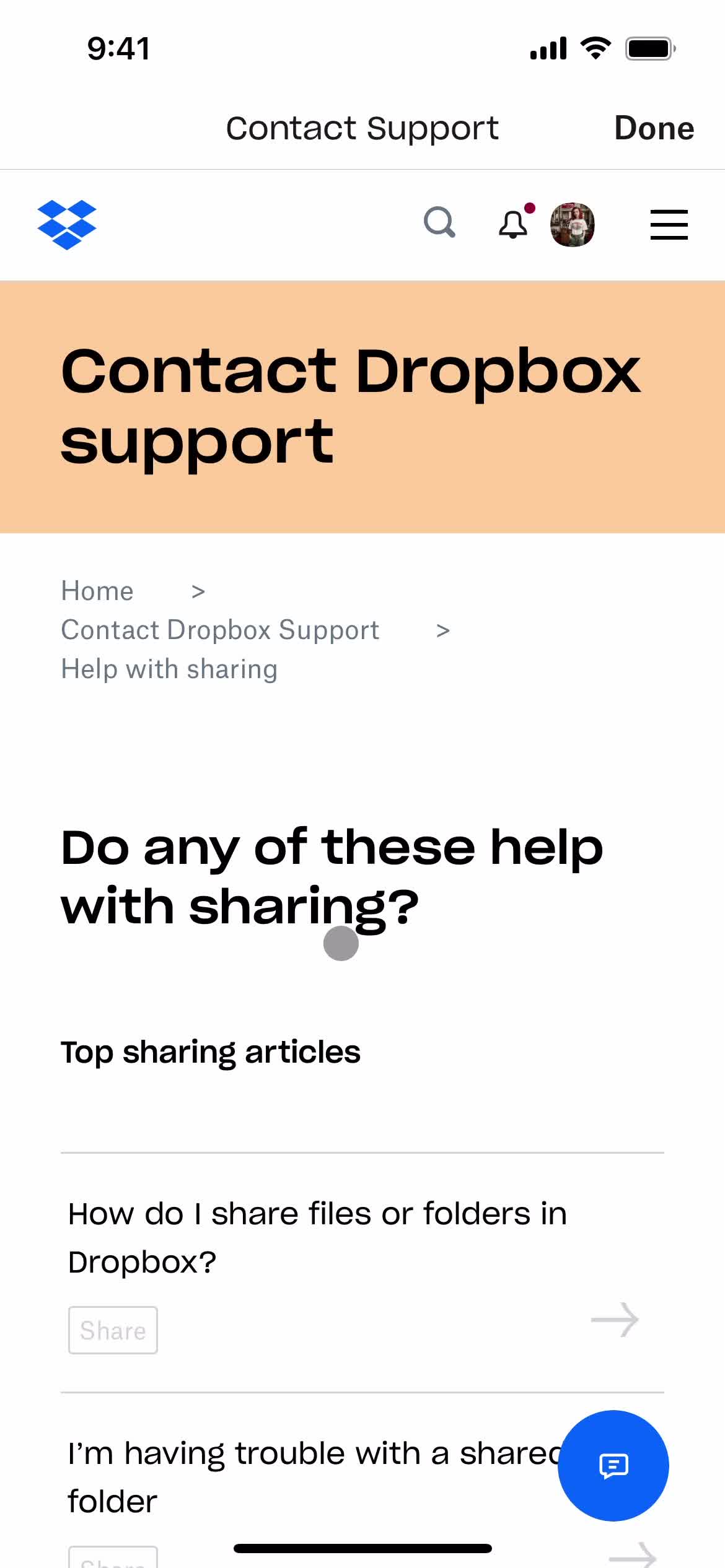
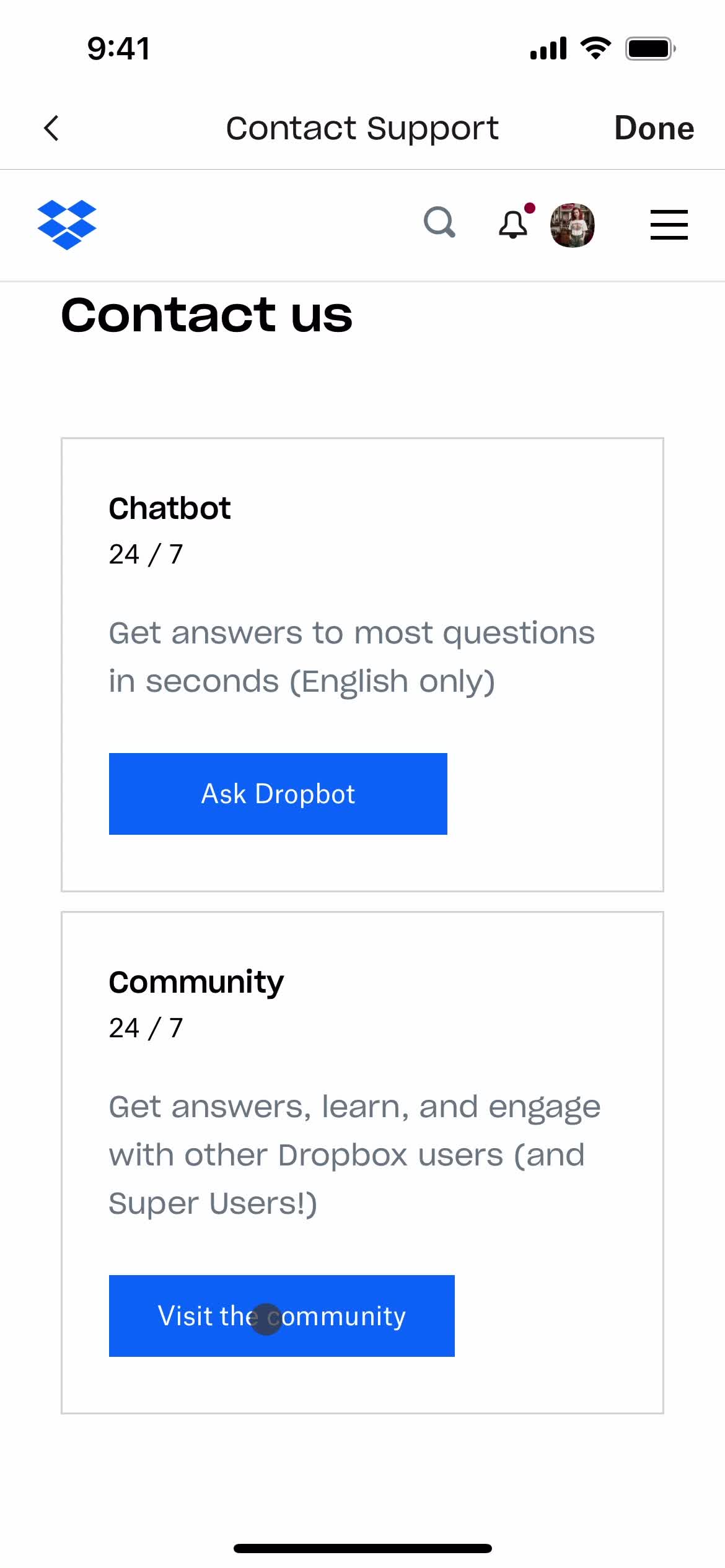
Contact support
this is title
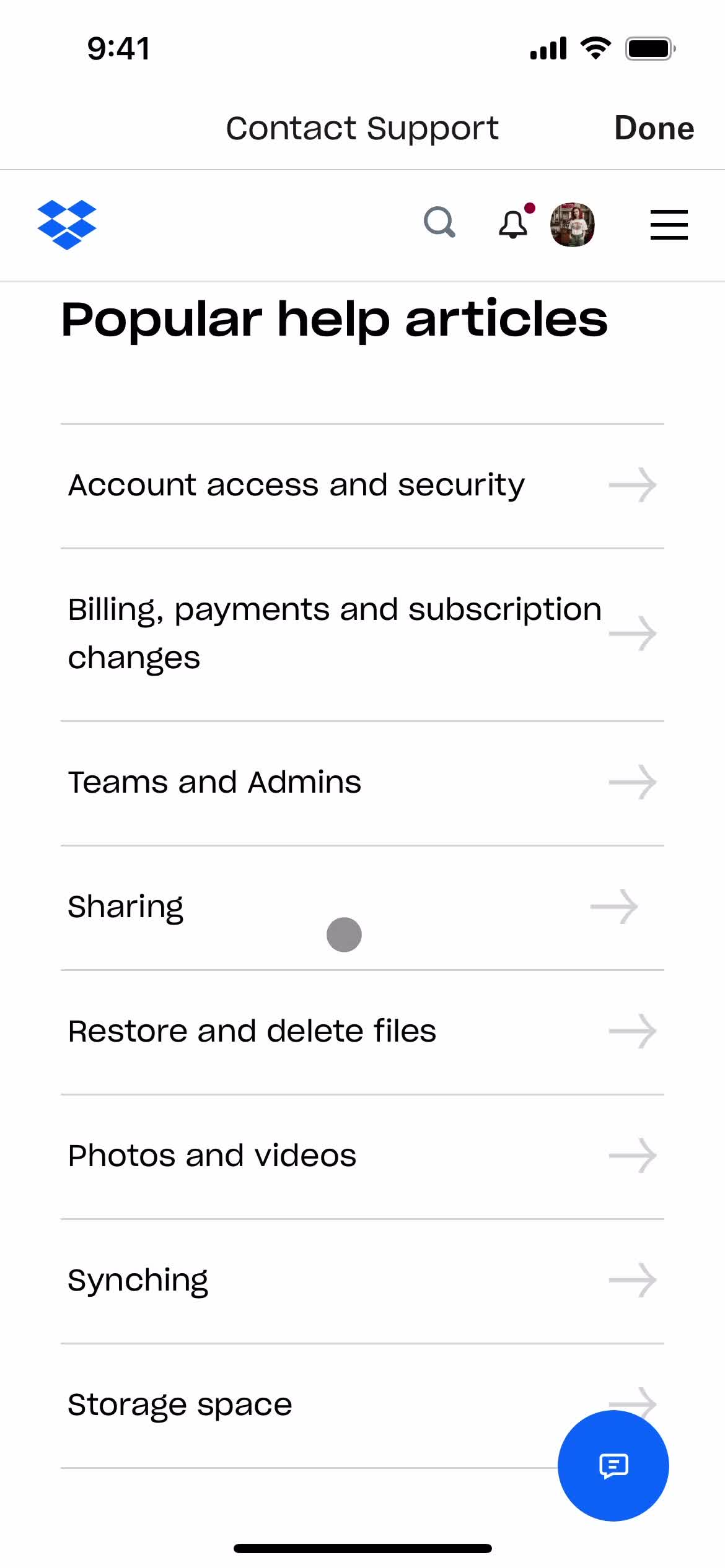
Help center categories
this is title
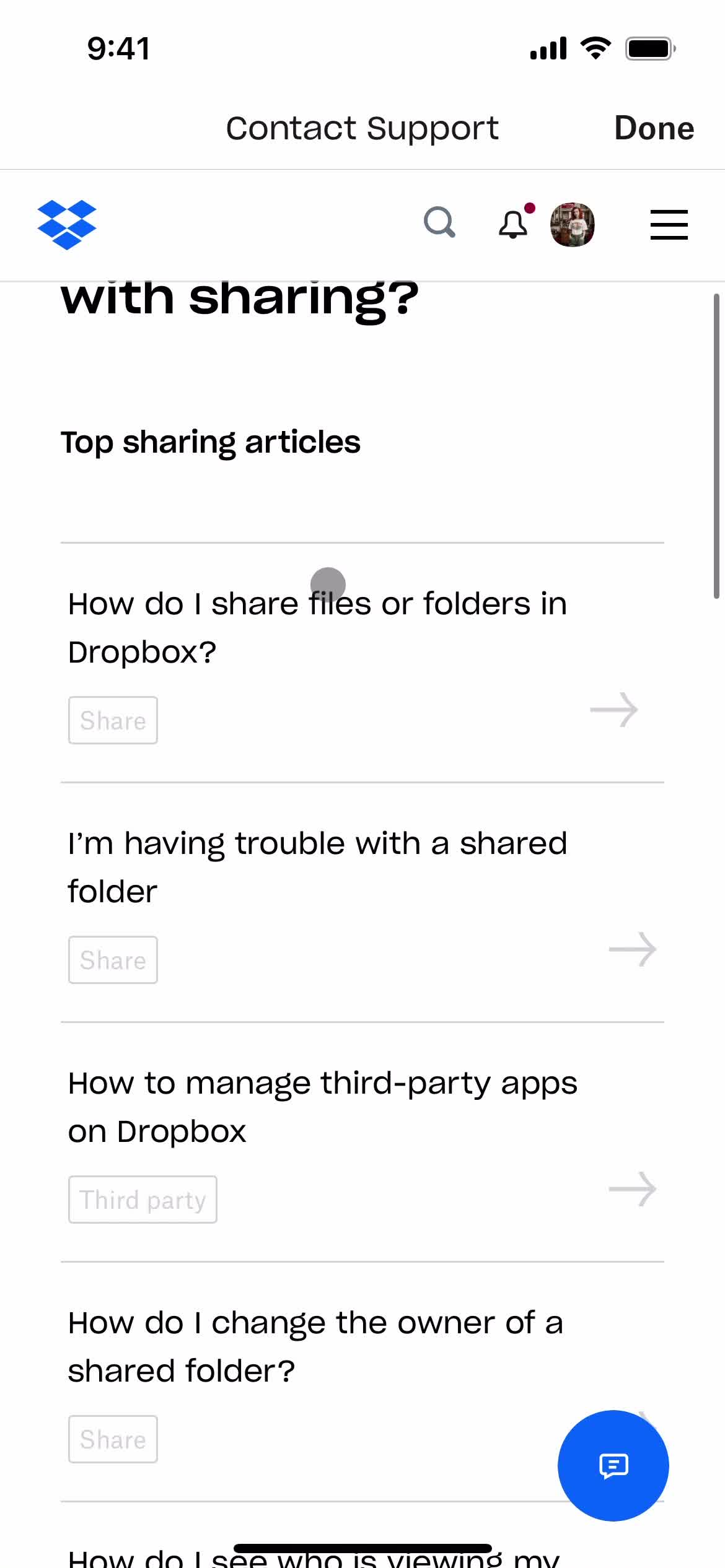
Articles
this is title
this is title
Help center article
this is title
this is title
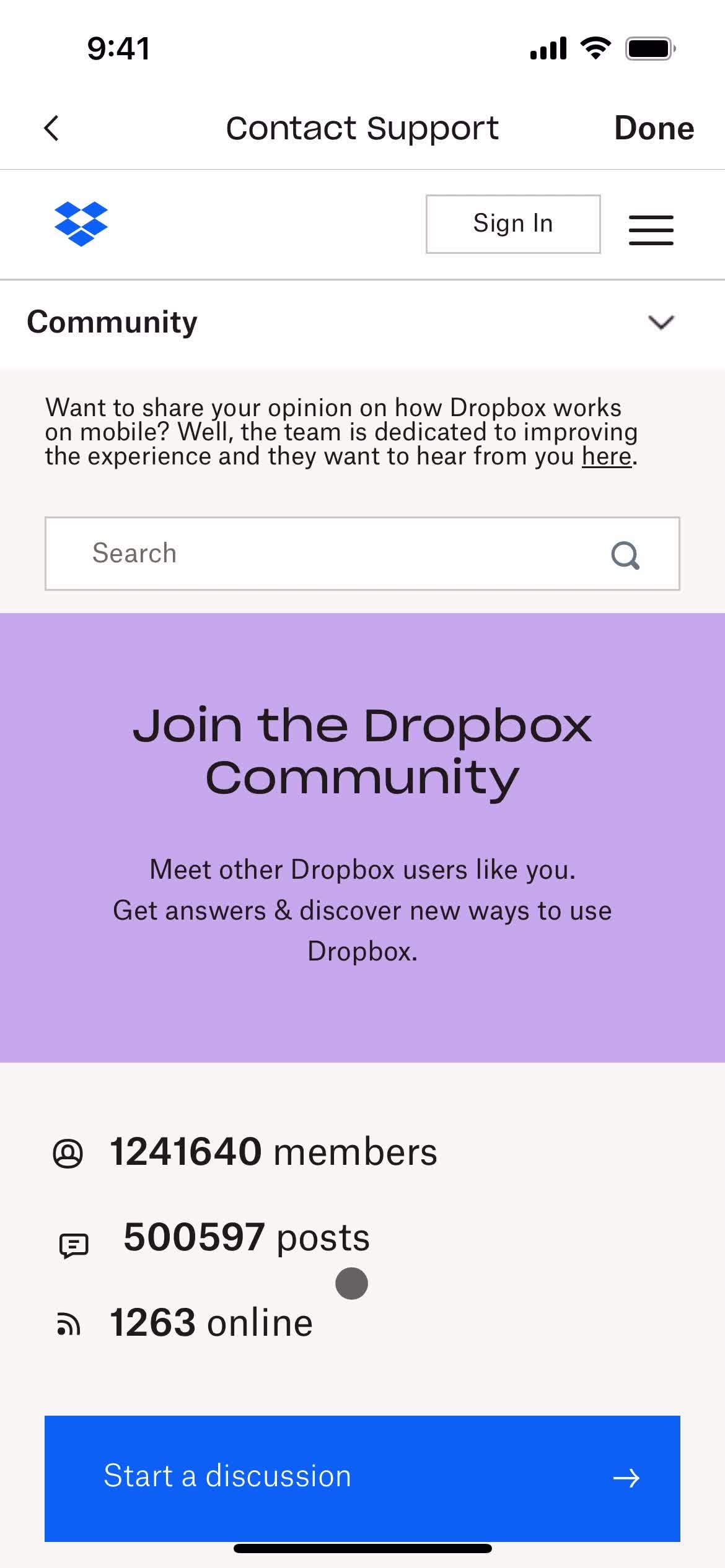
Community
this is title
this is title
Home
this is title
Account
this is title
Settings
this is title
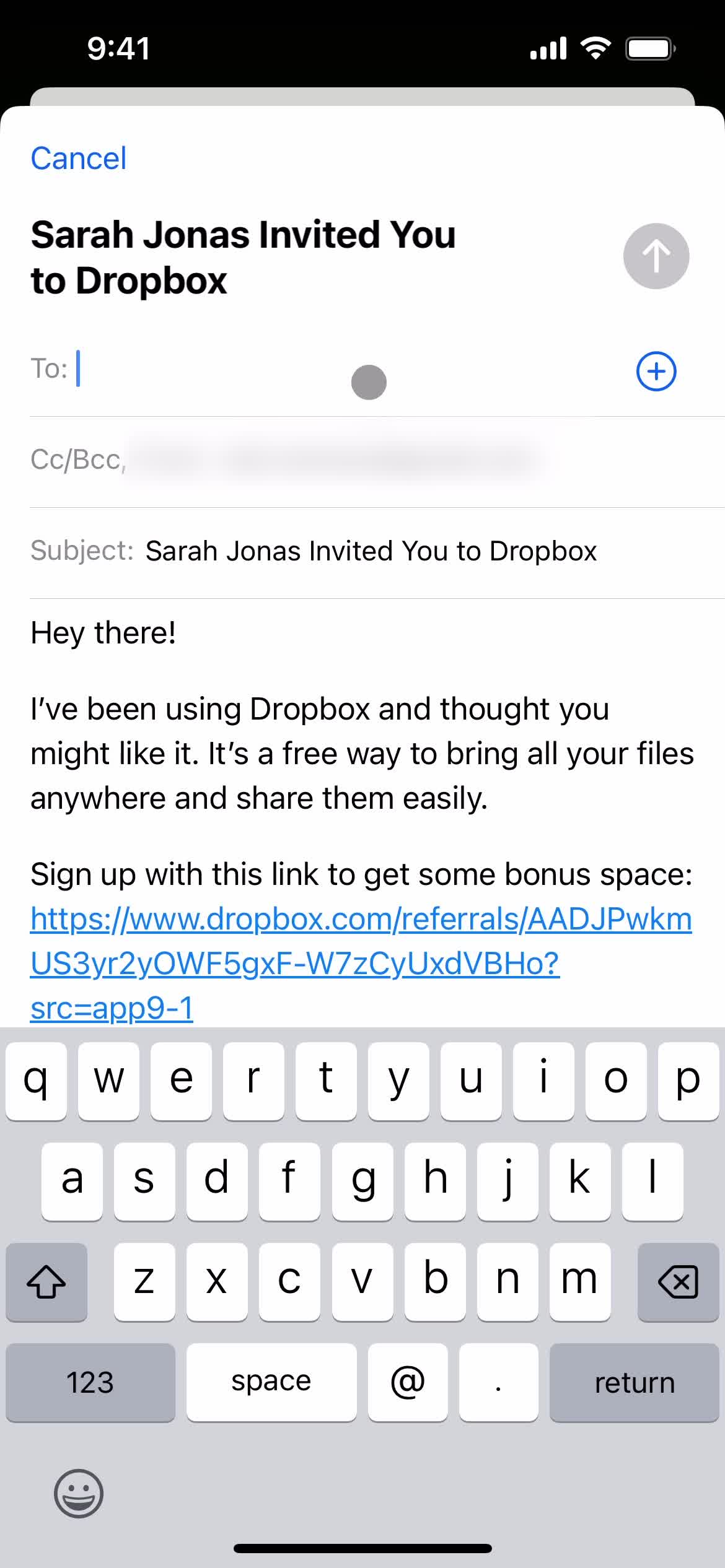
Invite friends
this is title
Enter email
this is title
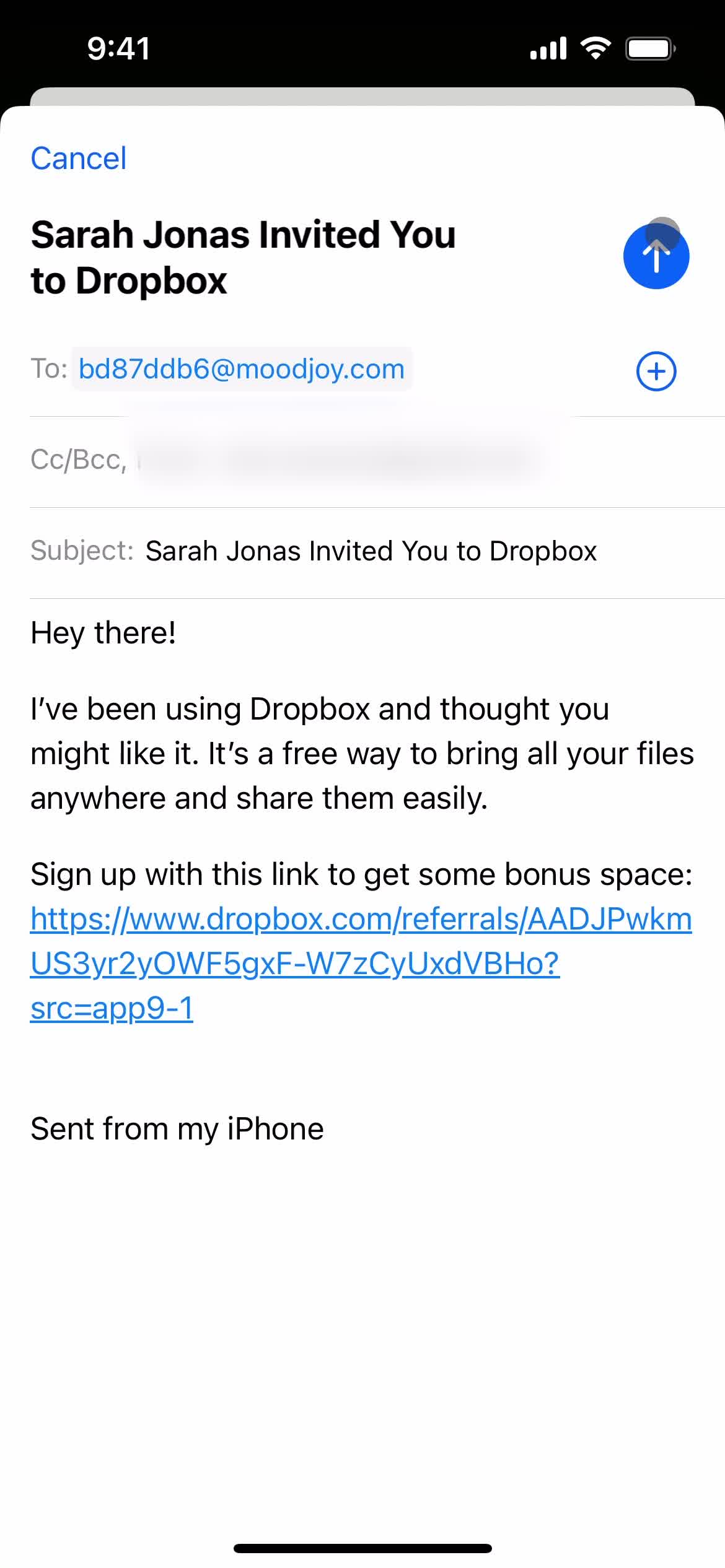
Send invite
this is title
Invite sent
this is title
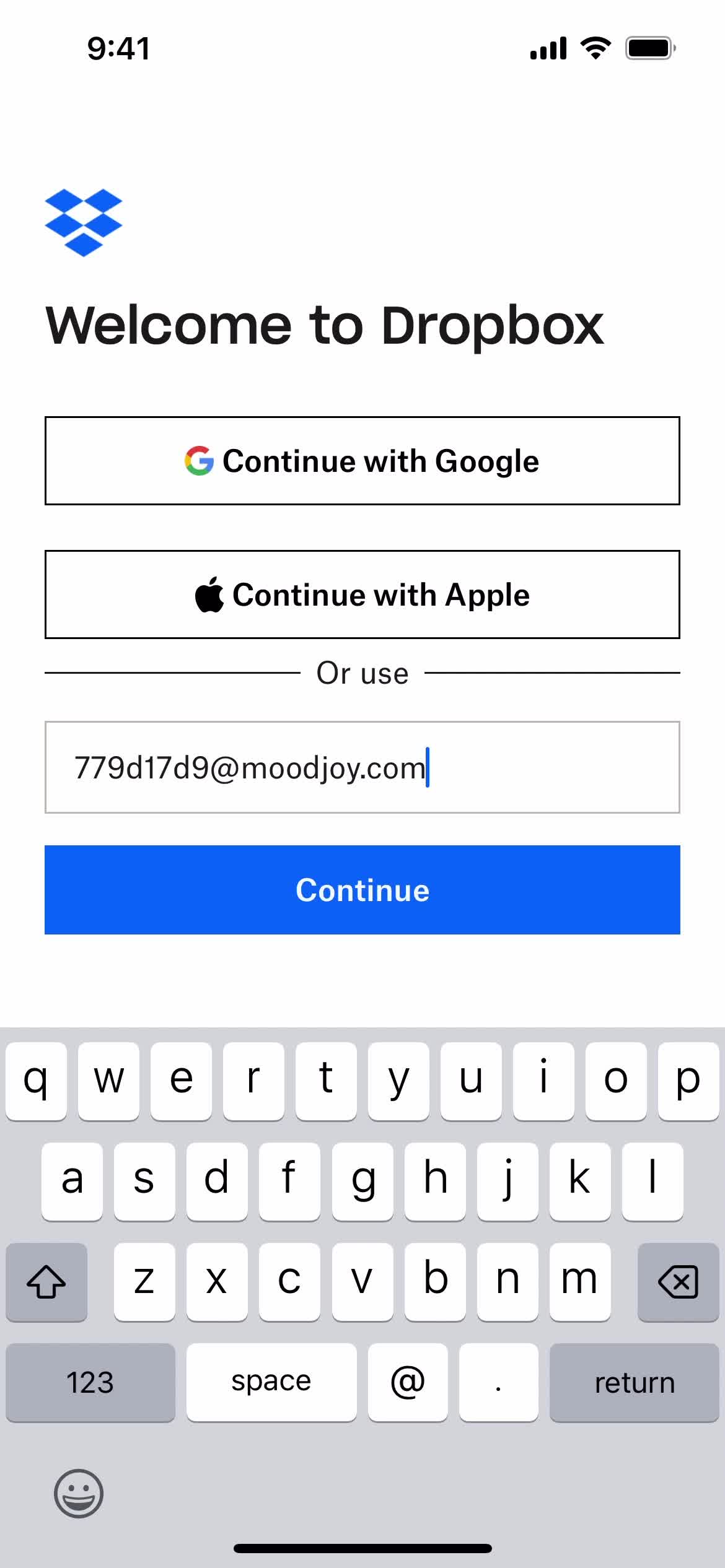
Welcome
this is title
Enter email
this is title
Continue
this is title
Enter password
this is title
Sign in
this is title
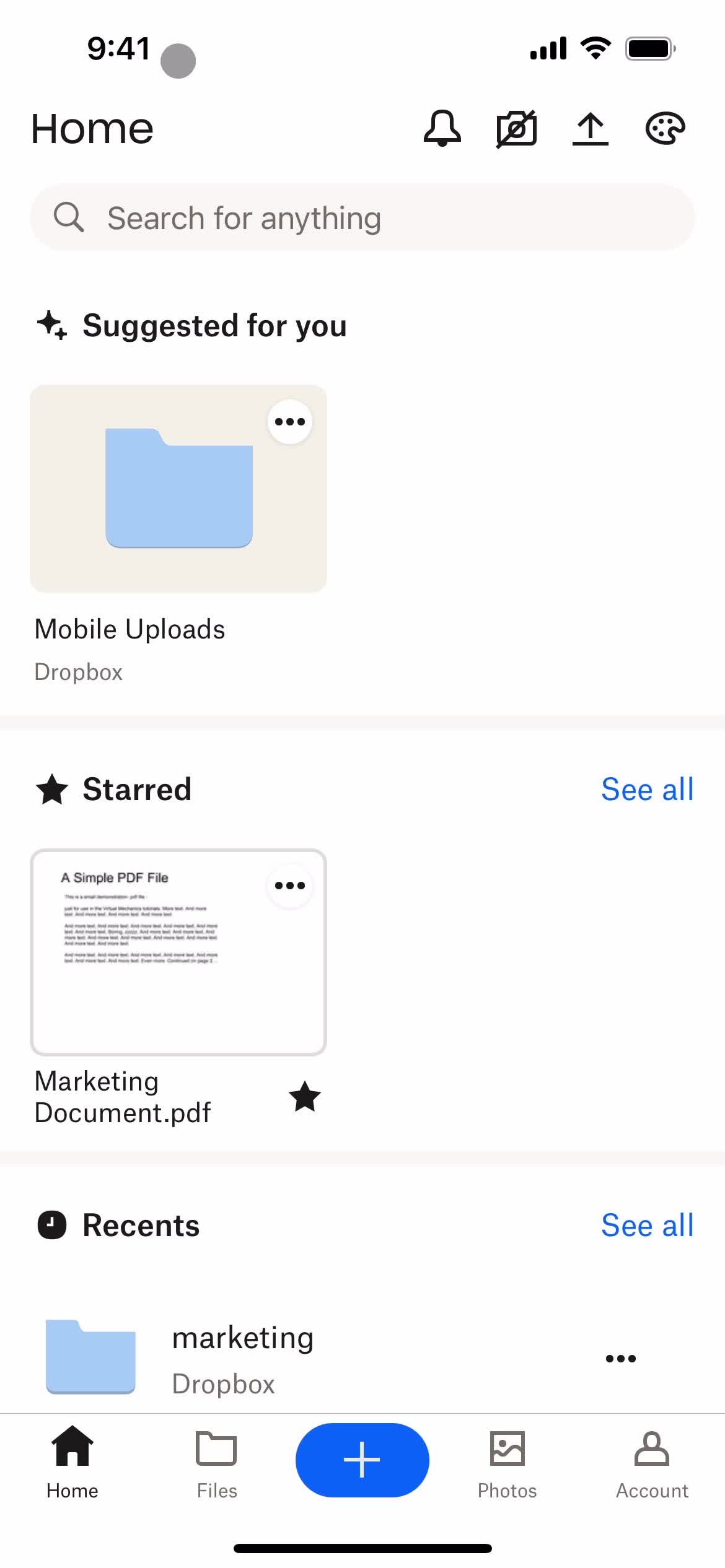
Home
this is title
Home
this is title
Account
this is title
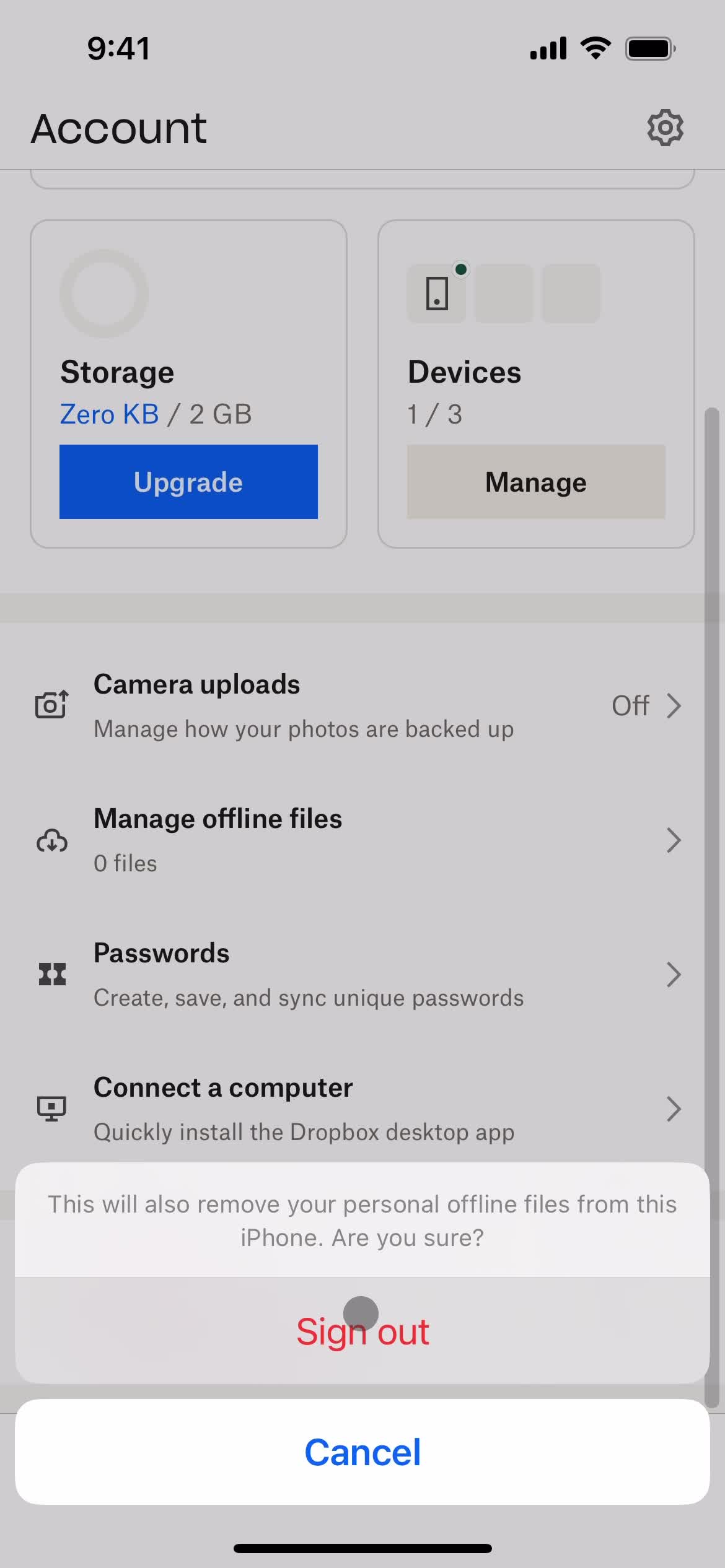
Sign out
this is title
Confirm exit
this is title
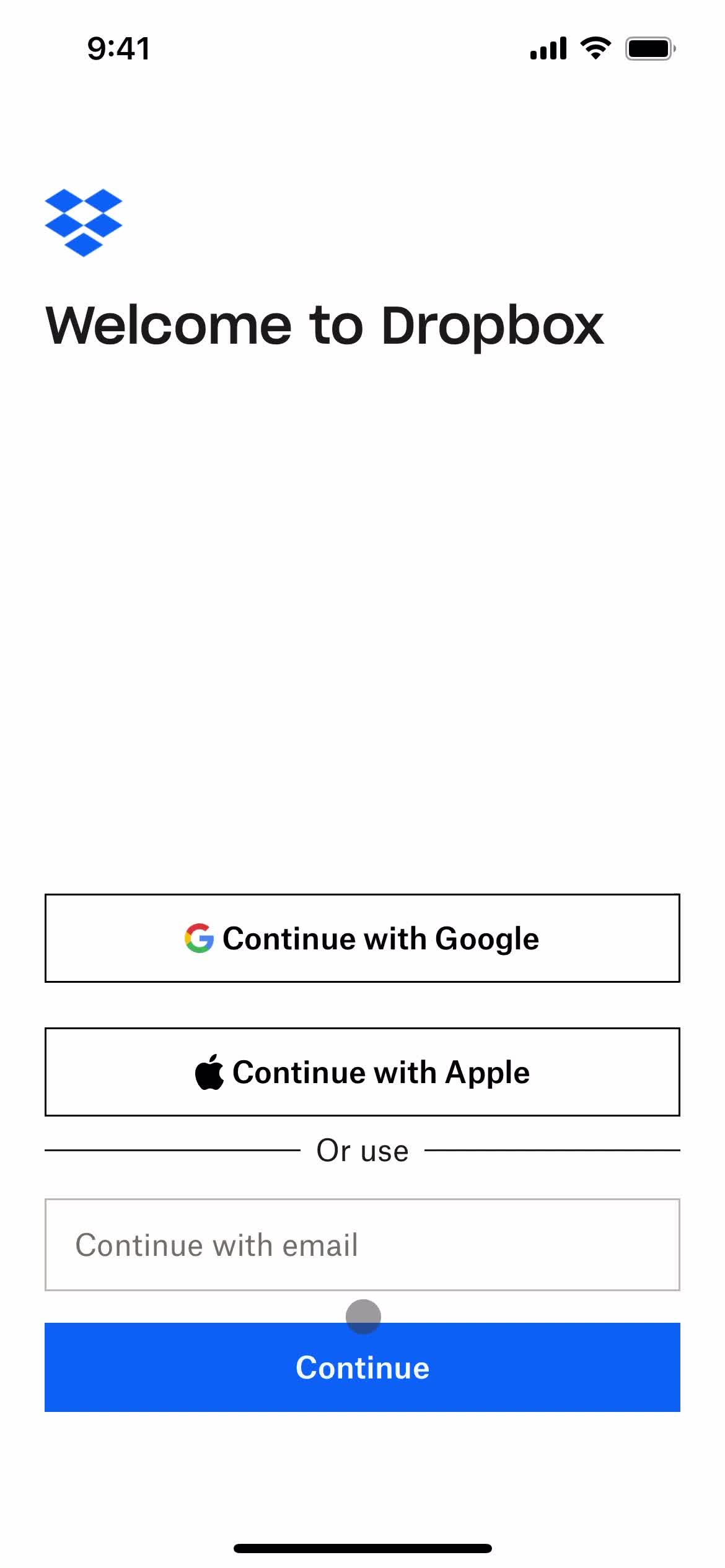
Sign in
this is title
this is title
this is title
this is title
this is title
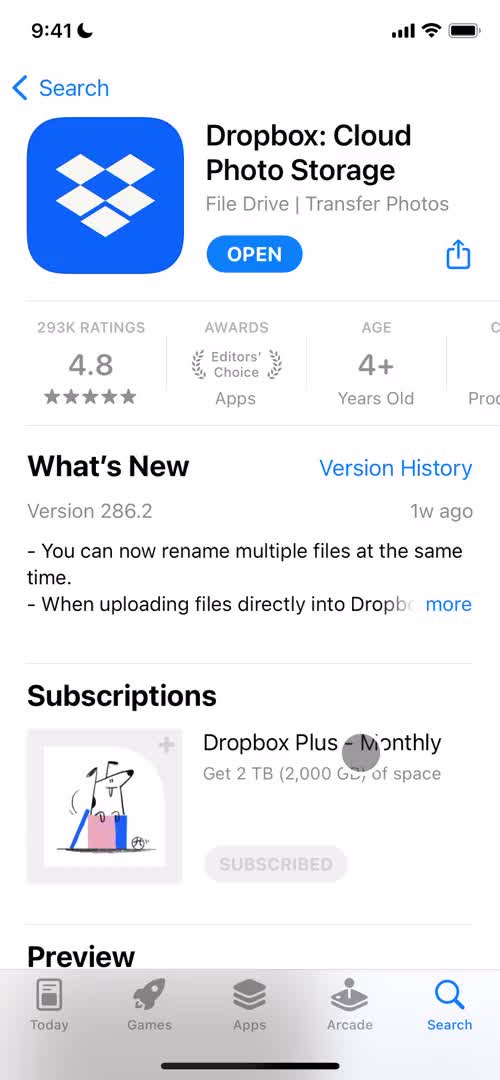
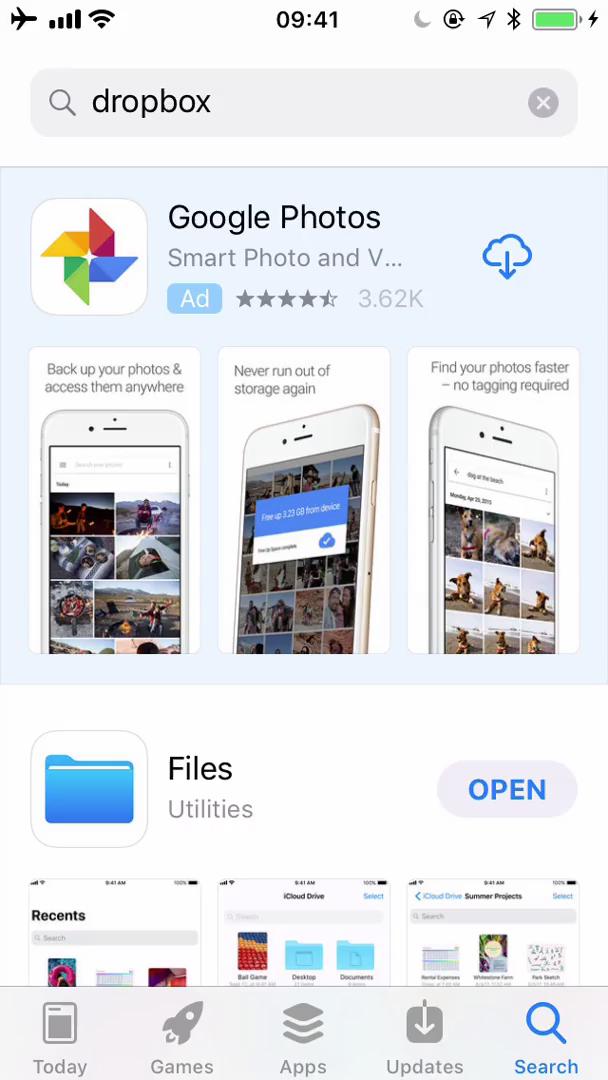
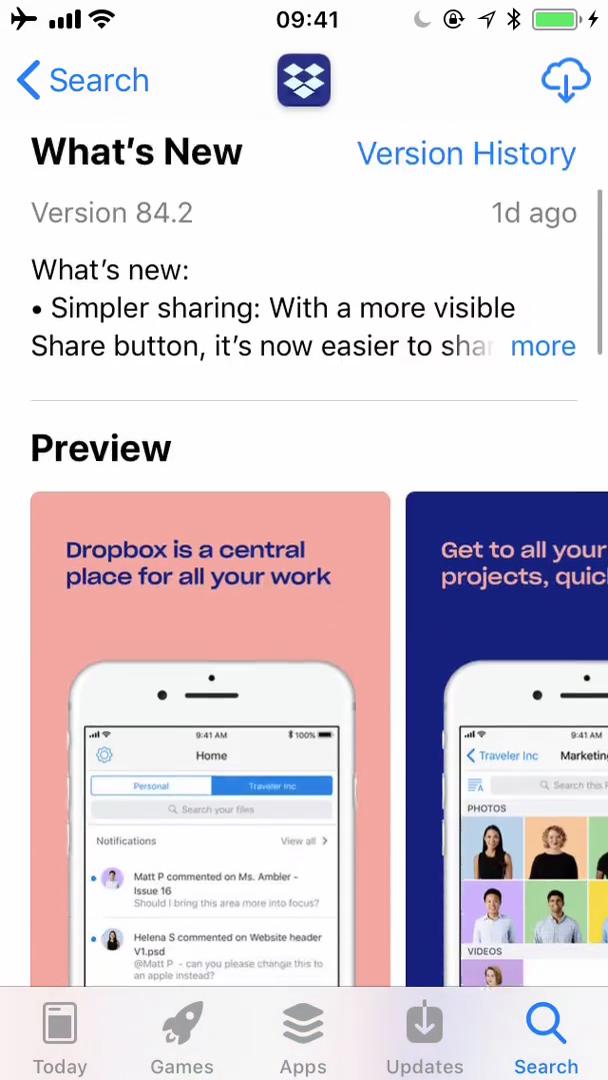
App store listing
this is title
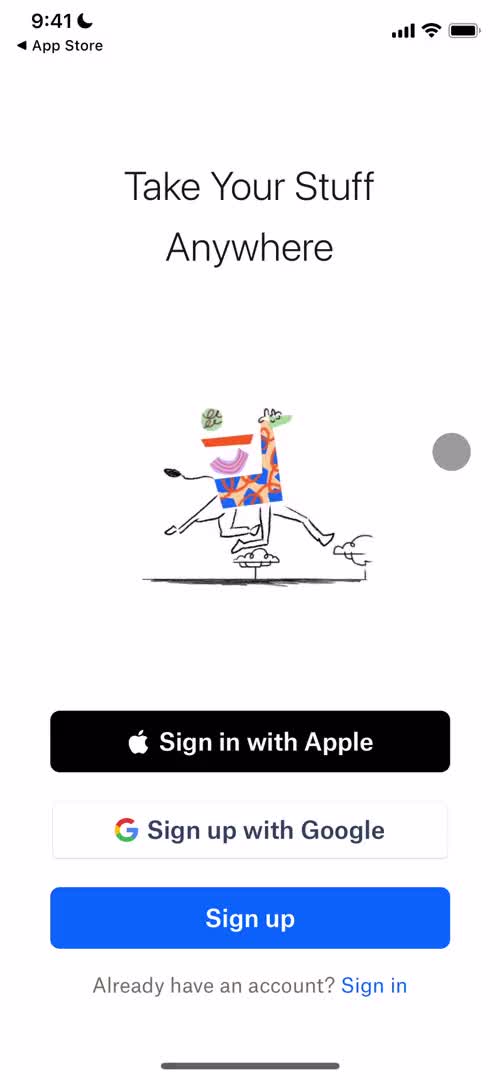
Welcome
this is title
Enter email
this is title
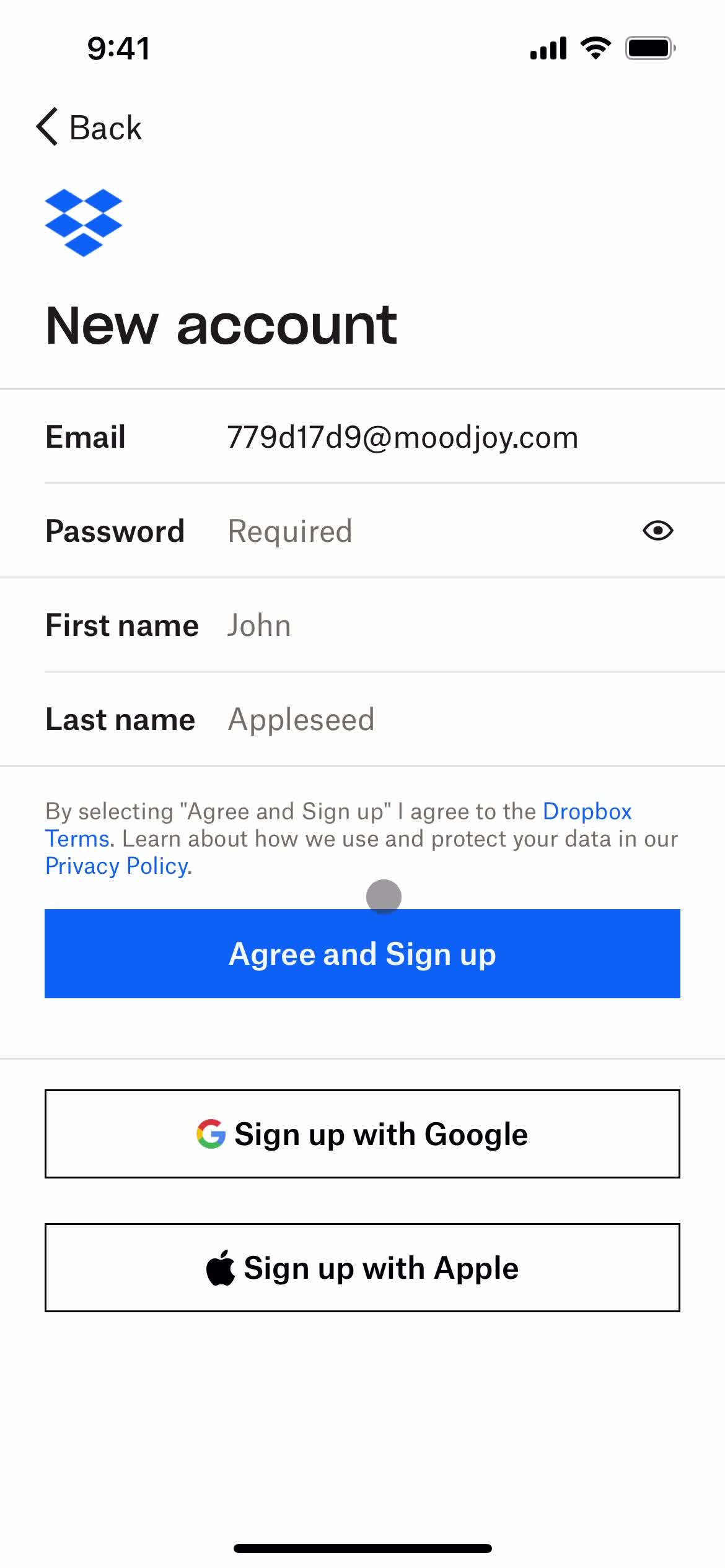
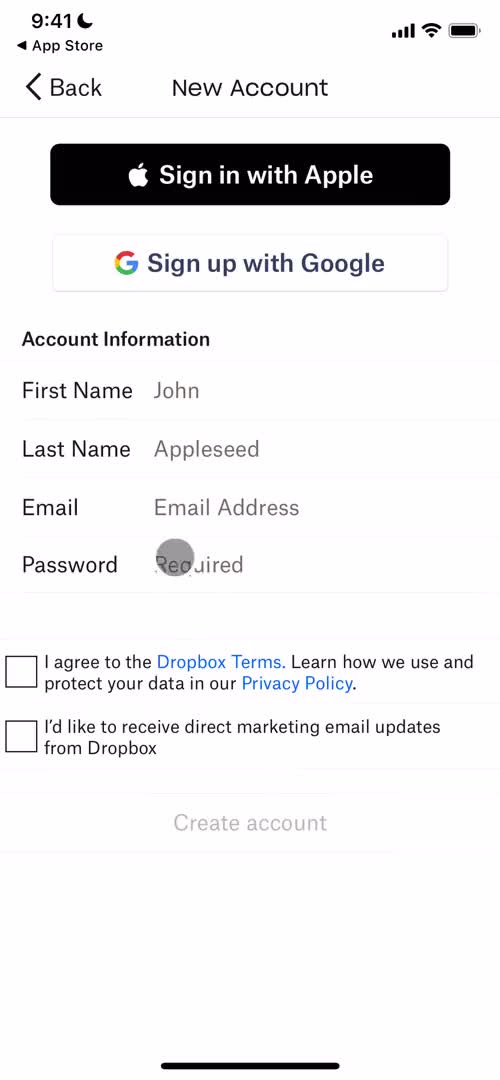
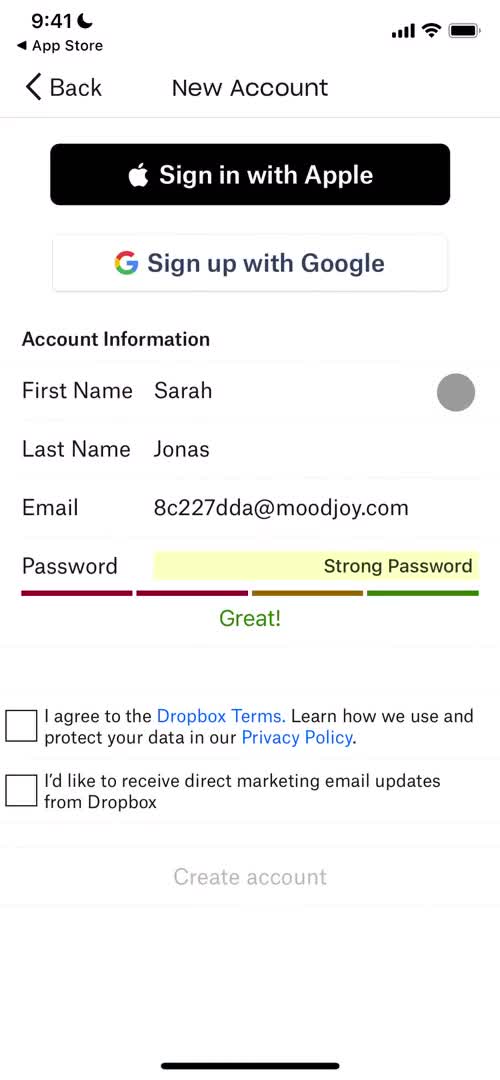
Create account
this is title
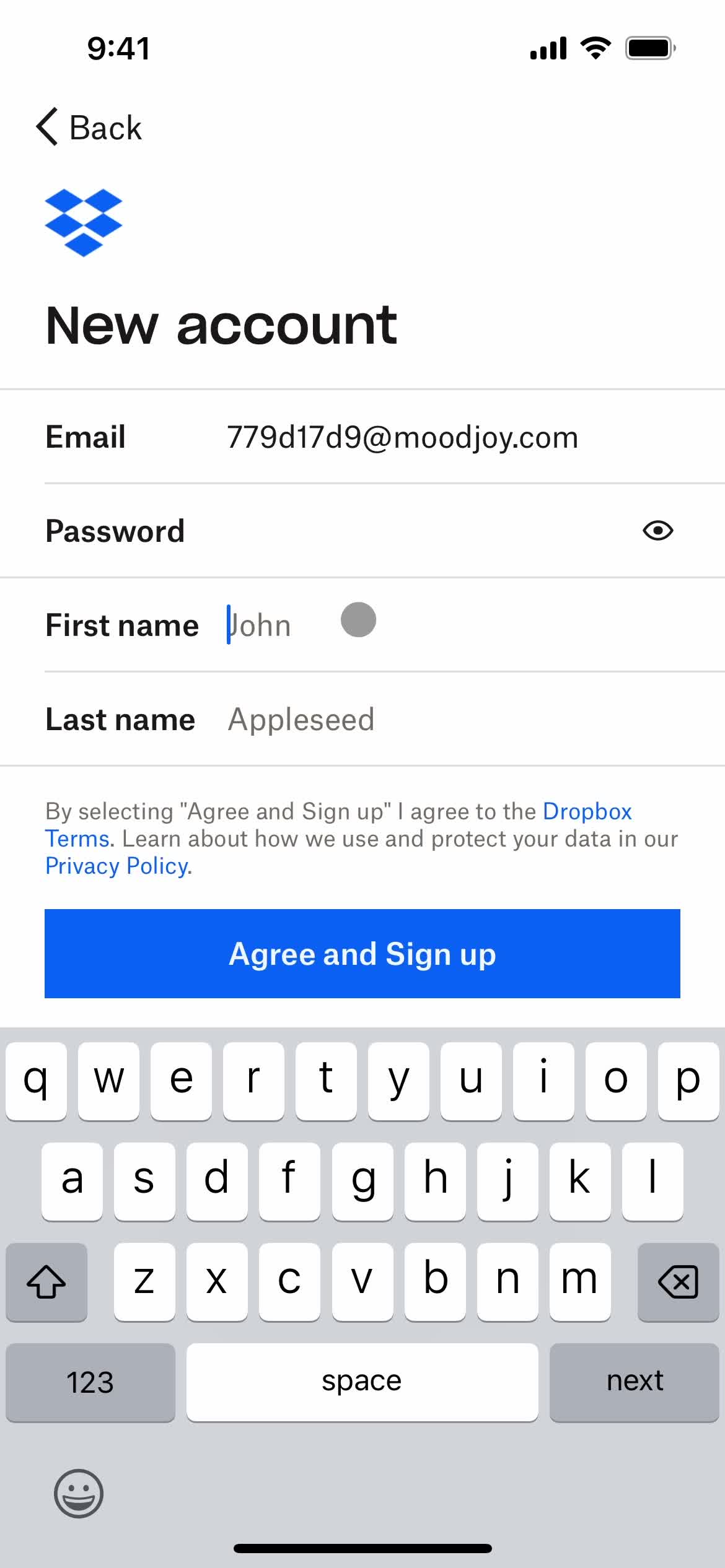
Set password
this is title
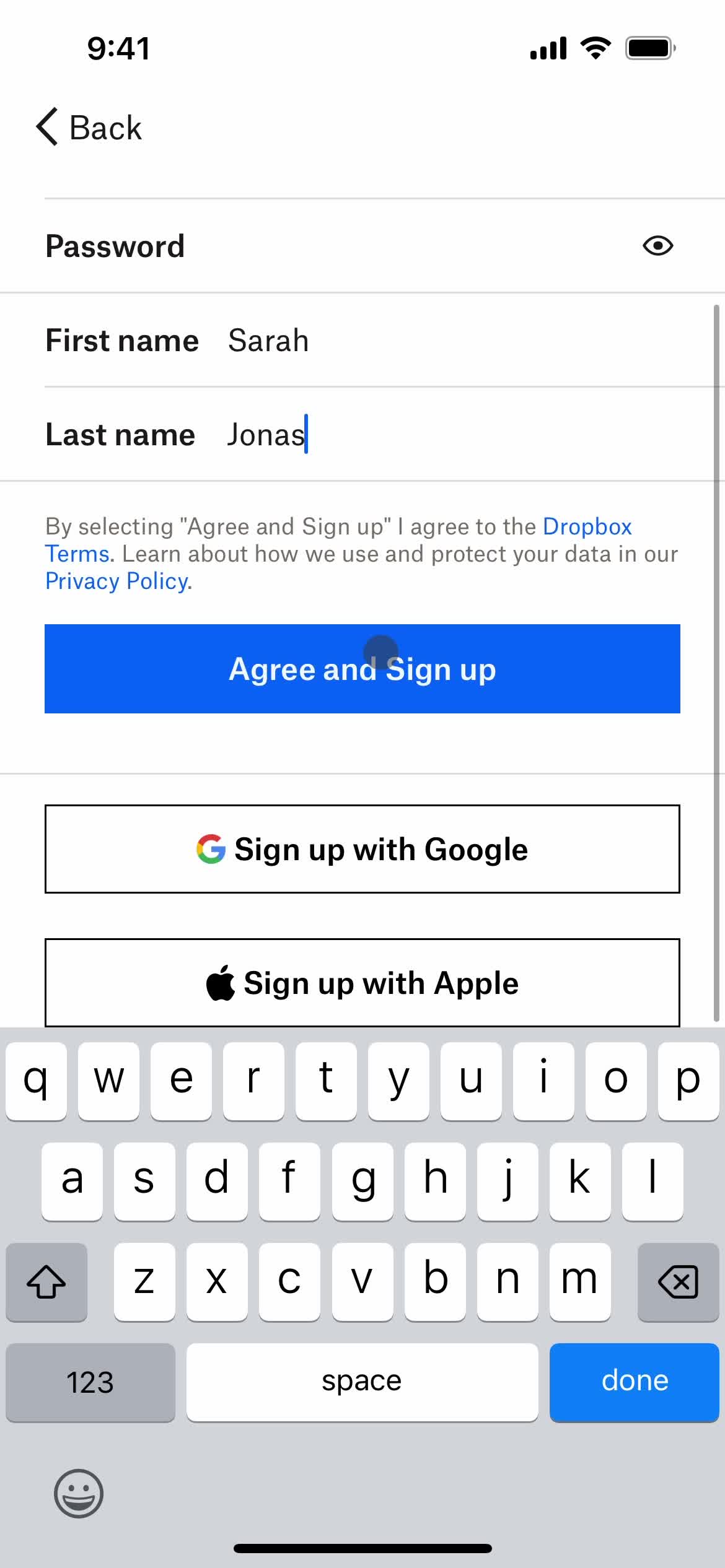
Enter name
this is title
Agree and continue
this is title
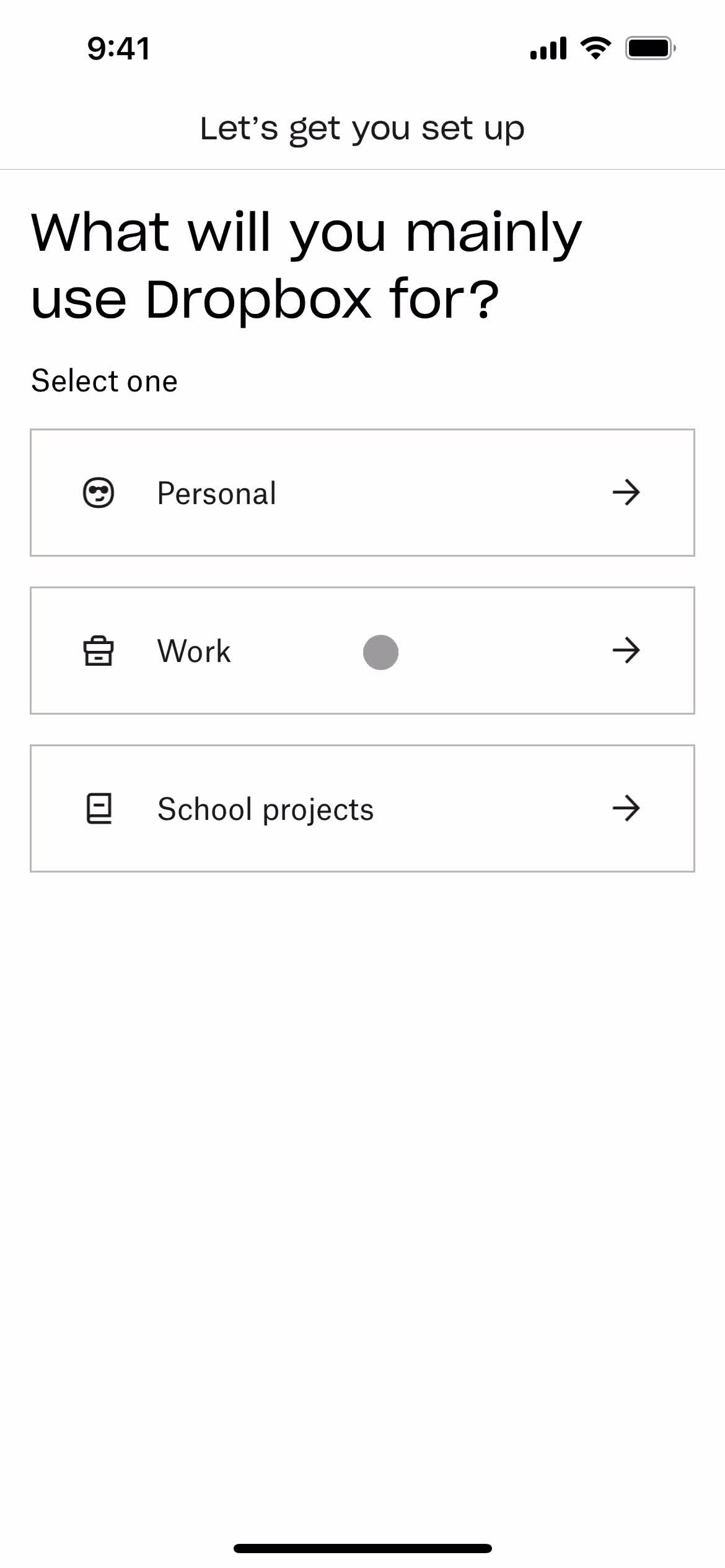
Onboarding question
this is title
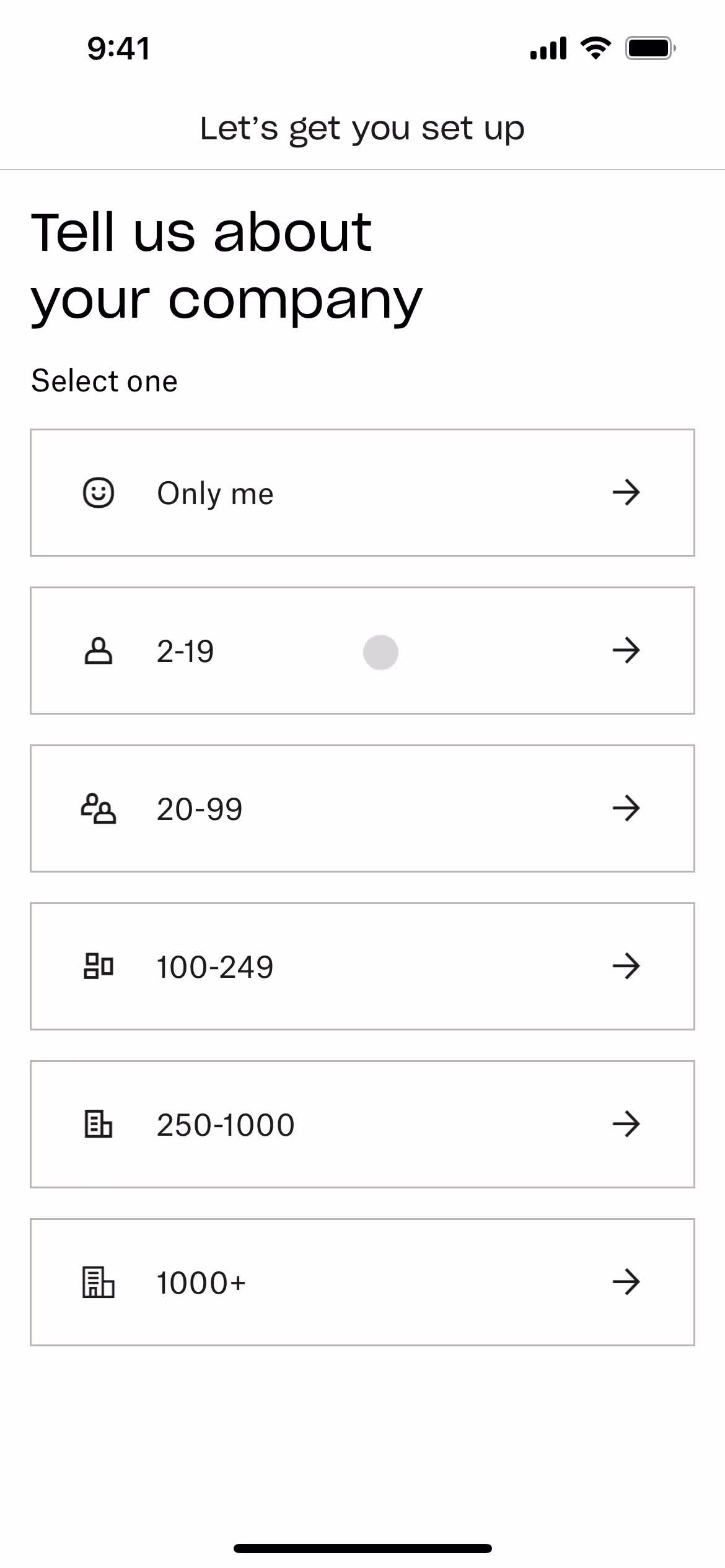
Select team size
this is title
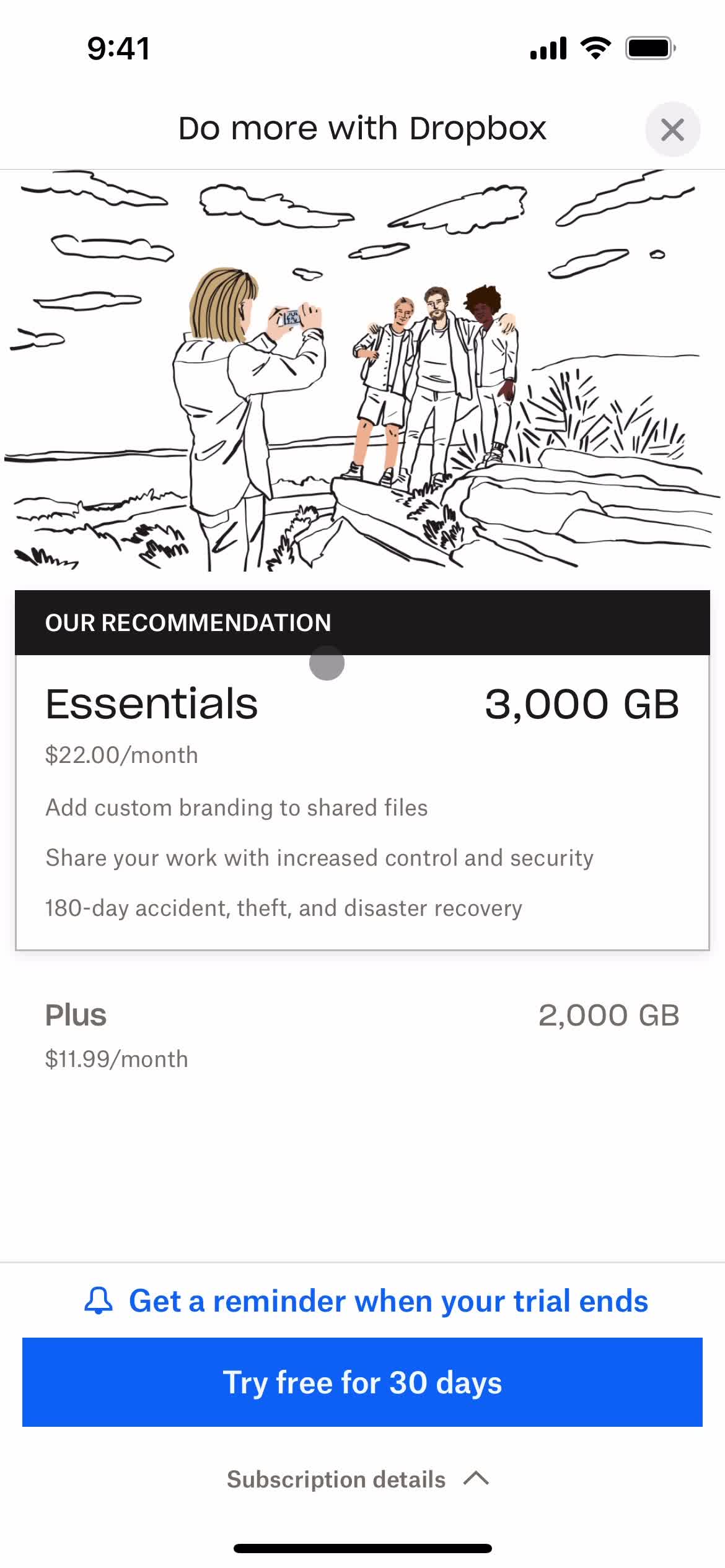
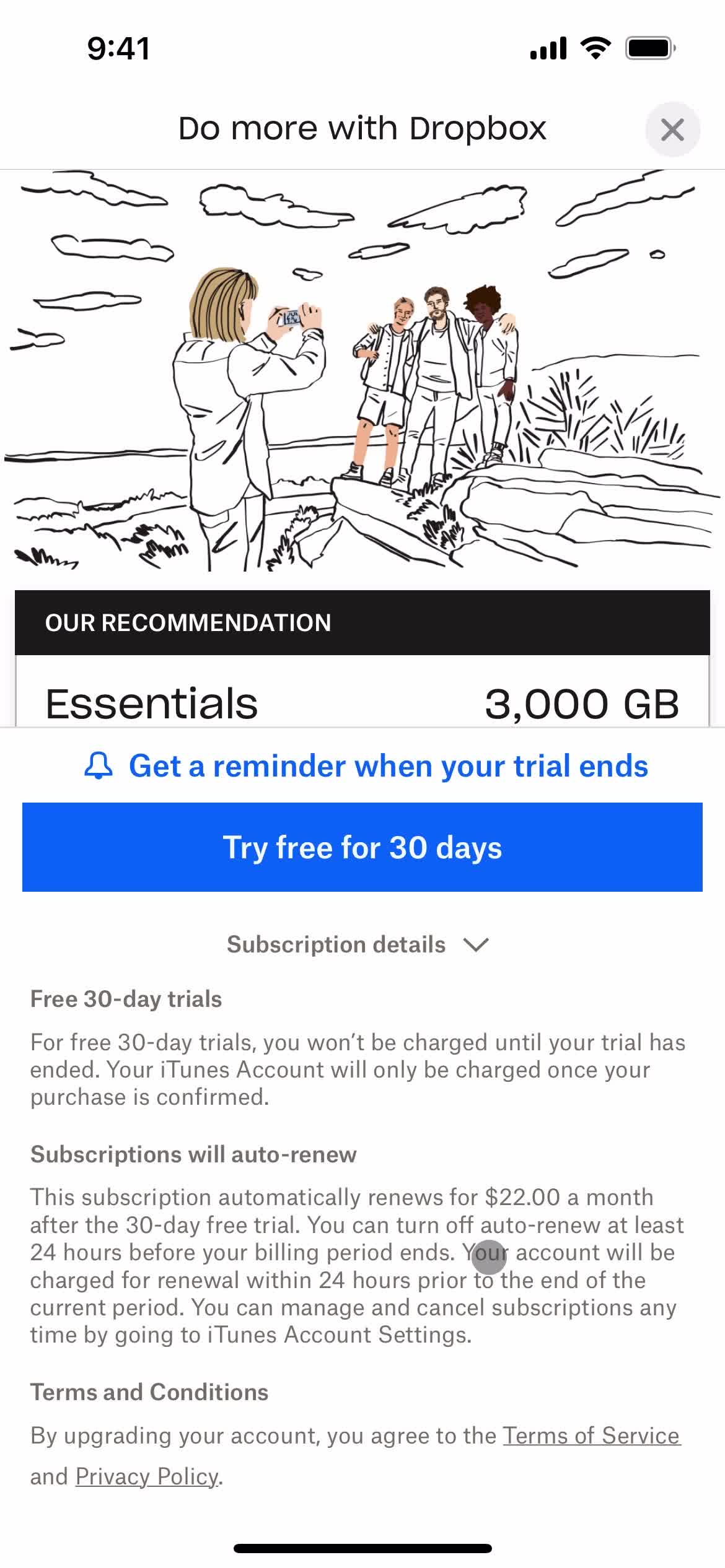
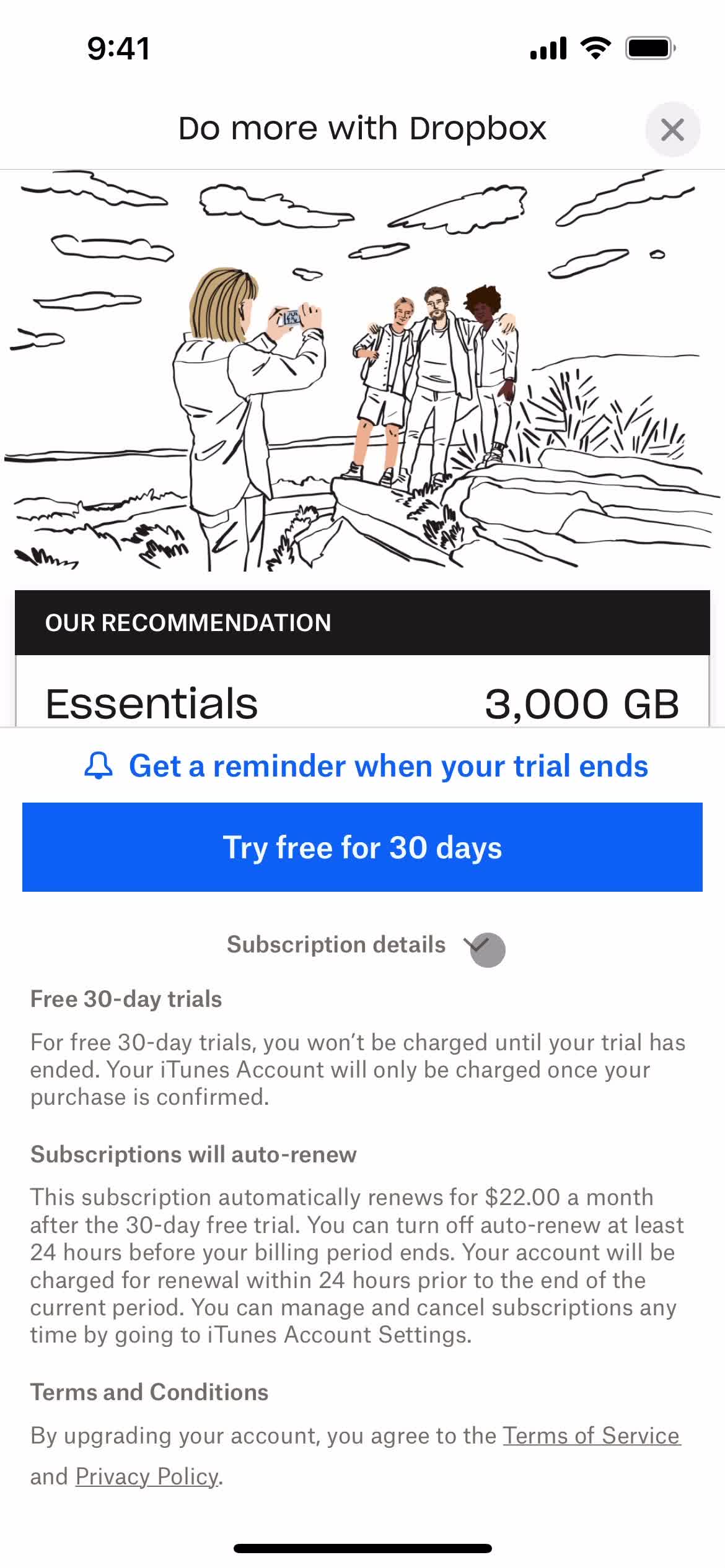
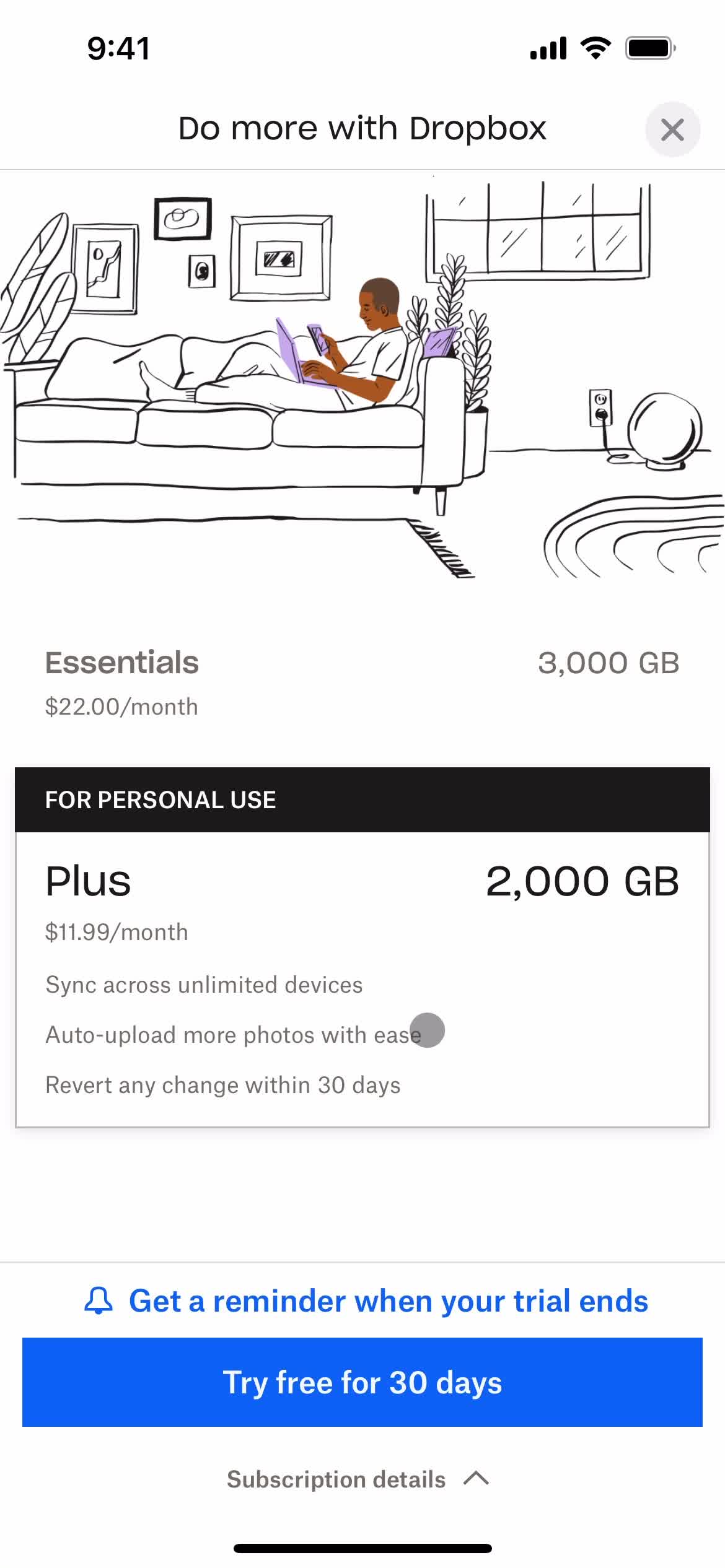
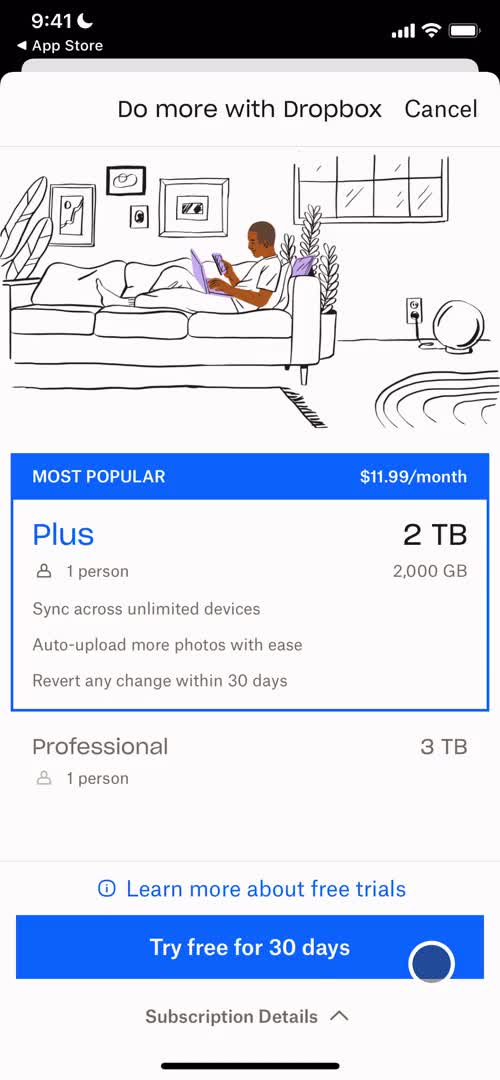
Upgrade
this is title
Show details
this is title
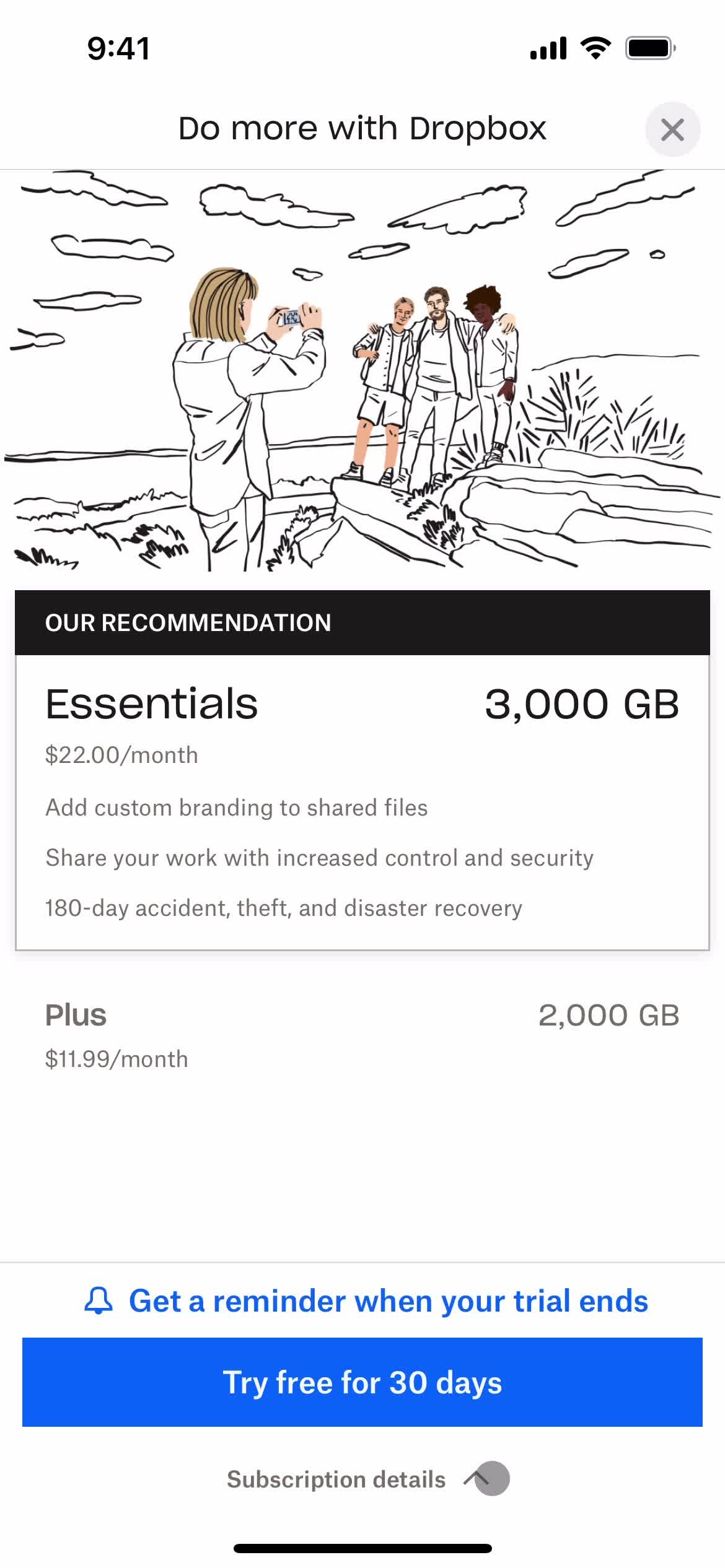
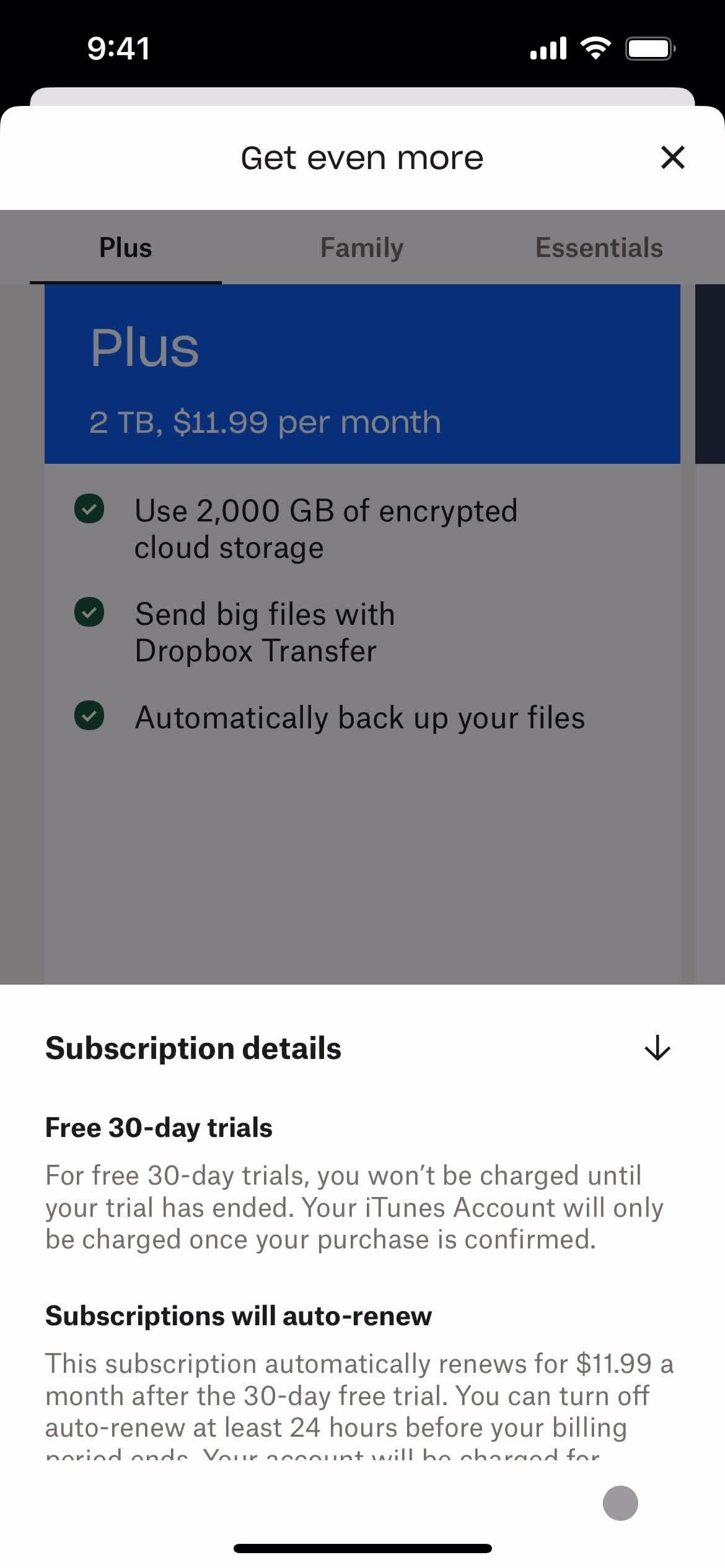
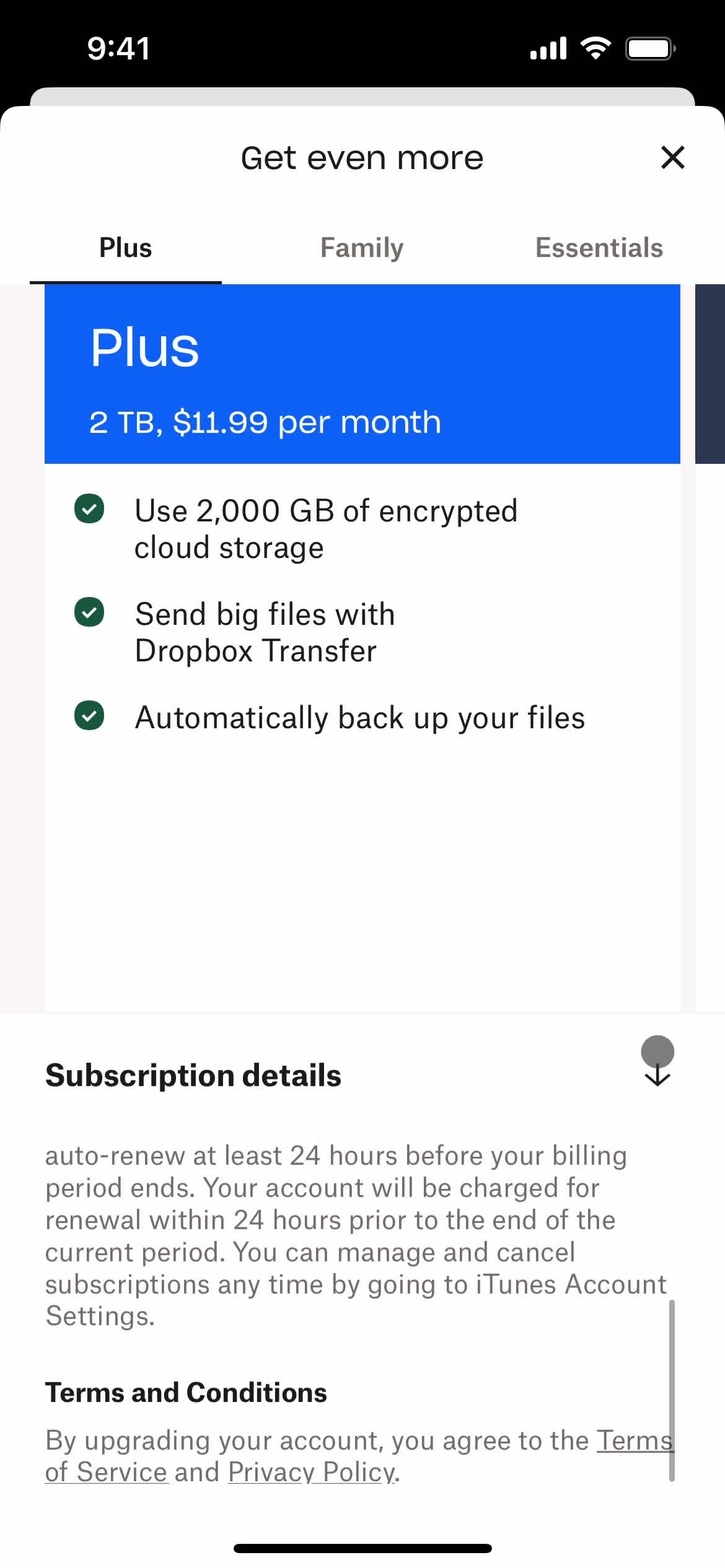
Subscription details
this is title
this is title
this is title
this is title
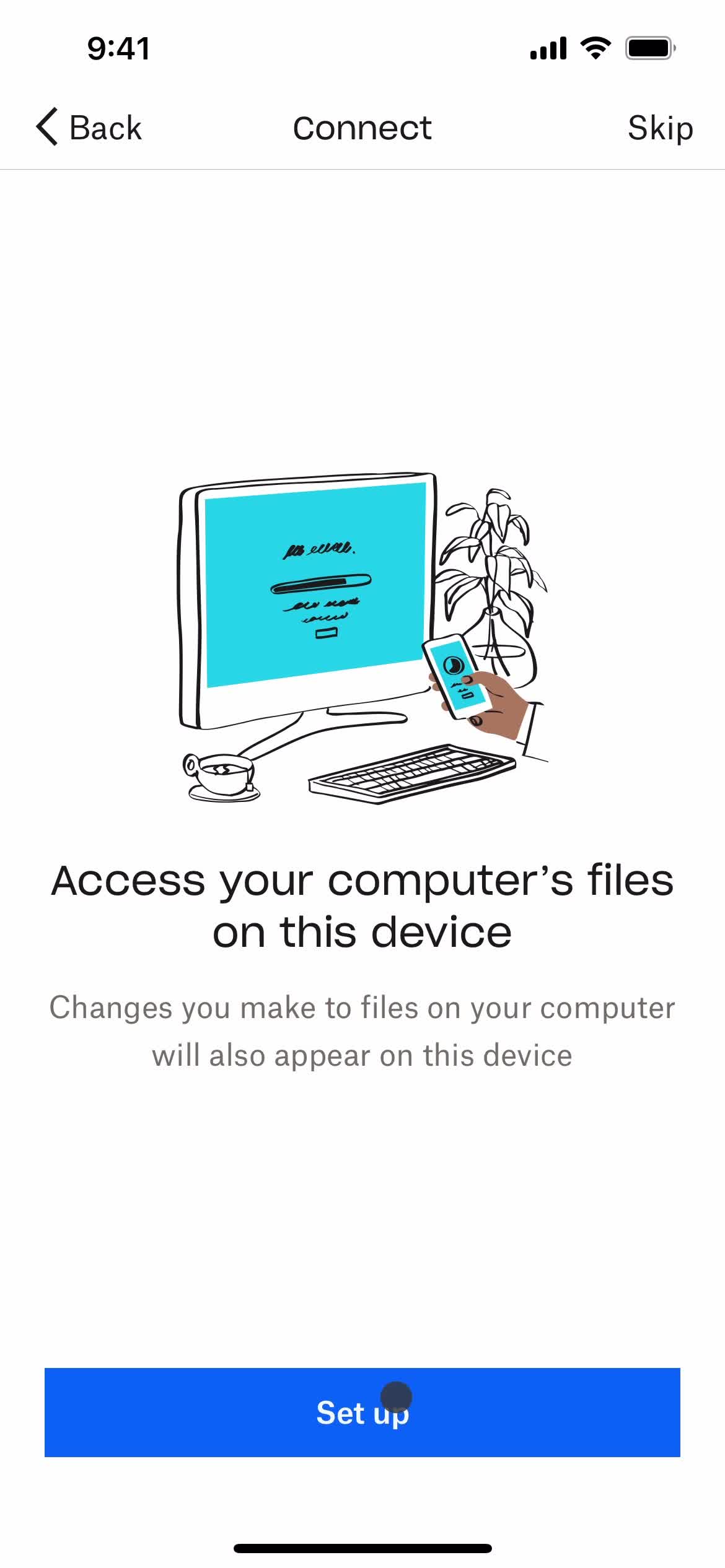
Guide screen
this is title
Set up
this is title
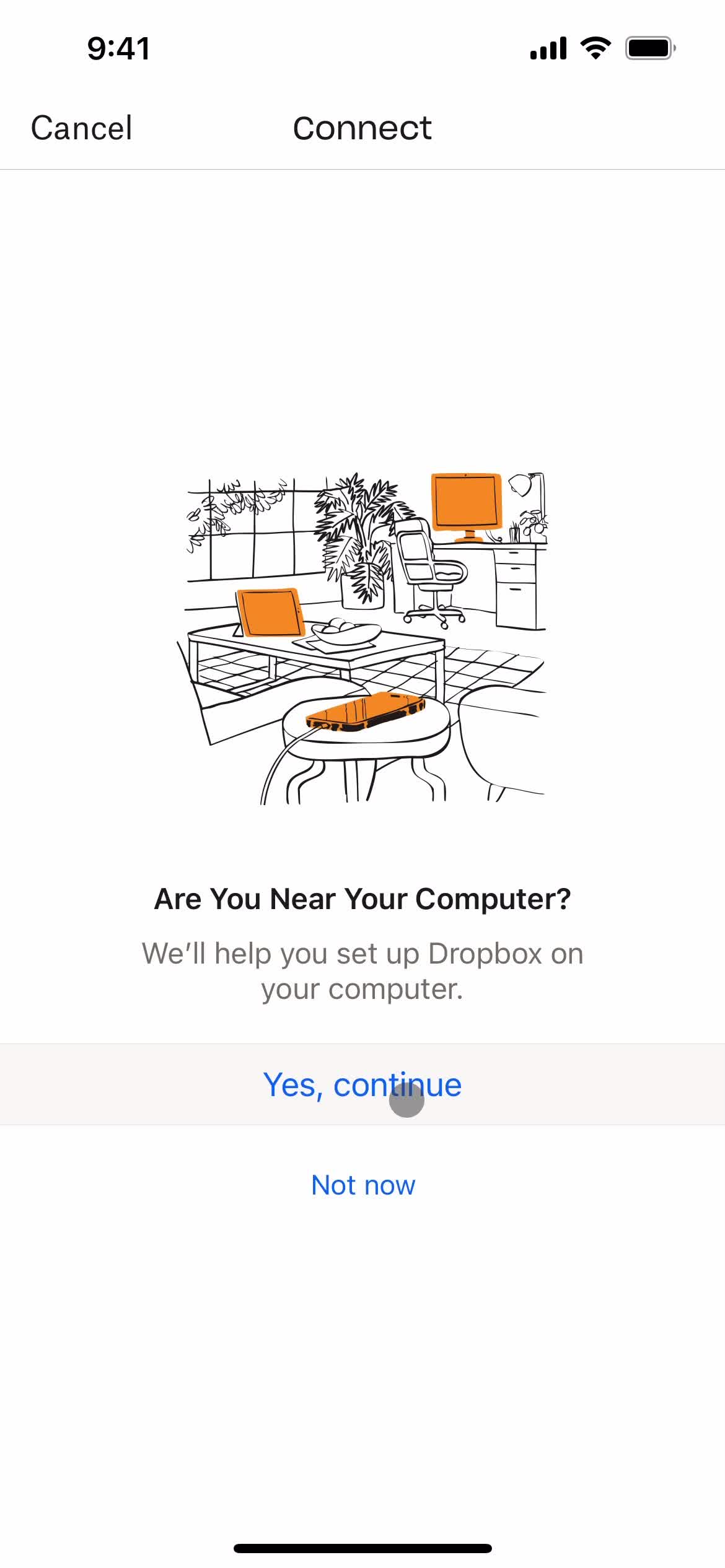
Confirm
this is title
Continue
this is title
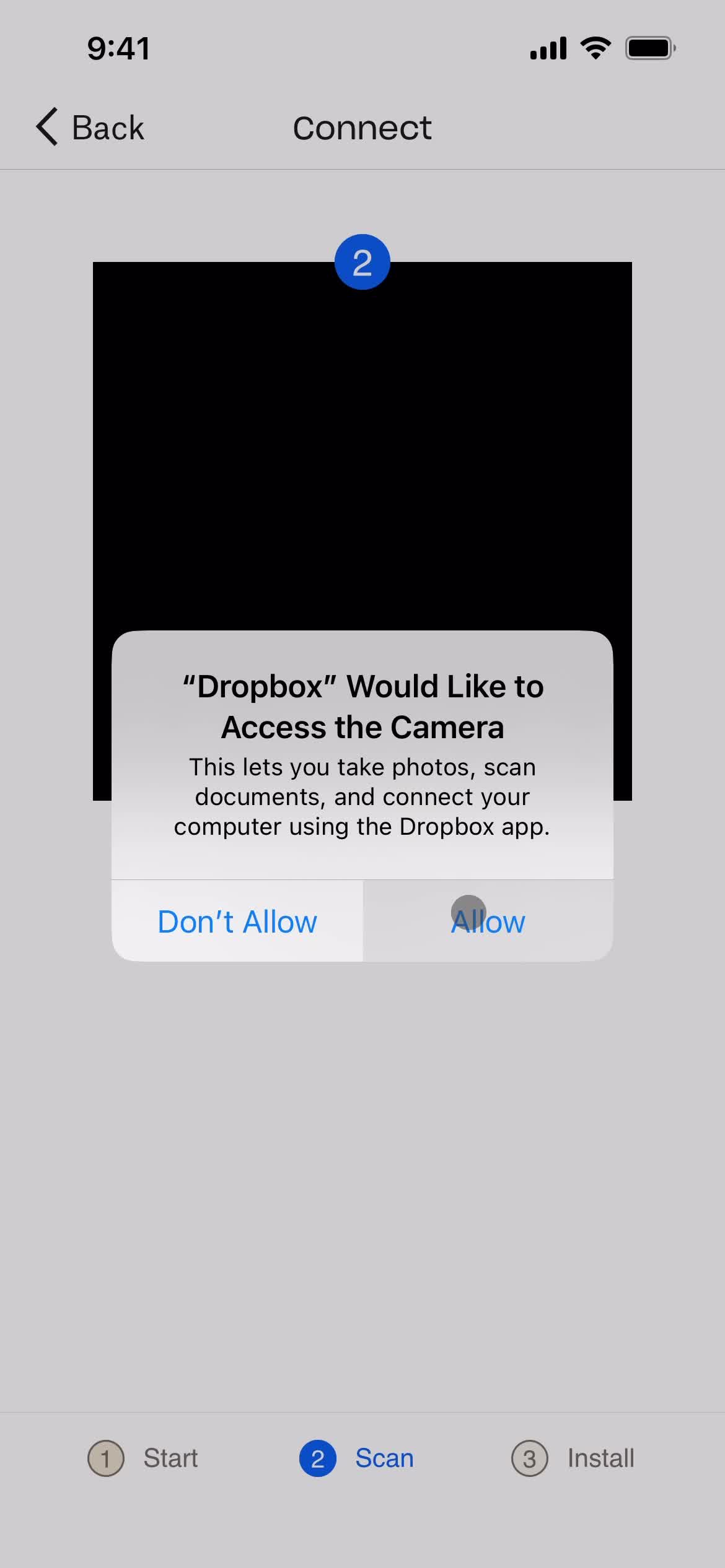
Enable camera
this is title
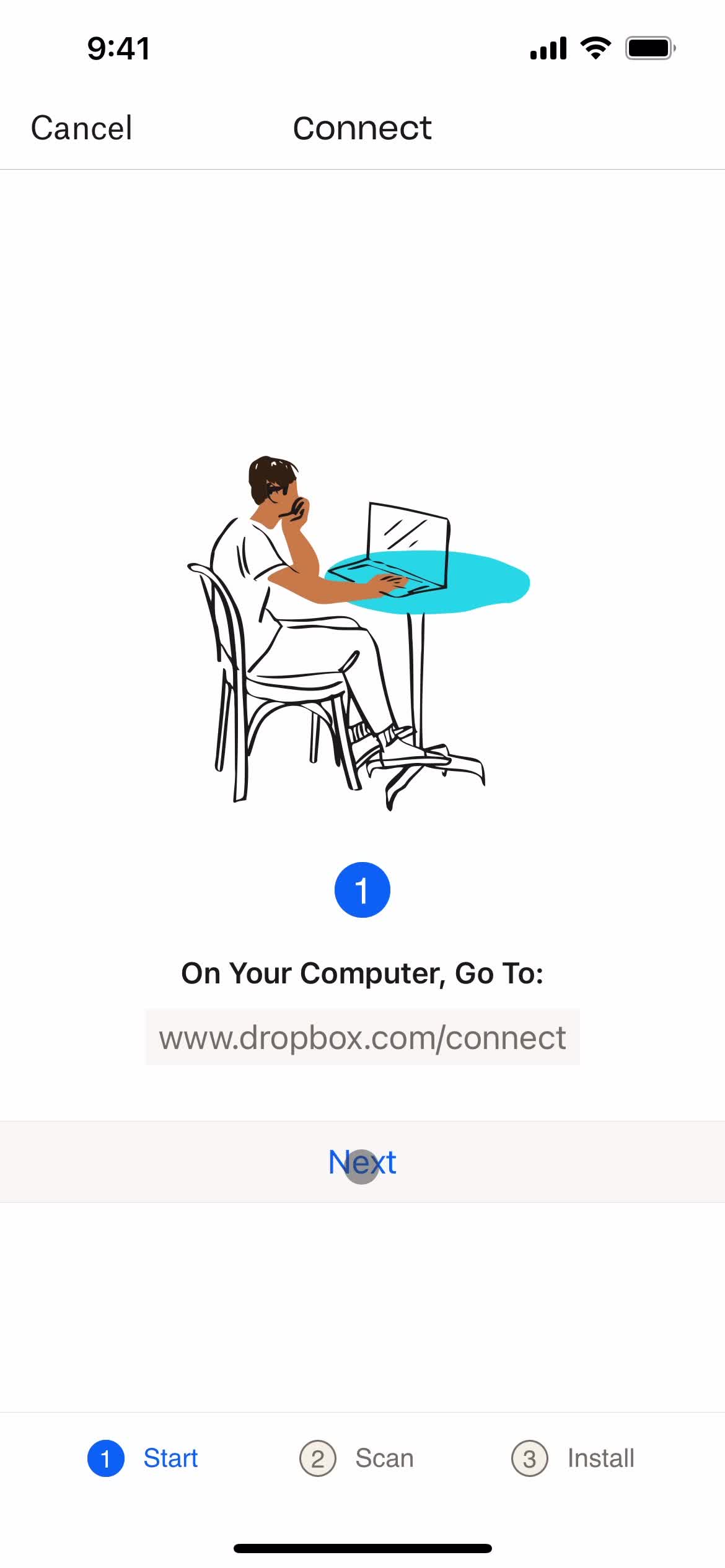
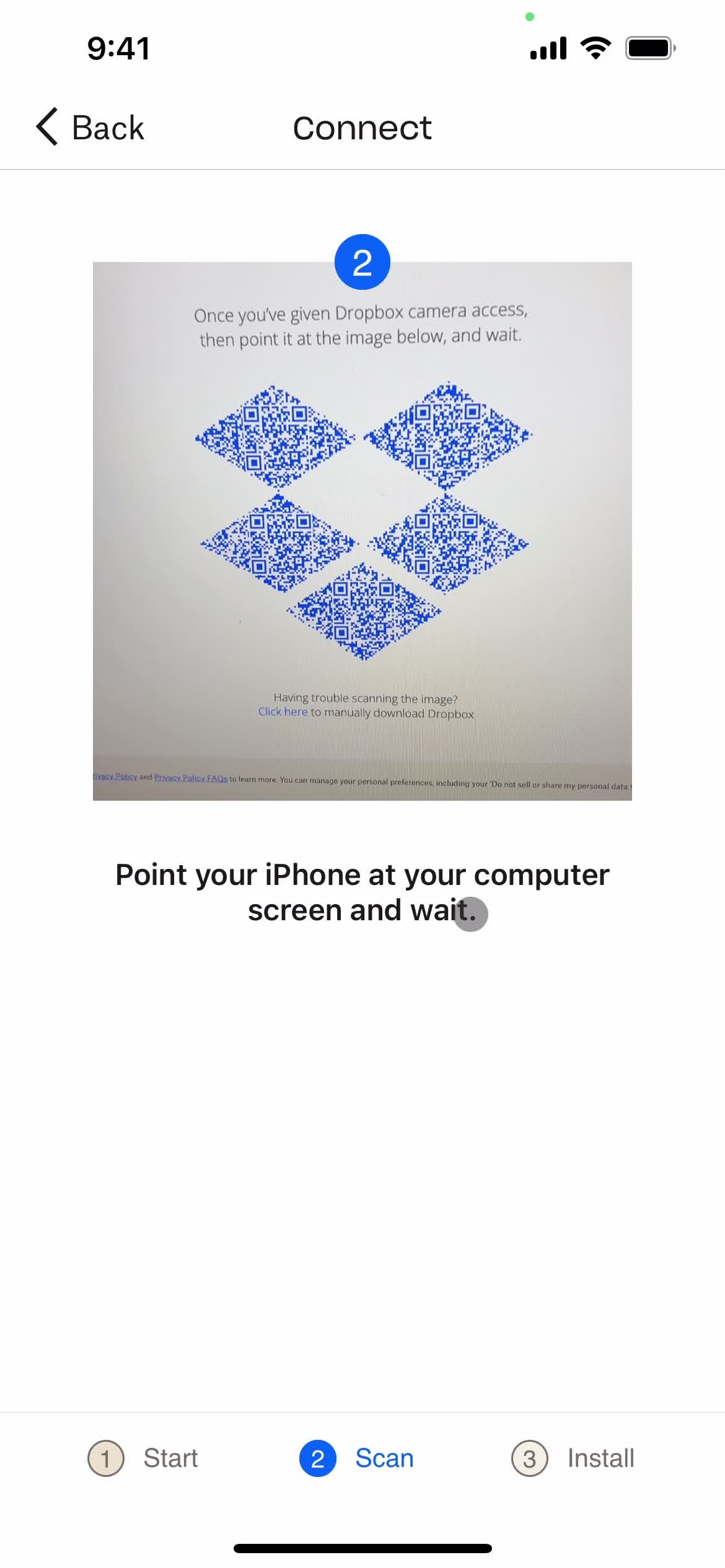
Scan QR code
this is title
Continue
this is title
Guide screen
this is title
Guide screen
this is title
Enable notifications
this is title
Enable tracking
this is title
Home
this is title
this is title
Account
this is title
App store listing
this is title
Splash screen
this is title
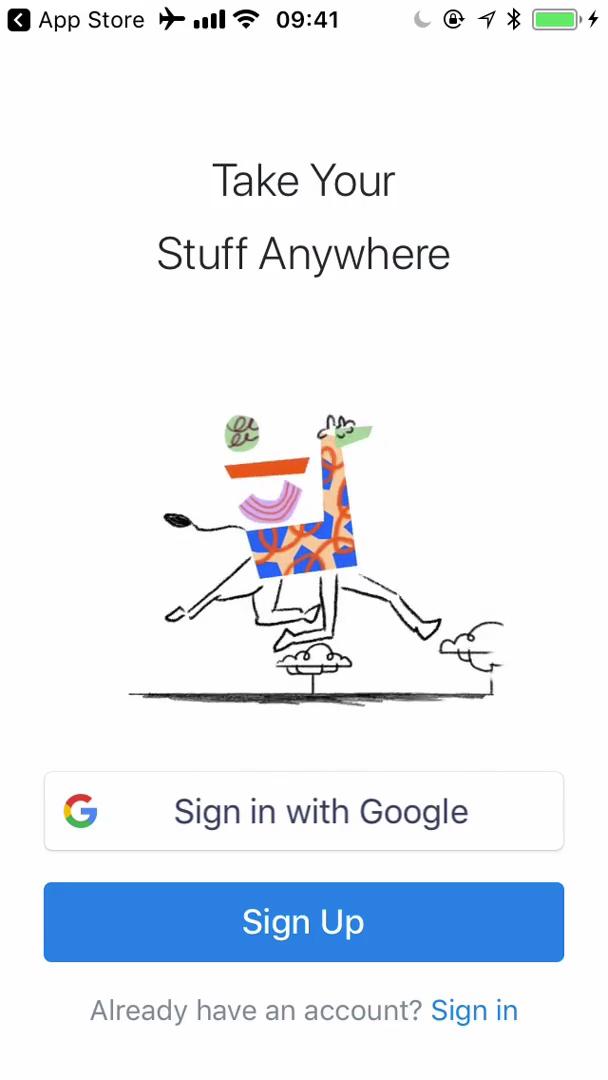
Start screen
this is title
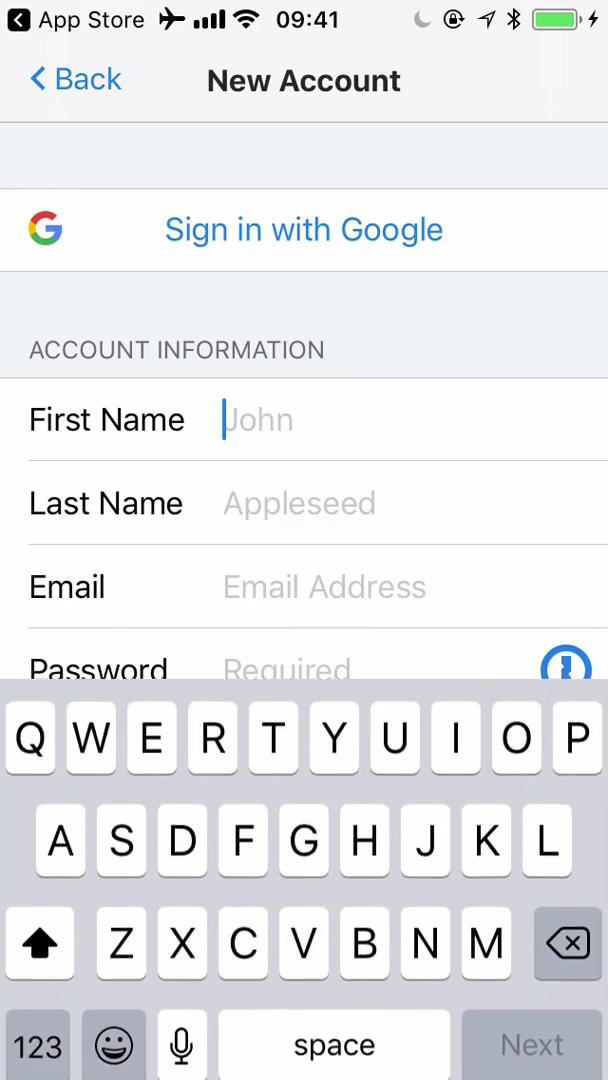
Sign up with email
this is title
Password validator
this is title
Loading
this is title
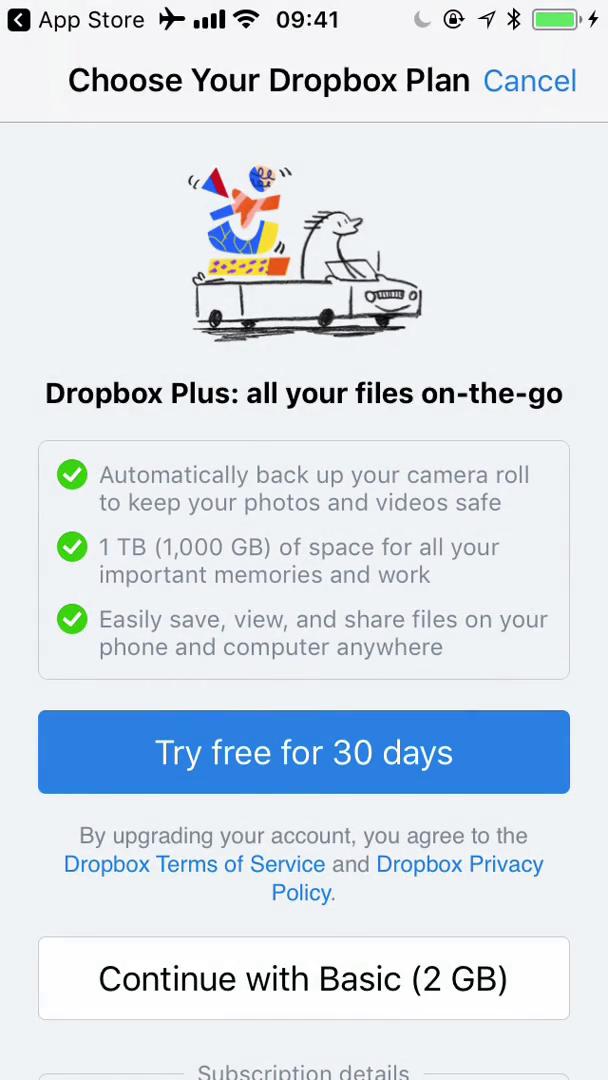
Start trial
this is title
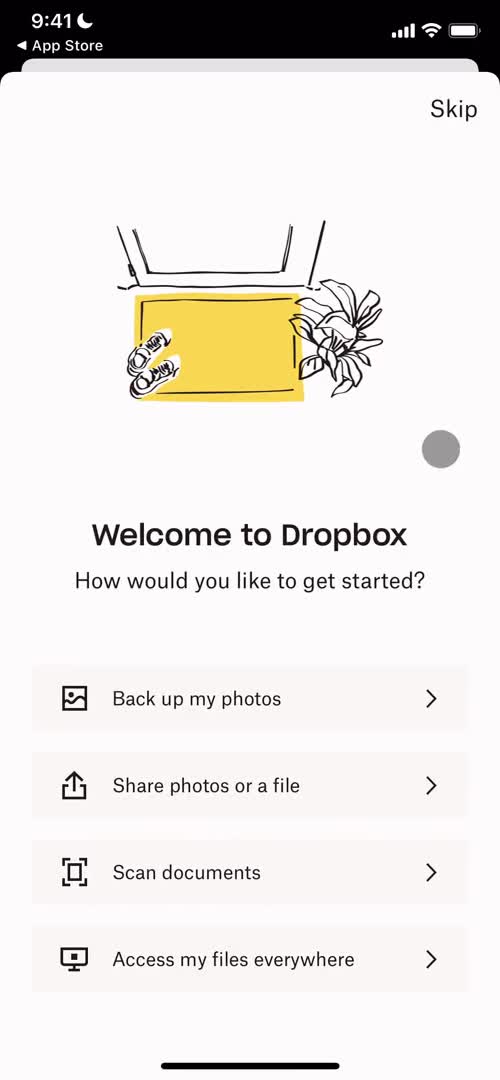
Select next step
this is title
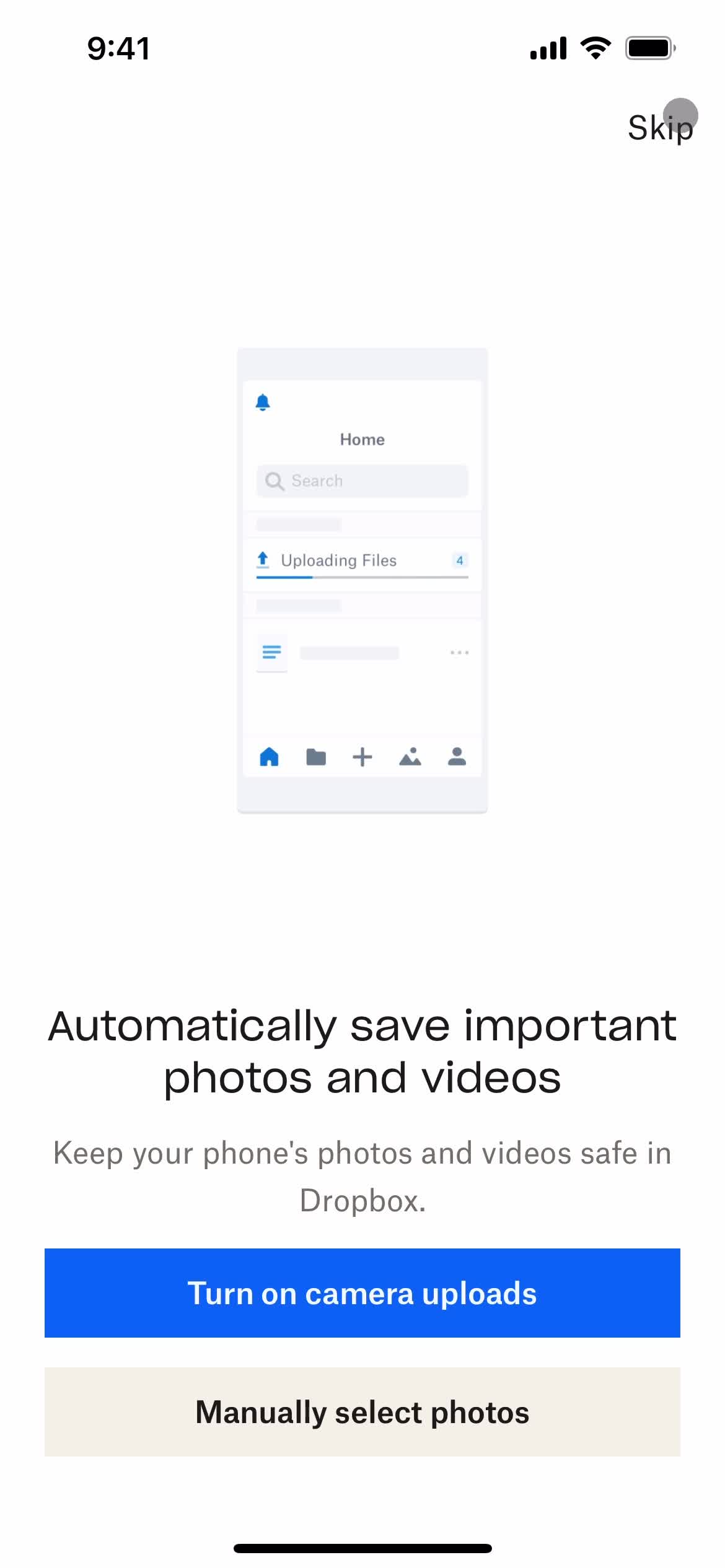
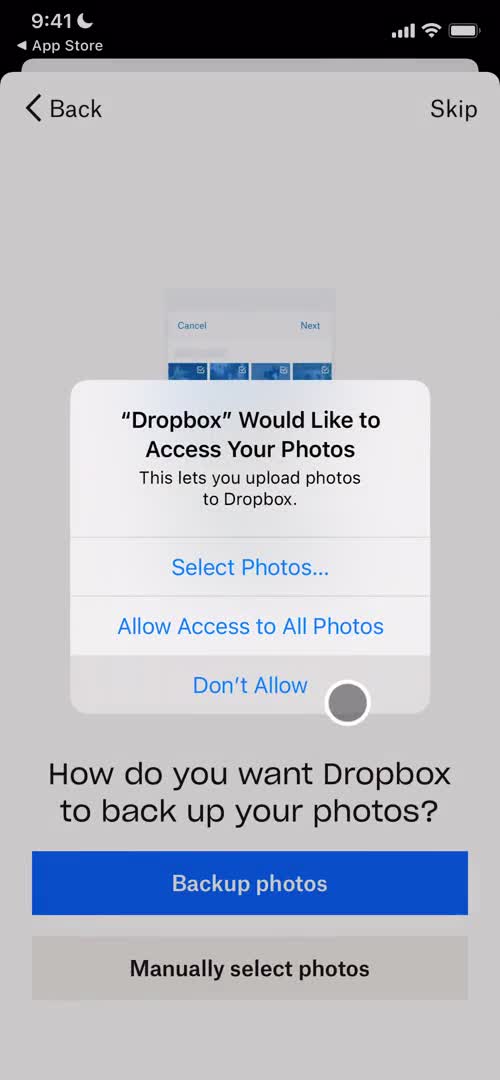
Enable photo library access
this is title
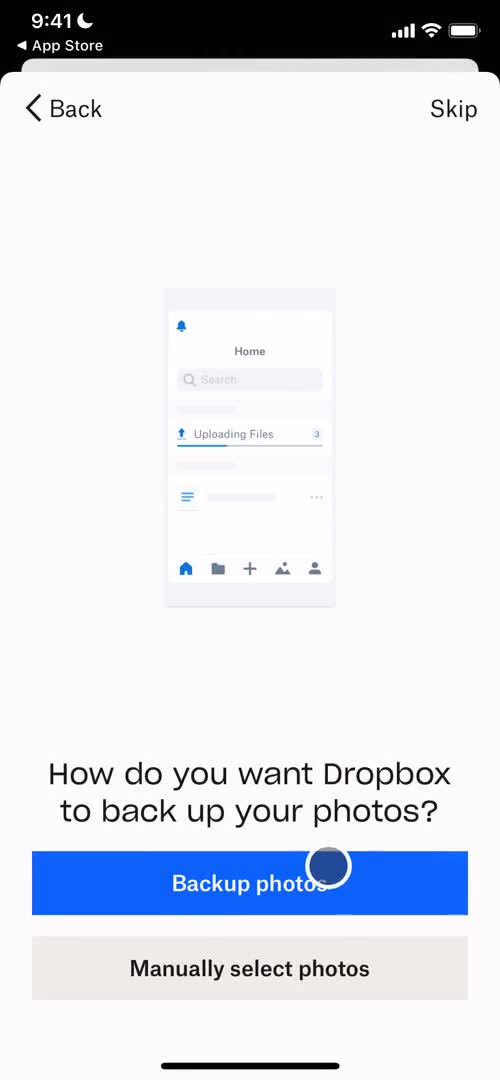
Backup photos
this is title
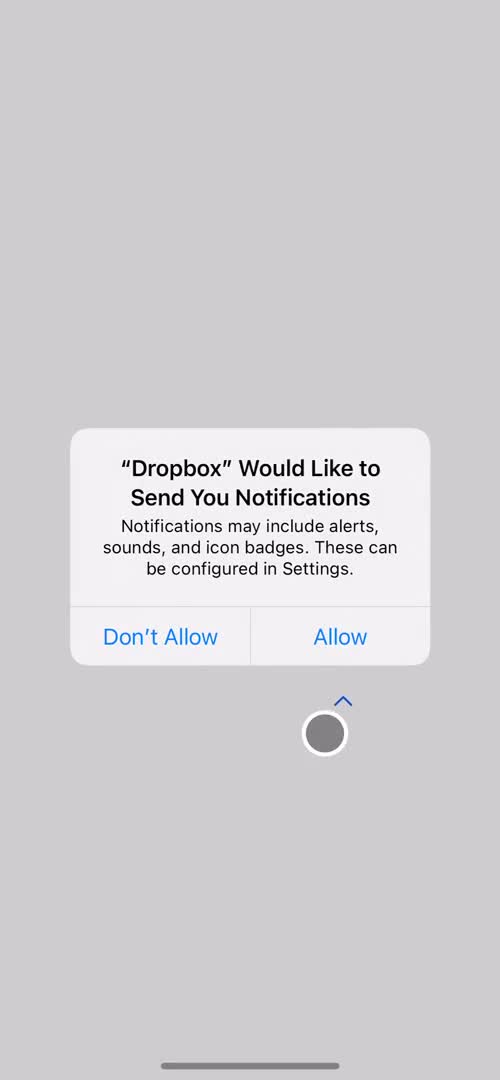
Enable notifications
this is title
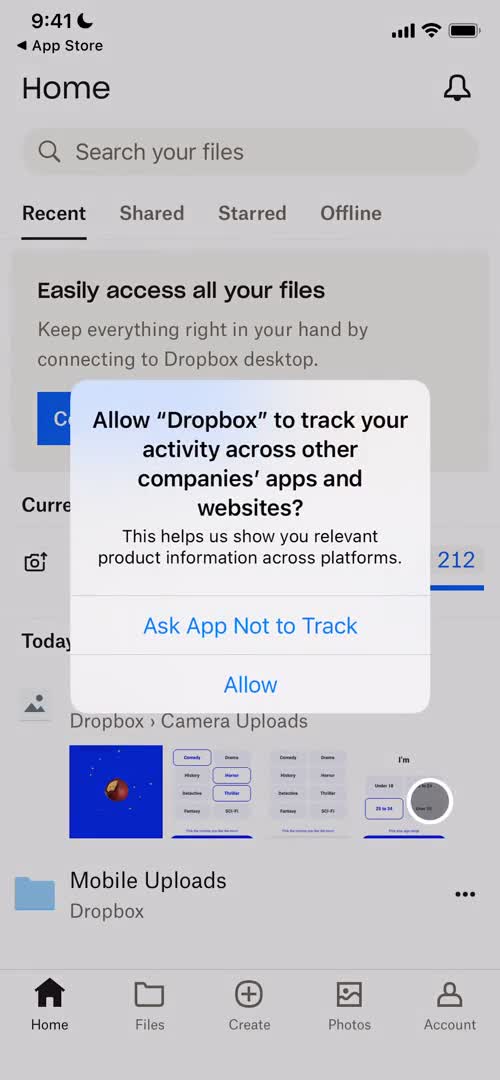
Enable tracking
this is title
Home
this is title
Home
this is title
this is title
this is title
this is title
this is title
this is title
this is title
this is title
this is title
this is title
this is title
this is title
Home
this is title
Create menu
this is title
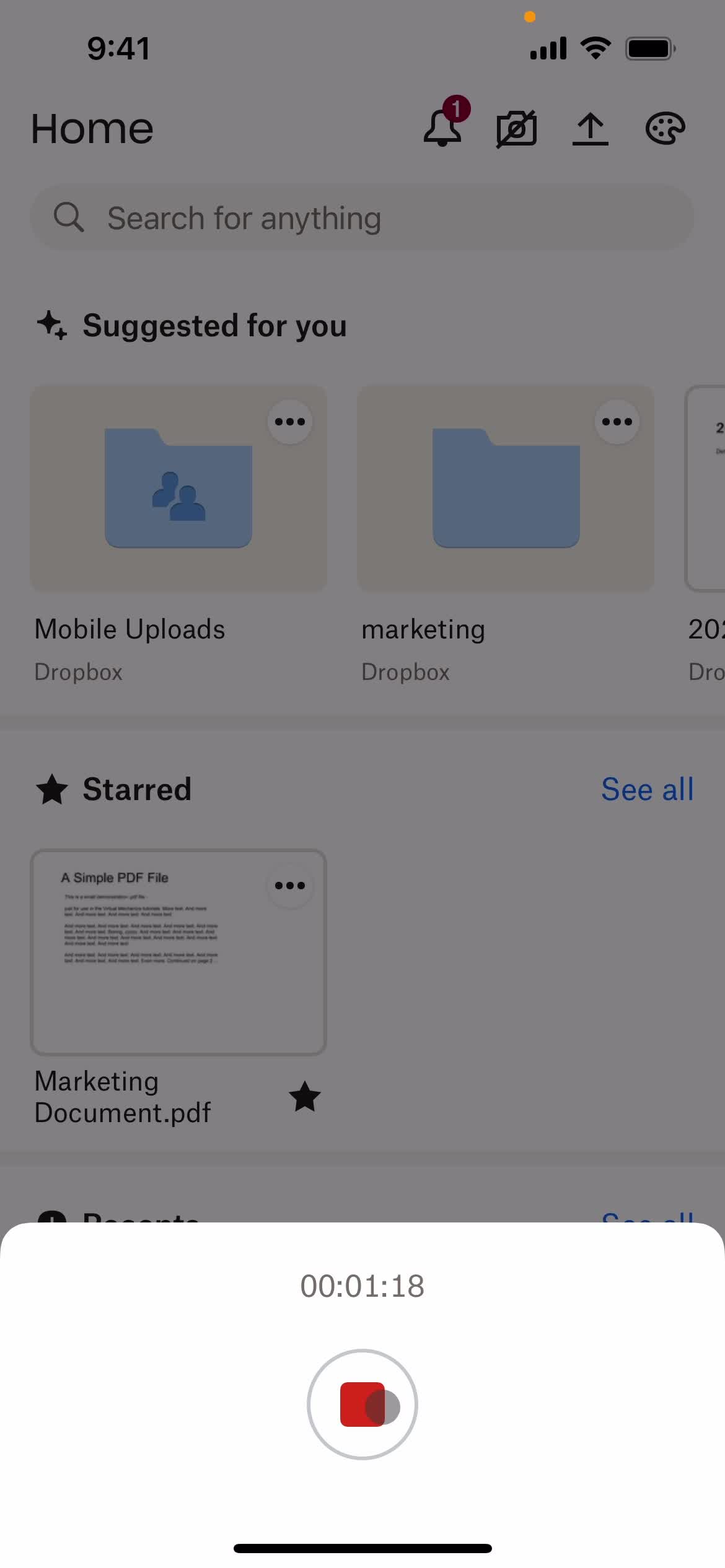
Record audio
this is title
Start recording
this is title
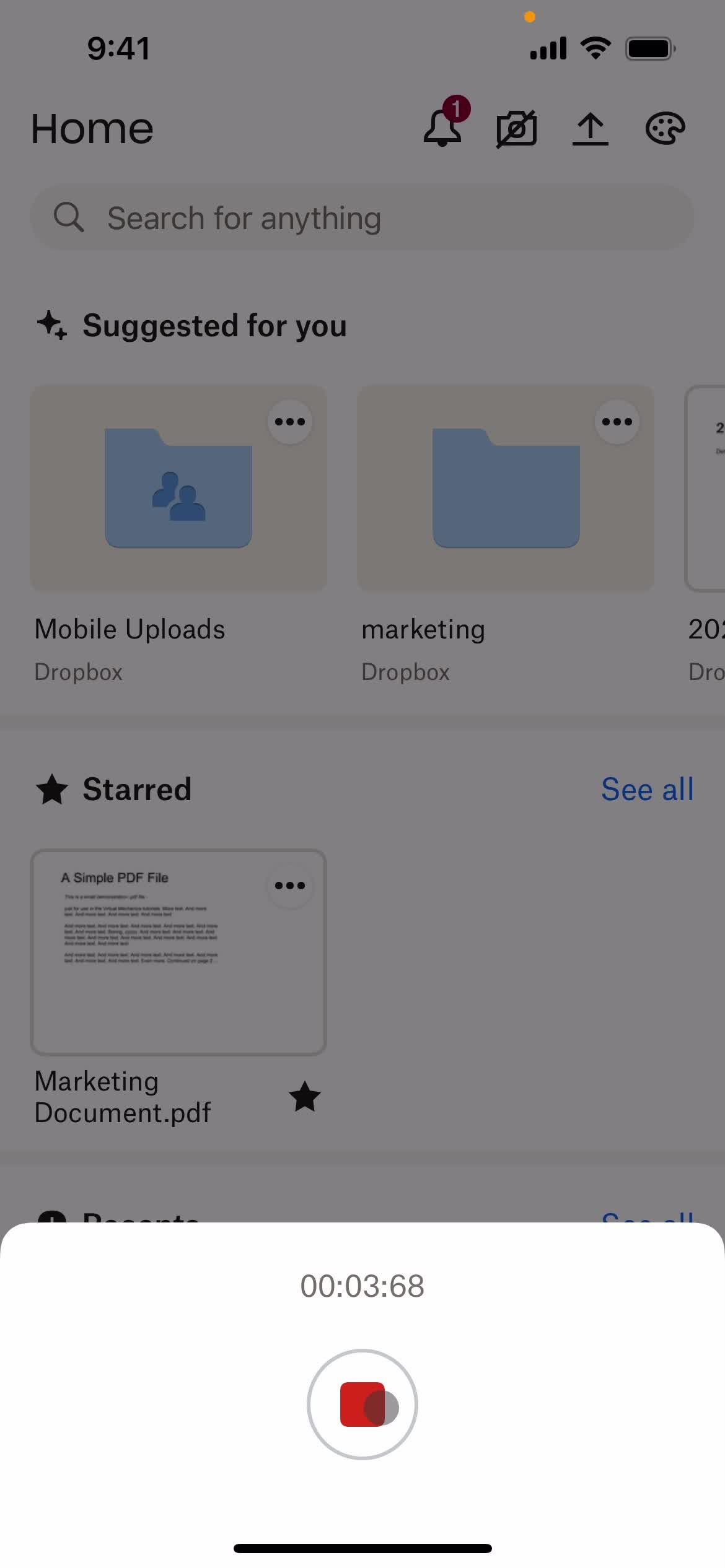
Recording
this is title
Stop recording
this is title
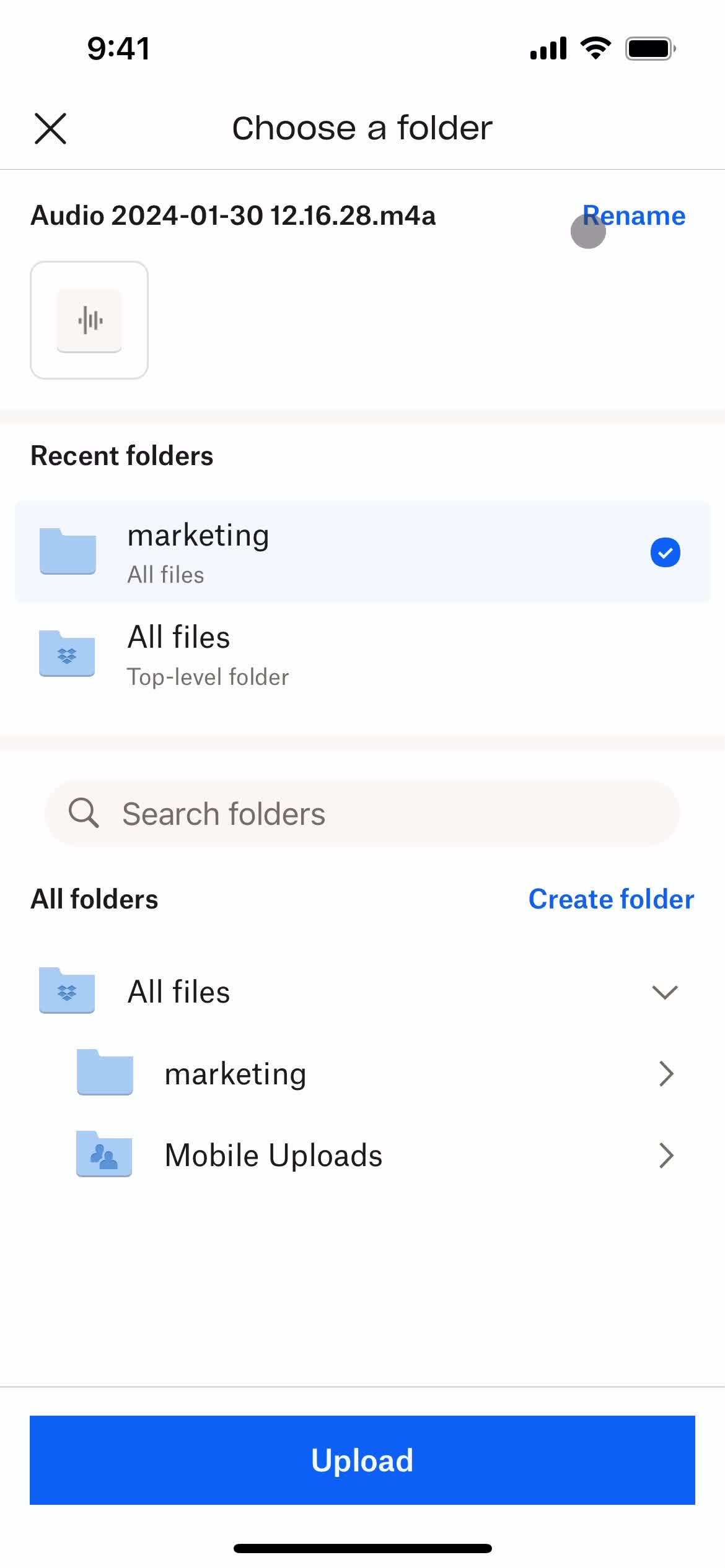
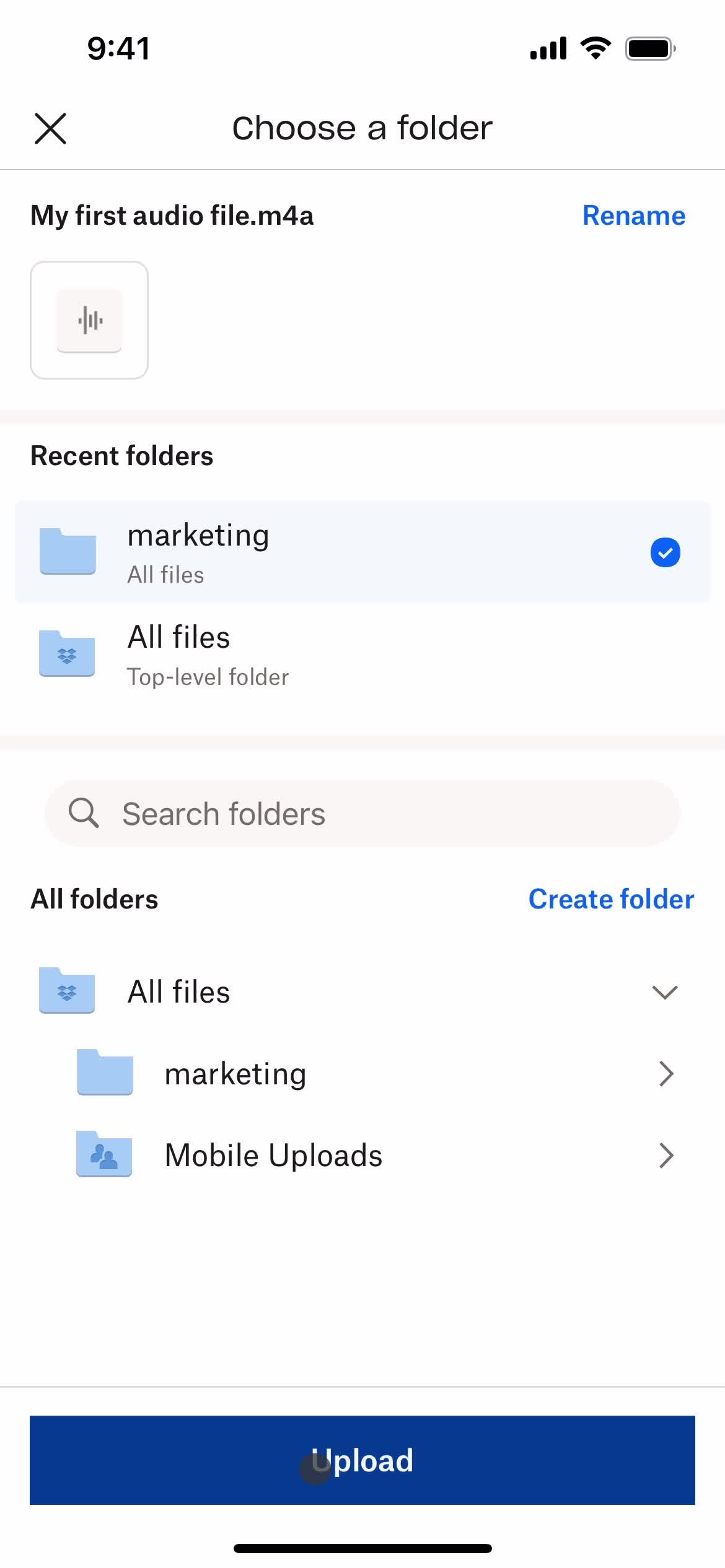
Select folder
this is title
this is title
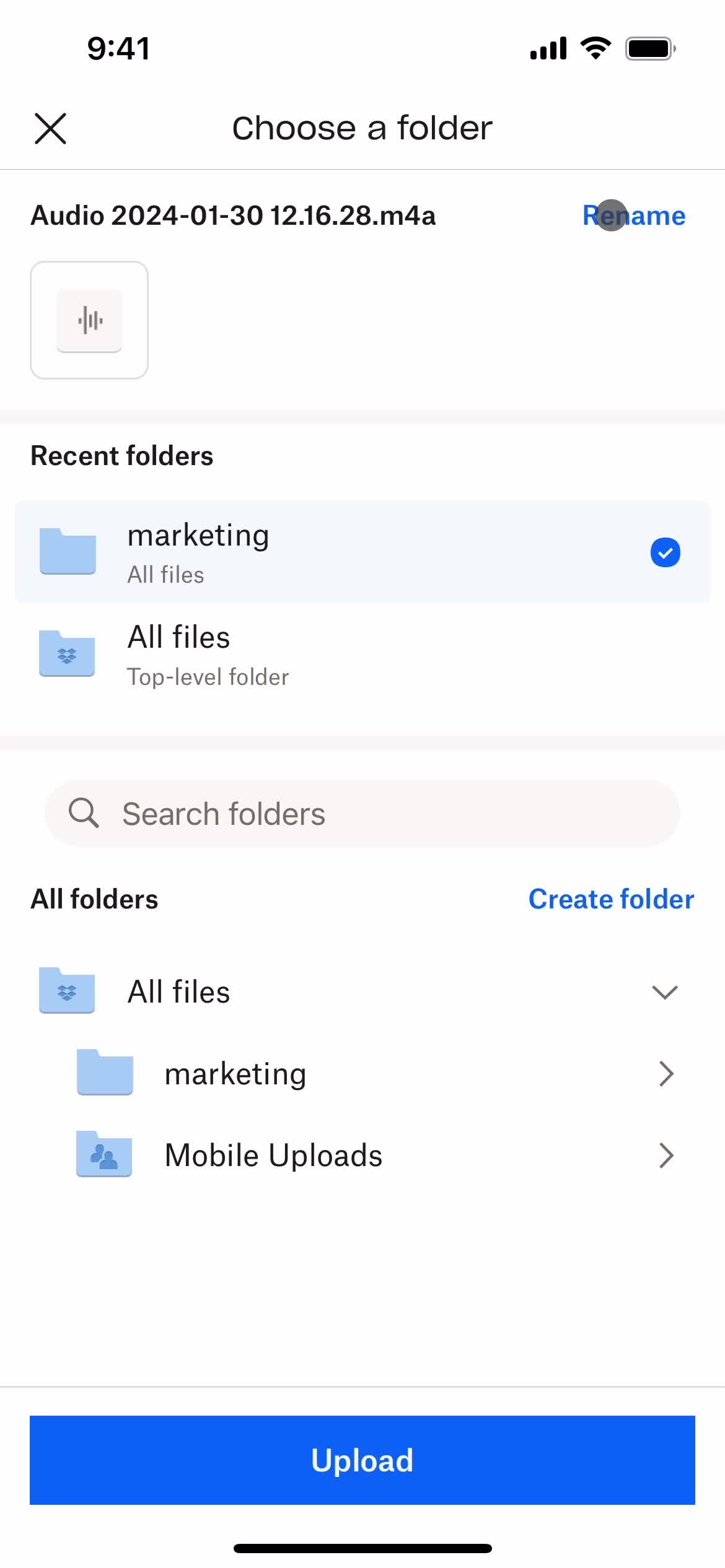
Rename
this is title
Continue
this is title
Upload file
this is title
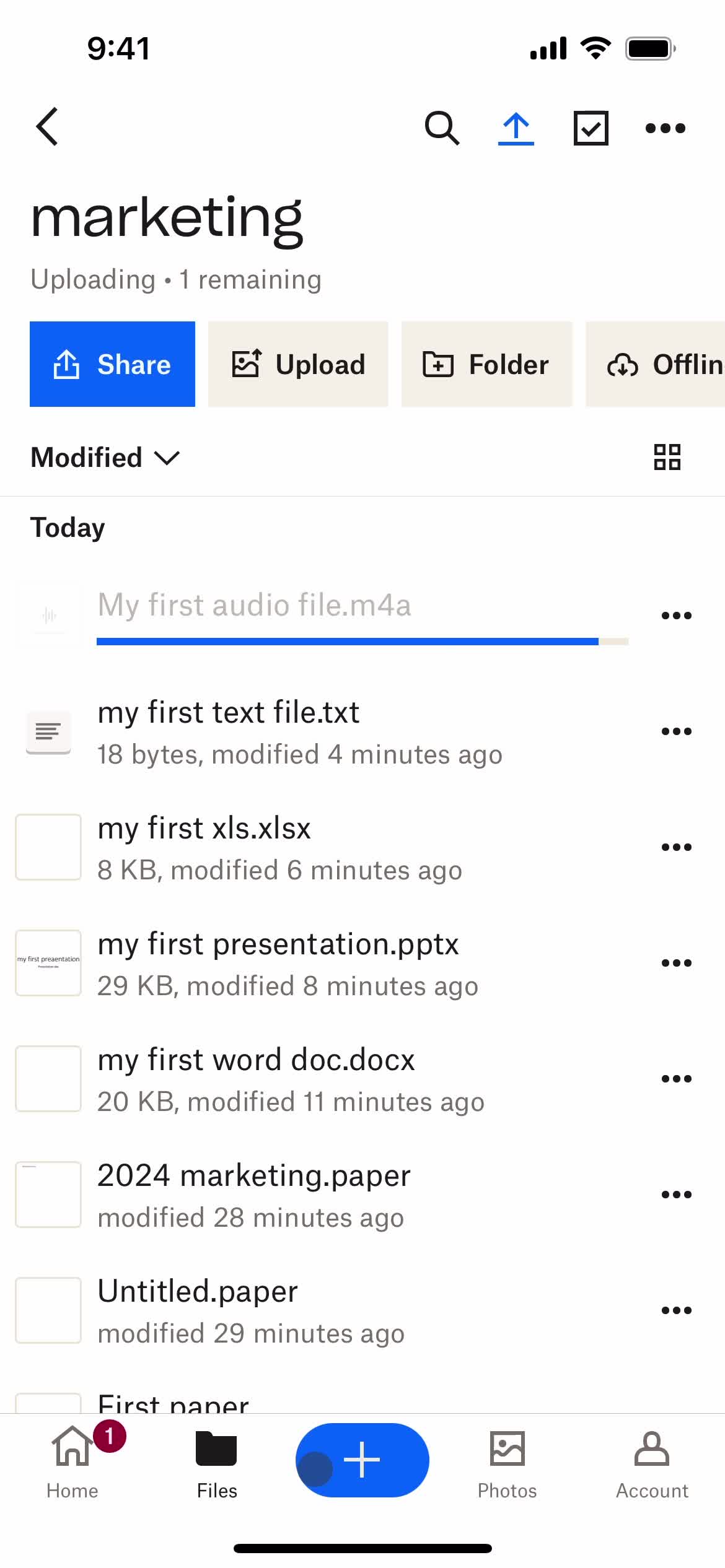
Uploading
this is title
Upload complete
this is title
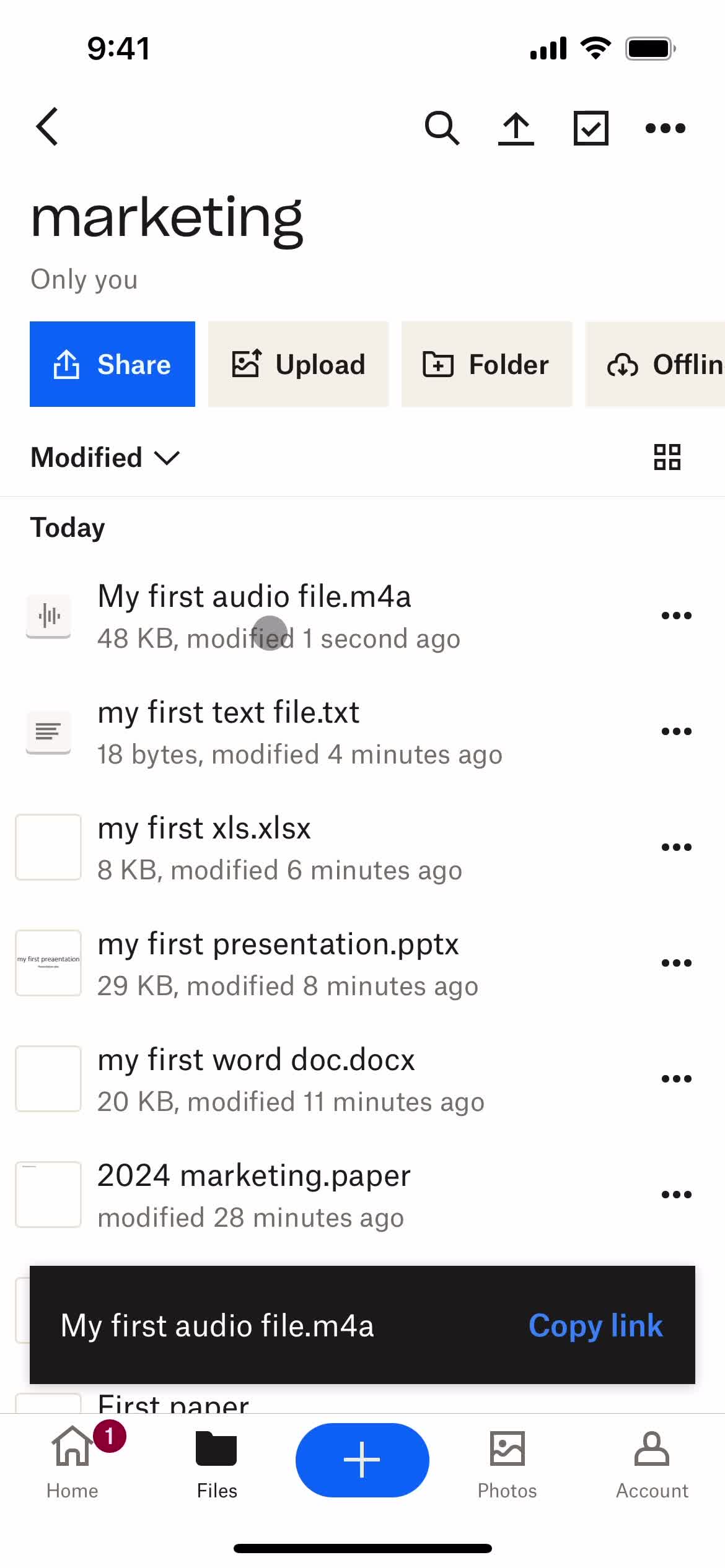
Playing audio
this is title
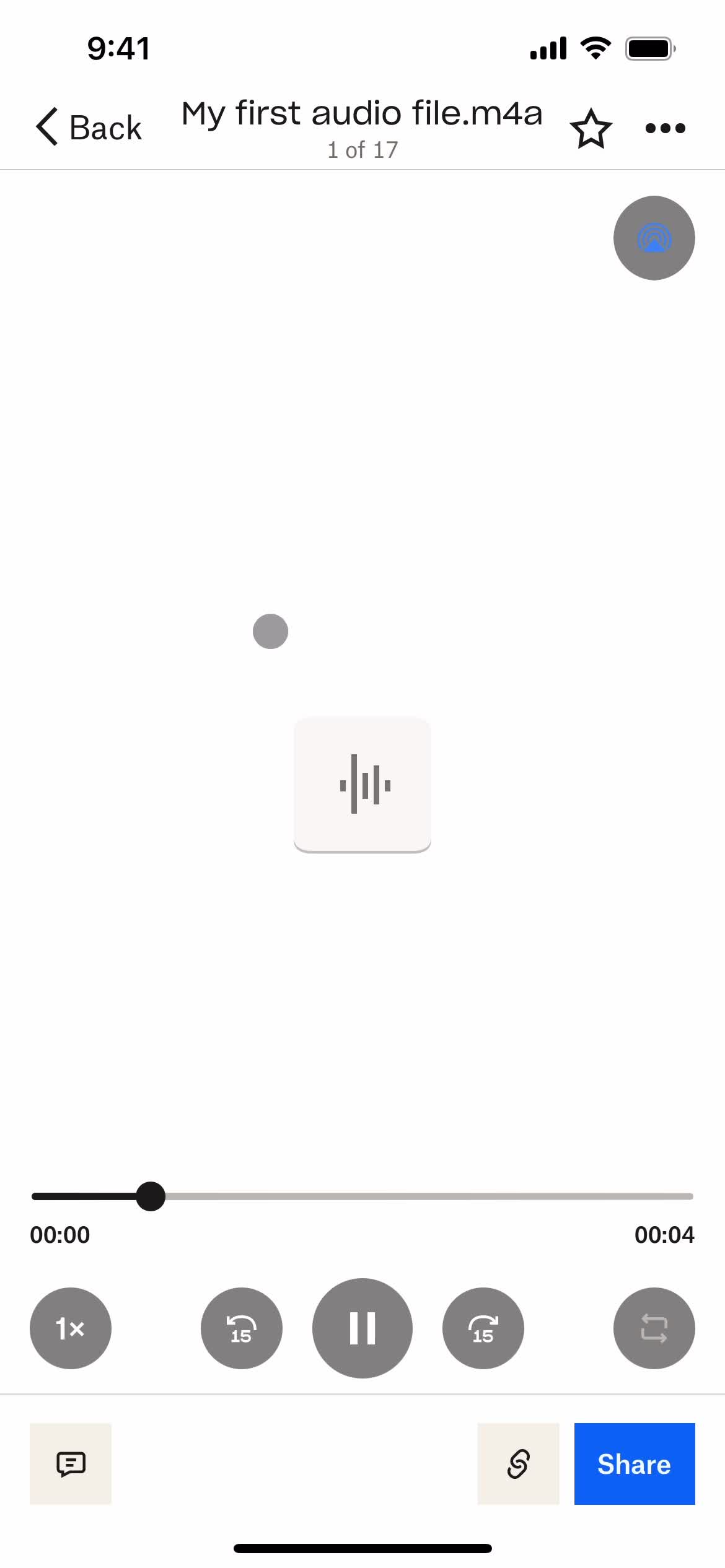
Audio player
this is title
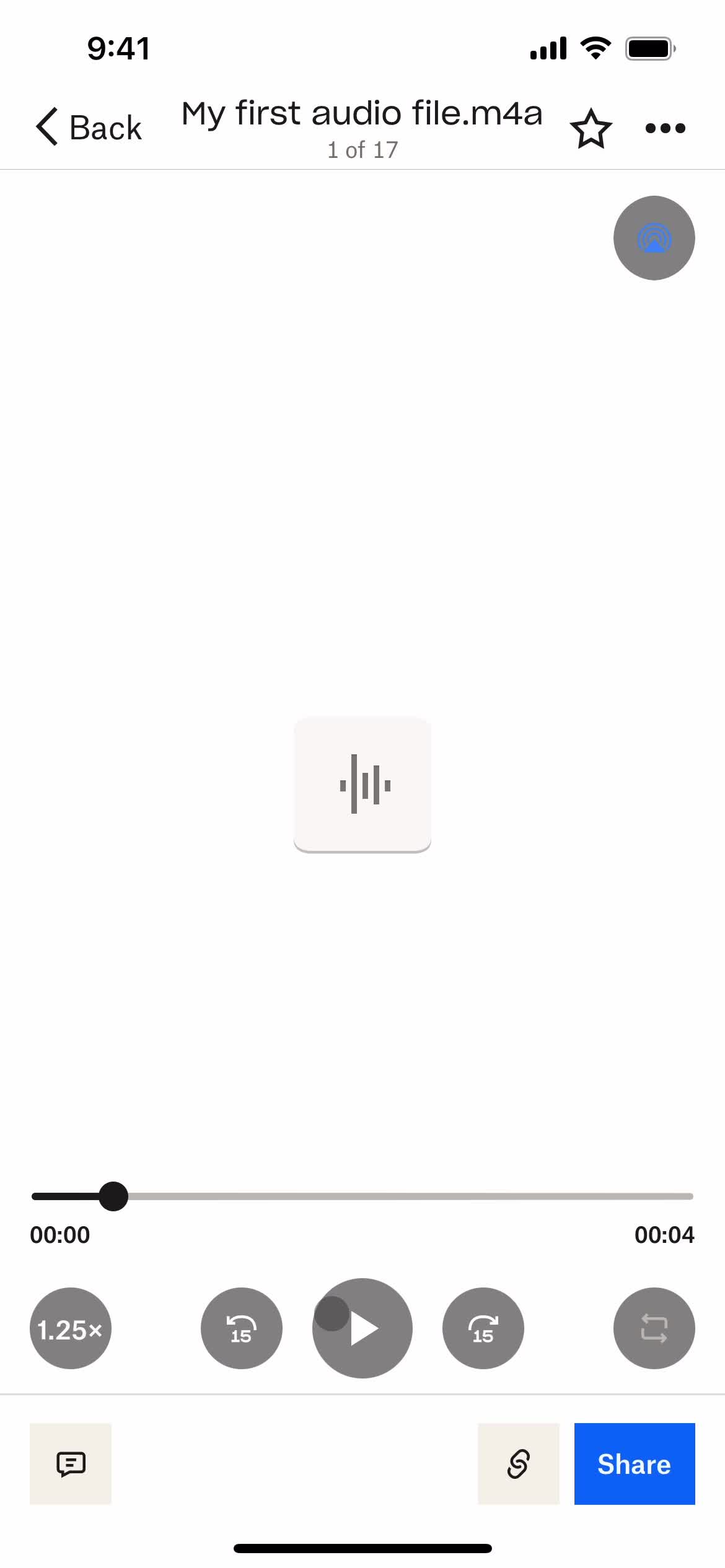
Playback settings
this is title
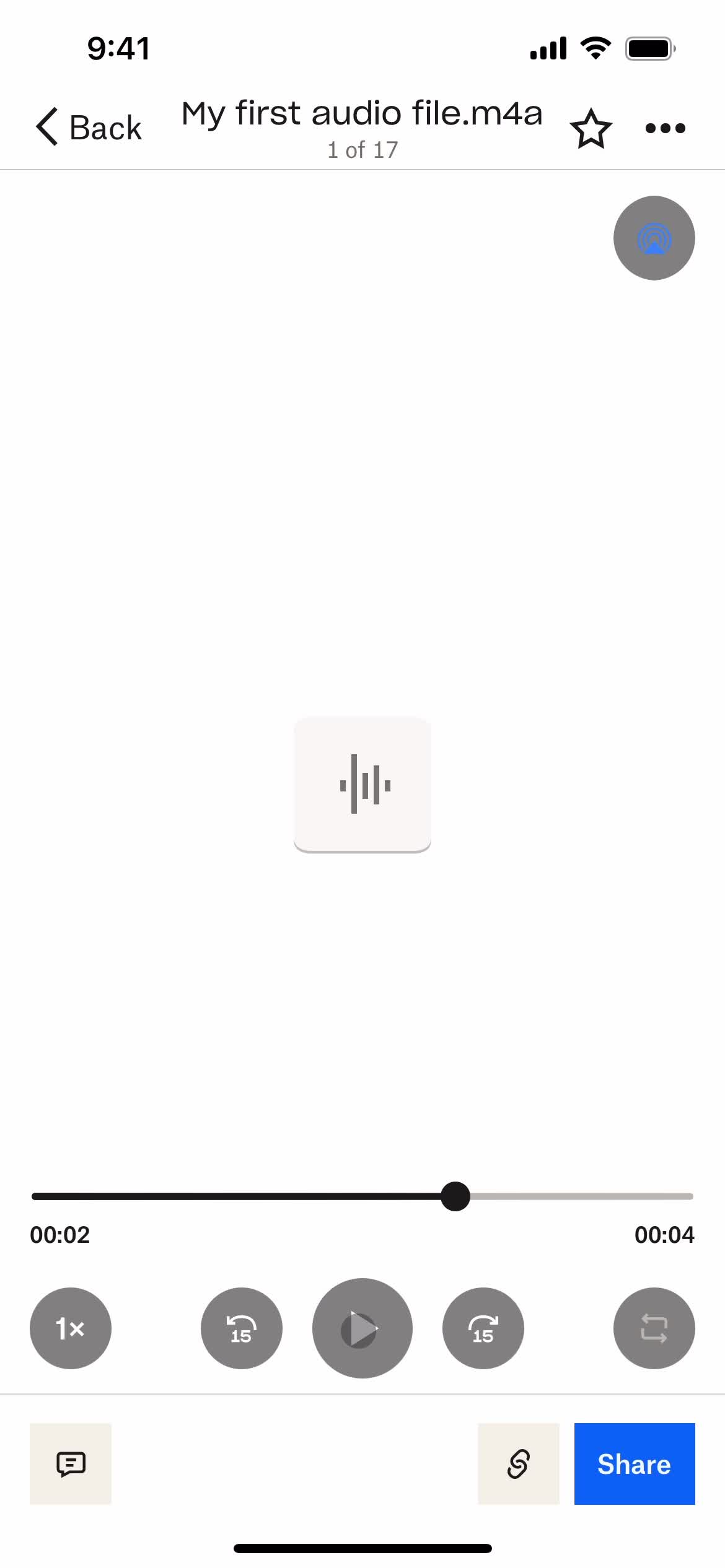
Playing audio
this is title
Folder
this is title
Welcome
this is title
Enter email
this is title
Continue
this is title
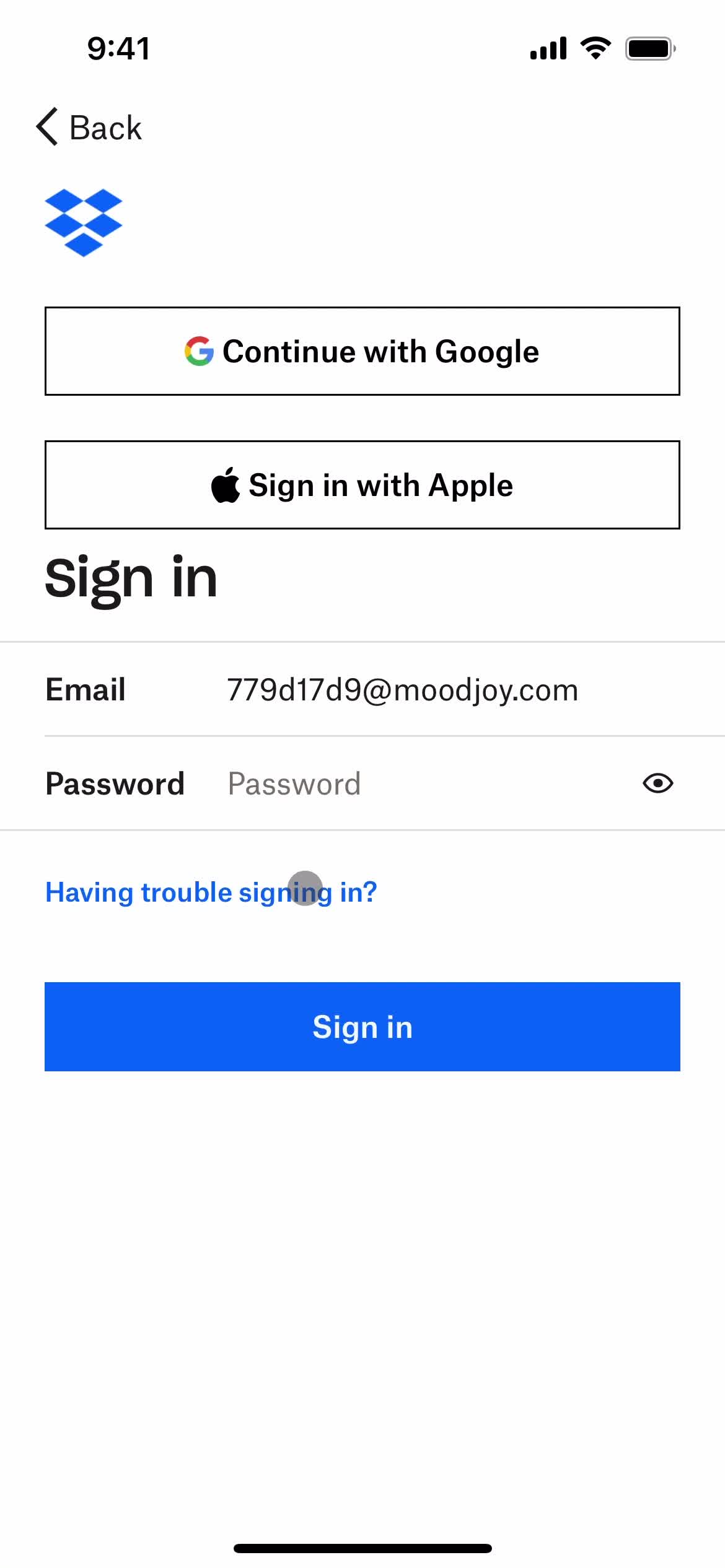
Sign in
this is title
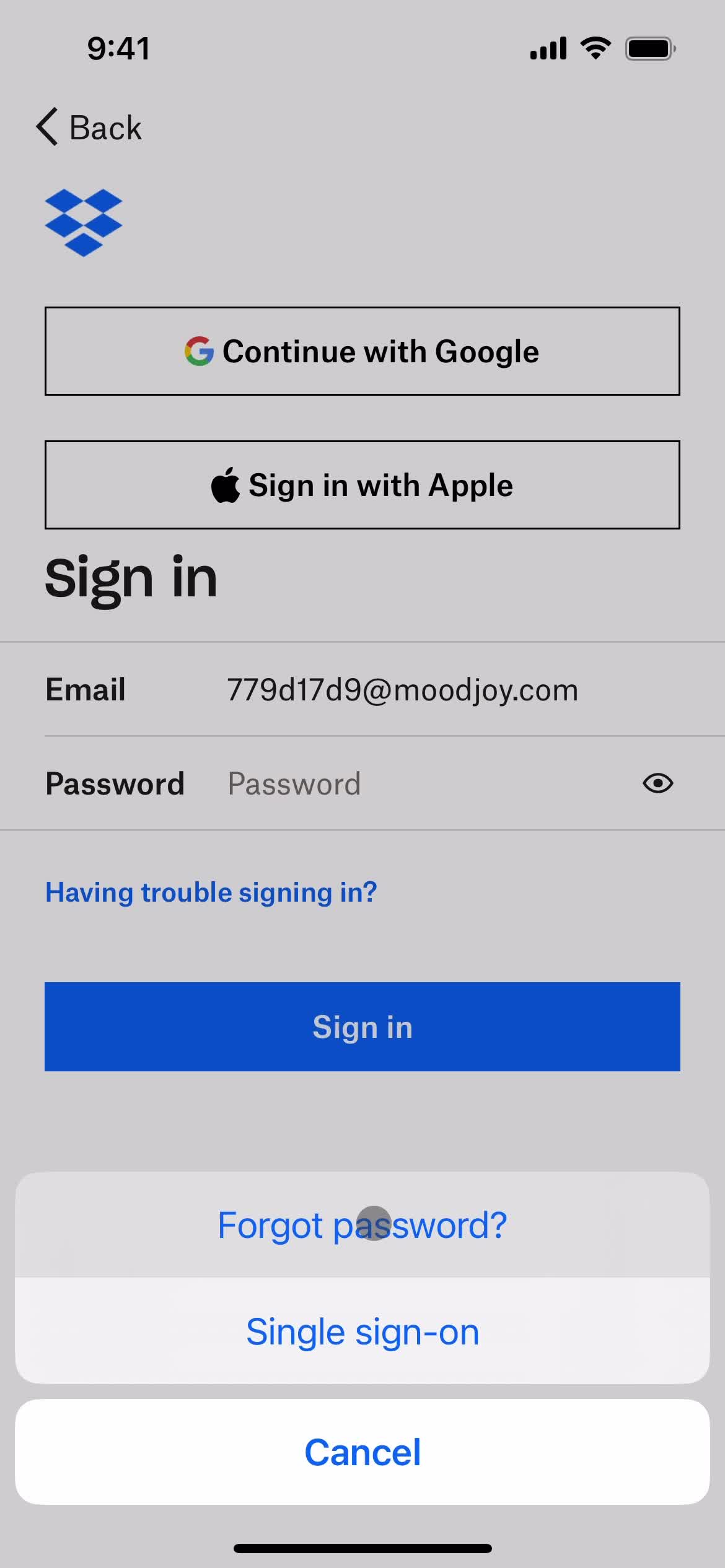
Forgot password
this is title
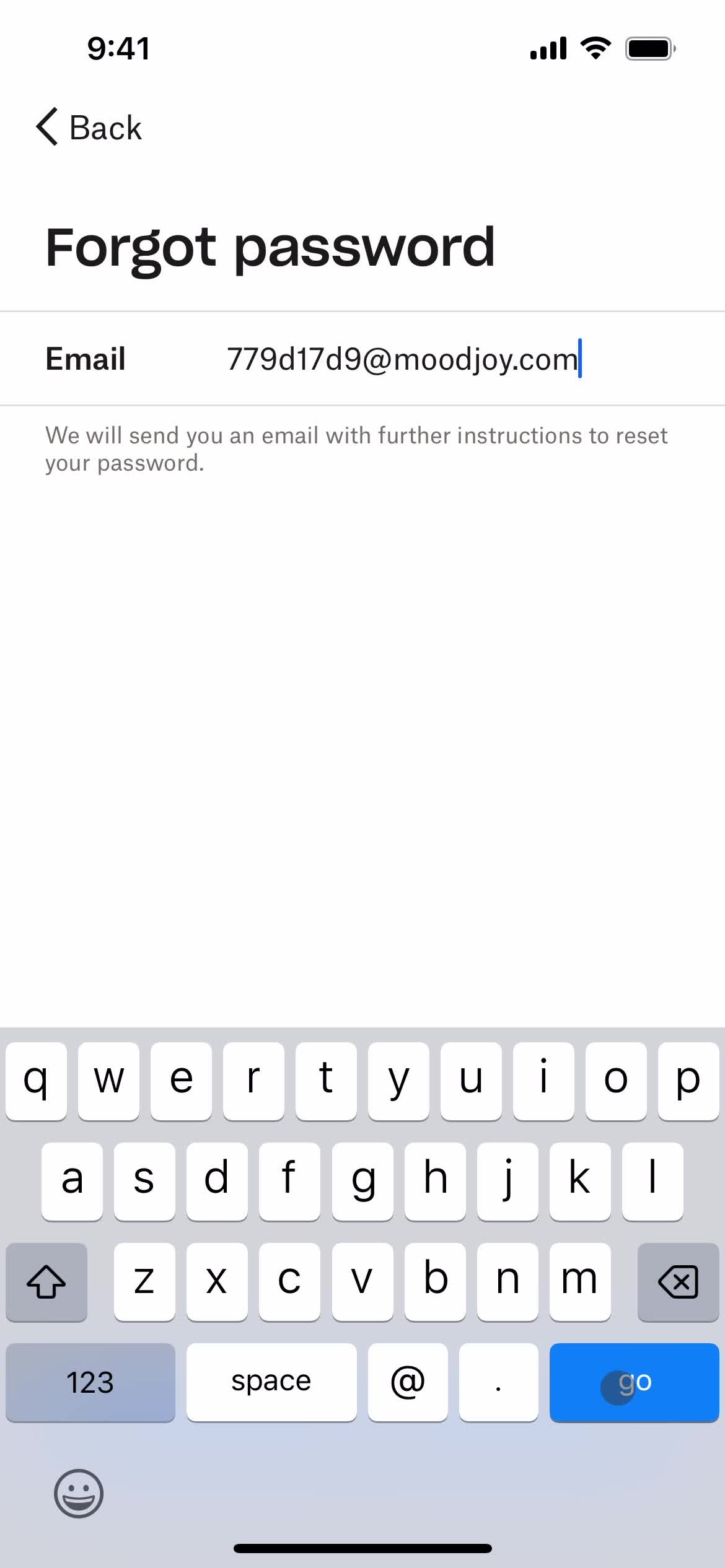
Send email
this is title
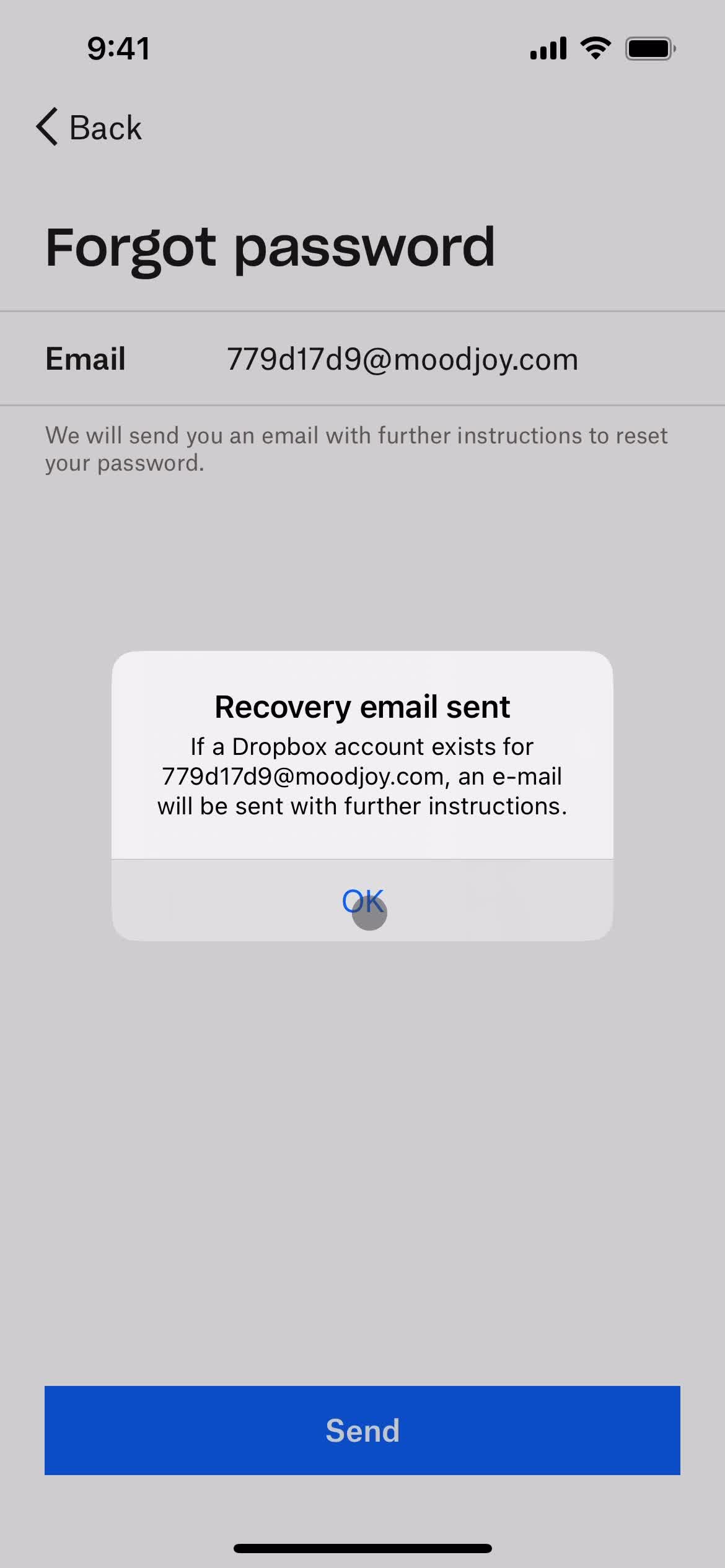
Email sent
this is title
Enter password
this is title
Sign in
this is title
Home
this is title
Home
this is title
Search
this is title
Search results
this is title
Sort
this is title
Filtered results
this is title
Filter
this is title
Filtered results
this is title
Filter
this is title
Filtered results
this is title
Folder
this is title
Home
this is title
Search
this is title
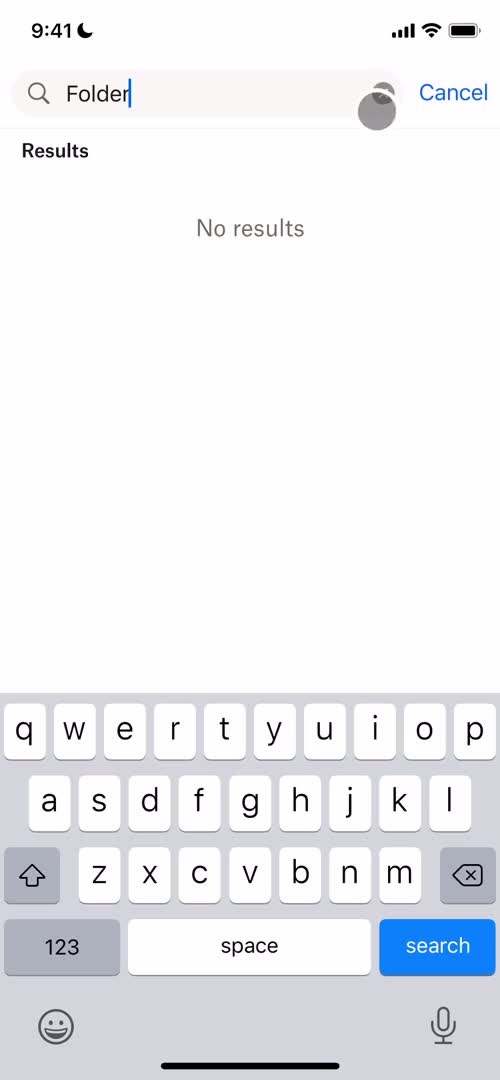
No search results
this is title
Home
this is title
Search
this is title
Search results
this is title
Image
this is title
Search
this is title
No search results
this is title
this is title
this is title
Home
this is title
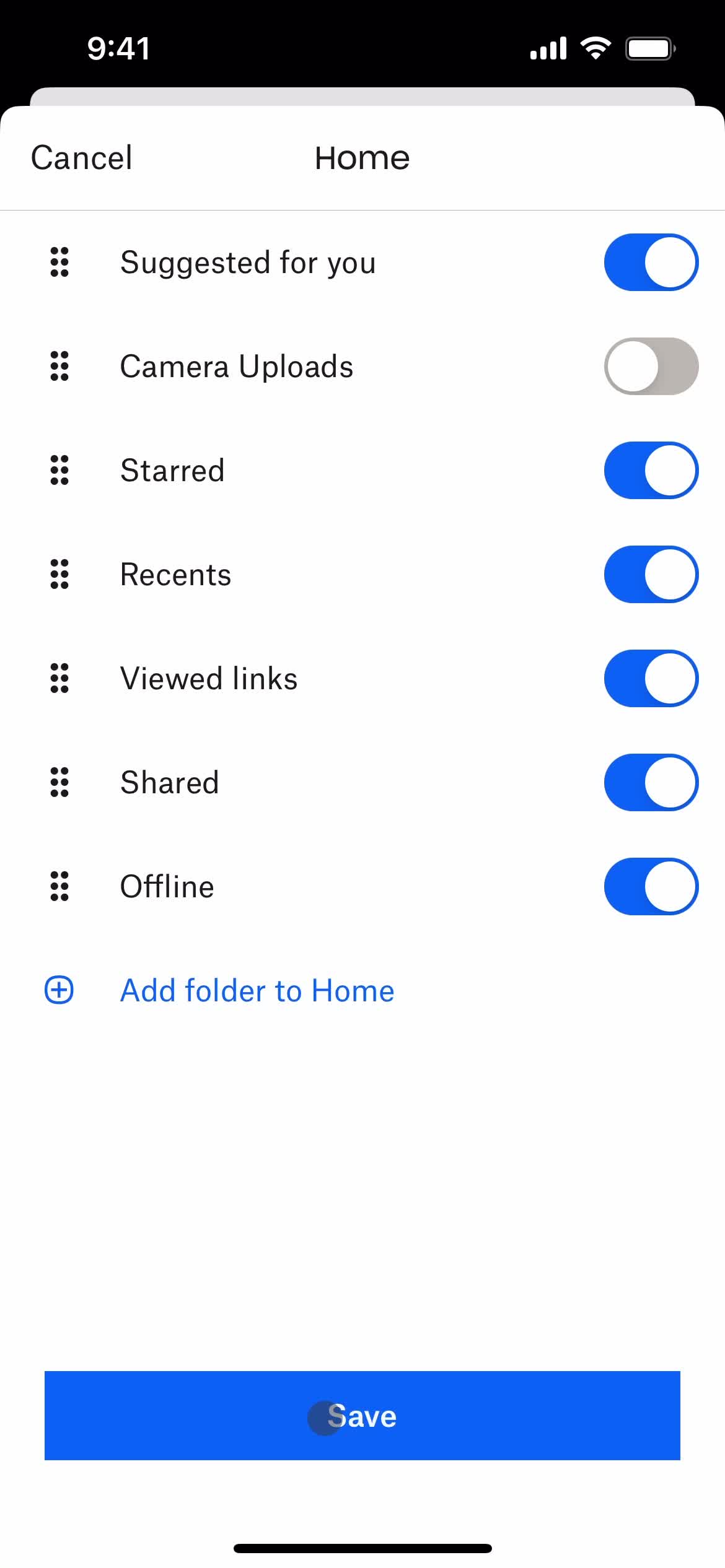
Customize appearance
this is title
Drag & drop
this is title
this is title
Select folder
this is title
Continue
this is title
Remove item
this is title
Item removed
this is title
Save
this is title
Home
this is title
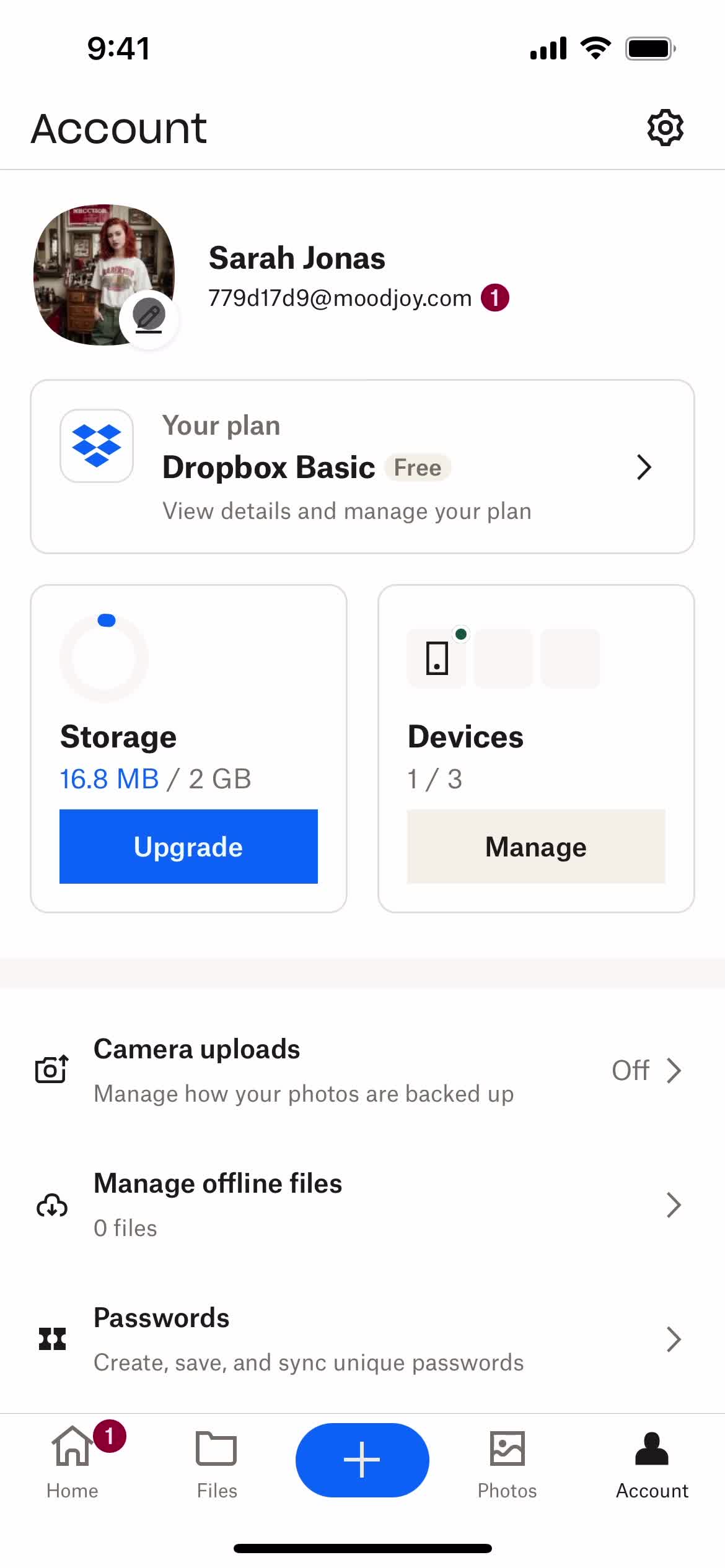
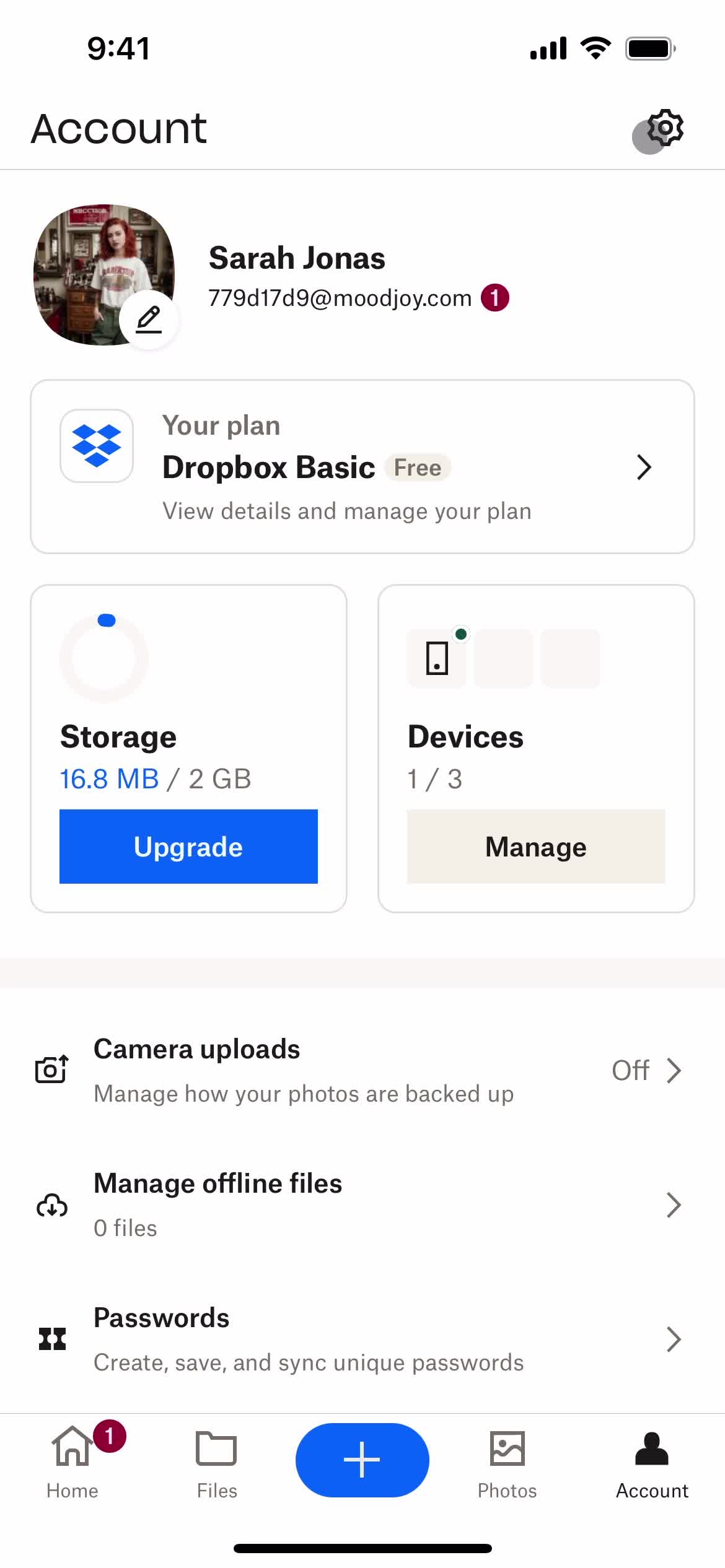
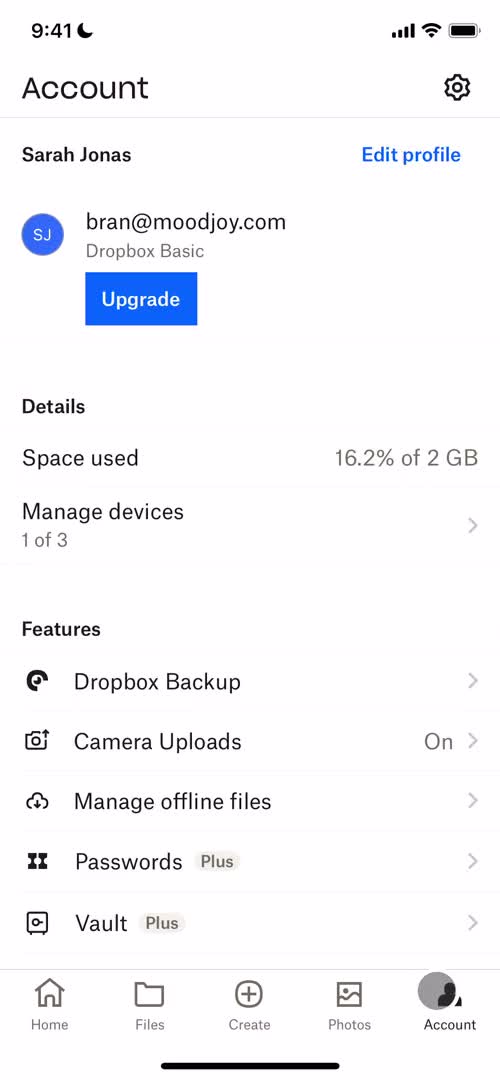
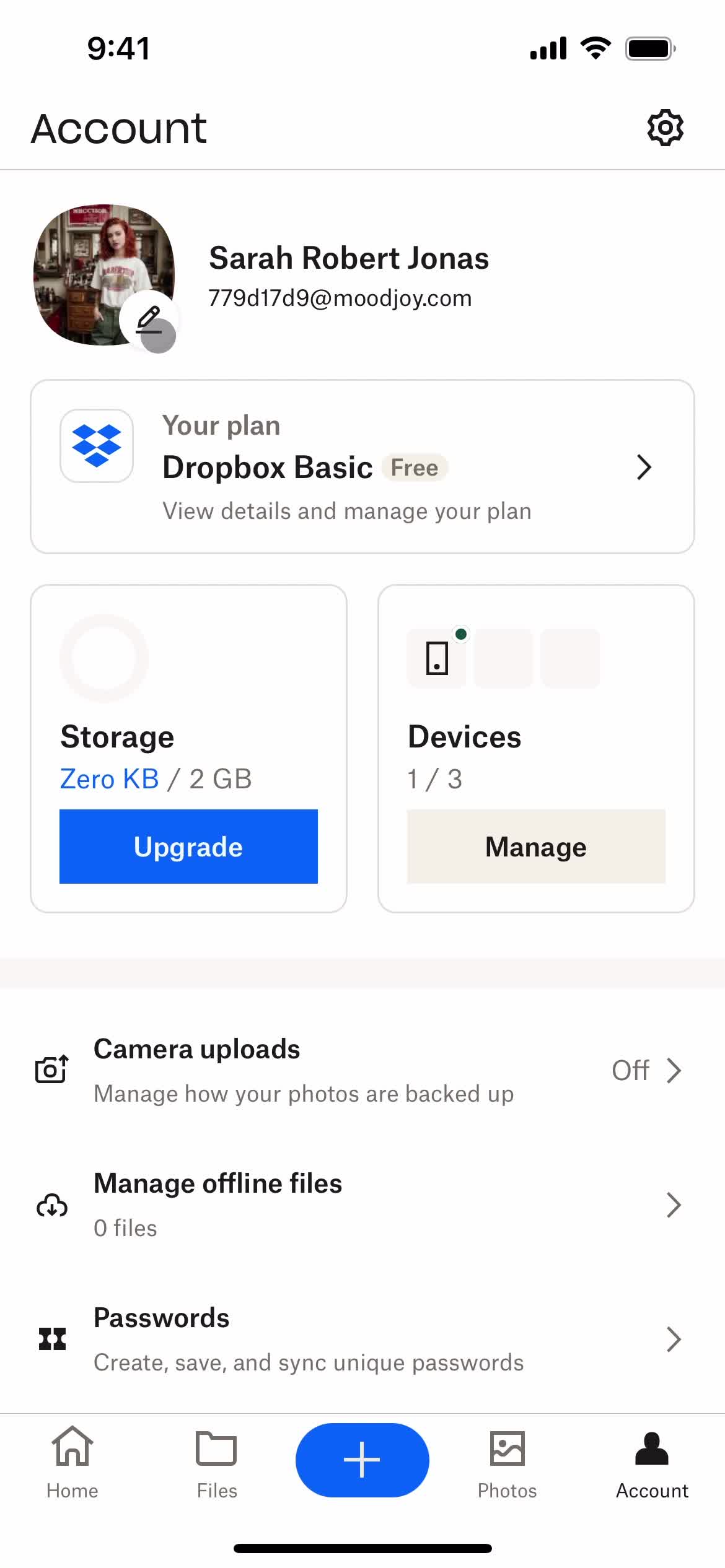
Account
this is title
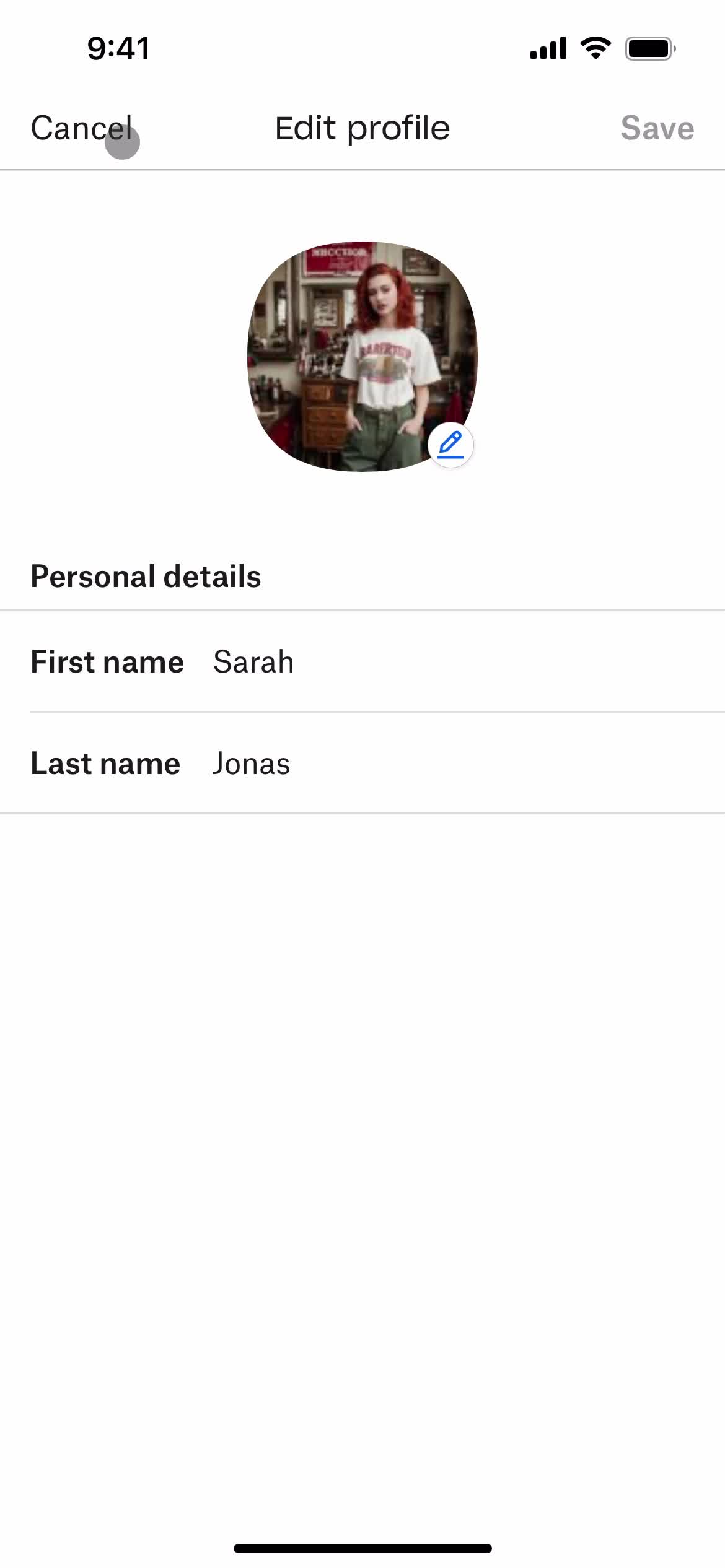
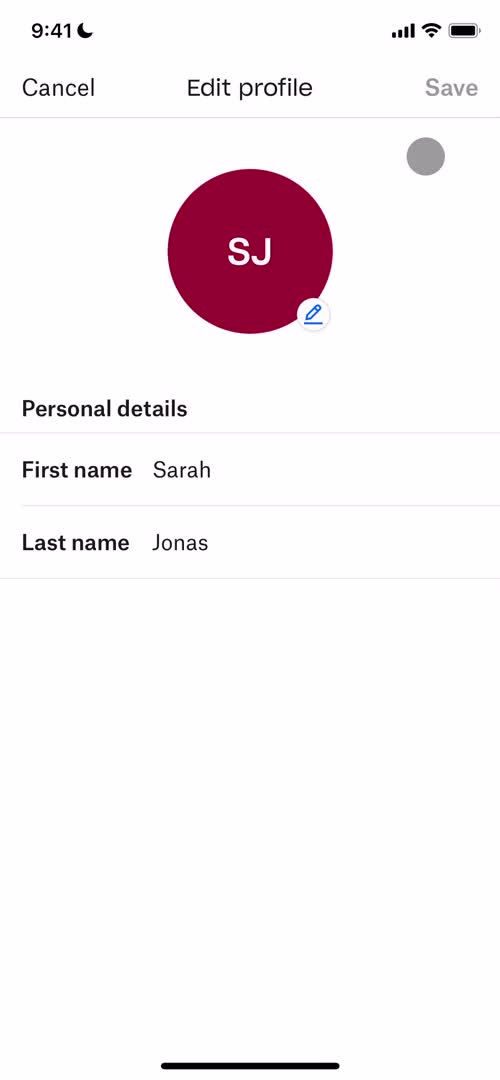
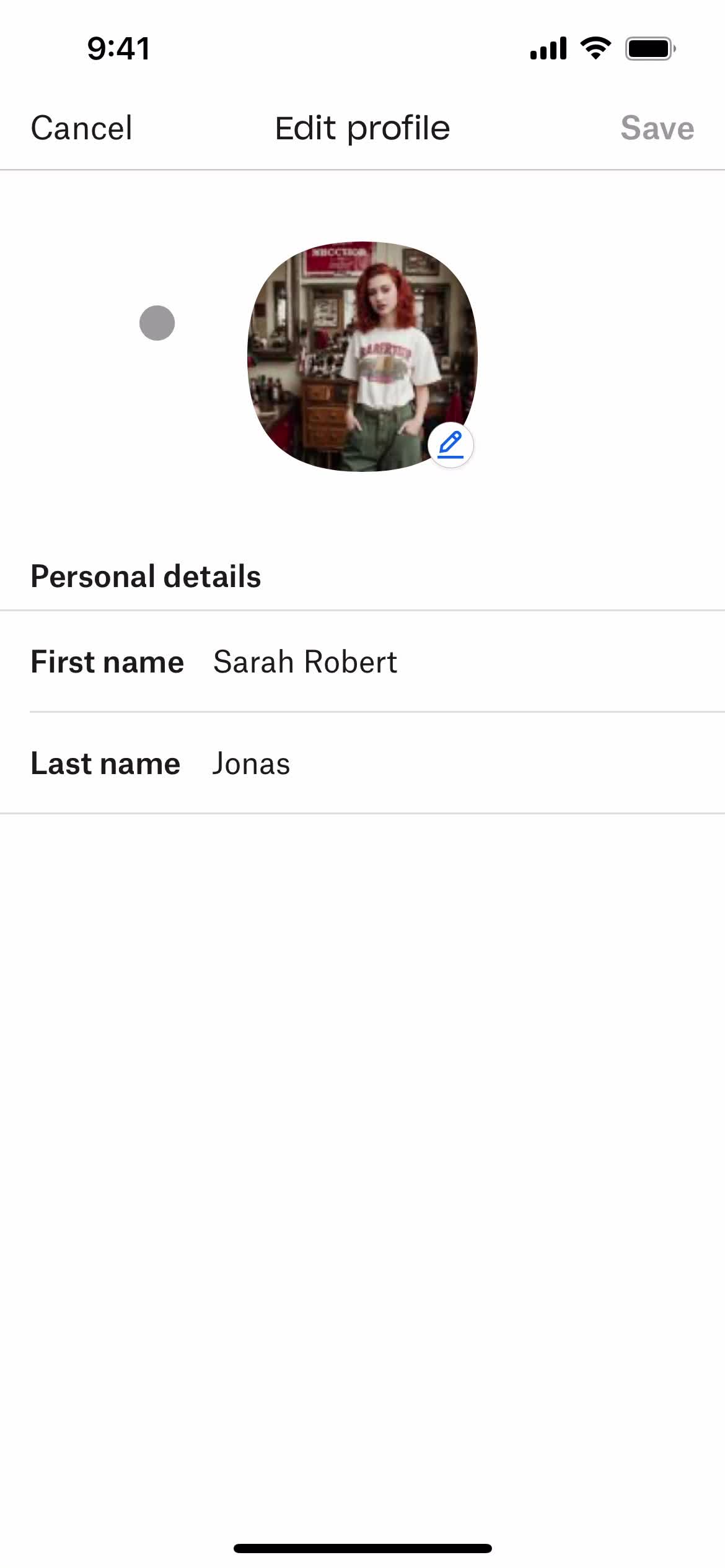
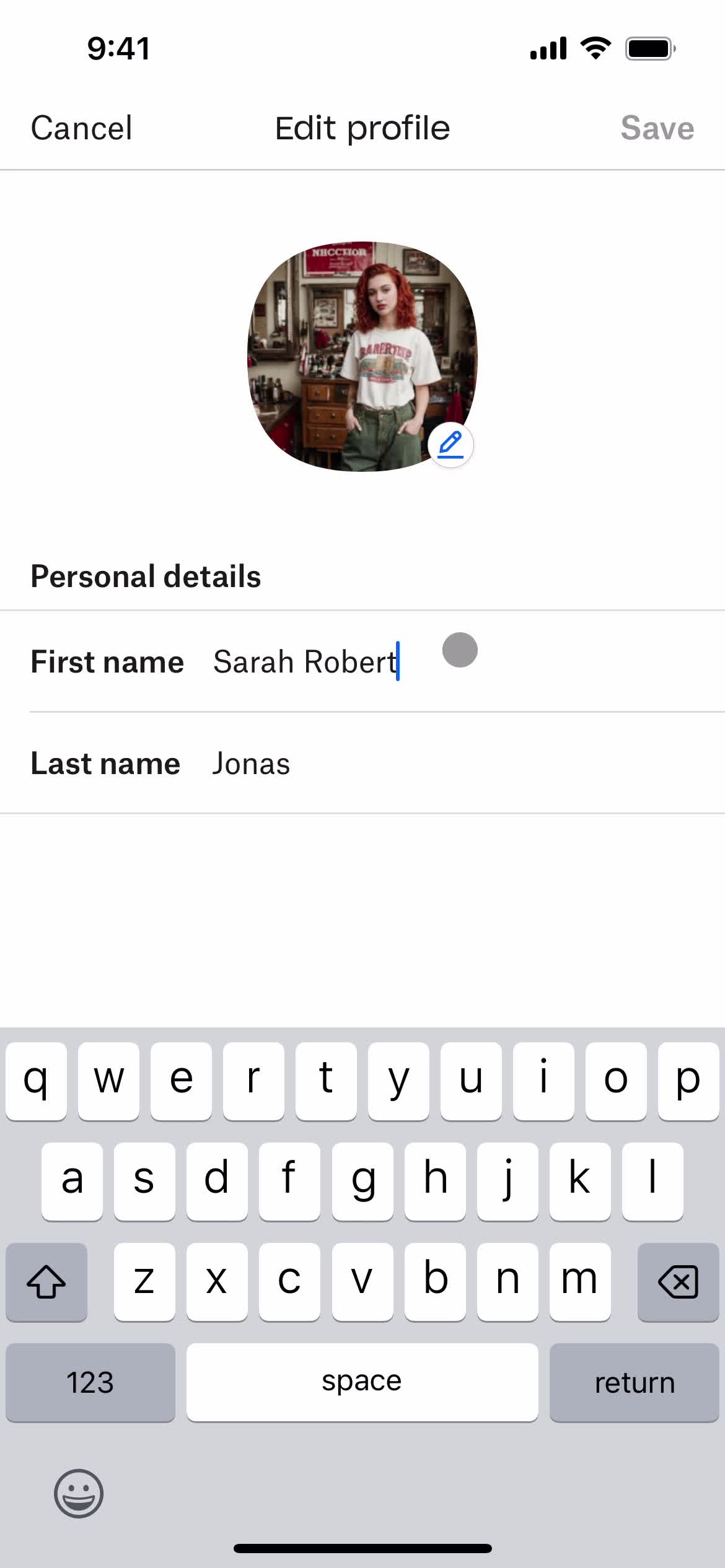
Edit profile
this is title
Edit details
this is title
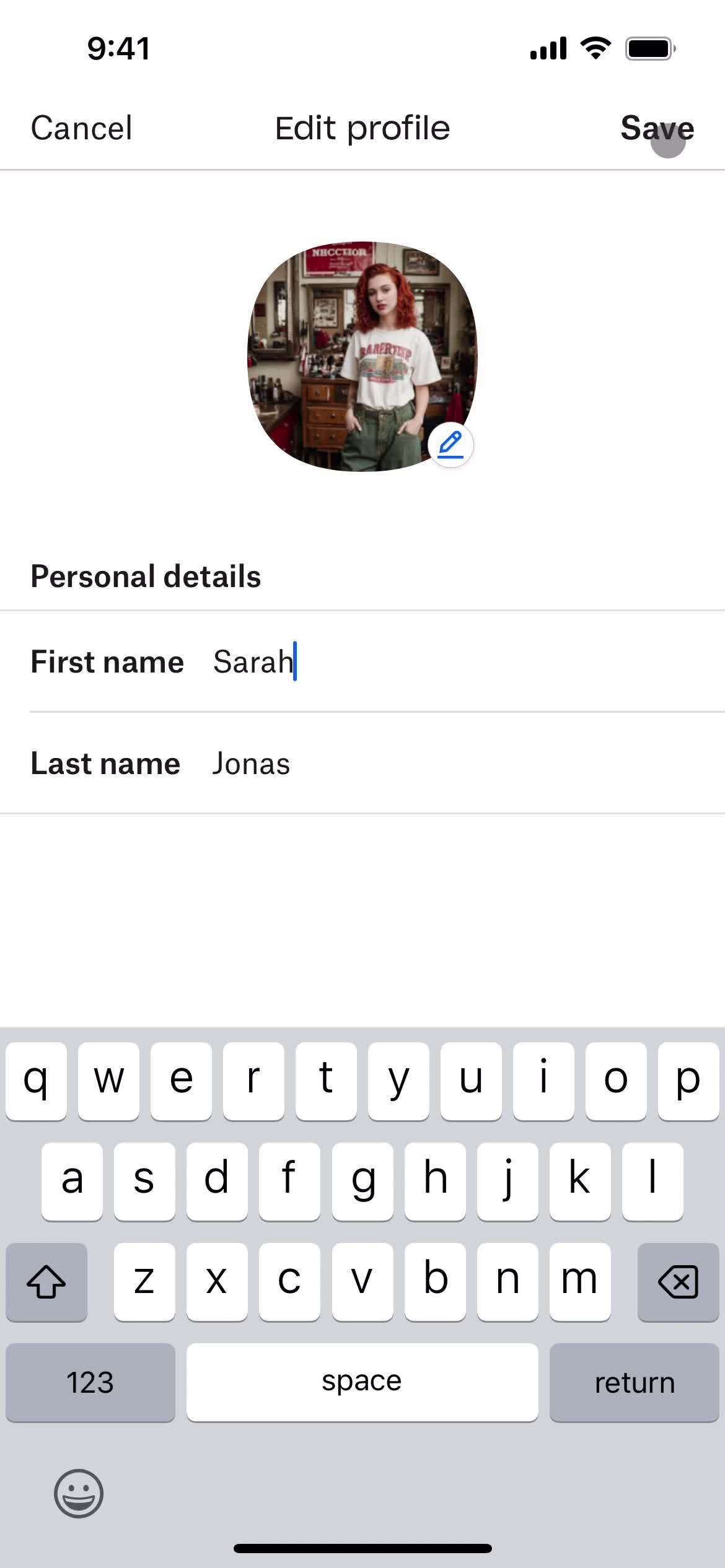
Save
this is title
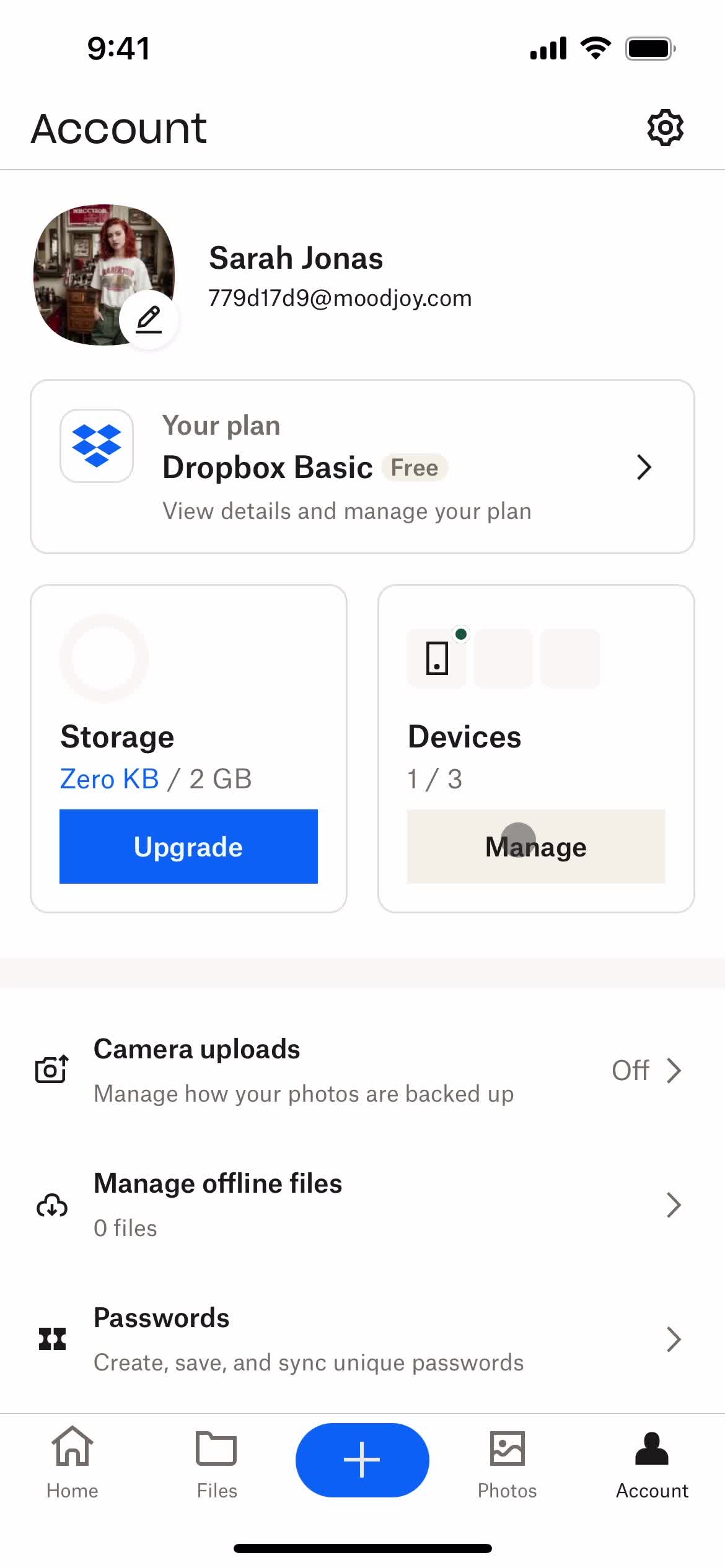
Account
this is title
Devices
this is title
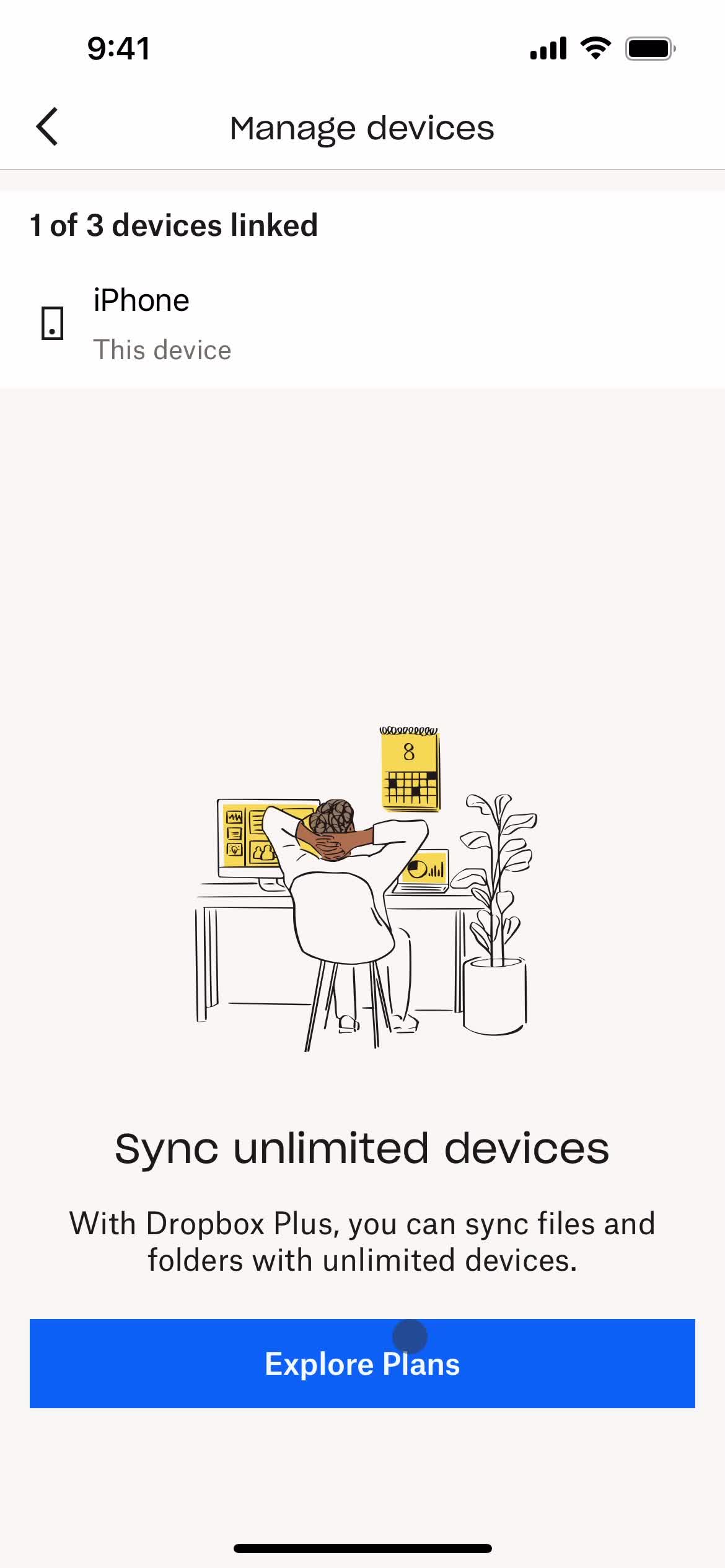
Upgrade
this is title
this is title
Account
this is title
Set preferences
this is title
this is title
Account
this is title
this is title
Account
this is title
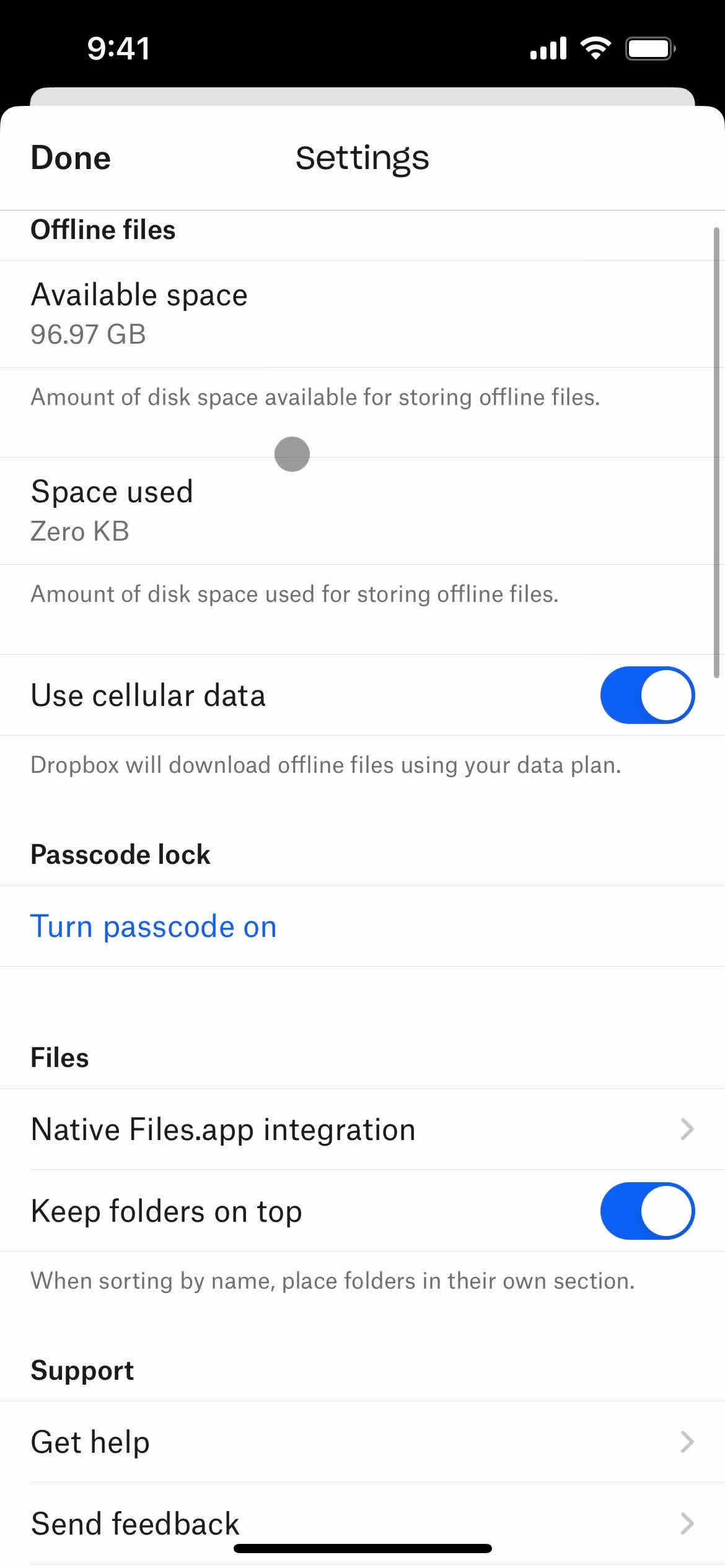
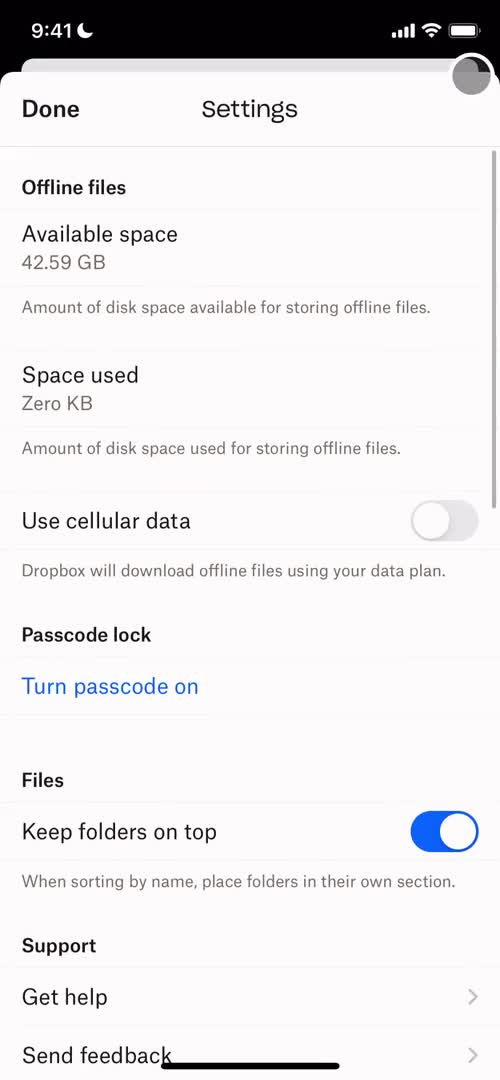
Settings
this is title
this is title
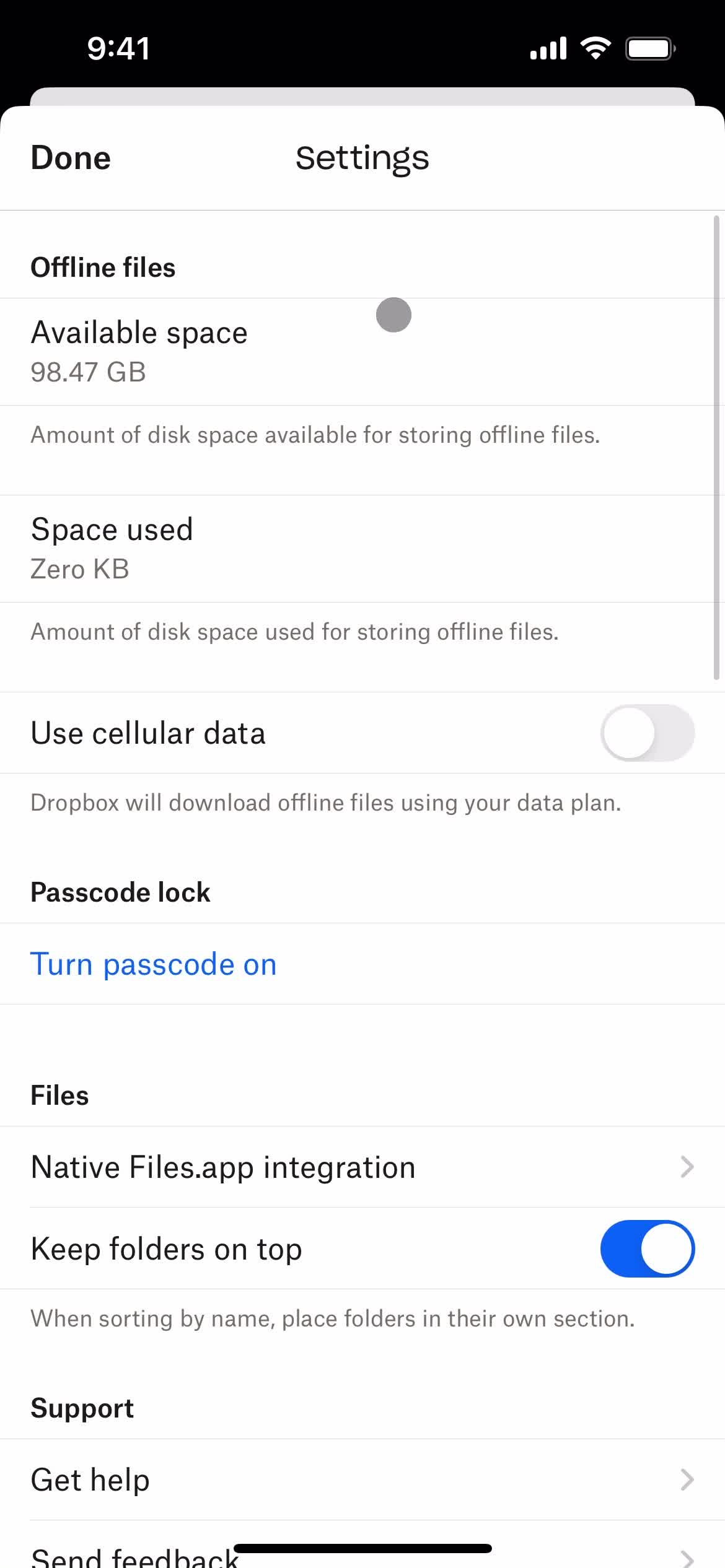
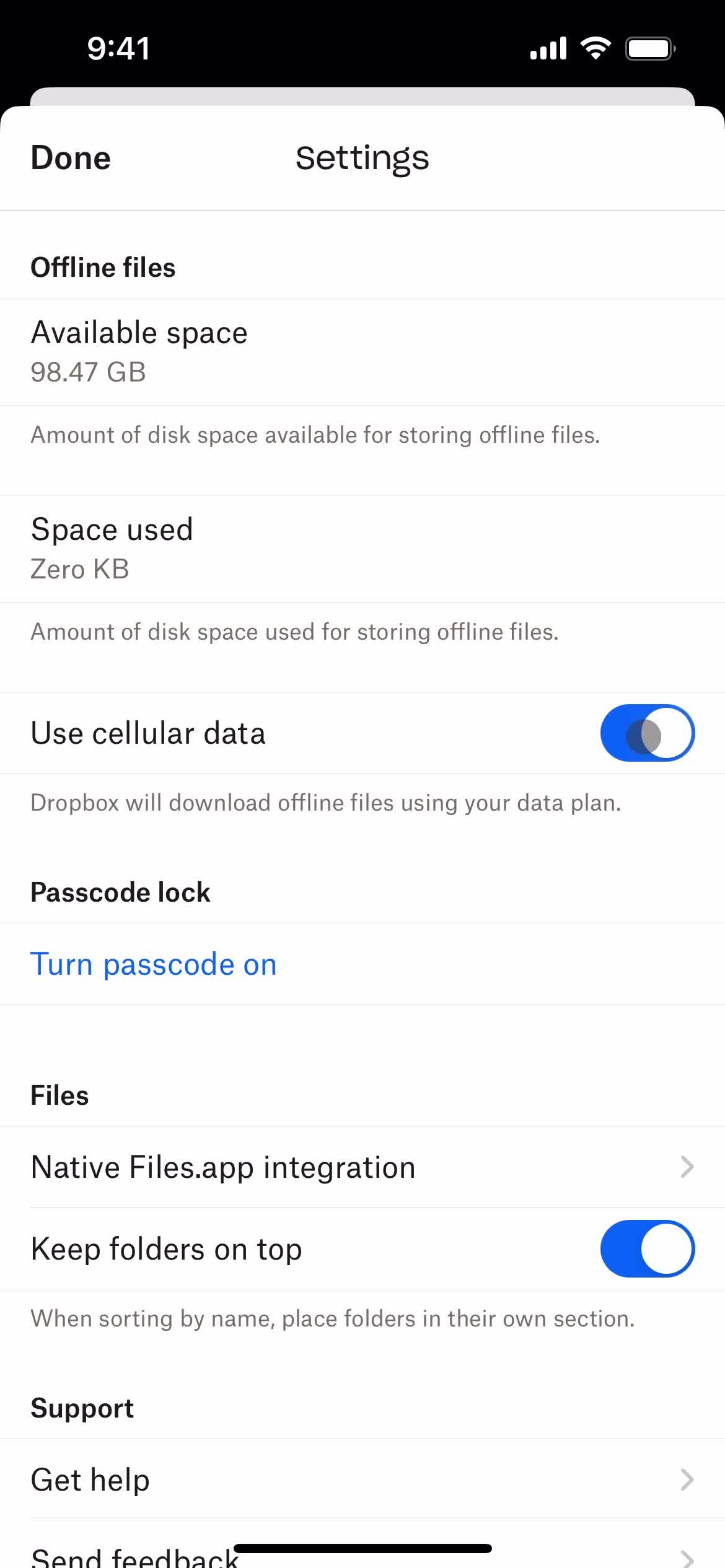
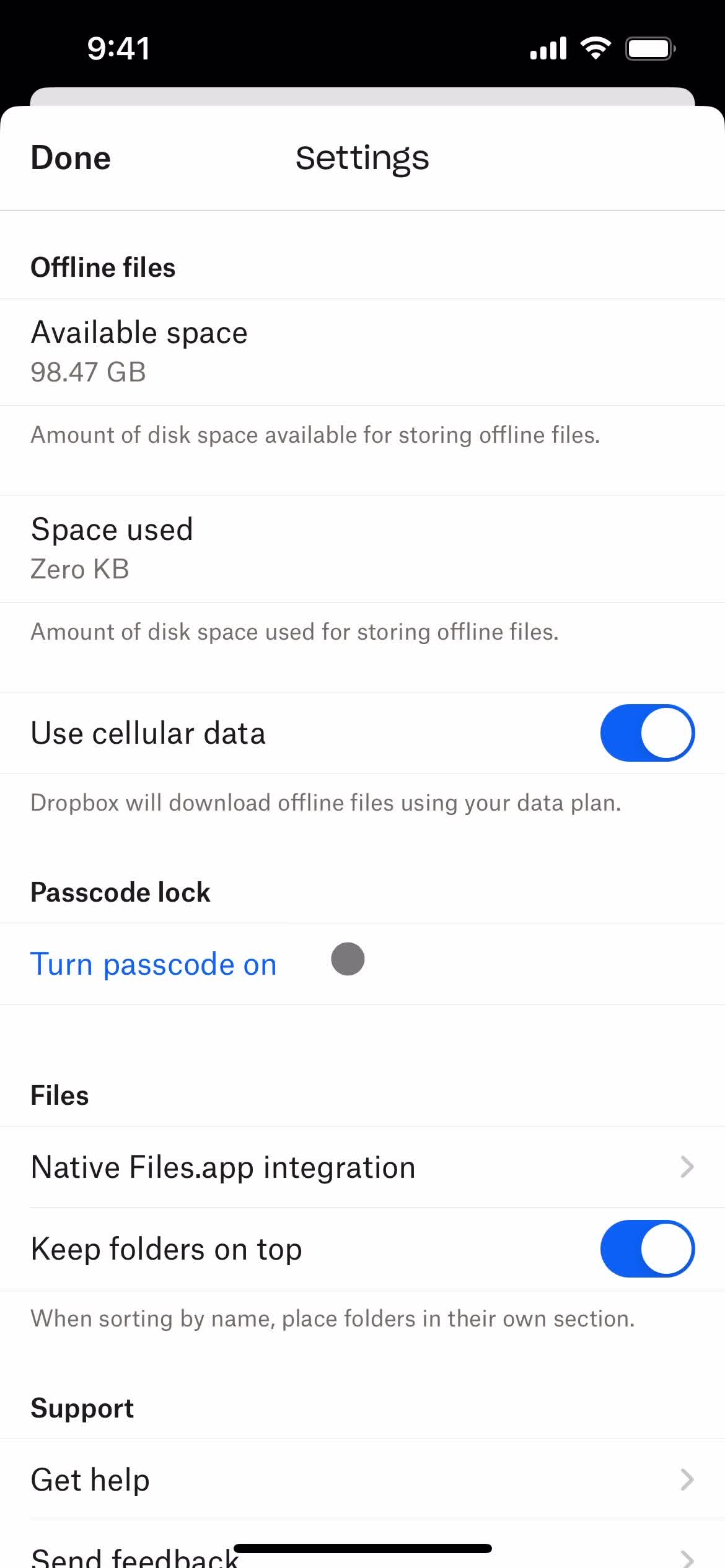
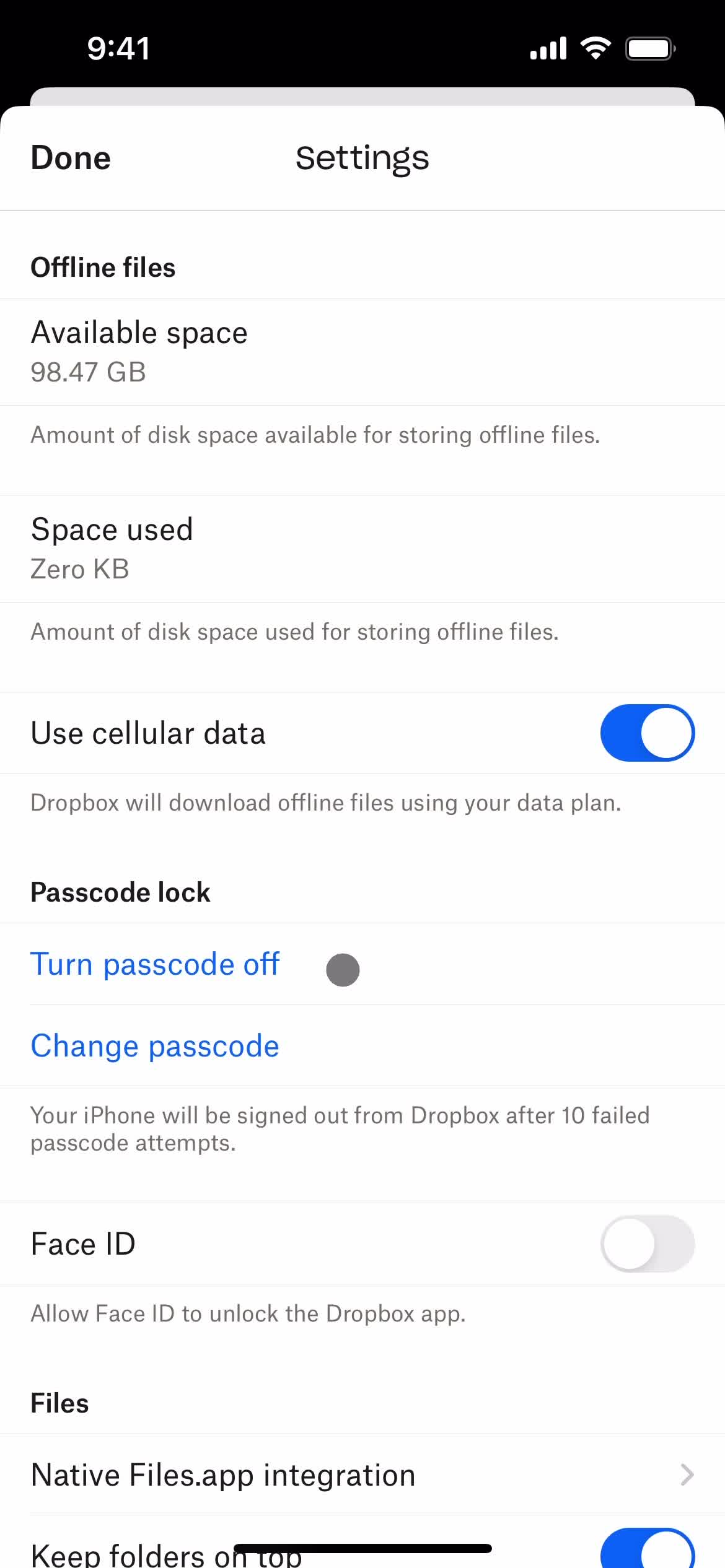
Passcode
this is title
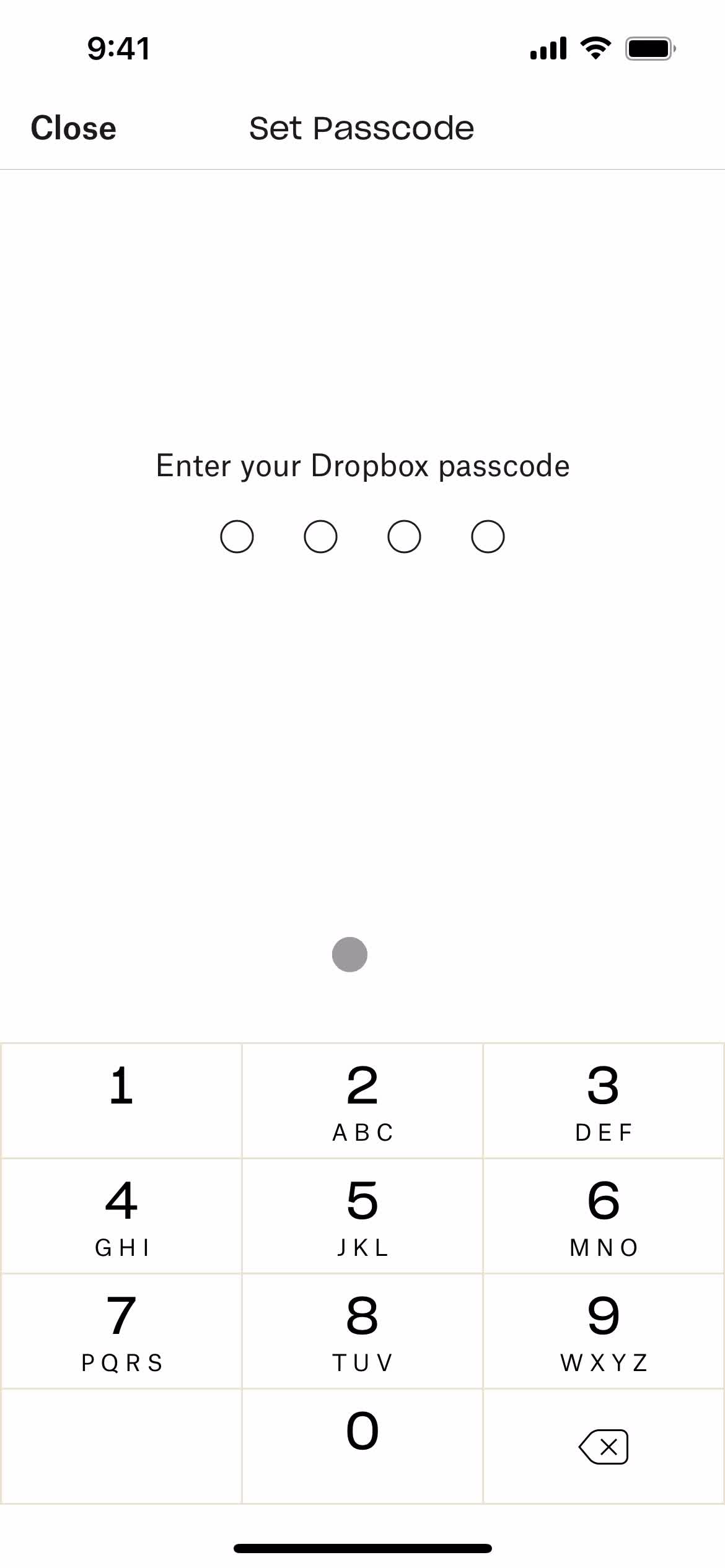
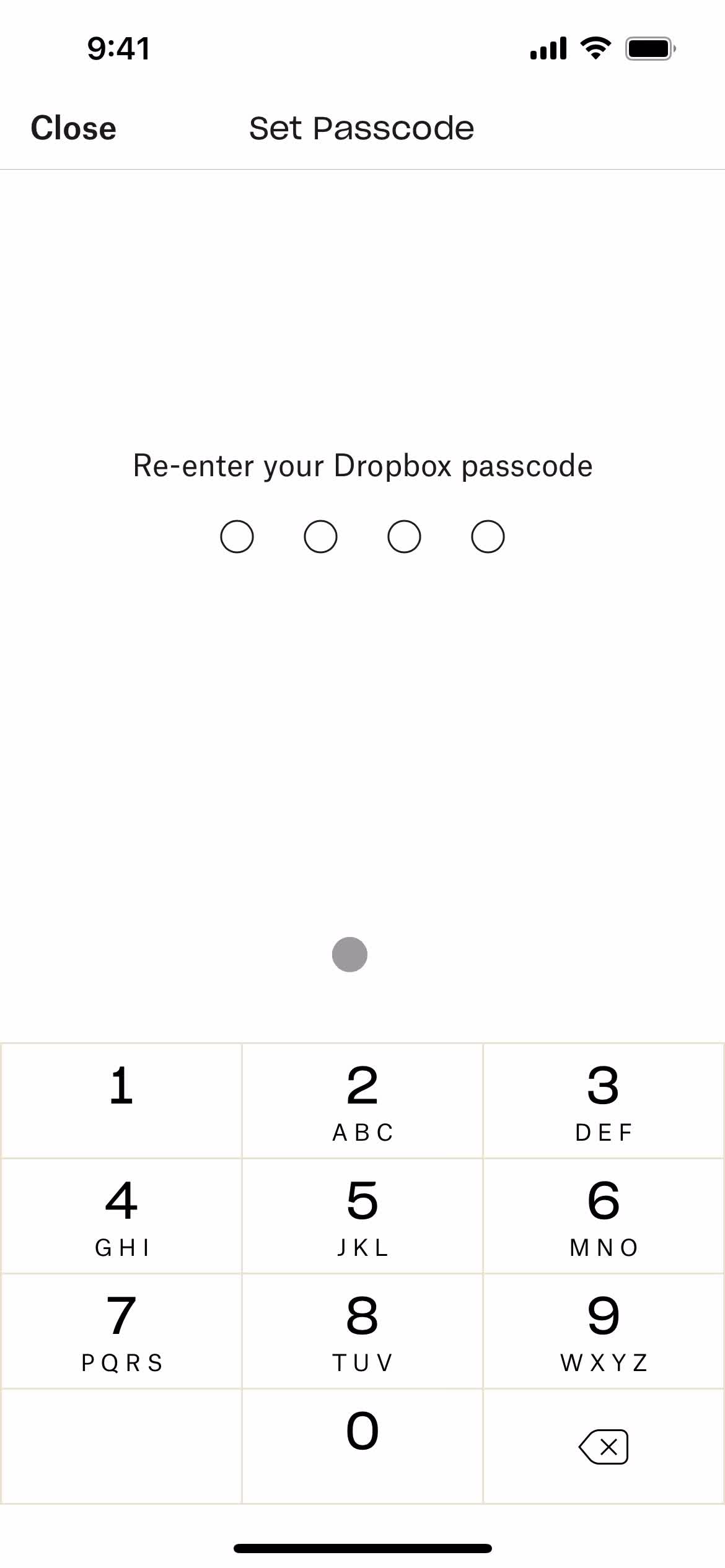
Set passcode
this is title
Confirm
this is title
Passcode
this is title
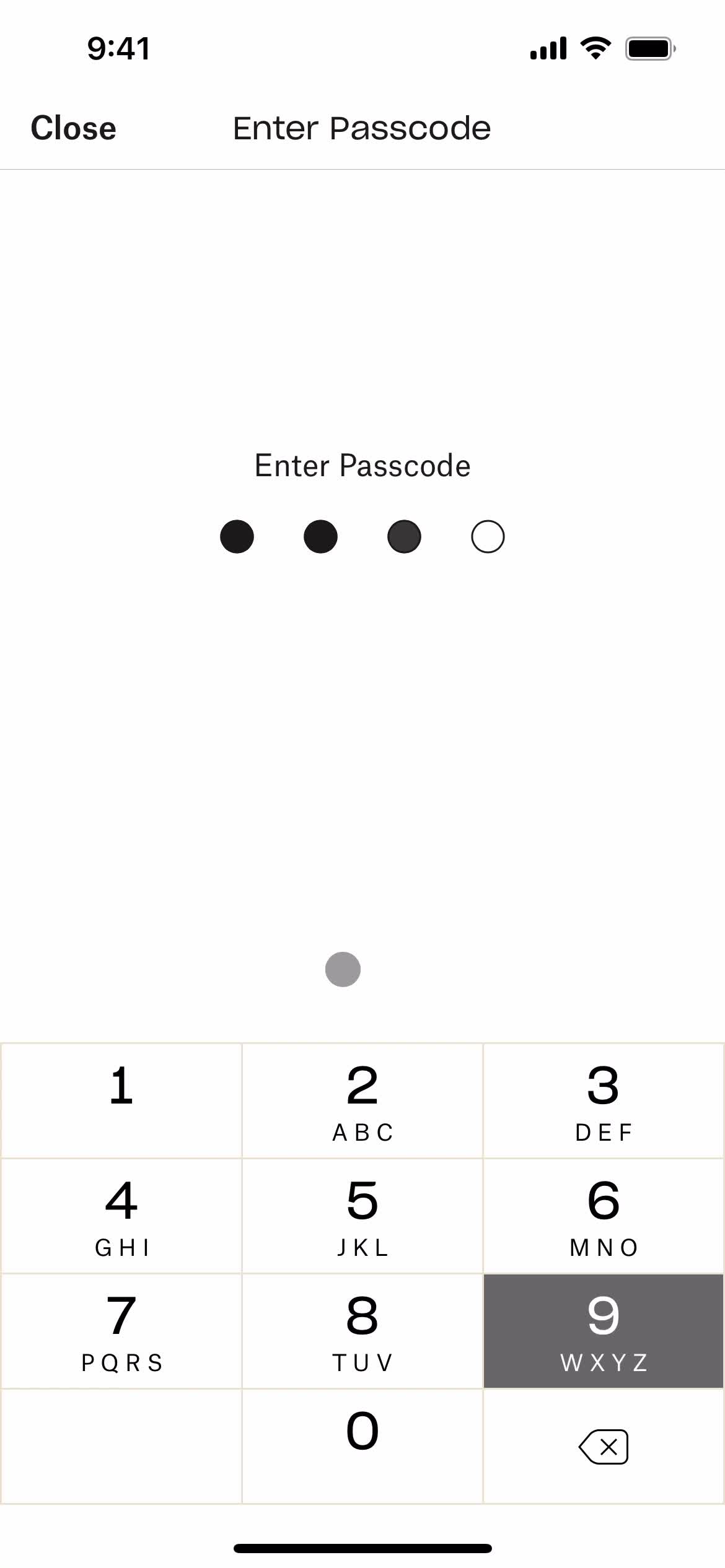
Enter passcode
this is title
Settings
this is title
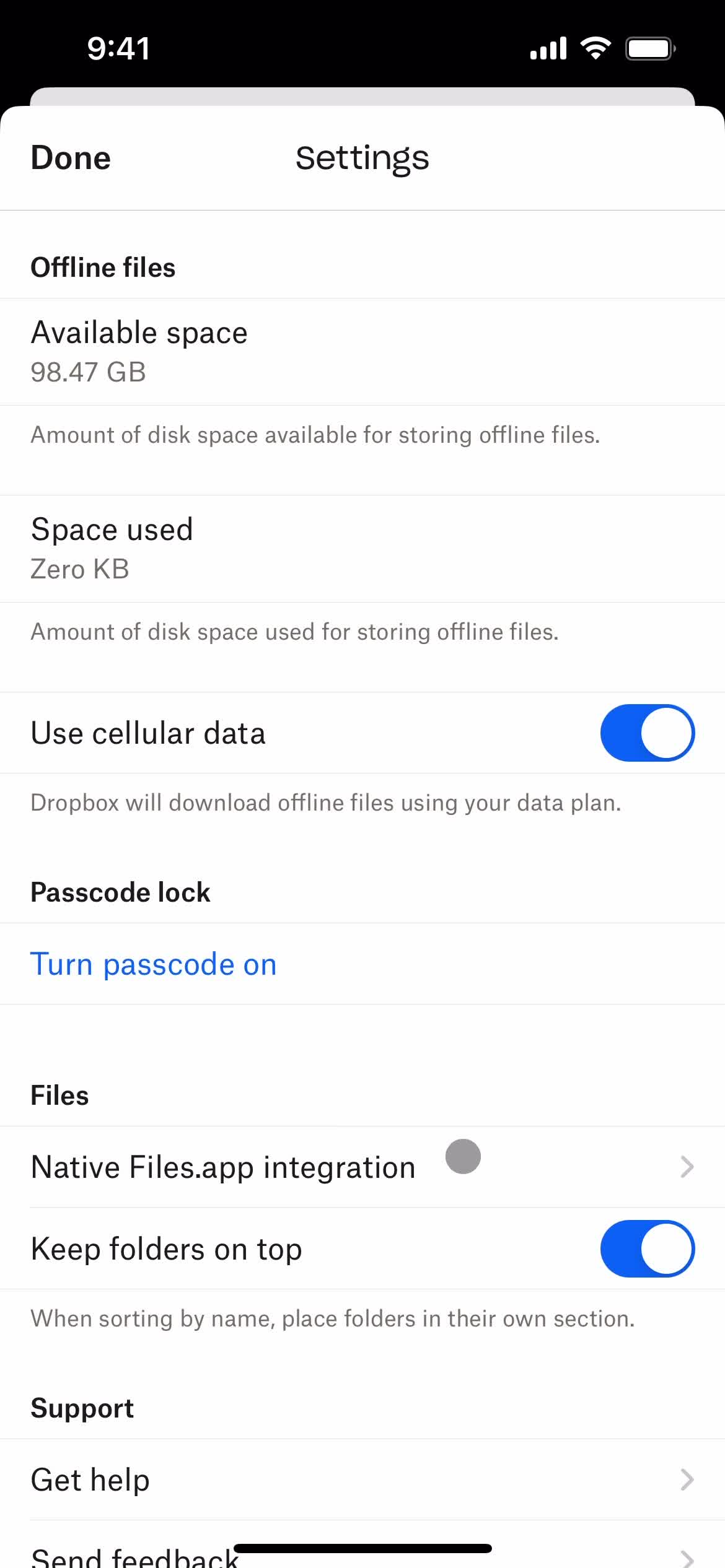
Settings
this is title
Continue
this is title
Account
this is title
Home
this is title
Action menu
this is title
Share file
this is title
Link settings
this is title
this is title
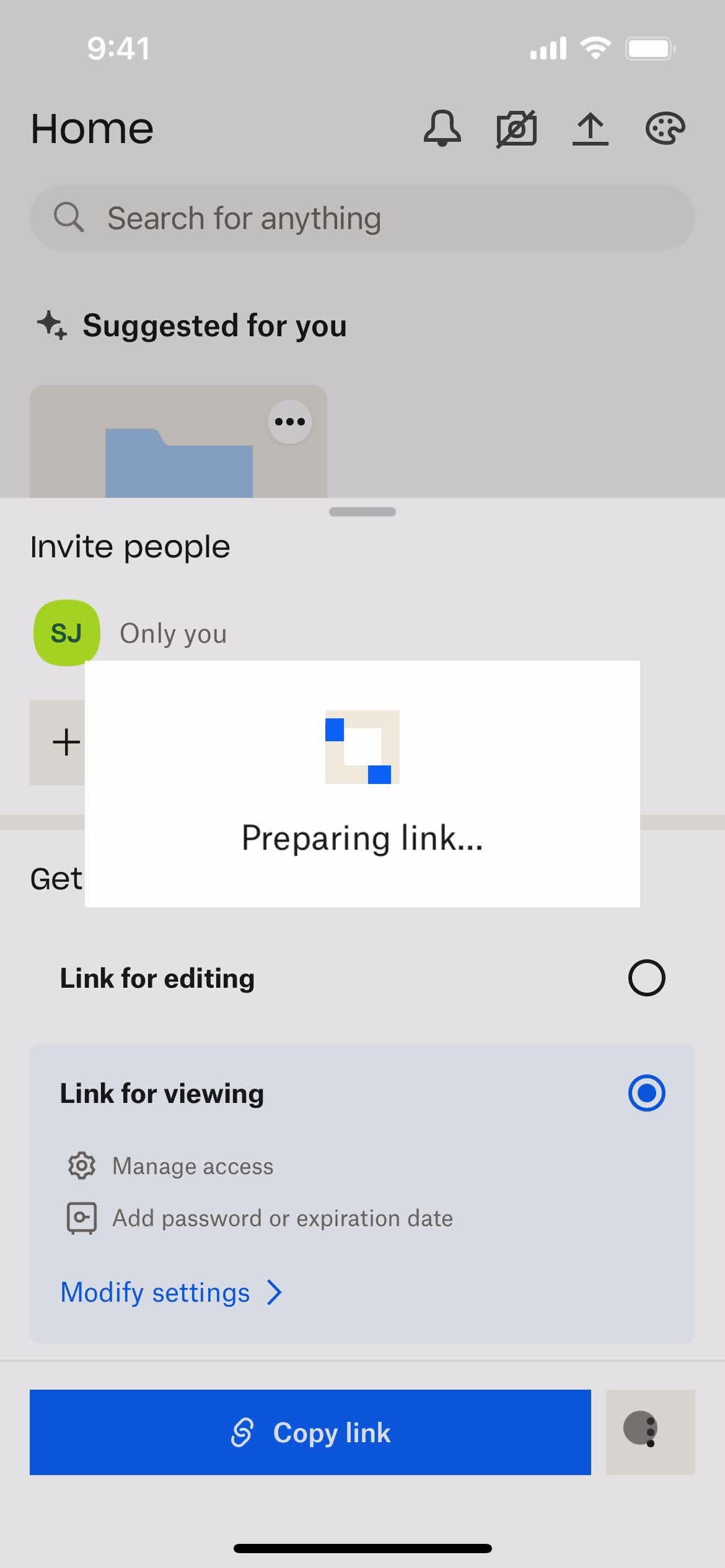
Copy link
this is title
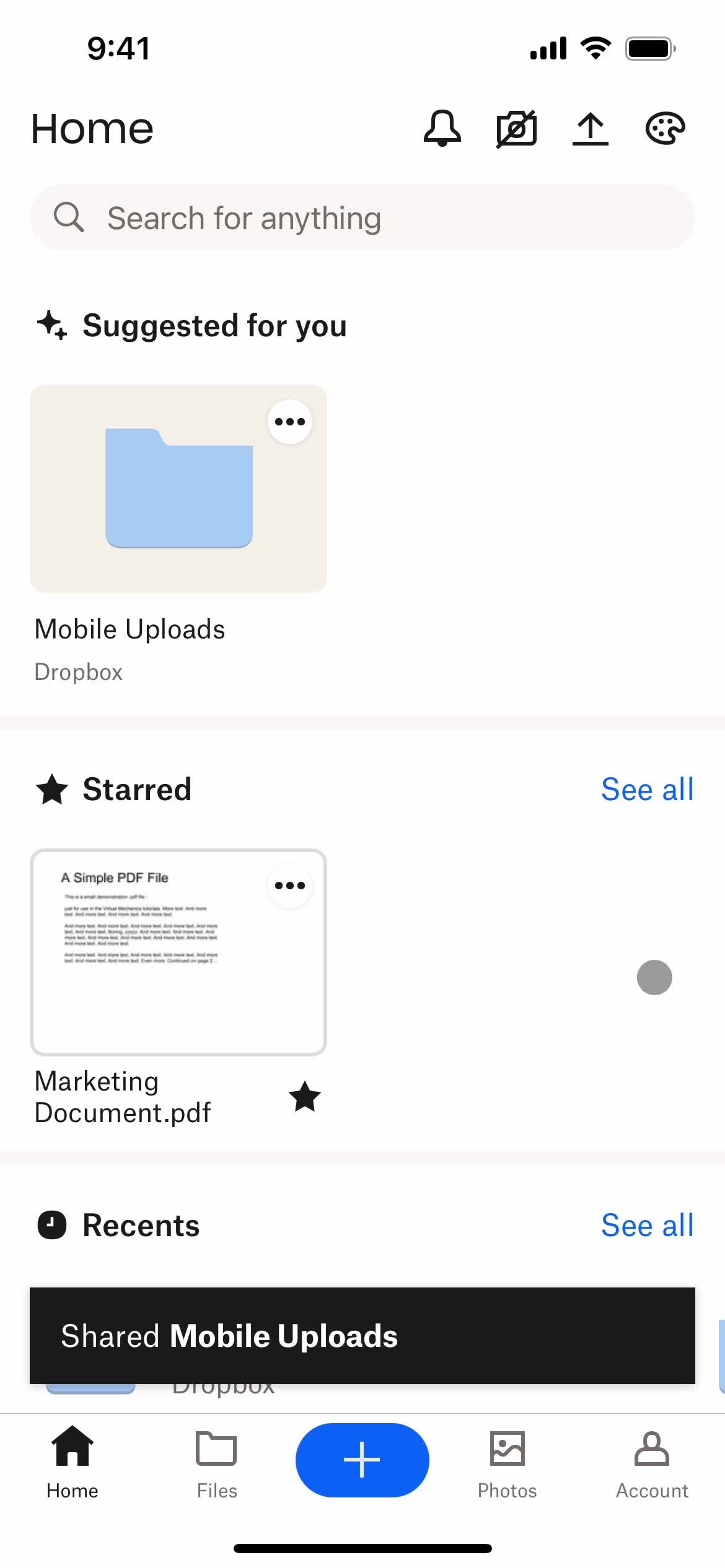
Shared
this is title
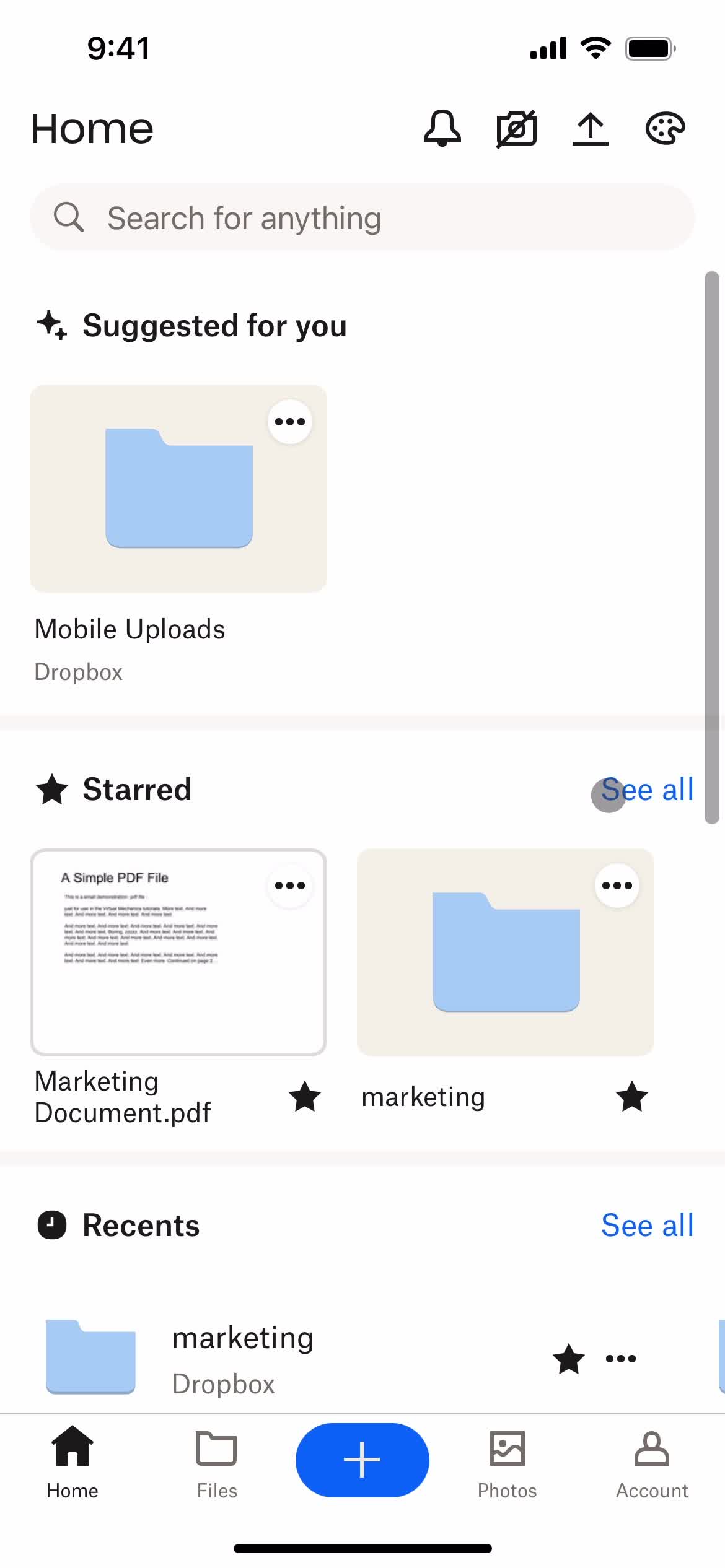
Home
this is title
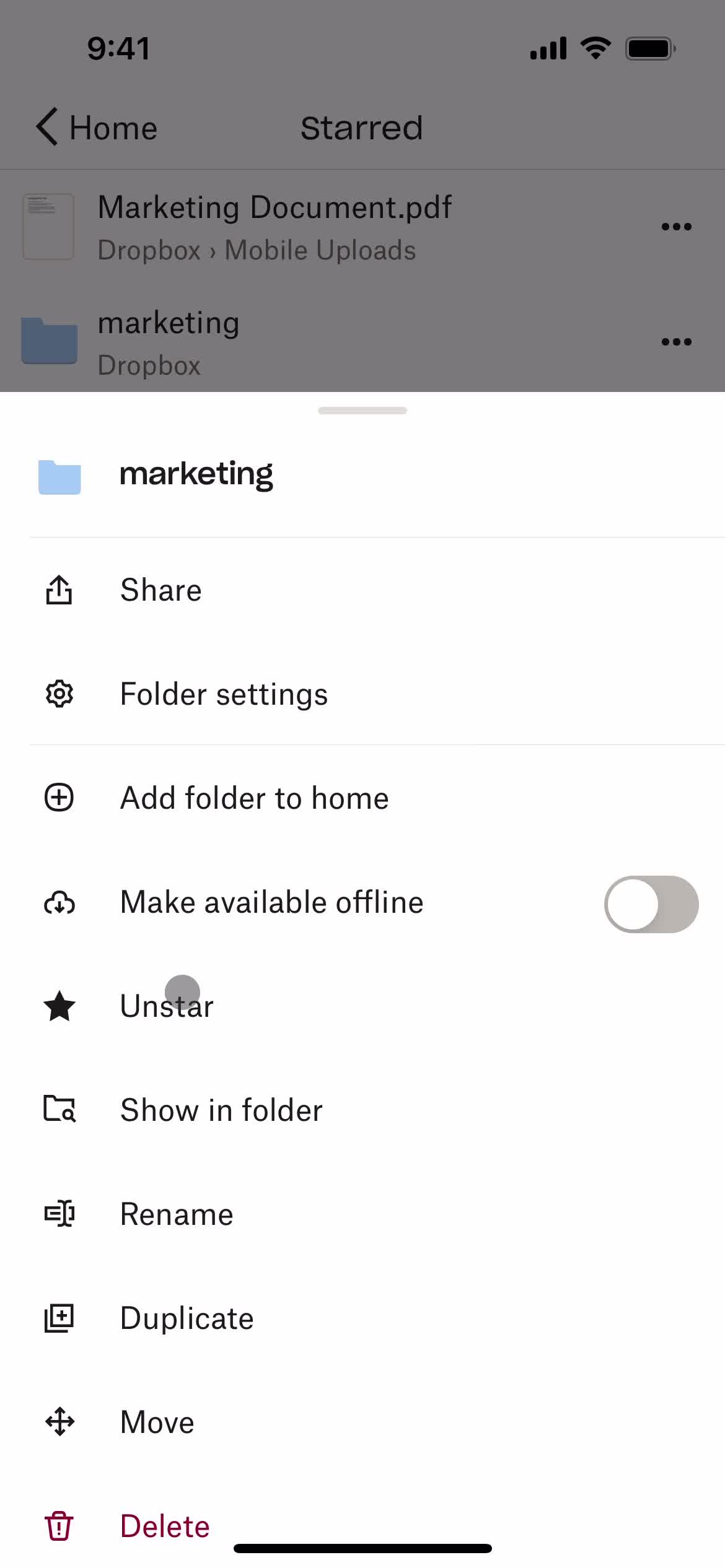
Action menu
this is title
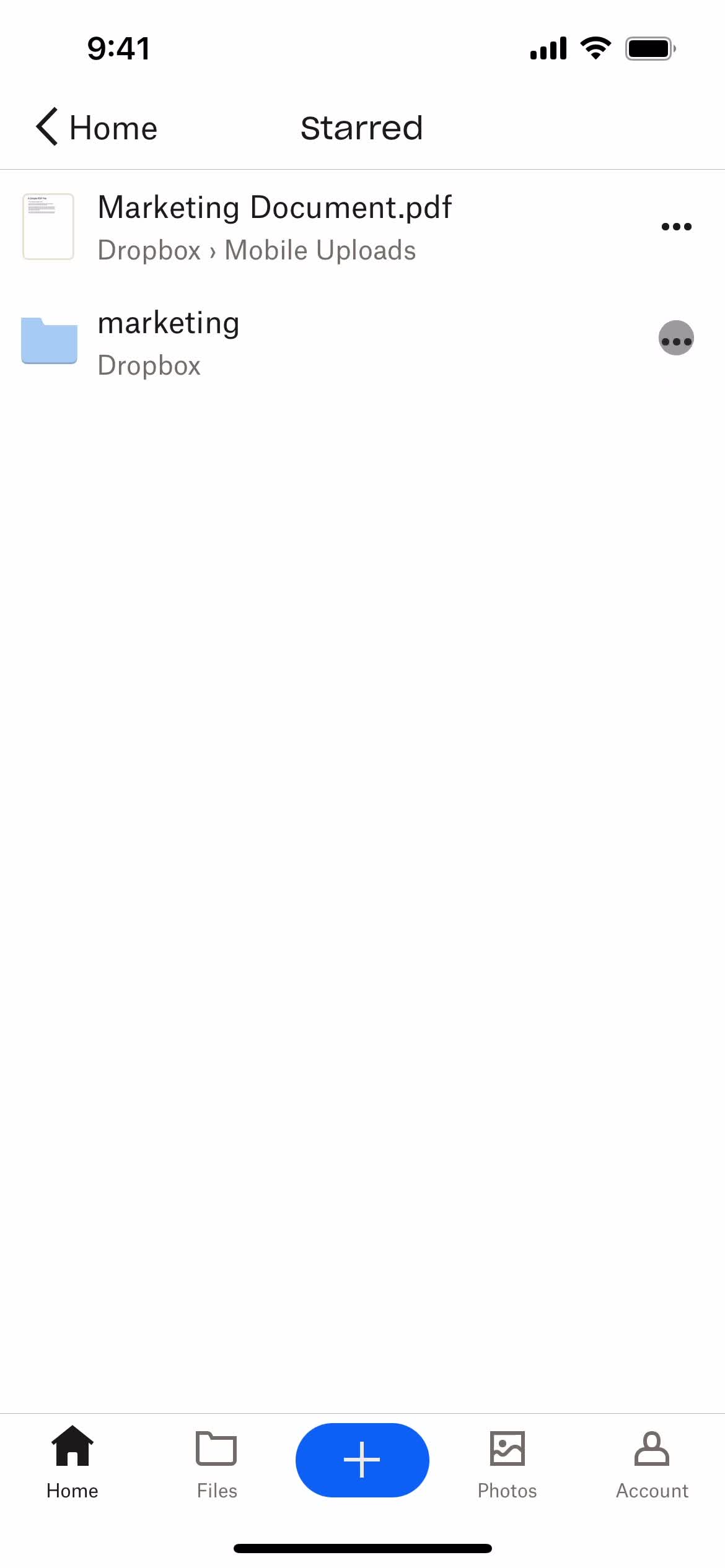
Files starred
this is title
this is title
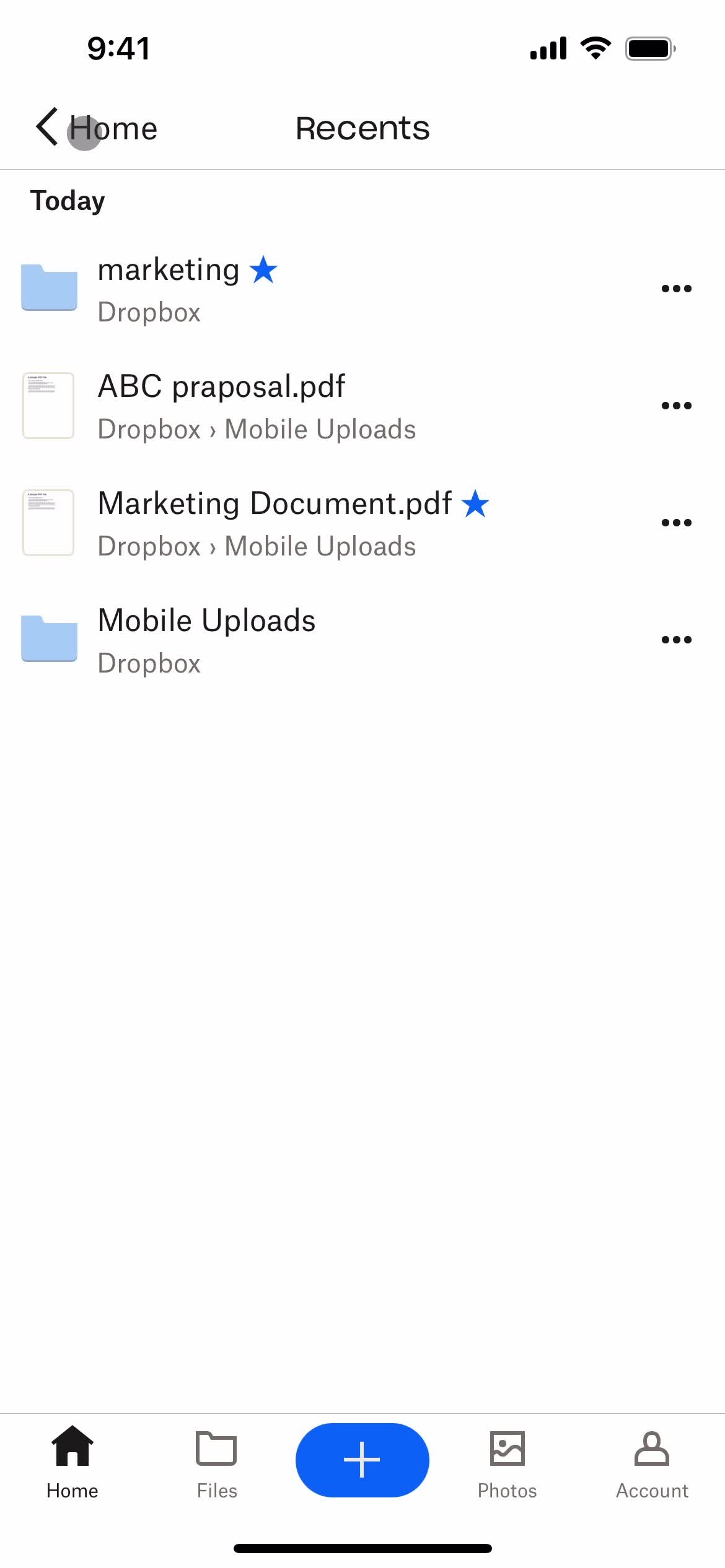
Recents
this is title
Action menu
this is title
Files starred
this is title
this is title
Favorites
this is title
Action menu
this is title
Item removed
this is title
Home
this is title
Account
this is title
Edit profile
this is title
Upload profile picture
this is title
Upload image
this is title
Crop image
this is title
Edit details
this is title
Save
this is title
Changes saved
this is title
Home
this is title
Account
this is title
Upgrade
this is title
Show details
this is title
Subscription details
this is title
this is title
Continue
this is title
this is title
Account
this is title
Home
this is title
Account
this is title
Select plan
this is title
Free trial details
this is title
Select plan
this is title
Purchase successful
this is title
Error
this is title
this is title
this is title
this is title
this is title
this is title
this is title
Home
this is title
Create menu
this is title
Select photos
this is title
Select folder
this is title
Upload images
this is title
Uploading
this is title
File uploaded
this is title
Files
this is title
Create menu
this is title
Upload file
this is title
Select folder
this is title
Upload file
this is title
Uploading
this is title
File uploaded
this is title
Home
this is title
Folder
this is title
Action menu
this is title
Delete file
this is title
Confirm delete
this is title
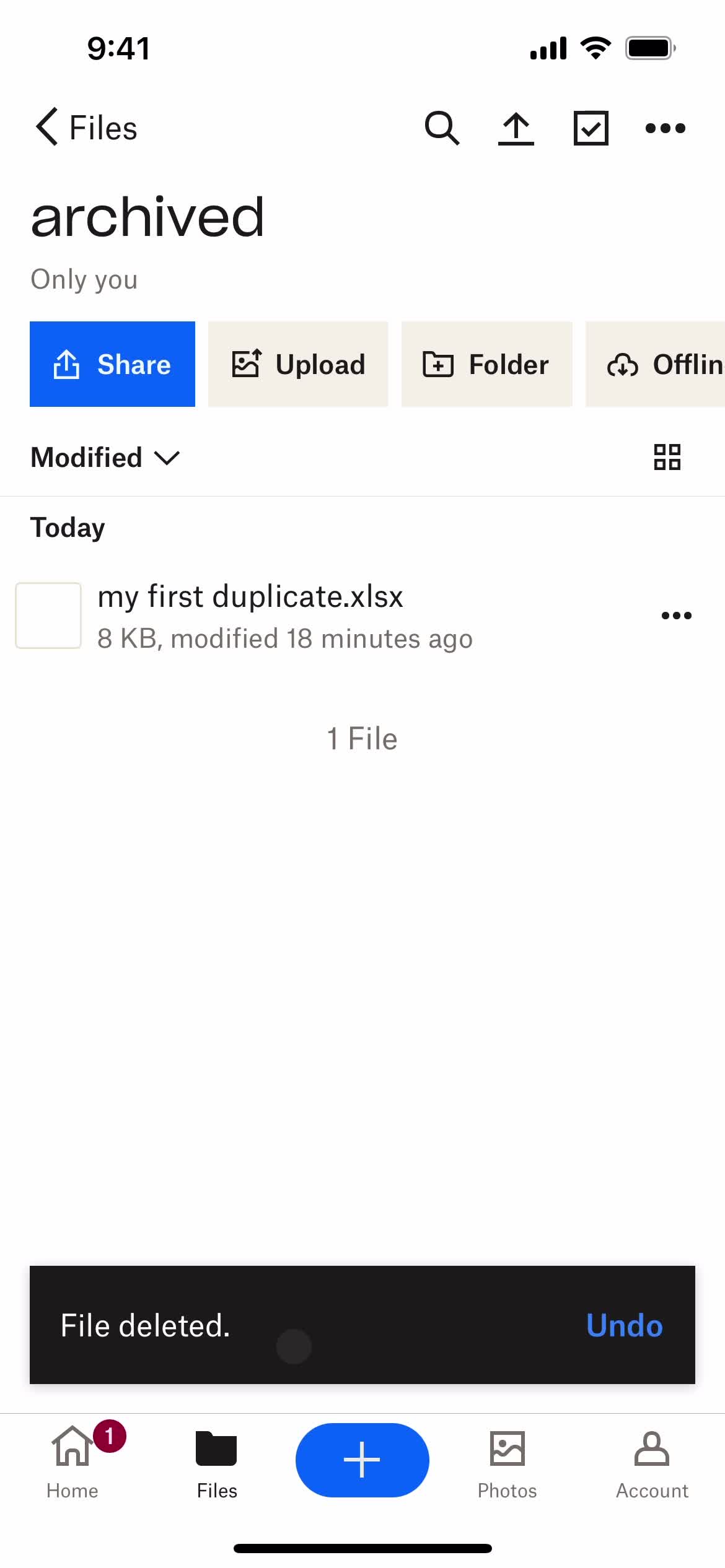
Deleted
this is title
Undo
this is title
Folder
this is title