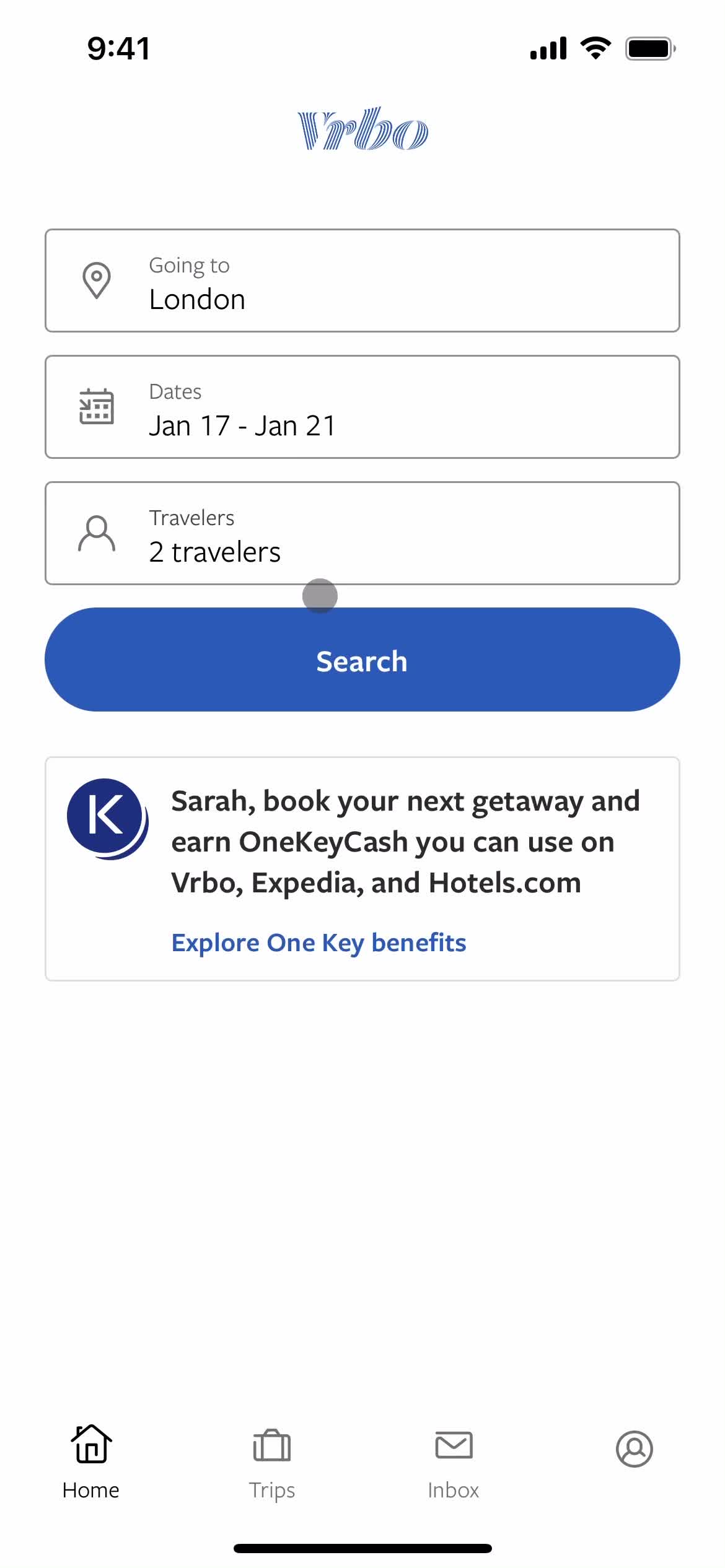
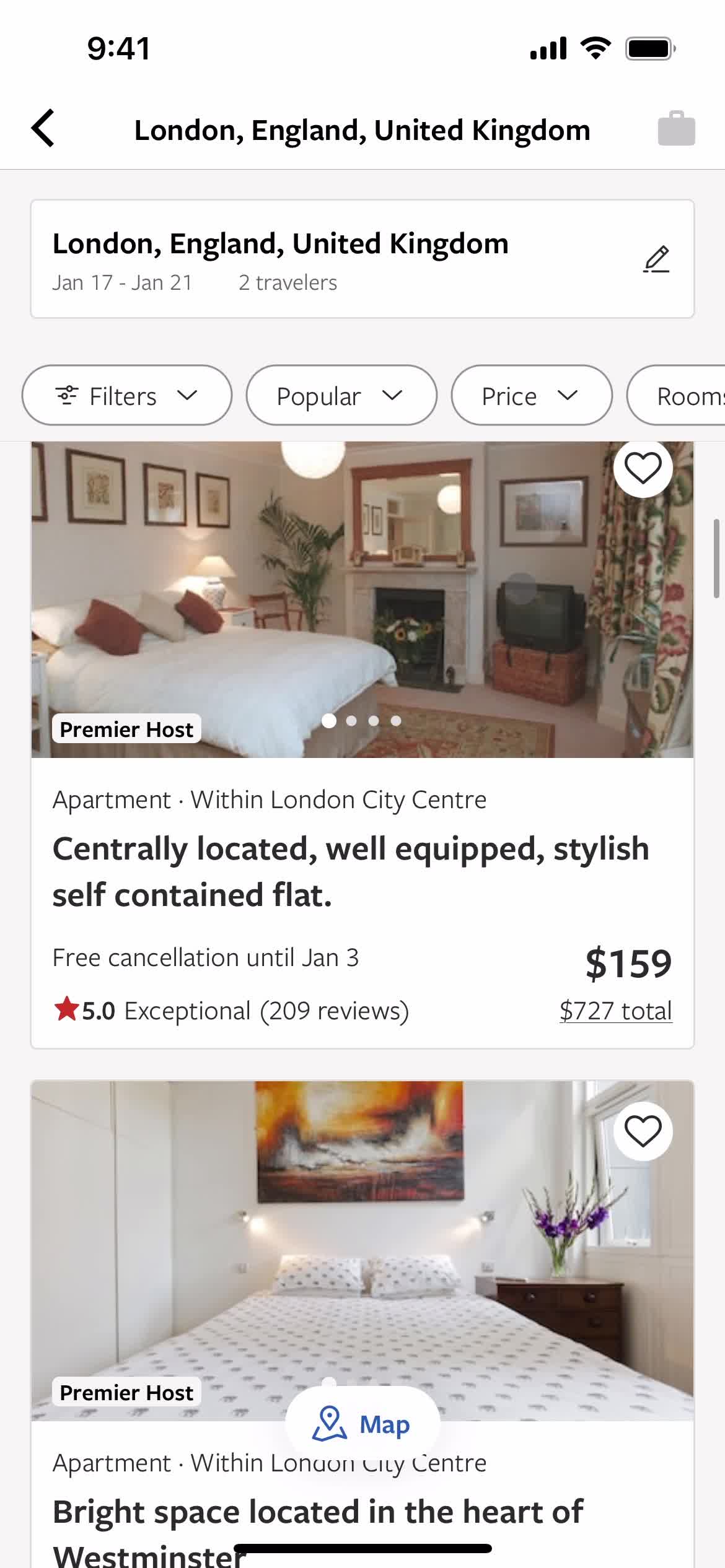
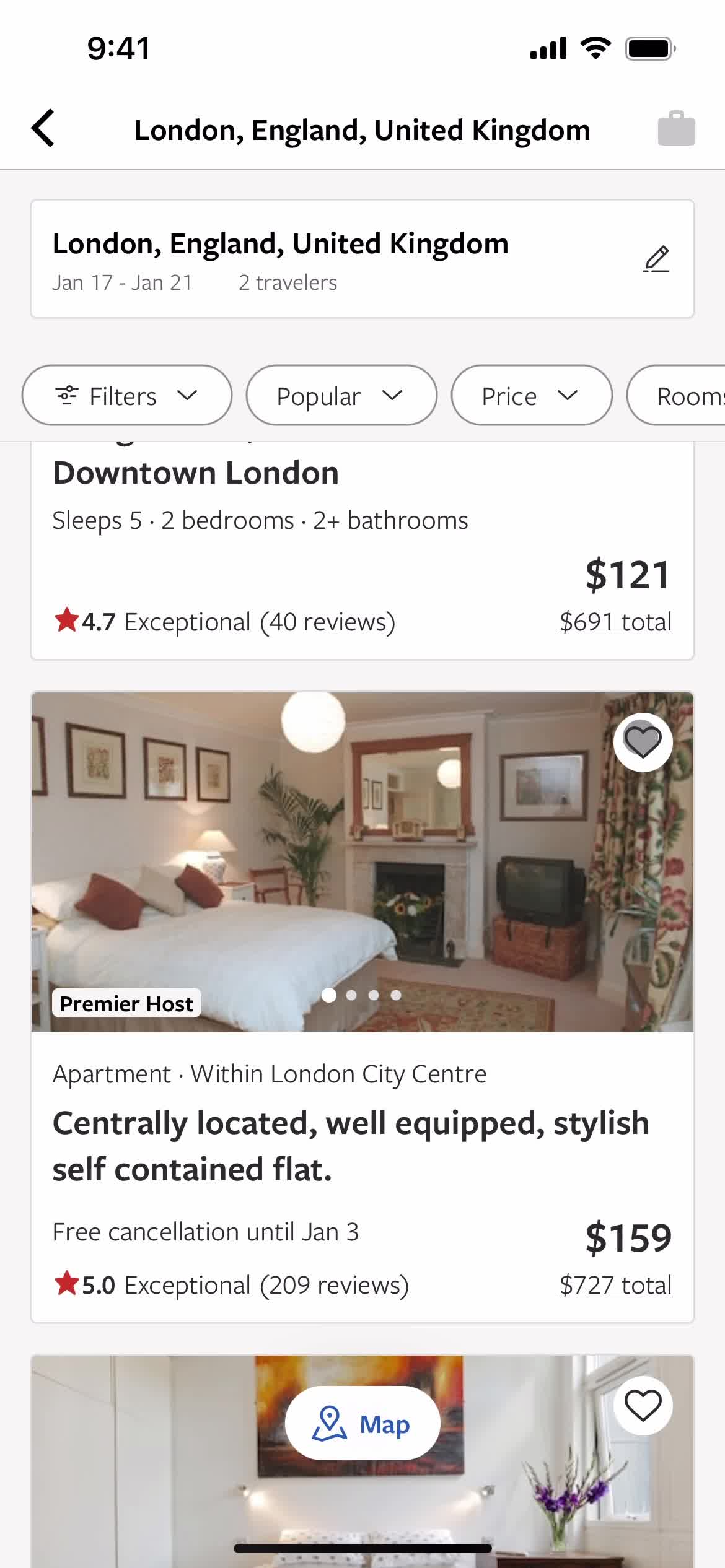
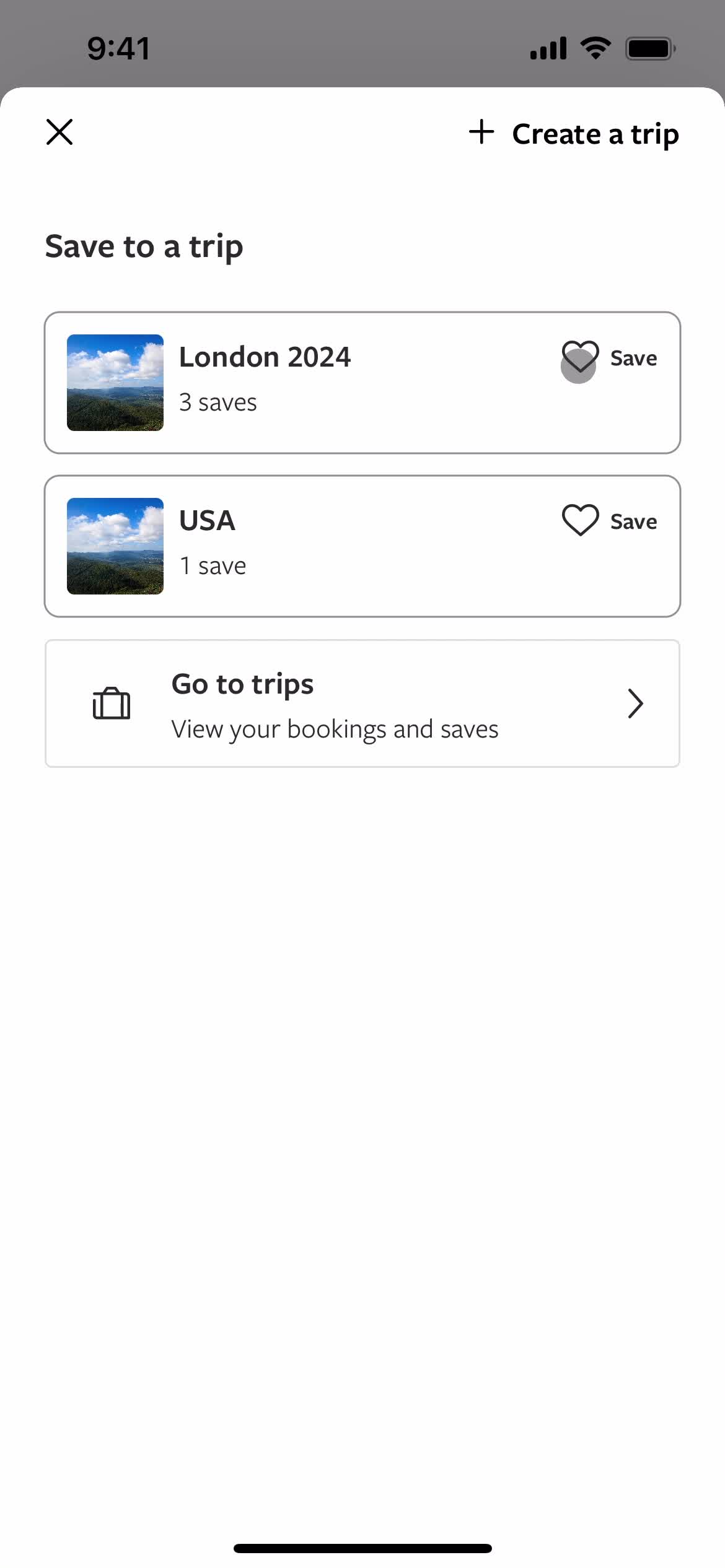
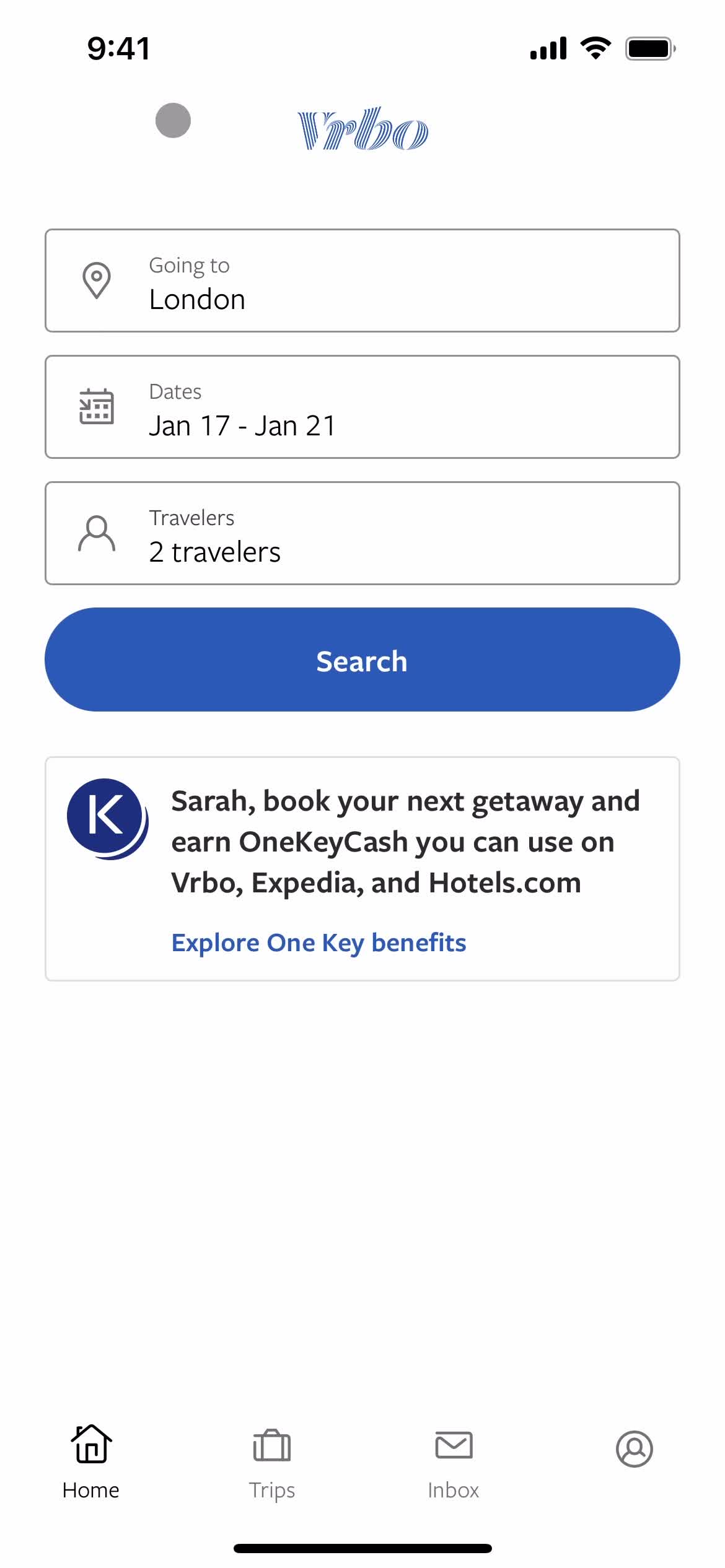
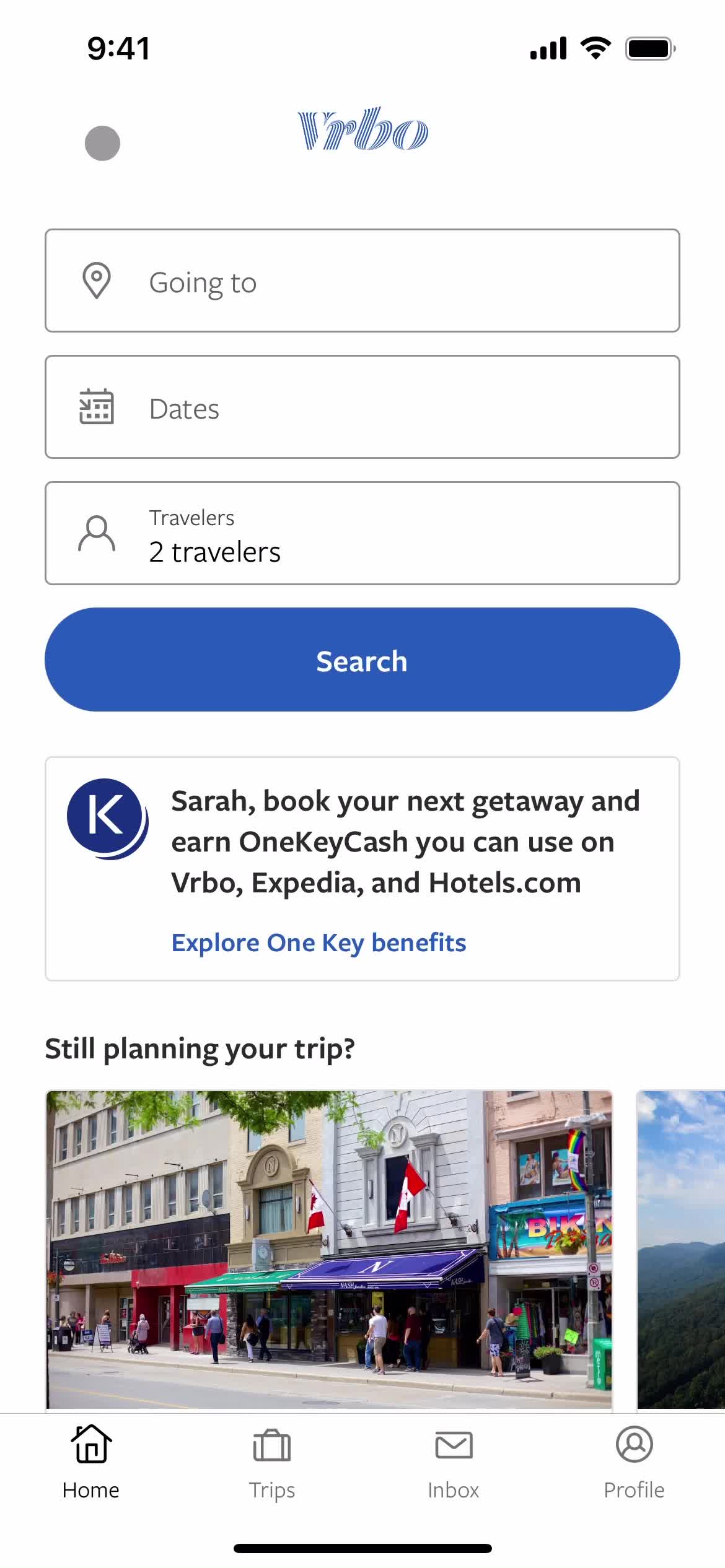
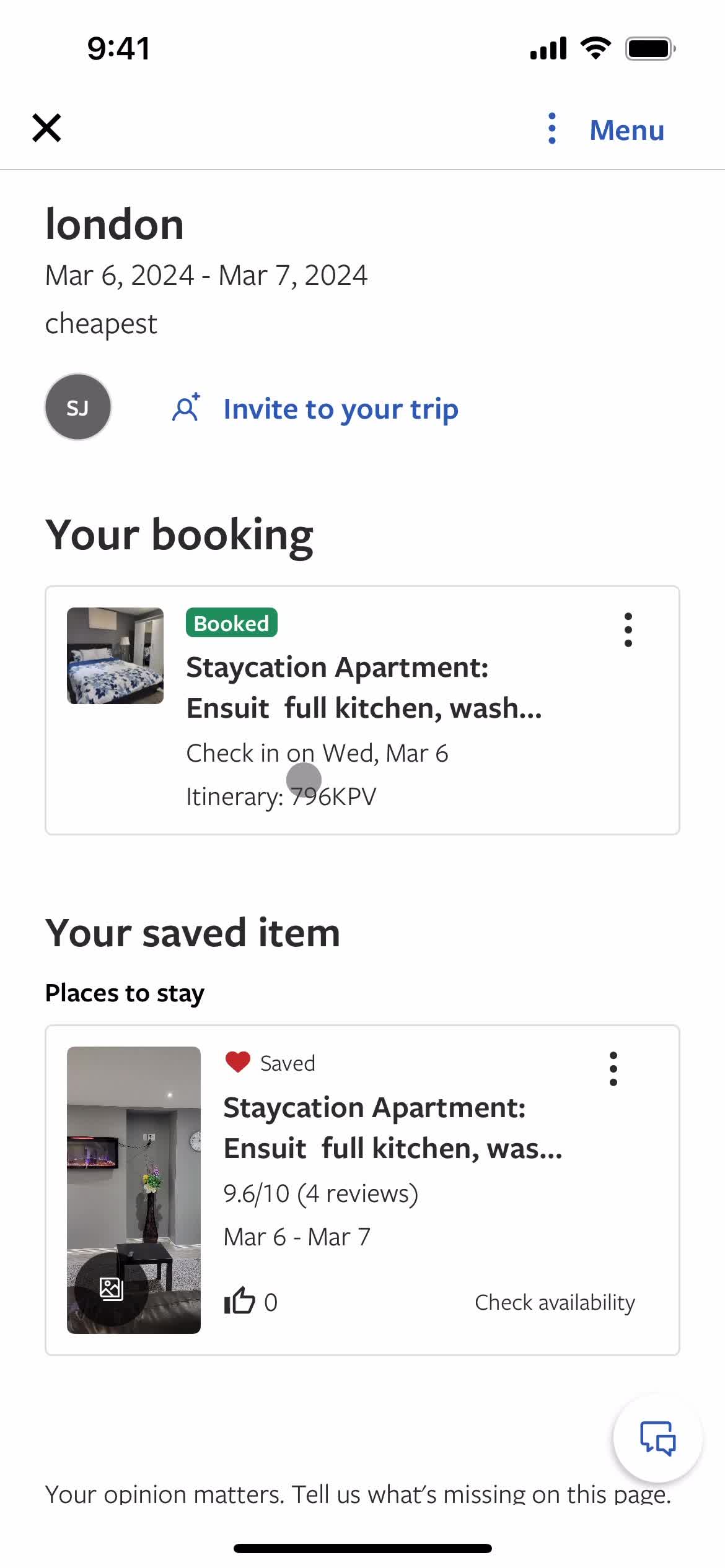
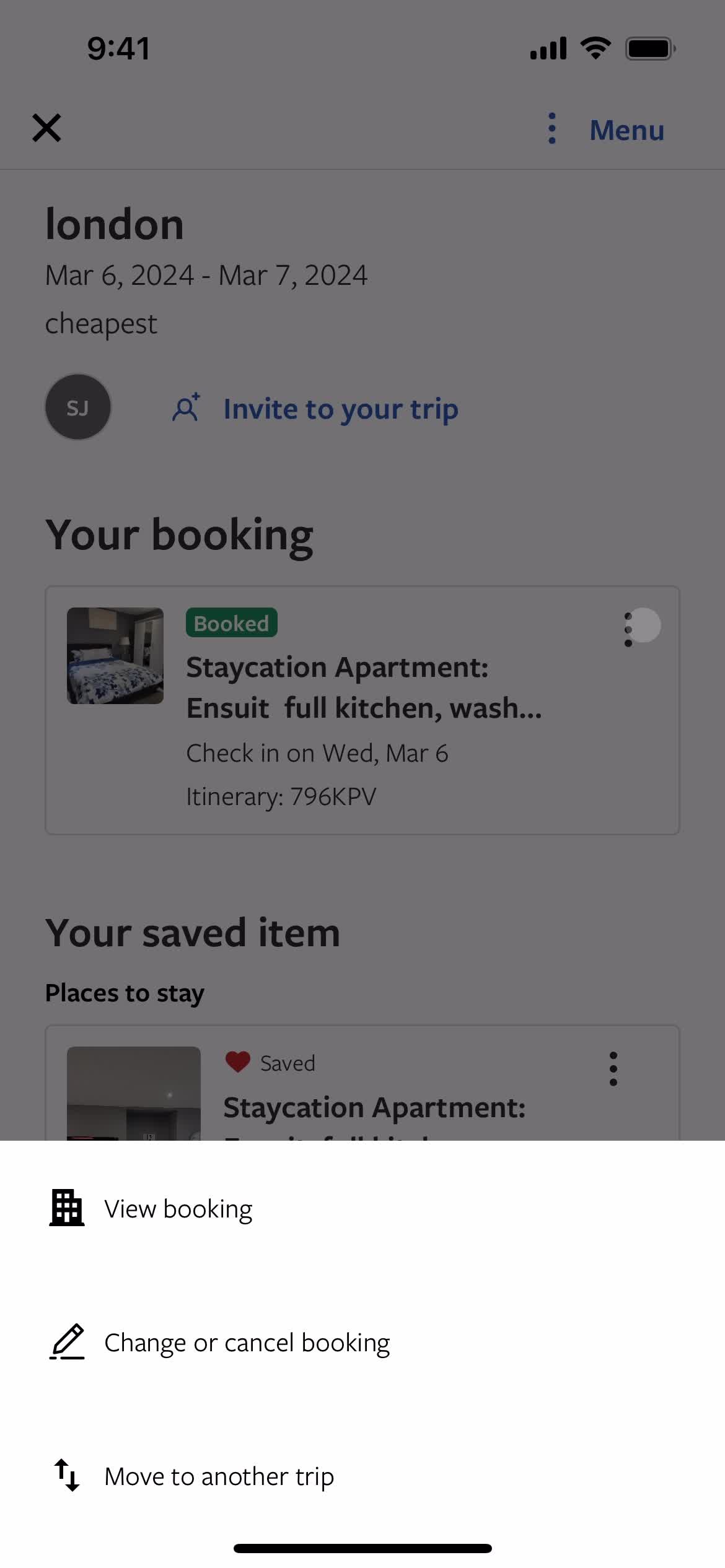
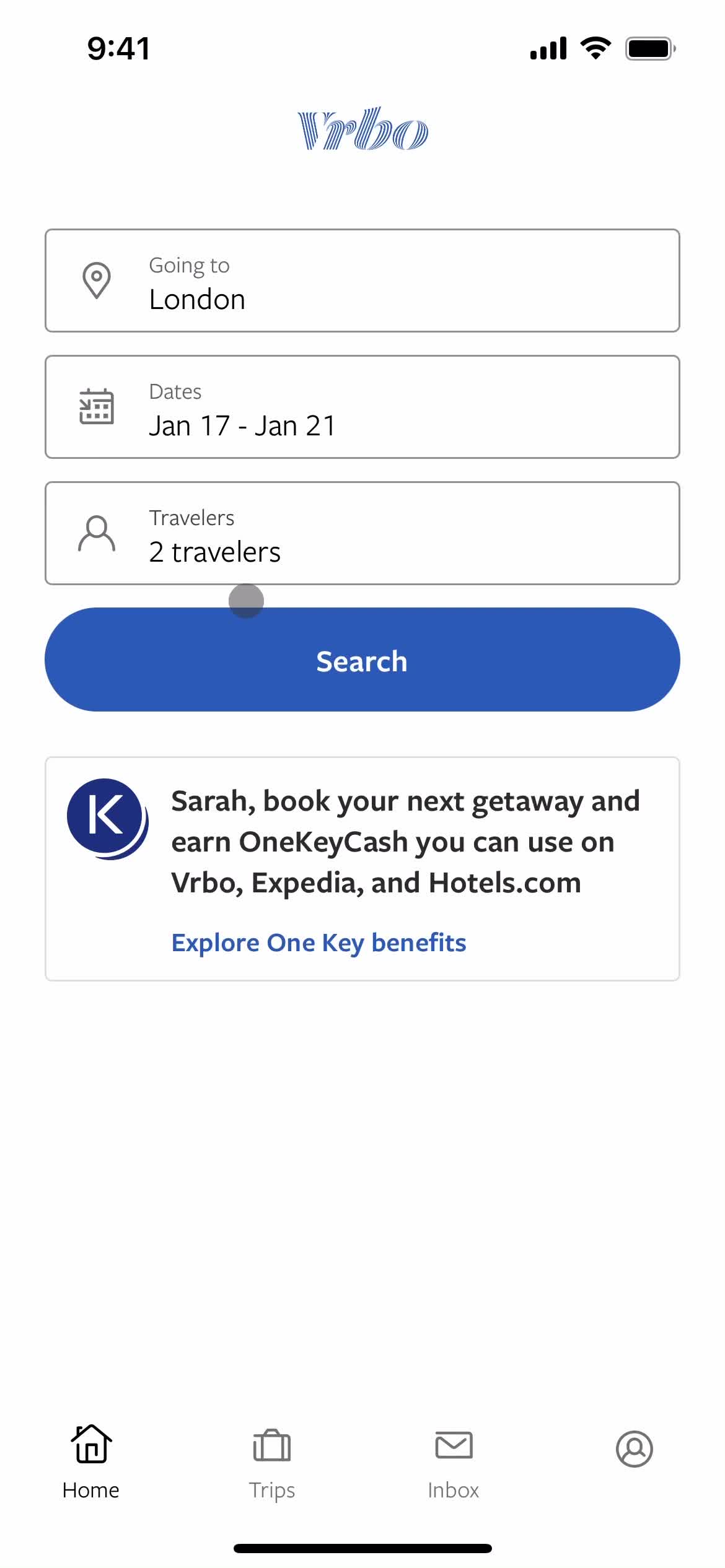
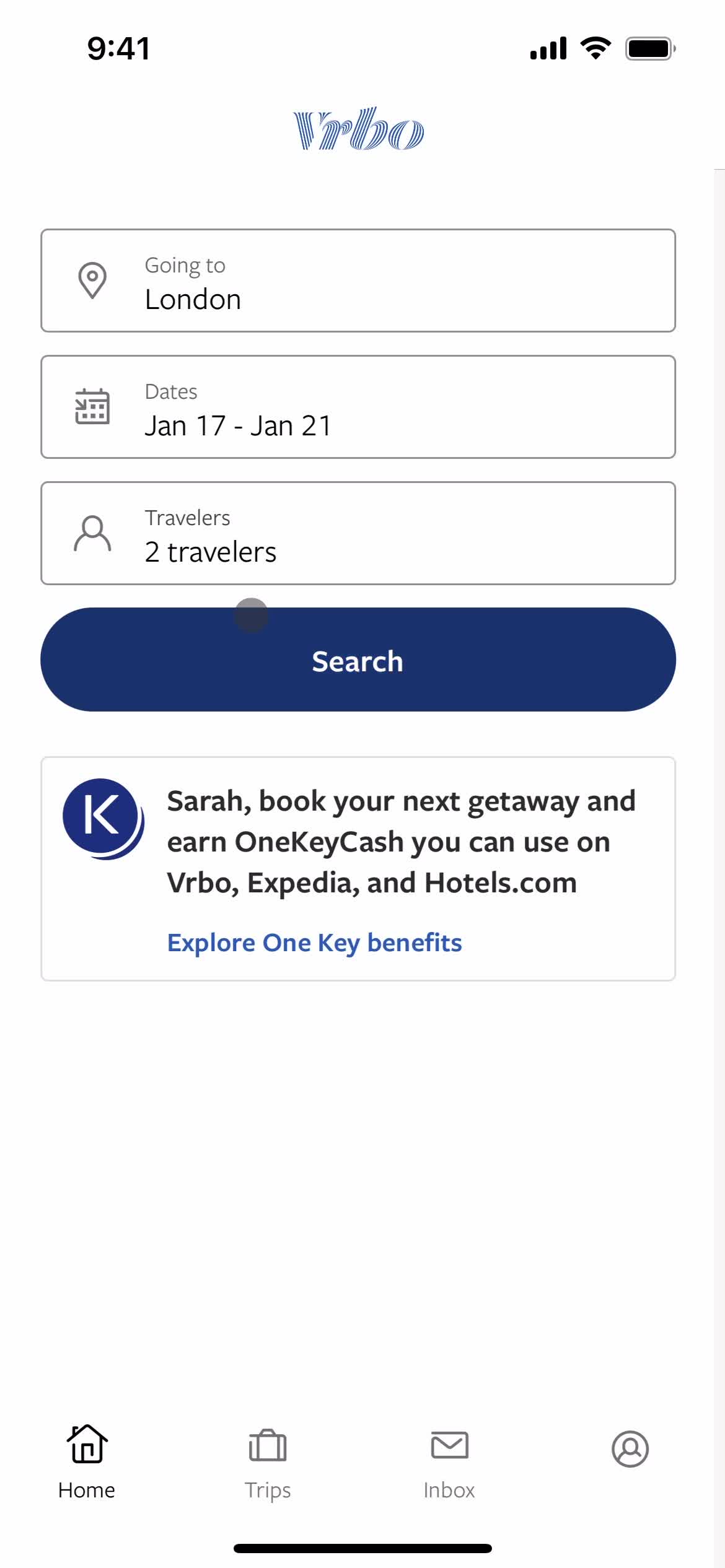
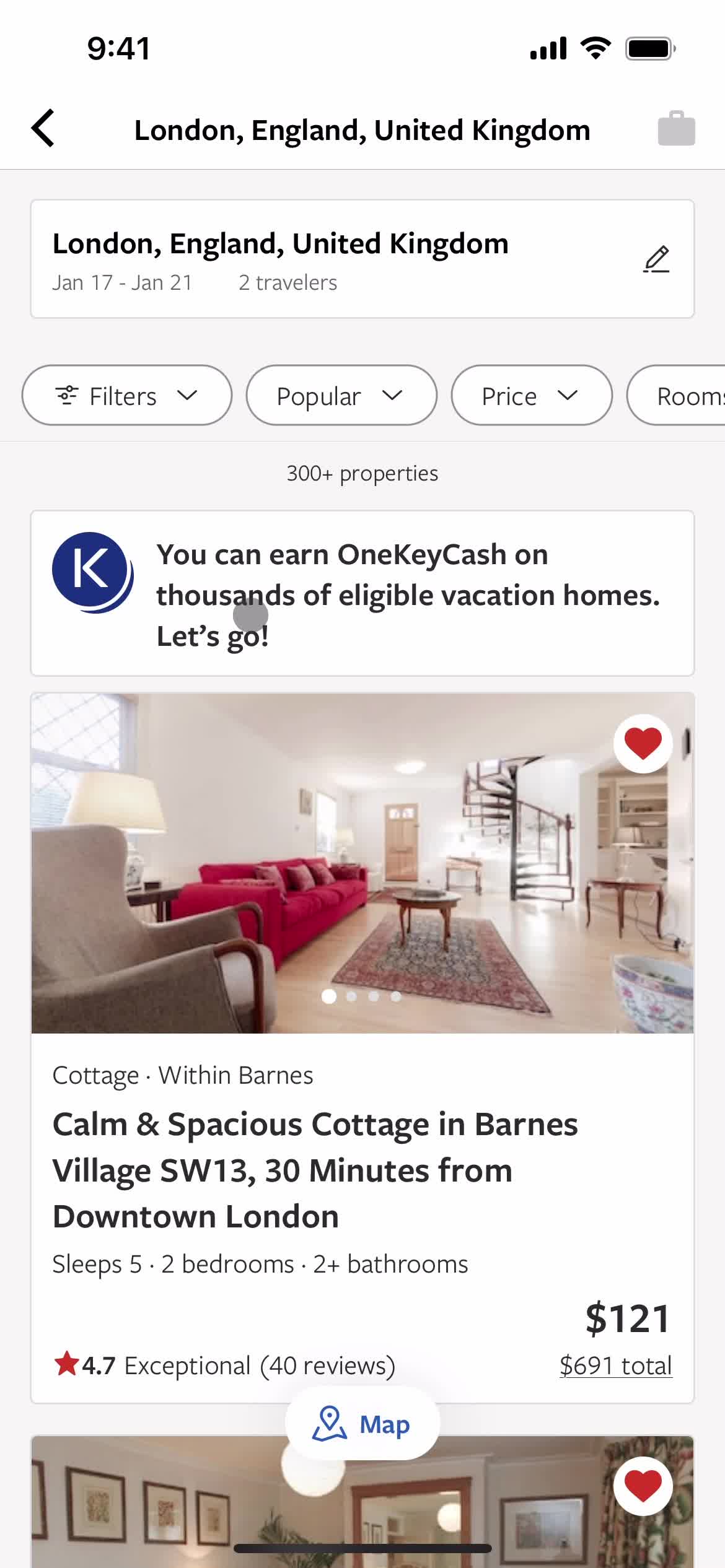
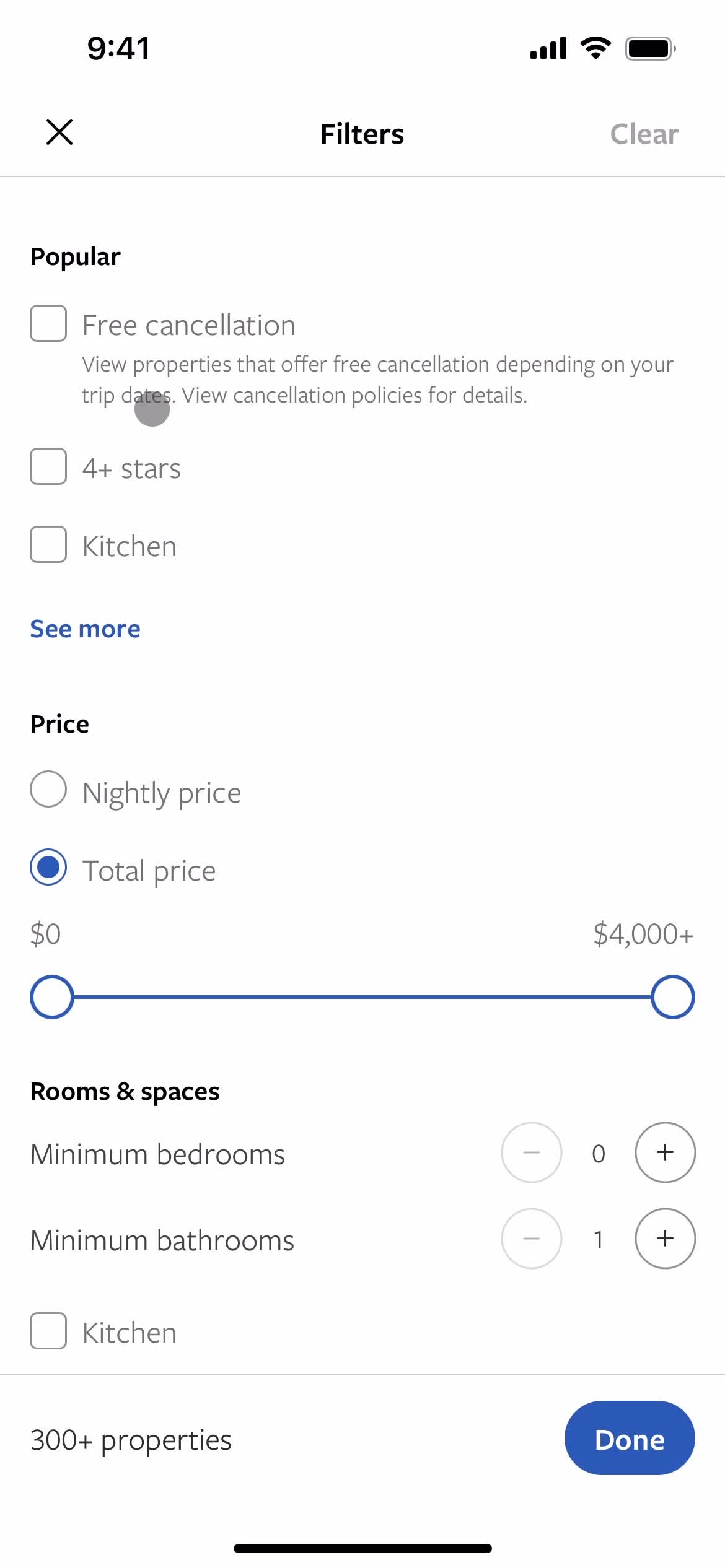
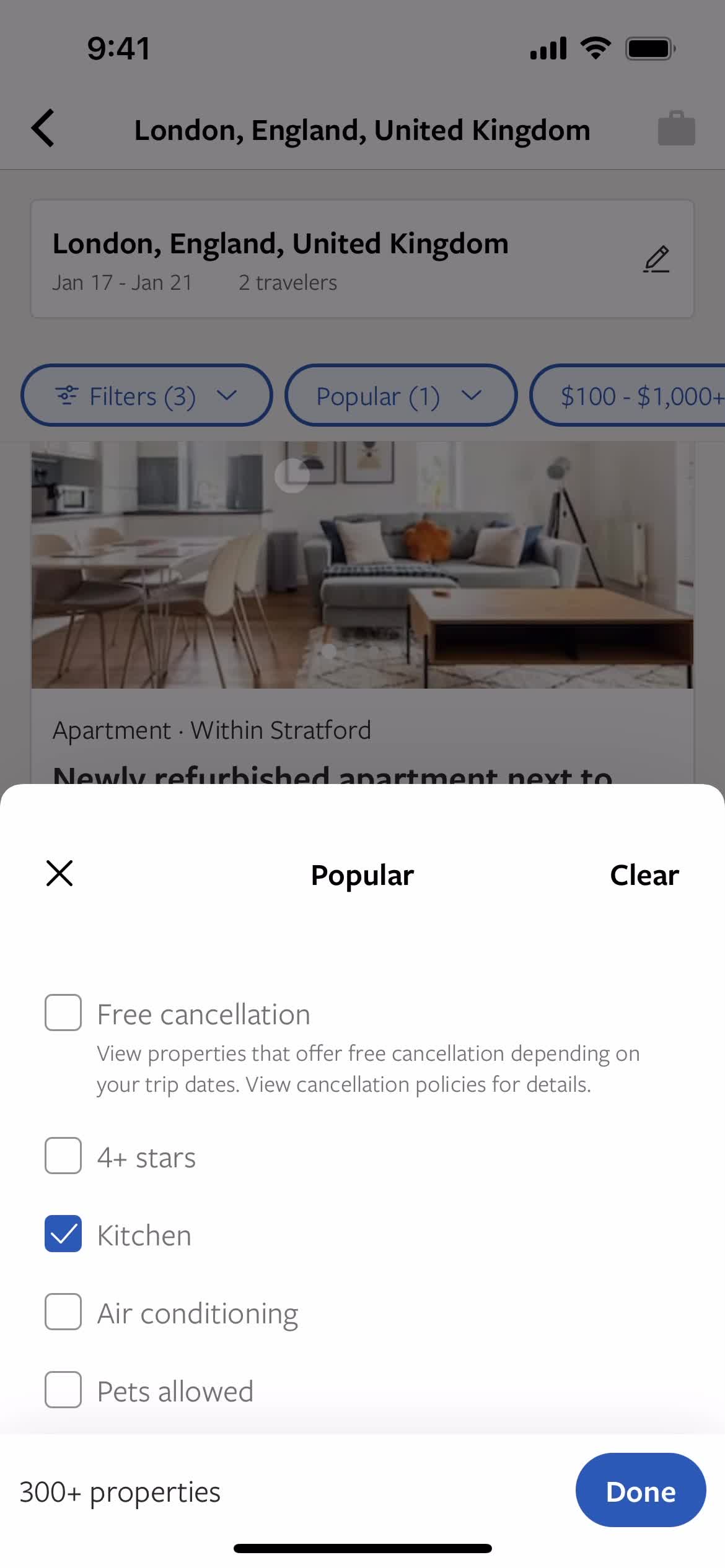
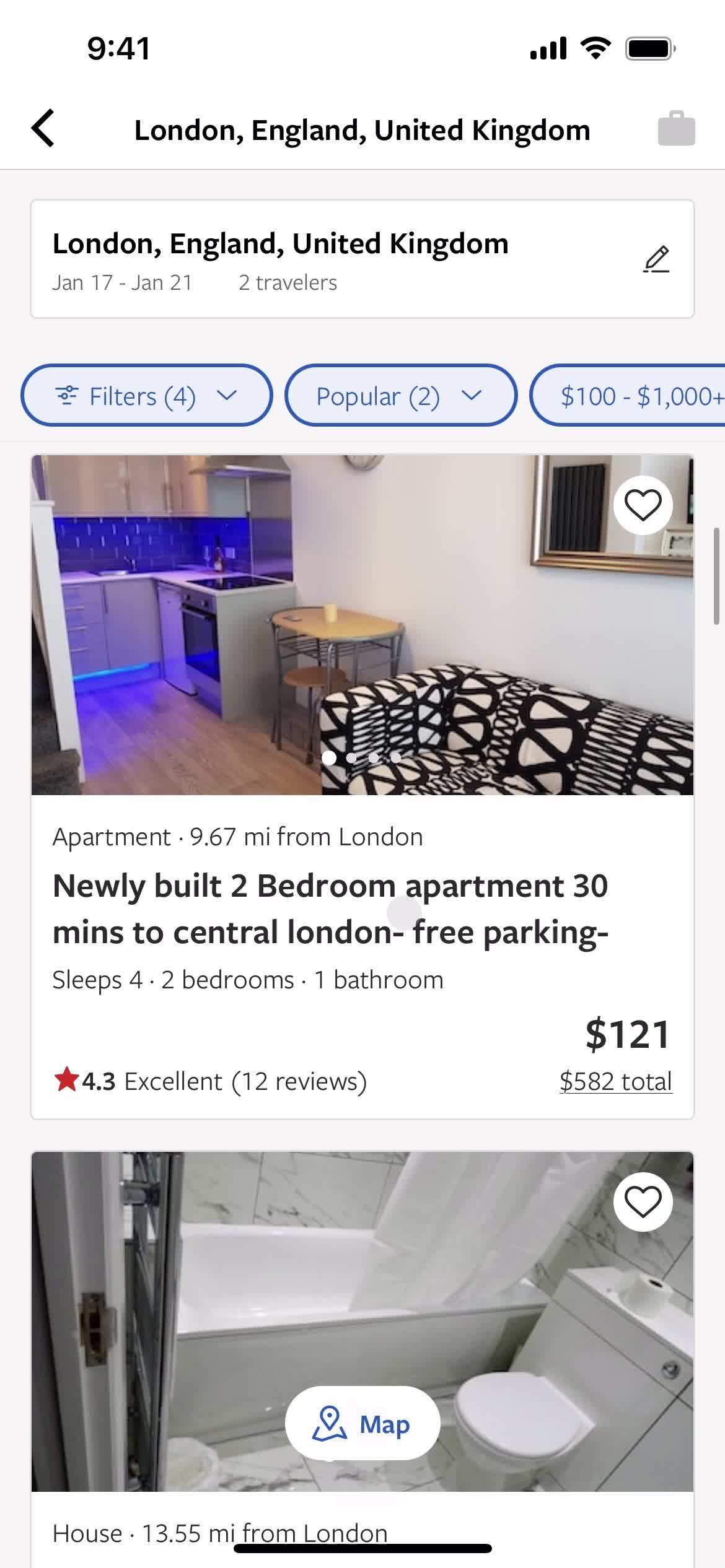
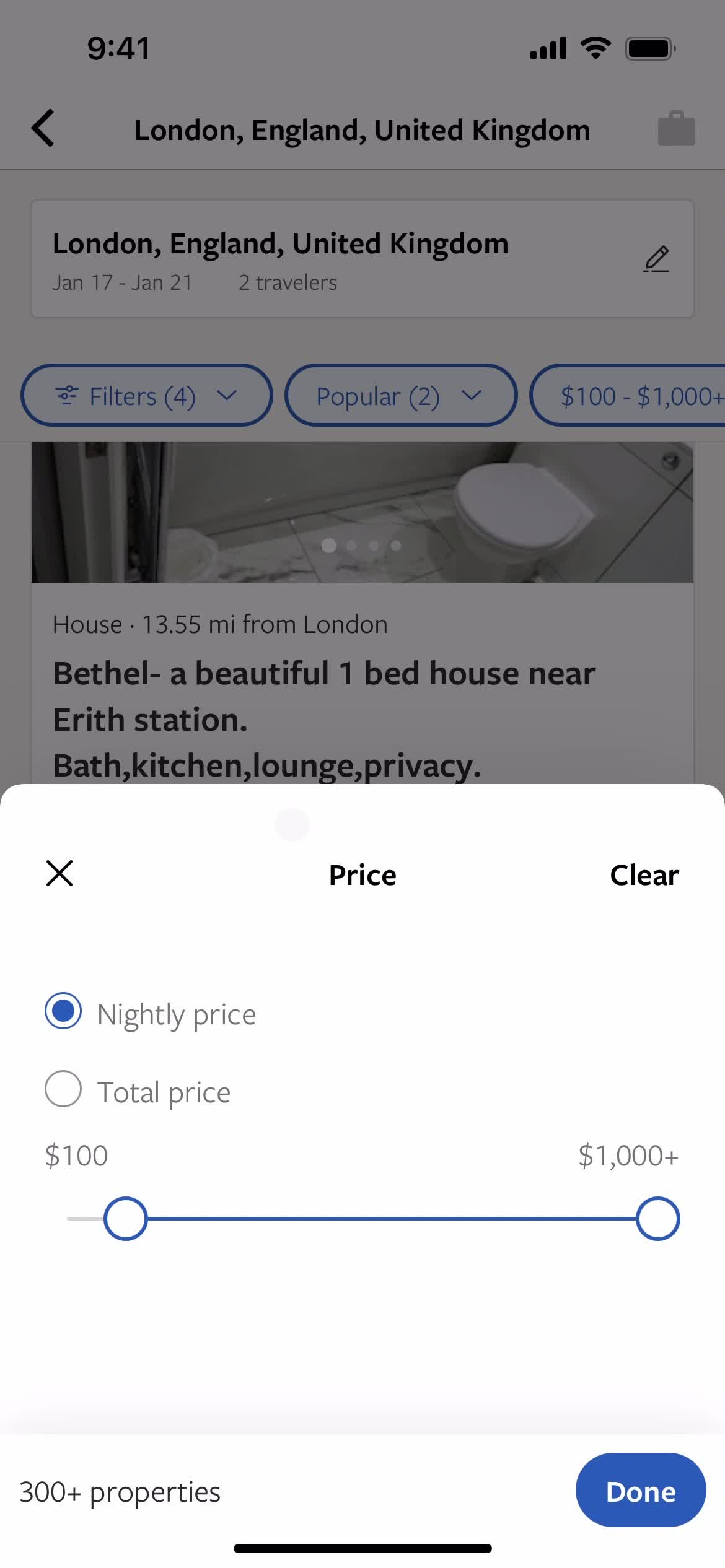
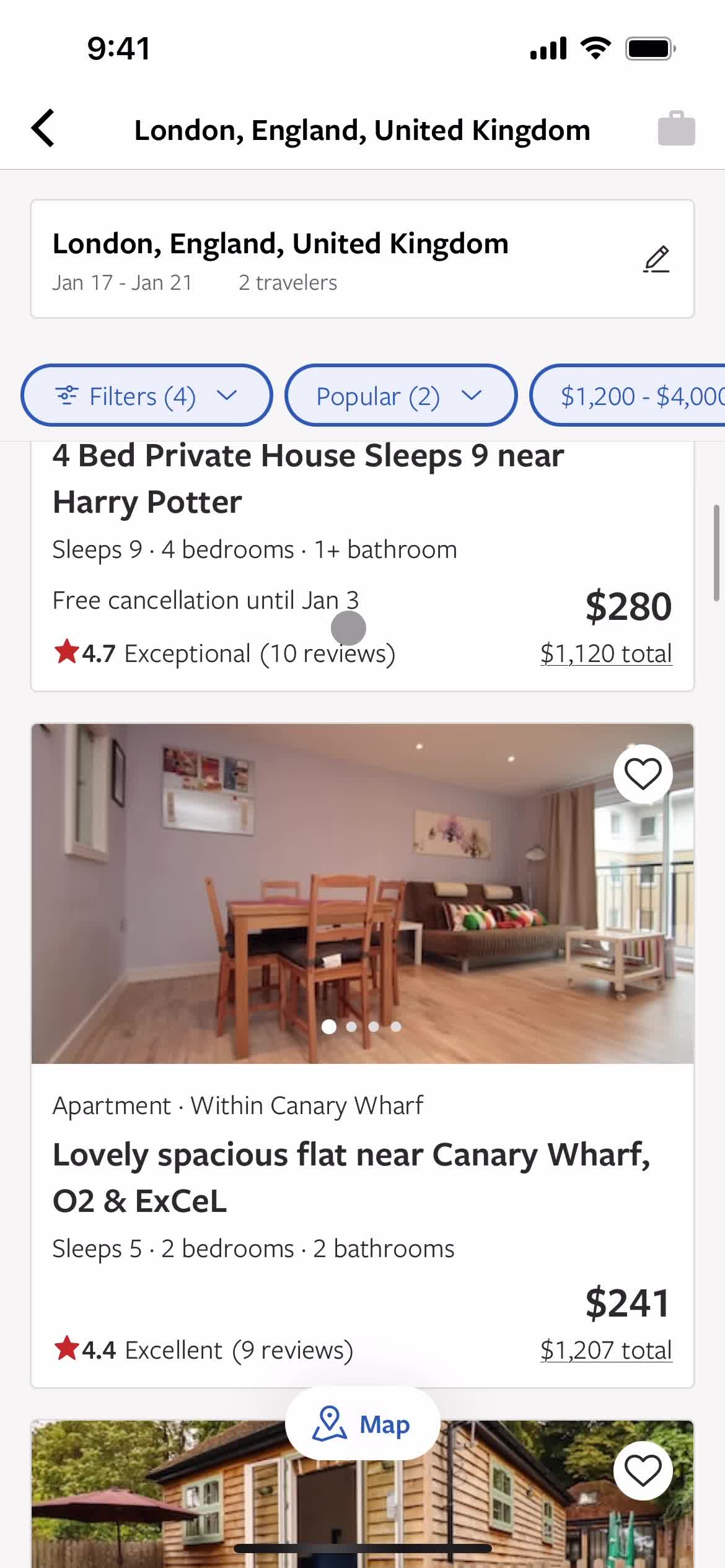
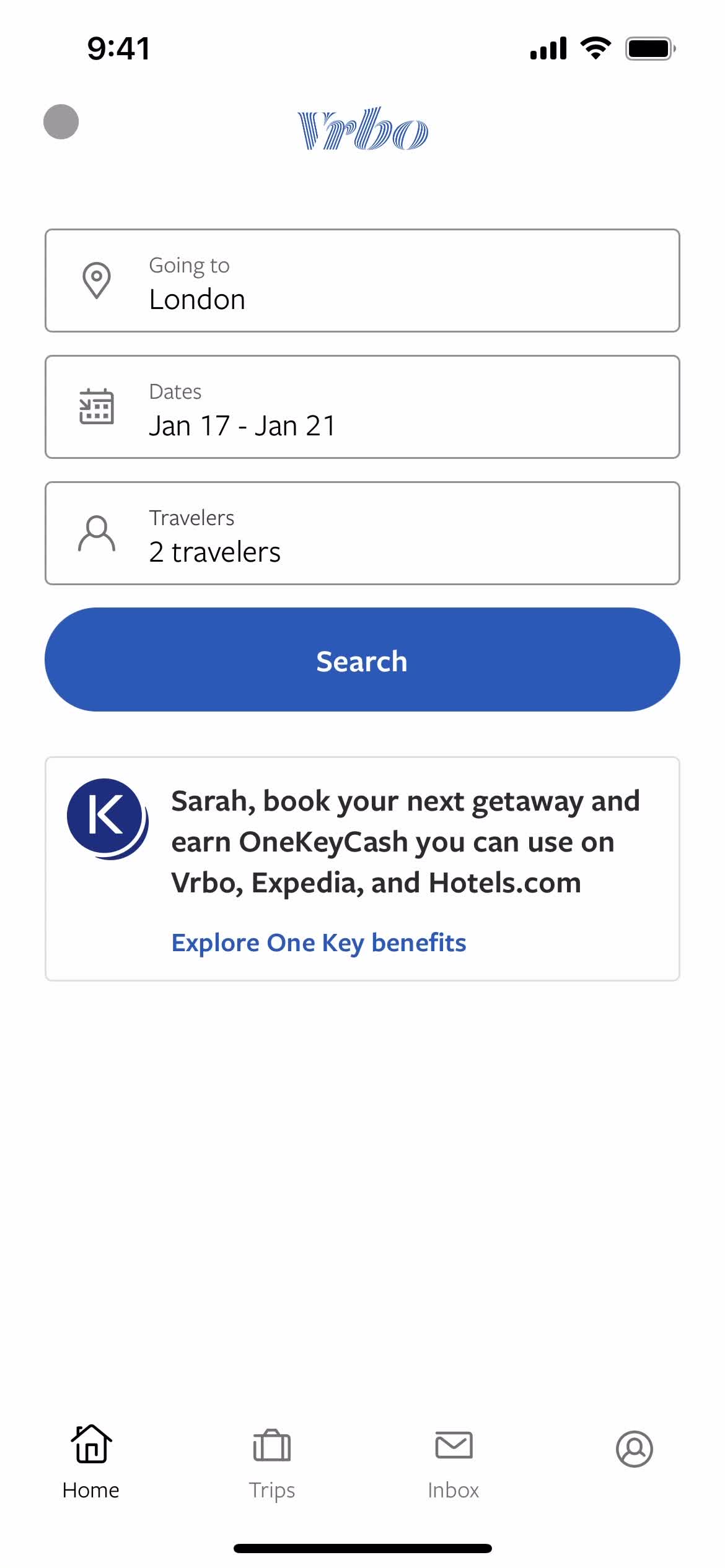
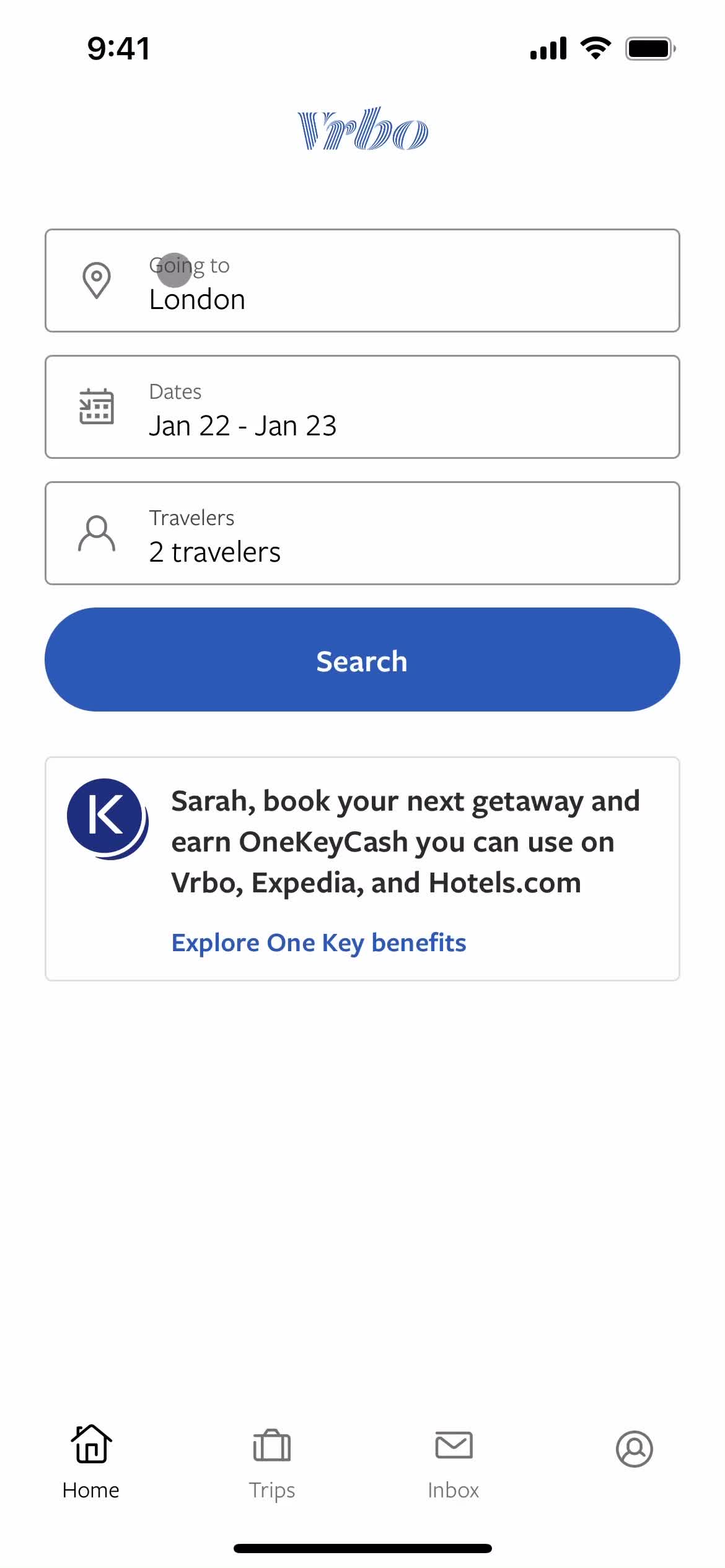
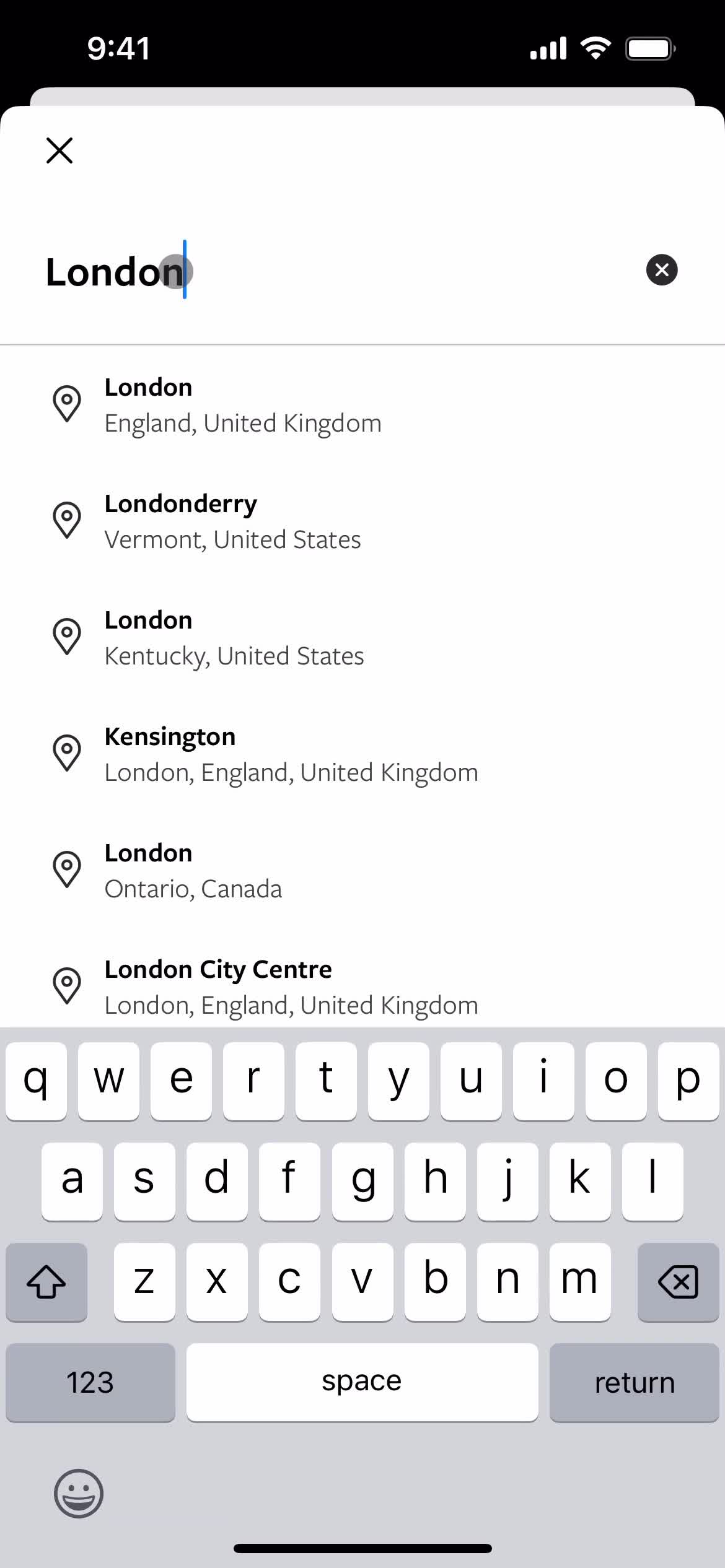
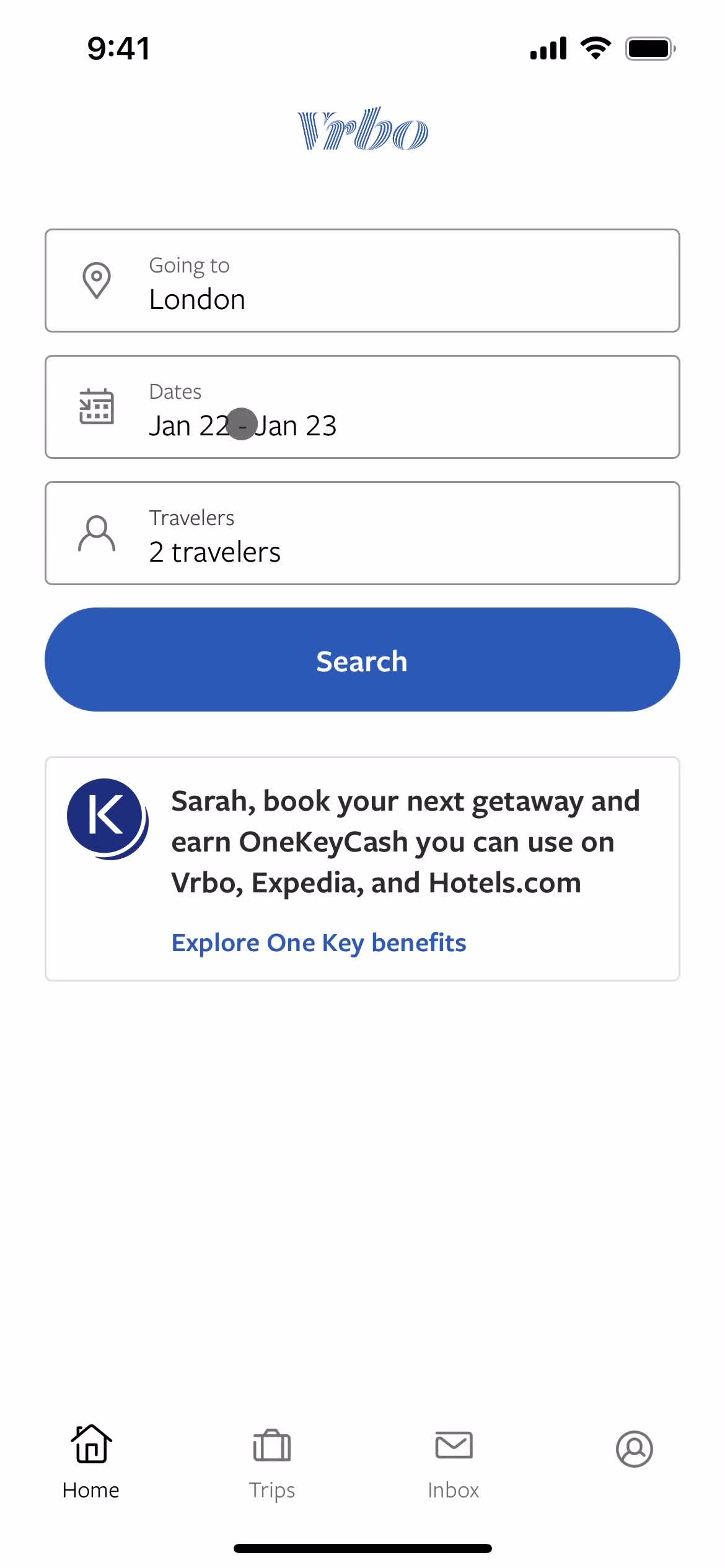
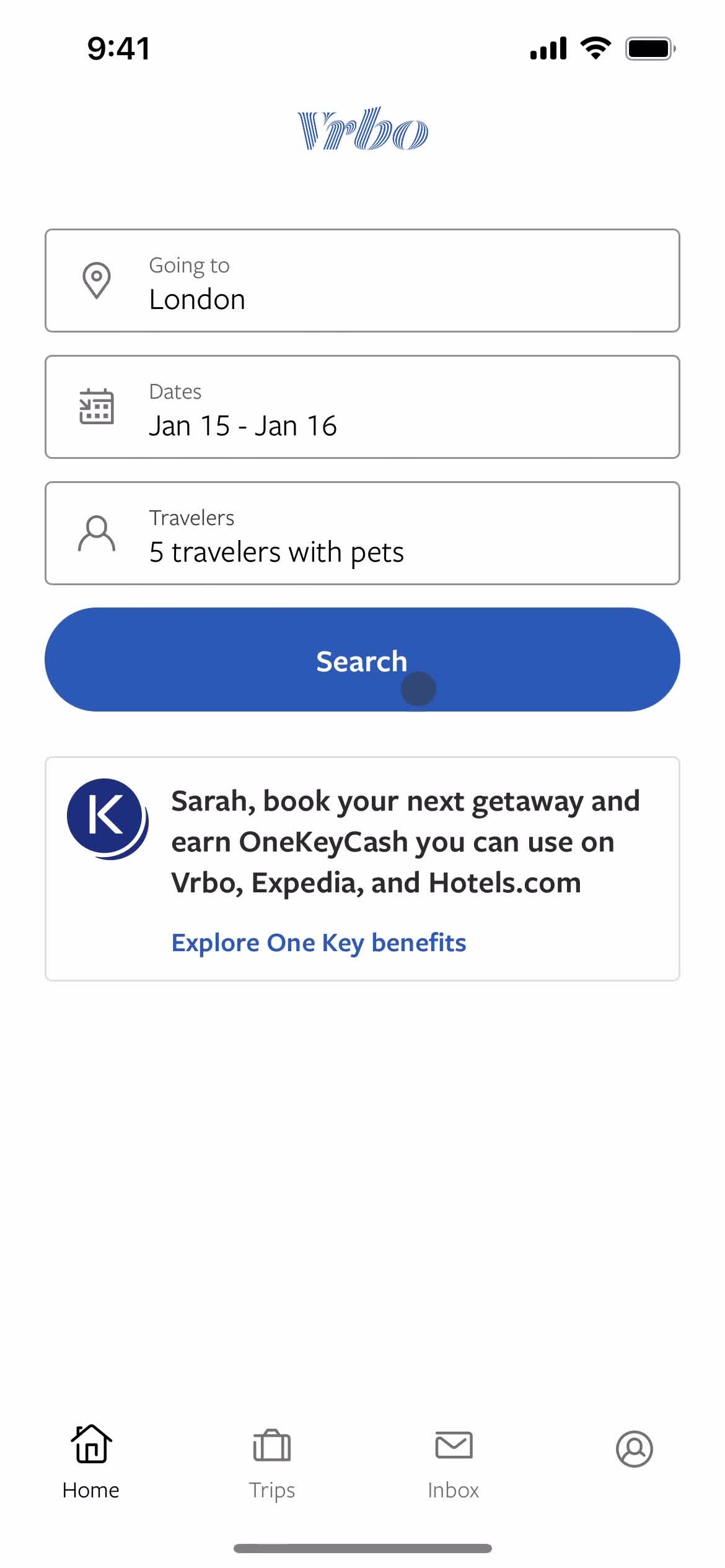
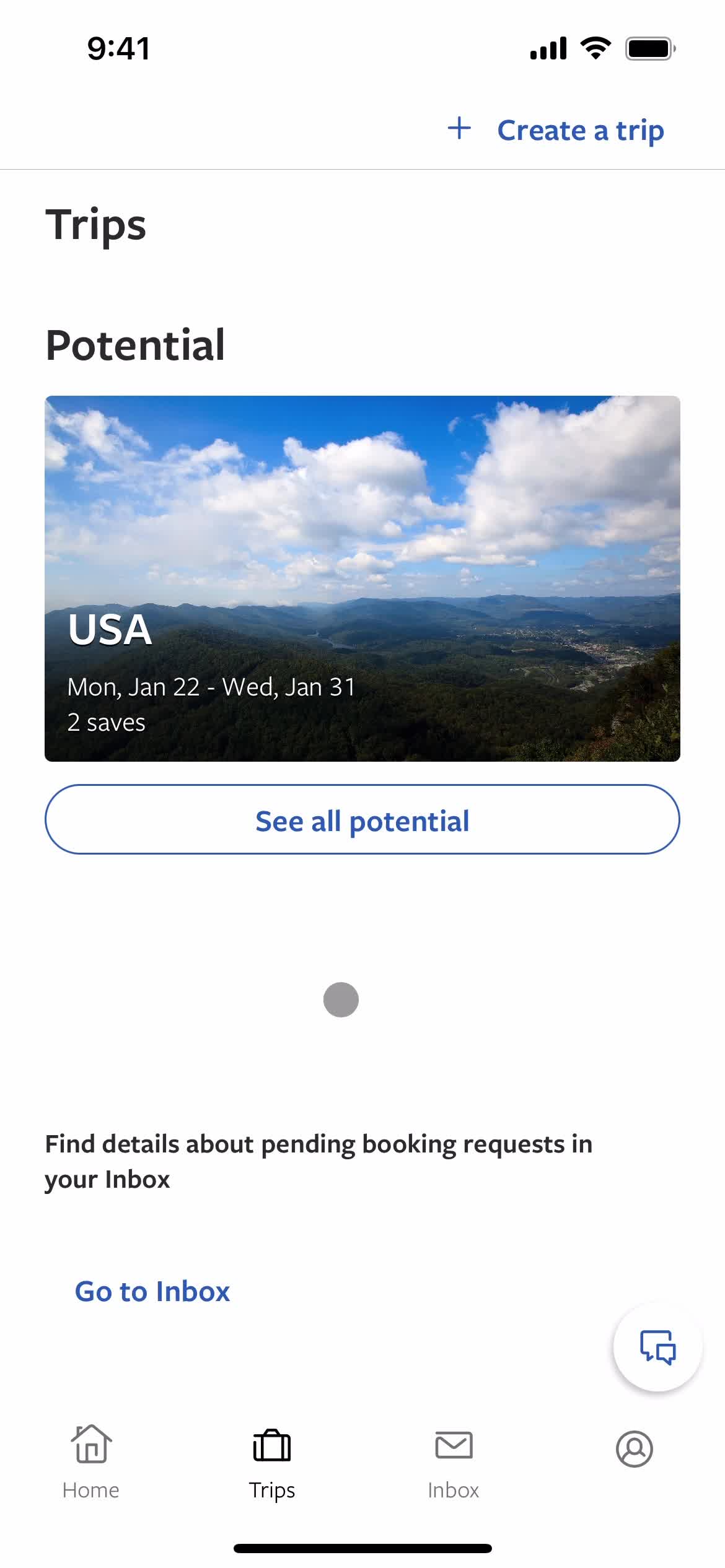
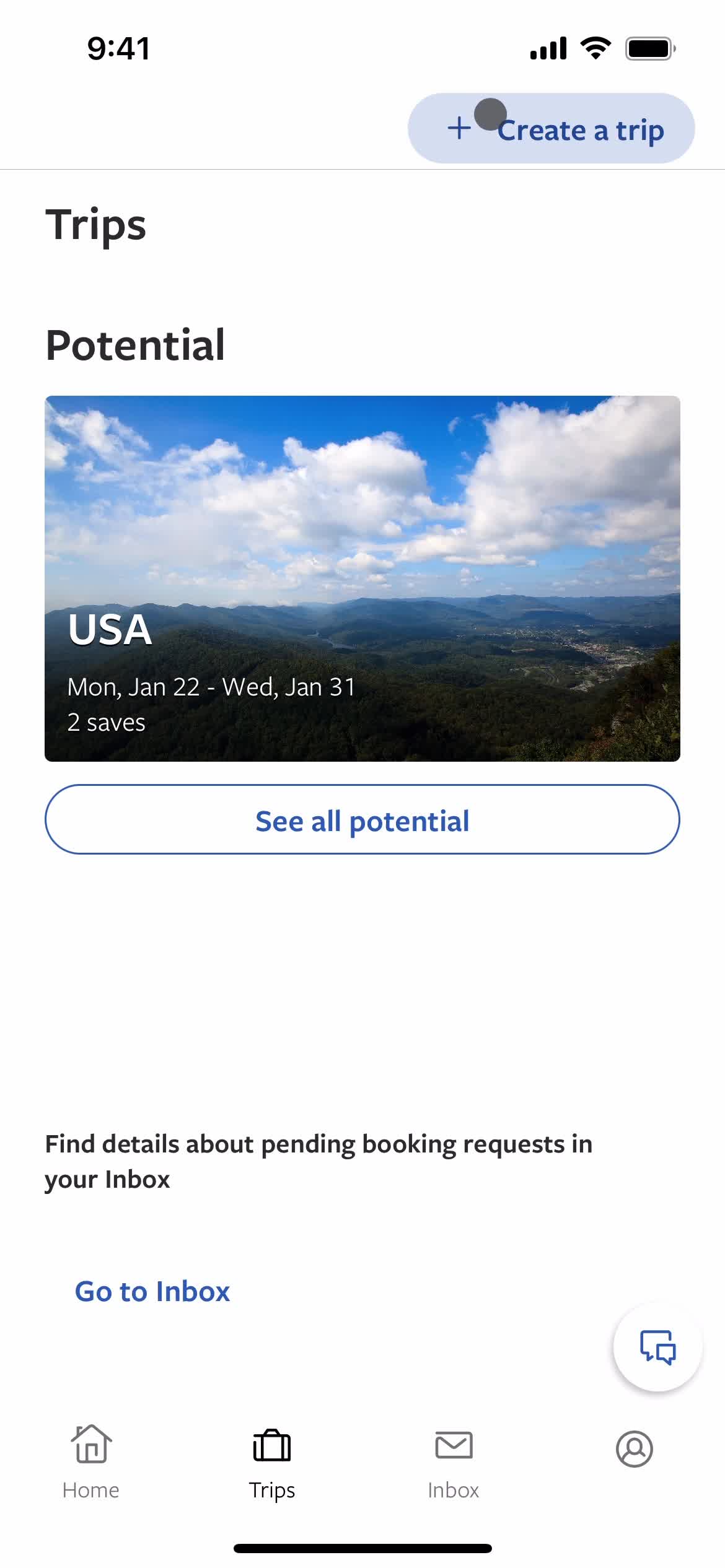
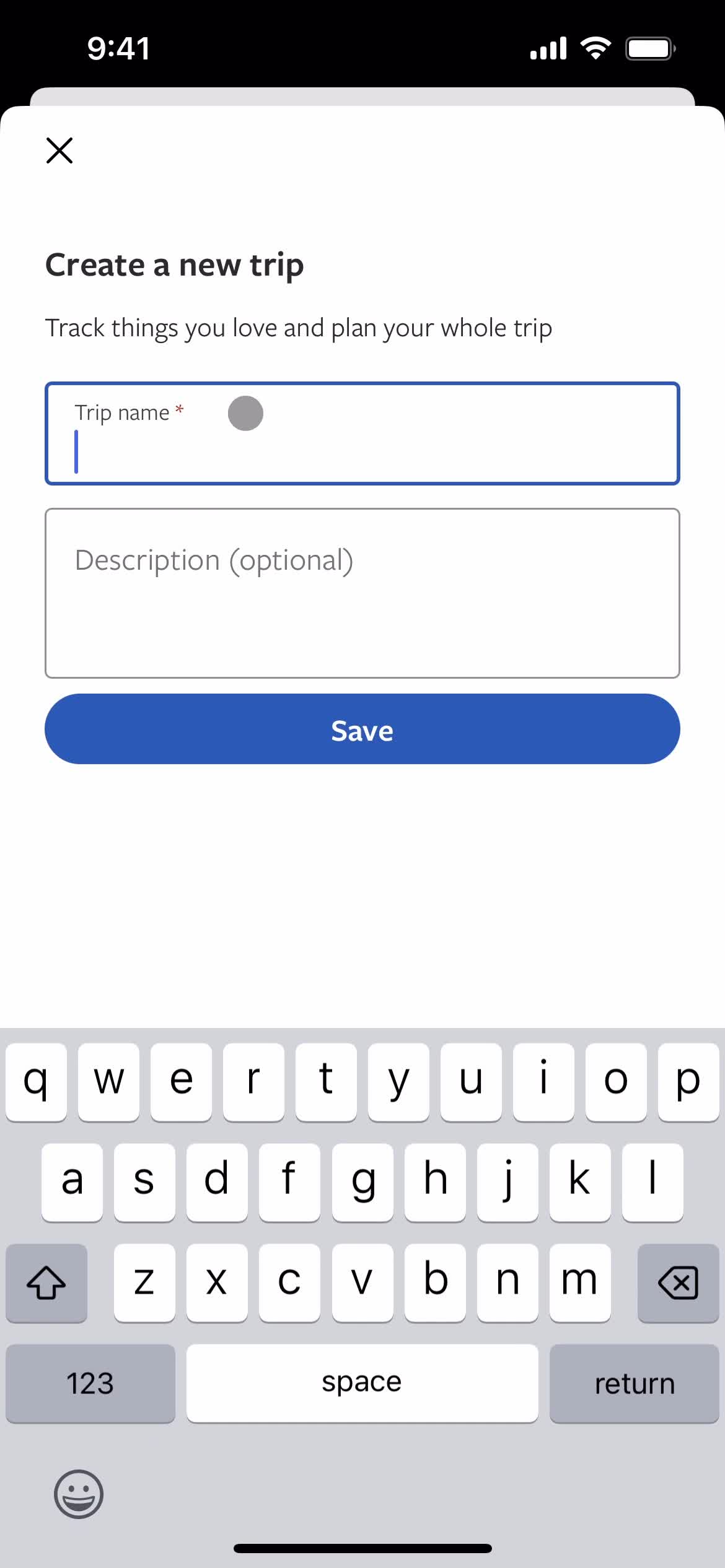
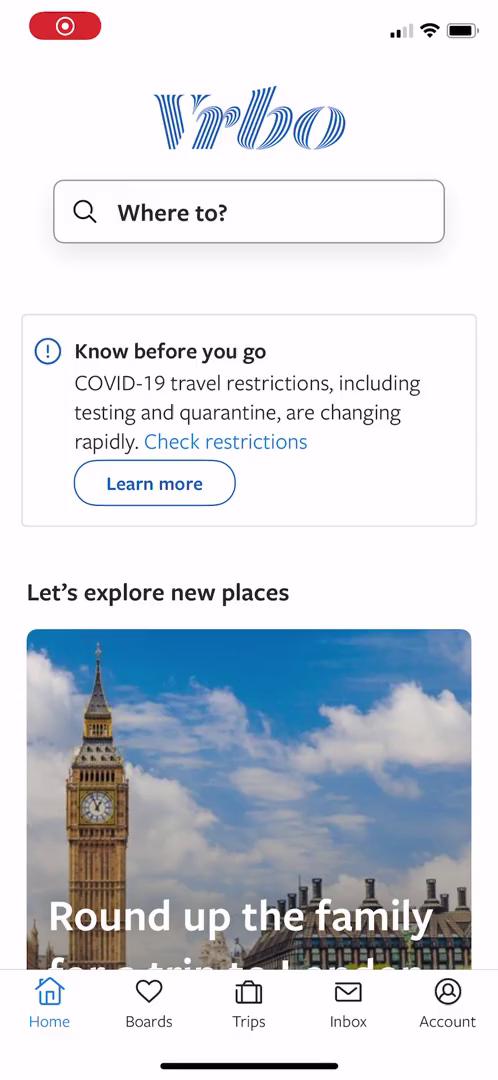
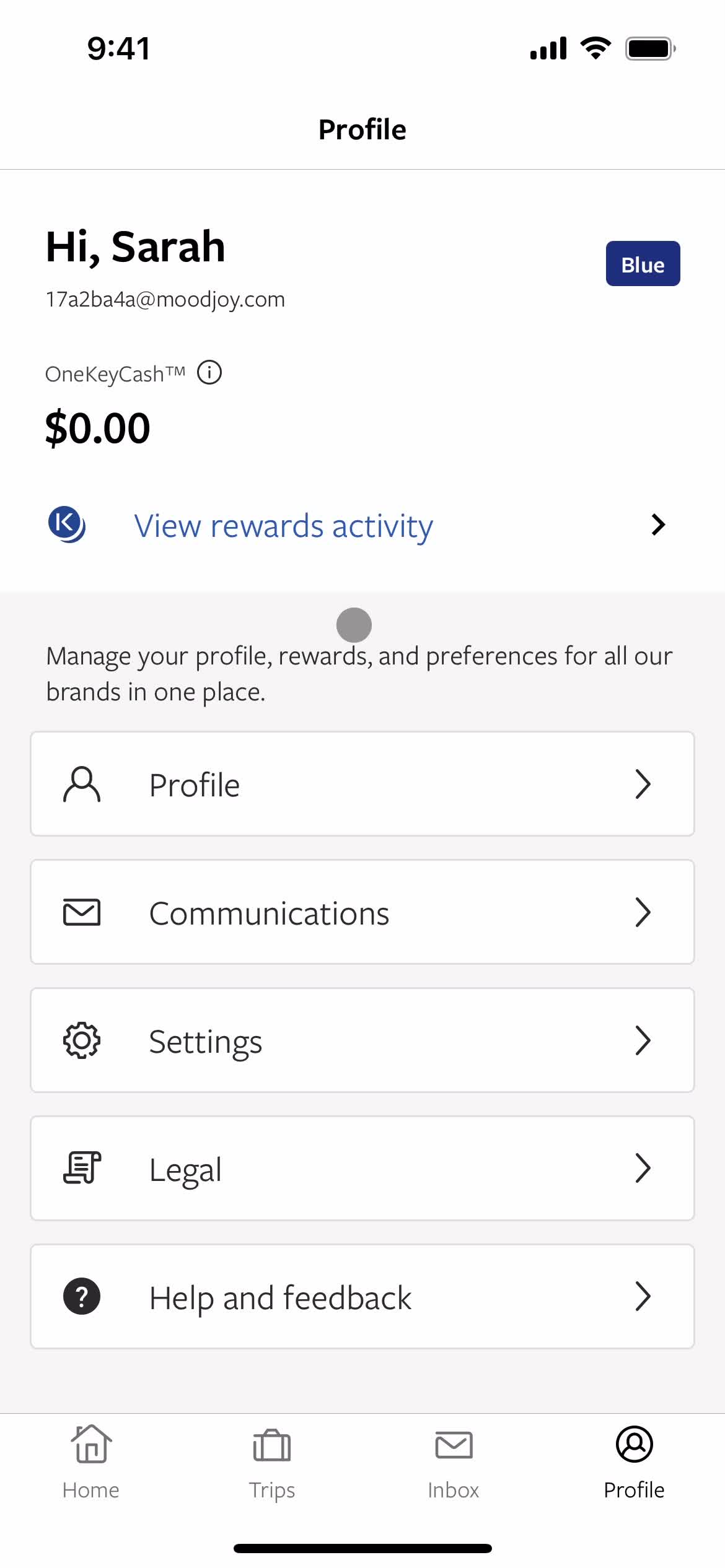
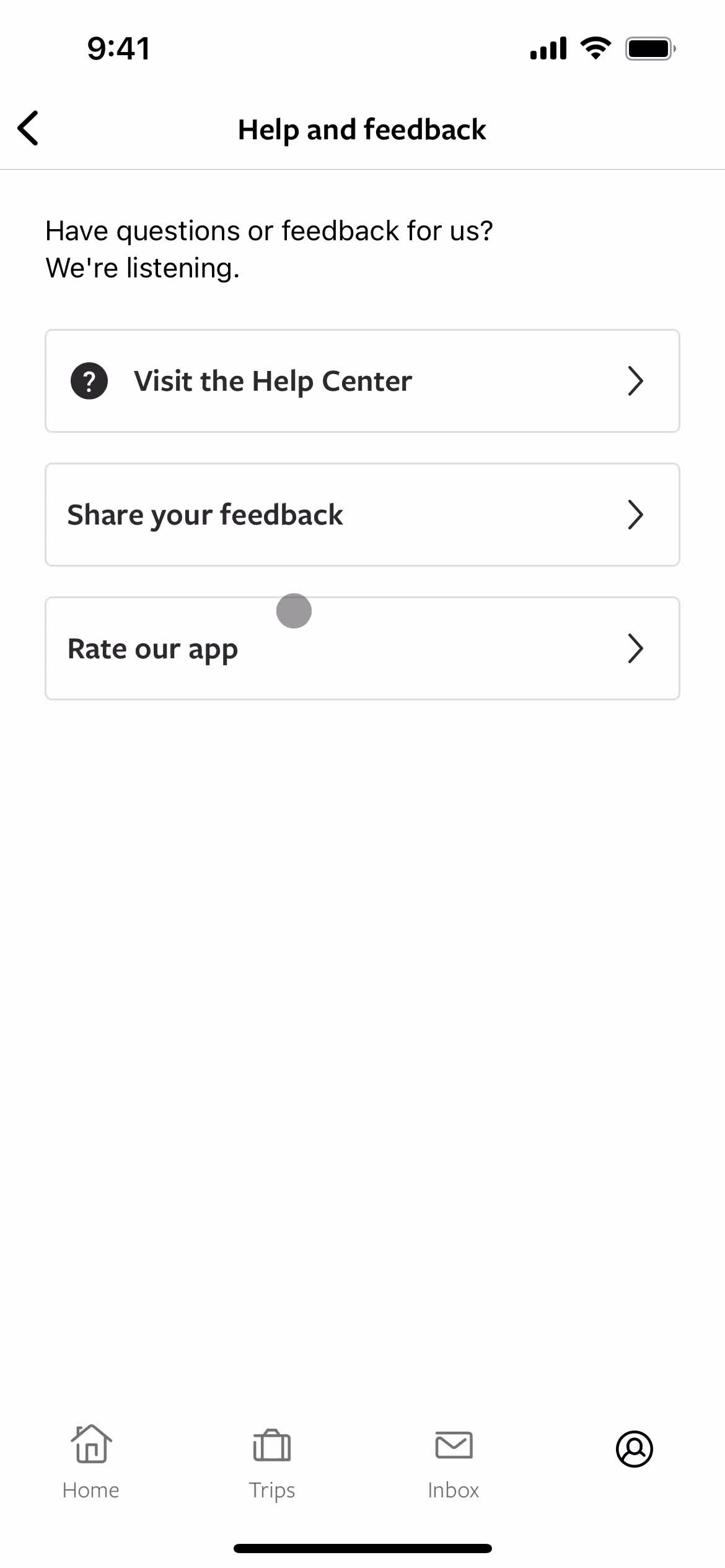
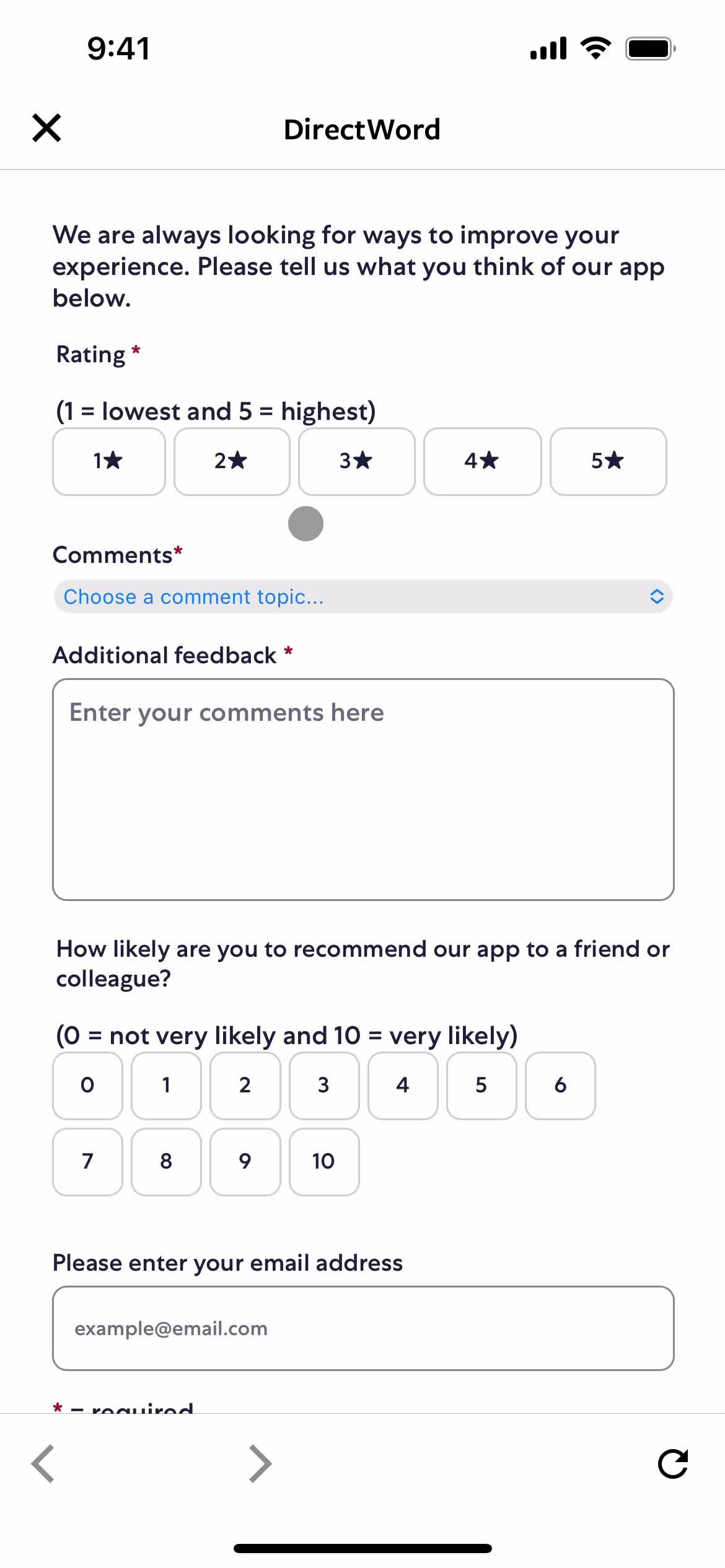
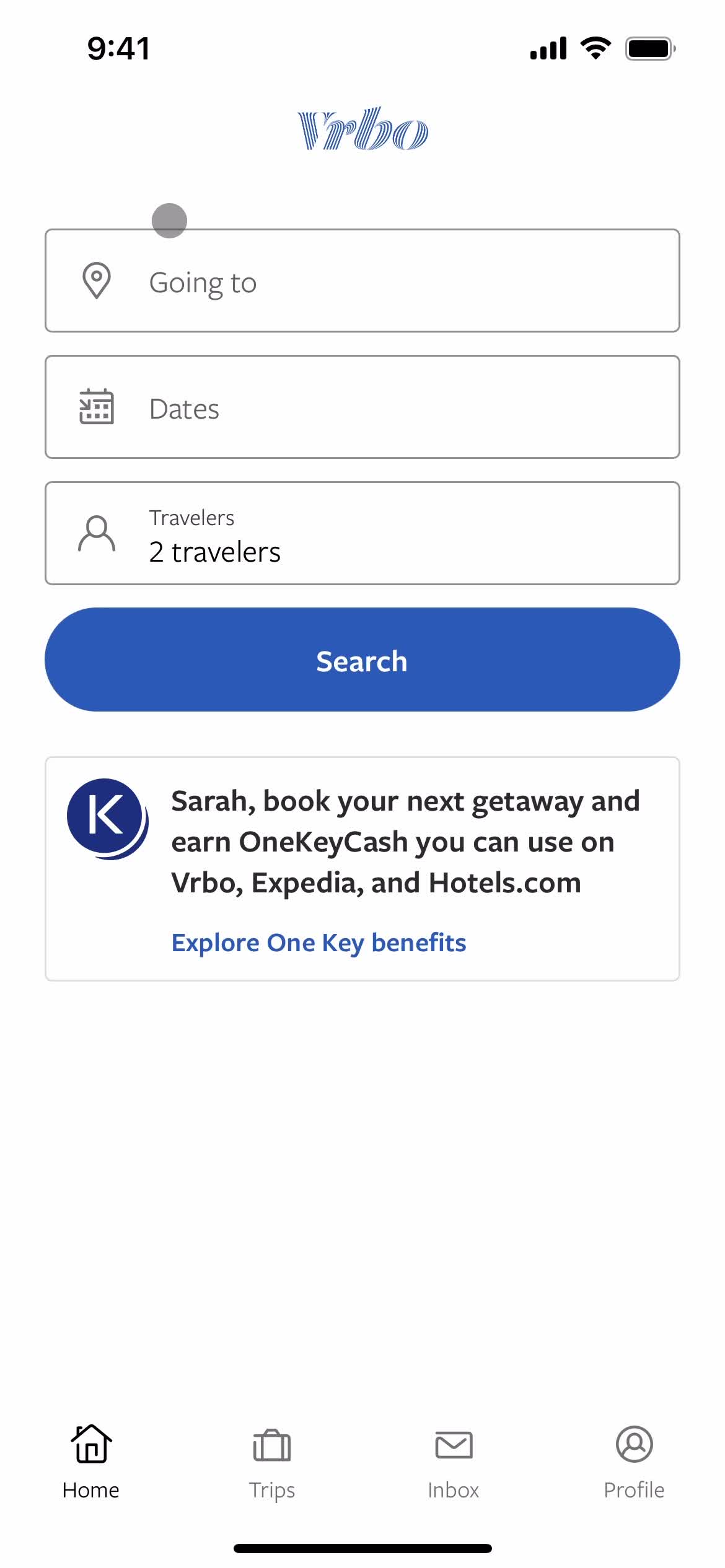
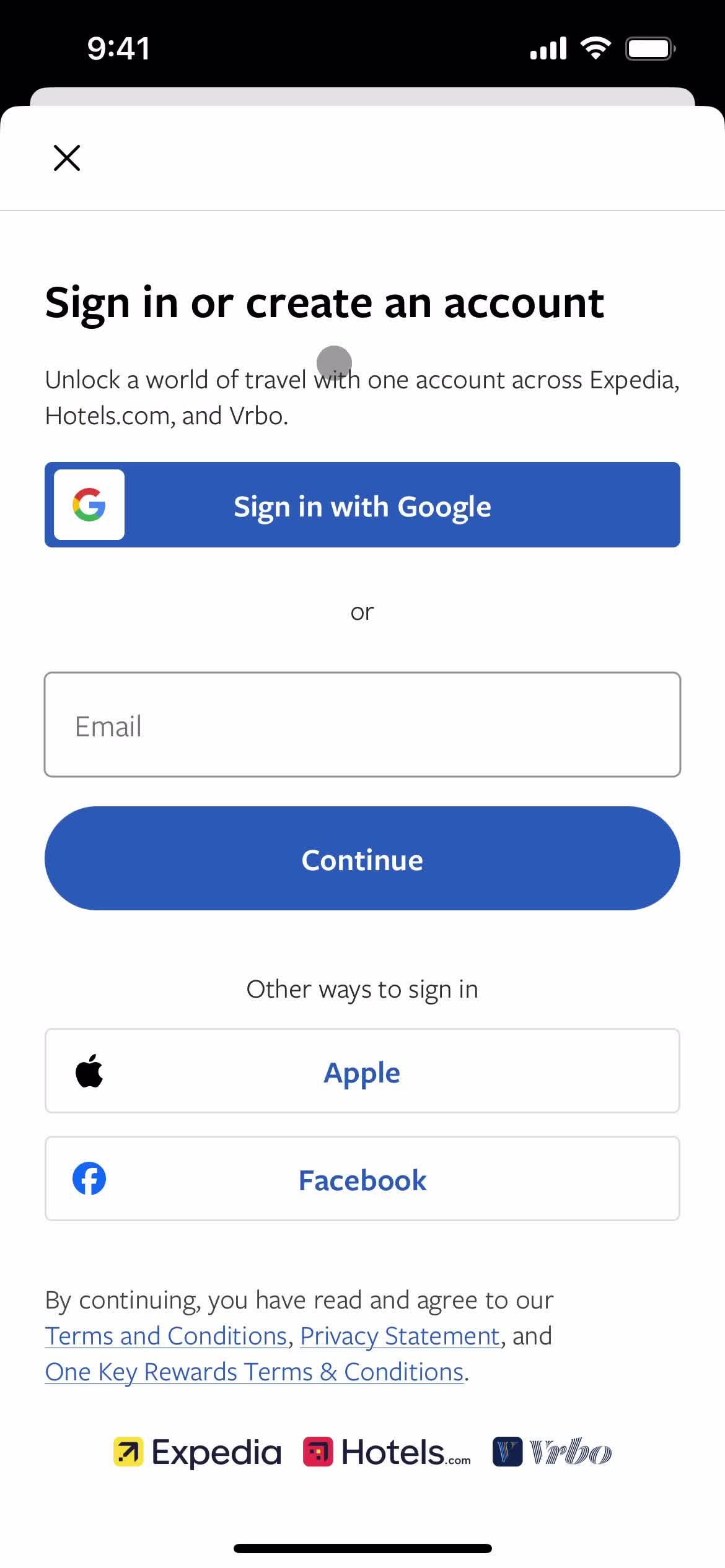
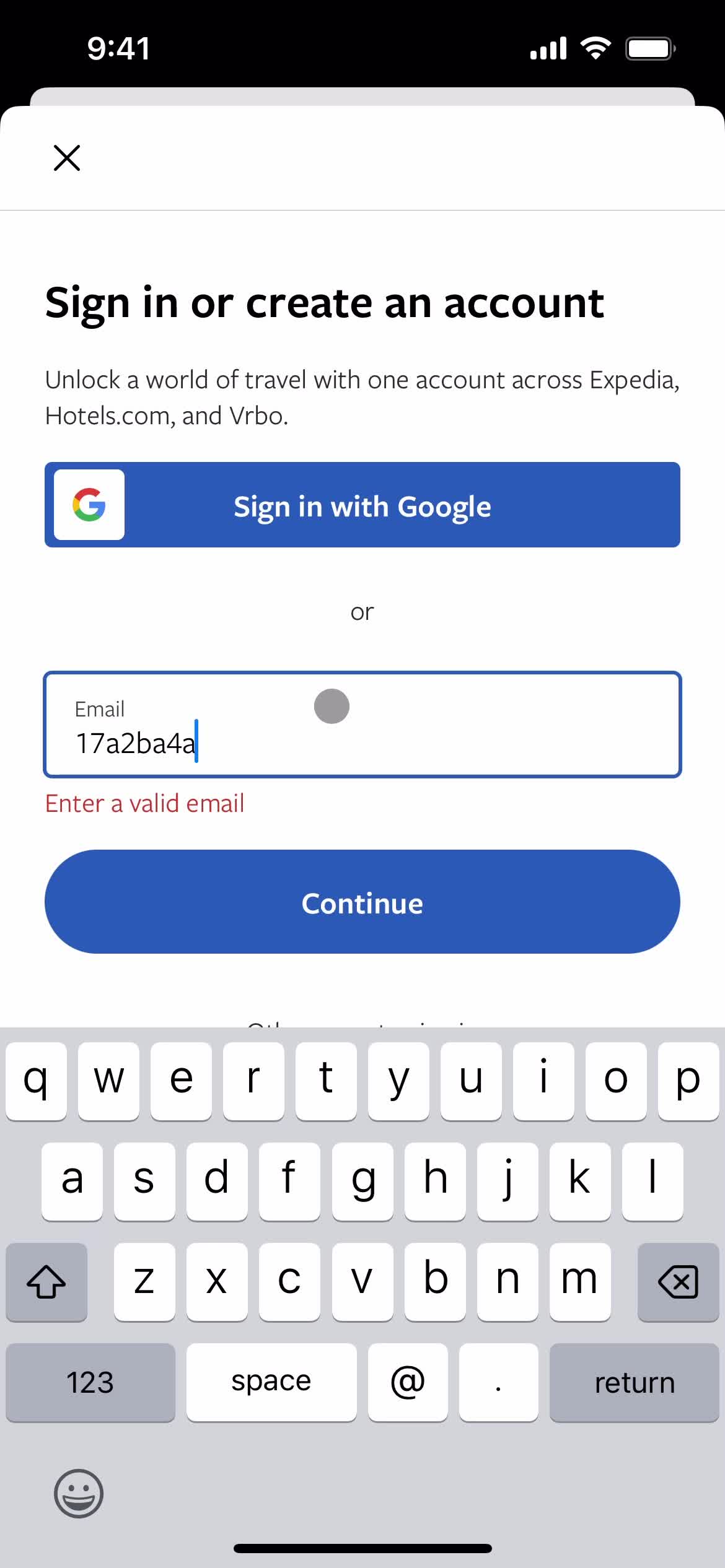
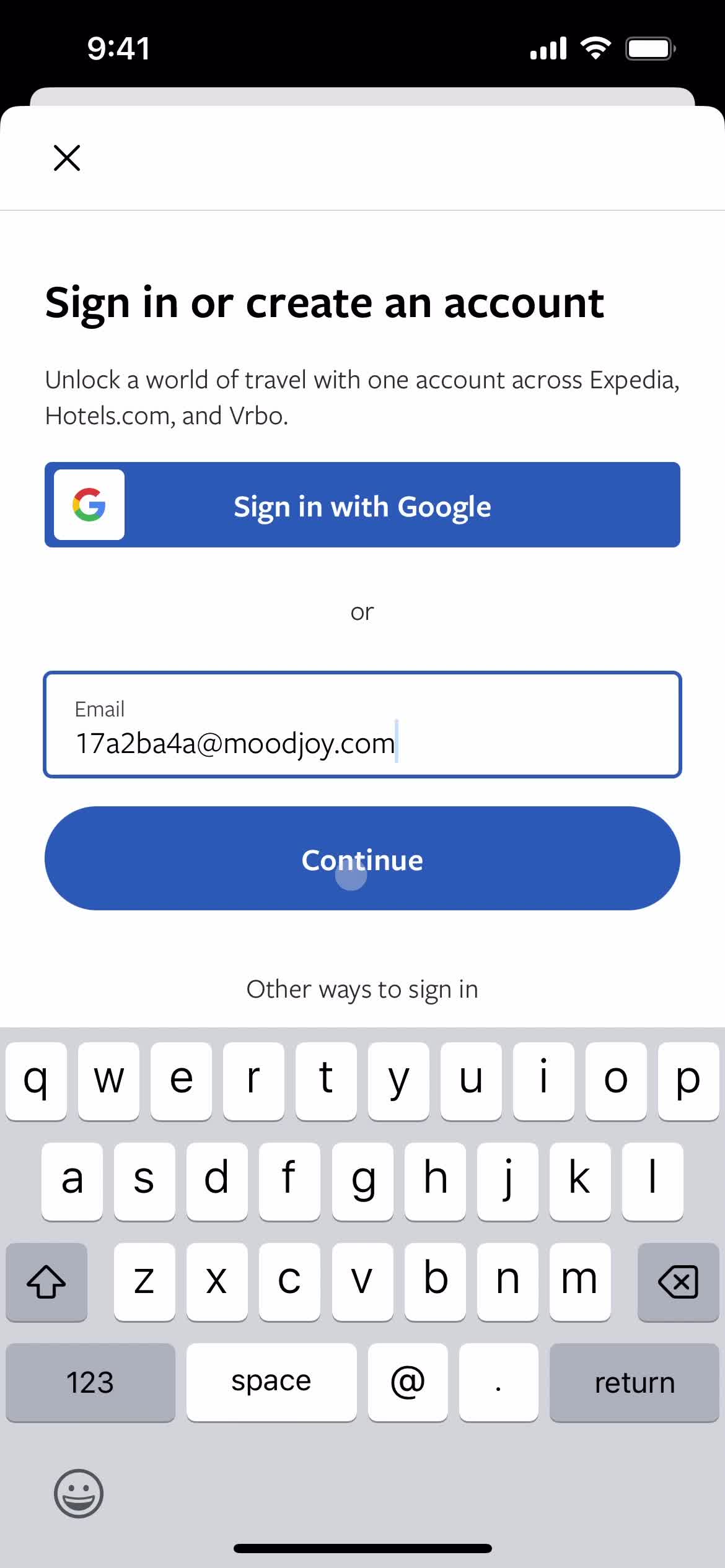
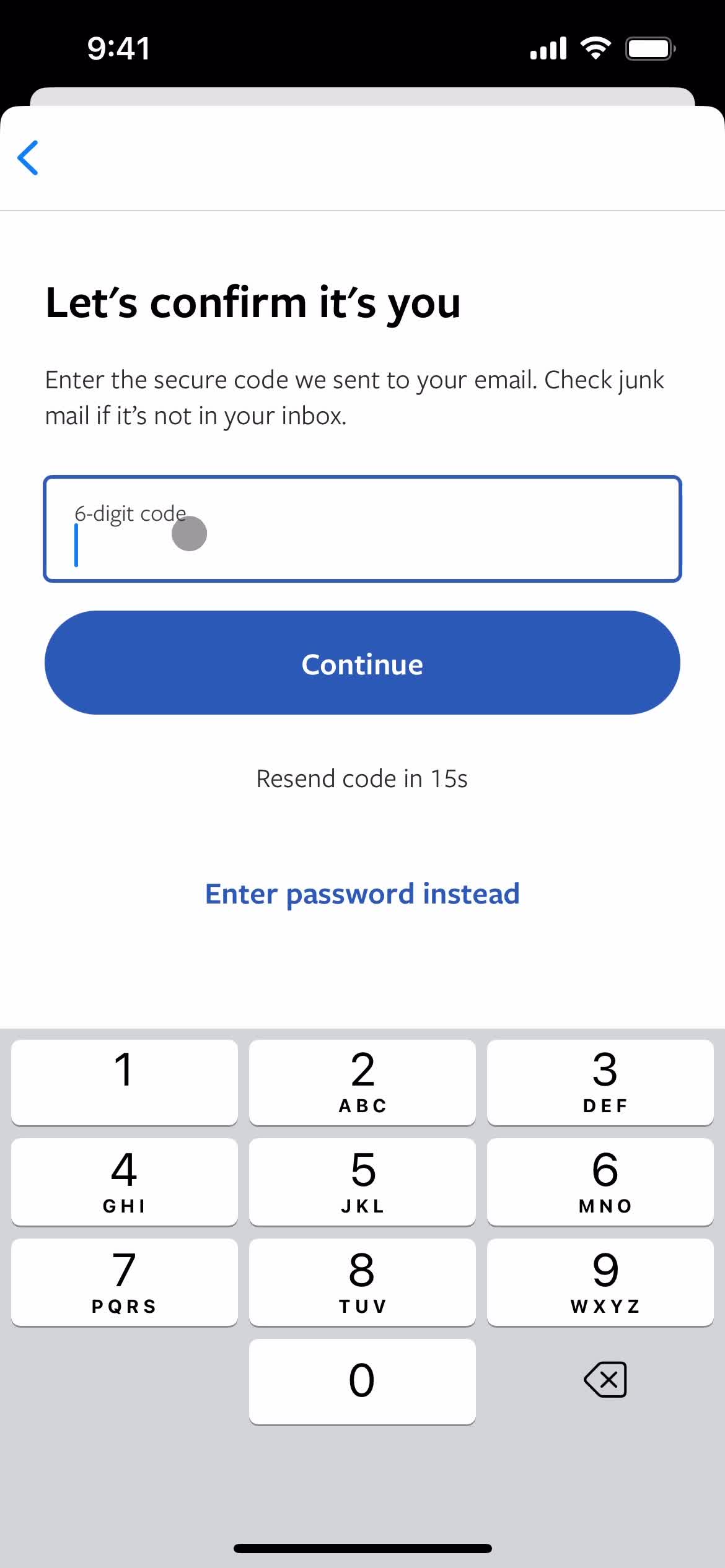
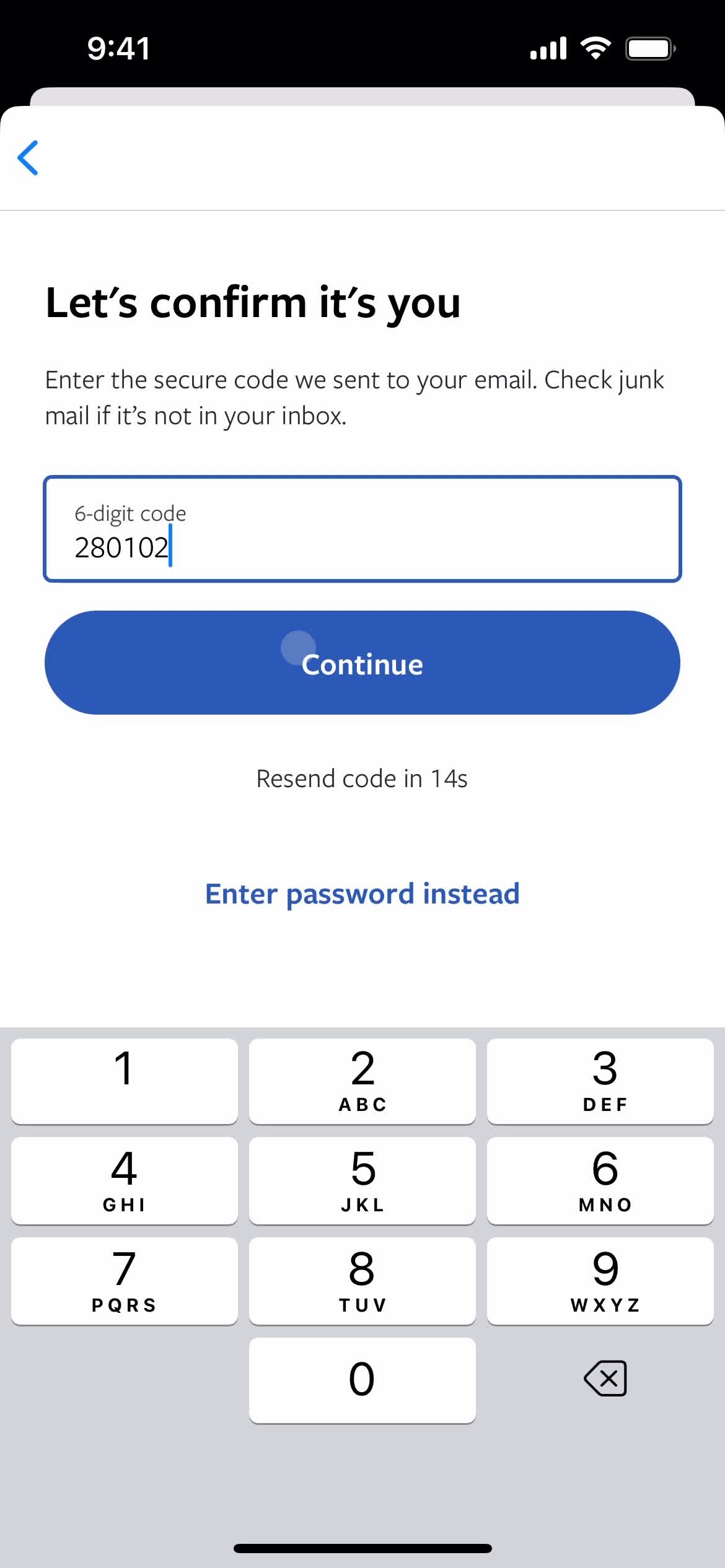
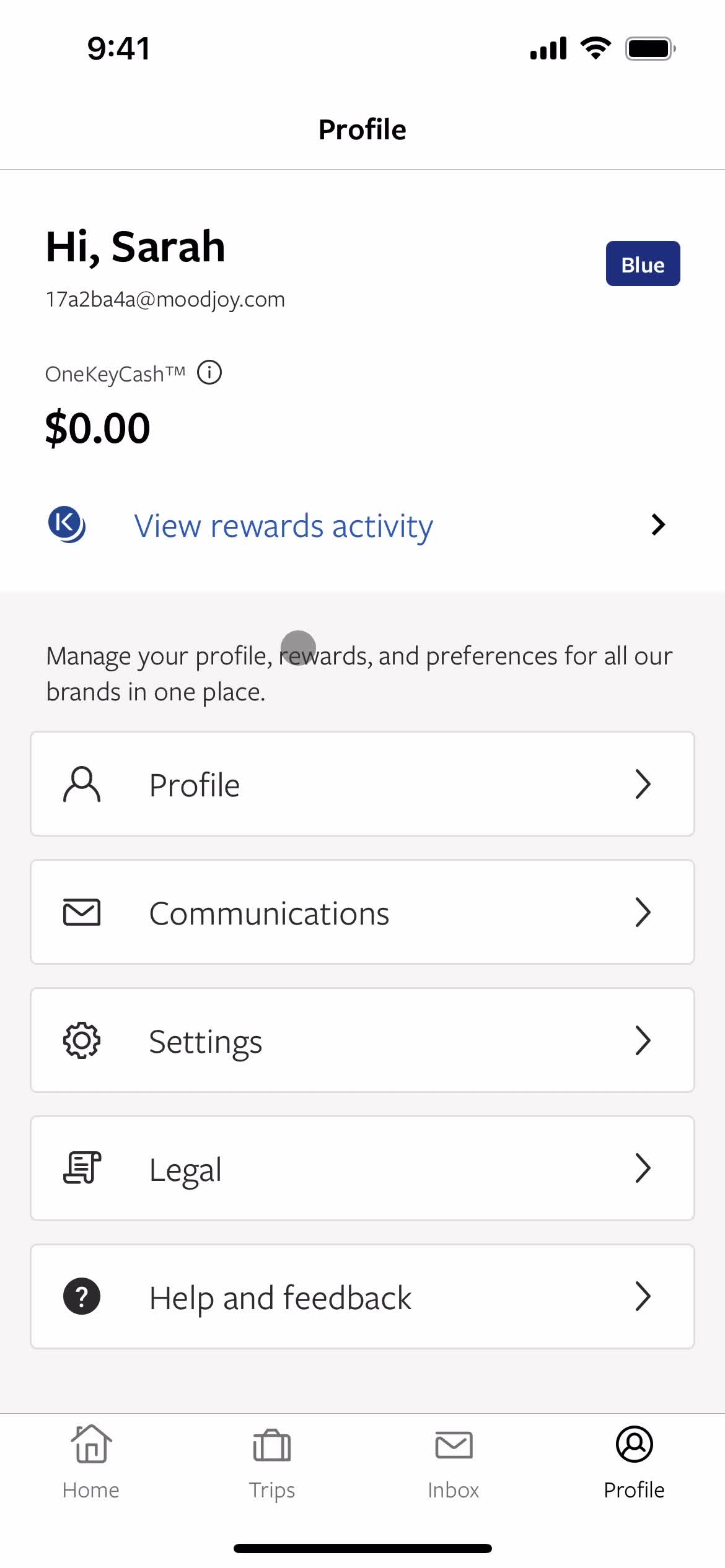
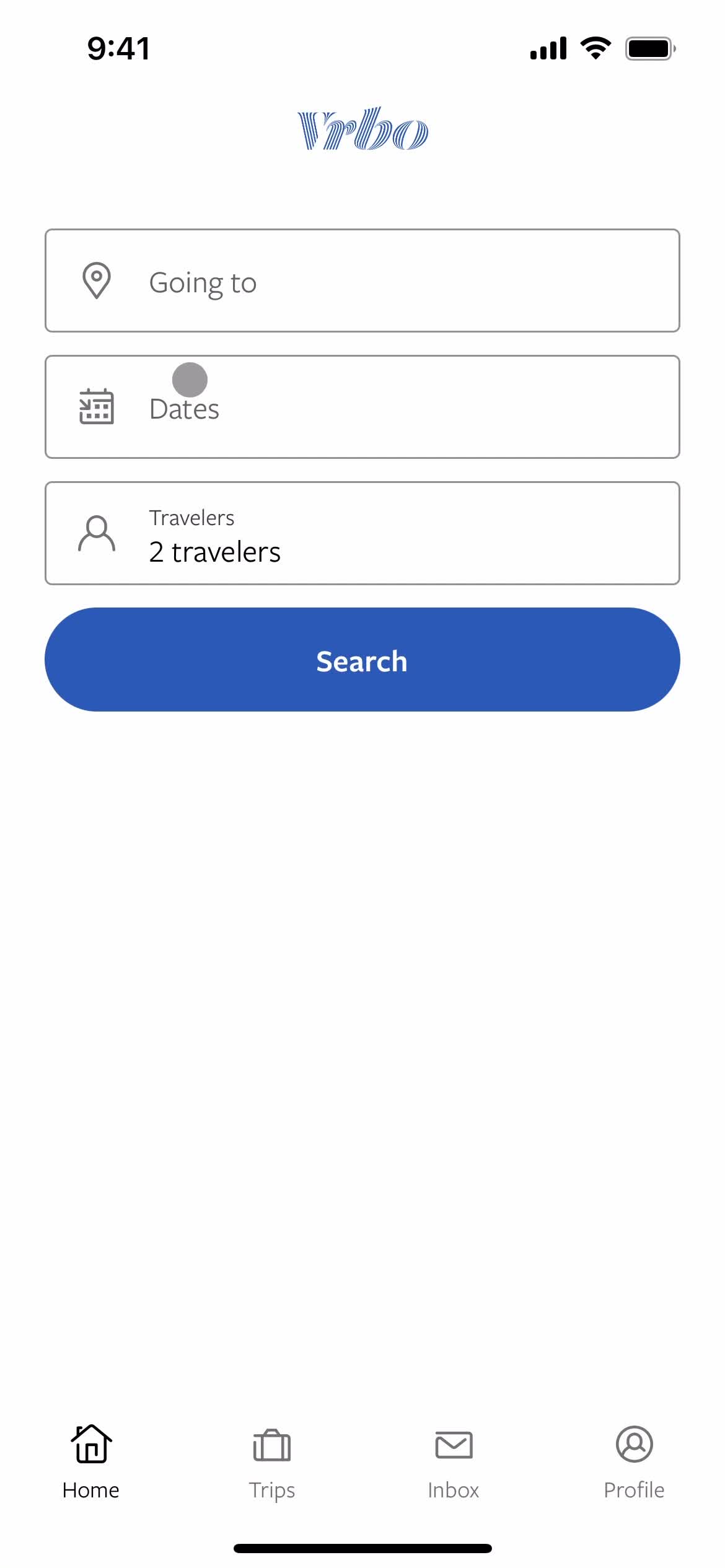
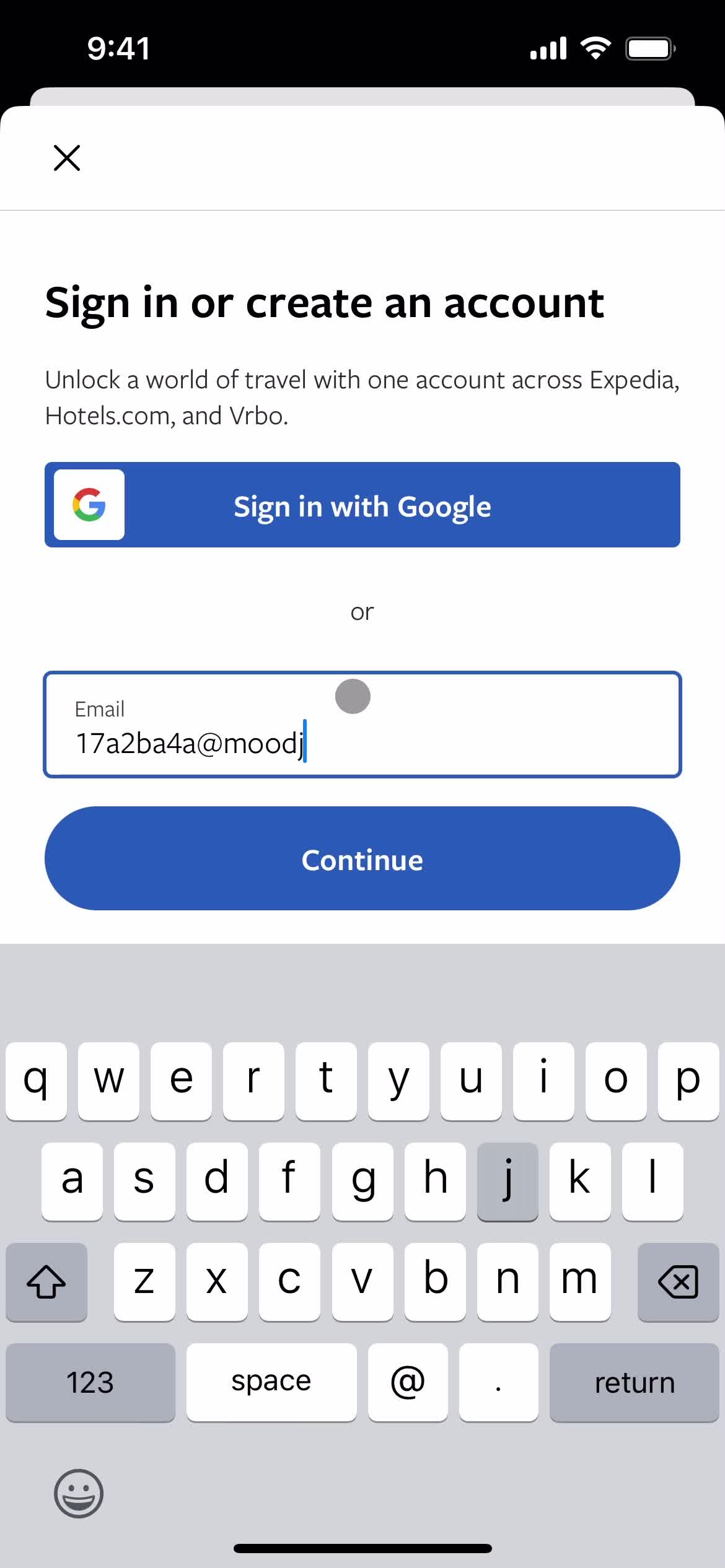
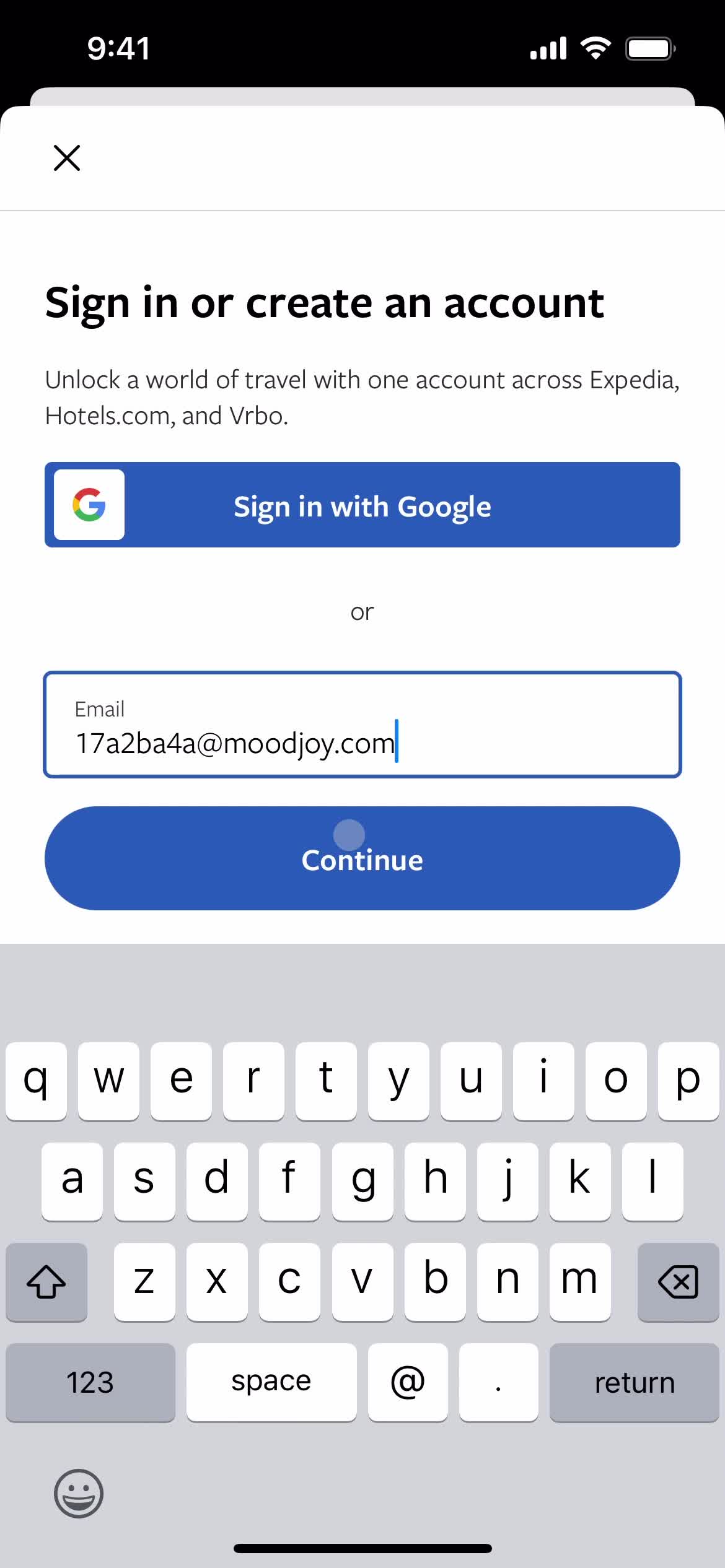
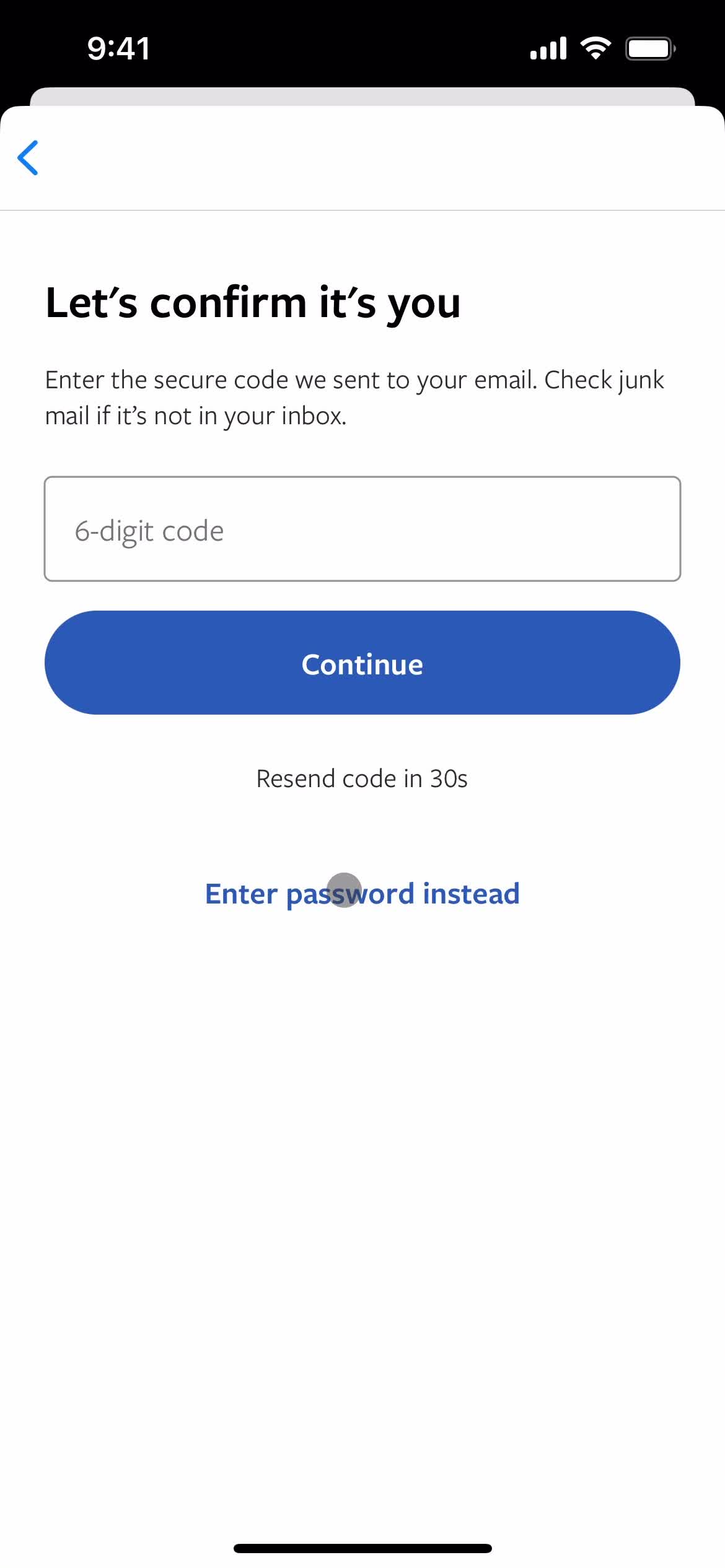
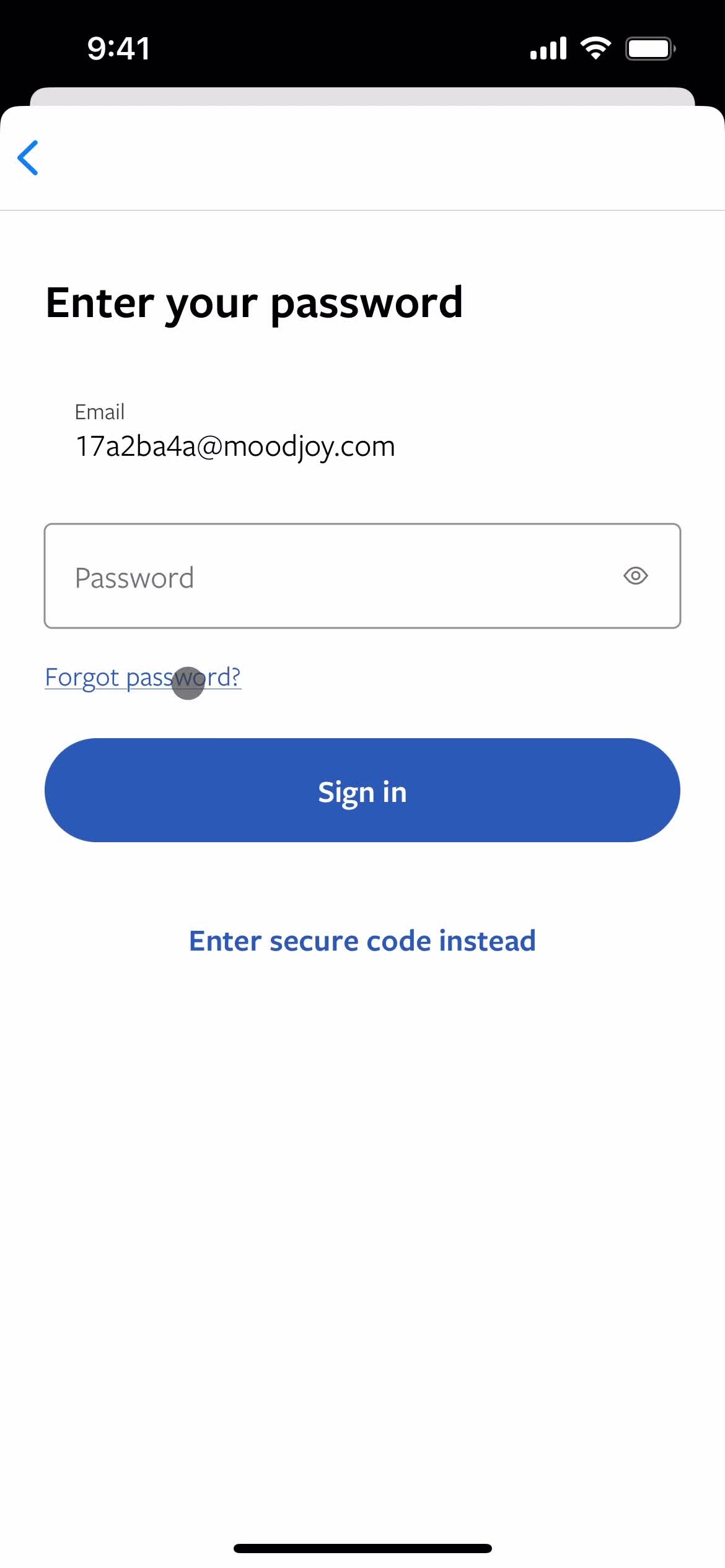
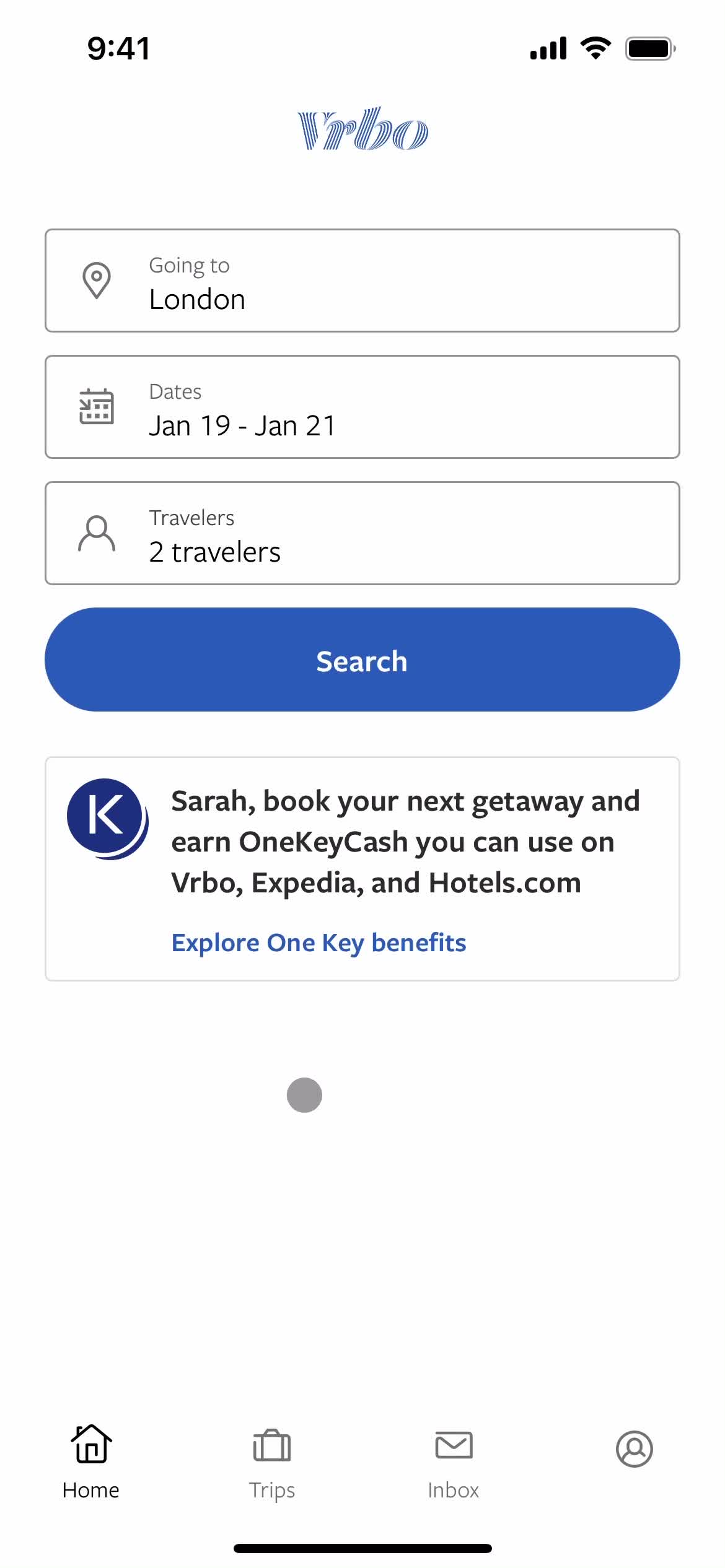
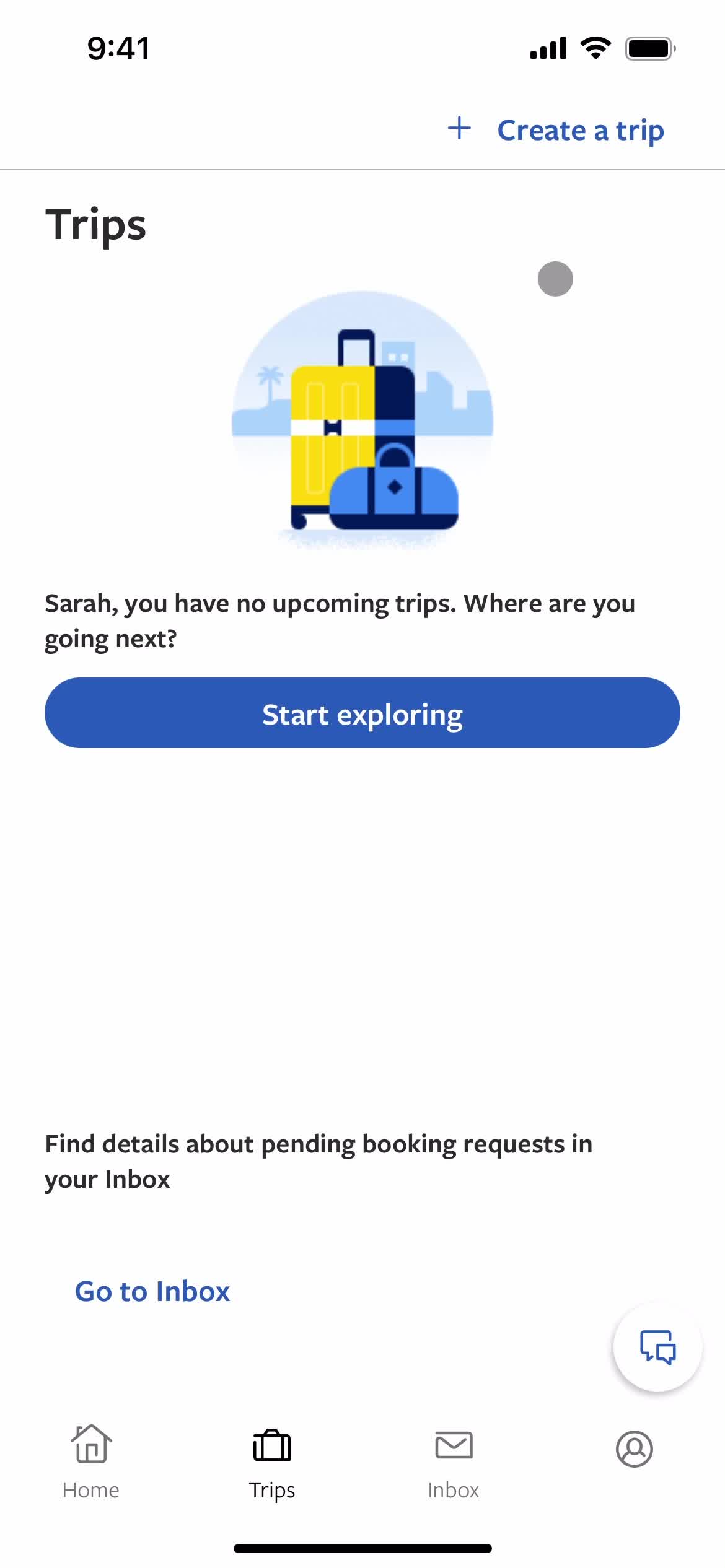
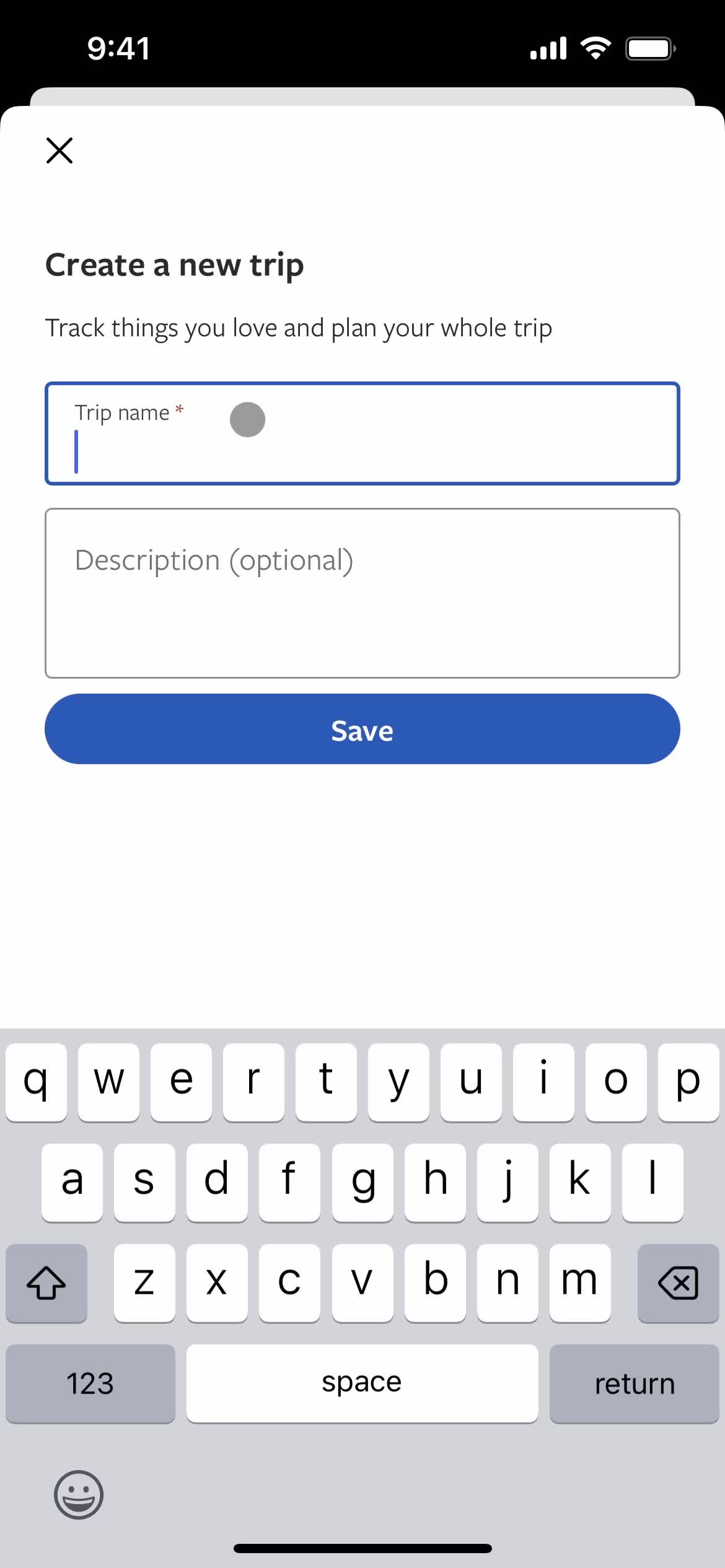
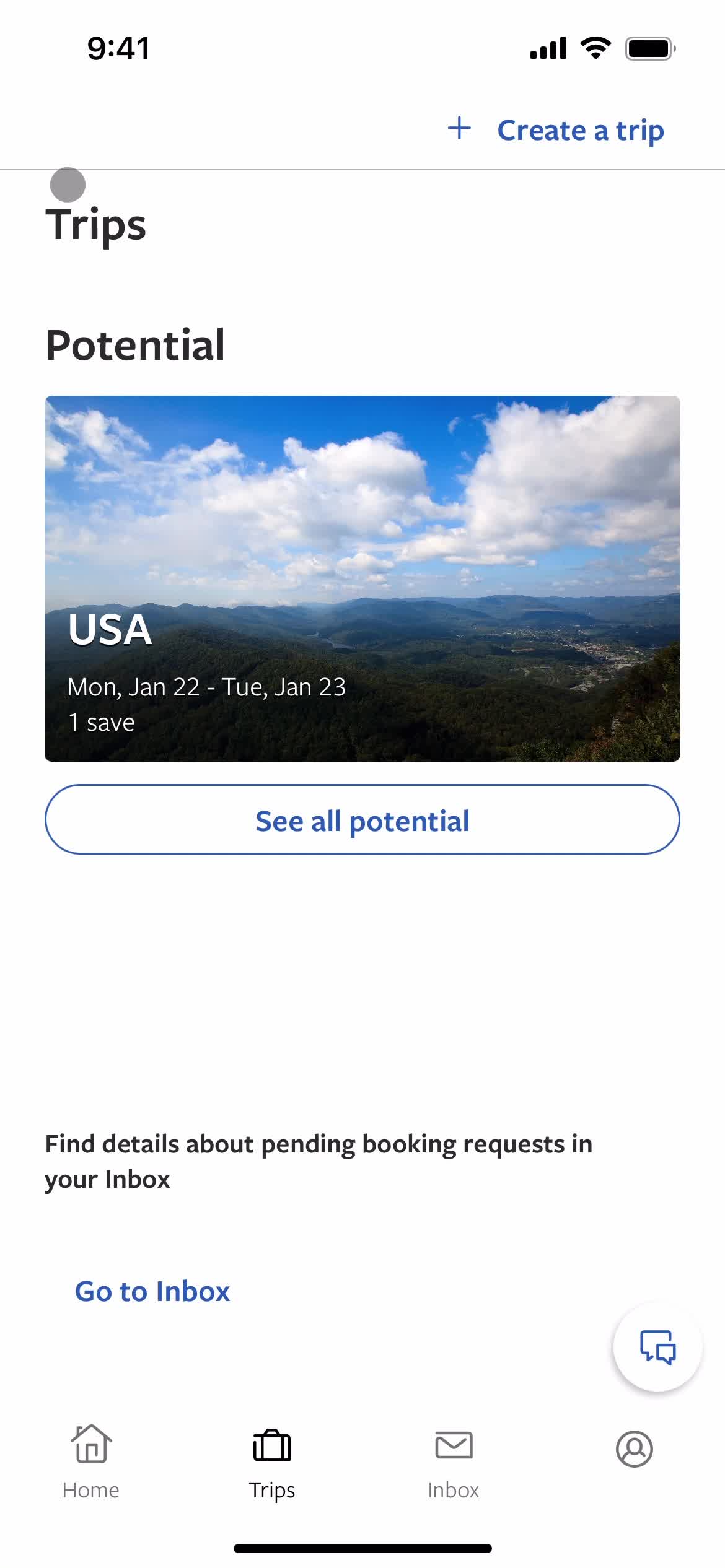
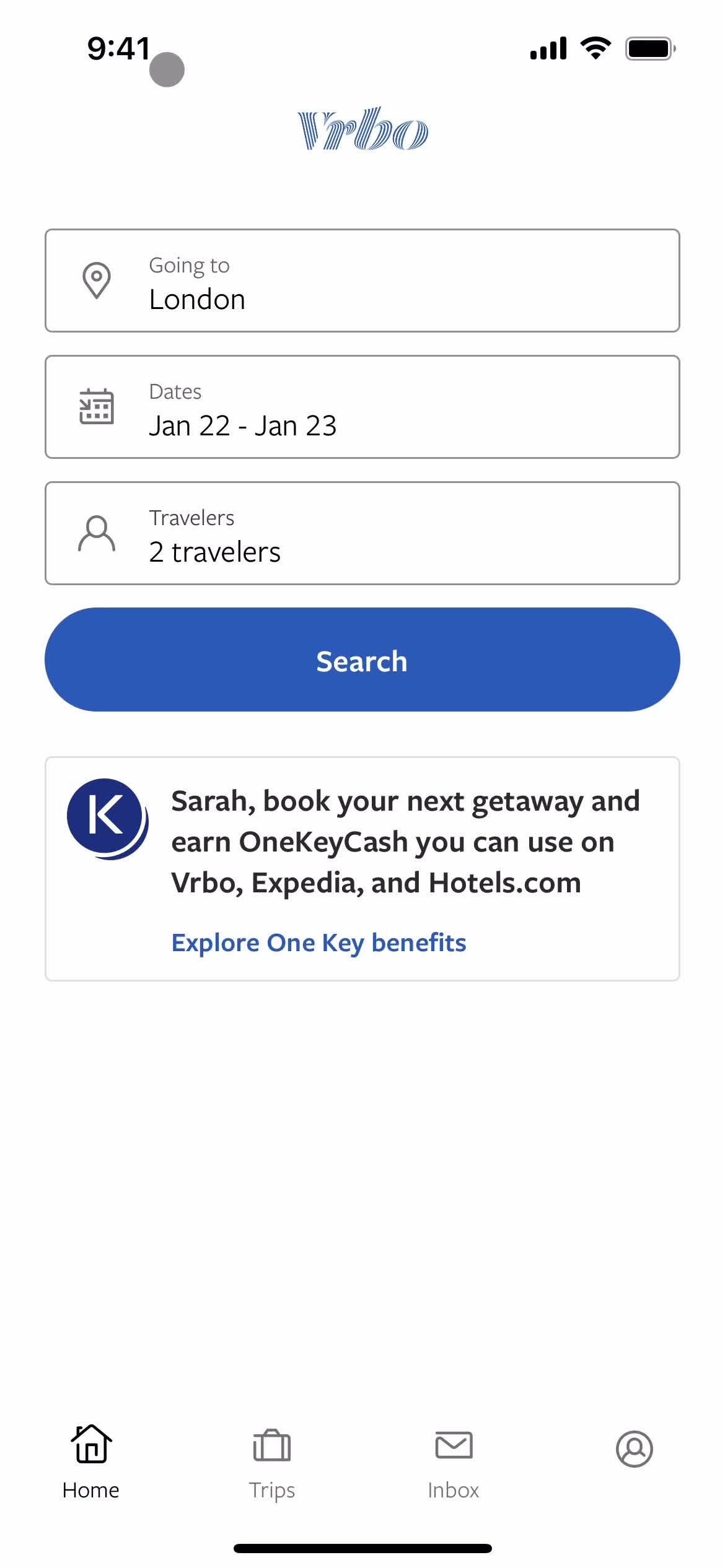
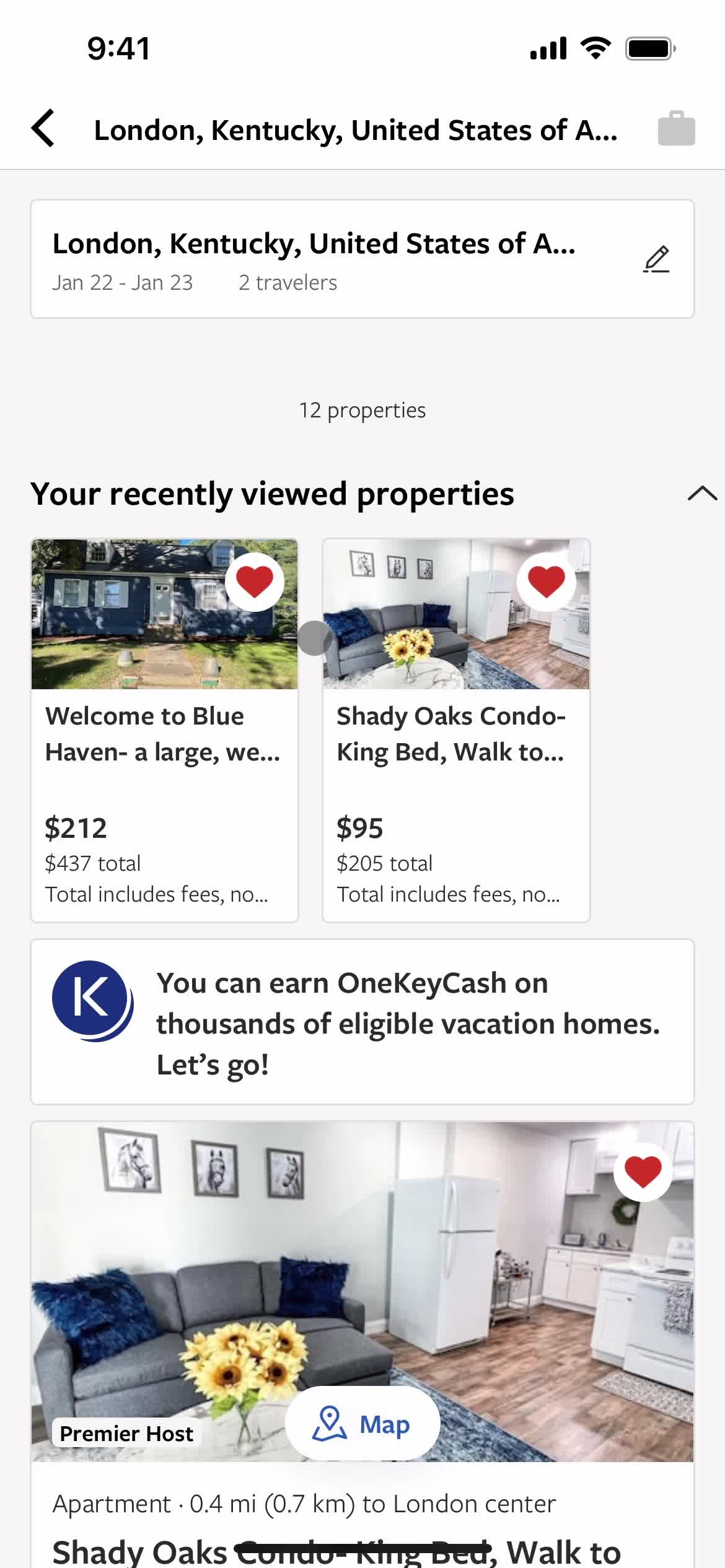
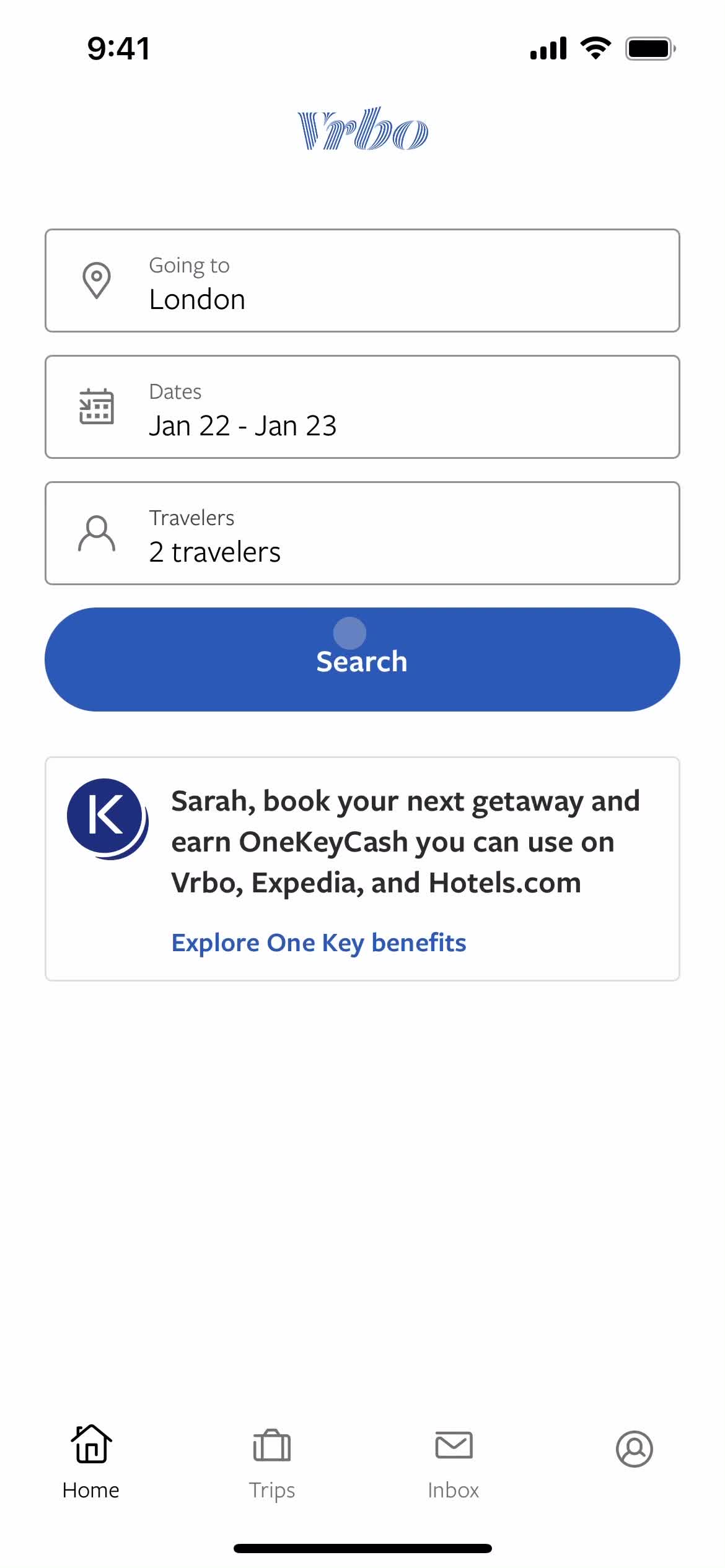
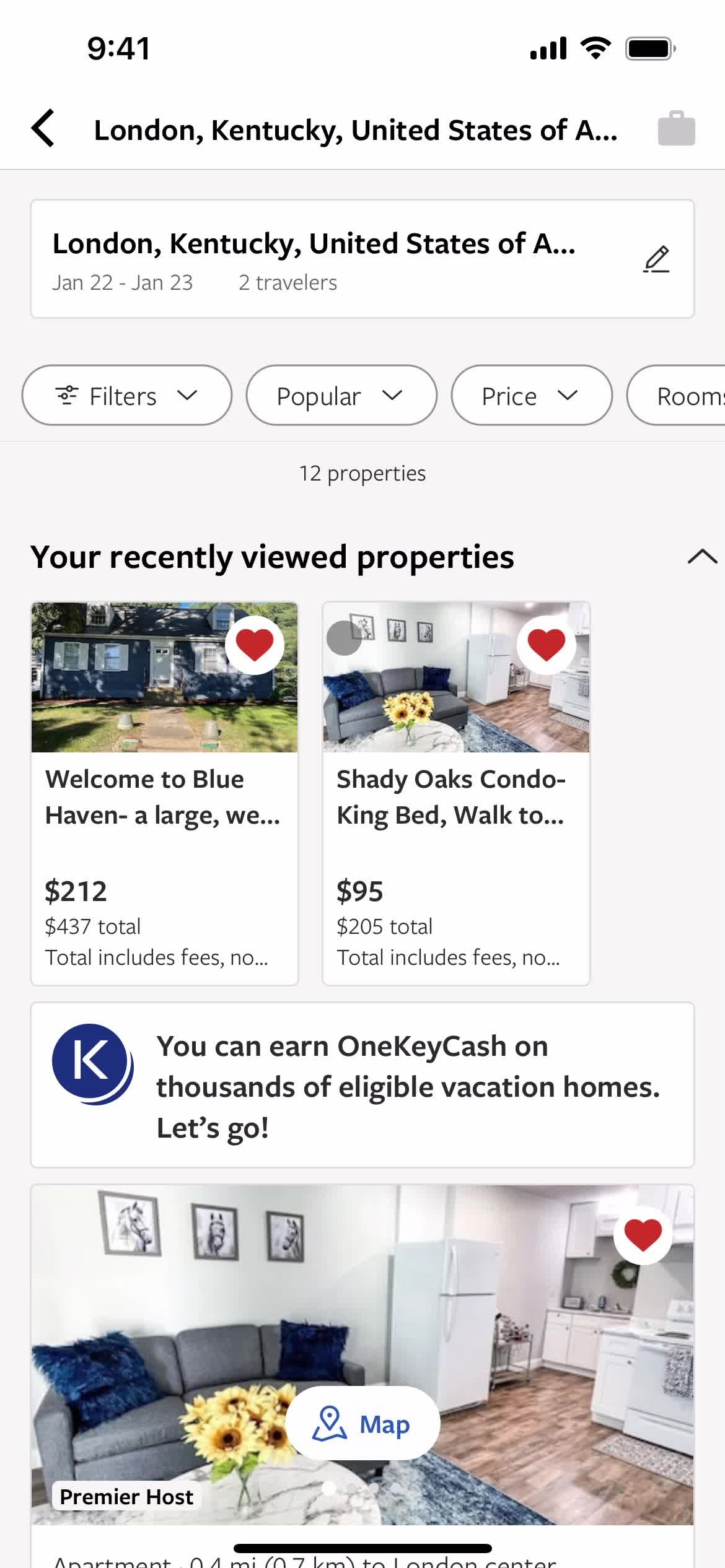
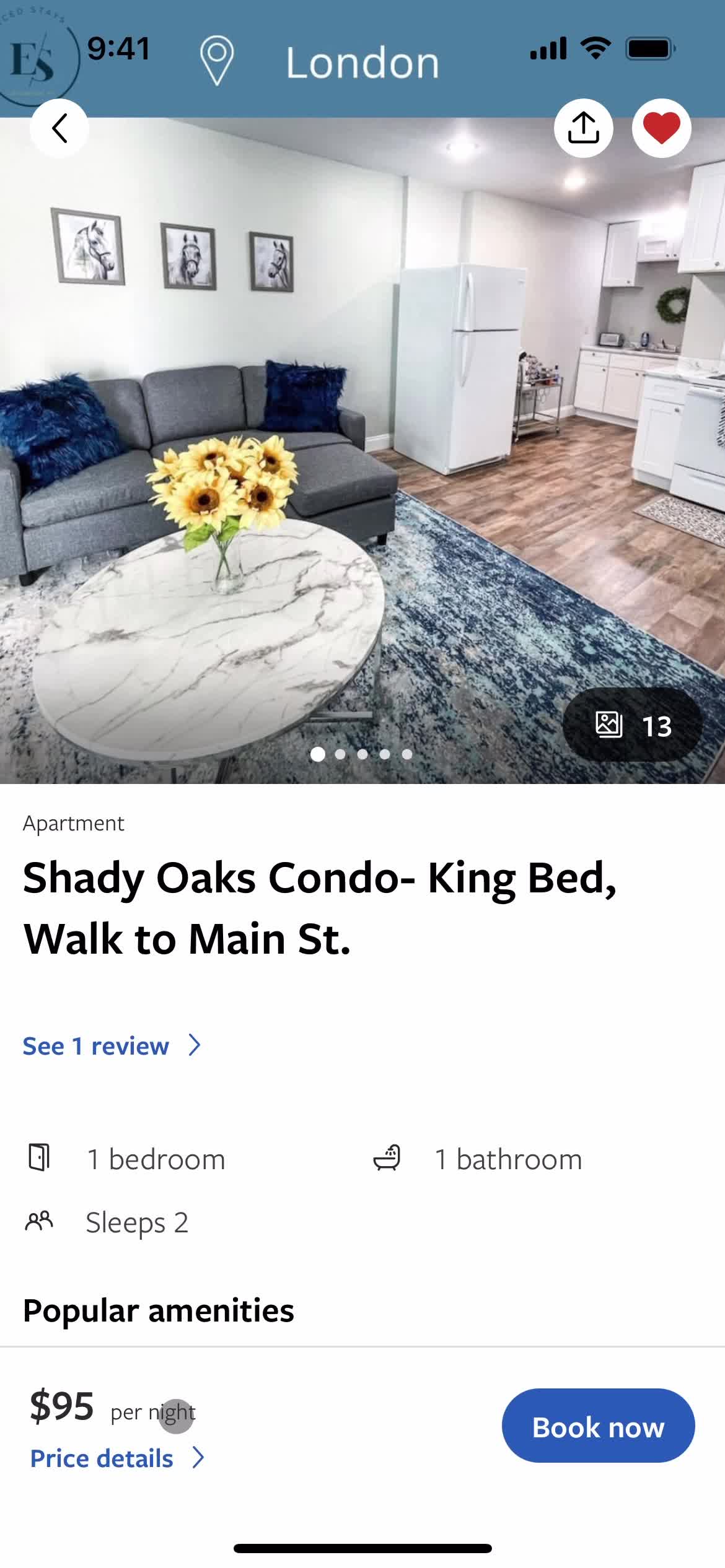
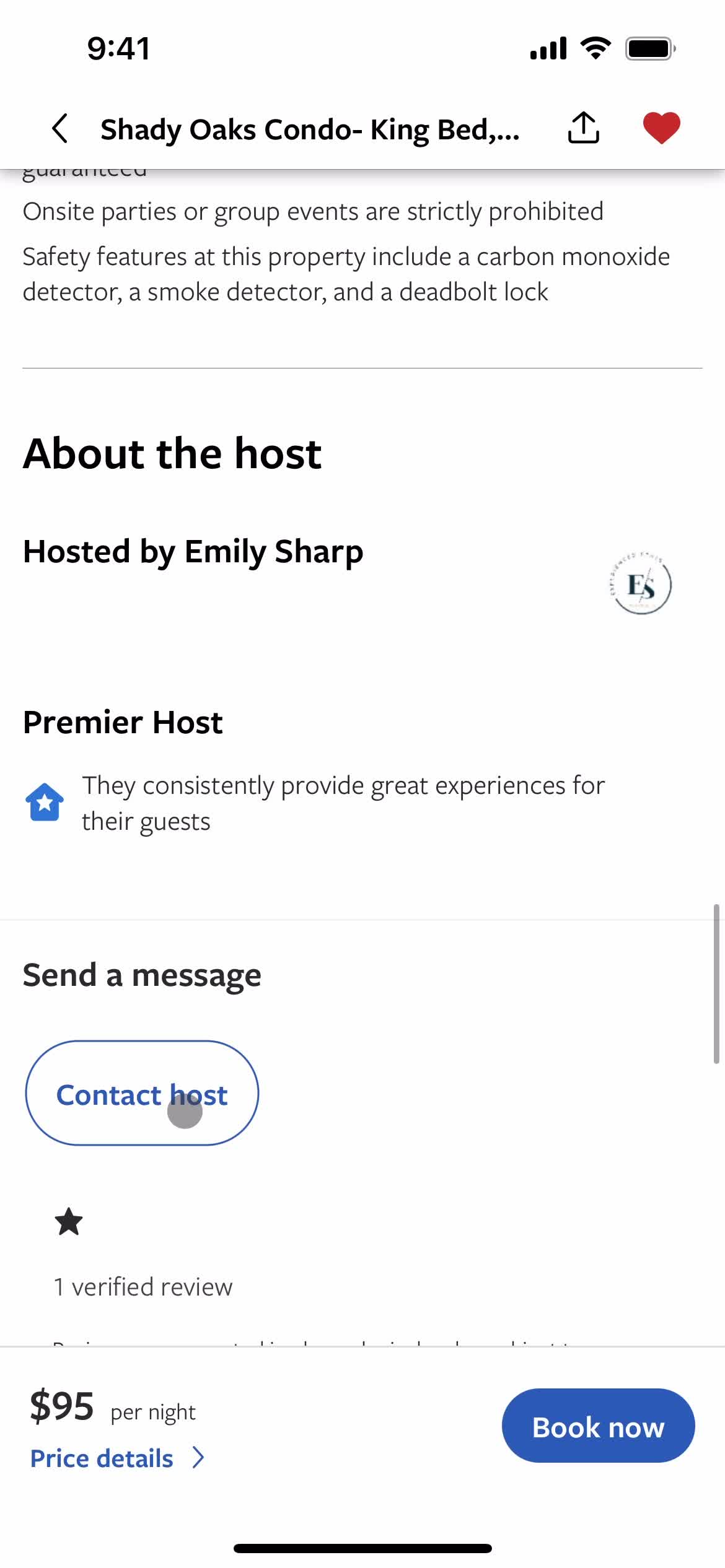
Home
this is title
Properties
this is title
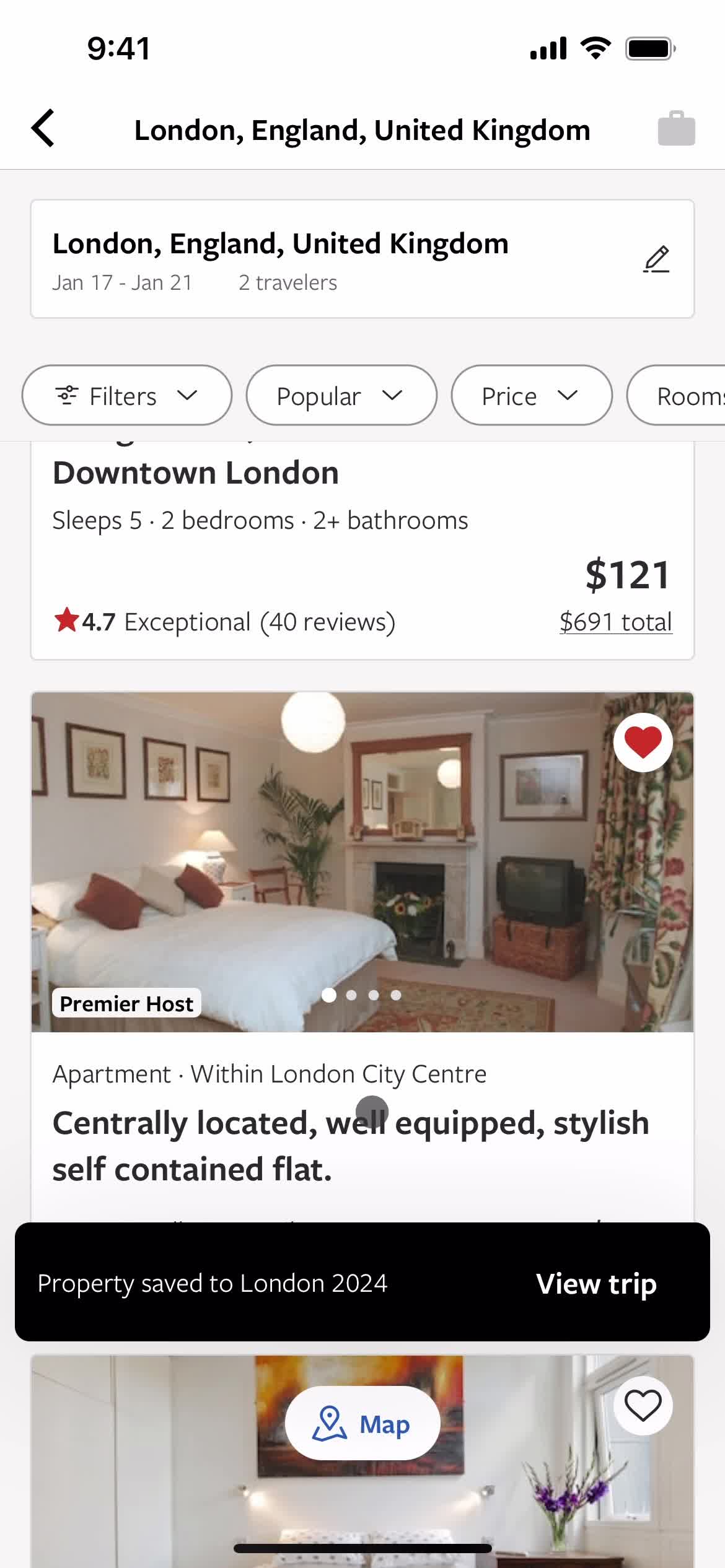
Add to collection
this is title
Add favorite
this is title
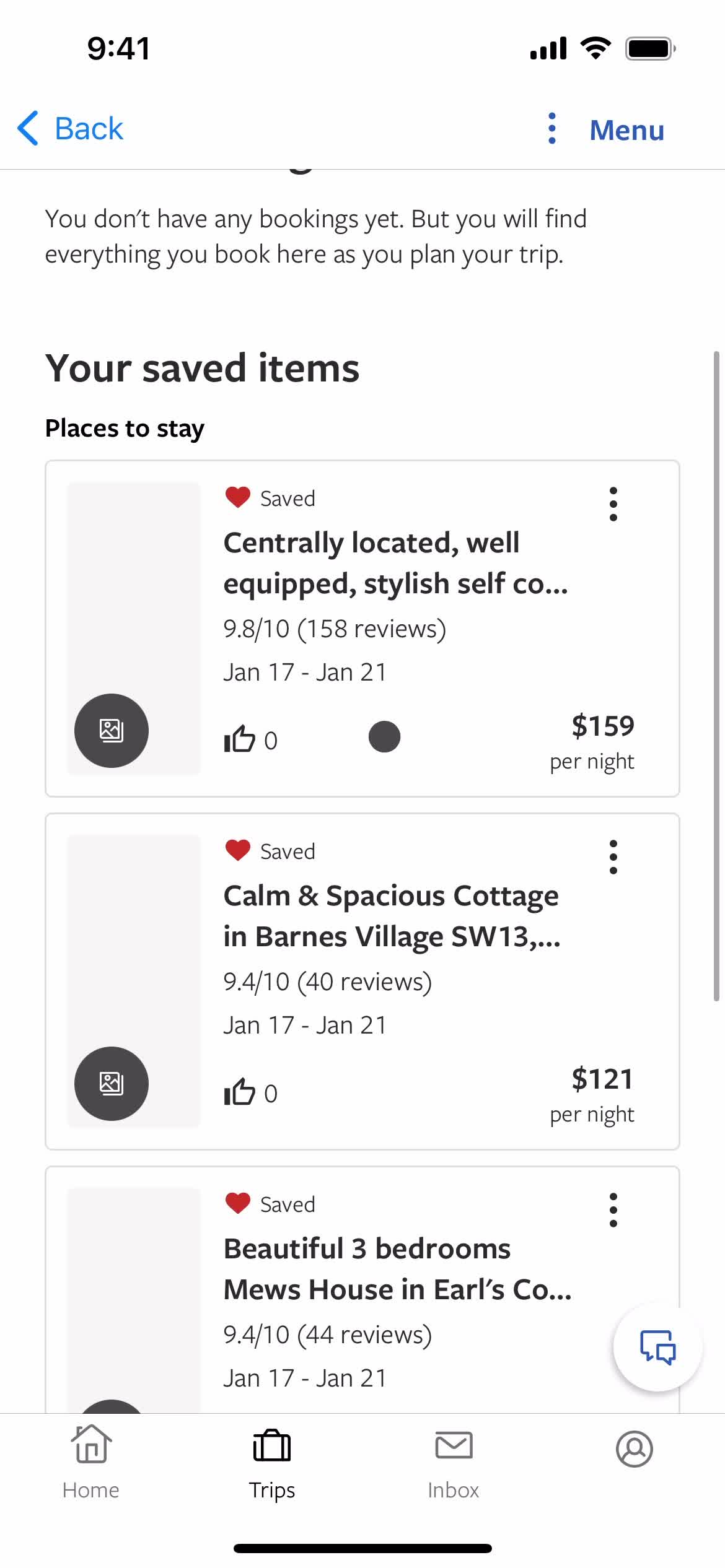
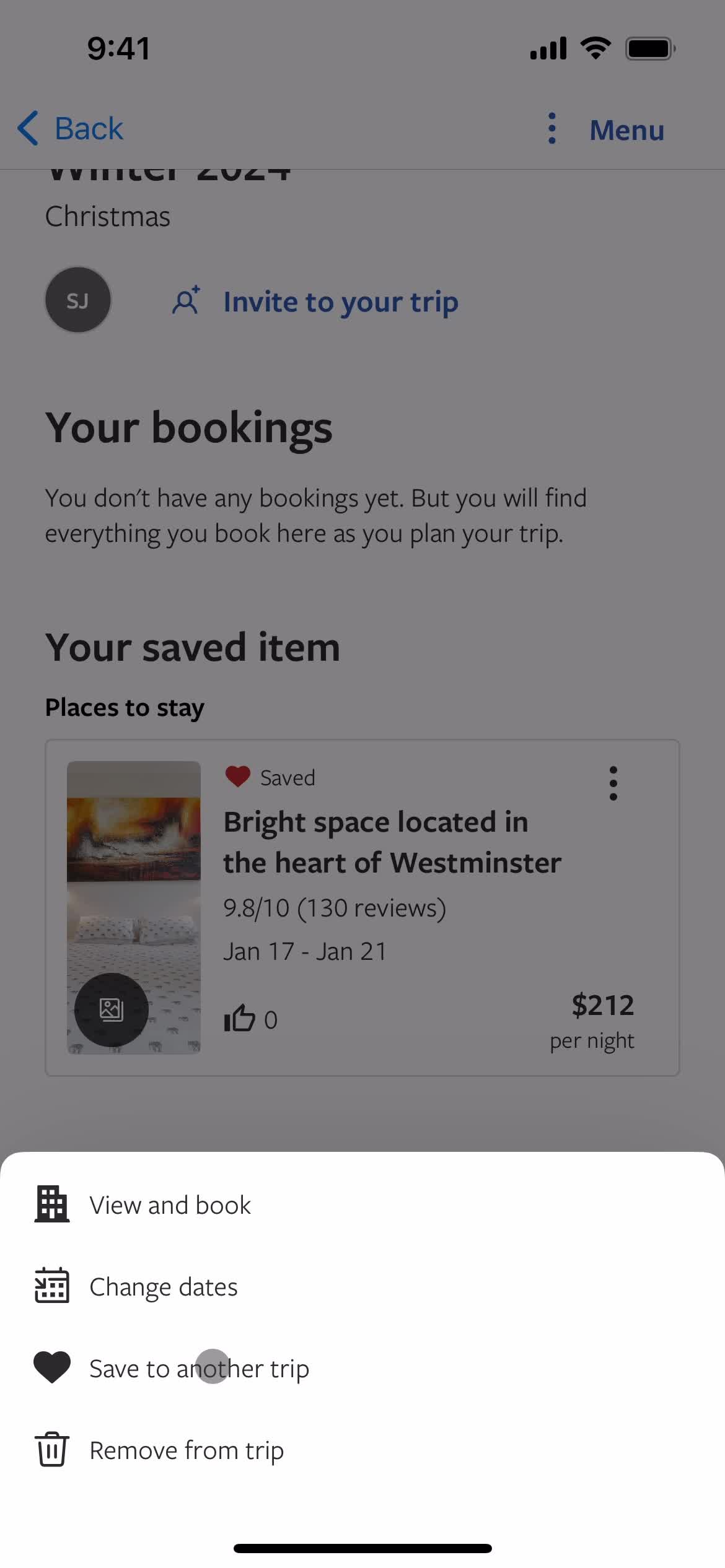
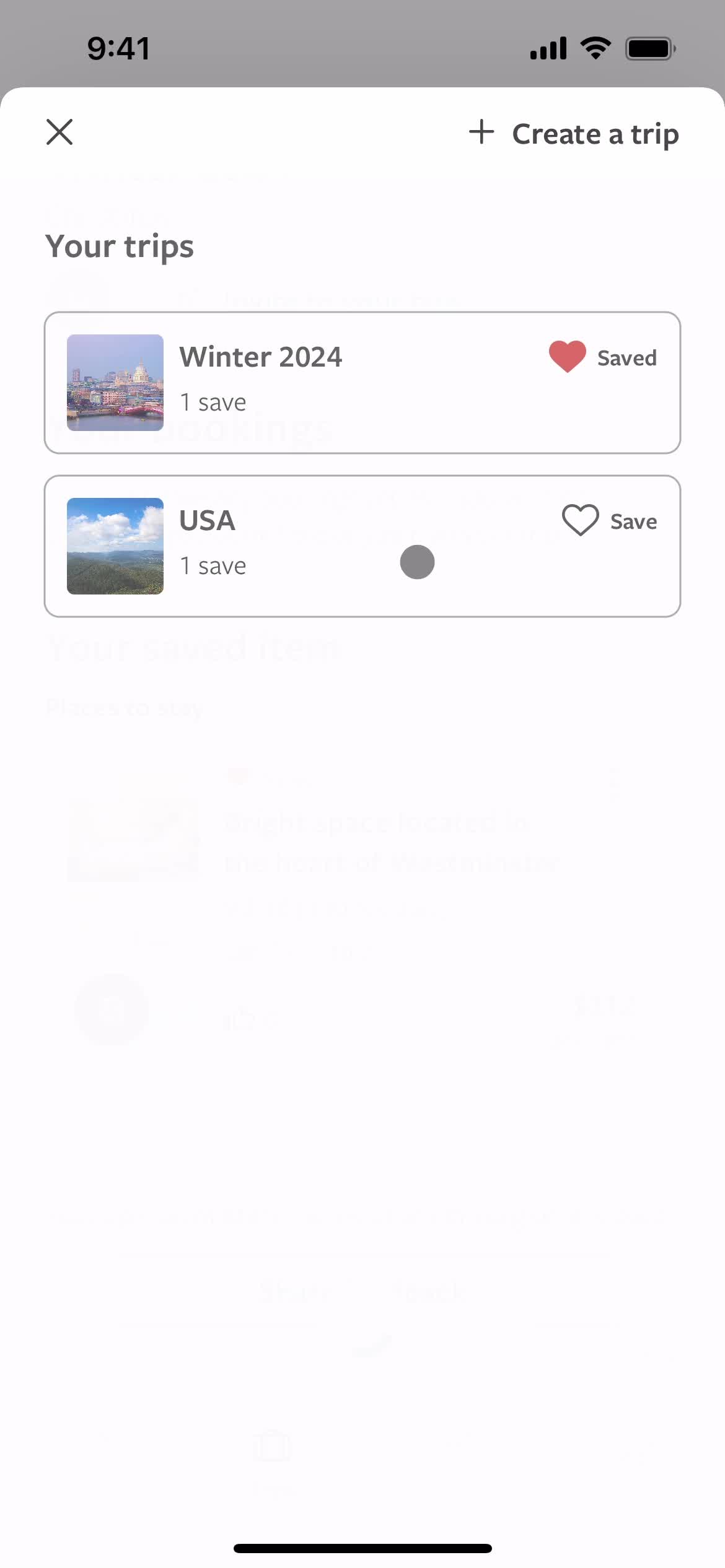
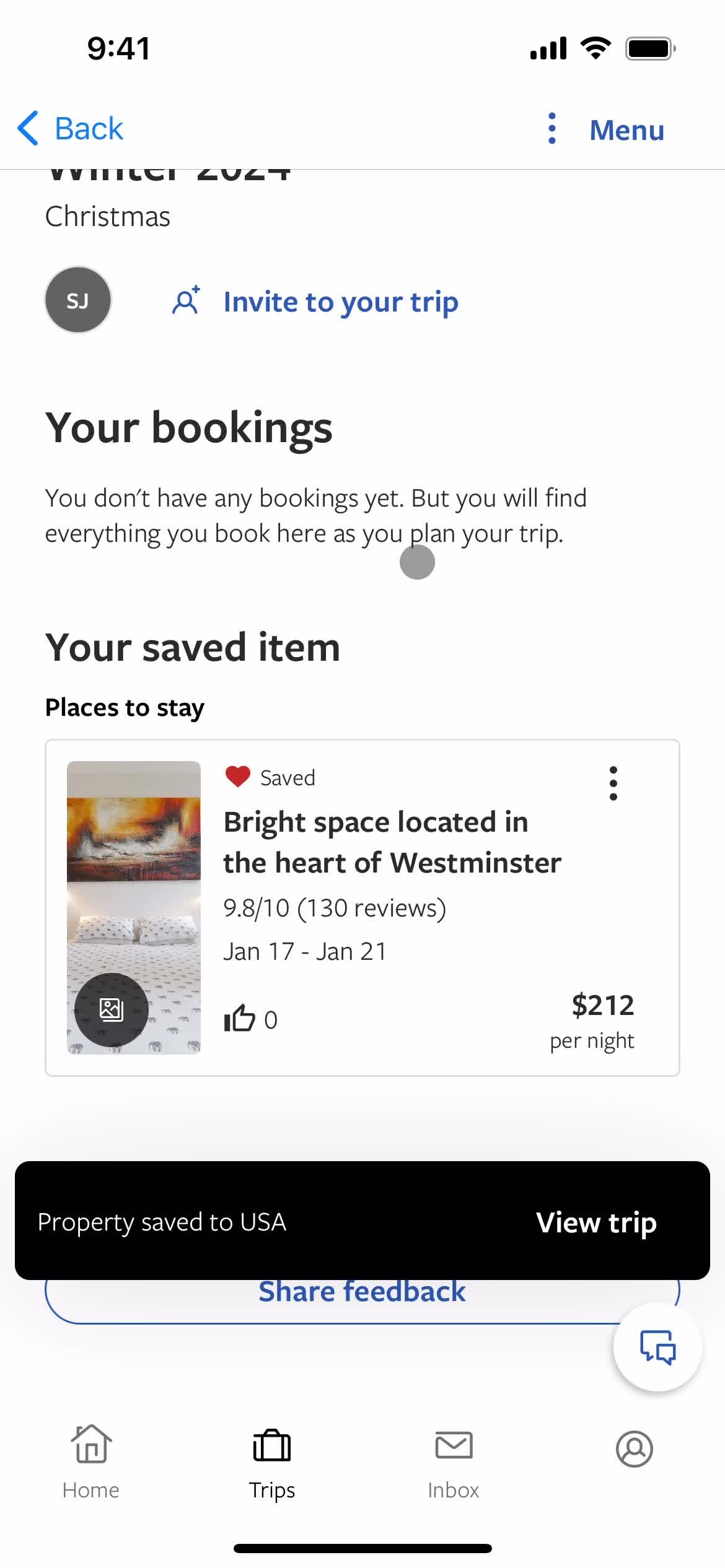
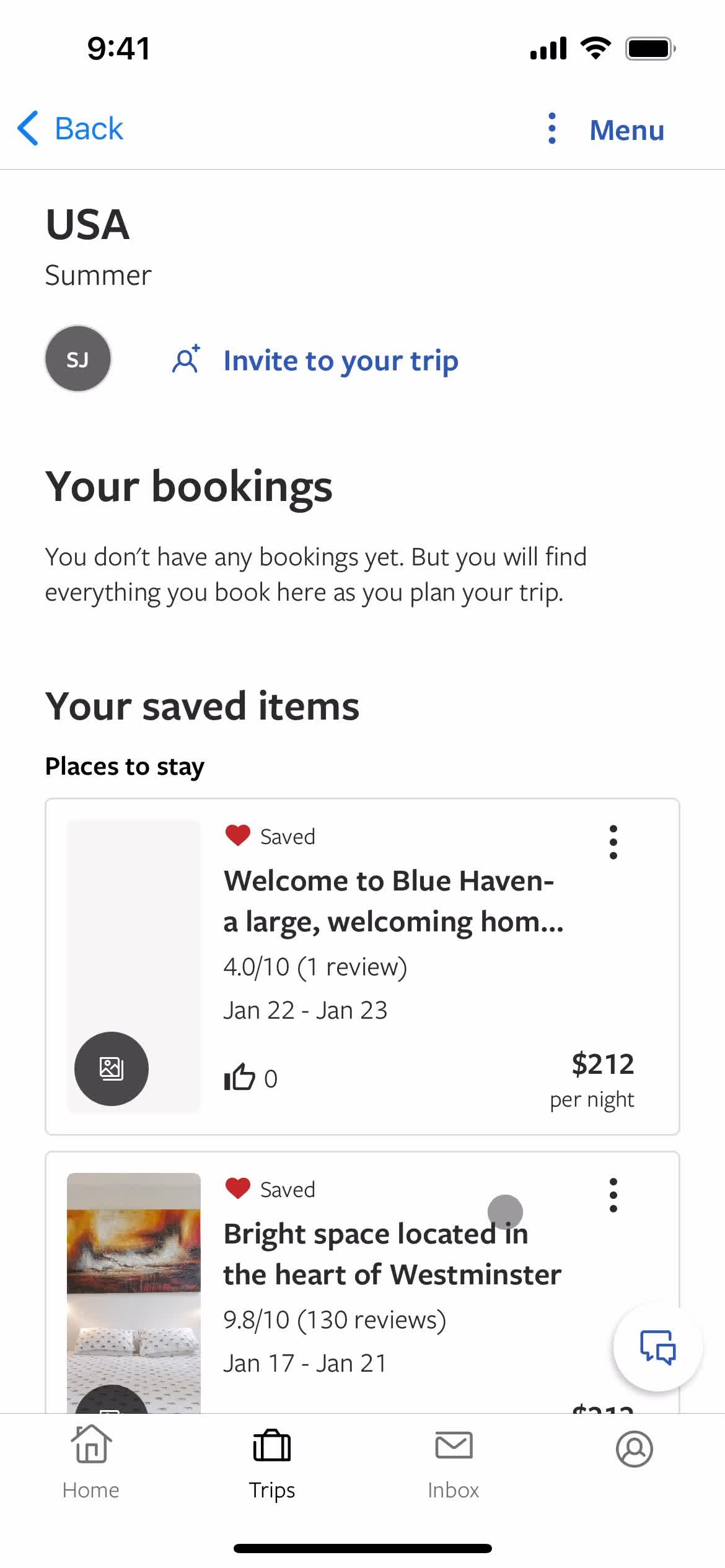
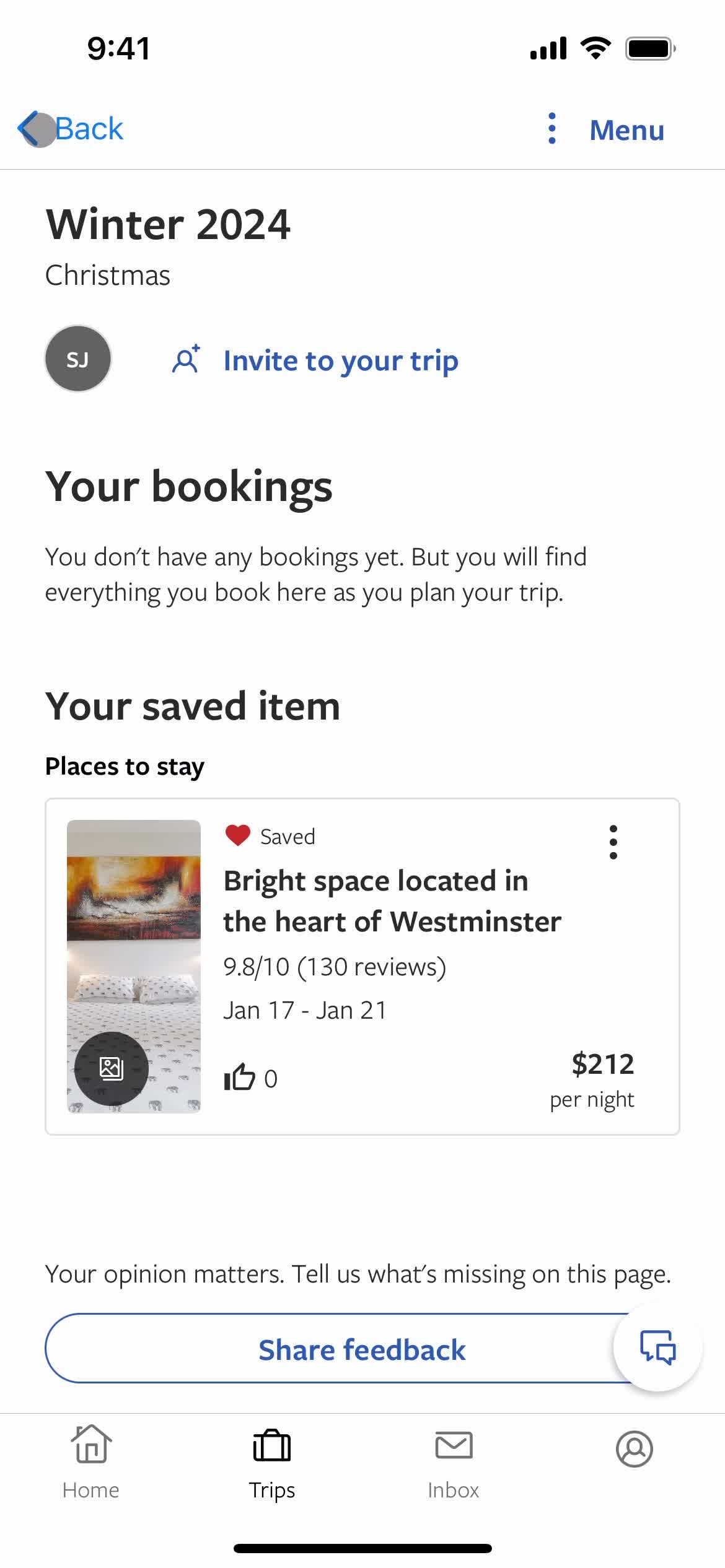
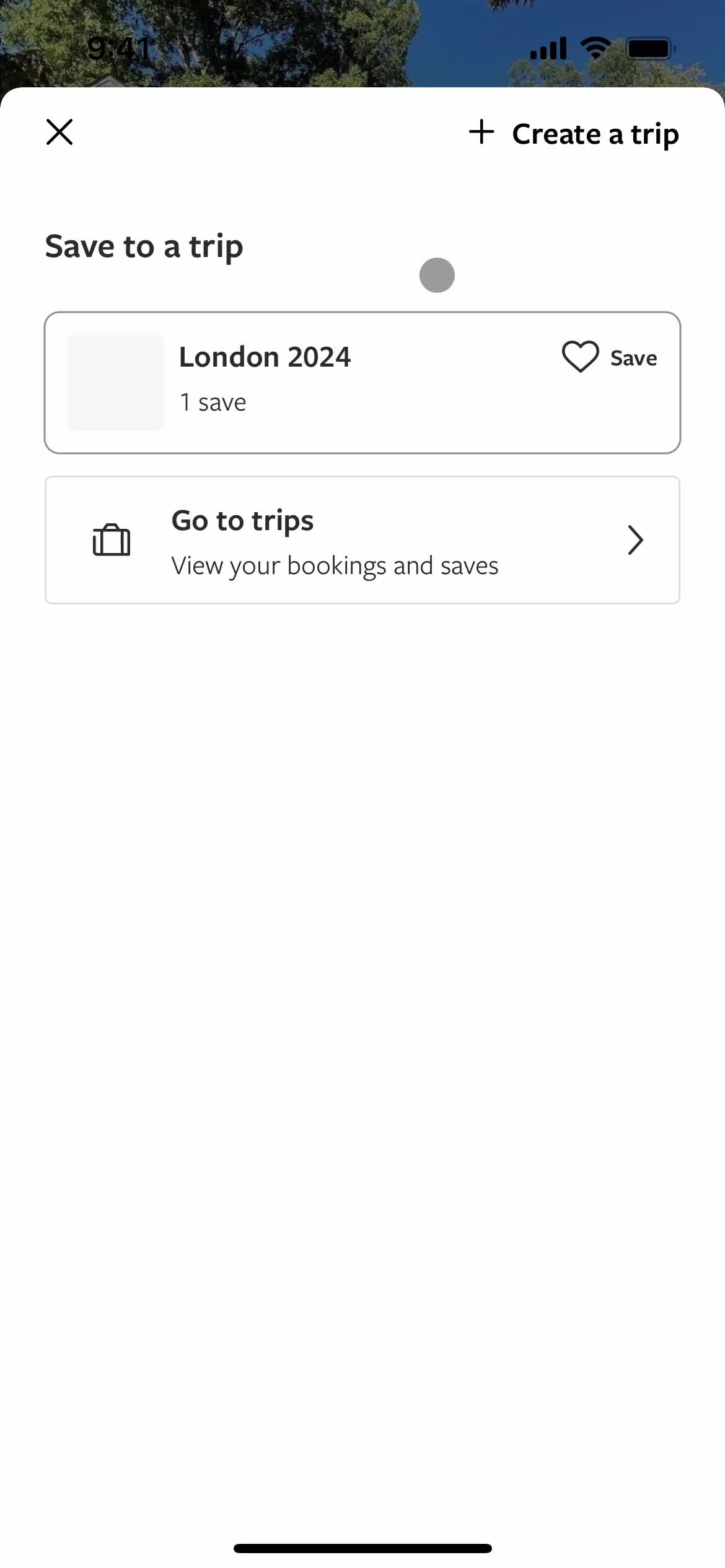
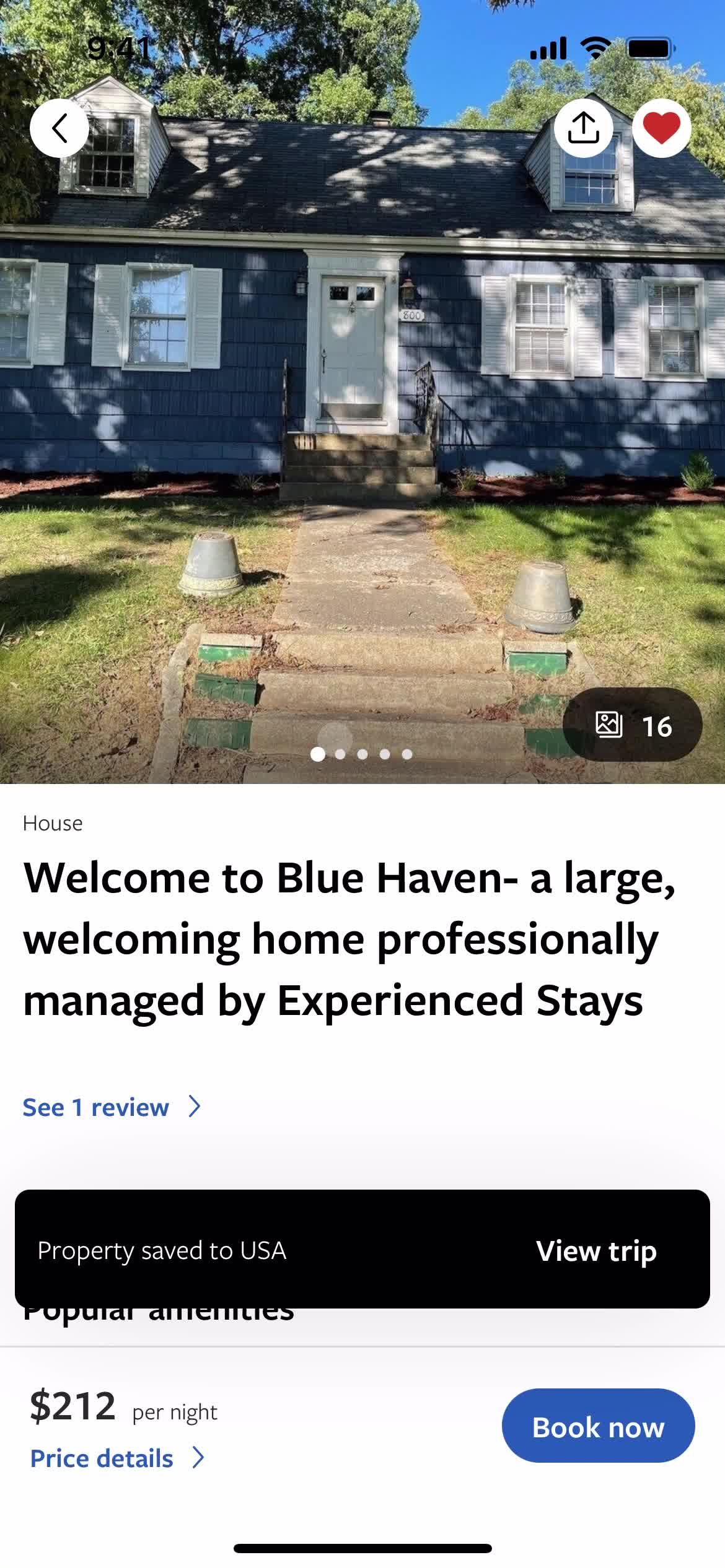
Saved to trip
this is title
Favorites
this is title
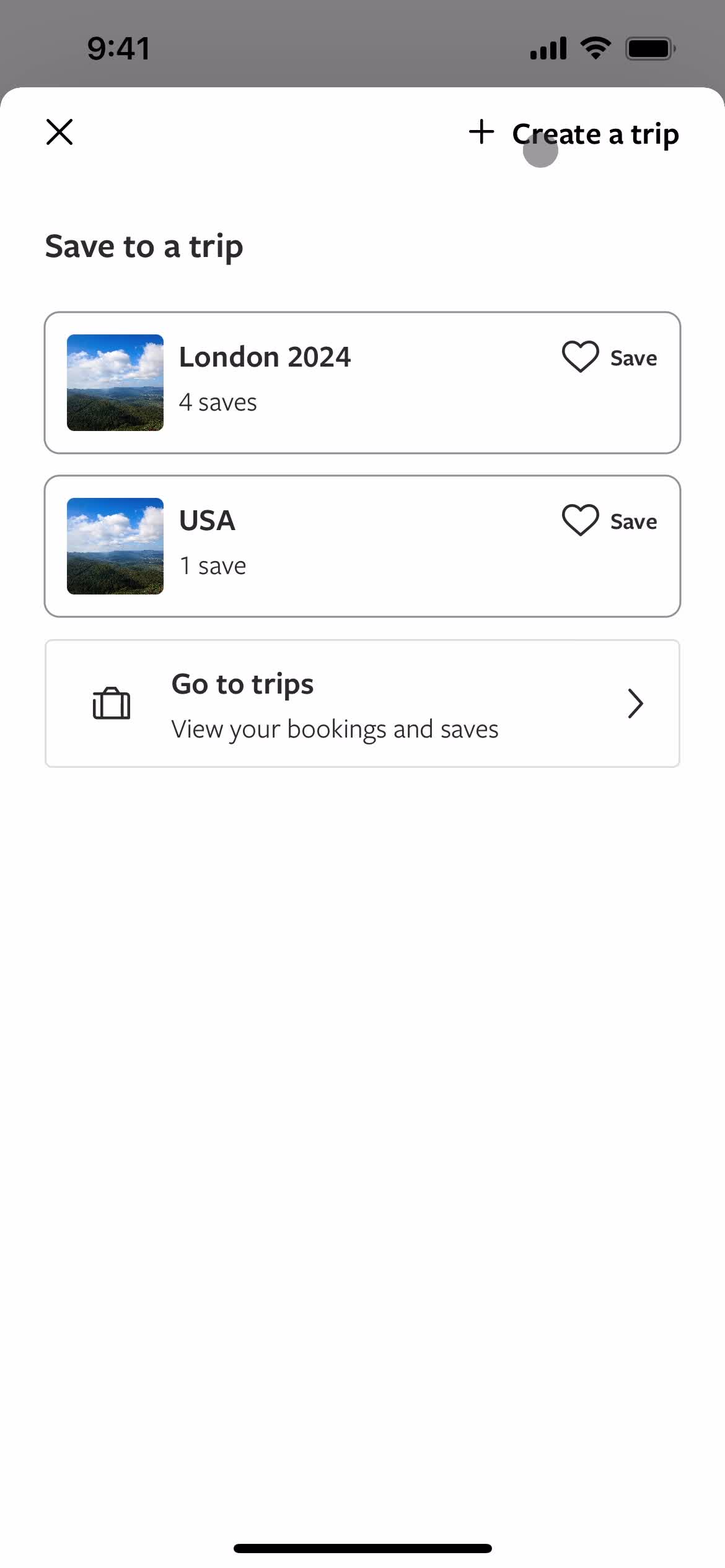
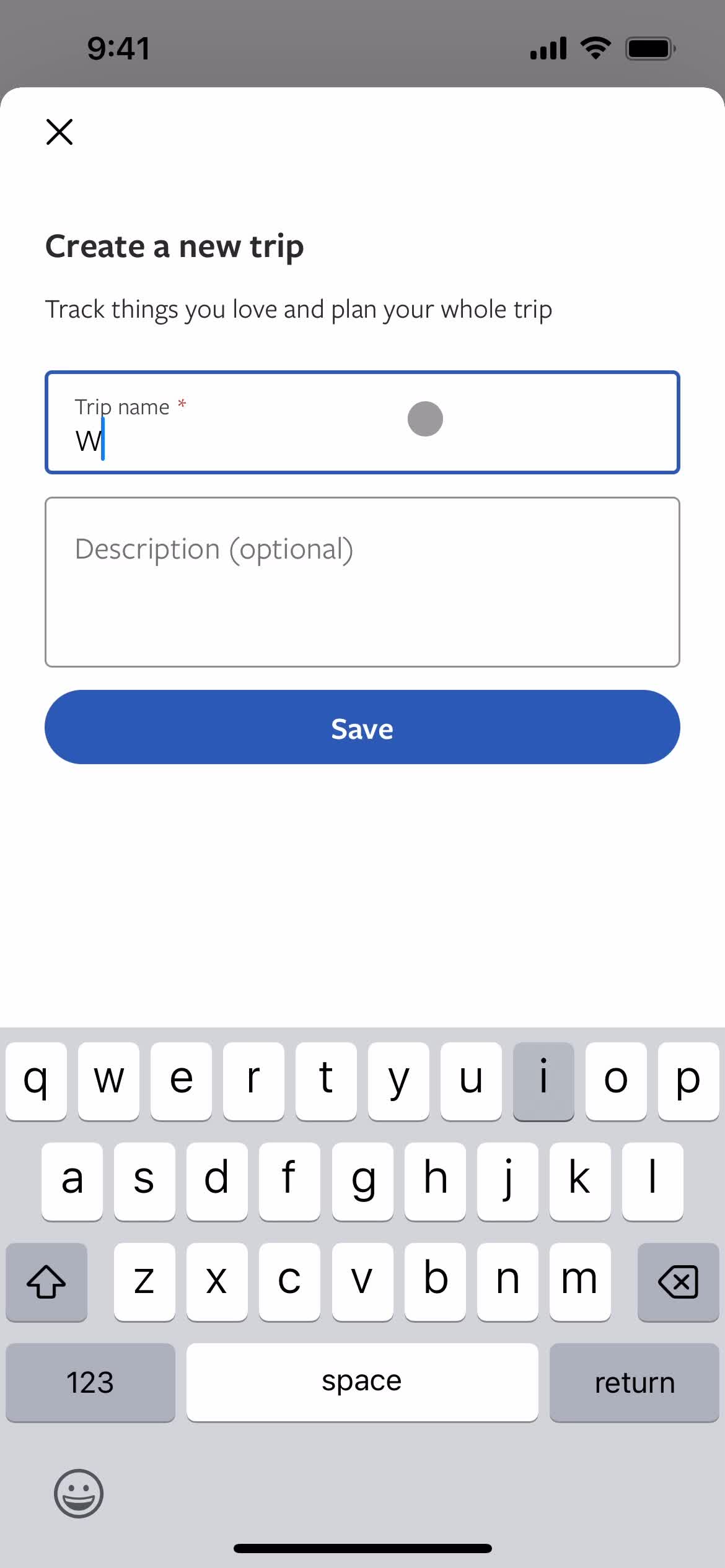
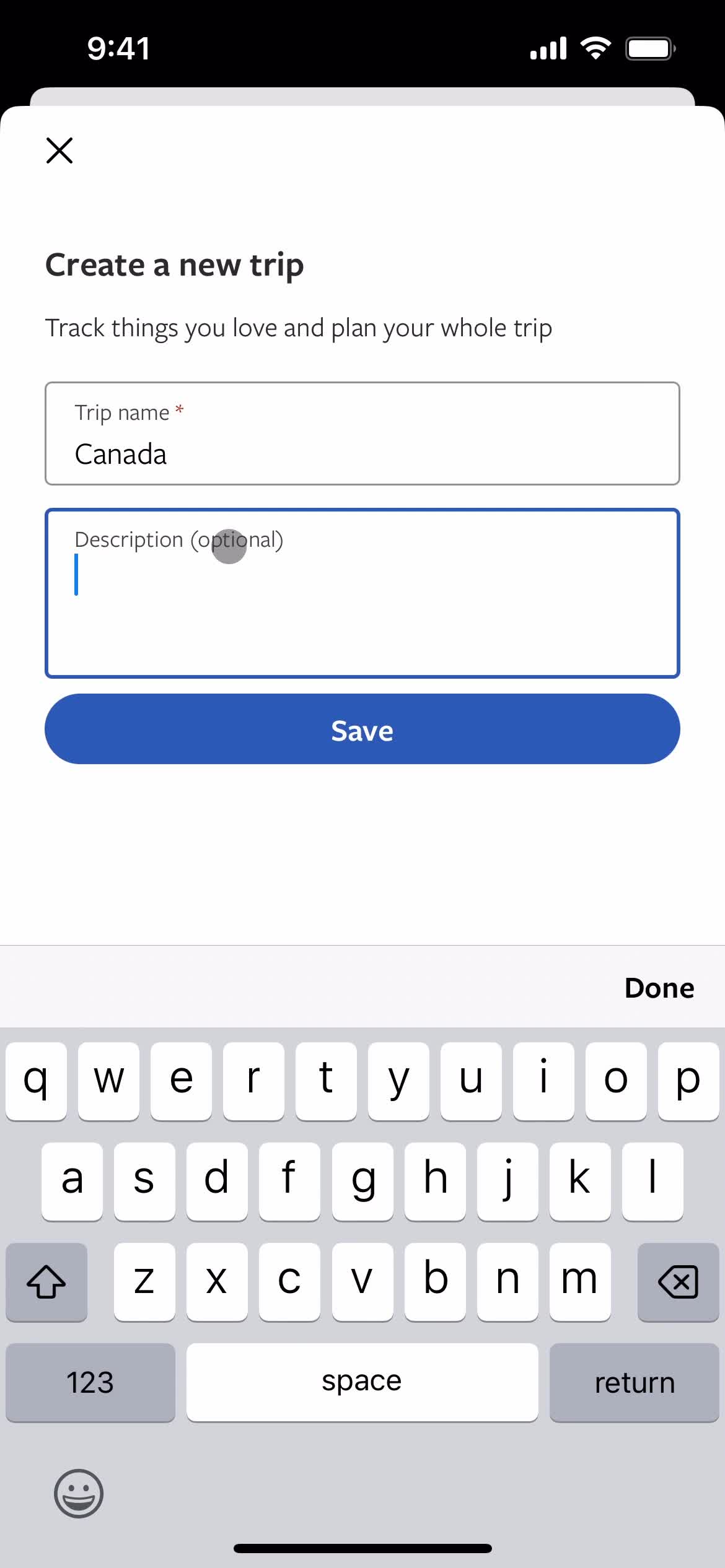
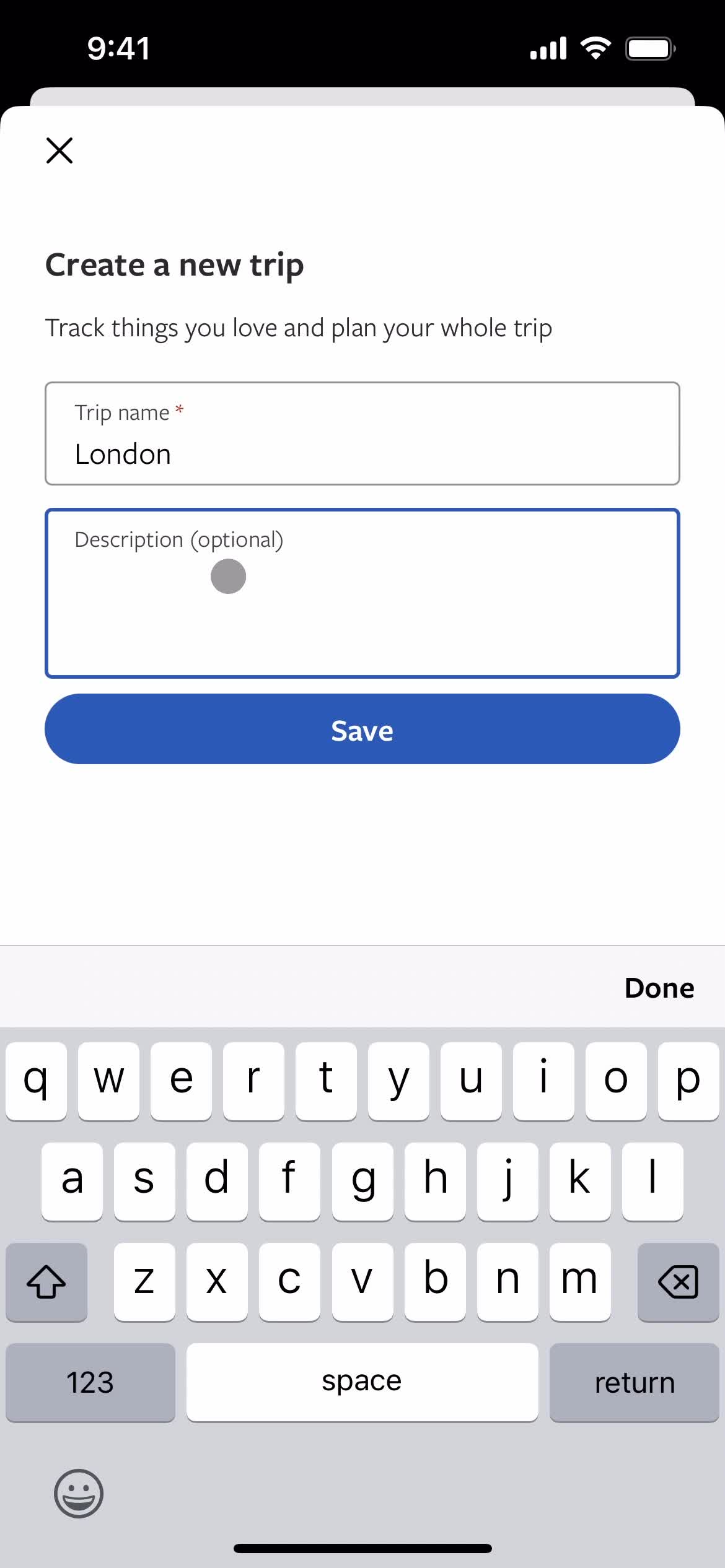
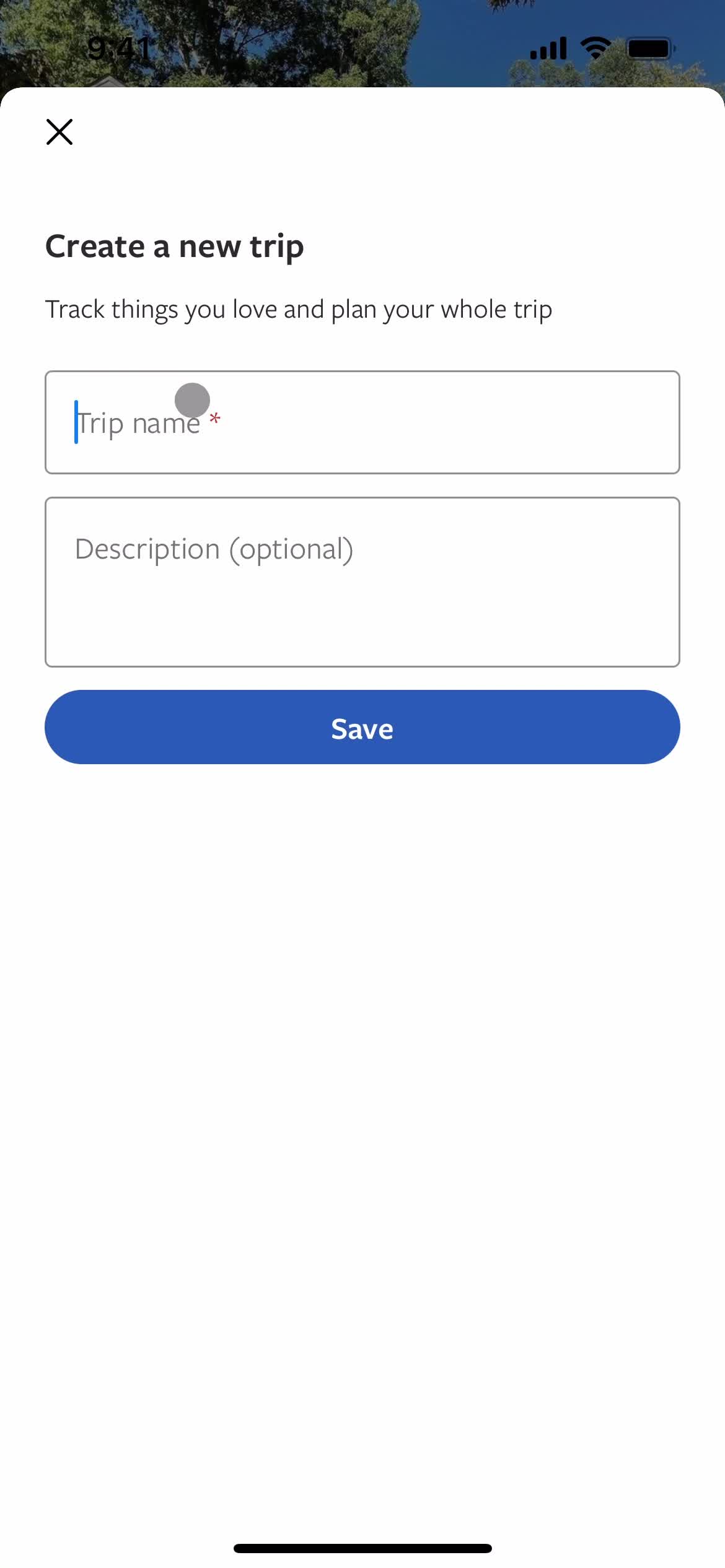
Create trip
this is title
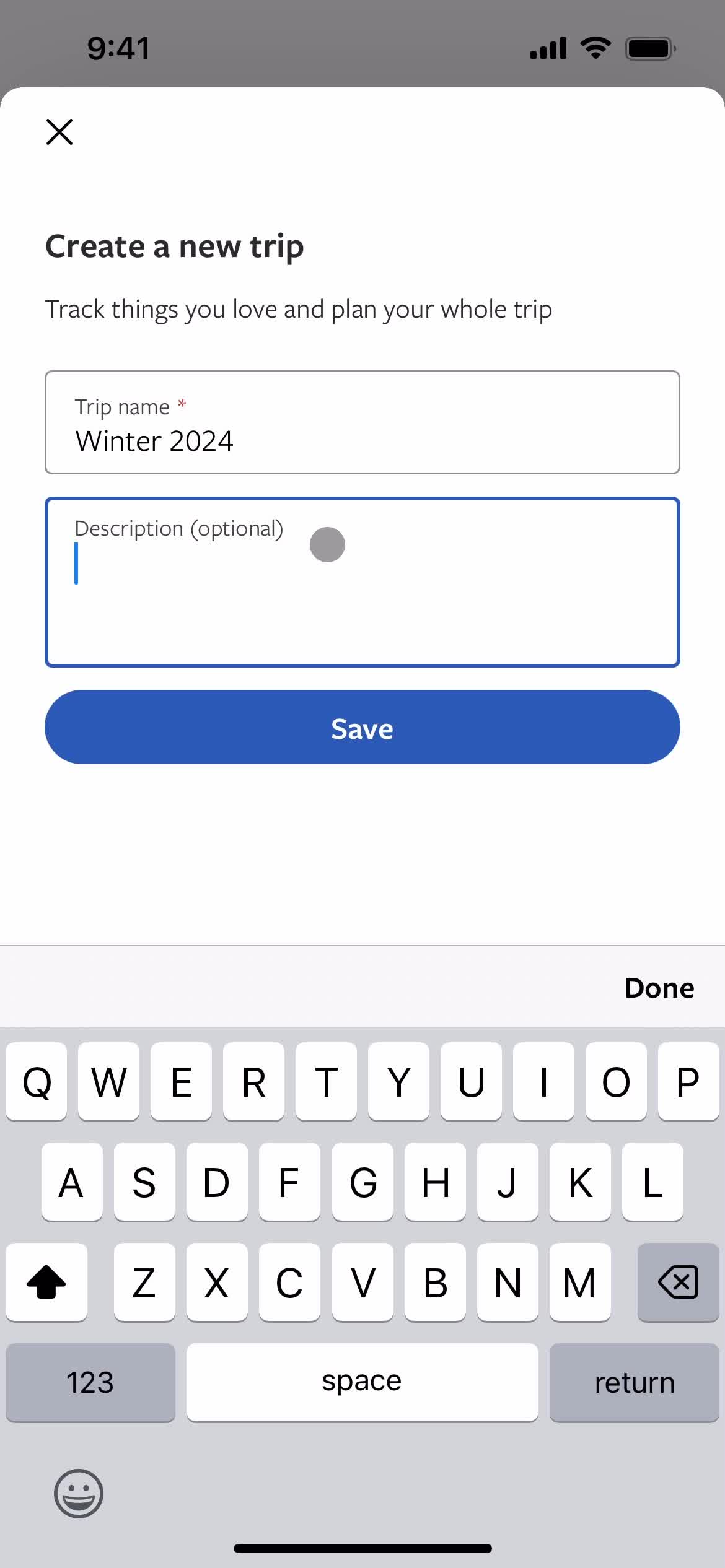
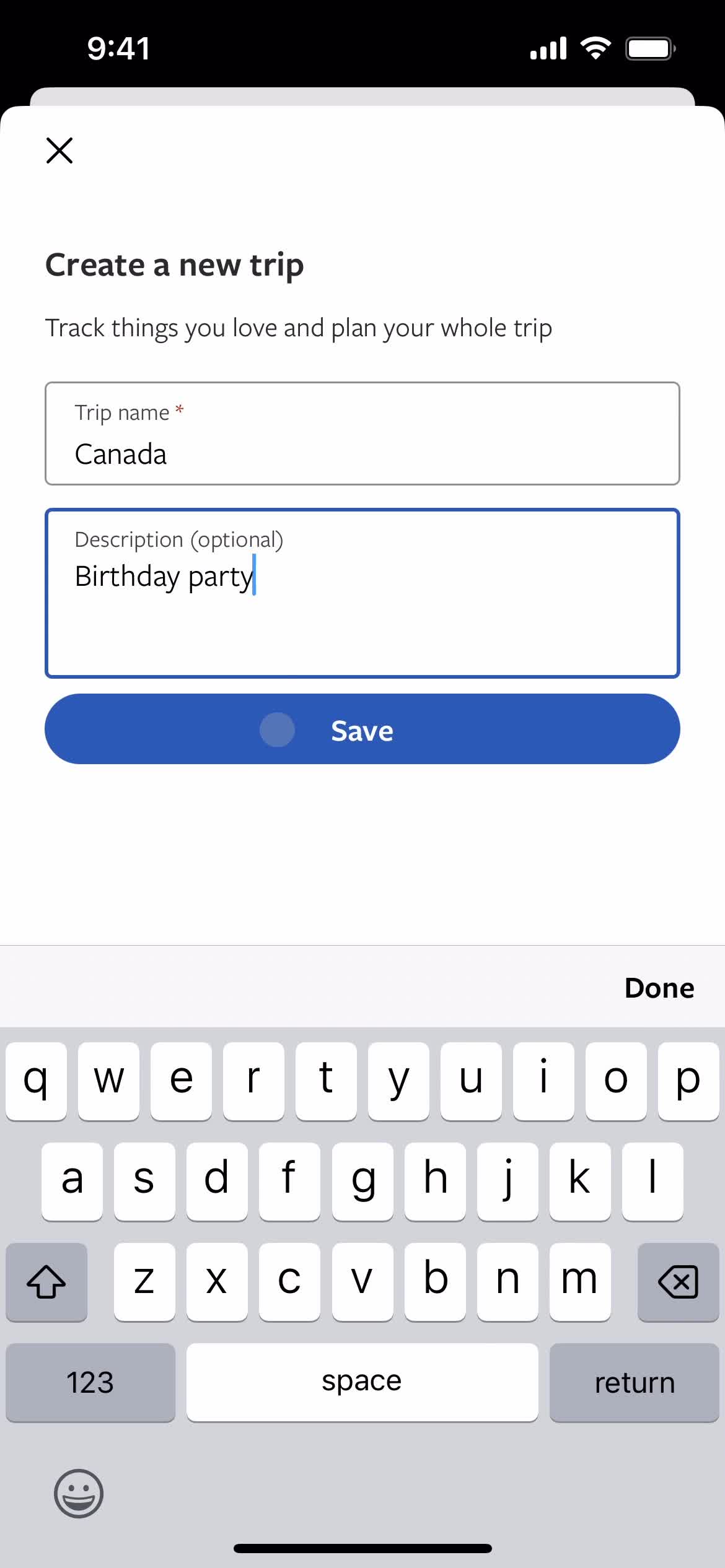
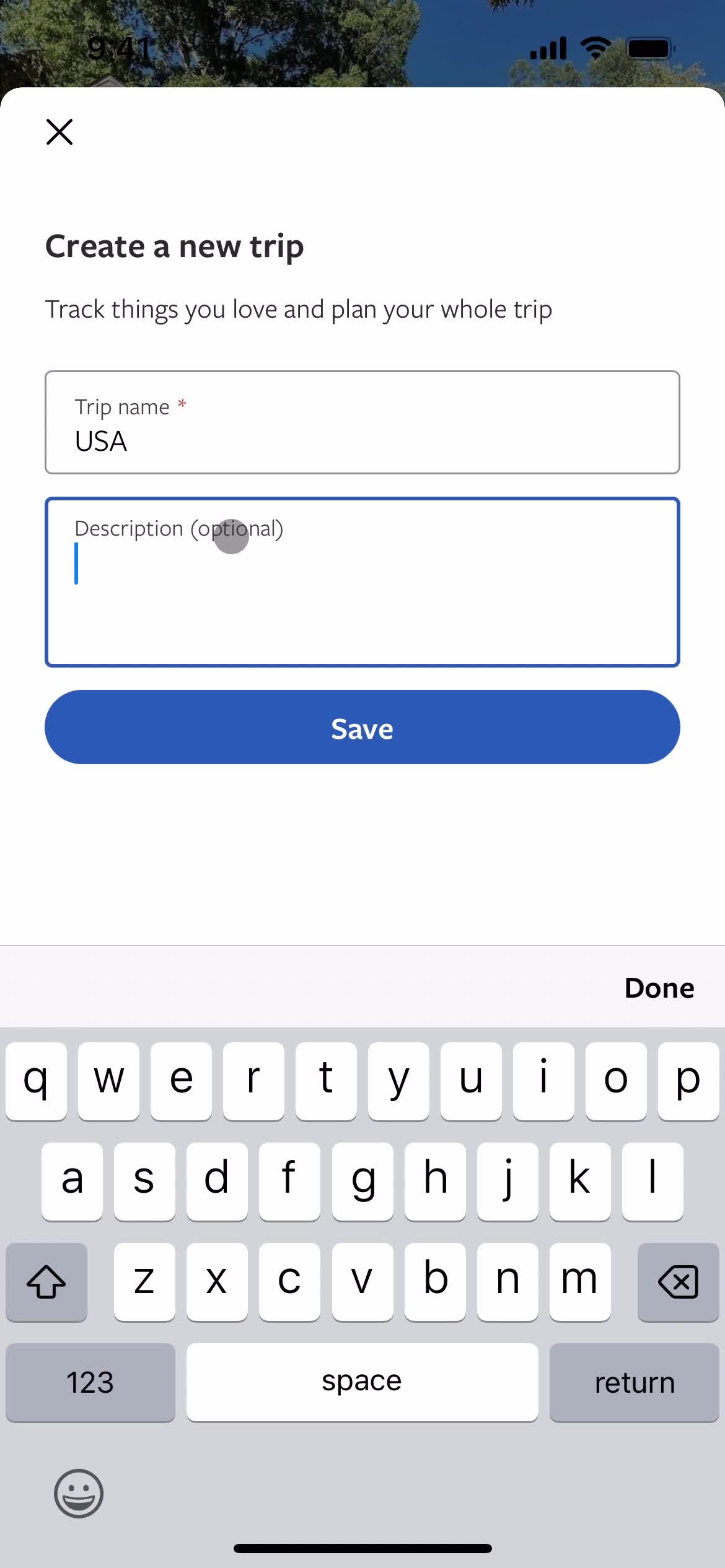
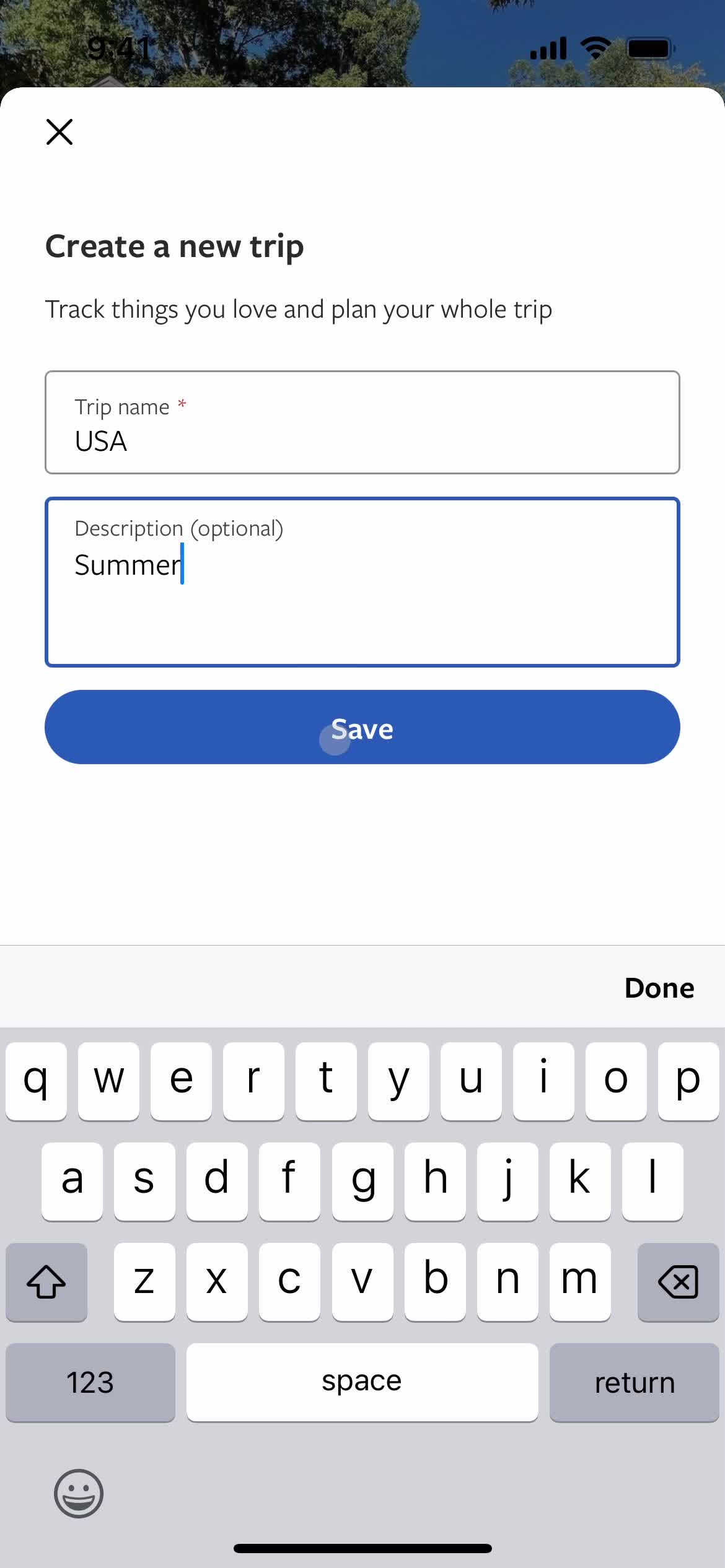
Add description
this is title
Save
this is title
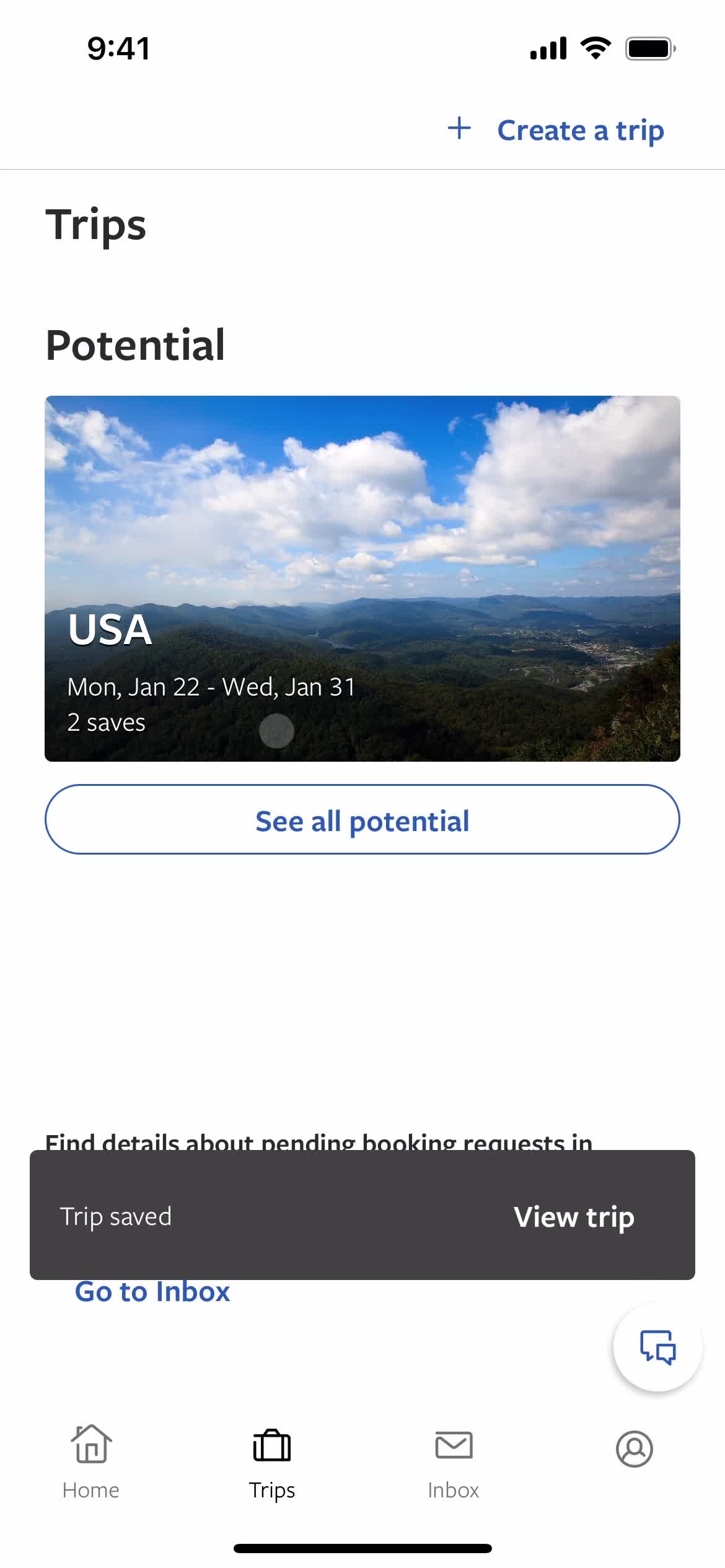
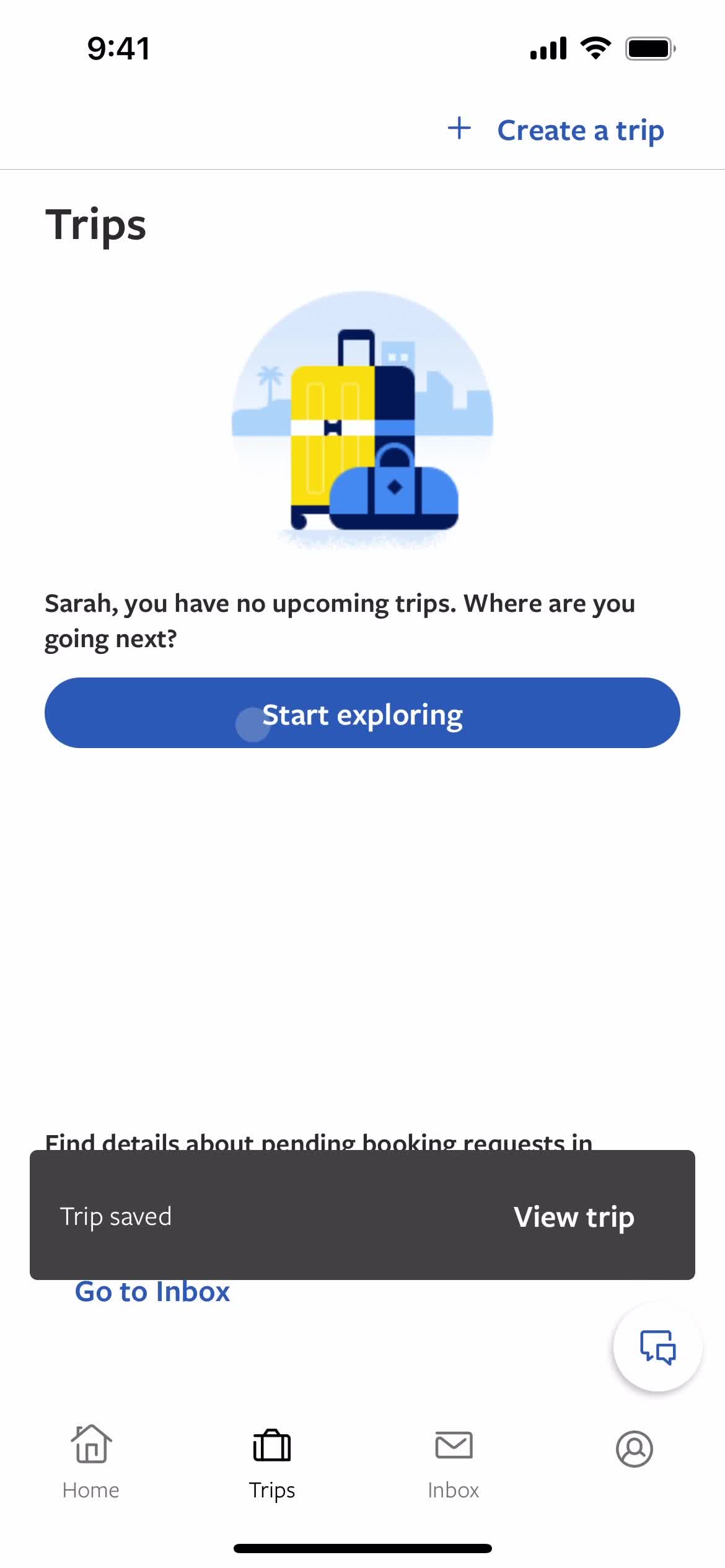
Saved to trip
this is title
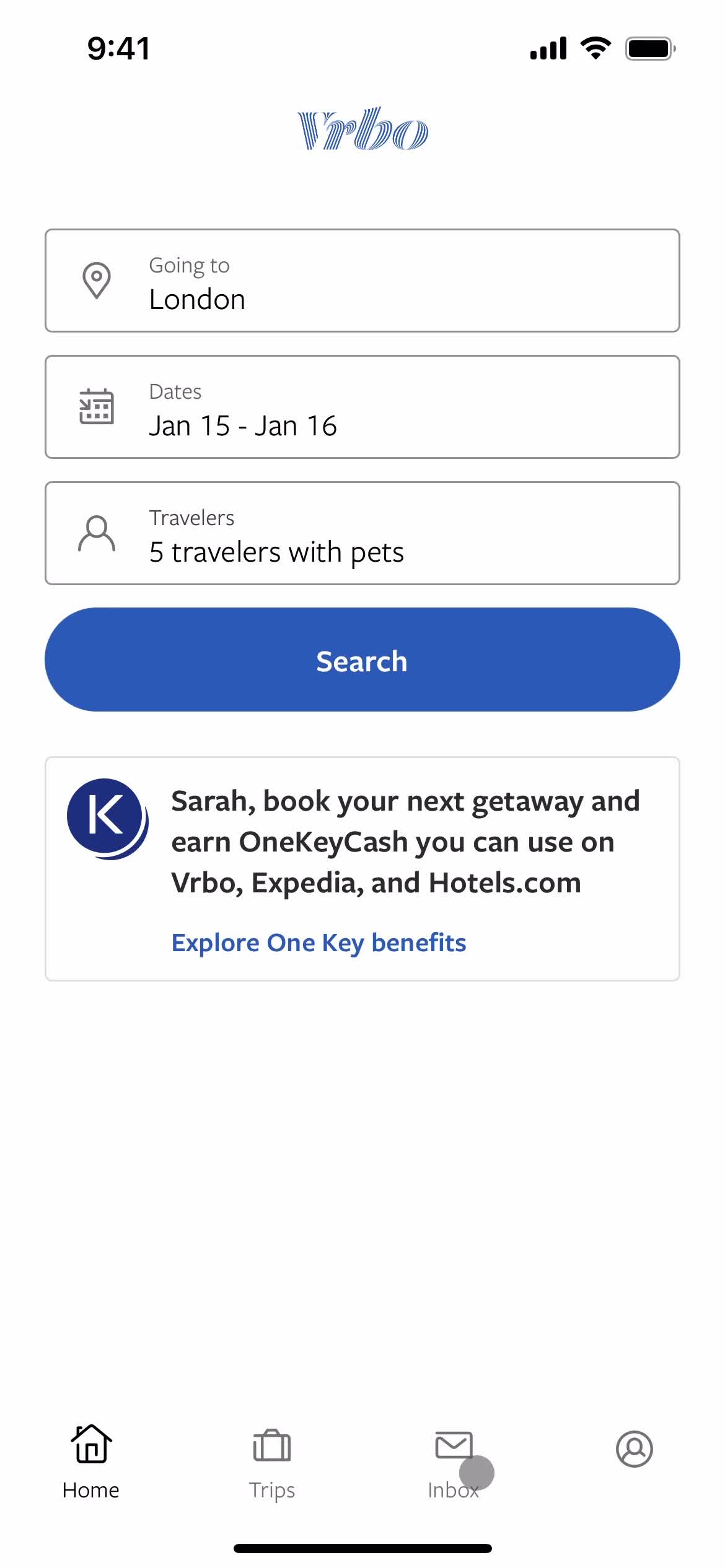
Home
this is title
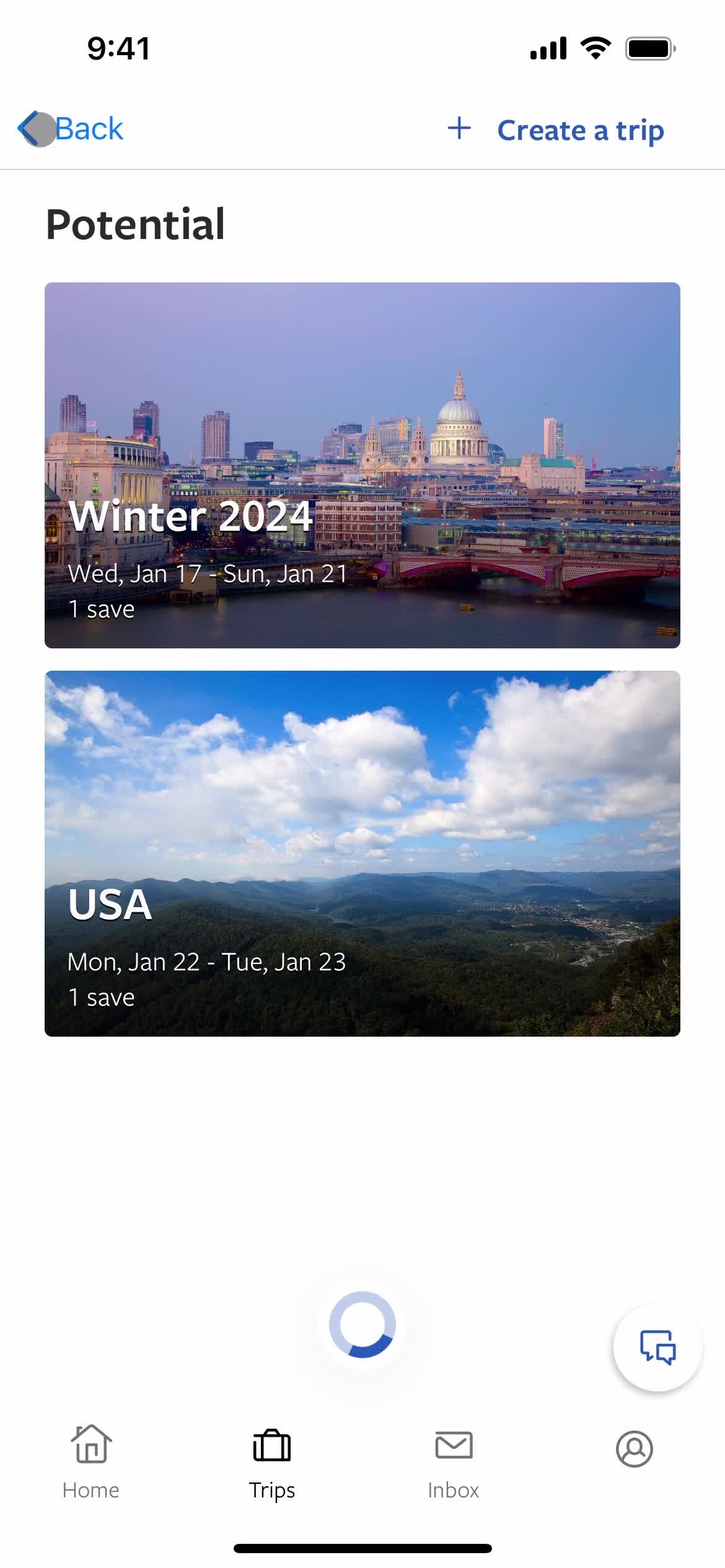
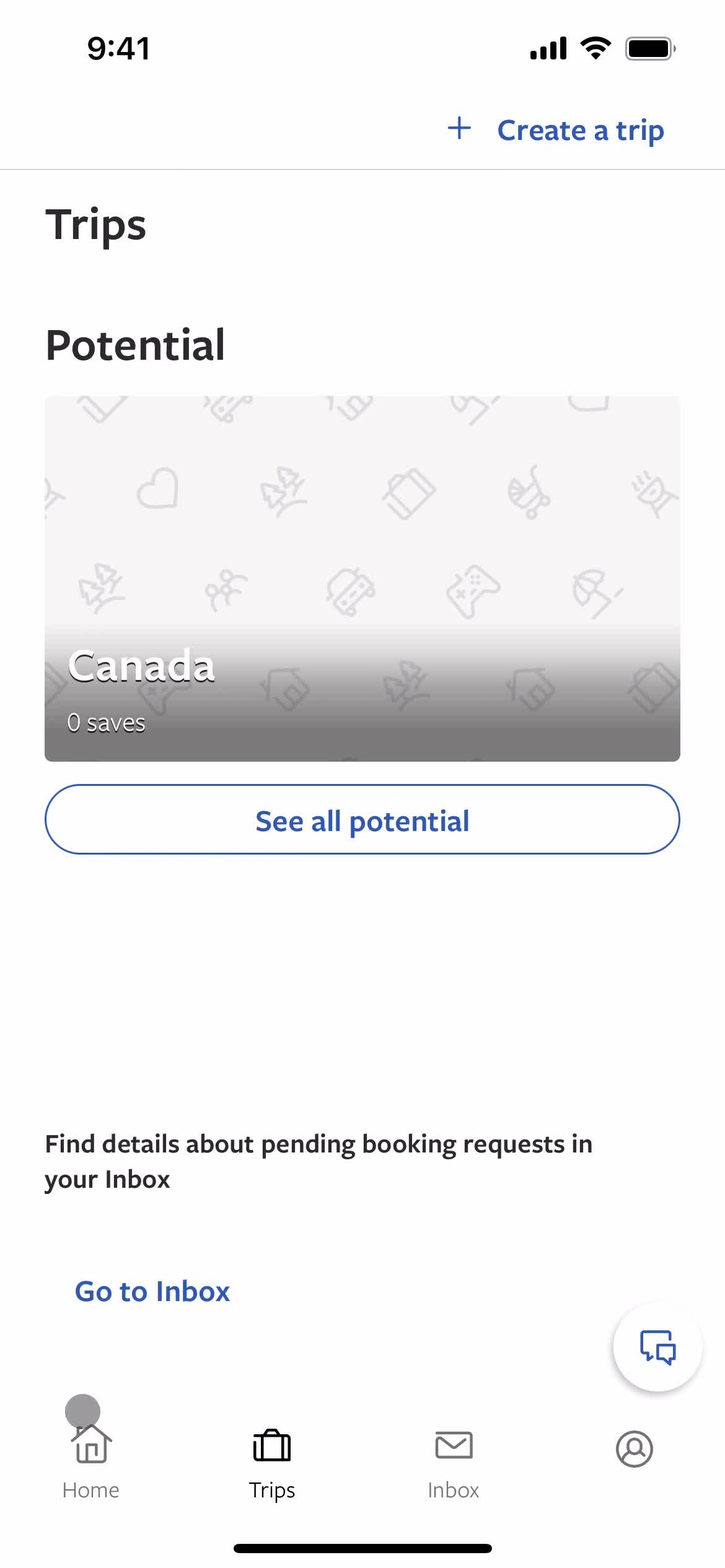
Trips
this is title
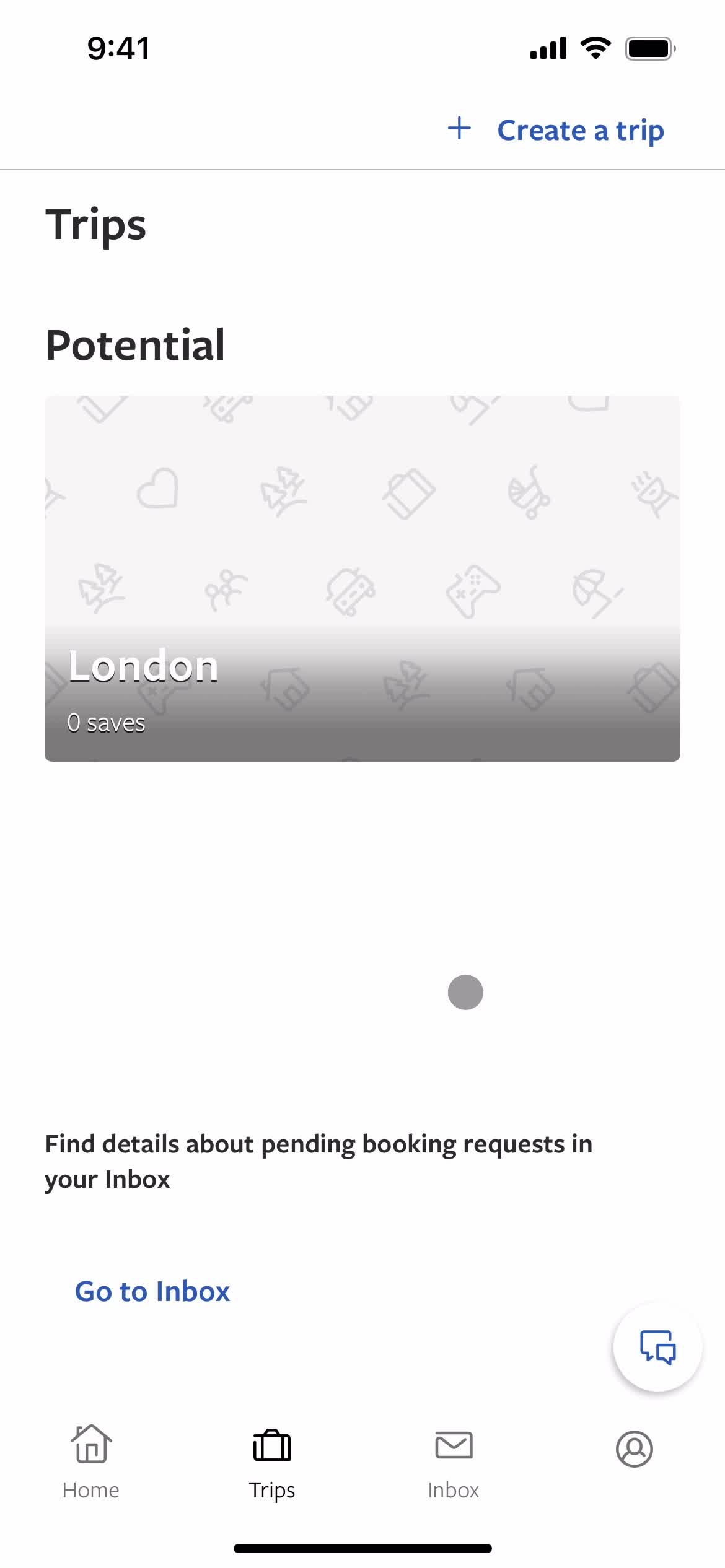
Trips
this is title
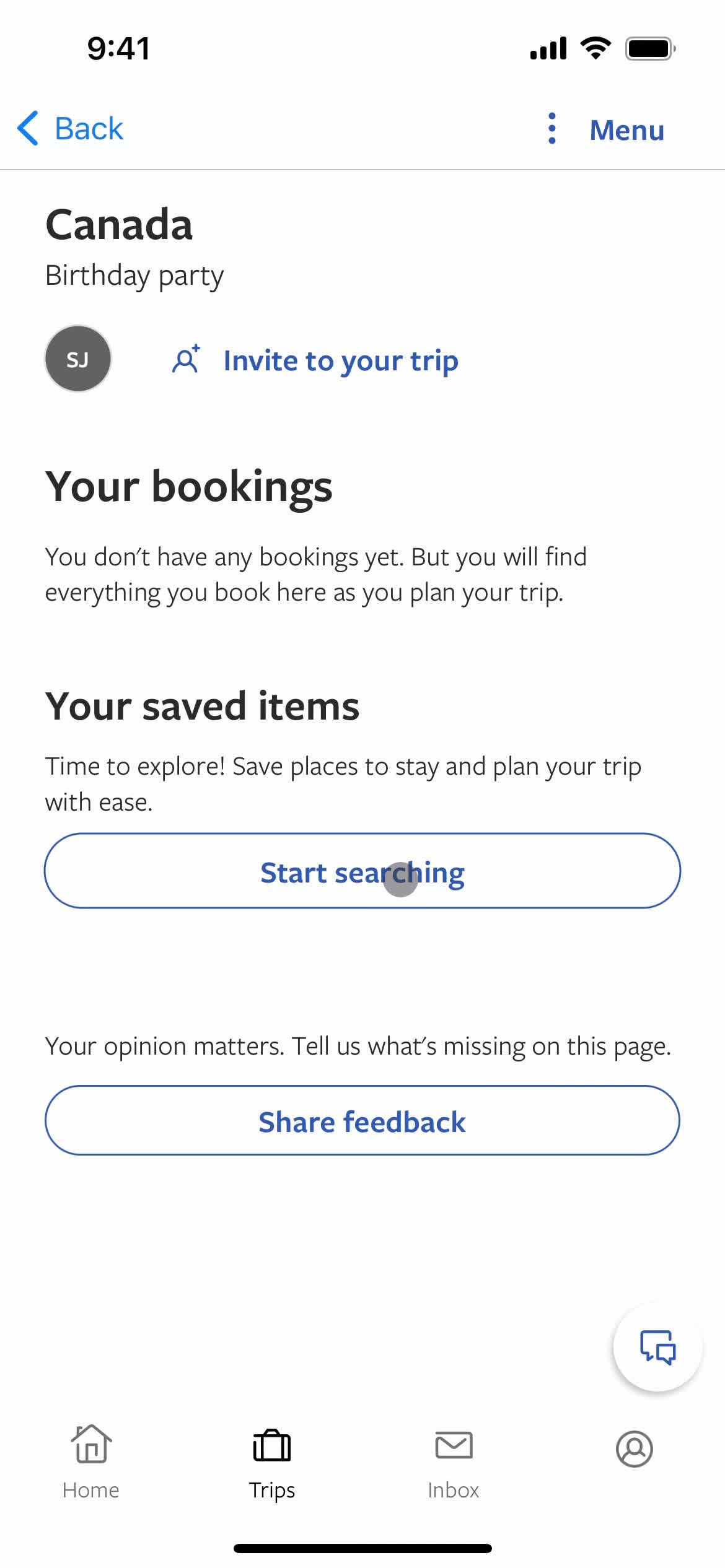
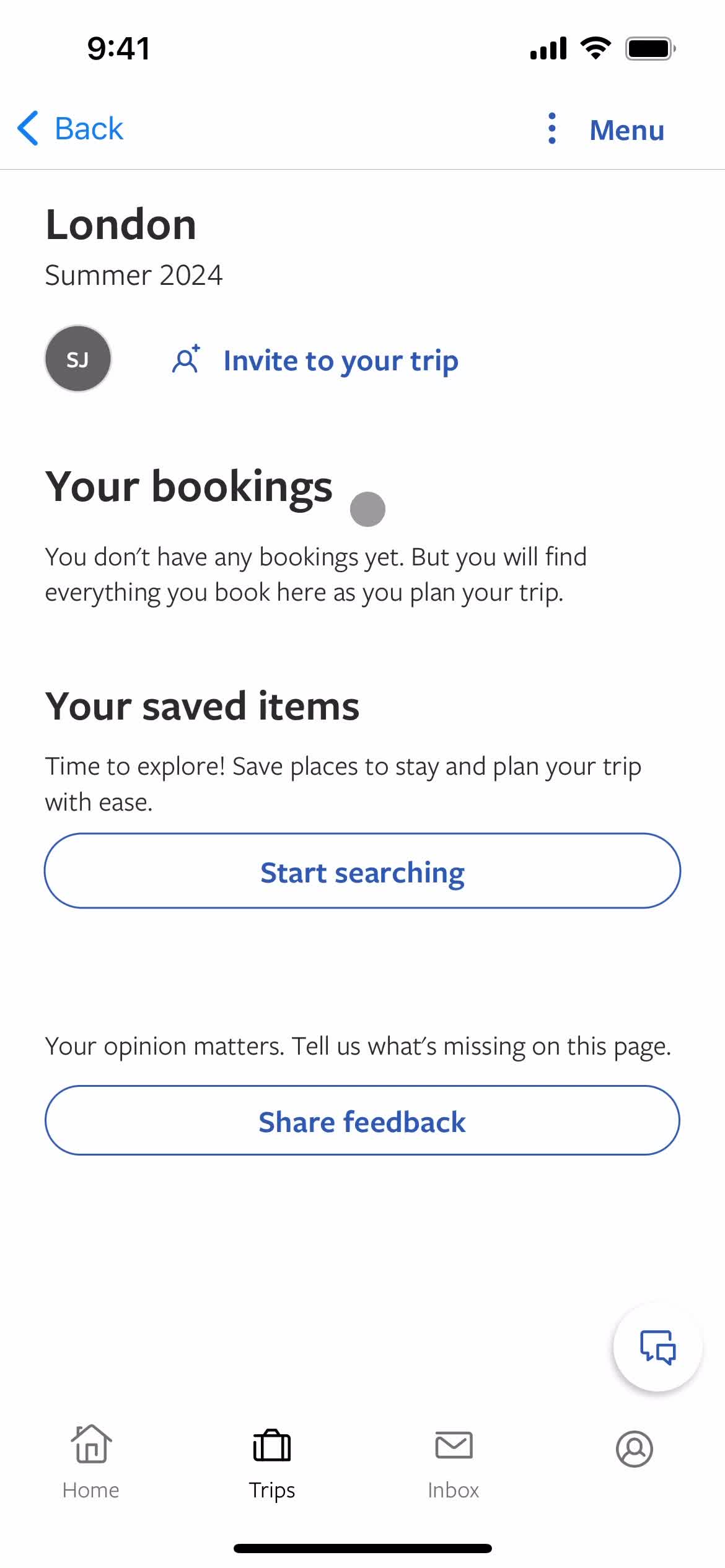
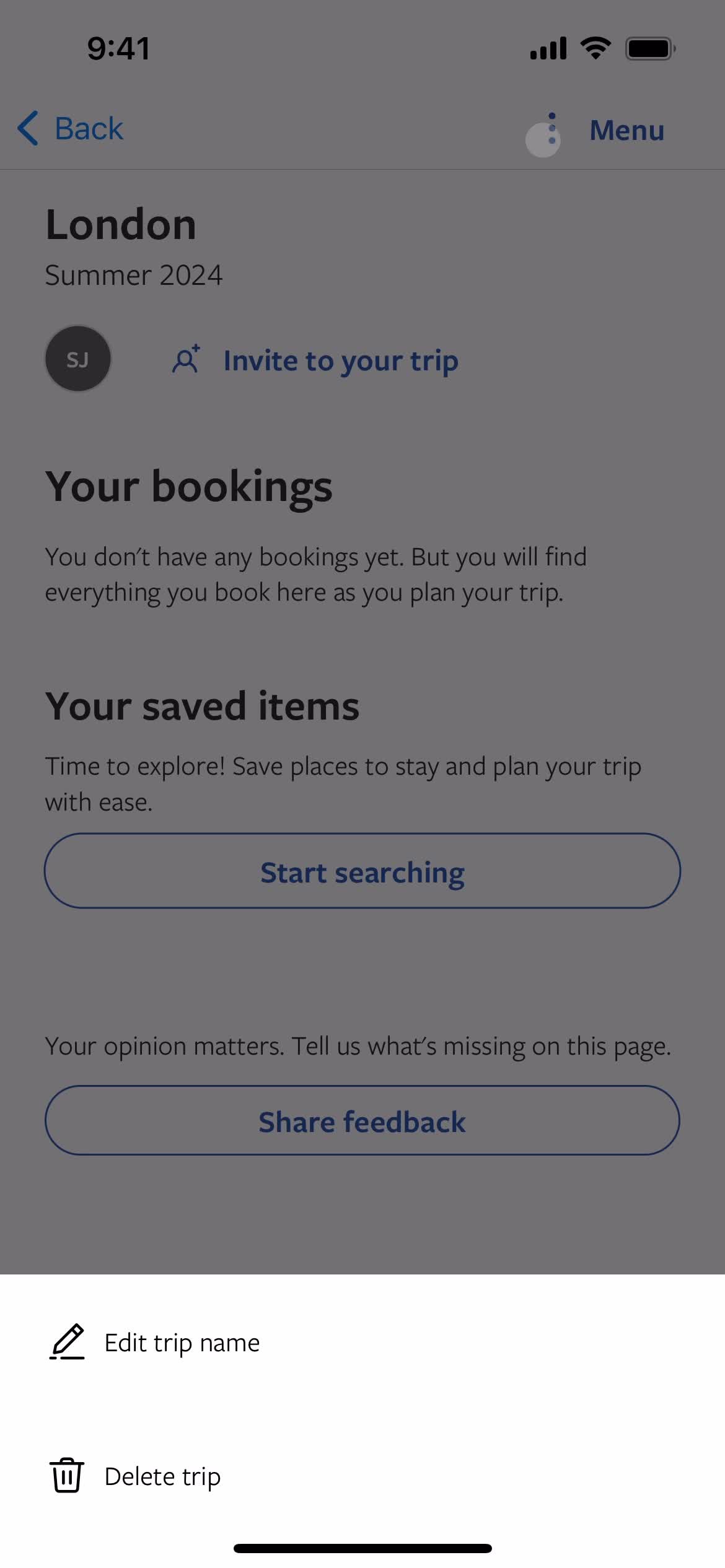
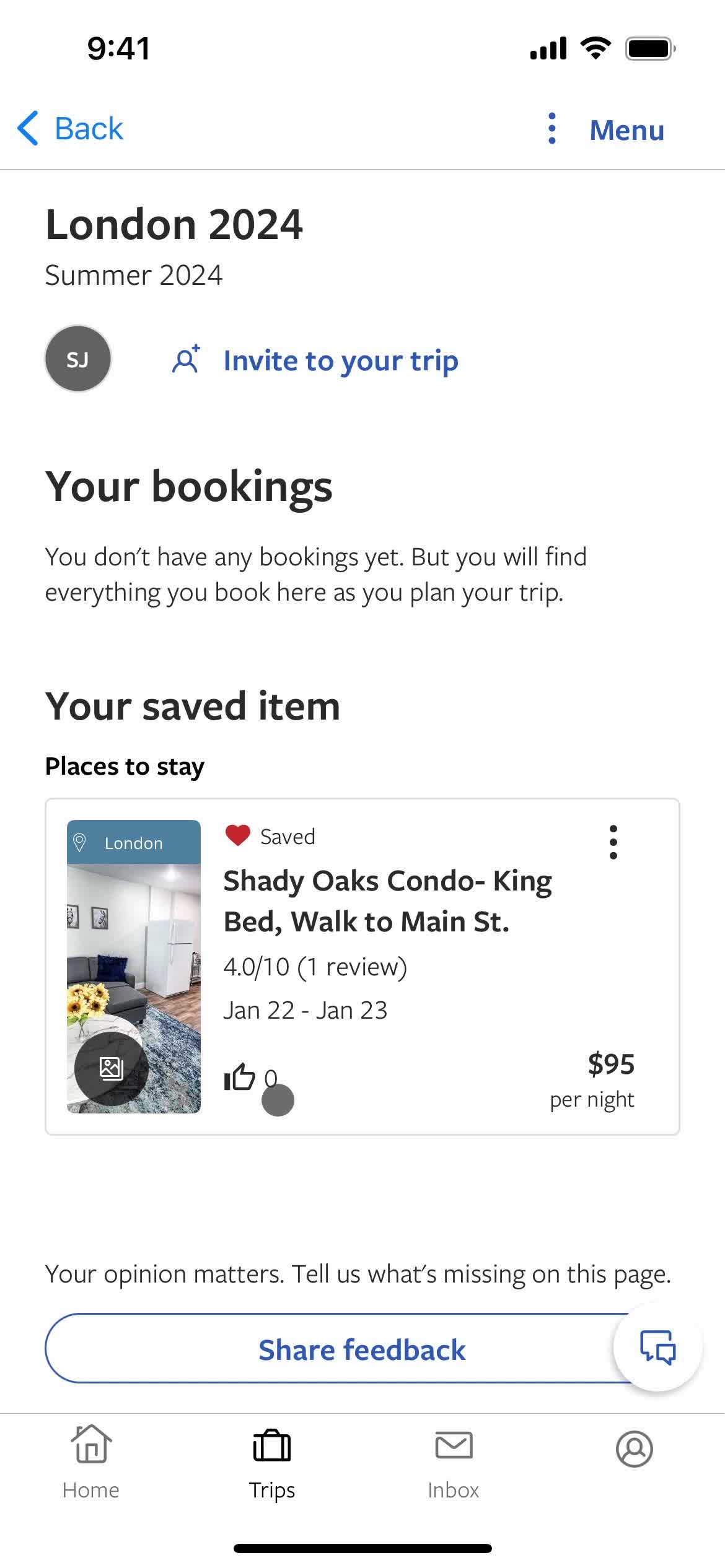
Trip details
this is title
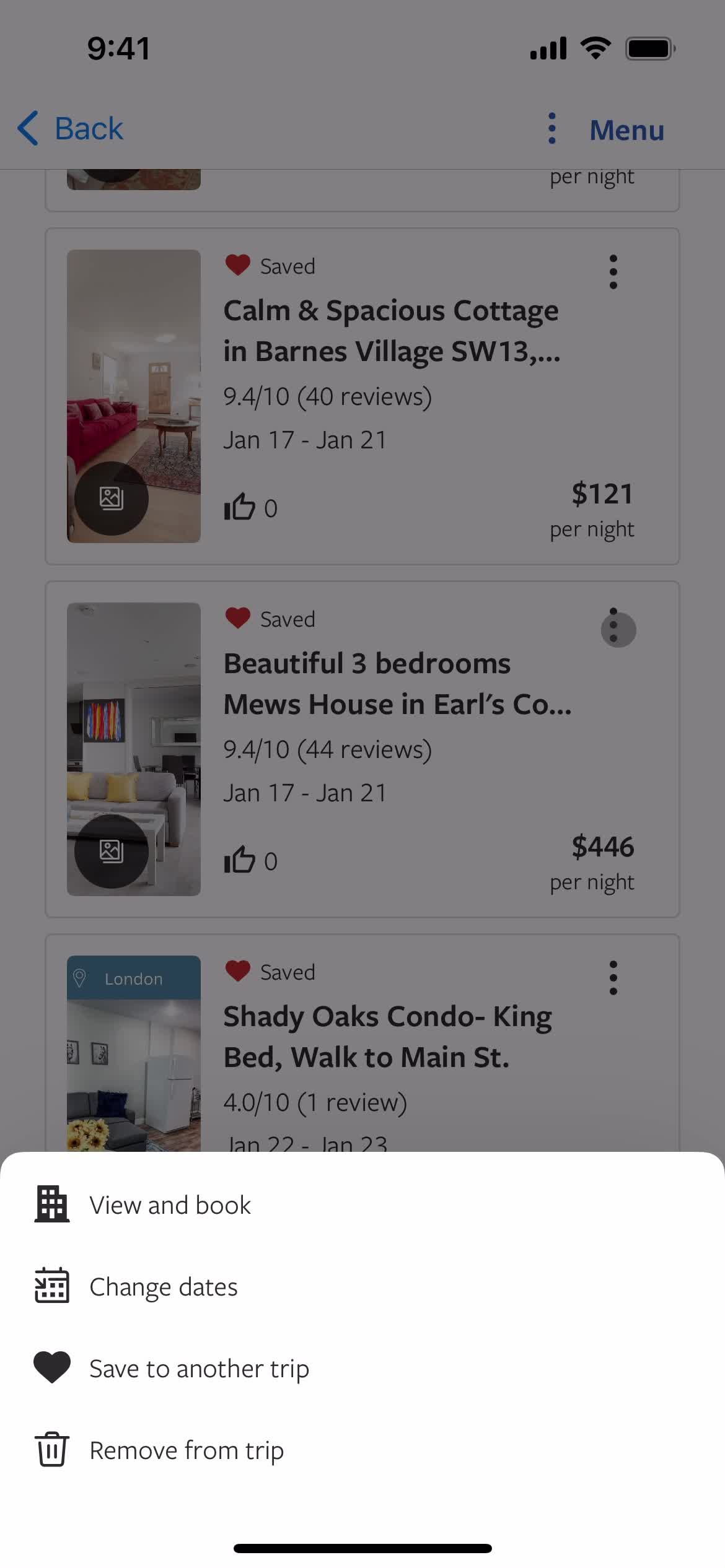
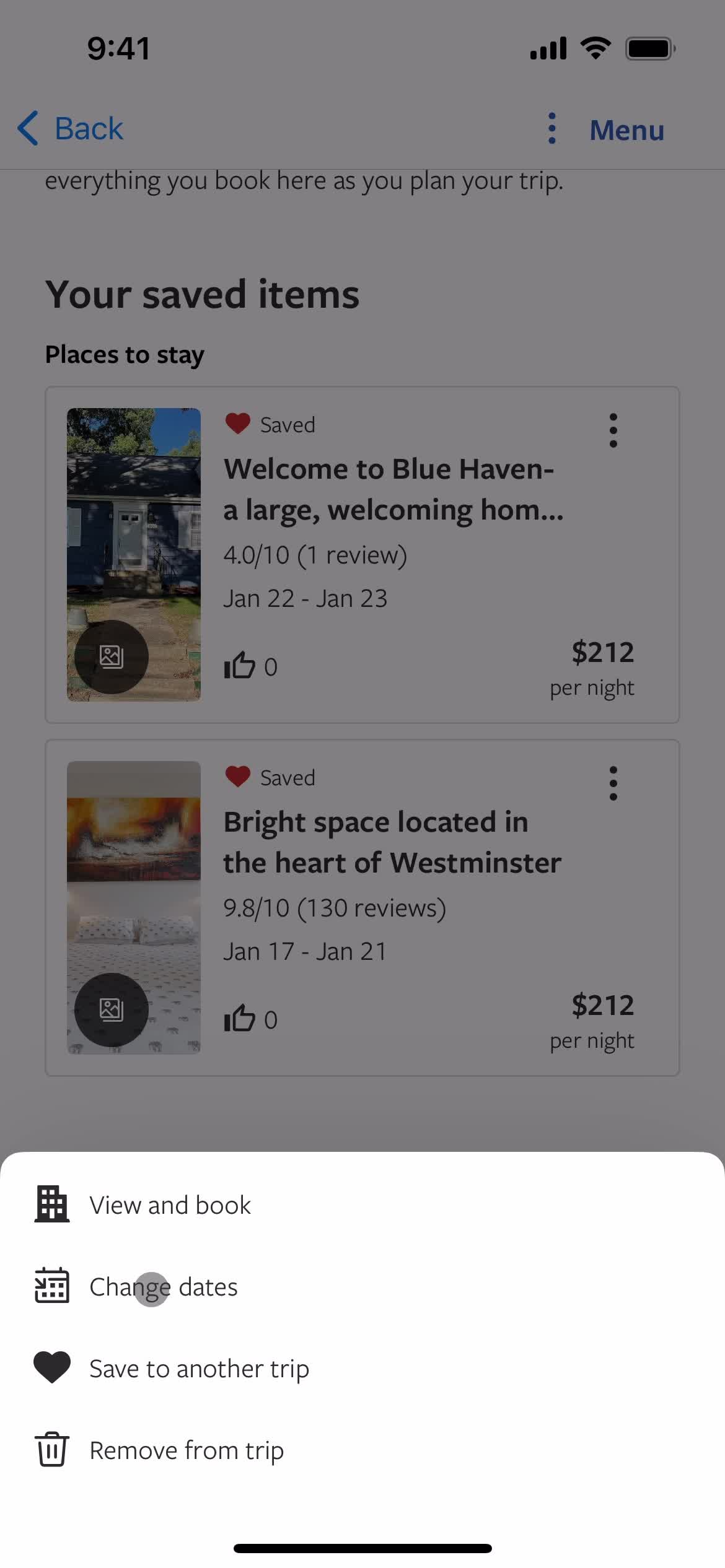
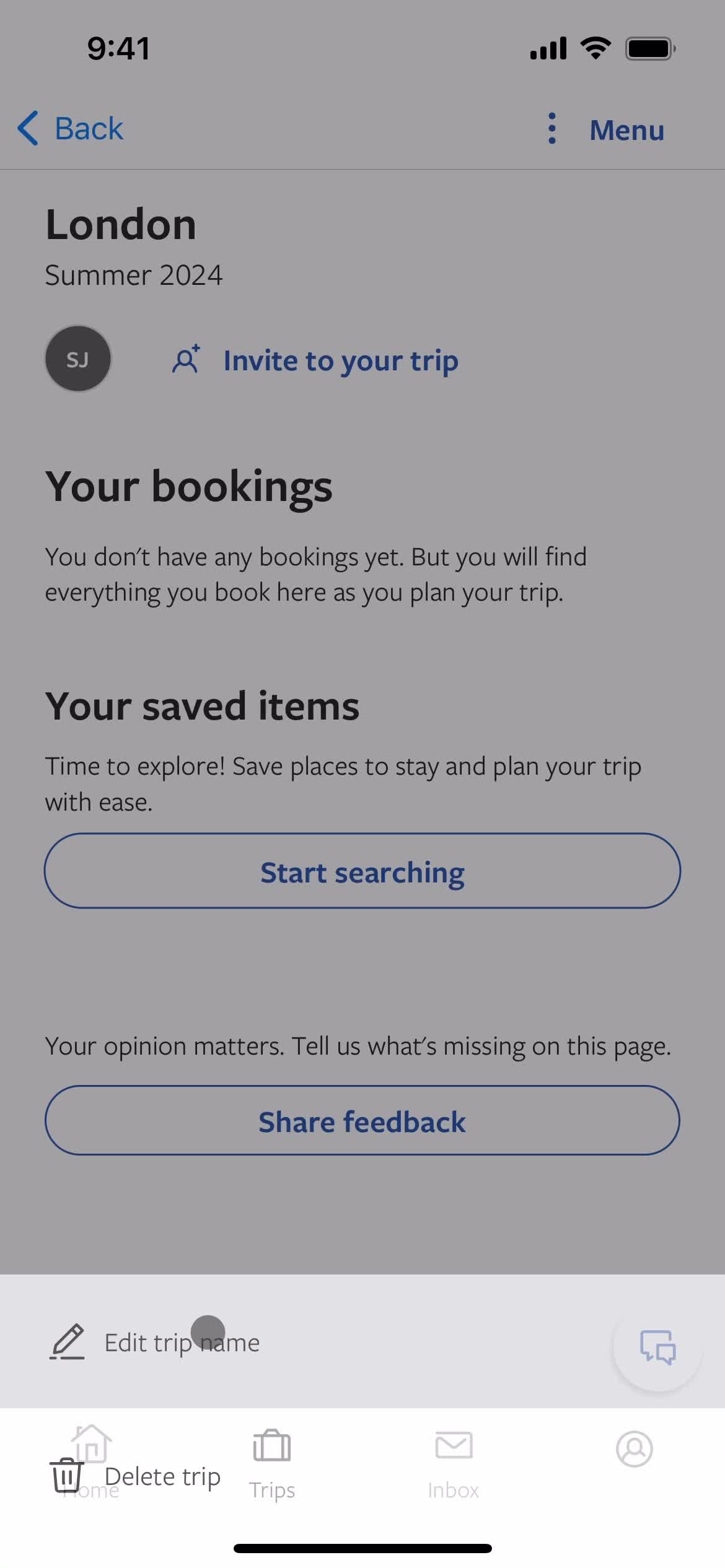
Action menu
this is title
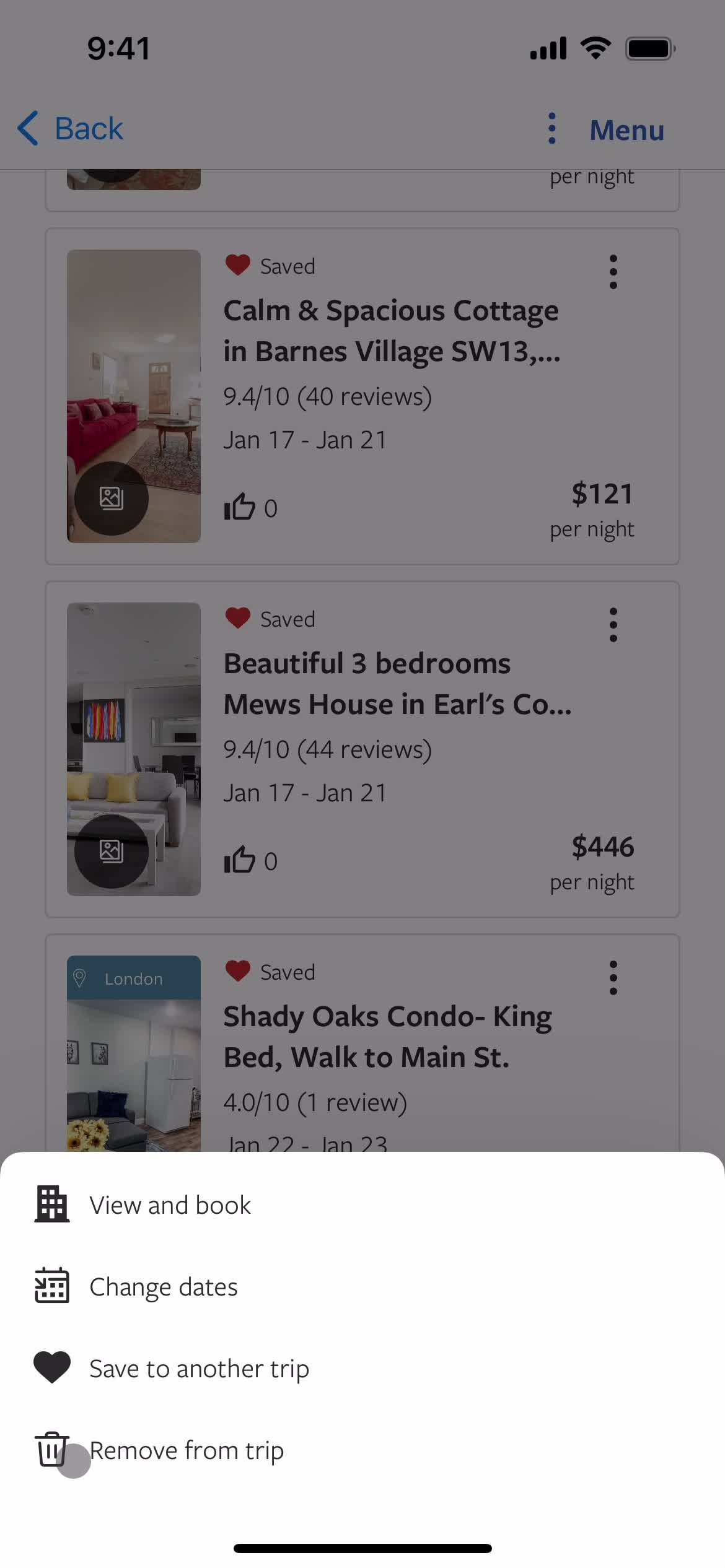
Remove item
this is title
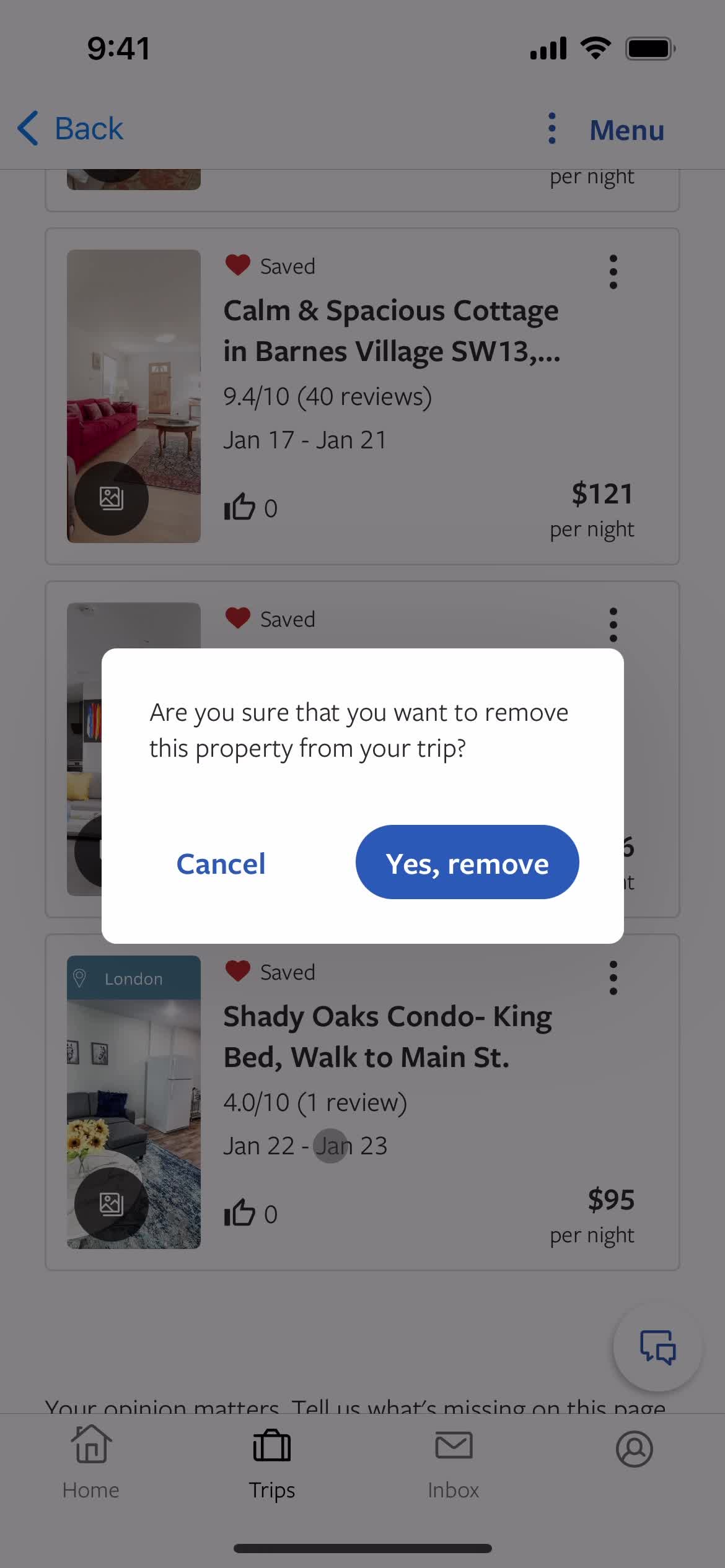
Confirm removal
this is title
Item removed
this is title
Action menu
this is title
Property details
this is title
Favorites
this is title
Trips
this is title
Property details
this is title
Trip details
this is title
Action menu
this is title
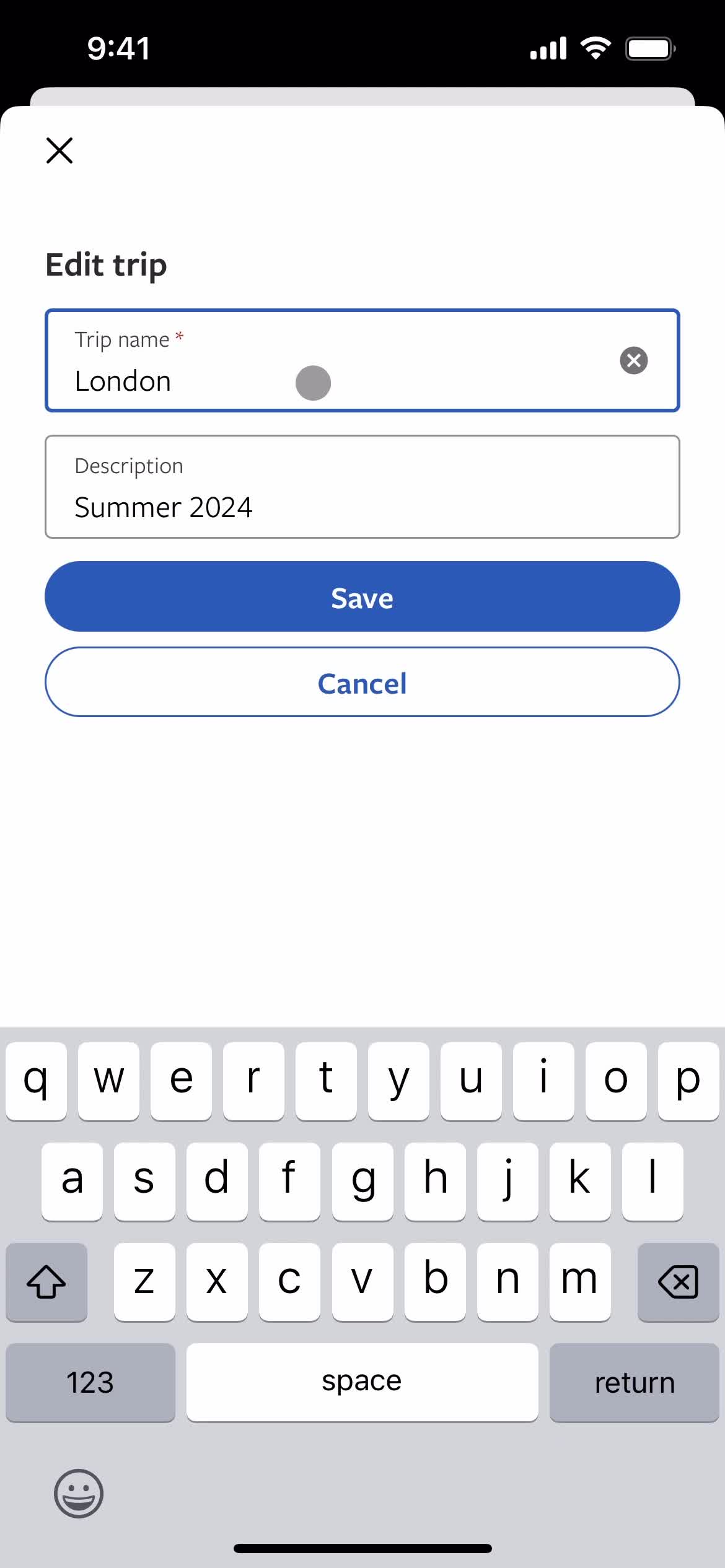
Edit details
this is title
Edit details
this is title
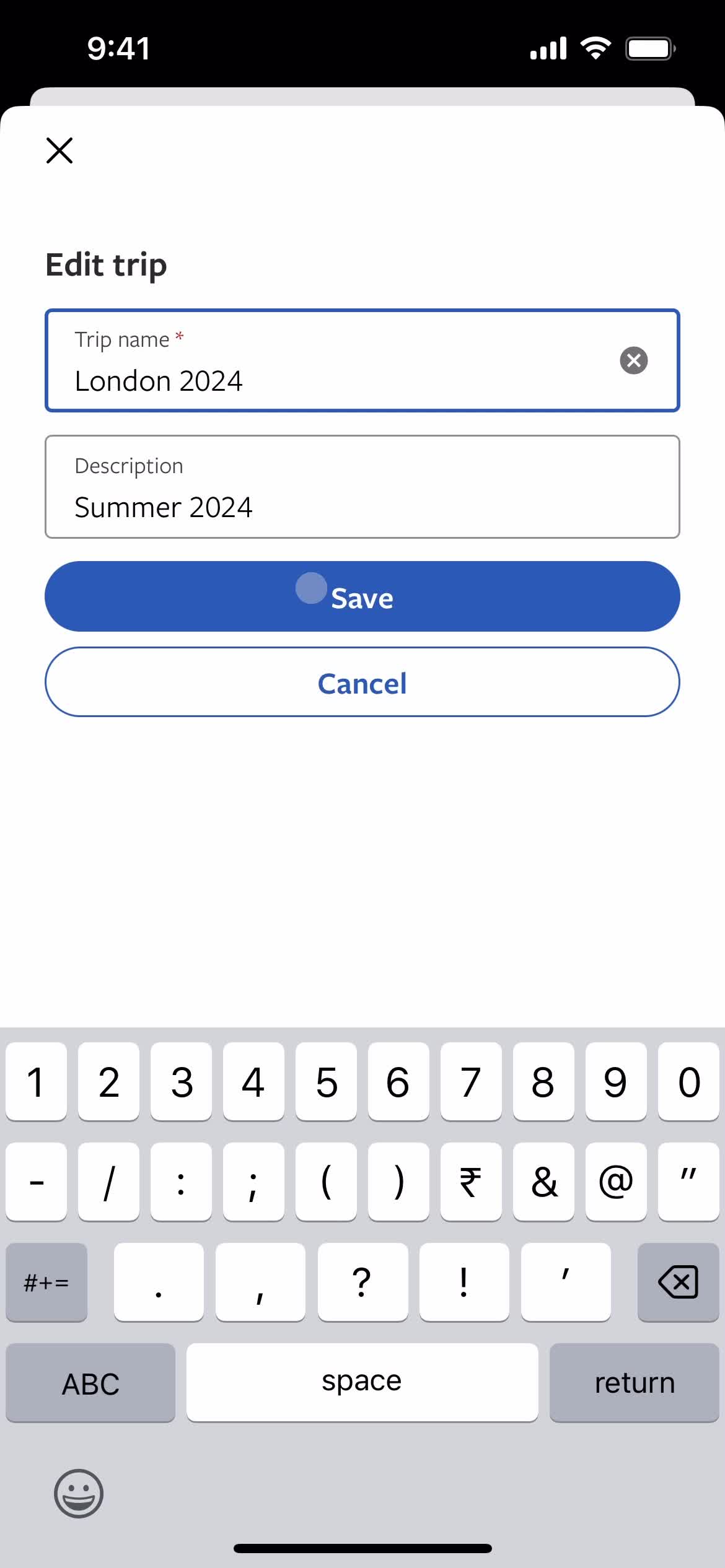
Save
this is title
Changes saved
this is title
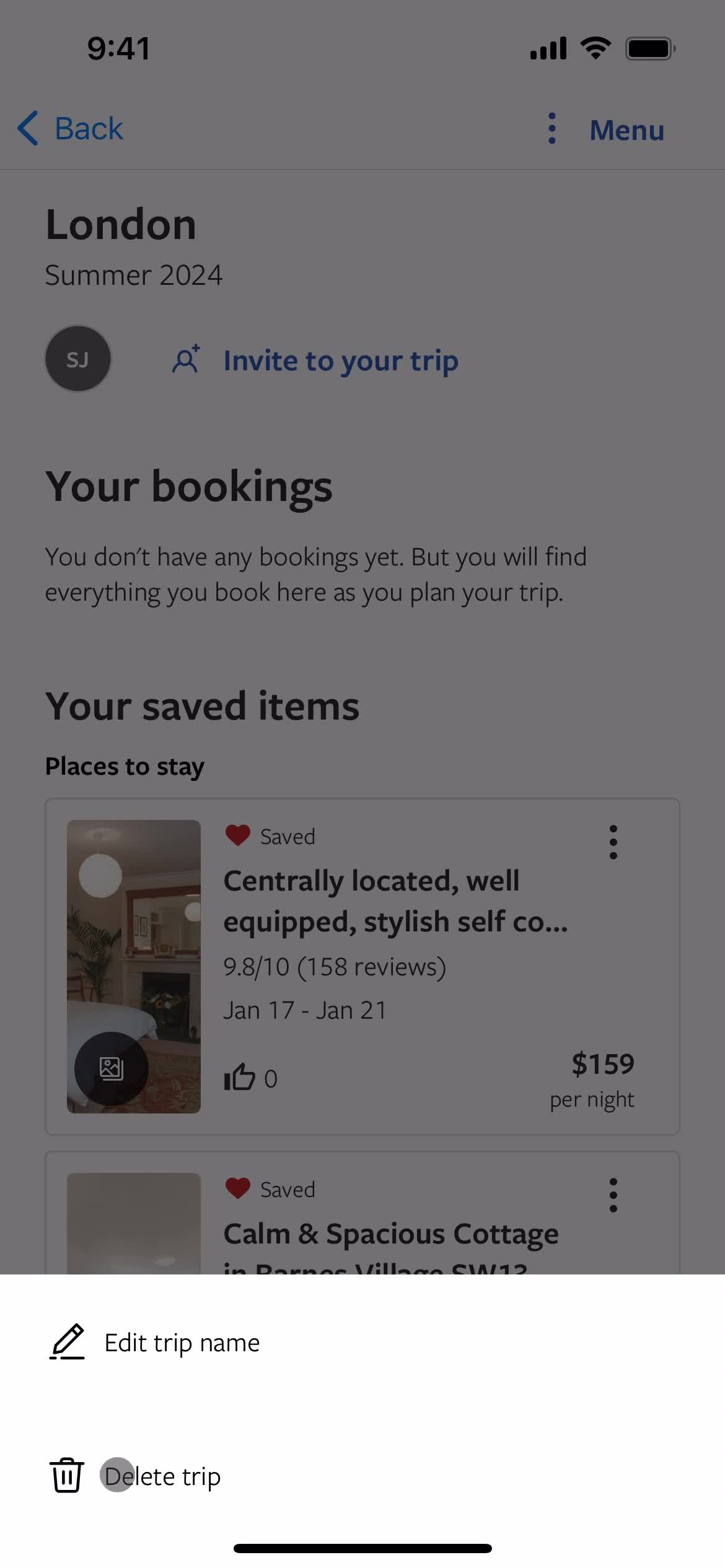
Action menu
this is title
Delete item
this is title
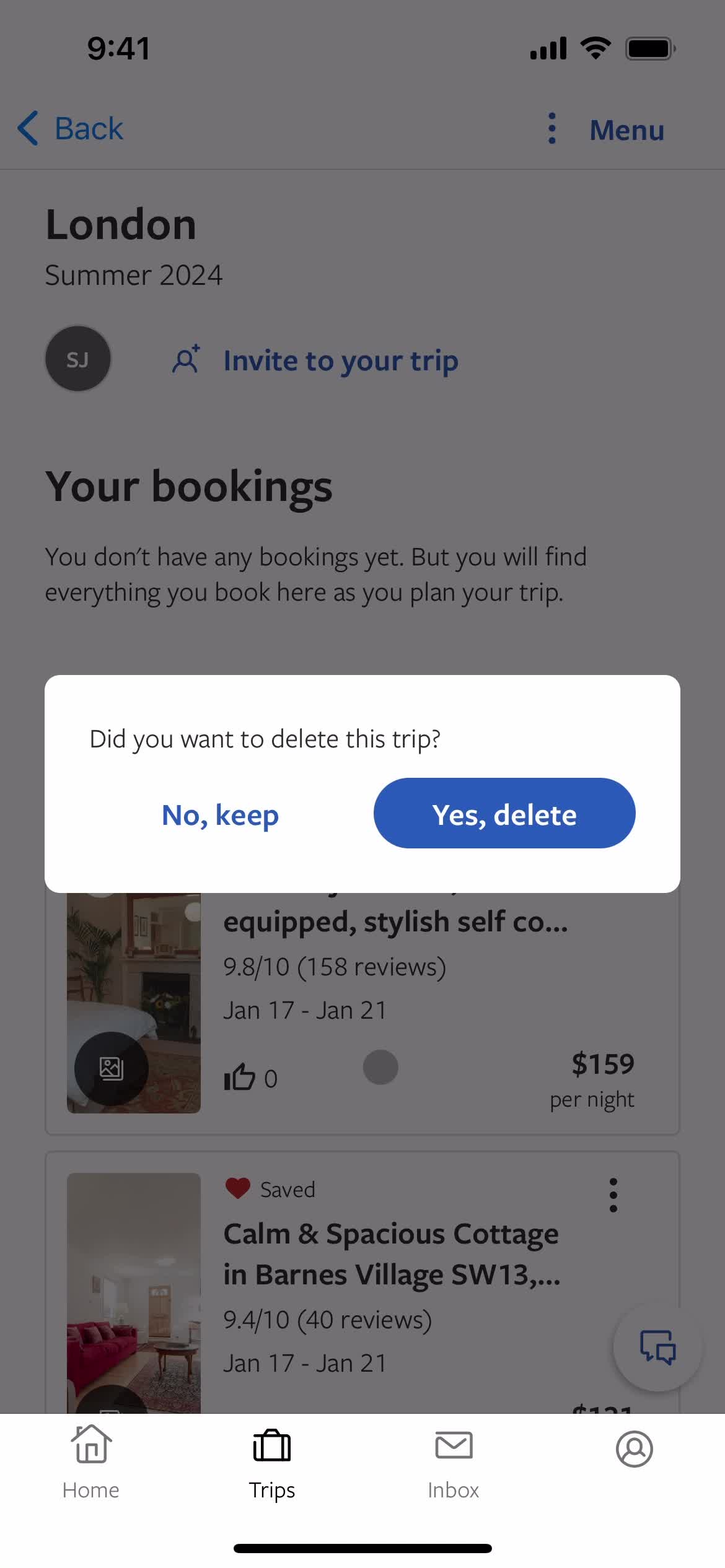
Confirm delete
this is title
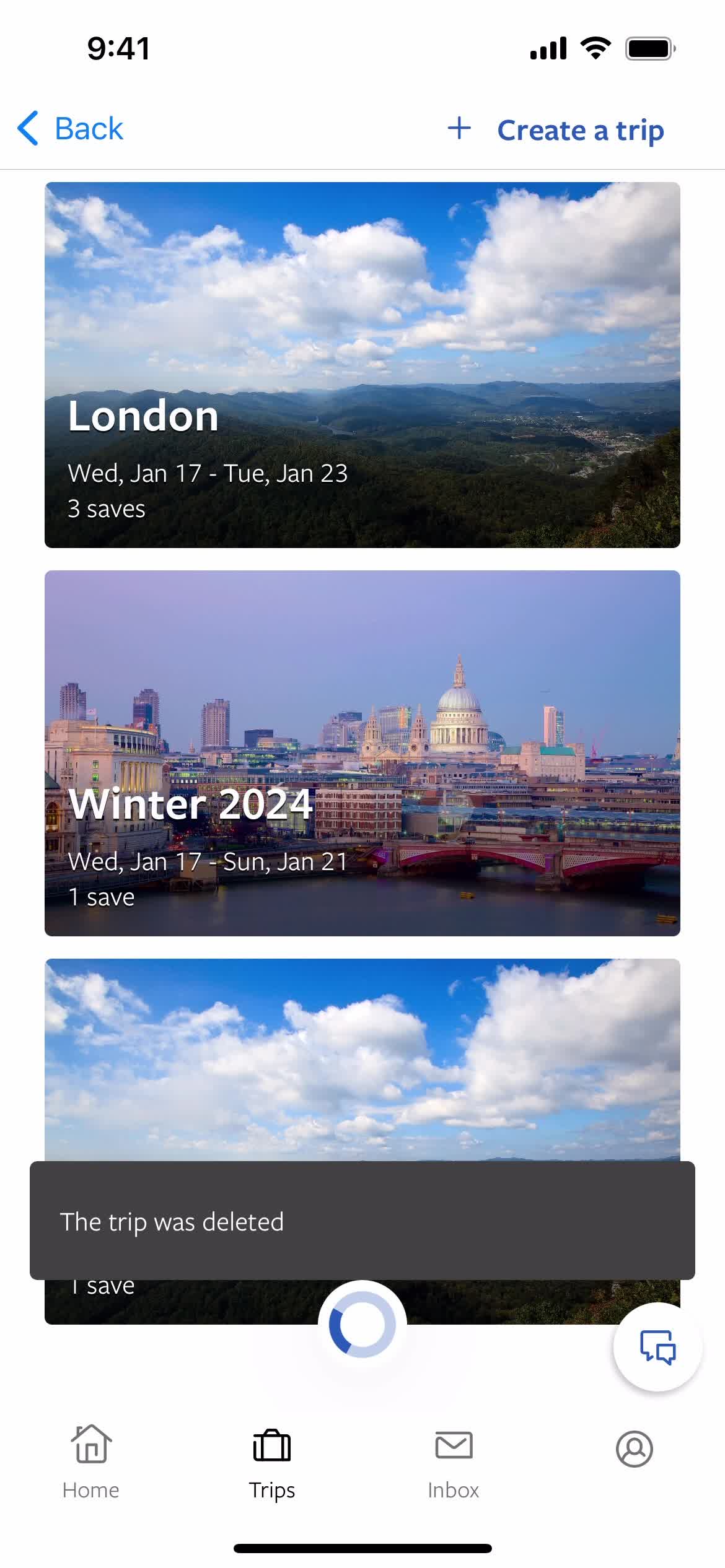
Item deleted
this is title
Trip details
this is title
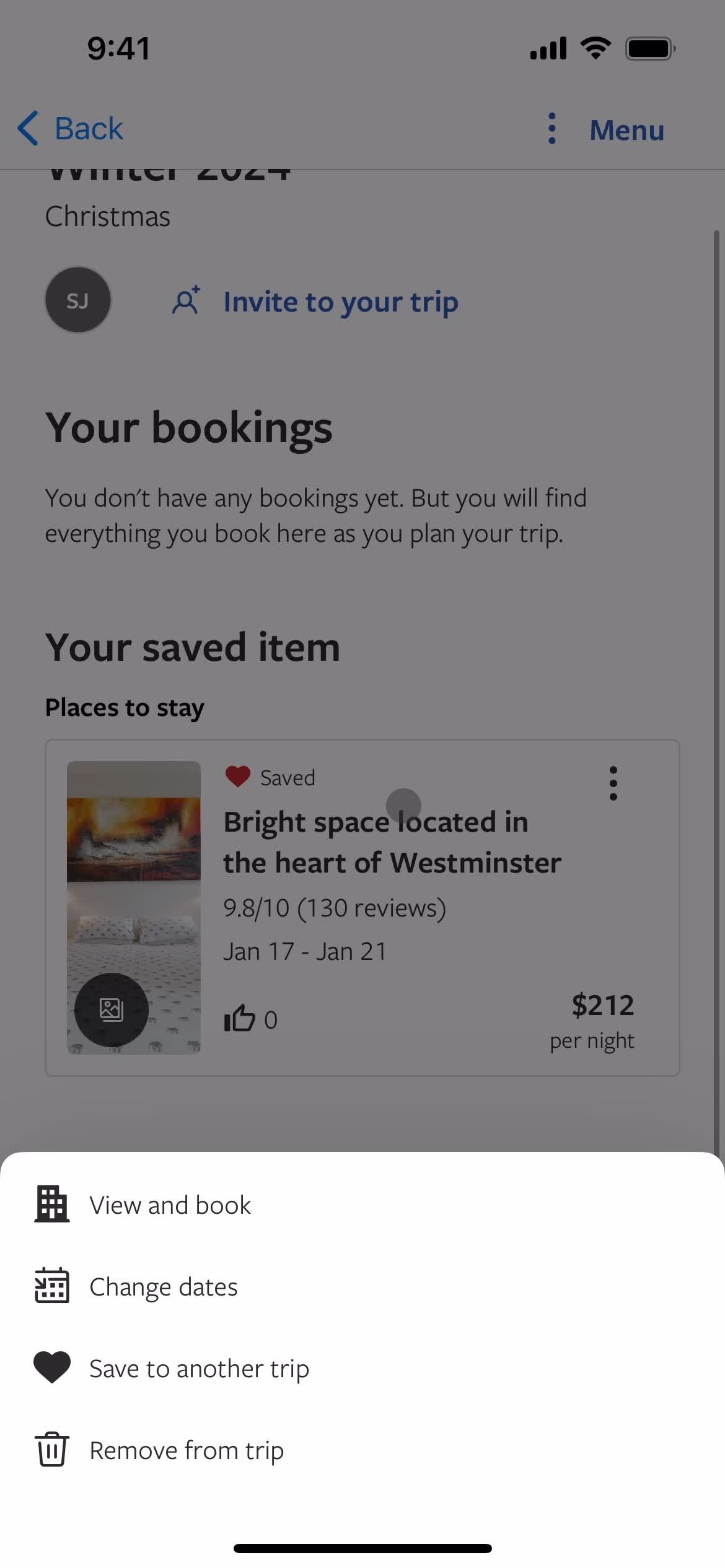
Action menu
this is title
Save item
this is title
Add to collection
this is title
Saved to trip
this is title
Trip details
this is title
Action menu
this is title
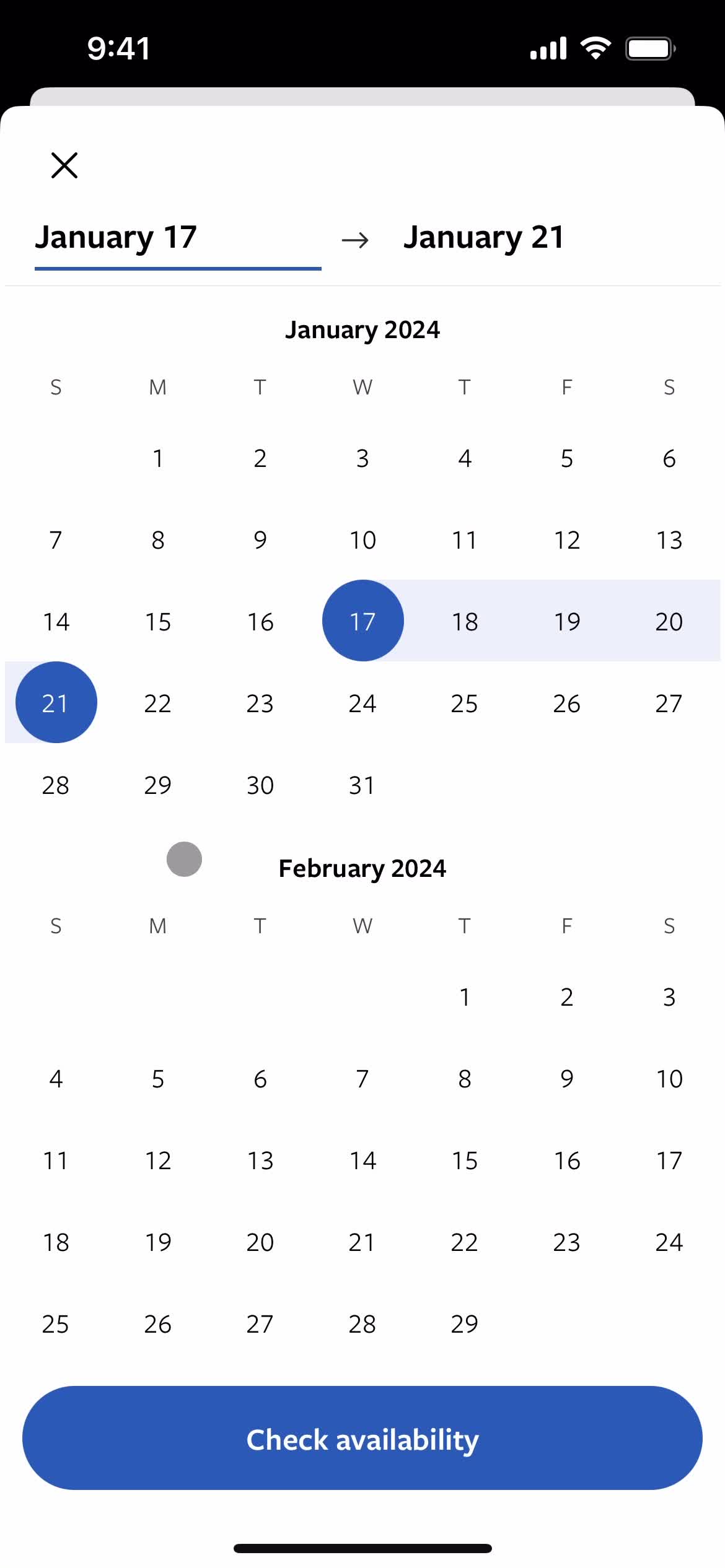
Select dates
this is title
Set date range
this is title
Search
this is title
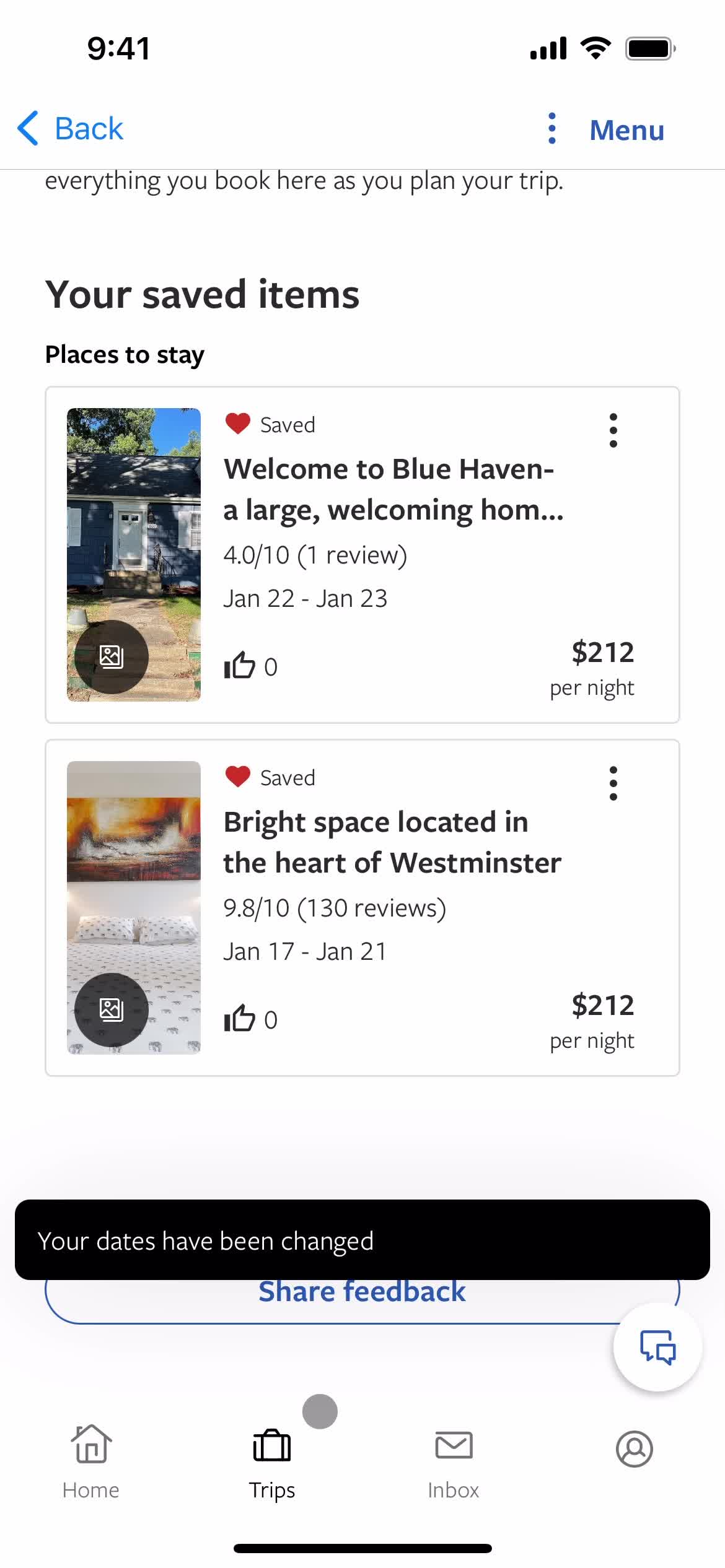
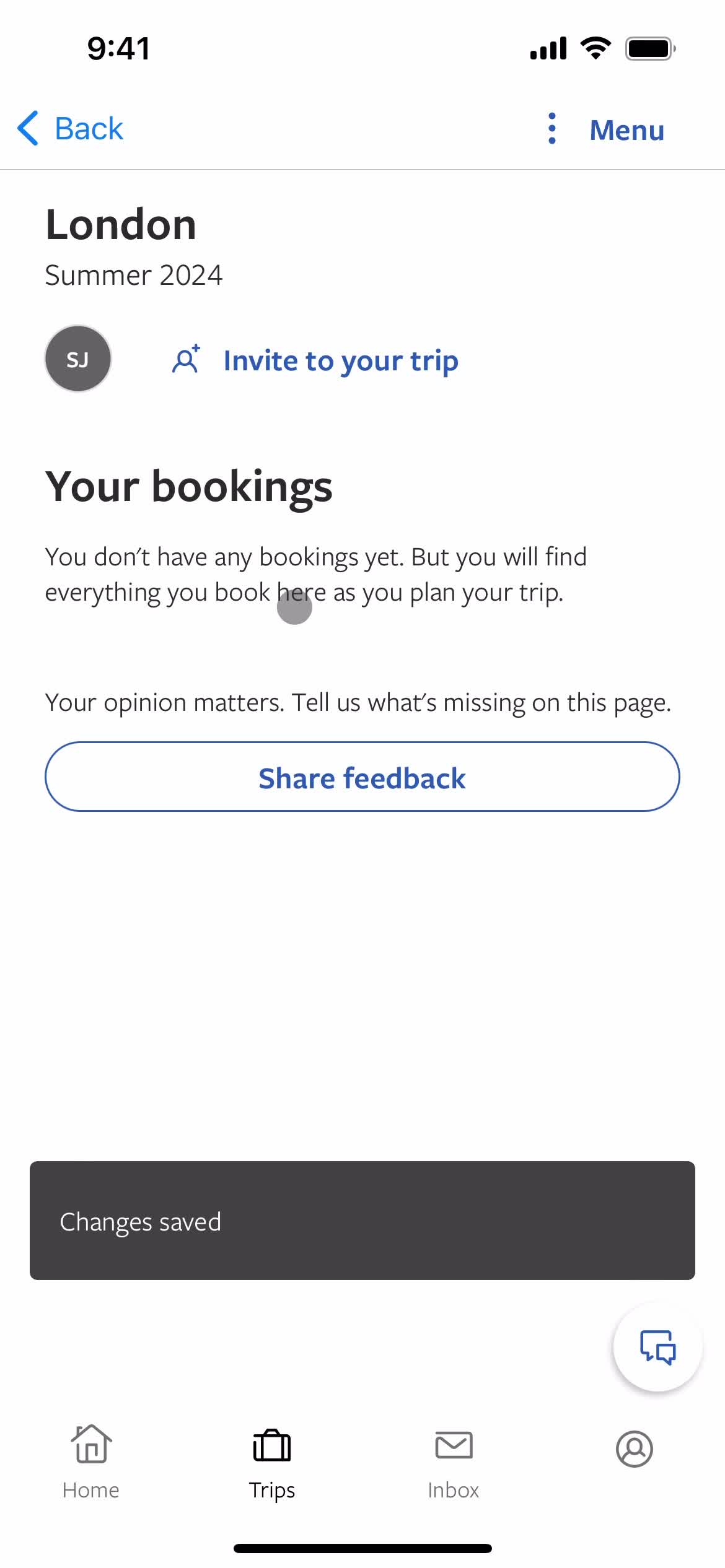
Changes saved
this is title
Trip details
this is title
Trips
this is title
Home
this is title
Home
this is title
this is title
Trip details
this is title
Property details
this is title
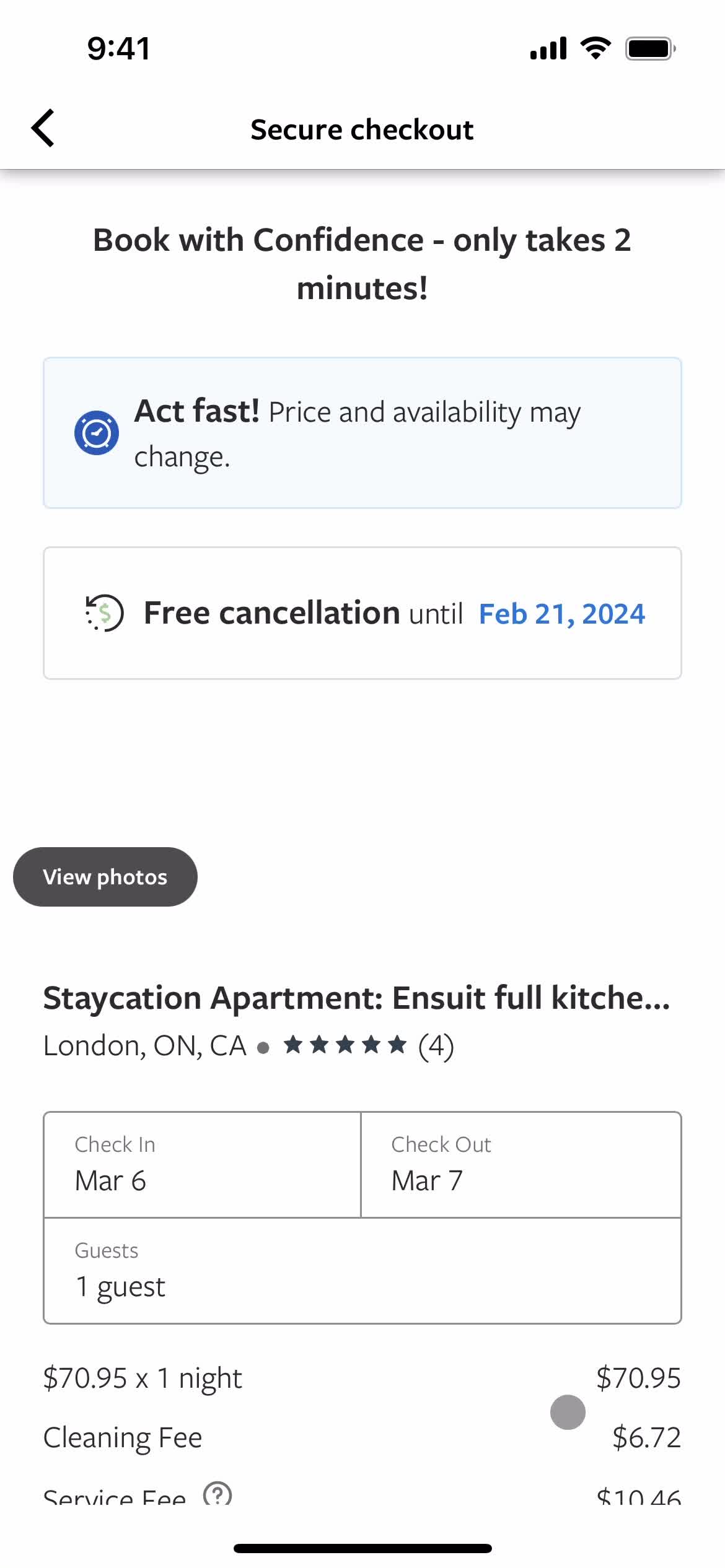
Book
this is title
Checkout
this is title
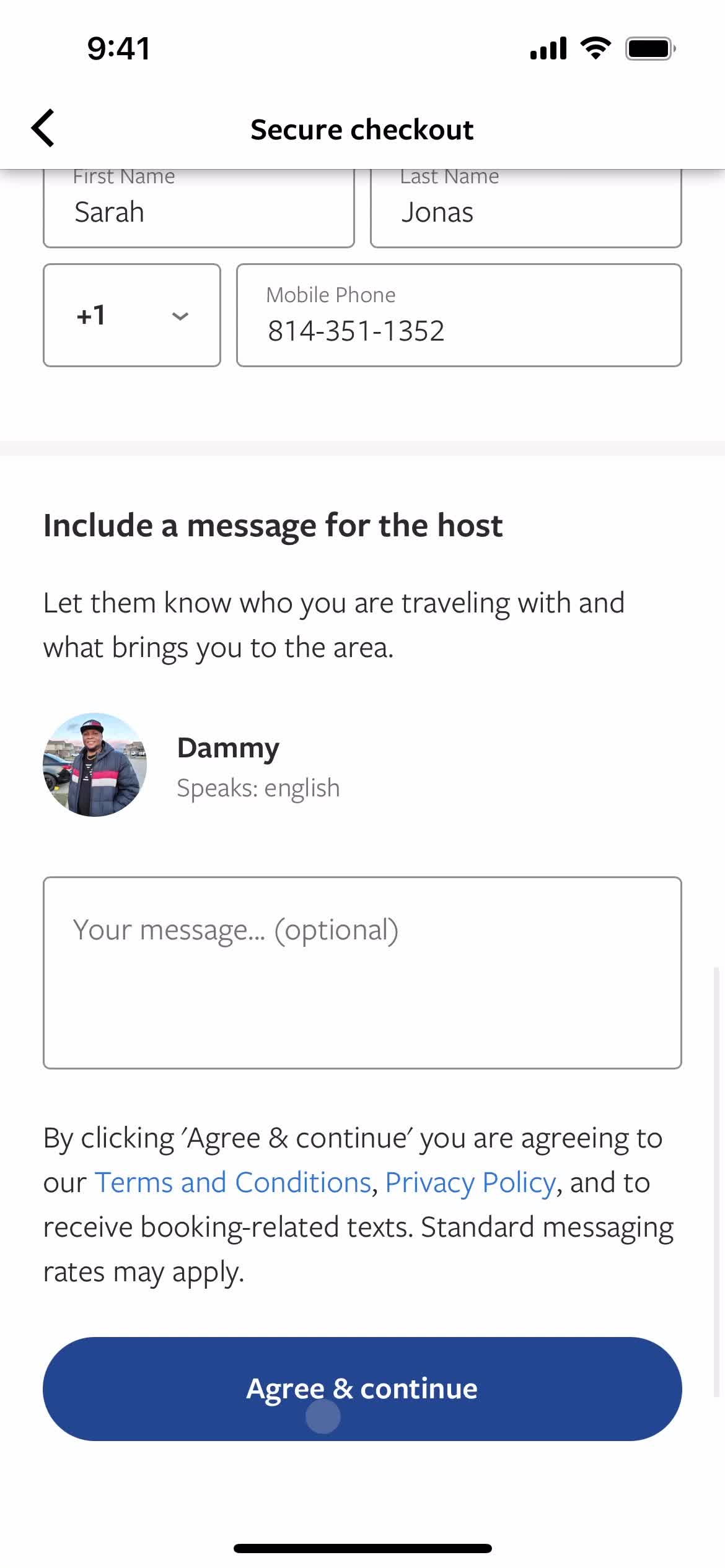
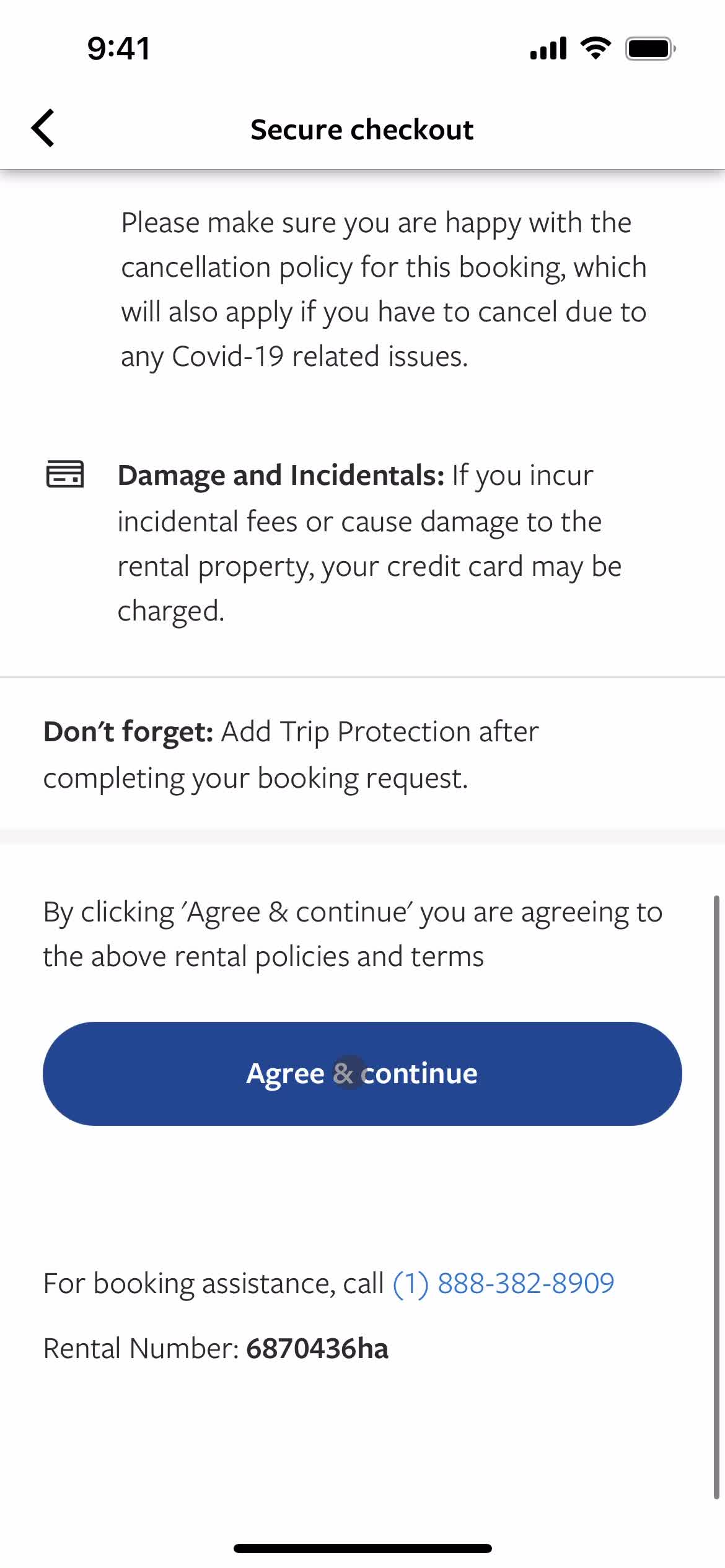
Agree and continue
this is title
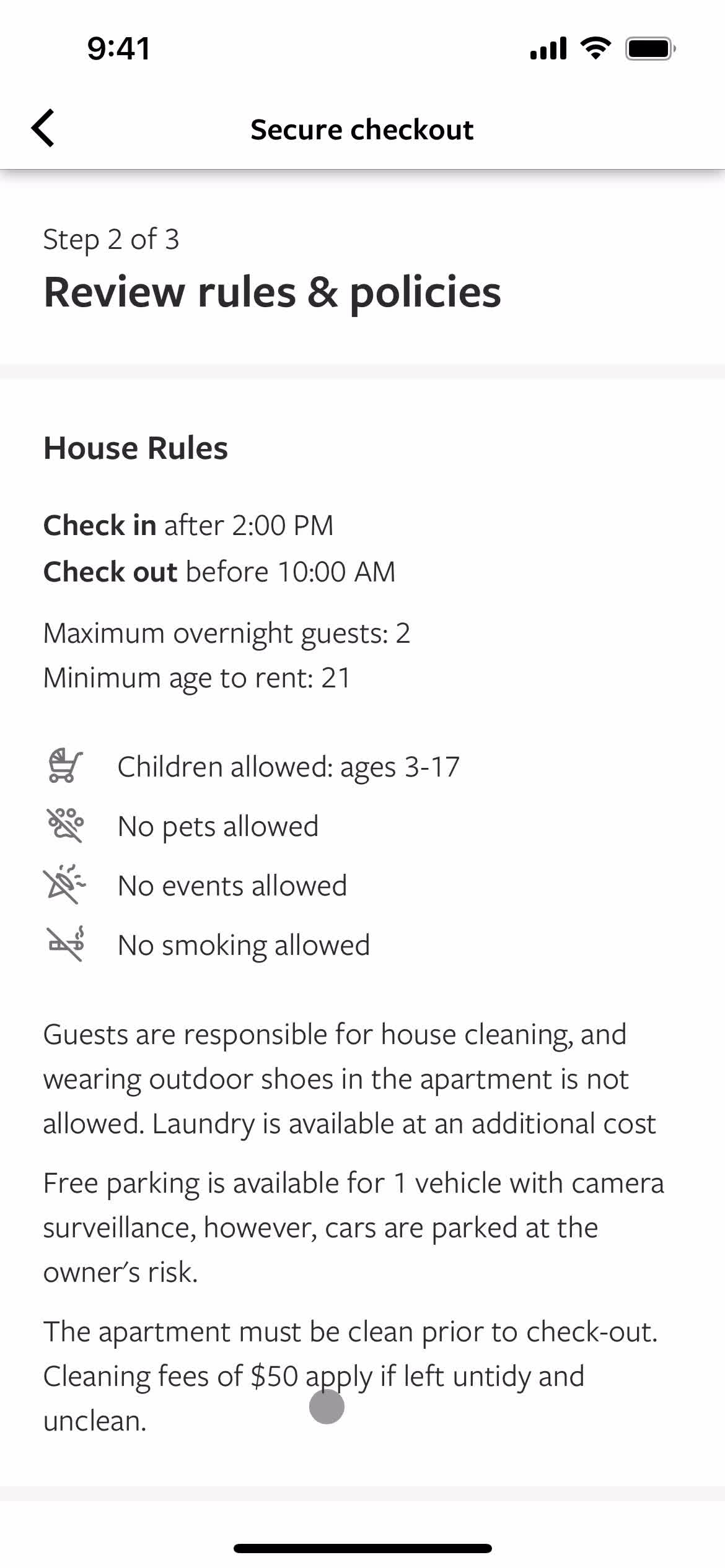
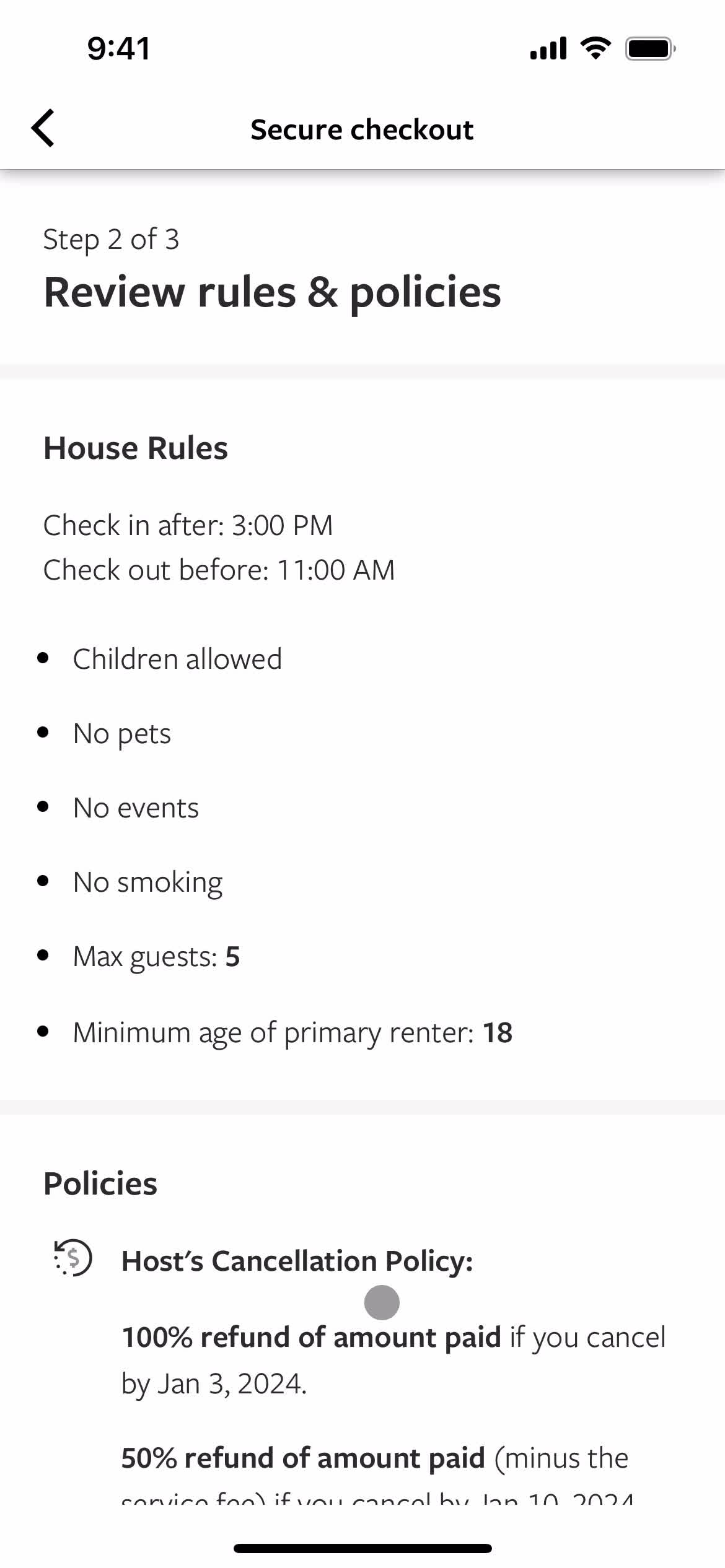
Rules & regulations
this is title
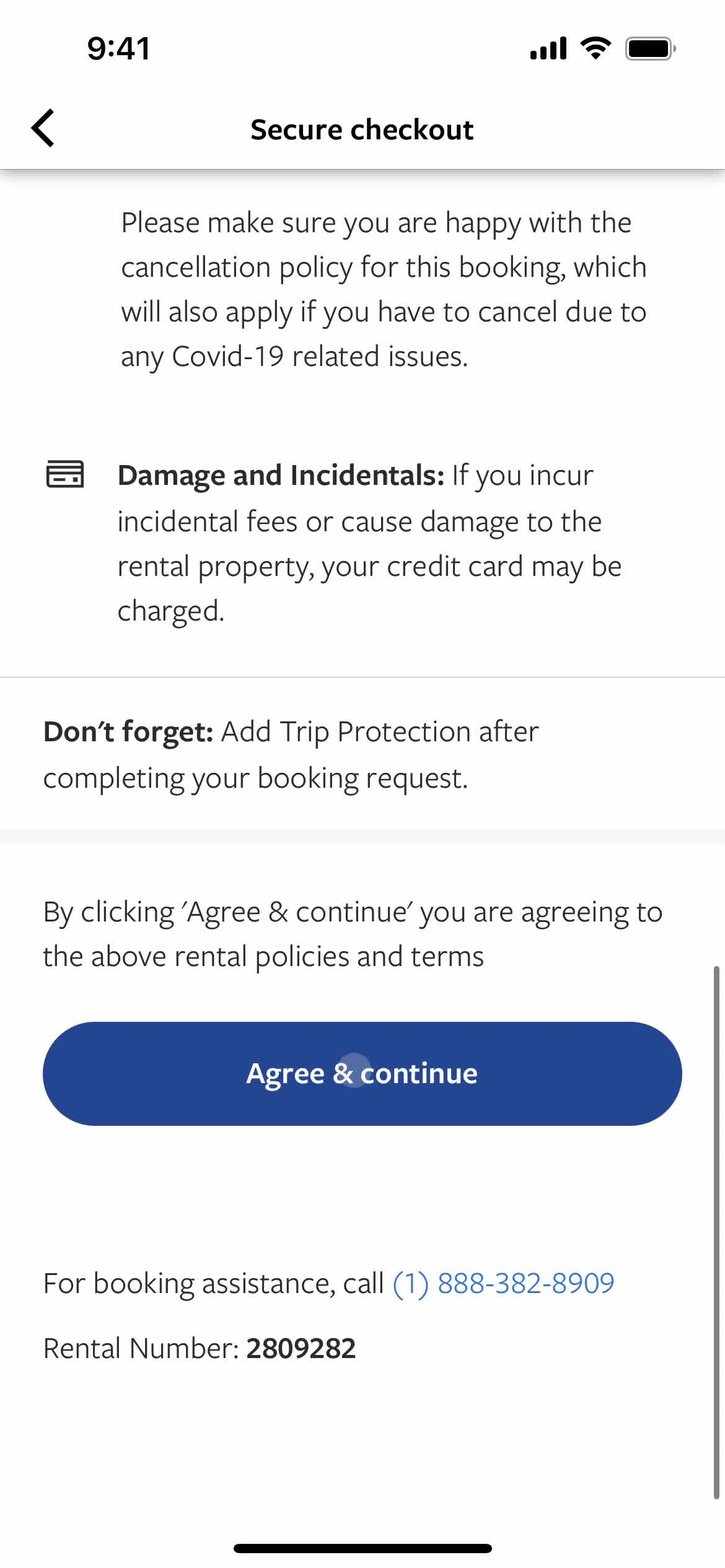
Agree and continue
this is title
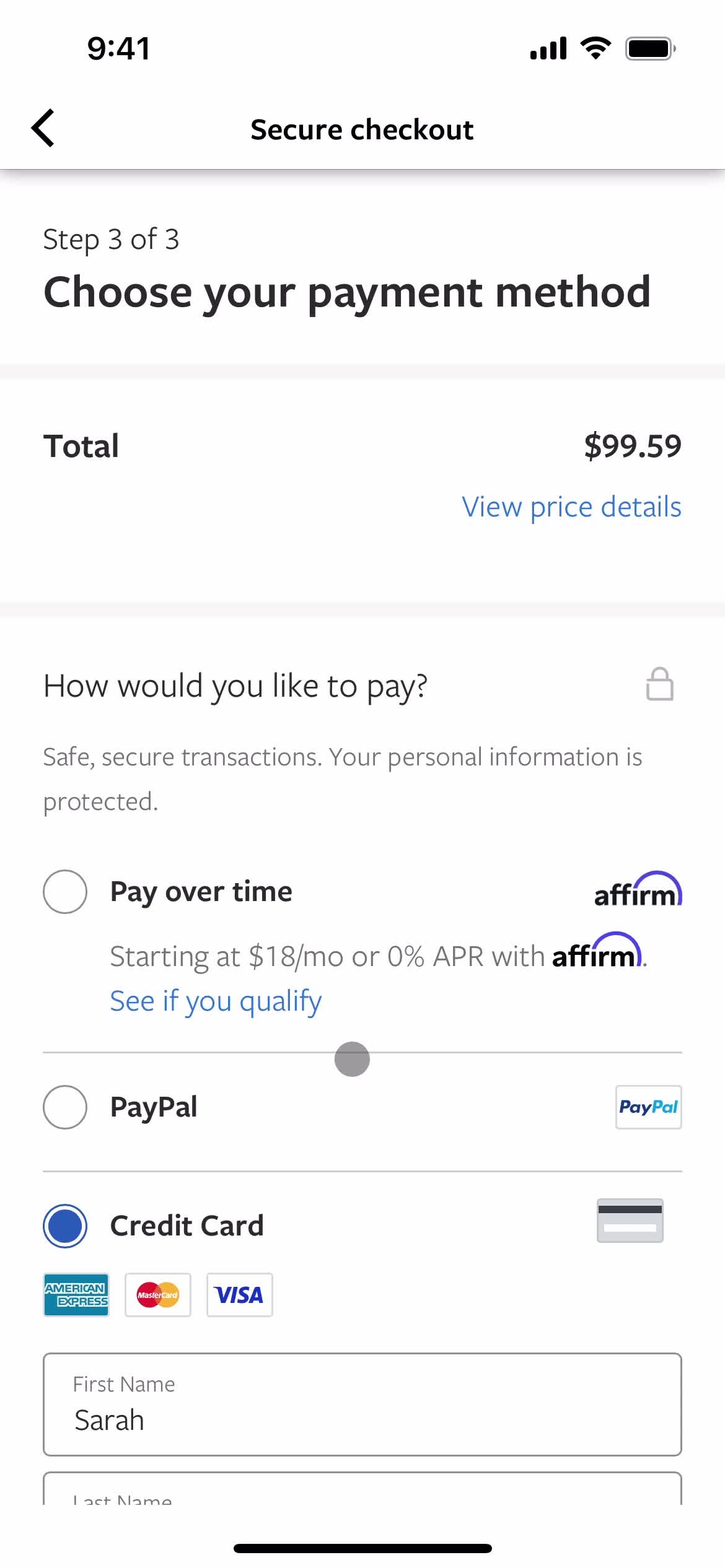
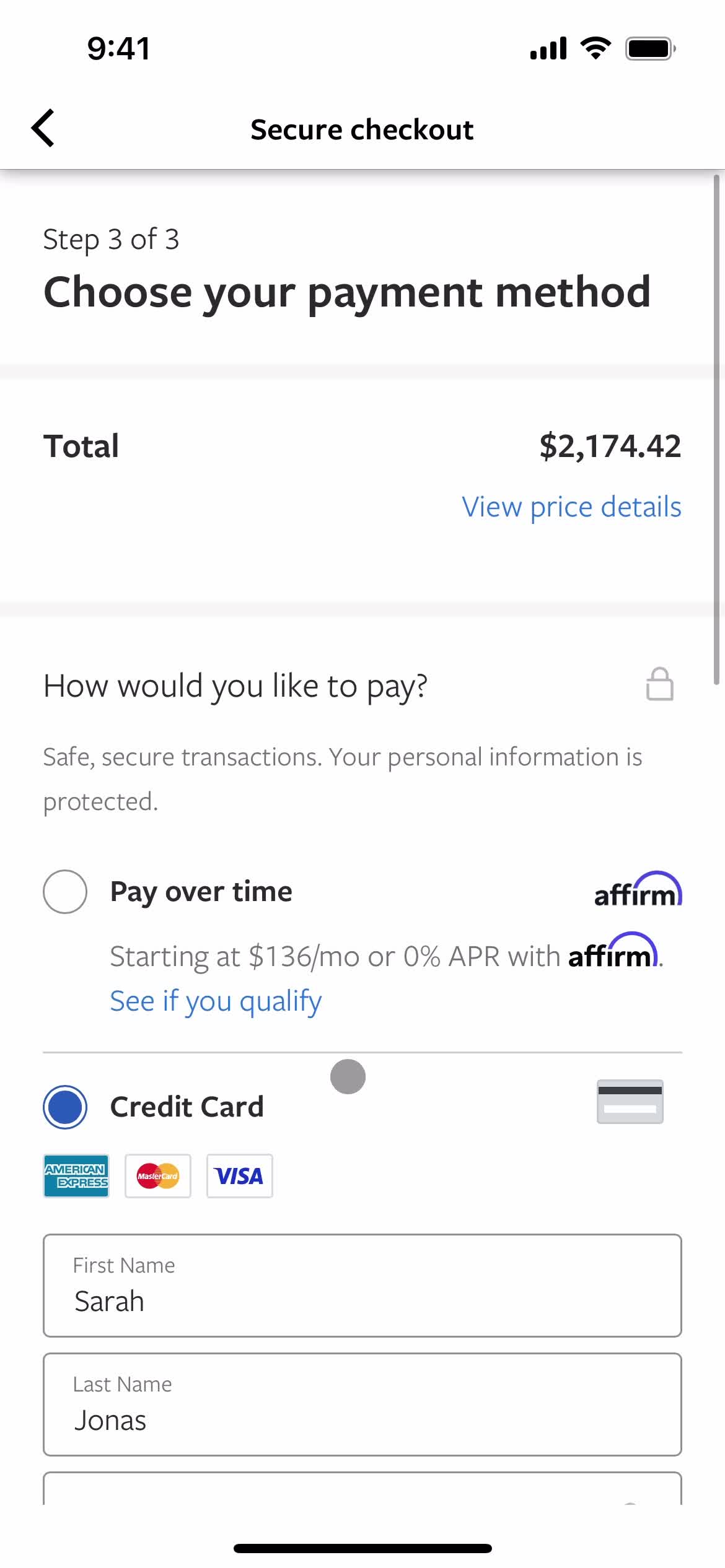
Select payment method
this is title
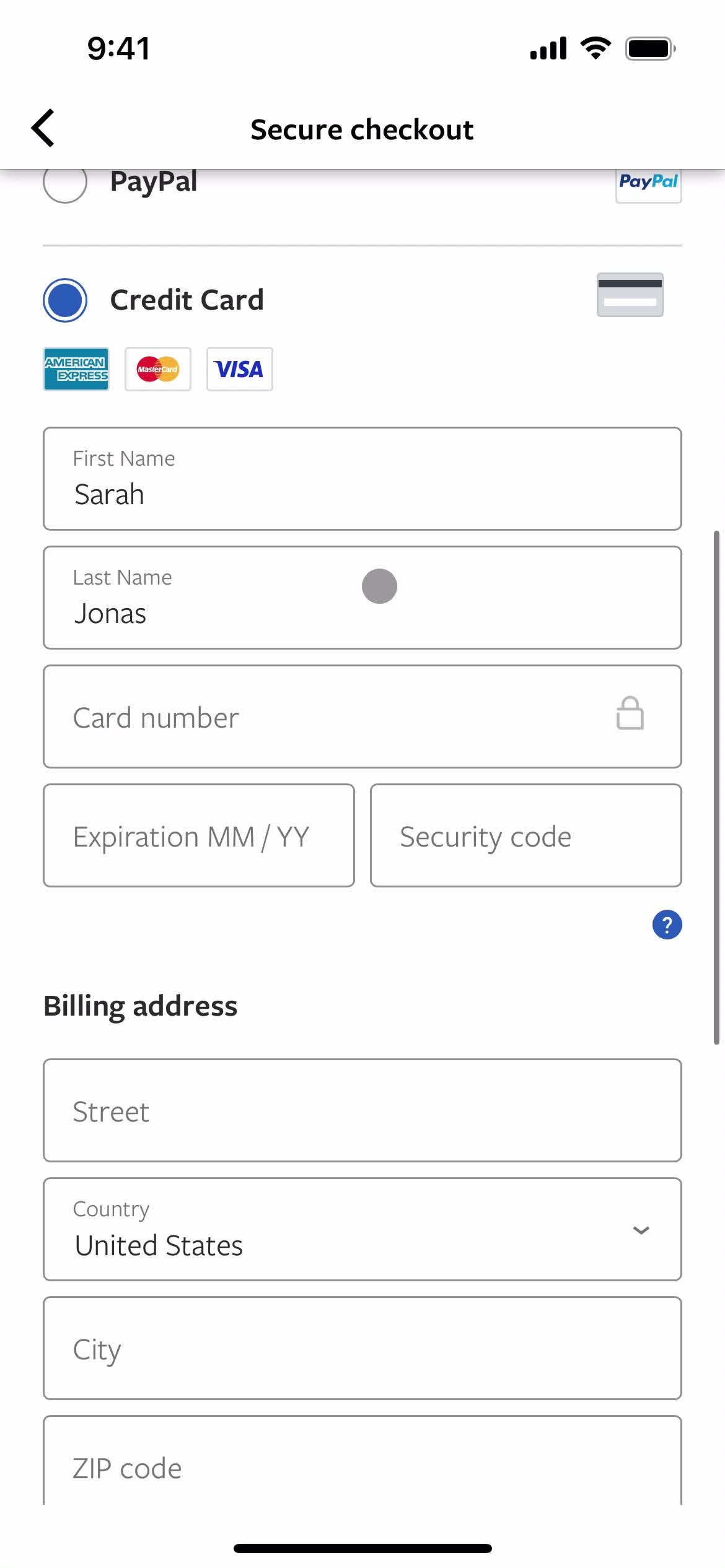
Add credit card
this is title
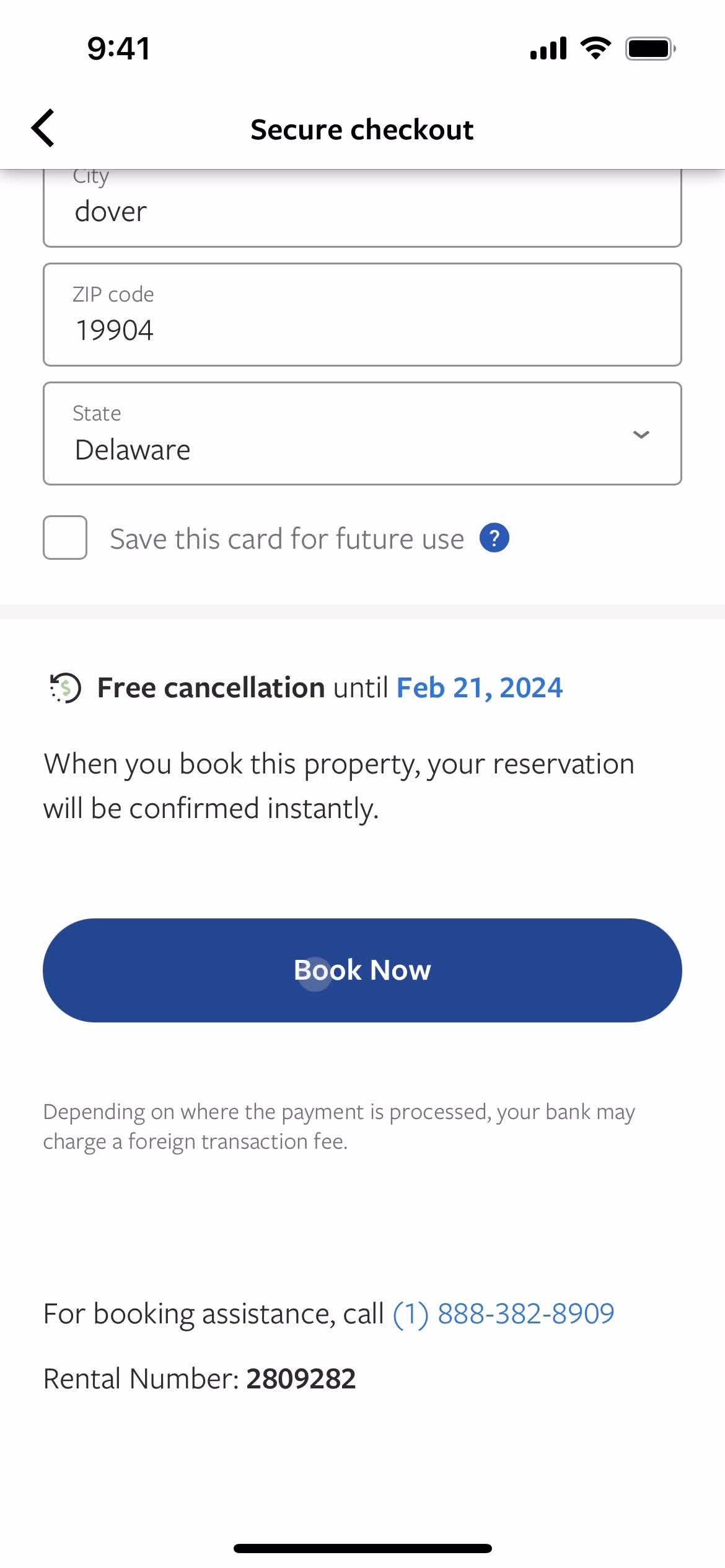
Book
this is title
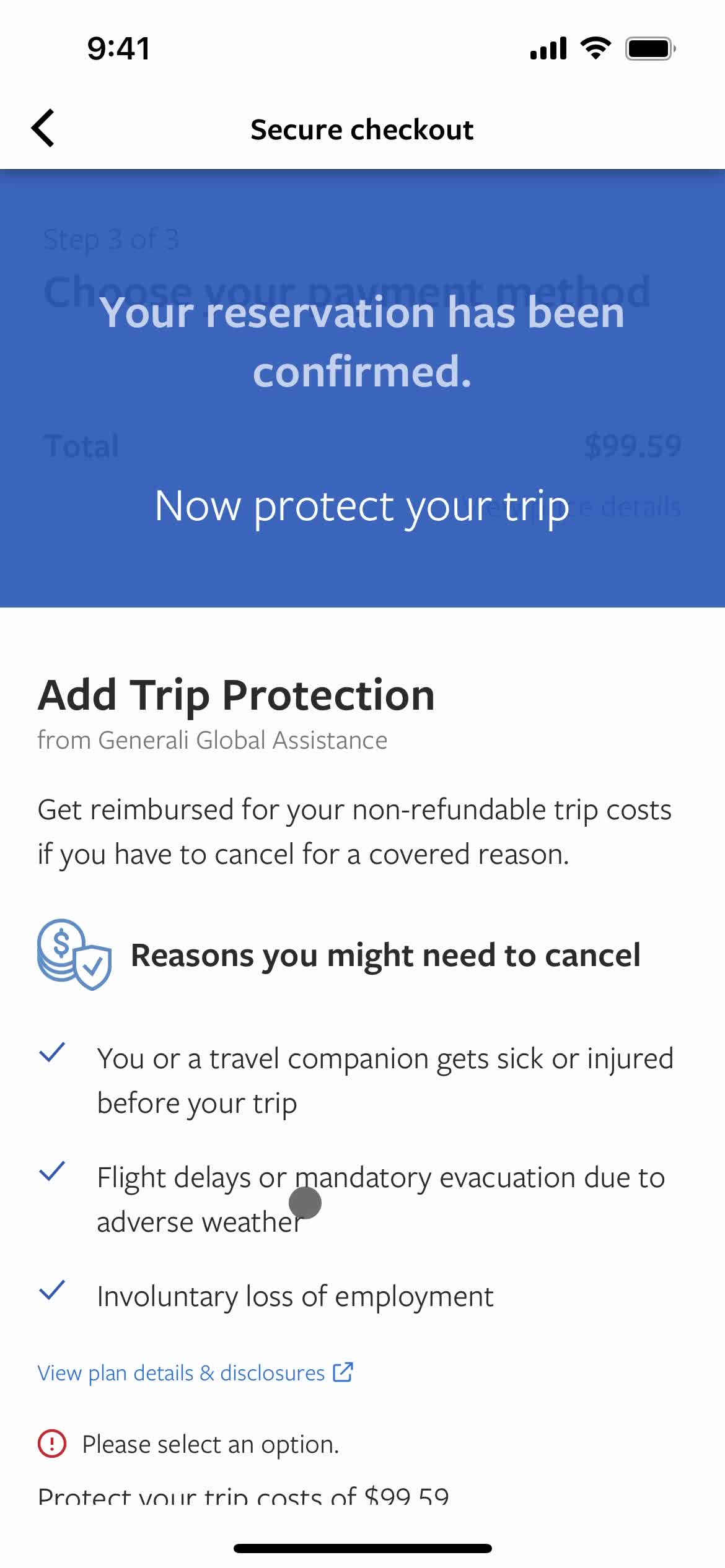
Booking confirmed
this is title
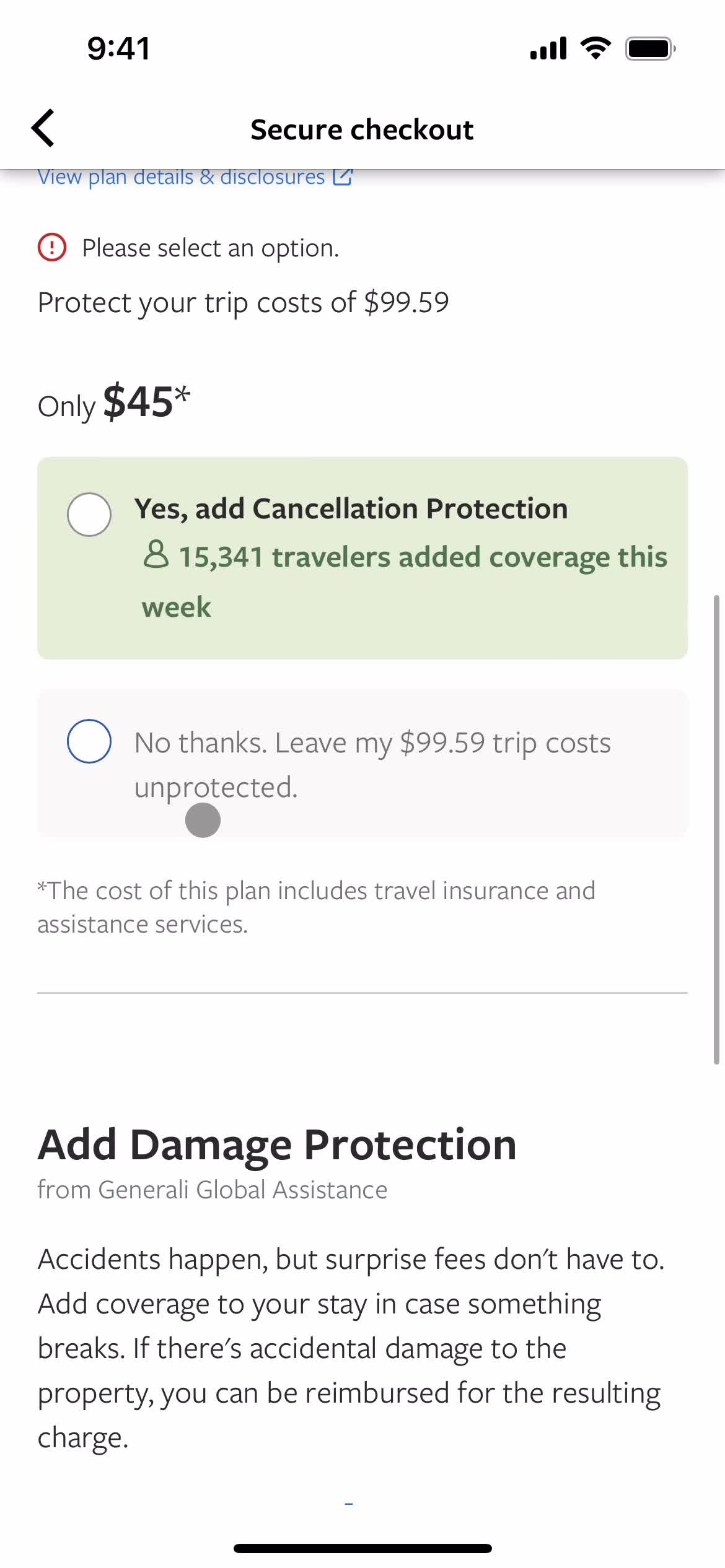
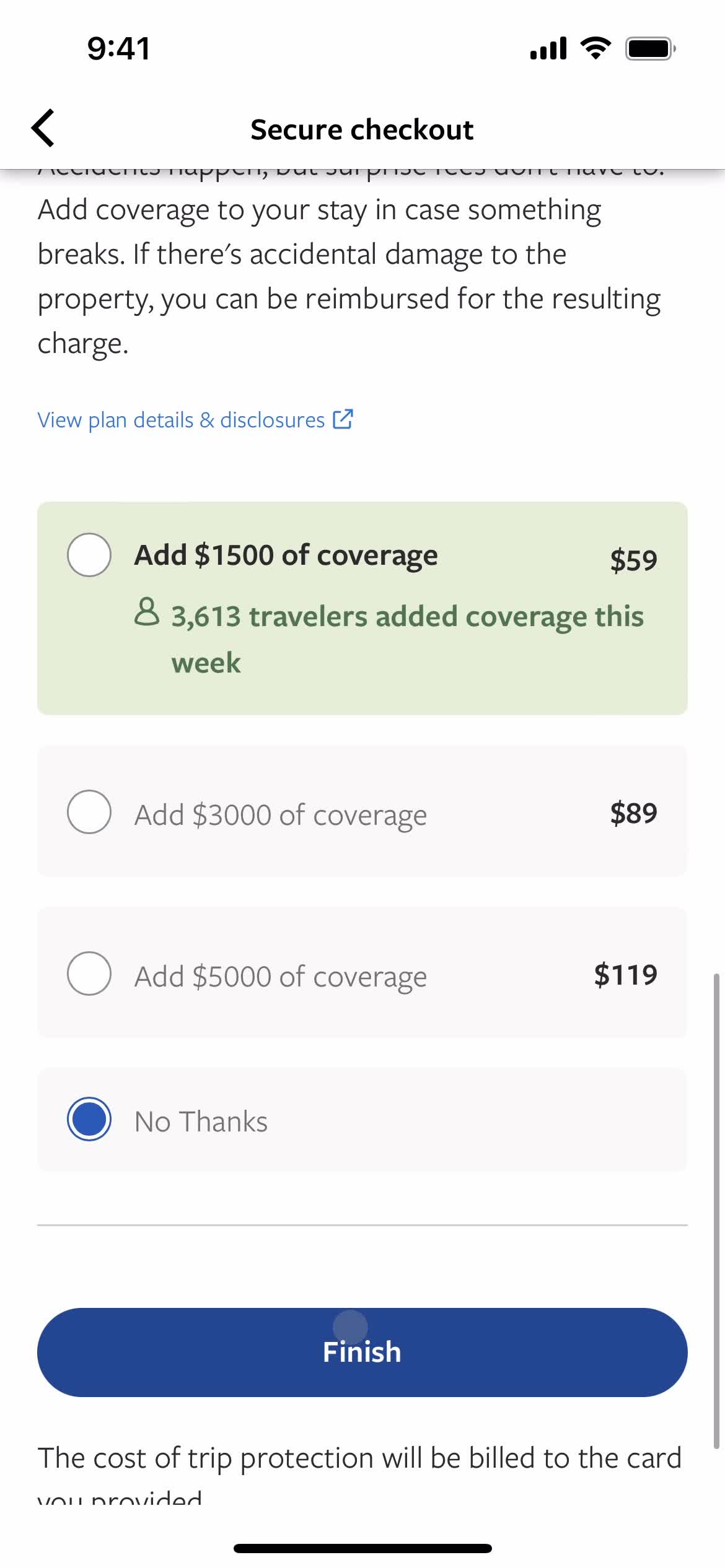
Buy insurance
this is title
Continue
this is title
Loading
this is title
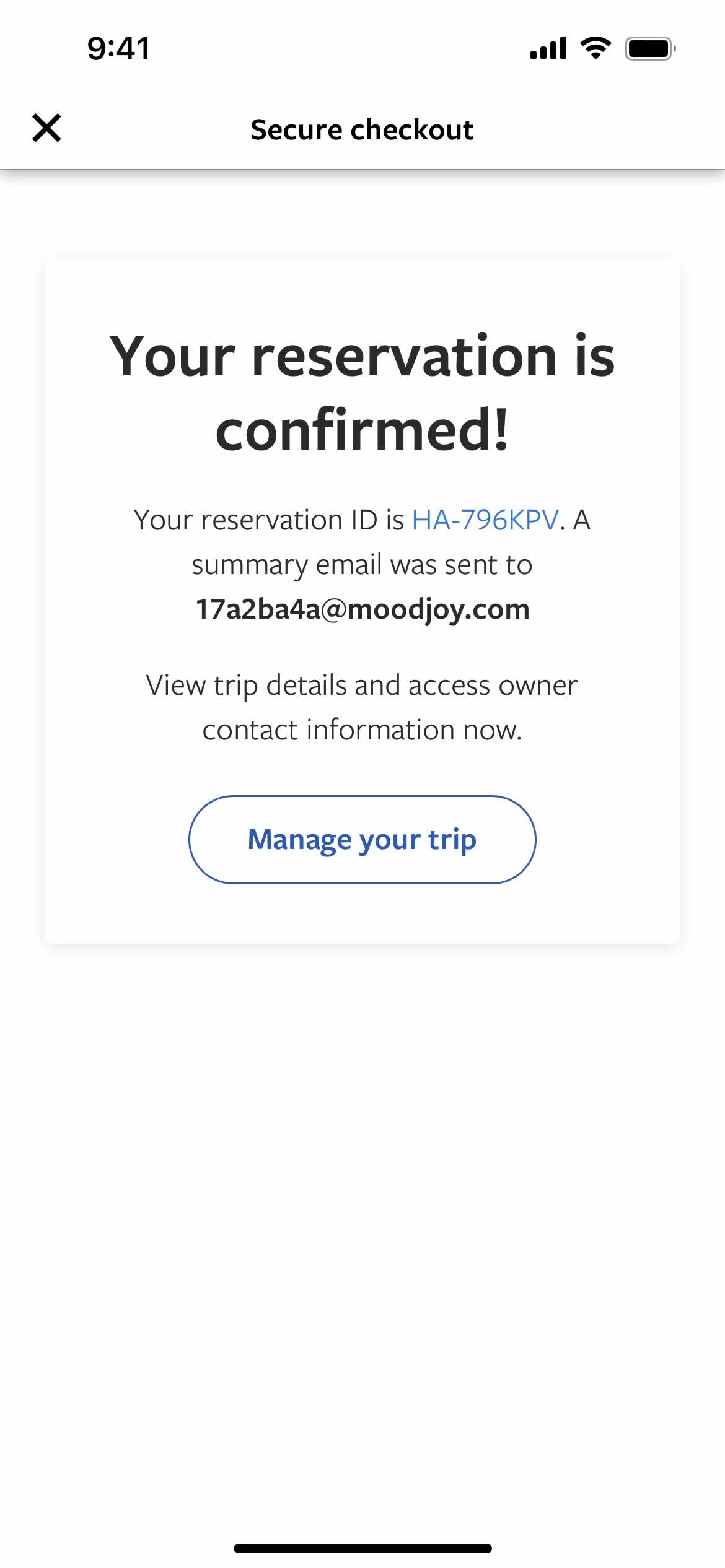
Booking confirmed
this is title
Booking details
this is title
Trips
this is title
Home
this is title
Set location
this is title
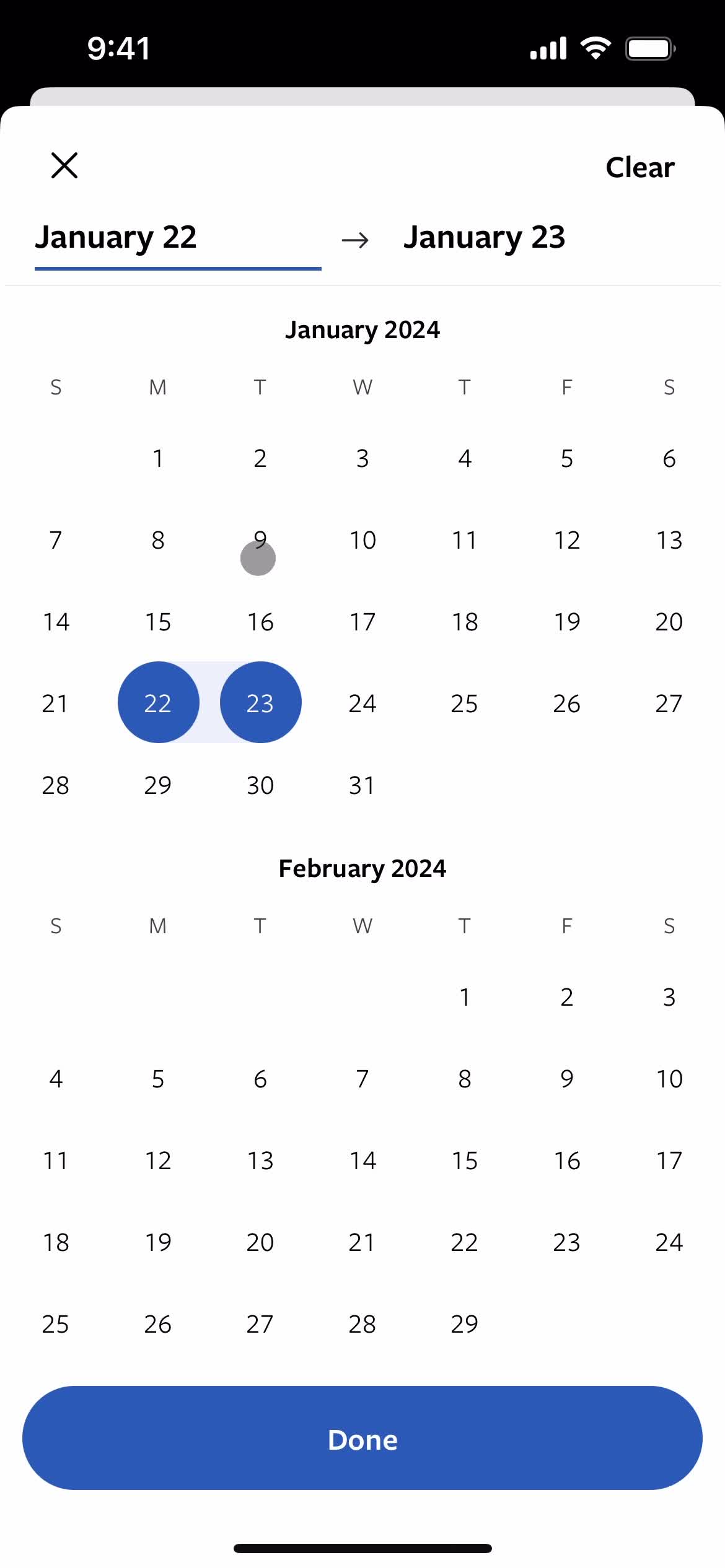
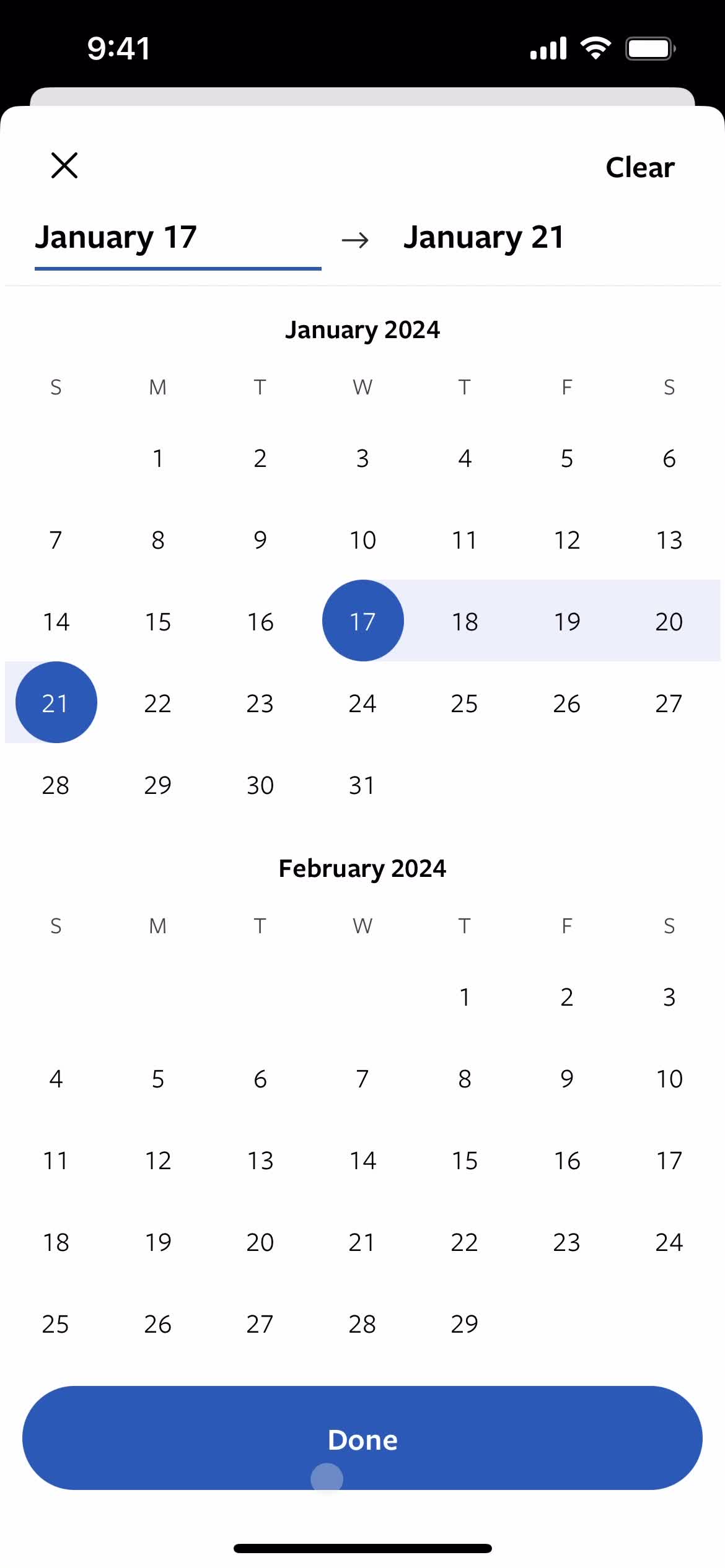
Set date range
this is title
Continue
this is title
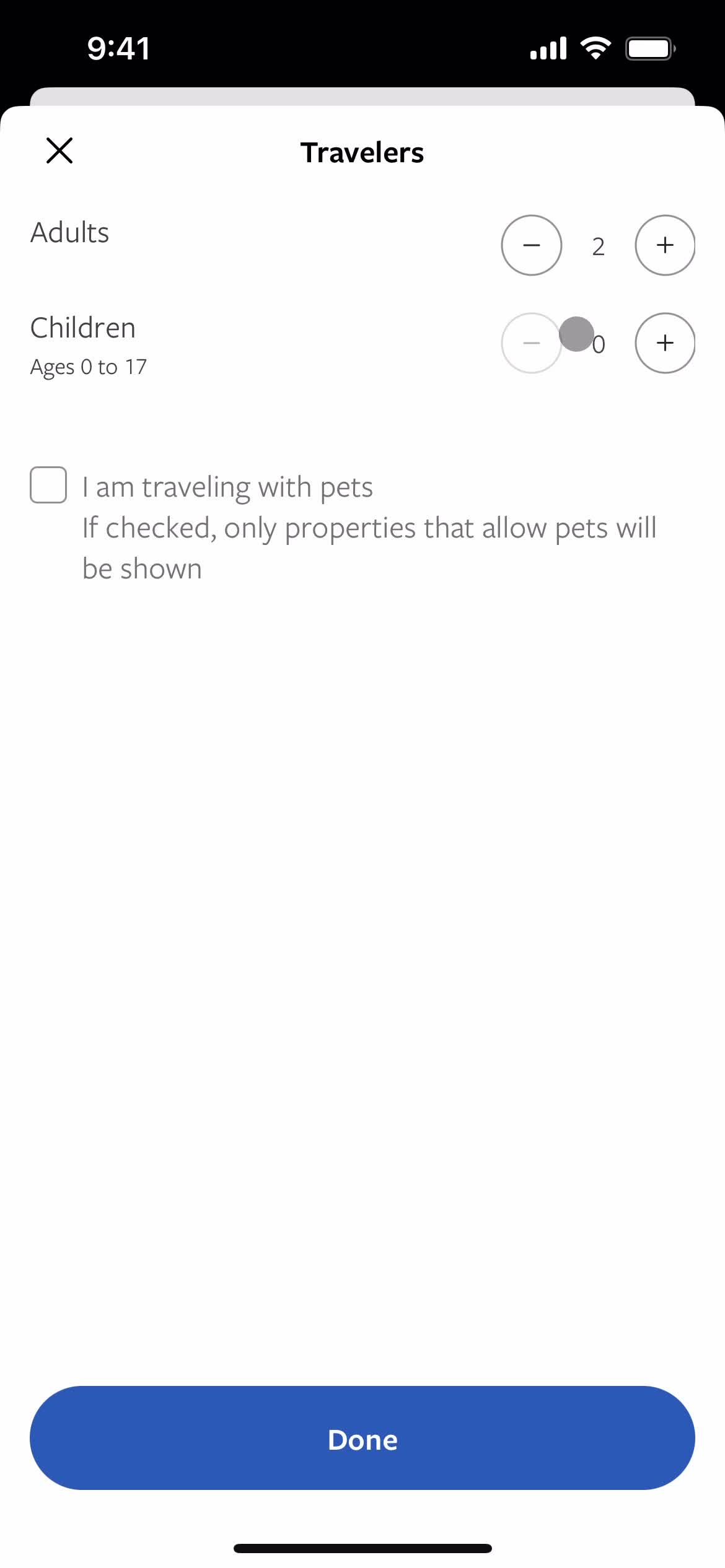
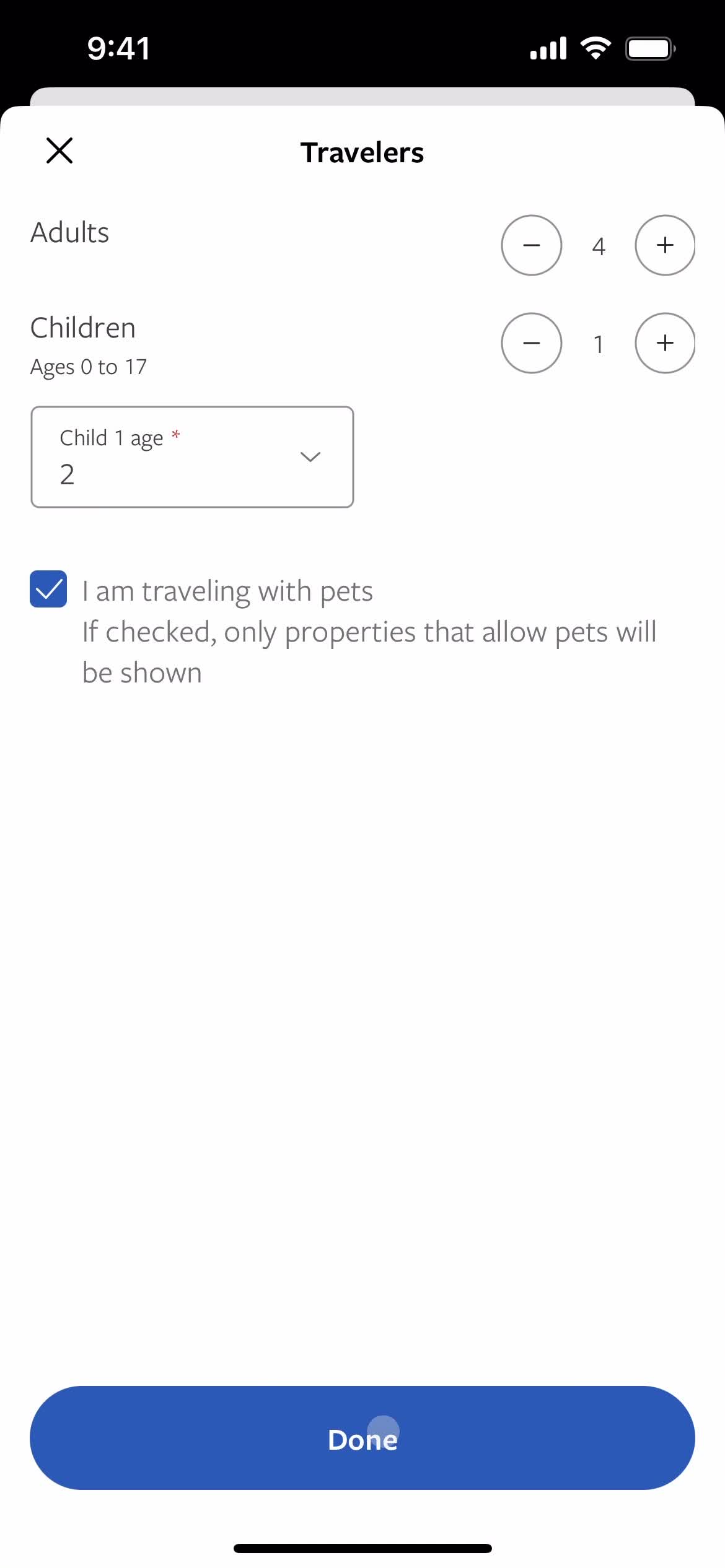
Add traveller
this is title
Continue
this is title
Search
this is title
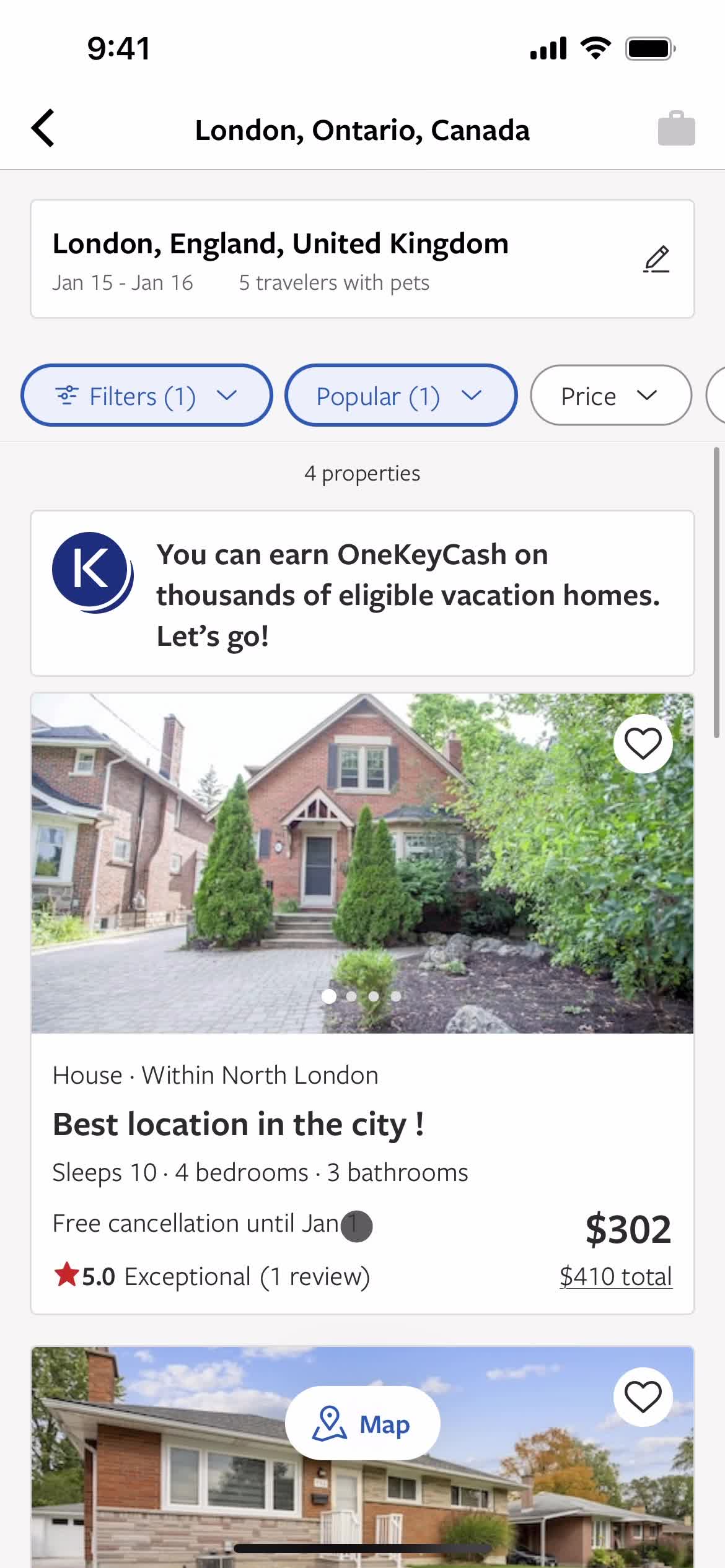
Properties
this is title
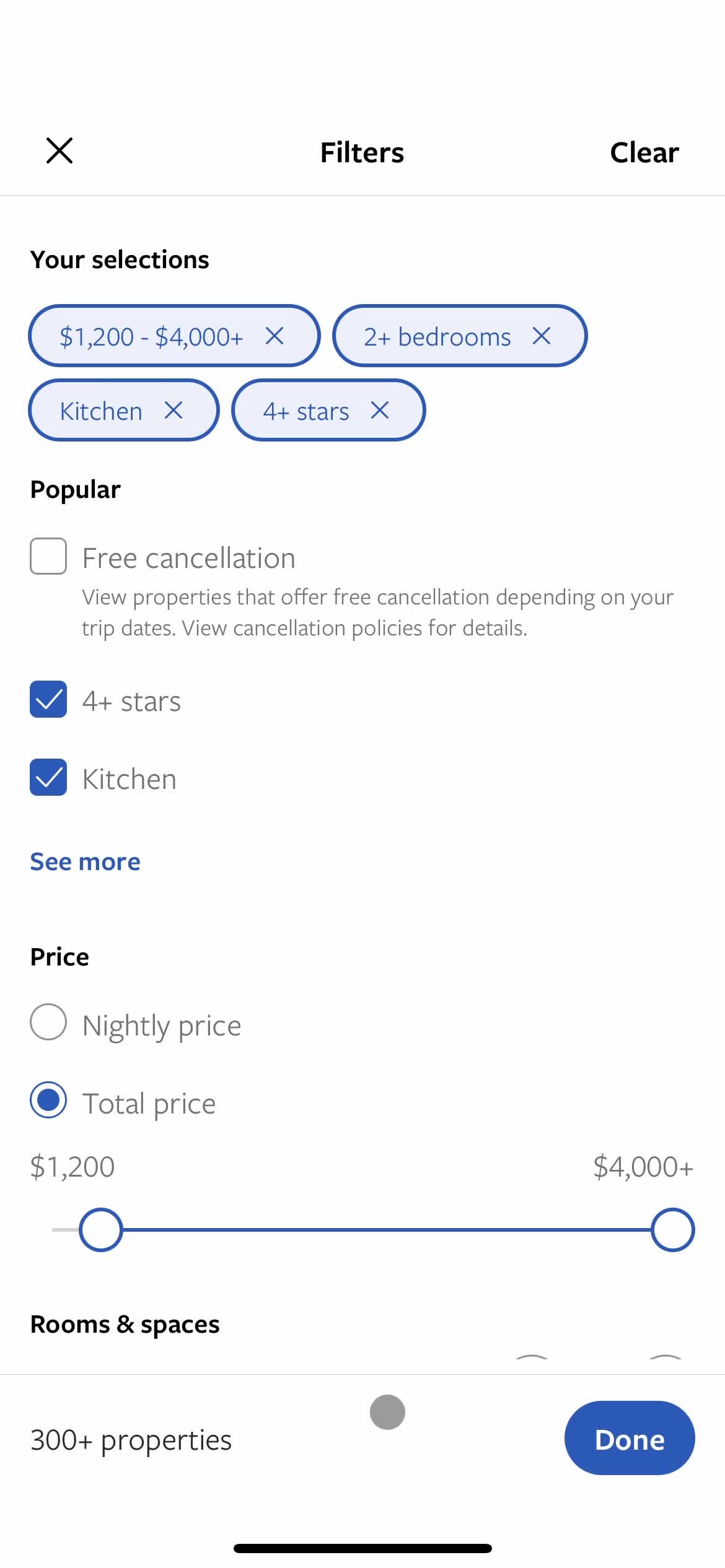
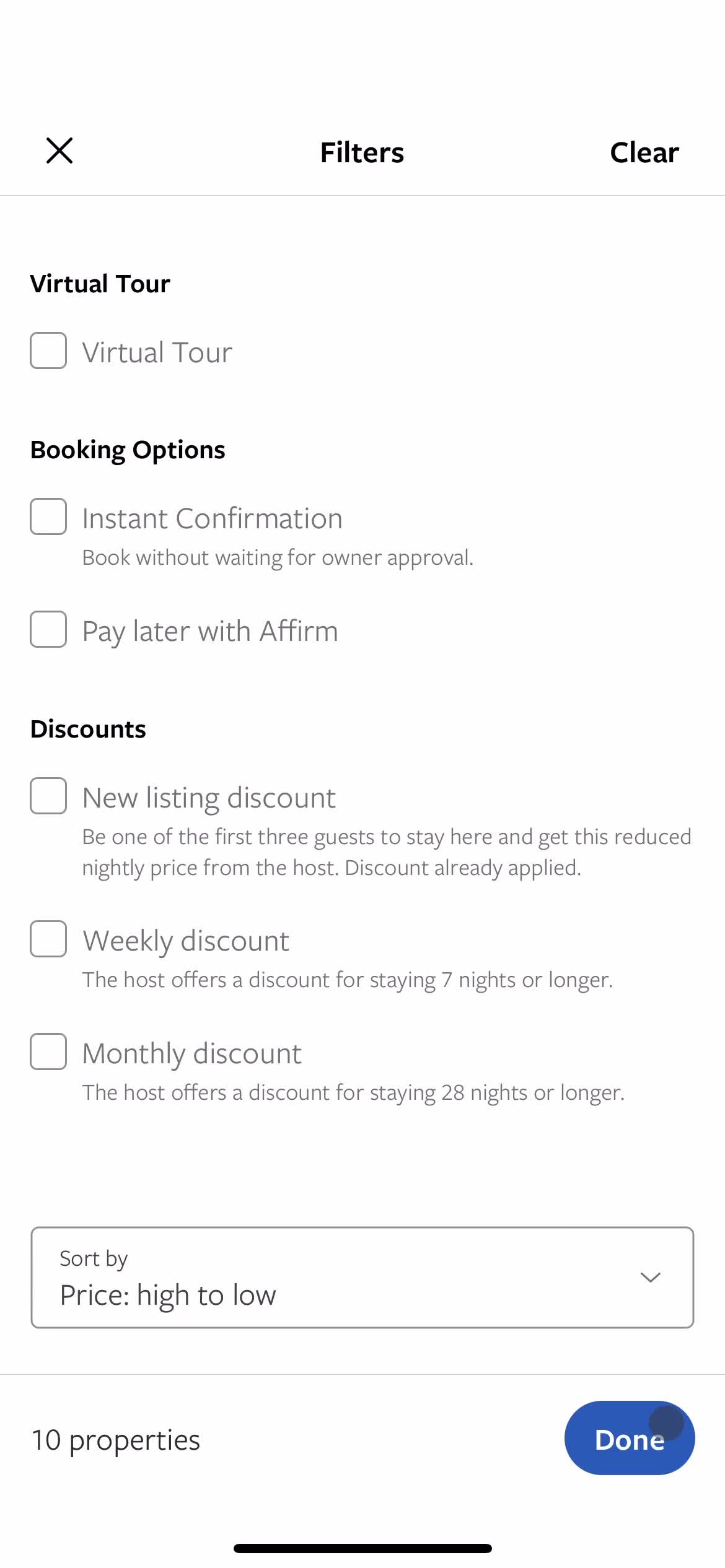
Filters
this is title
Filters
this is title
Continue
this is title
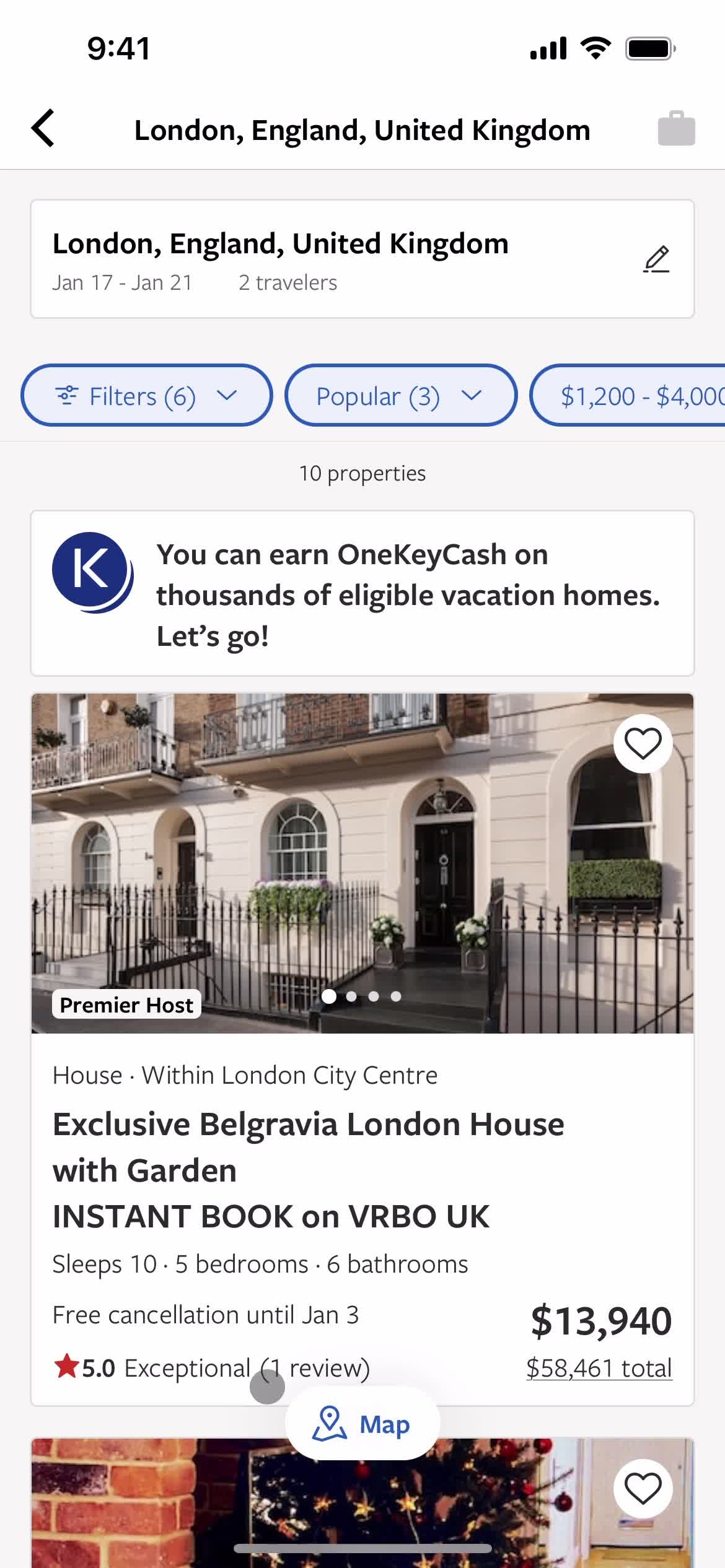
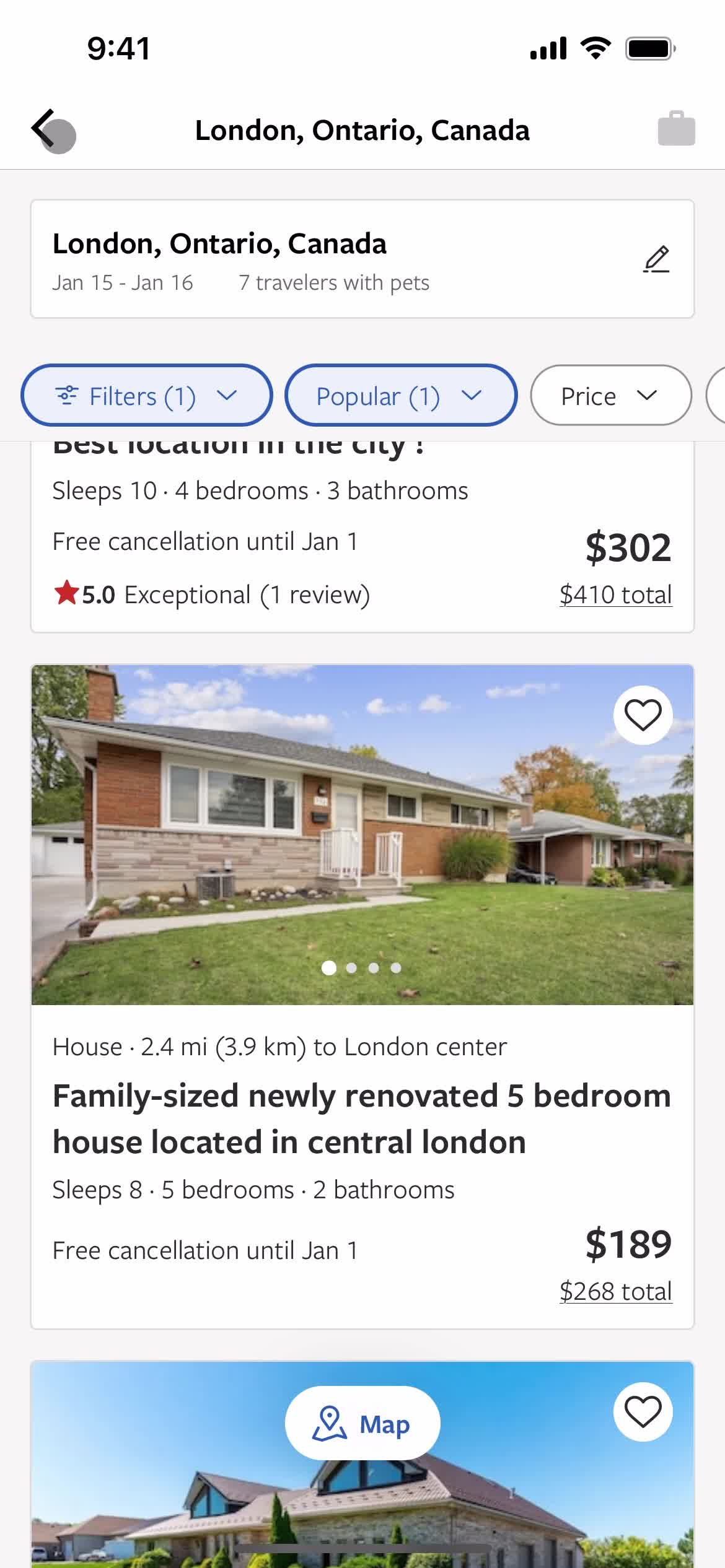
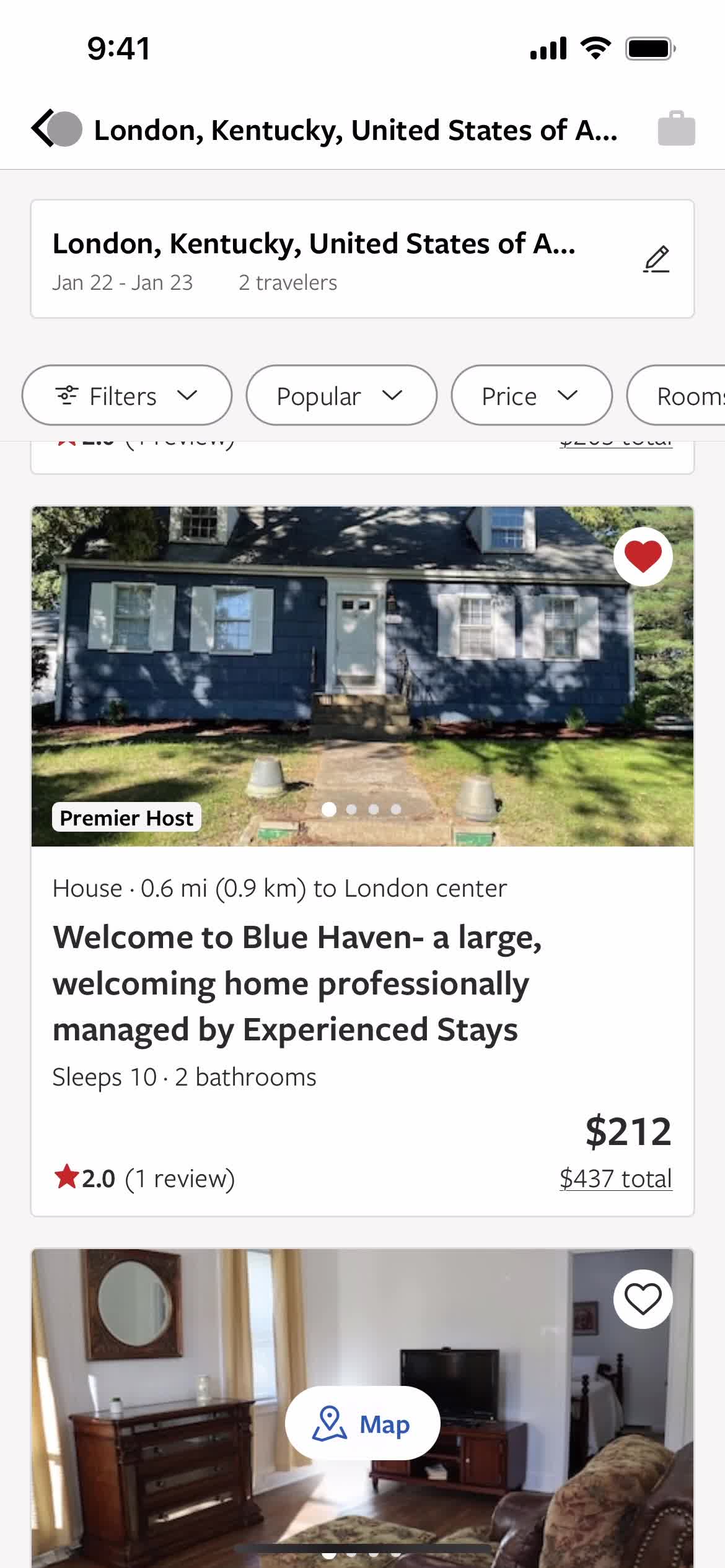
Filtered results
this is title
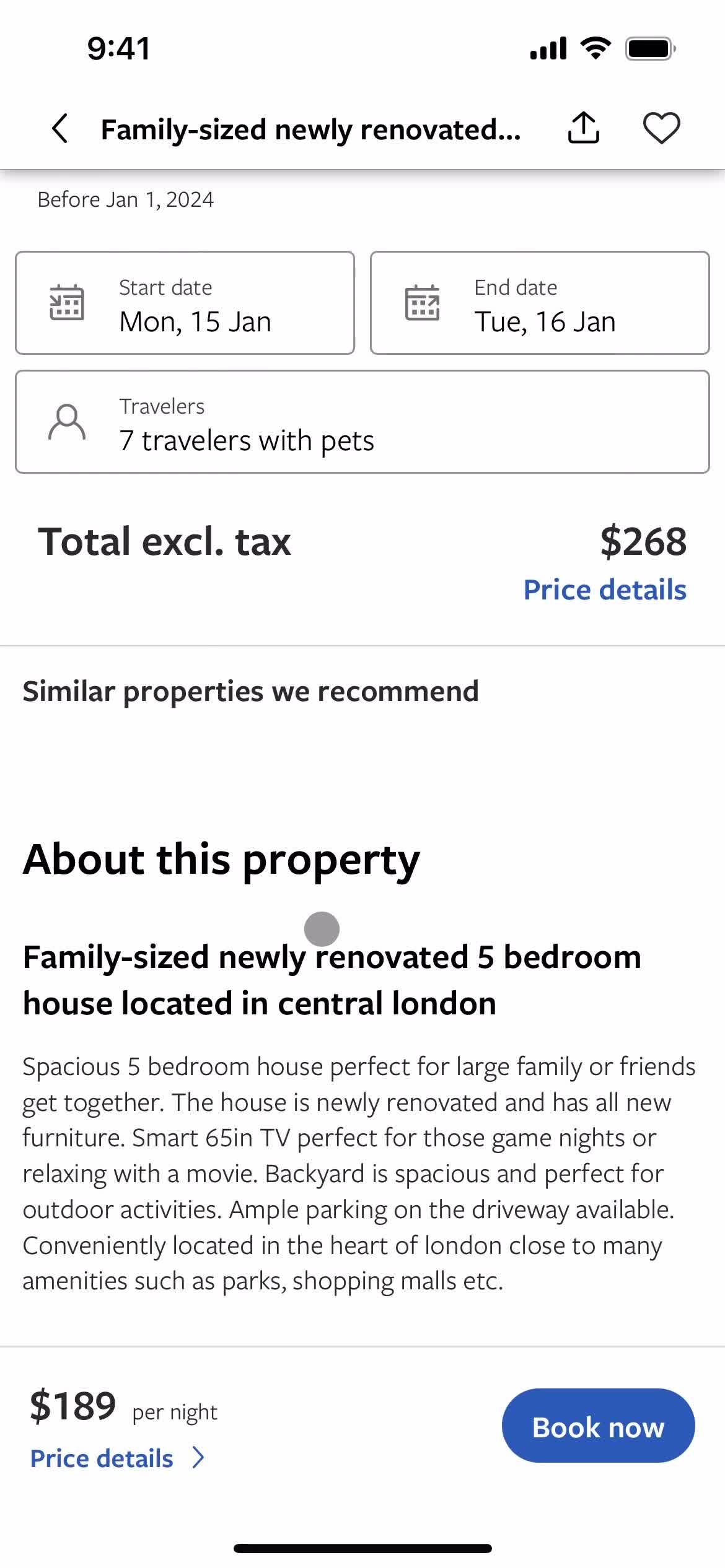
Property details
this is title
Add to collection
this is title
Saved to trip
this is title
Book
this is title
Complete checkout
this is title
Add message
this is title
Continue
this is title
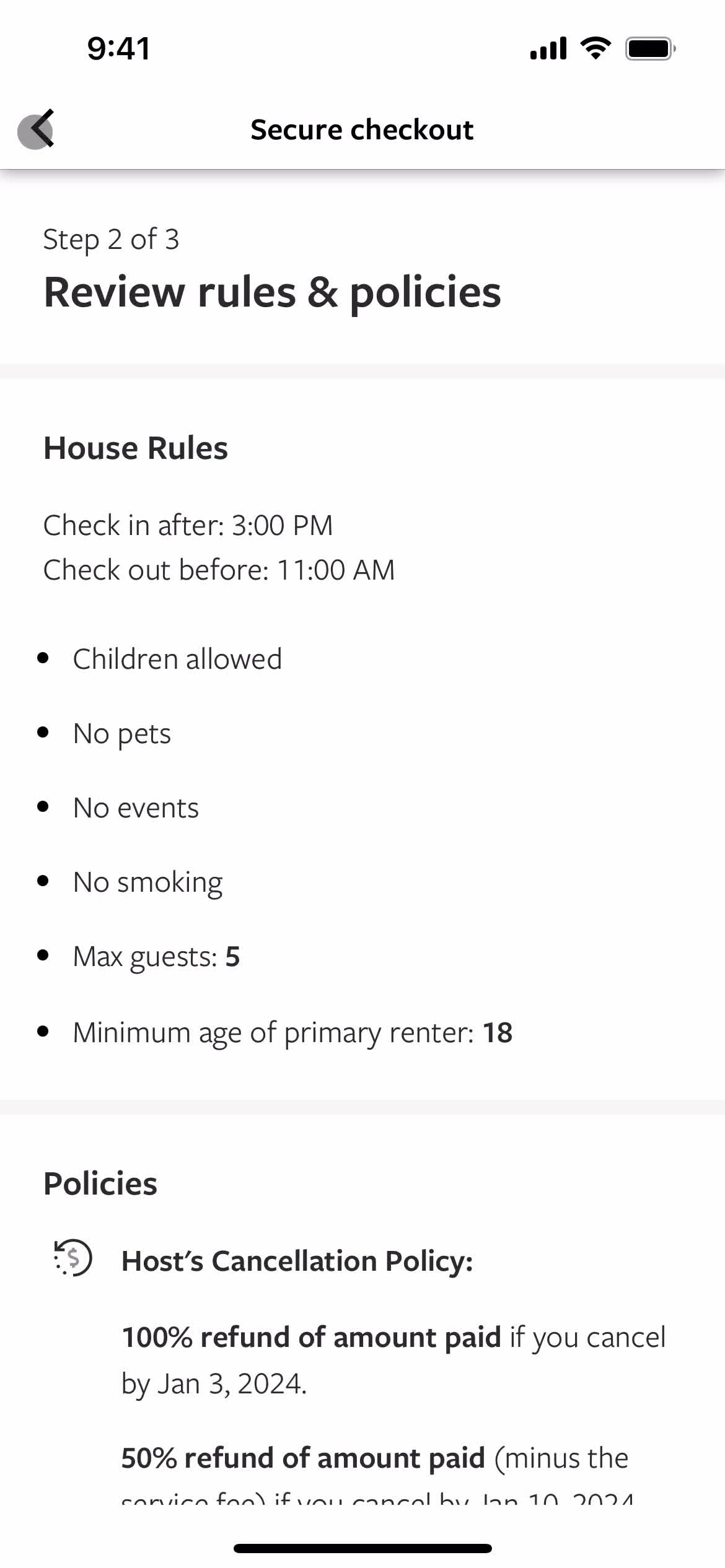
Rules & regulations
this is title
Continue
this is title
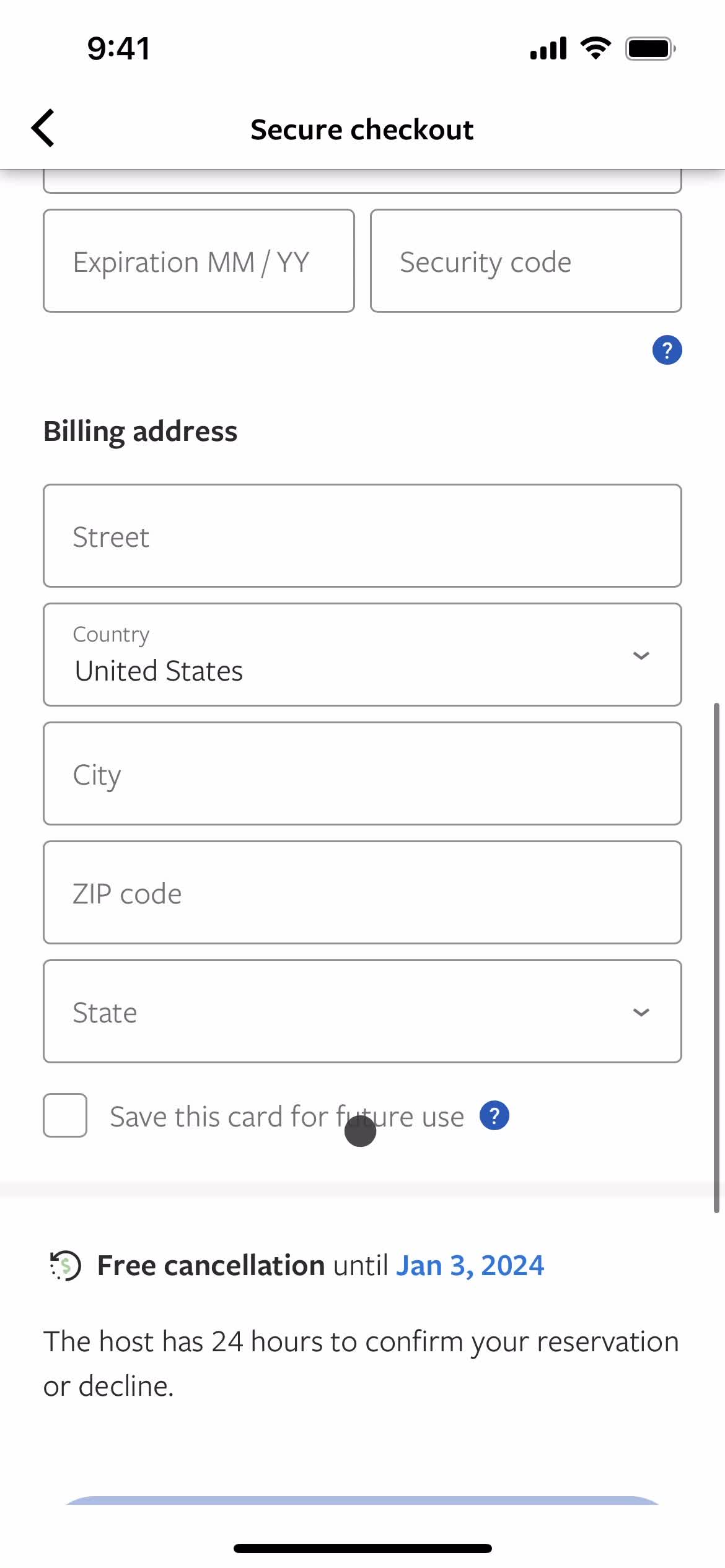
Select payment method
this is title
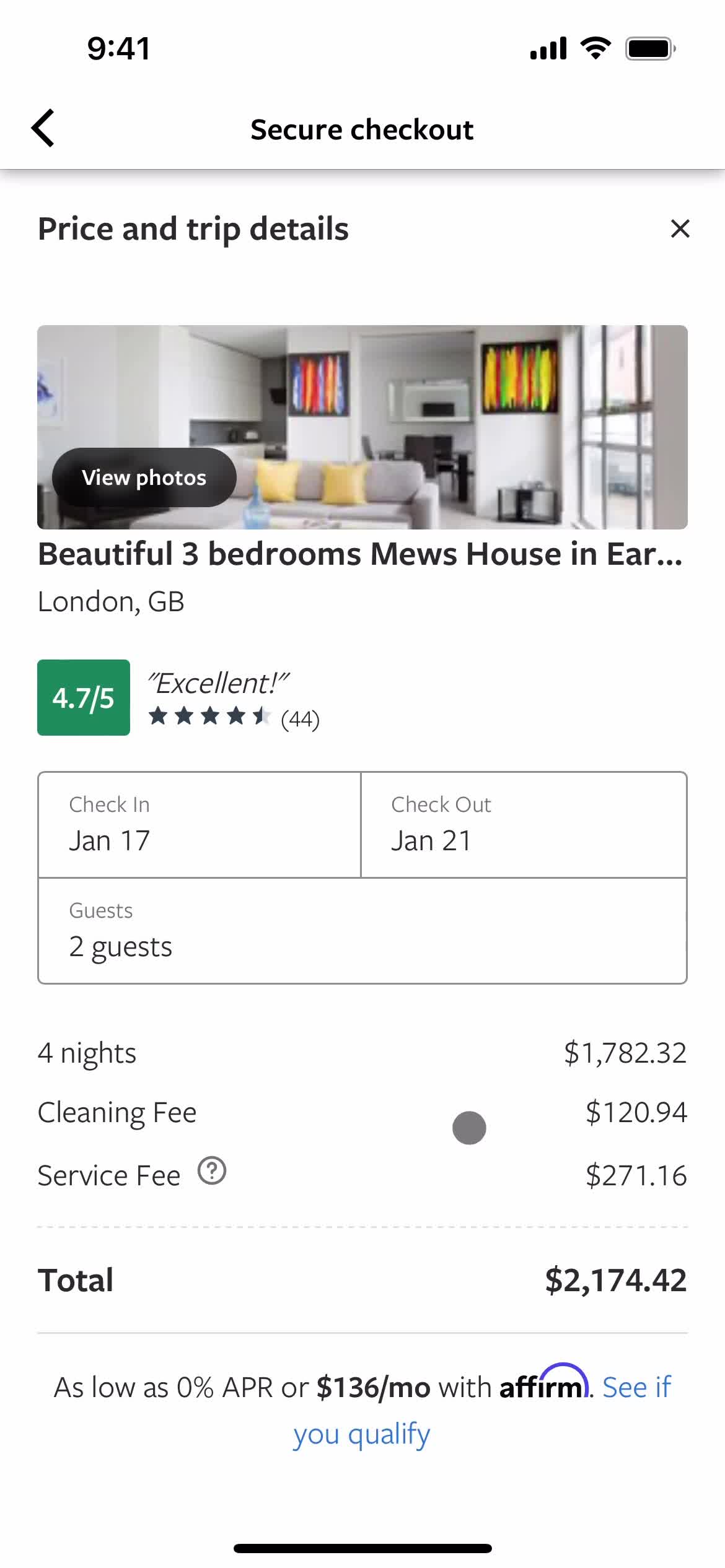
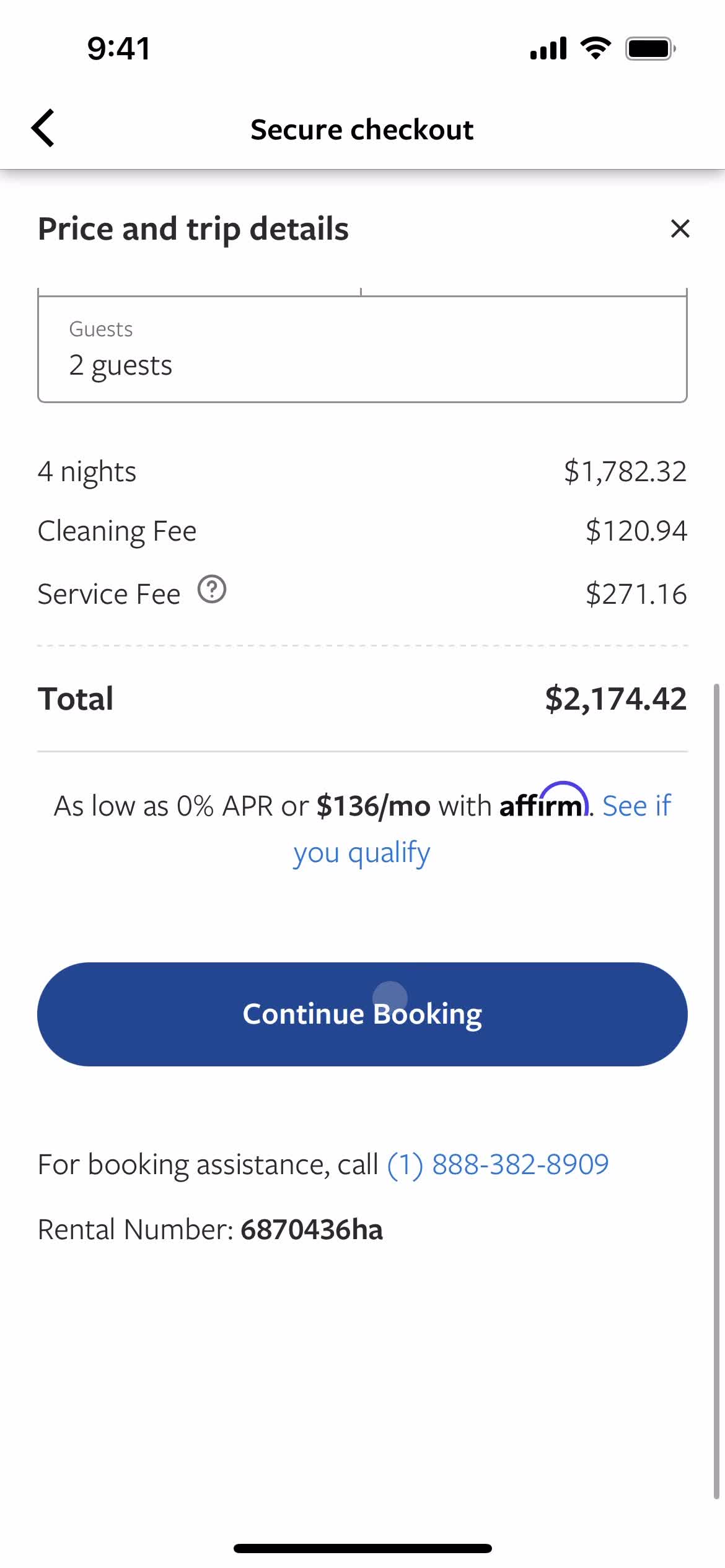
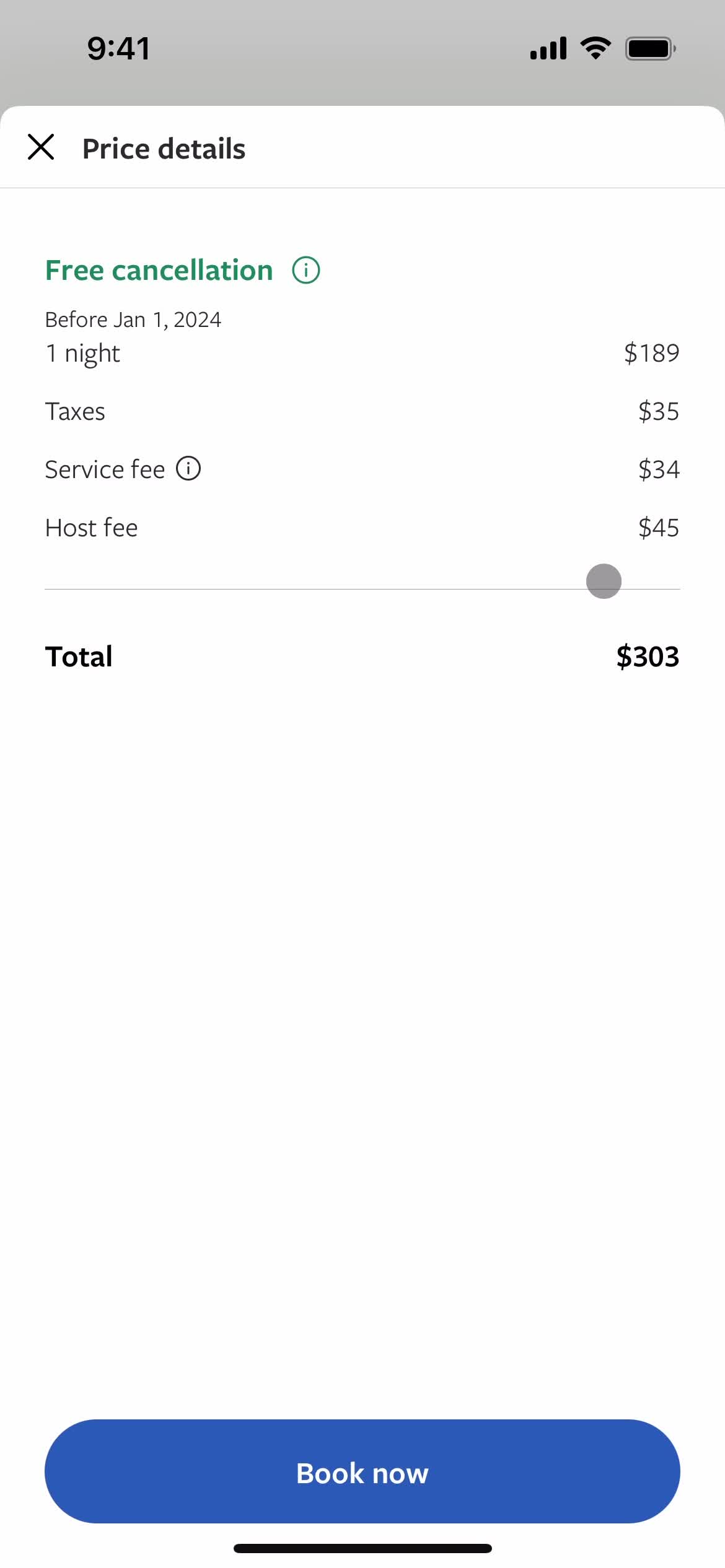
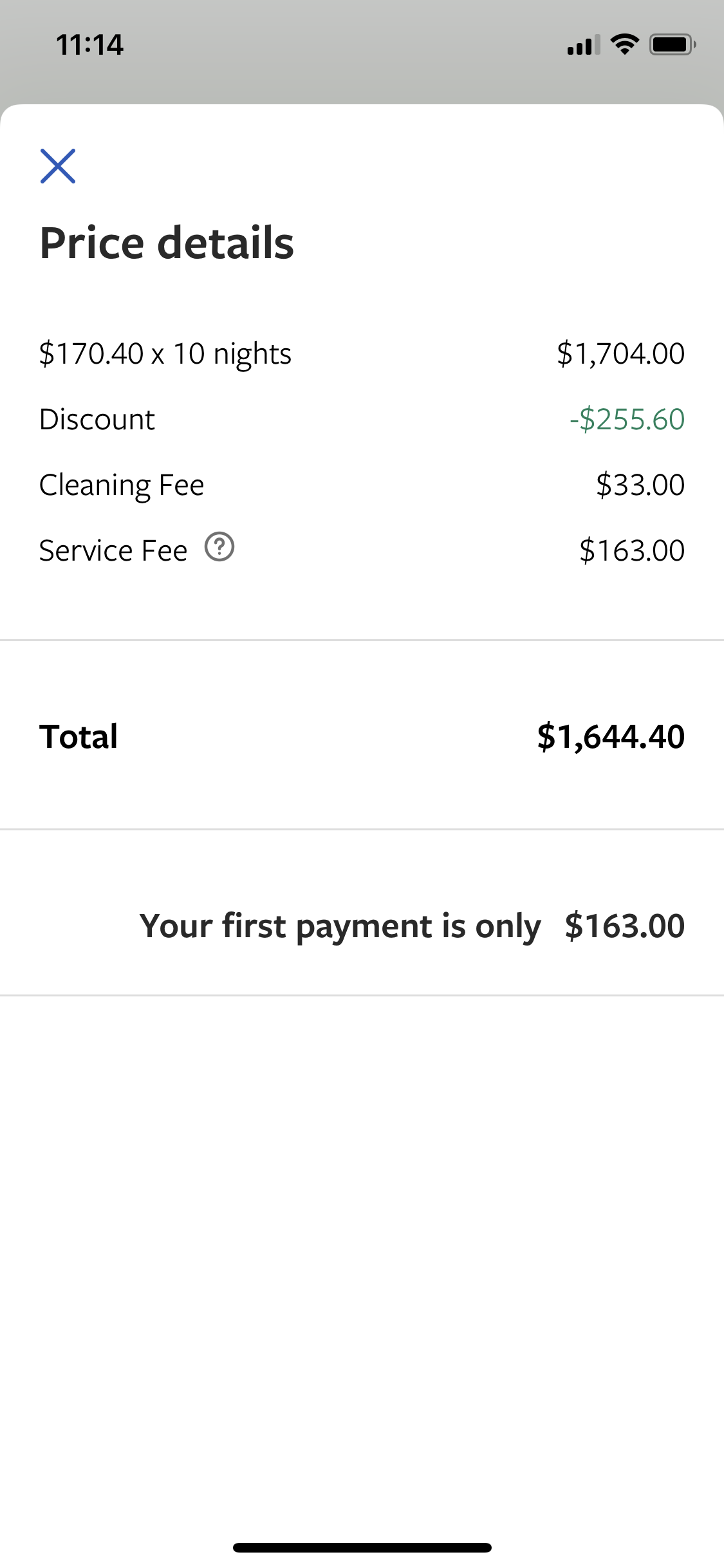
Price details
this is title
Confirm booking
this is title
Add address
this is title
Rules
this is title
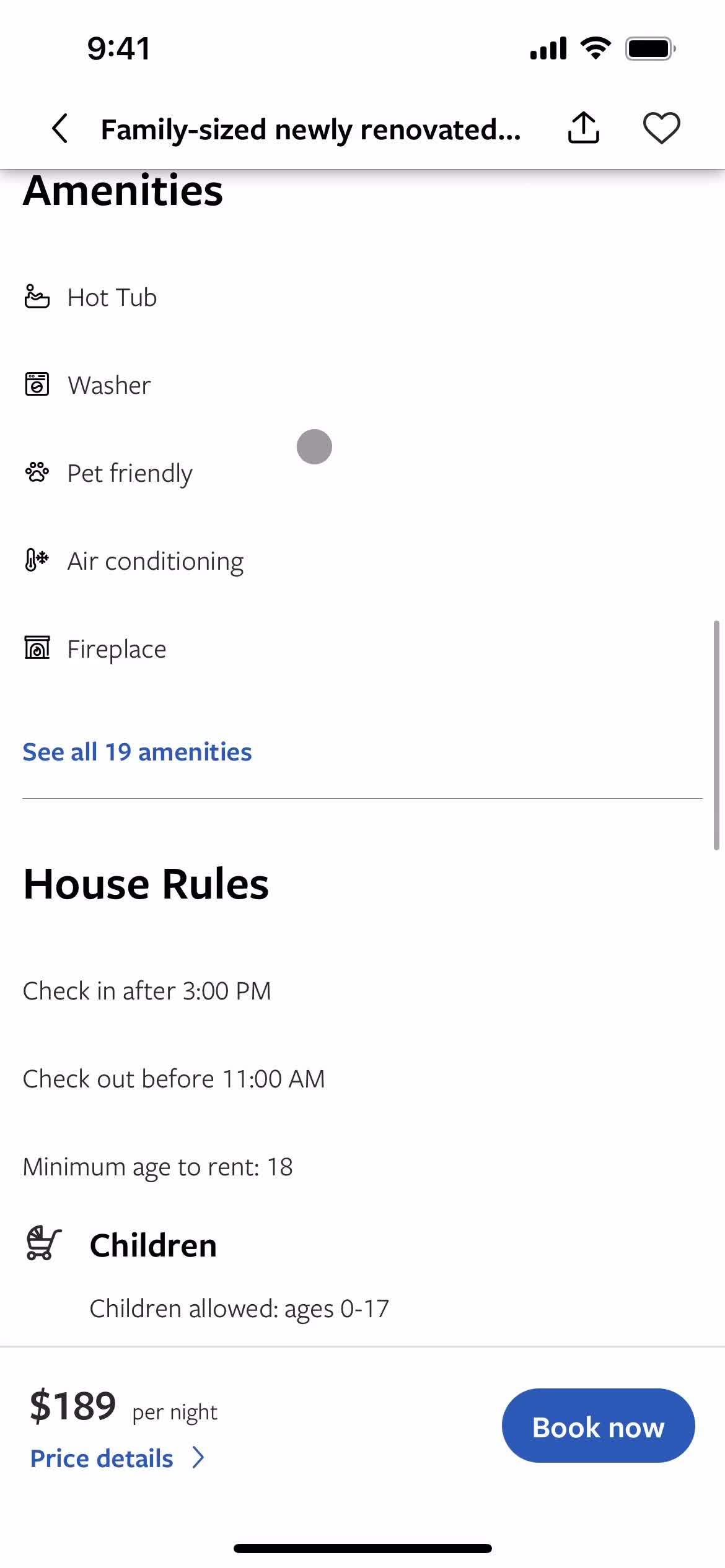
Property details
this is title
Home
this is title
Home
this is title
Trips
this is title
Action menu
this is title
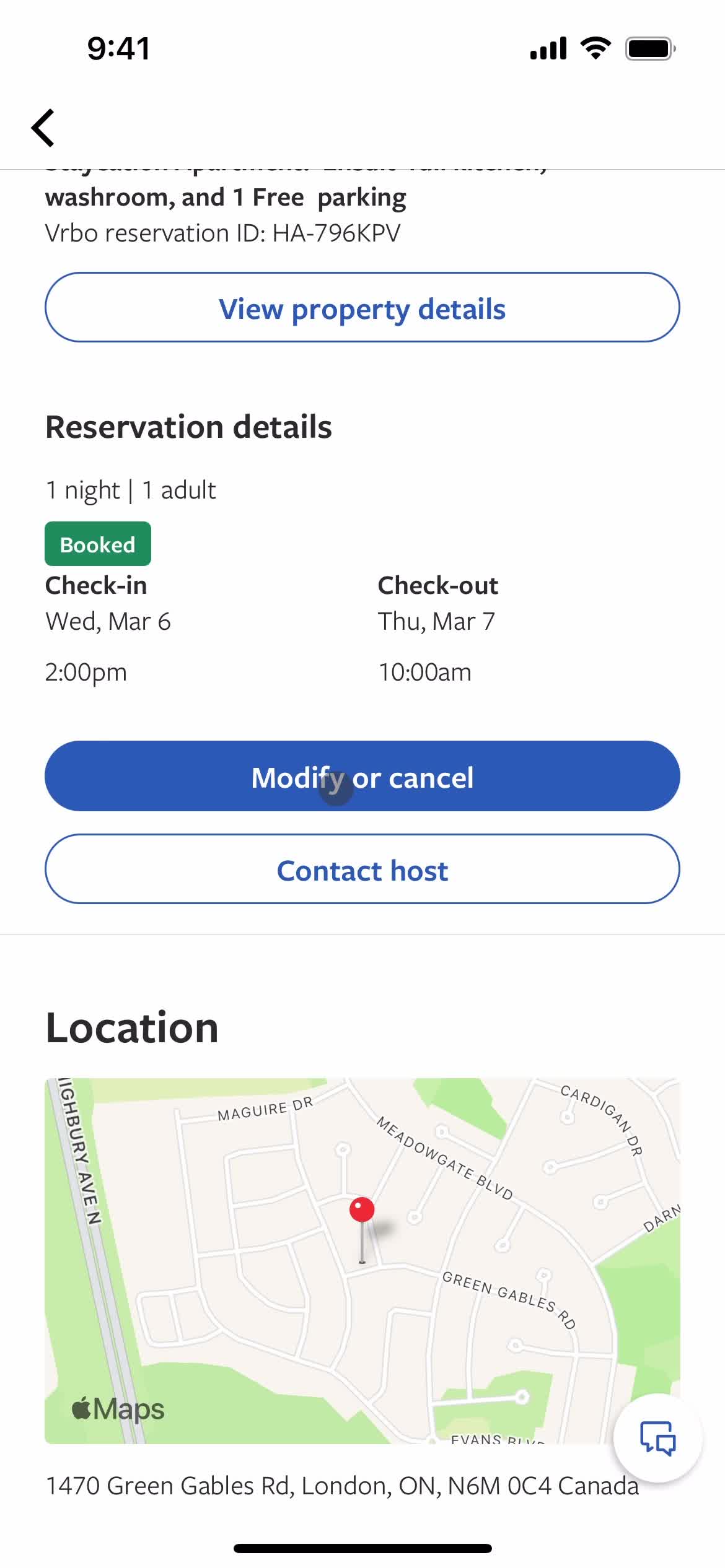
Booking details
this is title
Booking details
this is title
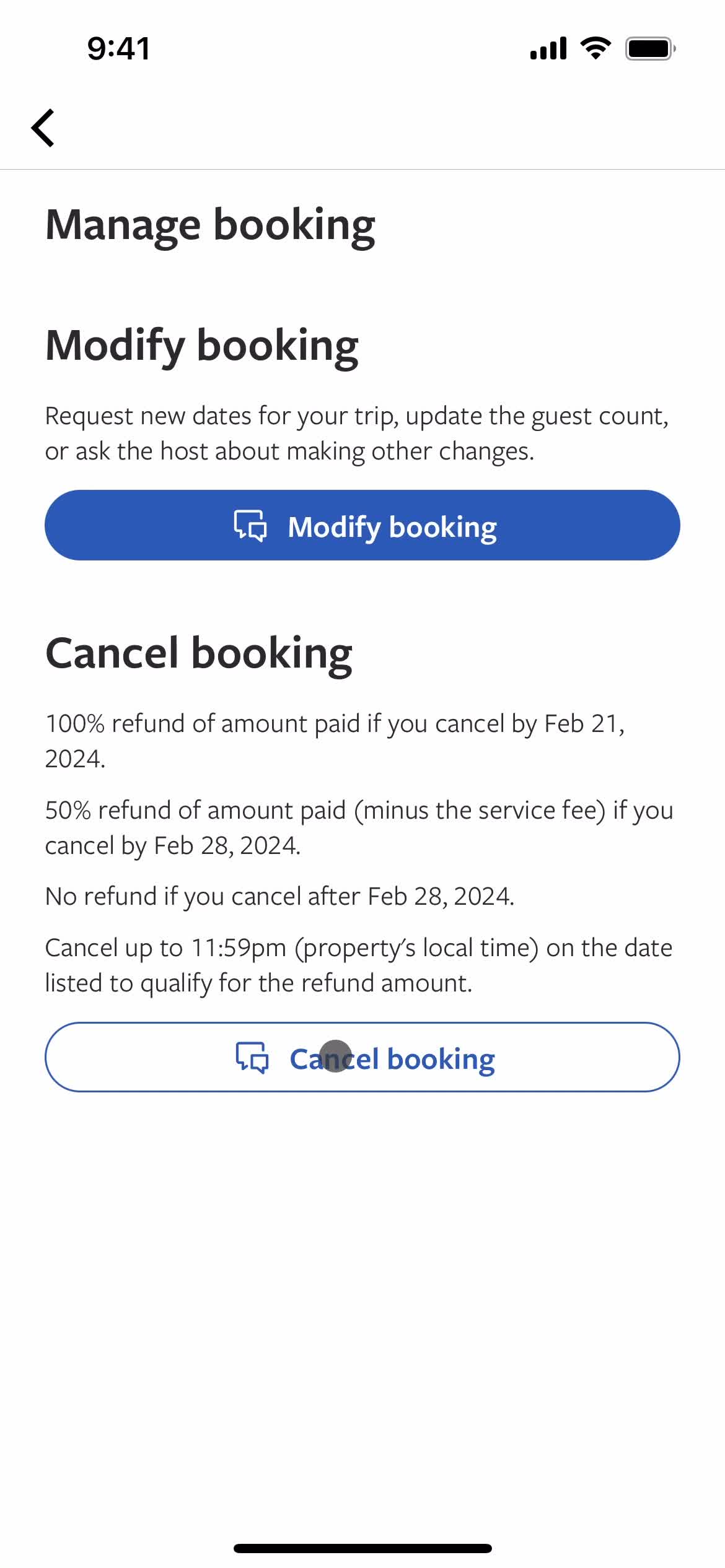
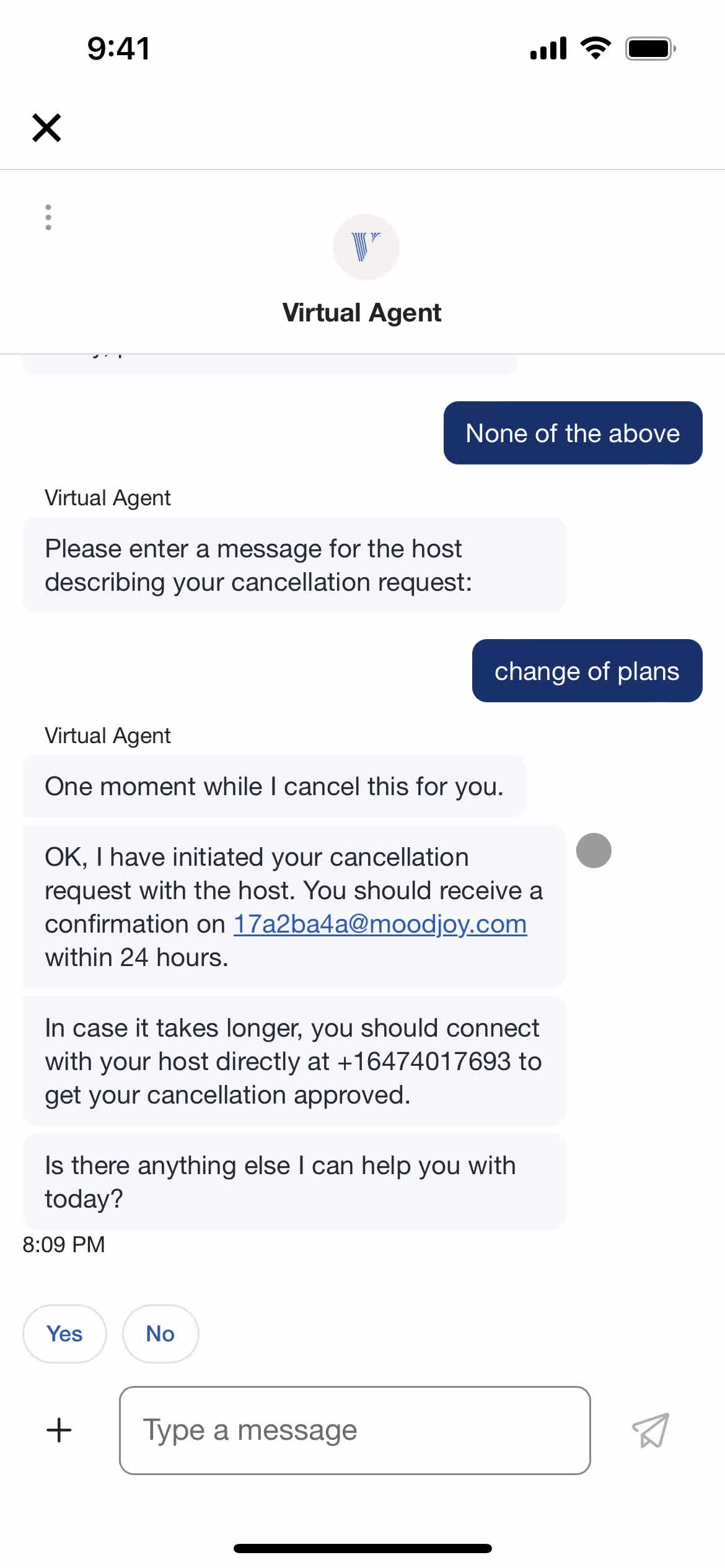
Cancel booking
this is title
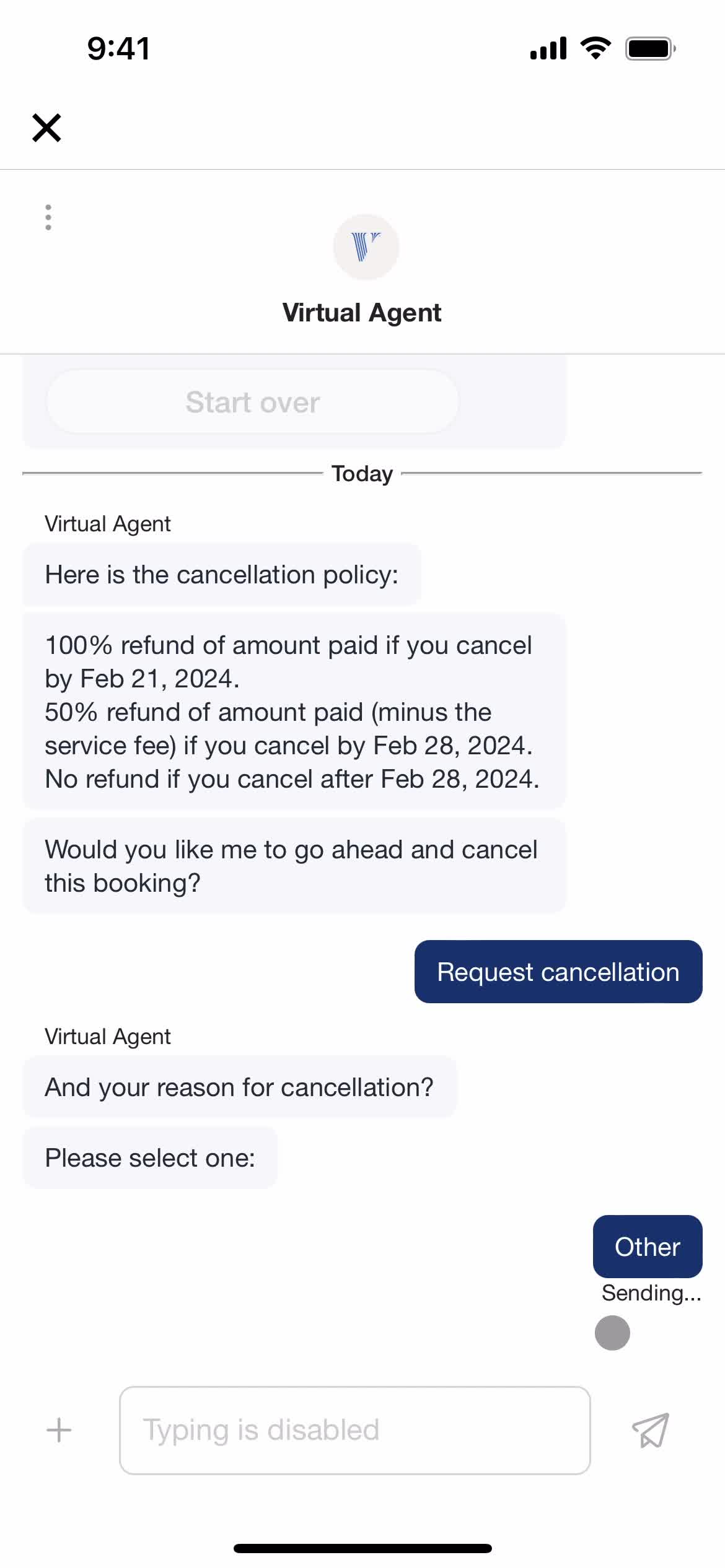
Cancel booking
this is title
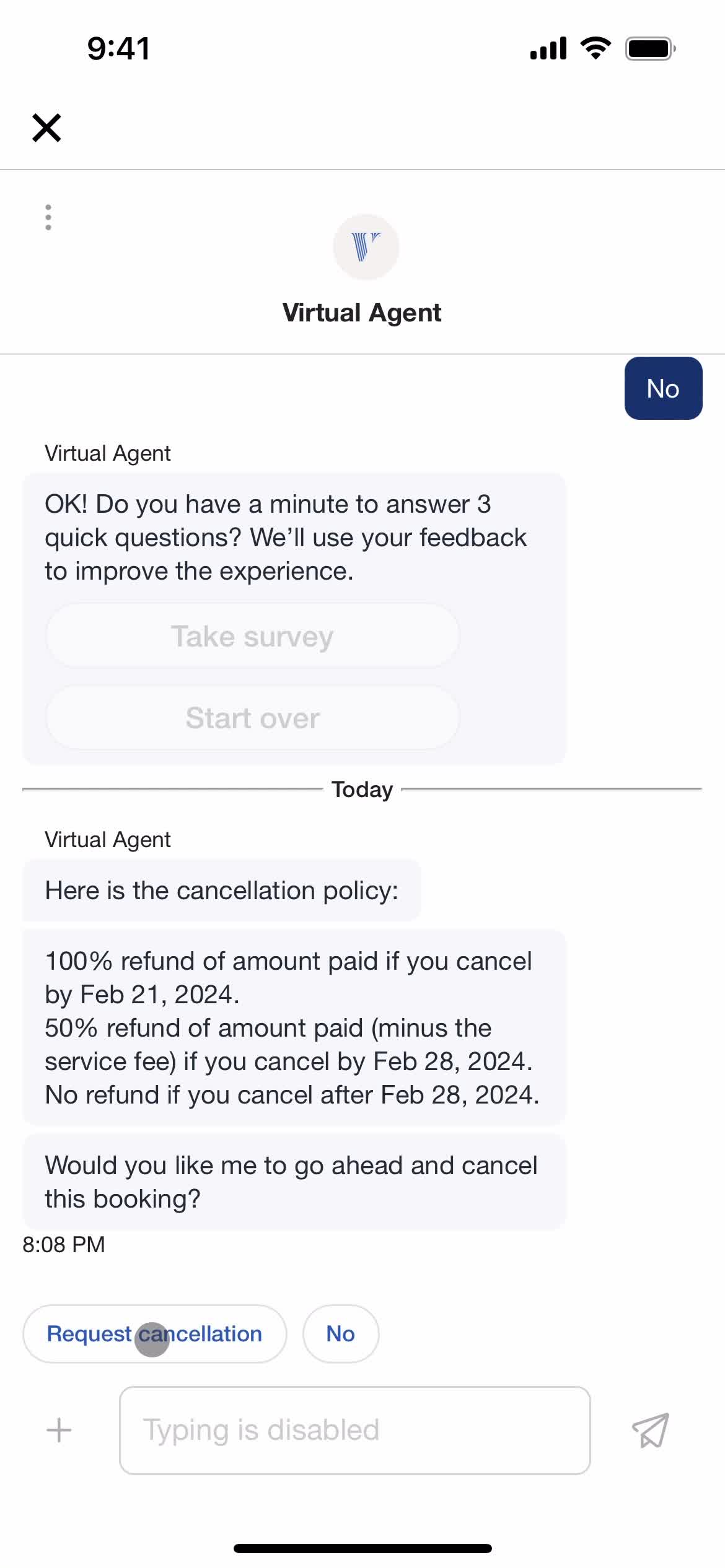
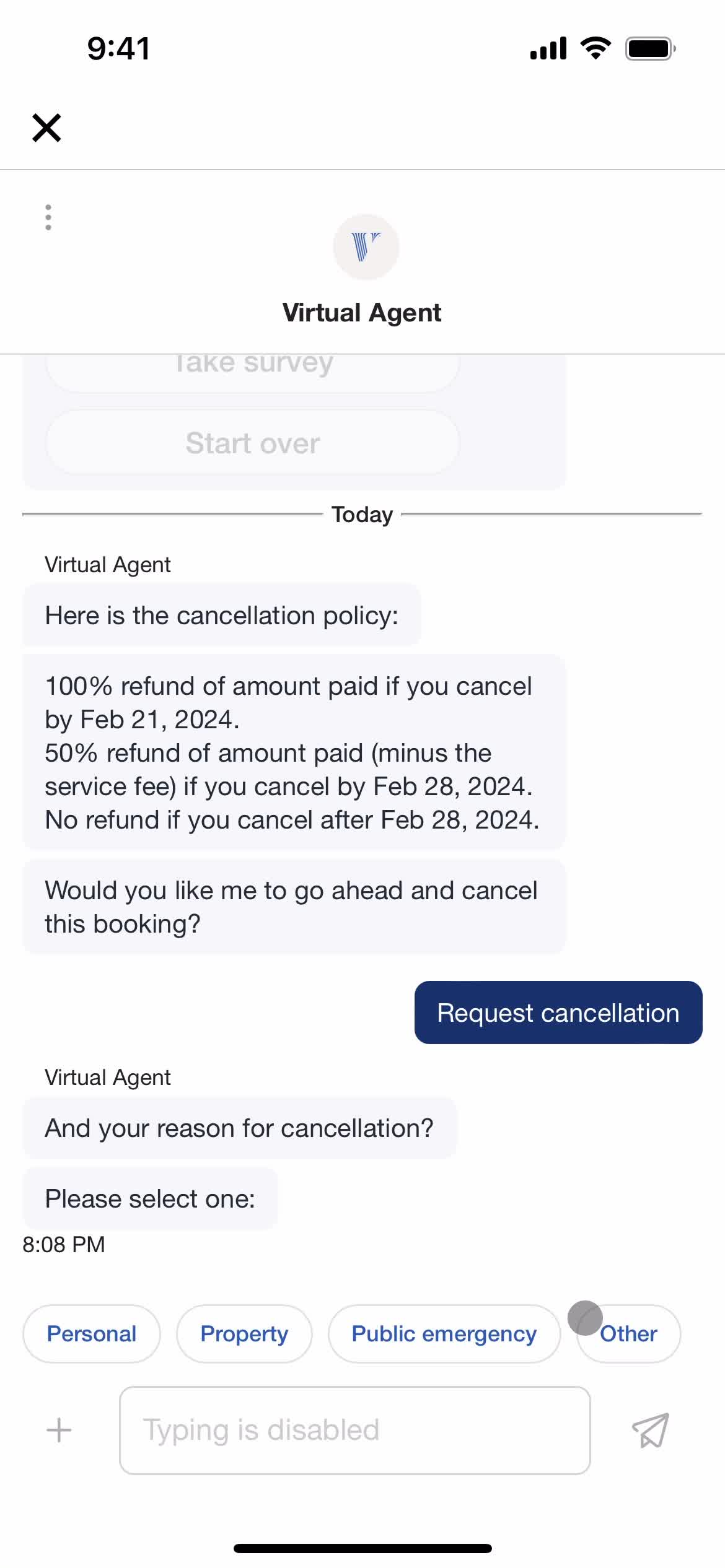
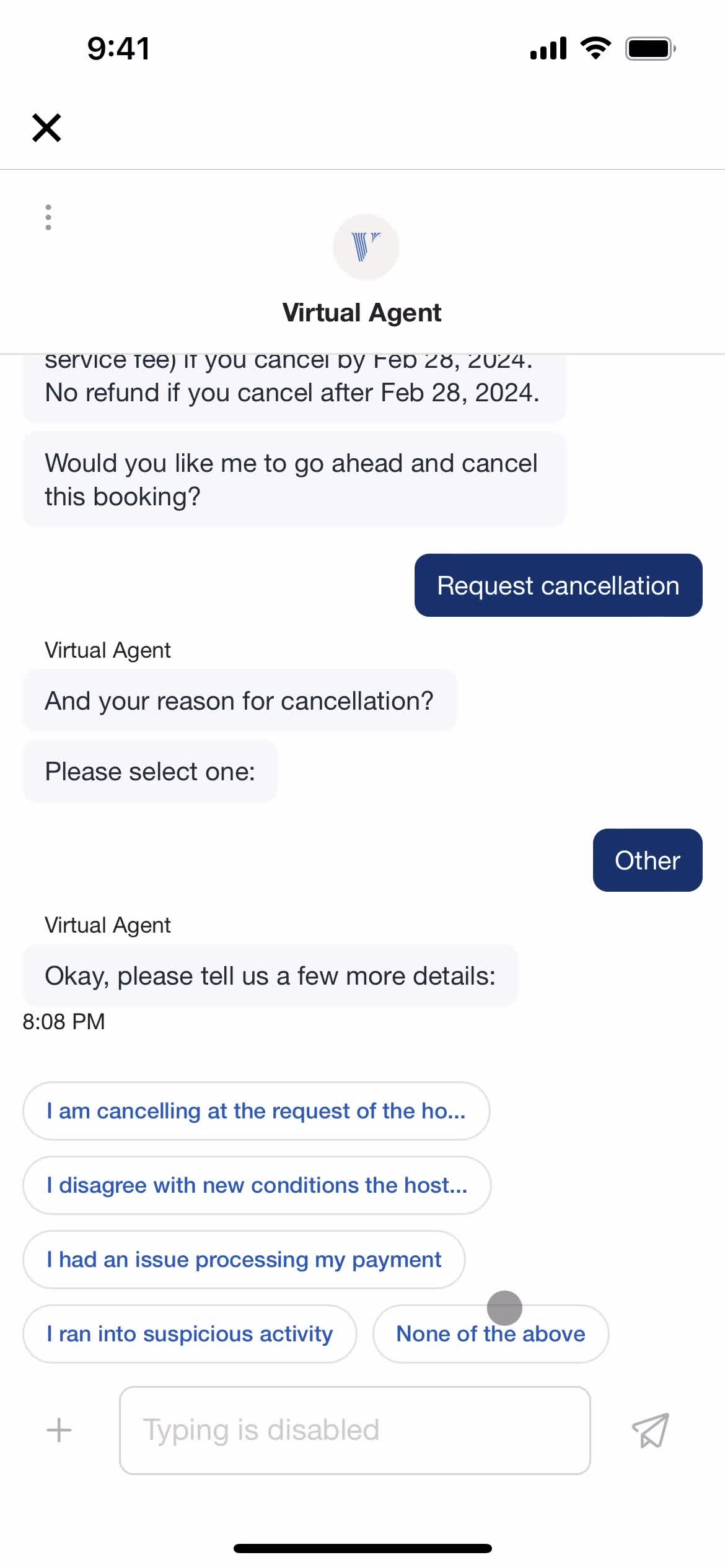
Support chat
this is title
this is title
this is title
this is title
this is title
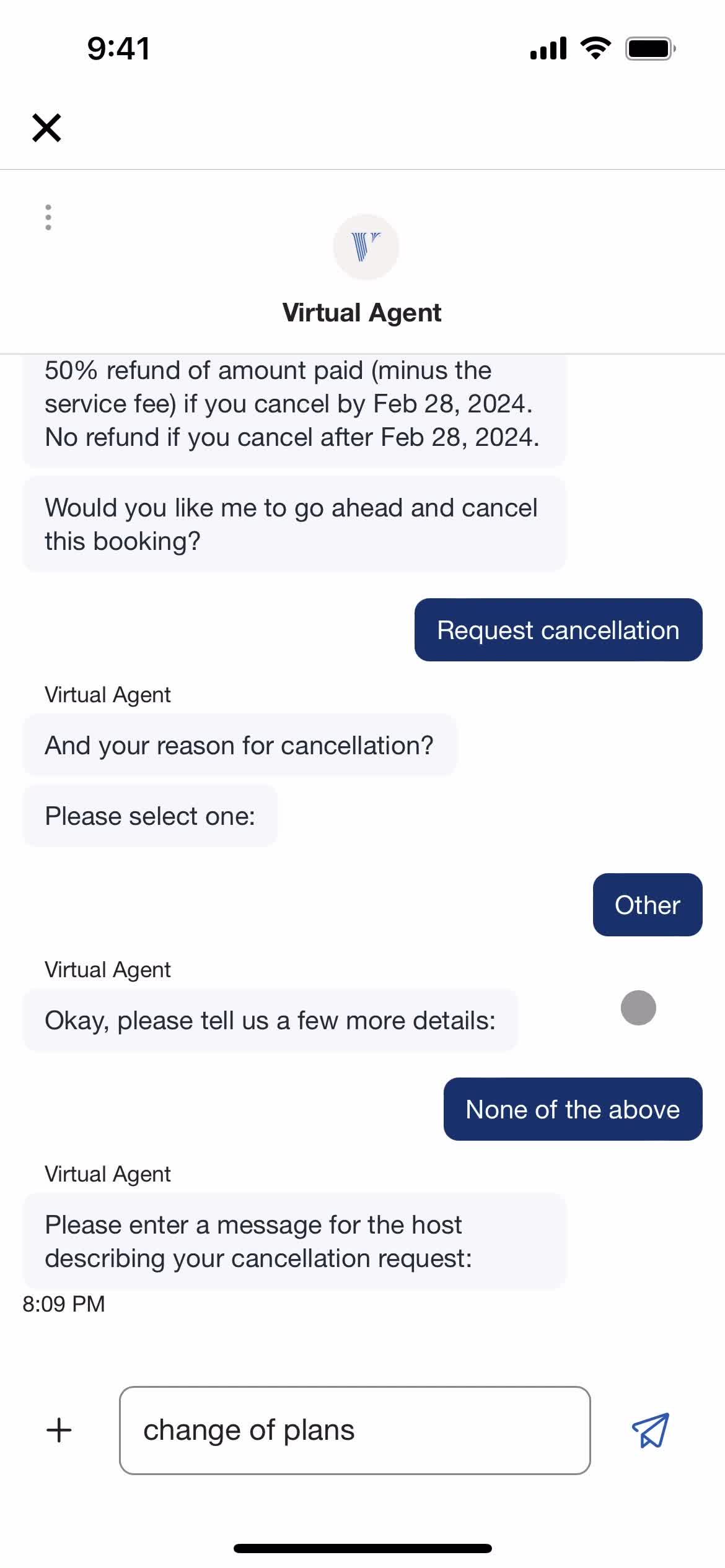
Add message
this is title
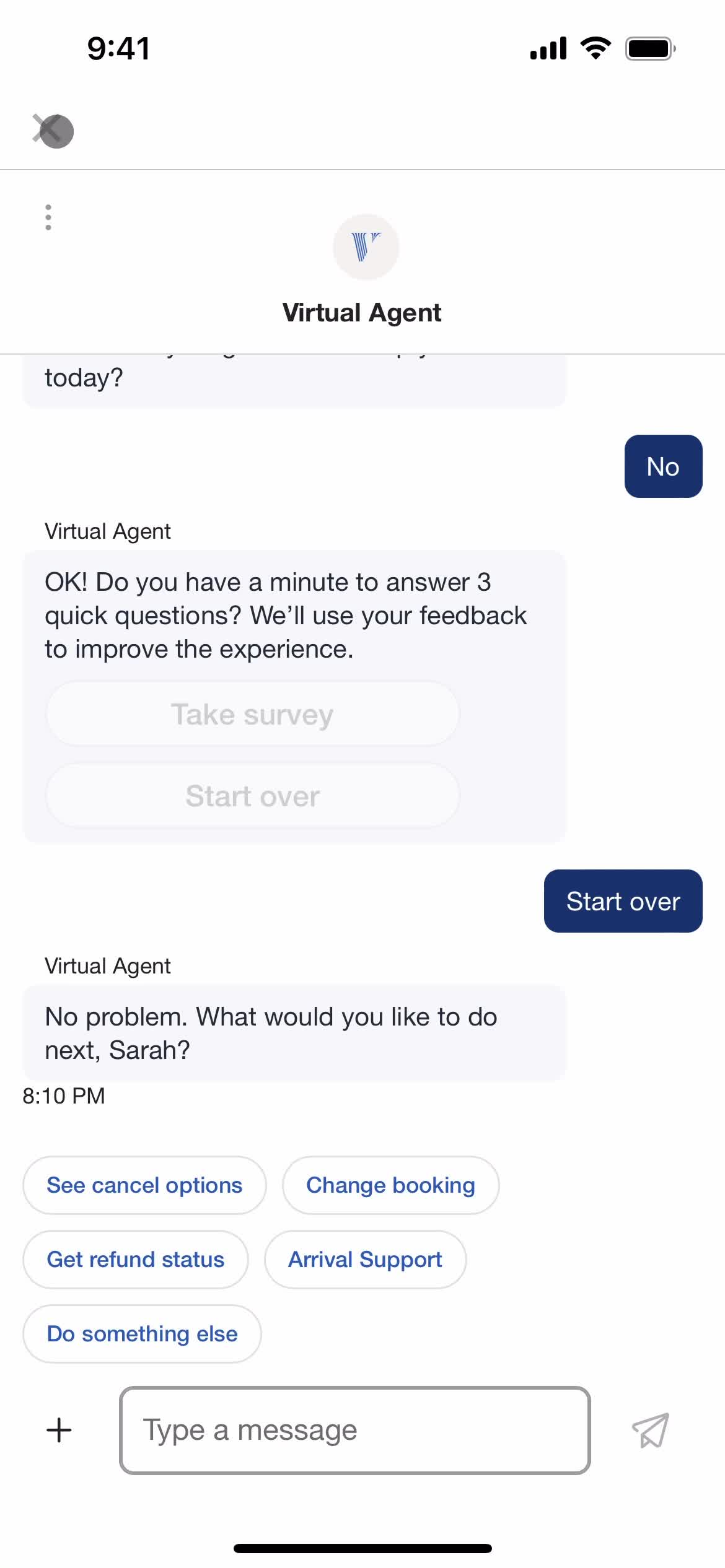
Support chat
this is title
Cancelled
this is title
this is title
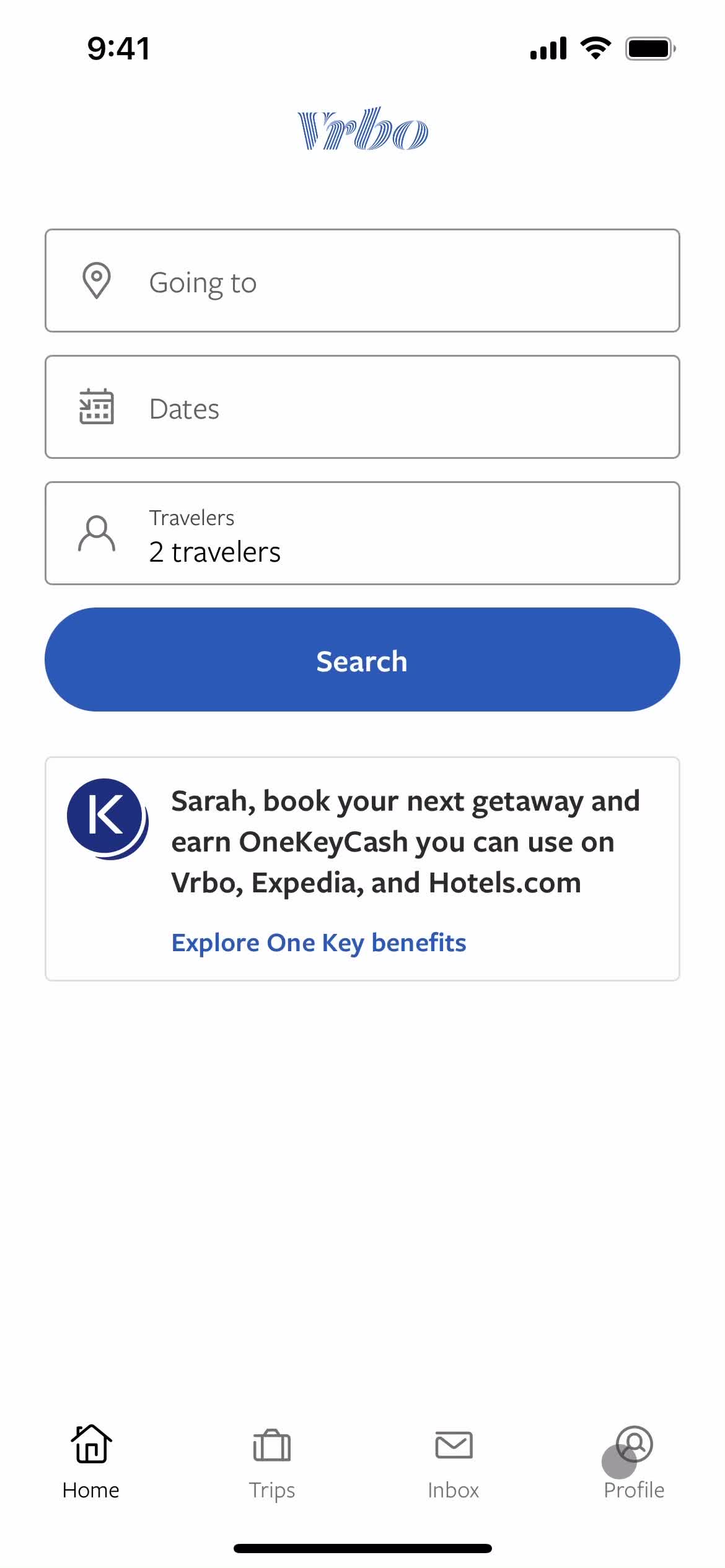
Home
this is title
Home
this is title
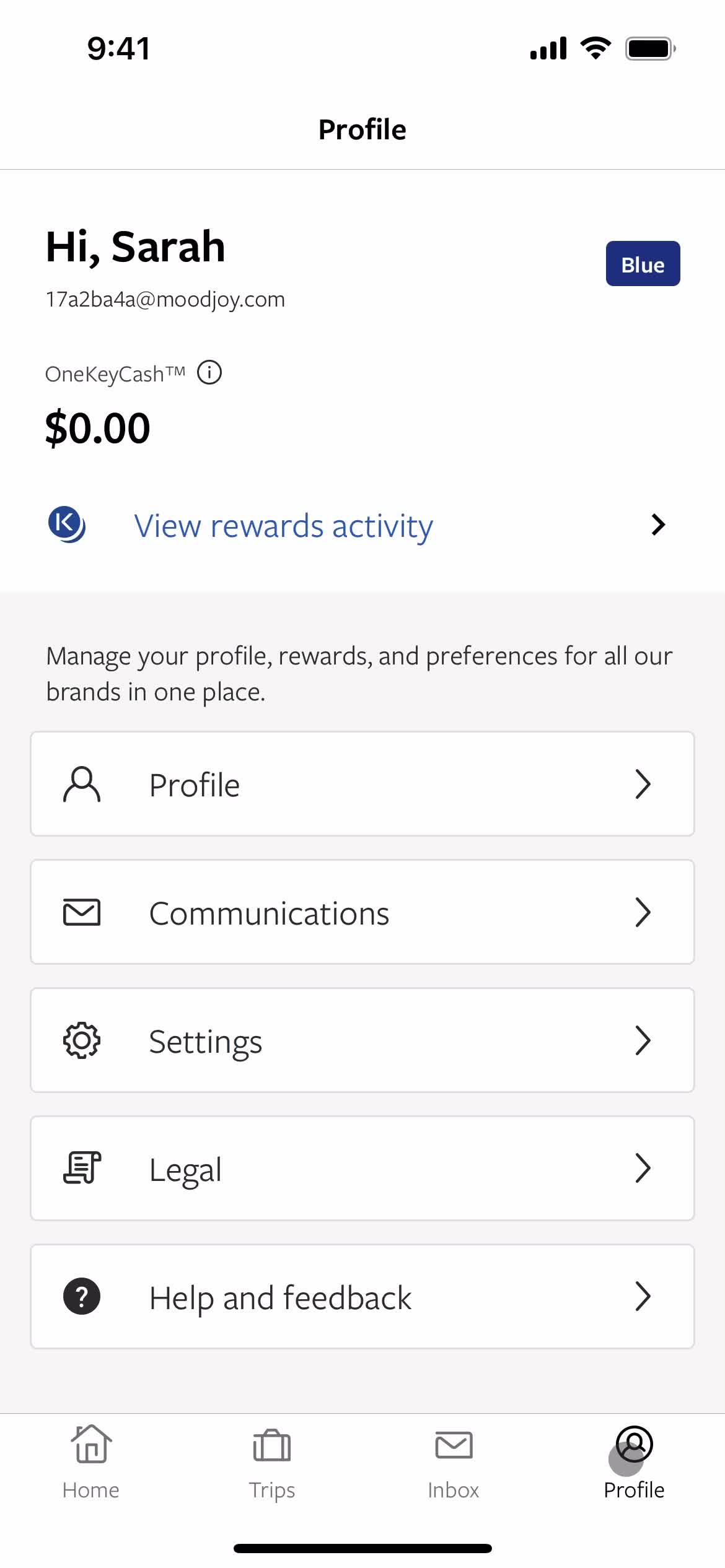
Account
this is title
Settings
this is title
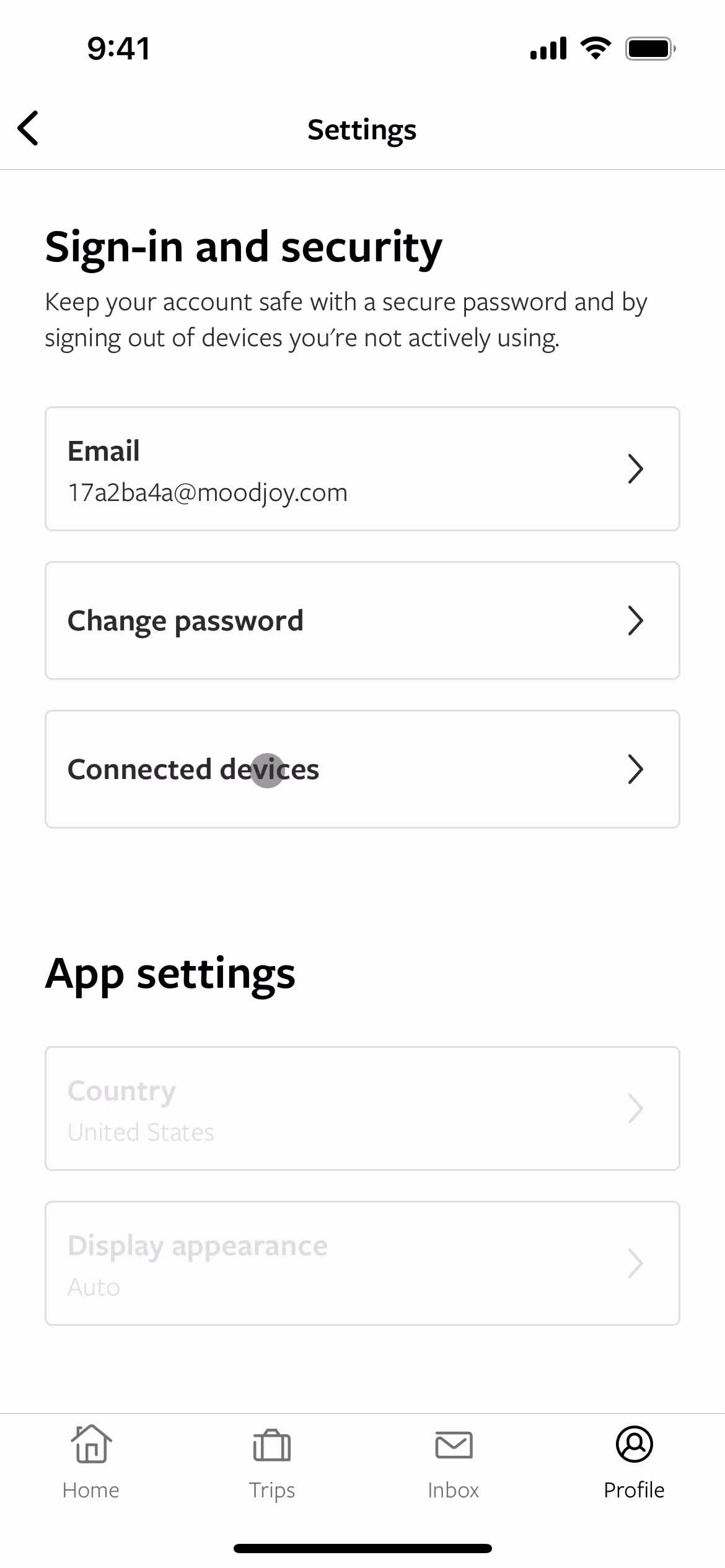
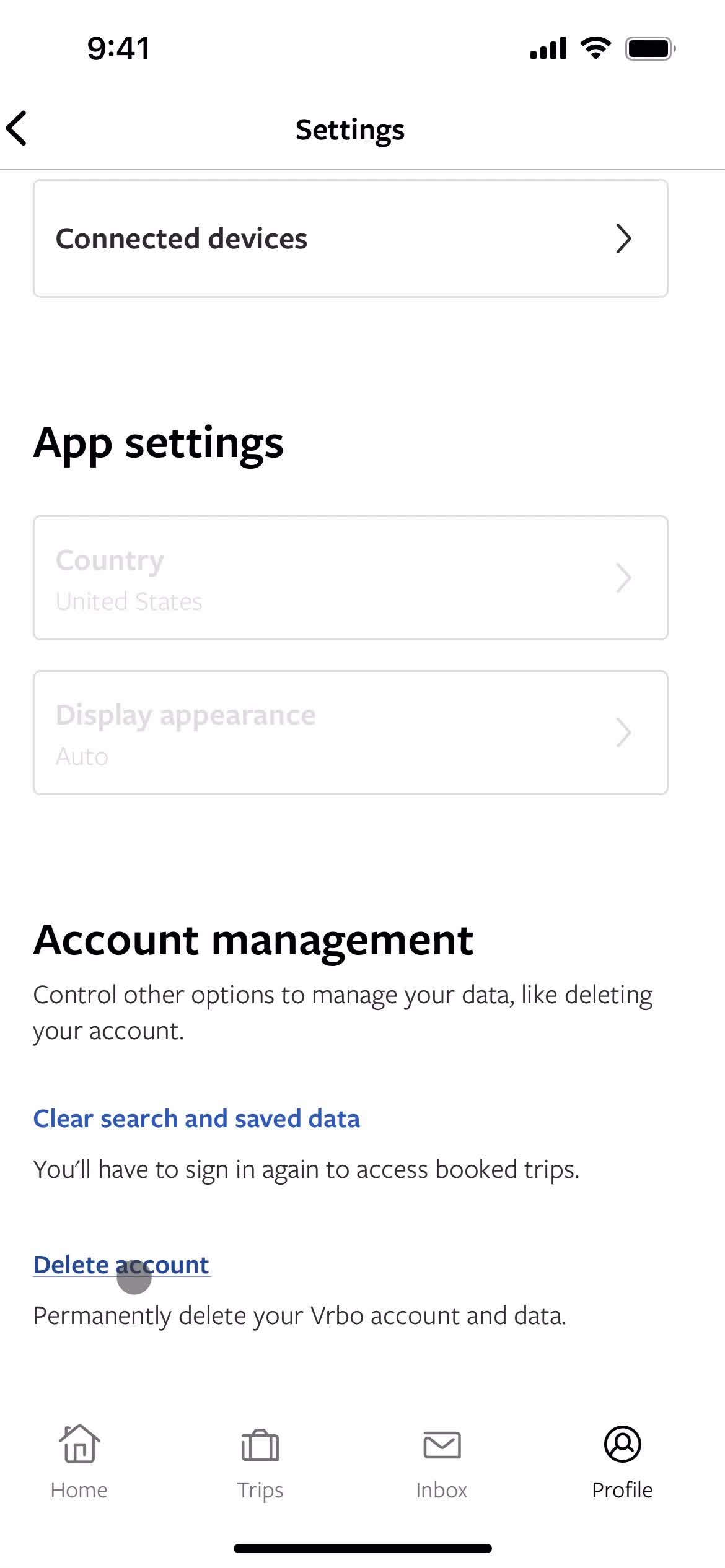
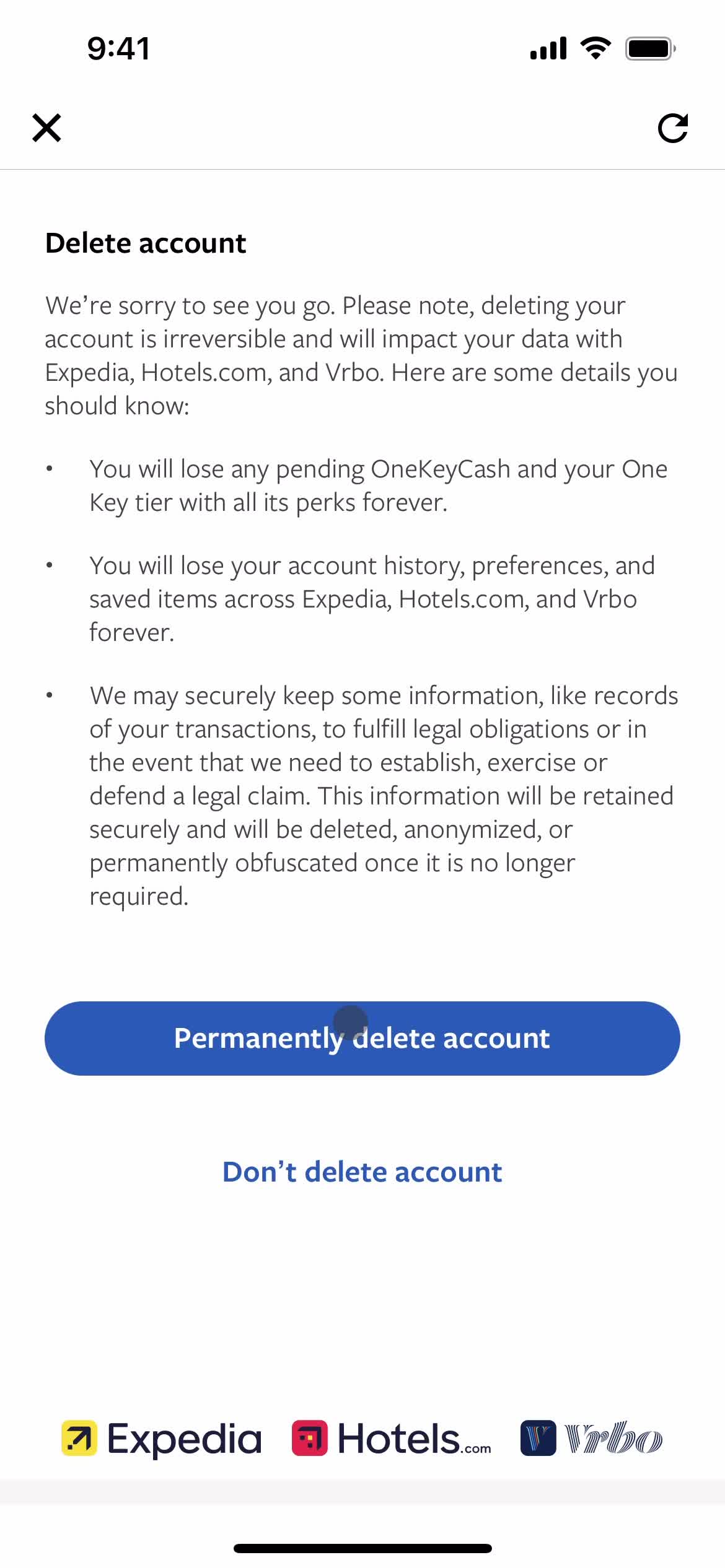
Delete account
this is title
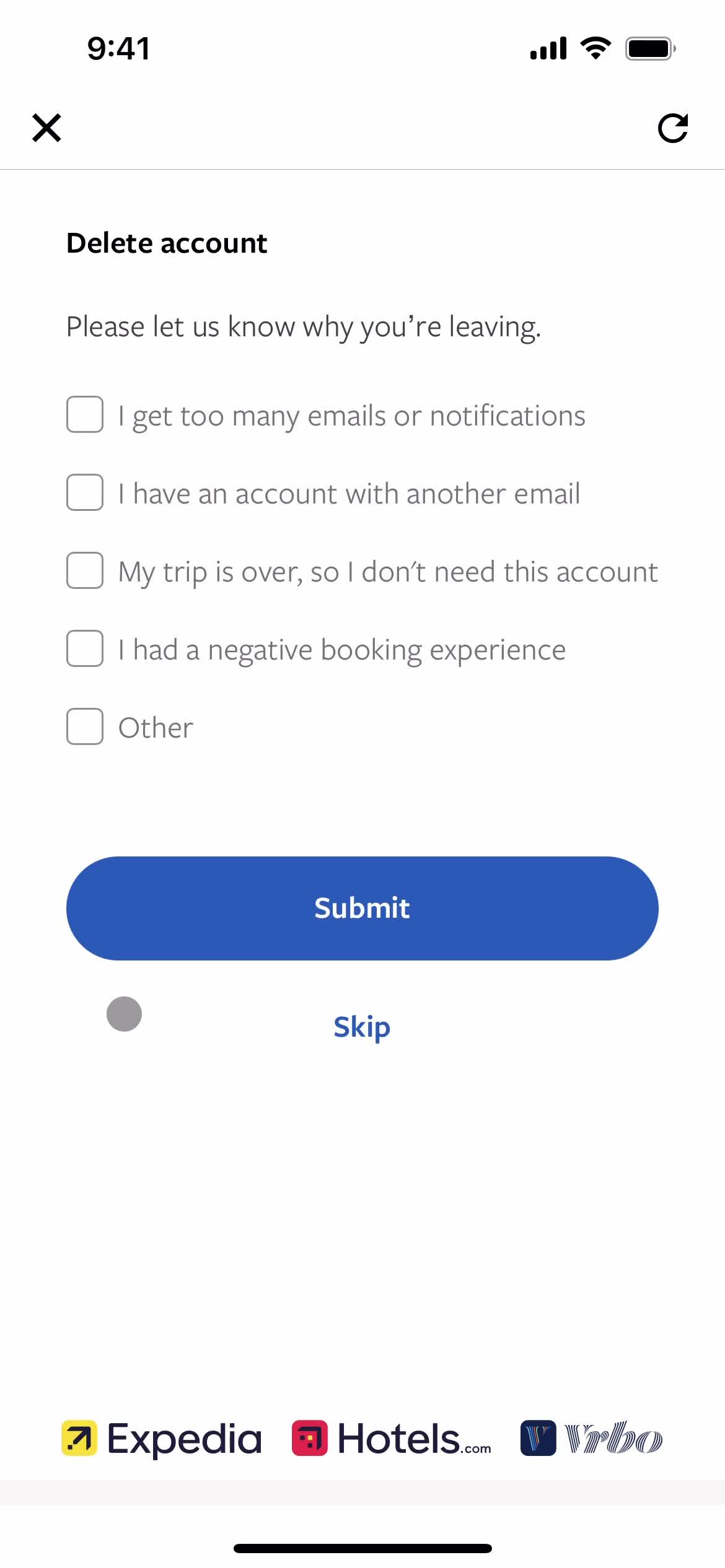
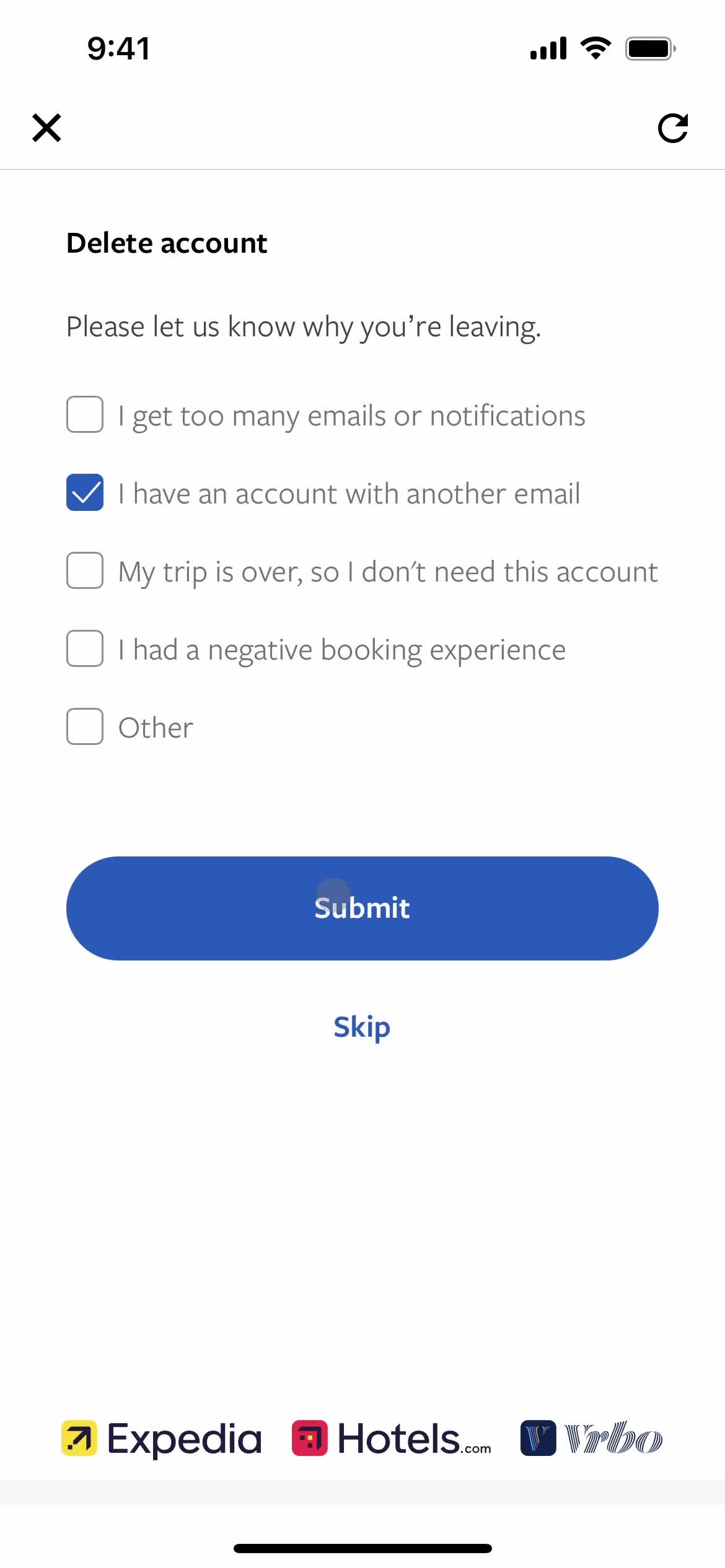
Select delete reason
this is title
Submit request
this is title
Confirm delete
this is title
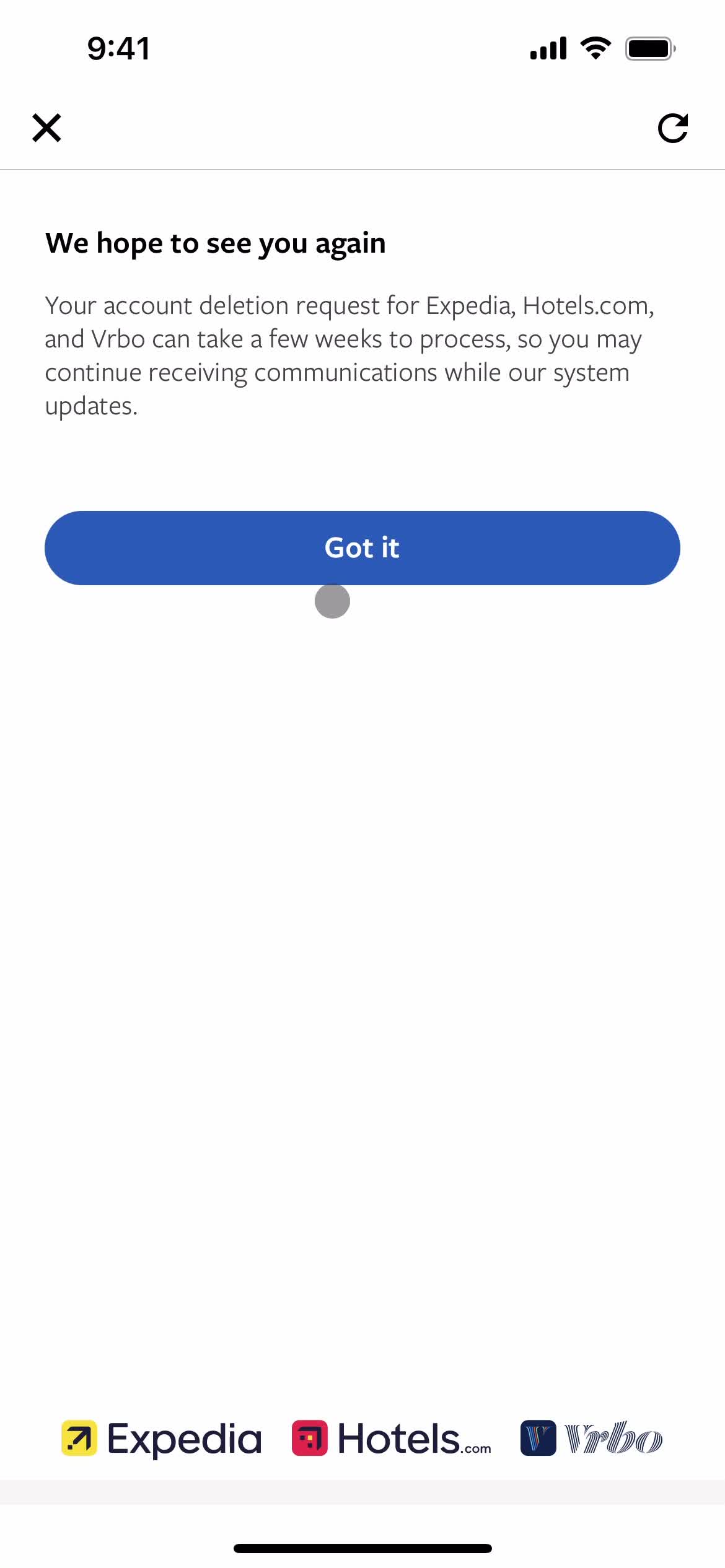
Account deleted
this is title
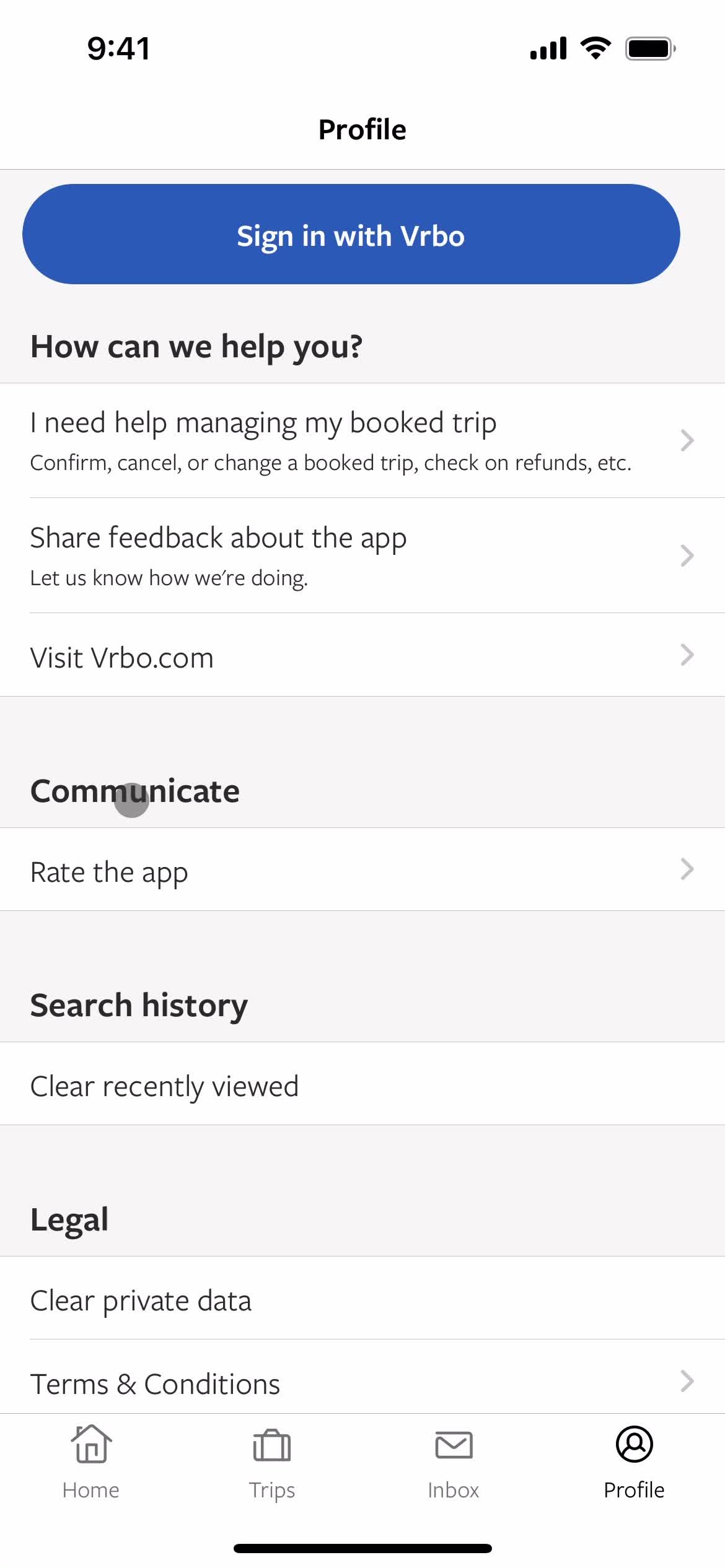
Sign in
this is title
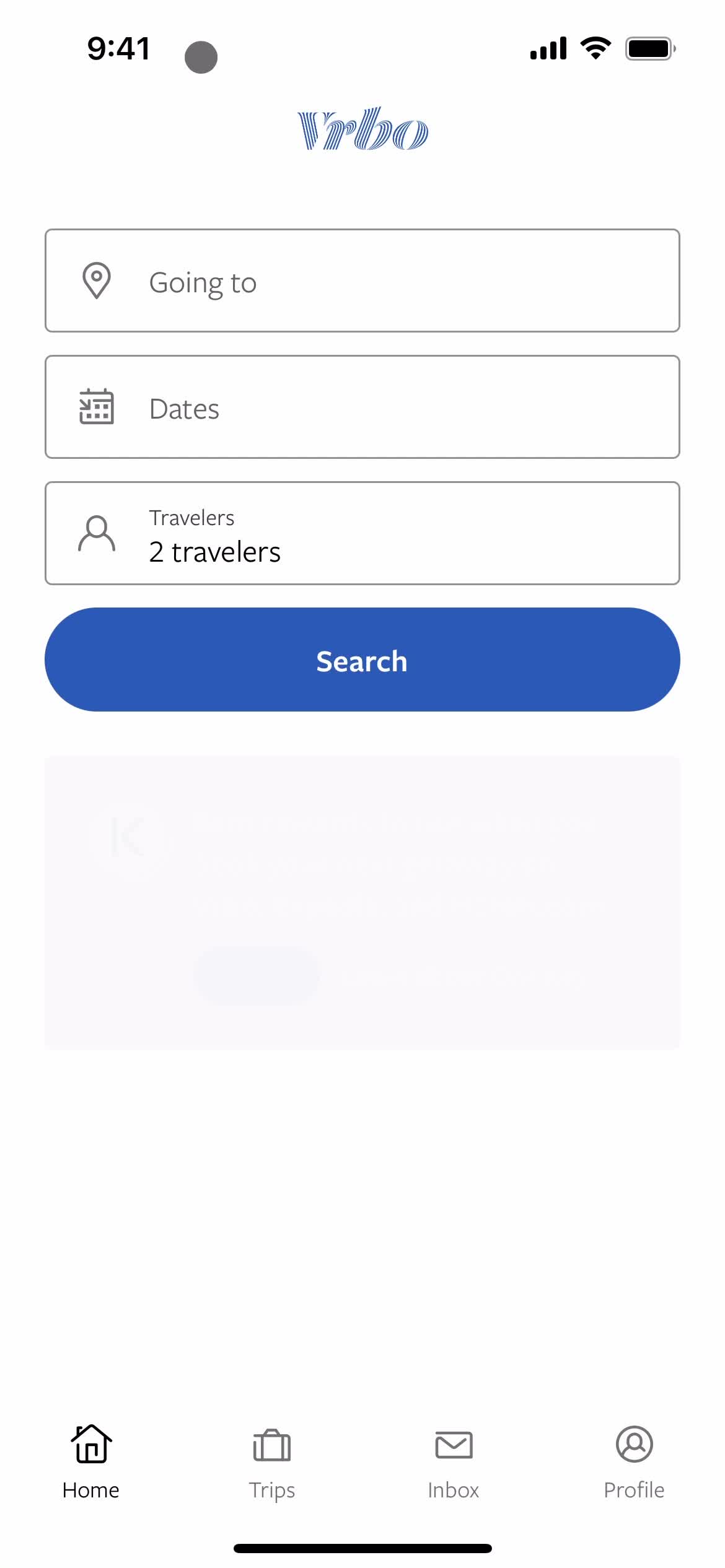
Home
this is title
Home
this is title
Search
this is title
Properties
this is title
Filters
this is title
Filters
this is title
Filters
this is title
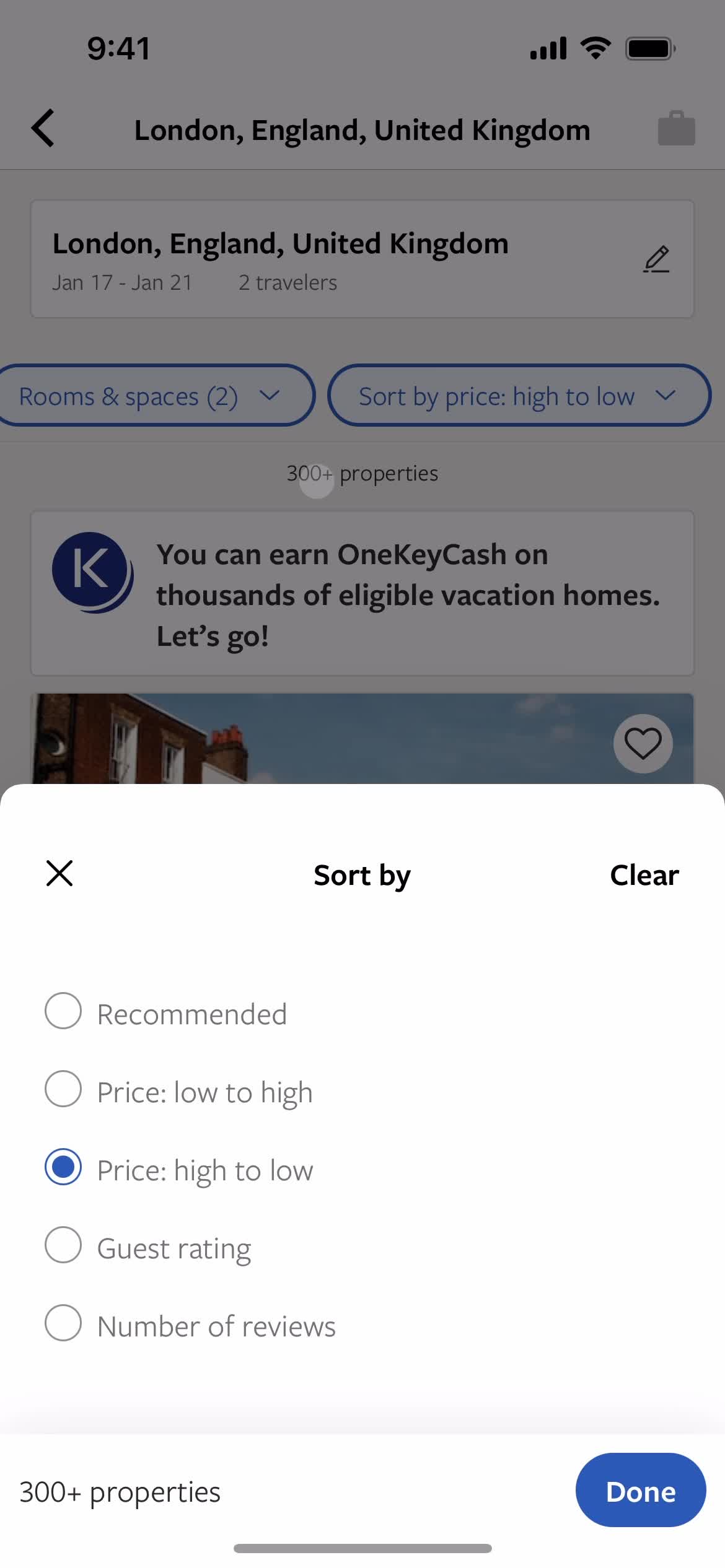
Sort
this is title
Continue
this is title
Filtered results
this is title
Sort
this is title
this is title
Filtered results
this is title
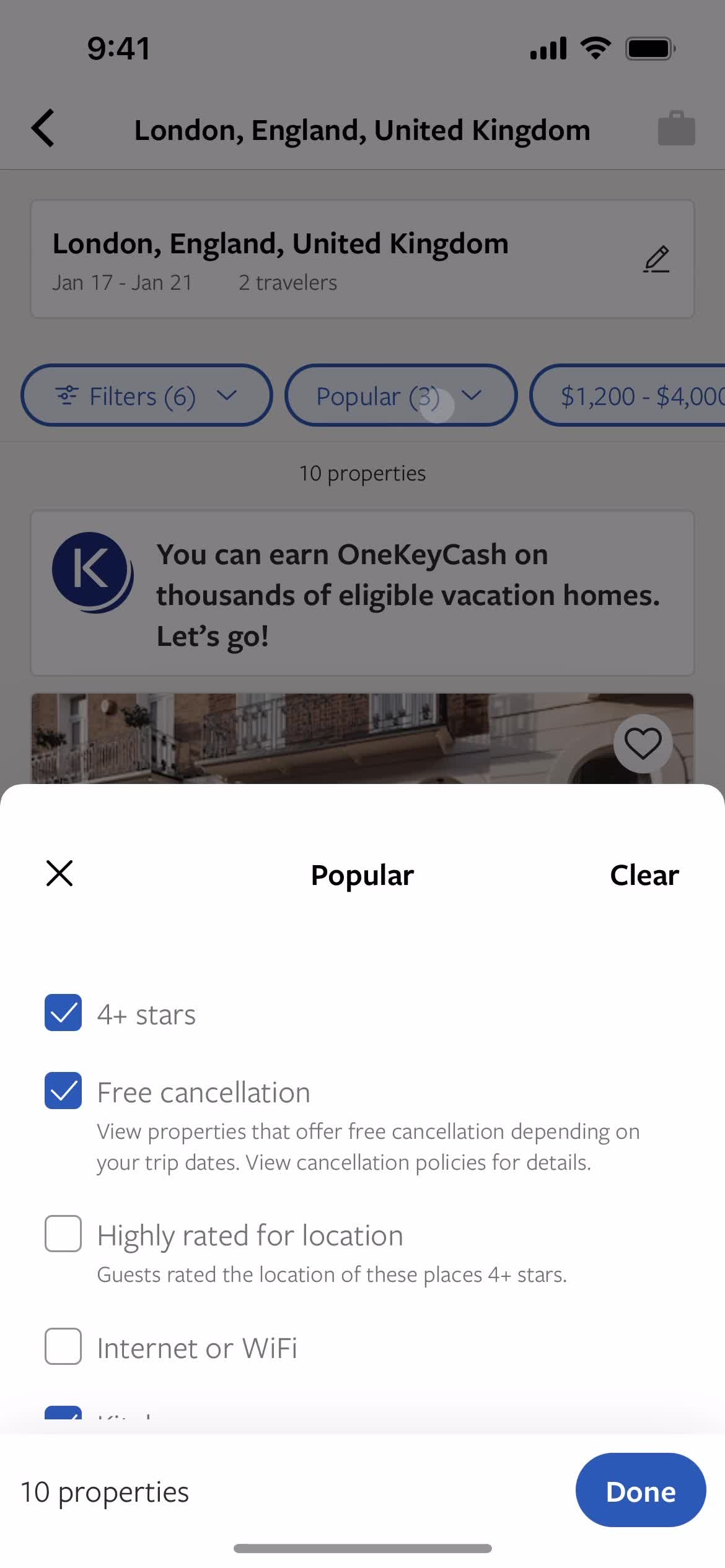
Filter
this is title
Filtered results
this is title
Filter
this is title
this is title
Filtered results
this is title
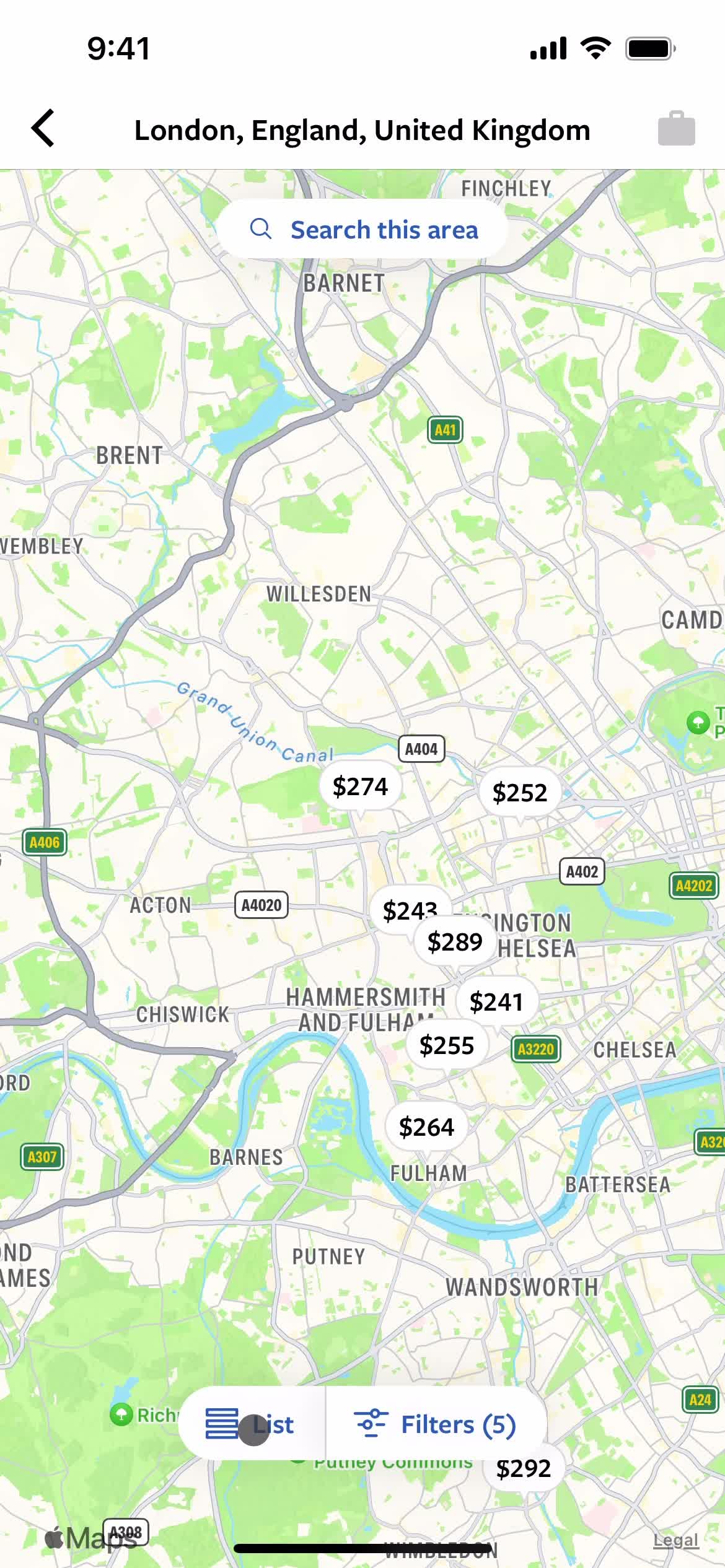
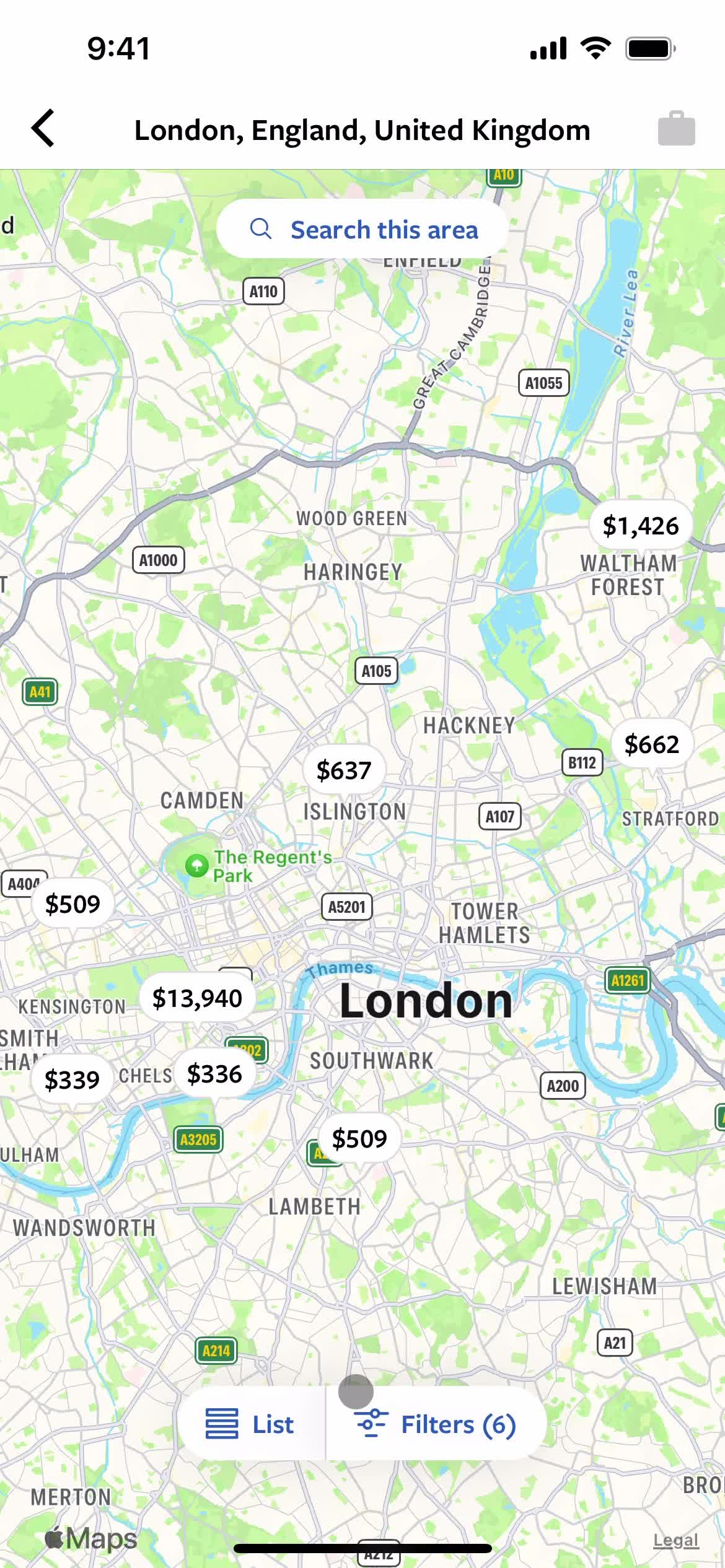
Search map area
this is title
Filters
this is title
Filtered results
this is title
Change list view
this is title
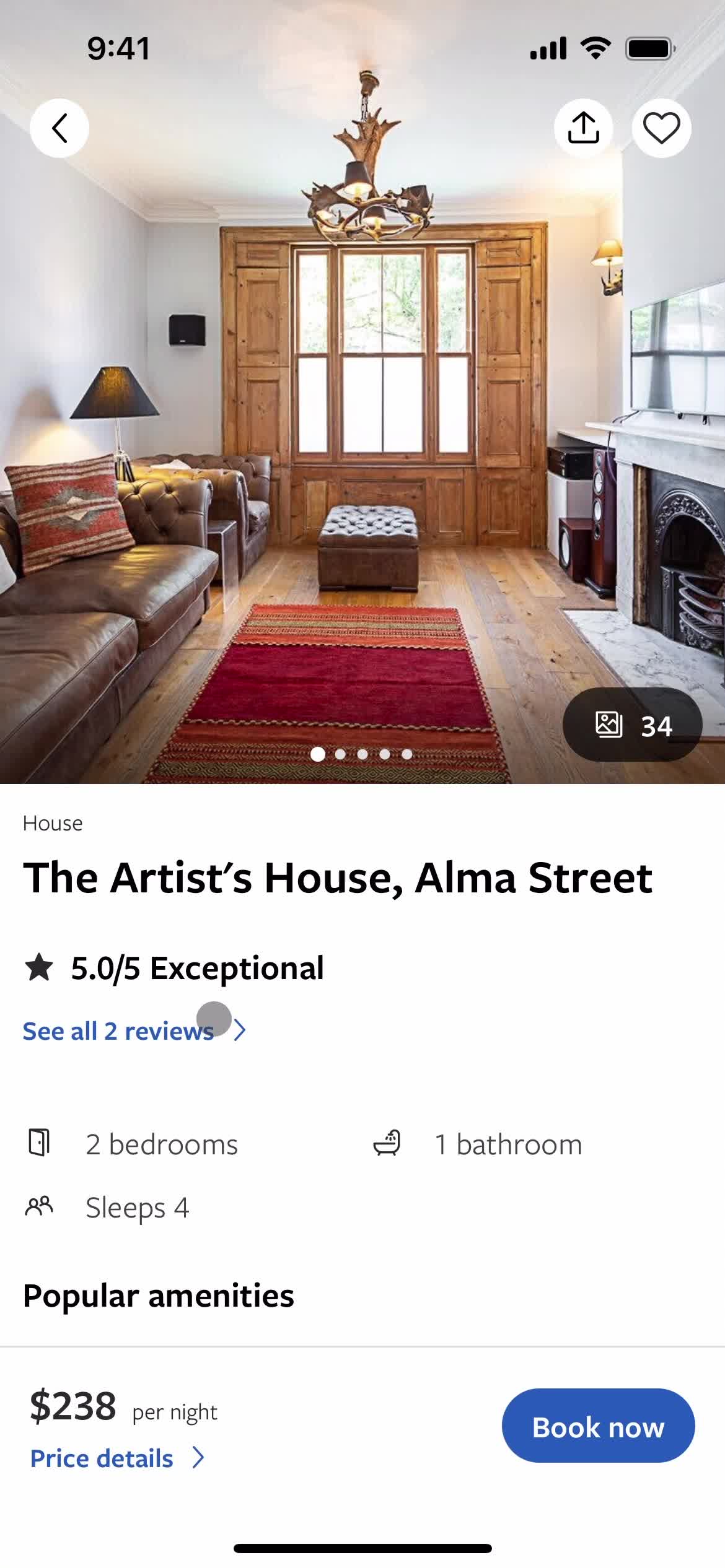
Property details
this is title
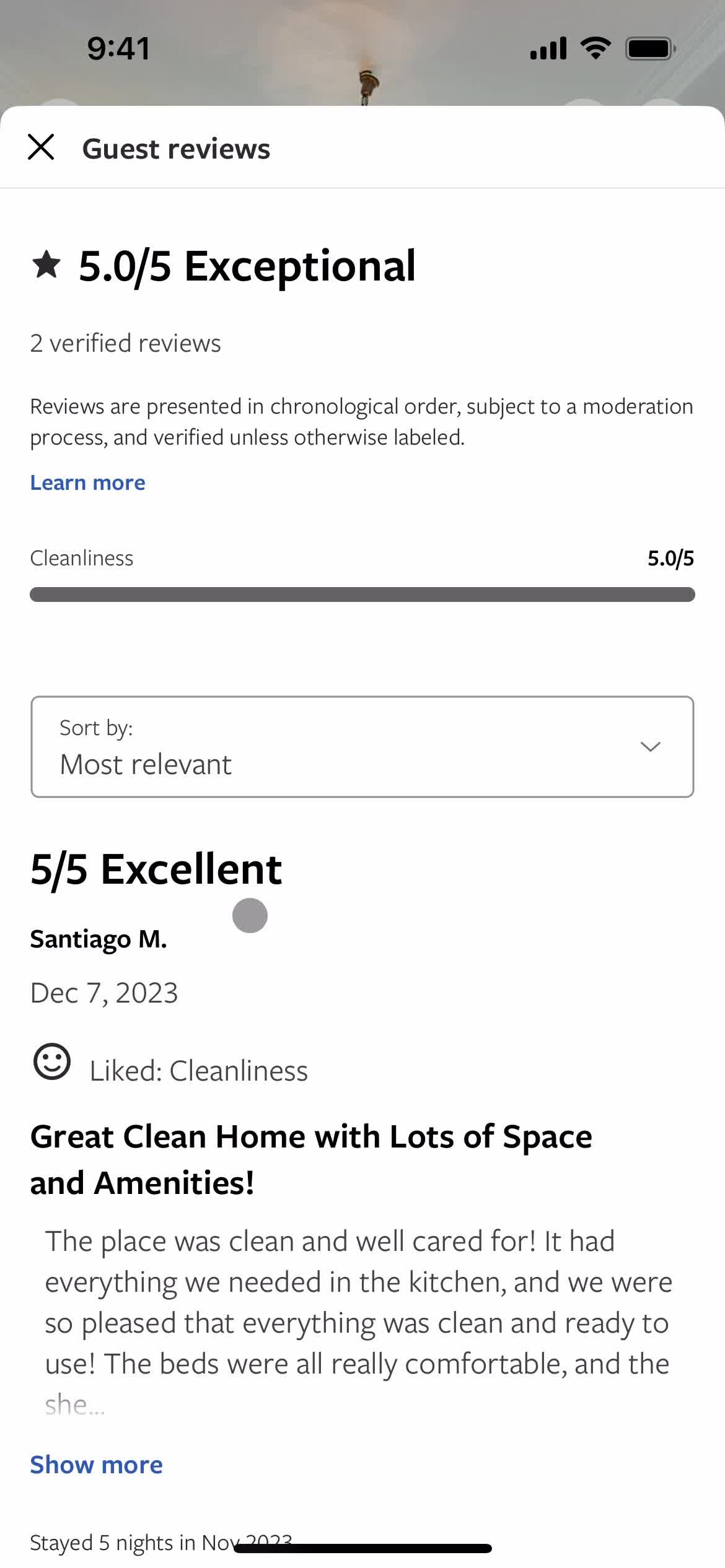
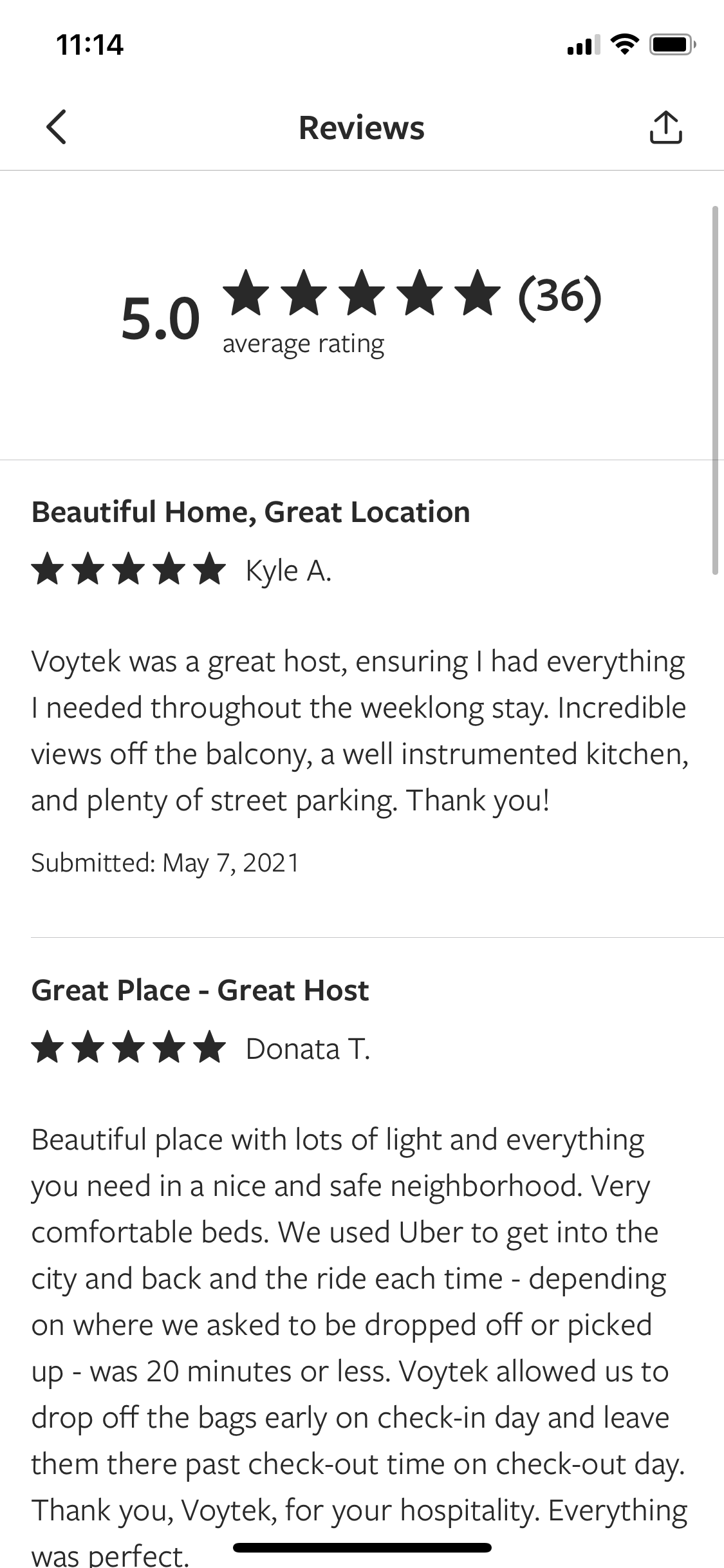
Reviews
this is title
Sort
this is title
Filtered results
this is title
Property details
this is title
Properties
this is title
Home
this is title
Home
this is title
Set location
this is title
this is title
Set date range
this is title
this is title
this is title
this is title
Add traveller
this is title
Search
this is title
Properties
this is title
Search map area
this is title
Search map area
this is title
Filters
this is title
Filters
this is title
this is title
Sort
this is title
Search
this is title
Filtered results
this is title
Change list view
this is title
Filtered results
this is title
Filter
this is title
Filtered results
this is title
this is title
Filter
this is title
Filtered results
this is title
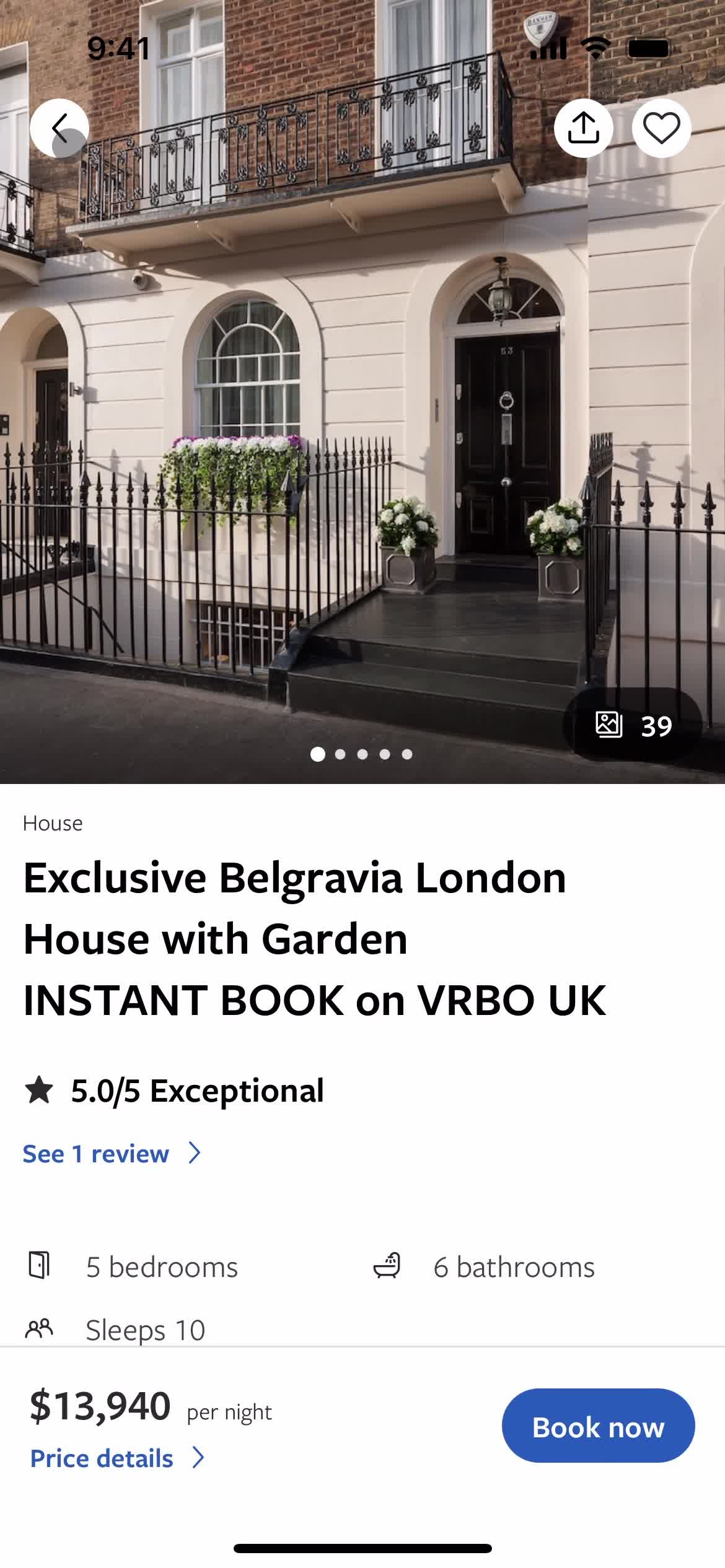
Property details
this is title
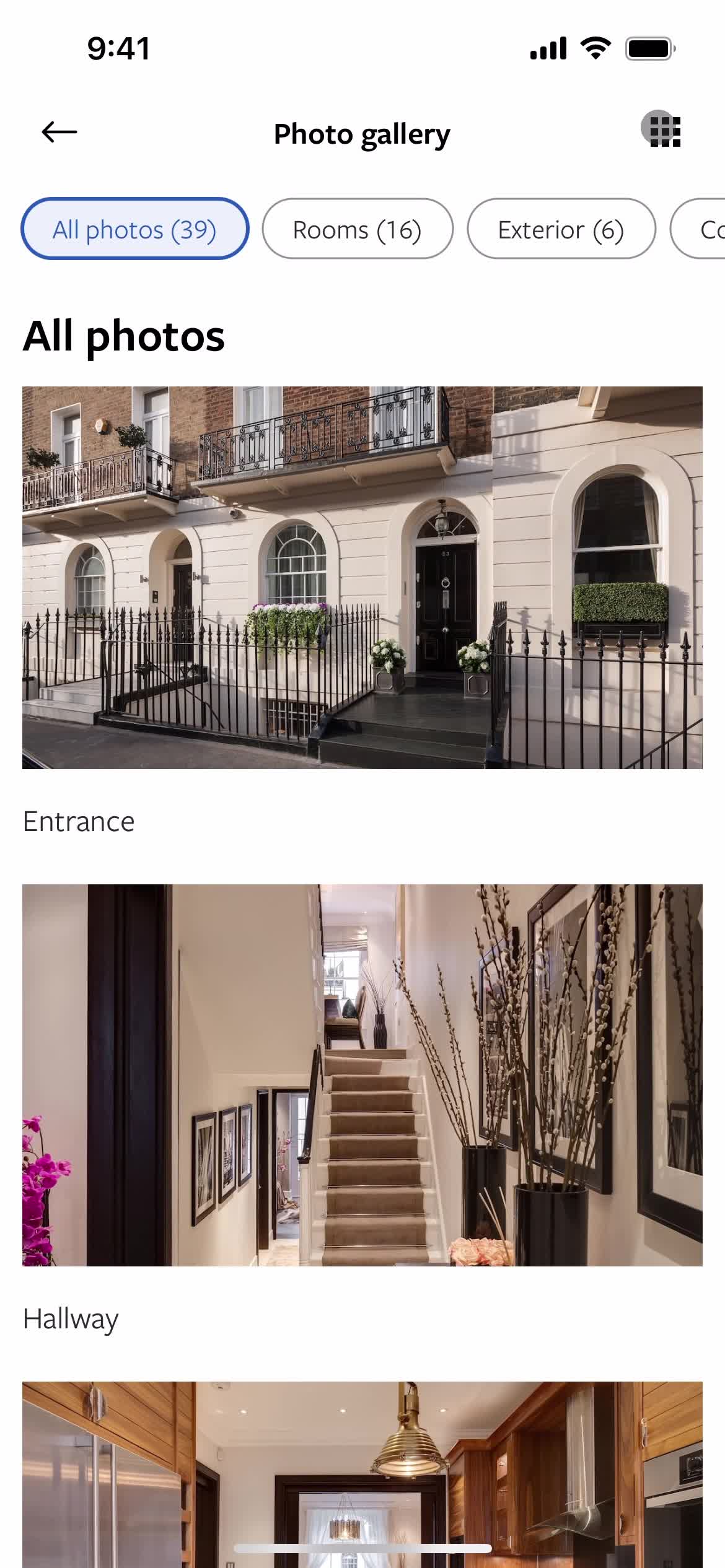
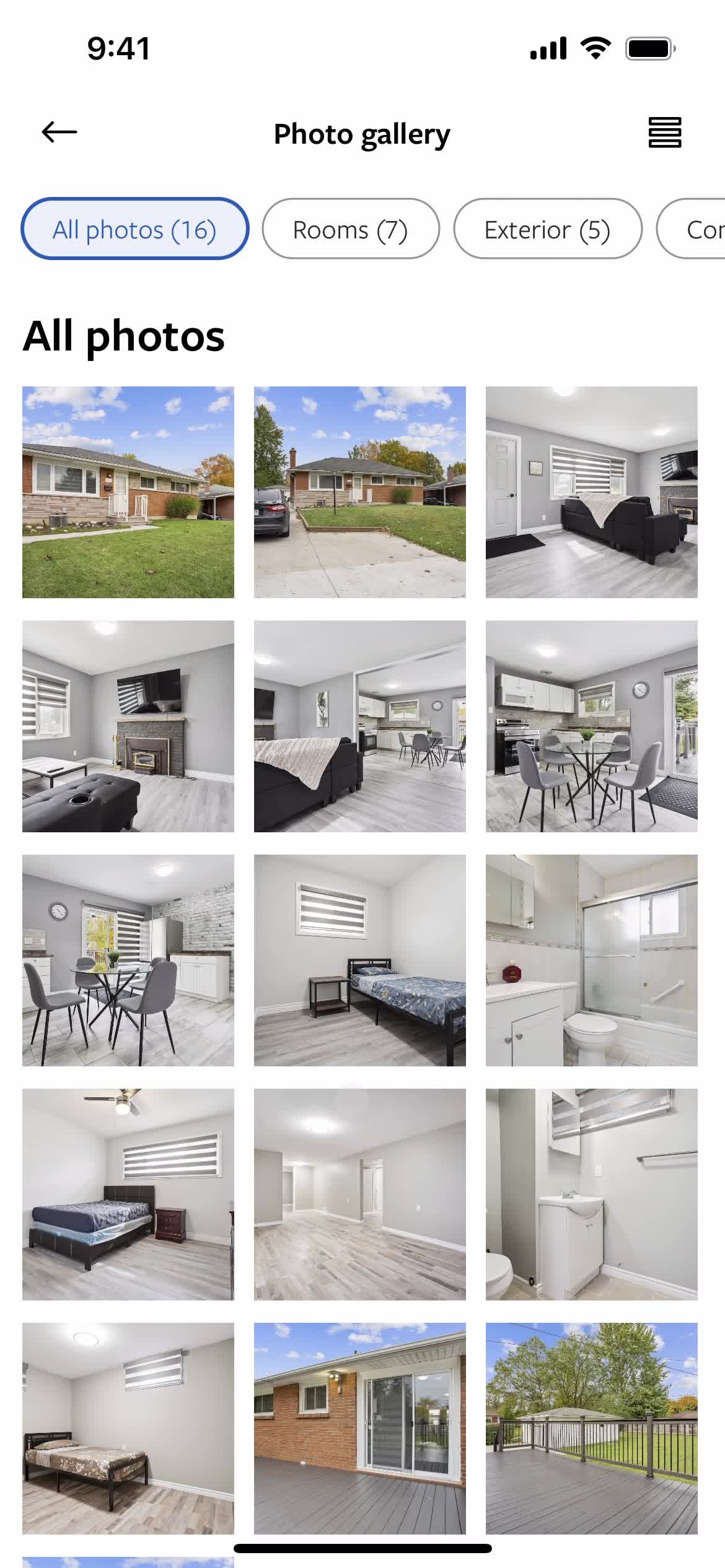
Image gallery
this is title
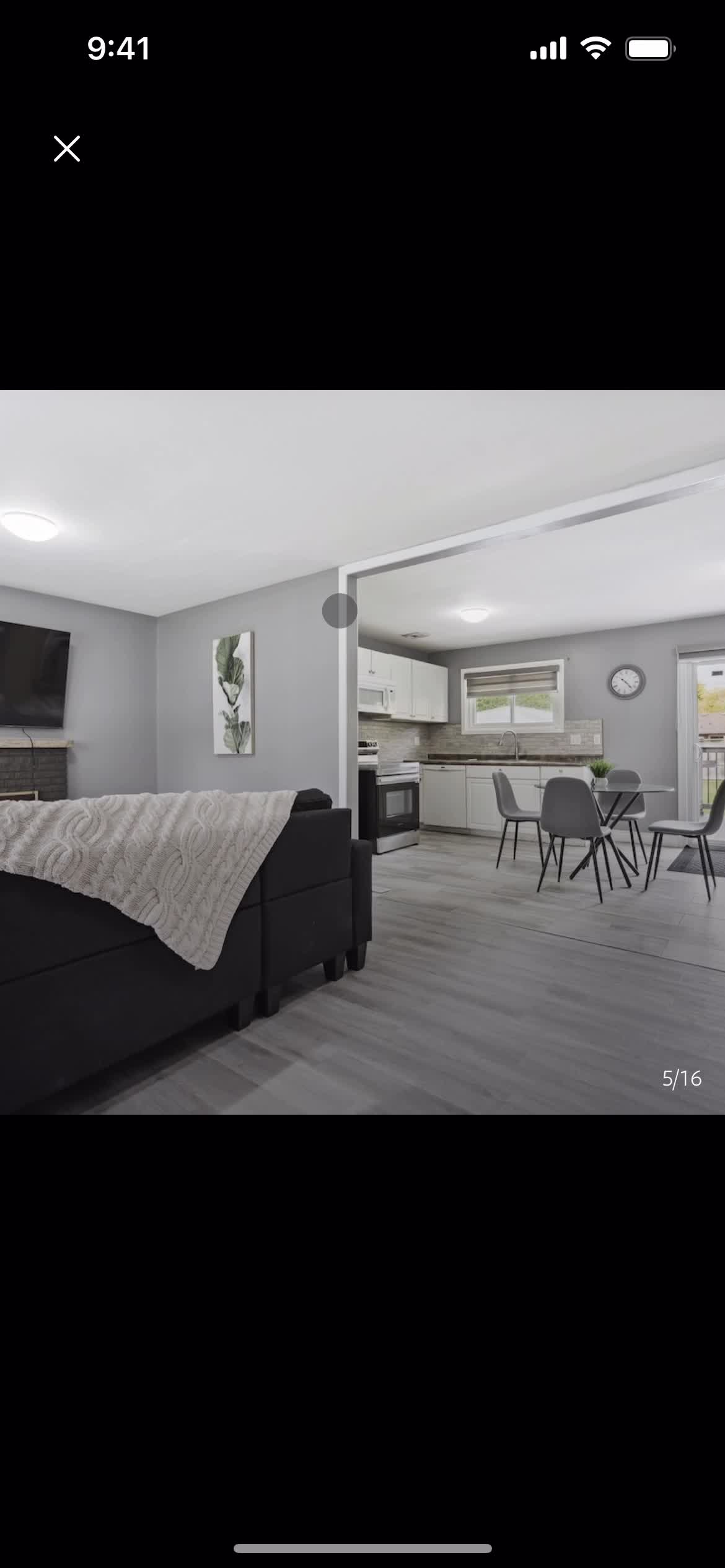
Image
this is title
this is title
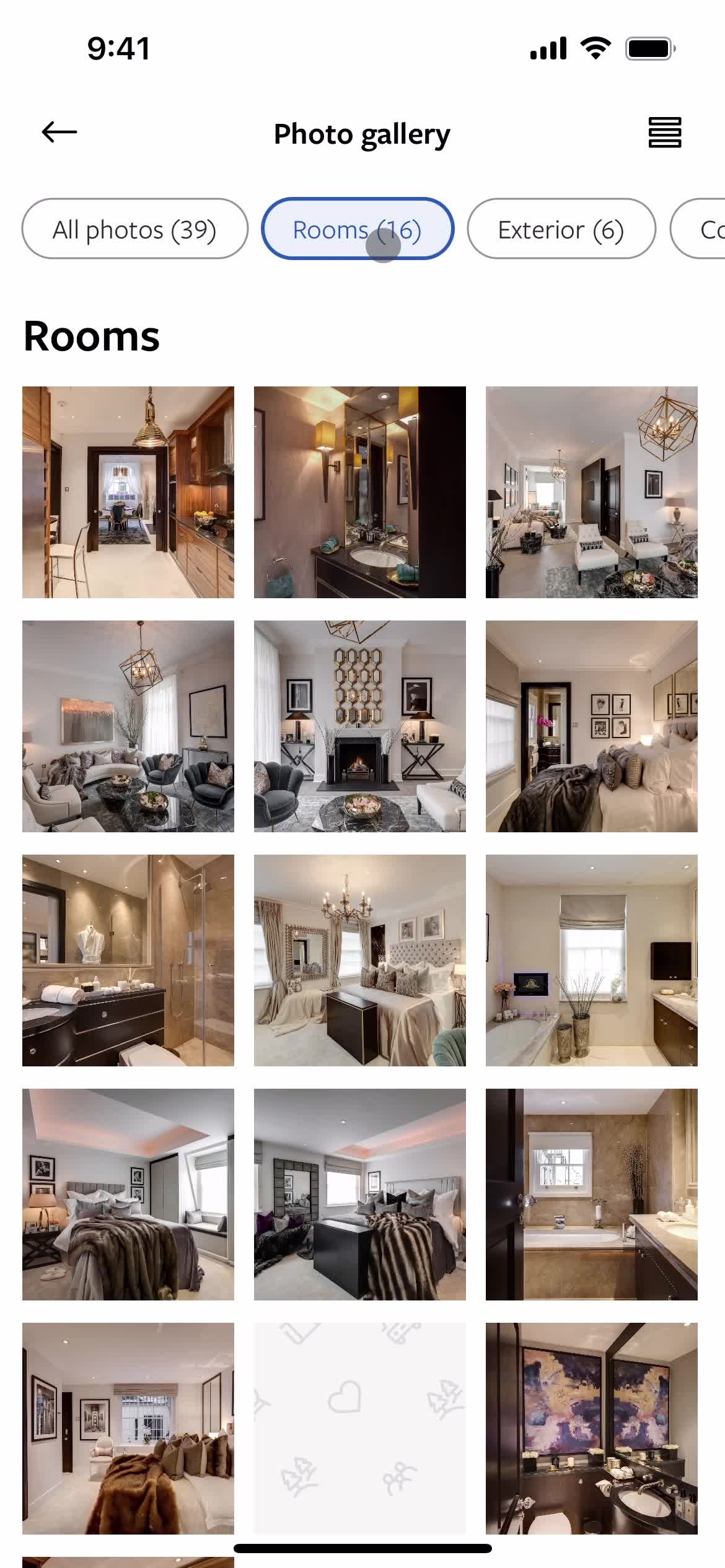
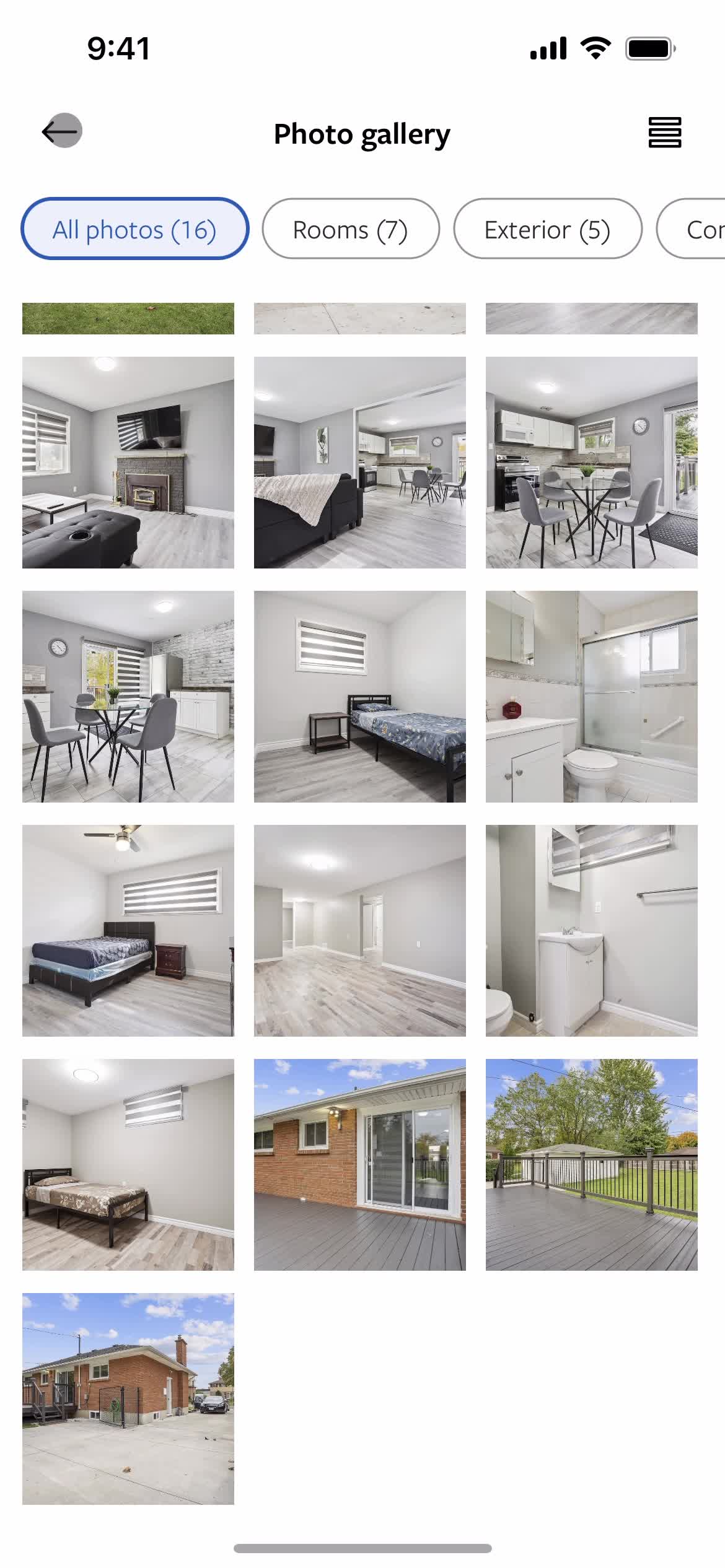
Grid view
this is title
Filtered results
this is title
Property details
this is title
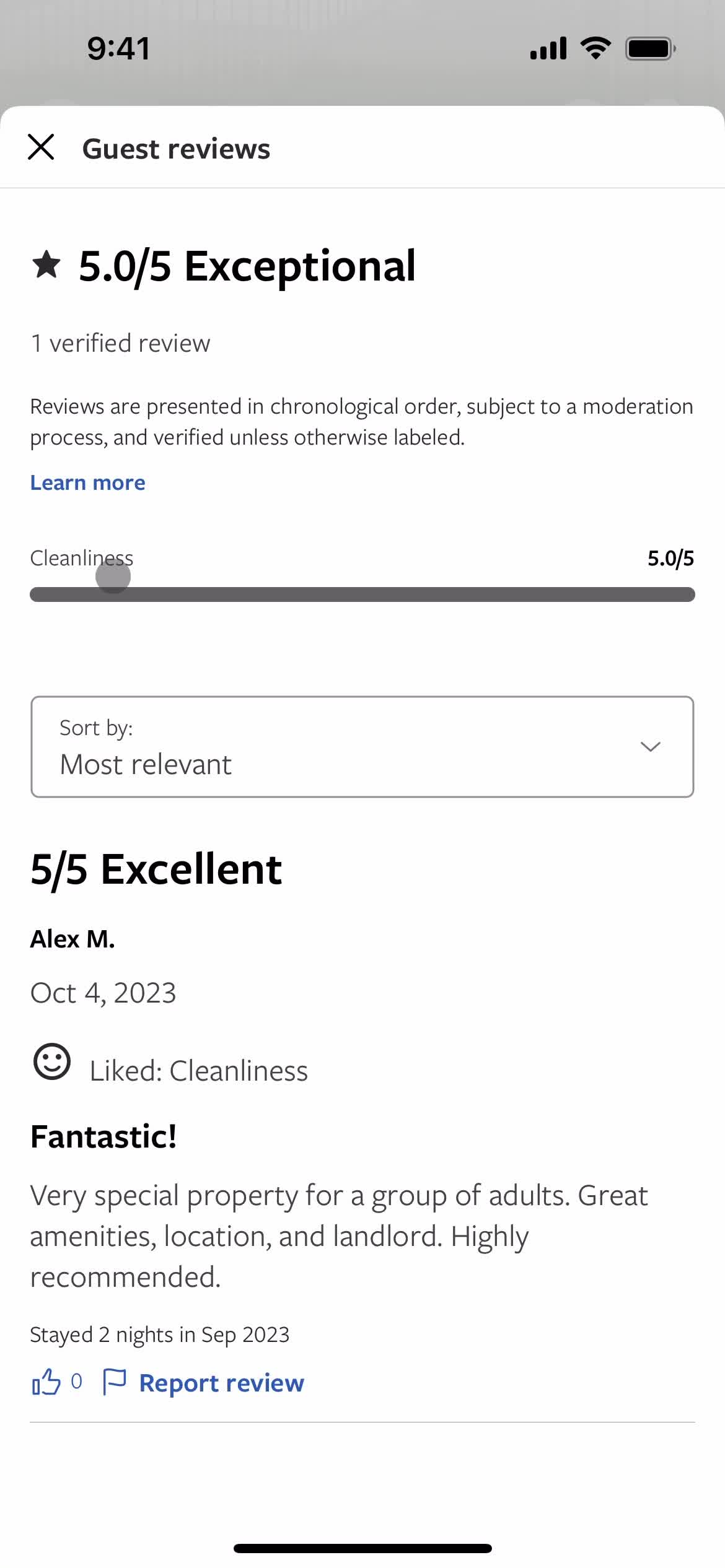
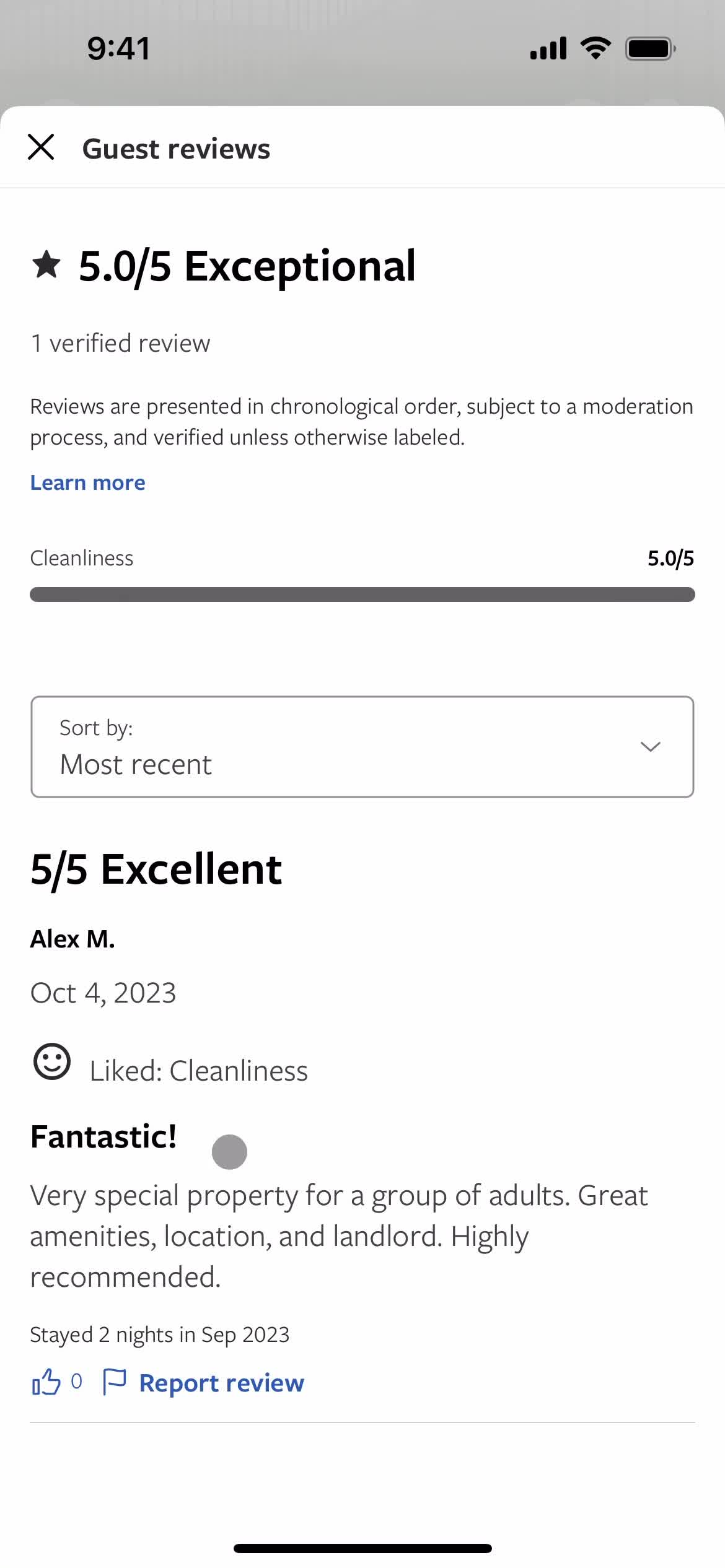
Reviews
this is title
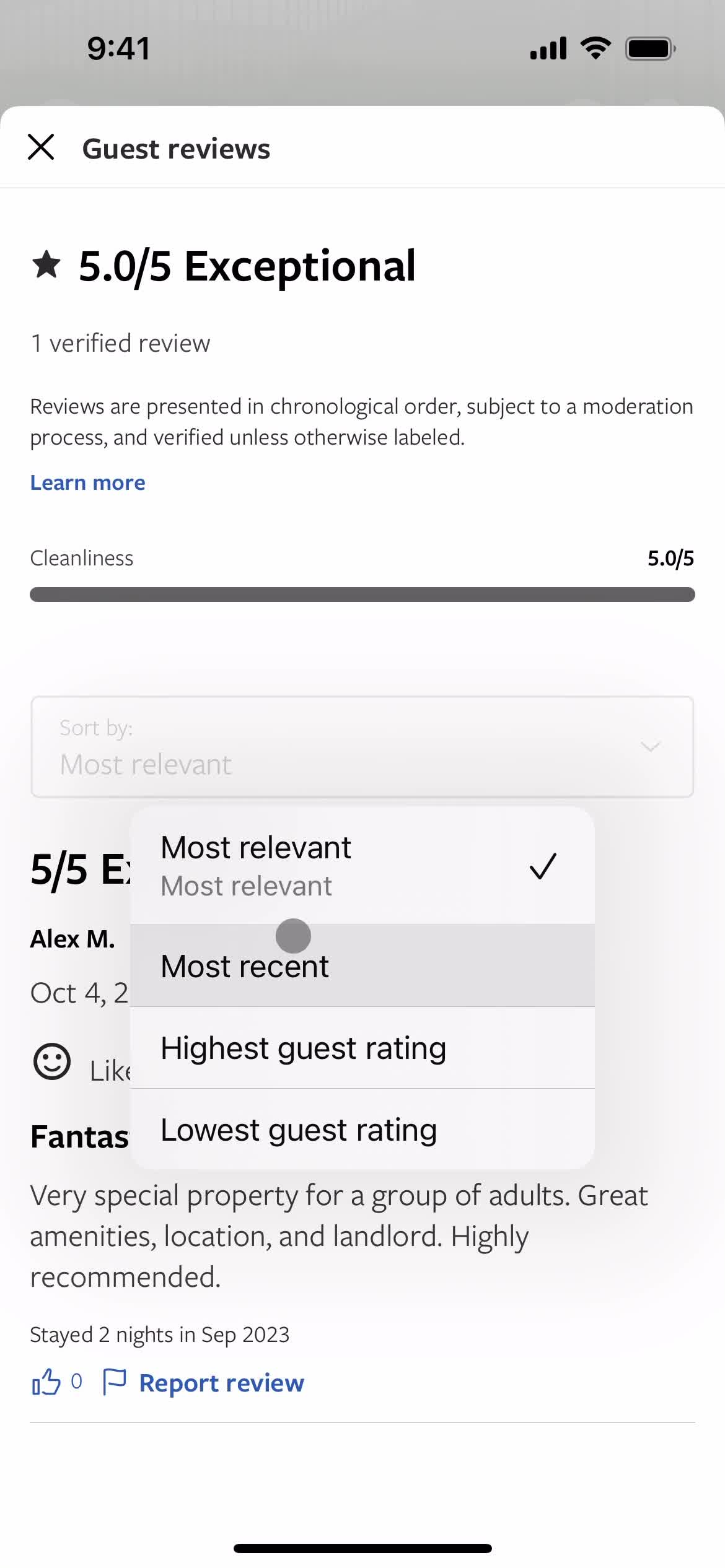
Sort
this is title
Filtered results
this is title
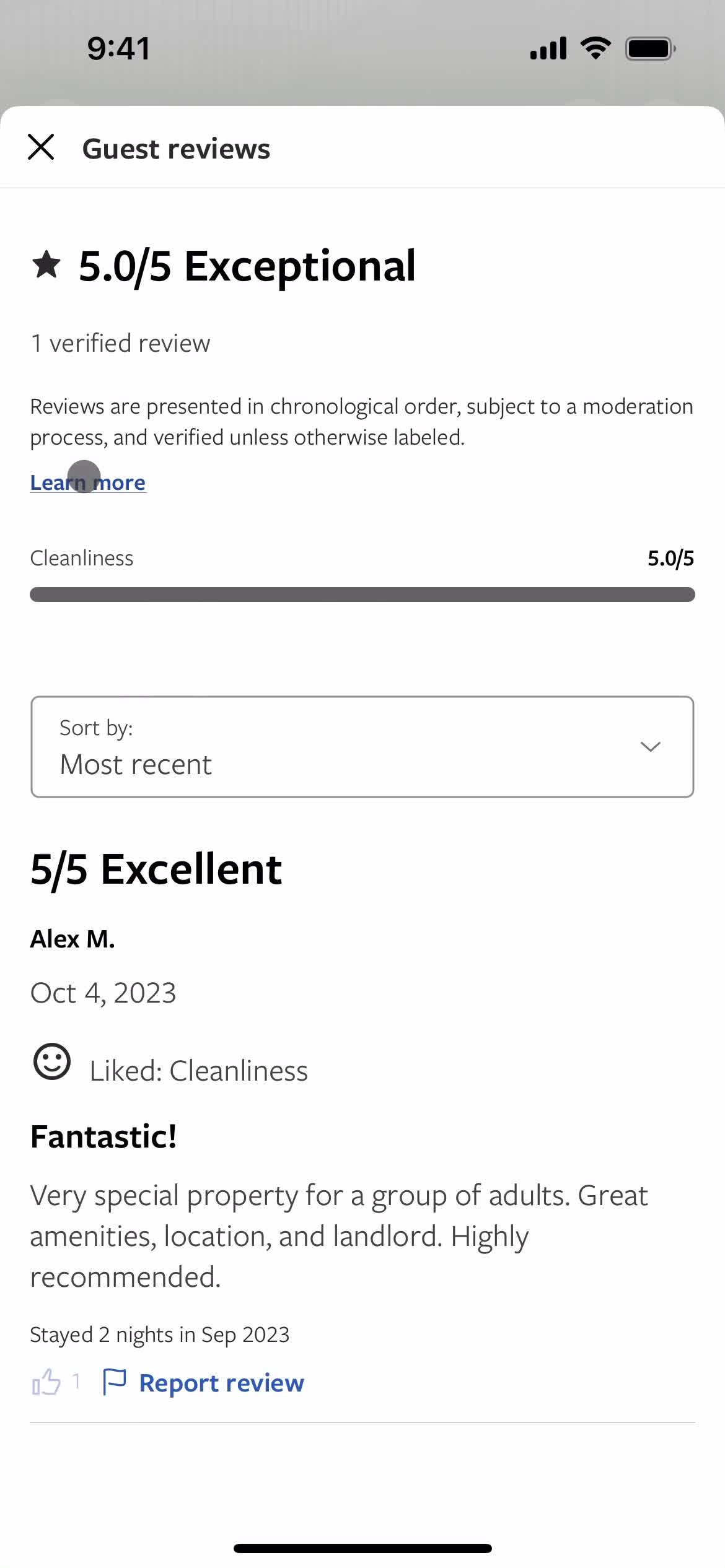
Liked
this is title
this is title
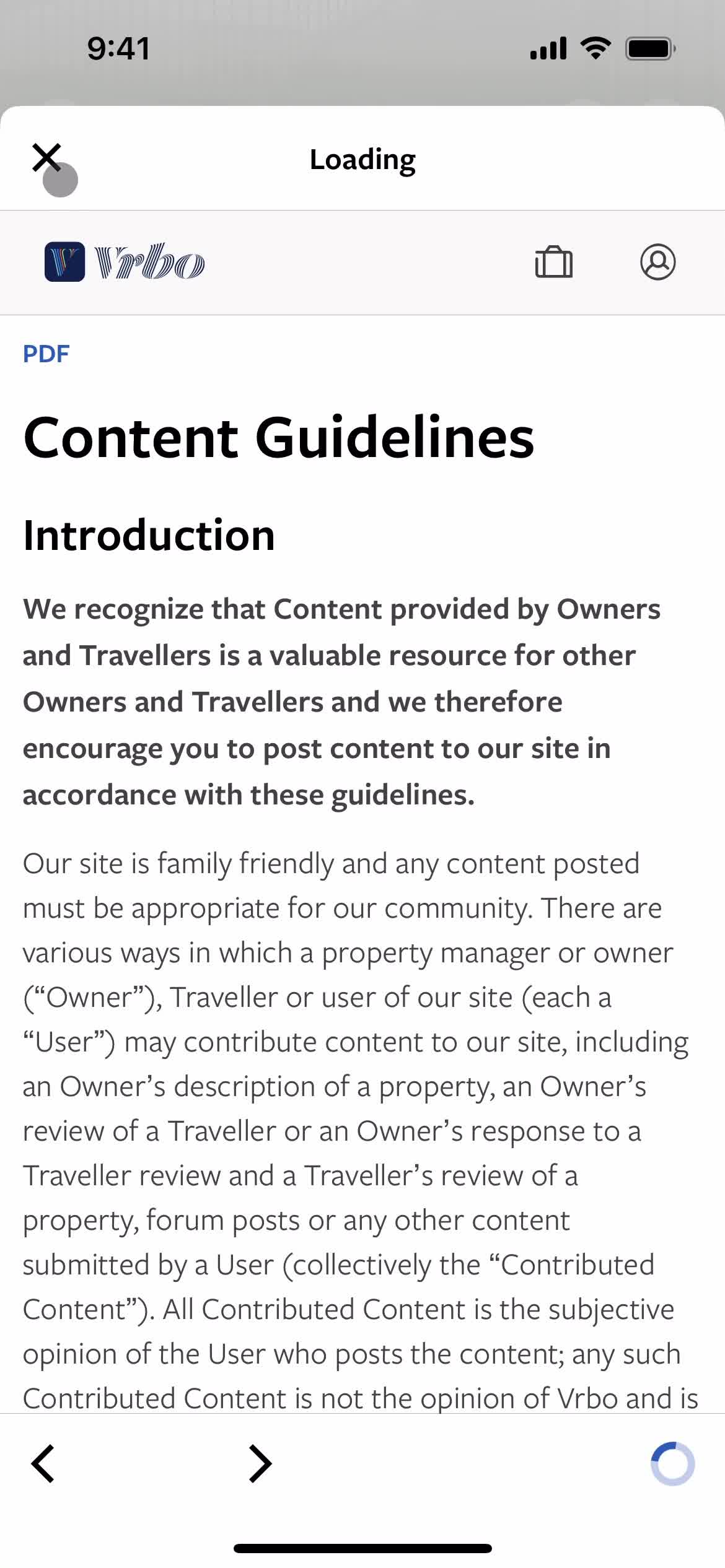
Guidelines
this is title
Reviews
this is title
Property details
this is title
Location details
this is title
this is title
Location details
this is title
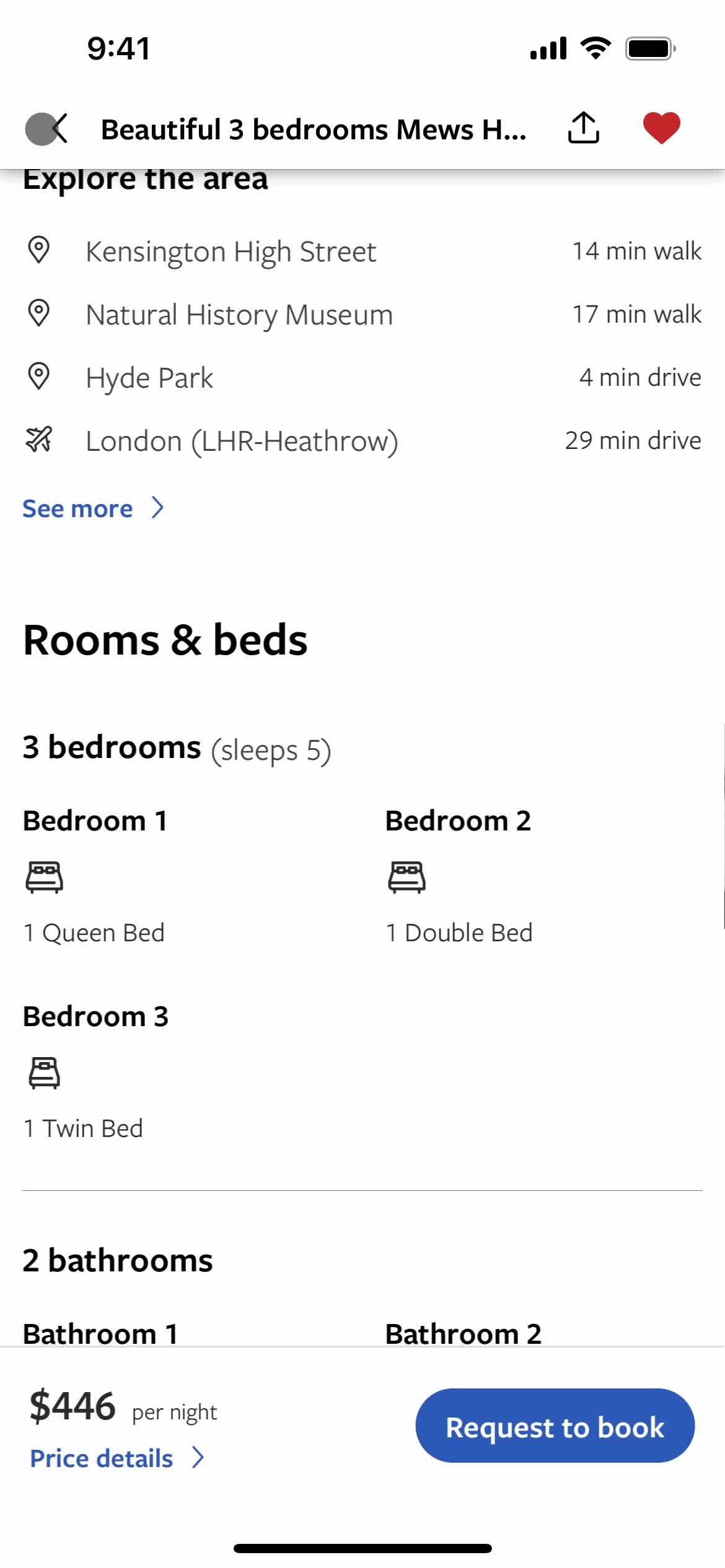
Room details
this is title
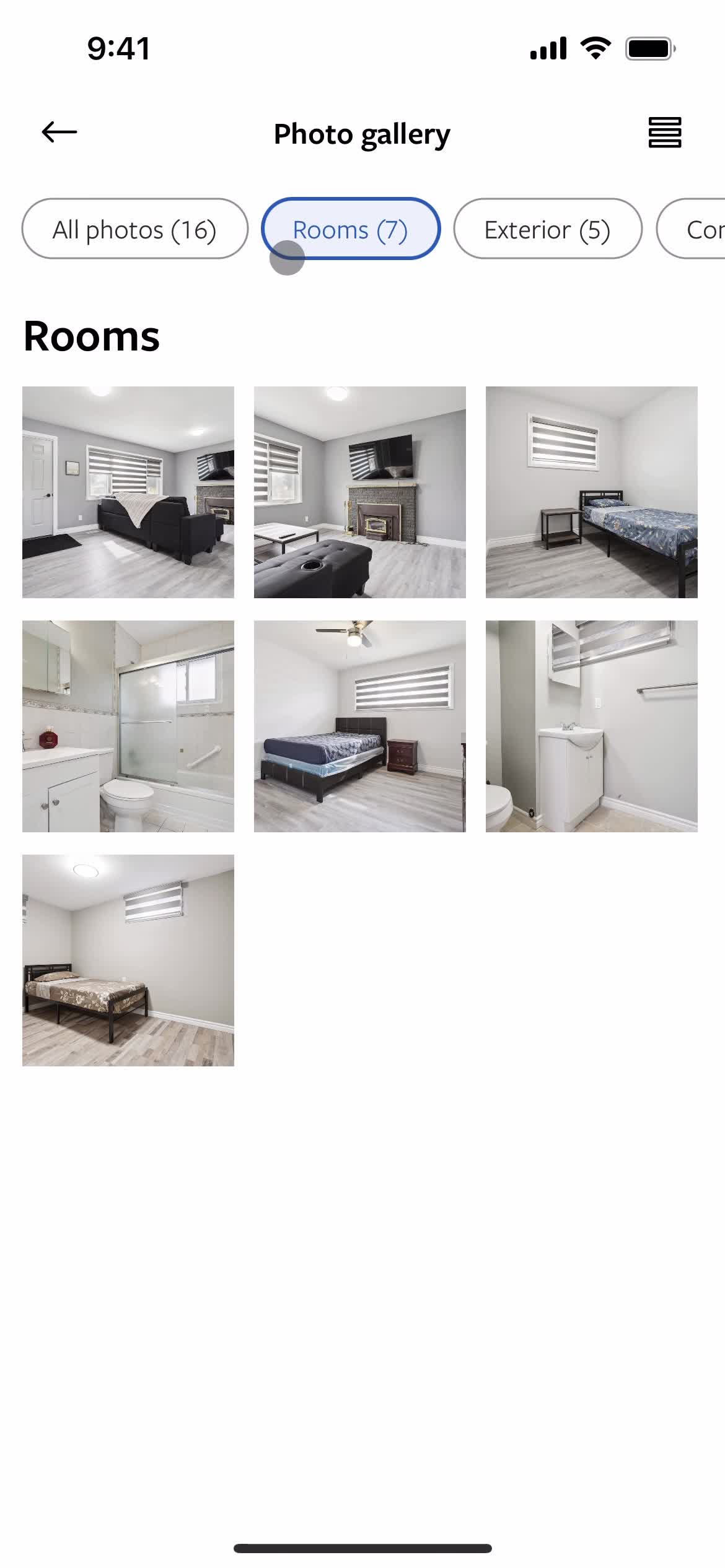
Rooms
this is title
Price details
this is title
Price details
this is title
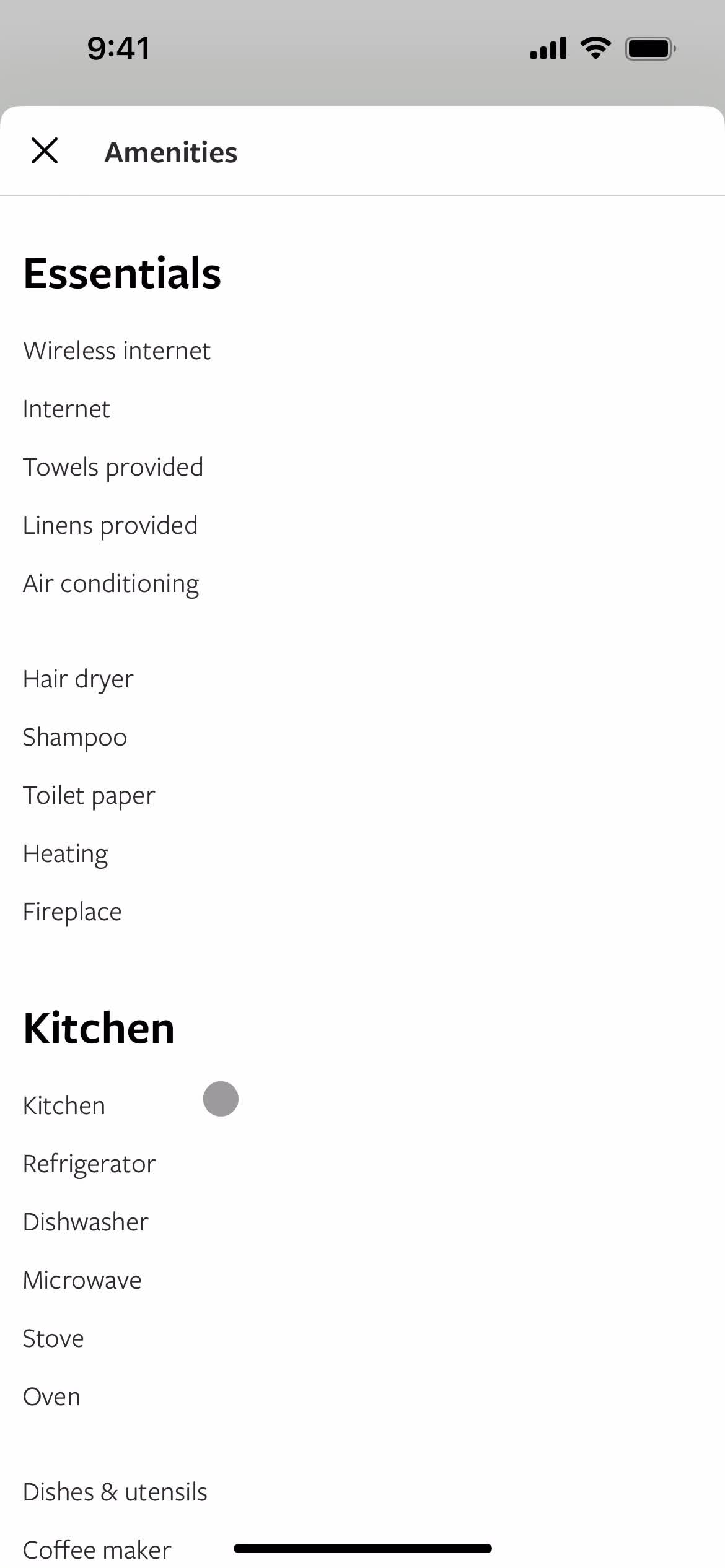
Amenities
this is title
Amenities
this is title
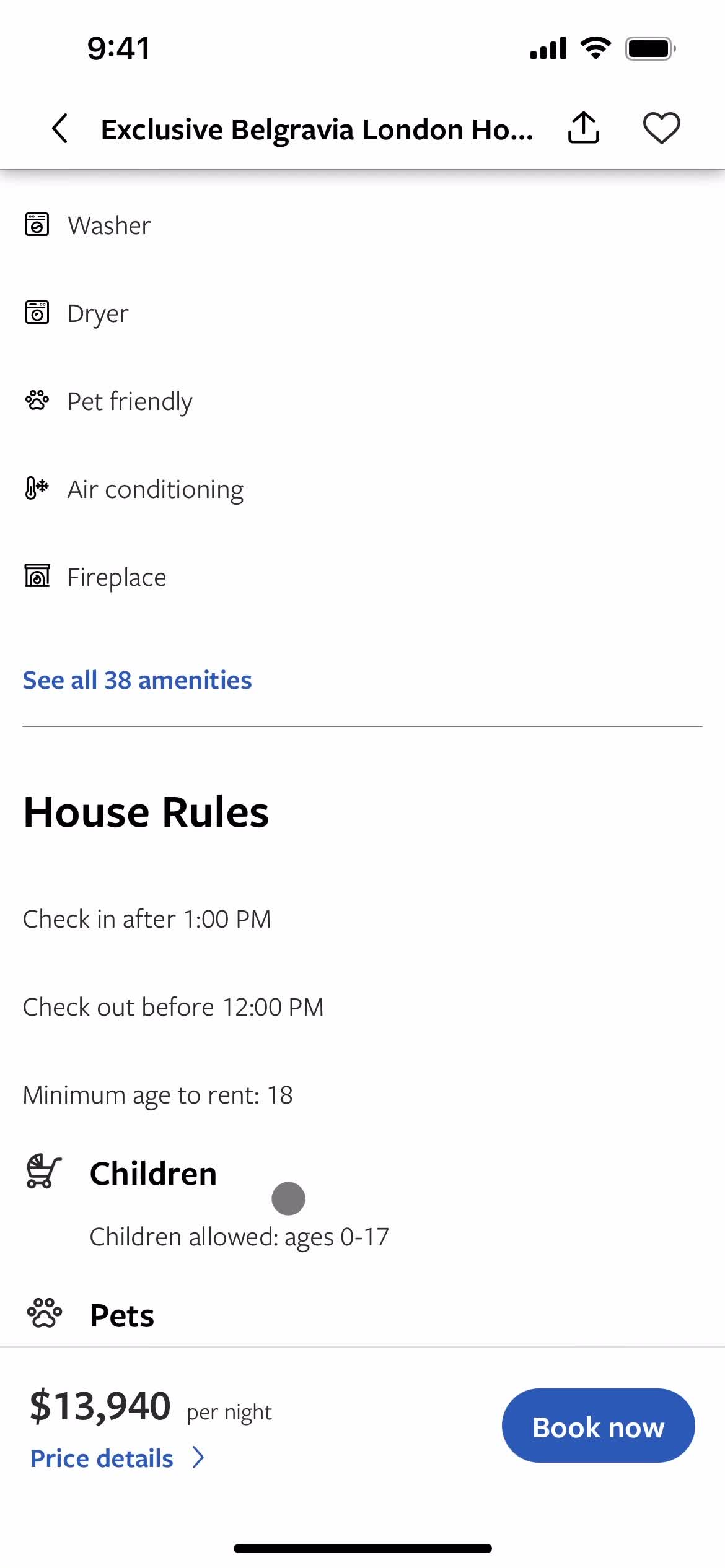
Rules
this is title
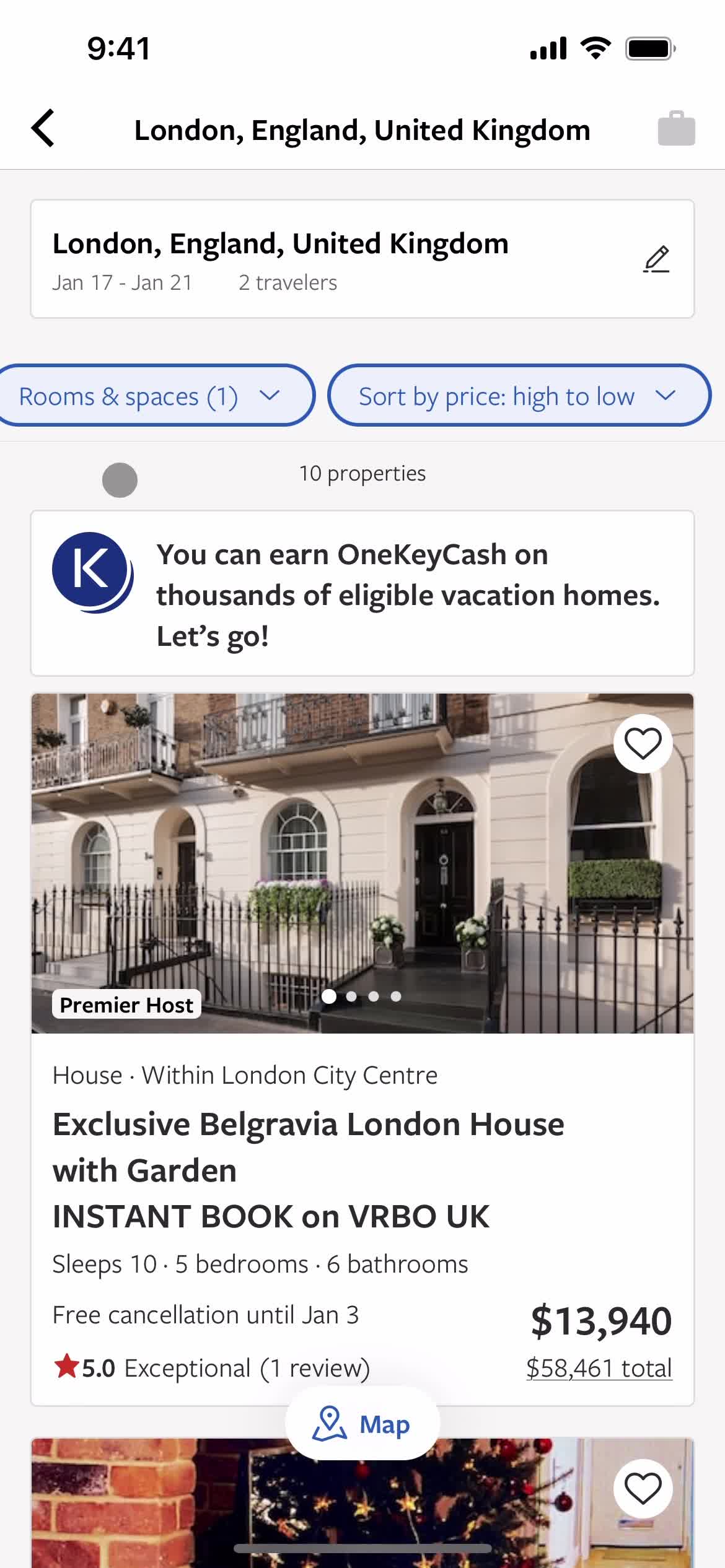
Search results
this is title
this is title
Trips
this is title
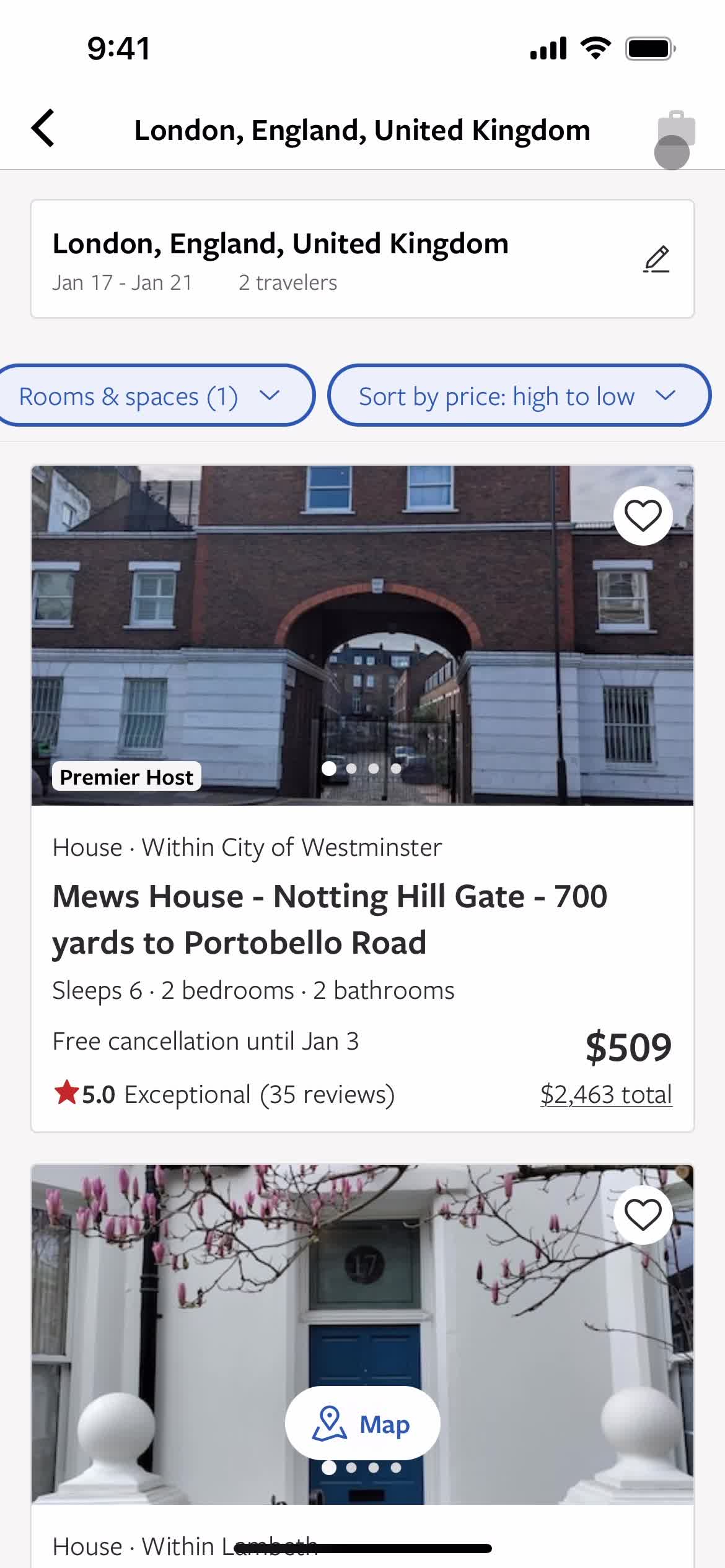
Search results
this is title
Home
this is title
Home
this is title
Set location
this is title
Set date range
this is title
Set preferences
this is title
this is title
Continue
this is title
Properties
this is title
Set preferences
this is title
this is title
Filtered results
this is title
this is title
Map
this is title
this is title
Filtered results
this is title
Property details
this is title
Image gallery
this is title
this is title
Gallery view
this is title
Image
this is title
Image gallery
this is title
Filtered results
this is title
Property details
this is title
Location details
this is title
Property details
this is title
Rooms
this is title
Price details
this is title
Property details
this is title
Amenities
this is title
Filtered results
this is title
Home
this is title
Trips
this is title
Create trip
this is title
Create trip
this is title
Add description
this is title
Save
this is title
Saved to trip
this is title
Trip details
this is title
Trips
this is title
Home
this is title
Messages
this is title
Account
this is title
My profile
this is title
Account
this is title
Notification settings
this is title
Categories
this is title
Set preferences
this is title
Account
this is title
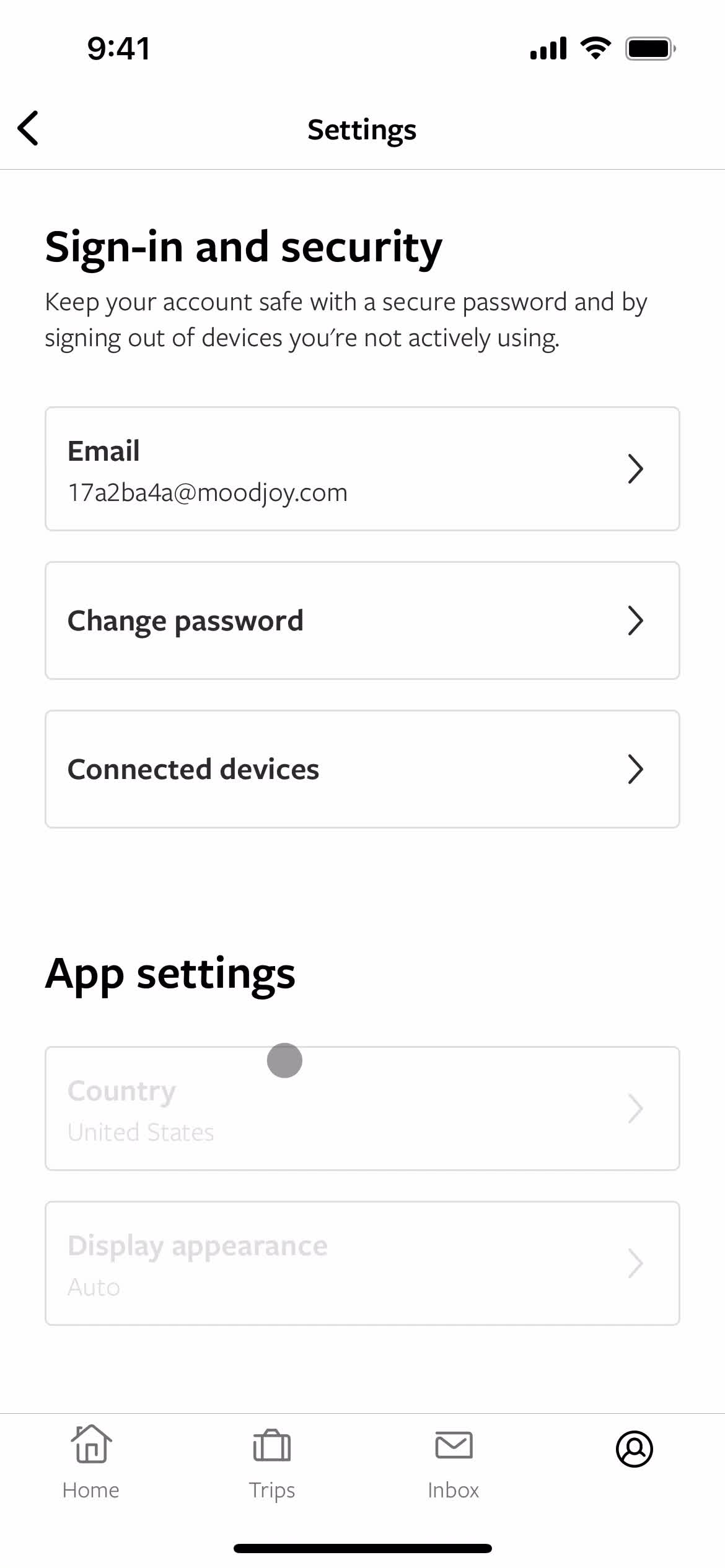
Settings
this is title
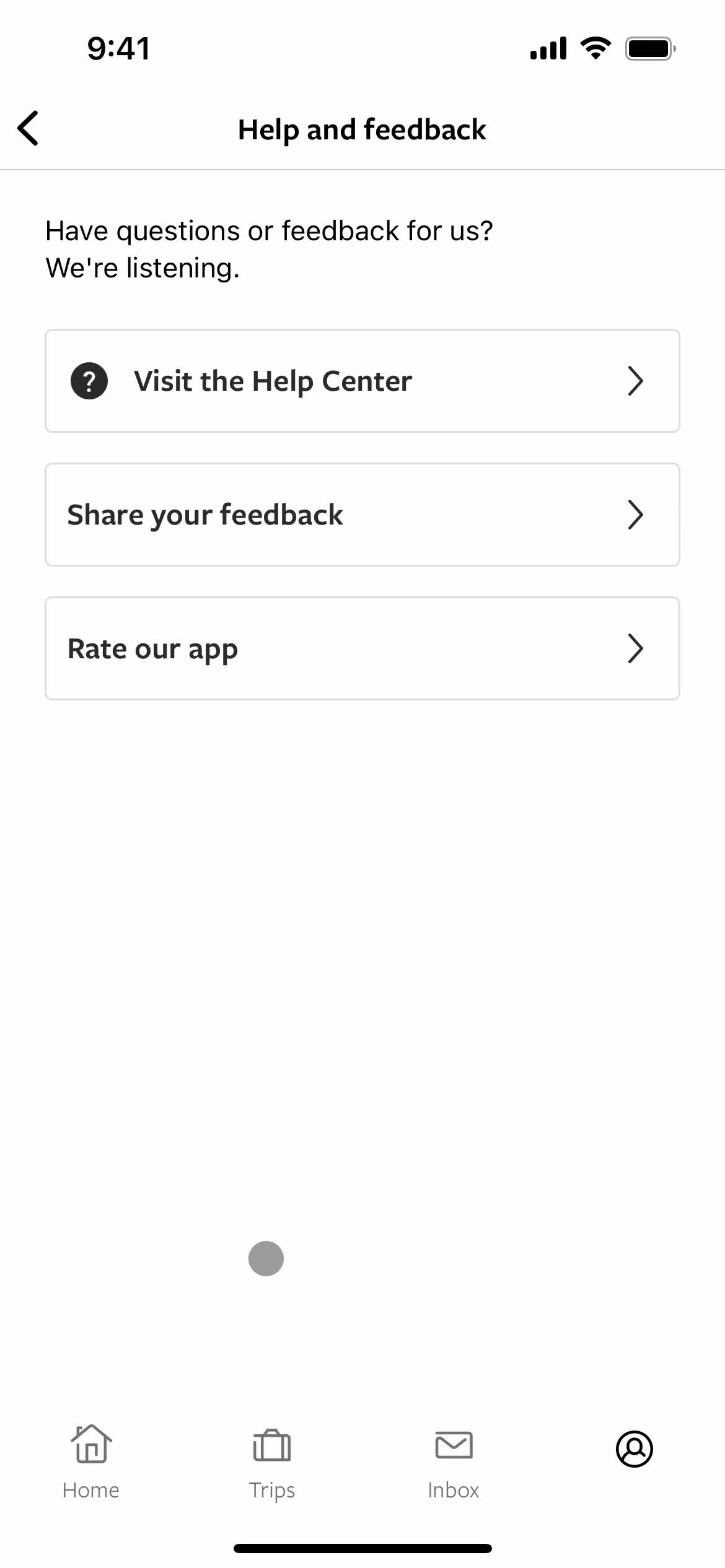
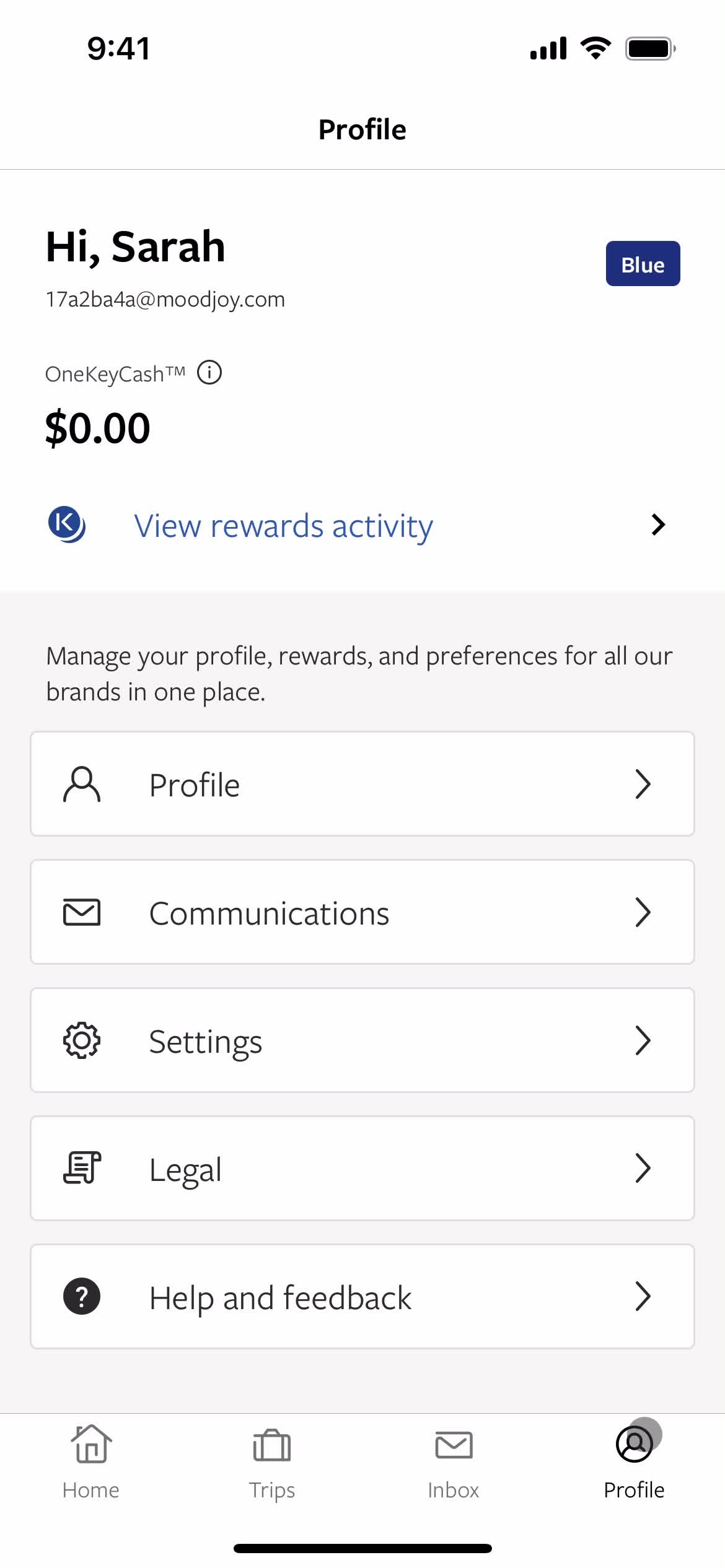
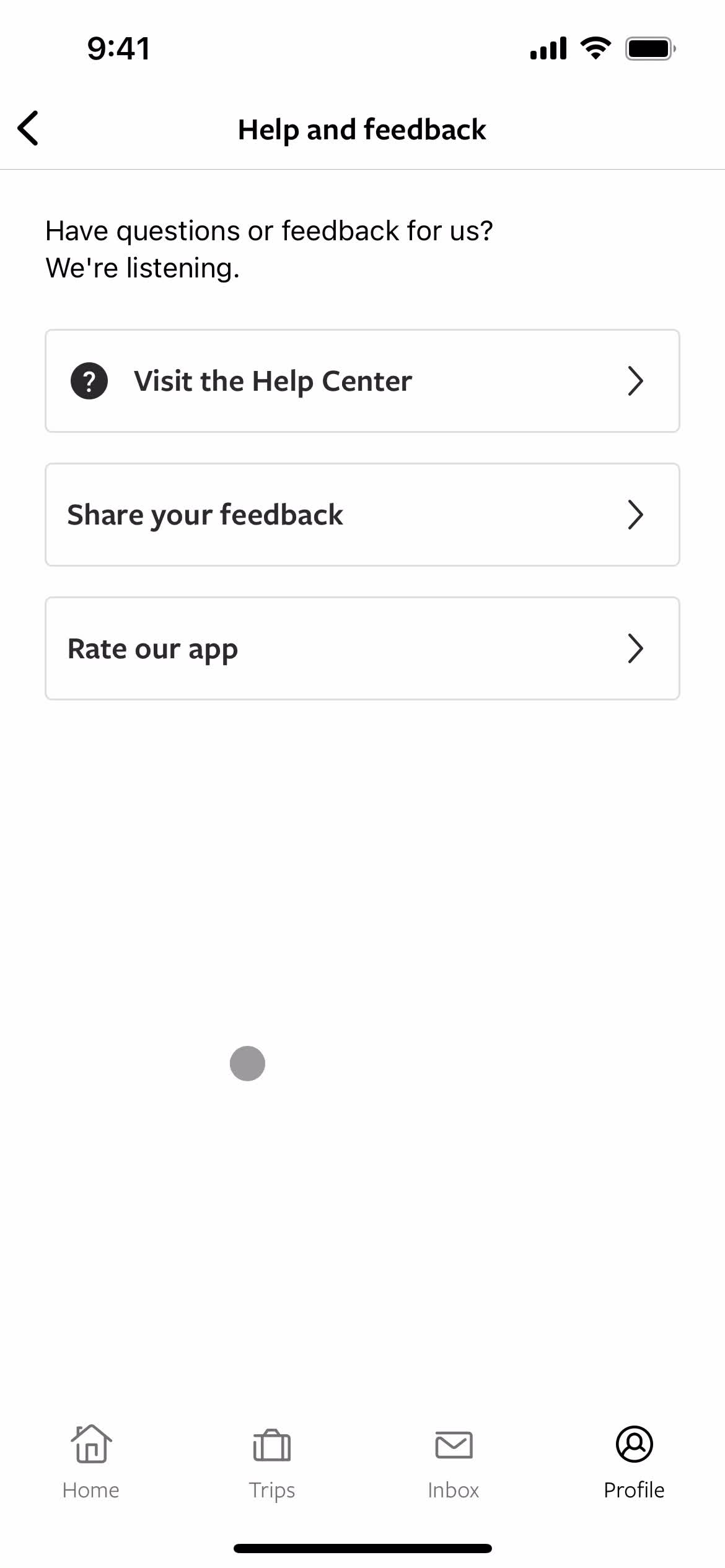
Help center
this is title
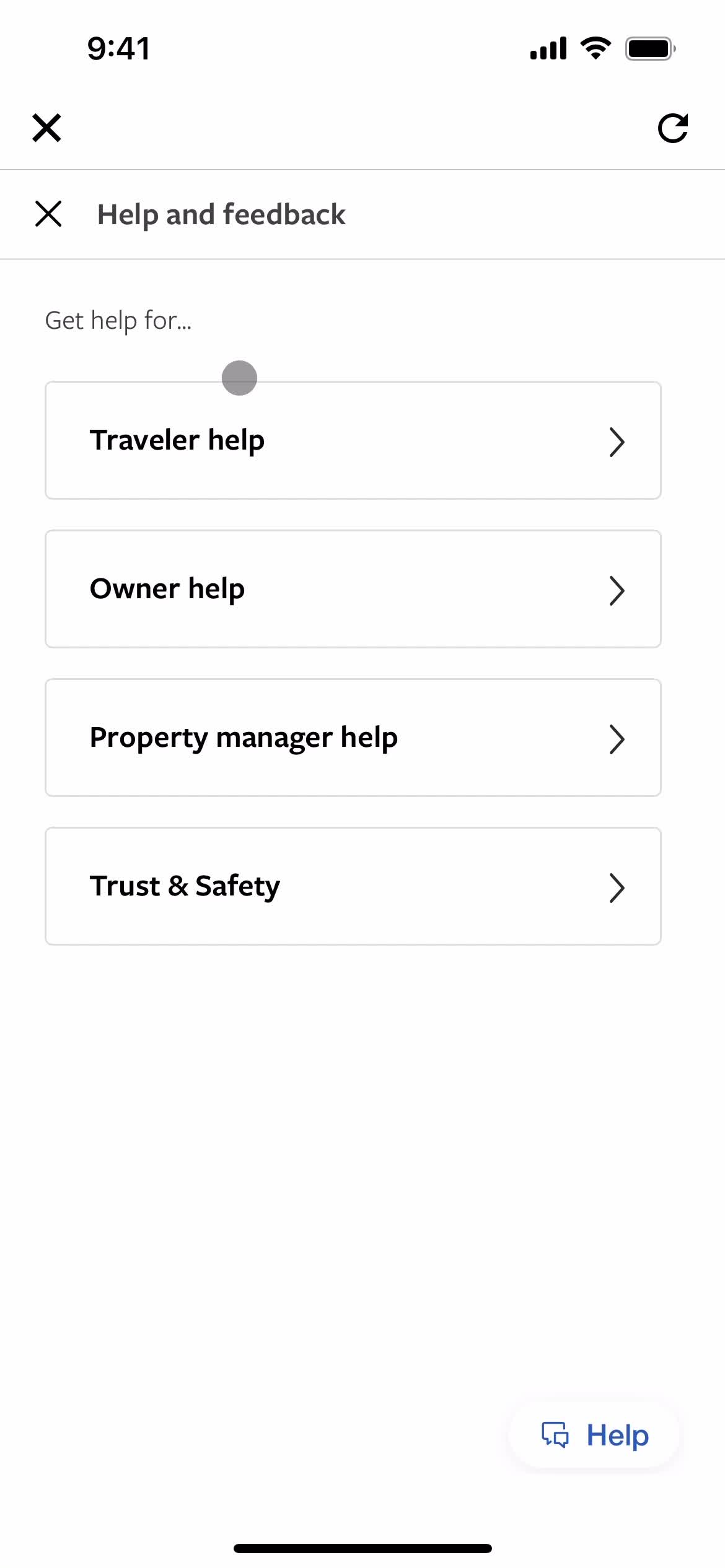
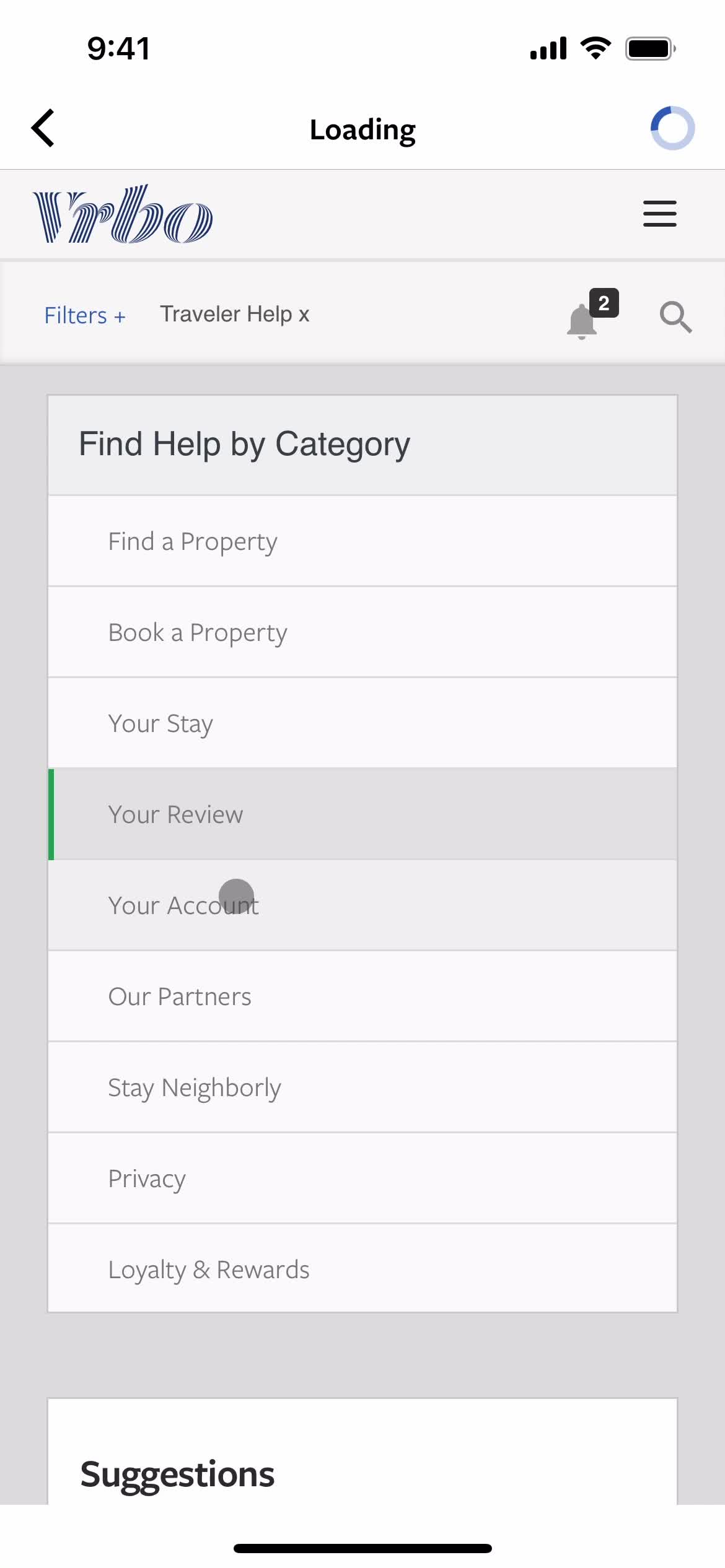
Help center categories
this is title
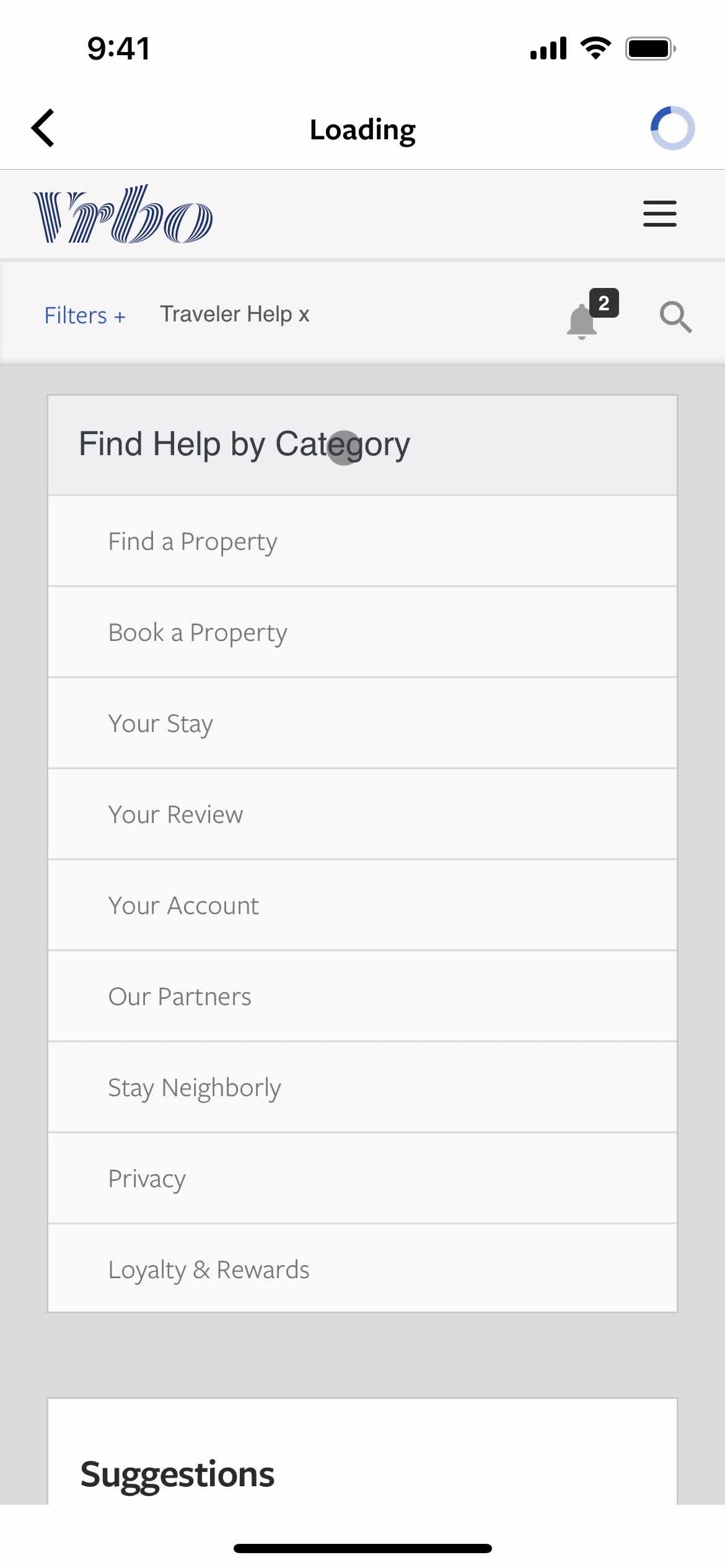
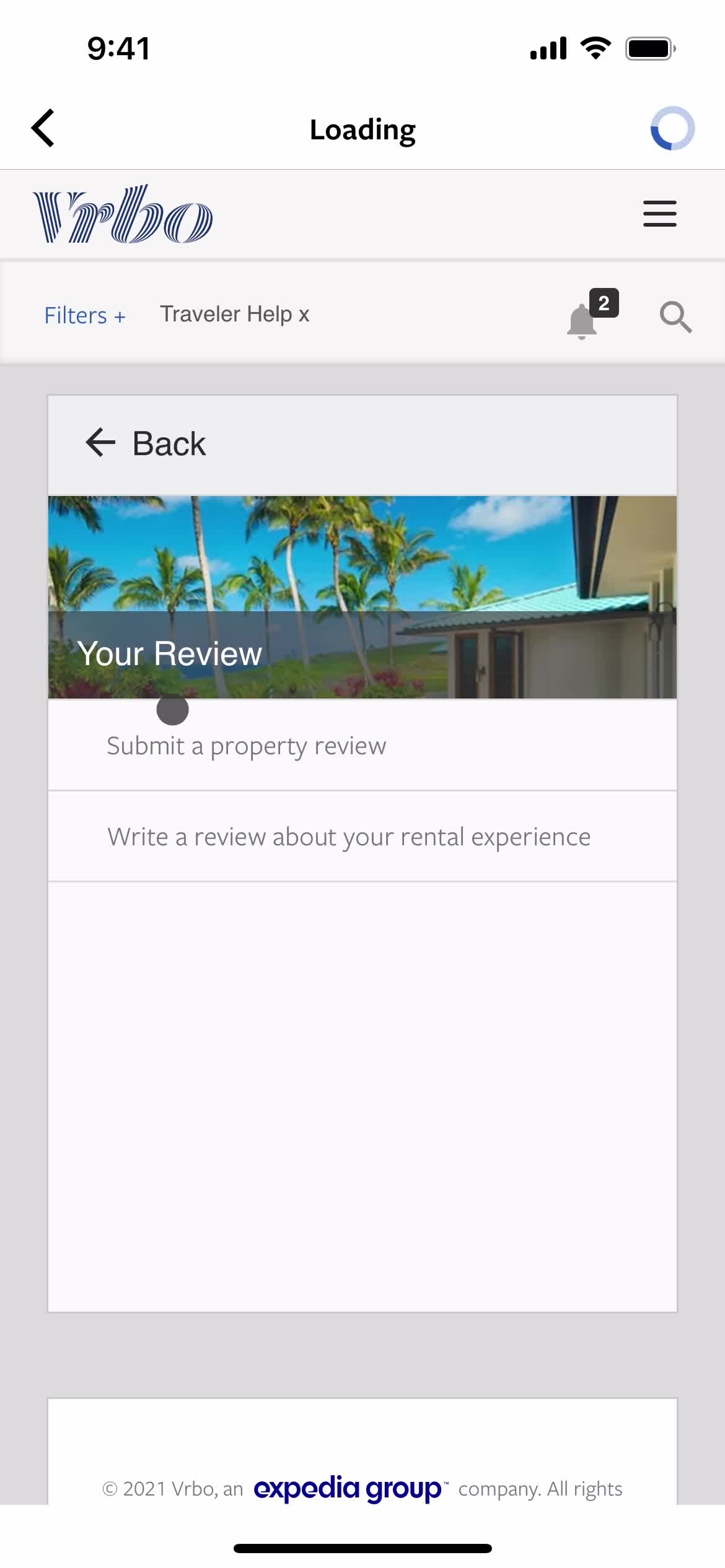
Help center category
this is title
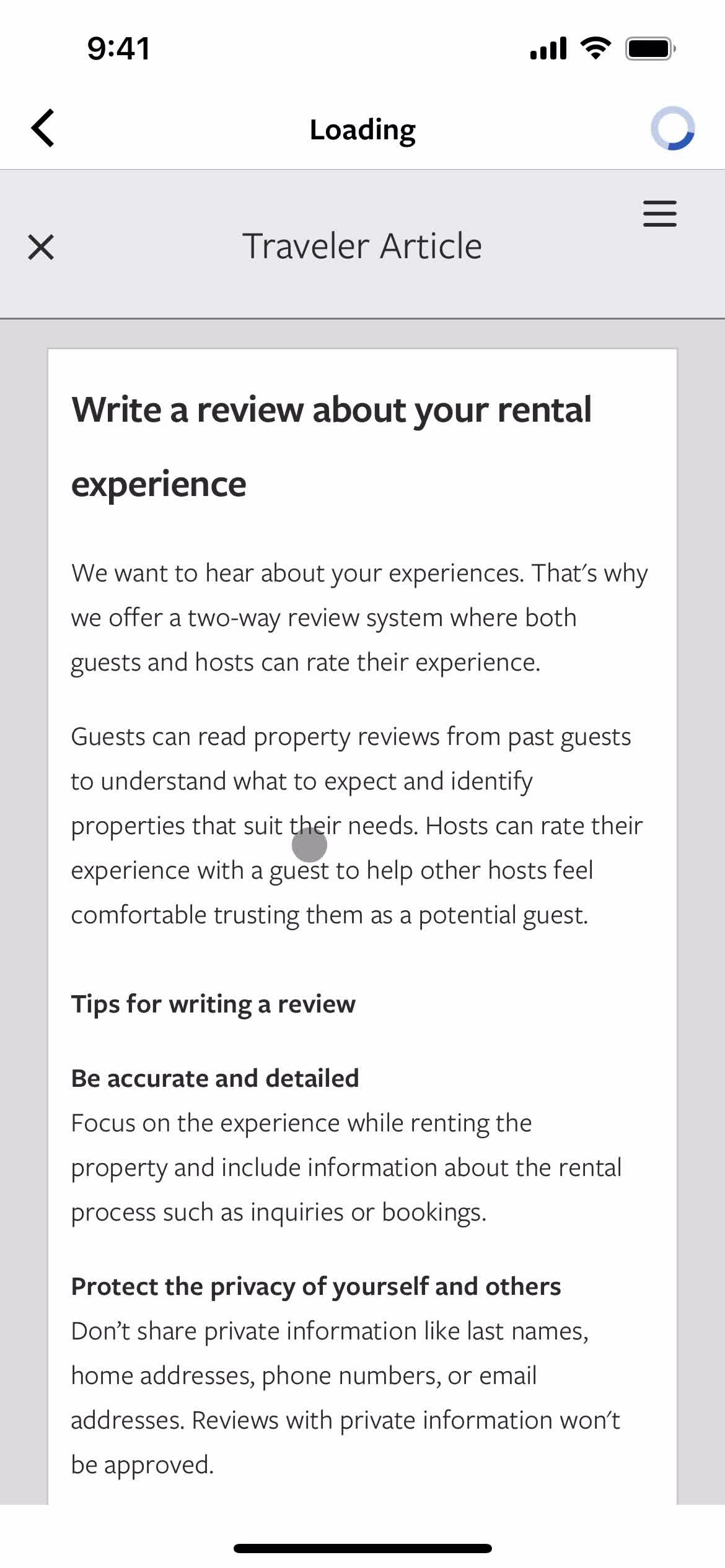
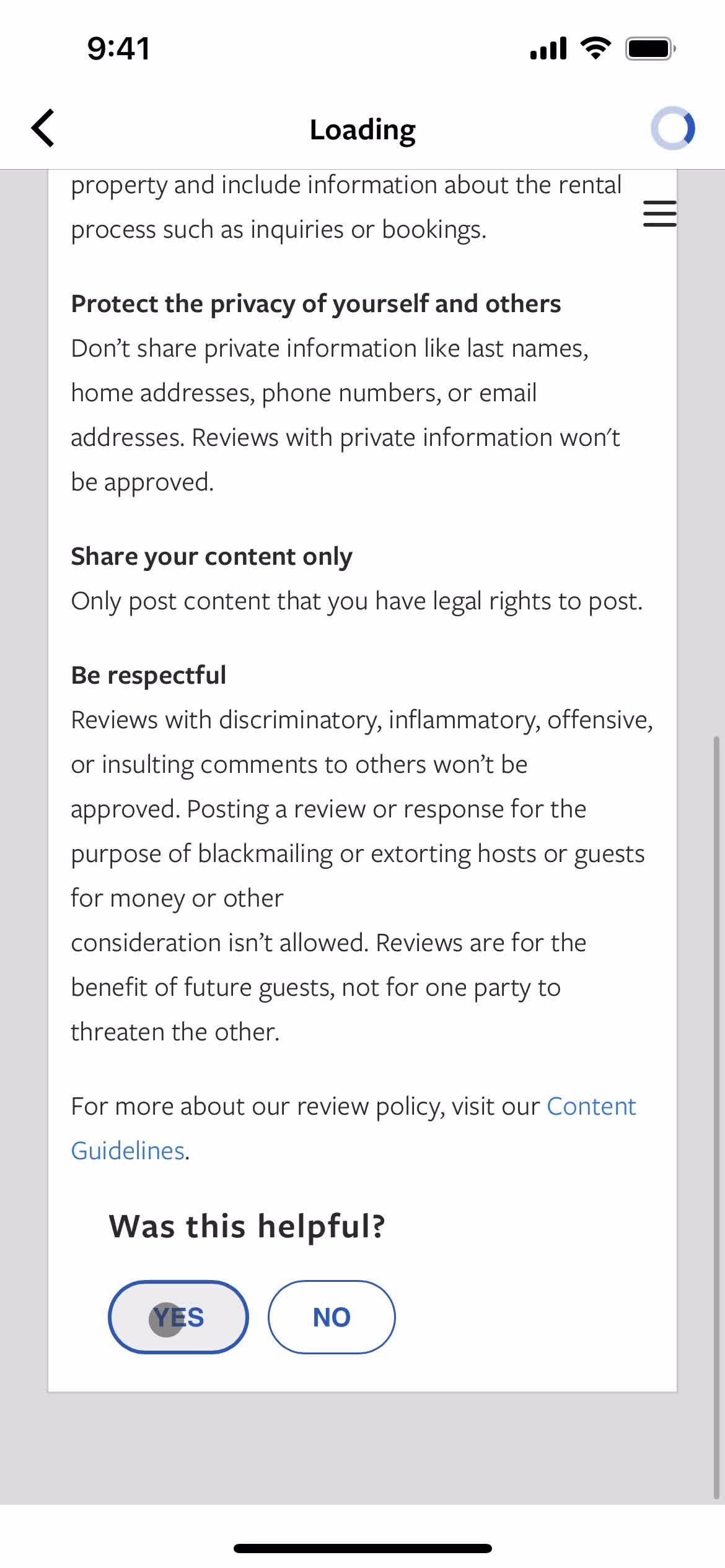
Help center article
this is title
Help center categories
this is title
Help center
this is title
Home
this is title
Splash screen
this is title
Welcome slides
this is title
Sign up
this is title
Guide modal
this is title
Home
this is title
Search
this is title
Search results
this is title
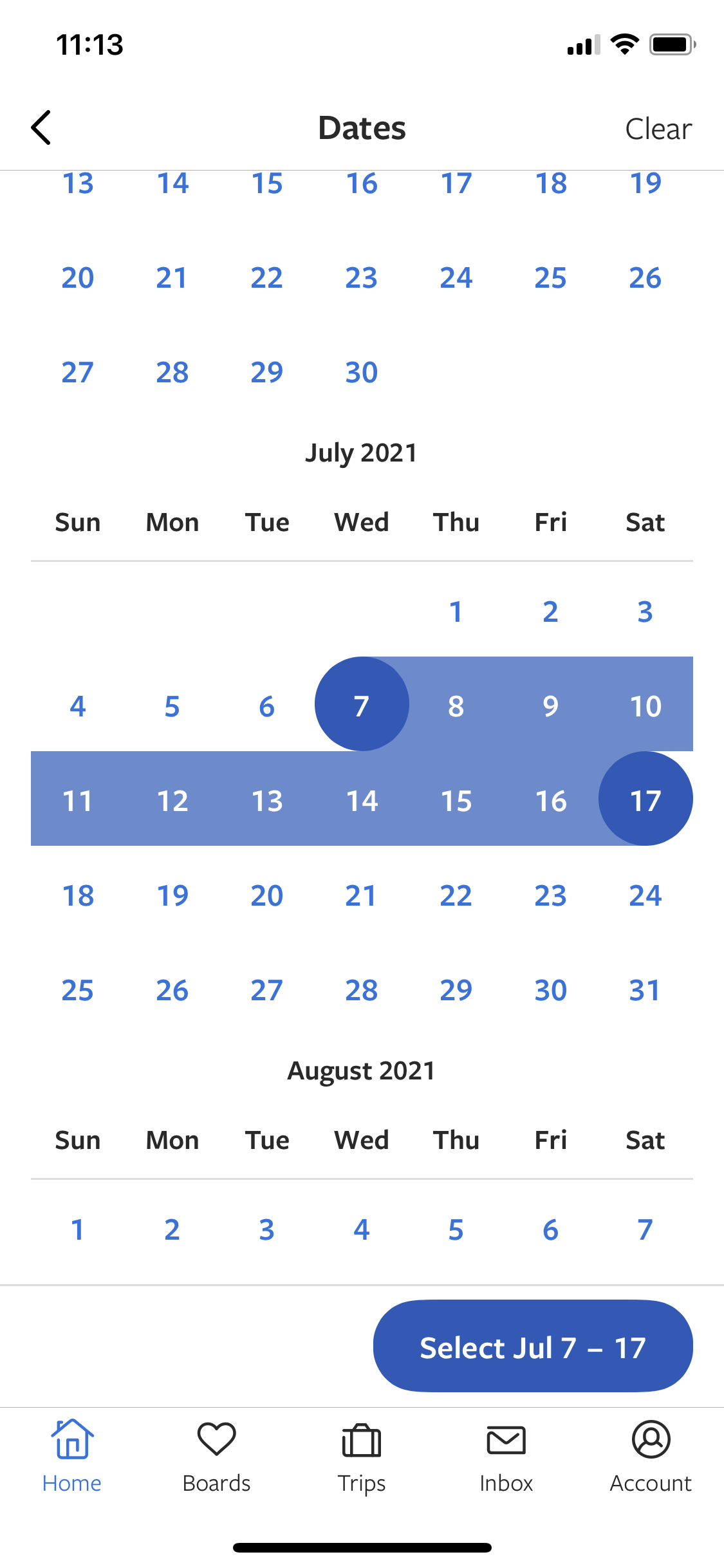
Set dates
this is title
Set dates
this is title
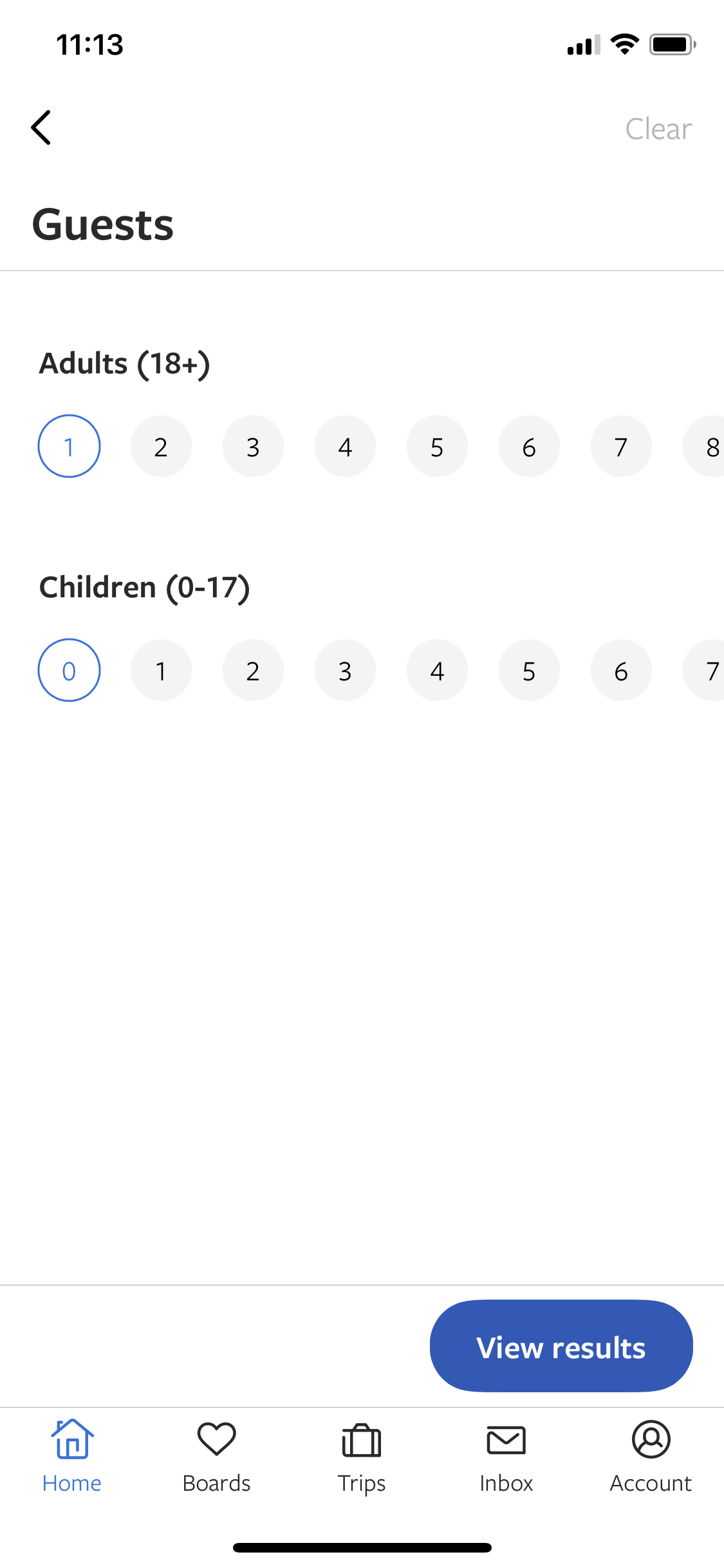
Guests
this is title
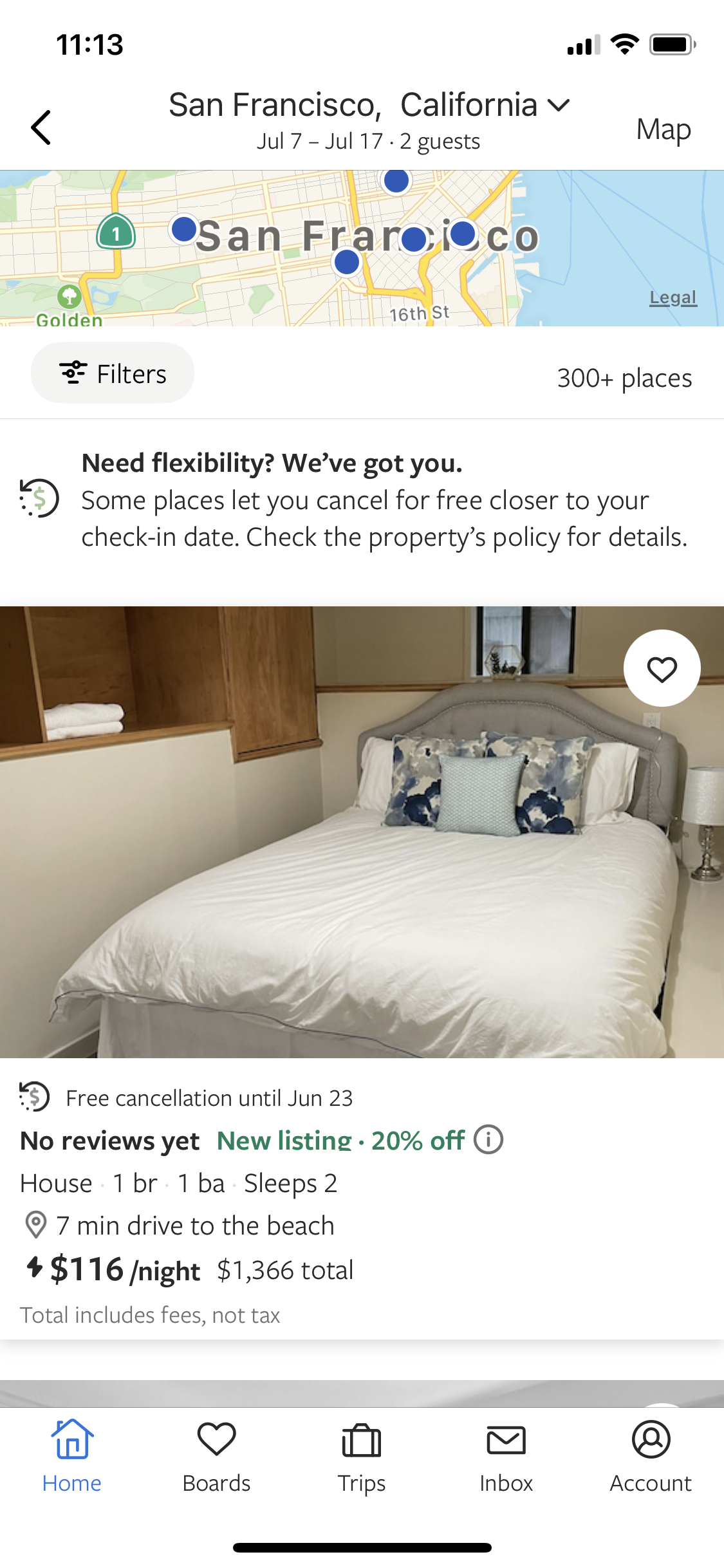
Search results
this is title
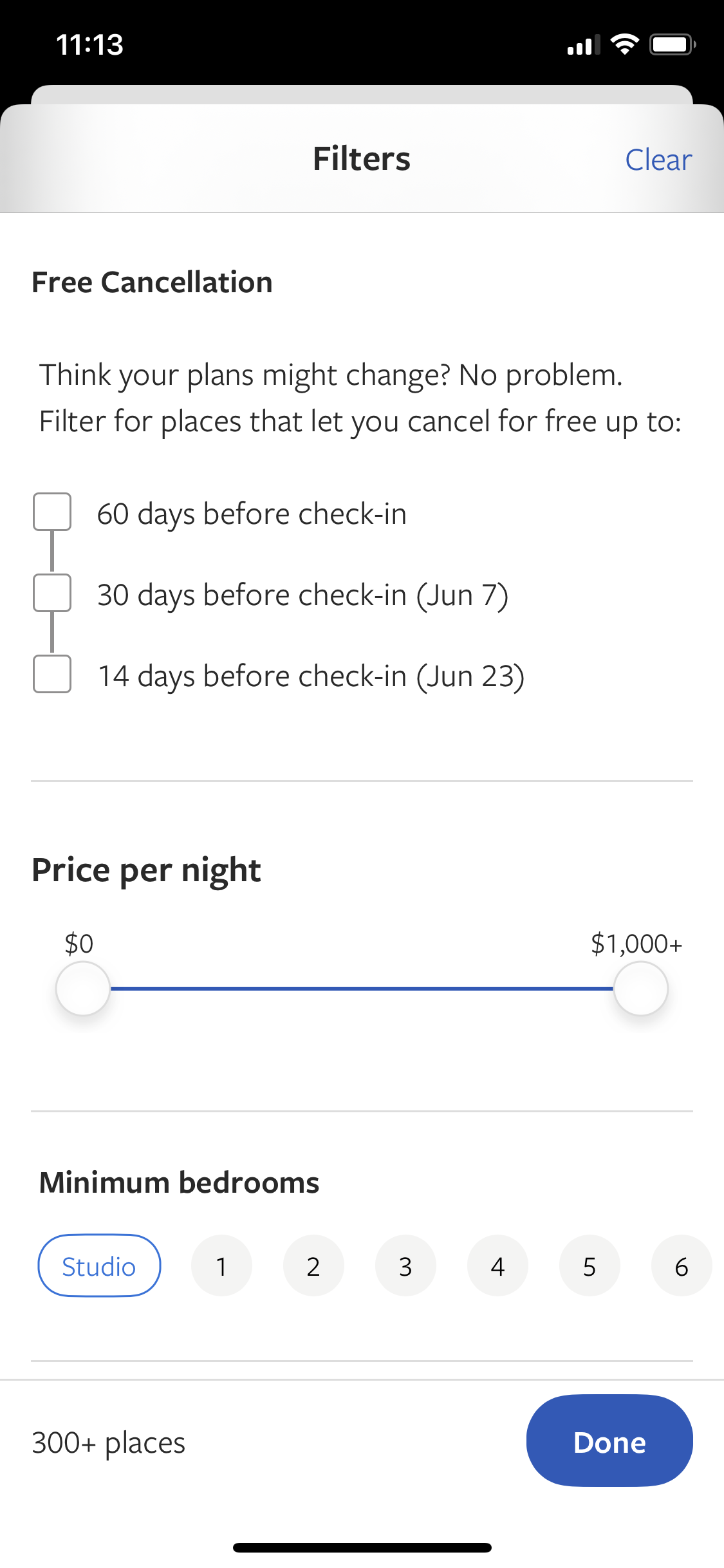
Filter
this is title
Search map
this is title
Search map
this is title
Property details
this is title
Book
this is title
Price details
this is title
Reviews
this is title
Save to collection
this is title
Save to collection
this is title
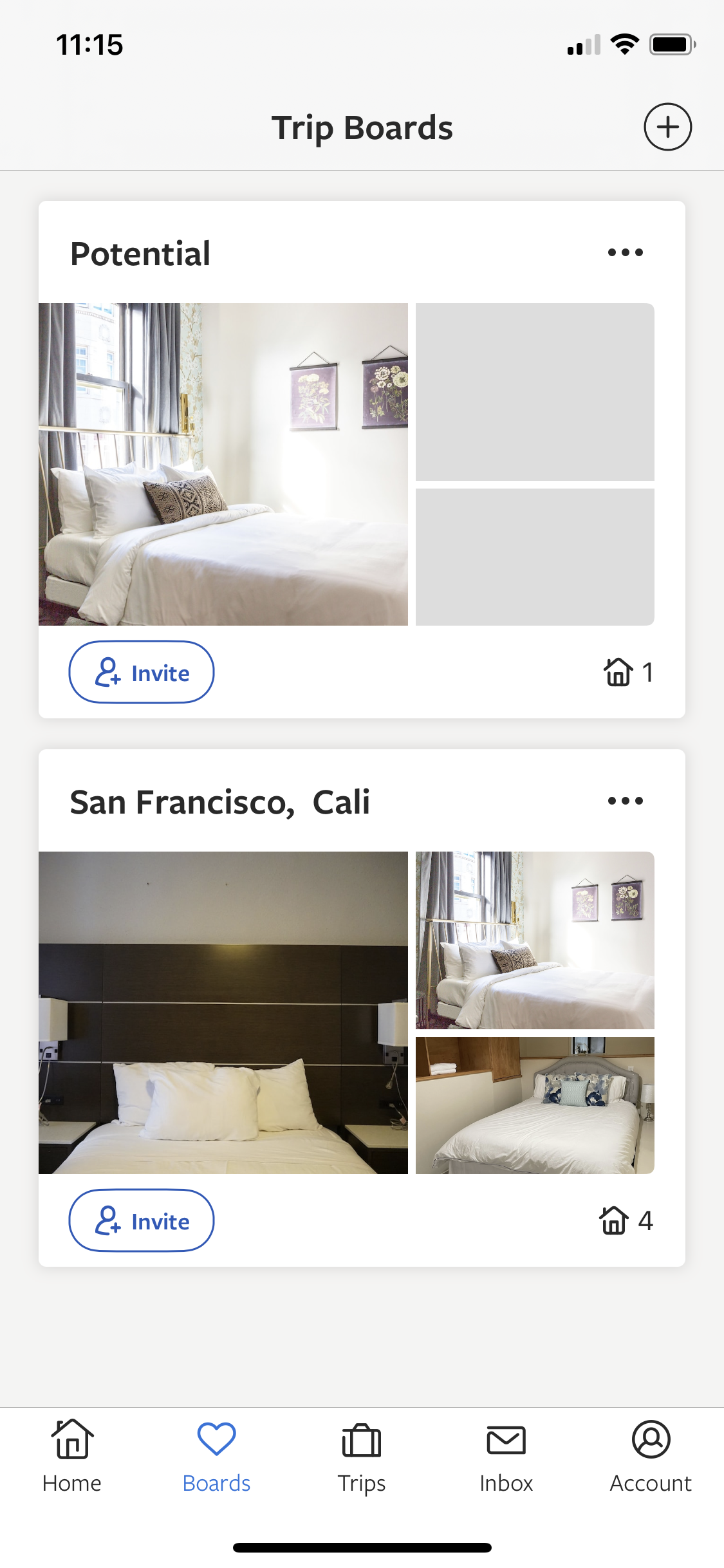
Boards
this is title
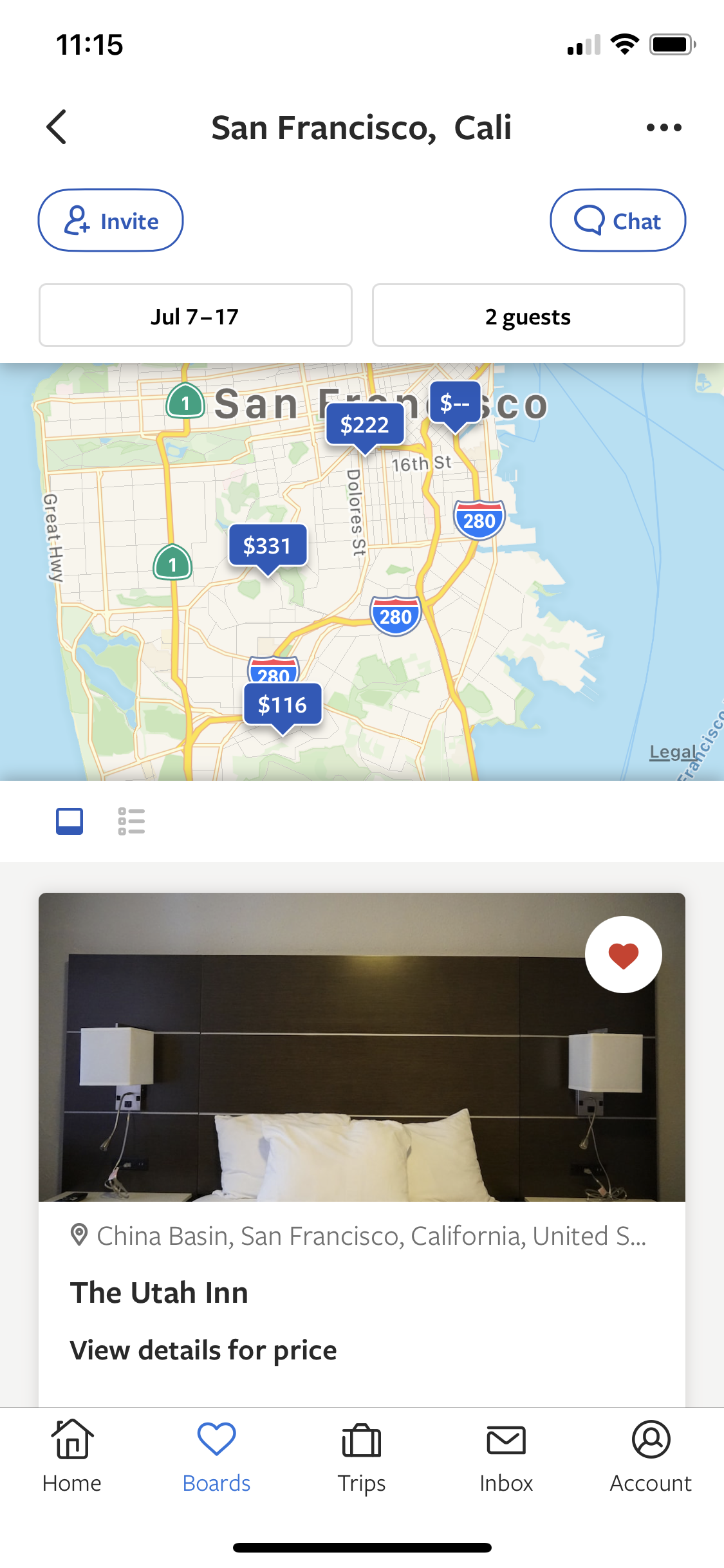
Board
this is title
Invite people
this is title
Sign up
this is title
Verify email
this is title
Inbox
this is title
Settings
this is title
Guide
this is title
Search
this is title
Home
this is title
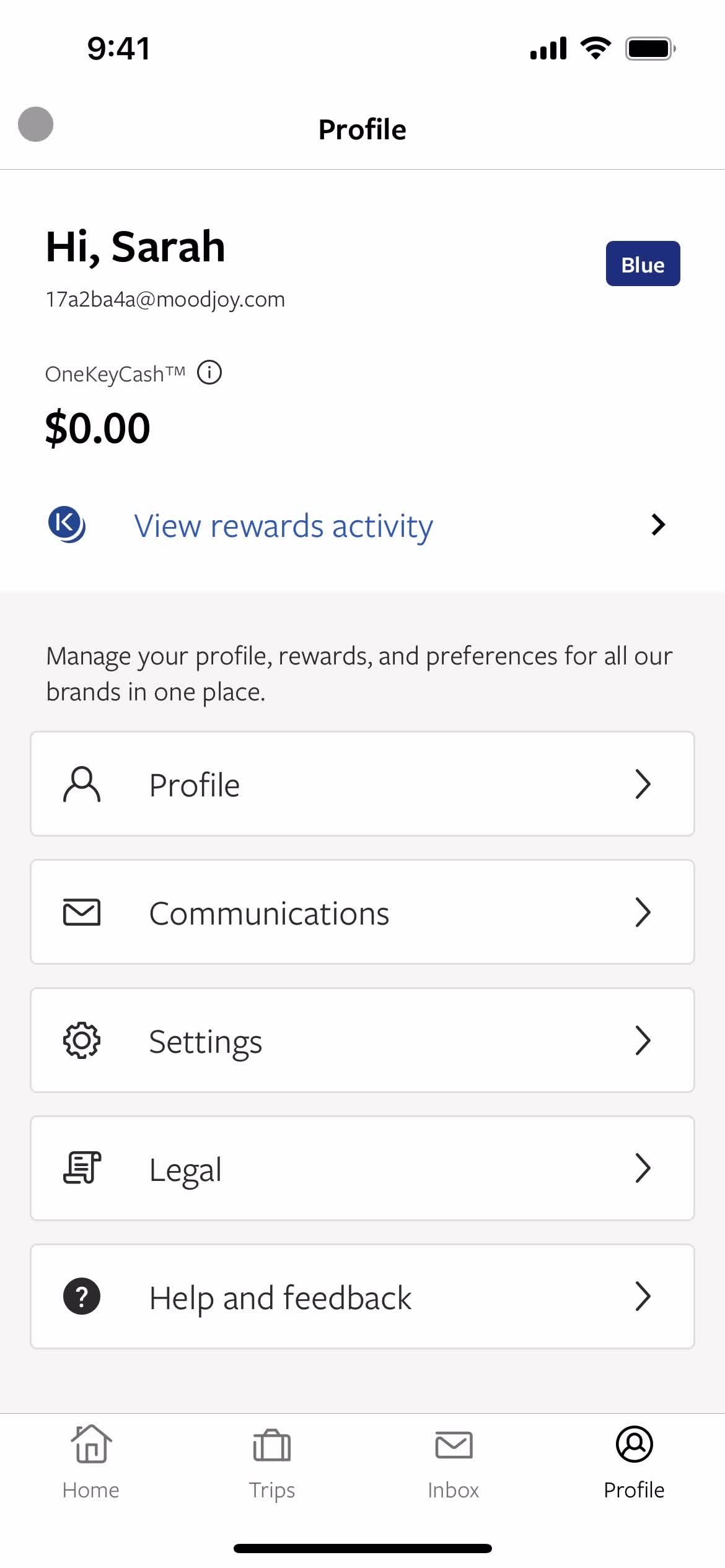
Account
this is title
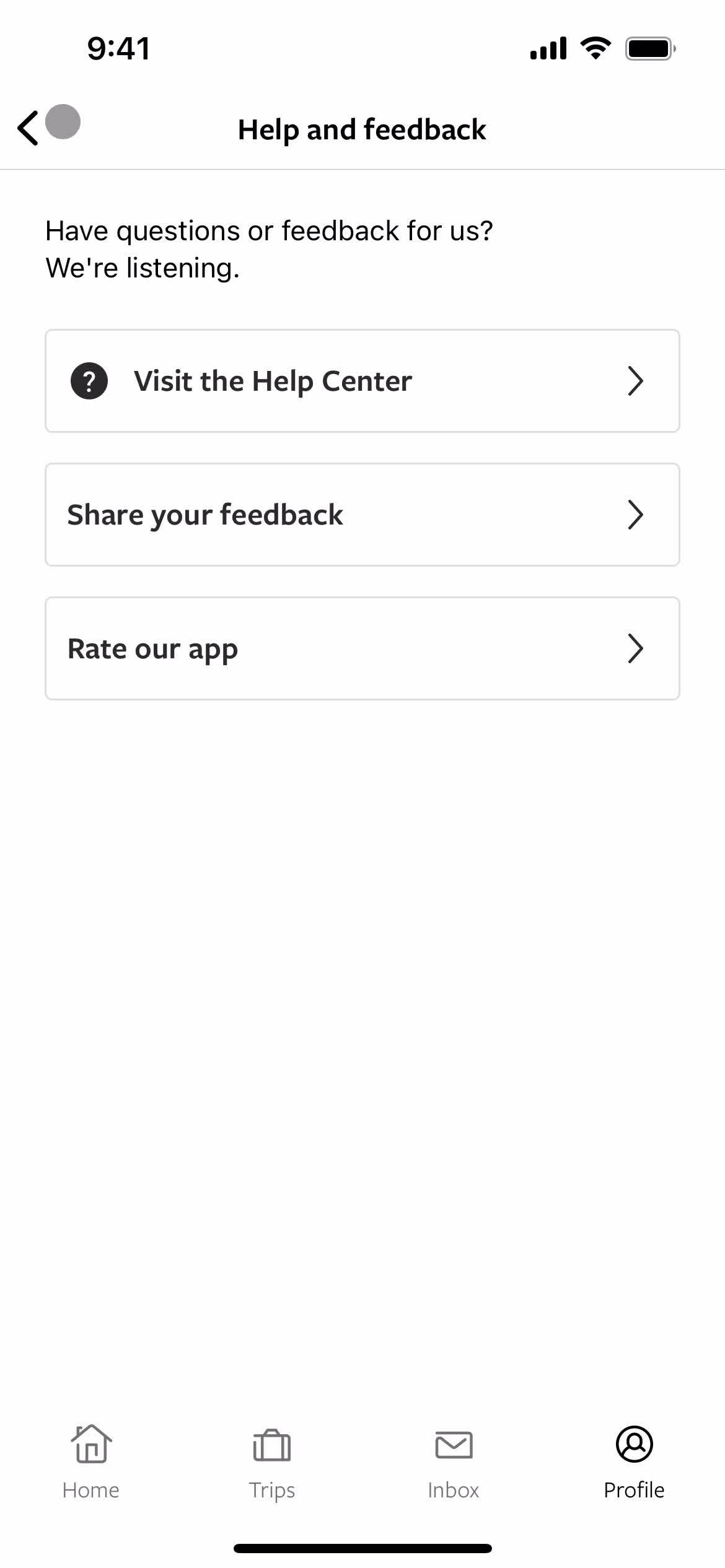
Help center
this is title
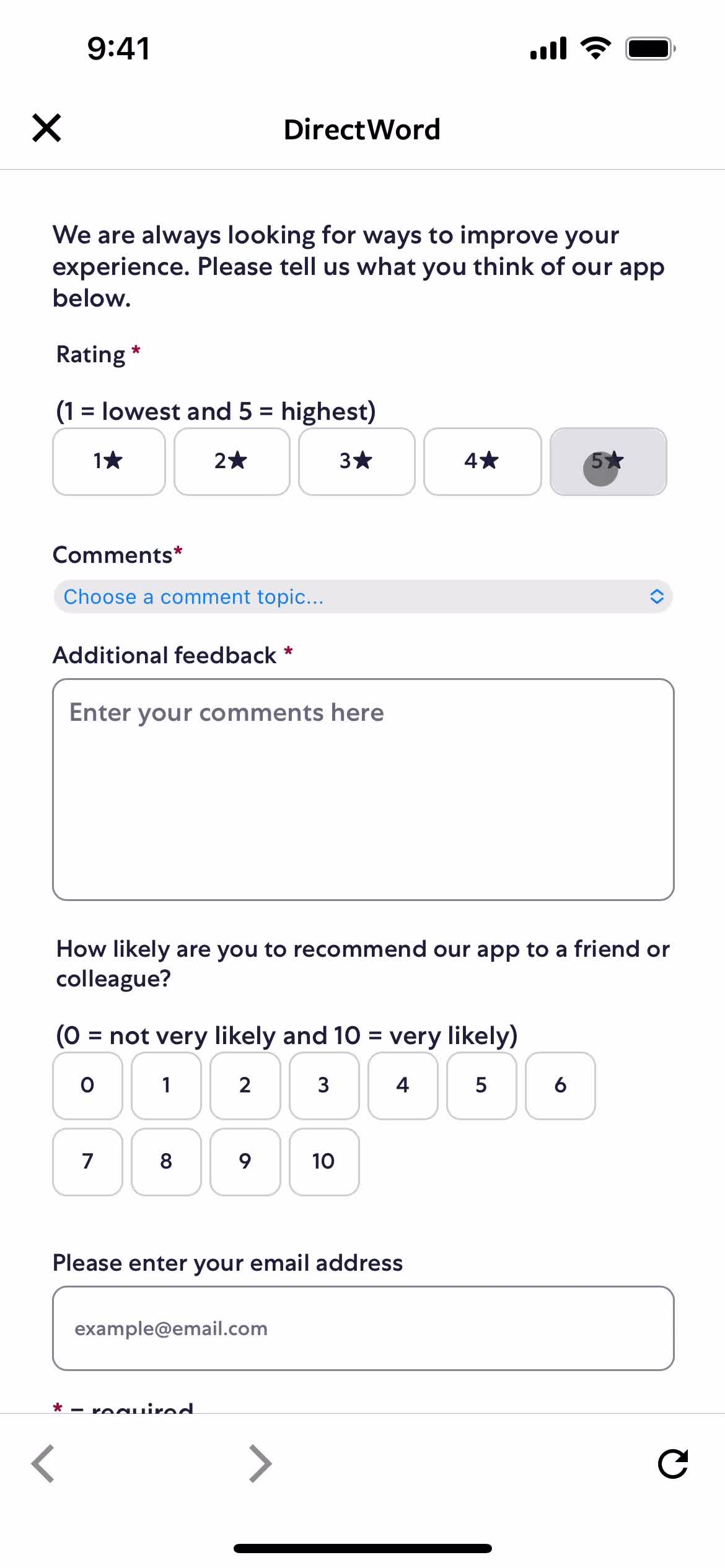
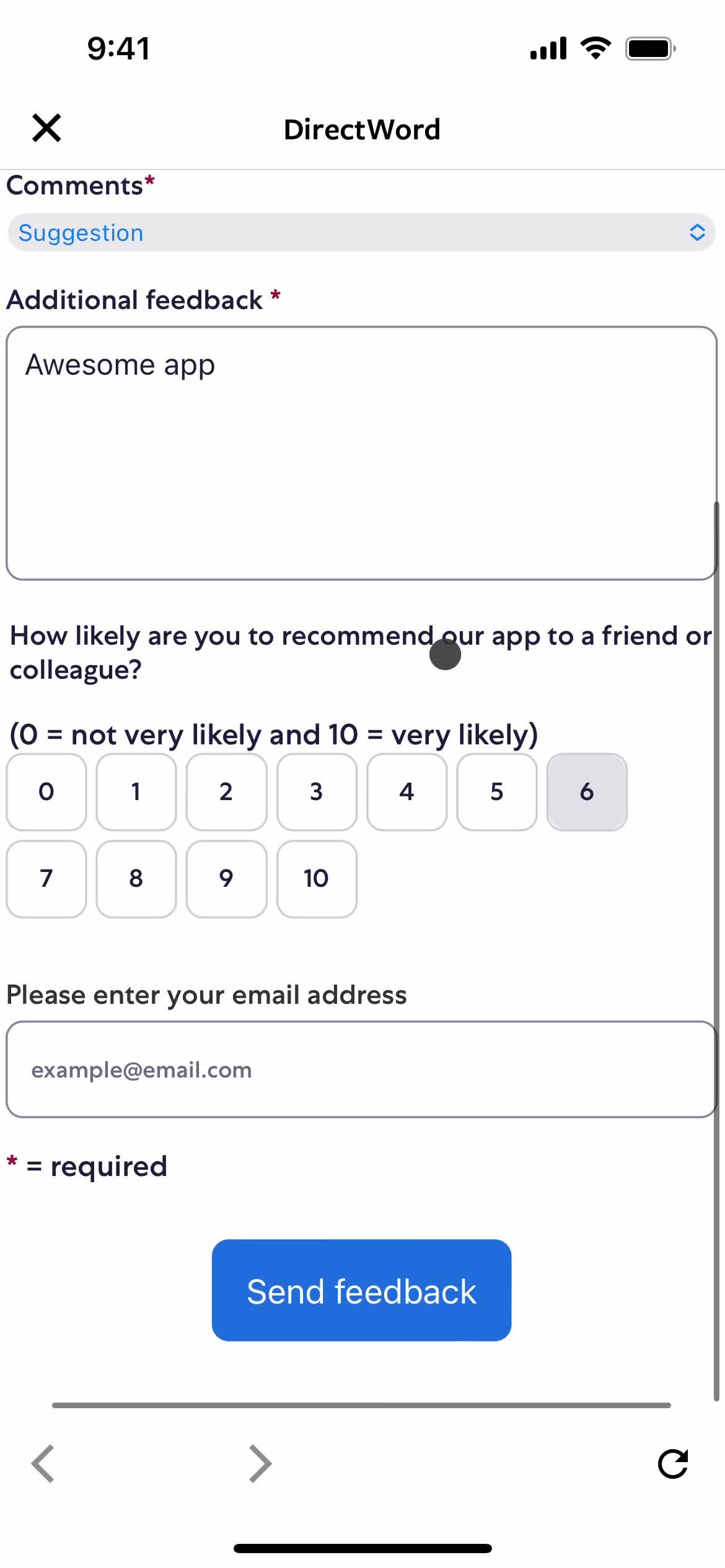
Share feedback
this is title
this is title
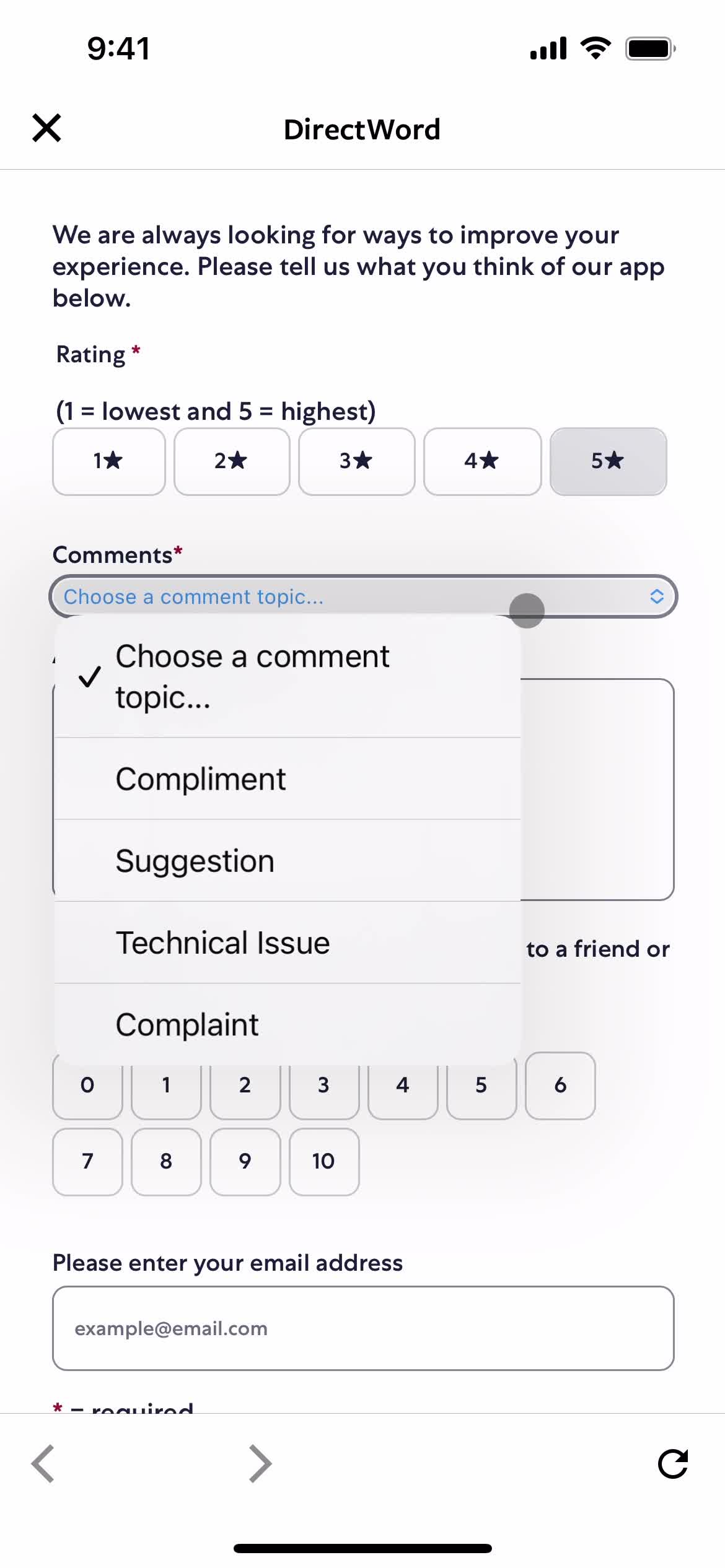
Select topic
this is title
this is title
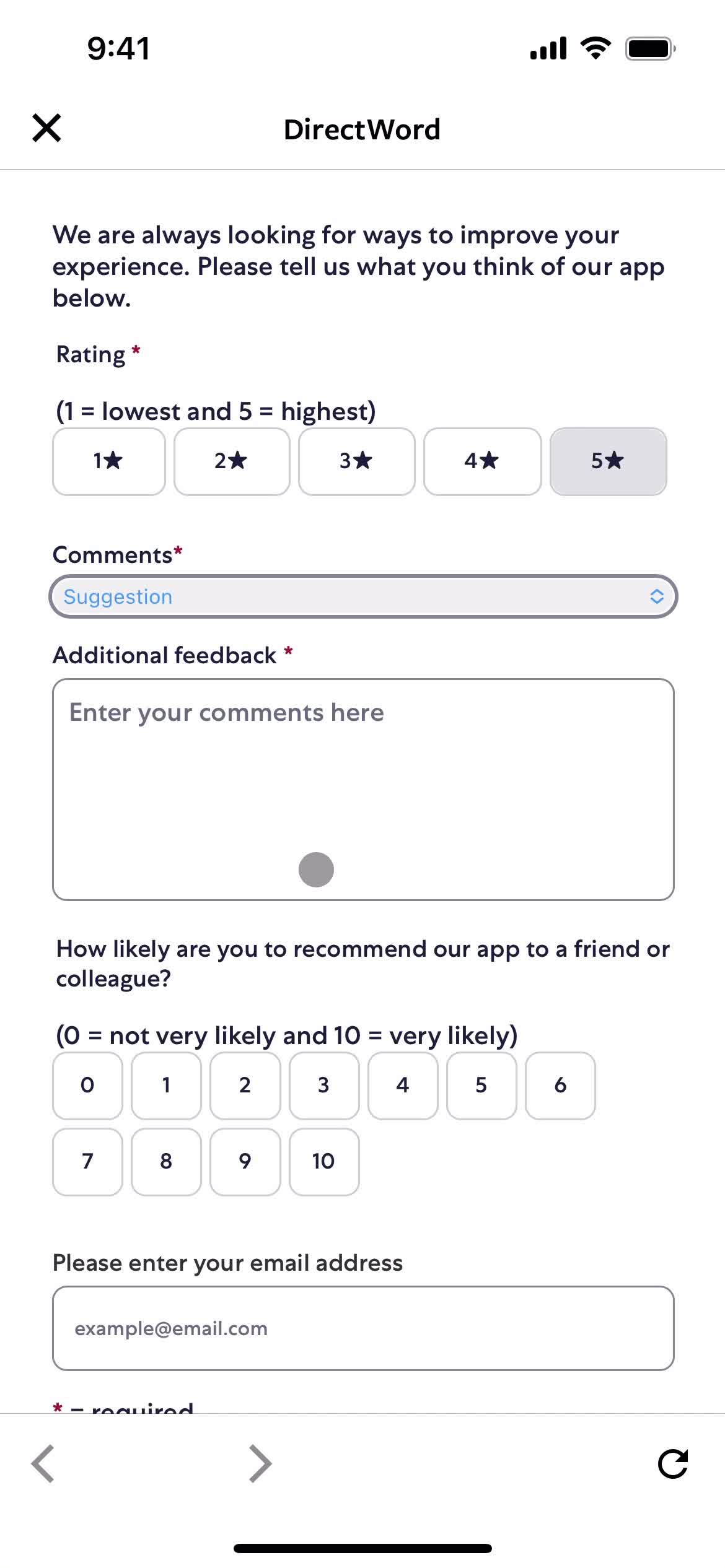
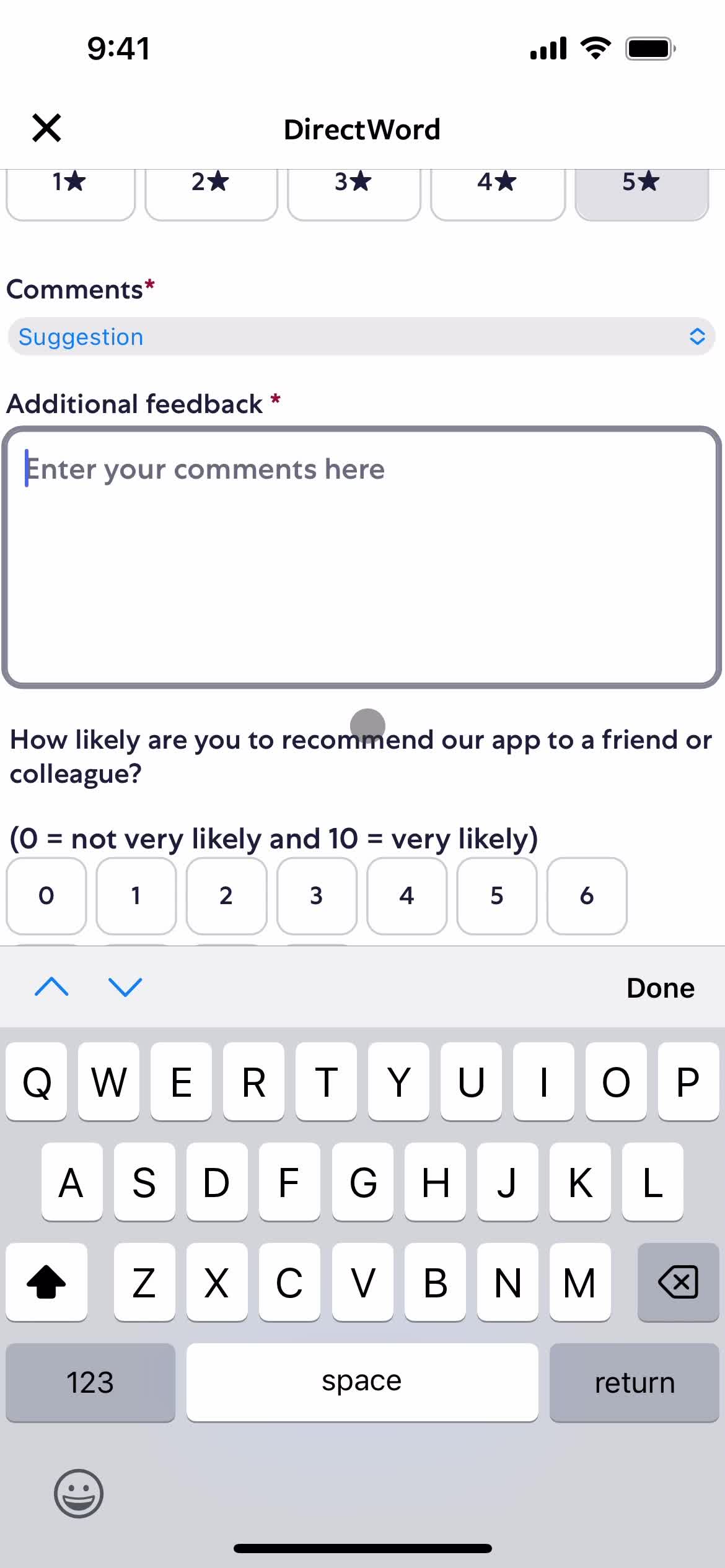
Add comment
this is title
this is title
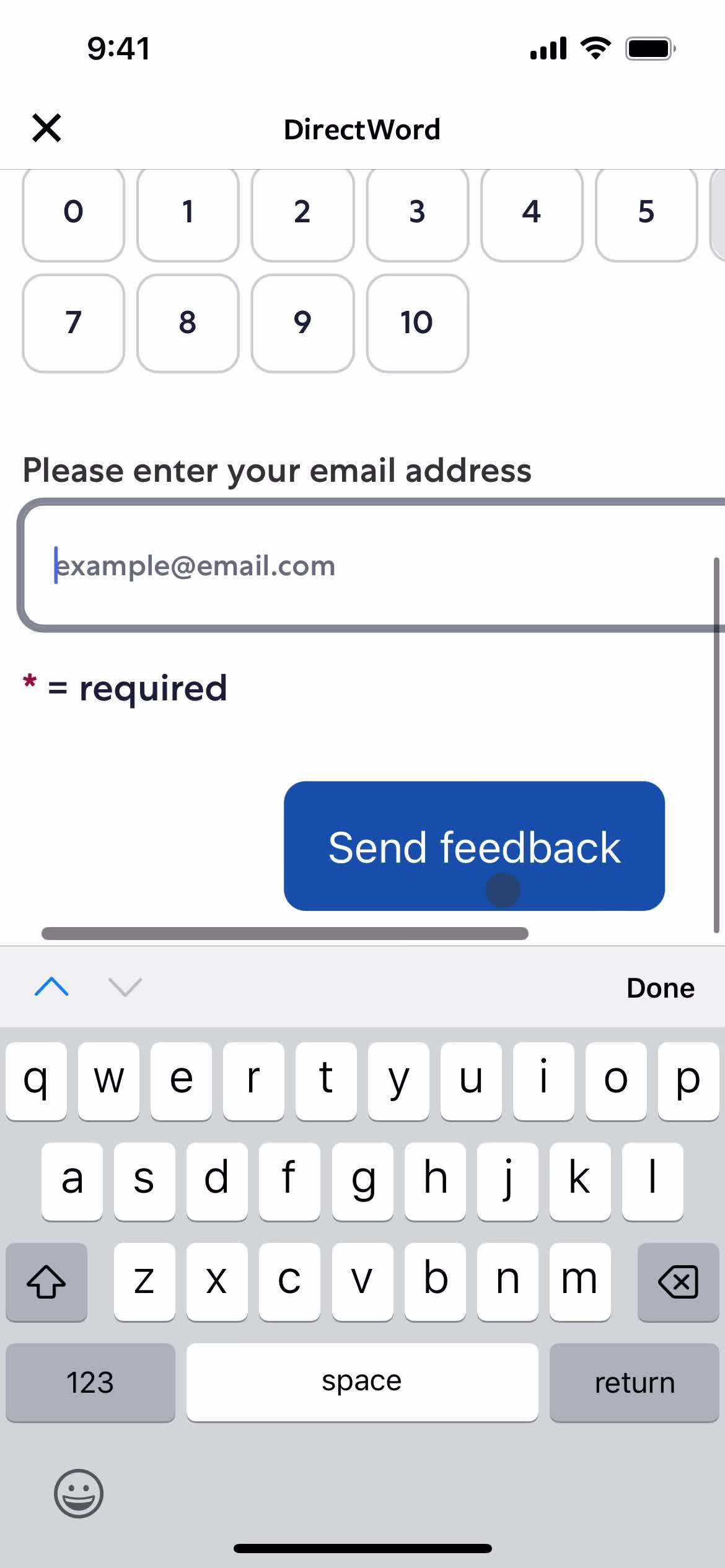
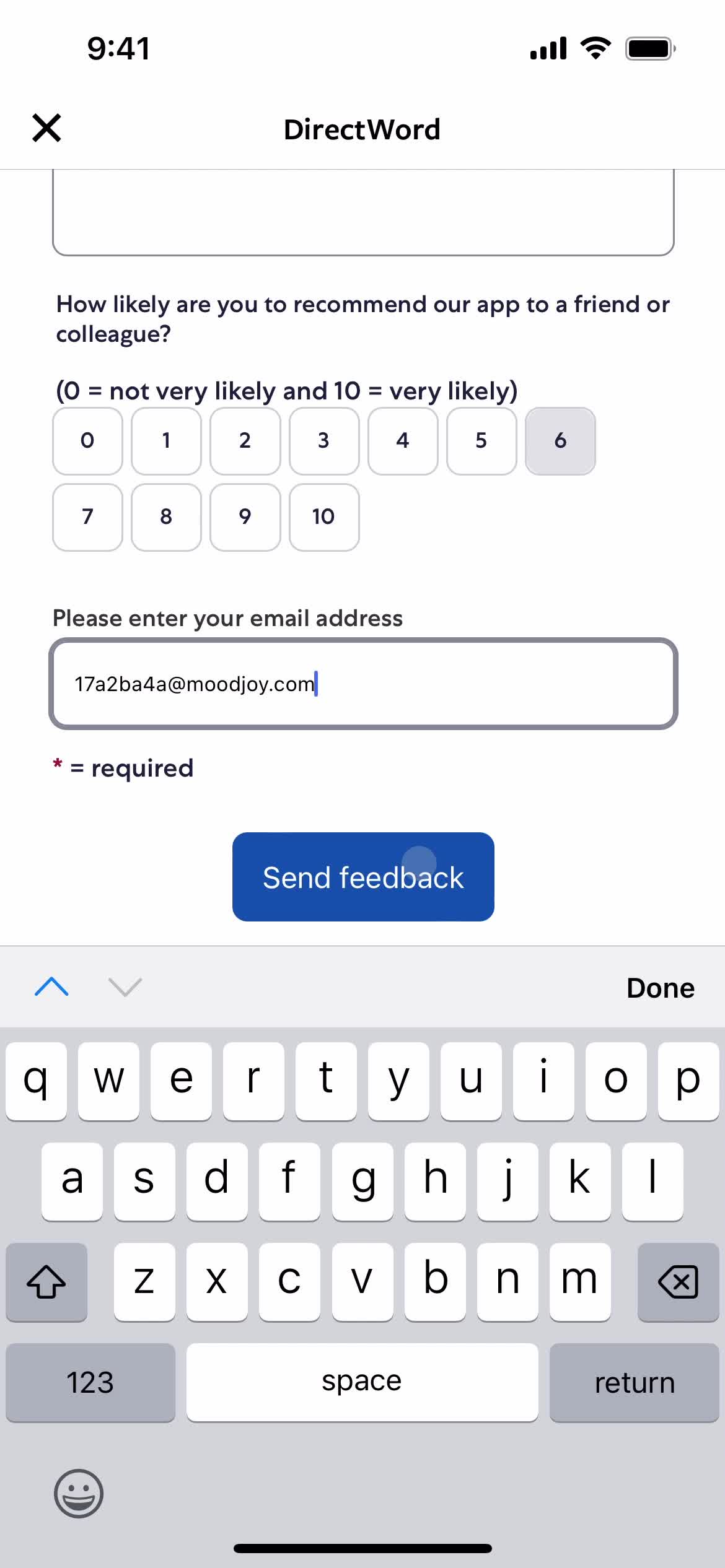
Enter email
this is title
Submit feedback
this is title
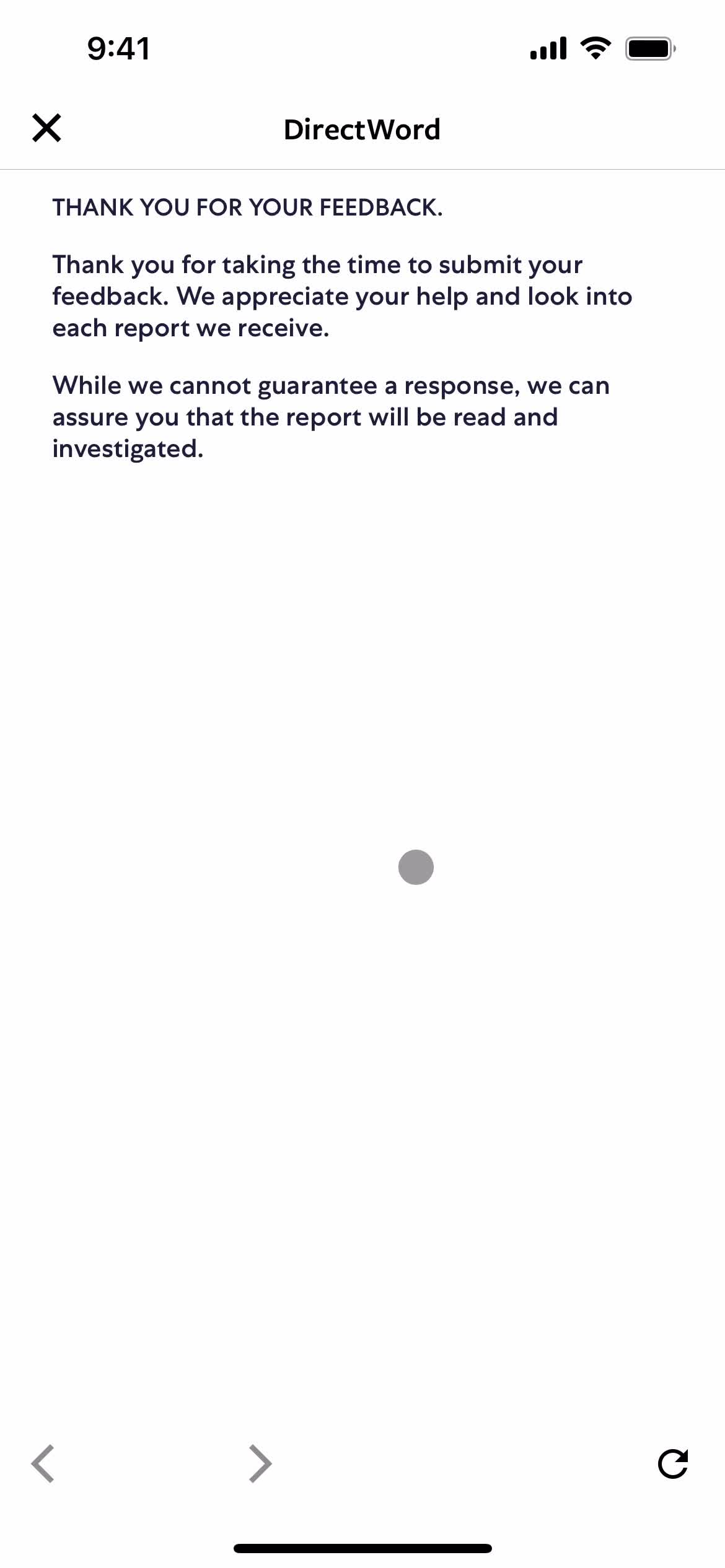
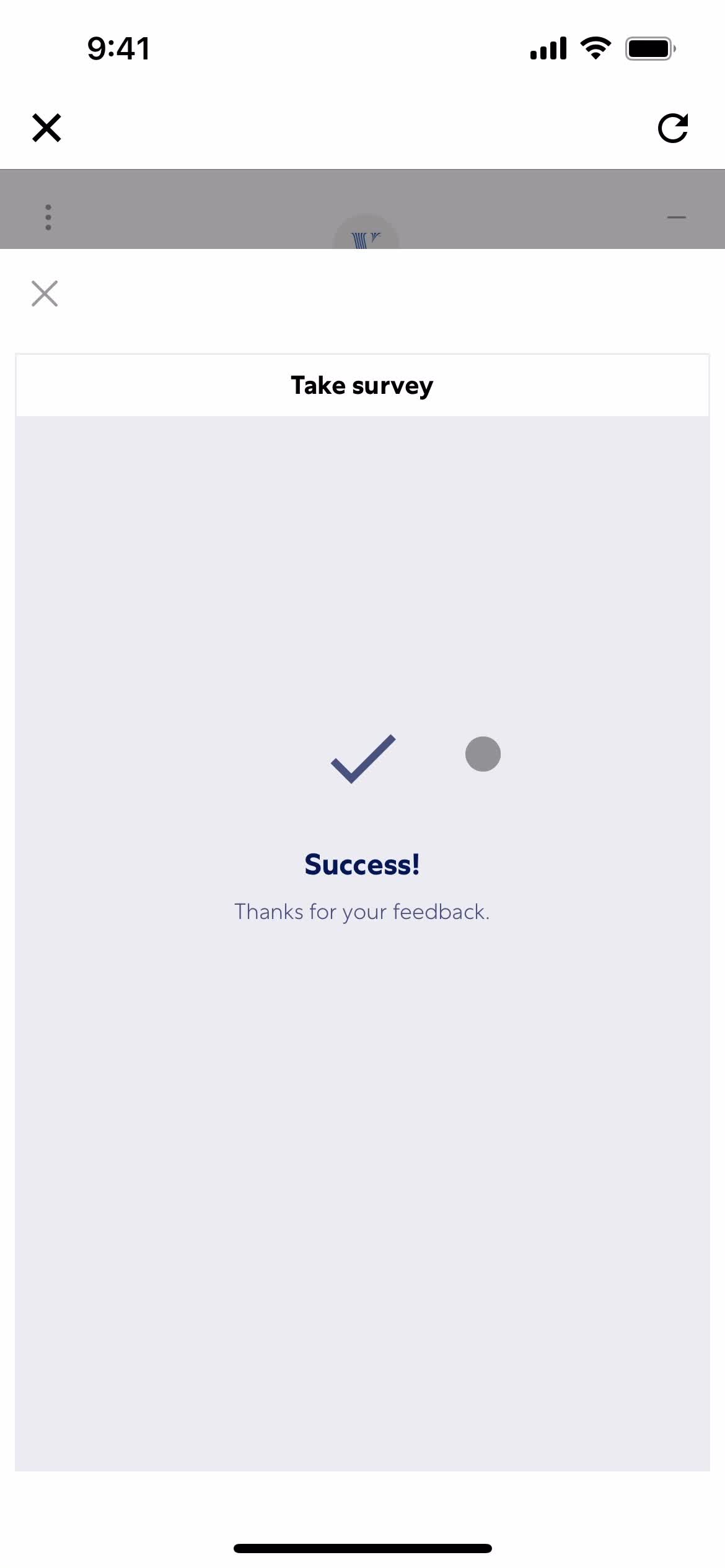
Feedback submitted
this is title
Help center
this is title
Account
this is title
Home
this is title
Home
this is title
Account
this is title
Help center
this is title
Help center categories
this is title
Help center category
this is title
Help center article
this is title
Share feedback
this is title
Articles
this is title
Help center category
this is title
Help center
this is title
Support chat
this is title
Add message
this is title
Chat bot
this is title
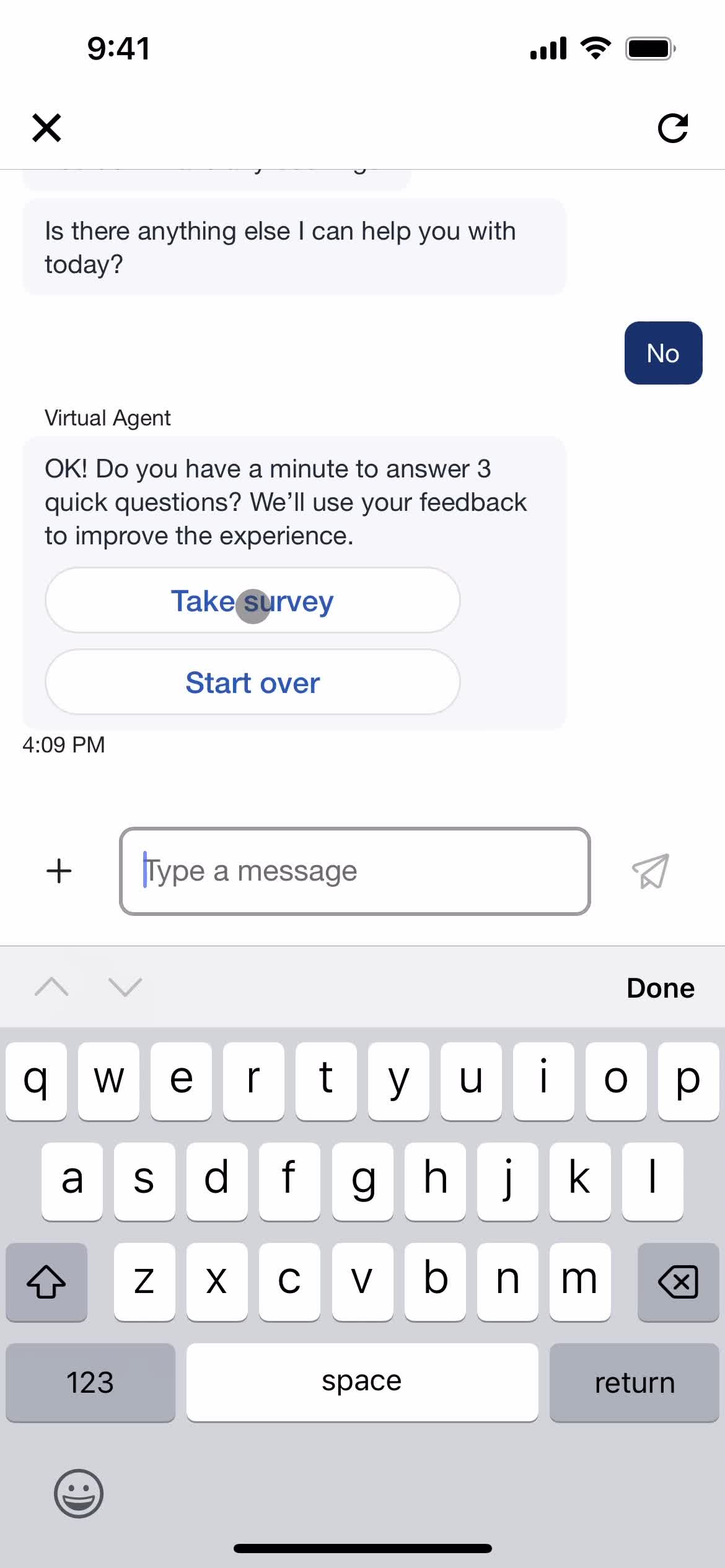
Start survey
this is title
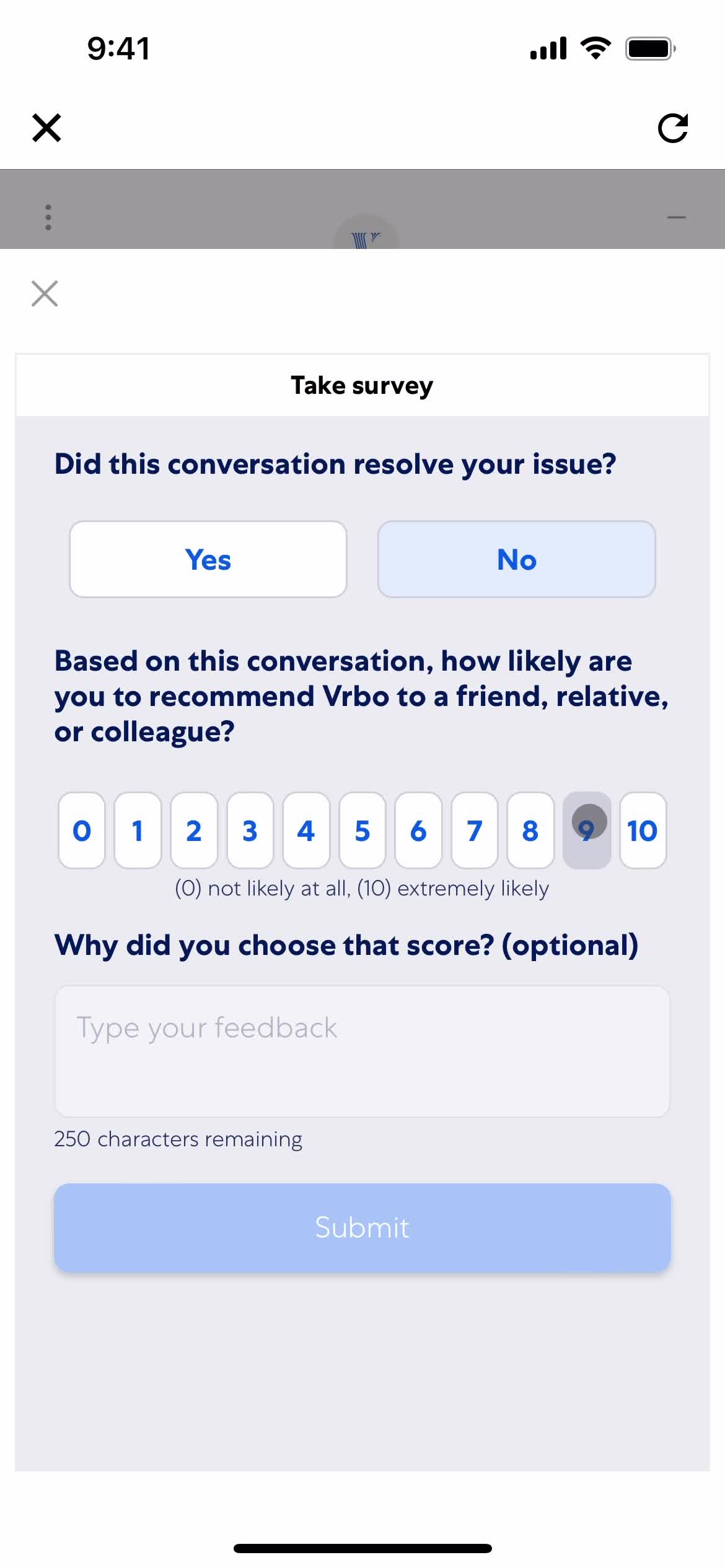
Add survey details
this is title
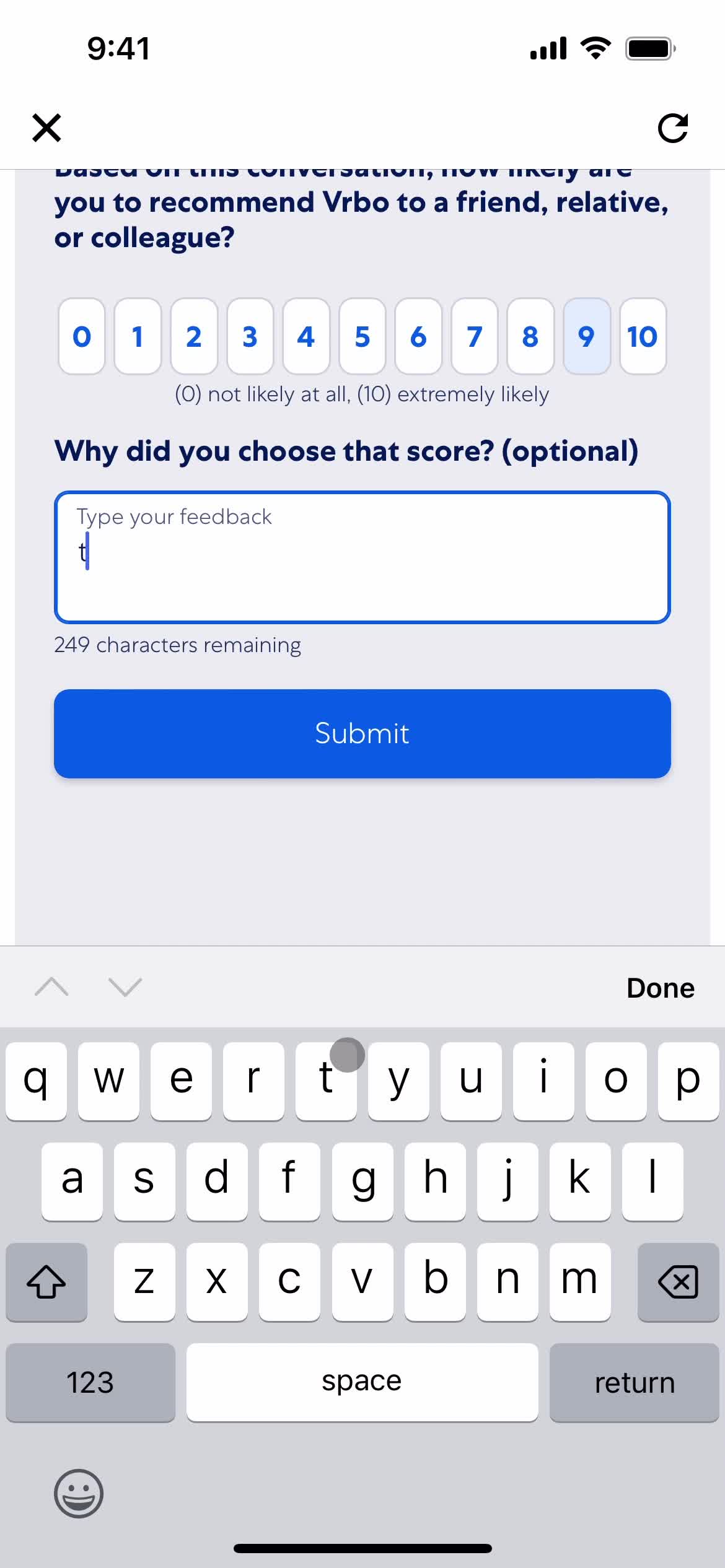
Add message
this is title
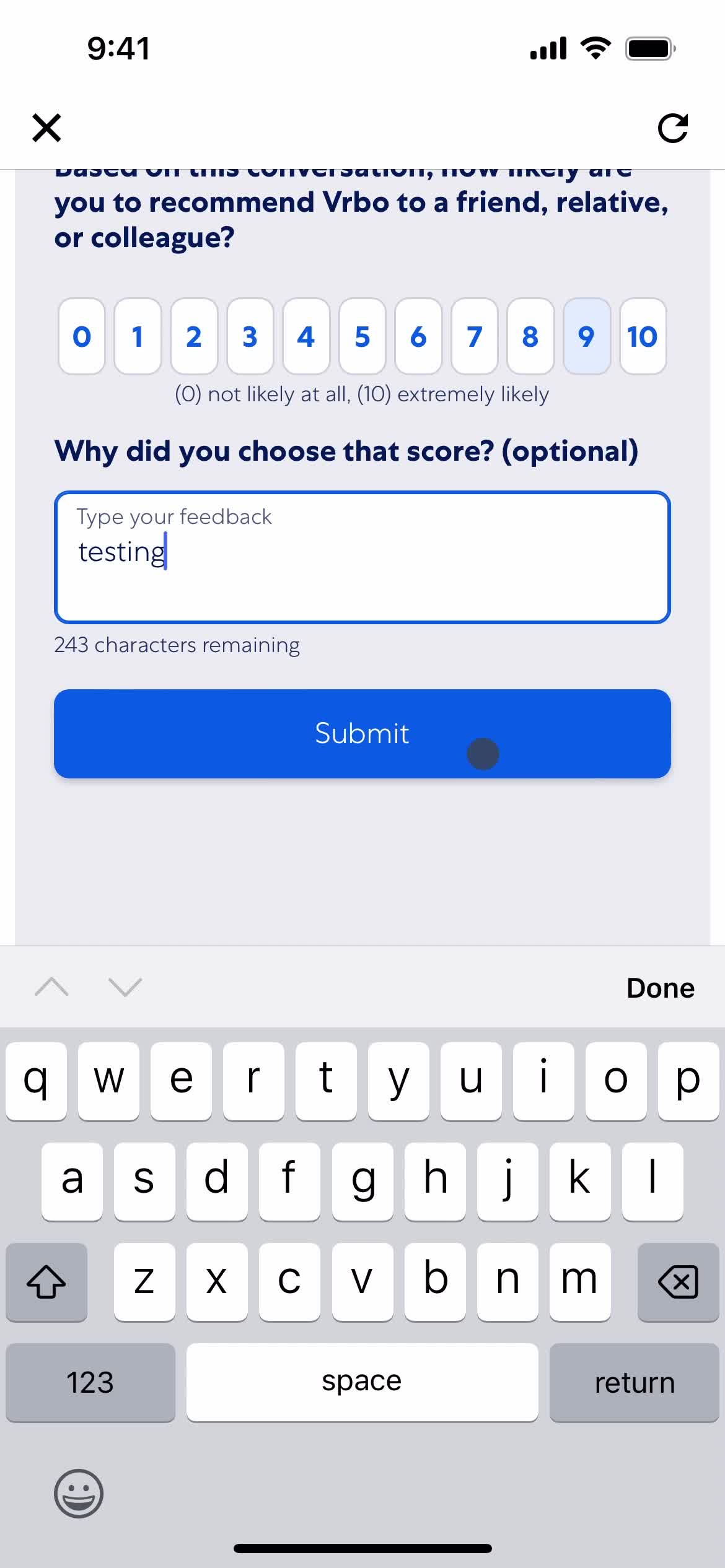
Submit feedback
this is title
Survey submitted
this is title
Chat bot
this is title
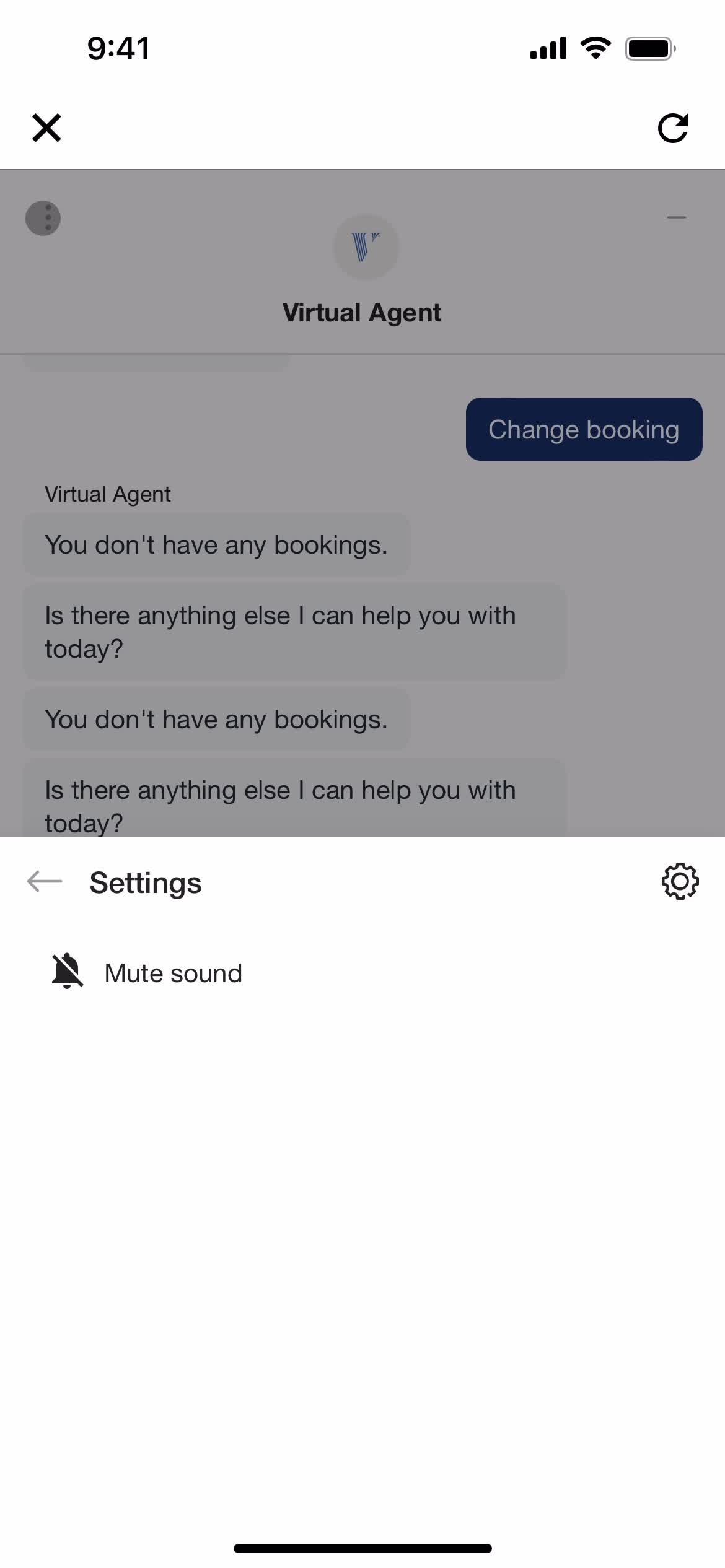
Settings
this is title
Help center
this is title
Account
this is title
Home
this is title
Sign in
this is title
Enter email
this is title
Continue
this is title
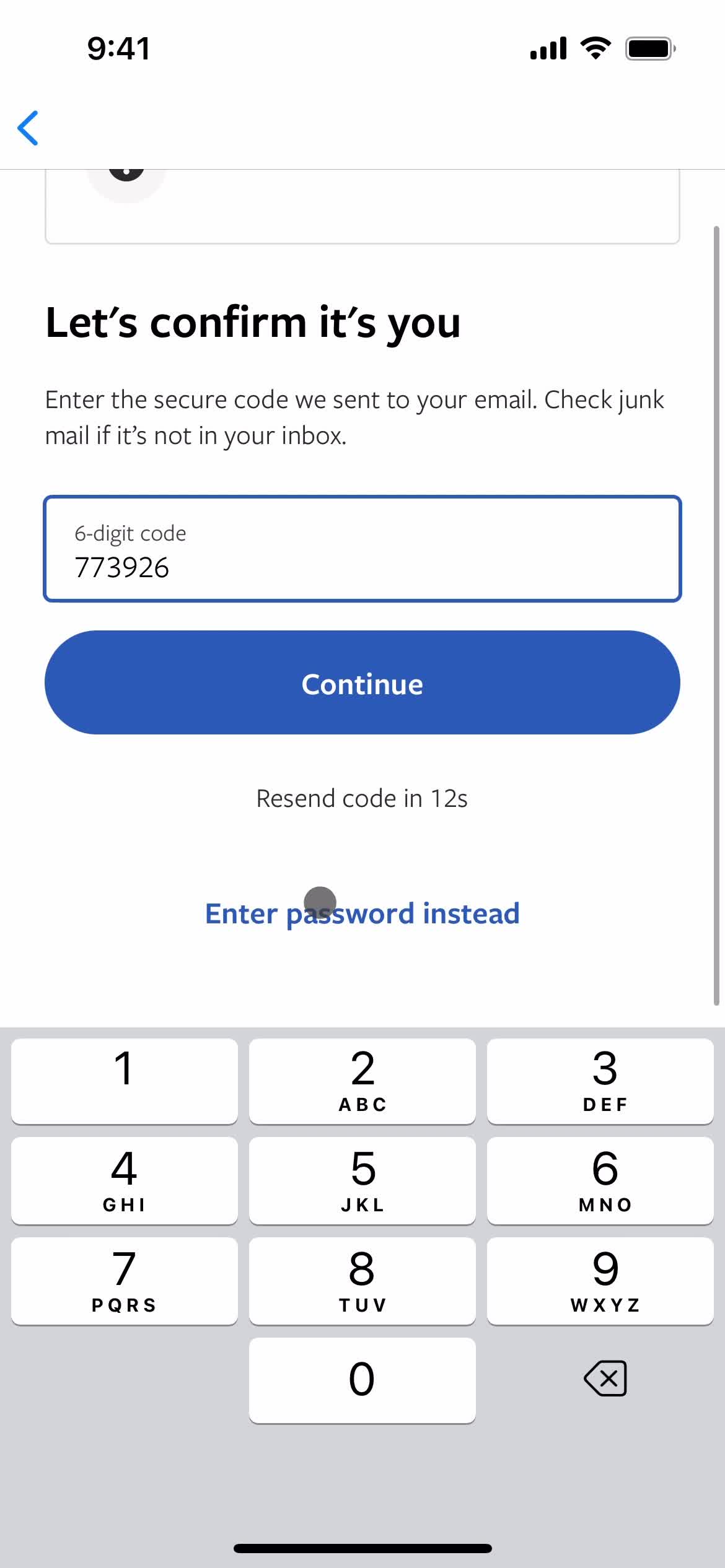
Confirm email
this is title
Continue
this is title
Account
this is title
Home
this is title
Home
this is title
Account
this is title
Sign out
this is title
Confirm exit
this is title
Sign in
this is title
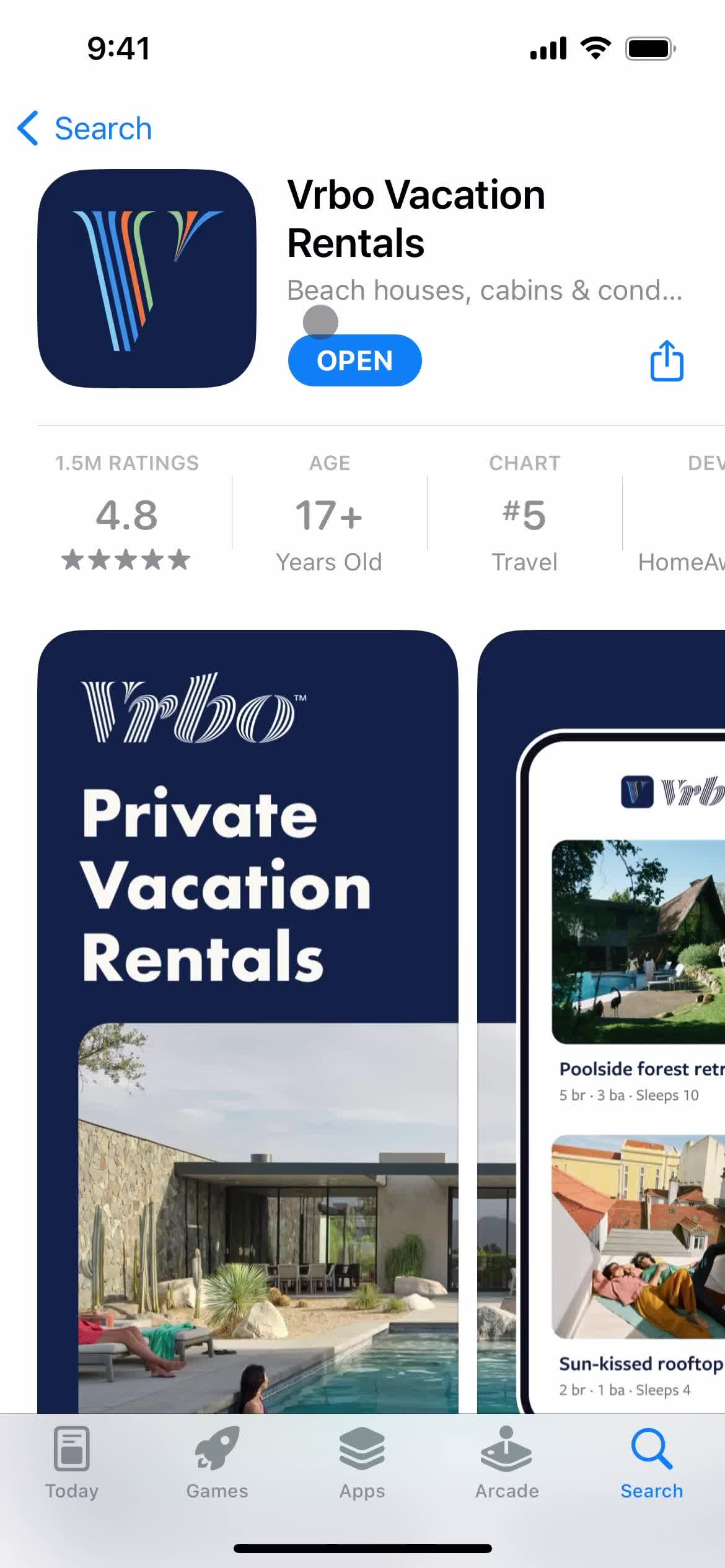
App store listing
this is title
Splash screen
this is title
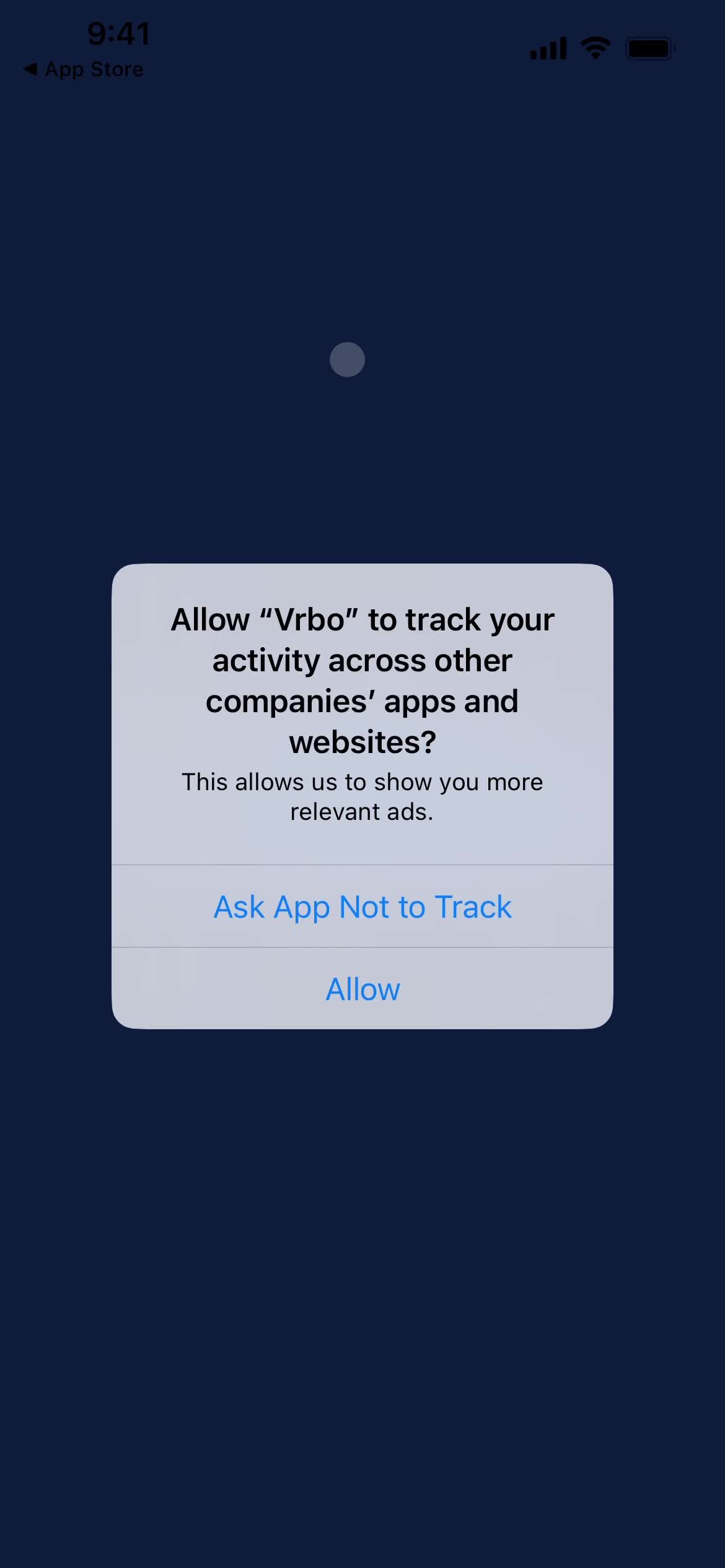
Enable tracking
this is title
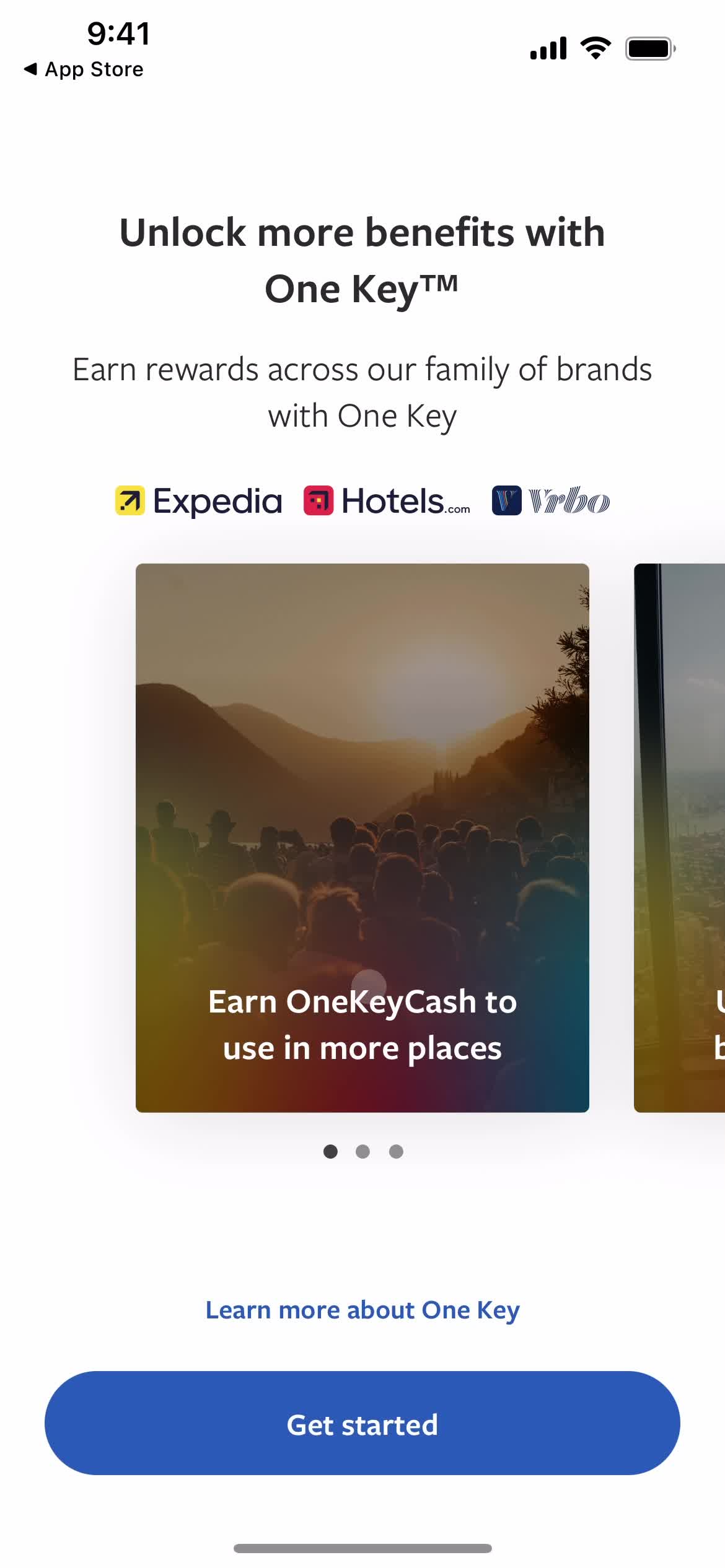
Guide slide
this is title
Guide slide
this is title
Guide slide
this is title
Get started
this is title
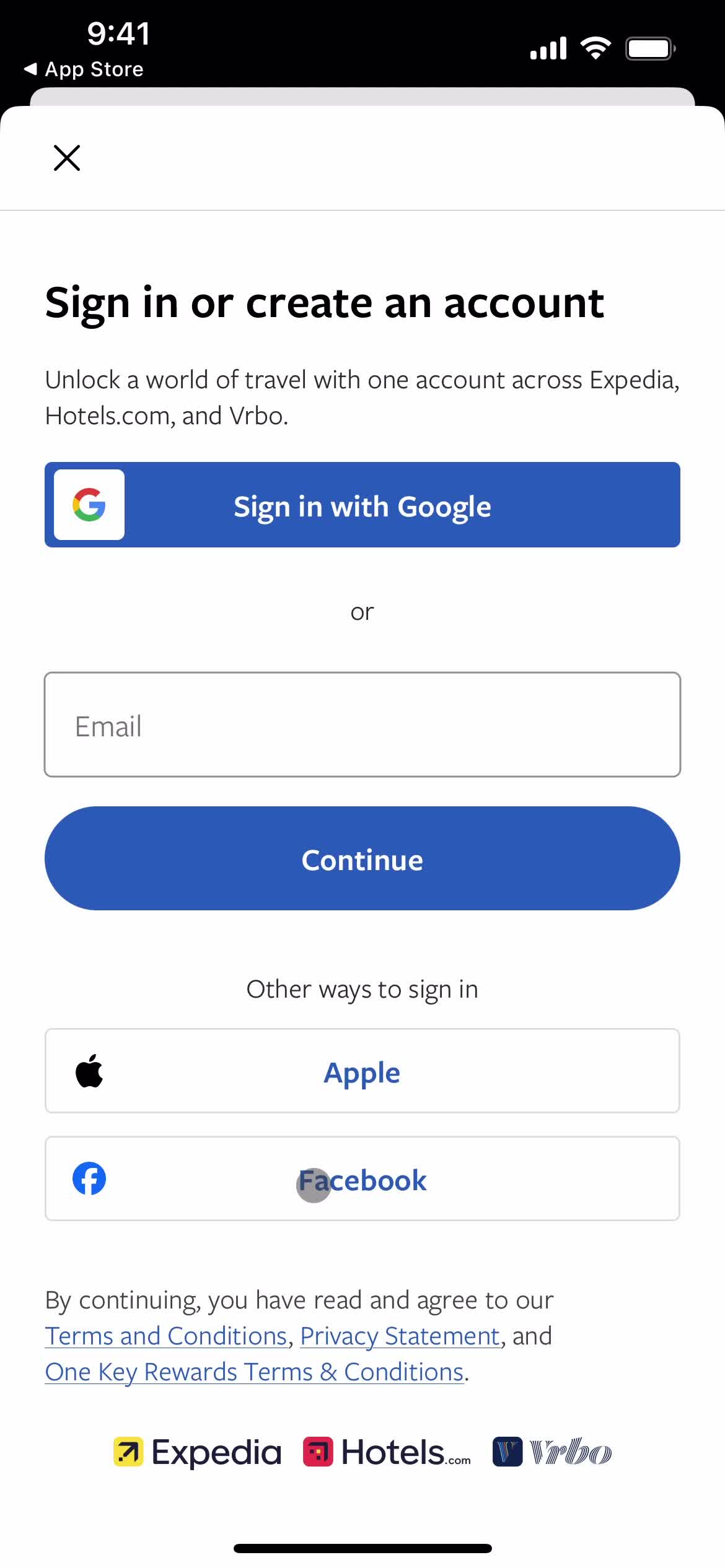
Sign in
this is title
Enter email
this is title
Continue
this is title
Confirm email
this is title
Continue
this is title
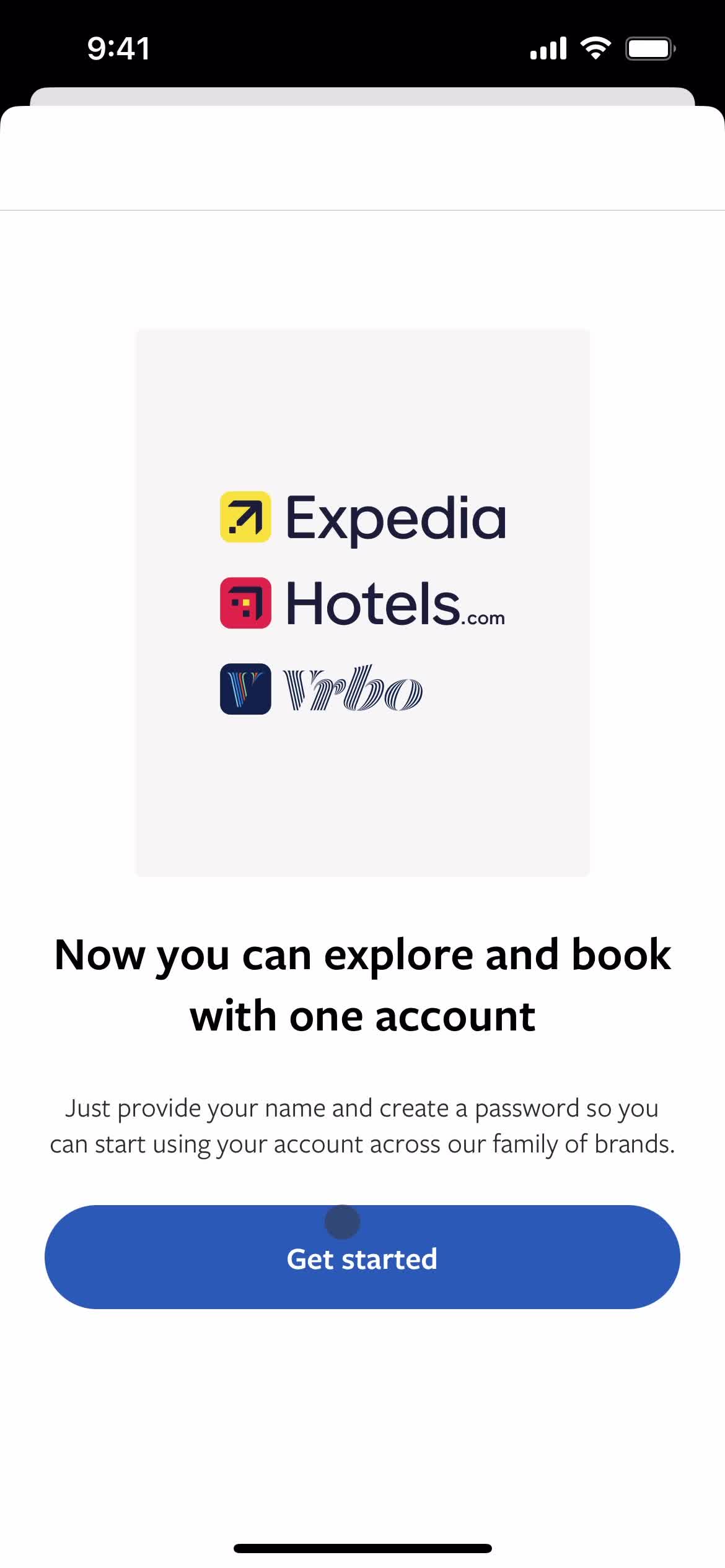
Get started
this is title
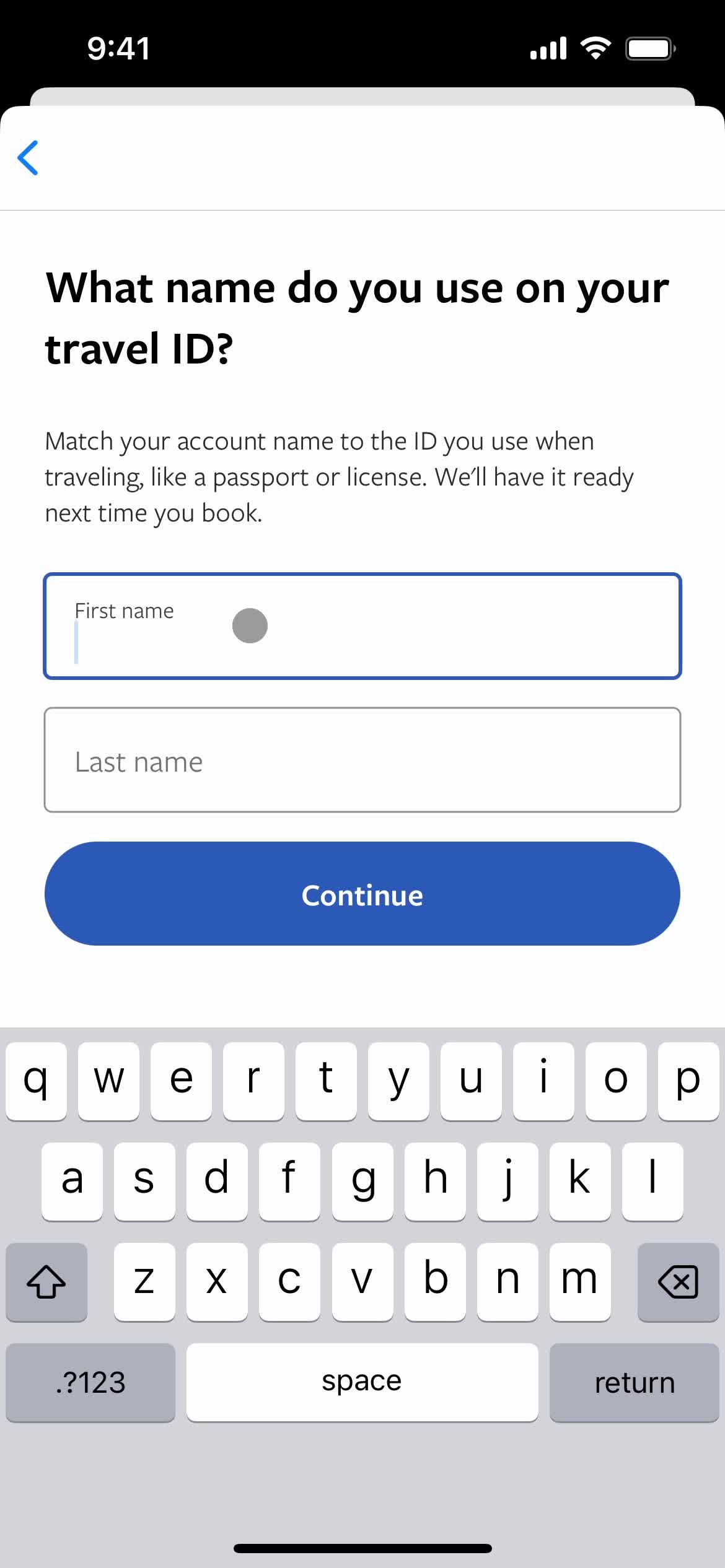
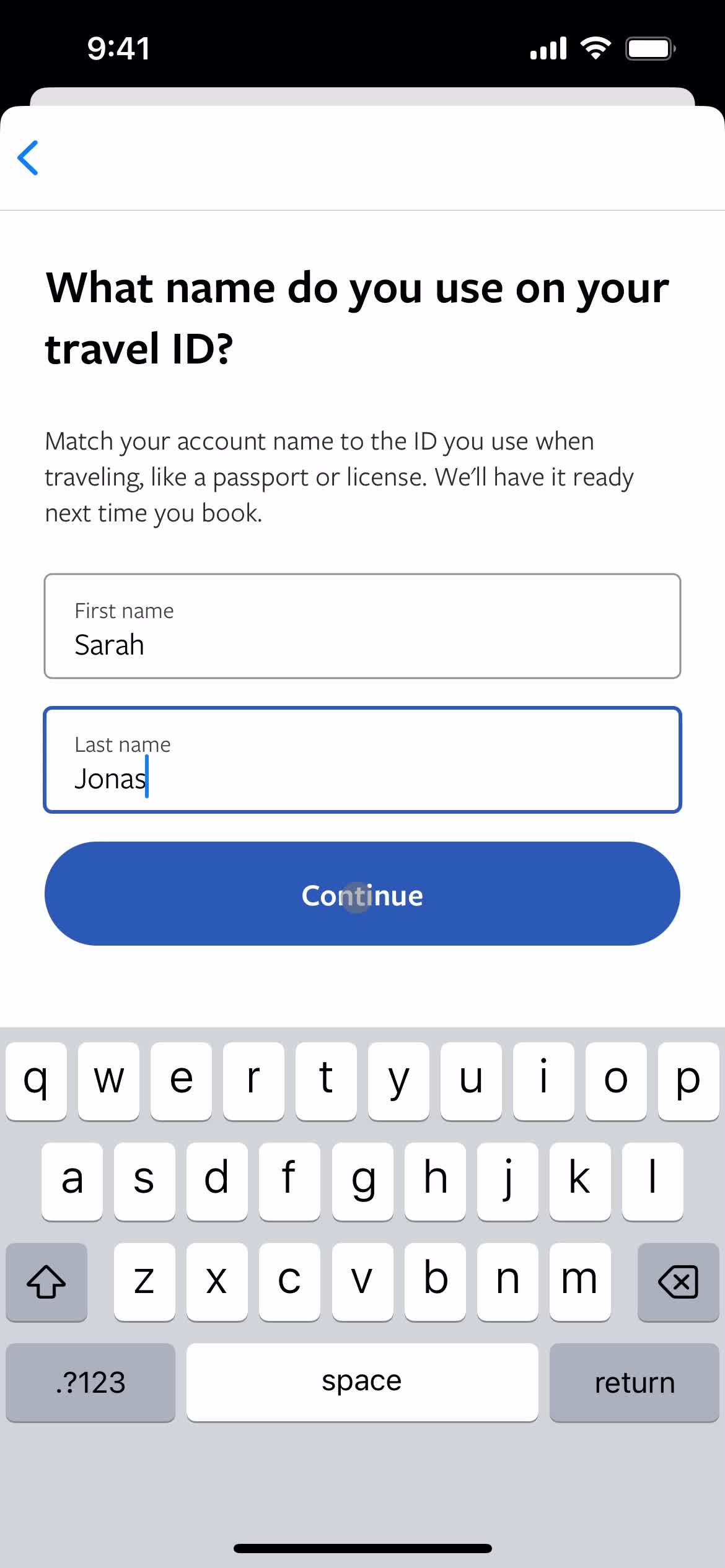
Enter name
this is title
Continue
this is title
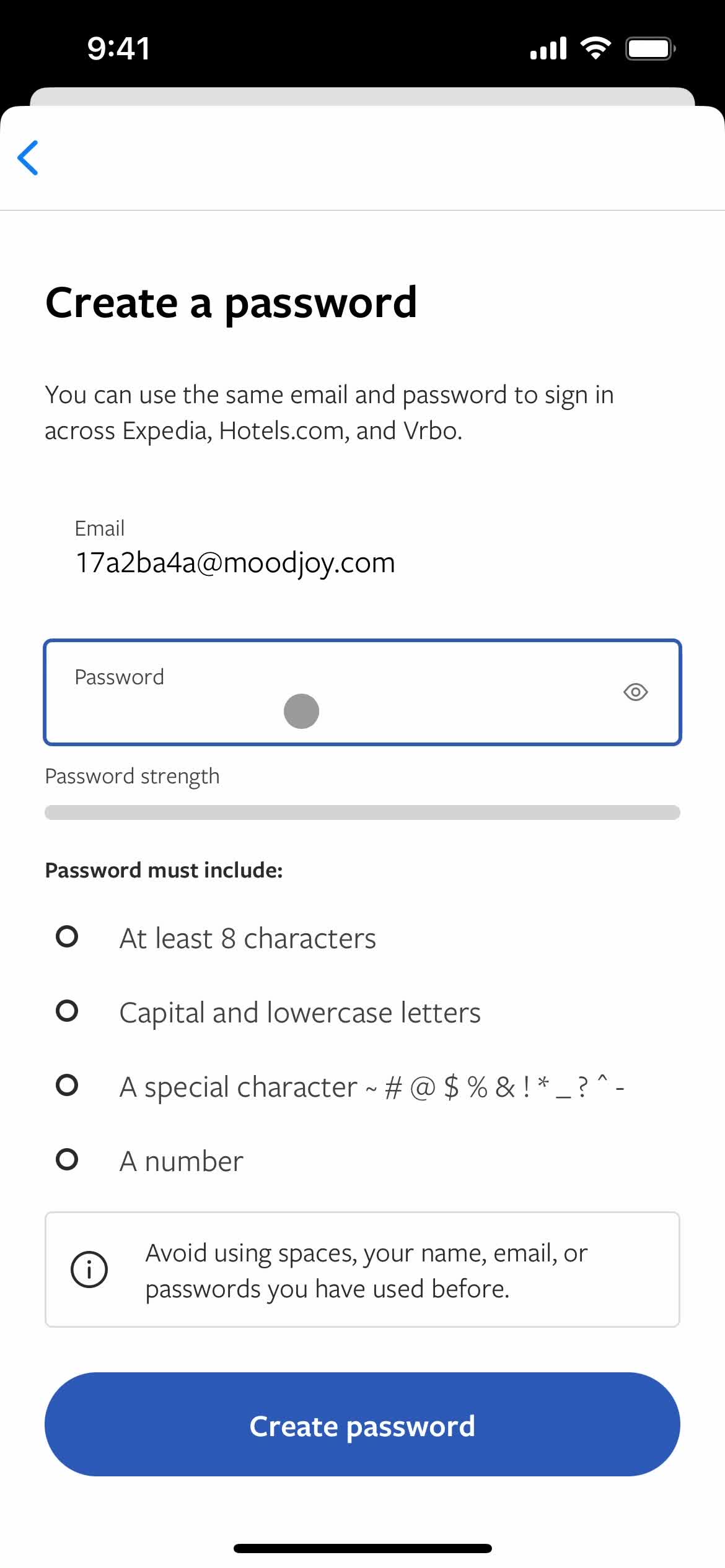
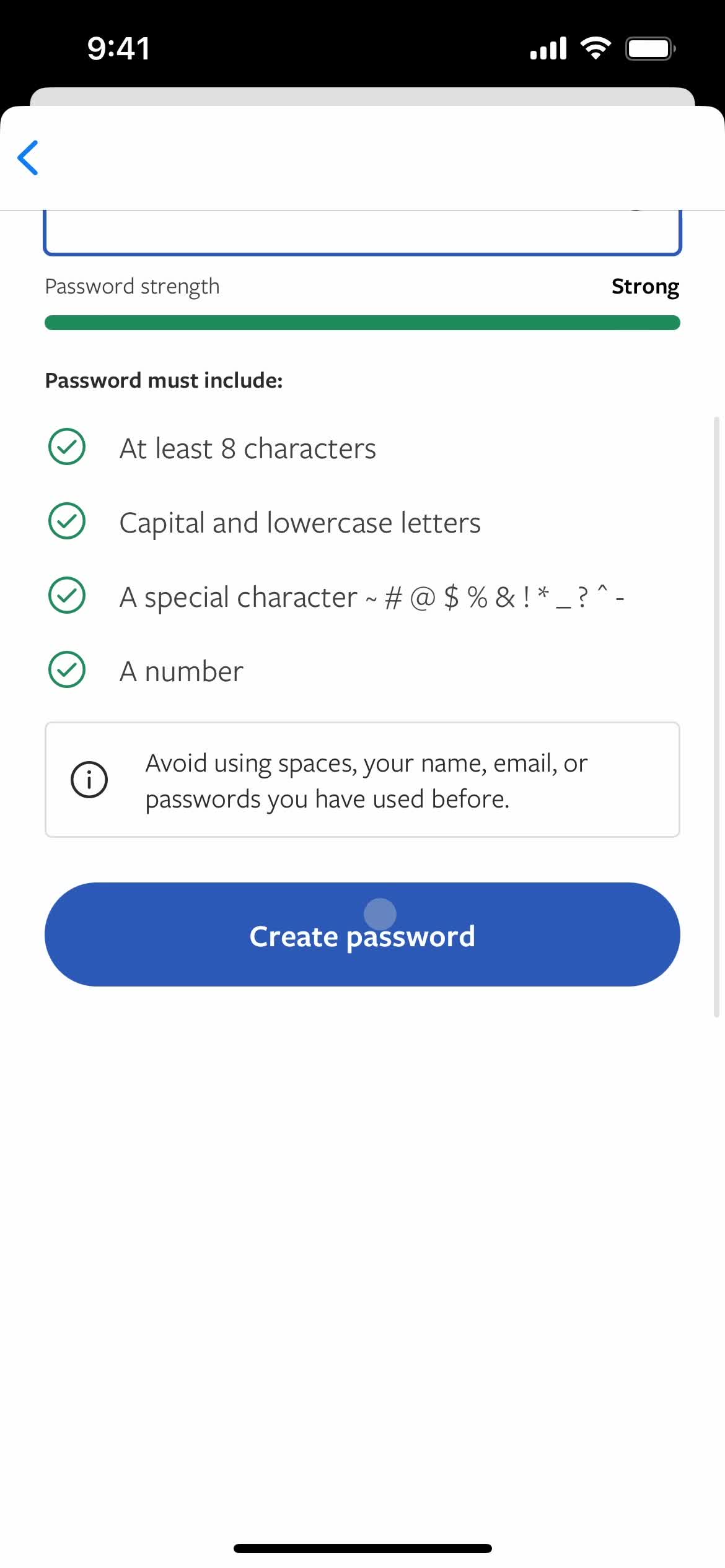
Set password
this is title
Continue
this is title
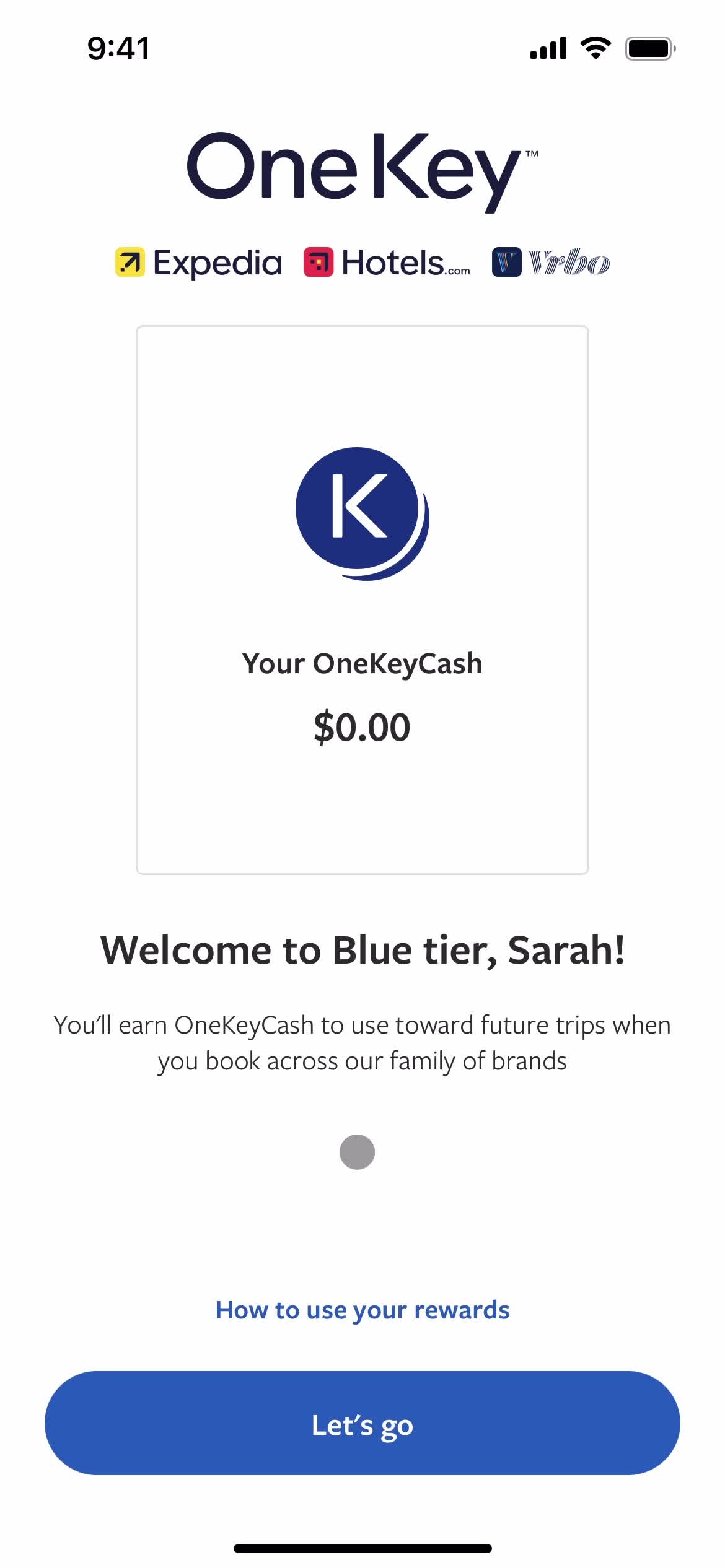
Welcome
this is title
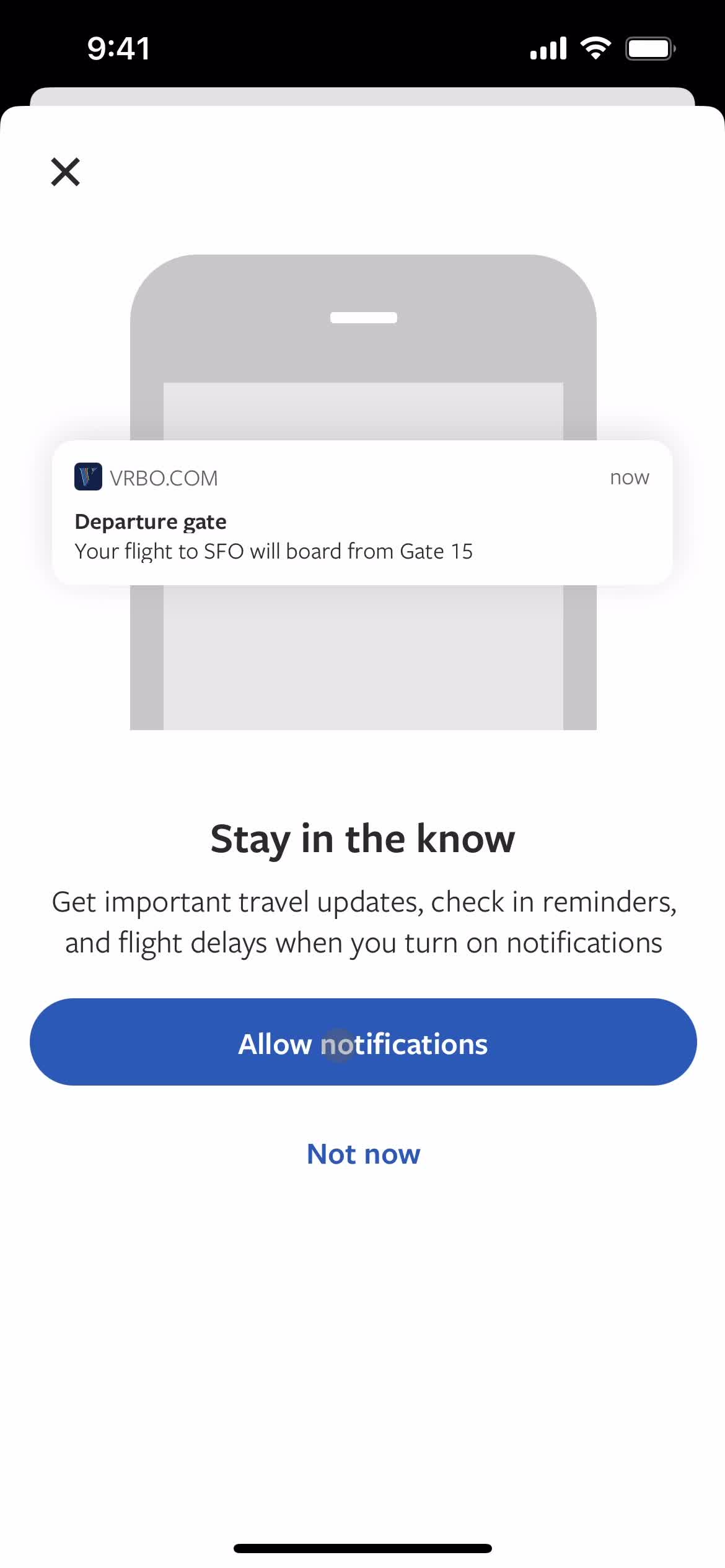
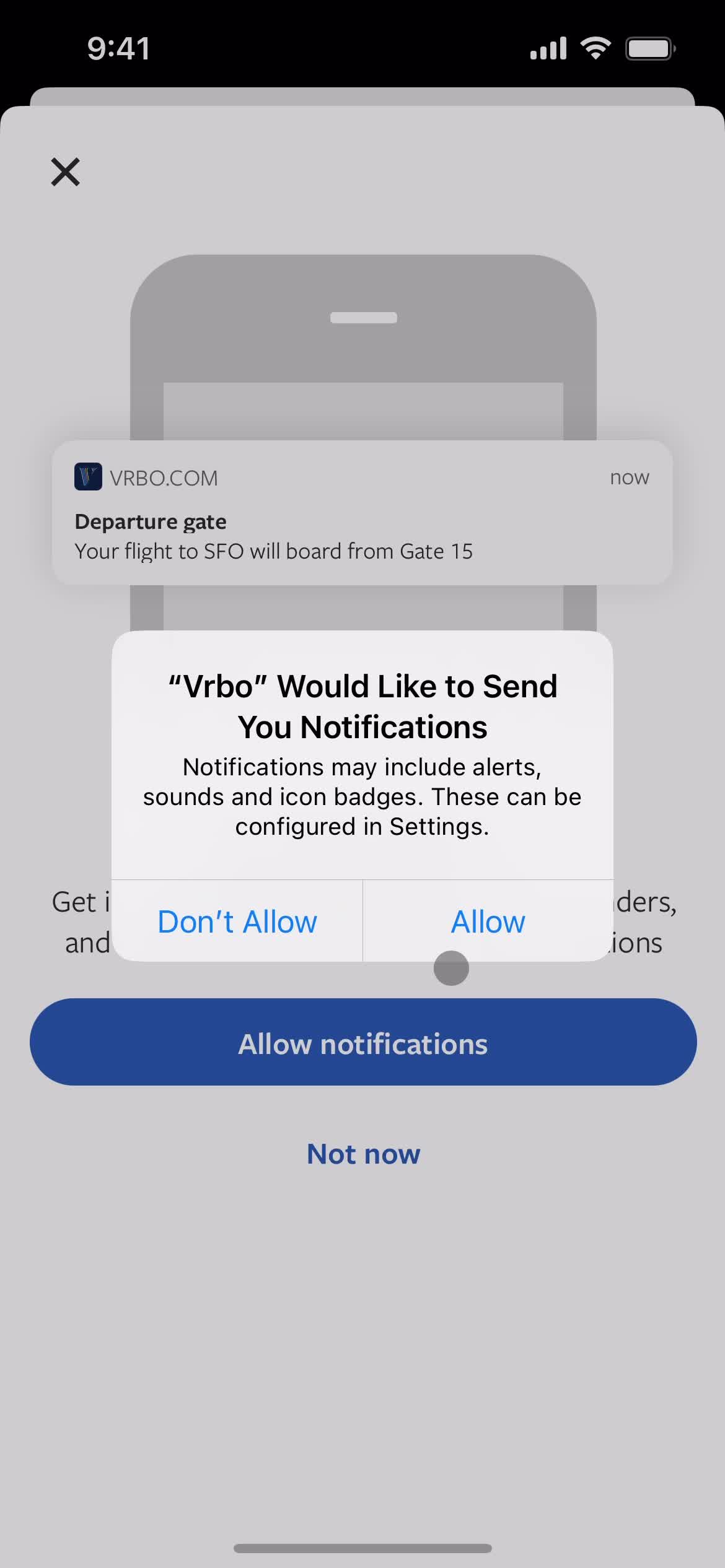
Enable notifications
this is title
Enable notifications
this is title
Home
this is title
Account
this is title
Home
this is title
Sign in
this is title
Enter email
this is title
Continue
this is title
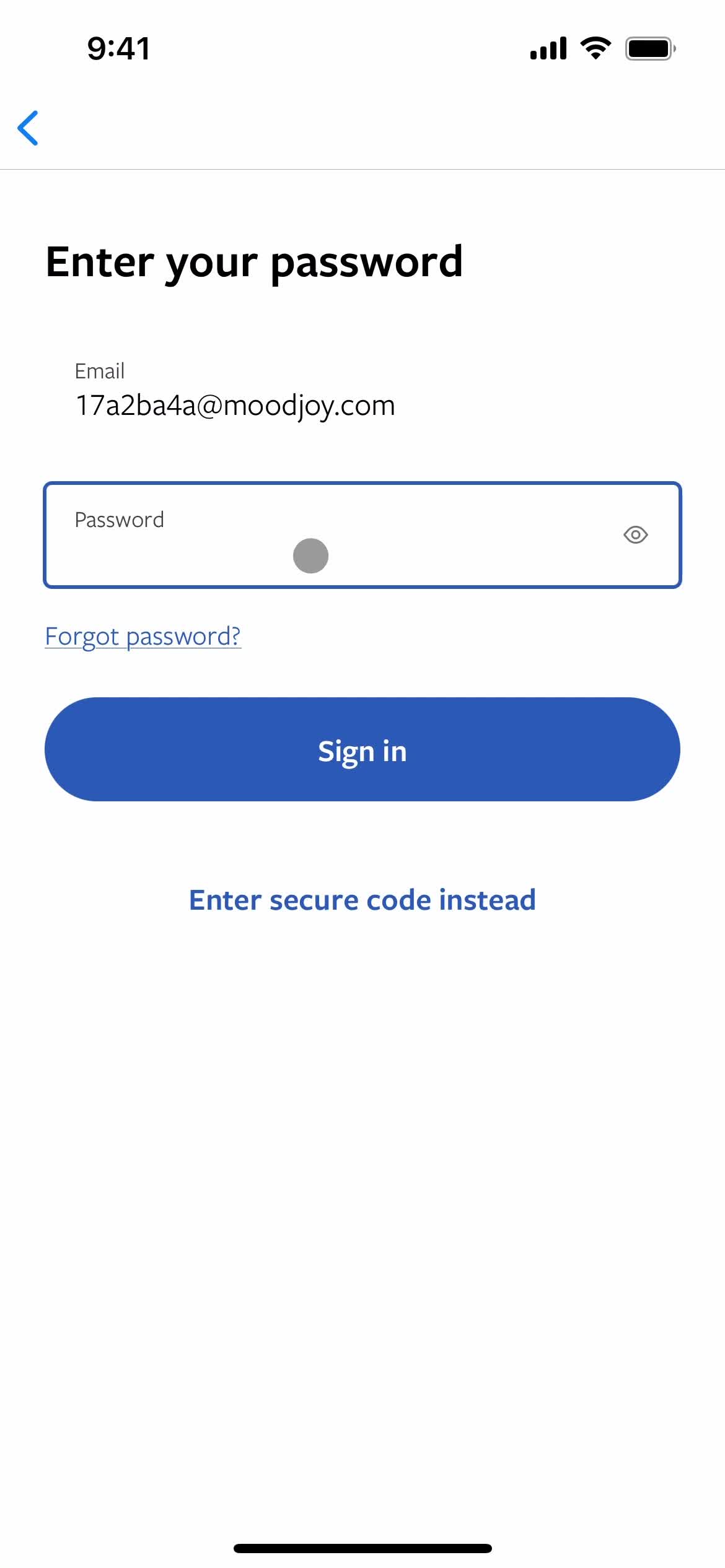
Enter password
this is title
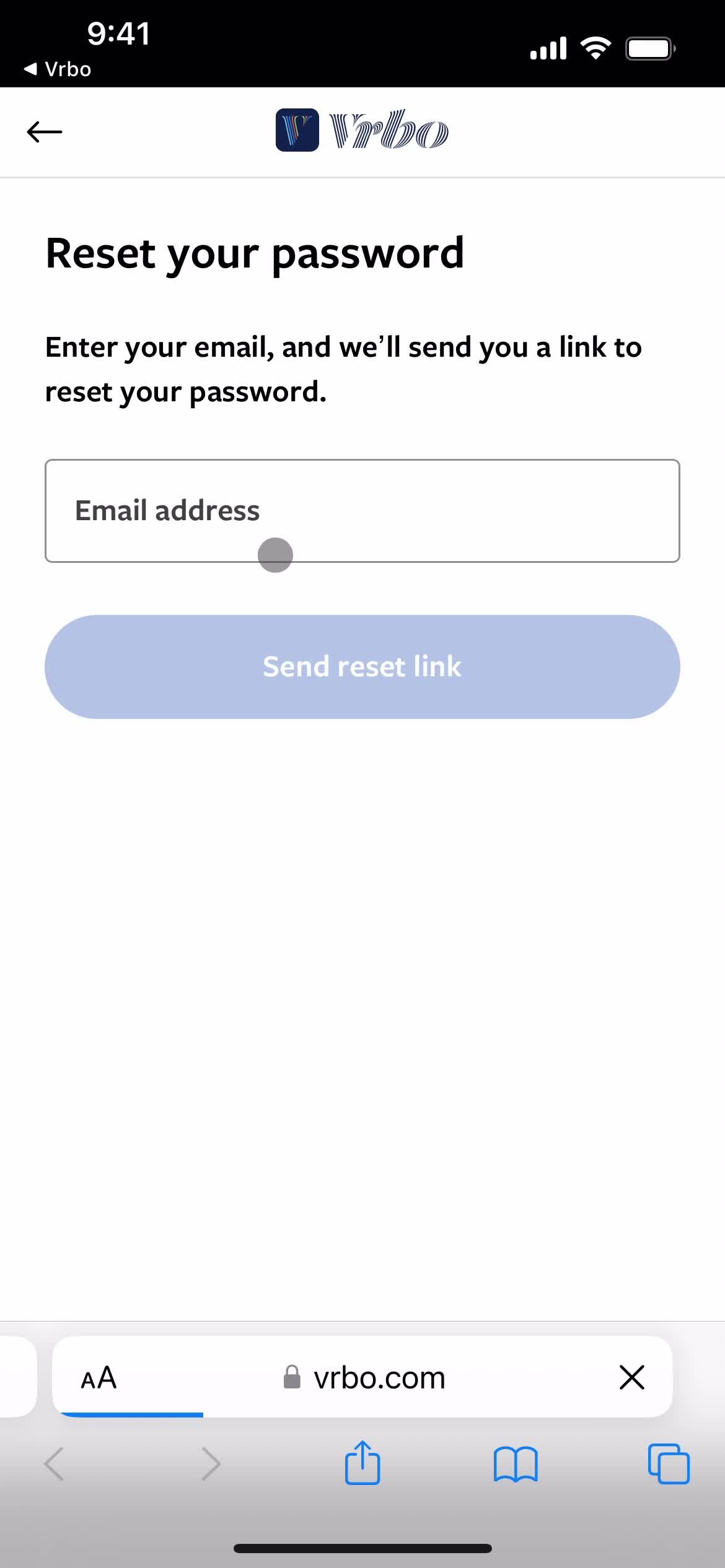
Forgot password
this is title
Reset password
this is title
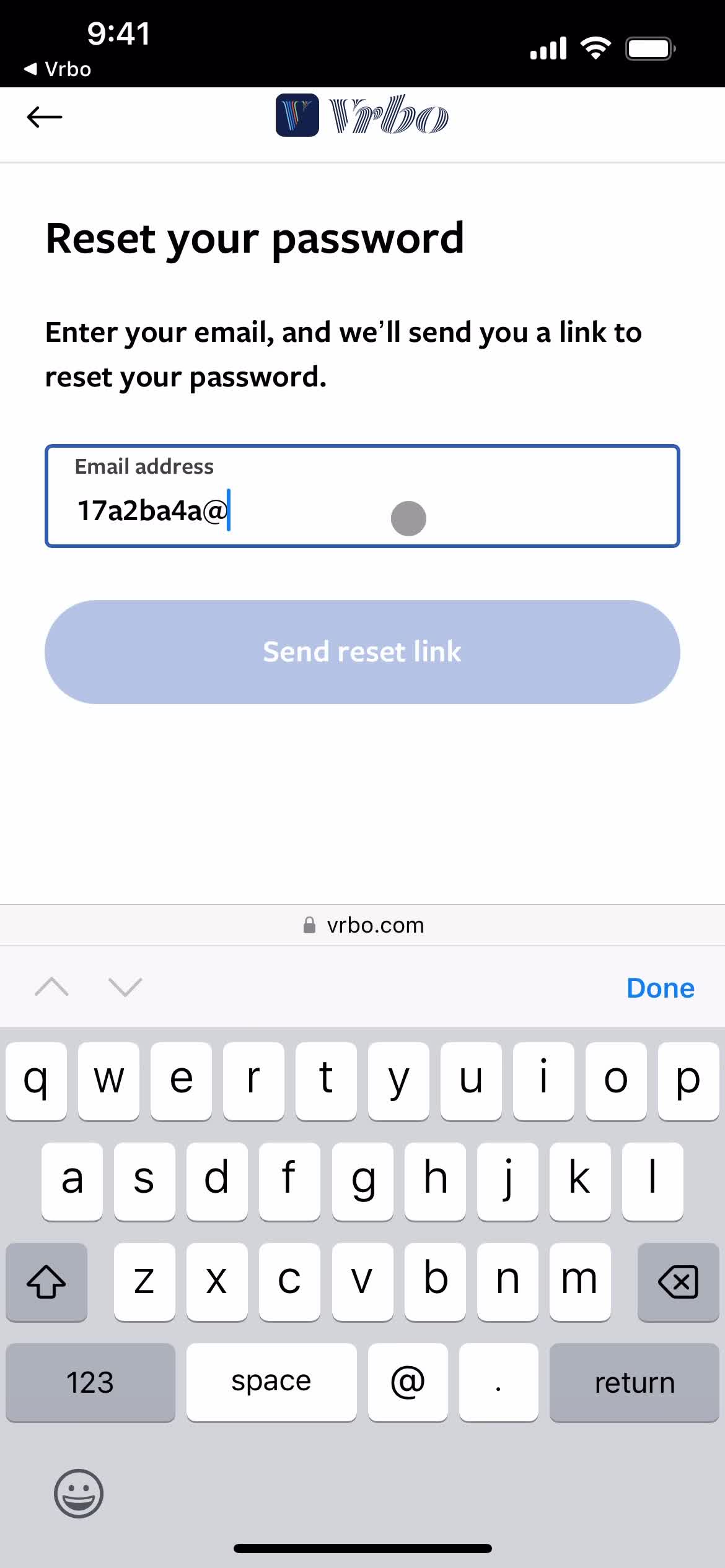
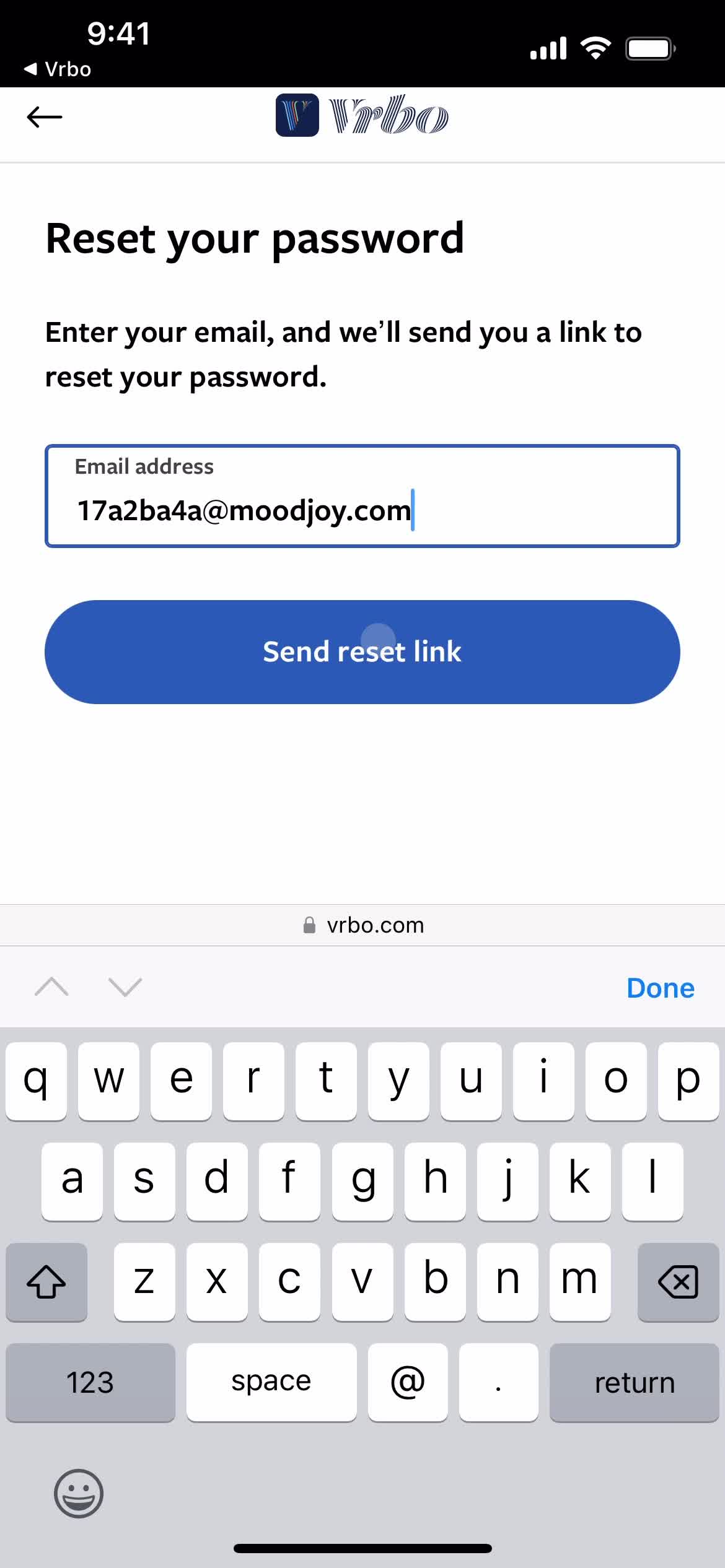
Enter email
this is title
Continue
this is title
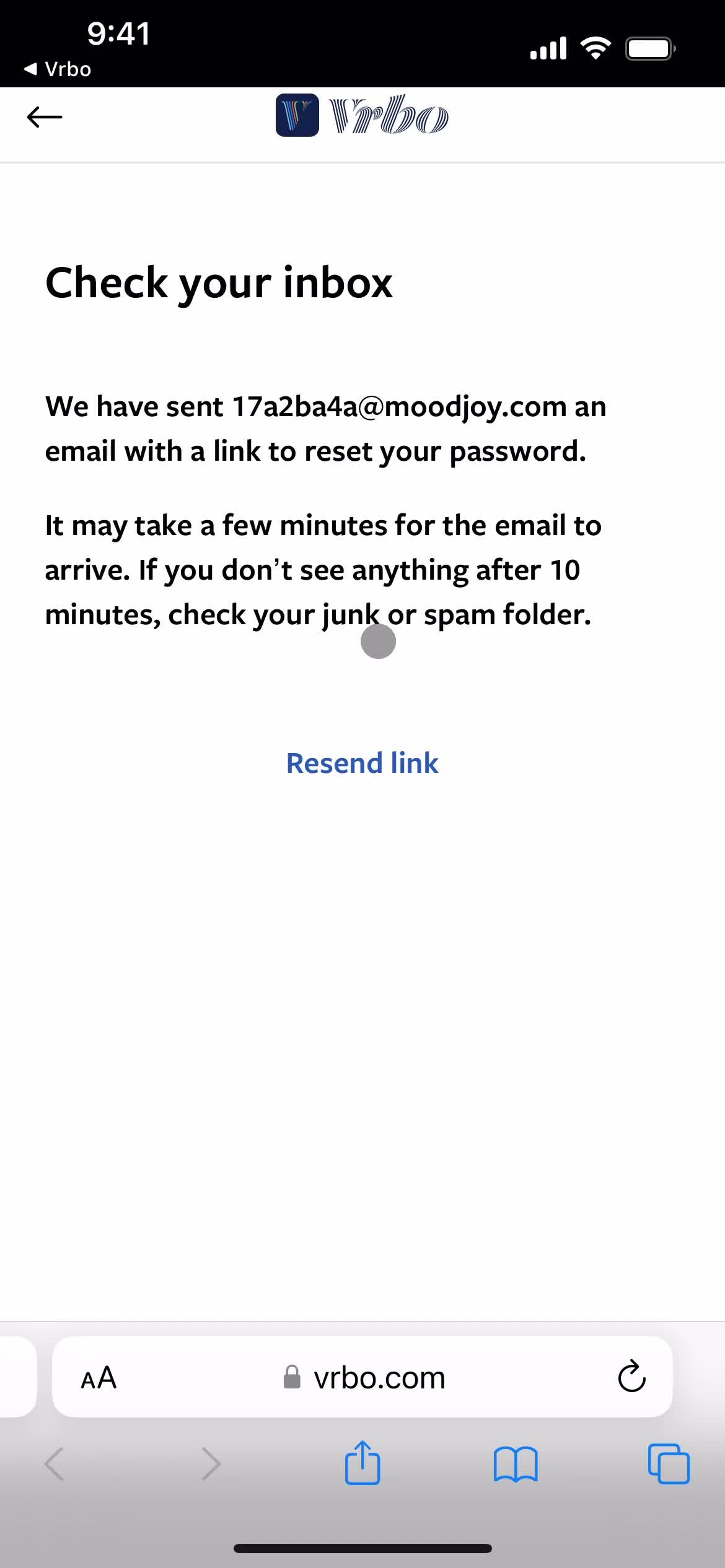
Check your inbox
this is title
Enter password
this is title
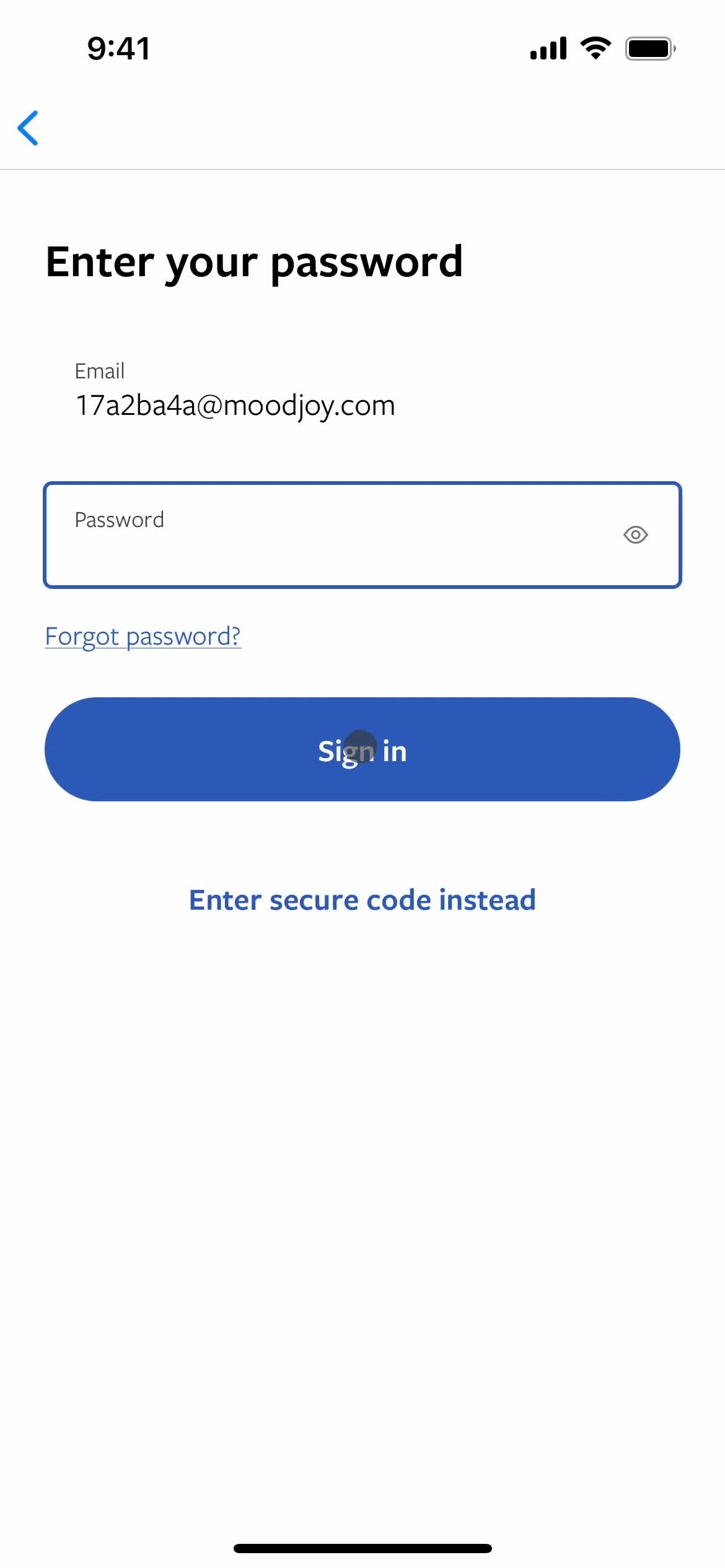
Sign in
this is title
Account
this is title
Home
this is title
Home
this is title
Trips
this is title
this is title
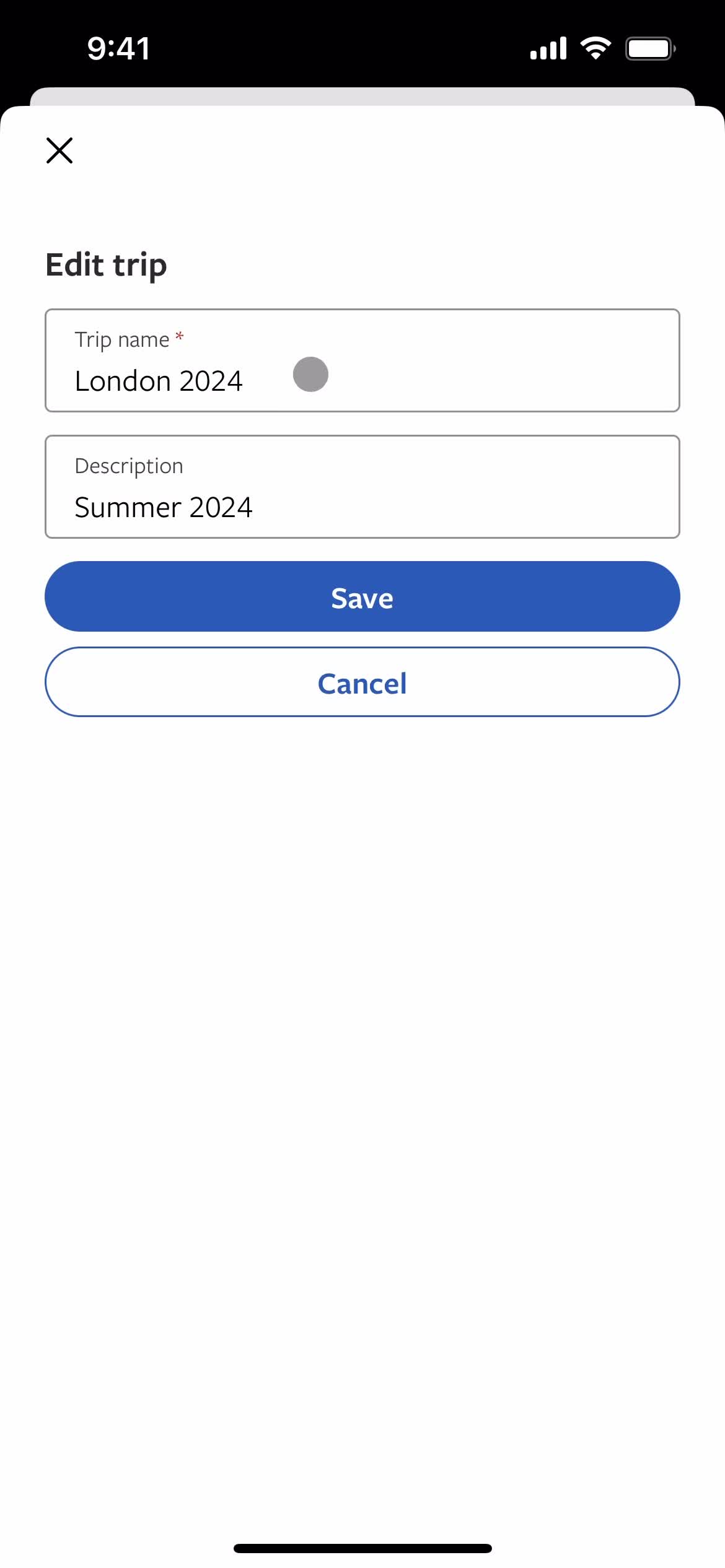
Create trip
this is title
Add description
this is title
Save
this is title
Saved to trip
this is title
Trips
this is title
Trip details
this is title
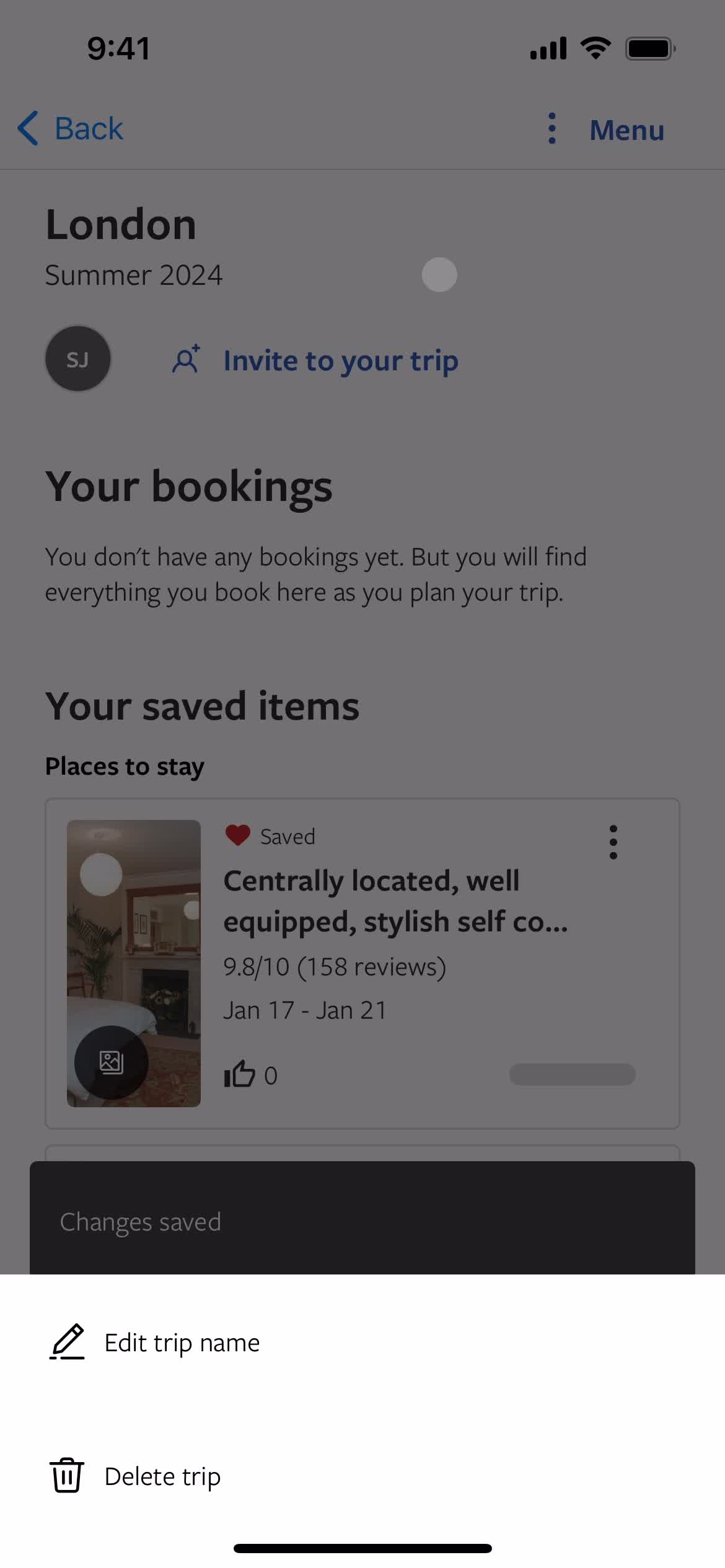
Action menu
this is title
this is title
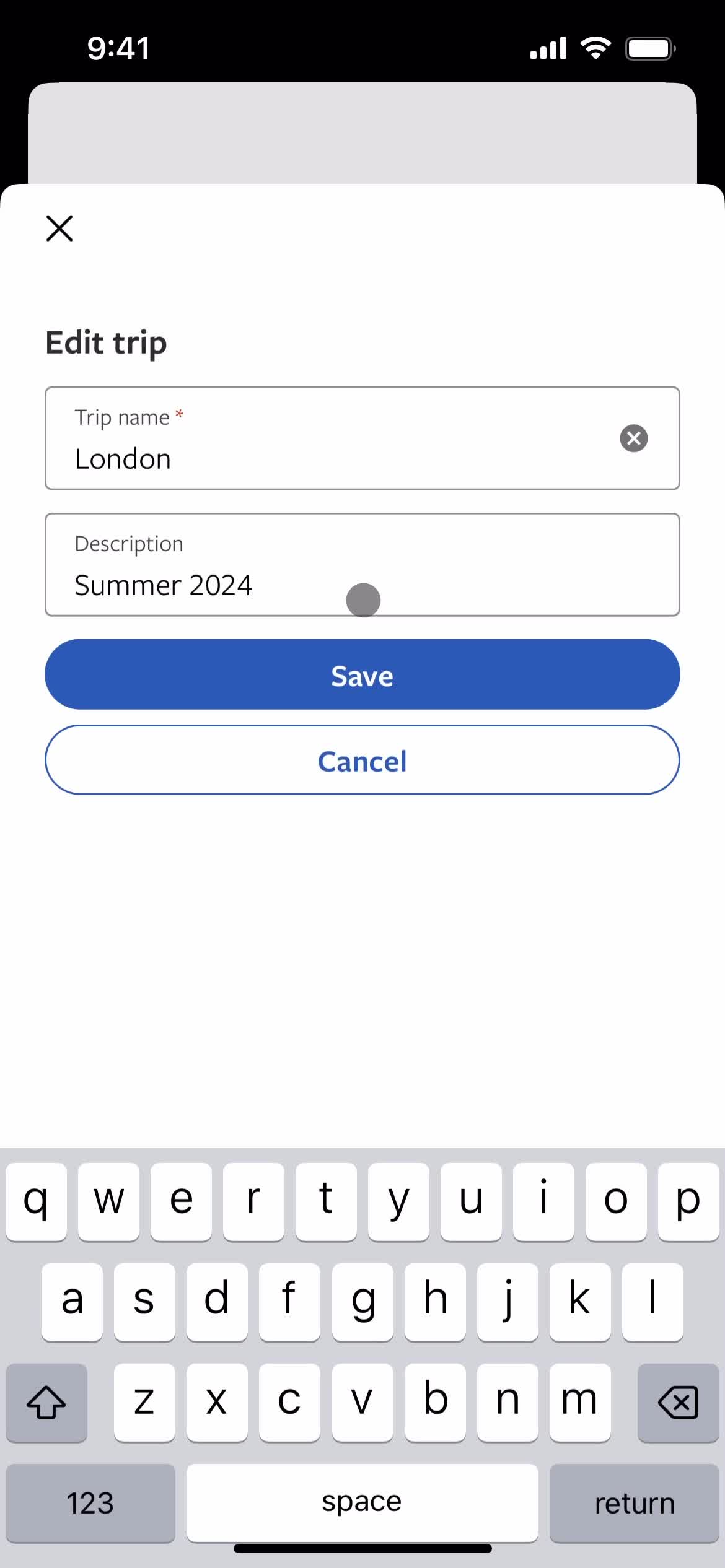
Edit details
this is title
Save
this is title
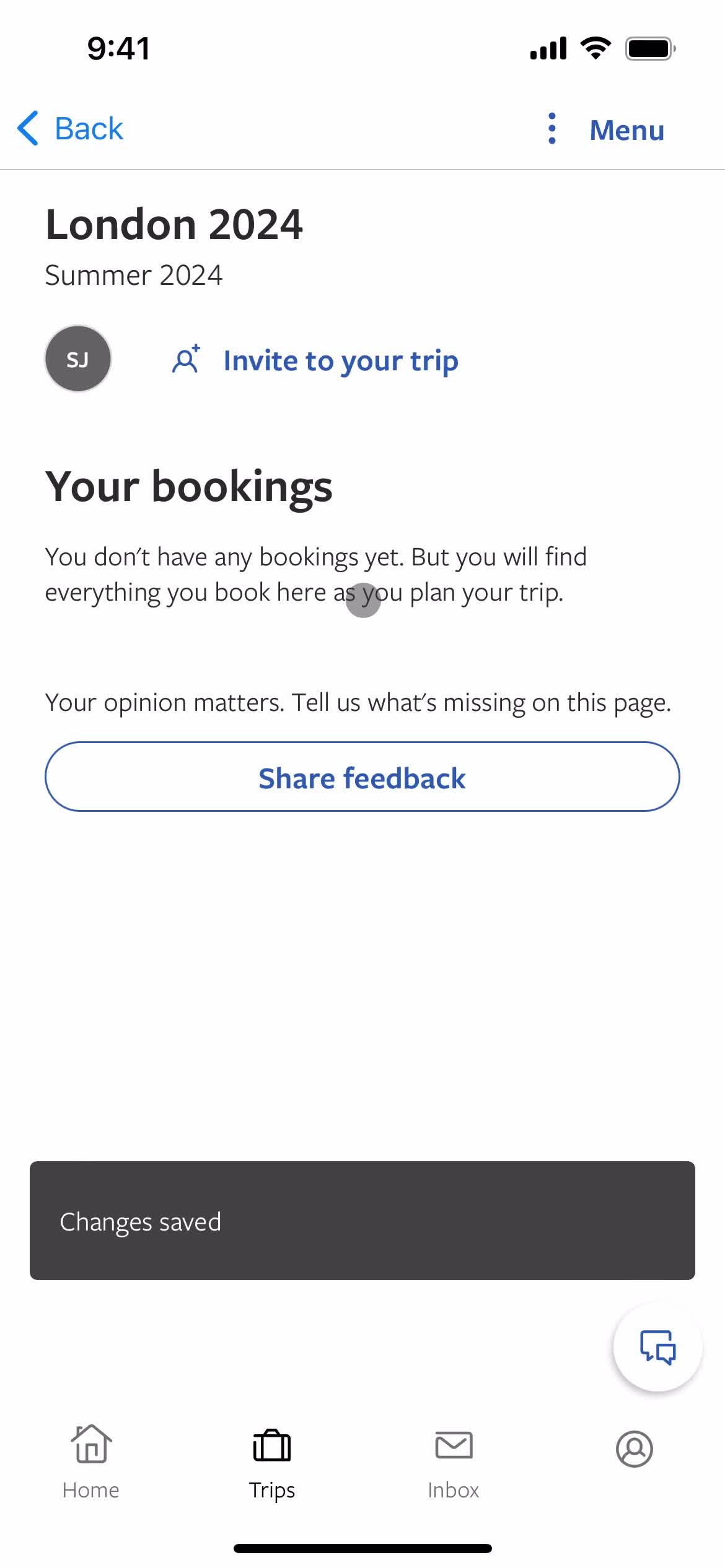
Changes saved
this is title
Trip details
this is title
Home
this is title
Set location
this is title
Set date range
this is title
Continue
this is title
Search
this is title
Set preferences
this is title
Search
this is title
Properties
this is title
Property details
this is title
Add to collection
this is title
Add favorite
this is title
Saved to trip
this is title
Trip details
this is title
Property details
this is title
Search results
this is title
Property details
this is title
Add to collection
this is title
Create trip
this is title
Add description
this is title
Save
this is title
Saved to trip
this is title
Search results
this is title
Home
this is title
Trip details
this is title
Trips
this is title
Home
this is title
Home
this is title
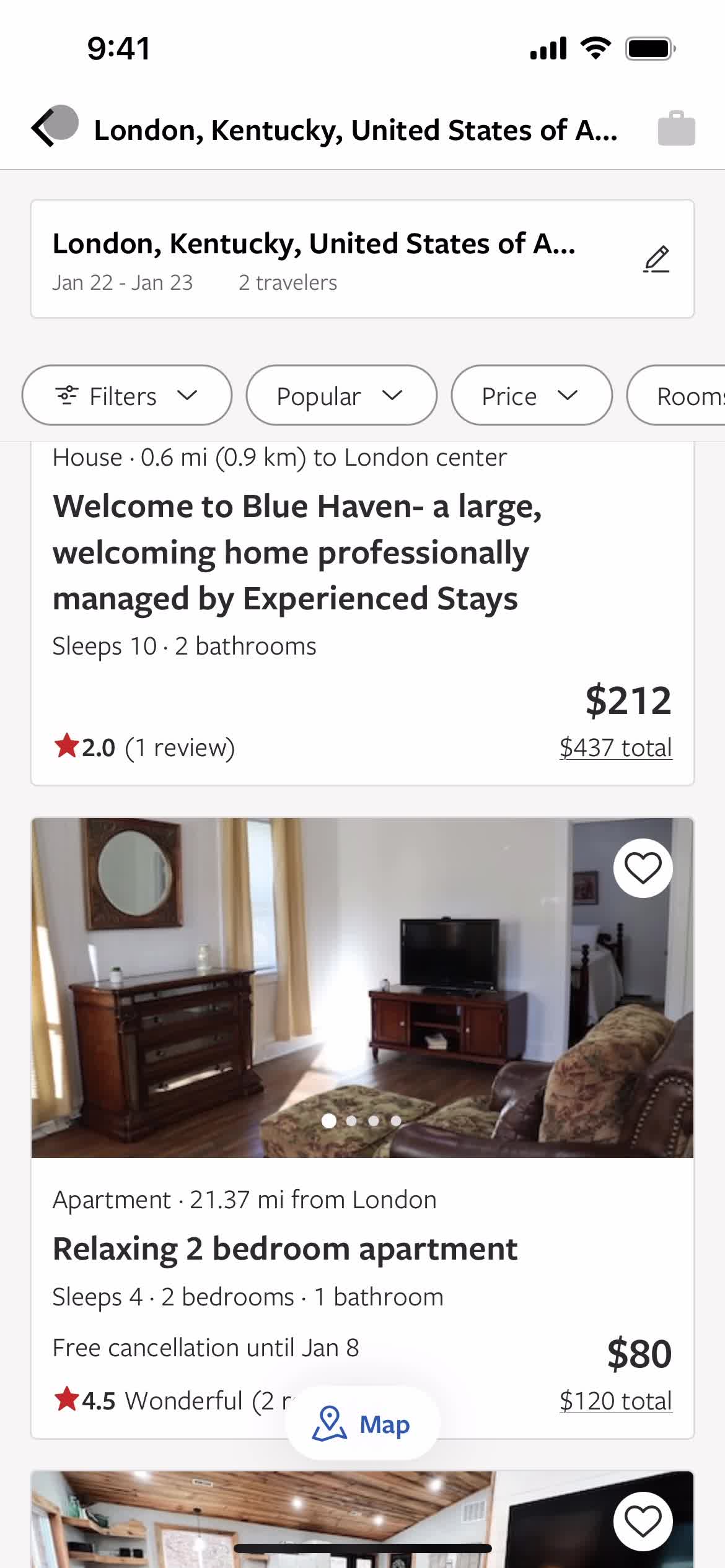
Search results
this is title
this is title
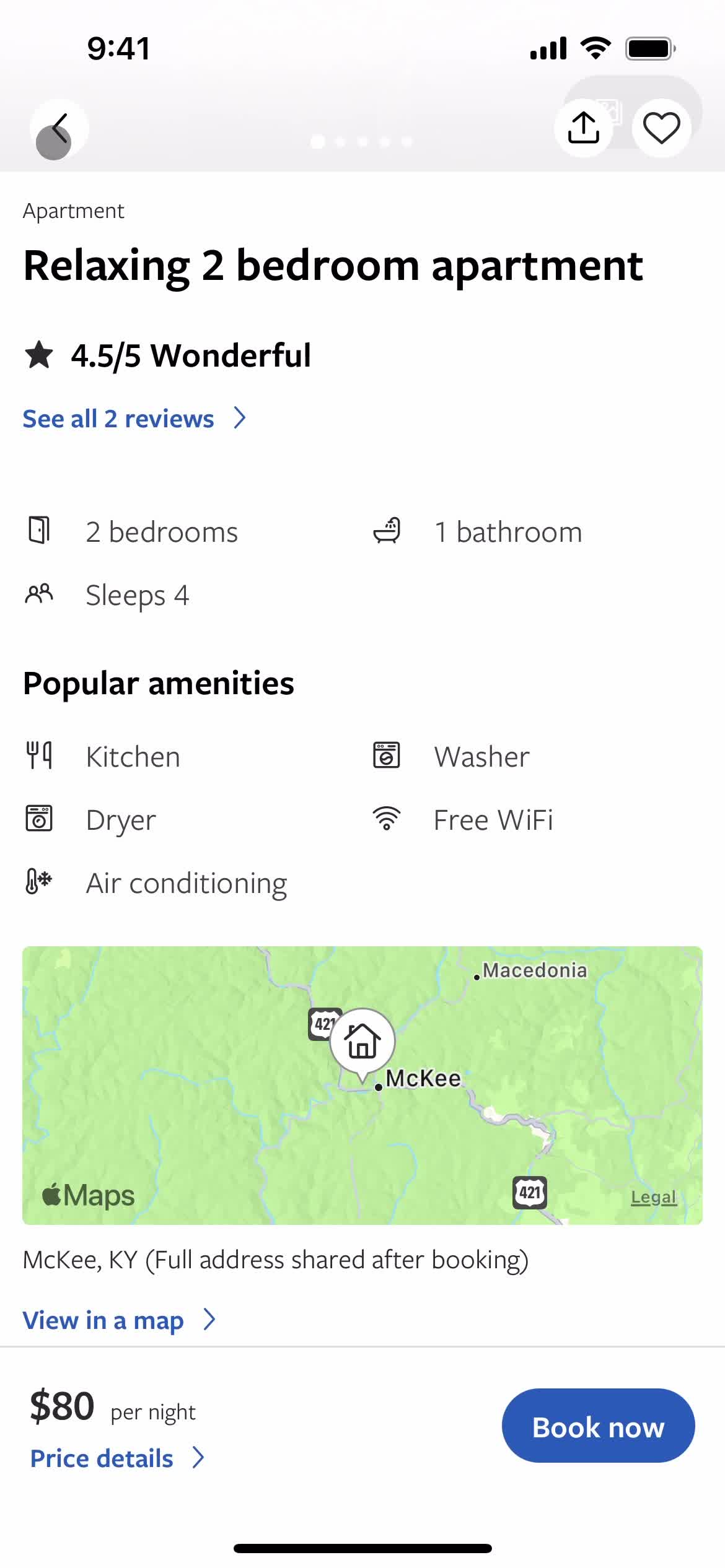
Property details
this is title
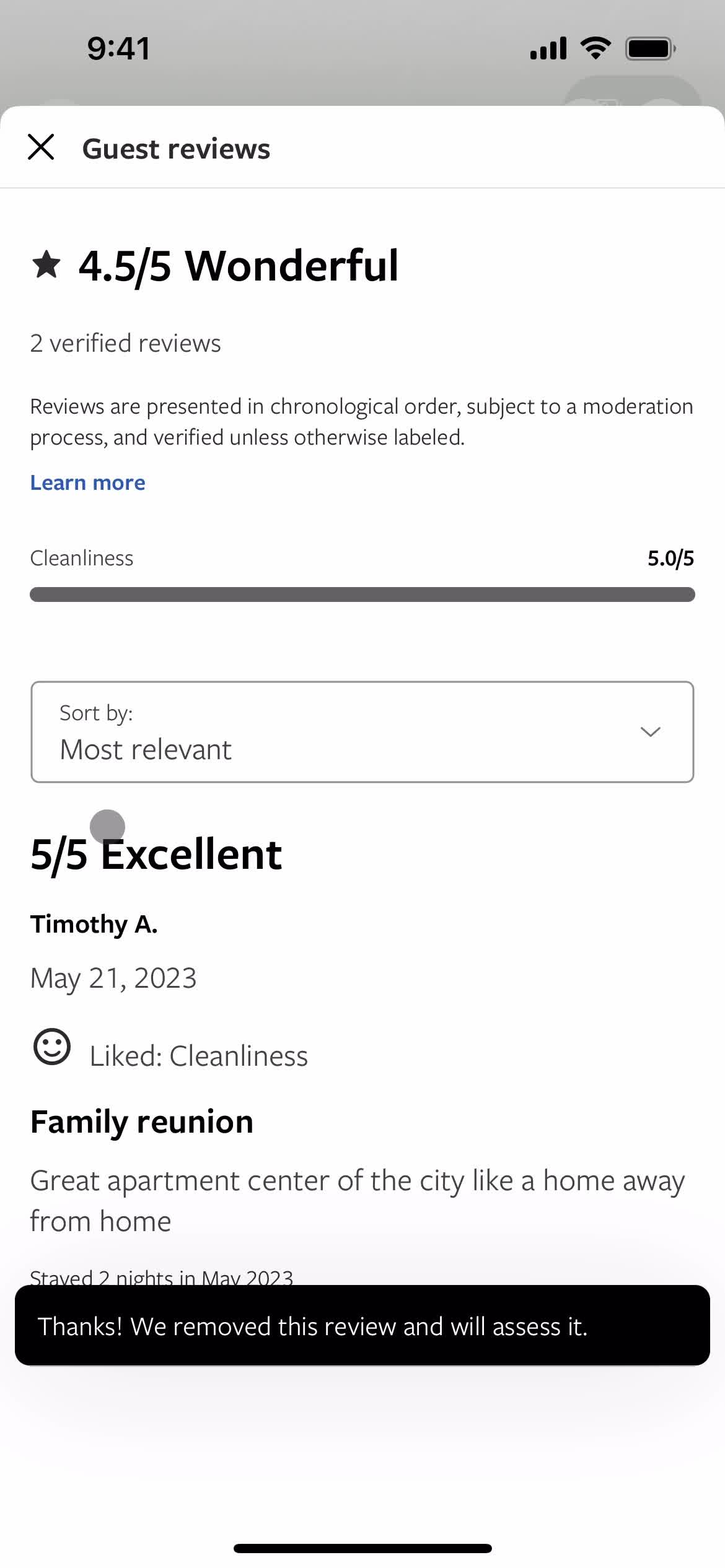
Reviews
this is title
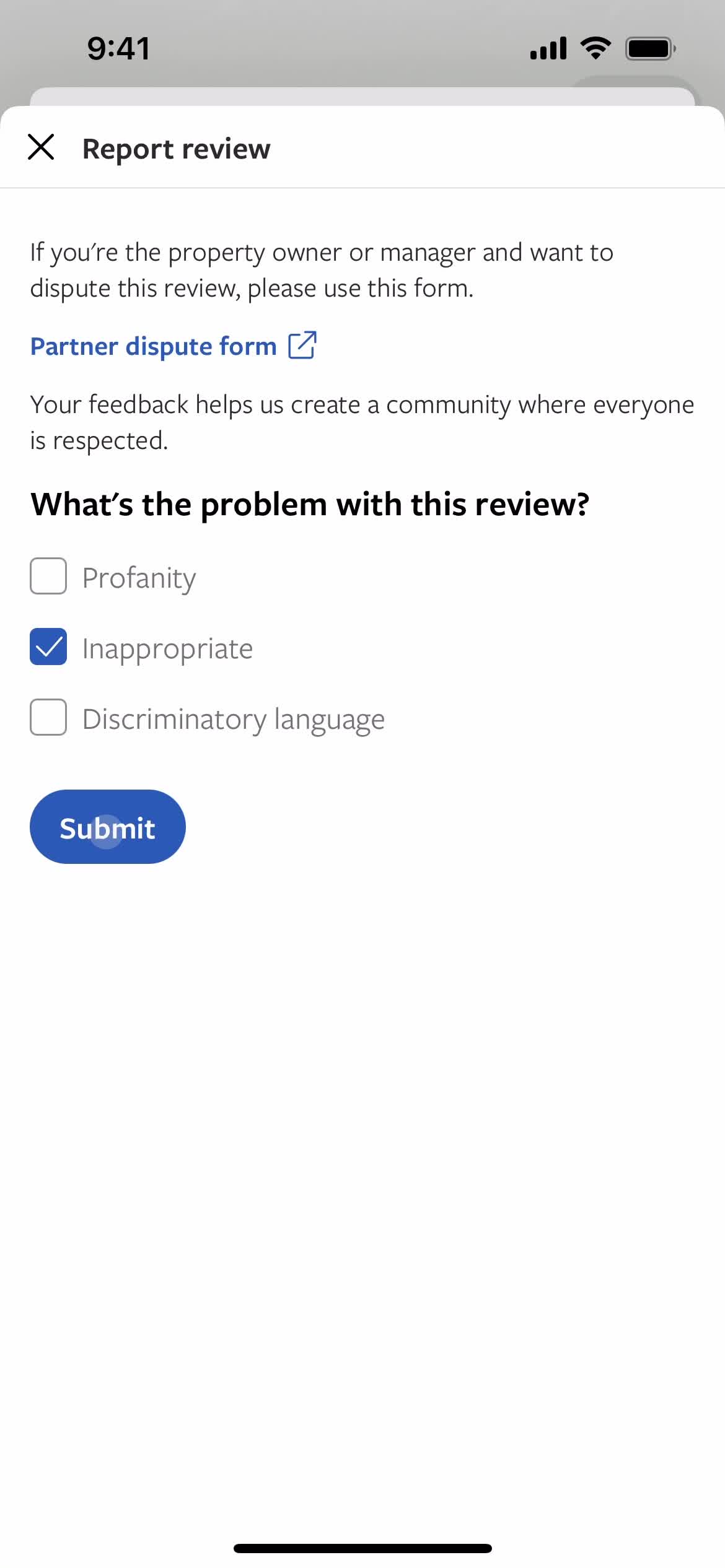
Report post
this is title
Submit report
this is title
Report submitted
this is title
Property details
this is title
Search results
this is title
Home
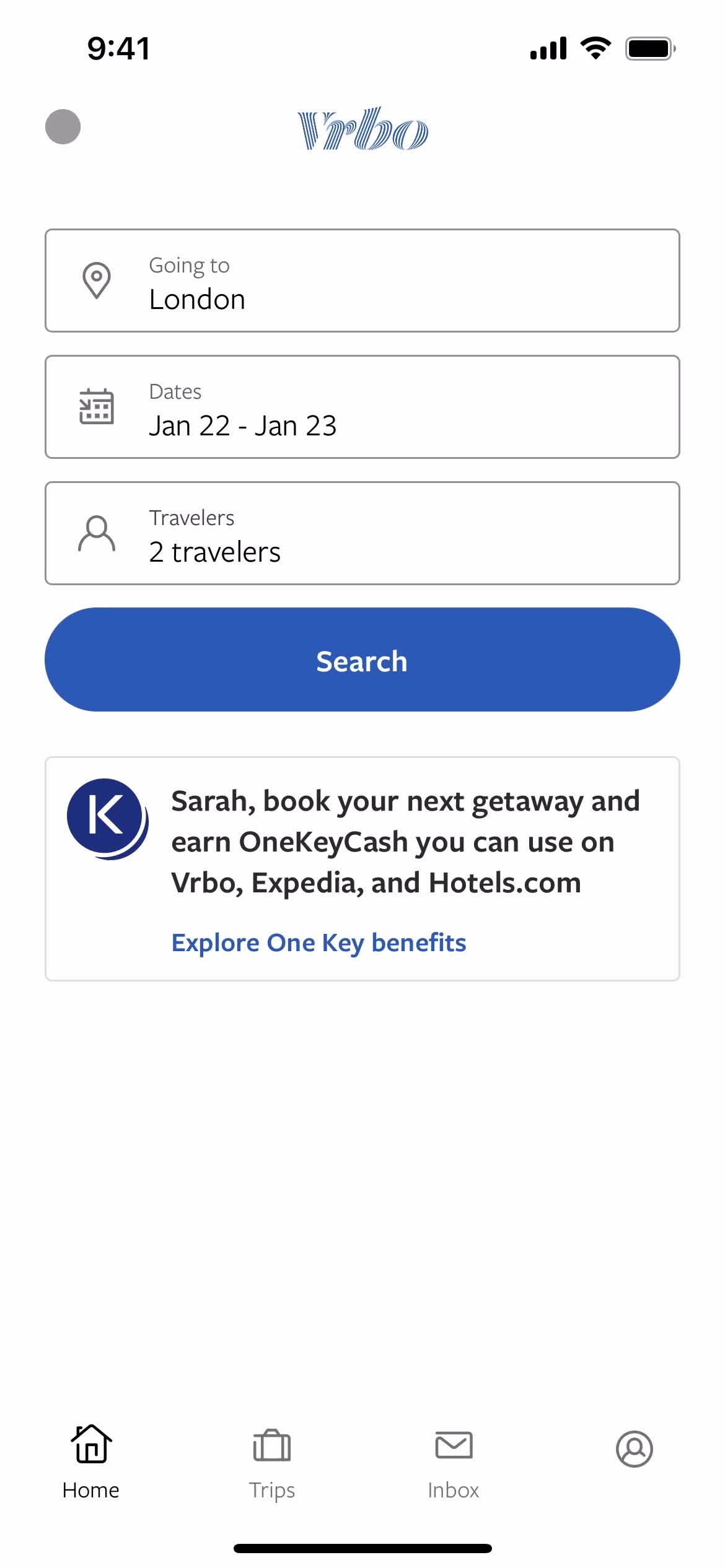
this is title
Home
this is title
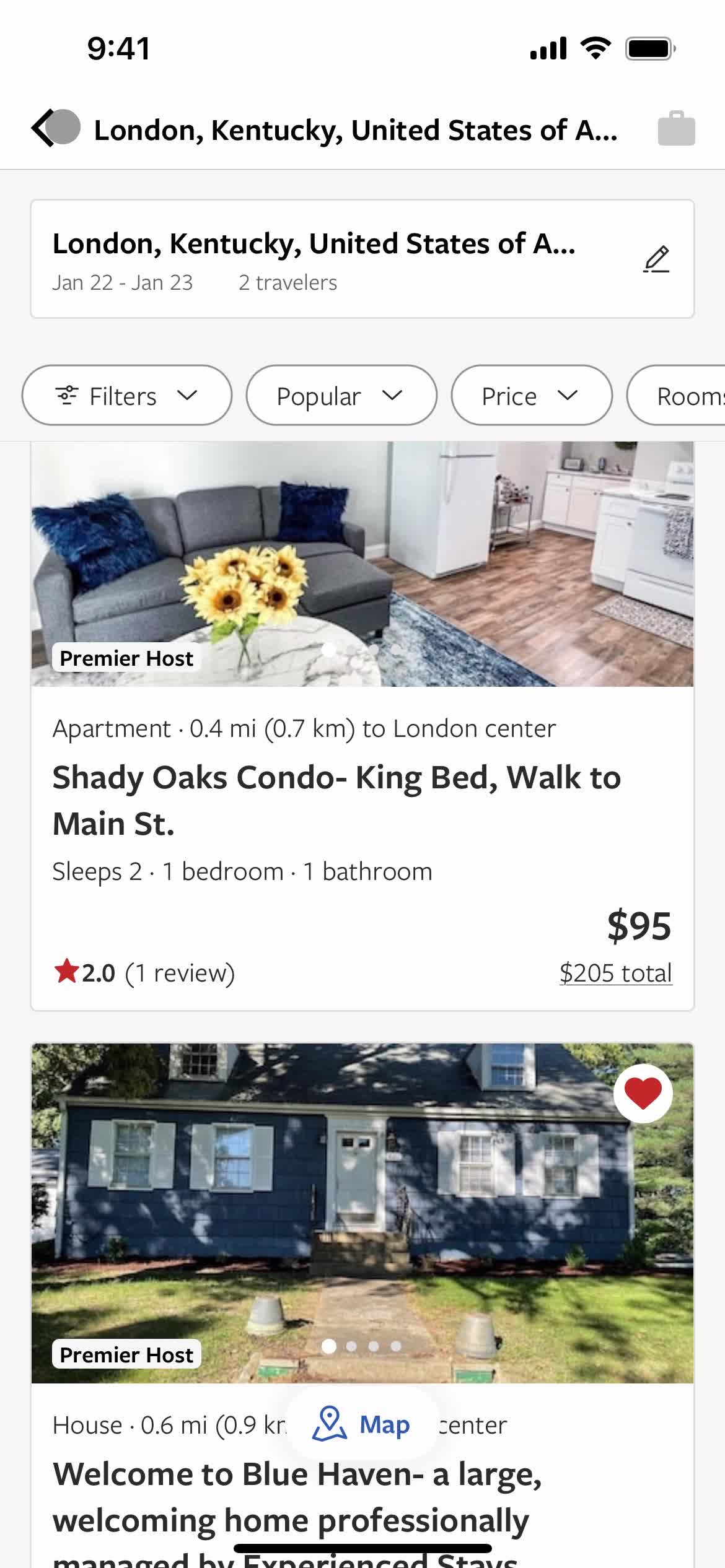
Properties
this is title
Property details
this is title
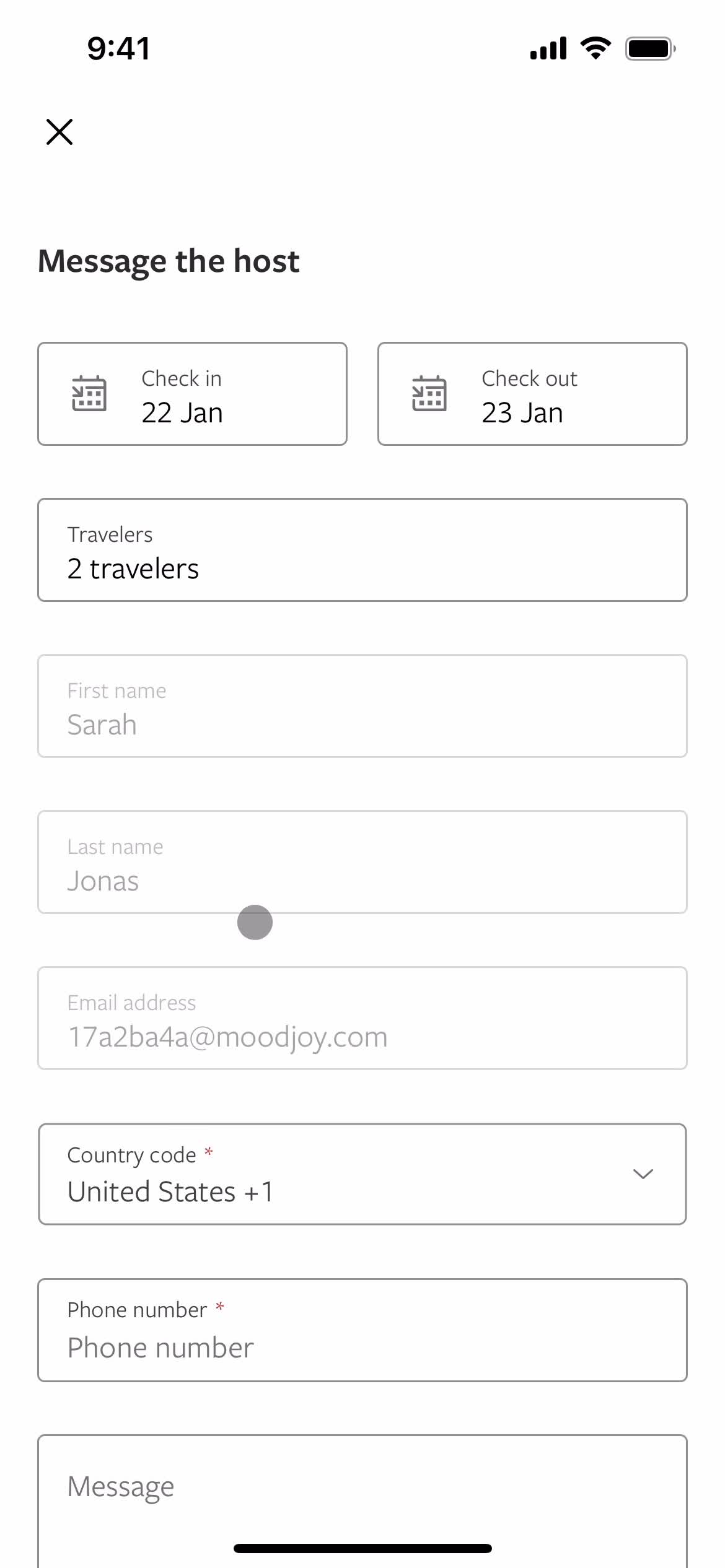
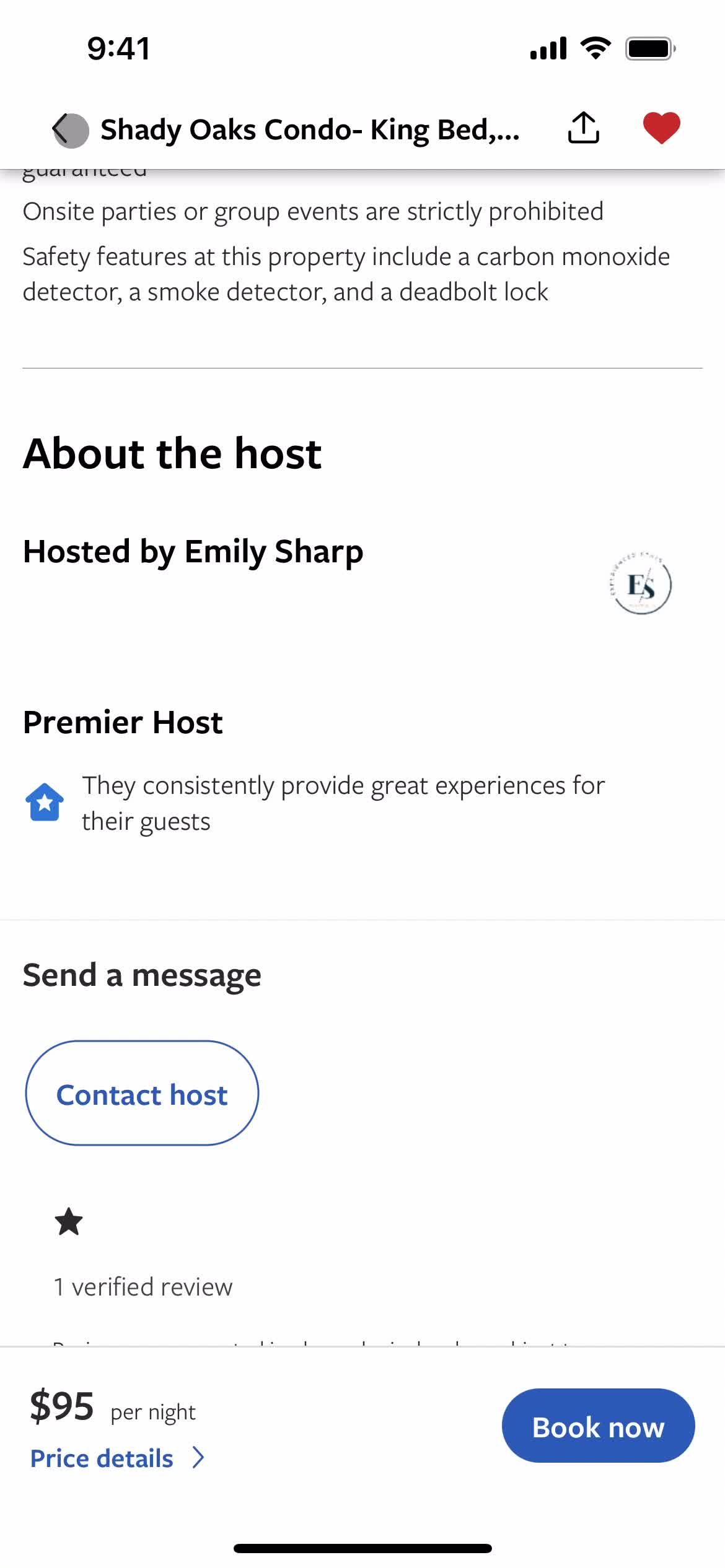
Contact host
this is title
Message host
this is title
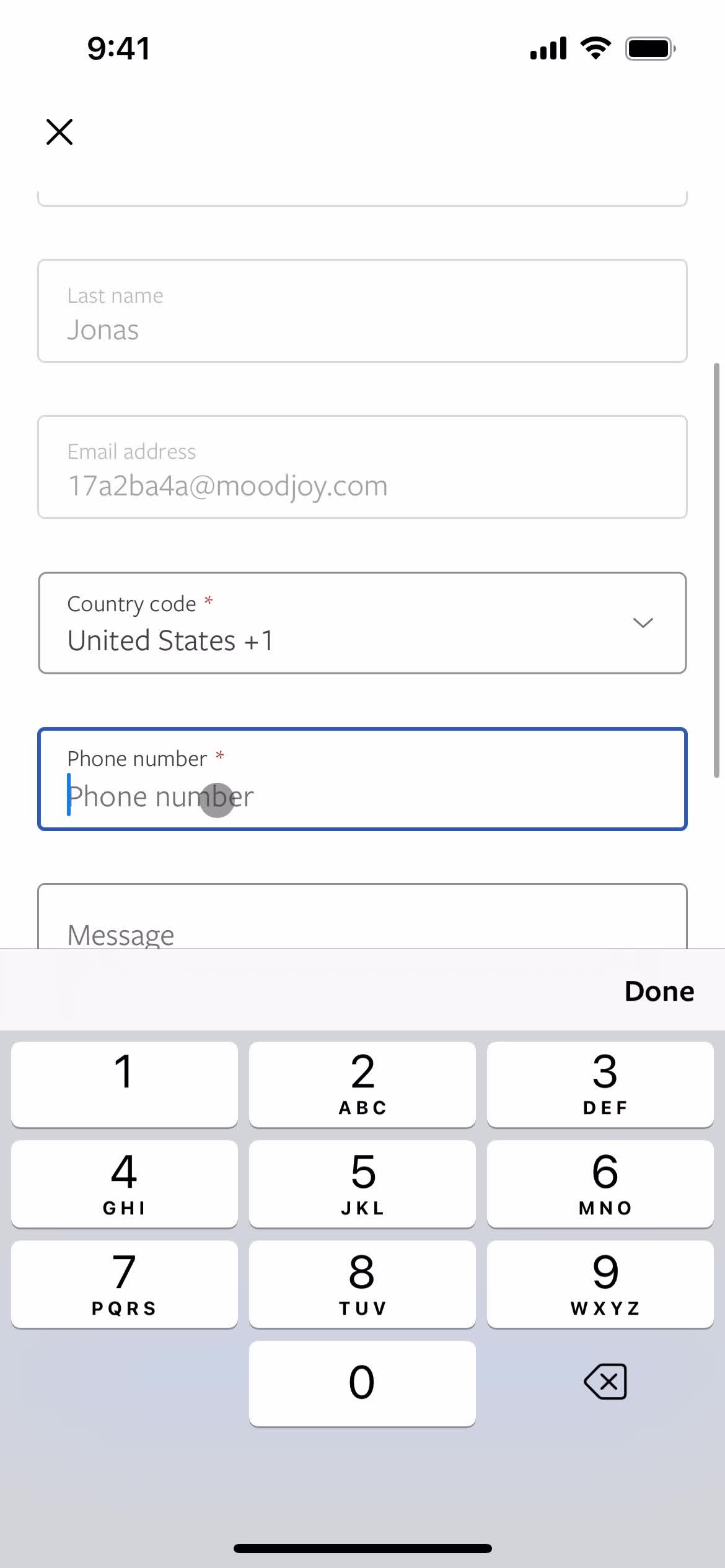
Enter phone number
this is title
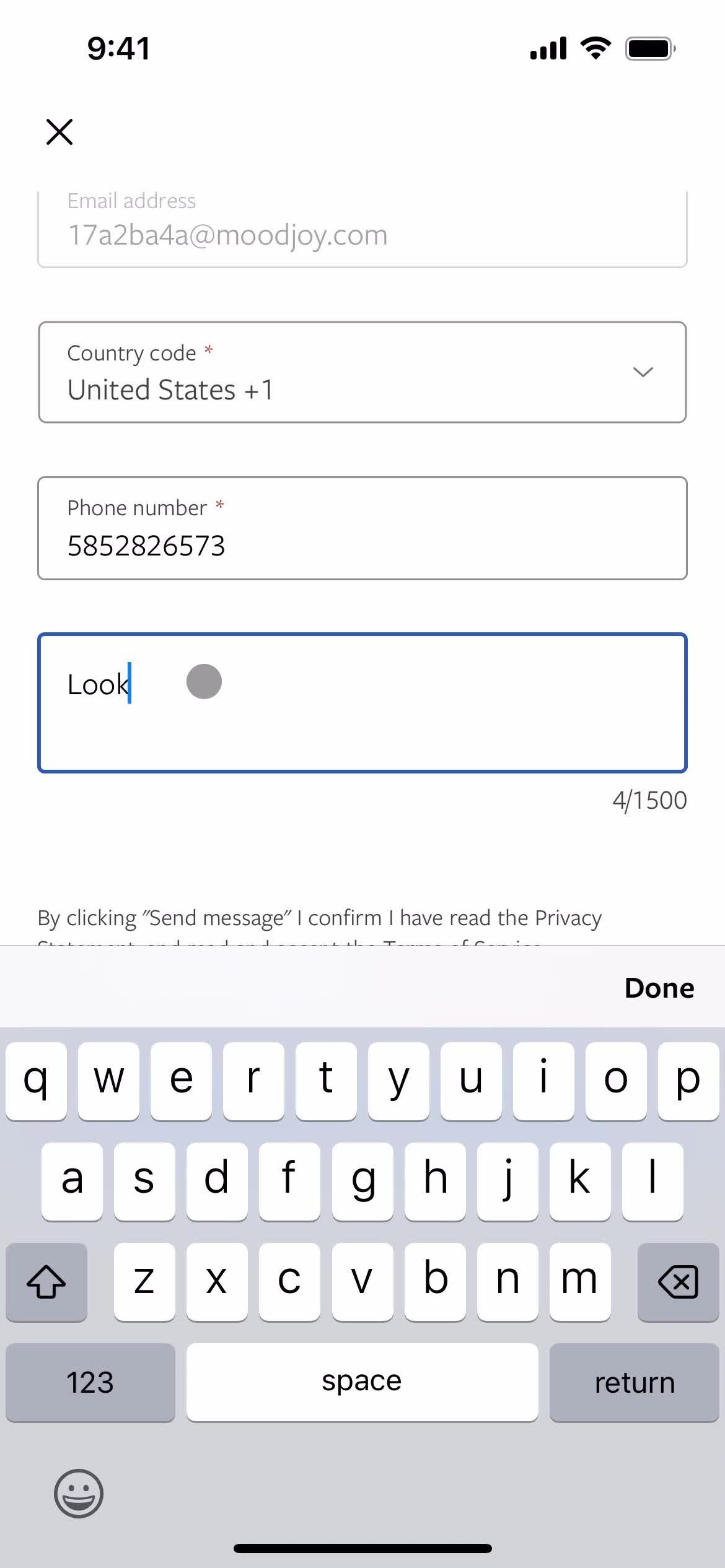
Add message
this is title
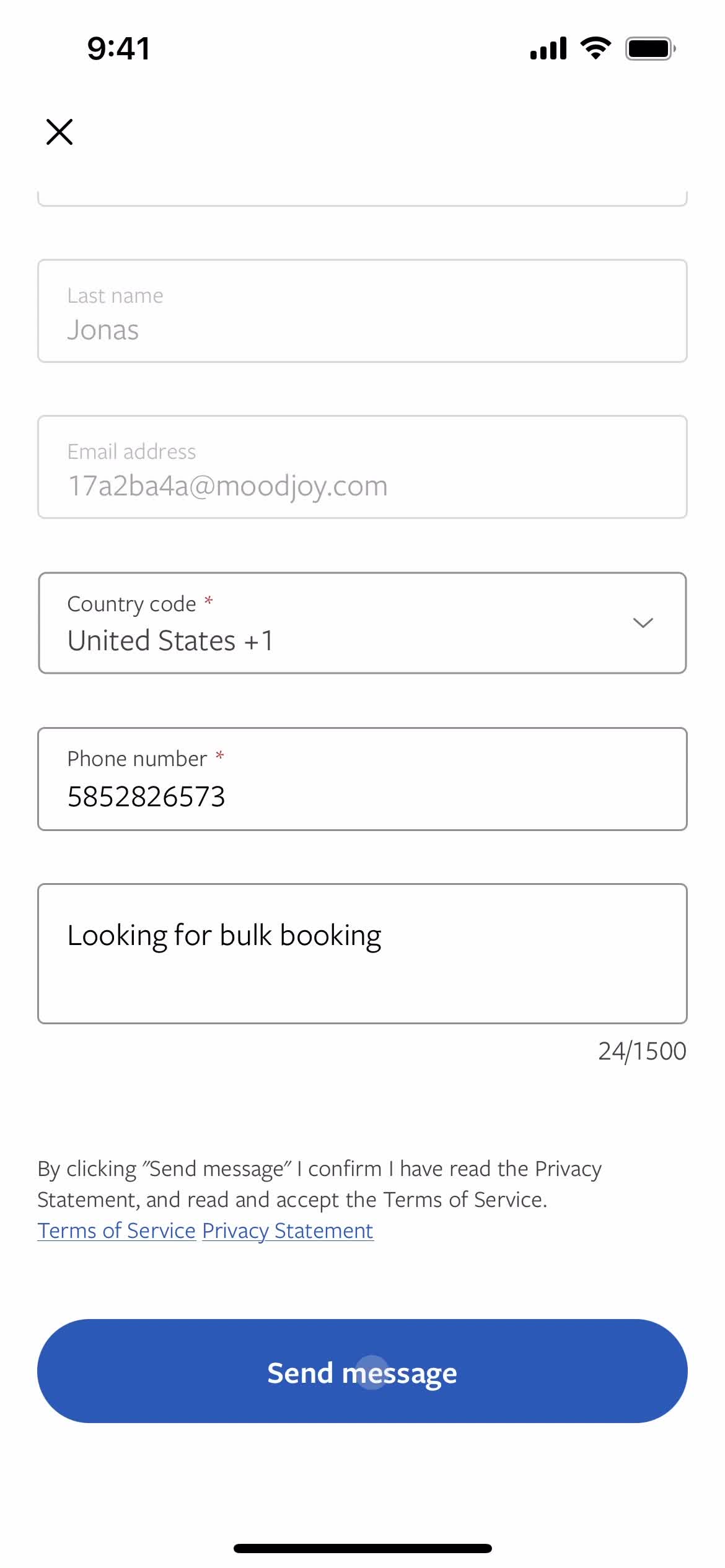
Send message
this is title
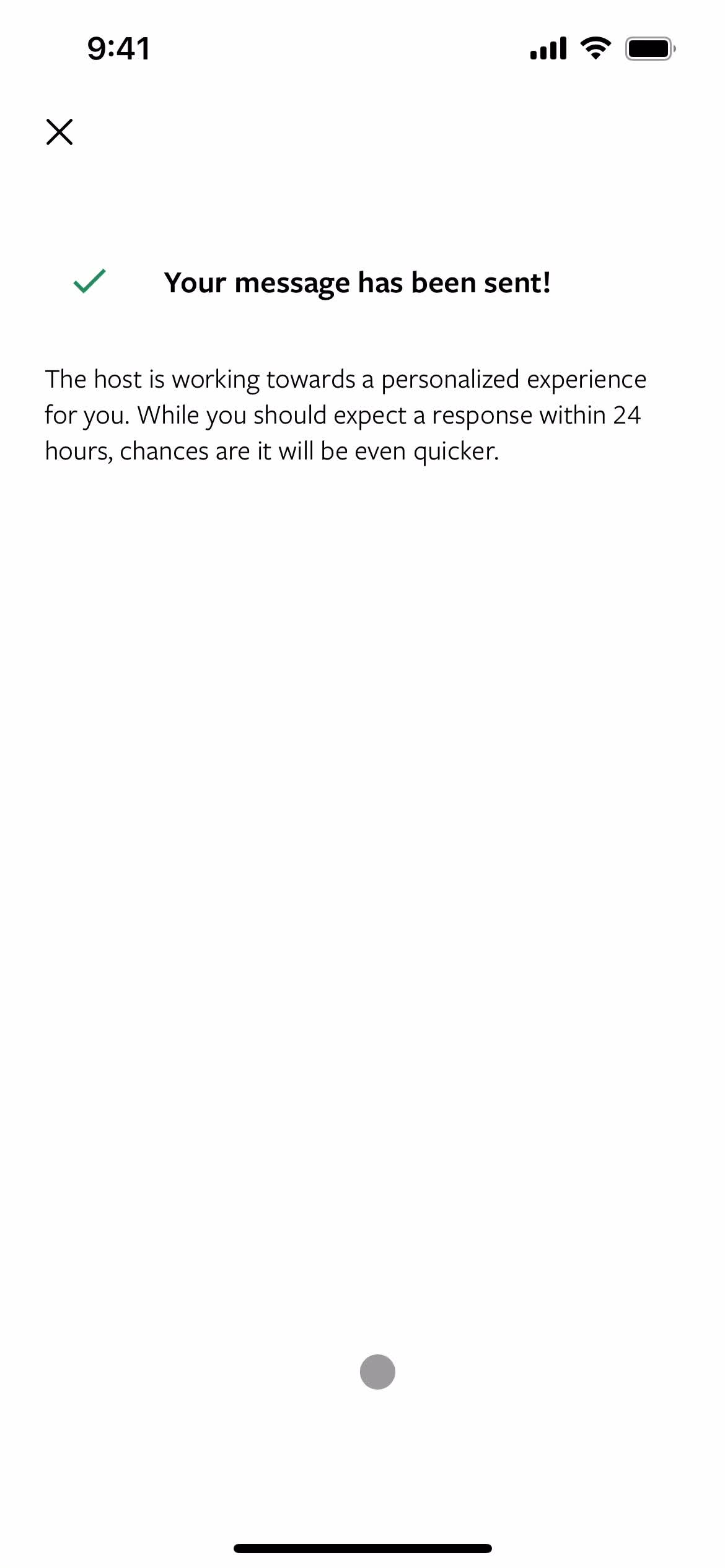
Message sent
this is title
Property details
this is title
Search results
this is title
Home
this is title
Home
this is title
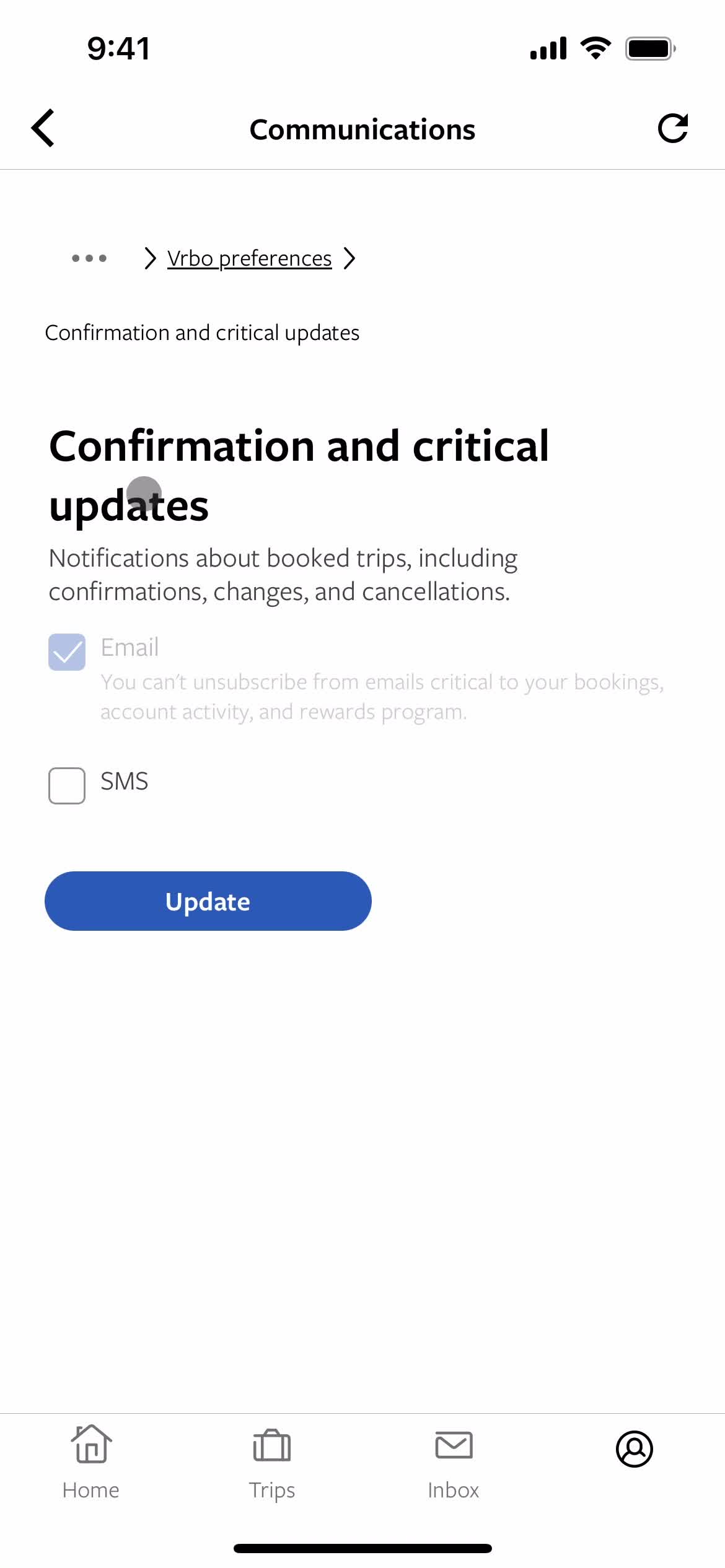
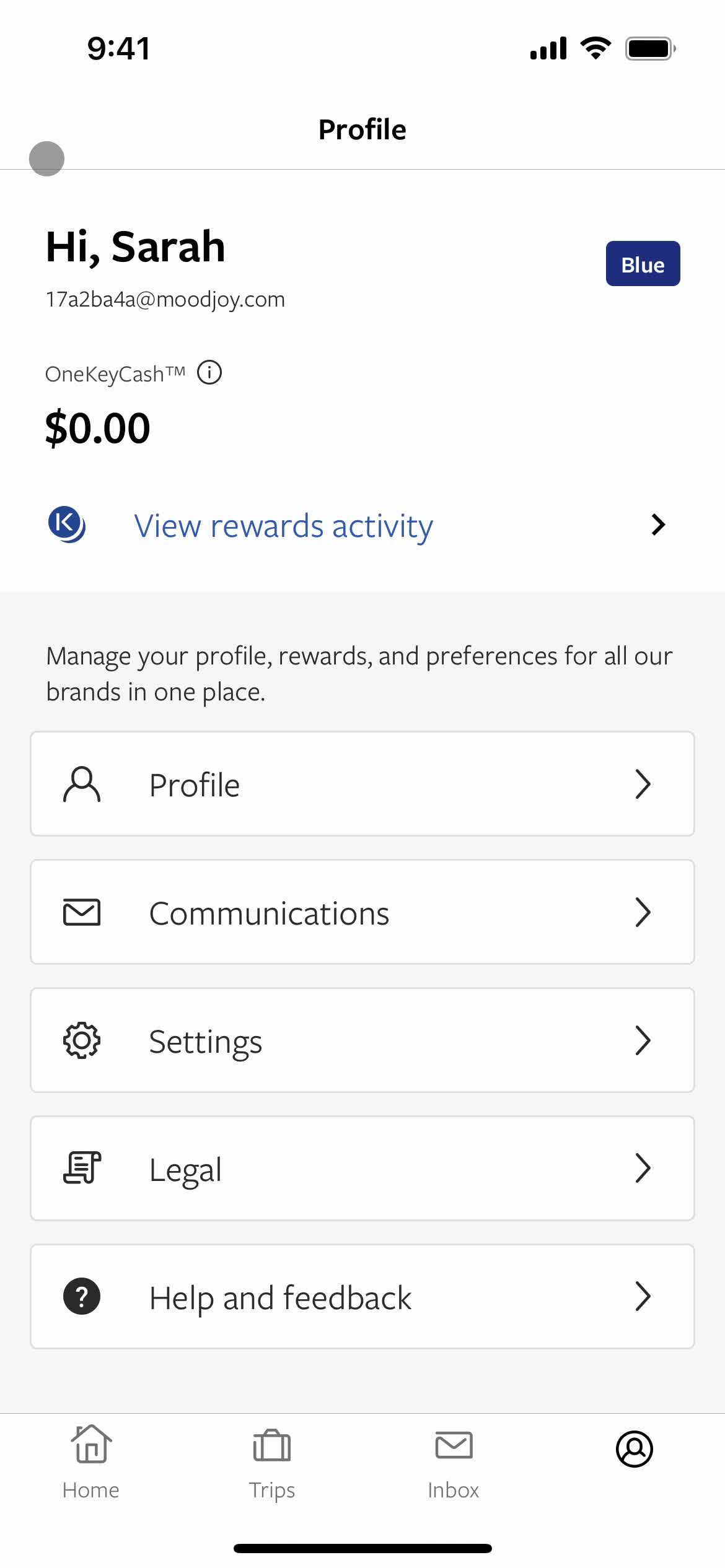
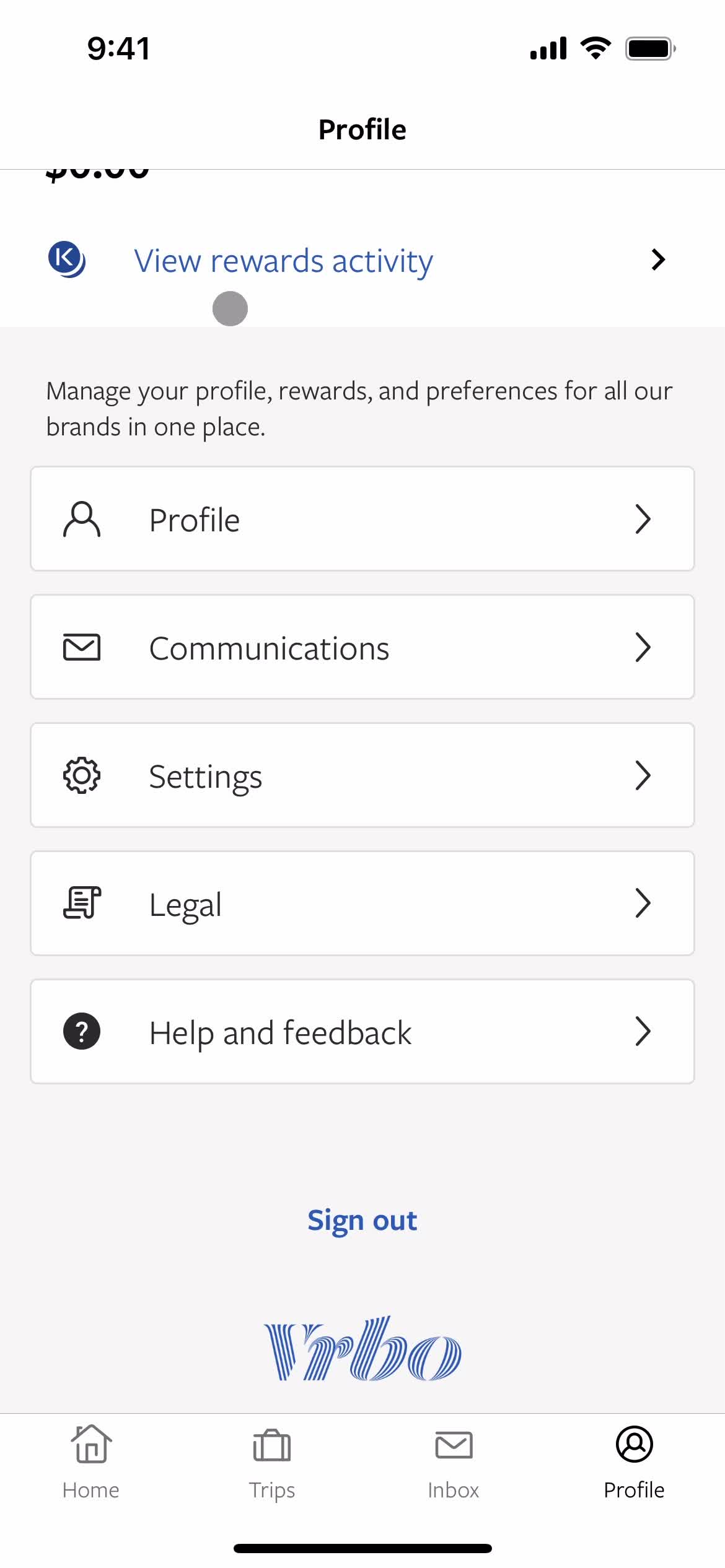
Account
this is title
Notification settings
this is title
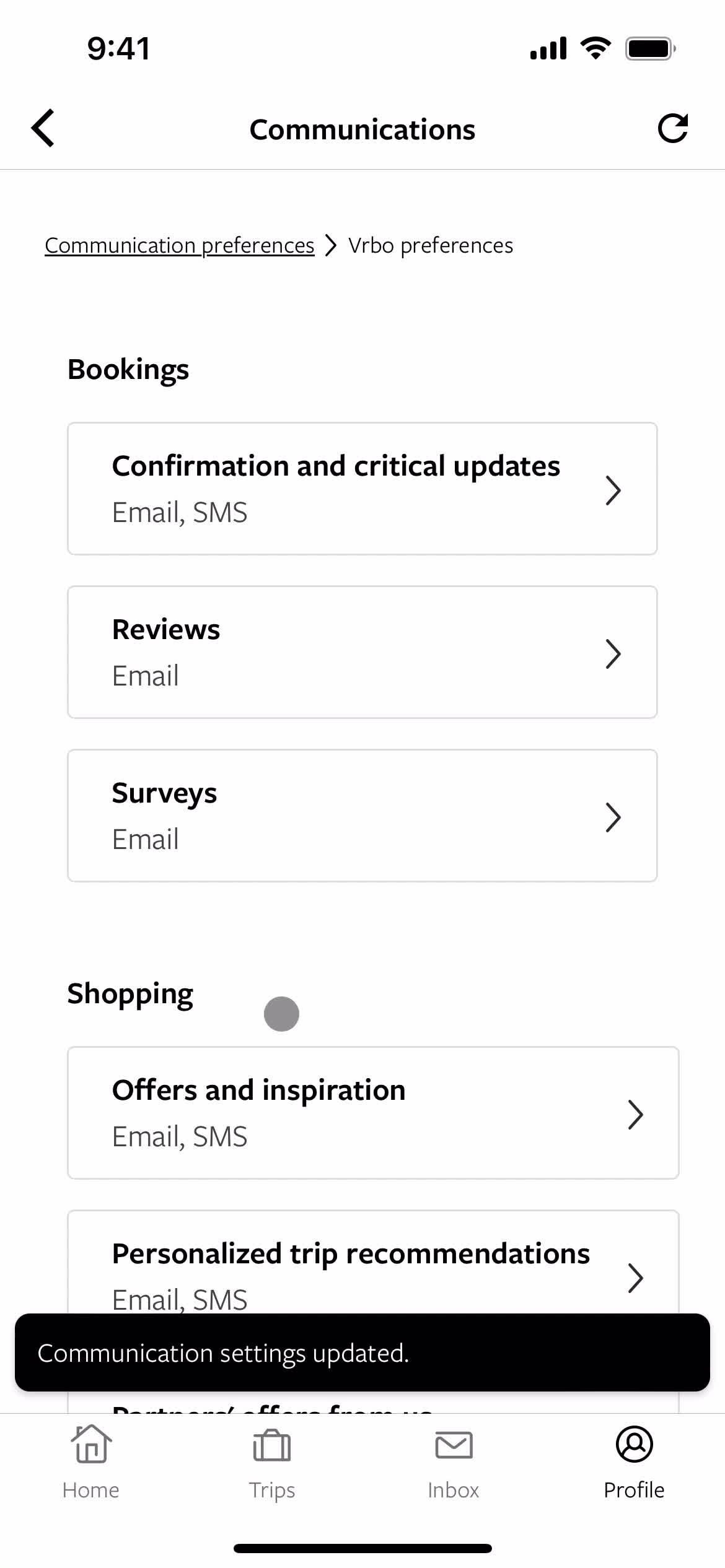
Categories
this is title
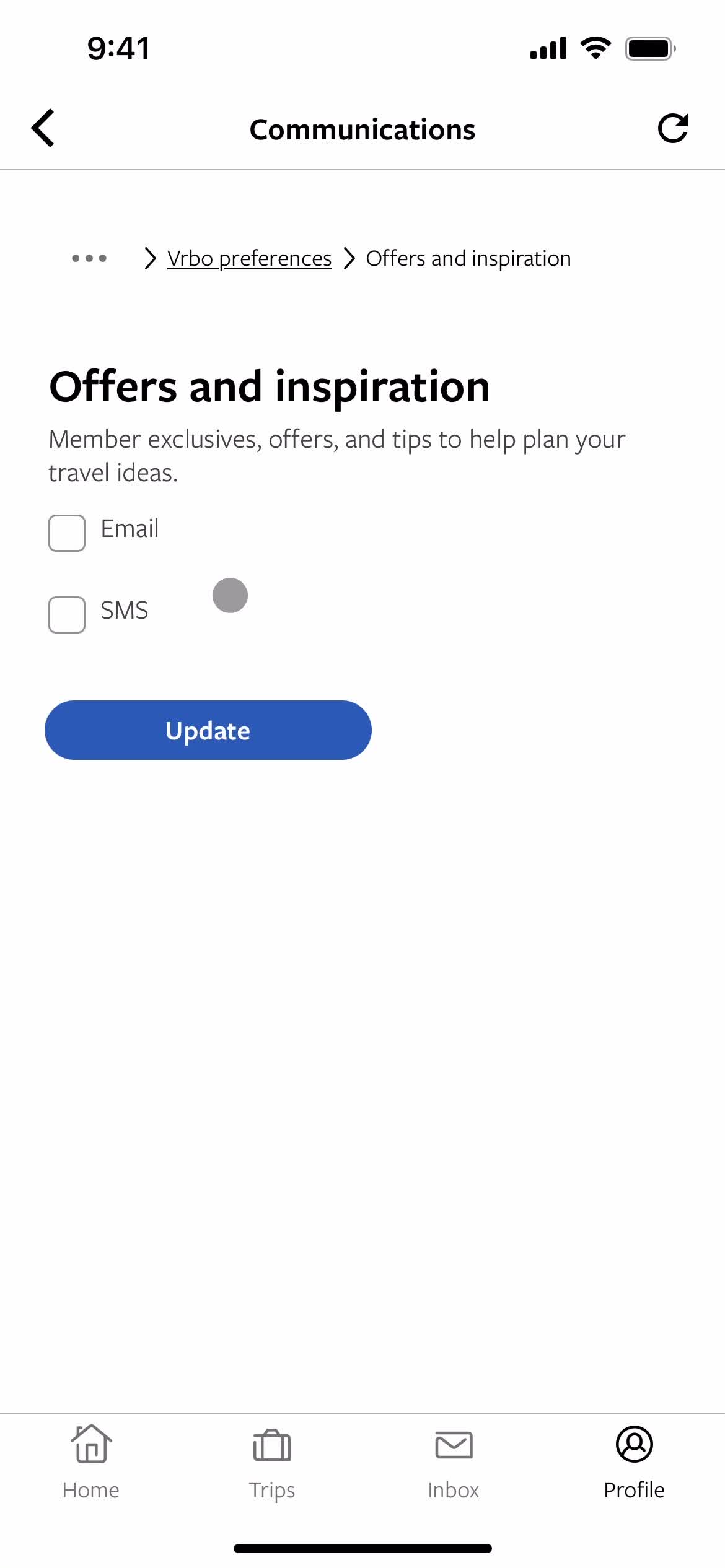
Category
this is title
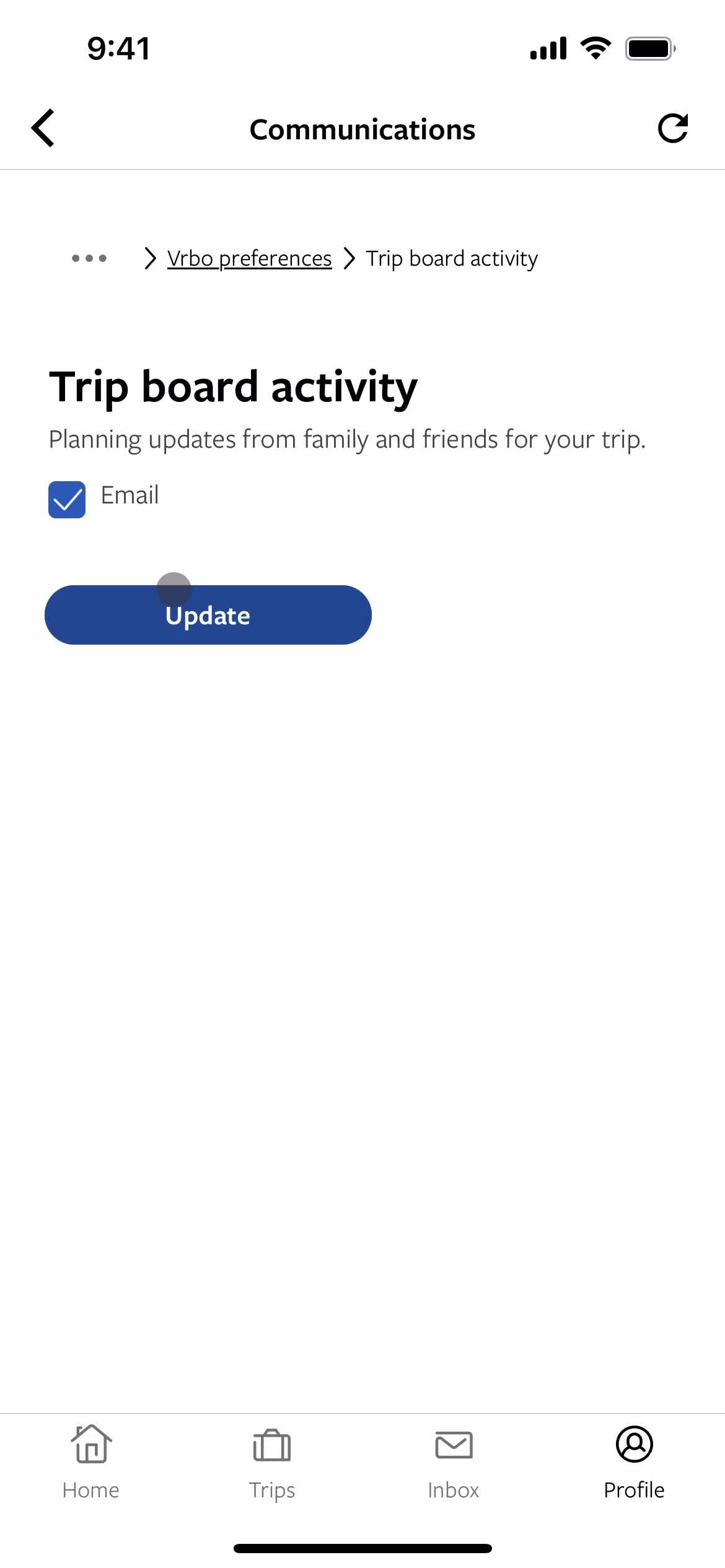
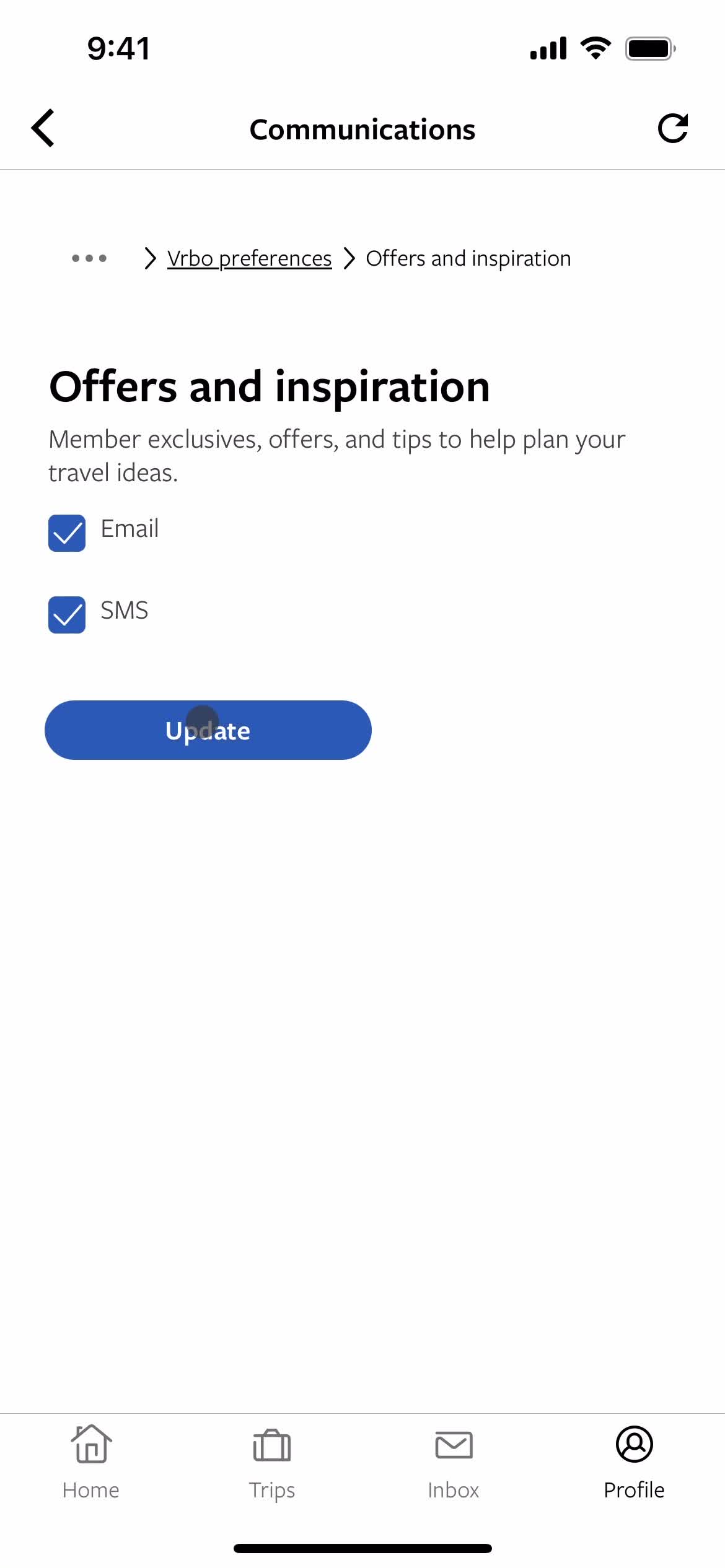
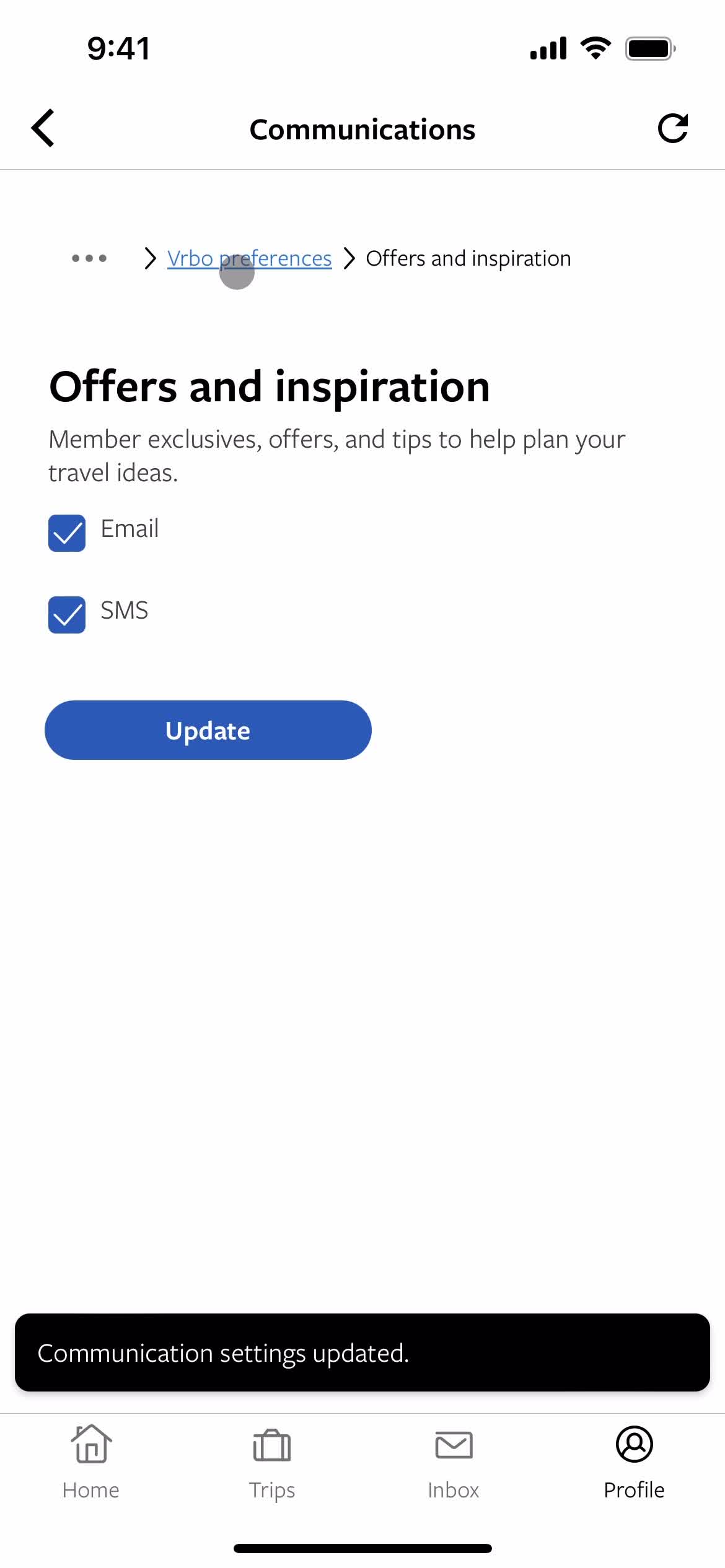
Update
this is title
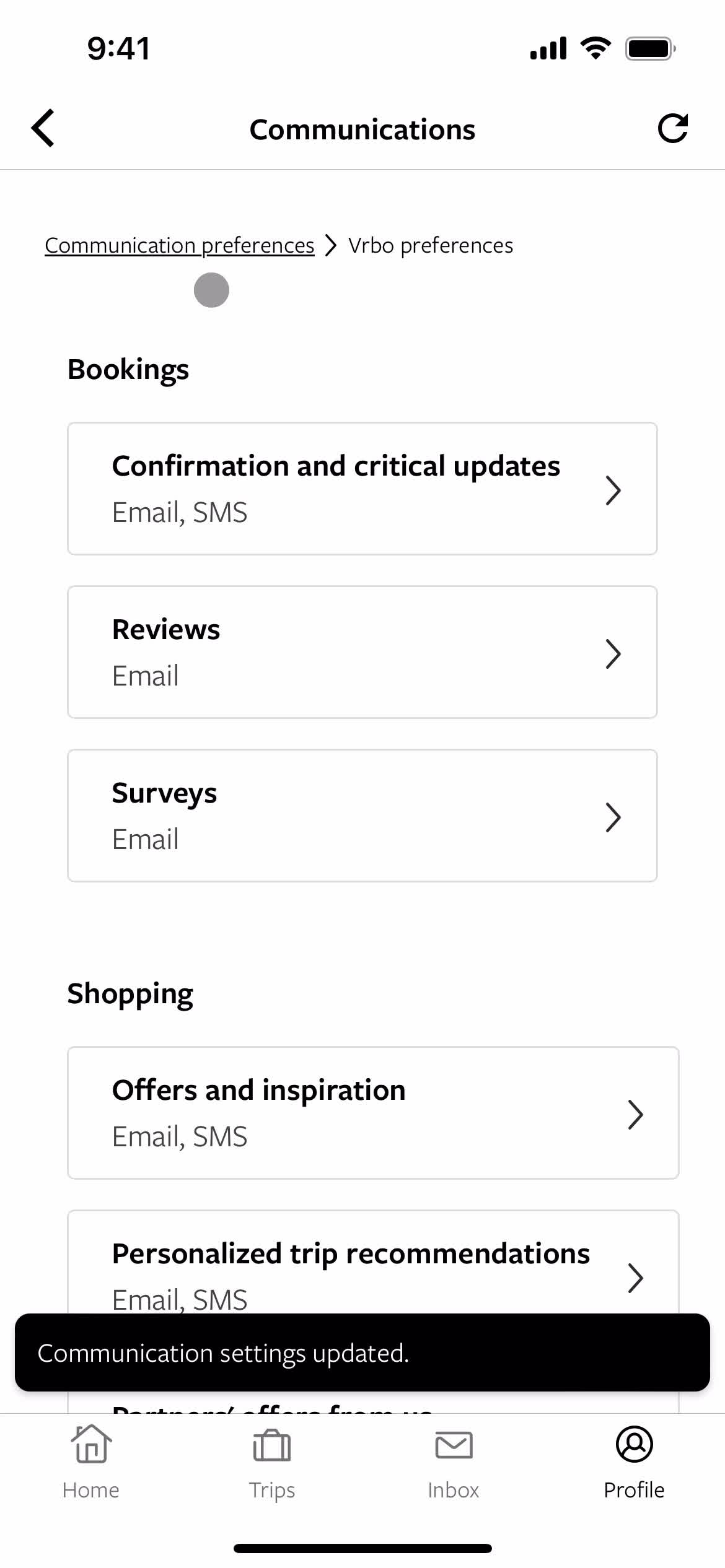
Changes saved
this is title
Account
this is title
Notification settings
this is title
Categories
this is title
this is title
Category
this is title
Update
this is title
Changes saved
this is title
Notification settings
this is title
Update
this is title
Changes saved
this is title
Categories
this is title
Account
this is title
Sign in
this is title
Enter email
this is title
Continue
this is title
Confirm email
this is title
Submit error
this is title
Enter password
this is title
Enter password
this is title
Sign in
this is title
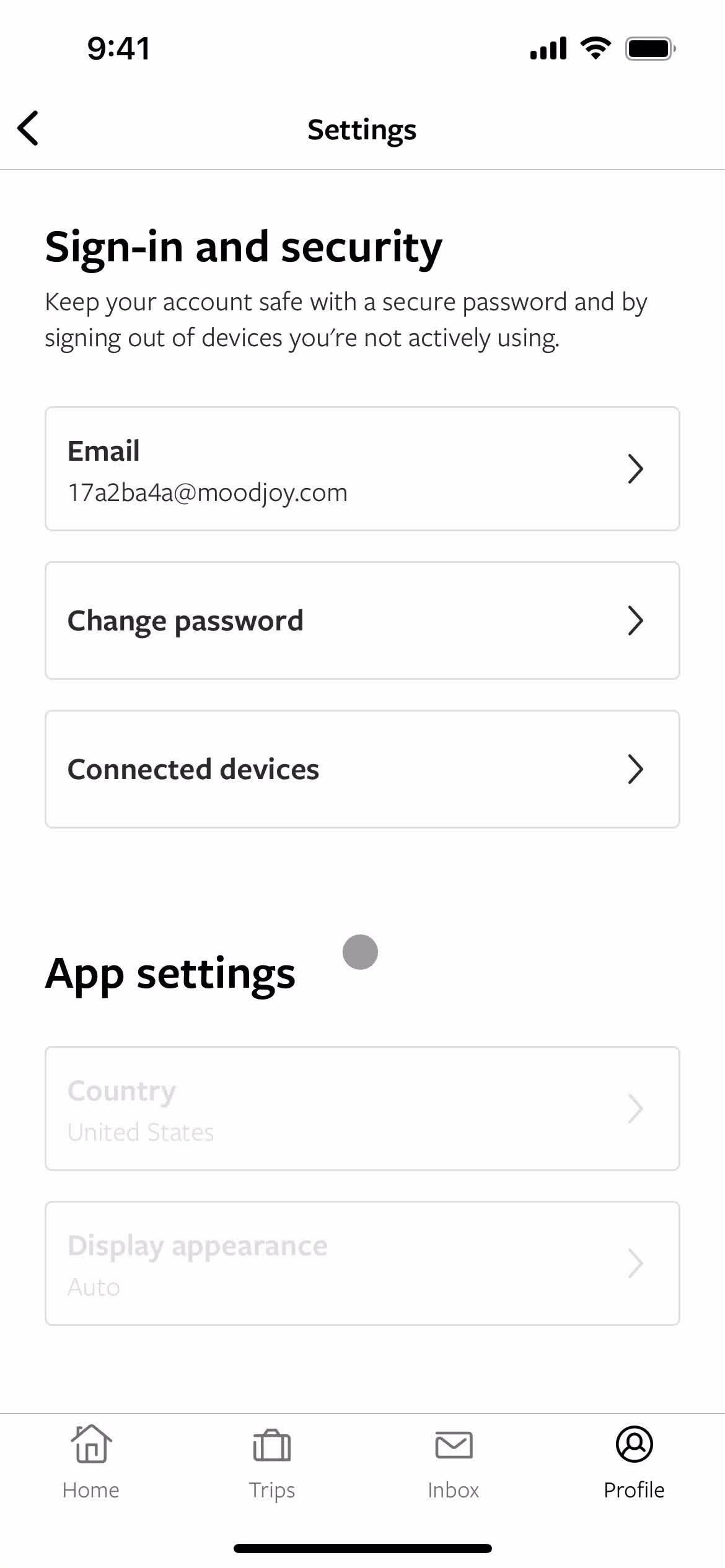
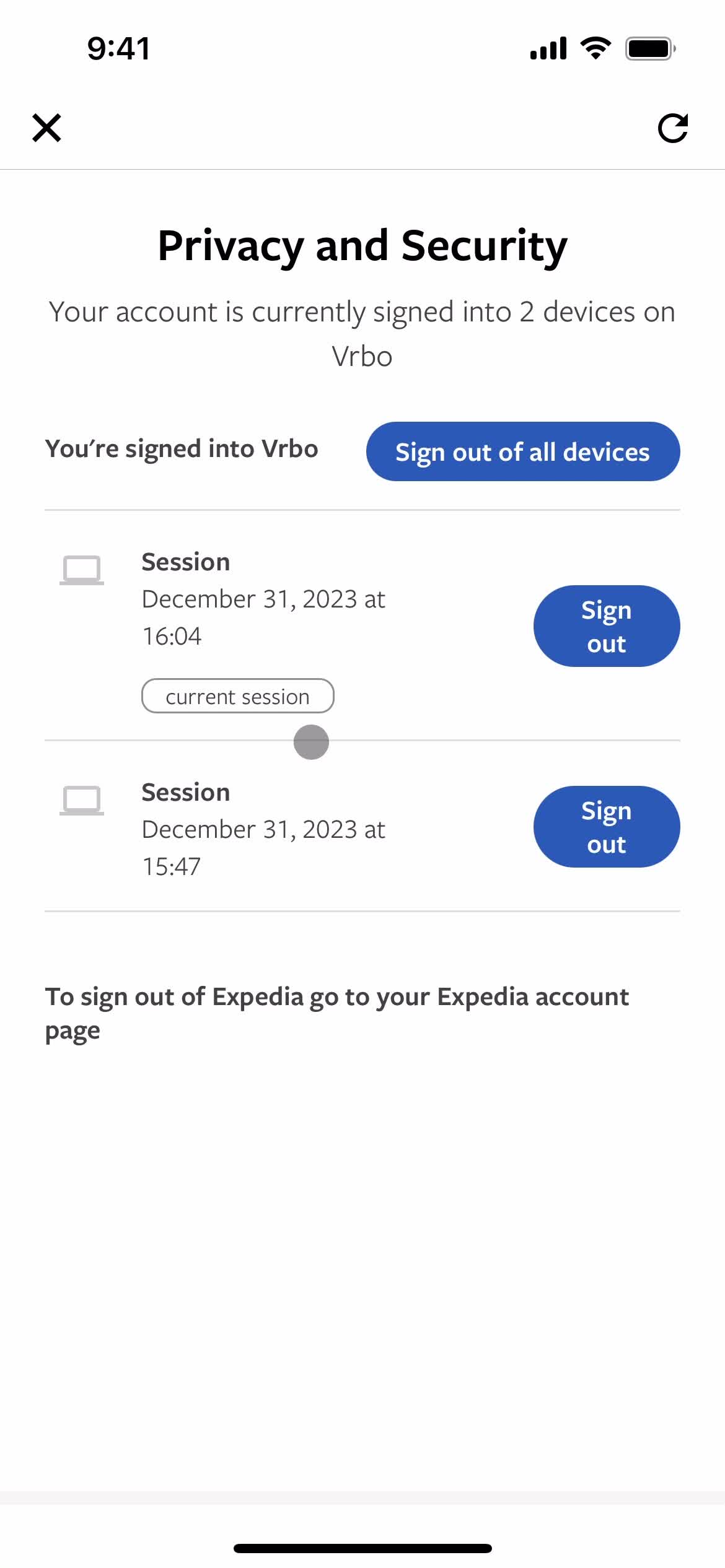
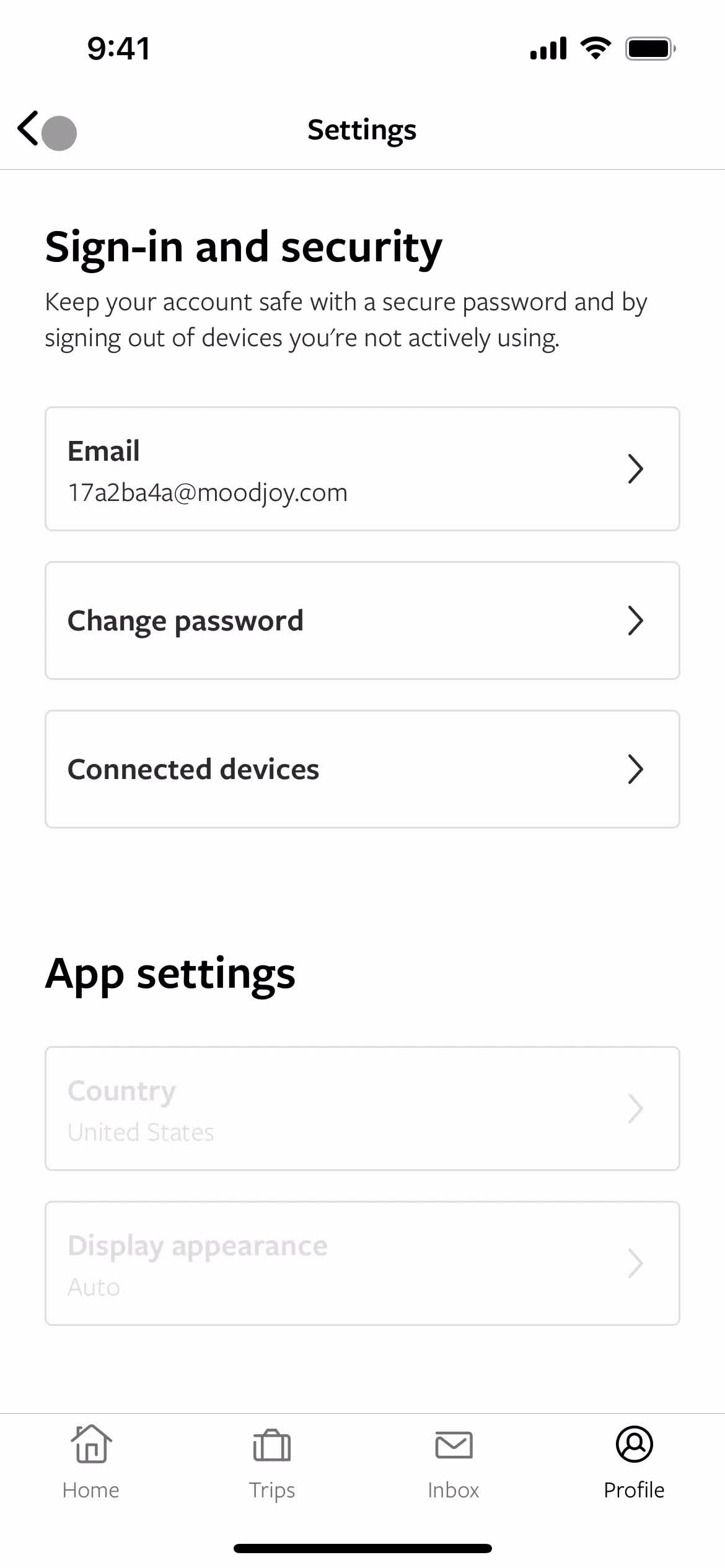
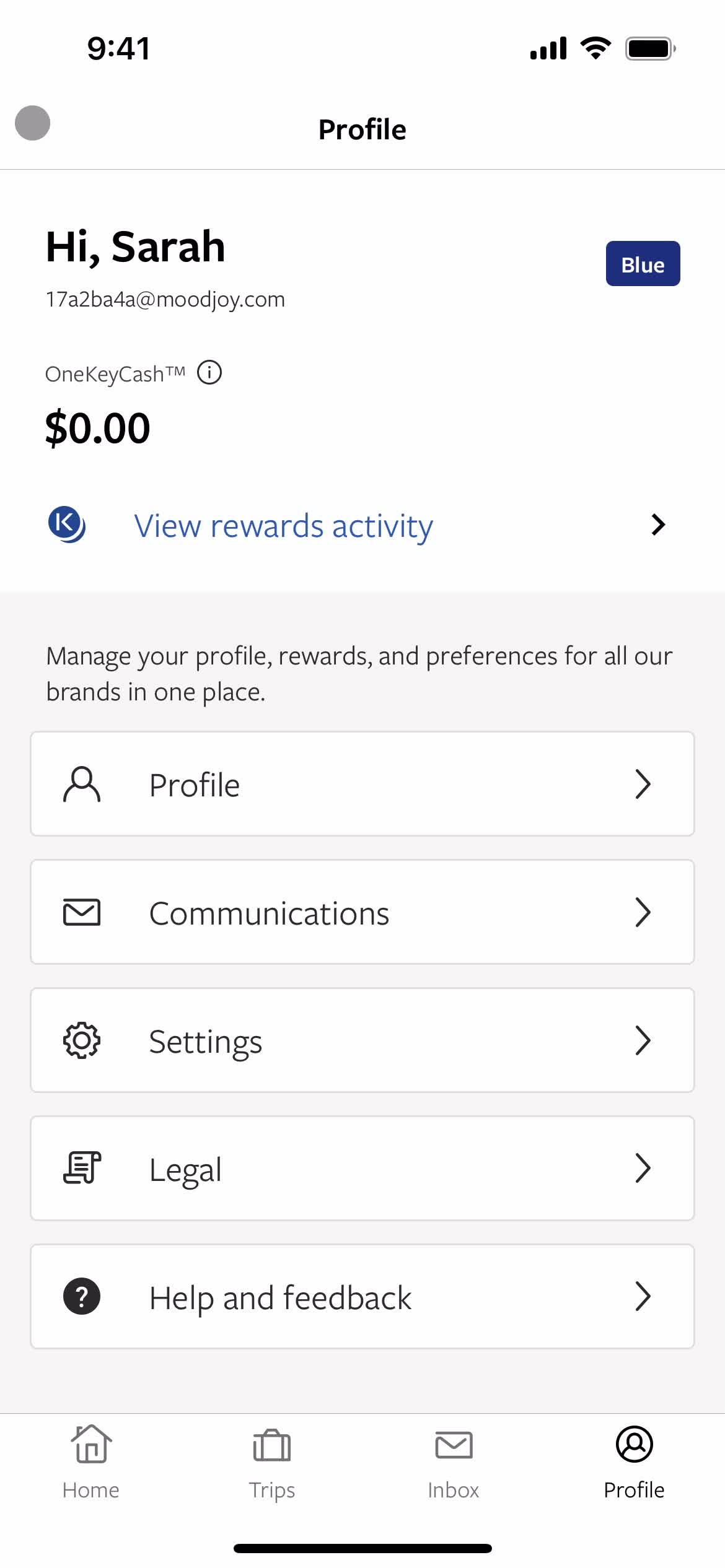
Settings
this is title
Devices
this is title
Settings
this is title
Account
this is title
Categories
this is title
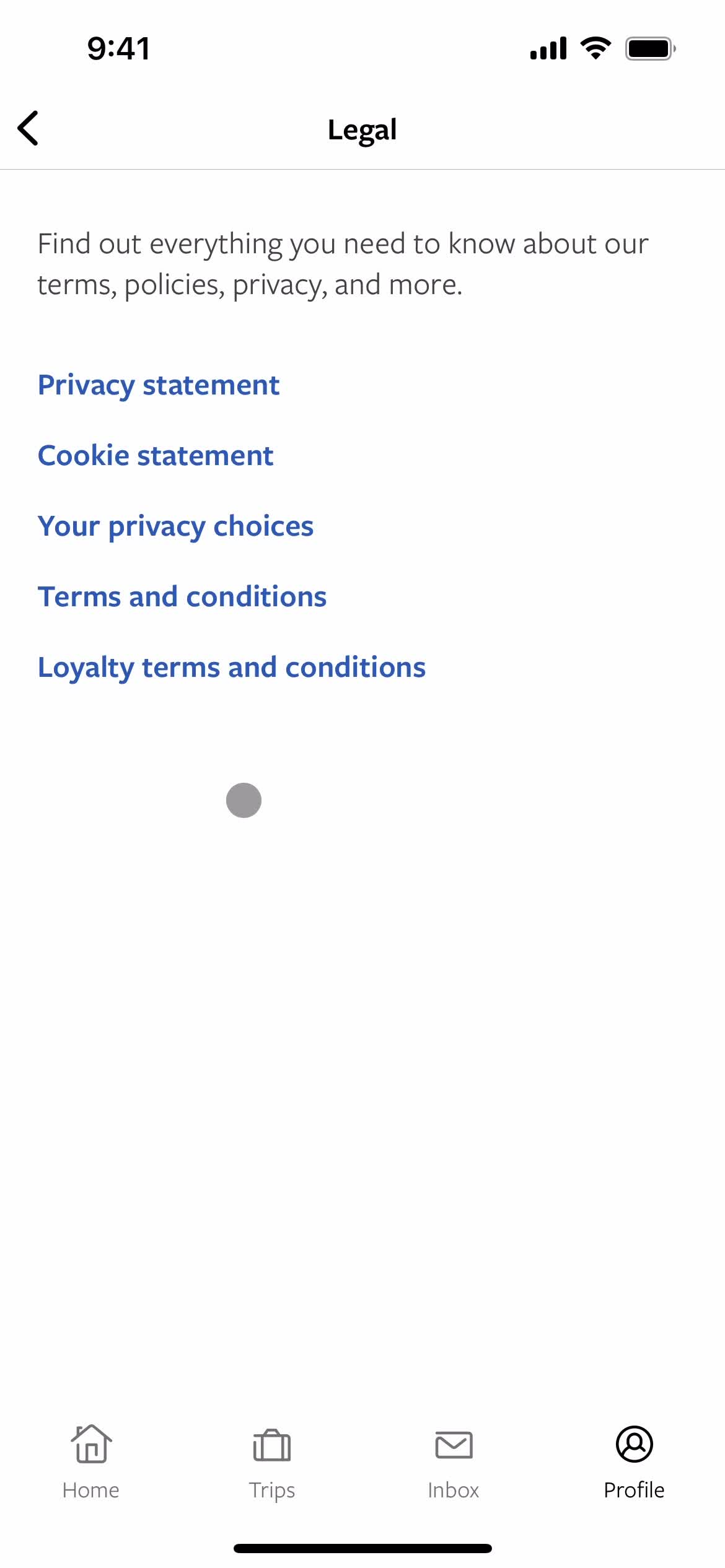
Privacy policy
this is title
Account
this is title
Home
this is title
Home
this is title
Properties
this is title
Property details
this is title
this is title
Share
this is title
Share invite link
this is title
Property details
this is title
Properties
this is title
Home
this is title
Home
this is title
Account
this is title
Profile
this is title
Edit profile
this is title
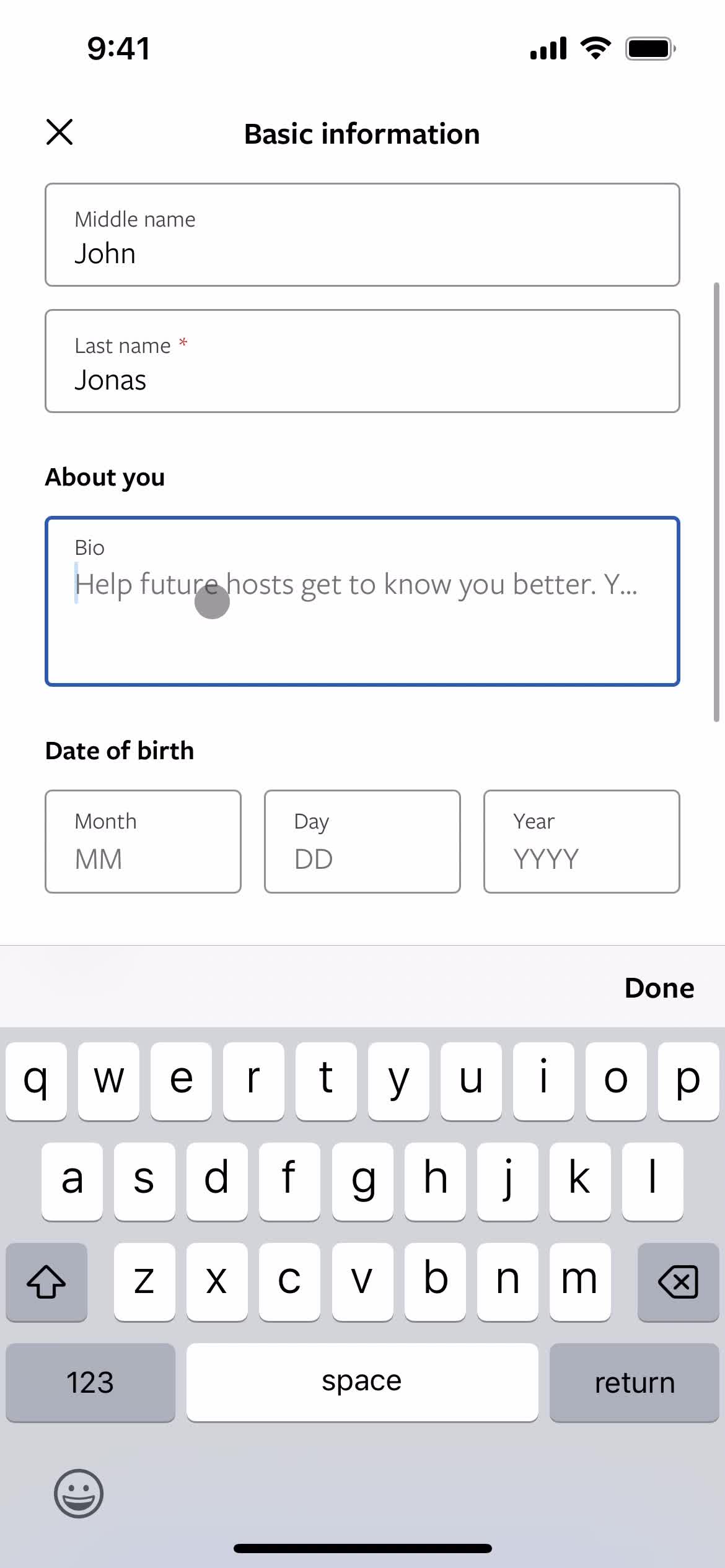
Add bio
this is title
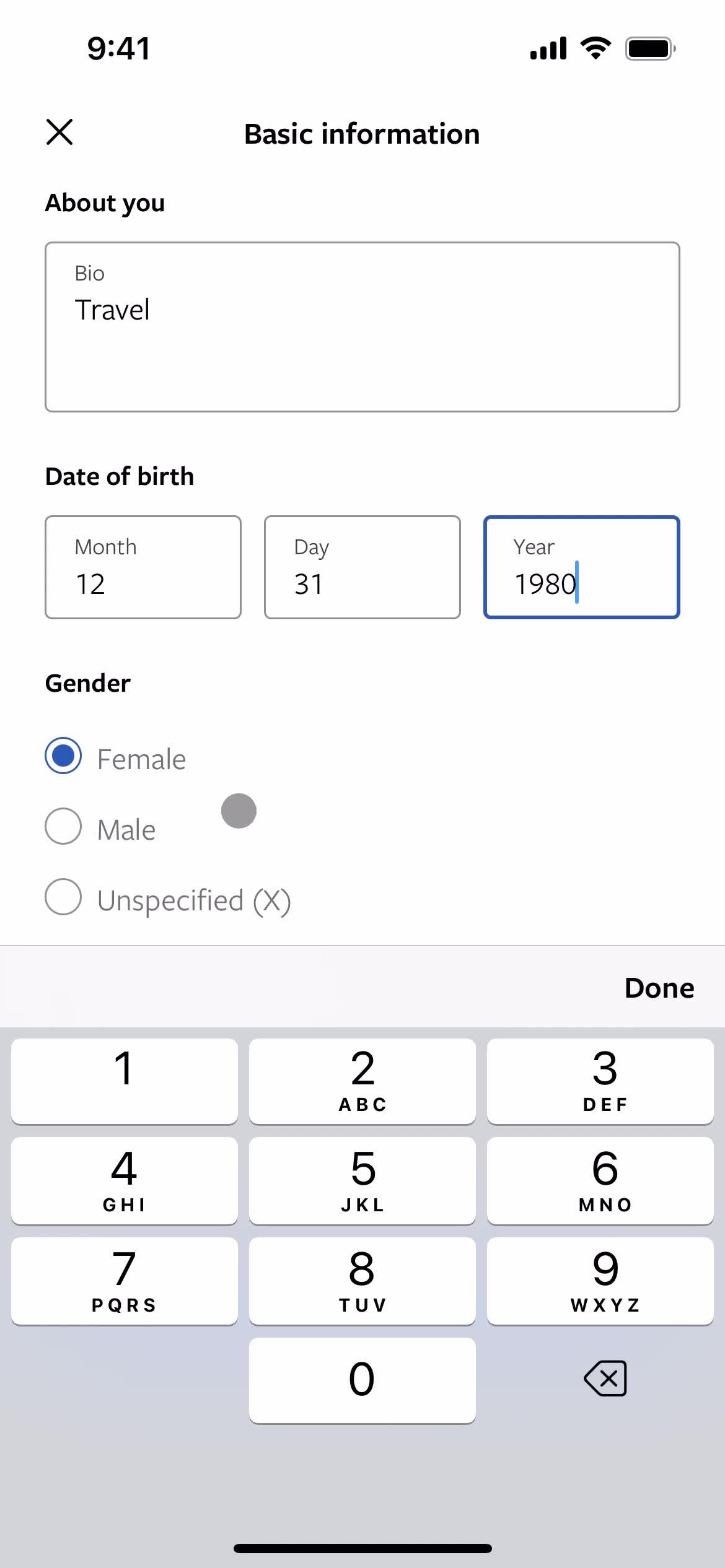
Enter birthday
this is title
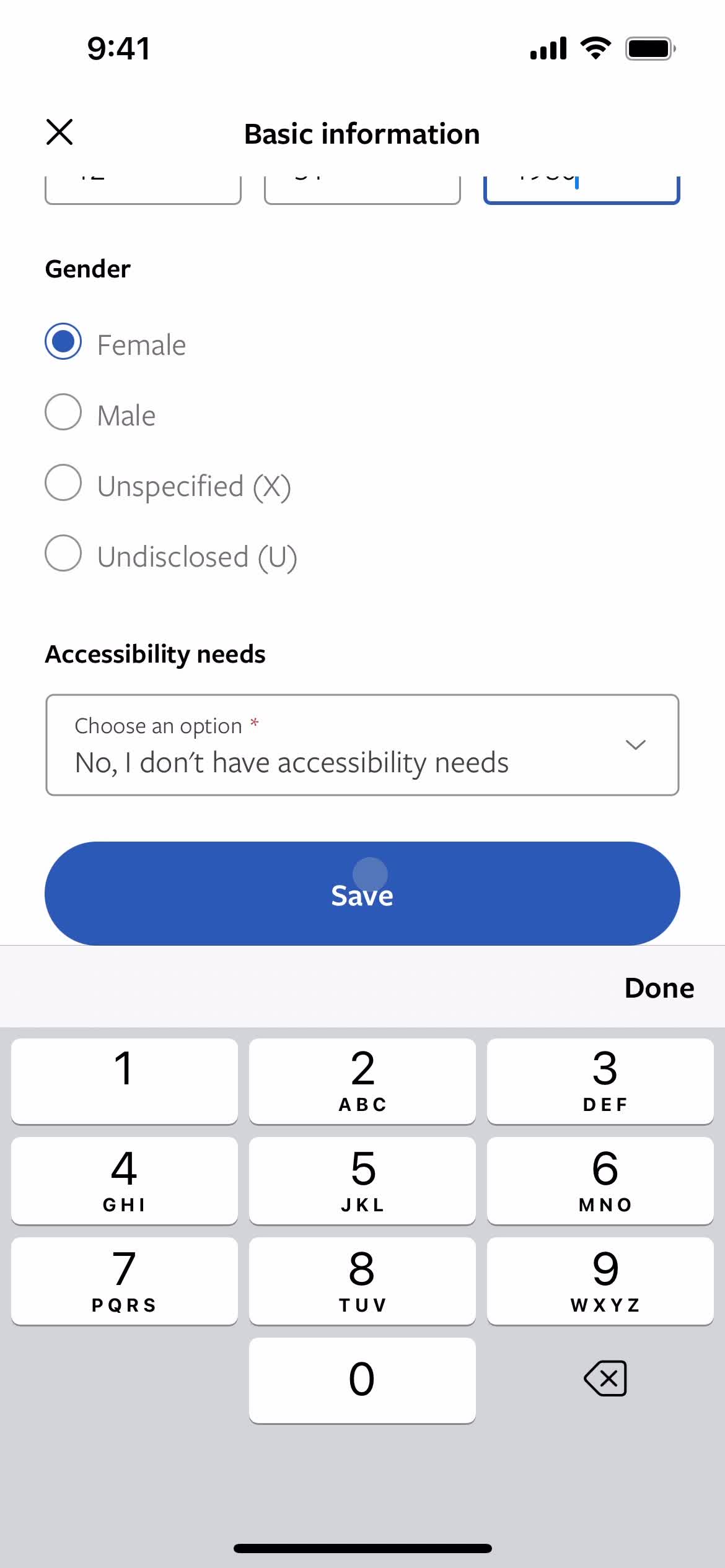
Select gender
this is title
this is title
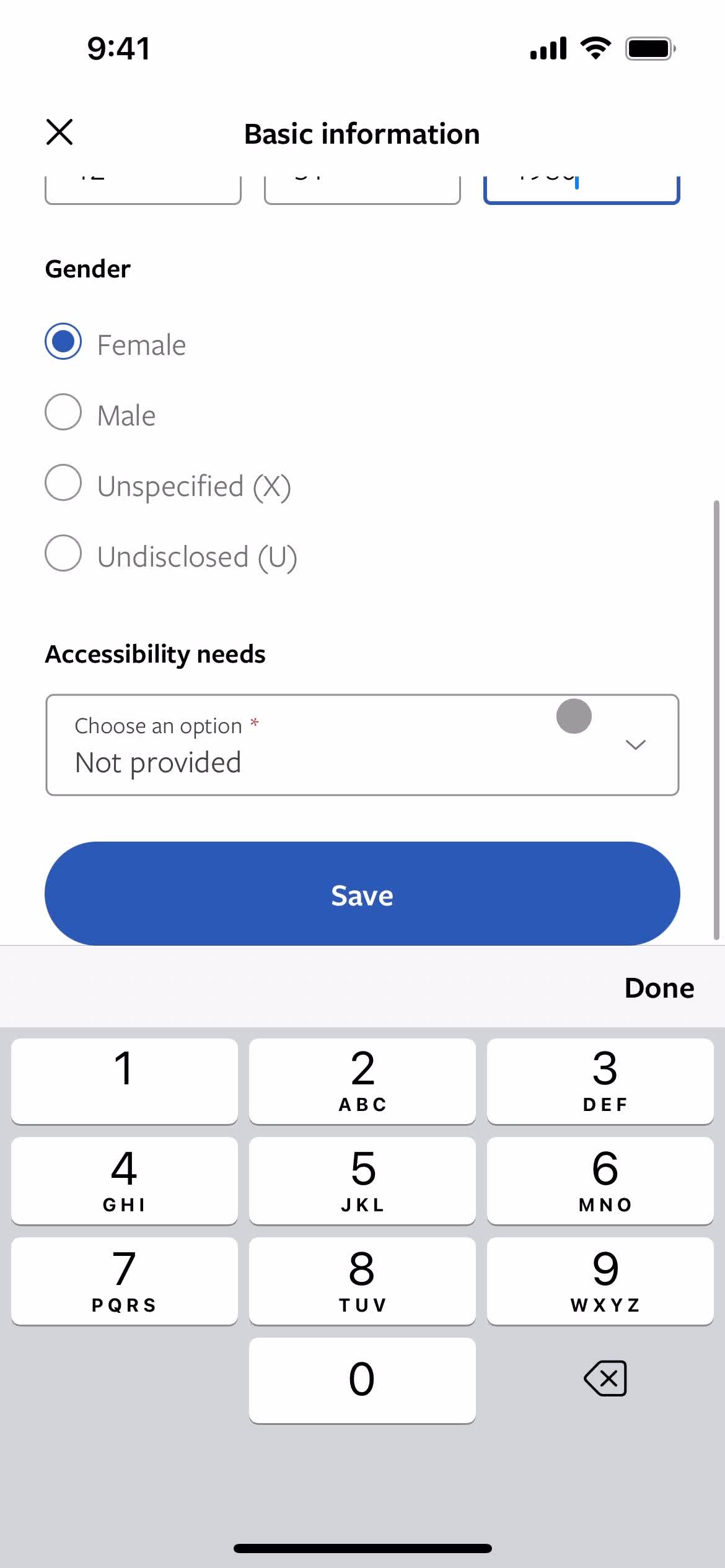
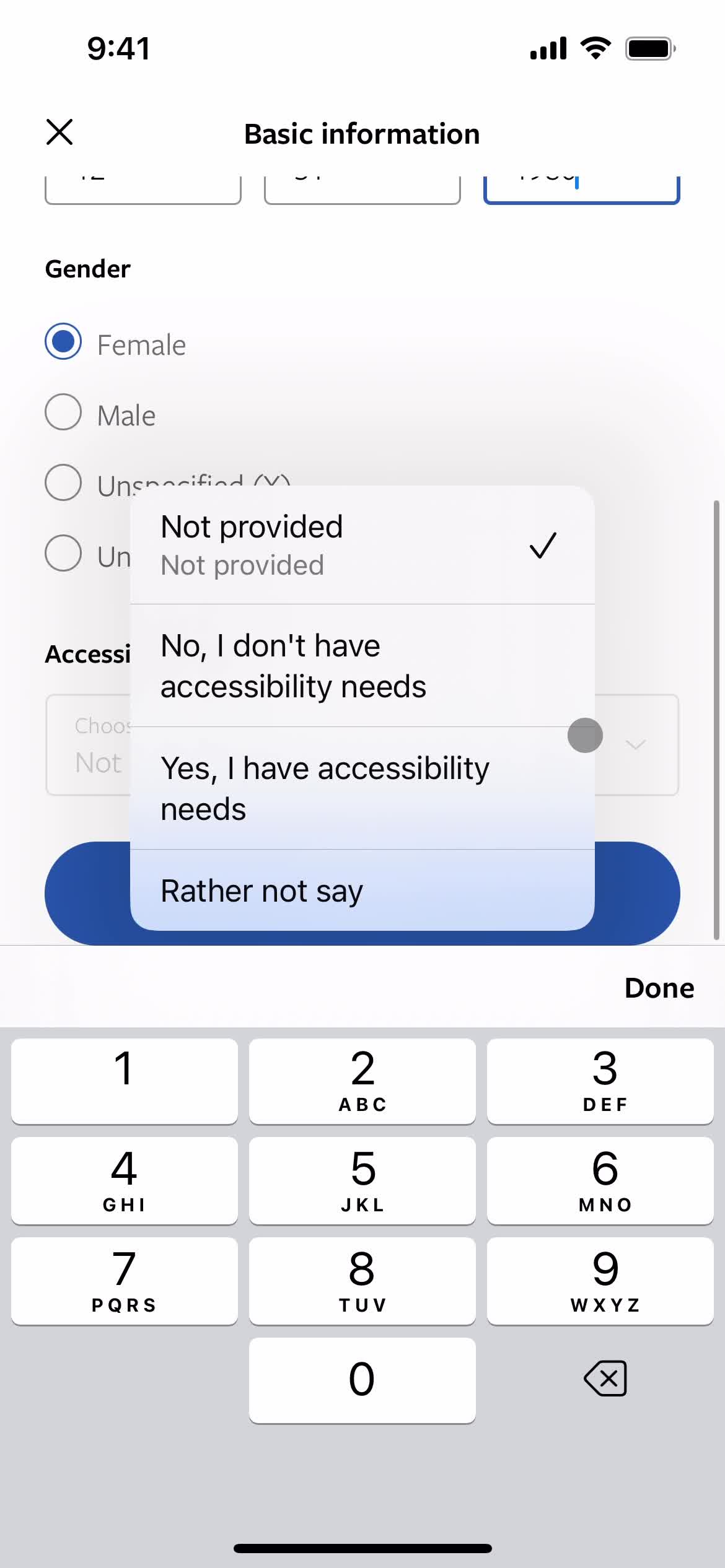
Set preferences
this is title
Save
this is title
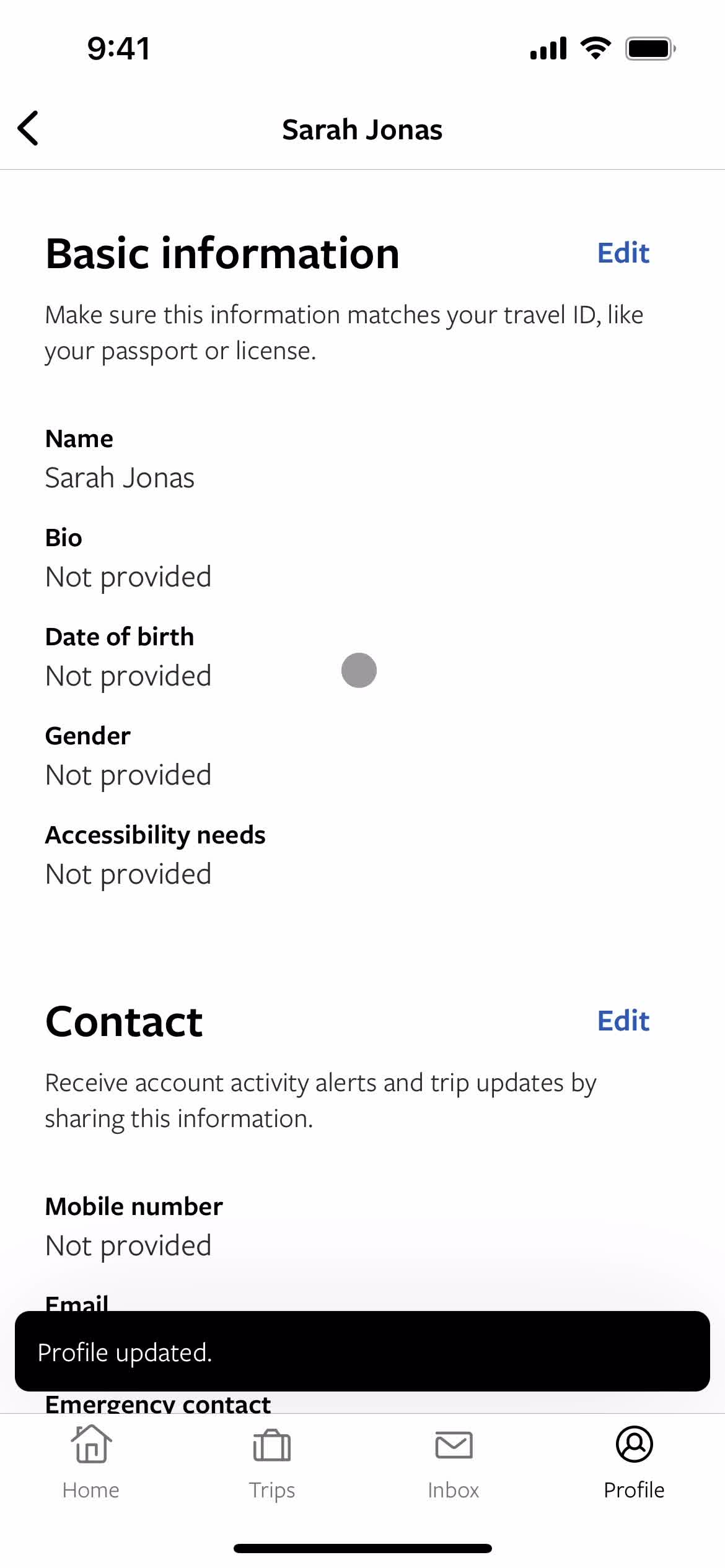
Profile updated
this is title
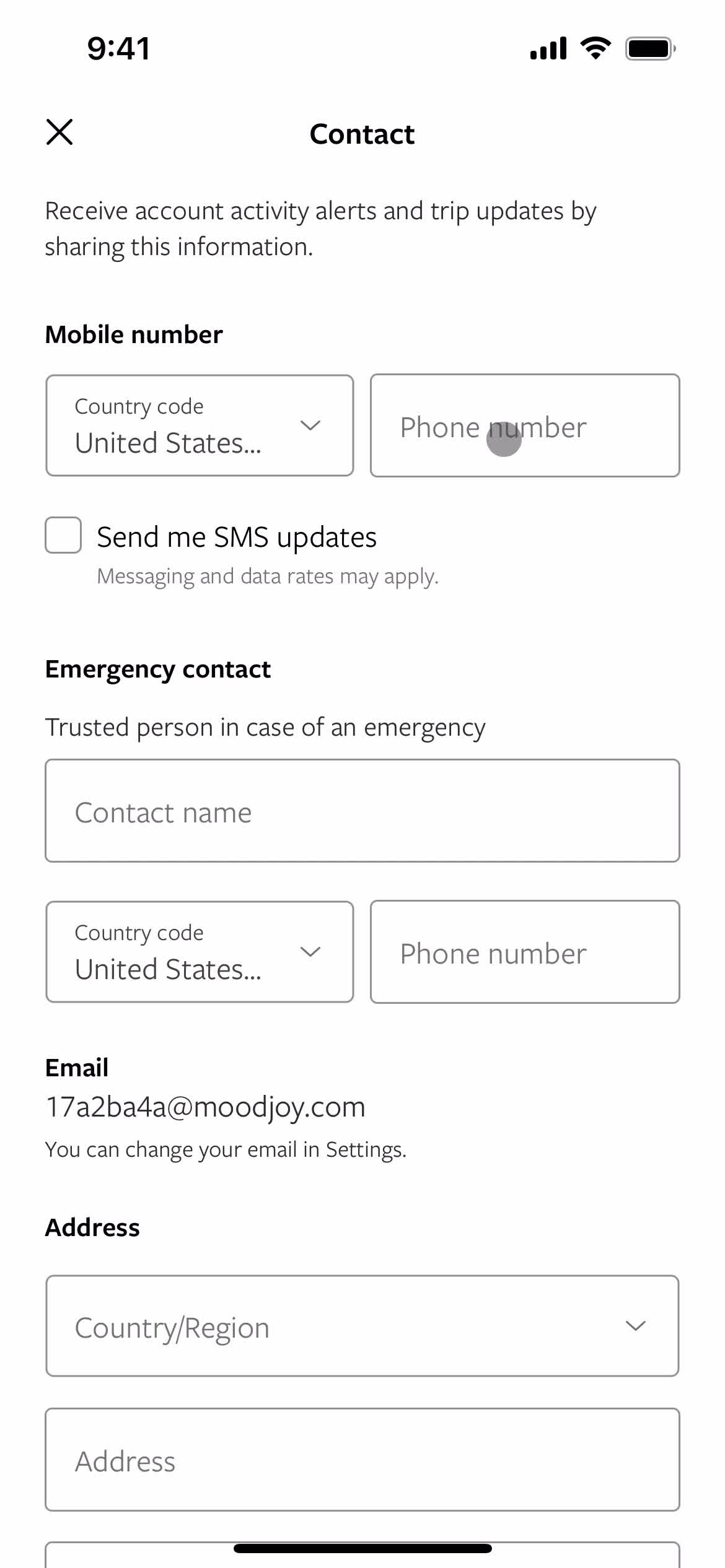
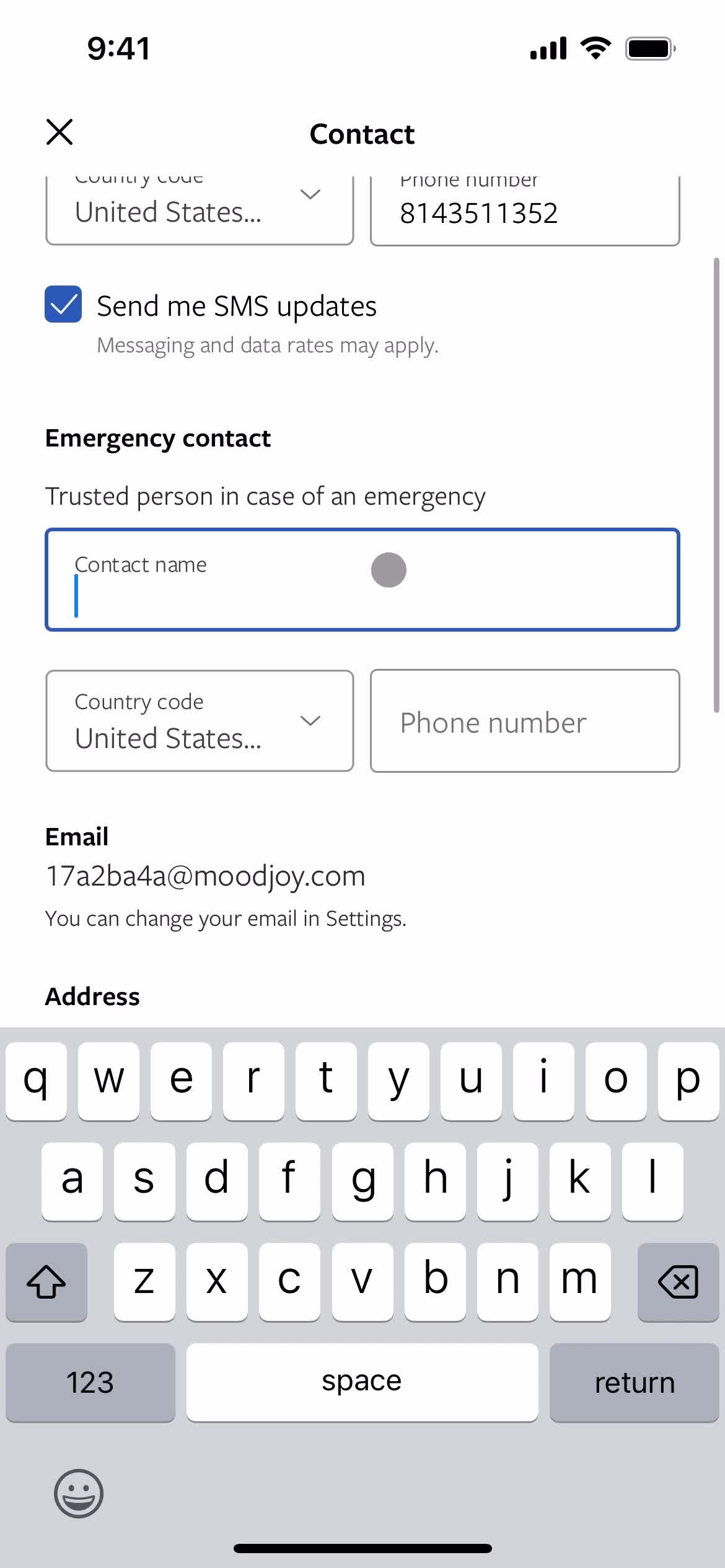
Add contact details
this is title
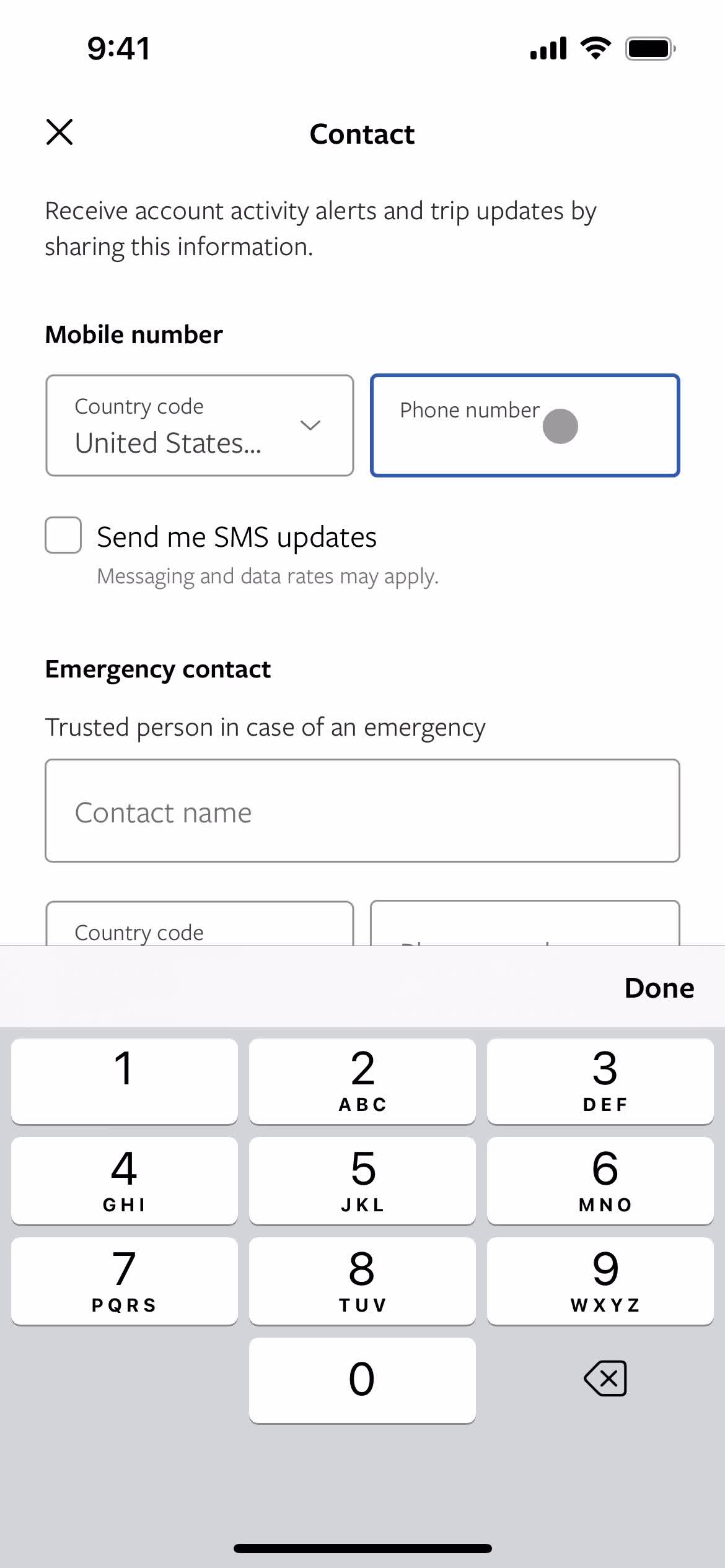
Enter phone number
this is title
Add emergency contacts
this is title
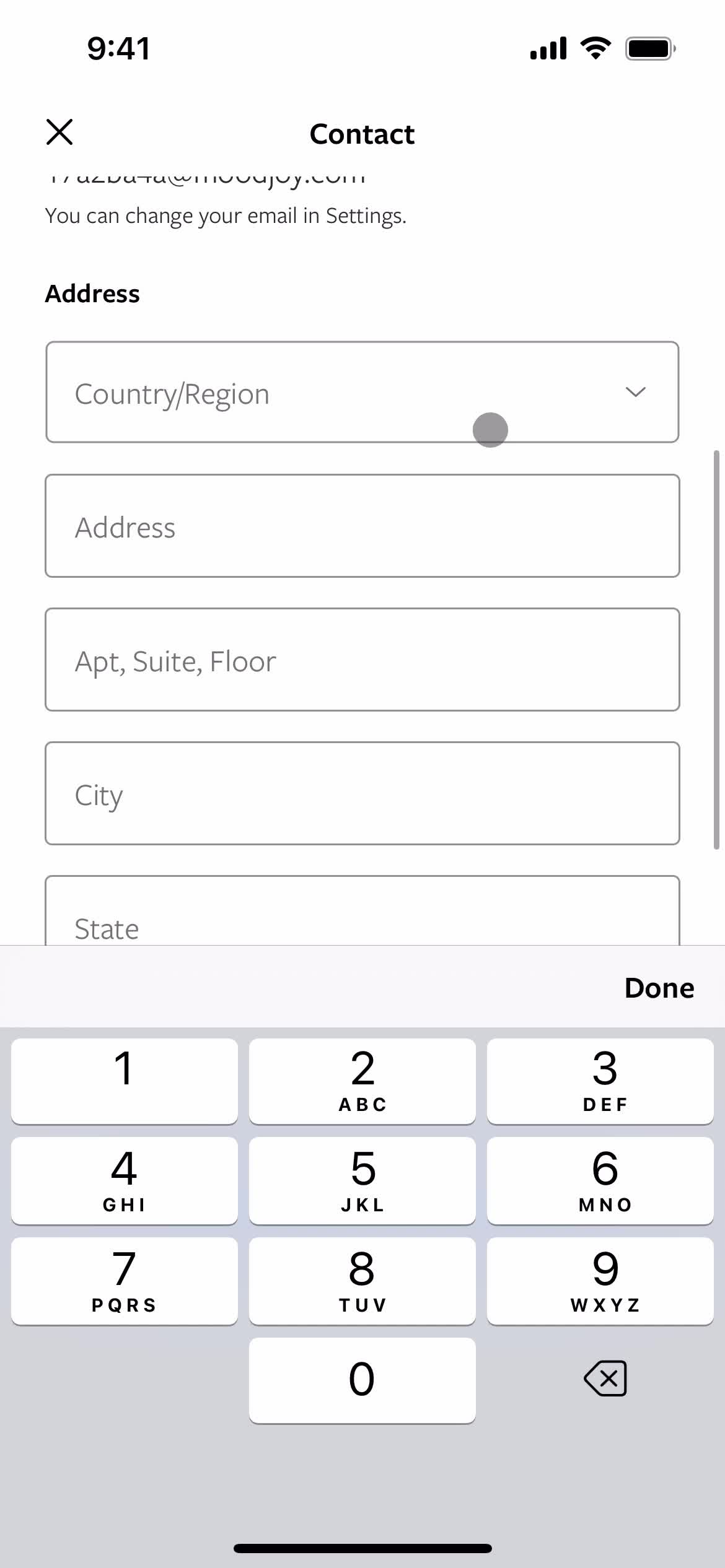
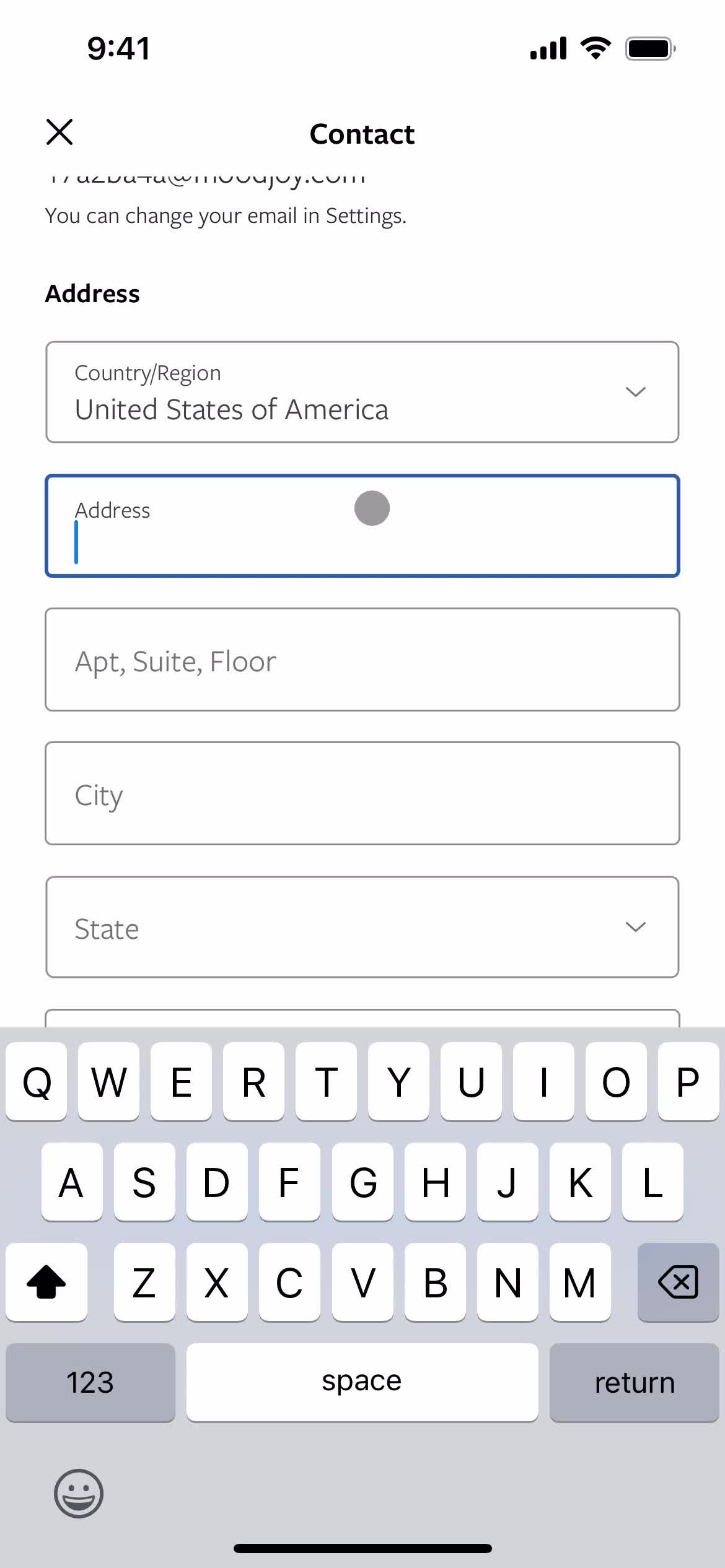
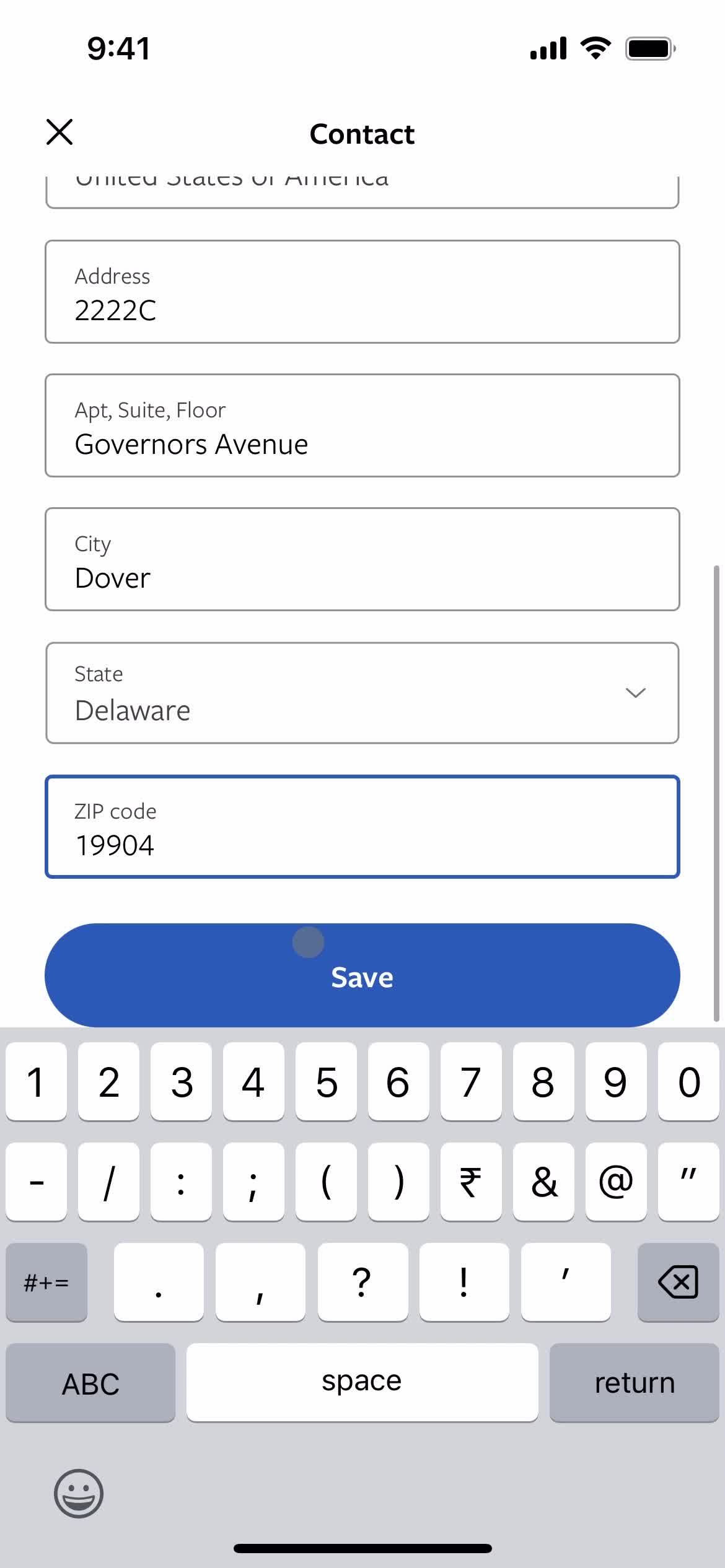
Add address
this is title
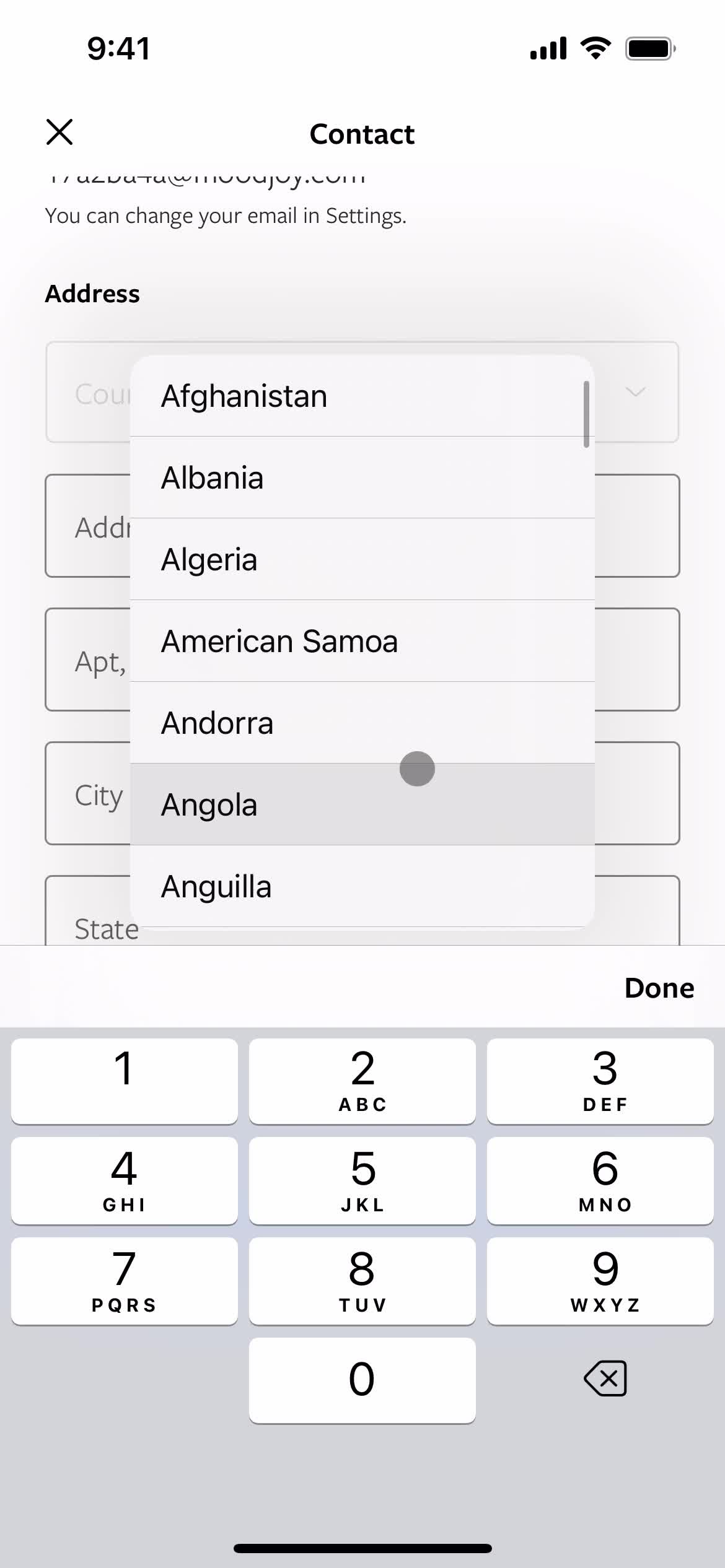
Select country
this is title
this is title
Save
this is title
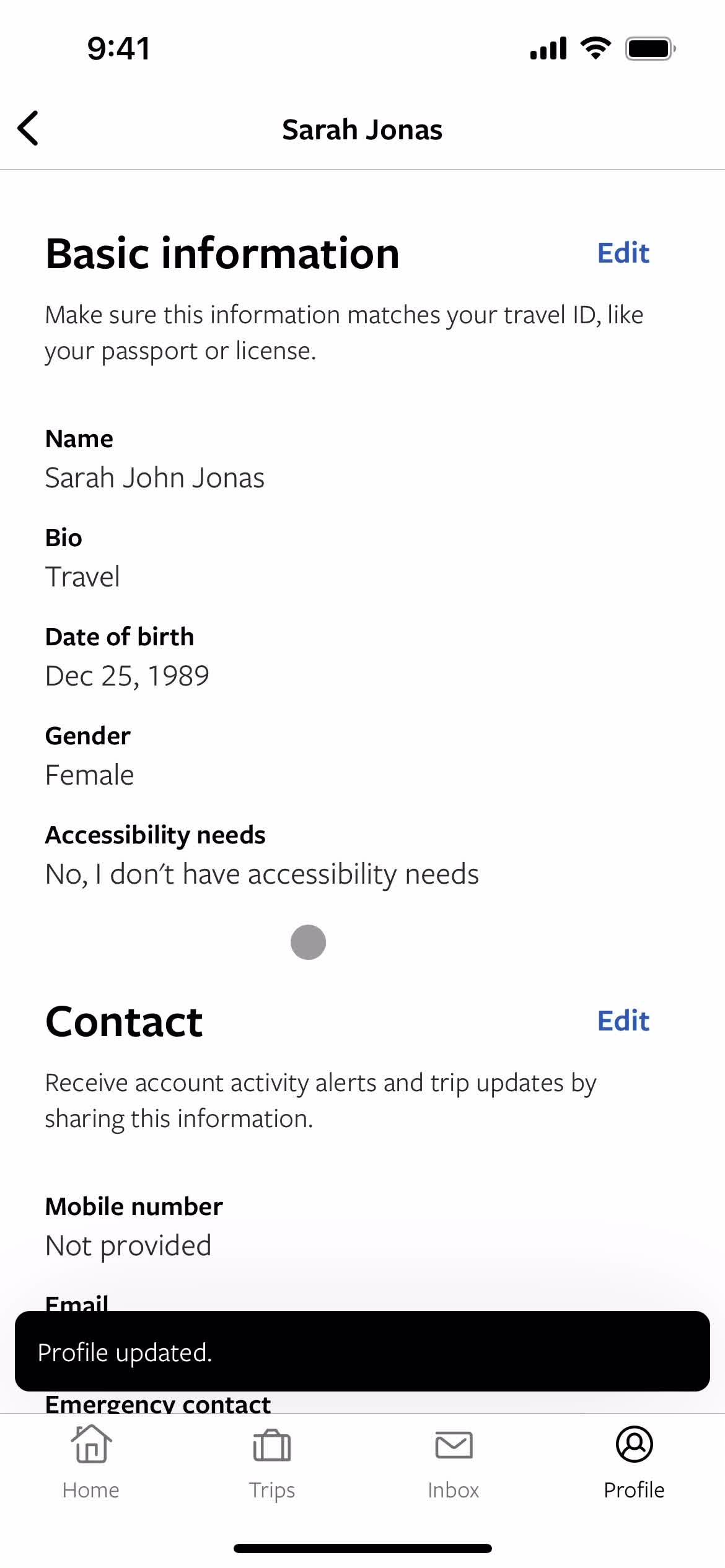
Profile updated
this is title
Account
this is title
Home
this is title