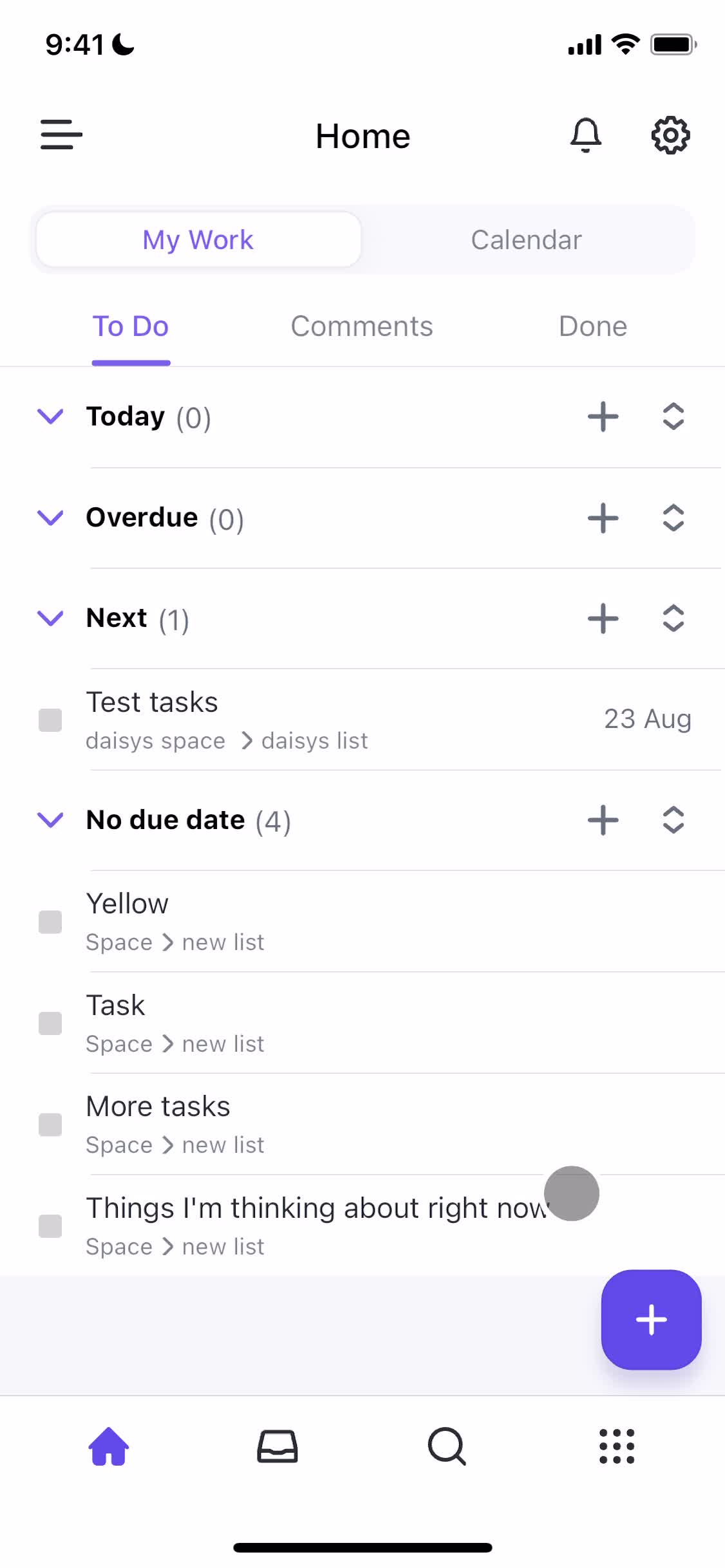
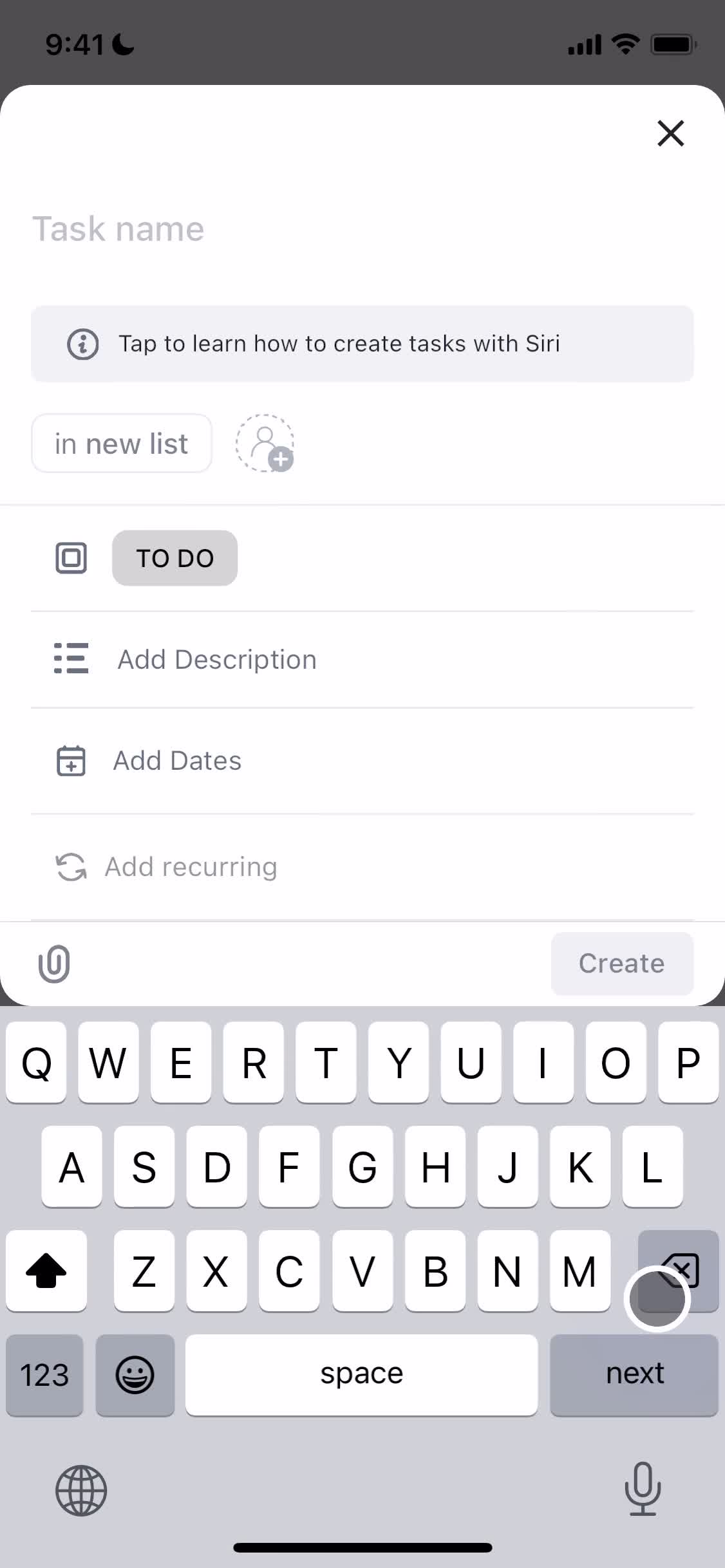
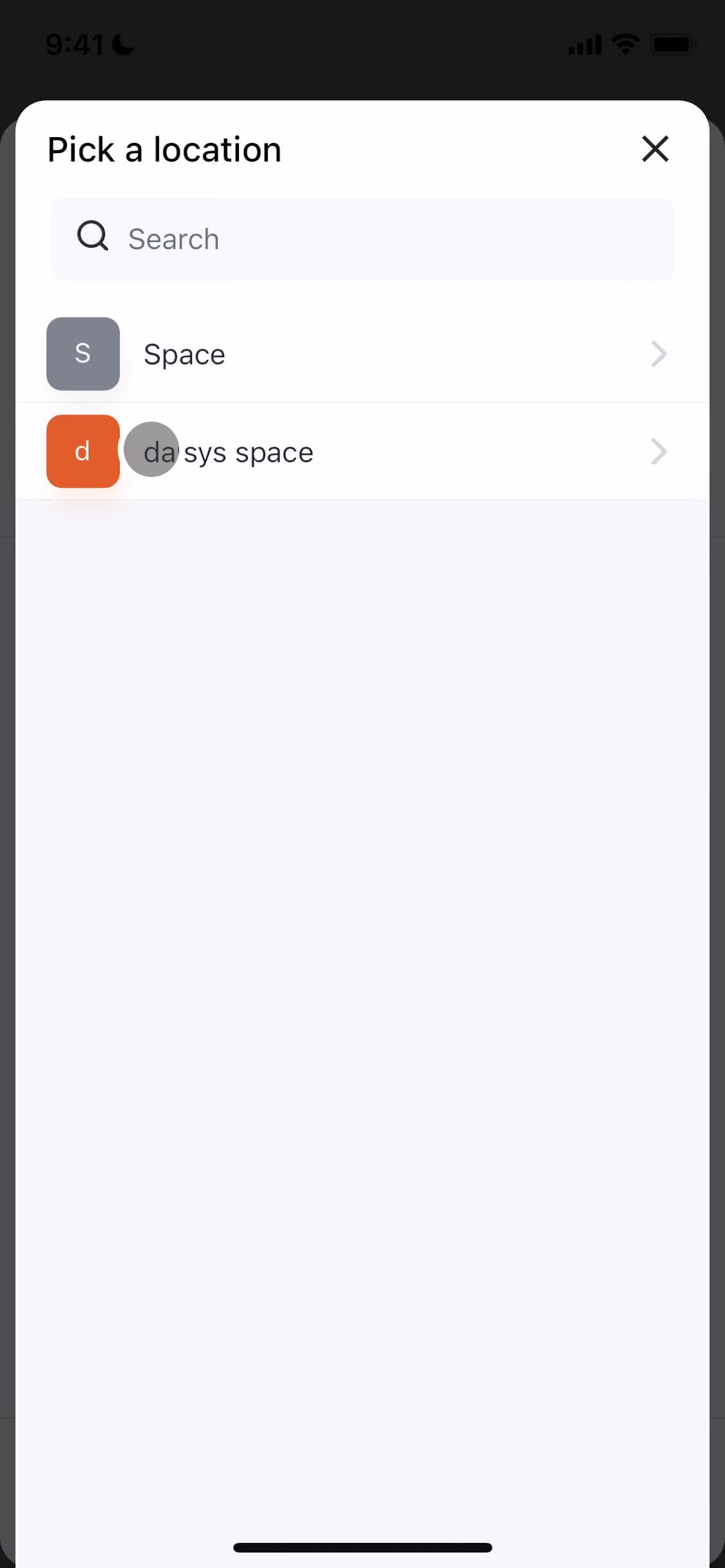
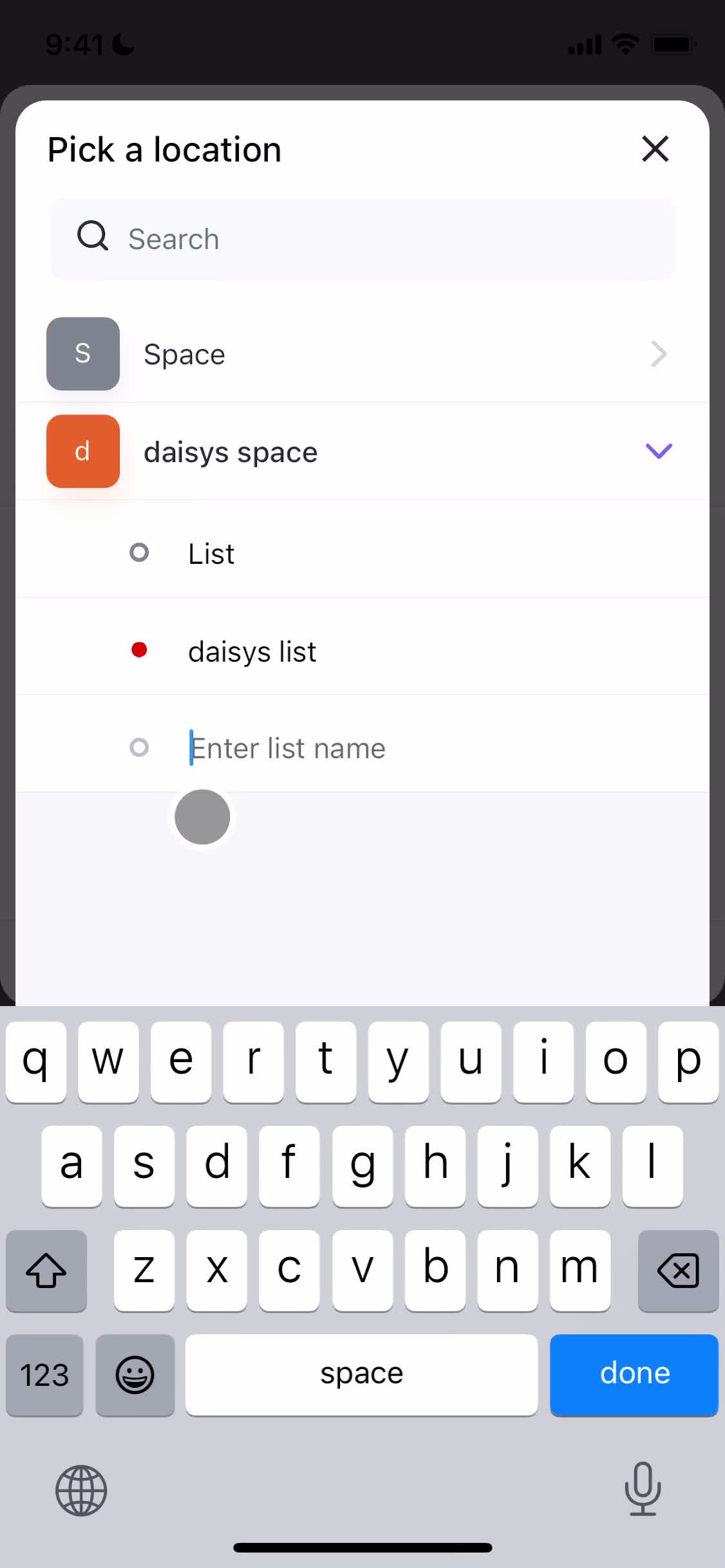
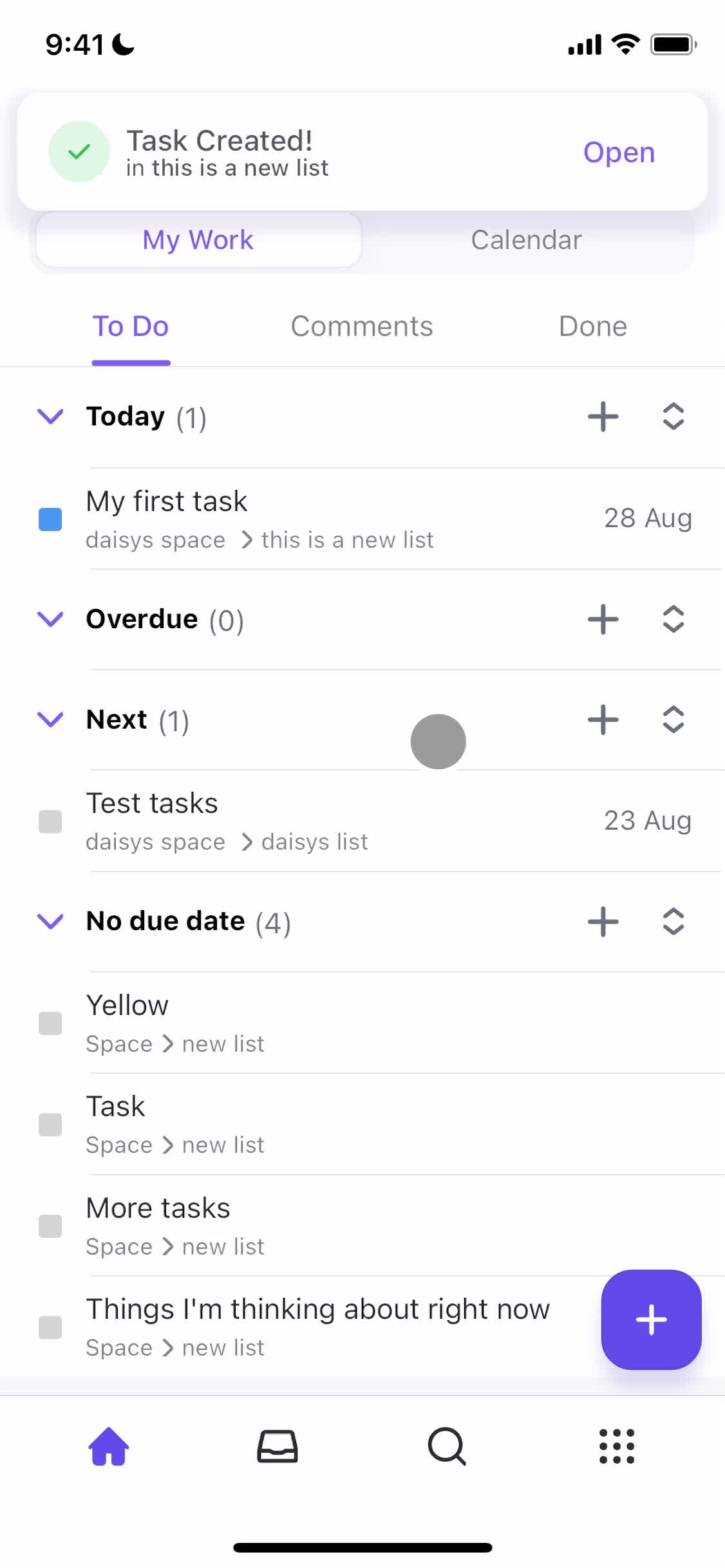
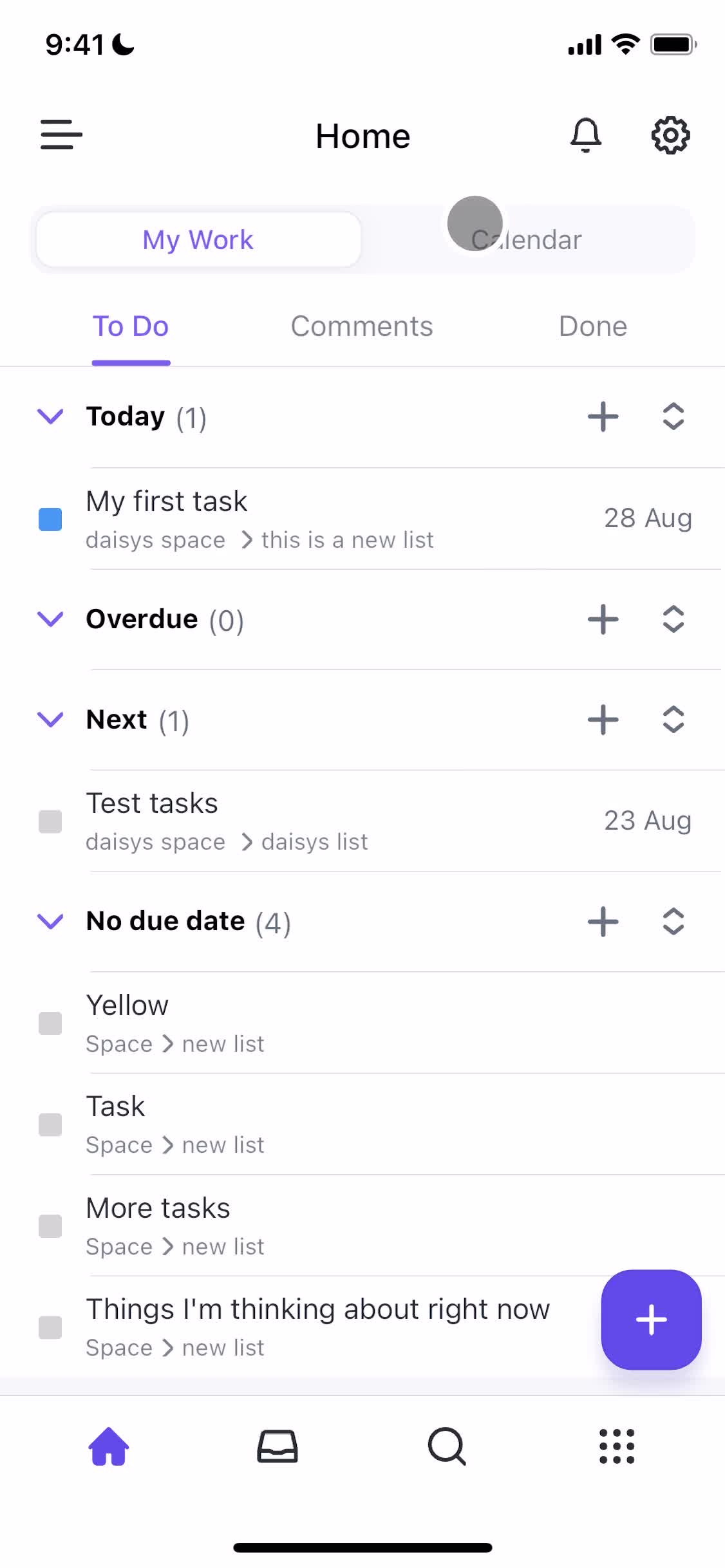
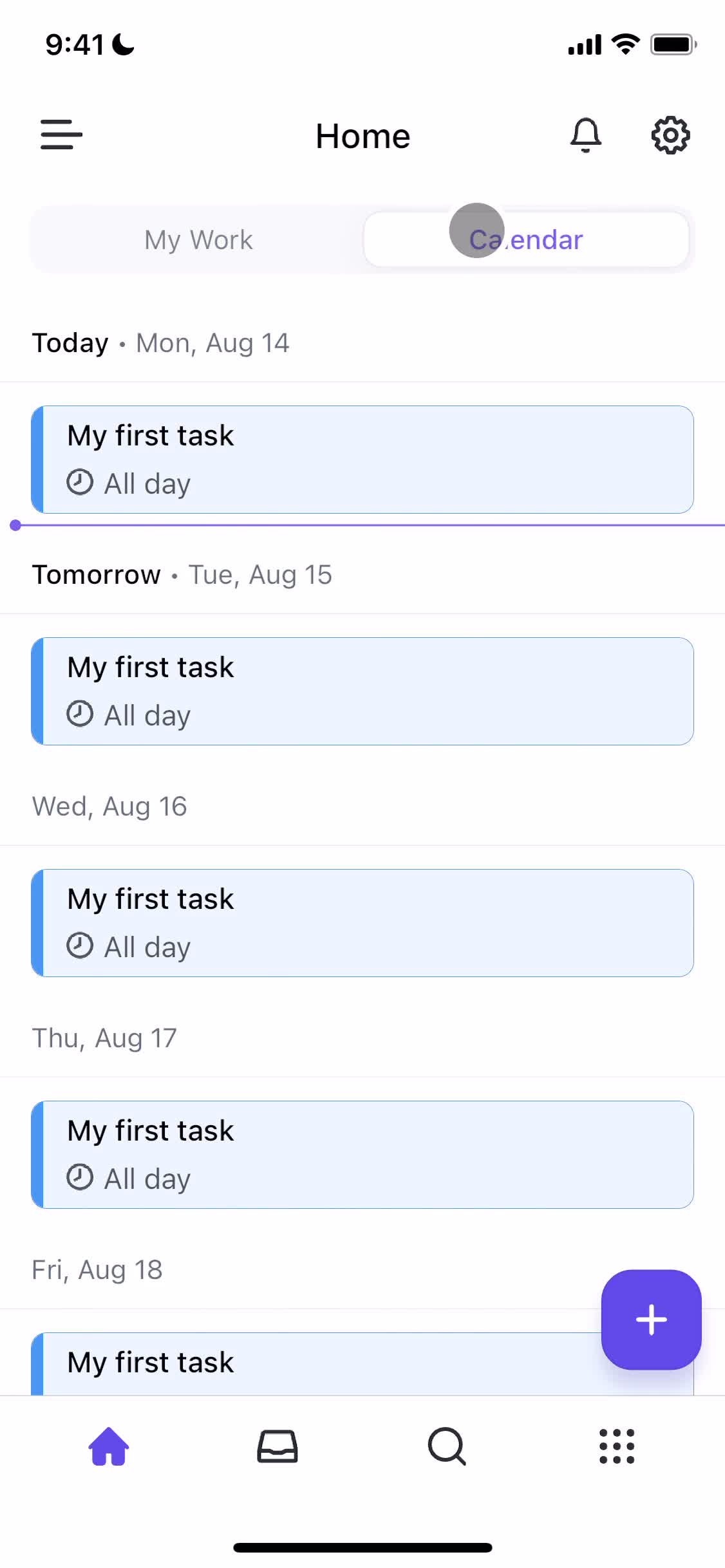
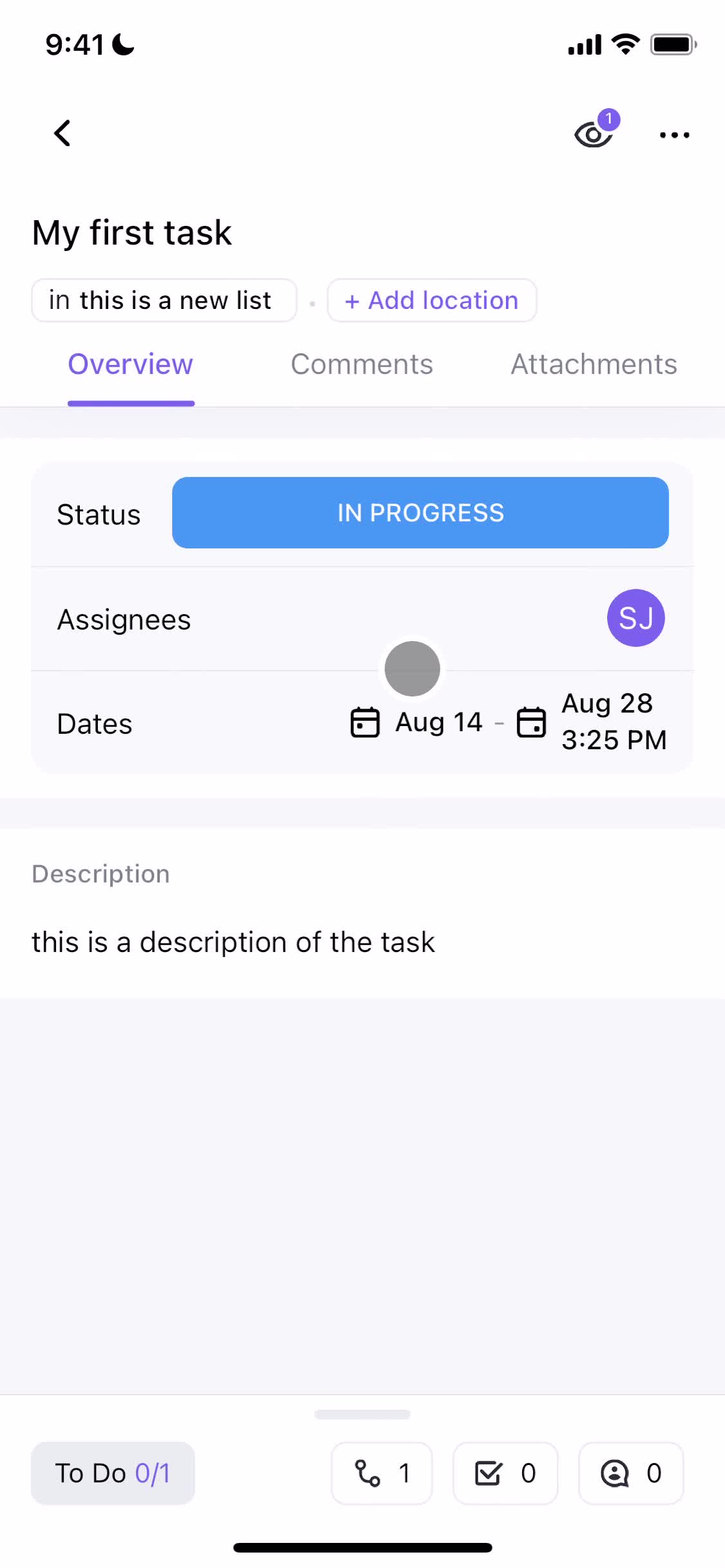
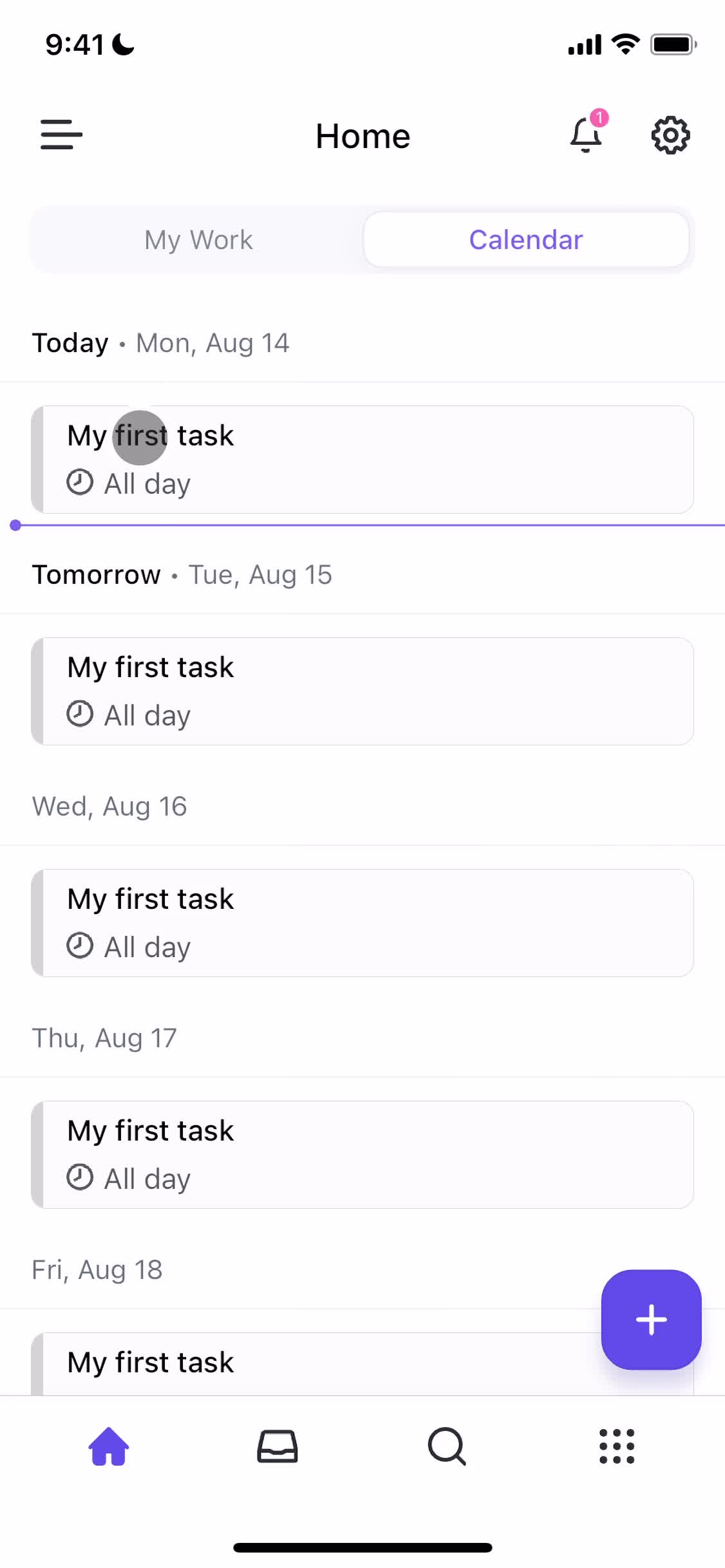
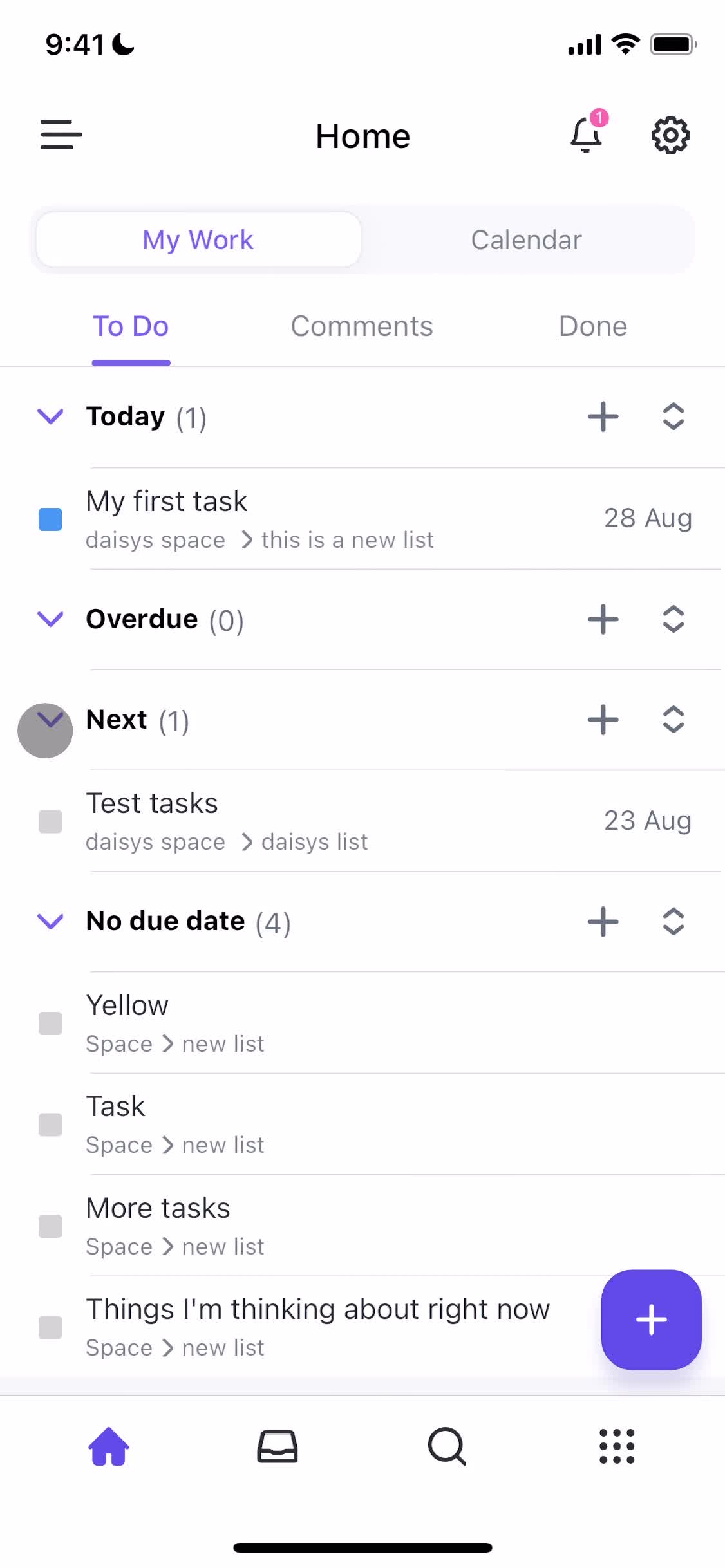
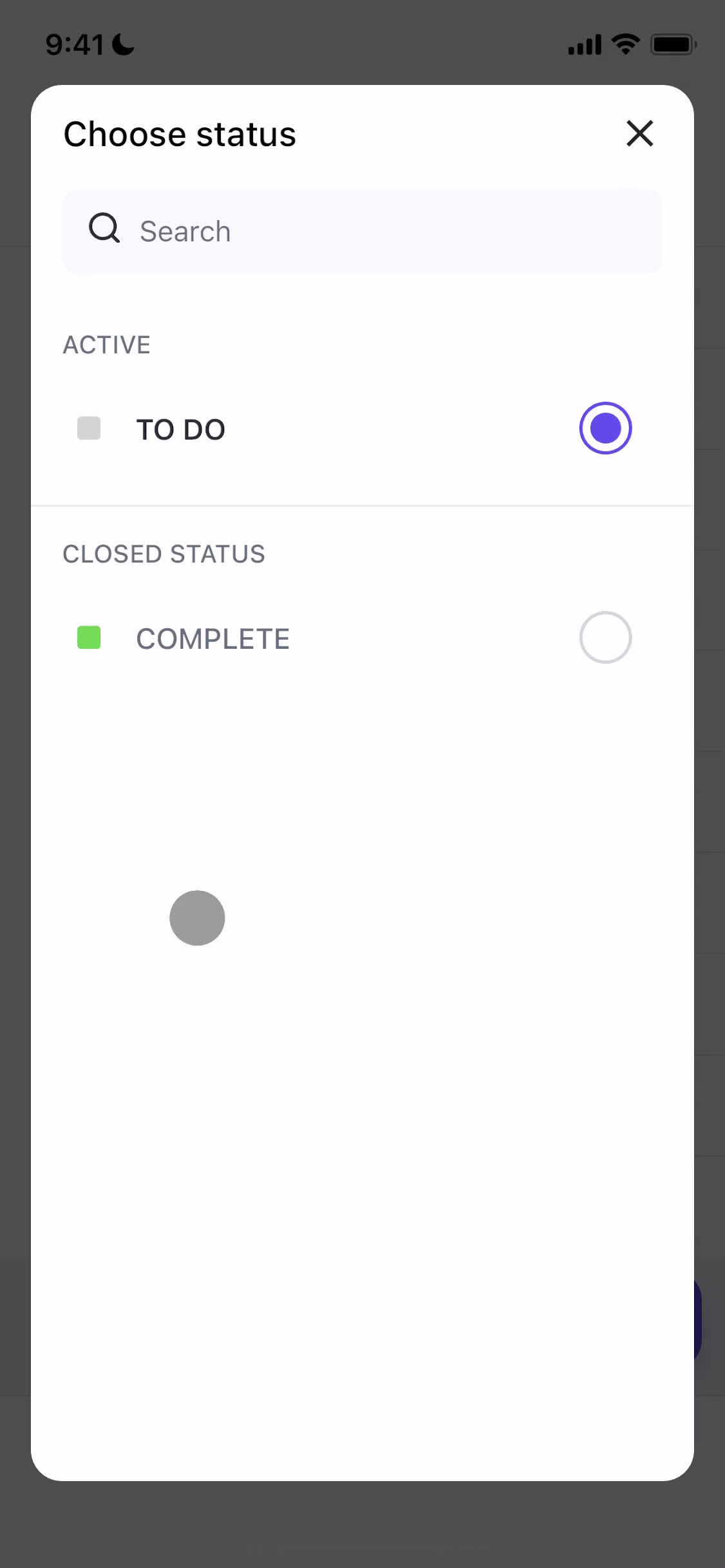
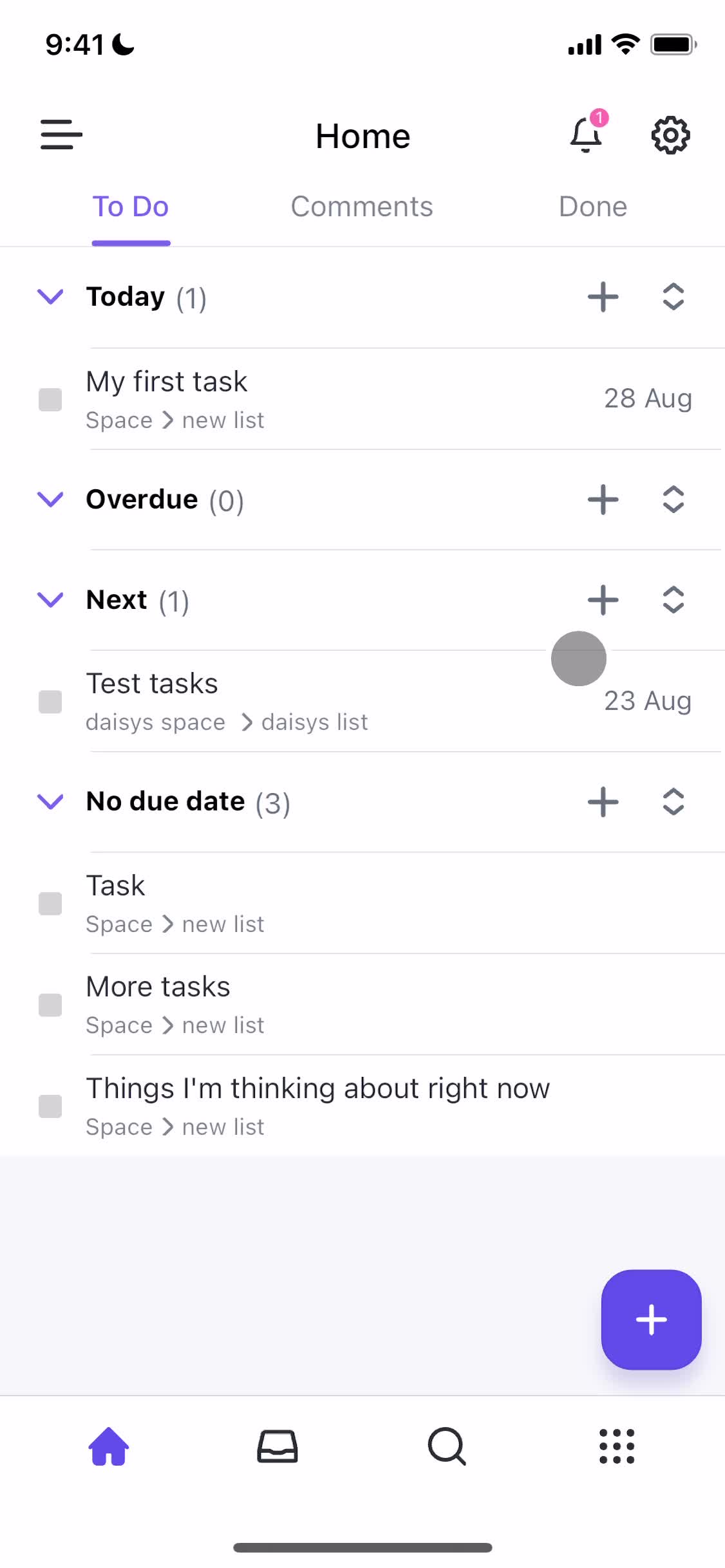
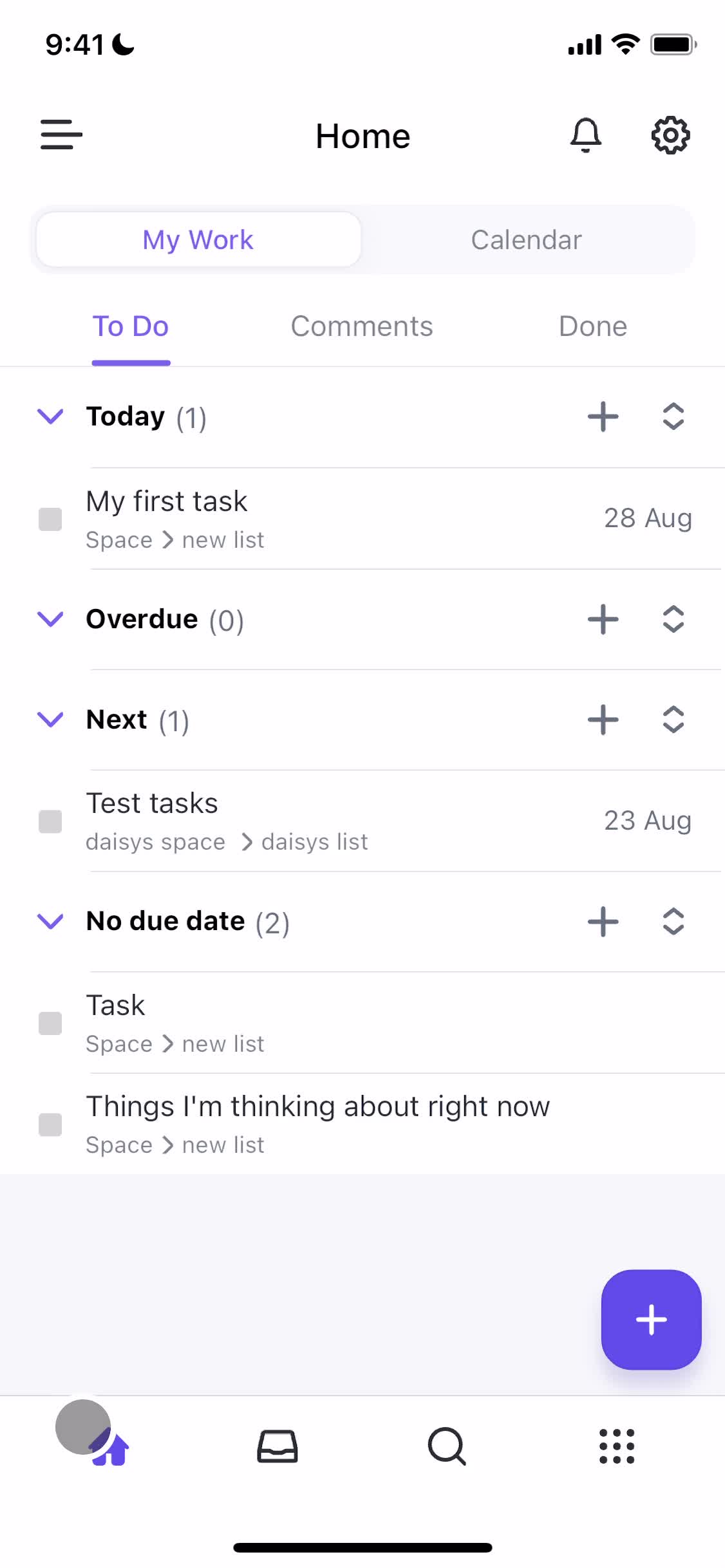
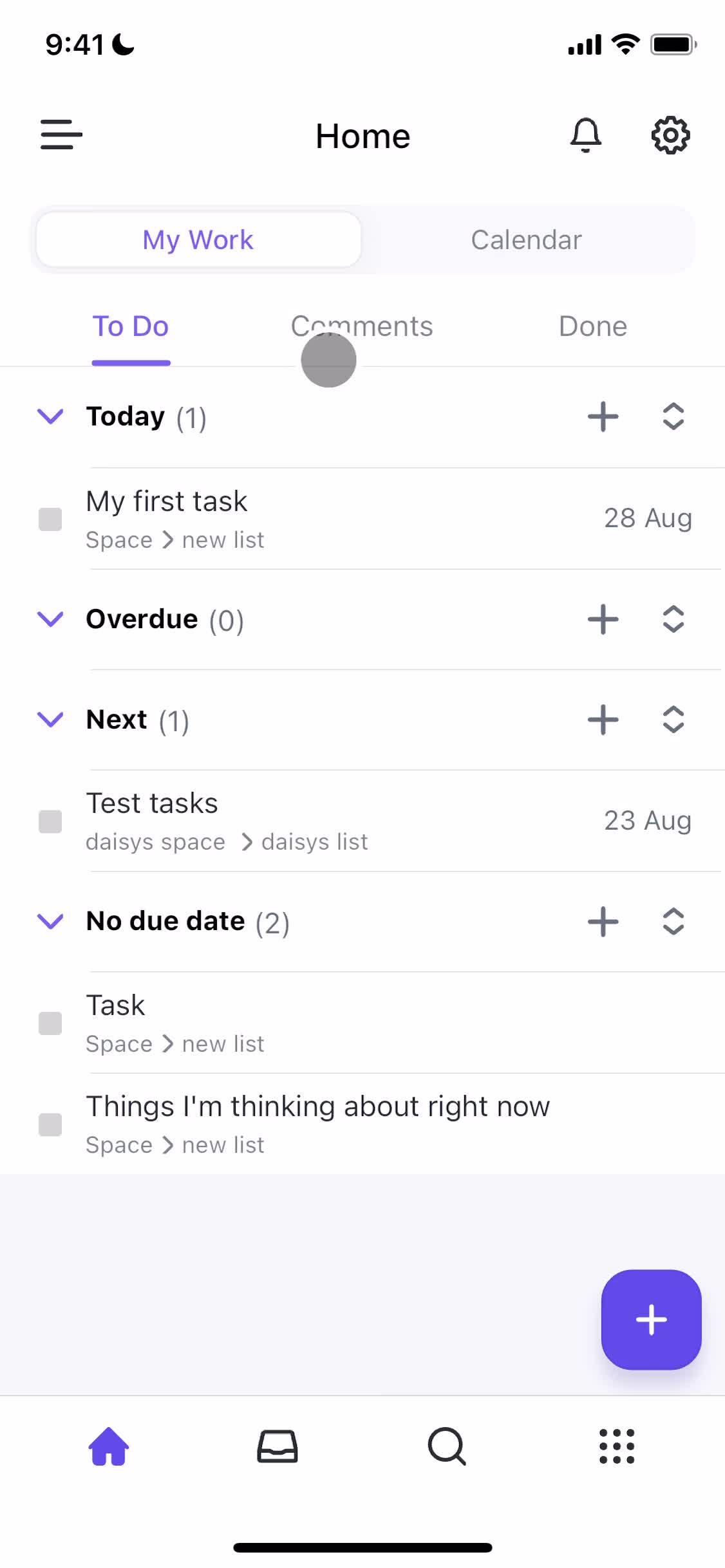
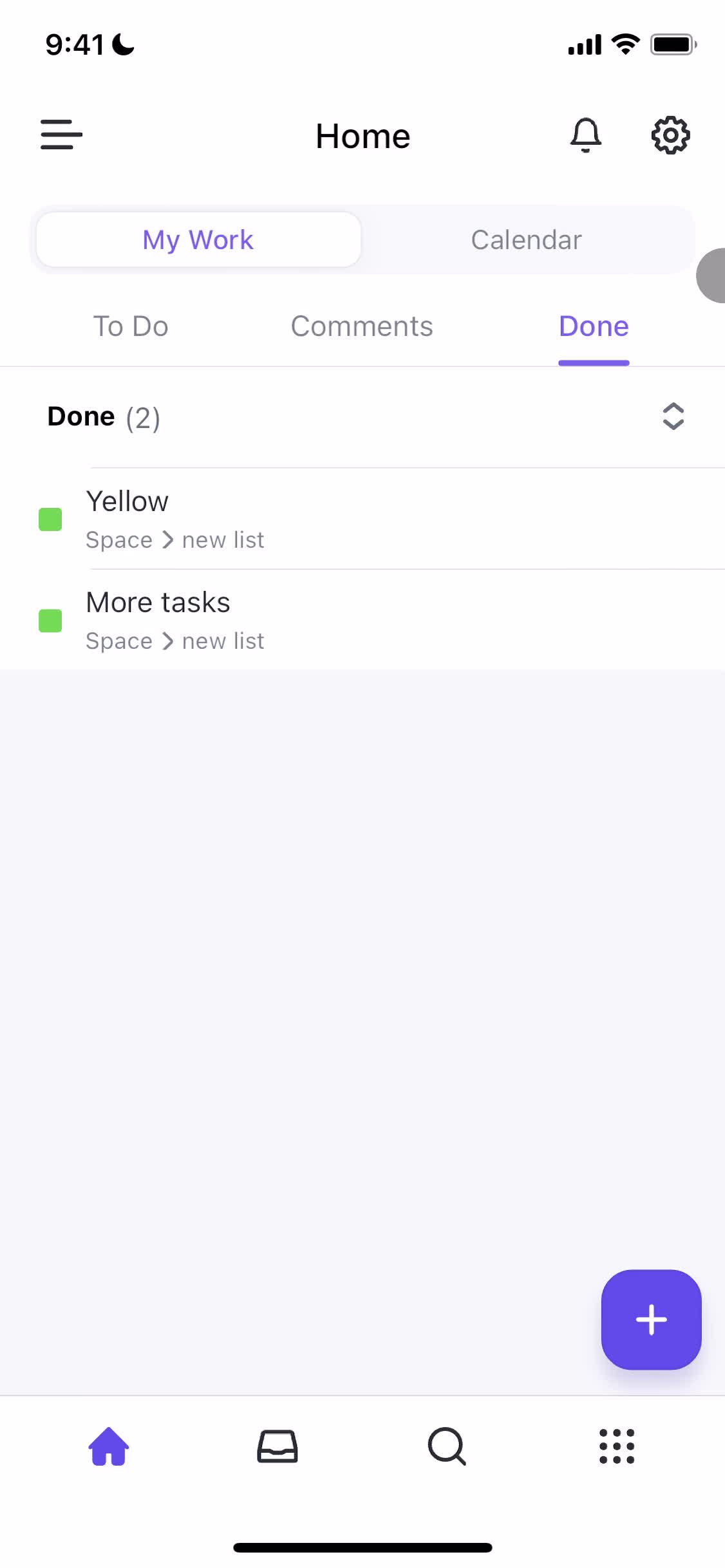
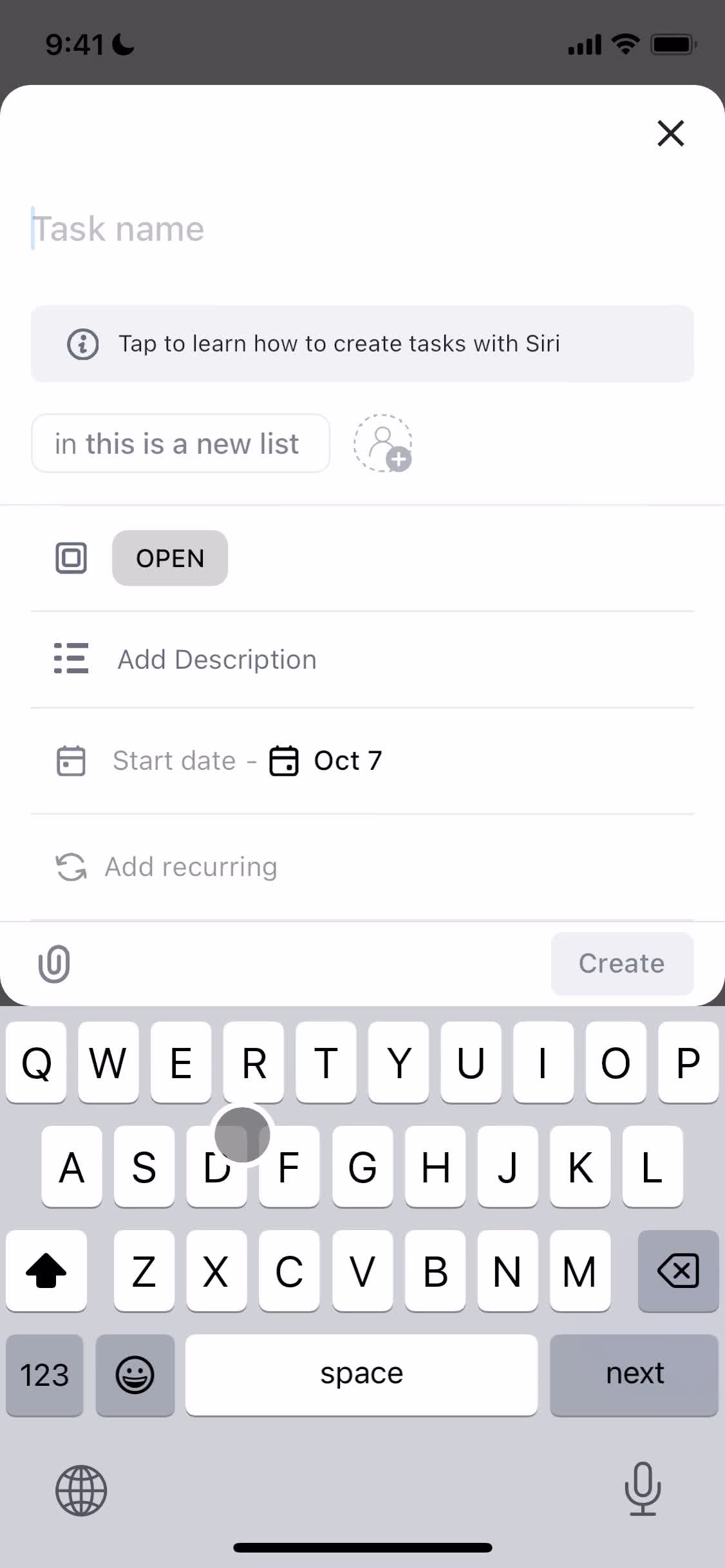
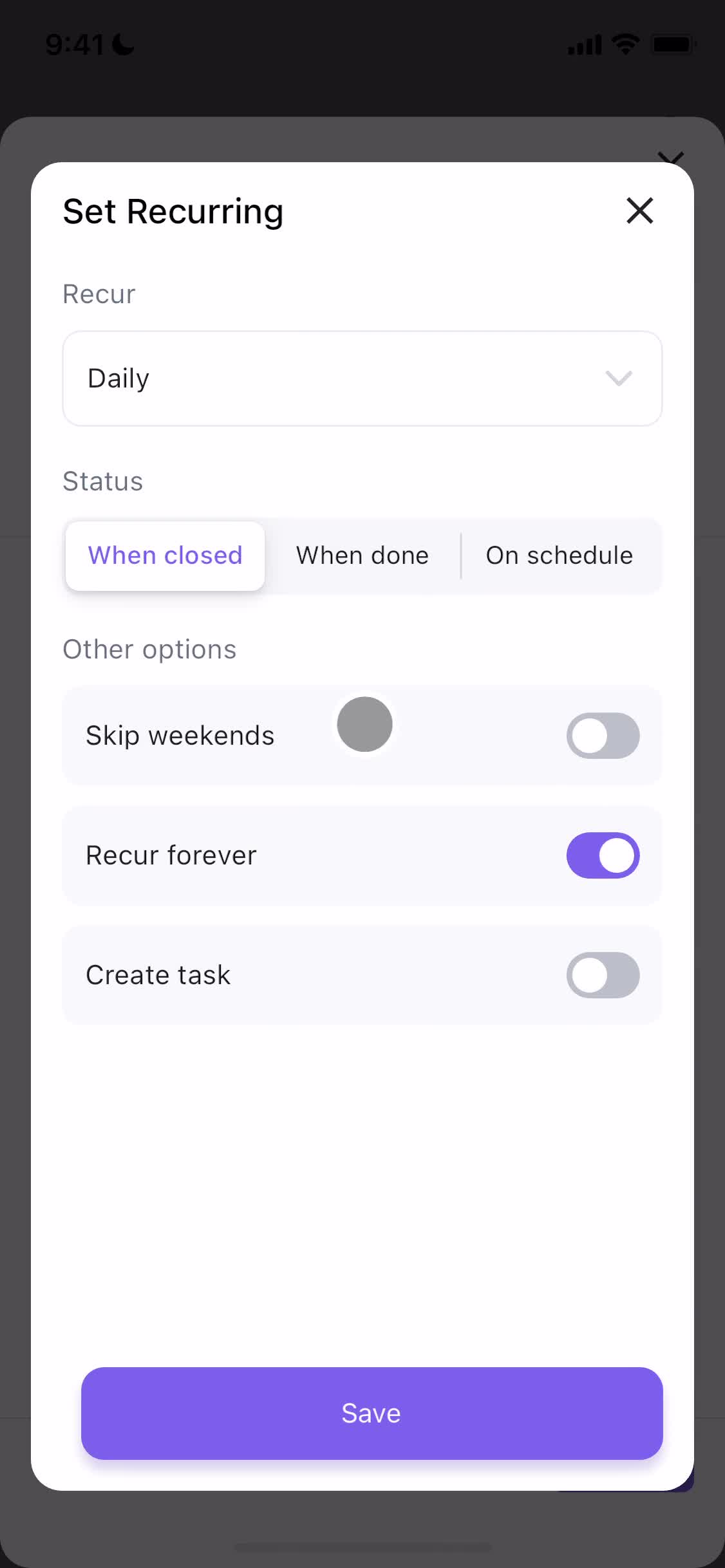
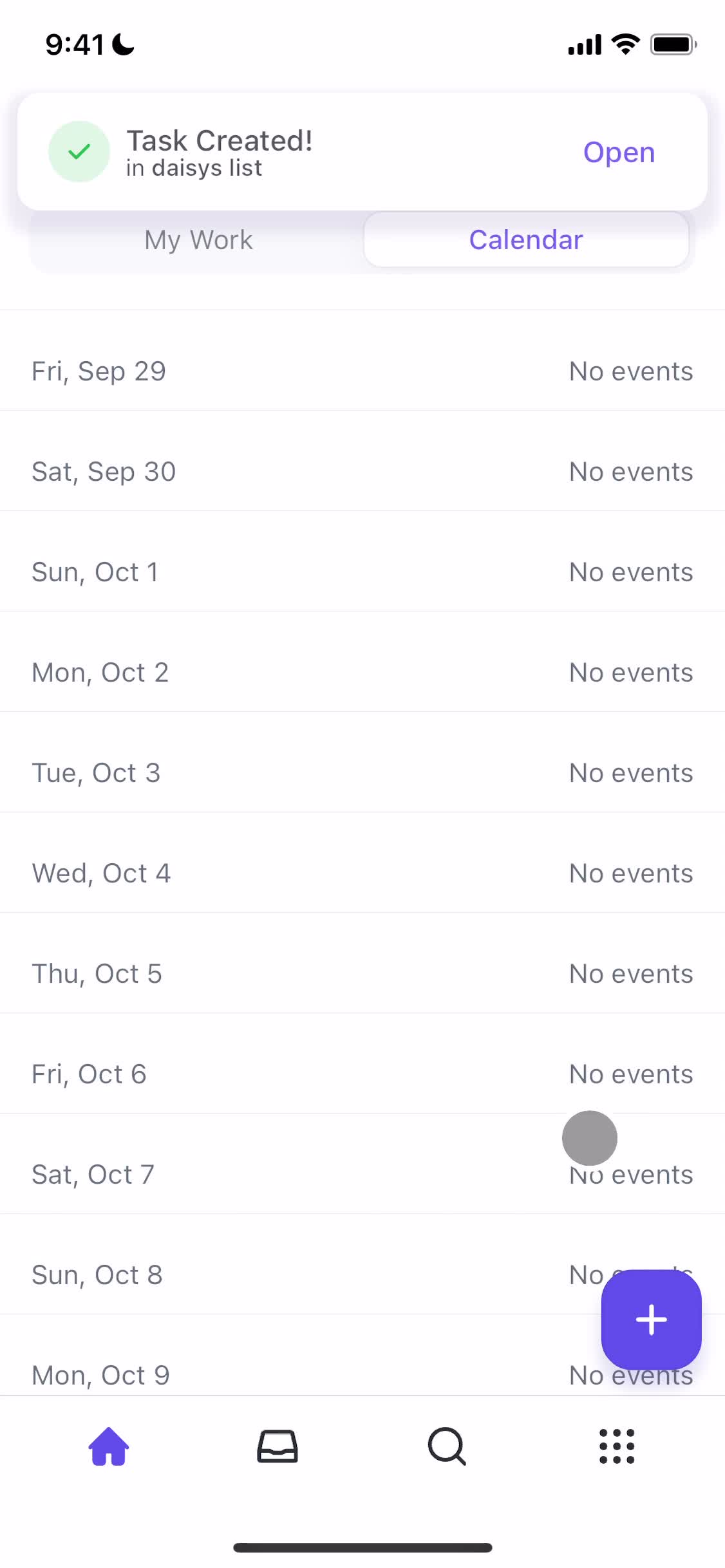
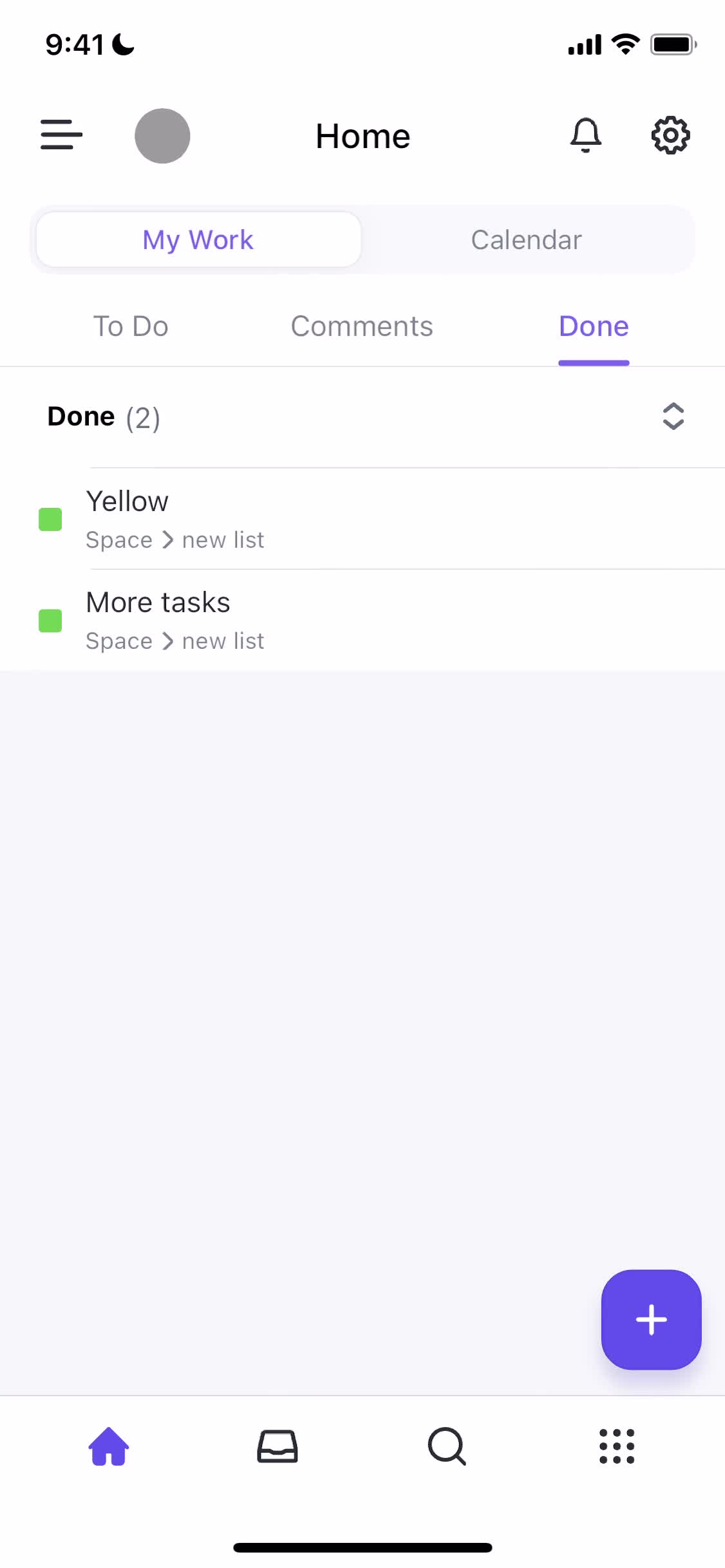
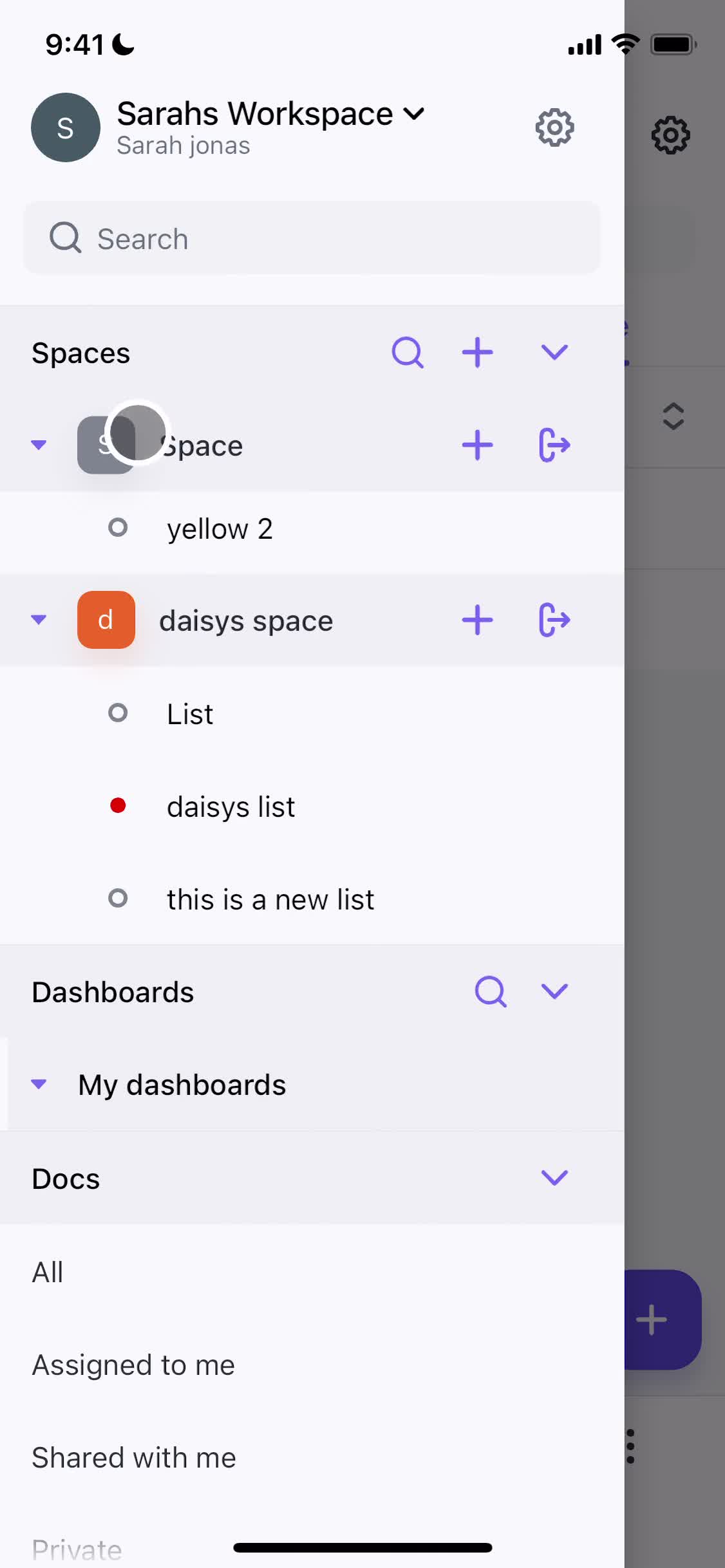
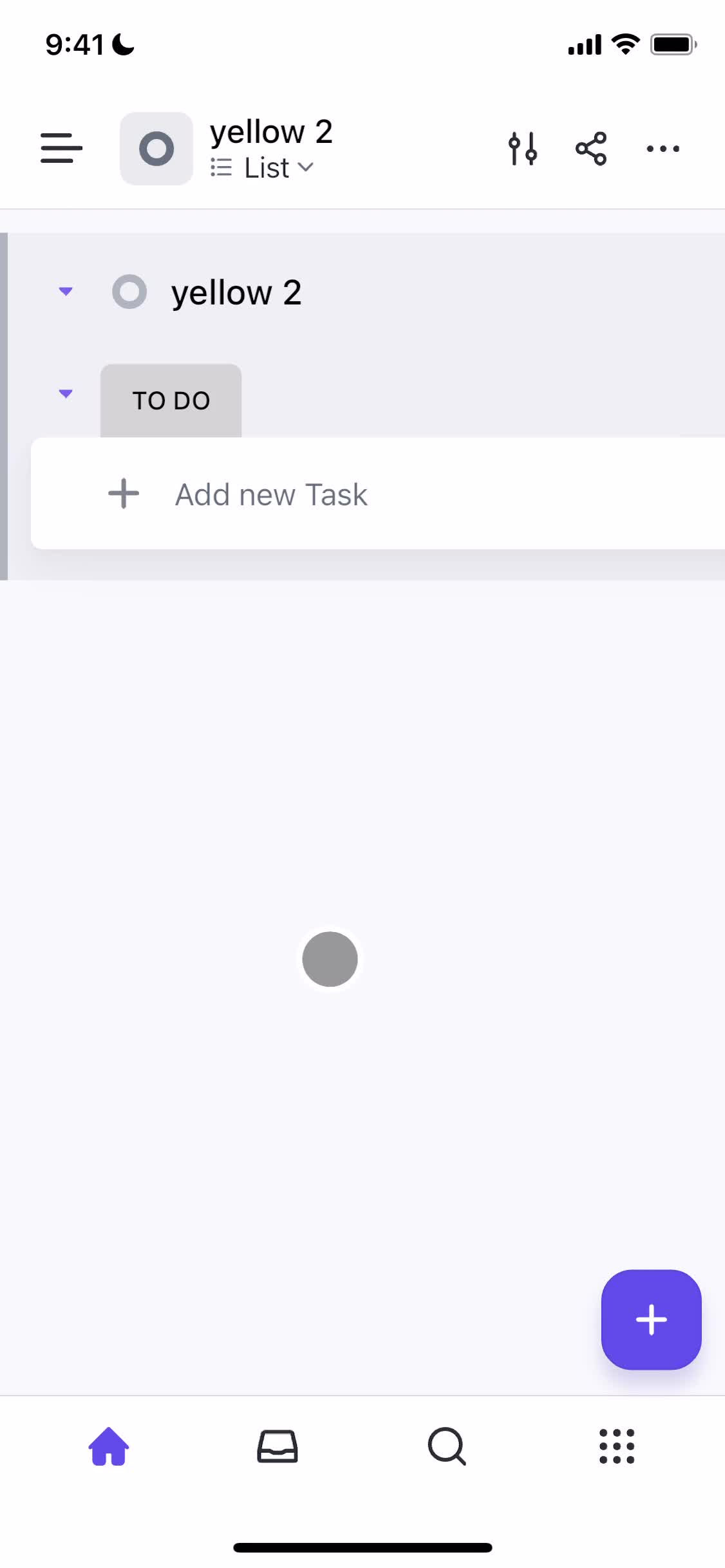
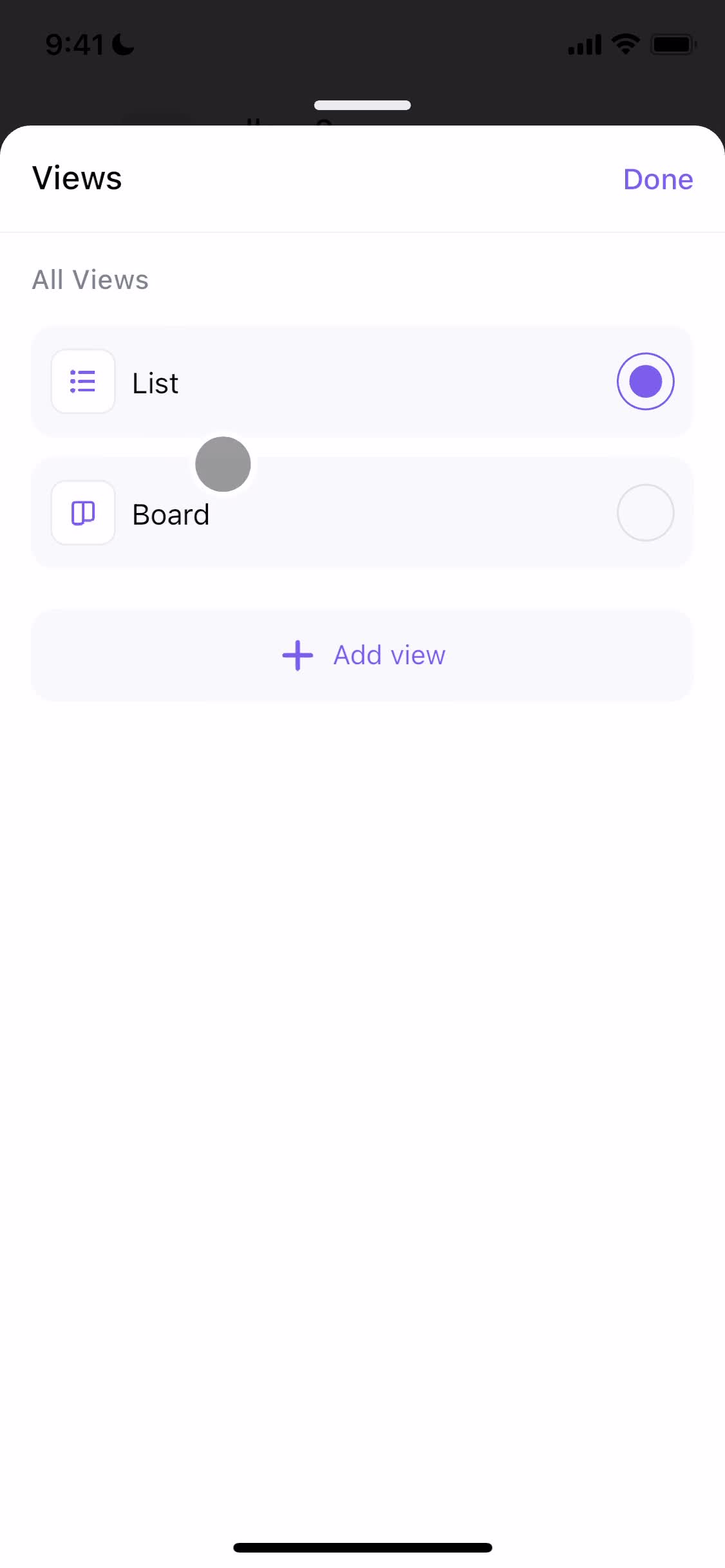
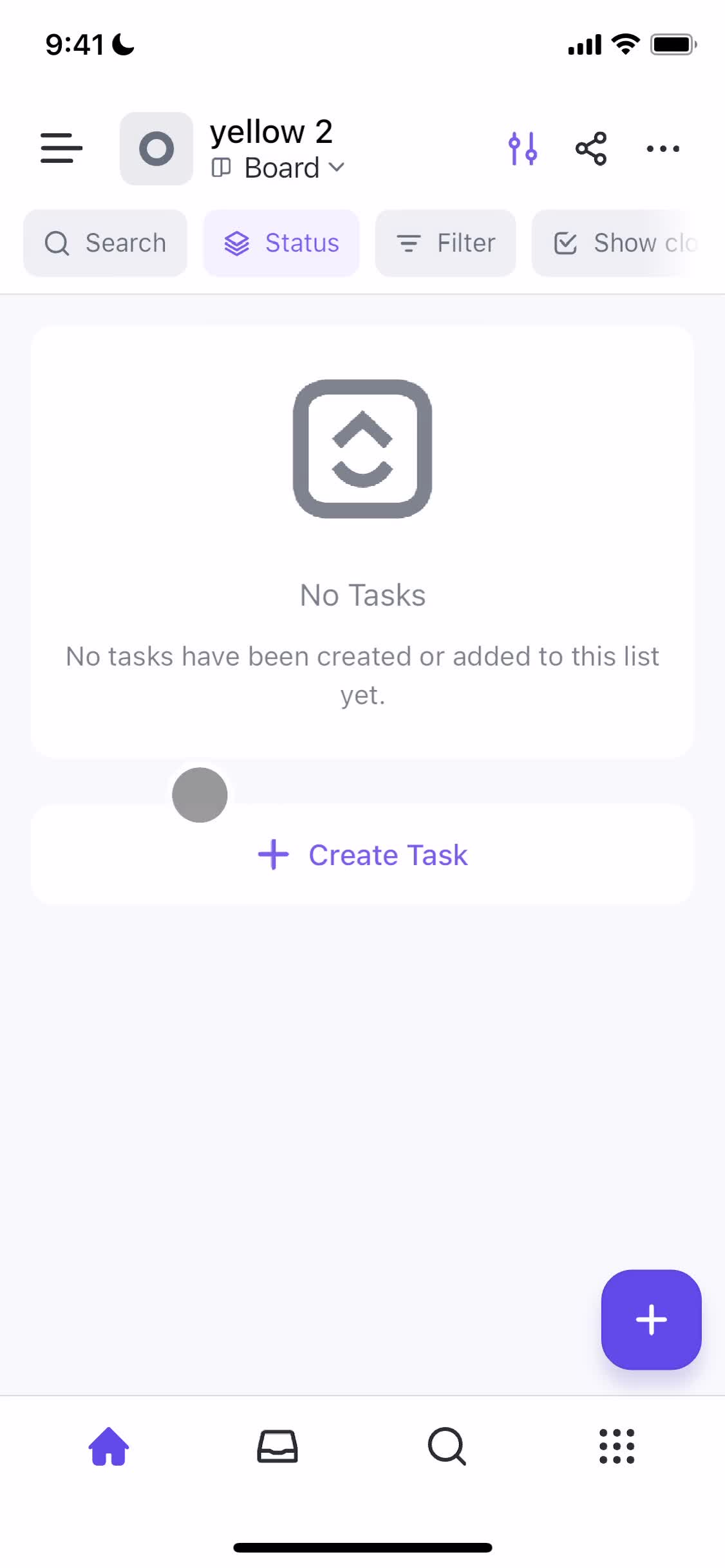
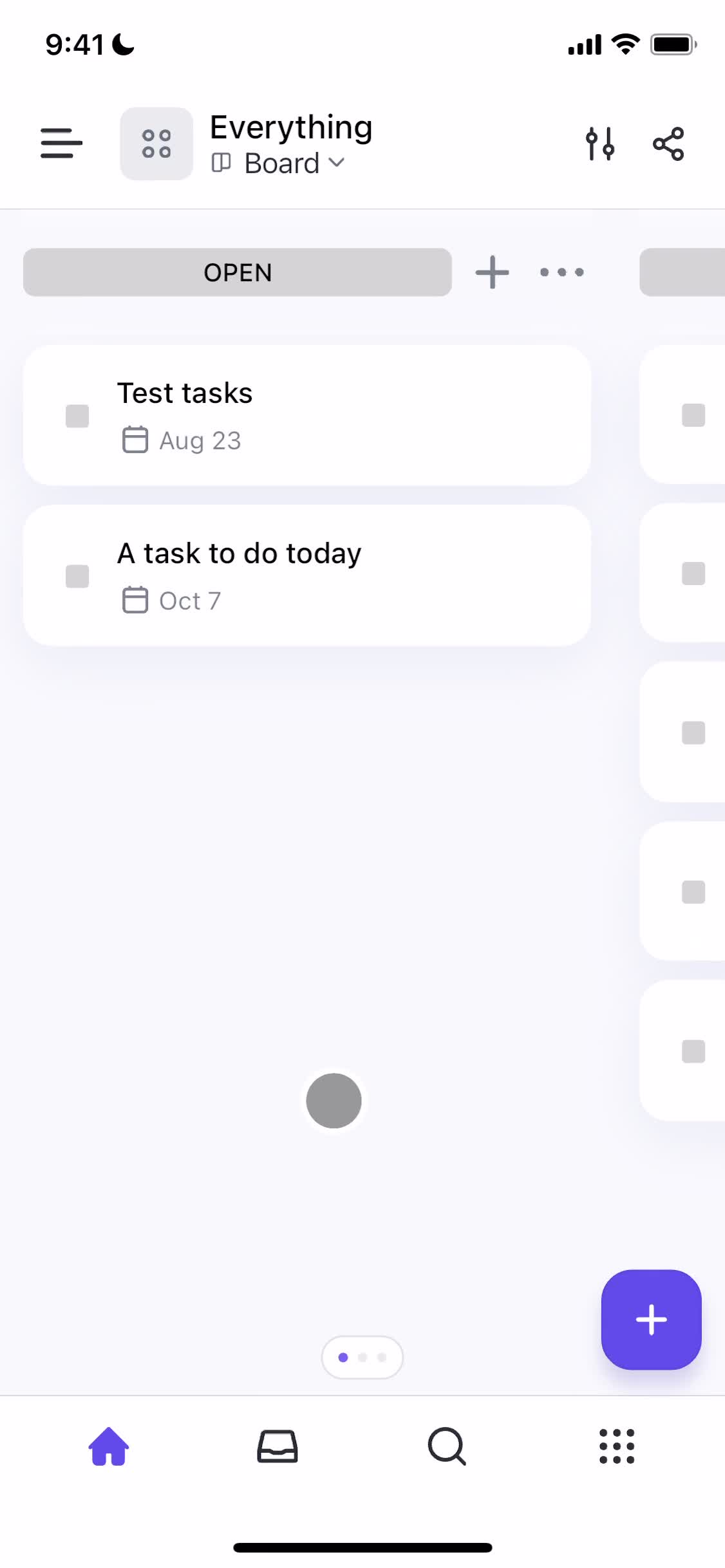
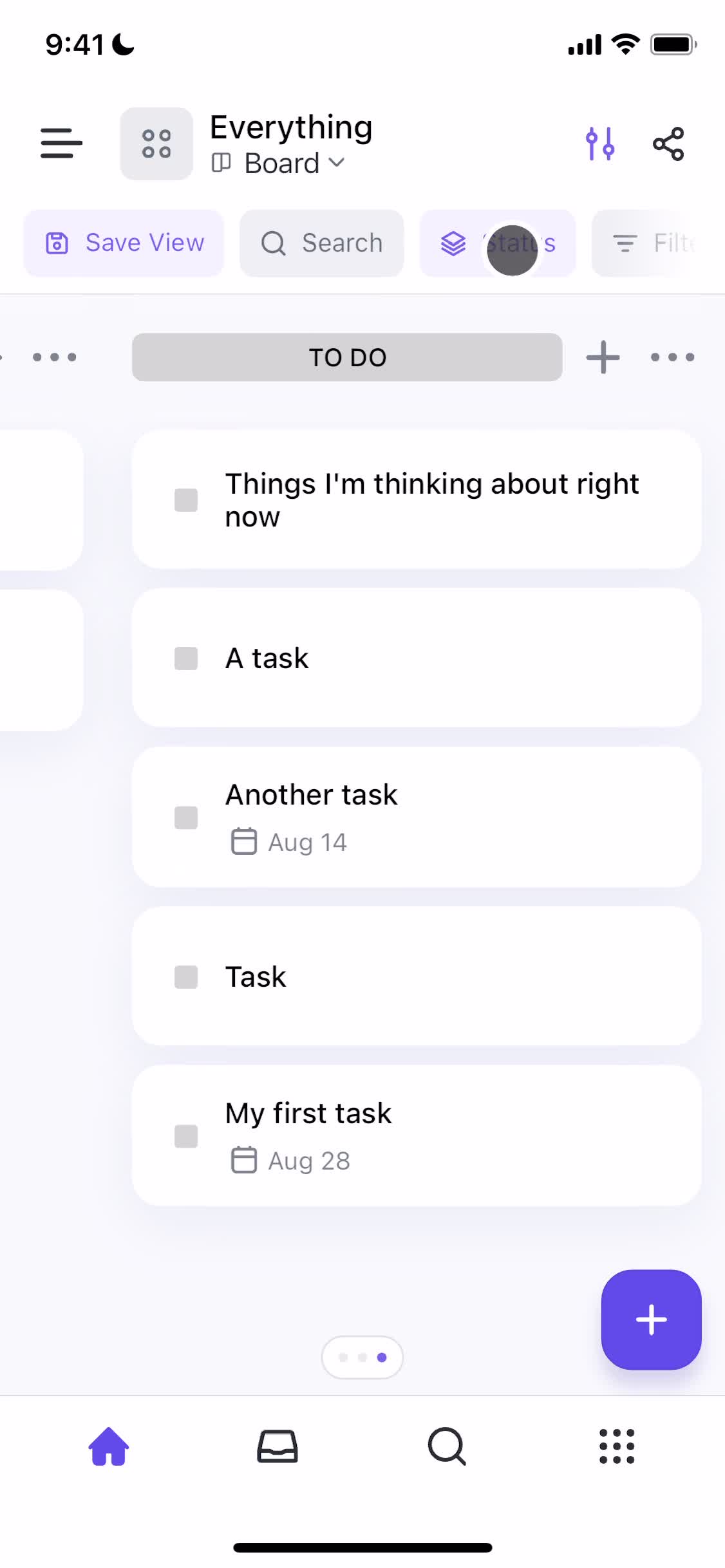
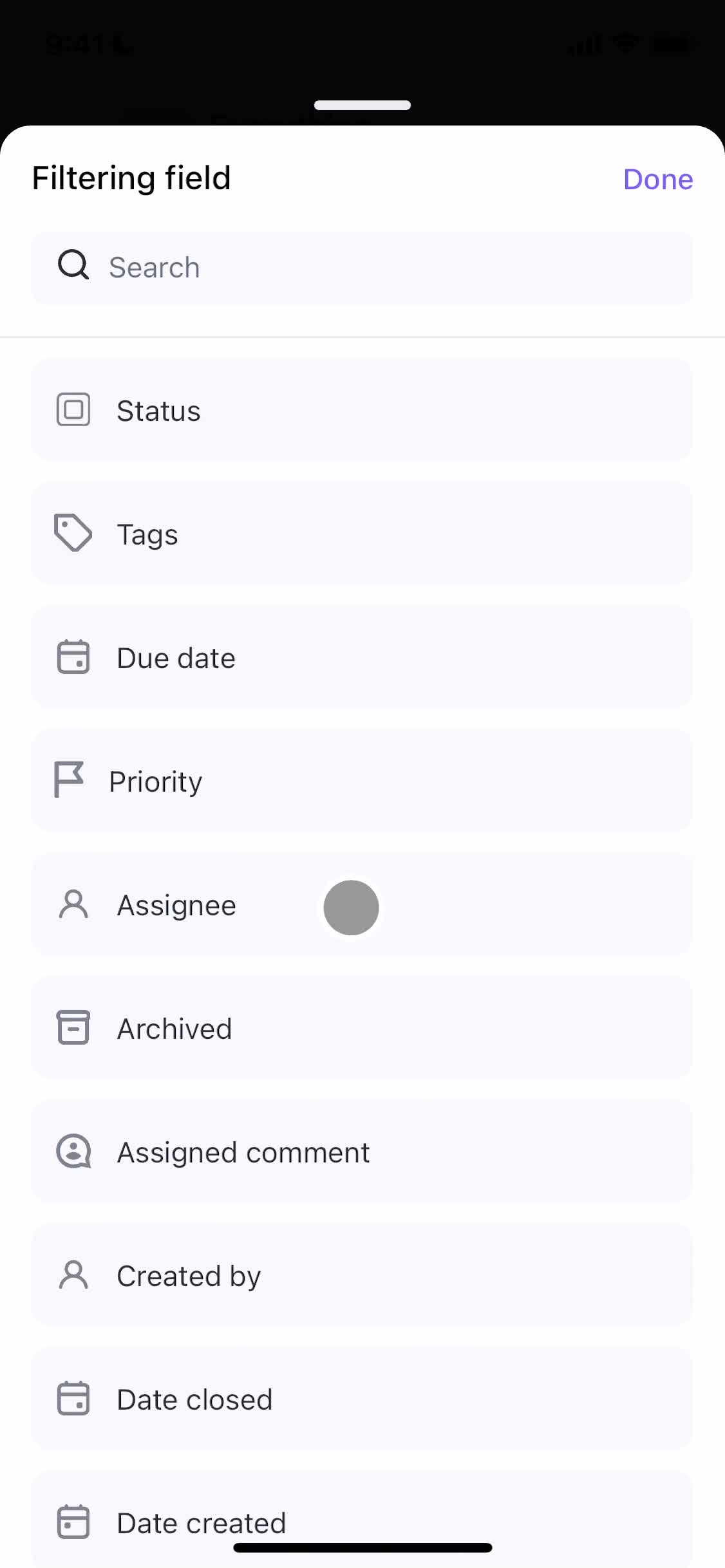
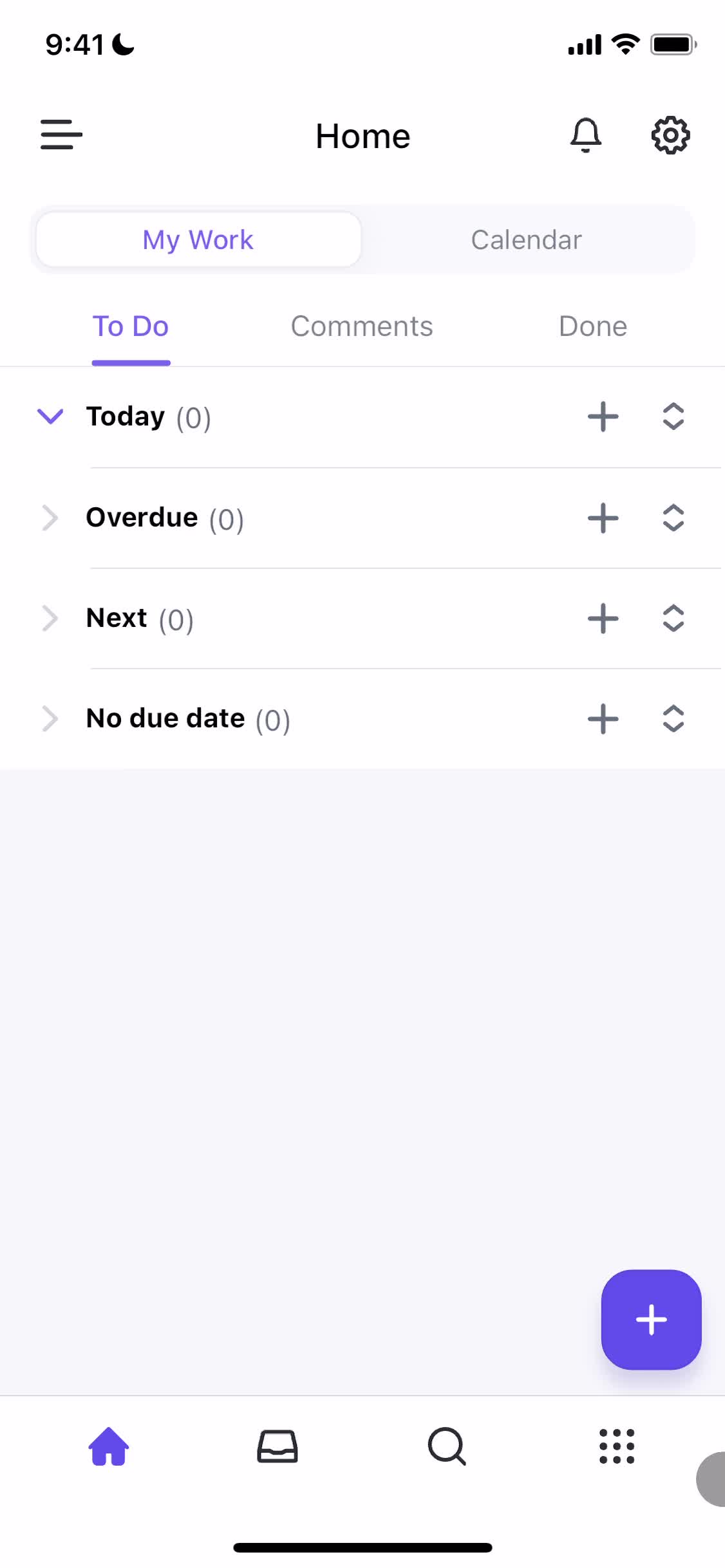
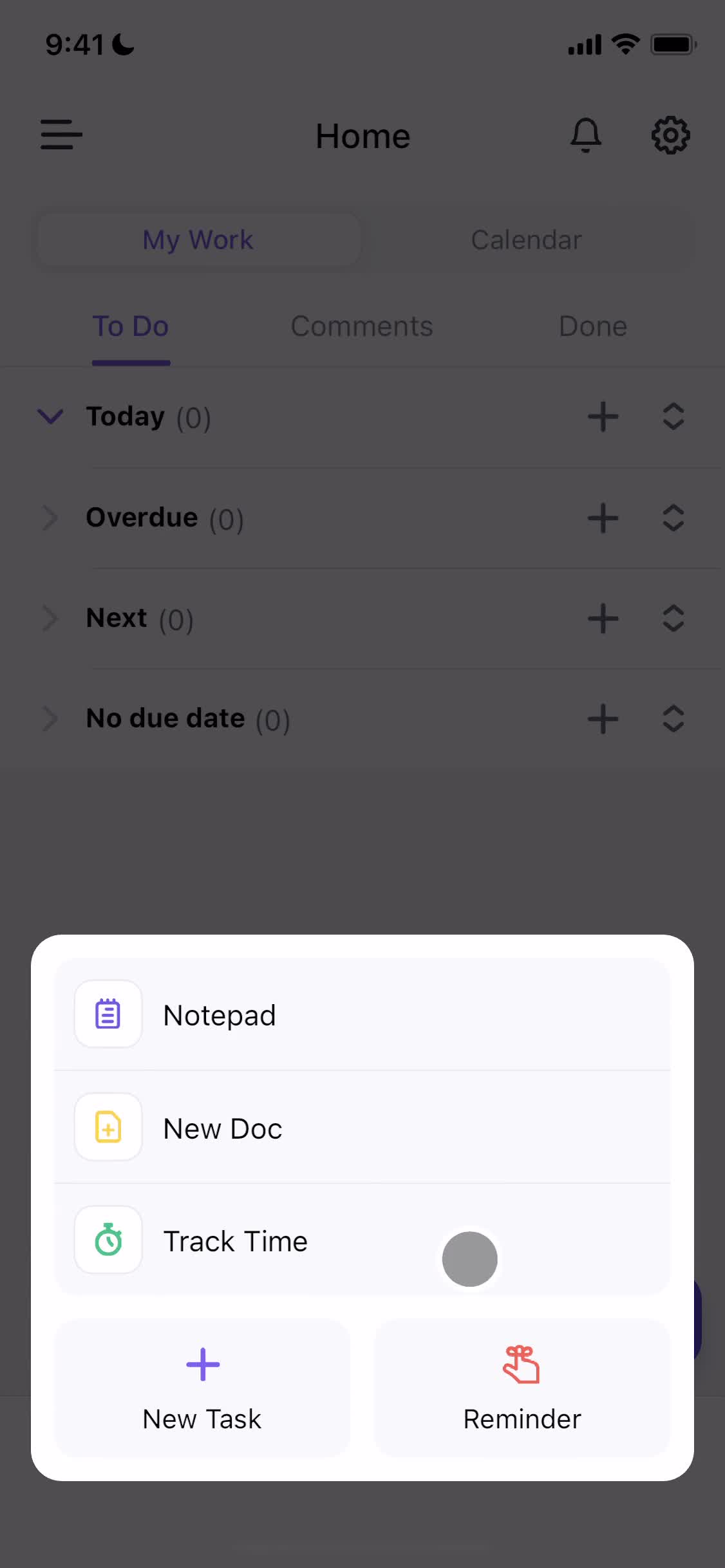
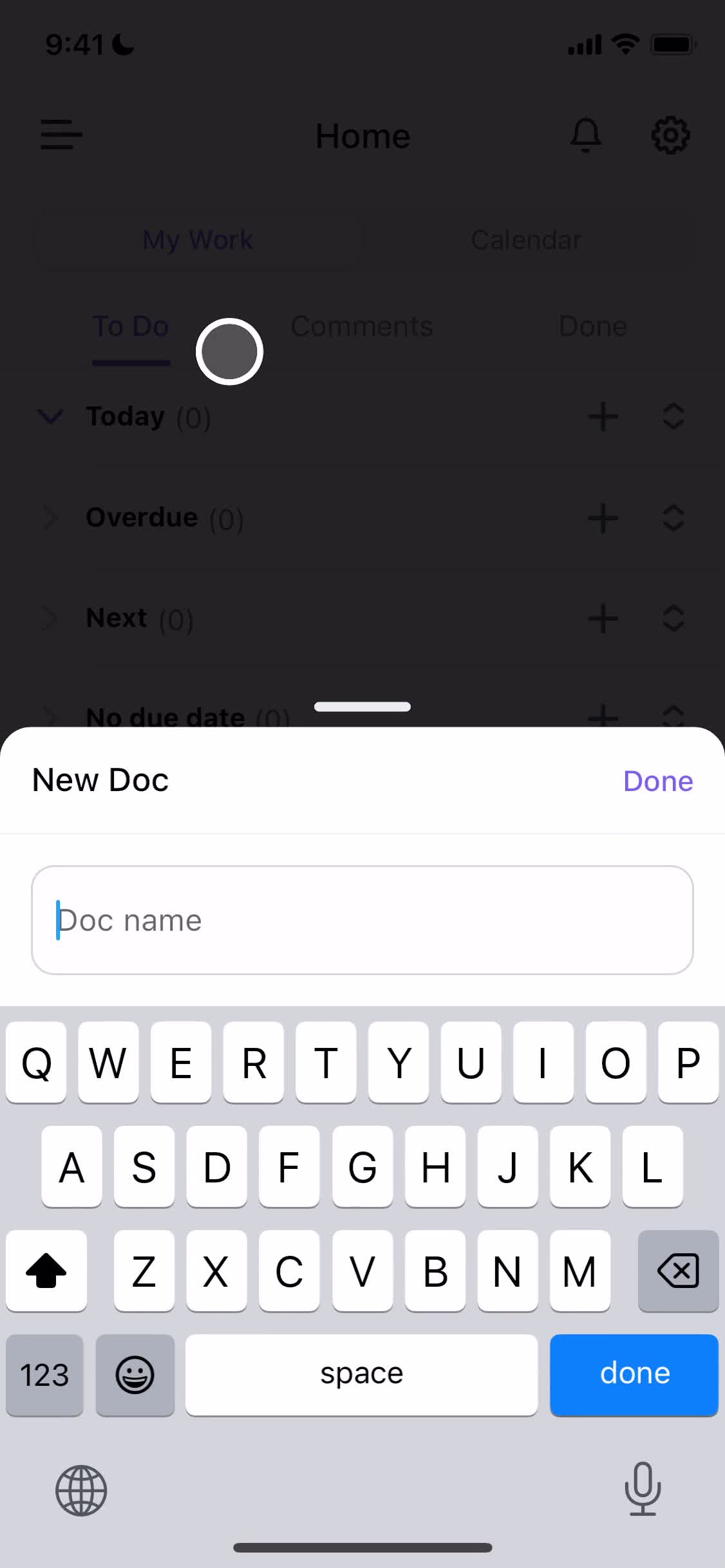
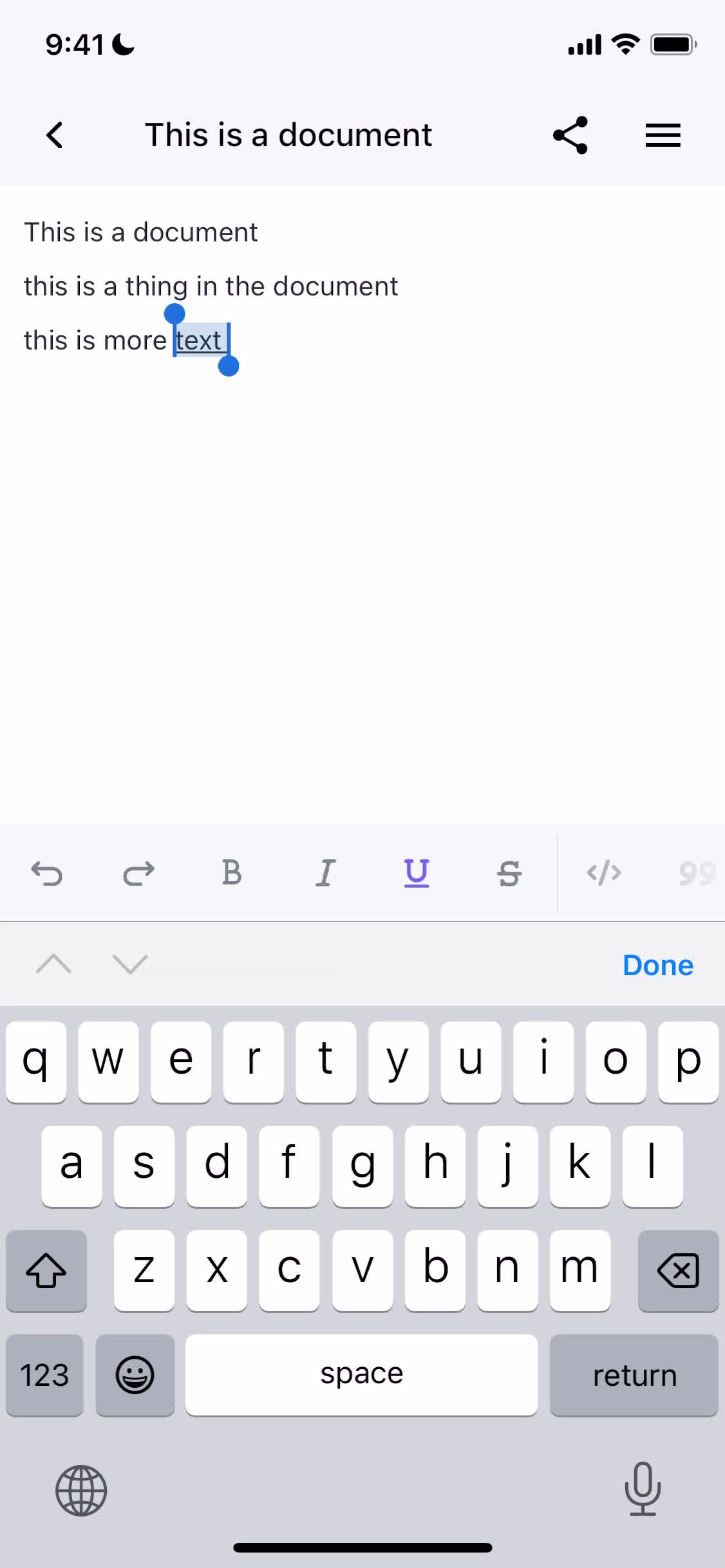
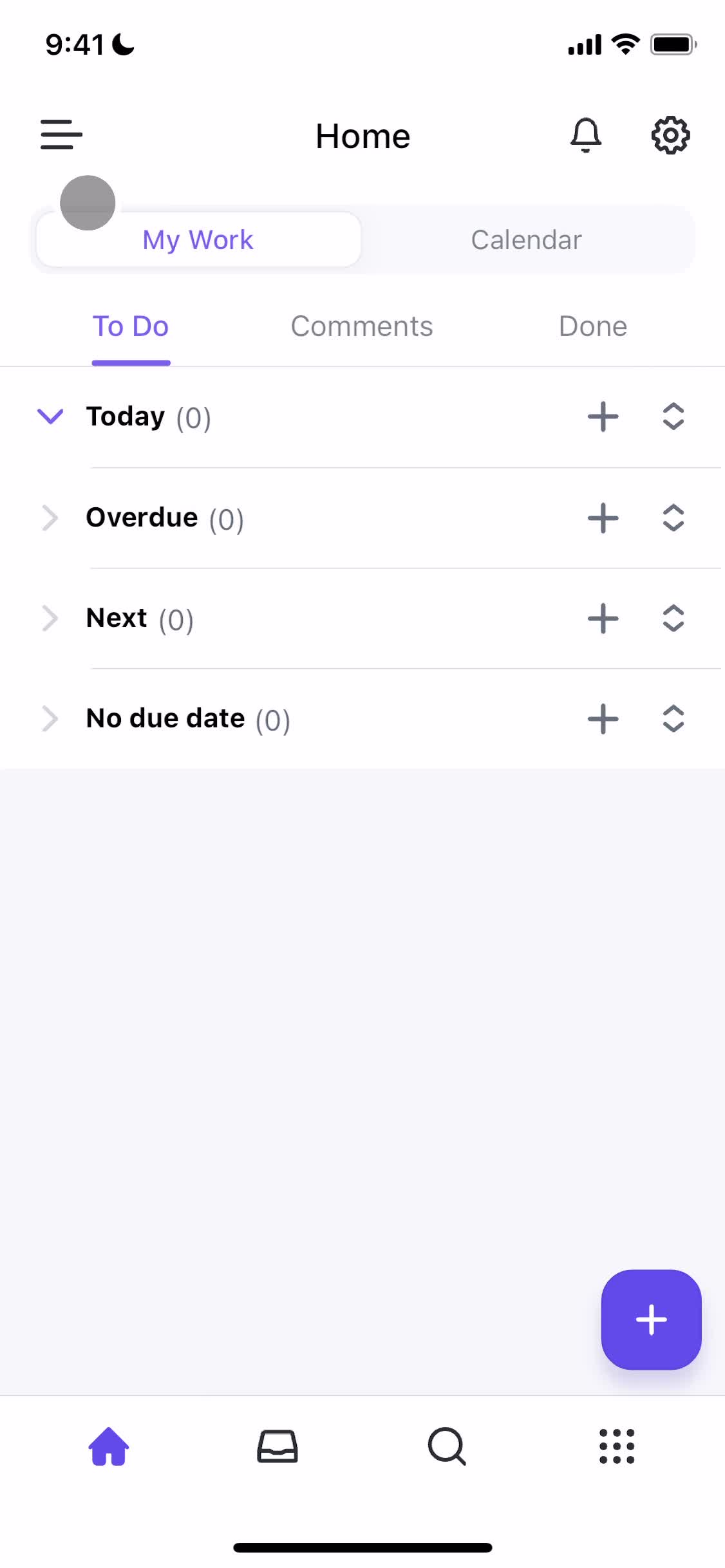
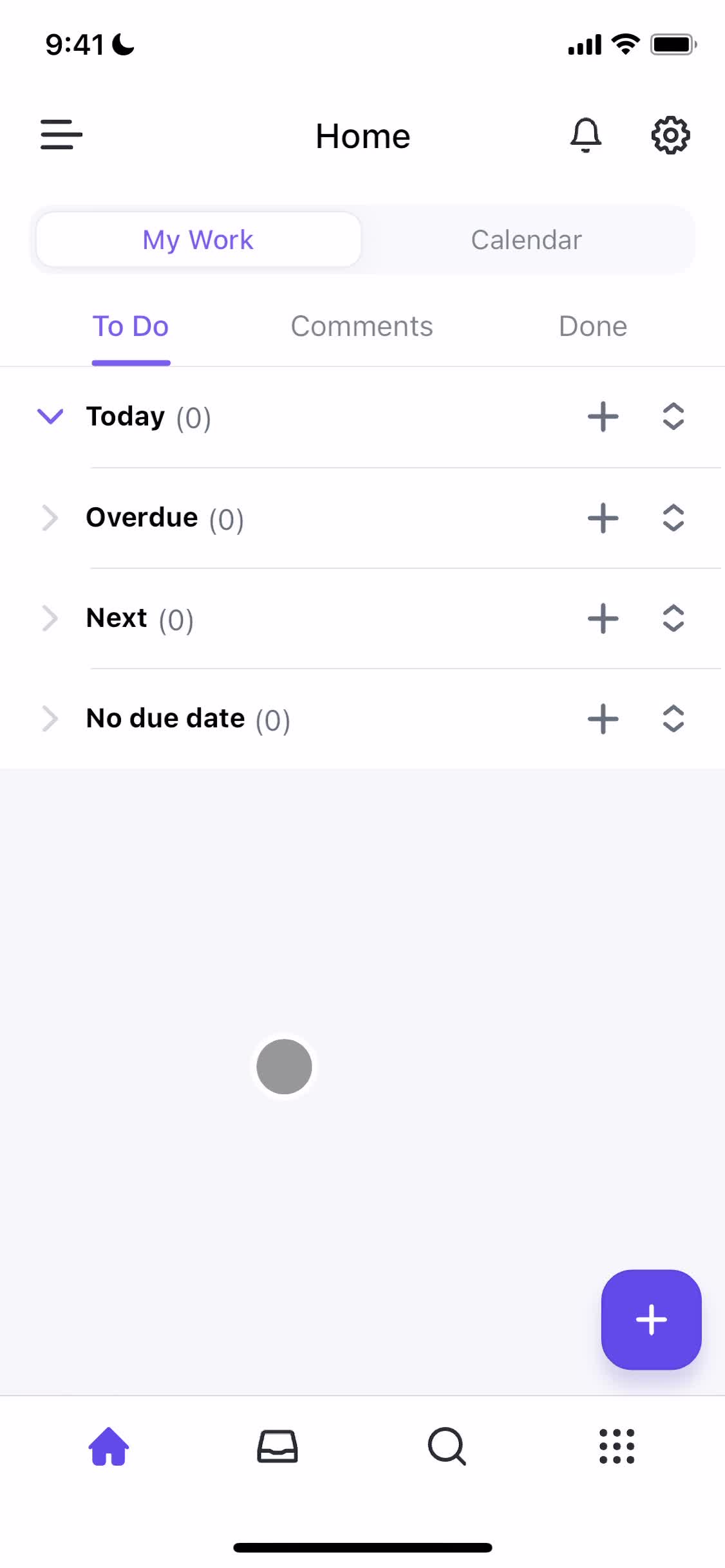
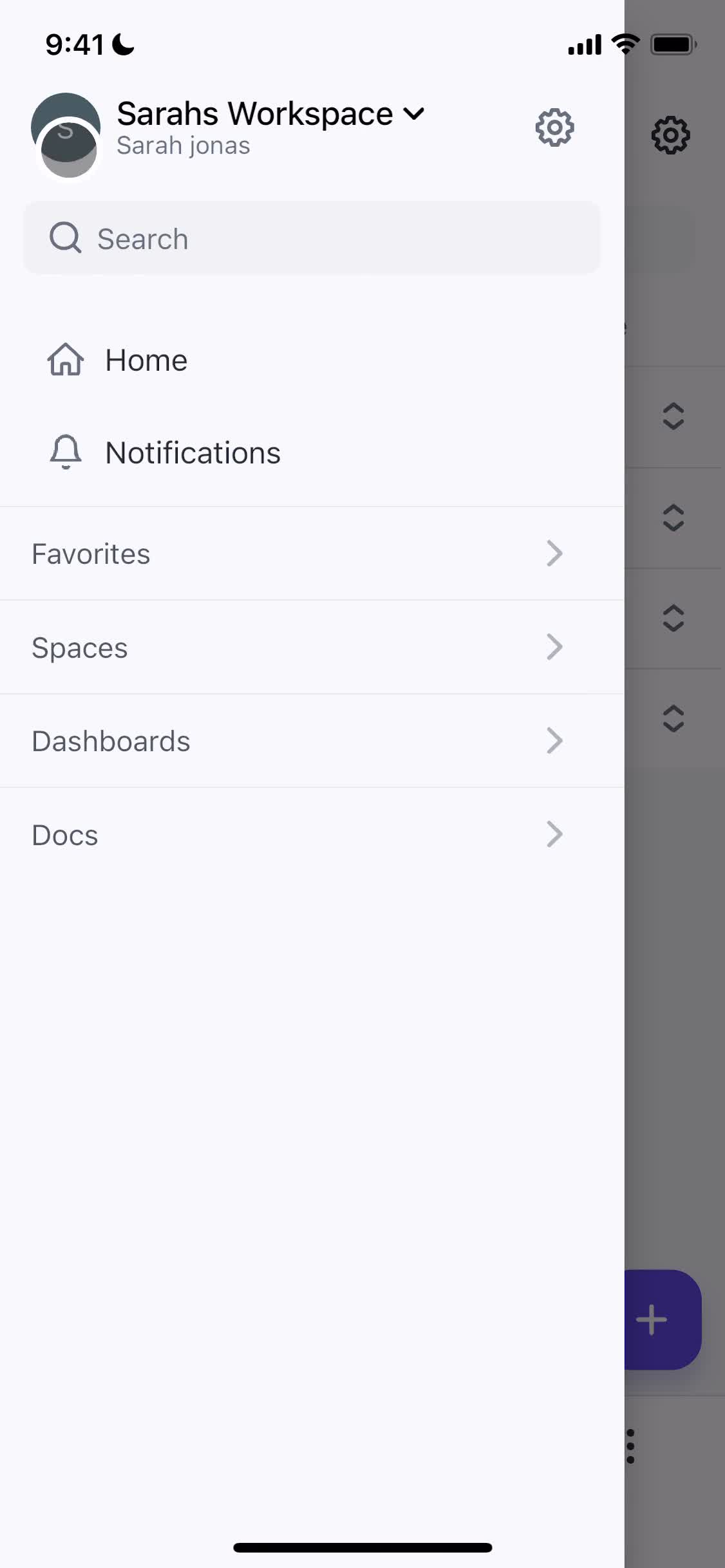
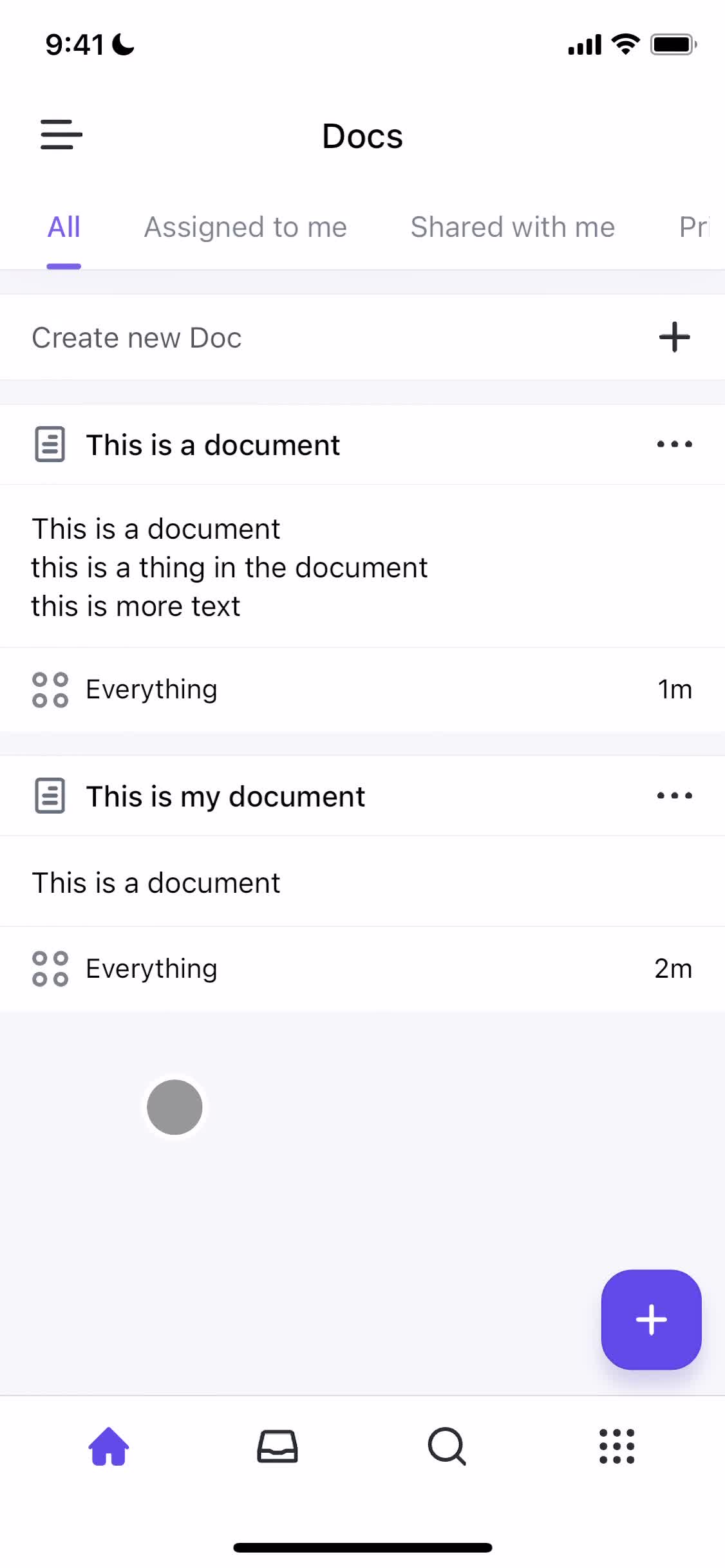
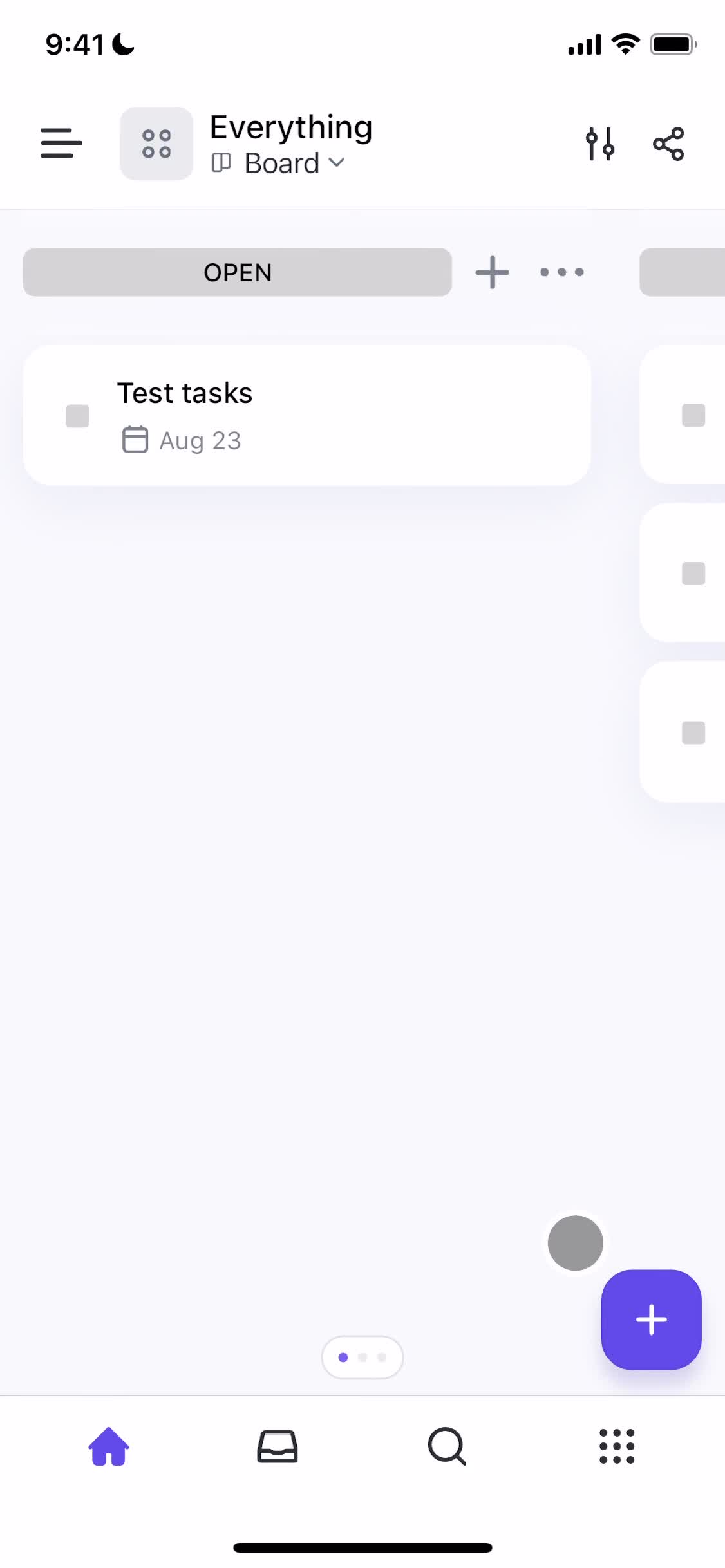
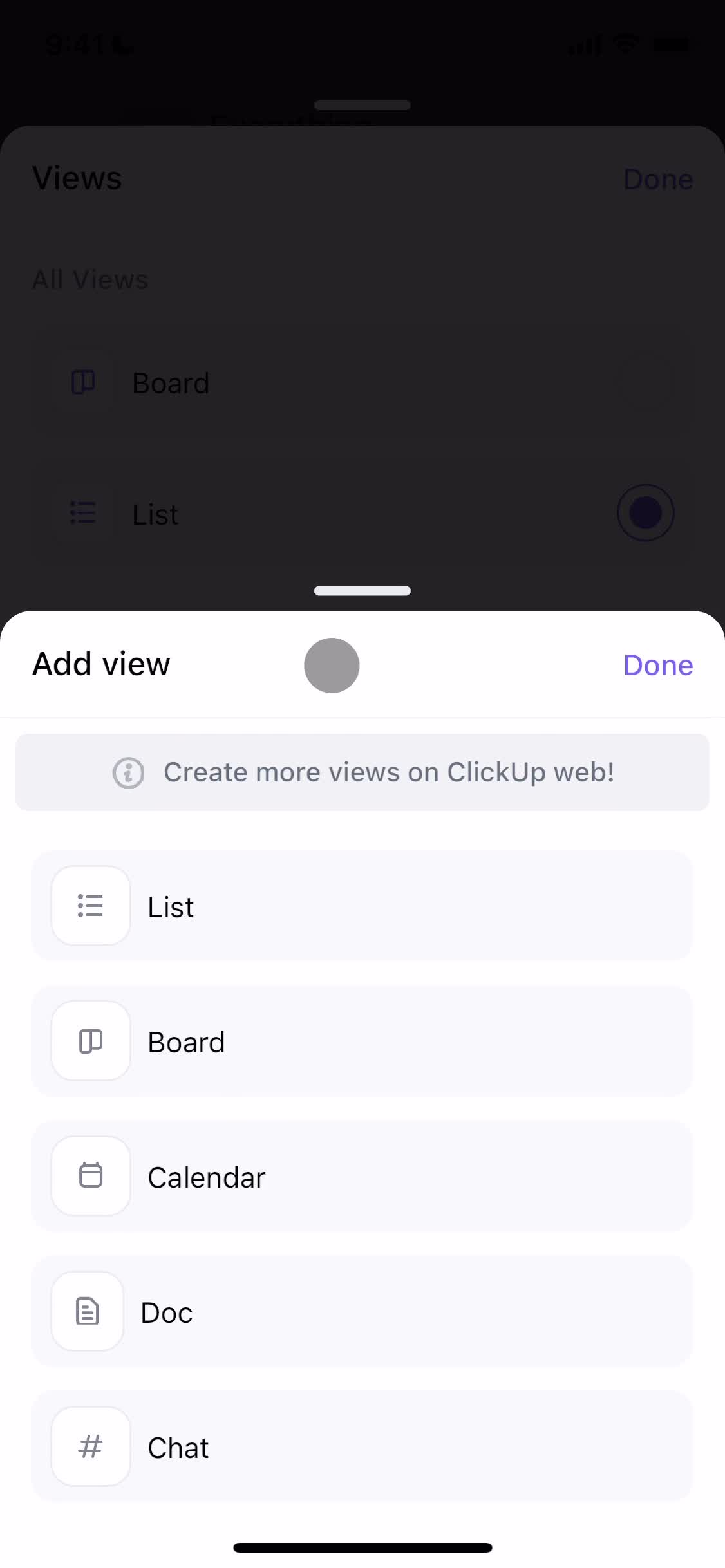
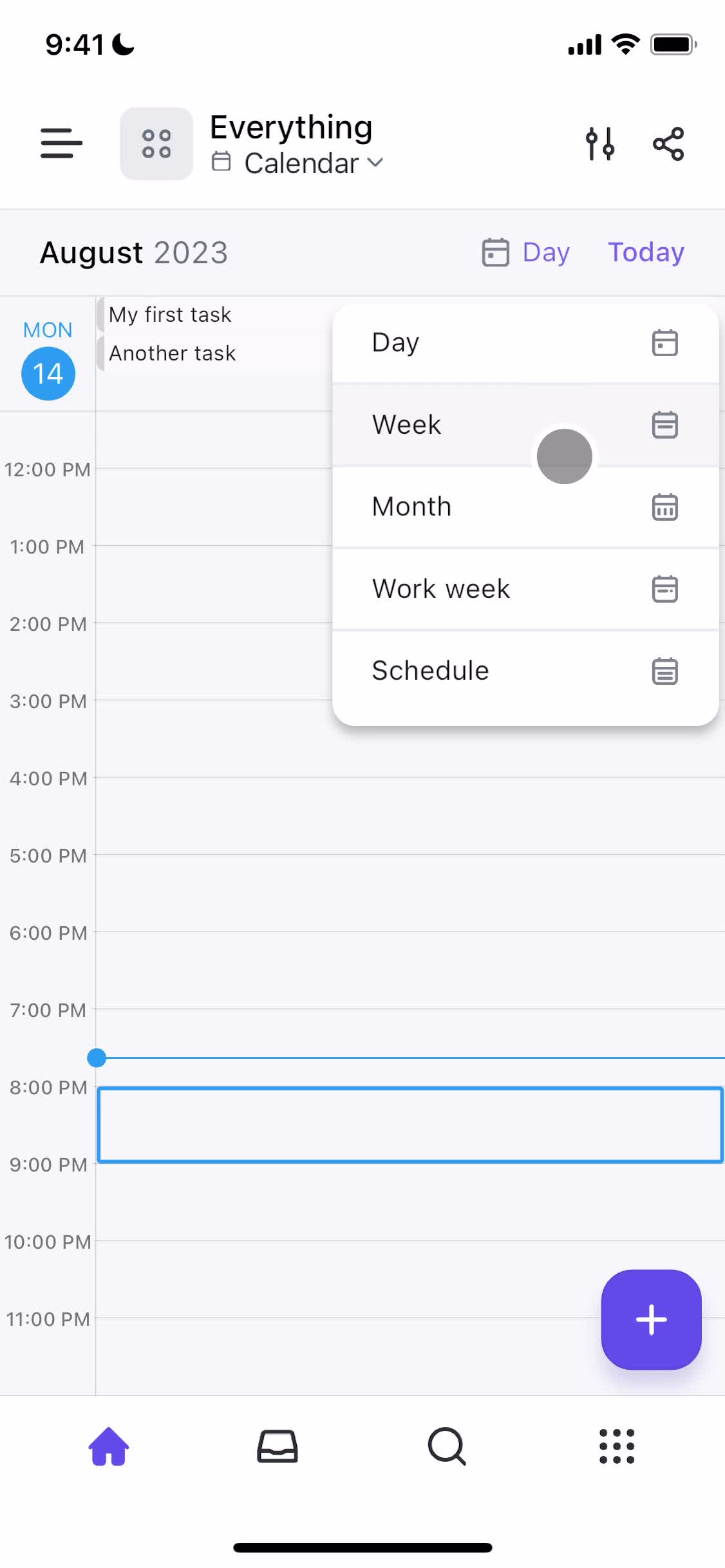
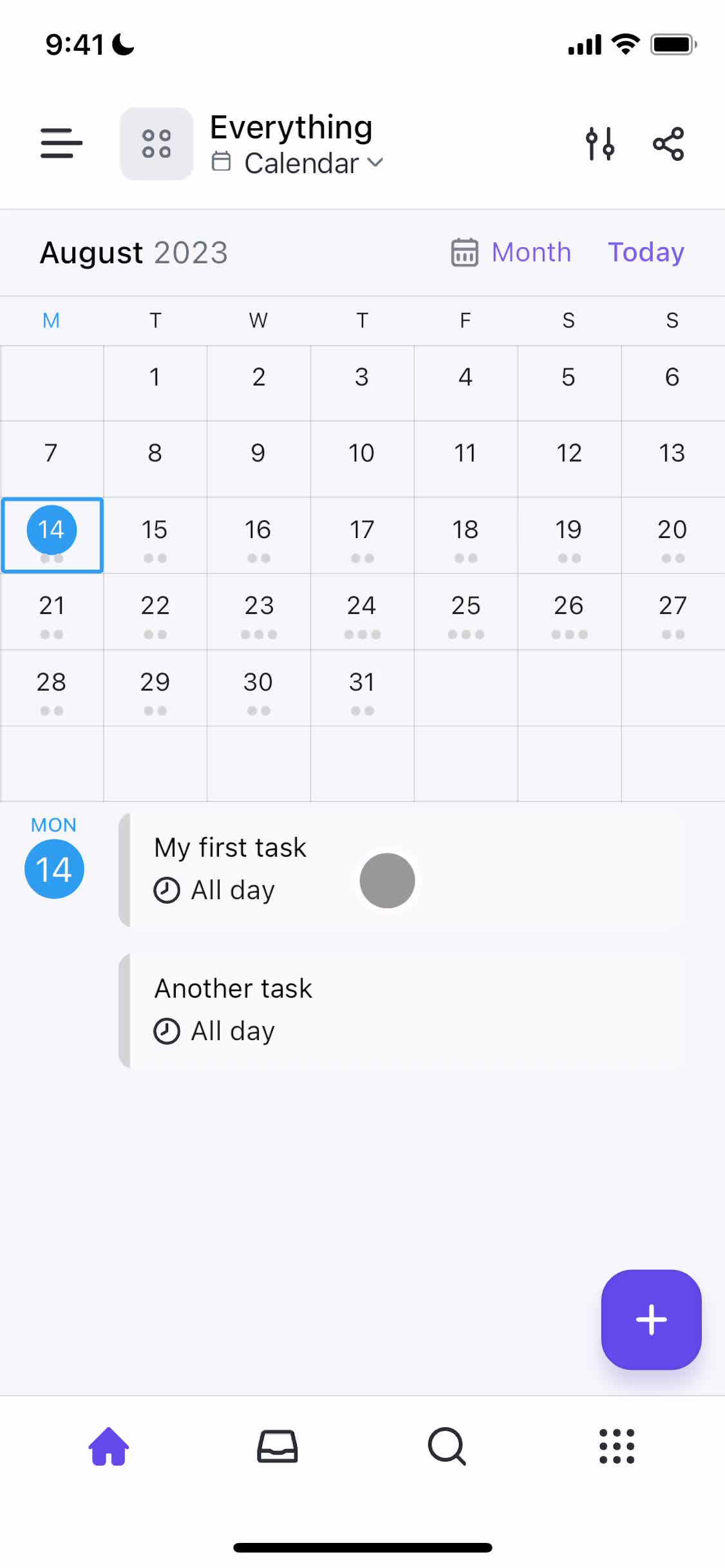
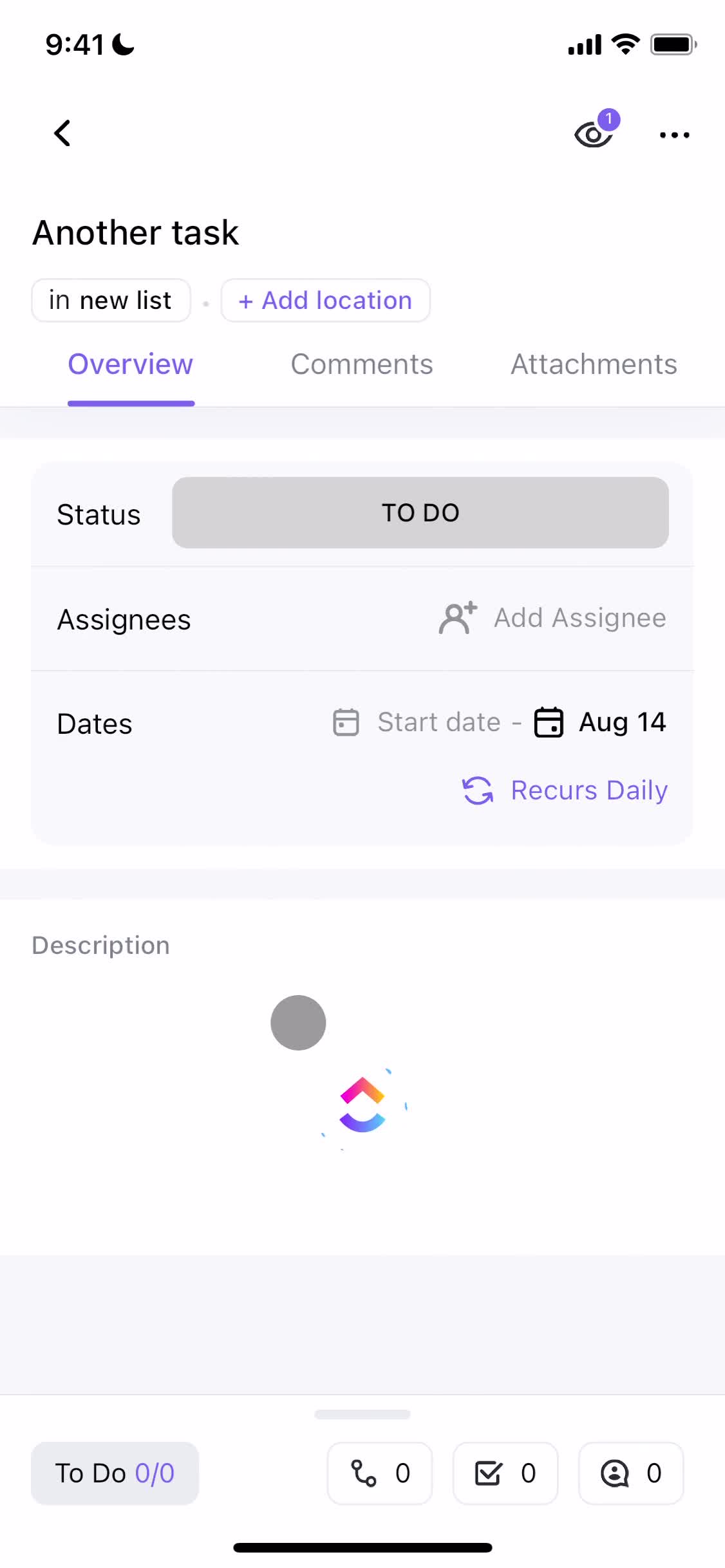
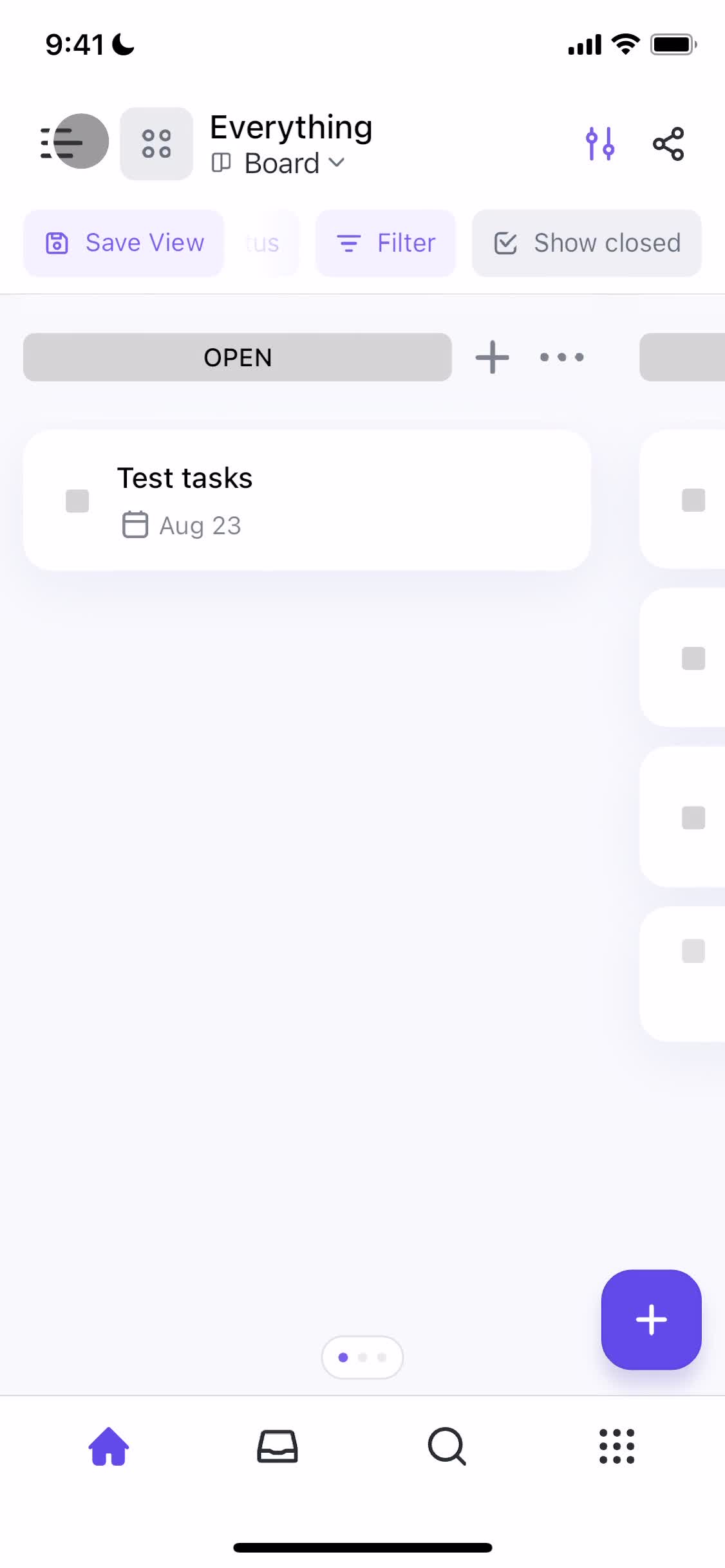
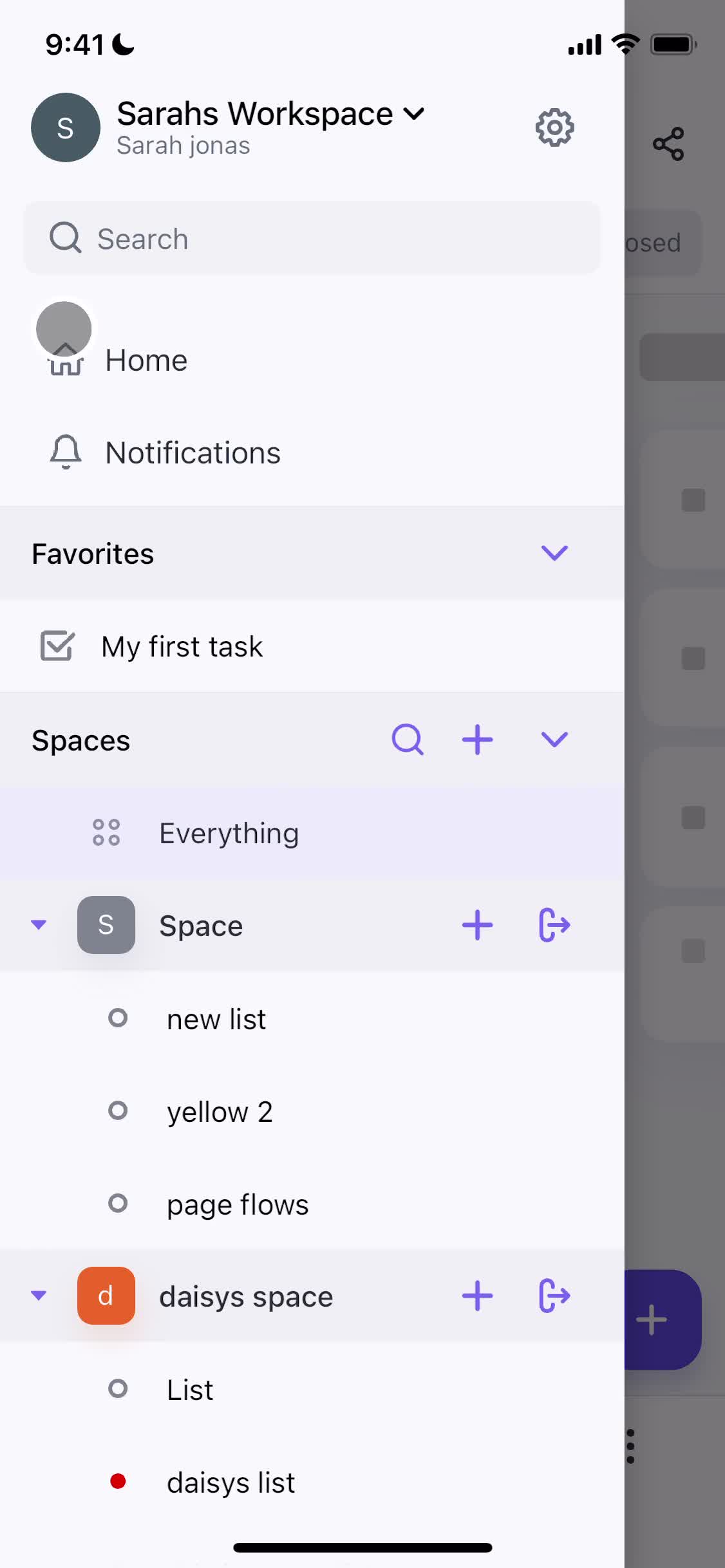
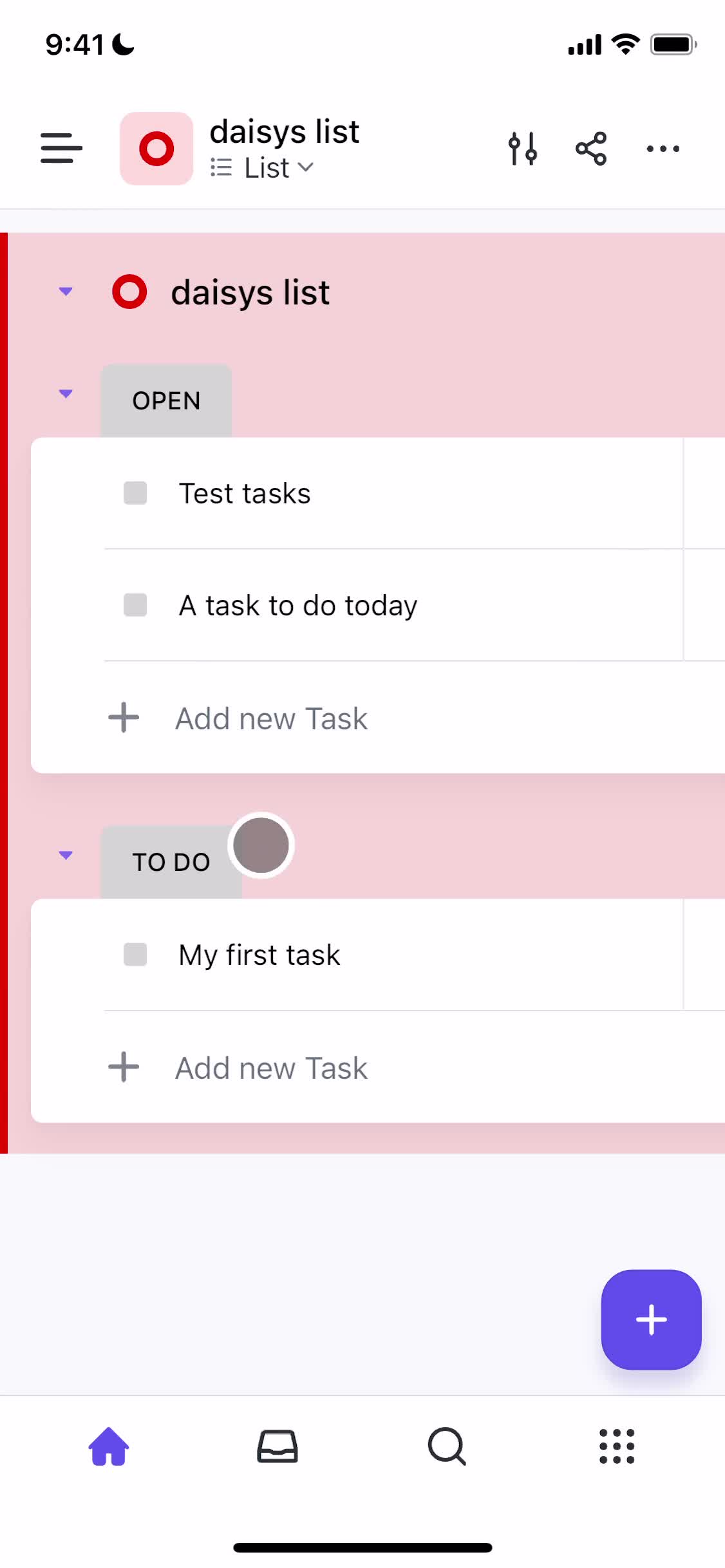
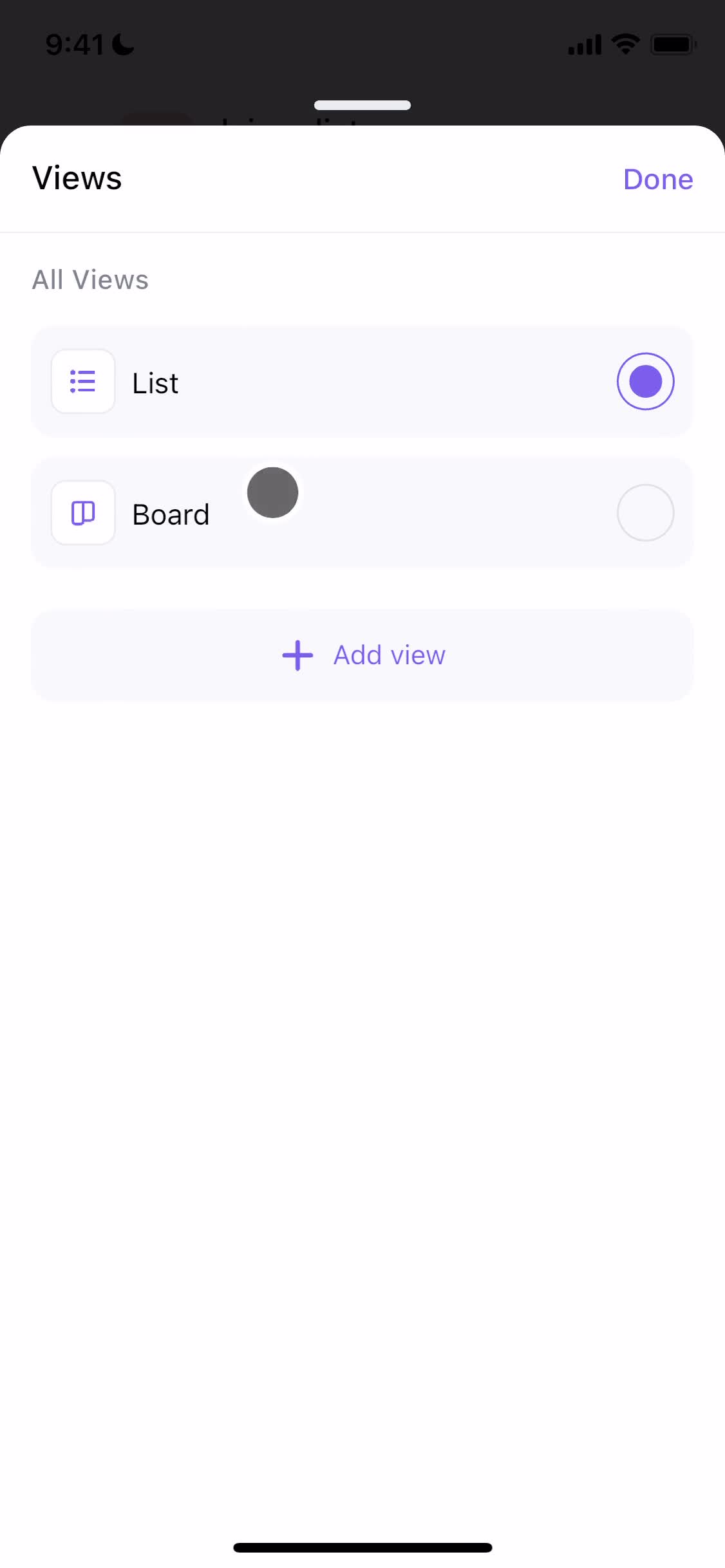
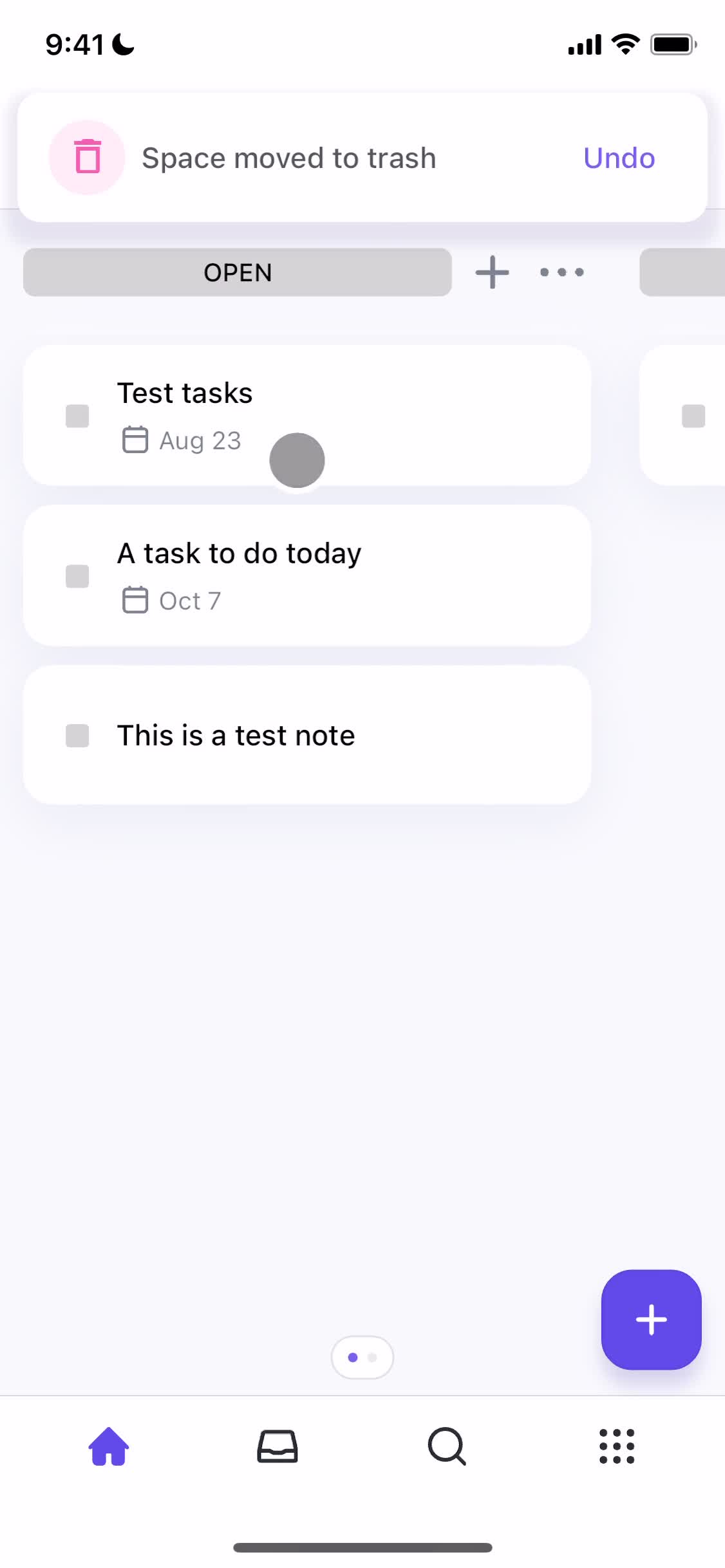
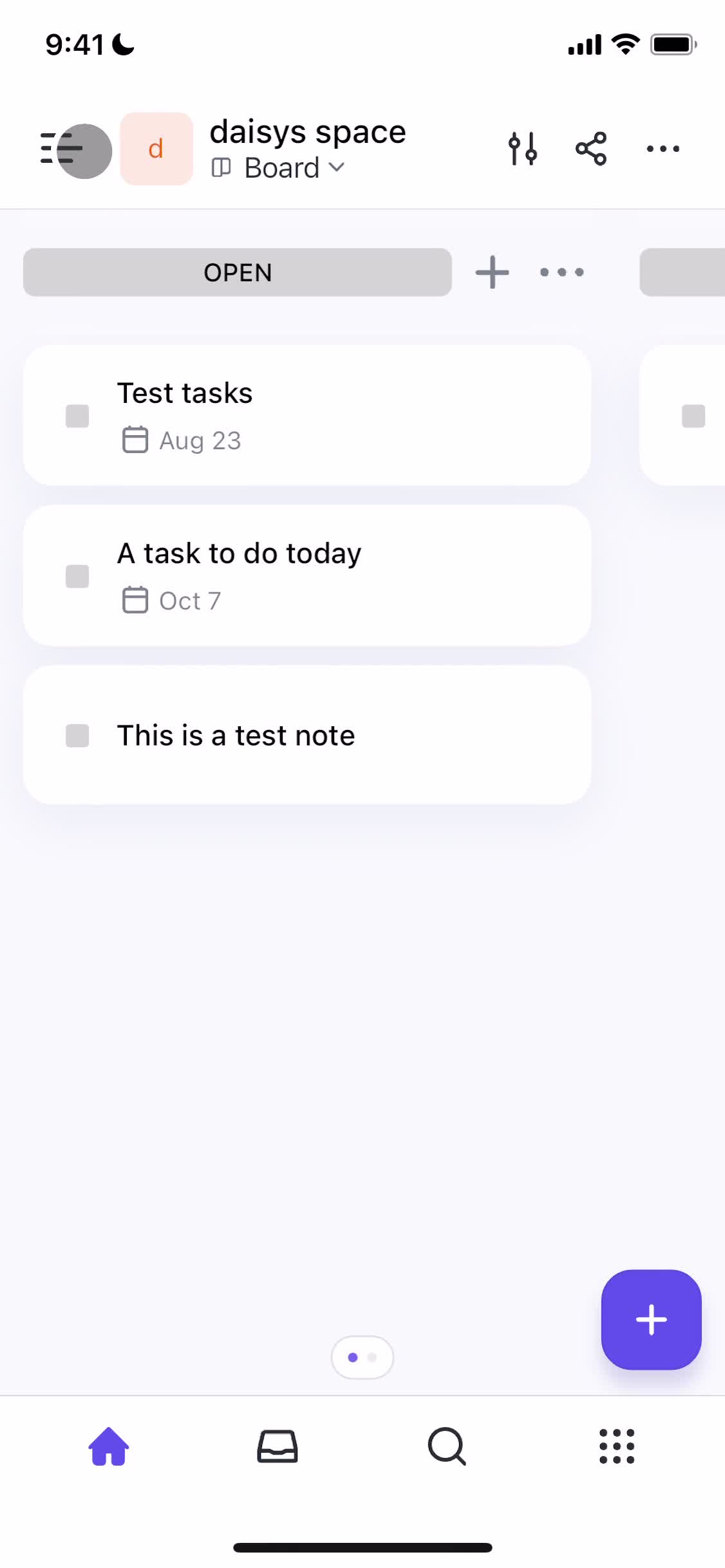
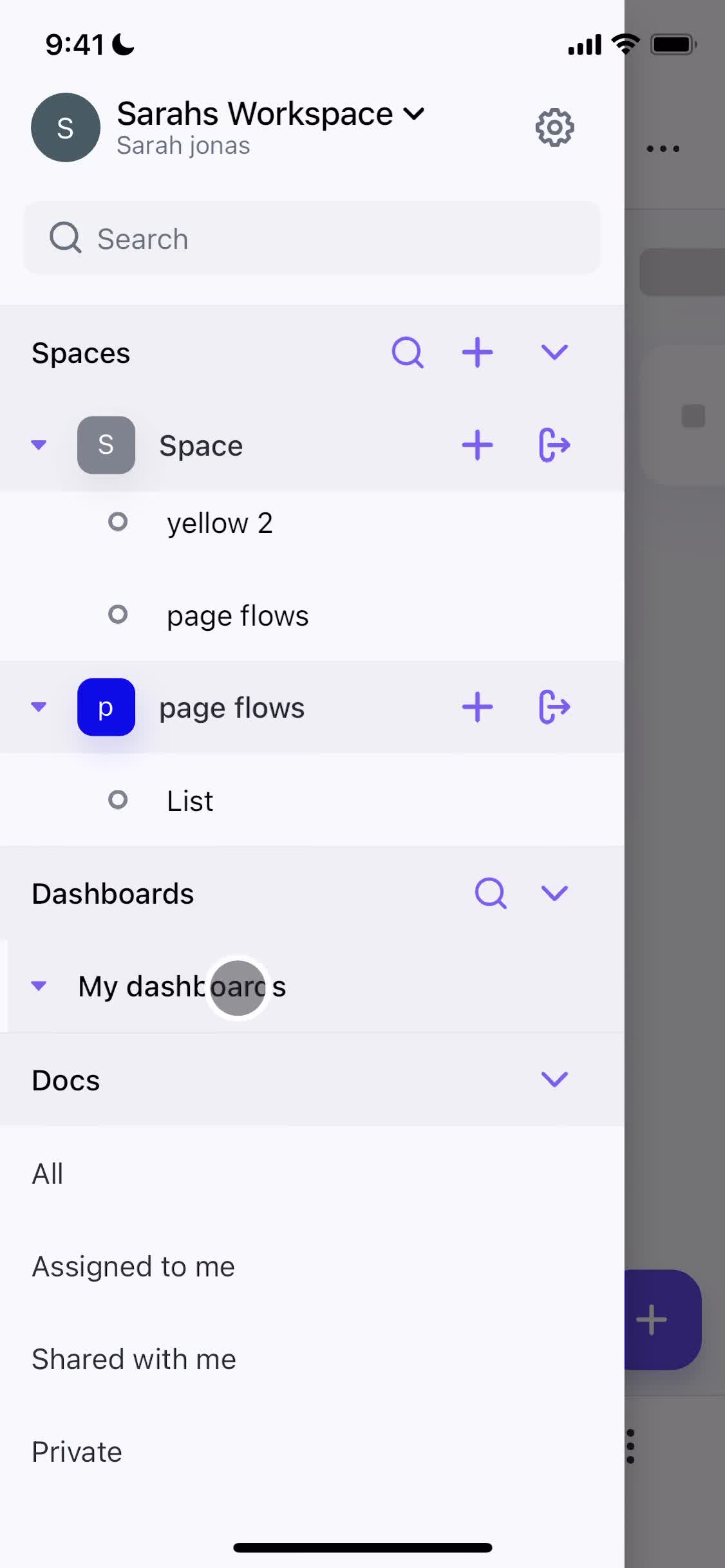
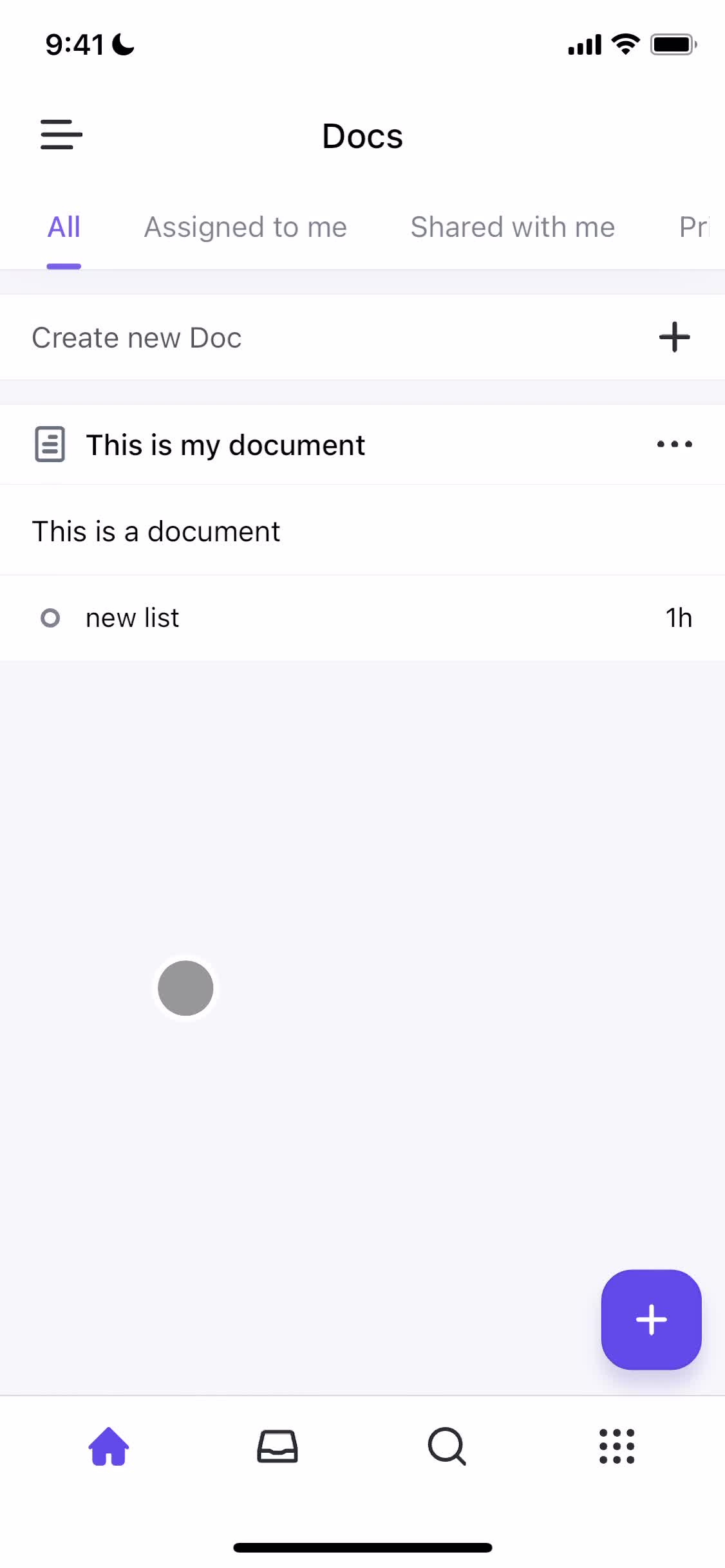
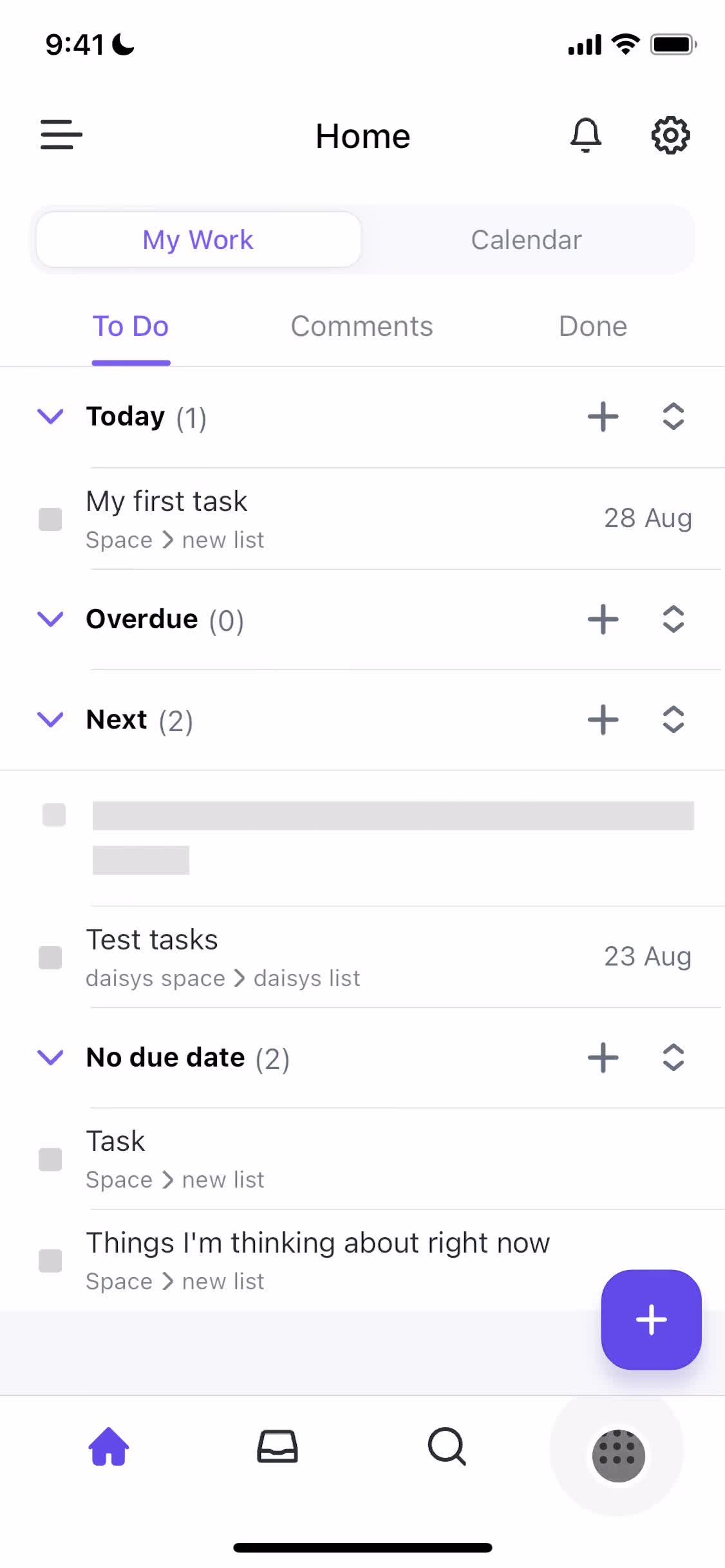
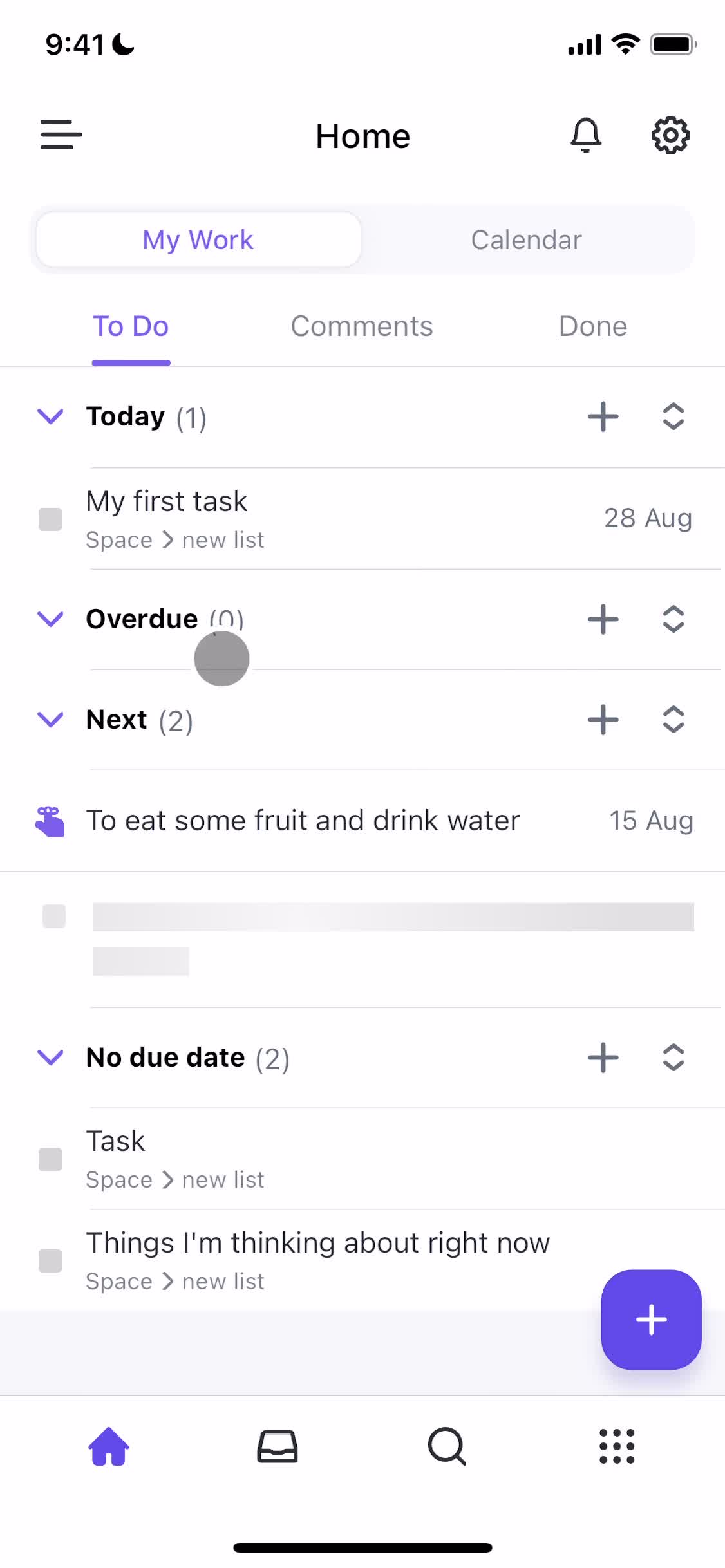
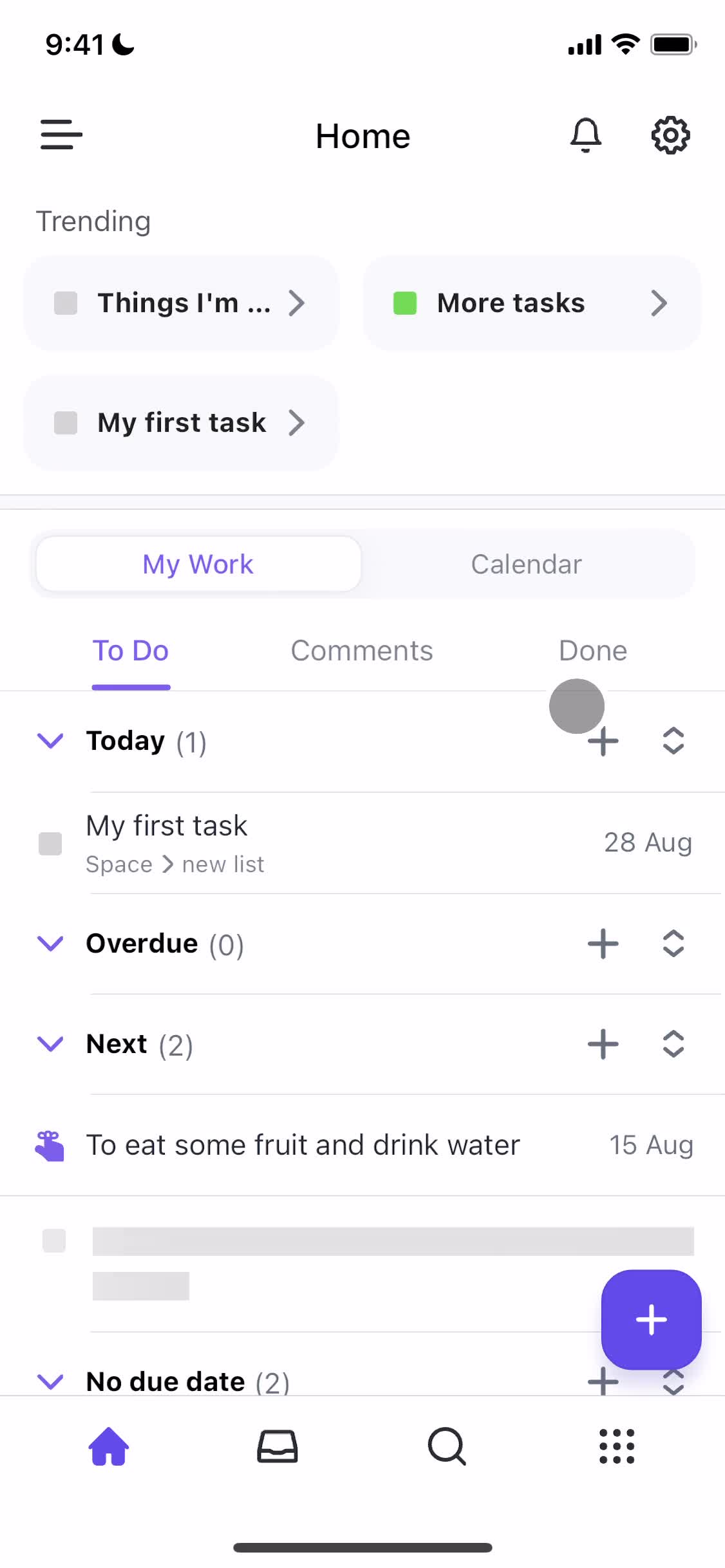
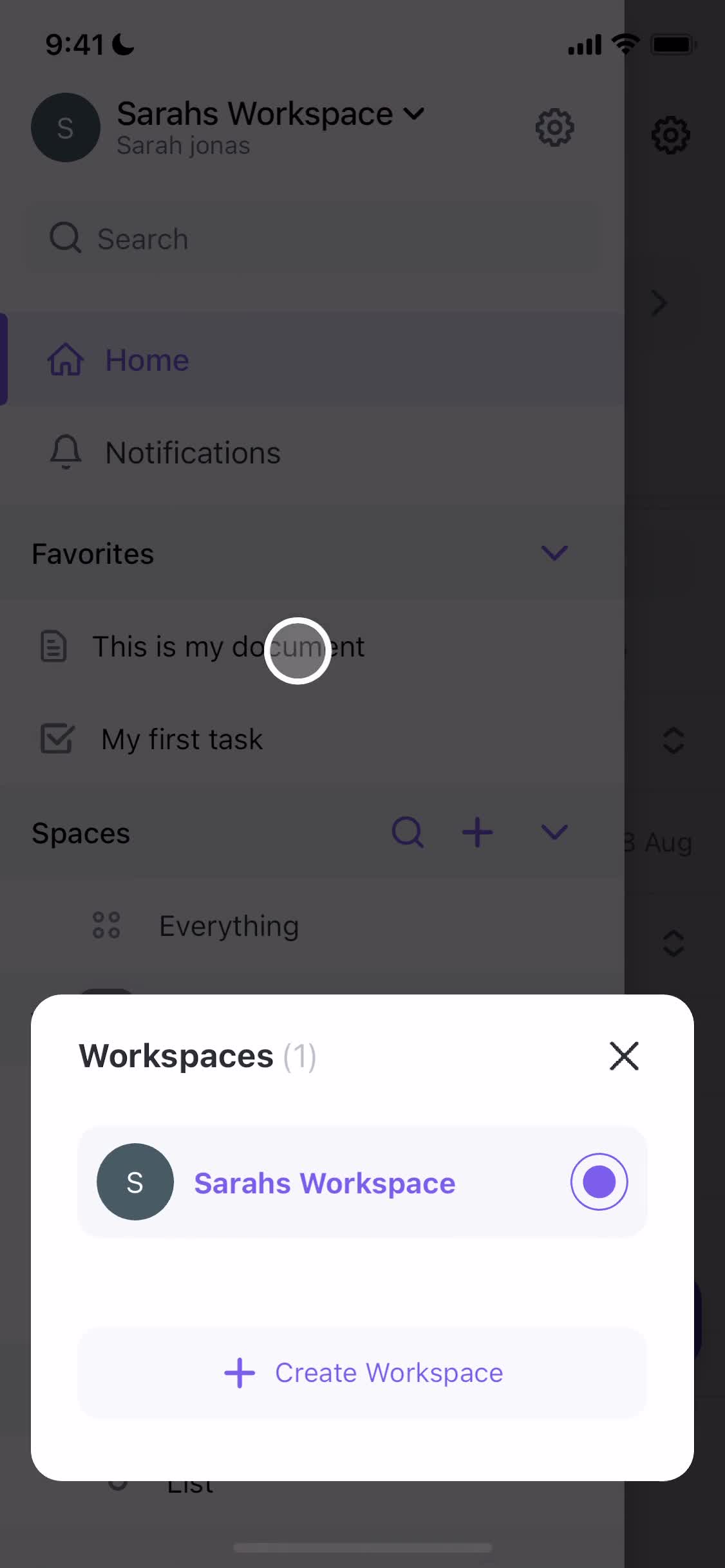
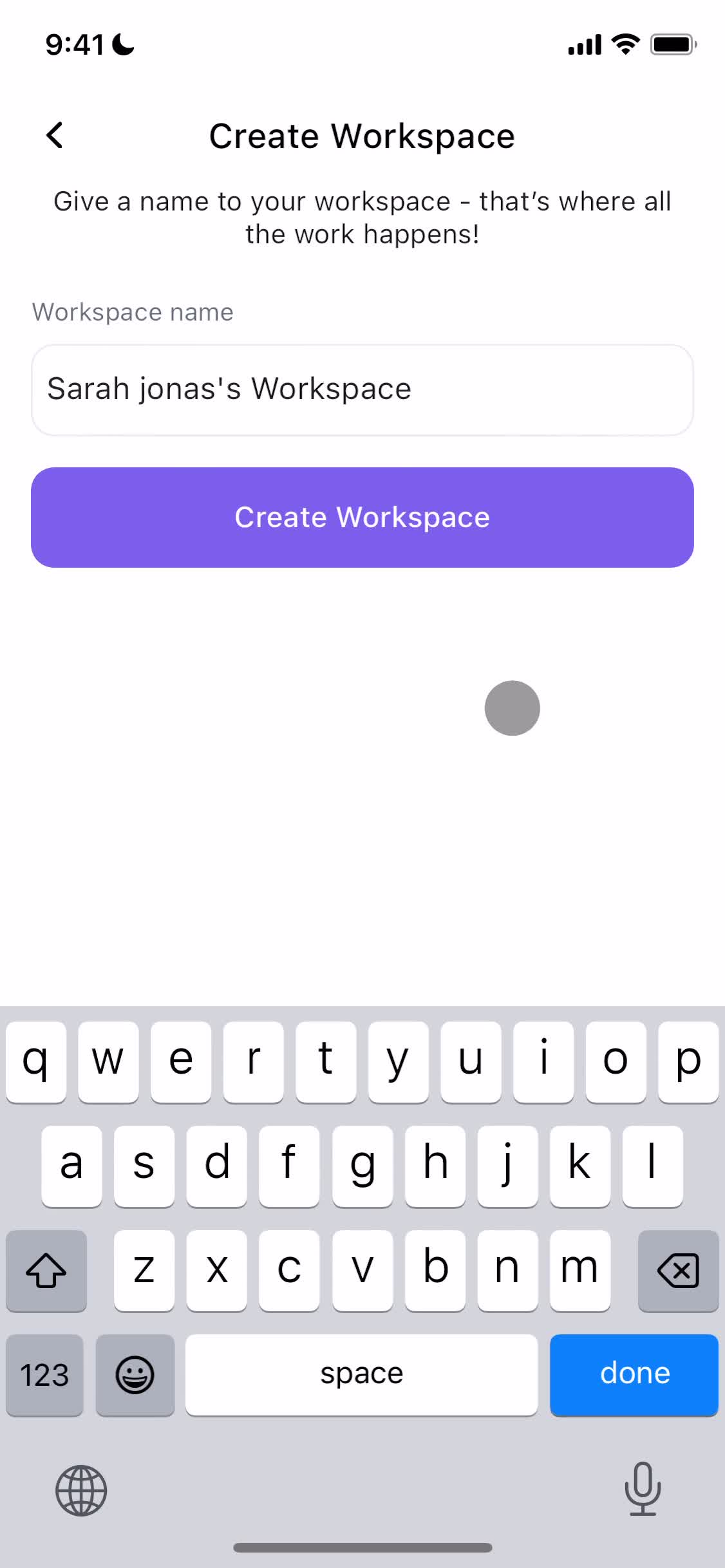
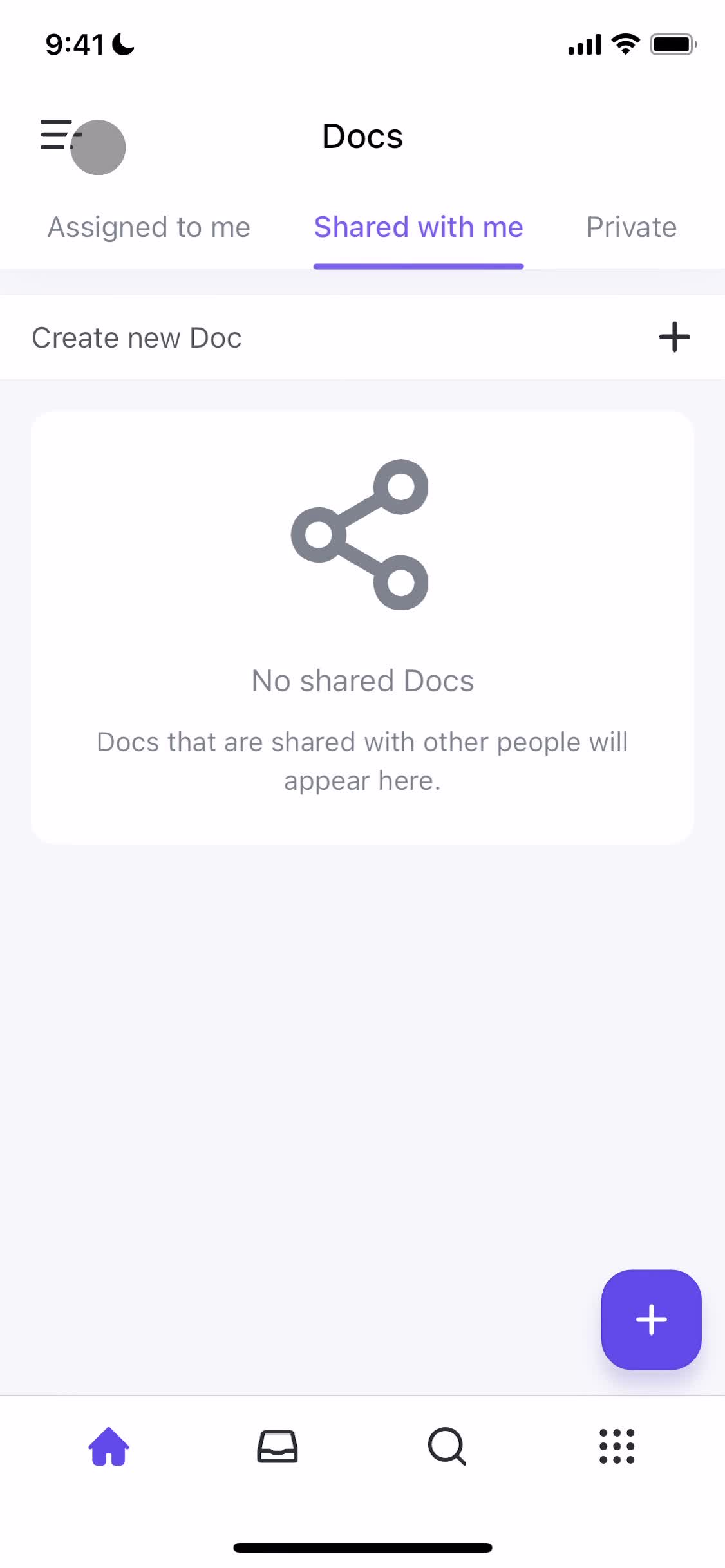
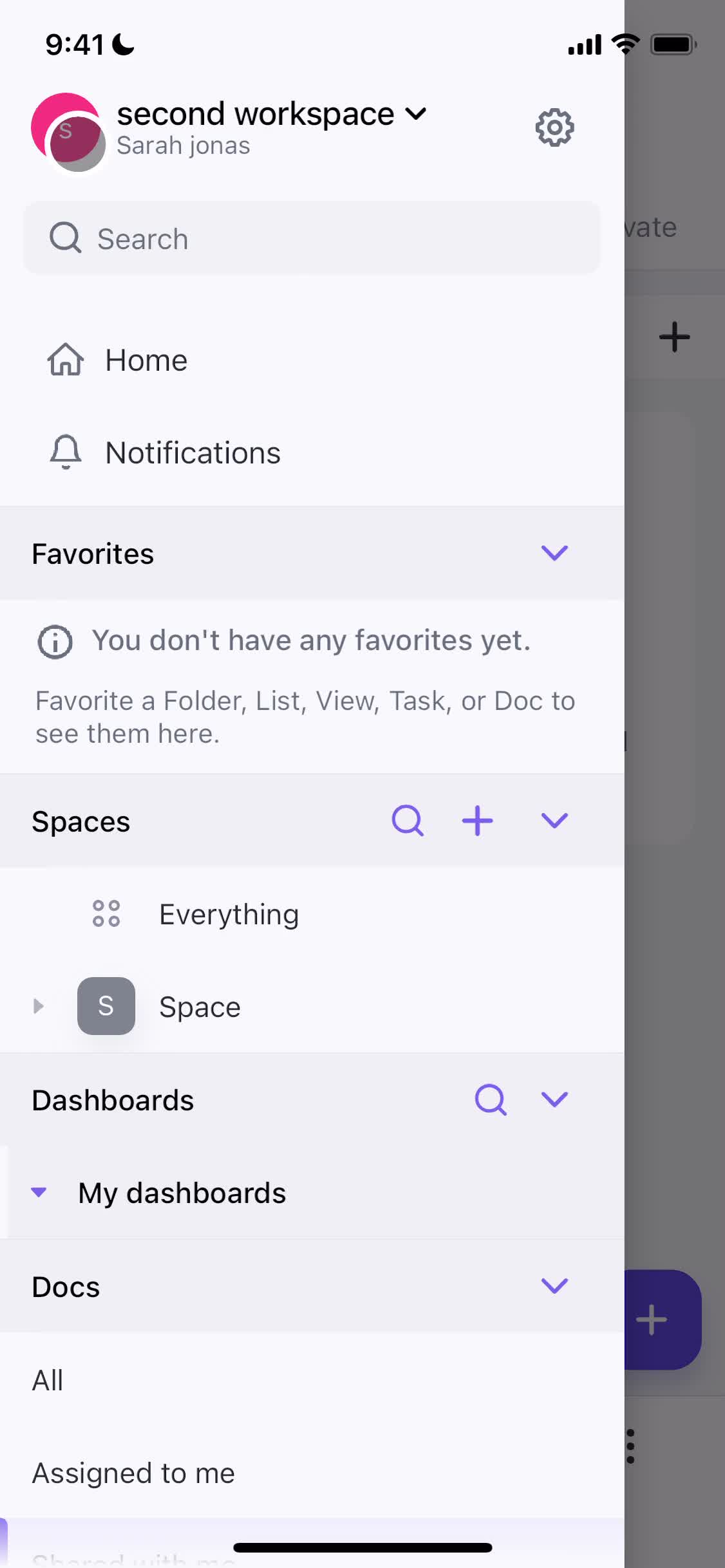
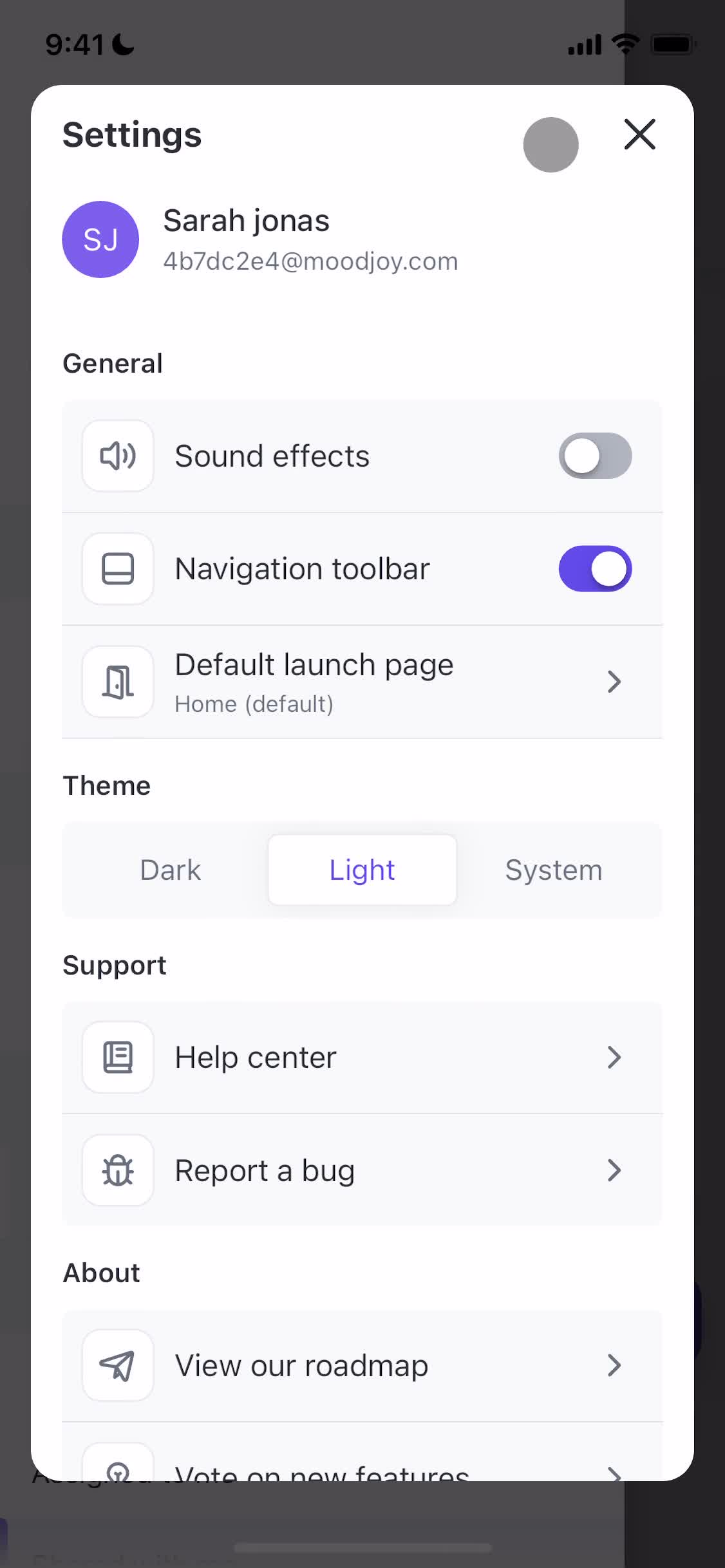
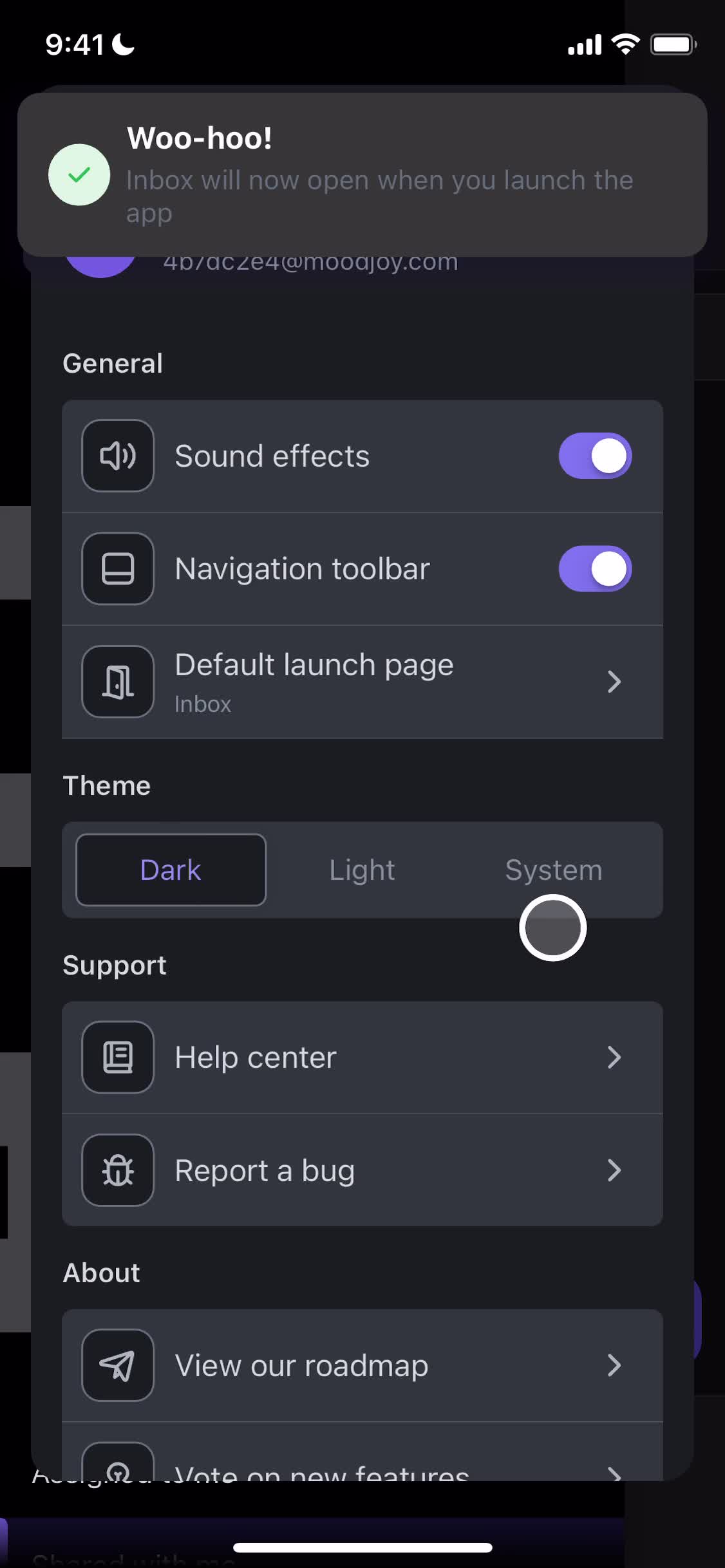
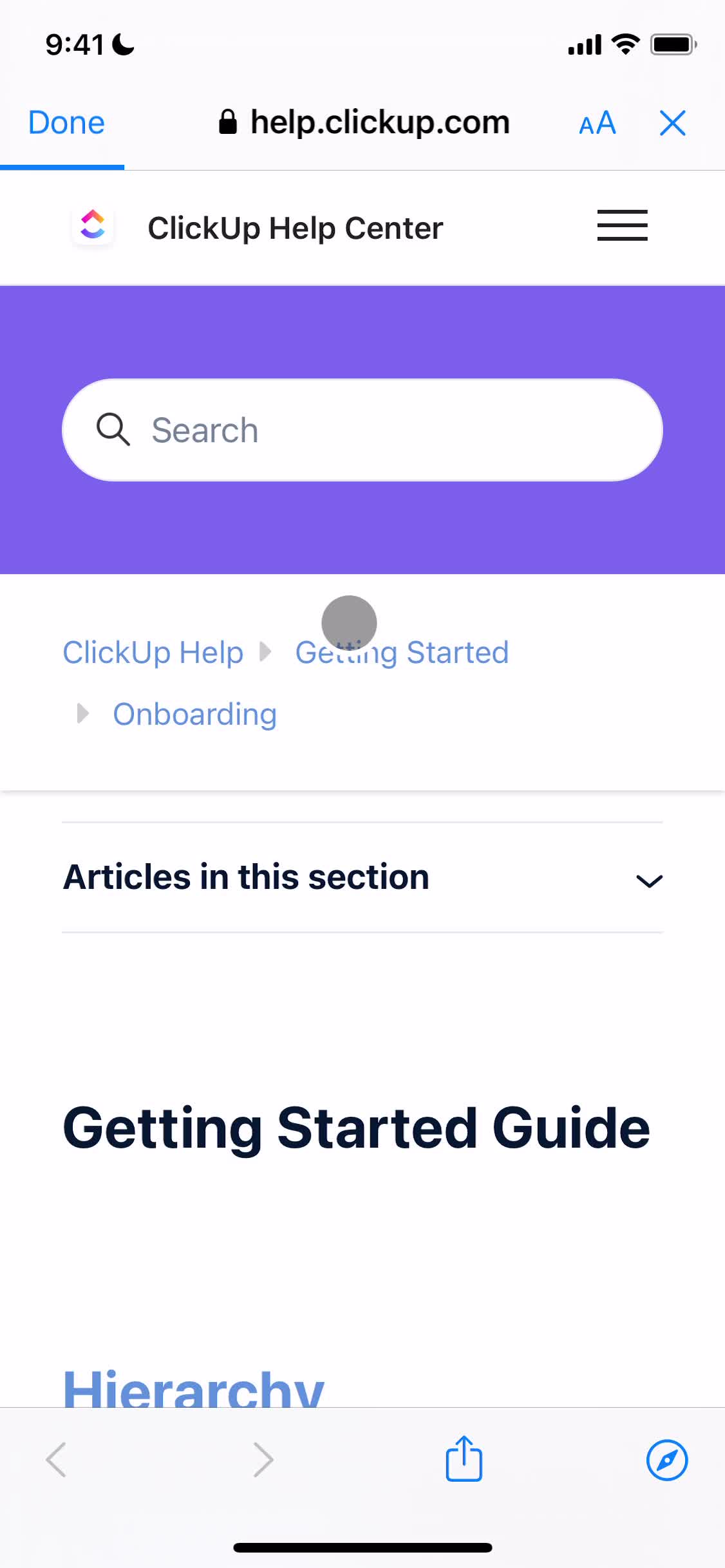
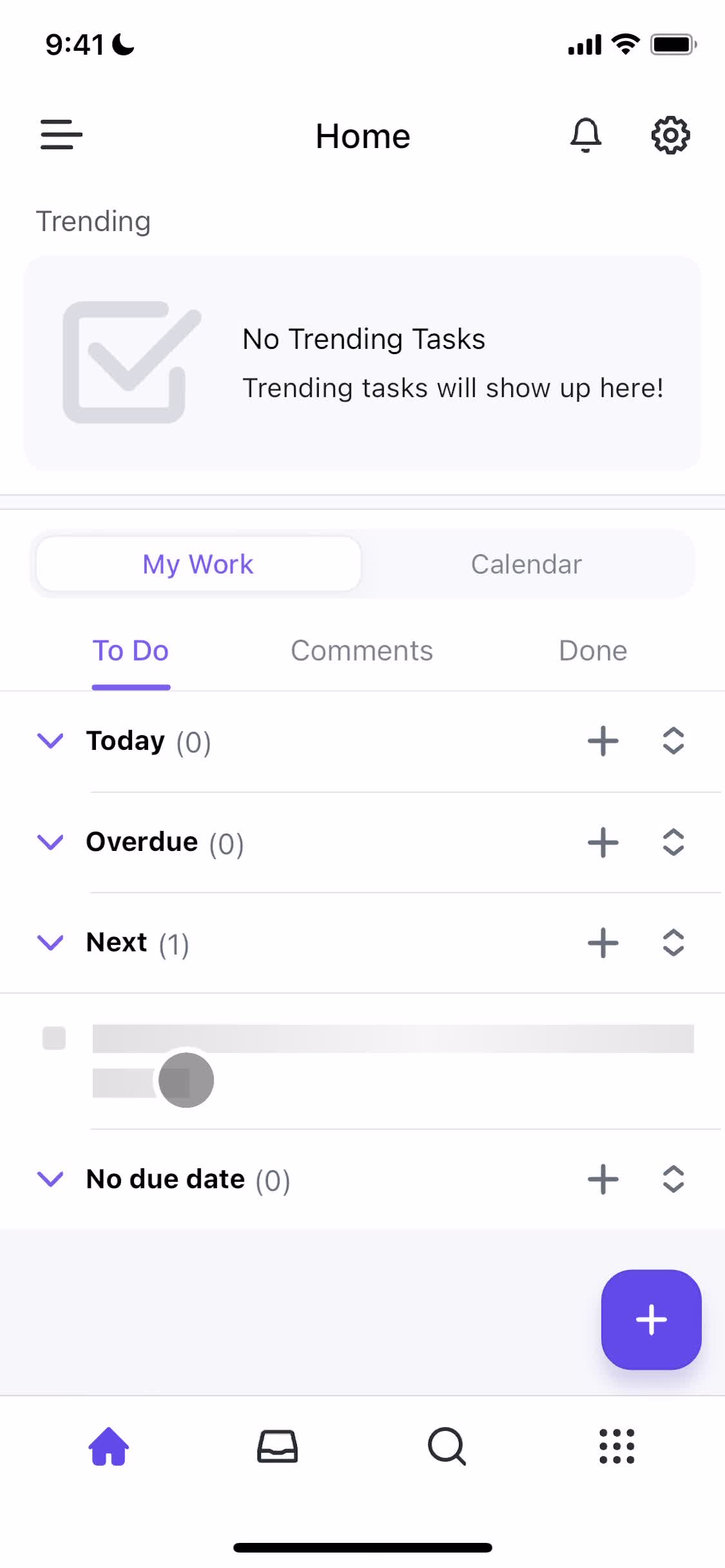
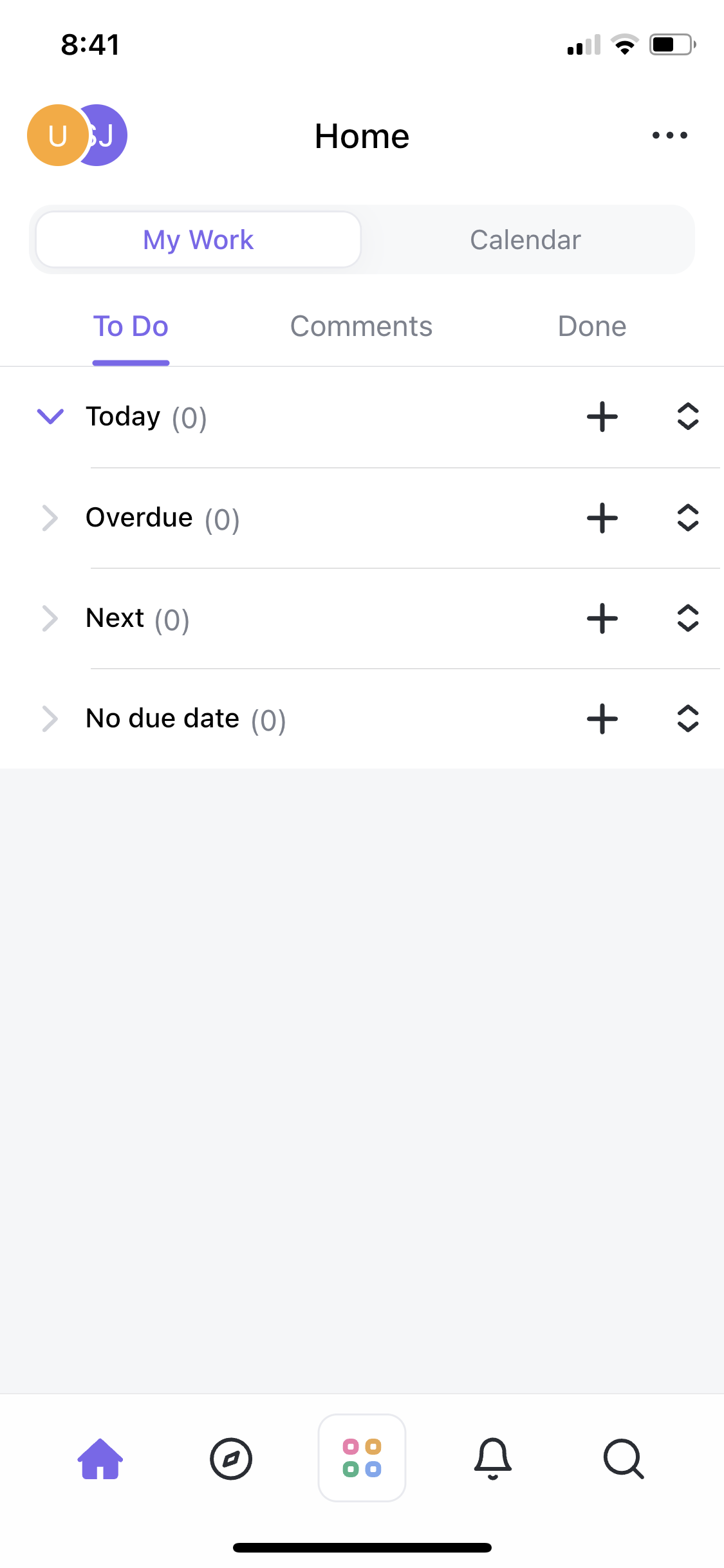
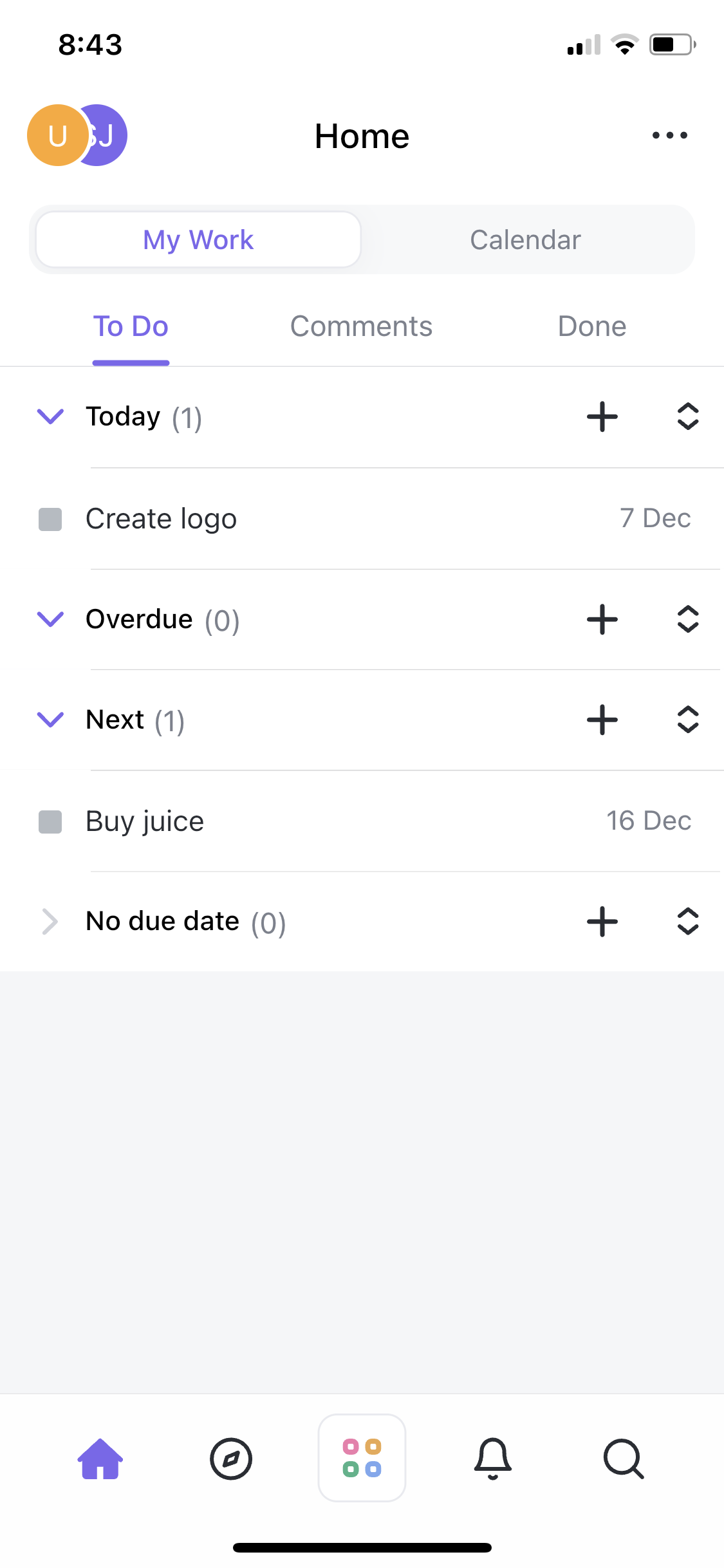
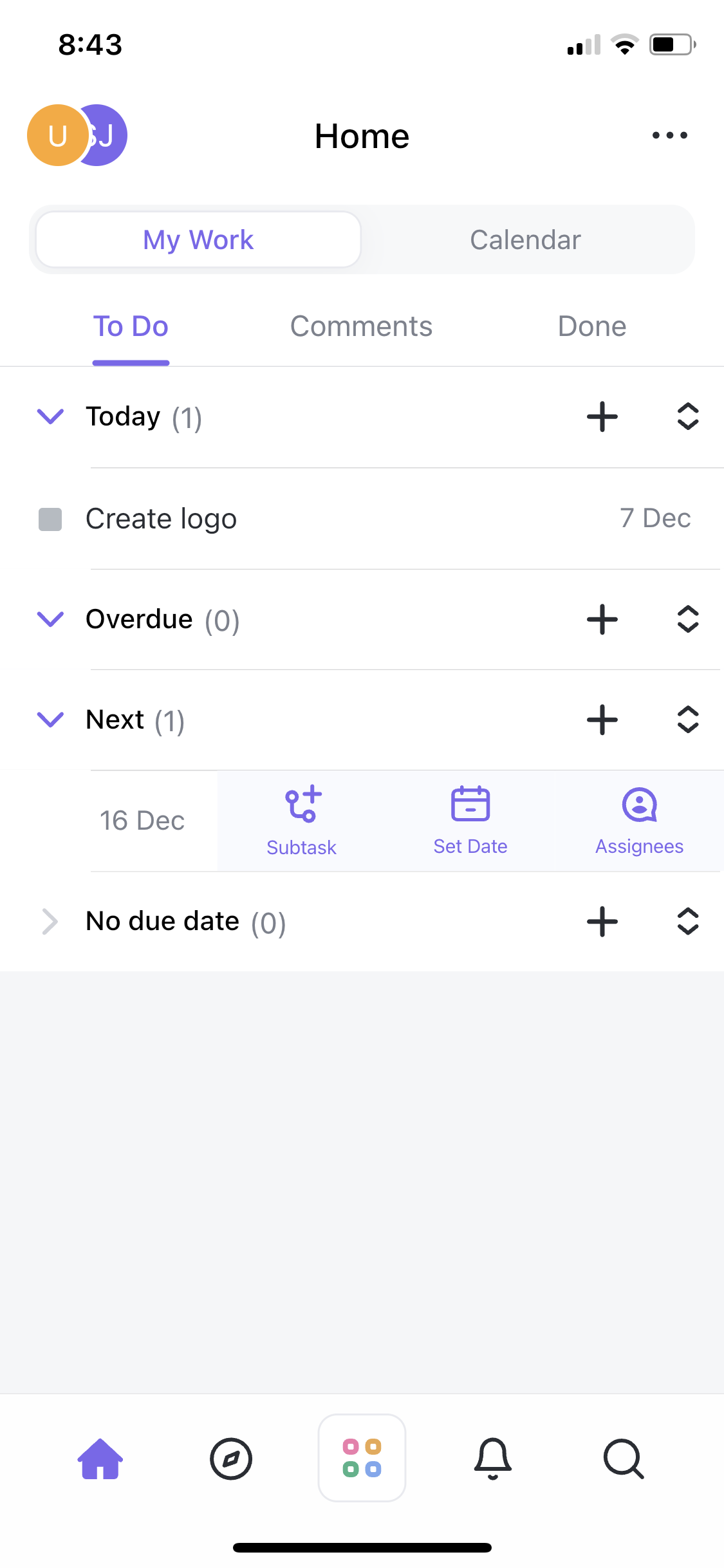
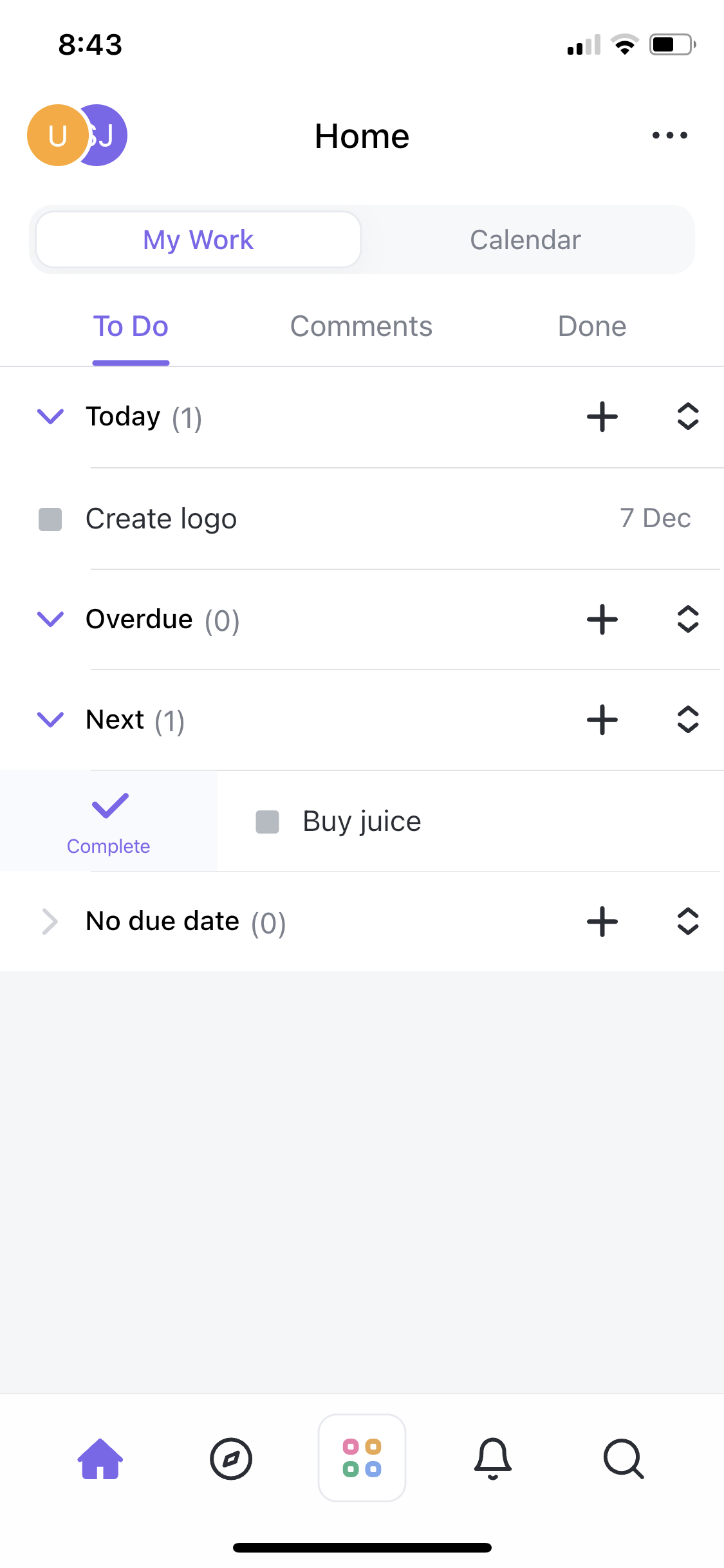
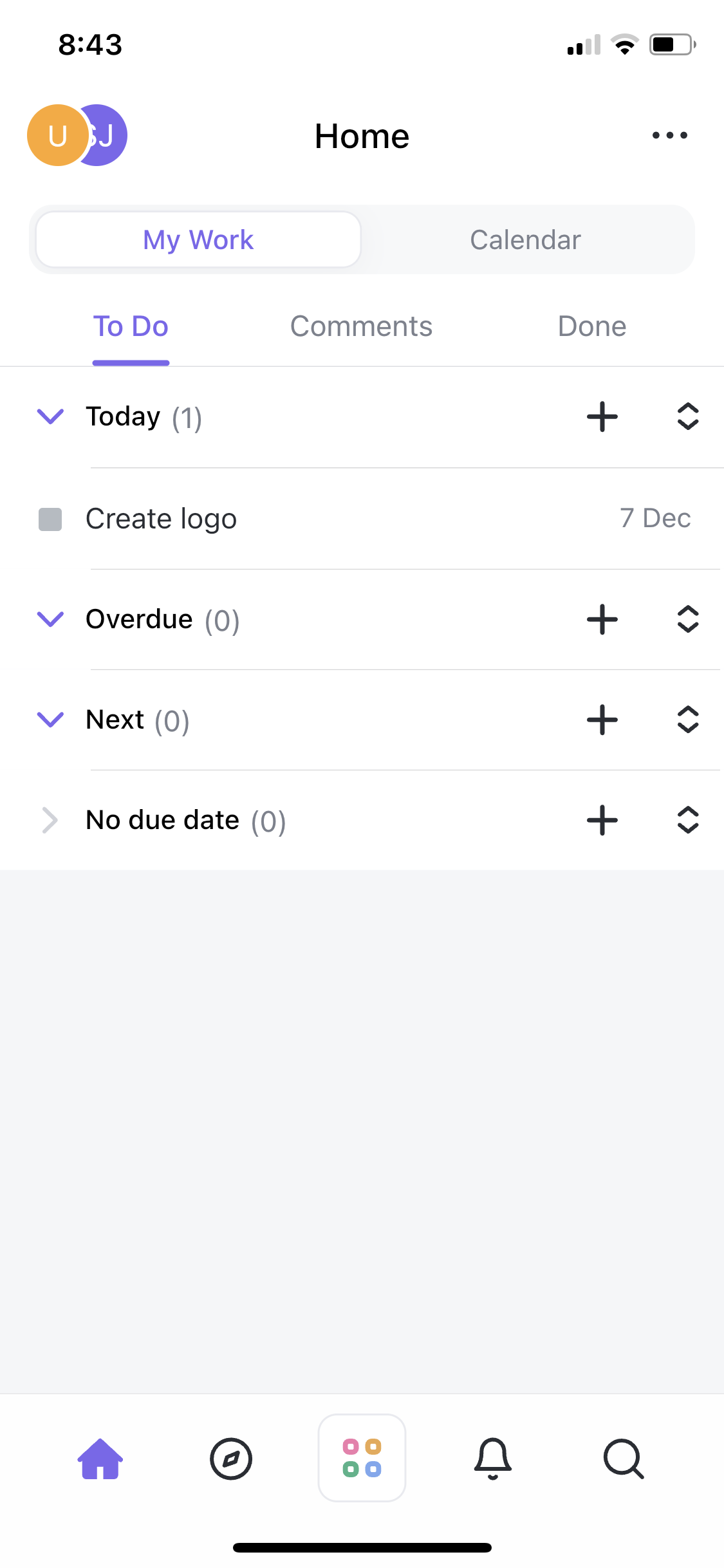
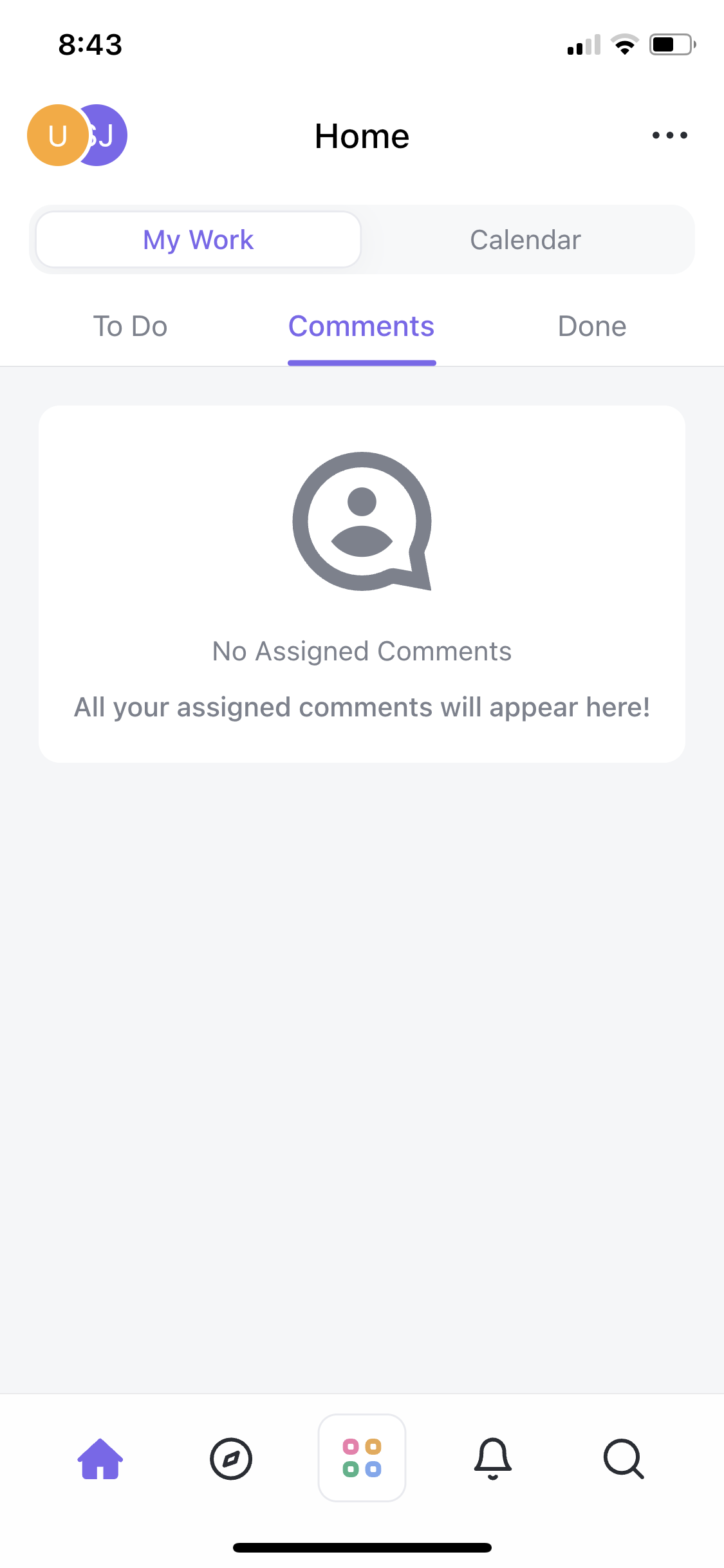
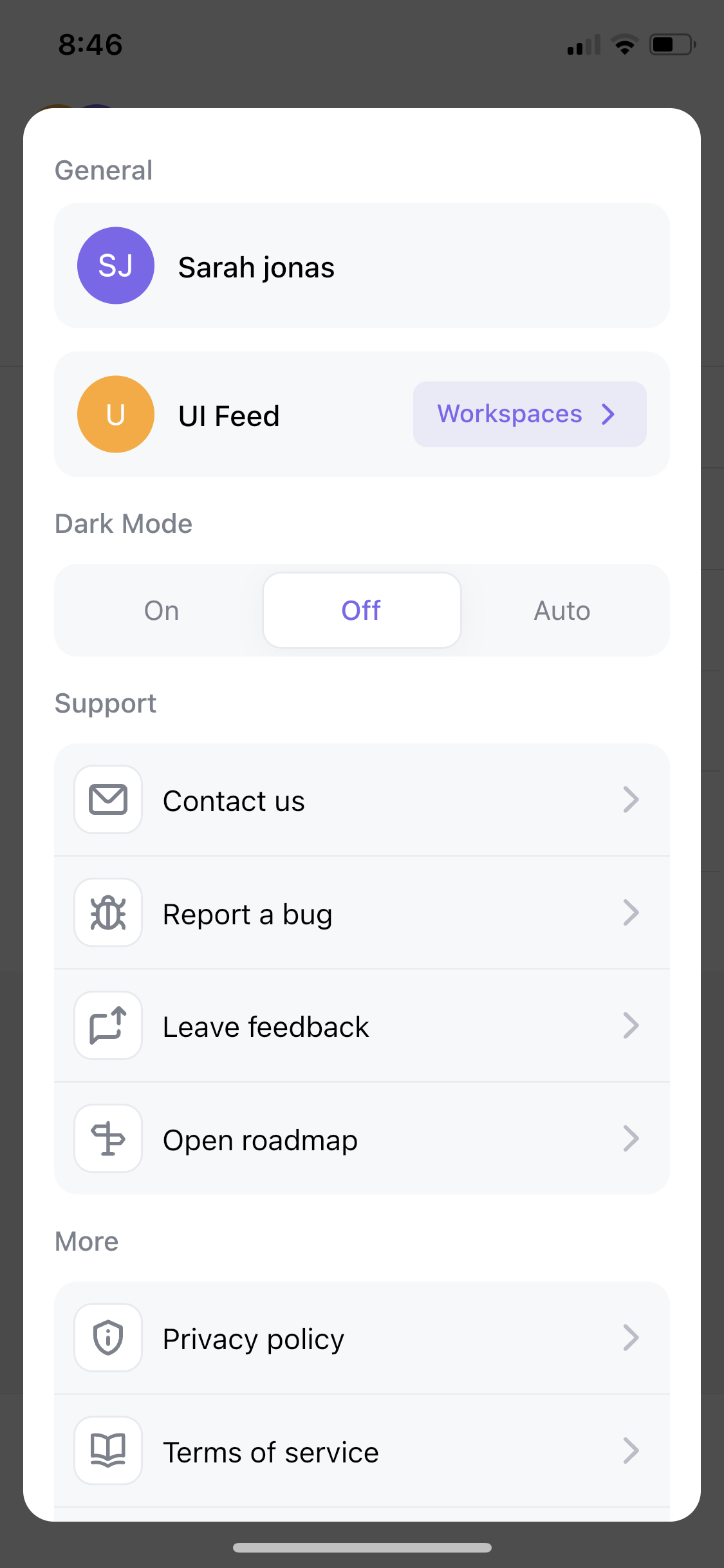
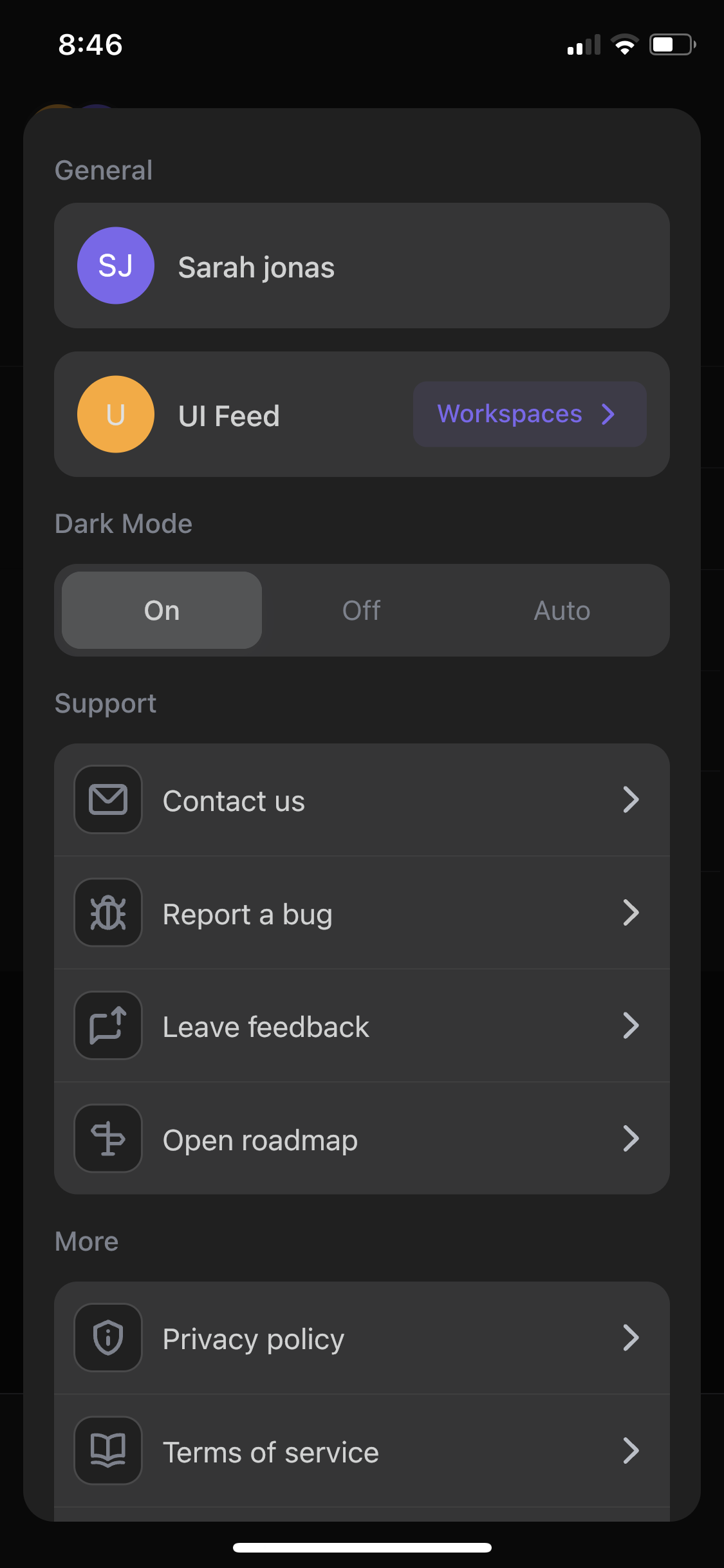
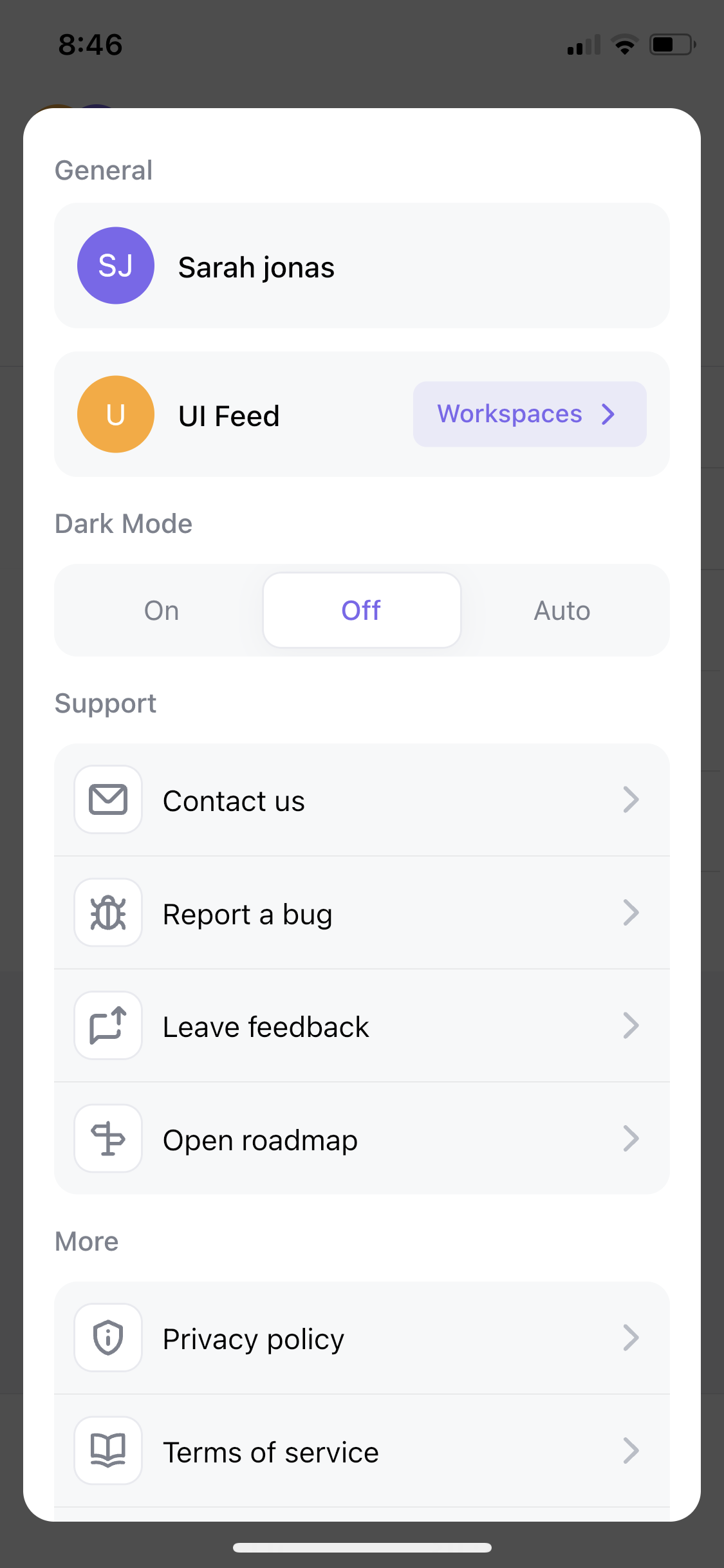
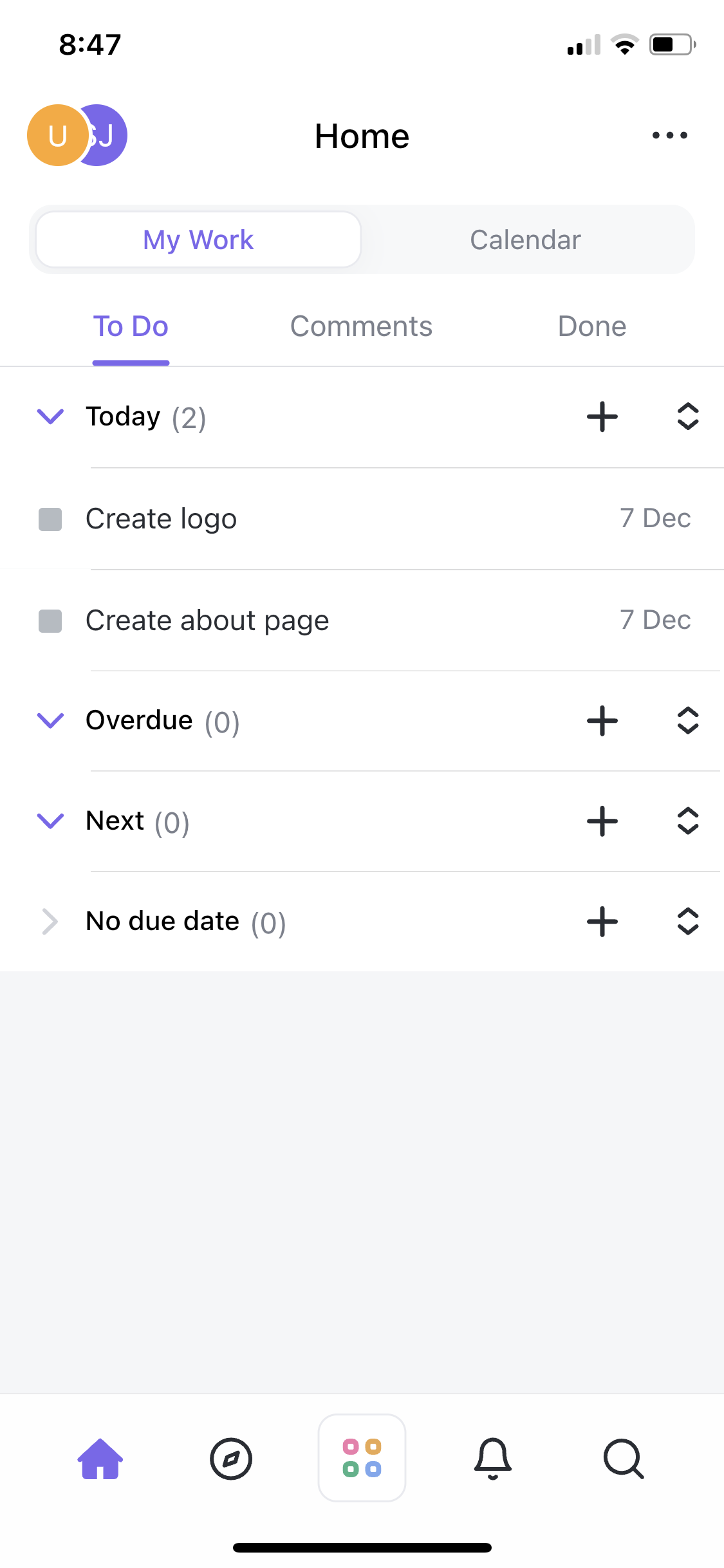
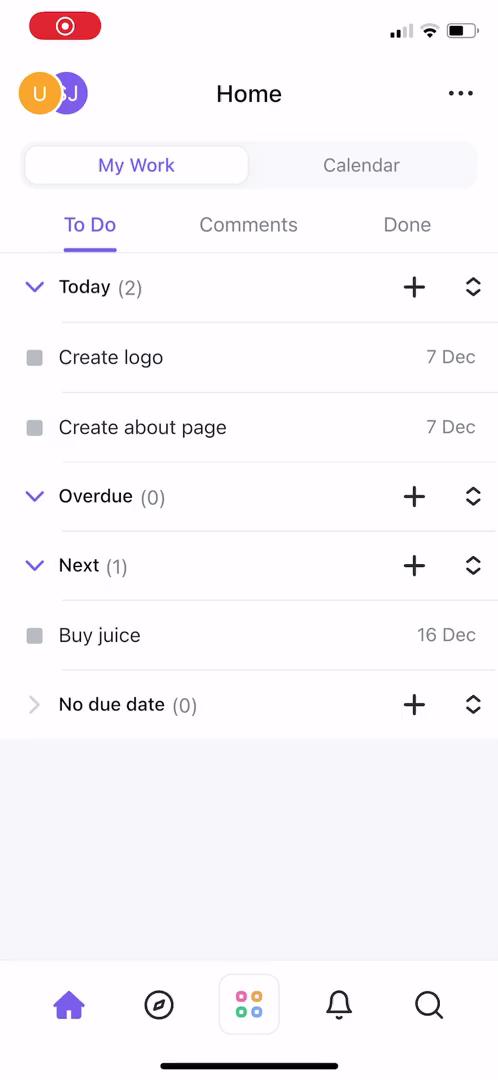
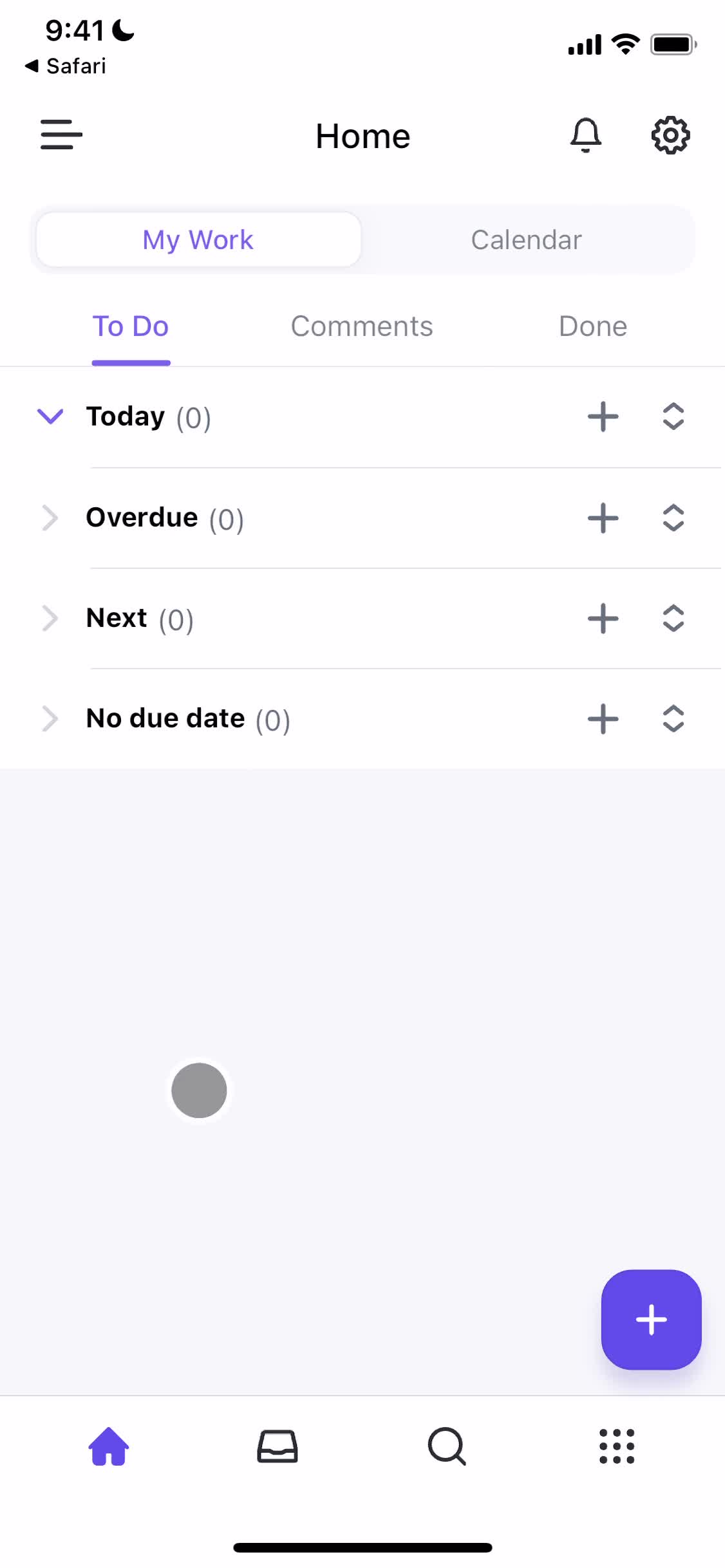
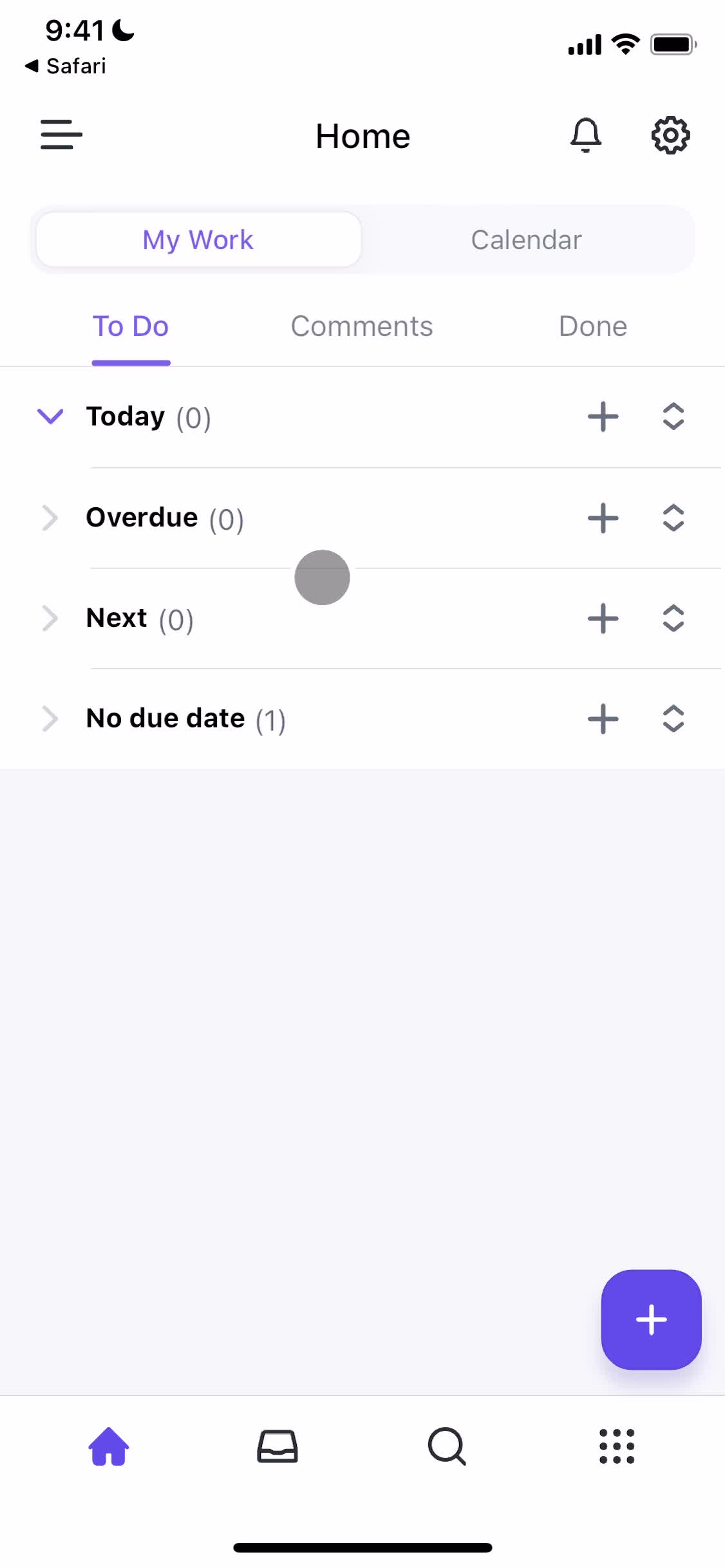
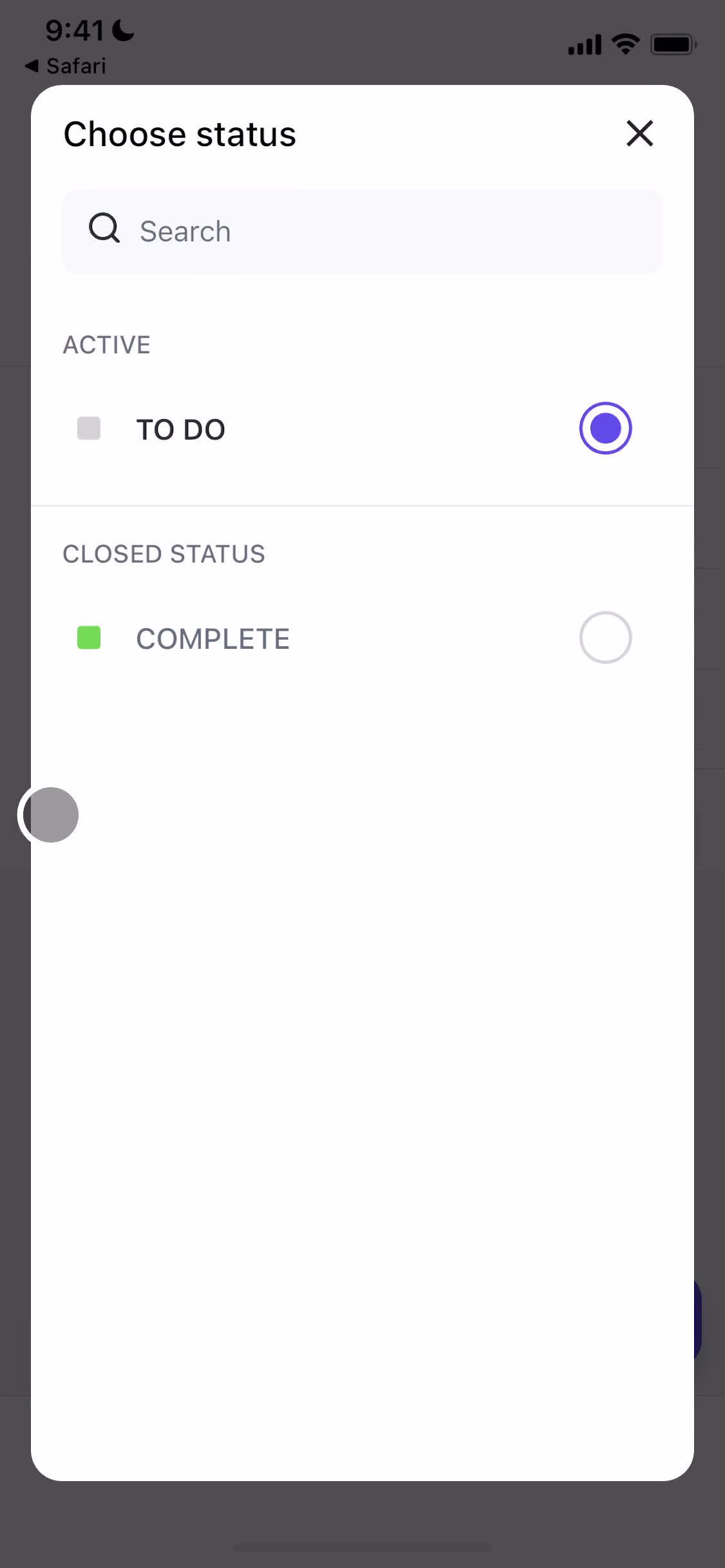
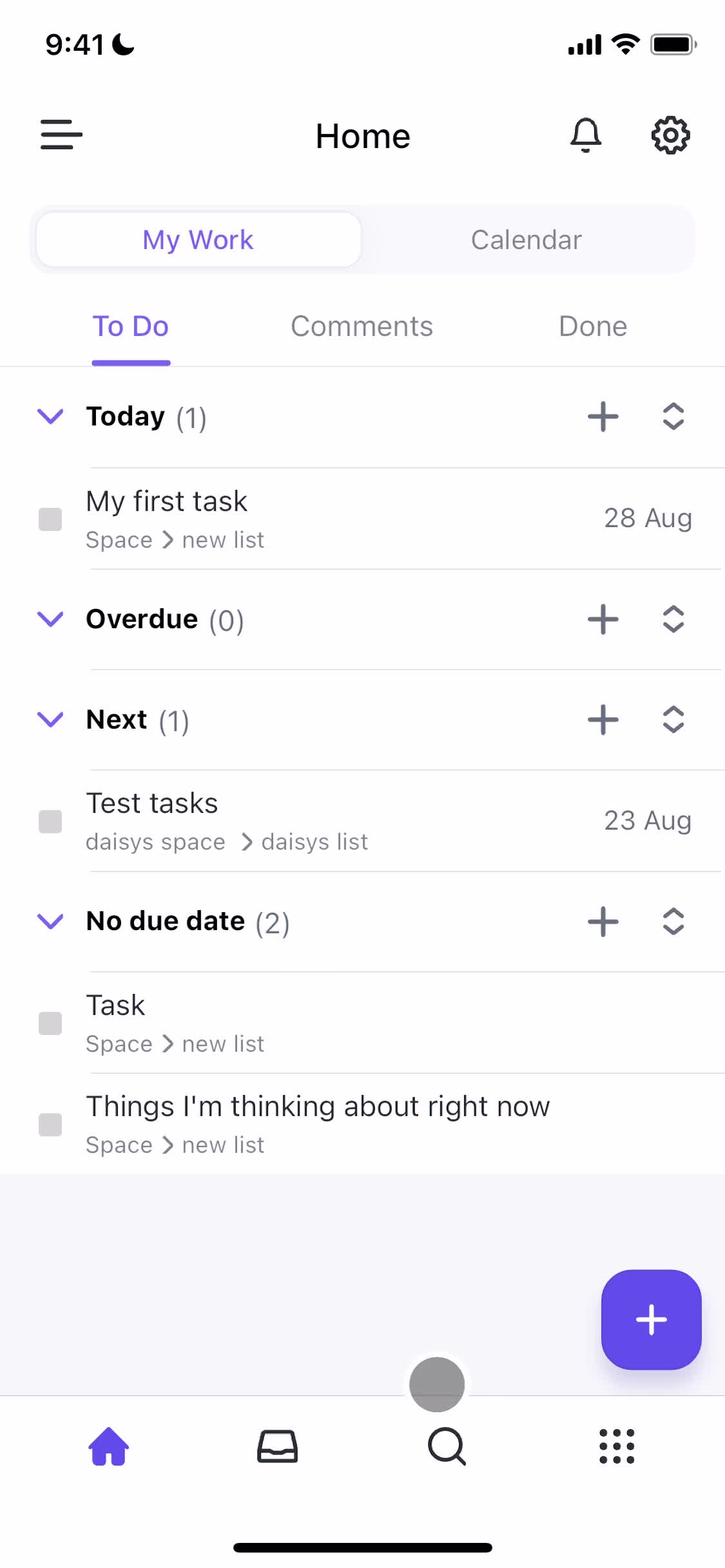
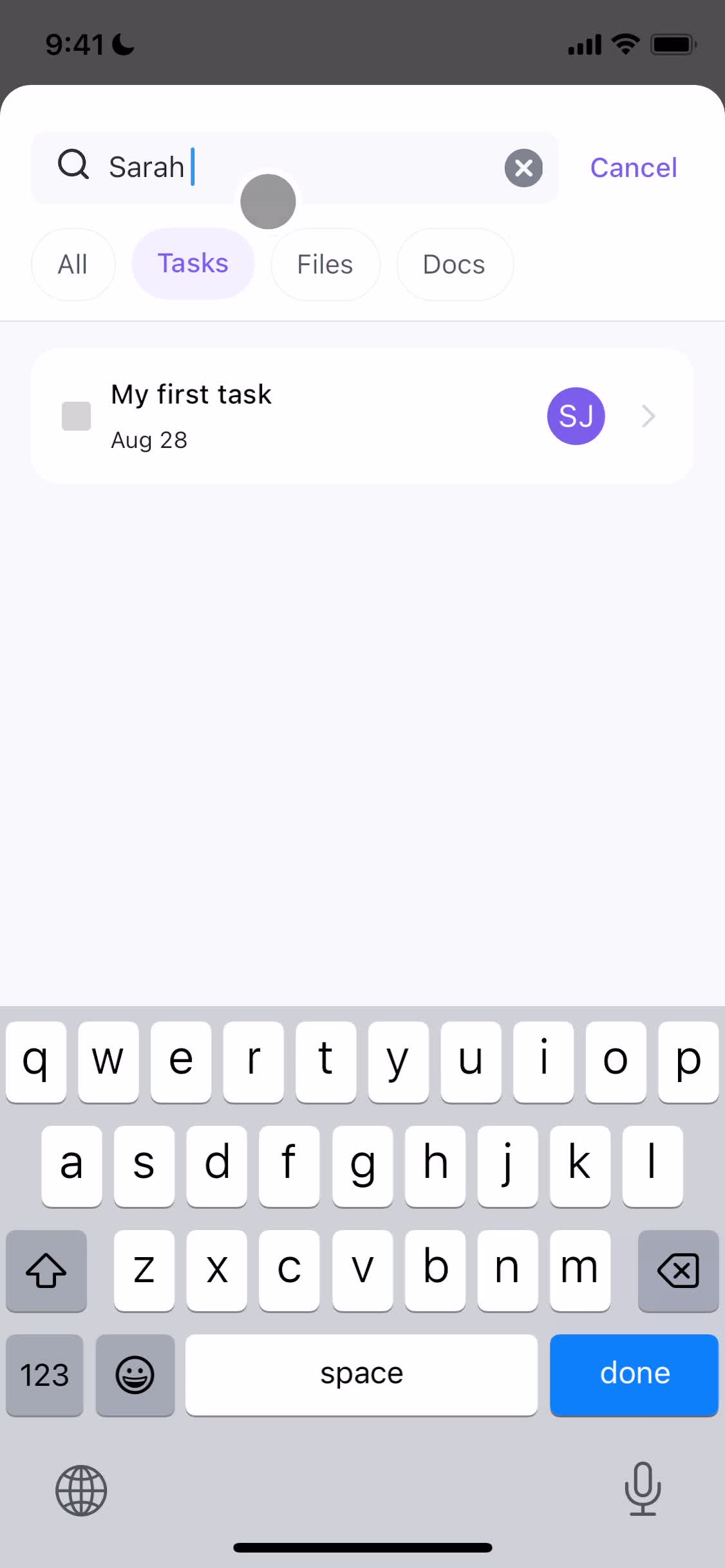
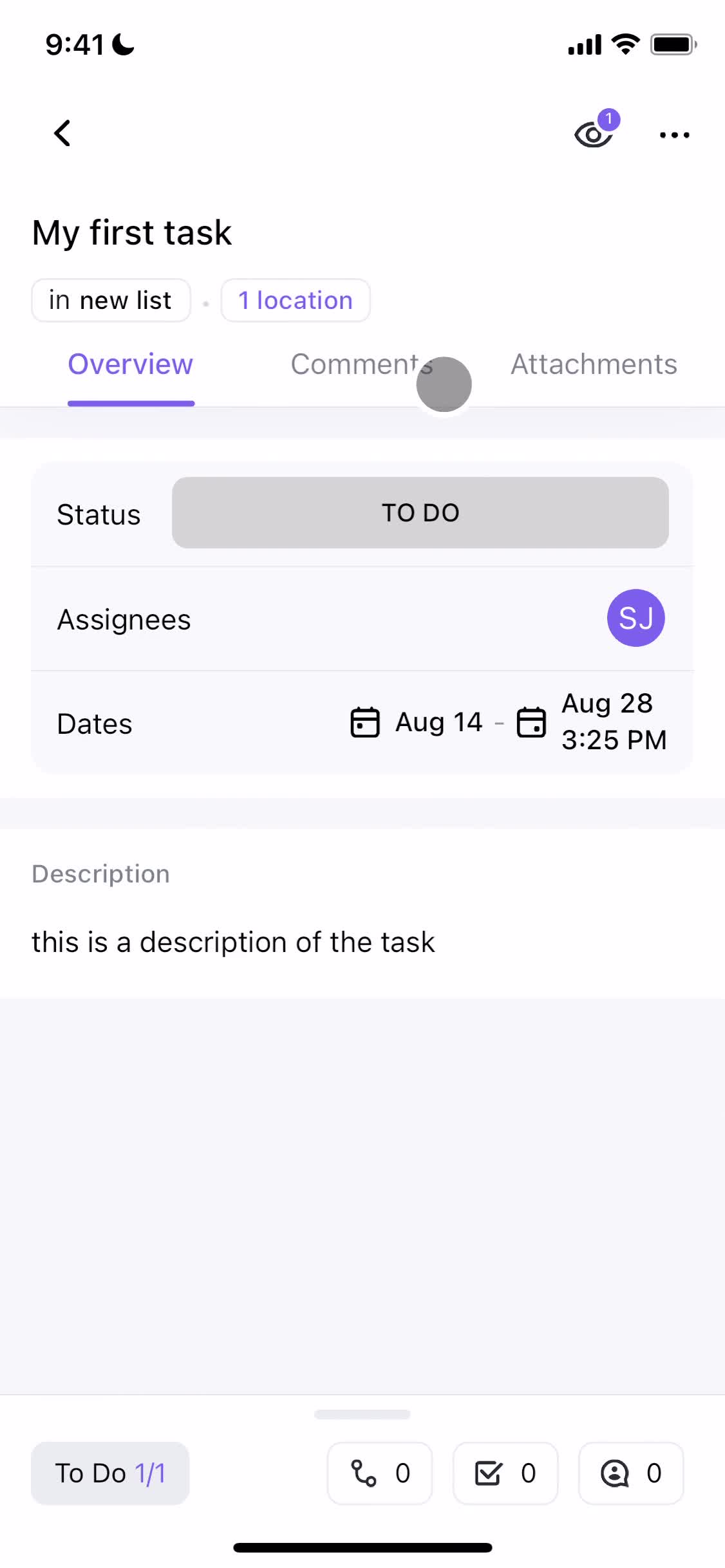
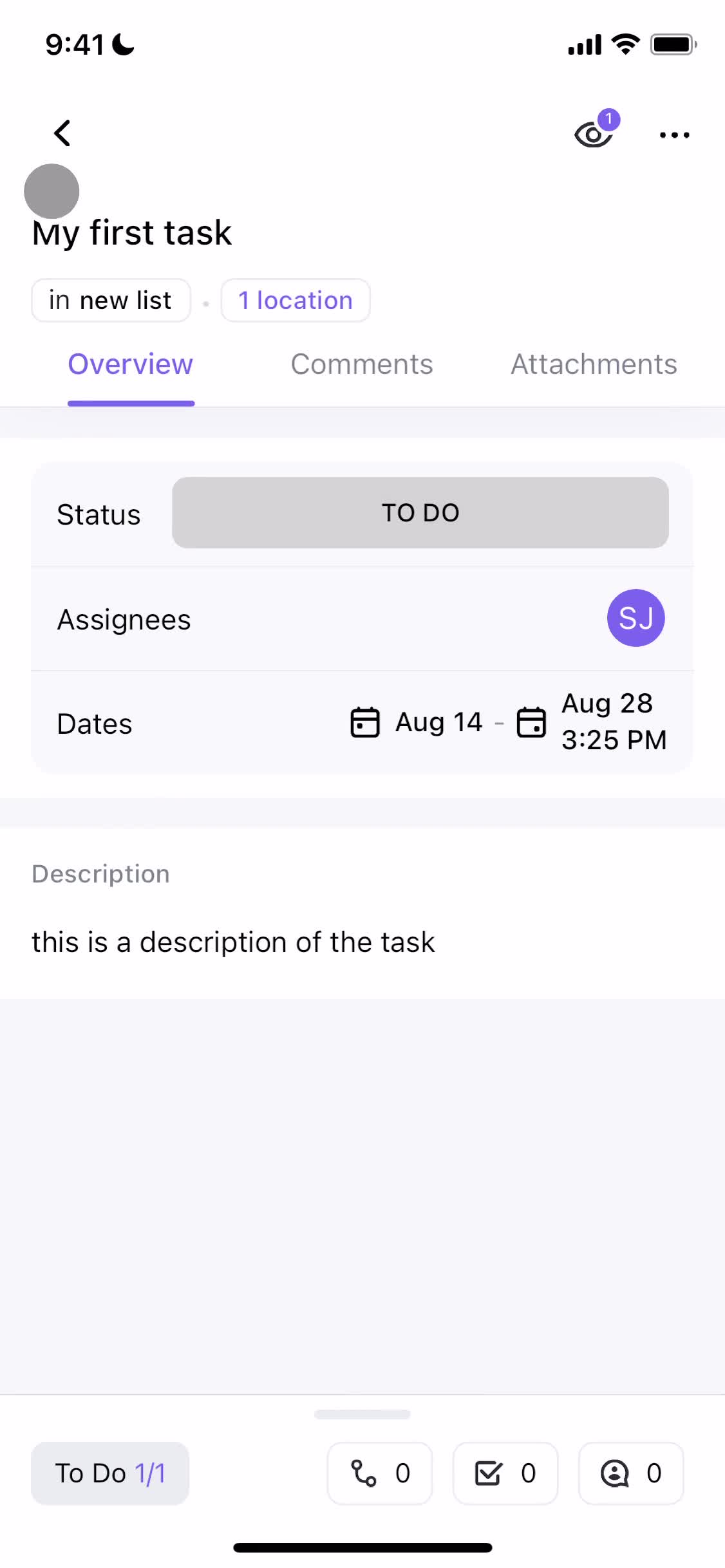
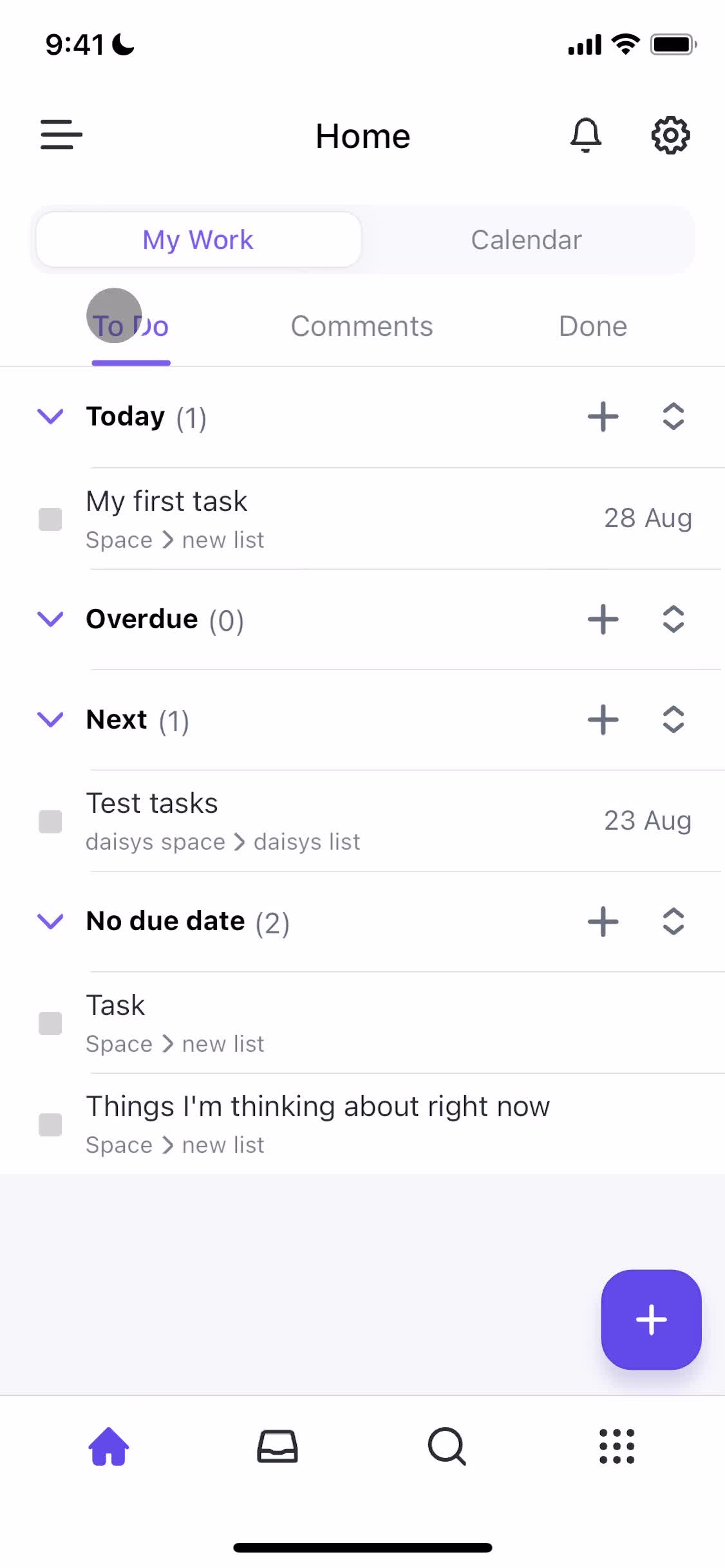
Home
this is title
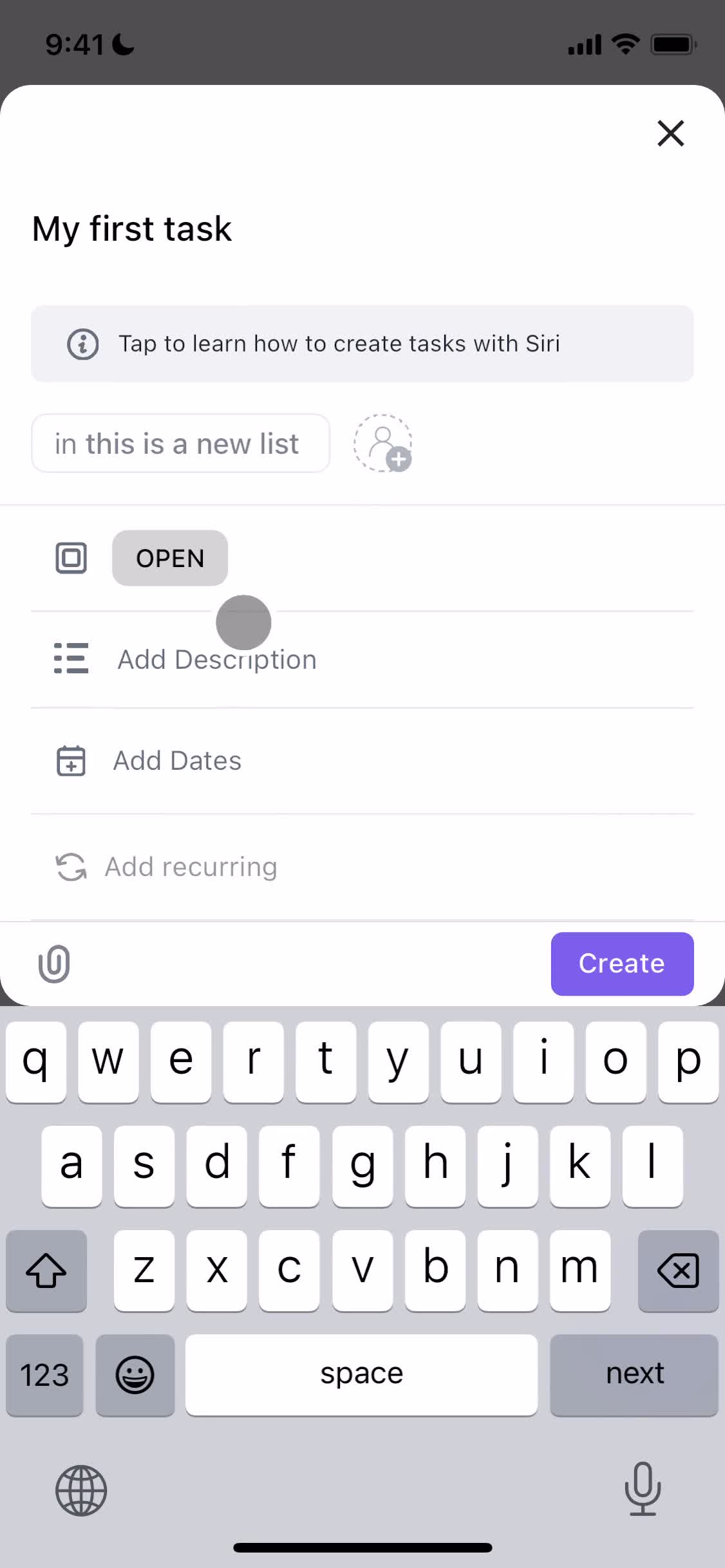
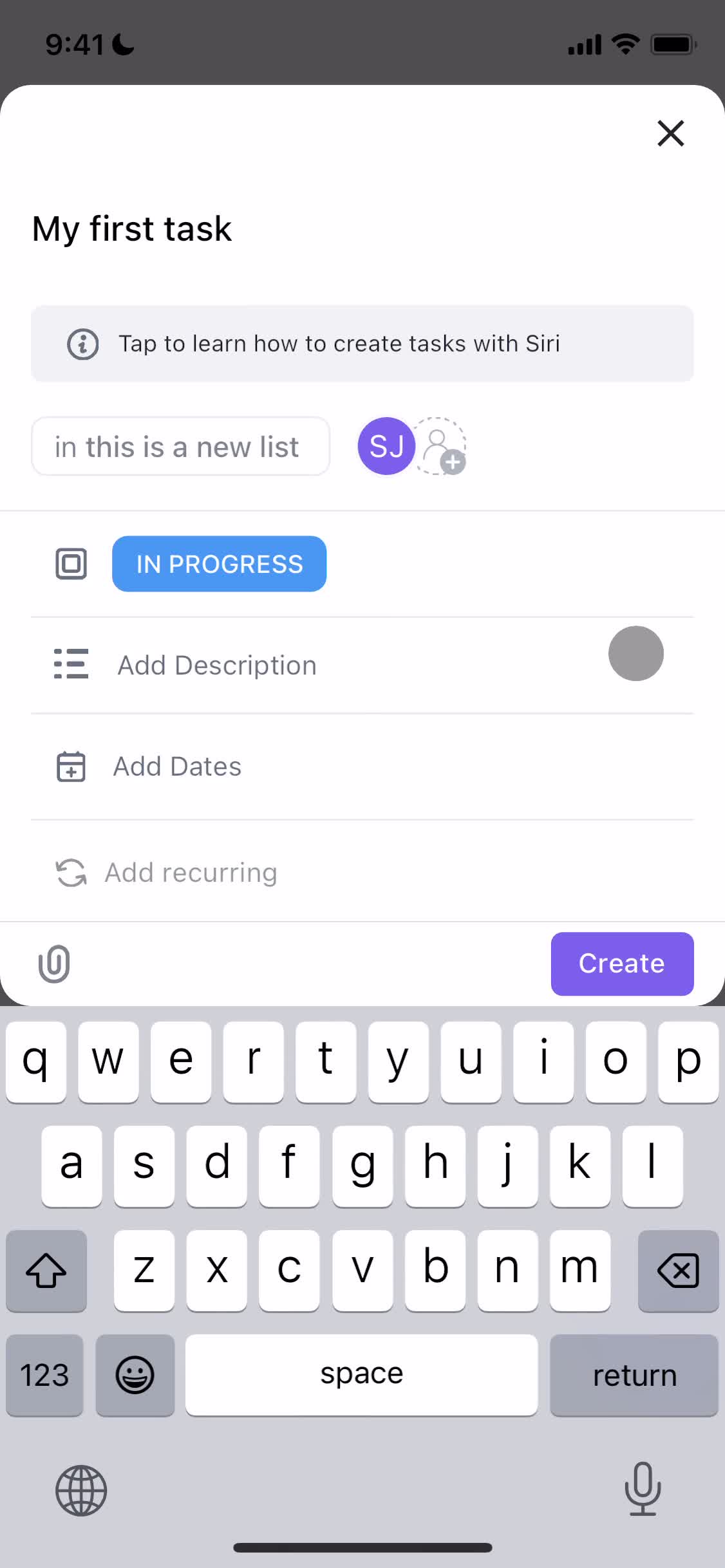
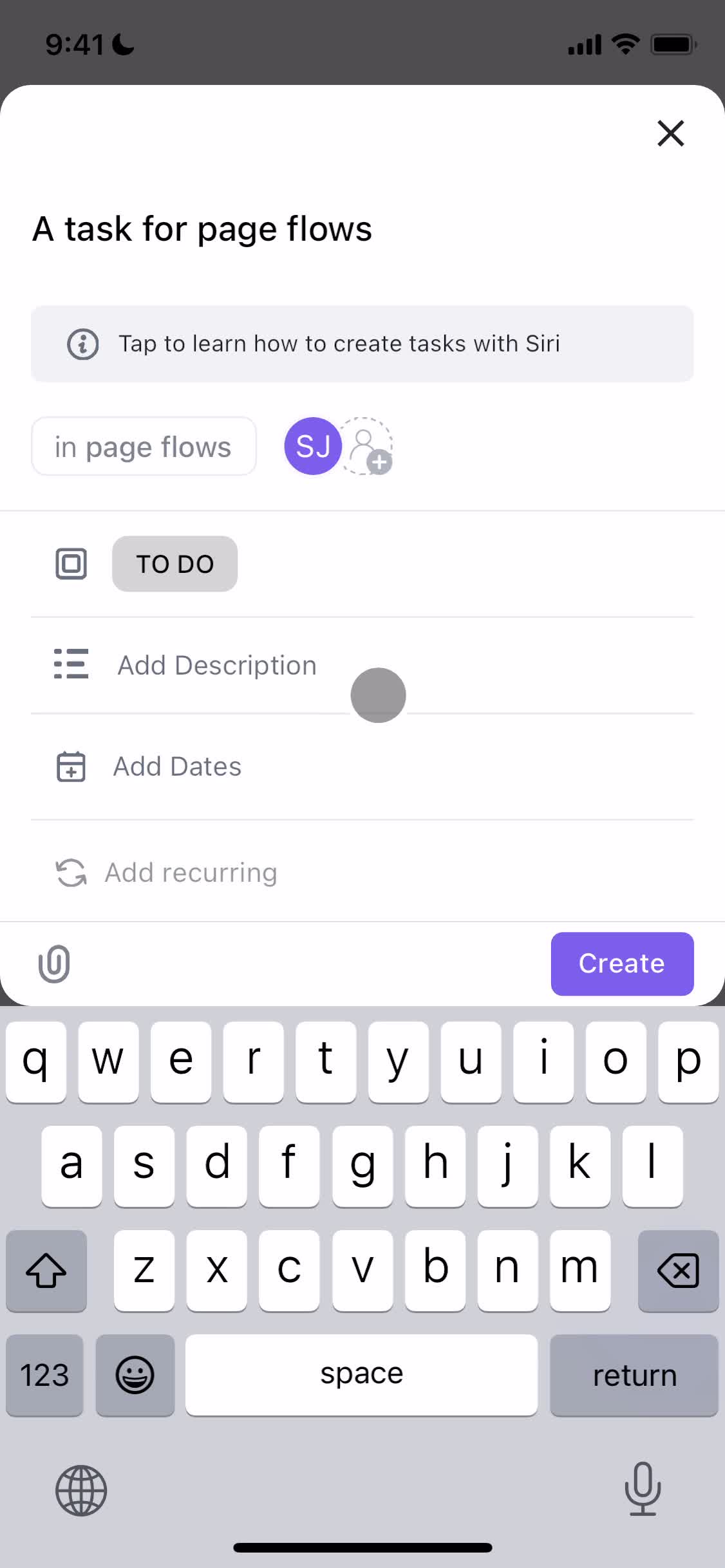
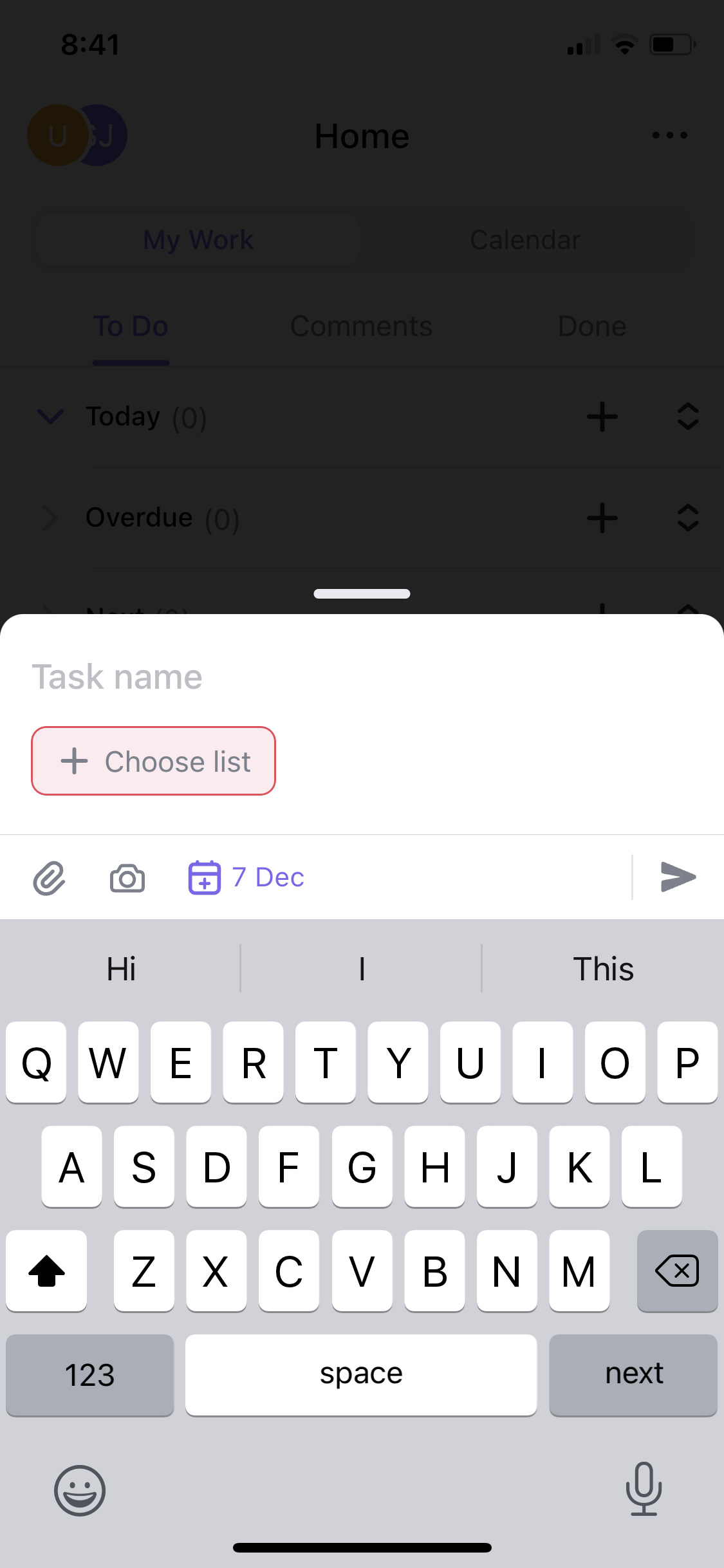
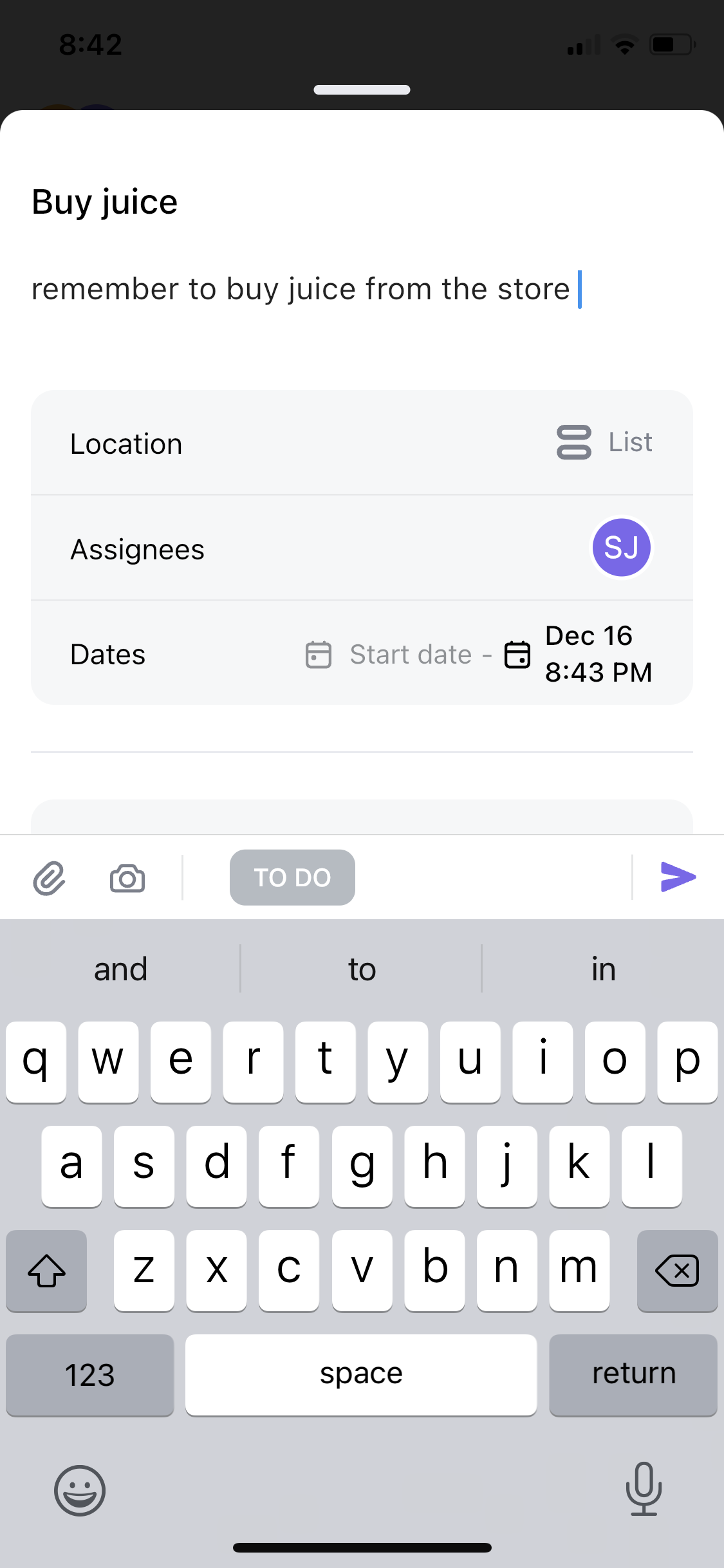
Create task
this is title
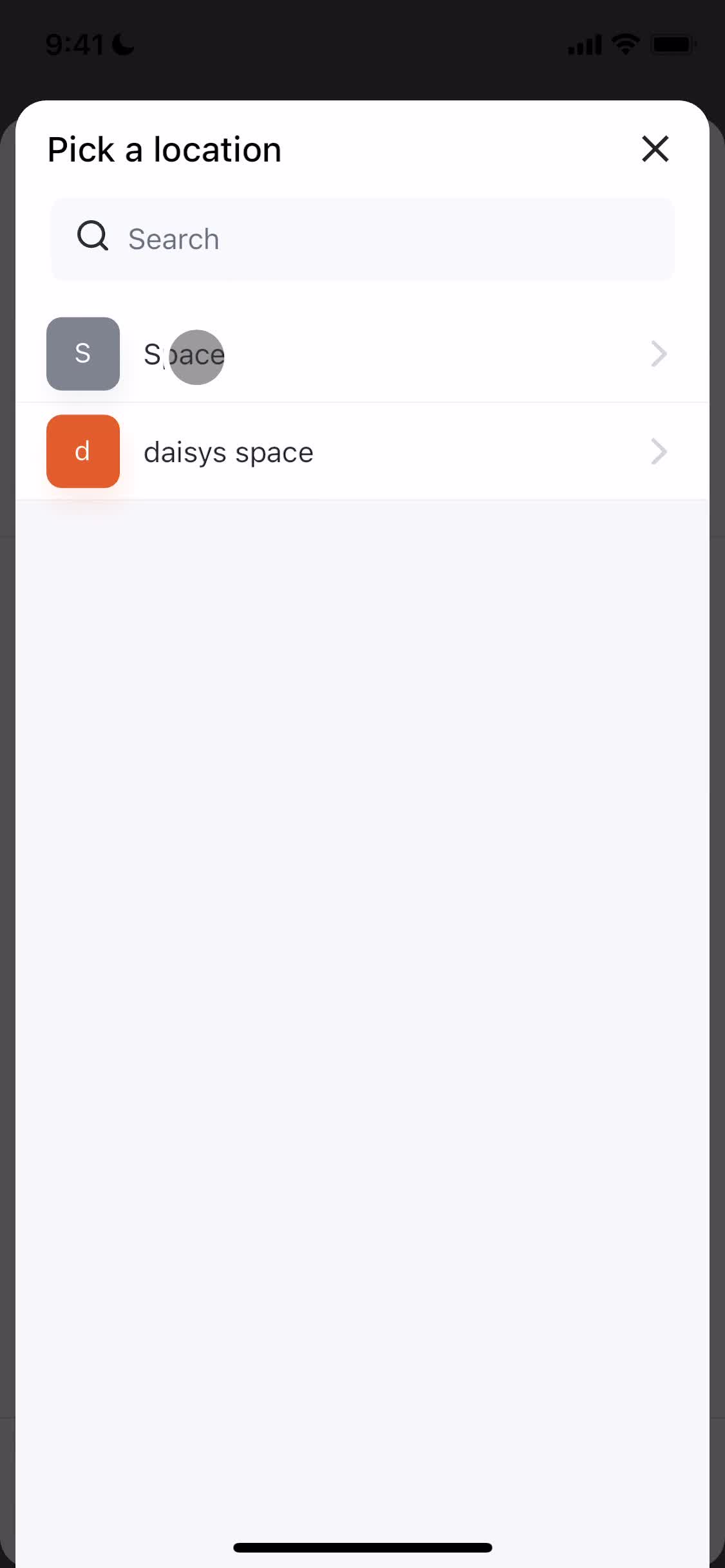
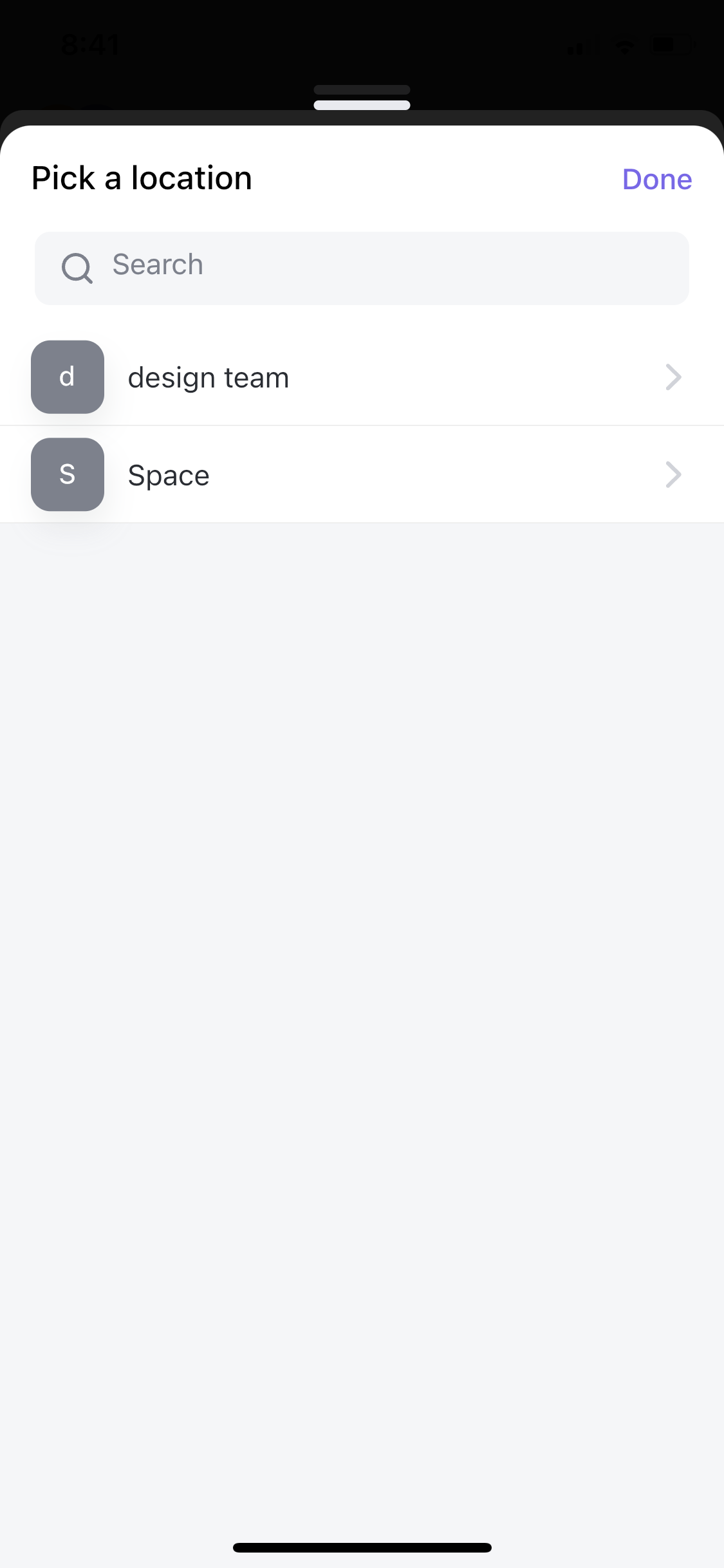
Set location
this is title
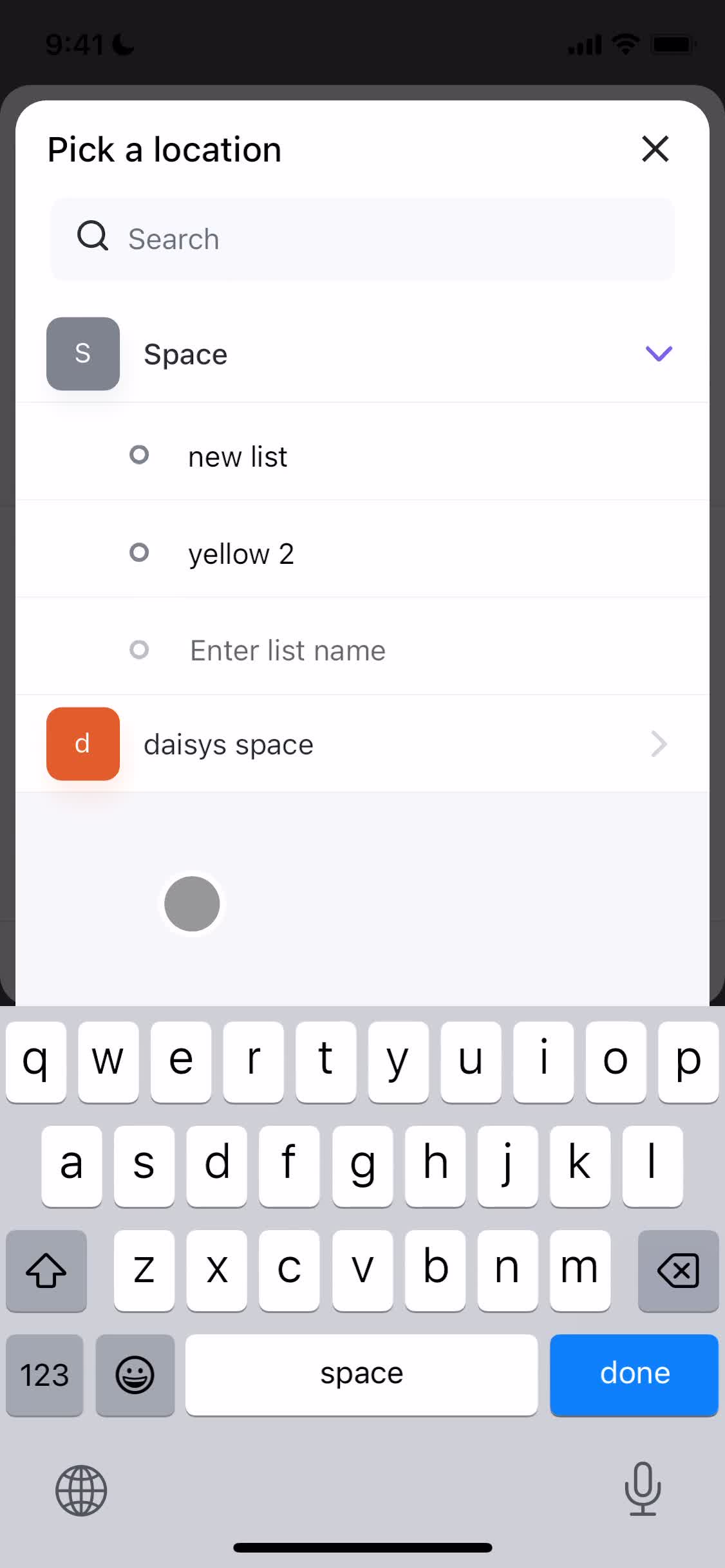
Create list
this is title
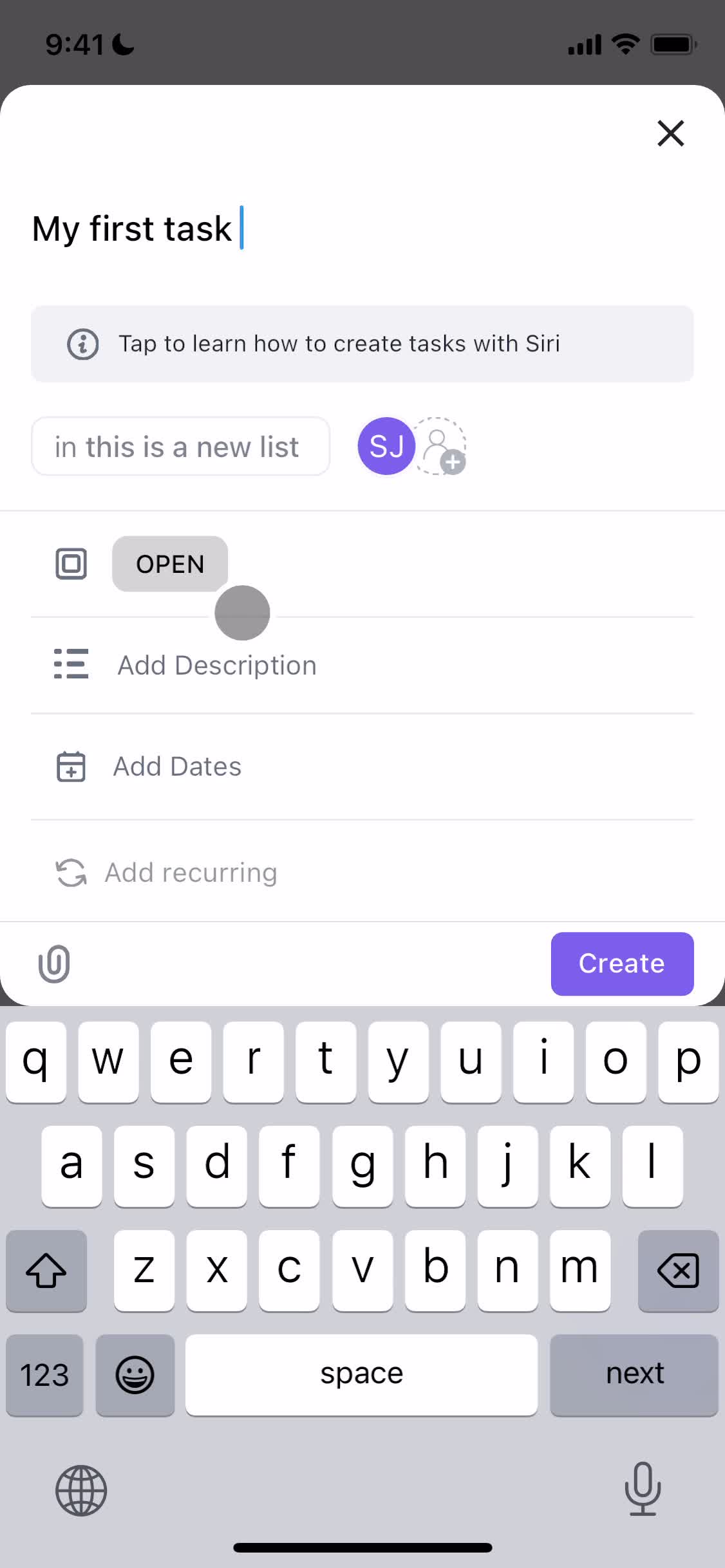
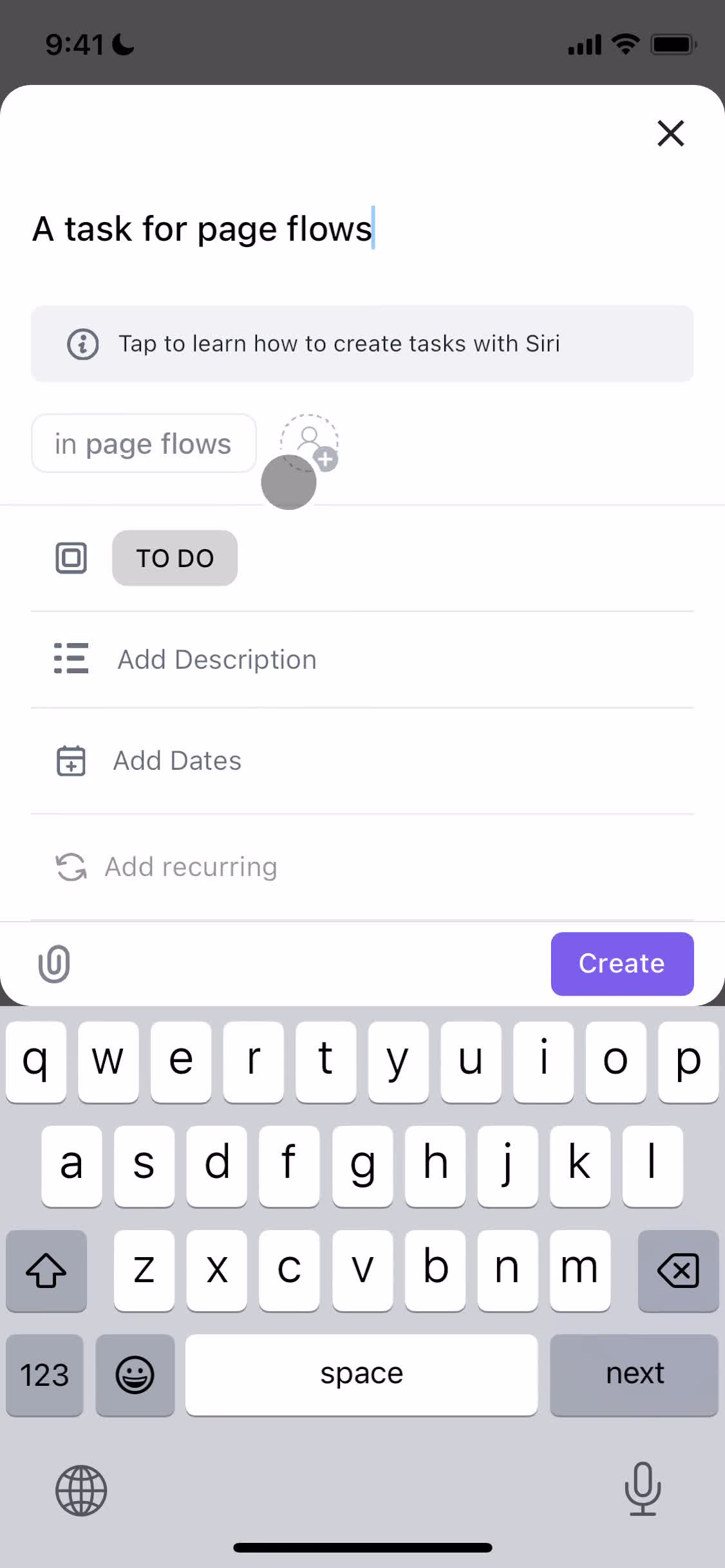
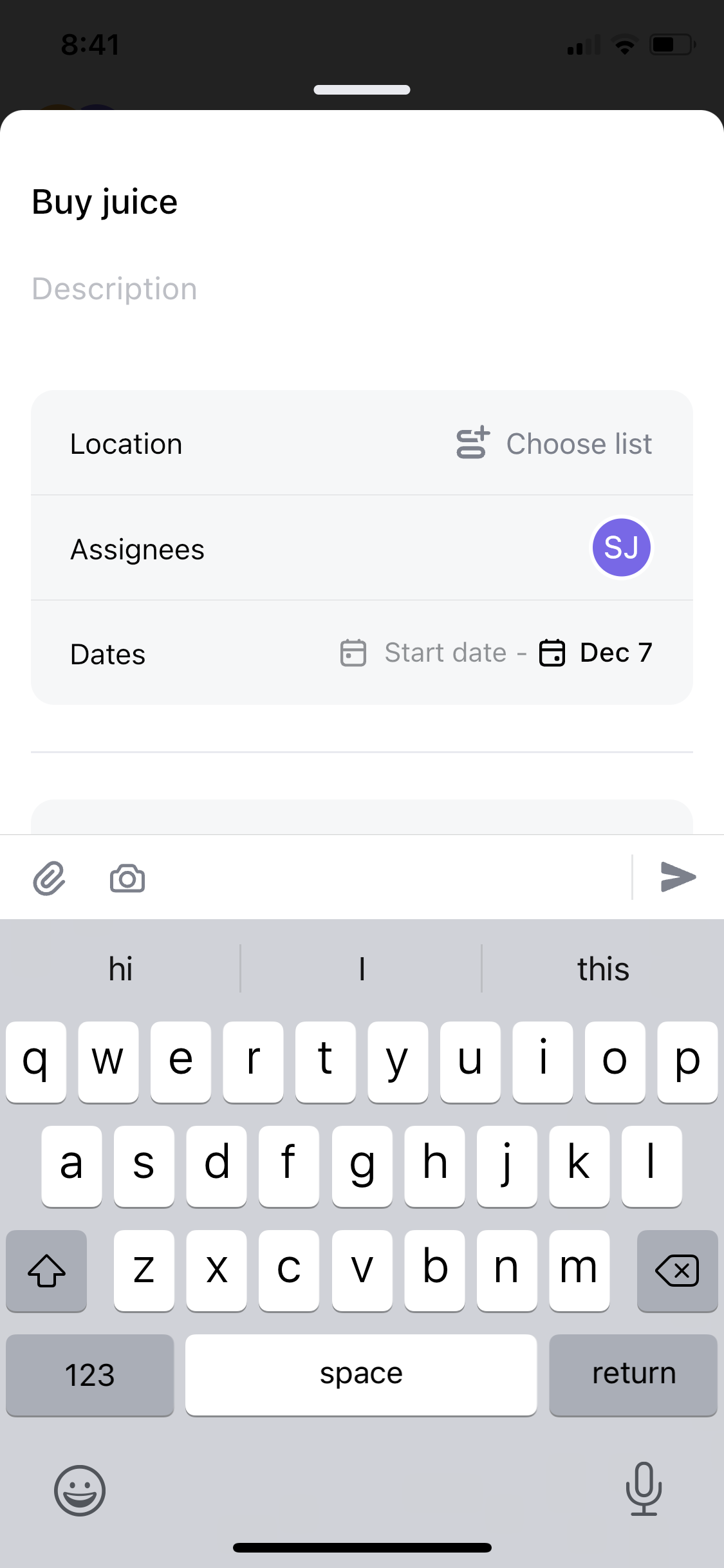
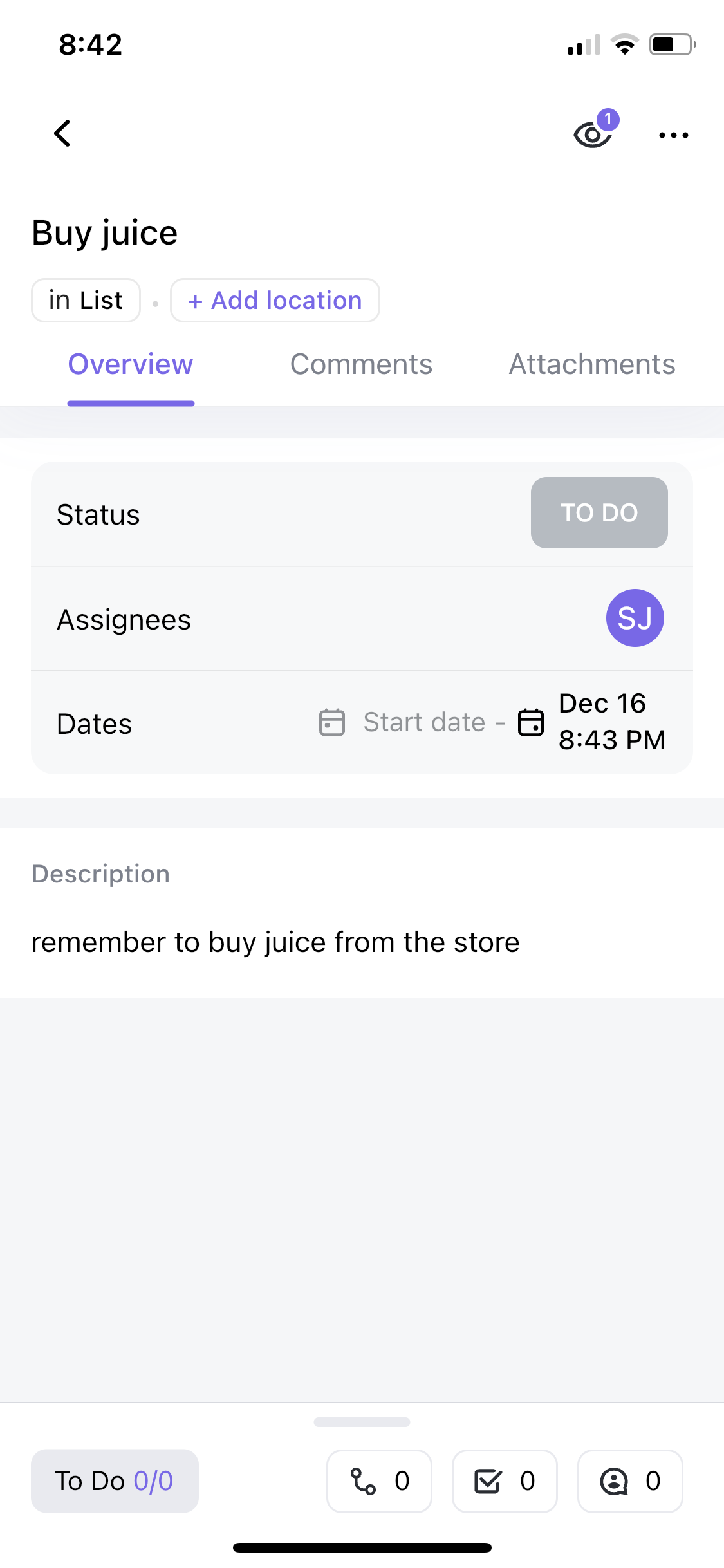
Task details
this is title
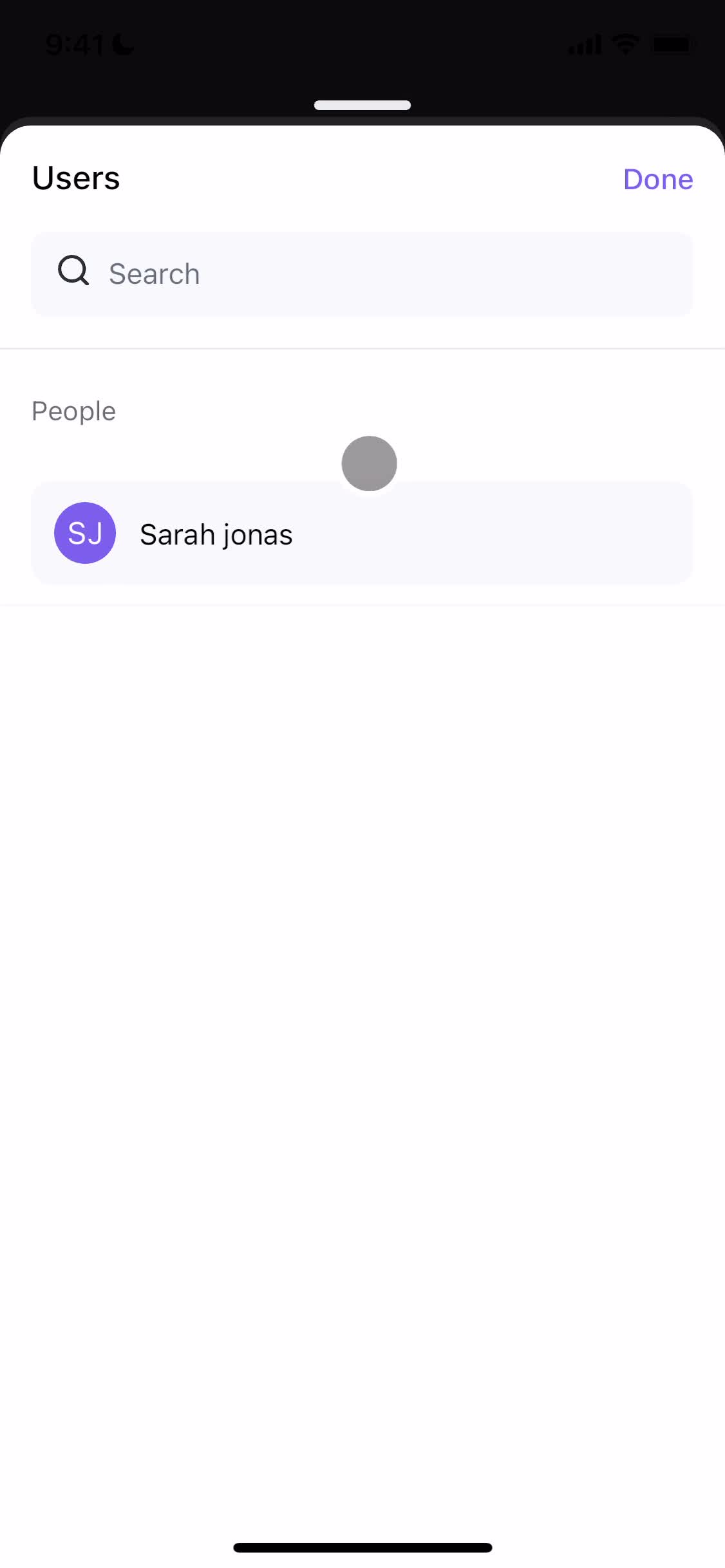
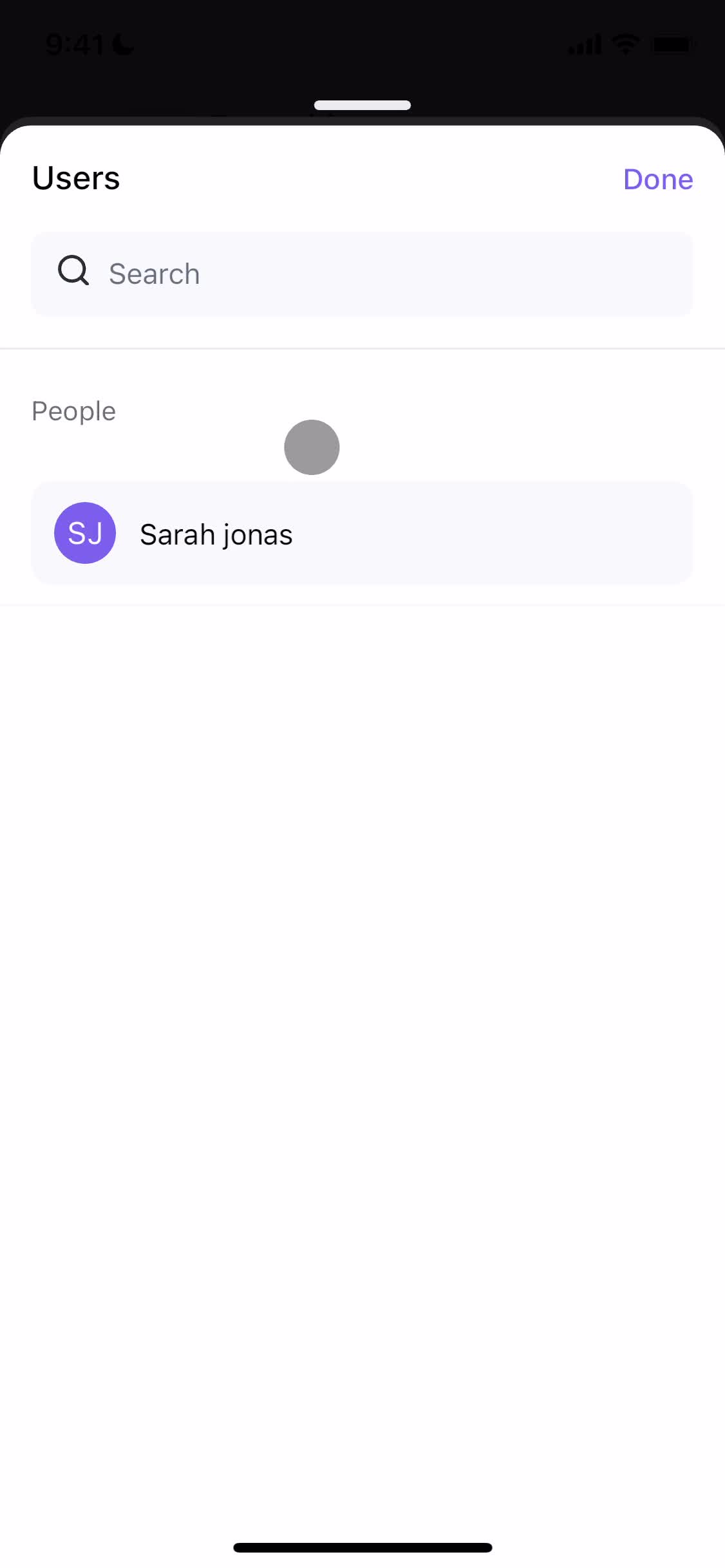
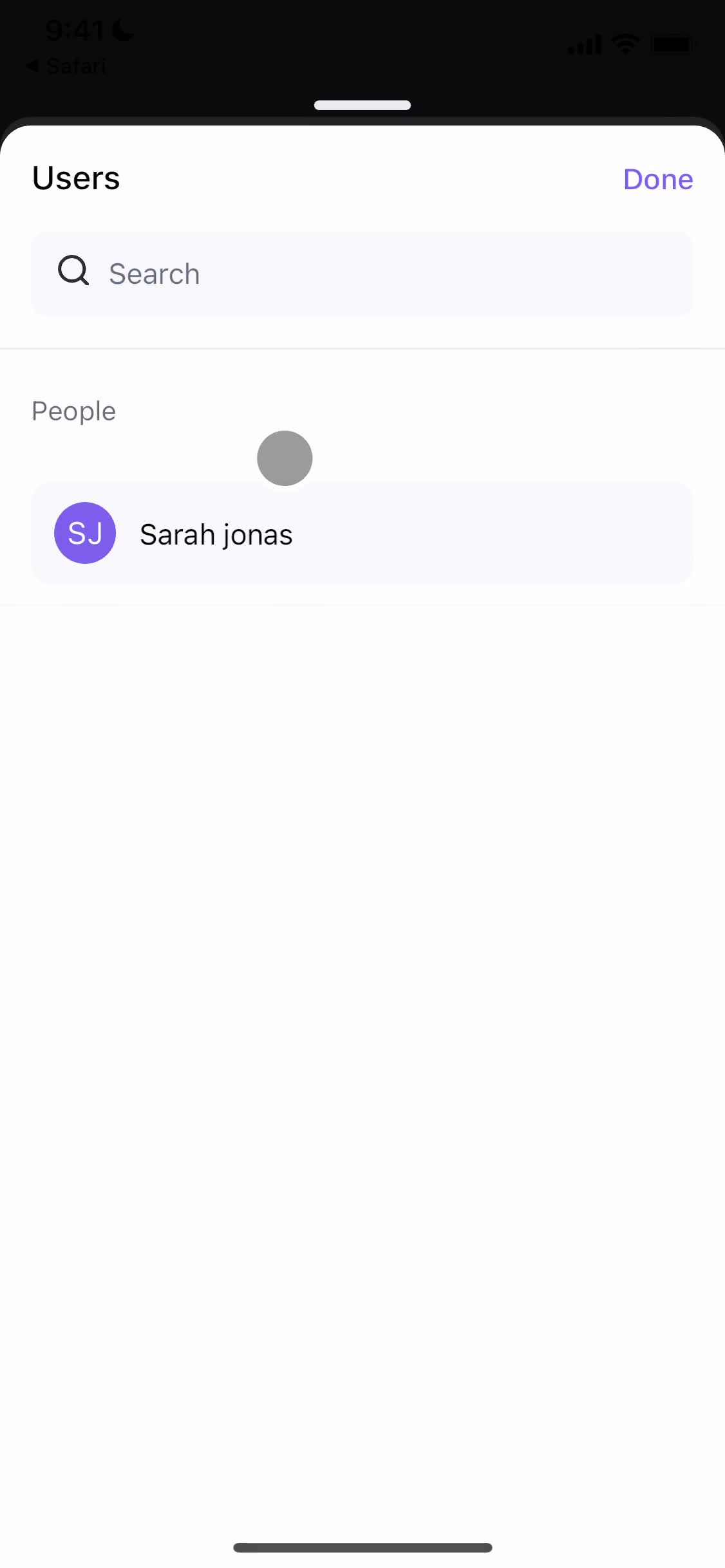
Assign task
this is title
Task details
this is title
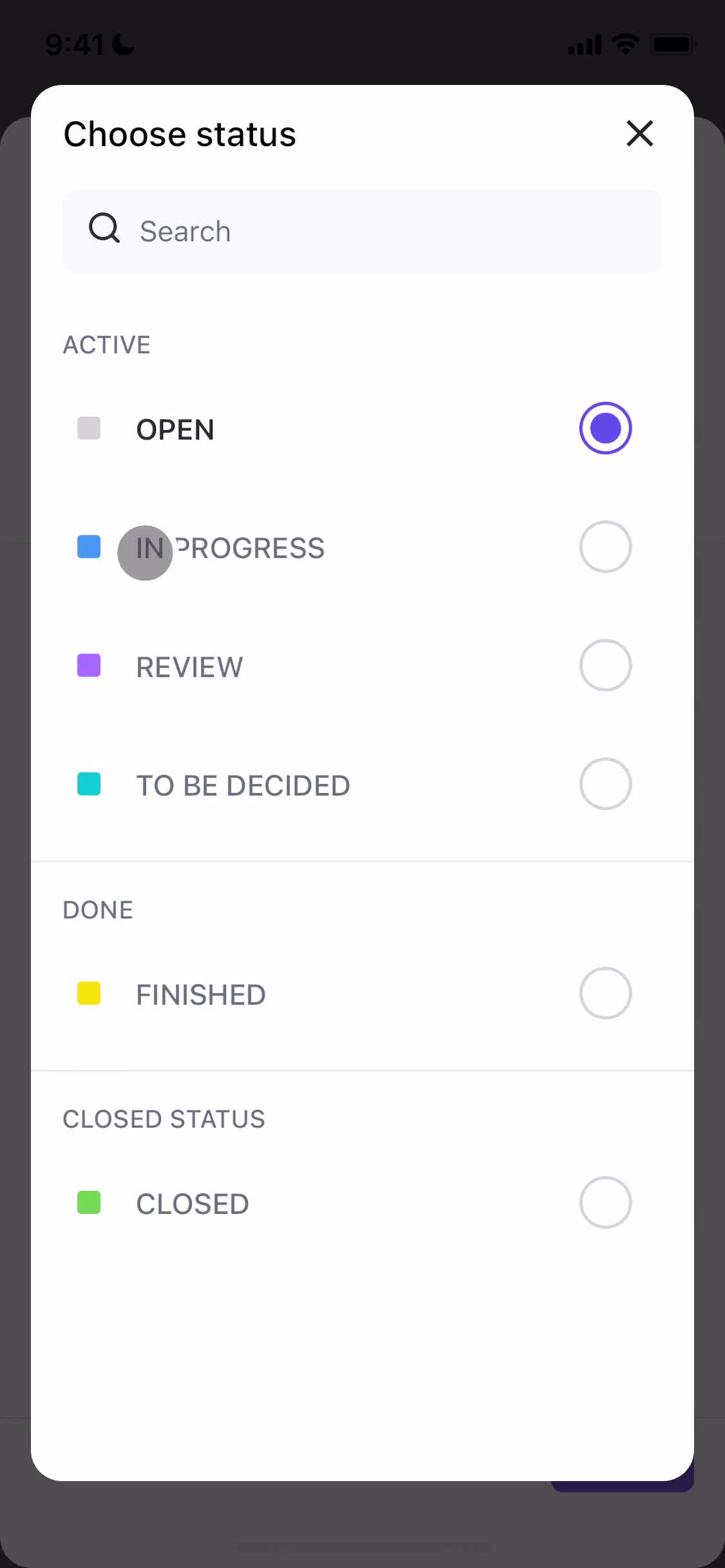
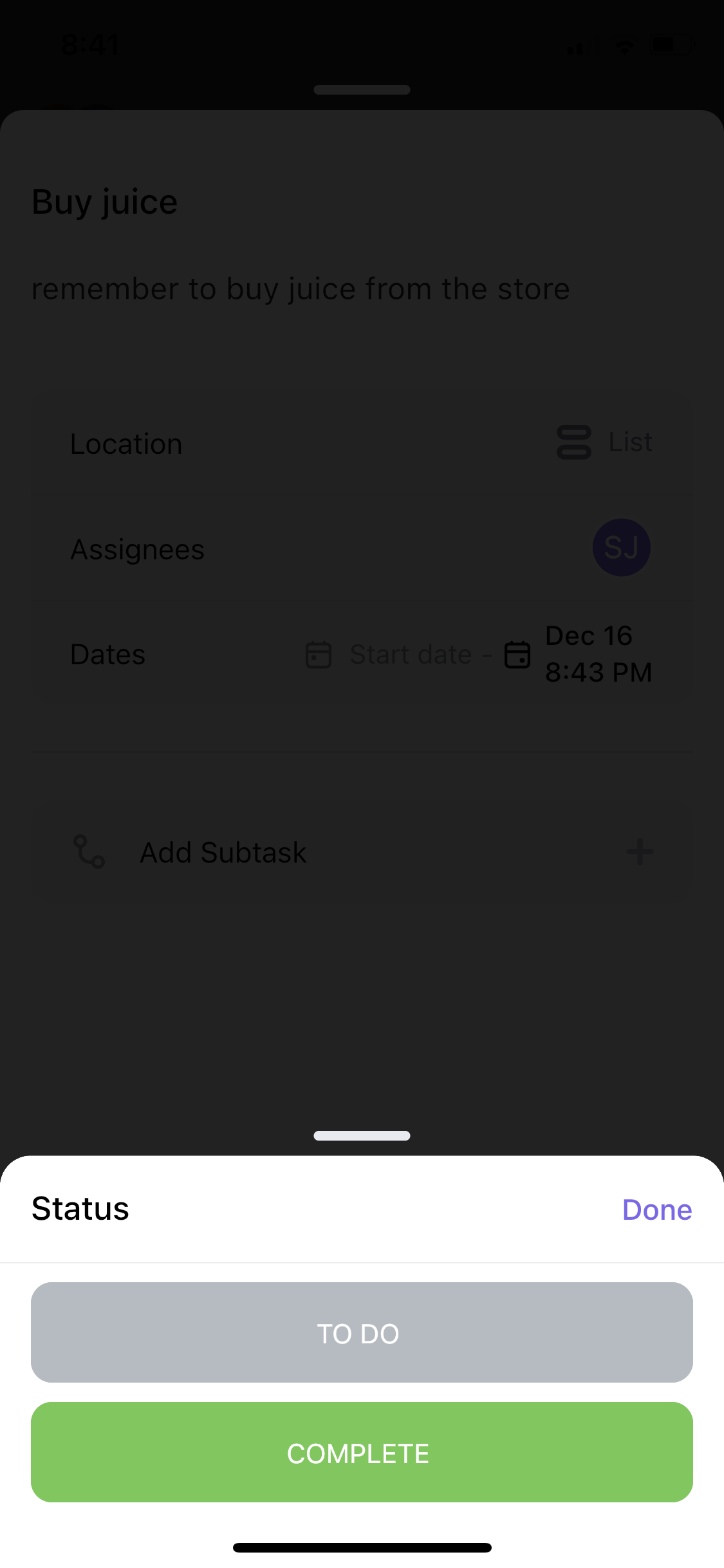
Set status
this is title
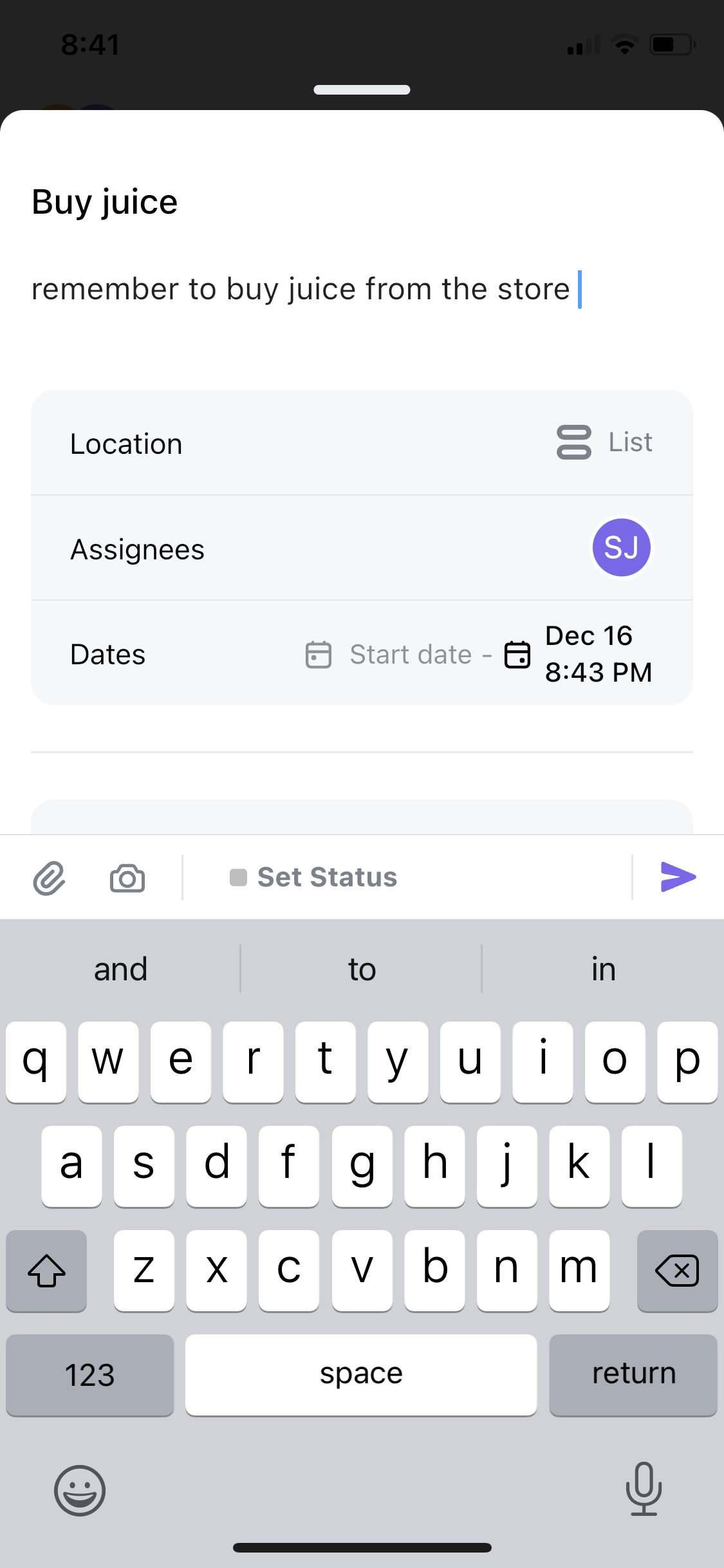
Add description
this is title
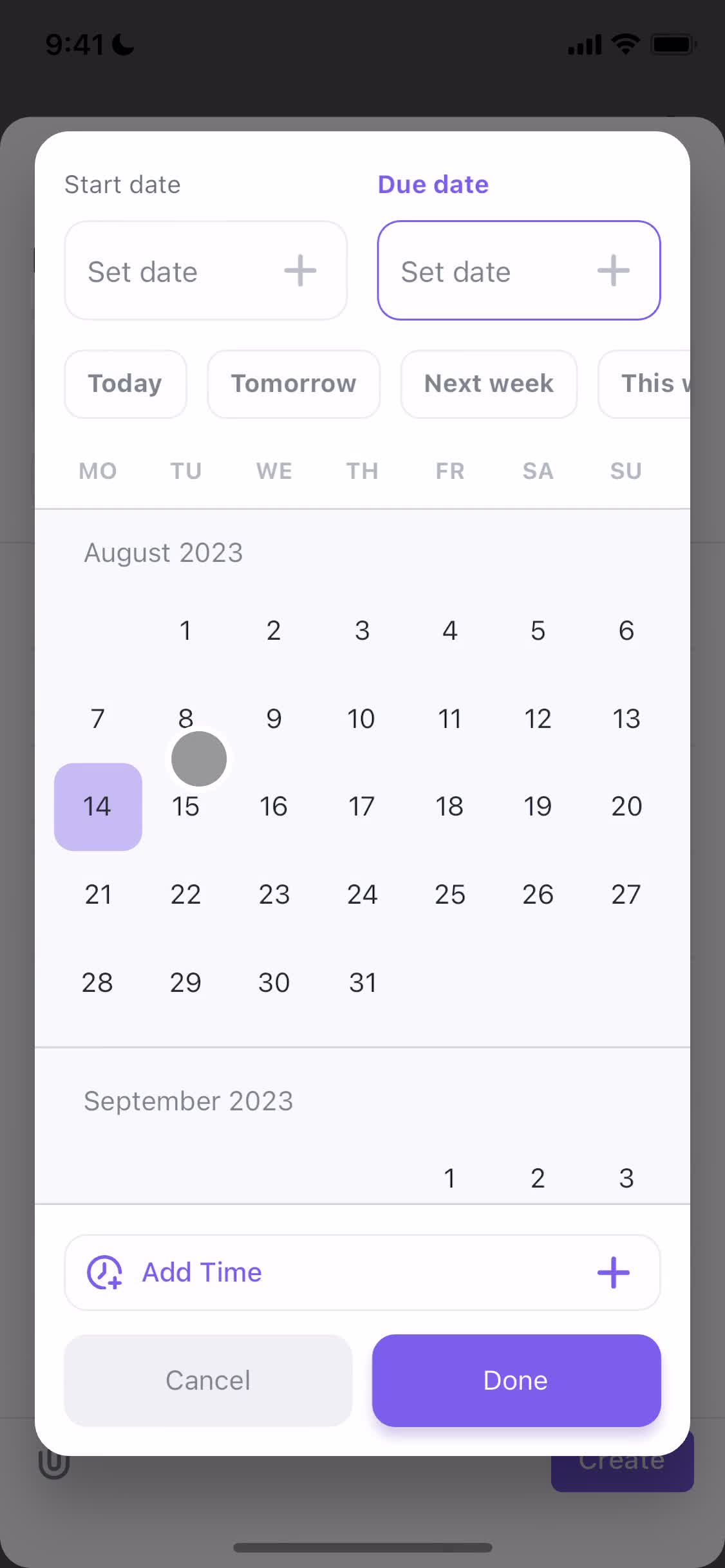
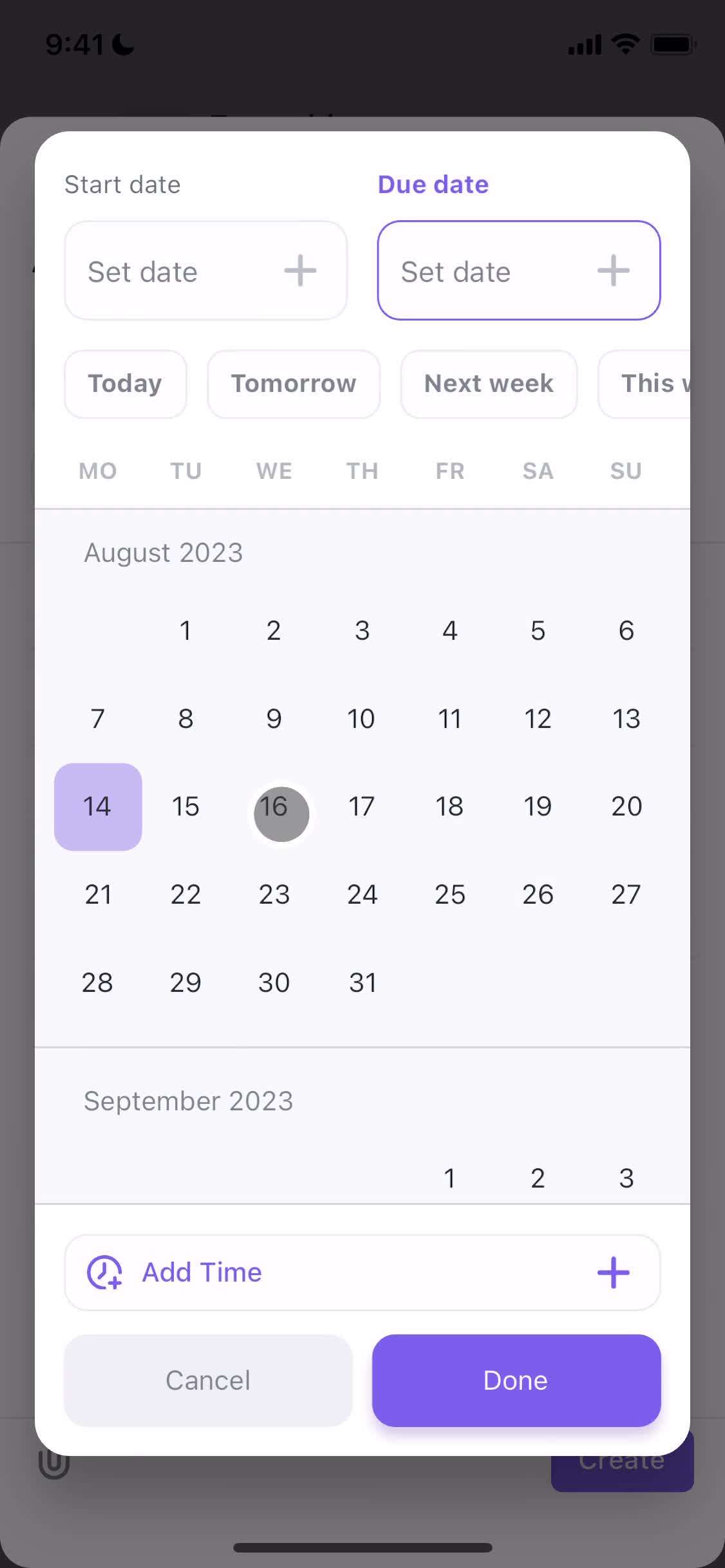
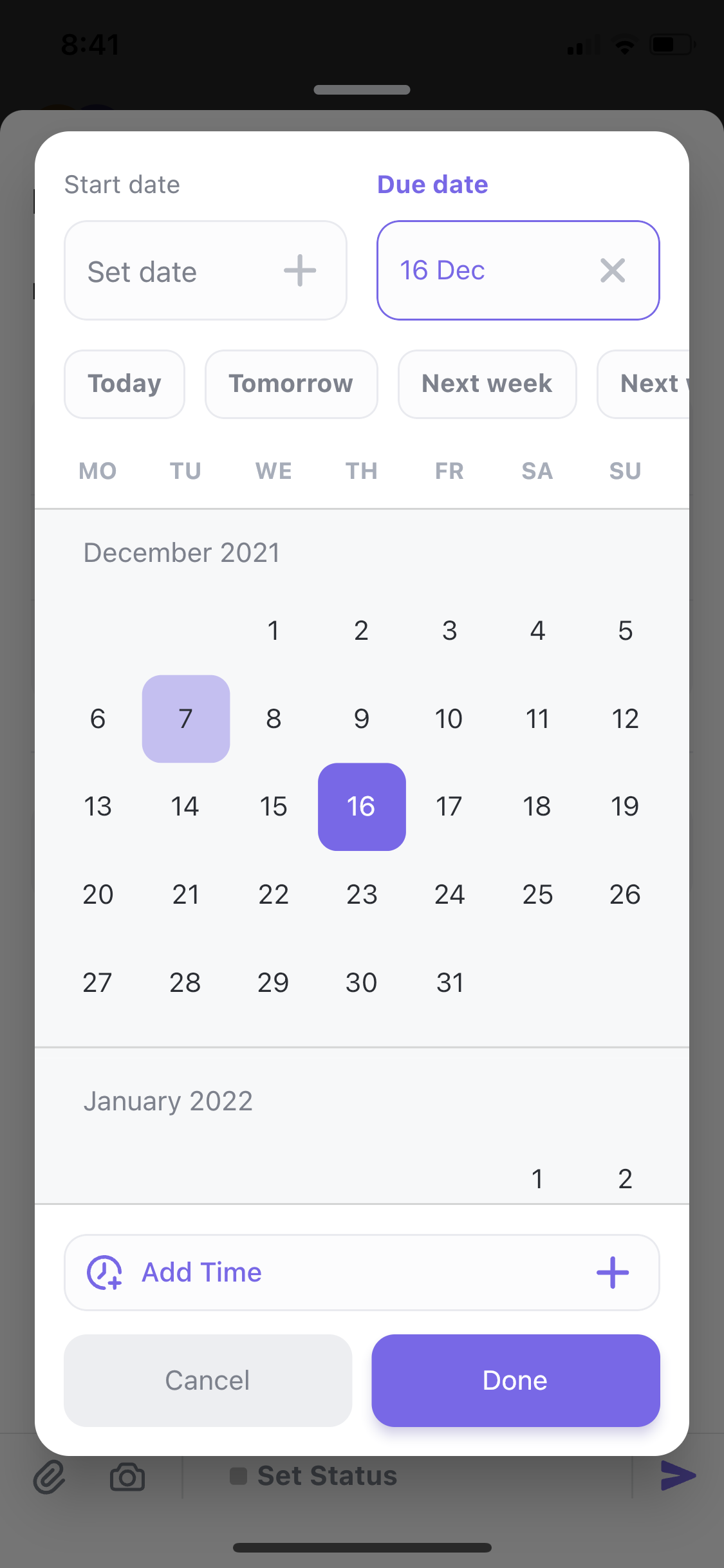
Set due date
this is title
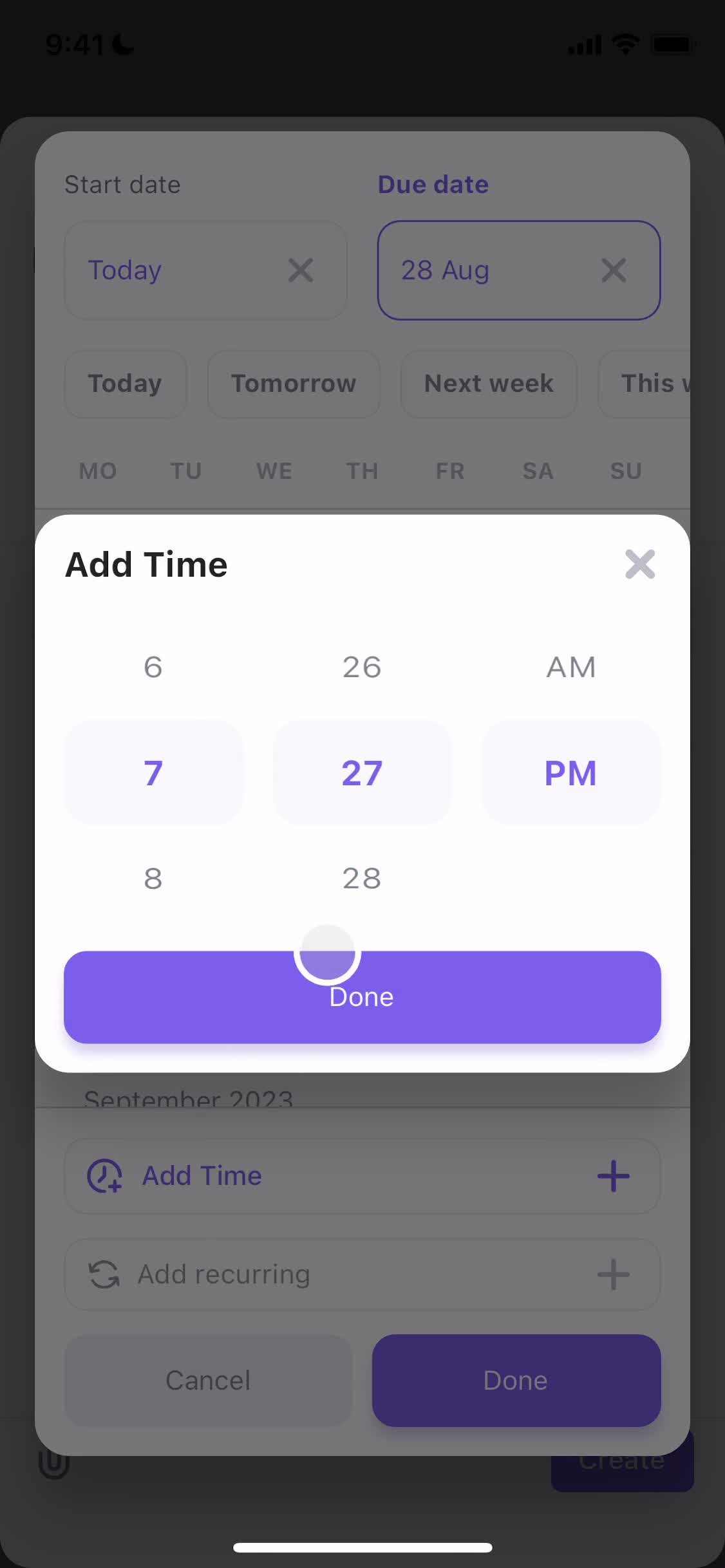
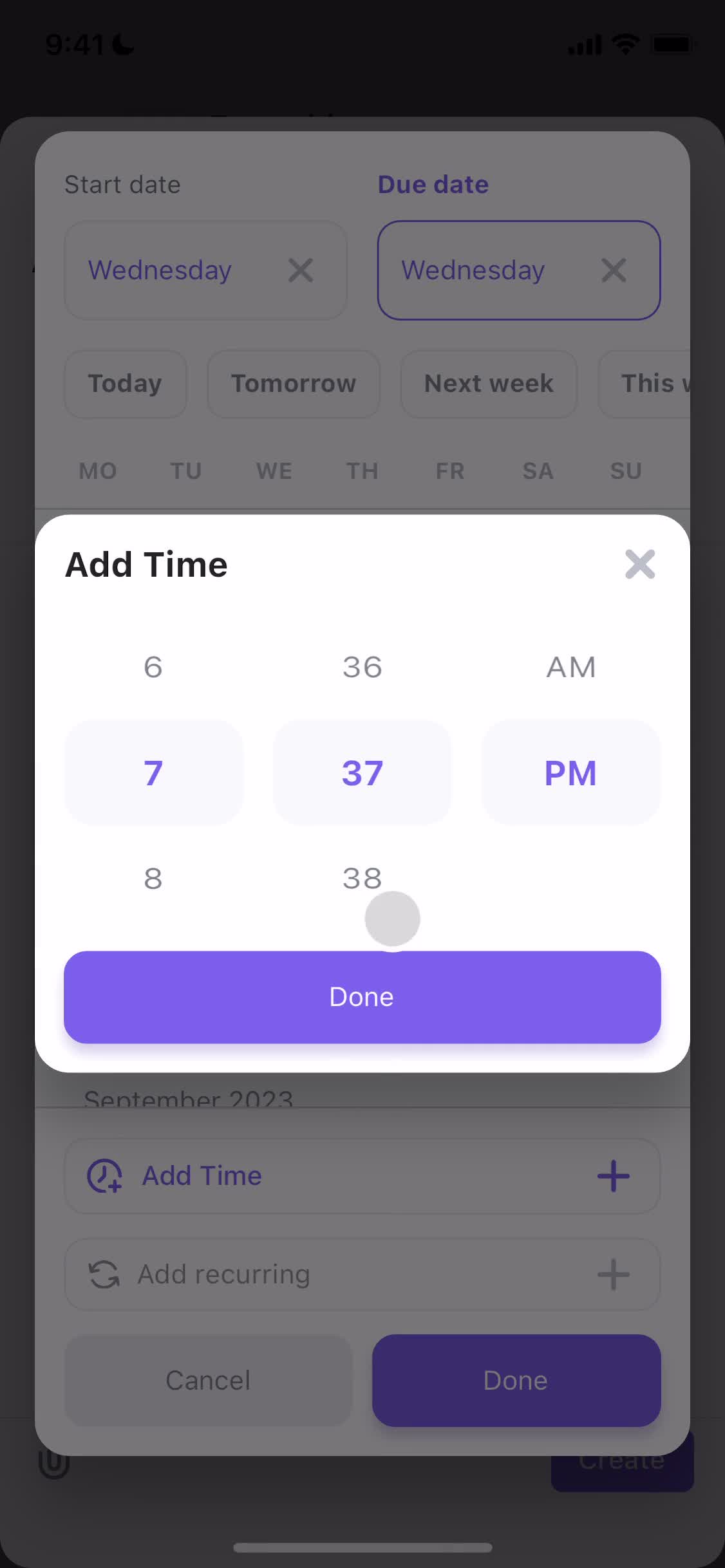
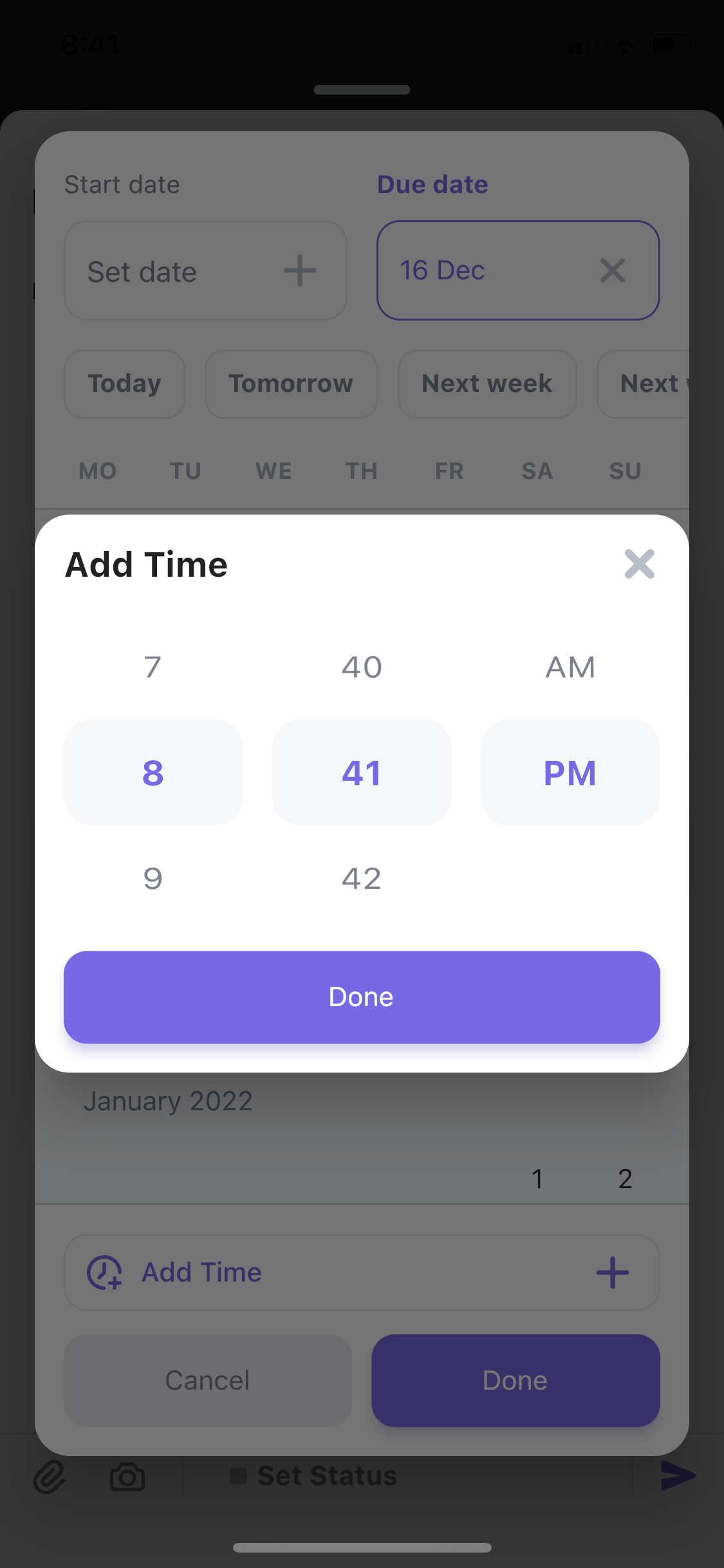
Set time
this is title
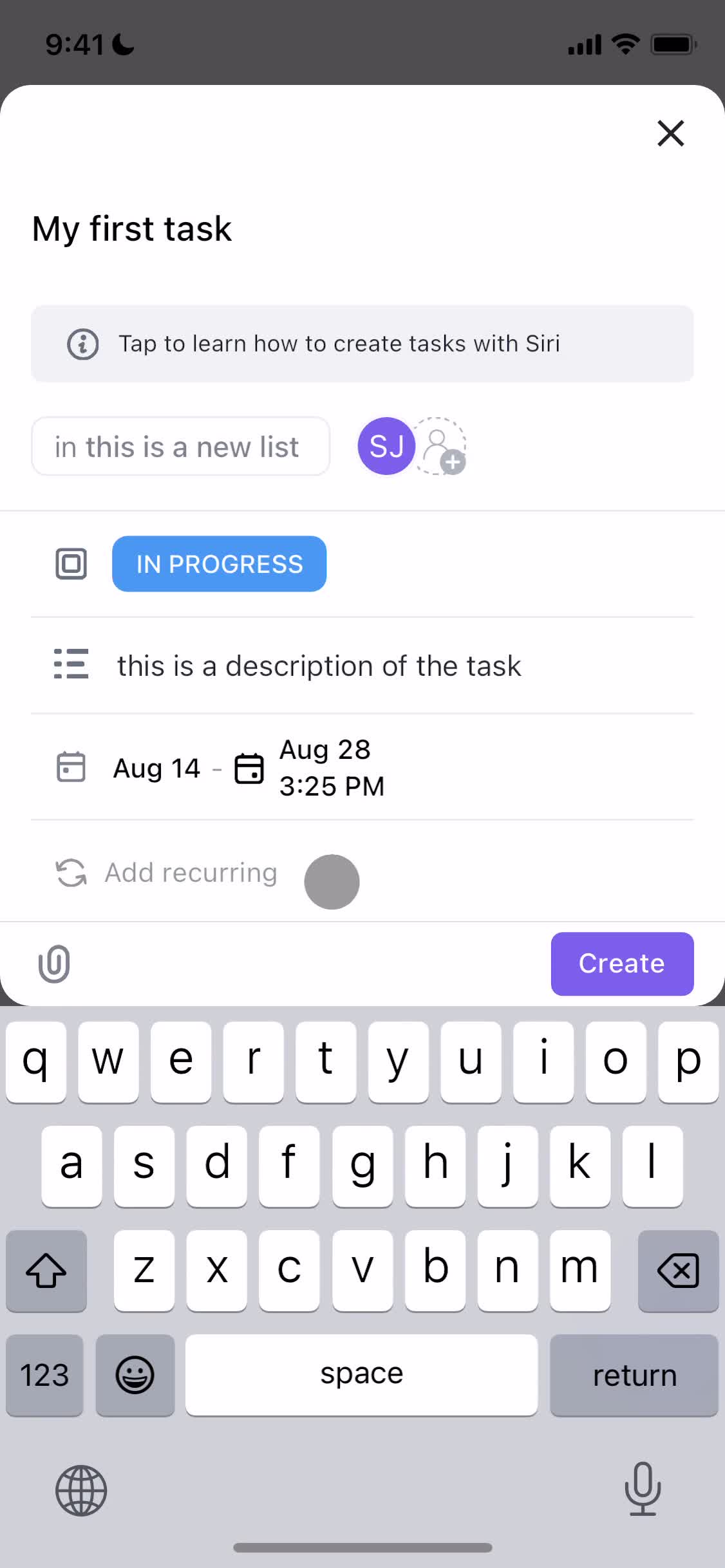
Task details
this is title
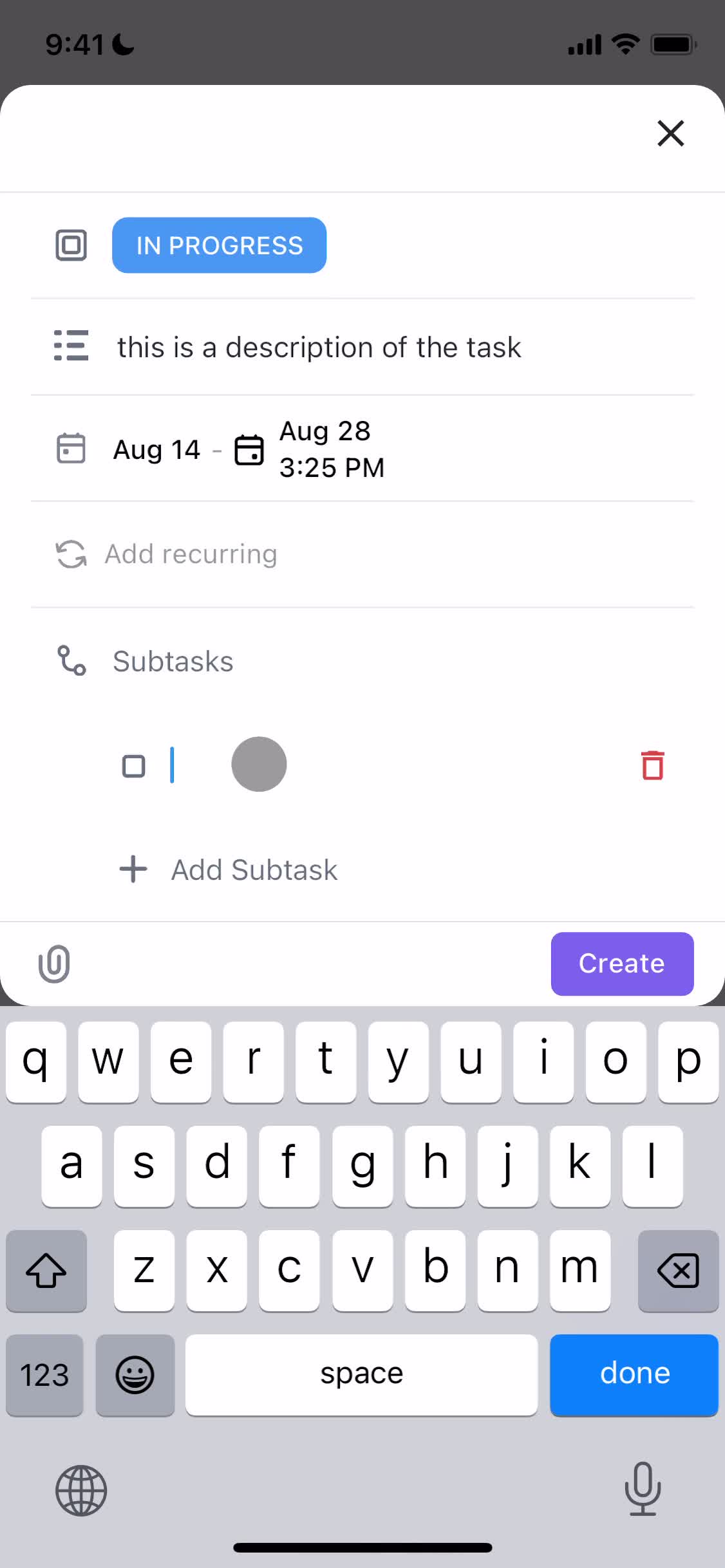
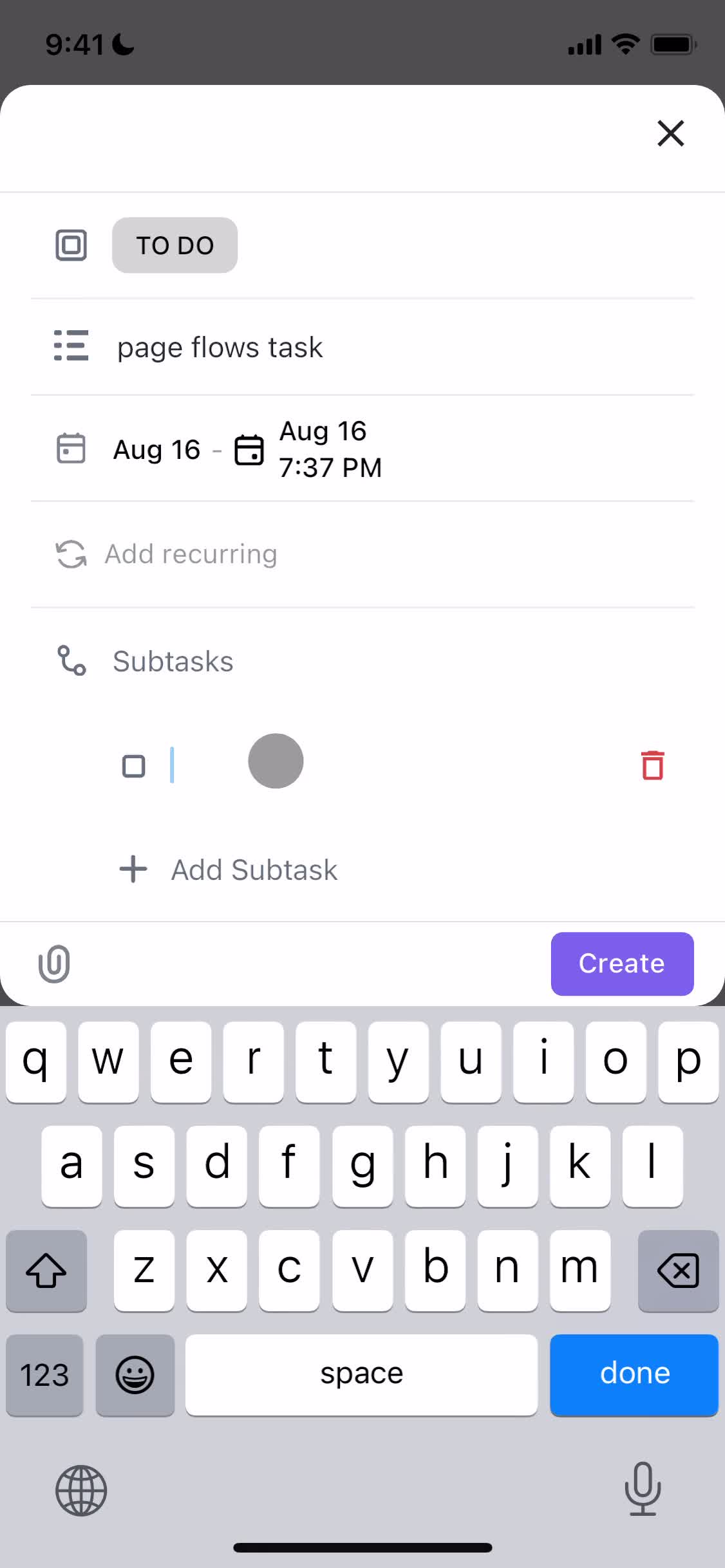
Add subtask
this is title
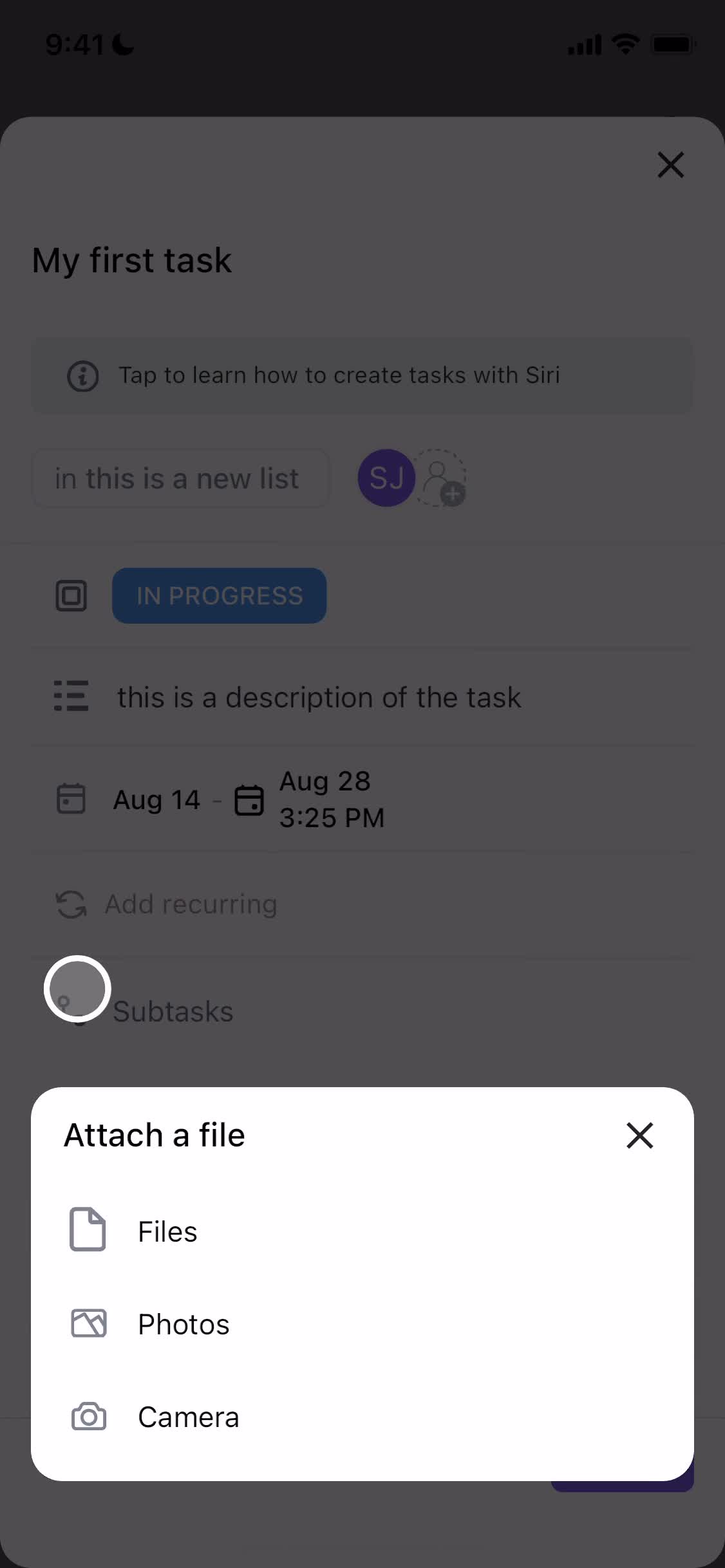
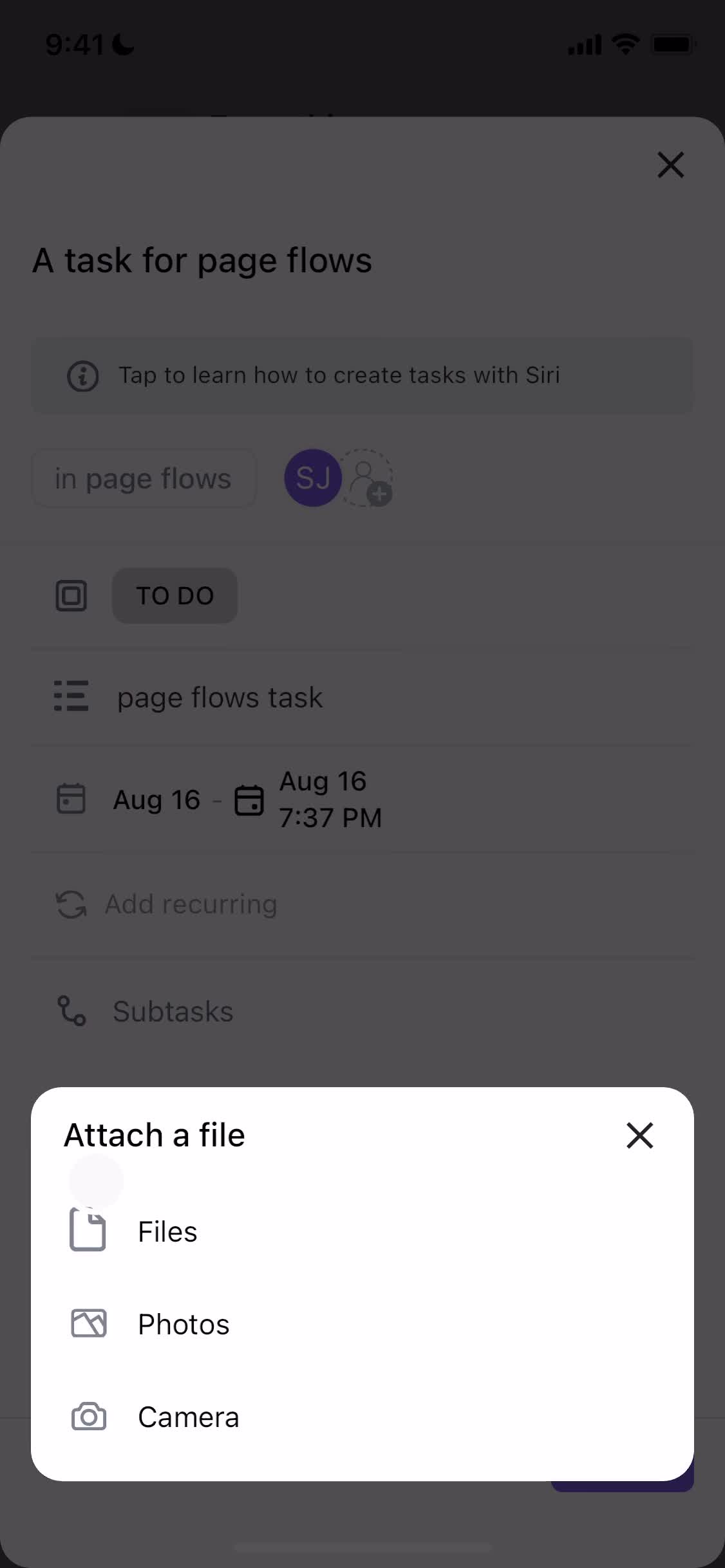
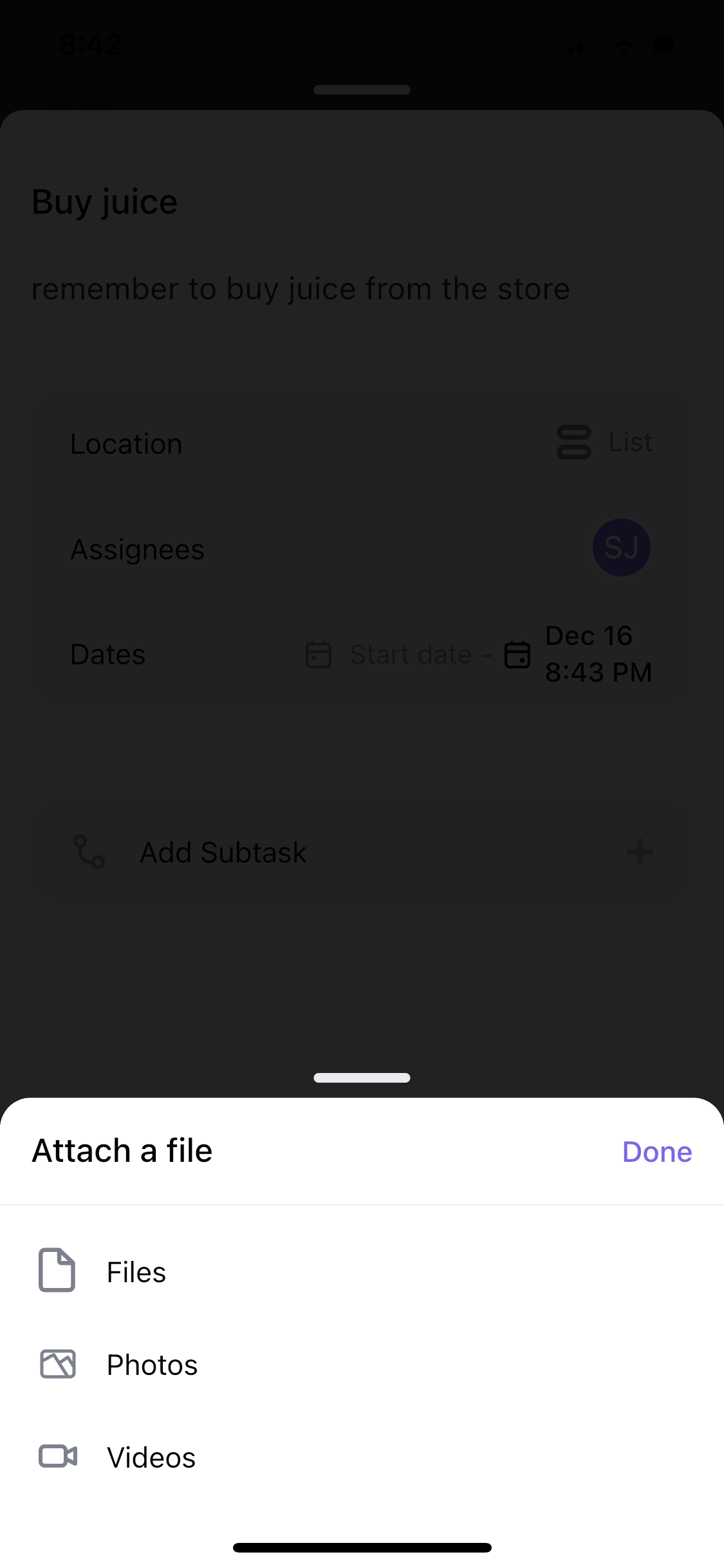
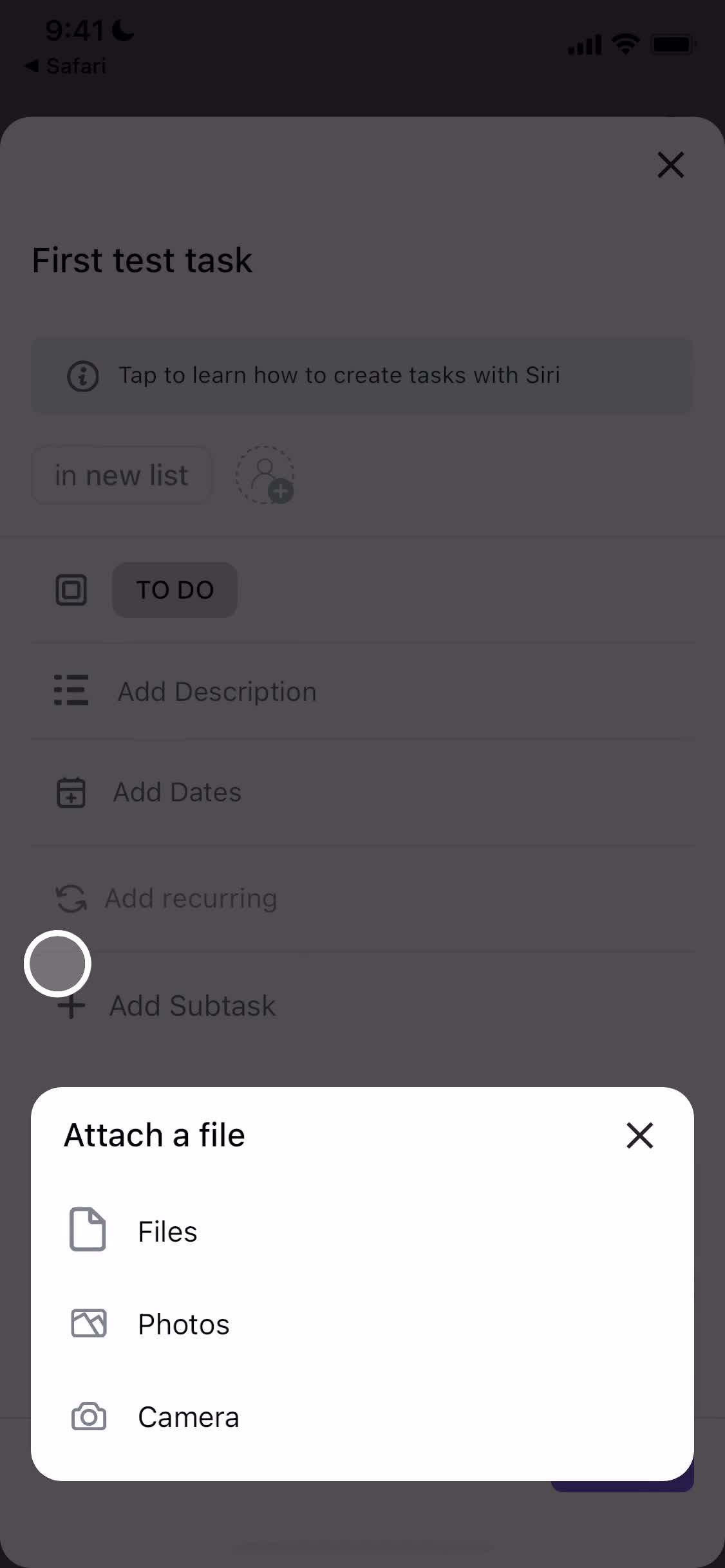
Add attachment
this is title
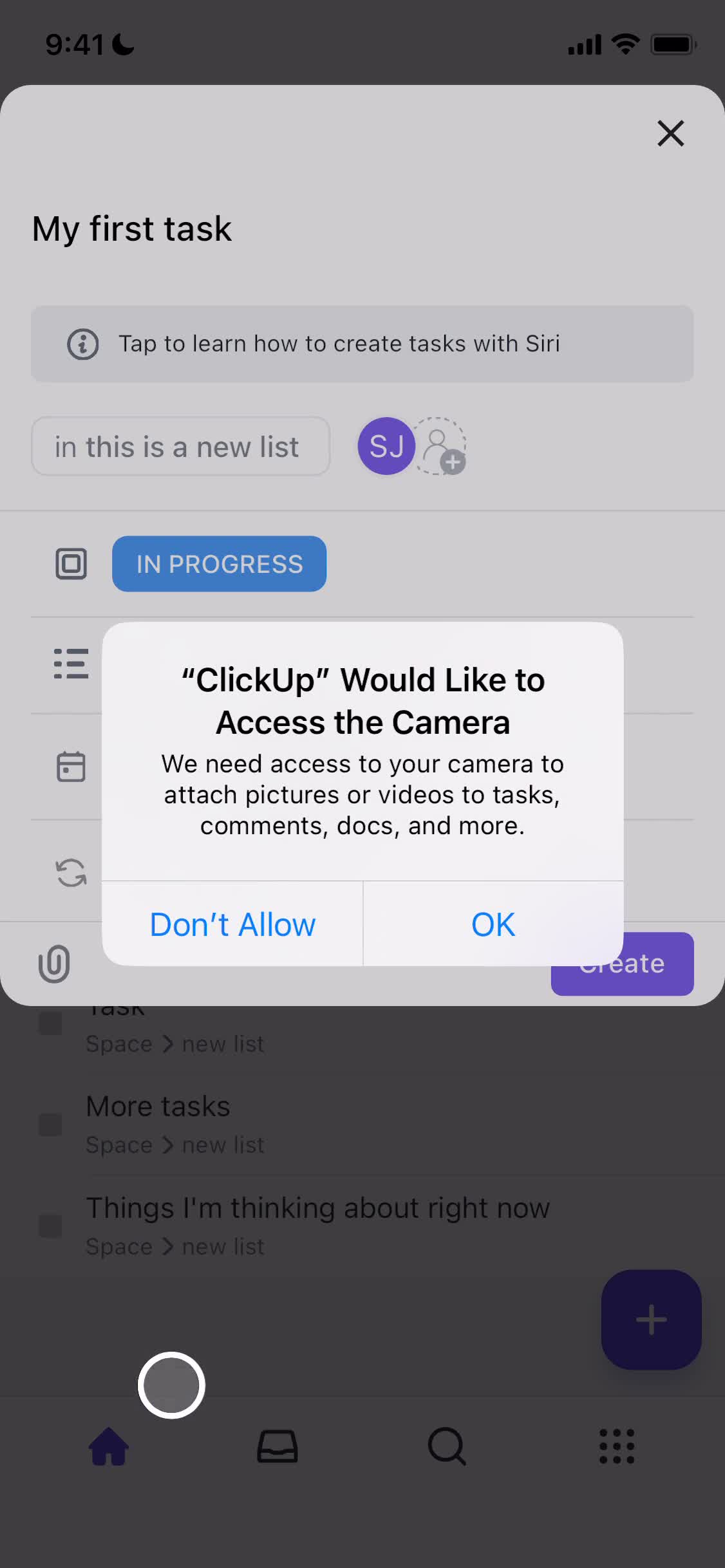
Enable camera
this is title
Take photo
this is title
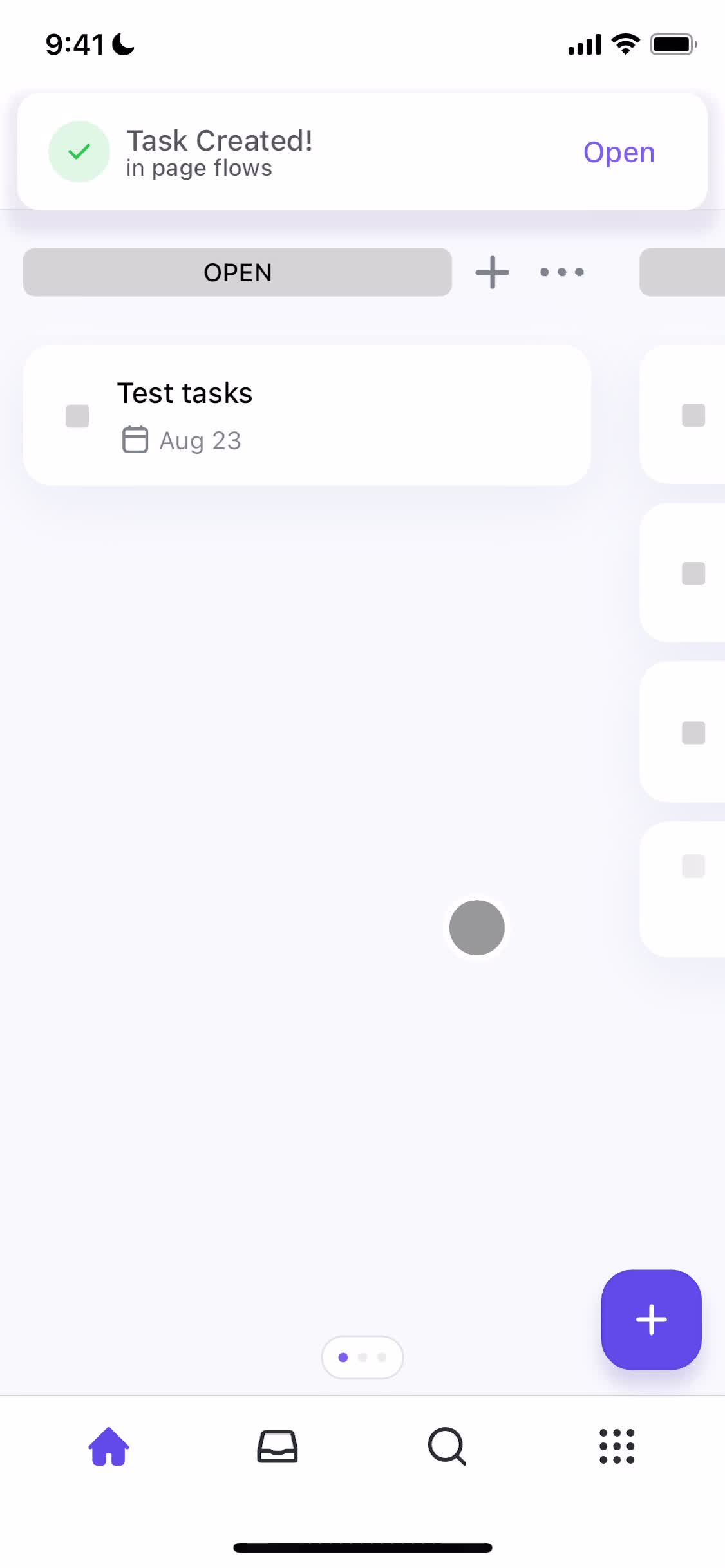
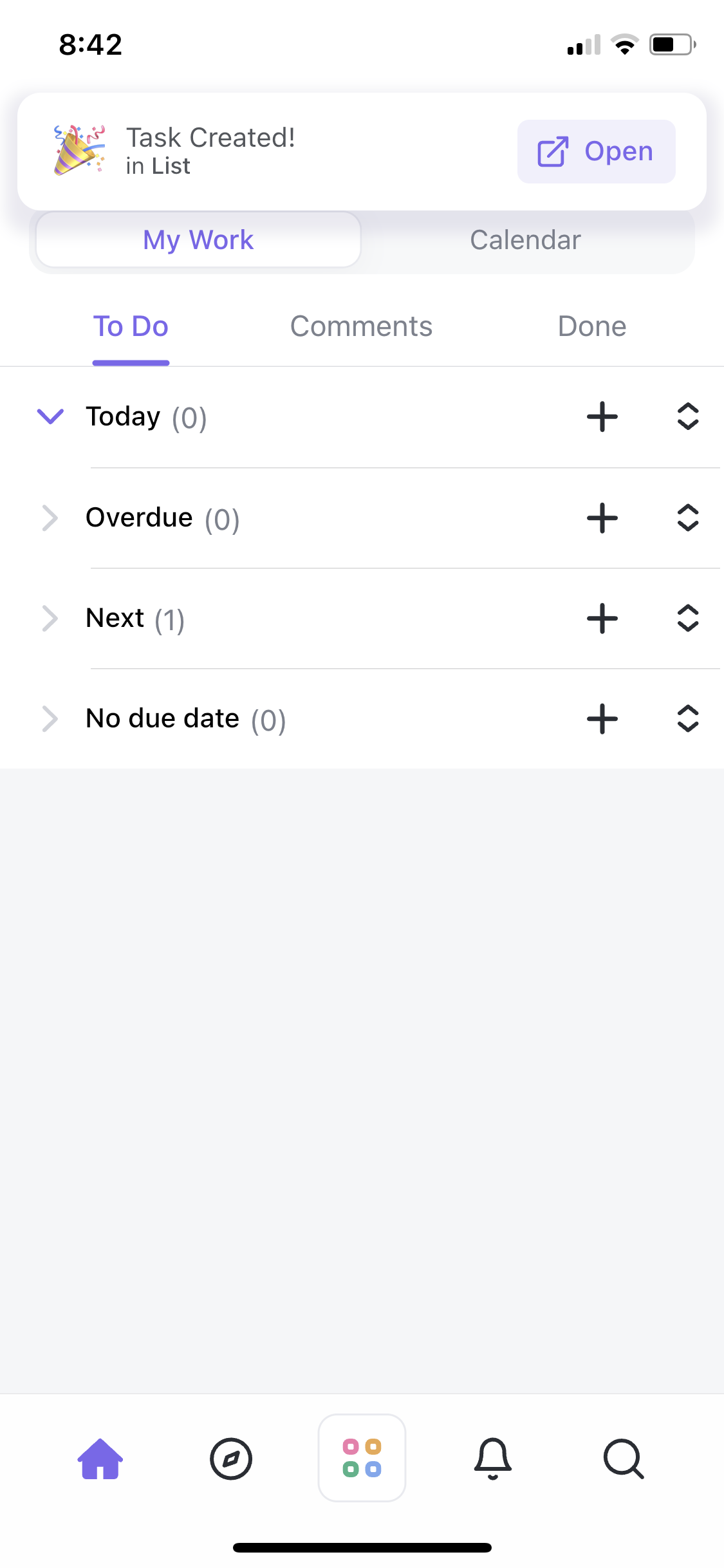
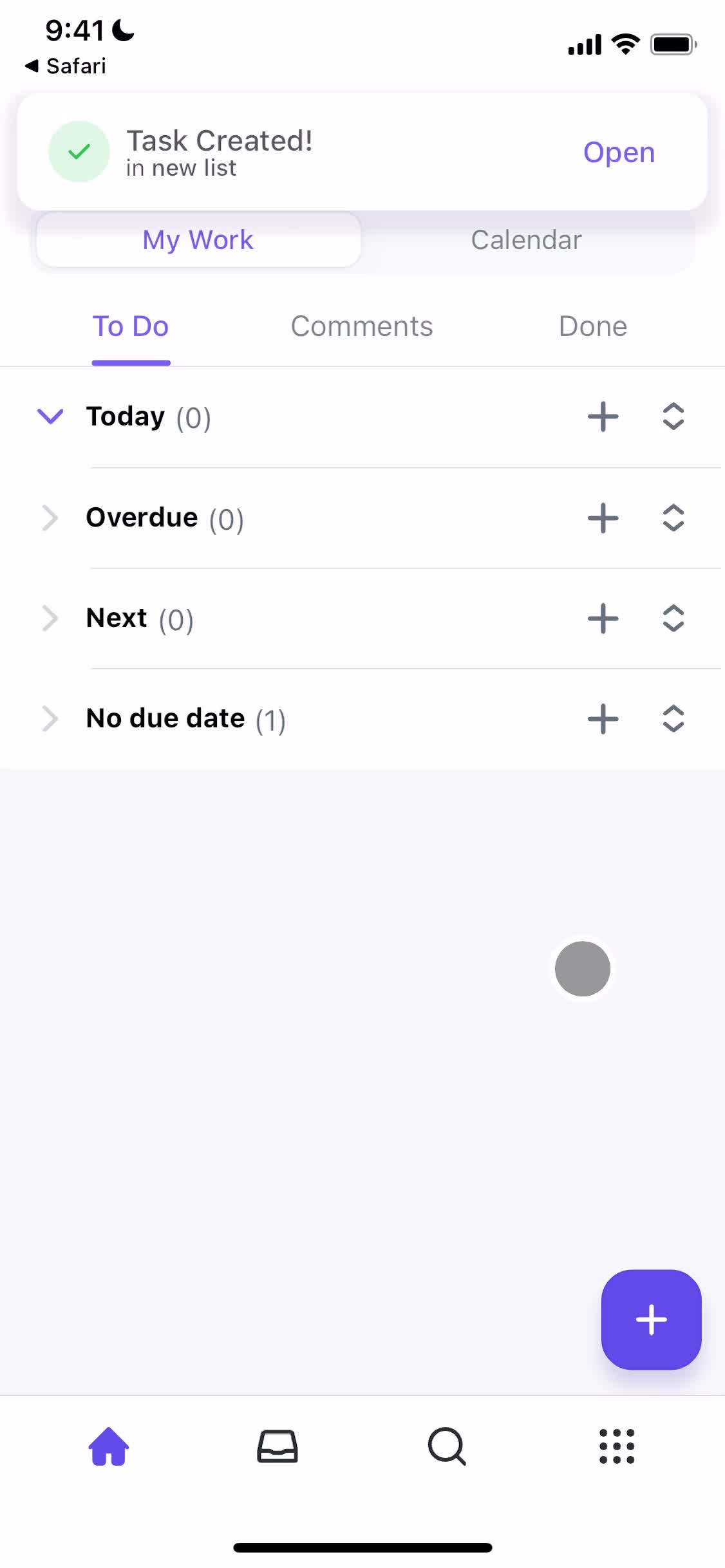
Task created
this is title
Home
this is title
Calendar
this is title
Task details
this is title
Set location
this is title
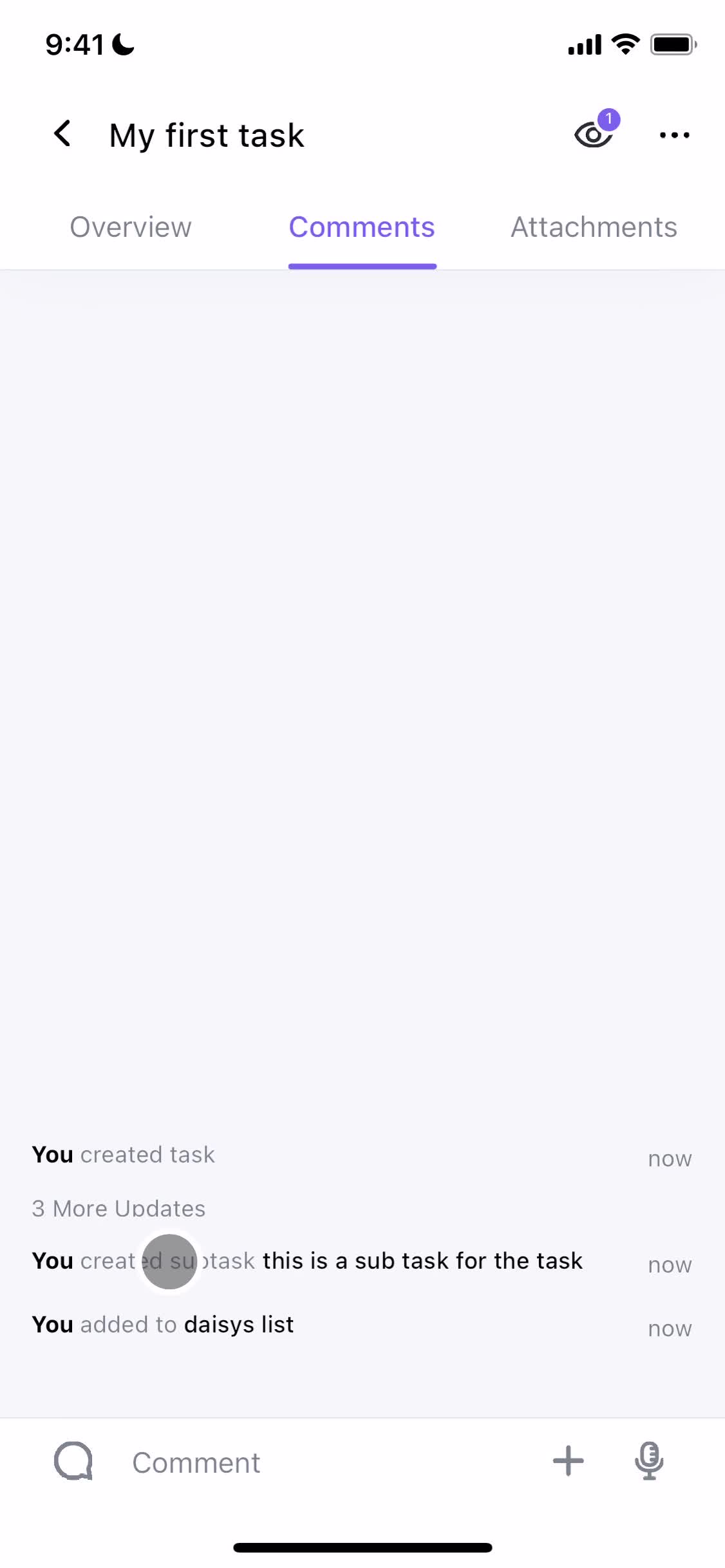
Comments
this is title
Add comment
this is title
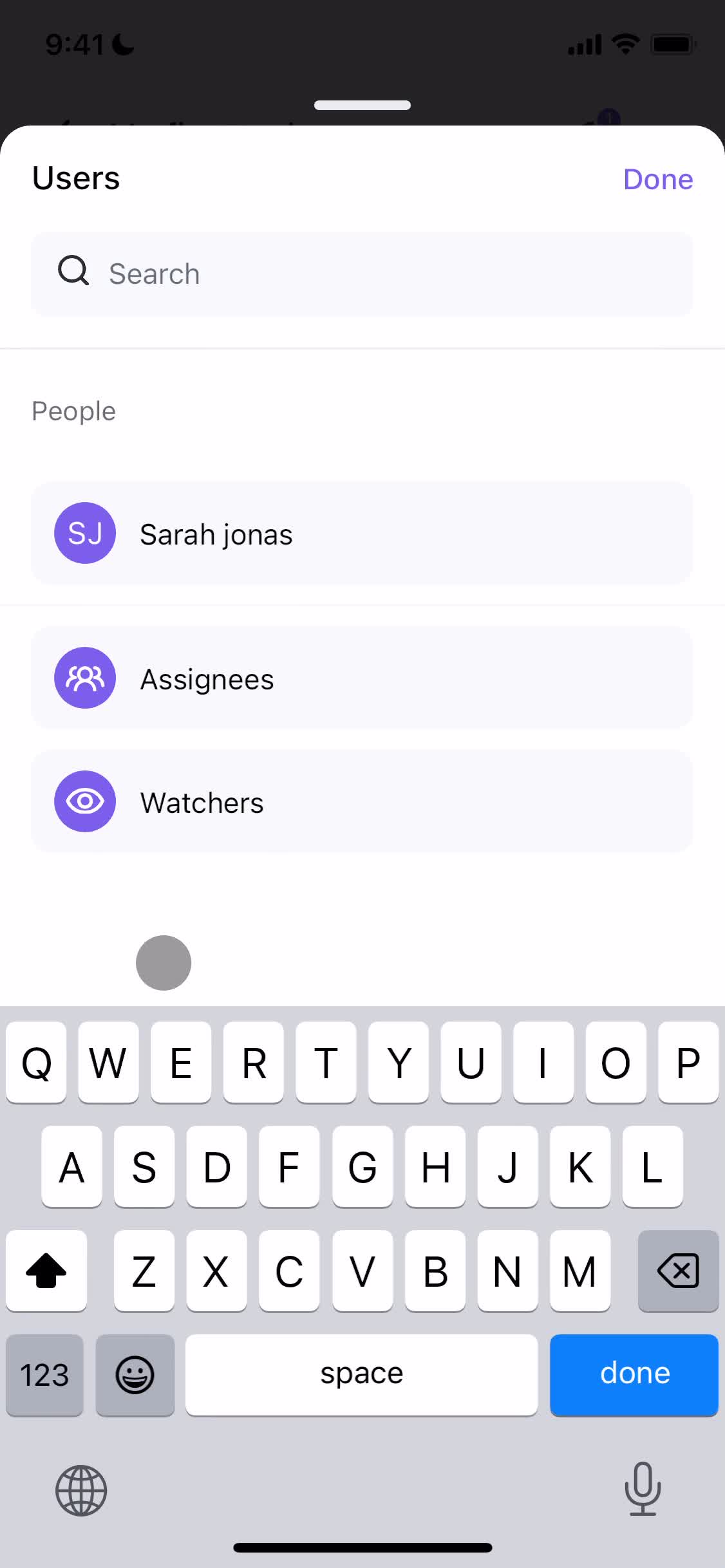
Add user
this is title
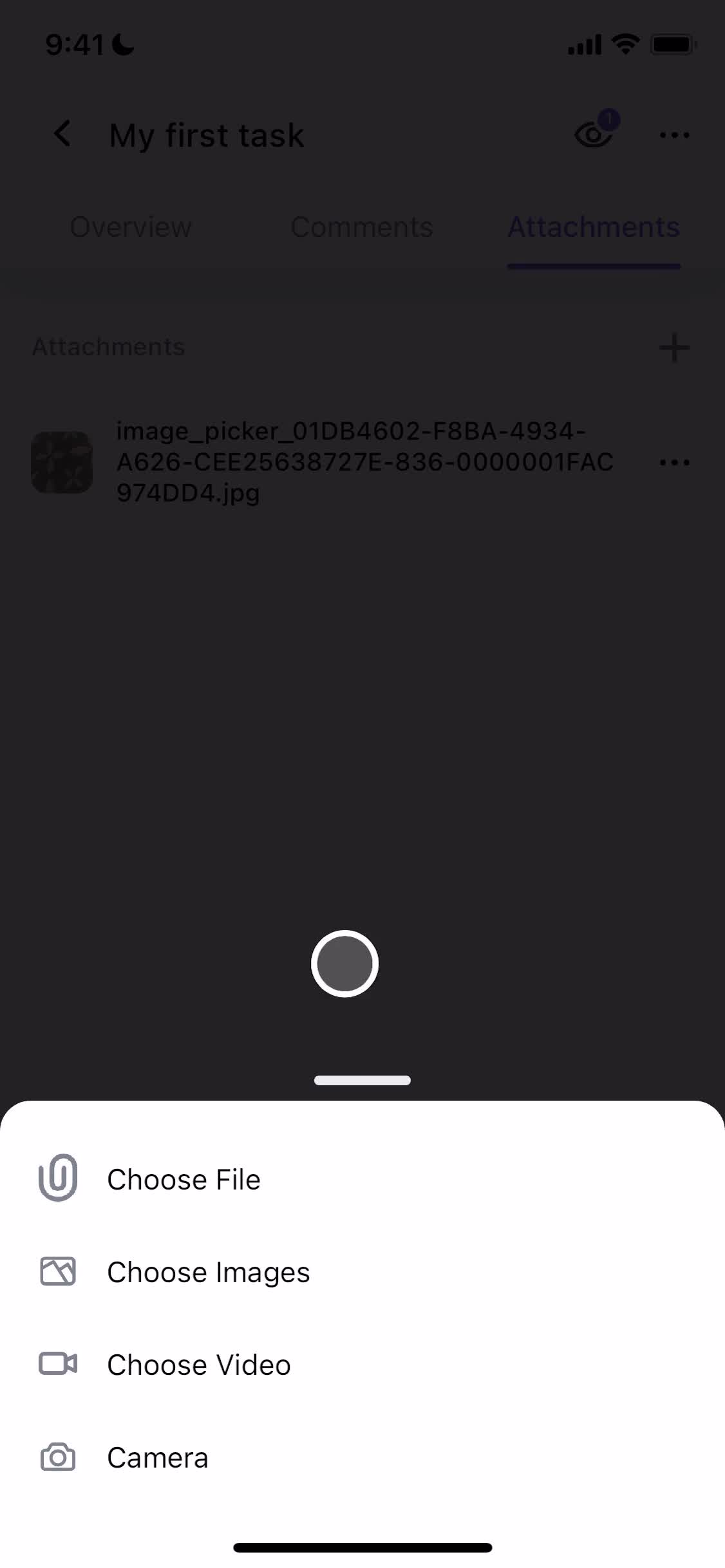
Add attachment
this is title
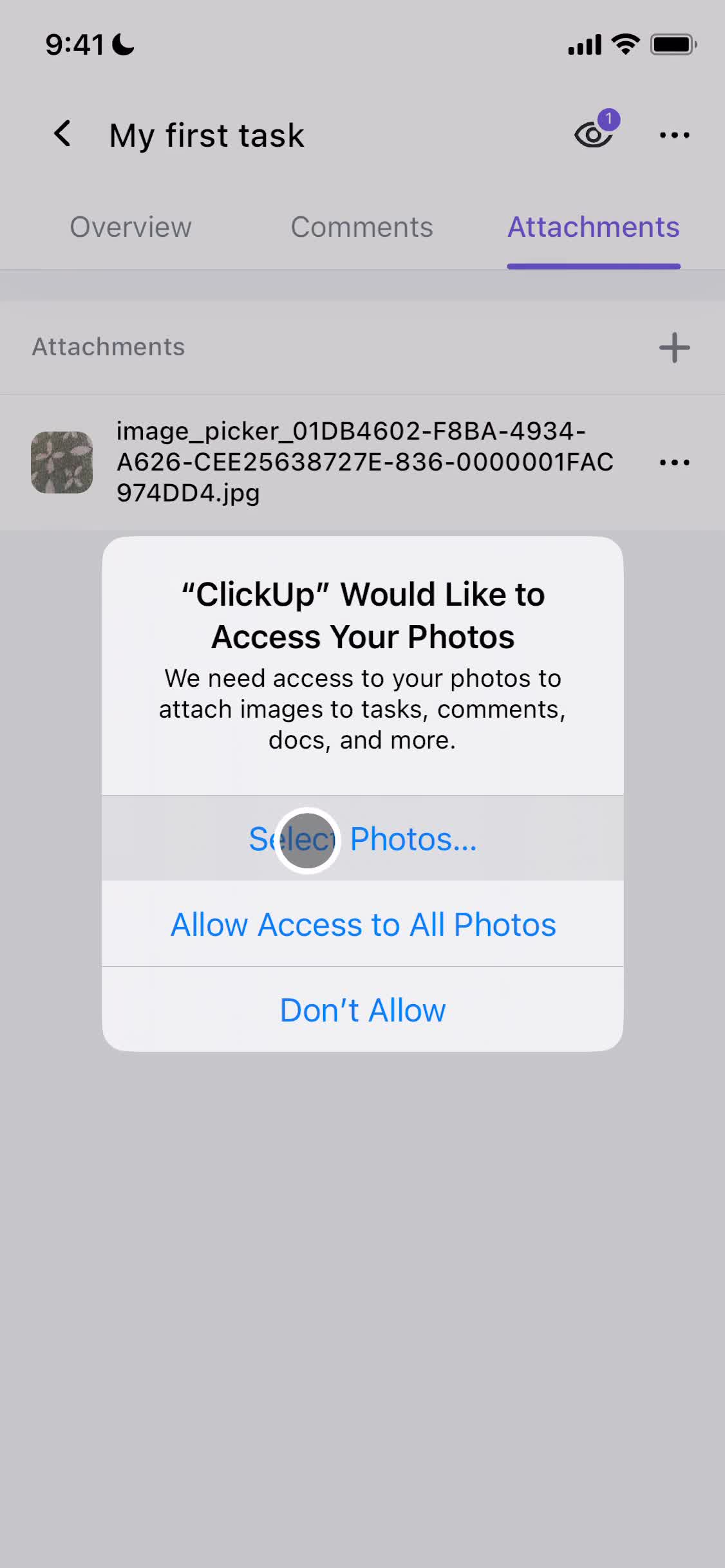
Enable photo library access
this is title
Take photo
this is title
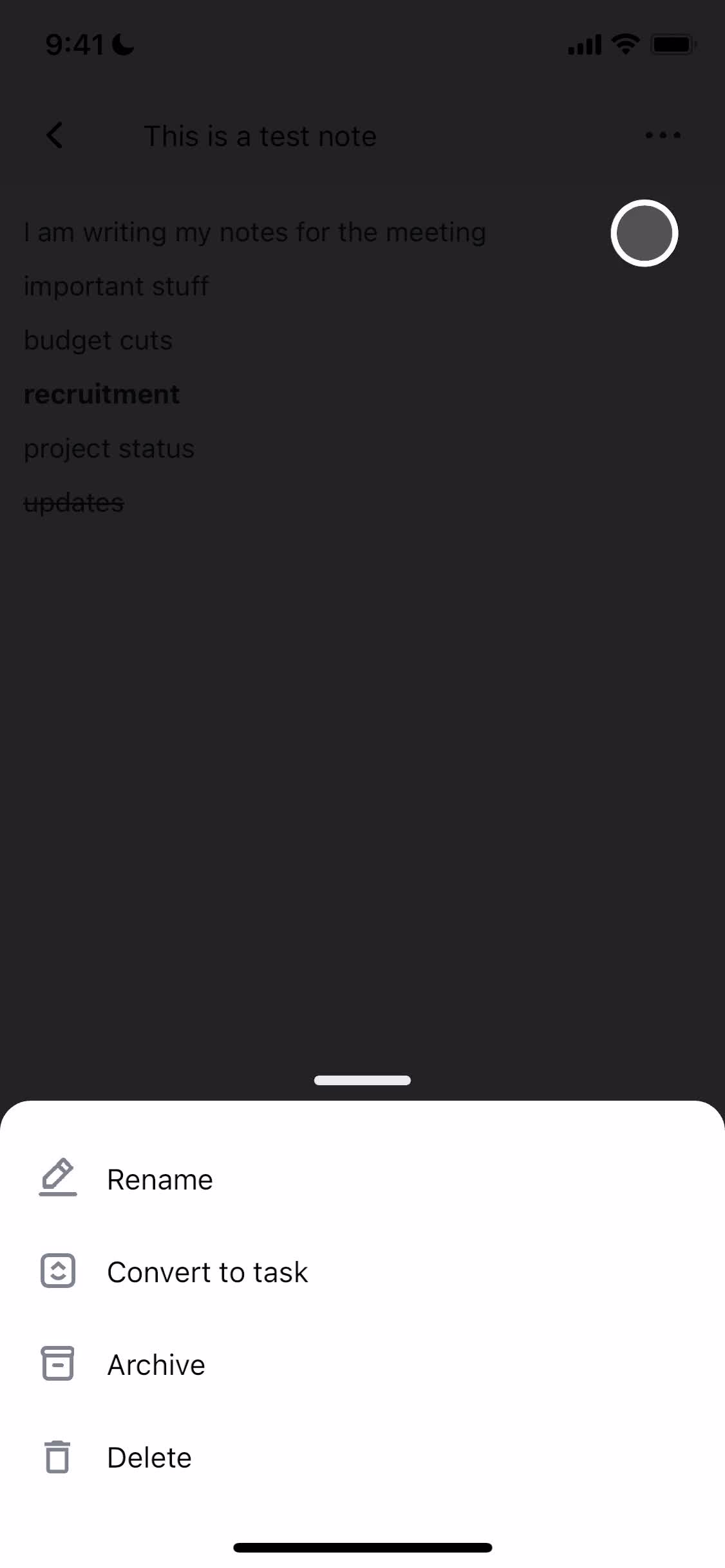
Action menu
this is title
Move to folder
this is title
Task details
this is title
Set status
this is title
Status updated
this is title
Checklist
this is title
Create checklist
this is title
Add item
this is title
Action menu
this is title
Task details
this is title
Calendar
this is title
Home
this is title
Set status
this is title
Status updated
this is title
Notifications
this is title
Comments
this is title
Home
this is title
Create task
this is title
Help centre
this is title
Home
this is title
Task details
this is title
Action menu
this is title
Archived
this is title
Home
this is title
Create task
this is title
Set reminder
this is title
Task created
this is title
Home
this is title
Navigation menu
this is title
Space
this is title
Select view
this is title
Space
this is title
Navigation menu
this is title
Kanban board
this is title
Filter options
this is title
Add filter
this is title
Set status
this is title
Assign task
this is title
Share
this is title
Error
this is title
Kanban board
this is title
Home
this is title
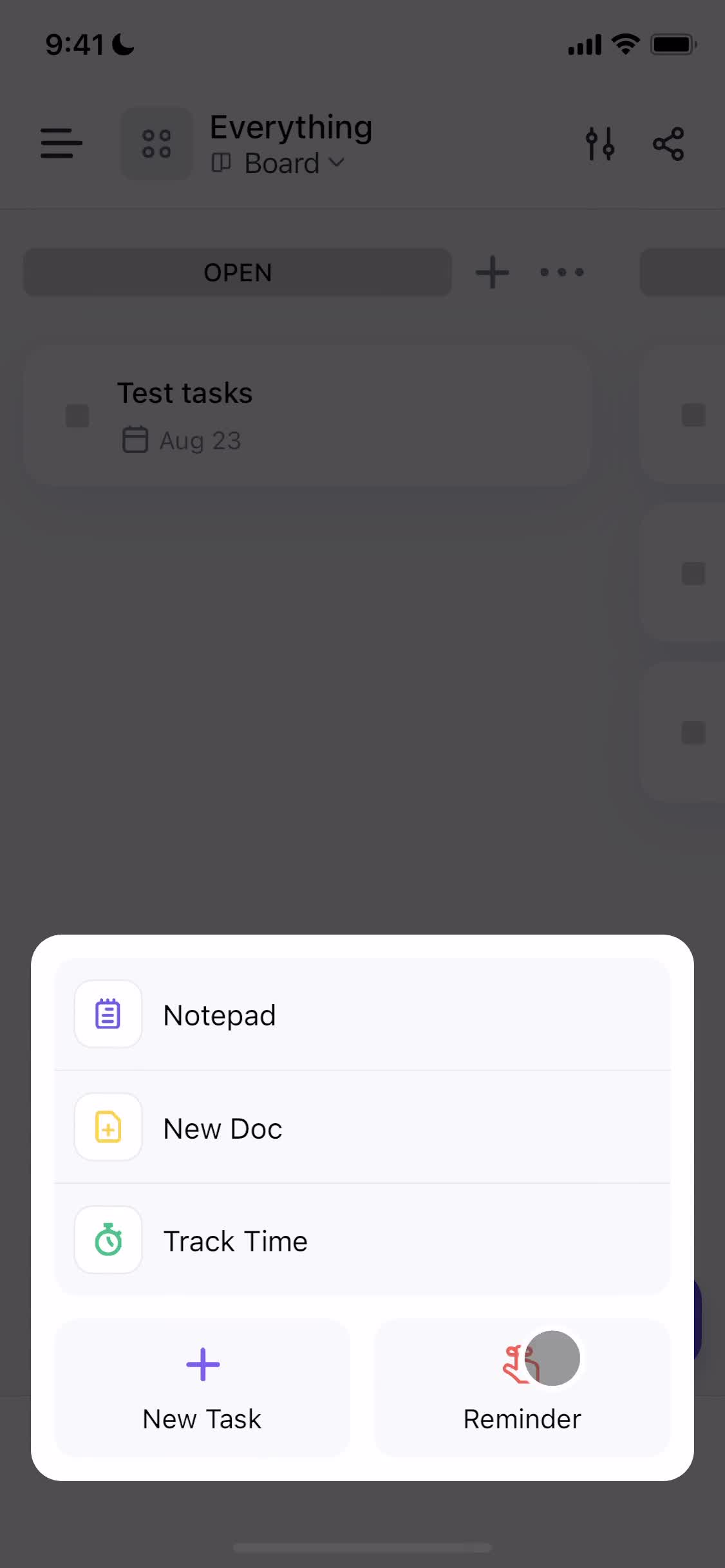
Create menu
this is title
Create document
this is title
Document editor
this is title
Edit text
this is title
Pages
this is title
Add page
this is title
Document editor
this is title
Pages
this is title
Document editor
this is title
Home
this is title
Notifications
this is title
Home
this is title
Navigation menu
this is title
Documents
this is title
Action menu
this is title
Move to folder
this is title
Moved
this is title
Action menu
this is title
Delete file
this is title
Deleted
this is title
Documents
this is title
Kanban board
this is title
Create menu
this is title
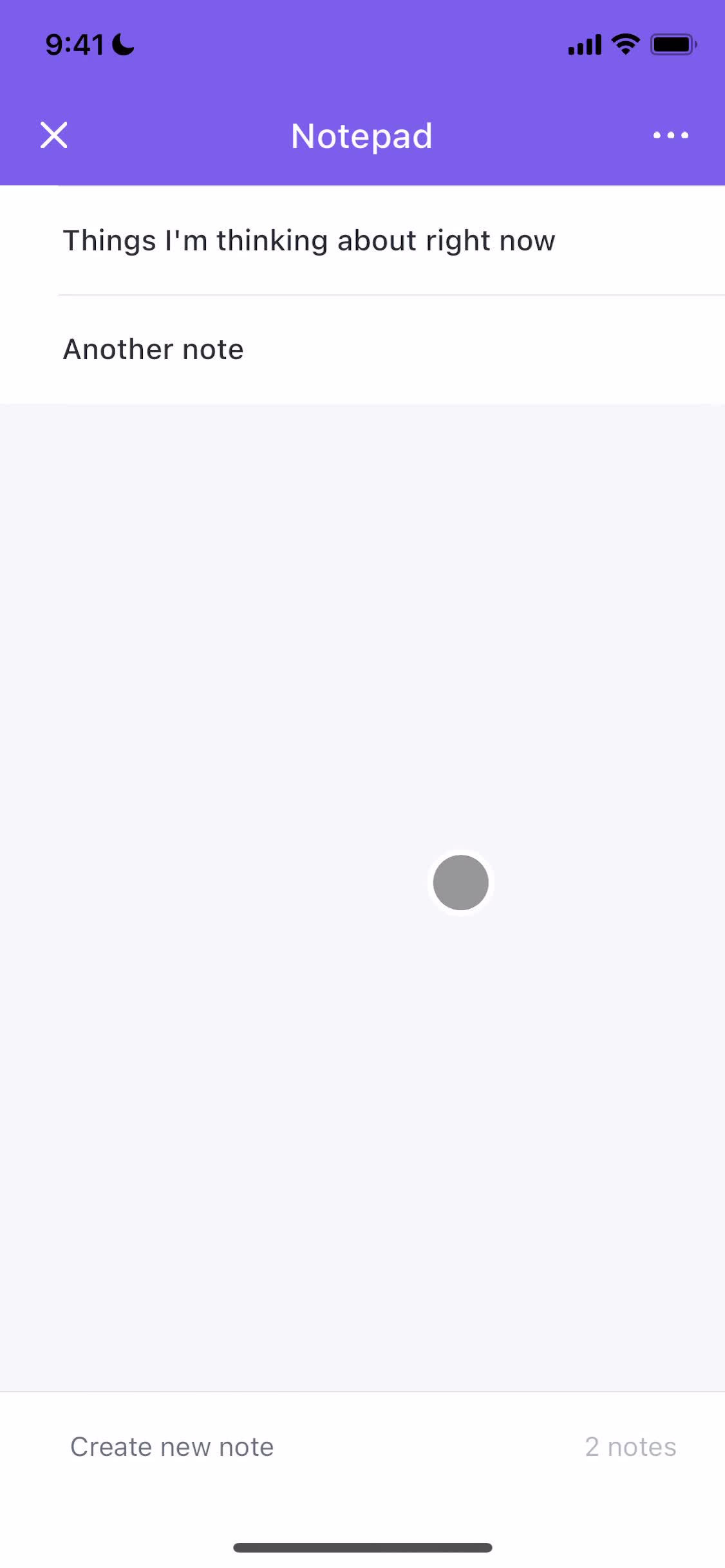
Notes
this is title
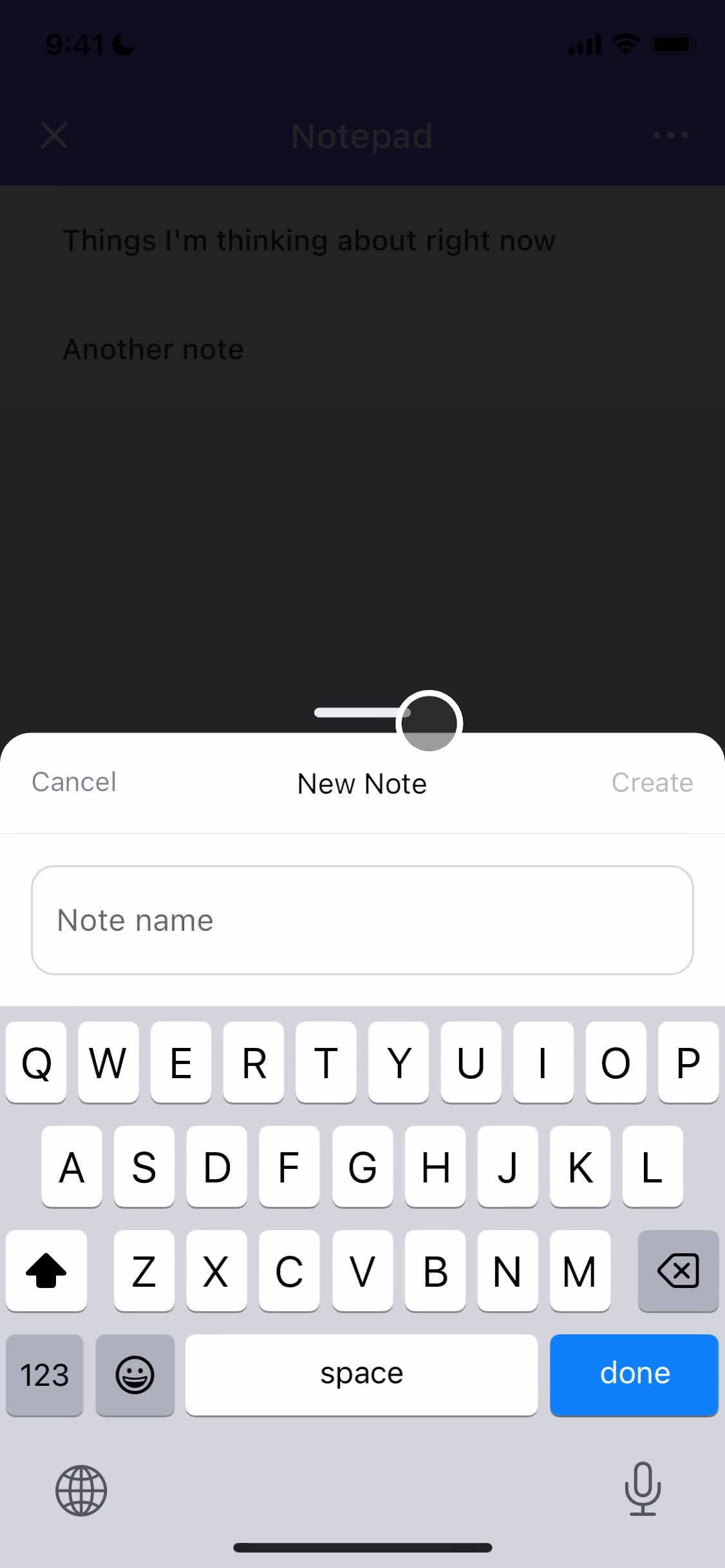
Create note
this is title
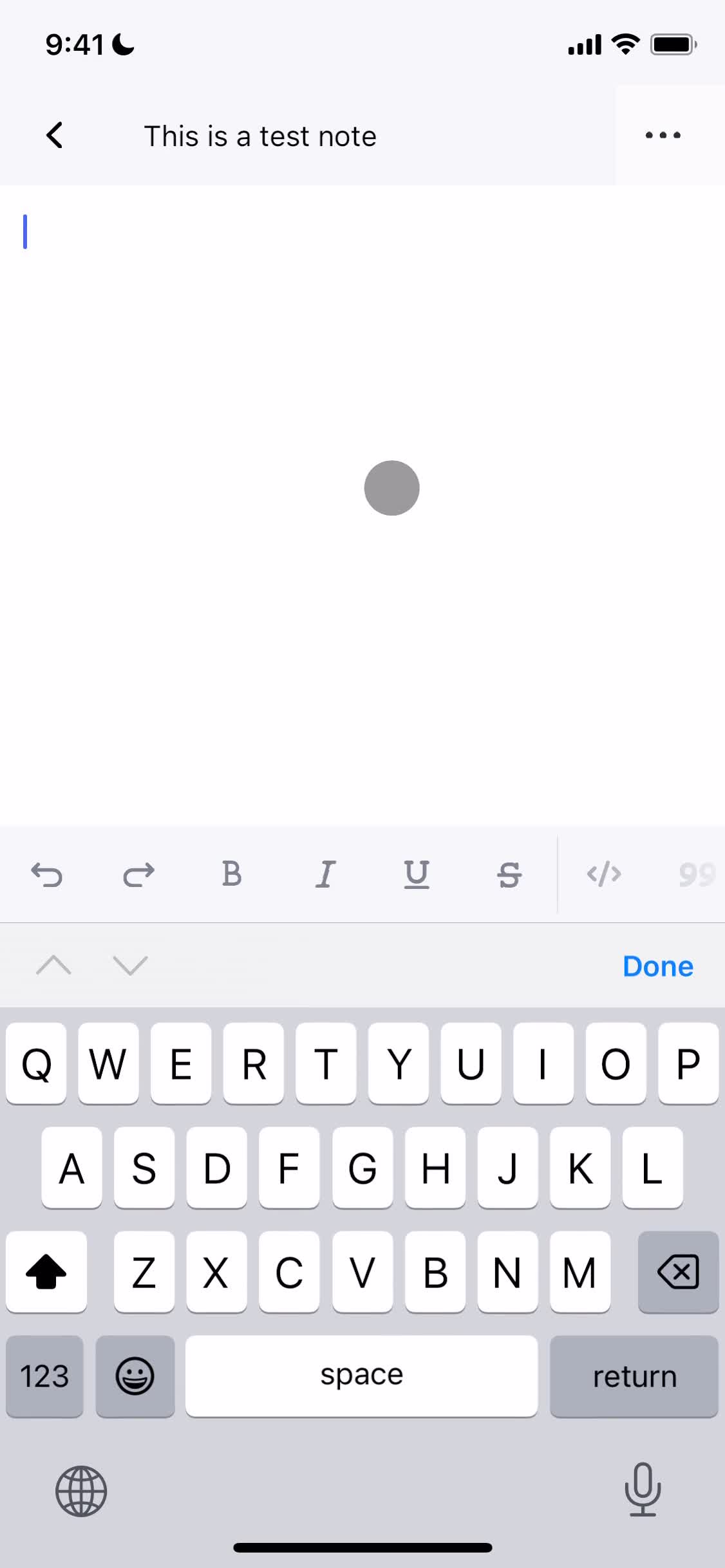
Document editor
this is title
Action menu
this is title
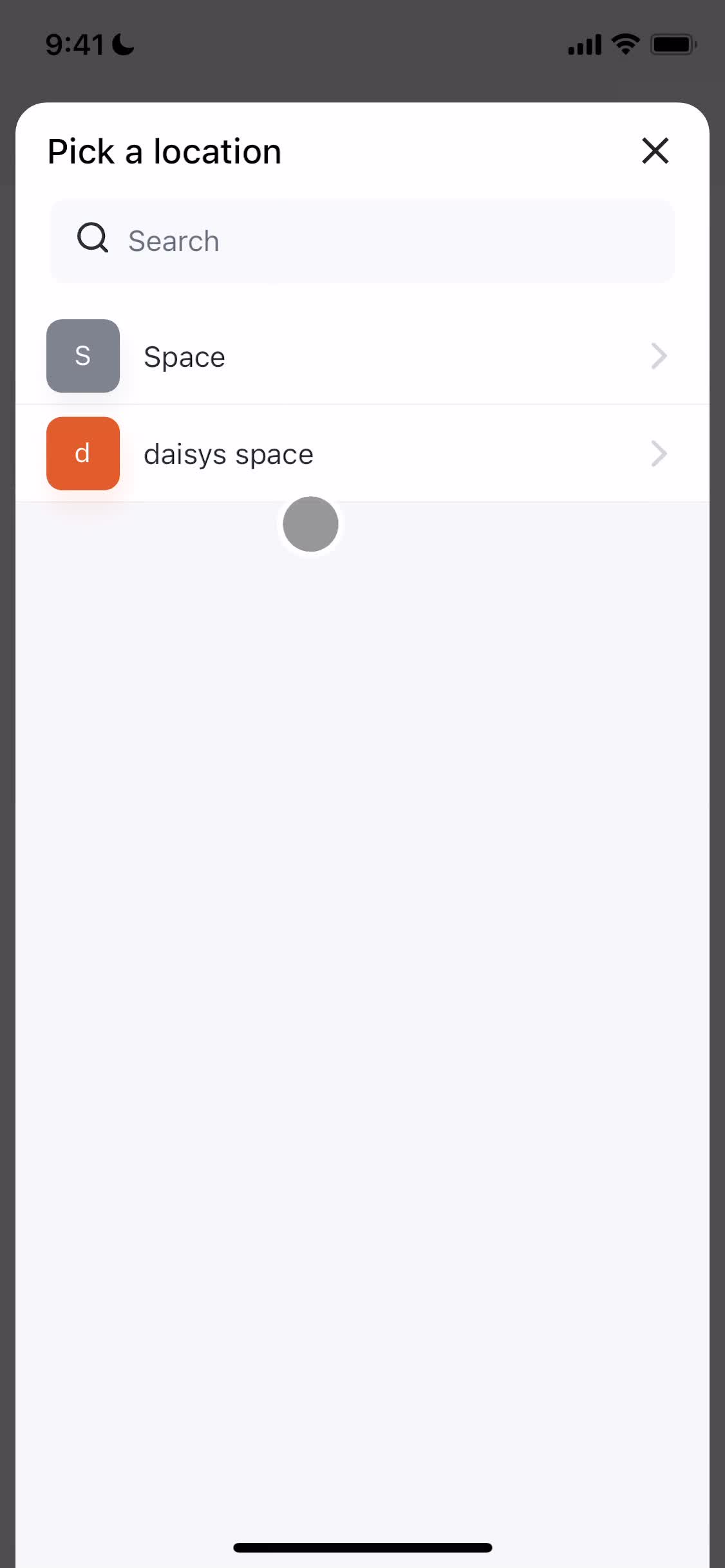
Set location
this is title
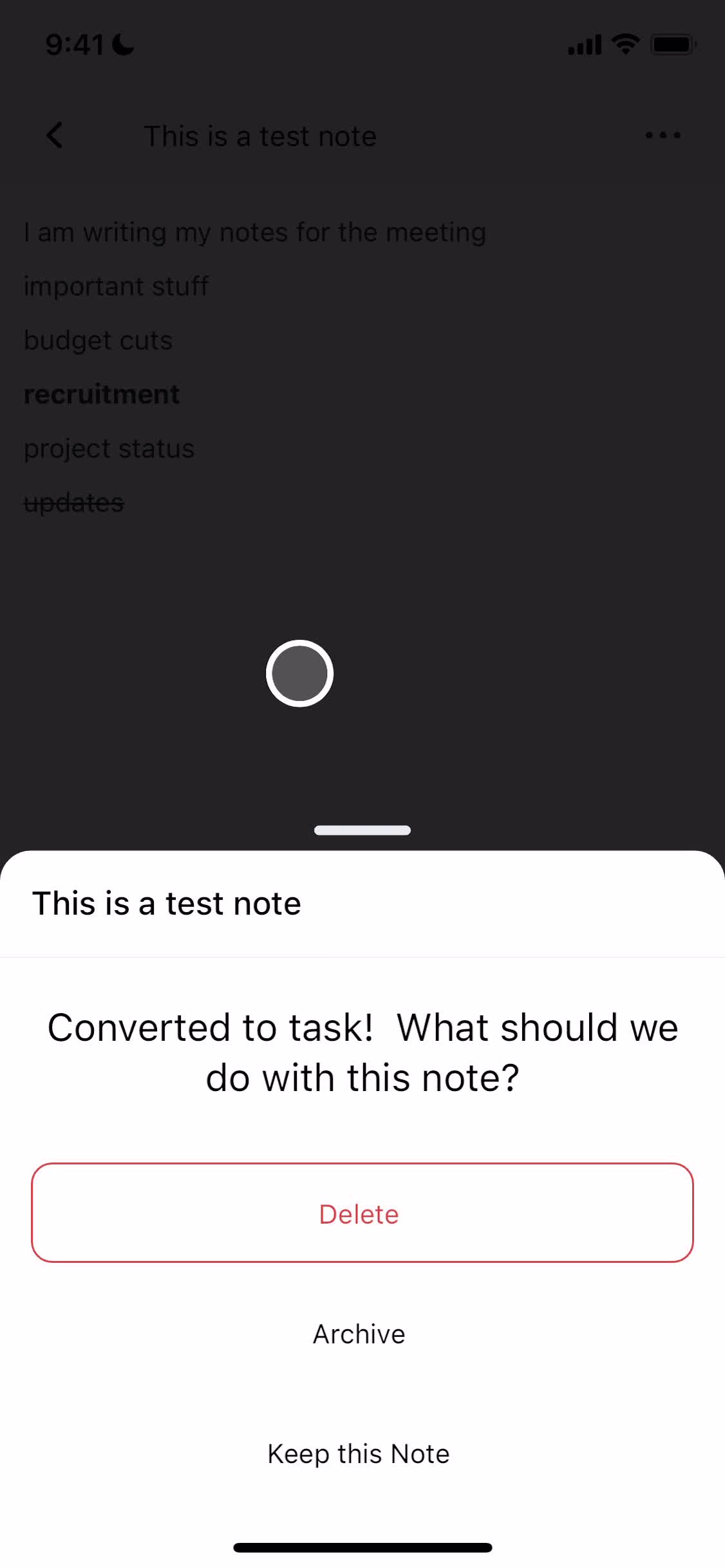
Confirm change
this is title
Document editor
this is title
Notes
this is title
Delete item
this is title
Kanban board
this is title
Create task
this is title
Set location
this is title
Create a list
this is title
Add details
this is title
Assign task
this is title
Add description
this is title
Set due date
this is title
Set time
this is title
Add subtask
this is title
Add attachment
this is title
Take a photo
this is title
Task created
this is title
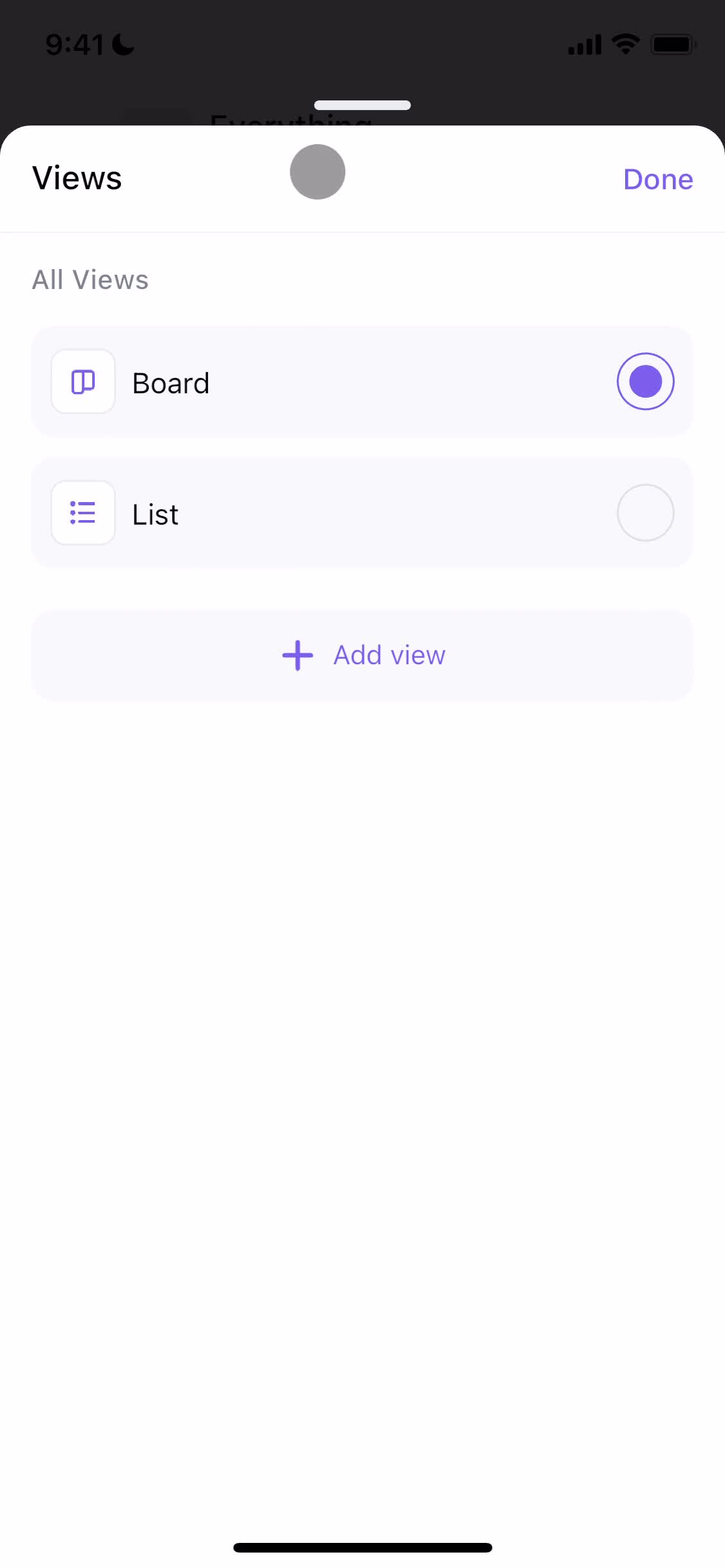
Select view
this is title
Add view
this is title
Select view
this is title
Calendar view
this is title
Task details
this is title
Action menu
this is title
Item deleted
this is title
Select view
this is title
Kanban board
this is title
Filtered results
this is title
Kanban board
this is title
Navigation menu
this is title
List details
this is title
Select view
this is title
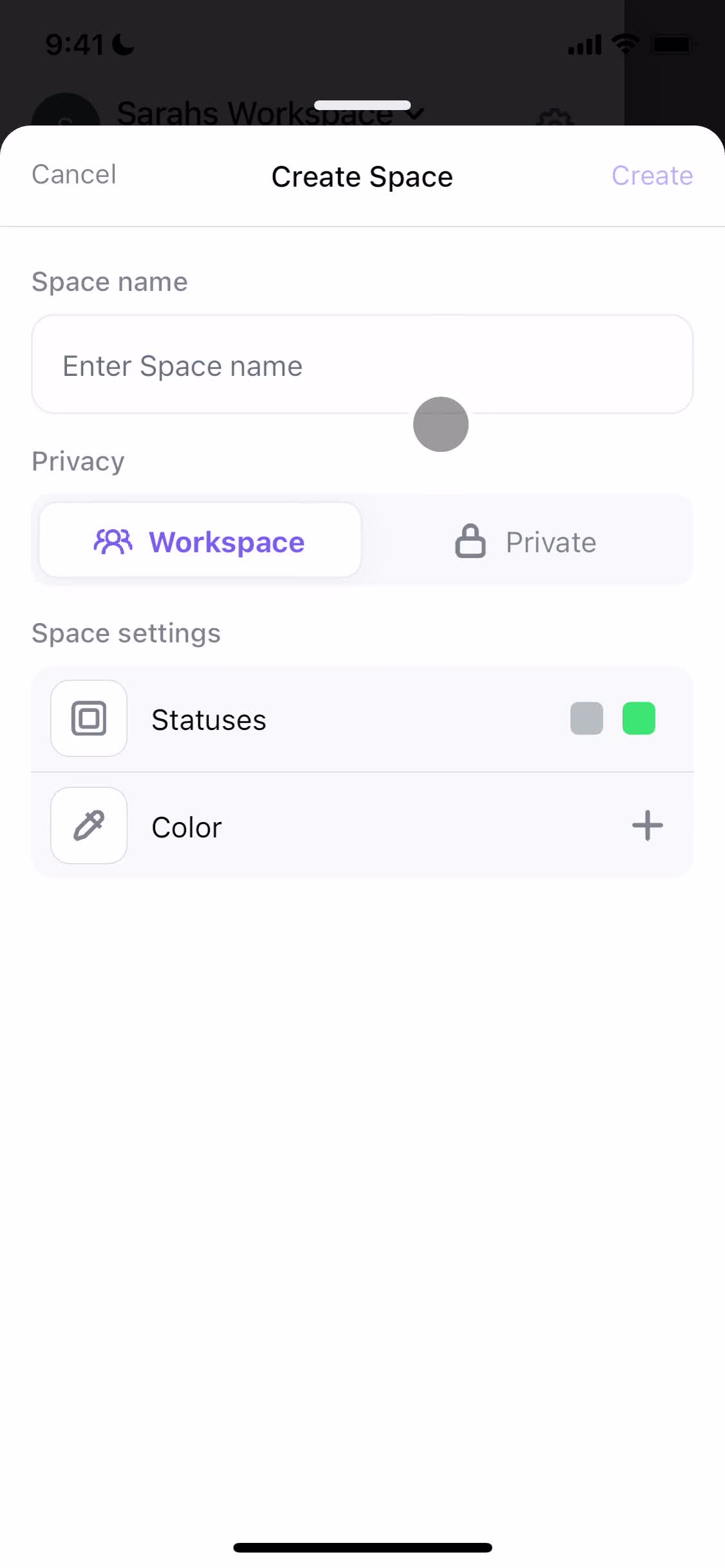
Create space
this is title
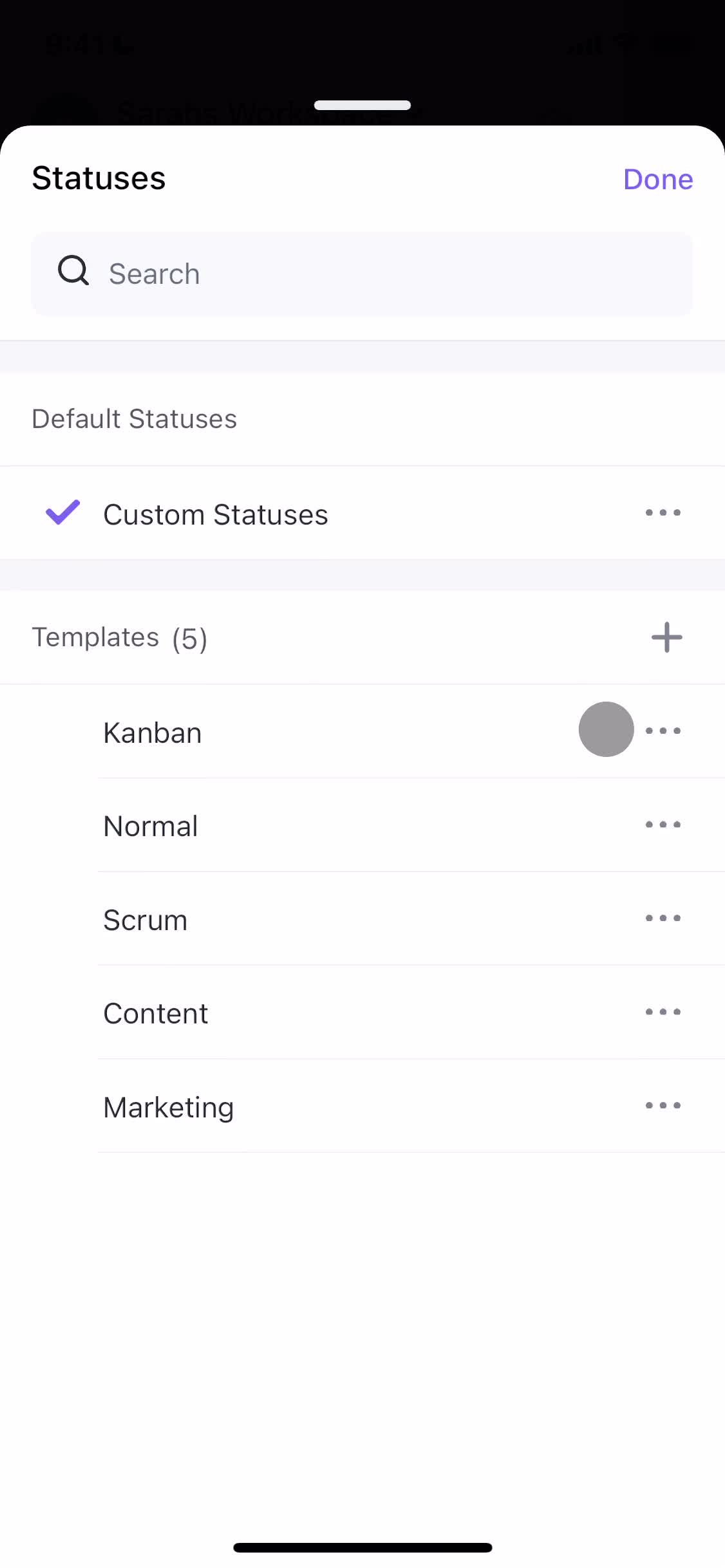
Set statuses
this is title
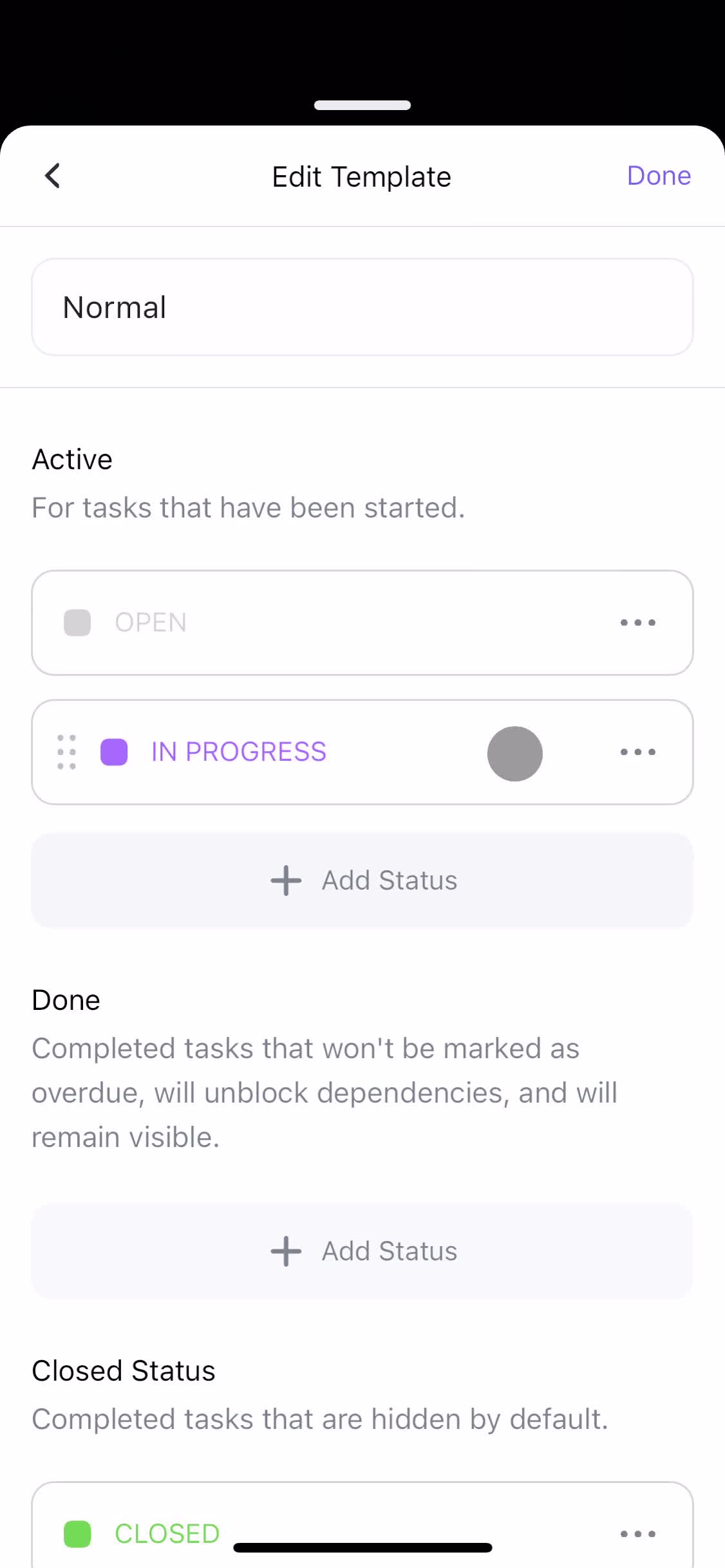
Edit template
this is title
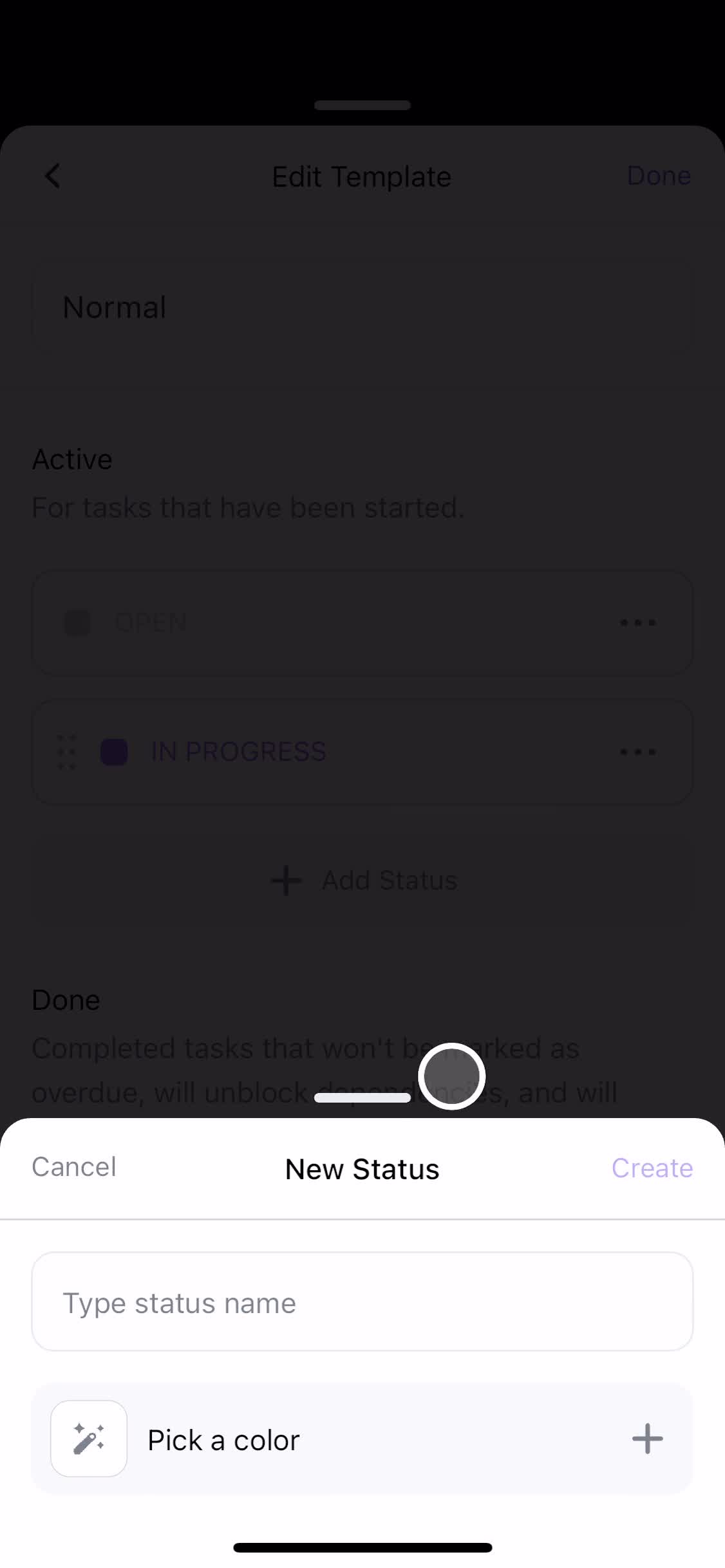
Setup status
this is title
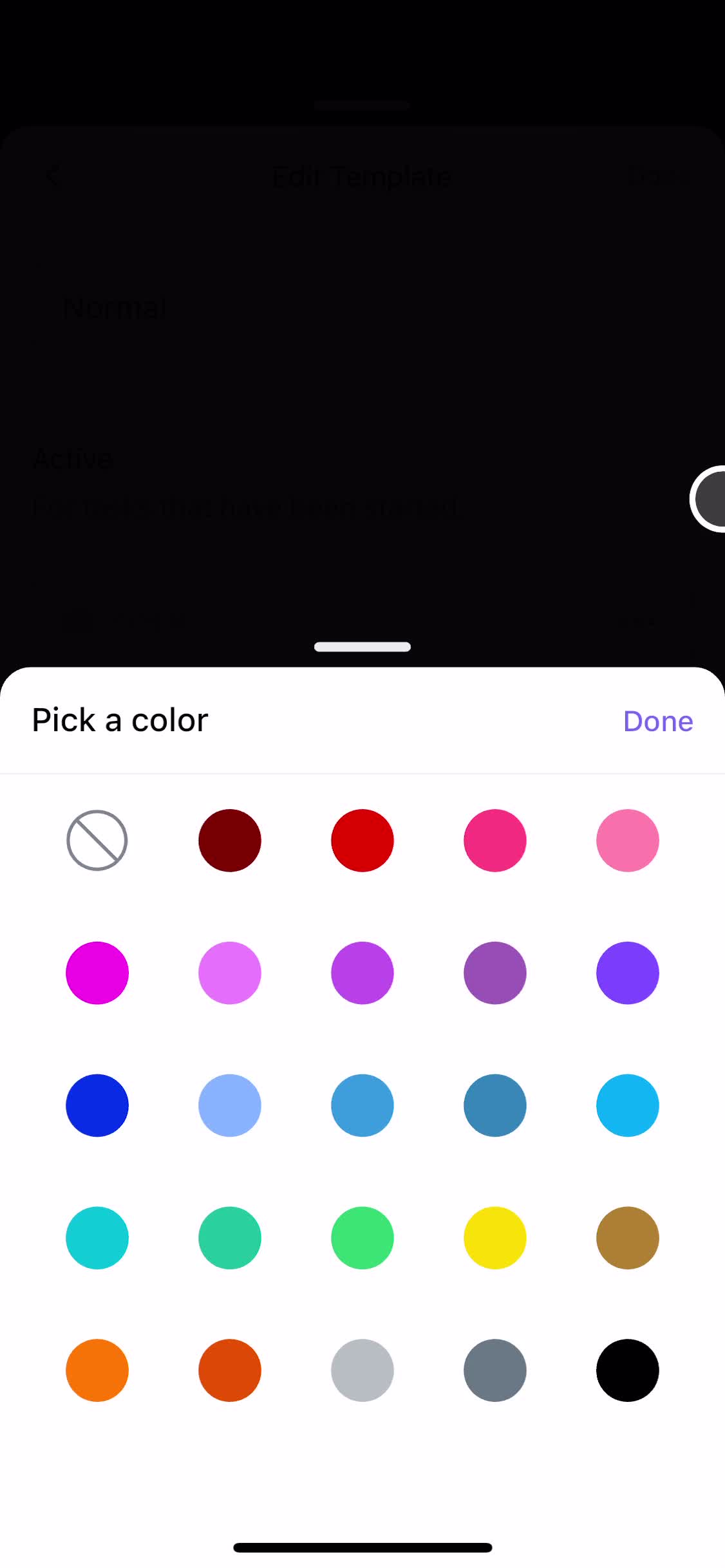
Select color
this is title
Board
this is title
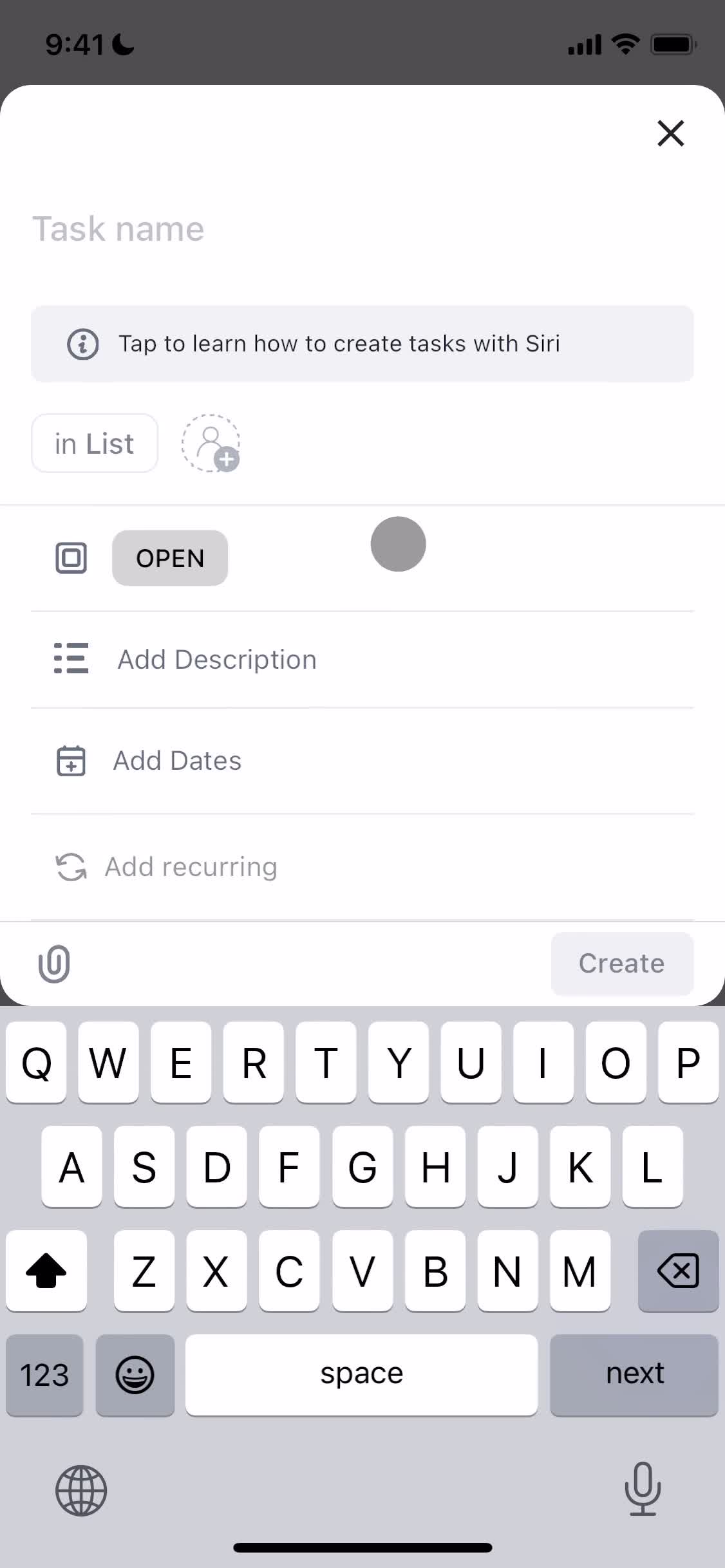
Create task
this is title
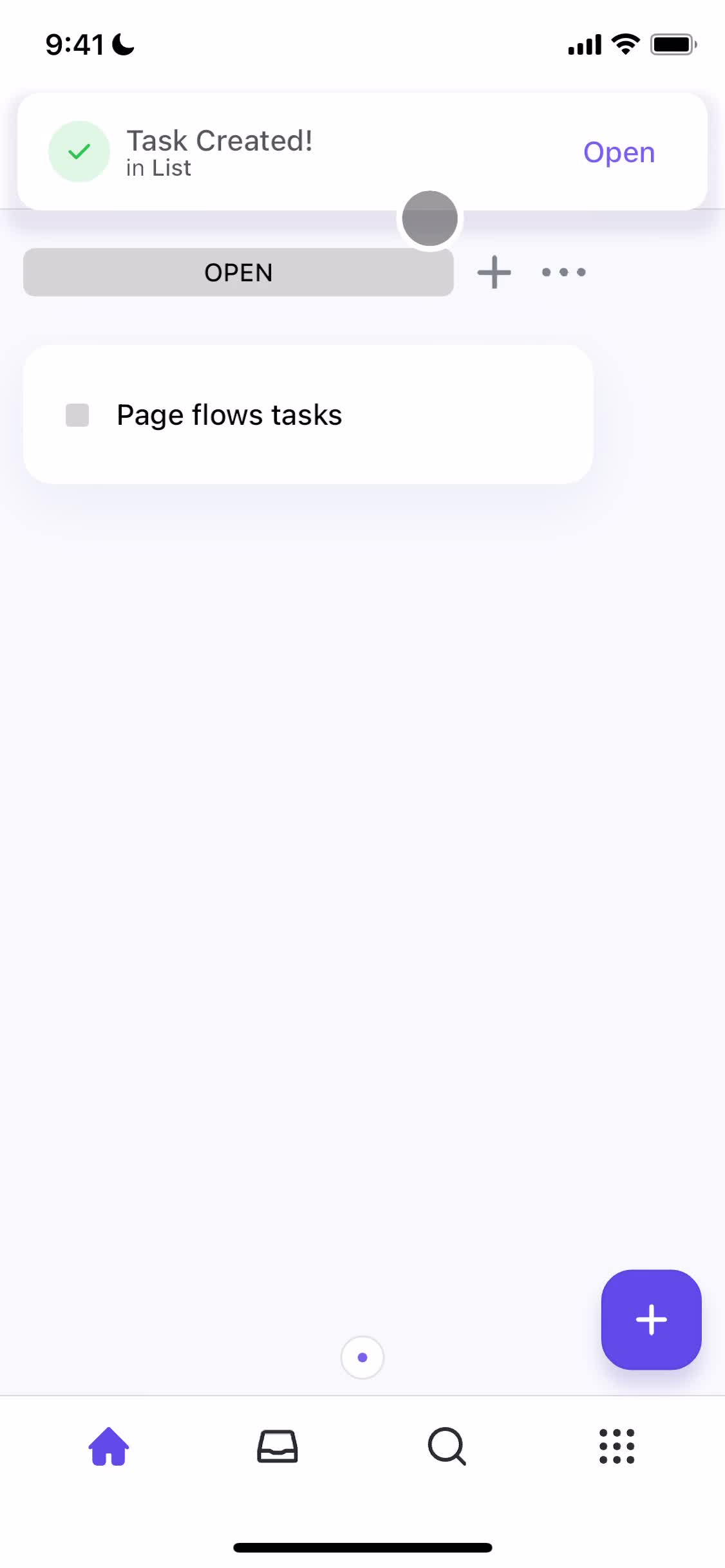
Task created
this is title
Navigation menu
this is title
Kanban board
this is title
Space settings
this is title
Confirm delete
this is title
Deleted
this is title
Kanban board
this is title
Navigation menu
this is title
Documents
this is title
Action menu
this is title
Home
this is title
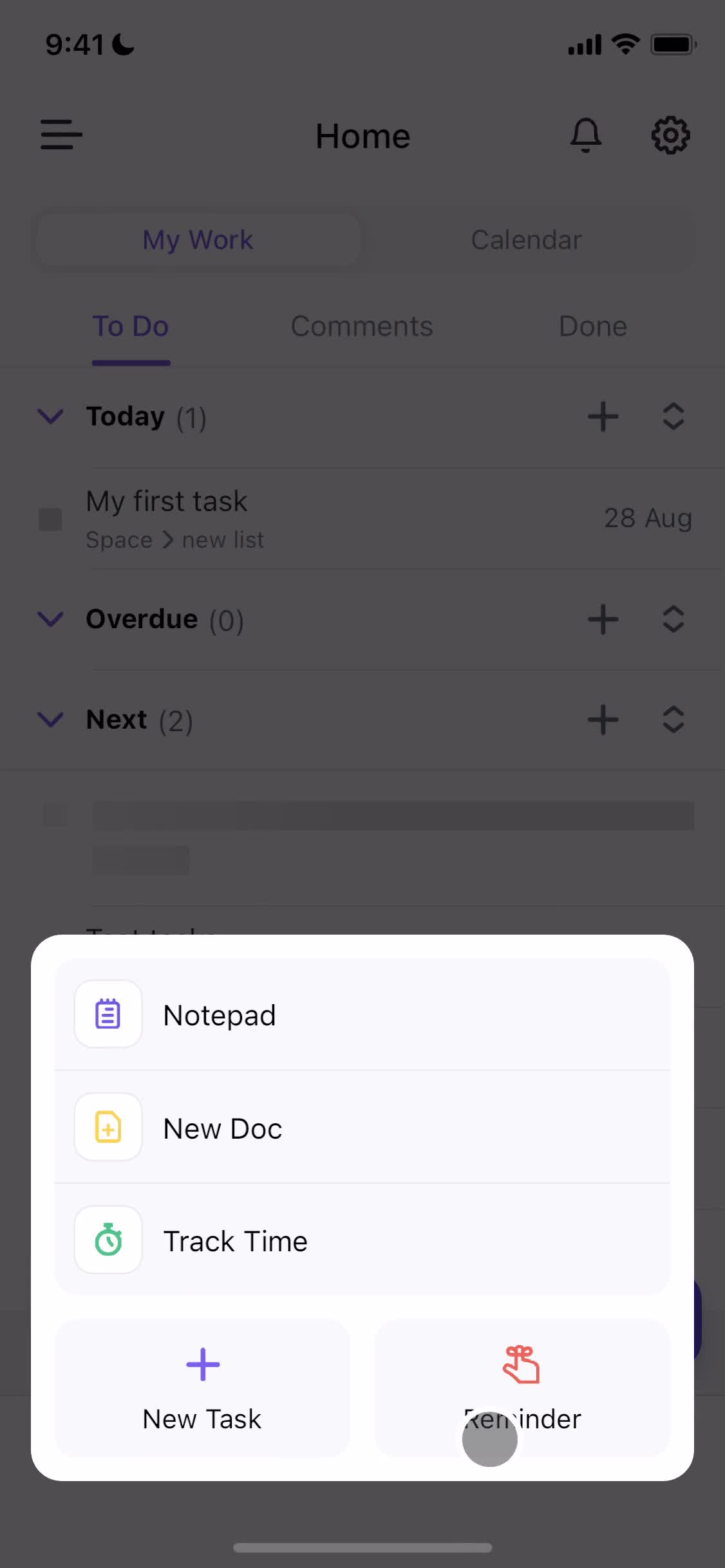
Create menu
this is title
Track time
this is title
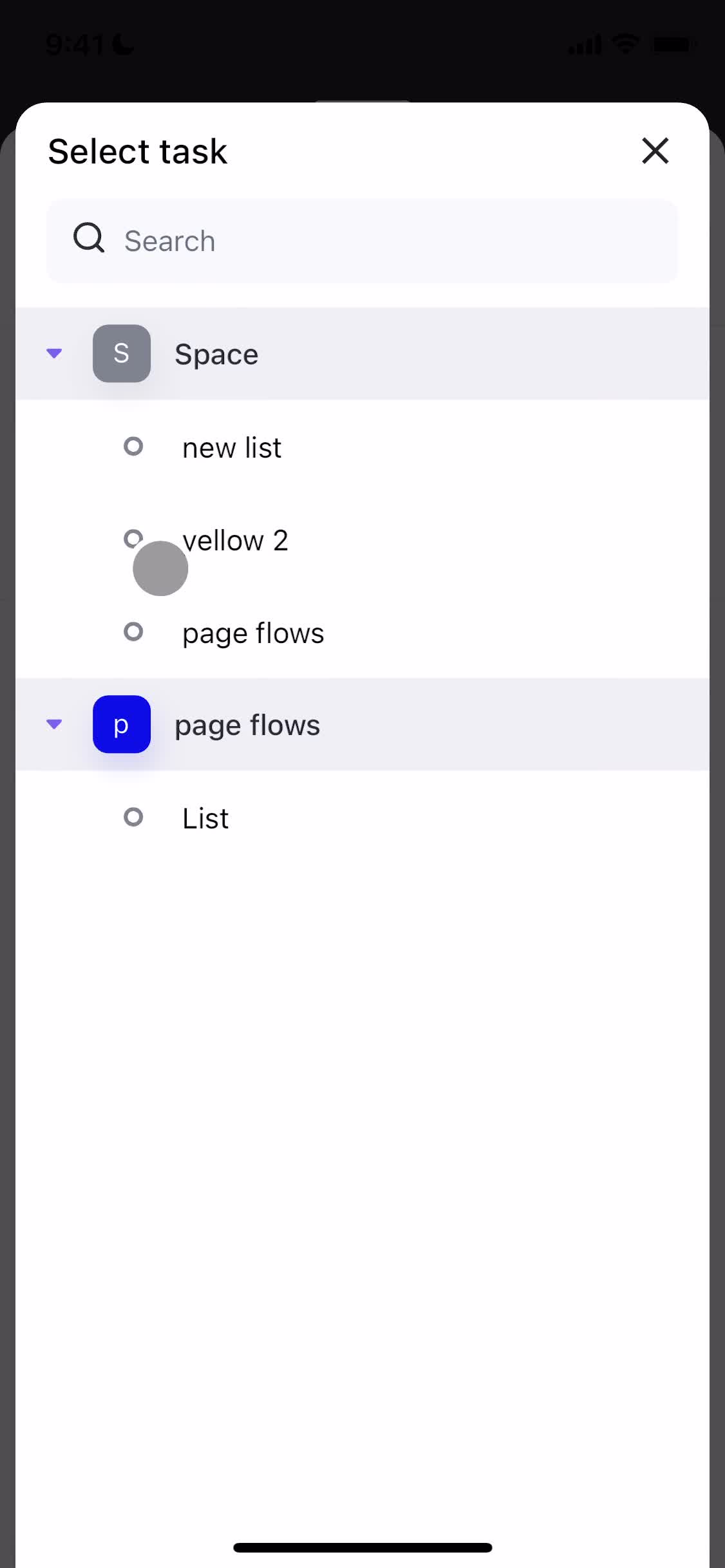
Select task
this is title
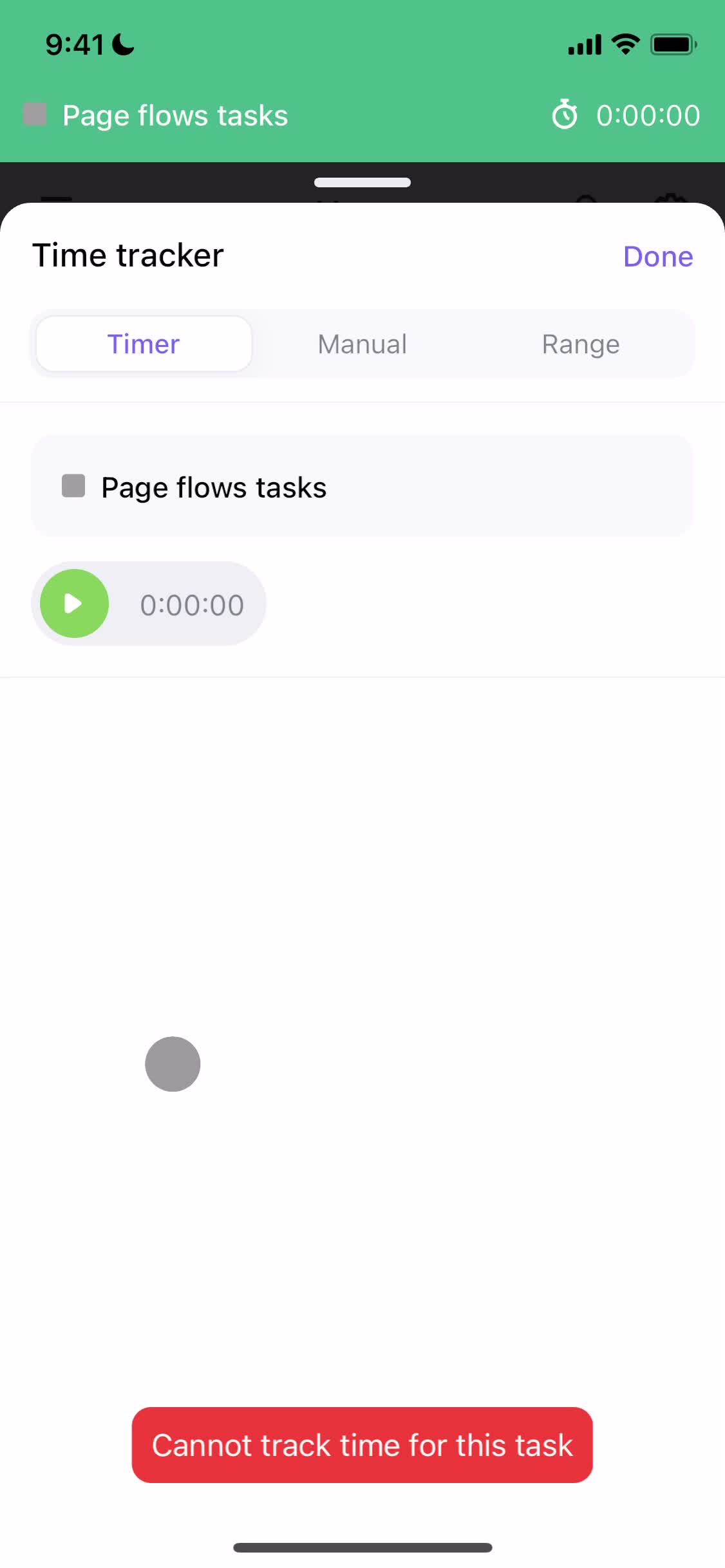
Error
this is title
Home
this is title
Create menu
this is title
Set reminder
this is title
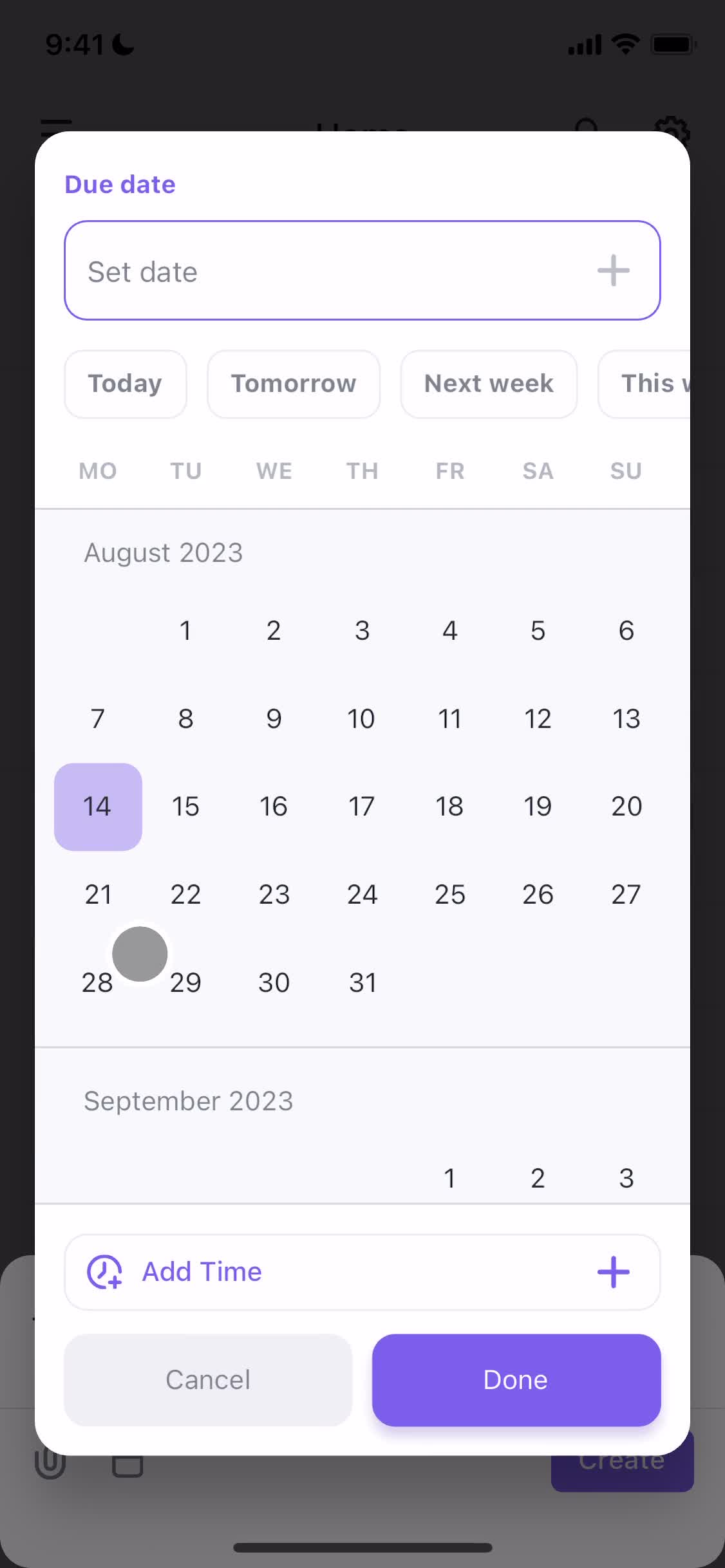
Set due date
this is title
Reminder set
this is title
Create document
this is title
Document editor
this is title
Share
this is title
Pages
this is title
Add page
this is title
Home
this is title
Settings
this is title
Home
this is title
Task details
this is title
Workspaces
this is title
Create workspace
this is title
Documents
this is title
Navigation menu
this is title
Settings
this is title
Dark mode
this is title
Help centre
this is title
Help centre article
this is title
Settings
this is title
Home
this is title
Splash screen
this is title
Welcome slides
this is title
Welcome slides
this is title
Welcome slides
this is title
Enter email
this is title
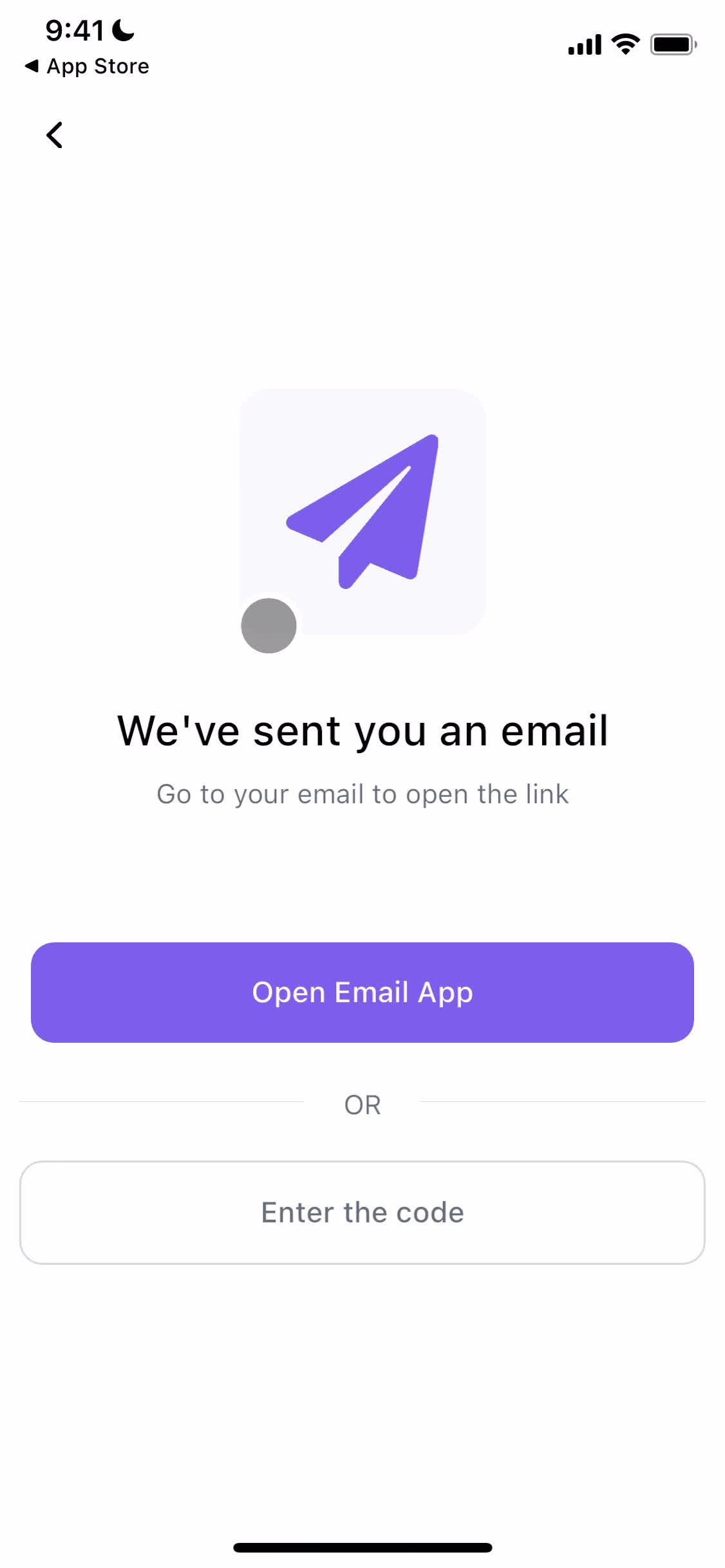
Check inbox
this is title
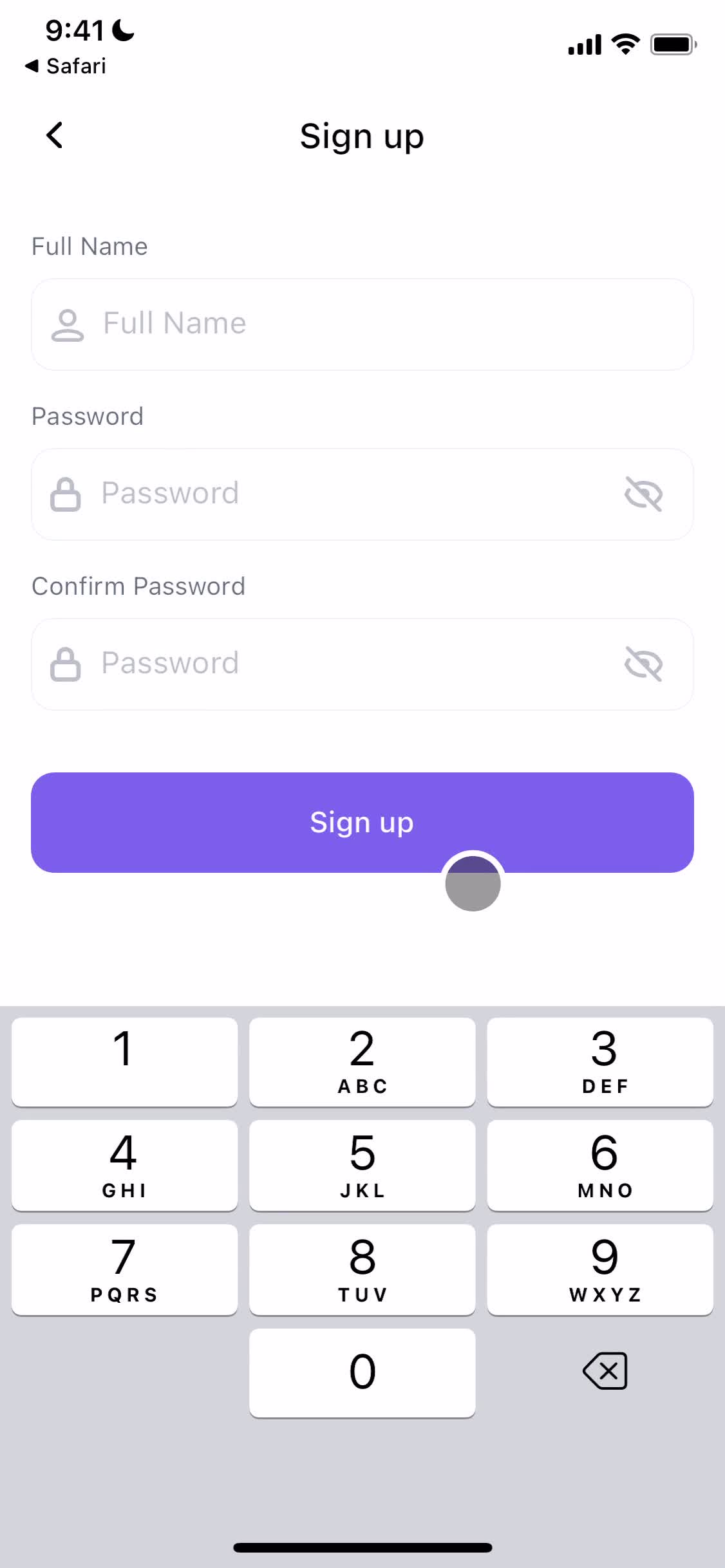
Sign up
this is title
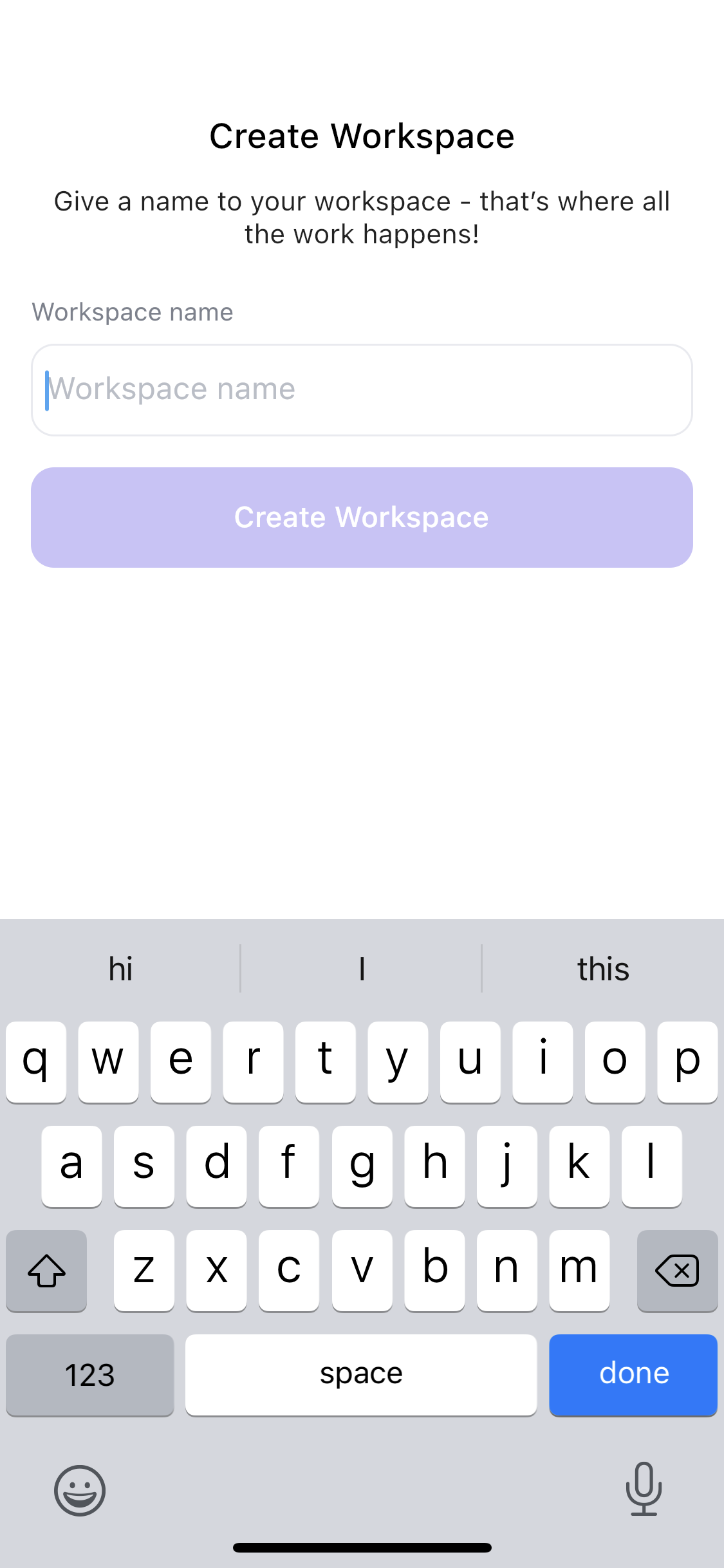
Create workspace
this is title
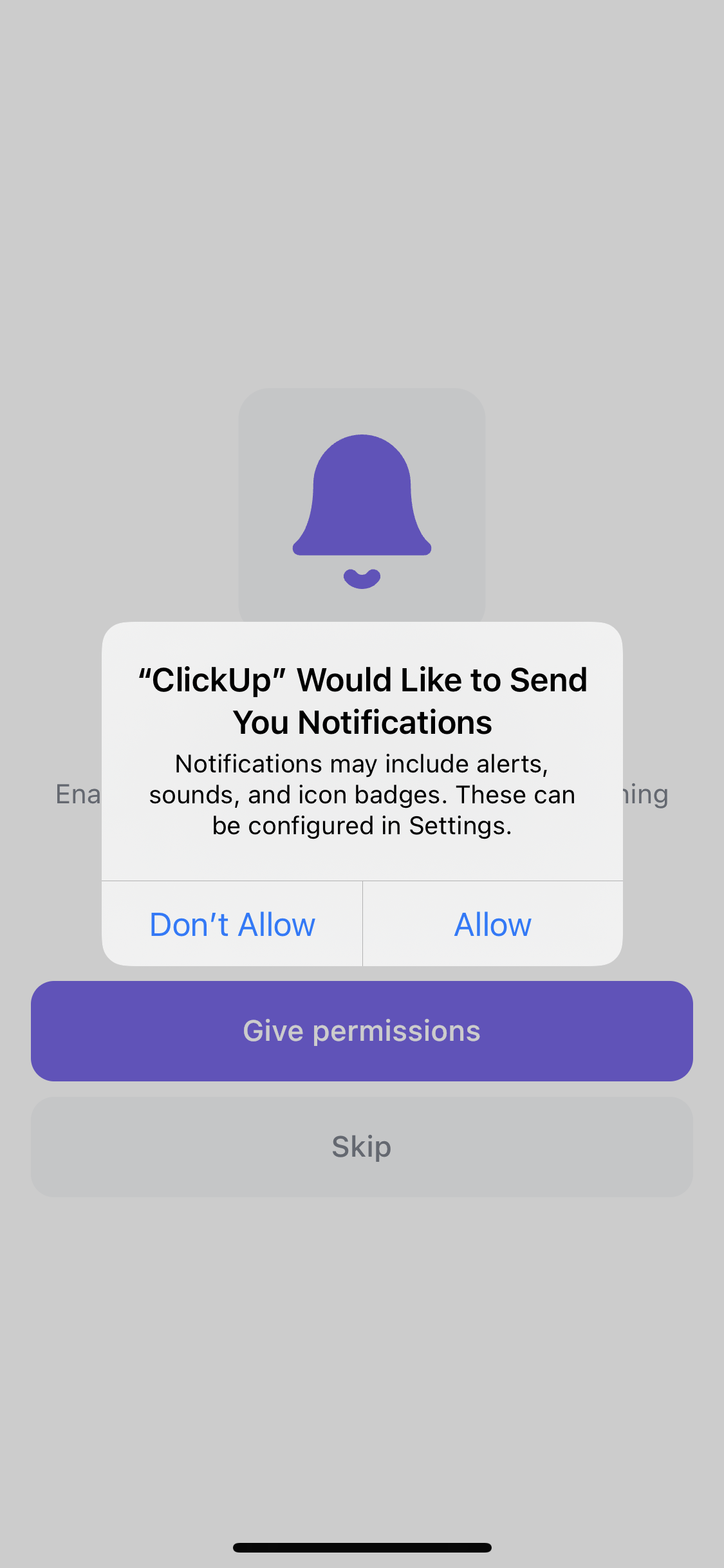
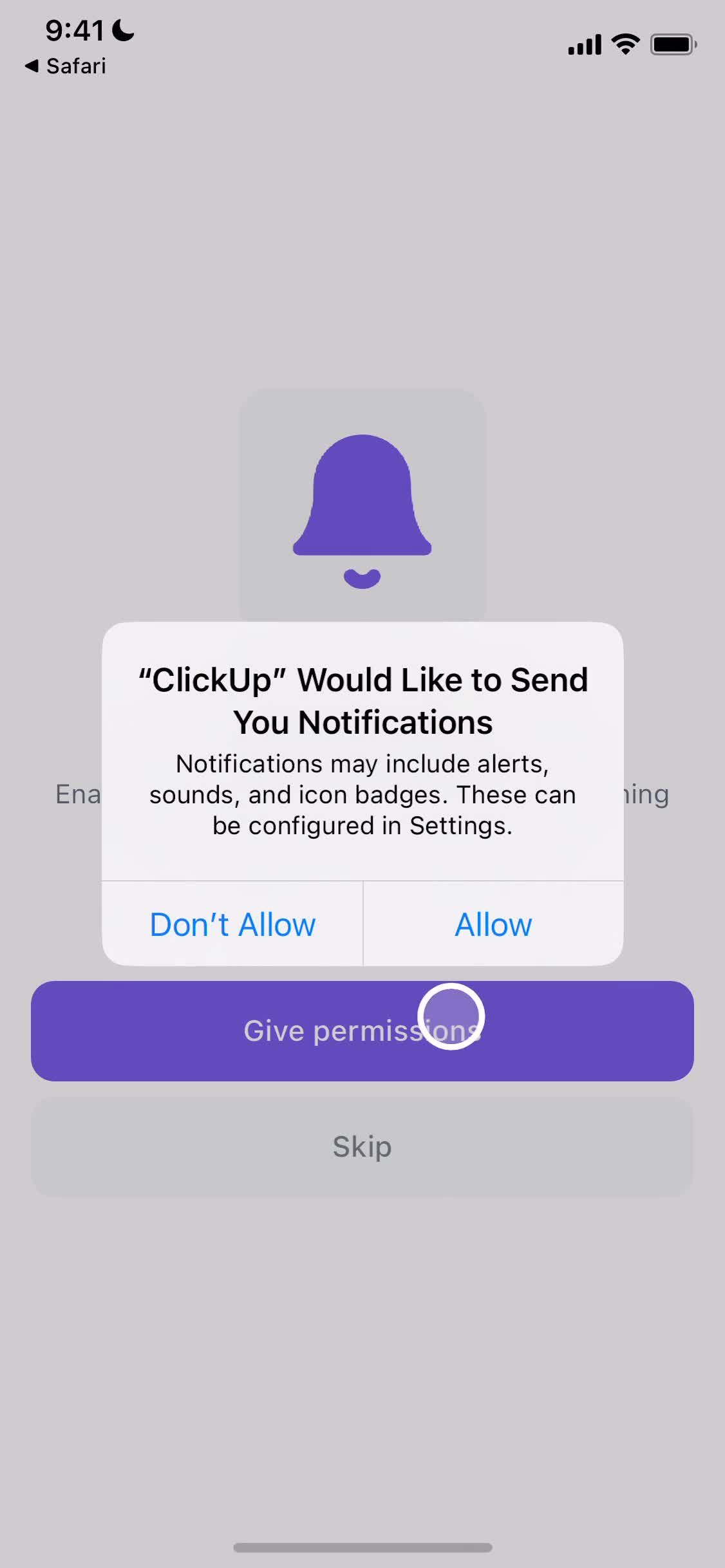
Enable reminders
this is title
Enable reminders
this is title
Get started
this is title
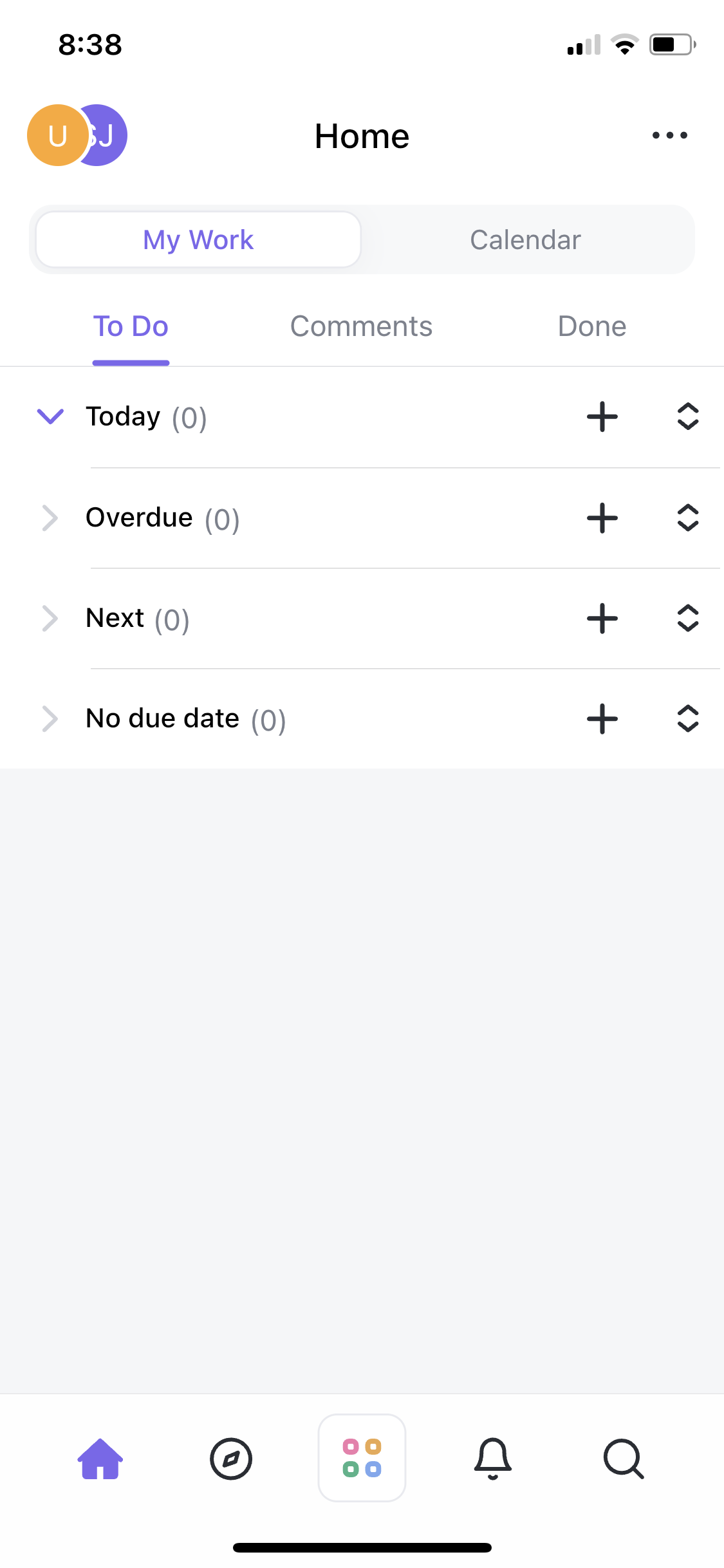
Home
this is title
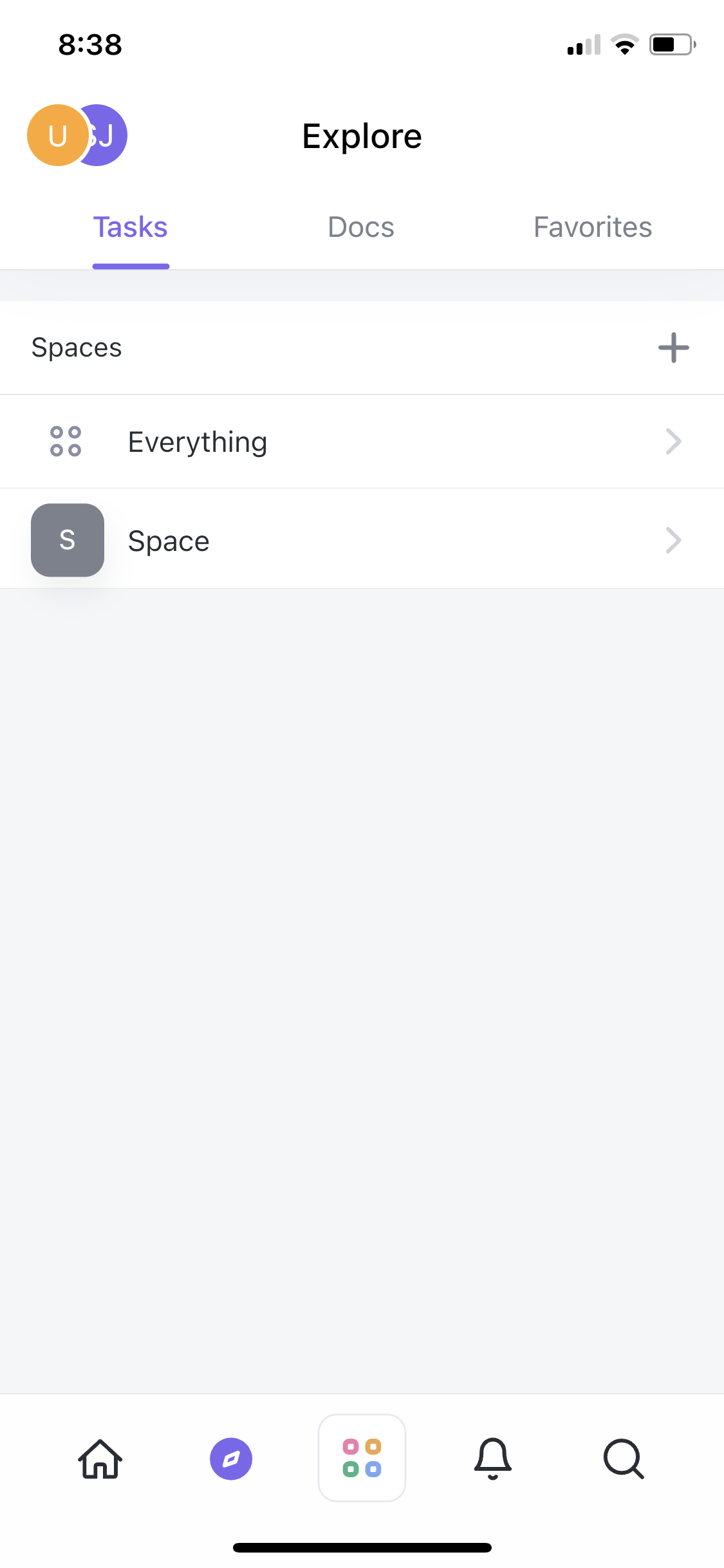
Explore
this is title
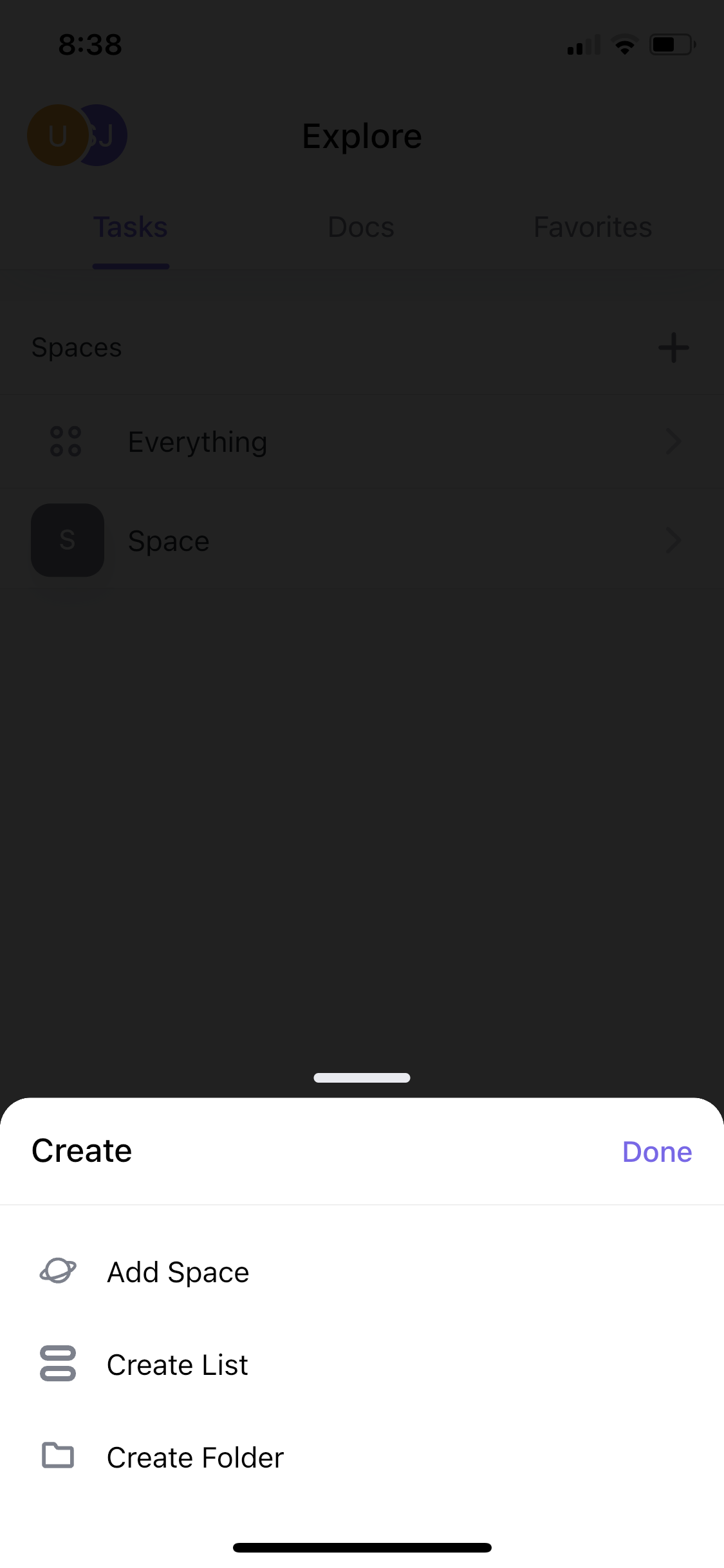
Create menu
this is title
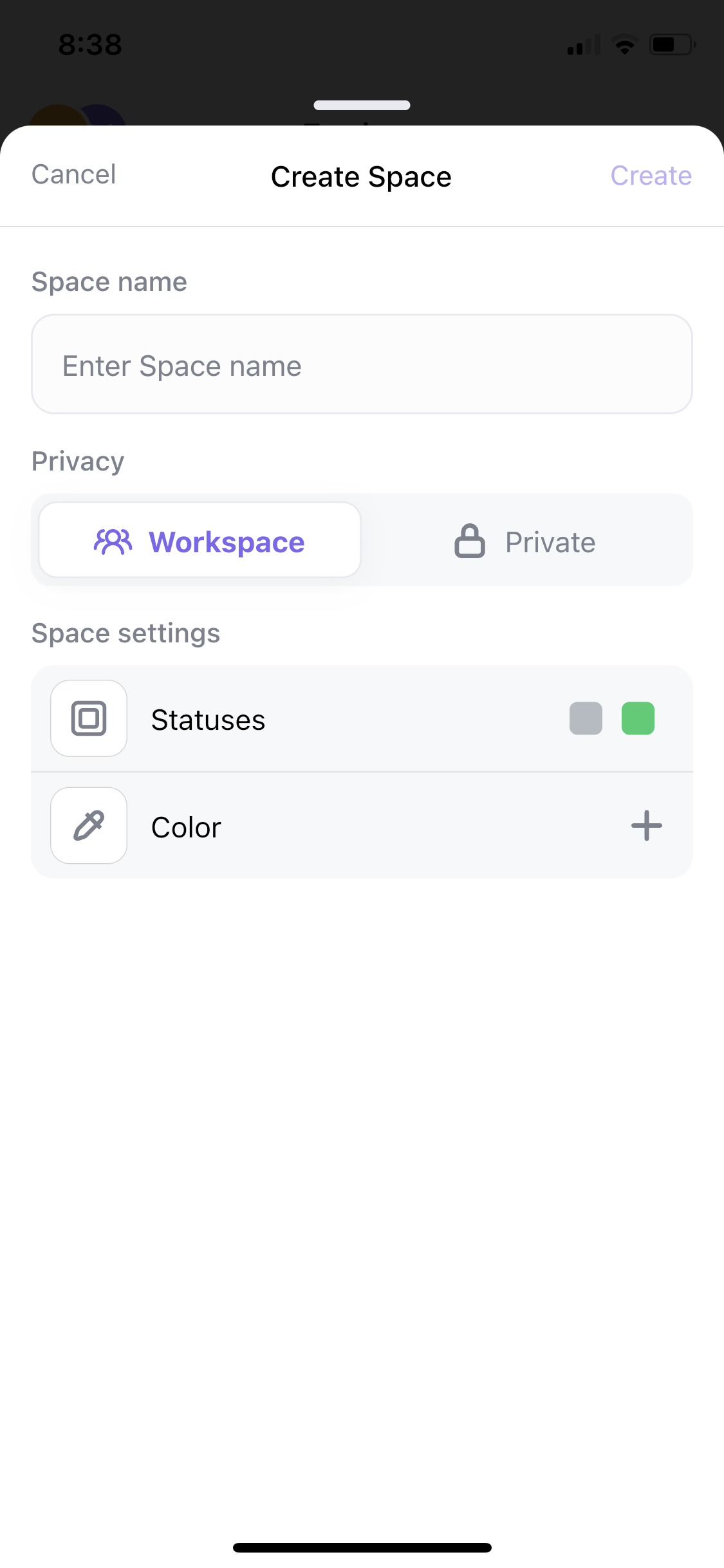
Create space
this is title
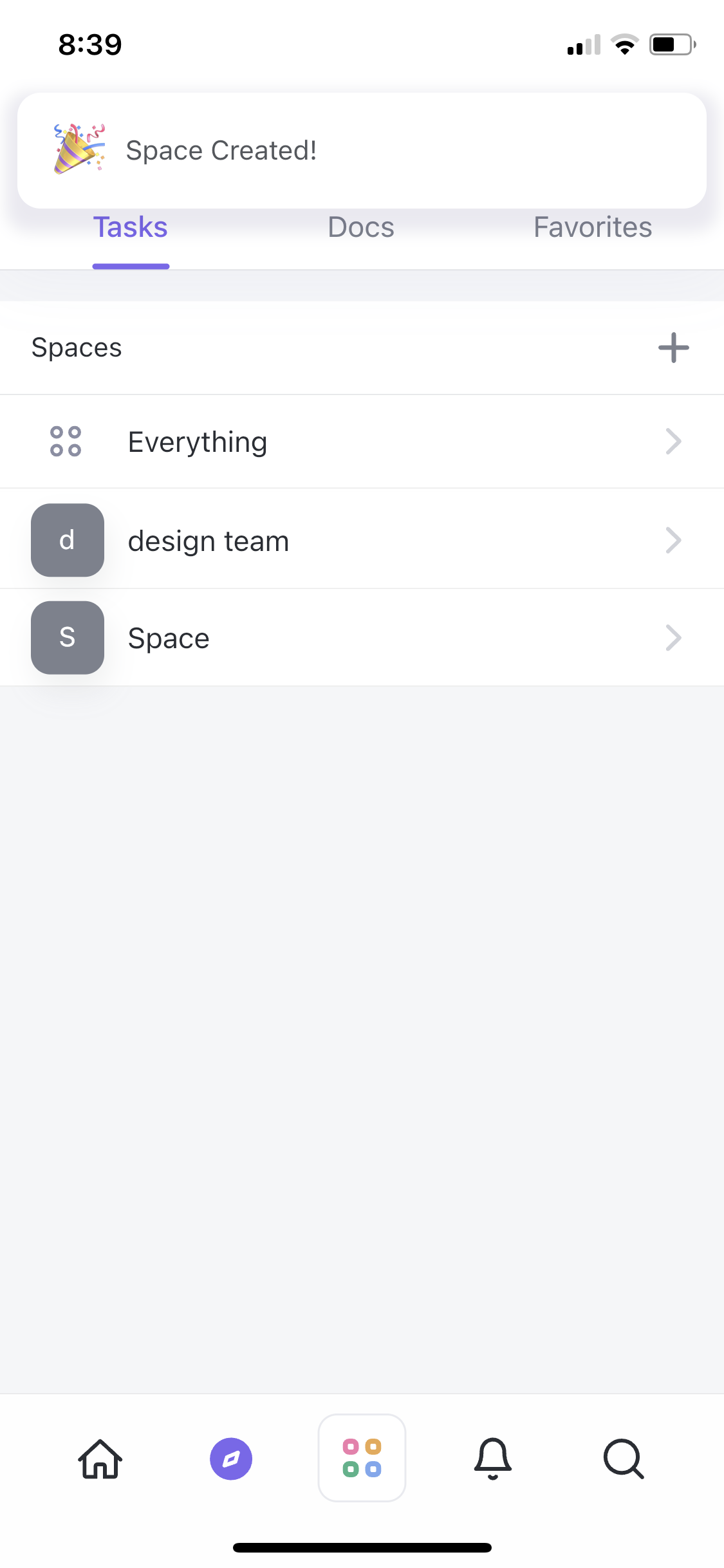
Created
this is title
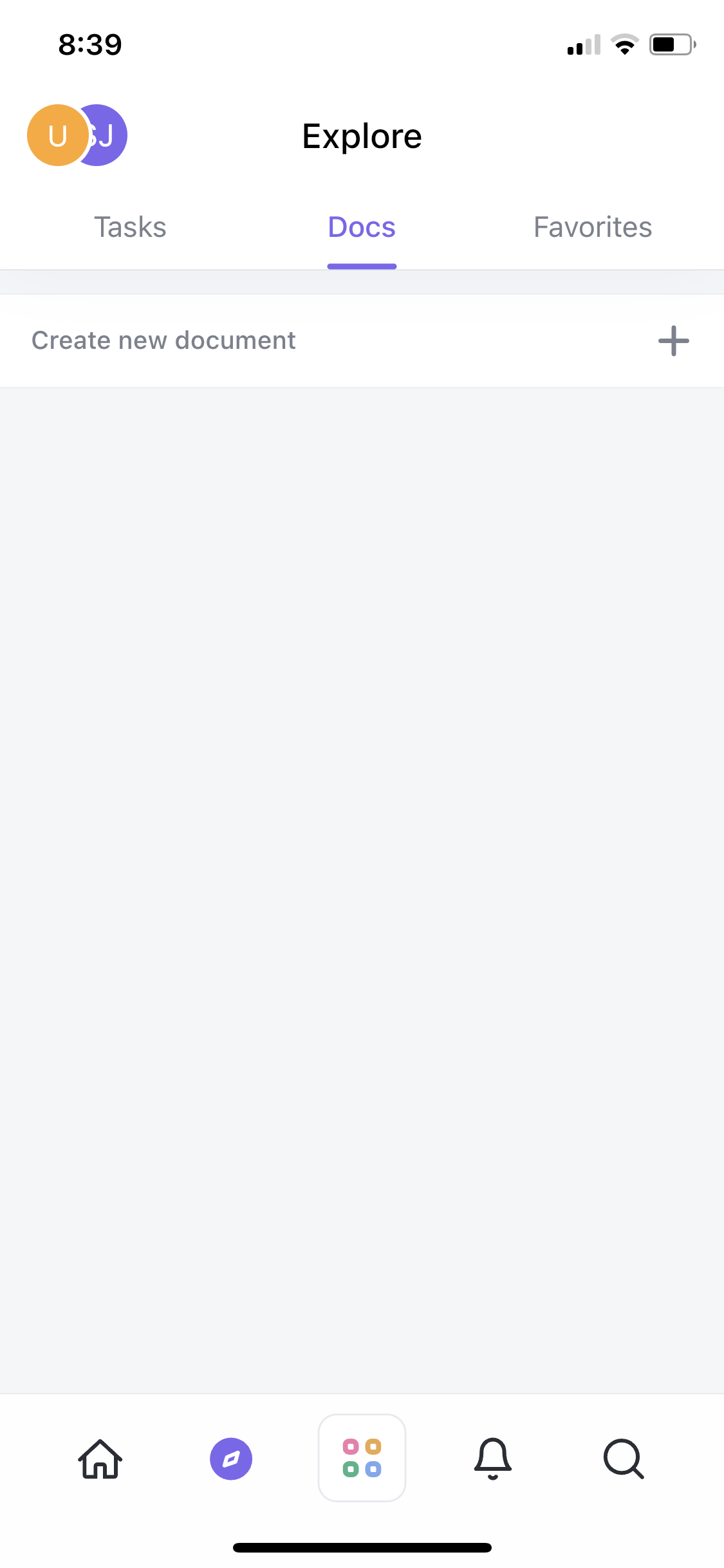
Documents
this is title
Create document
this is title
Document editor
this is title
Create menu
this is title
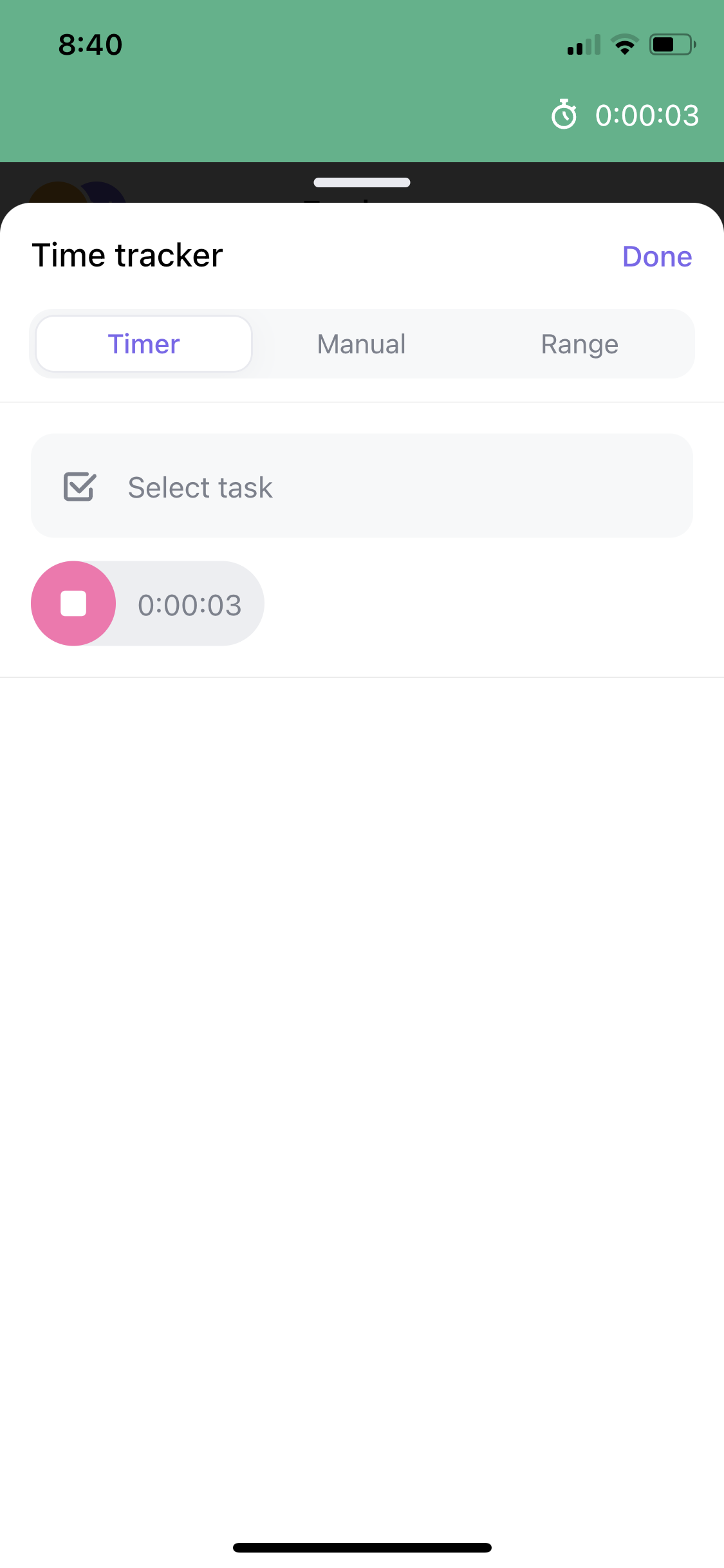
Time tracker
this is title
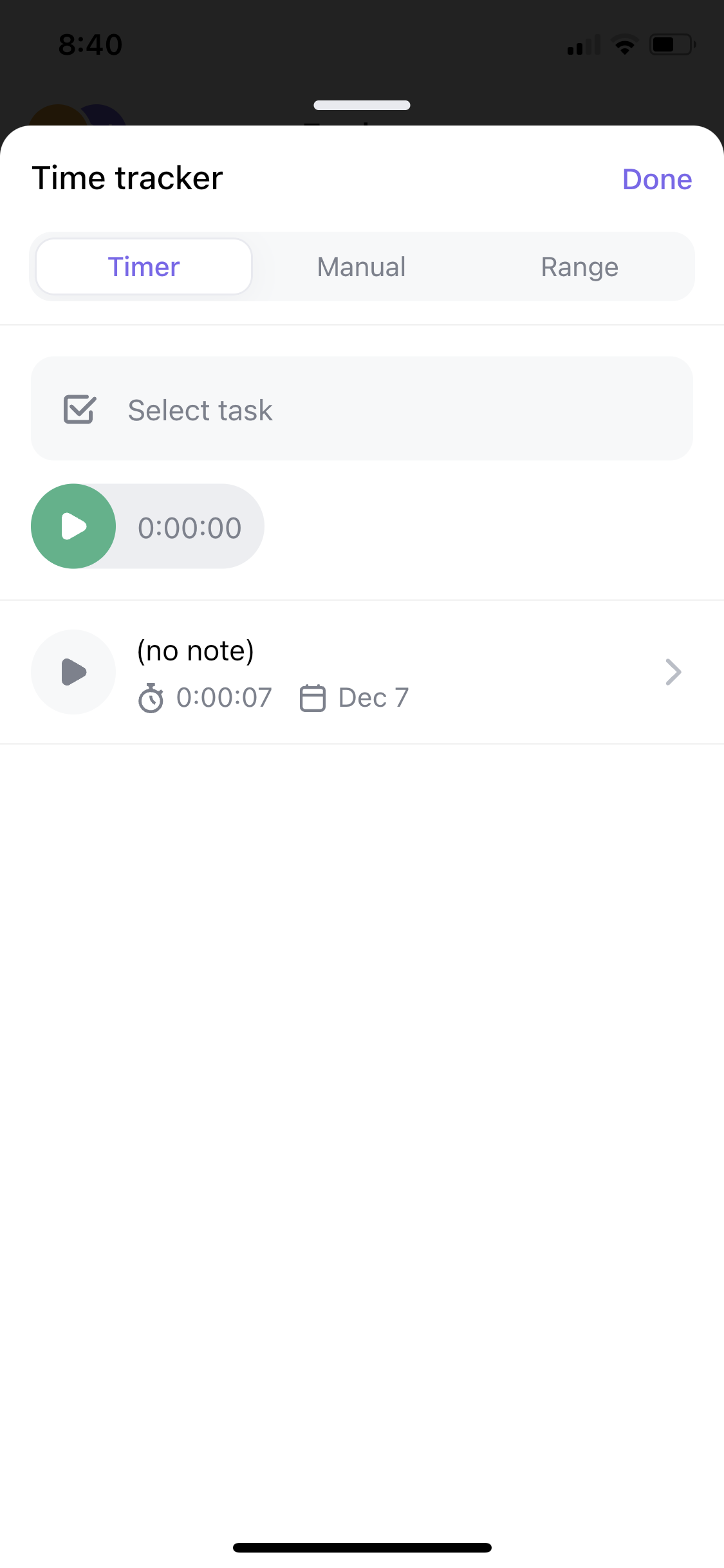
Time tracker
this is title
Time tracker
this is title
Notifications
this is title
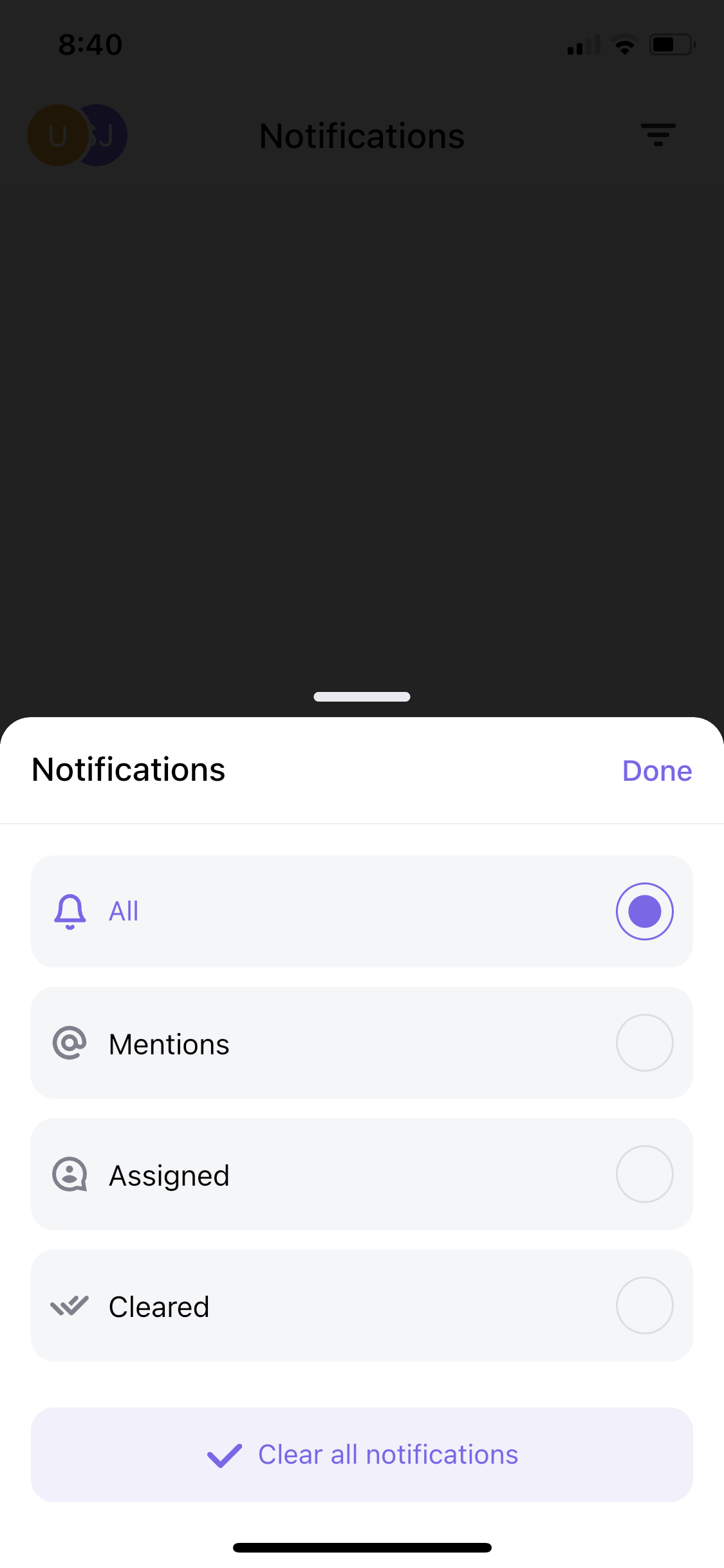
Filter
this is title
Home
this is title
Create task
this is title
Create task
this is title
Select location
this is title
Select location
this is title
Create task
this is title
Assign user
this is title
Select date
this is title
Select date
this is title
Set time
this is title
Create task
this is title
Set status
this is title
Create task
this is title
Attach a file
this is title
Created
this is title
Task
this is title
Home
this is title
Action menu
this is title
Action menu
this is title
Home
this is title
Calendar
this is title
Comments
this is title
Settings
this is title
Dark mode
this is title
Settings
this is title
Workspaces
this is title
Home
this is title
Task
this is title
Comments
this is title
Comments
this is title
Create menu
this is title
Landing page
this is title
About
this is title
Careers
this is title
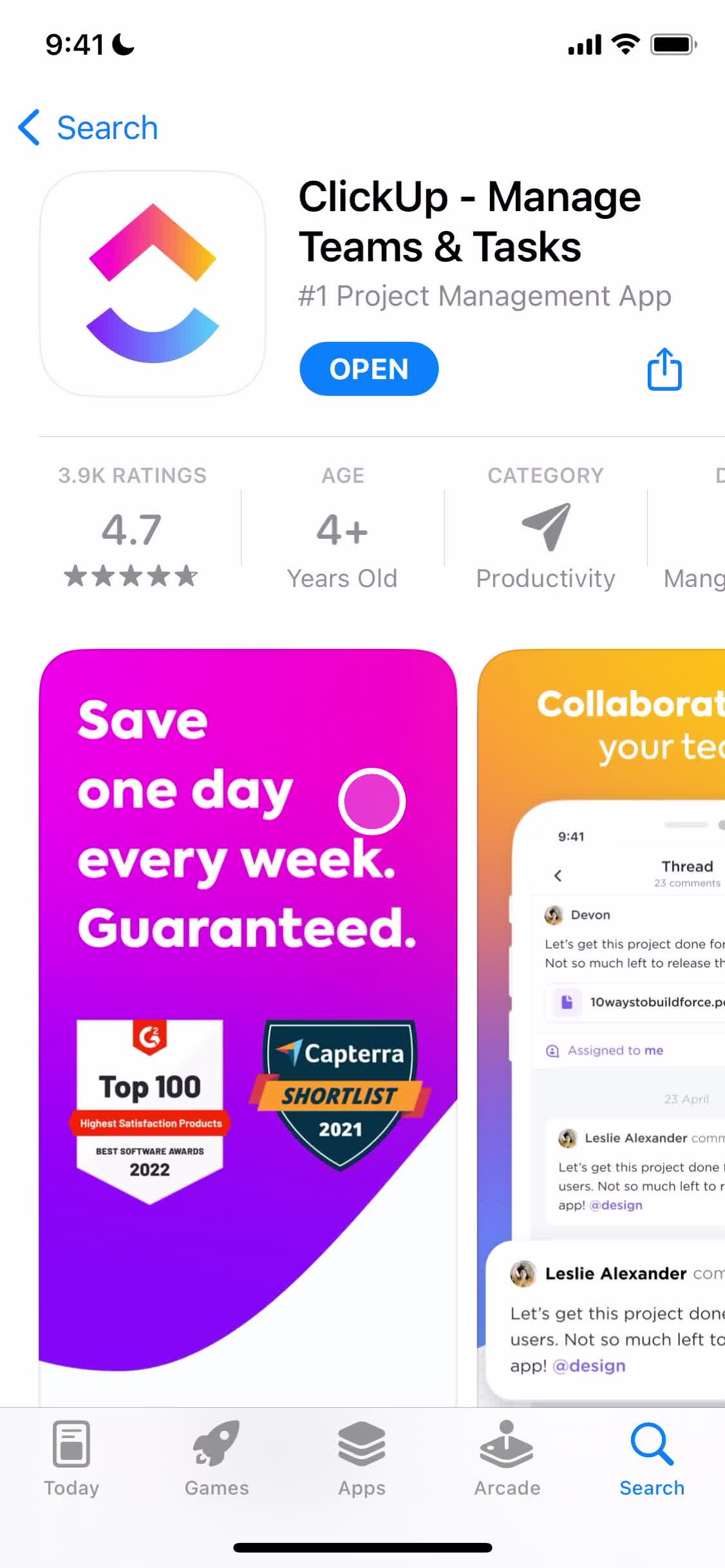
App store listing
this is title
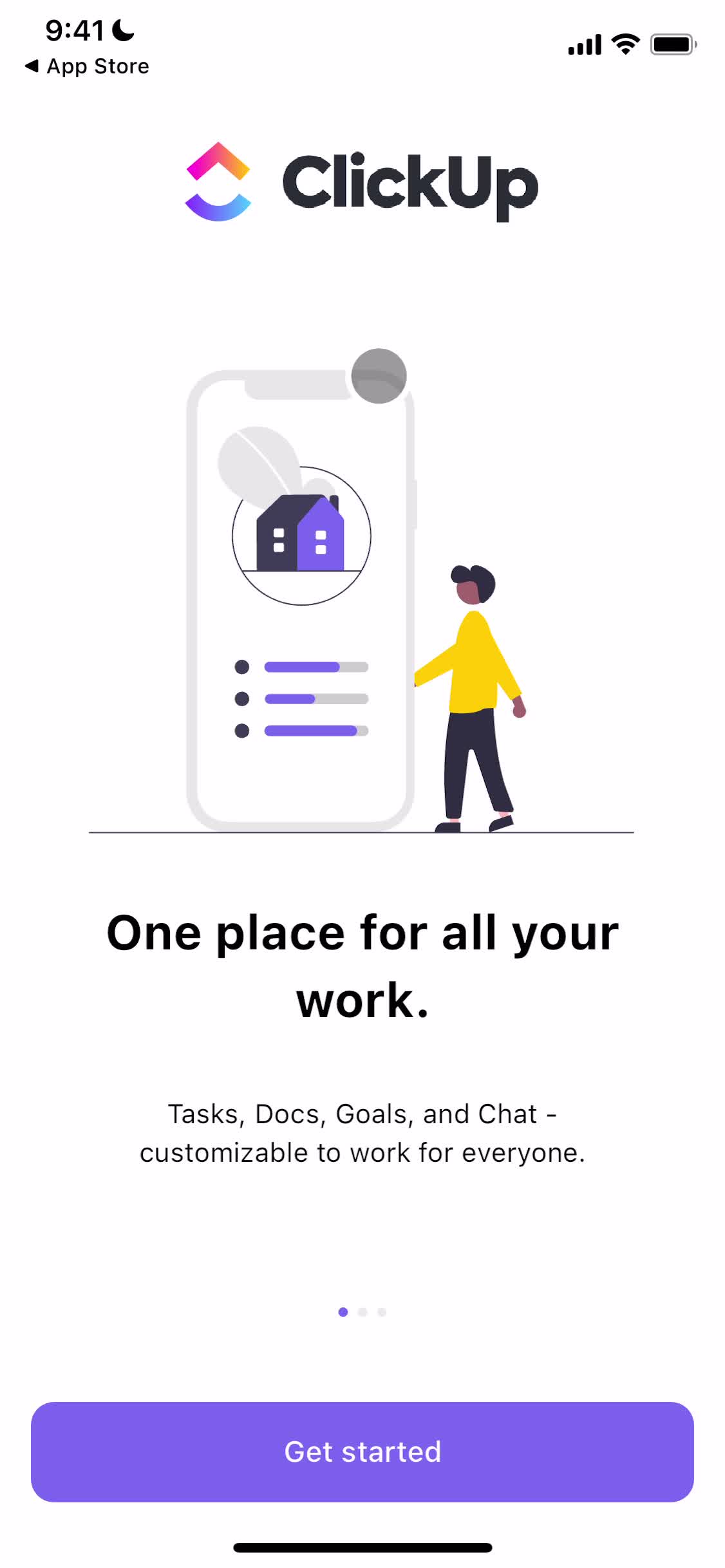
Start screen
this is title
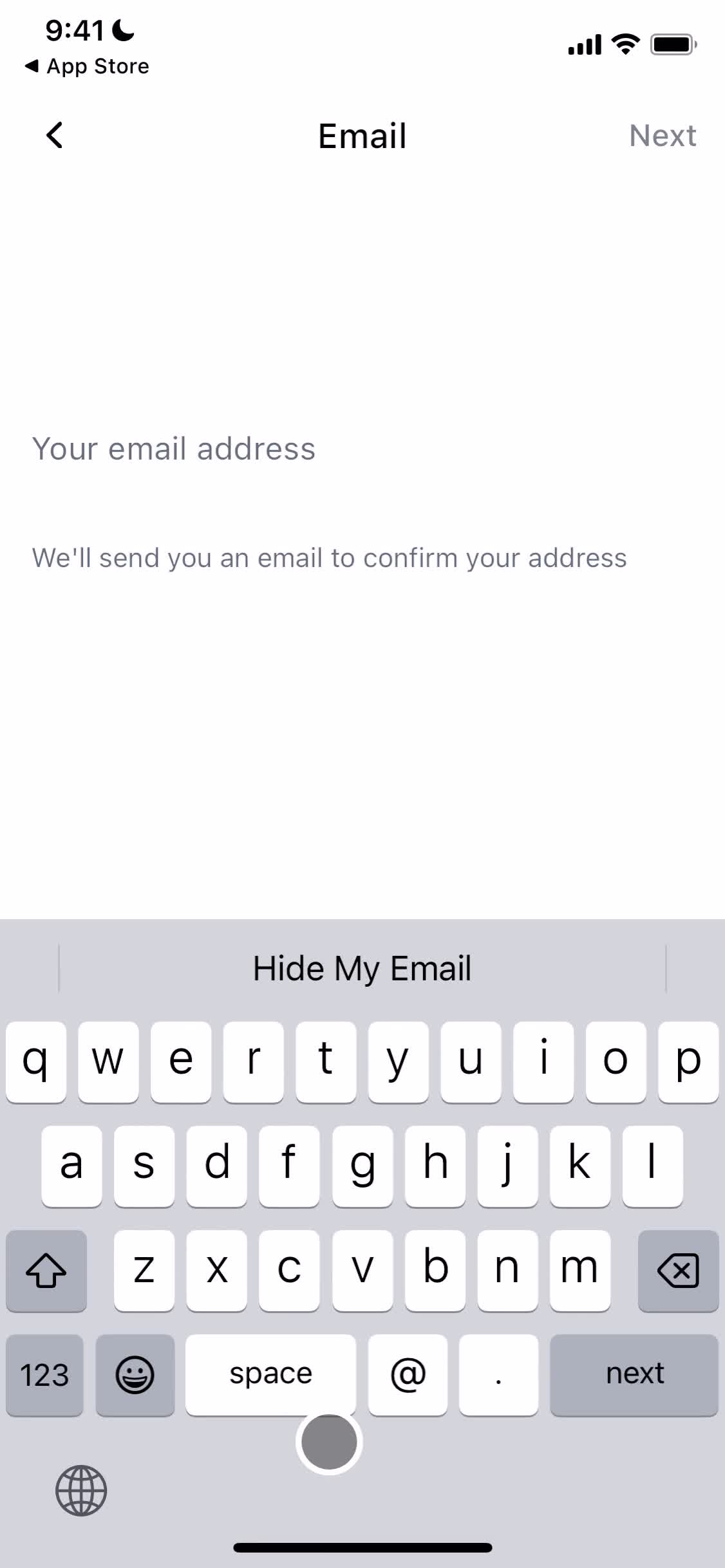
Sign up with email
this is title
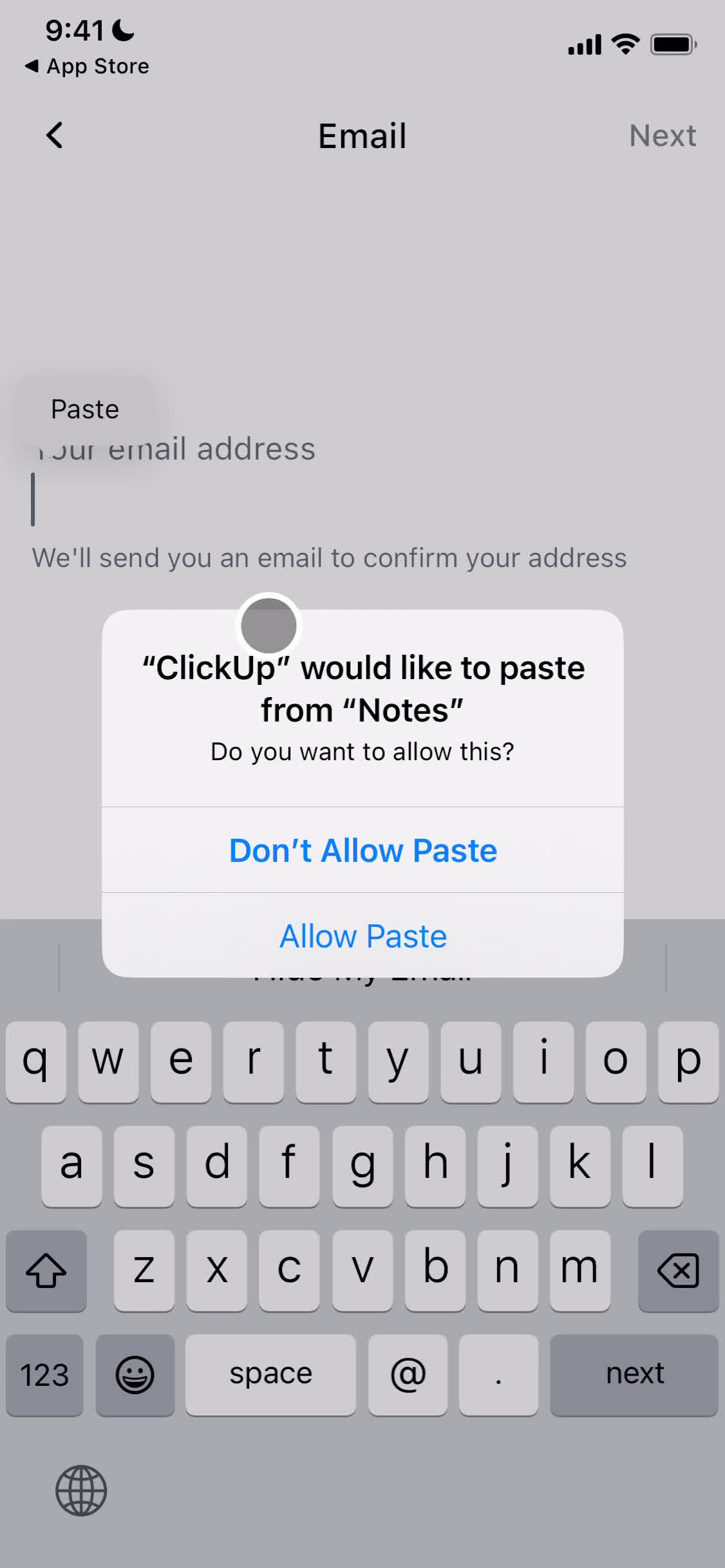
Grant permissions
this is title
Verify email
this is title
Sign up
this is title
Create workspace
this is title
Enable notifications
this is title
Get started
this is title
Guided tour
this is title
Guided tour
this is title
Home
this is title
Create task
this is title
Set location
this is title
Add details
this is title
Add attachment
this is title
Add details
this is title
Assign task
this is title
Task created
this is title
Home
this is title
Set status
this is title
Home
this is title
Home
this is title
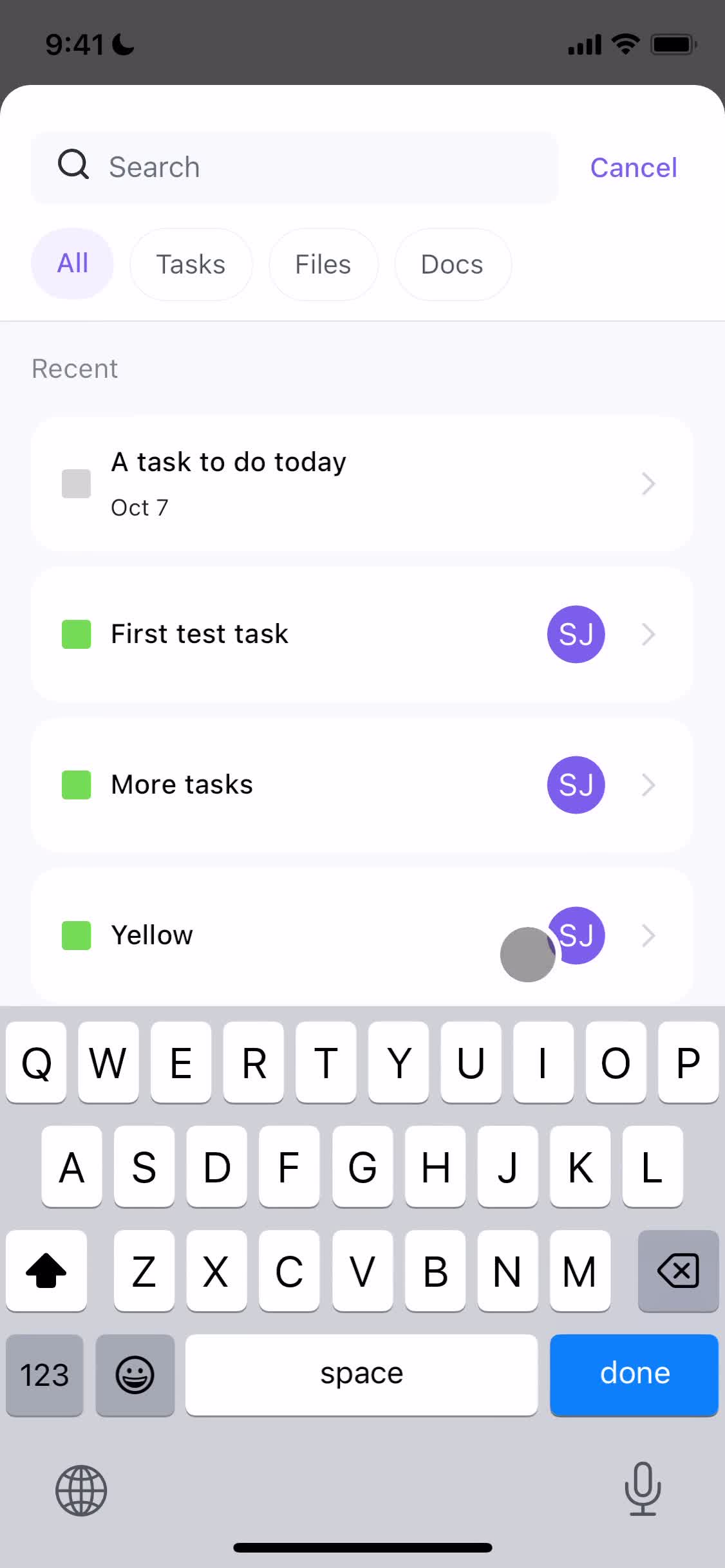
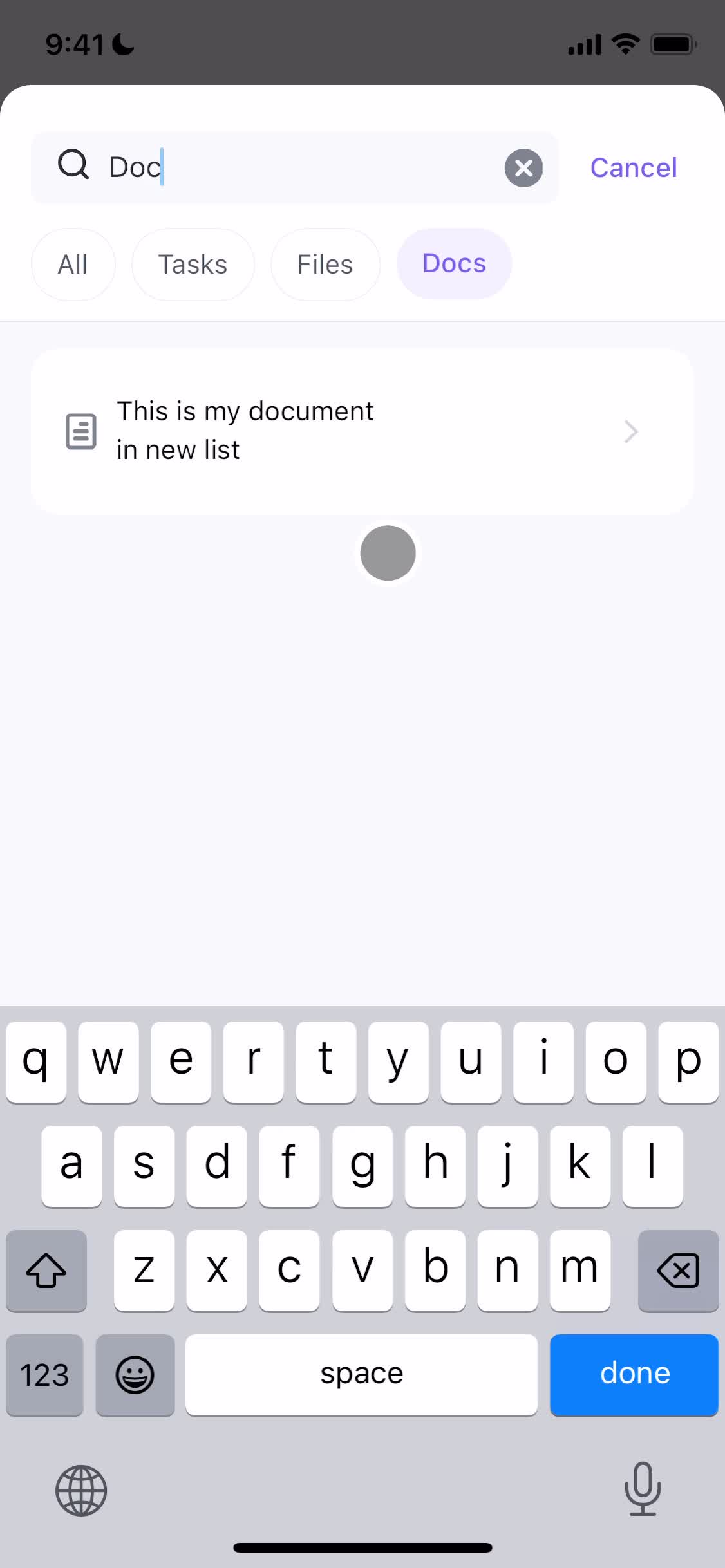
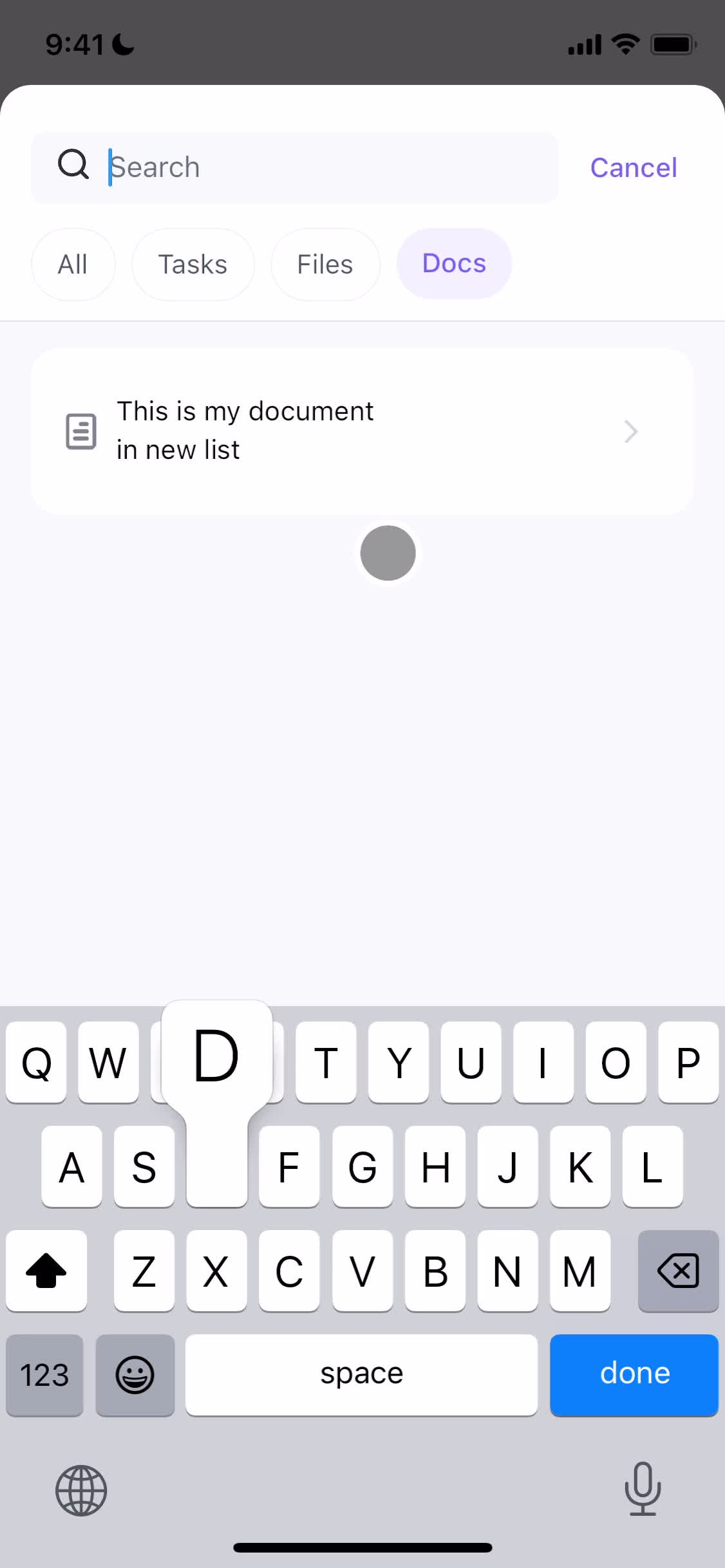
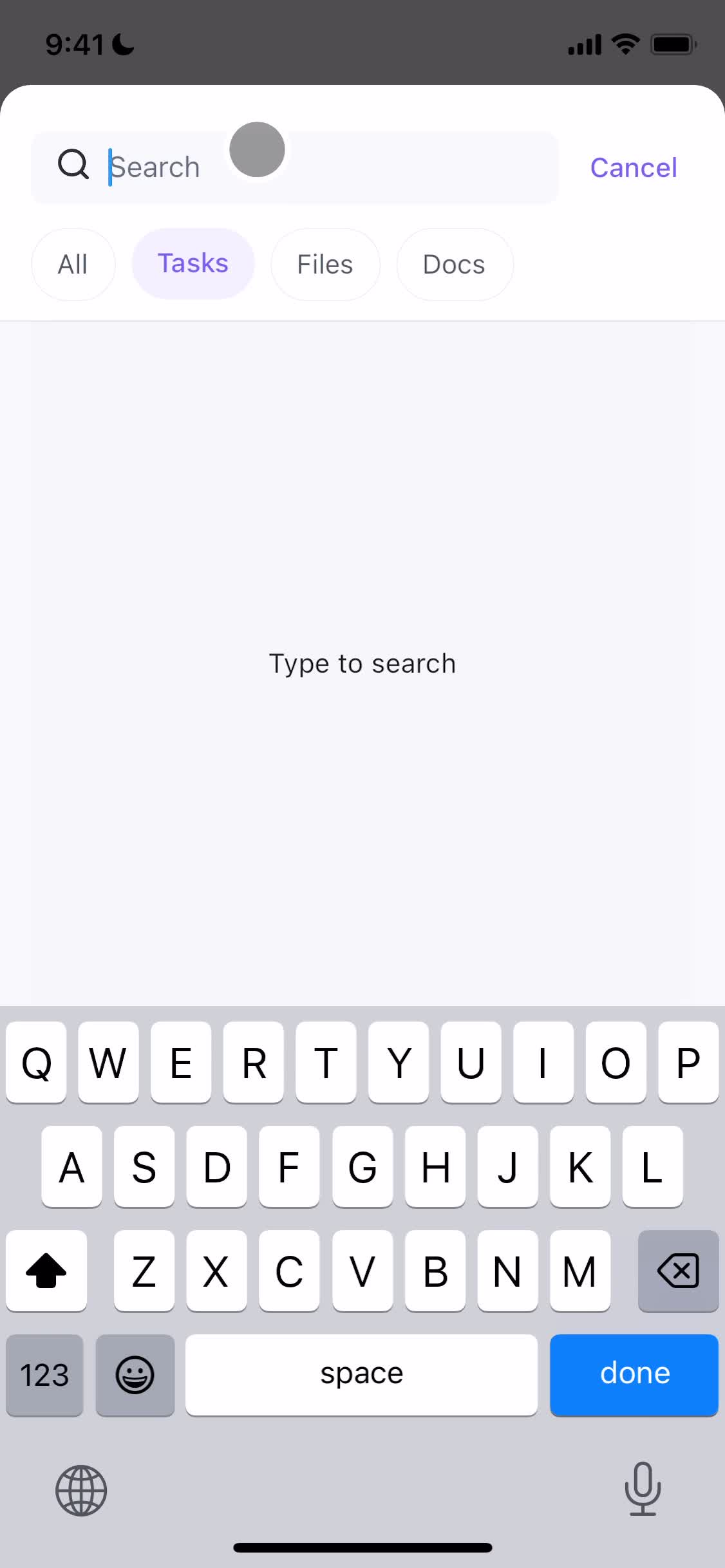
Search
this is title
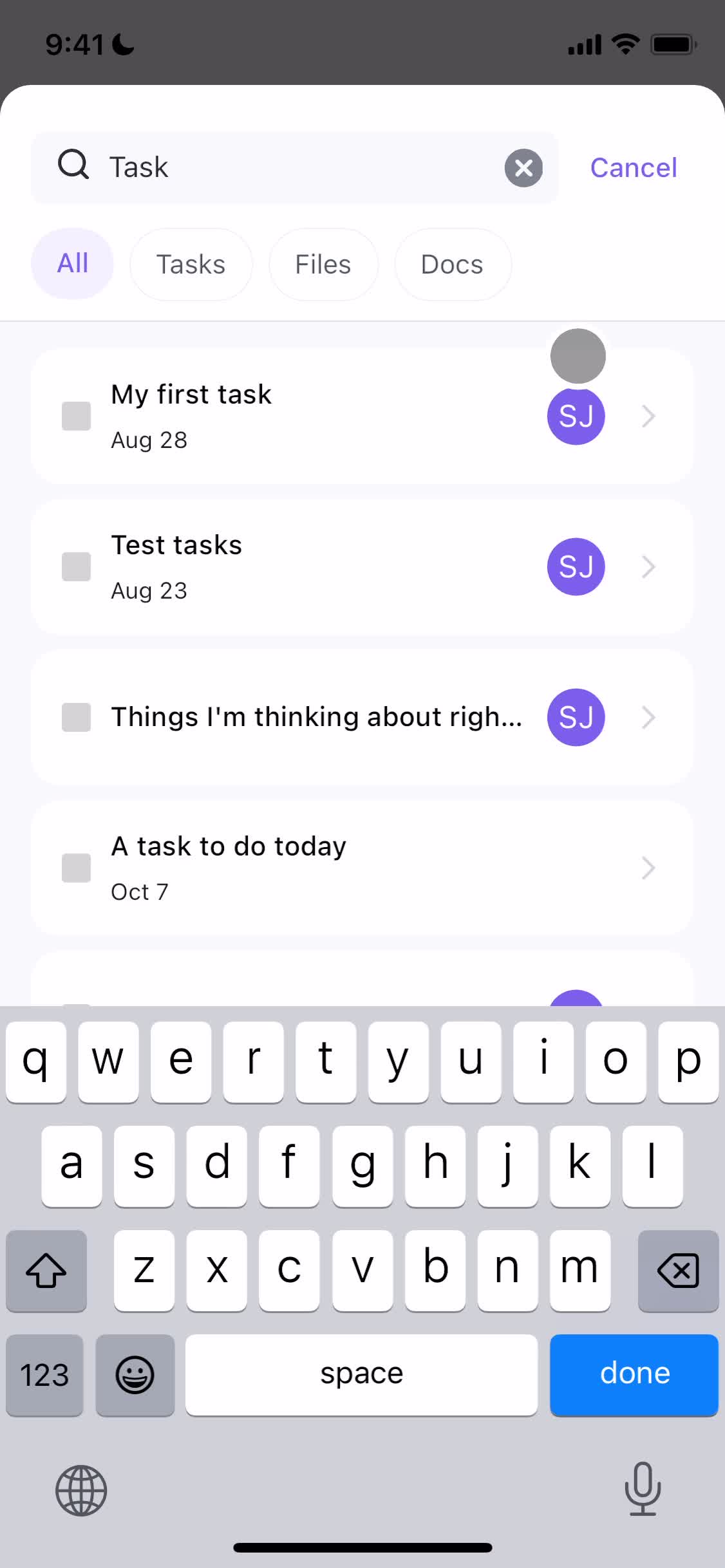
Search results
this is title
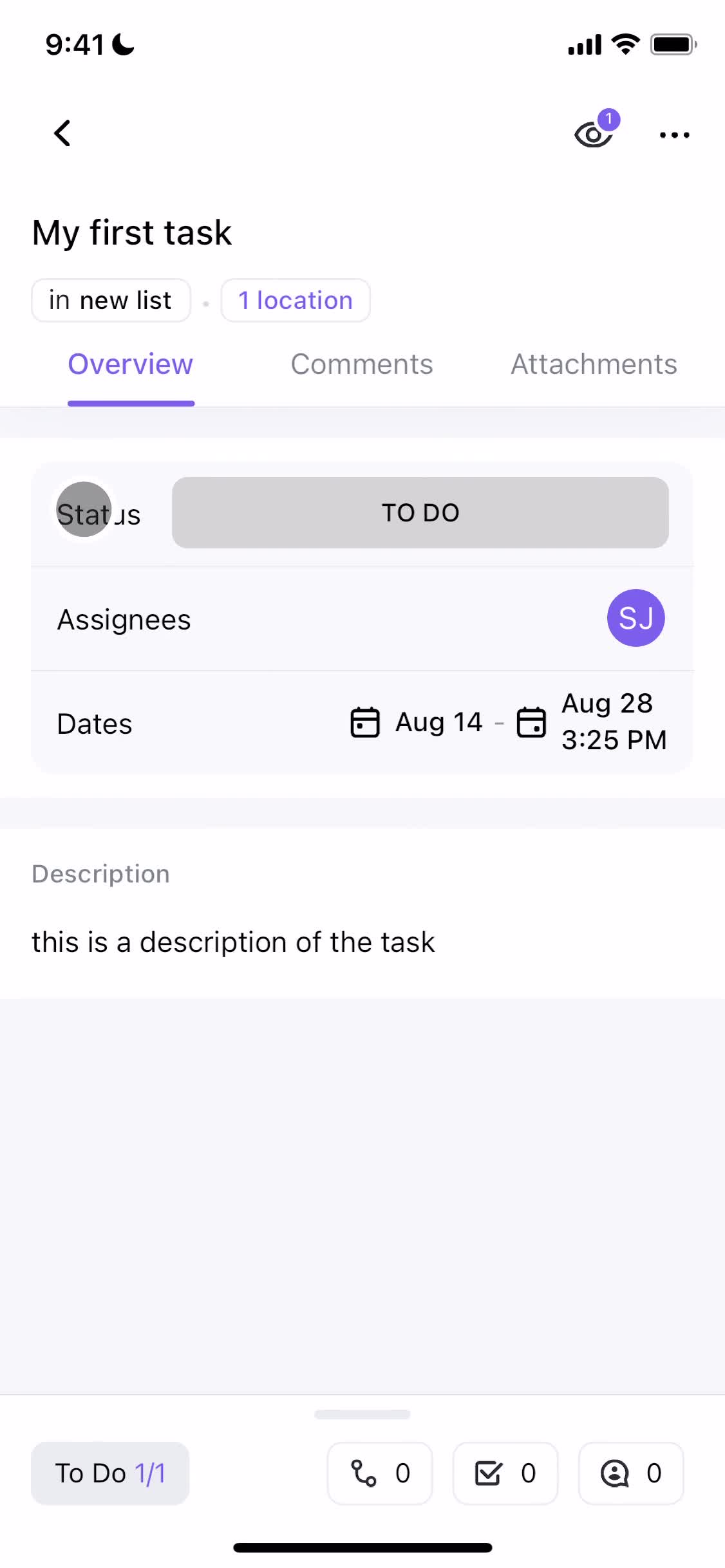
Task details
this is title
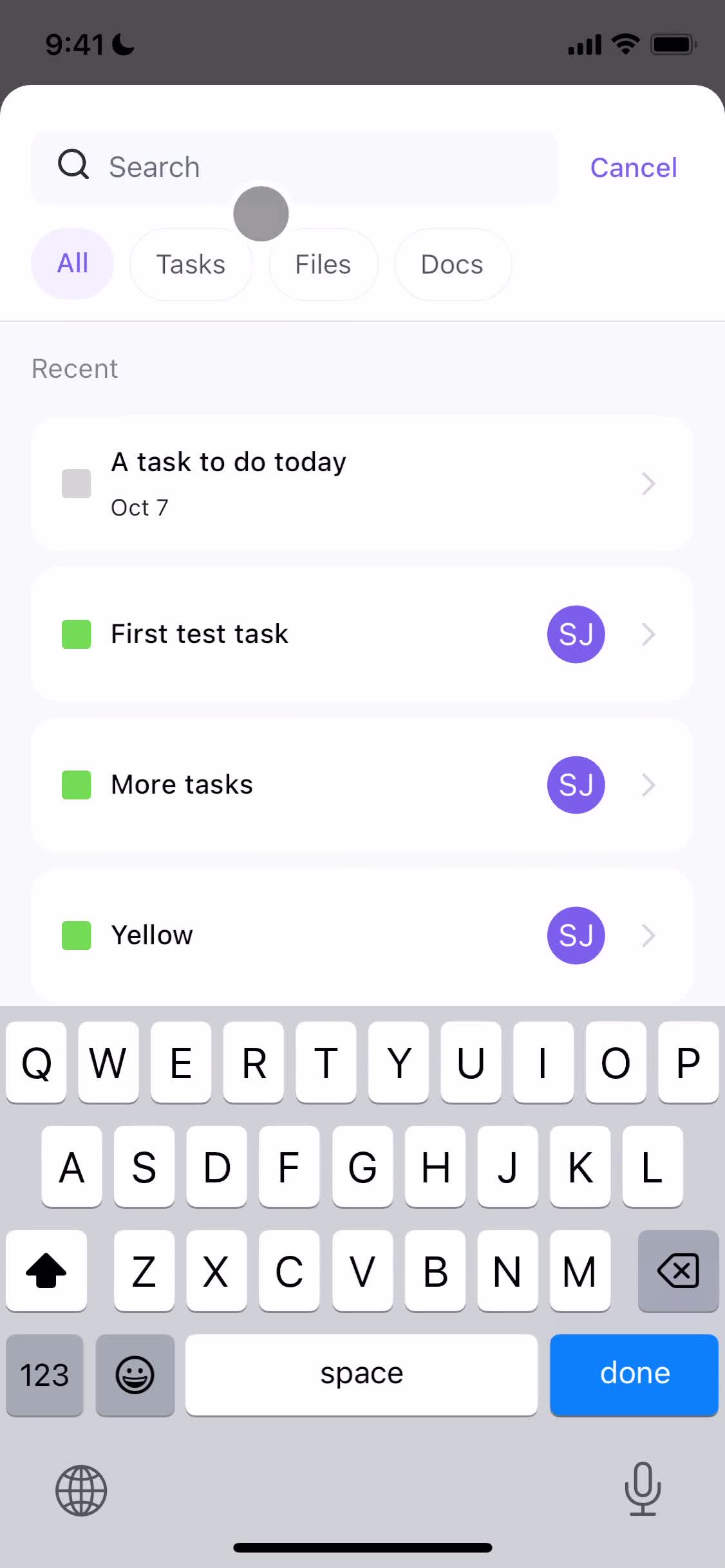
Search
this is title
Search results
this is title
Search
this is title
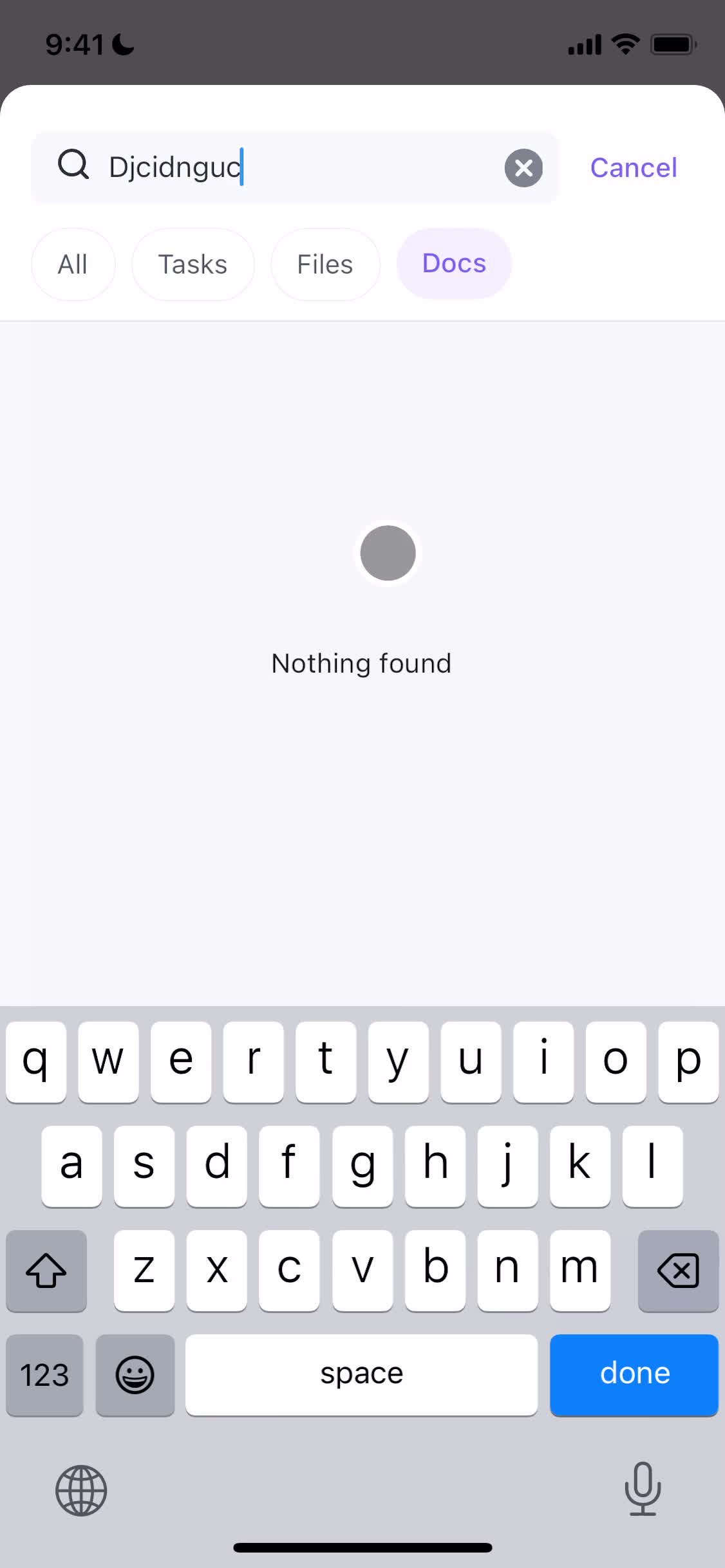
No search results
this is title
Search
this is title
Search results
this is title
Task details
this is title
Action menu
this is title
Task details
this is title
Home
this is title