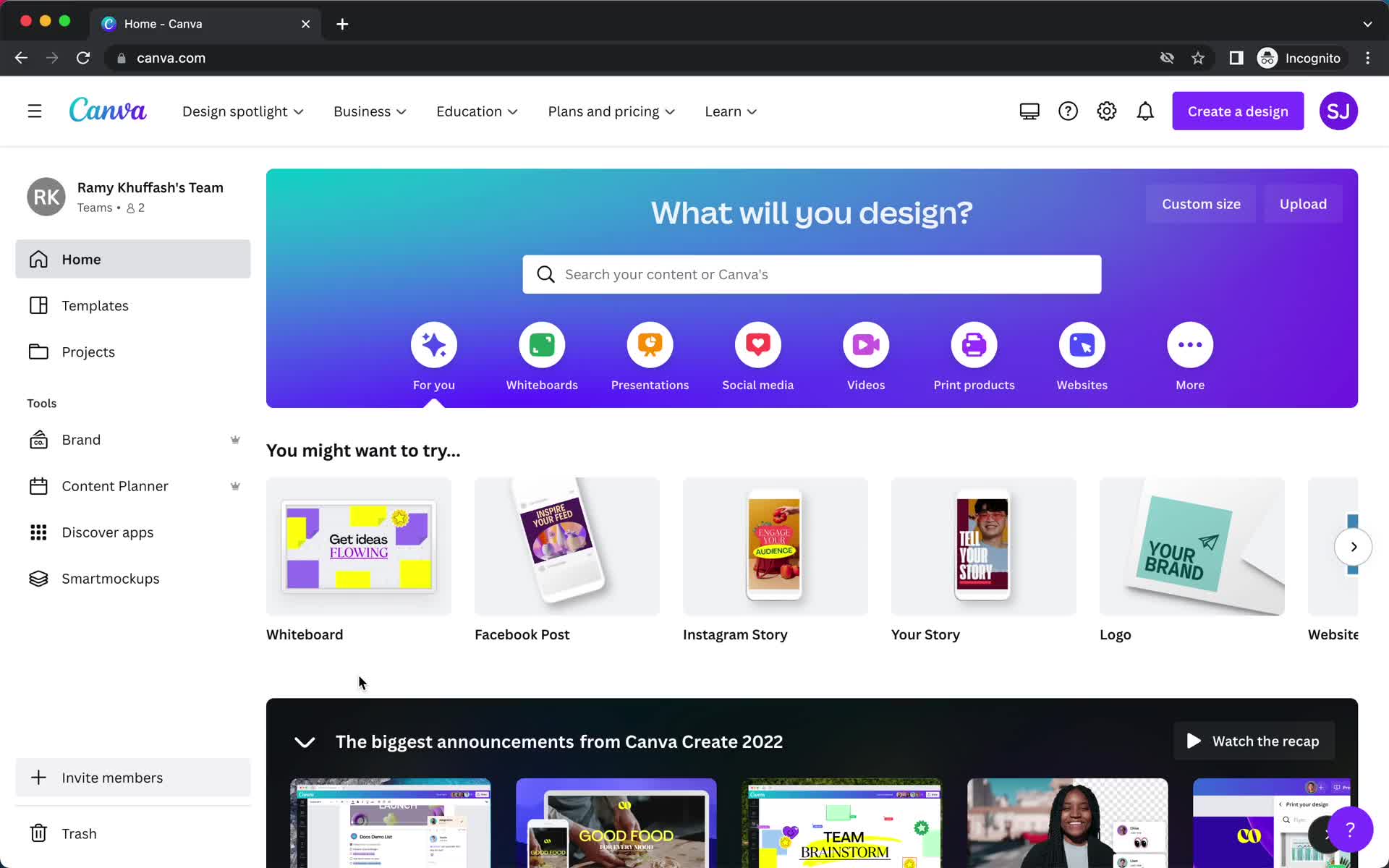
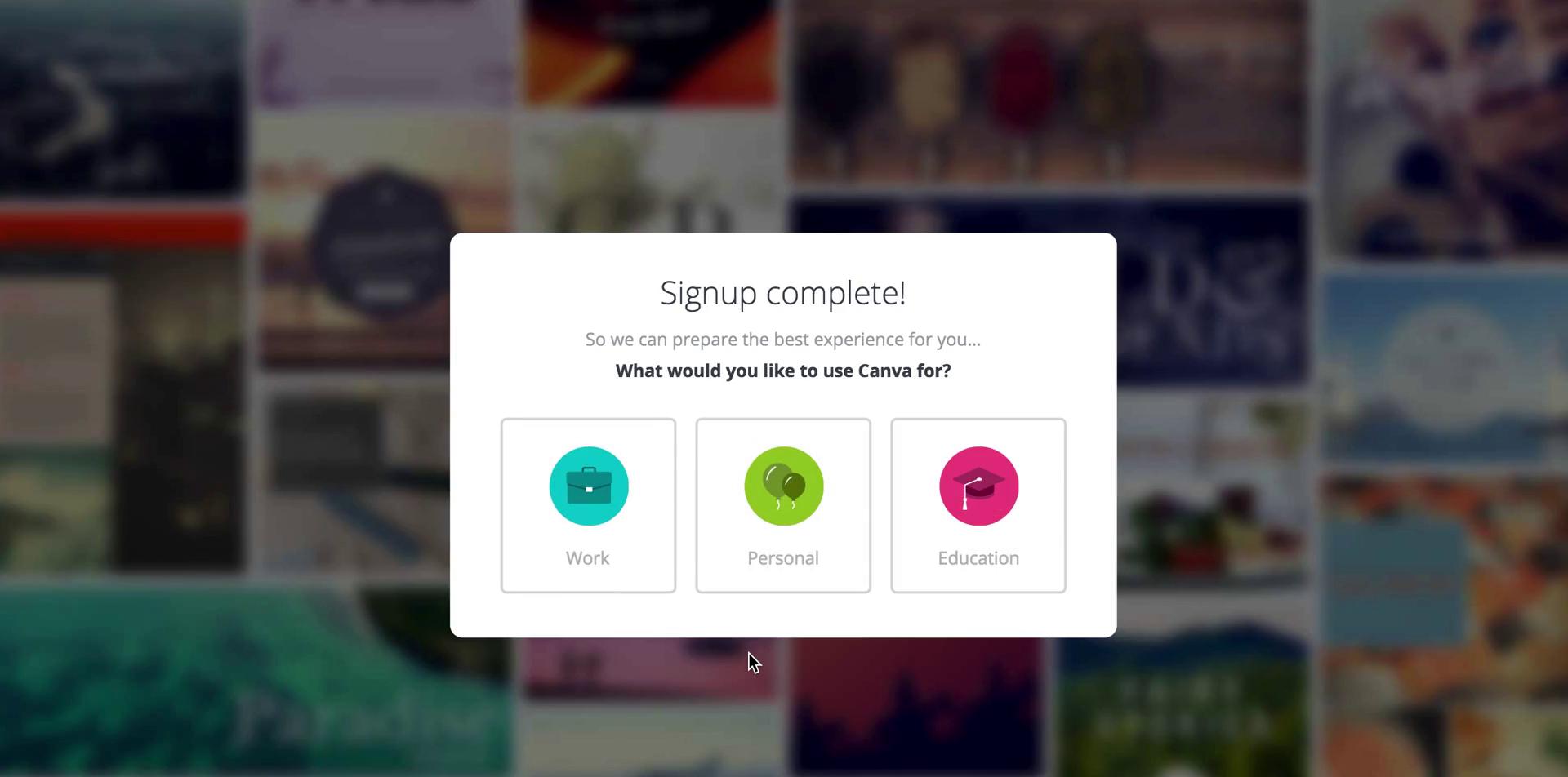
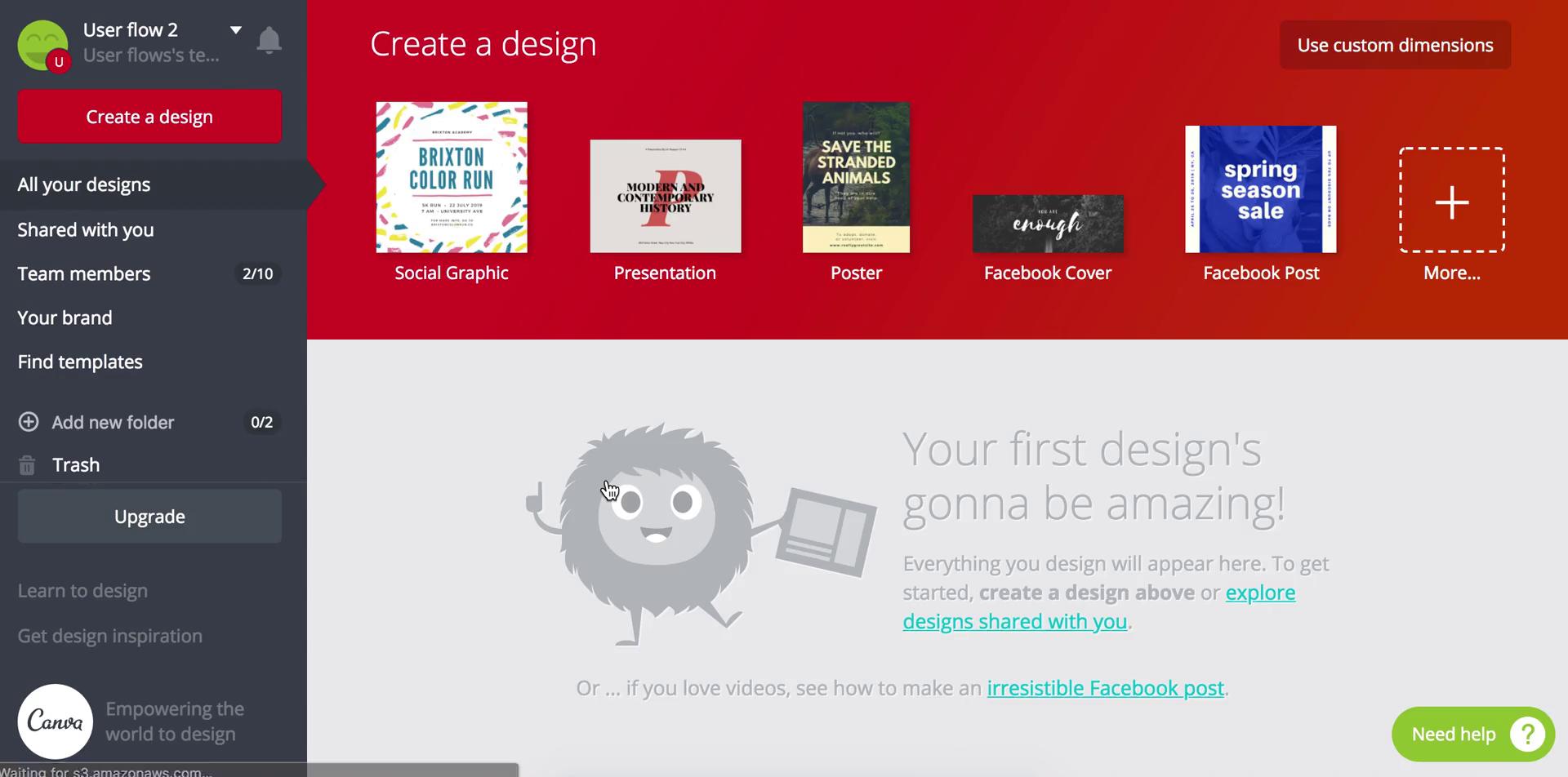
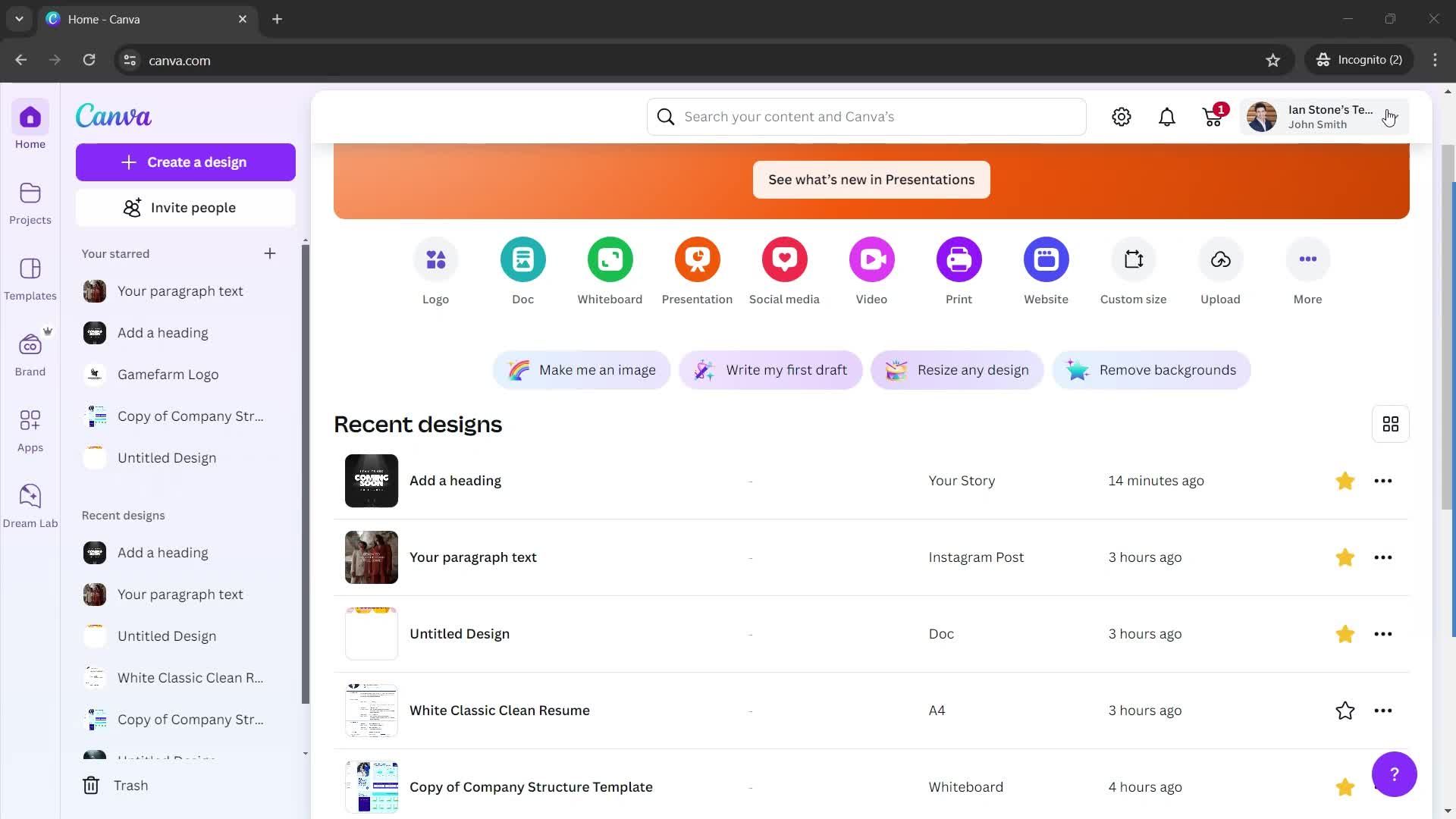
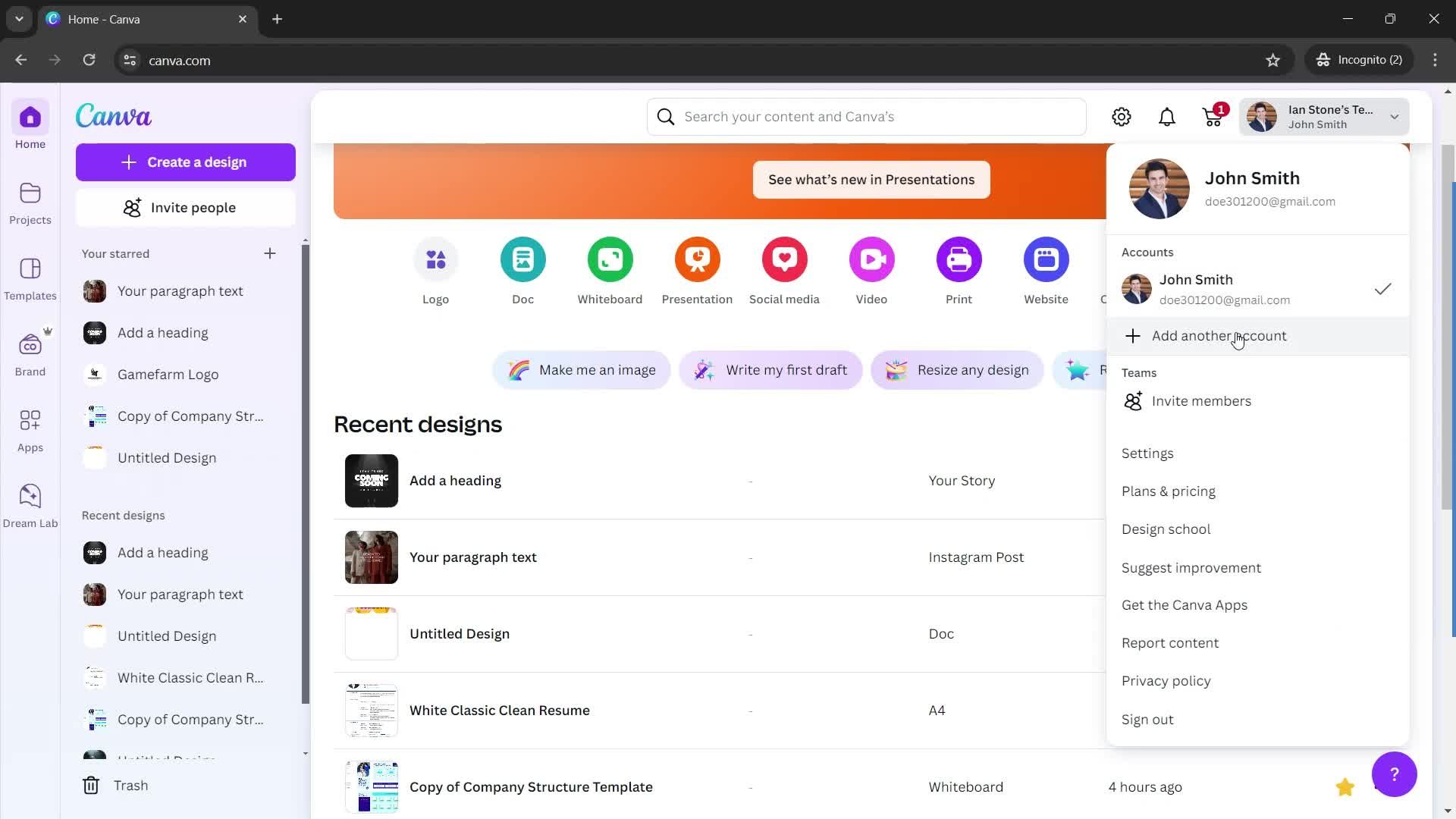
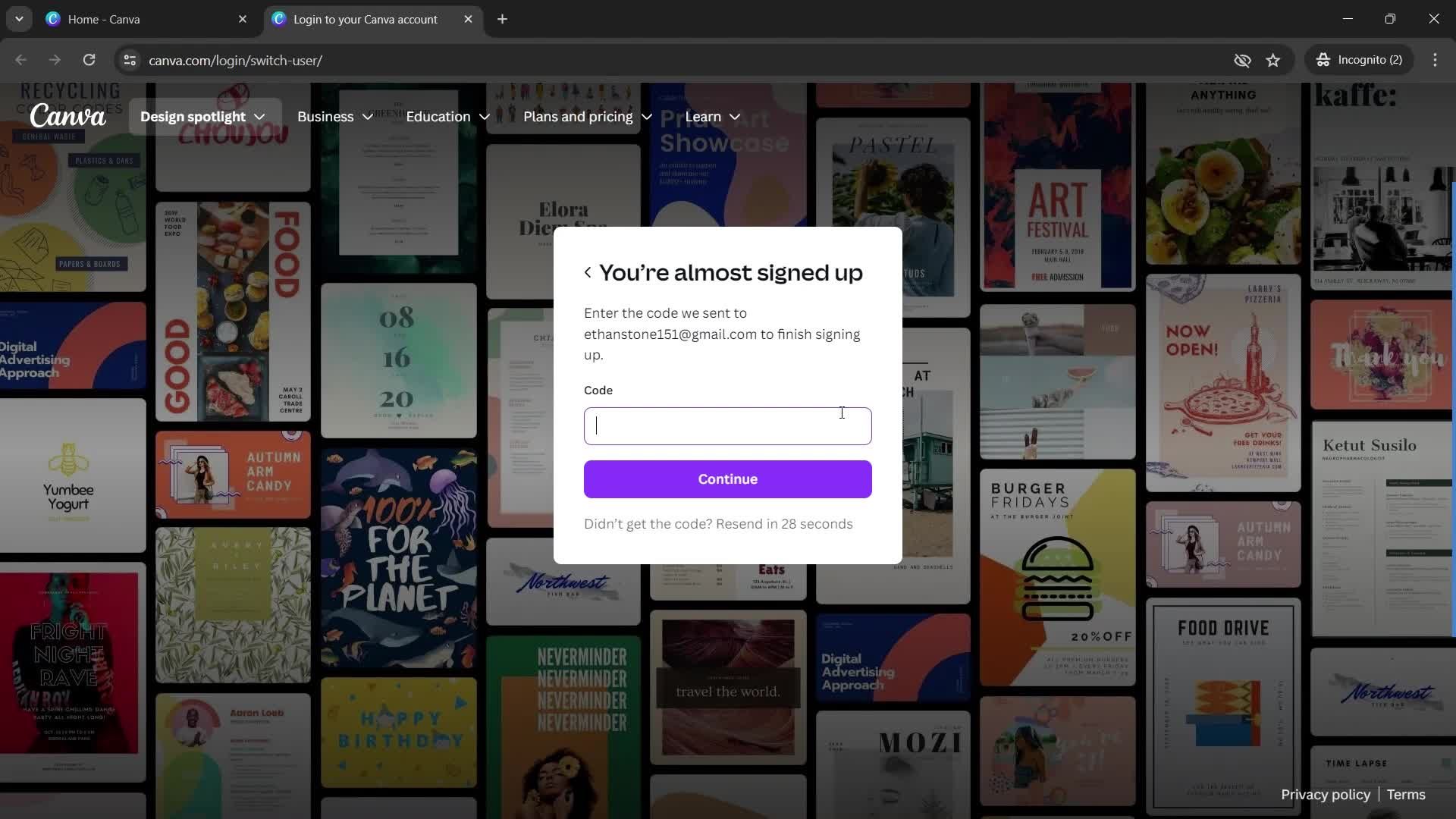
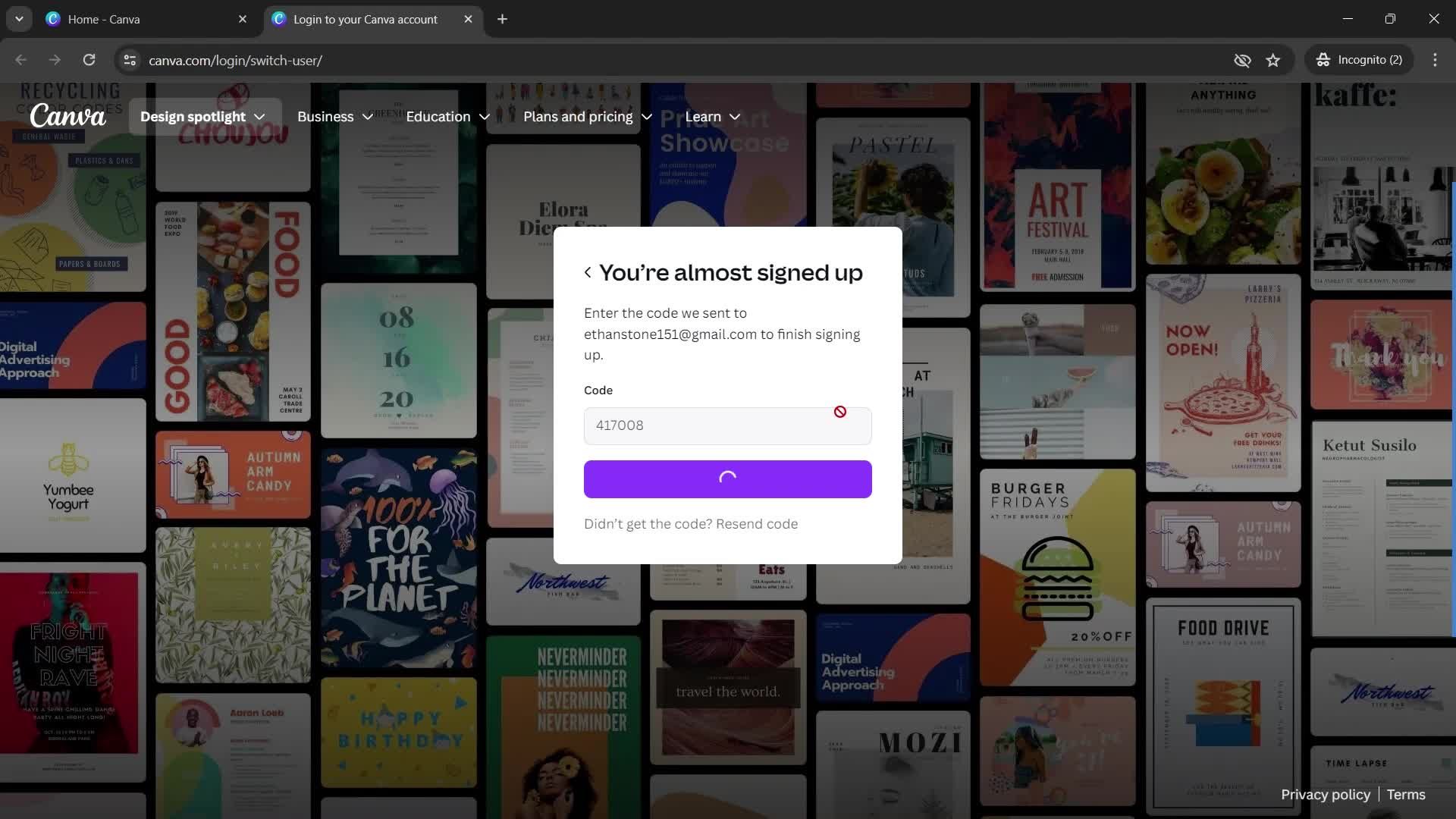
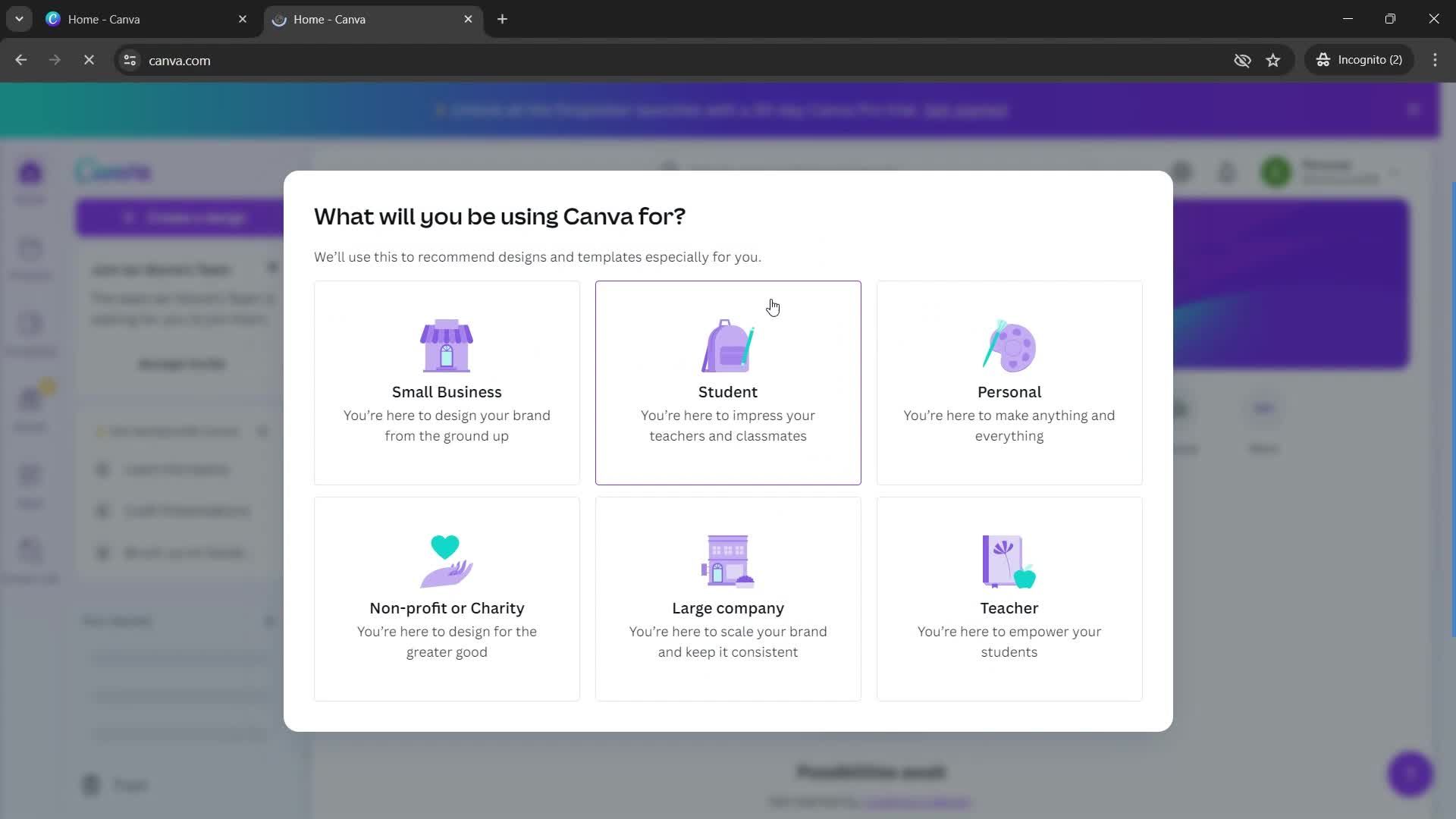
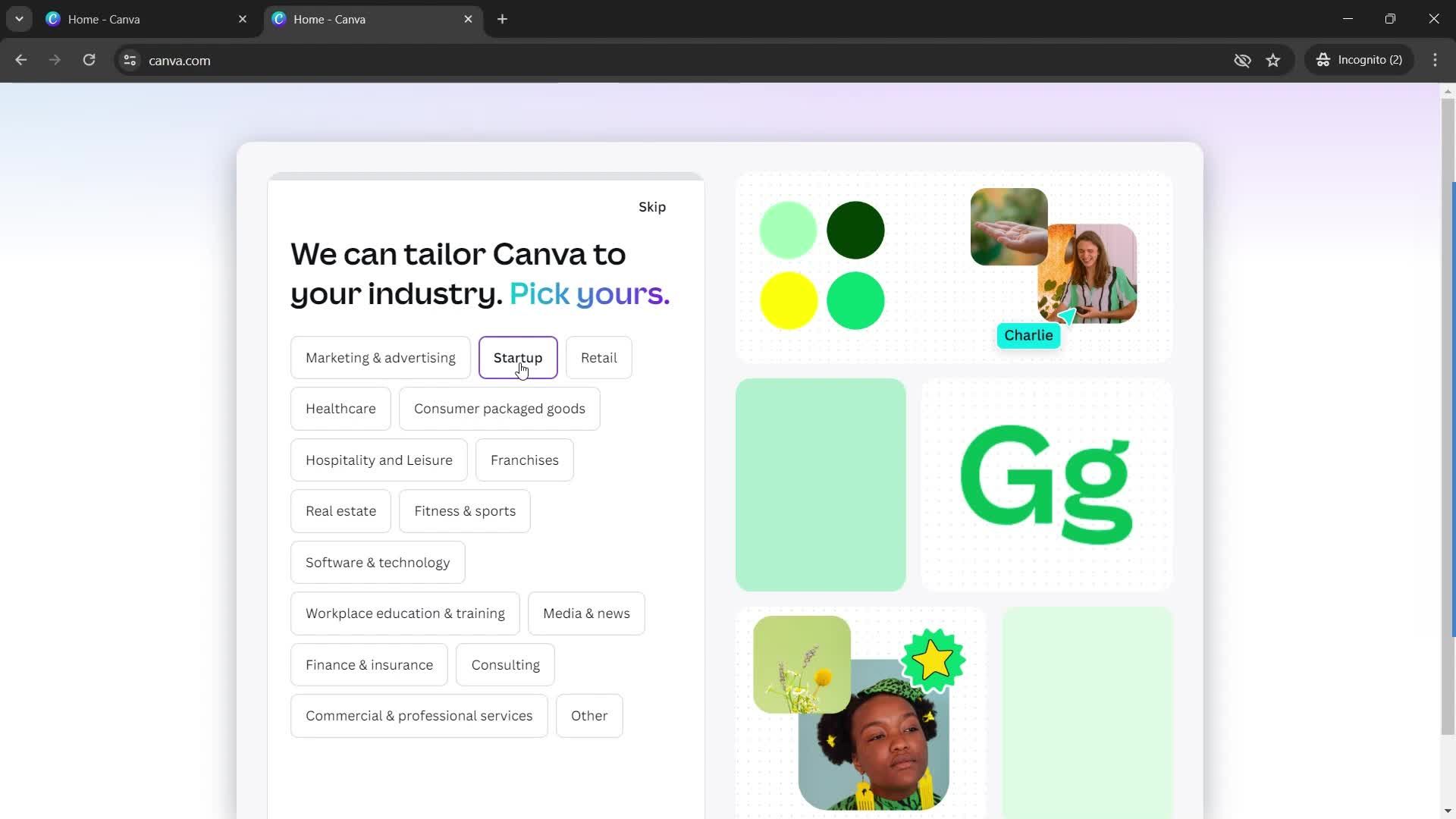
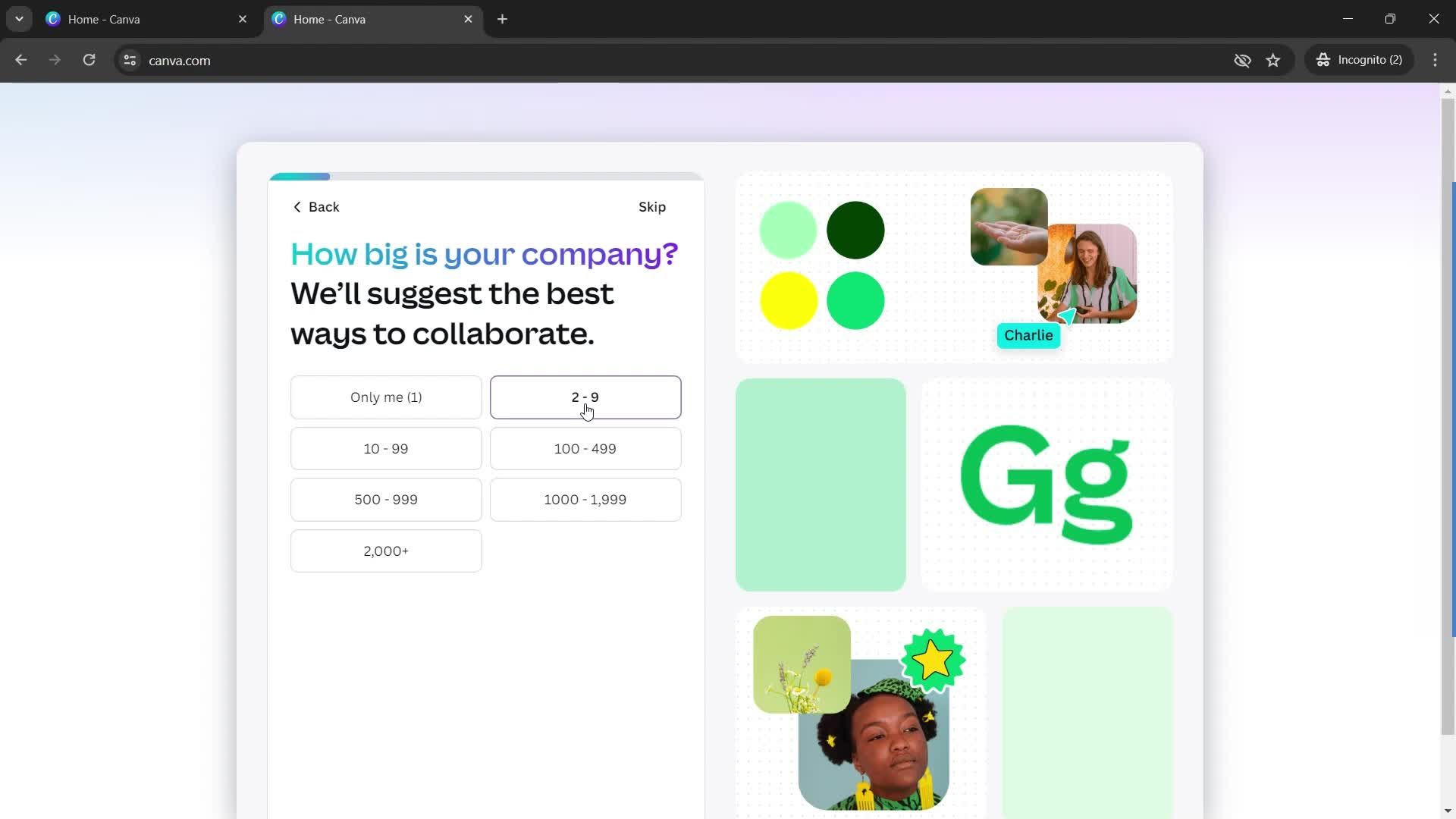
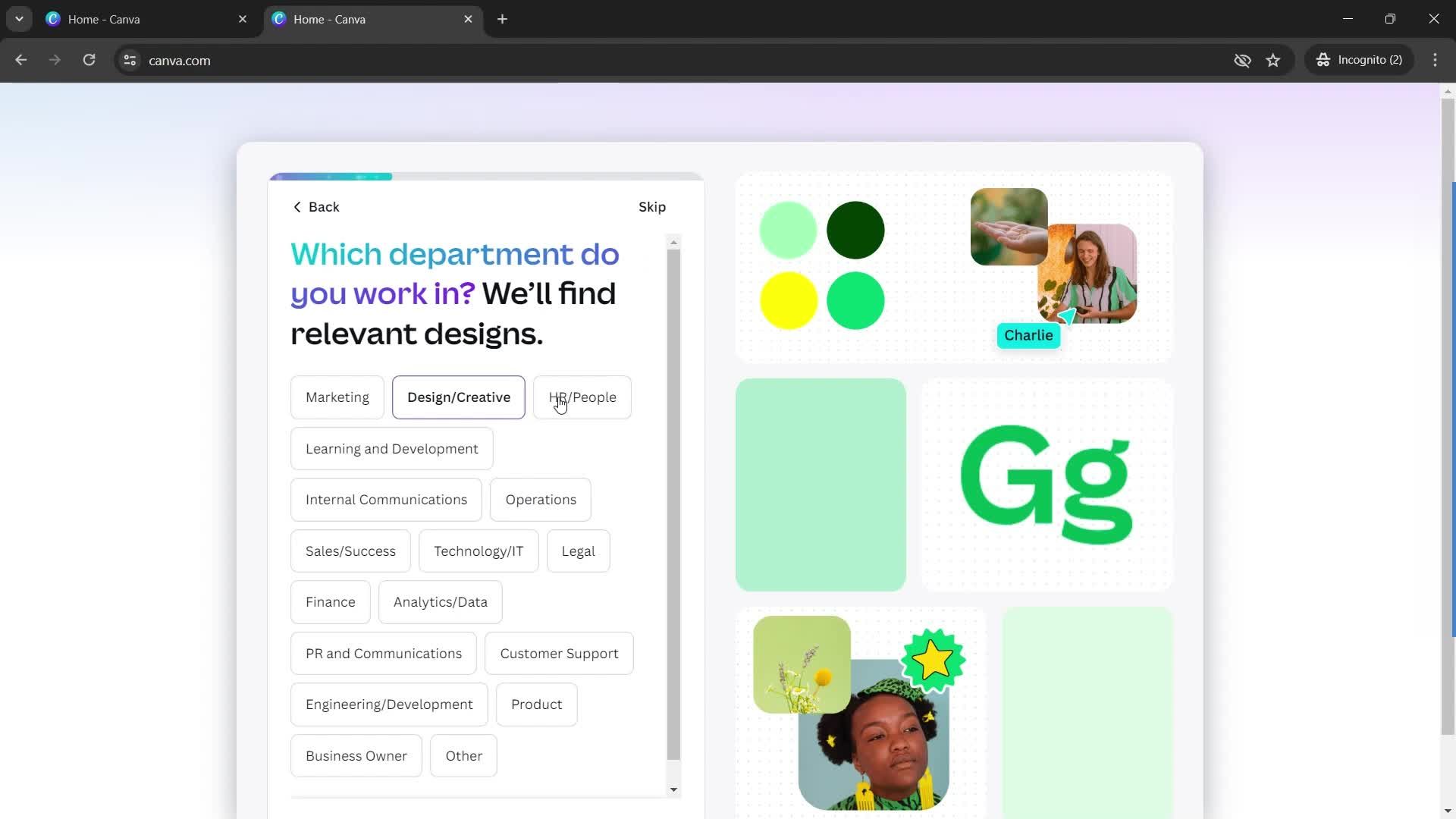
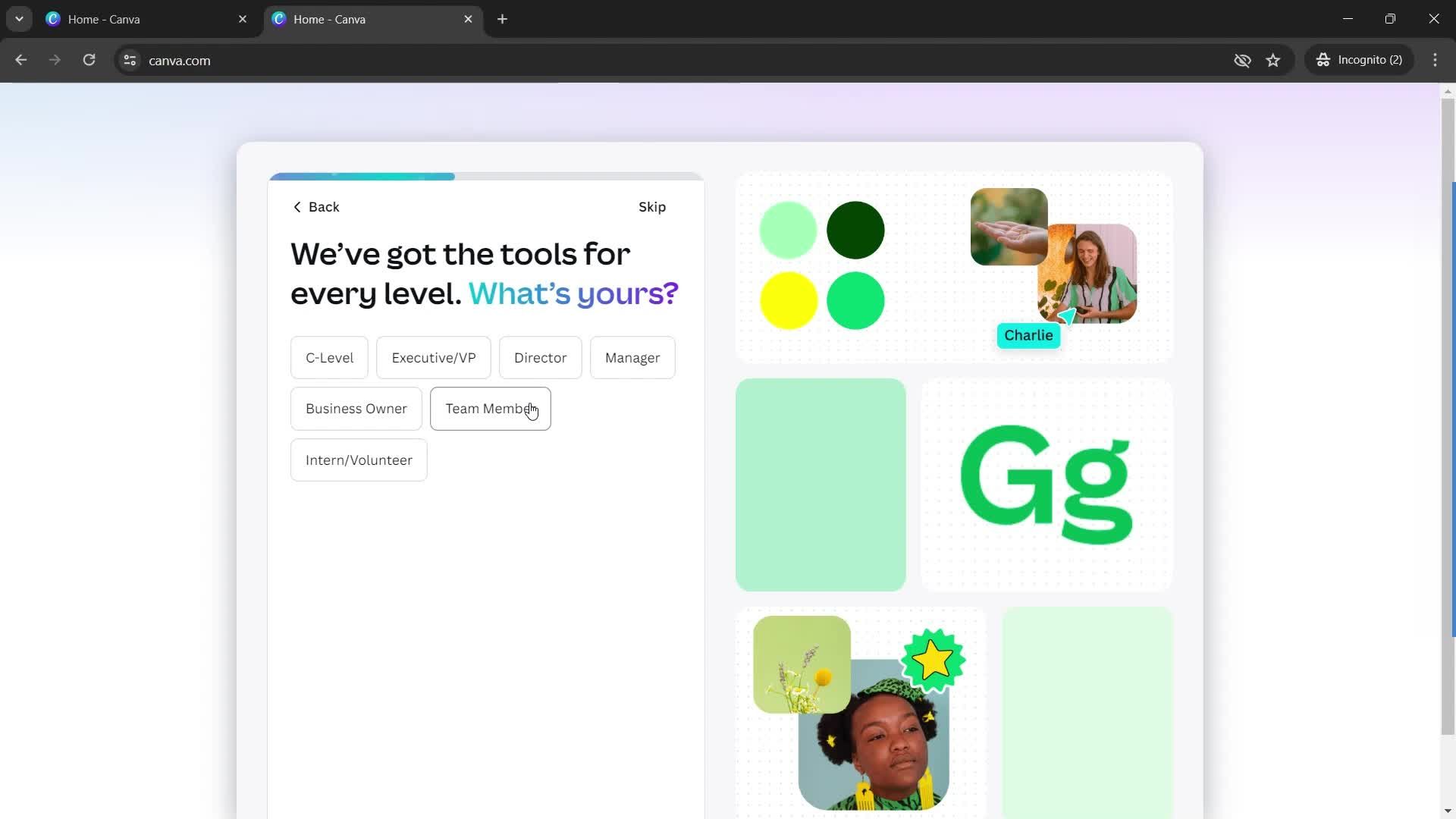
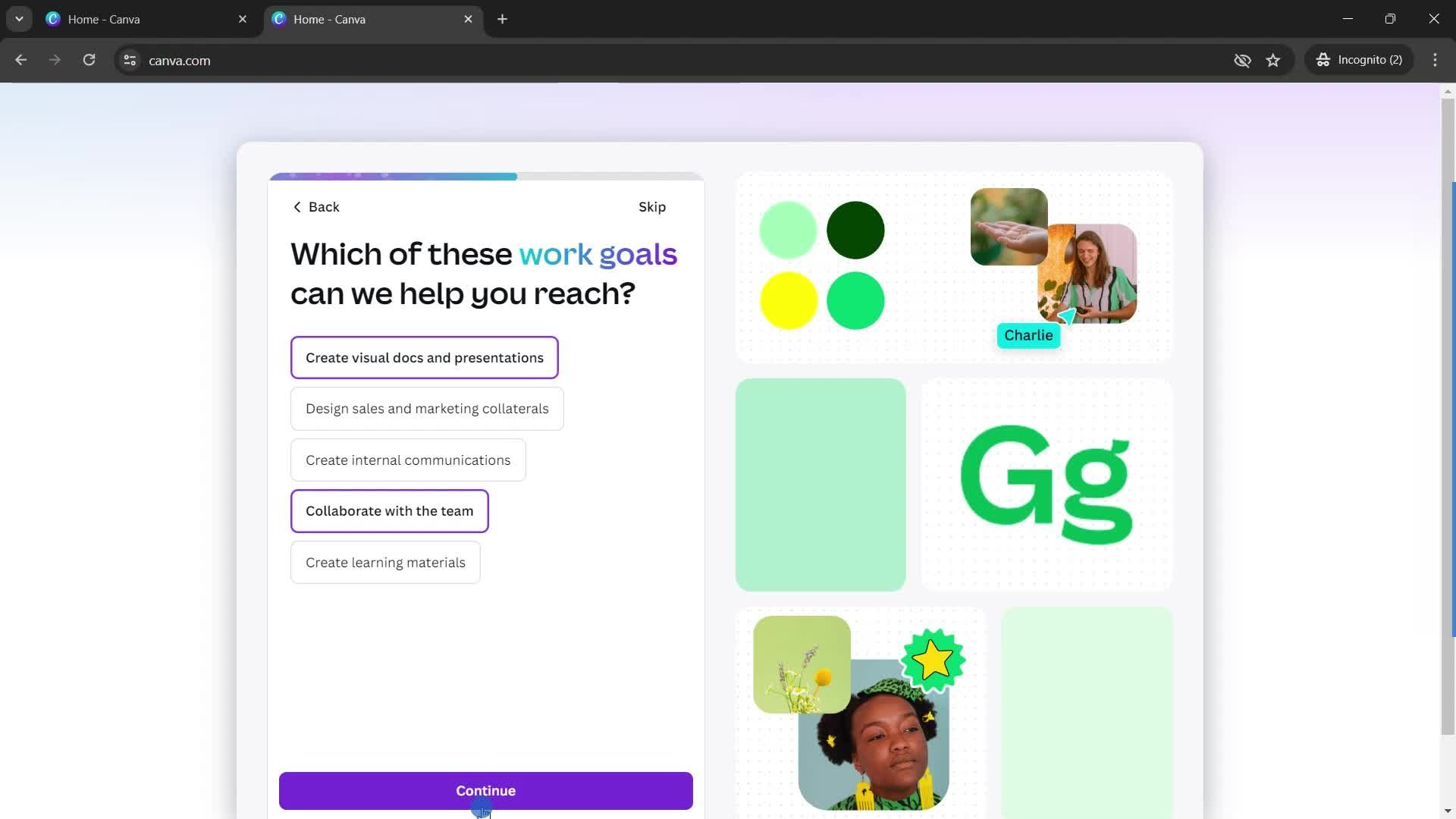
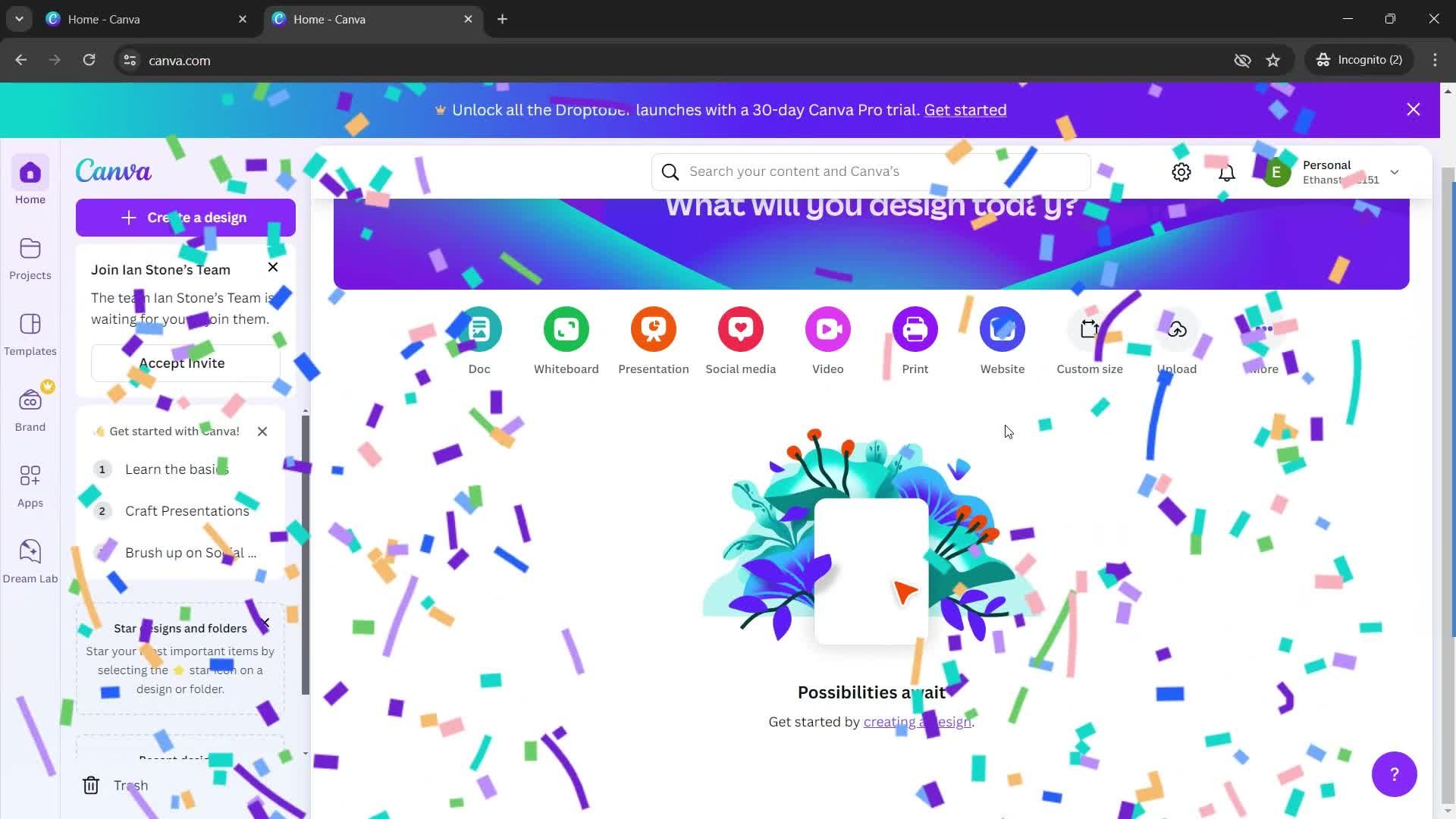
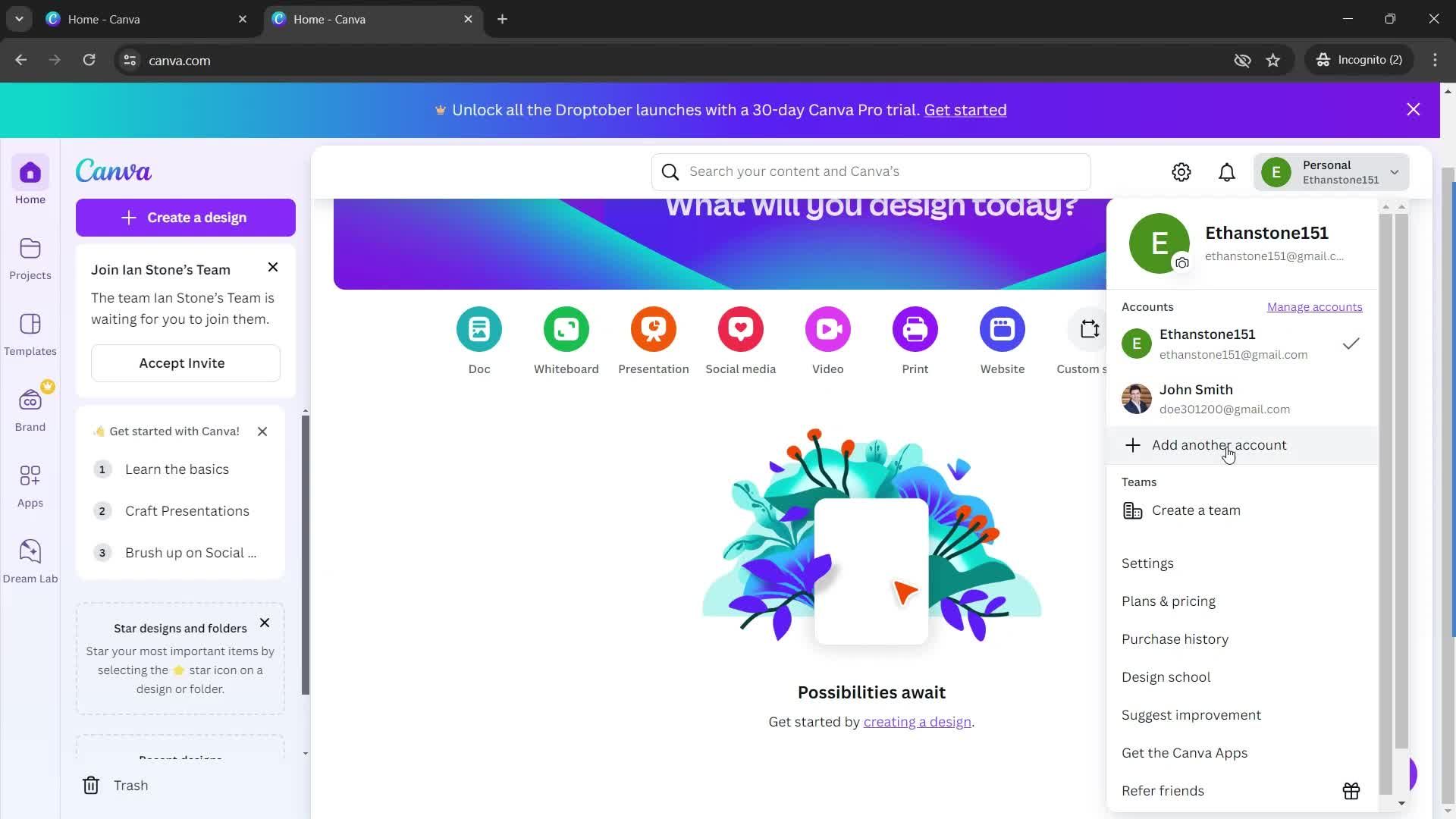
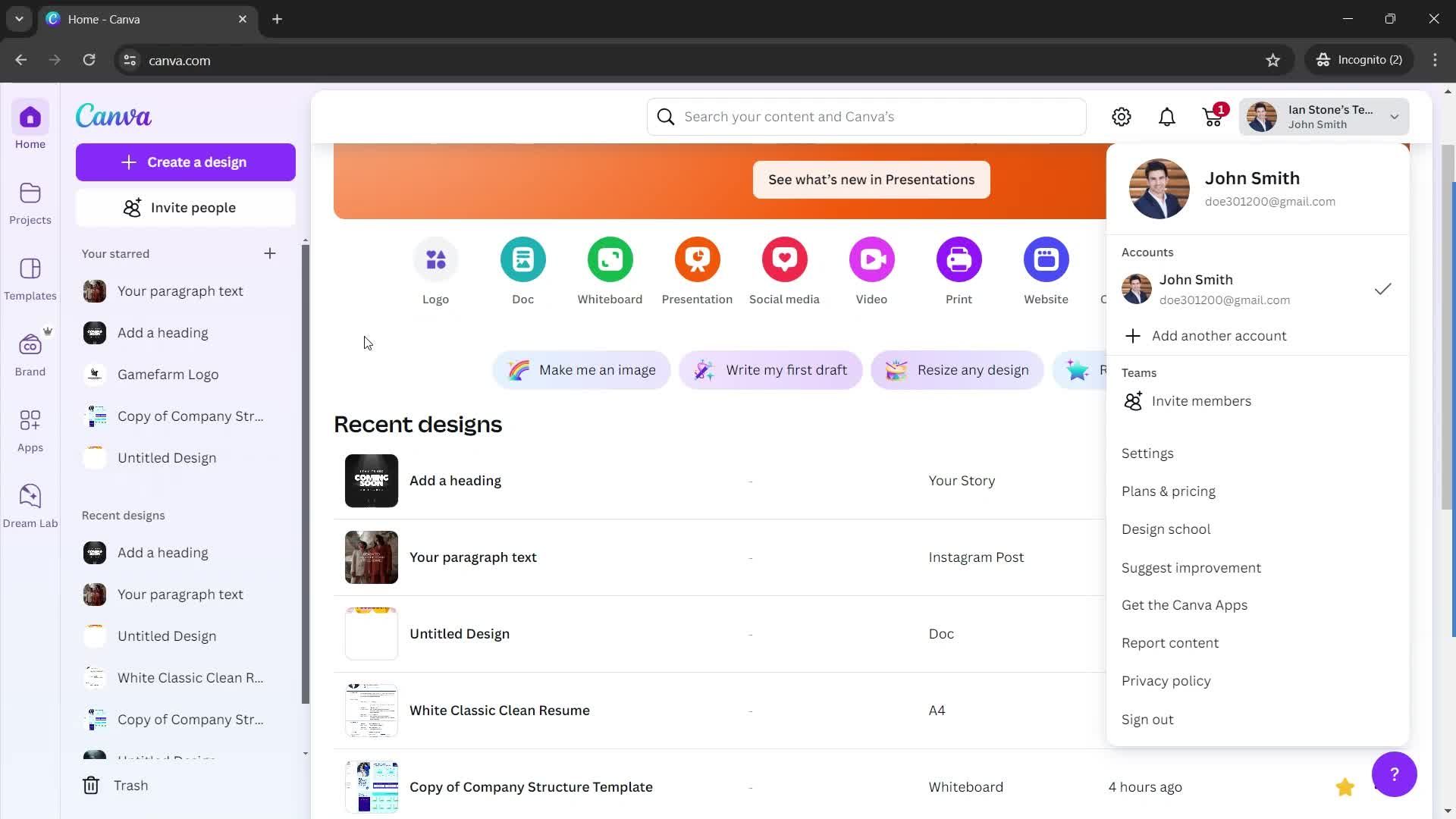
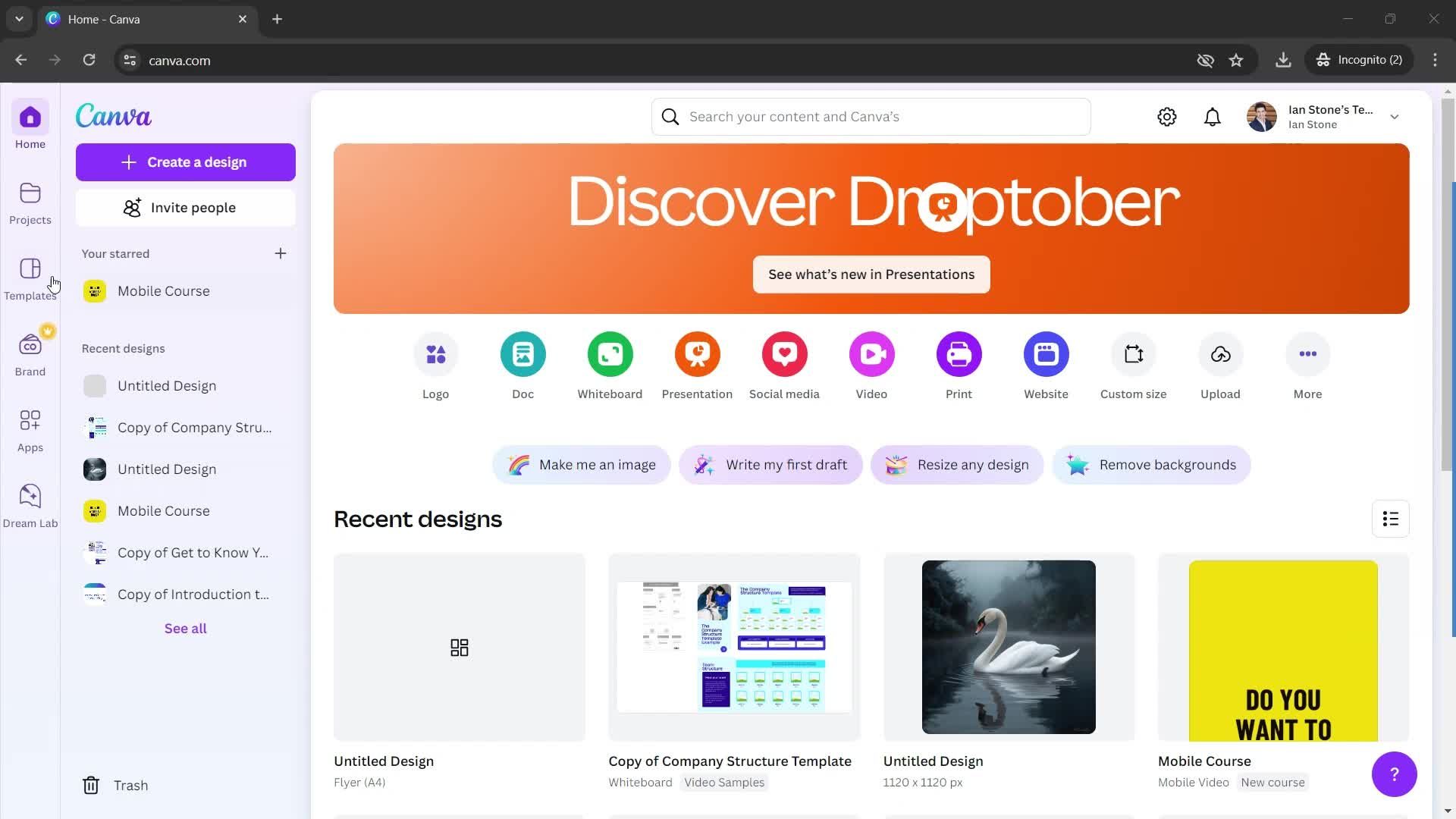
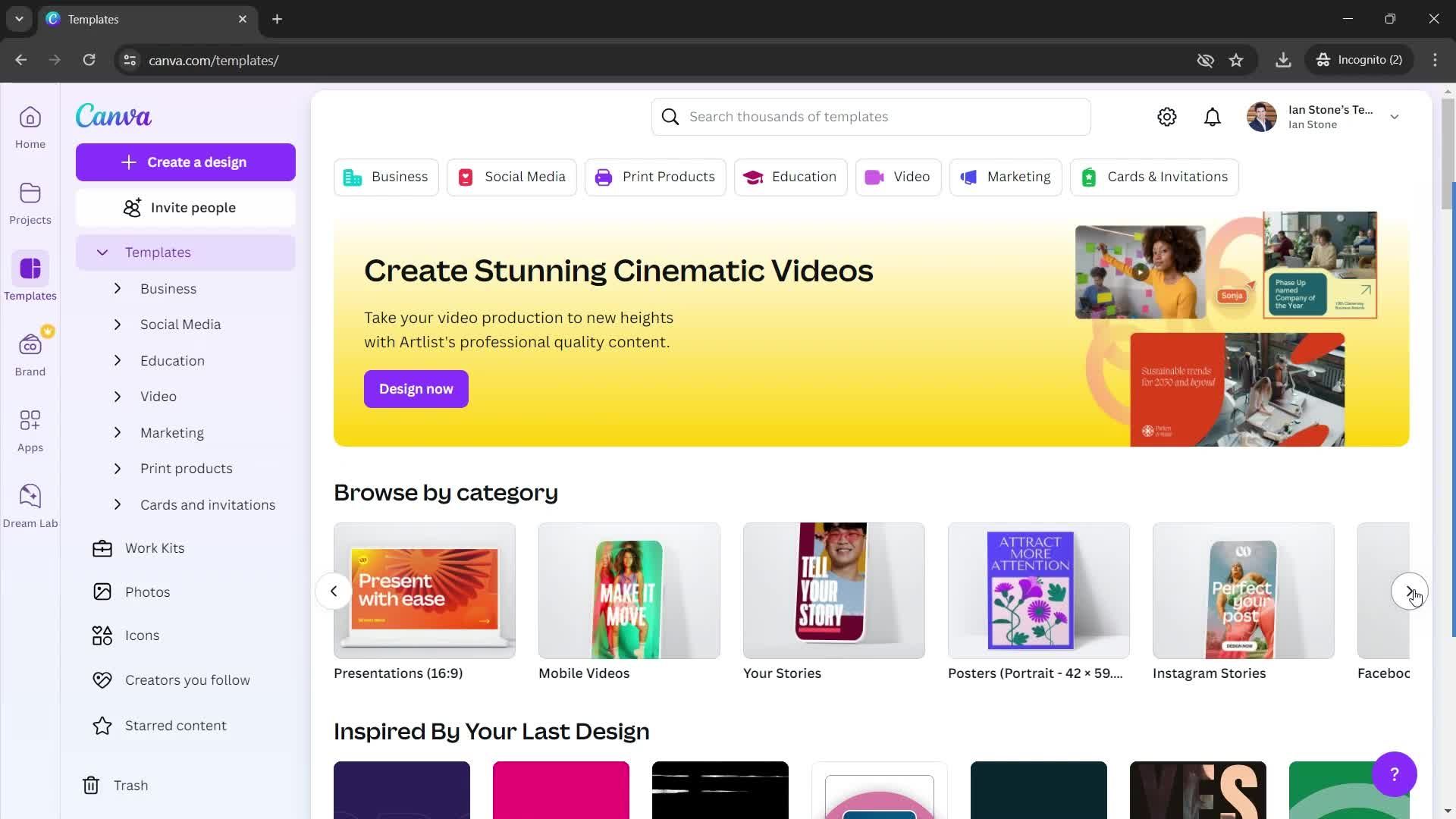
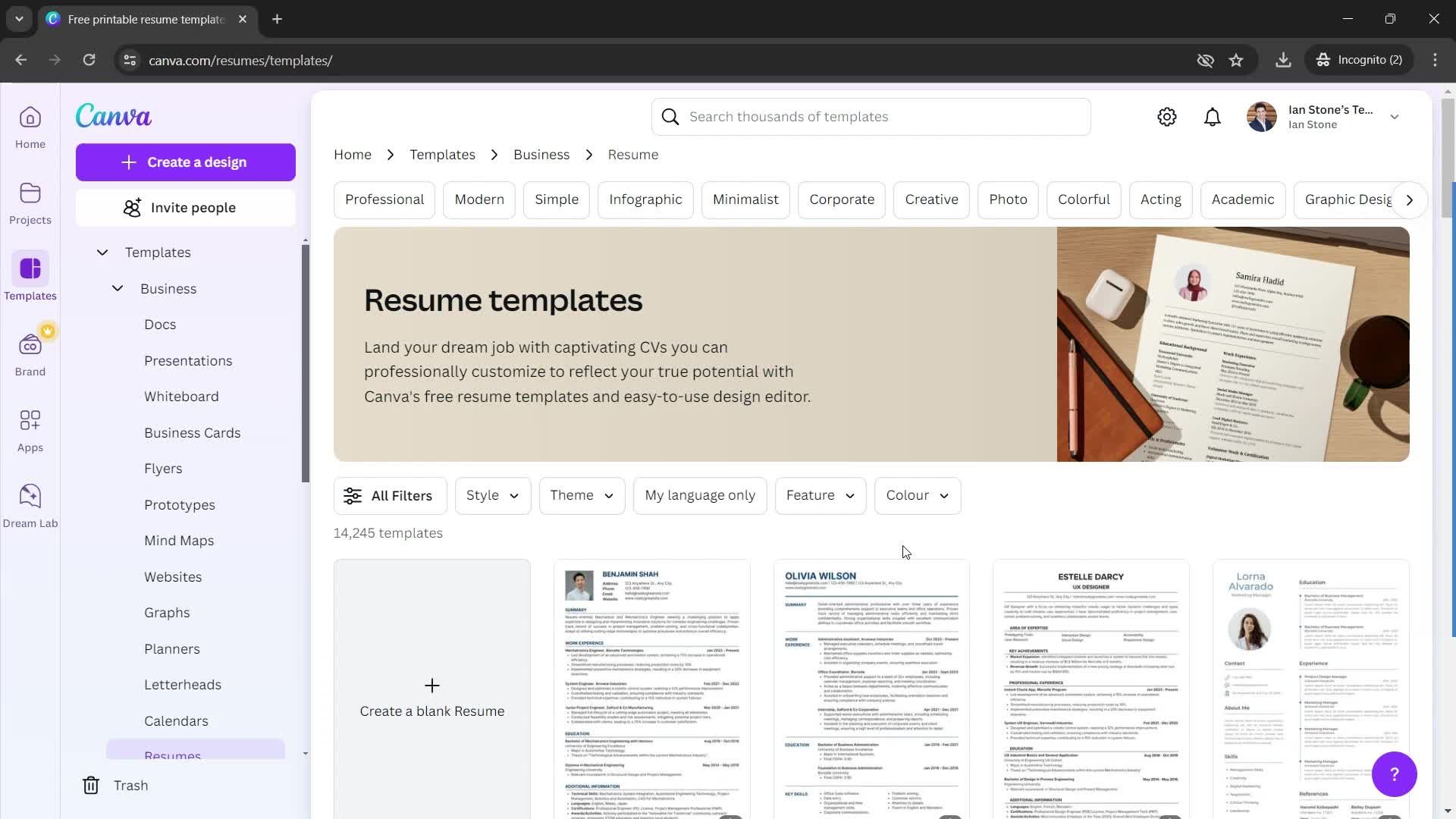
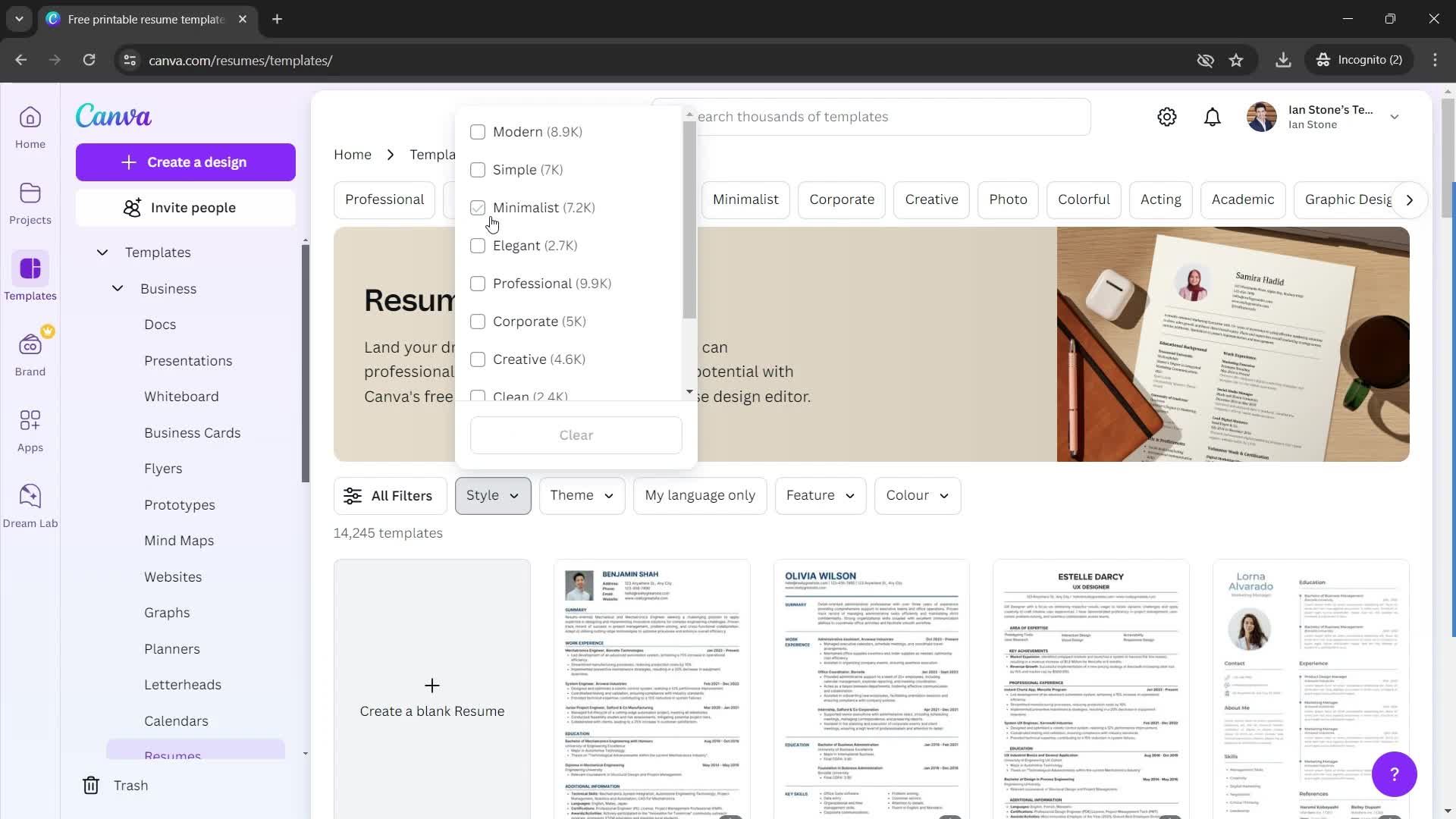
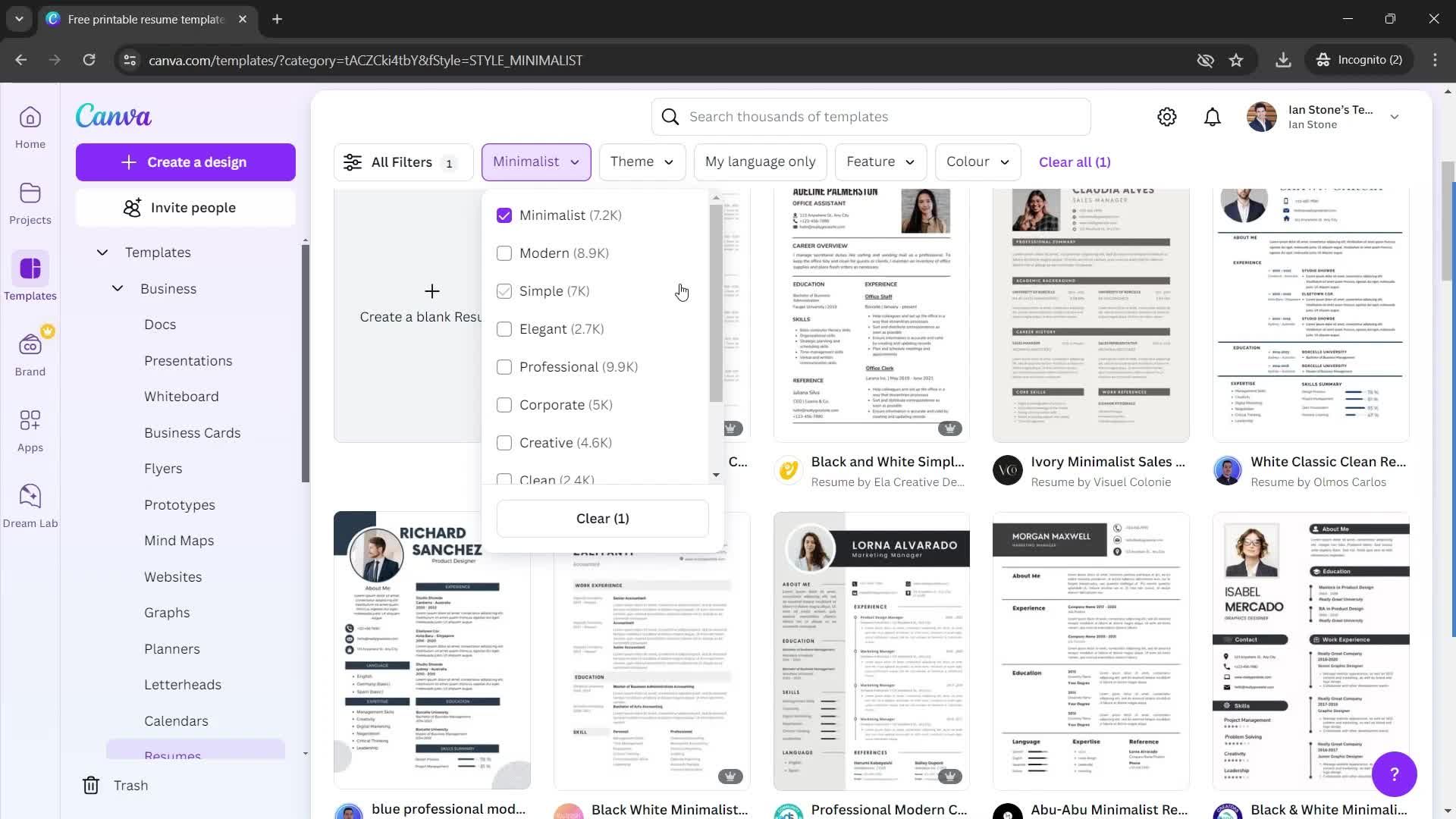
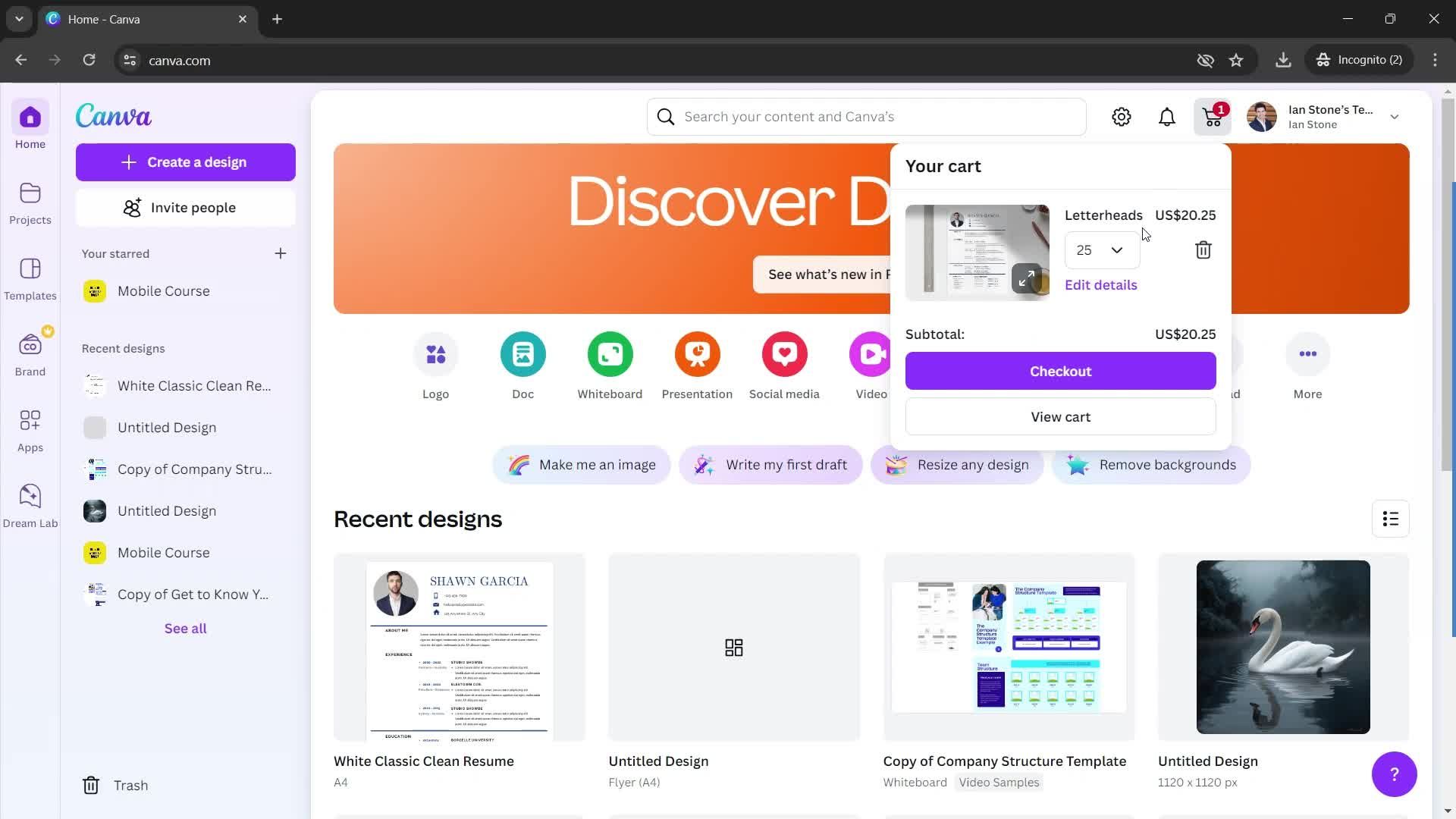
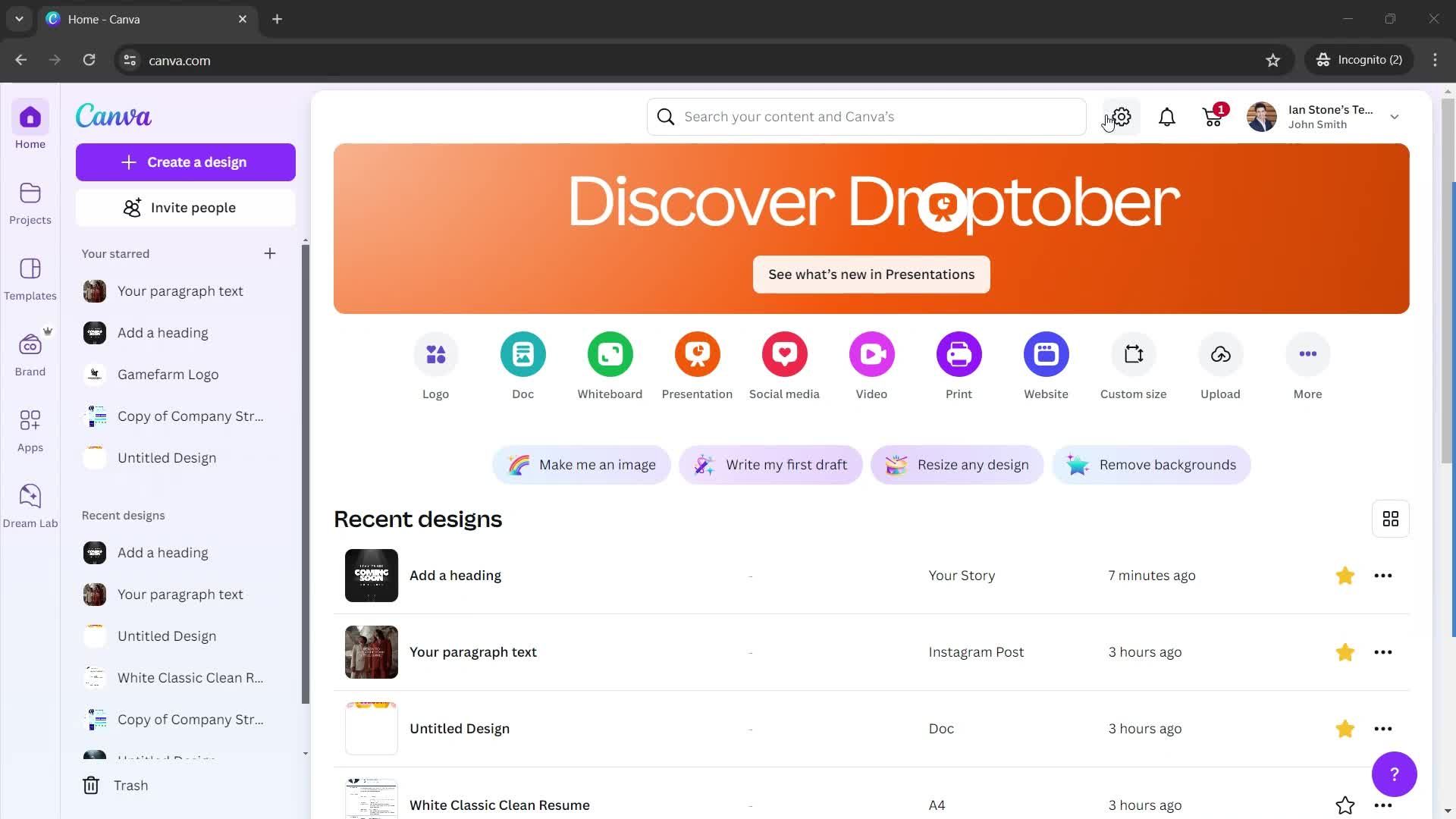
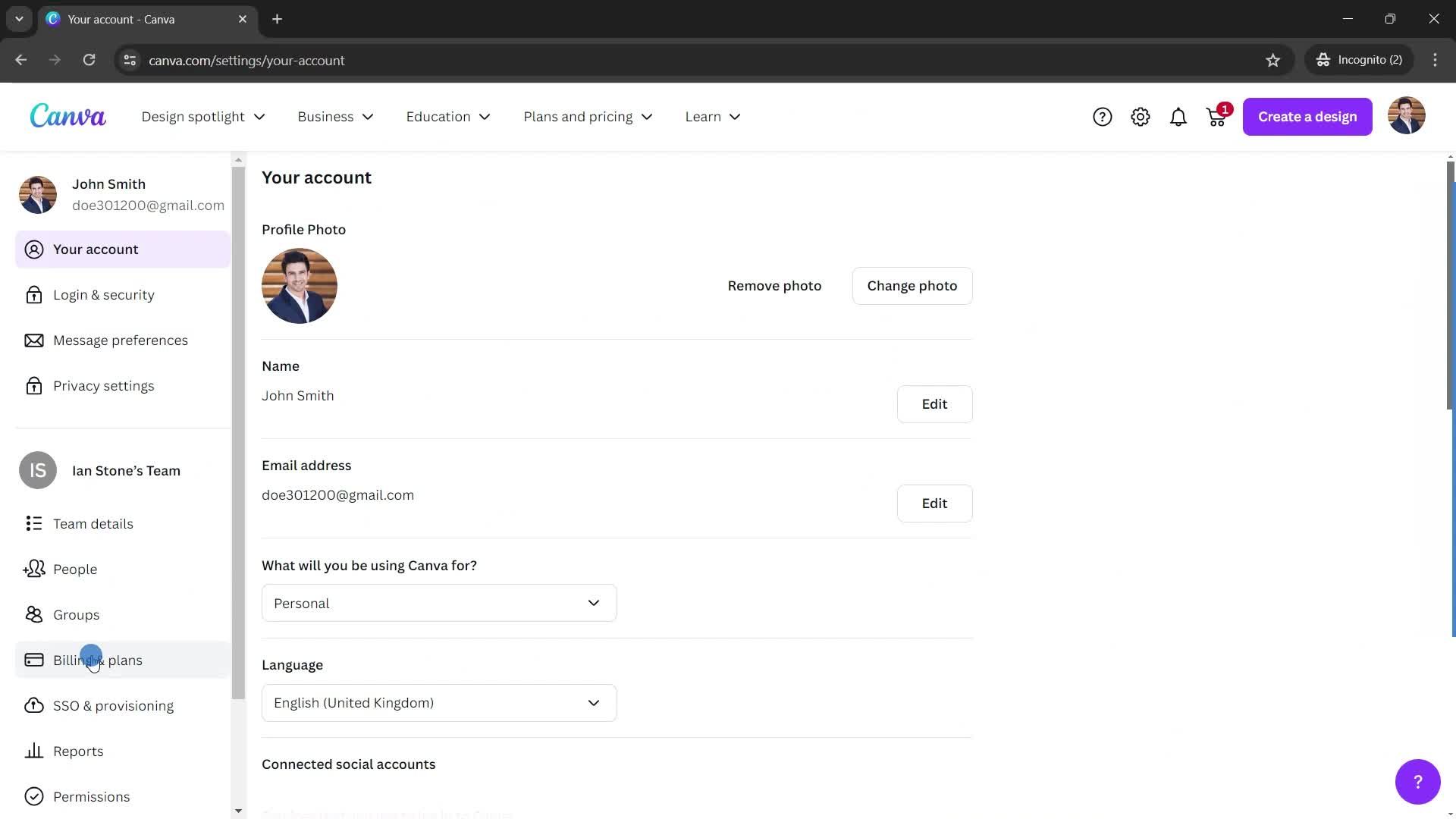
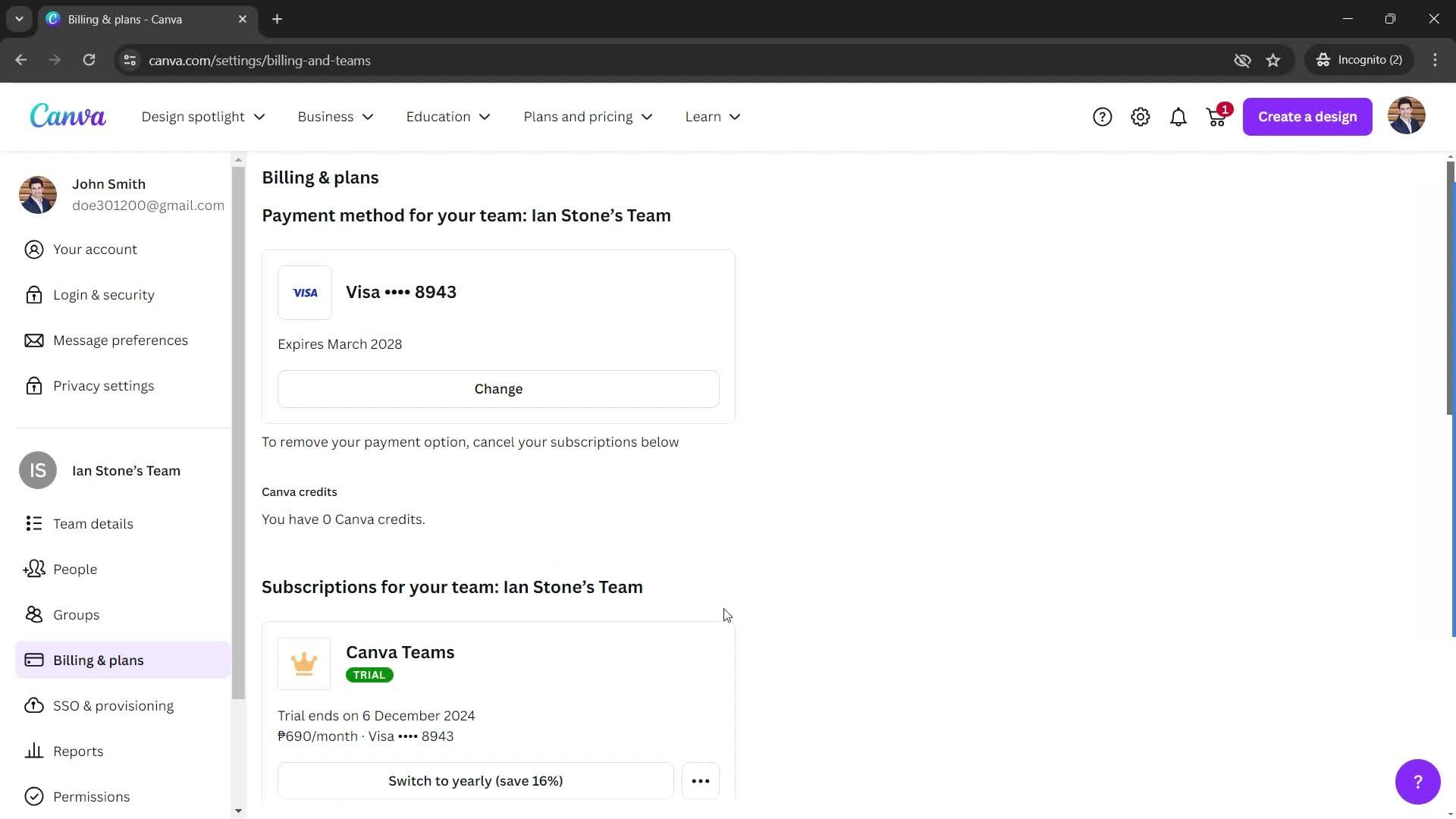
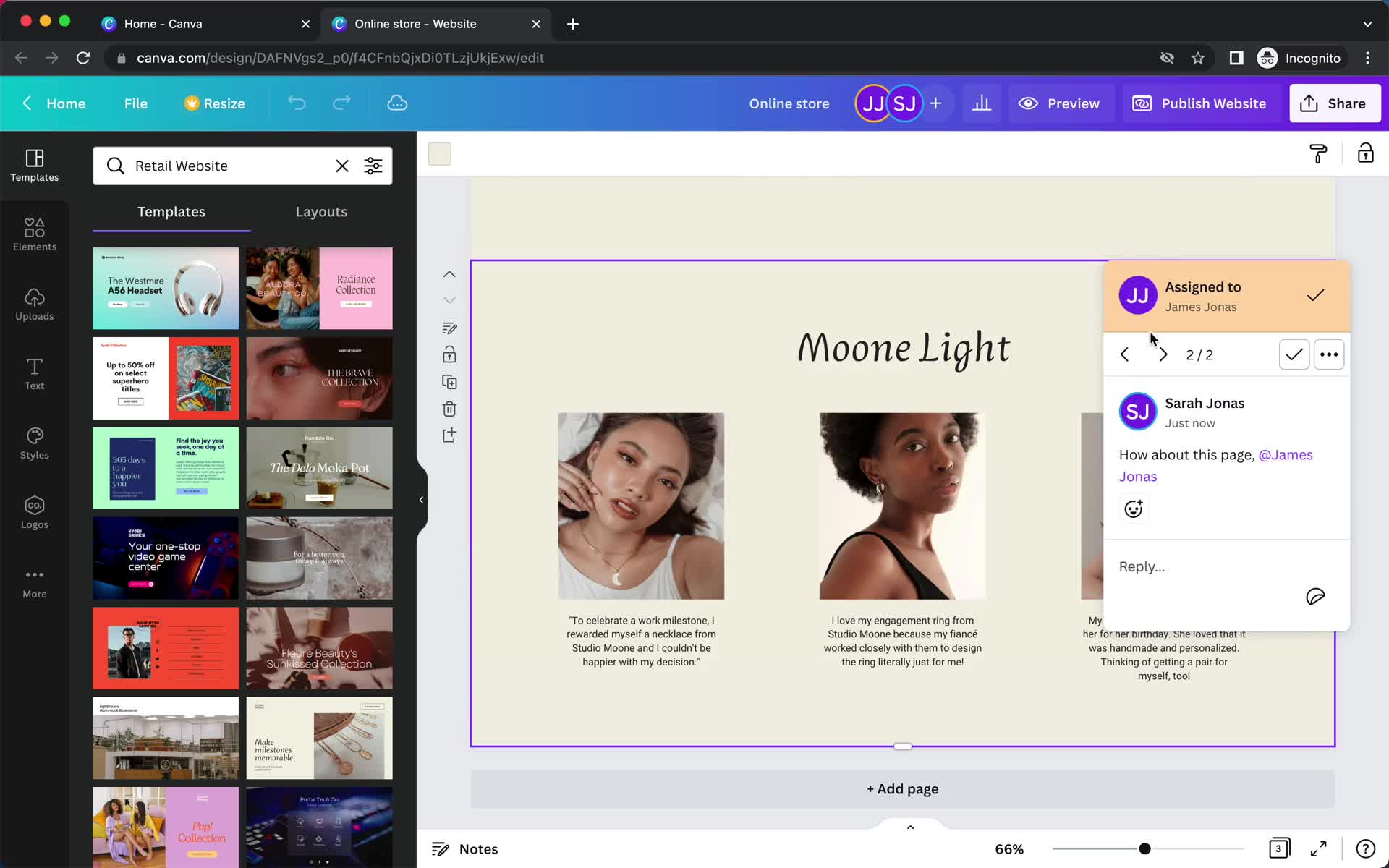
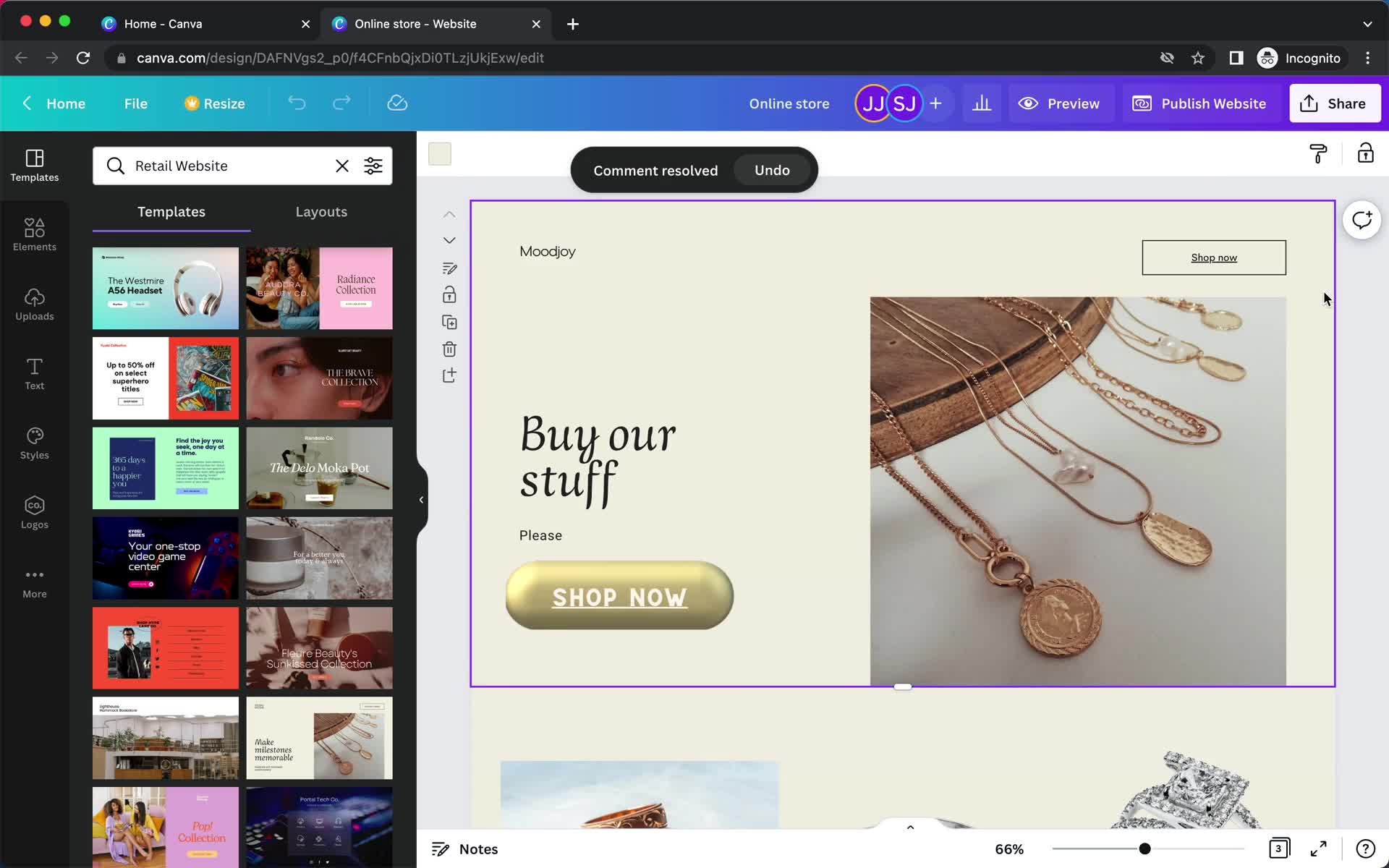
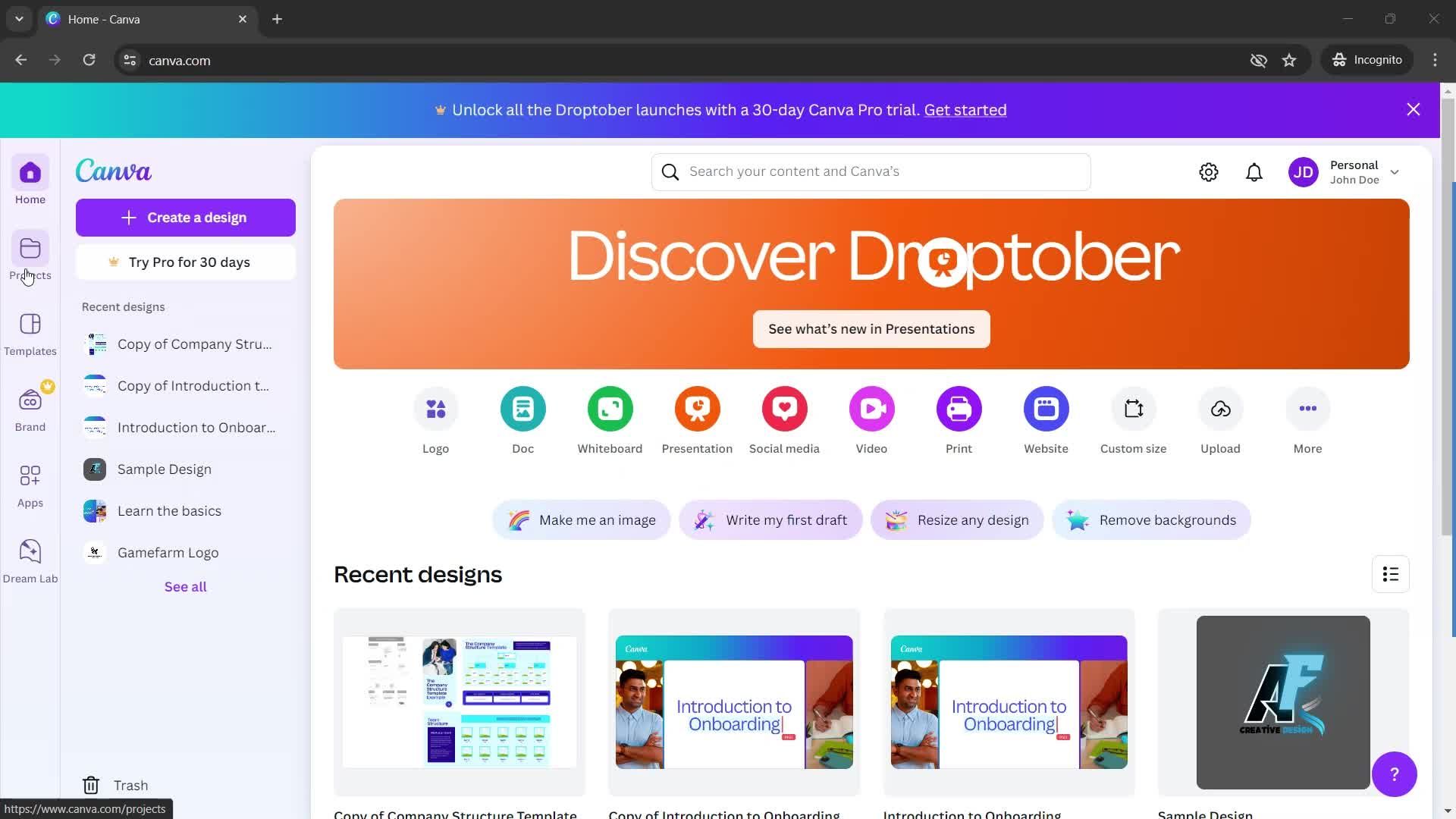
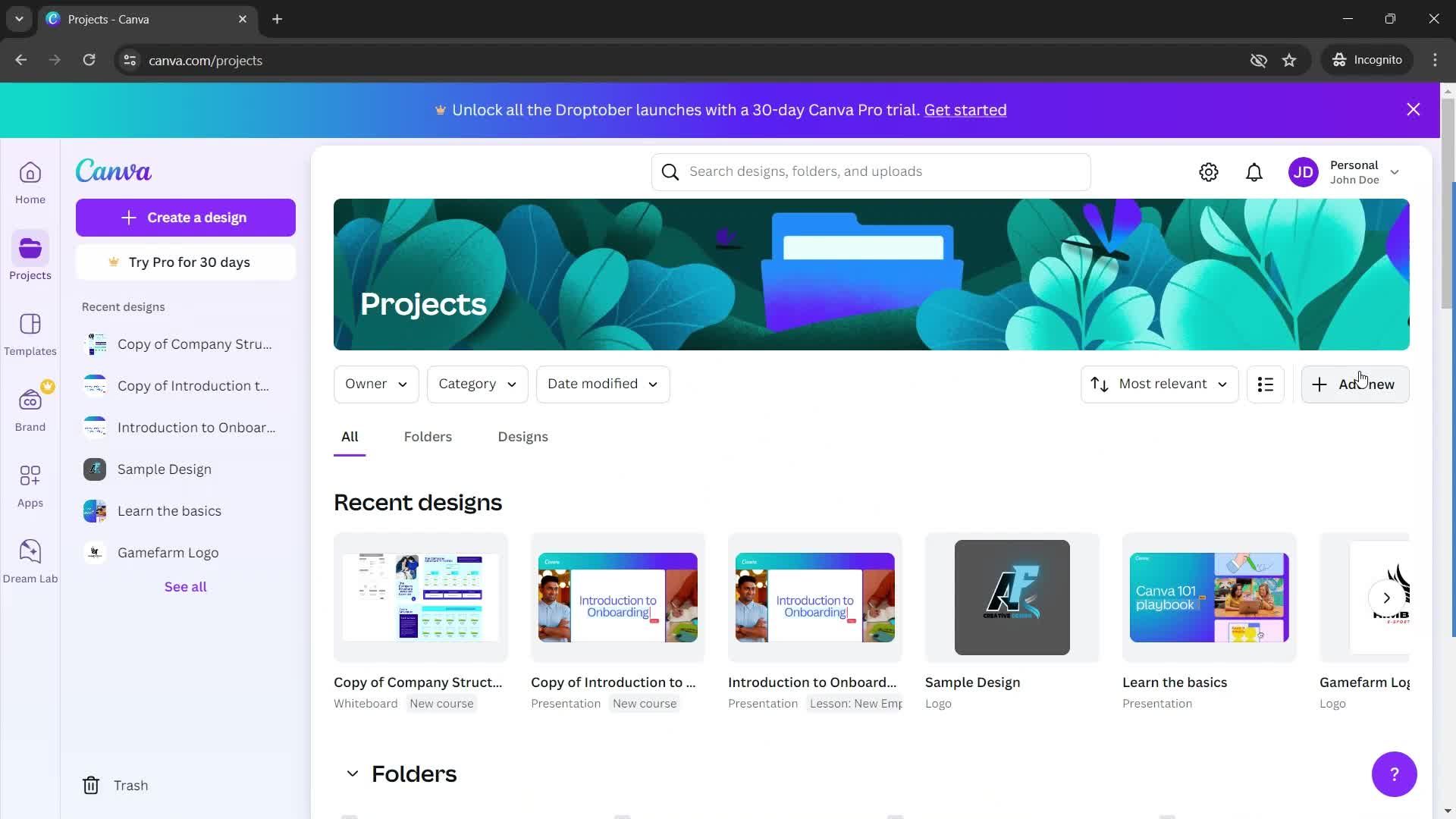
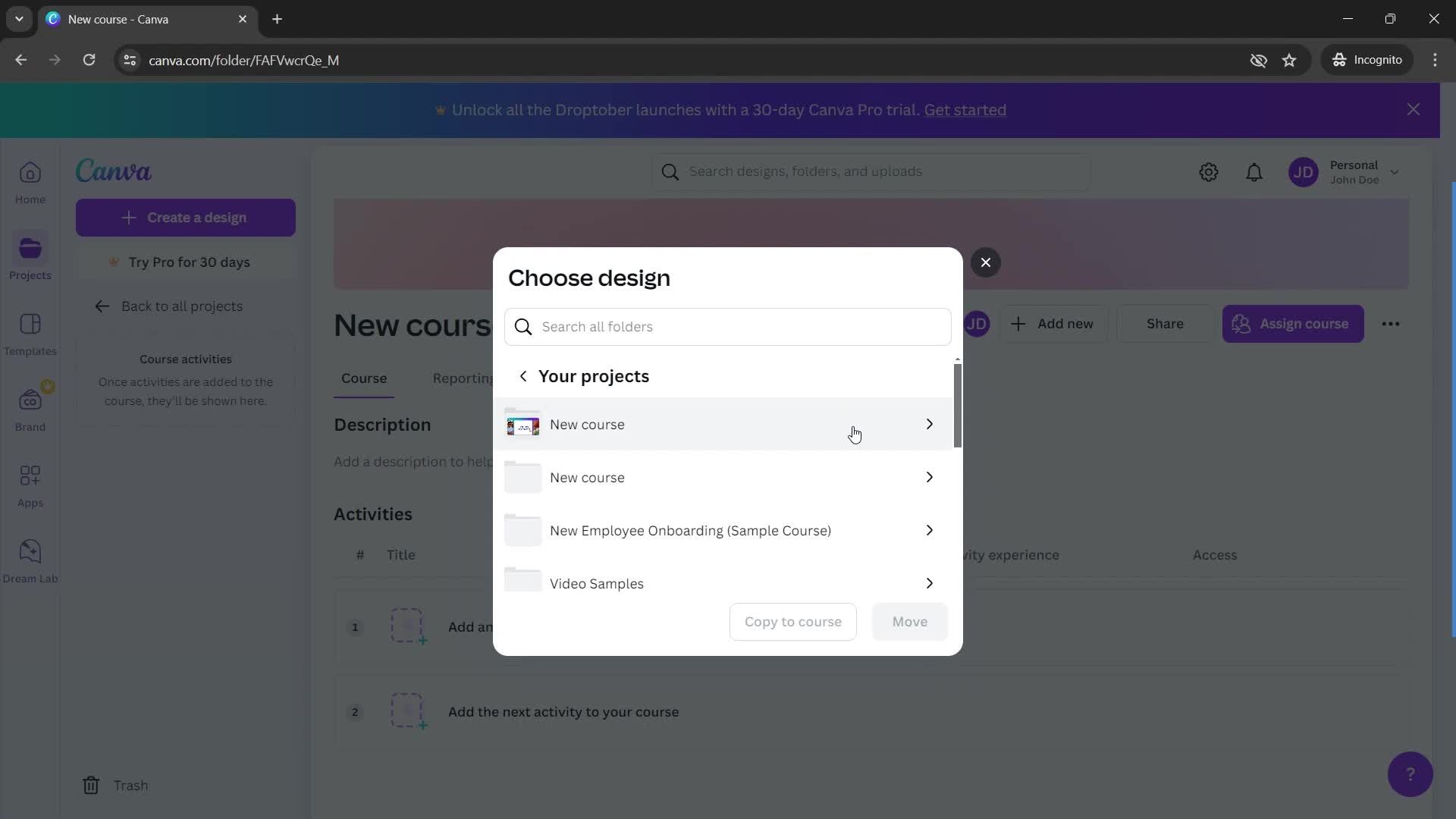
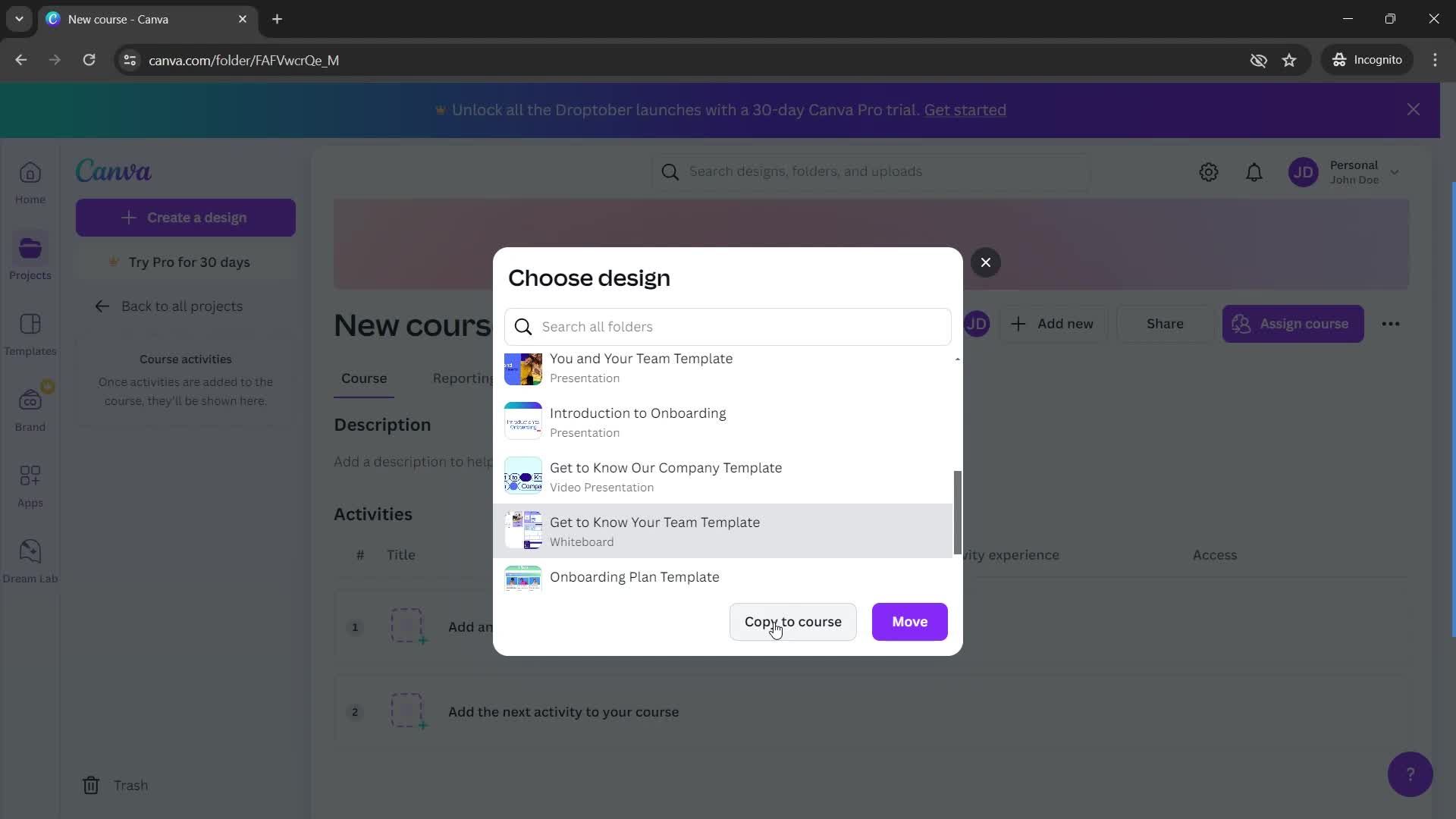
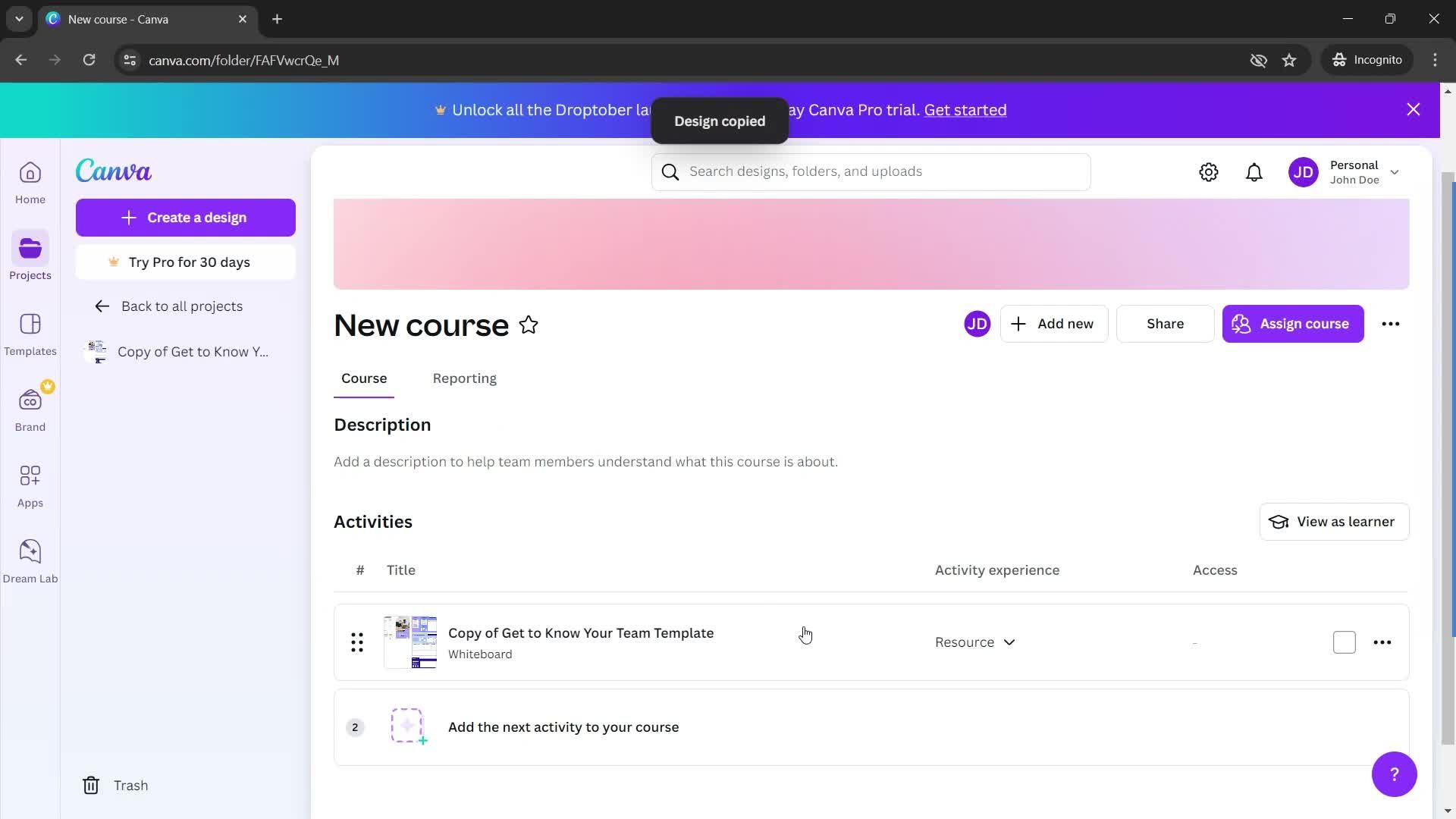
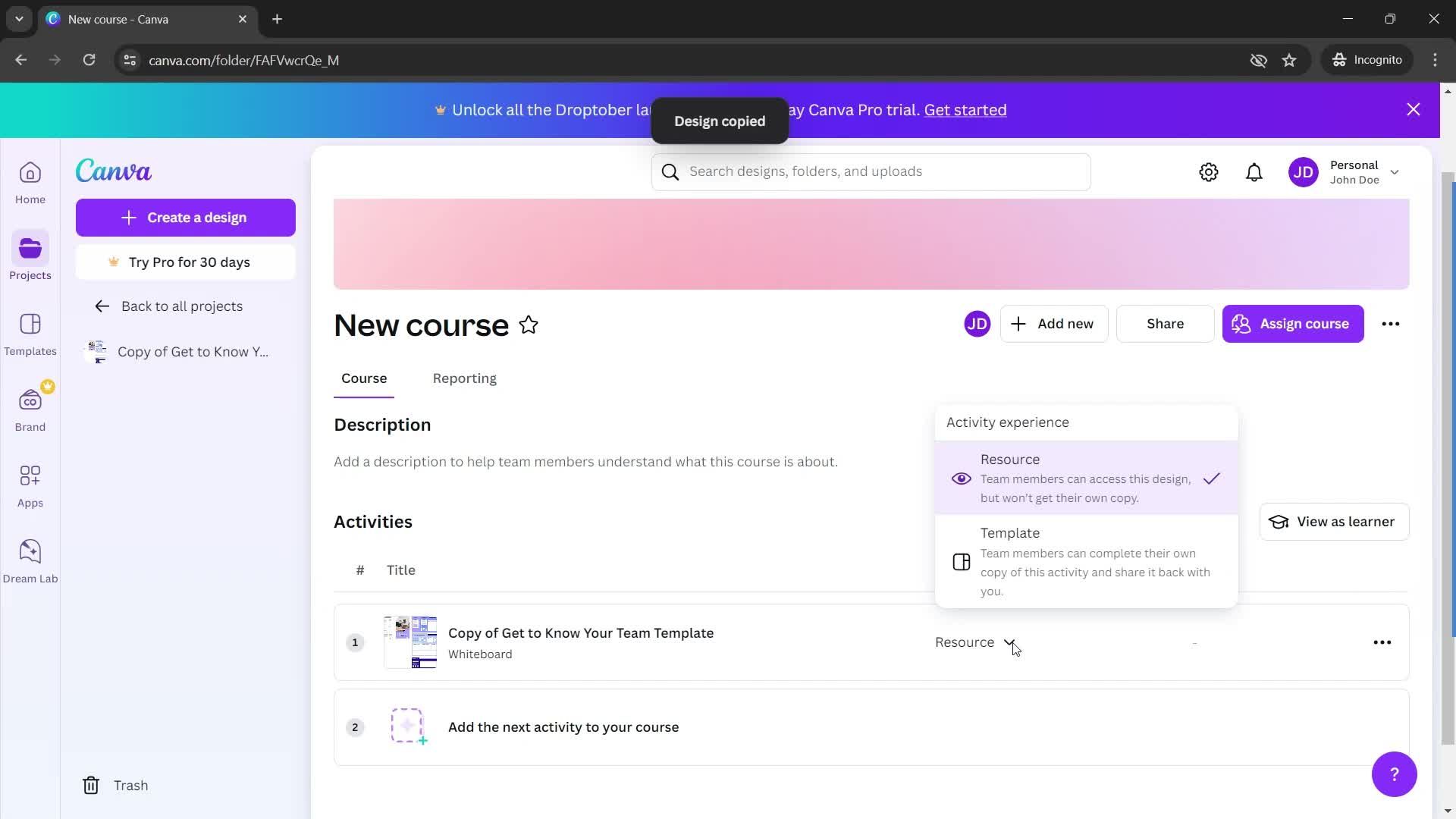
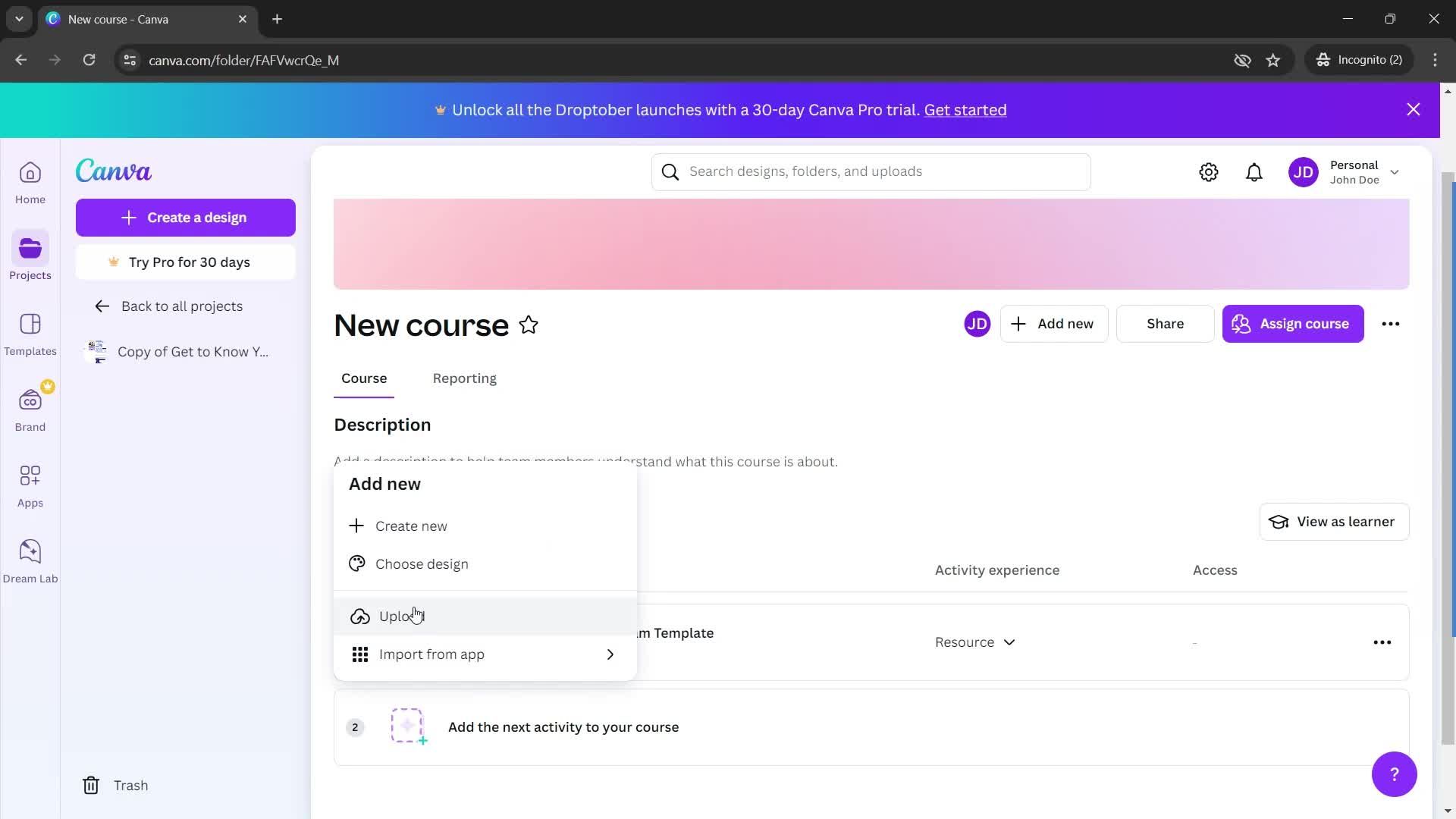
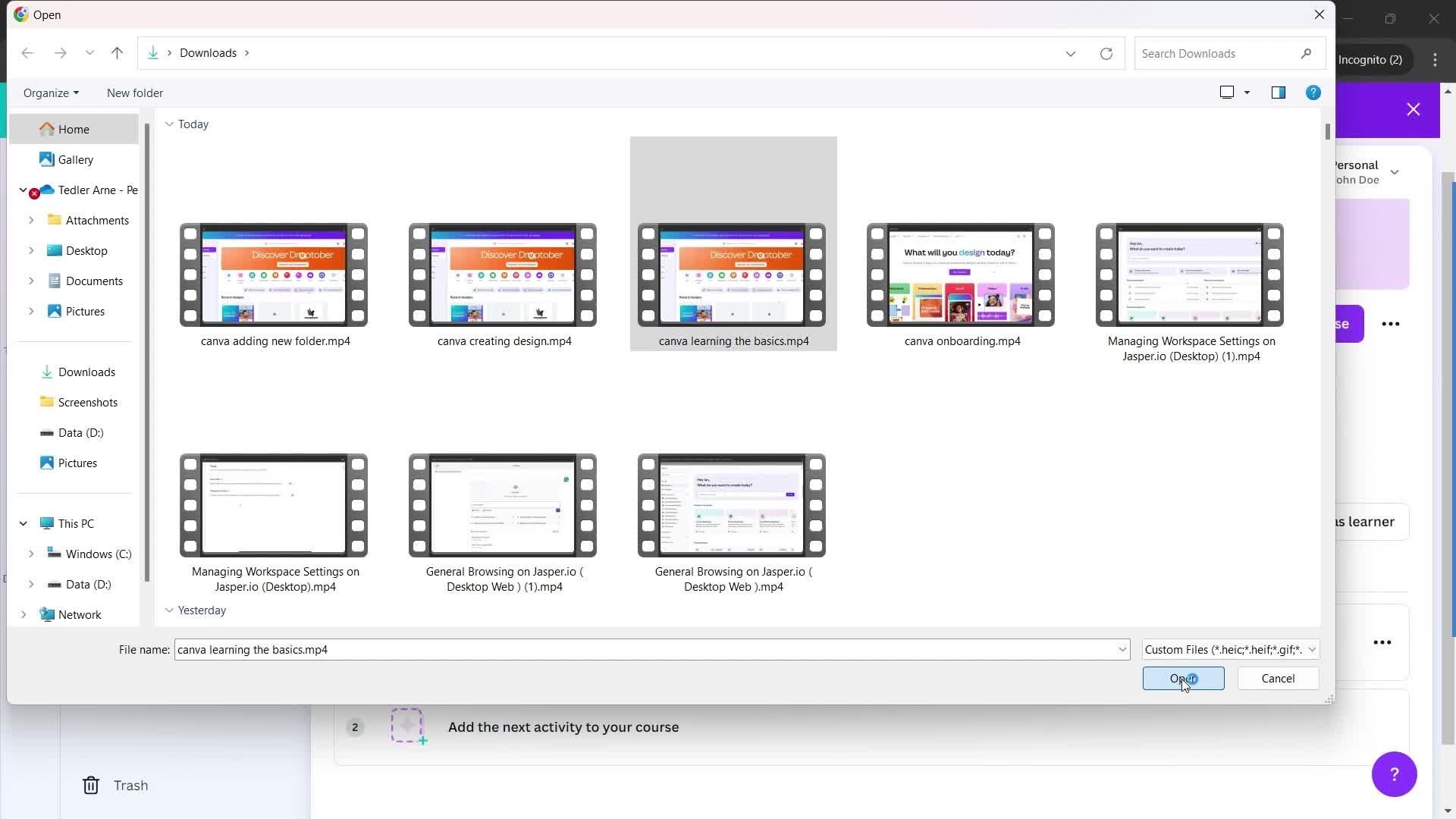
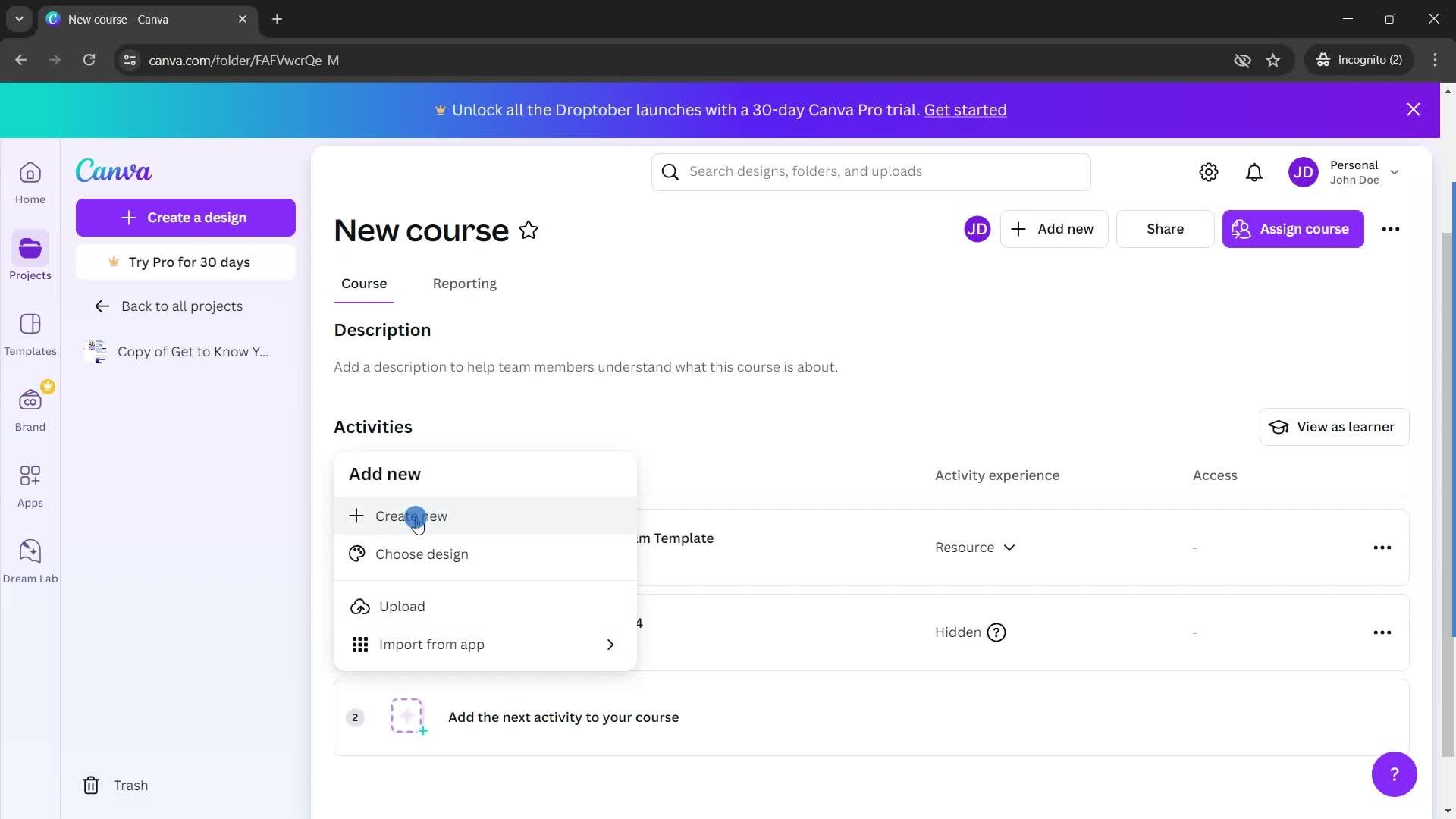
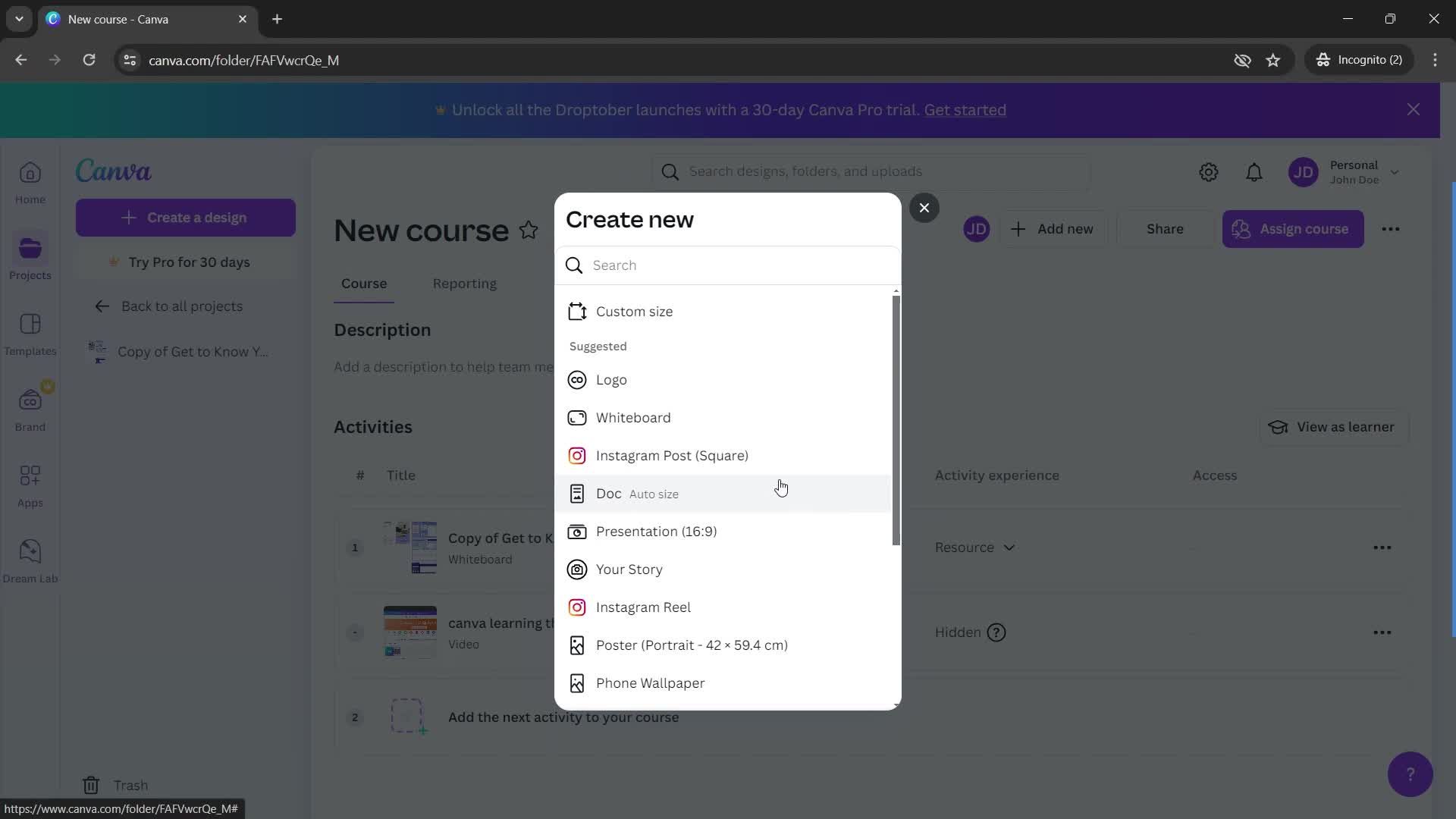
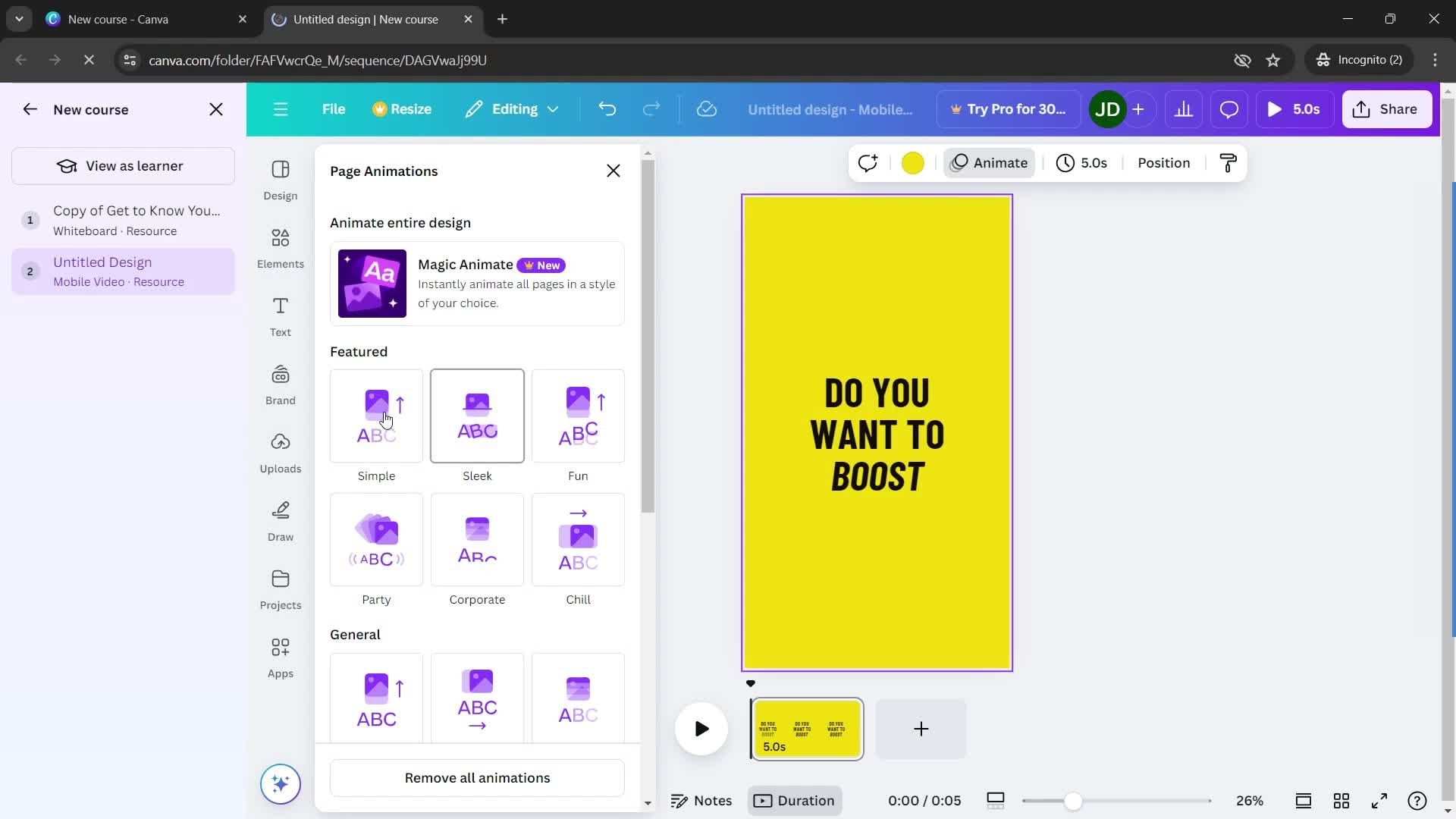
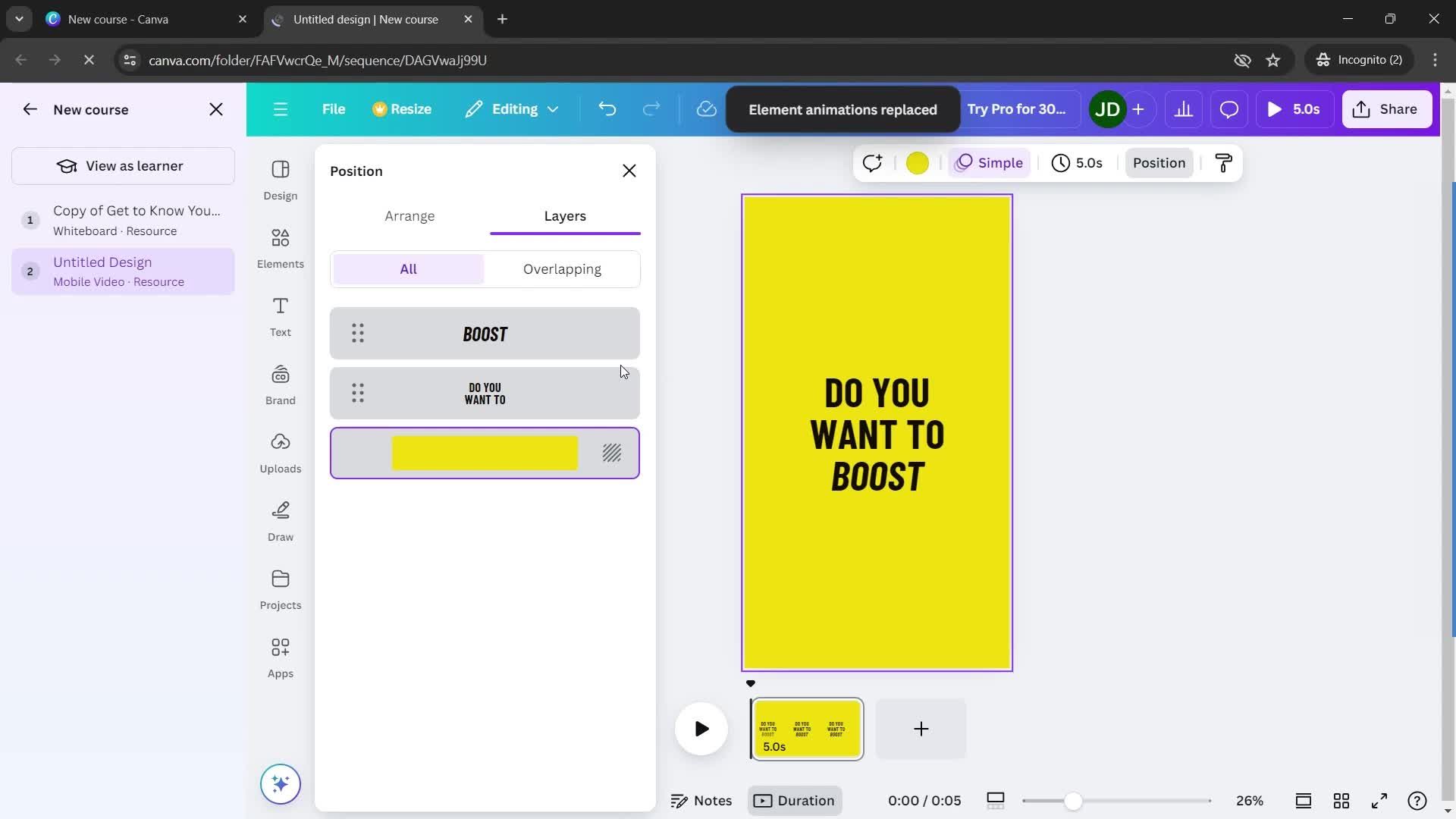
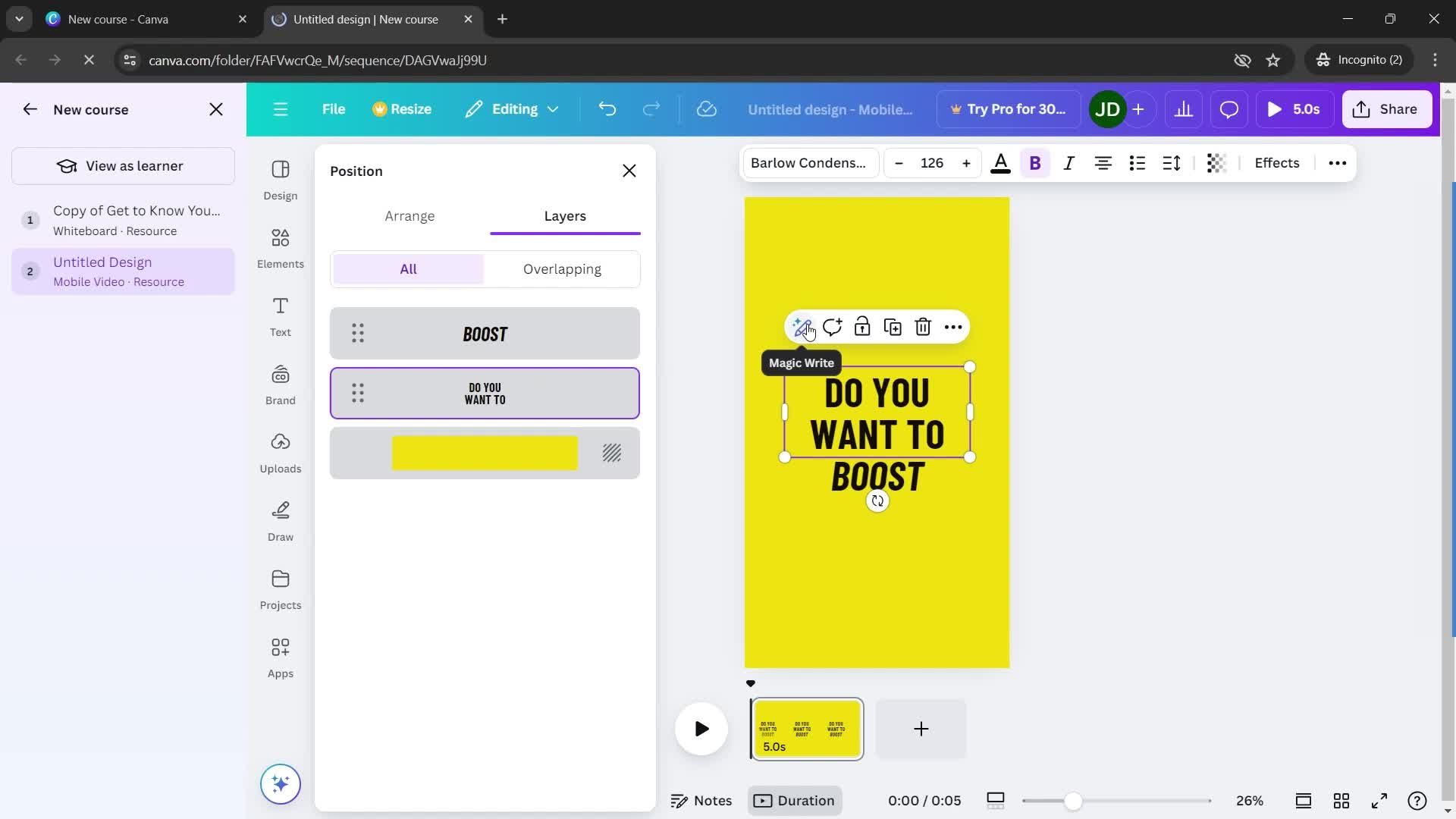
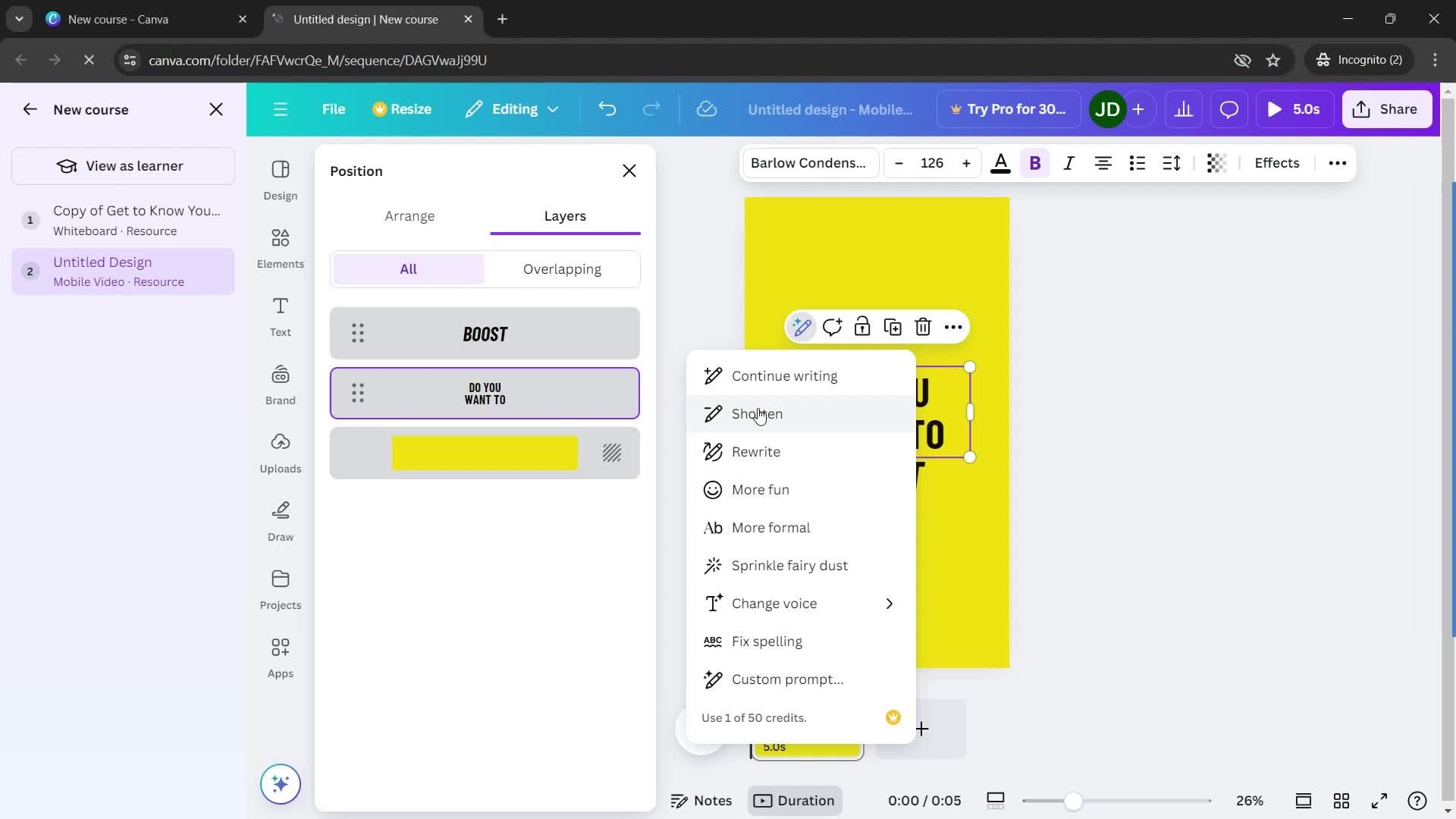
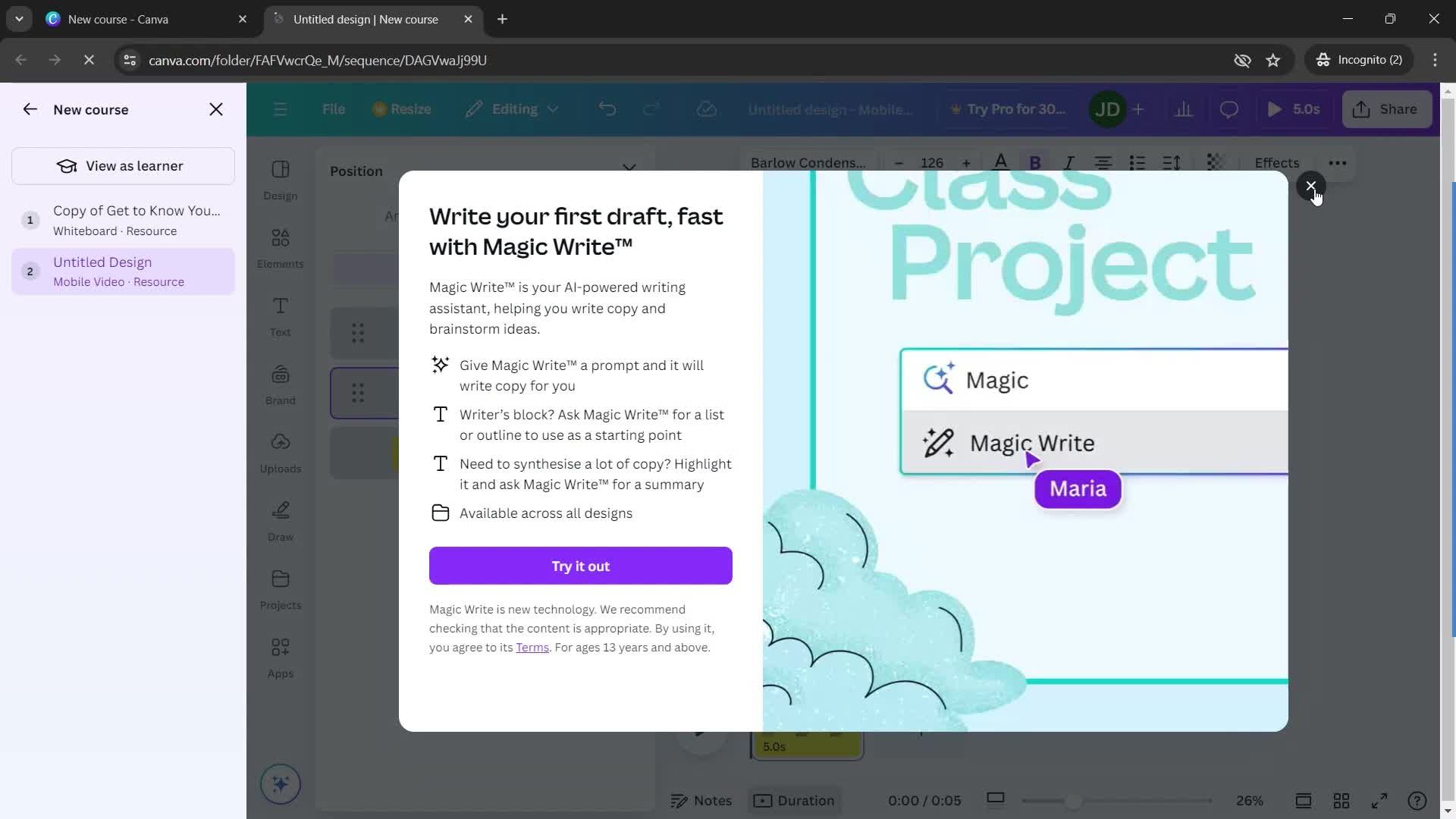
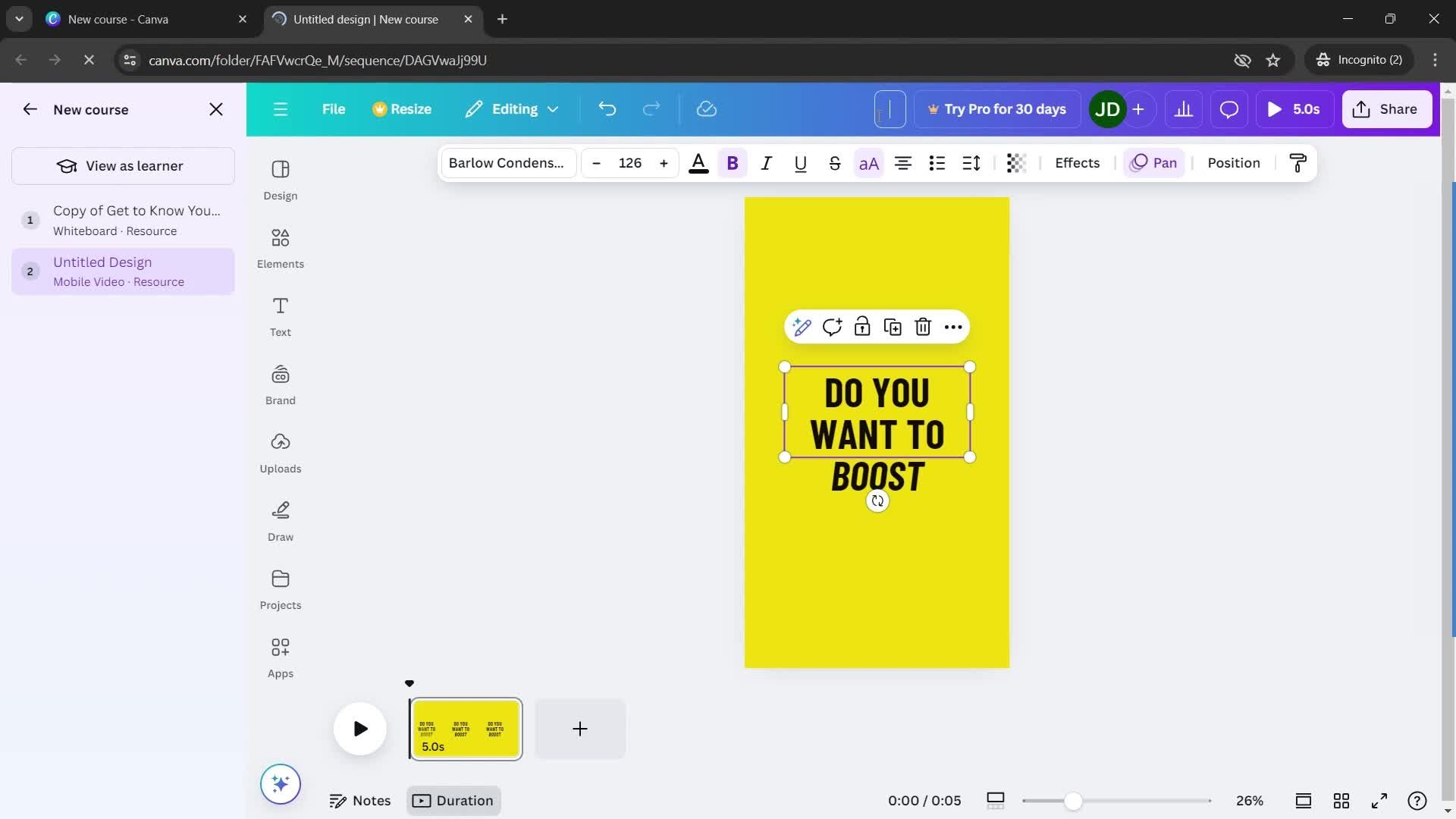
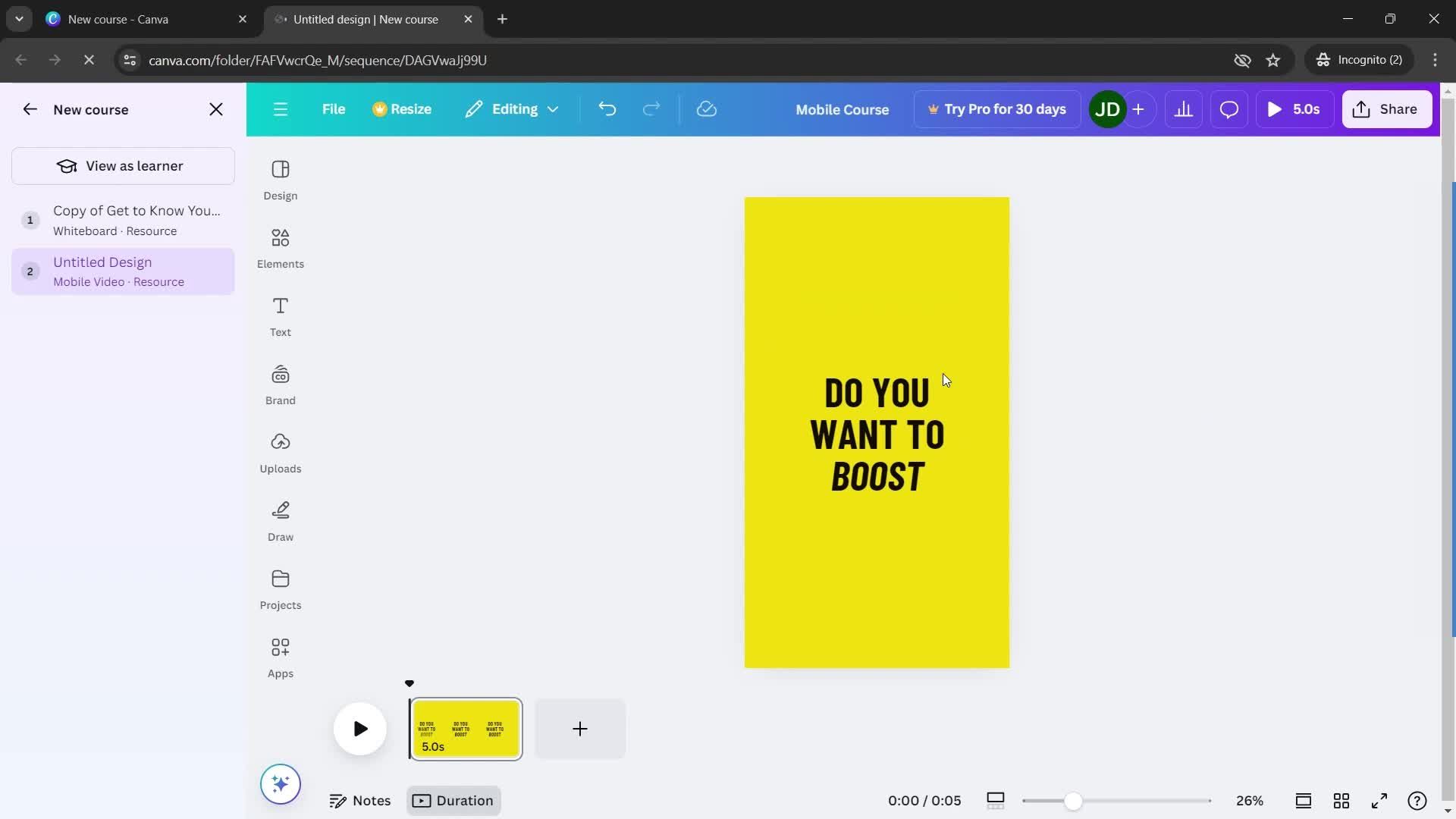
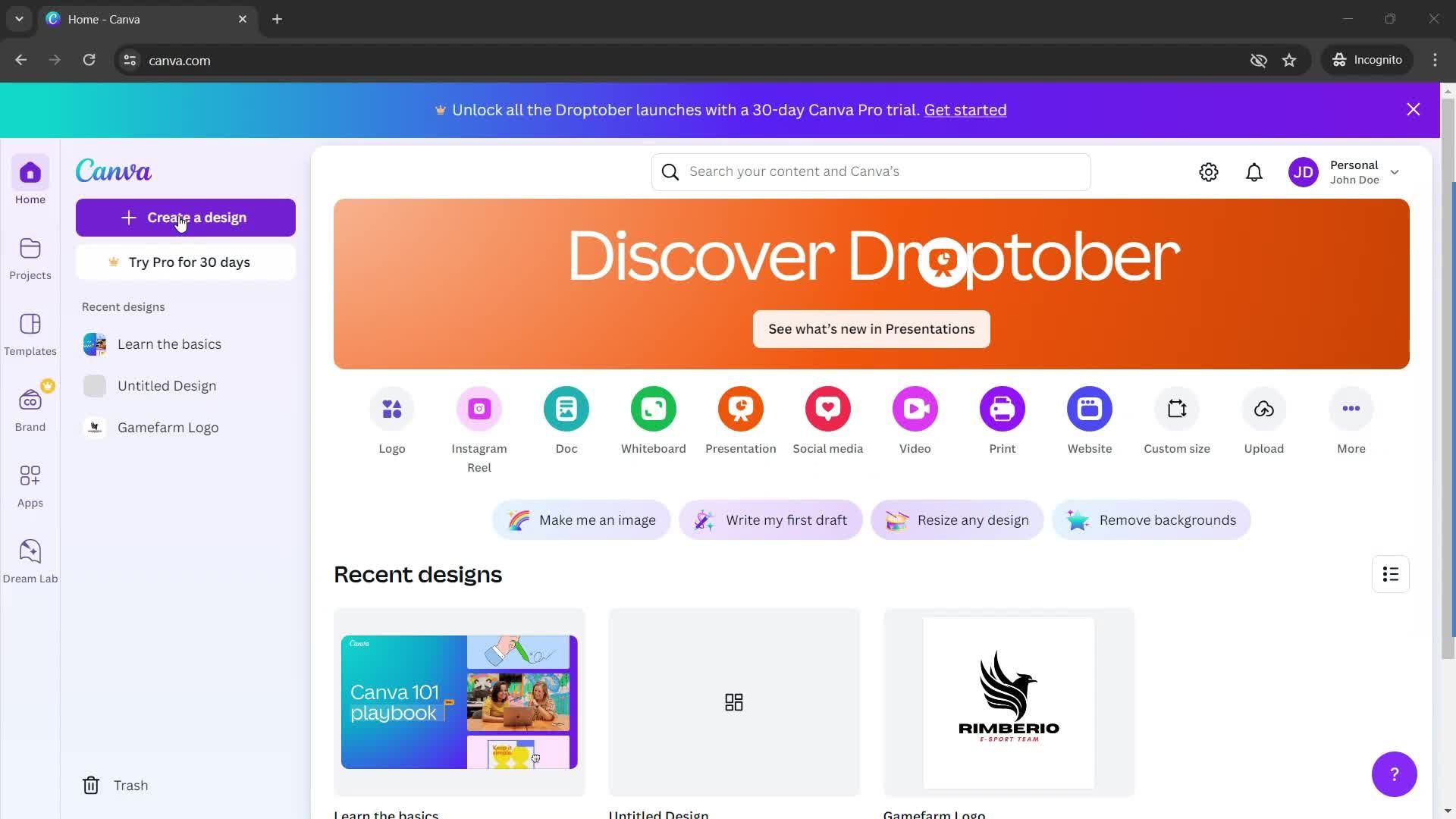
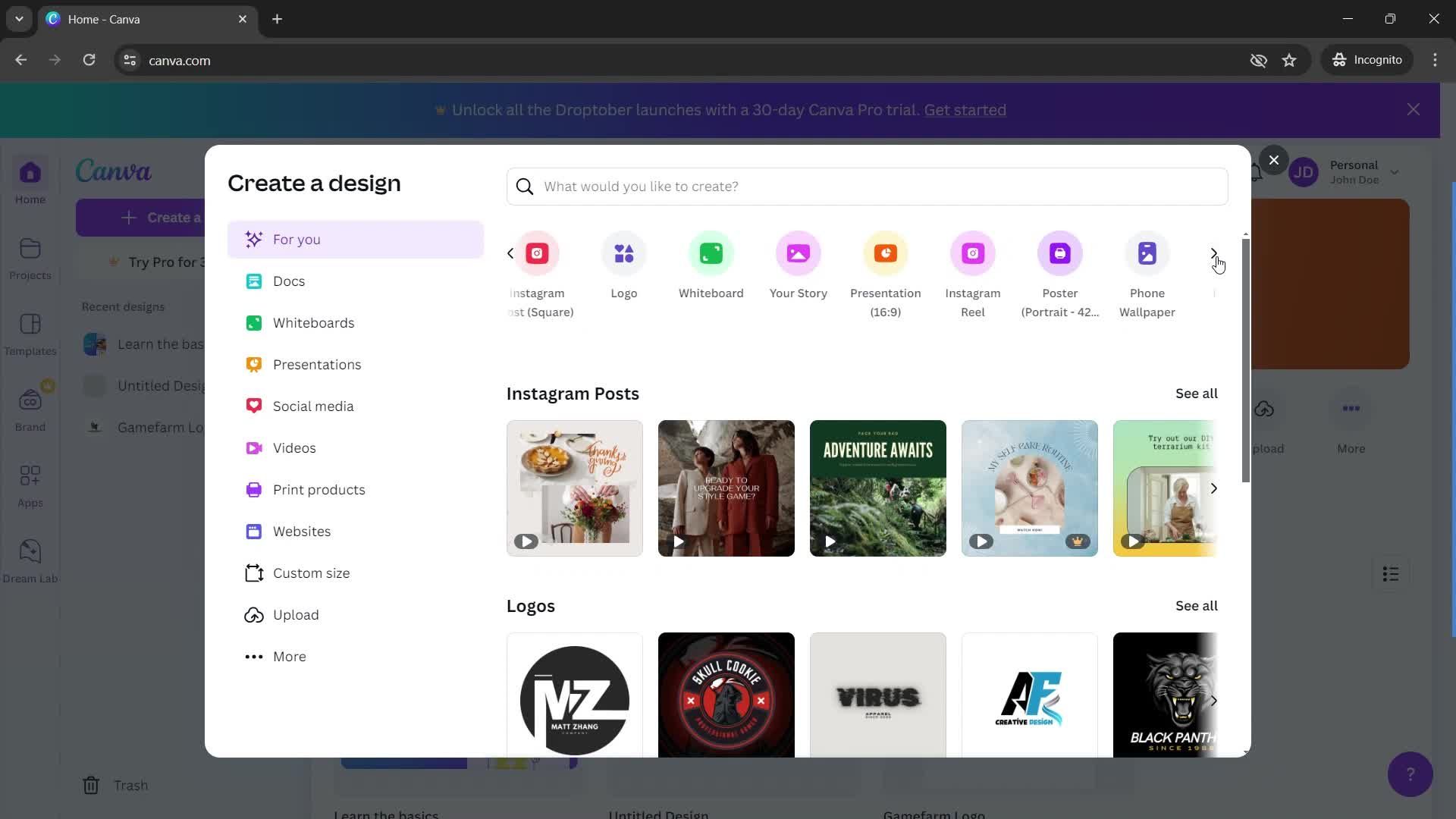
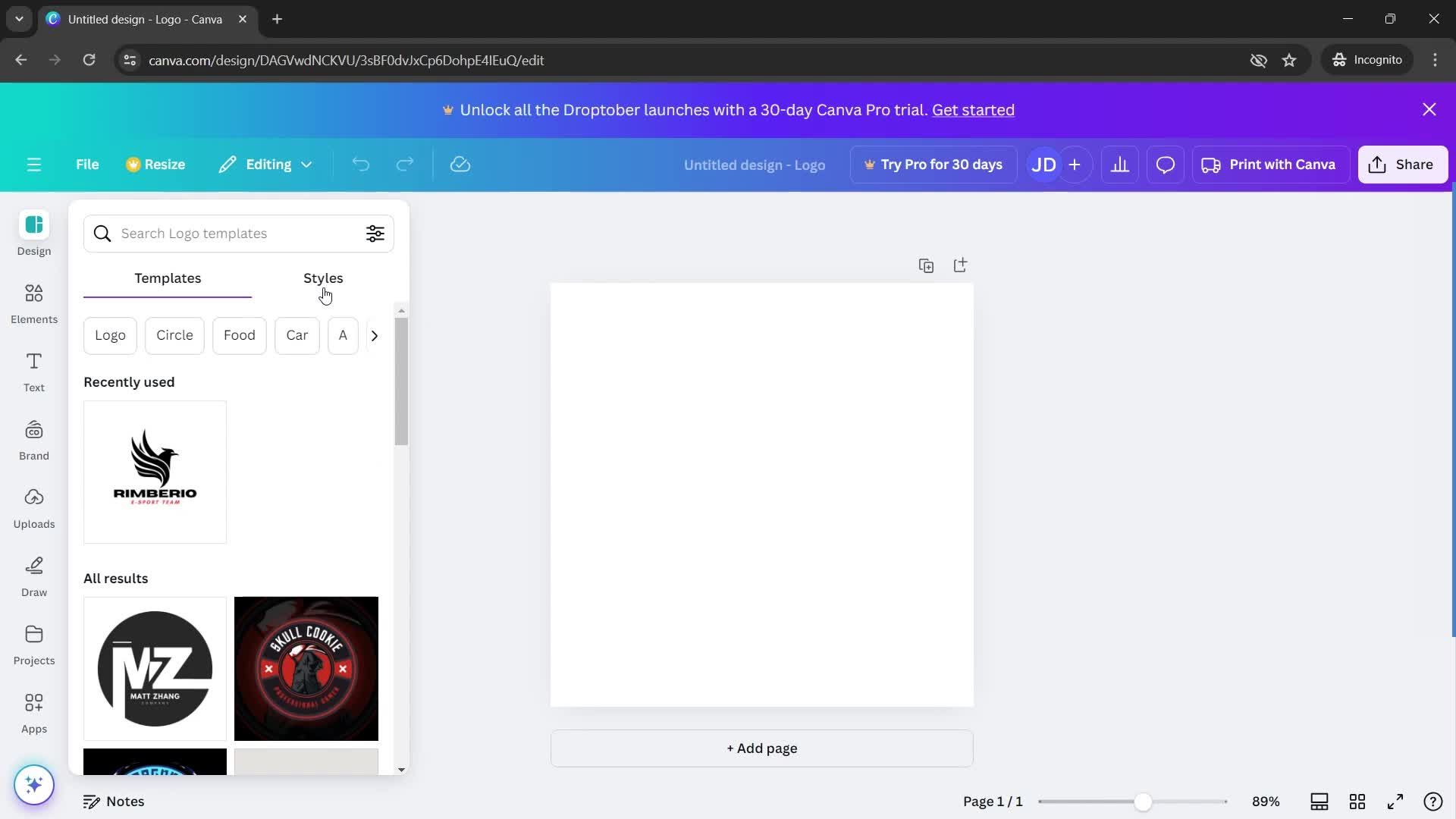
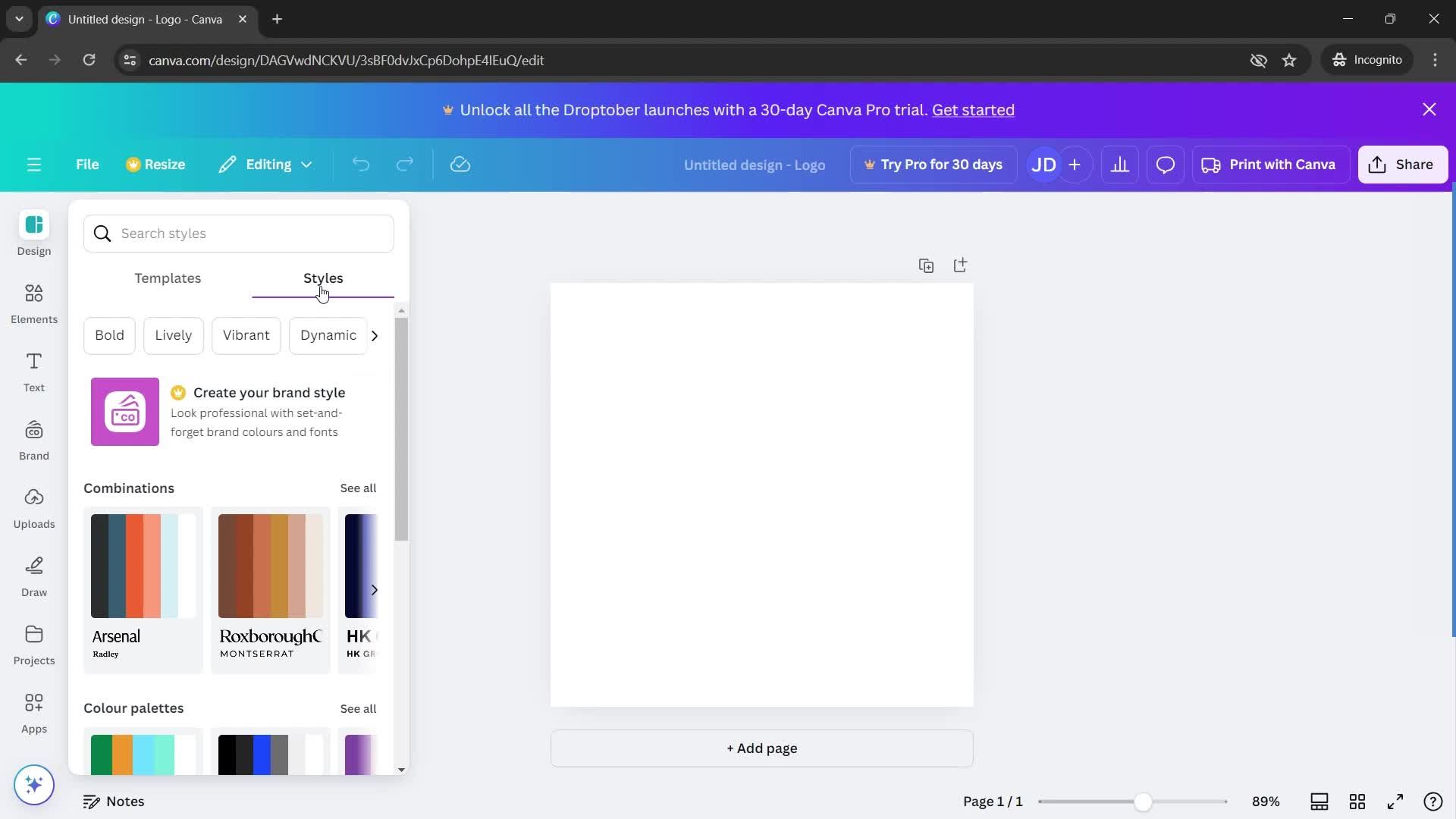
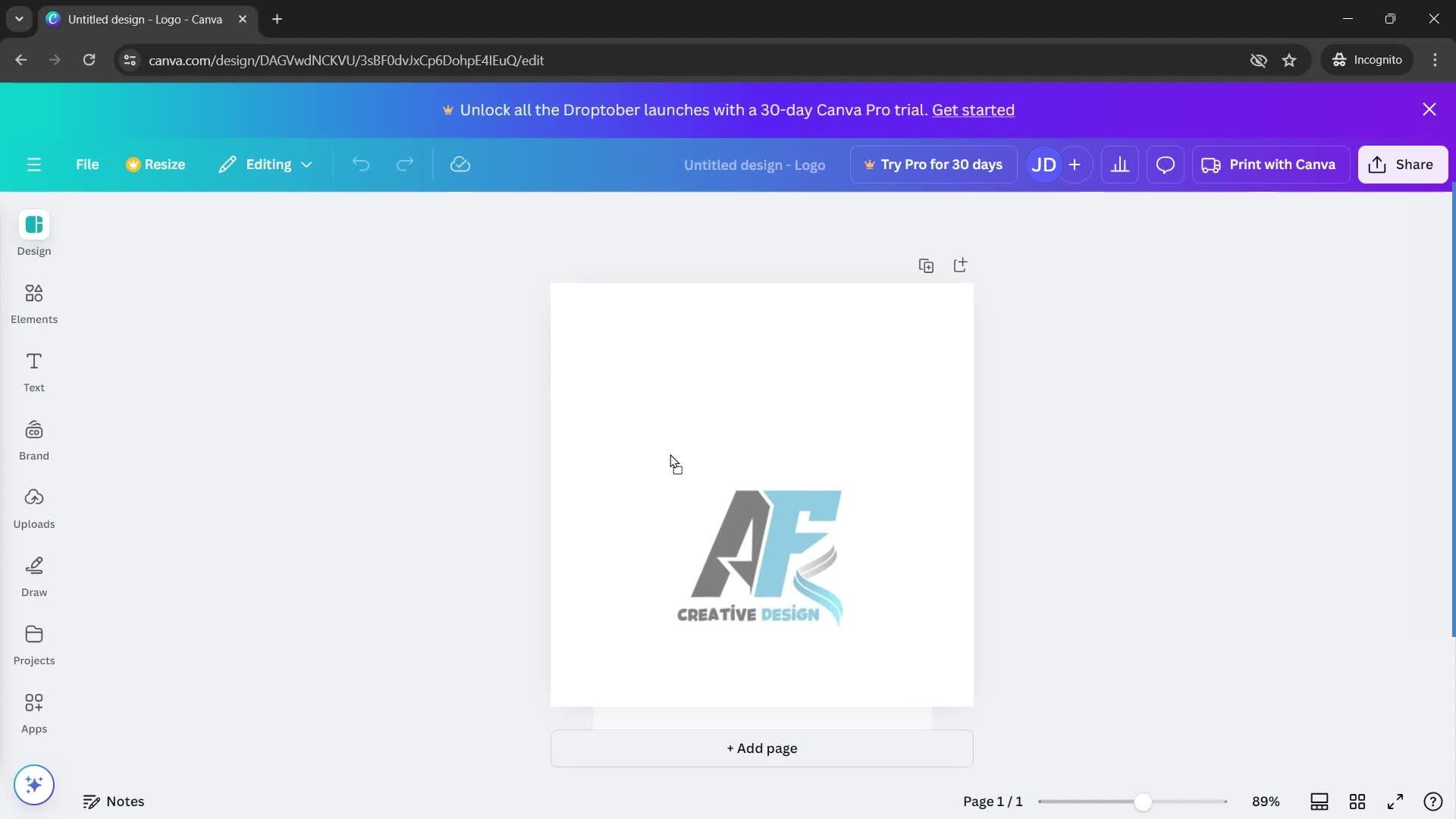
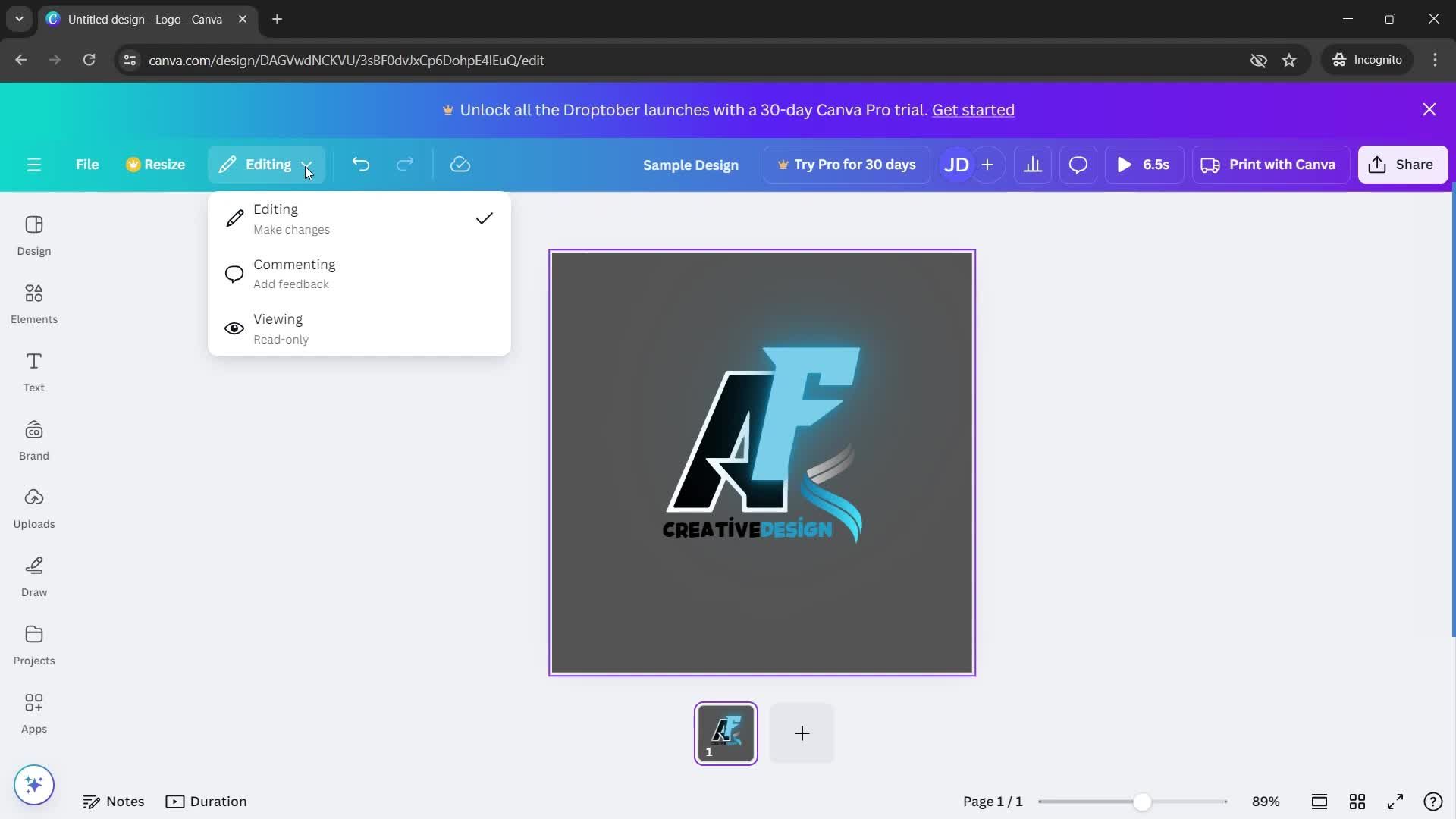
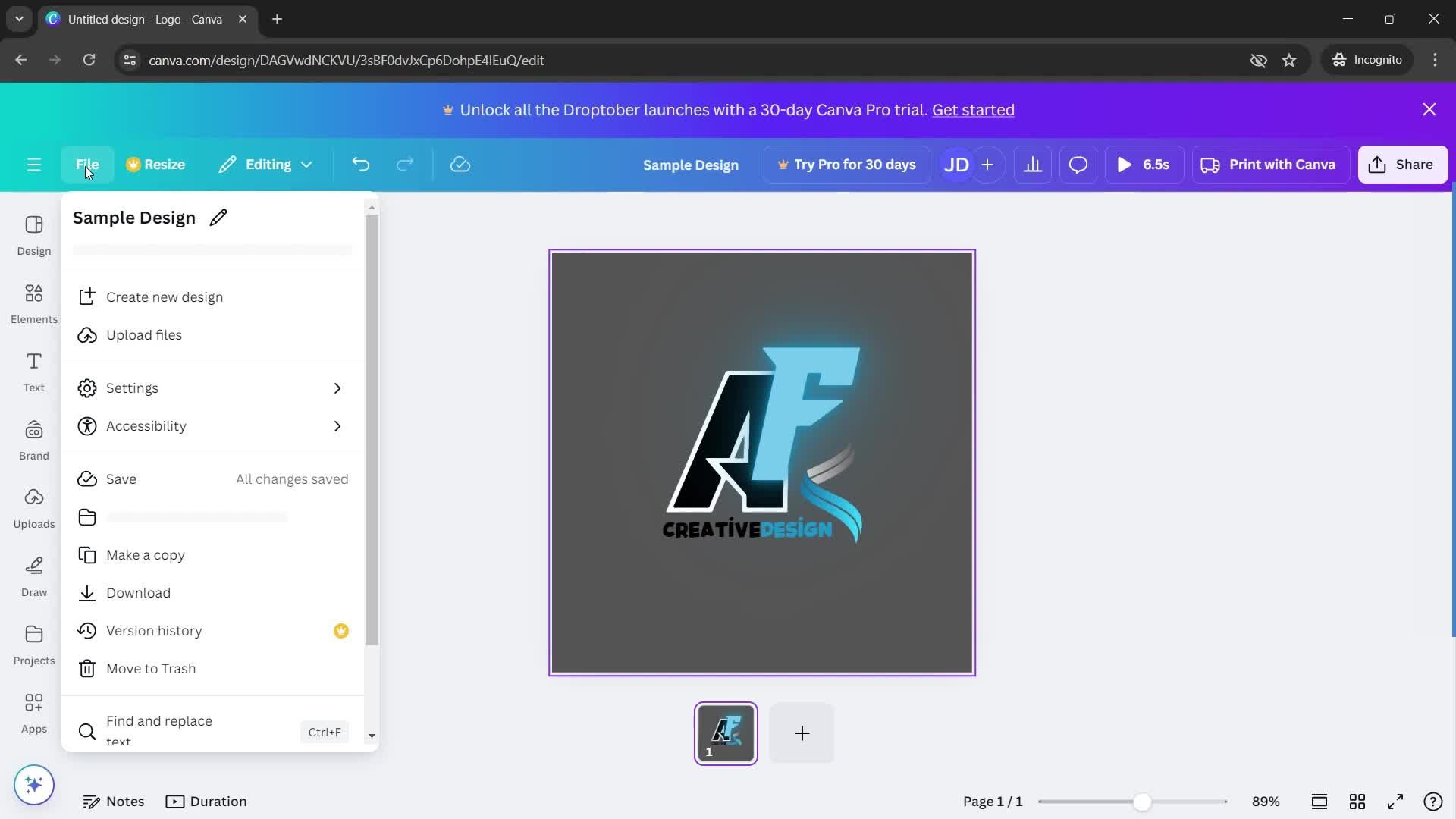
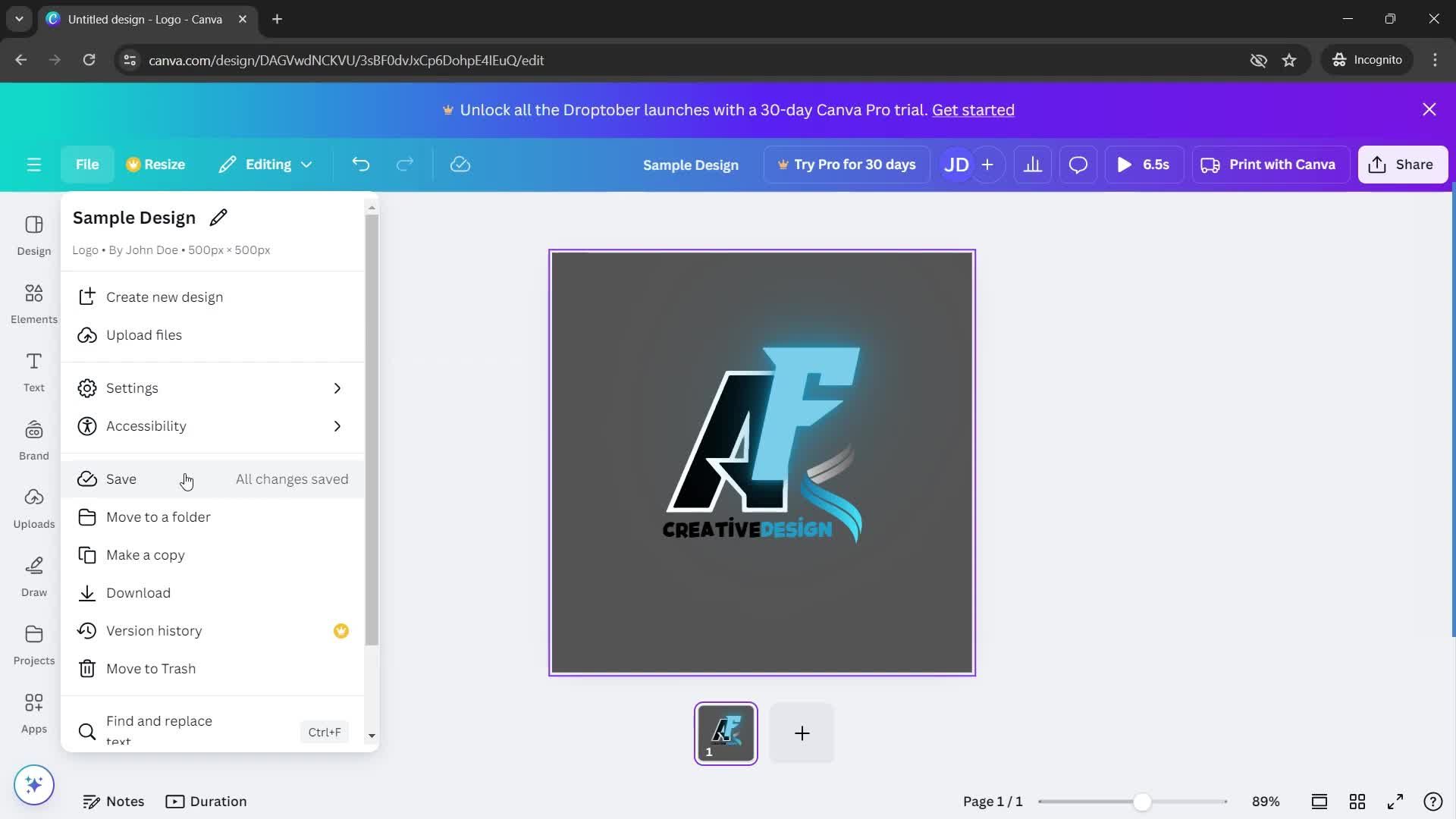
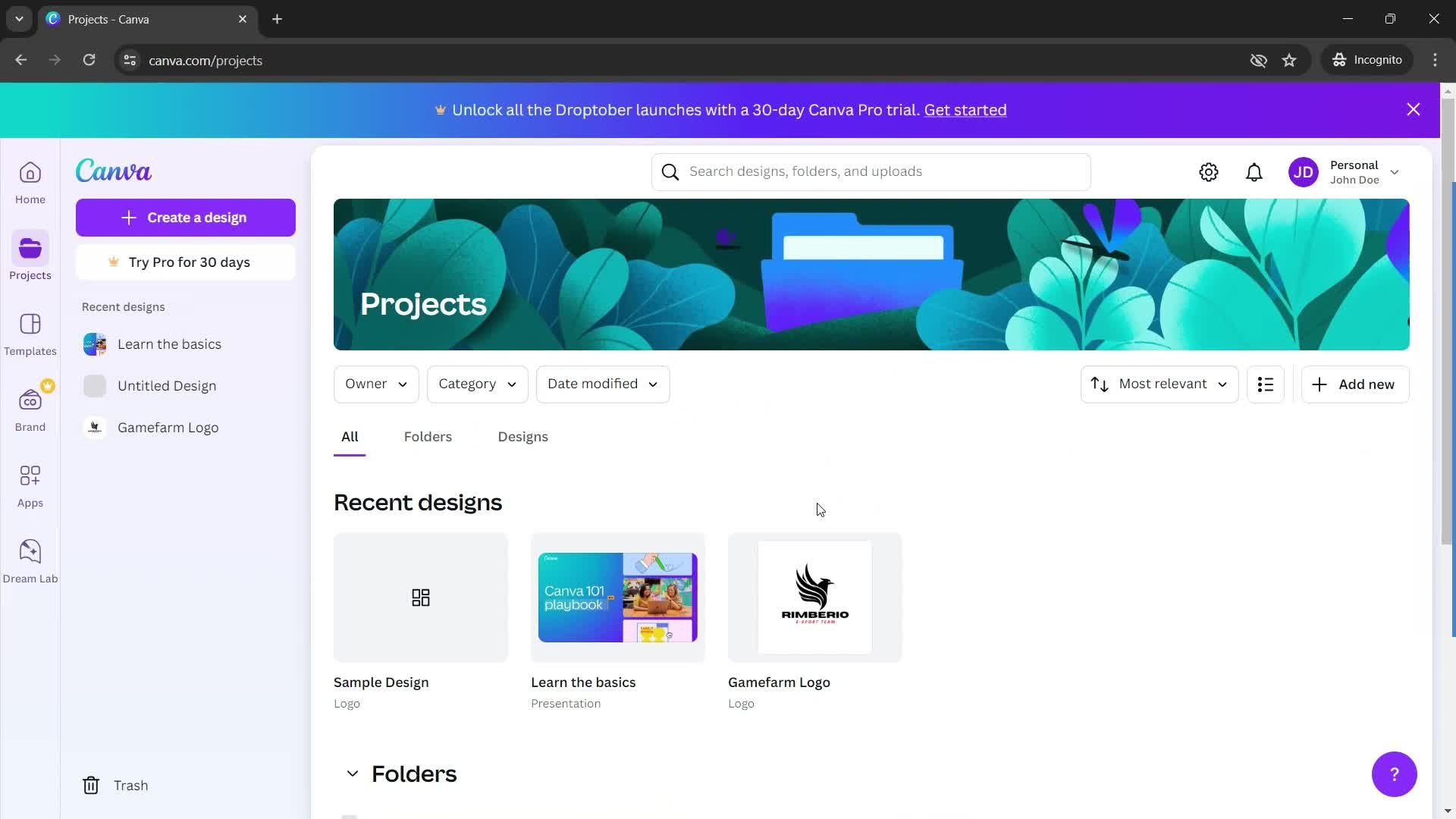
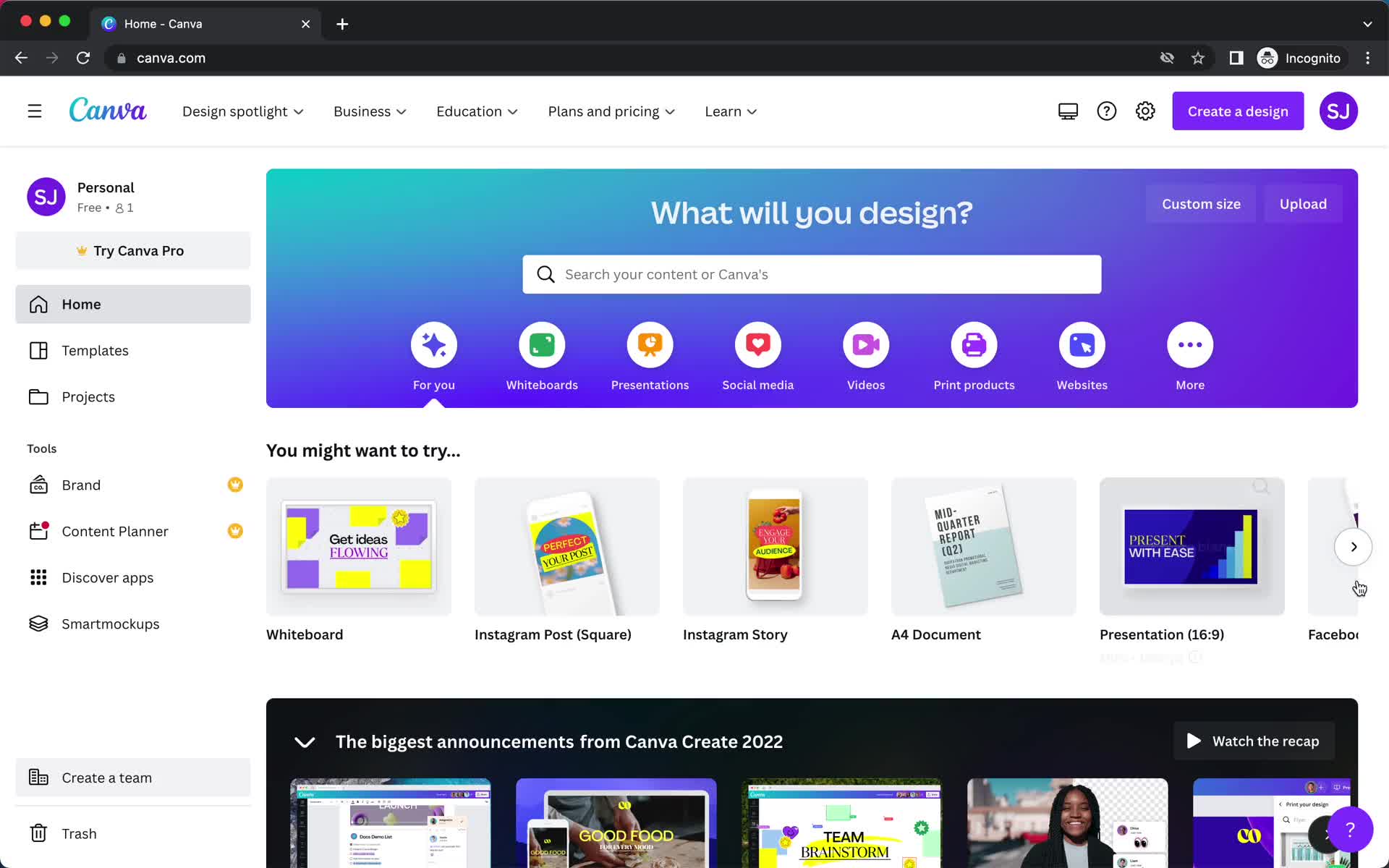
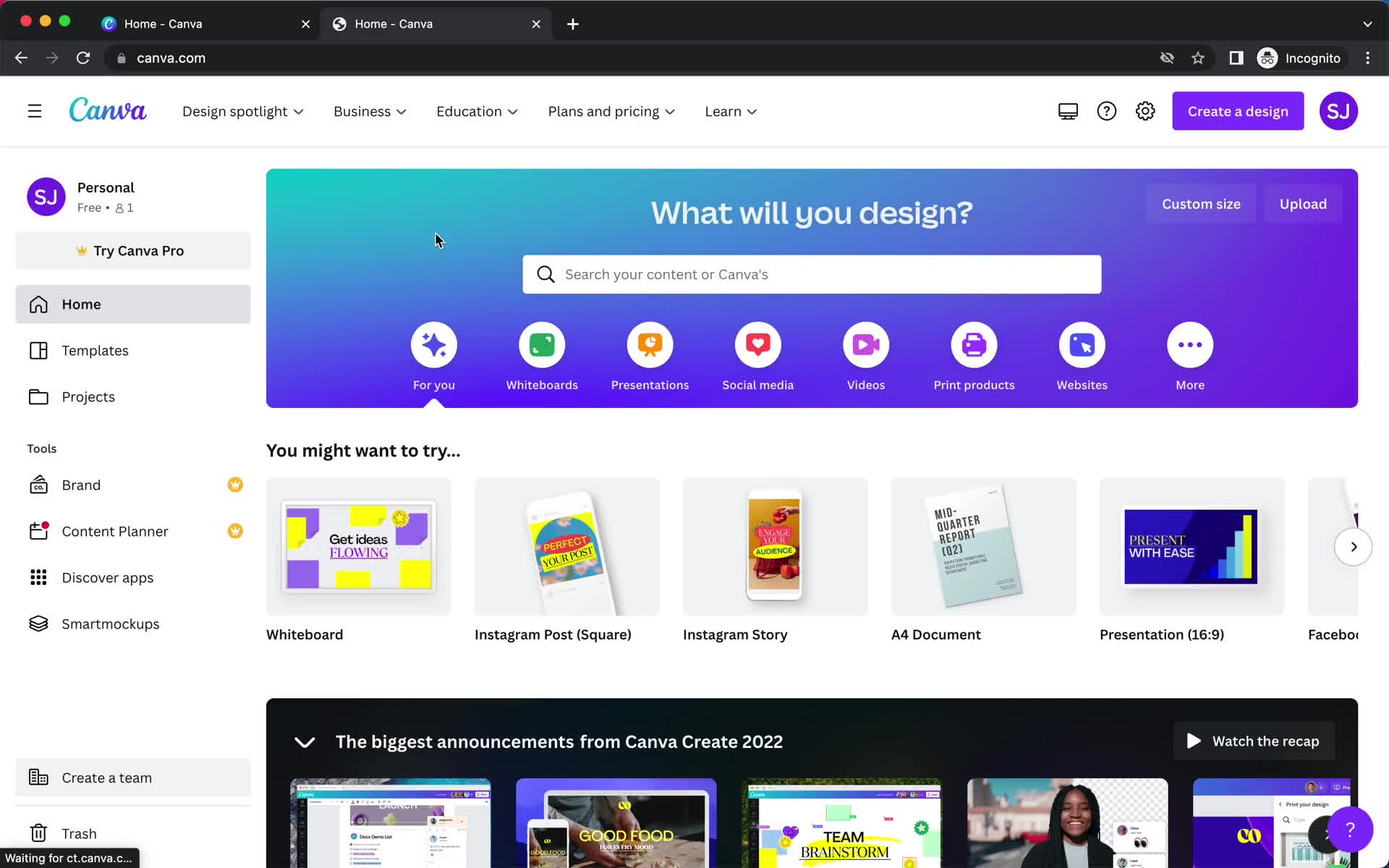
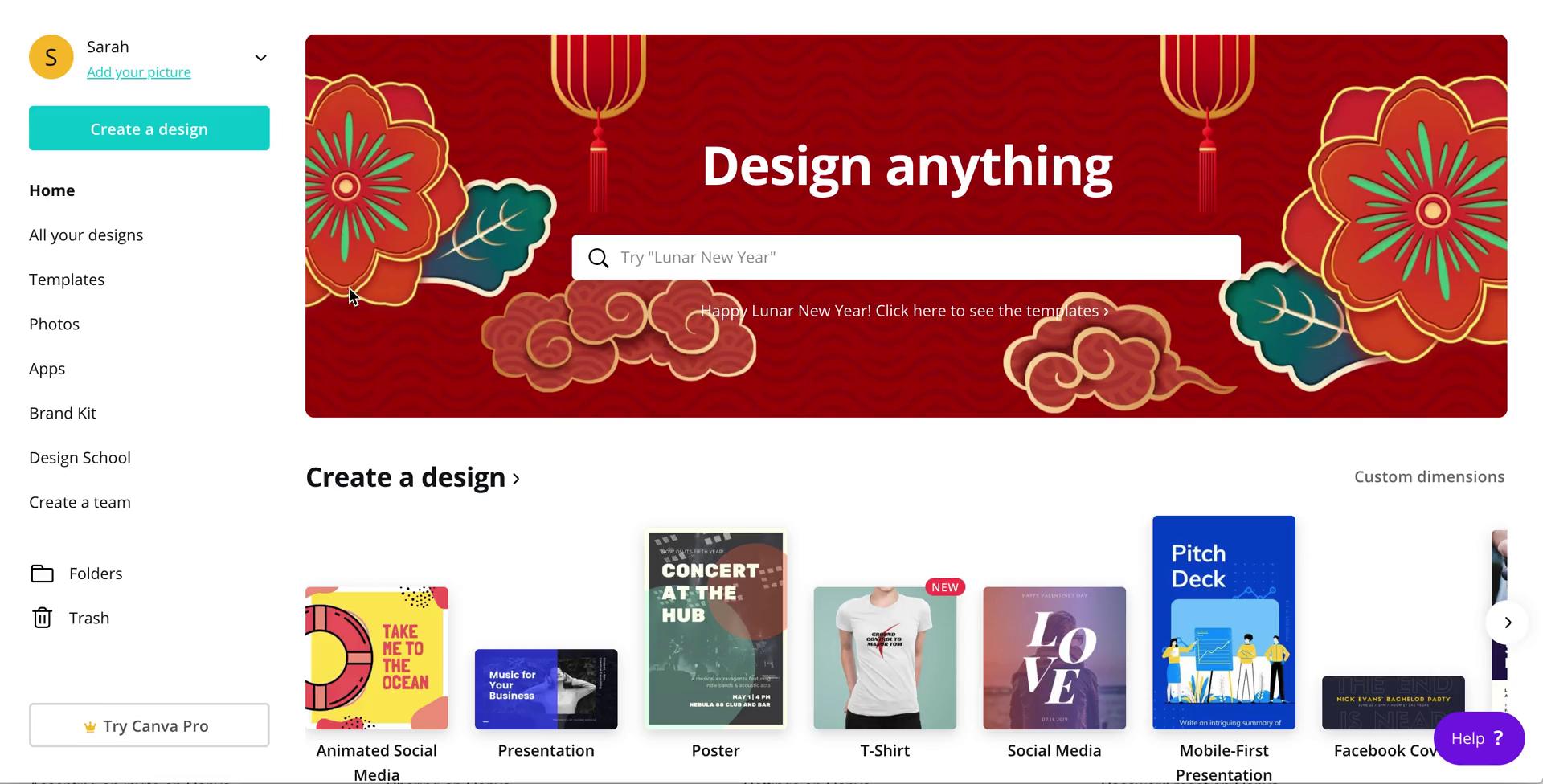
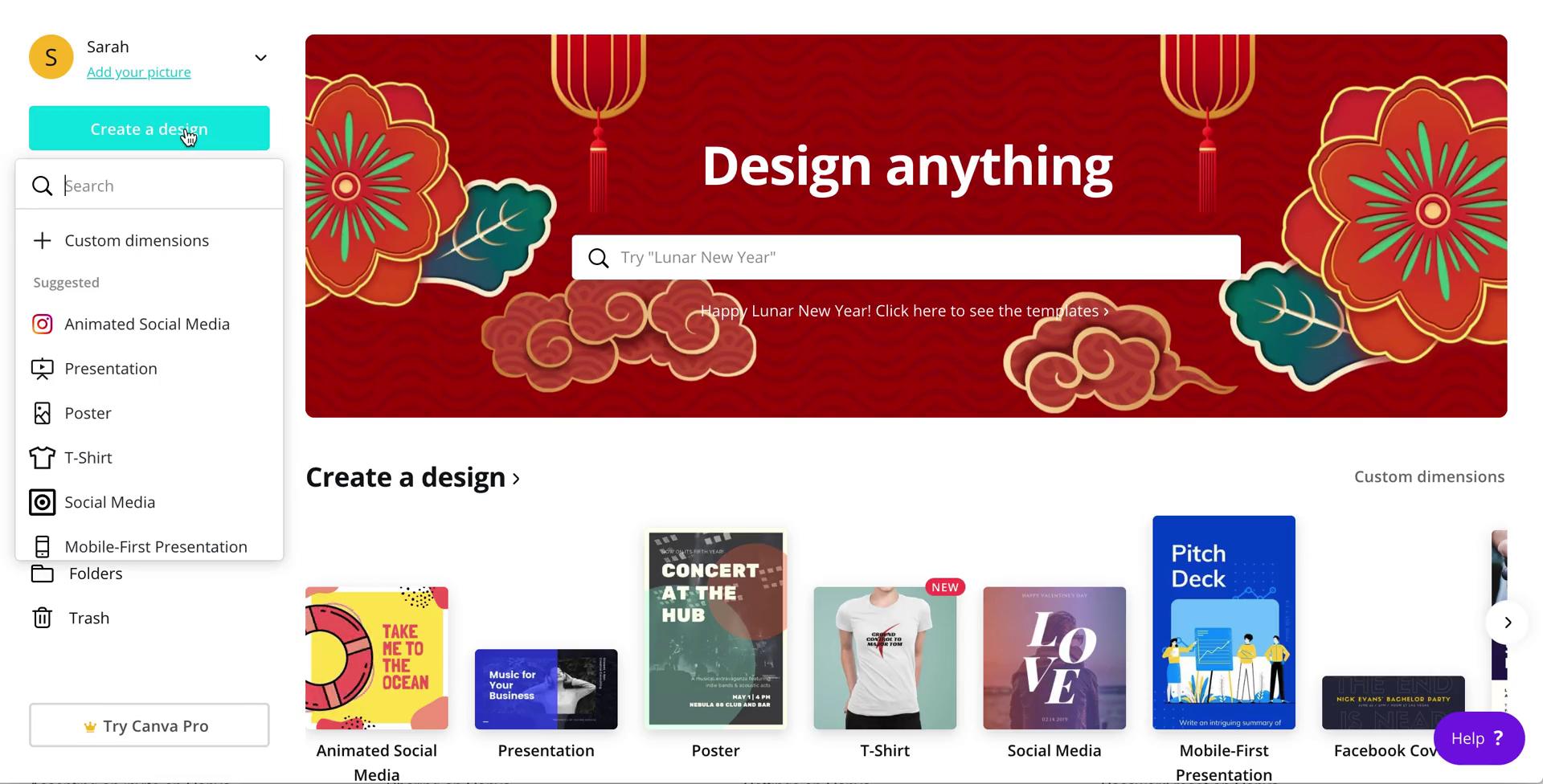
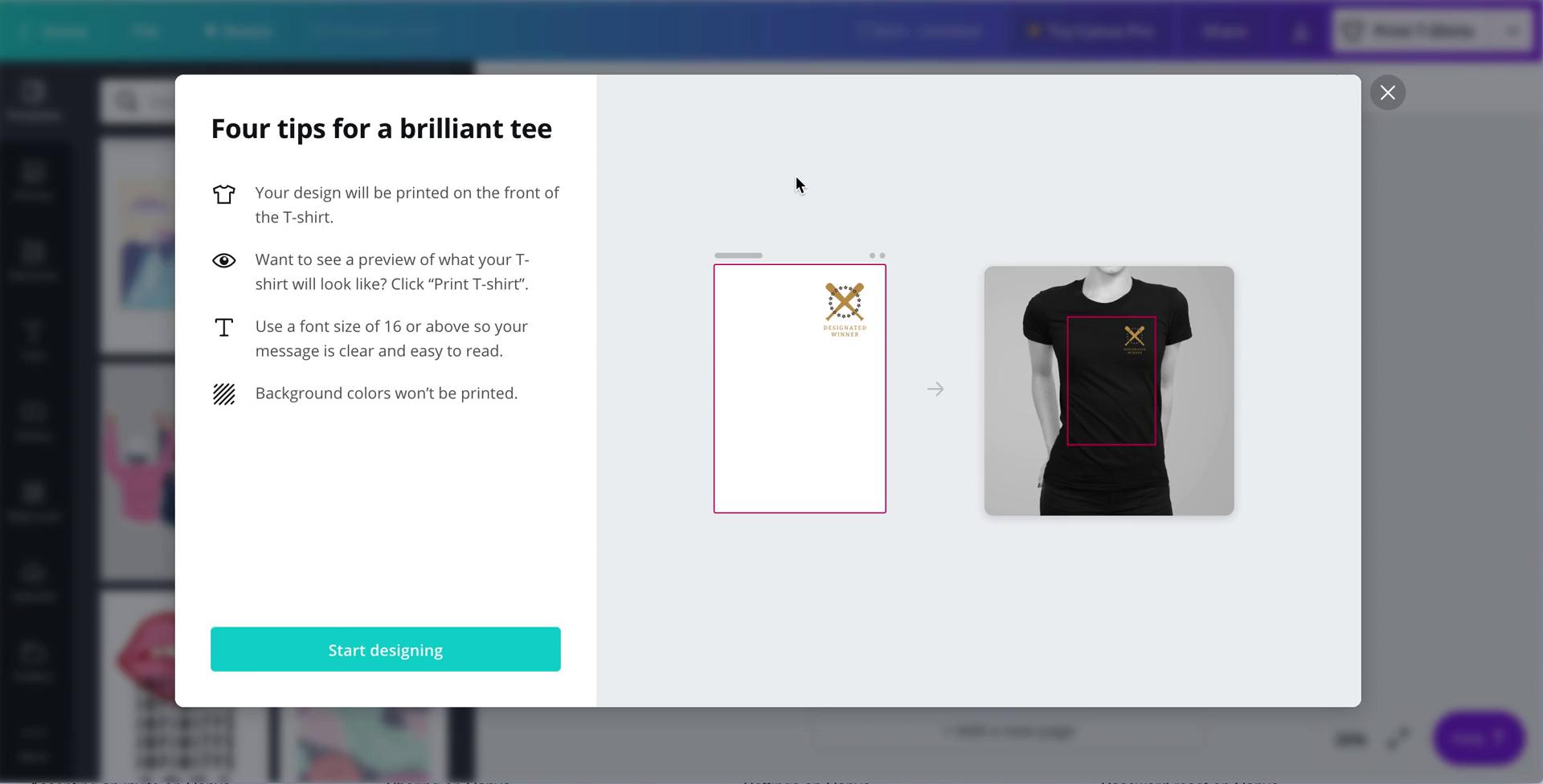
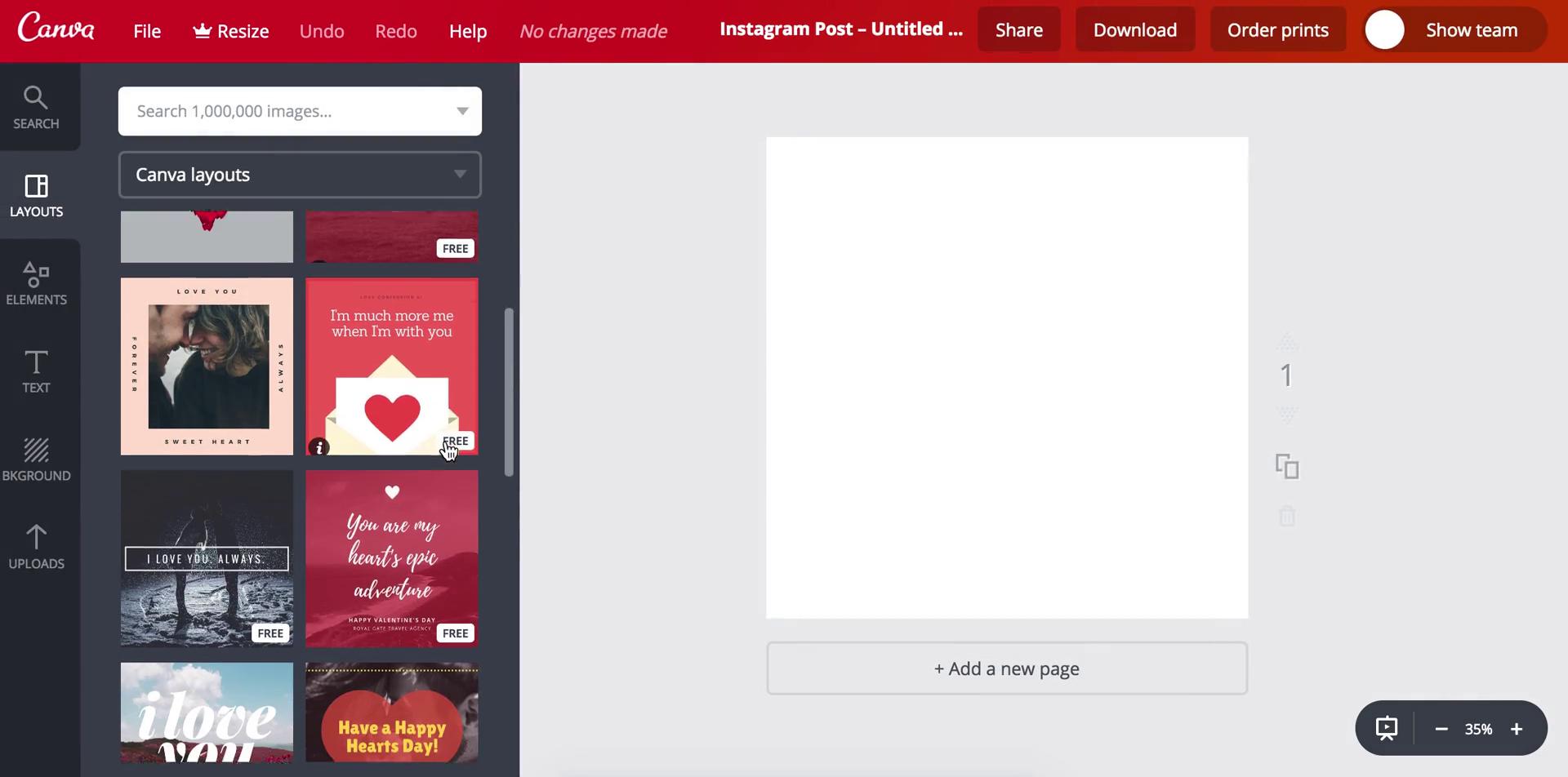
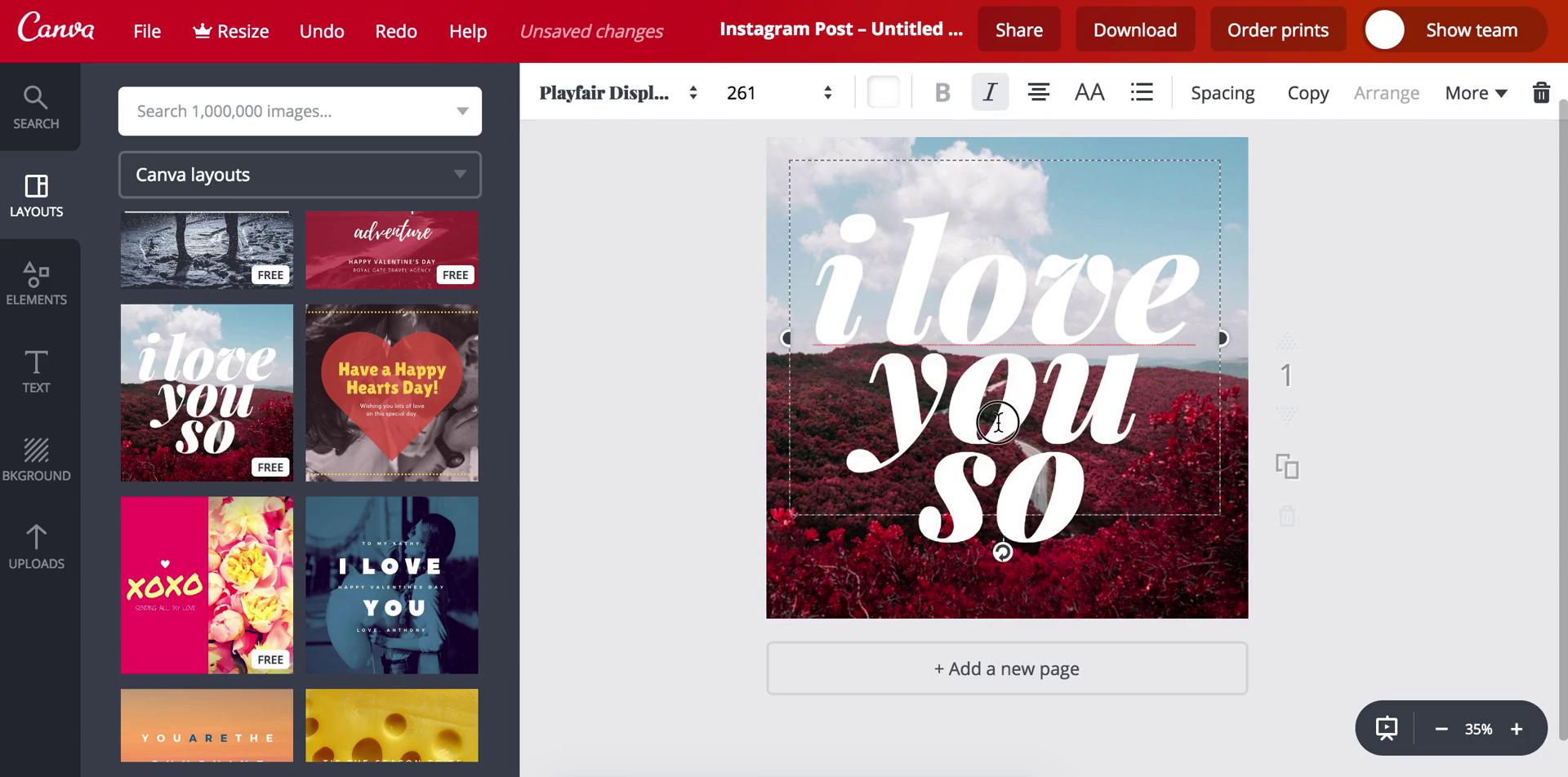
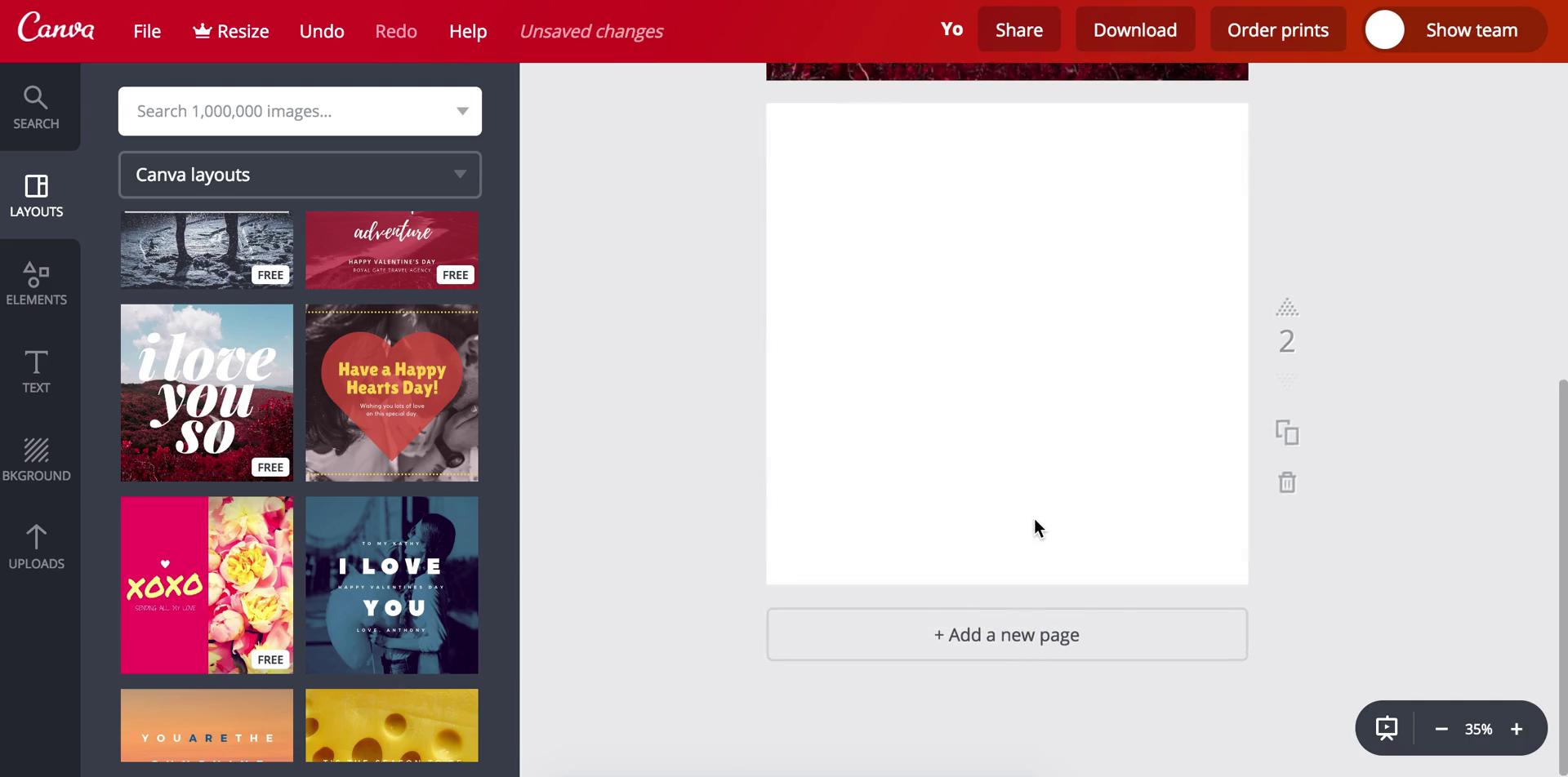
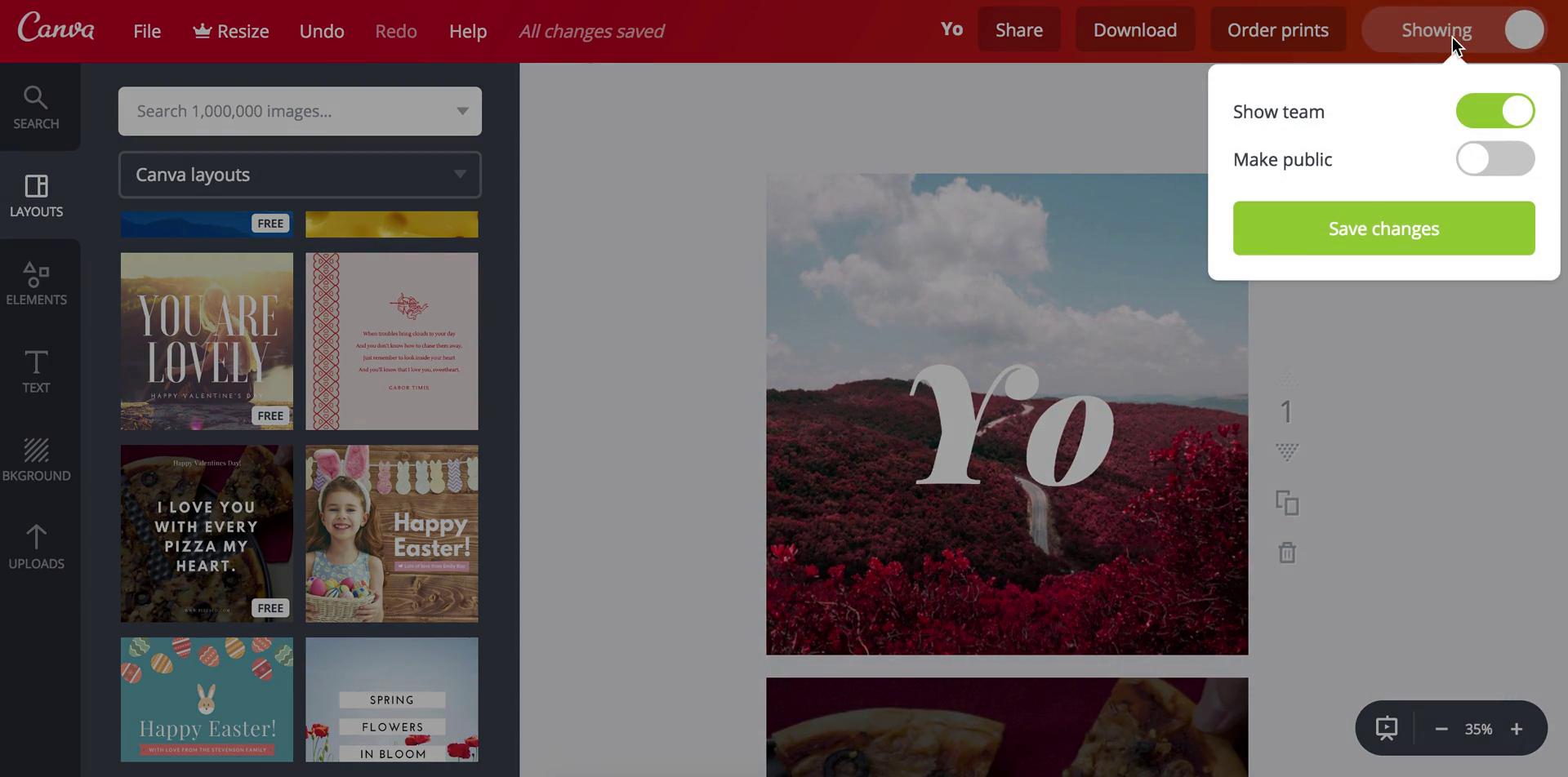
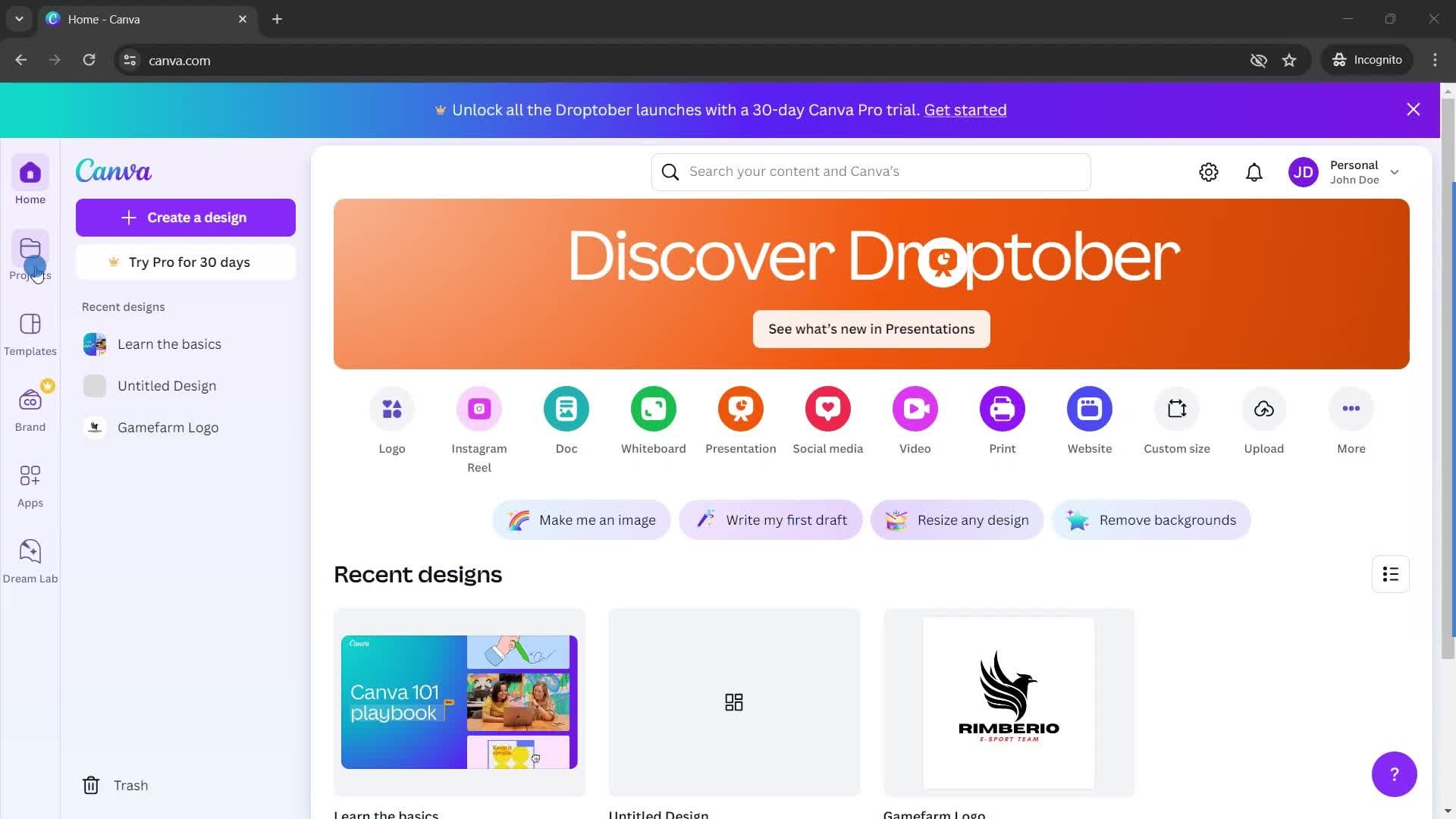
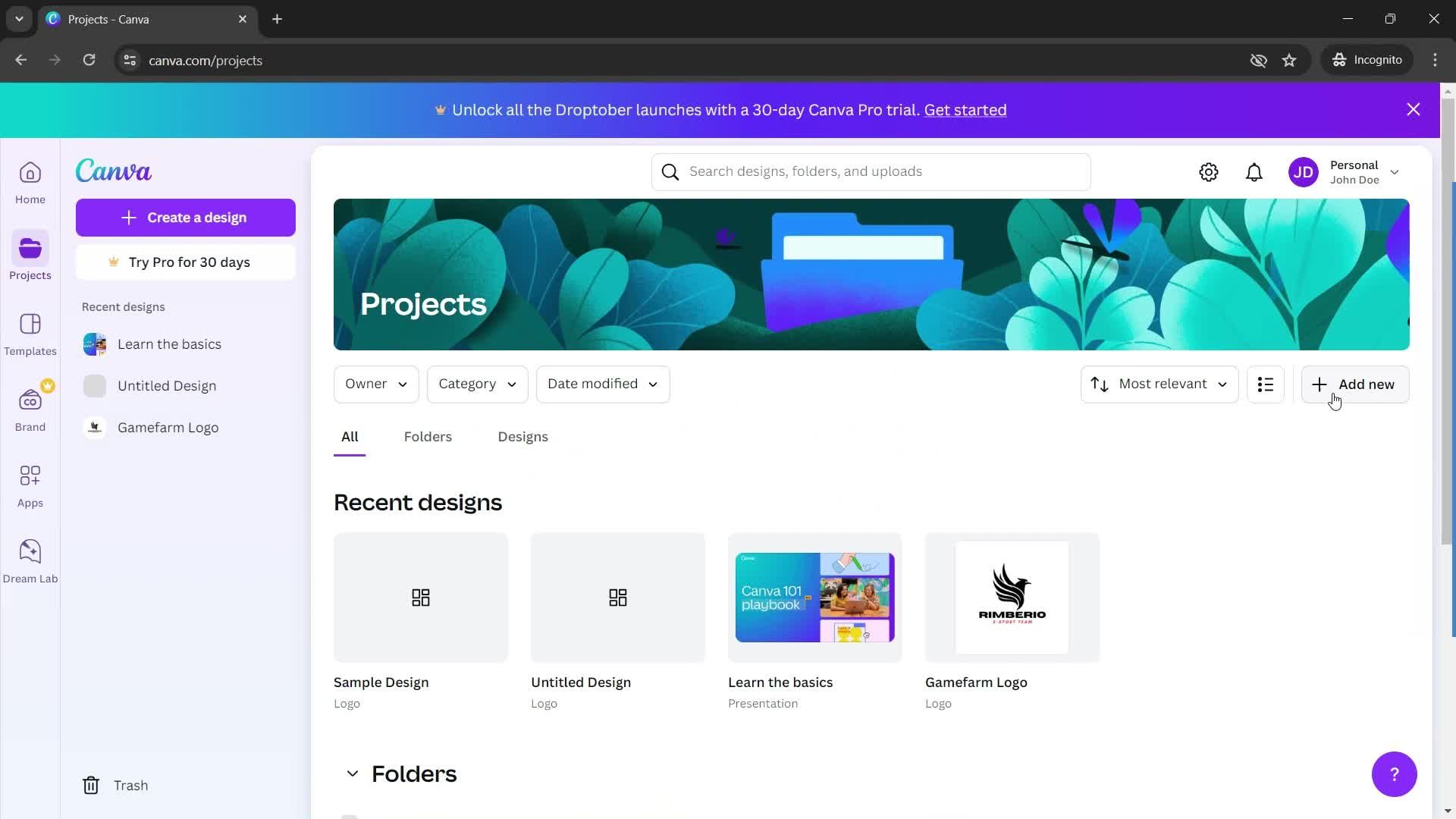
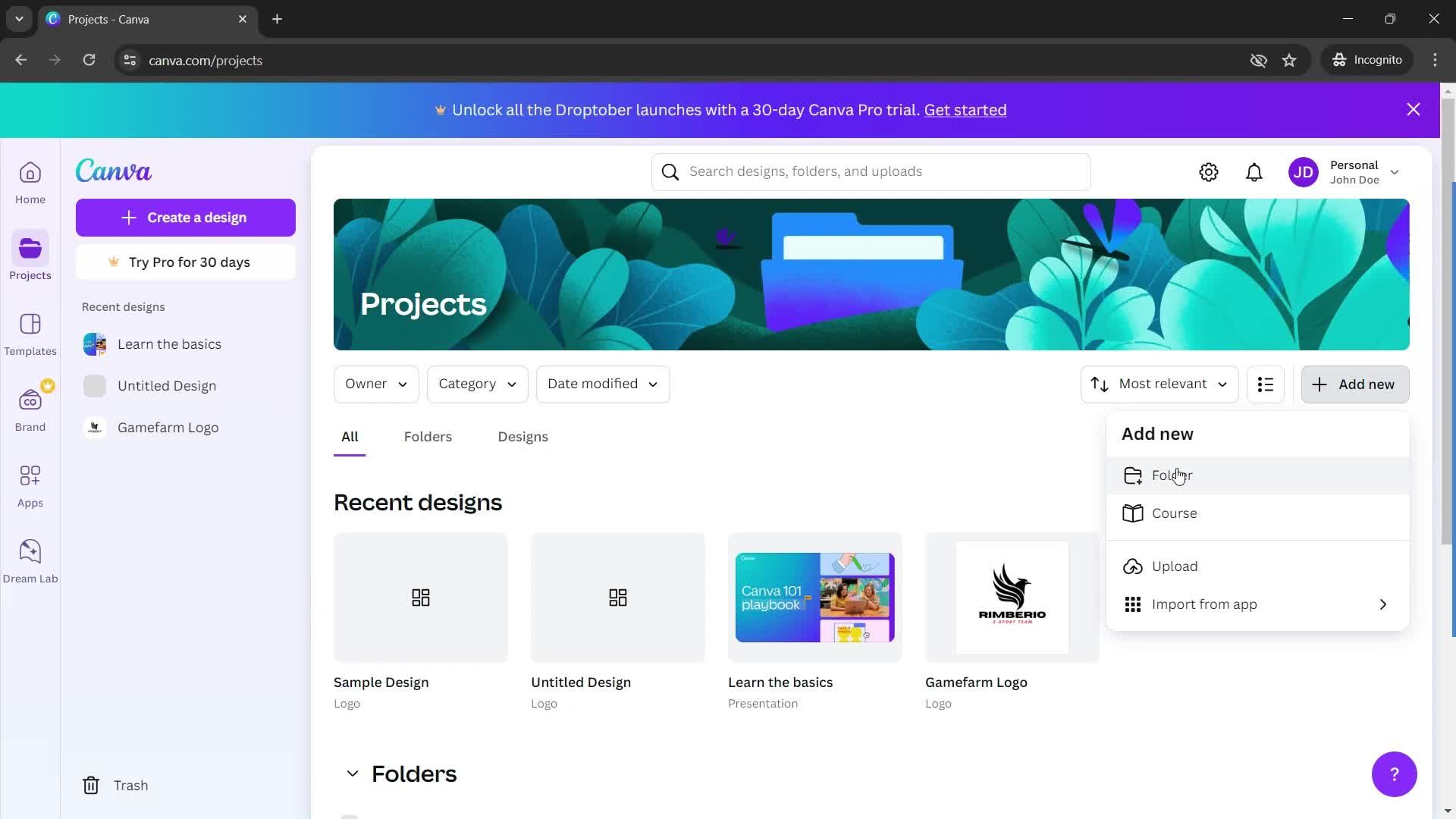
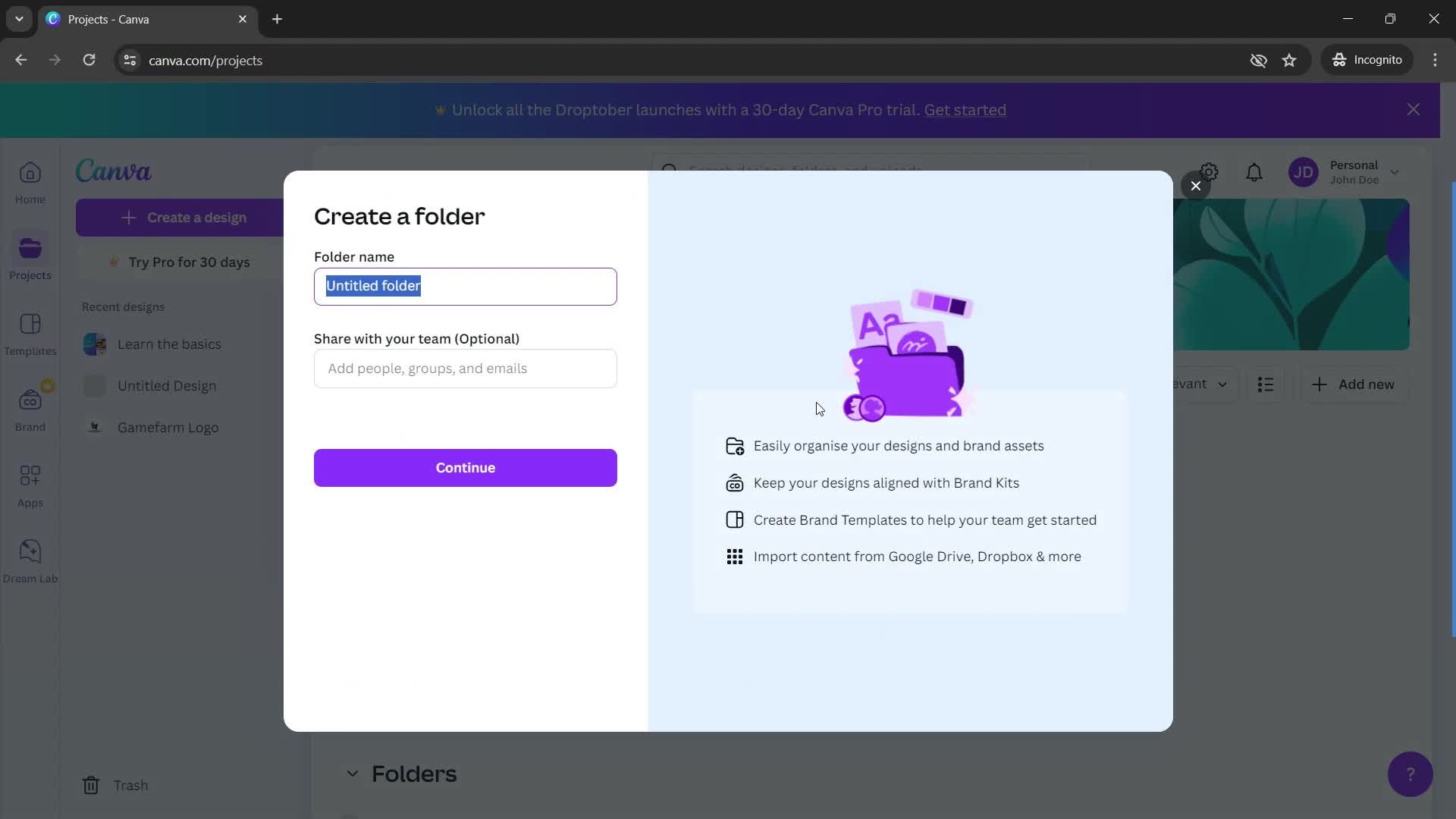
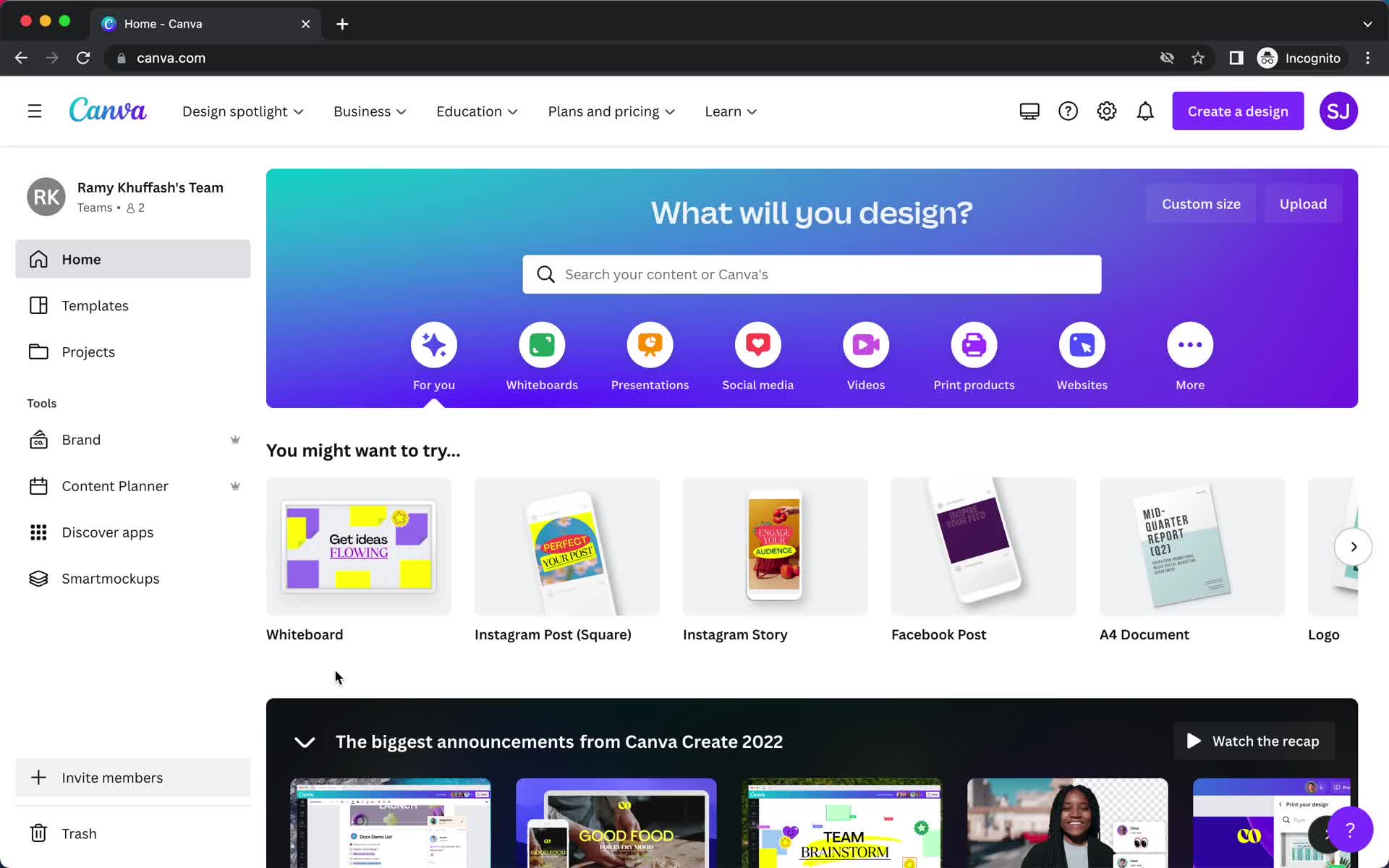
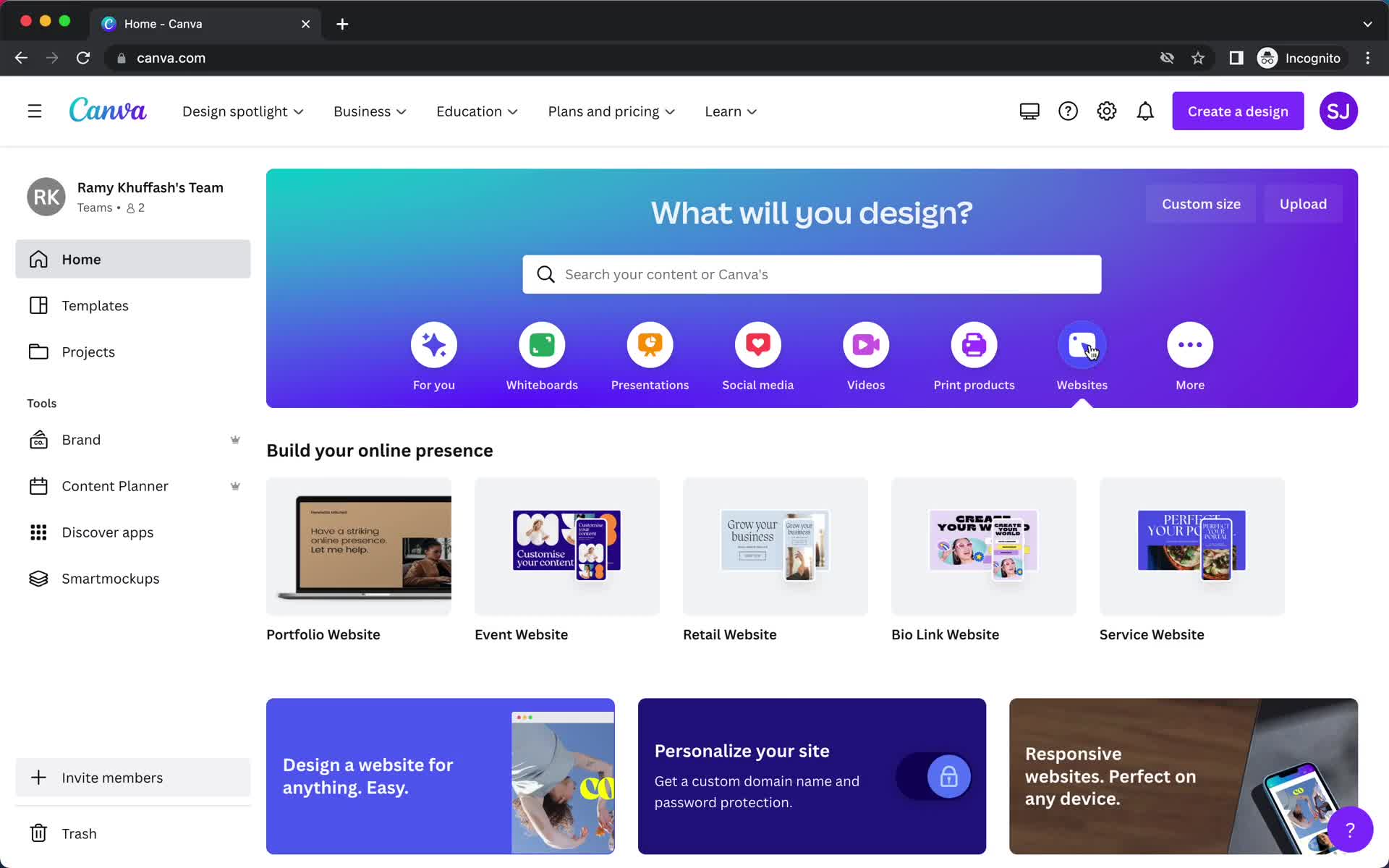
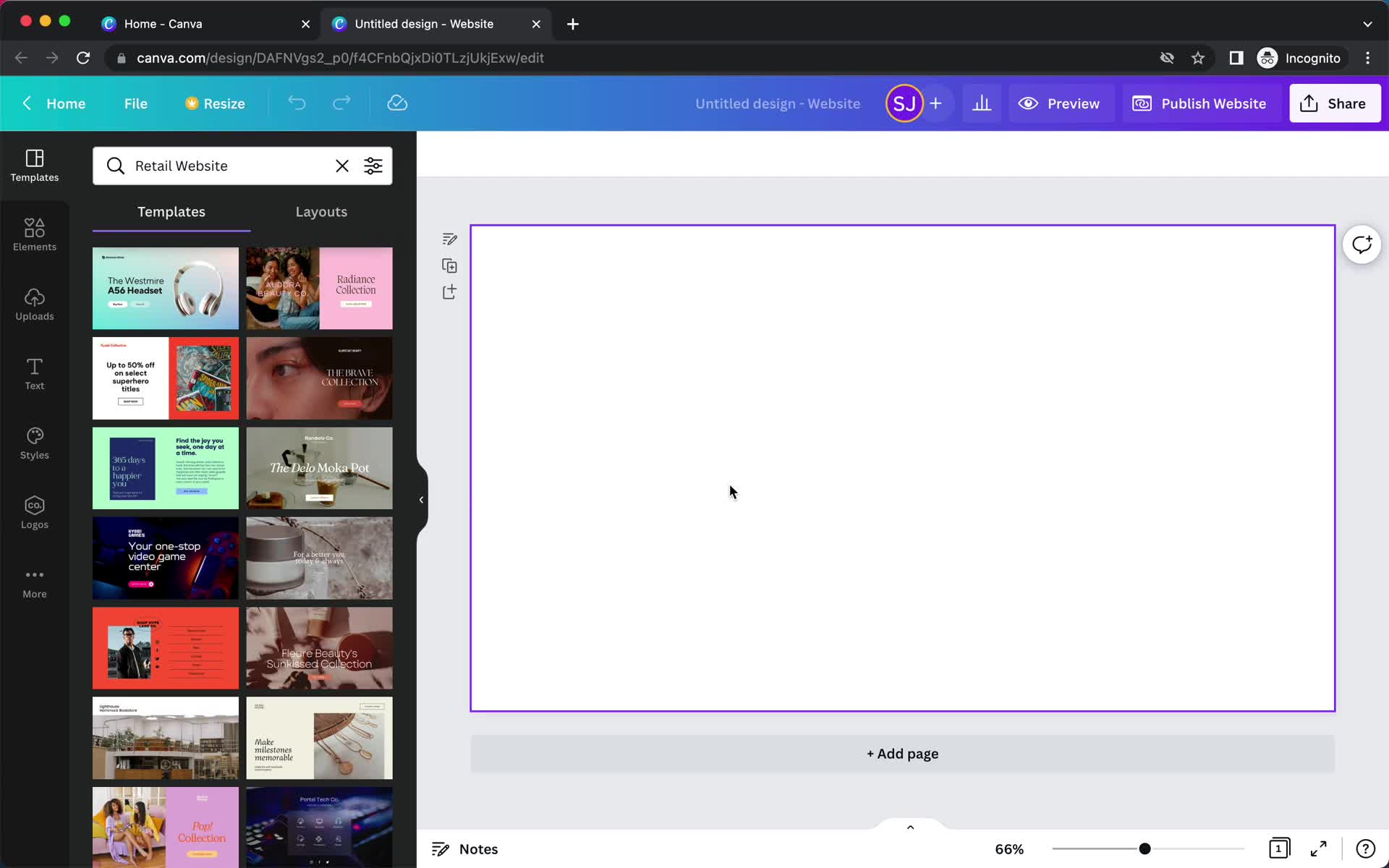
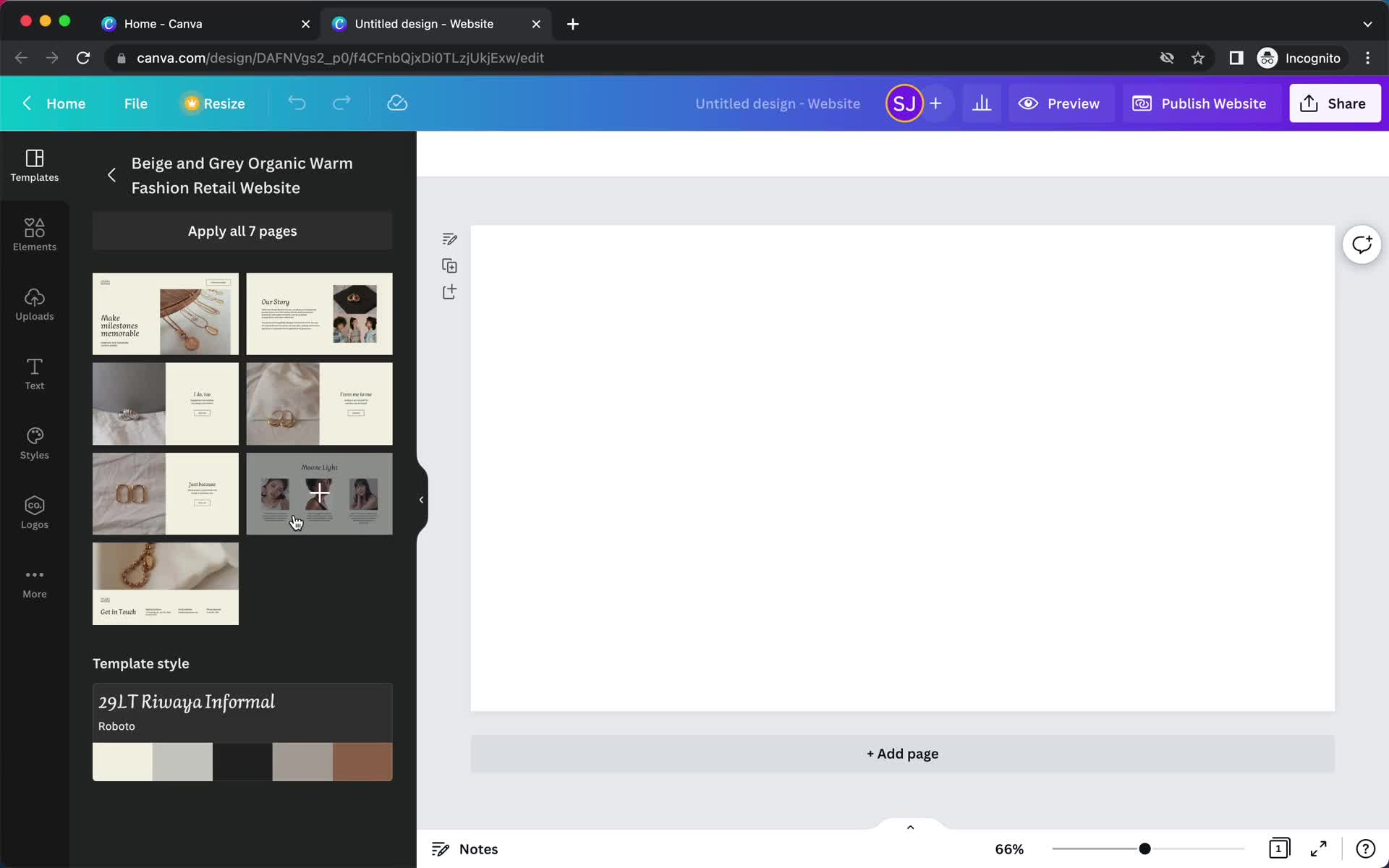
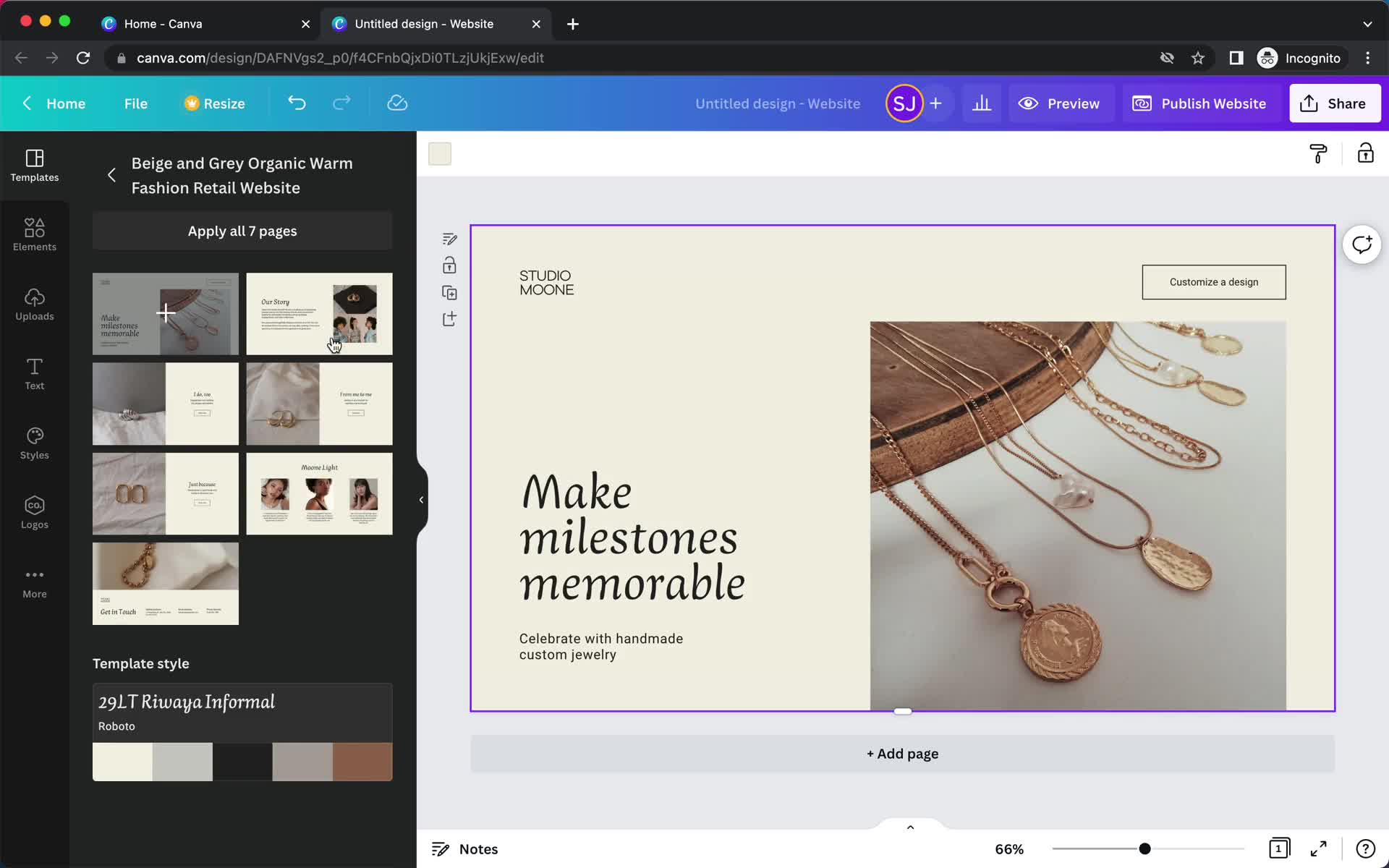
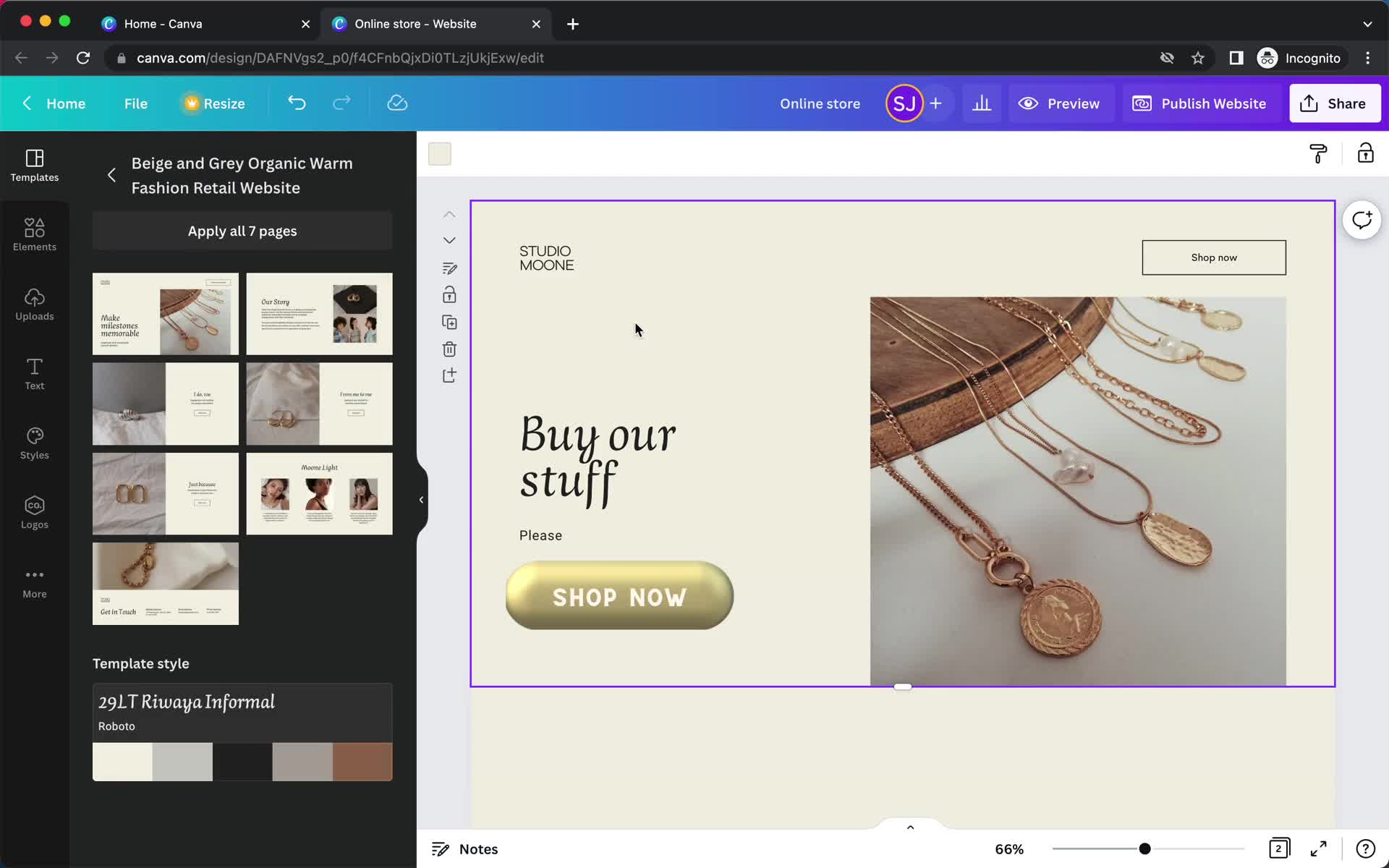
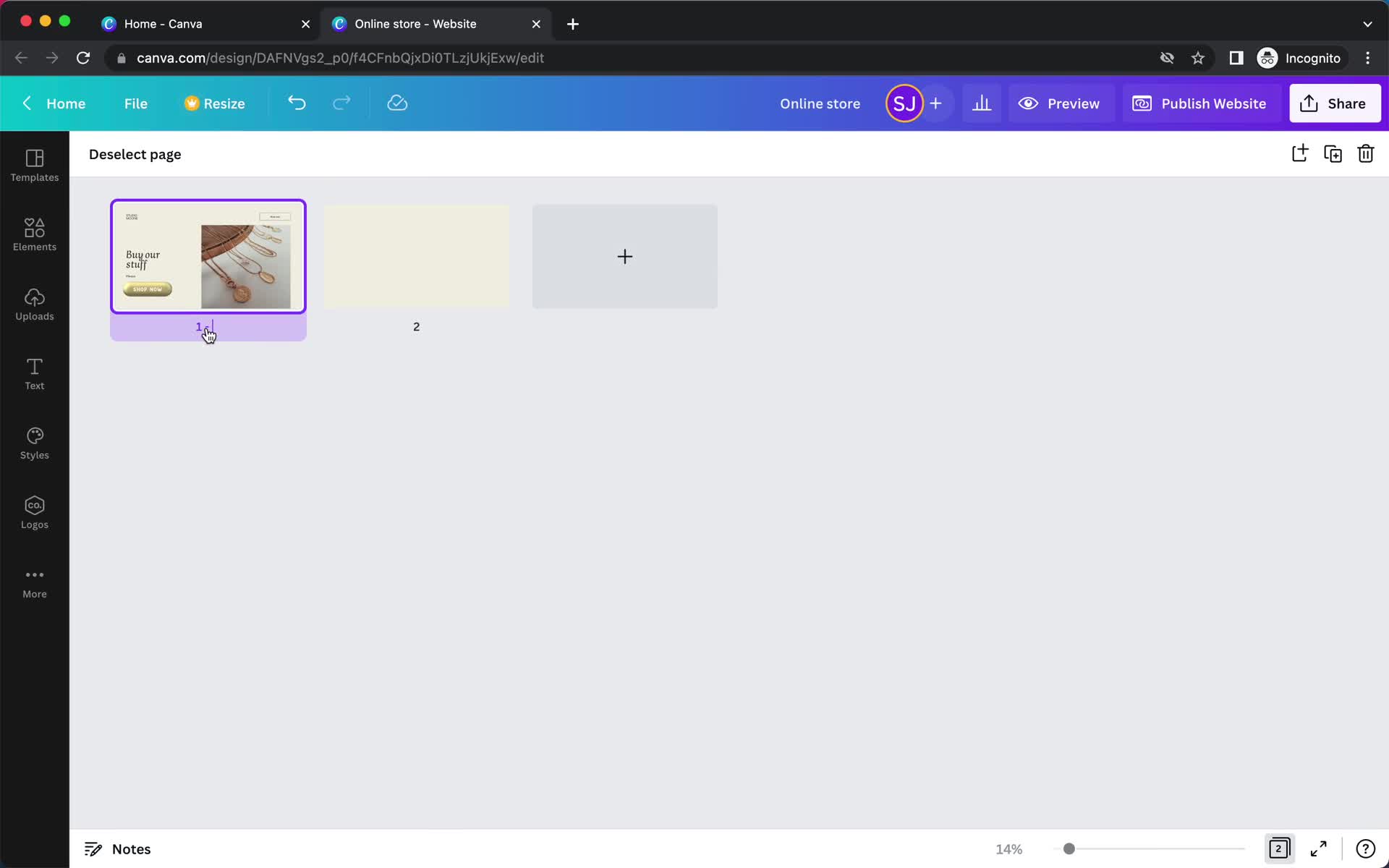
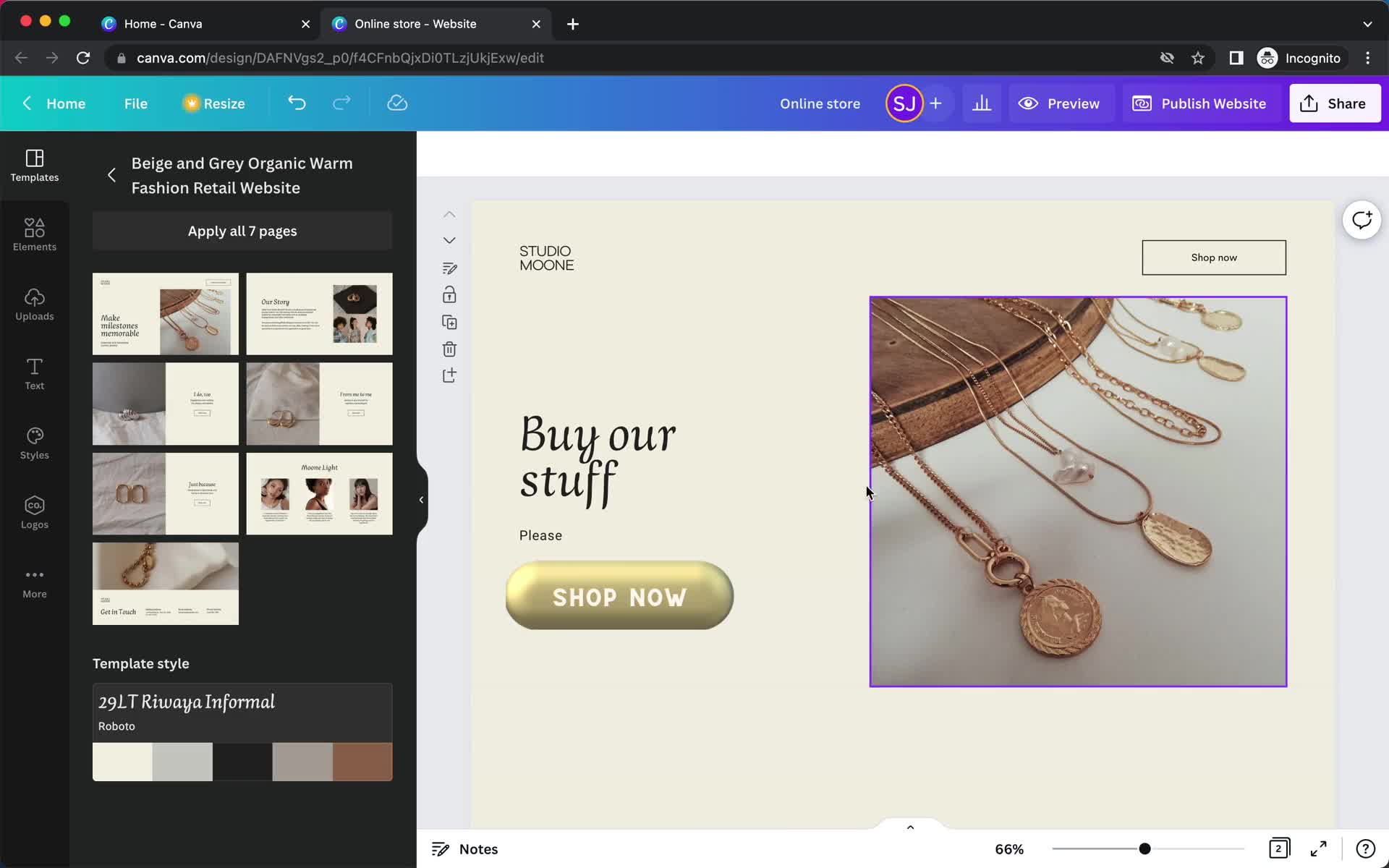
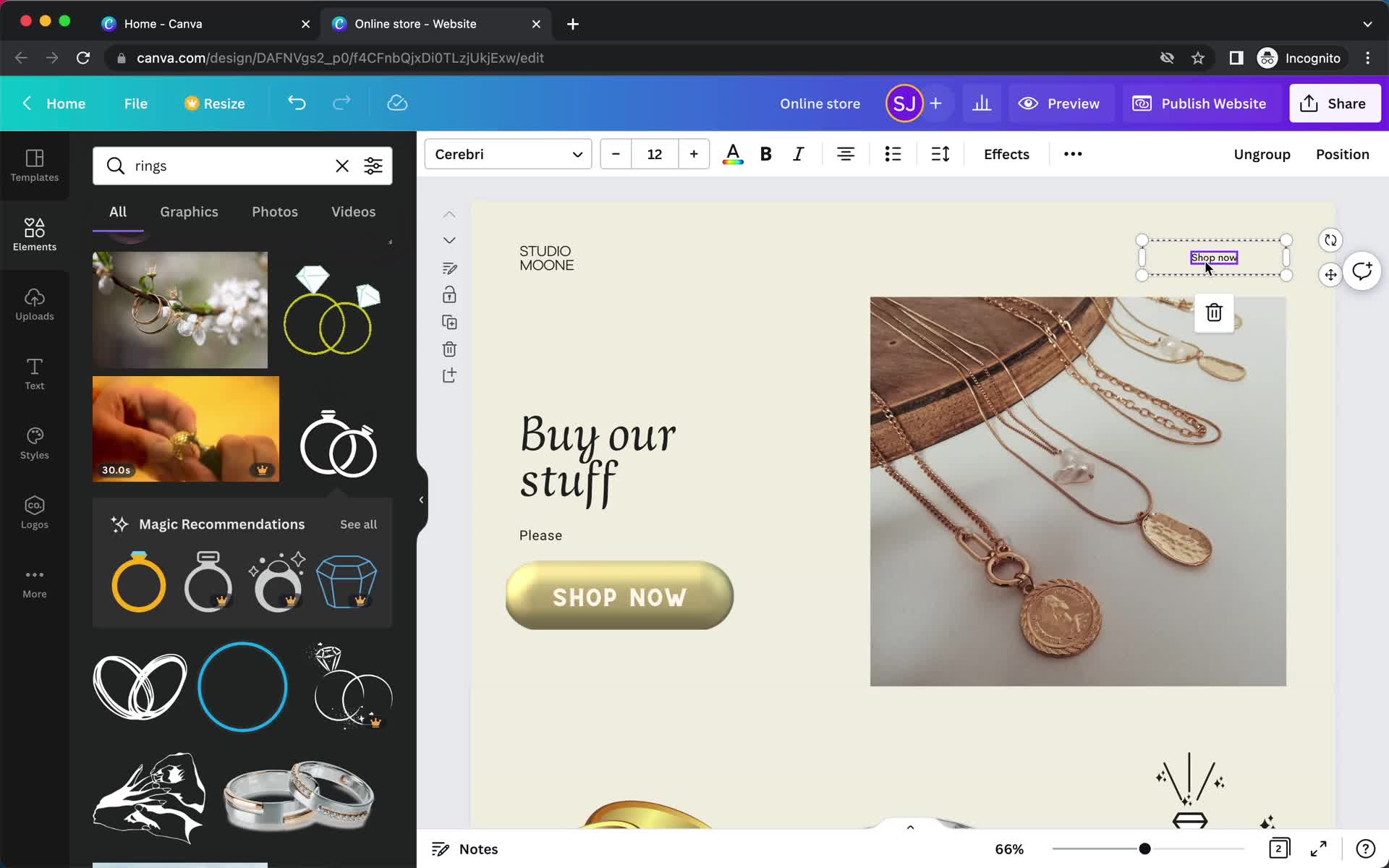
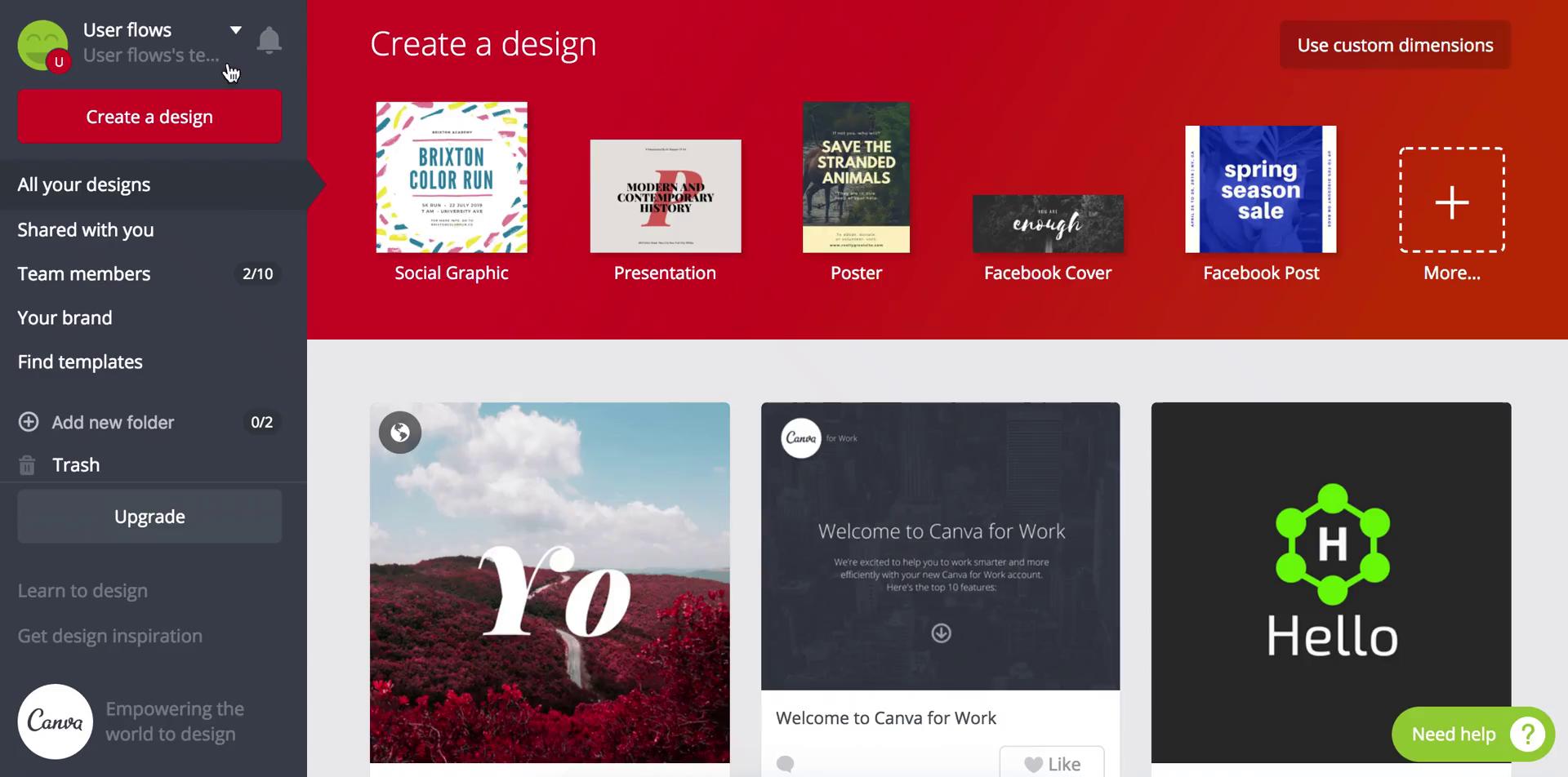
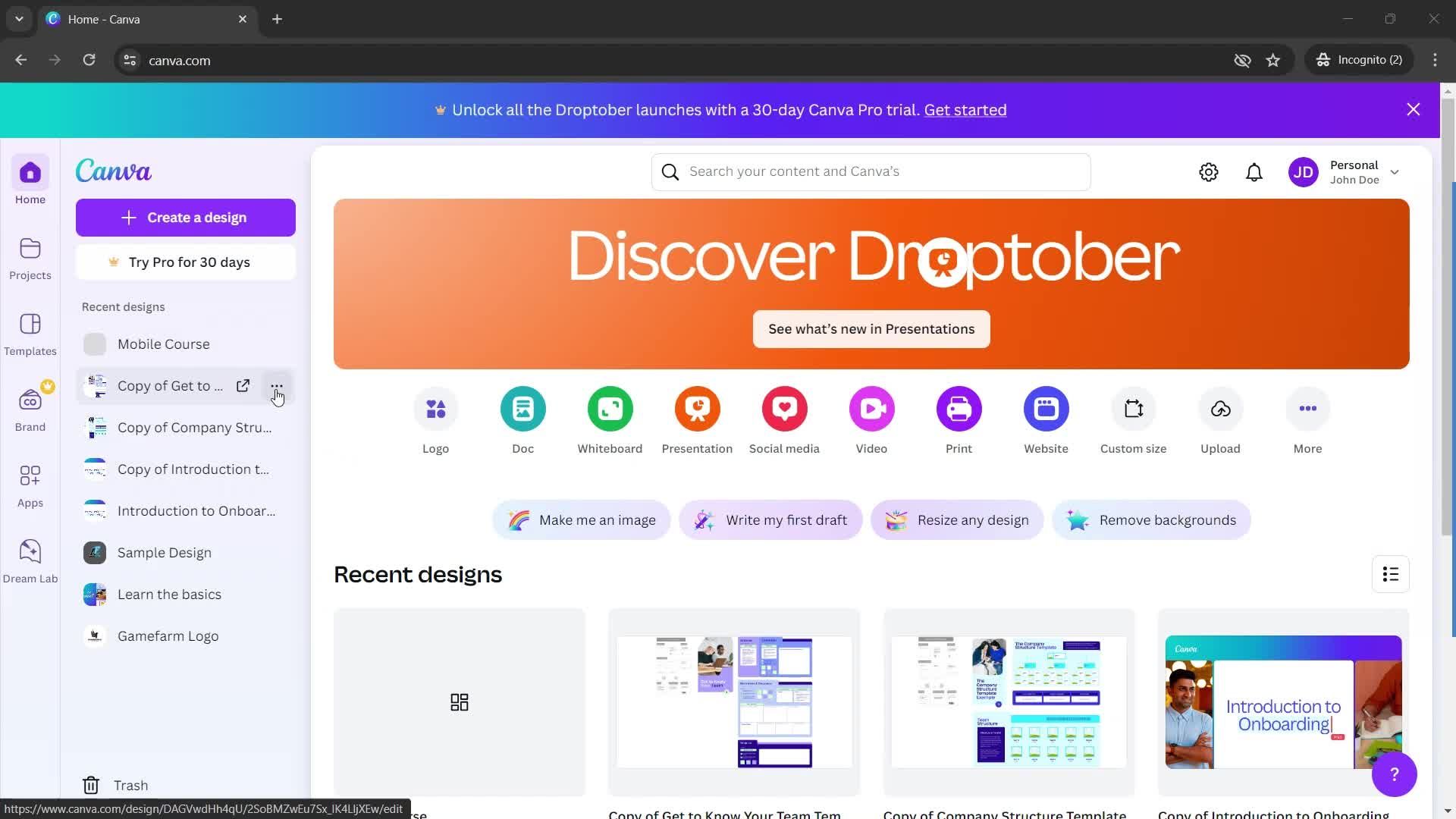
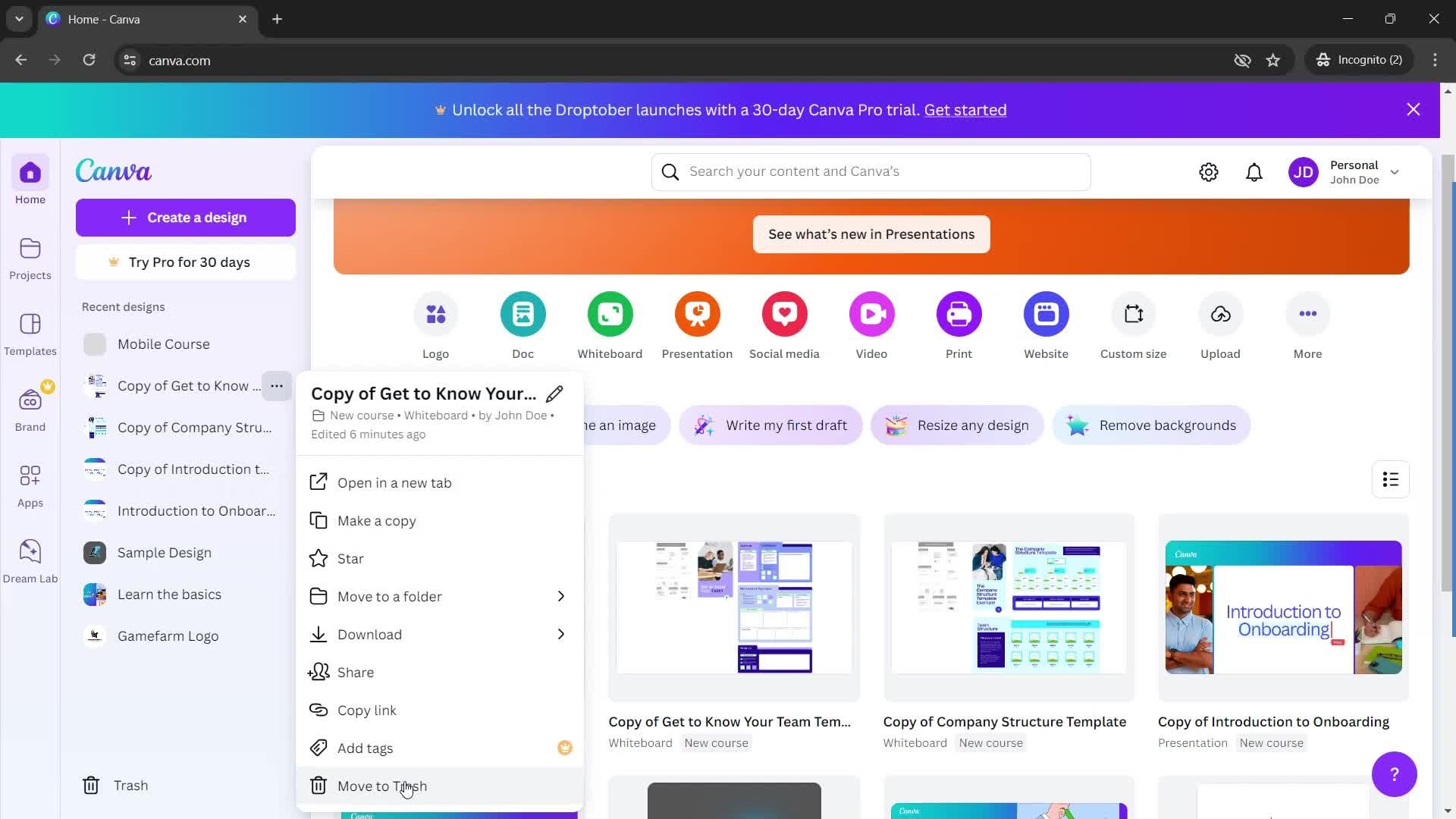
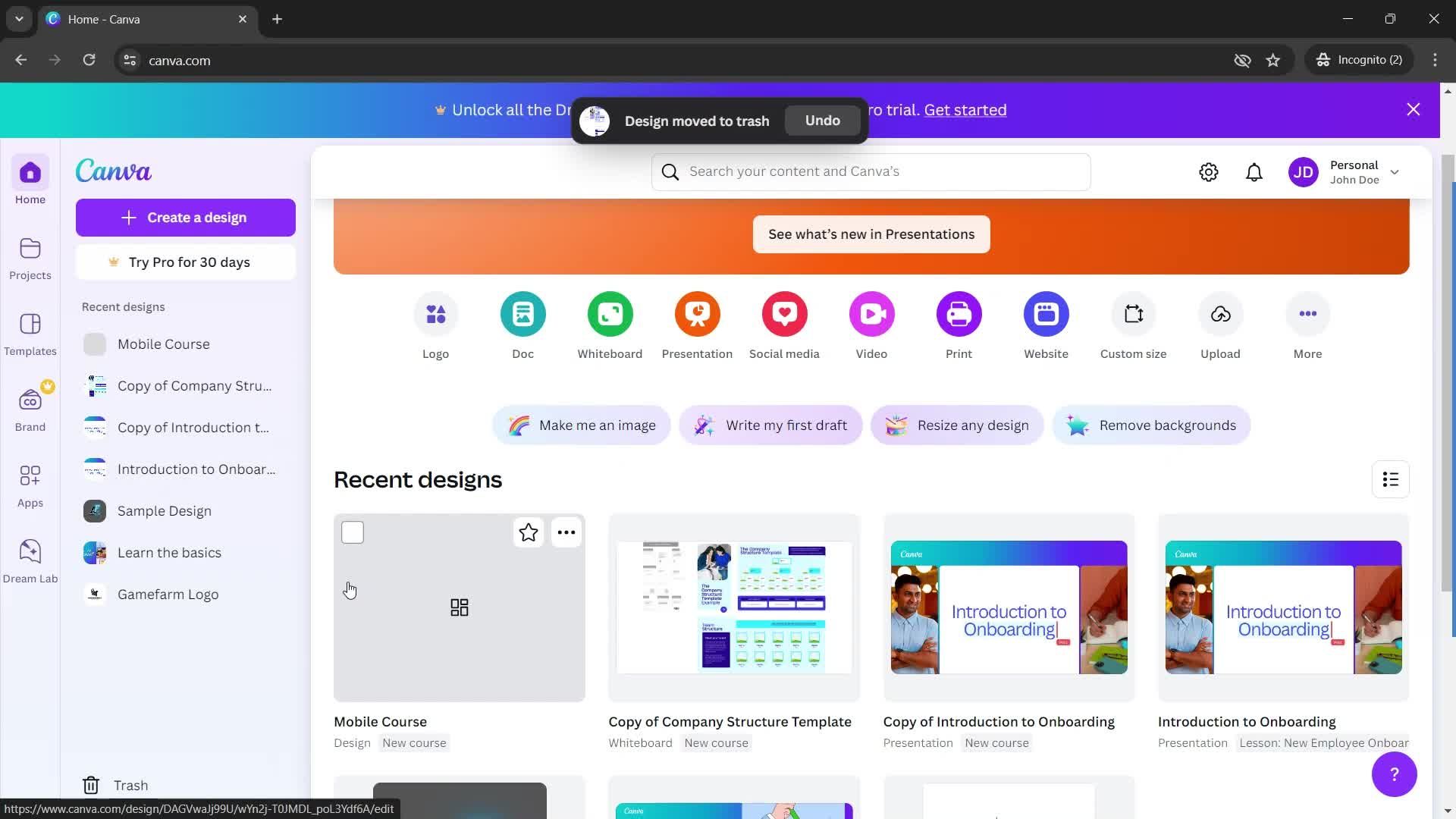
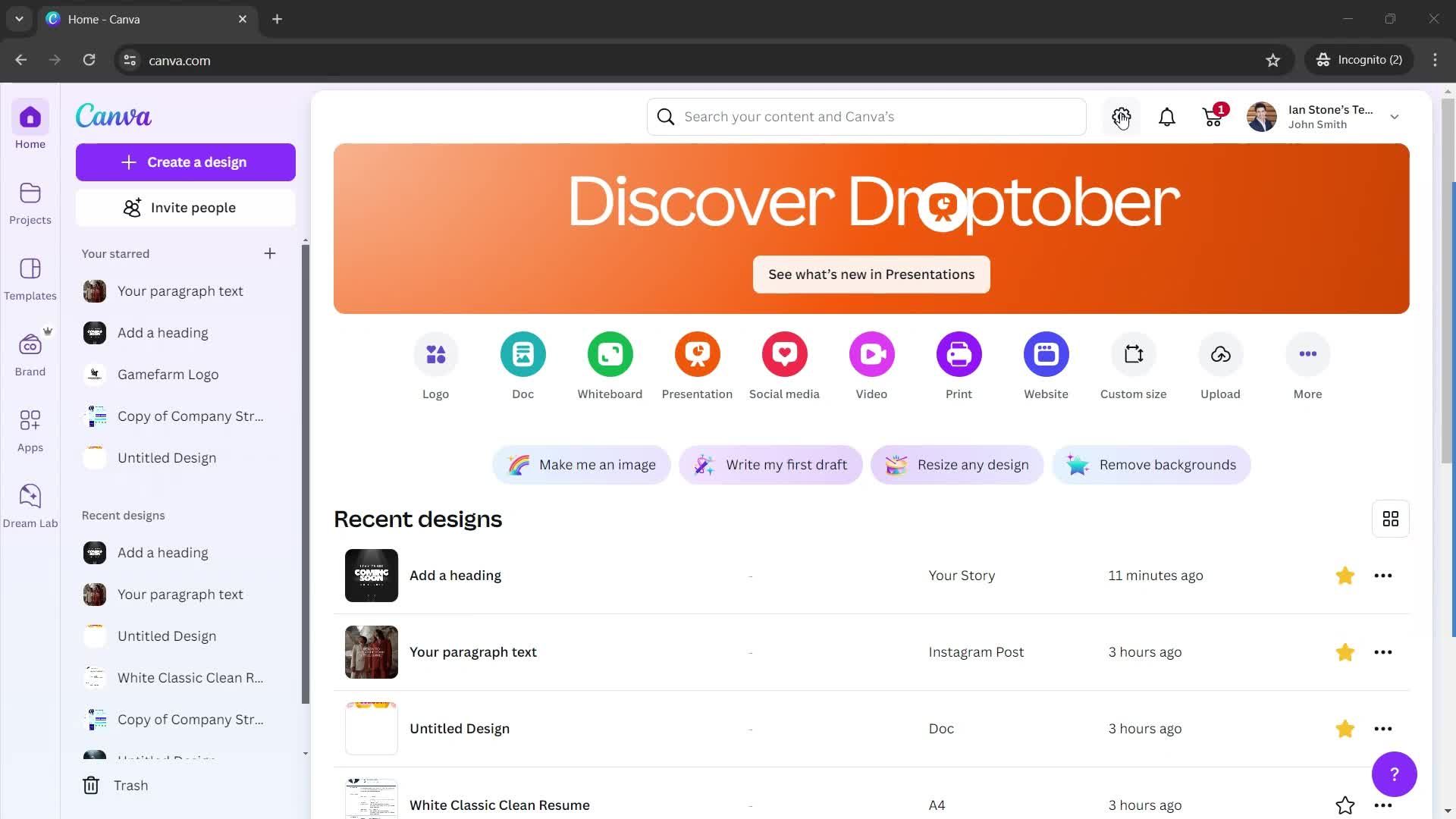
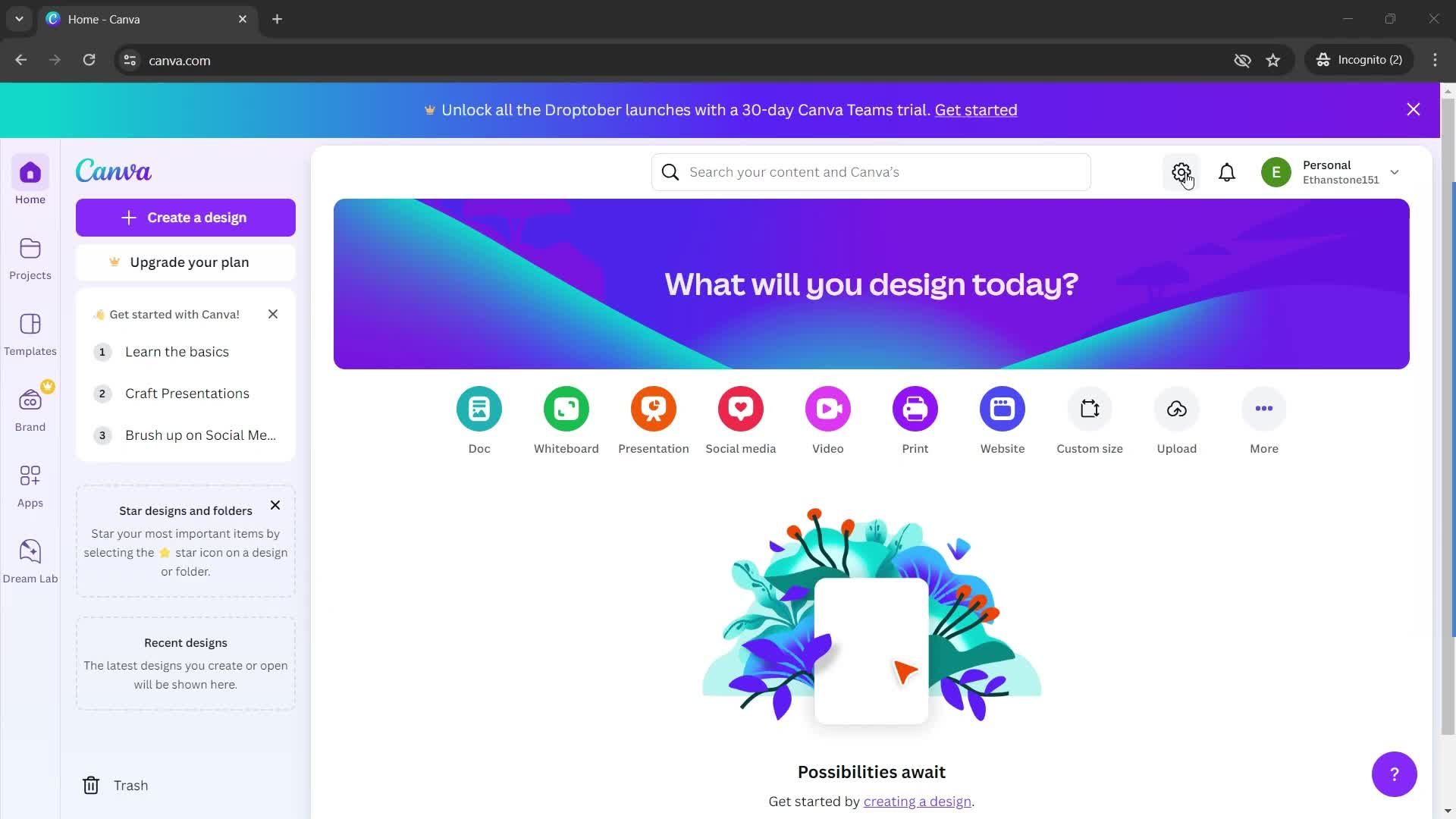
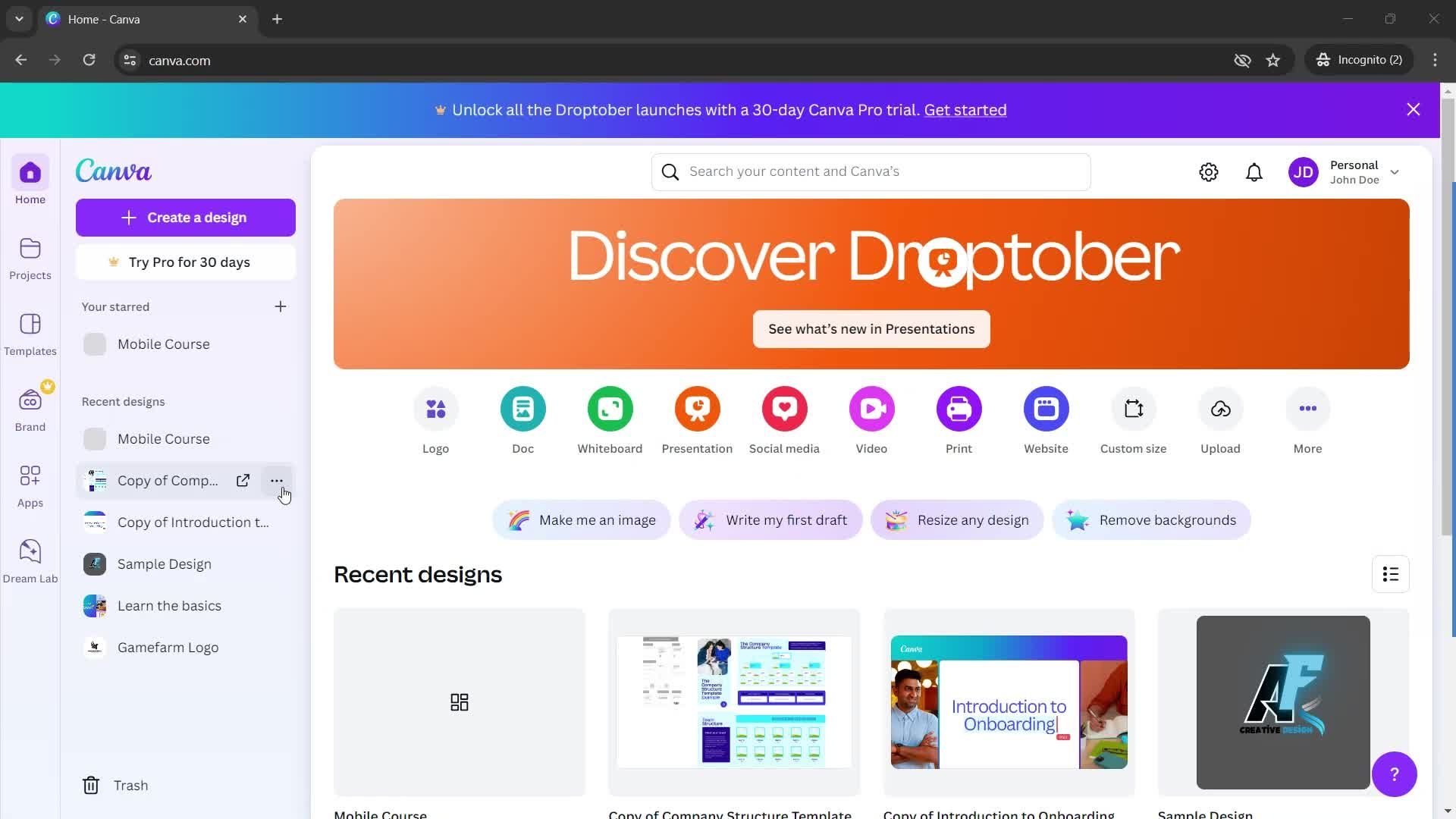
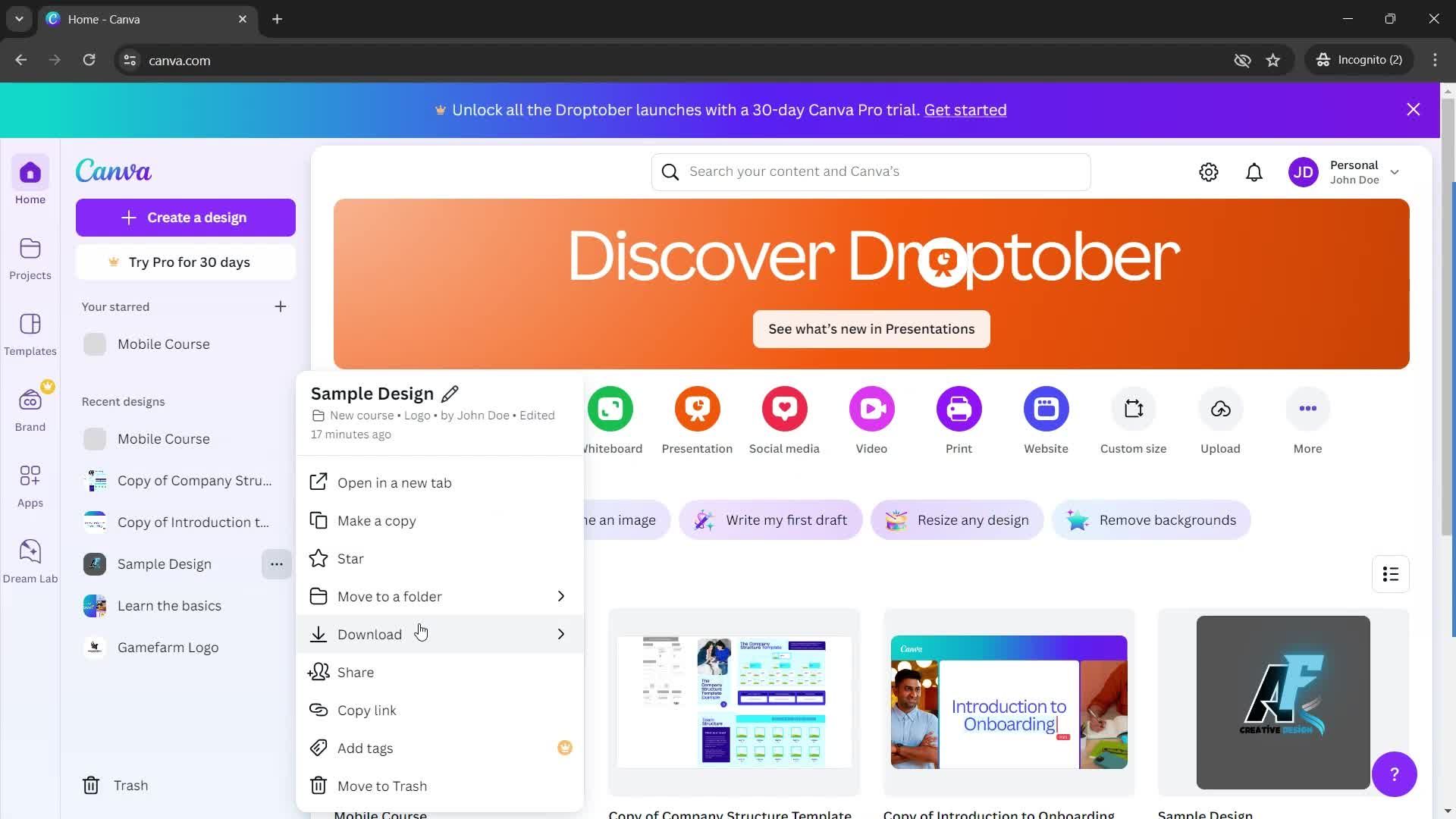
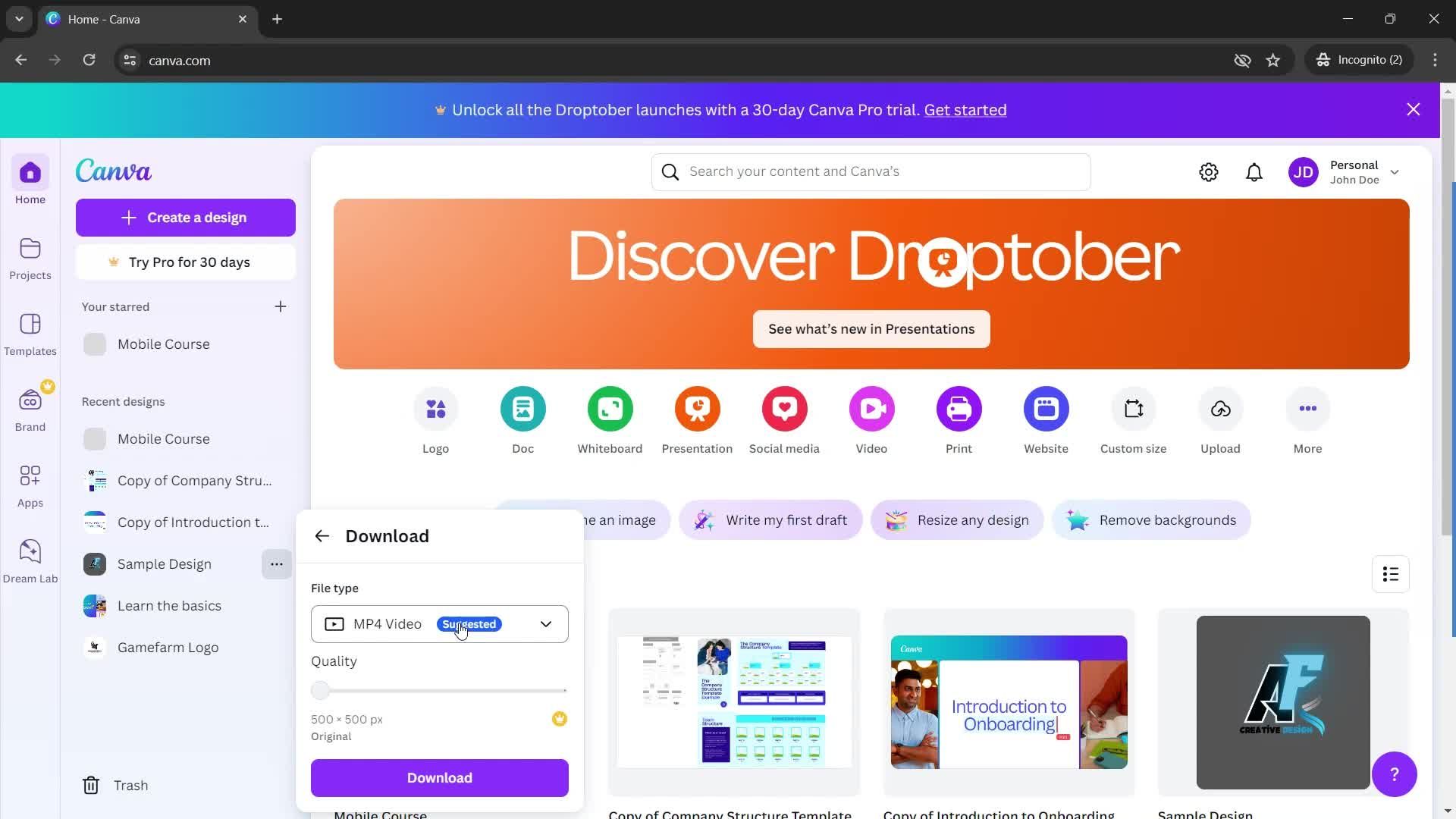
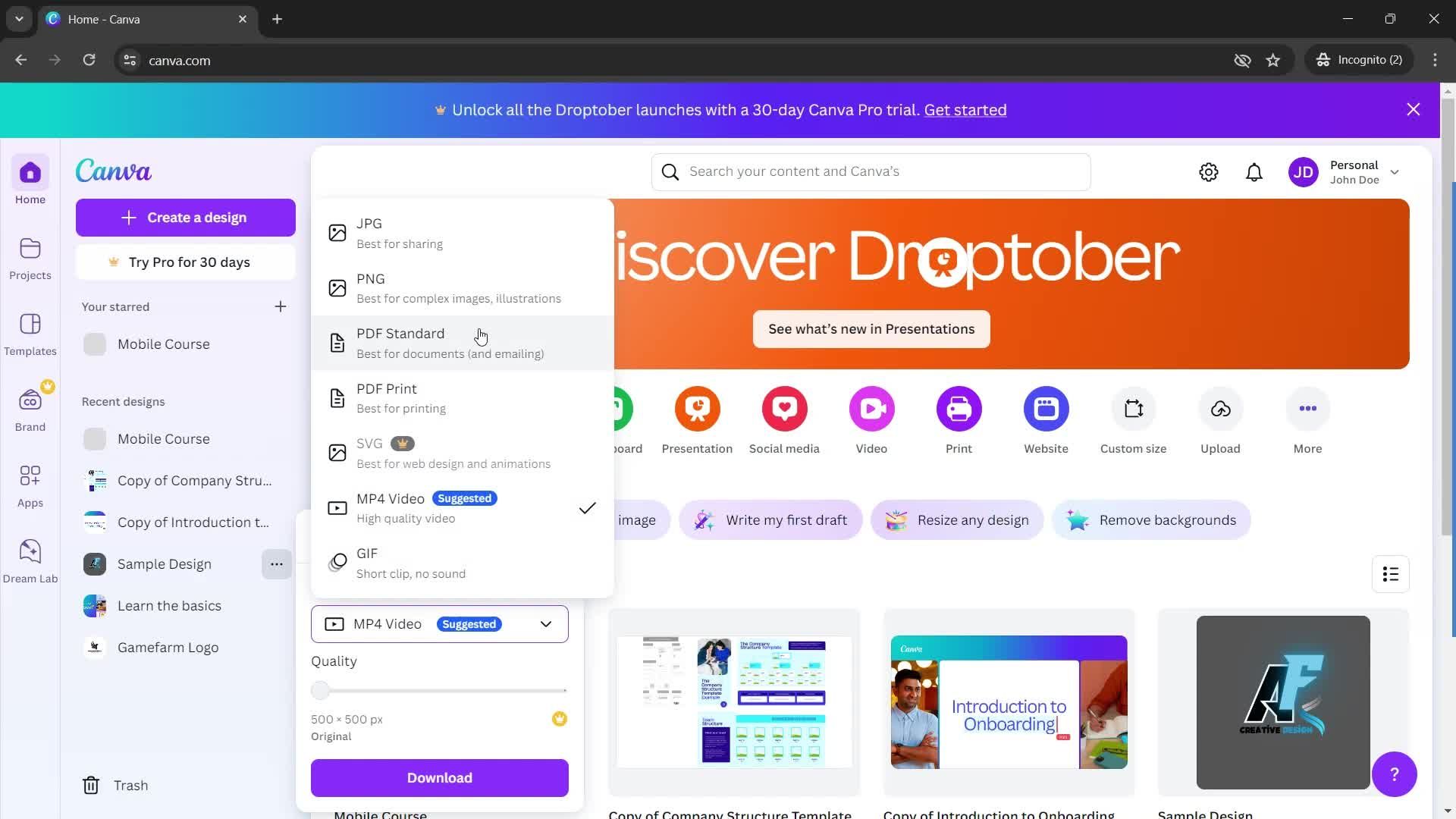
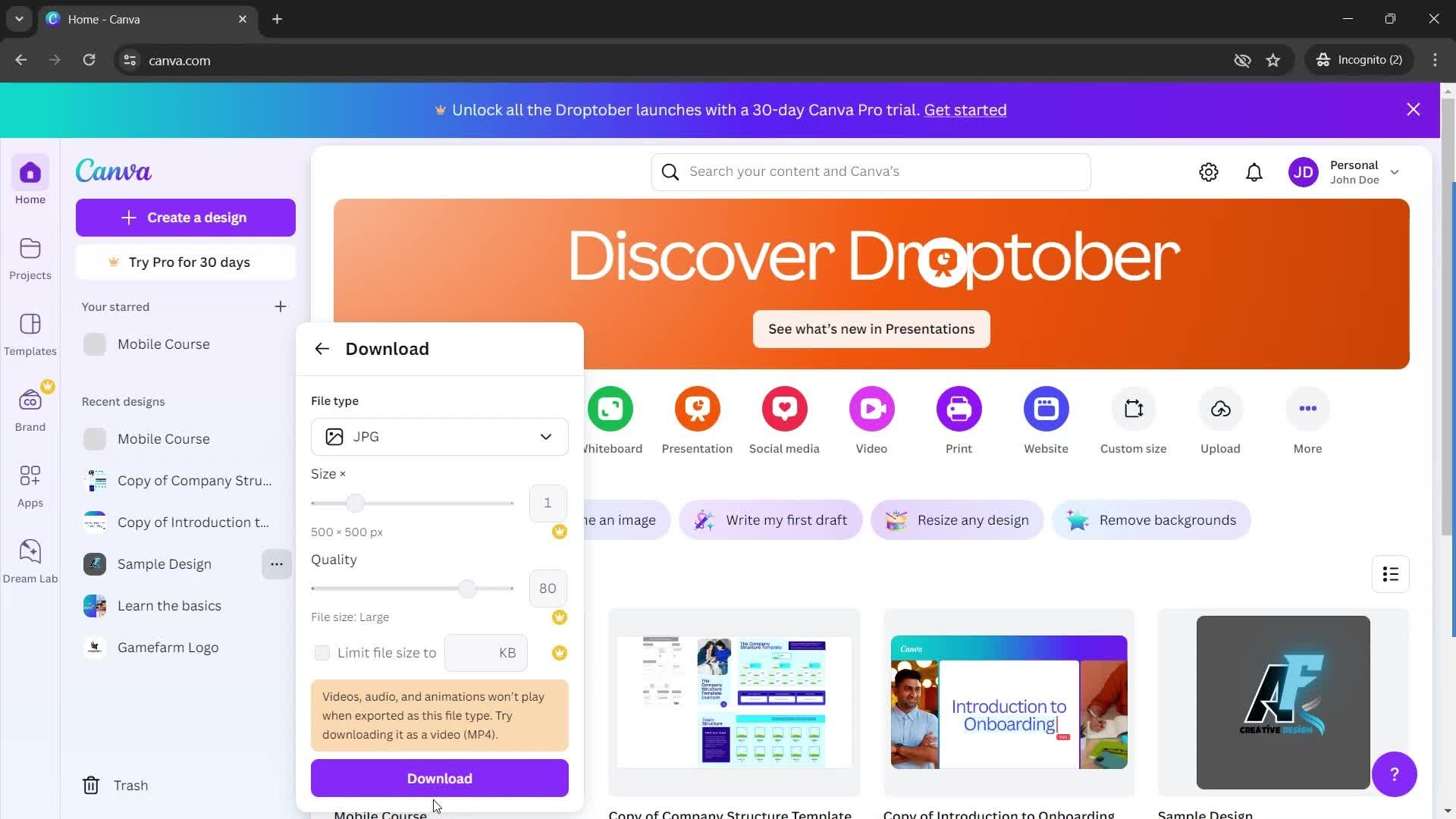
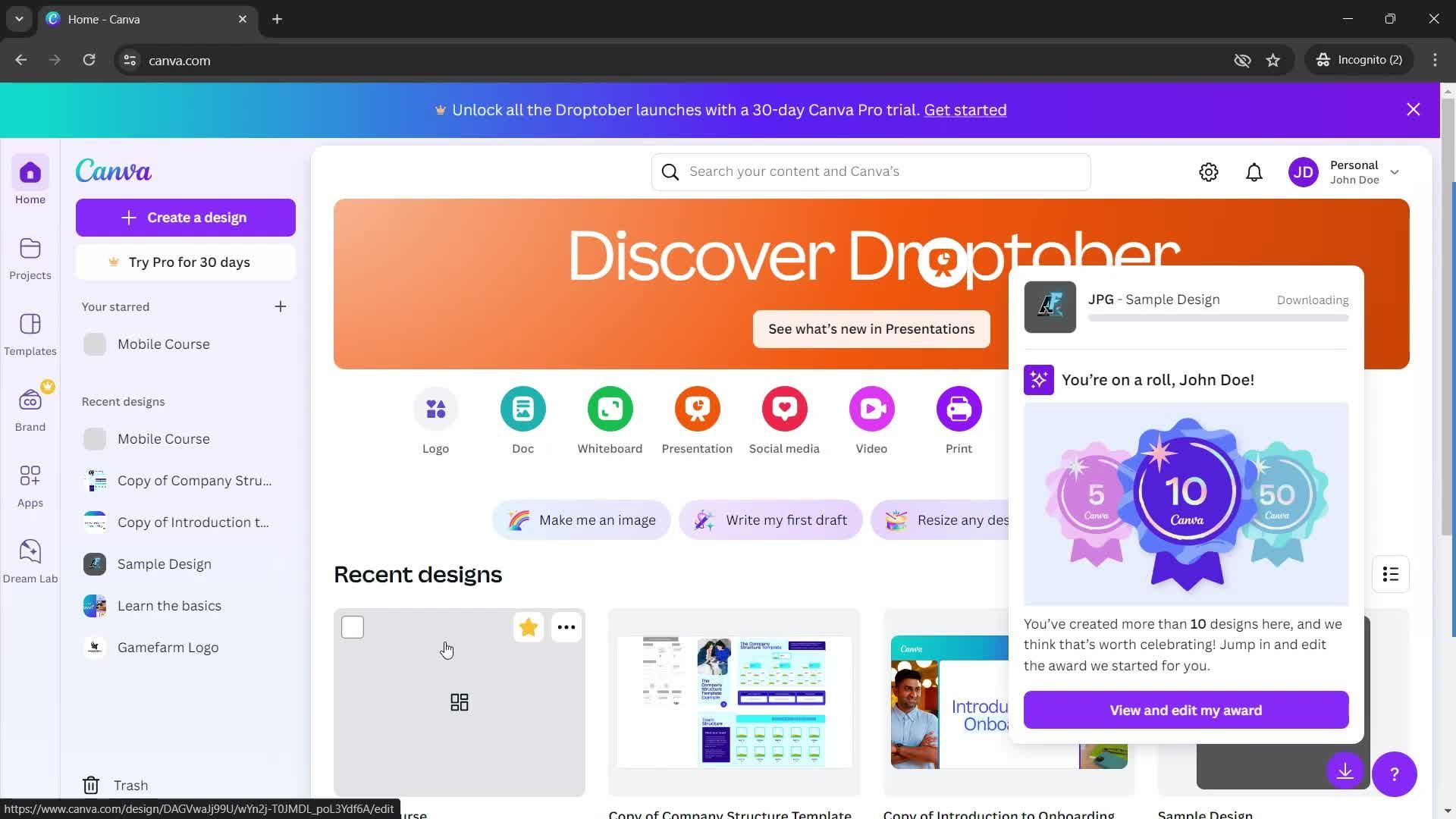
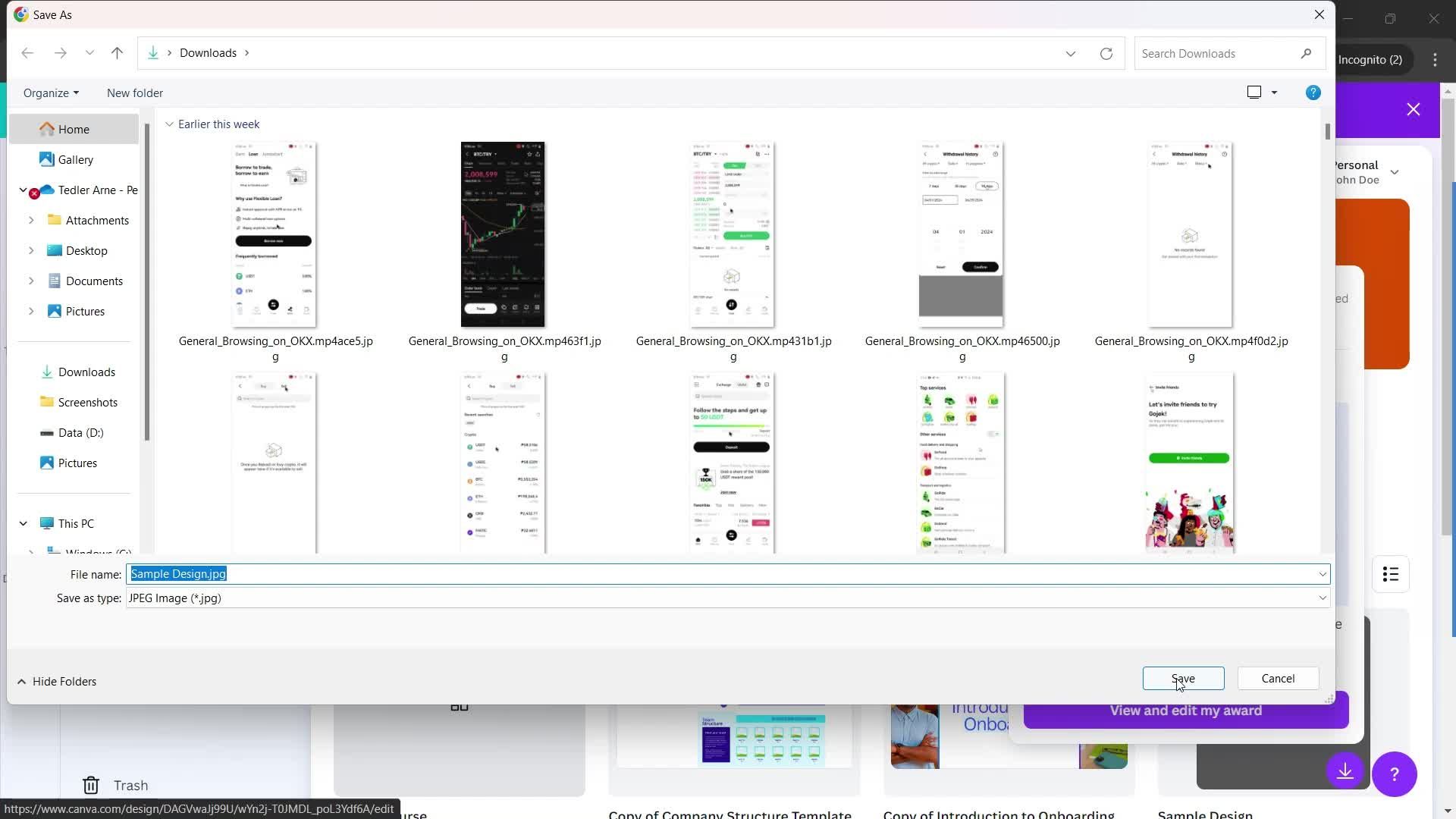
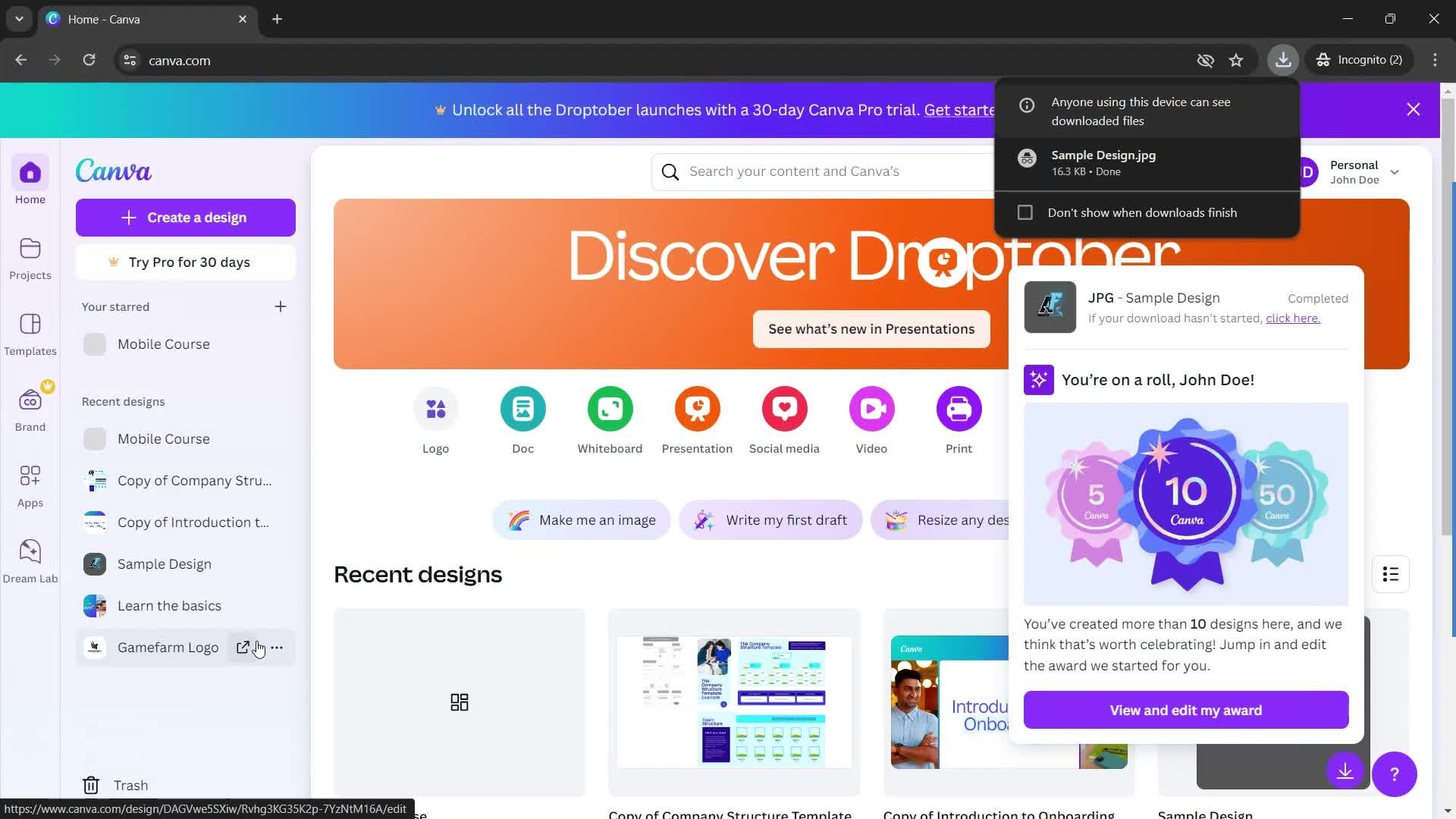
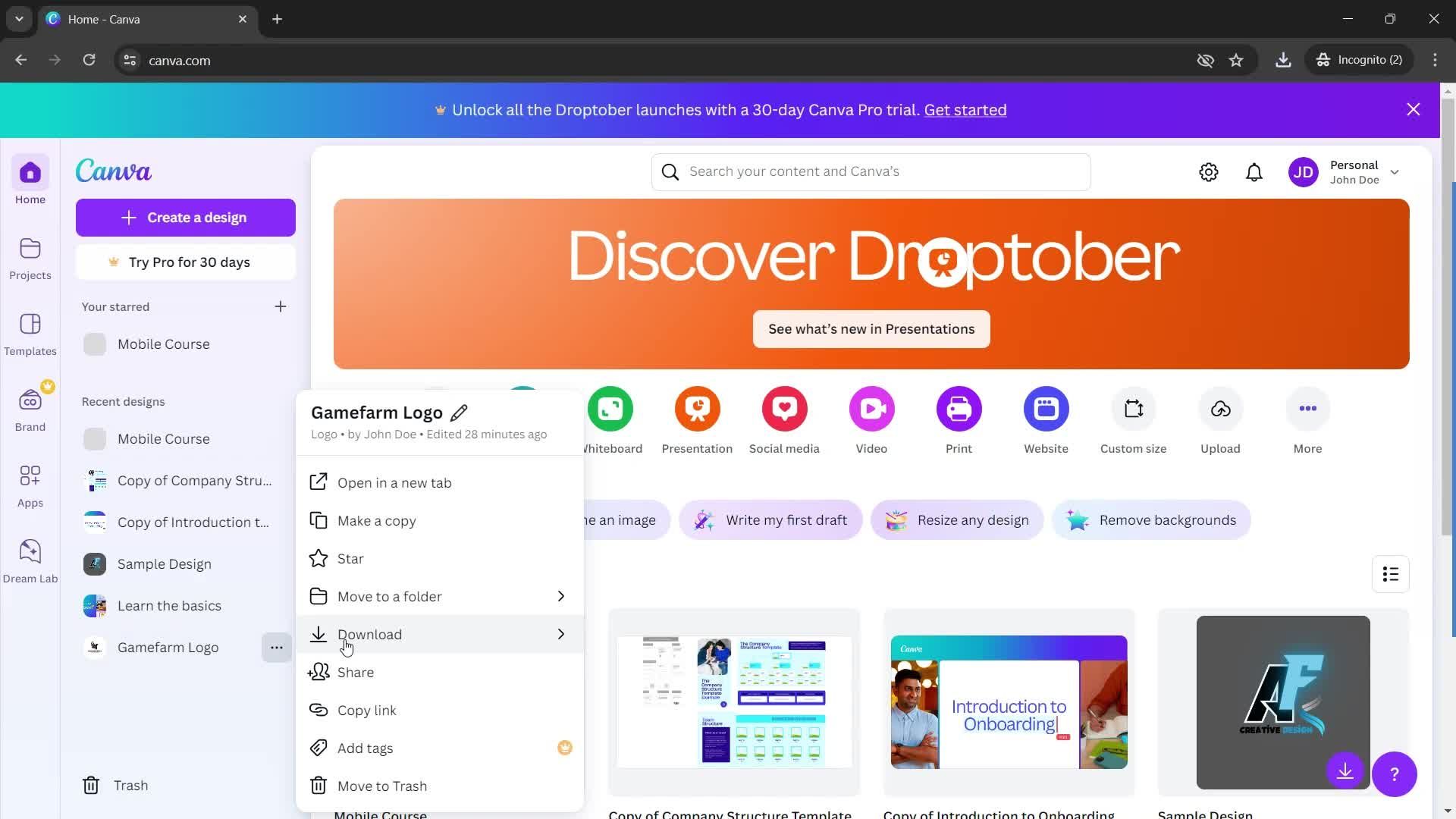
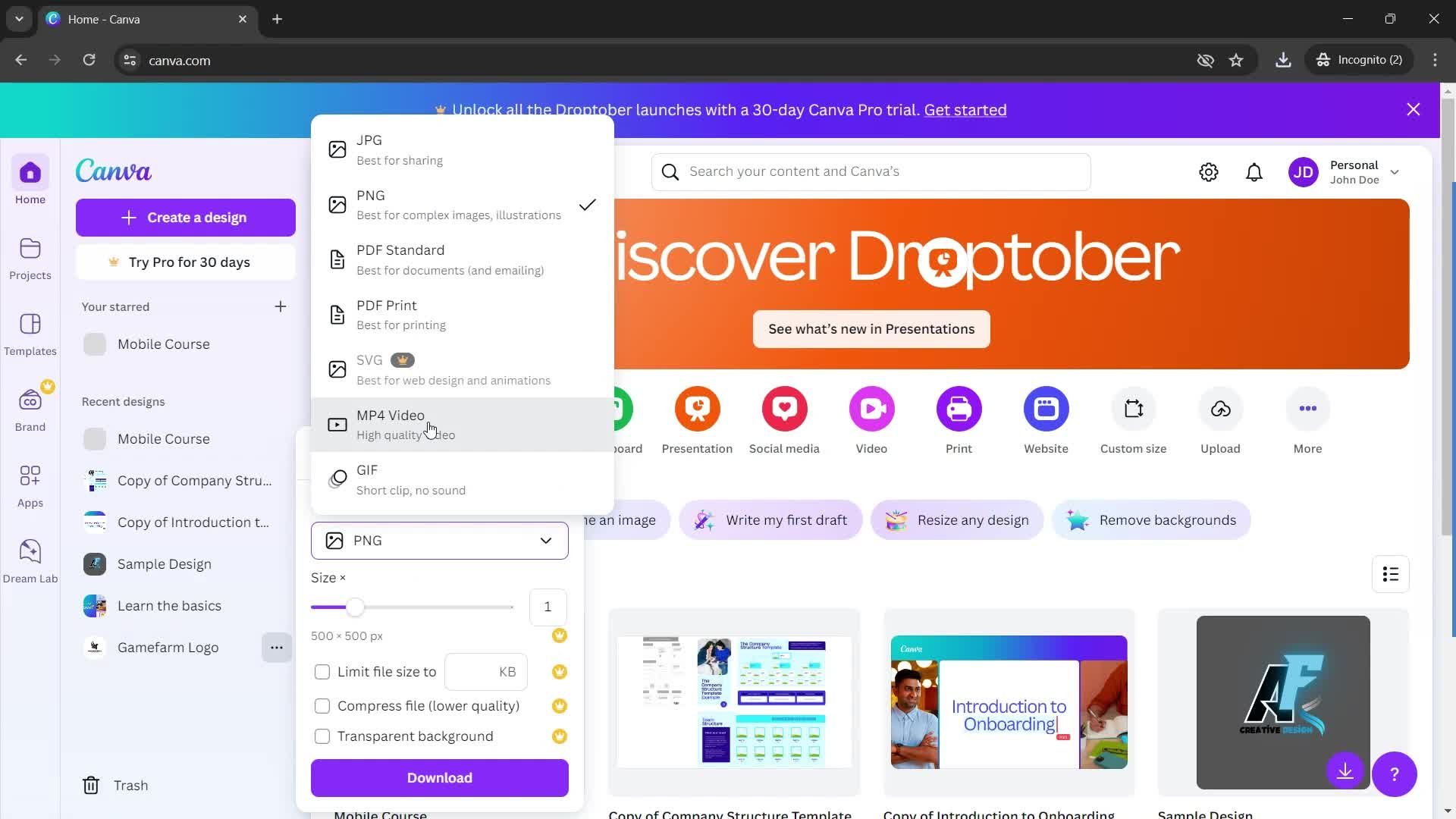
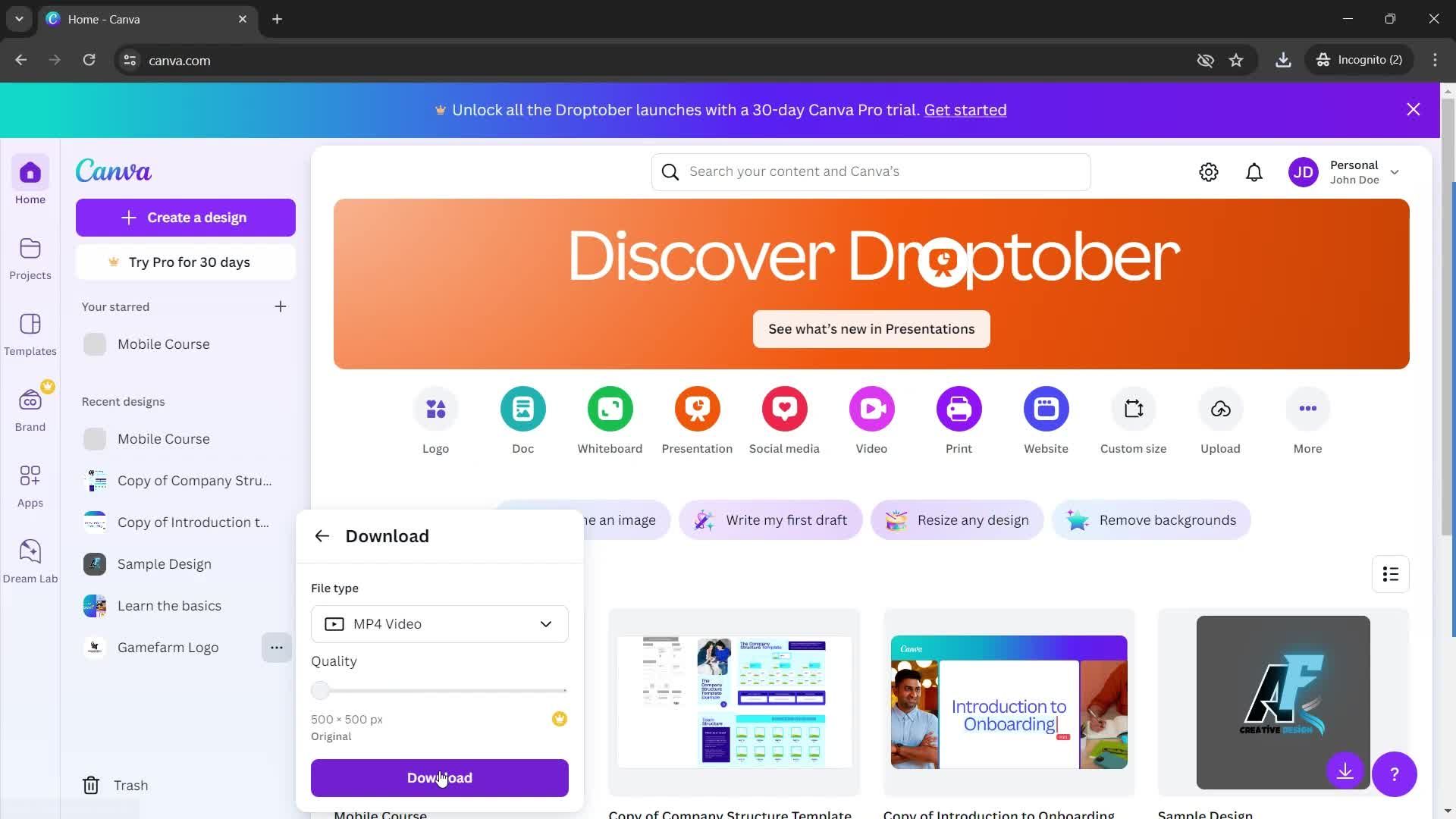
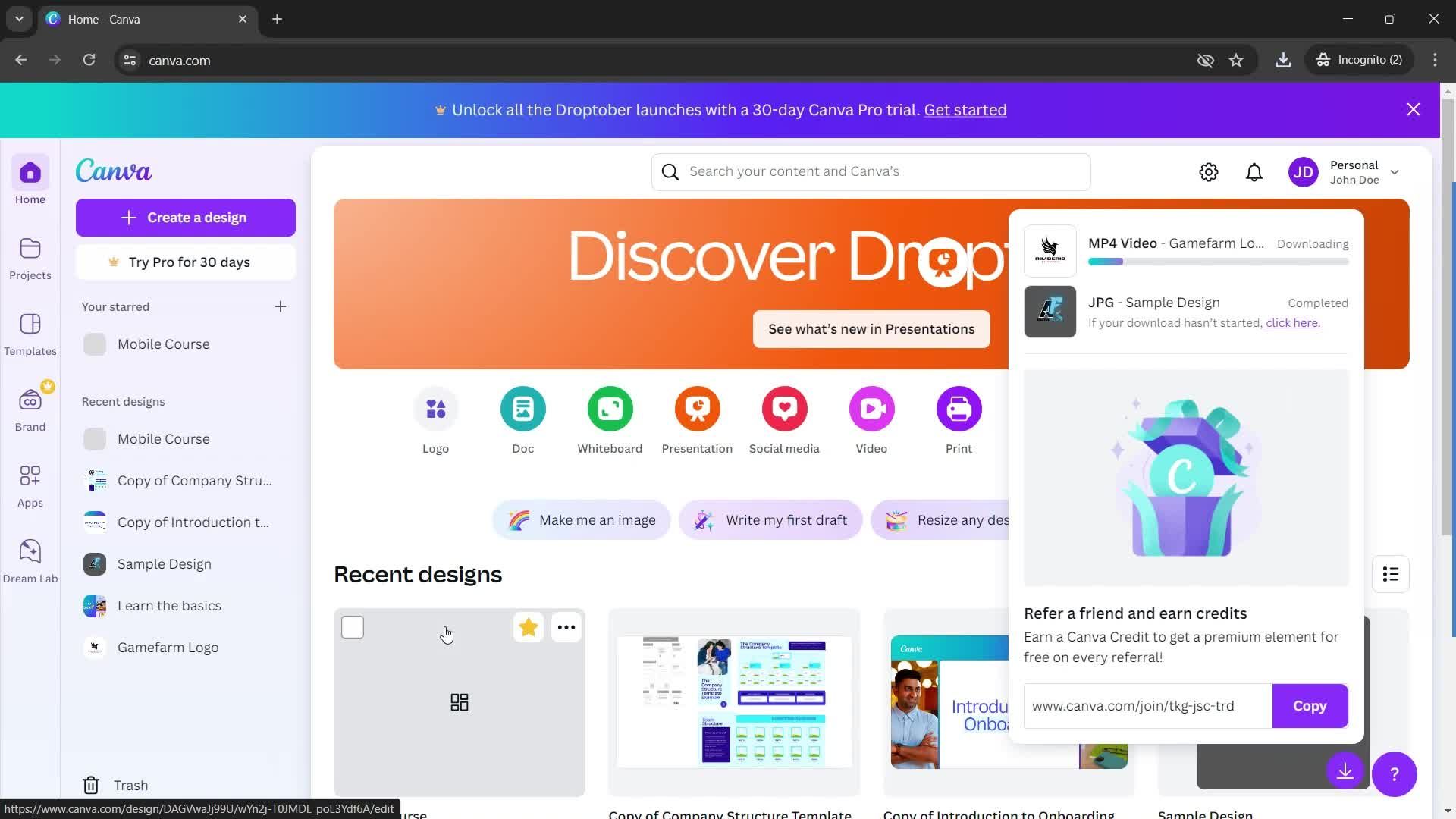
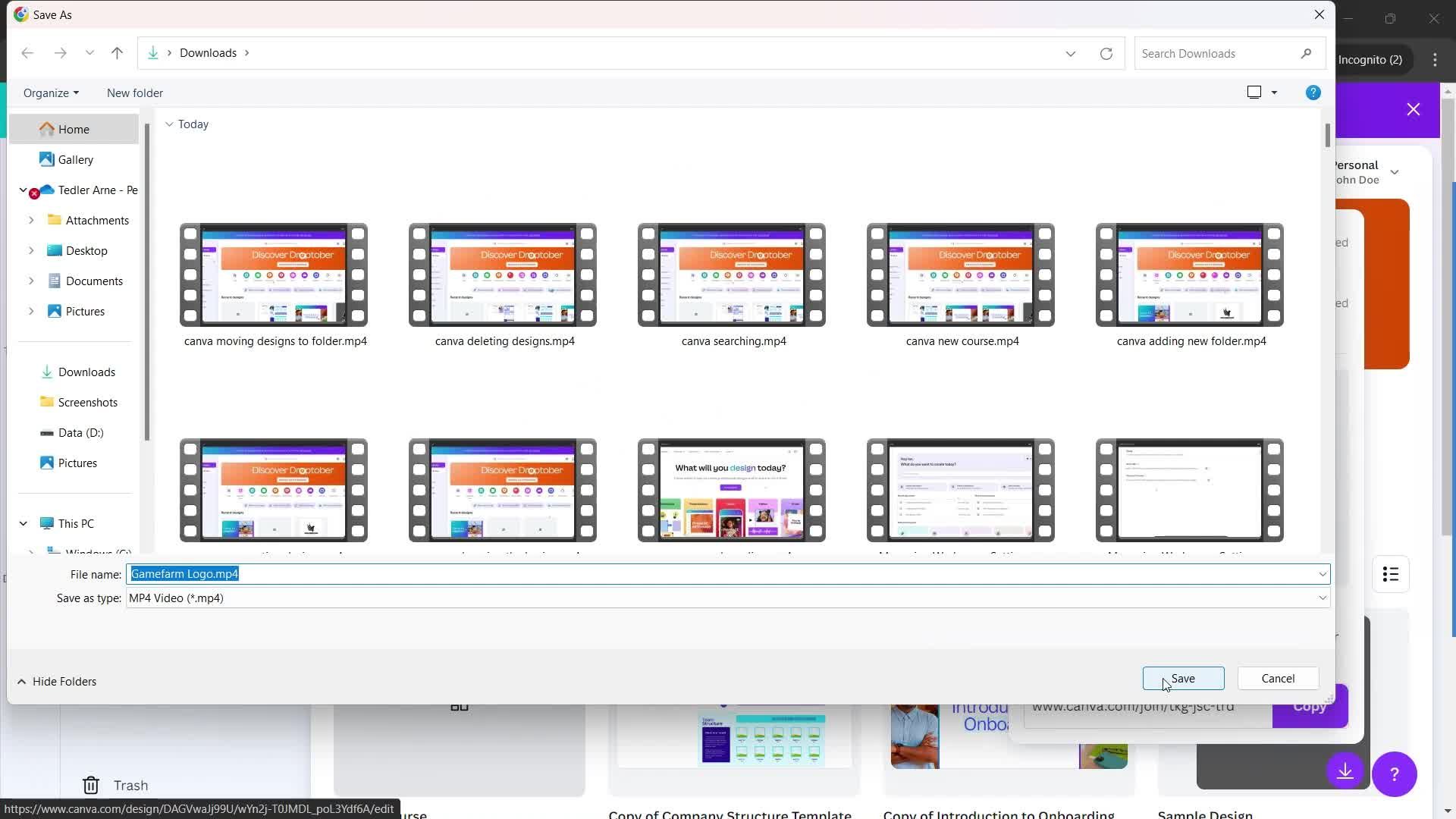
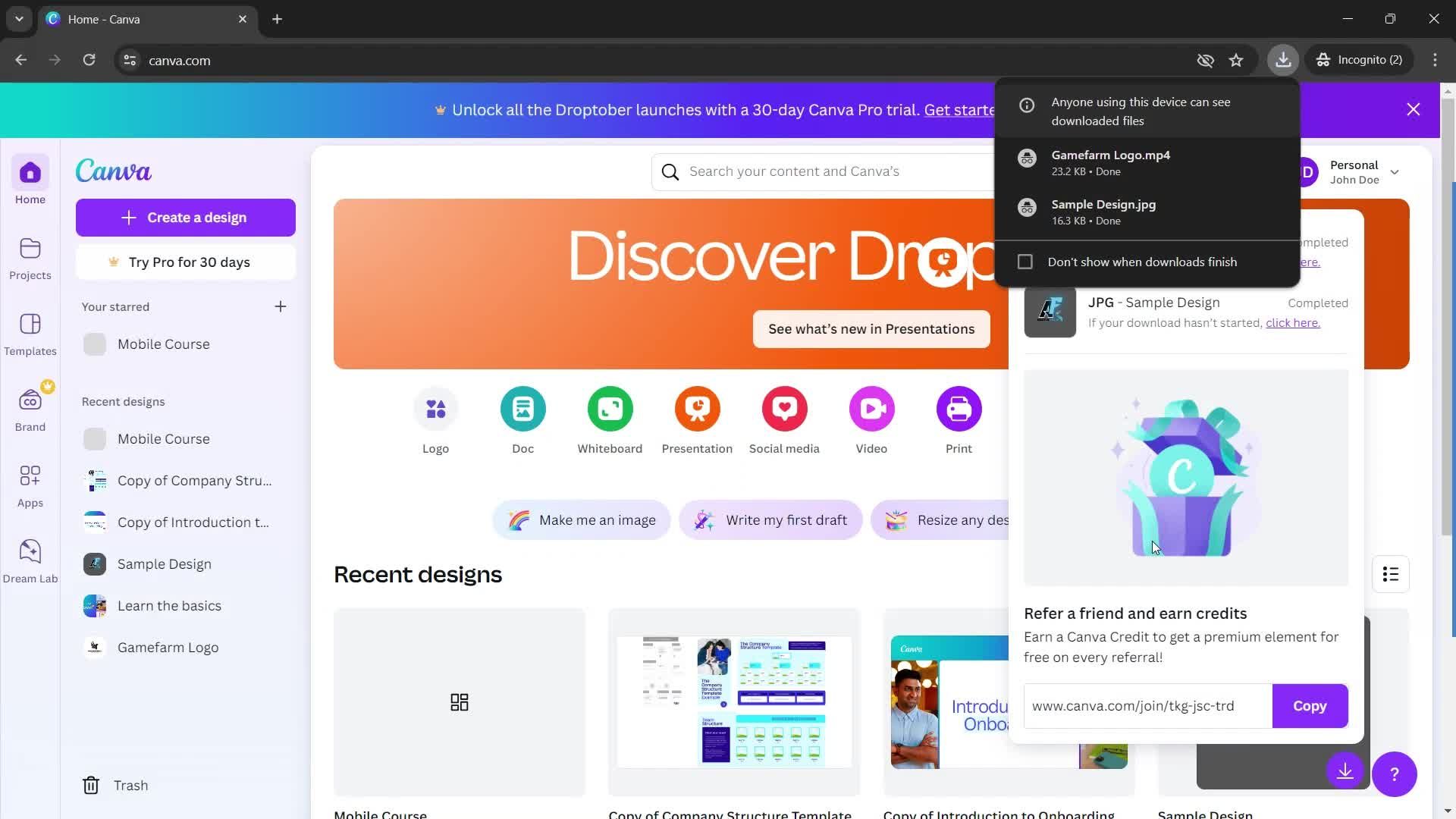
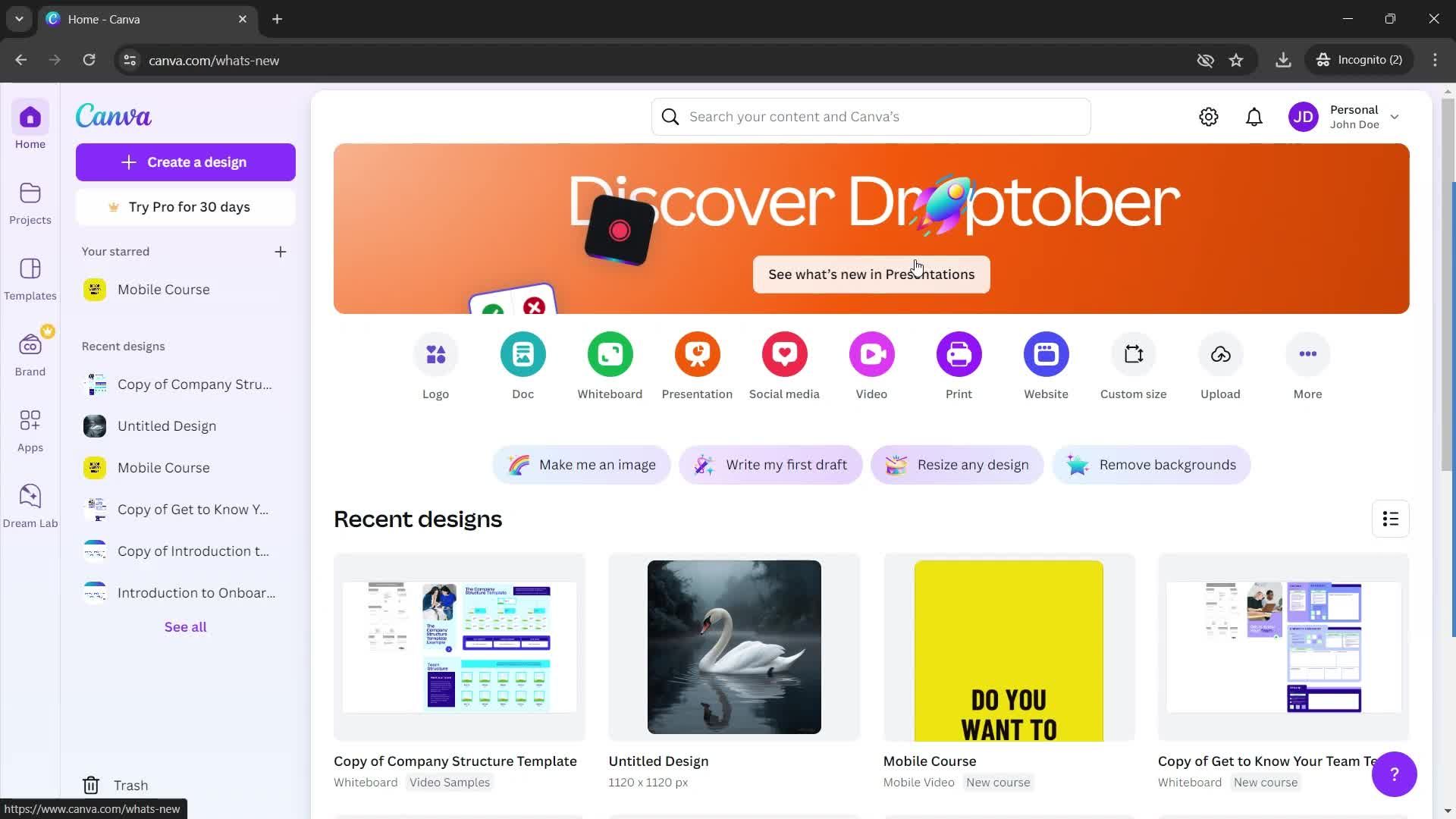
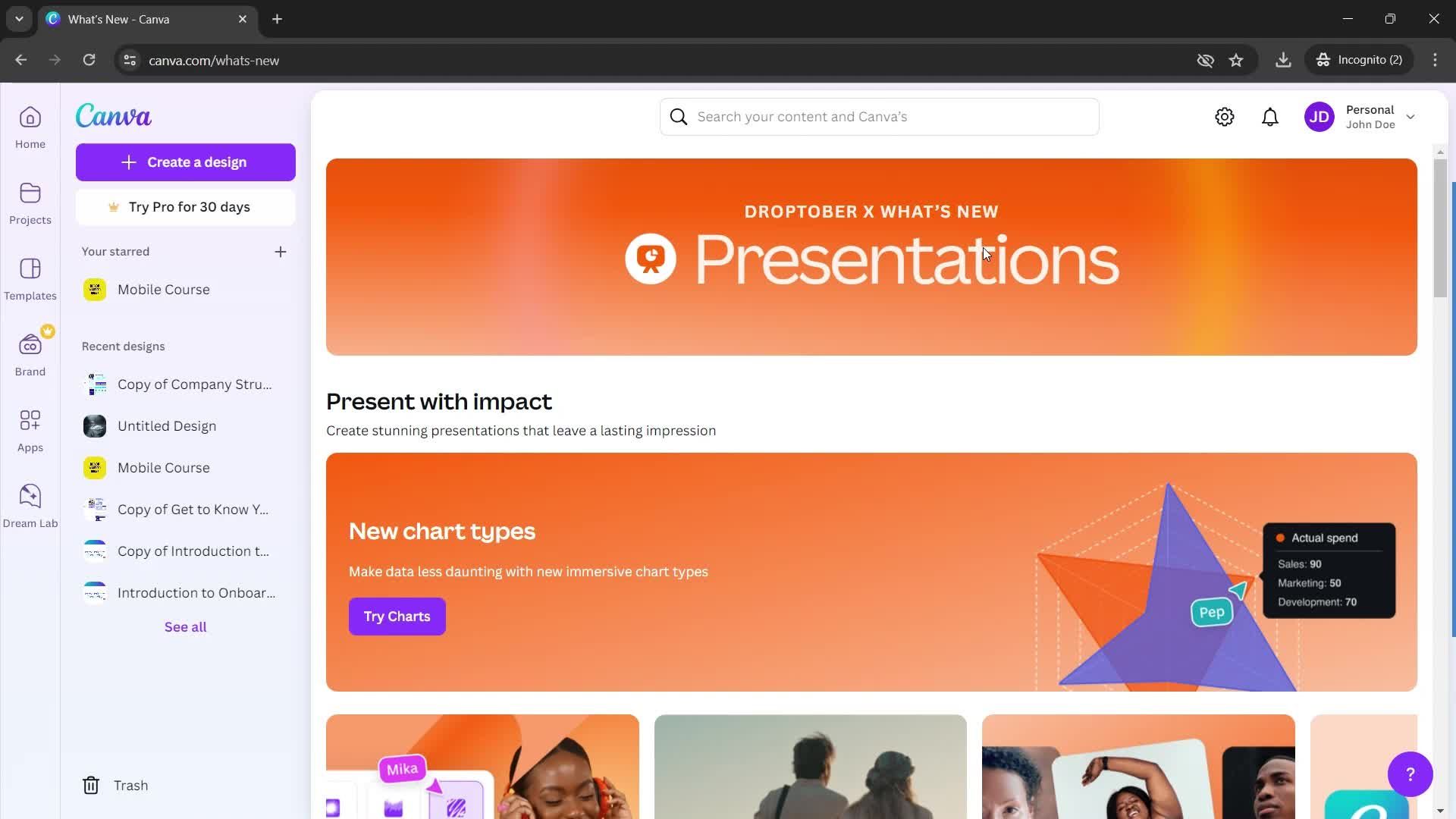
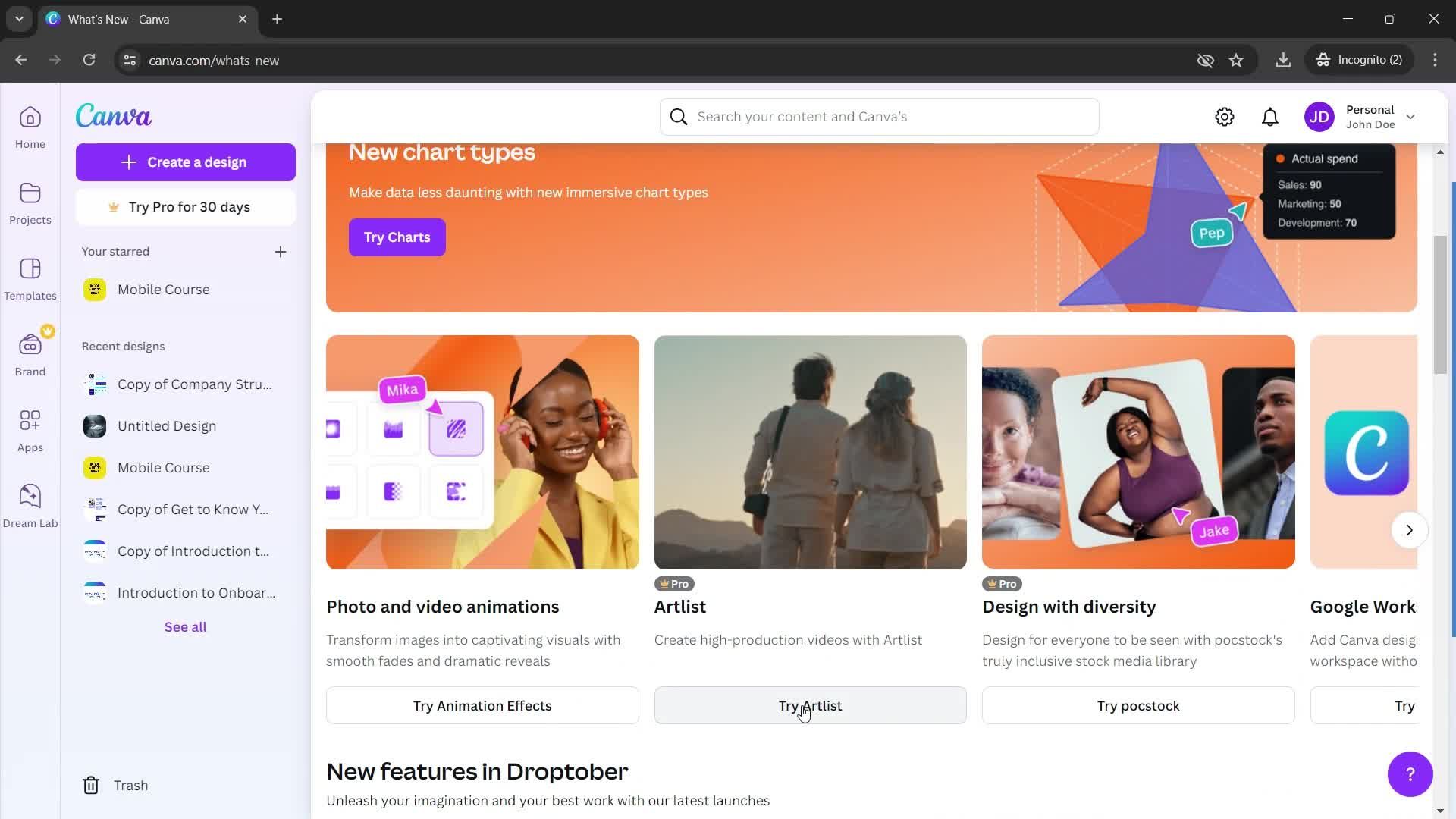
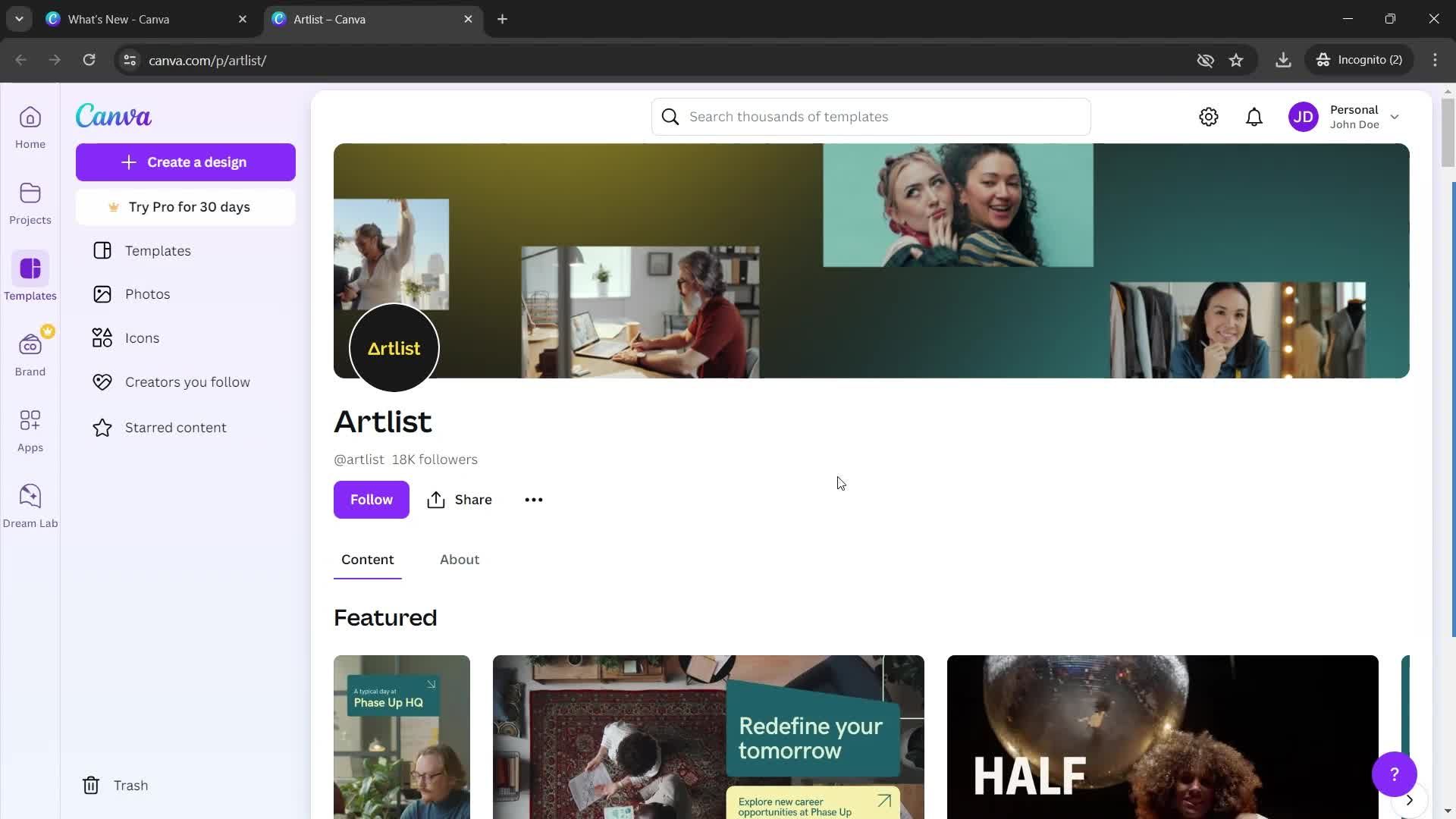
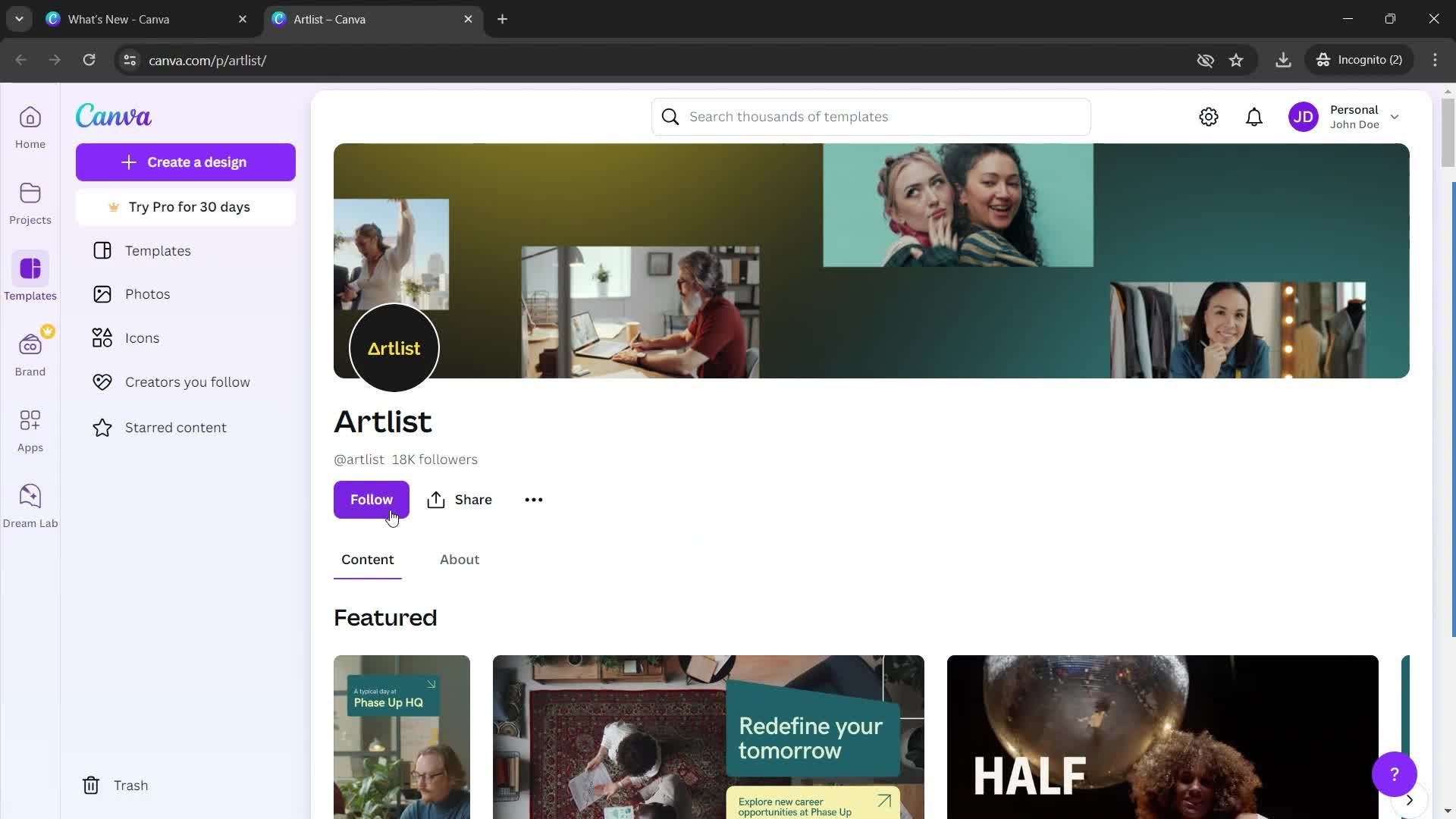
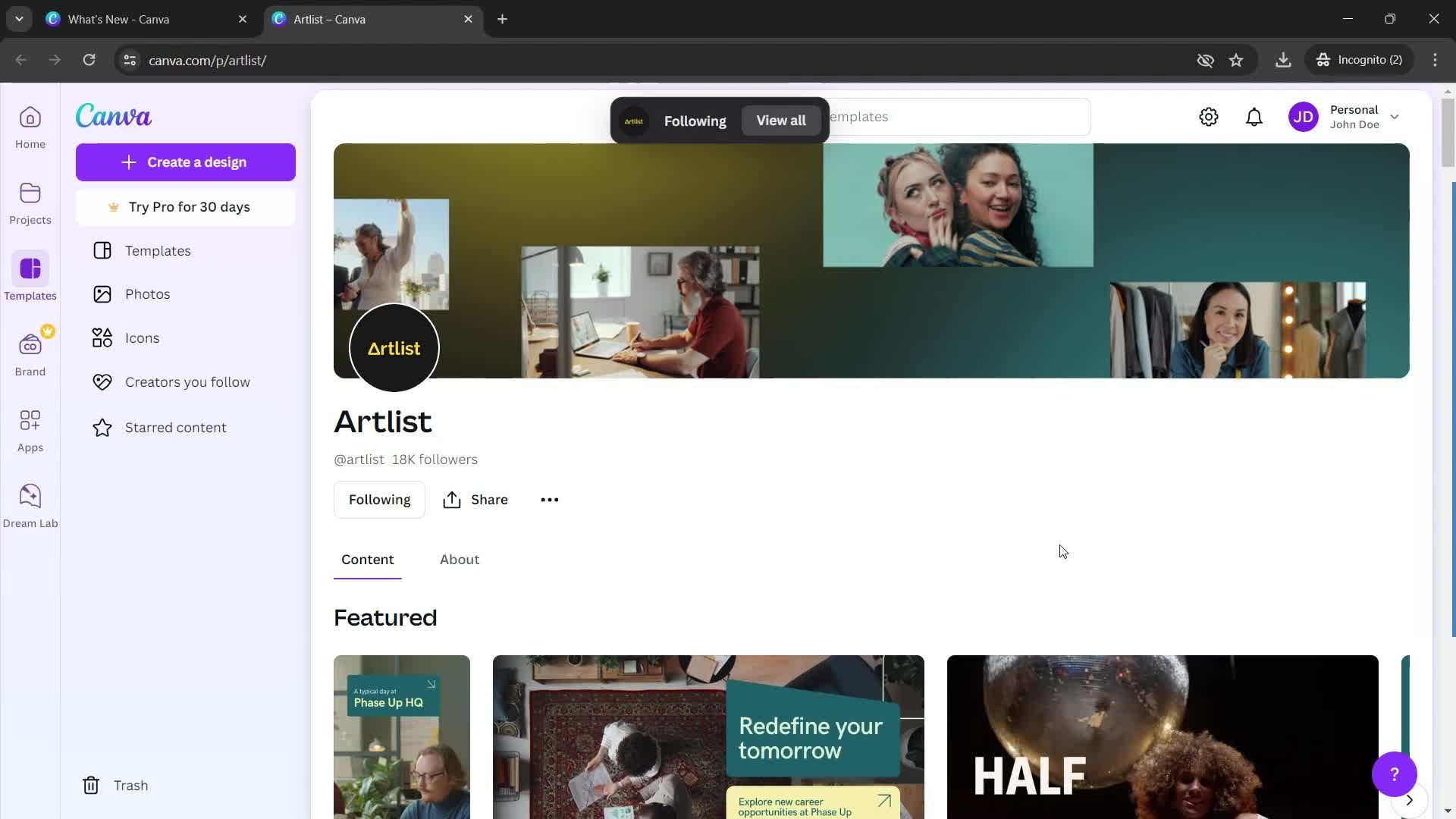
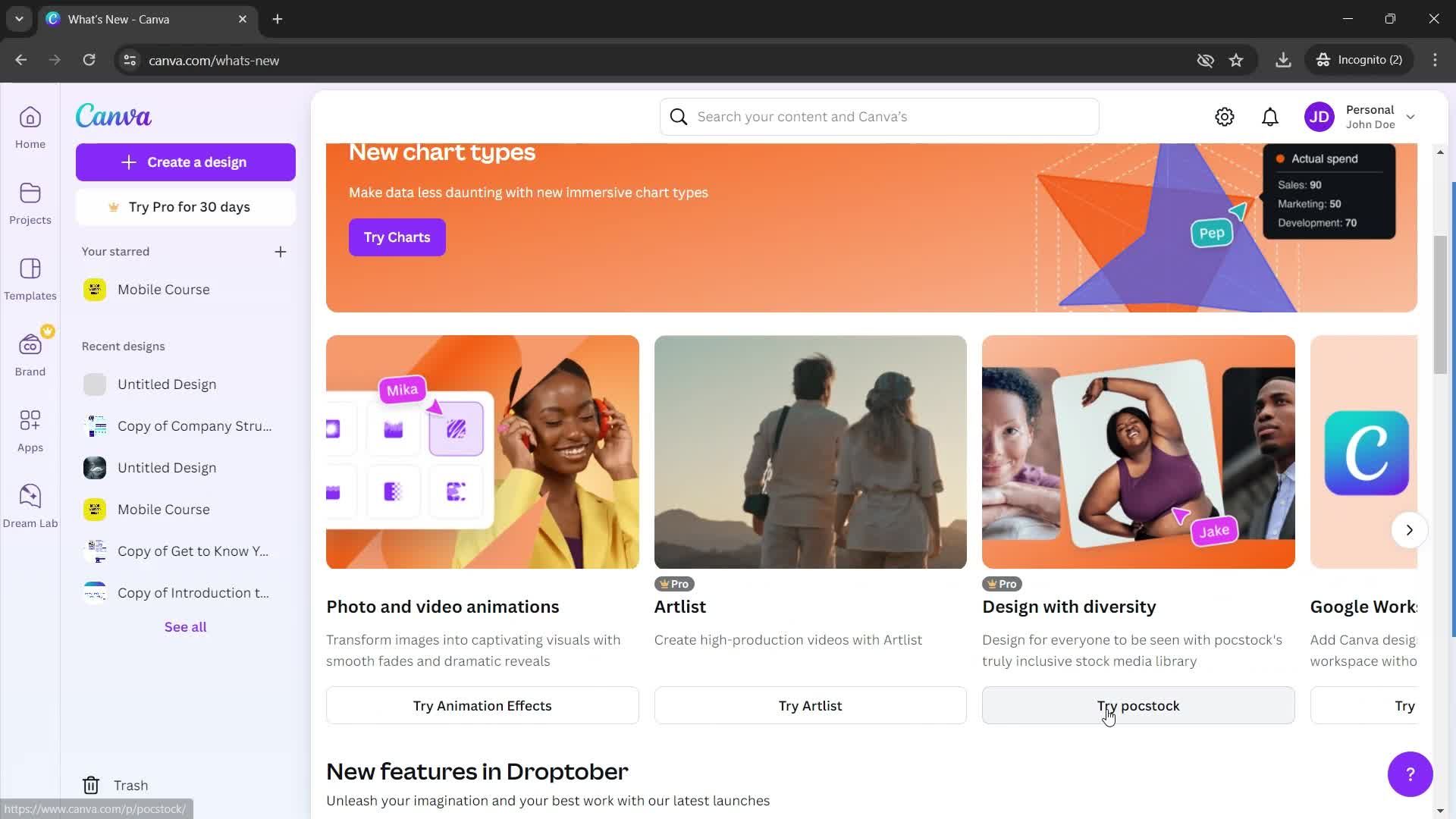
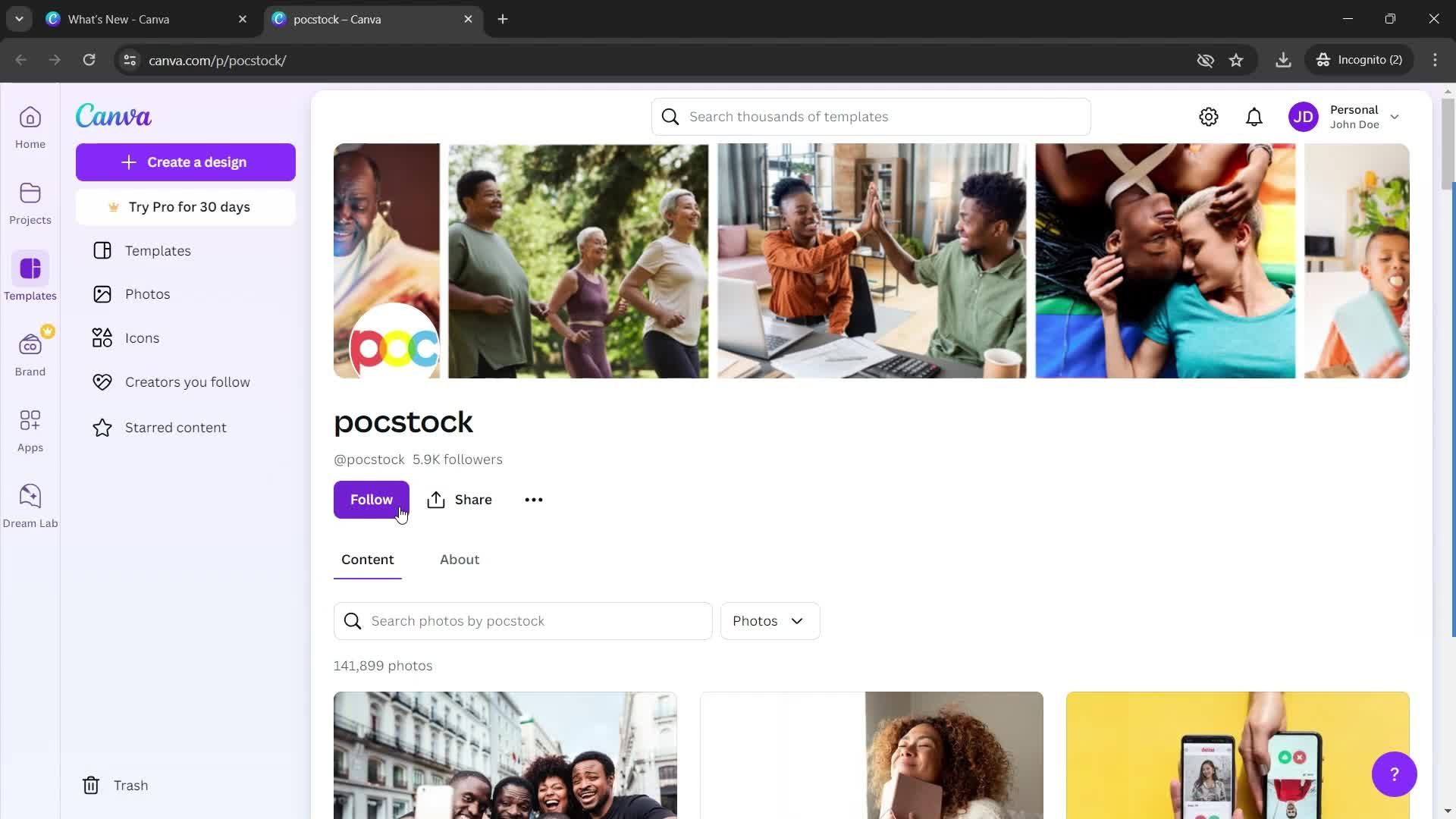
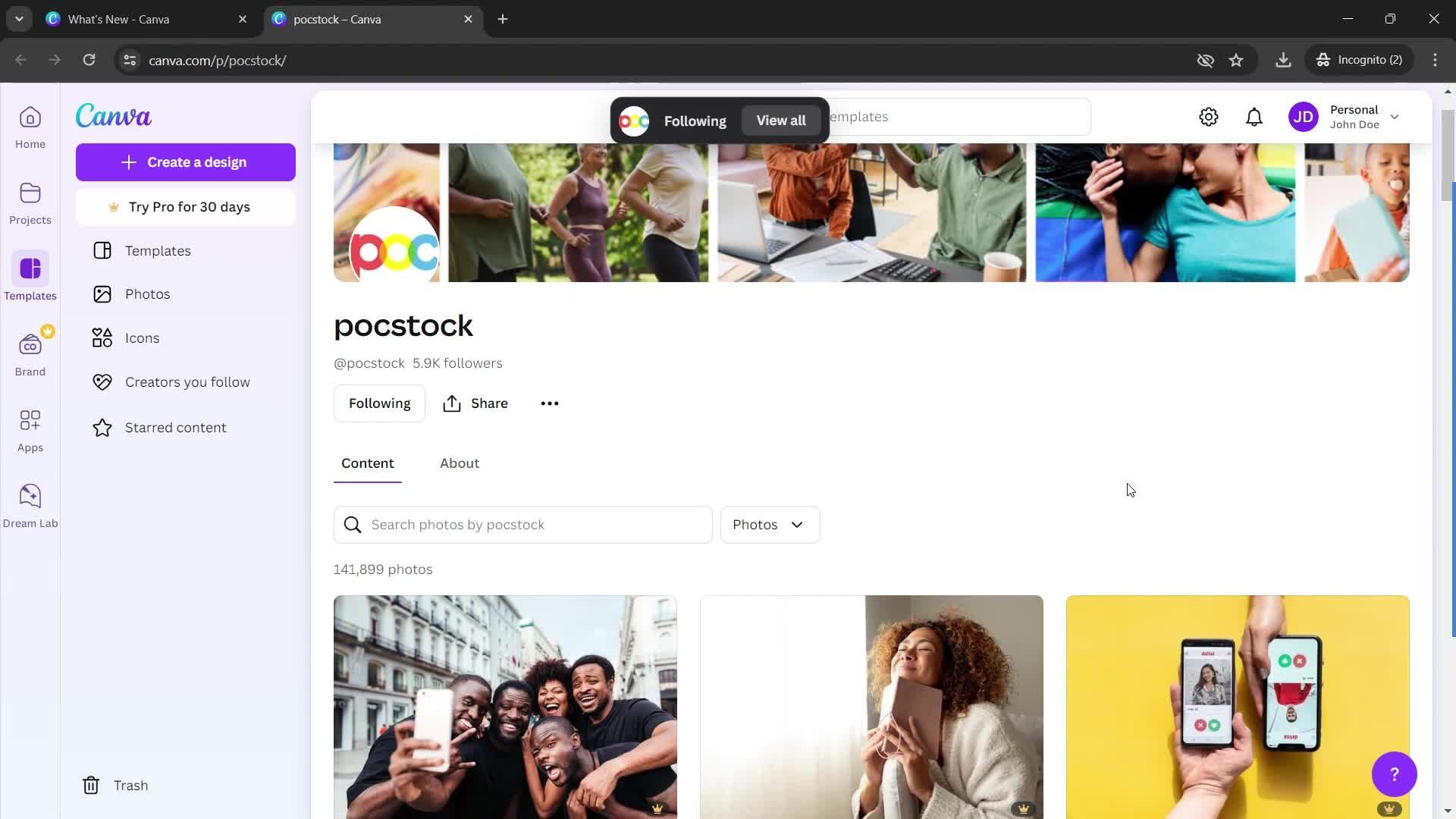
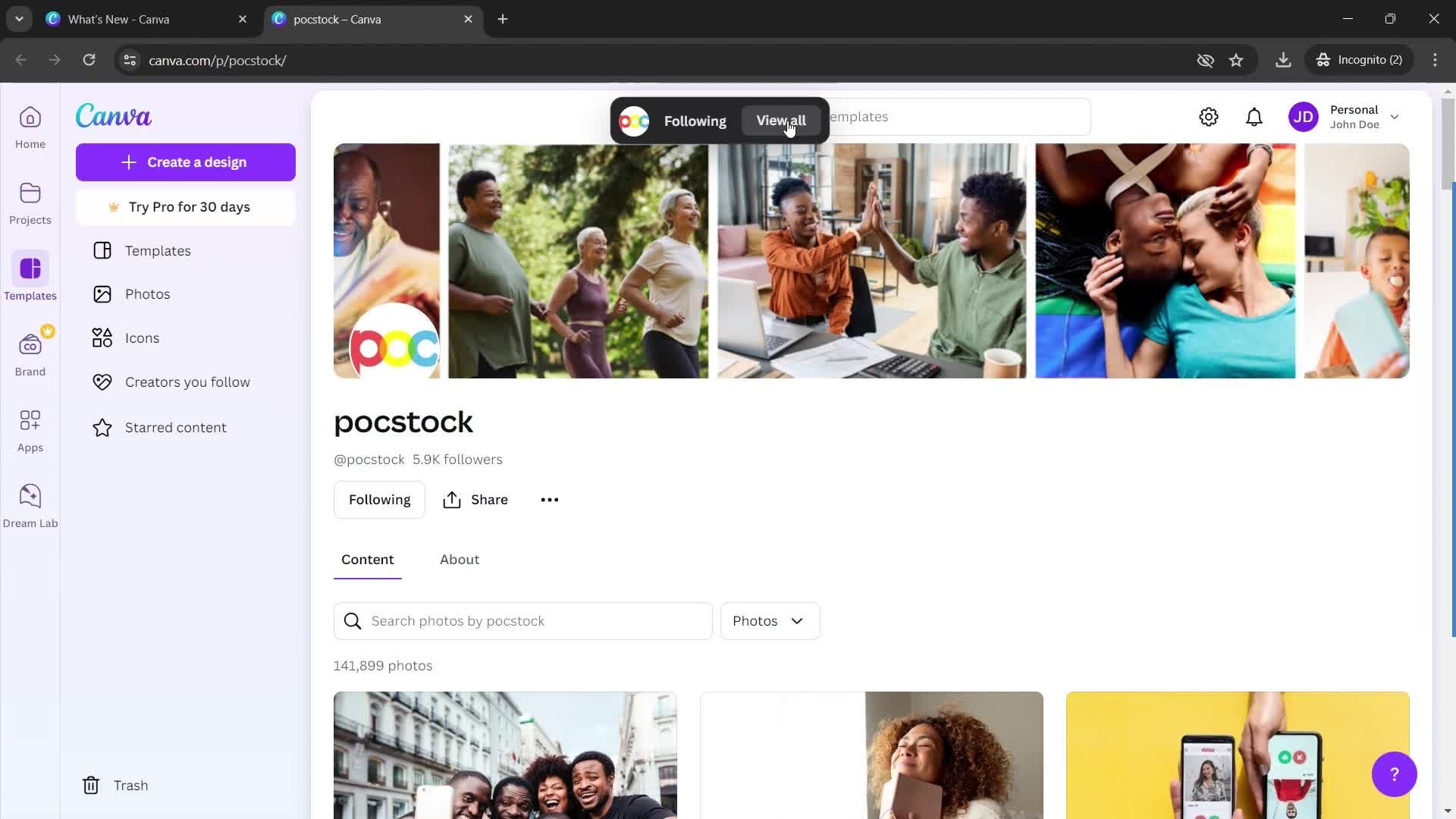
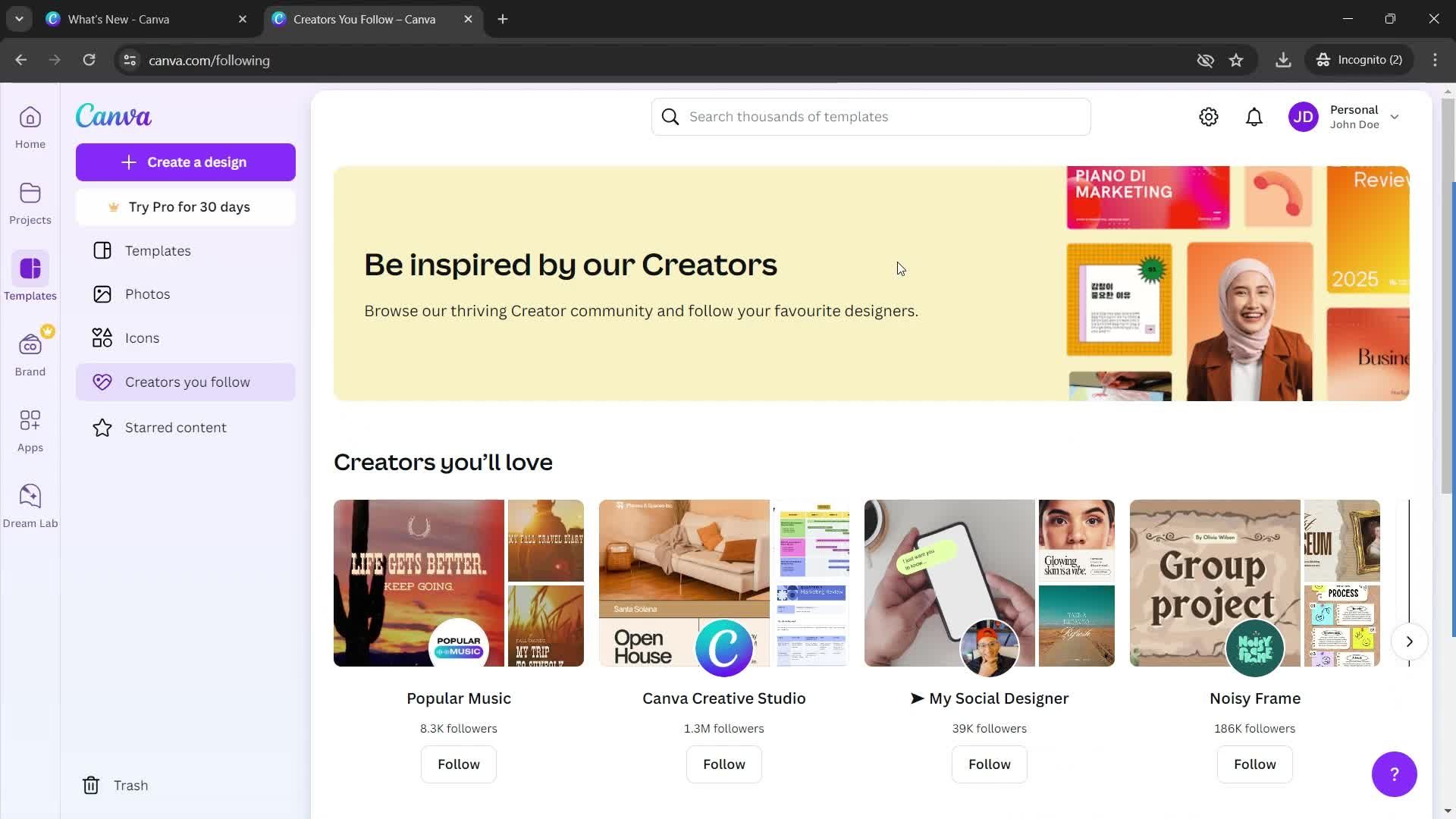
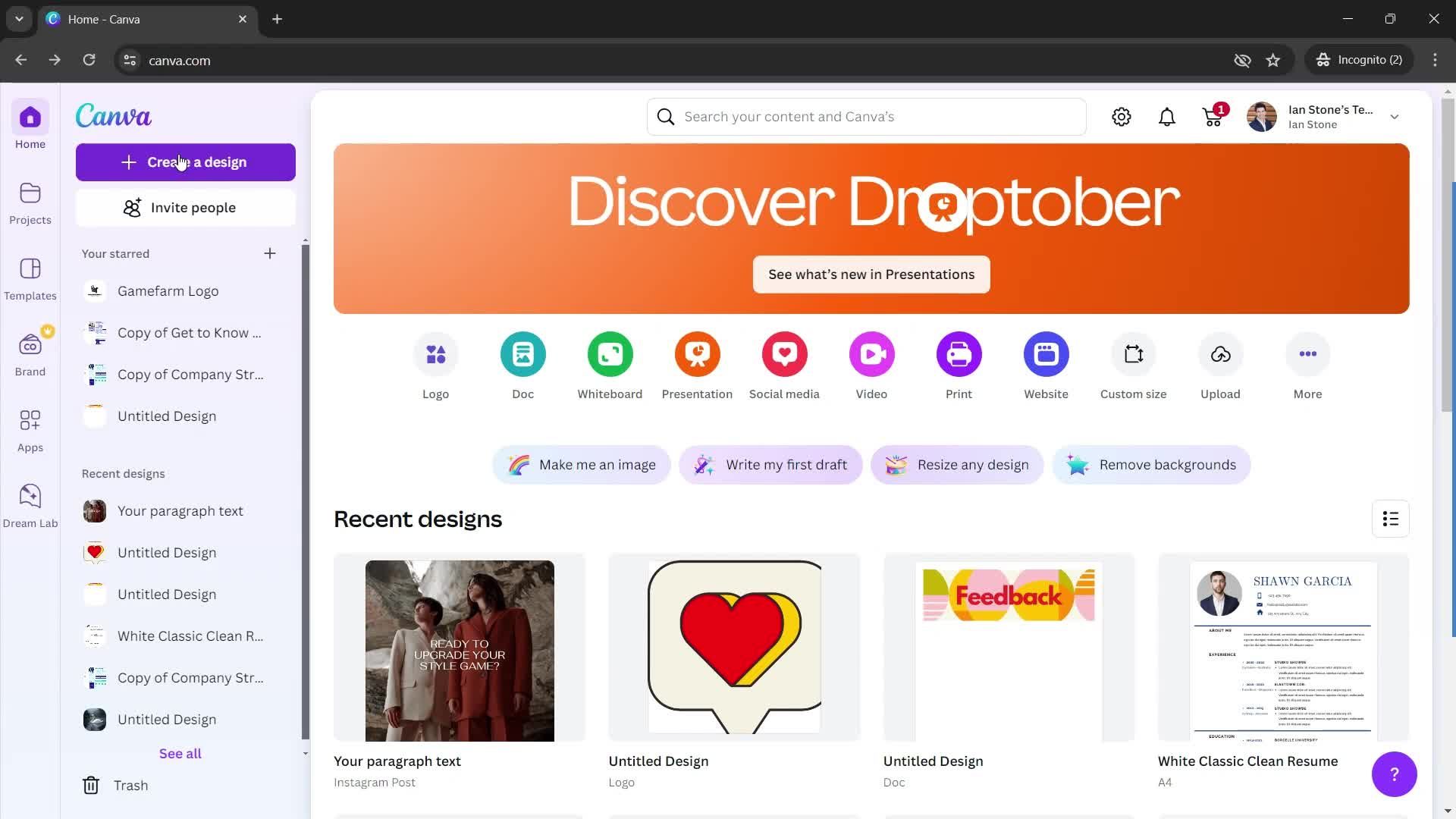
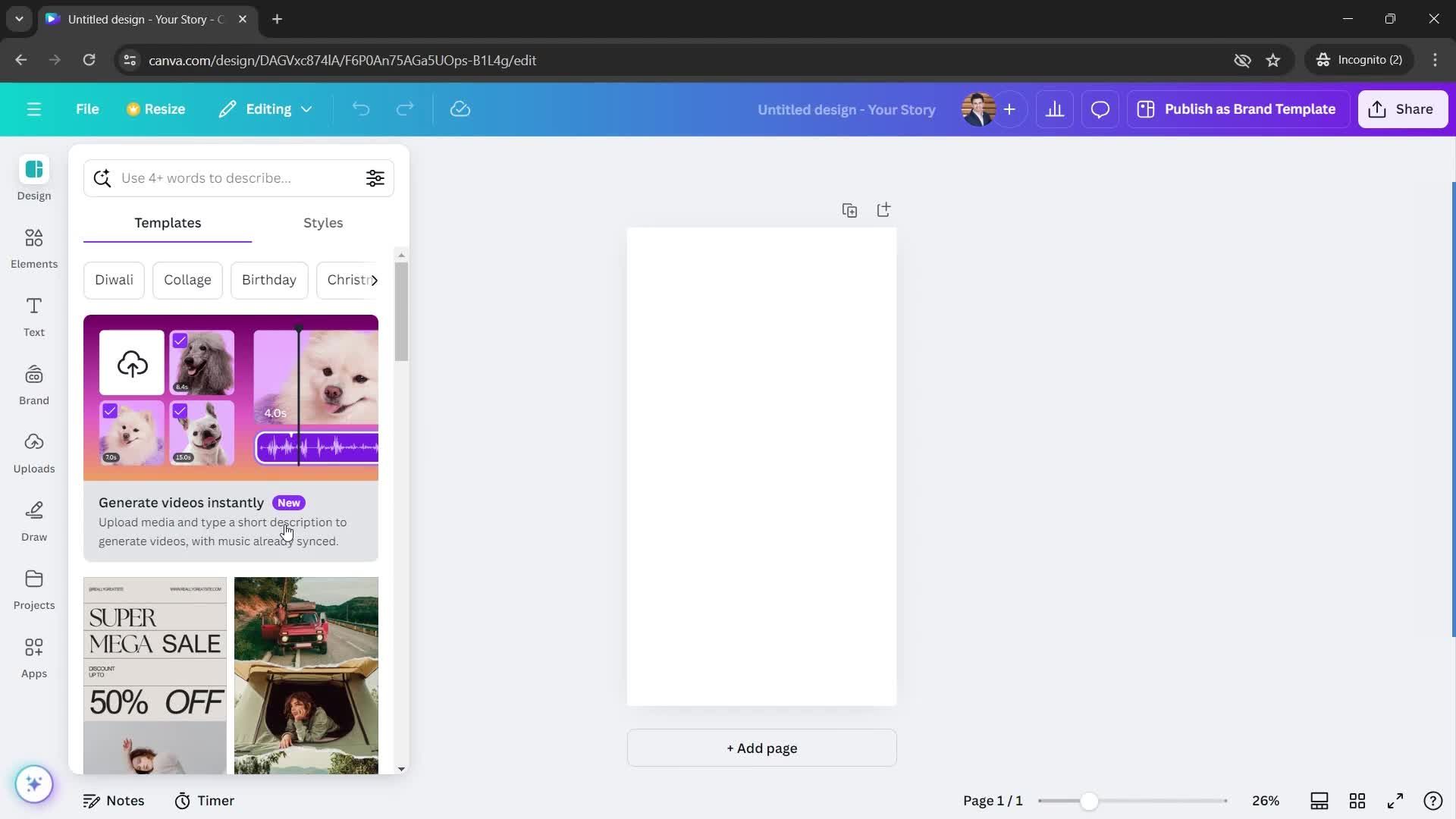
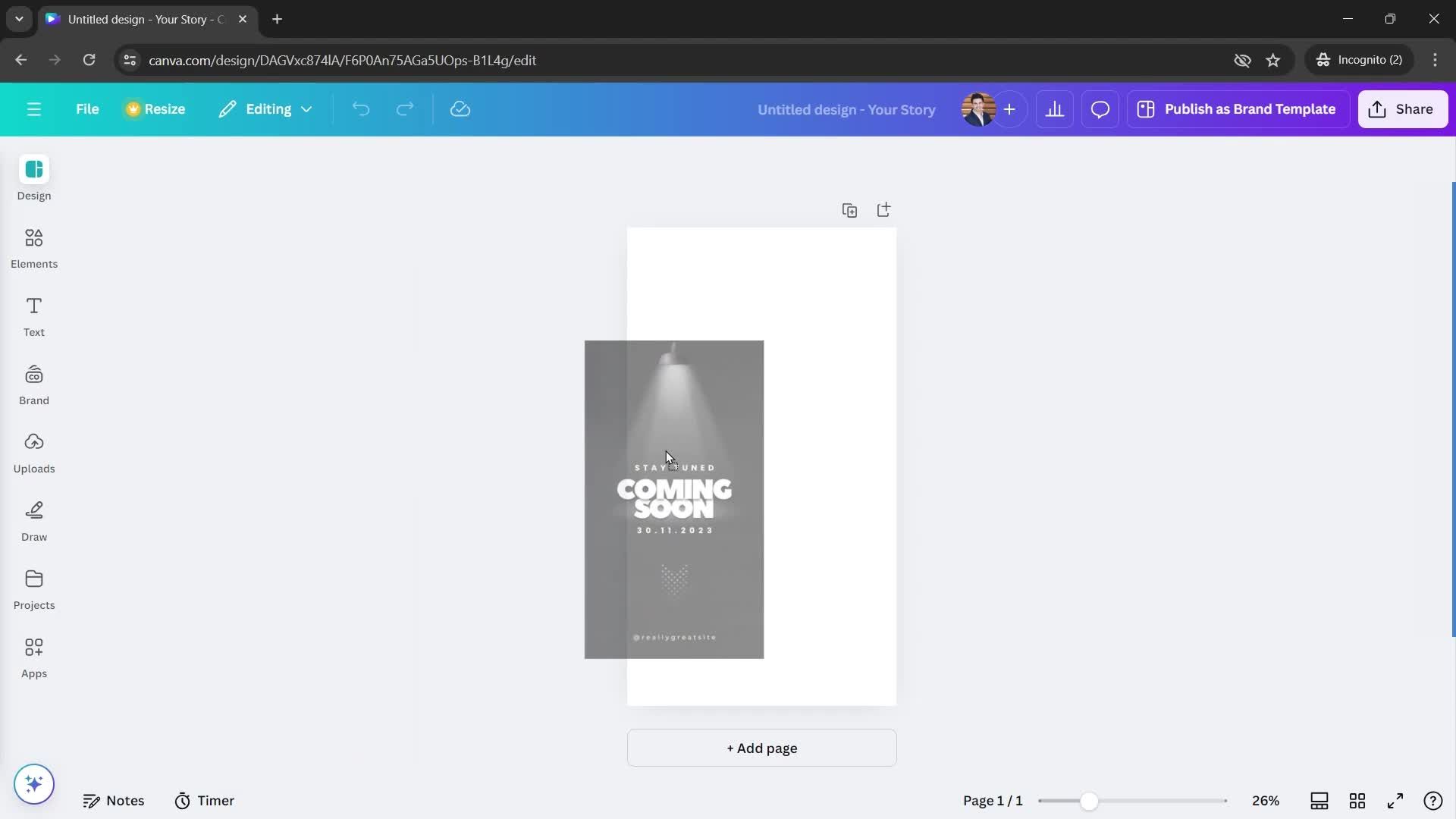
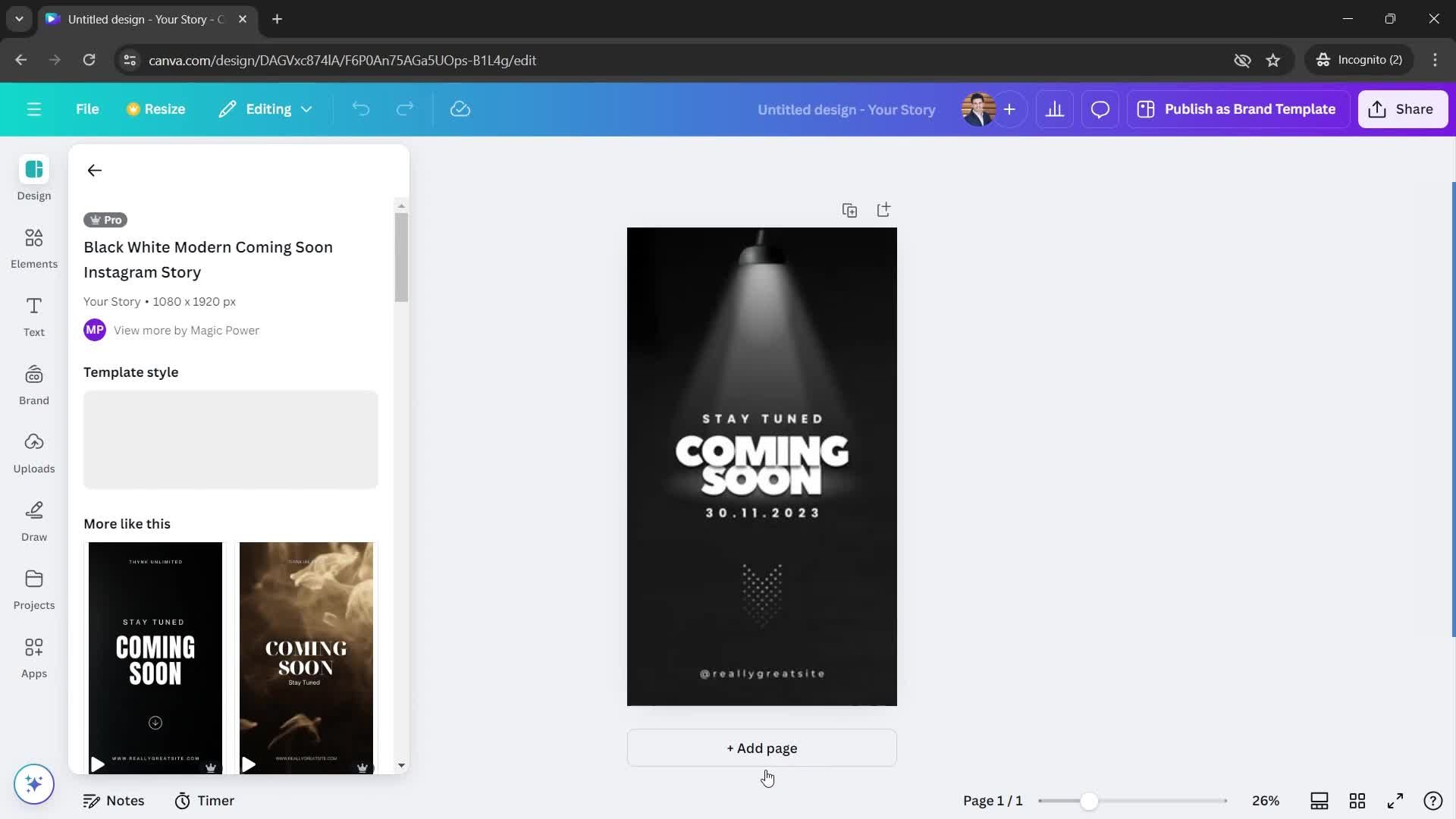
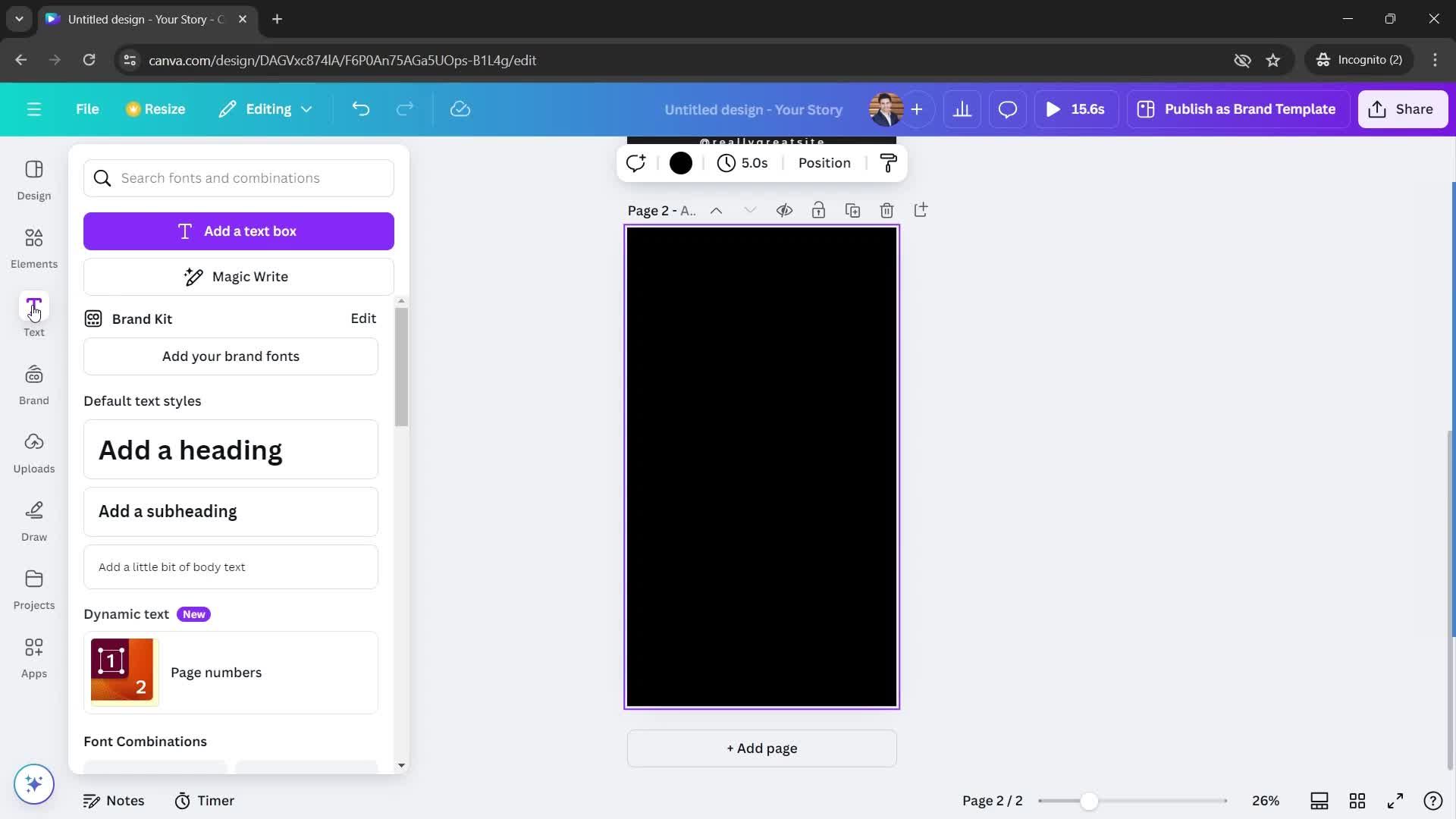
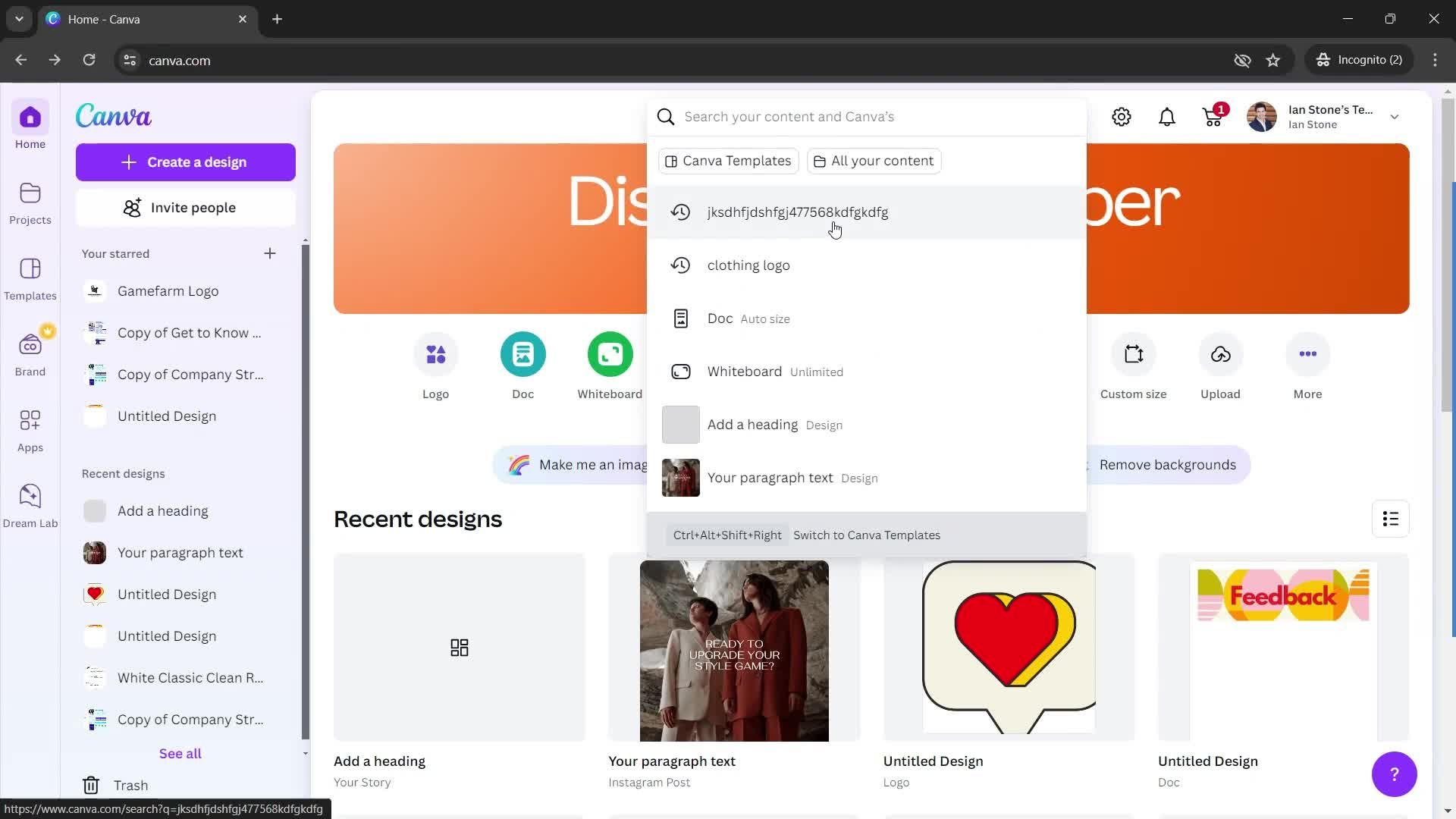
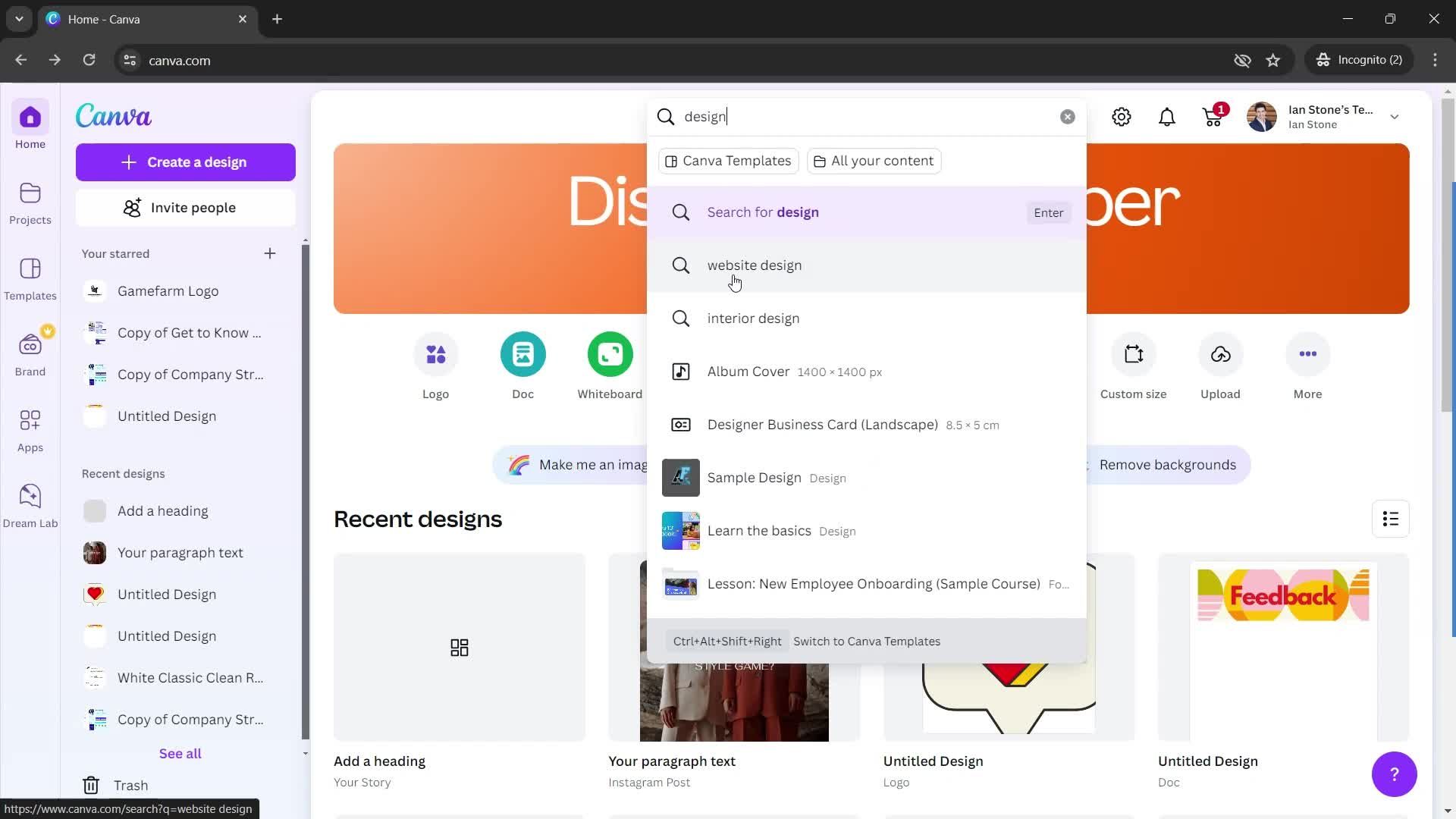
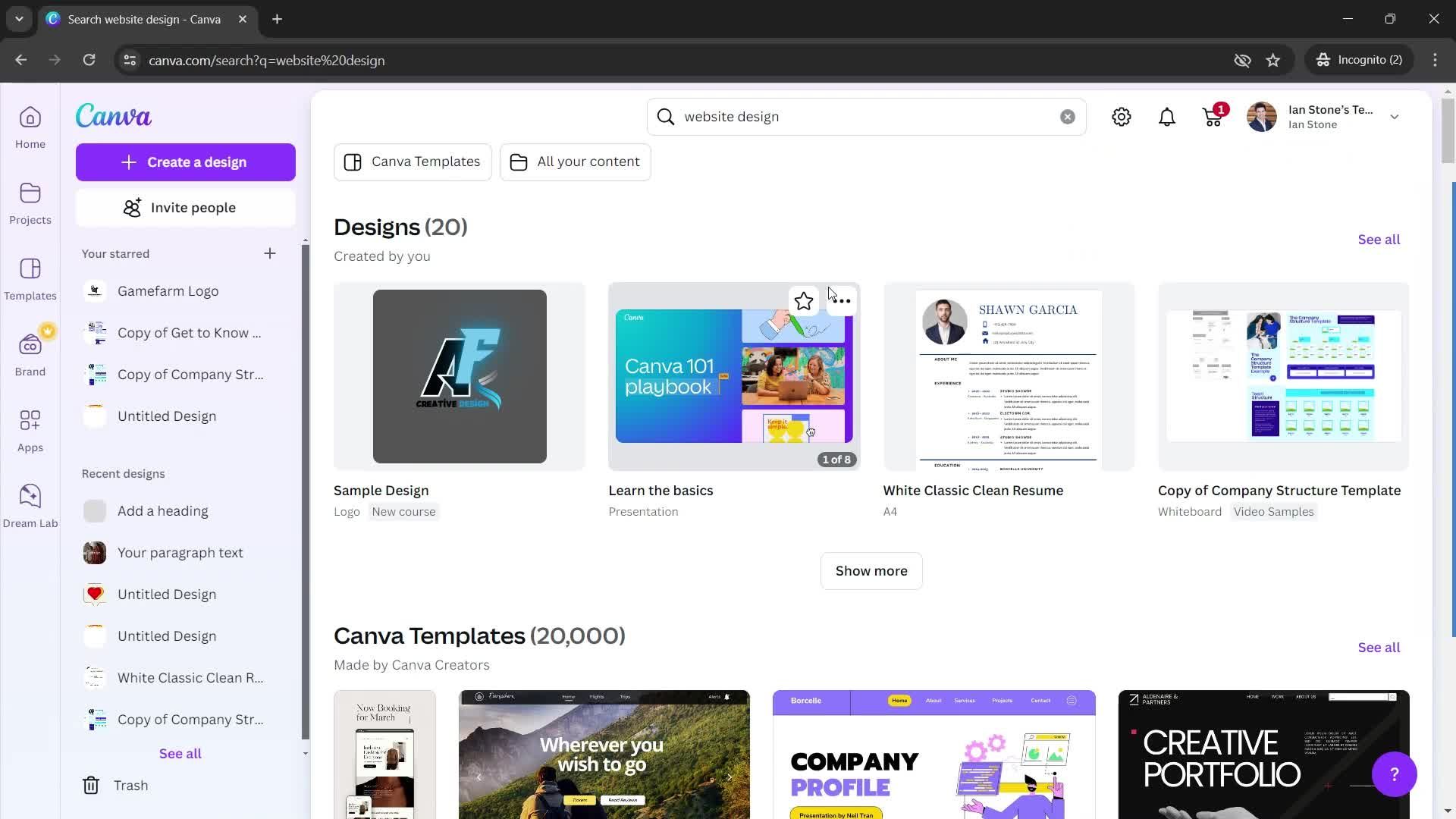
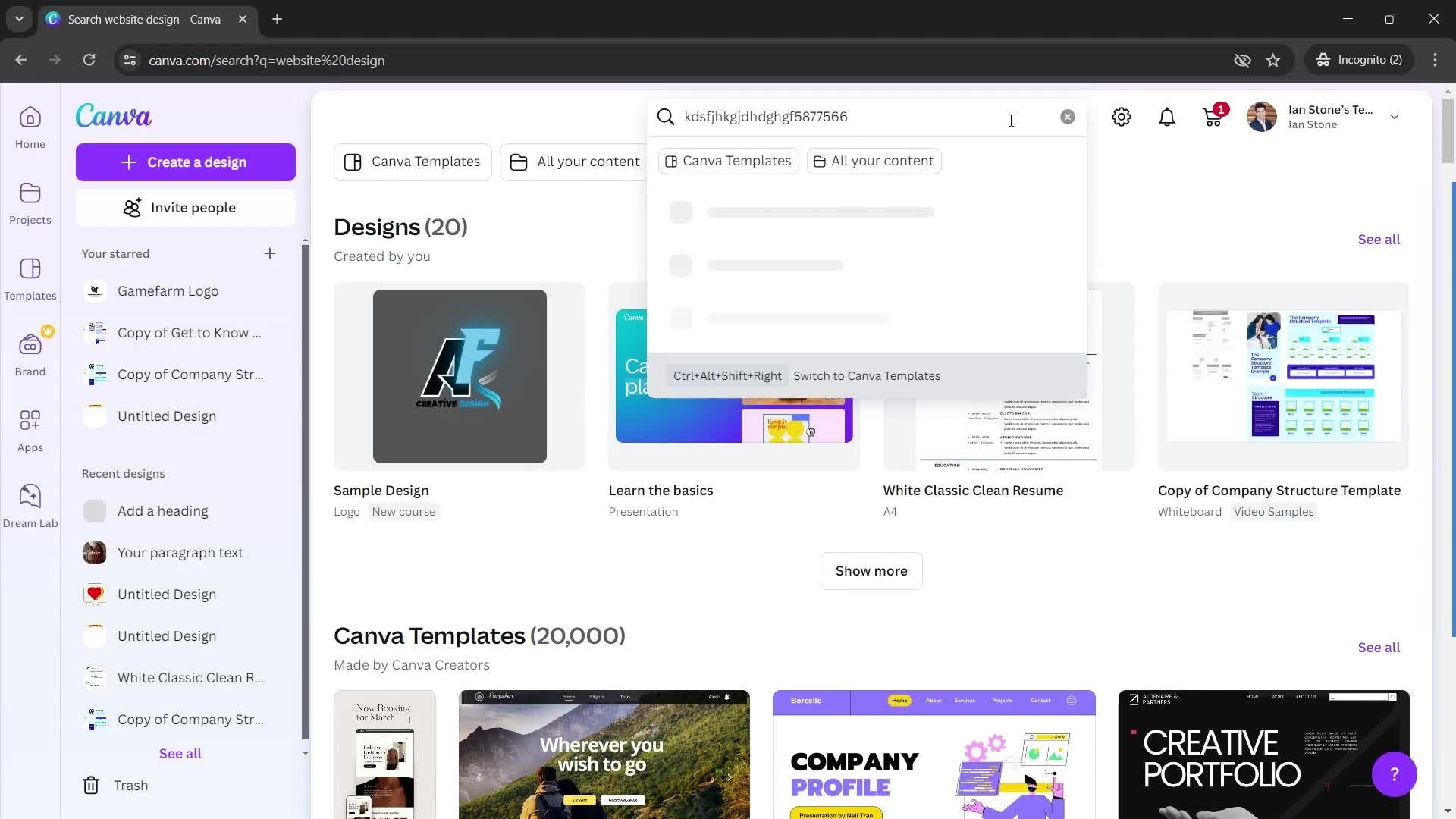
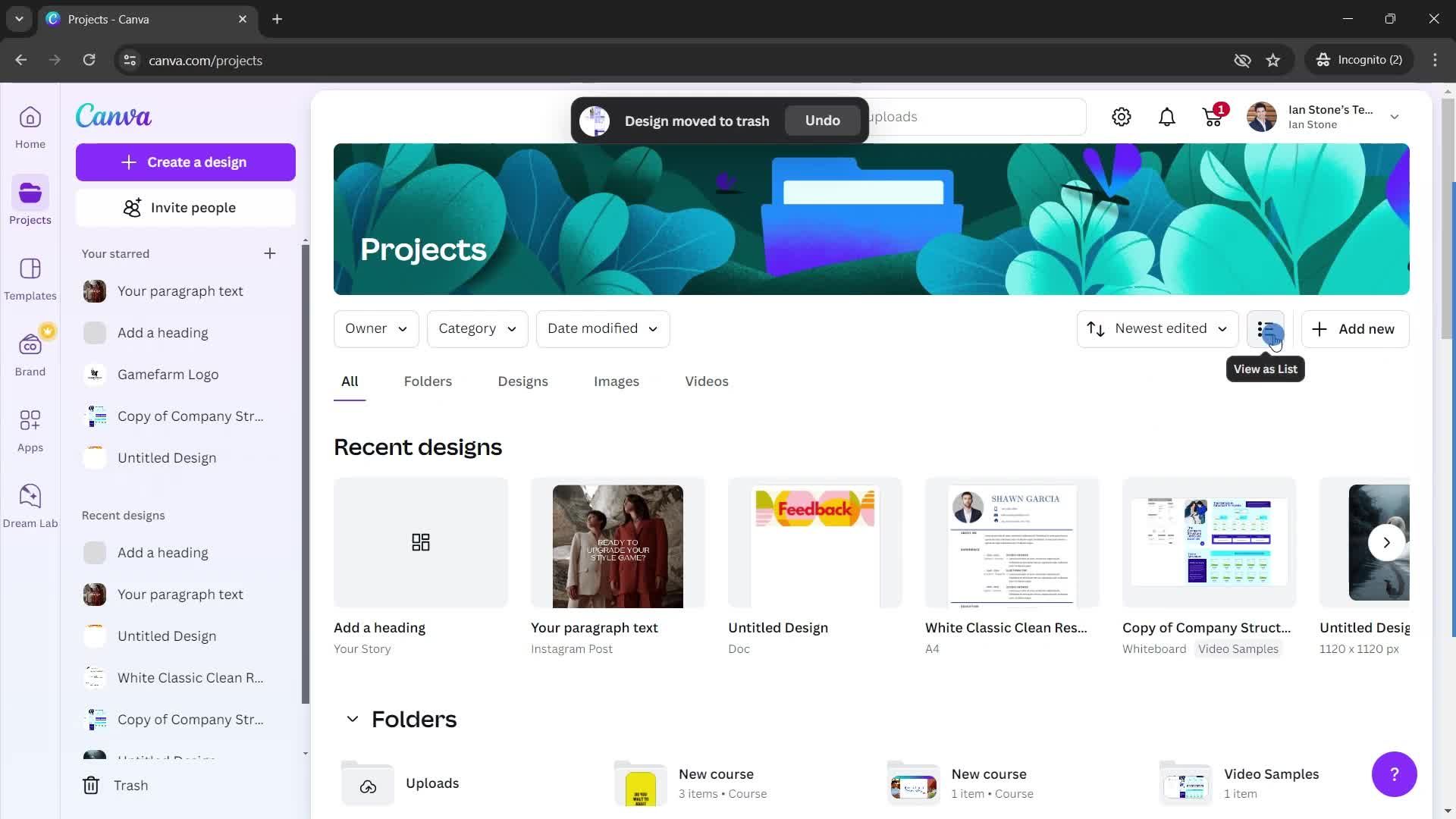
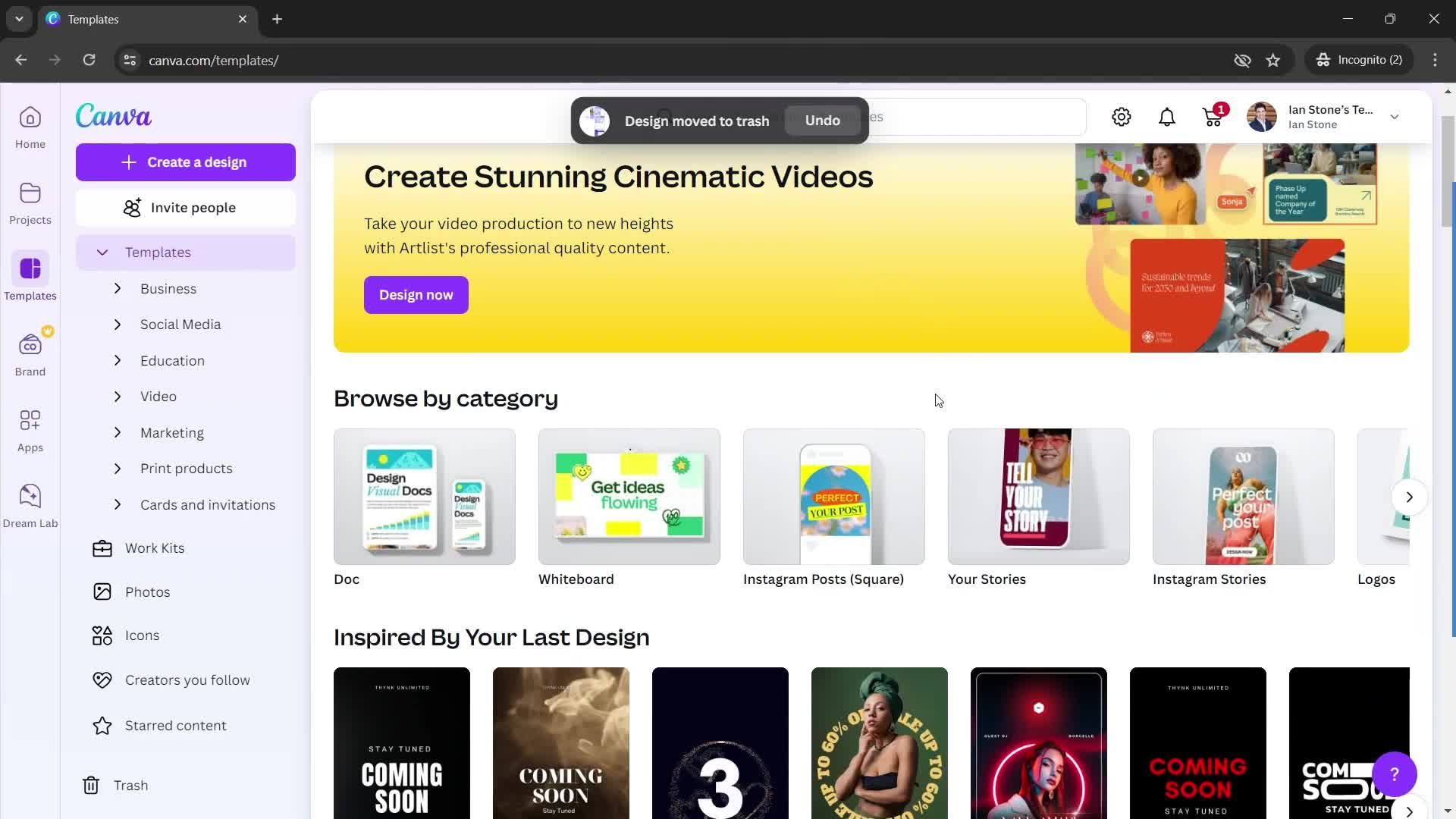
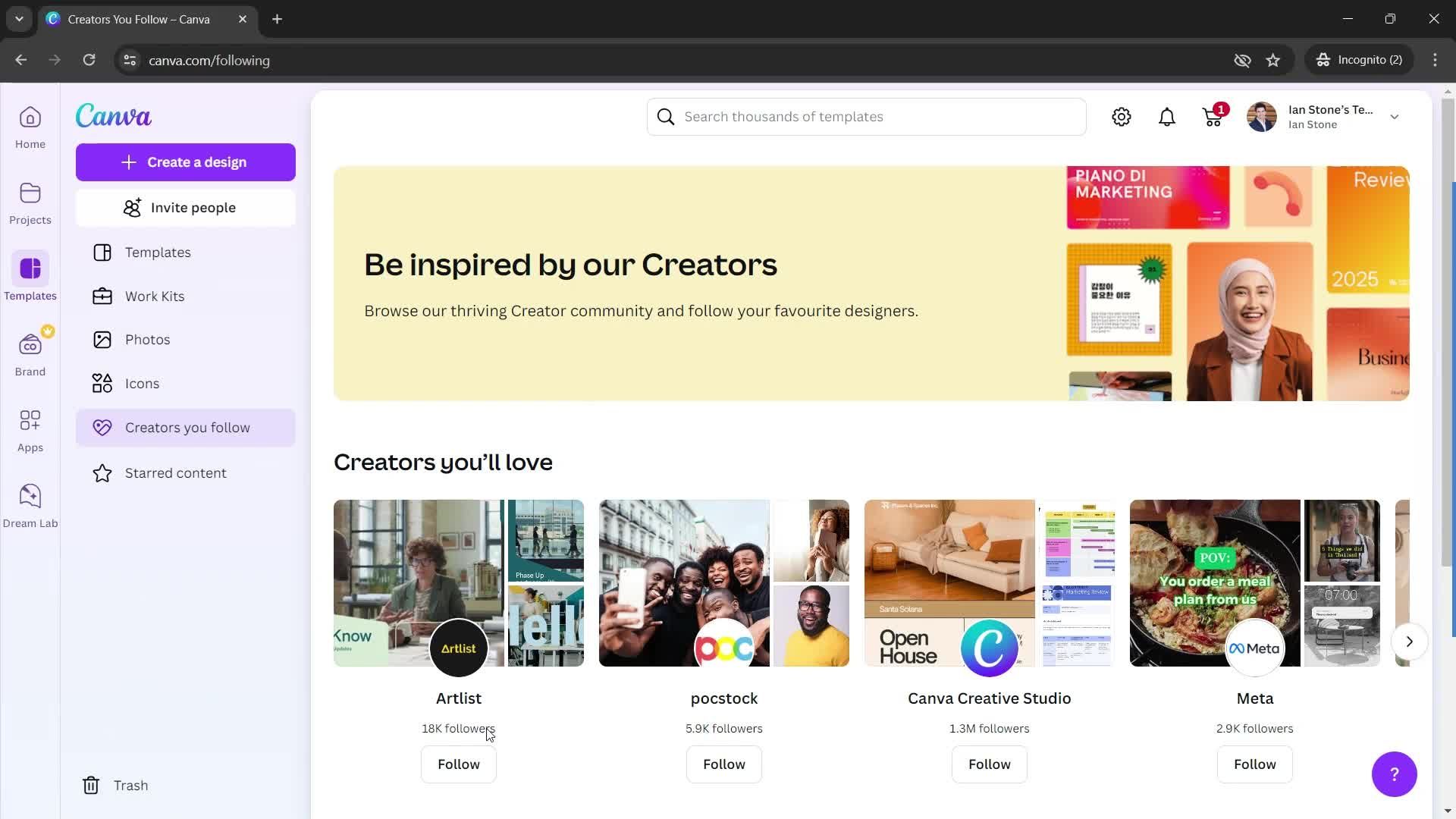
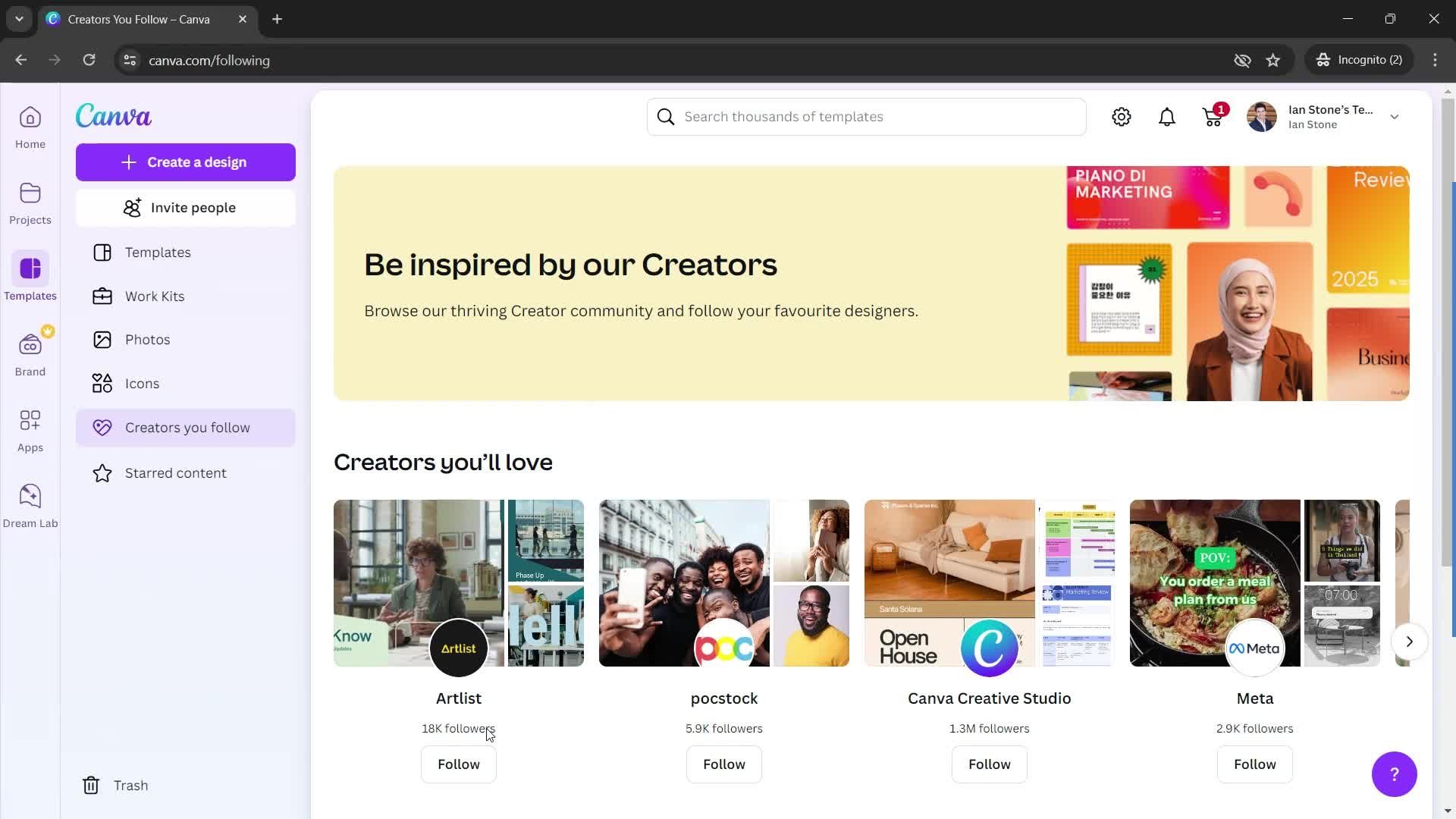
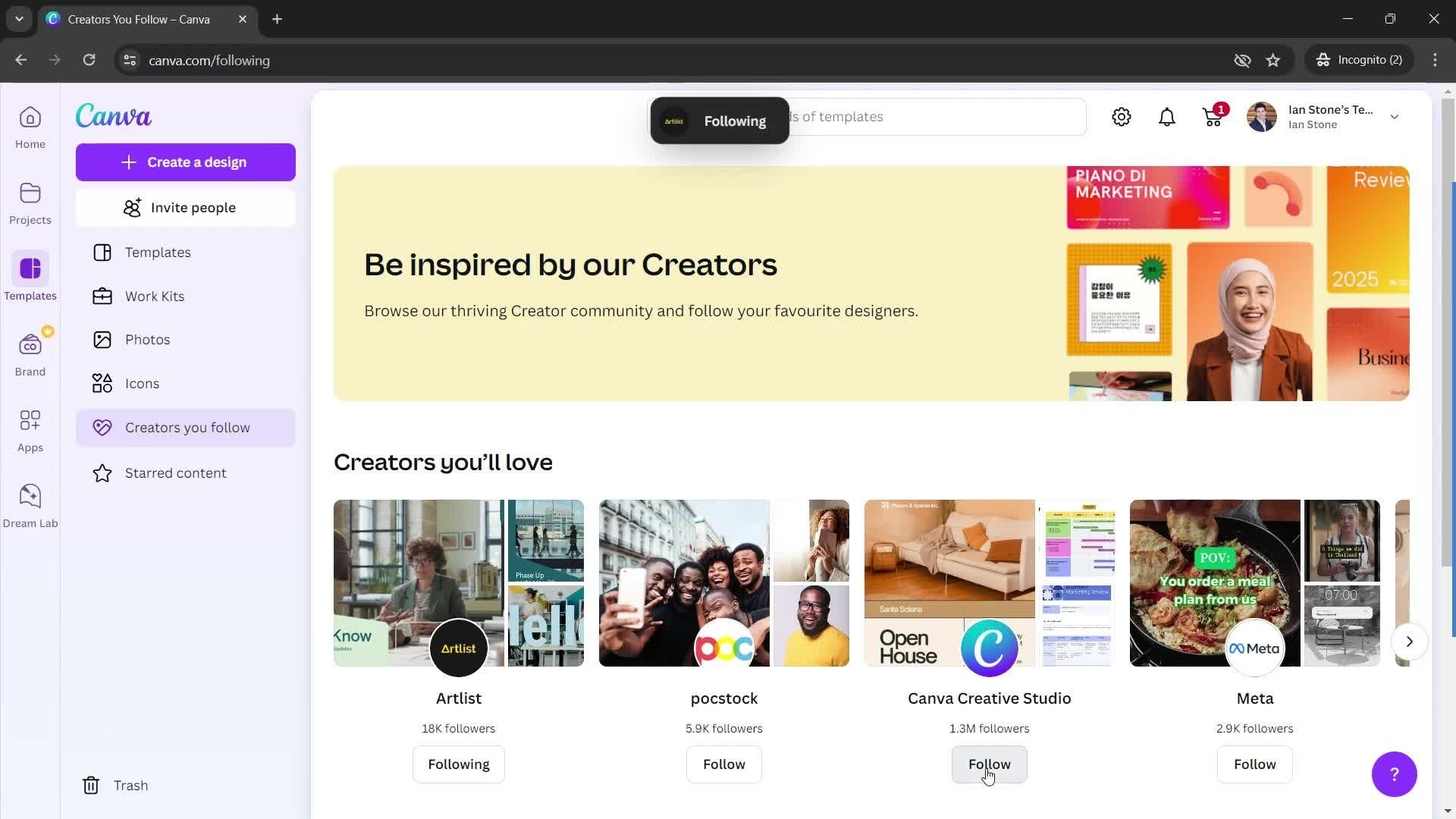
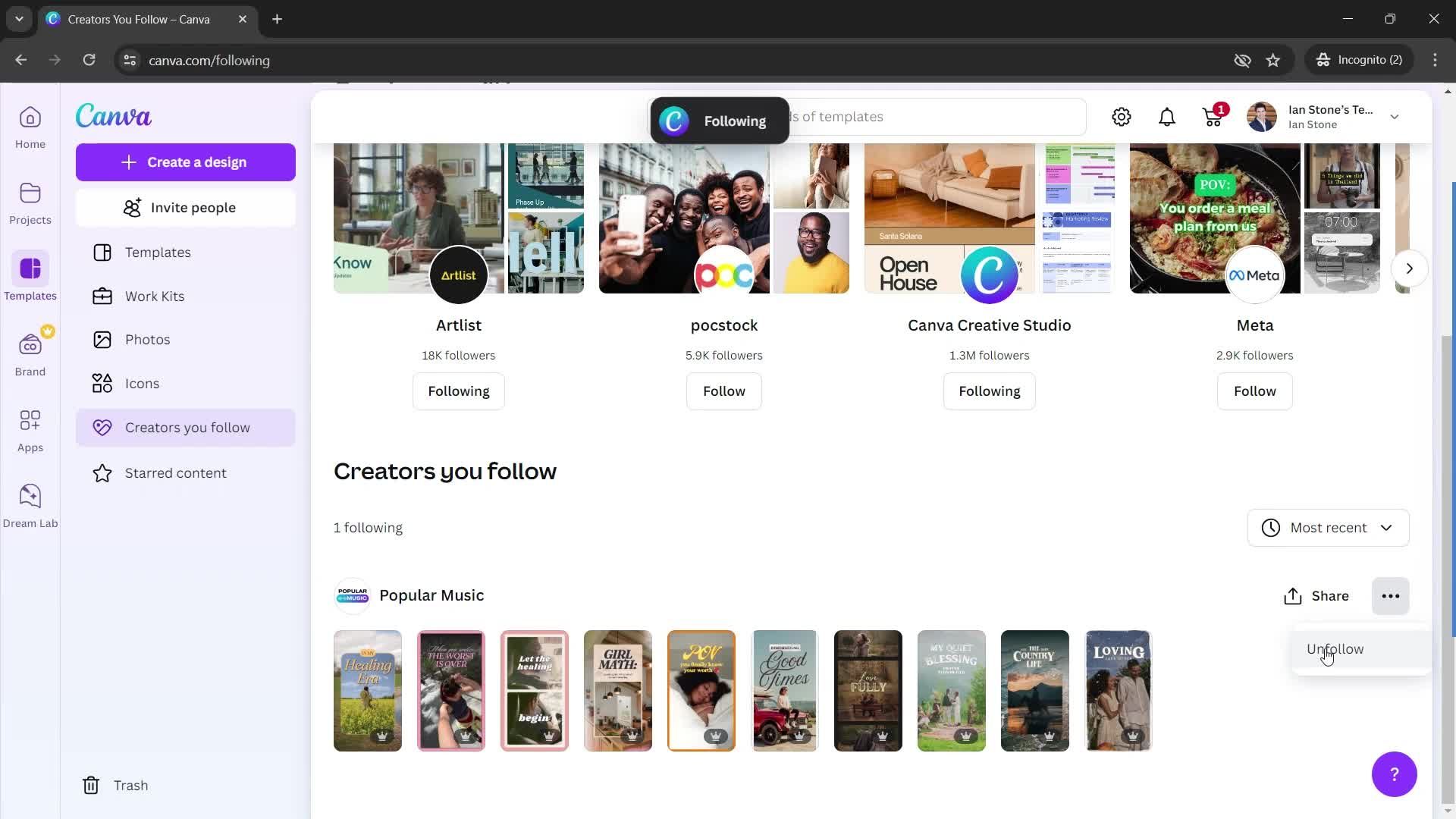
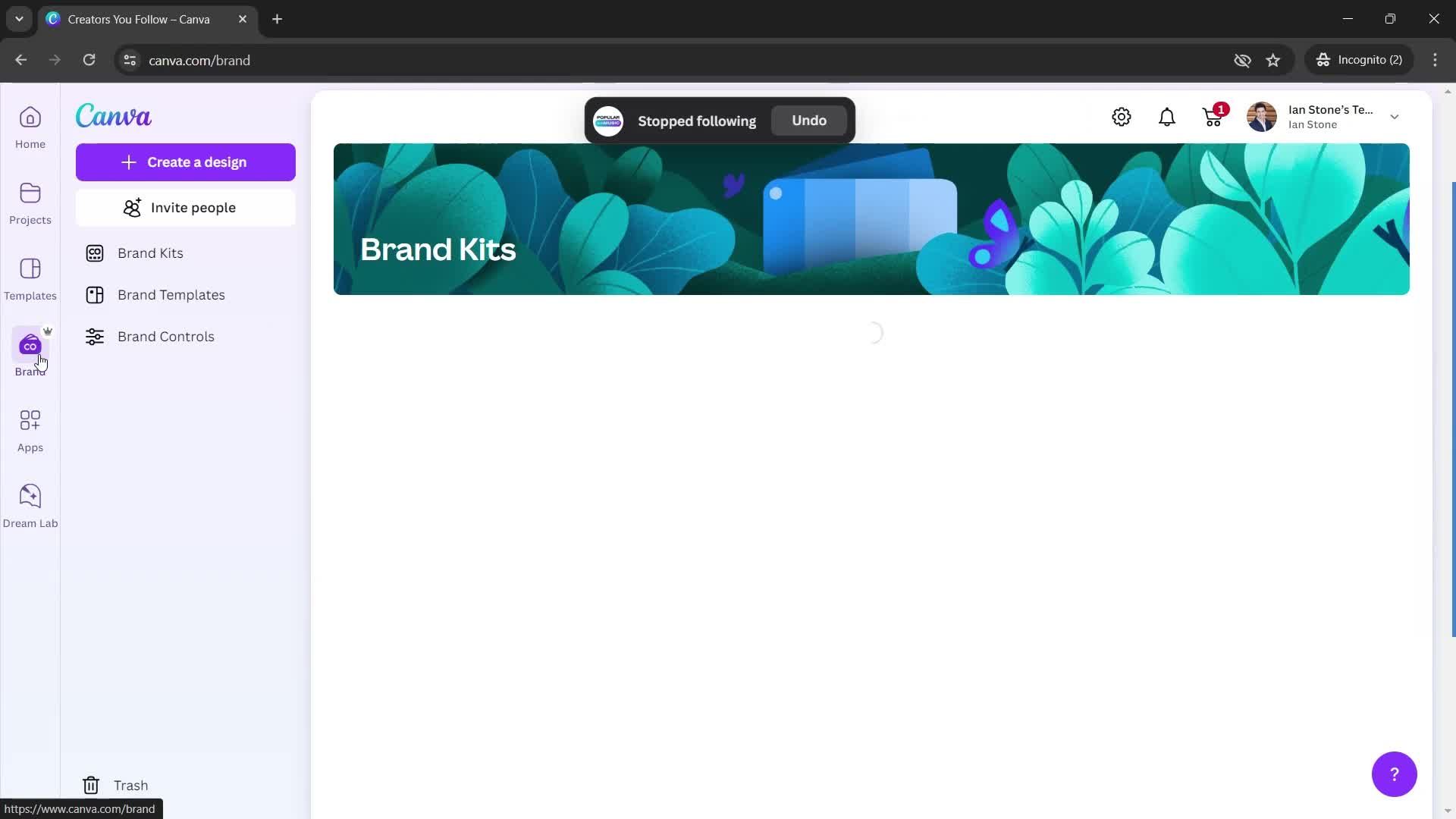
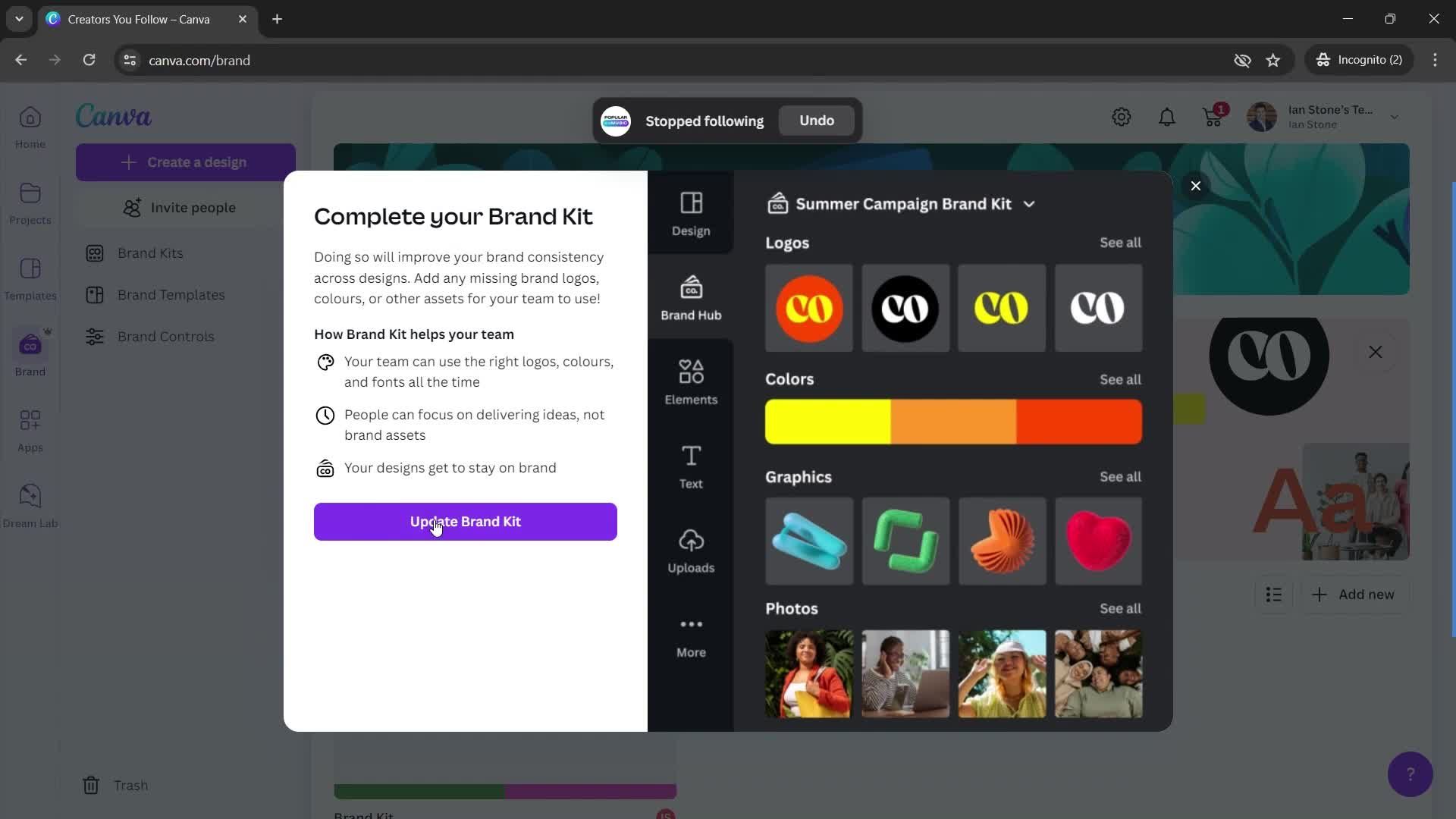
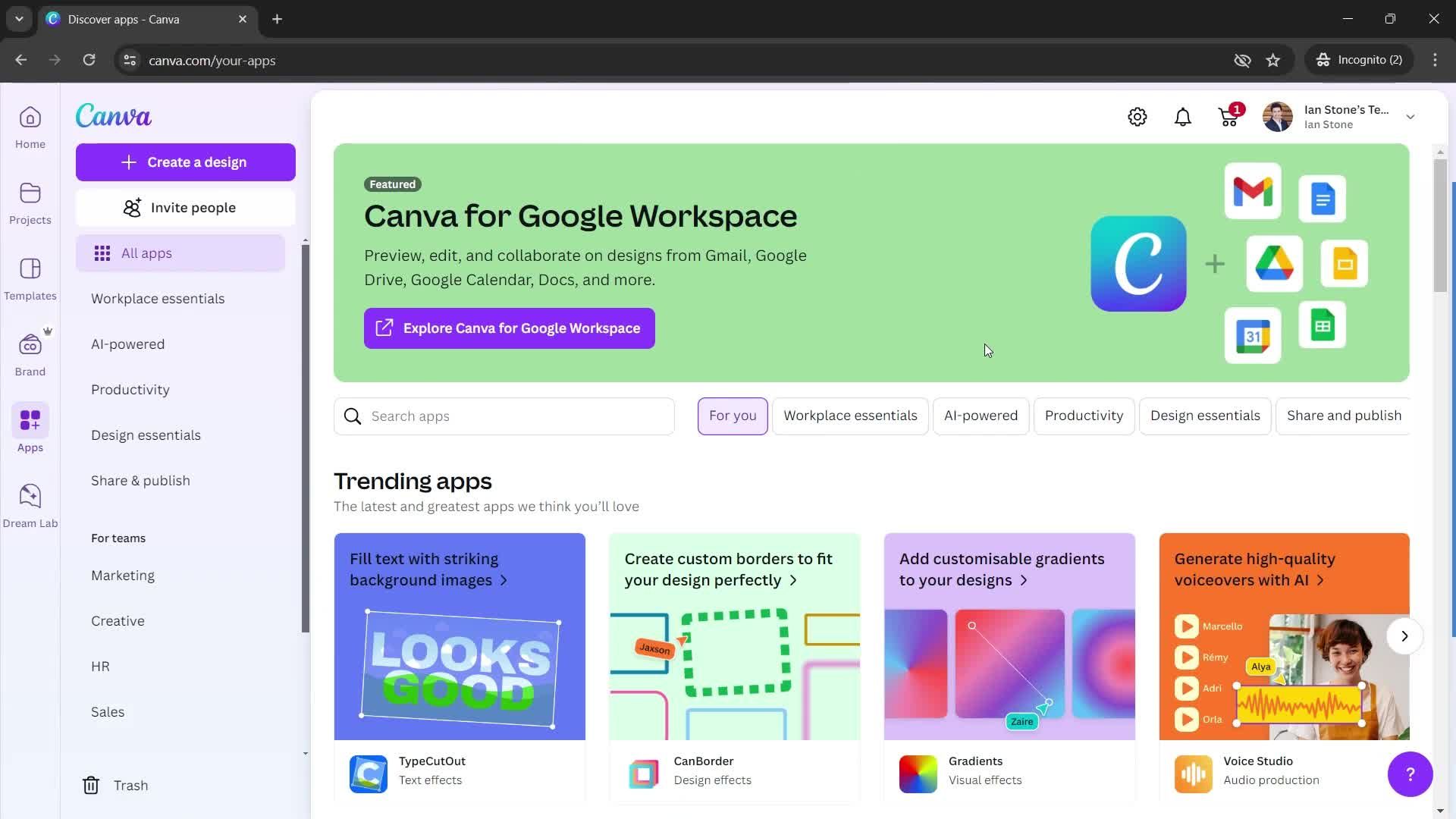
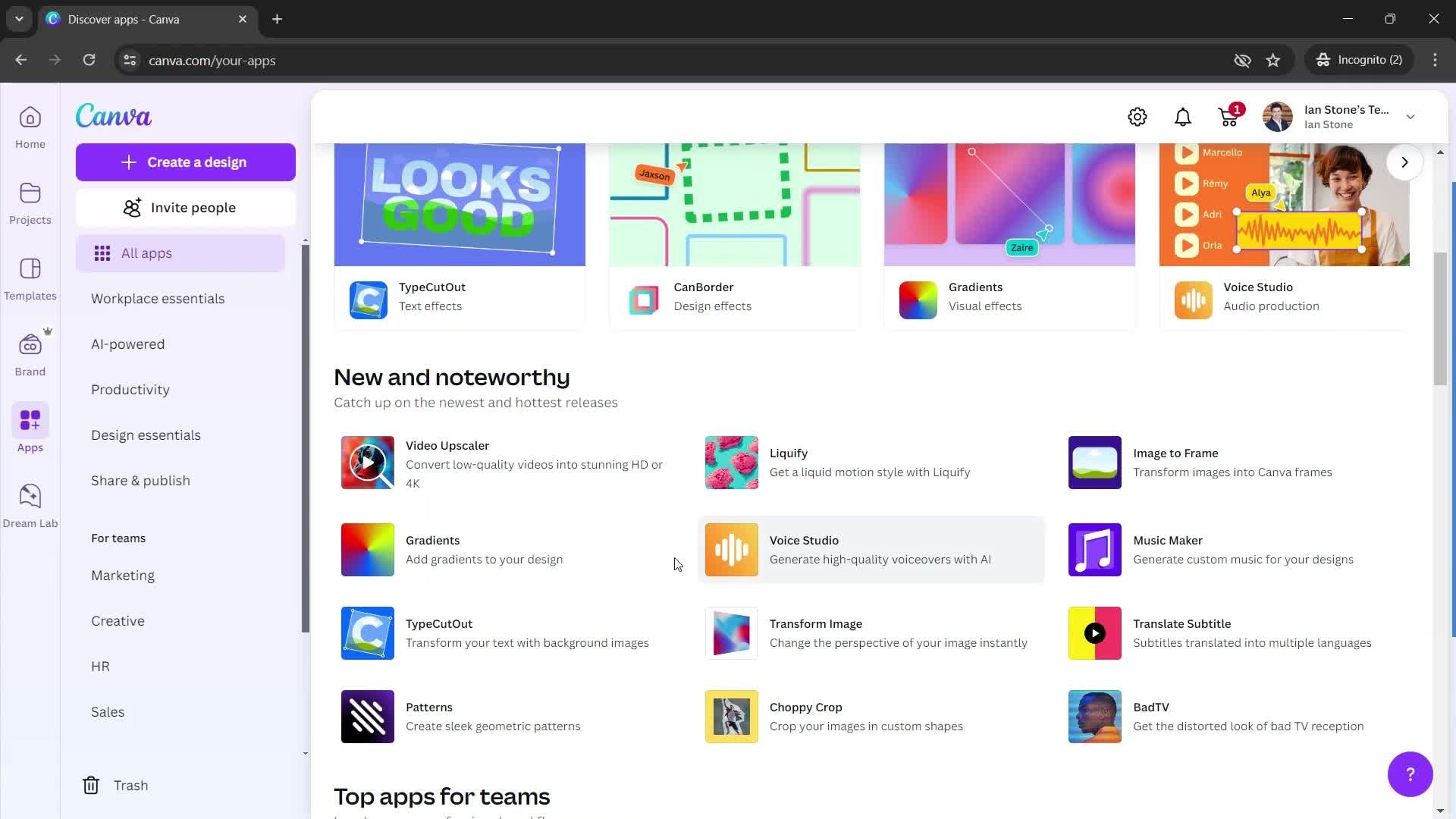
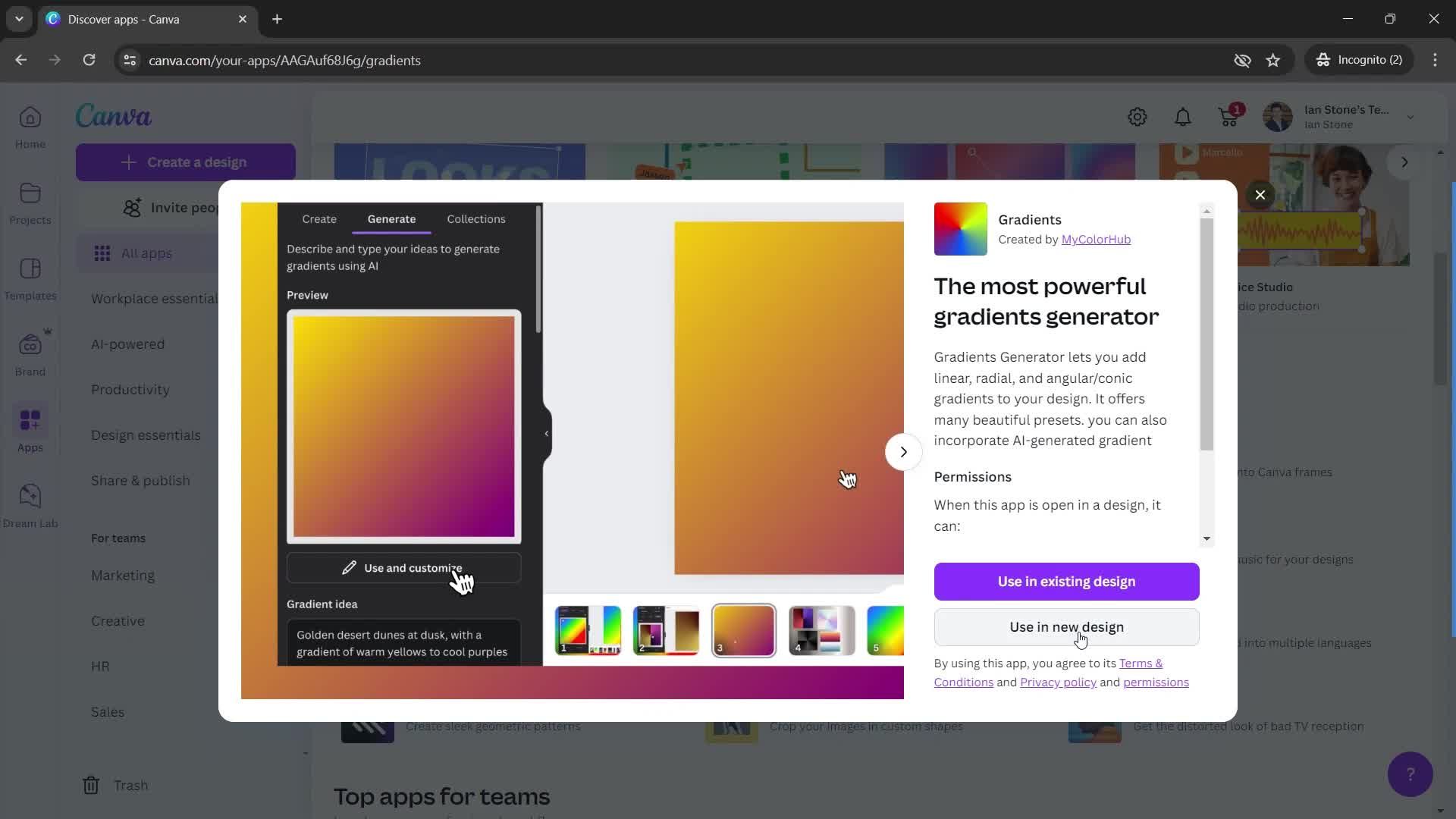
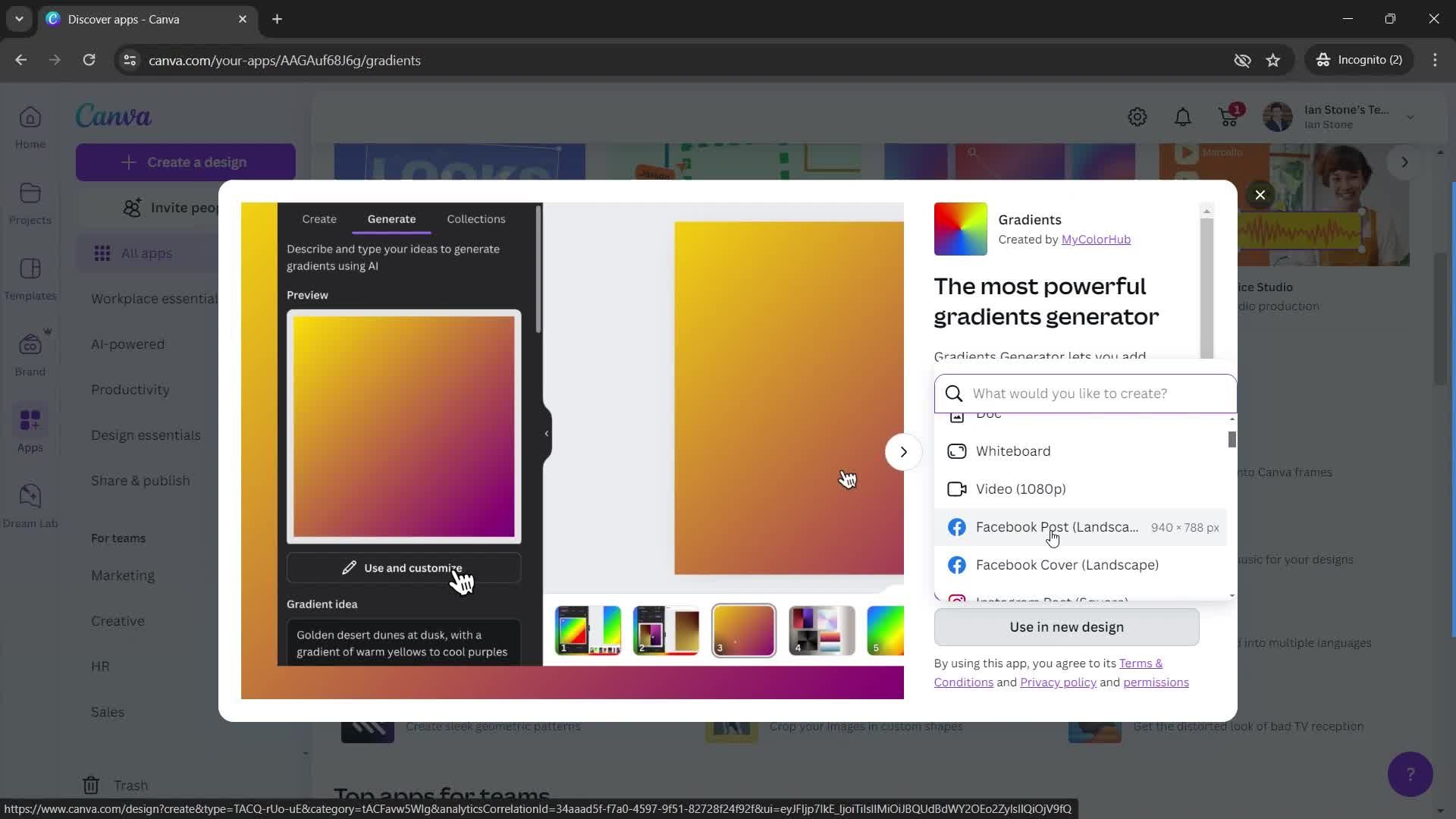
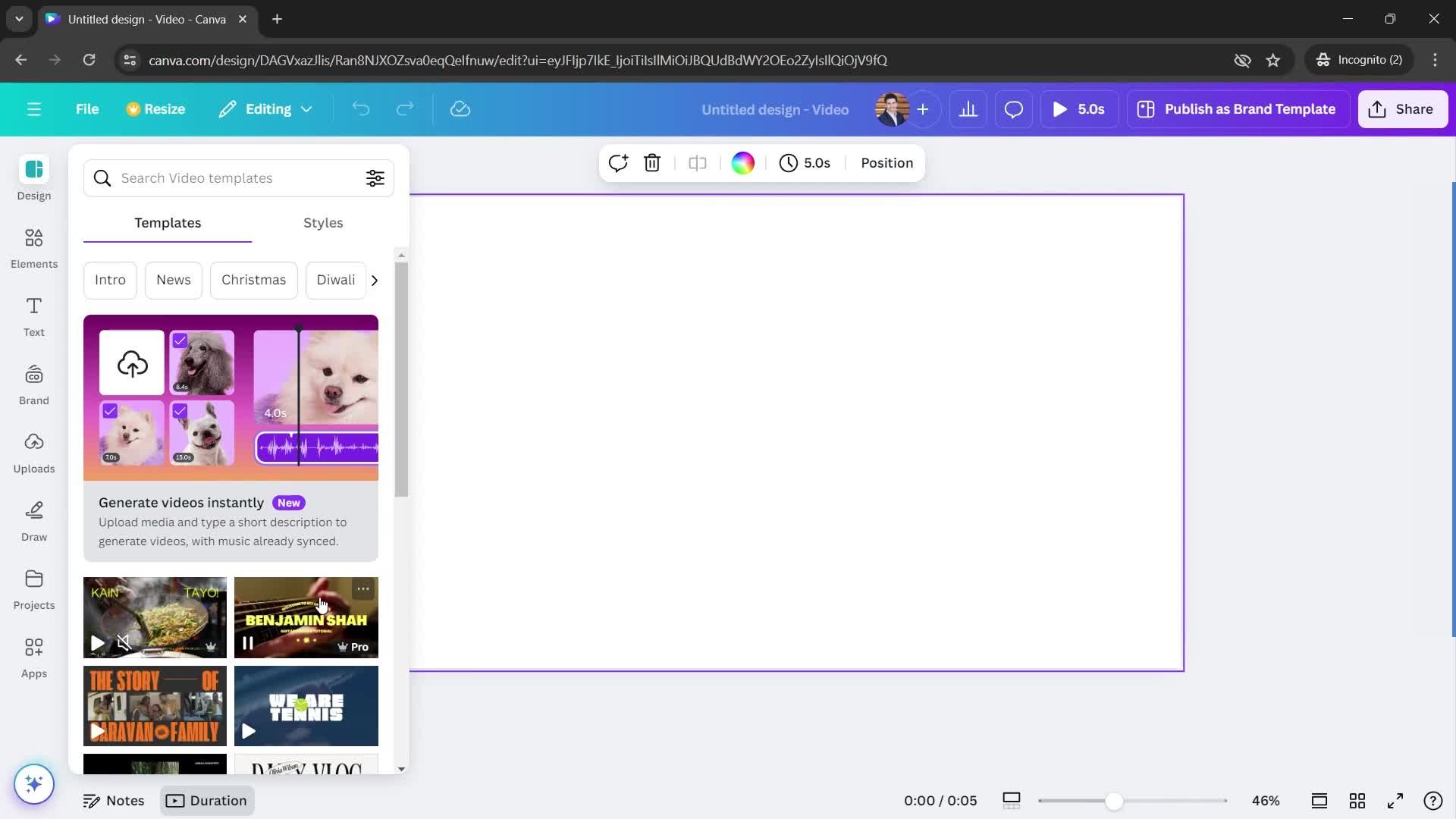
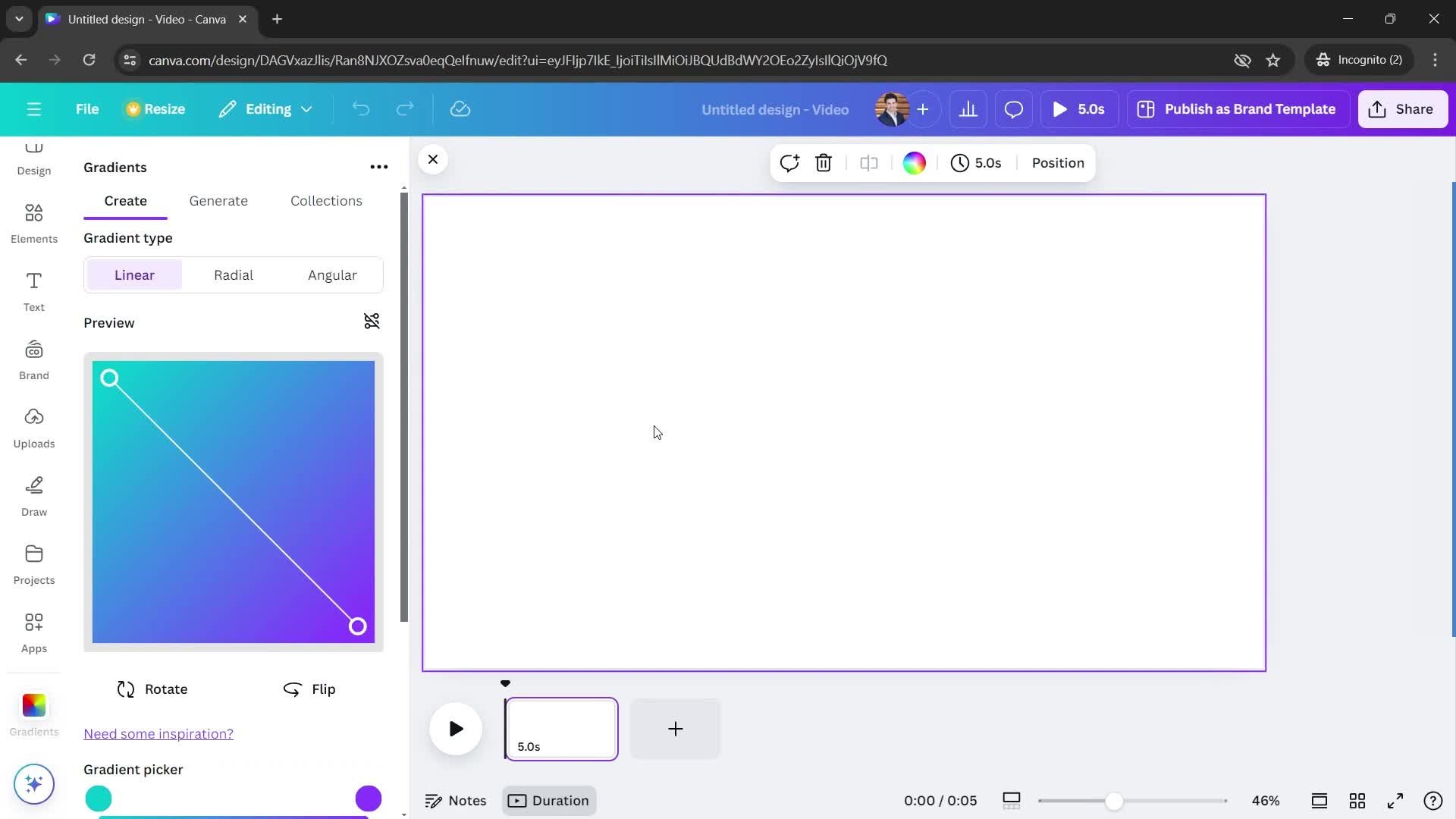
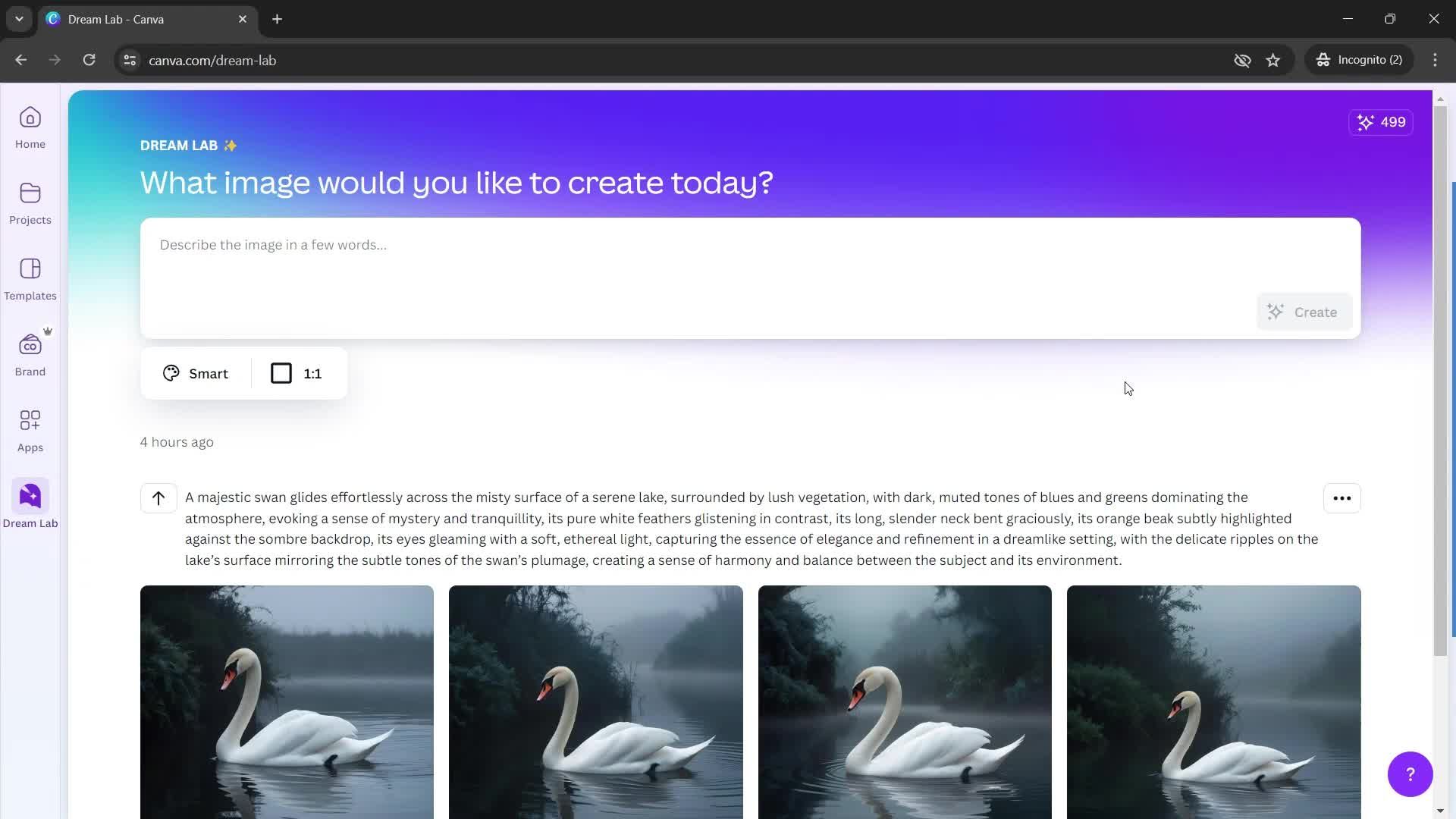
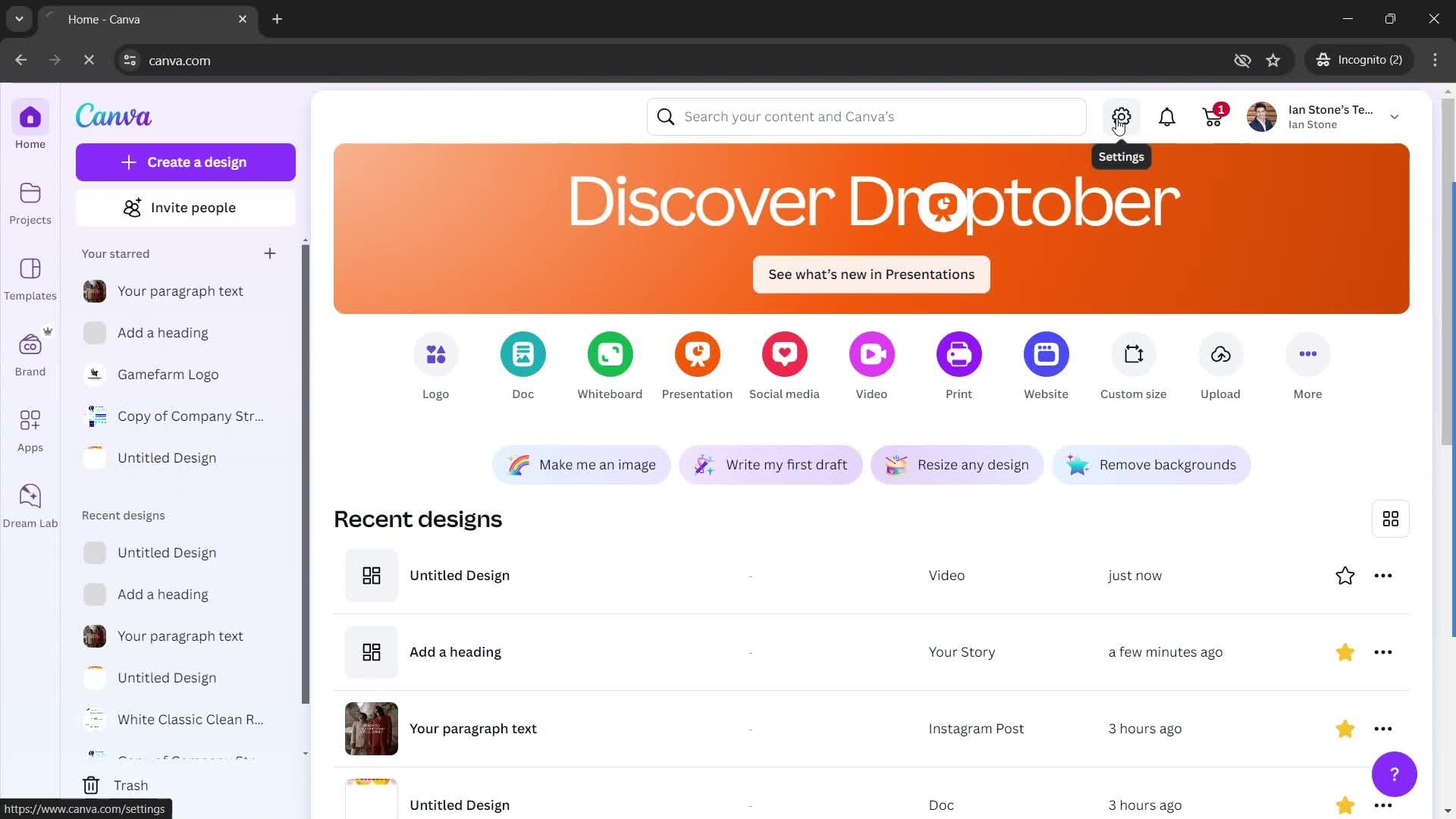
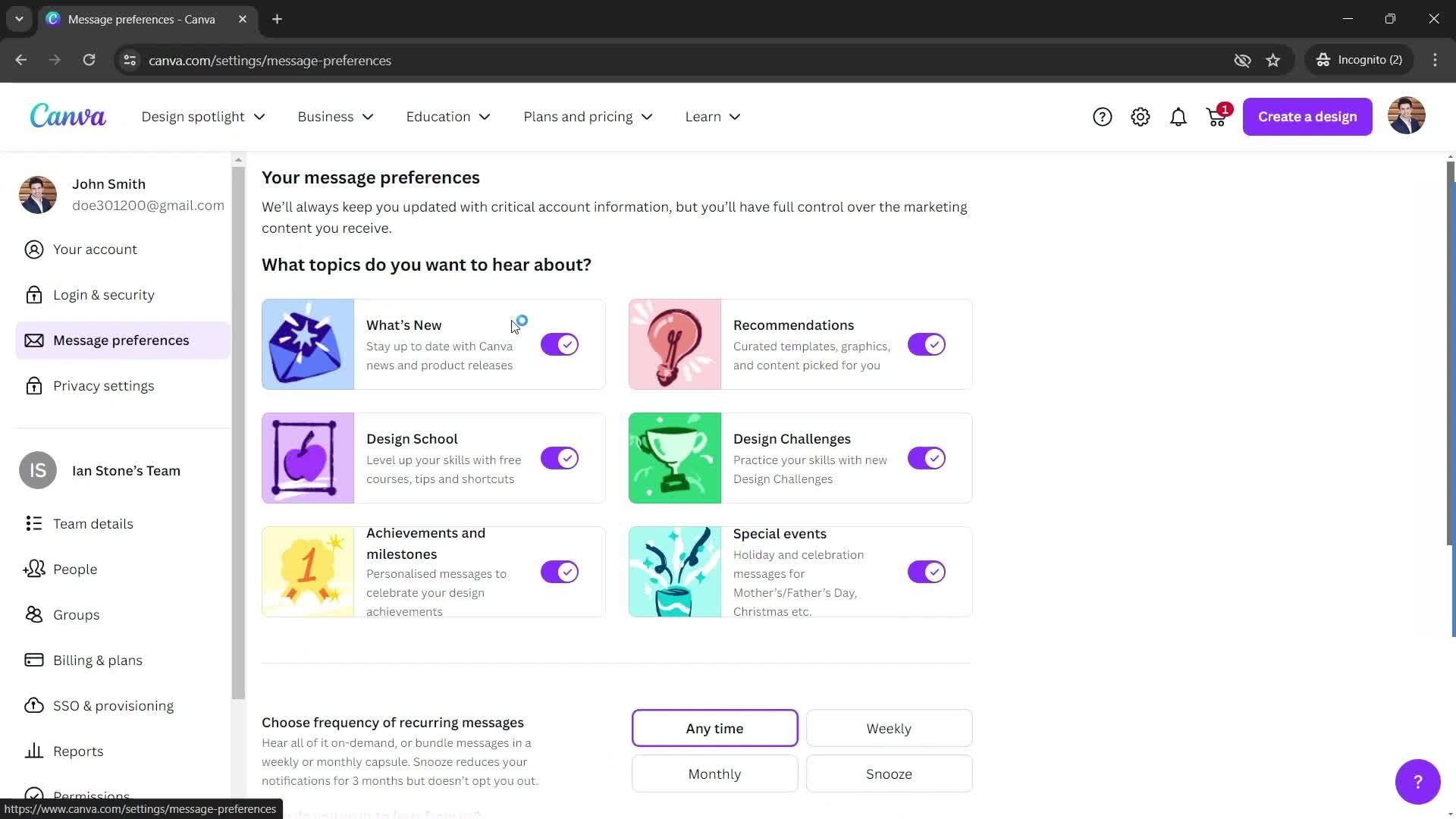
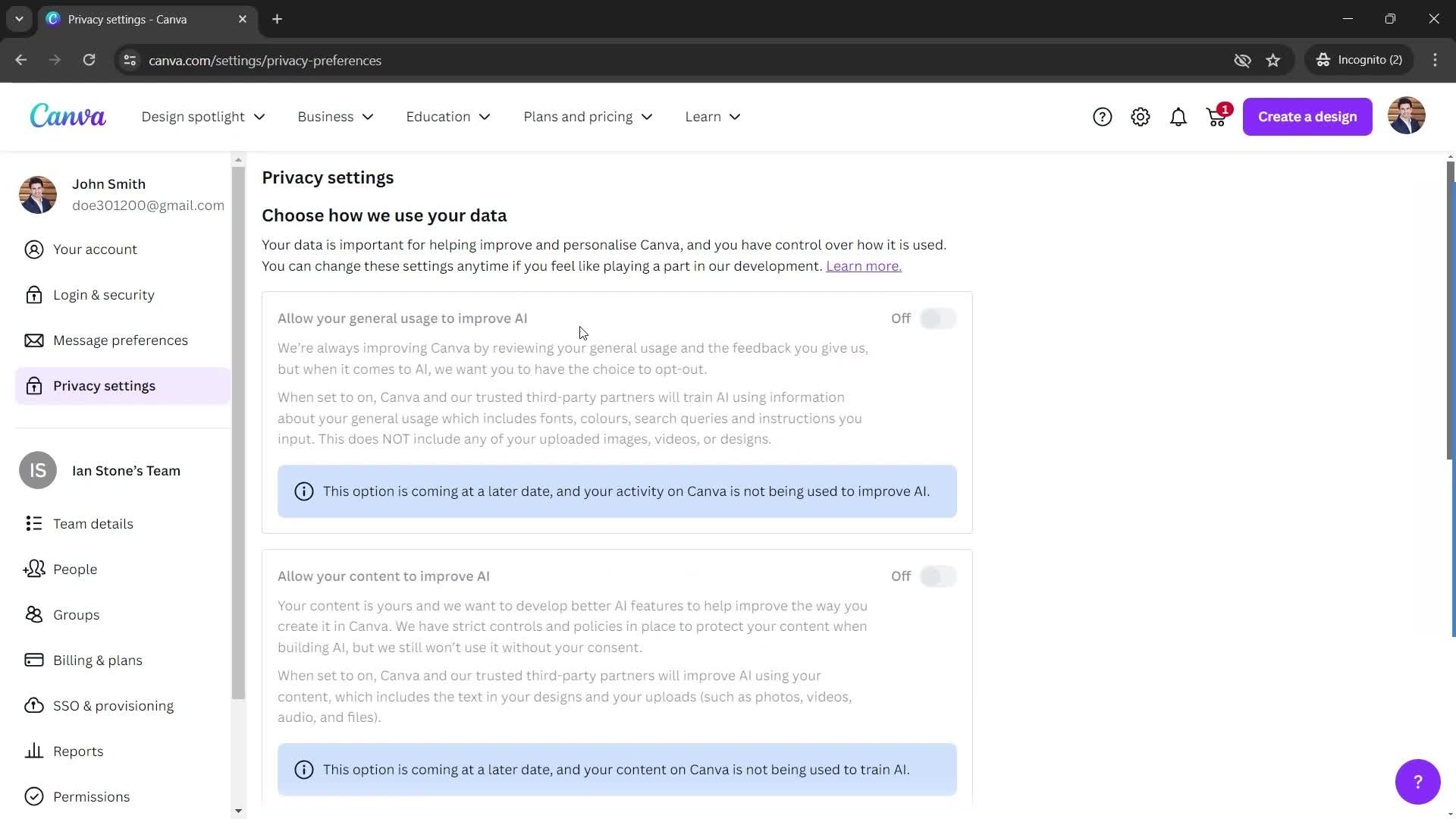
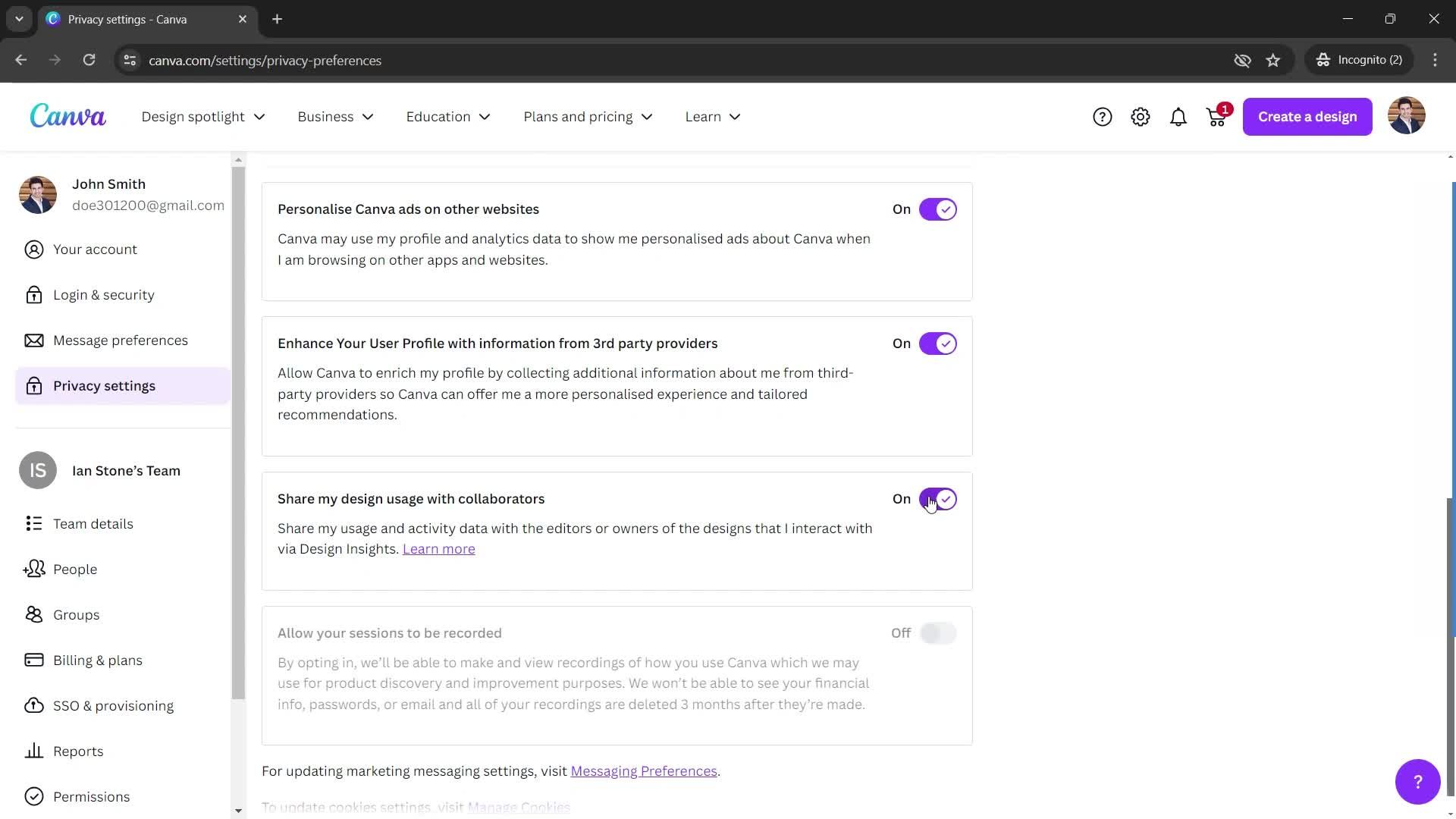
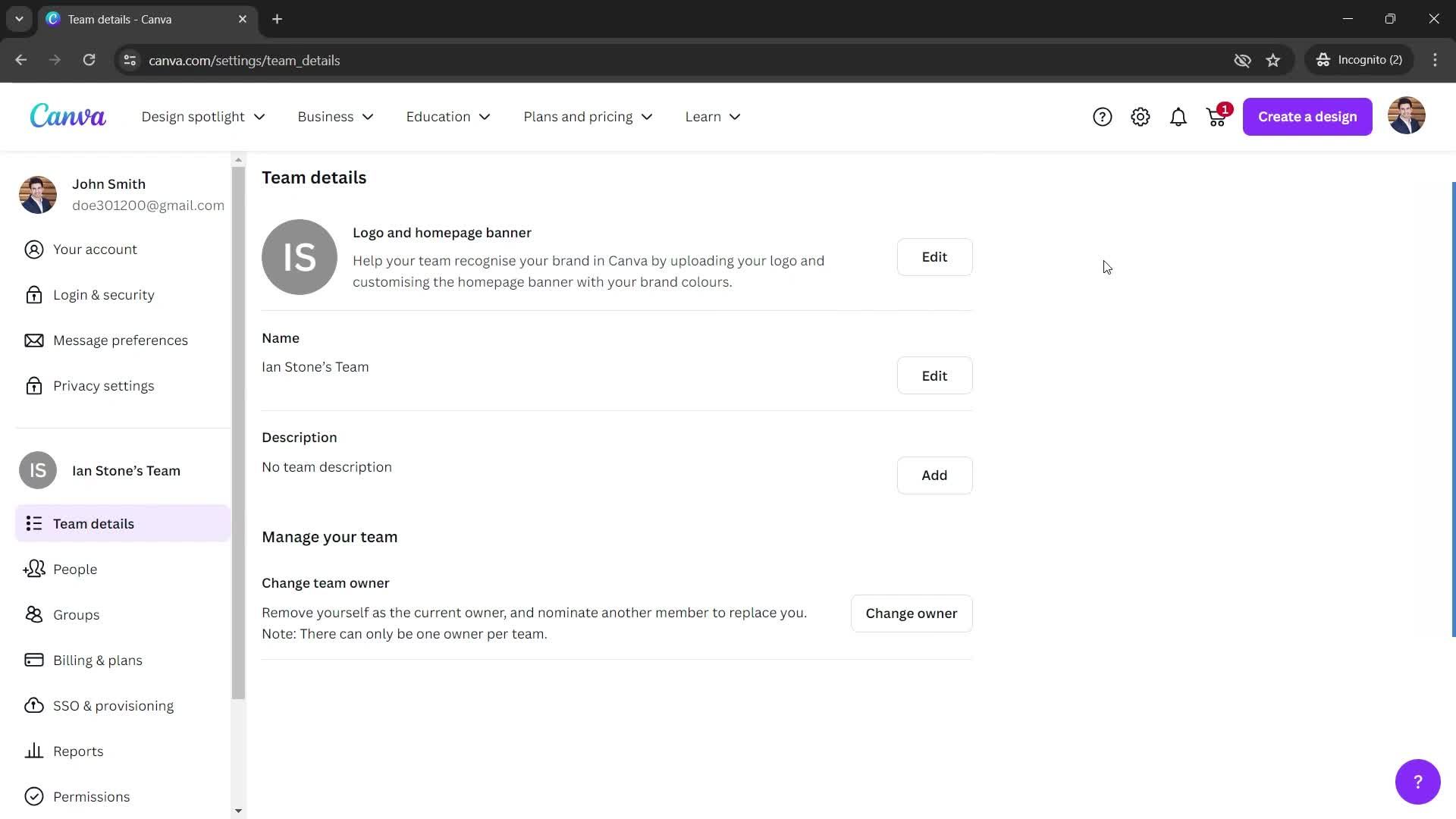
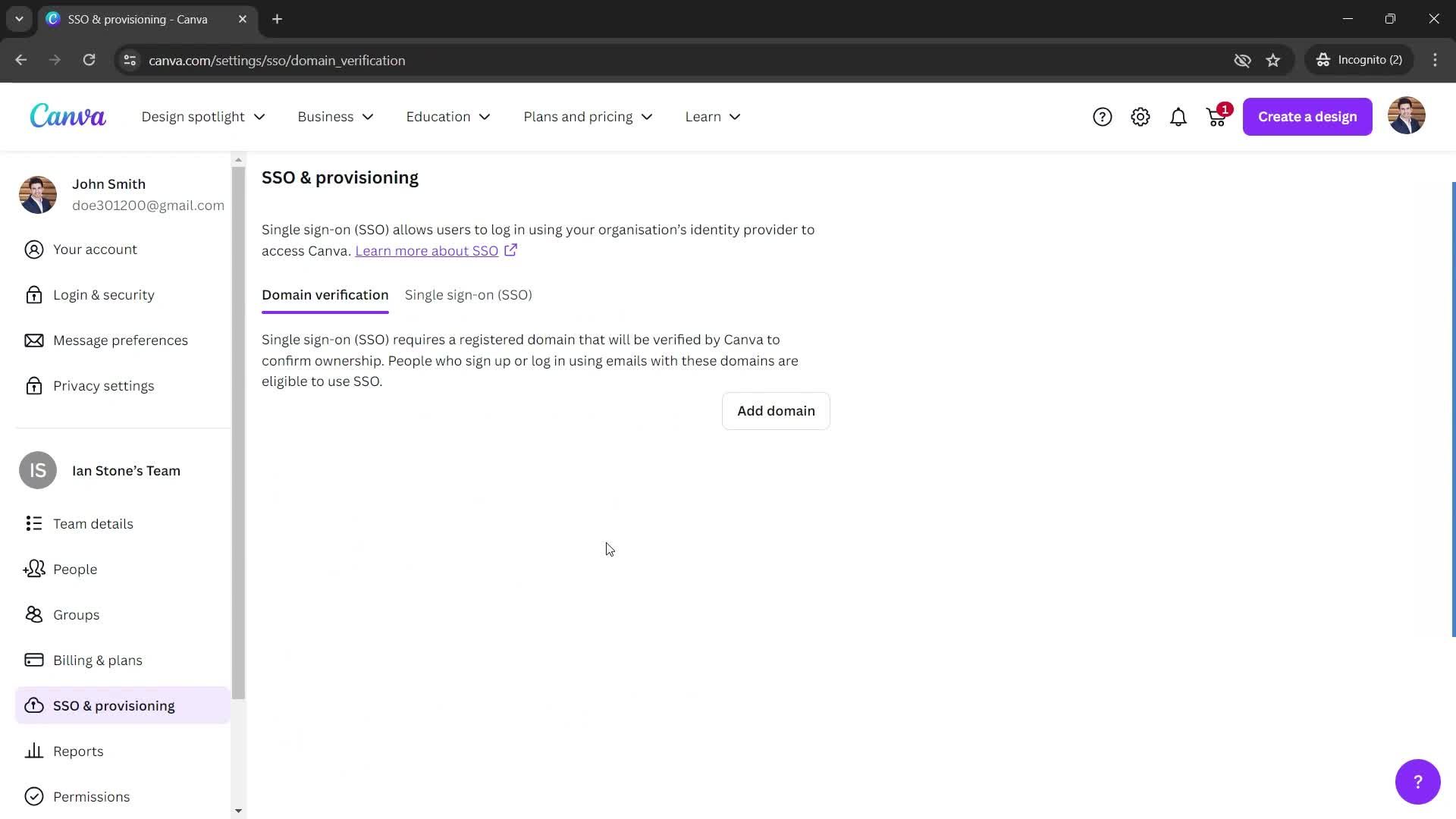
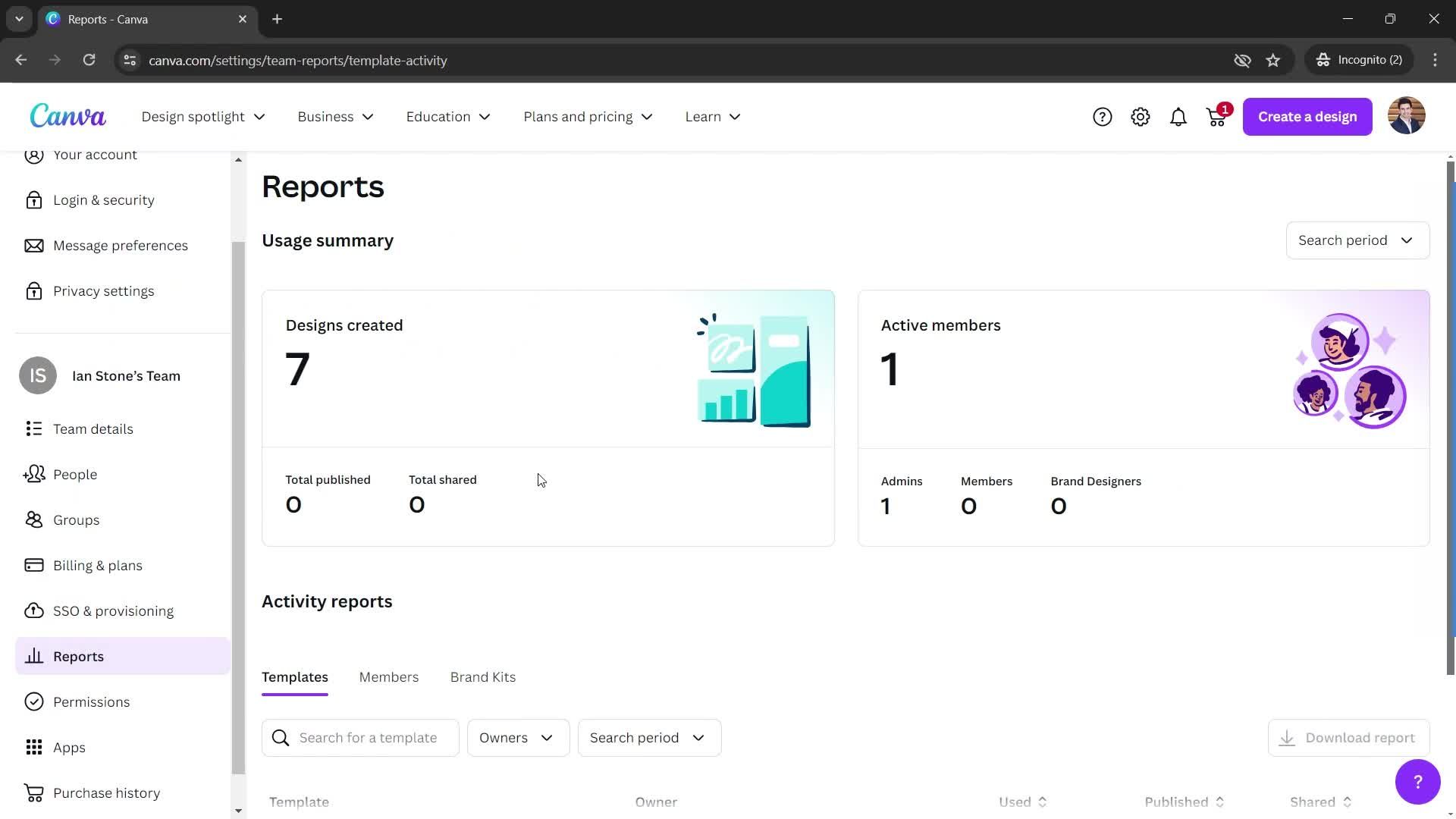
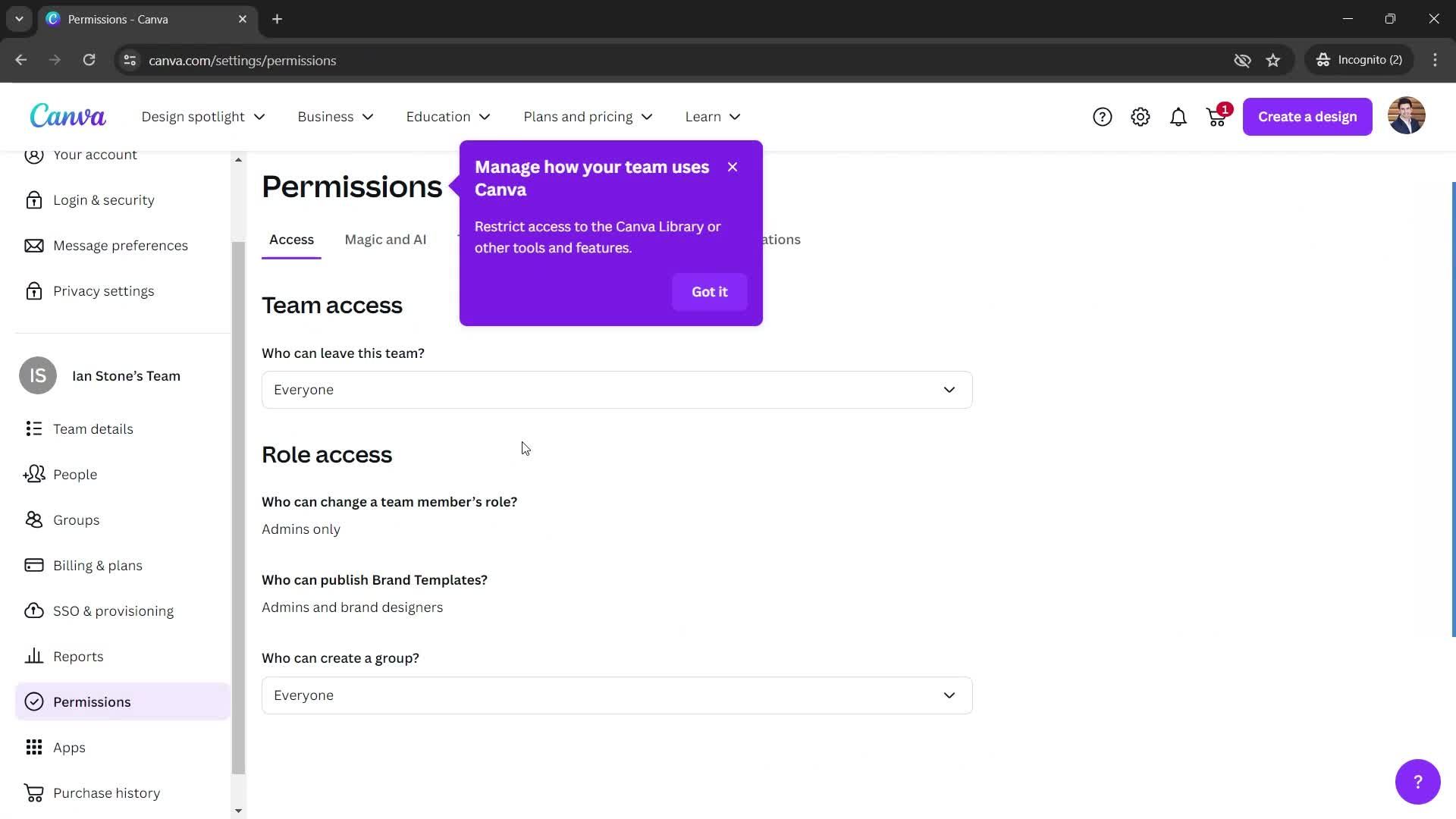
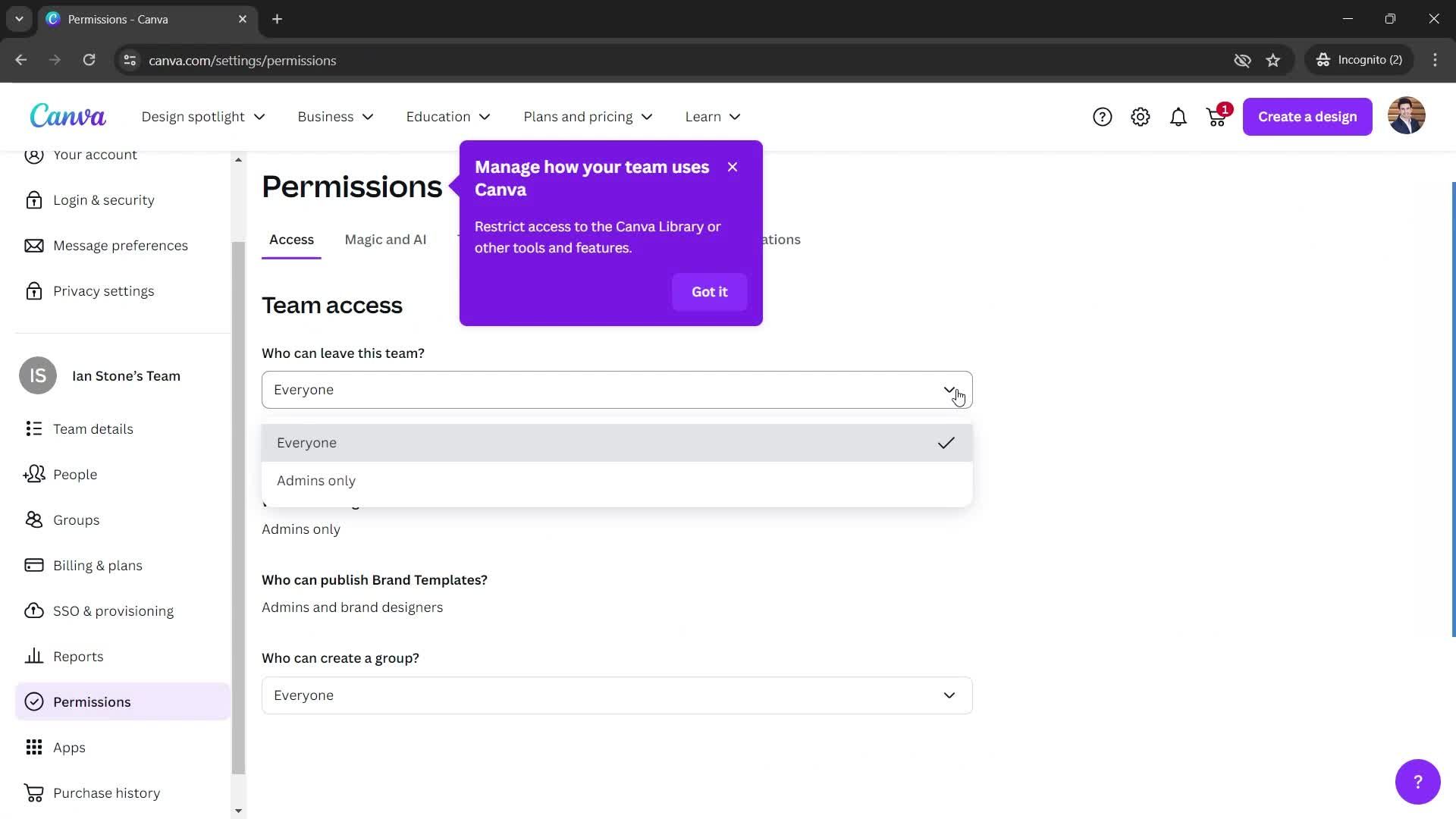
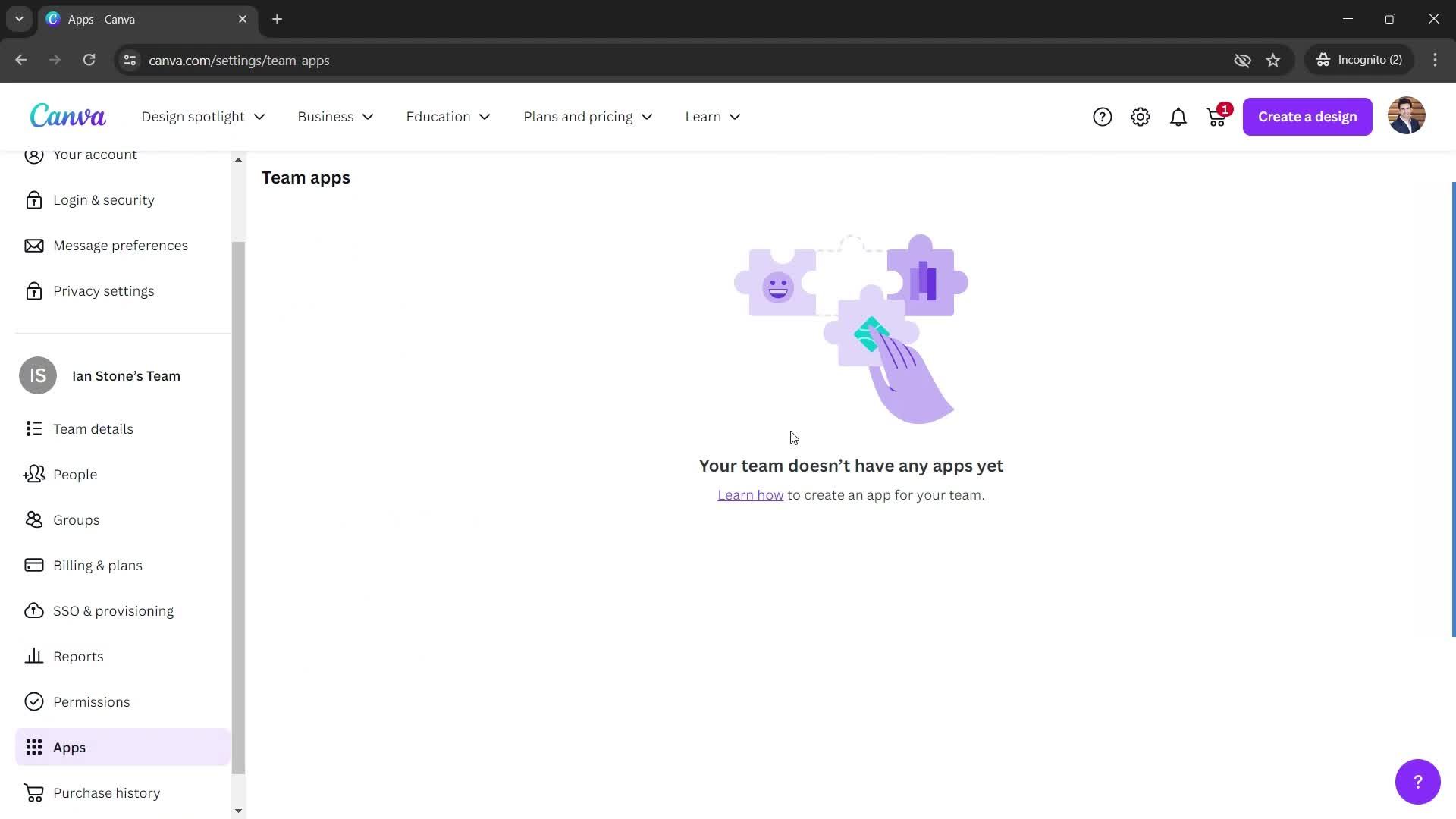
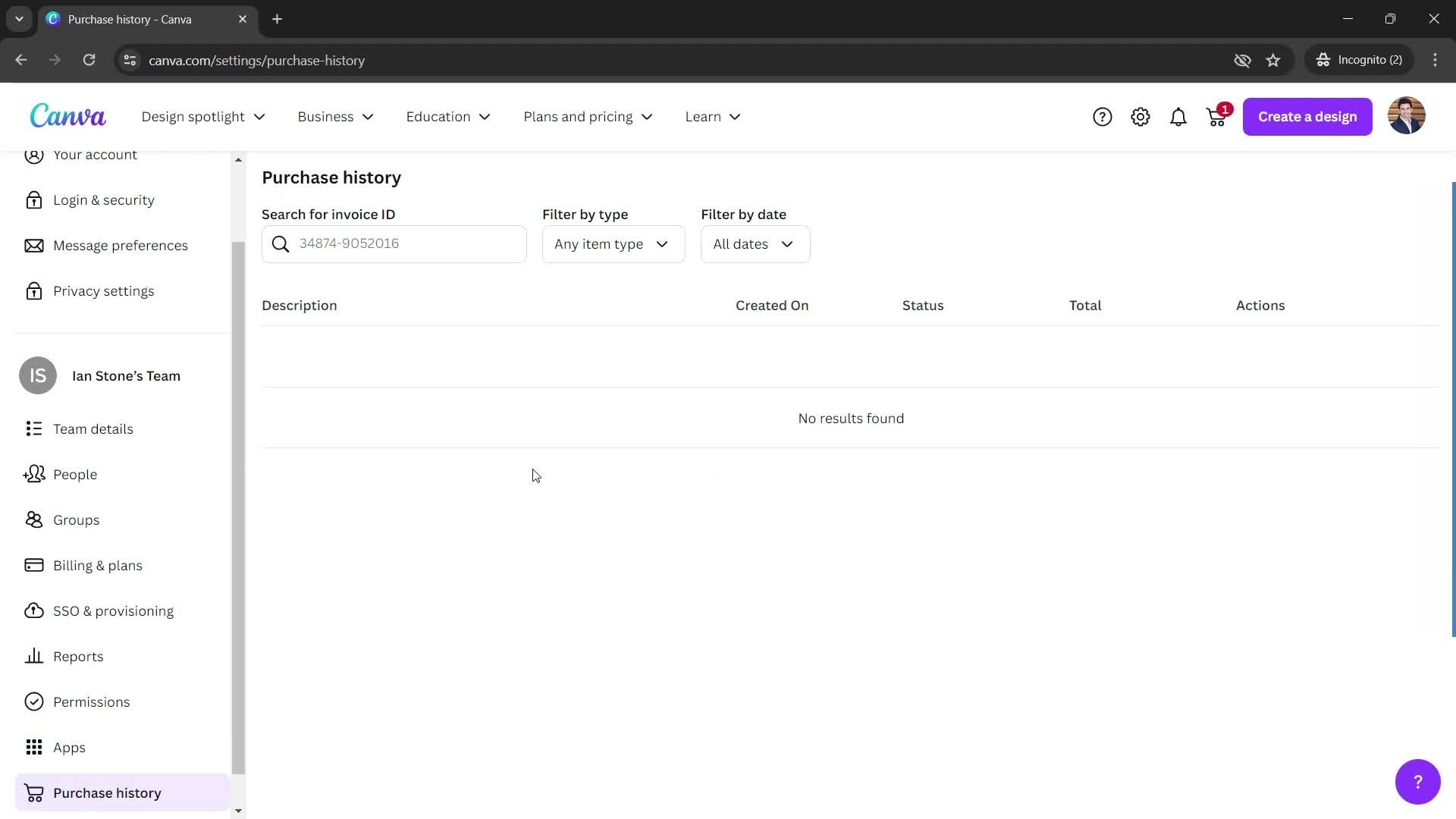
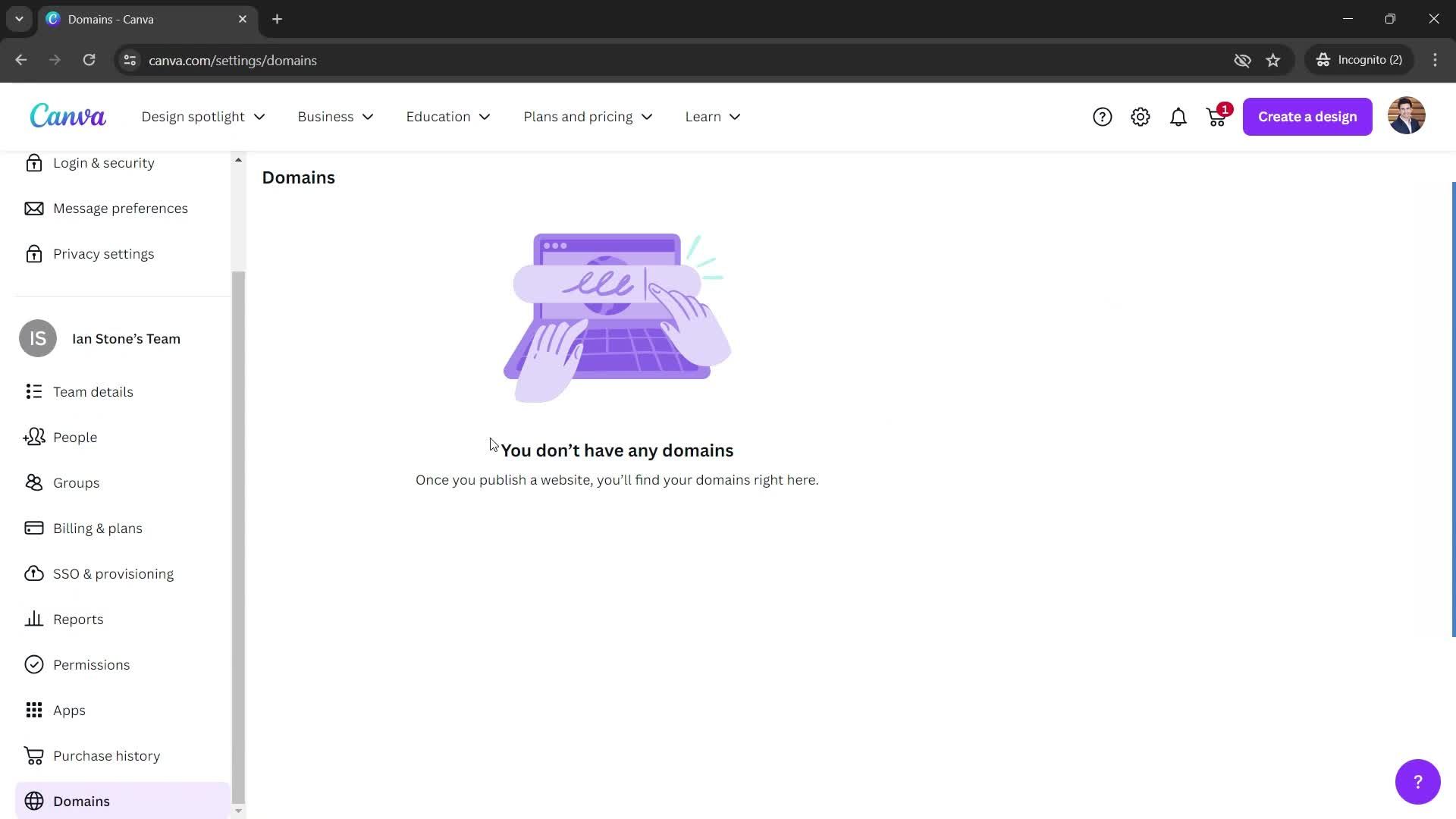
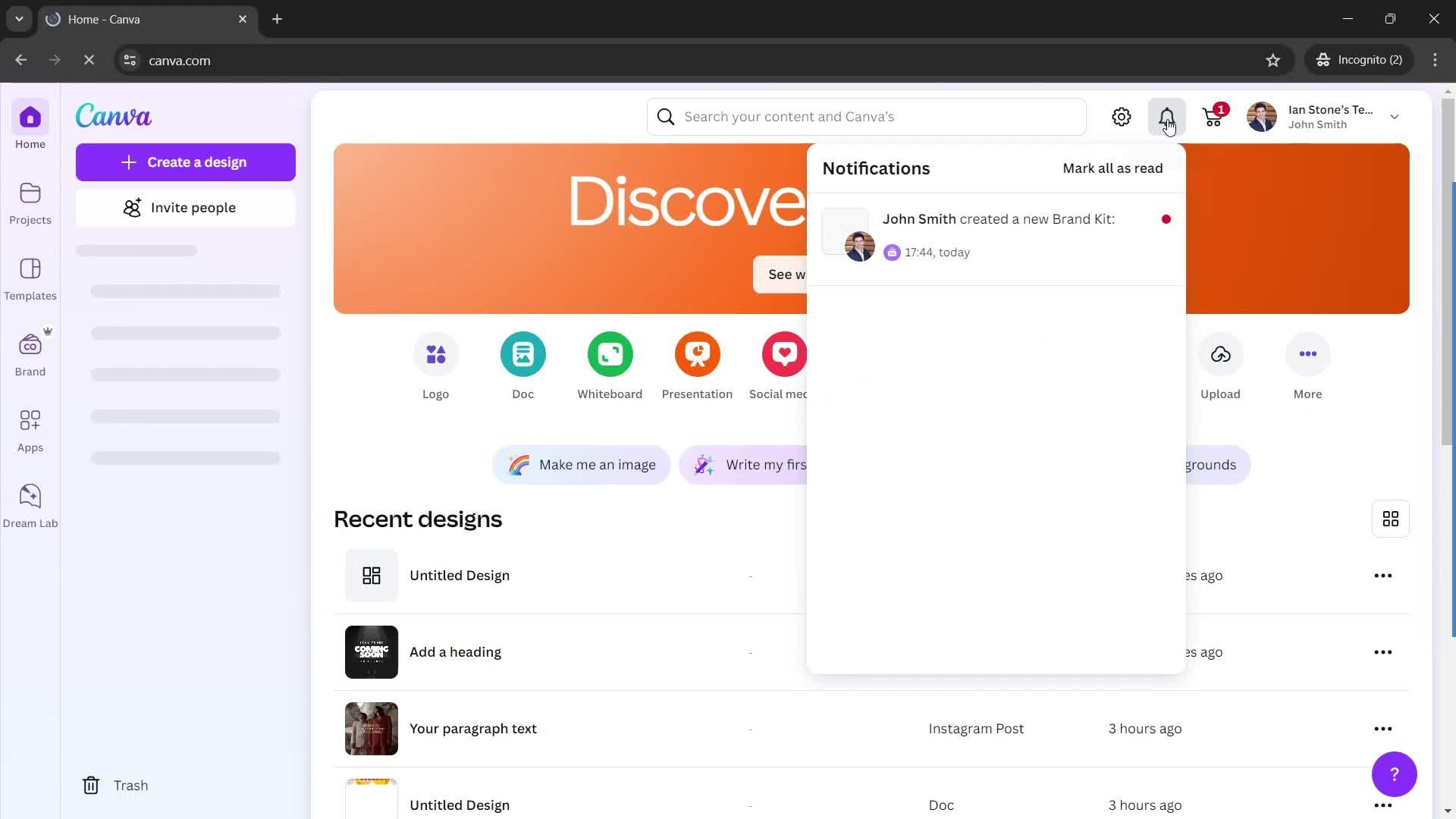
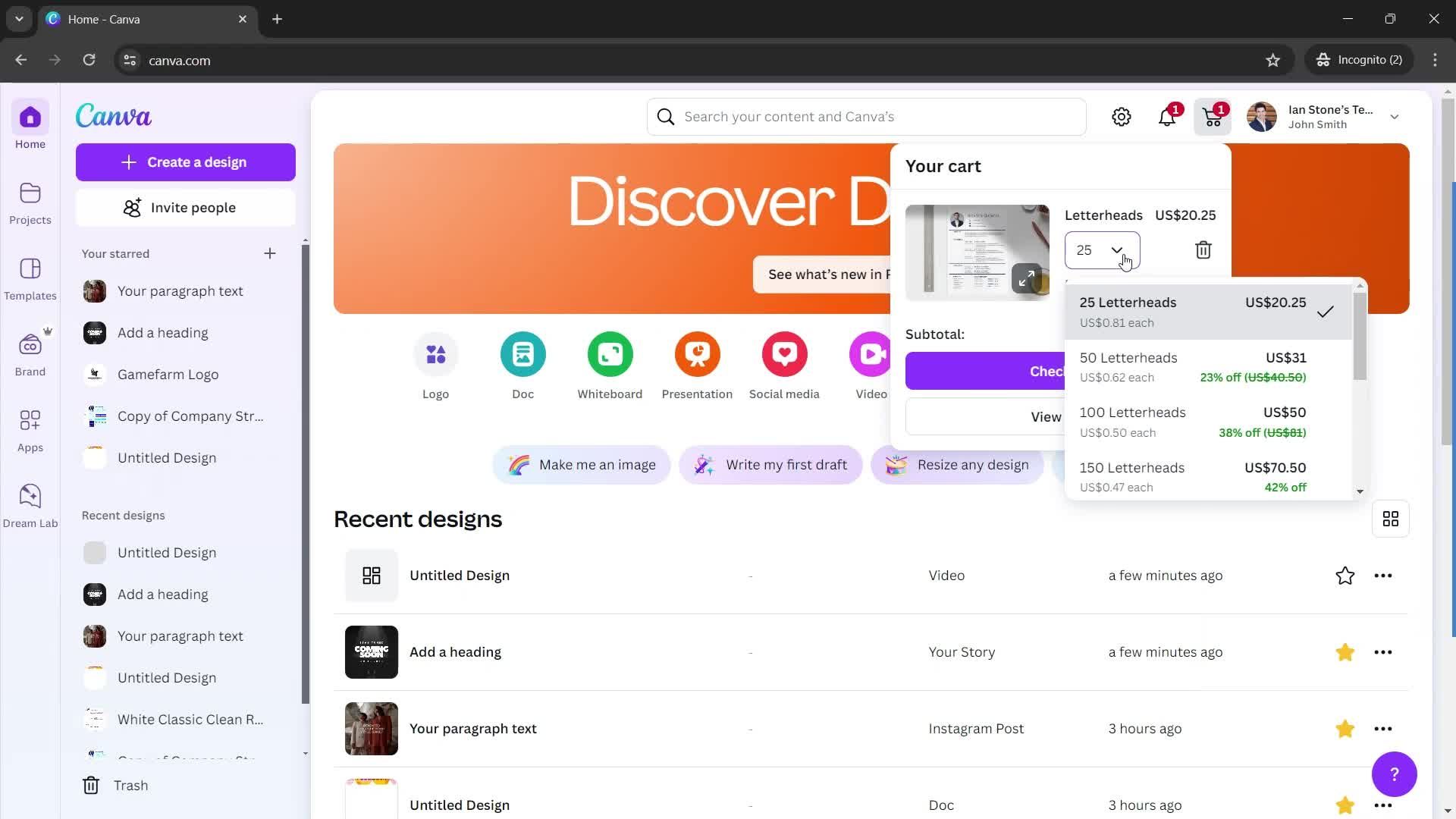
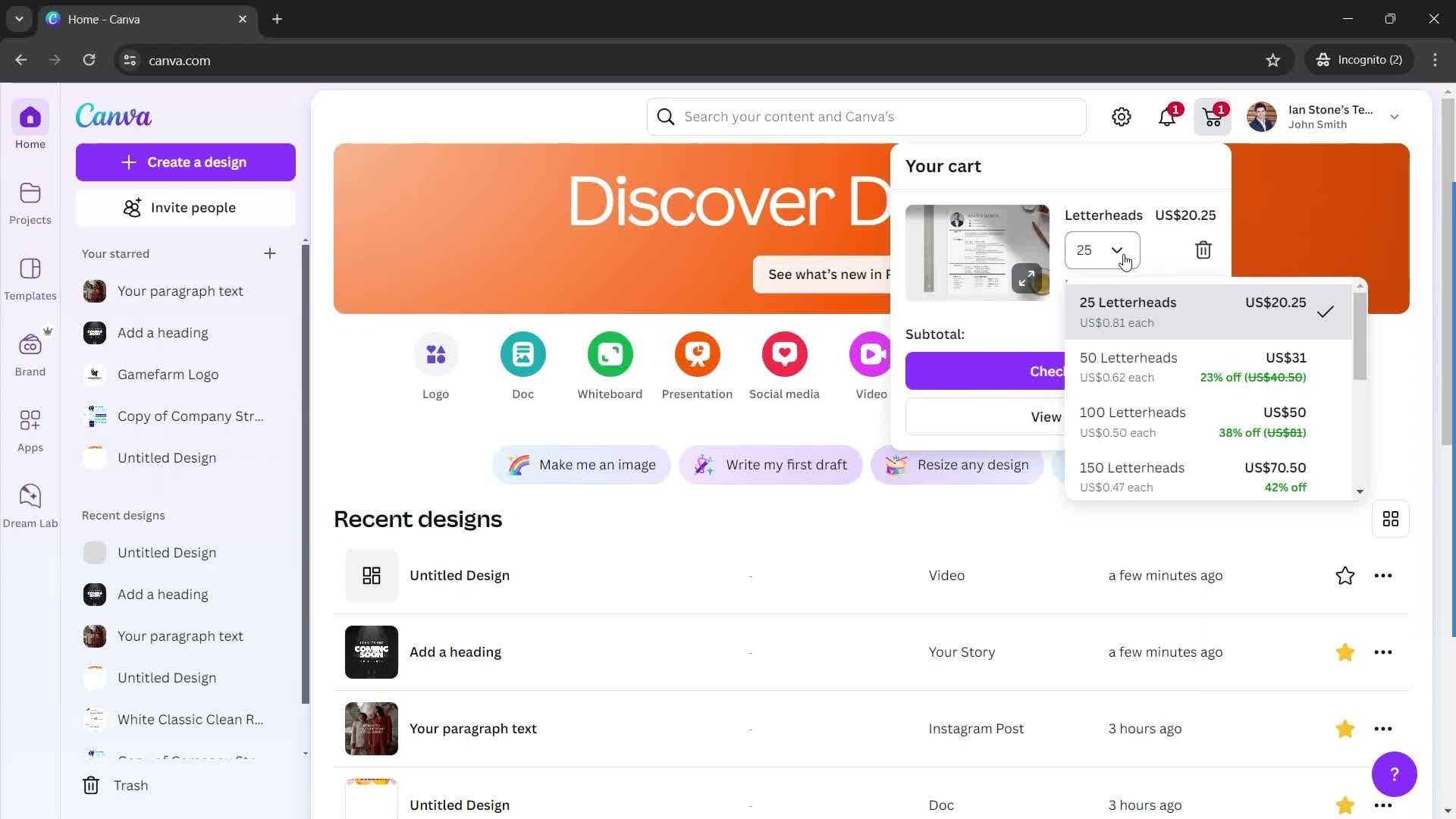
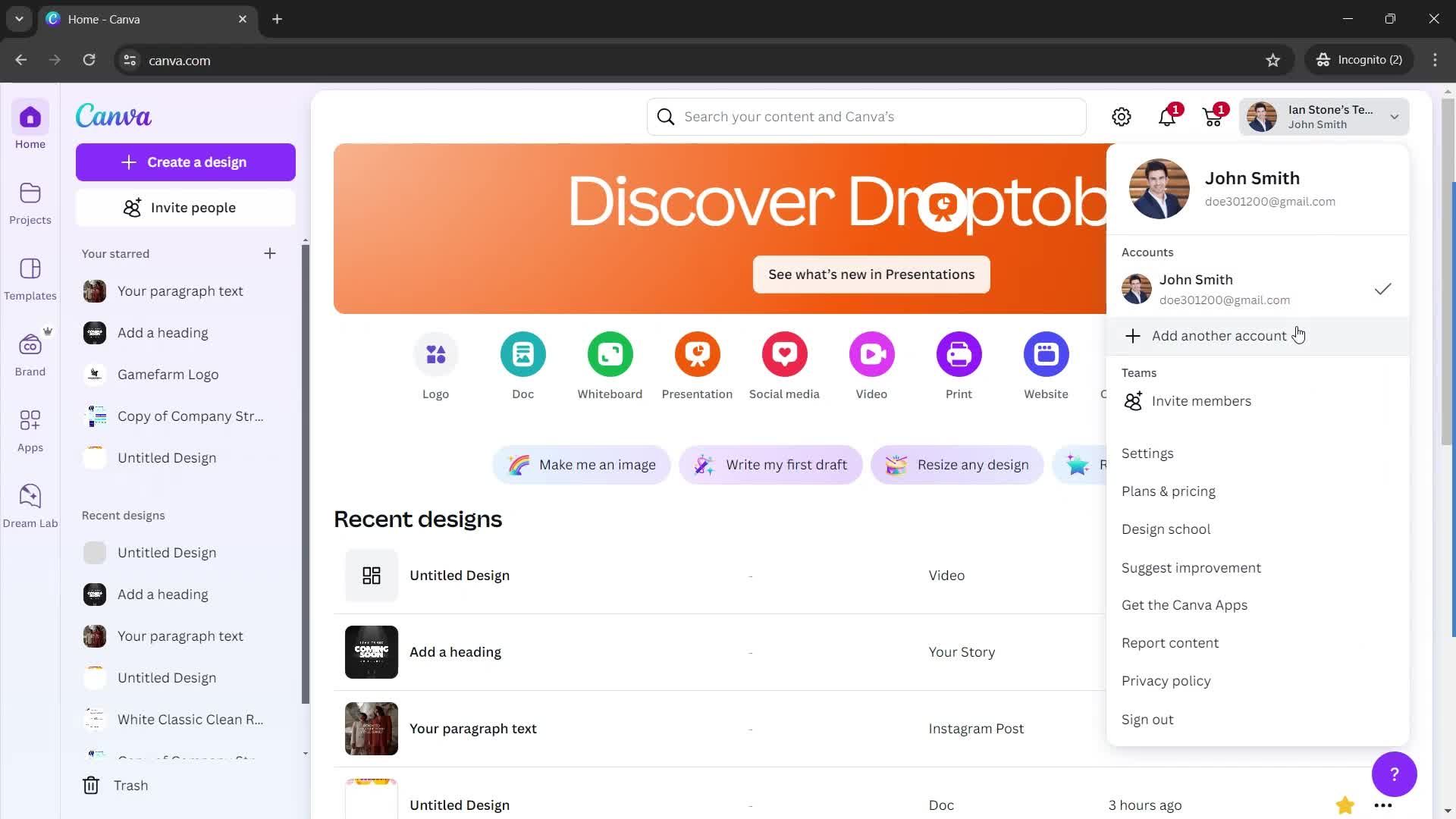
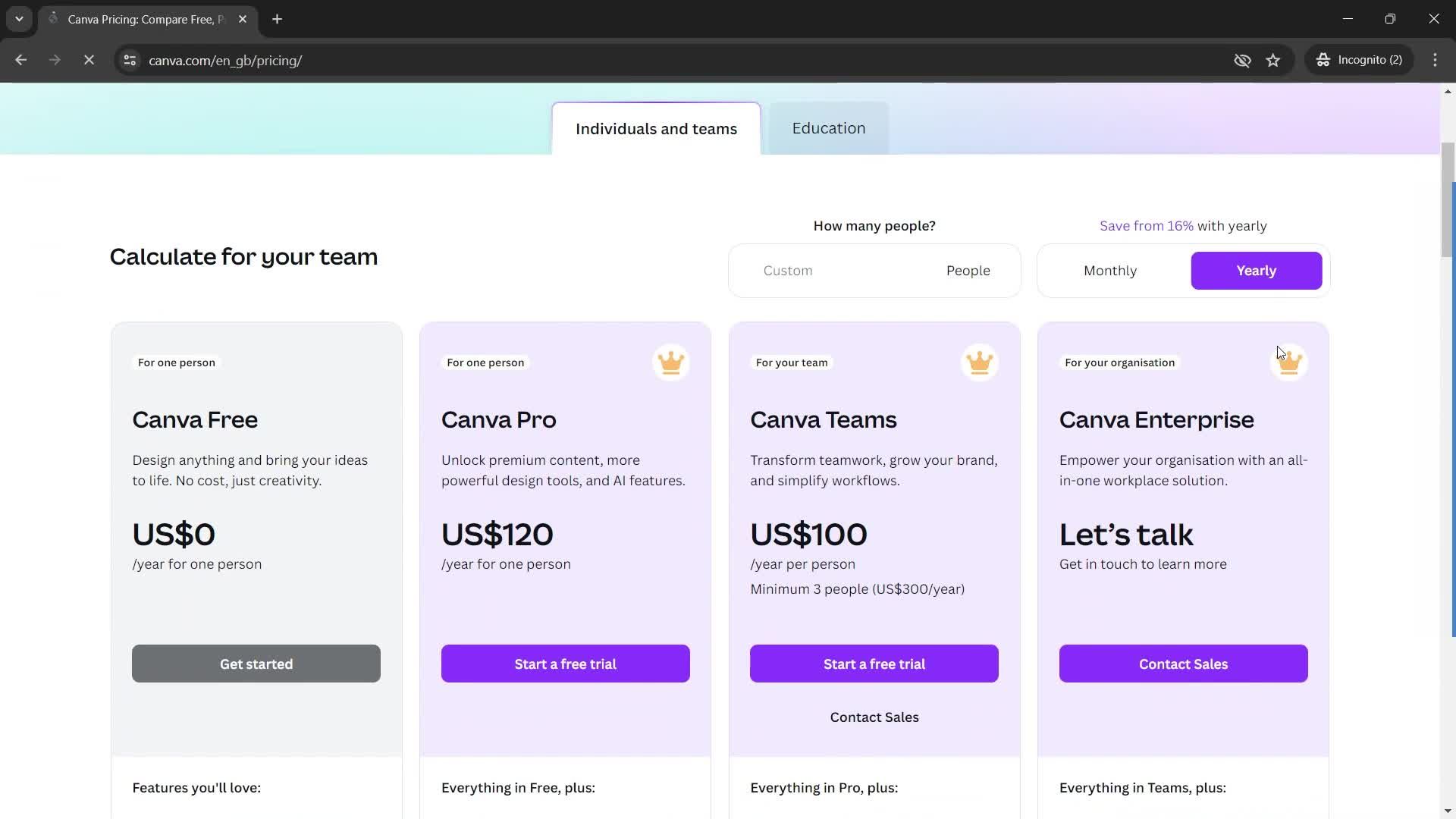
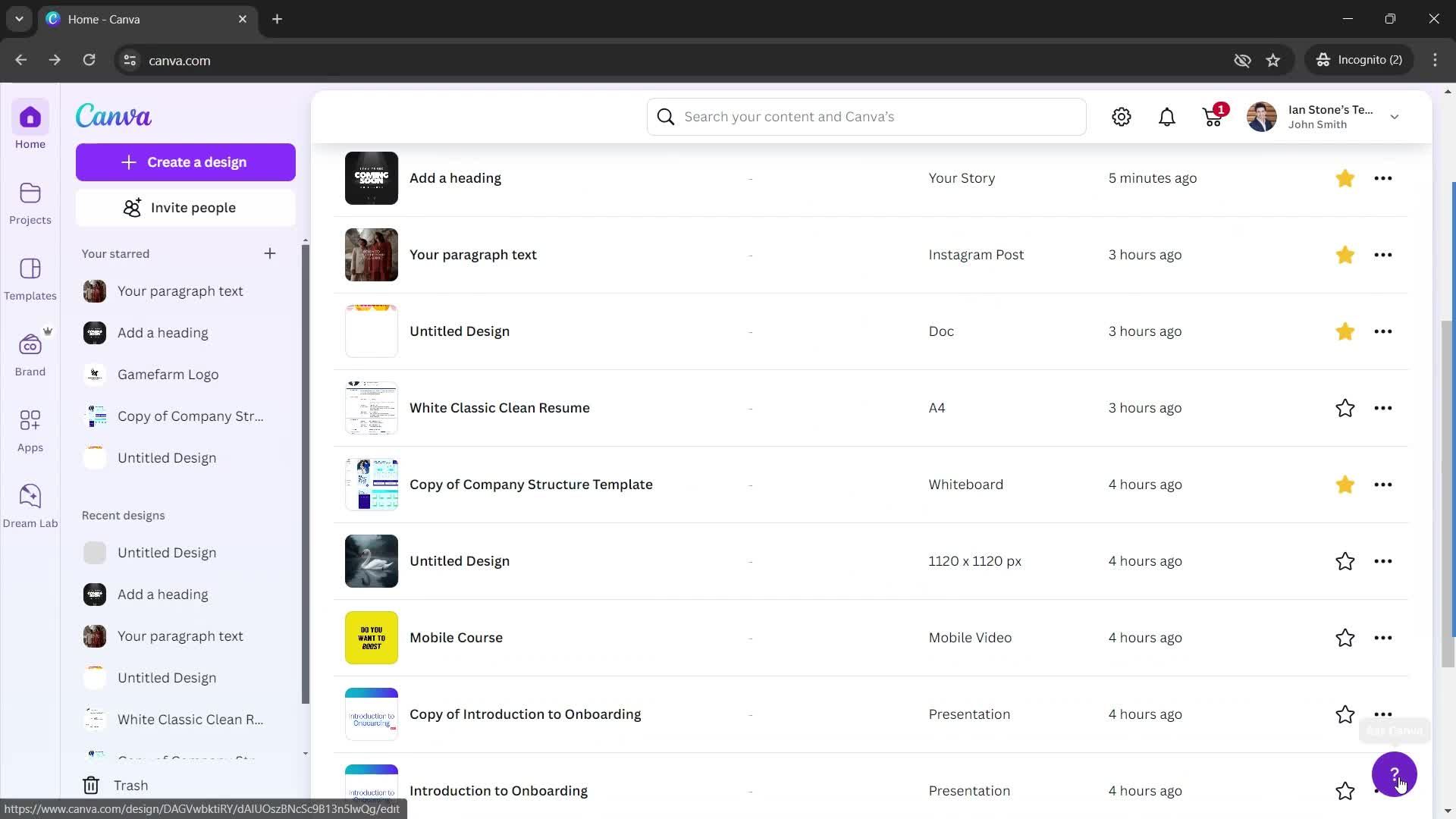
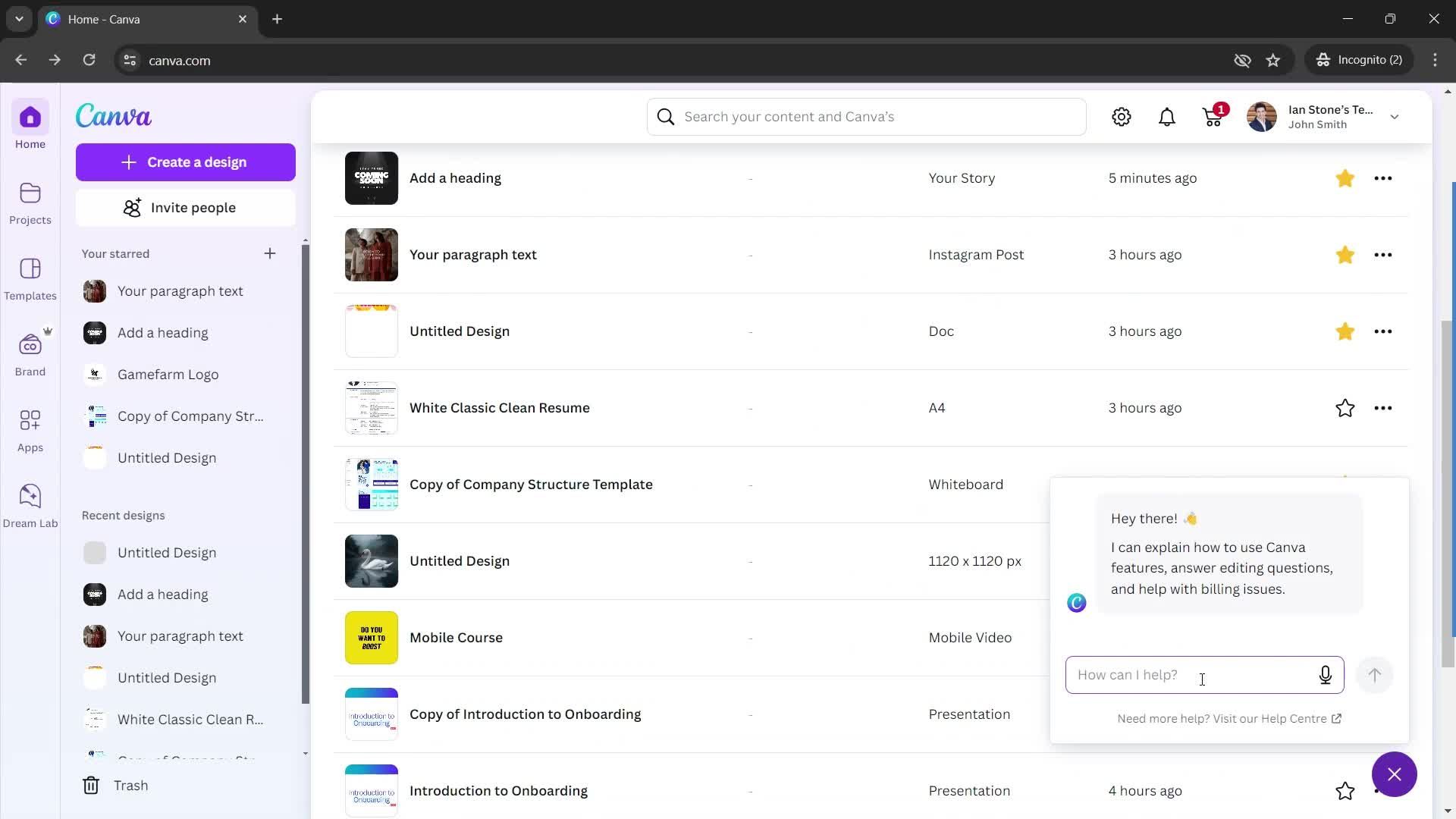
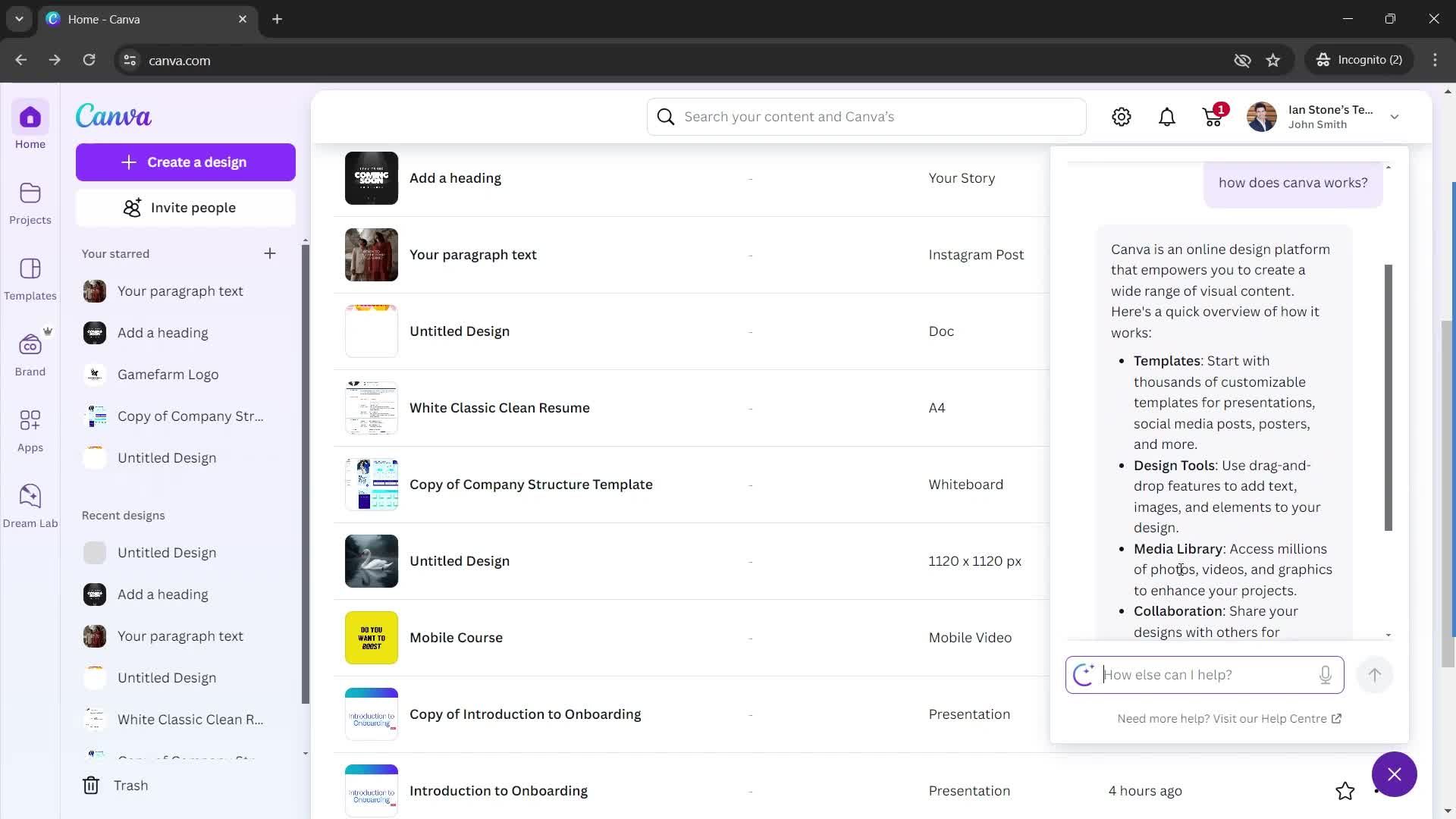
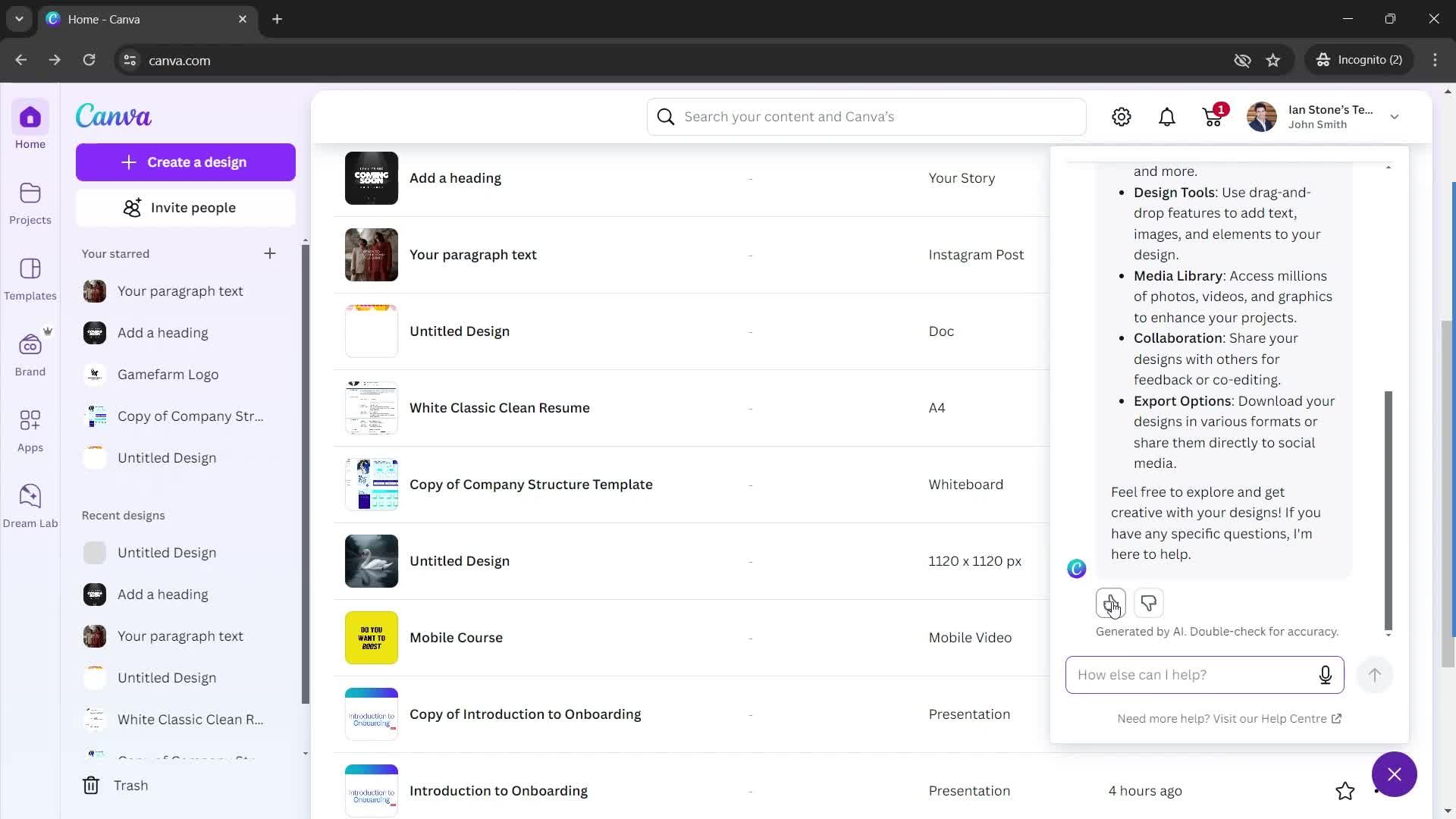
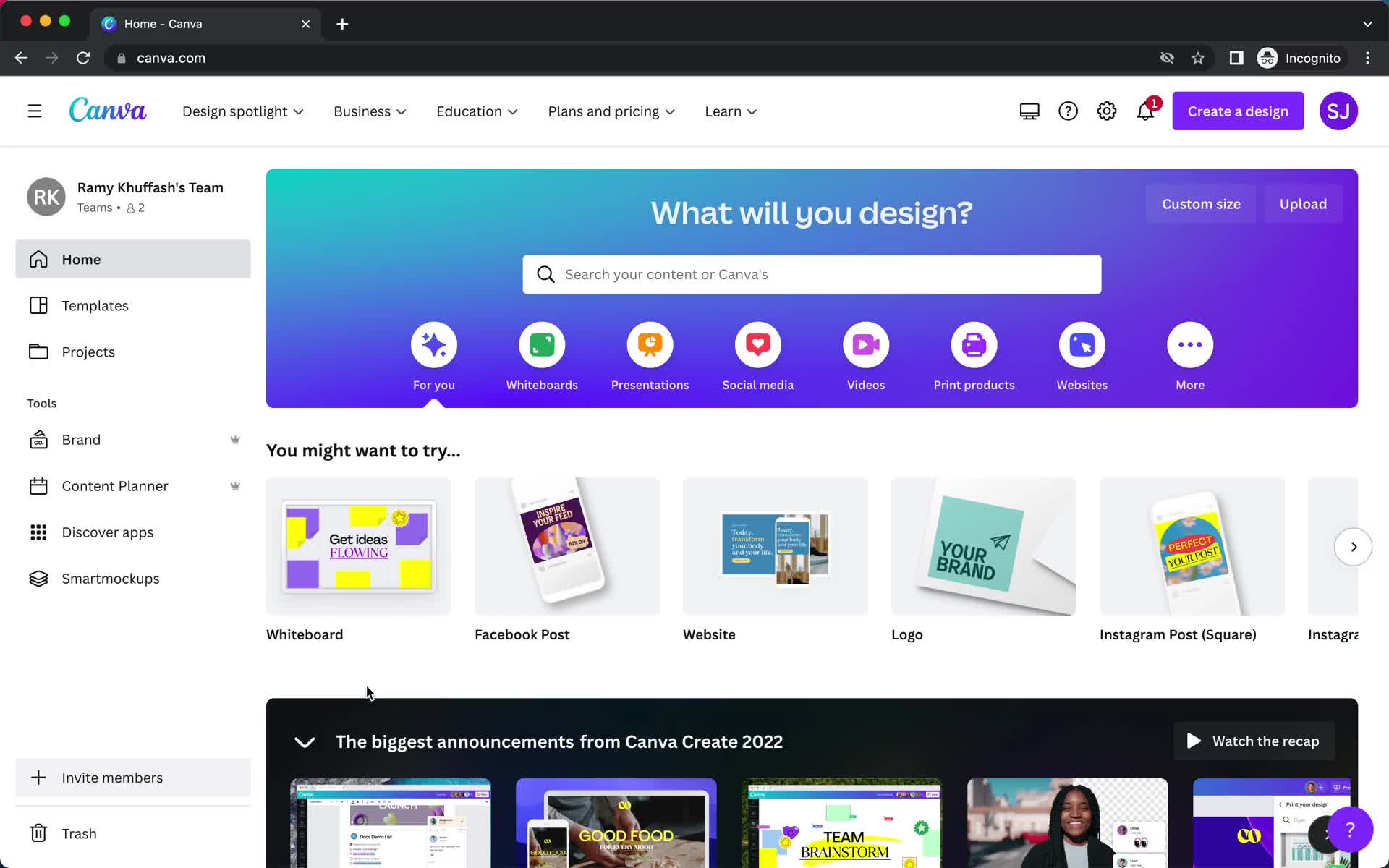
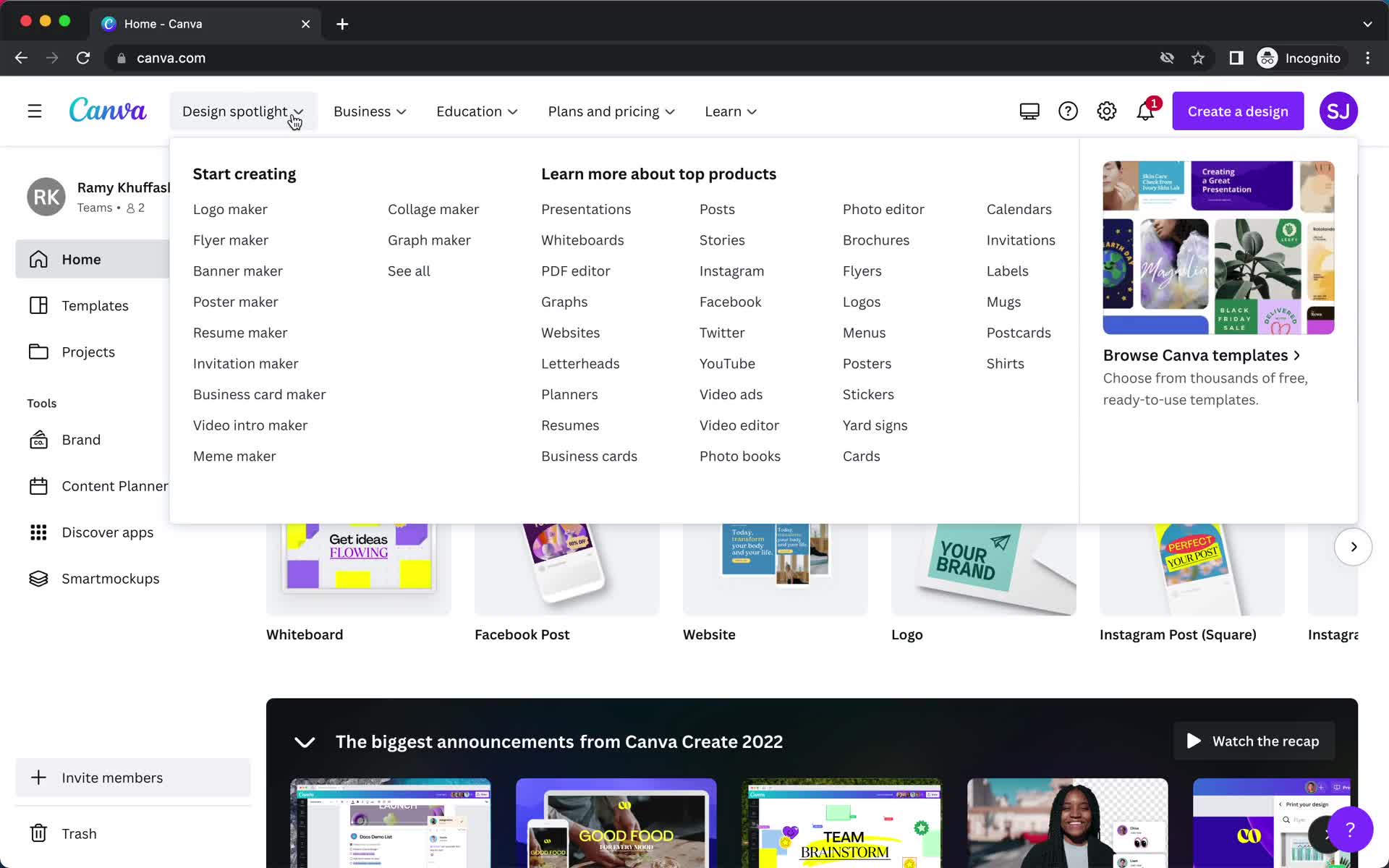
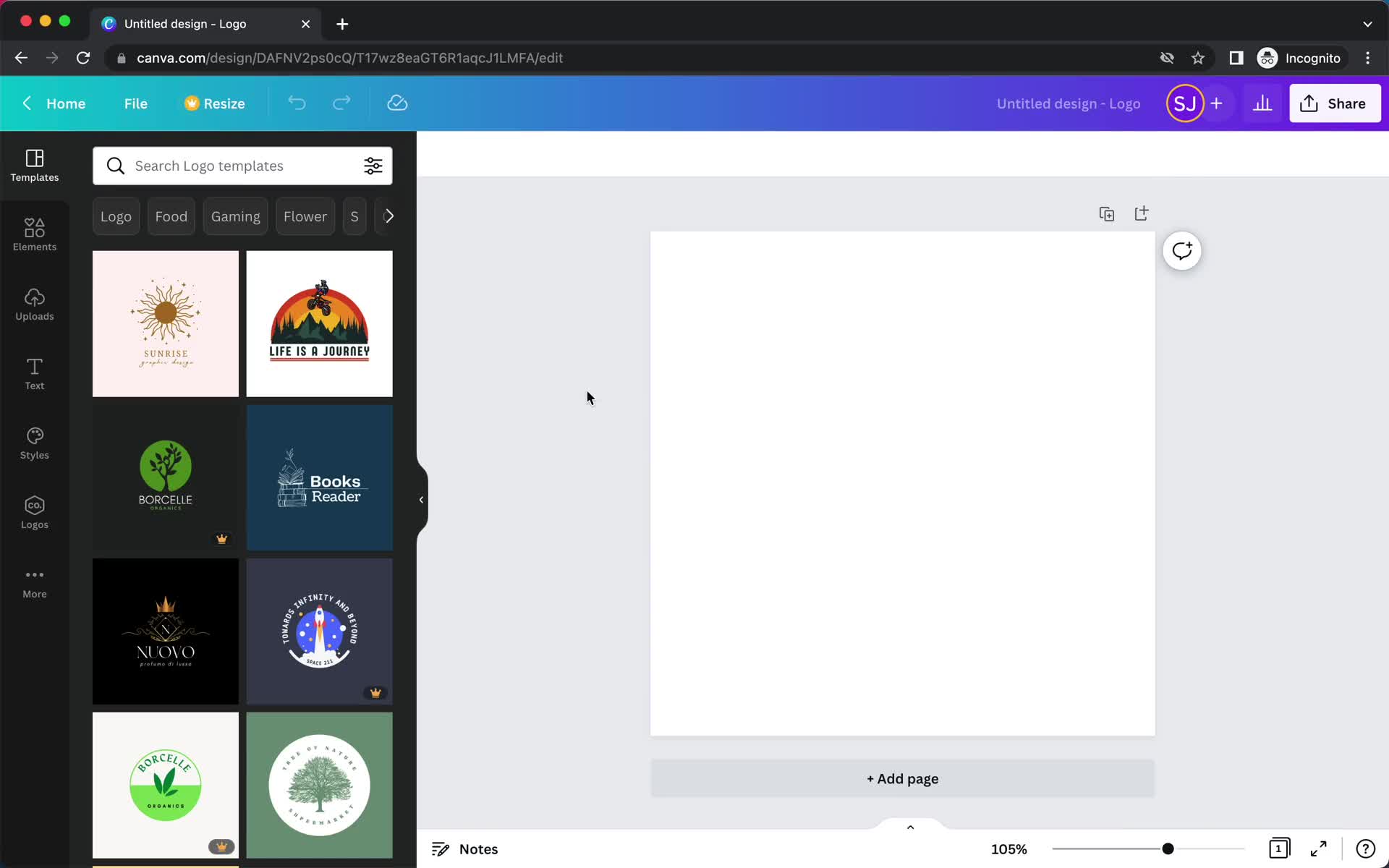
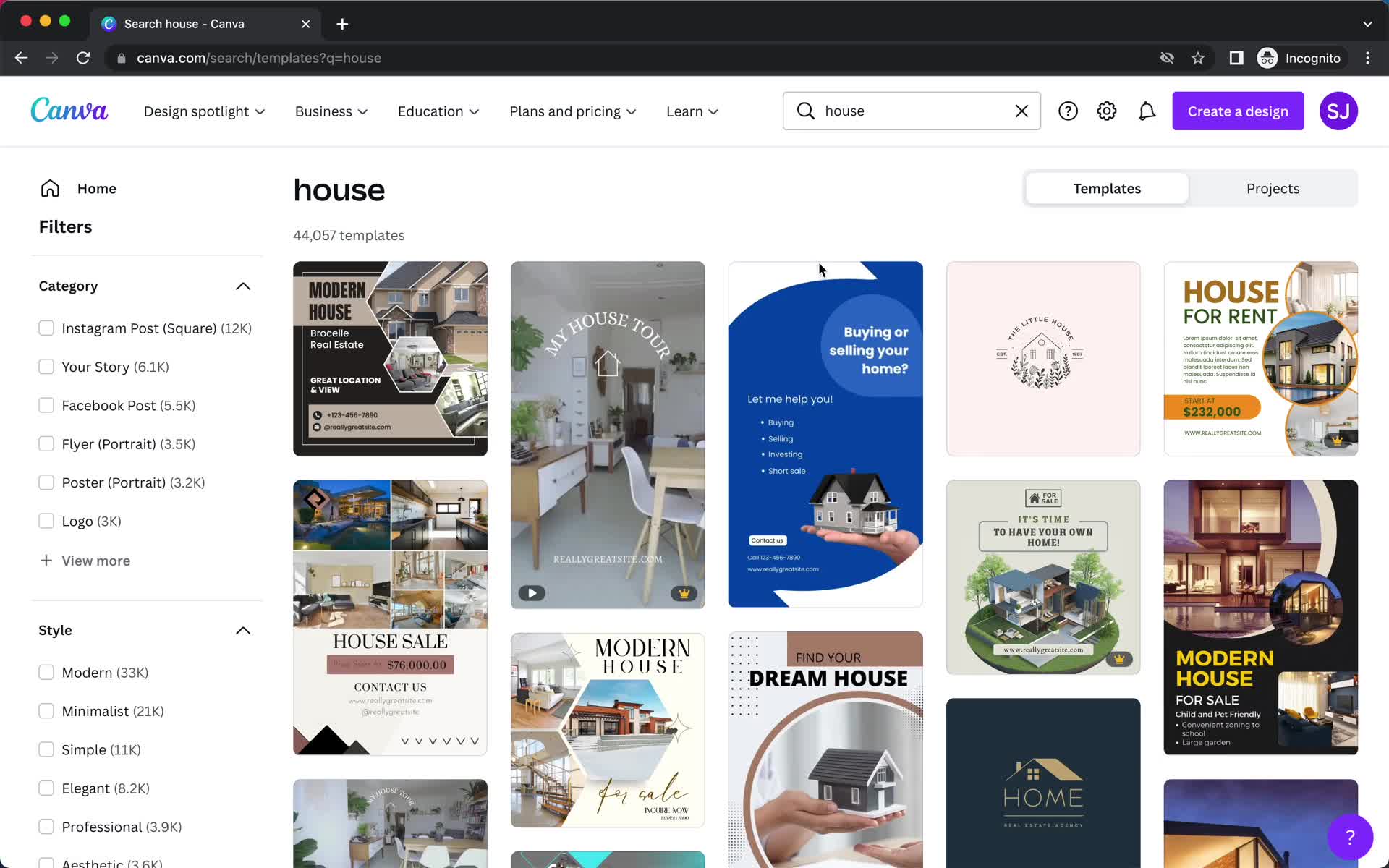
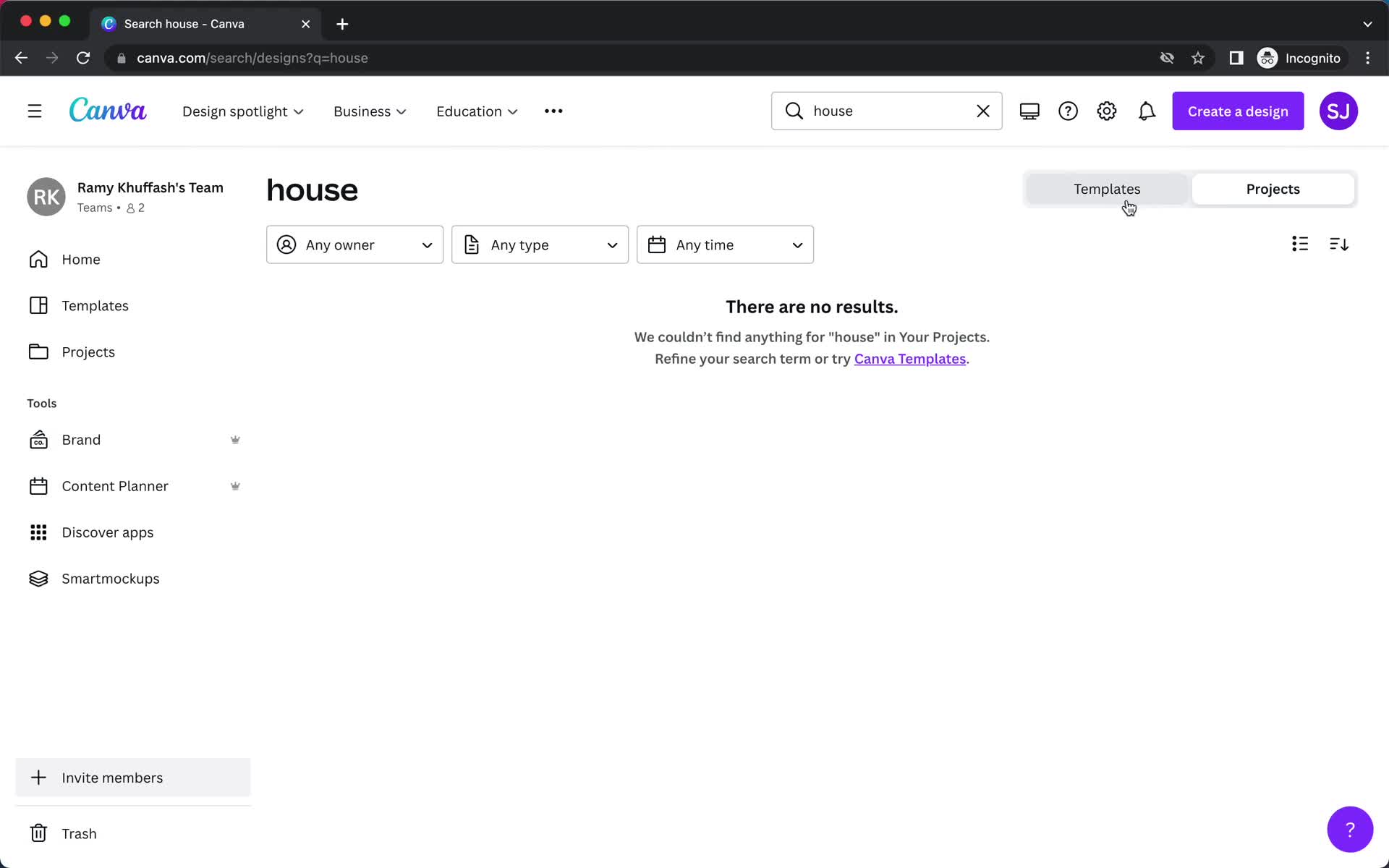
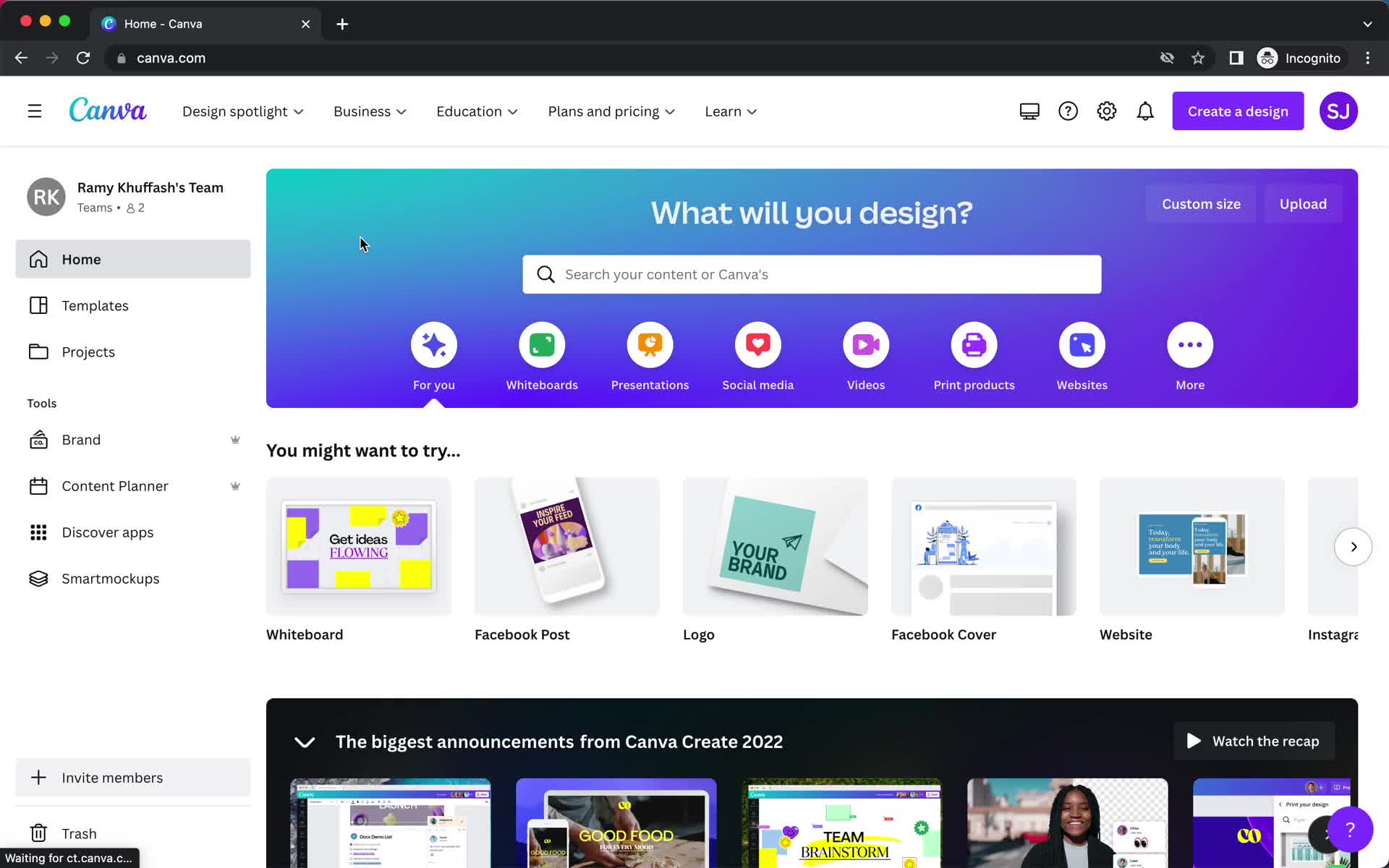
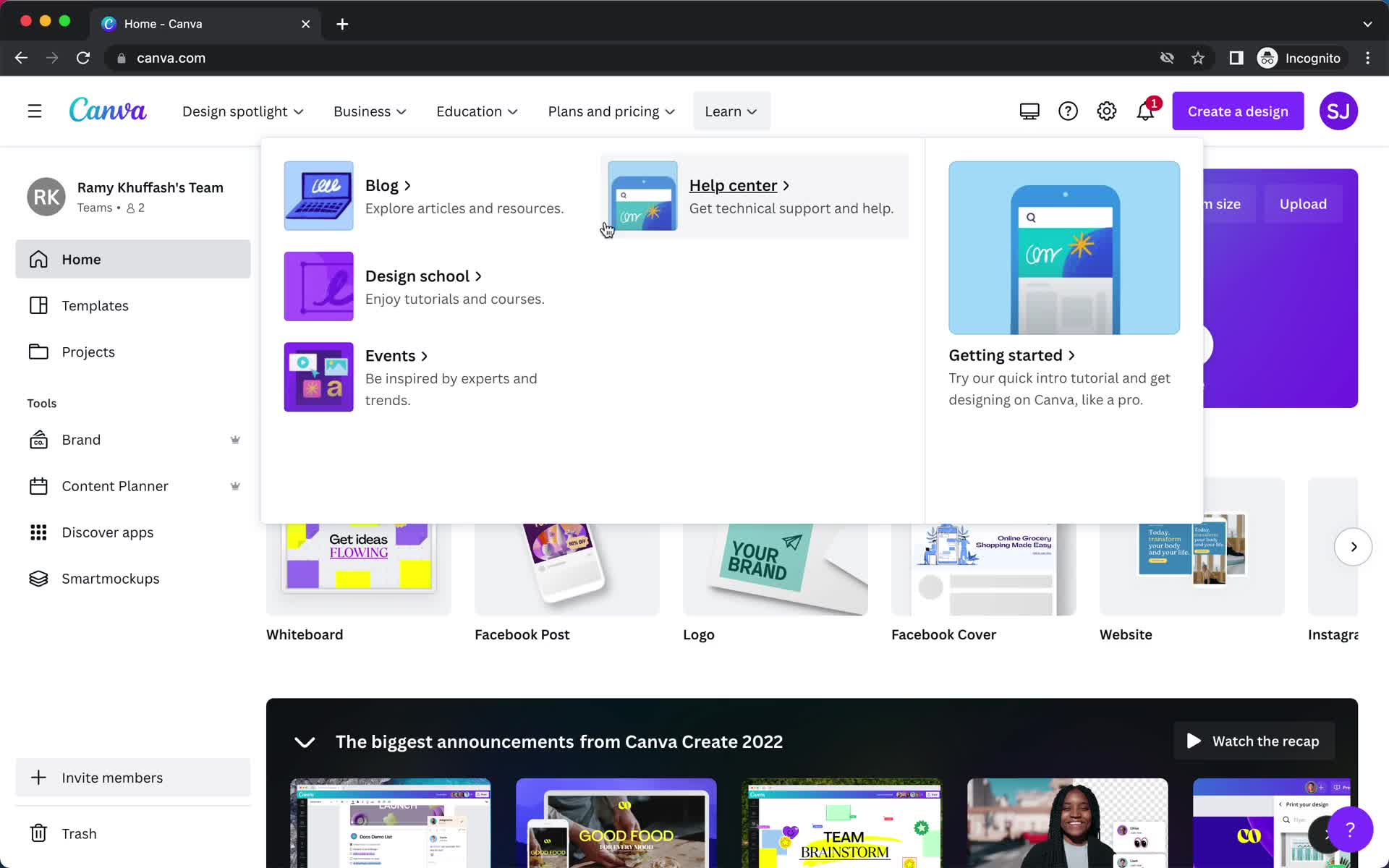
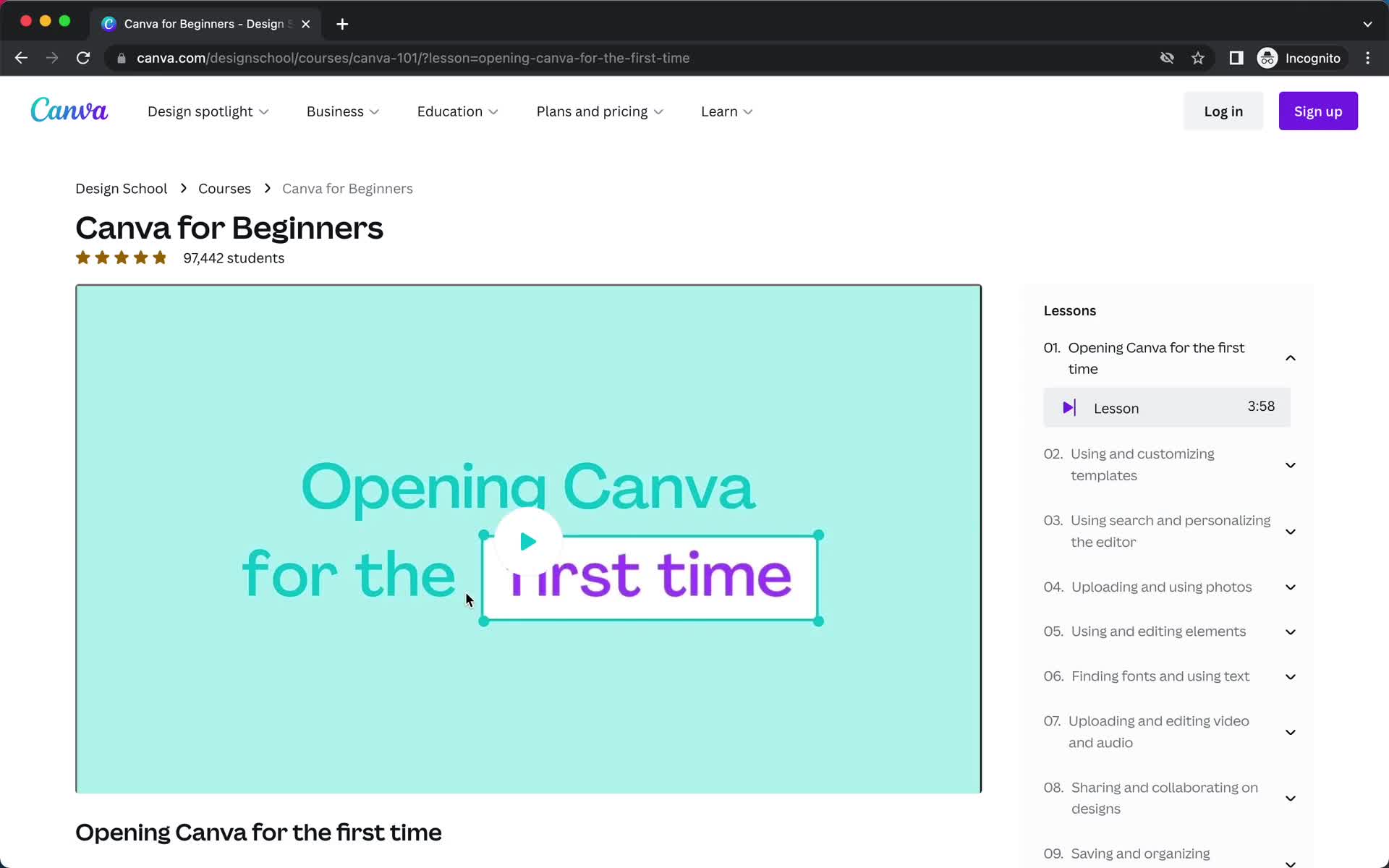
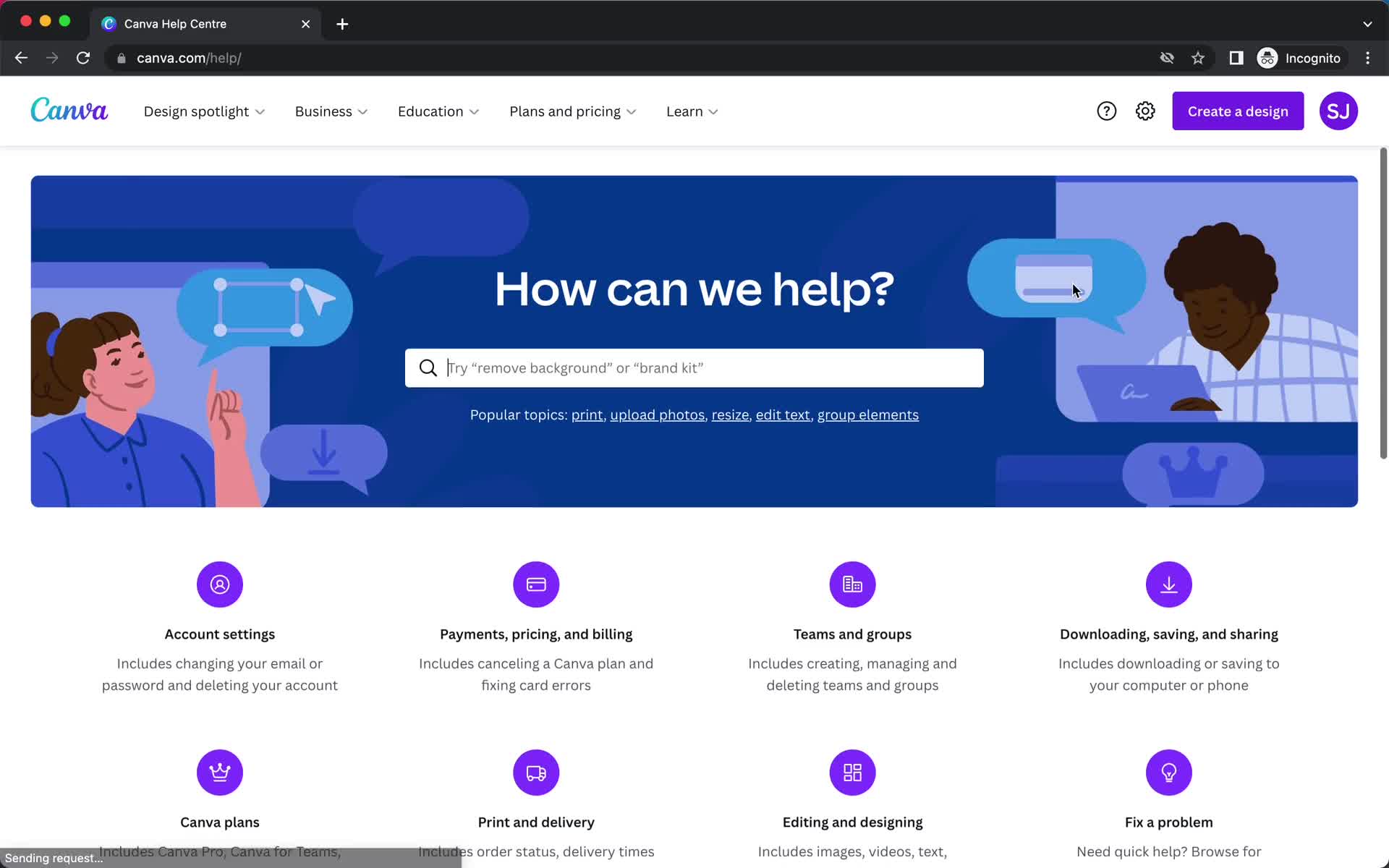
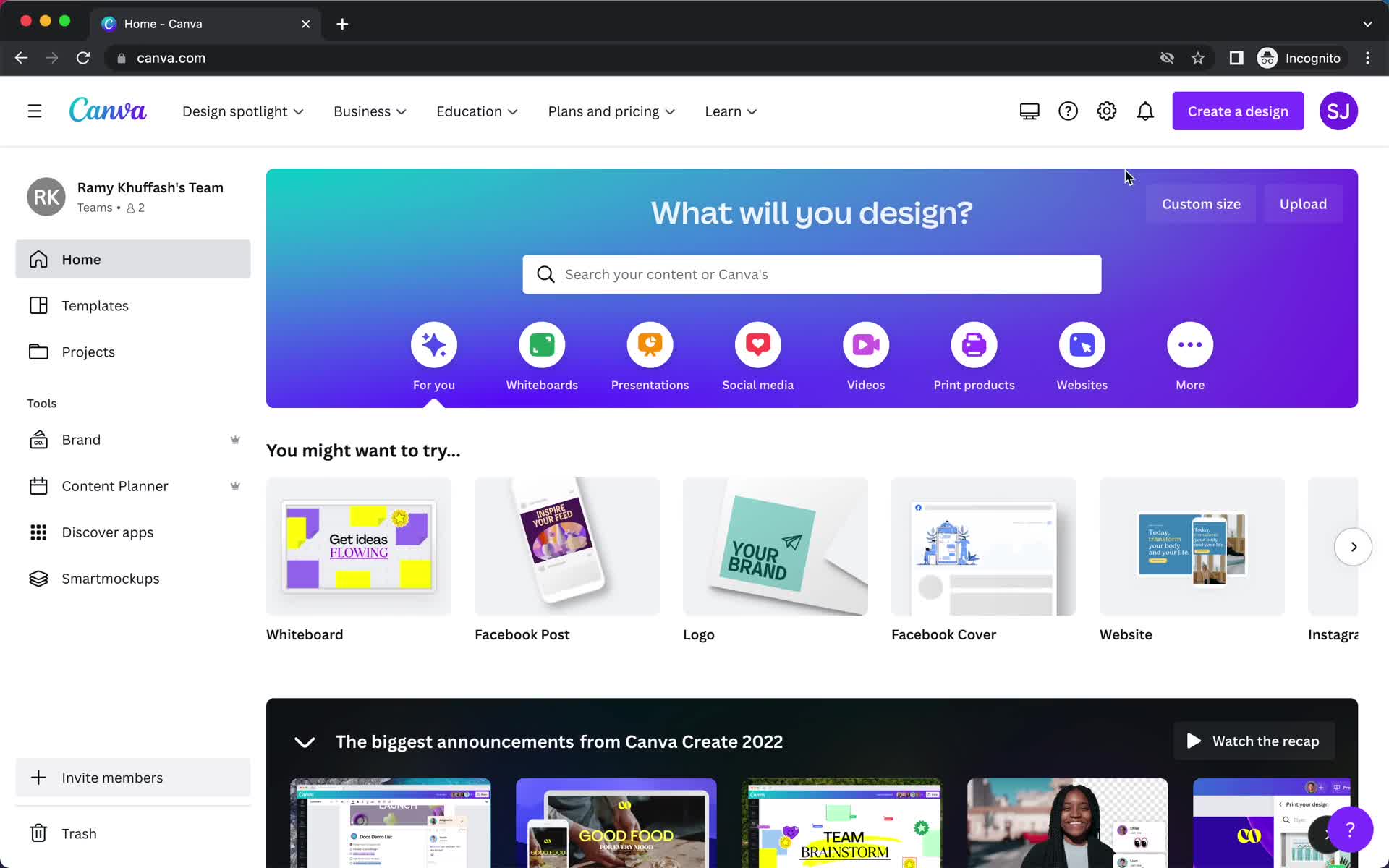
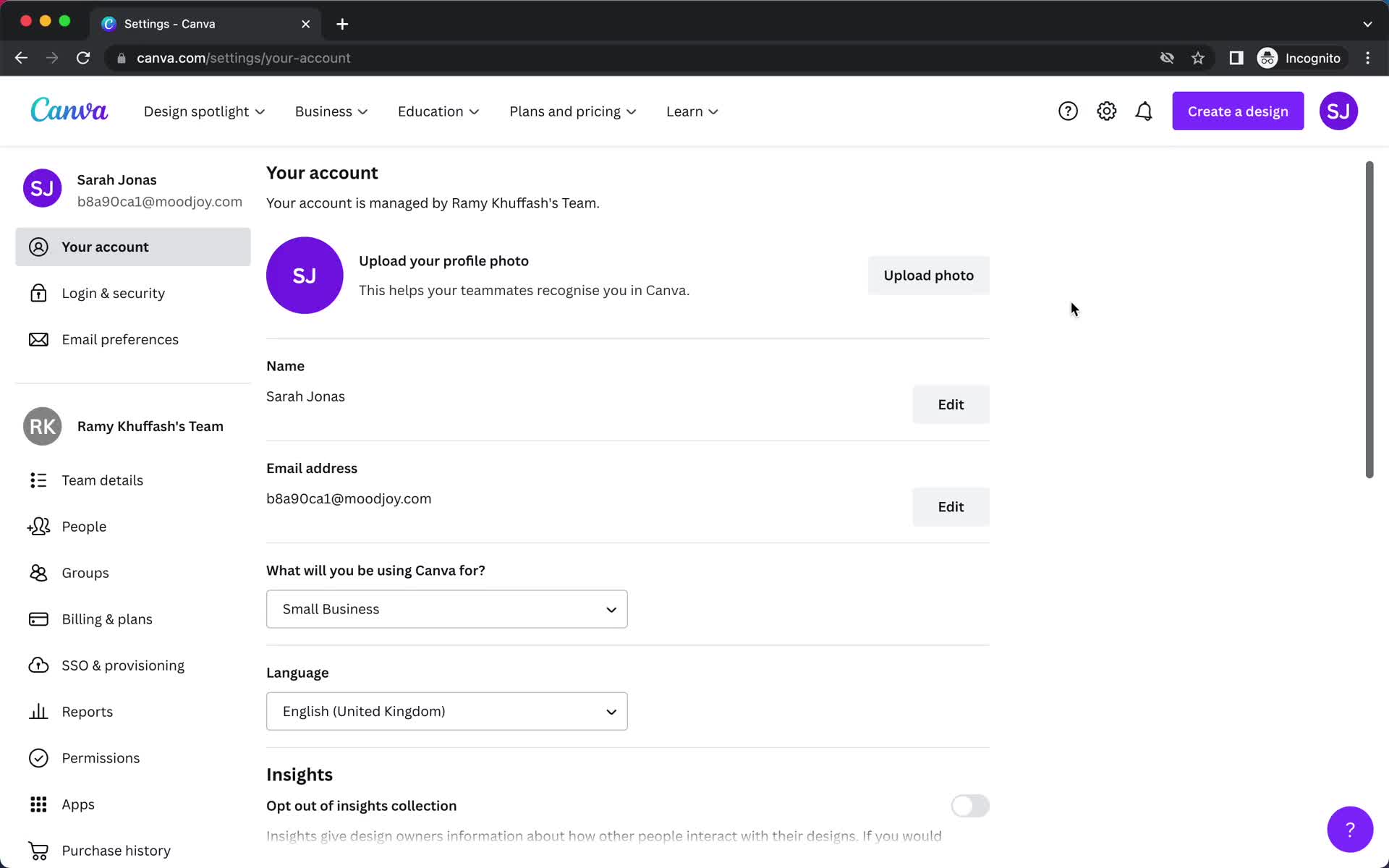
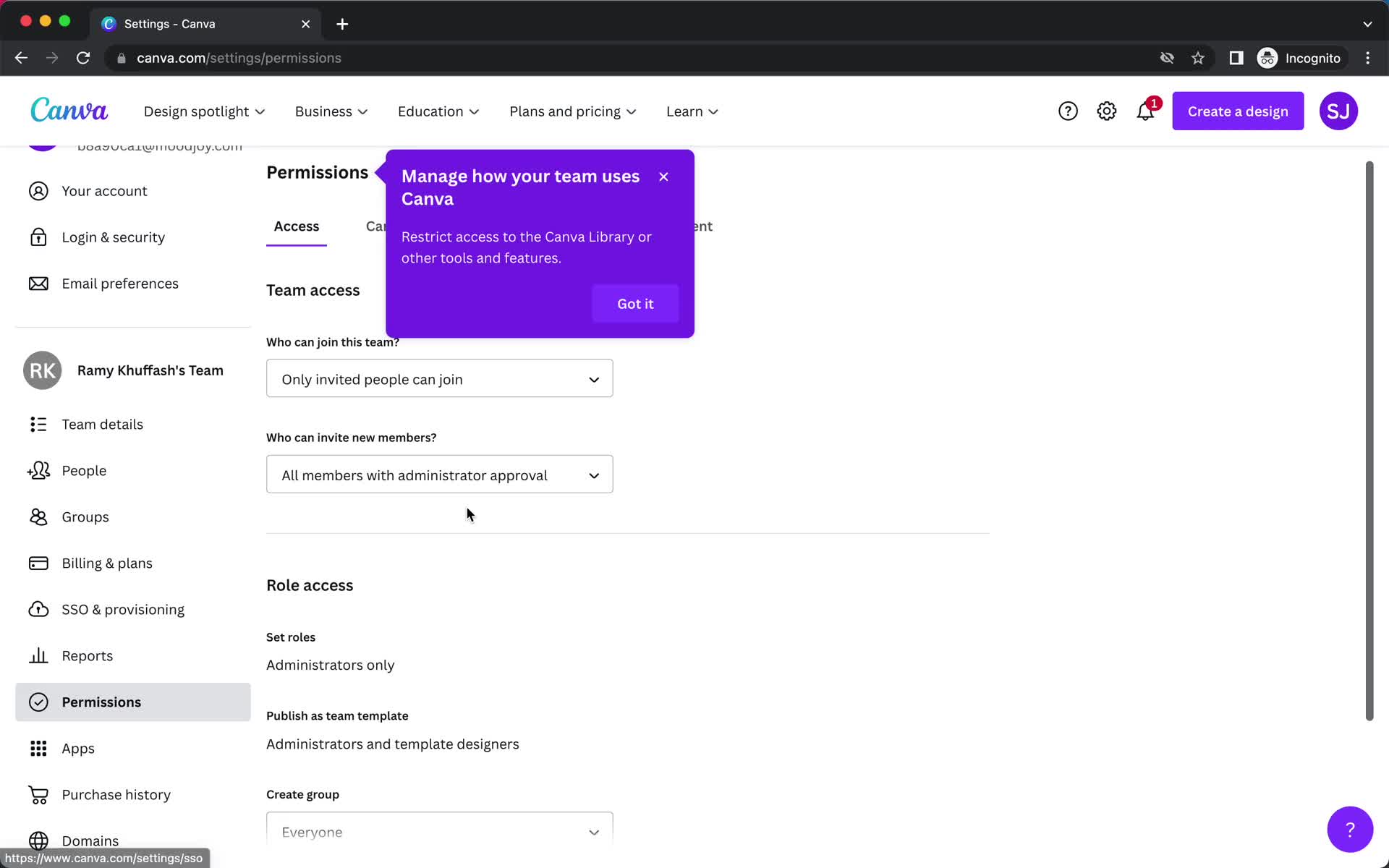
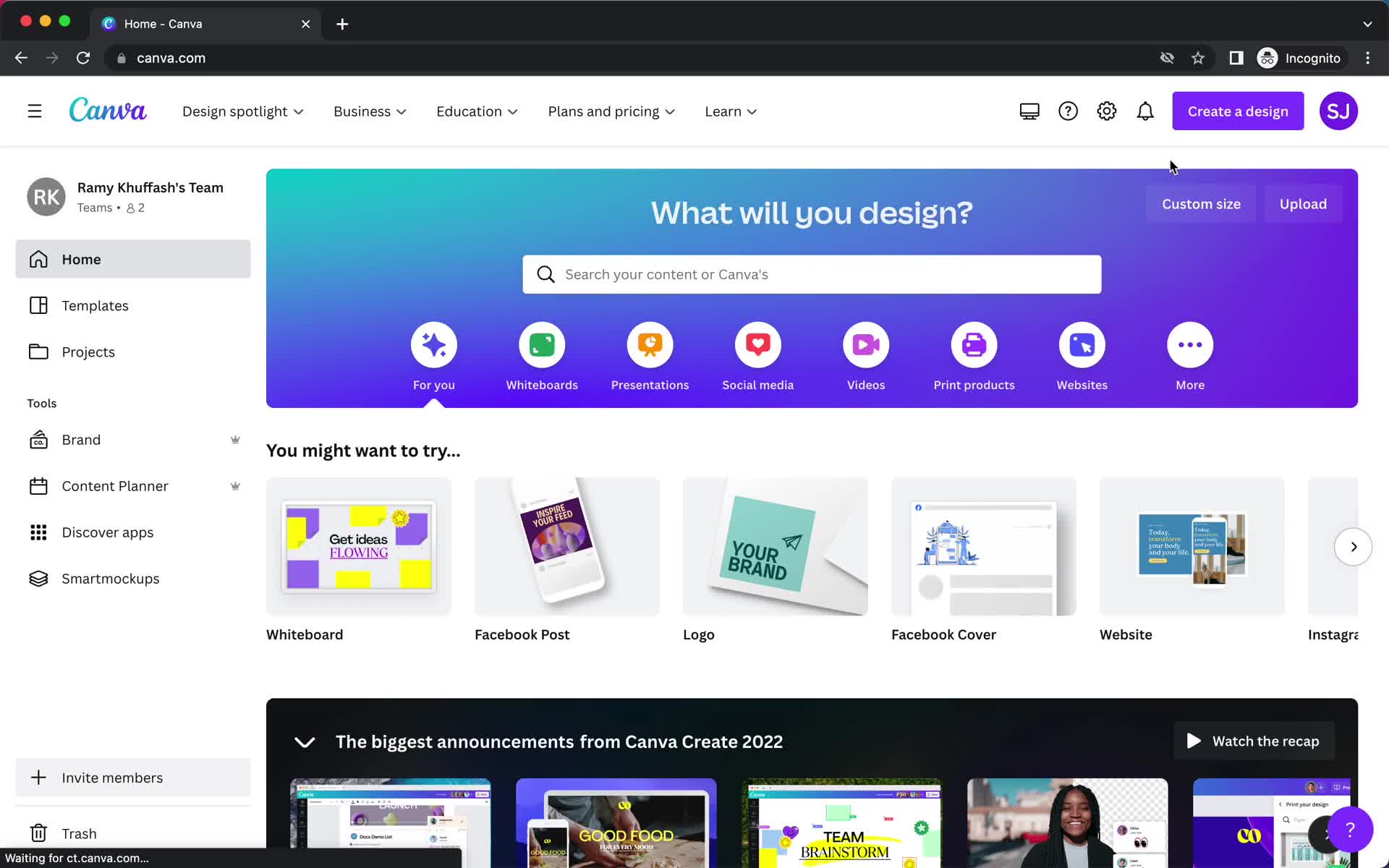
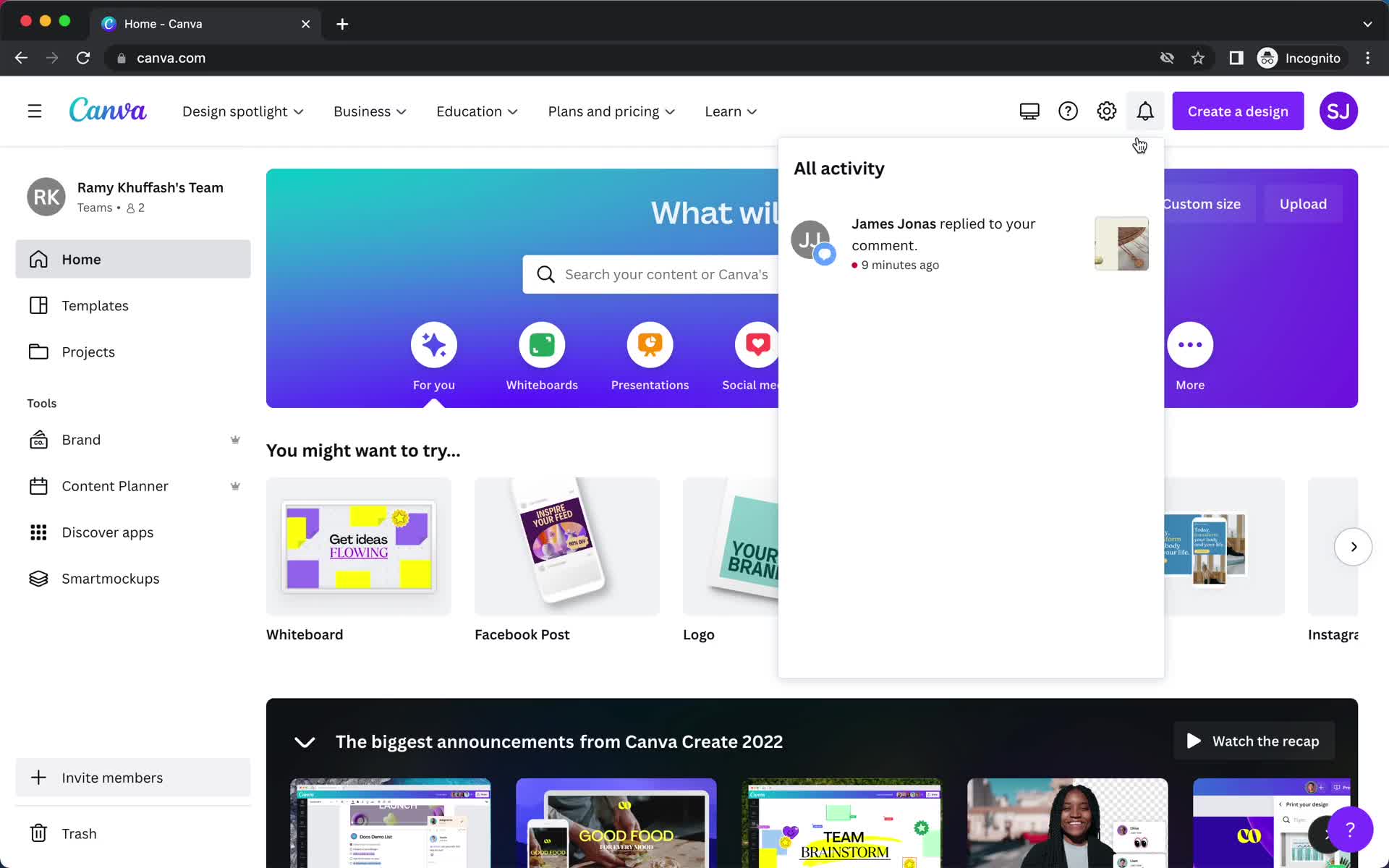
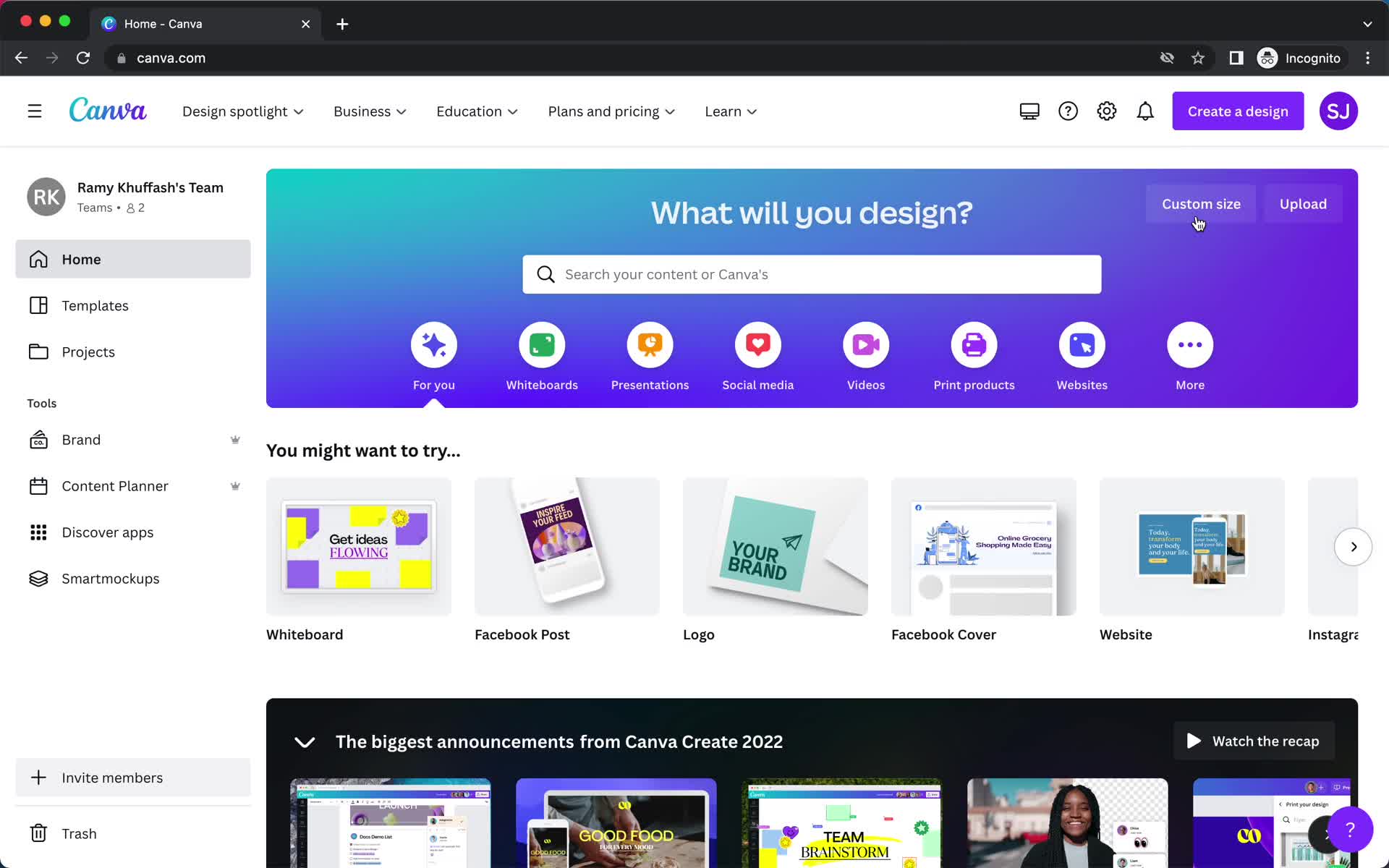
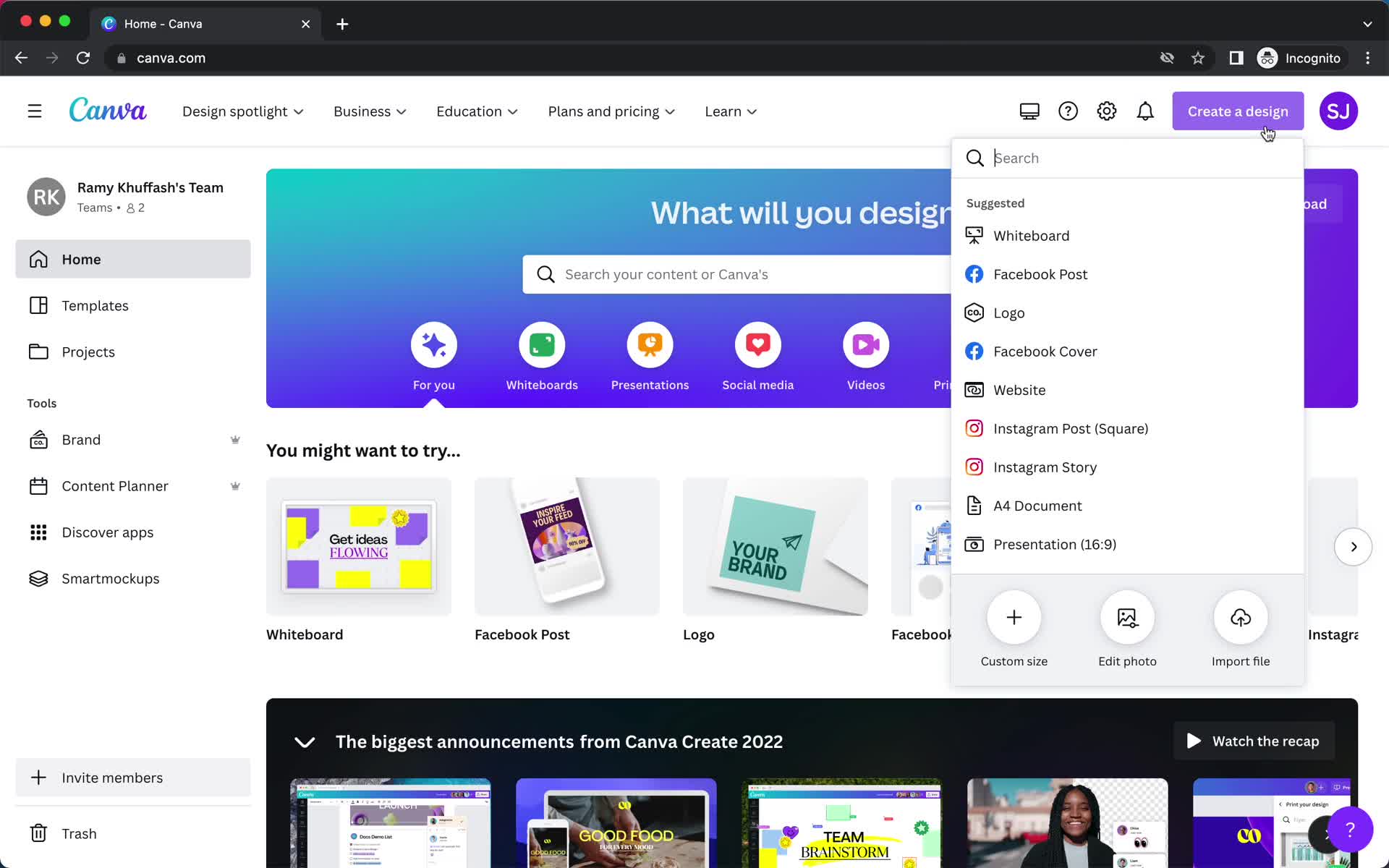
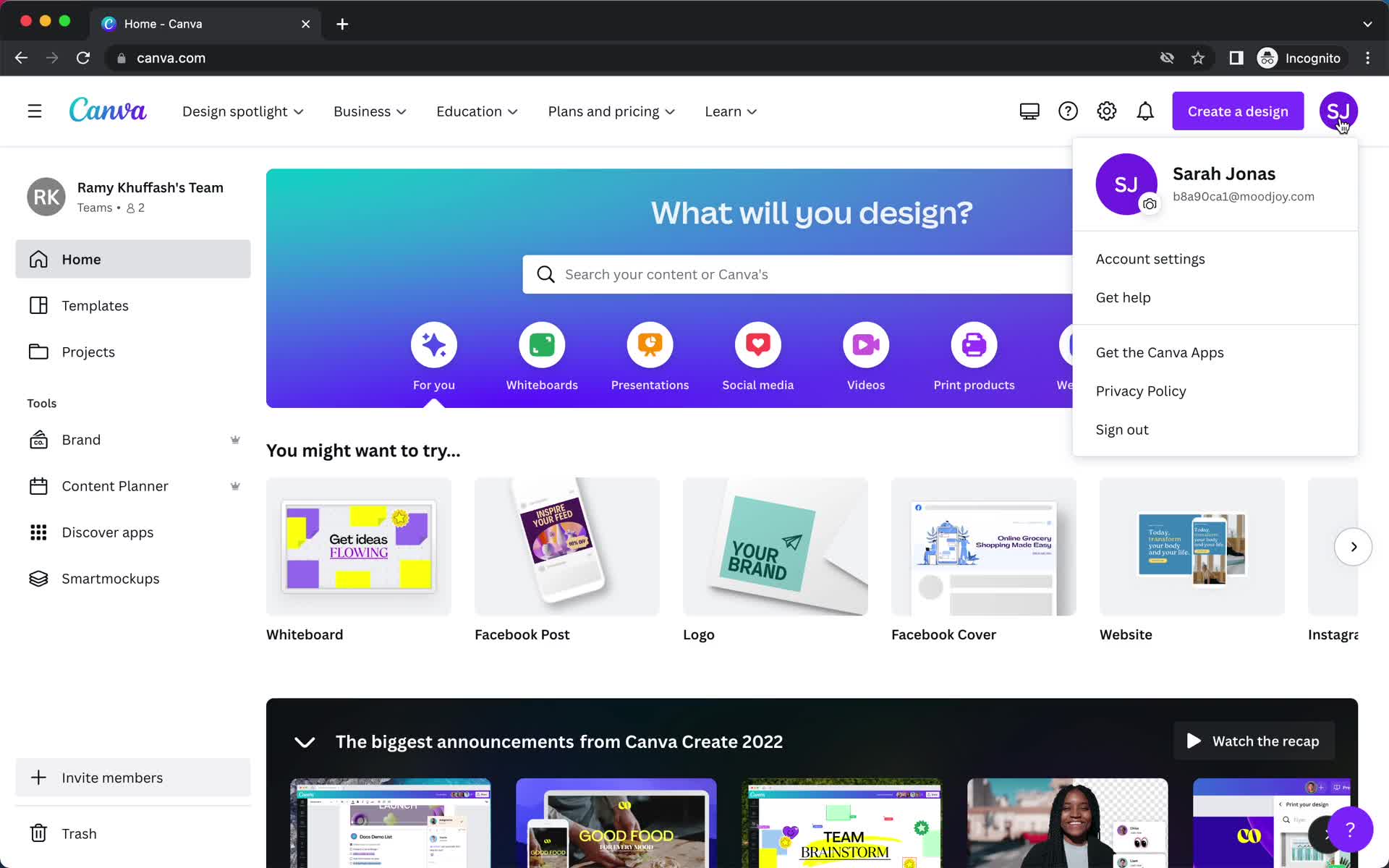
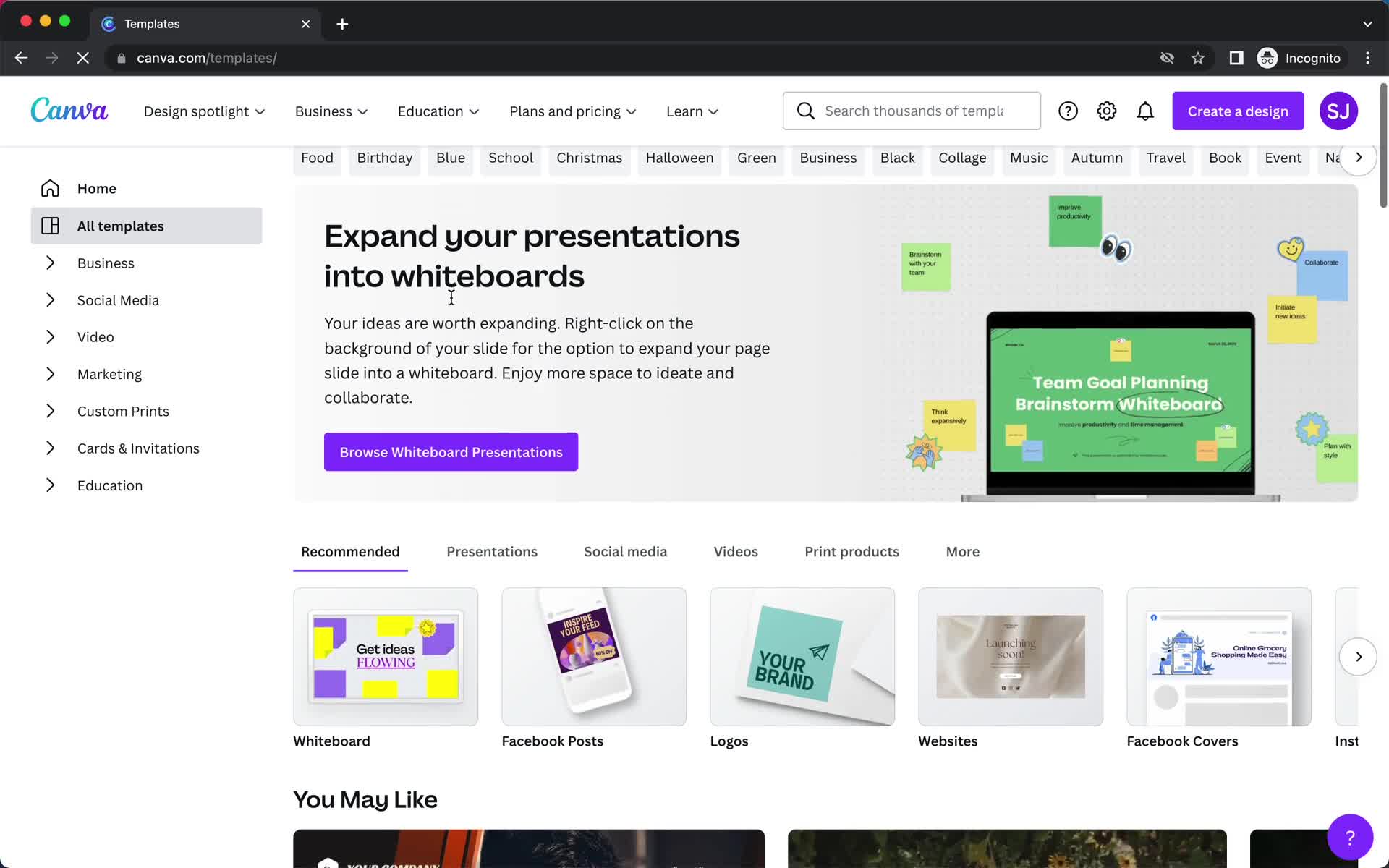
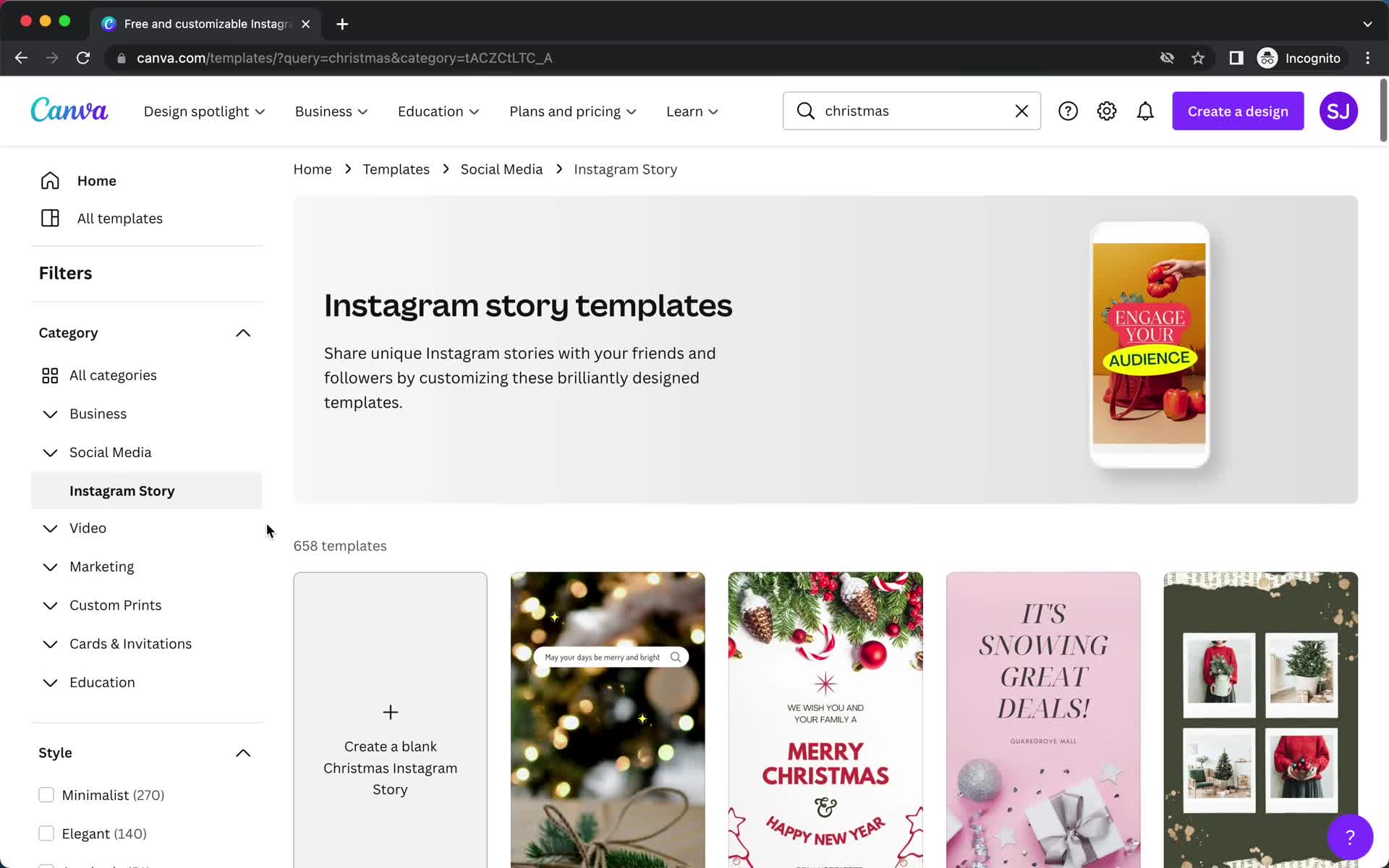
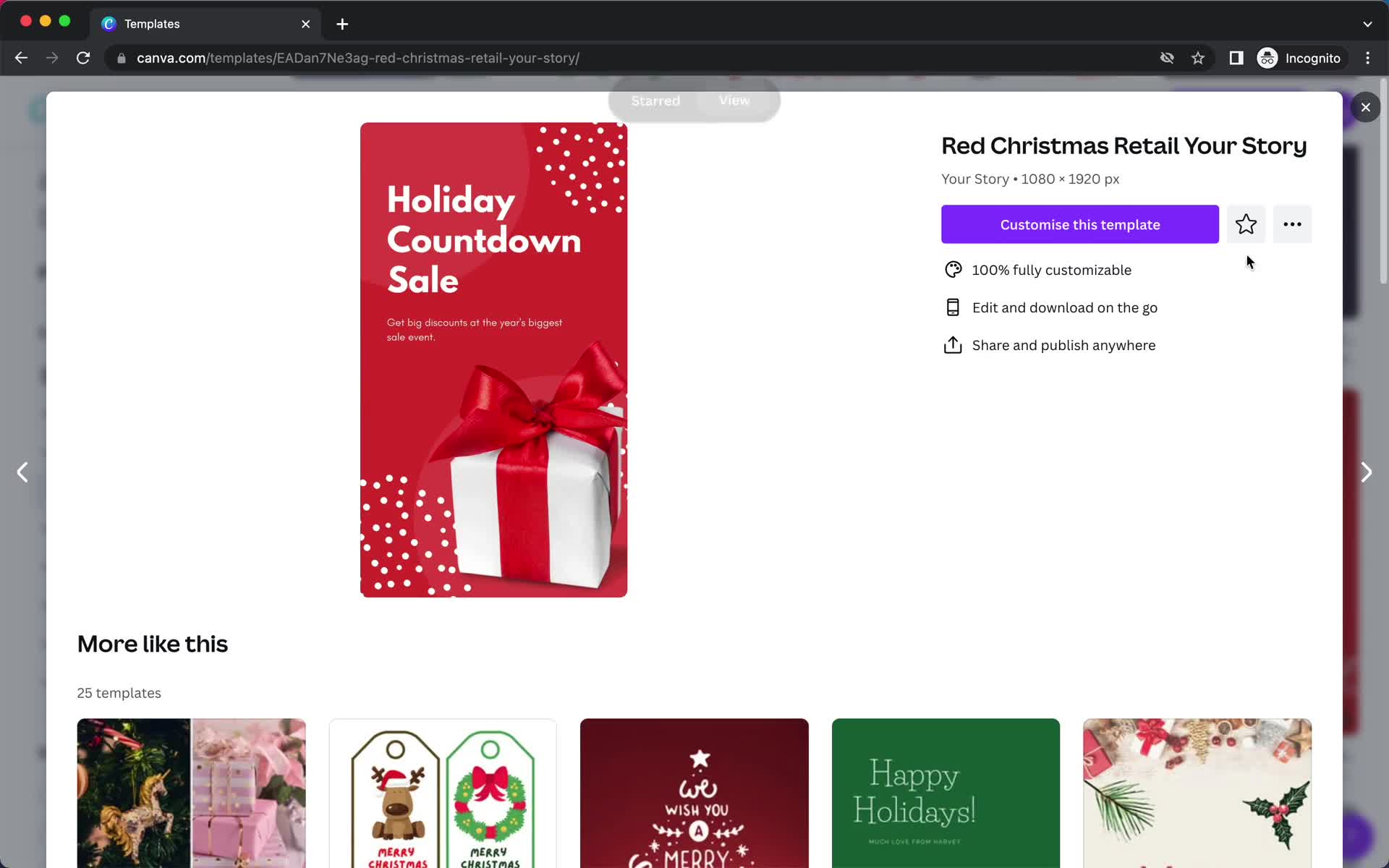
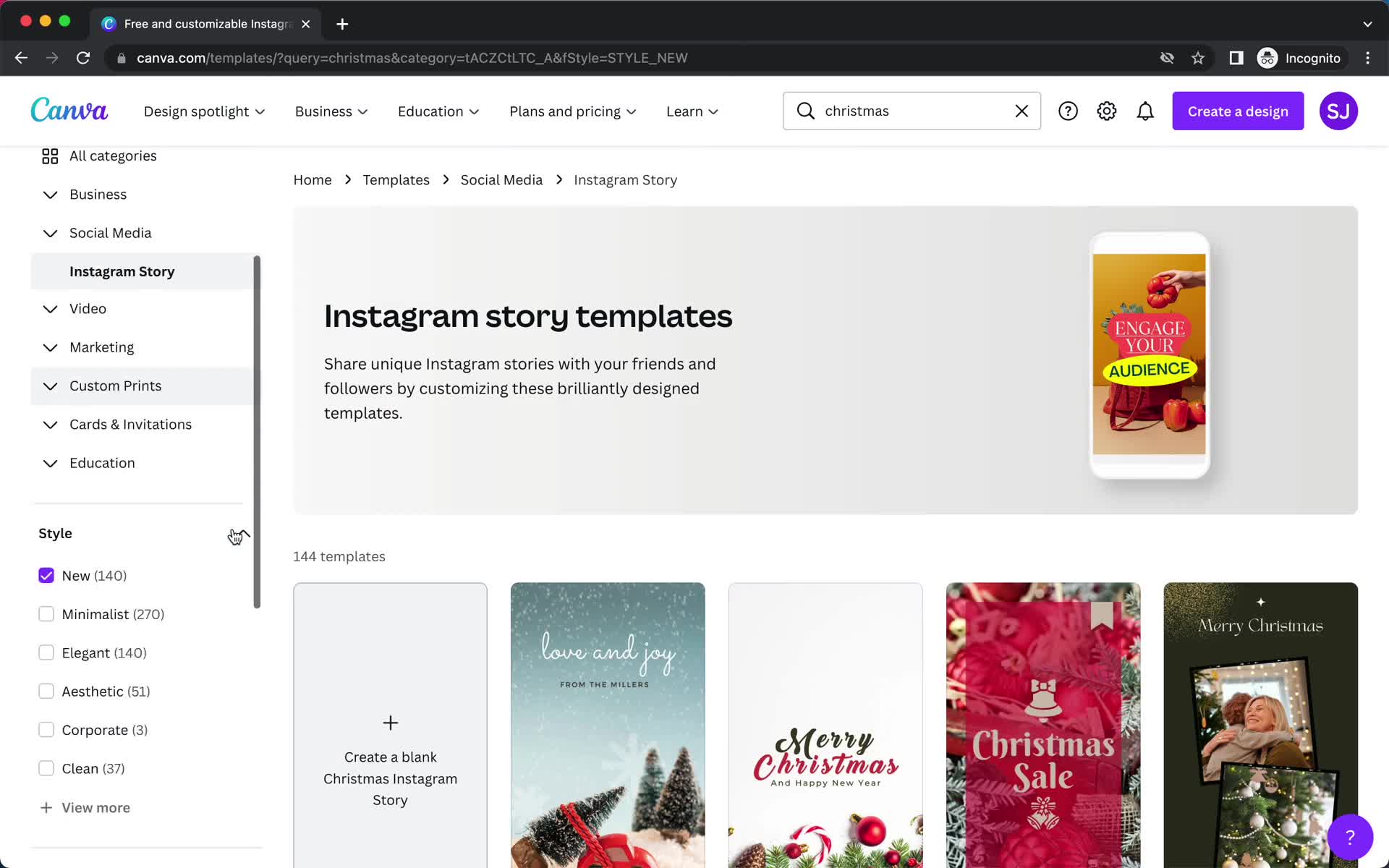
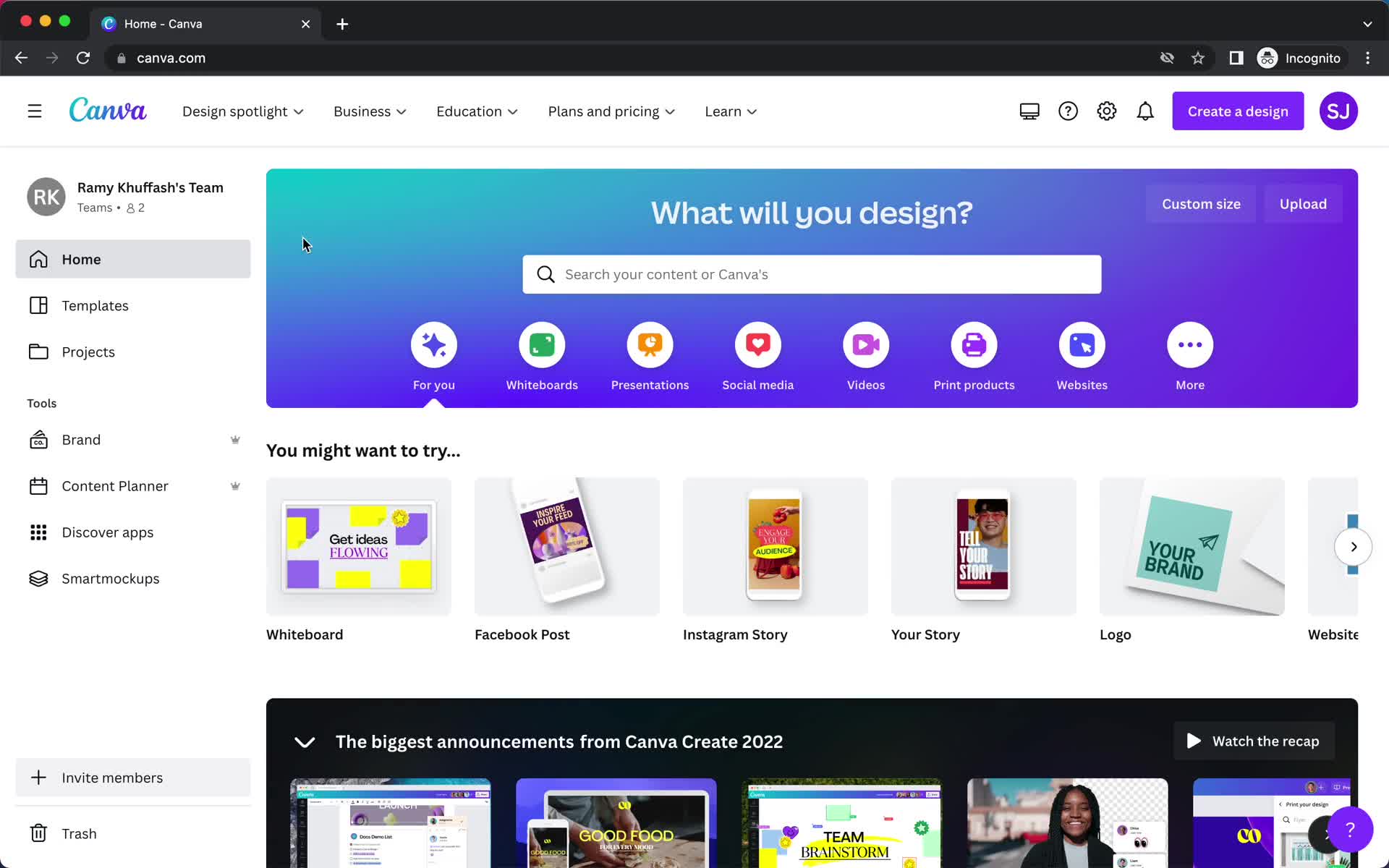
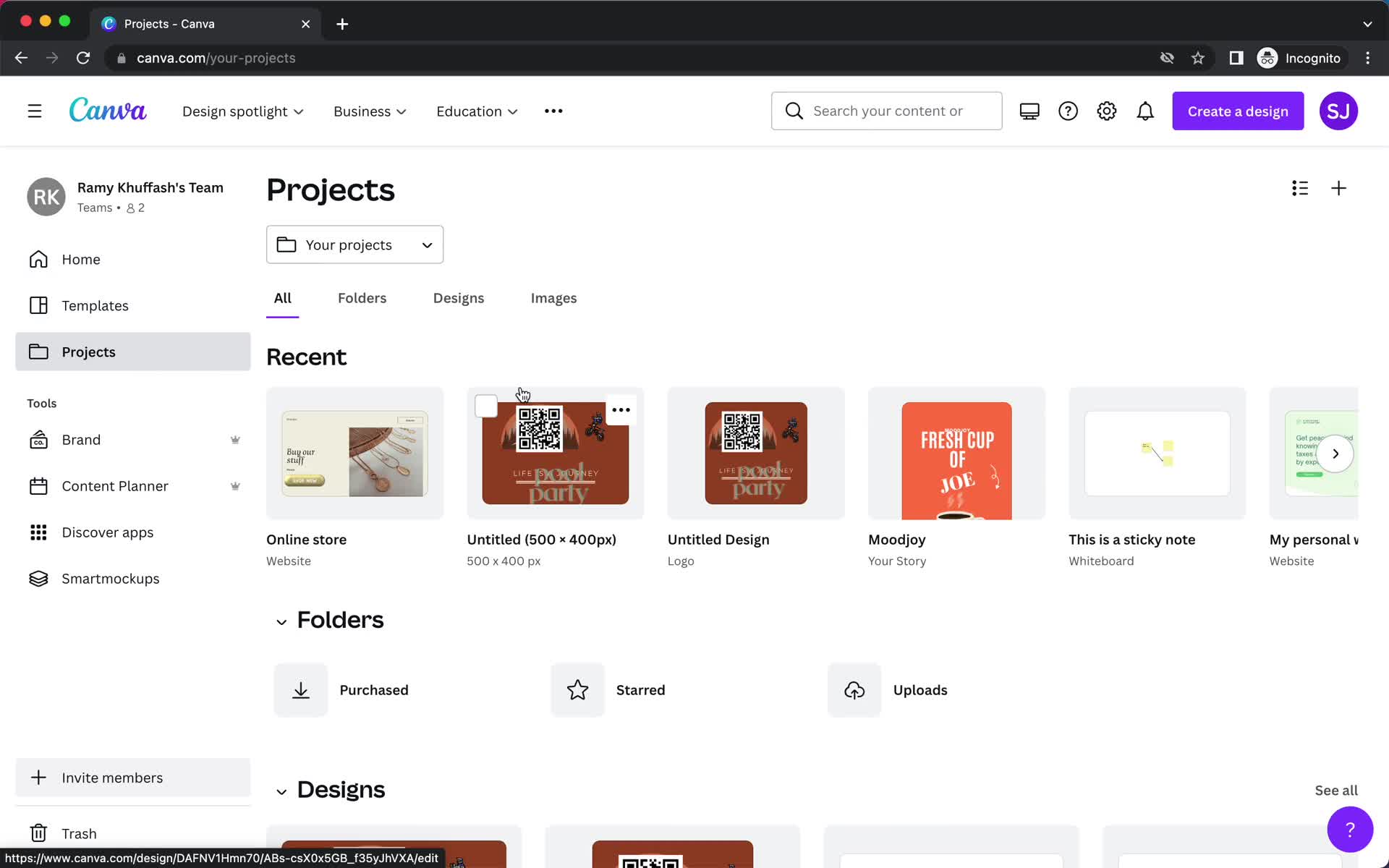
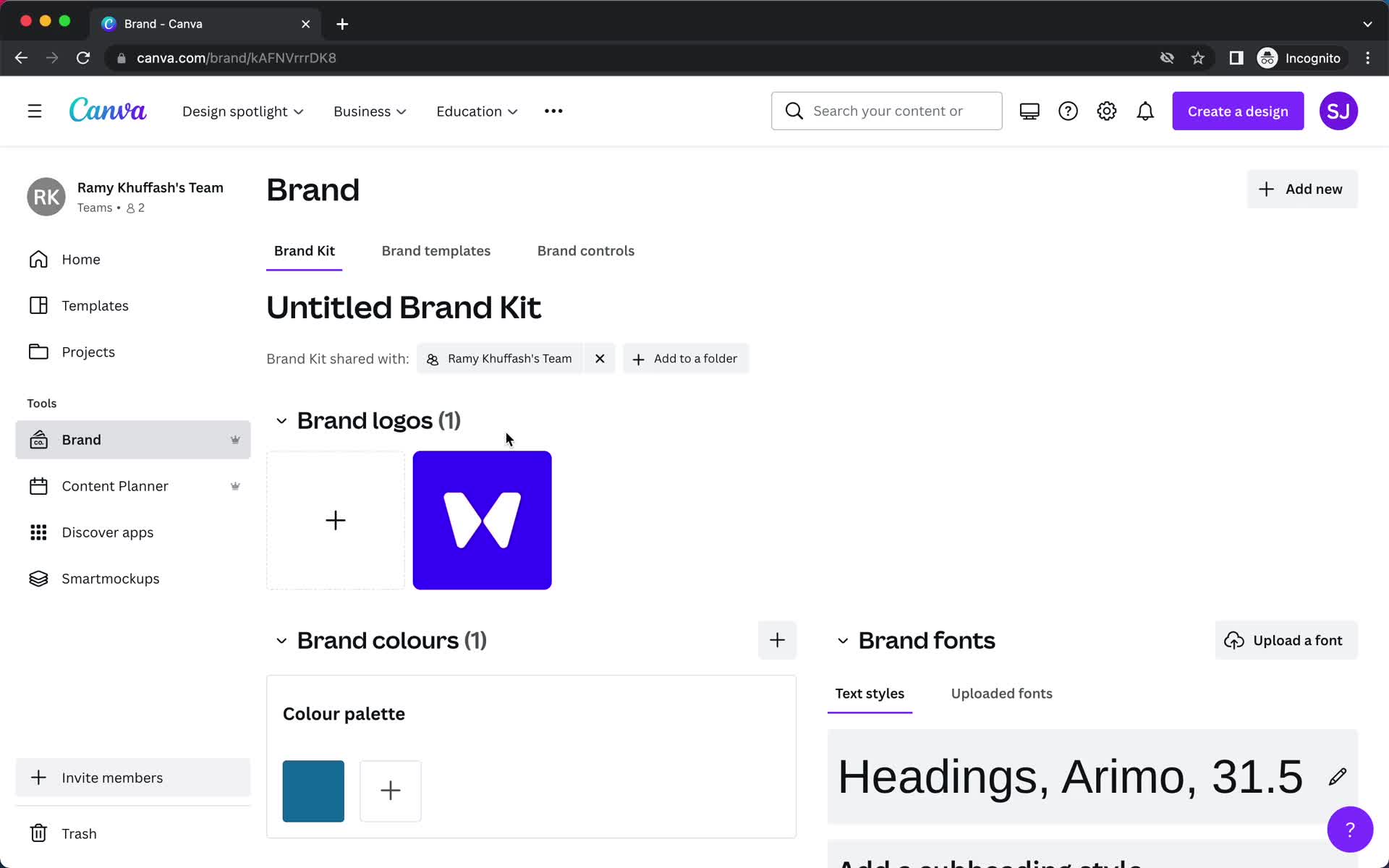
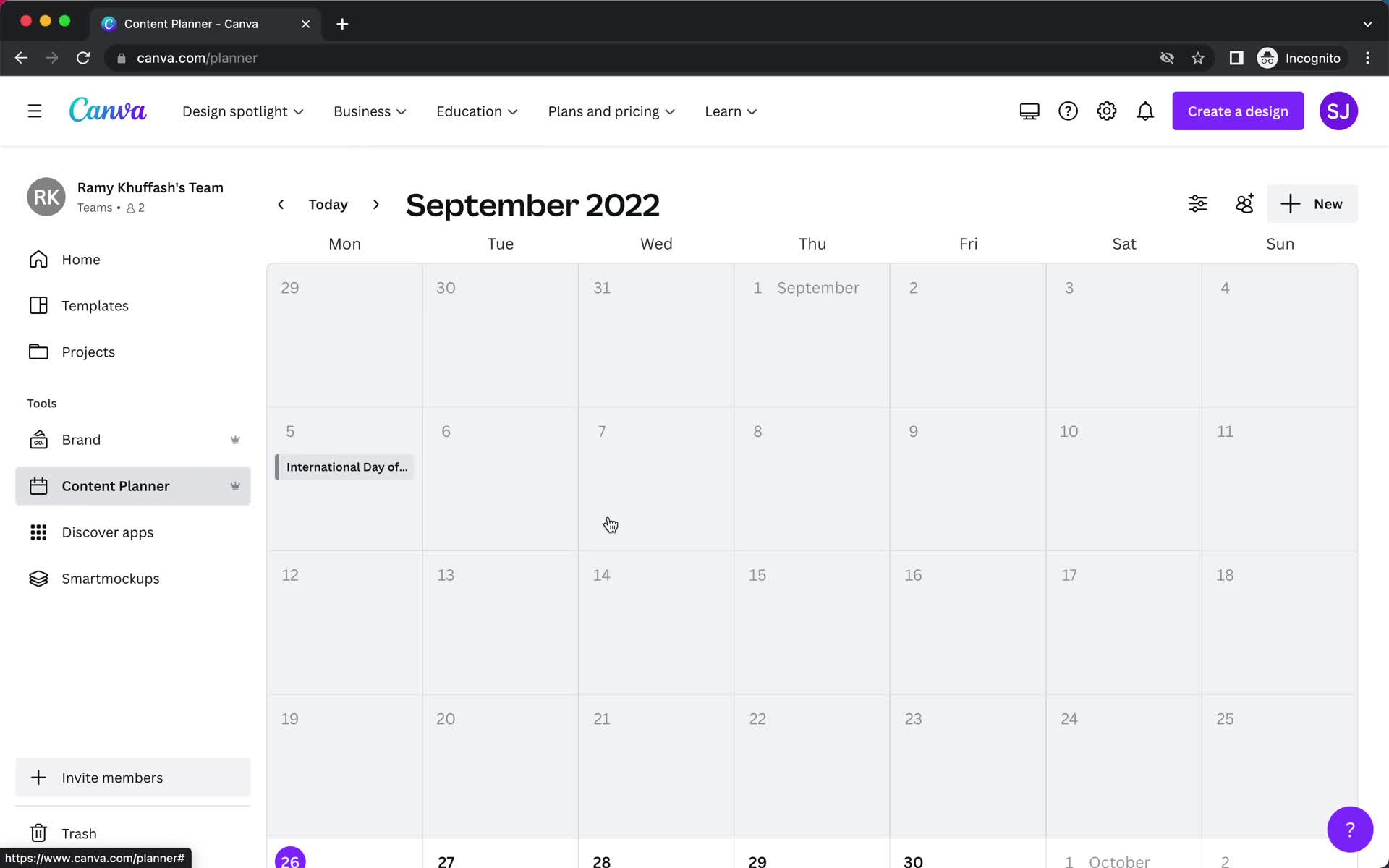
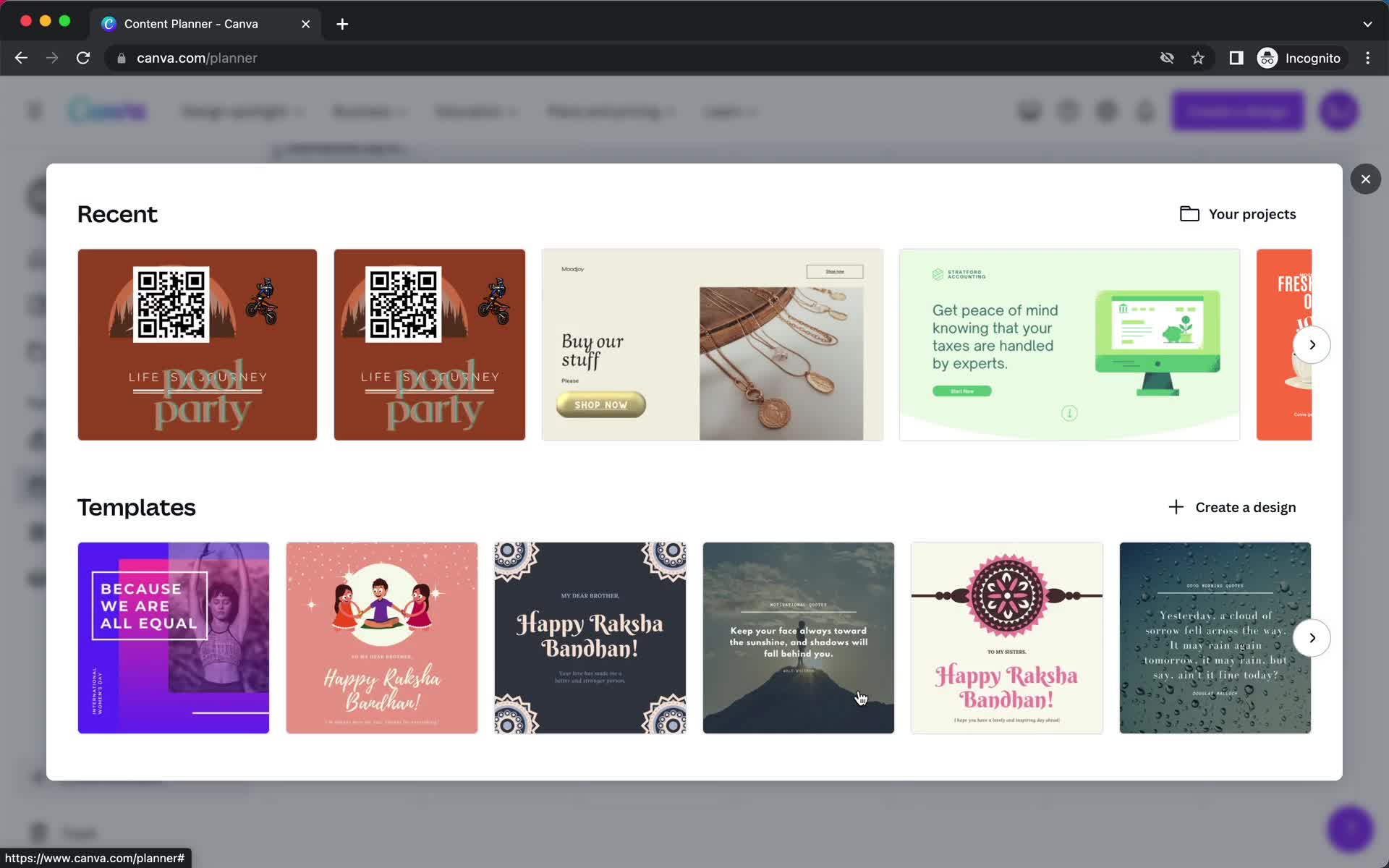
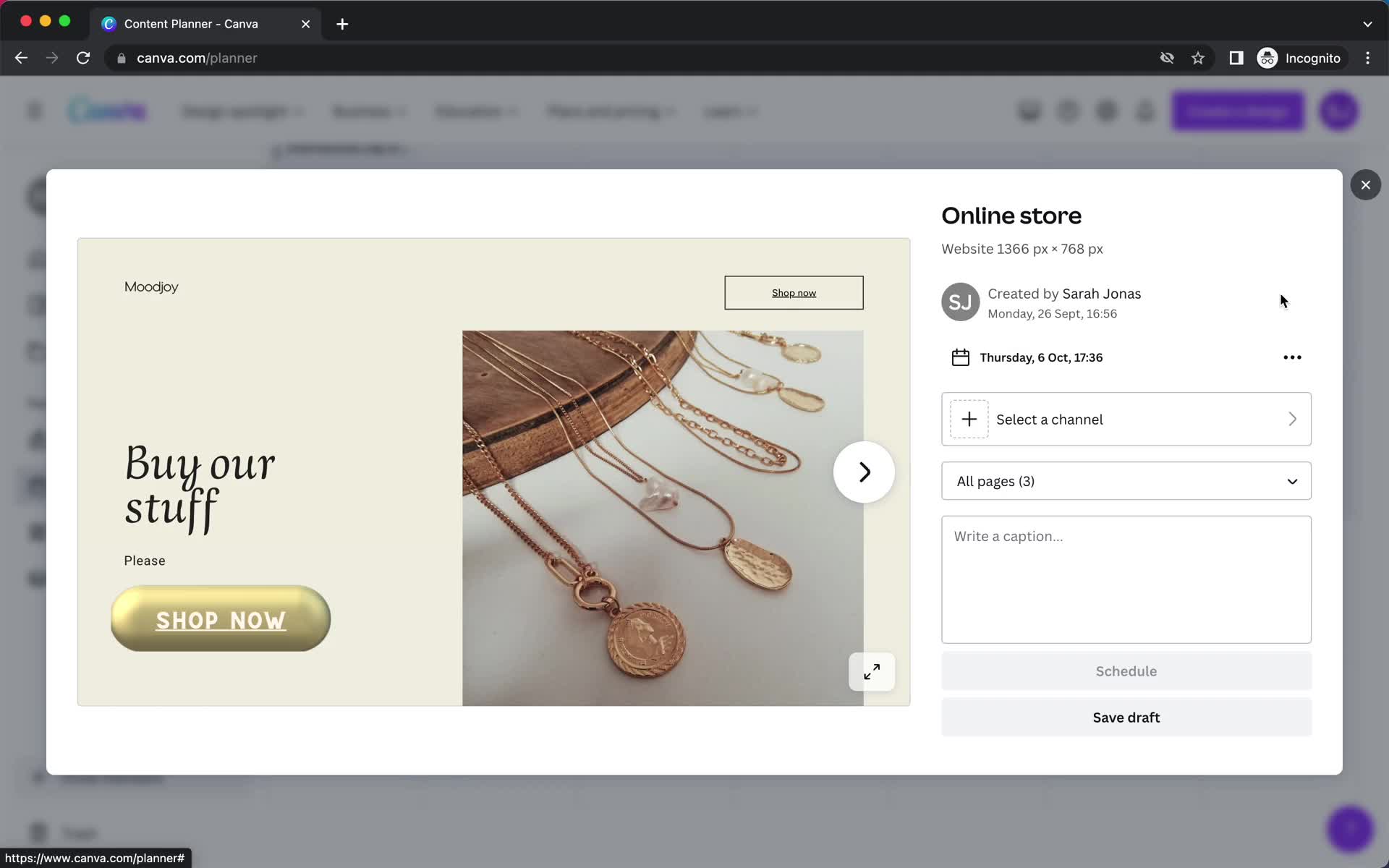
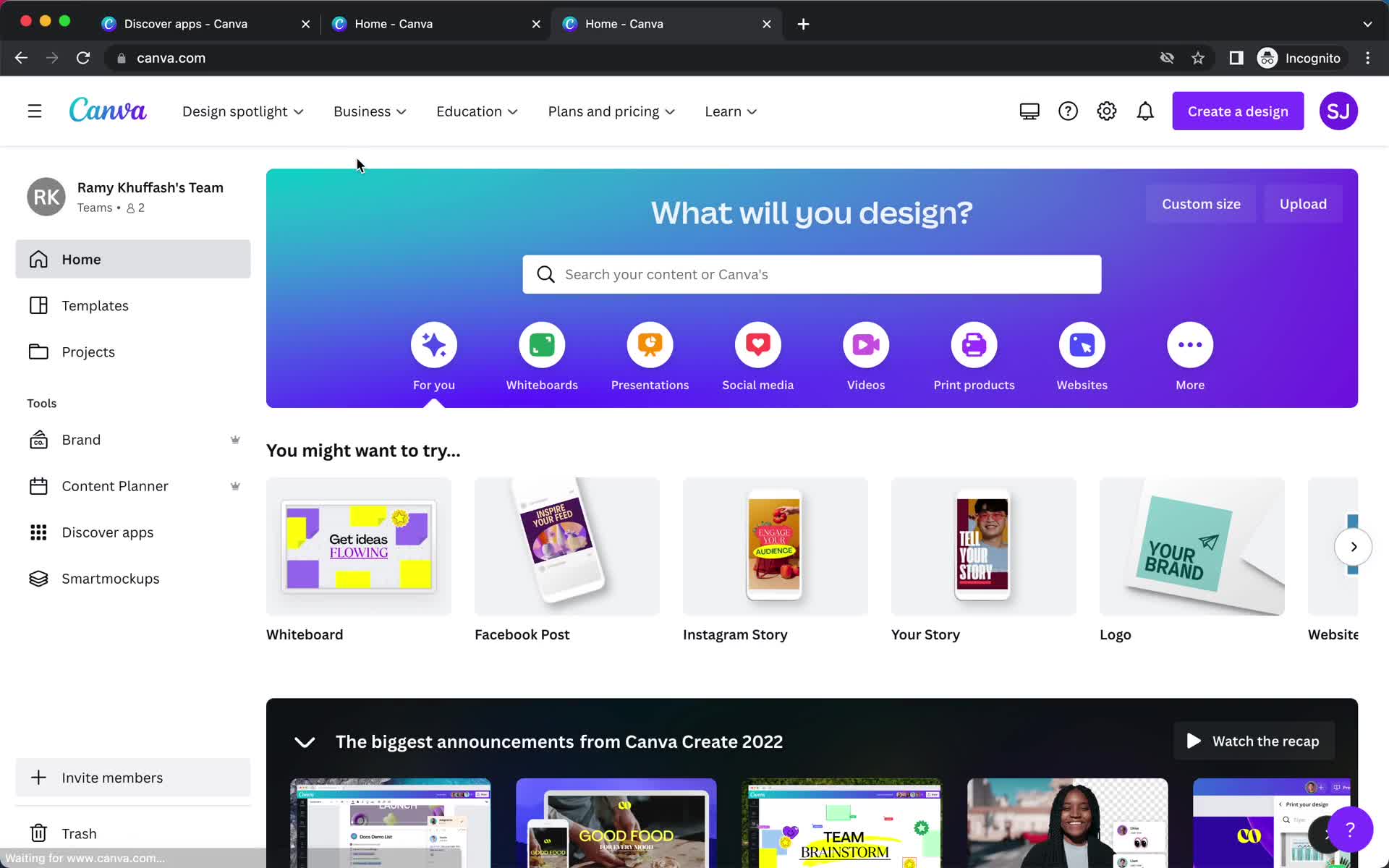
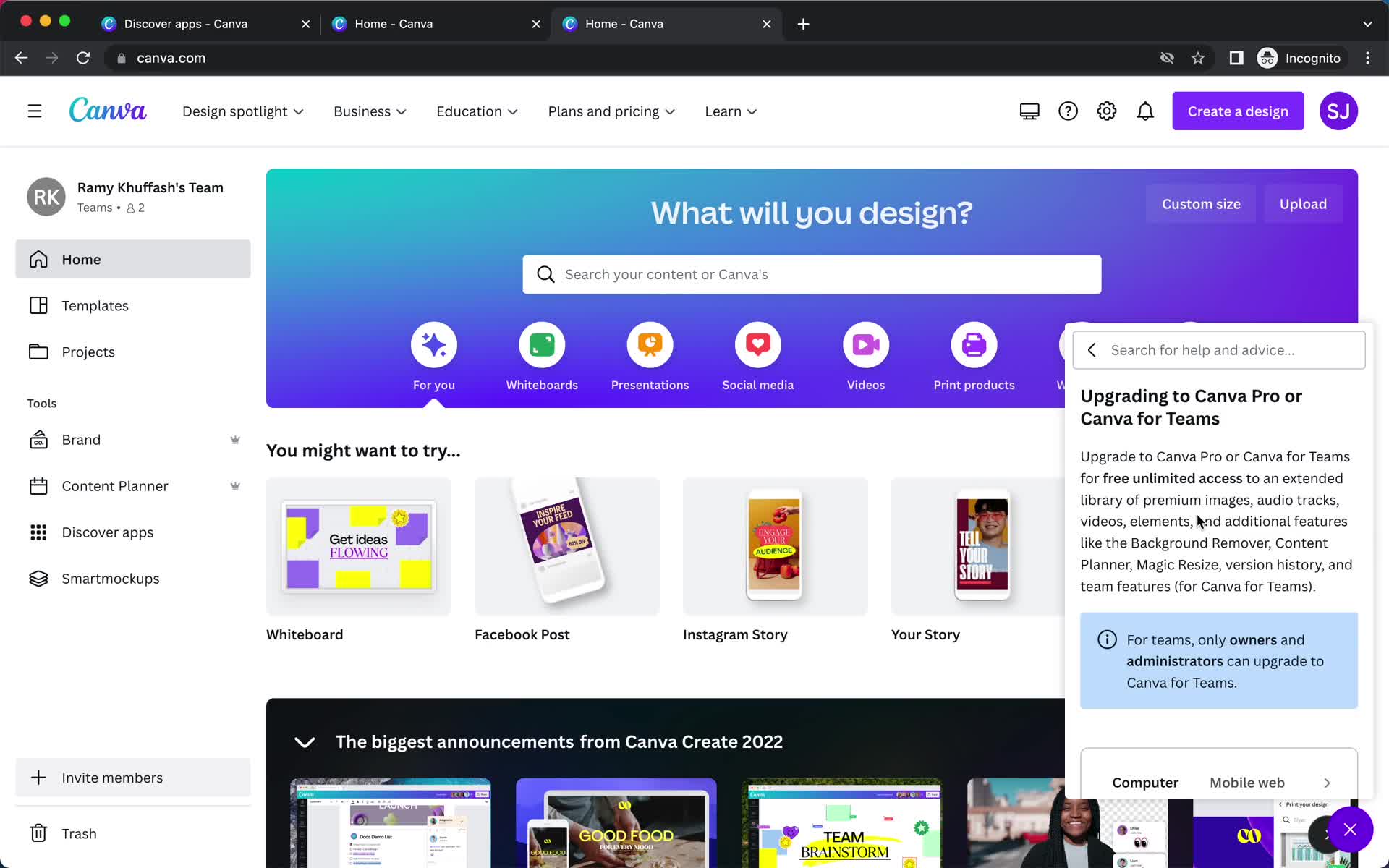
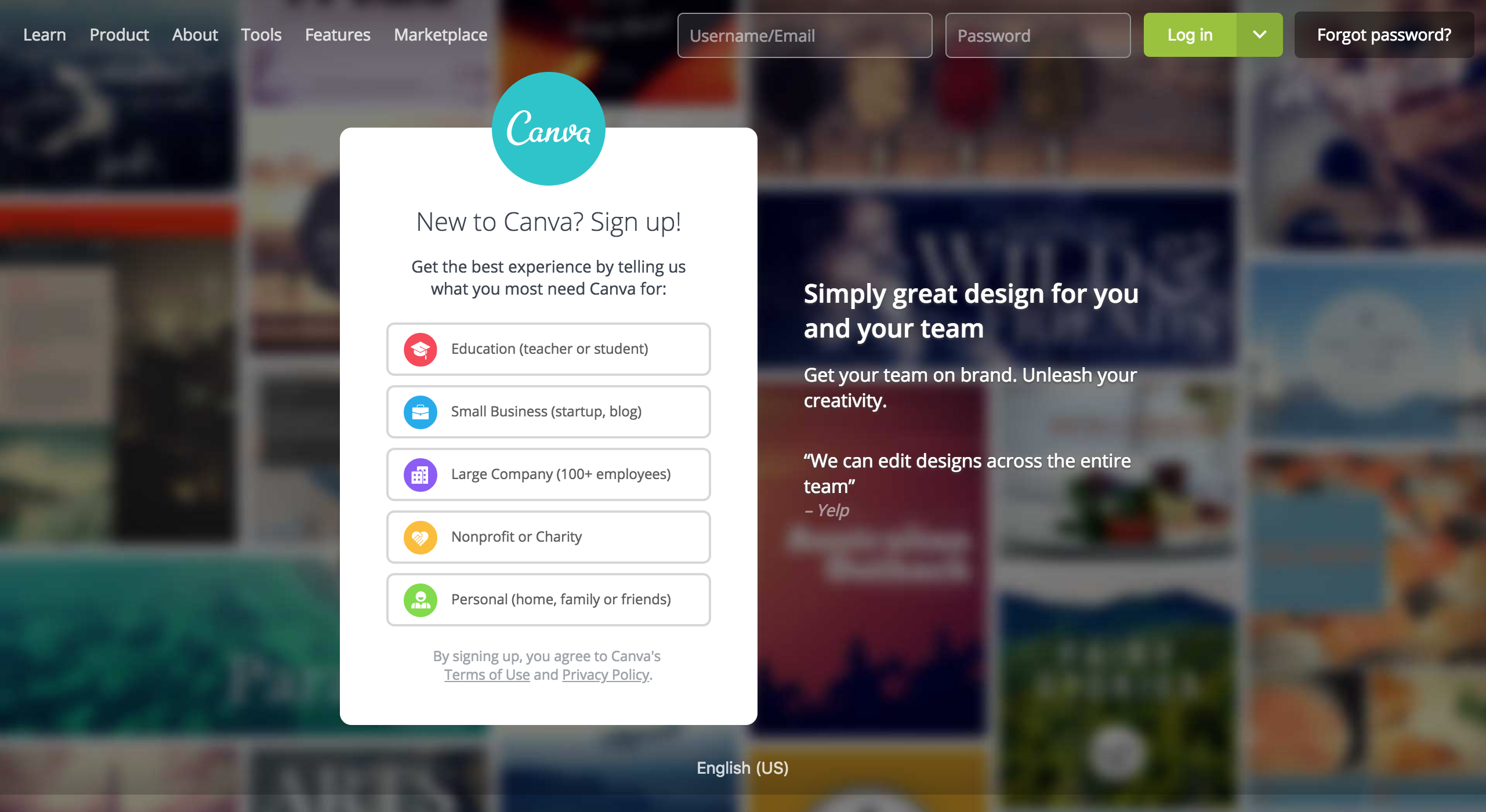
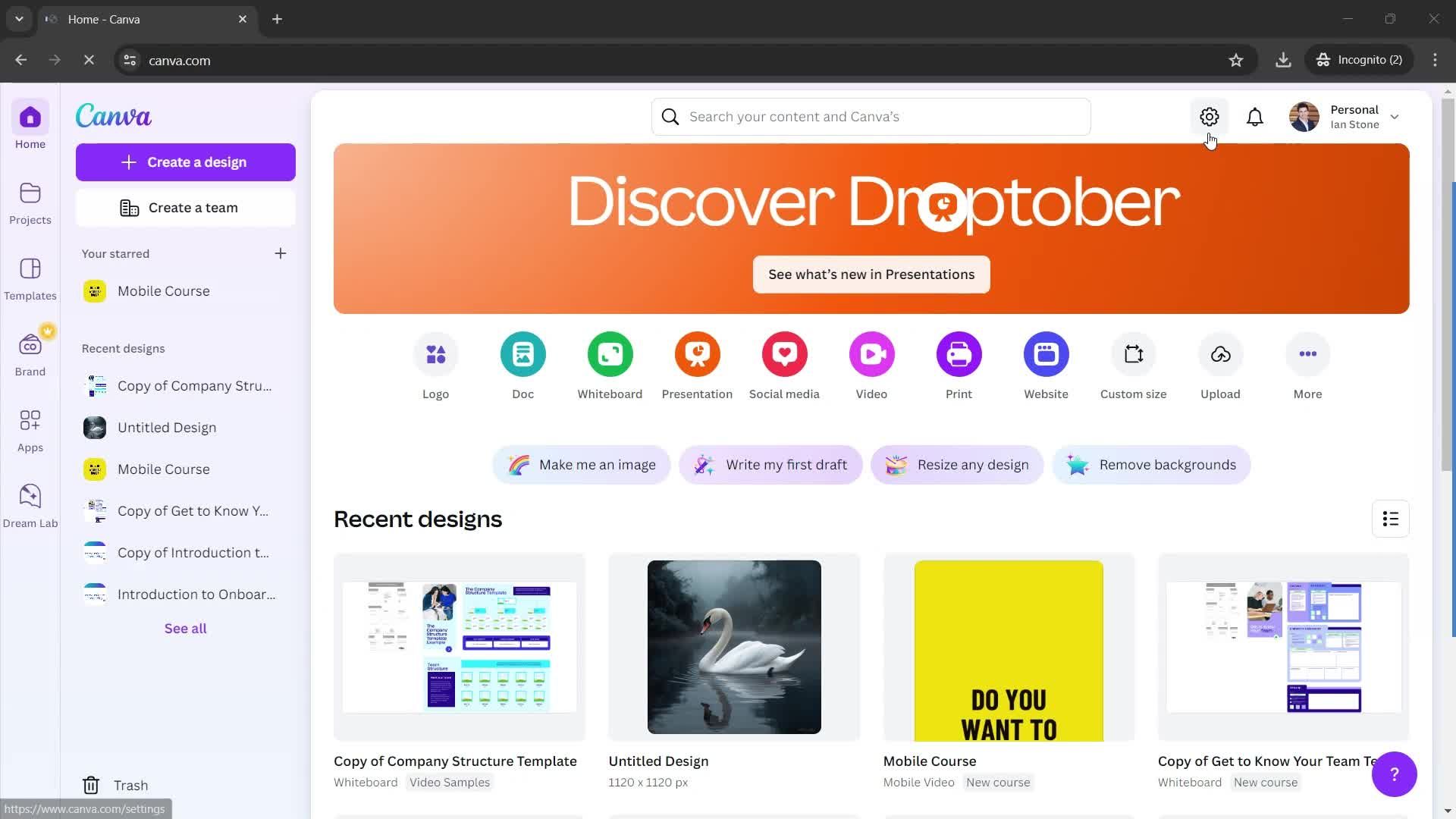
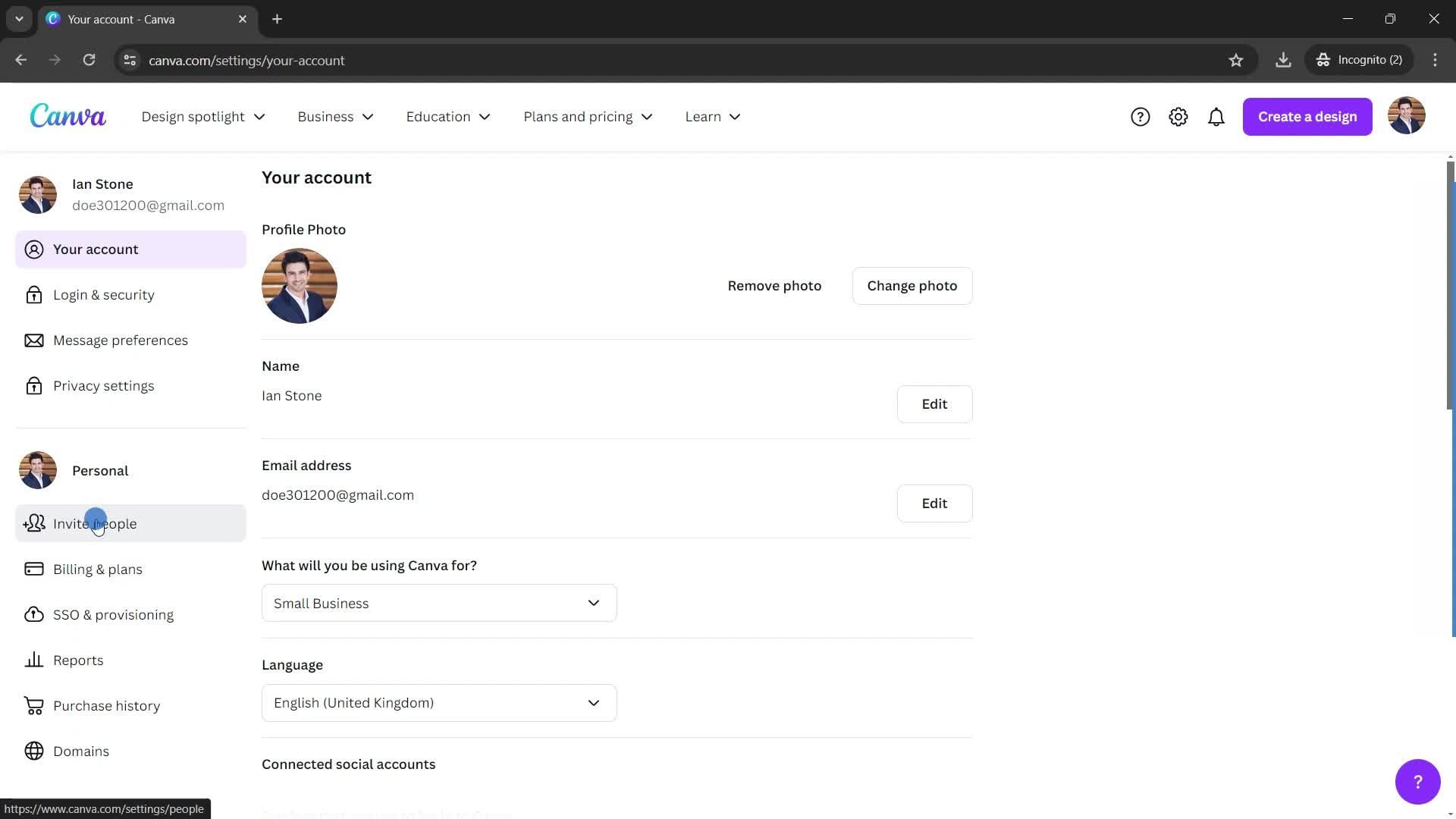
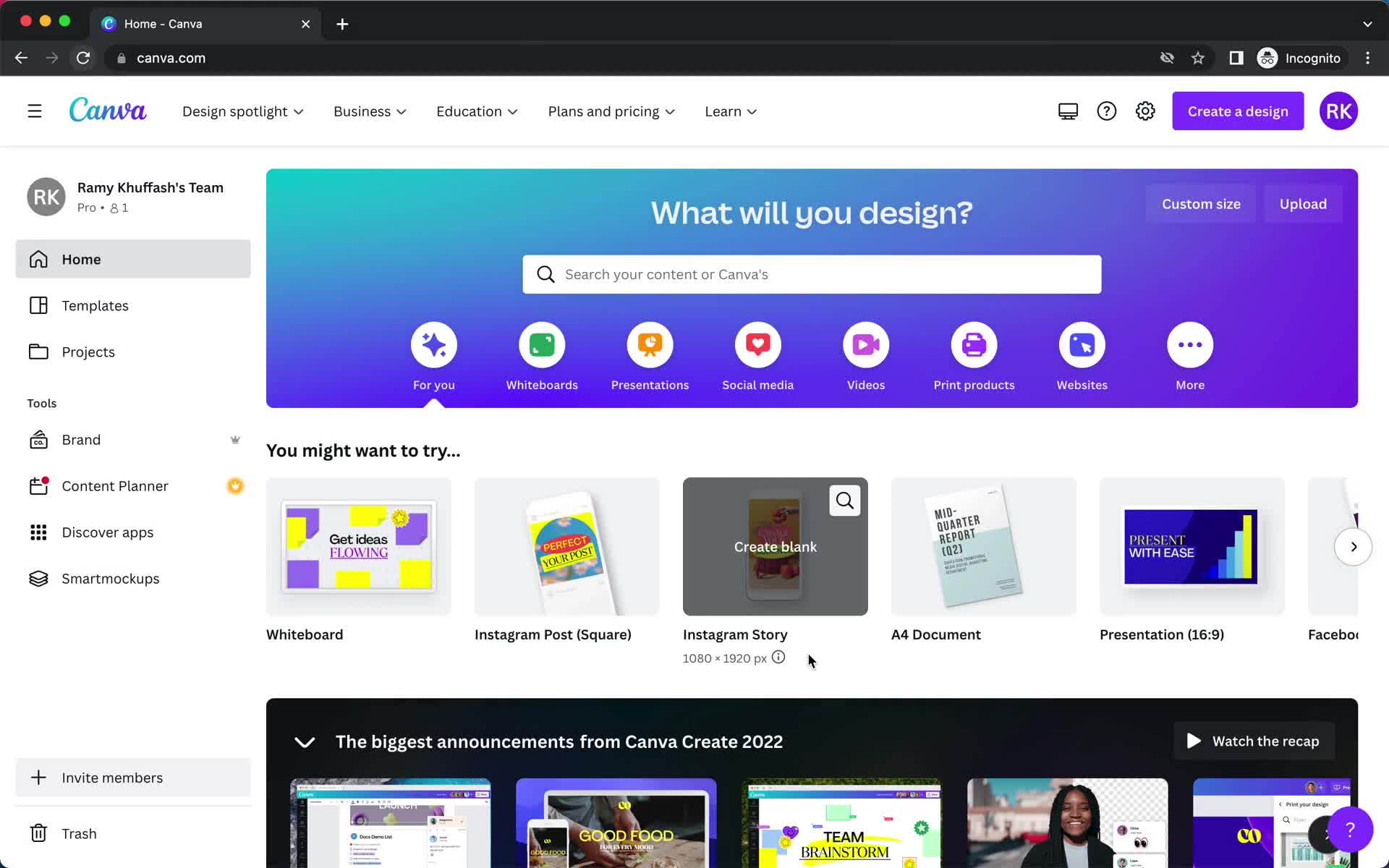
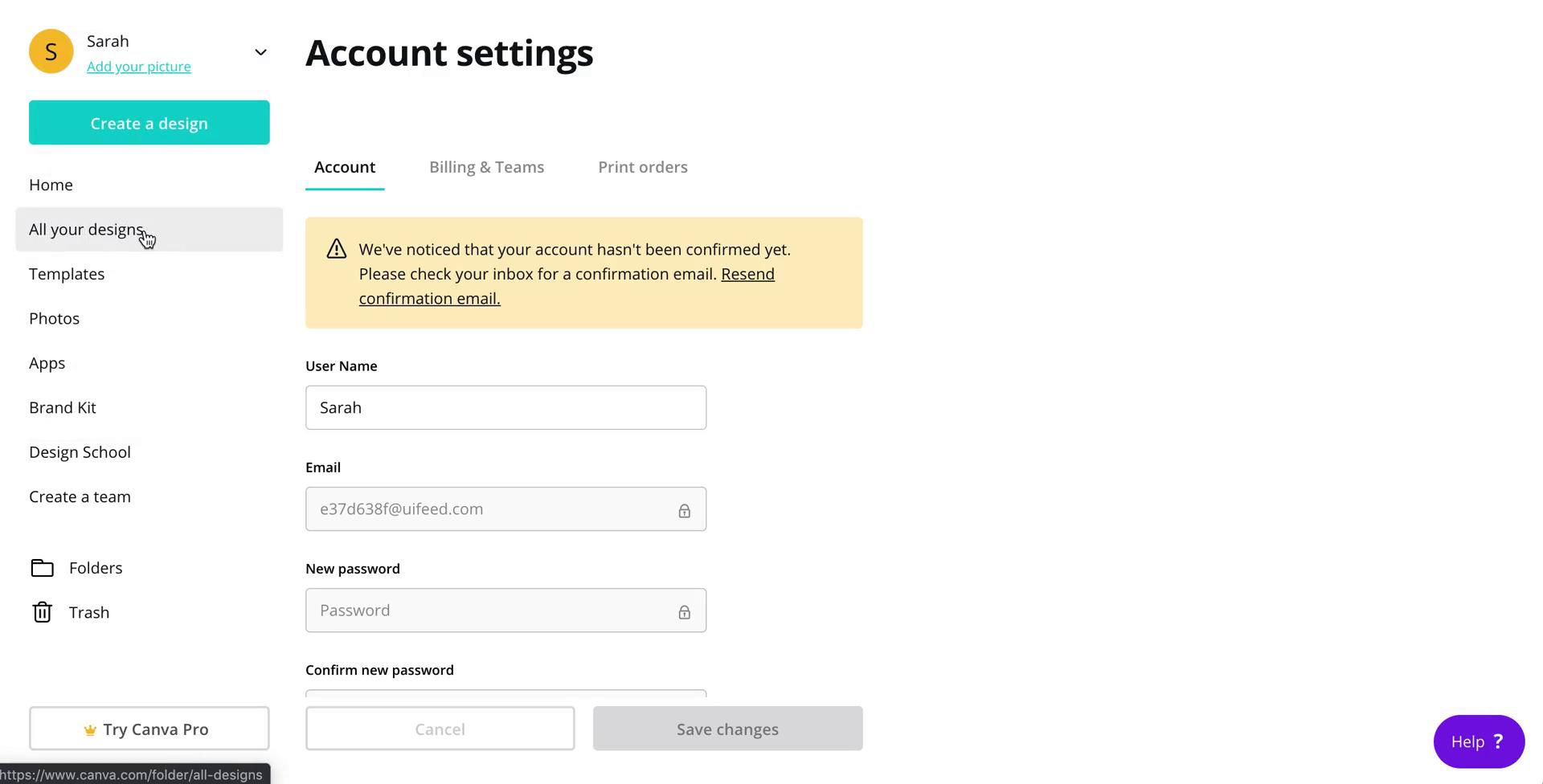
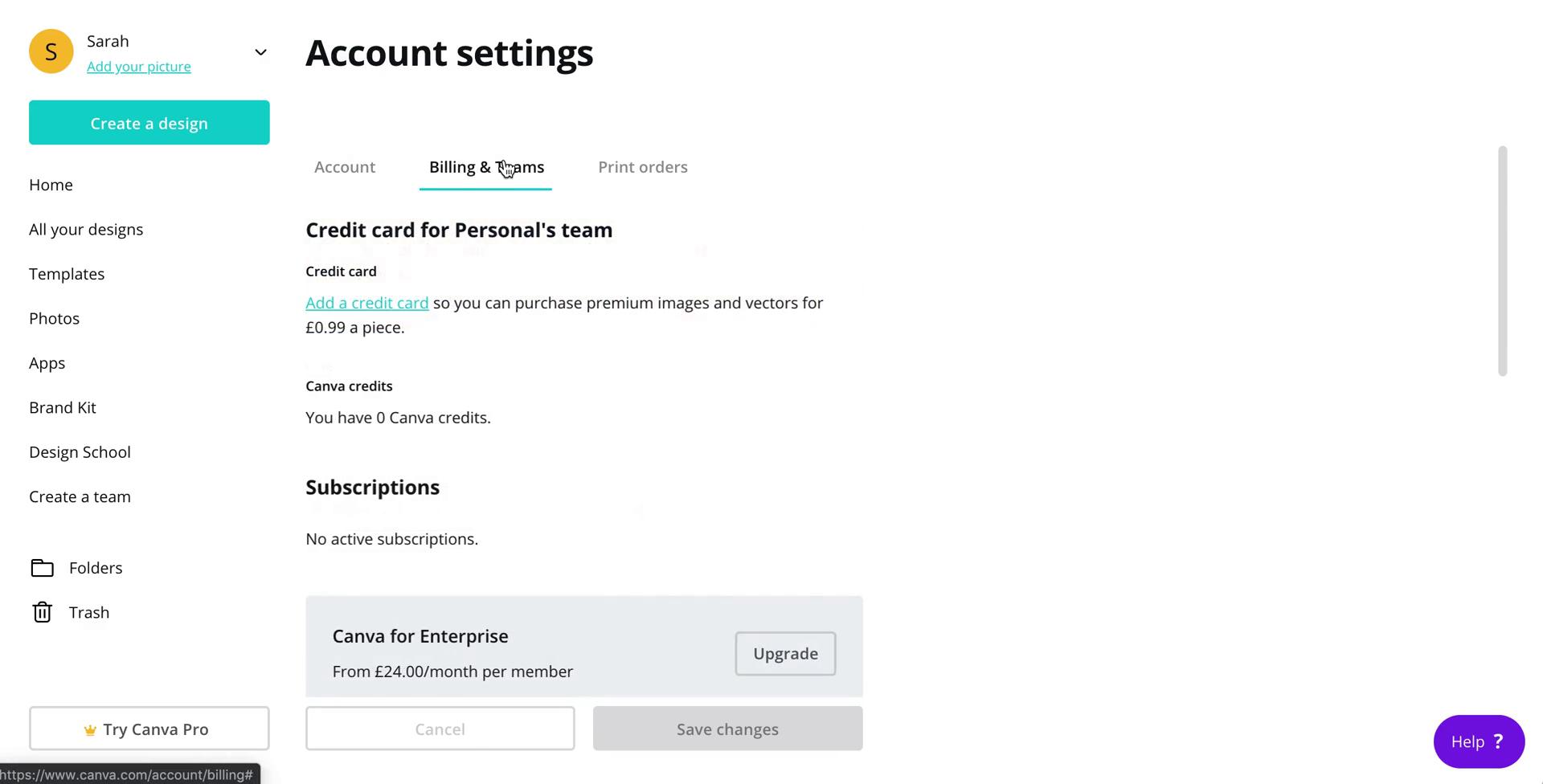
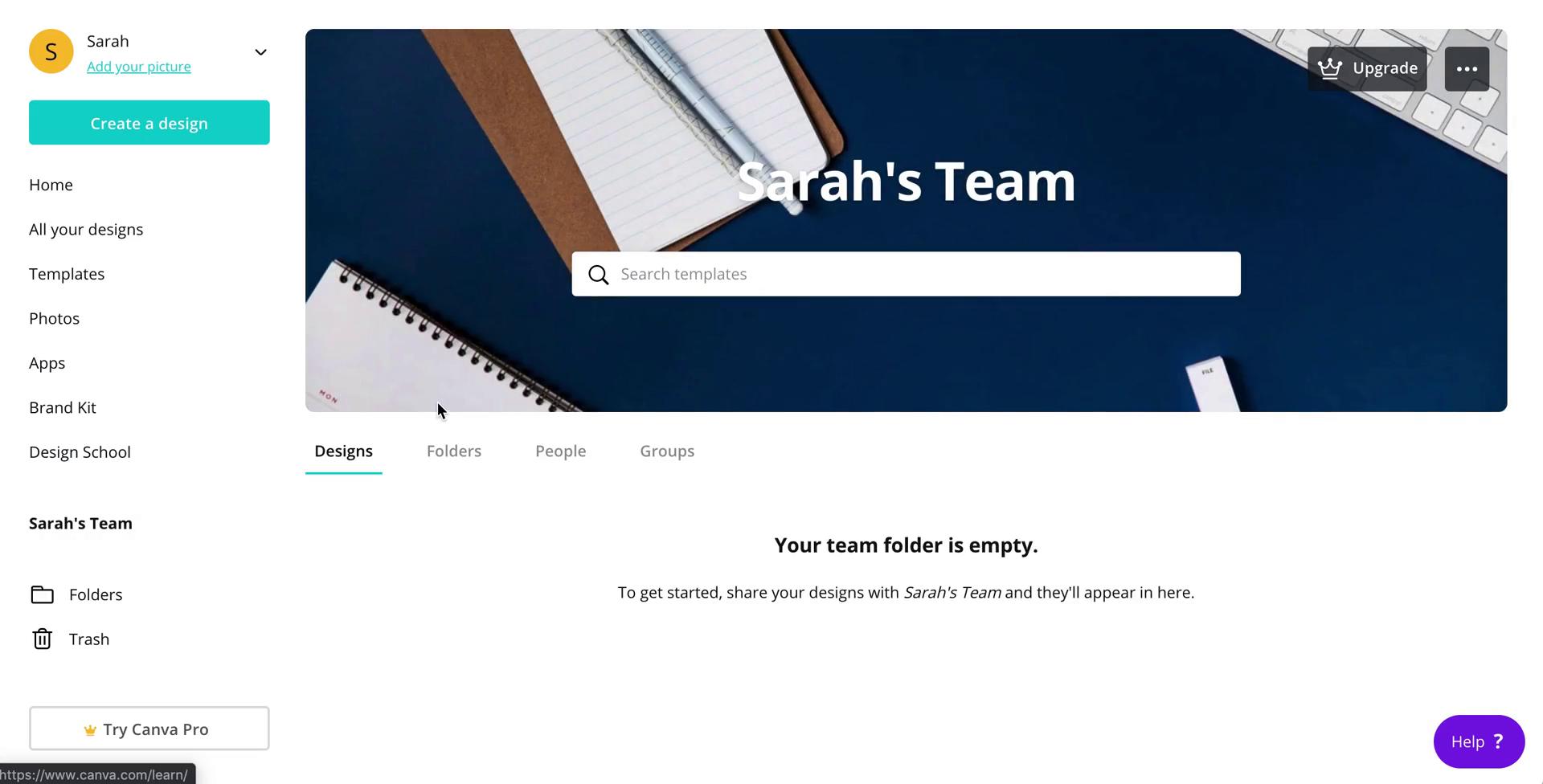
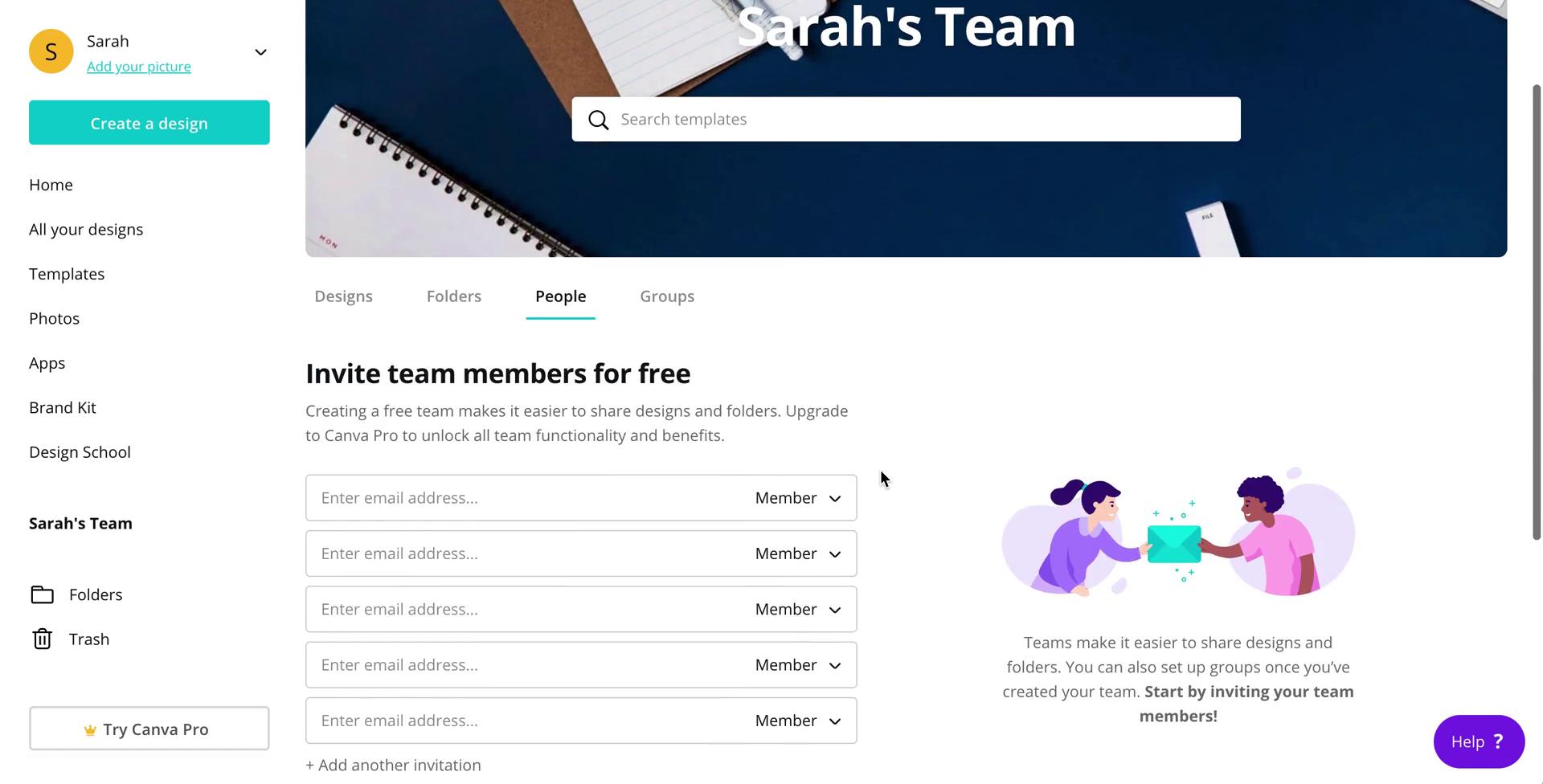
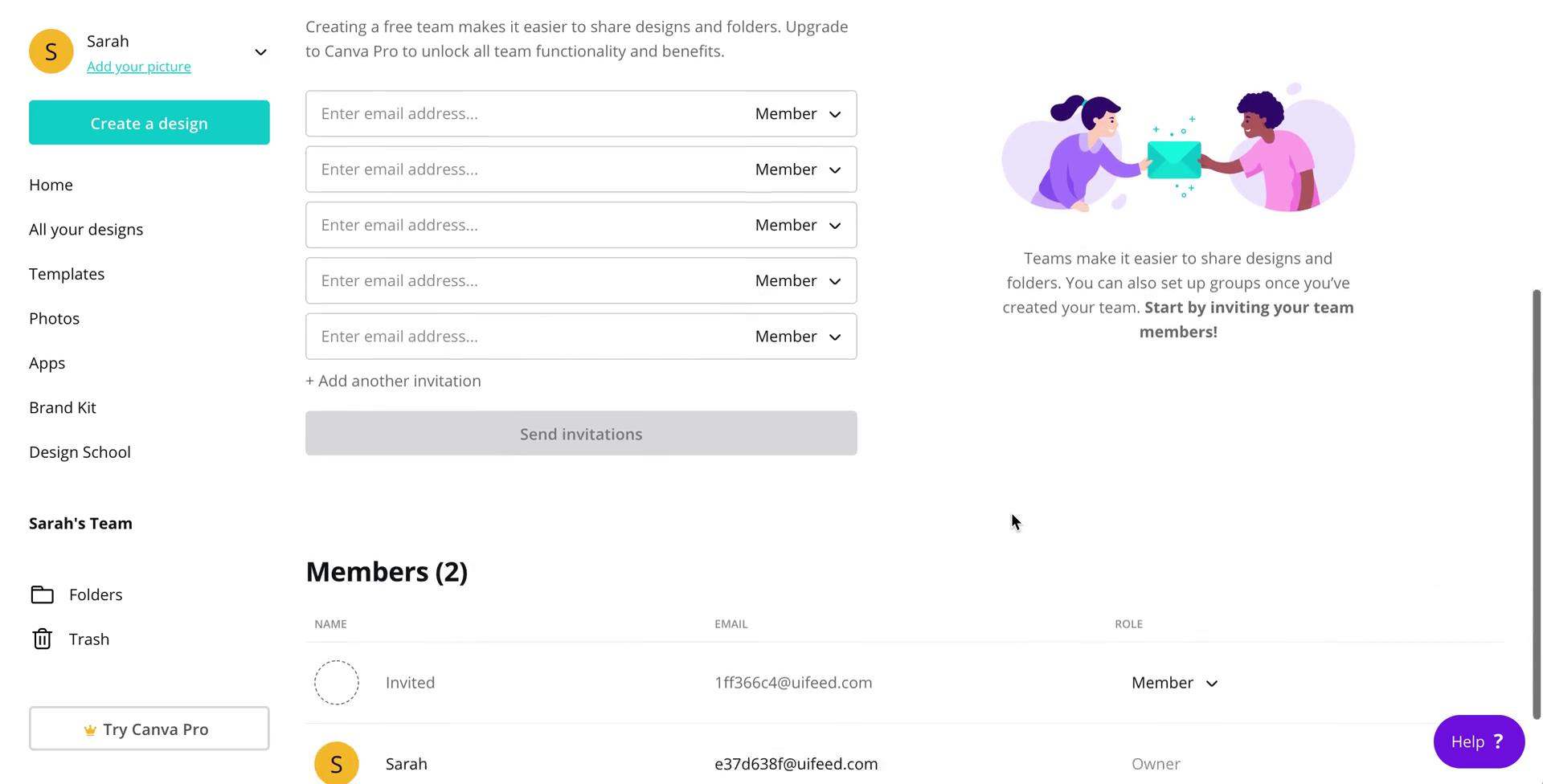
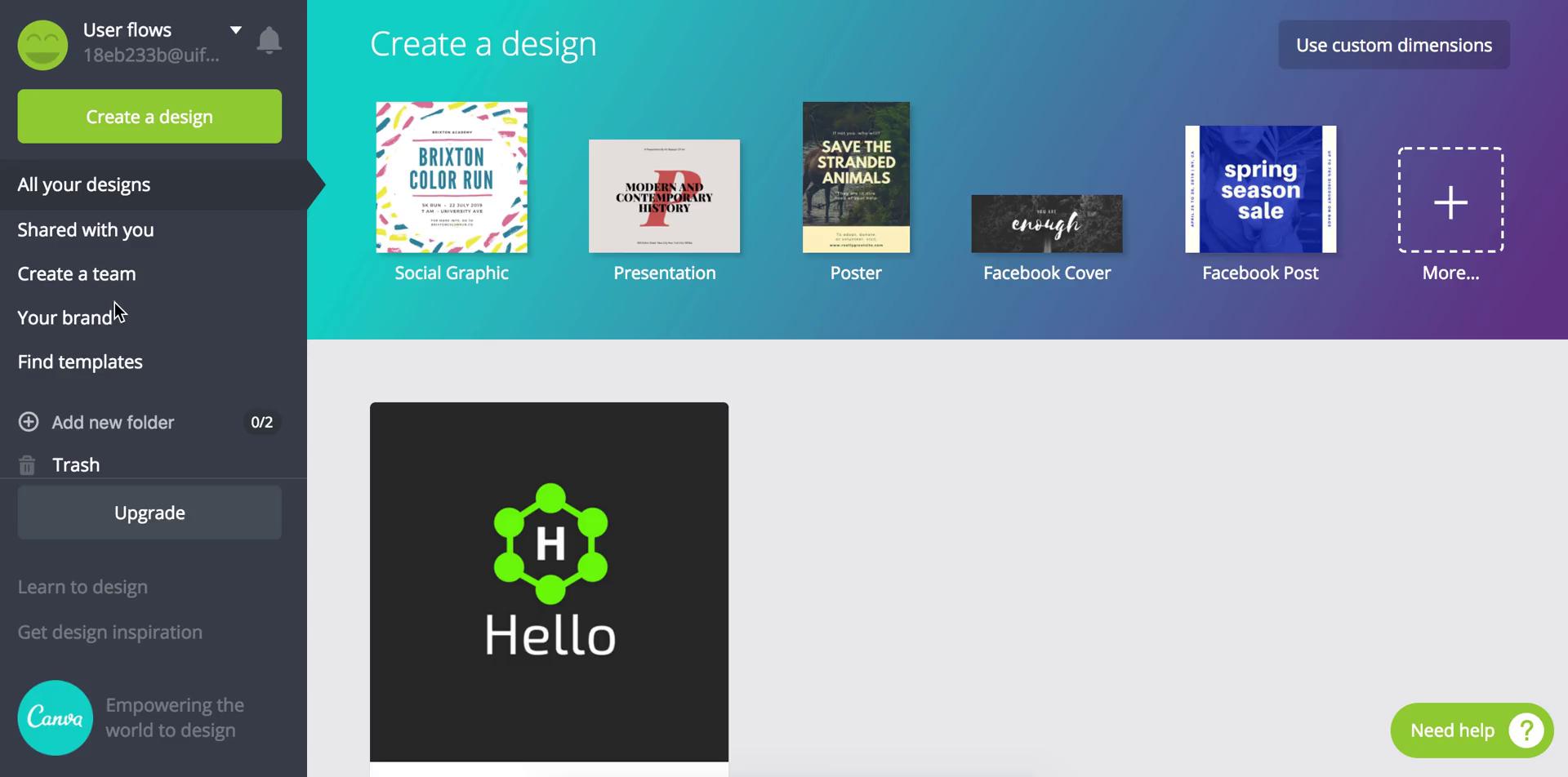
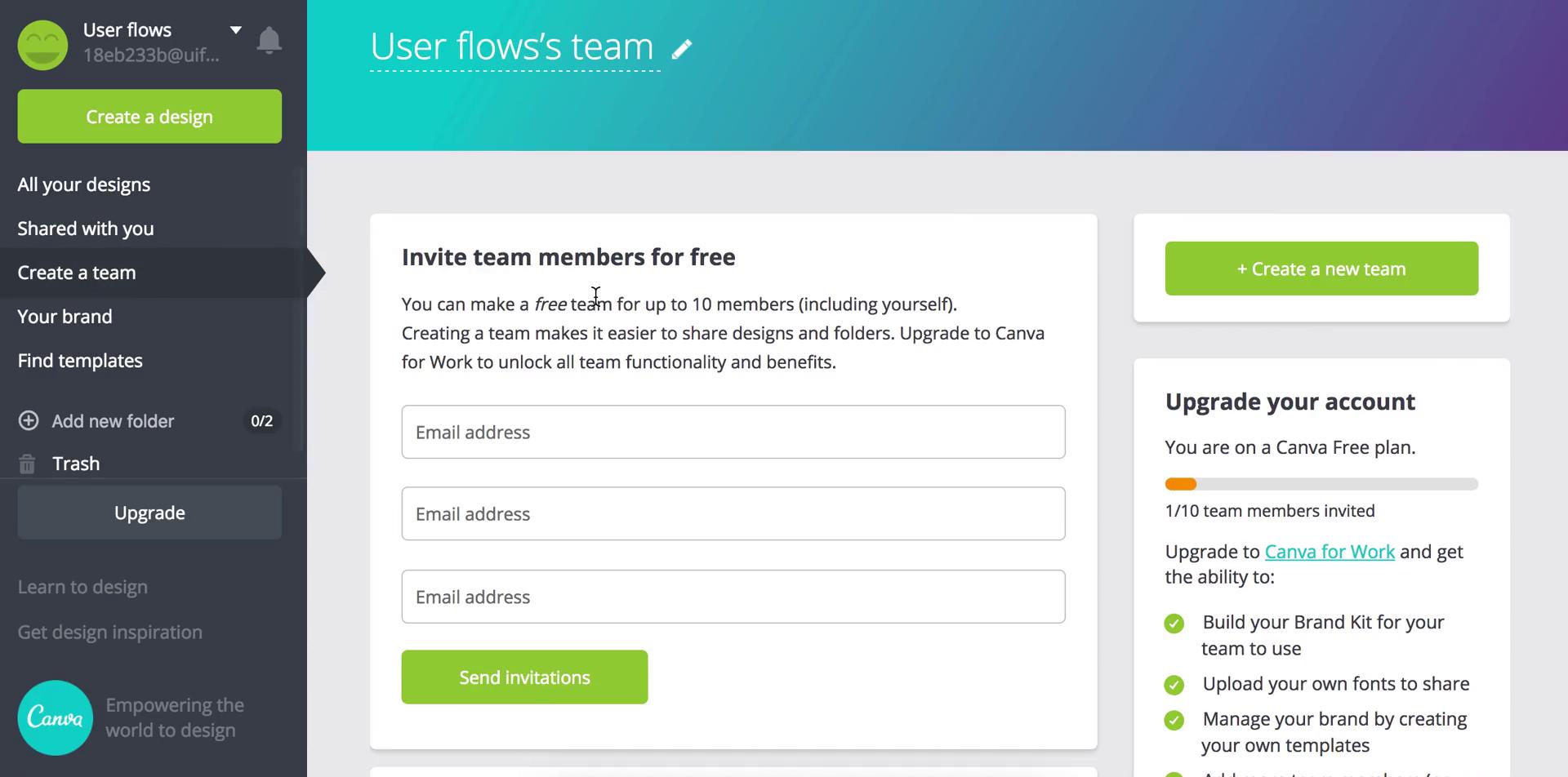
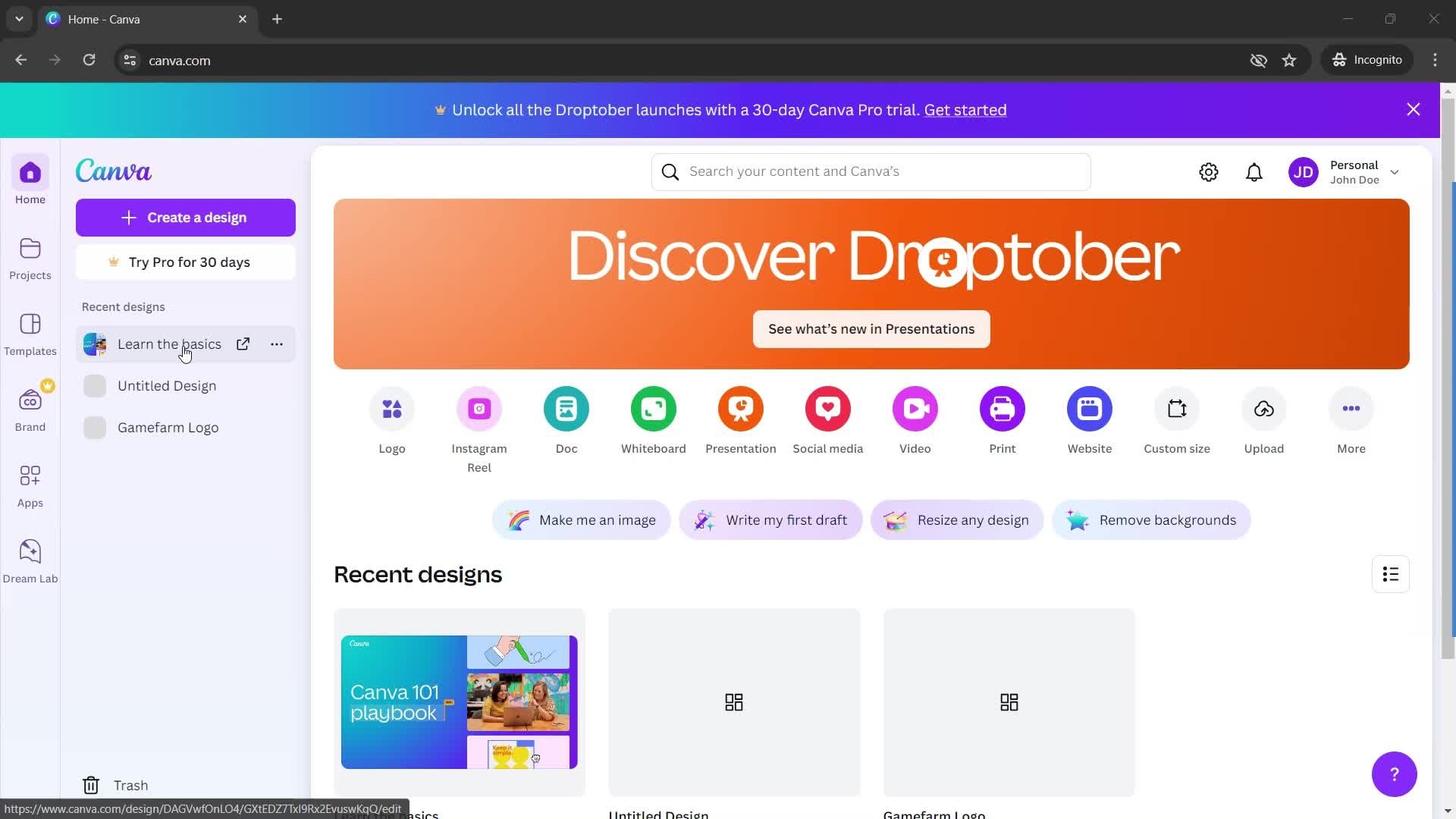
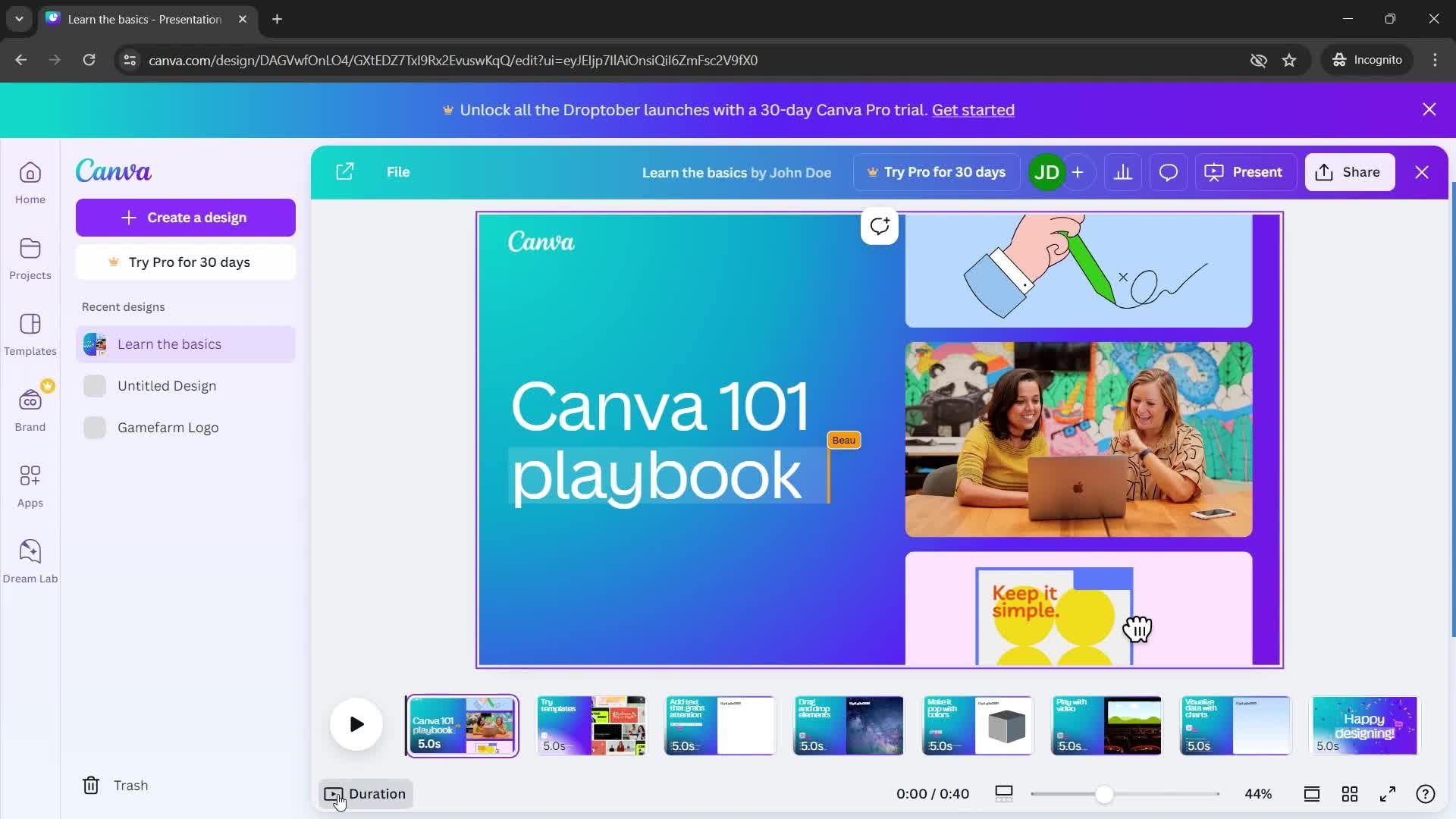
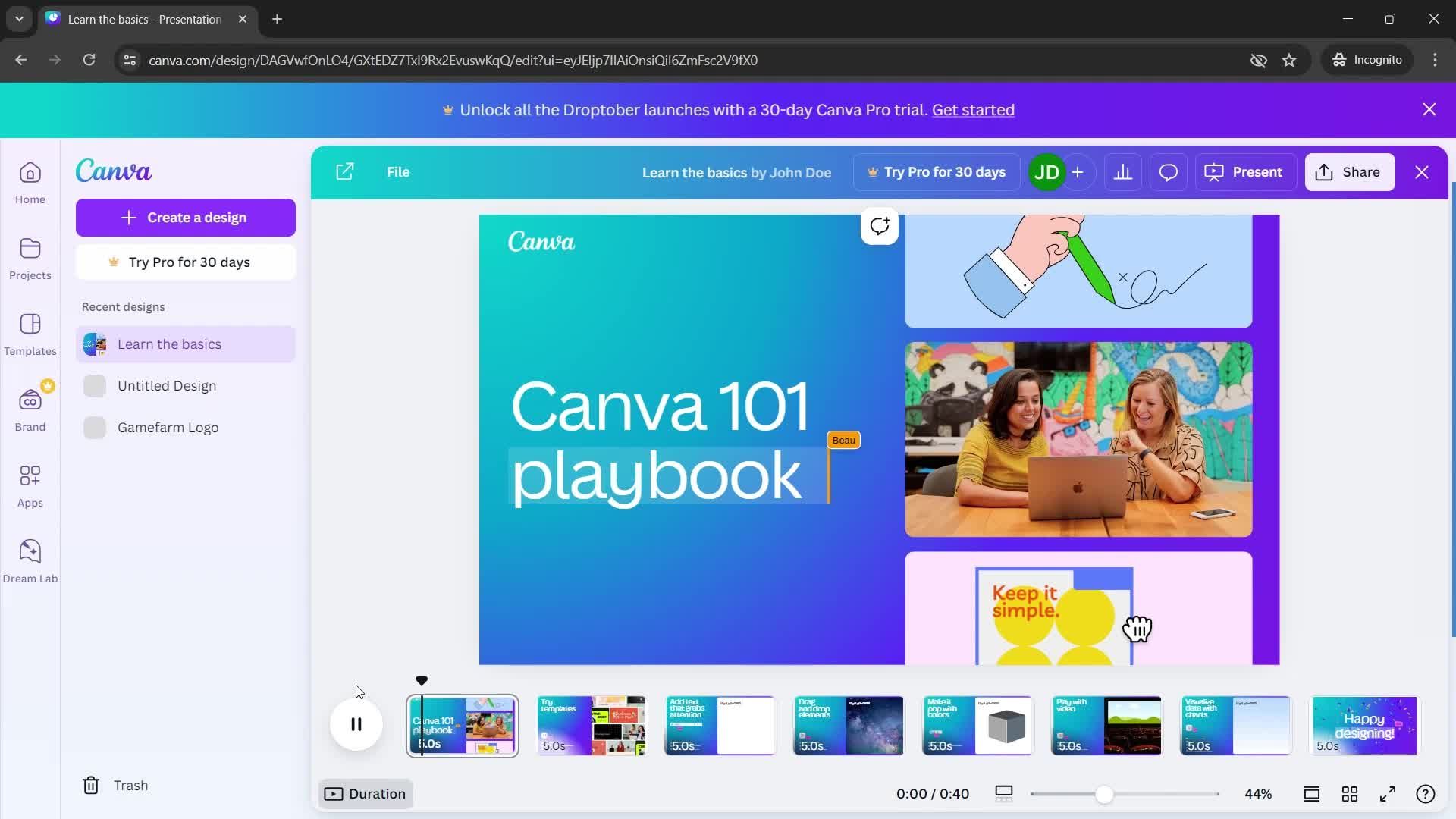
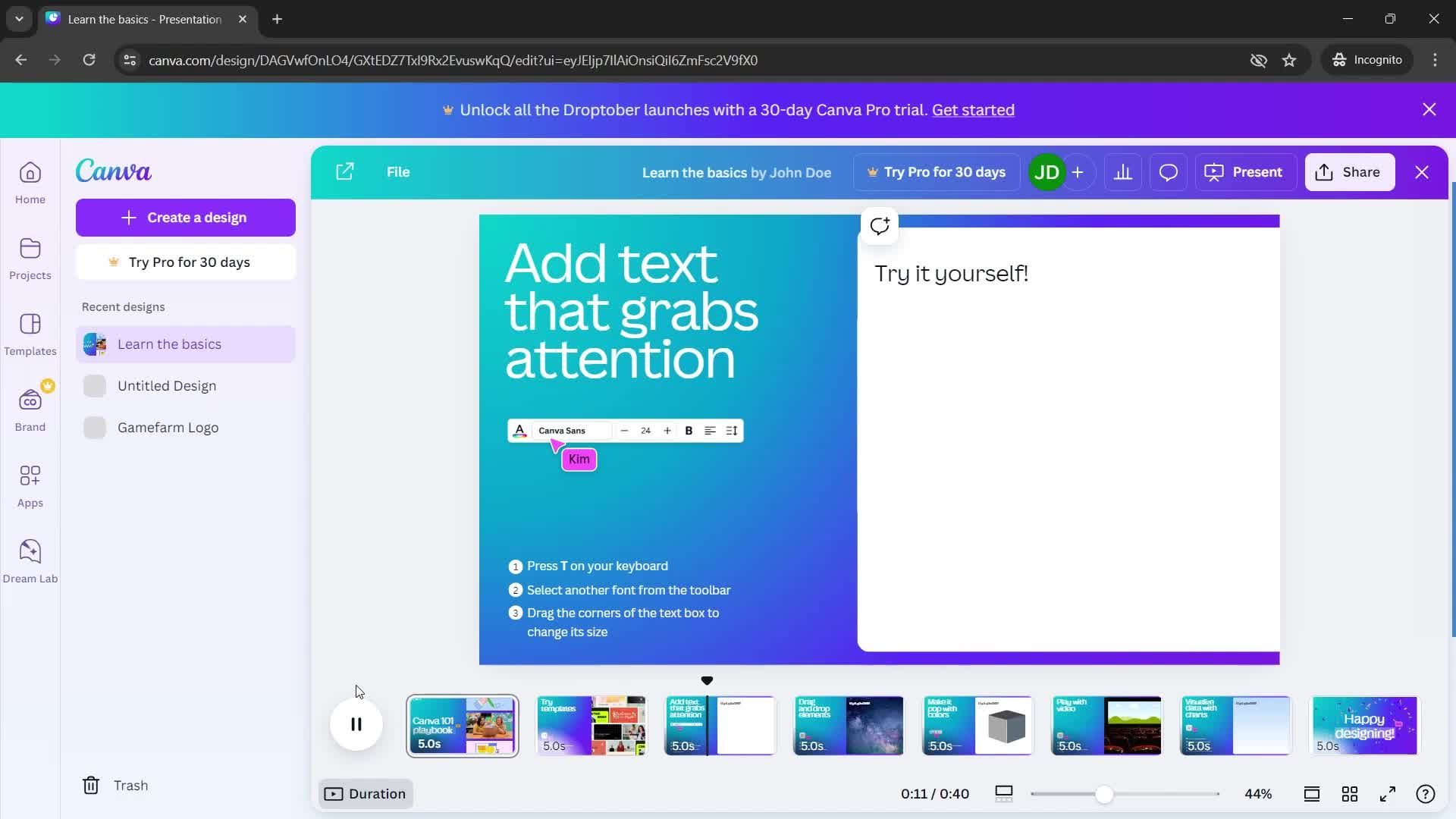
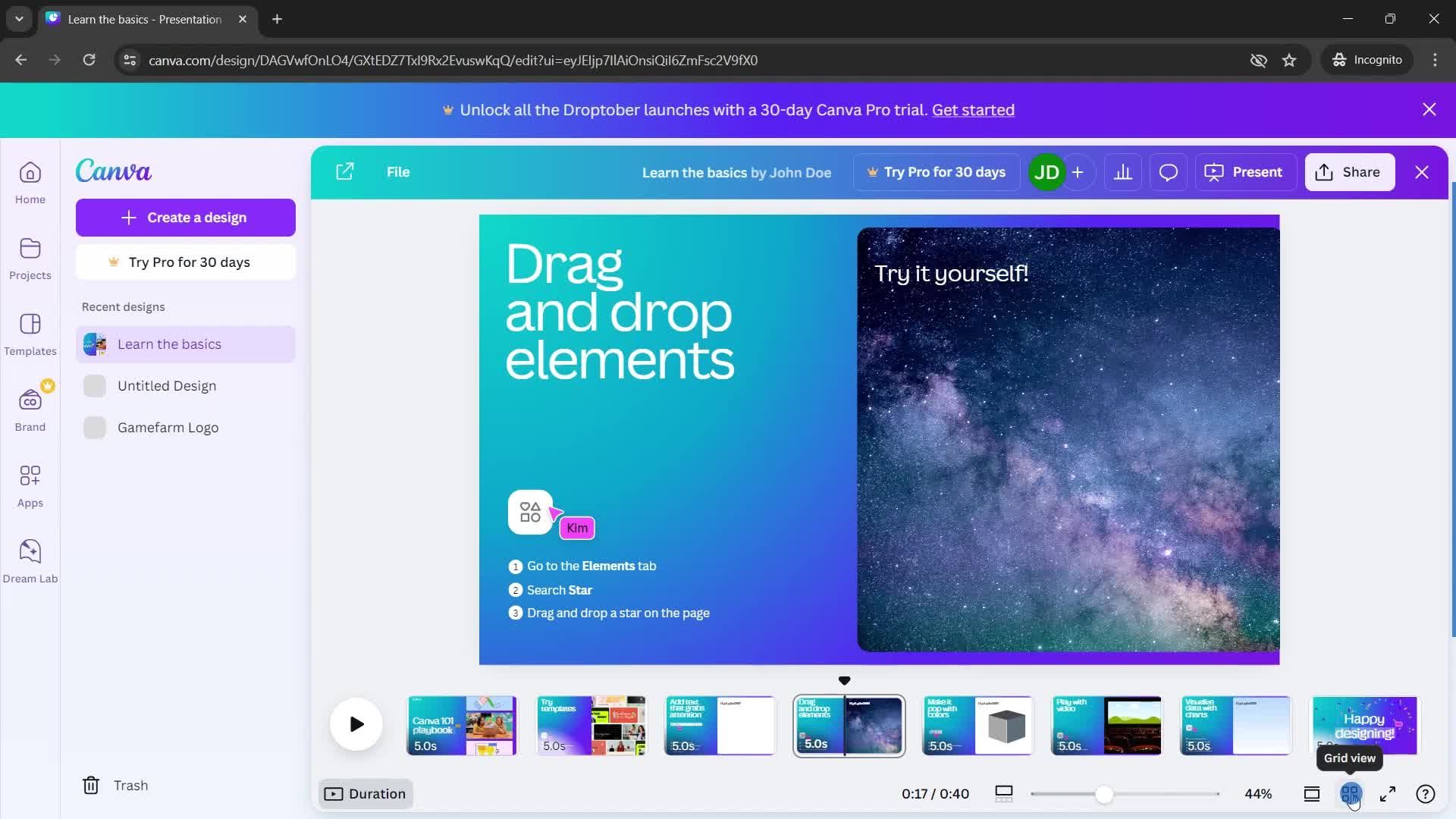
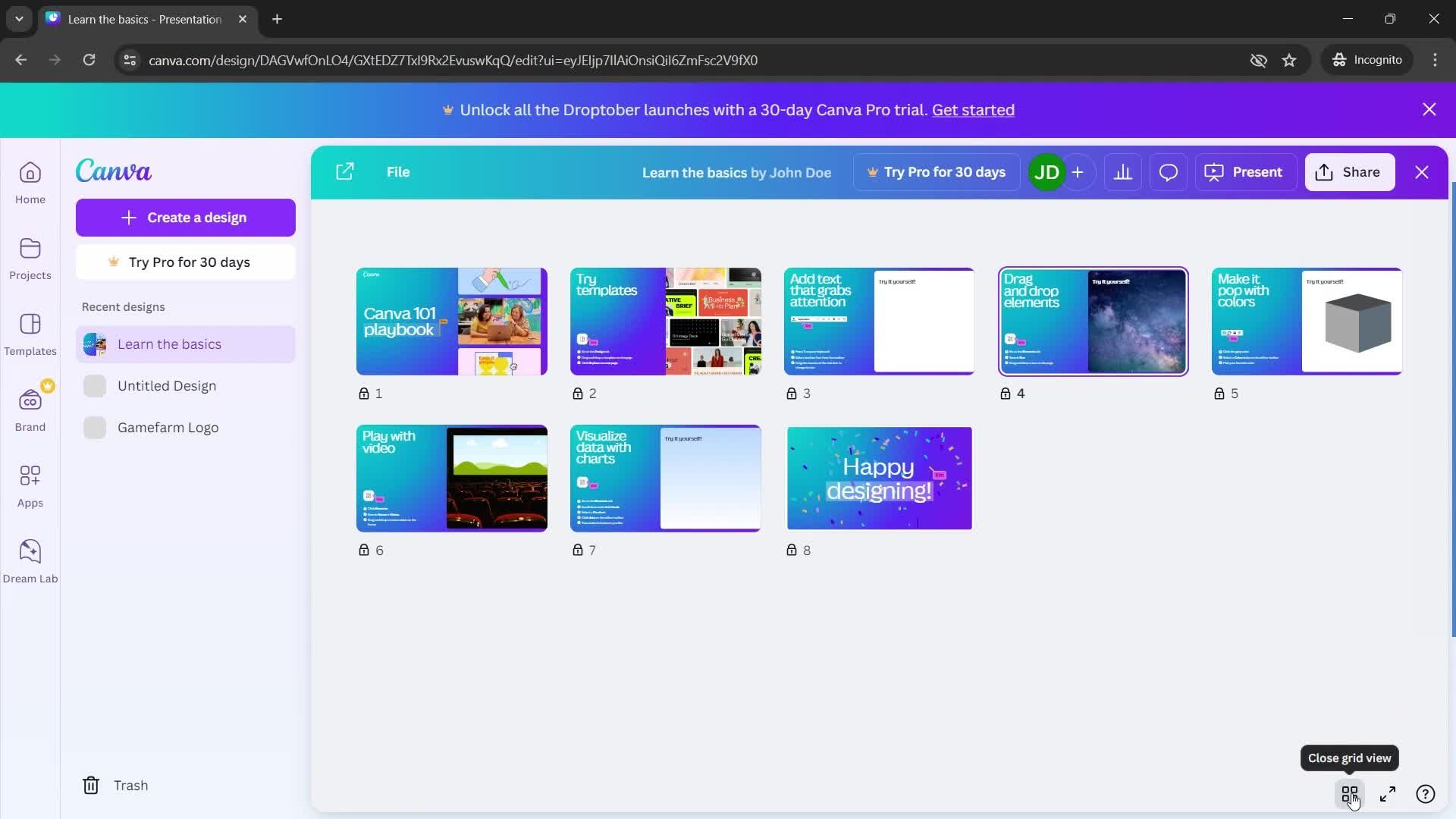
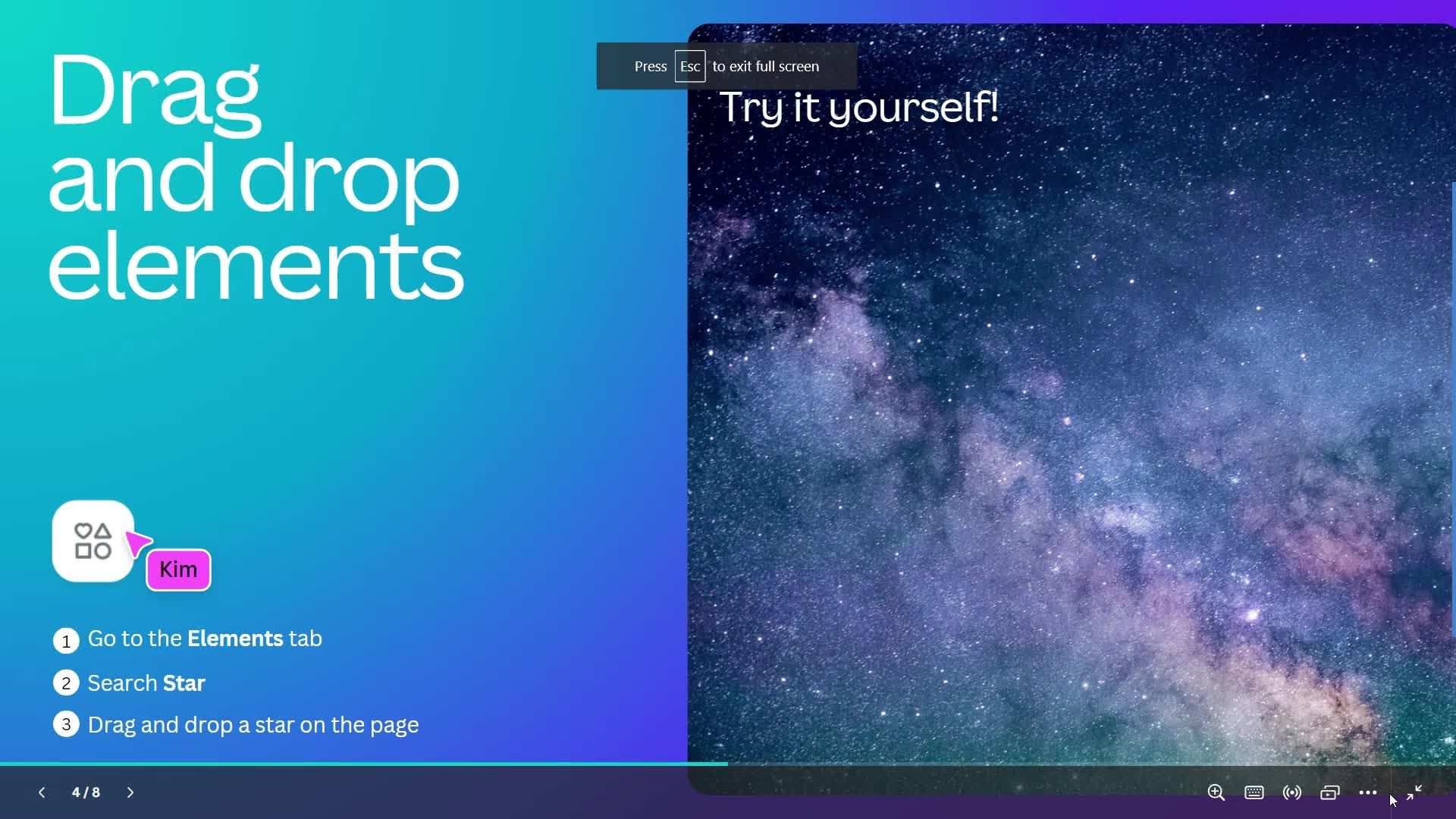
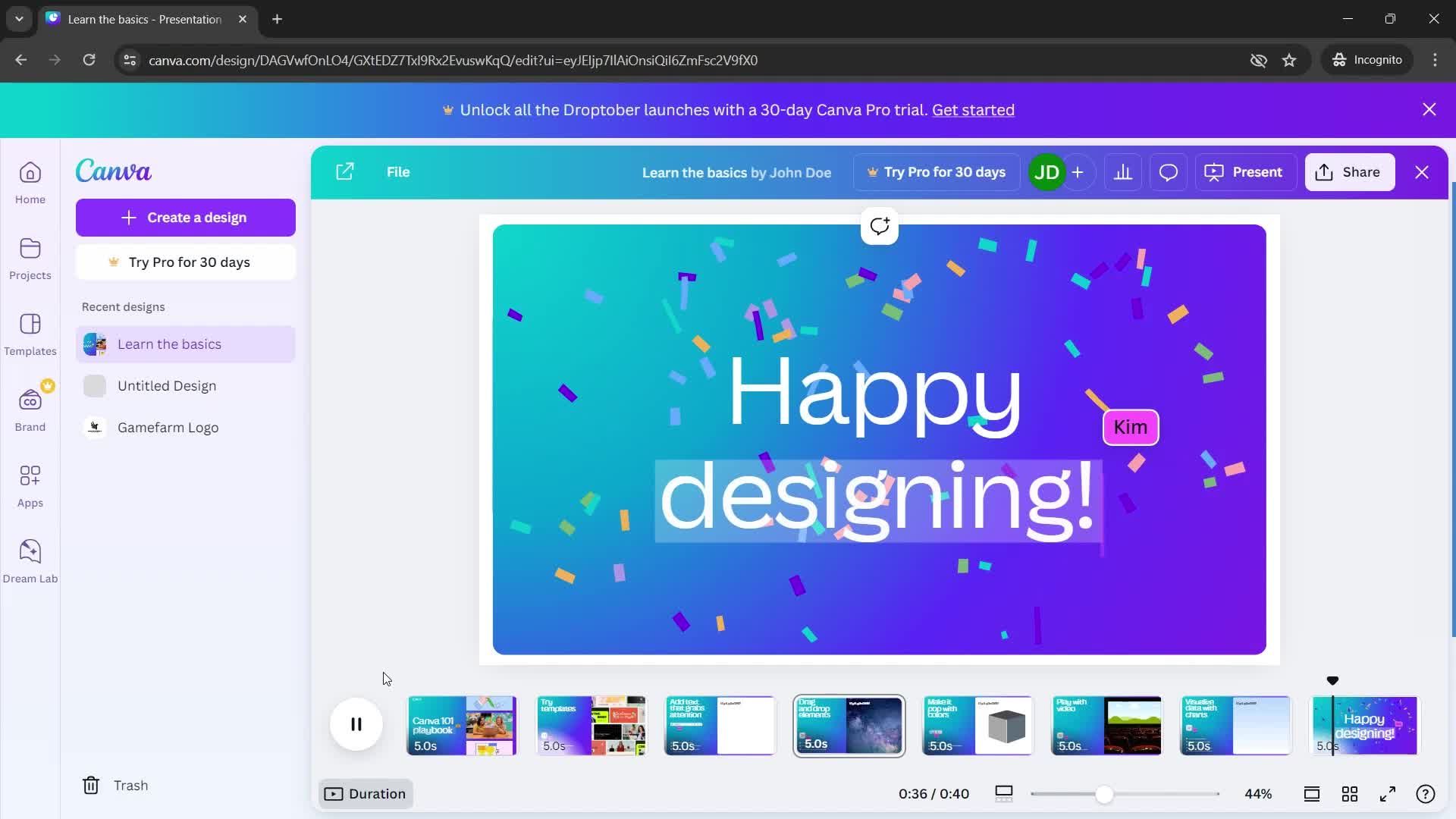
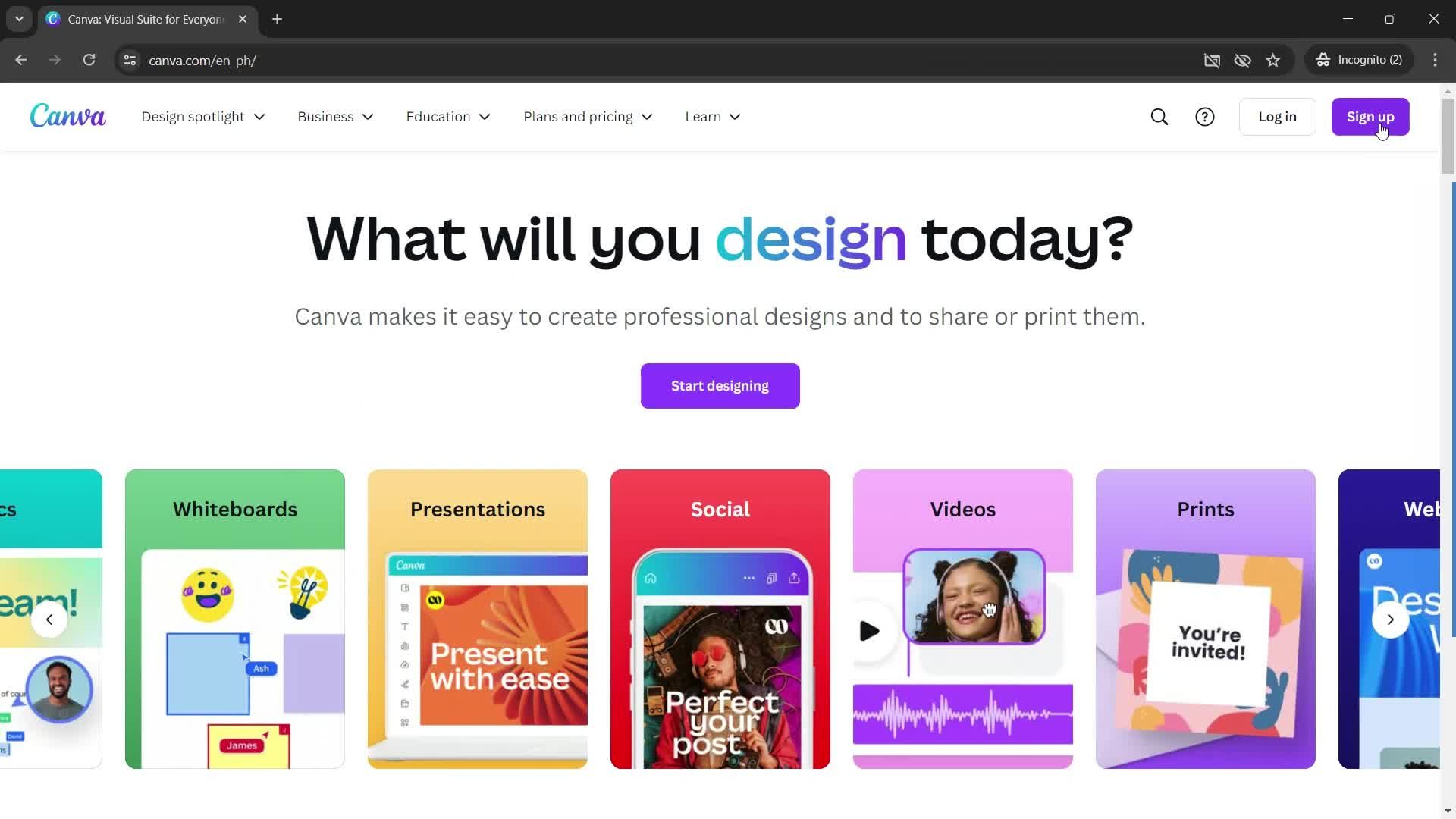
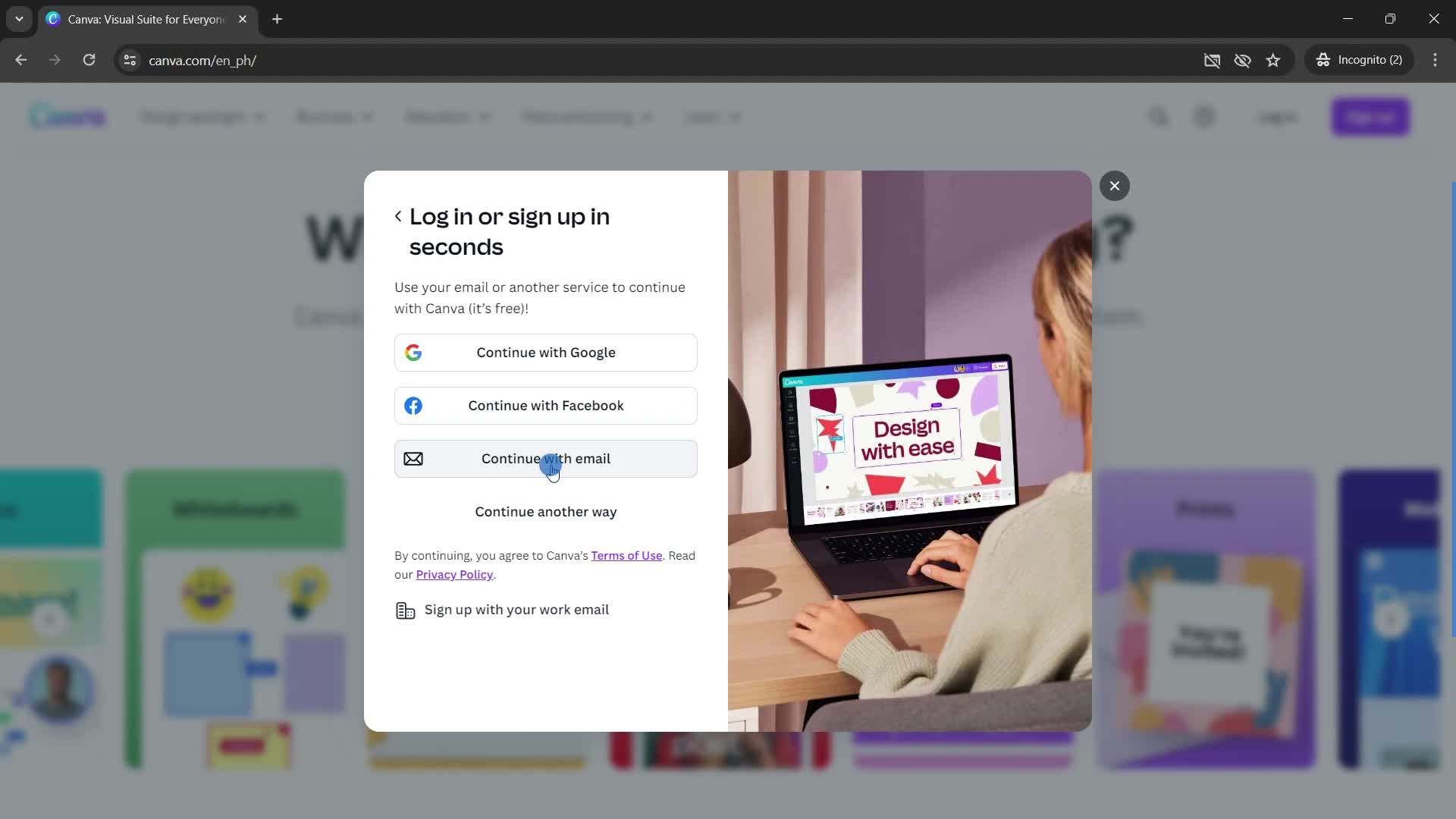
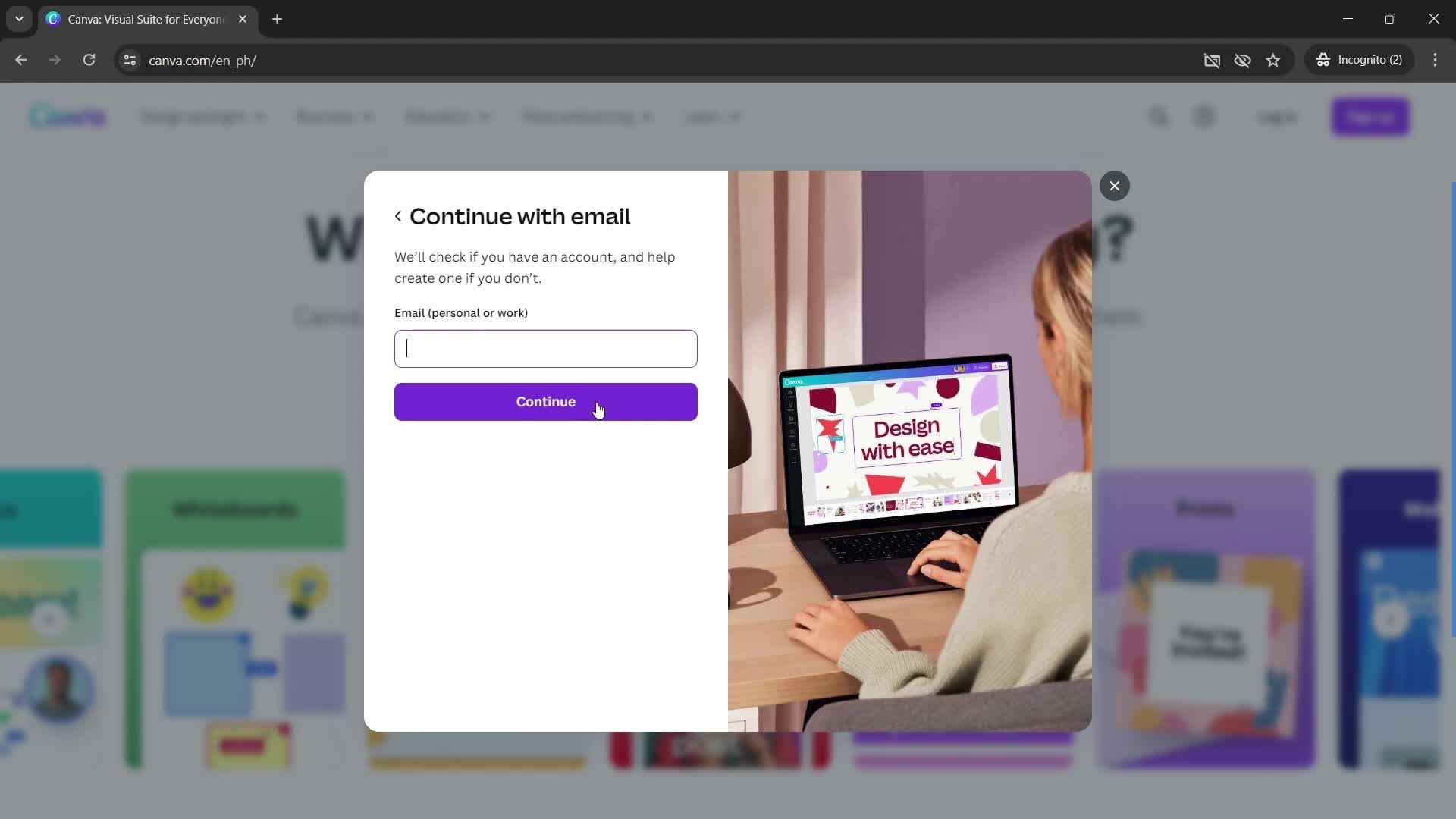
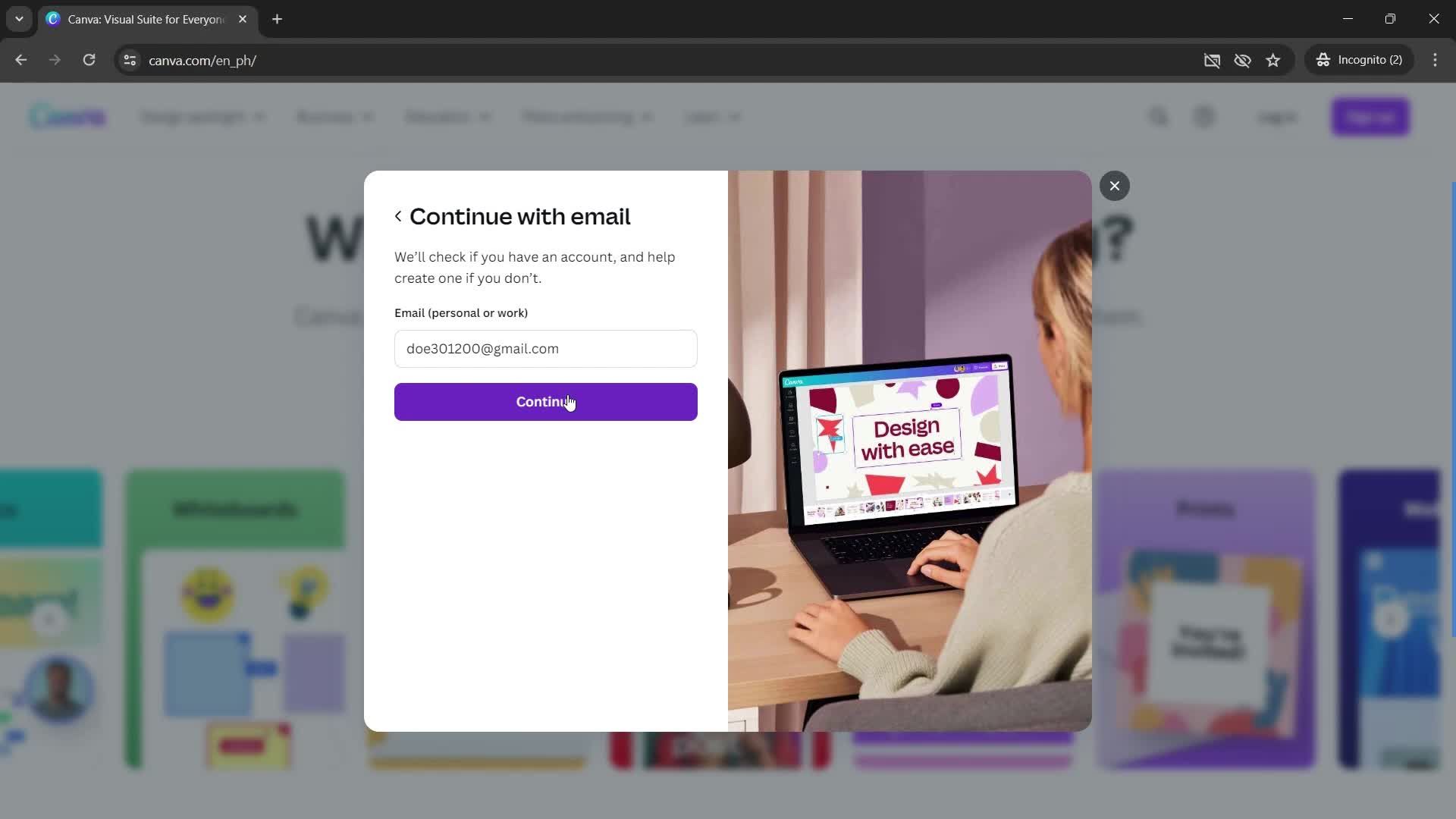
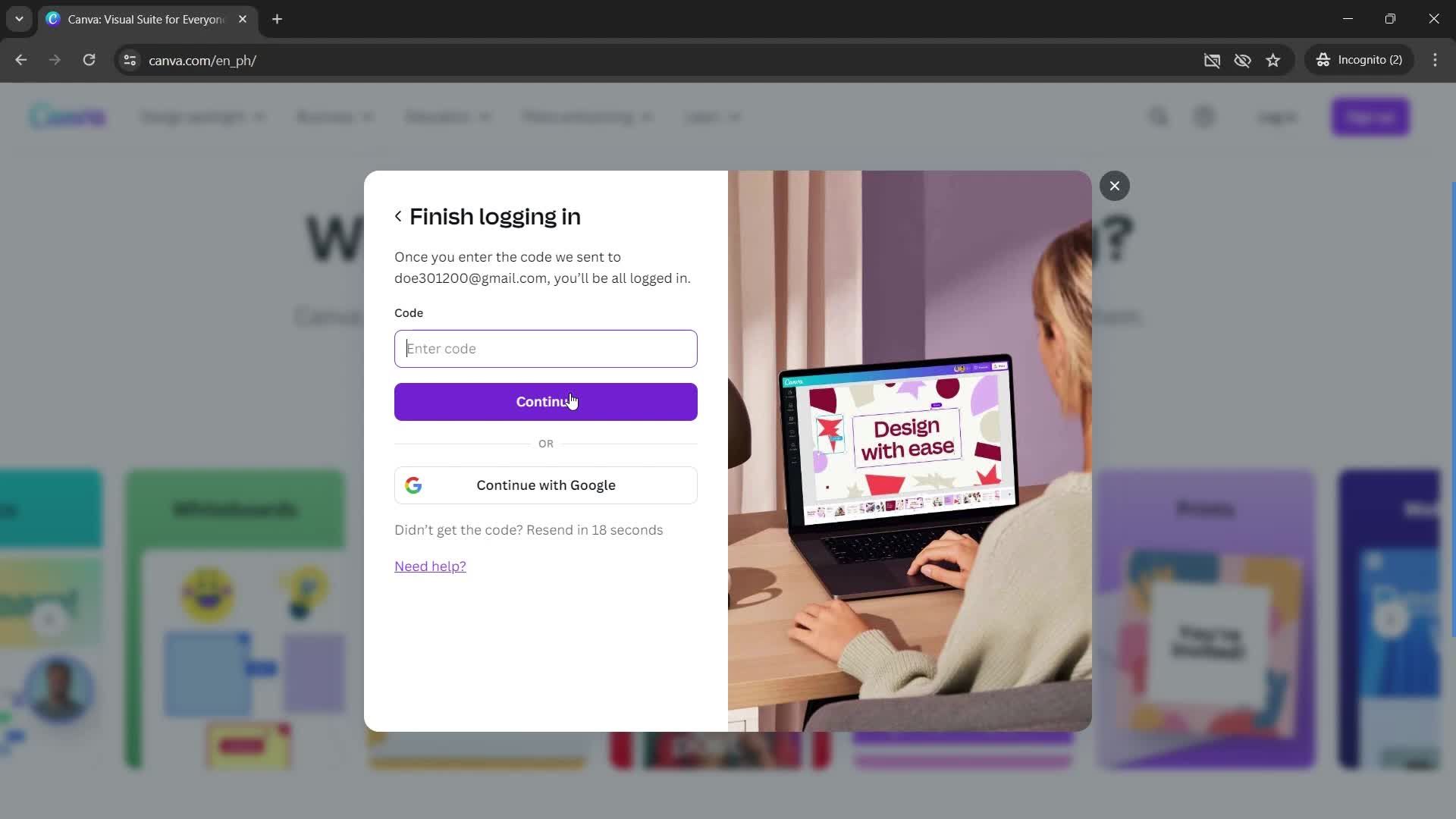
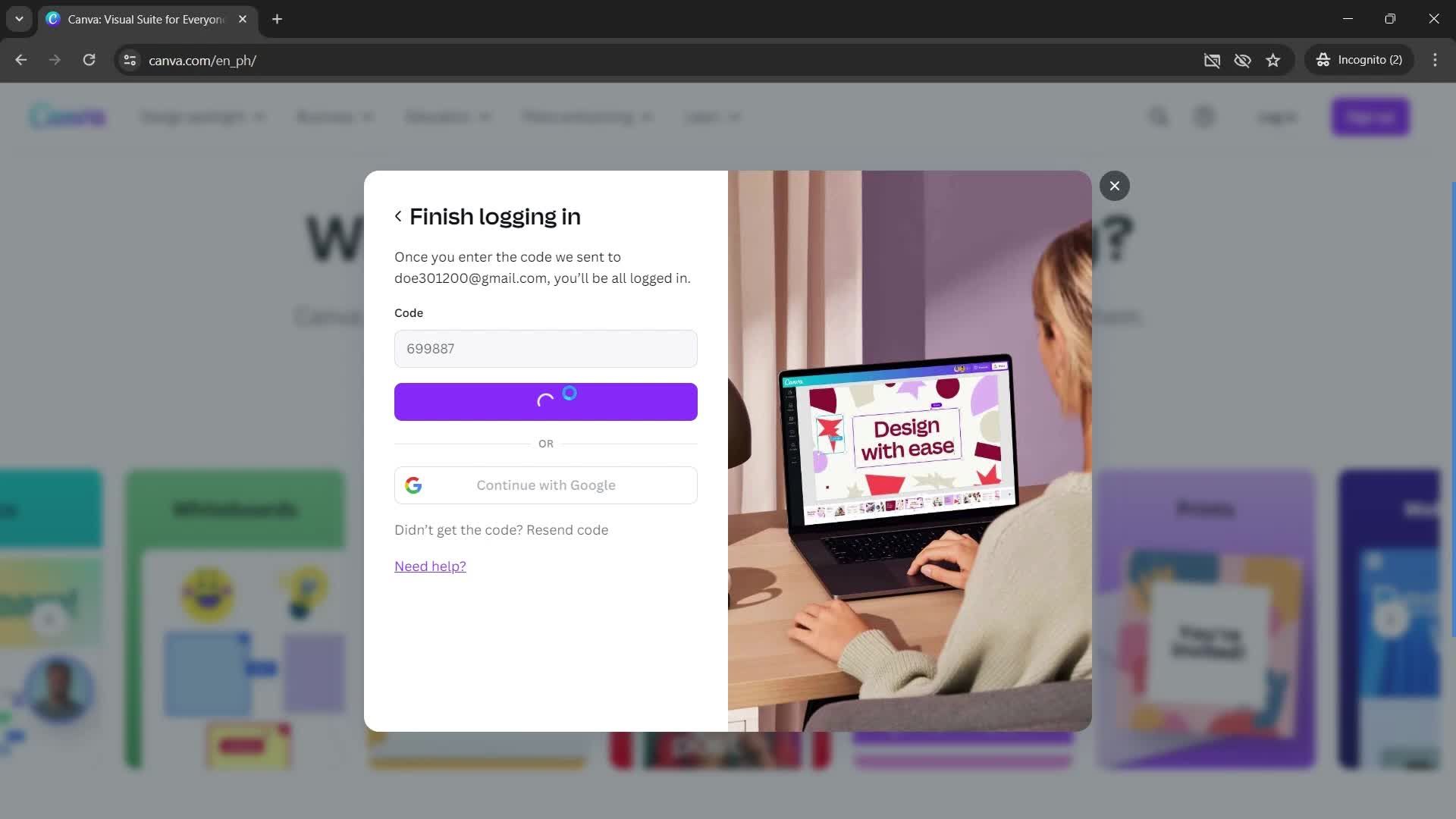
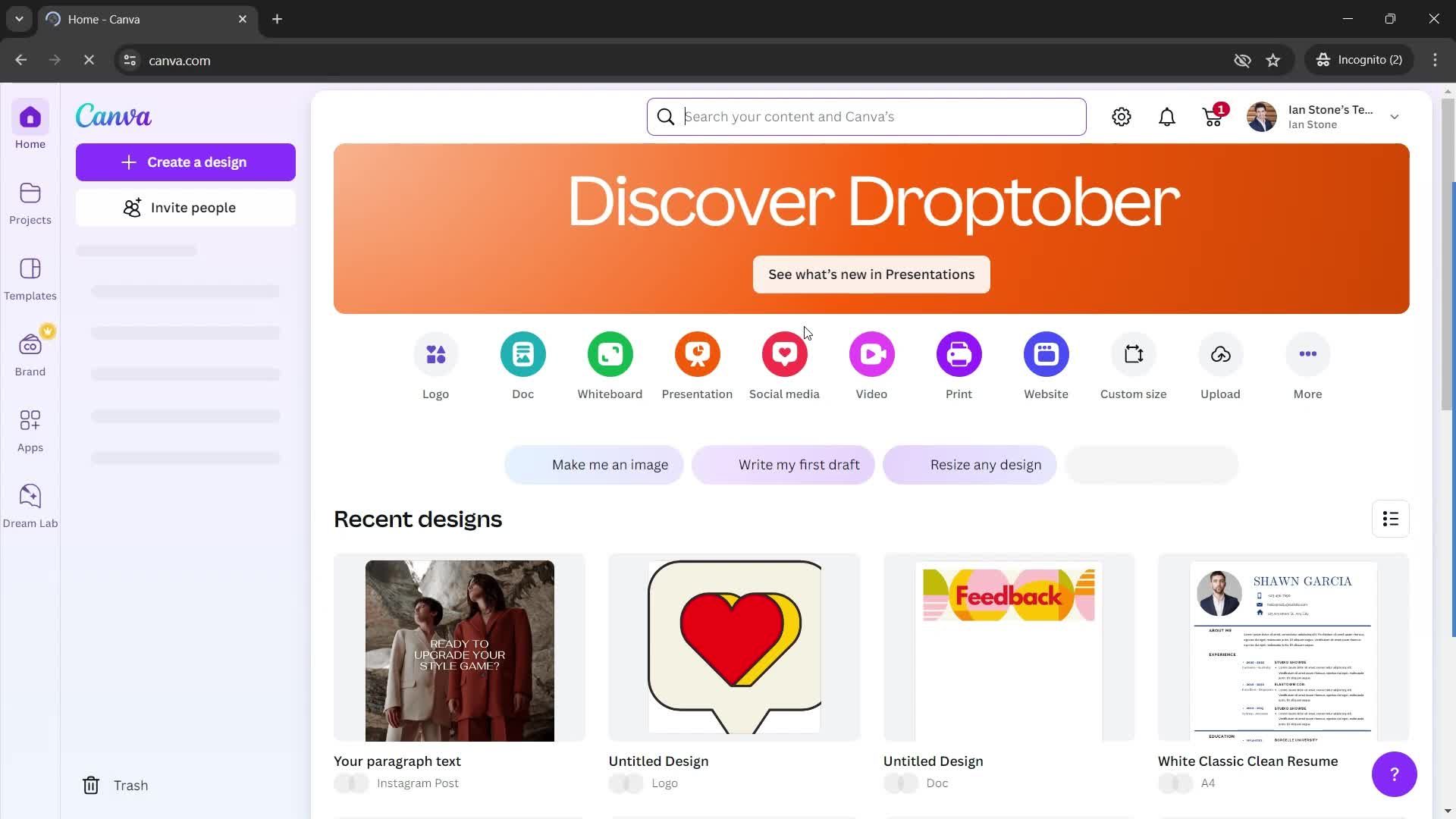
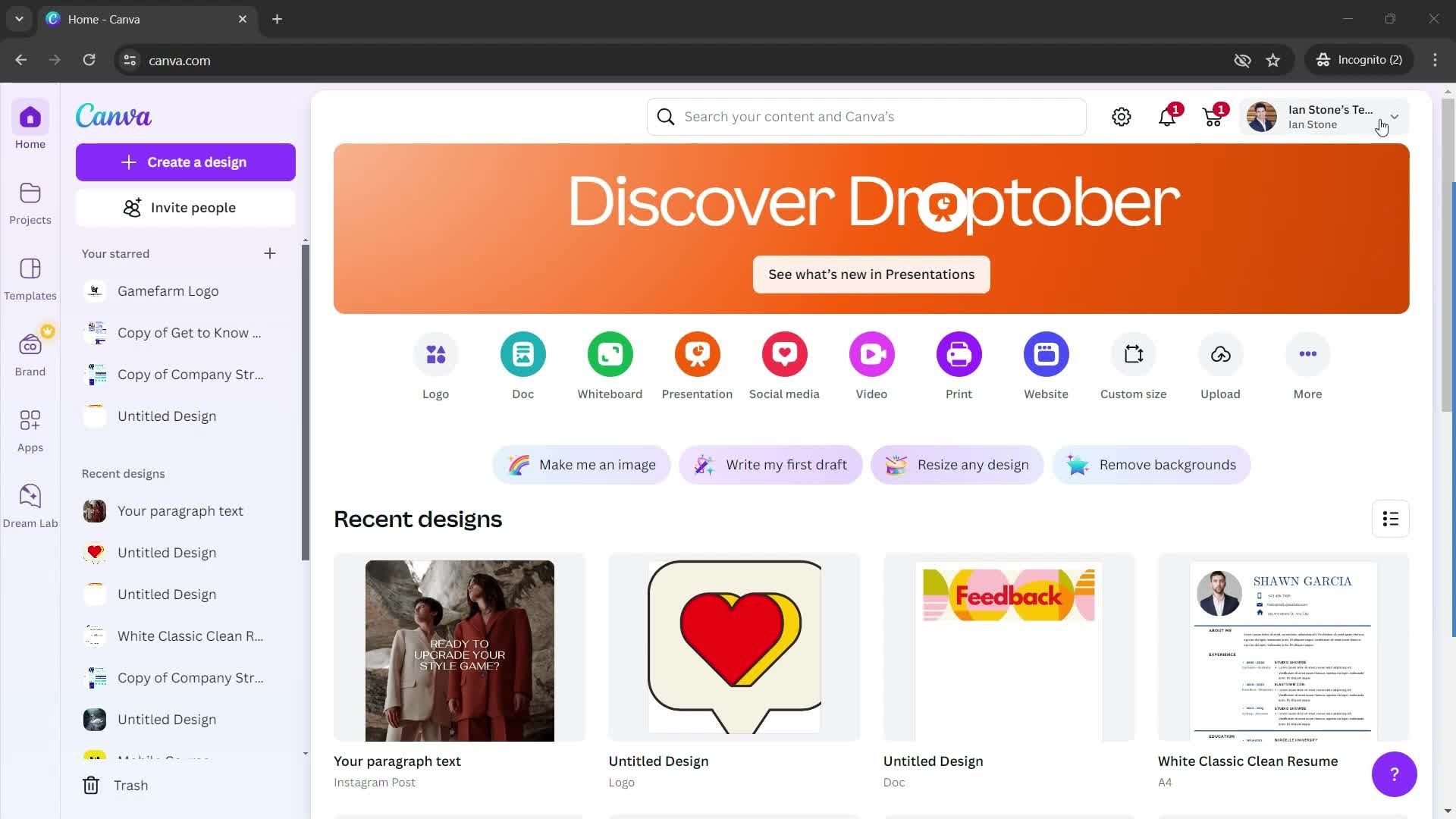
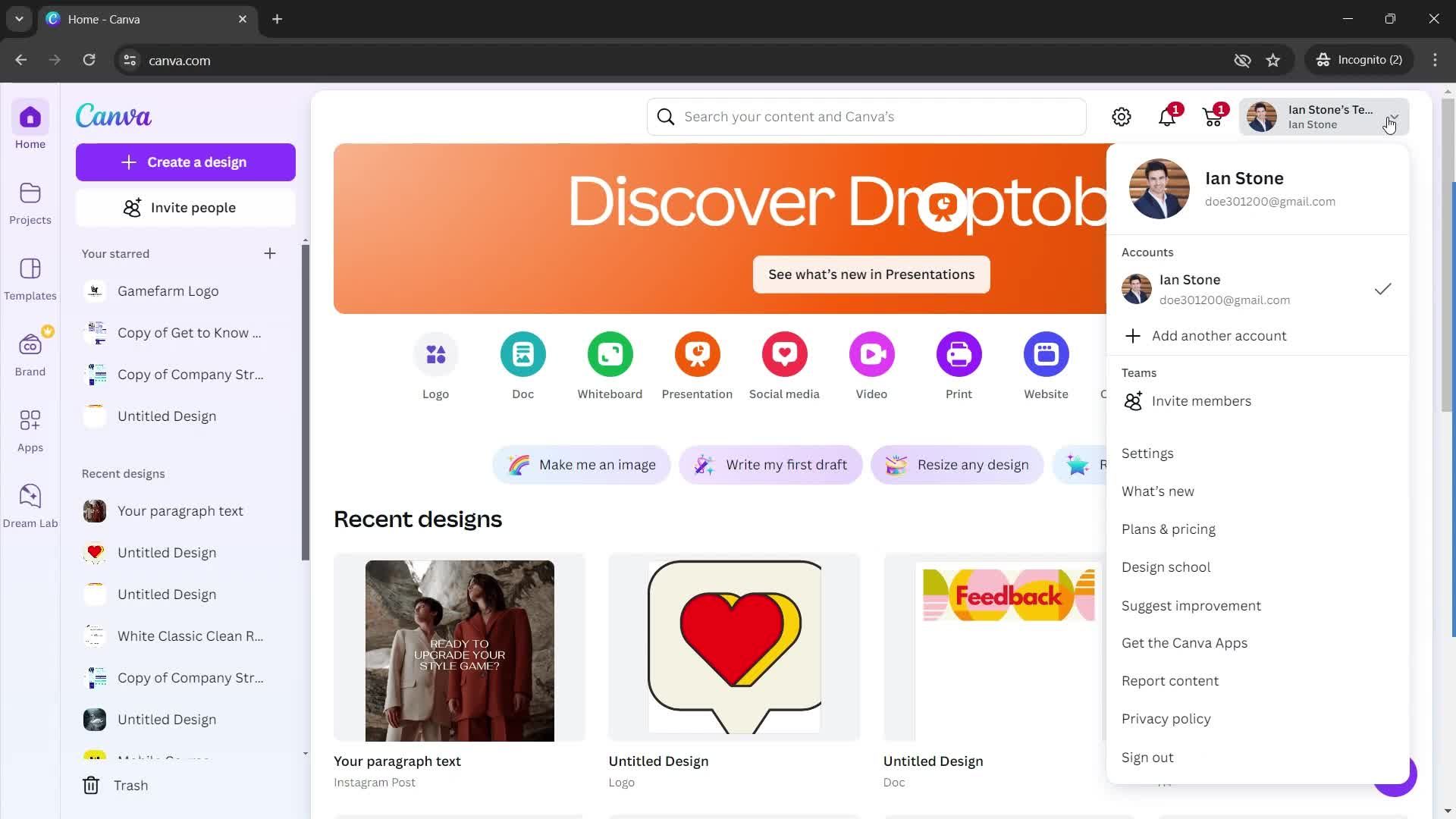
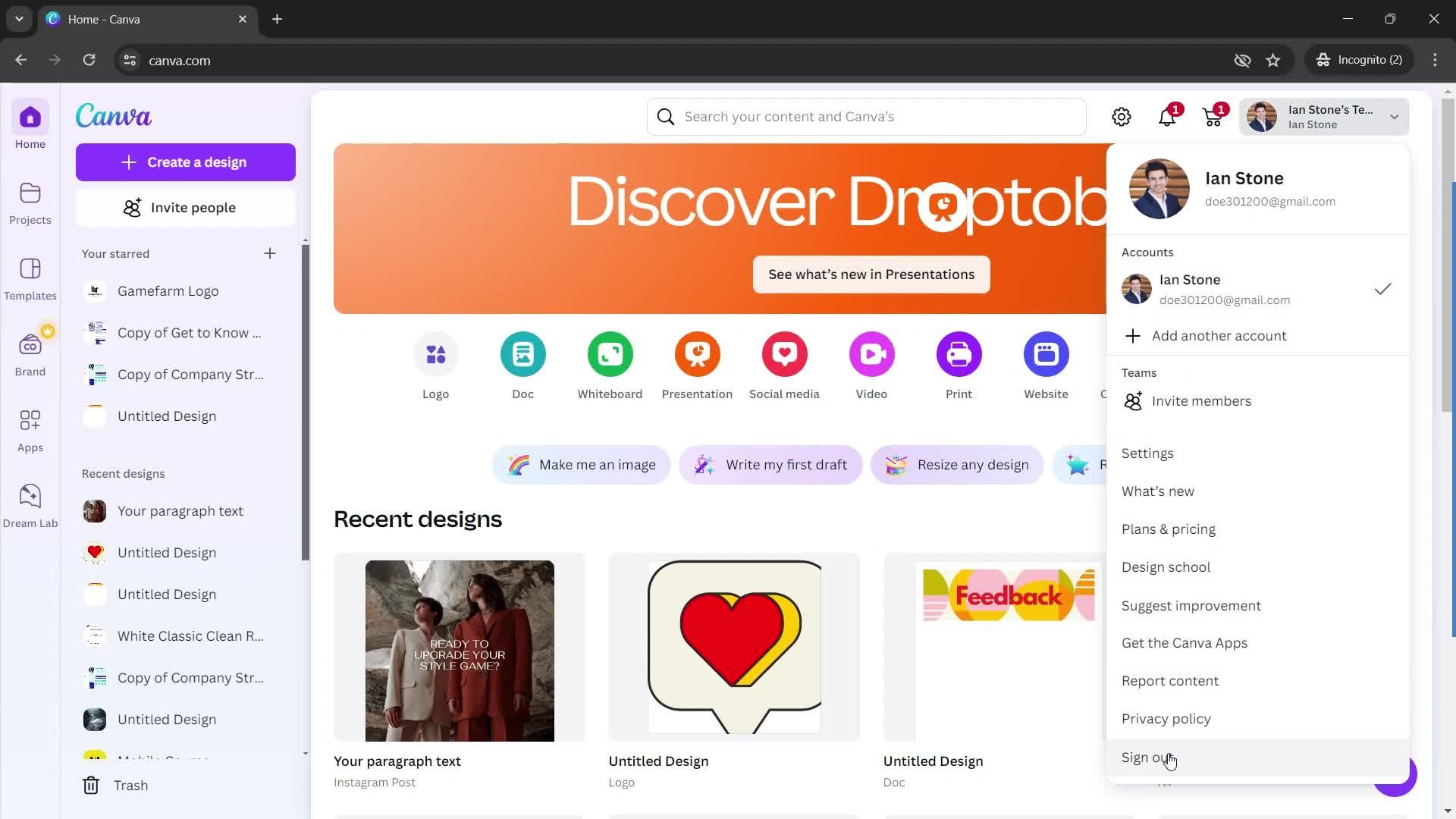
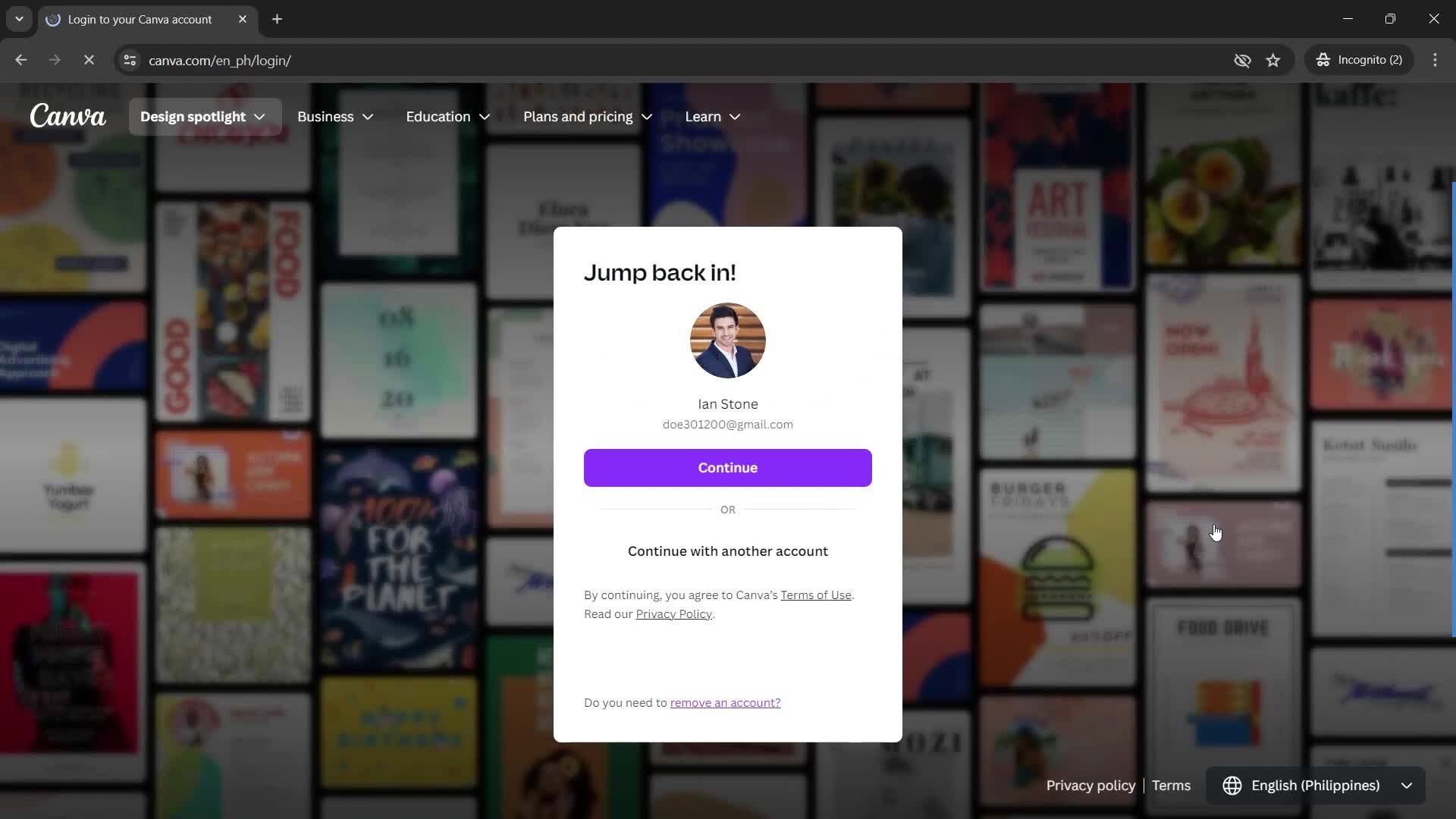
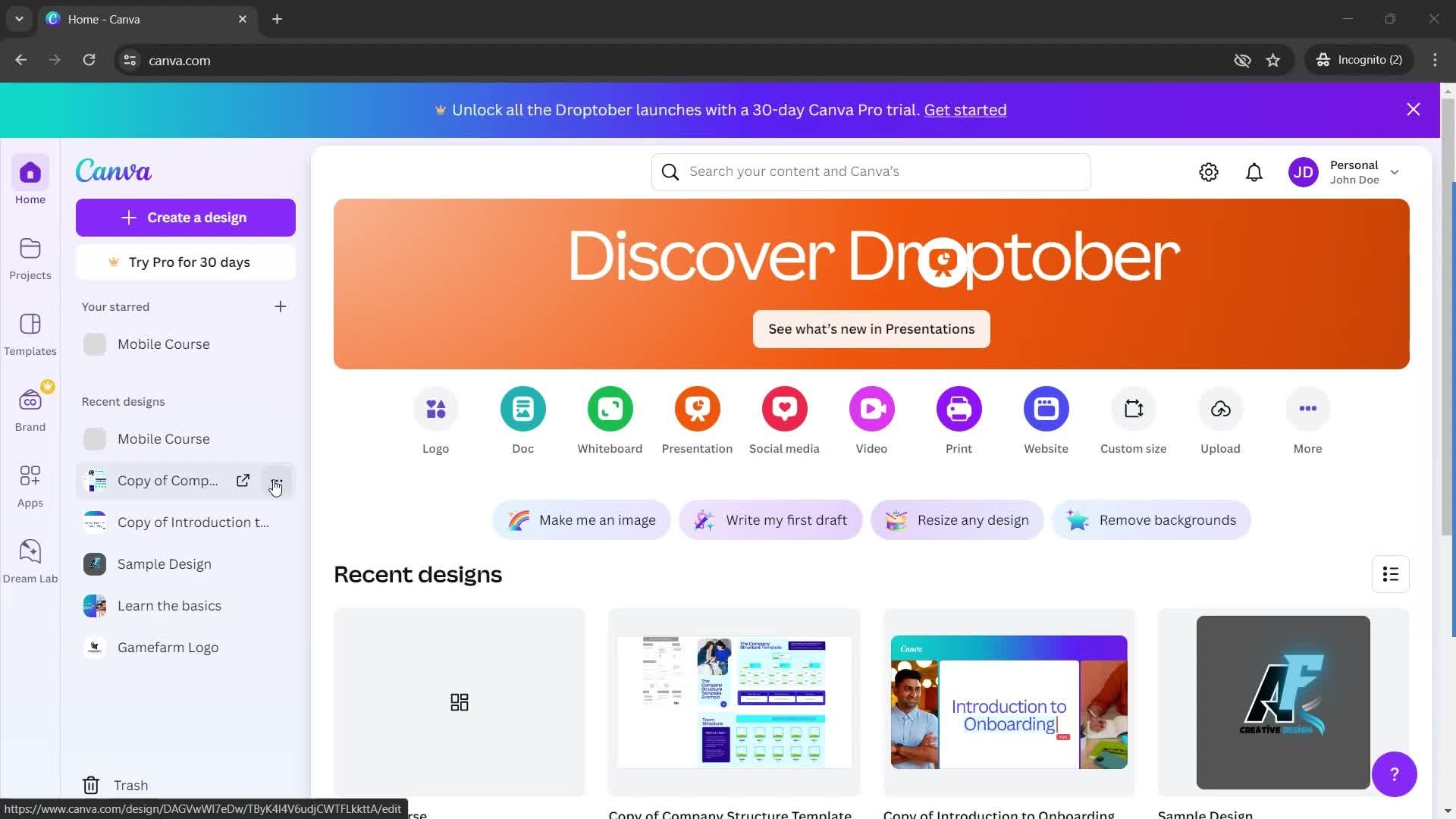
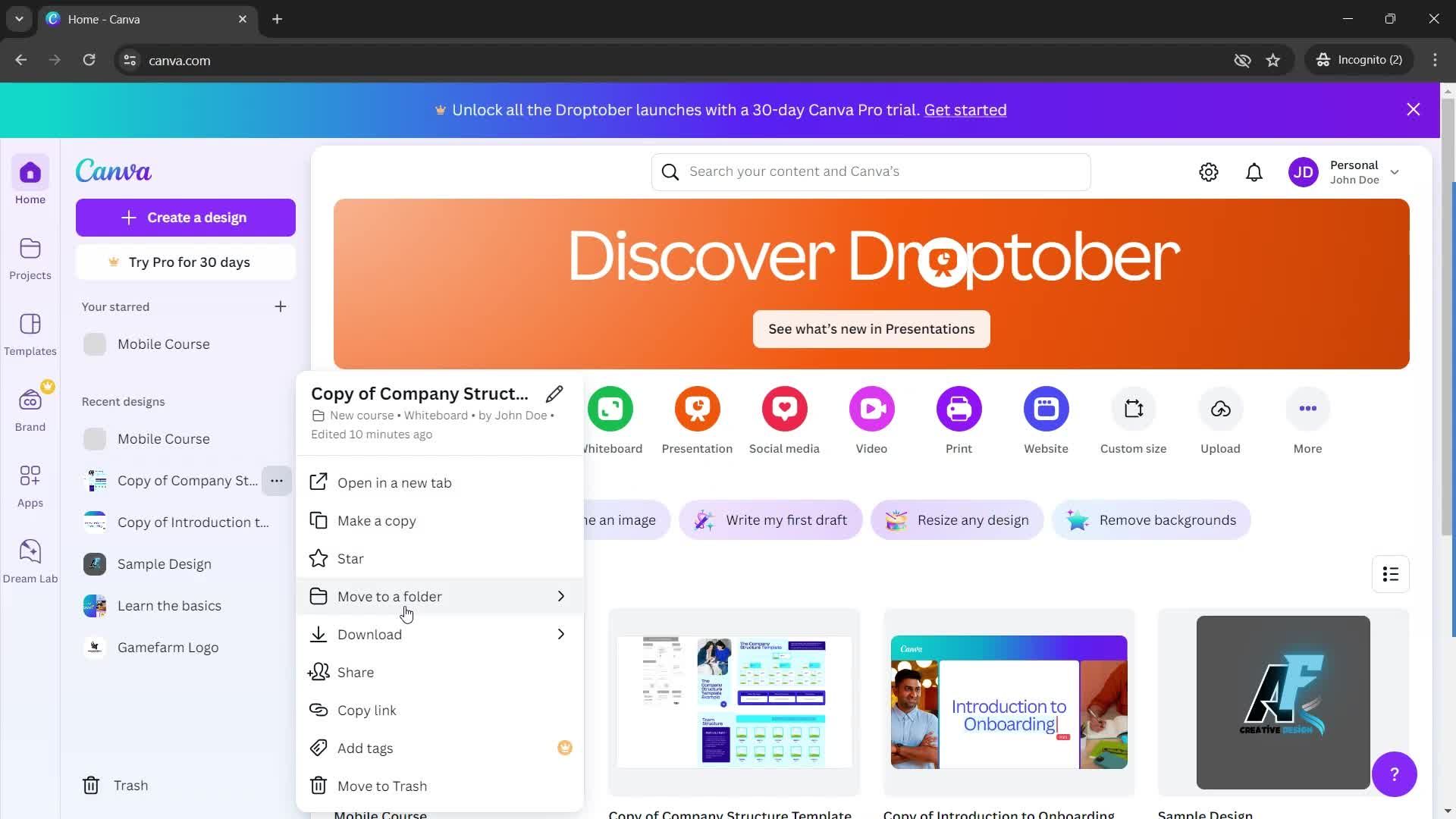
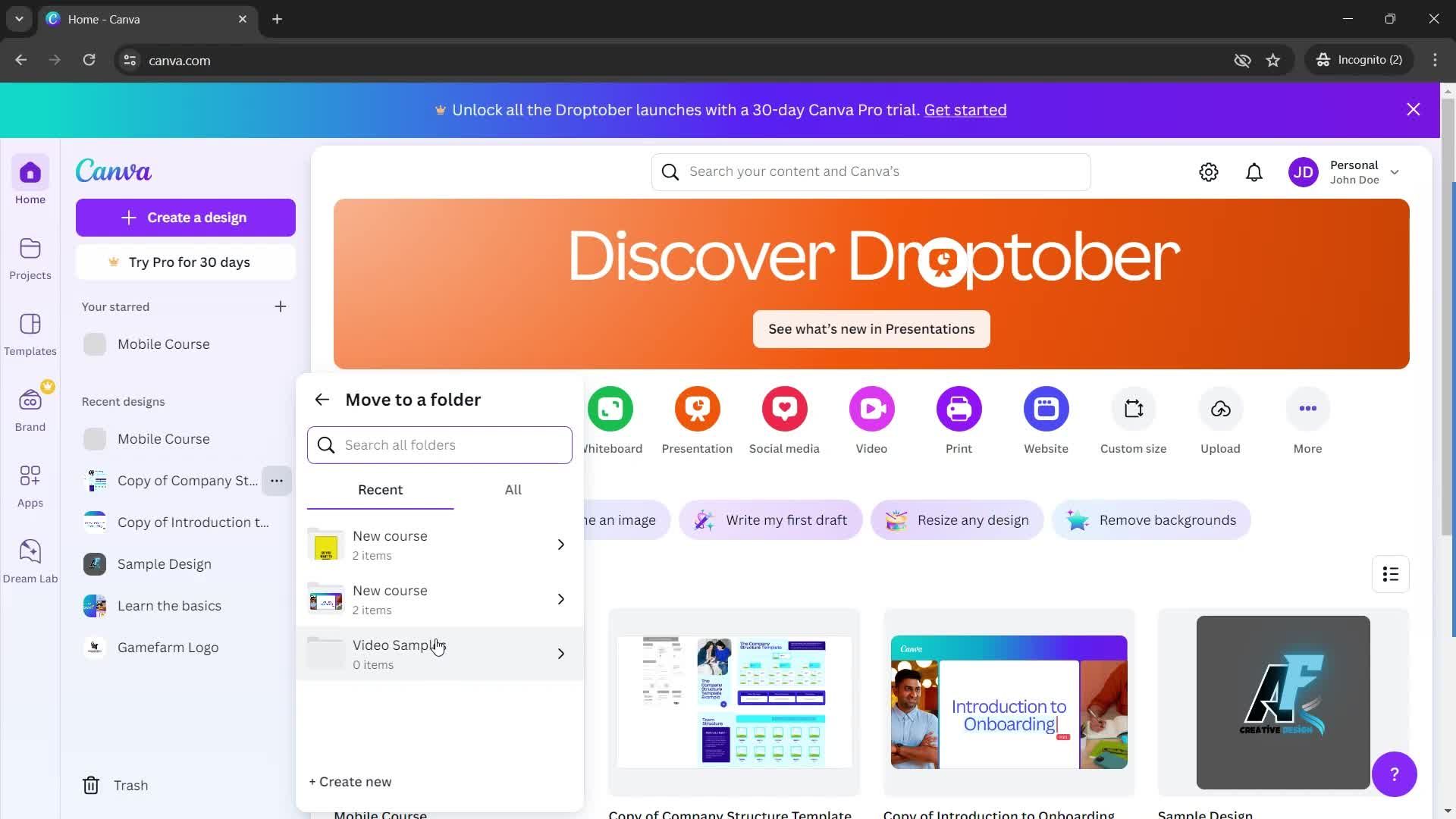
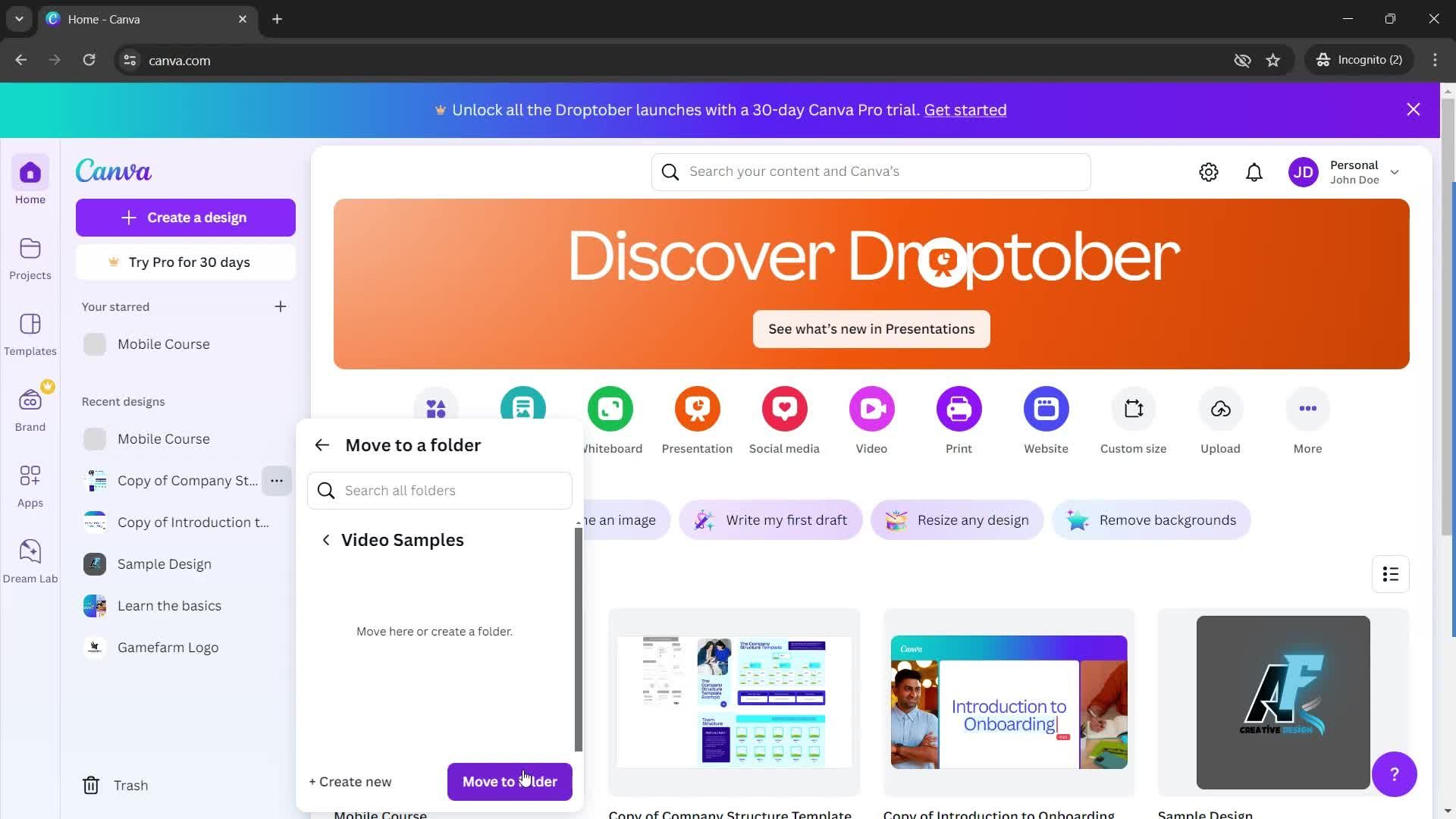
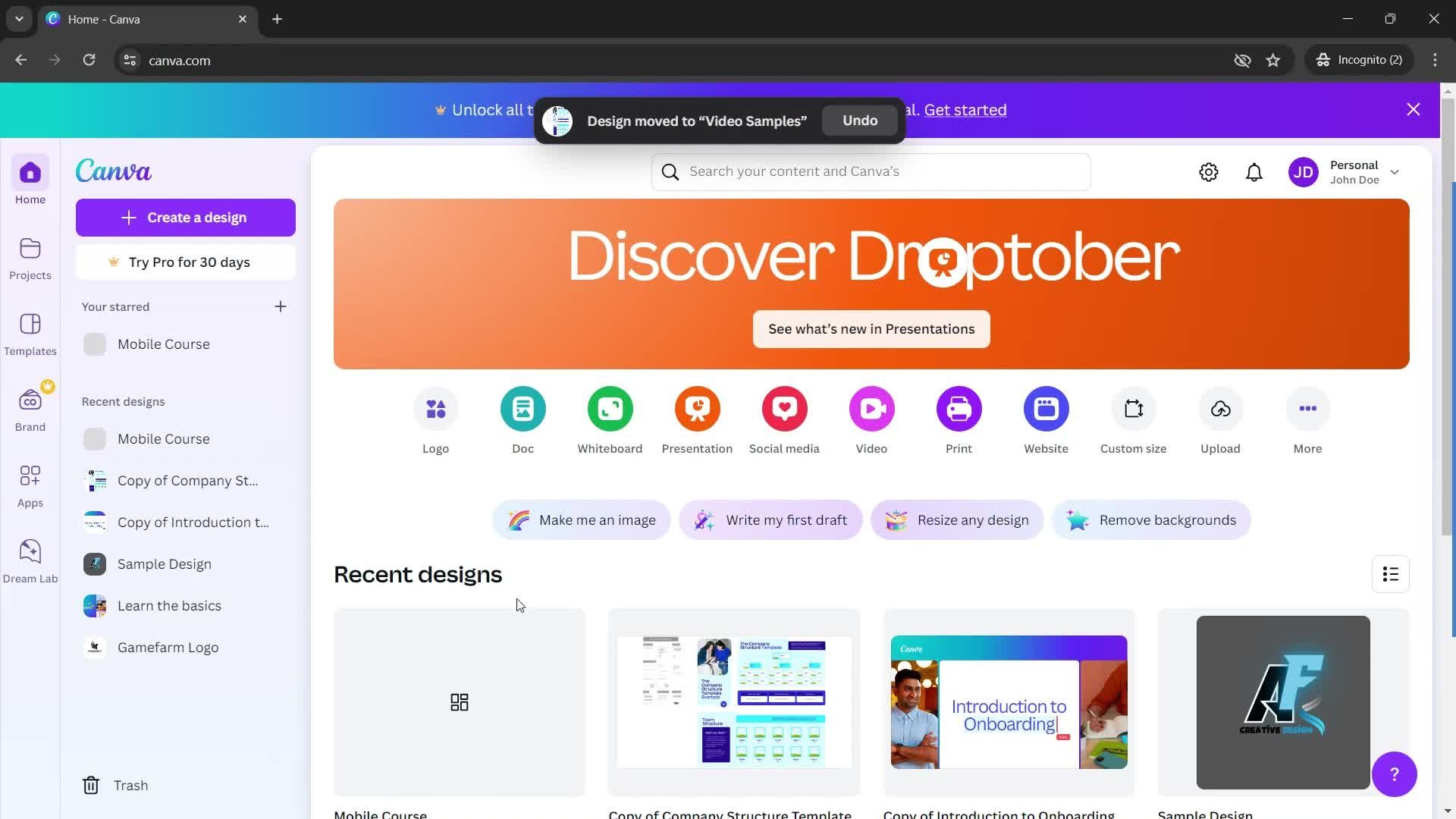
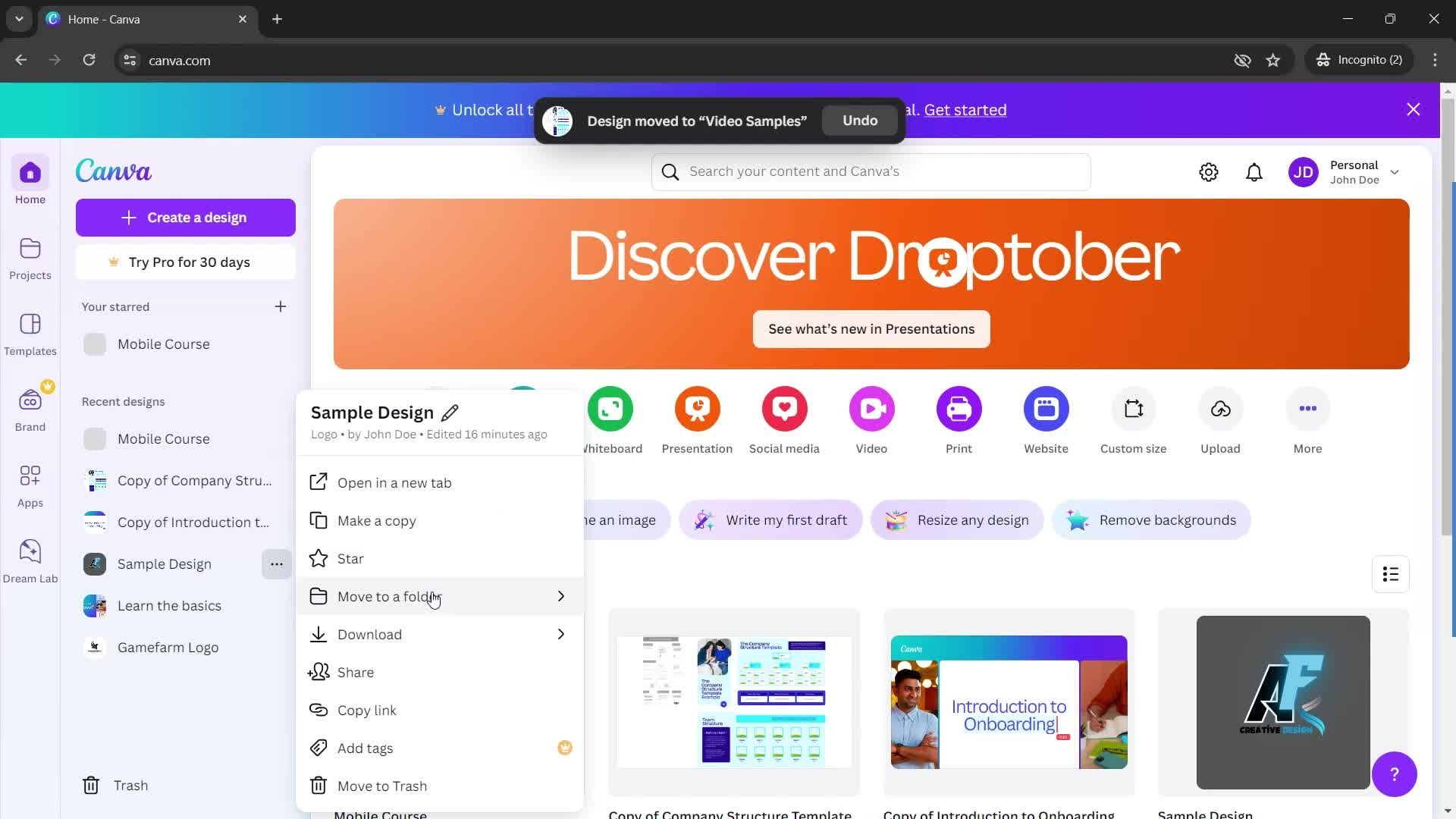
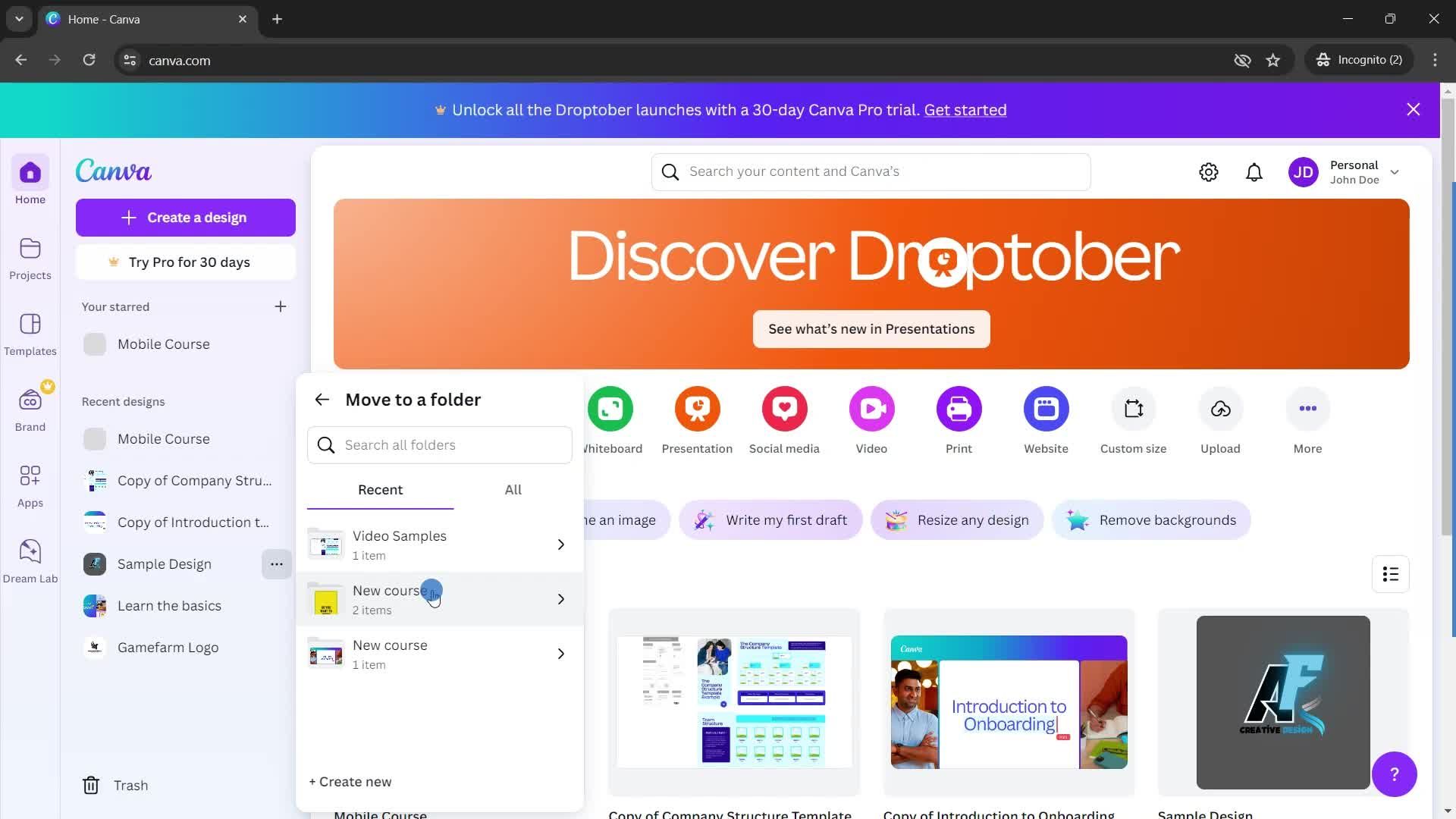
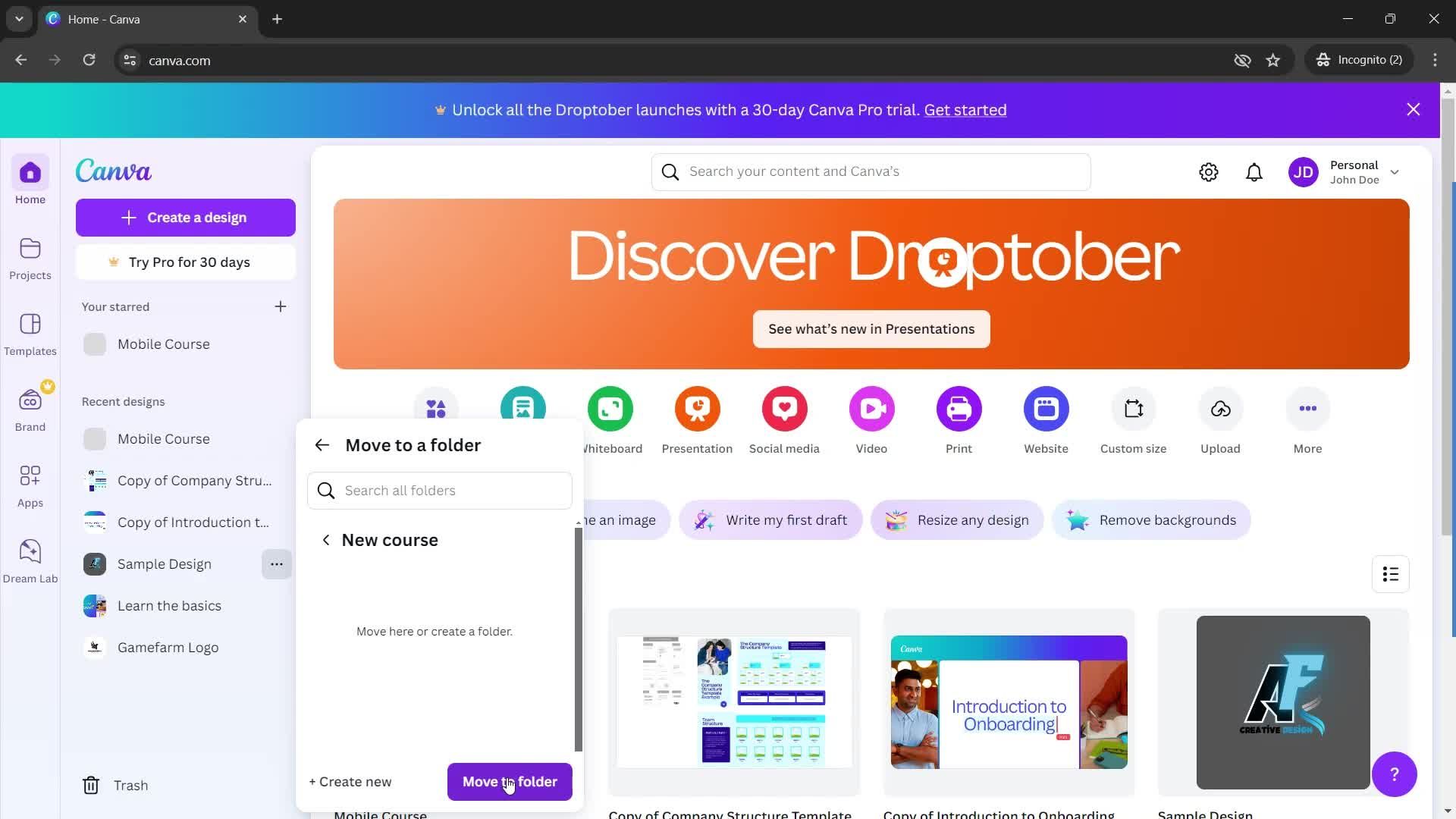
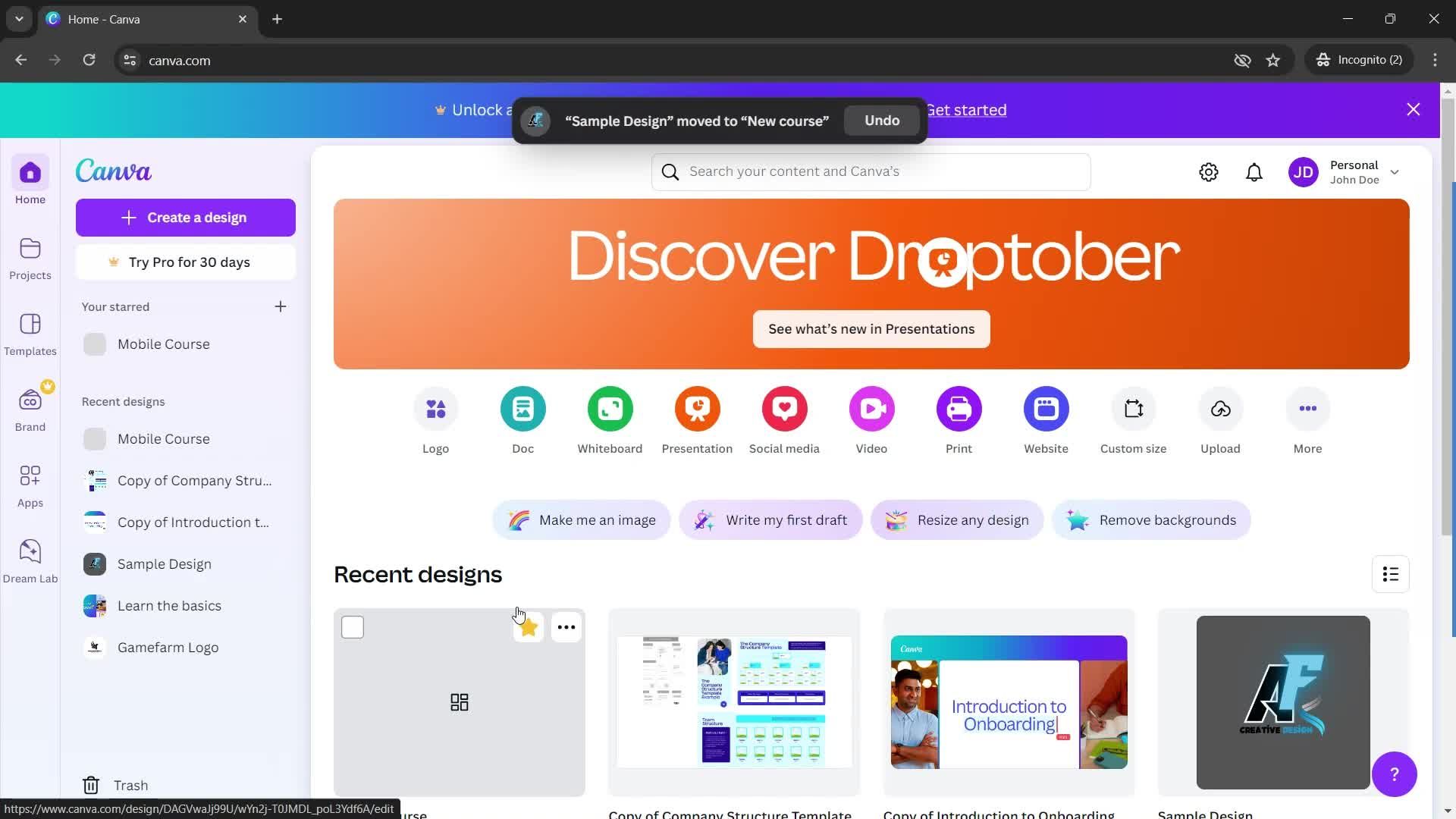
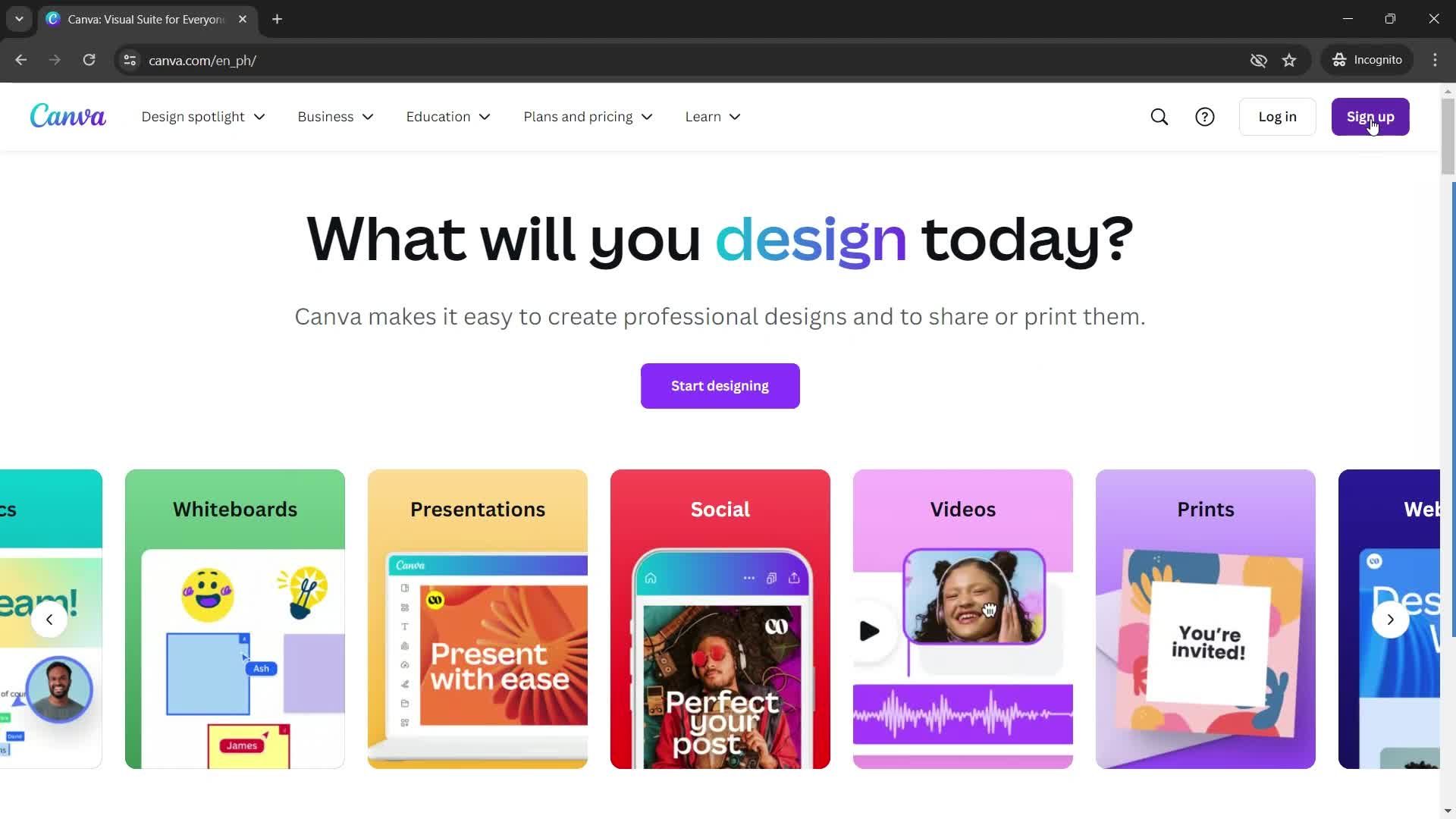
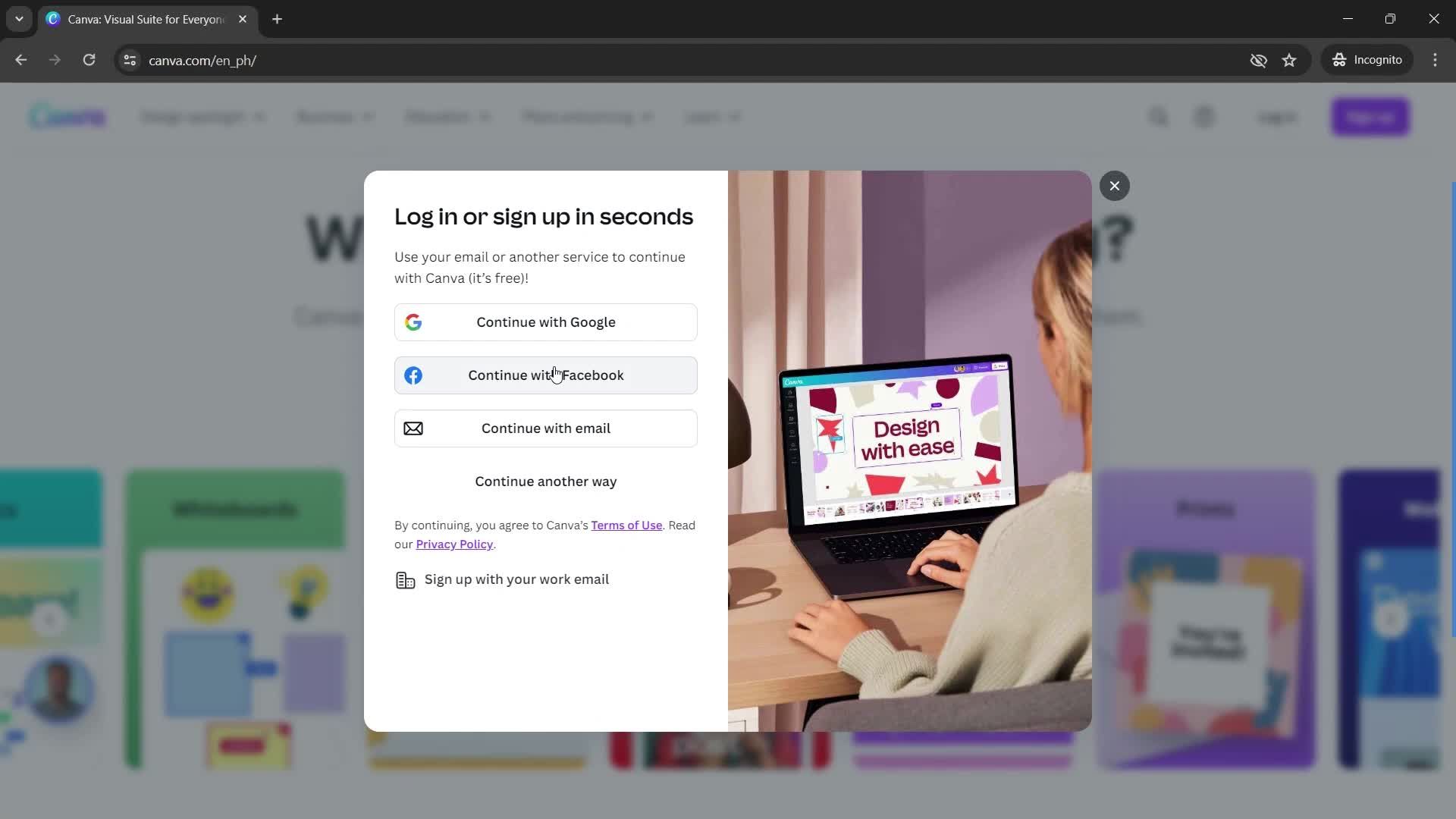
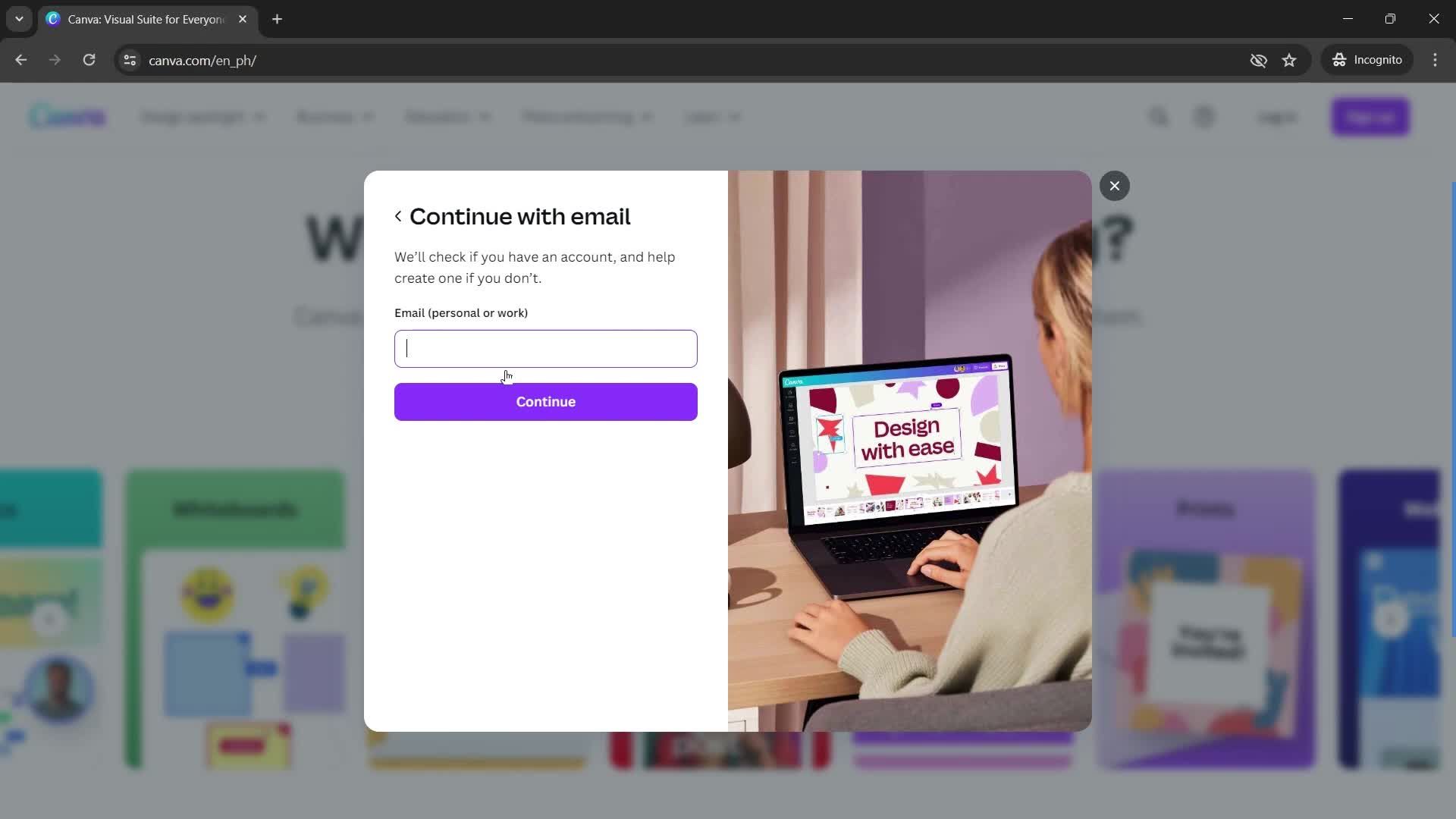
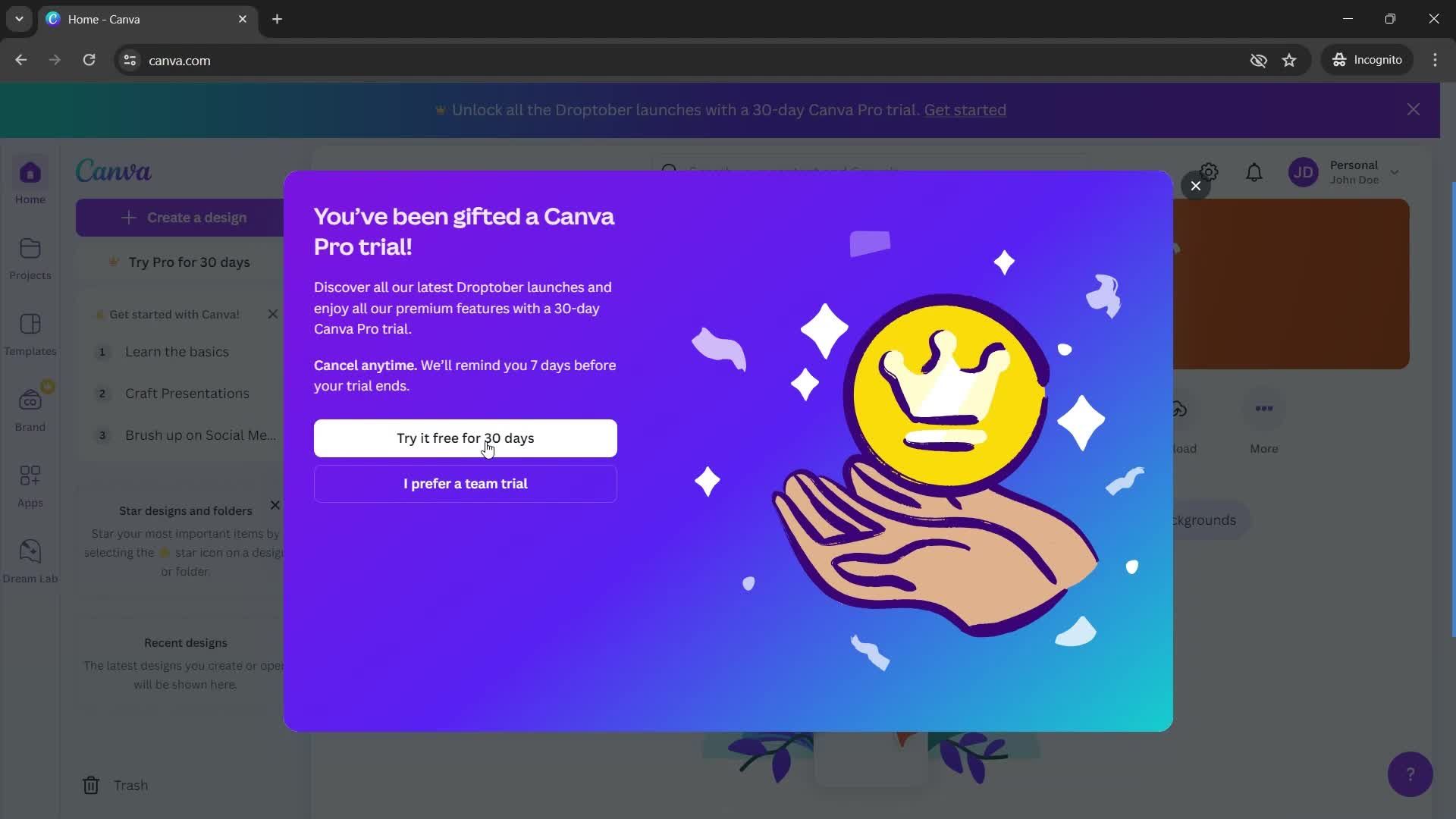
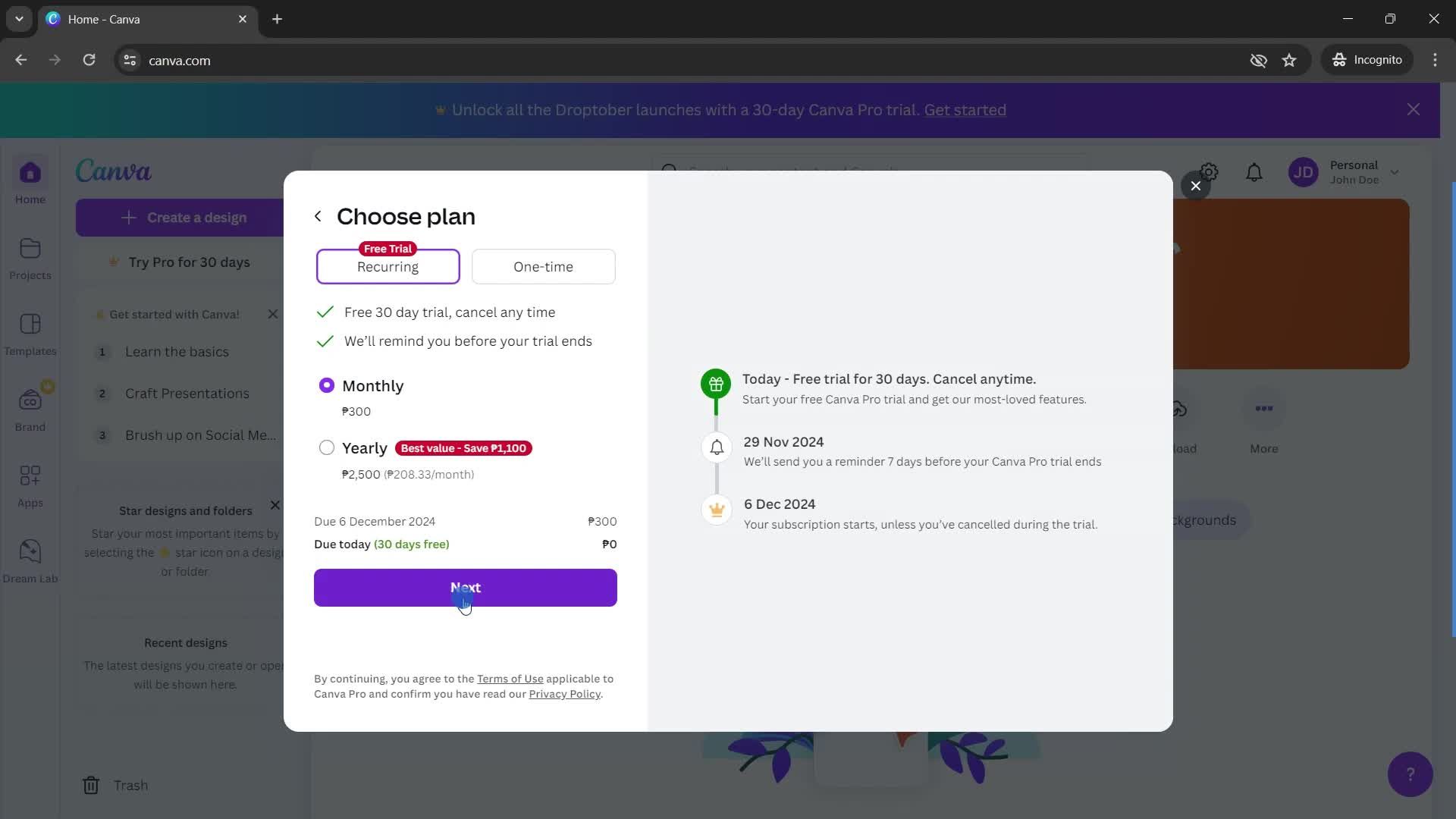
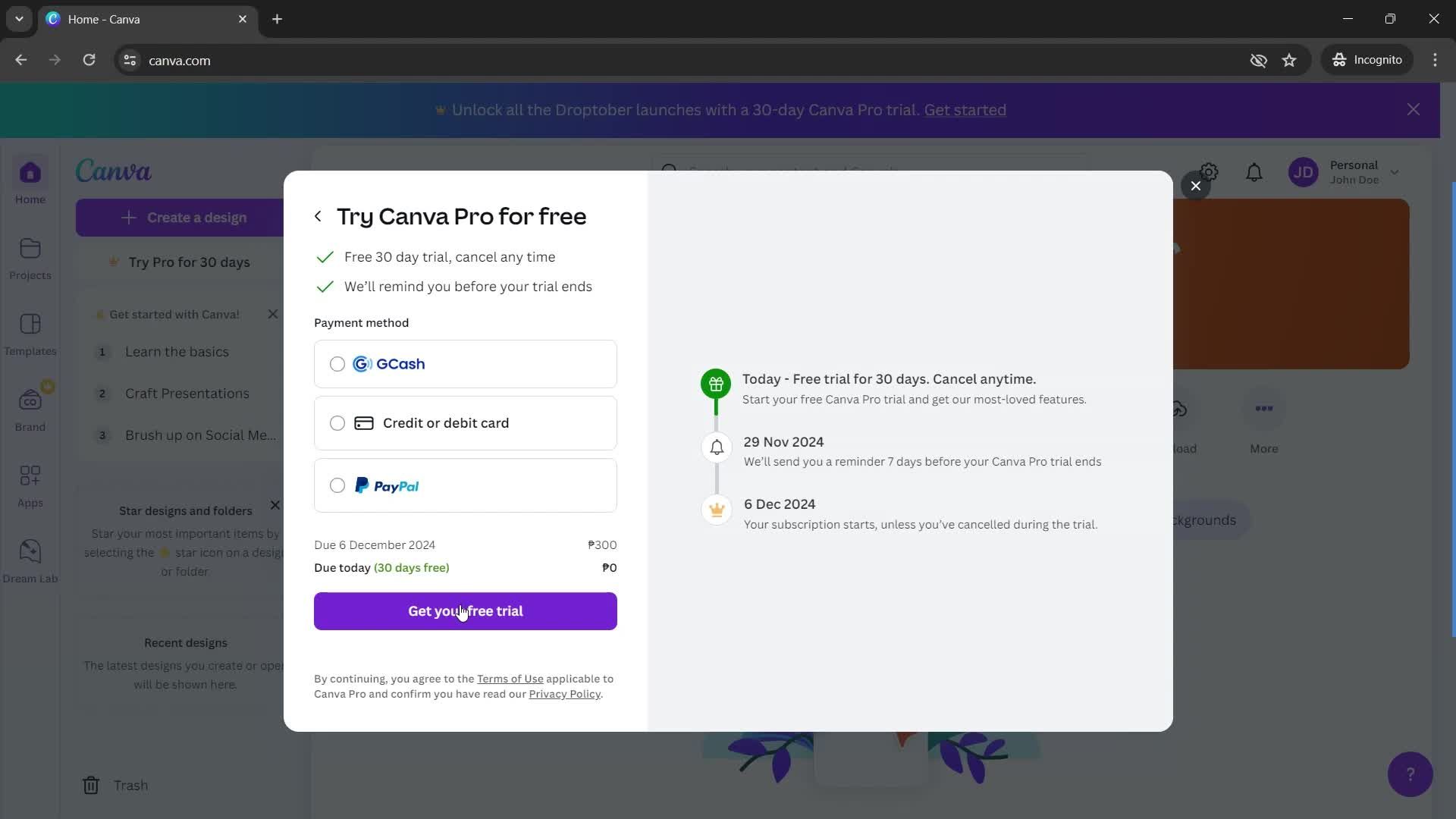
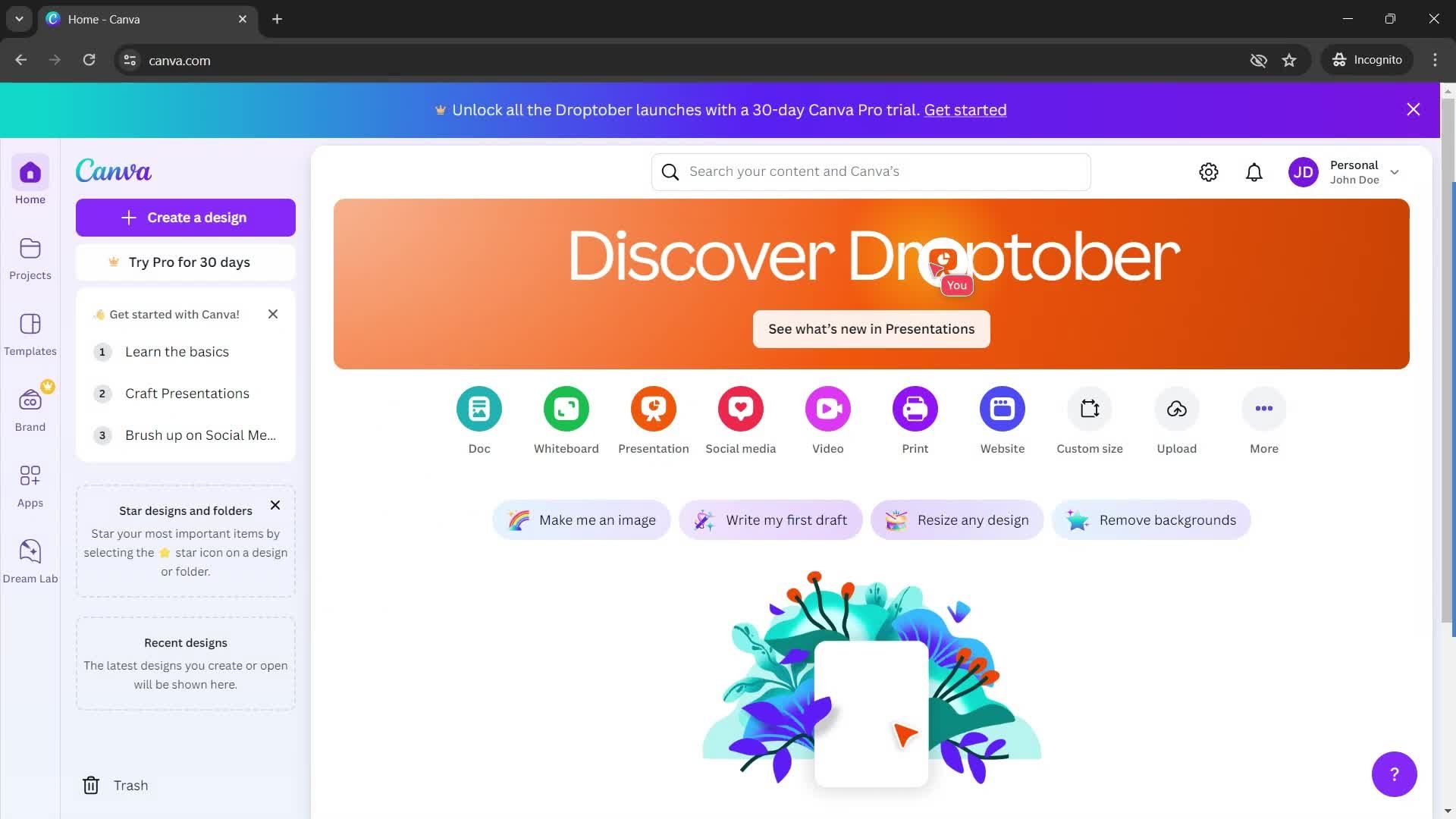
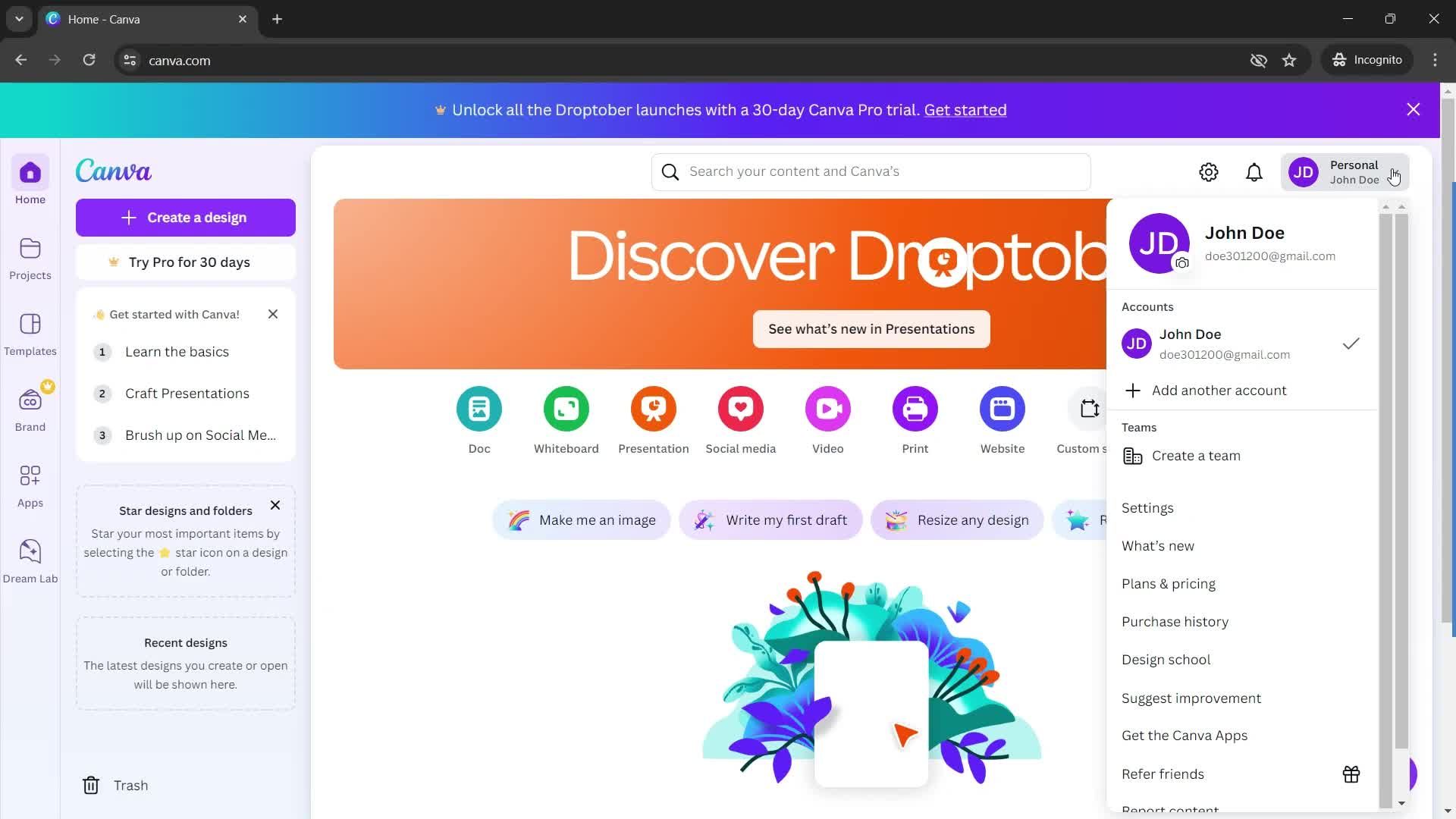
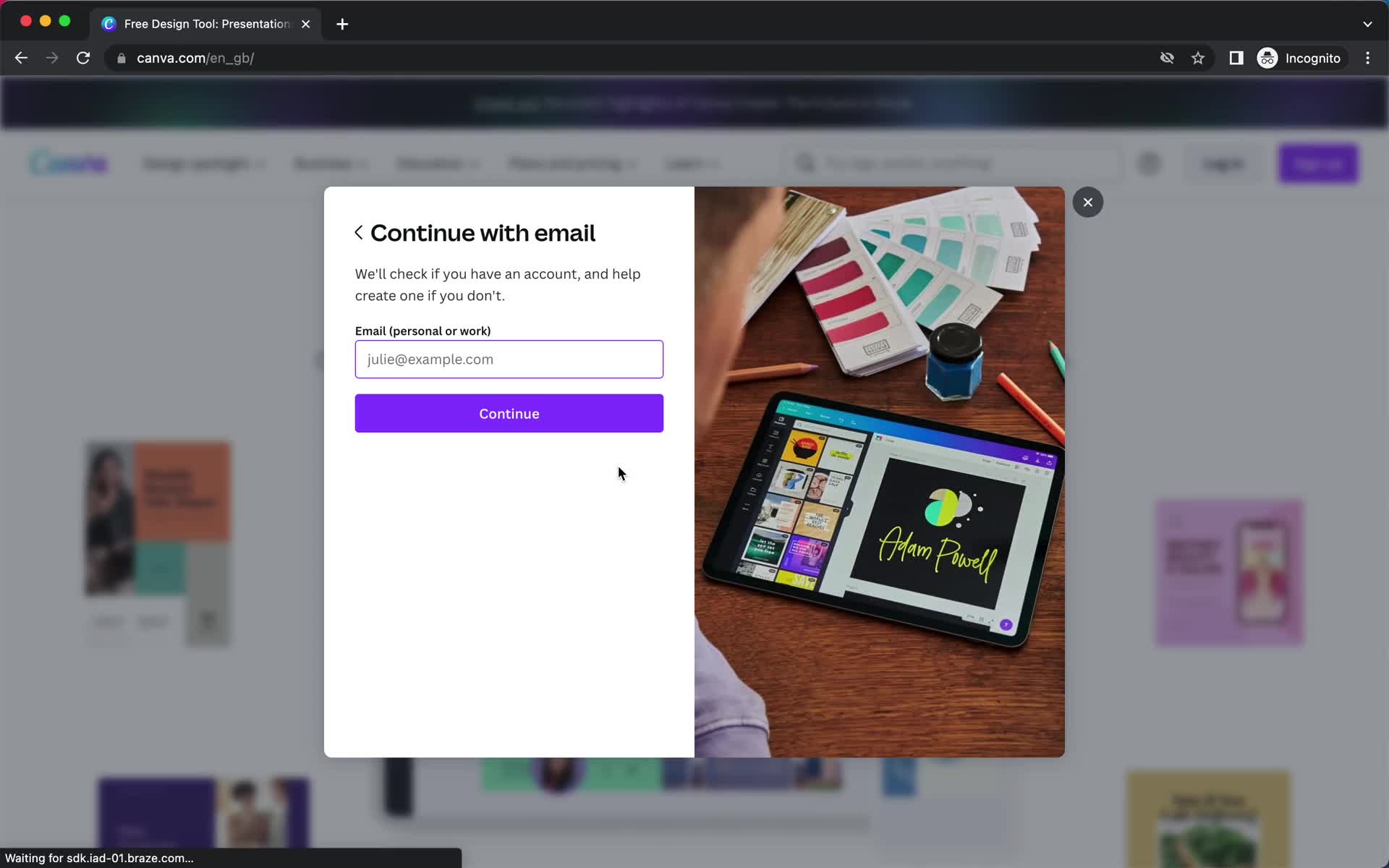
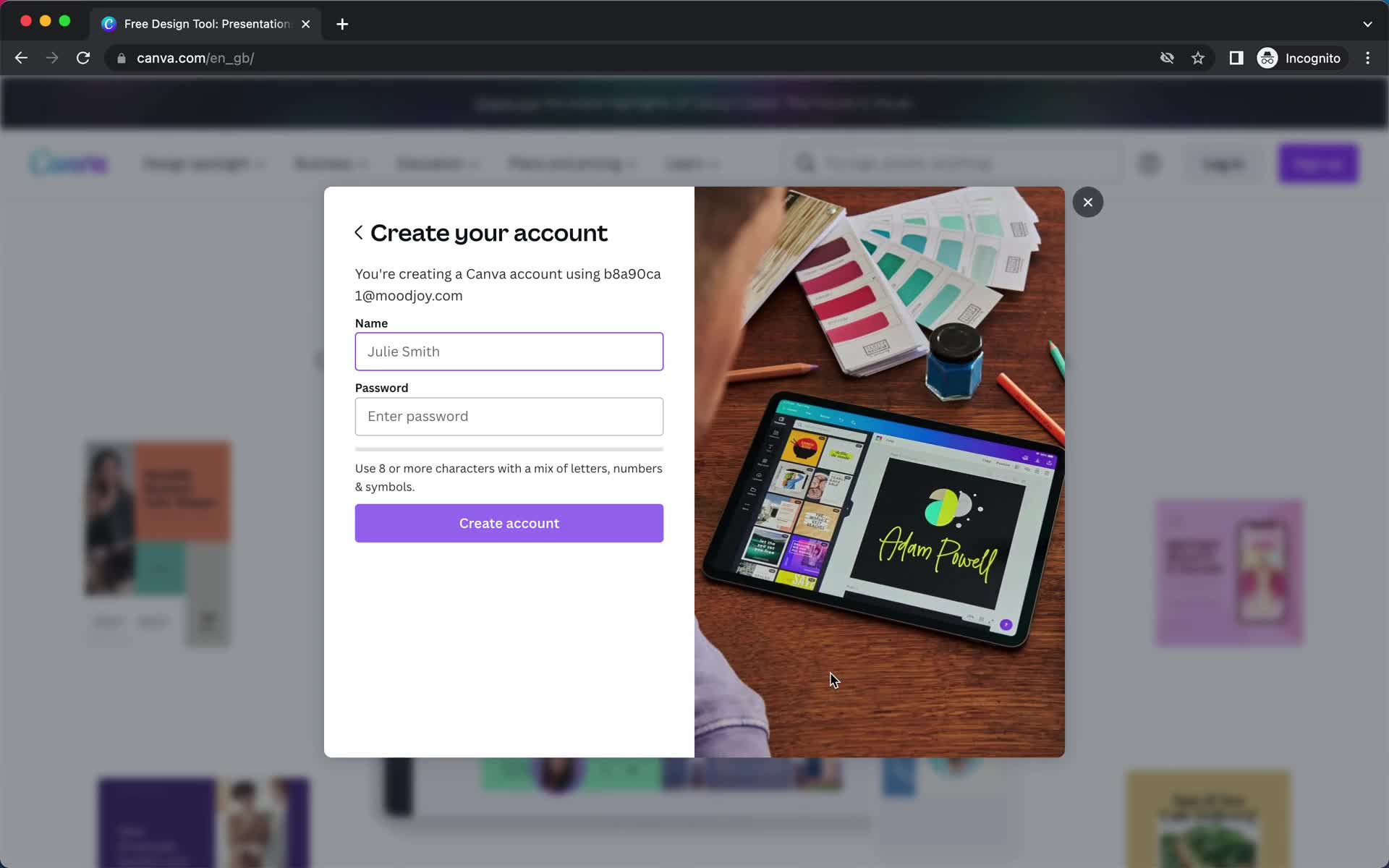
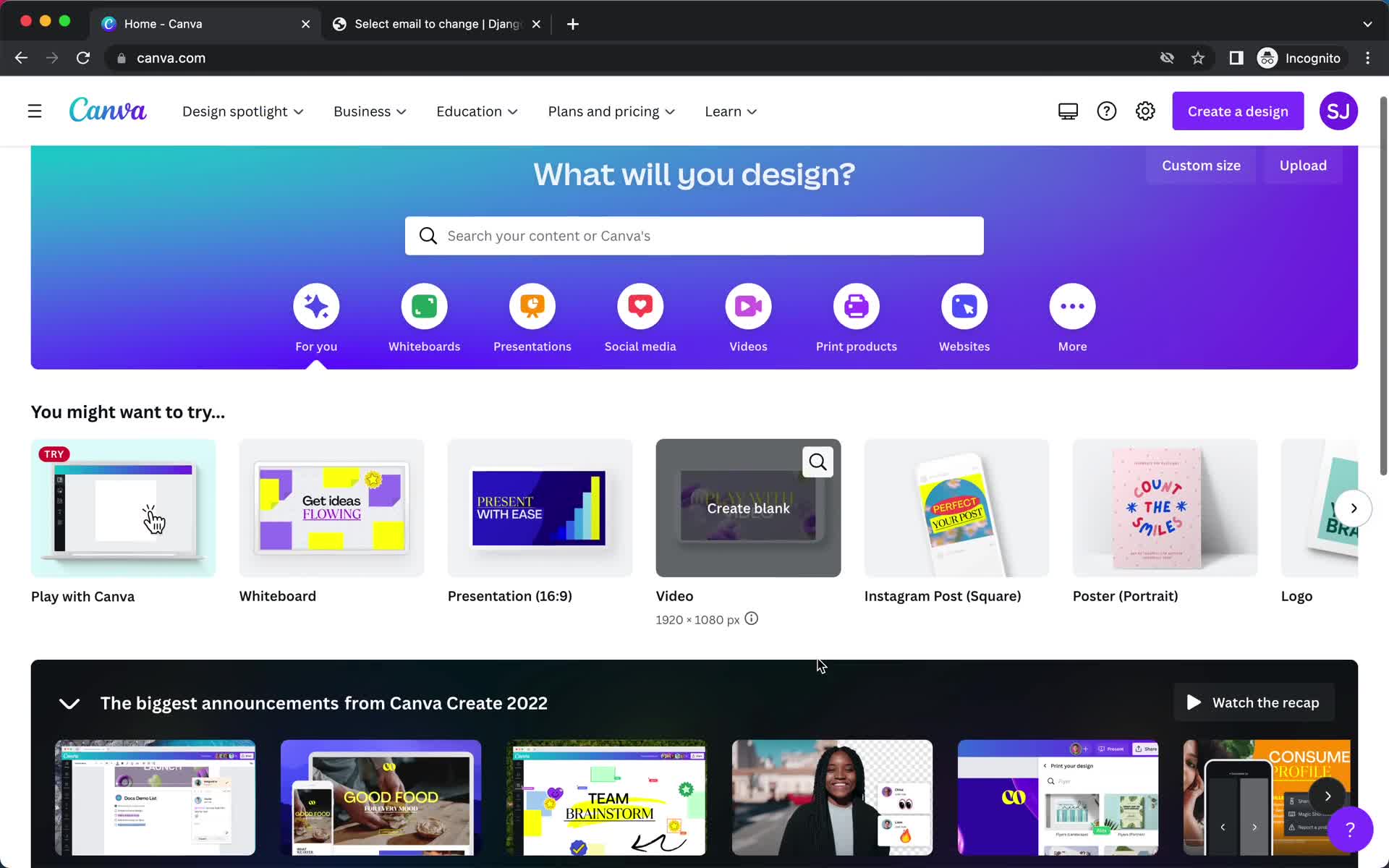
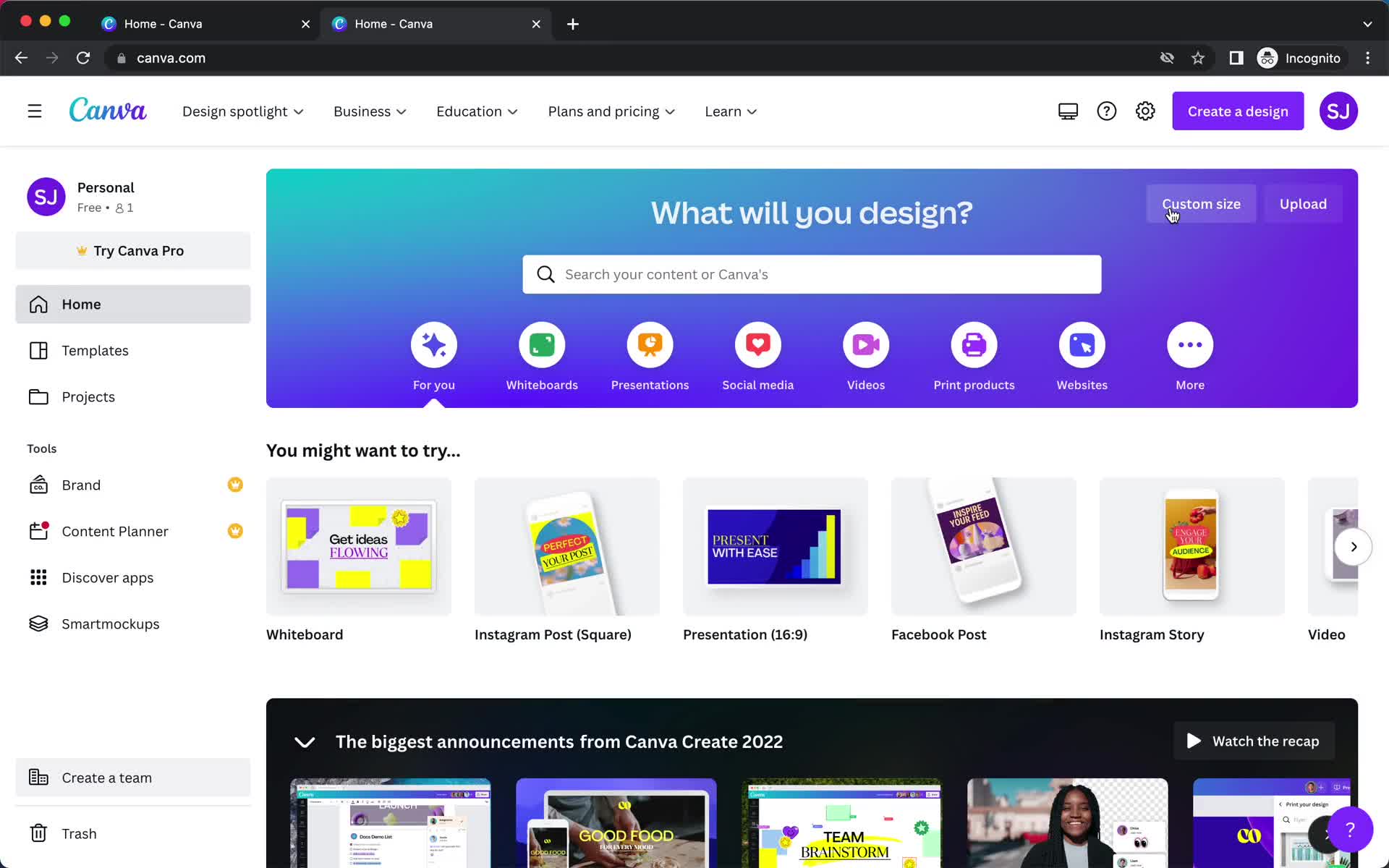
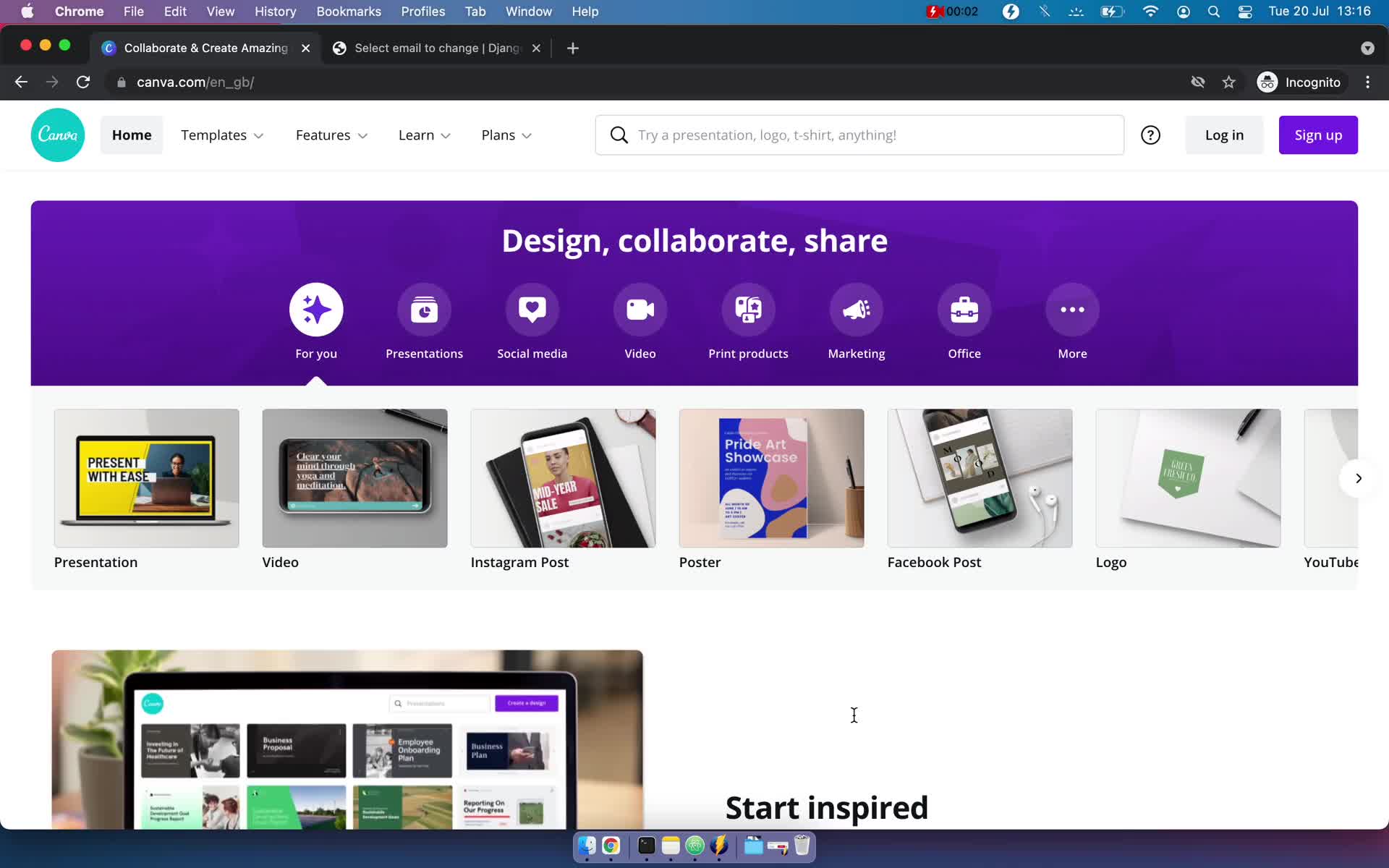
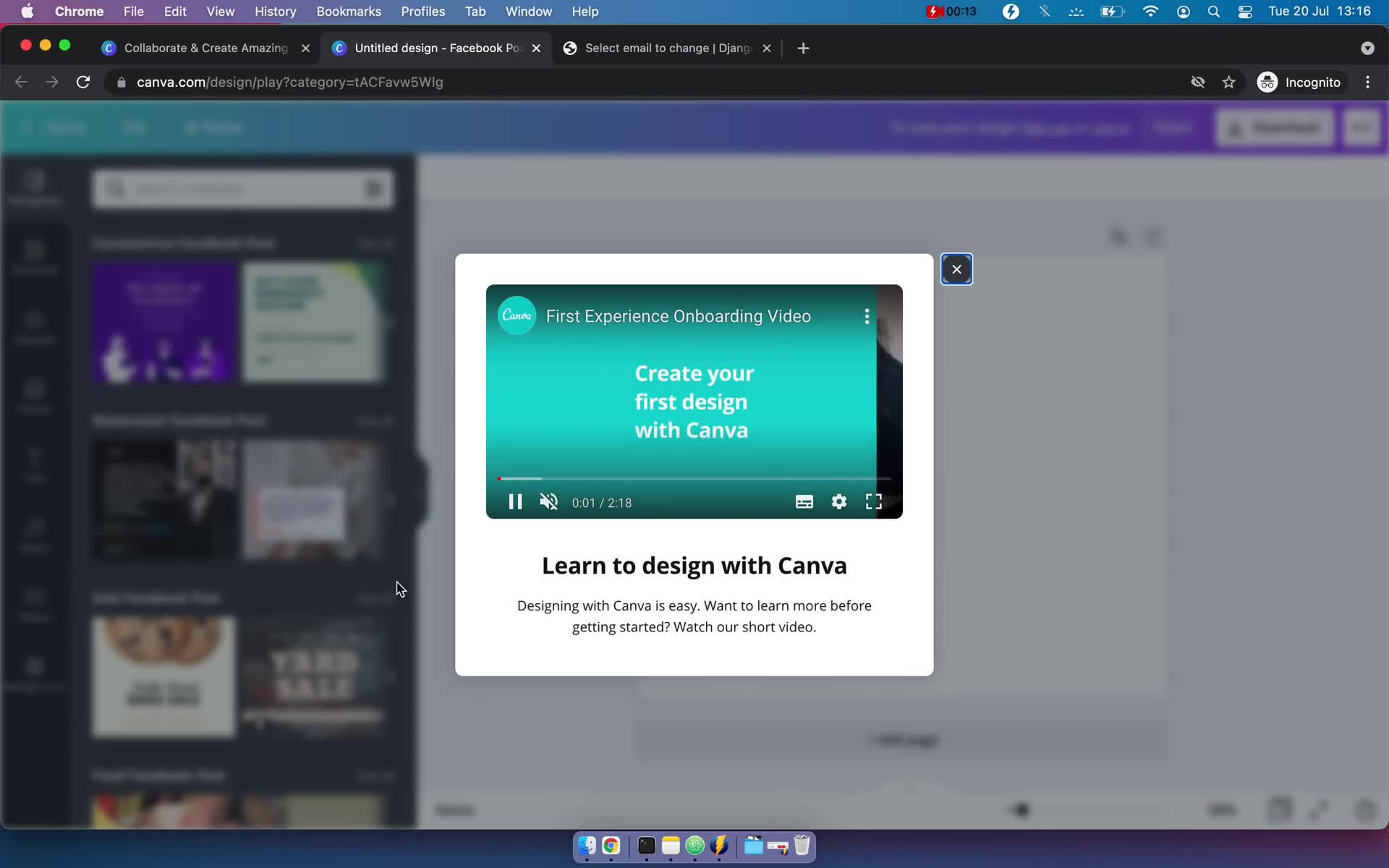
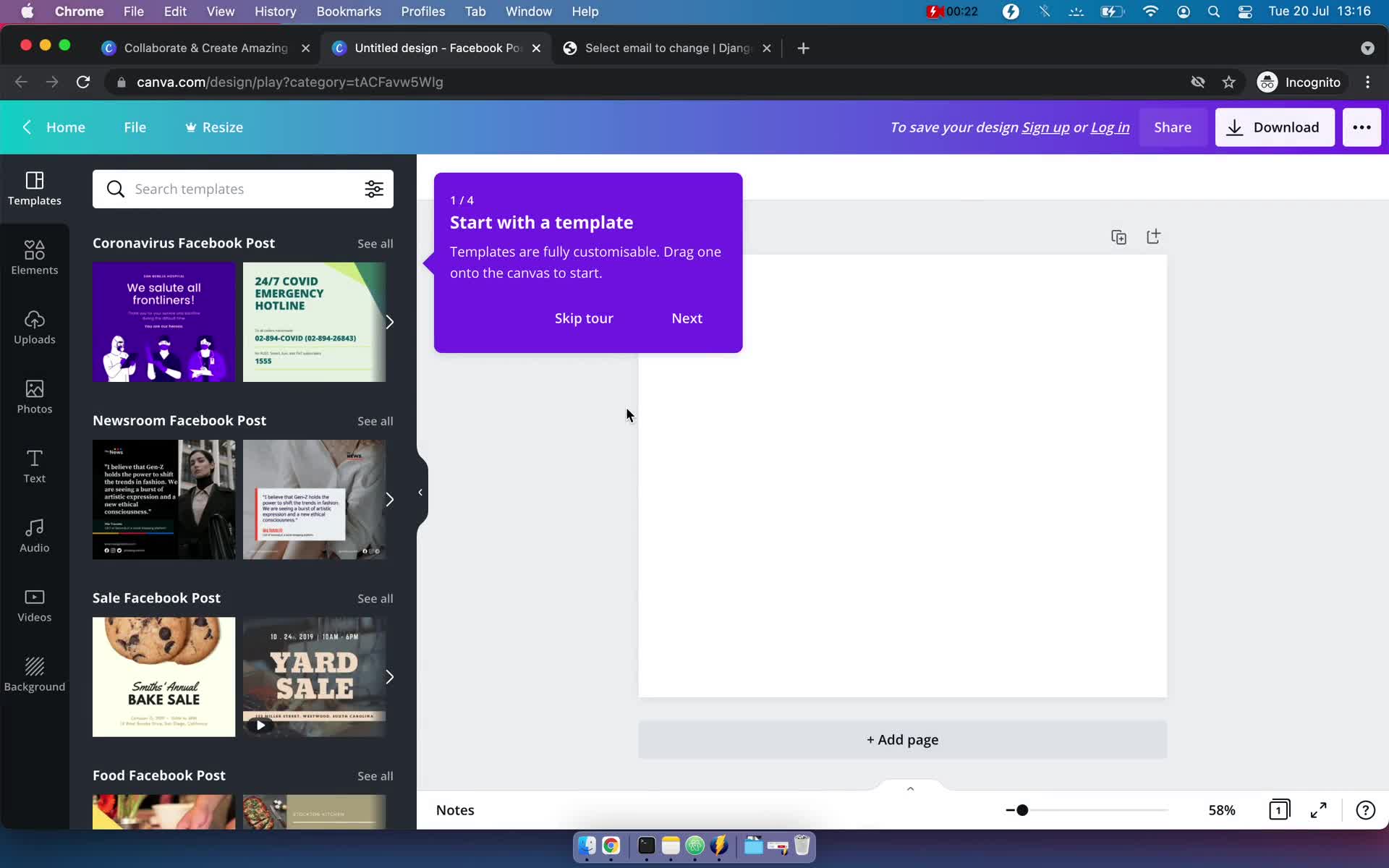
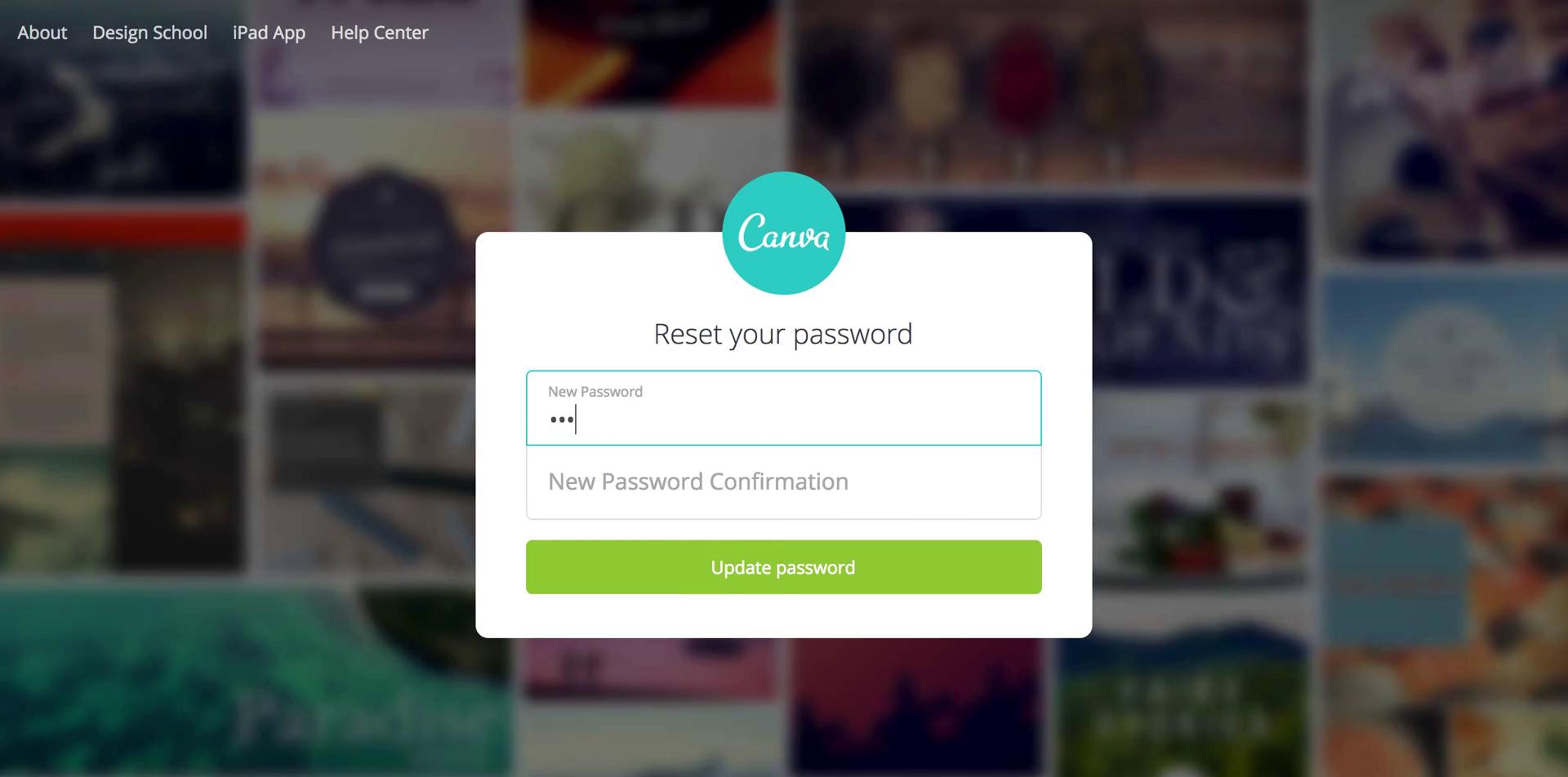
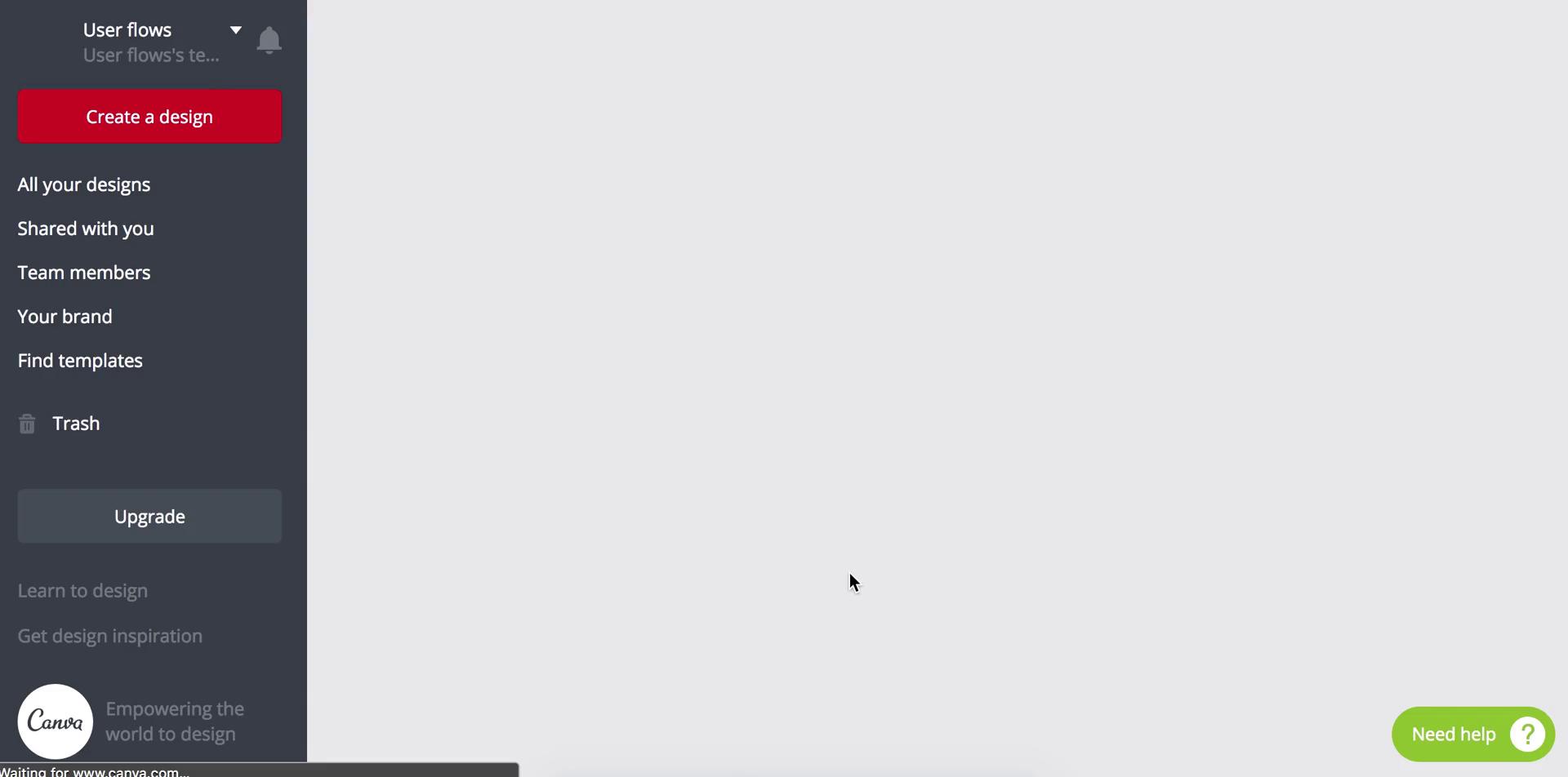
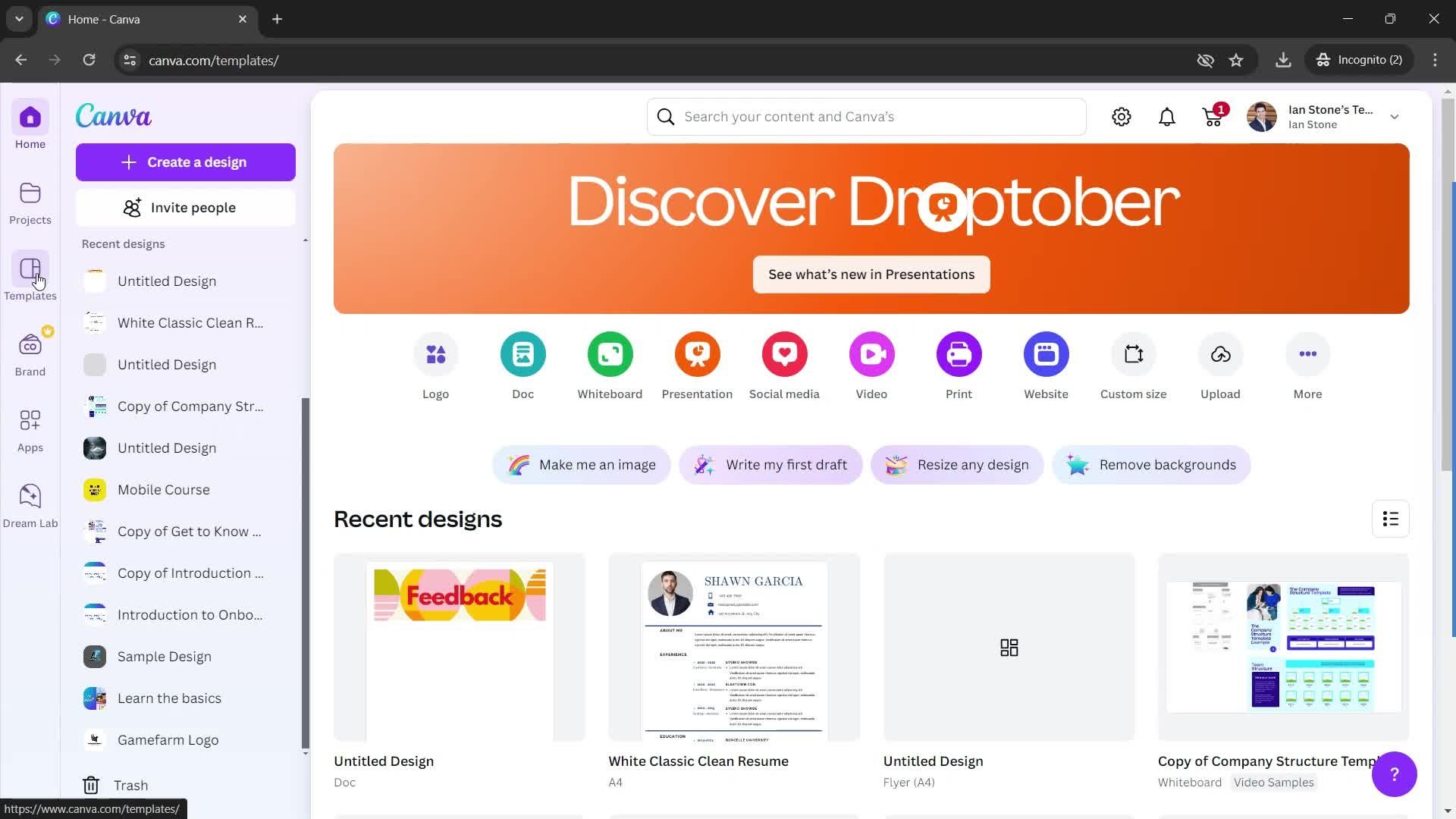
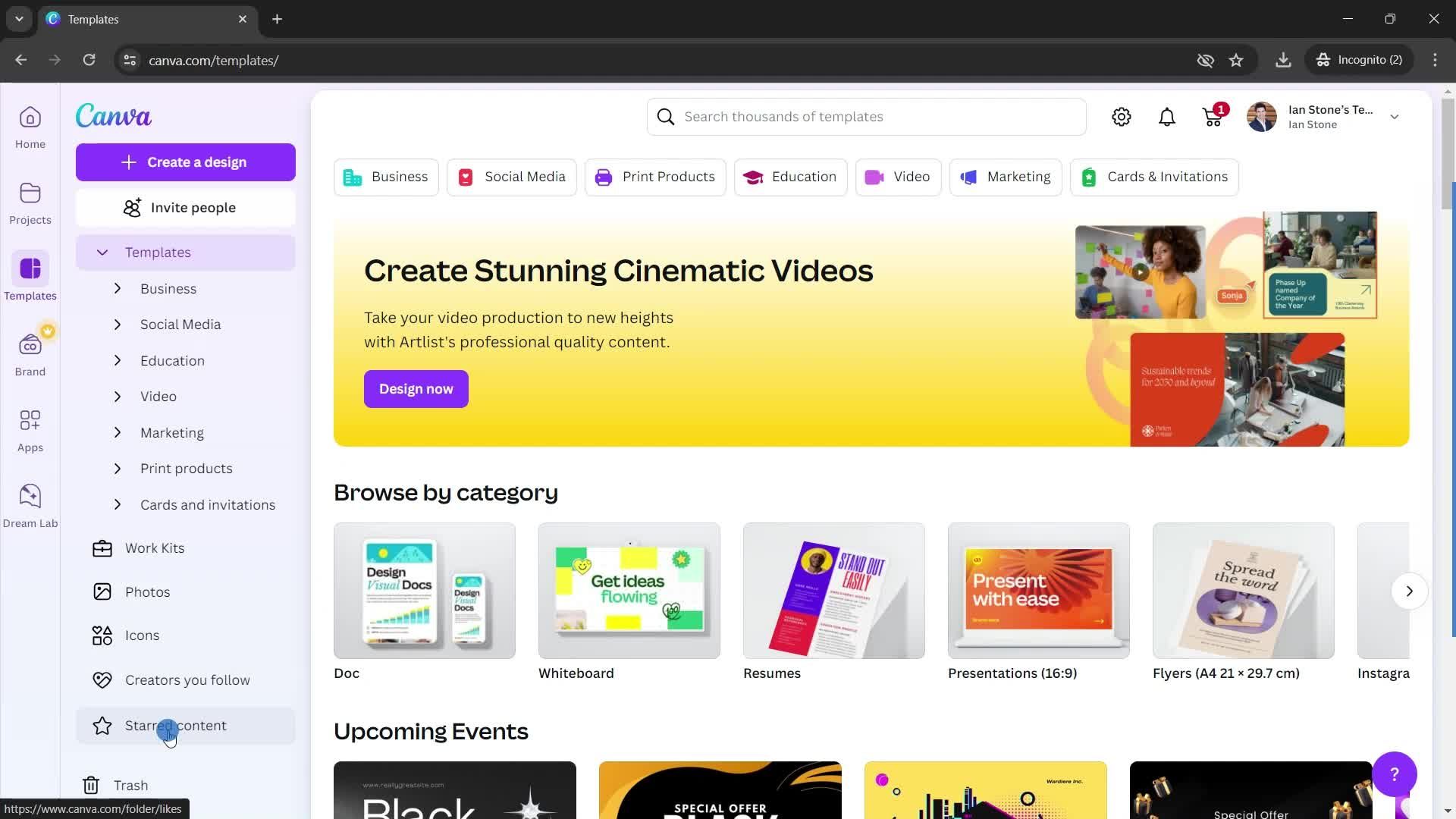
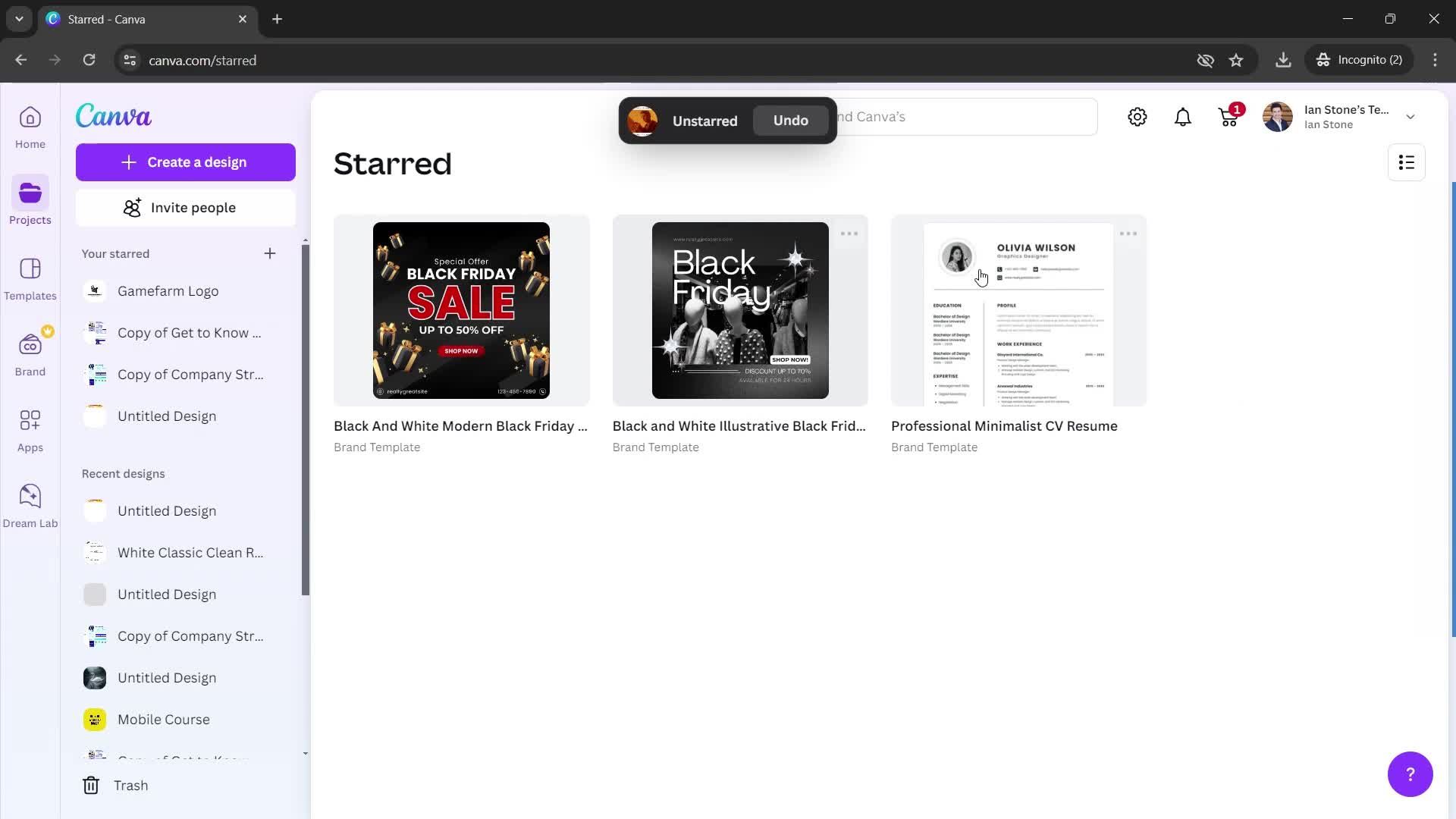
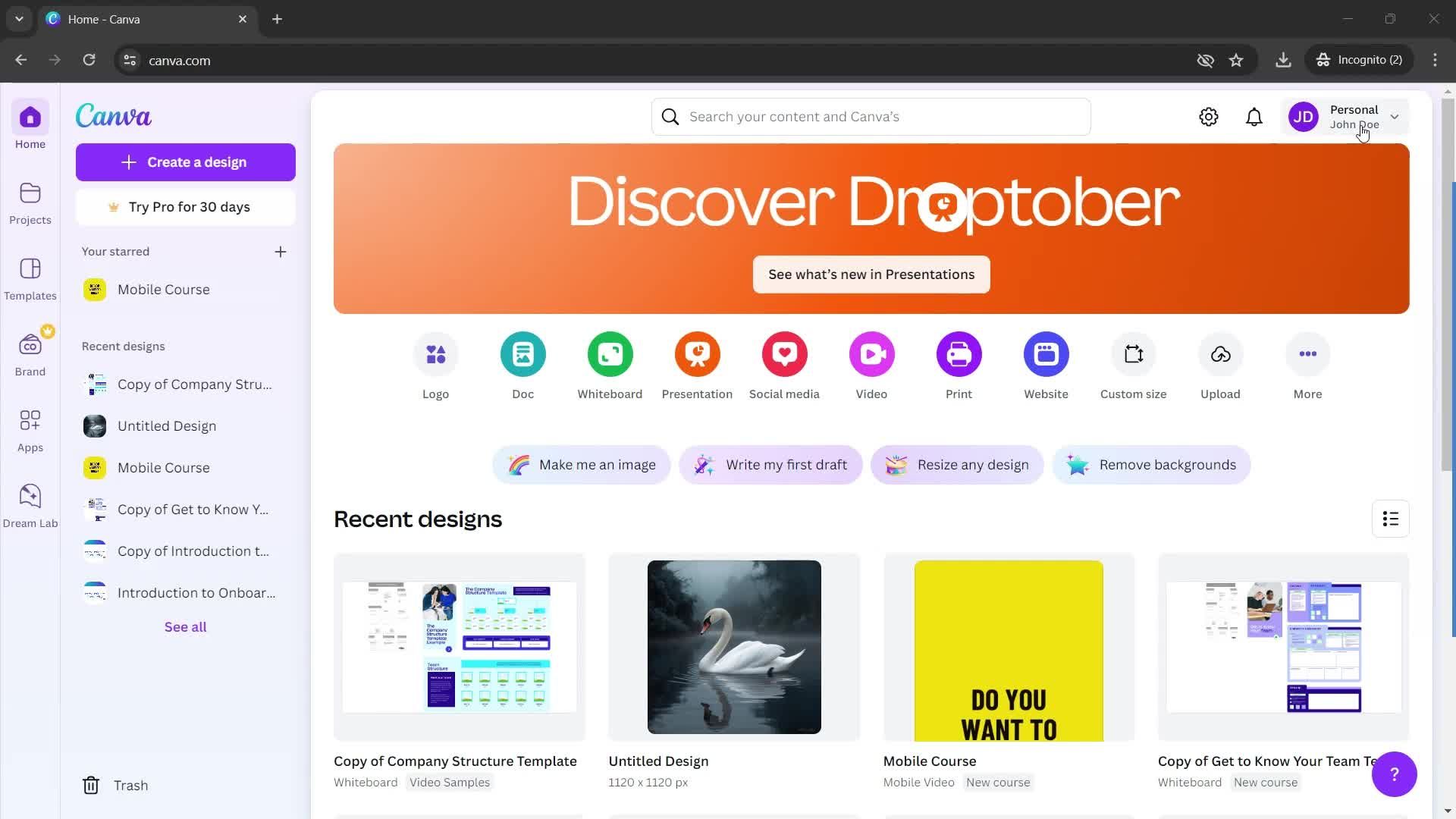
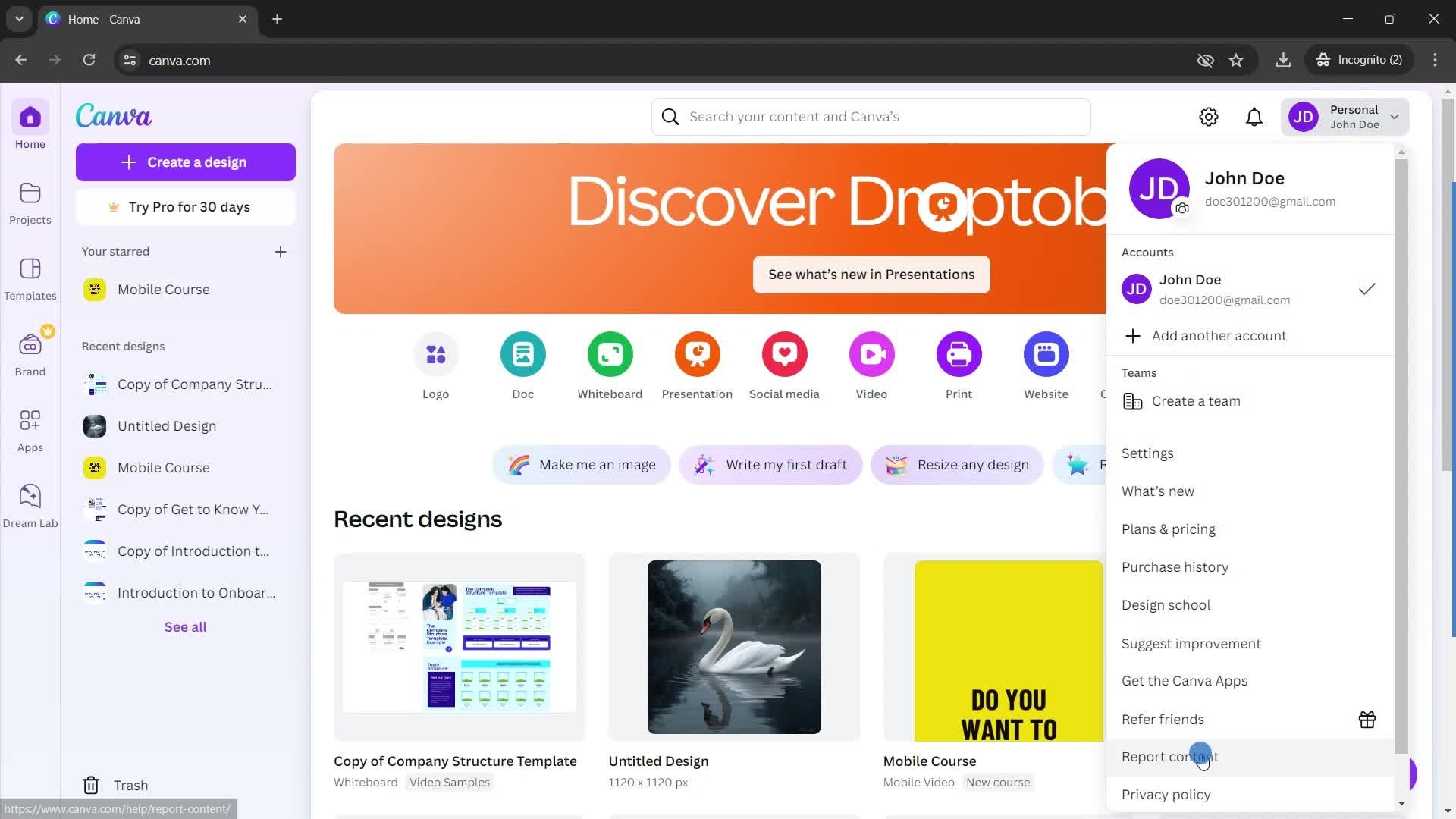
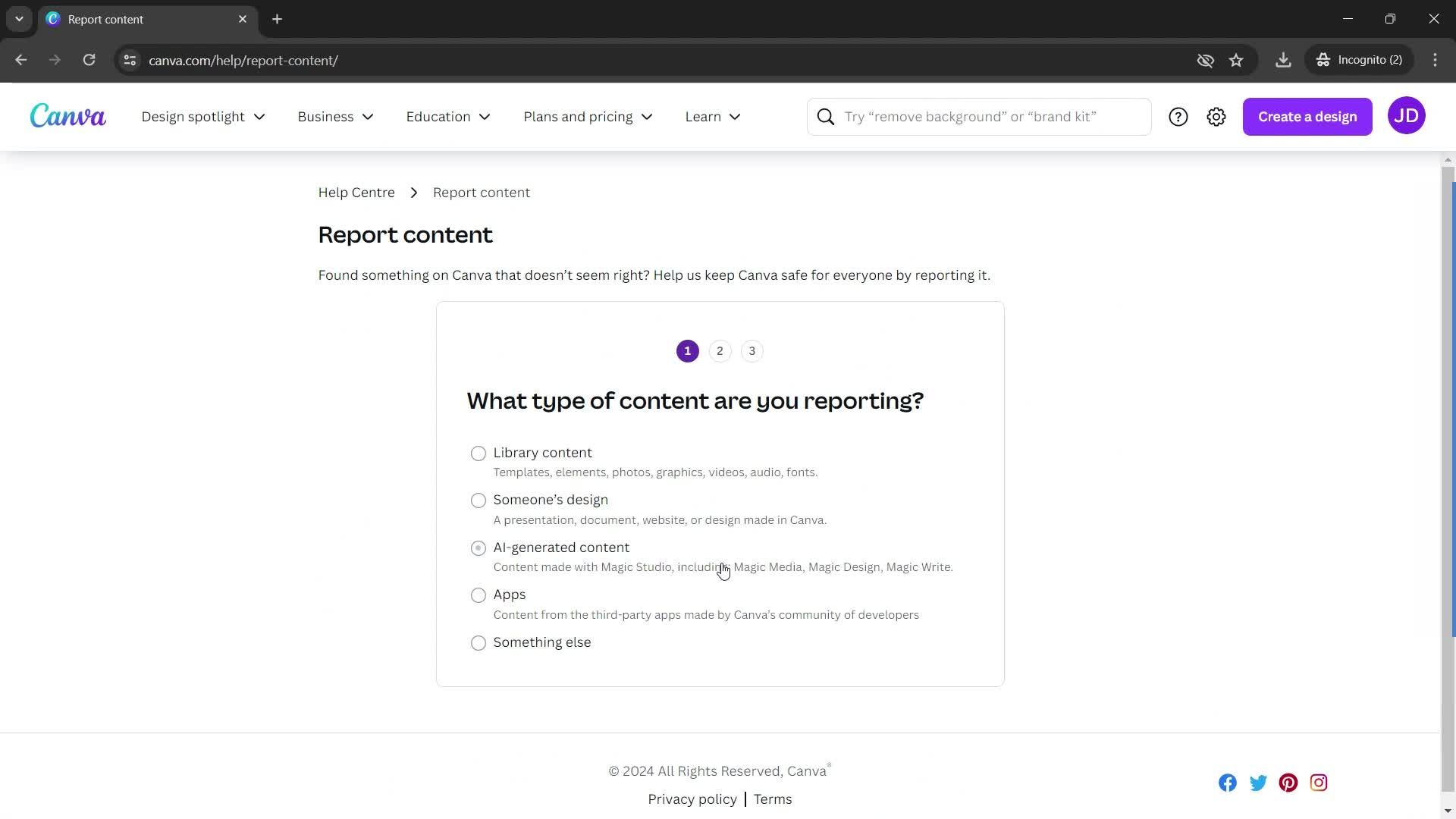
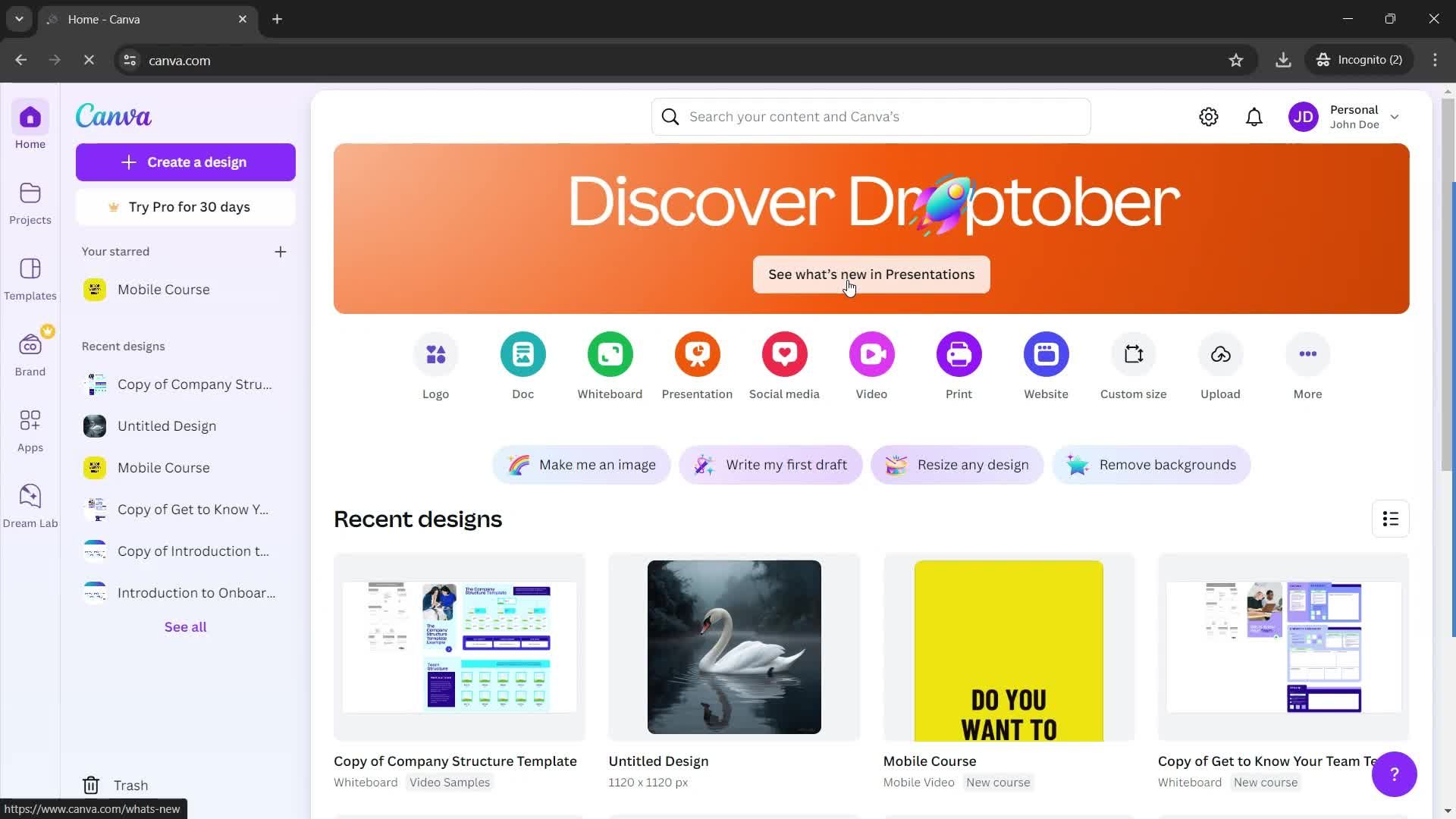
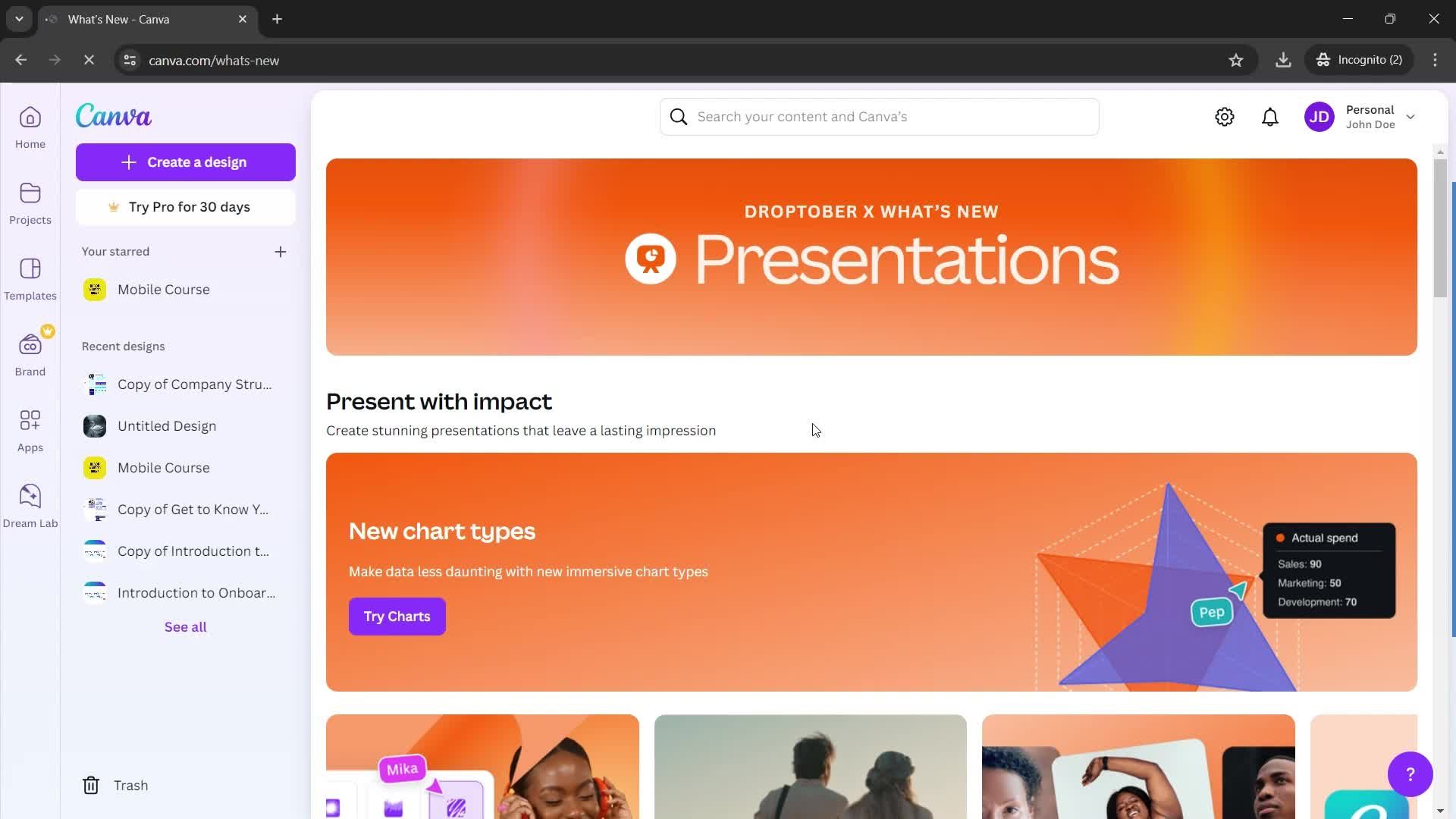
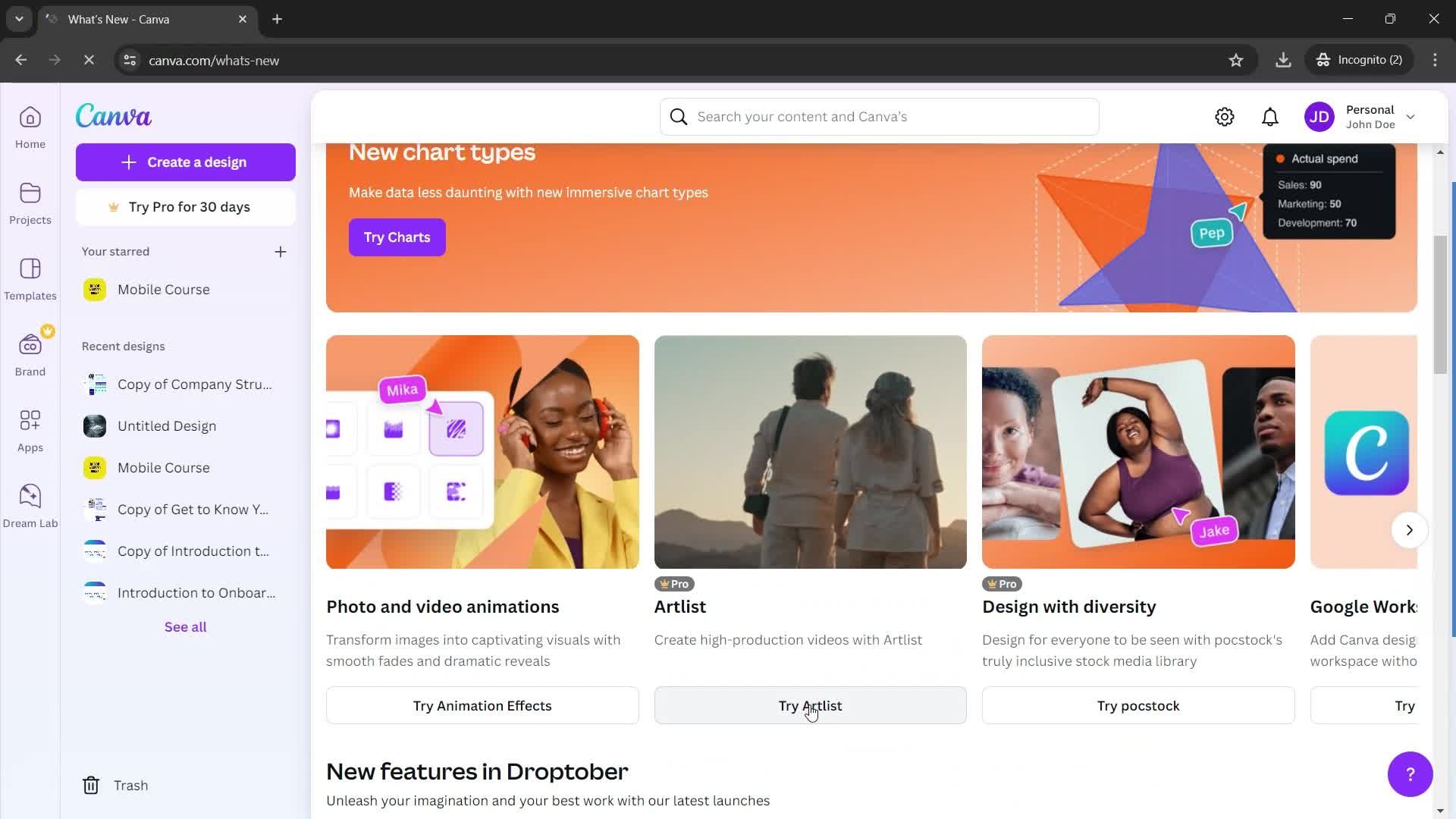
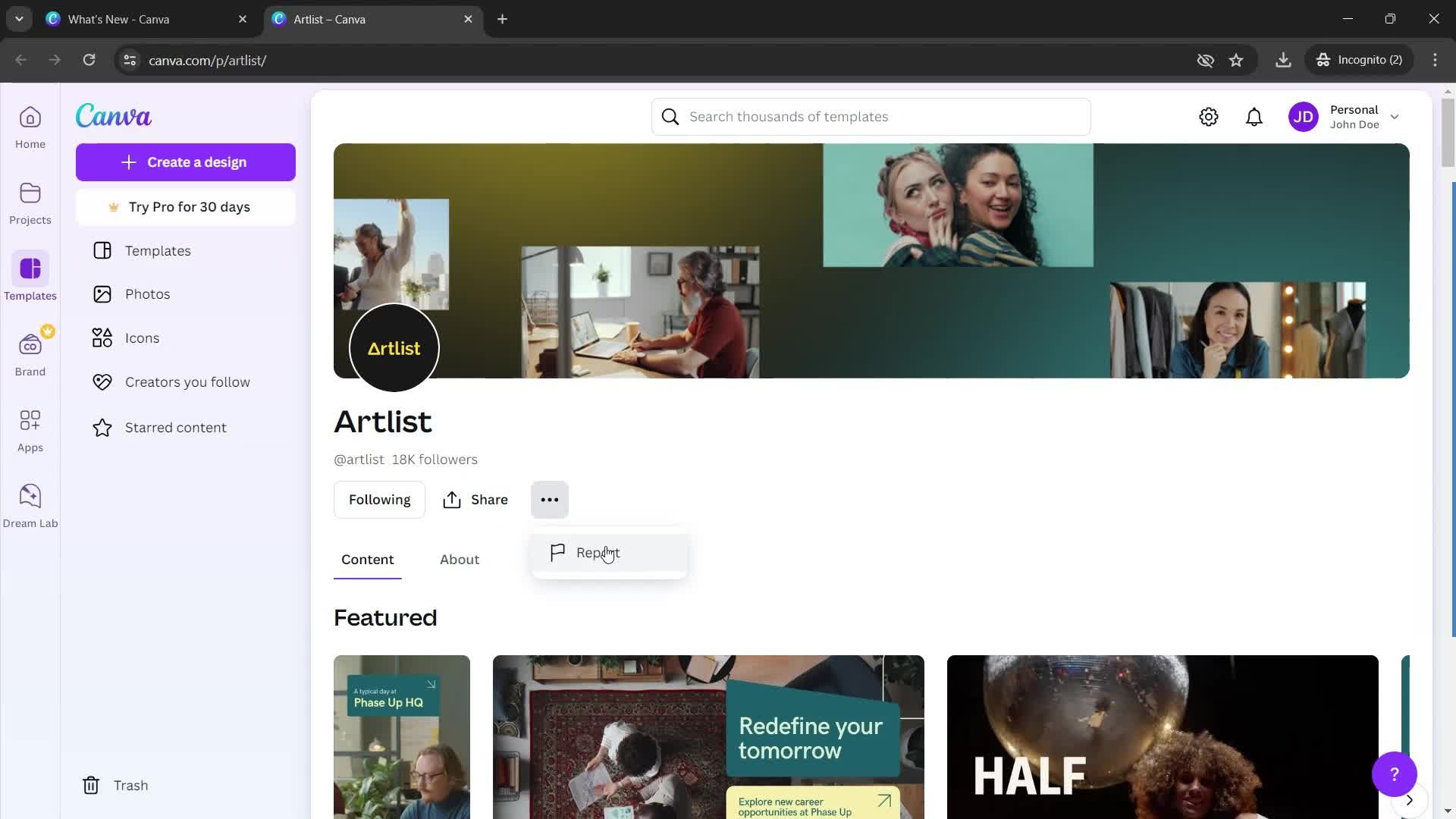
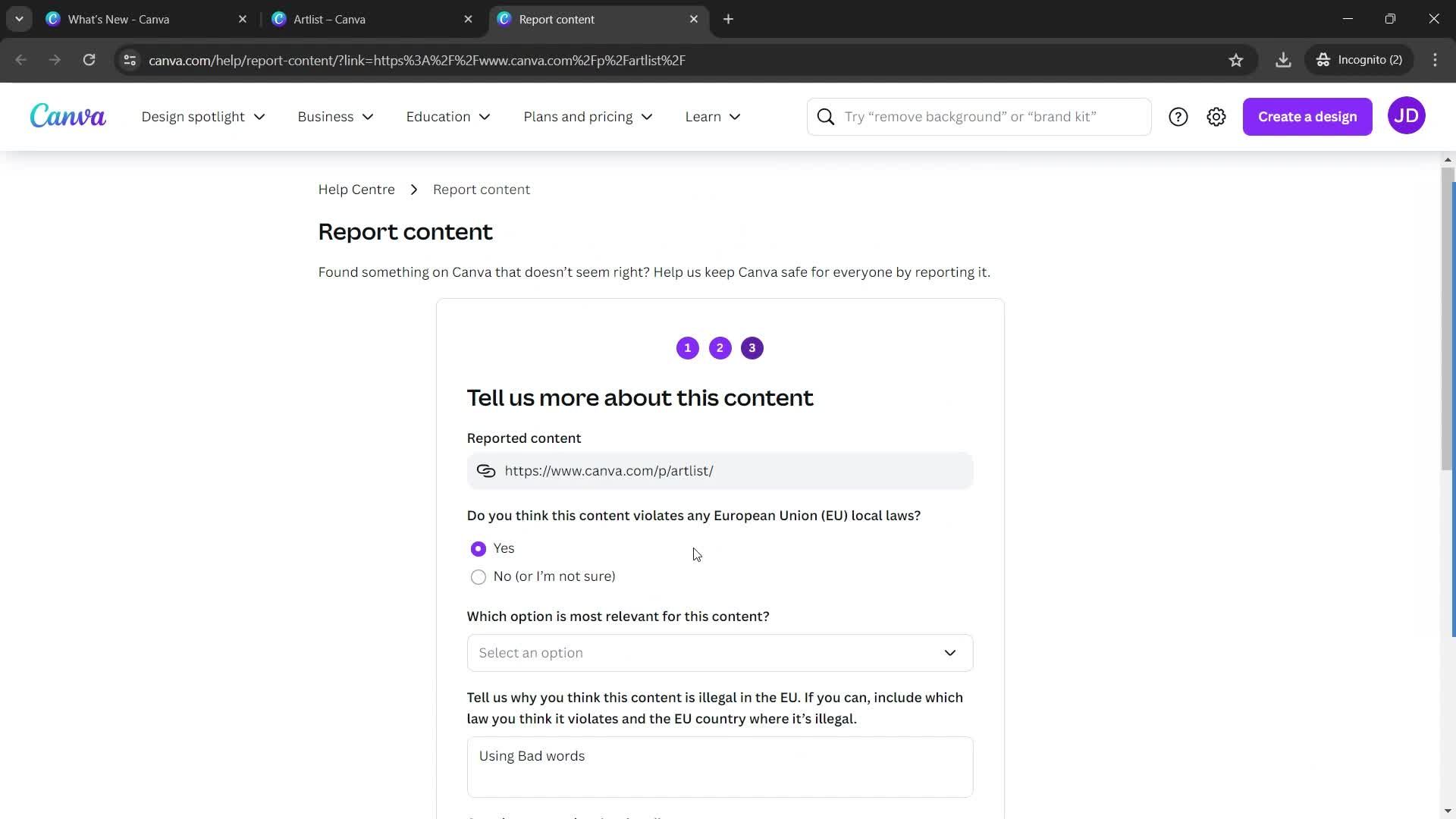
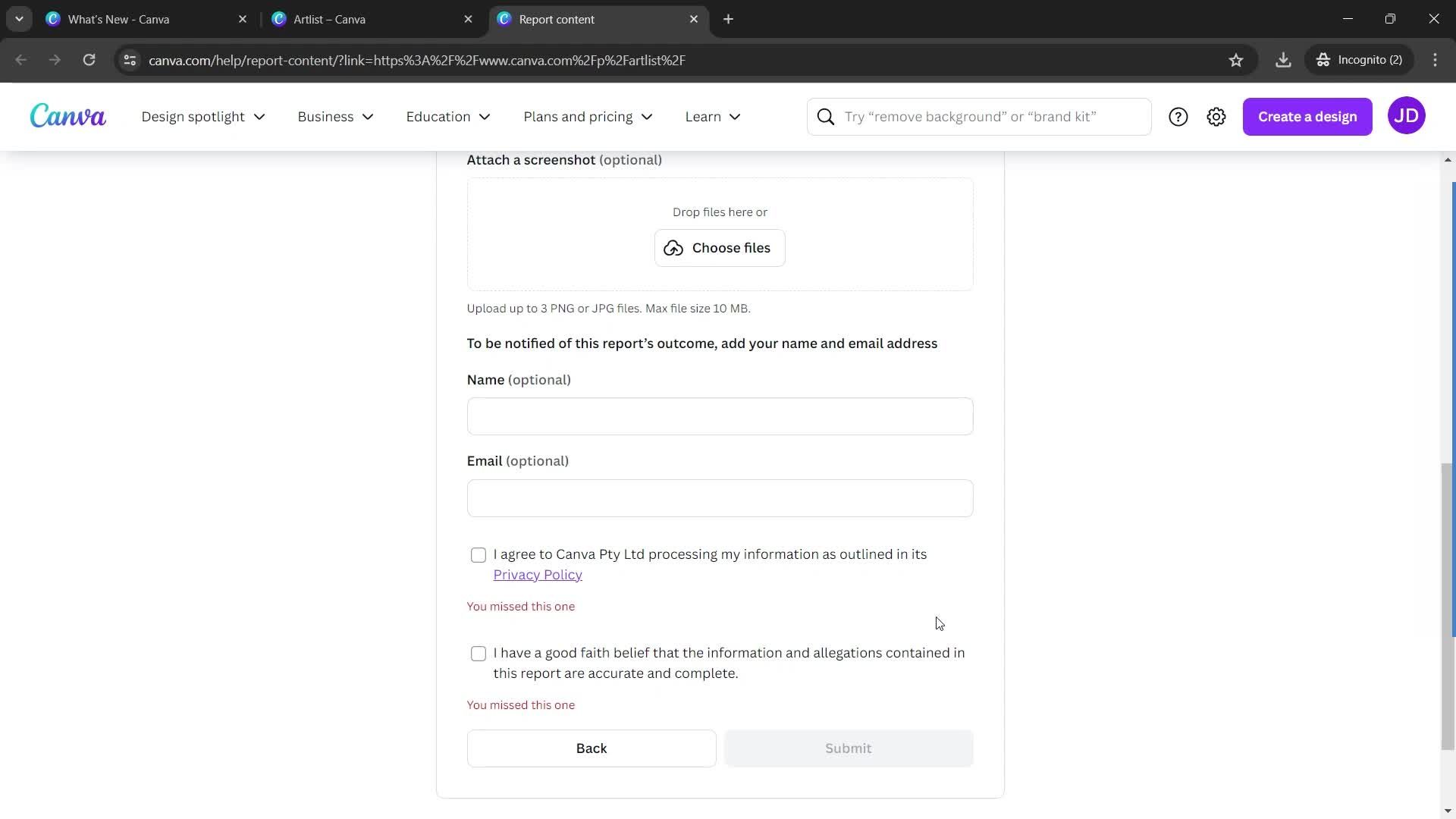
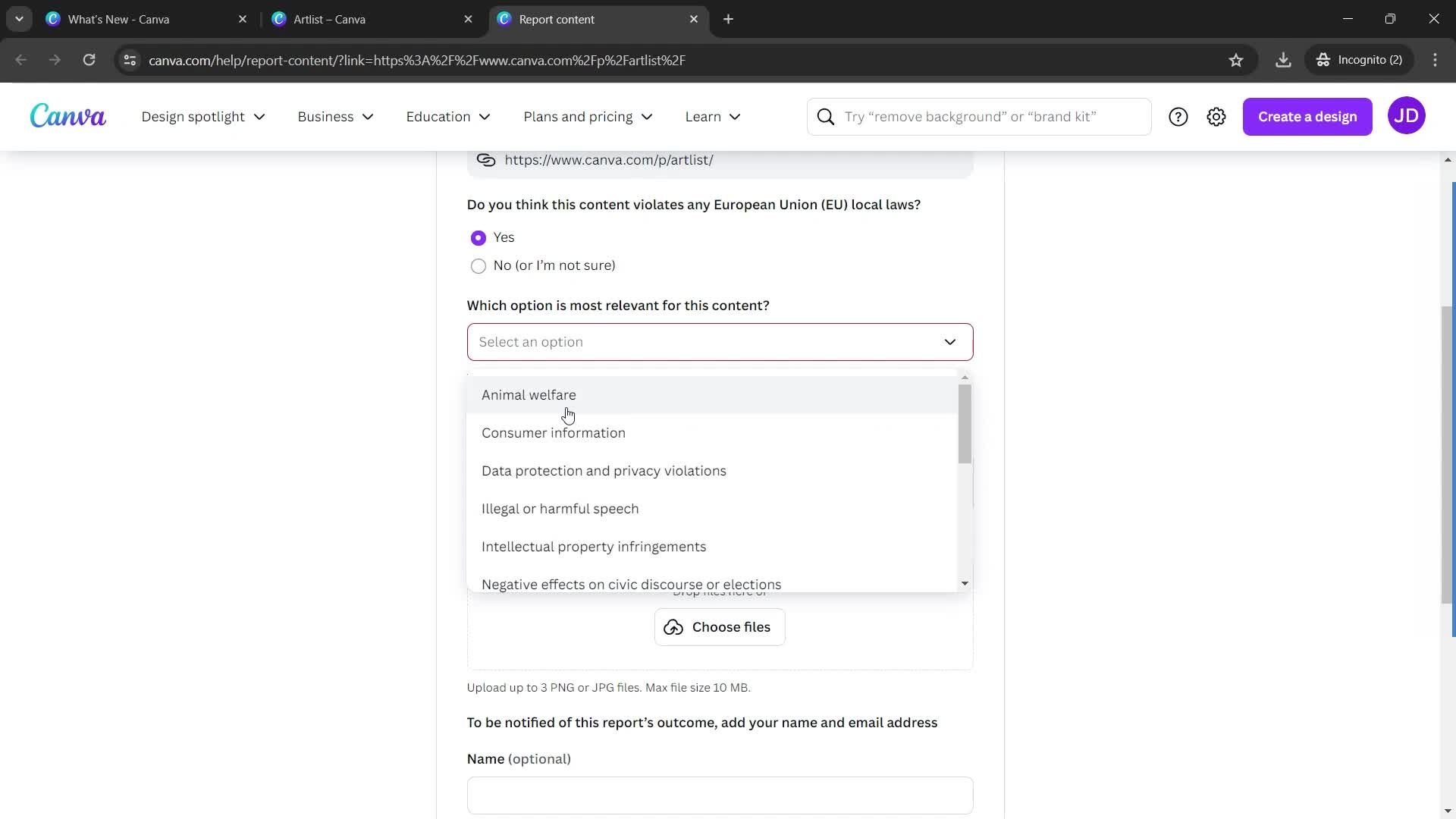
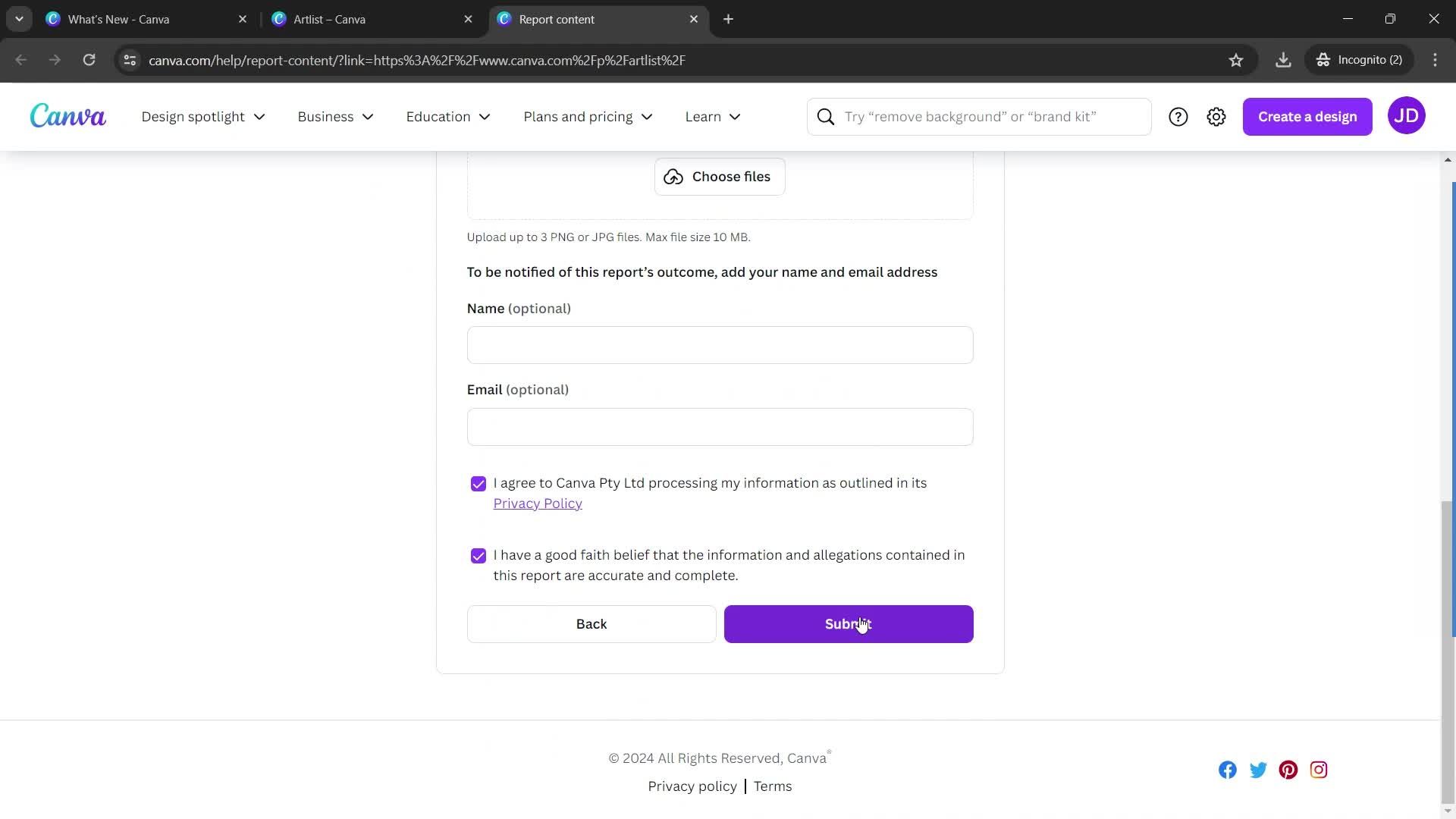
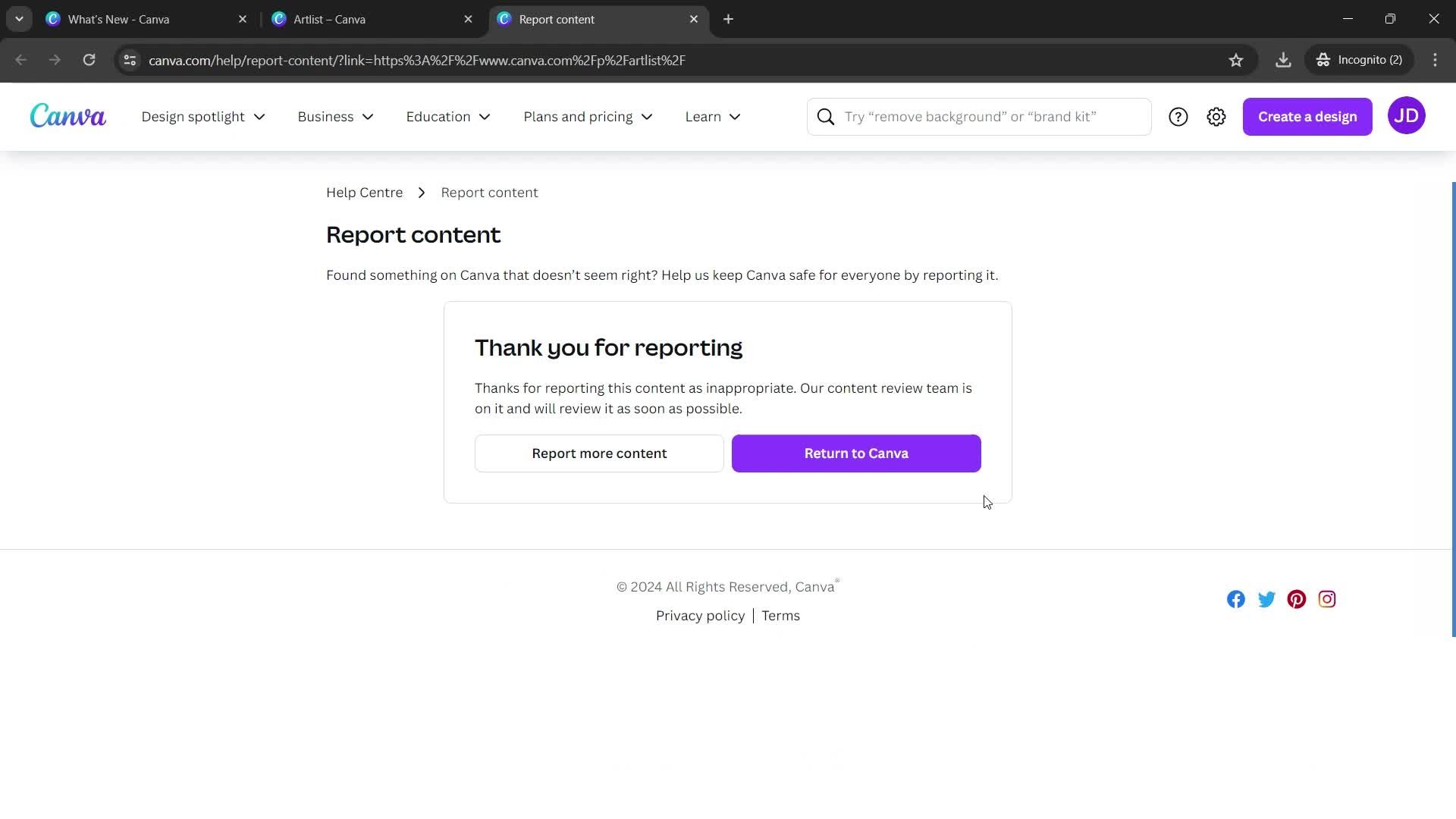
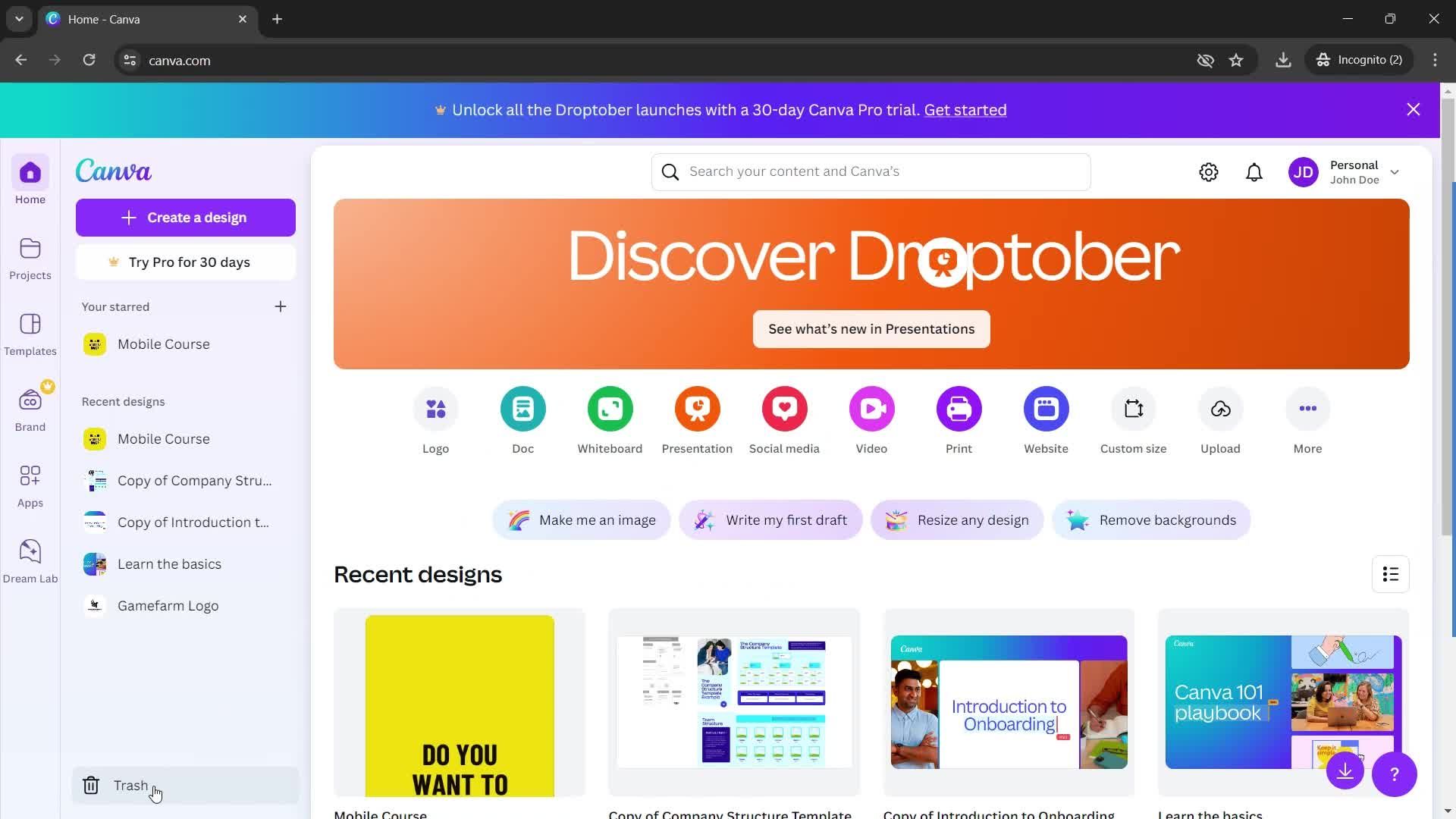
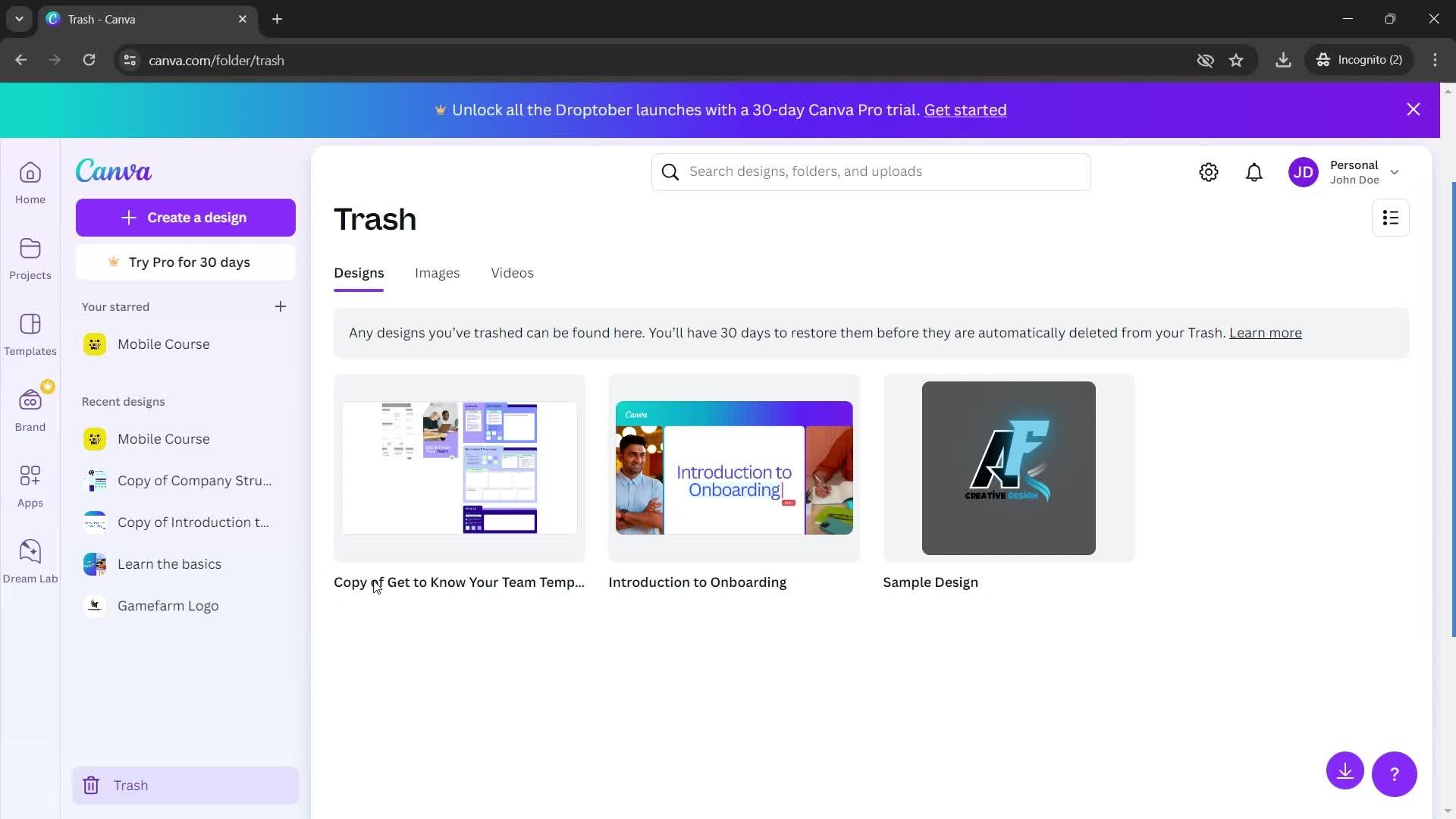
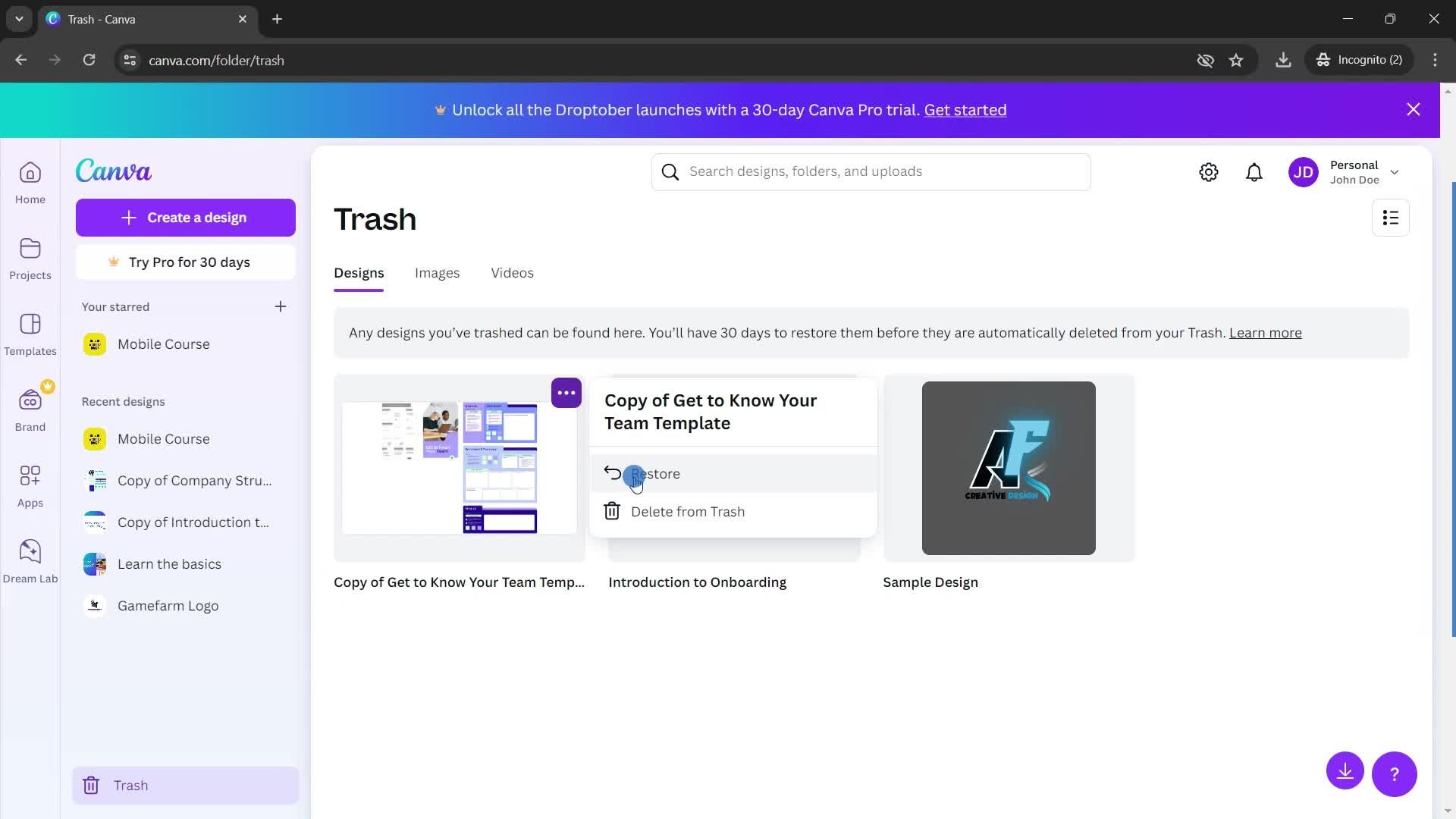
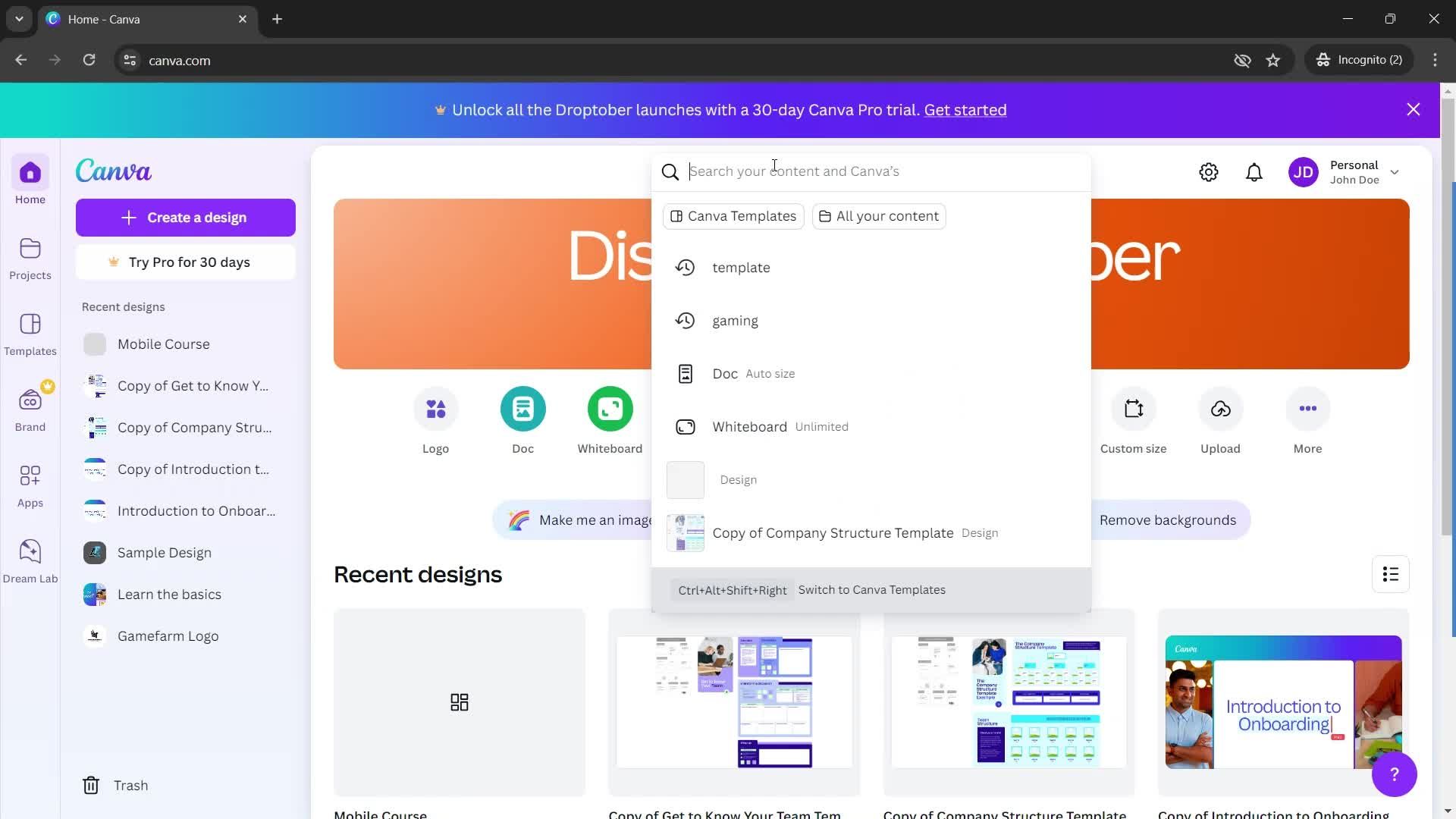
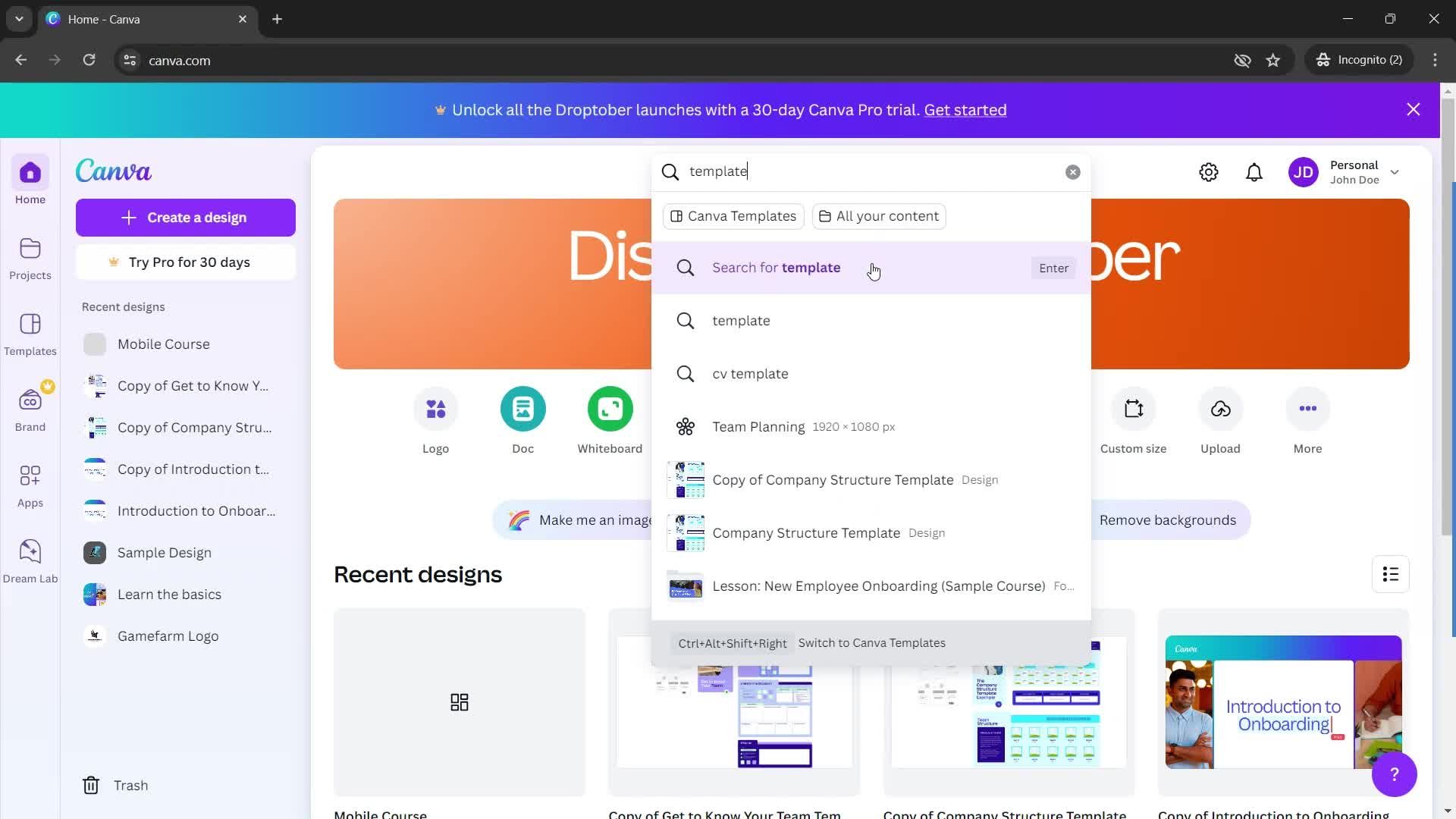
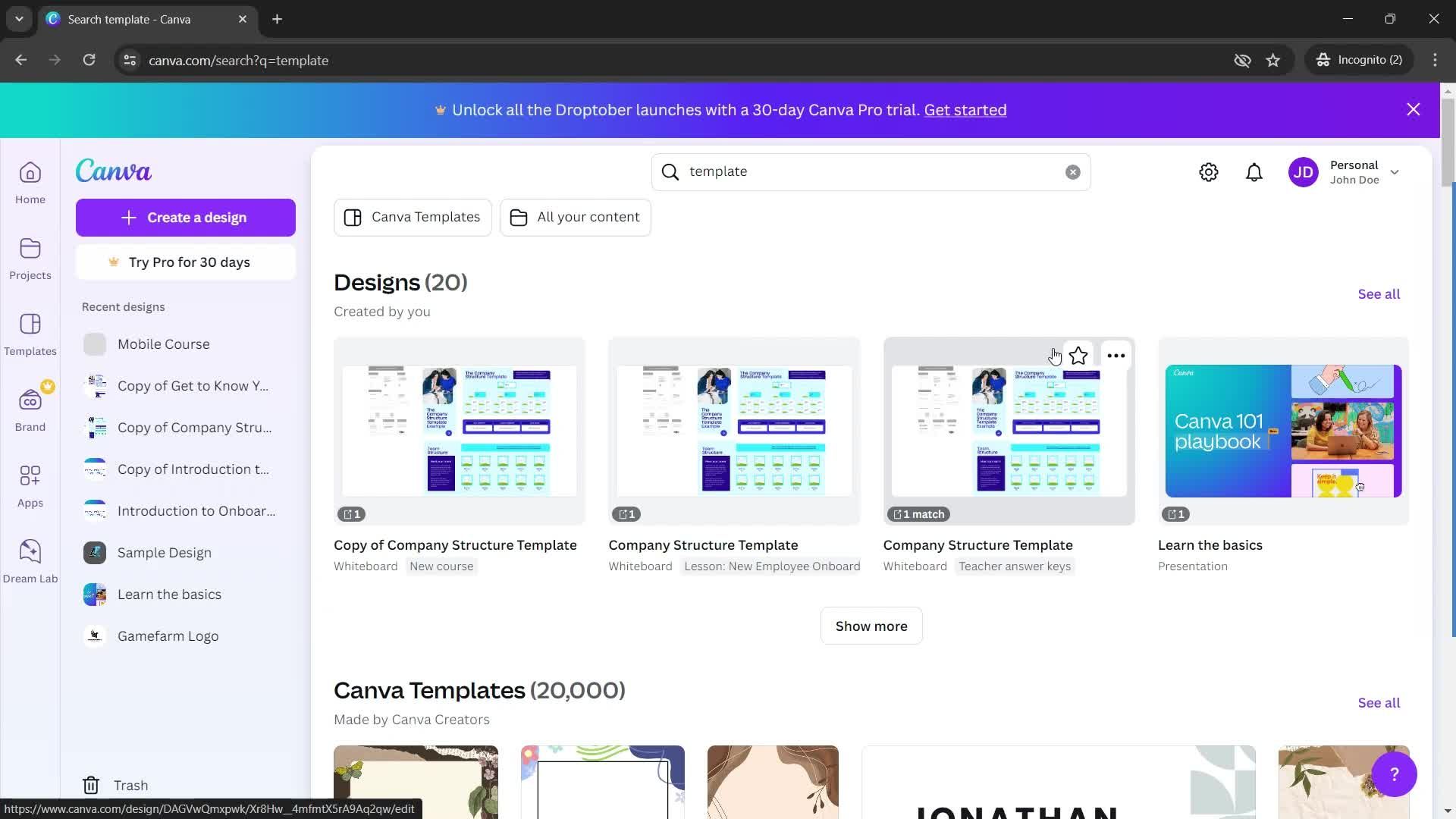
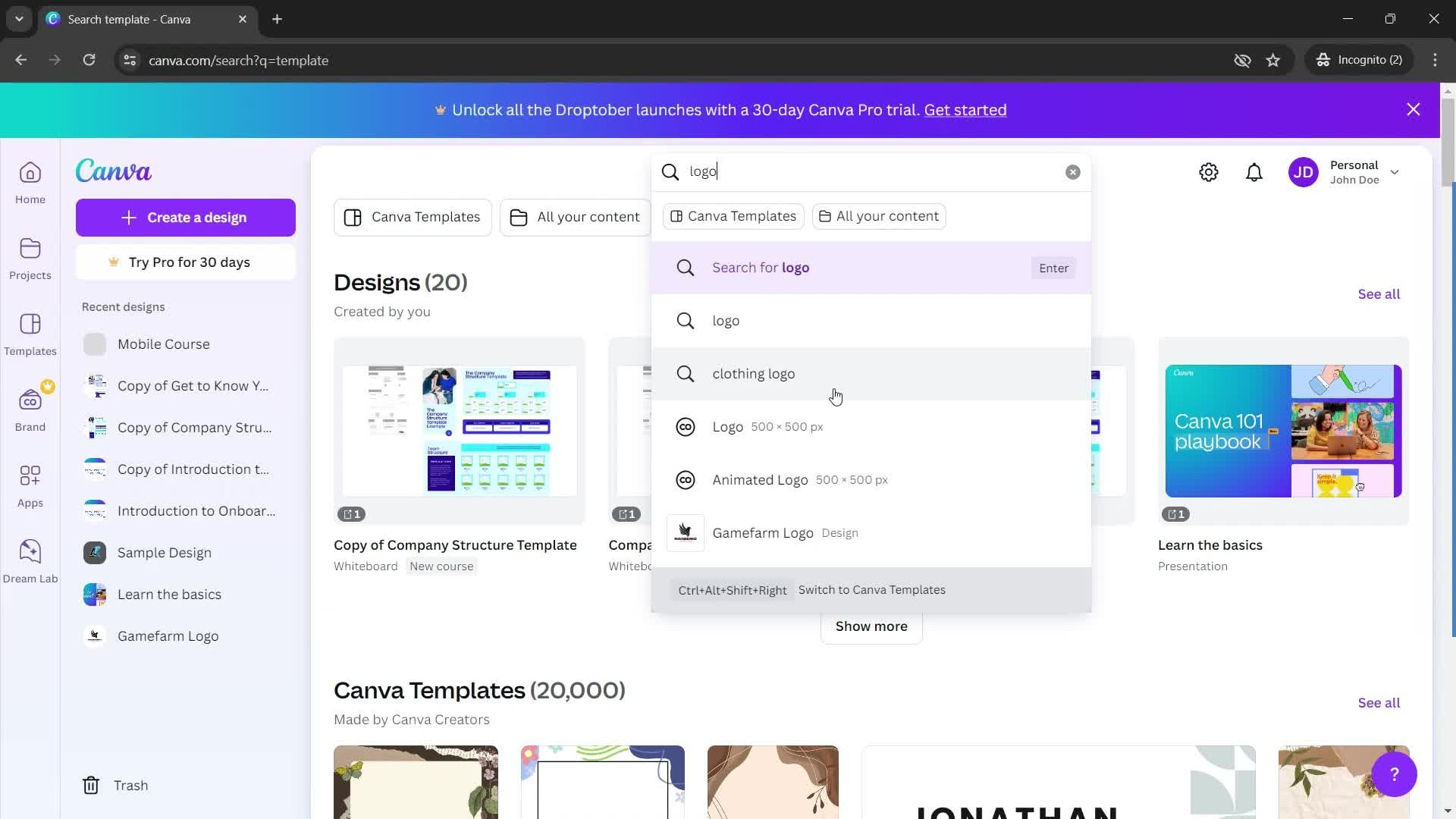
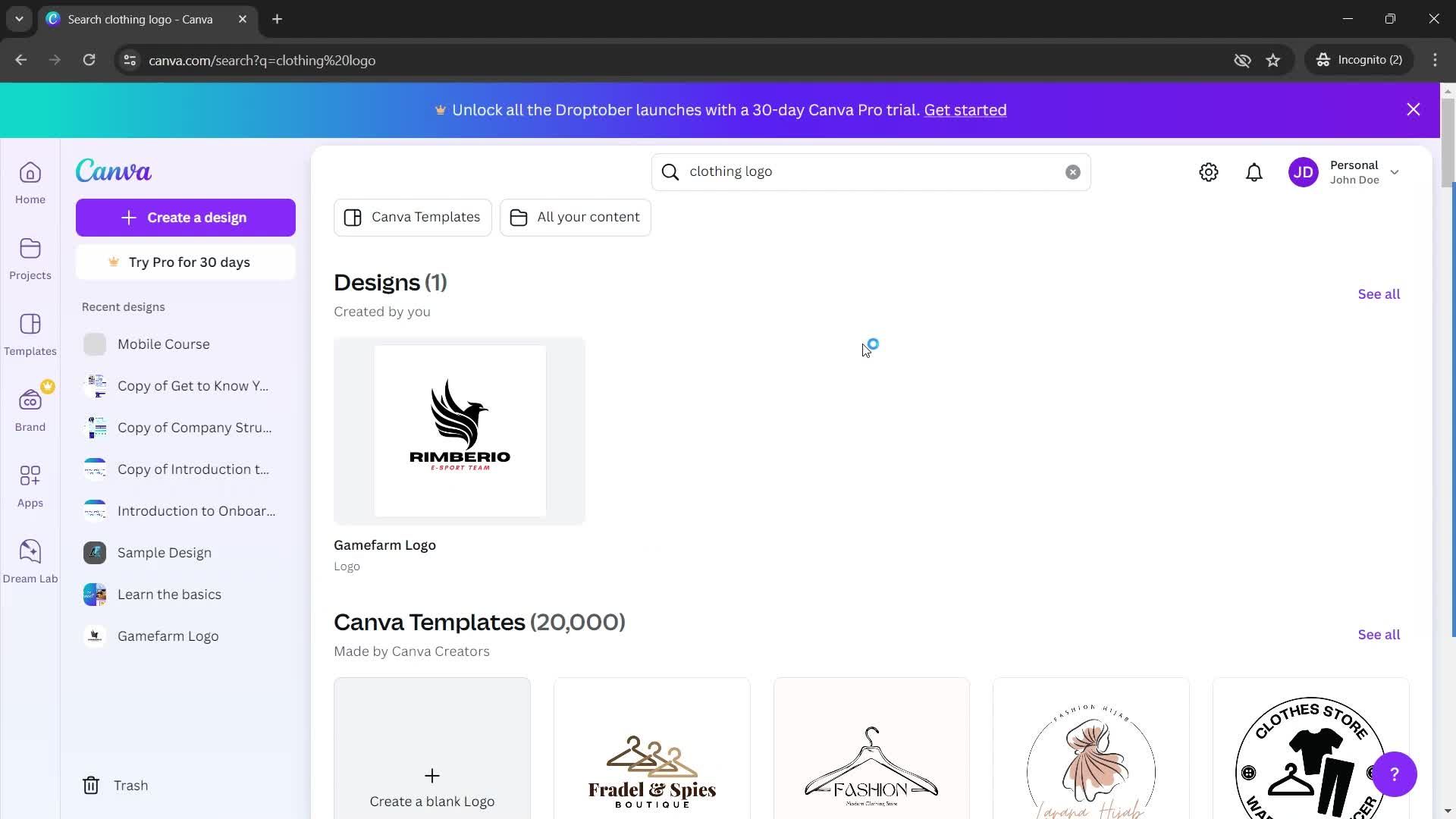
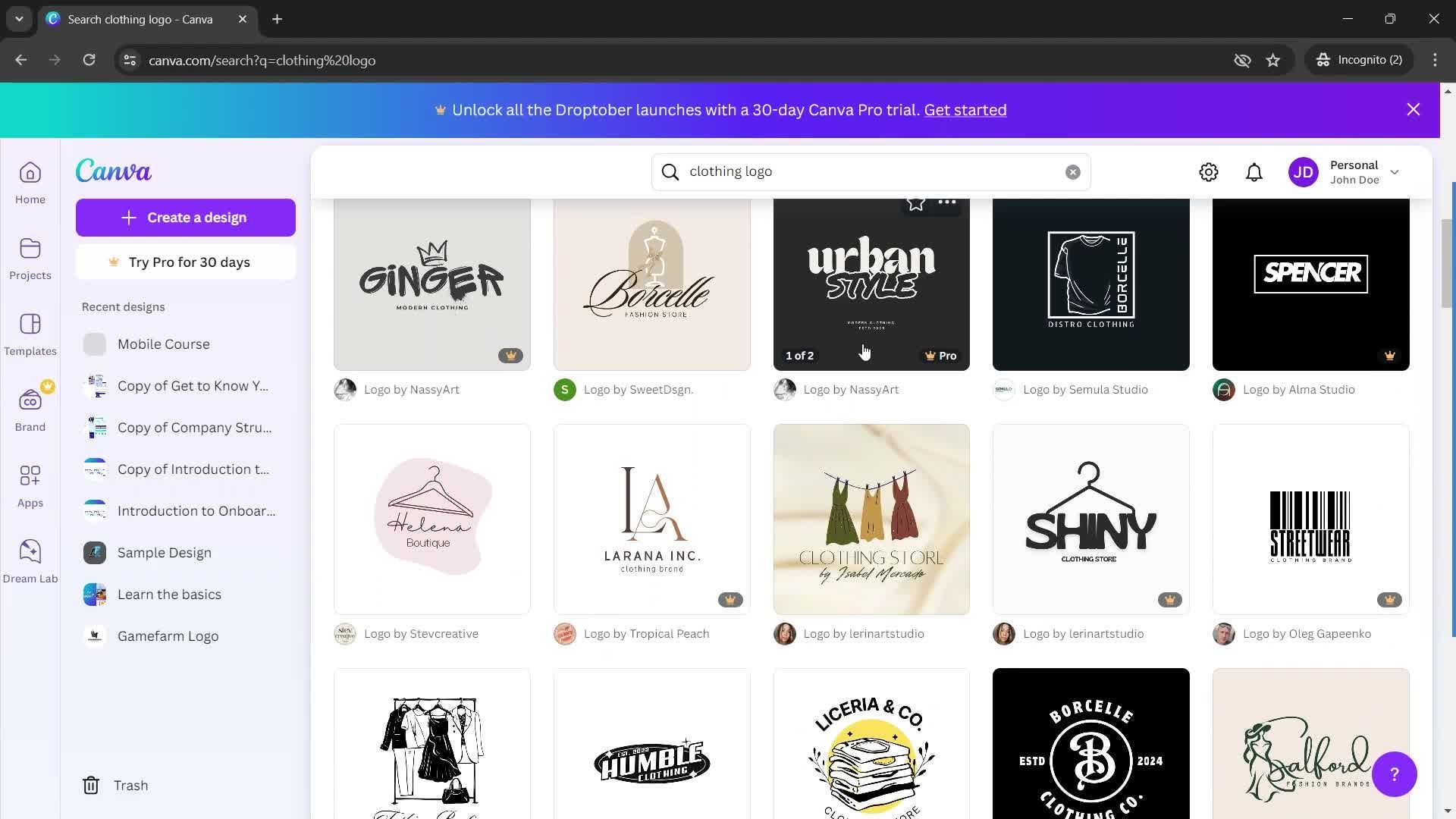
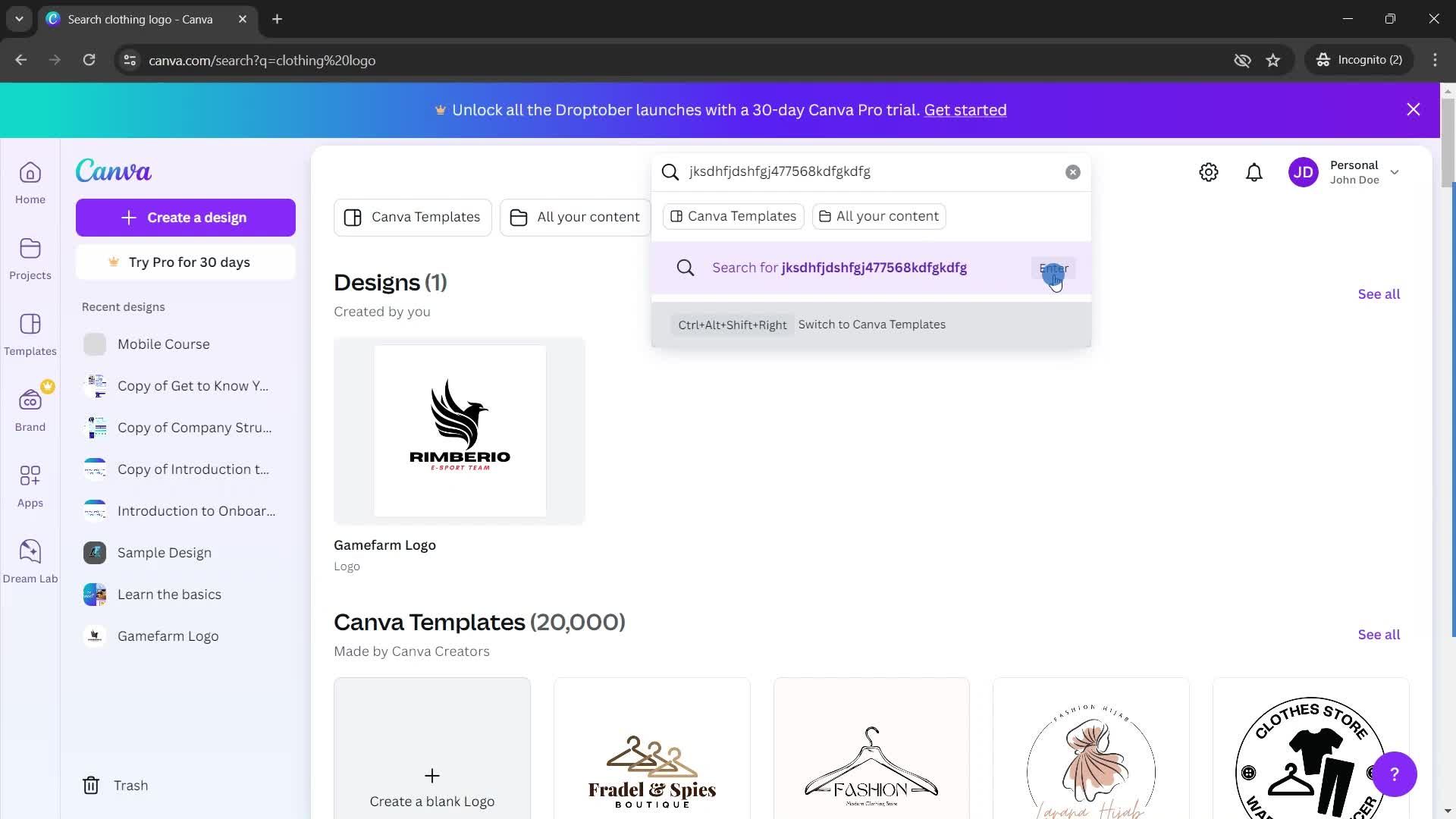
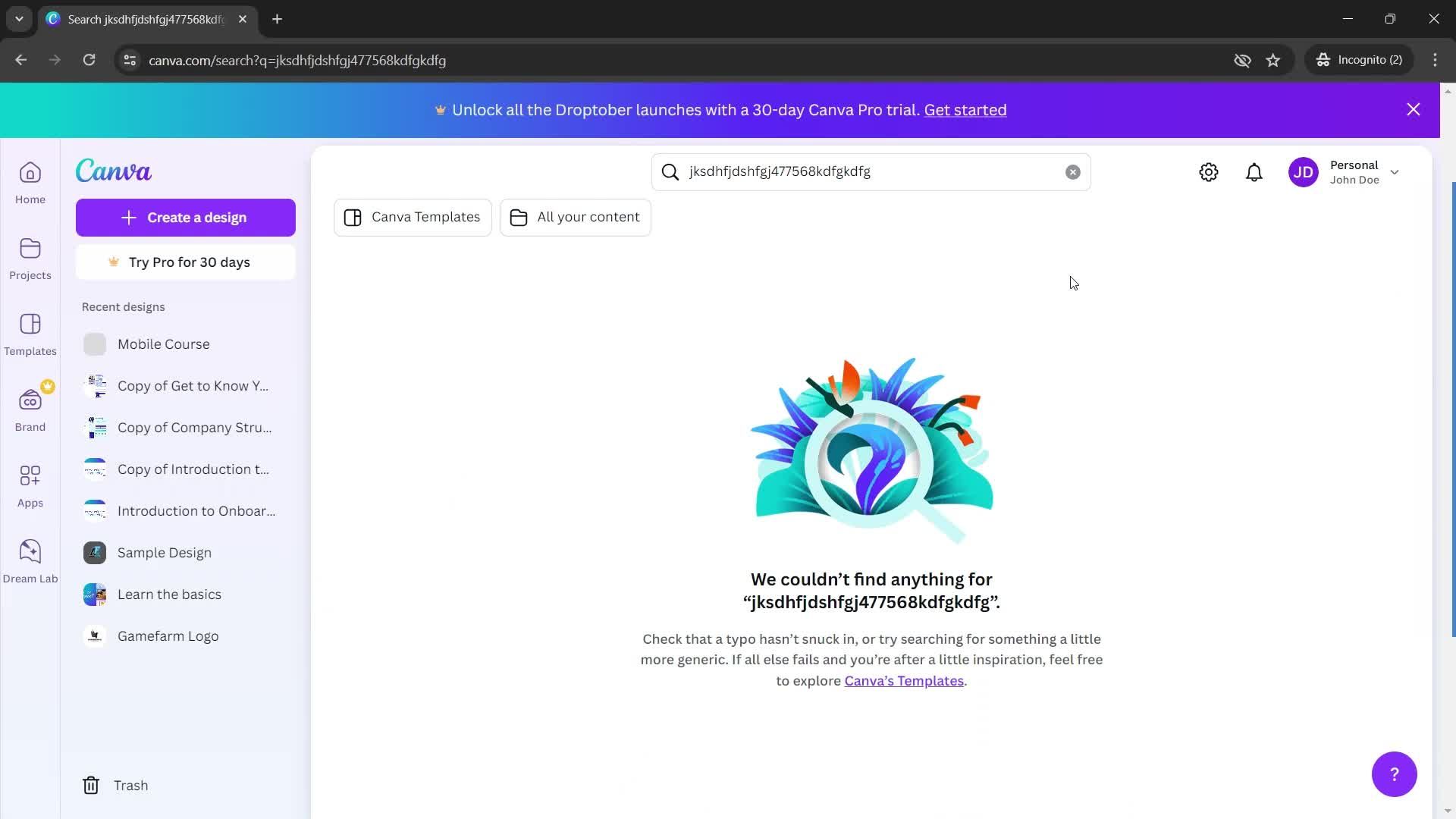
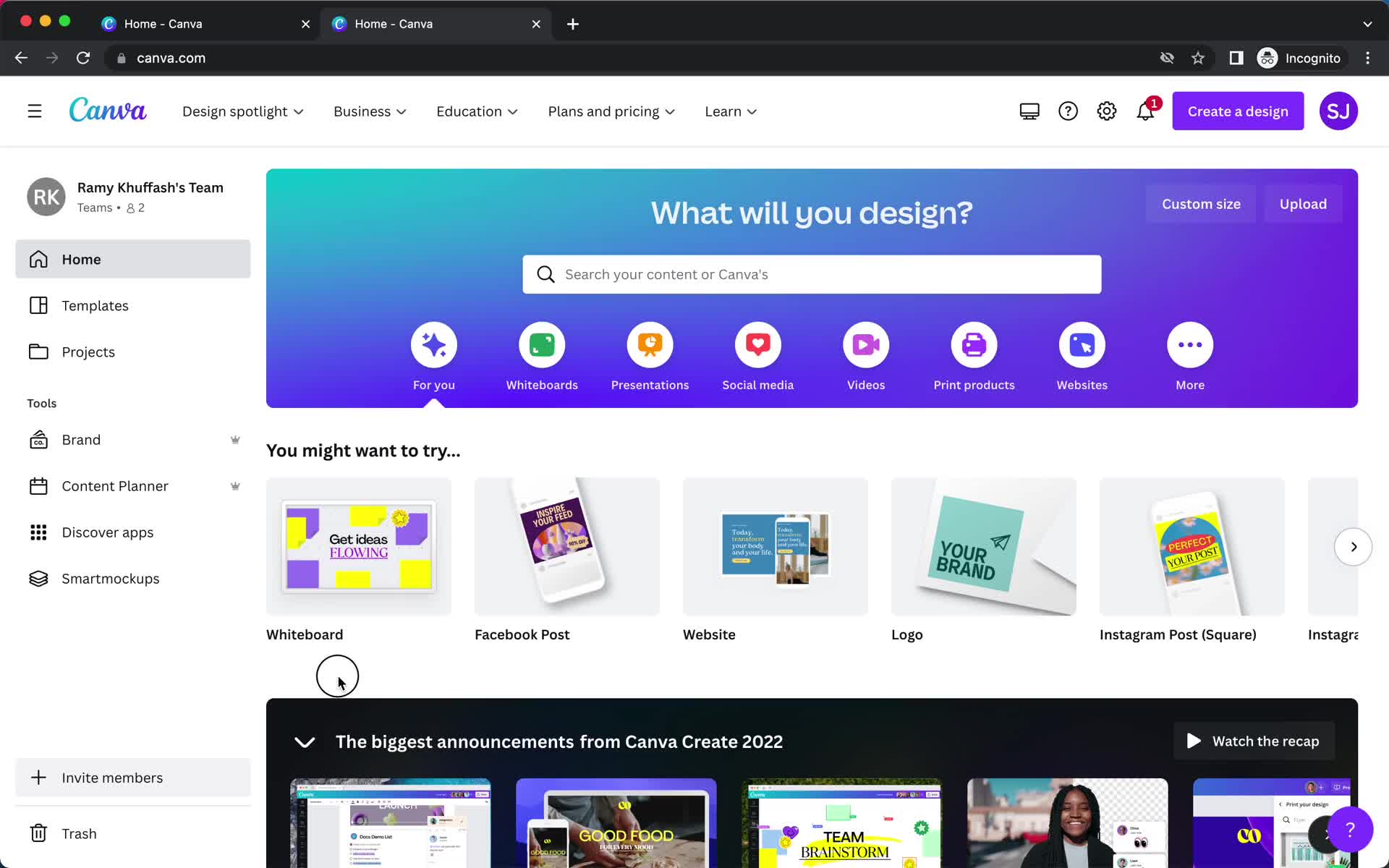
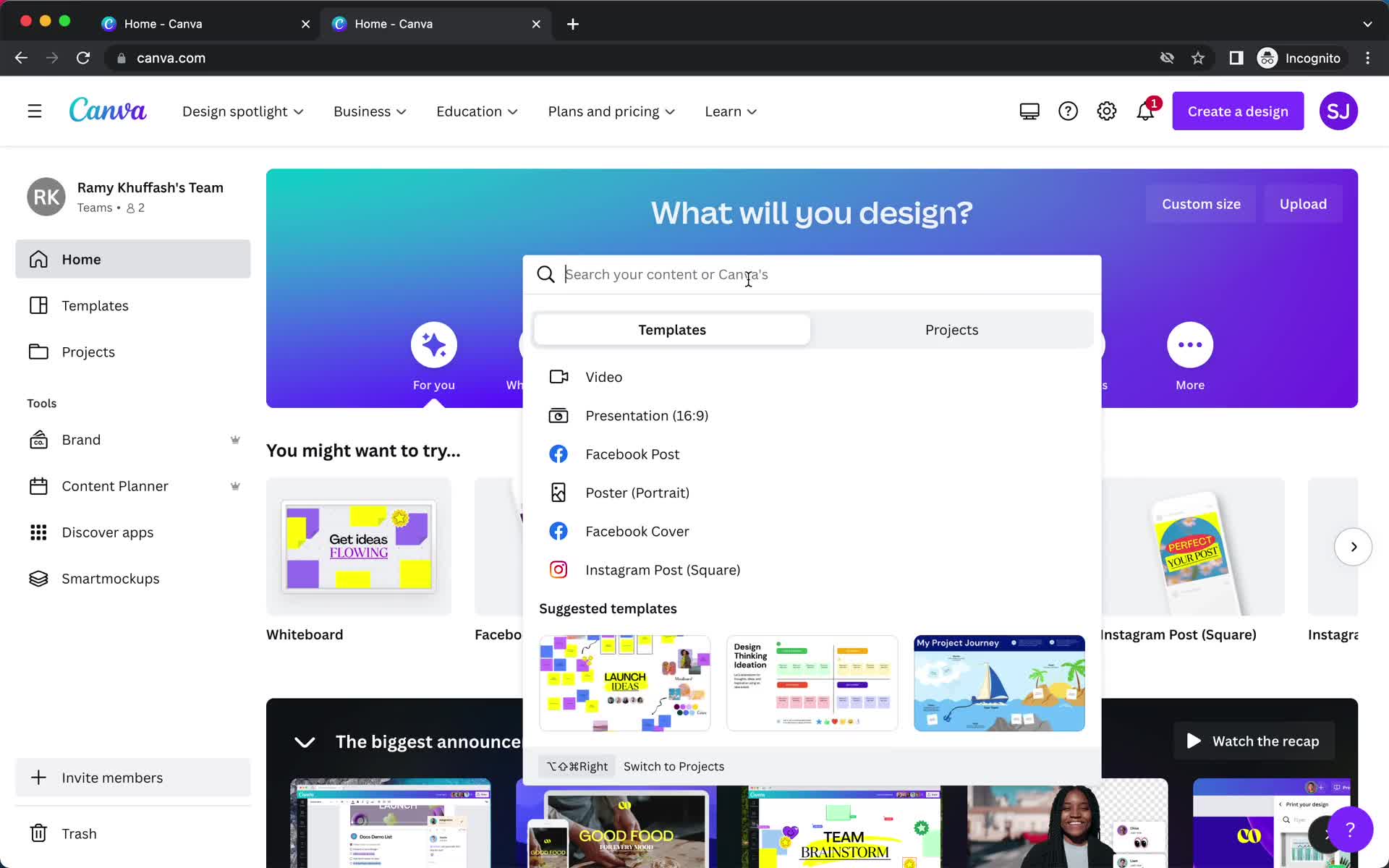
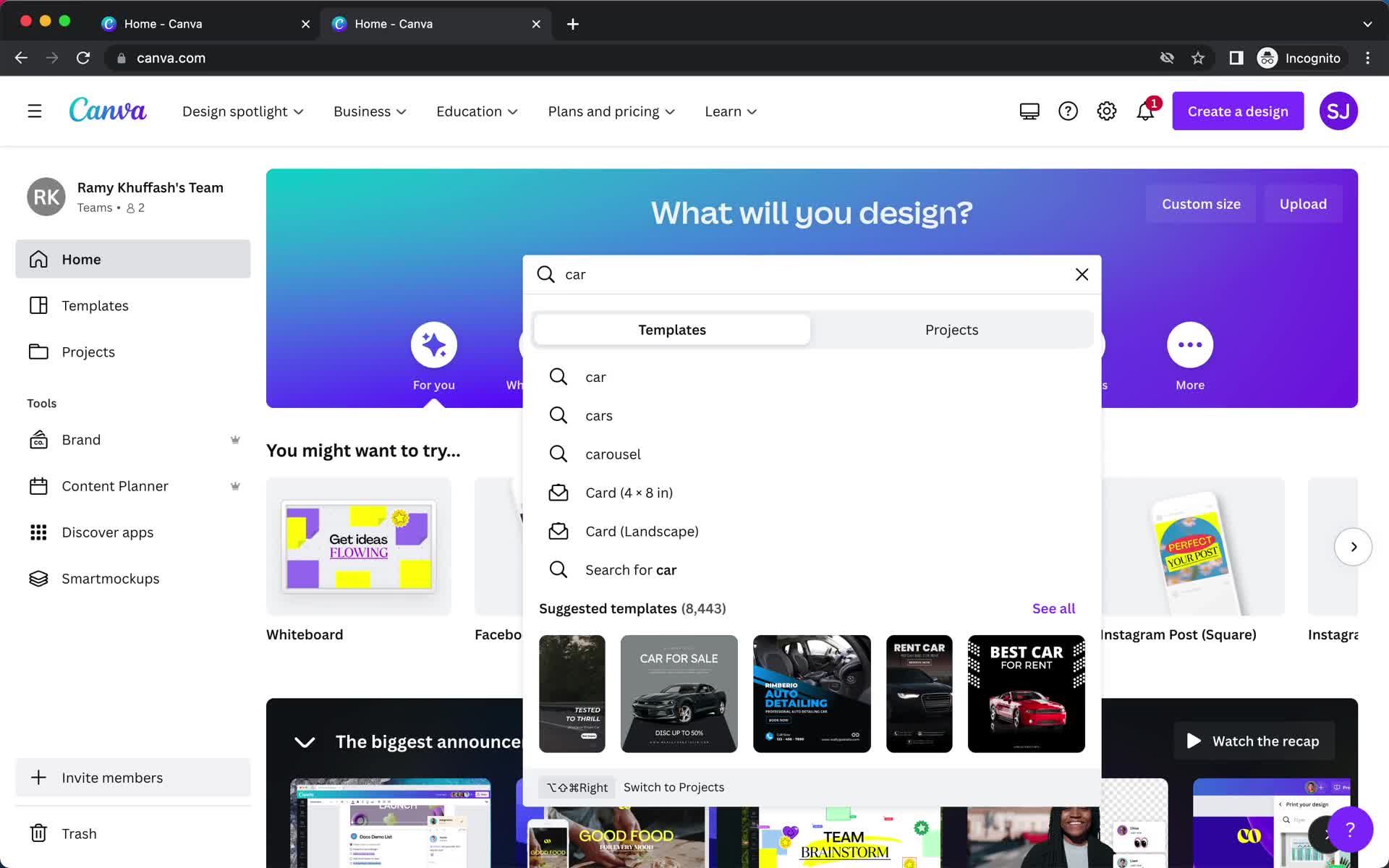
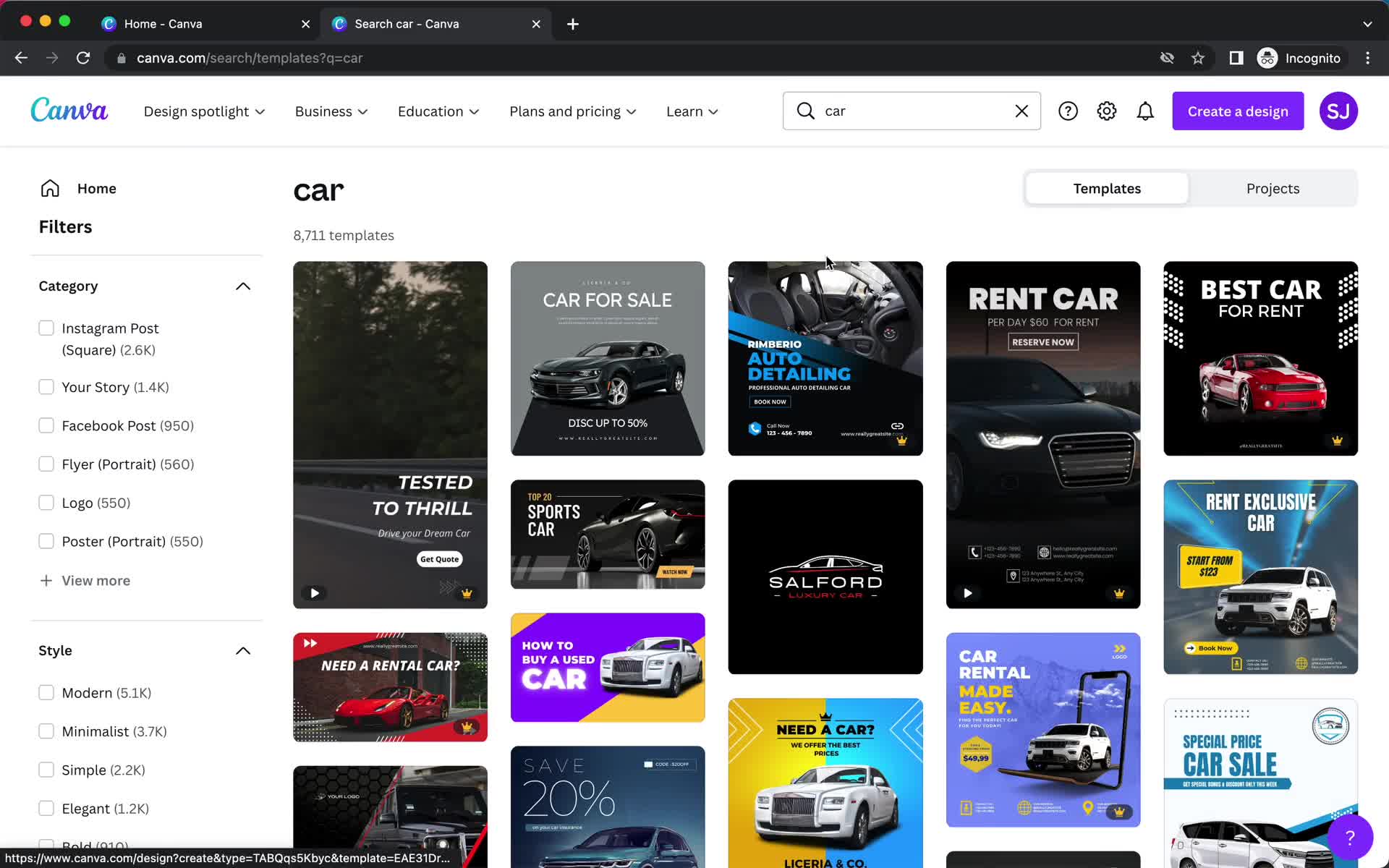
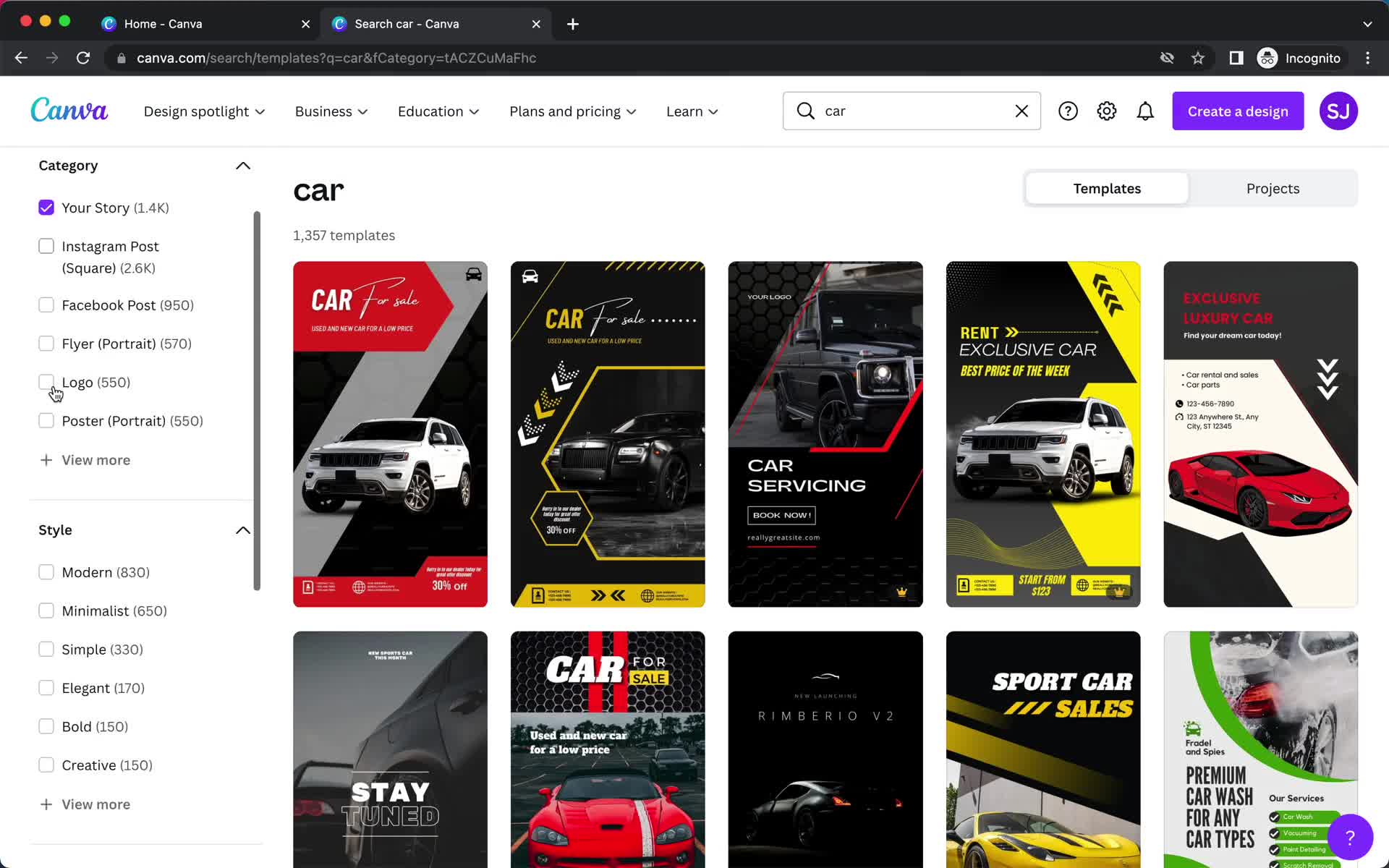
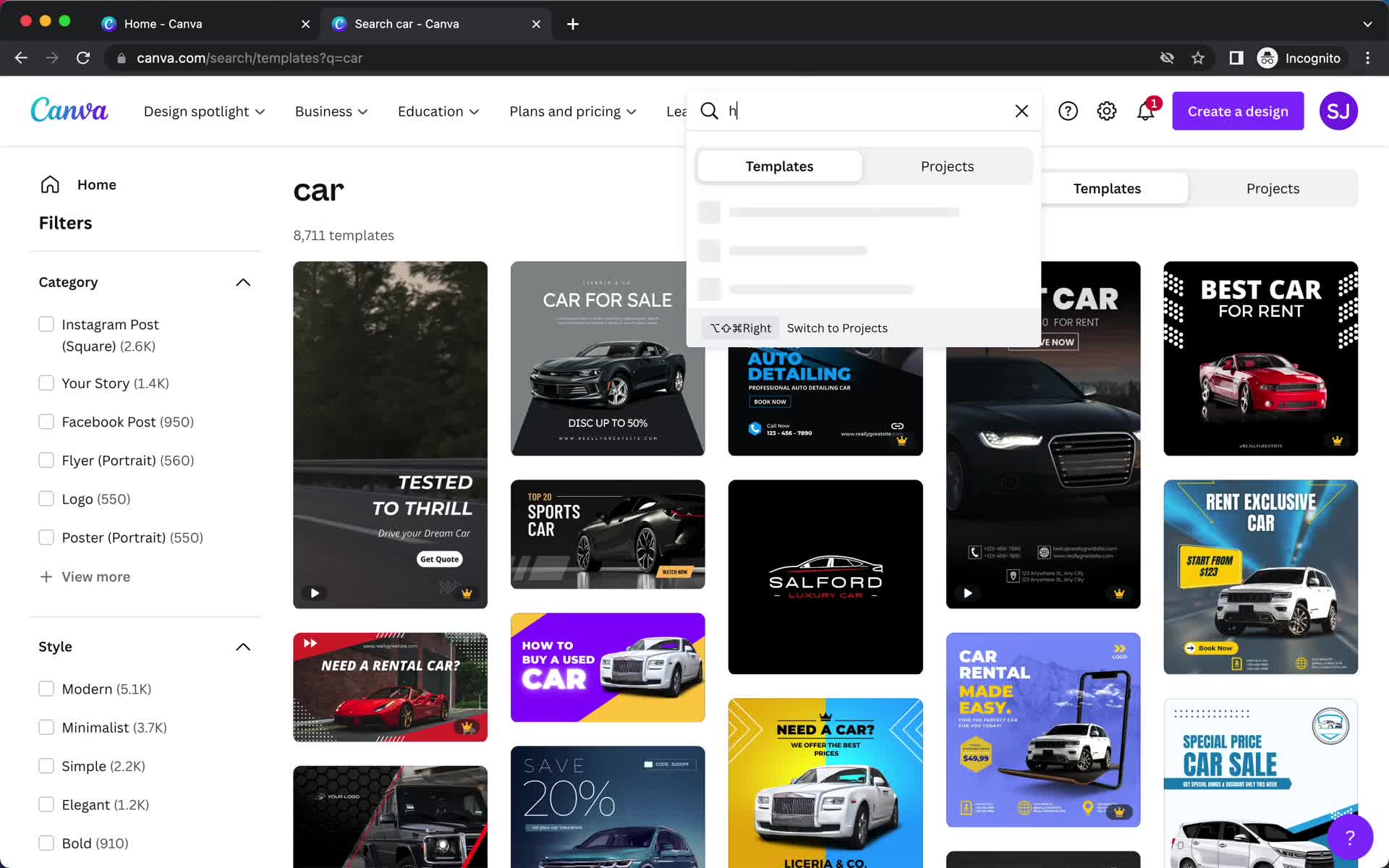
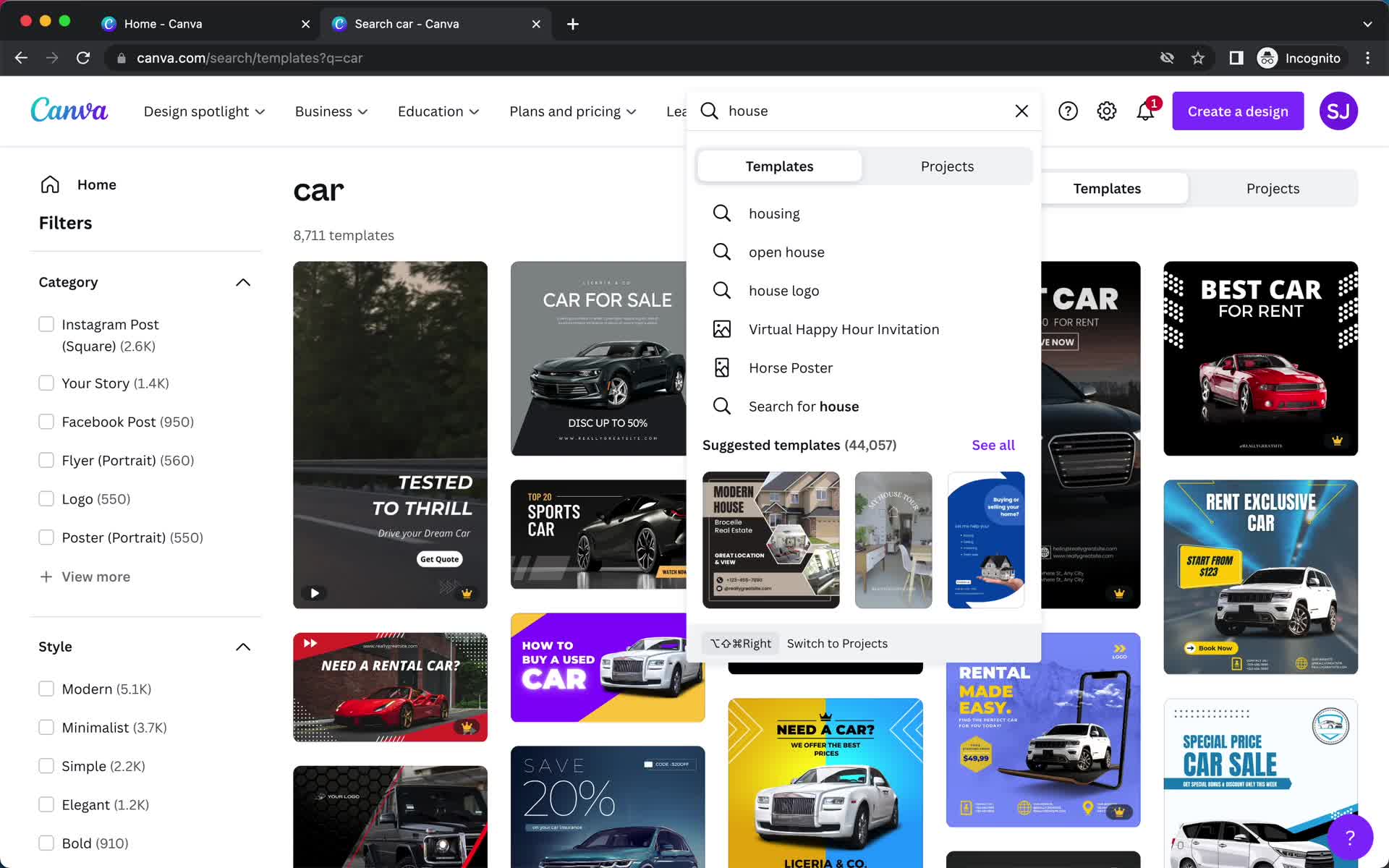
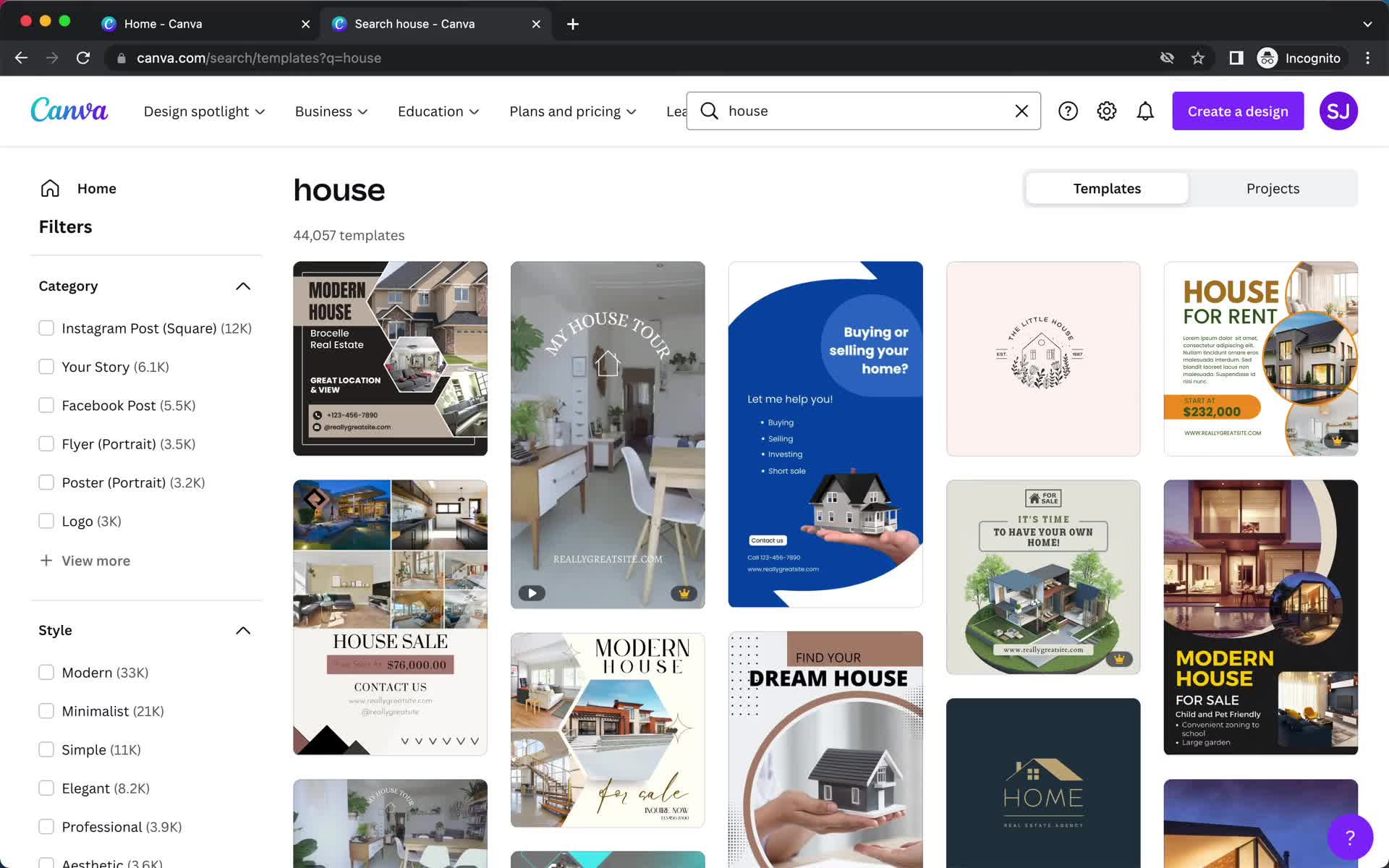
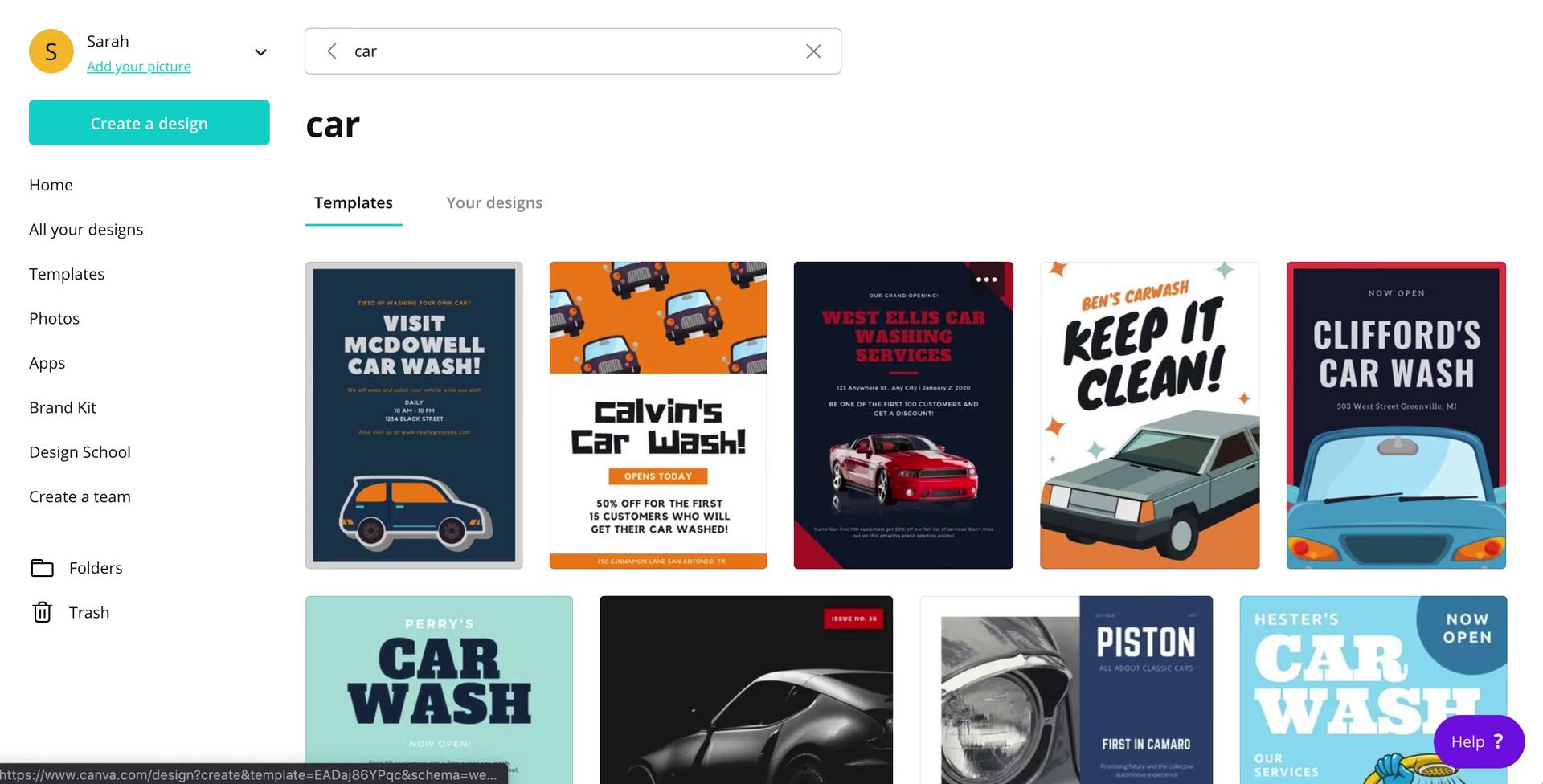
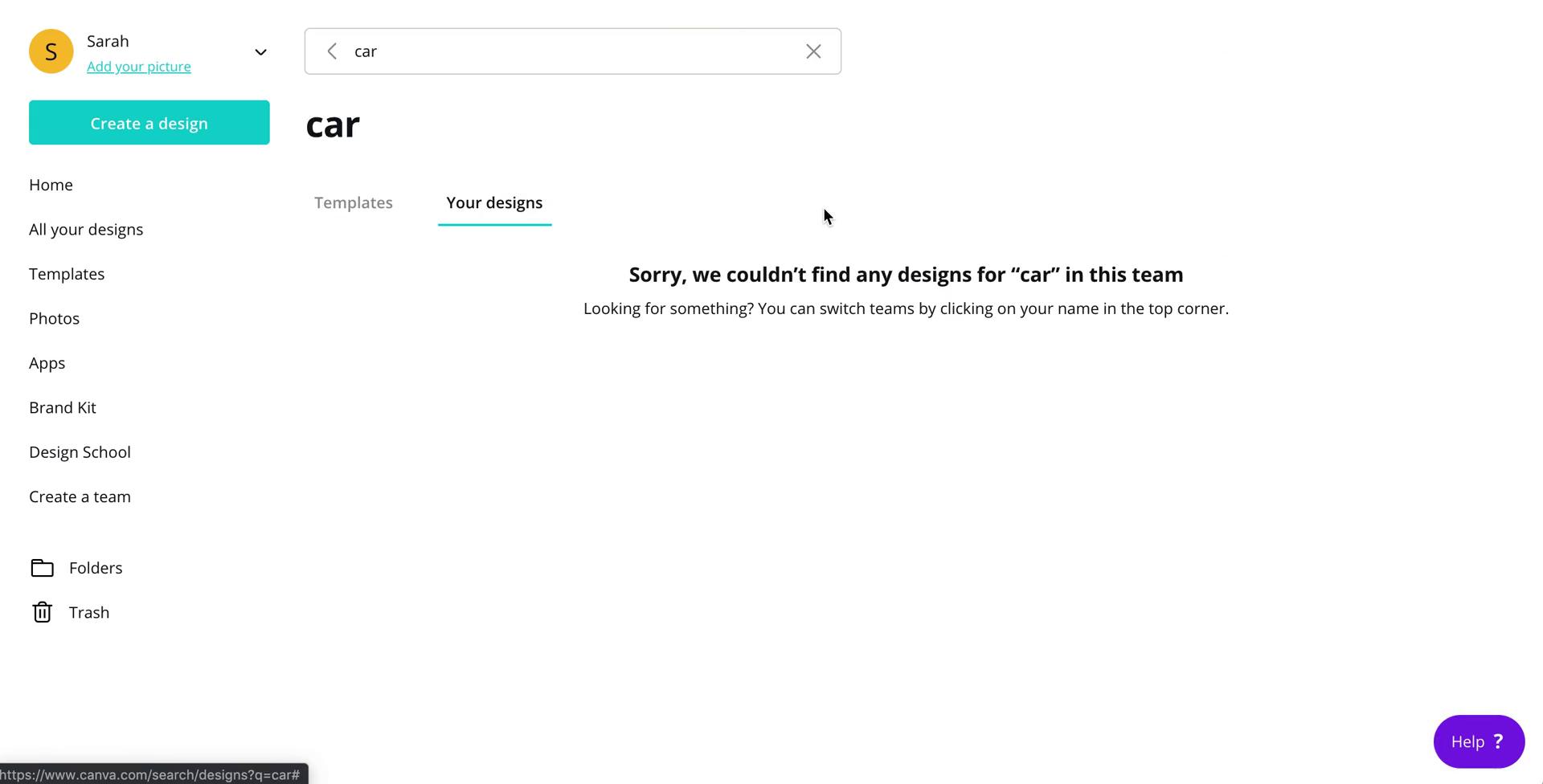
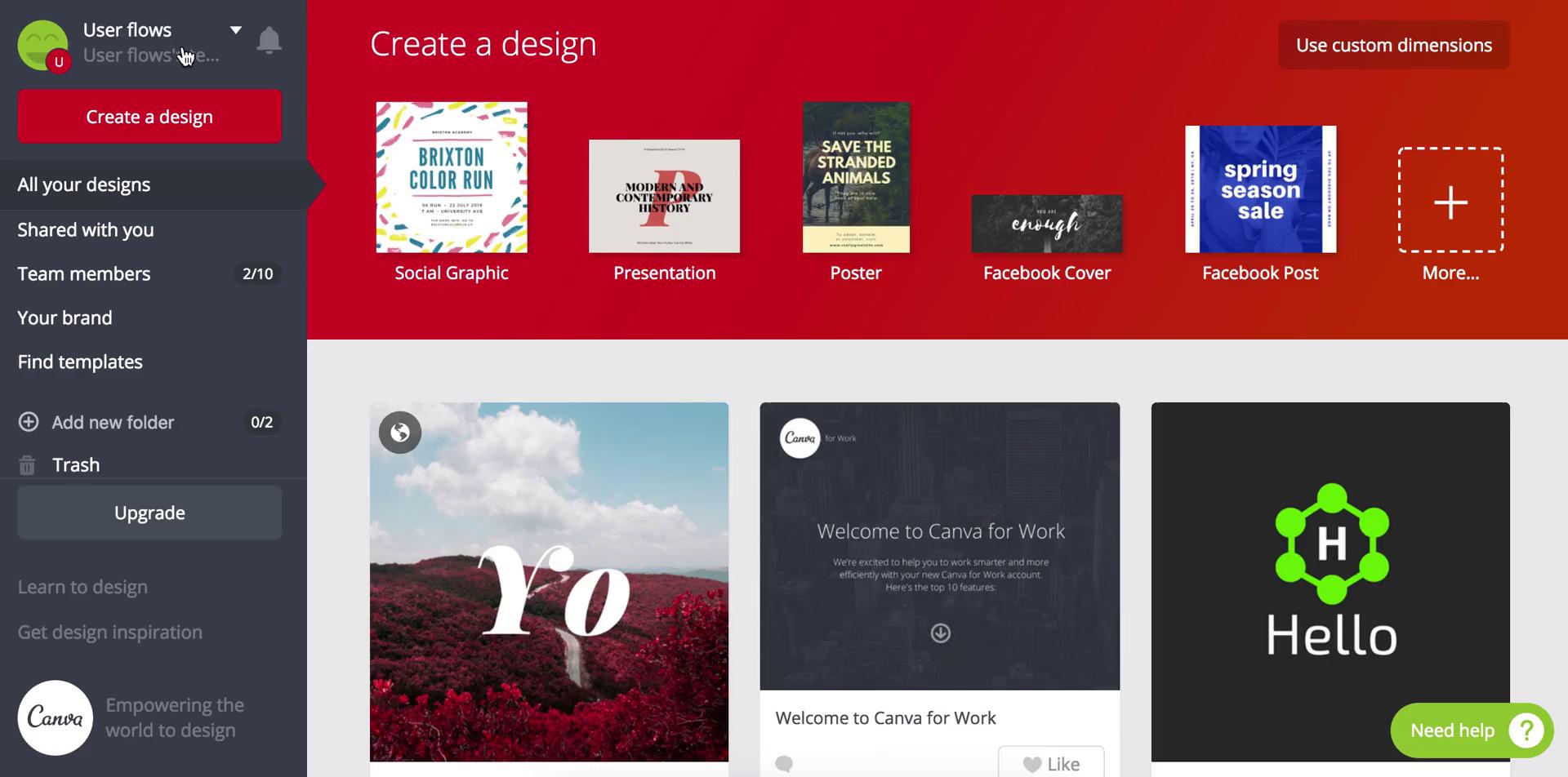
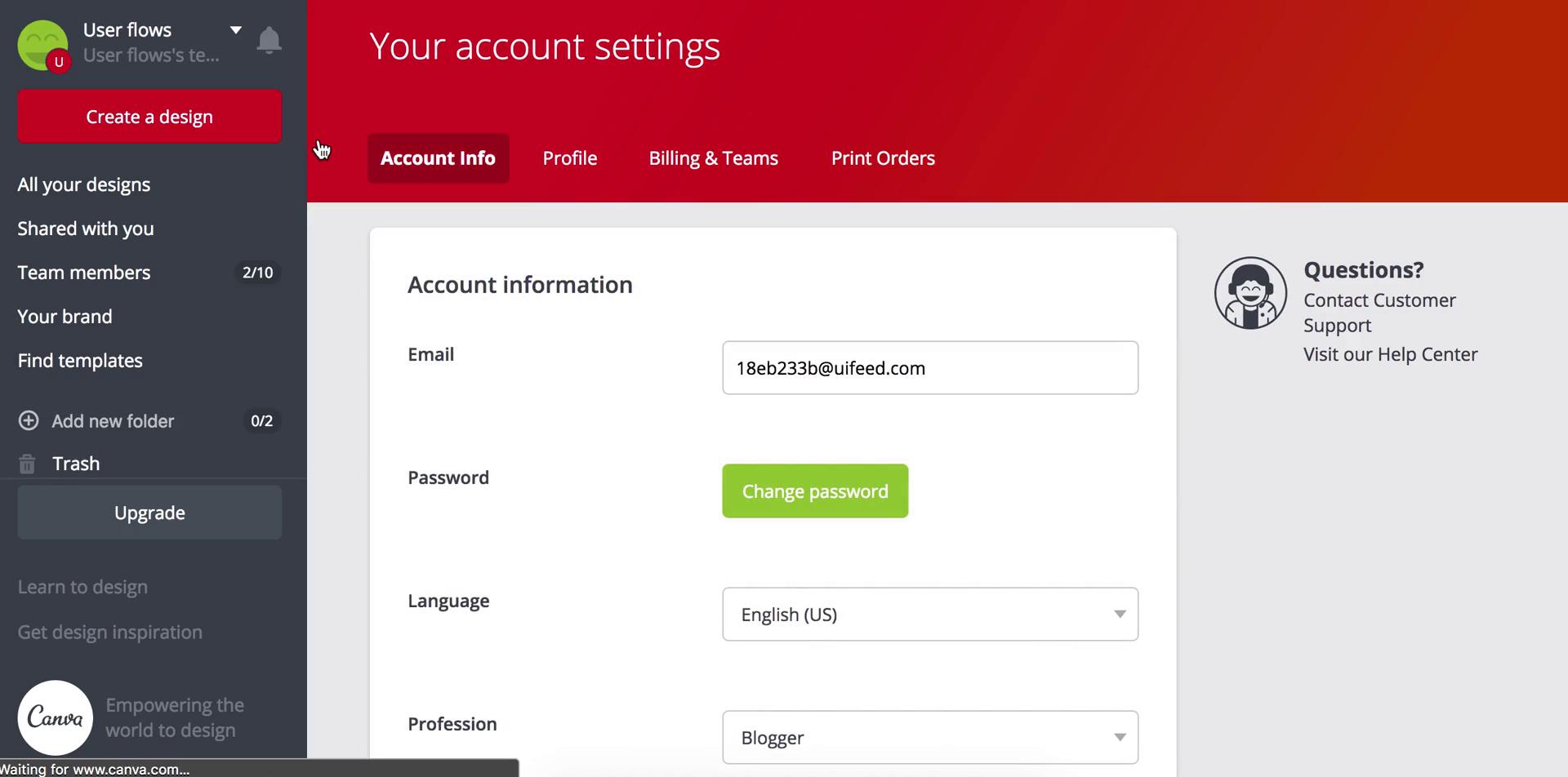
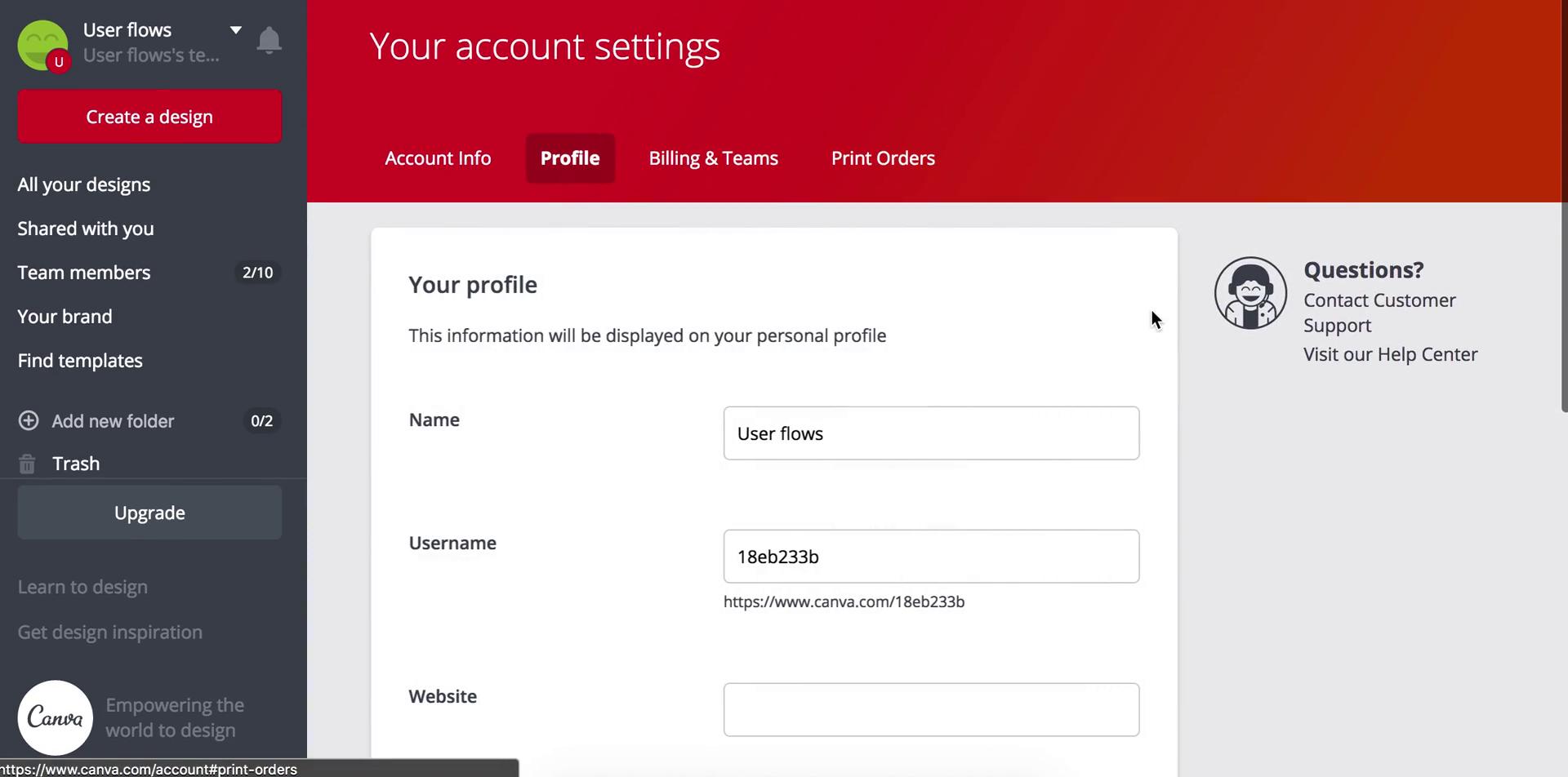
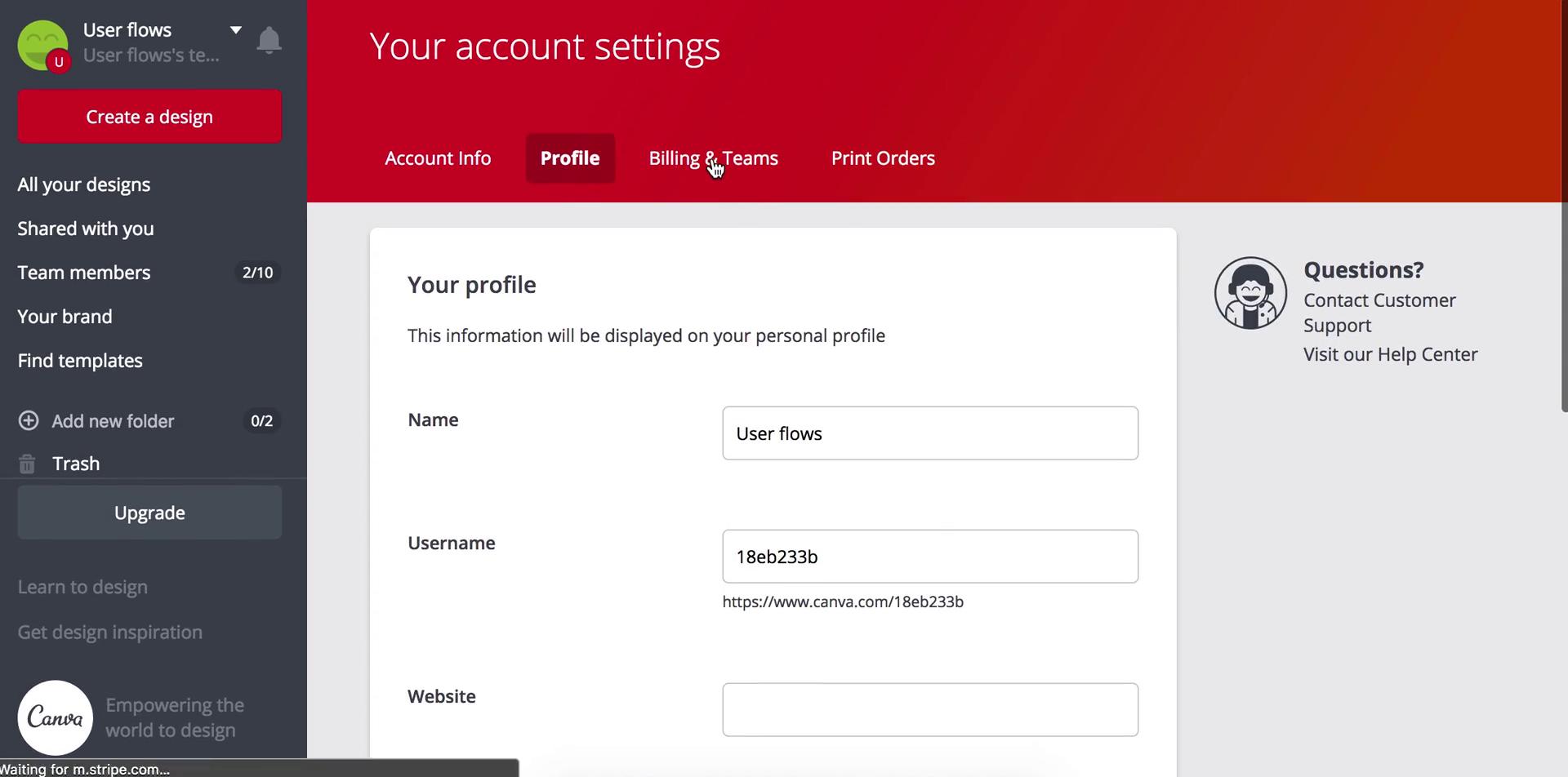
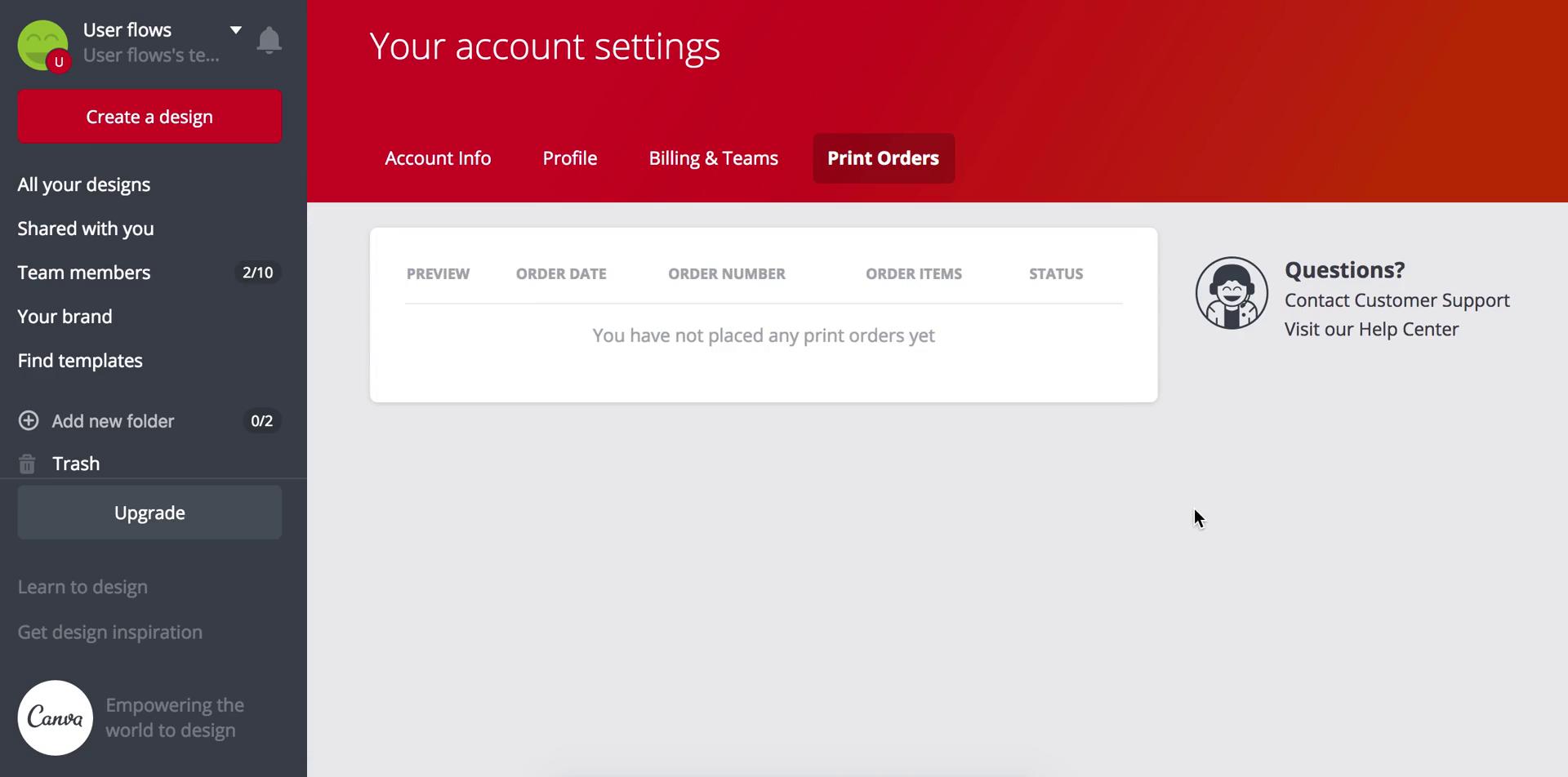
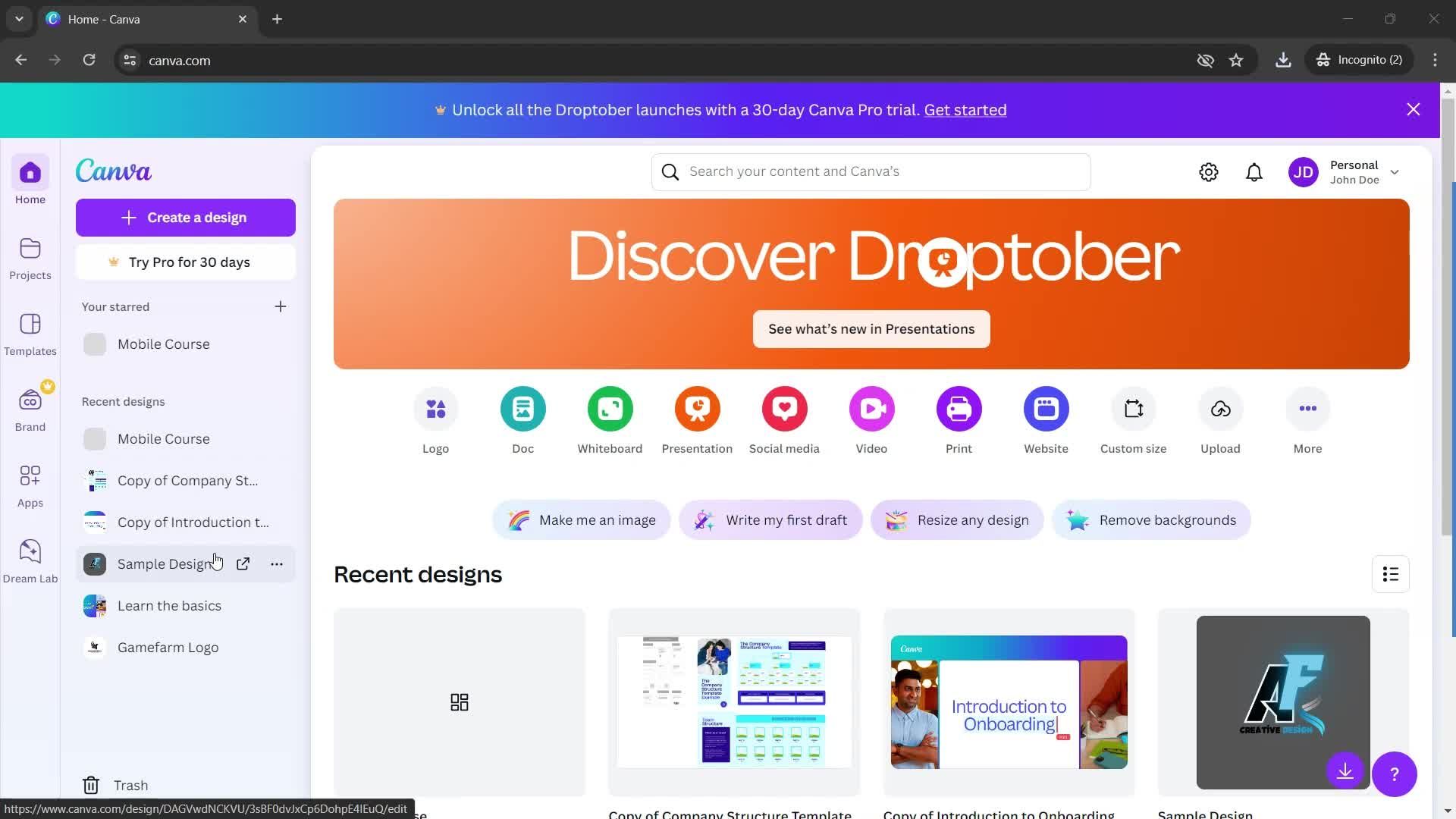
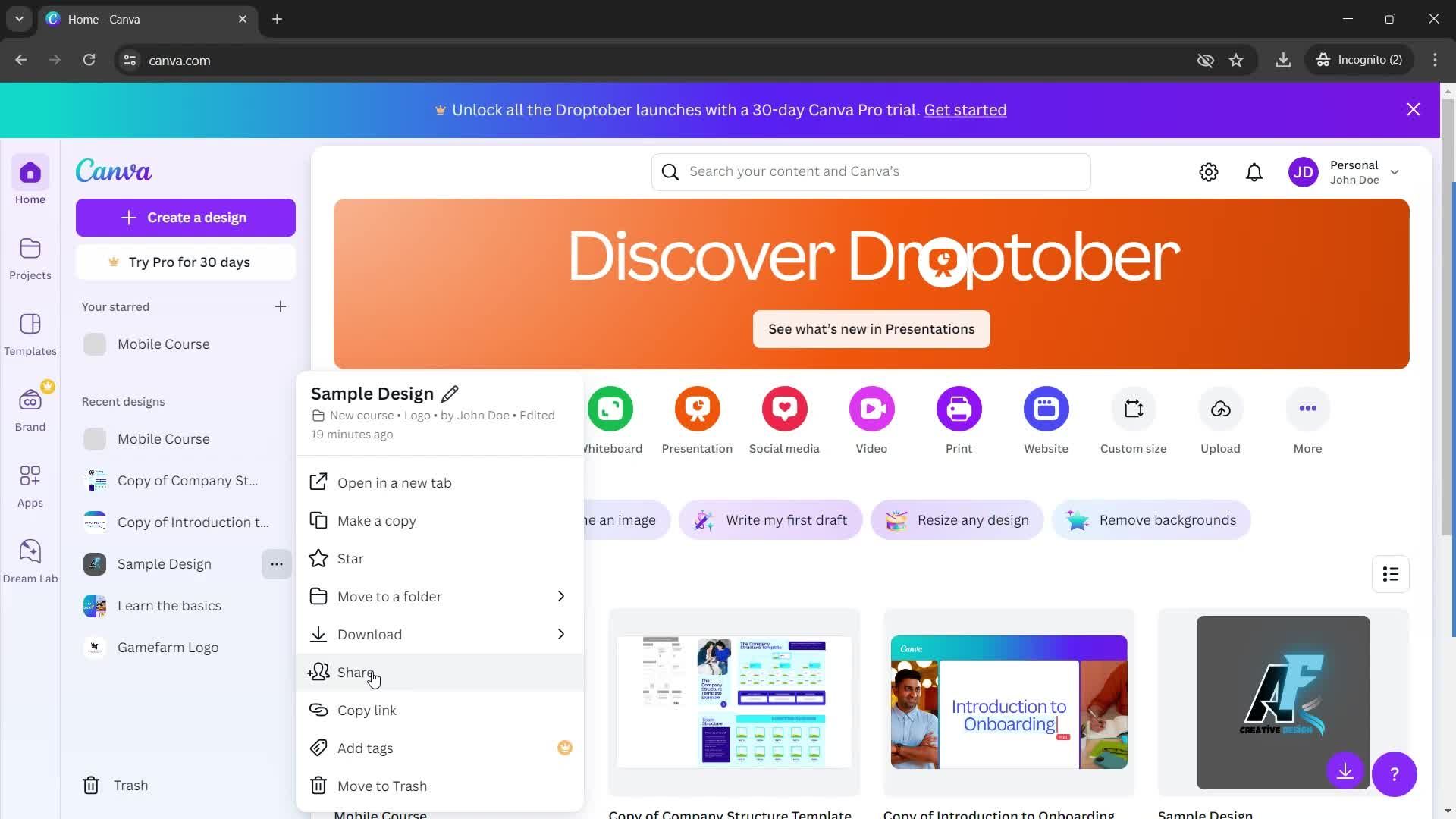
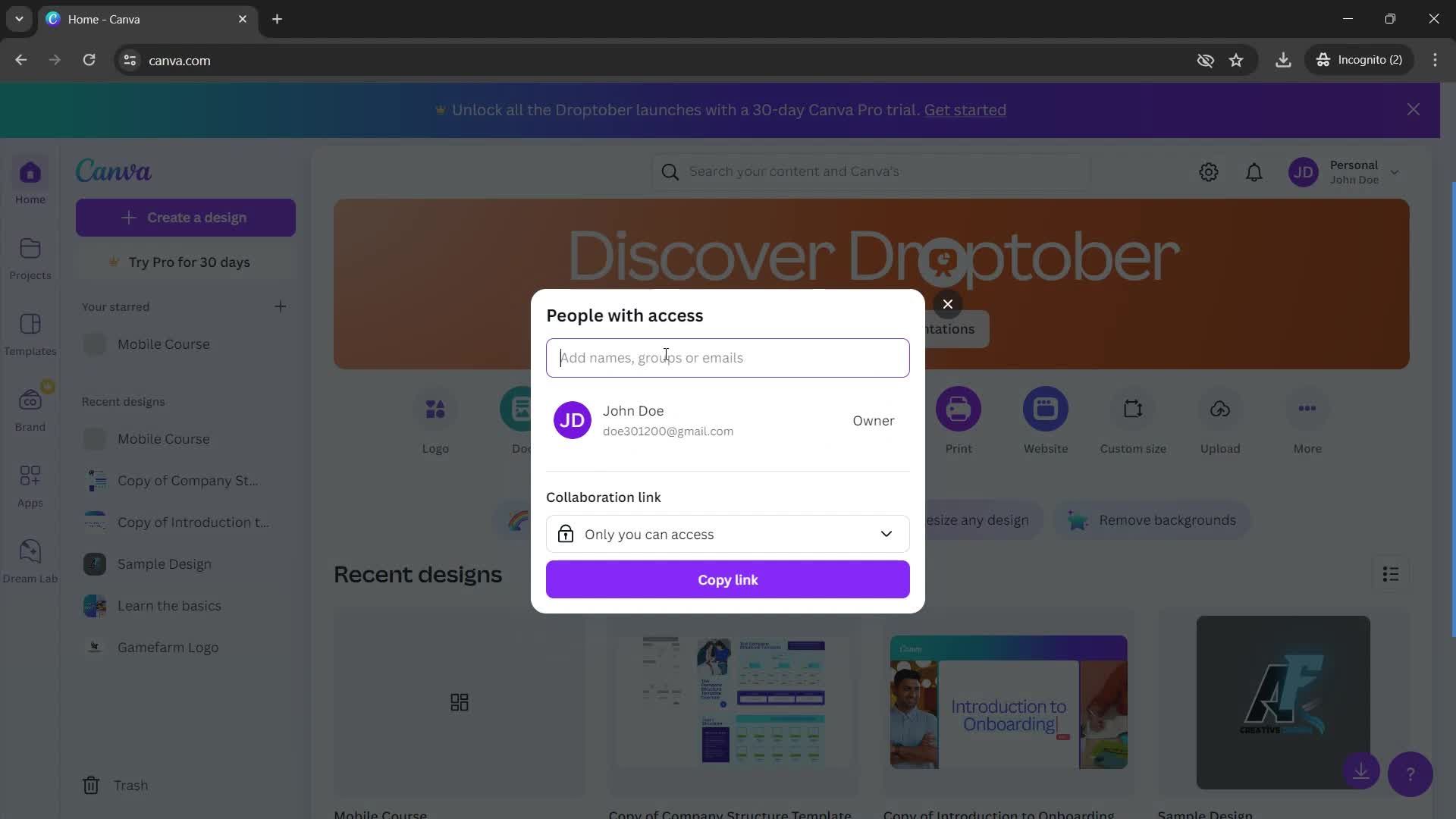
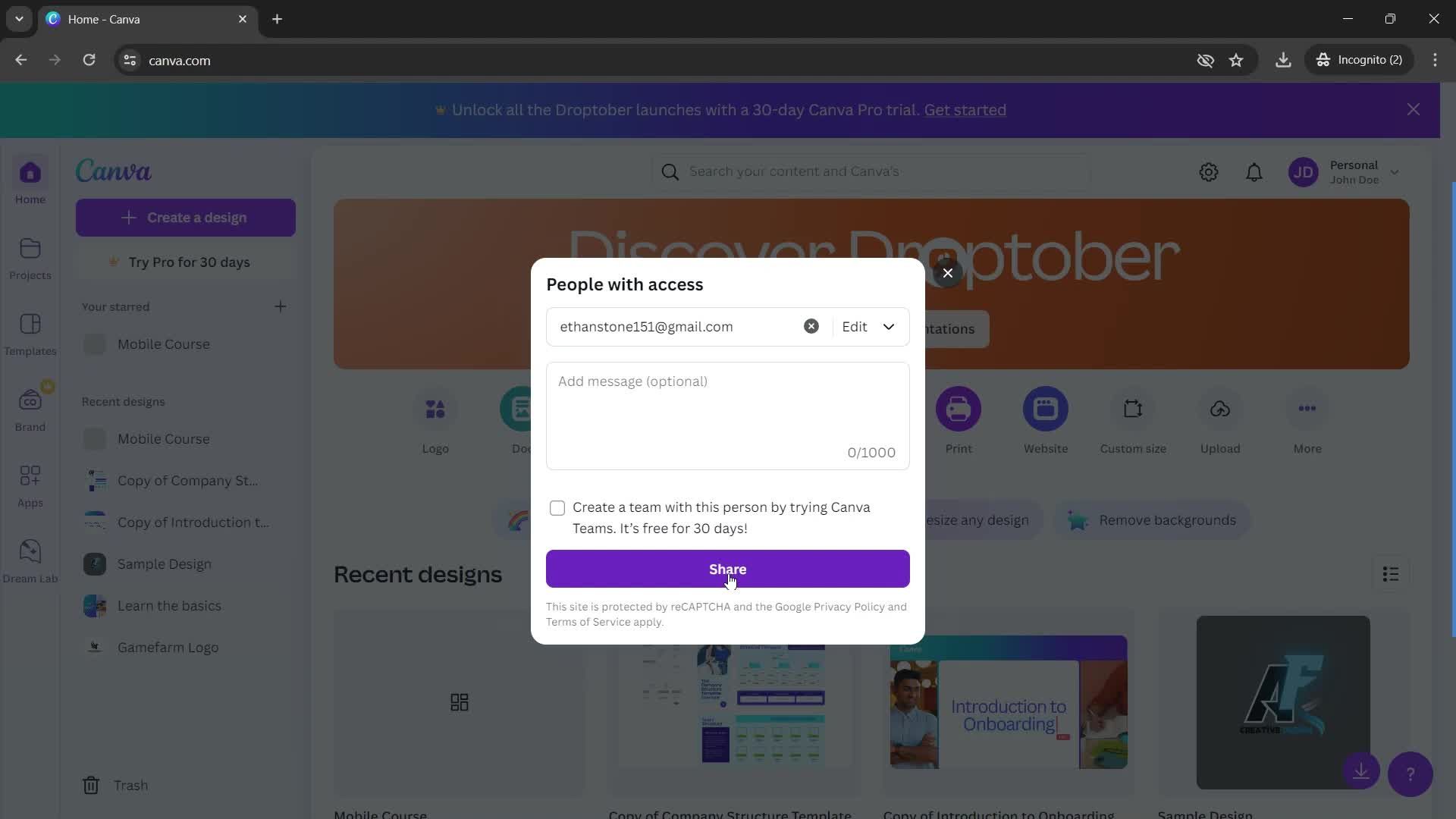
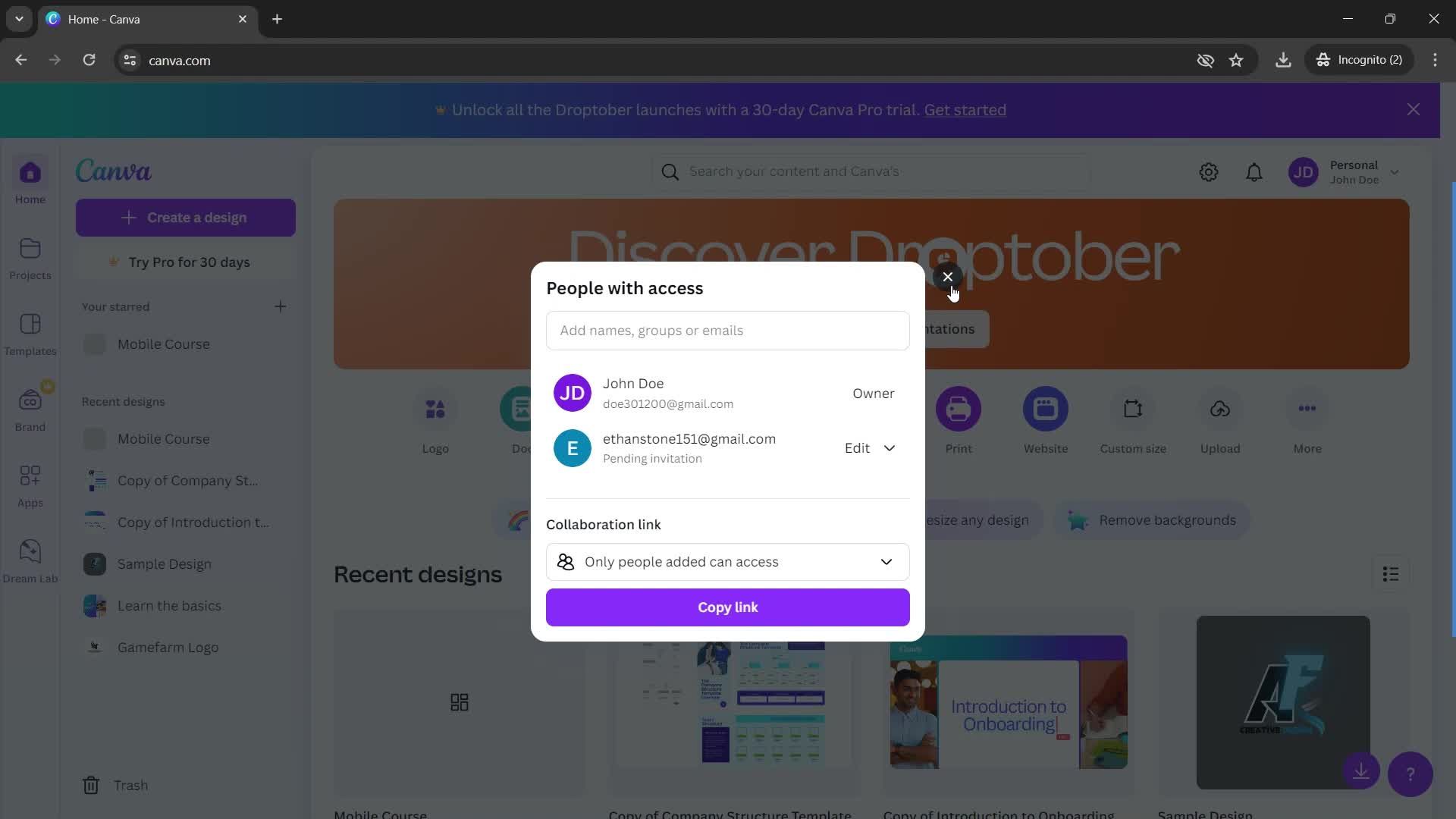
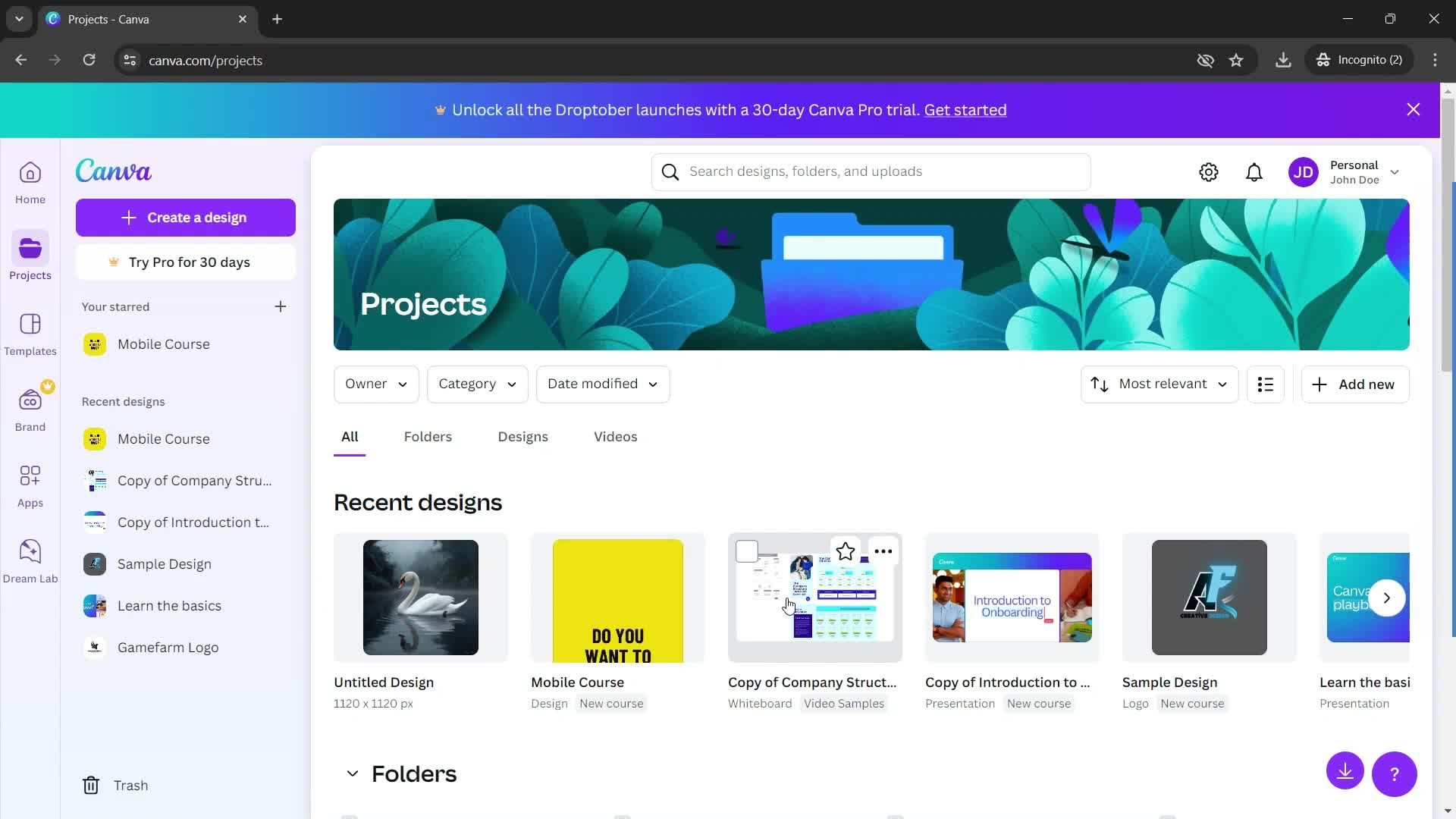
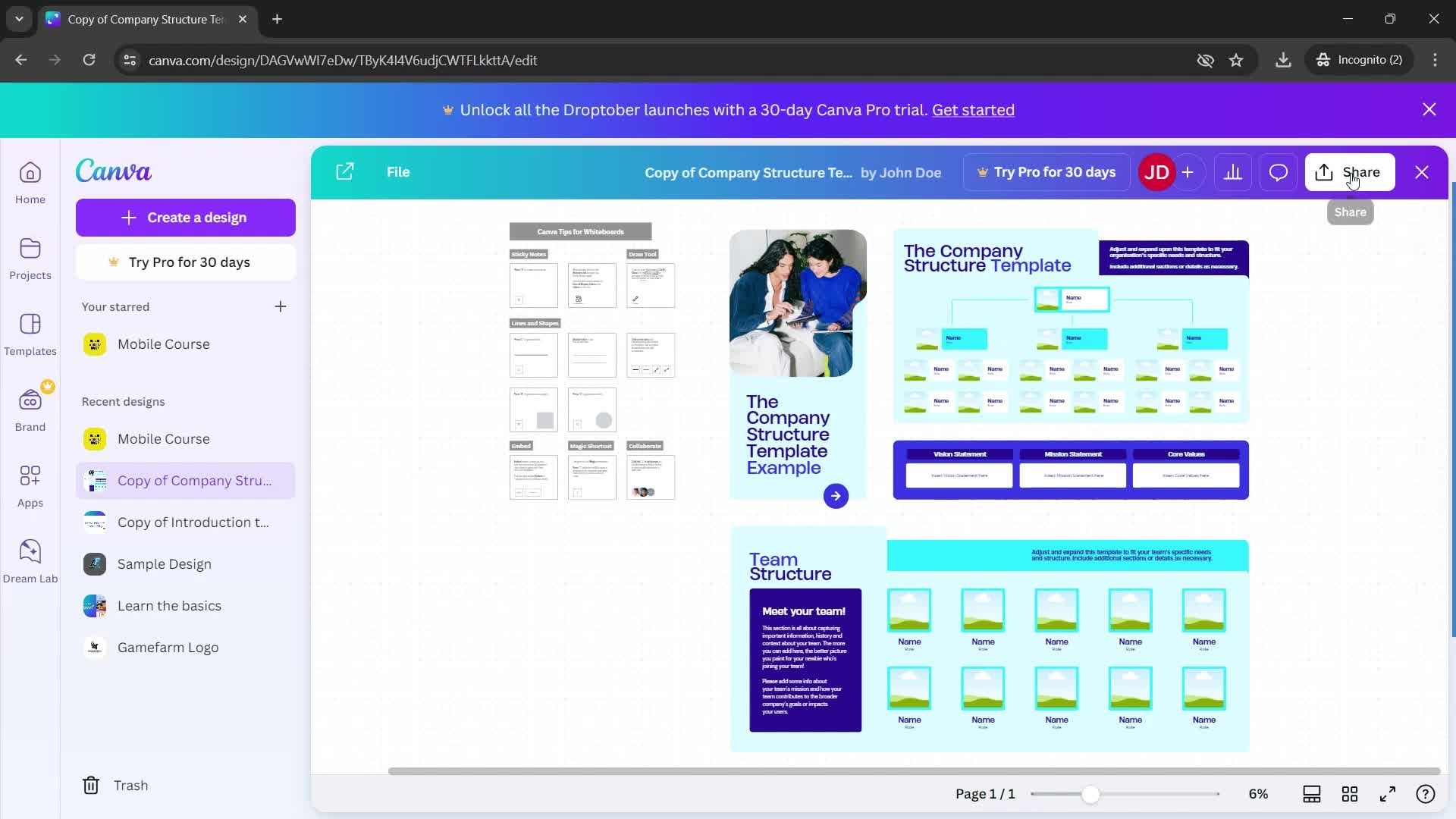
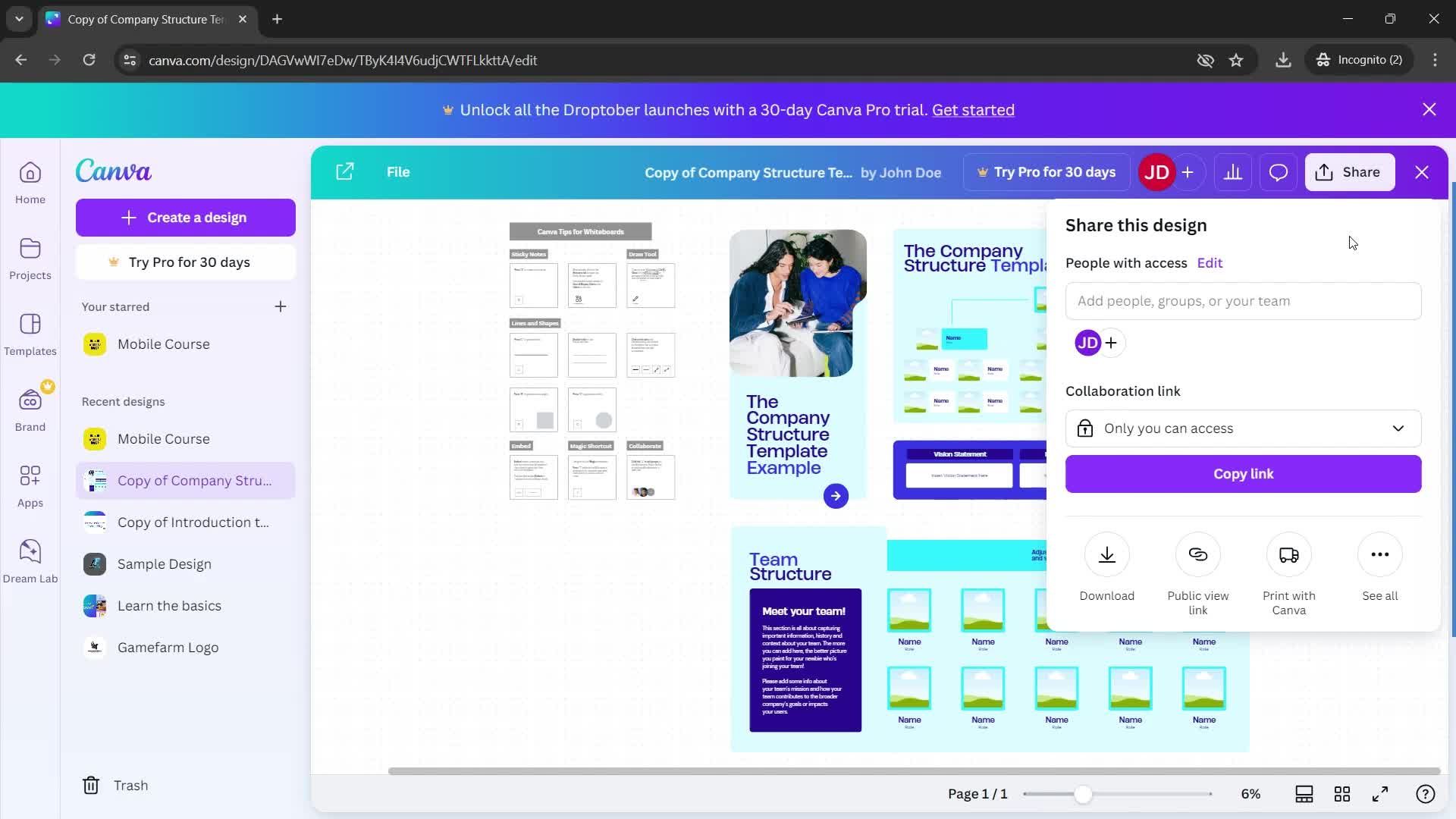
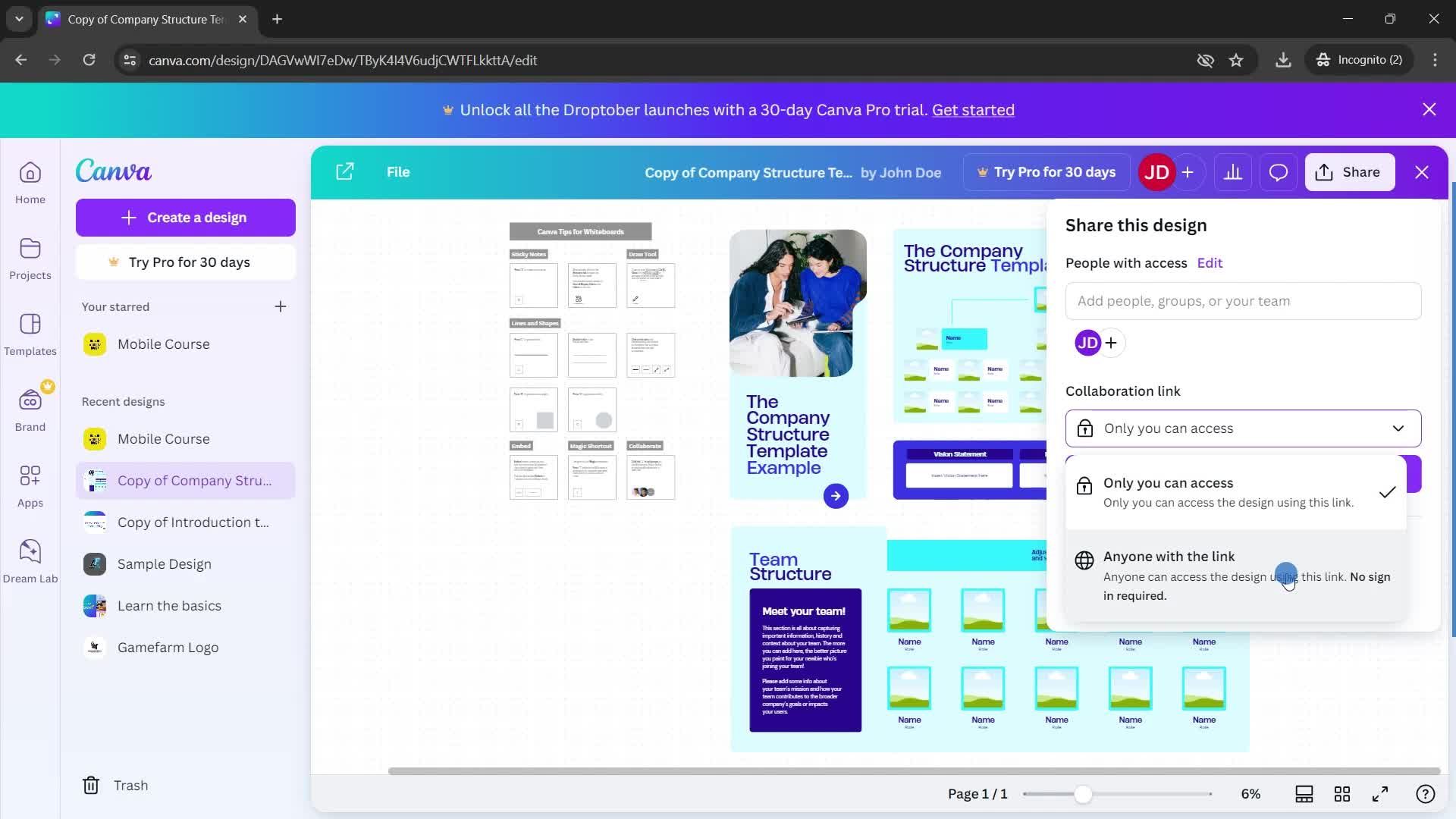
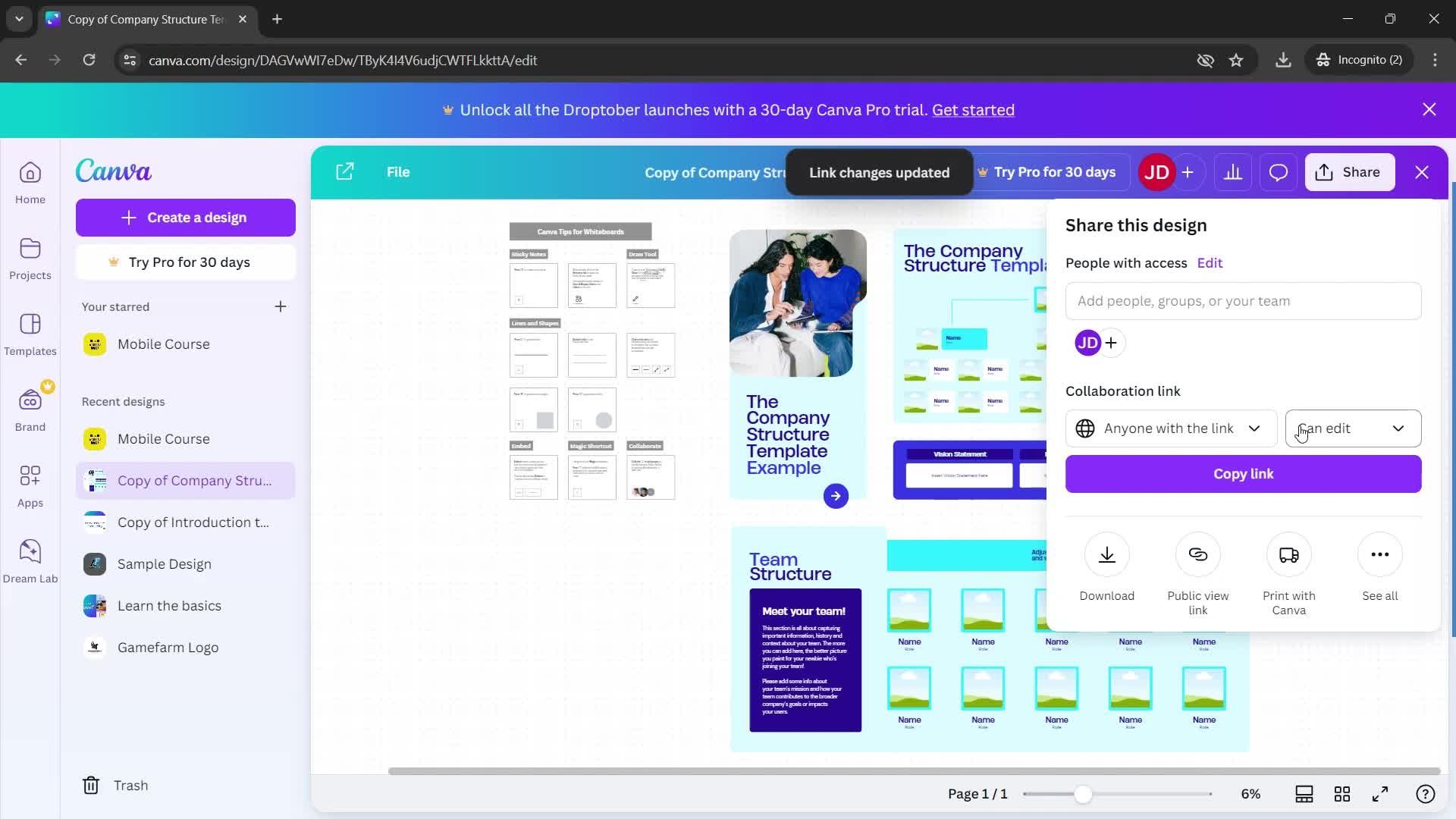
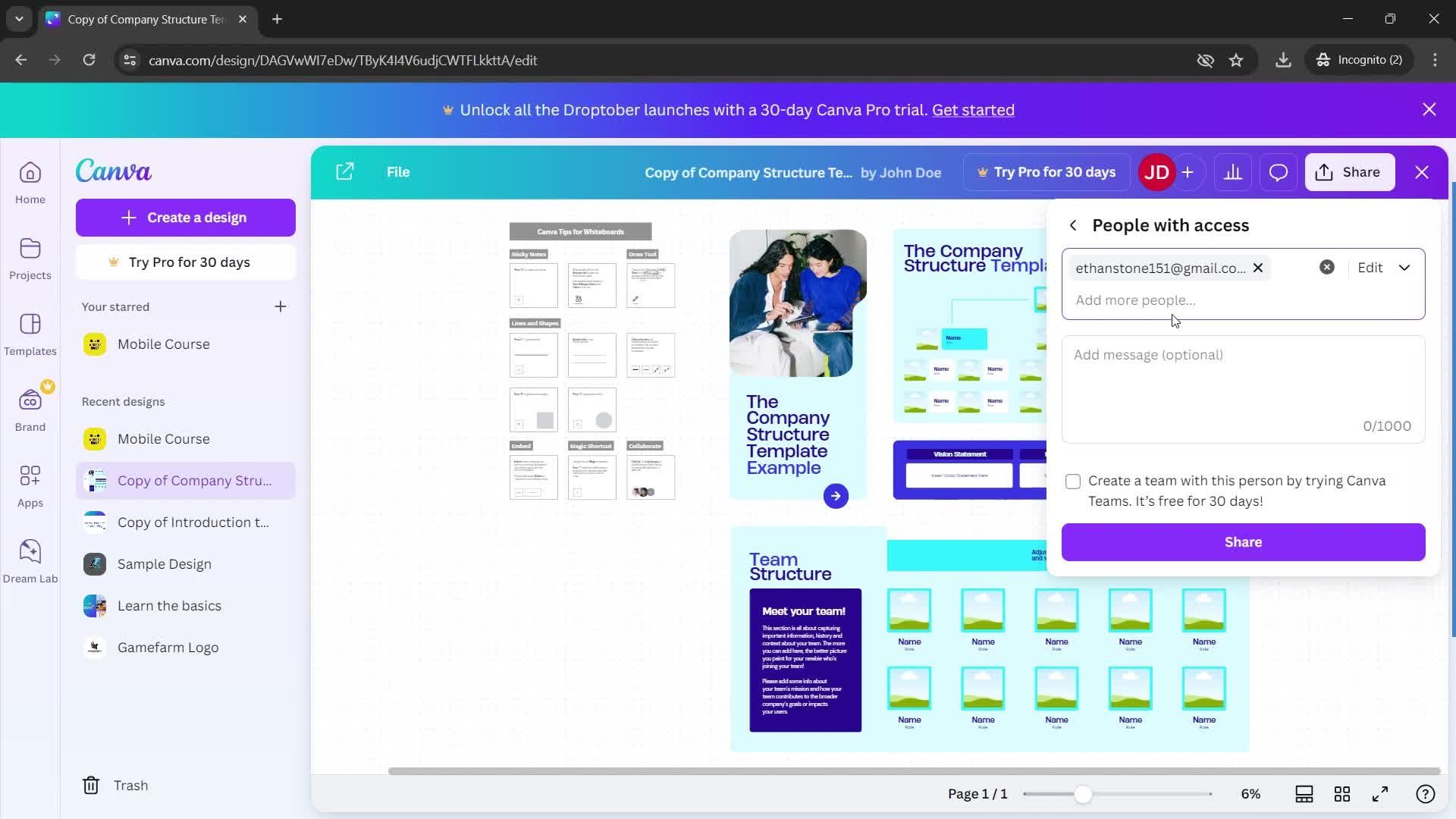
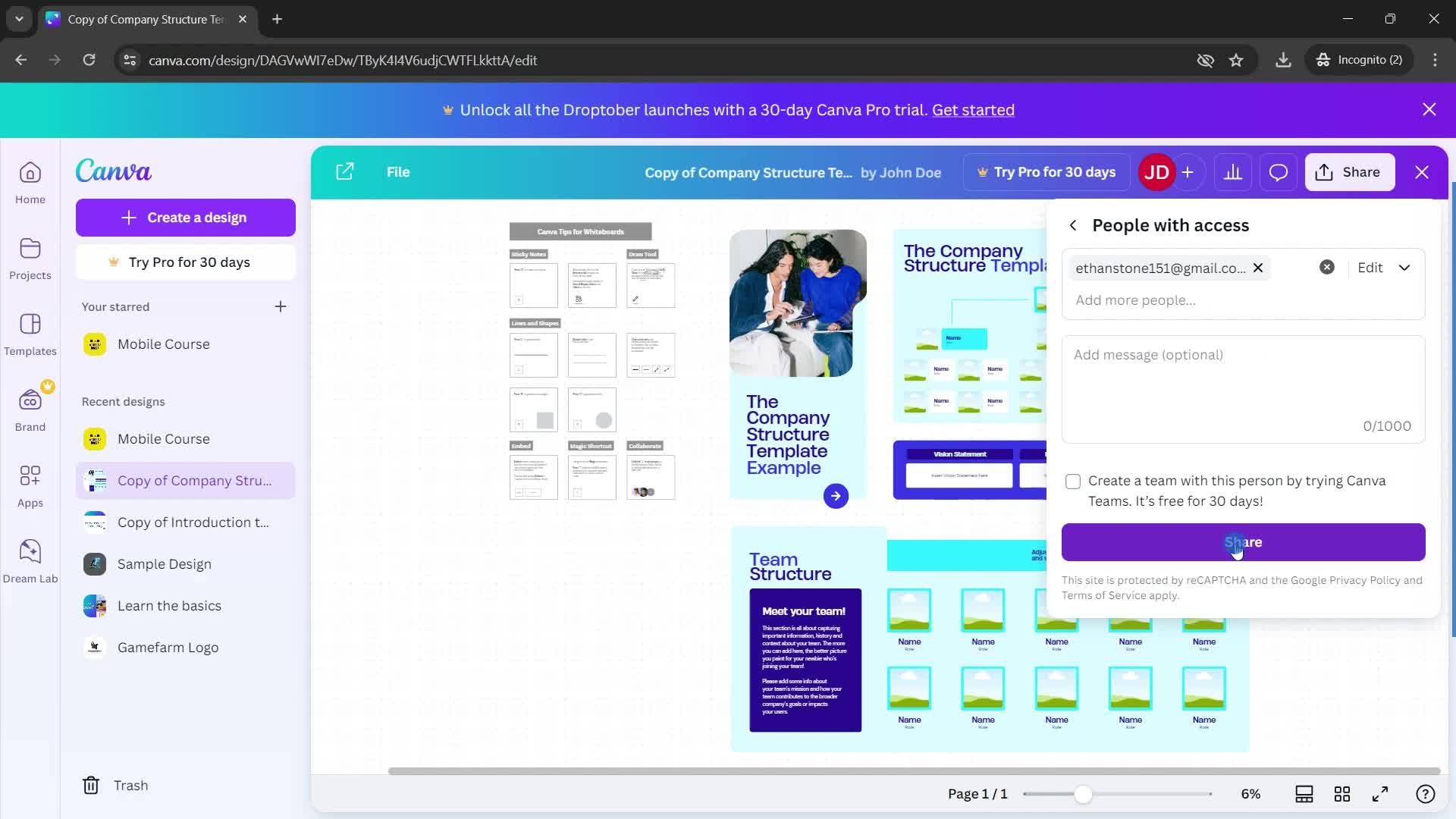
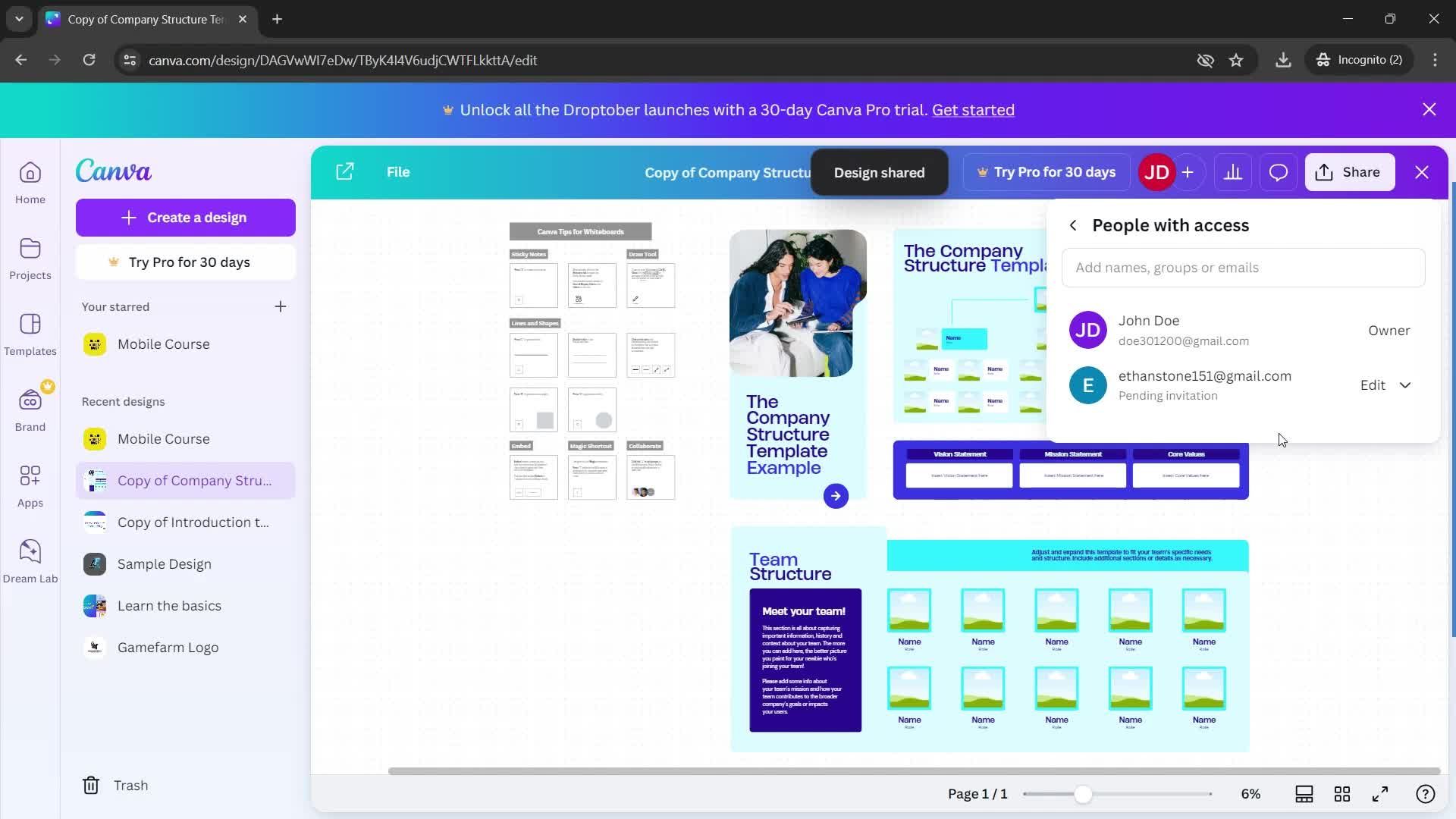
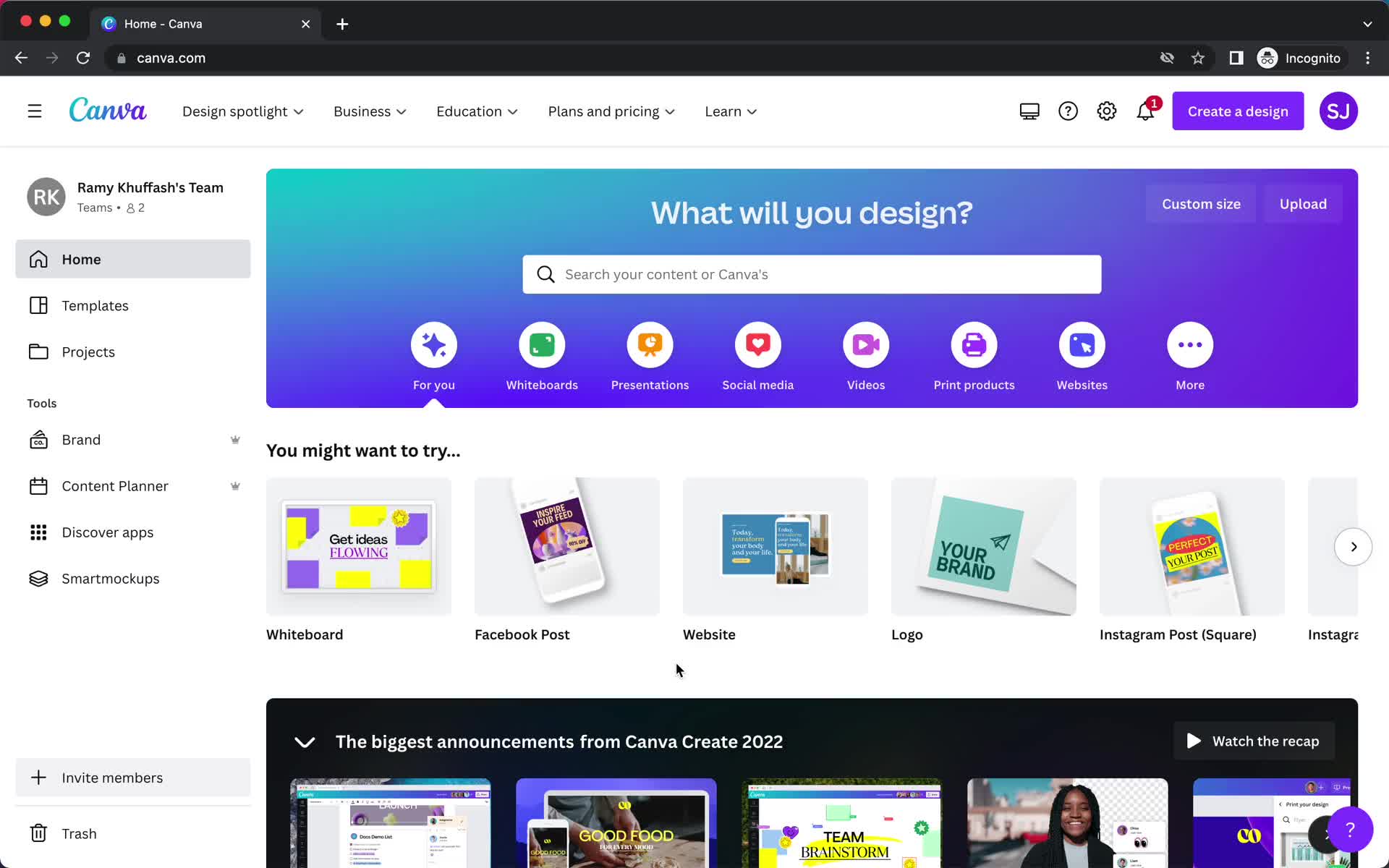
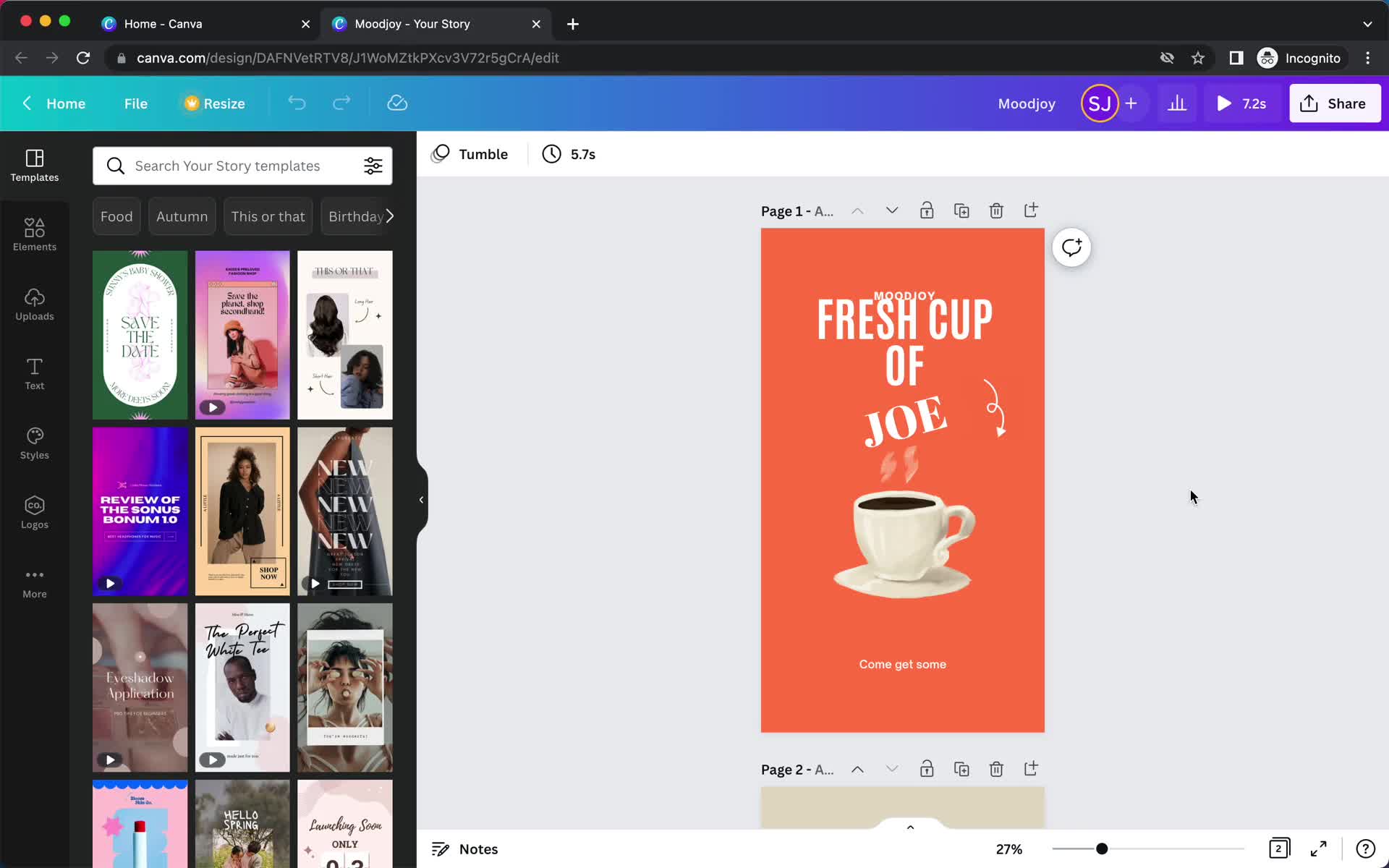
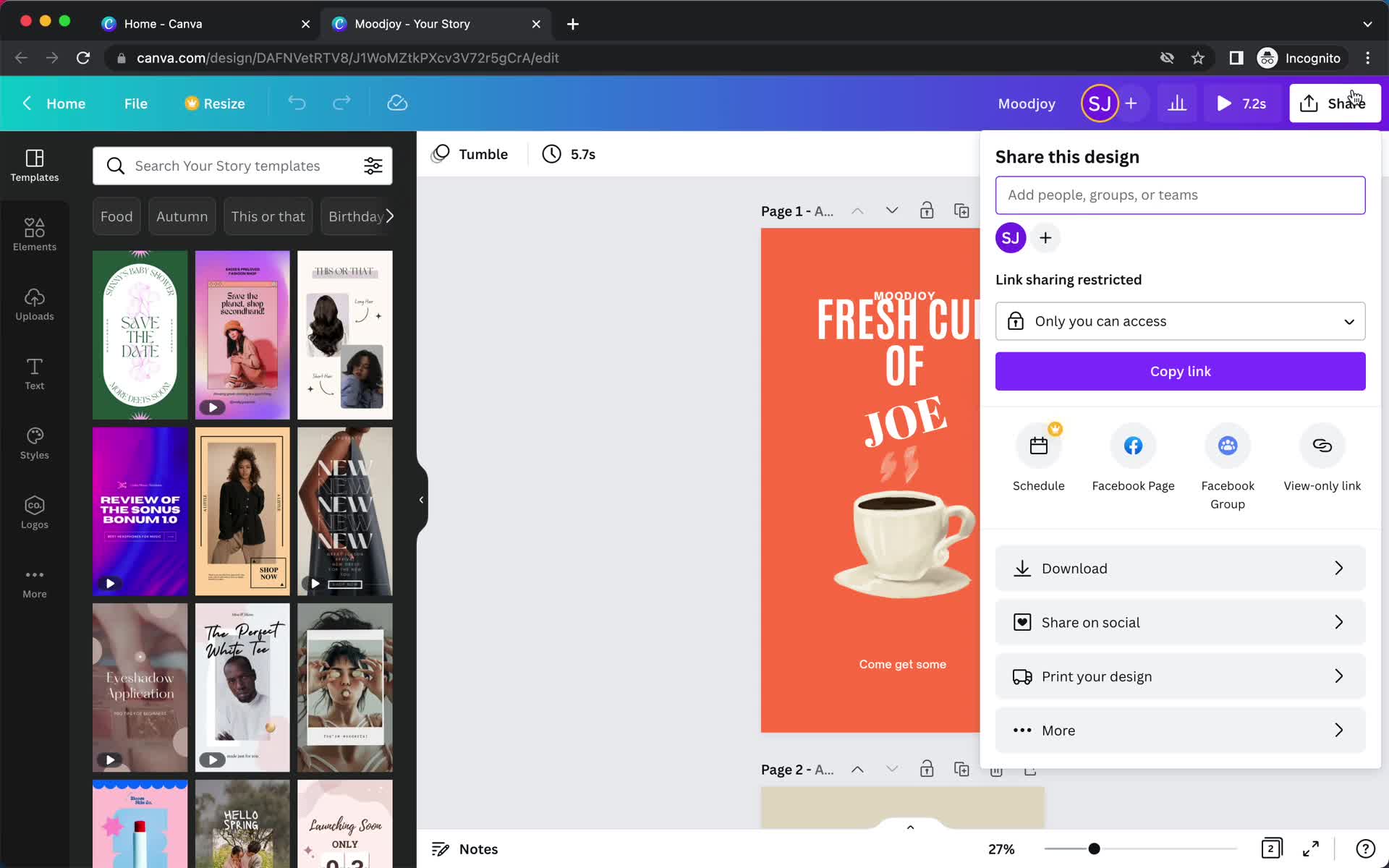
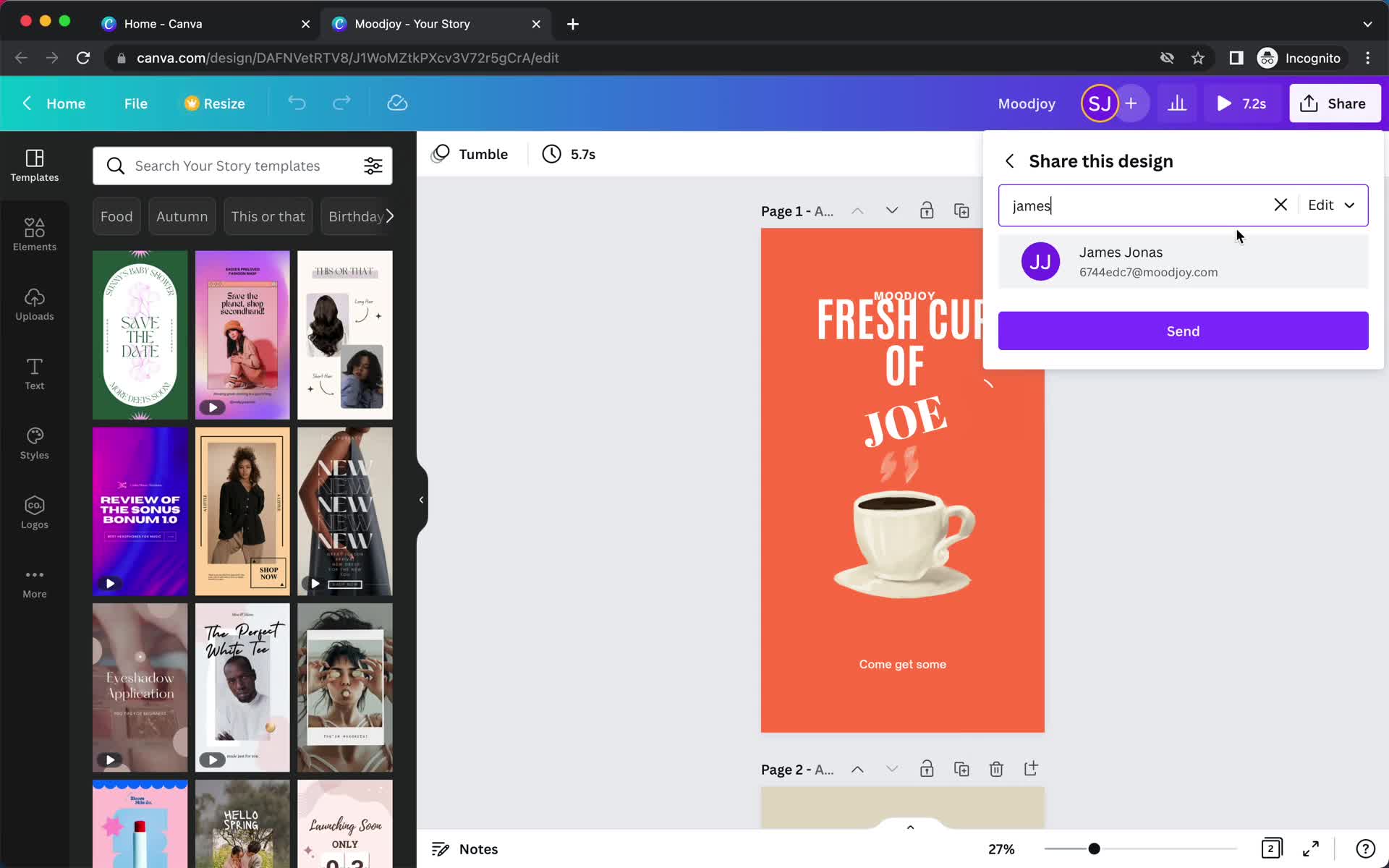
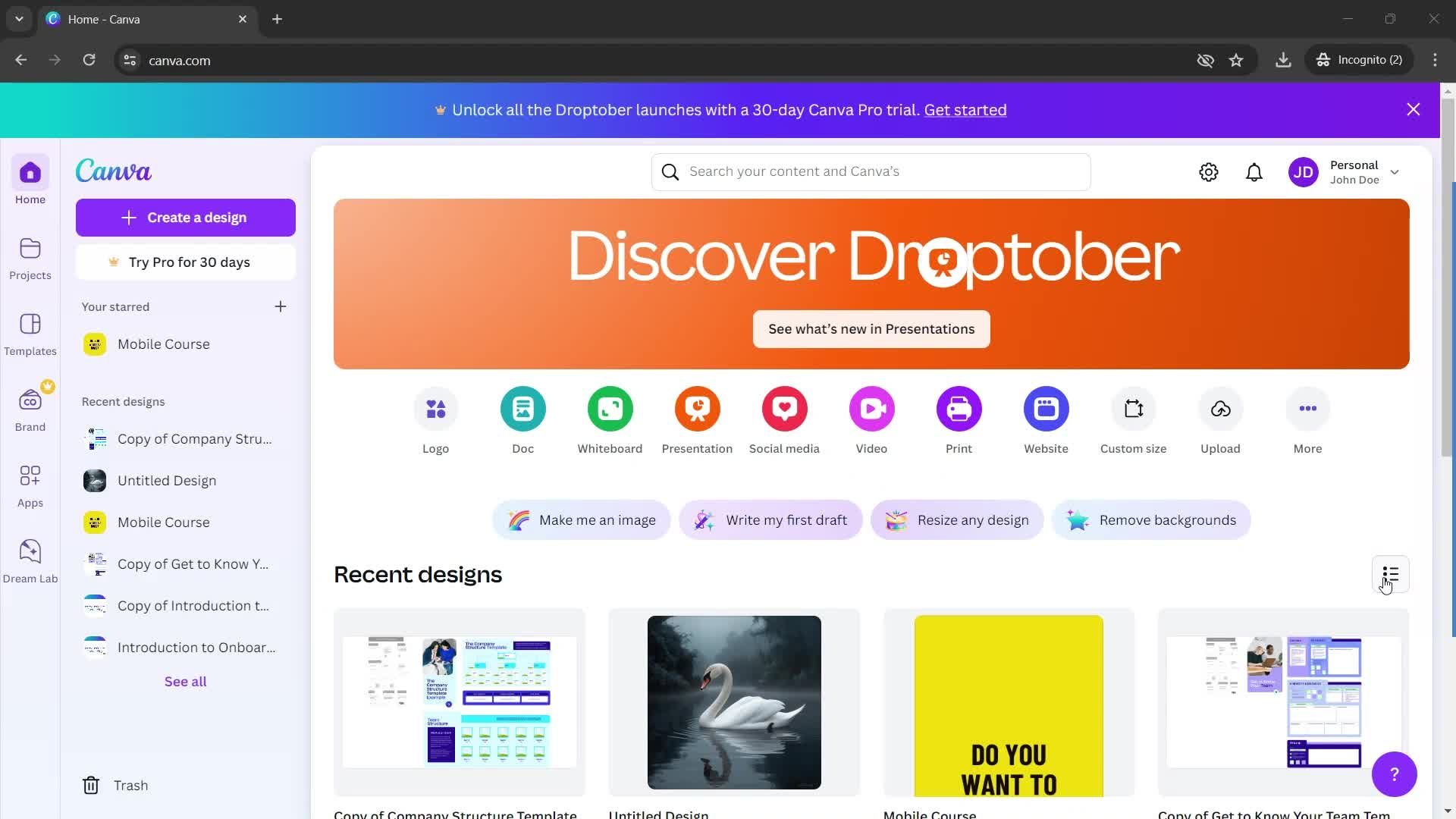
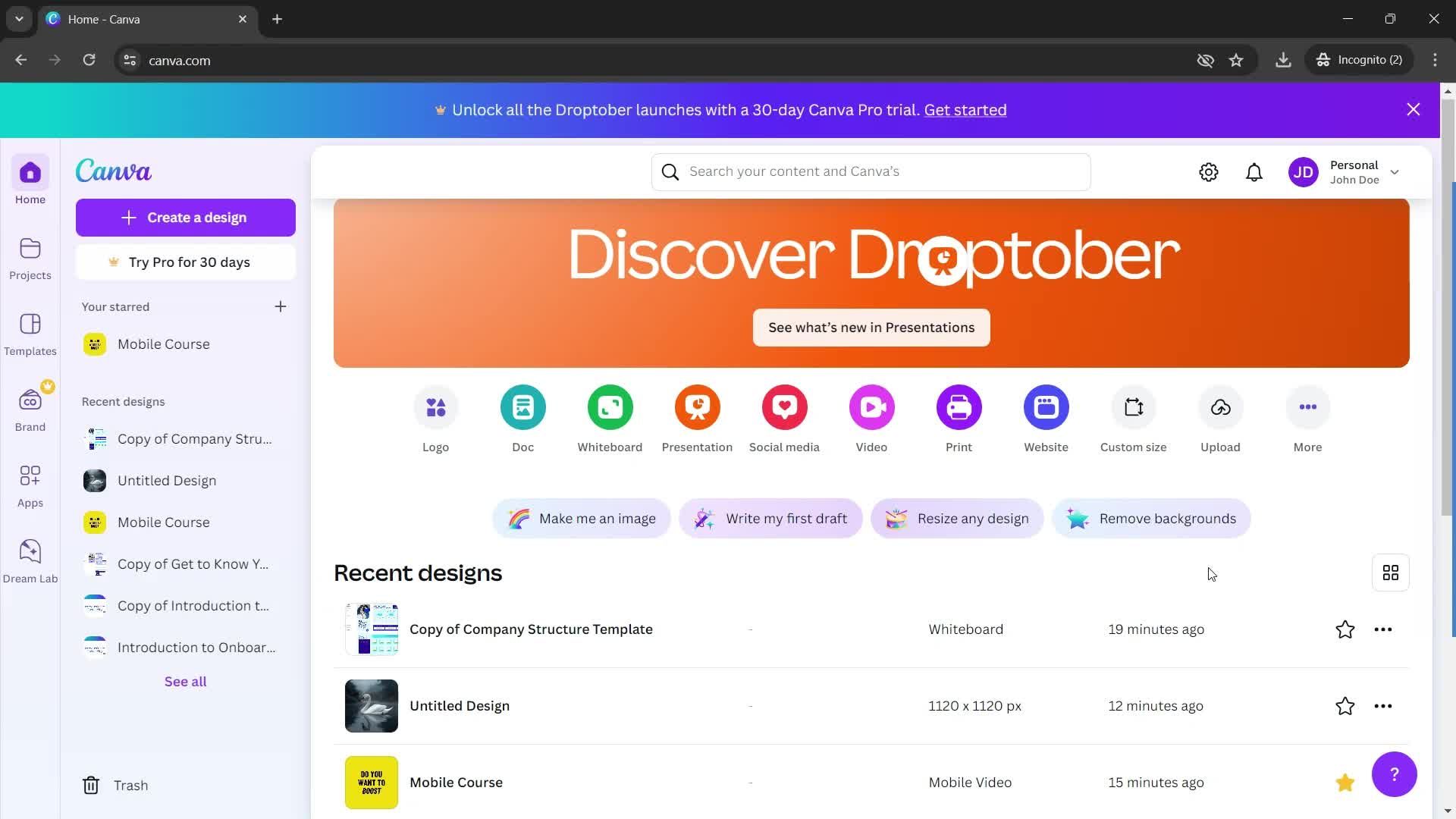
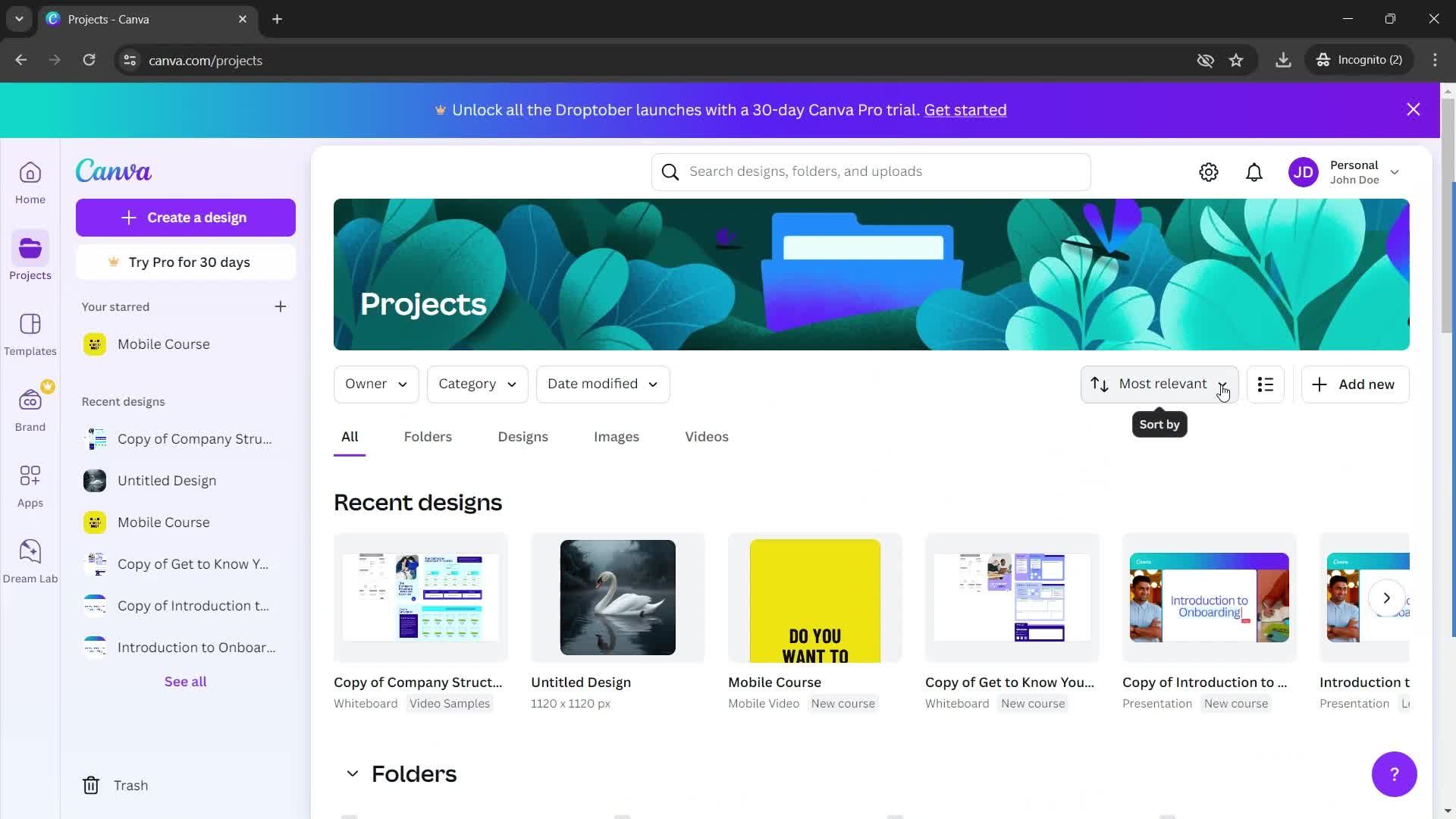
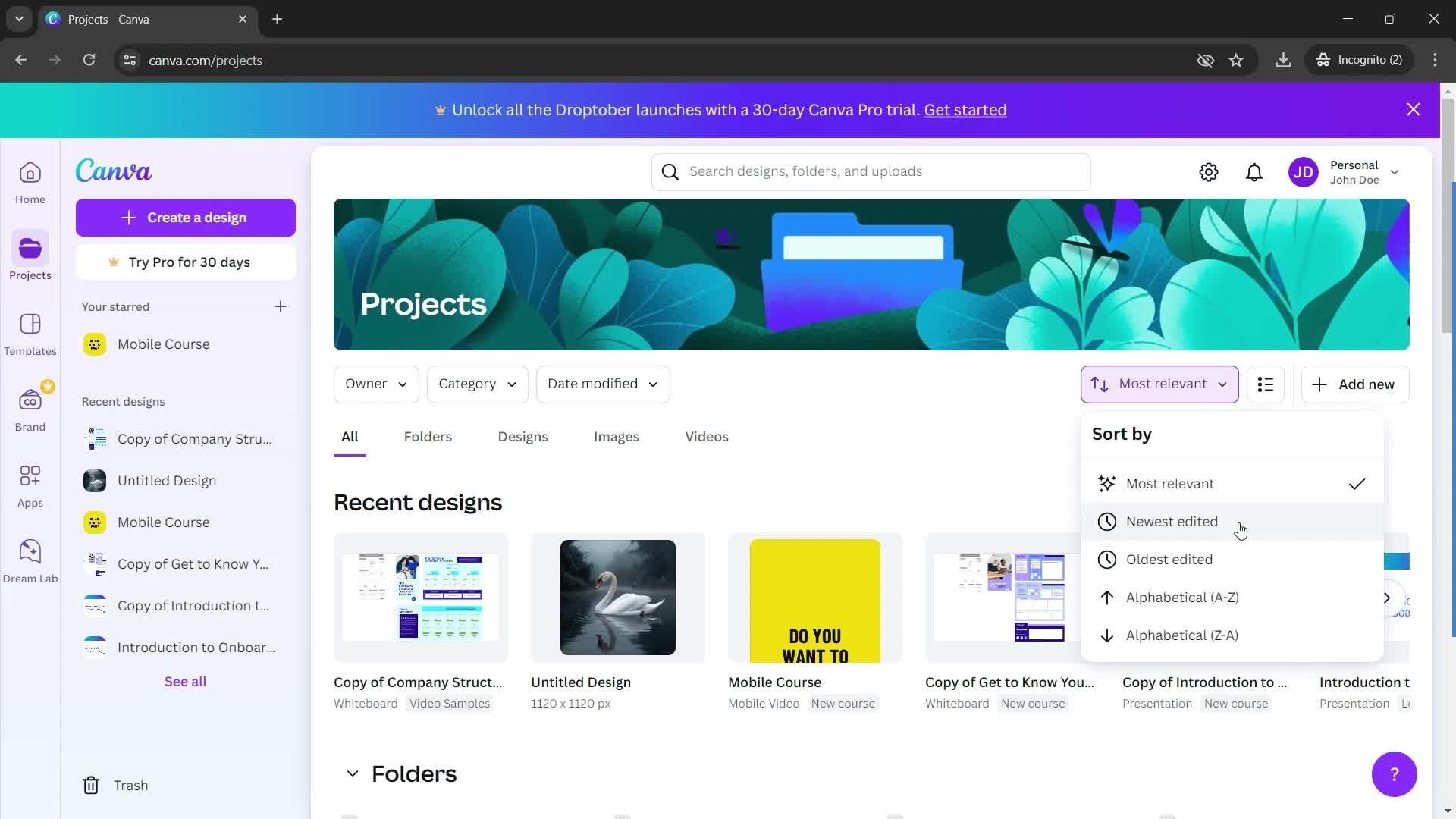
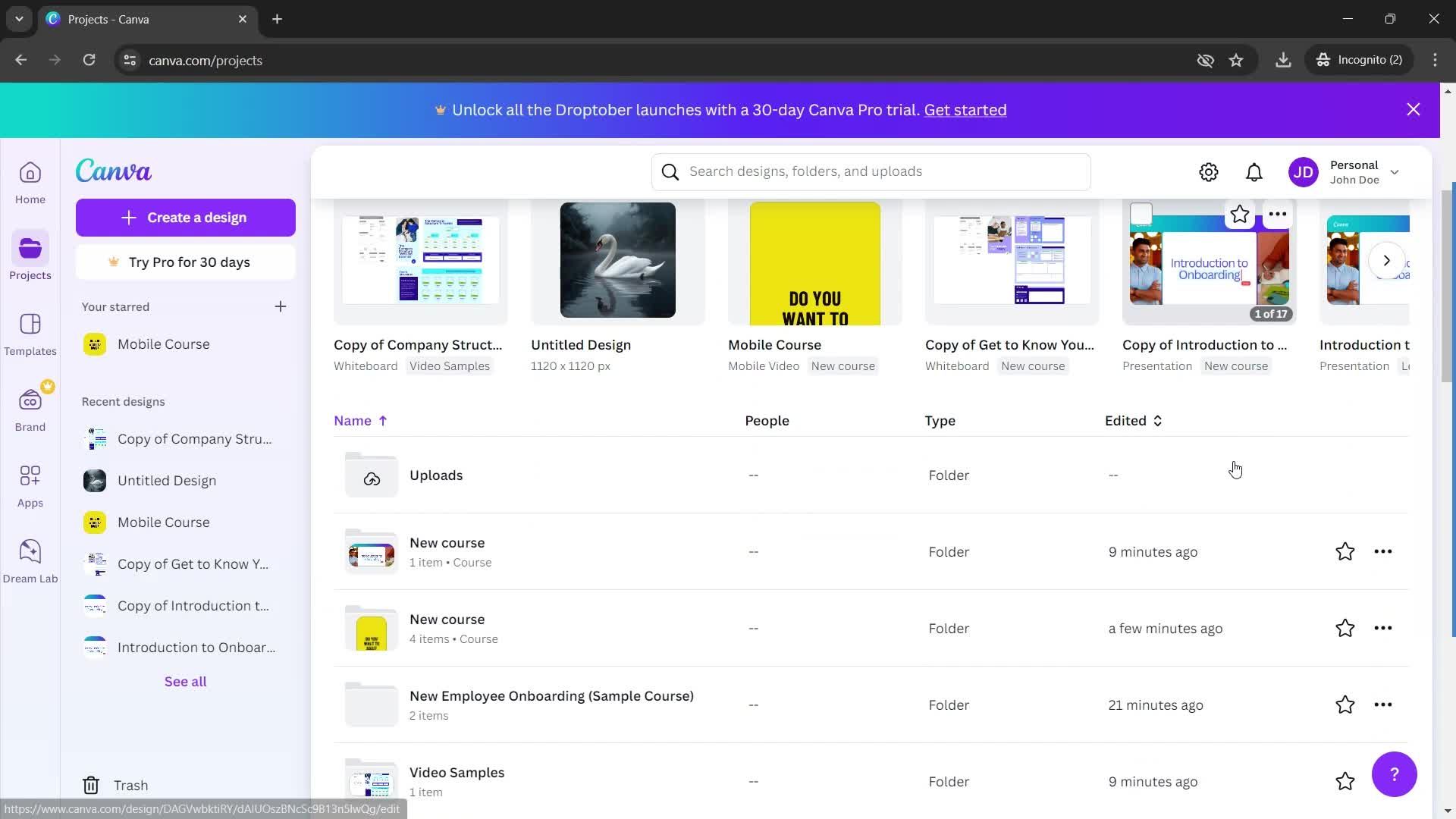
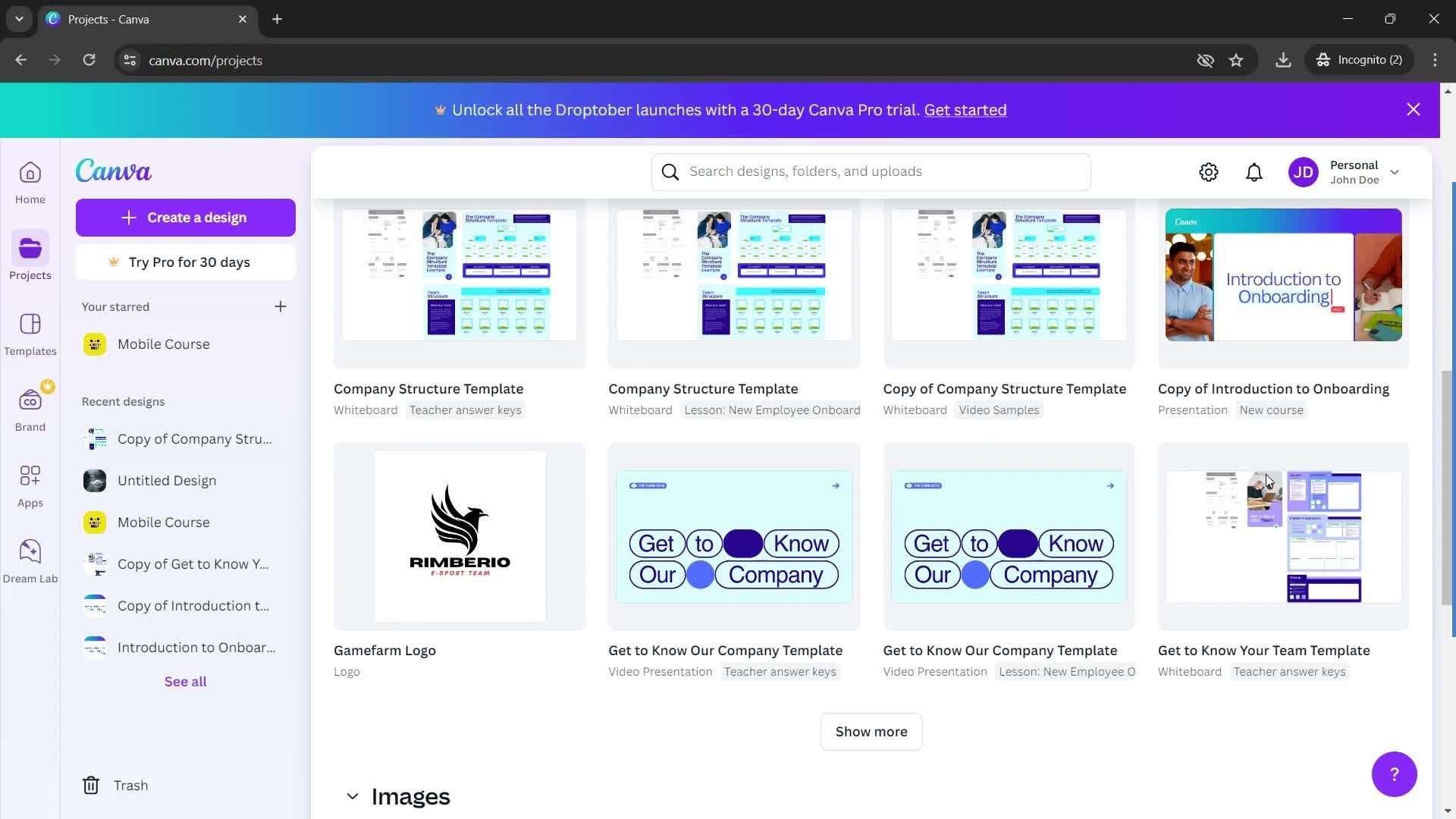
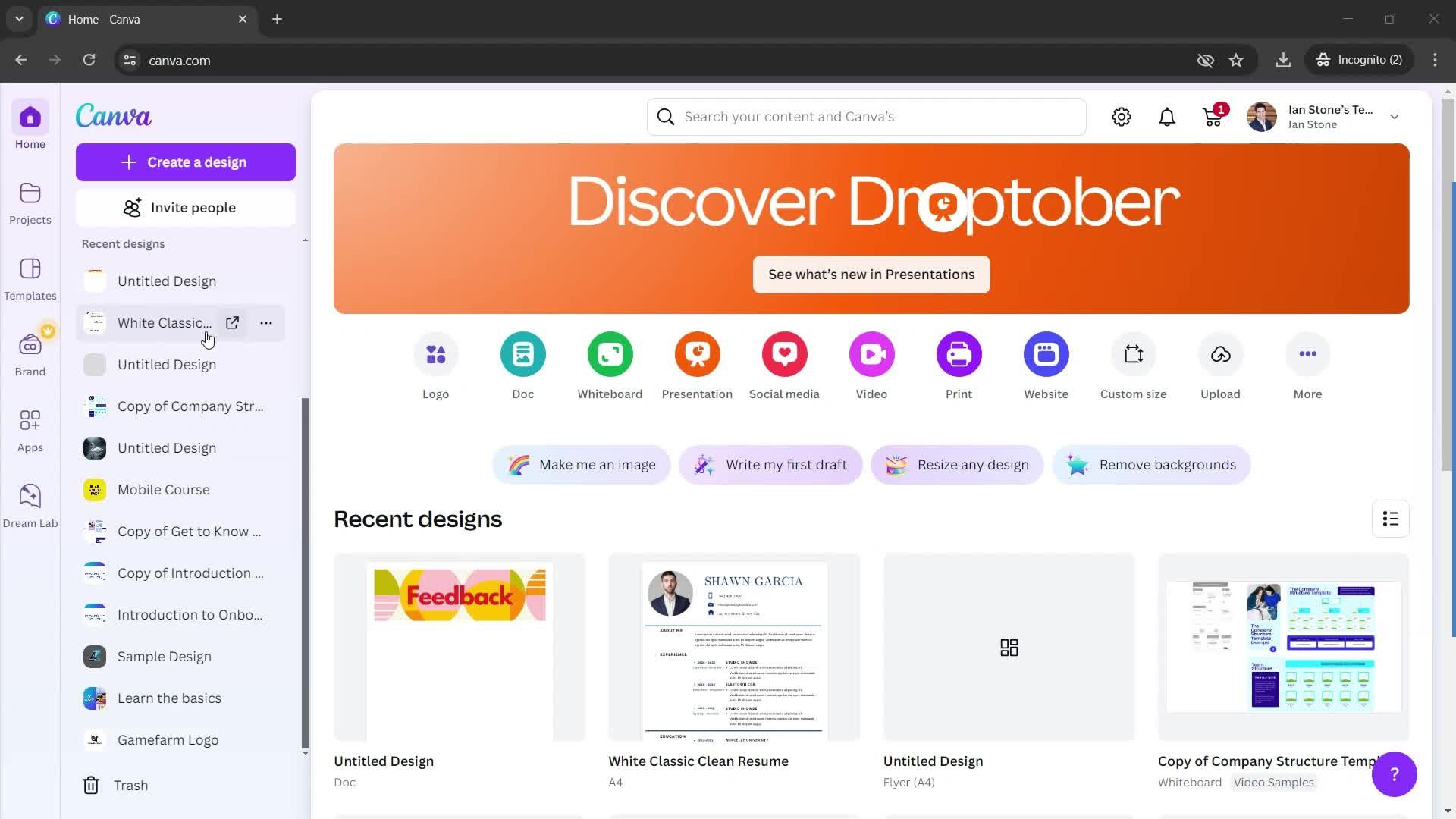
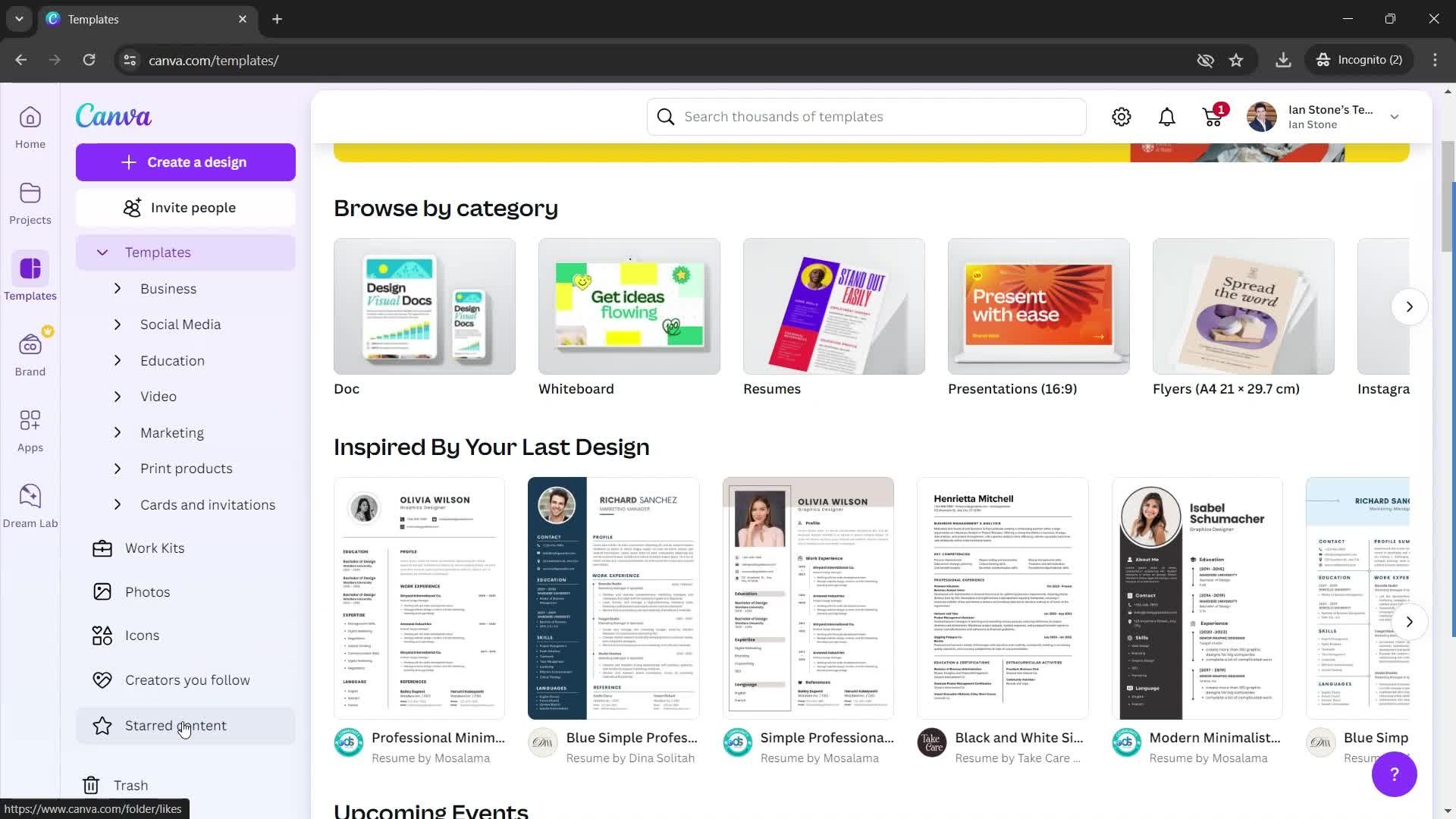
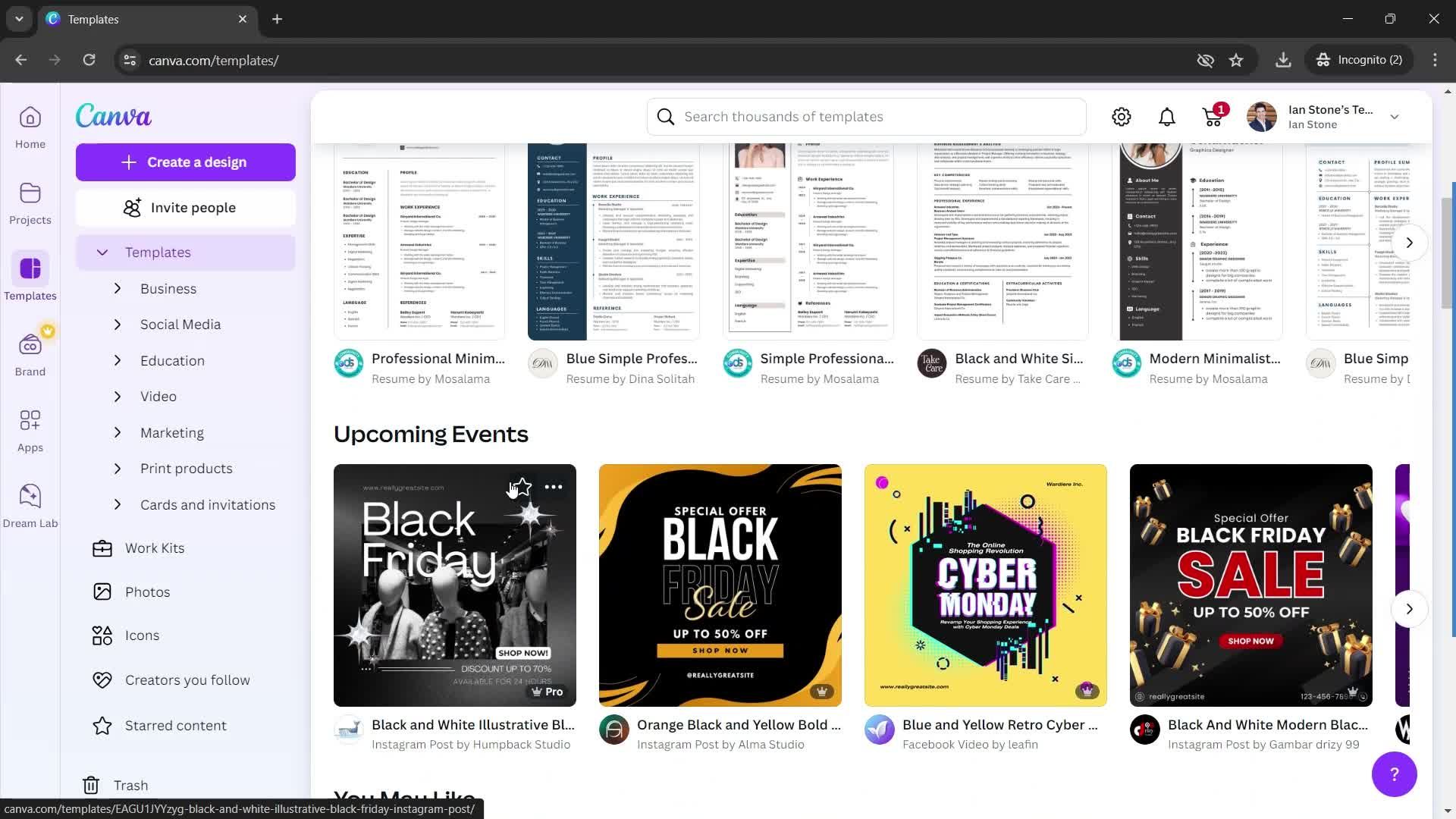
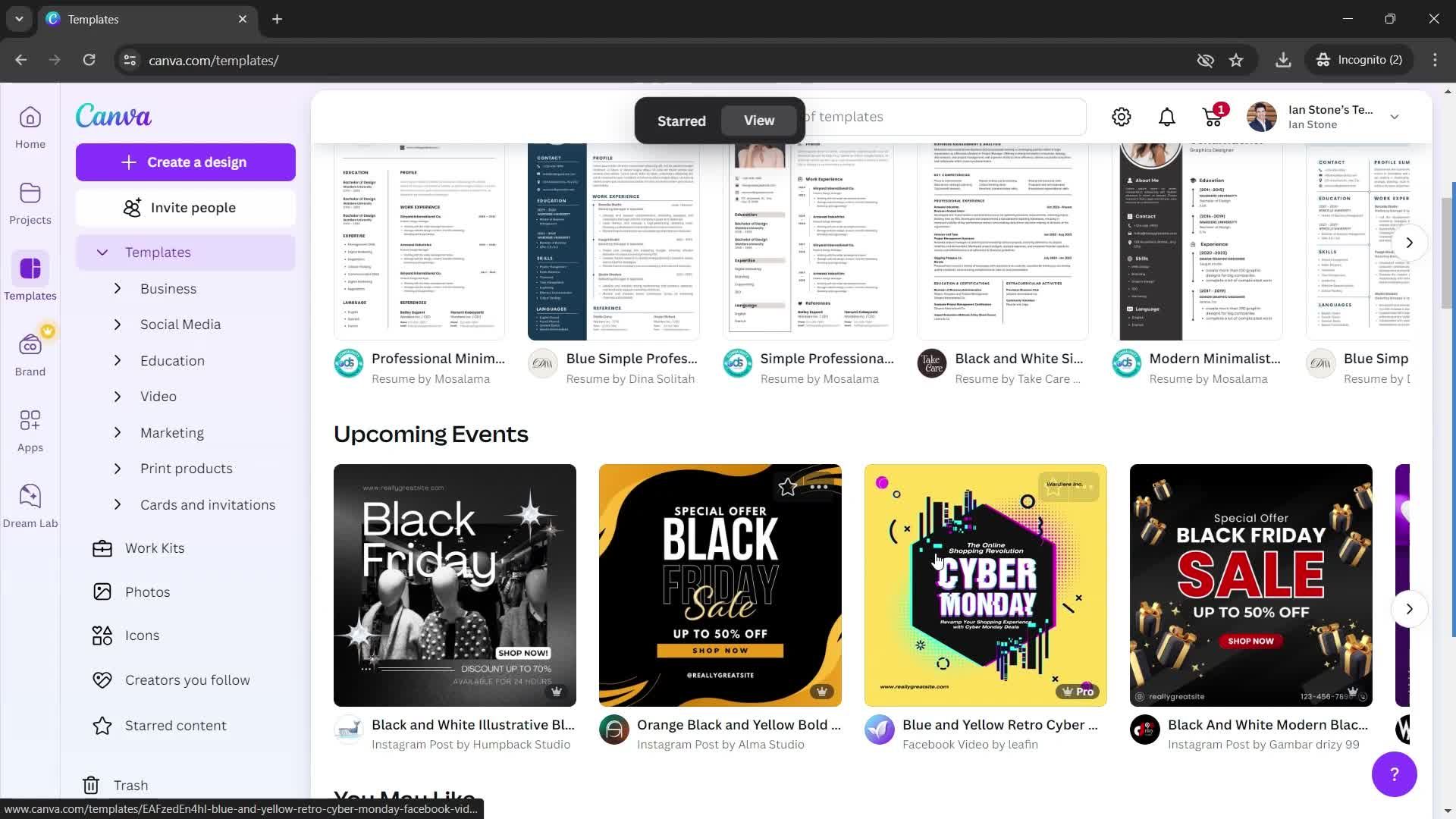
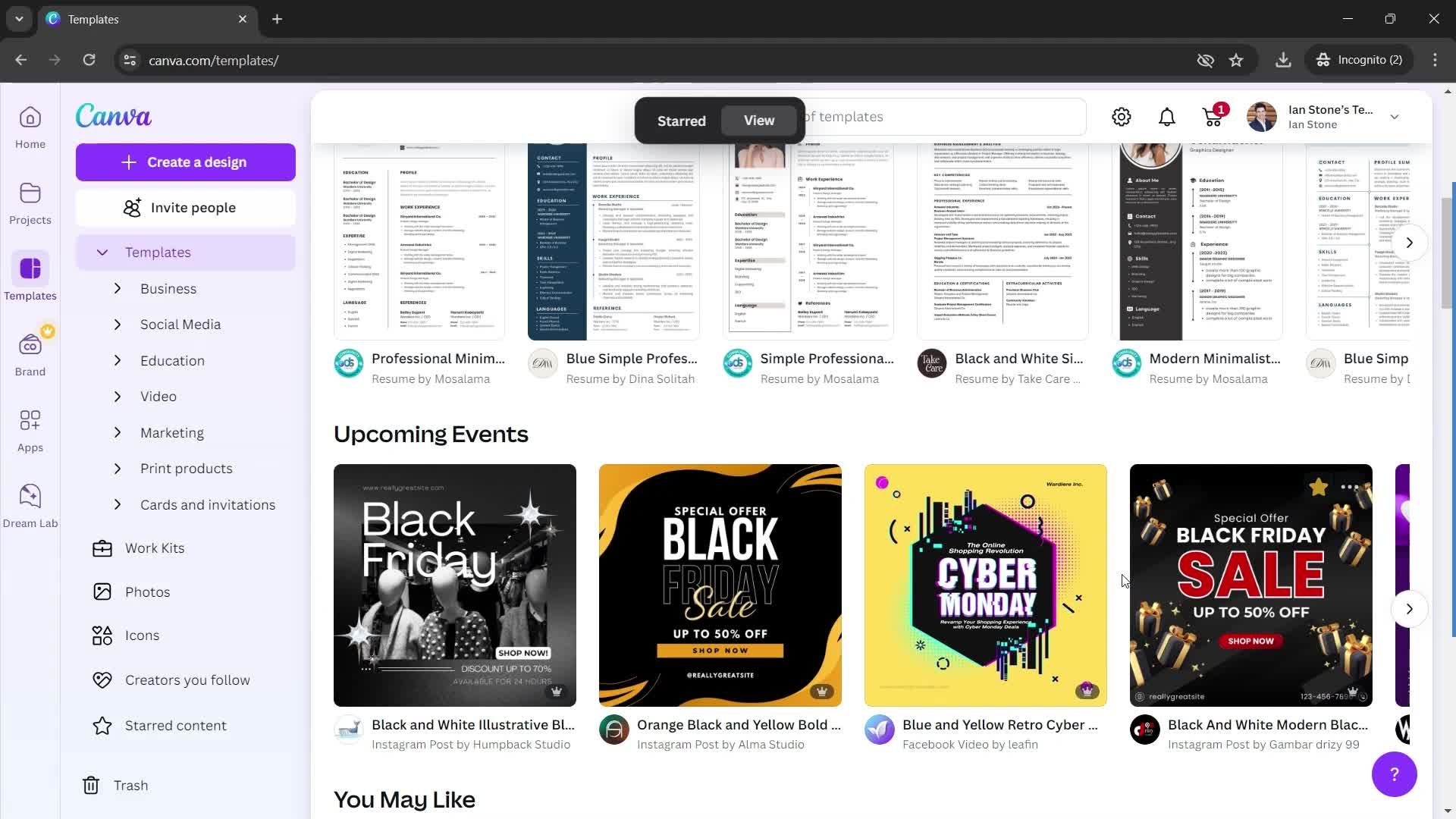
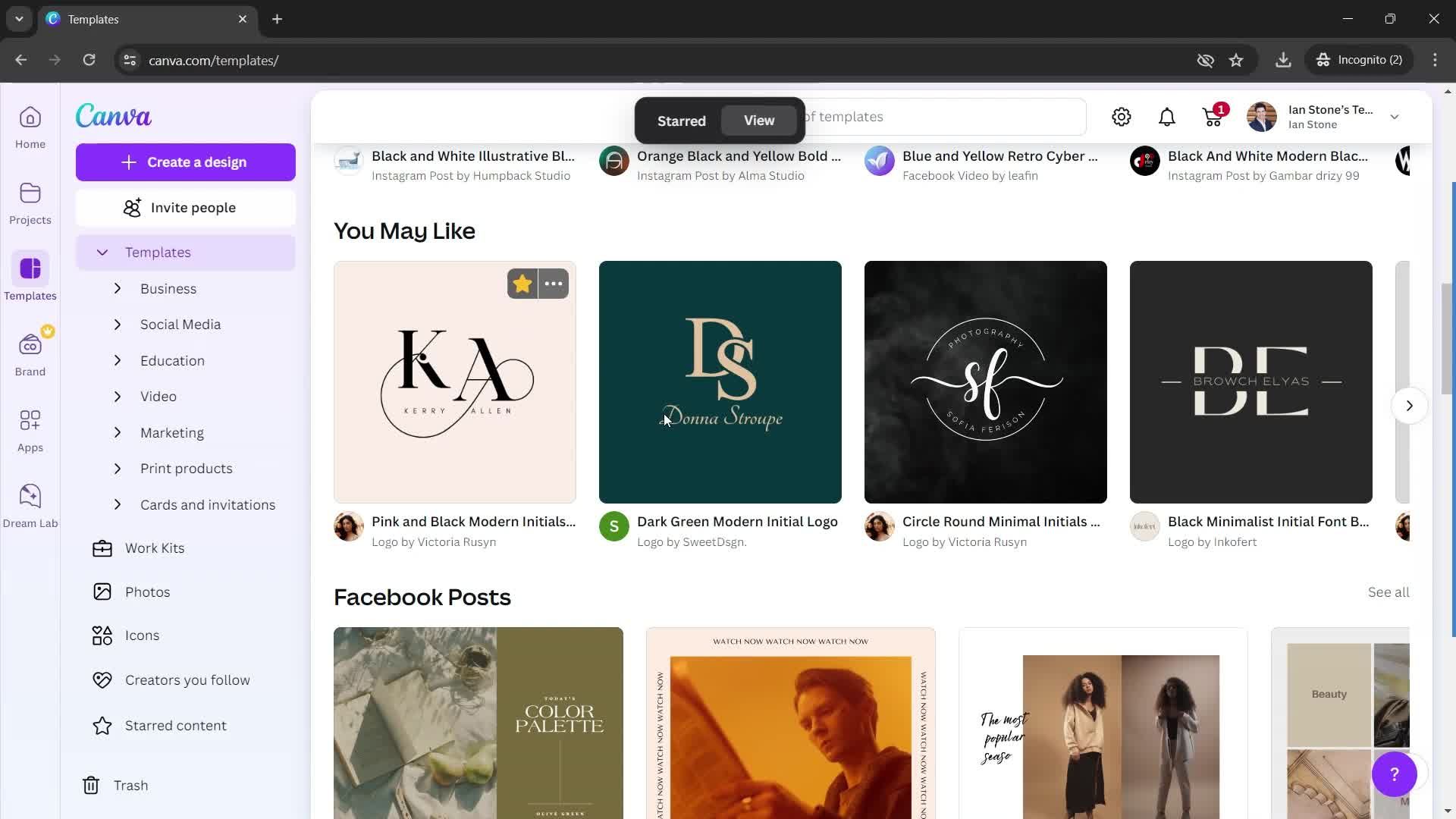
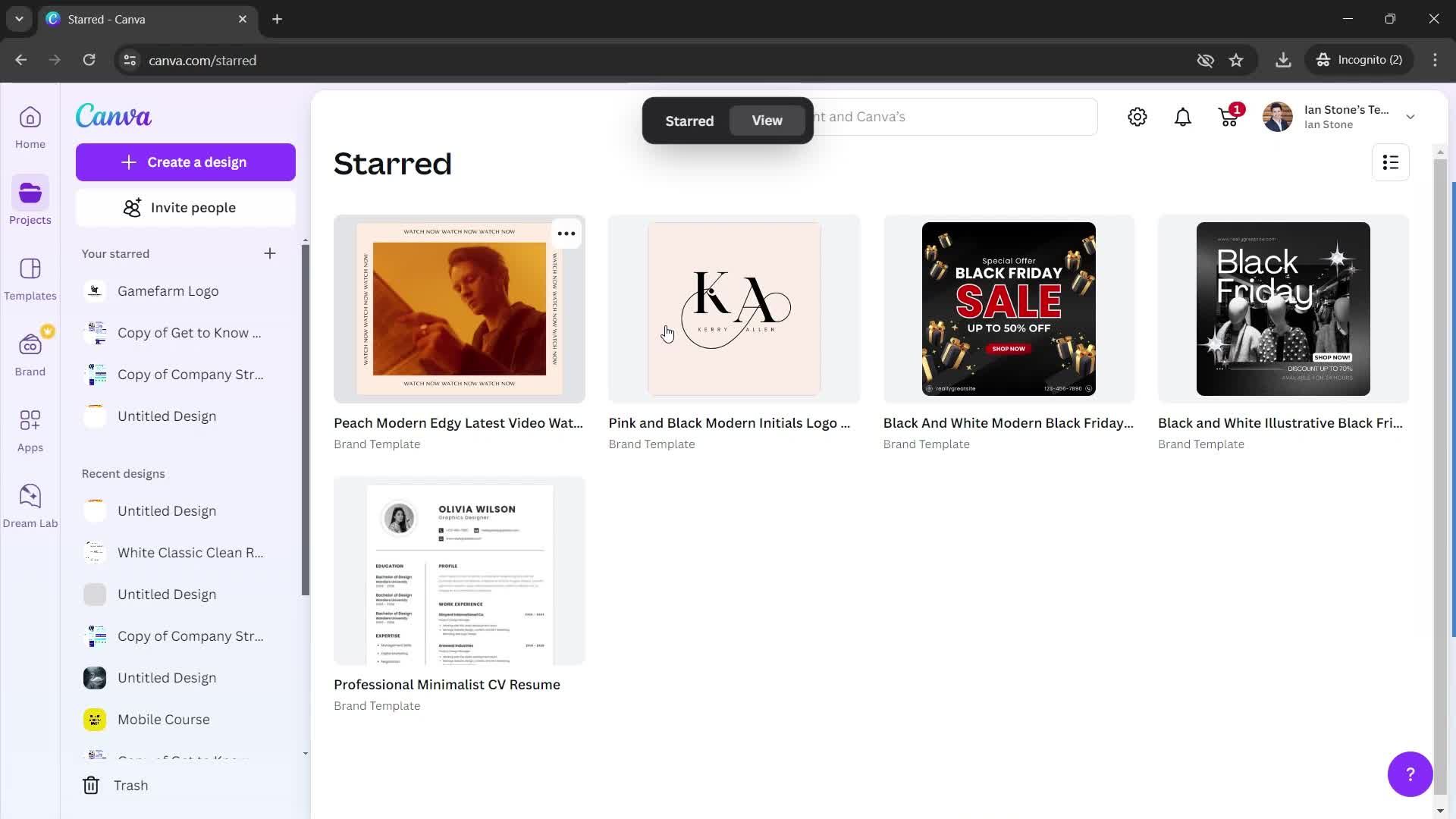
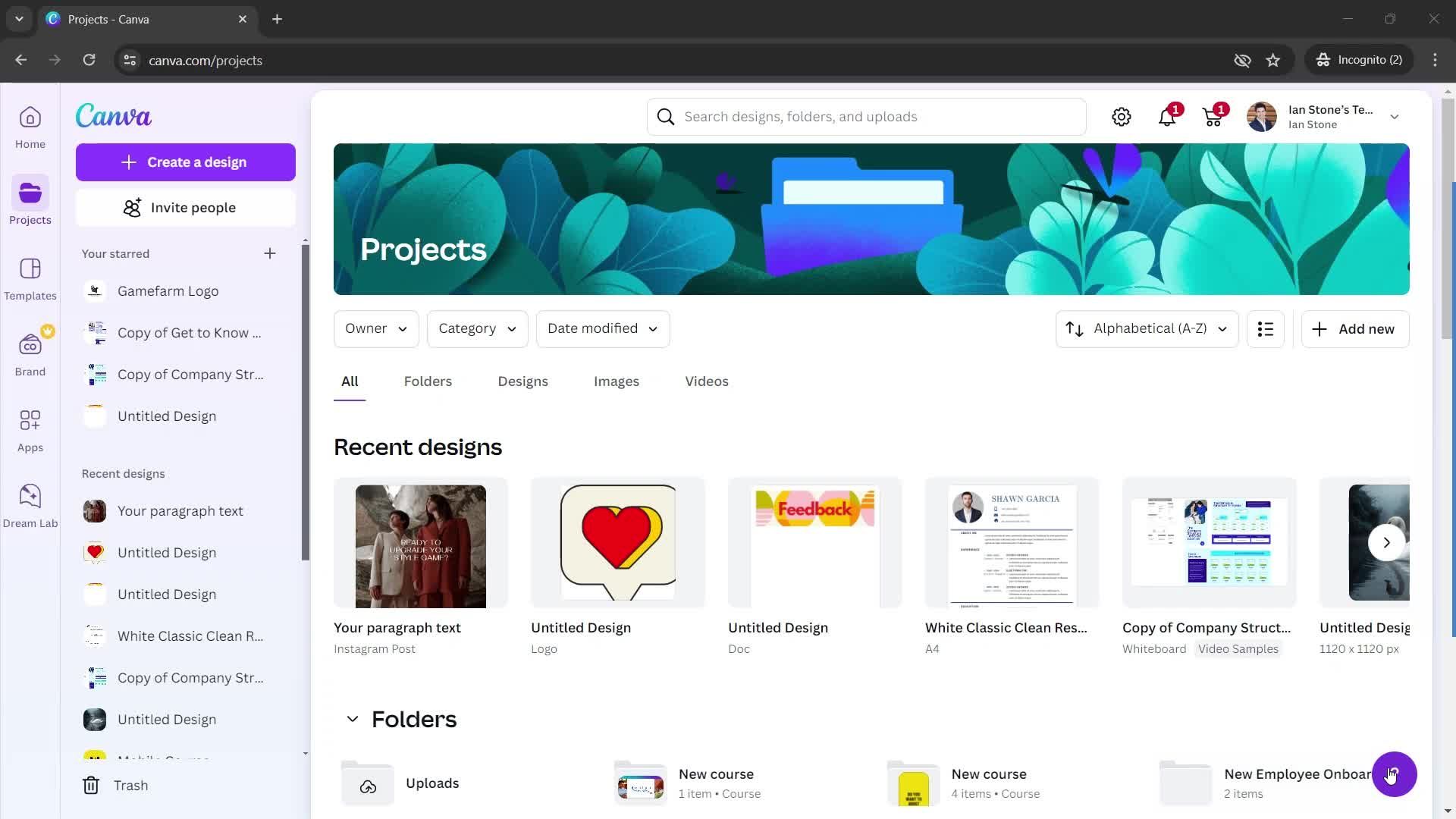
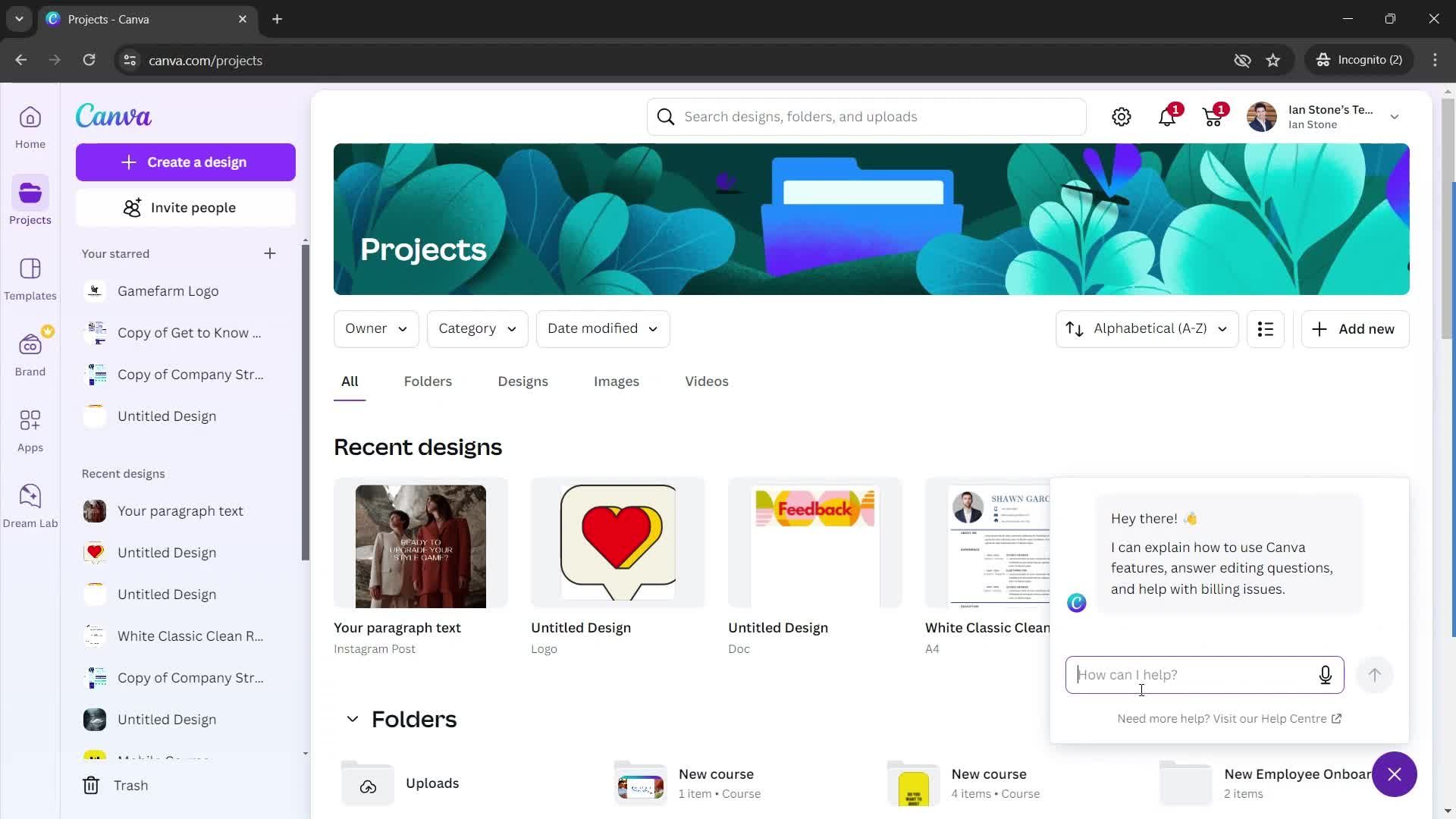
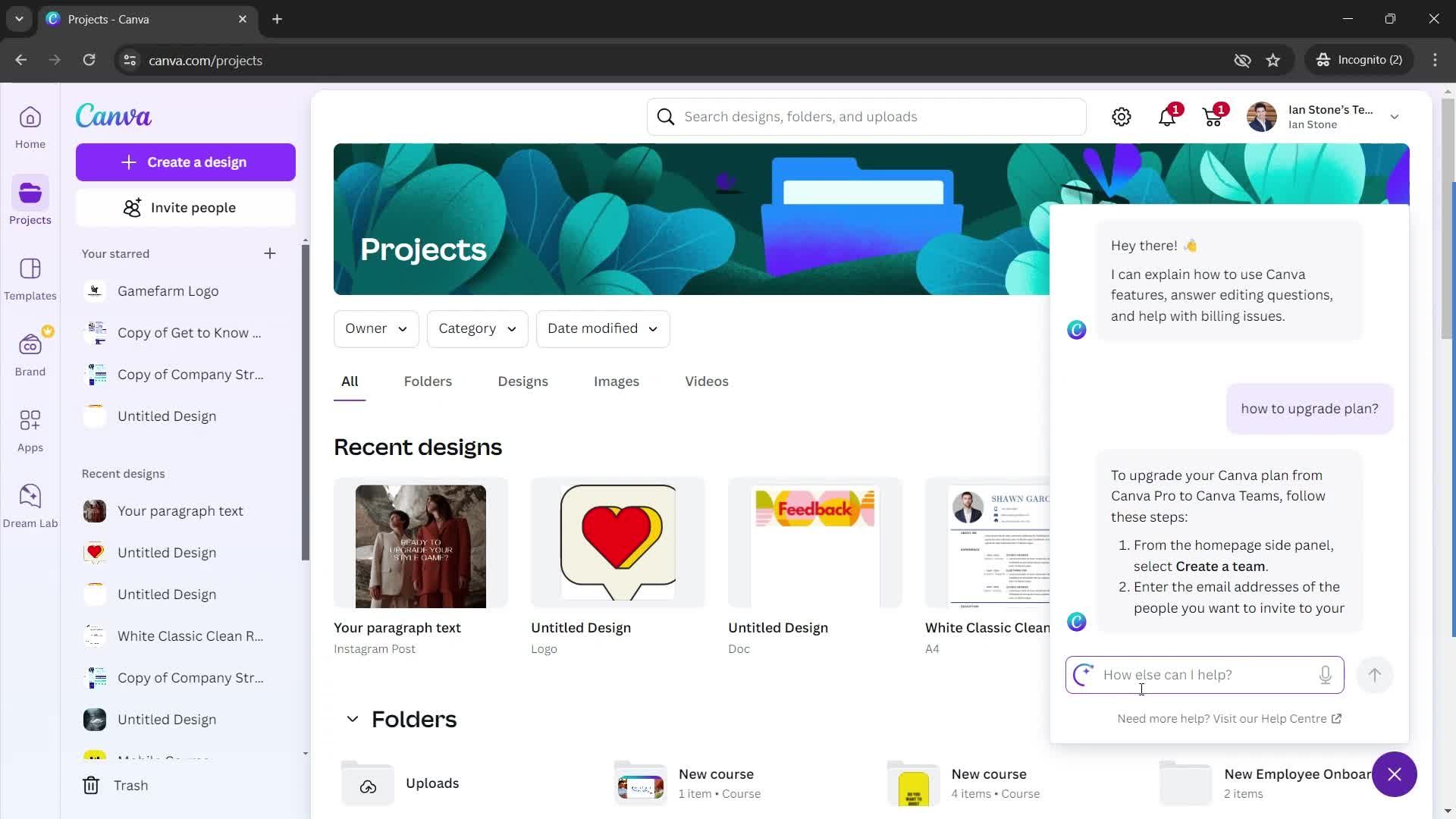
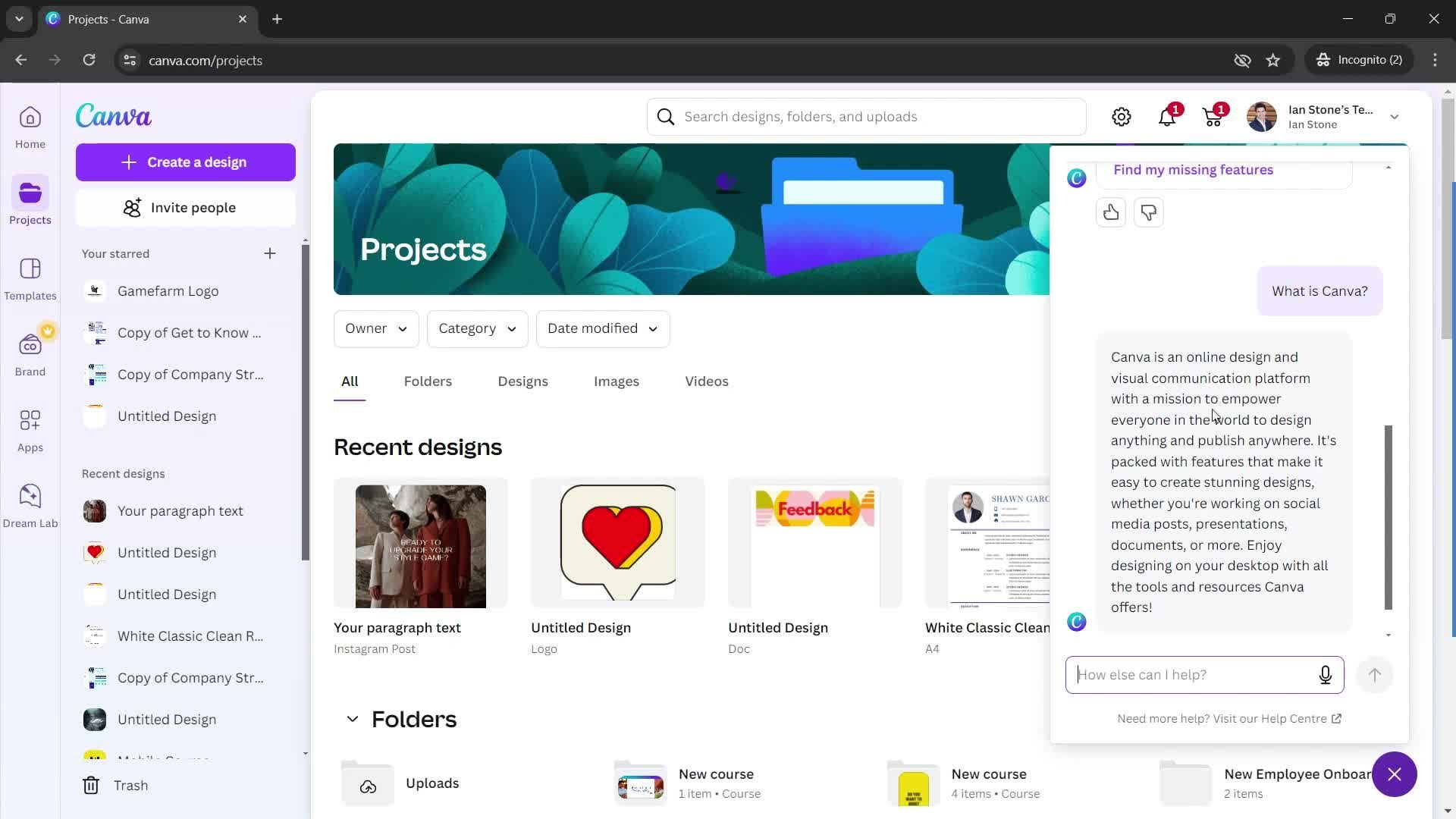
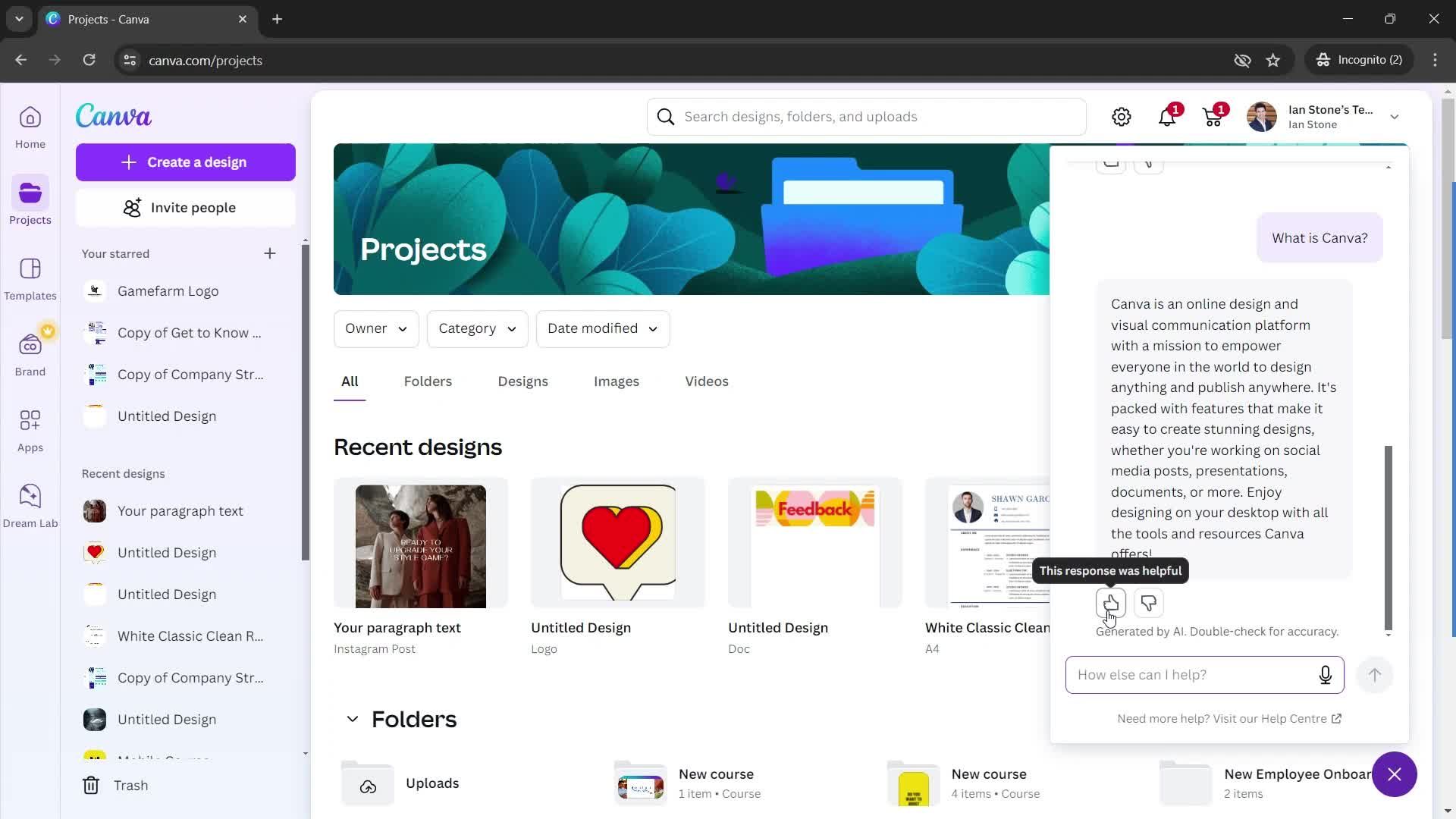
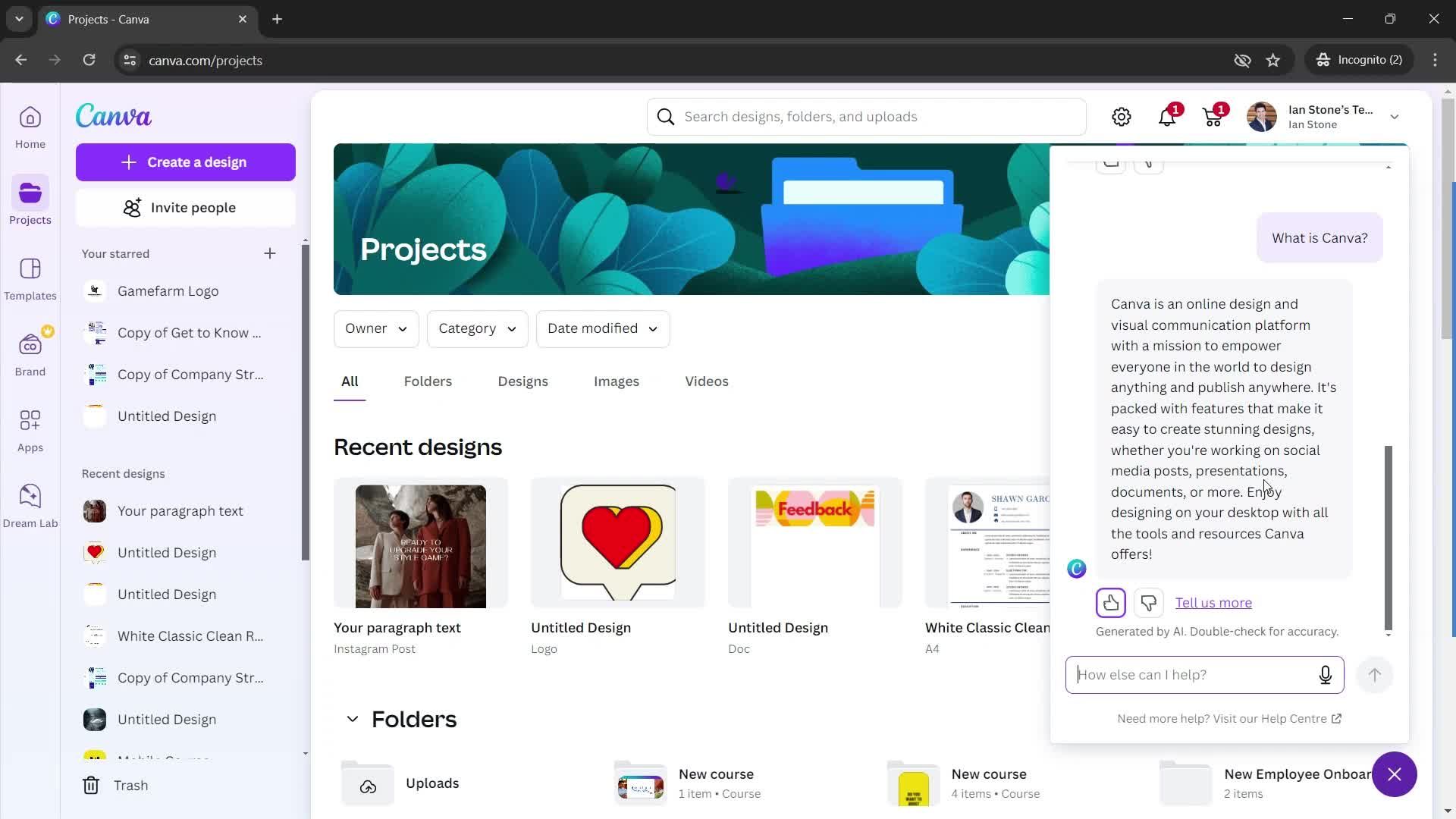
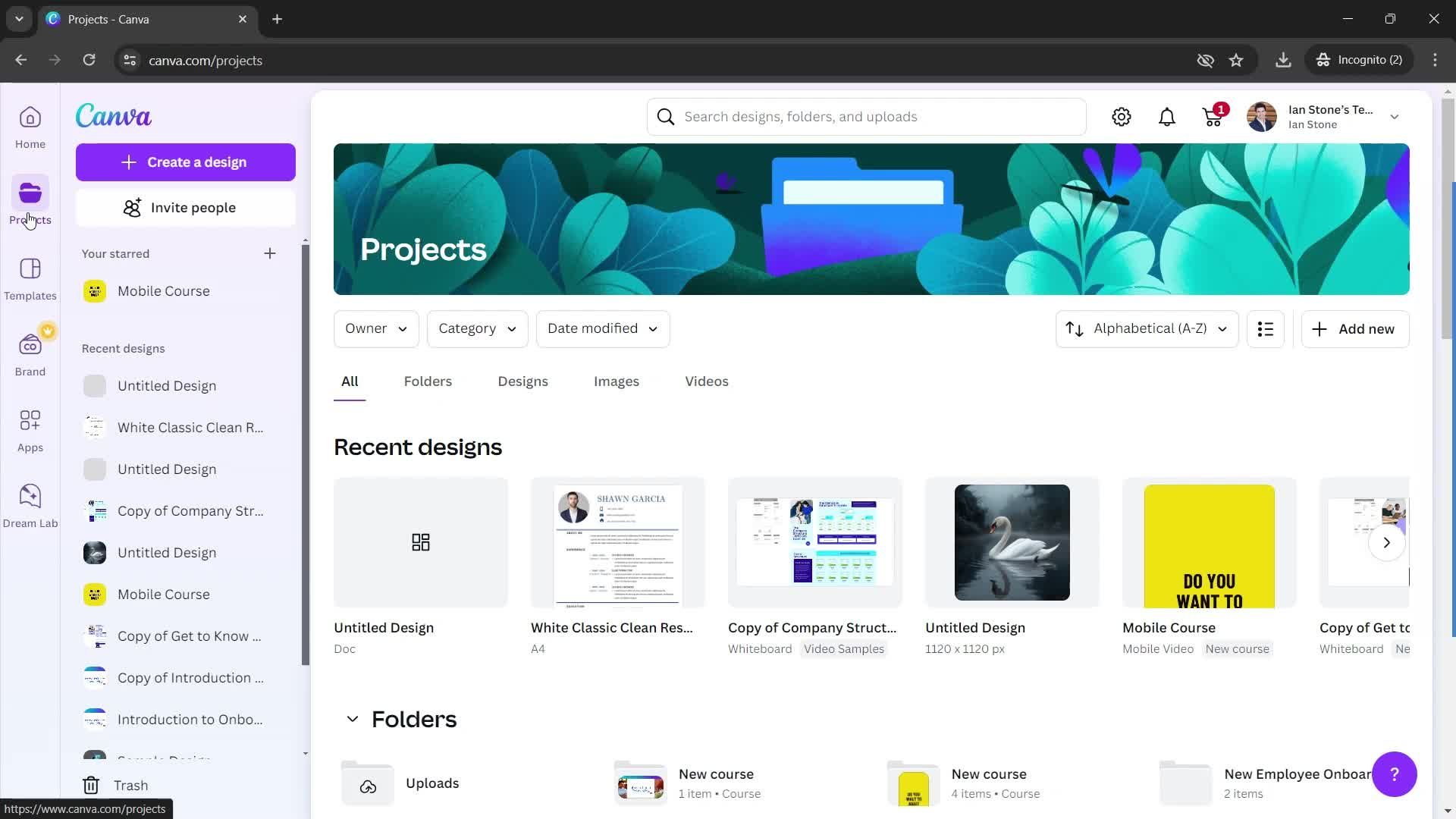
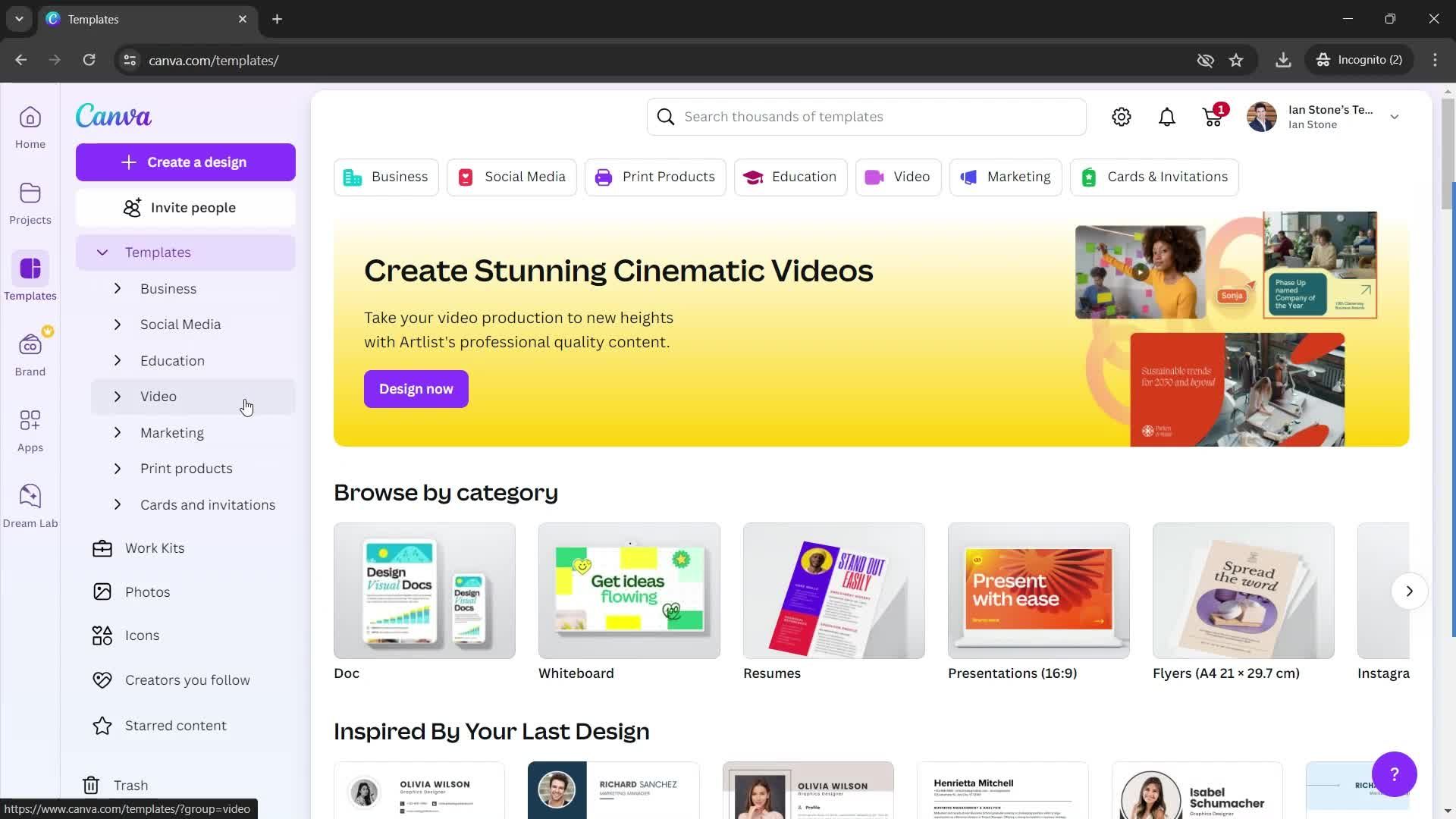
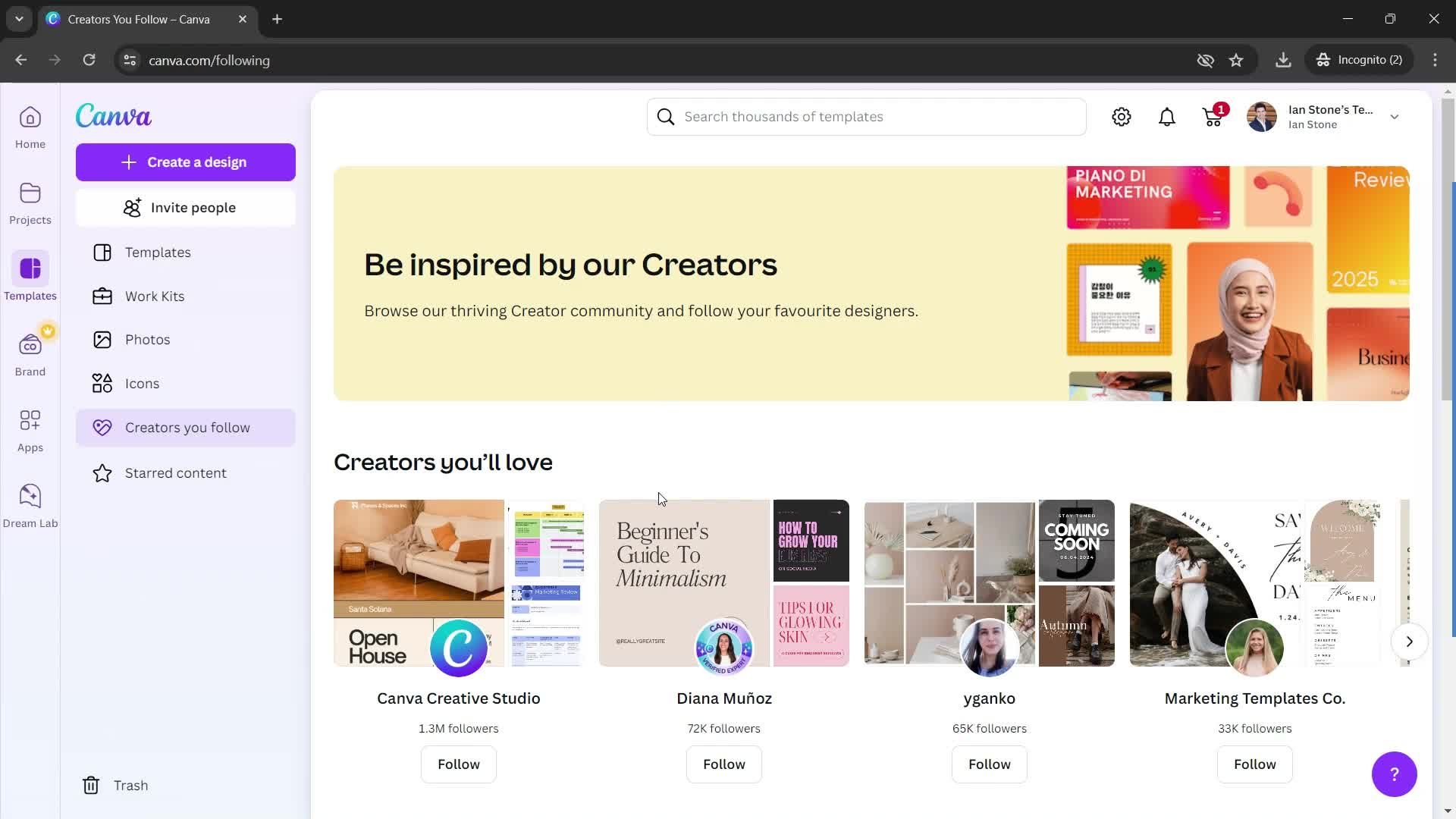
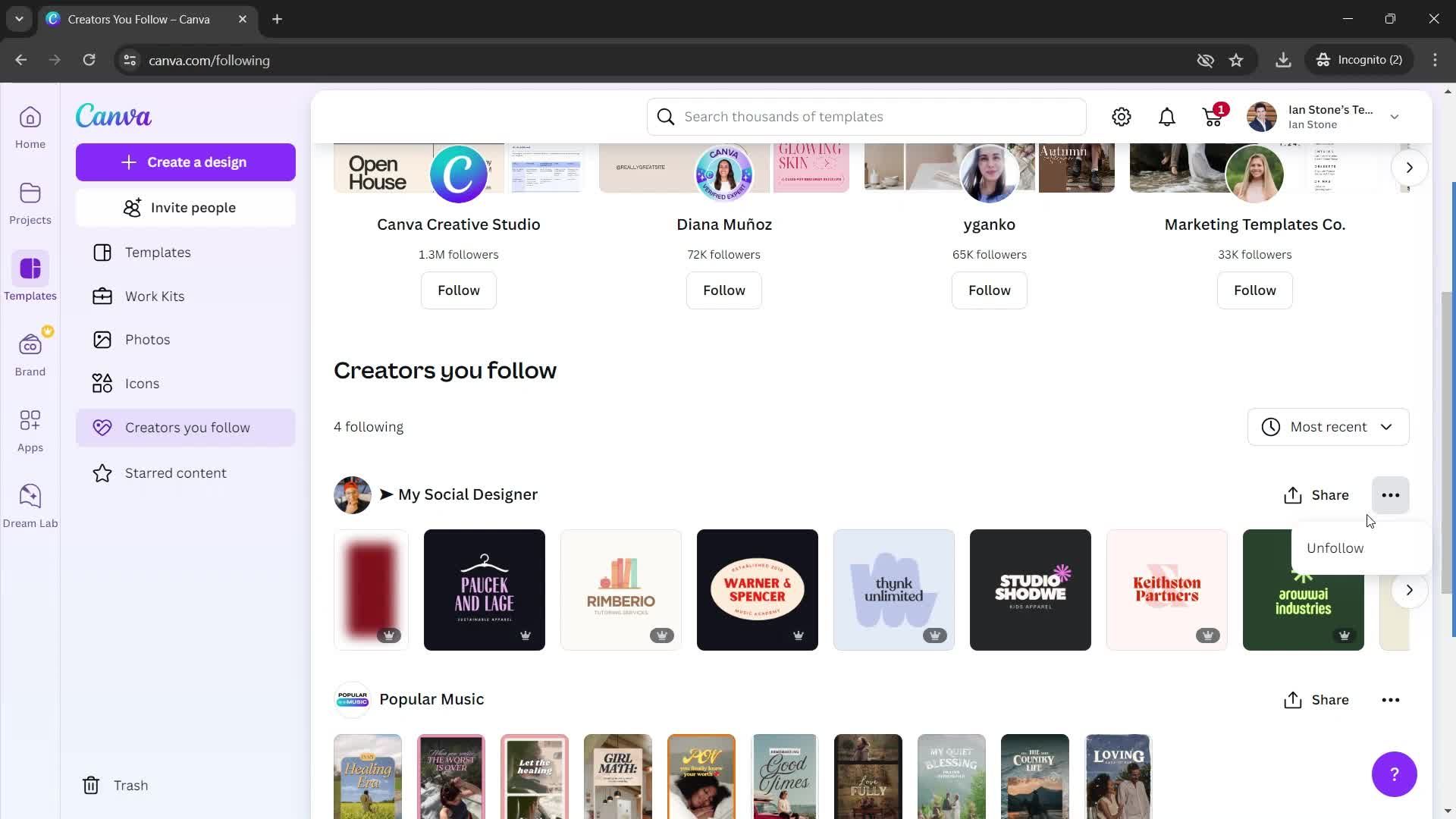
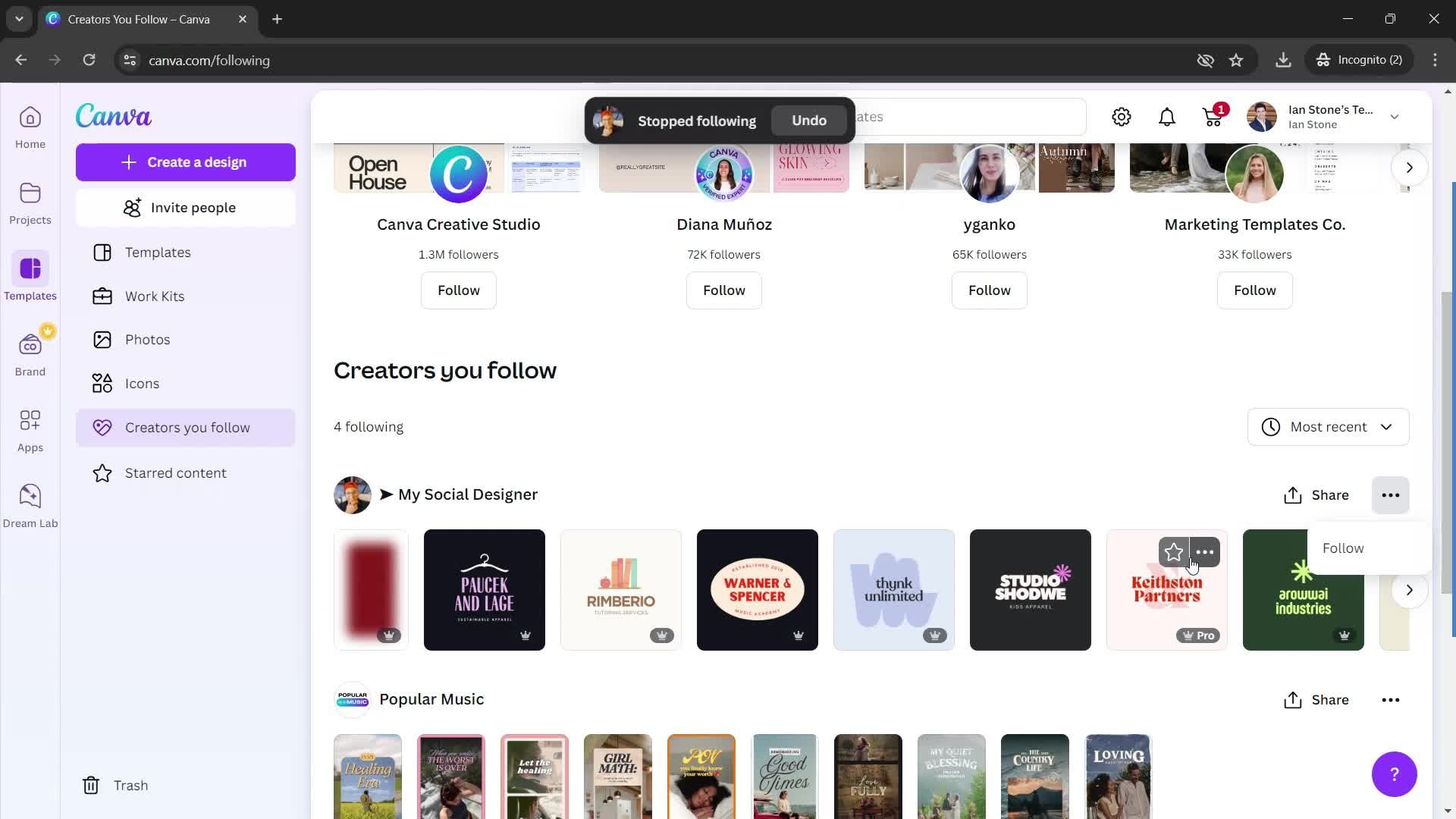
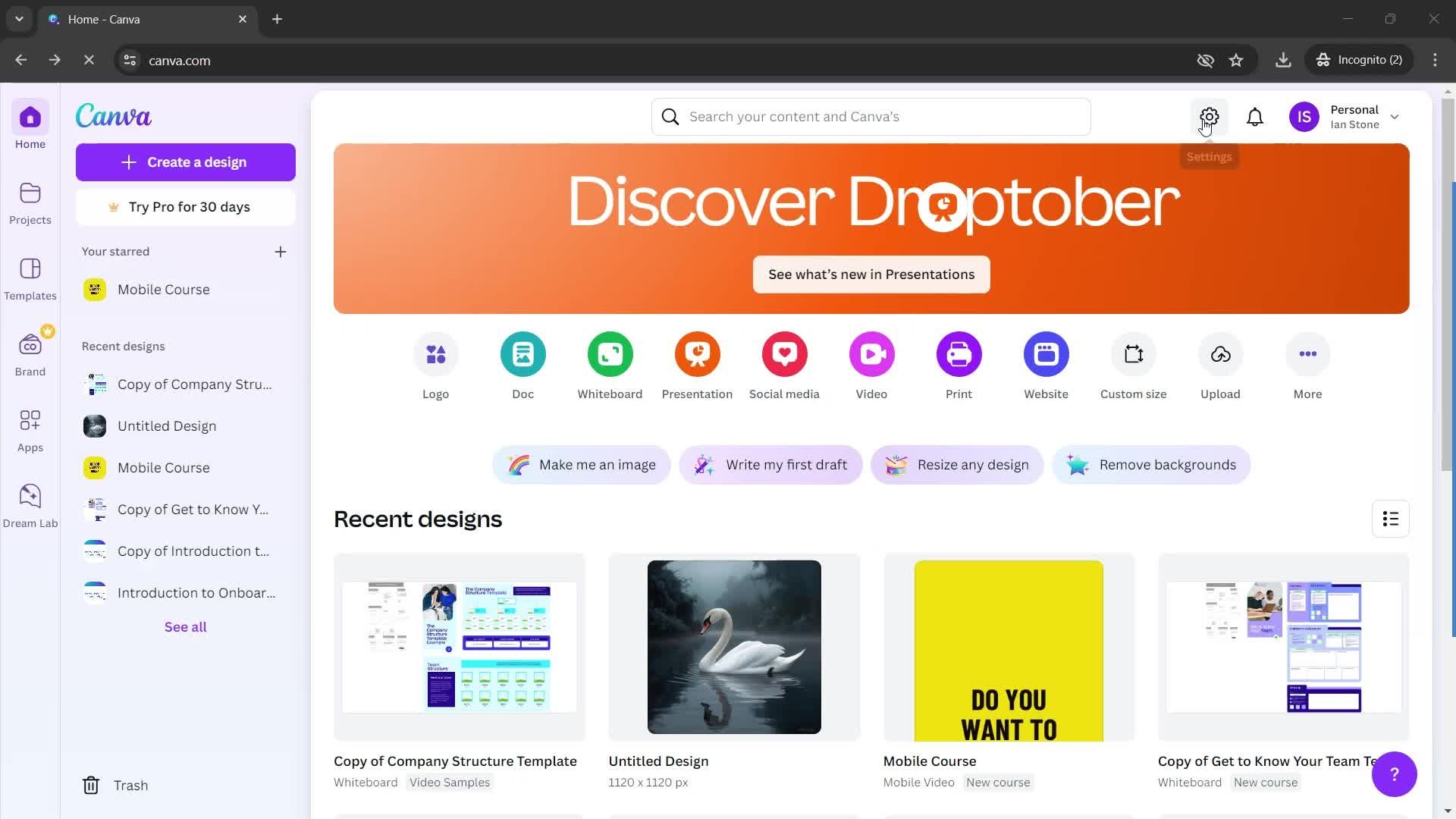
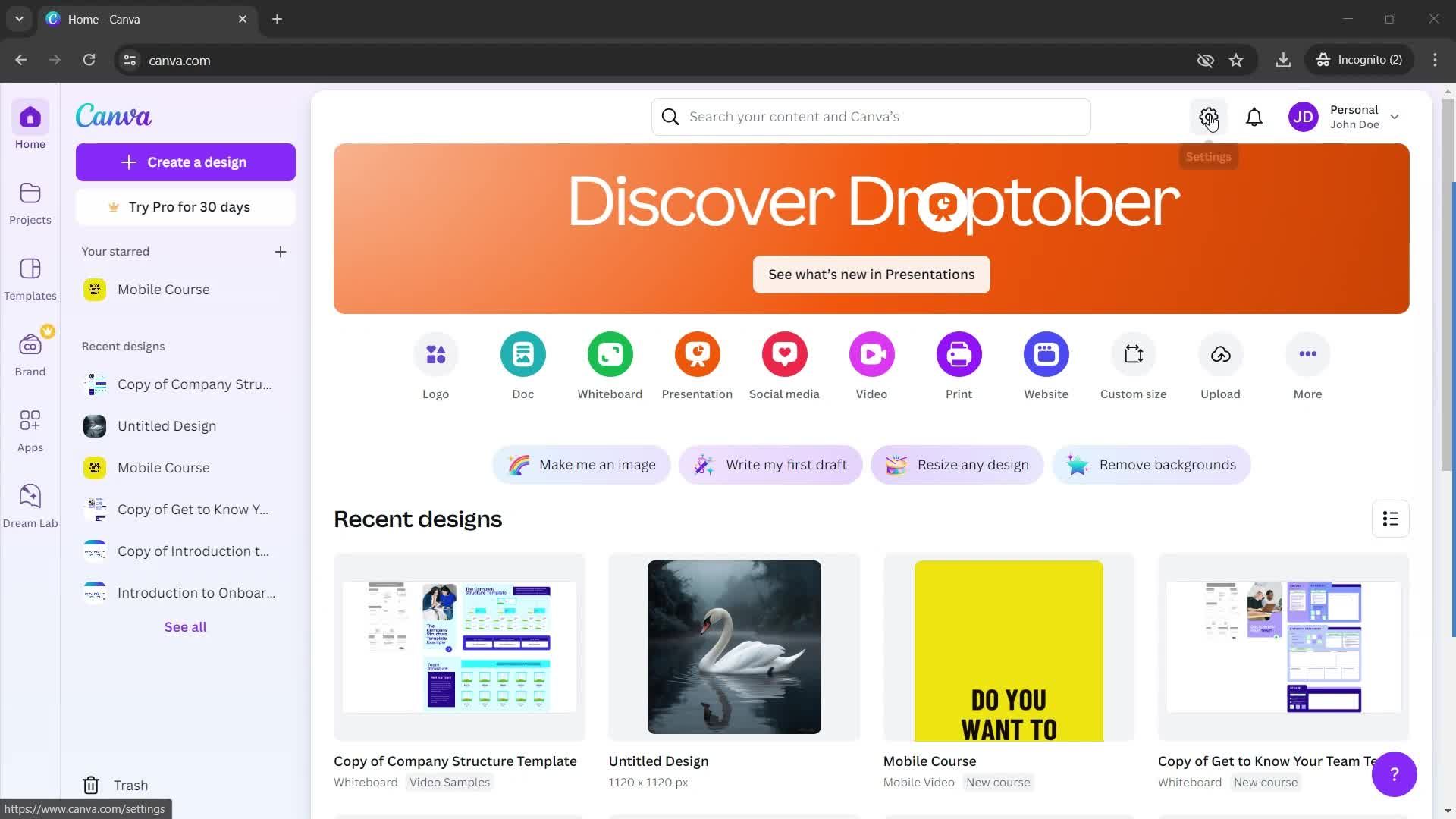
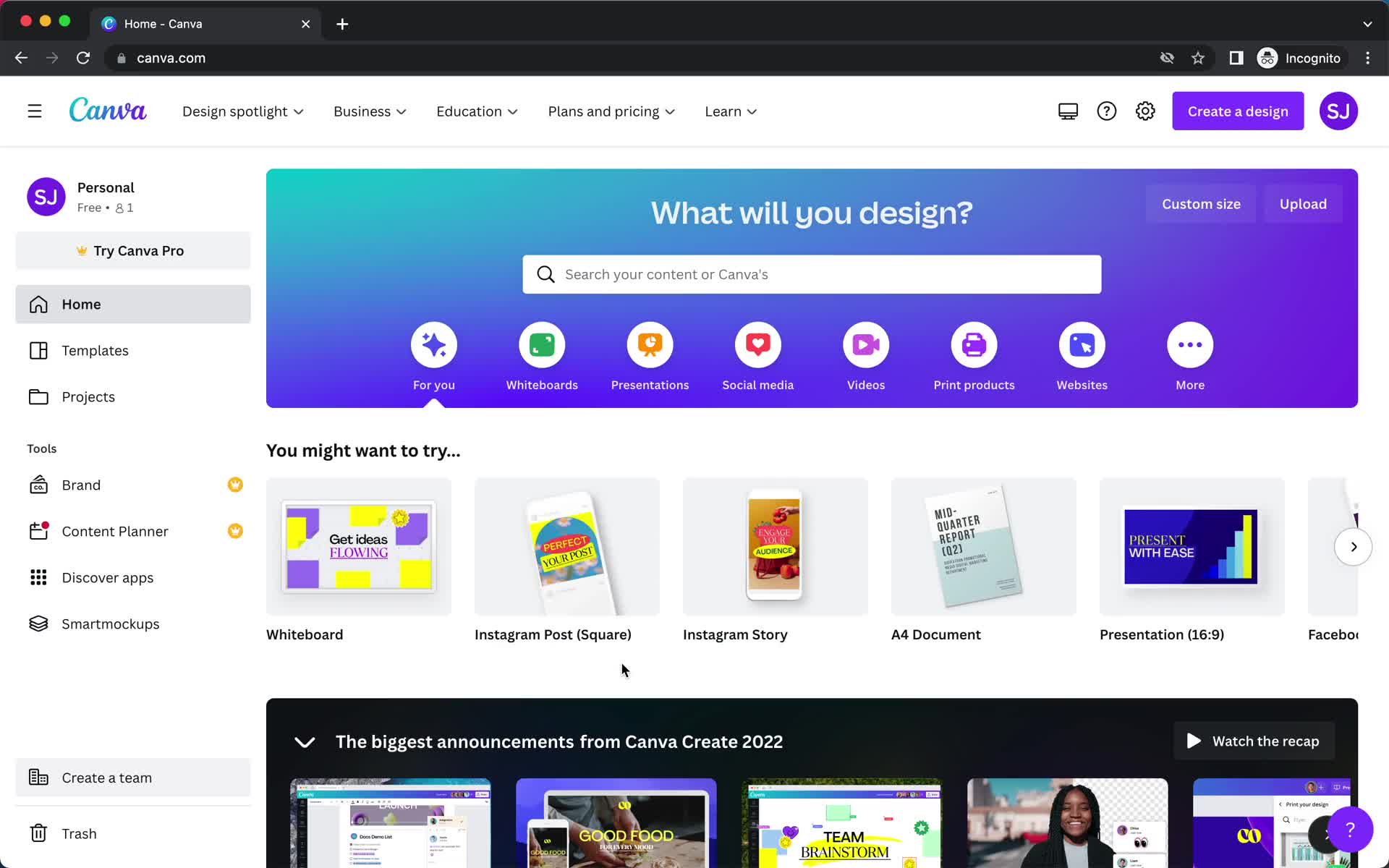
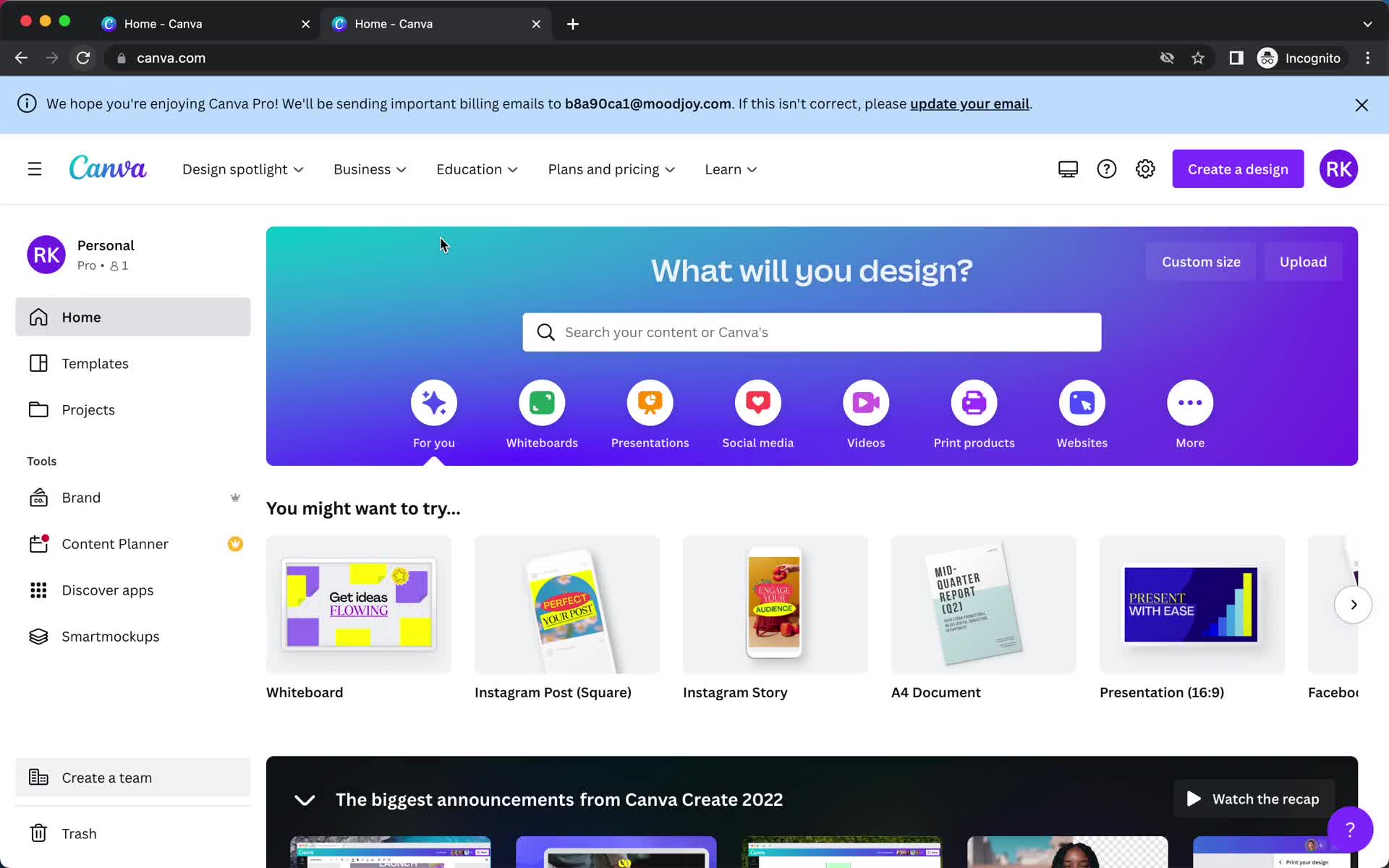
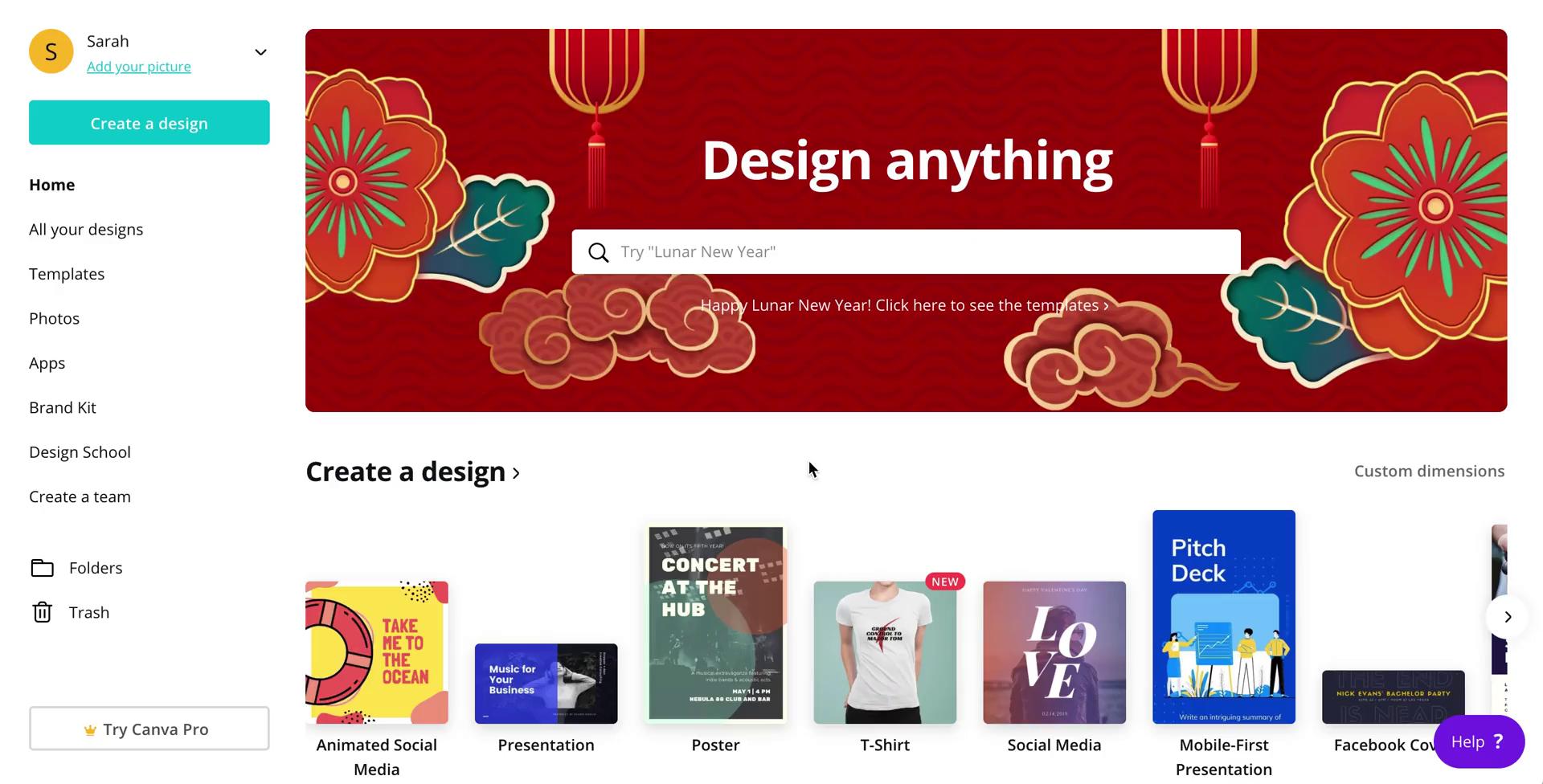
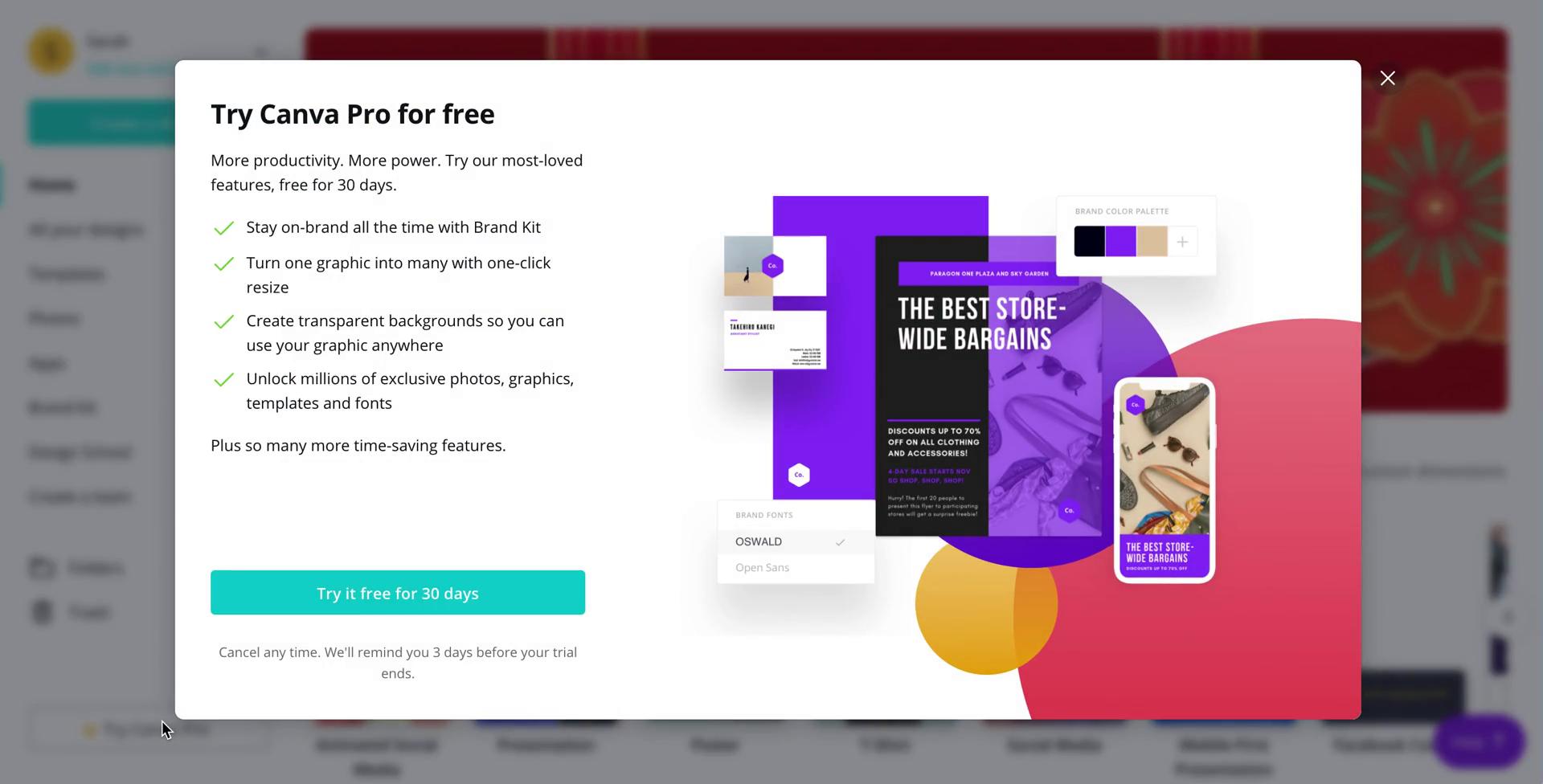
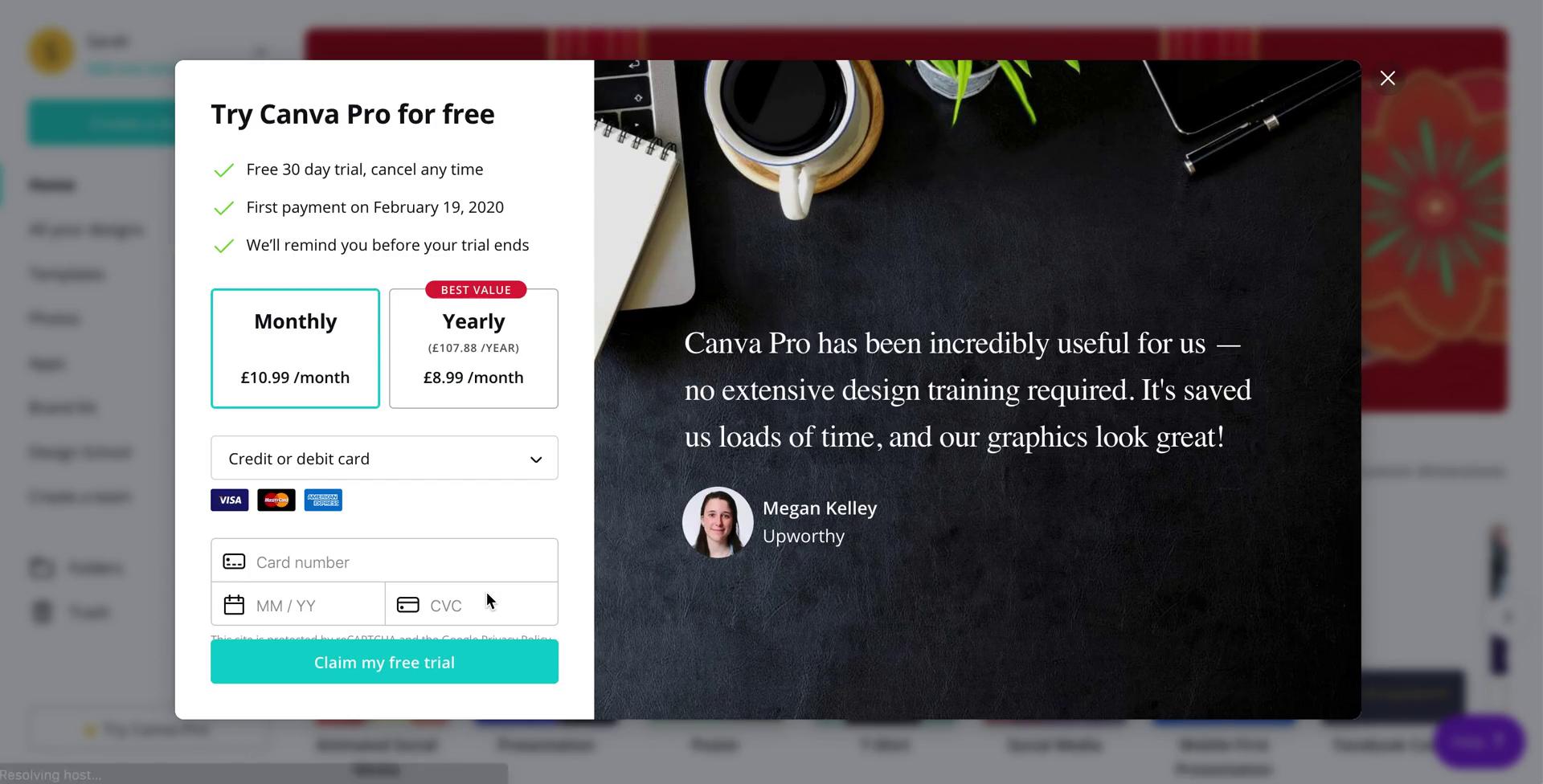
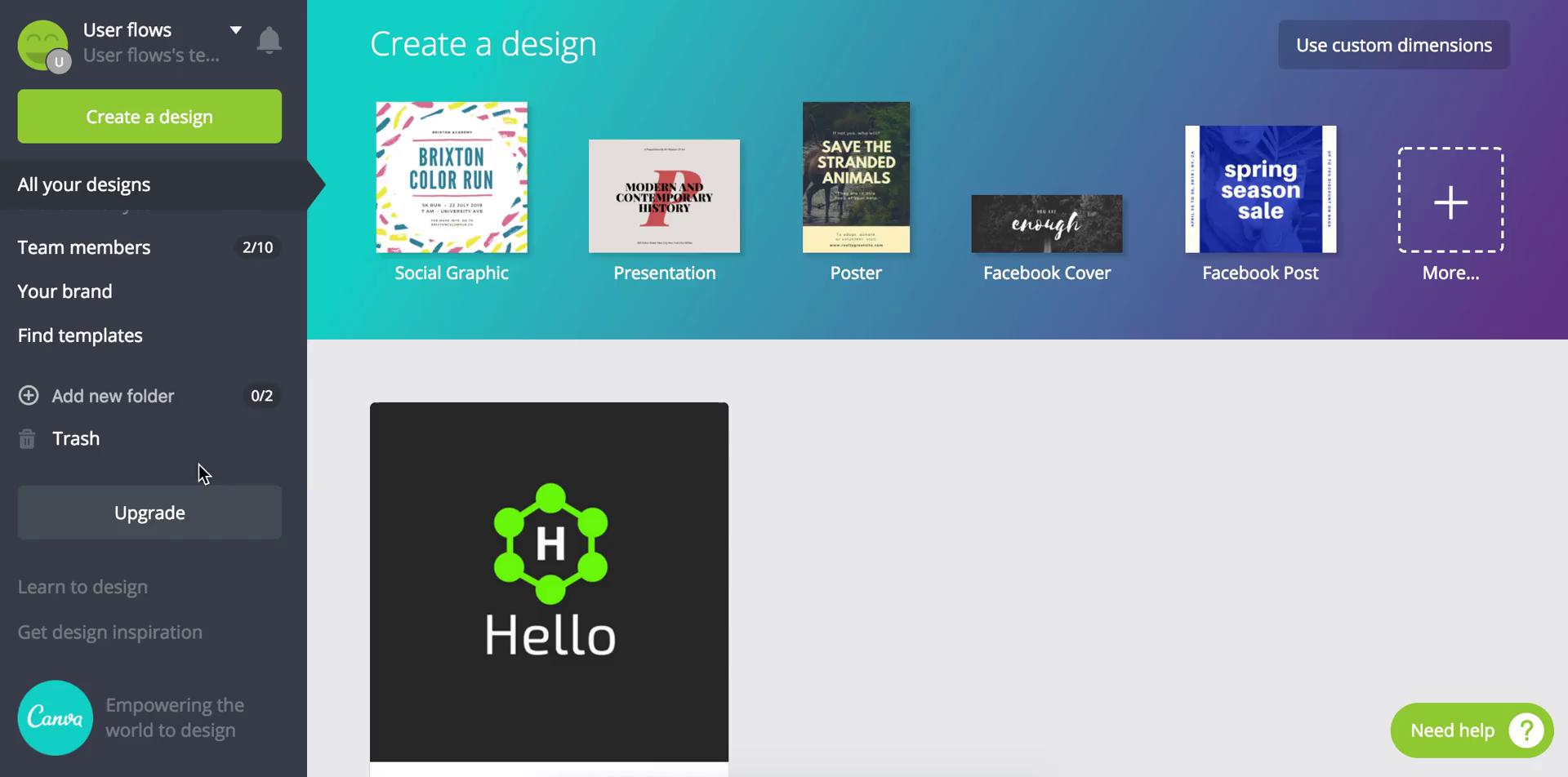
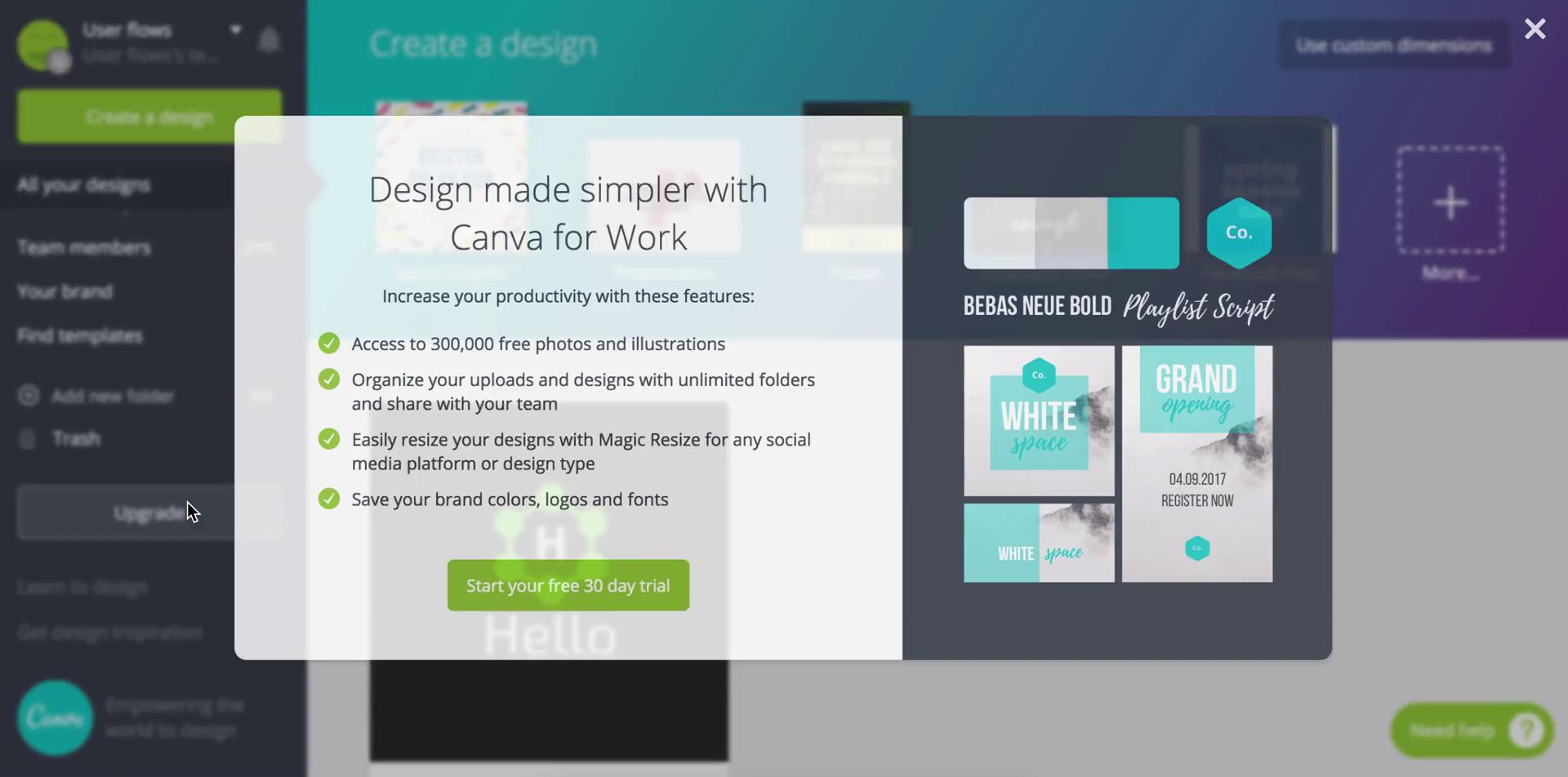
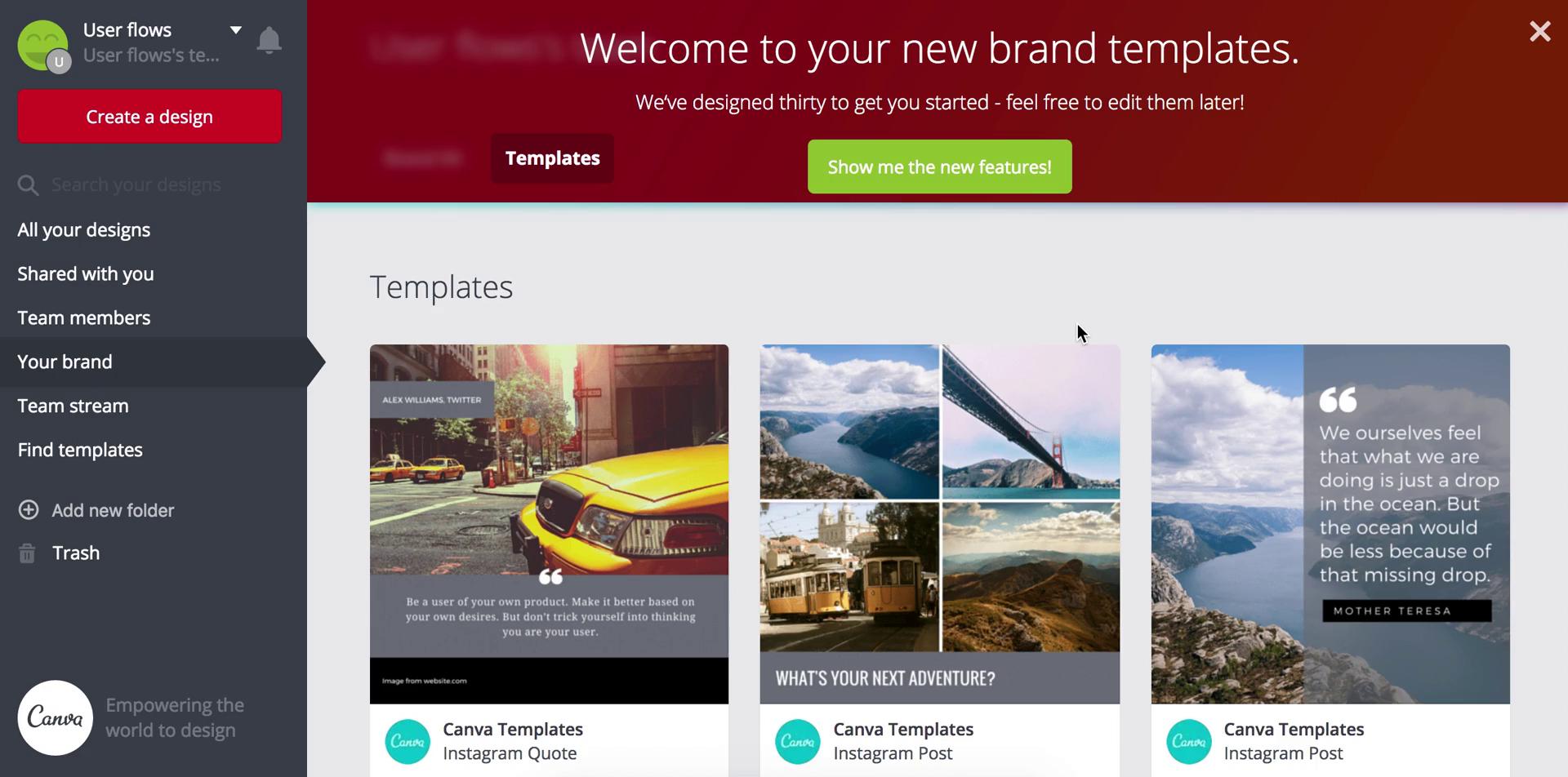
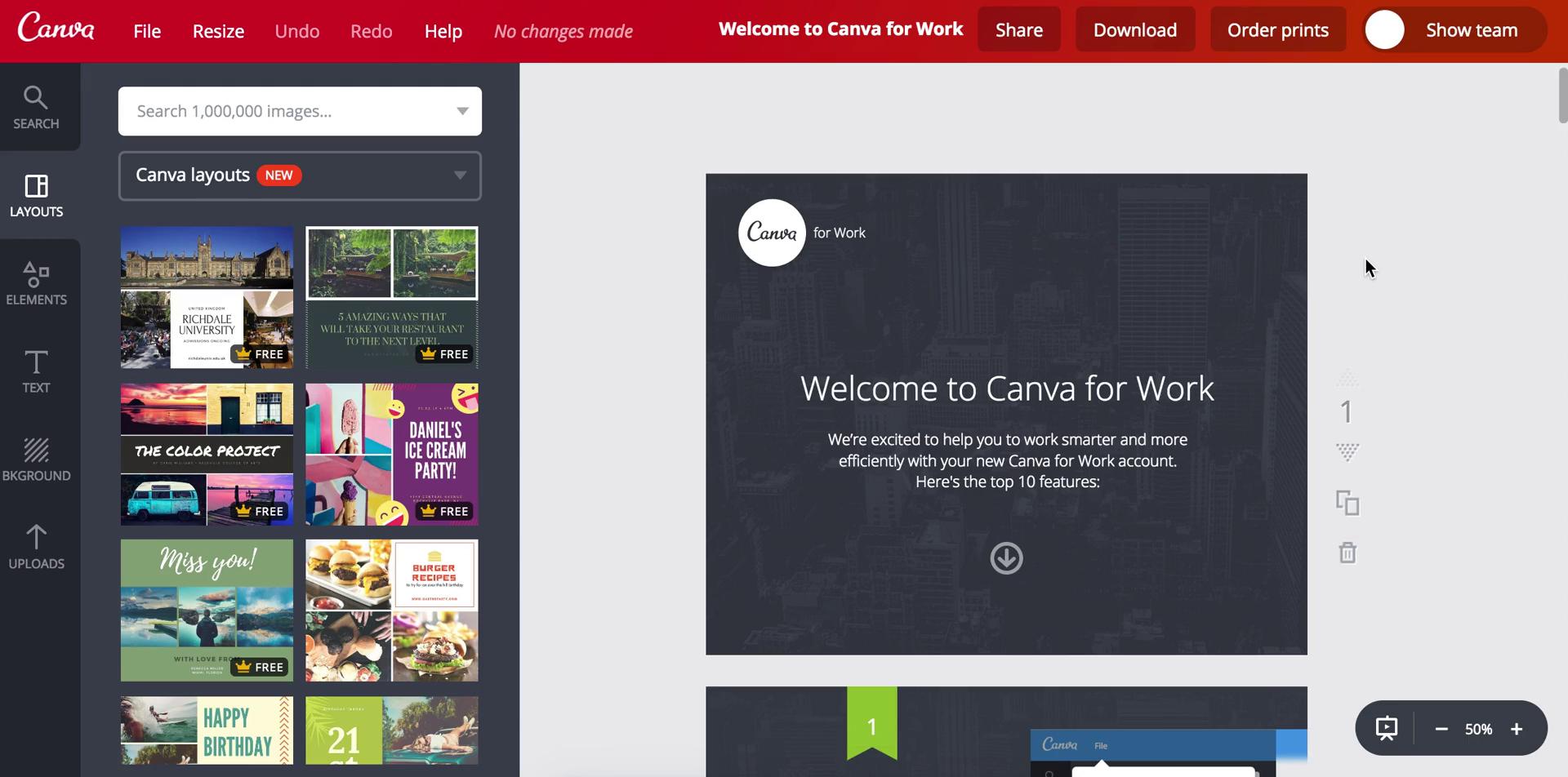
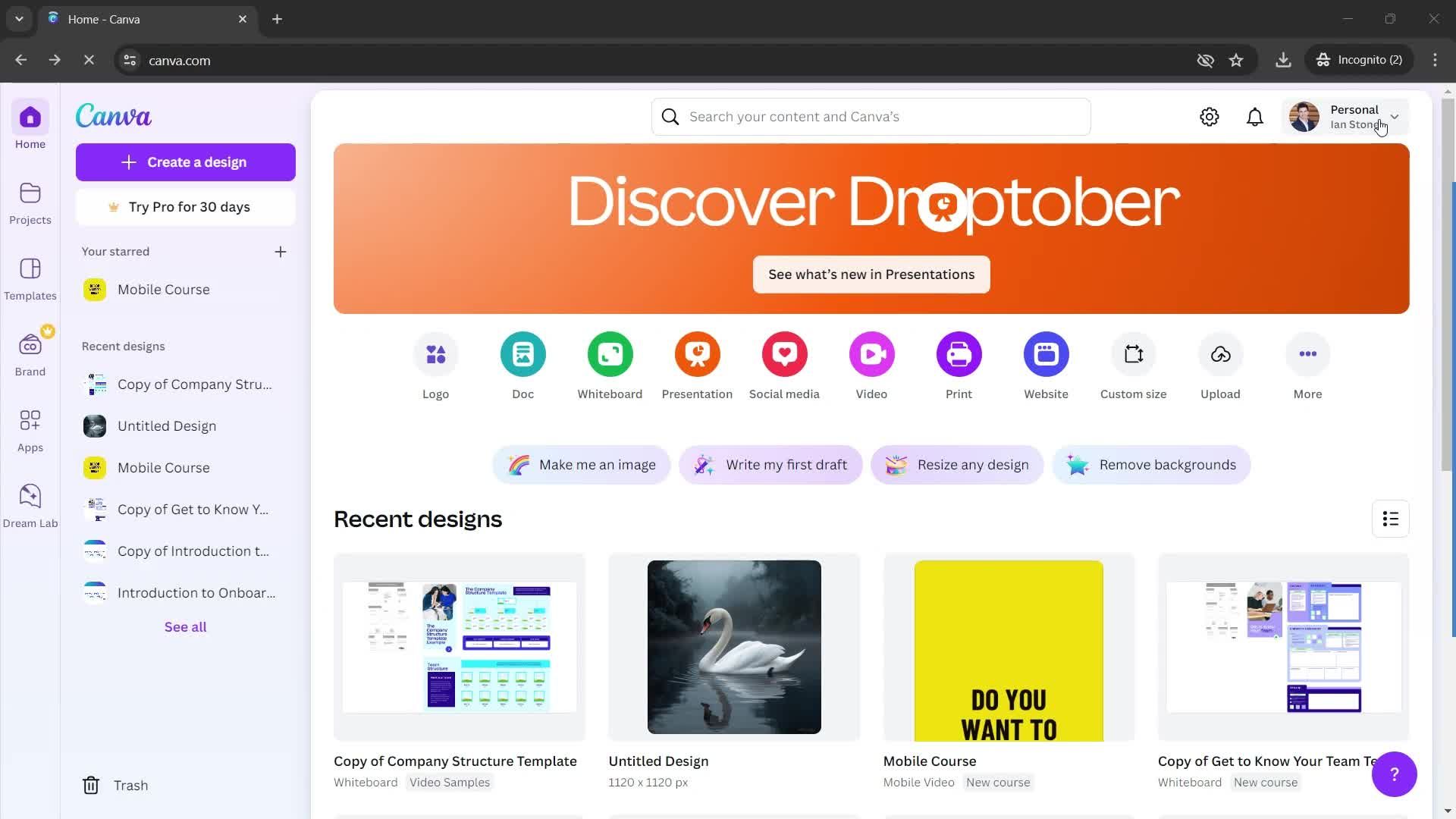
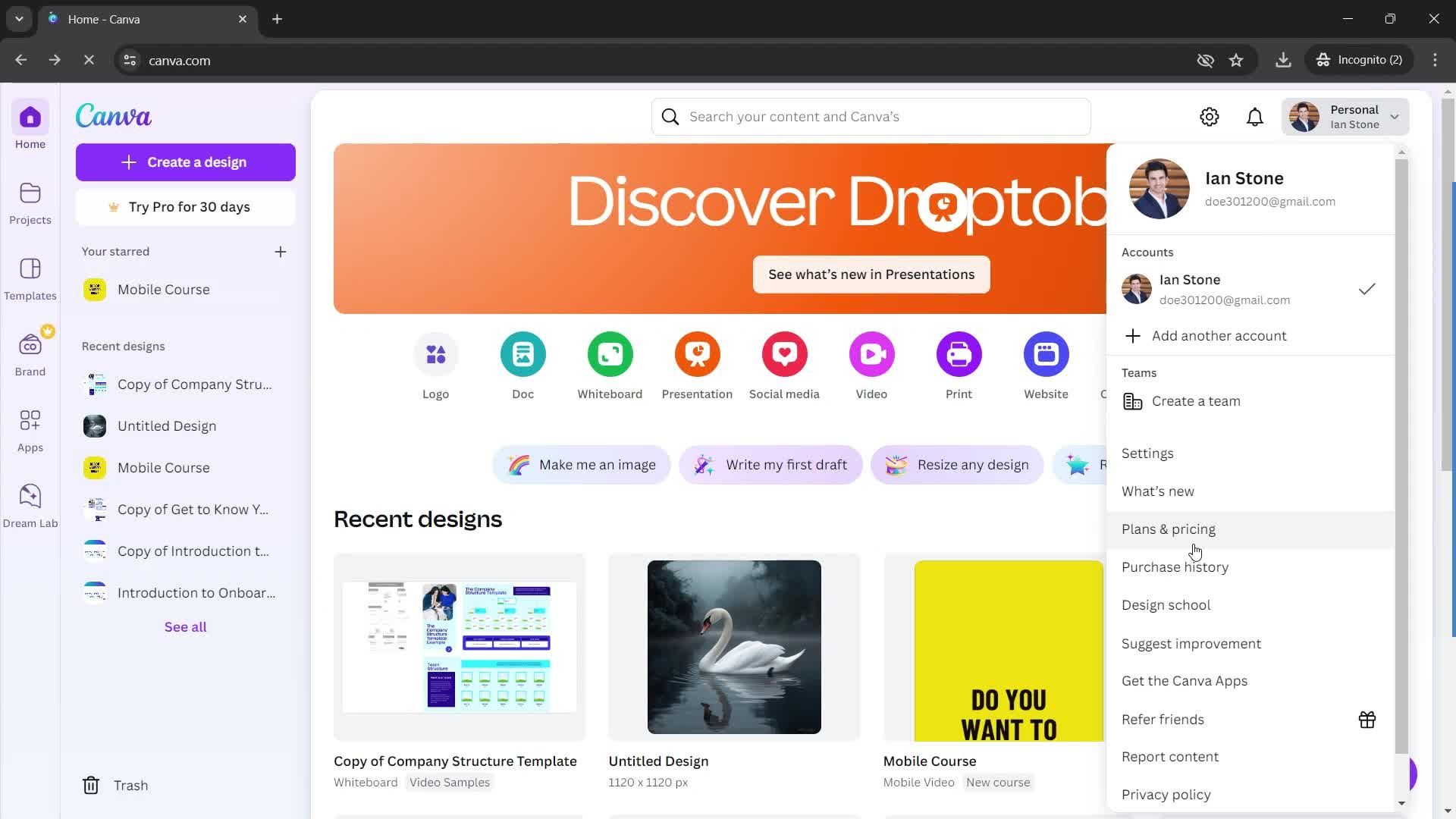
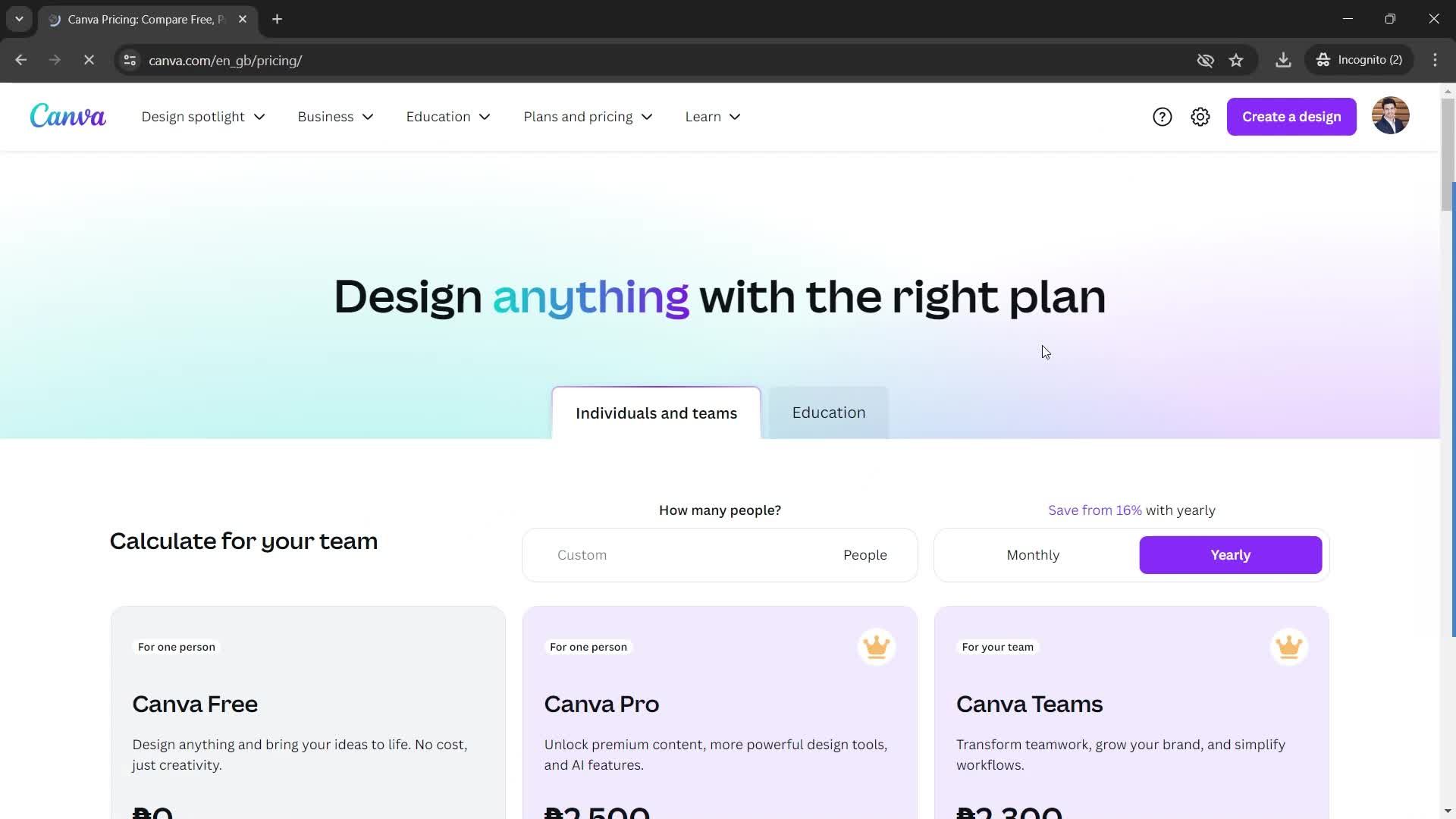
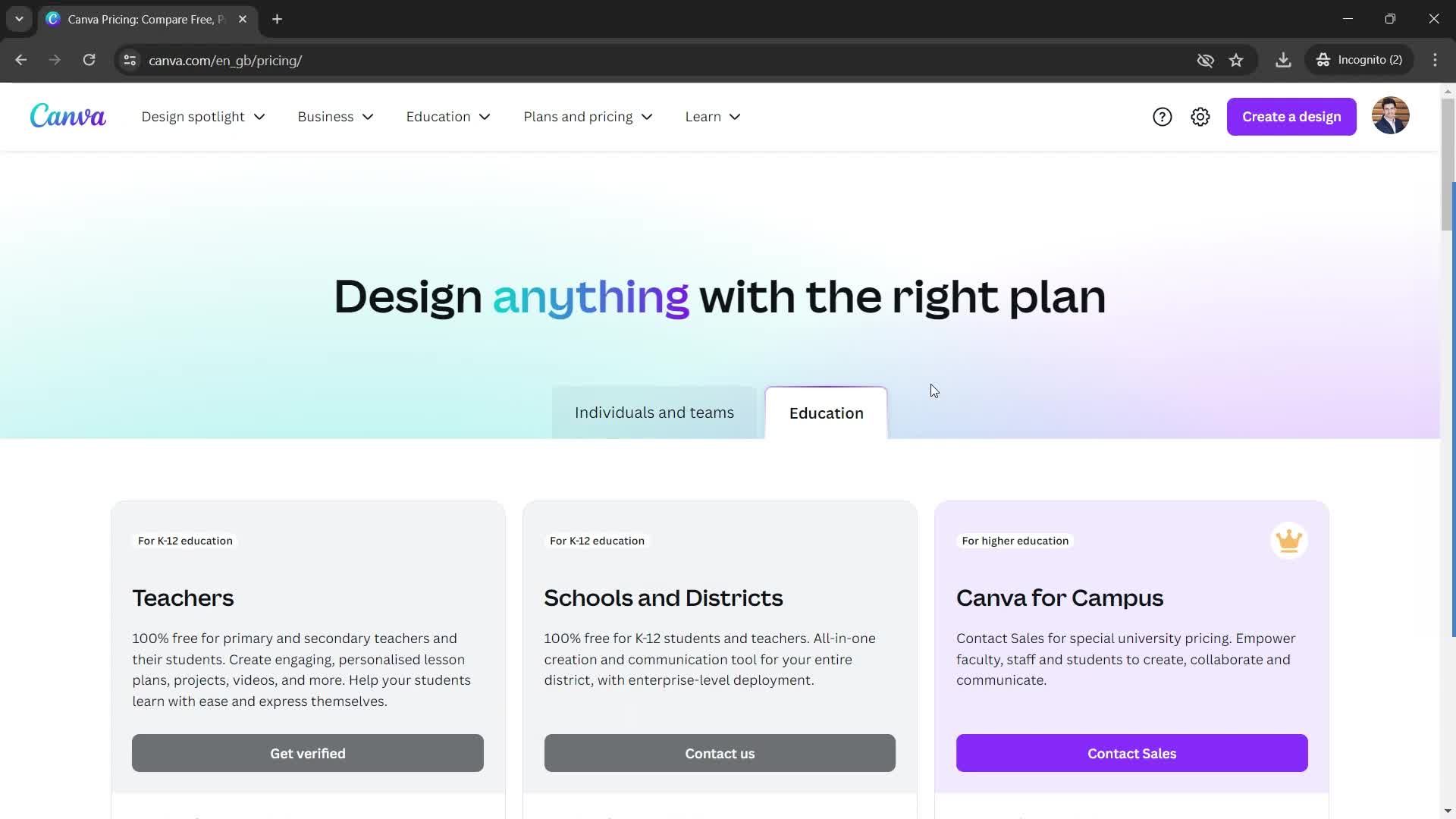
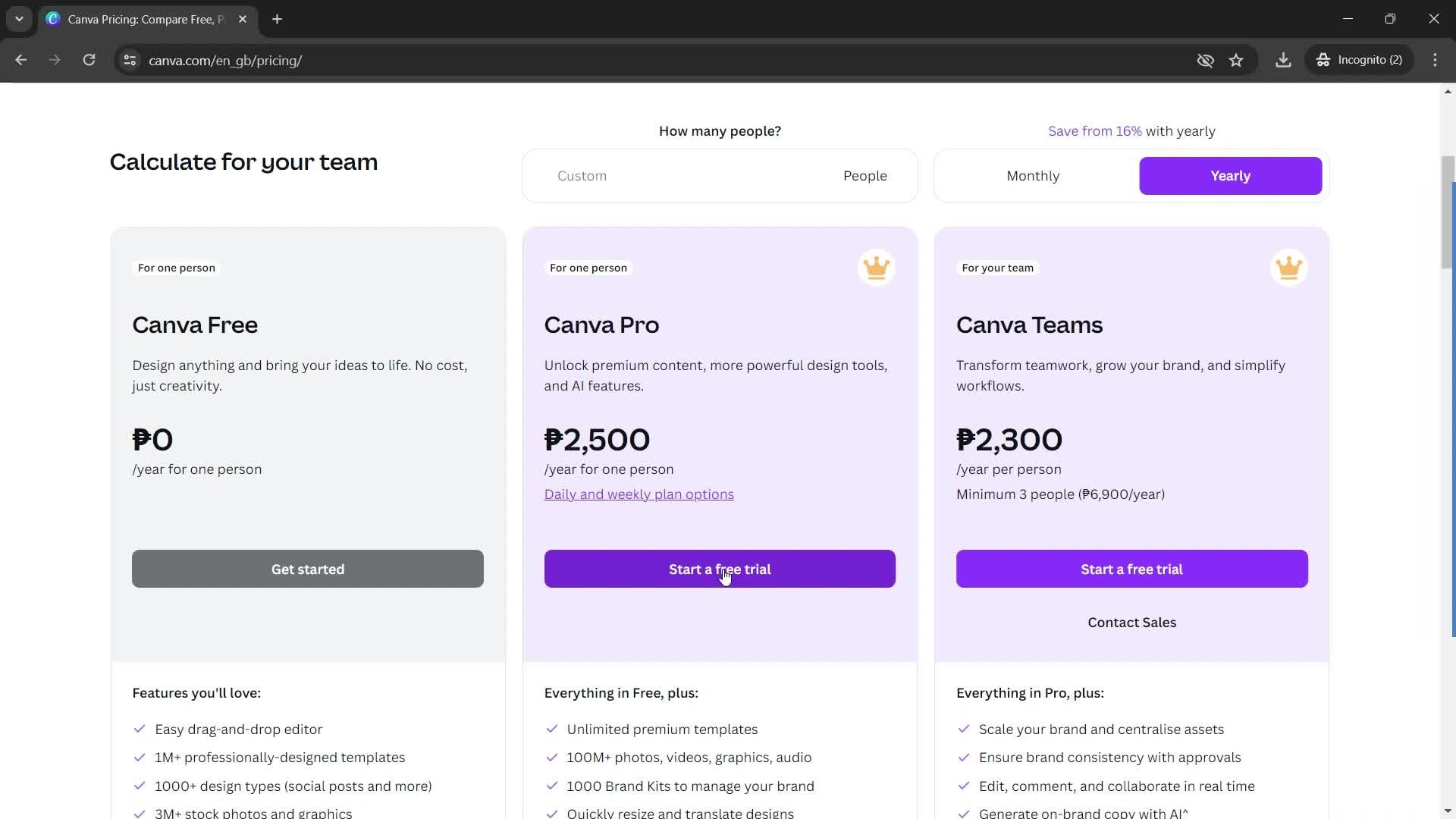
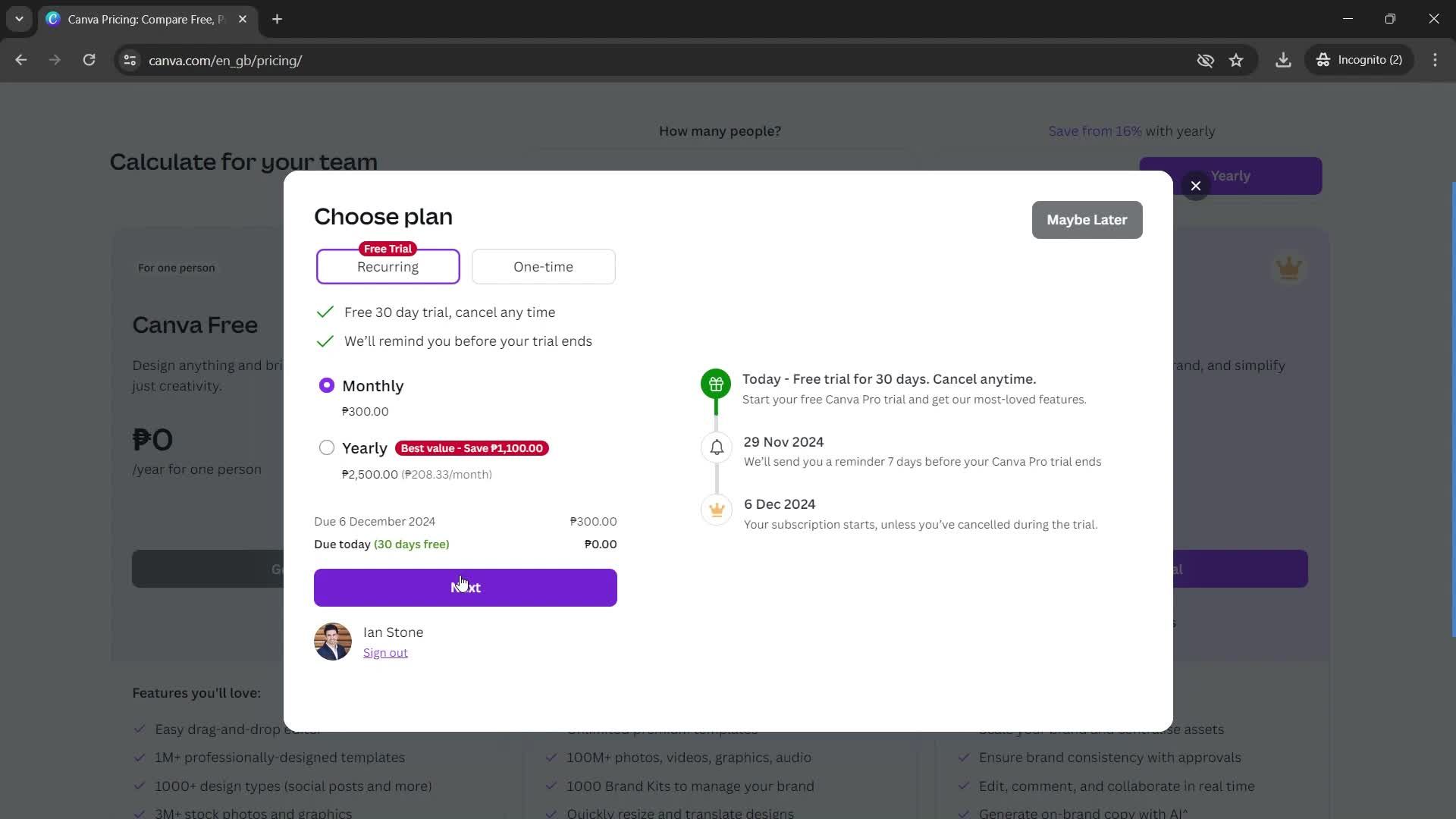
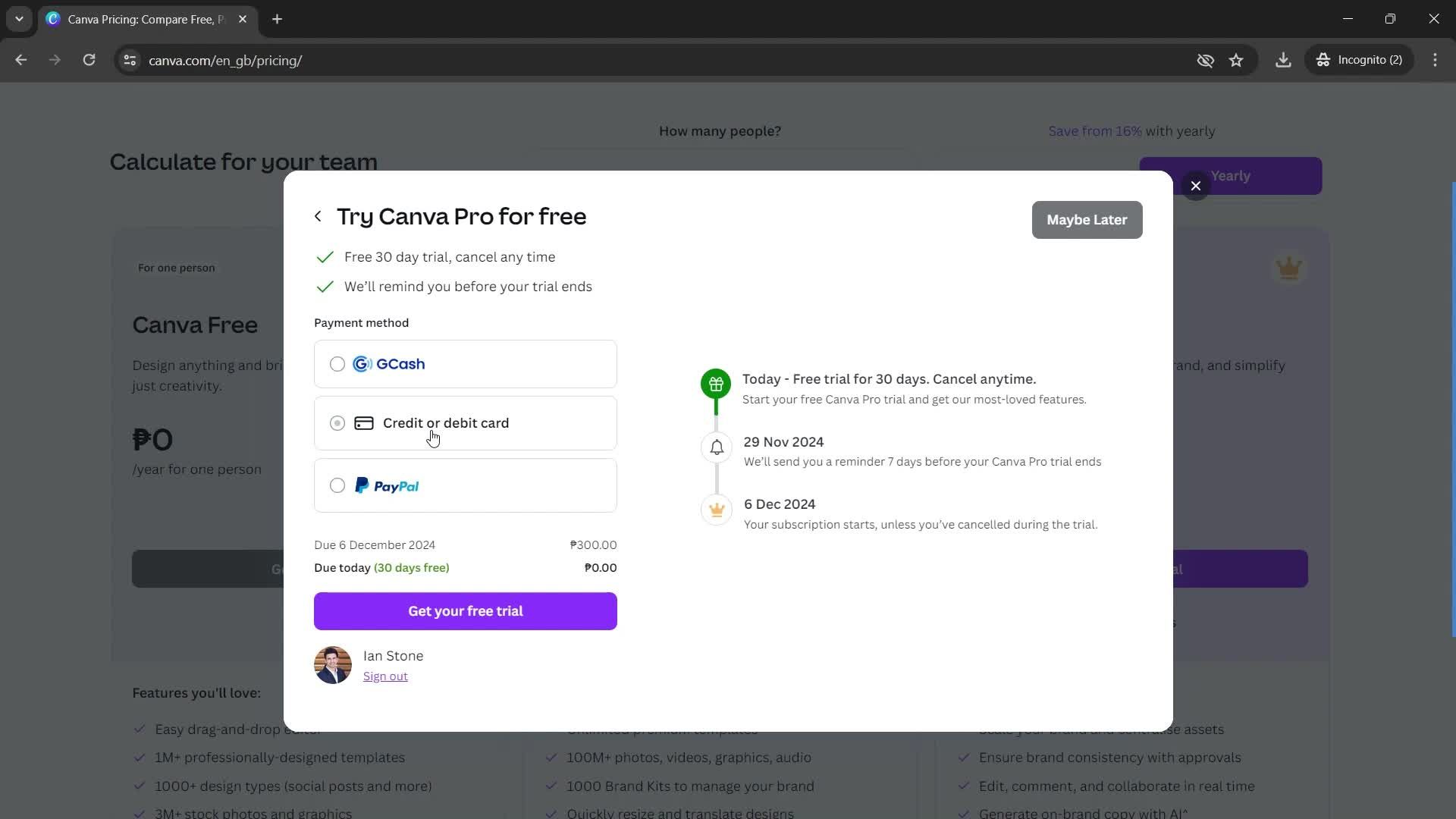
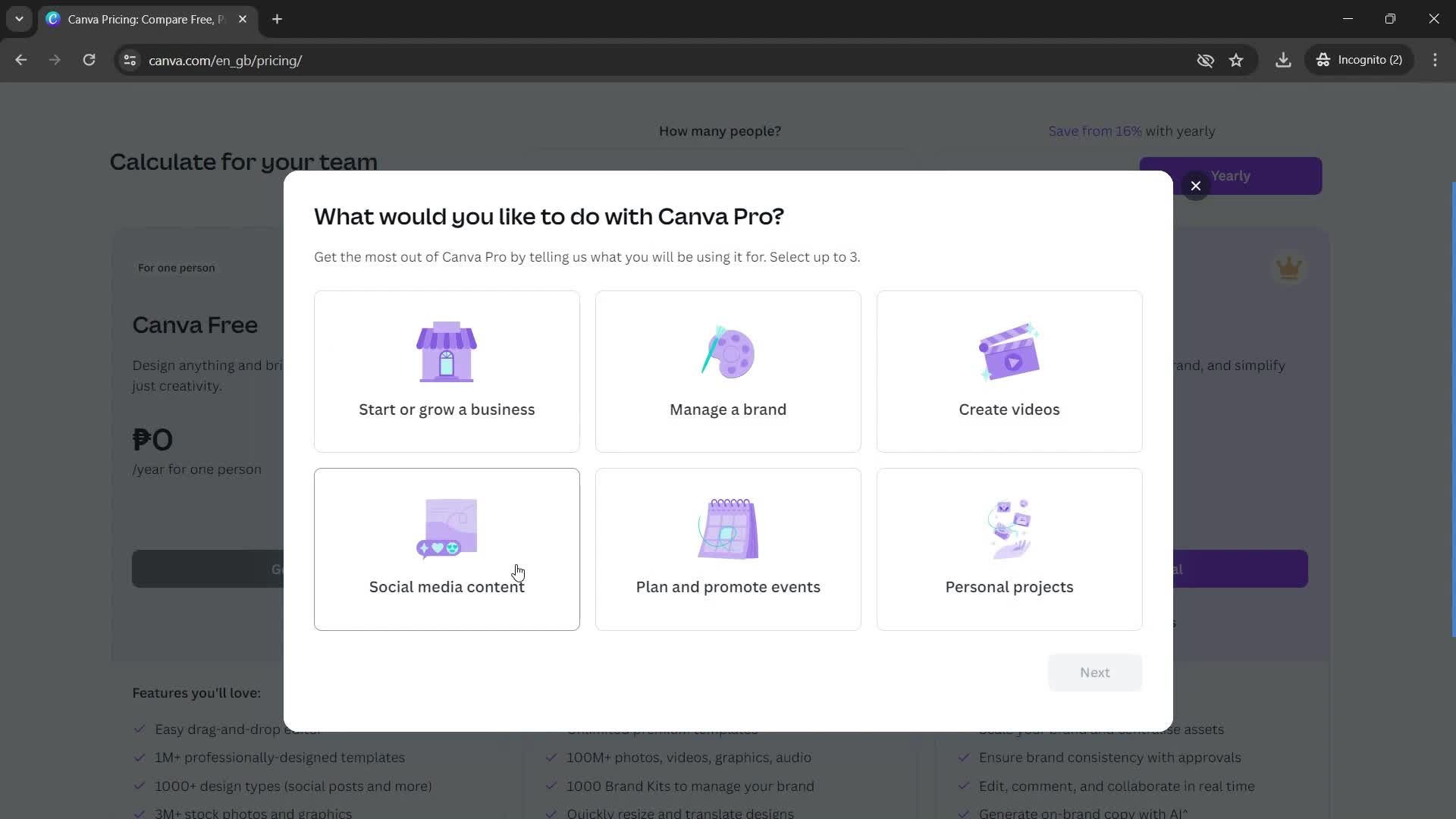
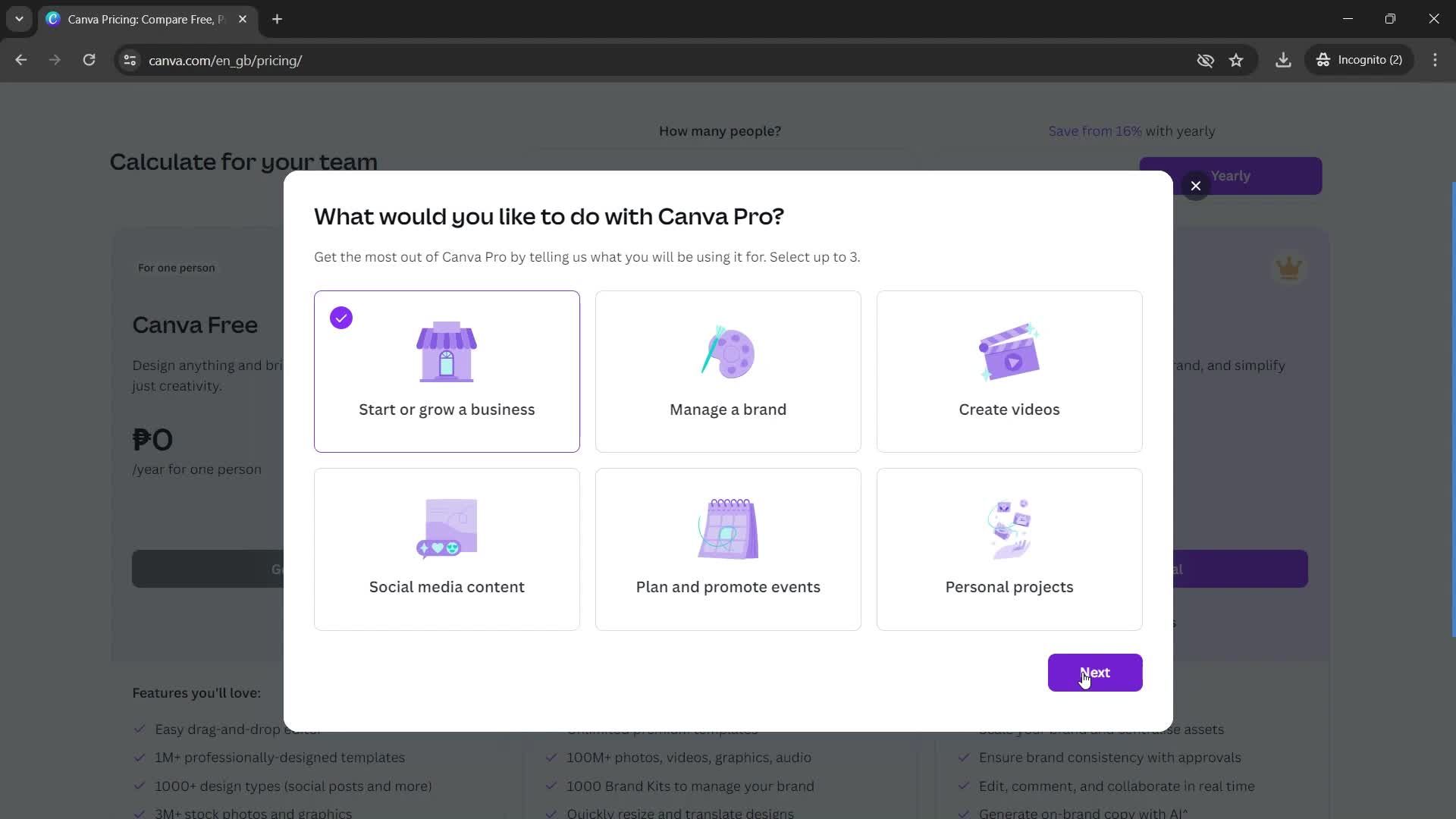
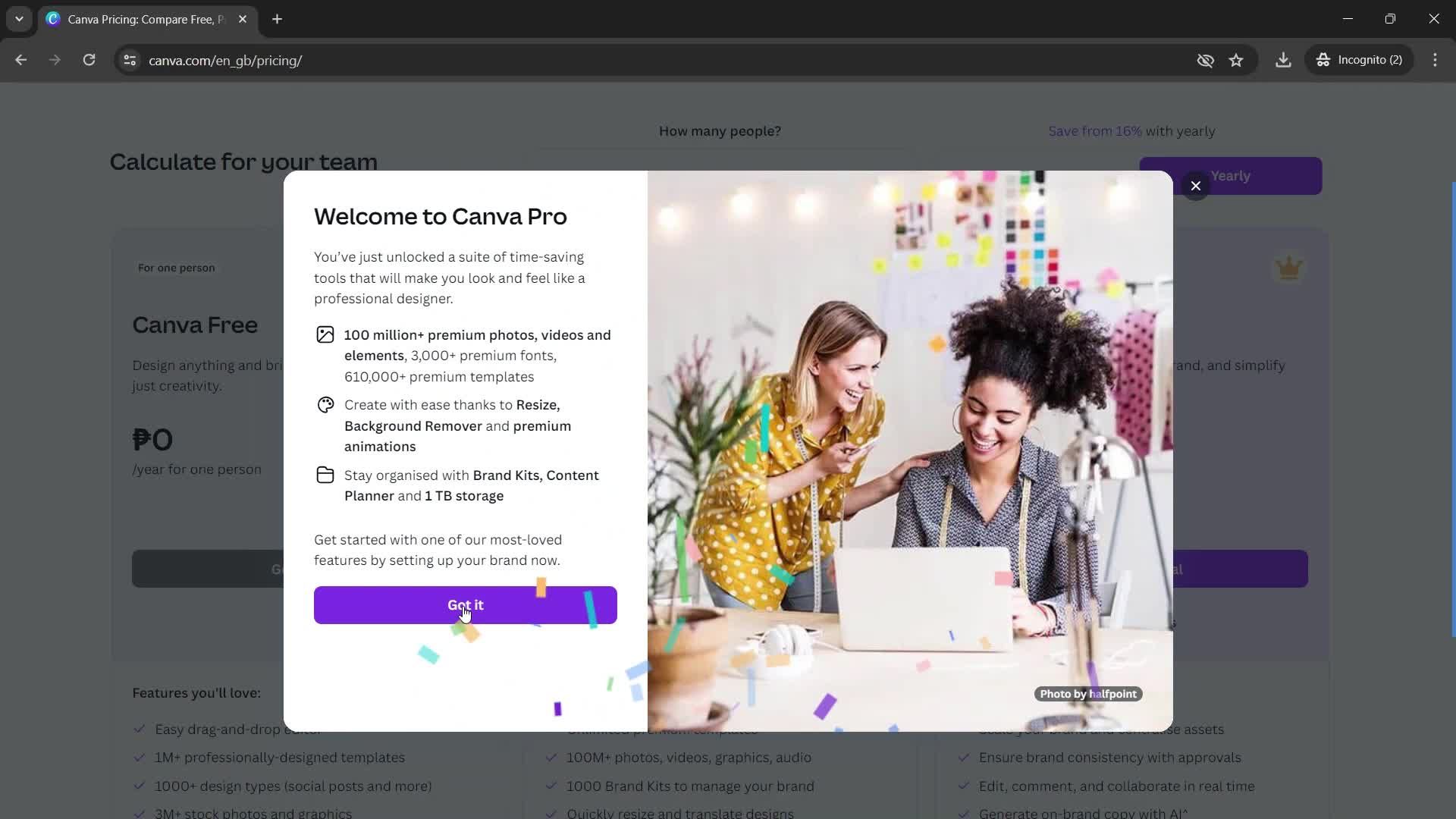
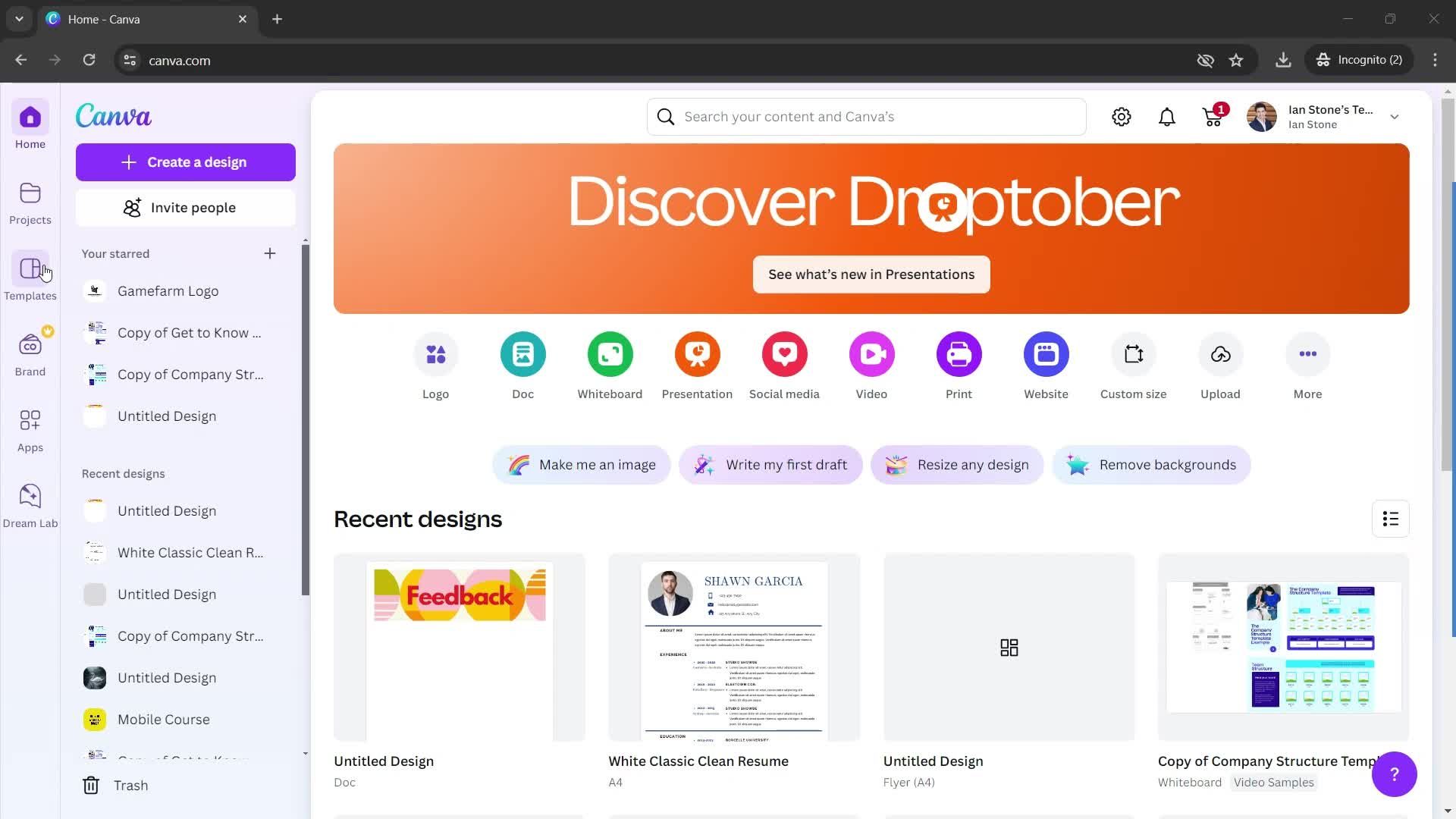
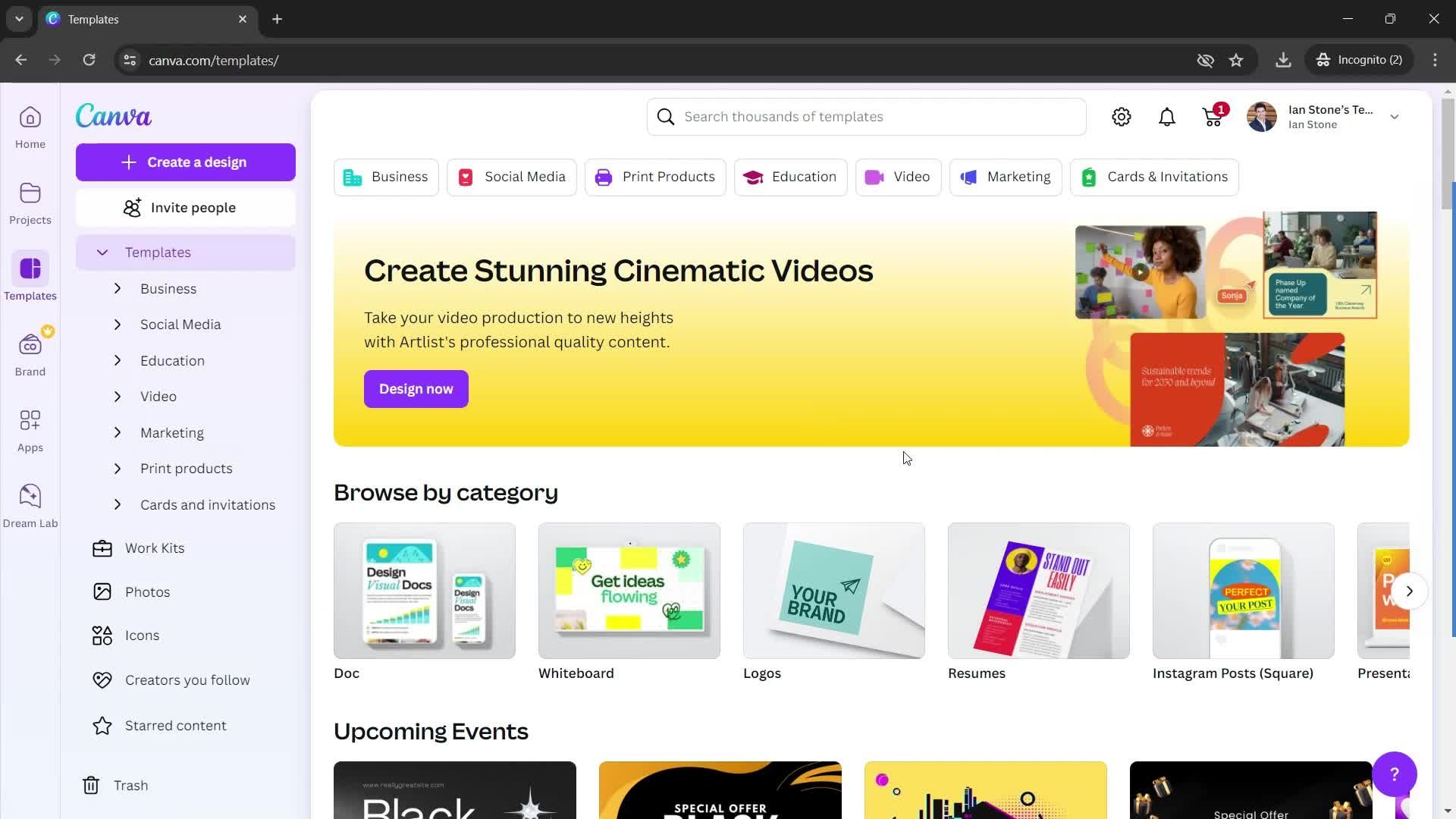
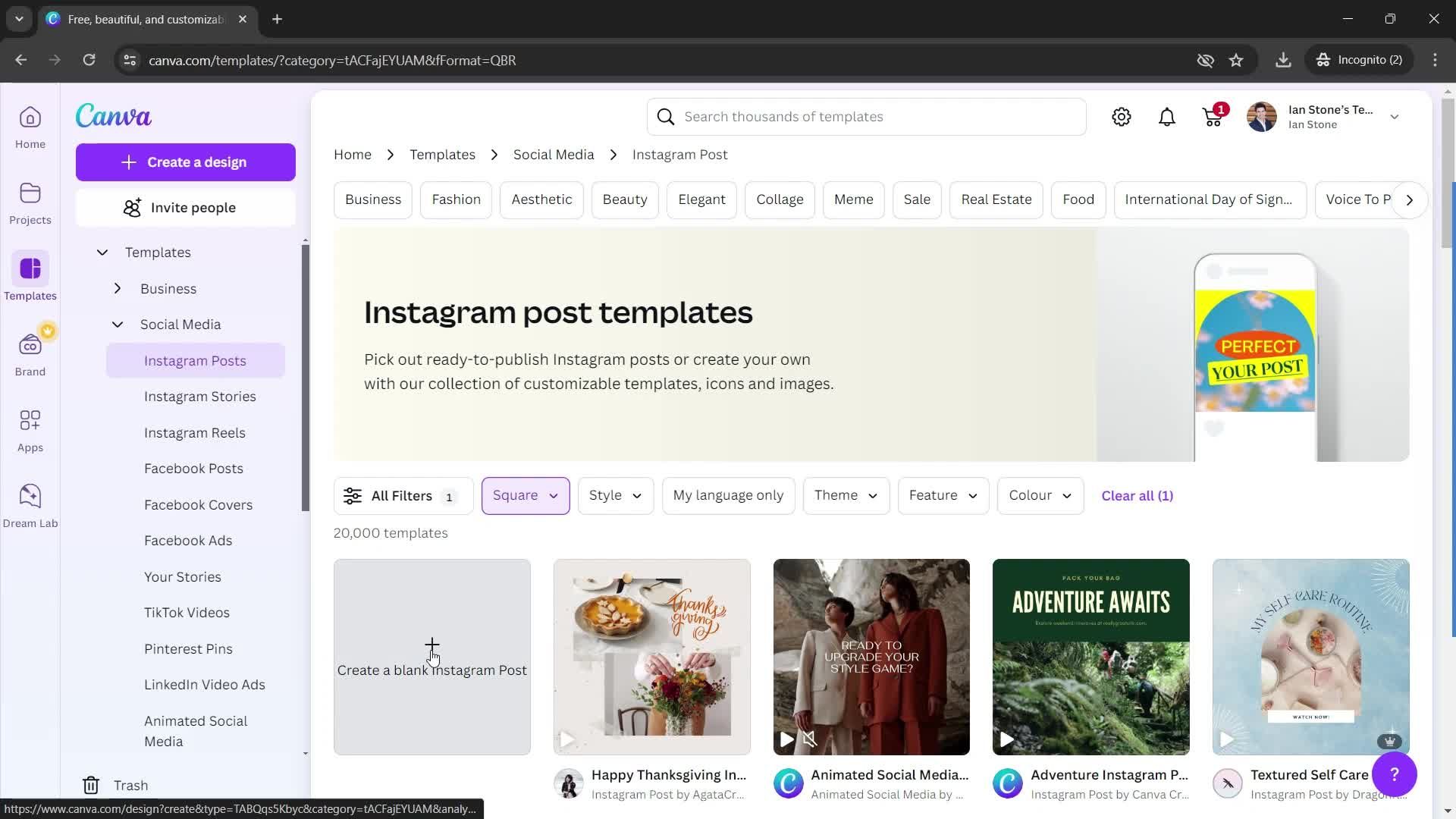
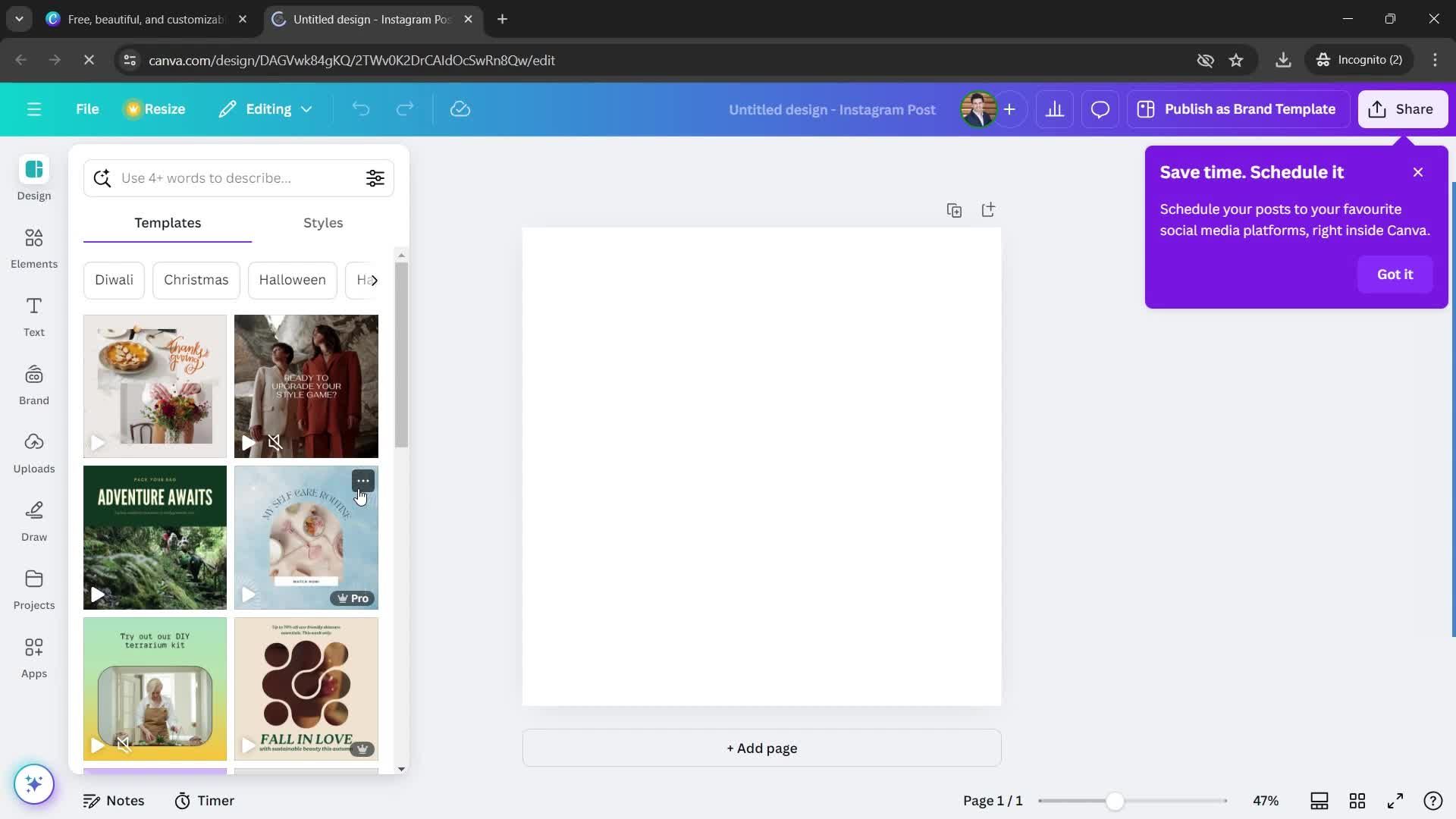
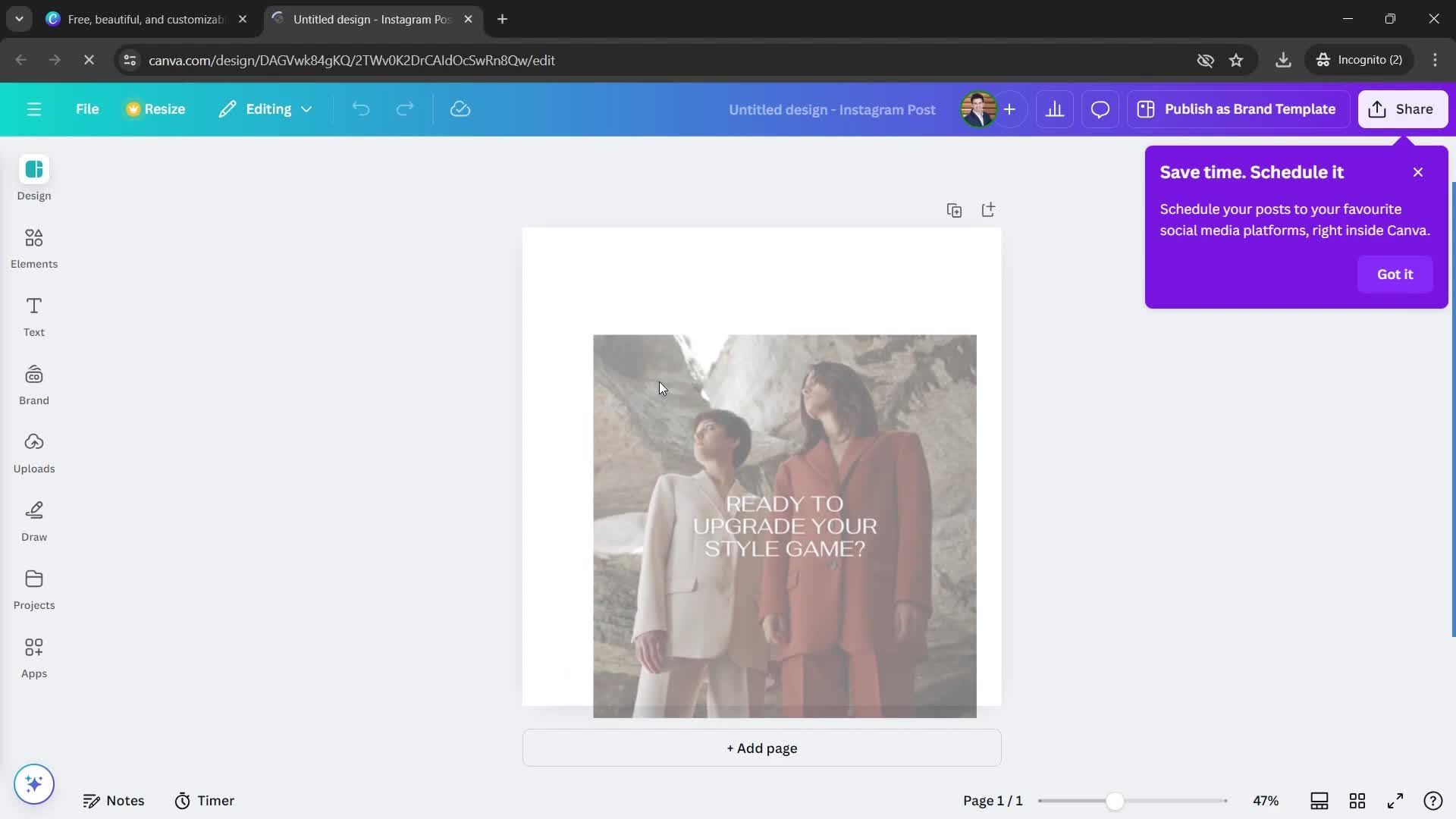
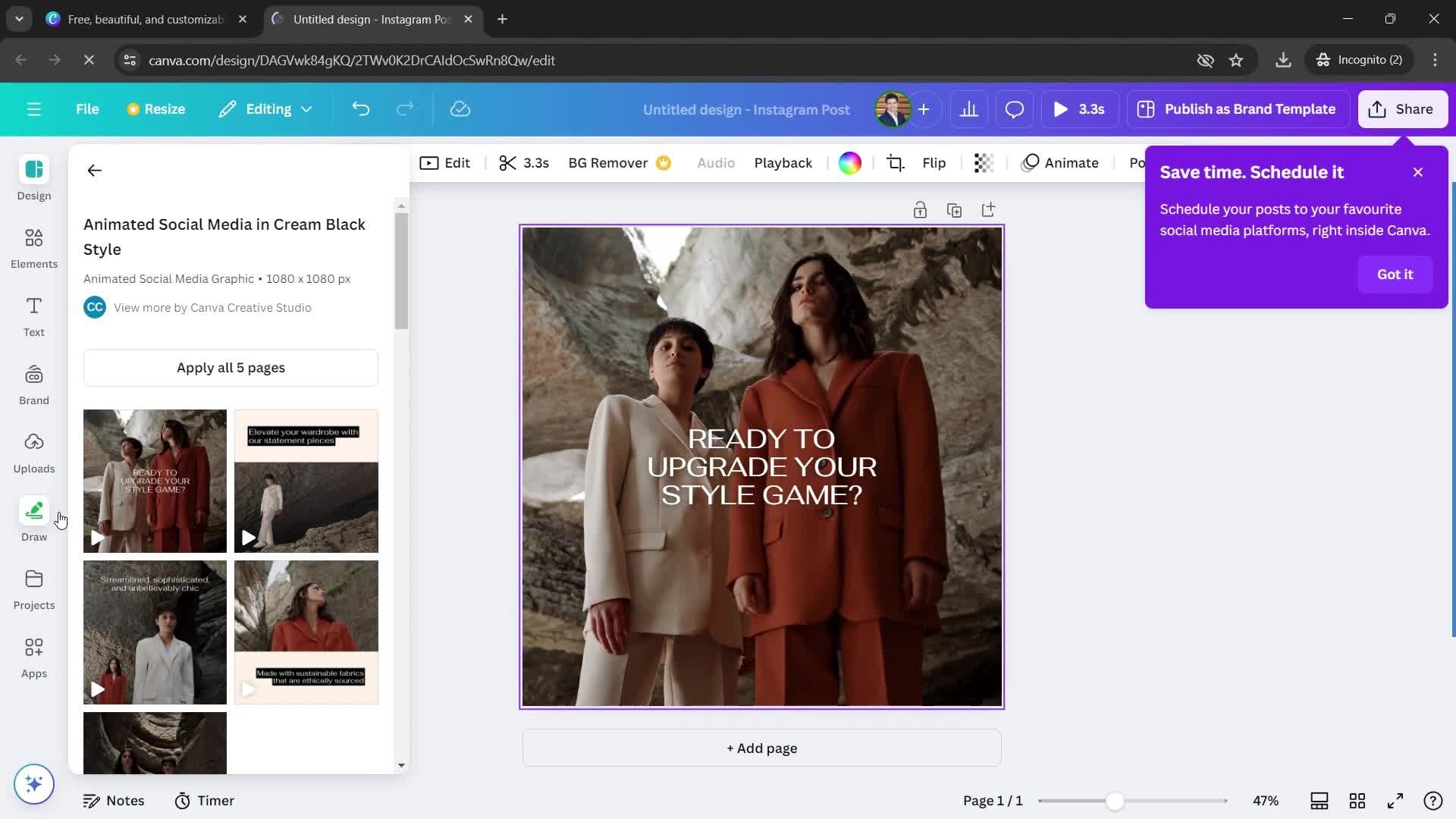
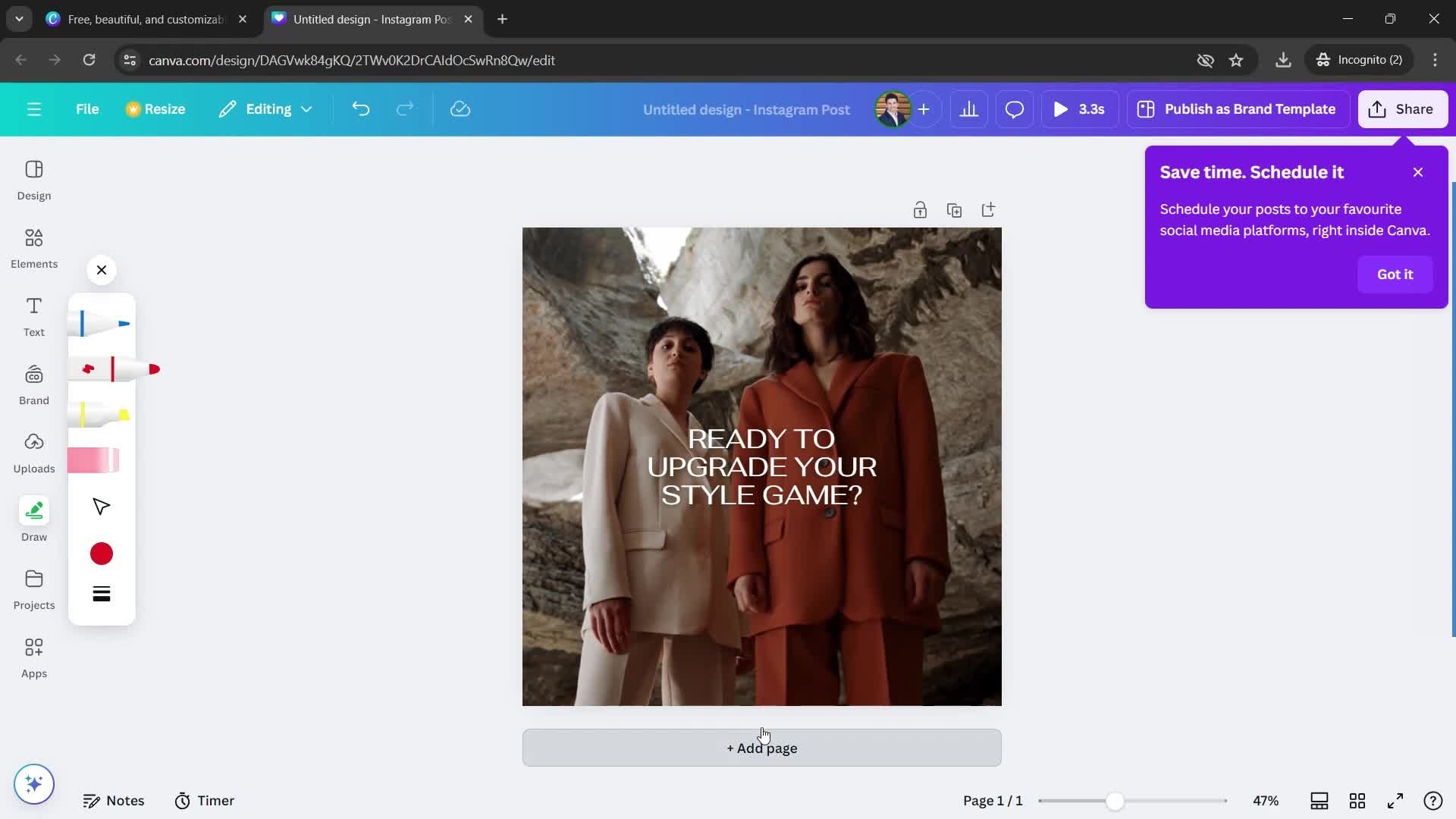
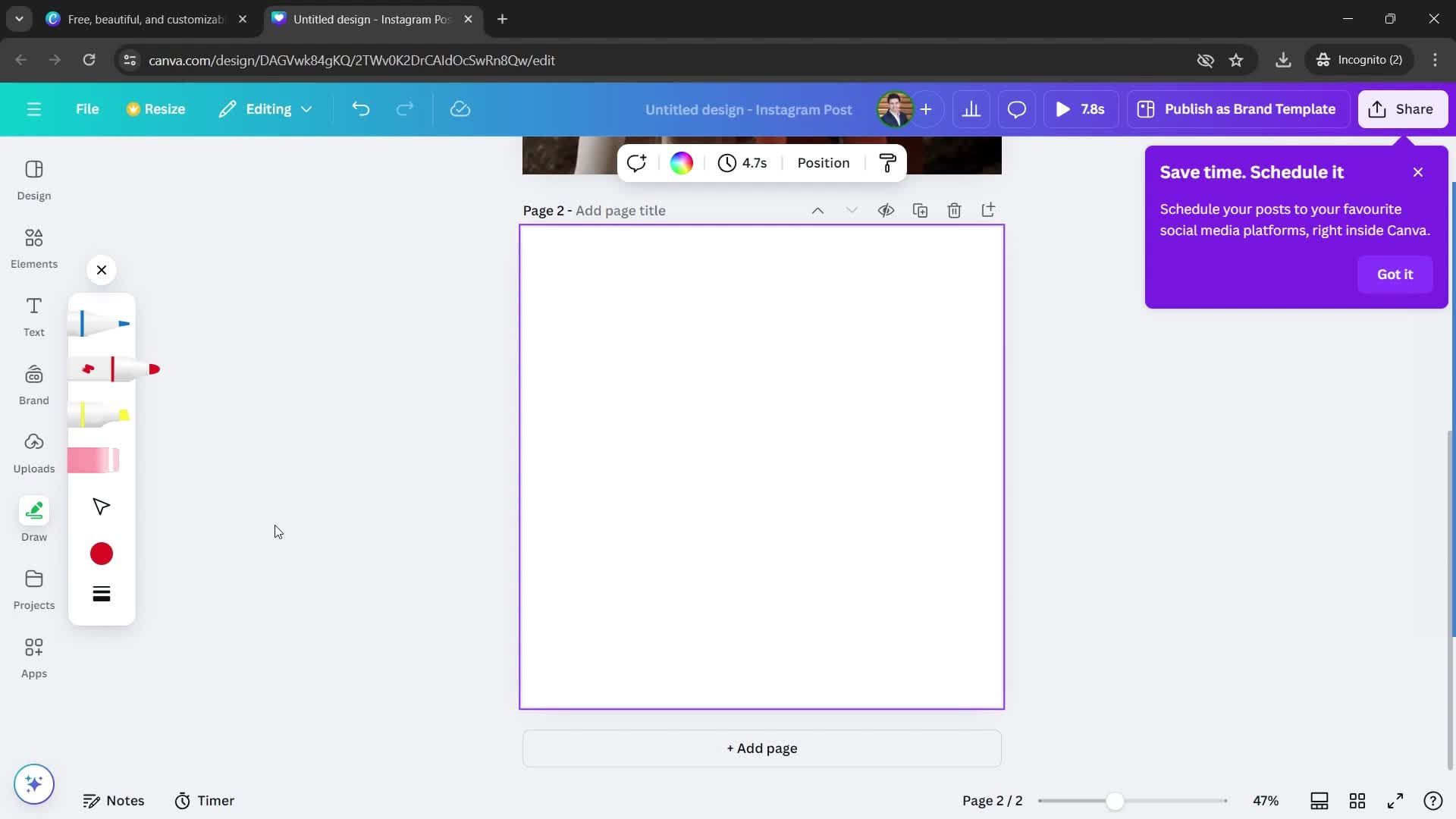
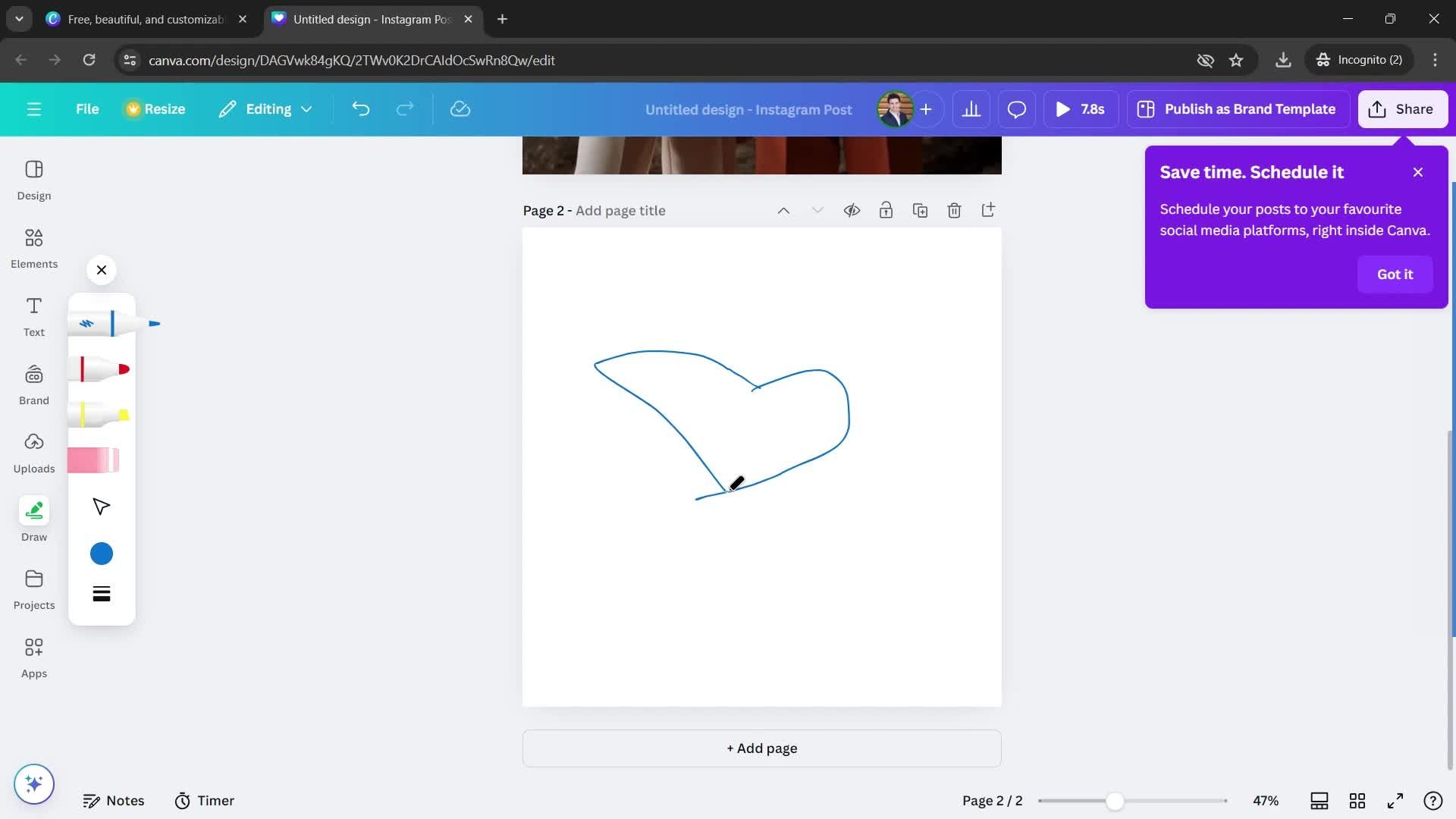
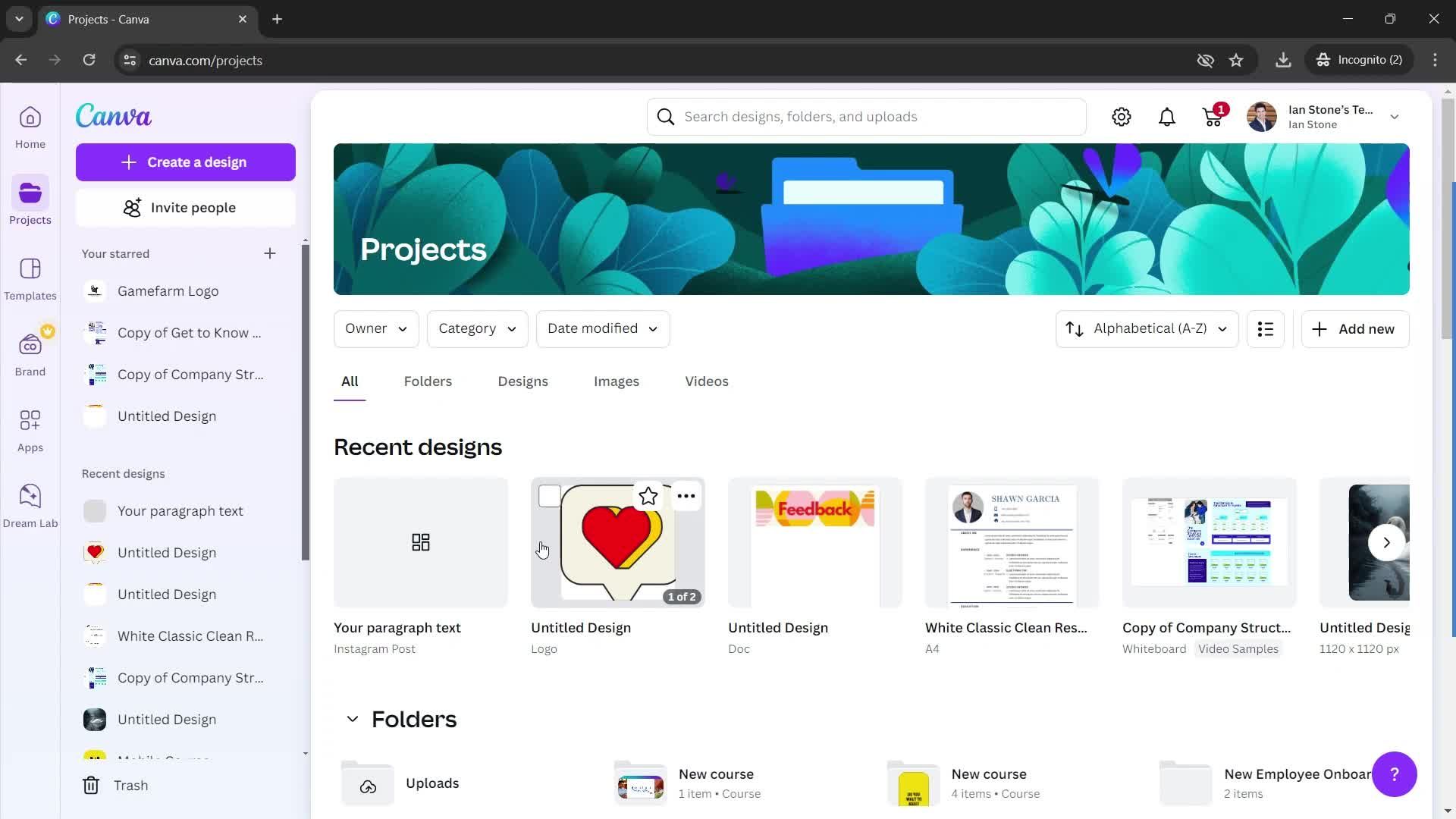
Home
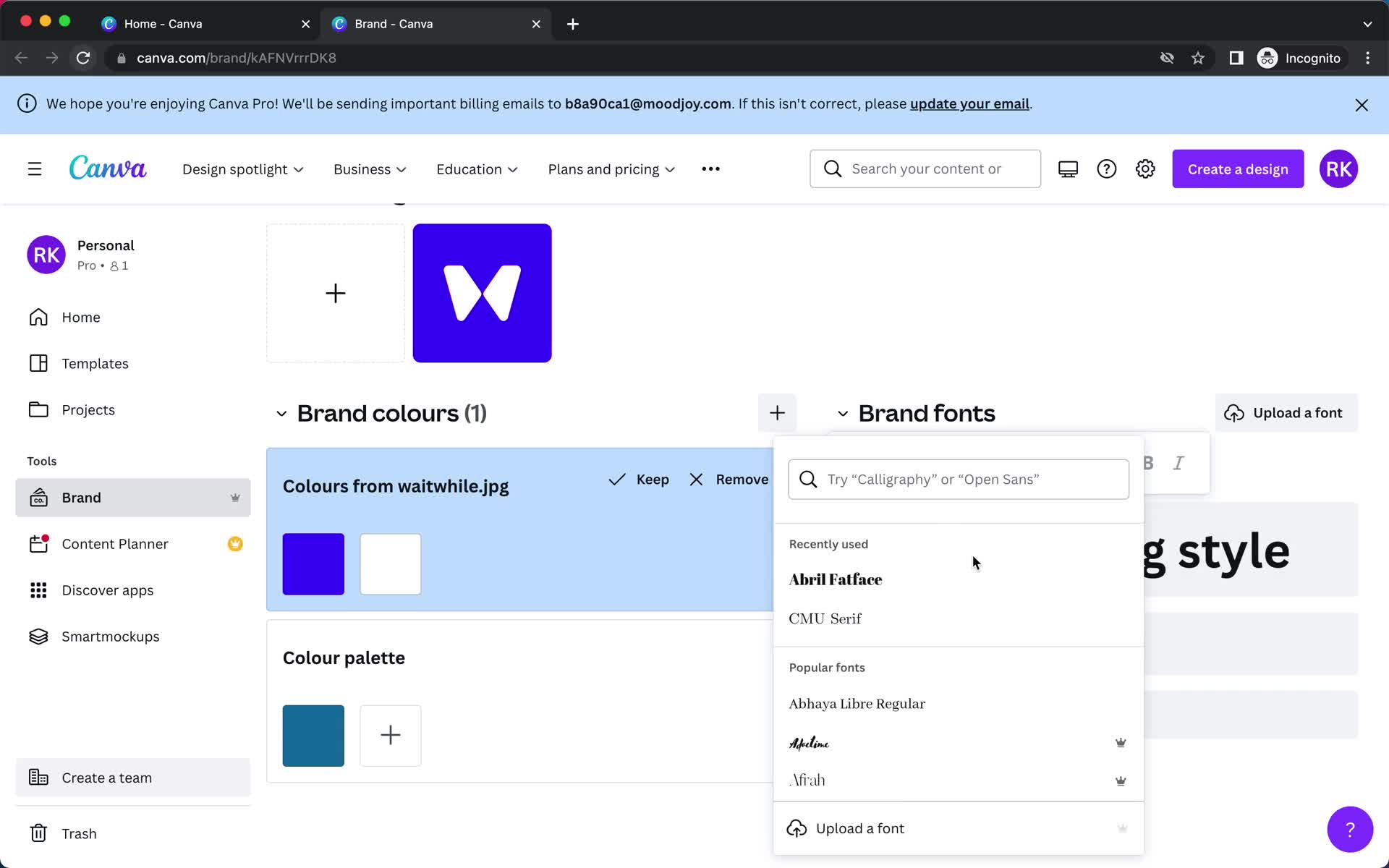
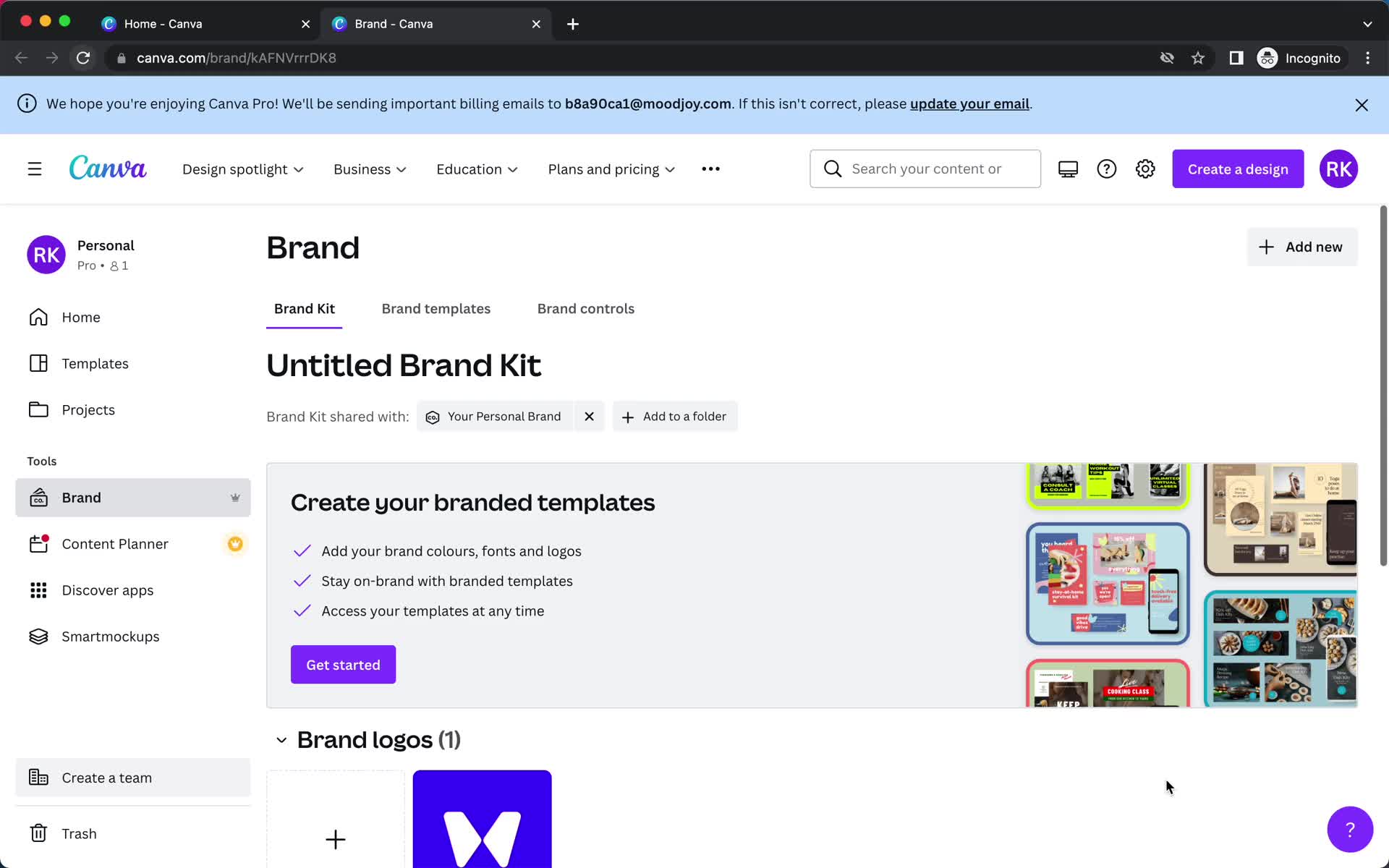
this is title
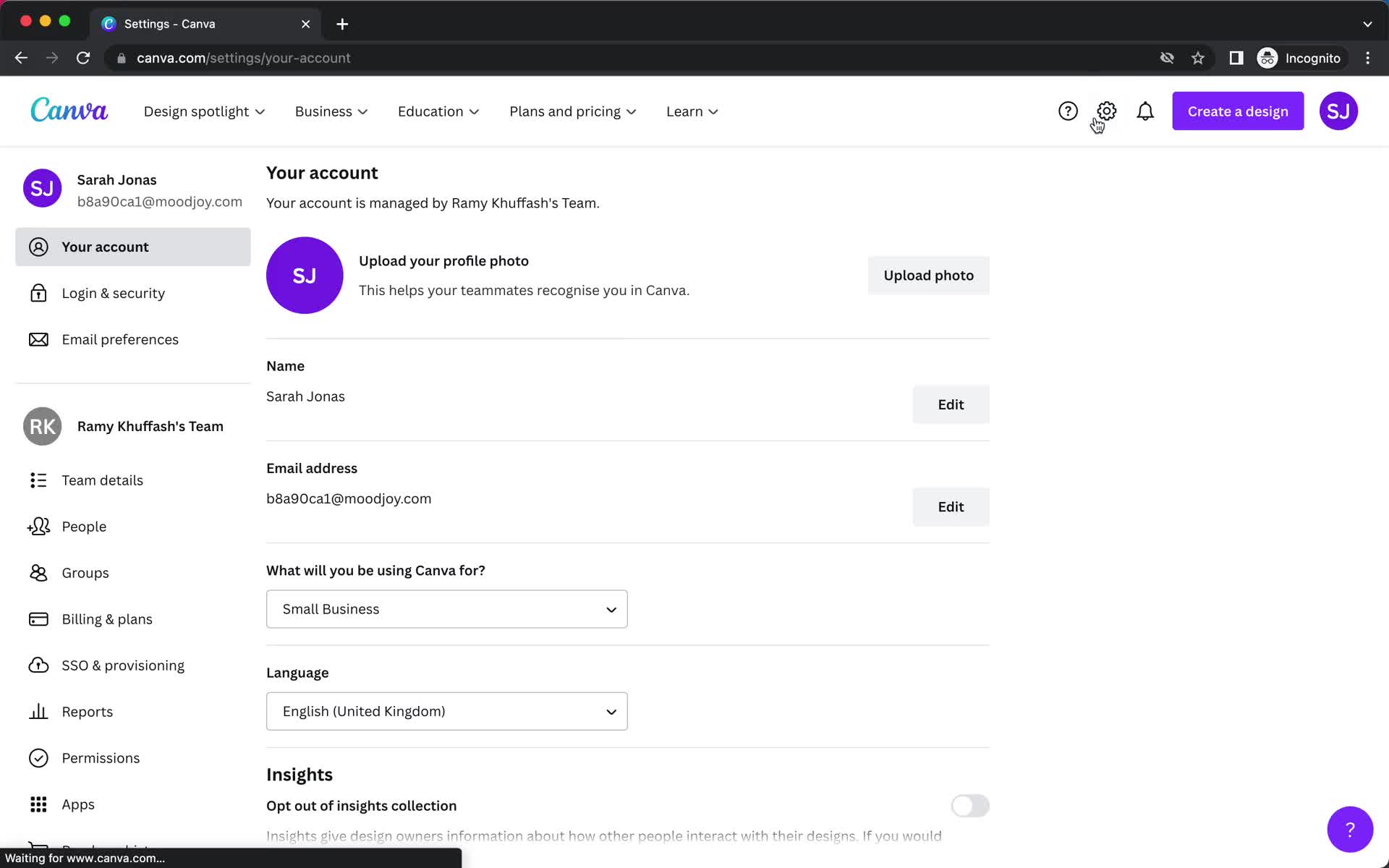
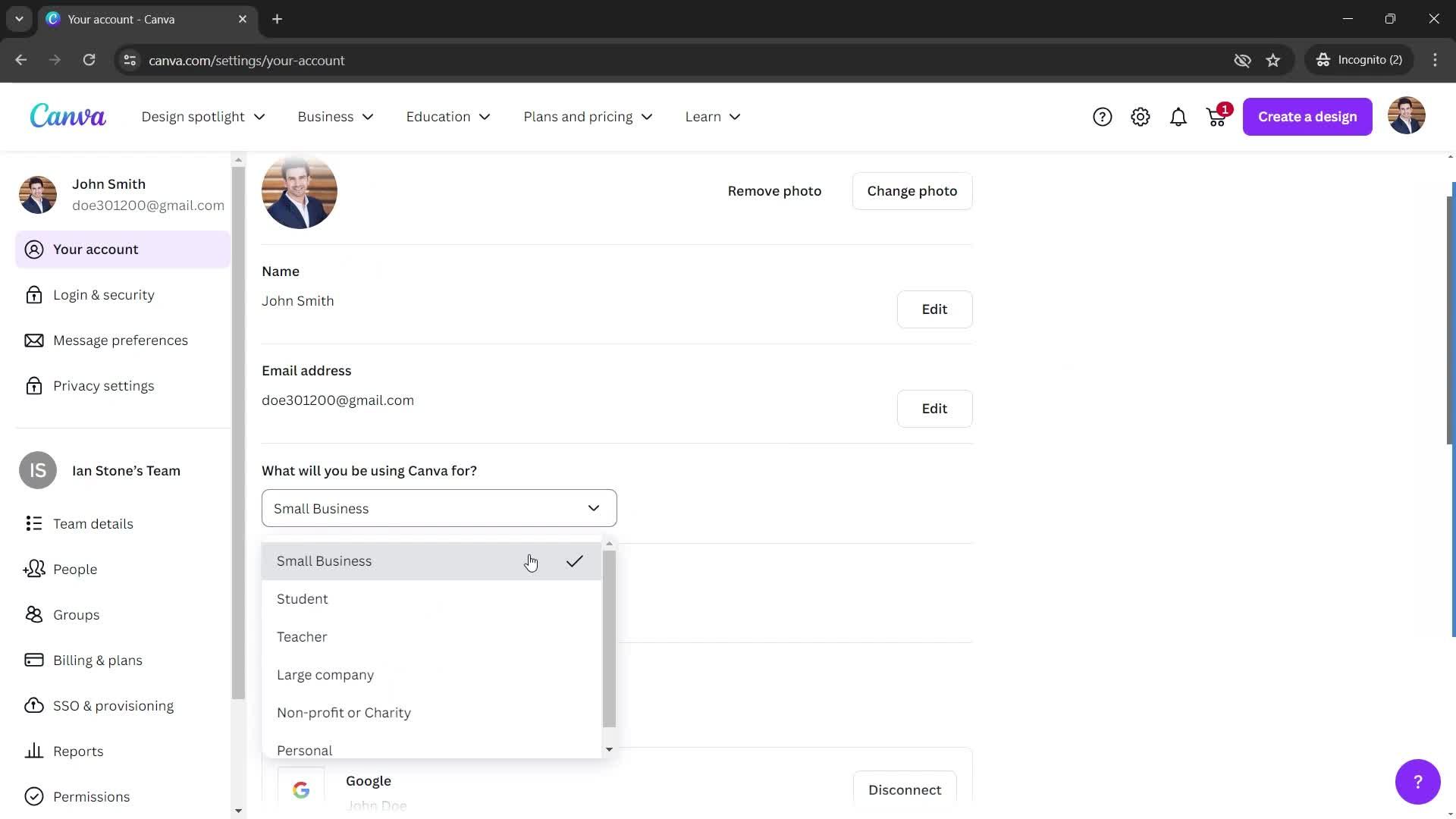
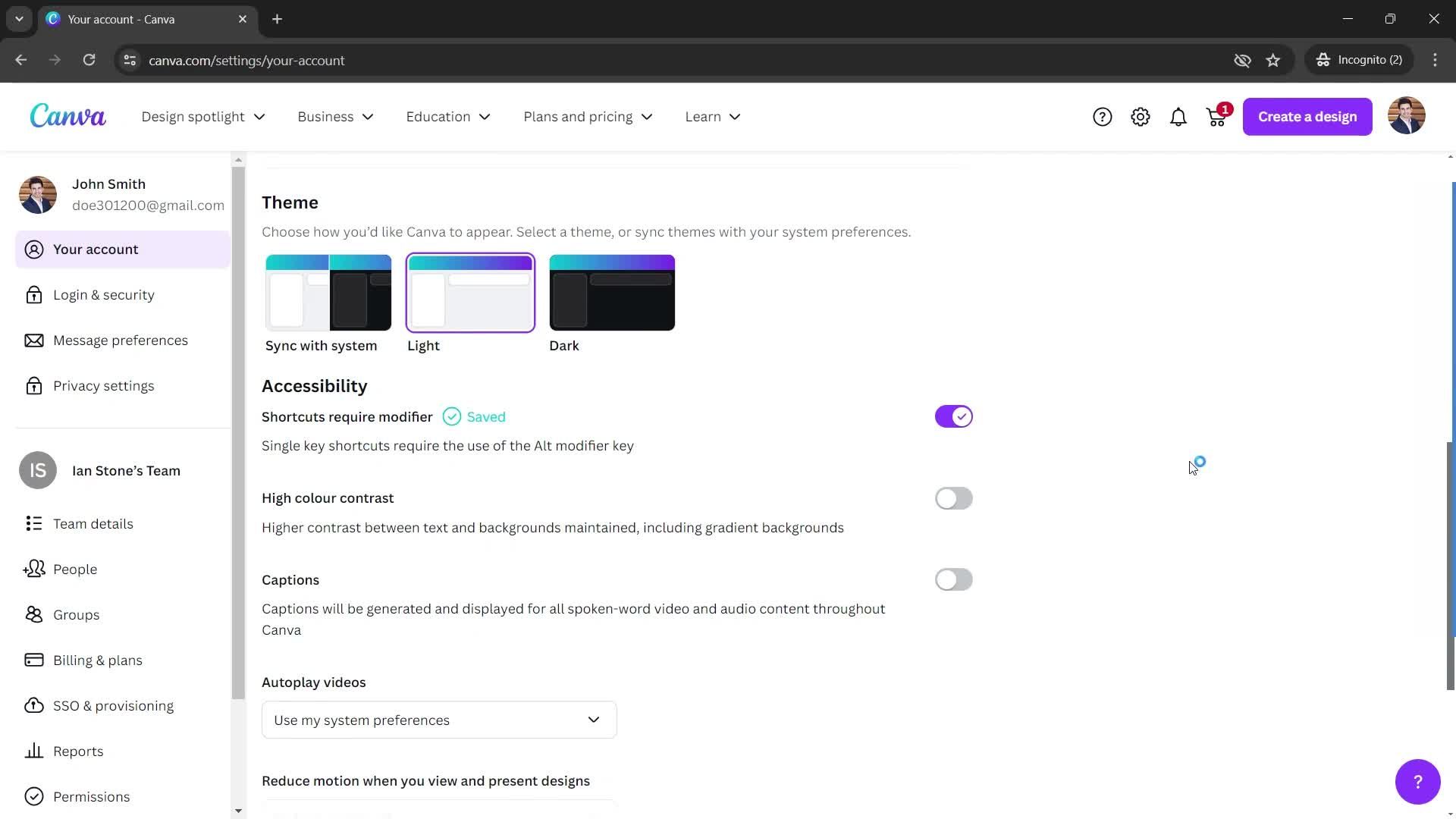
Settings
this is title
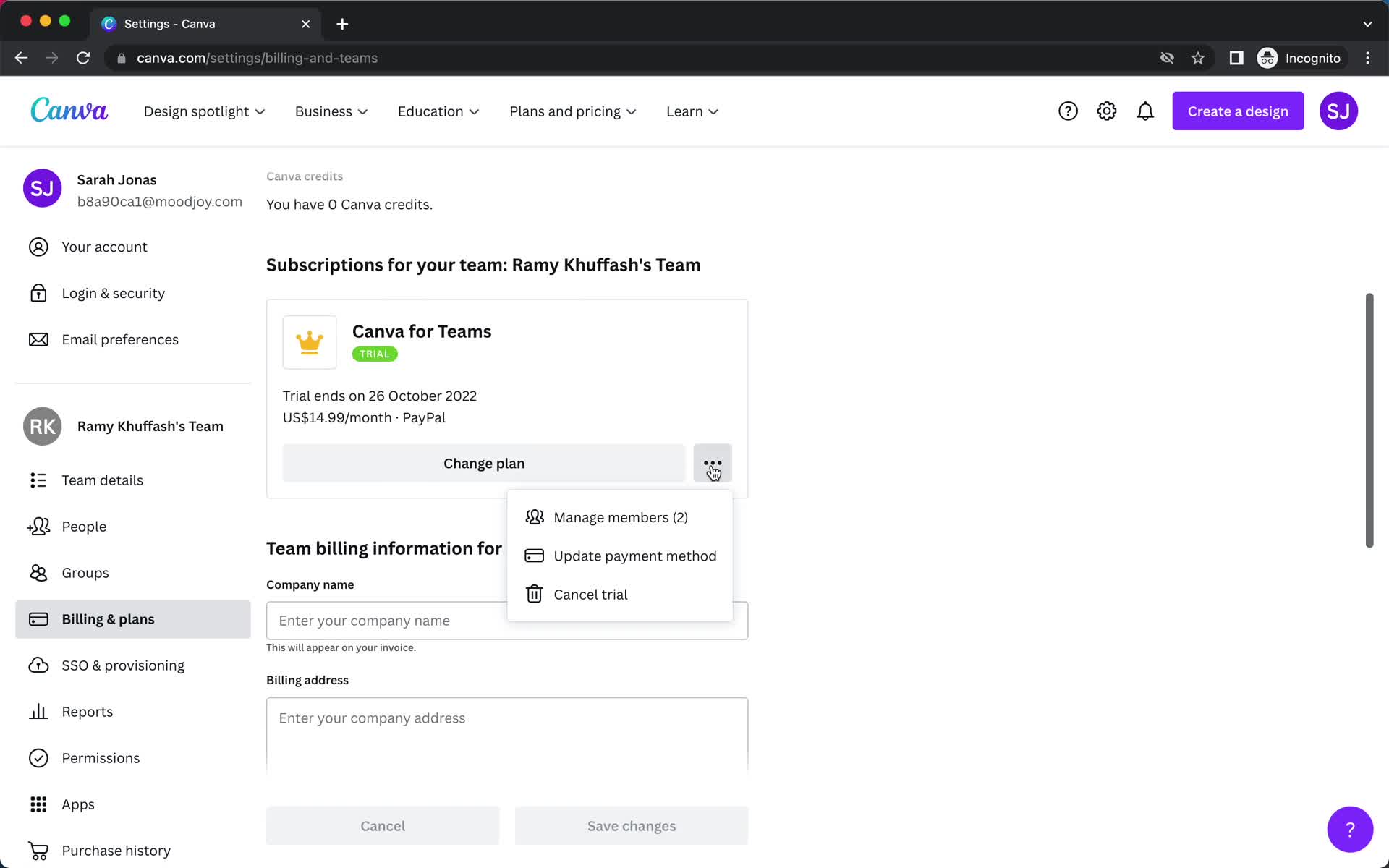
Billing
this is title
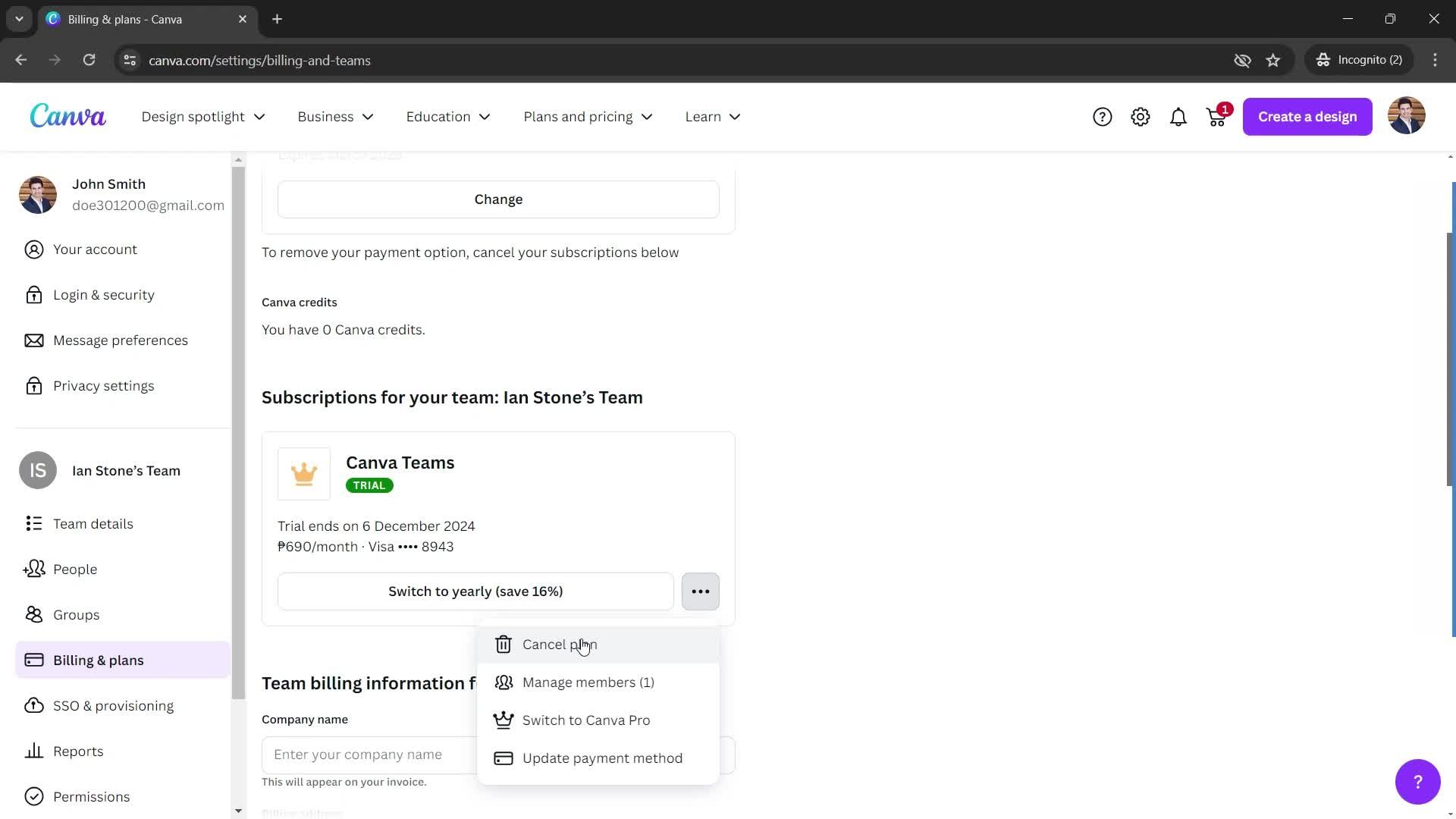
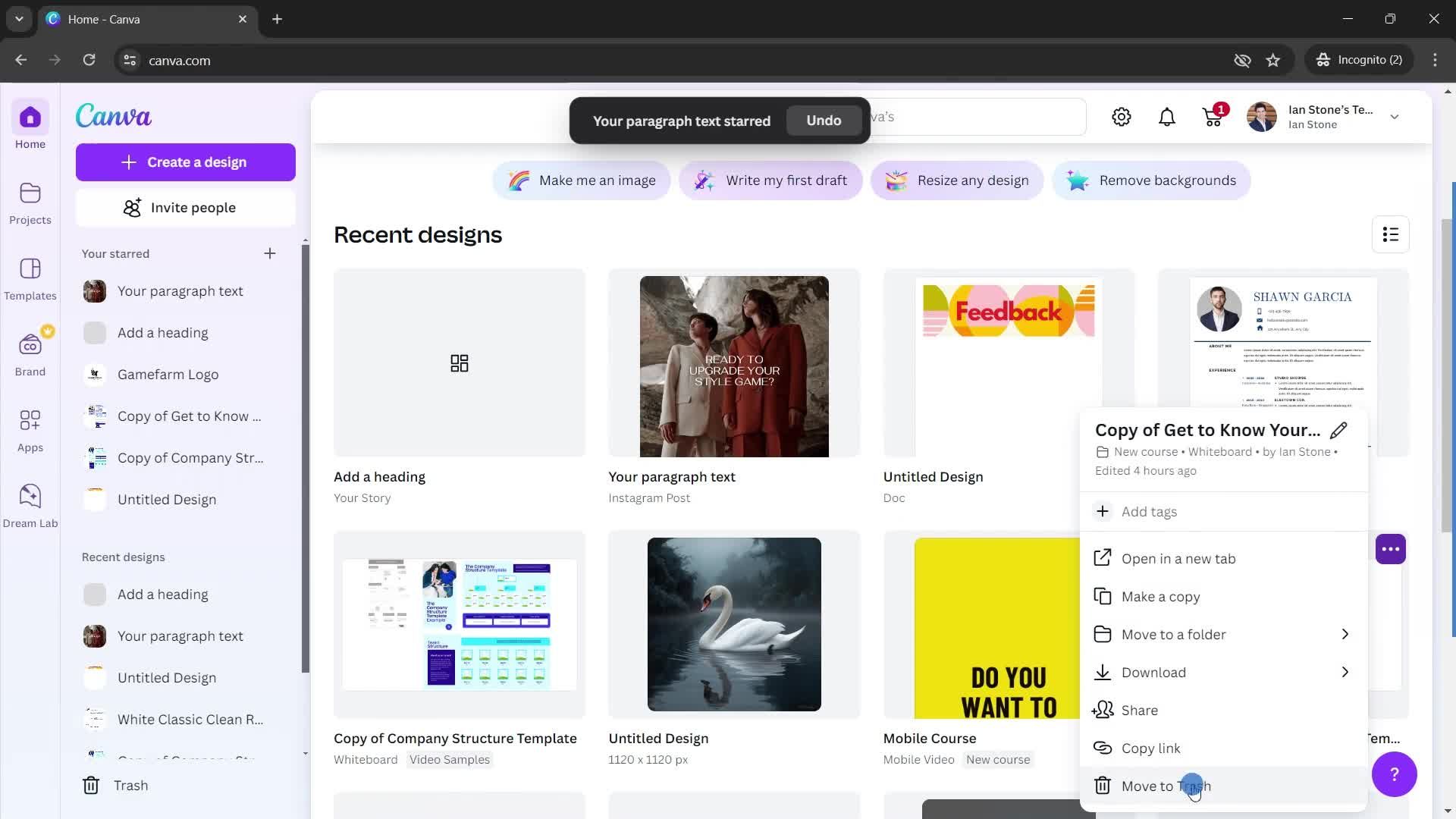
Action menu
this is title
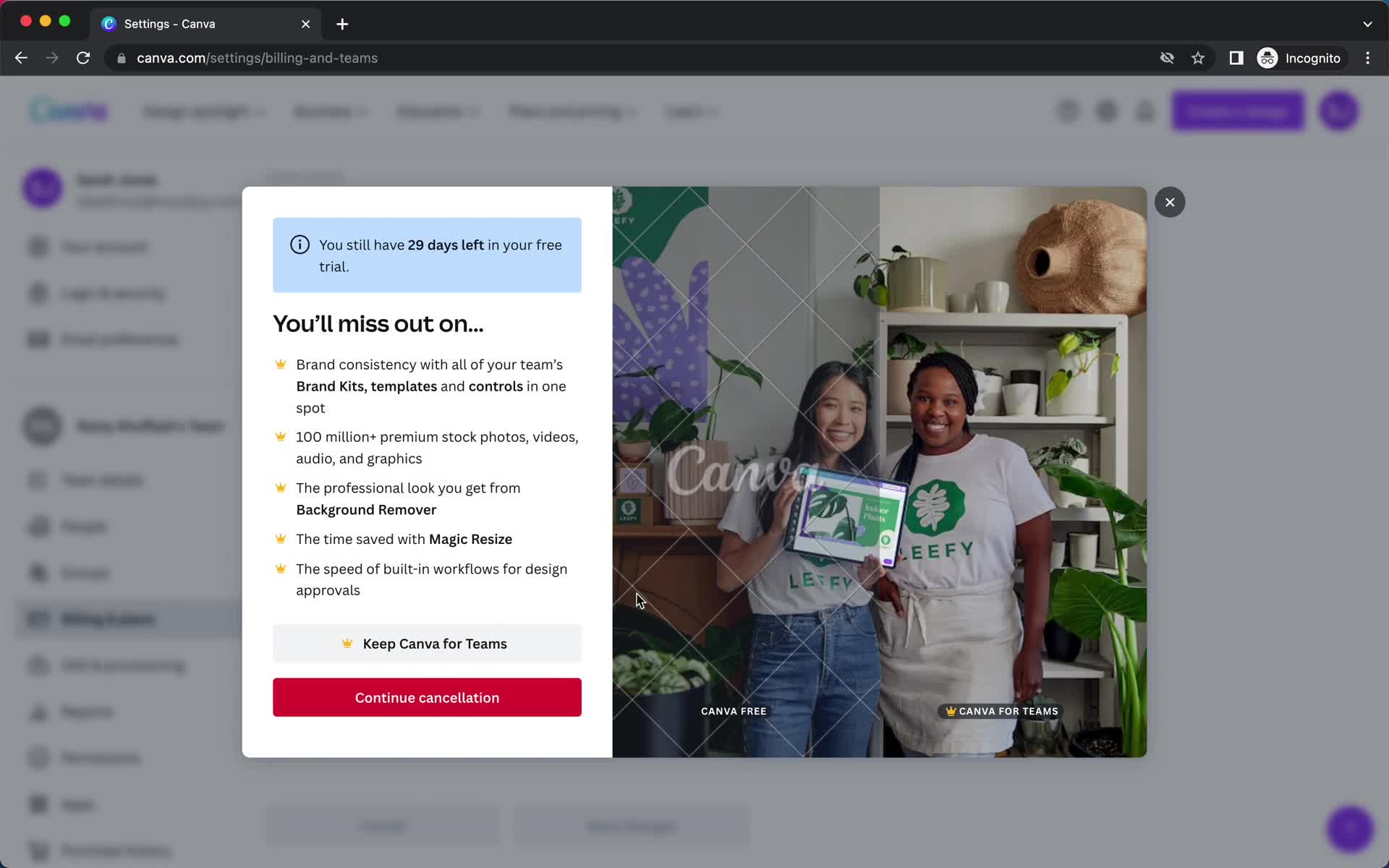
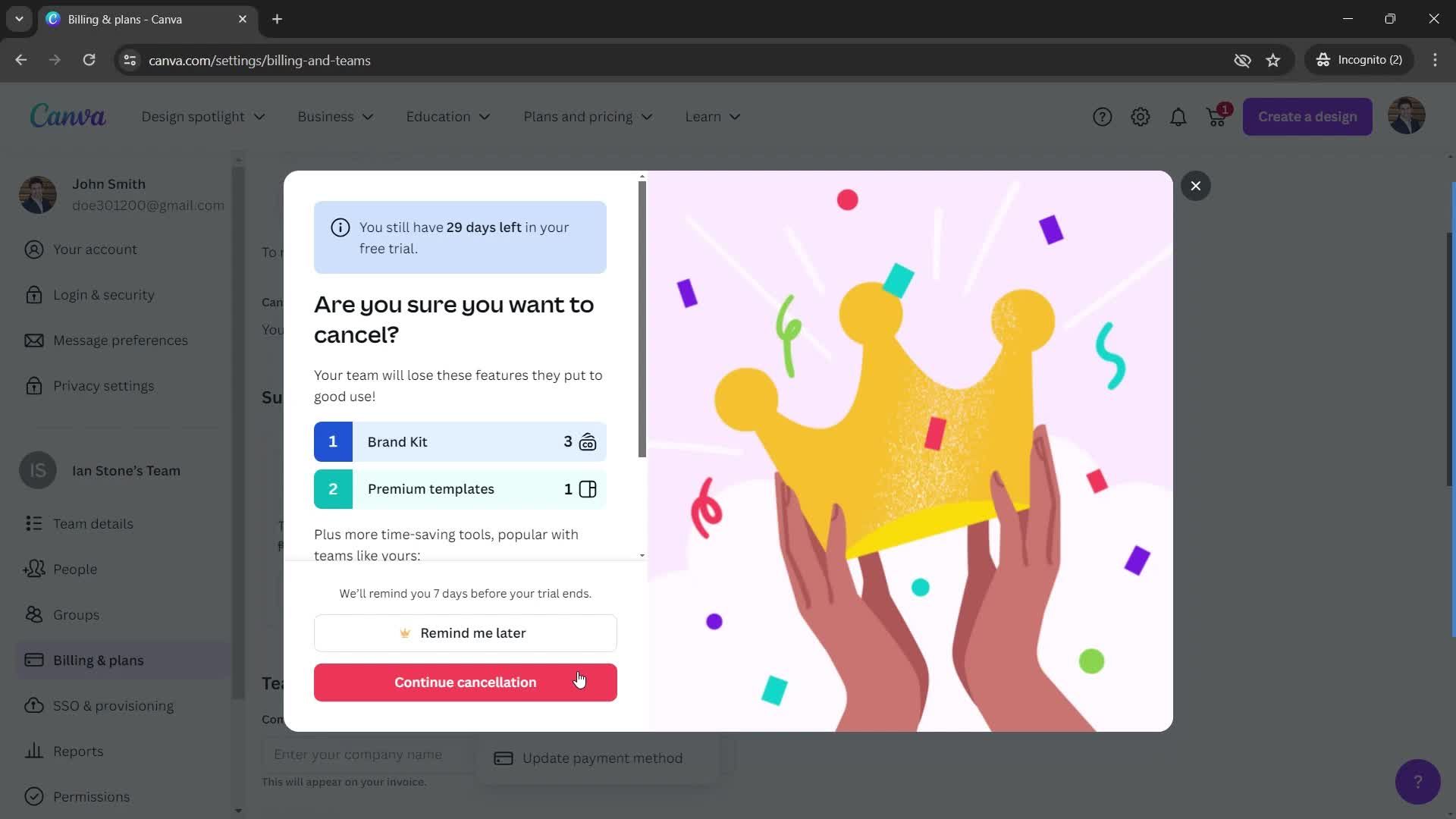
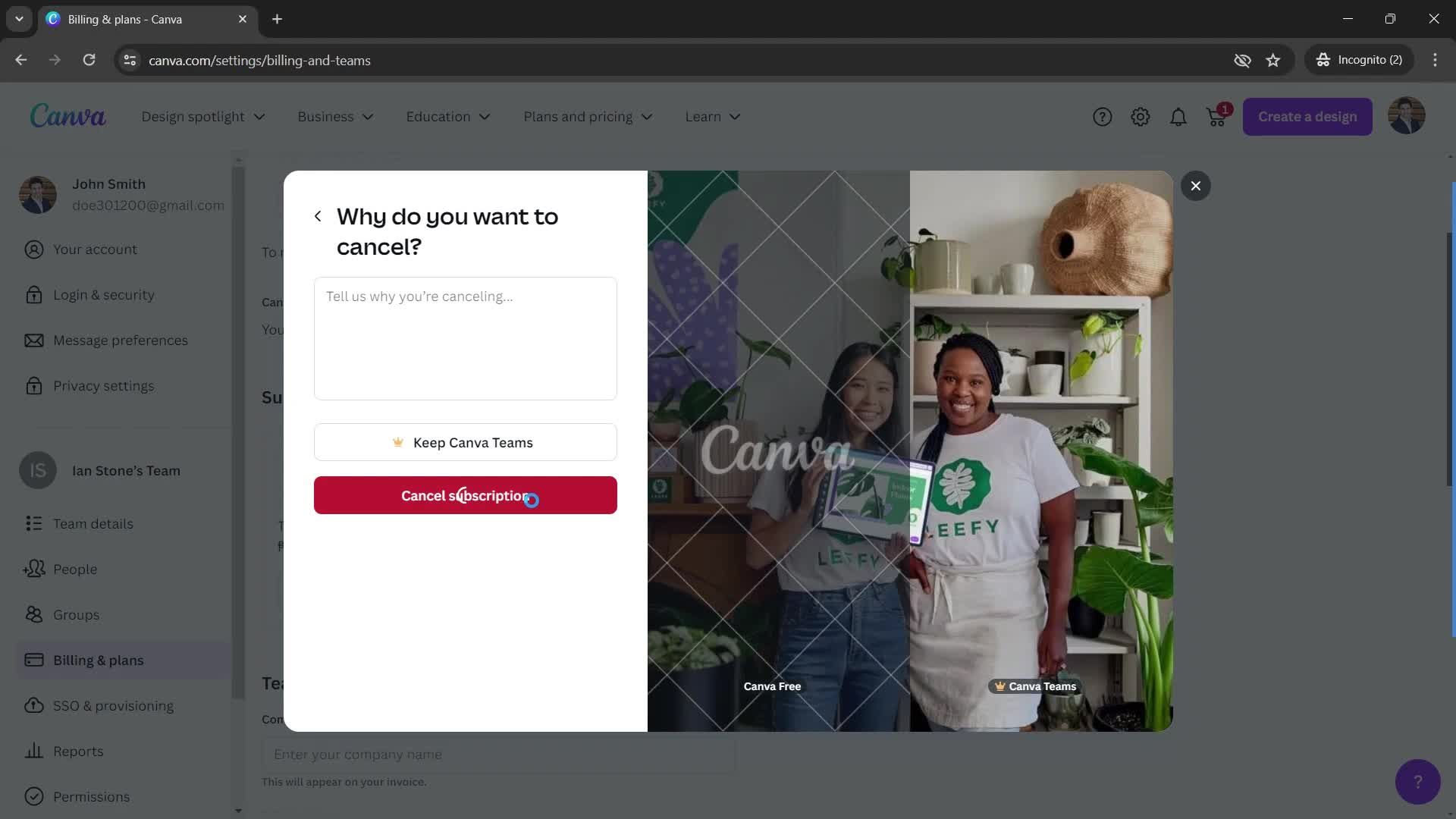
Cancel subscription
this is title
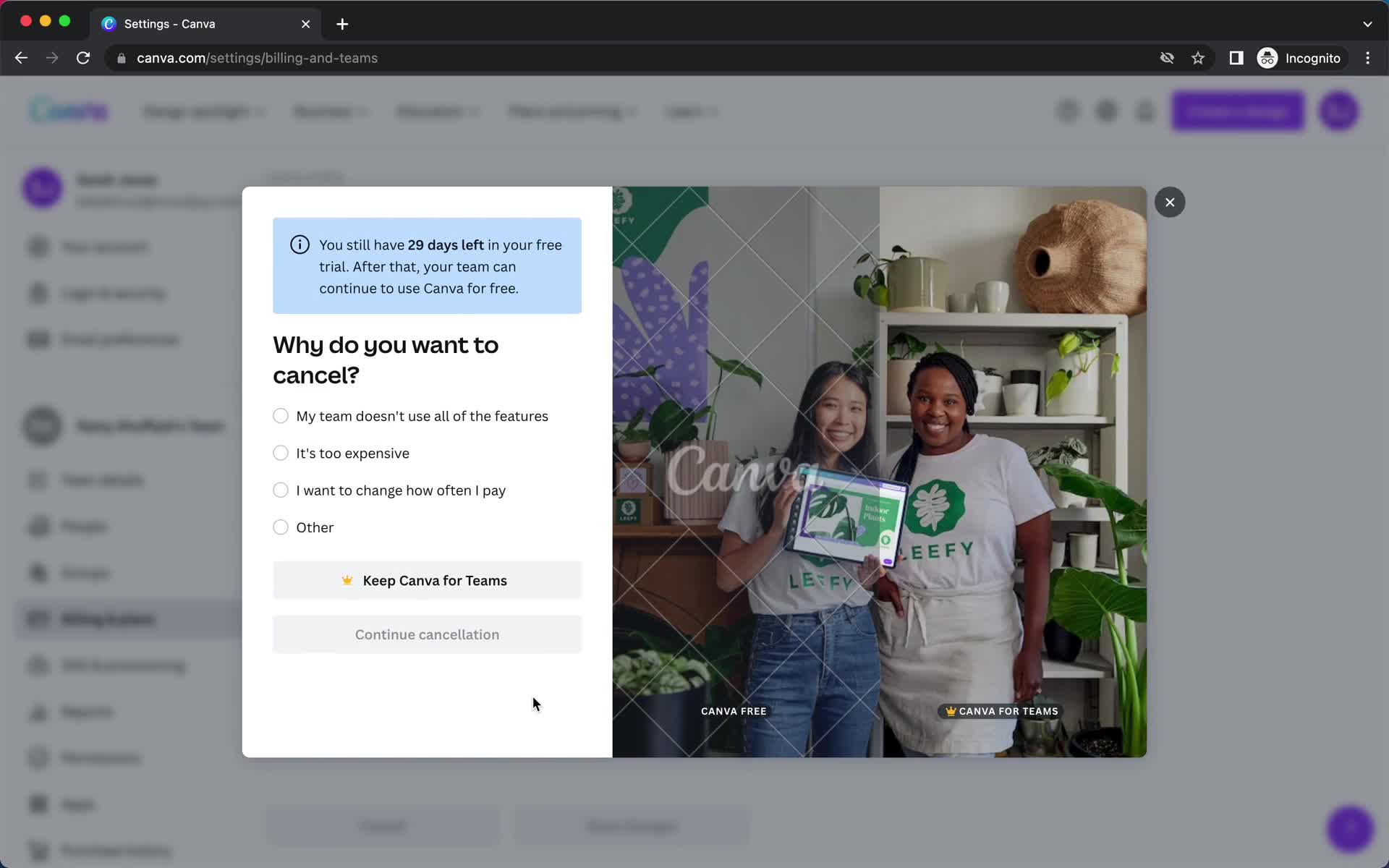
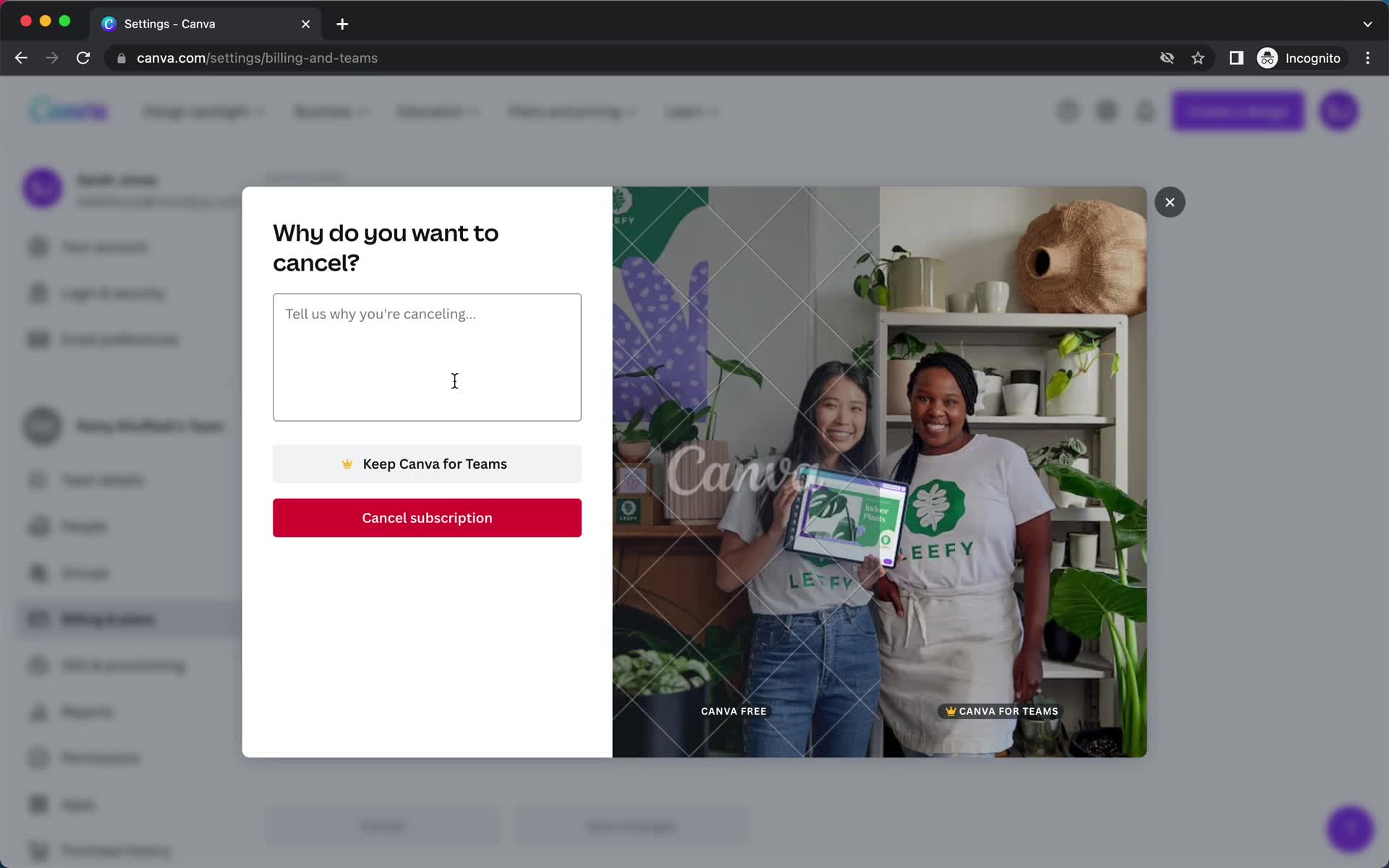
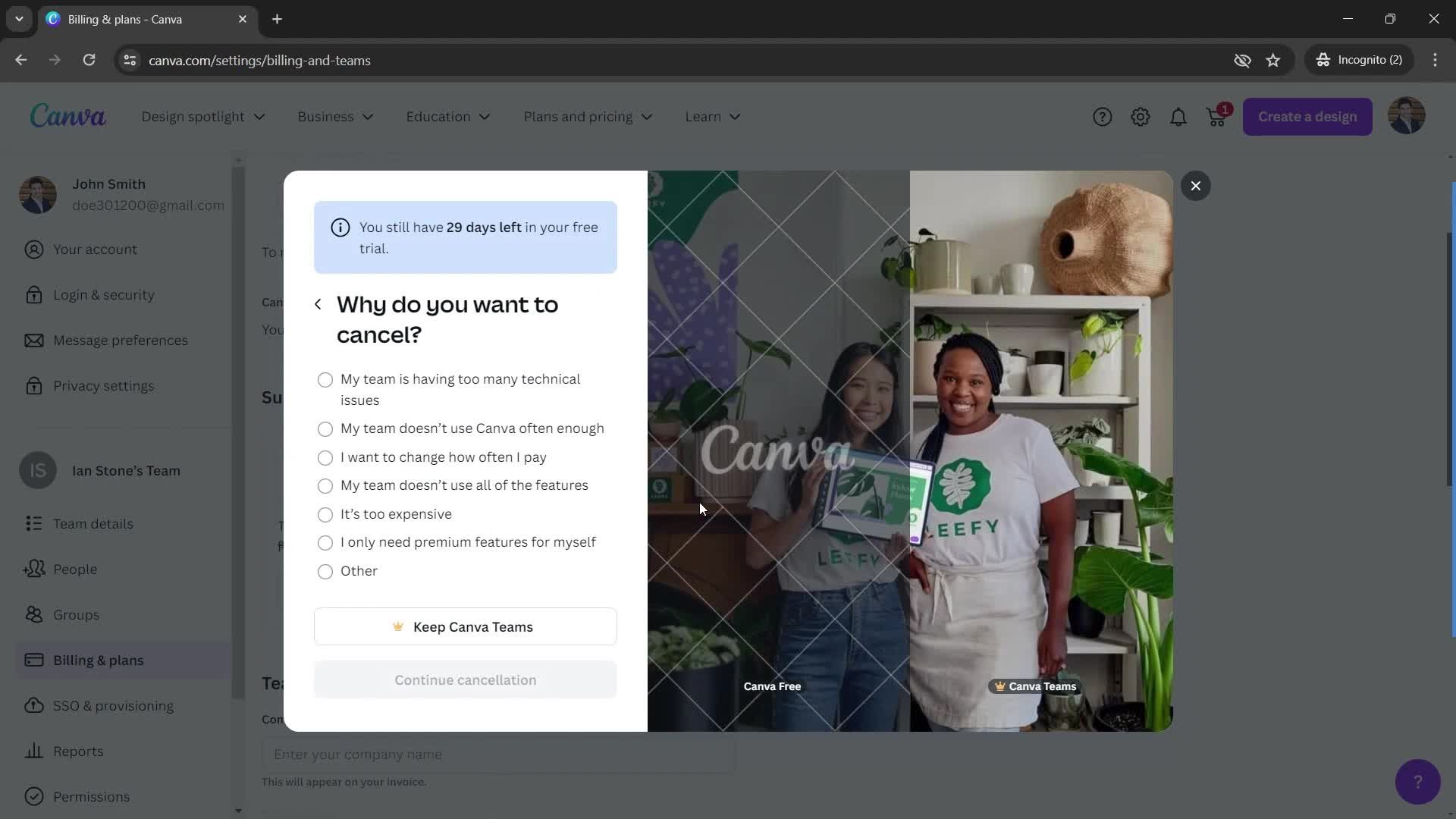
Select cancellation reason
this is title
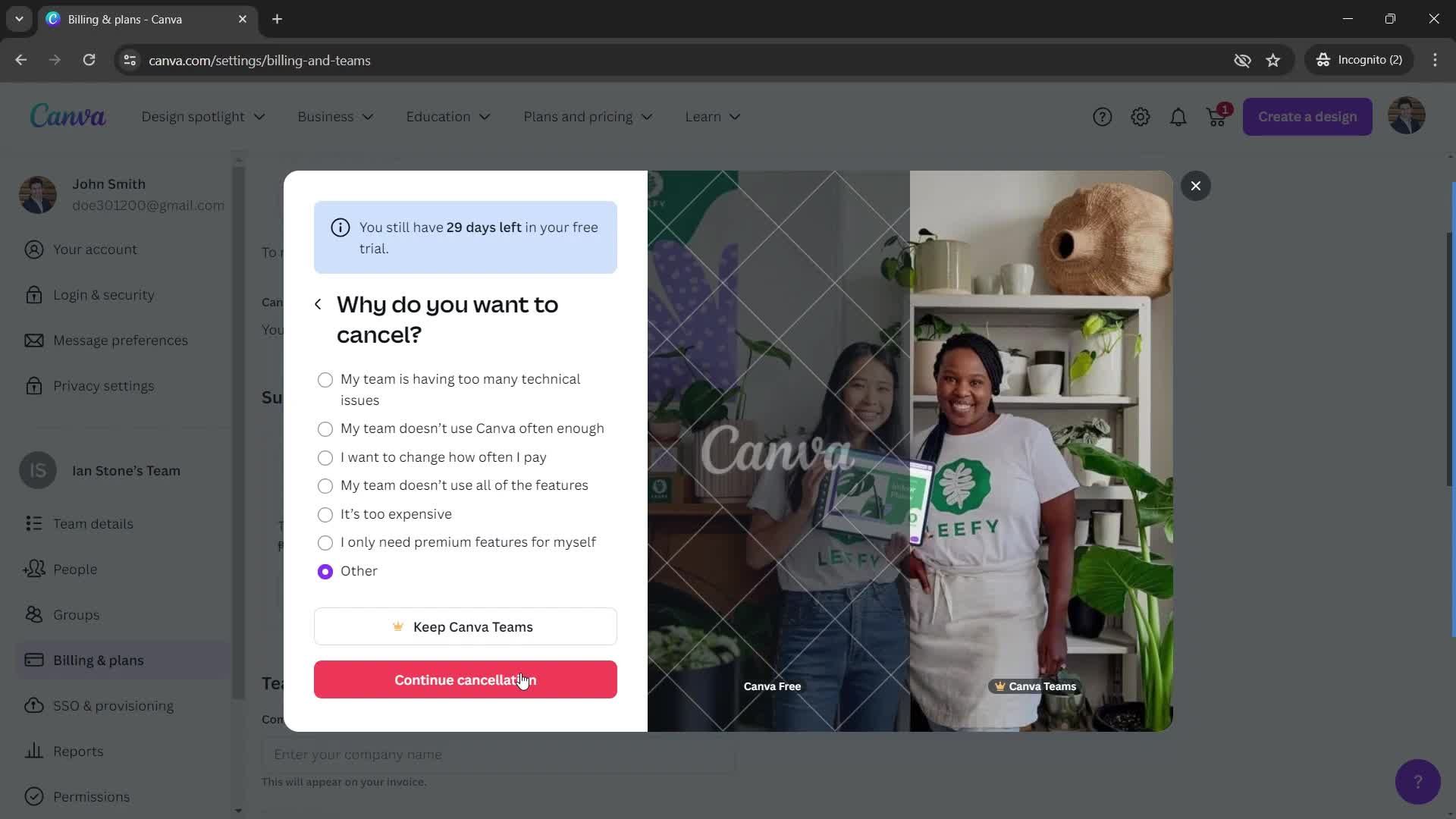
Select cancellation reason
this is title
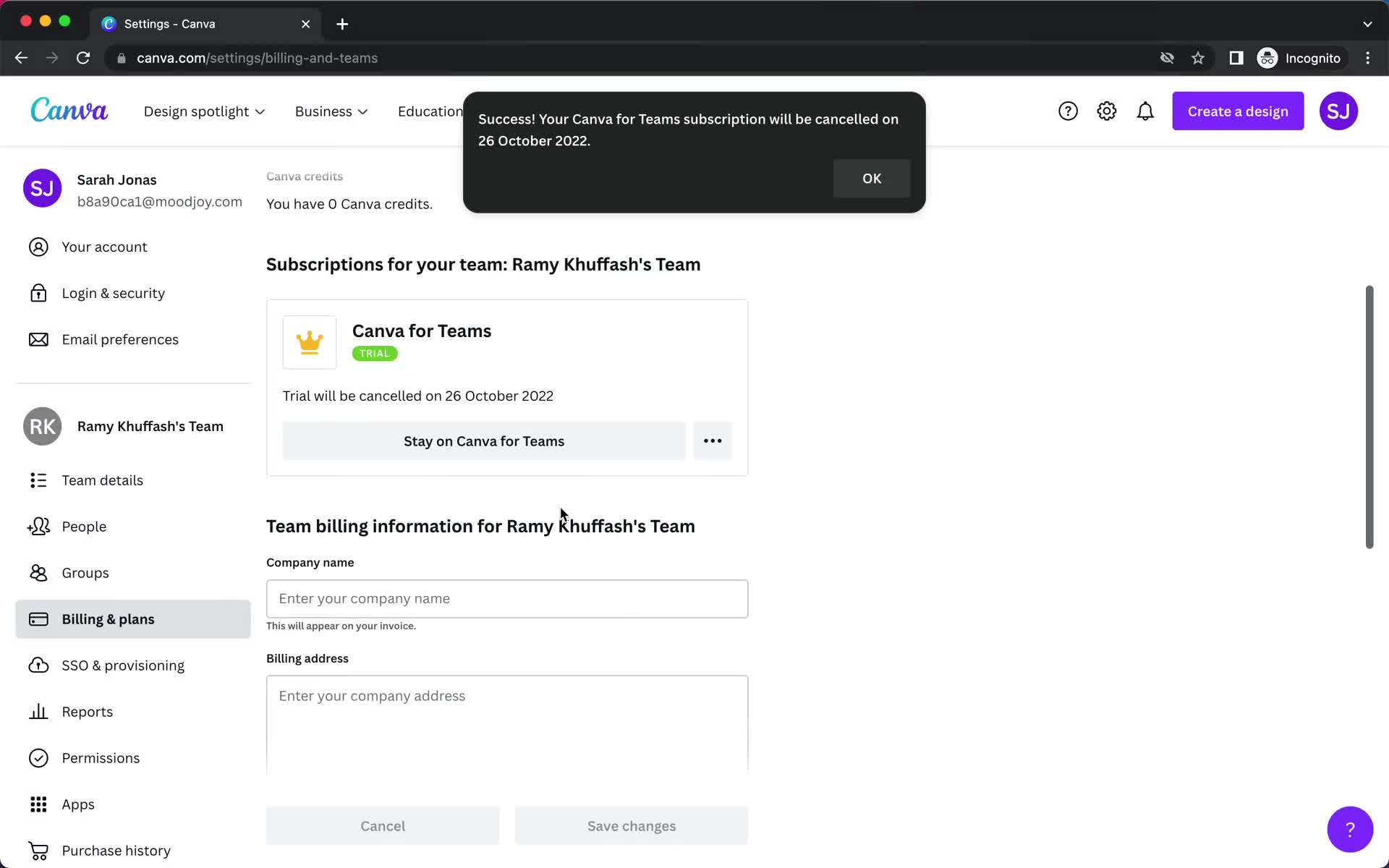
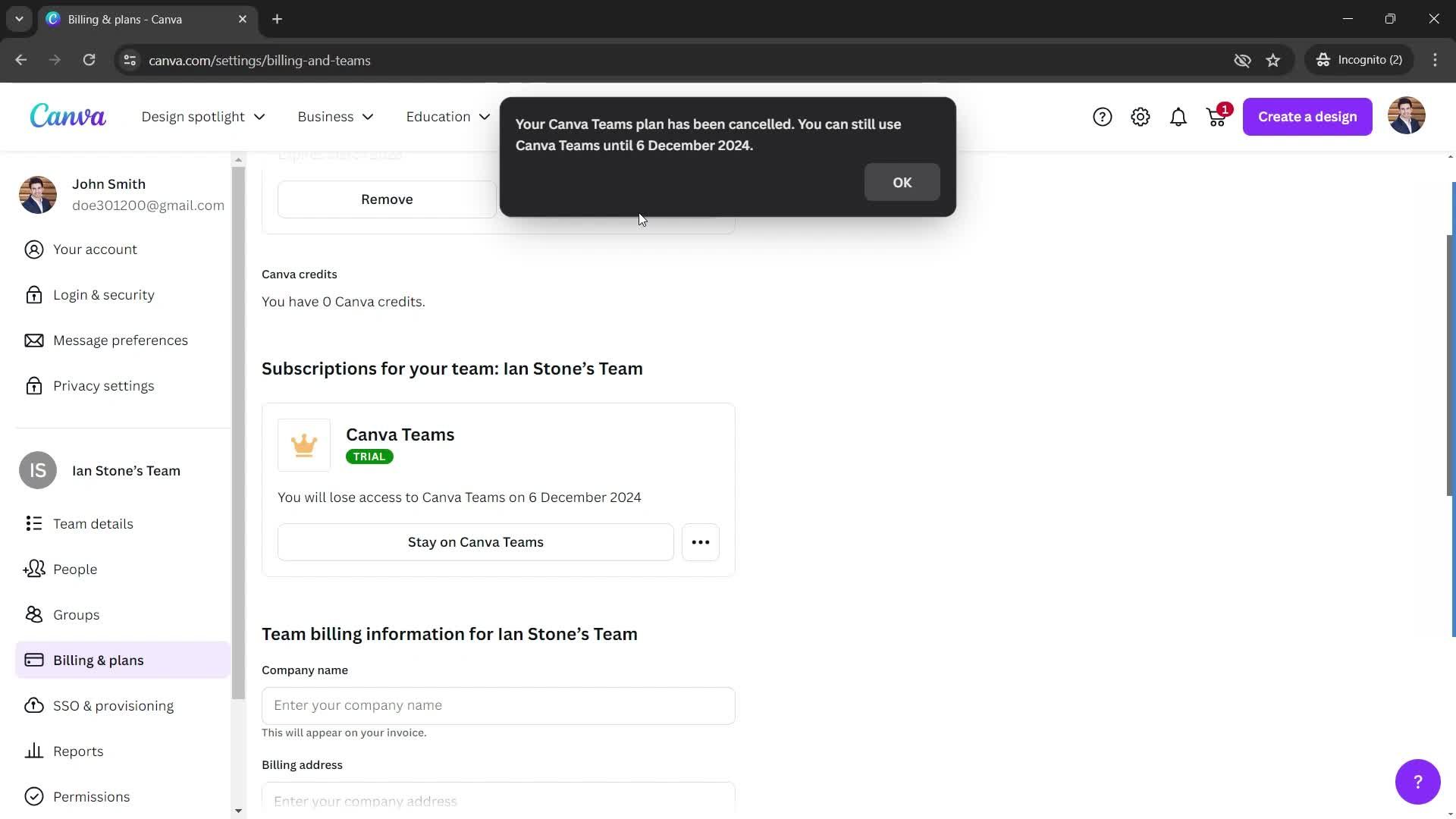
Subscription cancelled
this is title
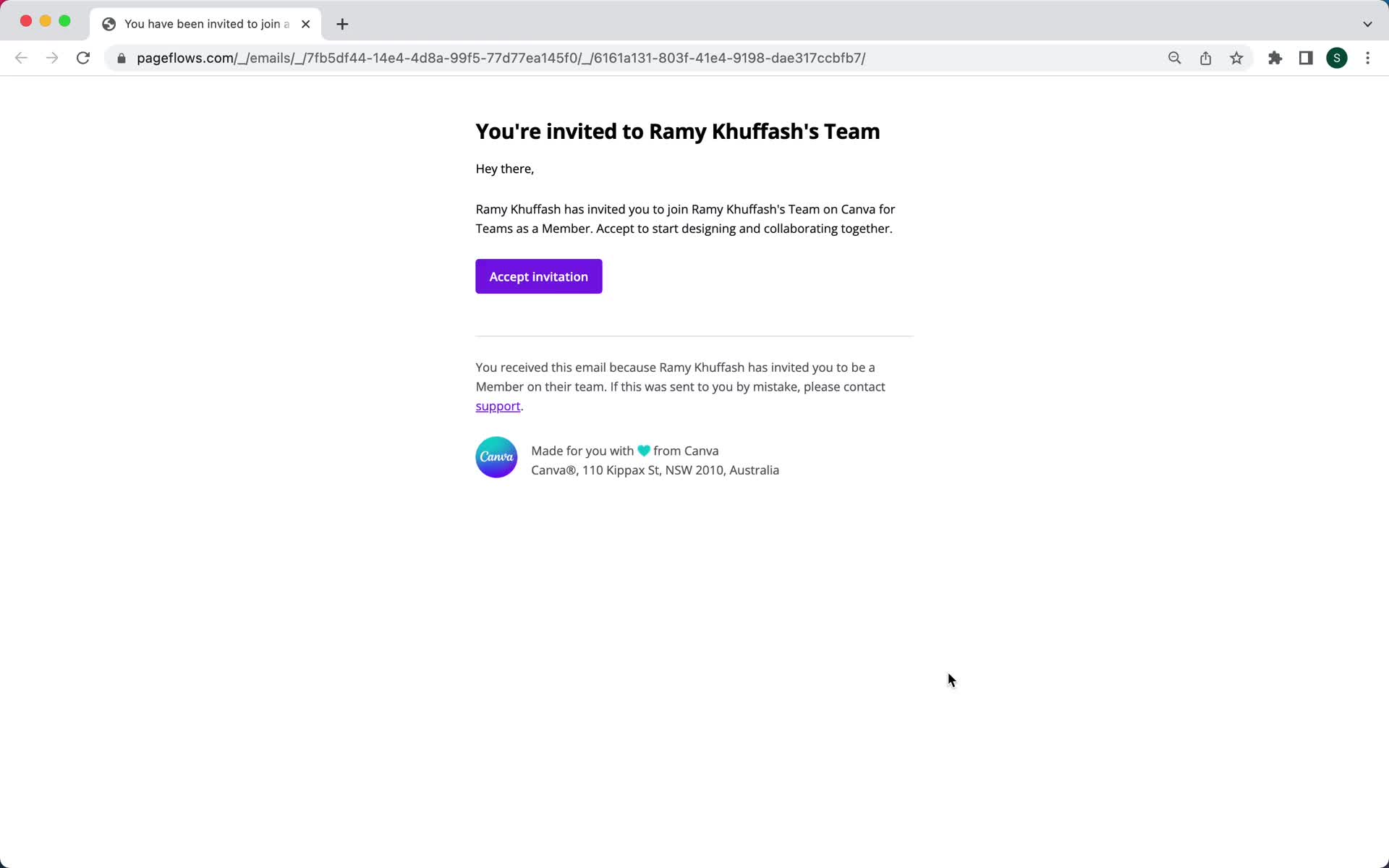
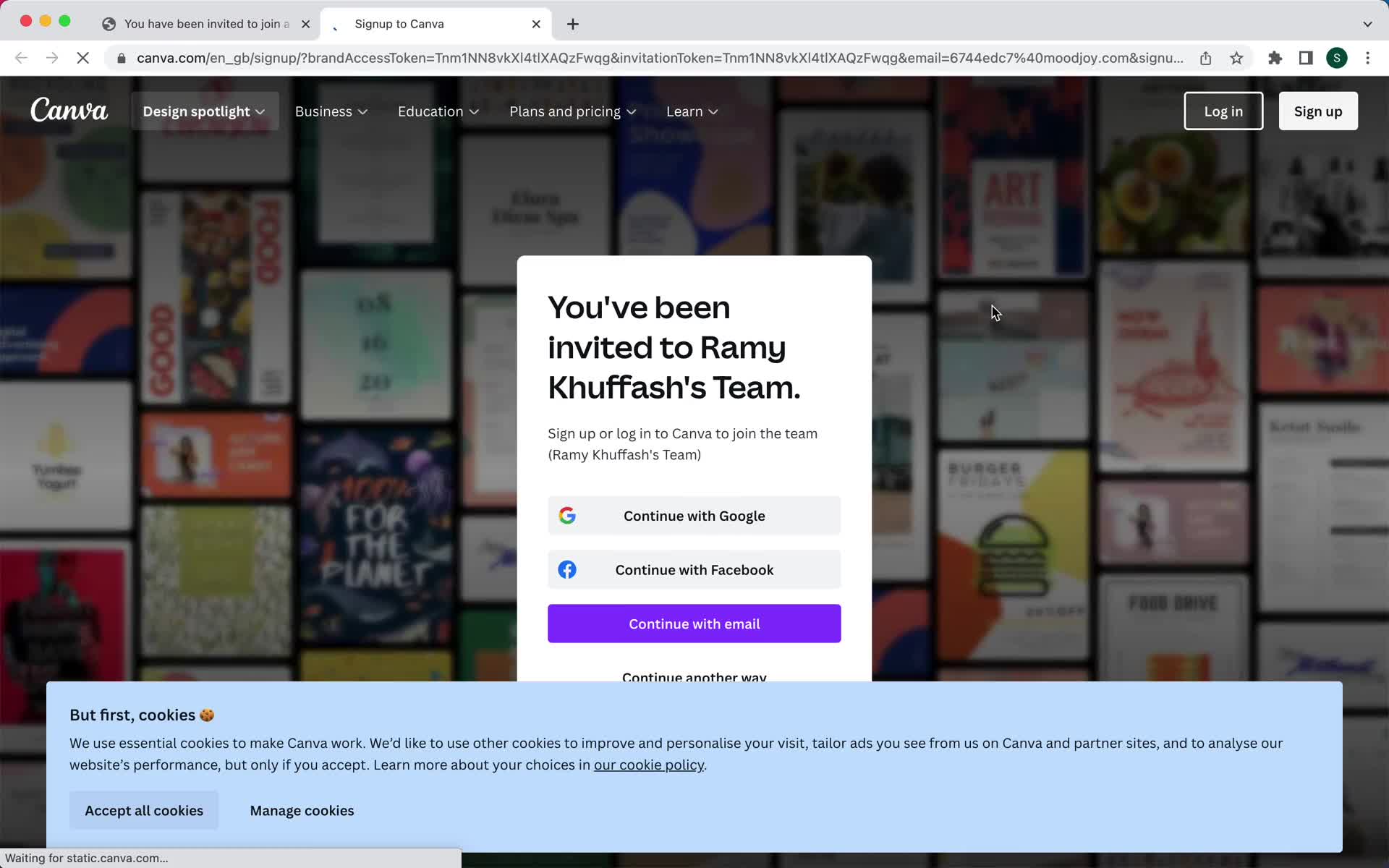
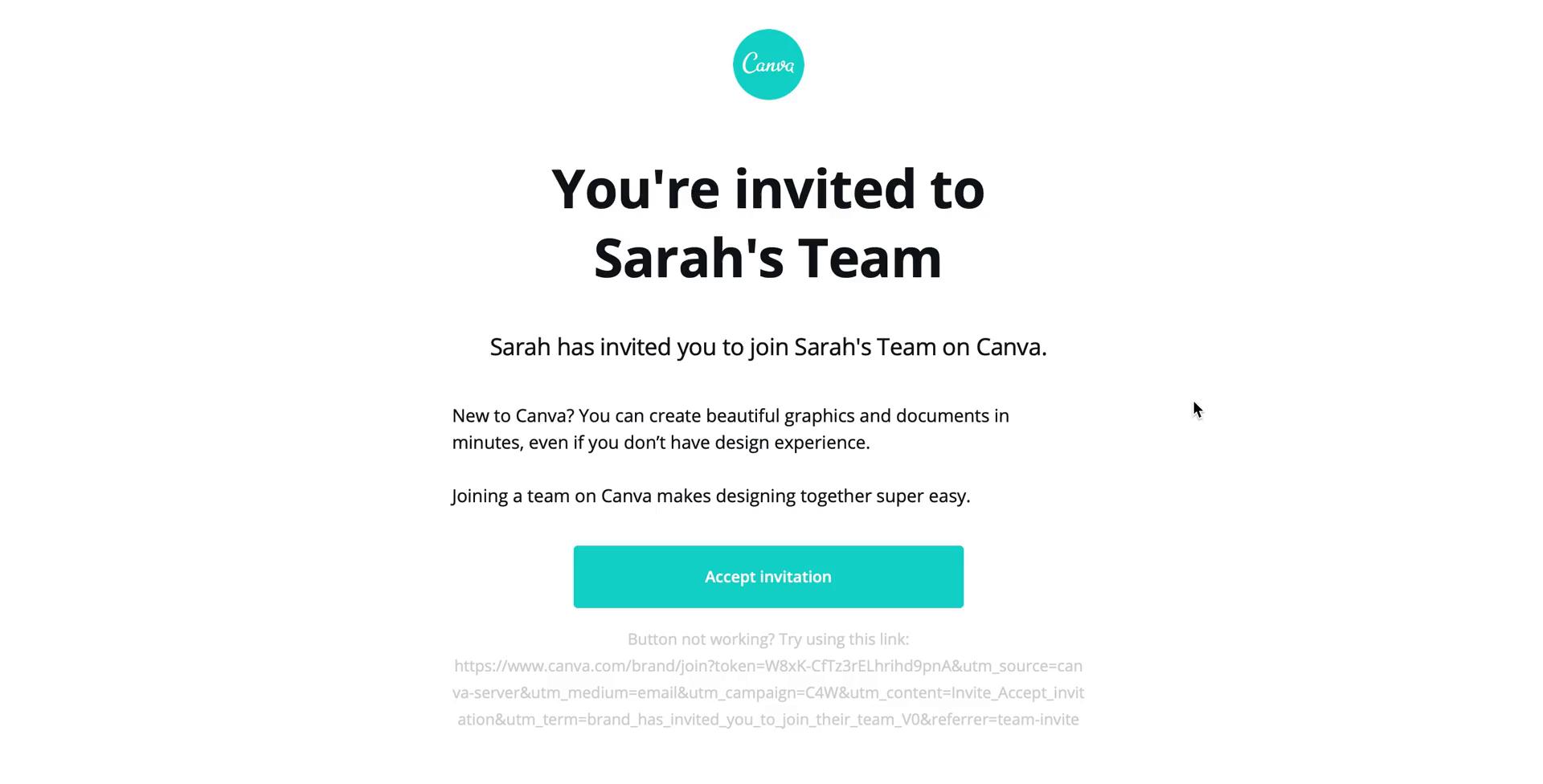
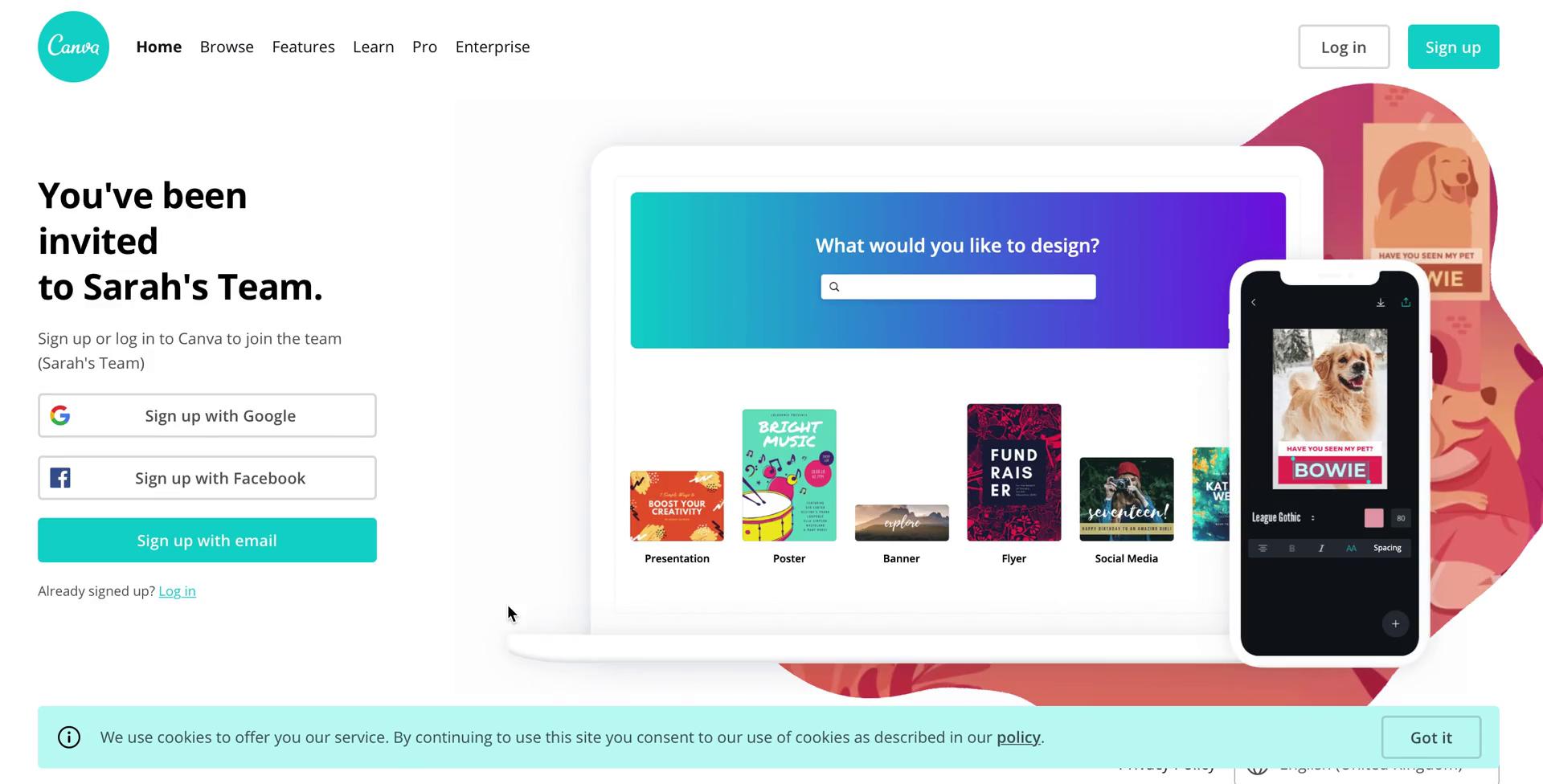
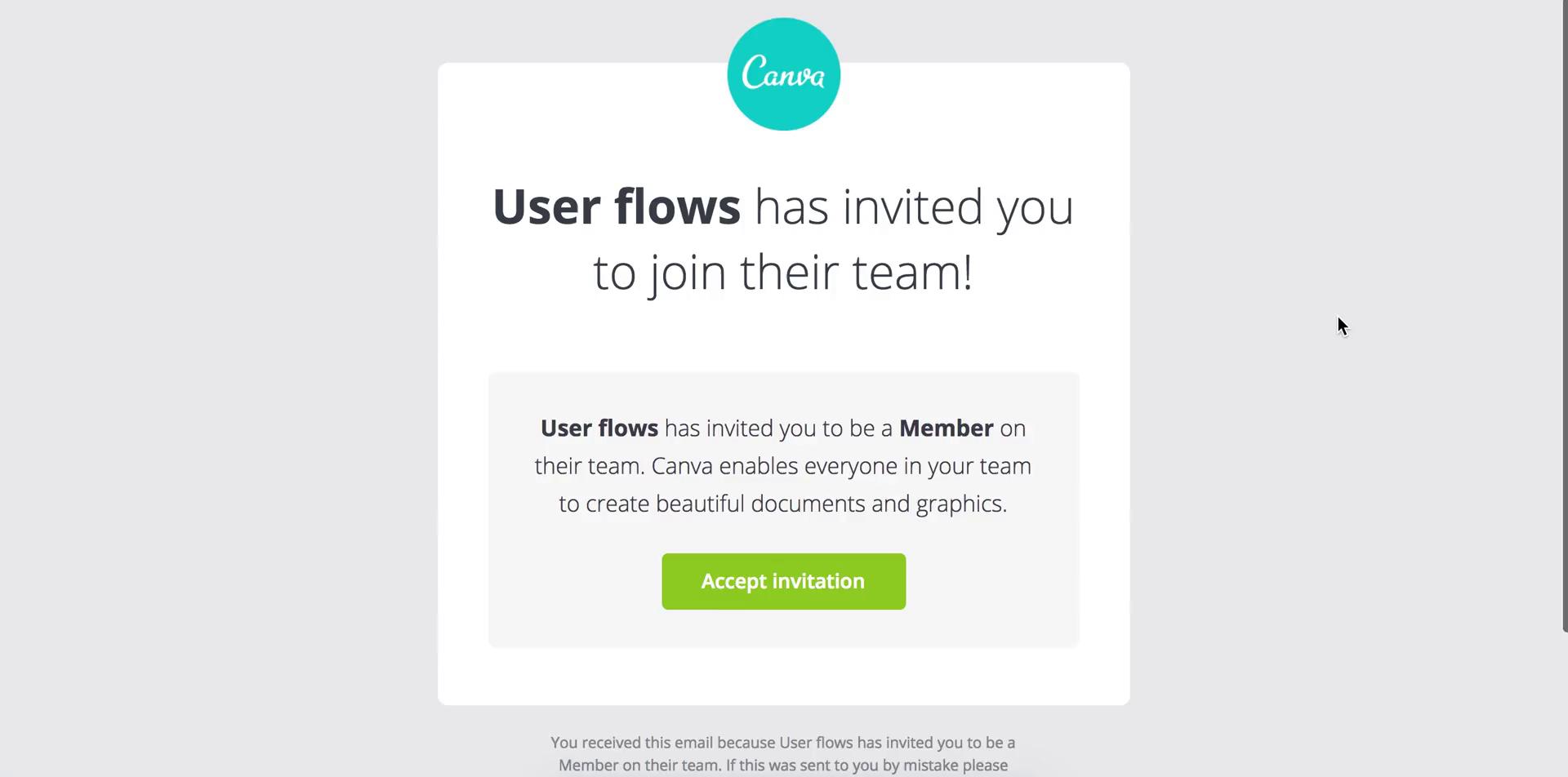
Invite email
this is title
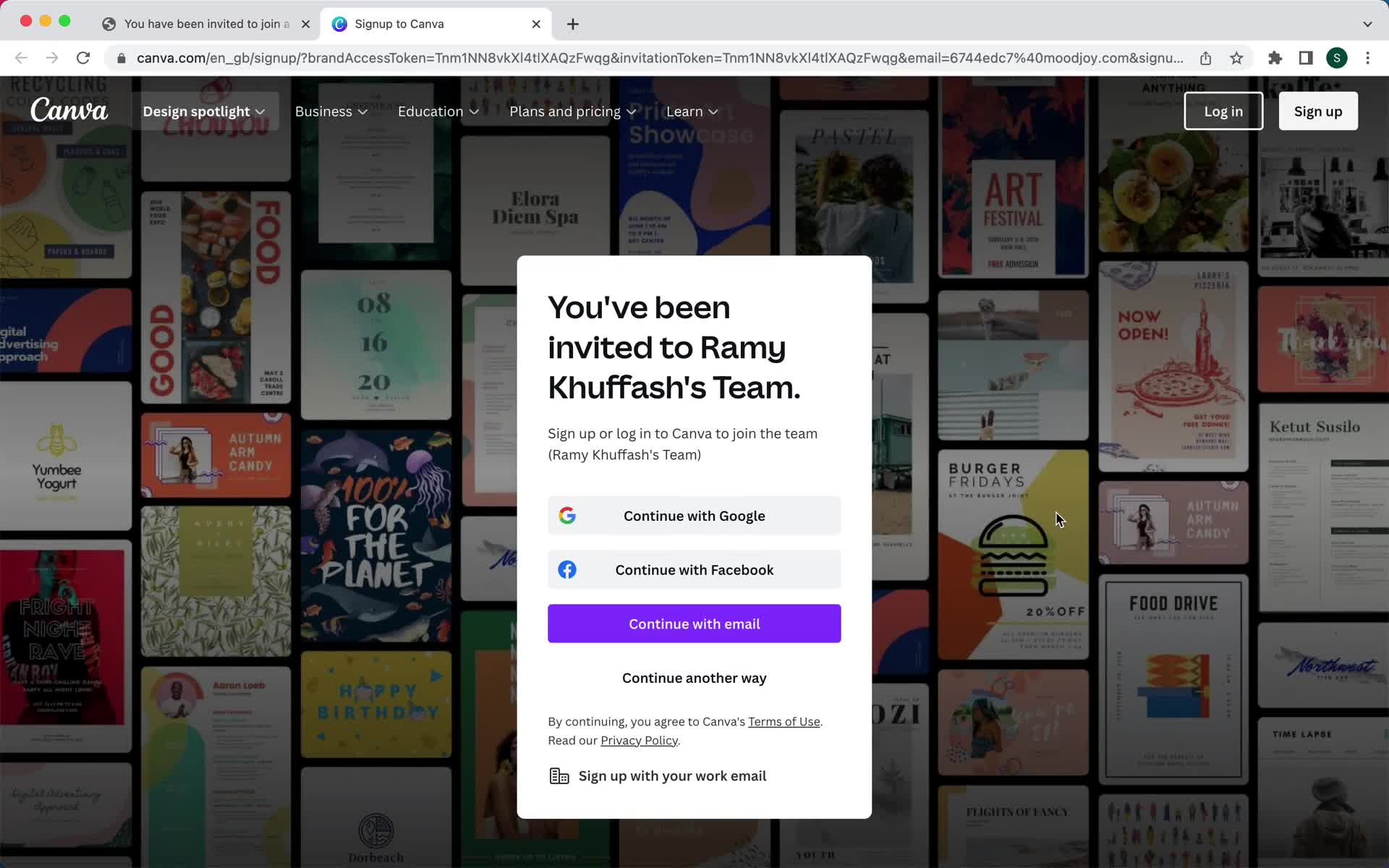
Accept cookie policy
this is title
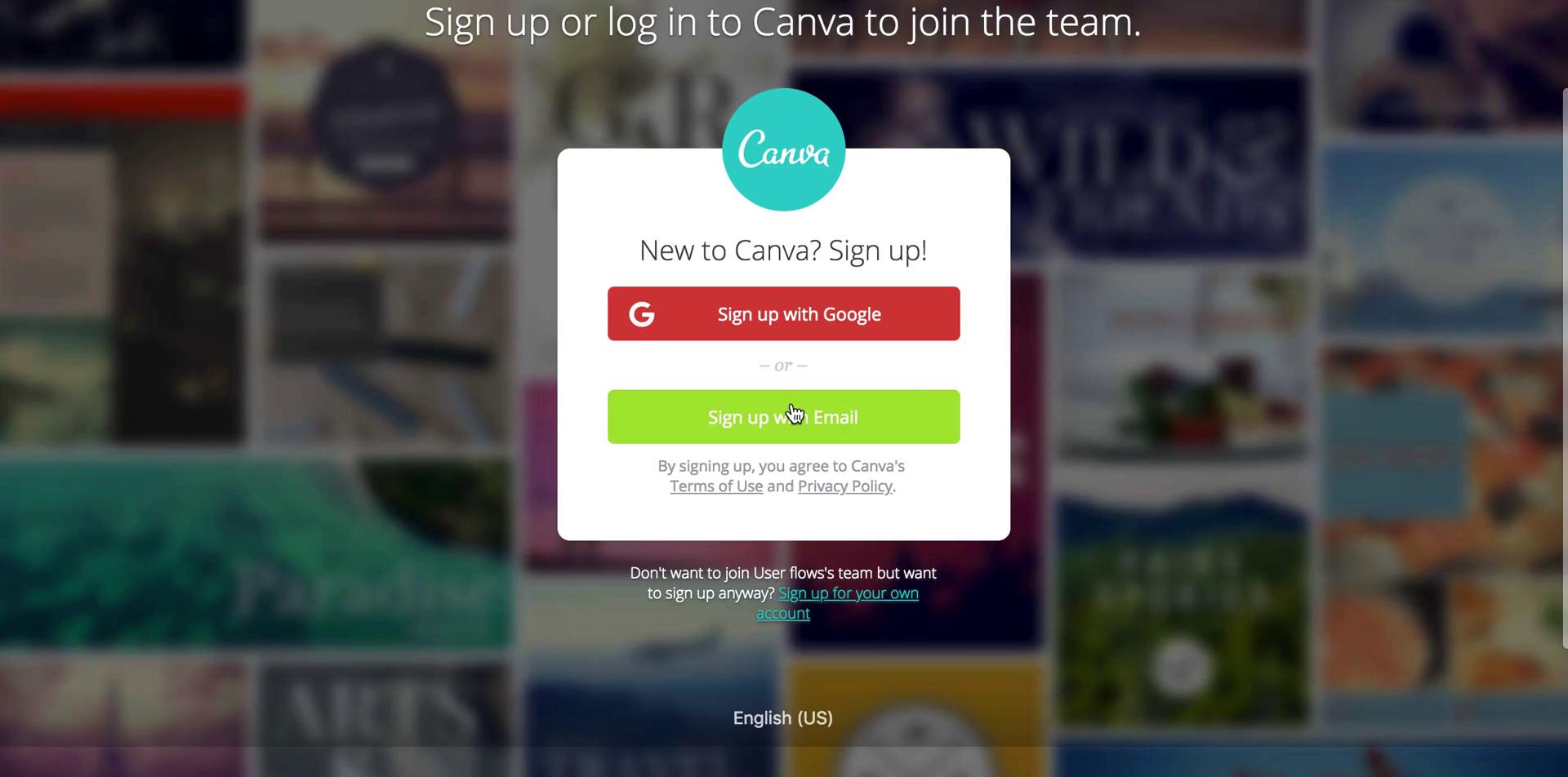
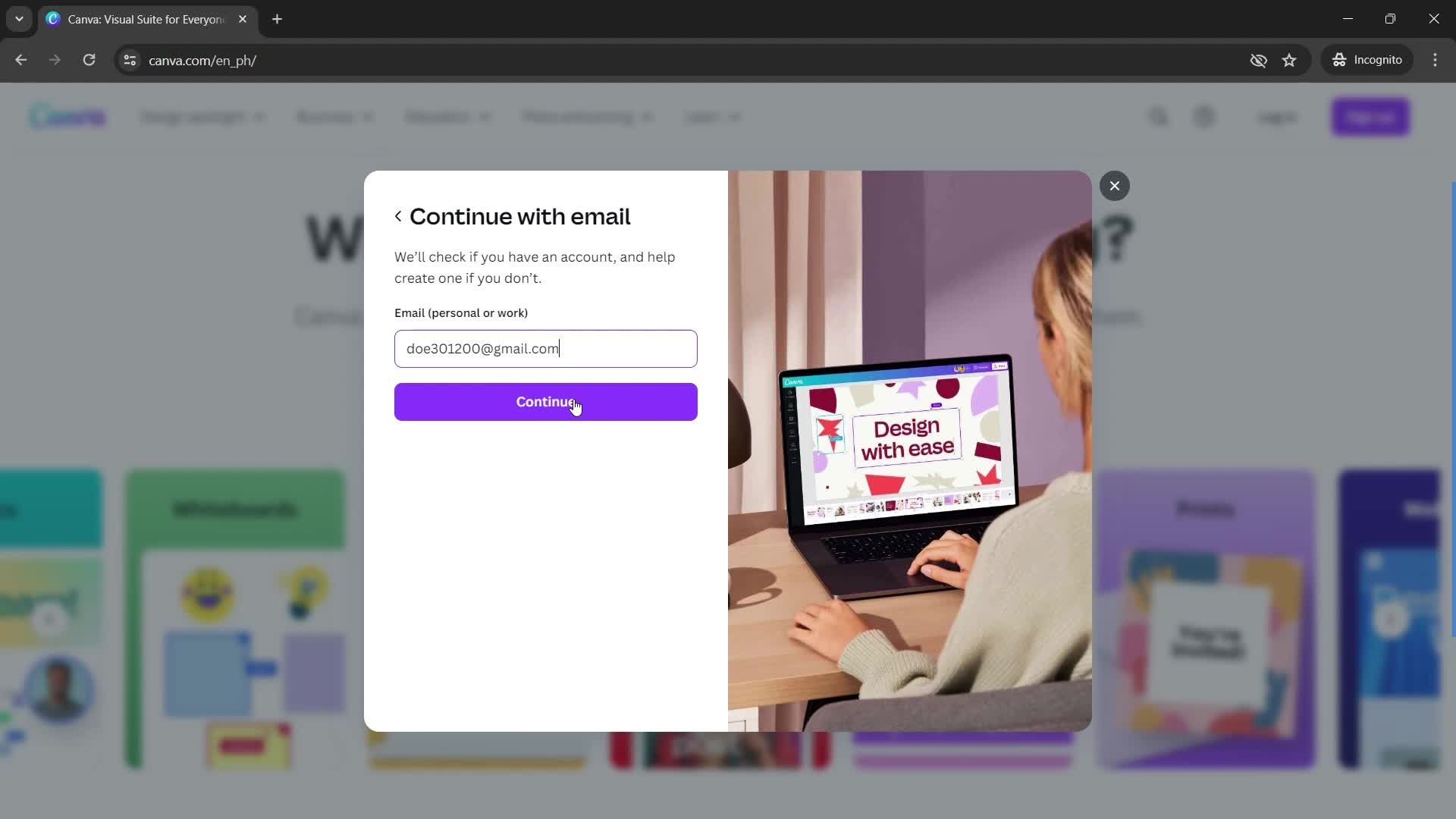
Sign up
this is title
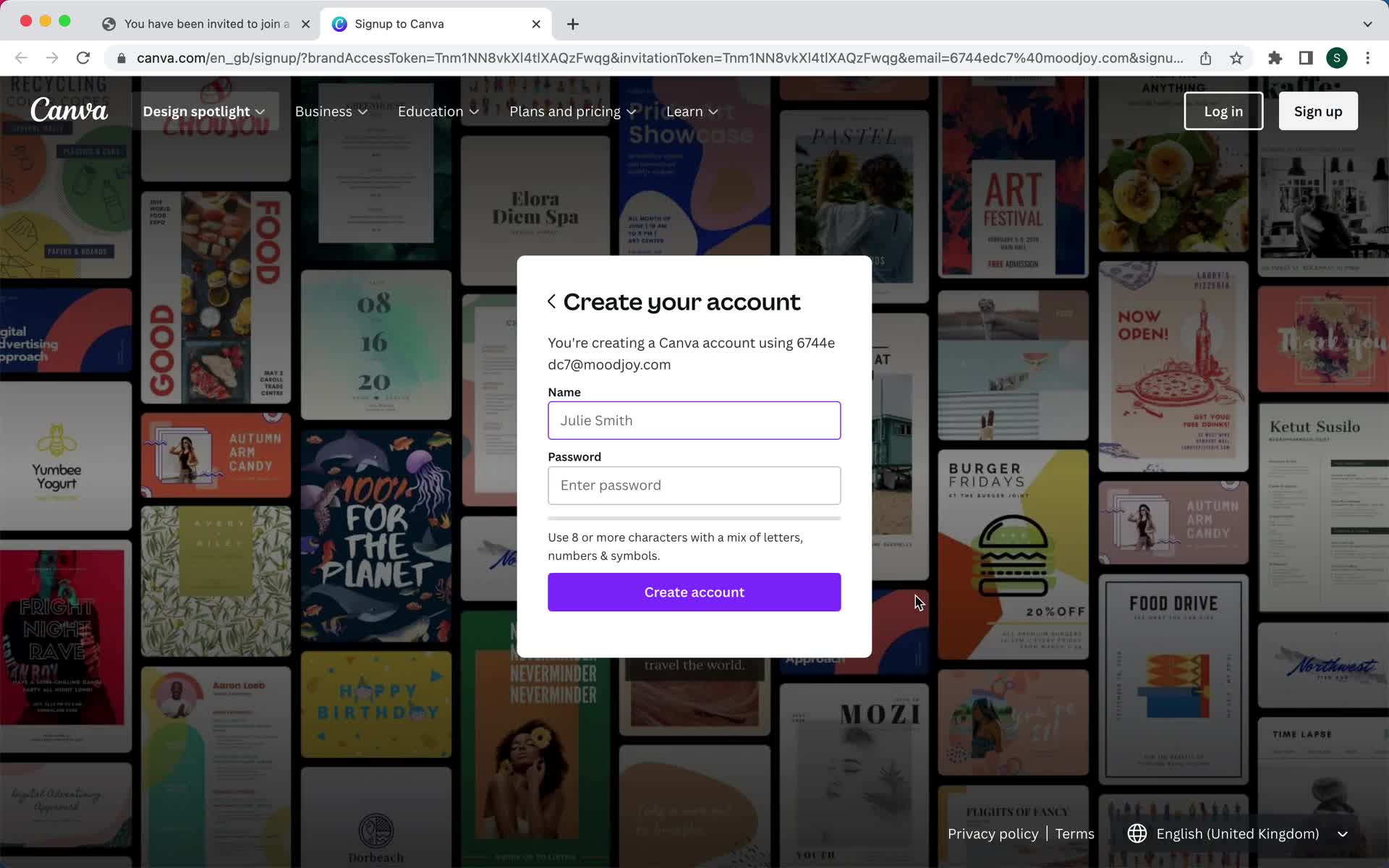
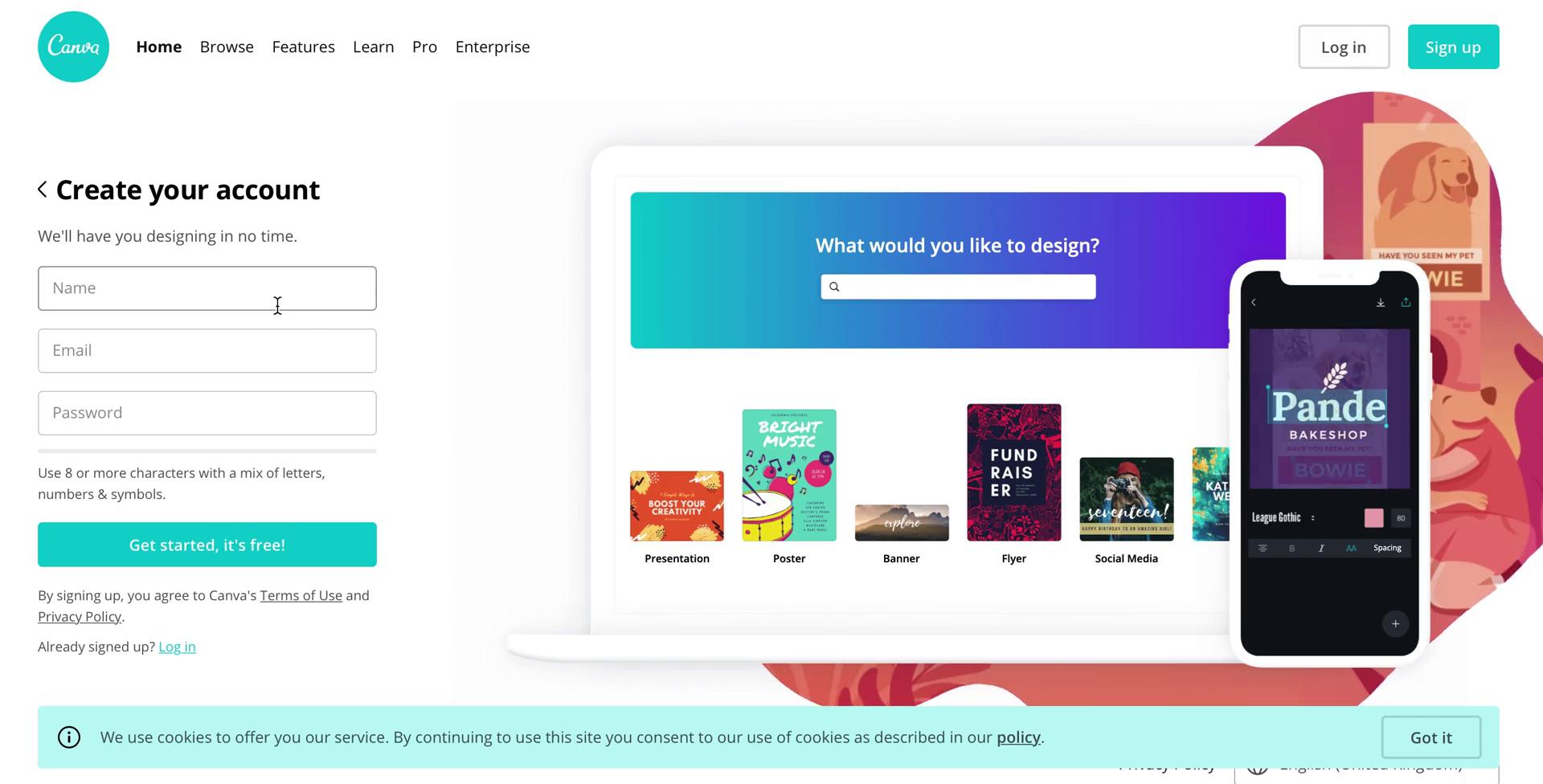
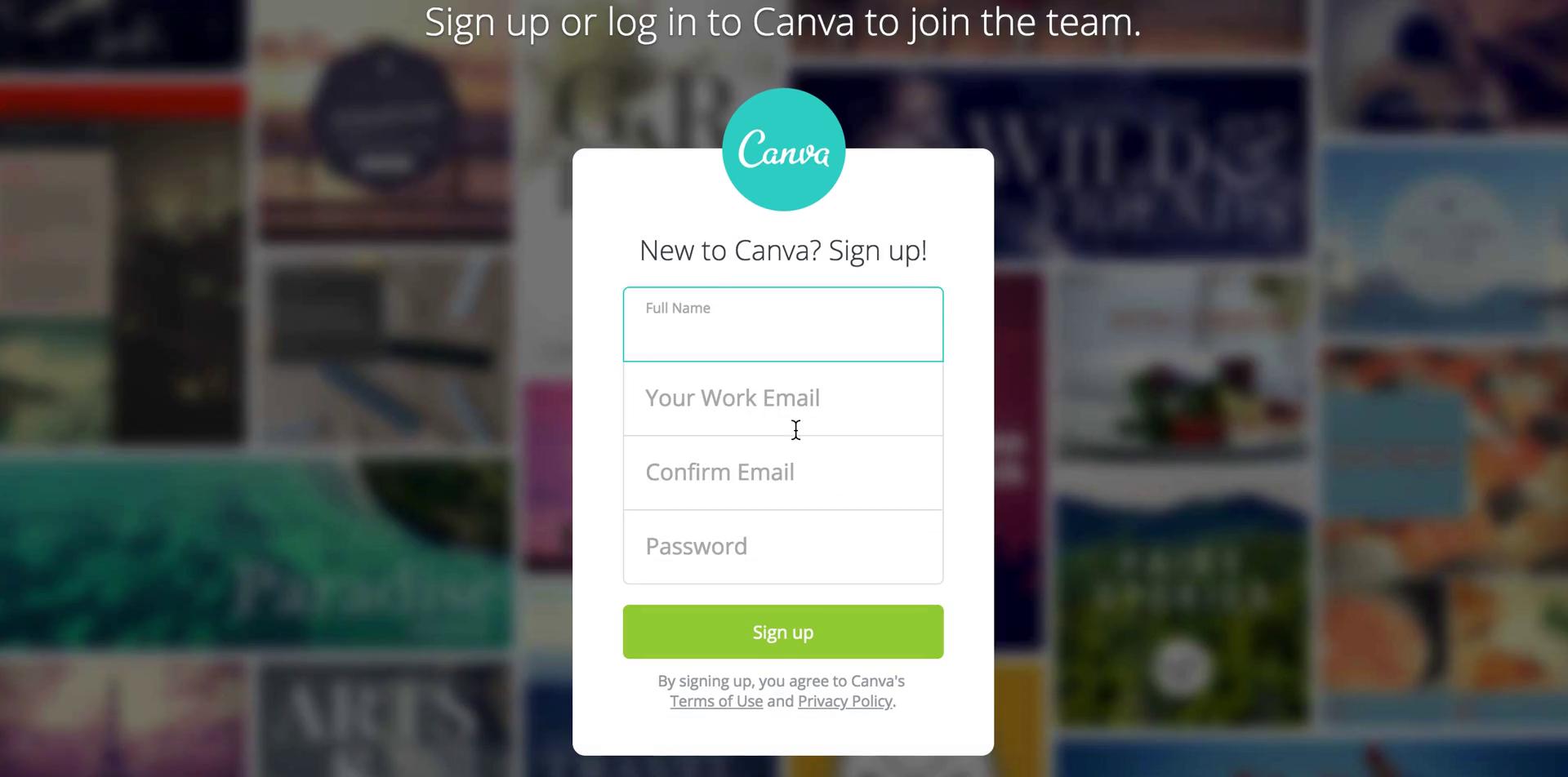
Create account
this is title
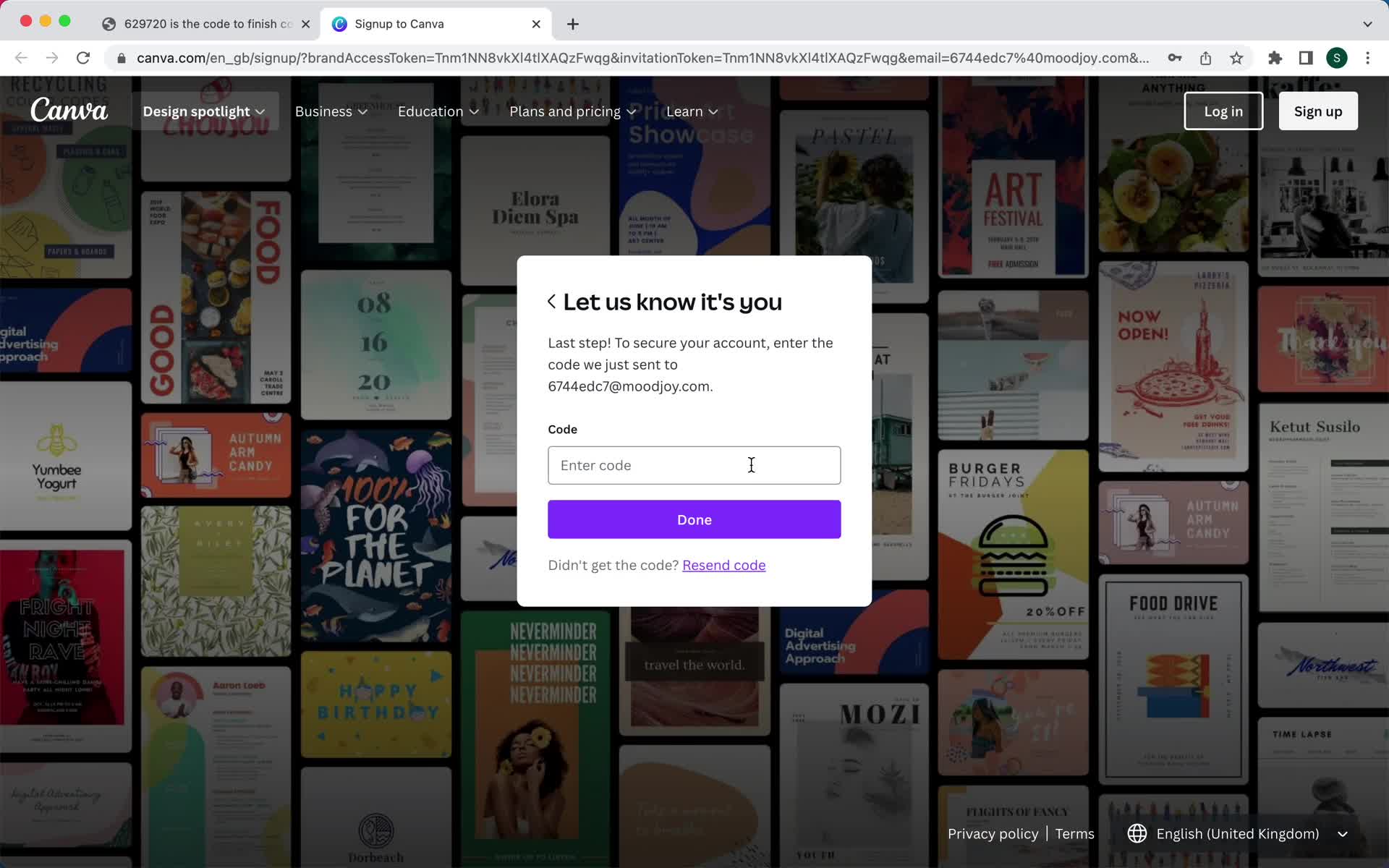
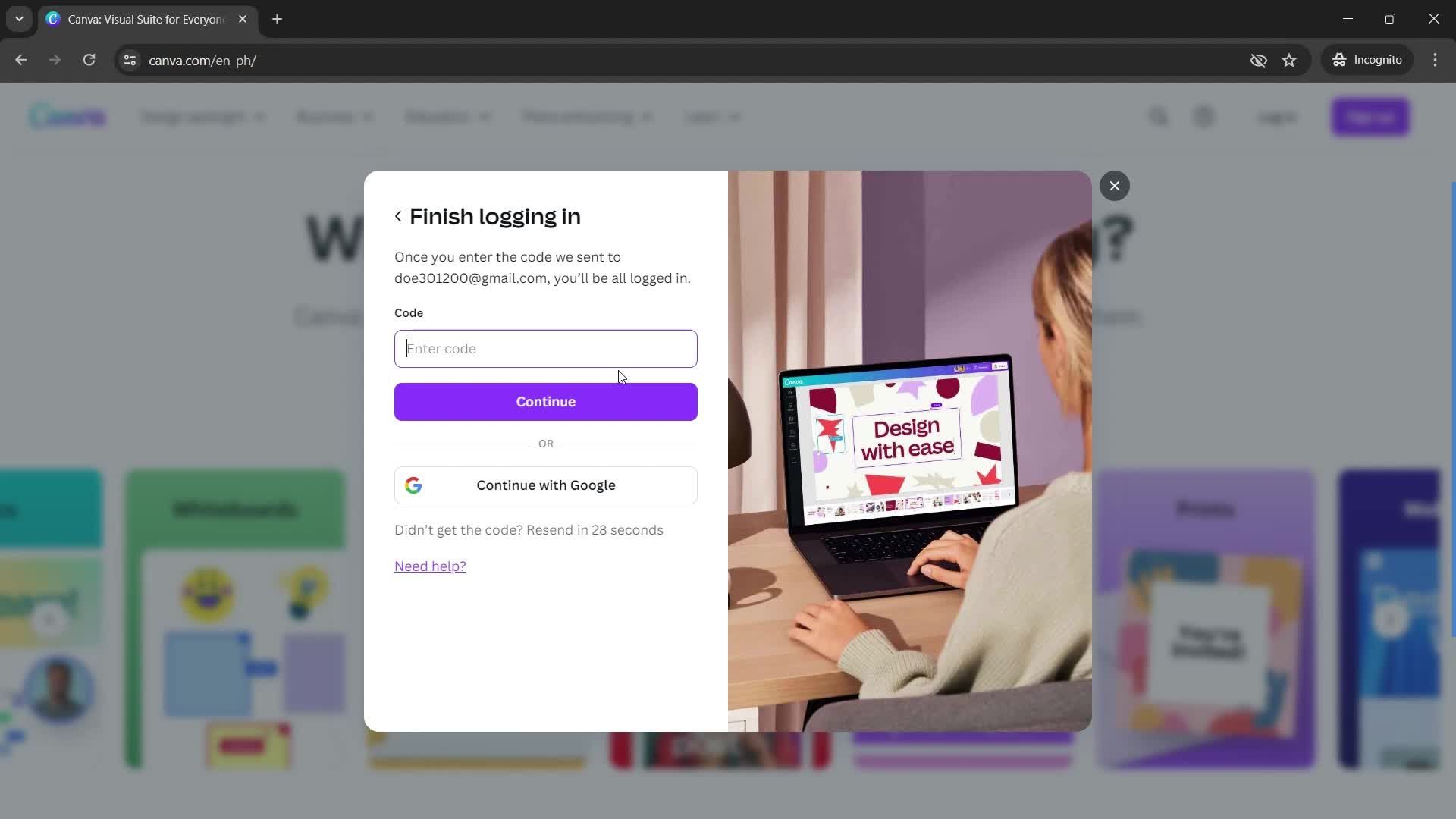
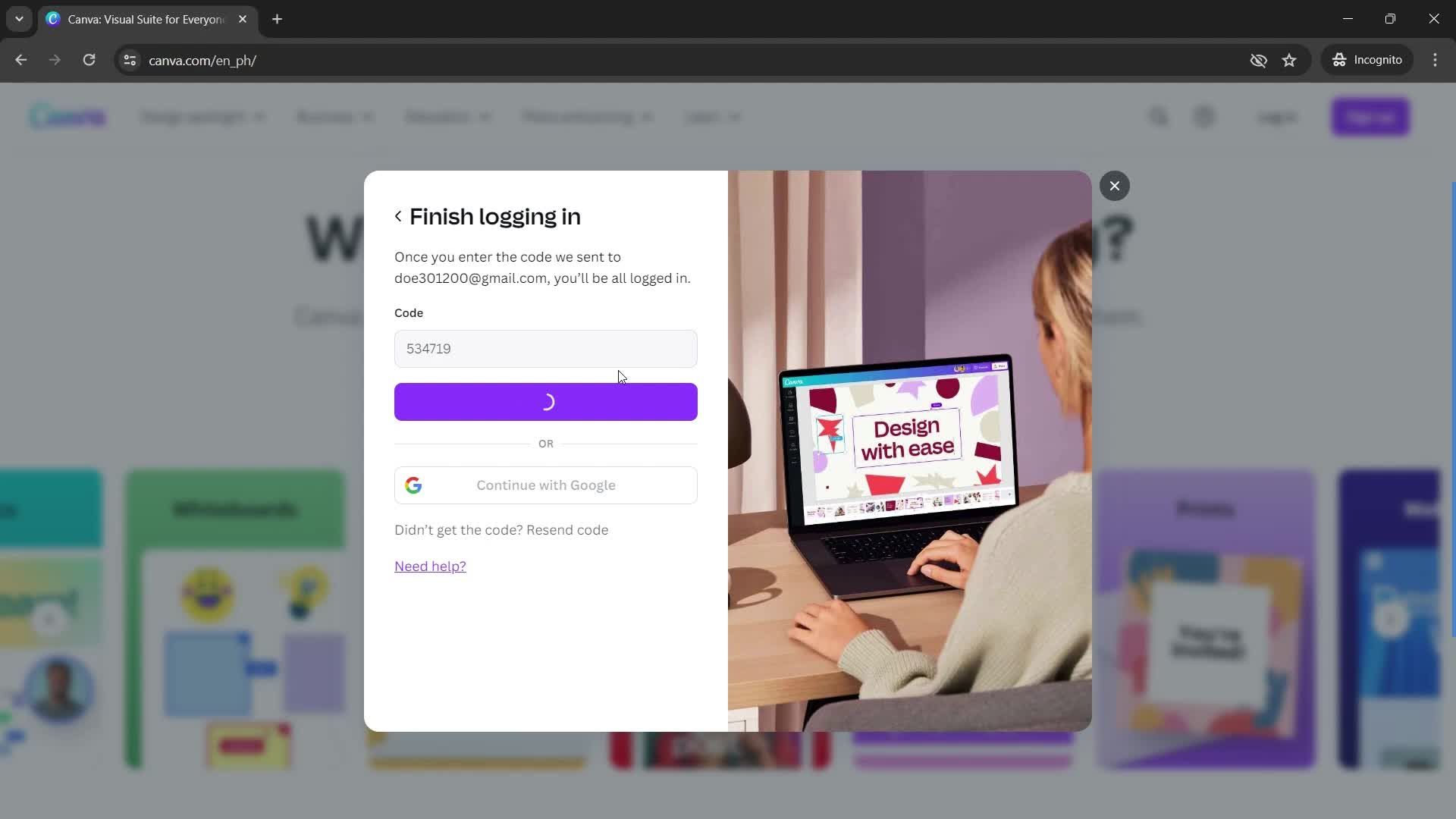
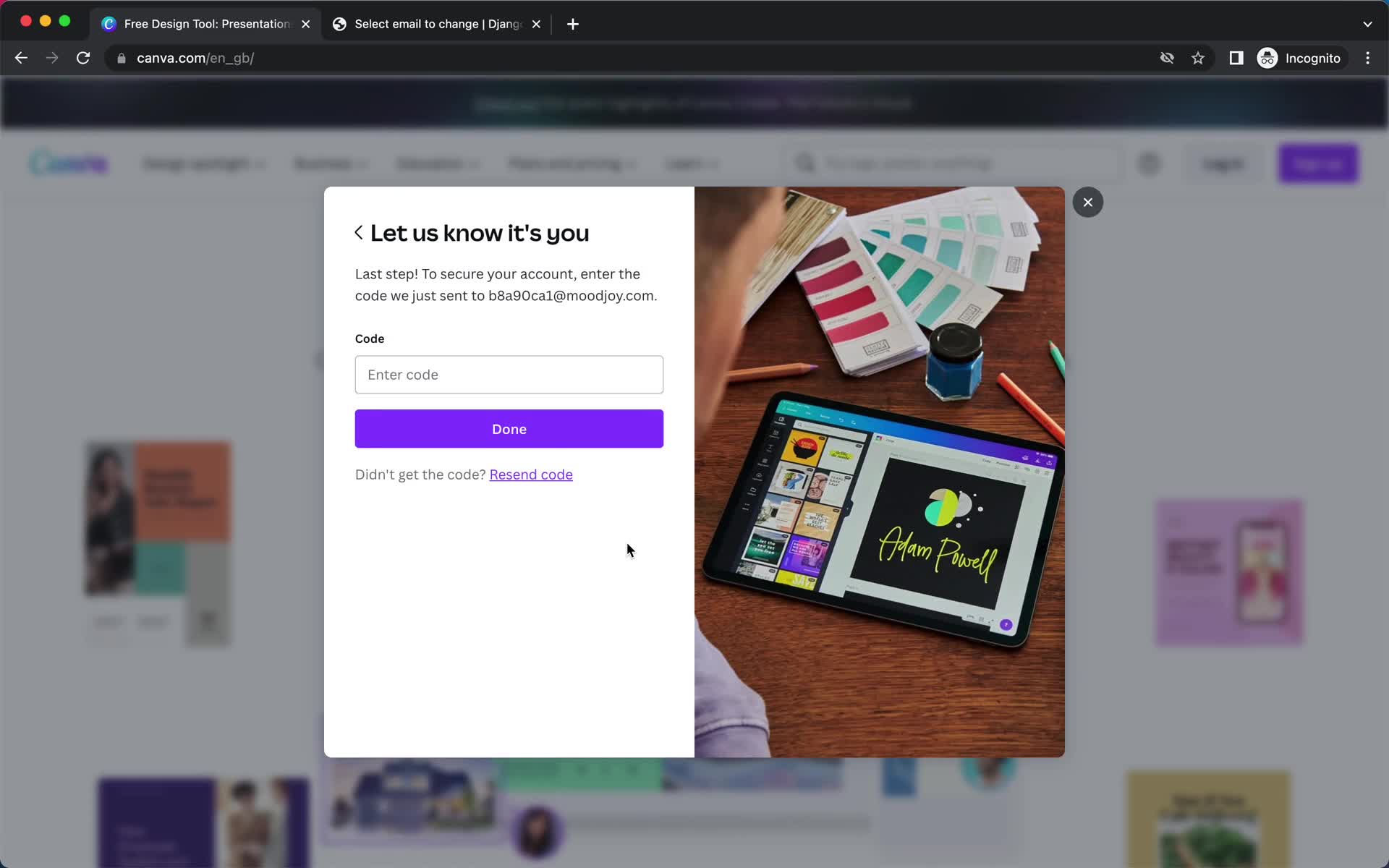
Verify email
this is title
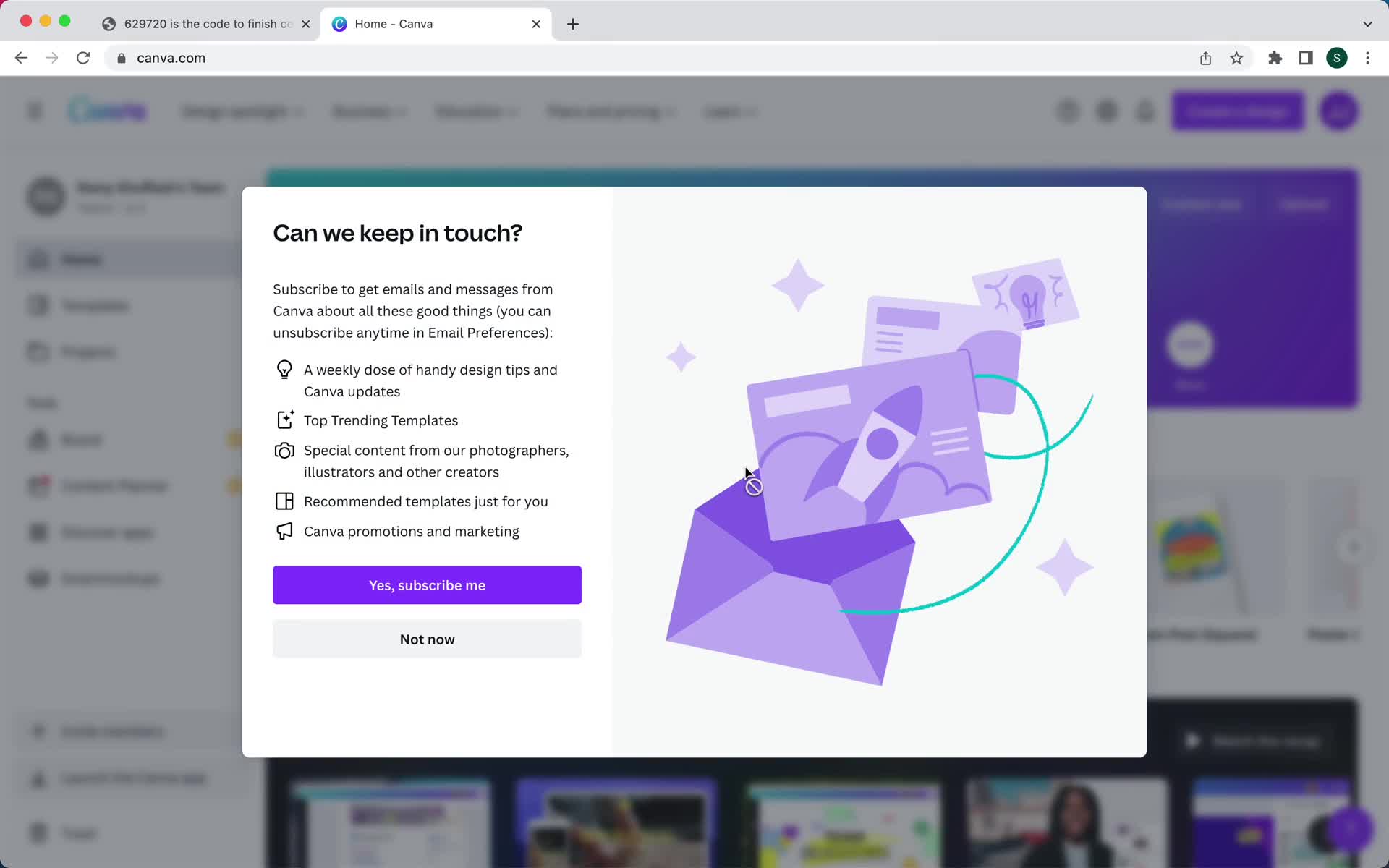
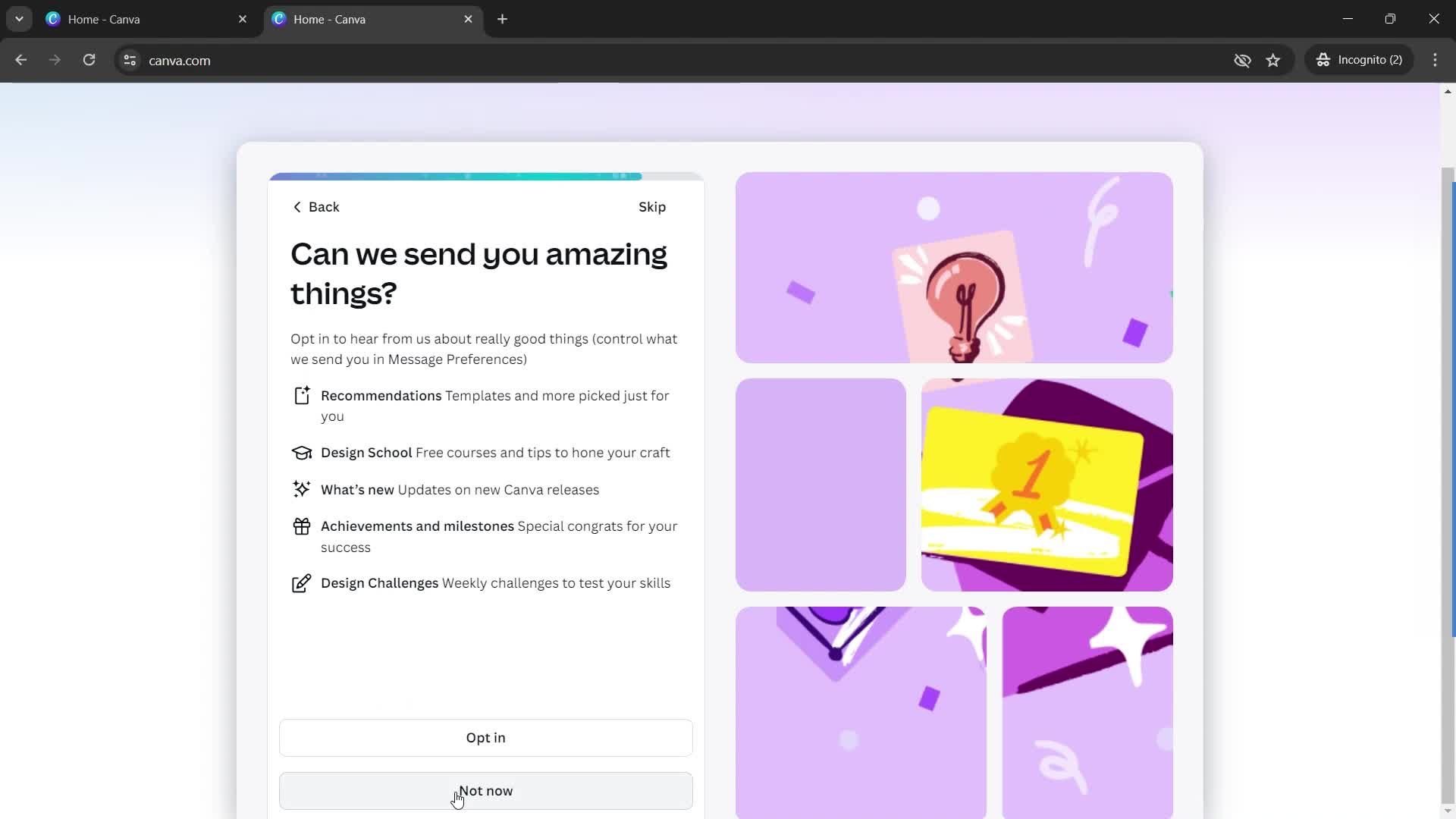
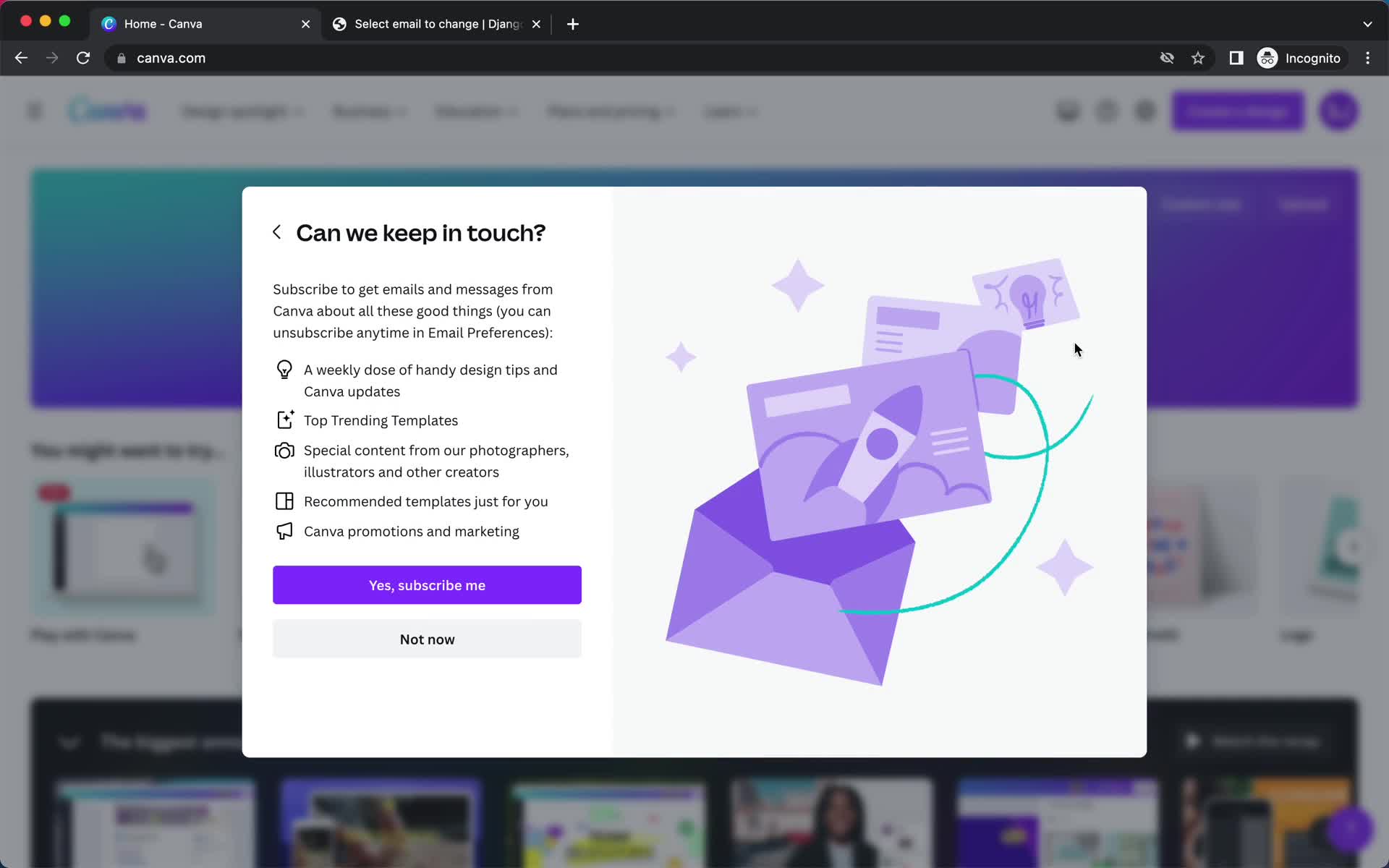
Newsletter opt-in
this is title
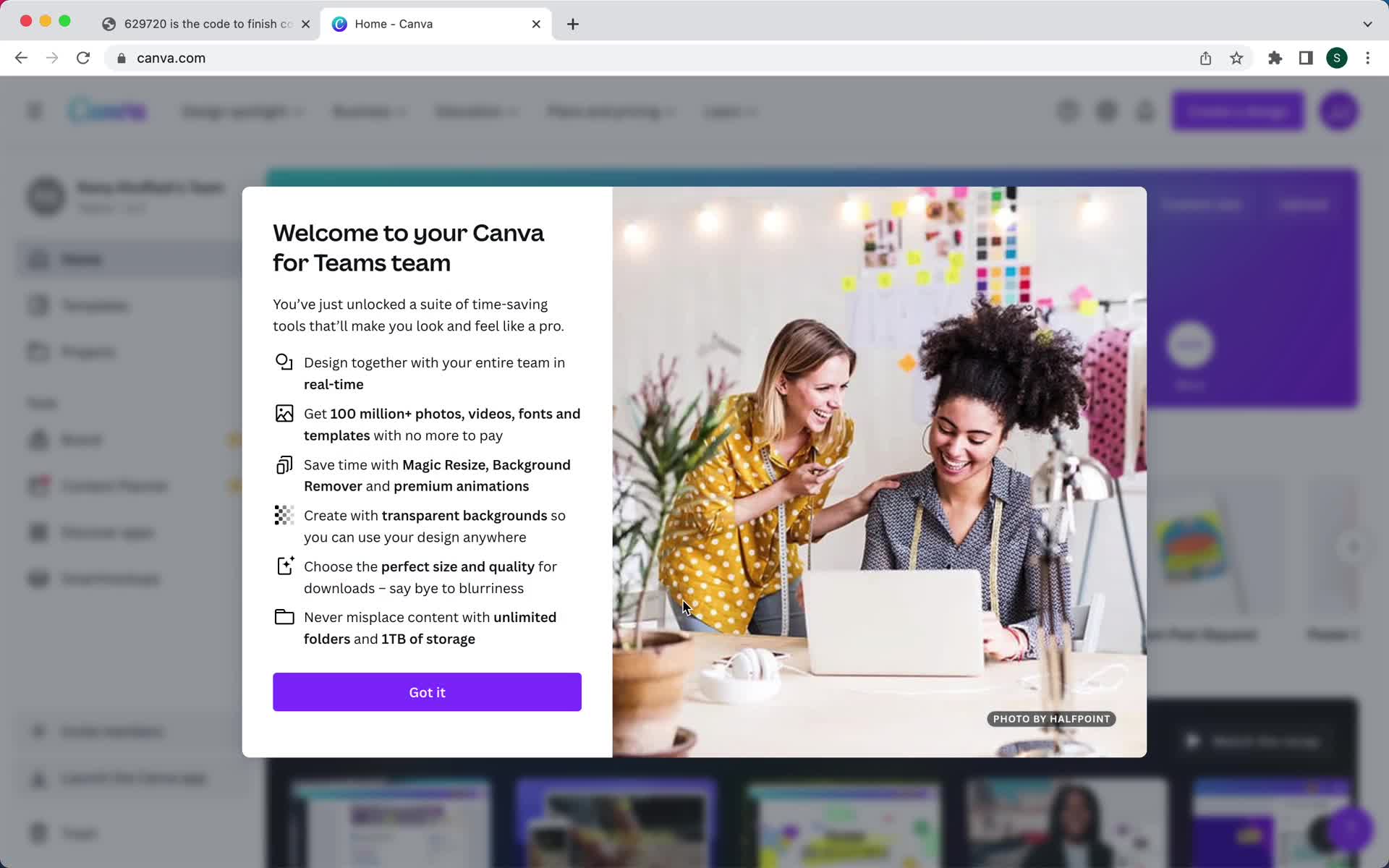
Welcome
this is title
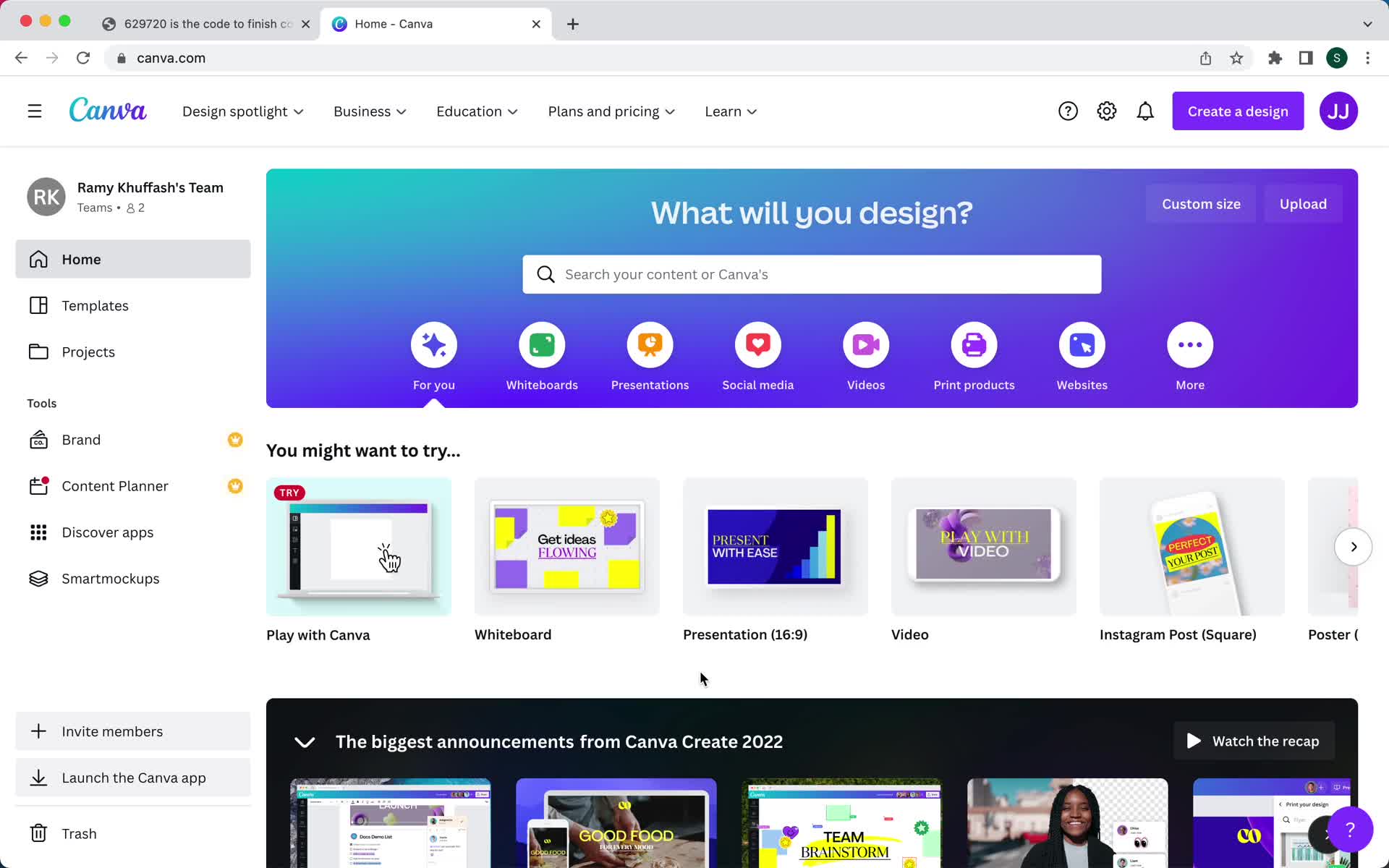
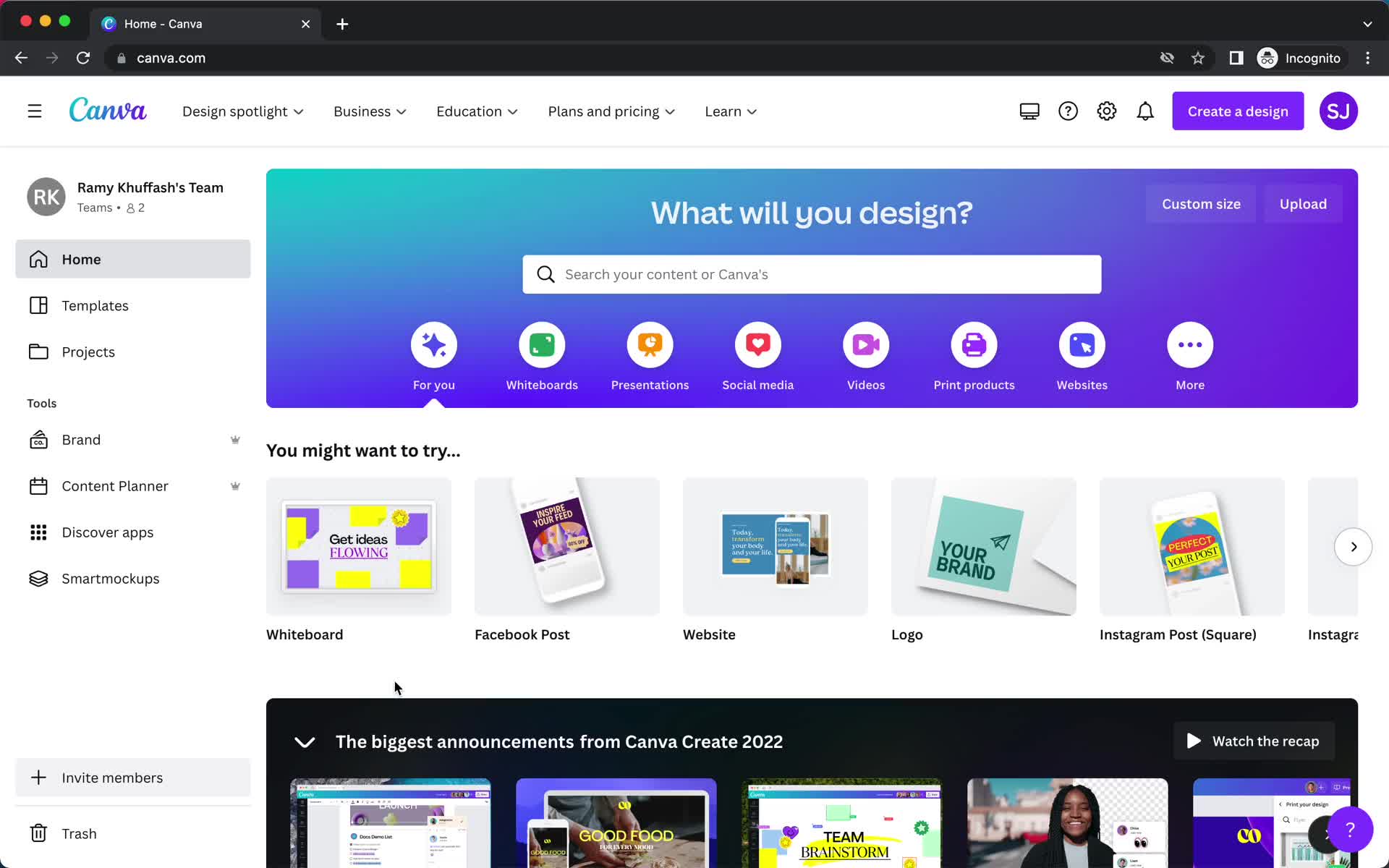
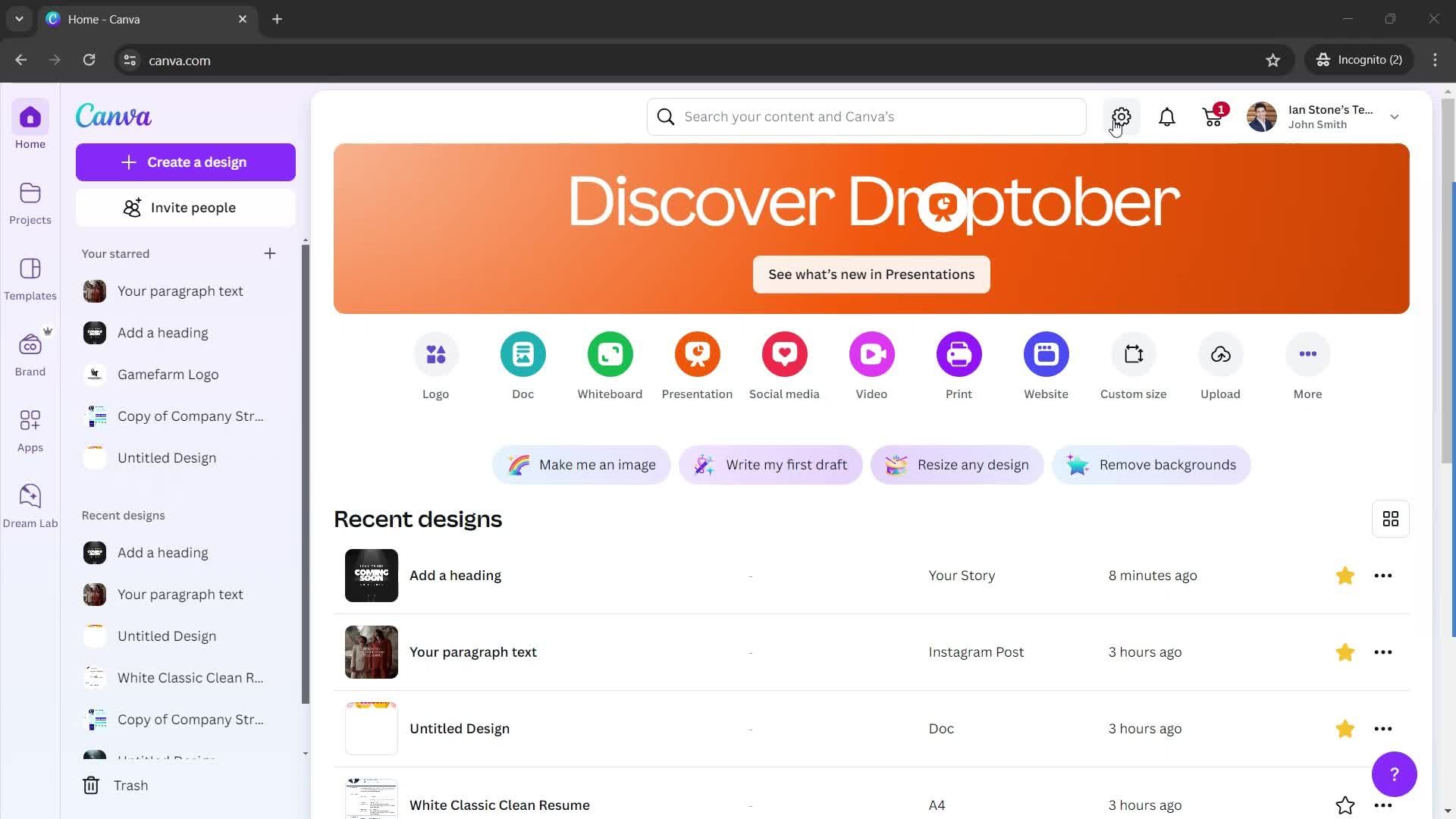
Home
this is title
Invite email
this is title
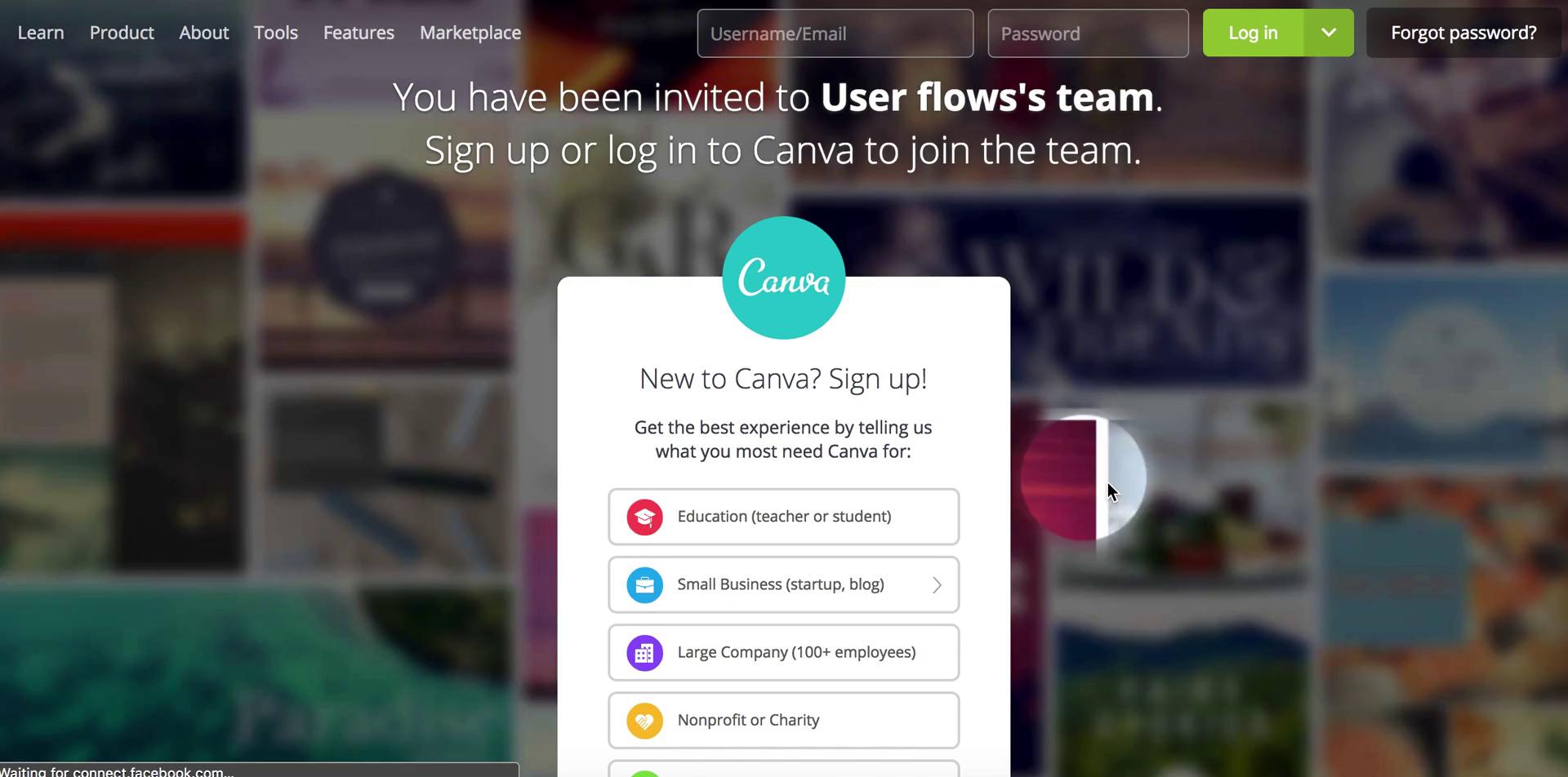
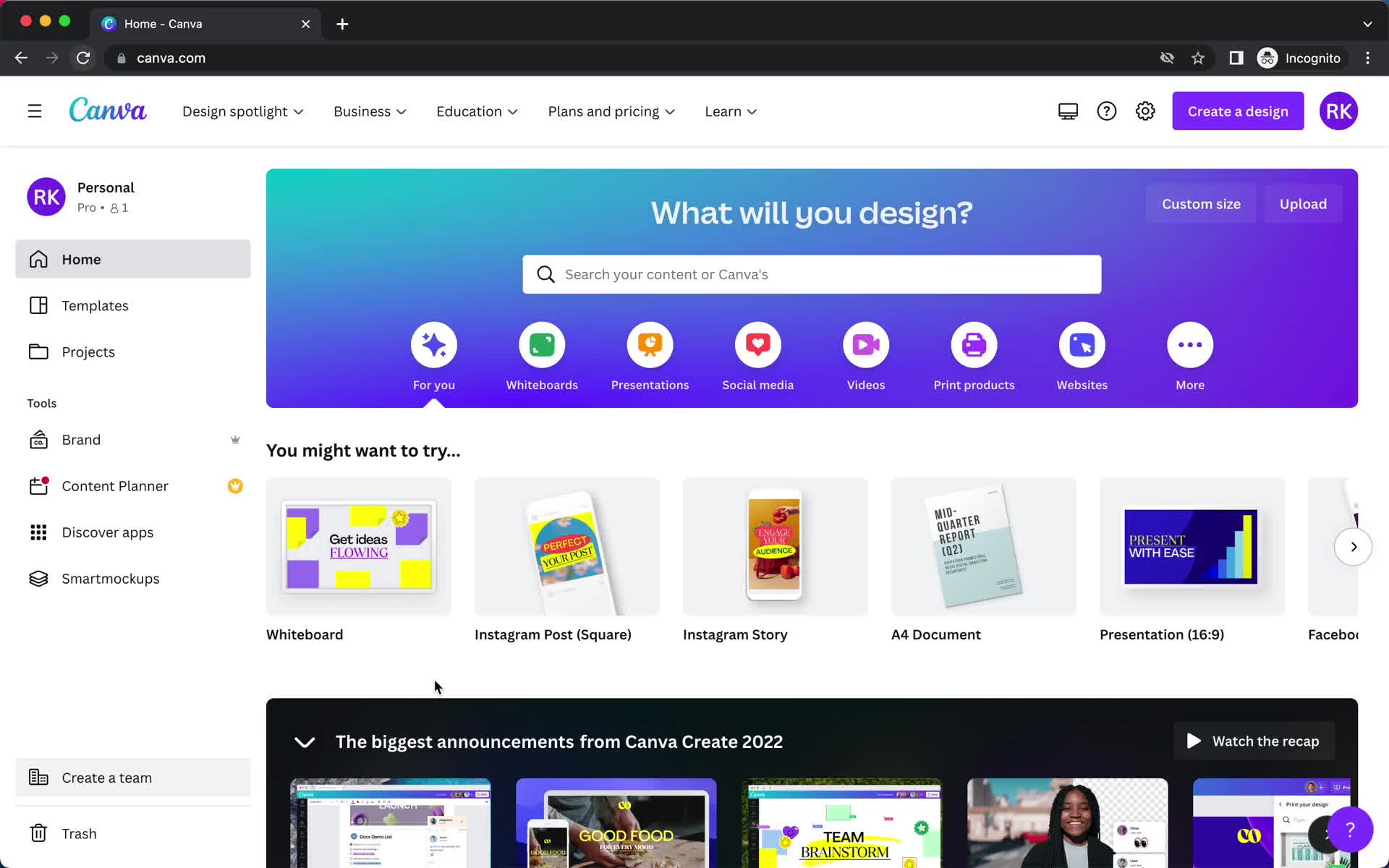
Homepage
this is title
Sign up
this is title
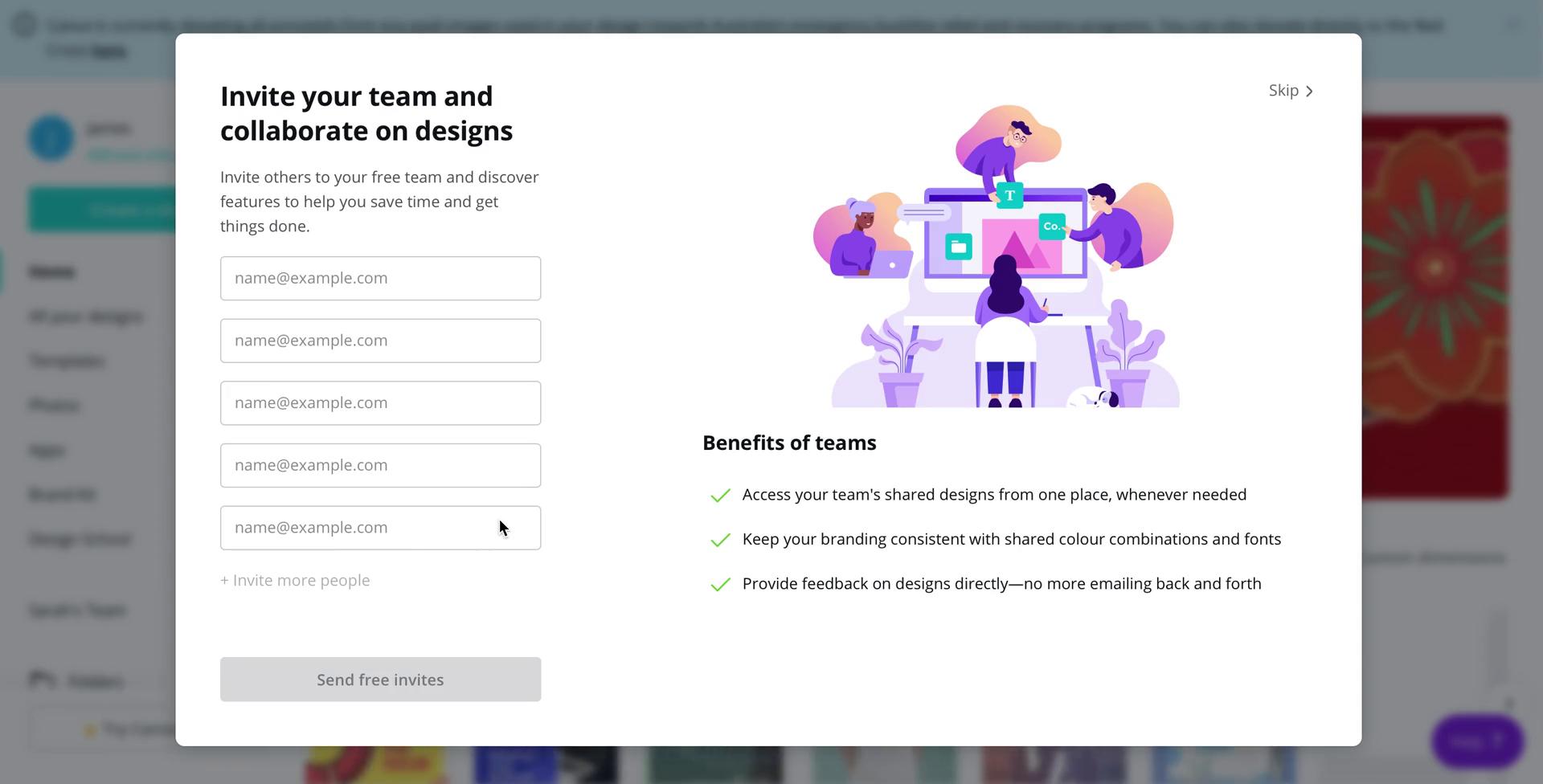
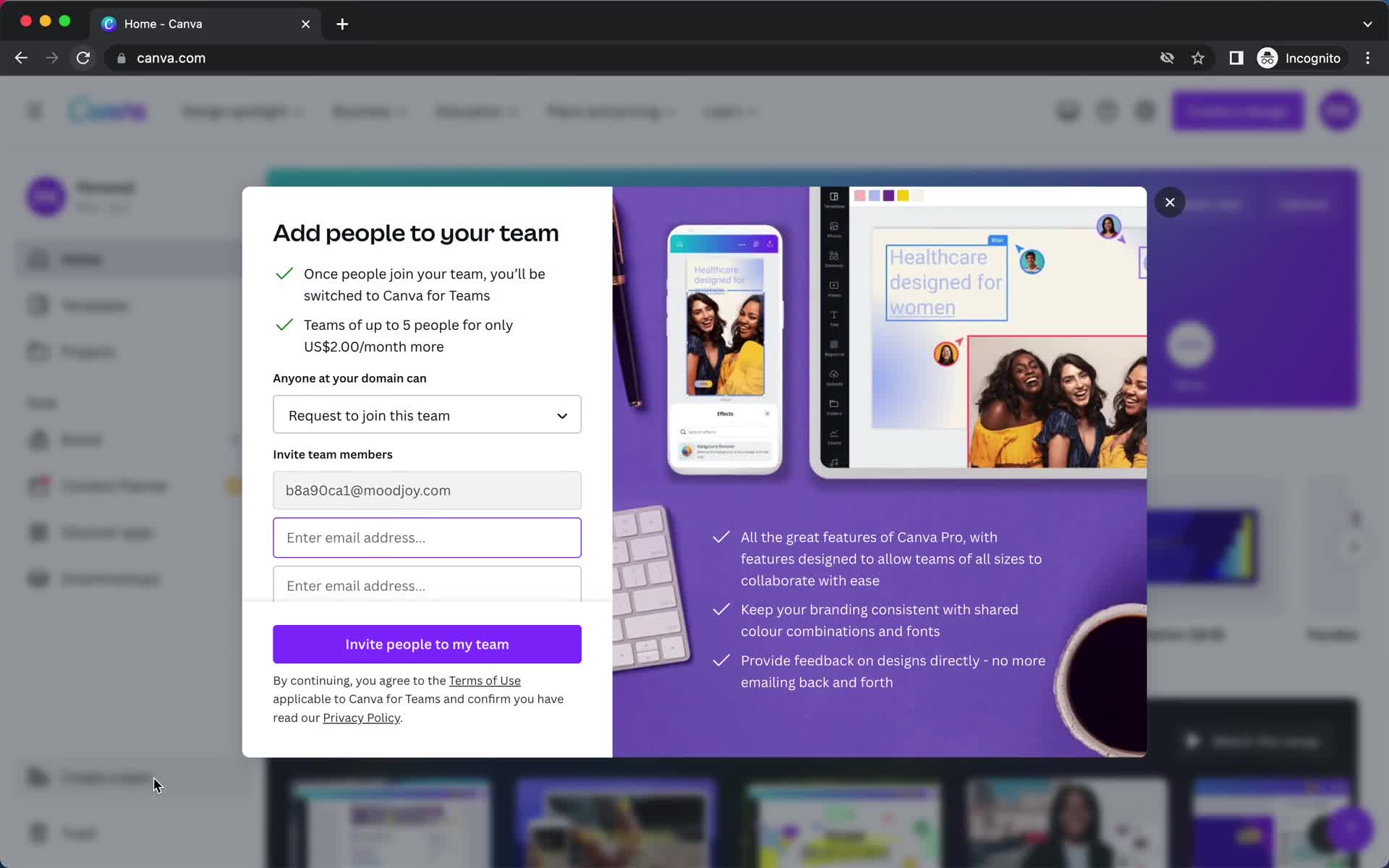
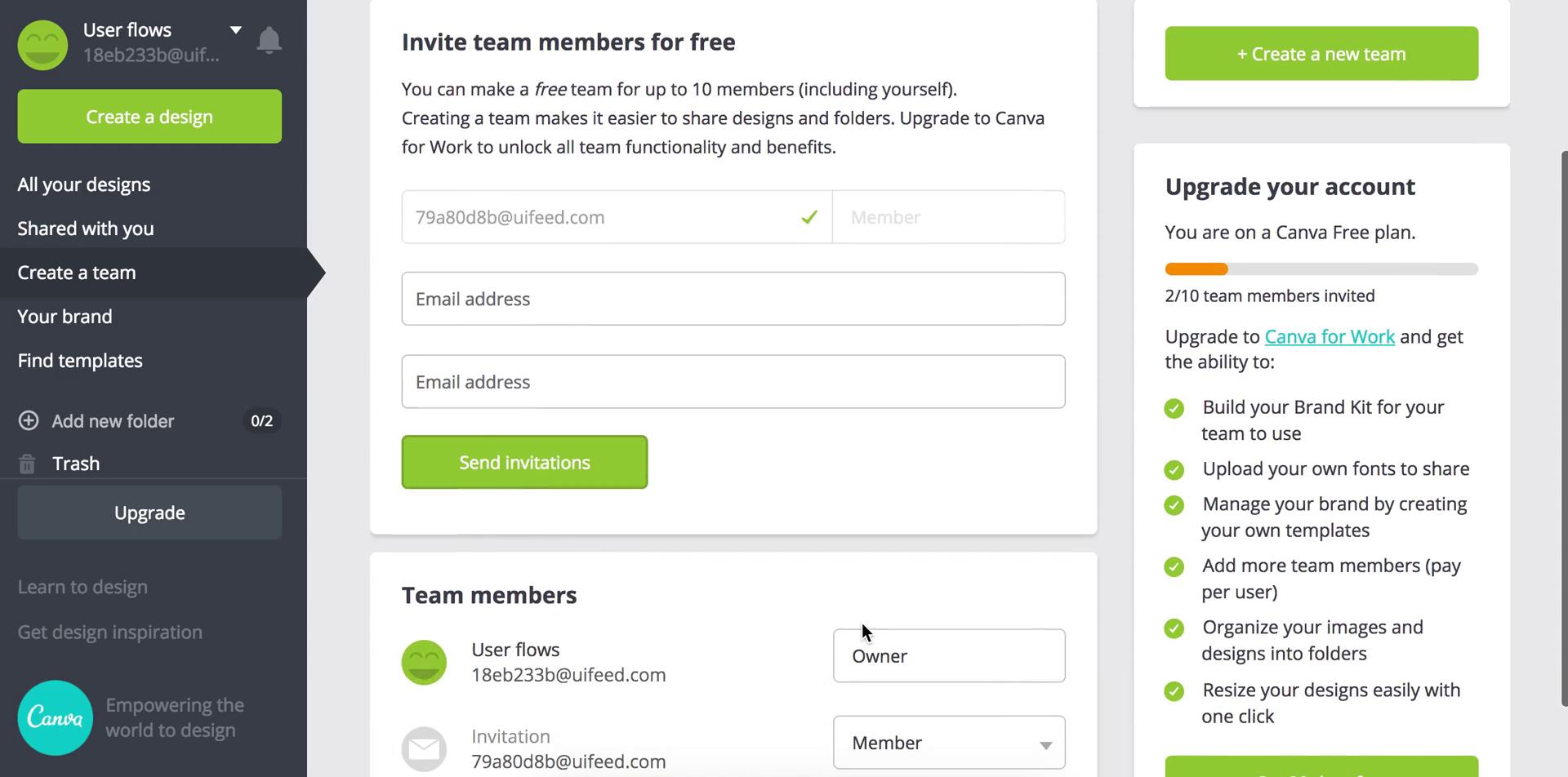
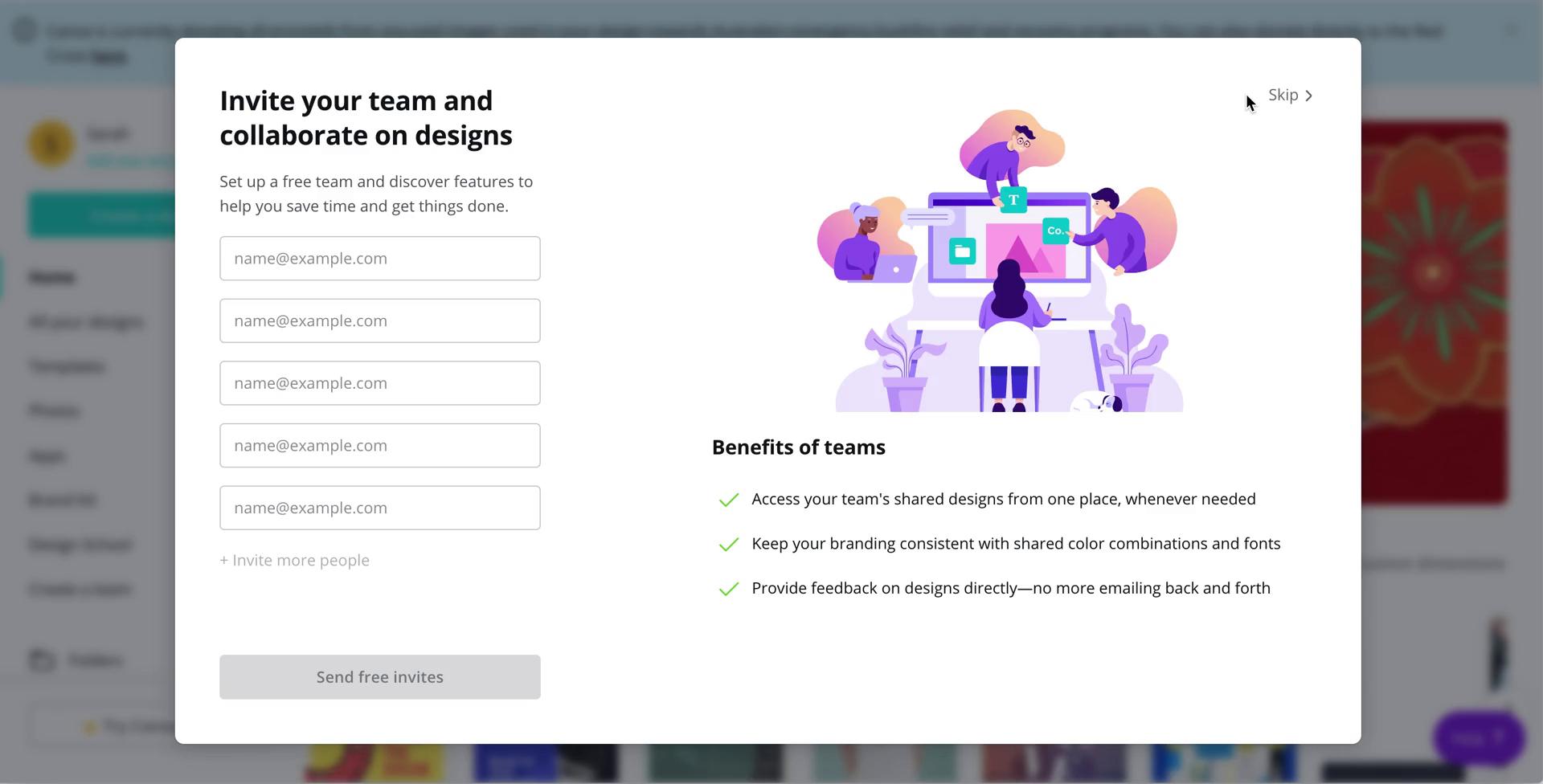
Invite team
this is title
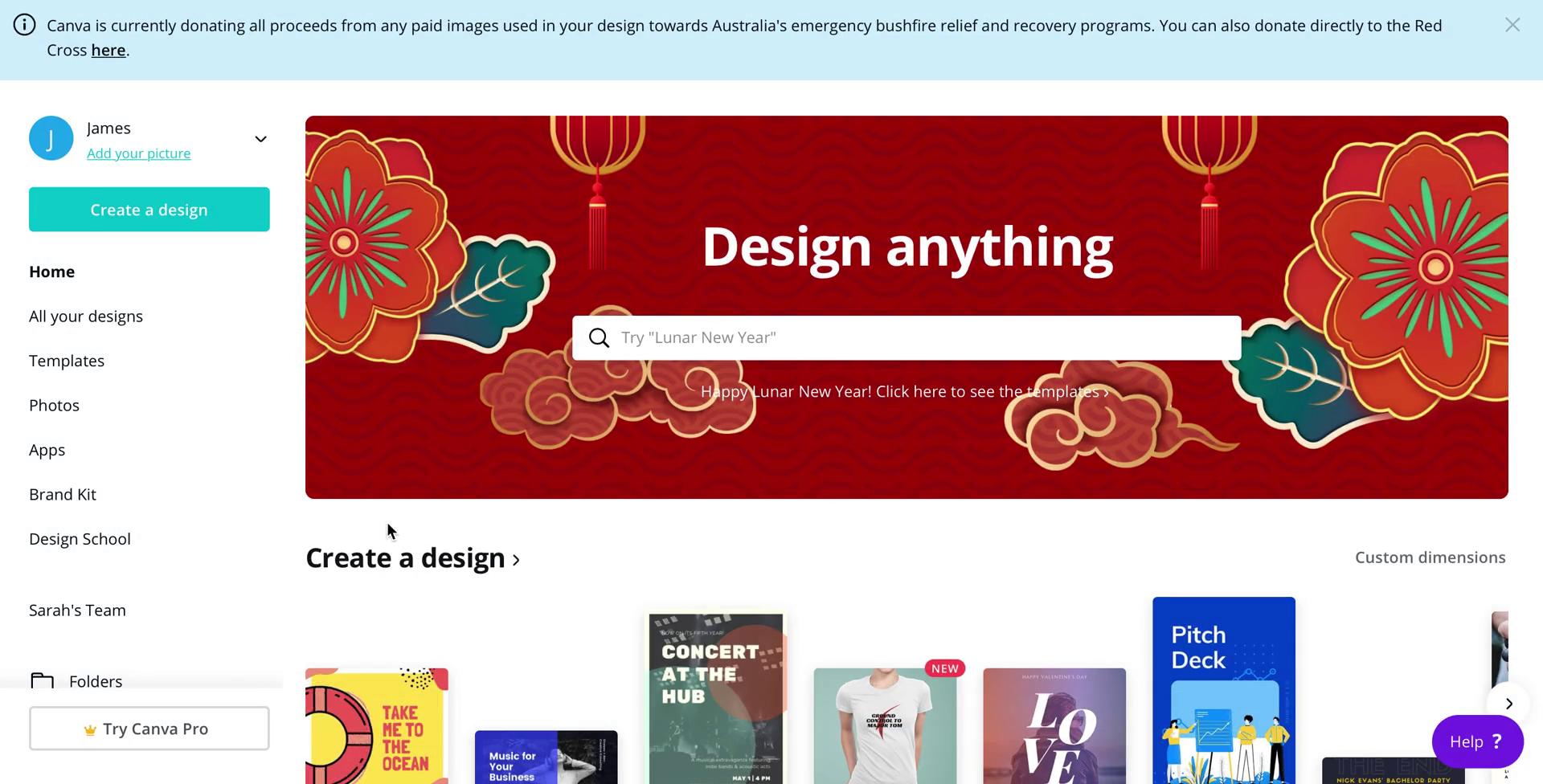
Dashboard
this is title
this is title
this is title
this is title
this is title
this is title
this is title
Home
this is title
Profile menu
this is title
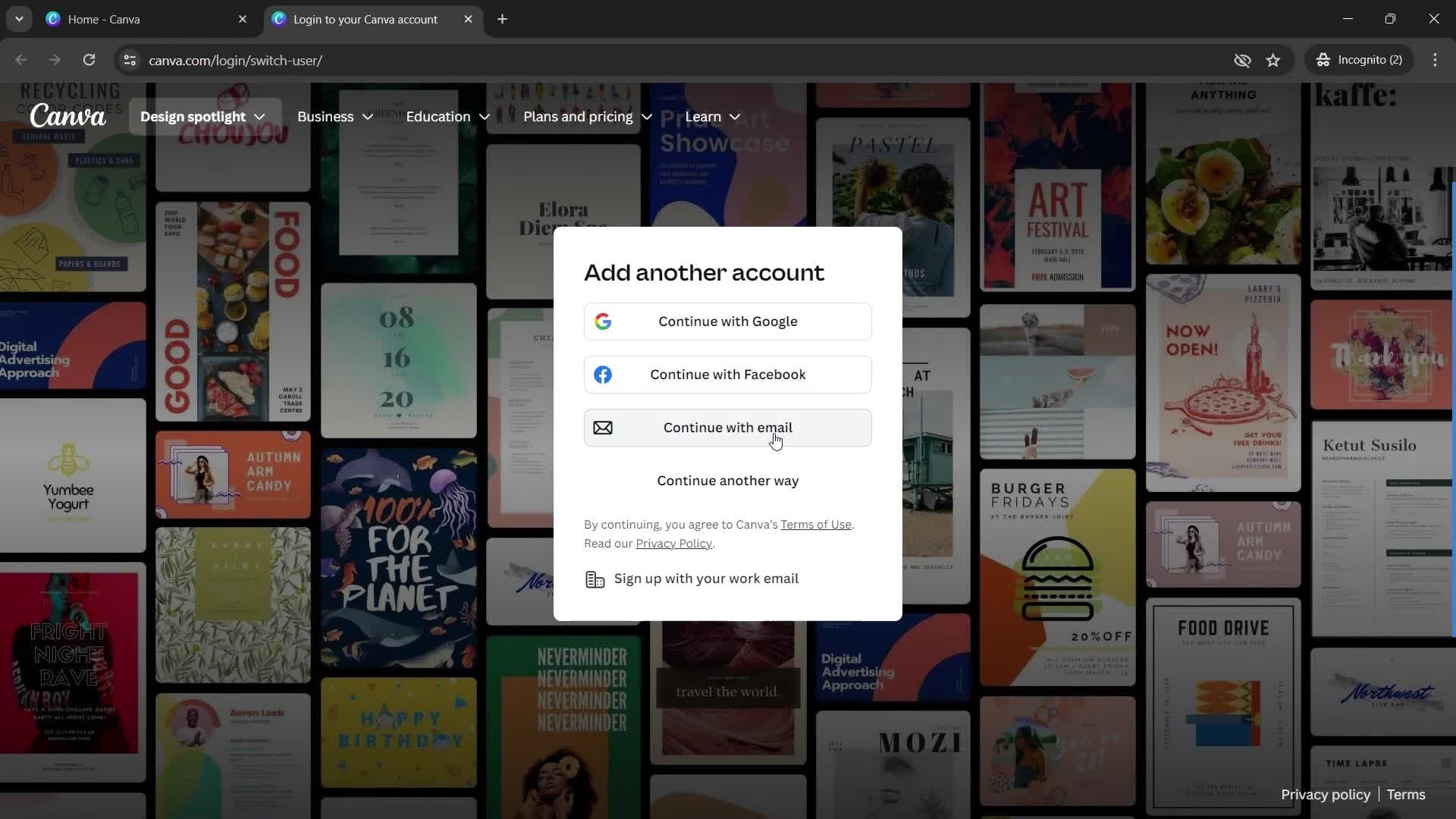
Add account
this is title
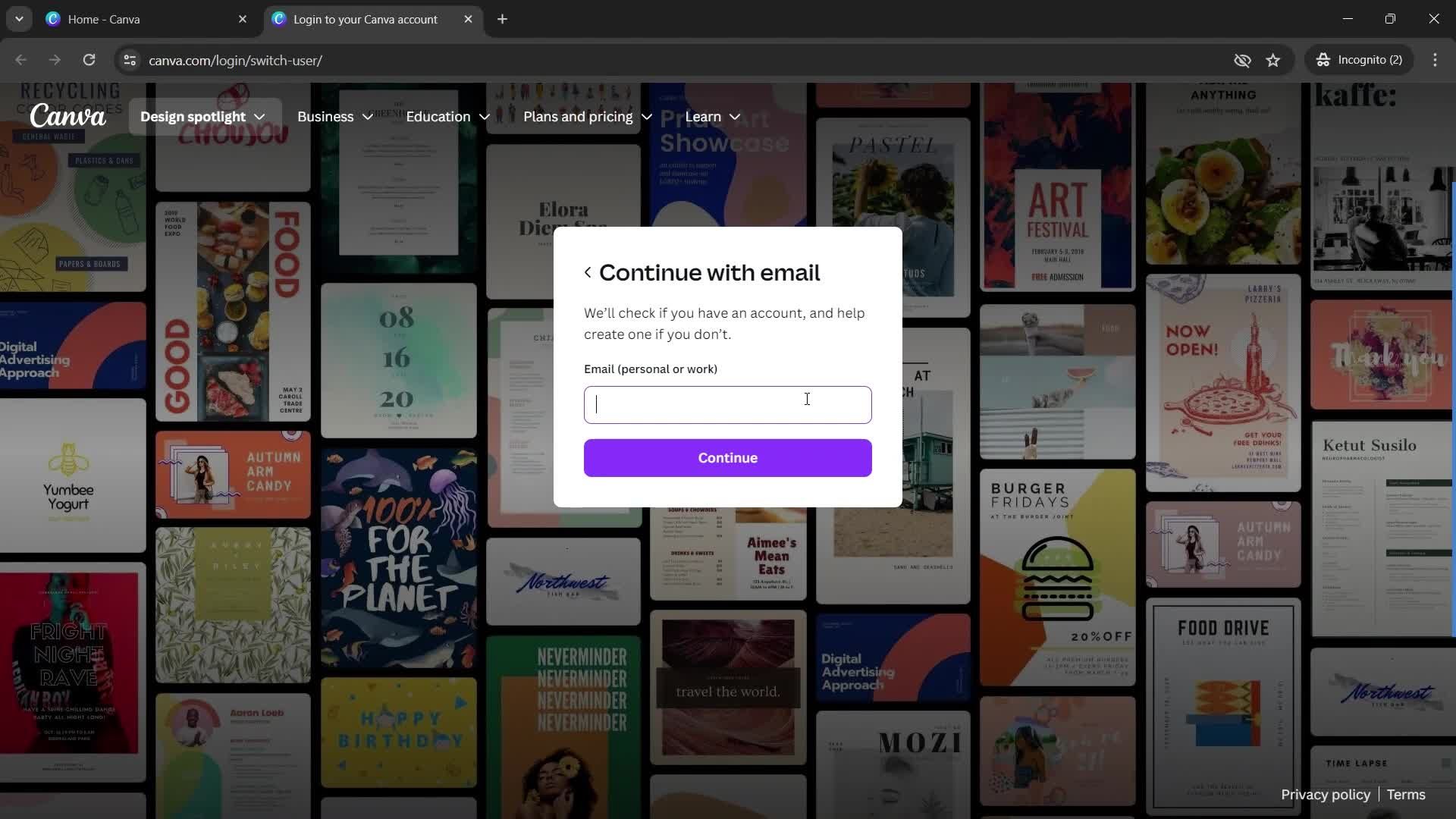
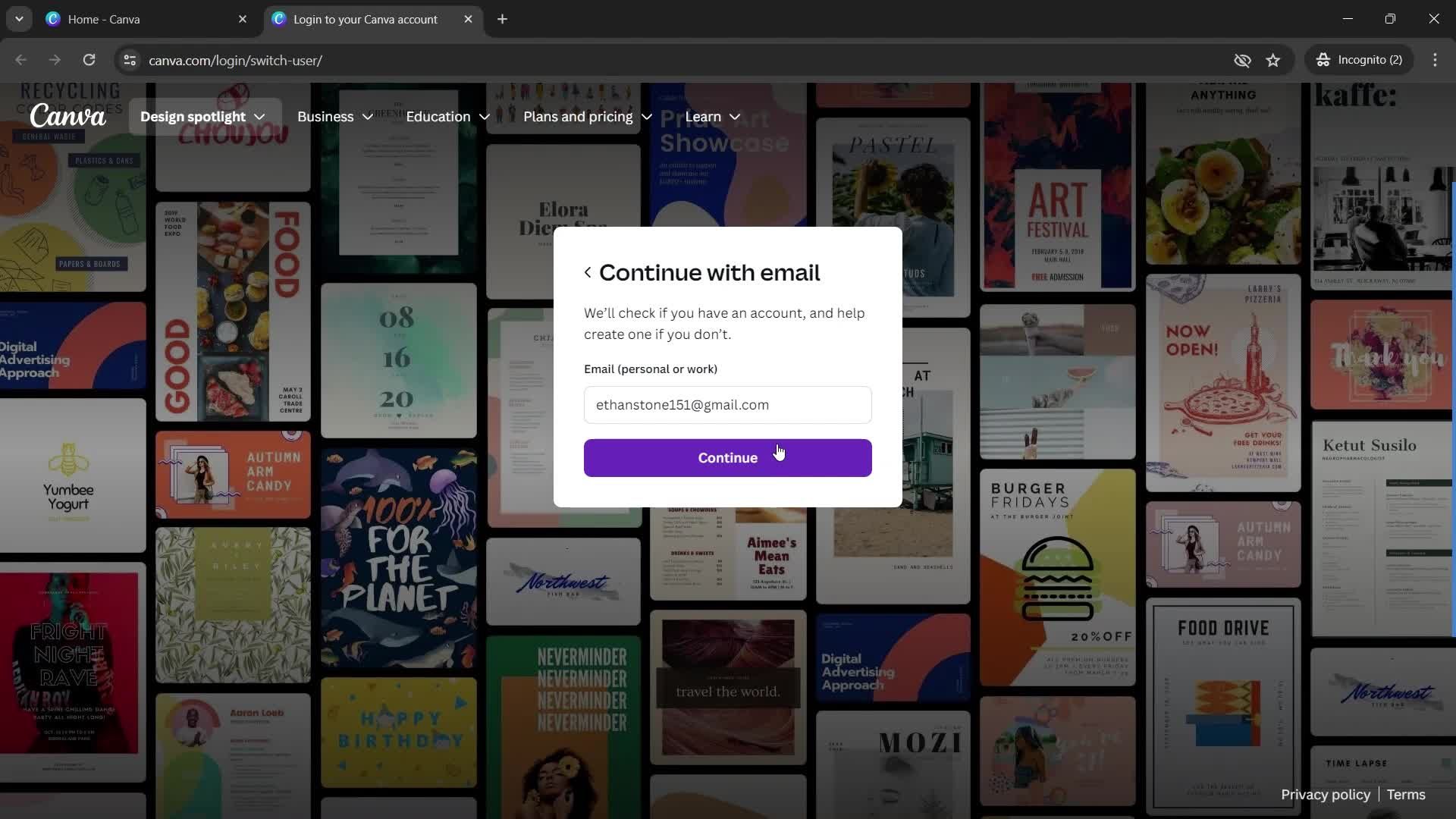
Enter email
this is title
this is title
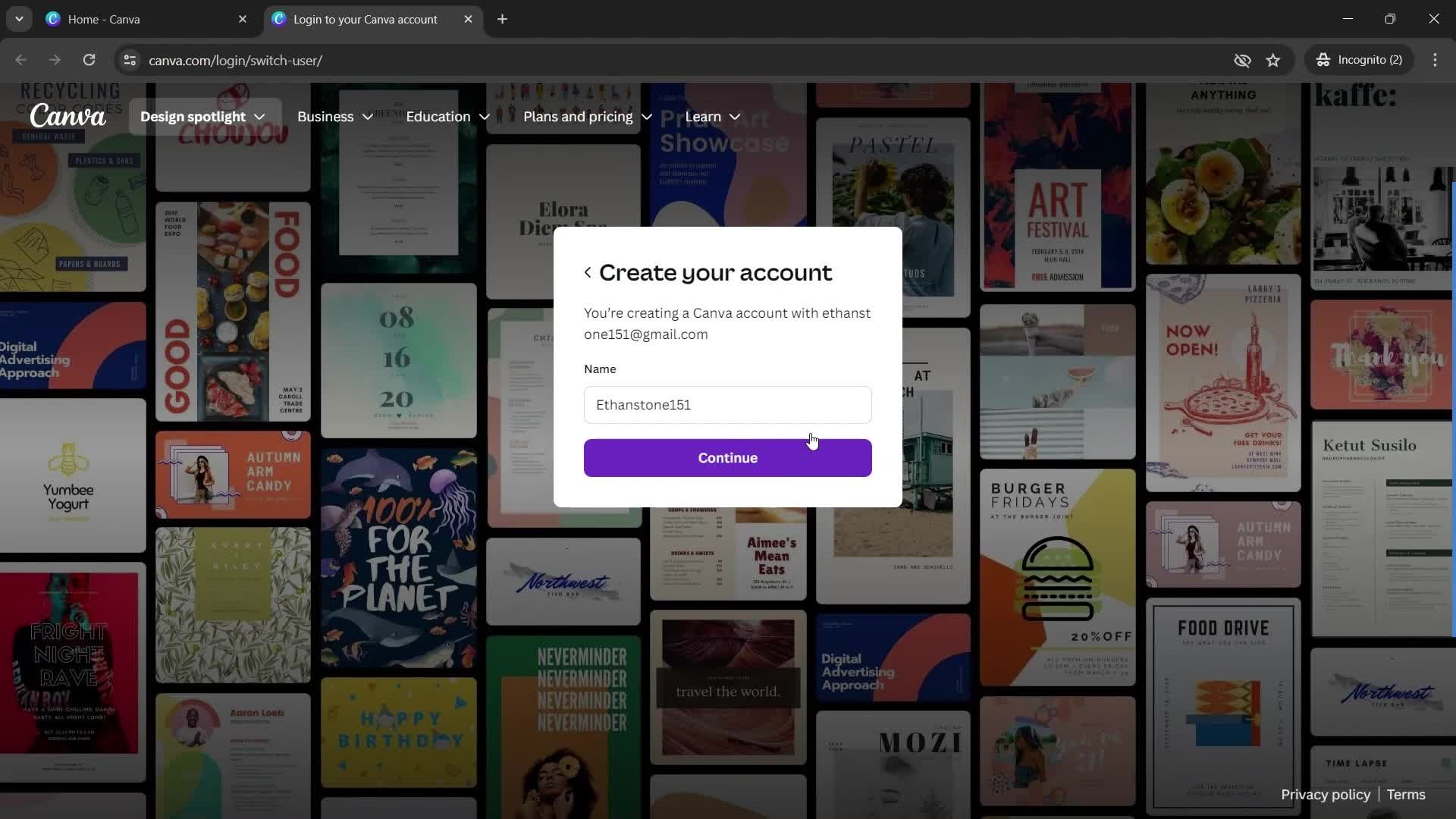
Enter name
this is title
Enter code
this is title
this is title
this is title
this is title
this is title
this is title
this is title
this is title
this is title
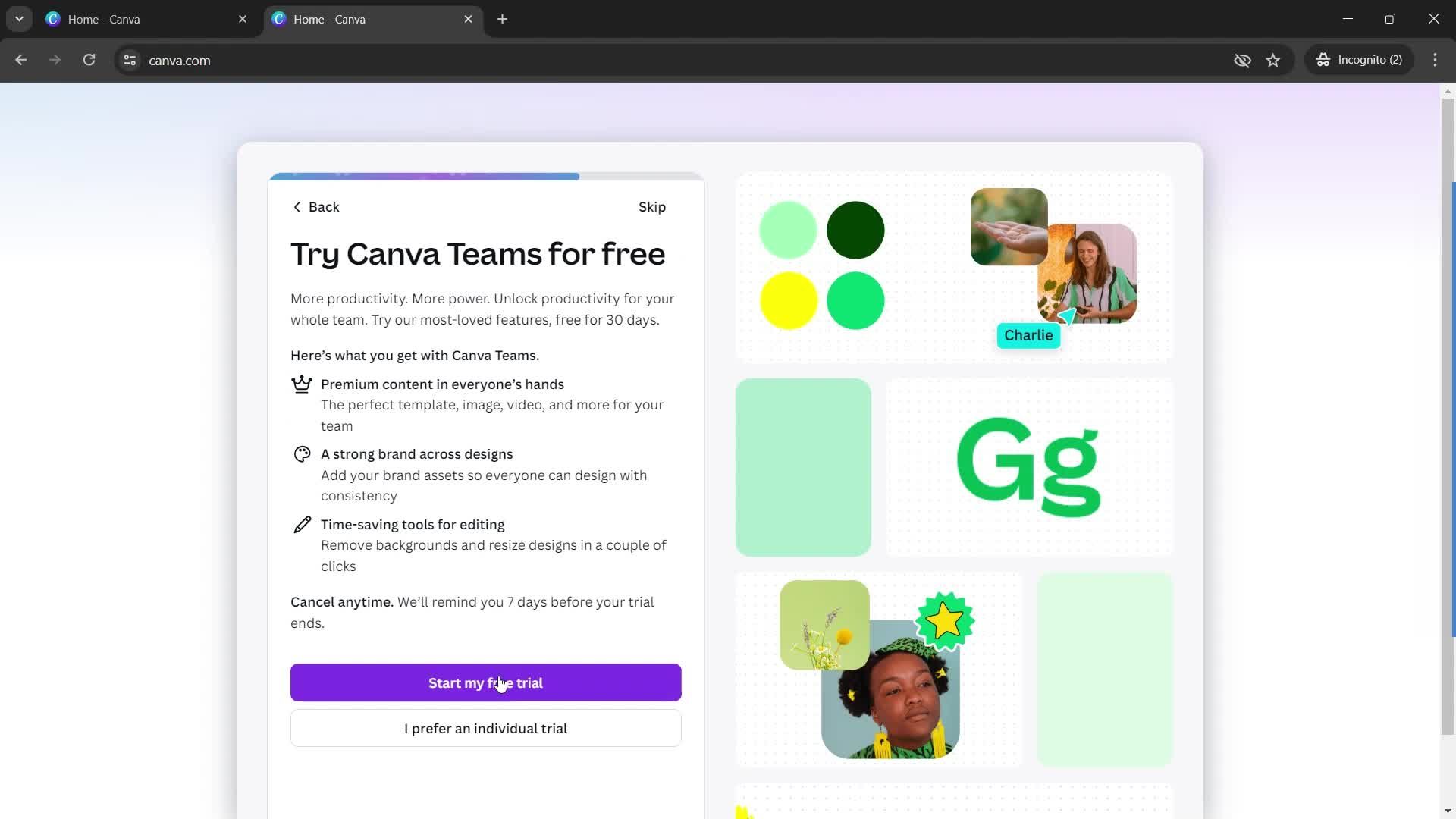
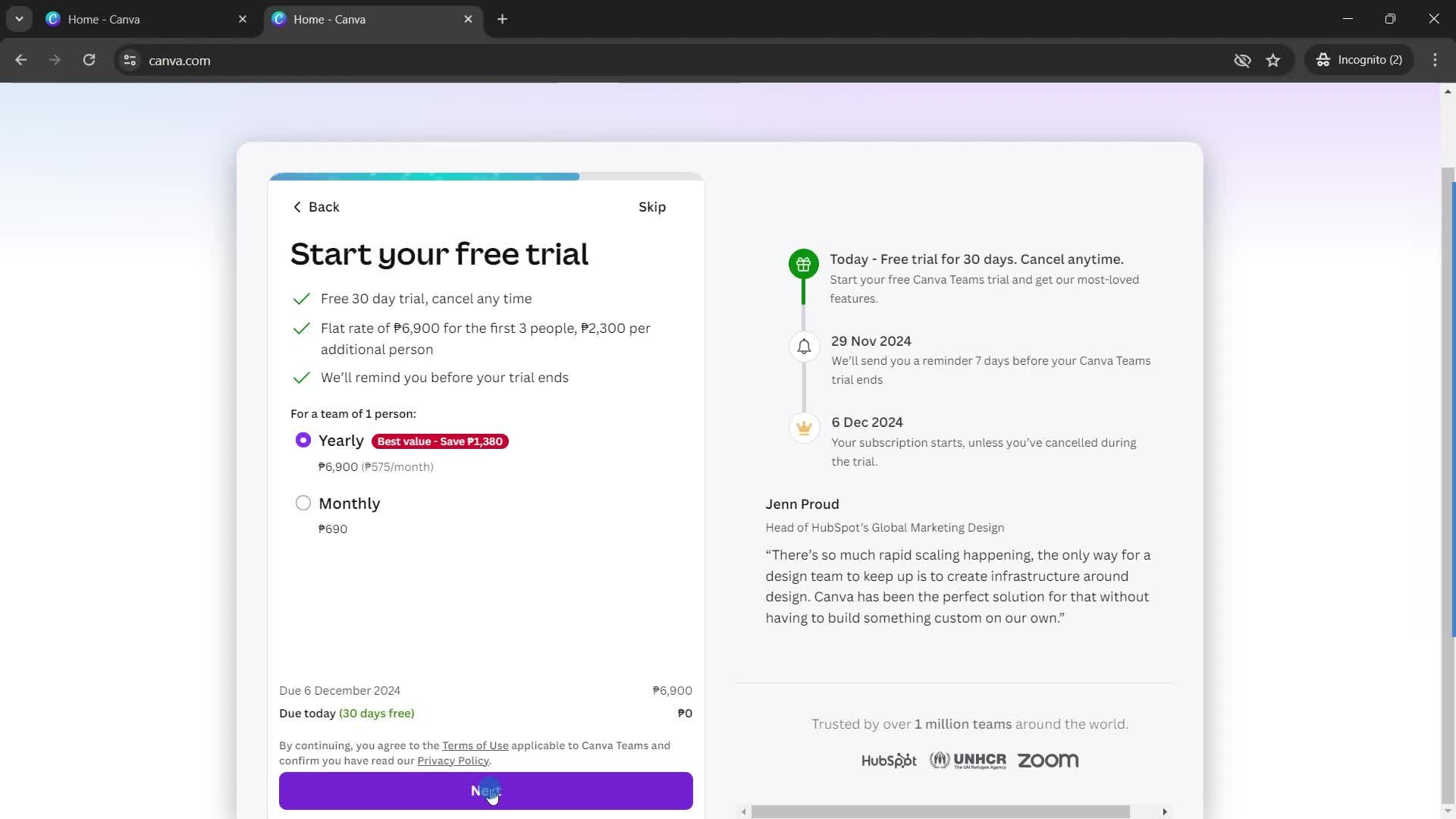
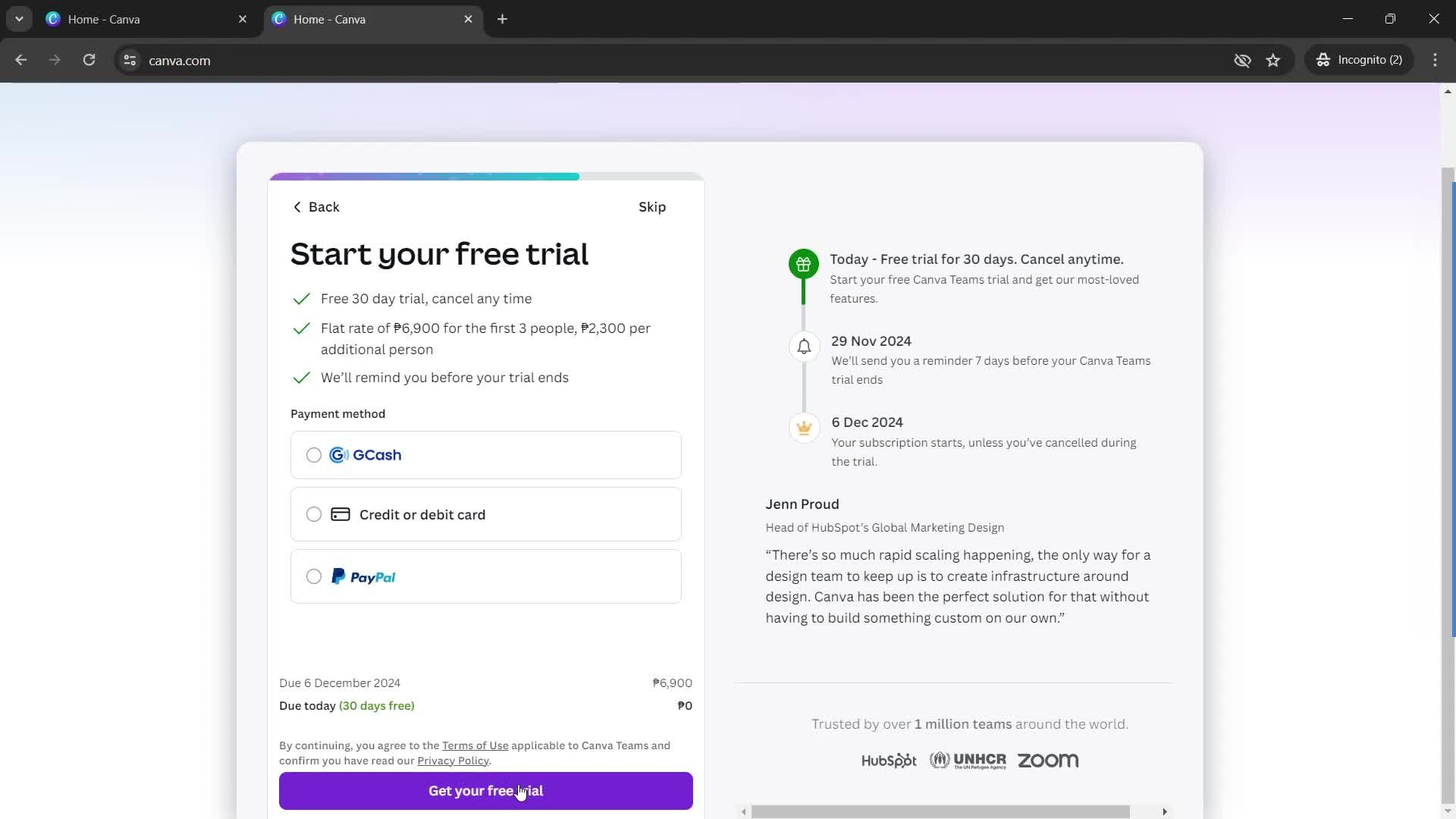
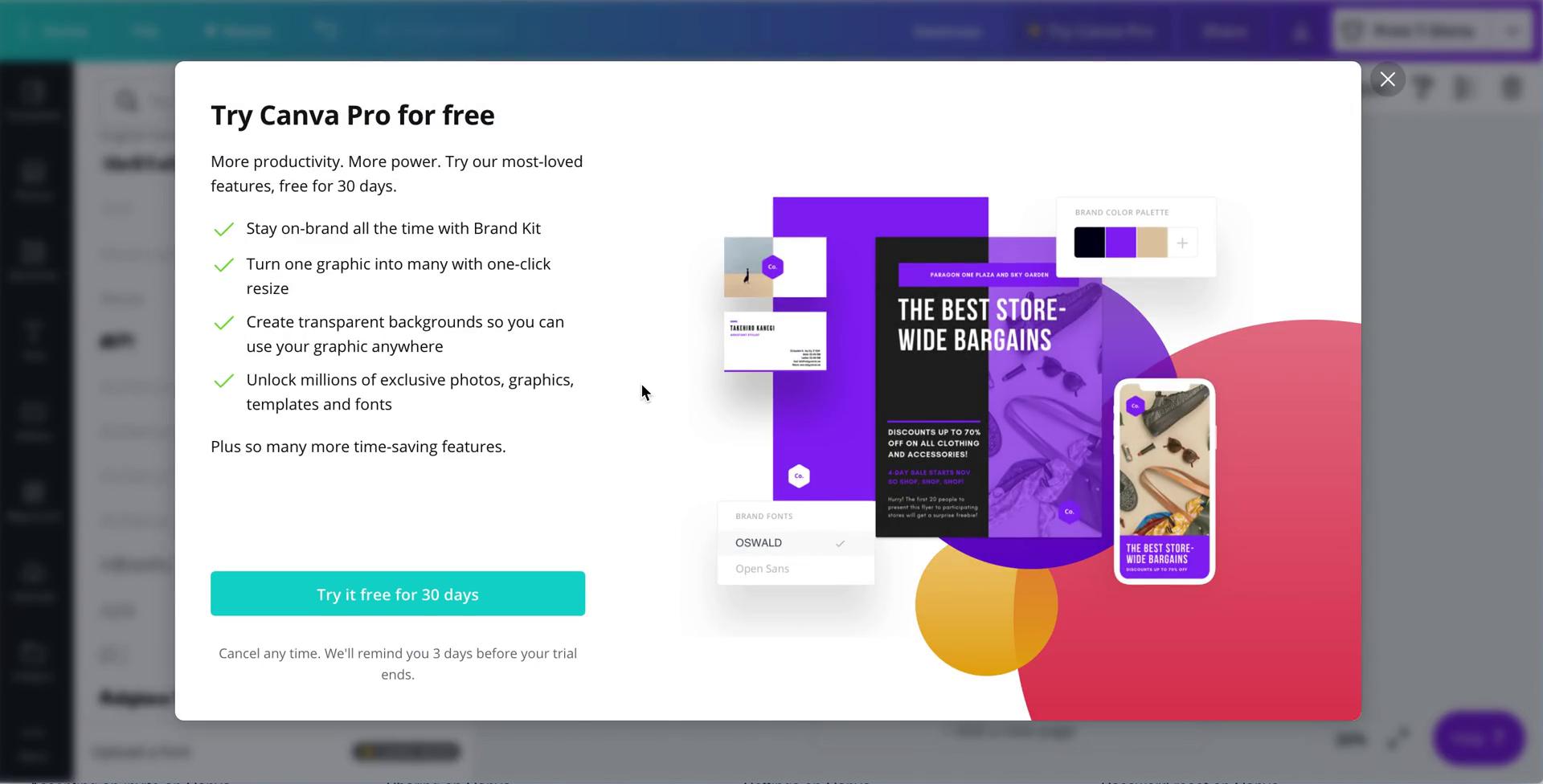
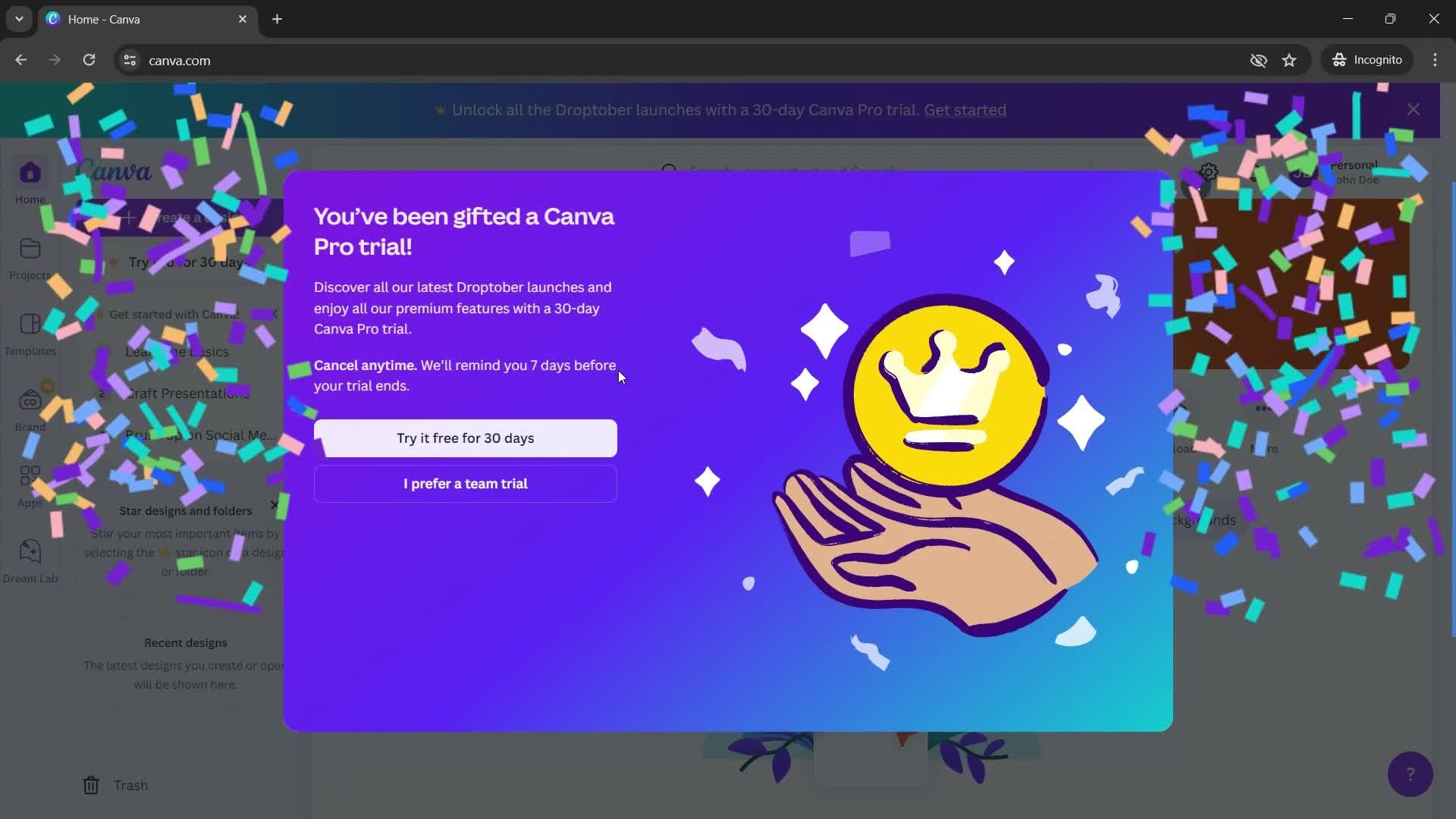
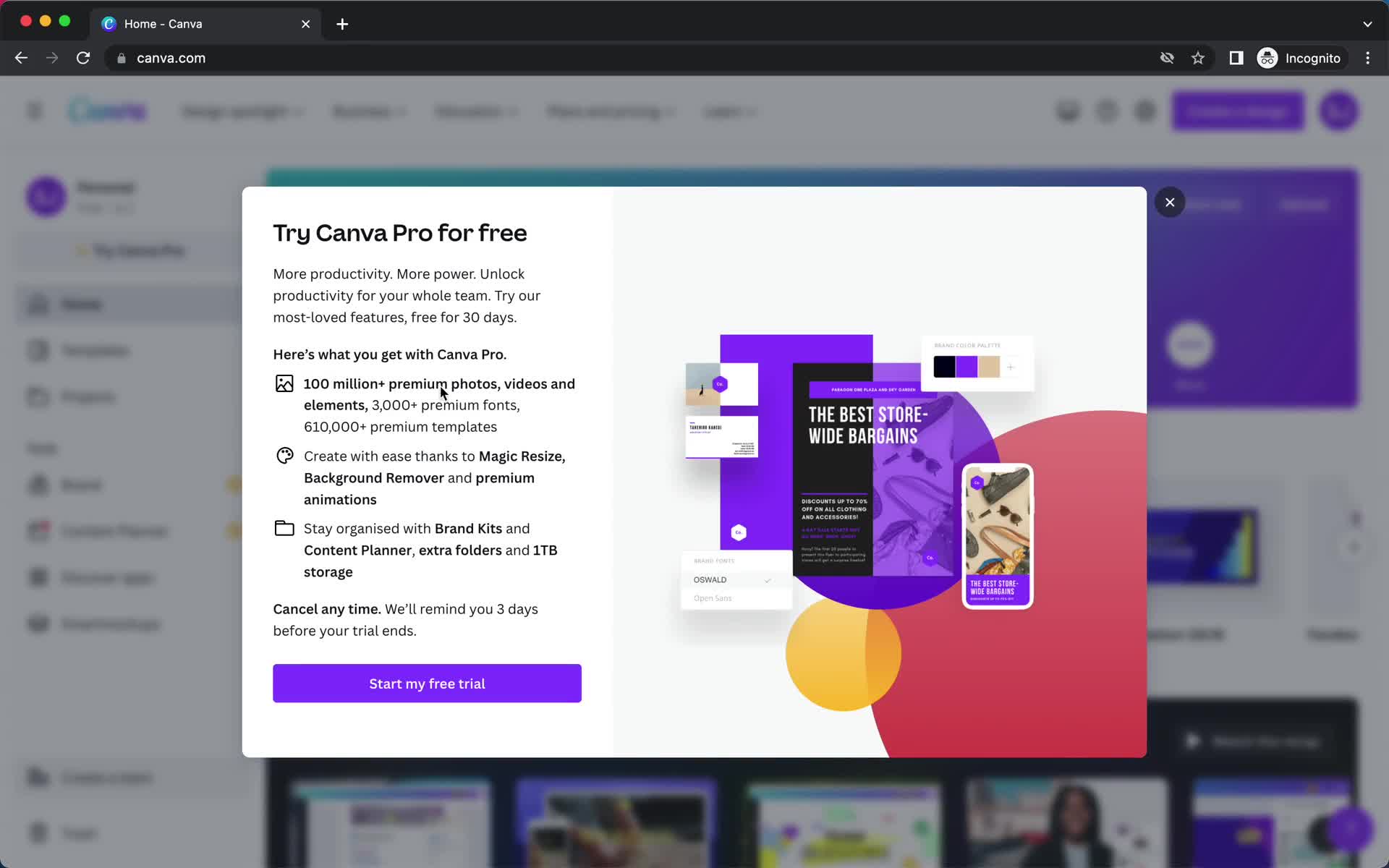
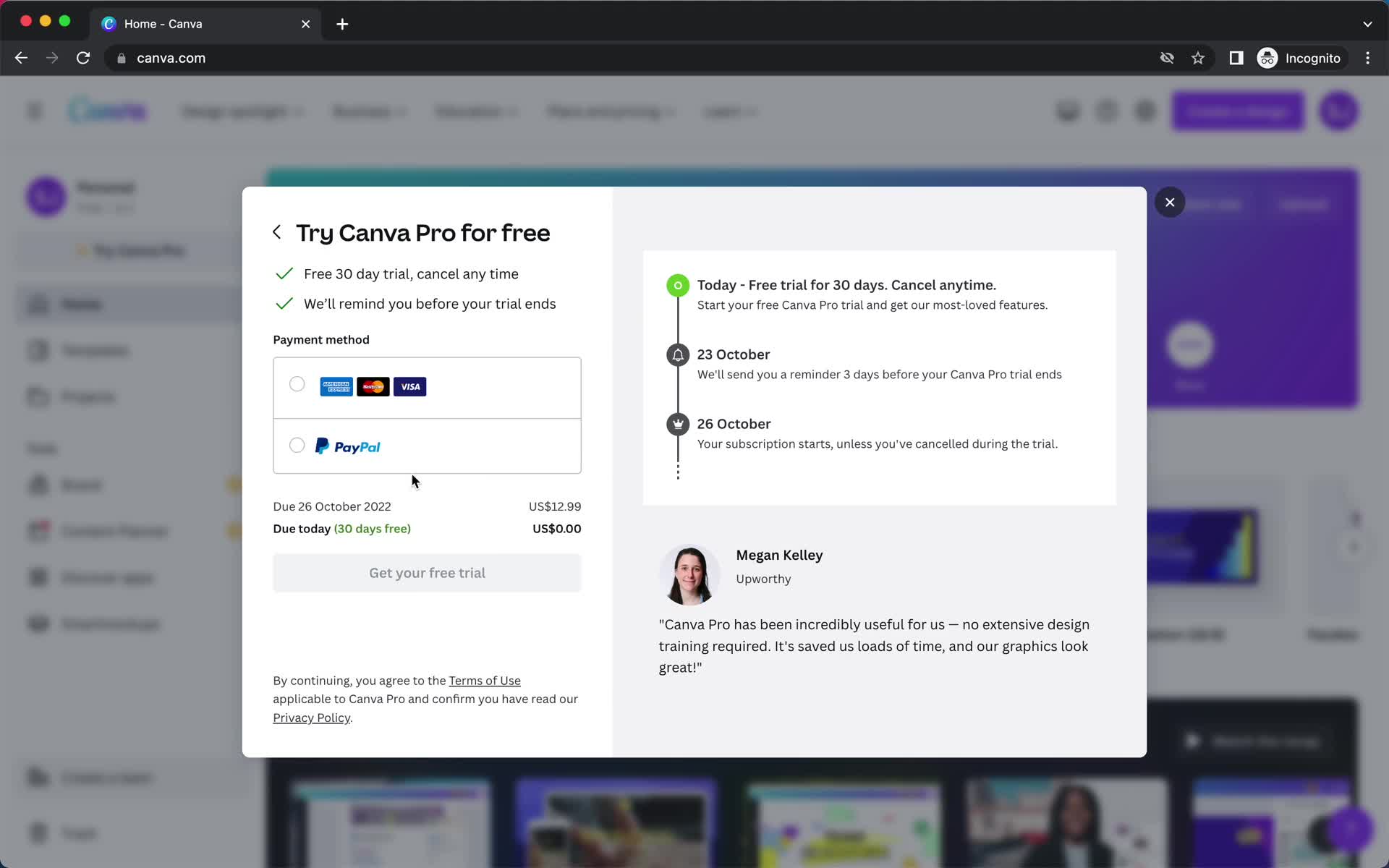
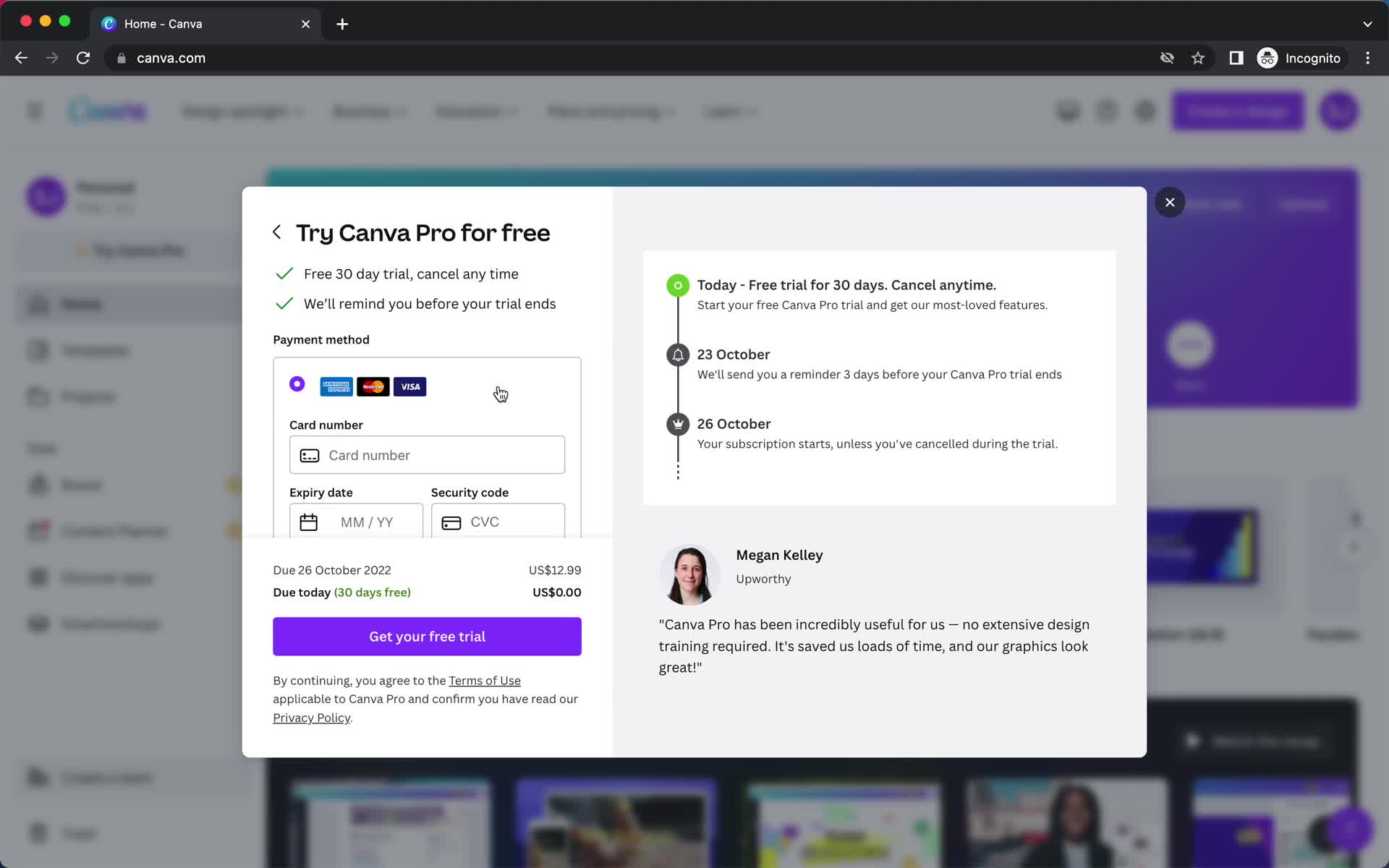
Free trial details
this is title
this is title
this is title
Success
this is title
Profile menu
this is title
this is title
Home
this is title
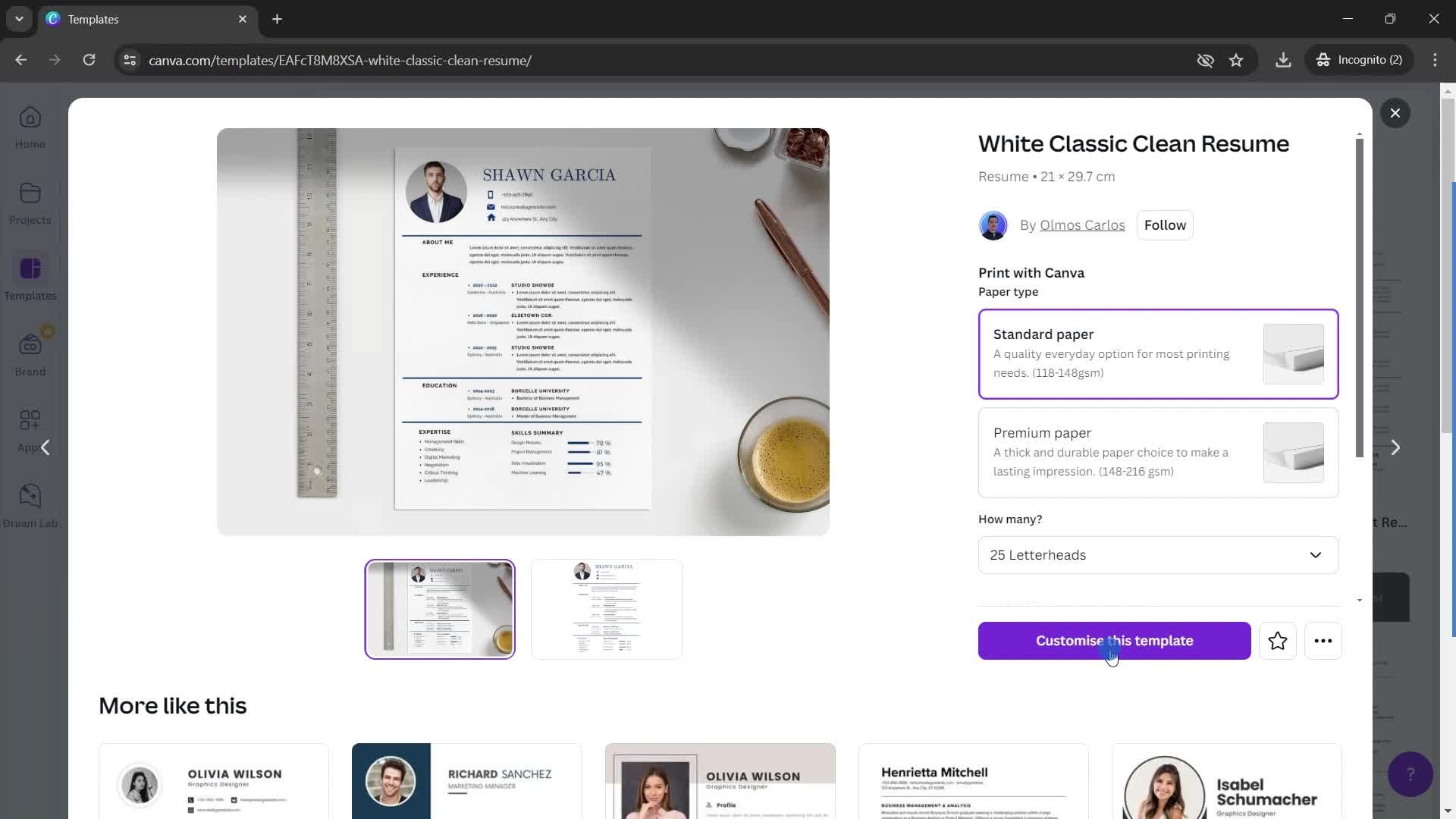
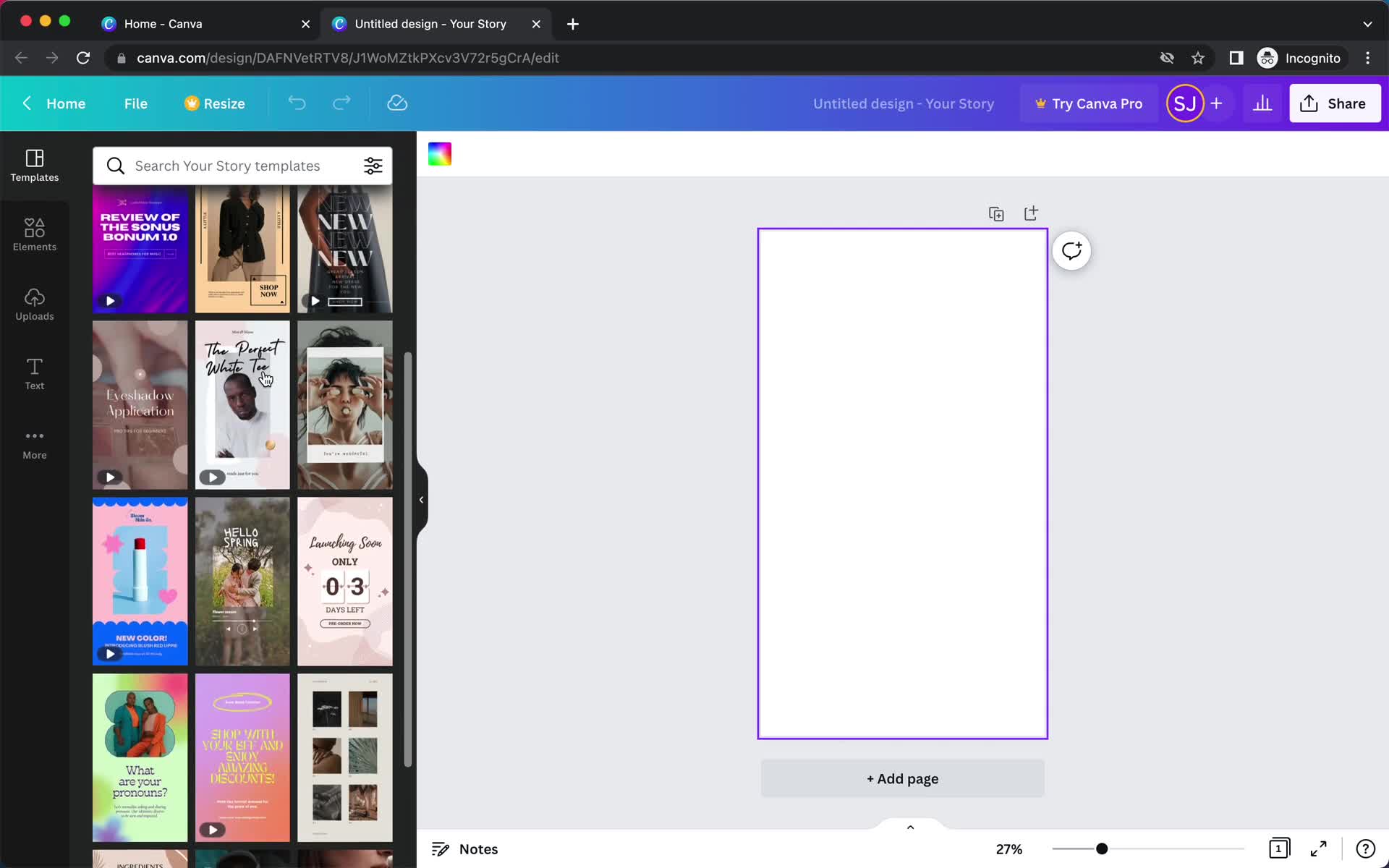
Templates
this is title
this is title
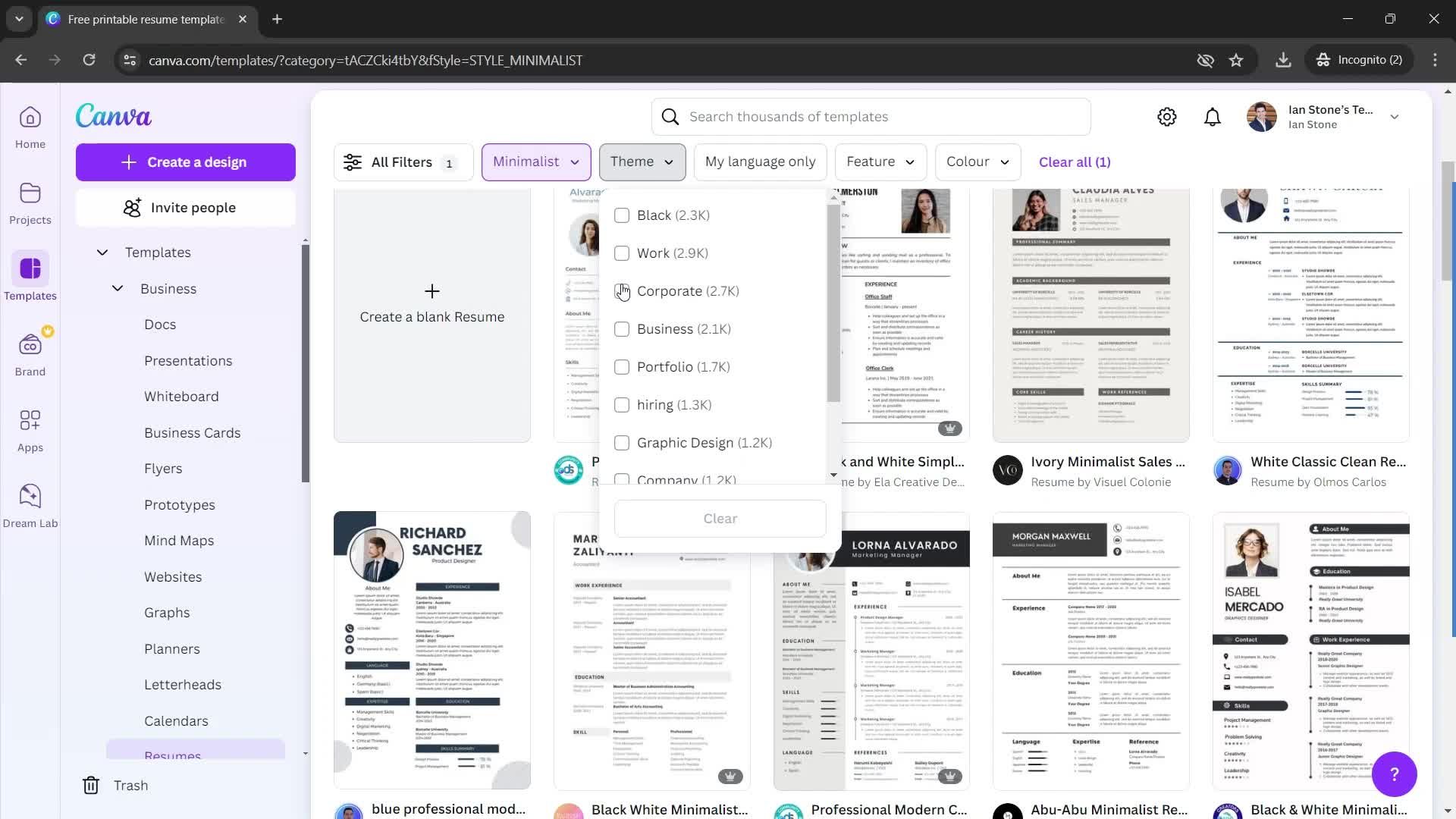
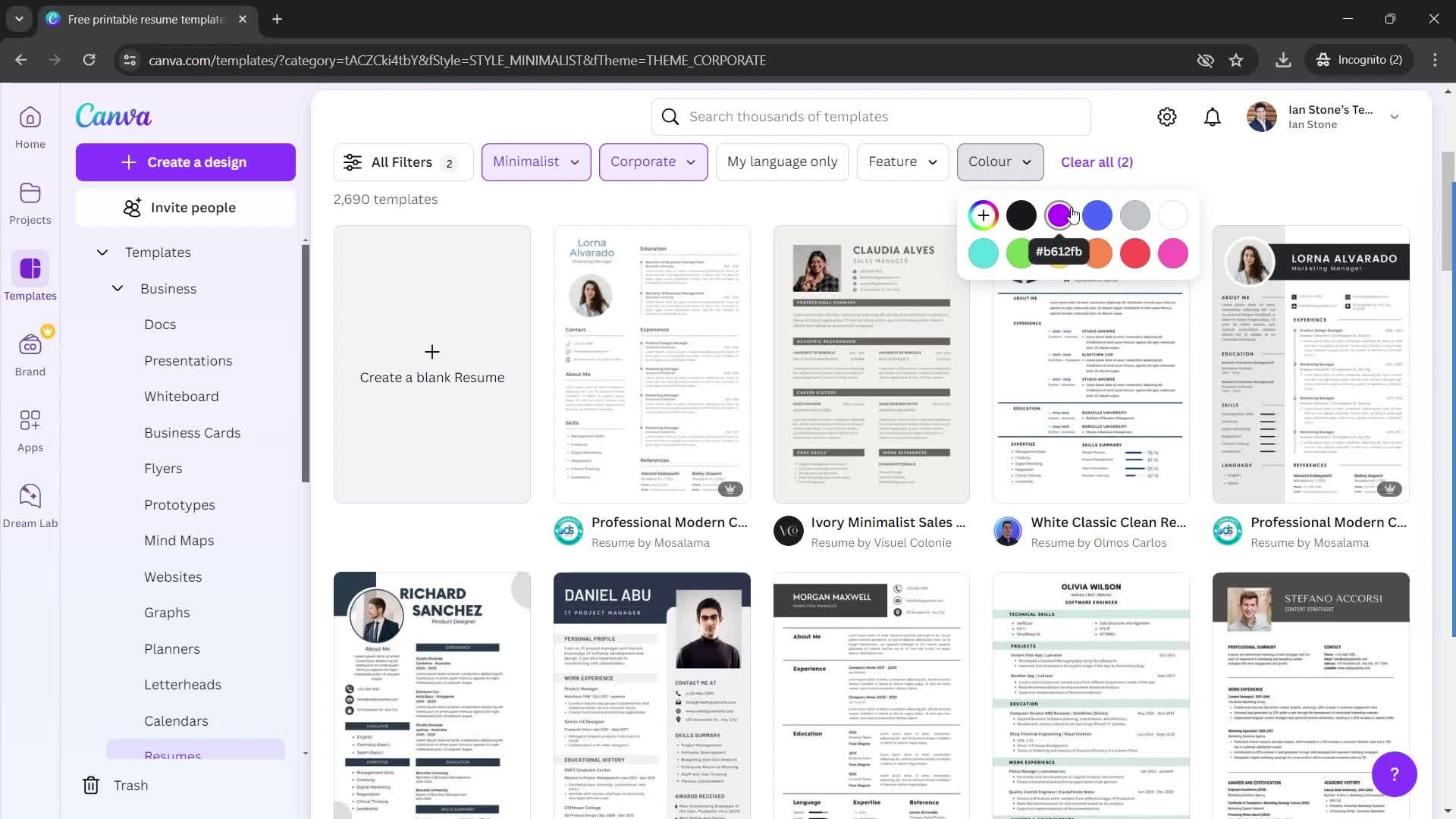
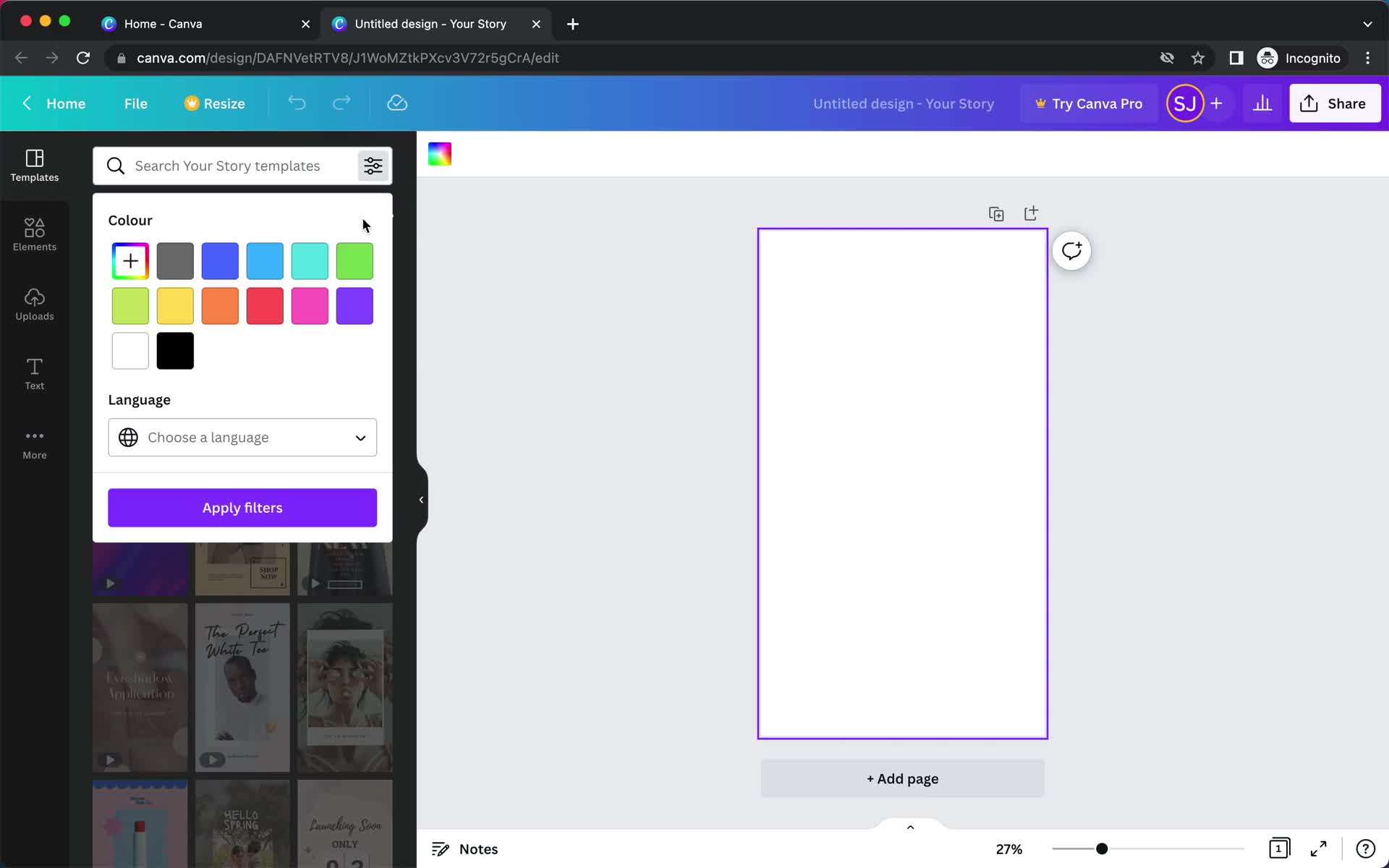
Filter
this is title
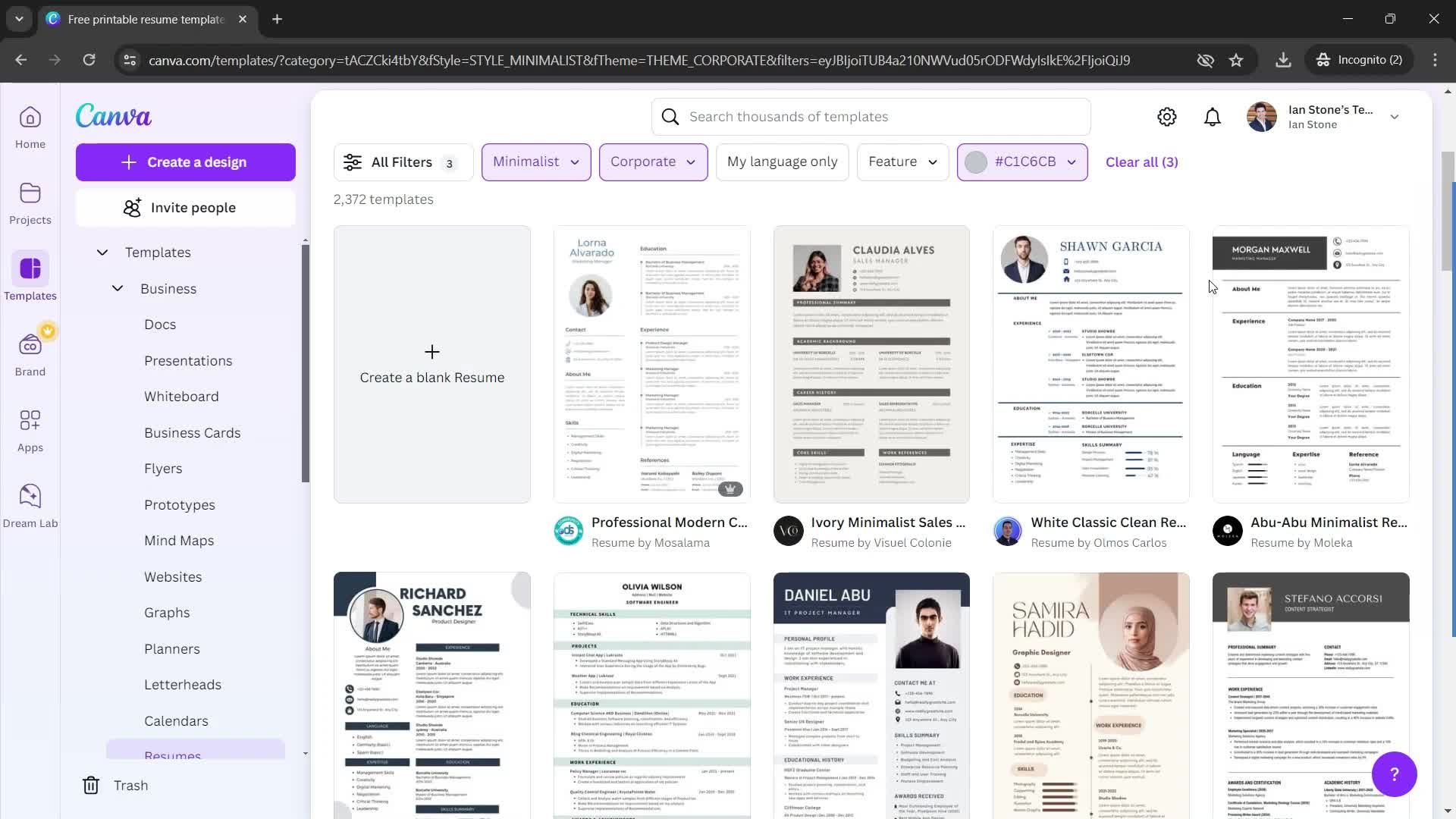
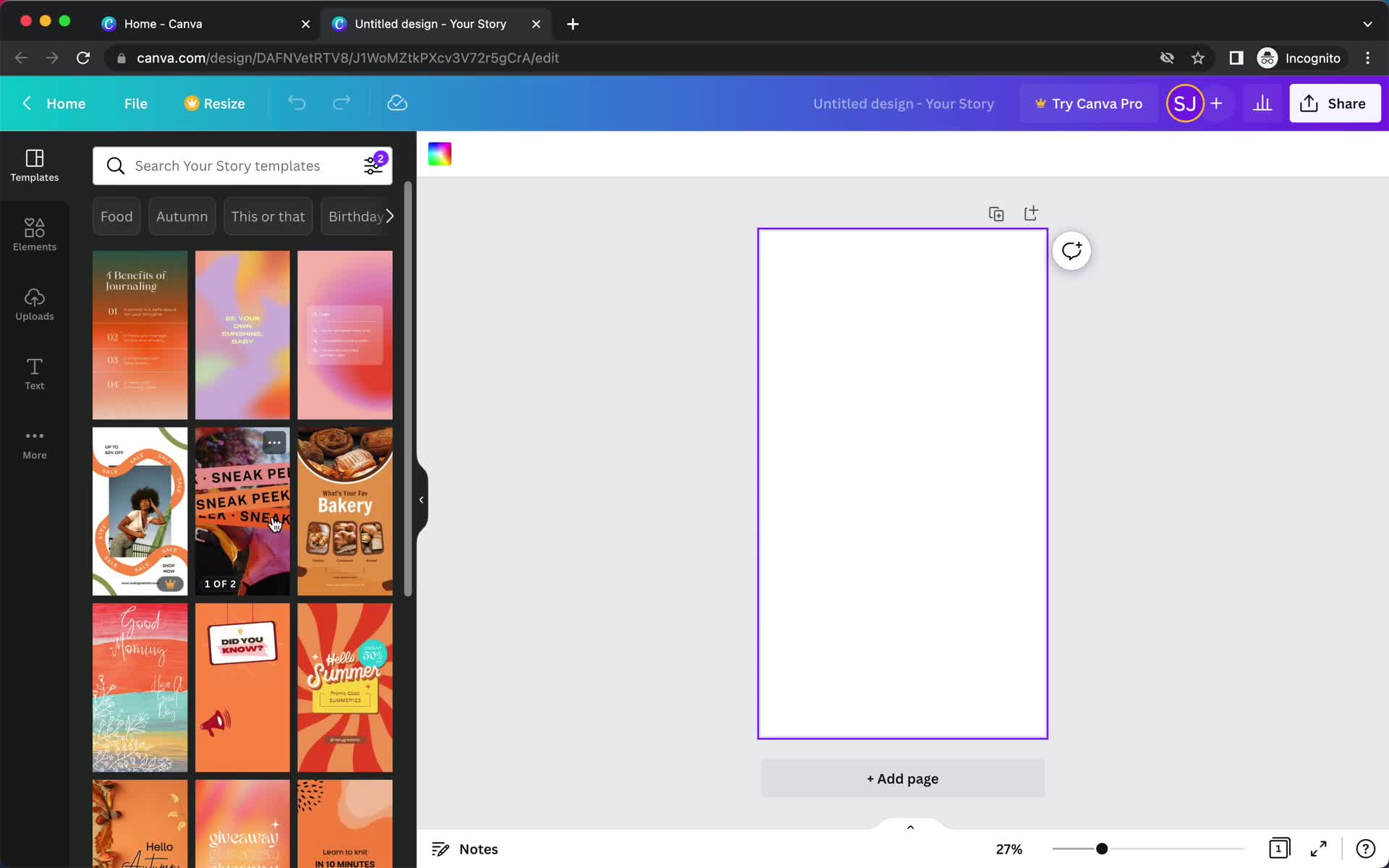
Filtered results
this is title
this is title
this is title
this is title
this is title
this is title
this is title
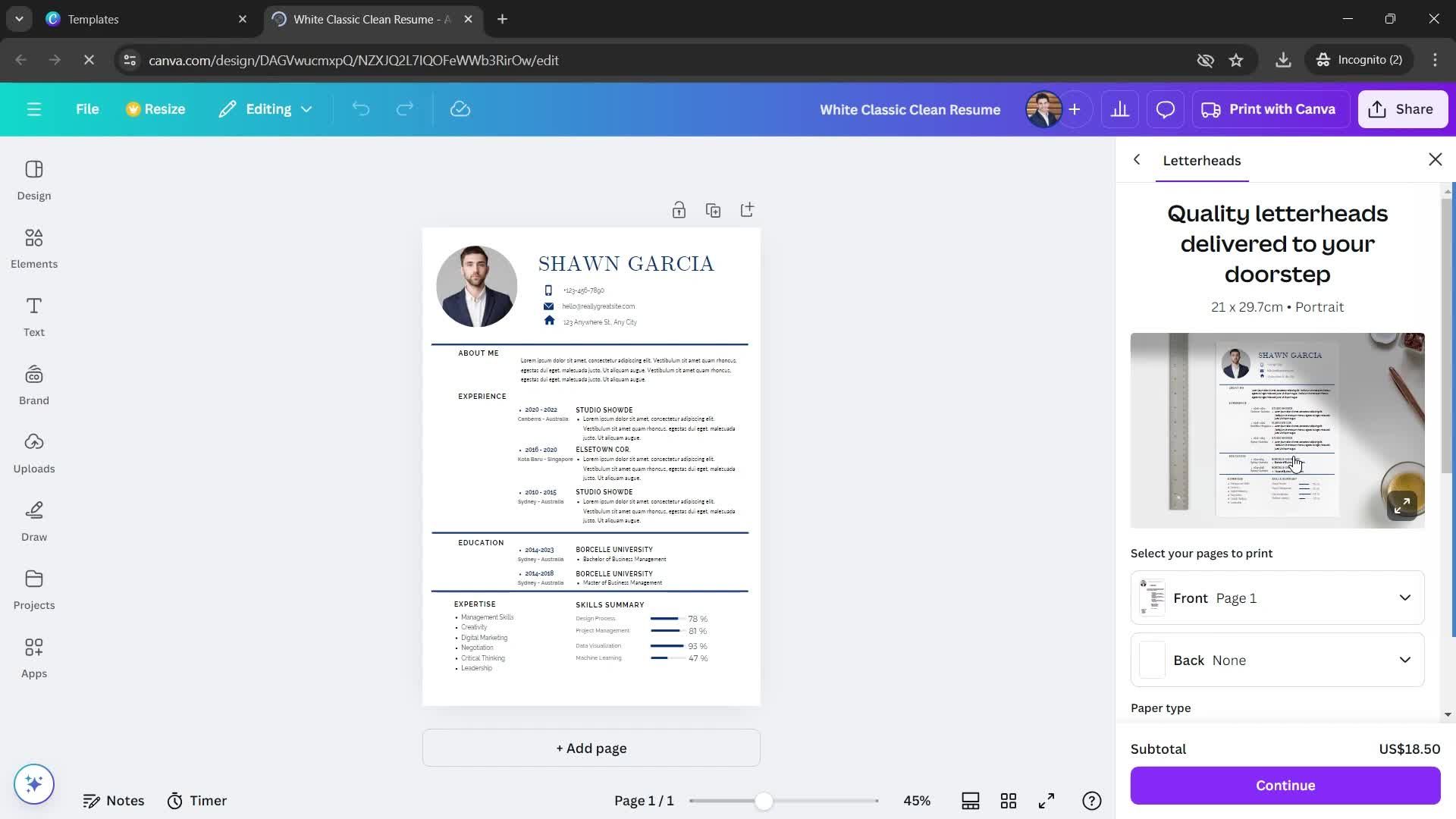
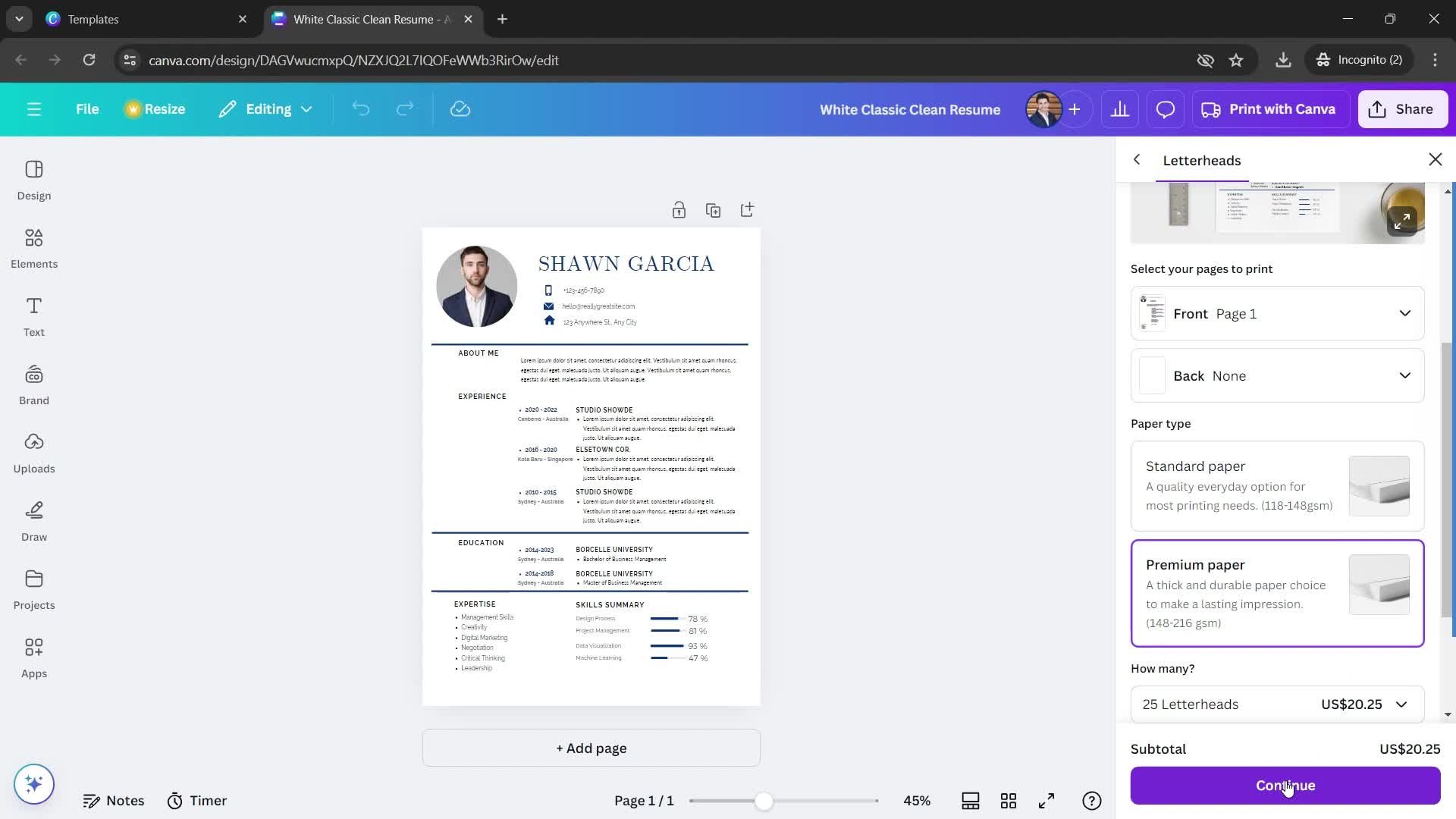
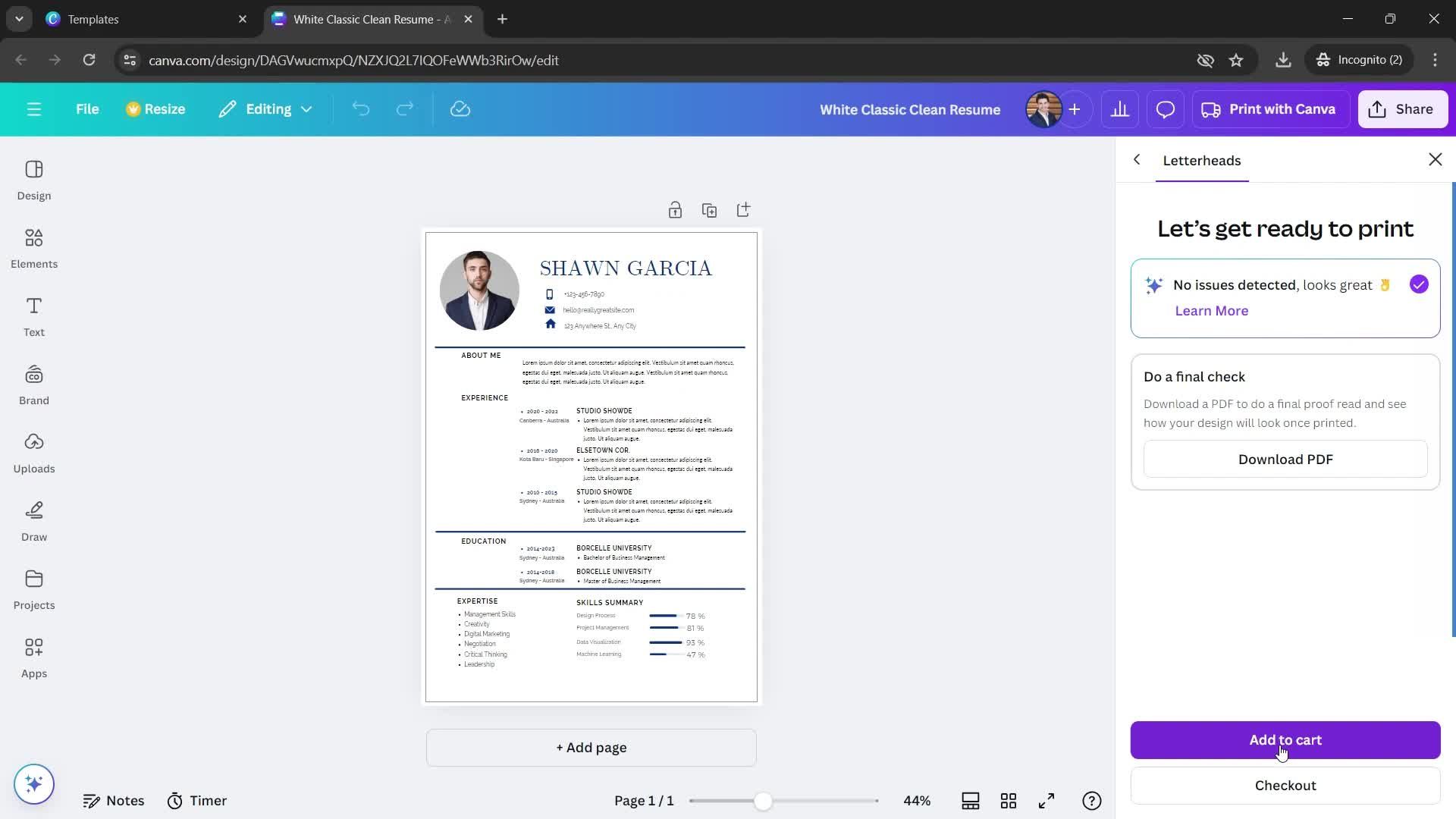
Add to cart
this is title
this is title
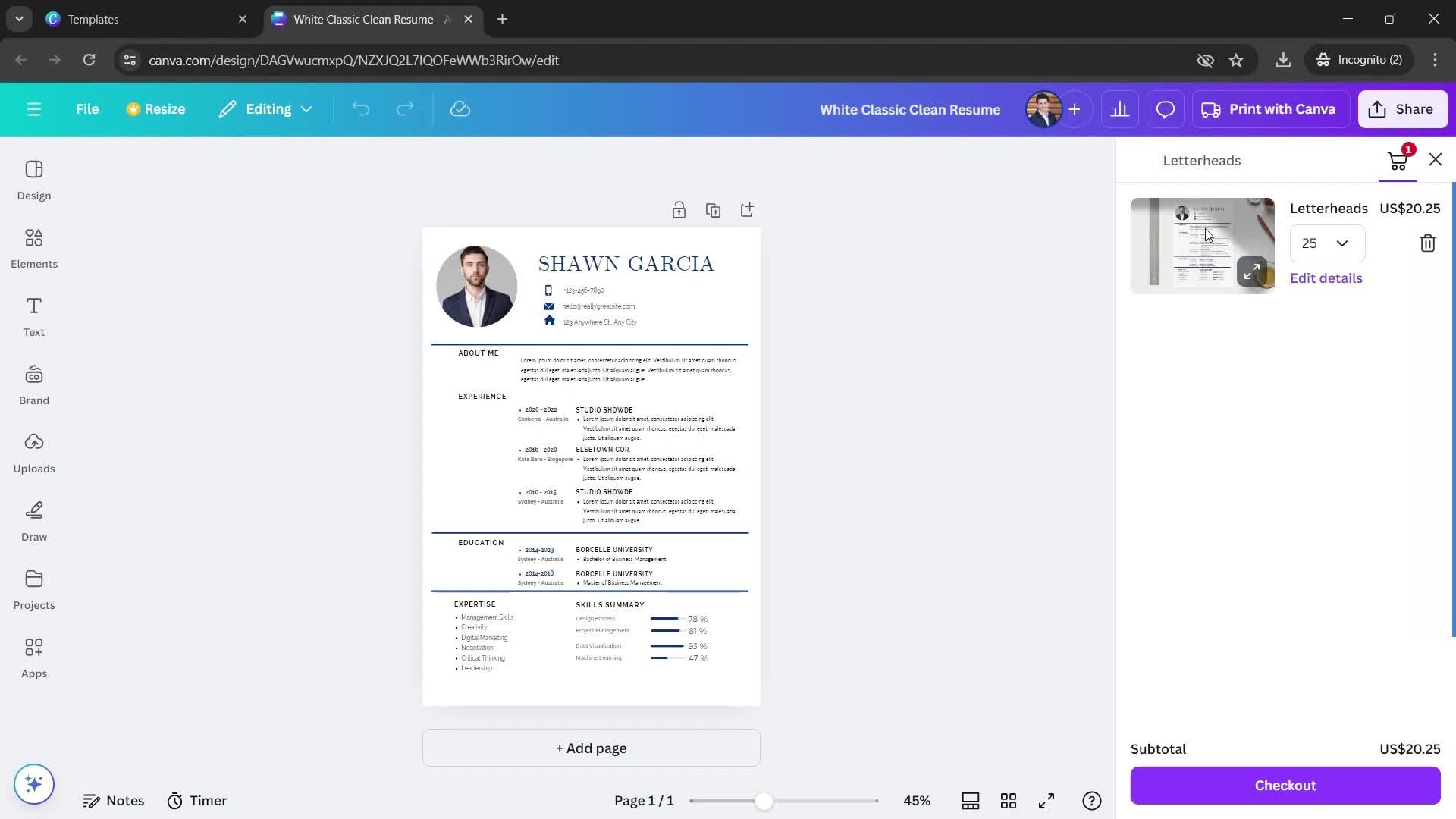
Cart
this is title
Home
this is title
Settings
this is title
Billing
this is title
Action menu
this is title
Confirm cancellation
this is title
Select reason
this is title
this is title
this is title
Subscription cancelled
this is title
Home
this is title
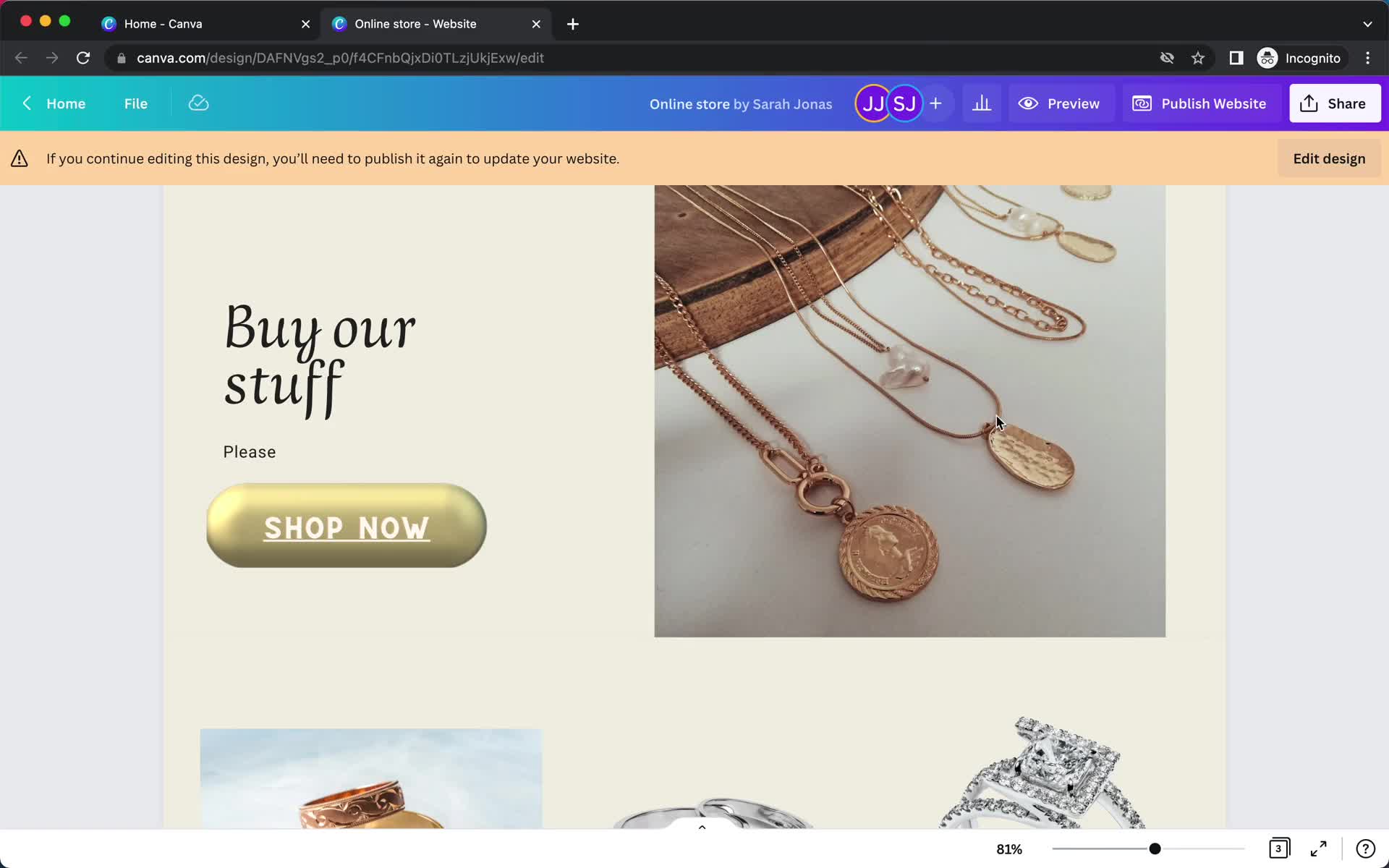
Preview
this is title
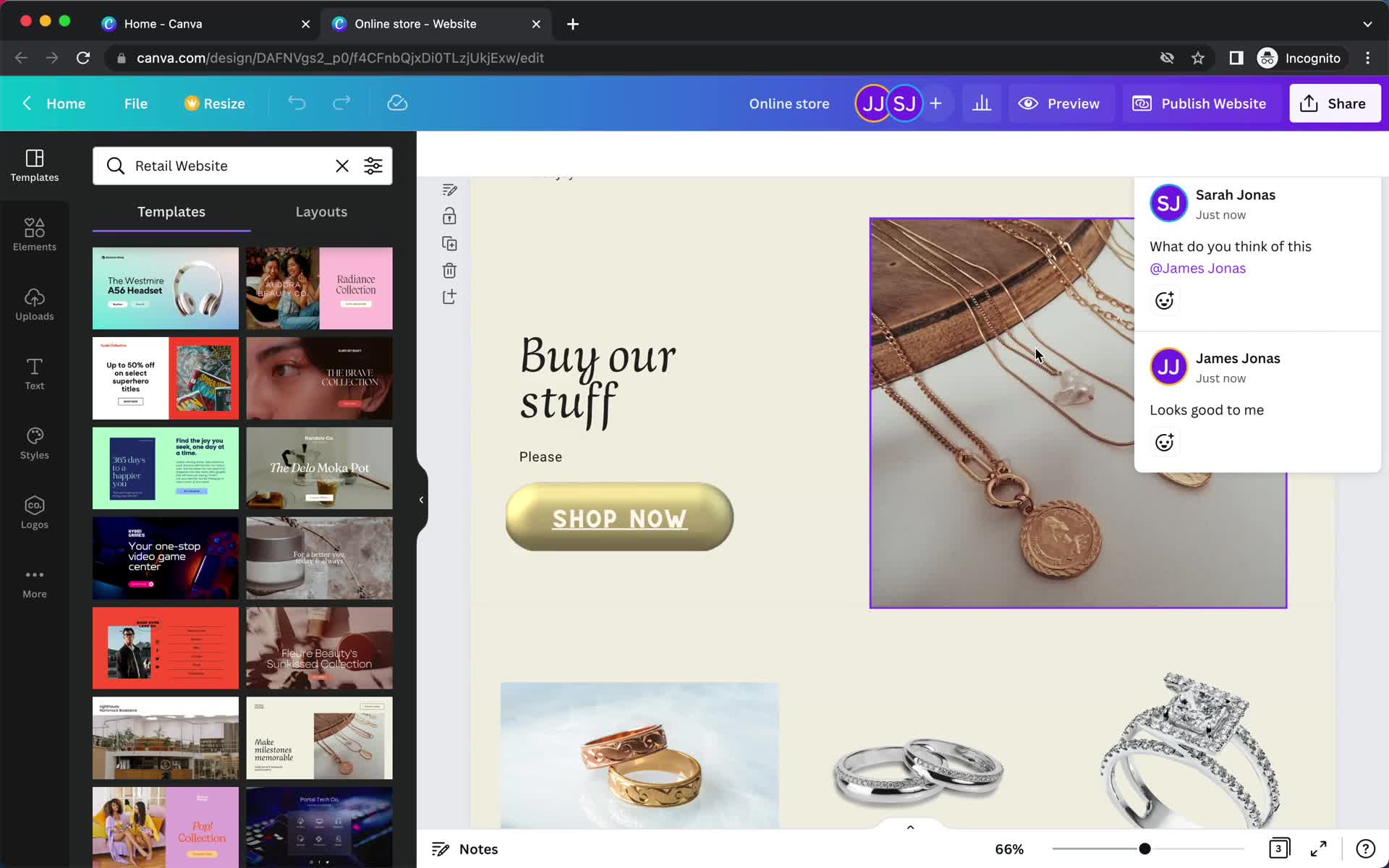
Comments
this is title
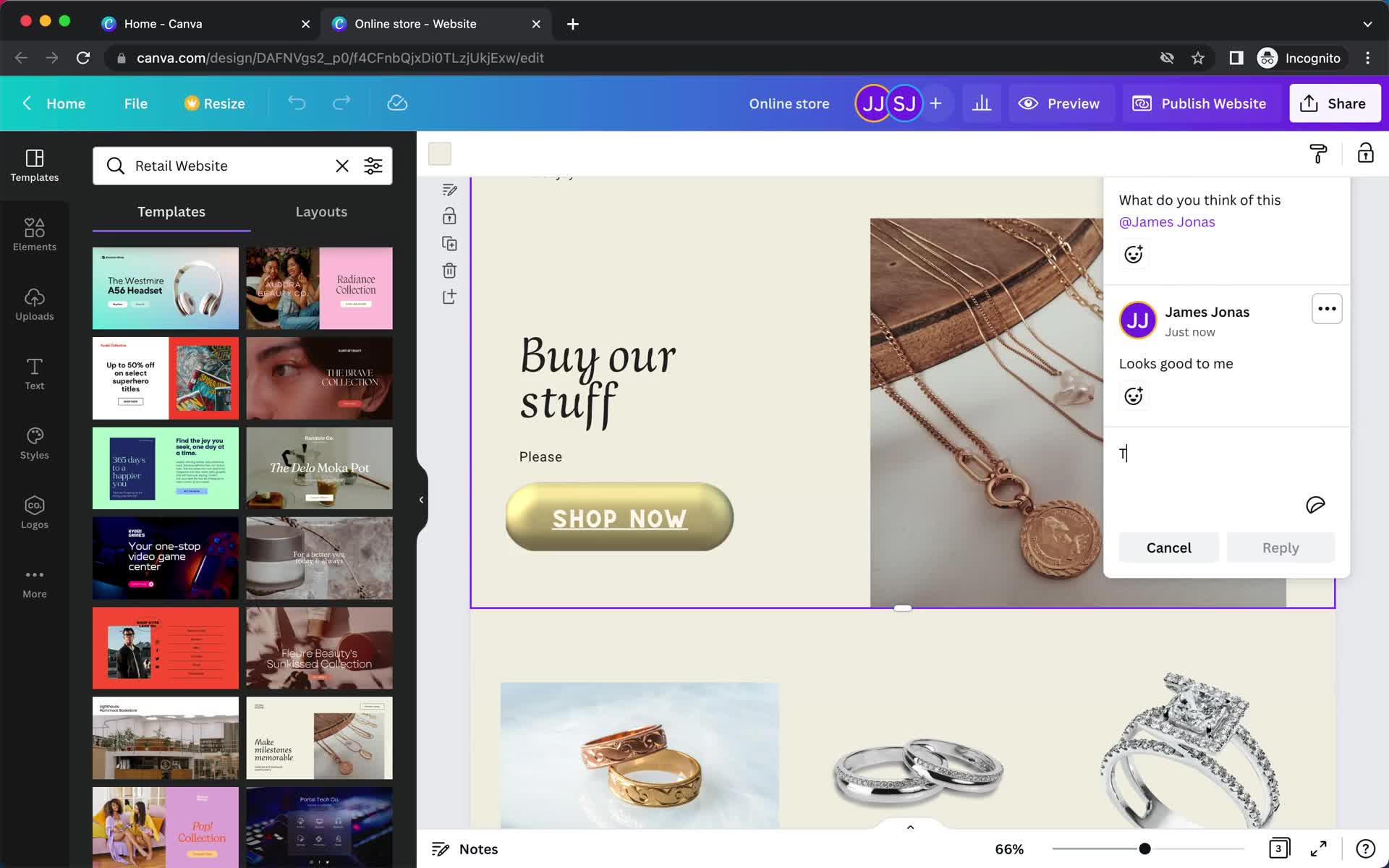
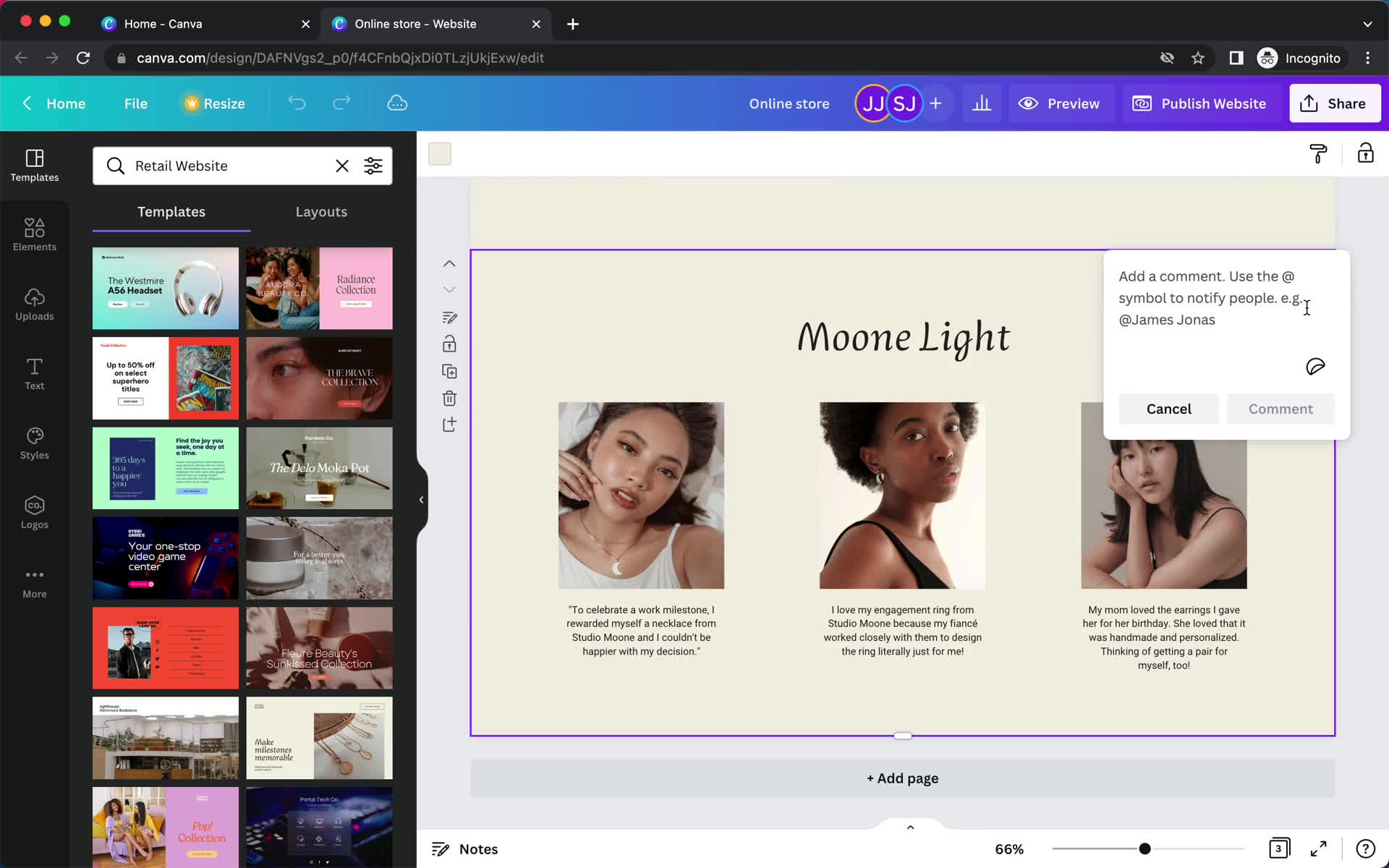
Add comment
this is title
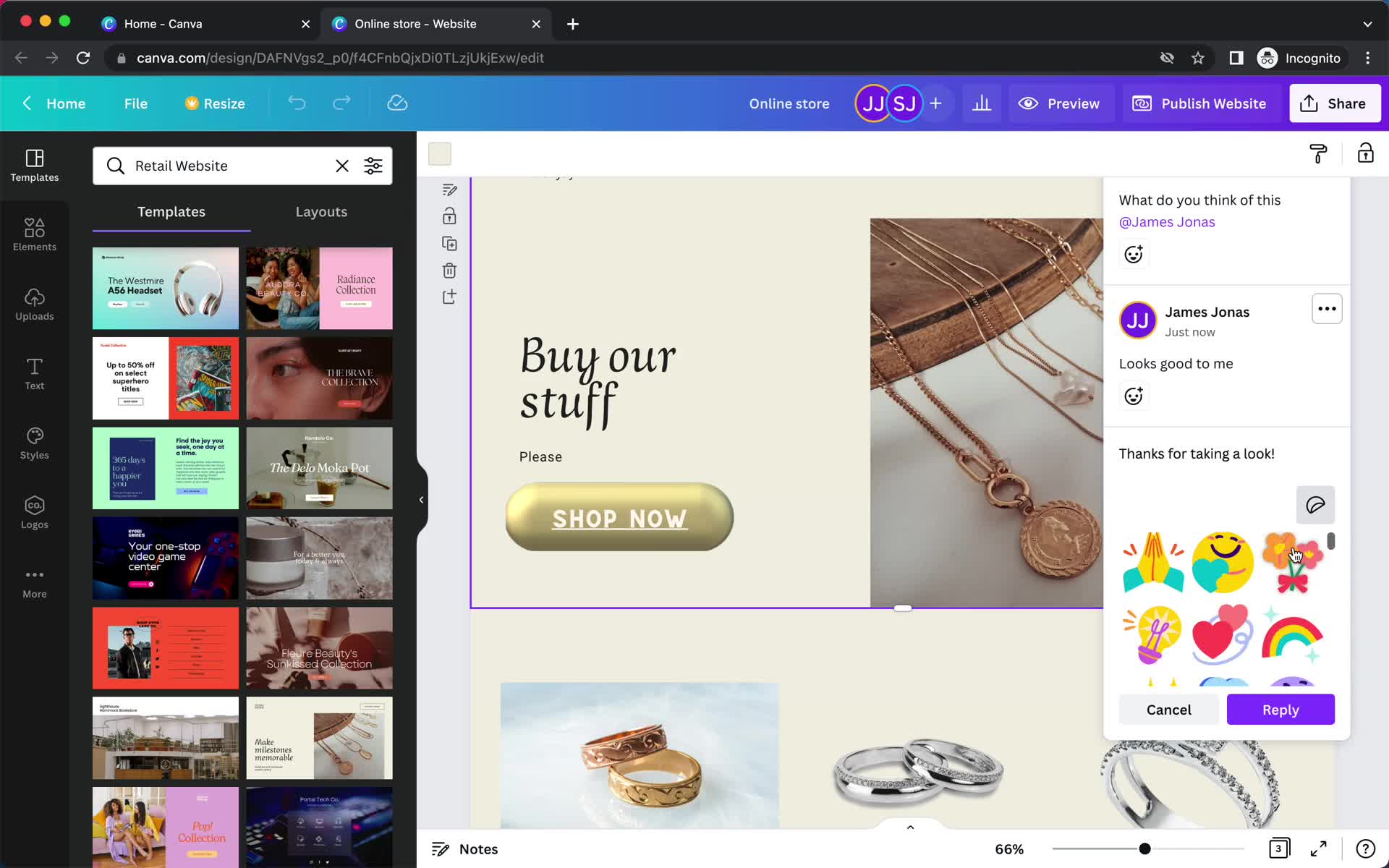
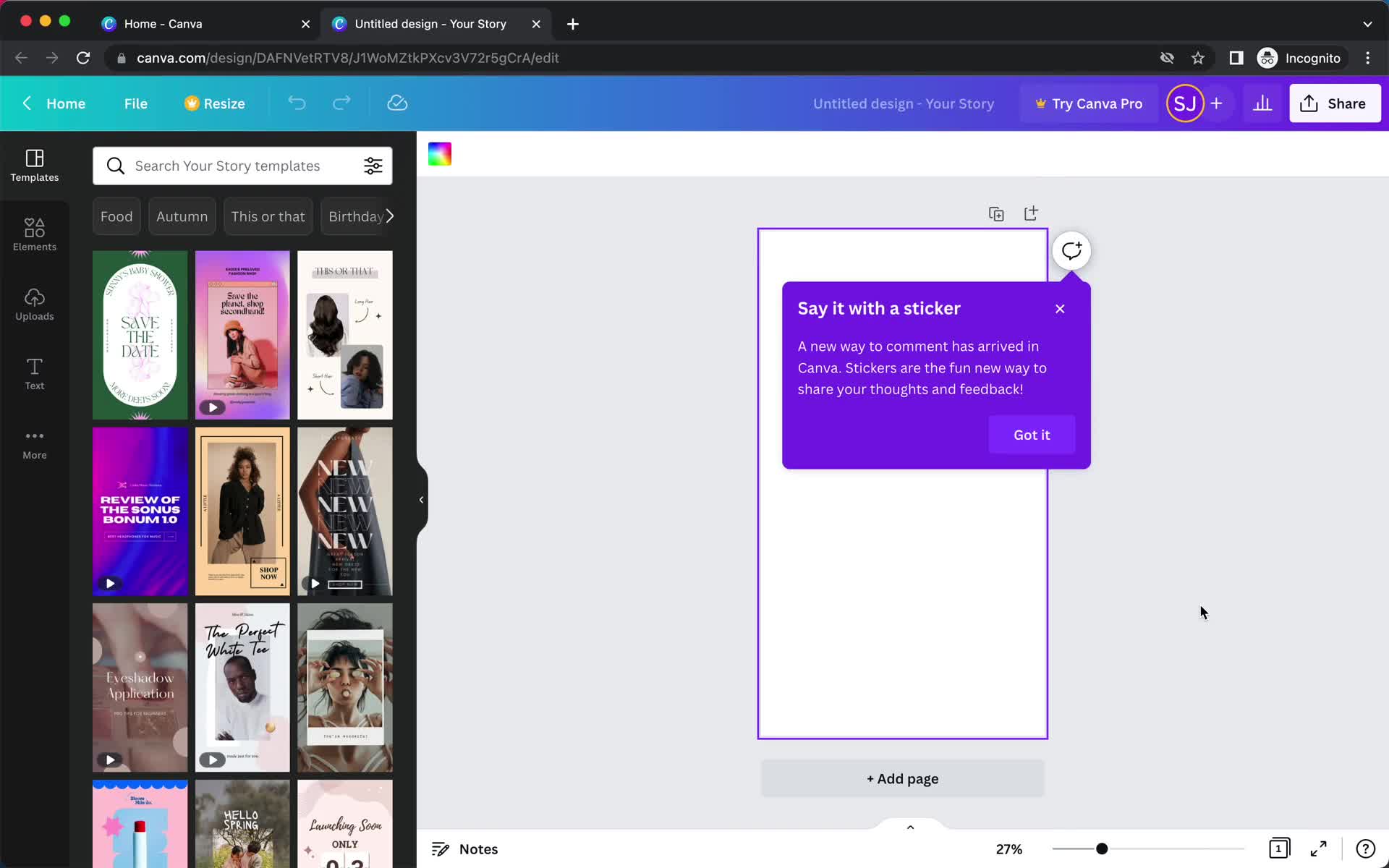
Stickers
this is title
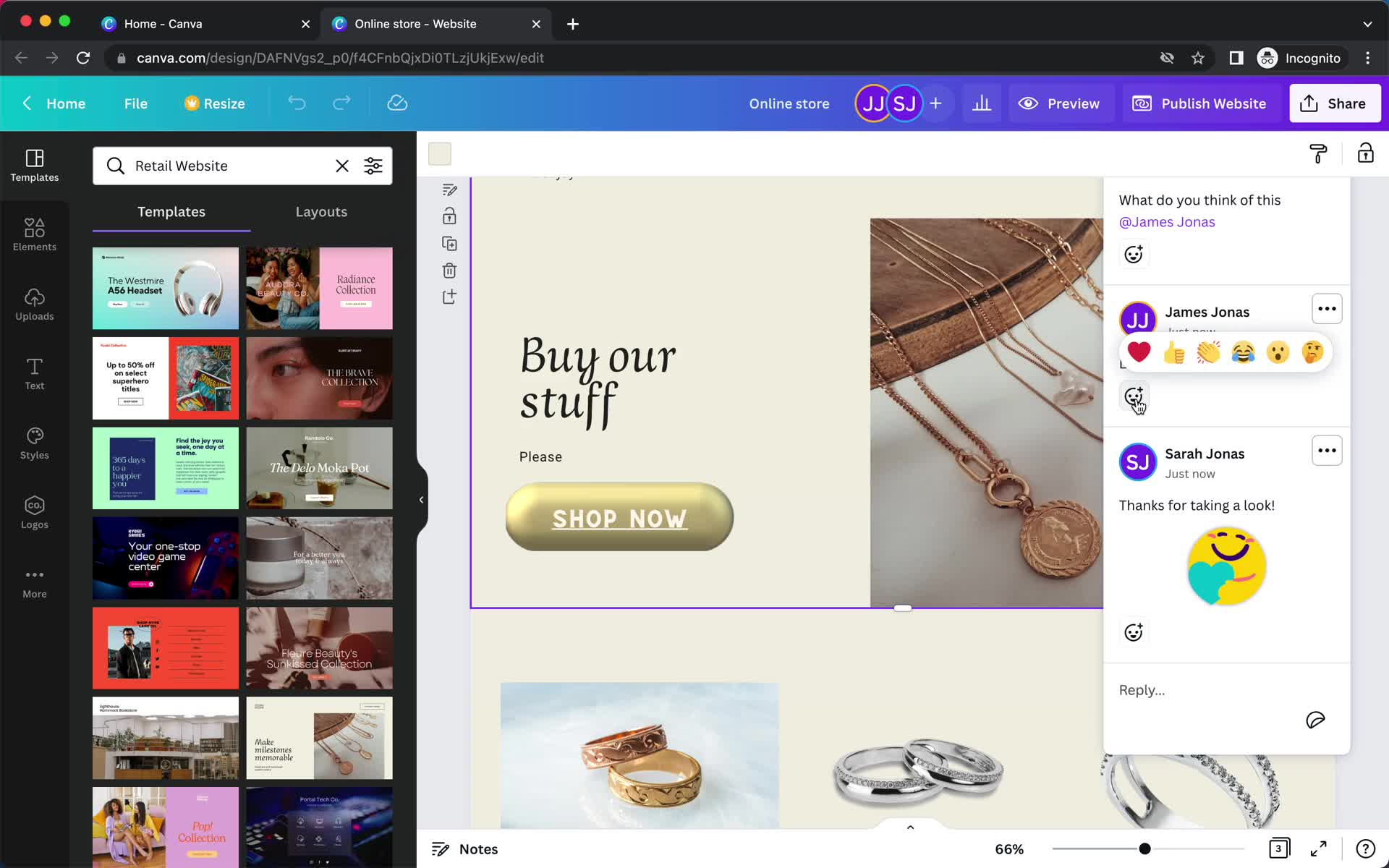
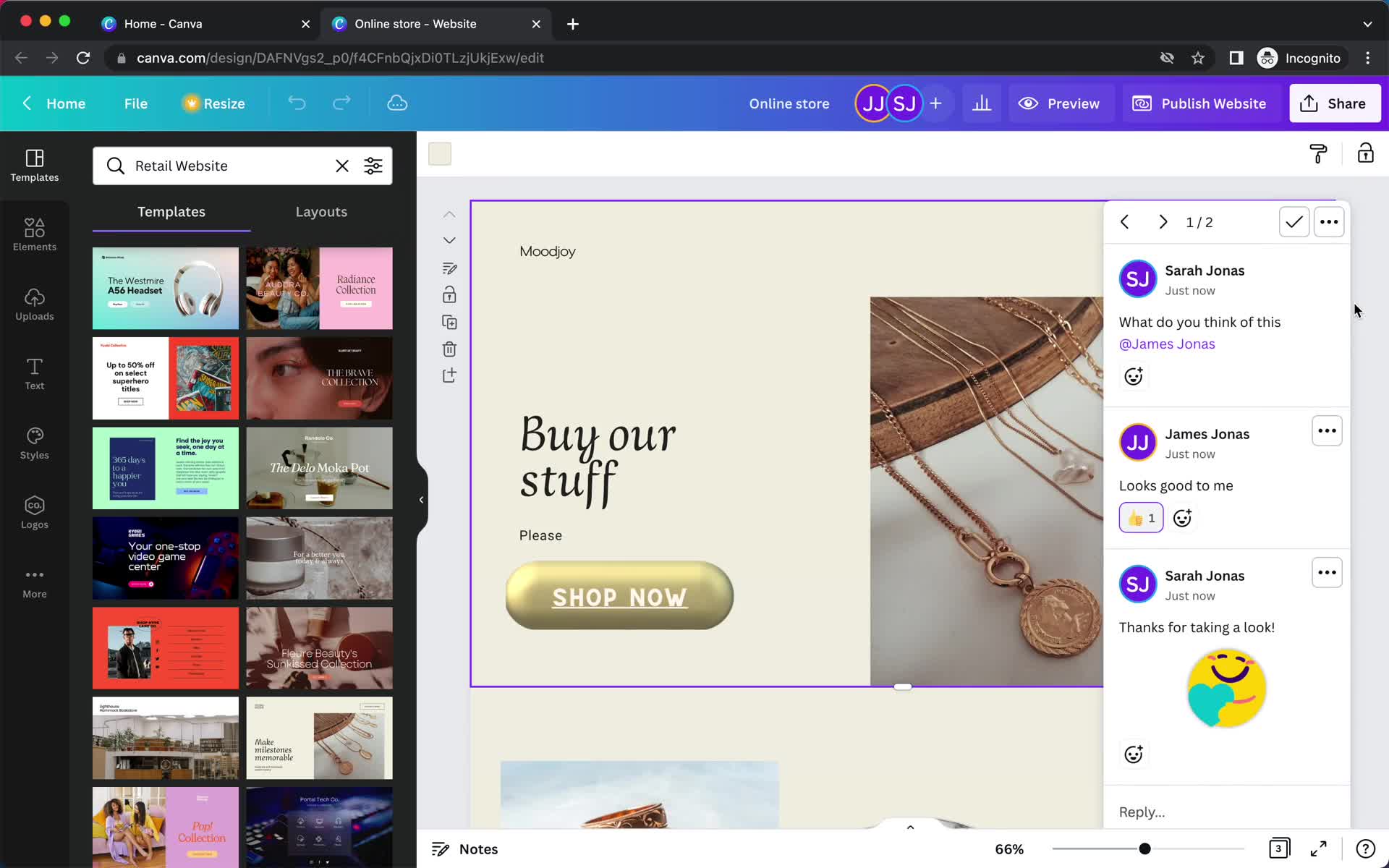
Emoji reaction
this is title
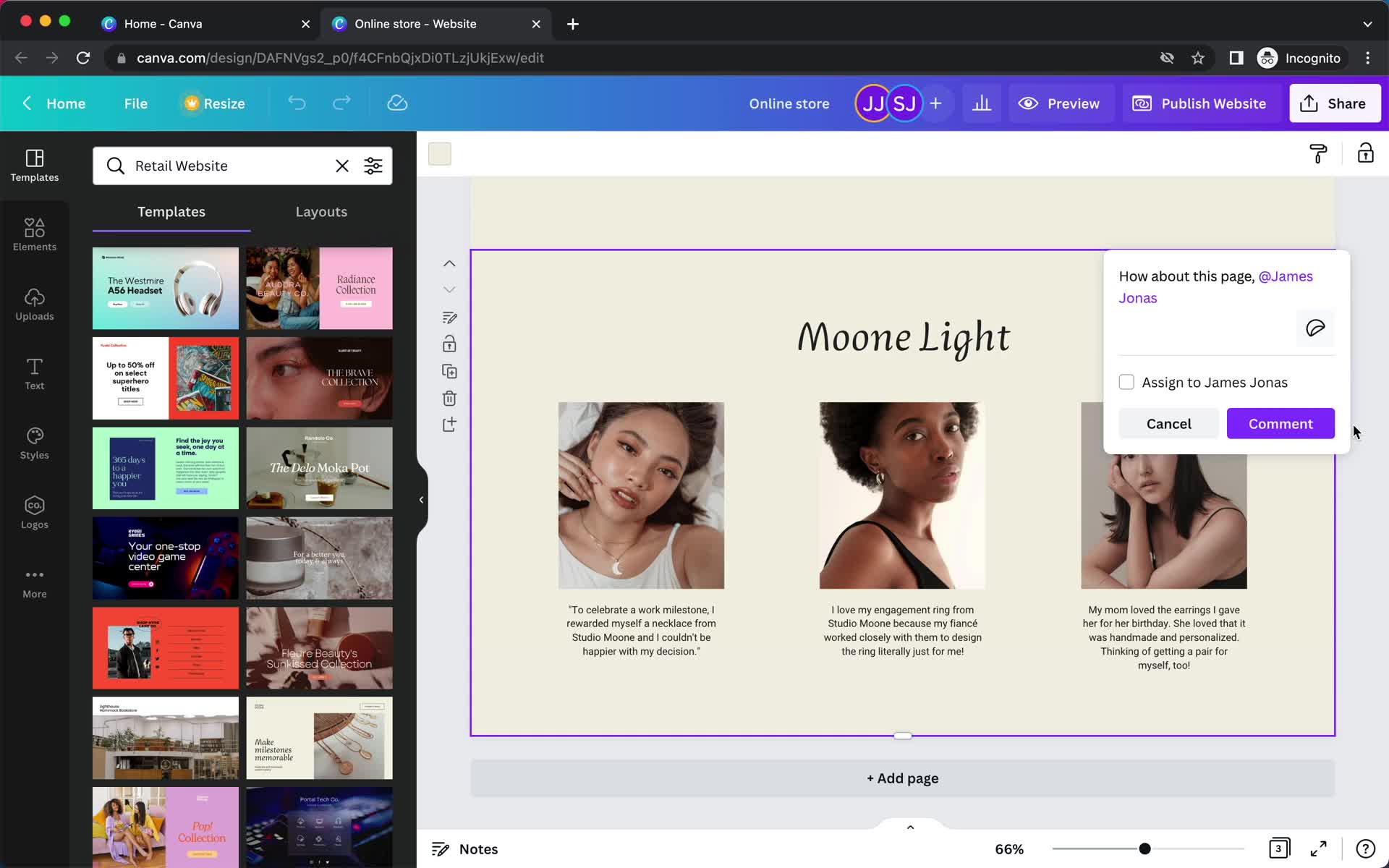
Add comment
this is title
Add comment
this is title
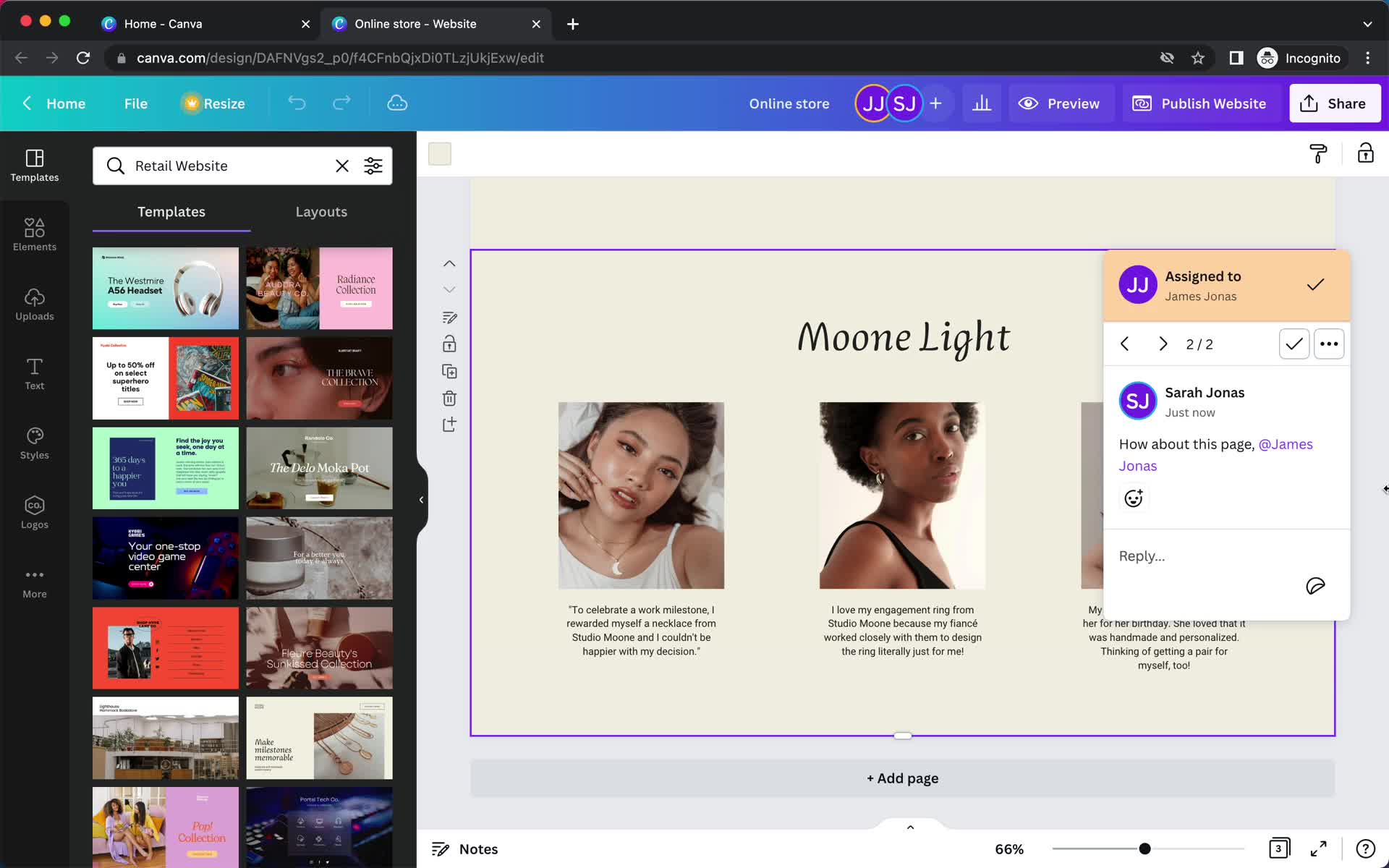
Comment saved
this is title
Comments
this is title
Comments
this is title
Editor
this is title
Home
this is title
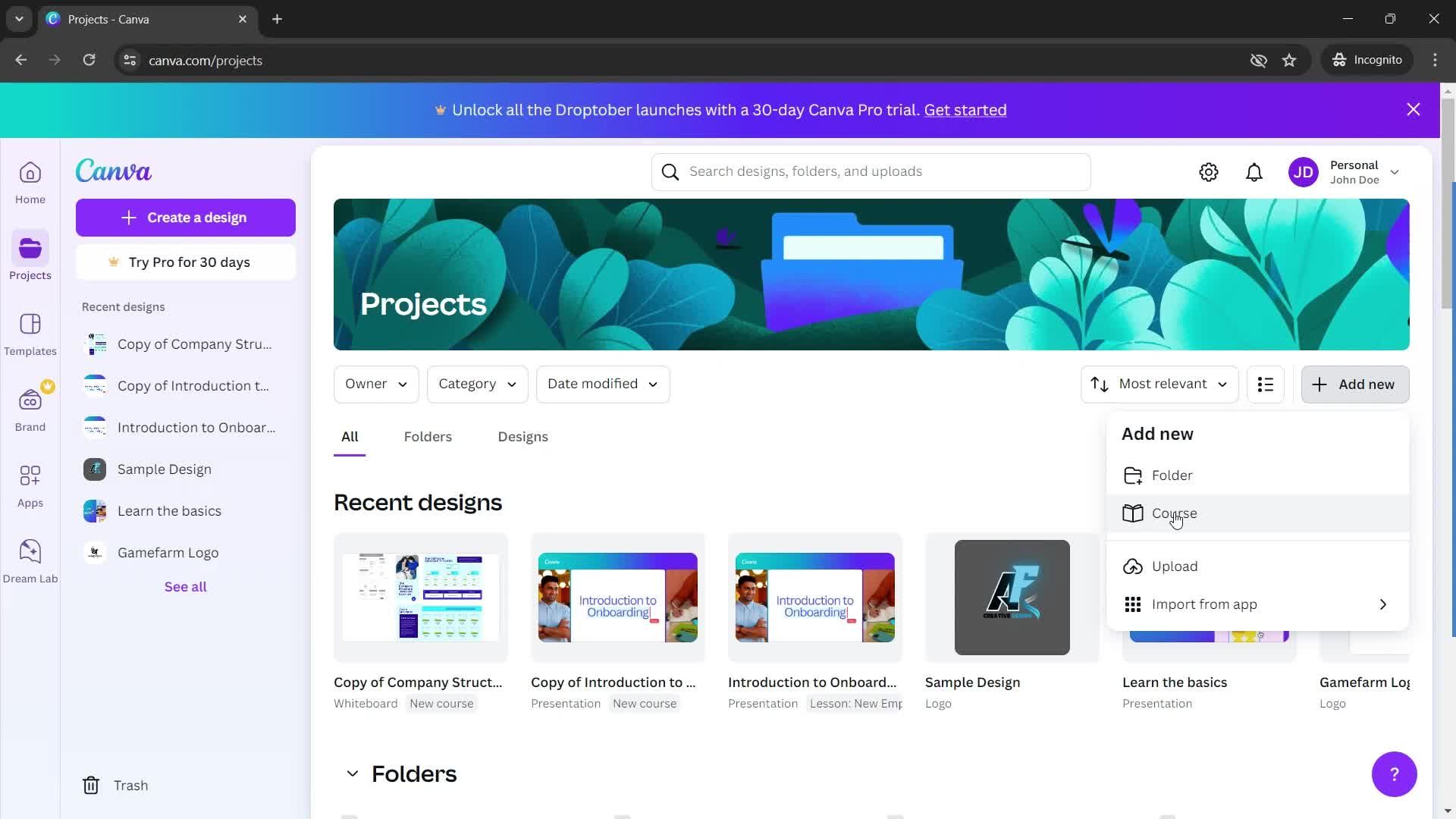
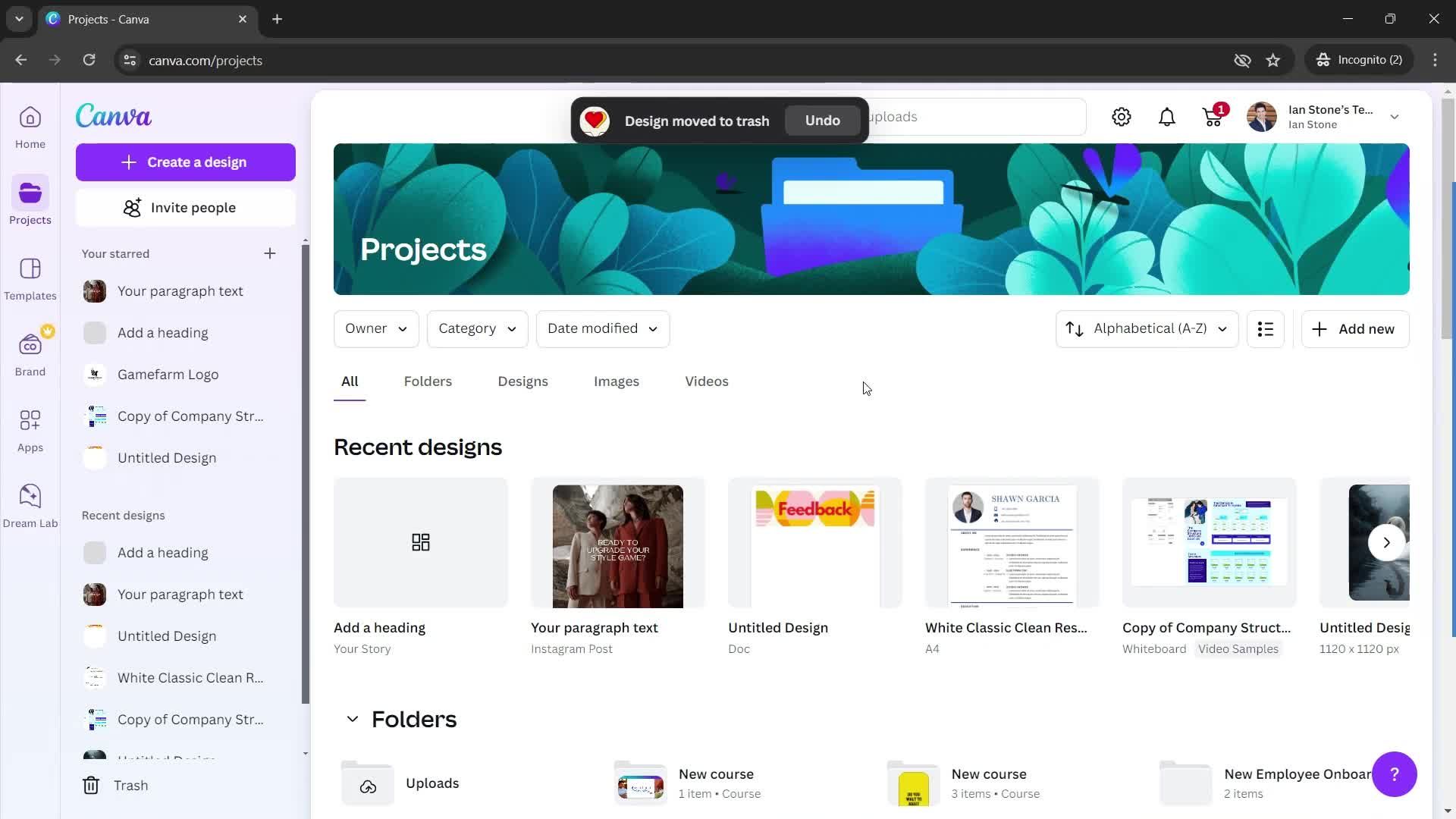
Projects
this is title
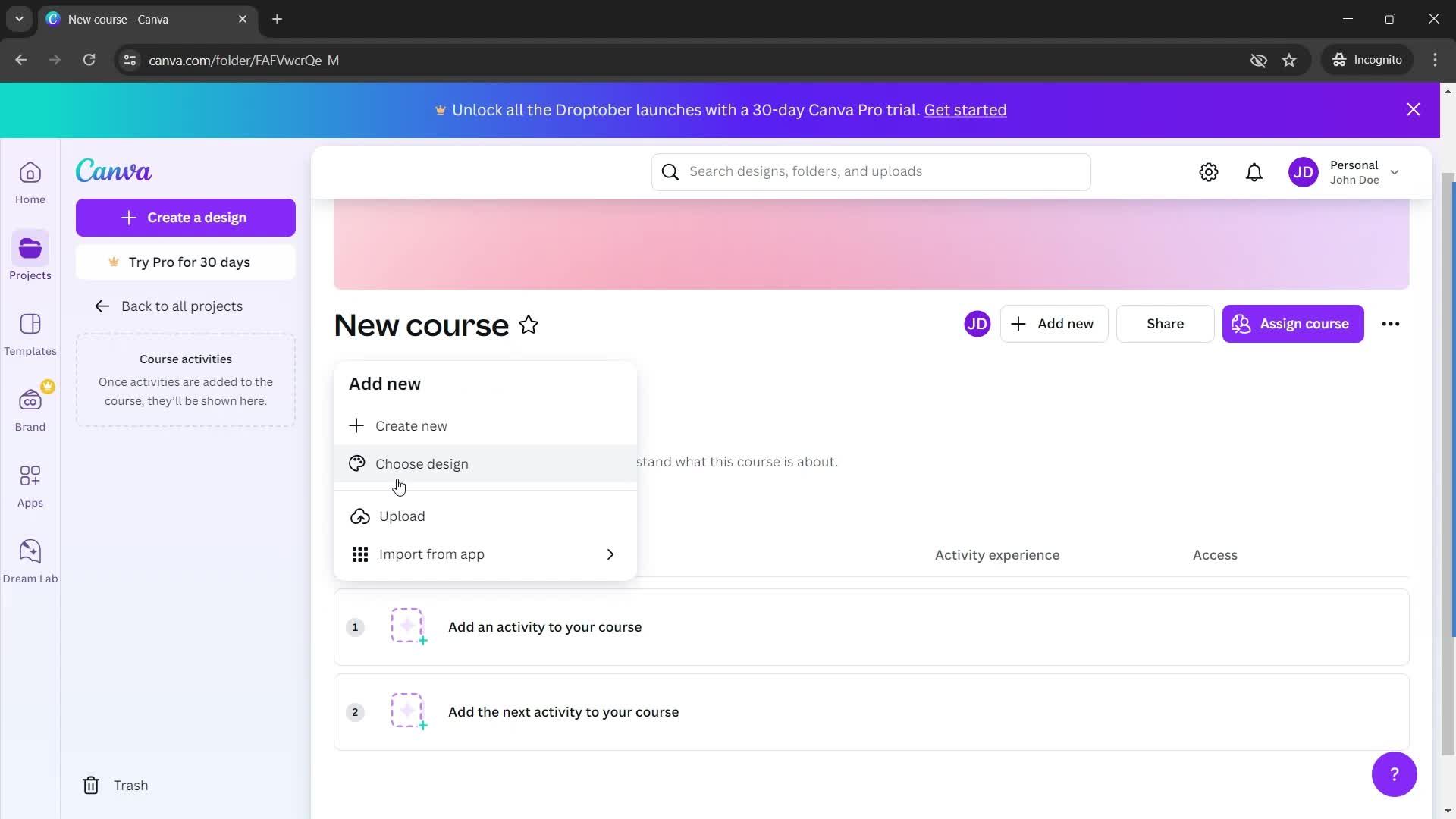
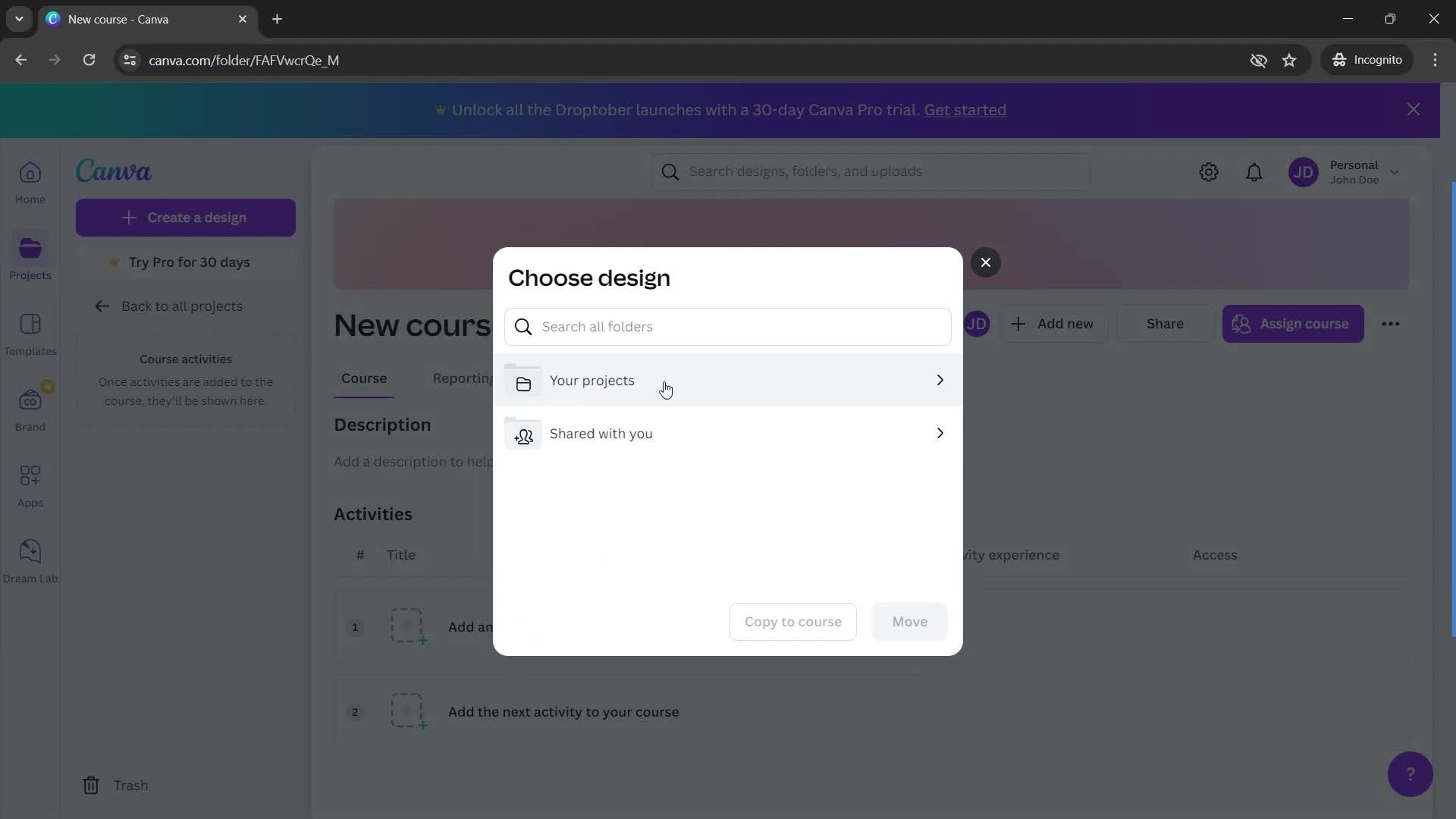
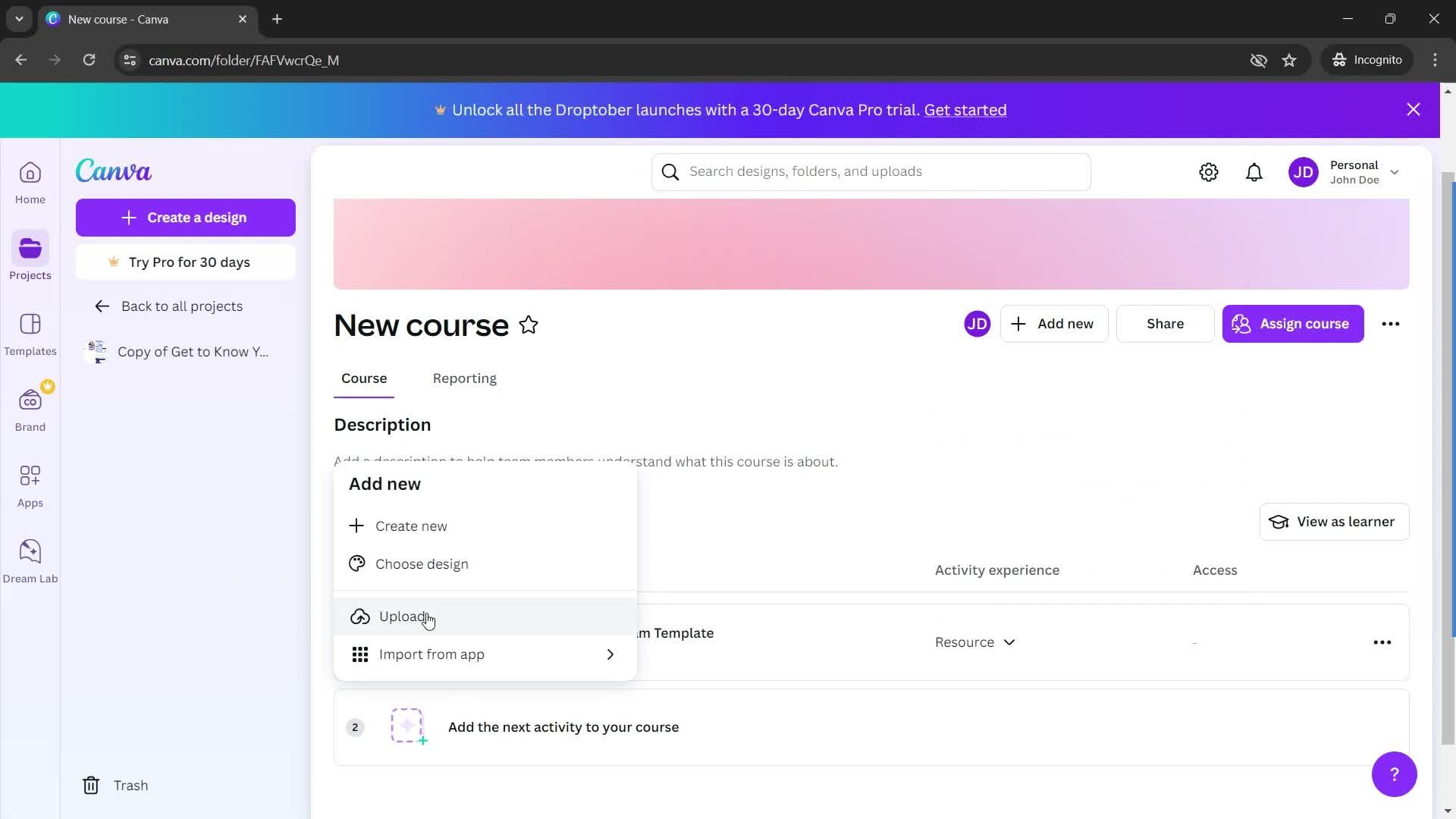
Add
this is title
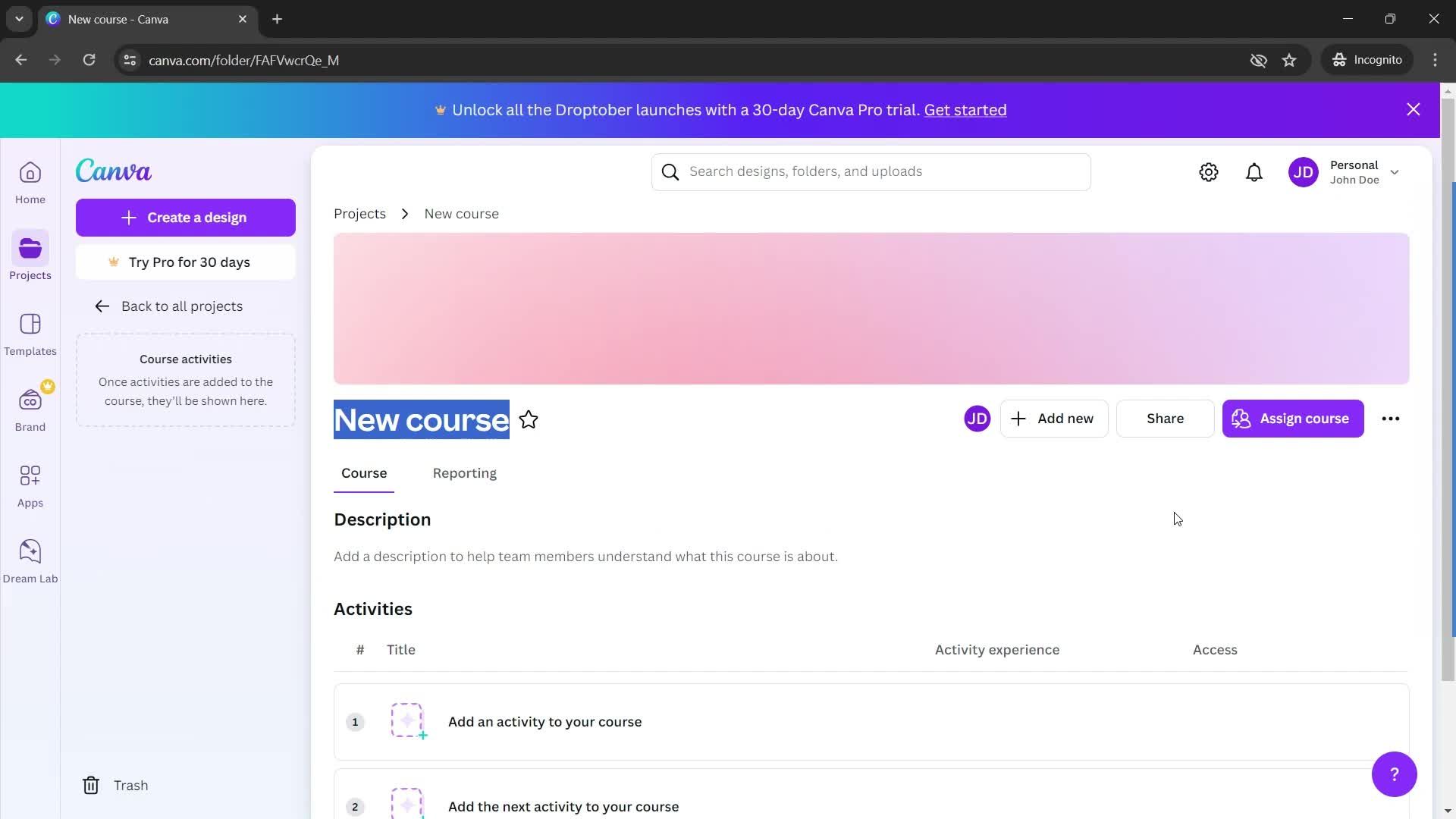
Add course details
this is title
this is title
this is title
this is title
this is title
Copied
this is title
this is title
this is title
this is title
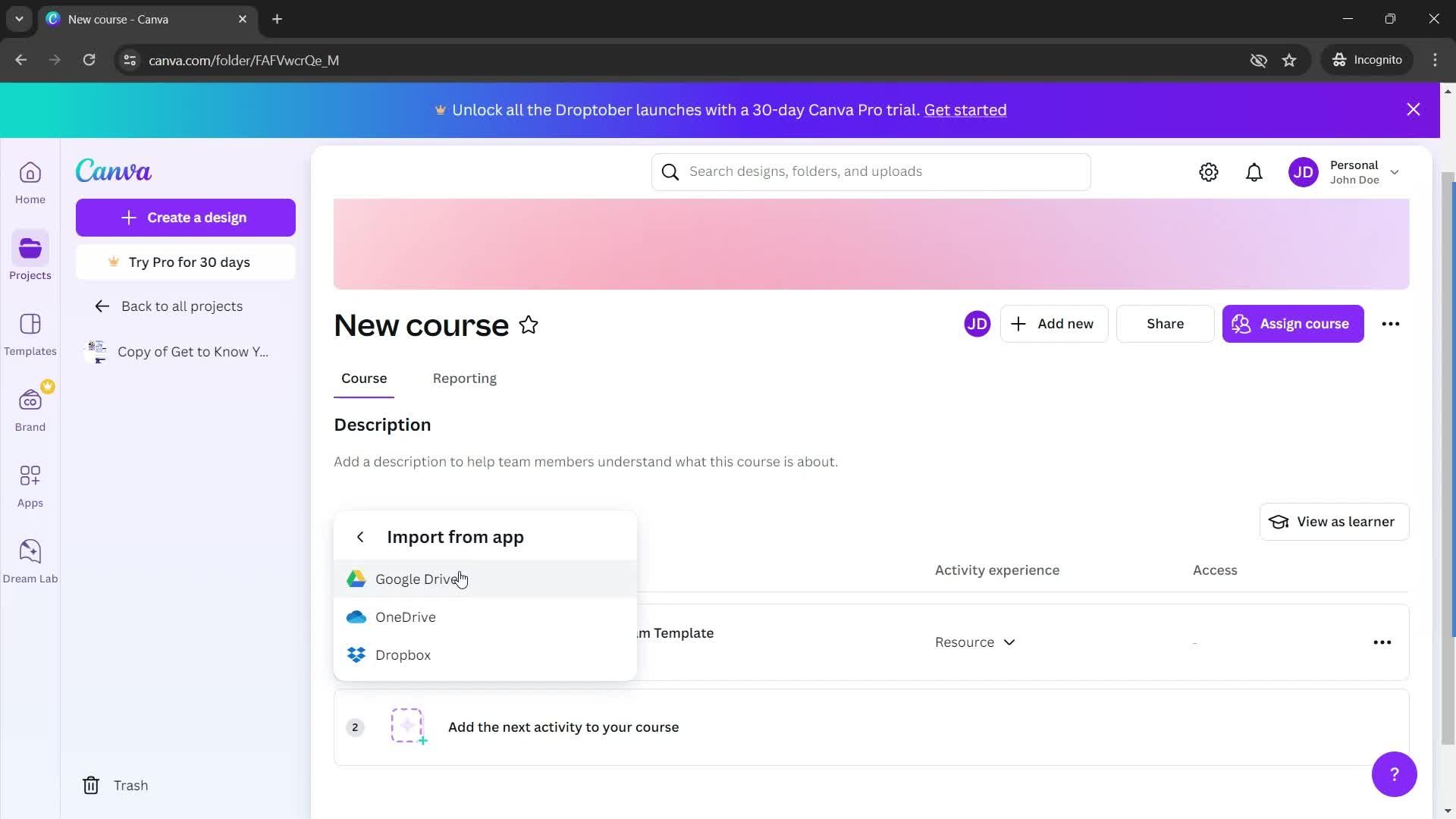
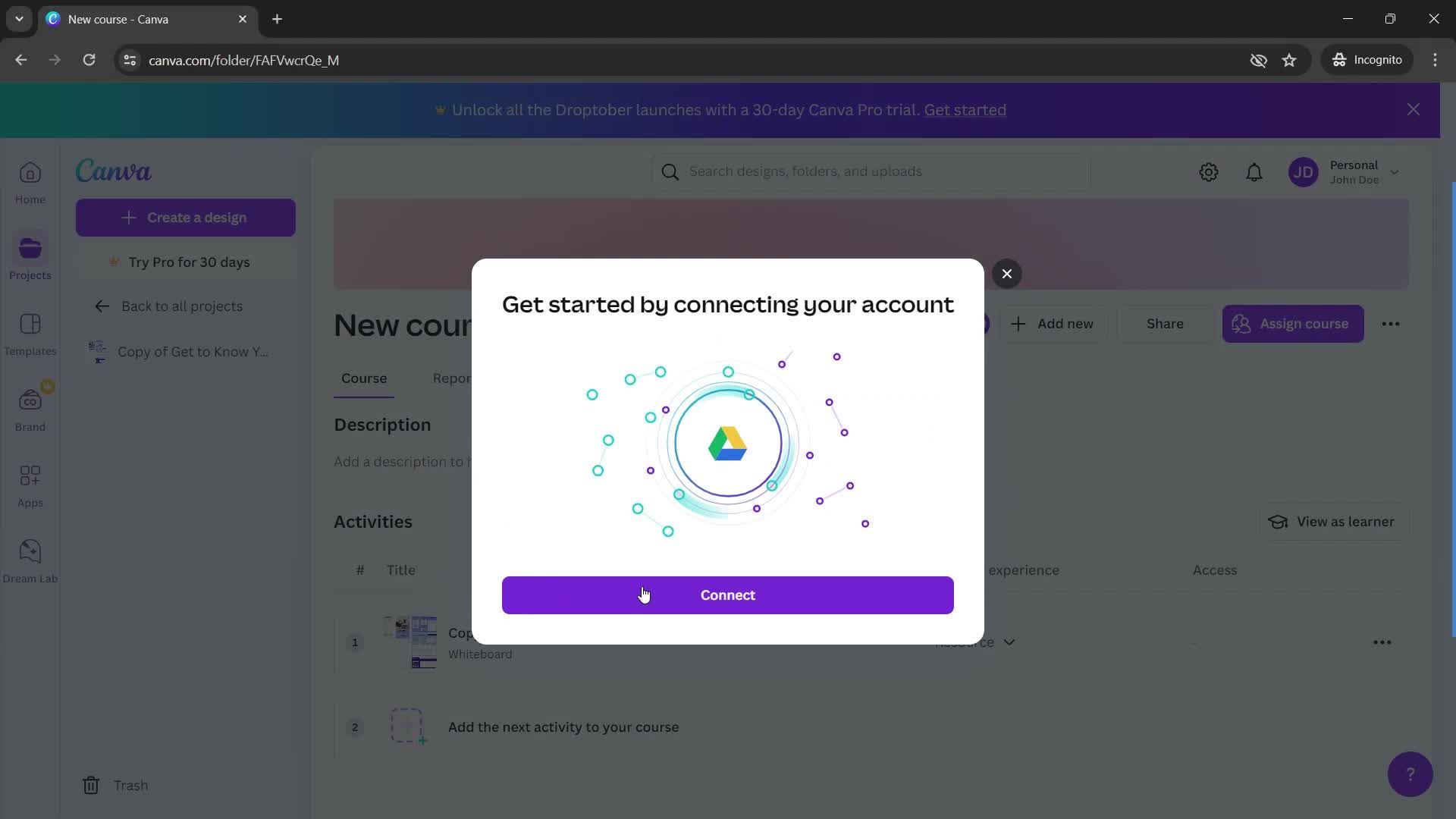
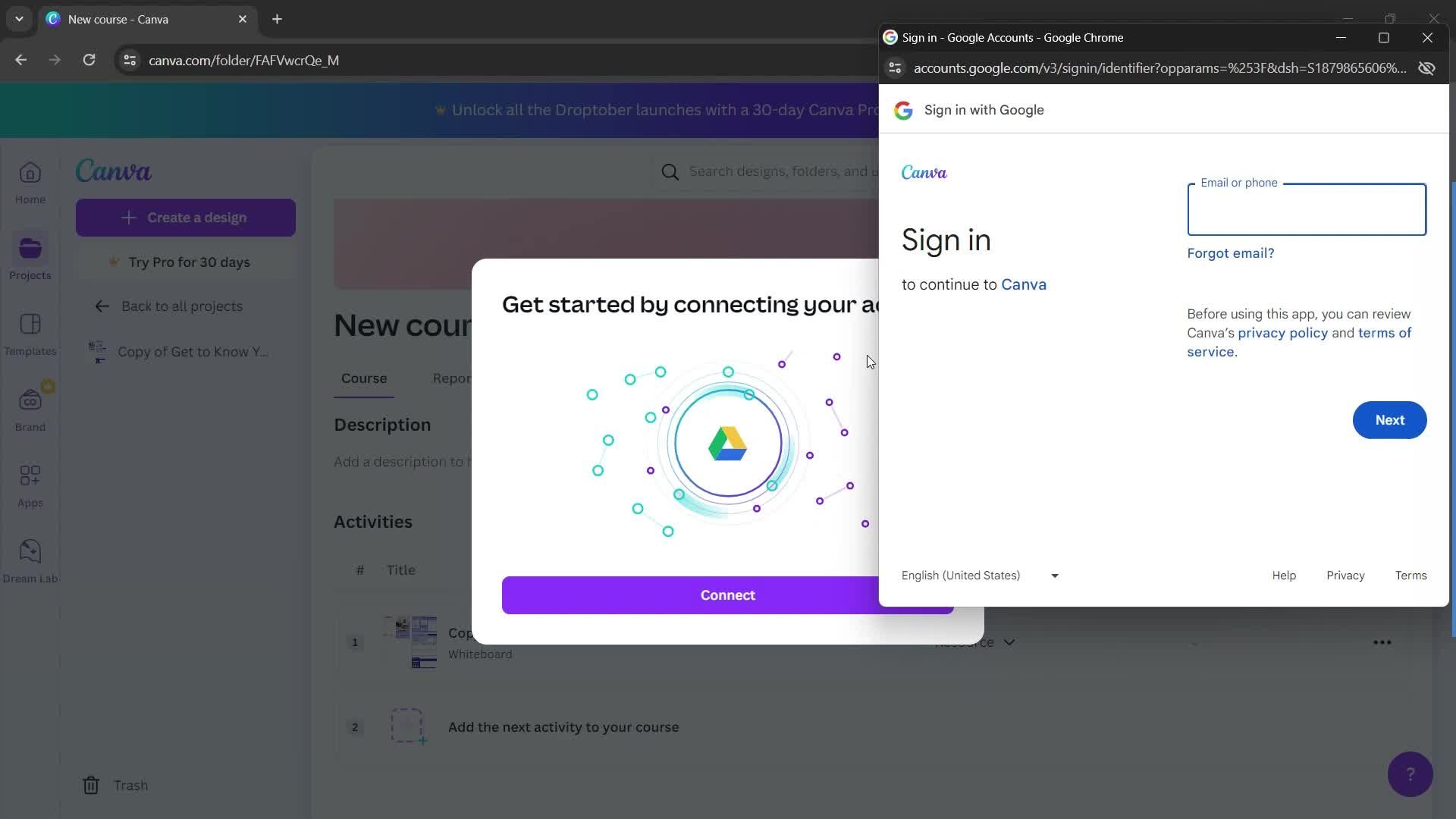
Connect
this is title
this is title
this is title
Select file
this is title
this is title
this is title
this is title
this is title
Drag & drop
this is title
this is title
this is title
this is title
this is title
this is title
Guide
this is title
Add title
this is title
this is title
Home
this is title
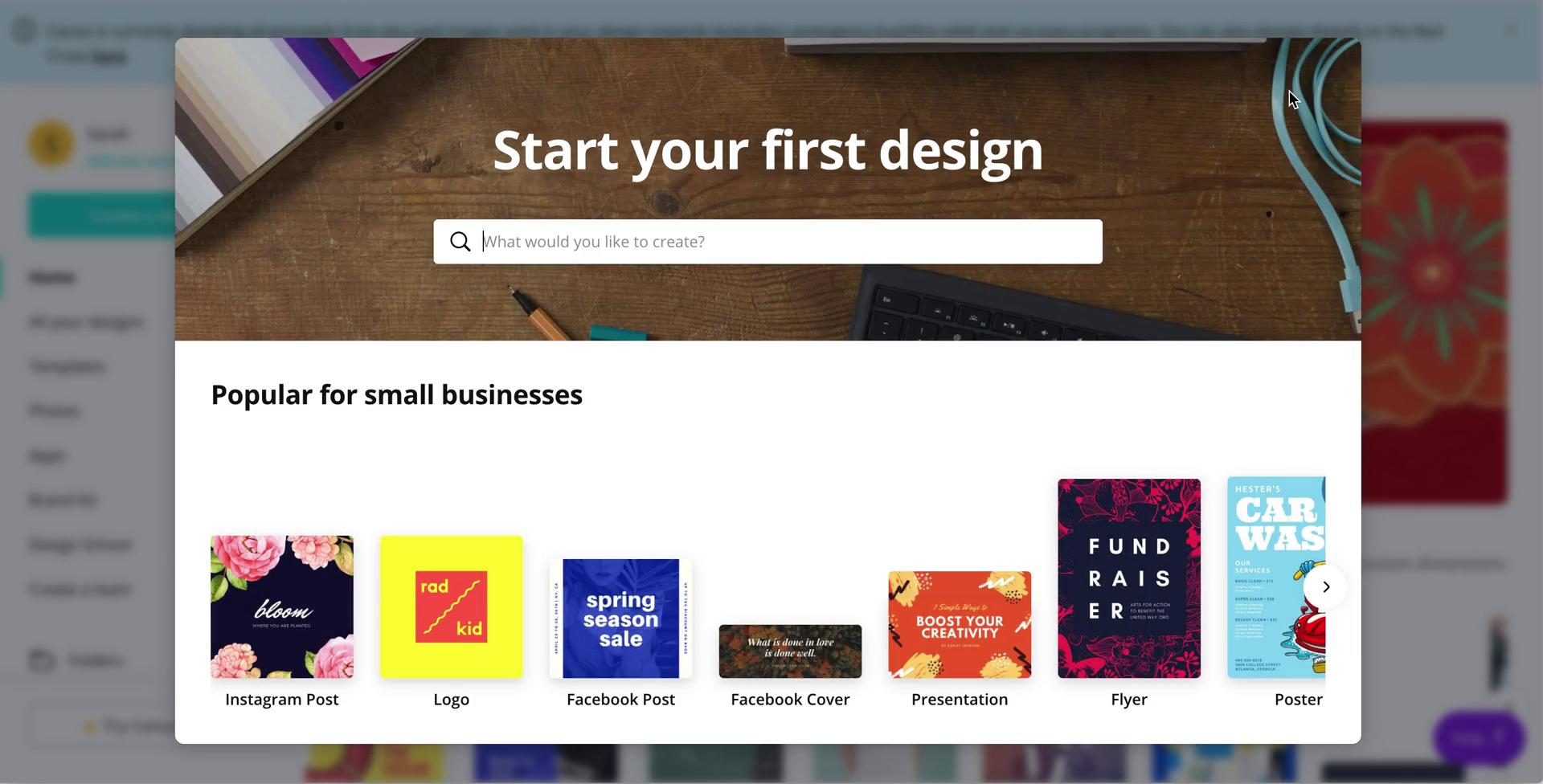
Create design
this is title
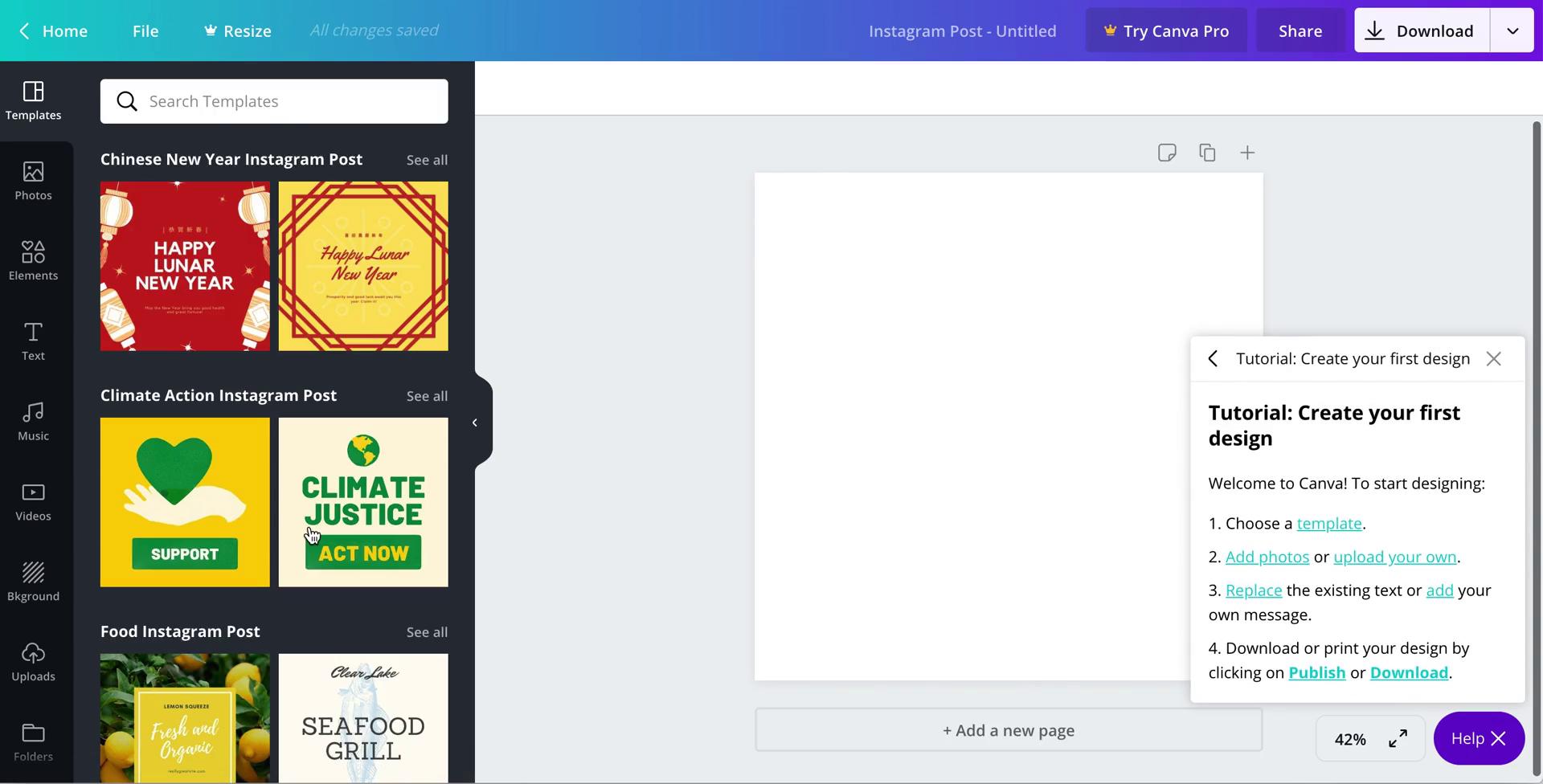
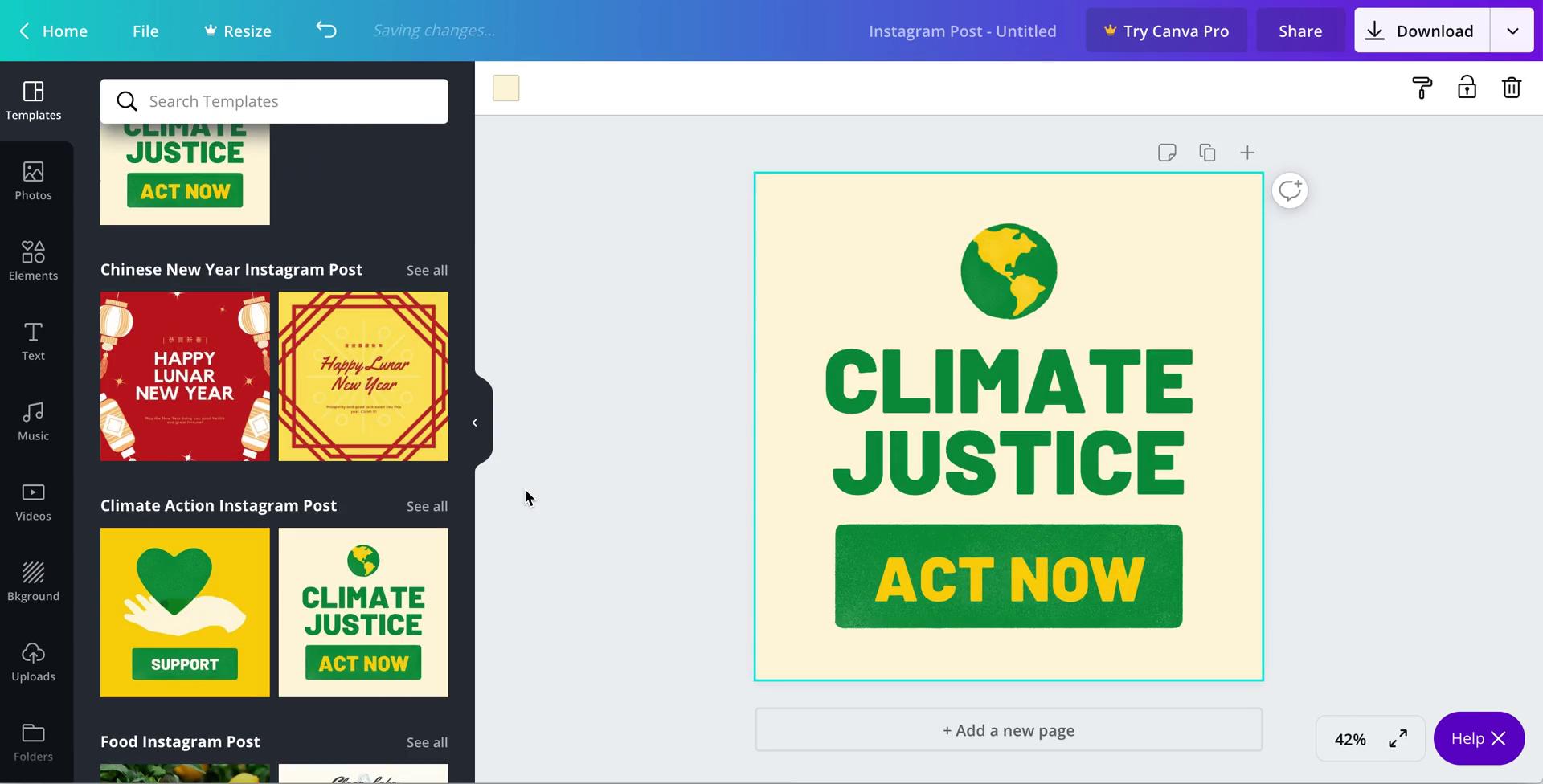
Templates
this is title
Styles
this is title
Drag & drop
this is title
this is title
Choose background color
this is title
this is title
this is title
this is title
this is title
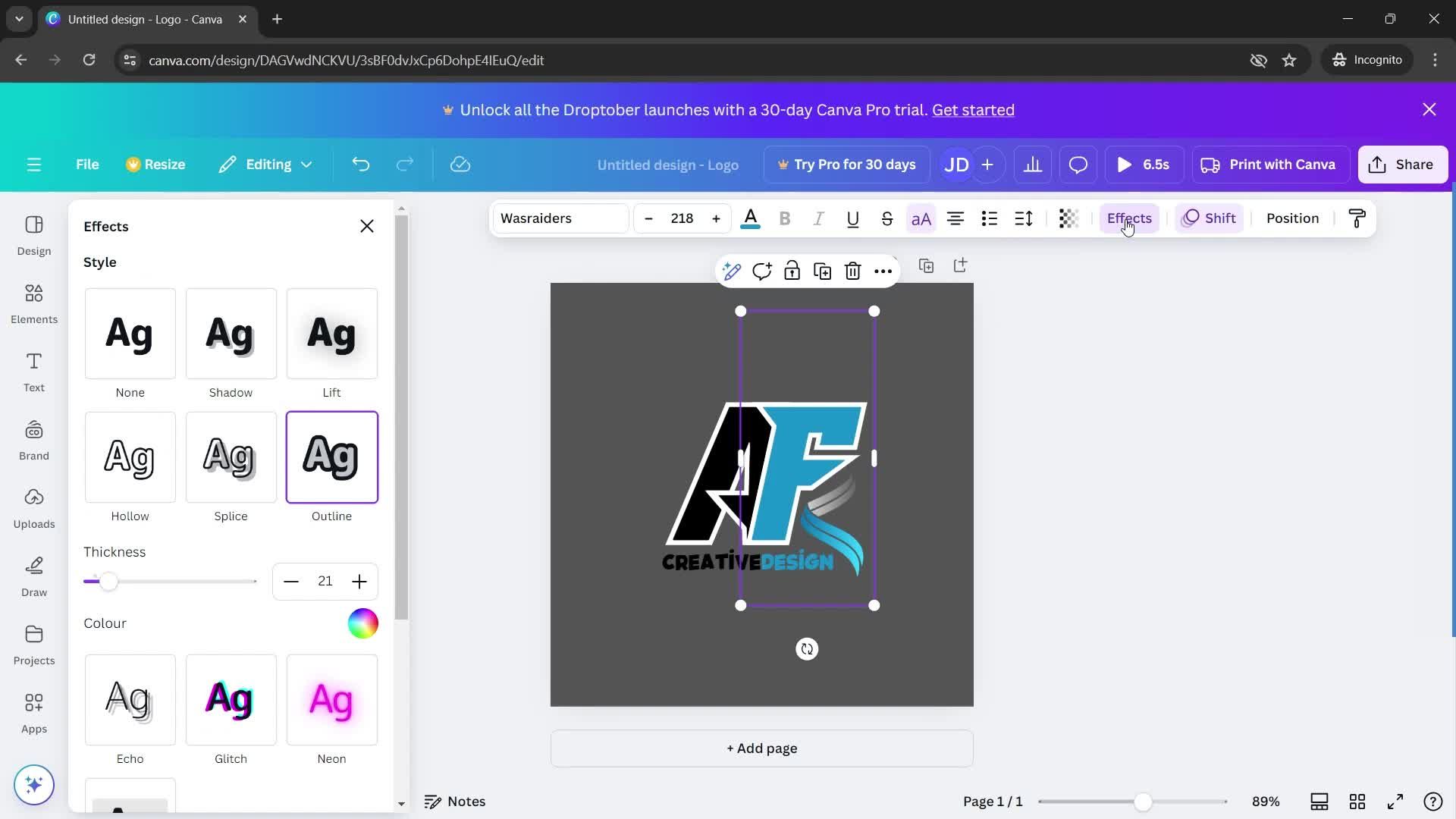
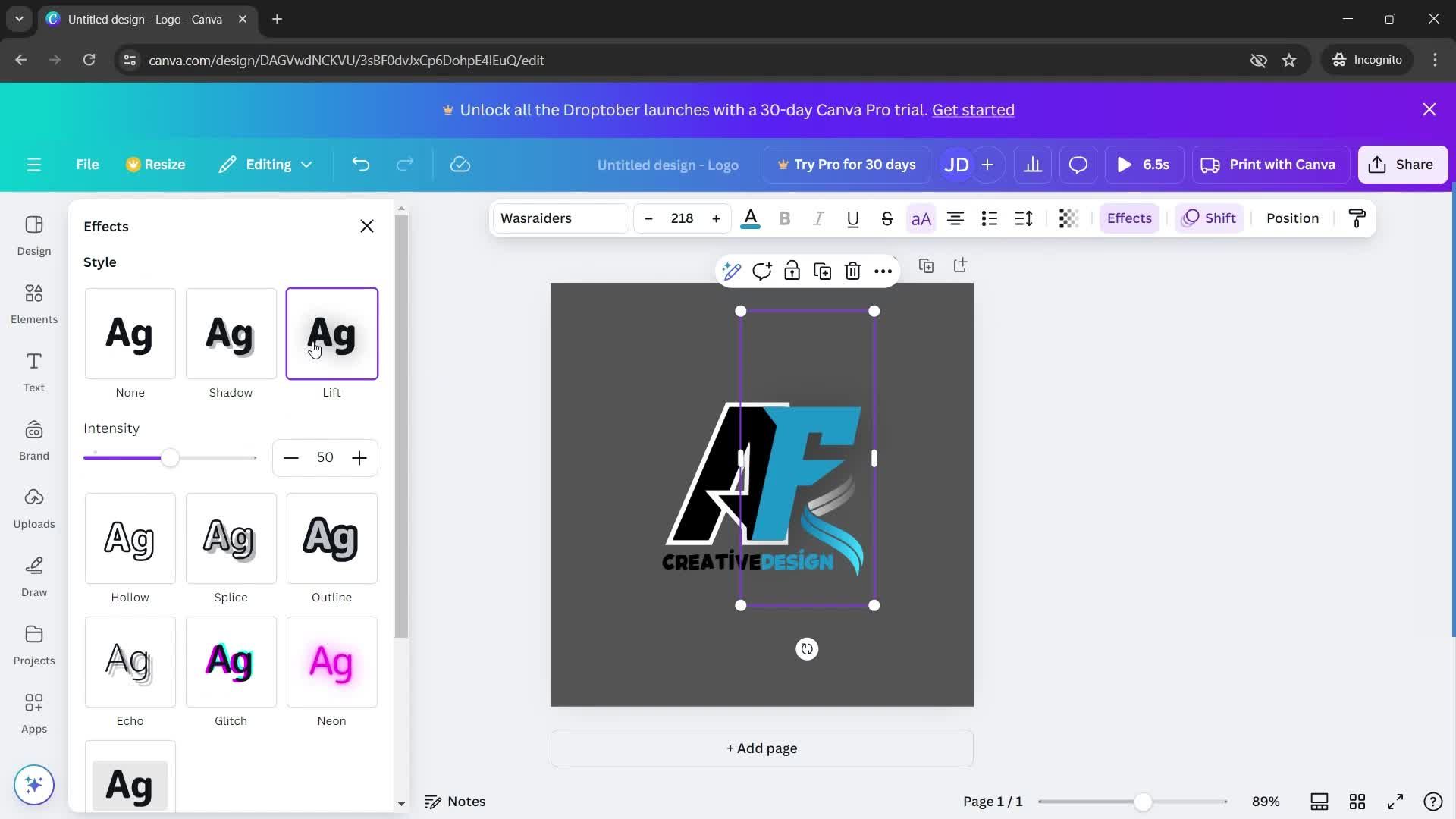
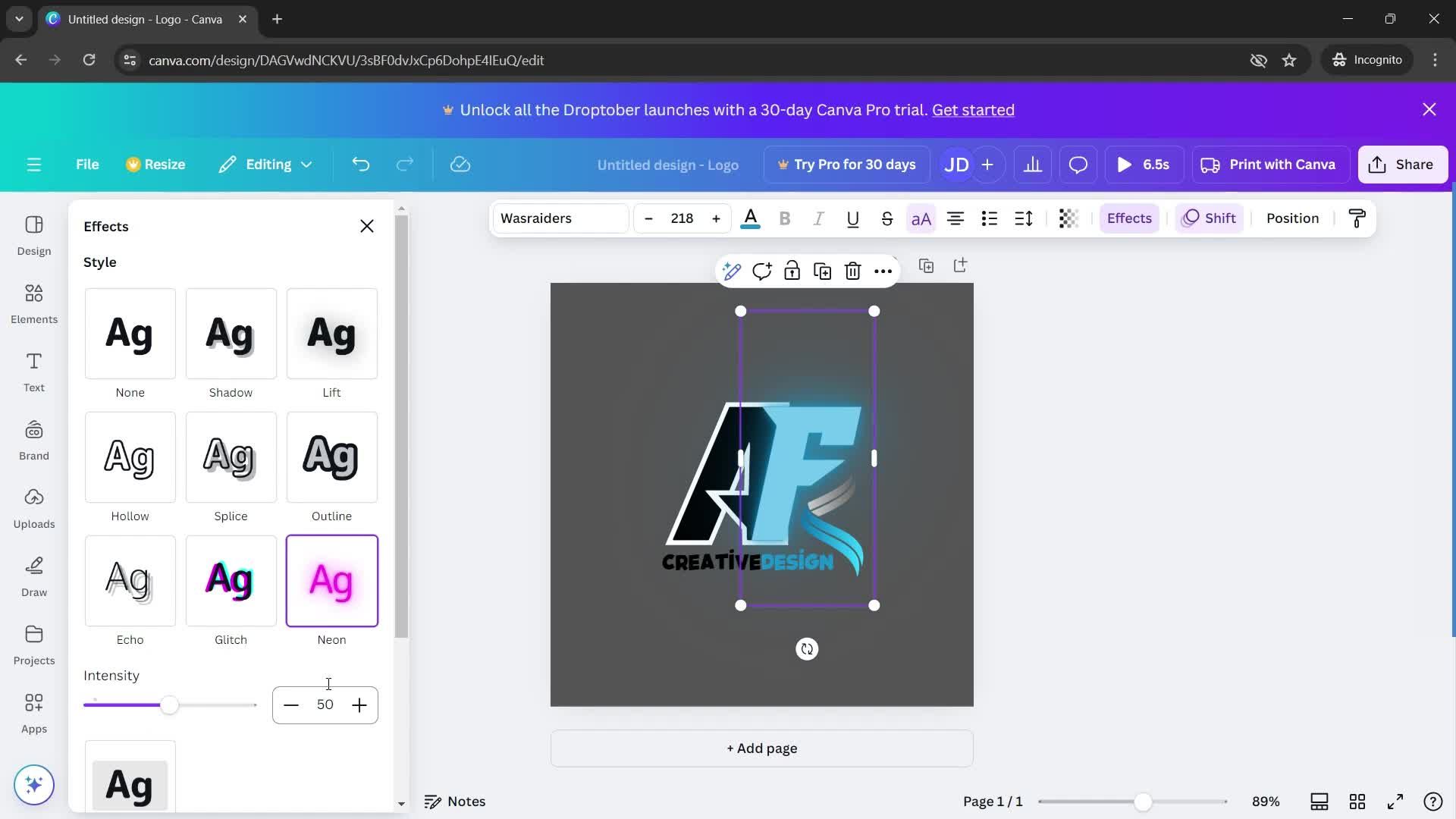
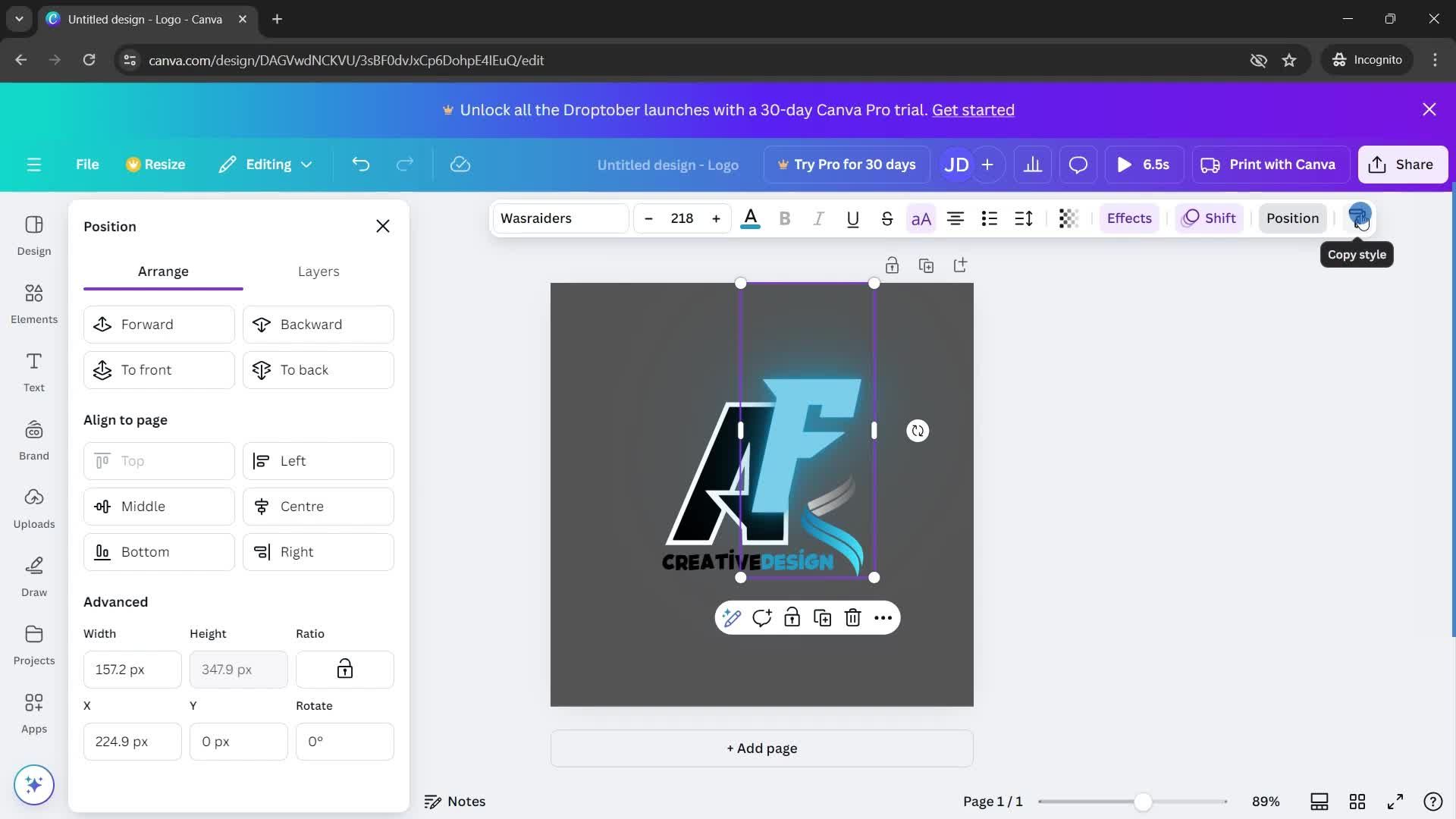
Effects
this is title
this is title
this is title
this is title
this is title
this is title
this is title
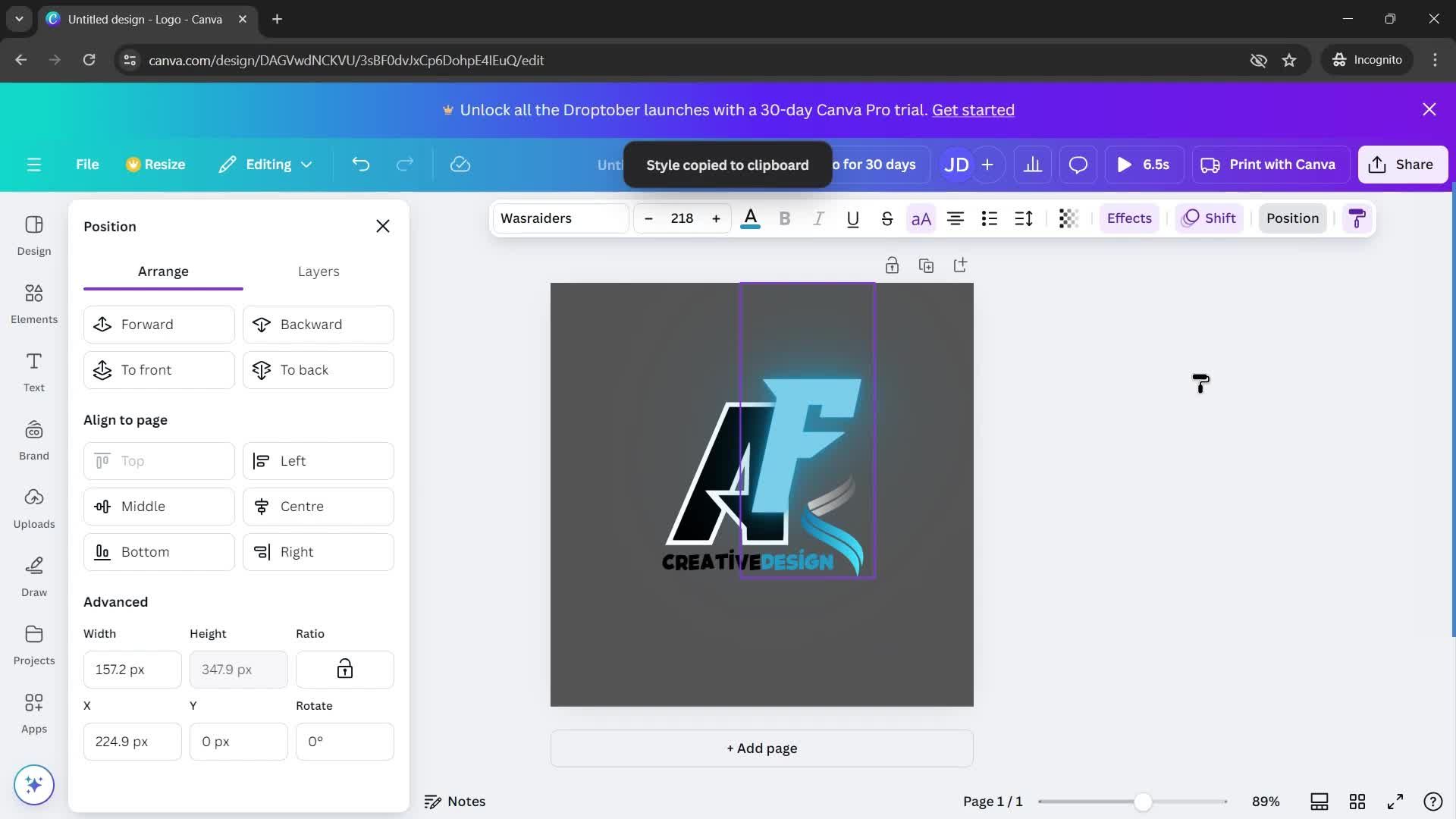
Copied
this is title
Add title
this is title
this is title
this is title
this is title
this is title
this is title
this is title
this is title
Save
this is title
Projects
this is title
this is title
Home
this is title
Create menu
this is title
Category
this is title
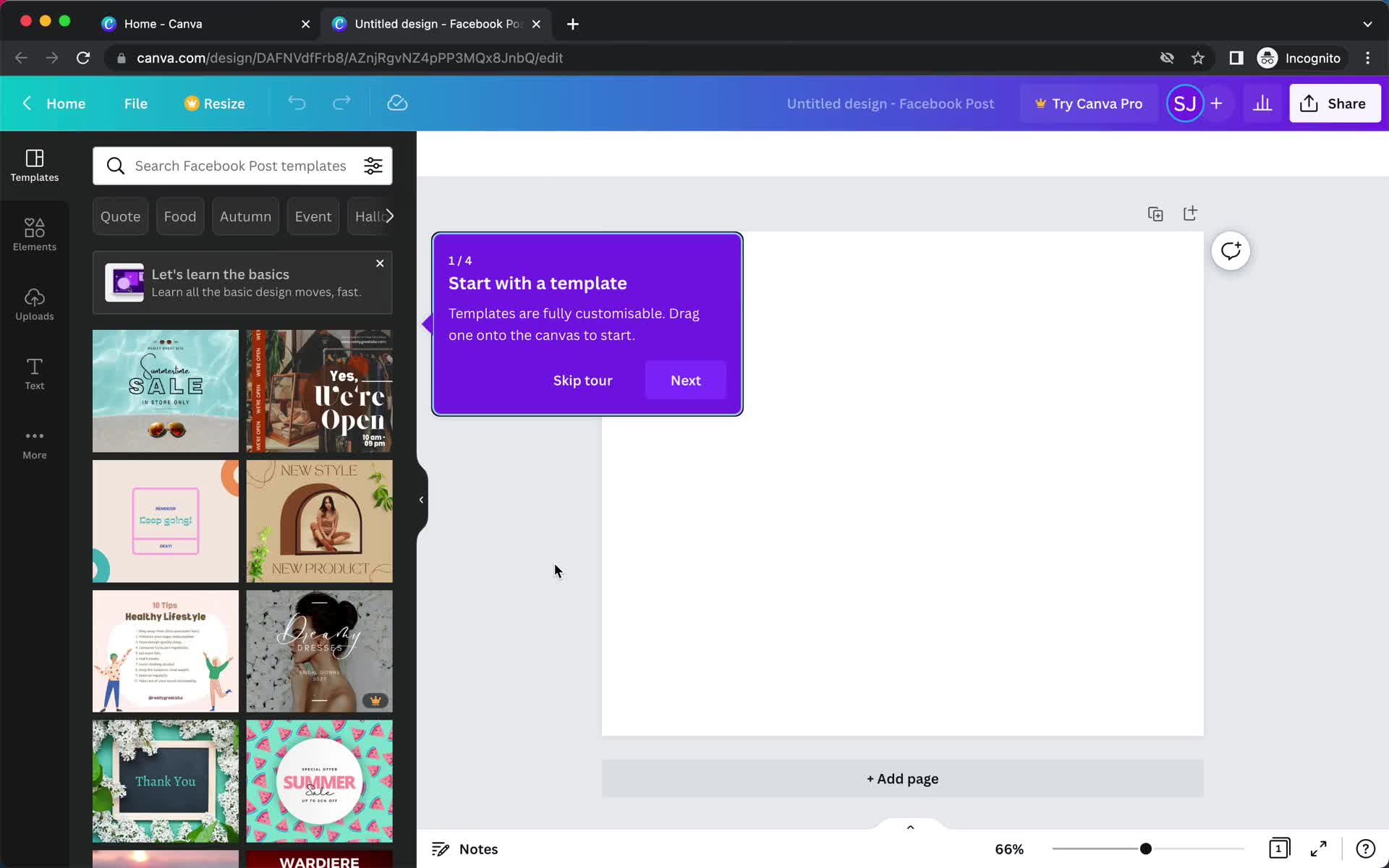
Guide tooltip
this is title
Editor
this is title
Filter
this is title
Templates
this is title
Editor
this is title
Fonts
this is title
Graphics
this is title
Purchase item
this is title
Editor
this is title
Editor
this is title
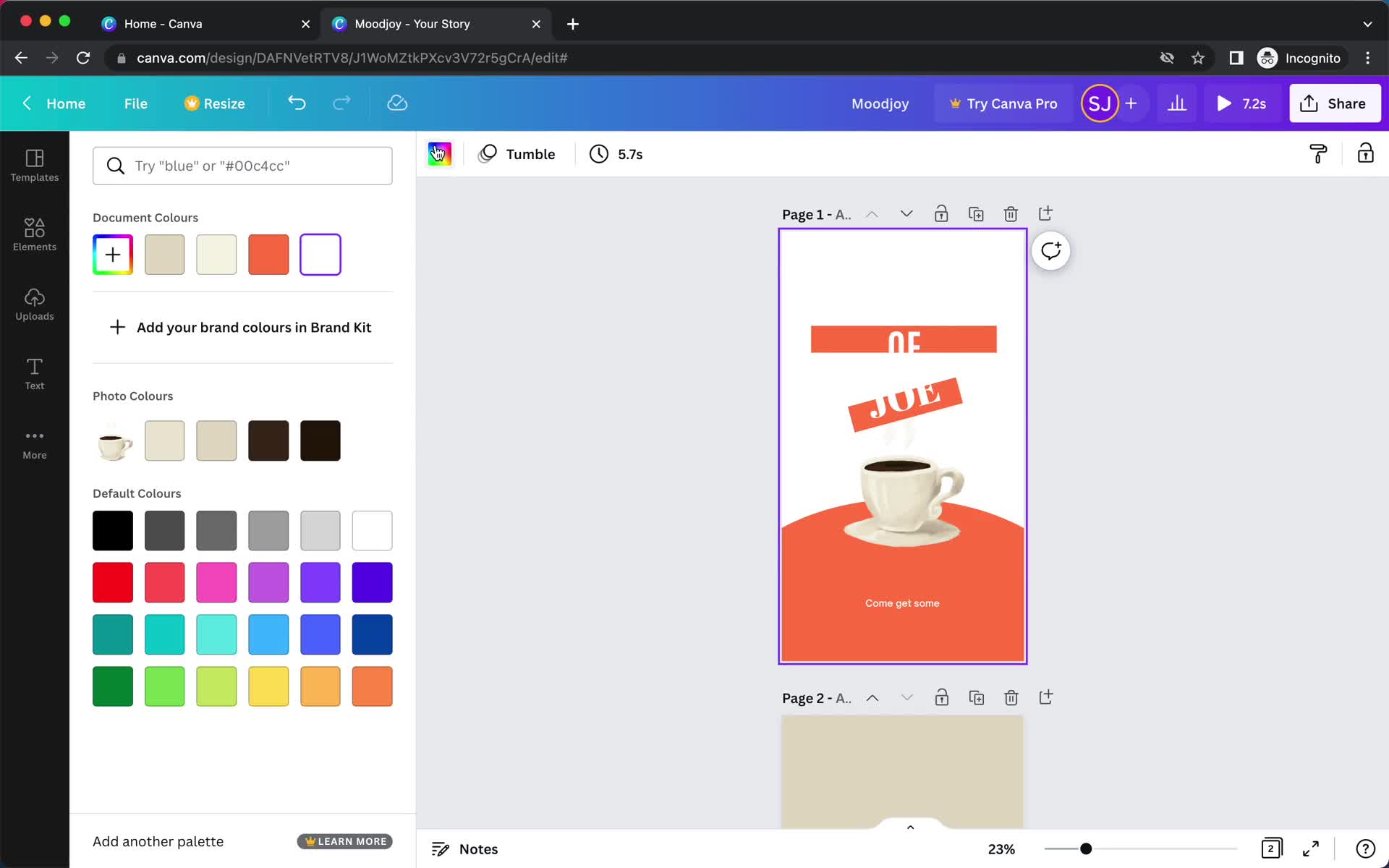
Set colors
this is title
Editor
this is title
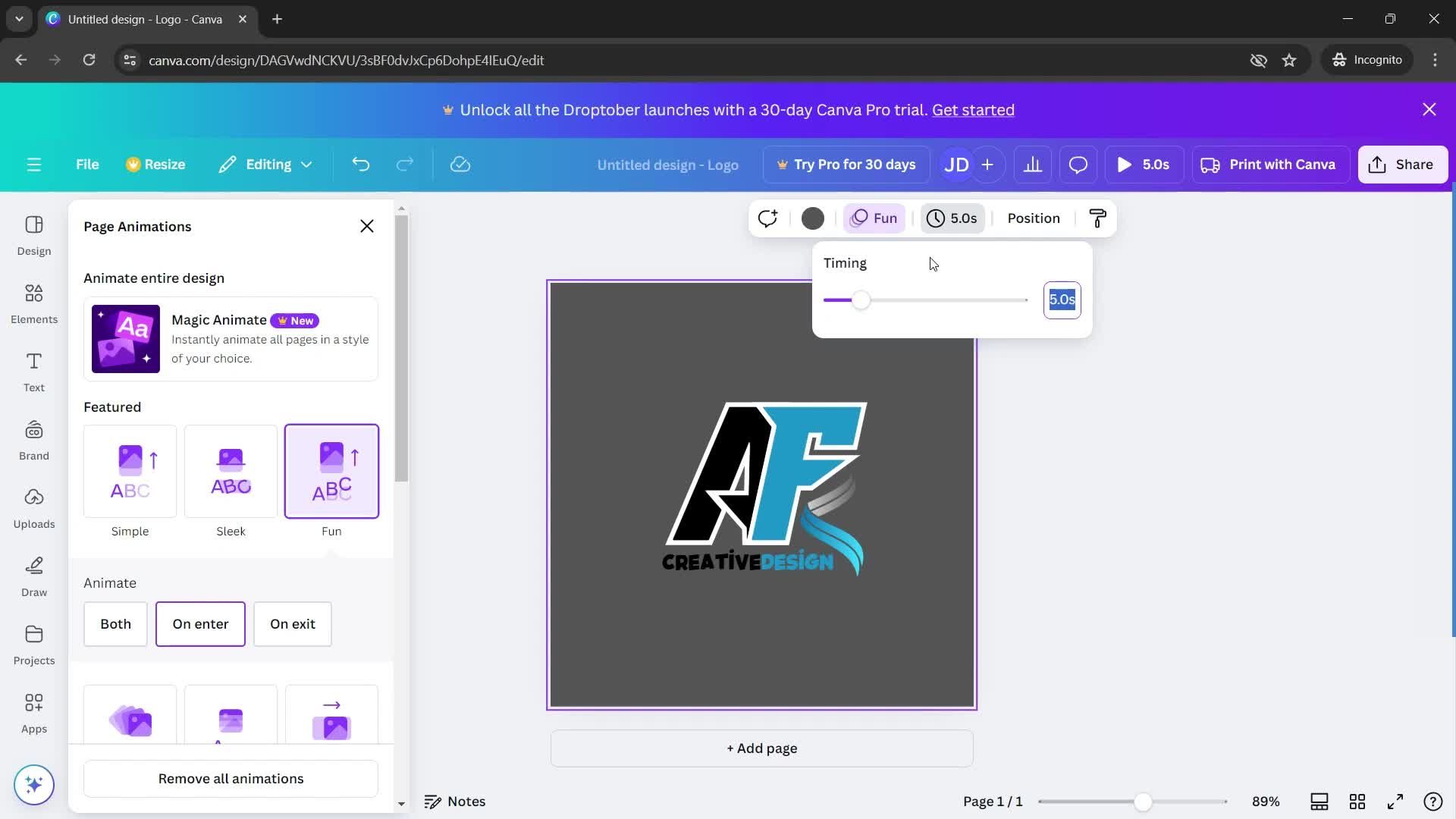
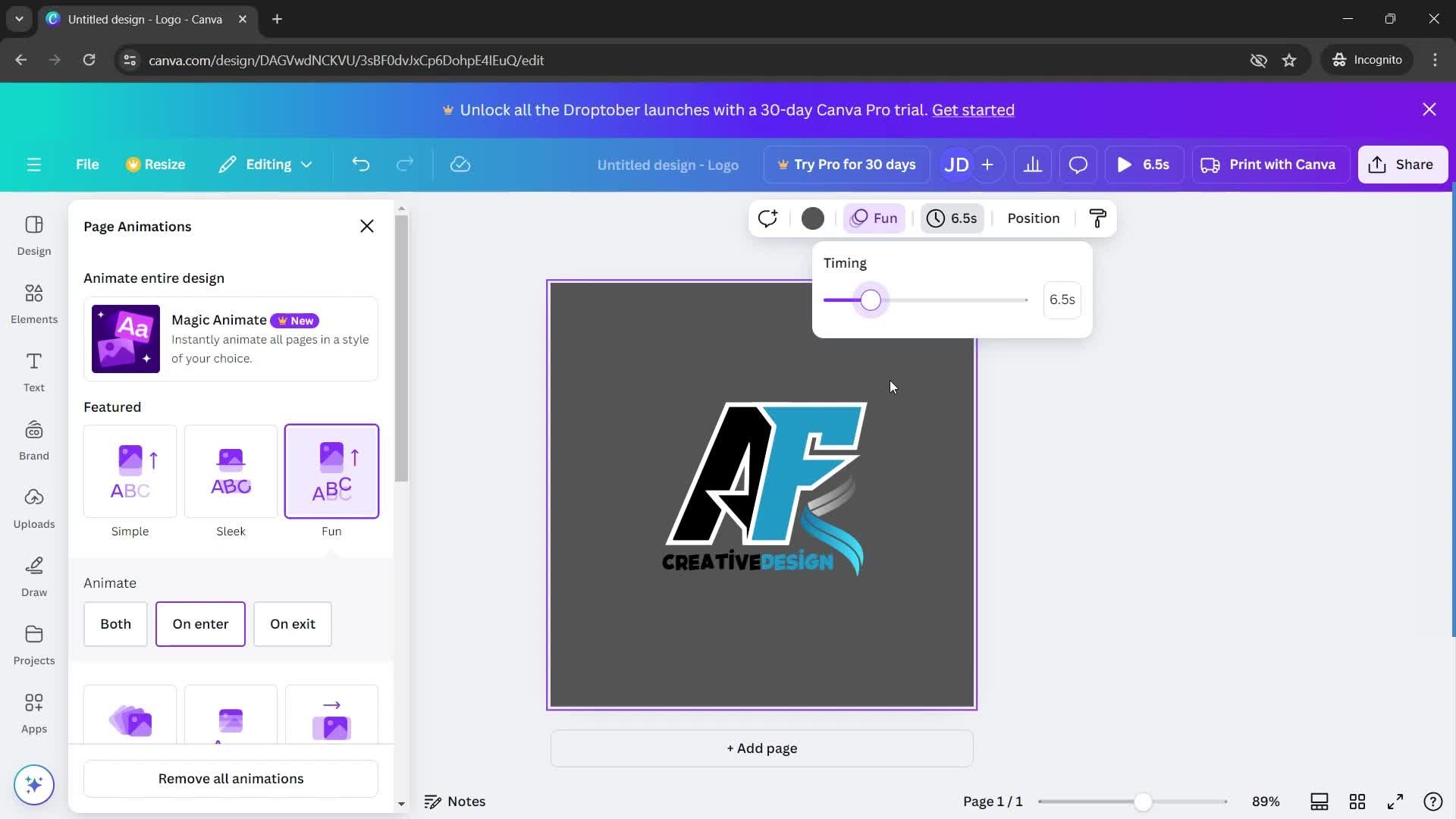
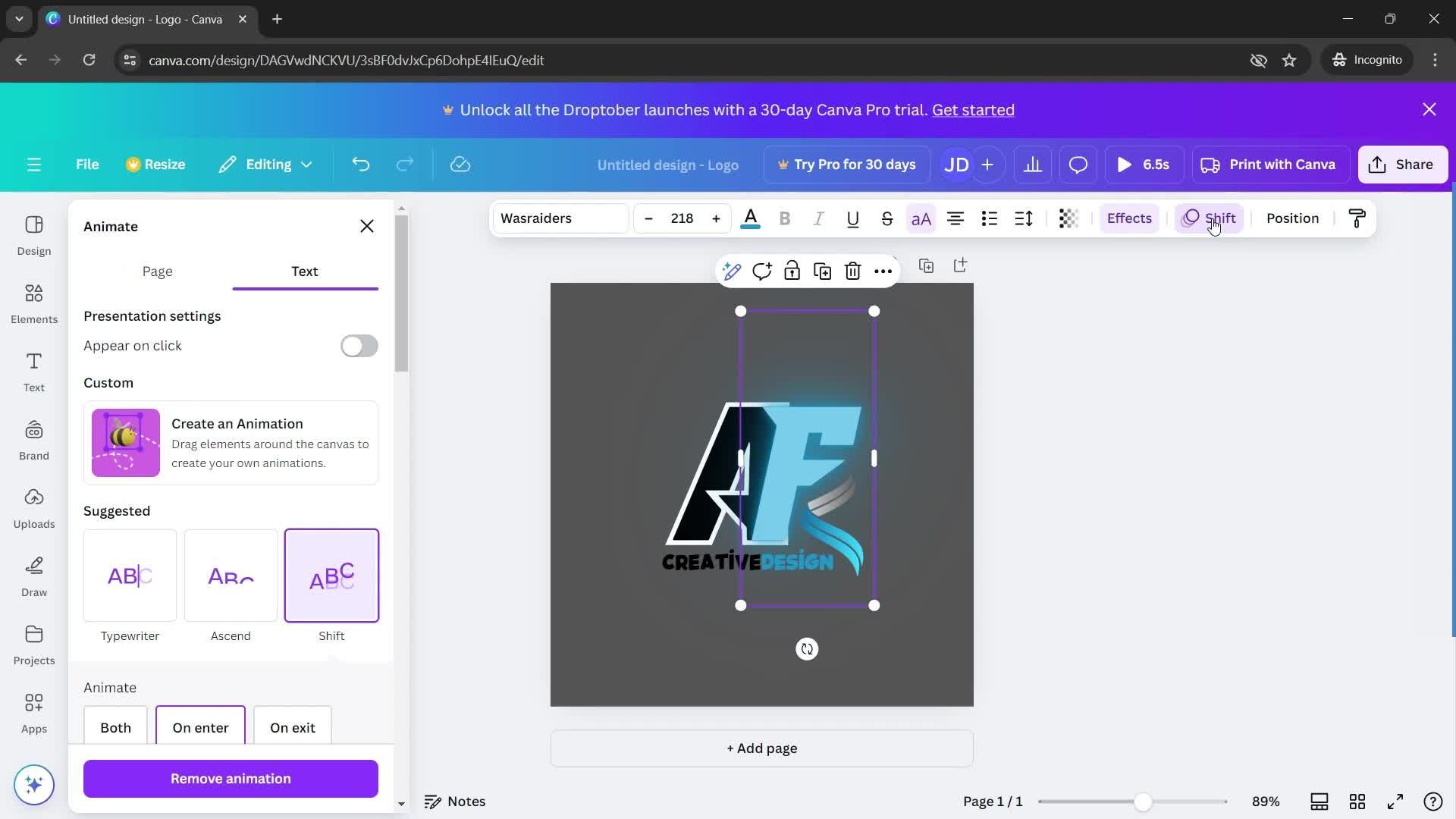
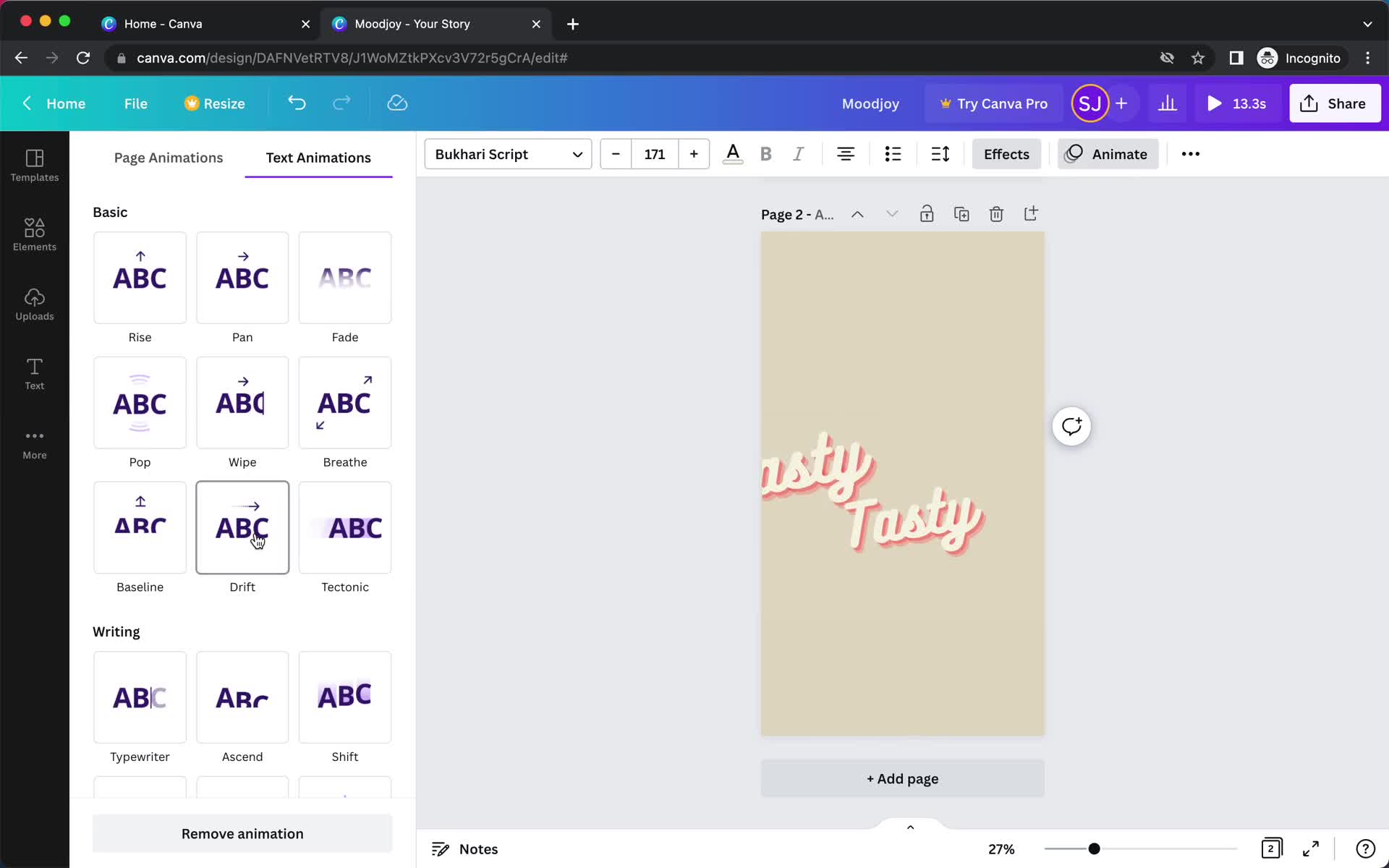
Add animation
this is title
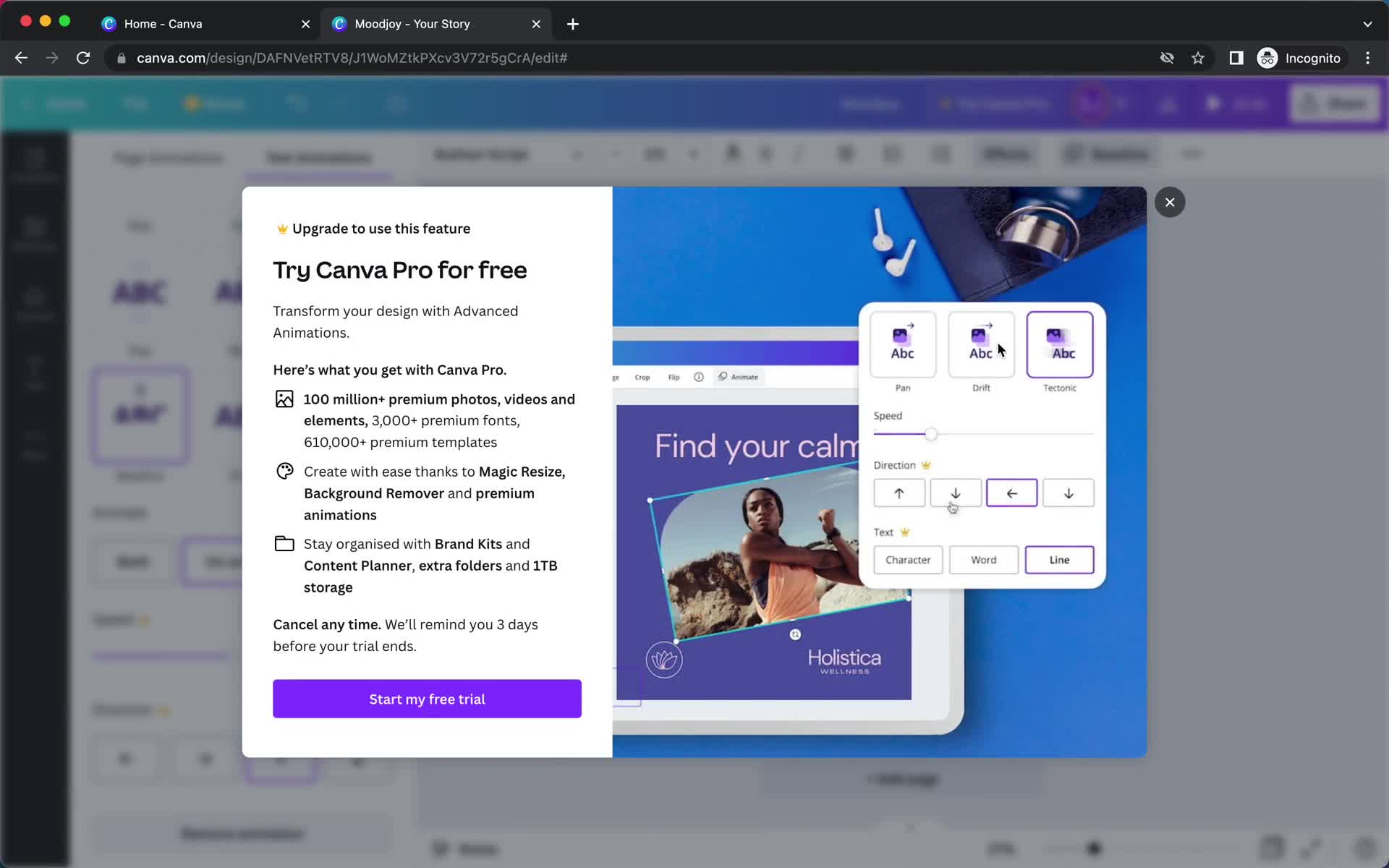
Upgrade prompt
this is title
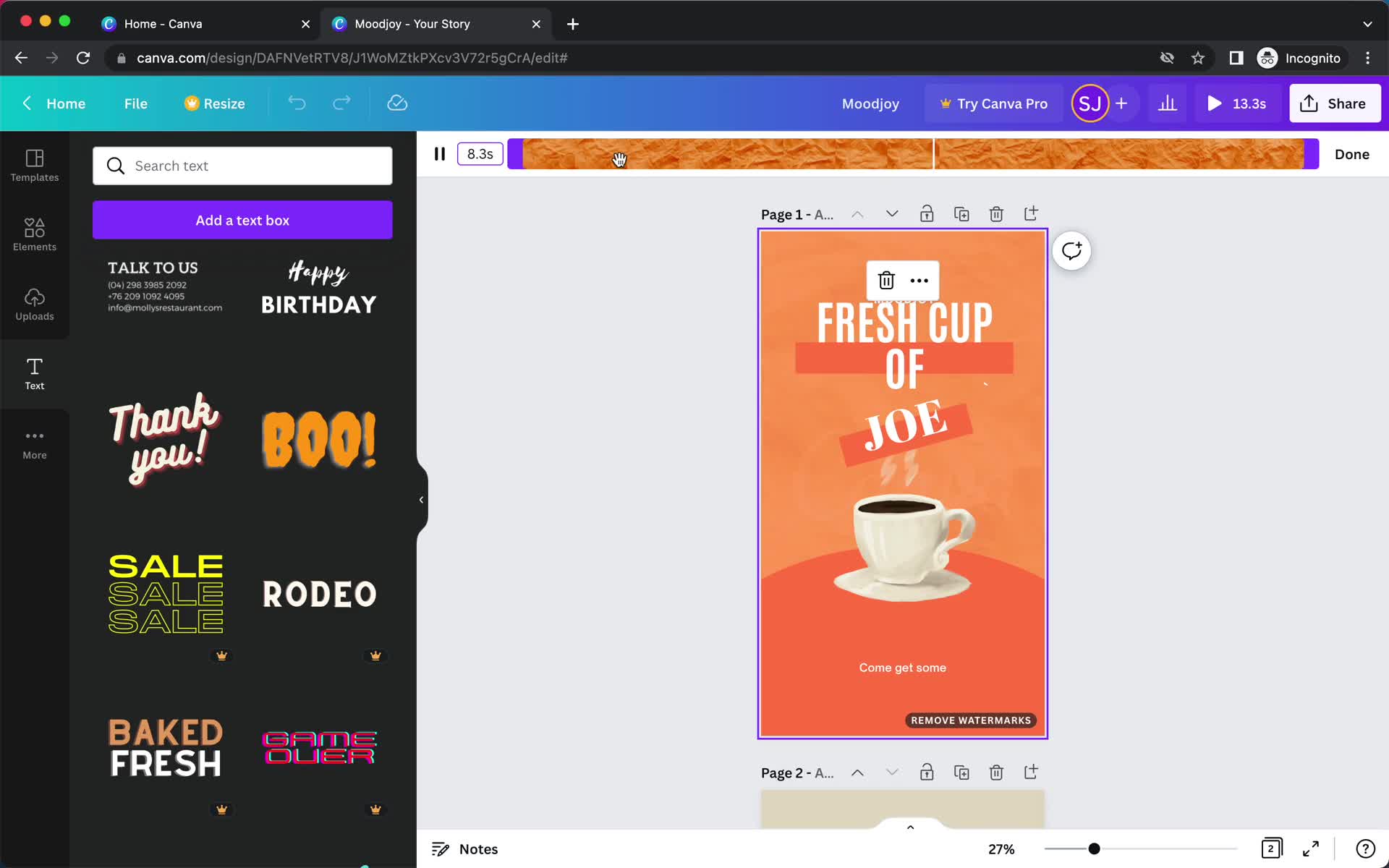
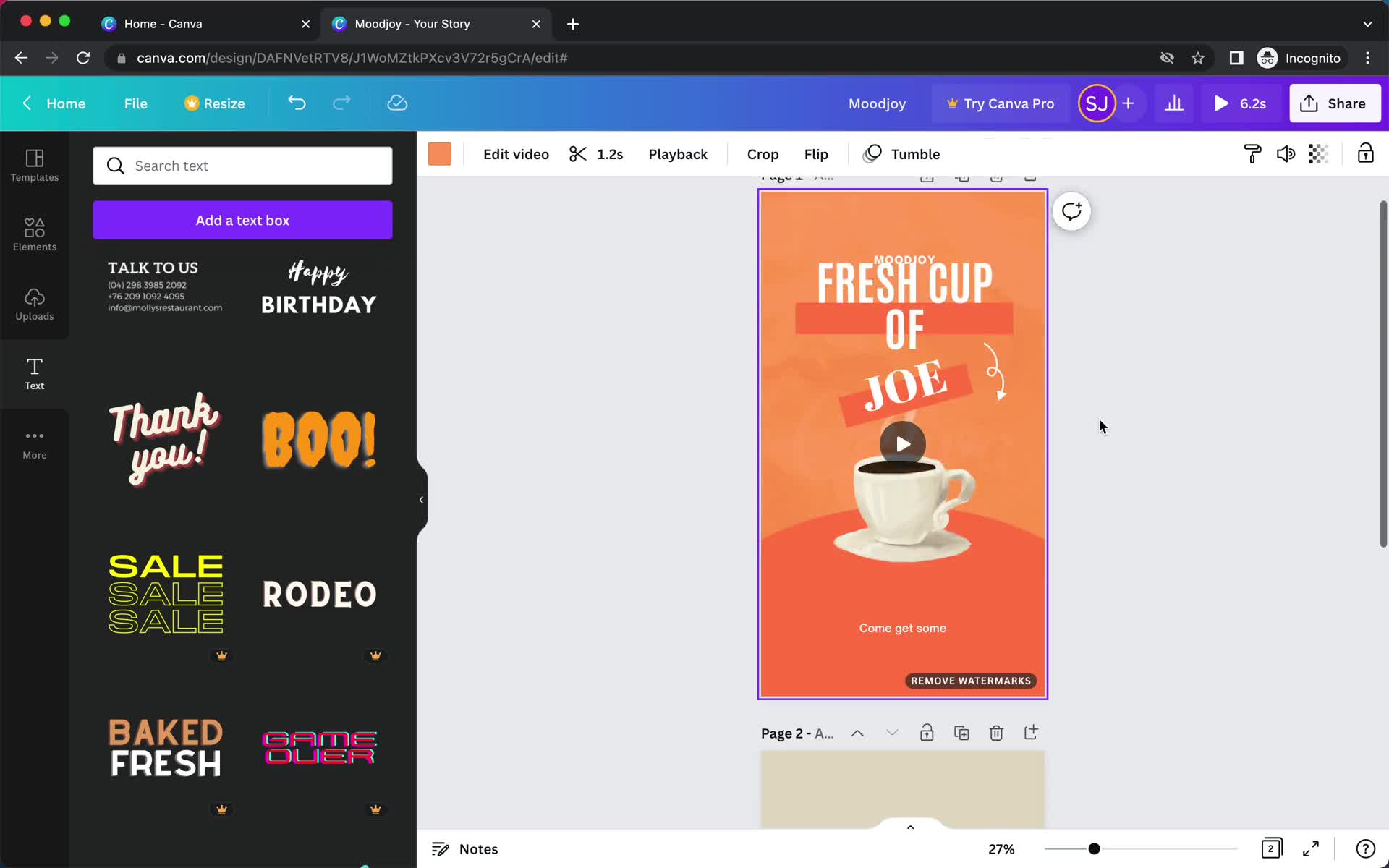
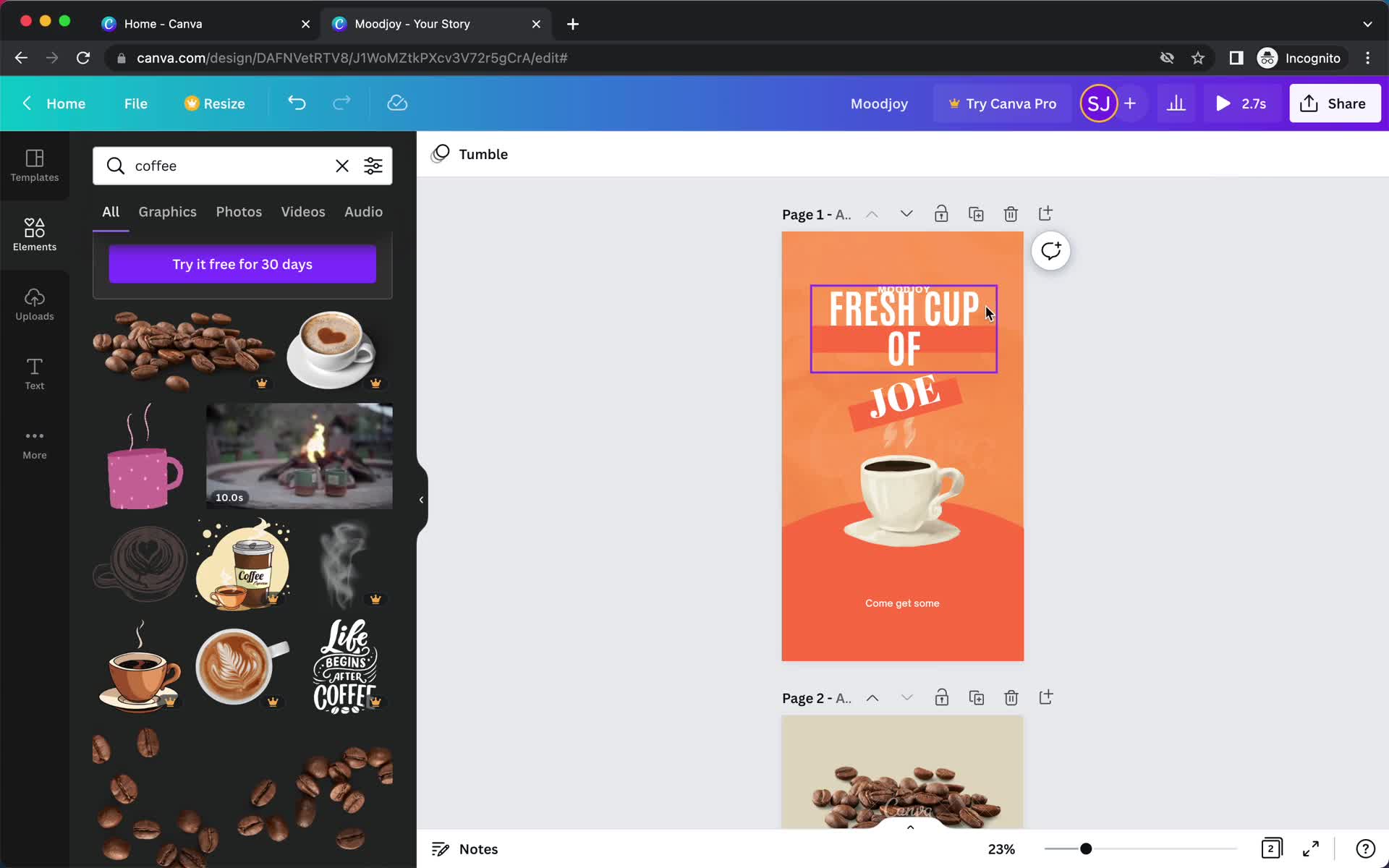
Clip video
this is title
Editor
this is title
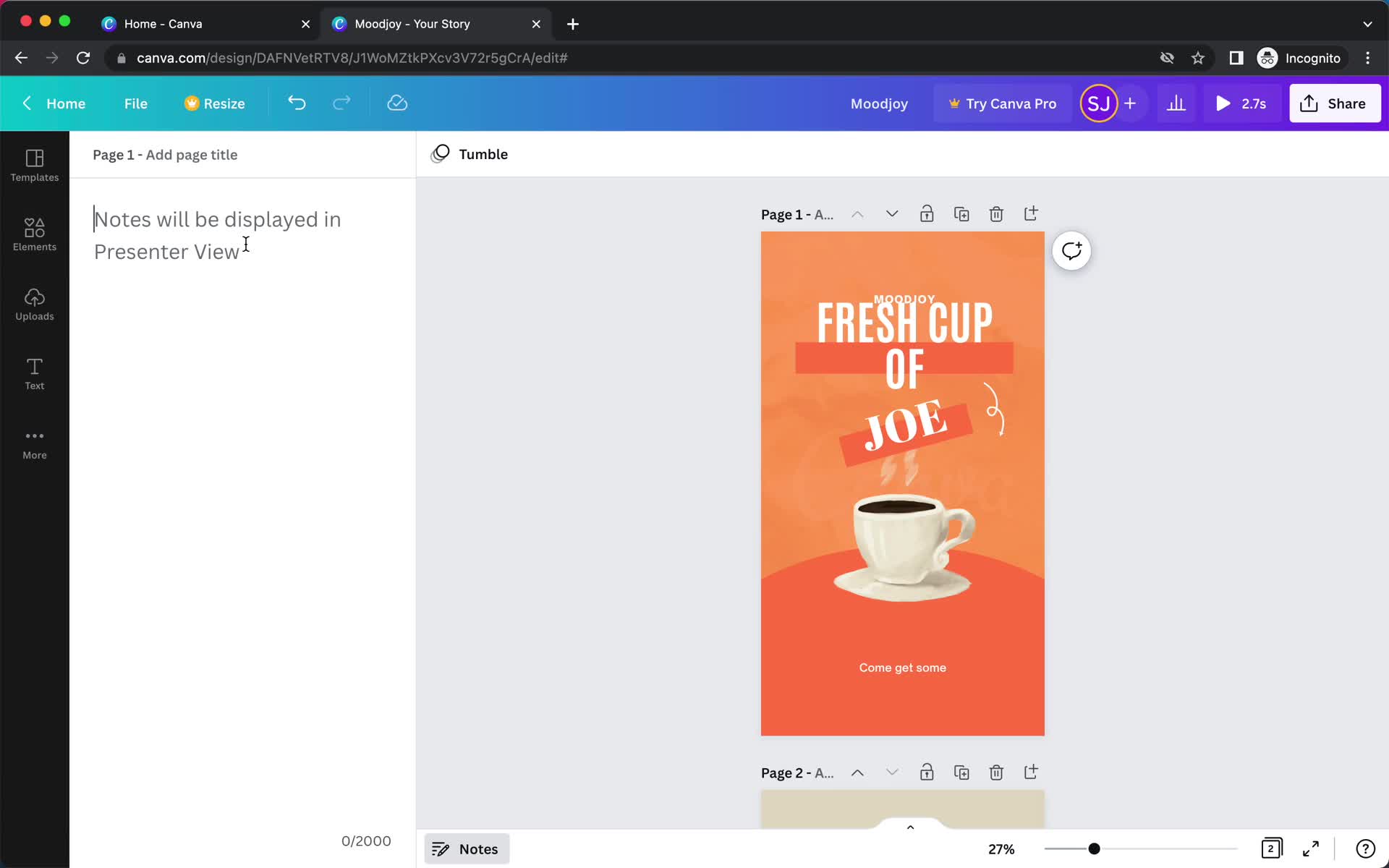
Add note
this is title
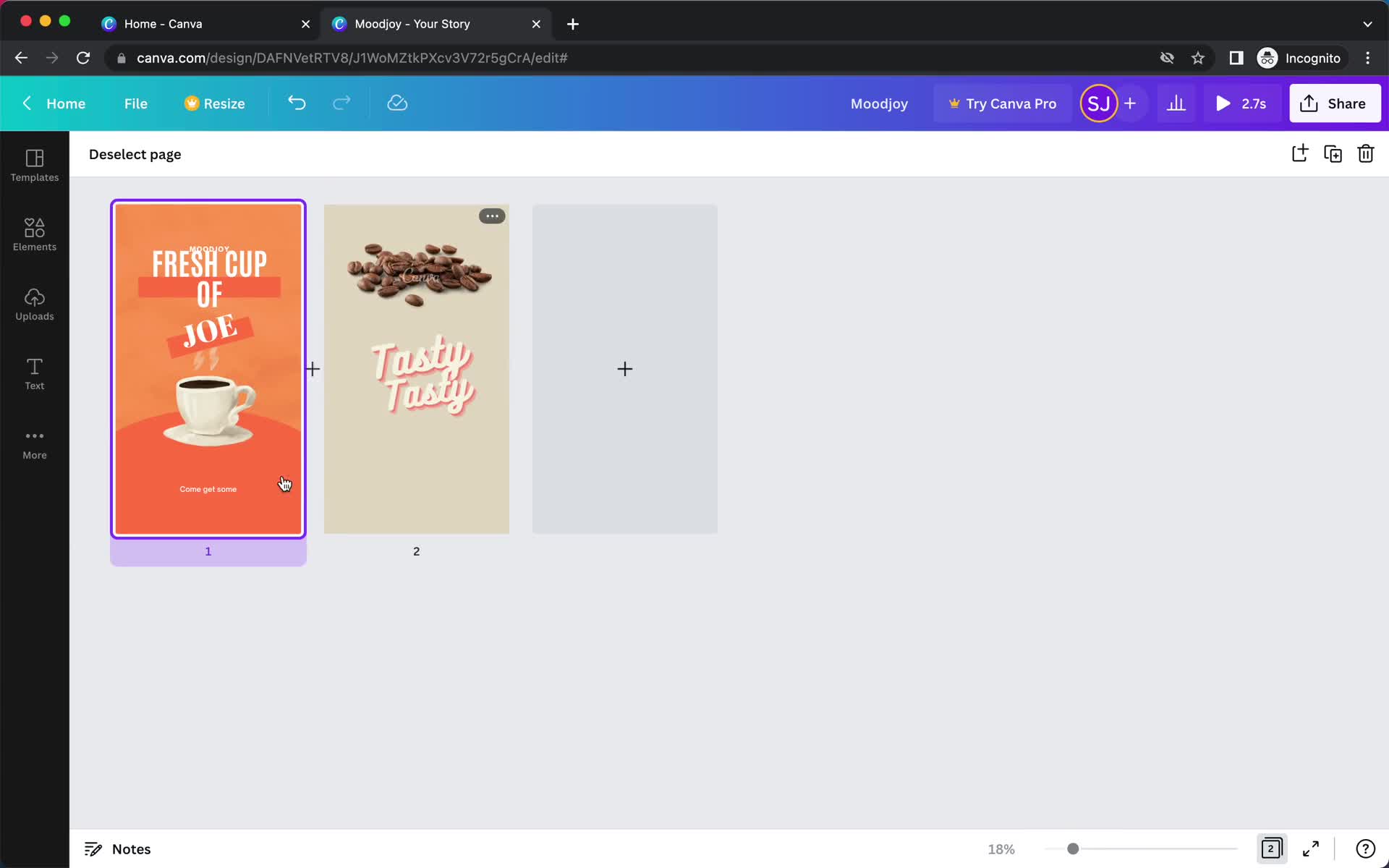
Pages
this is title
Editor
this is title
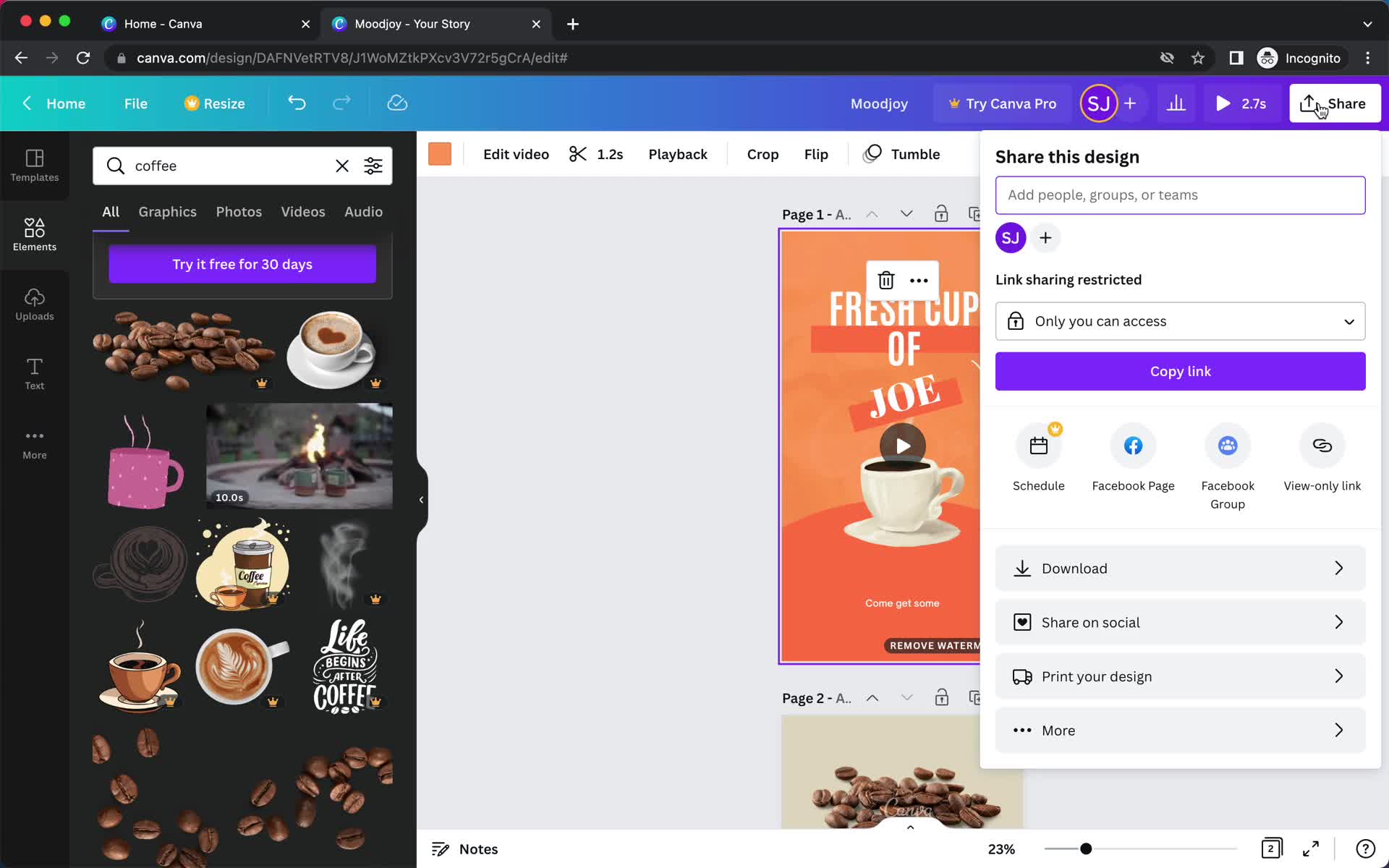
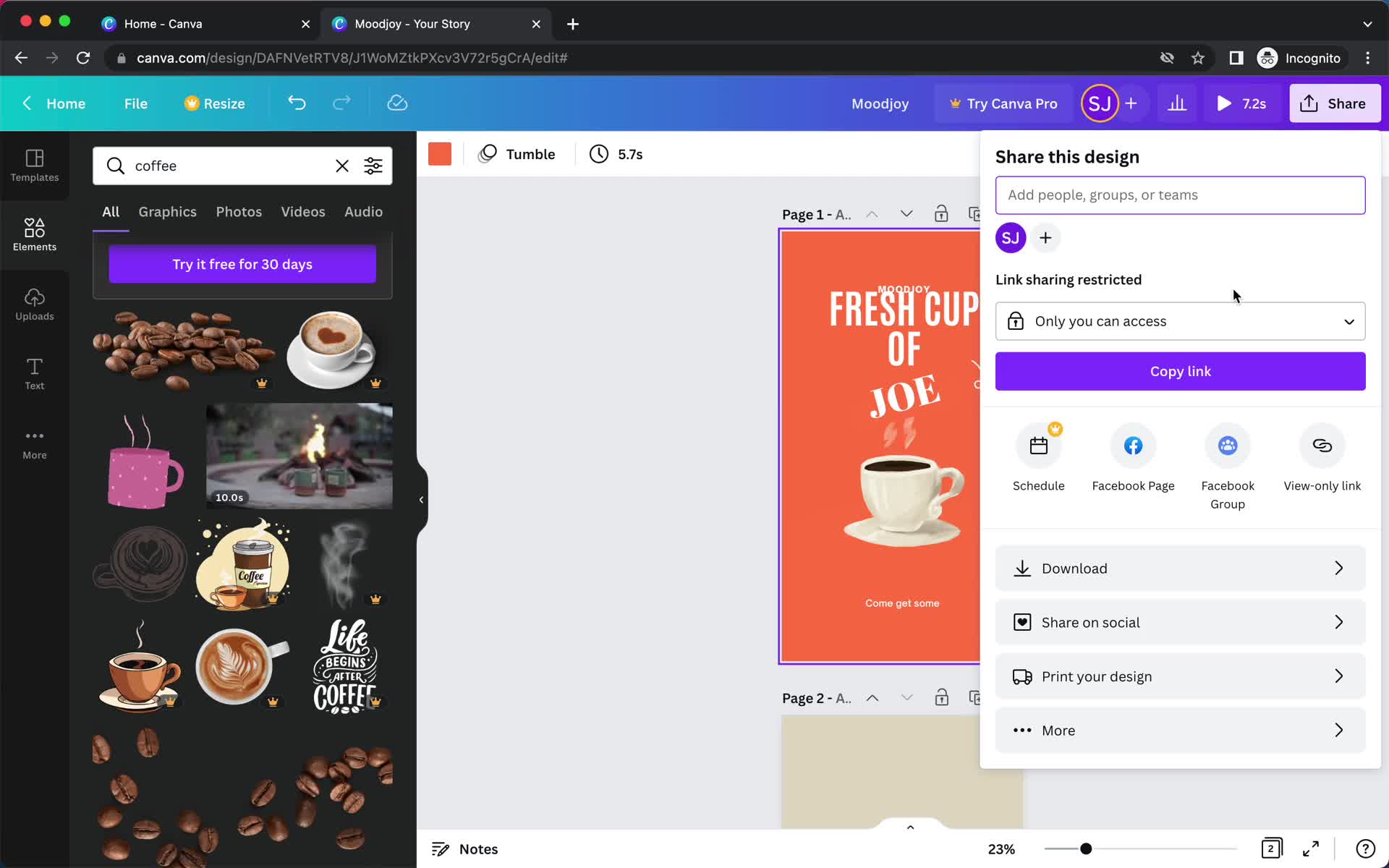
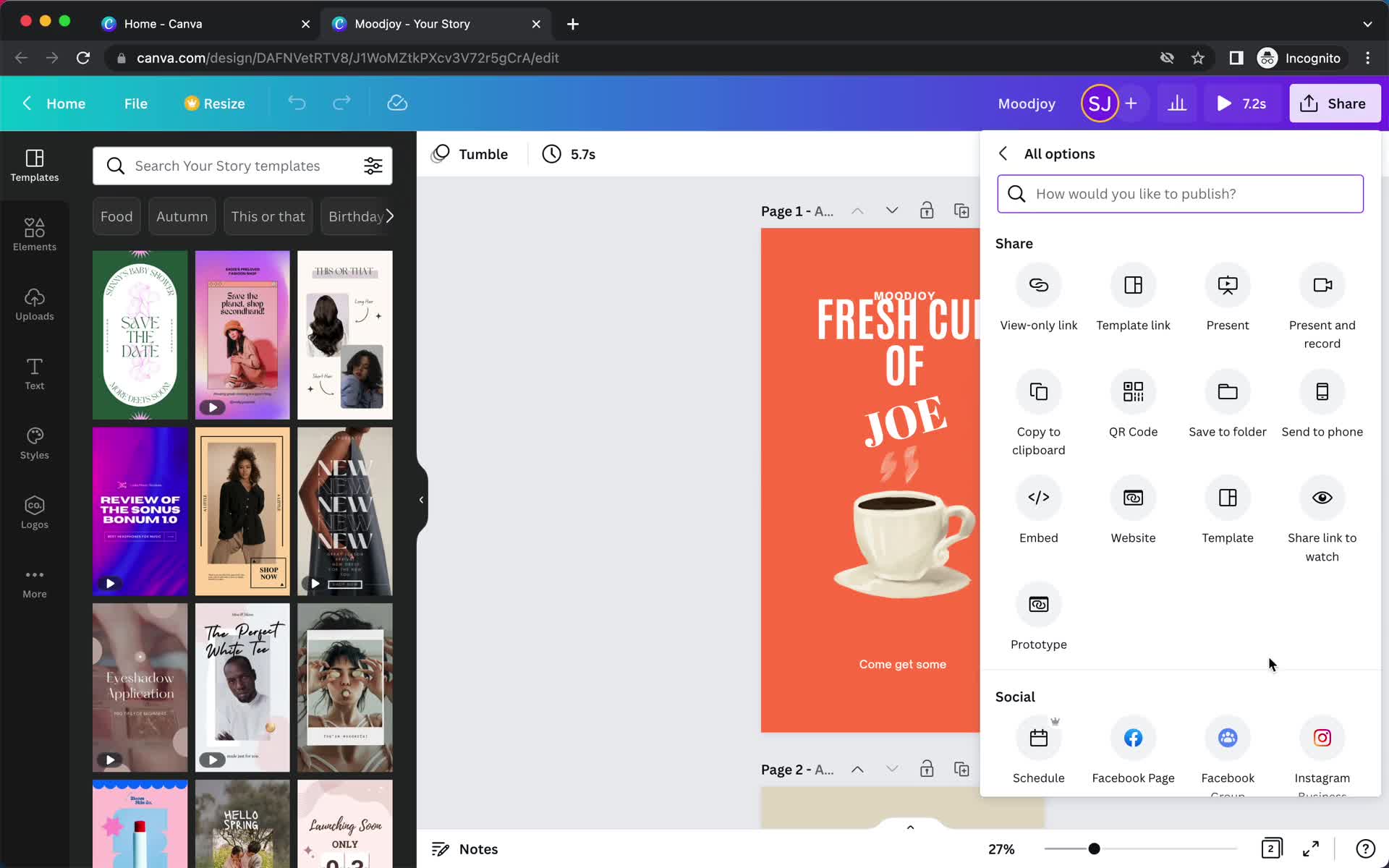
Share
this is title
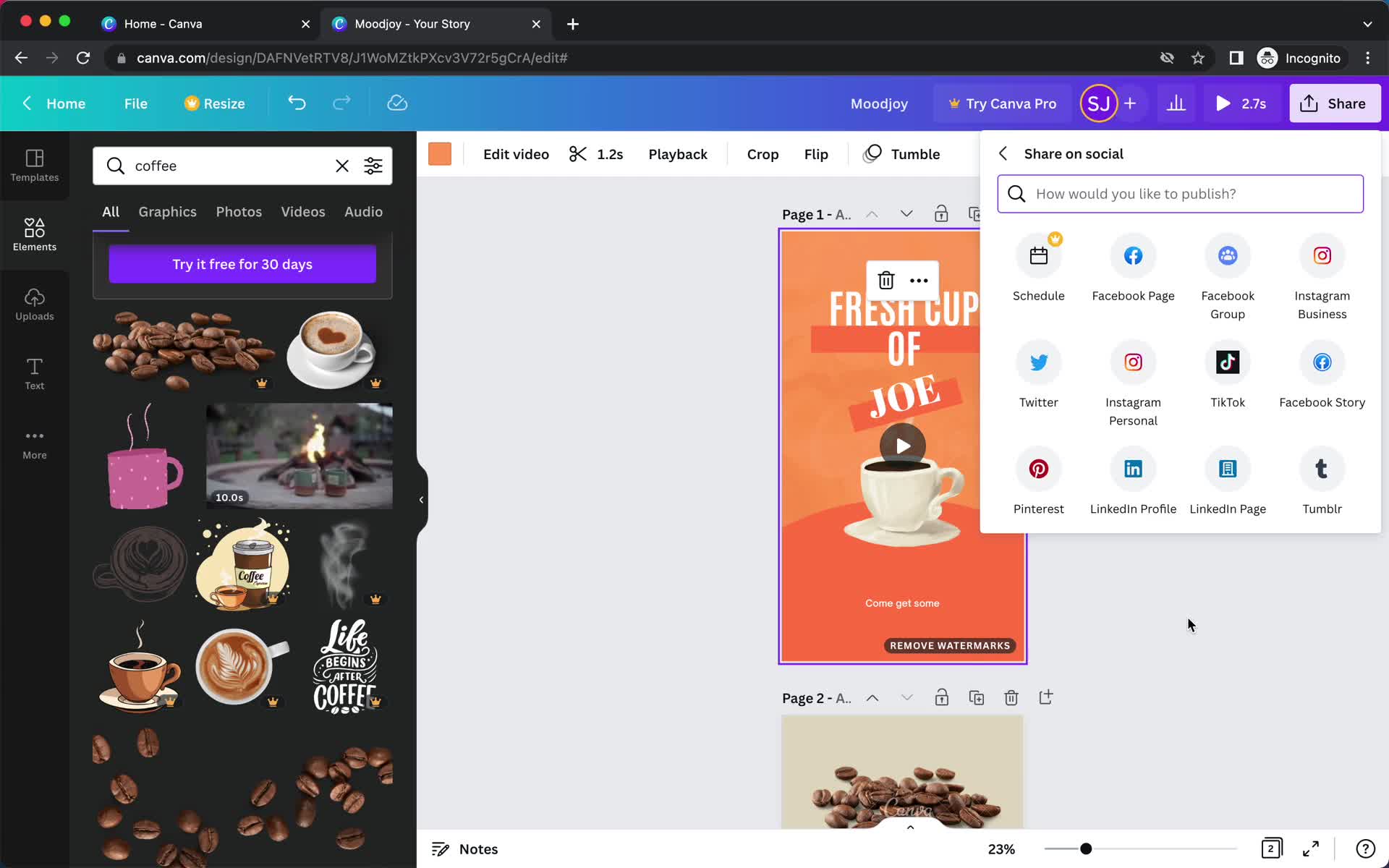
Share
this is title
Upgrade prompt
this is title
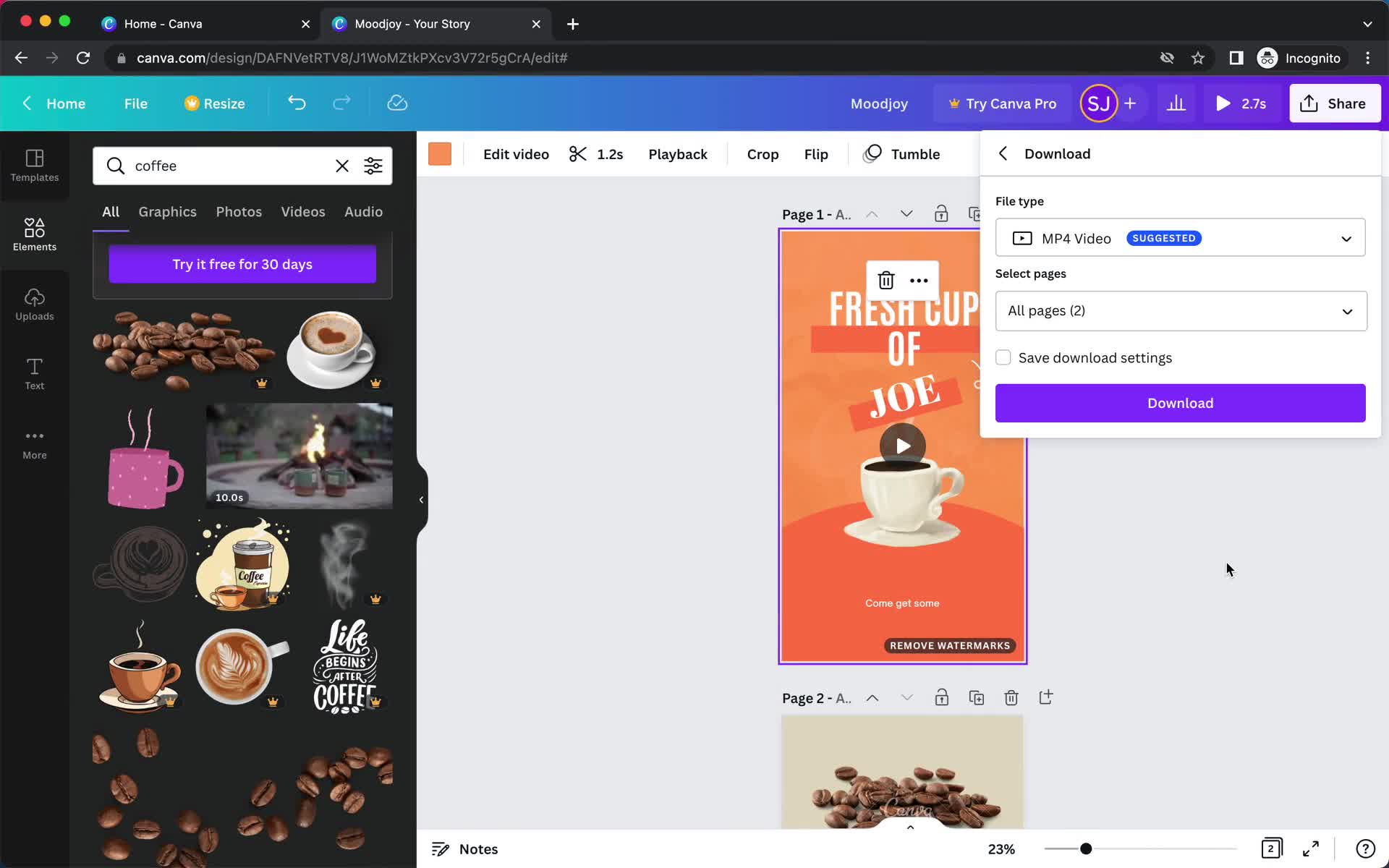
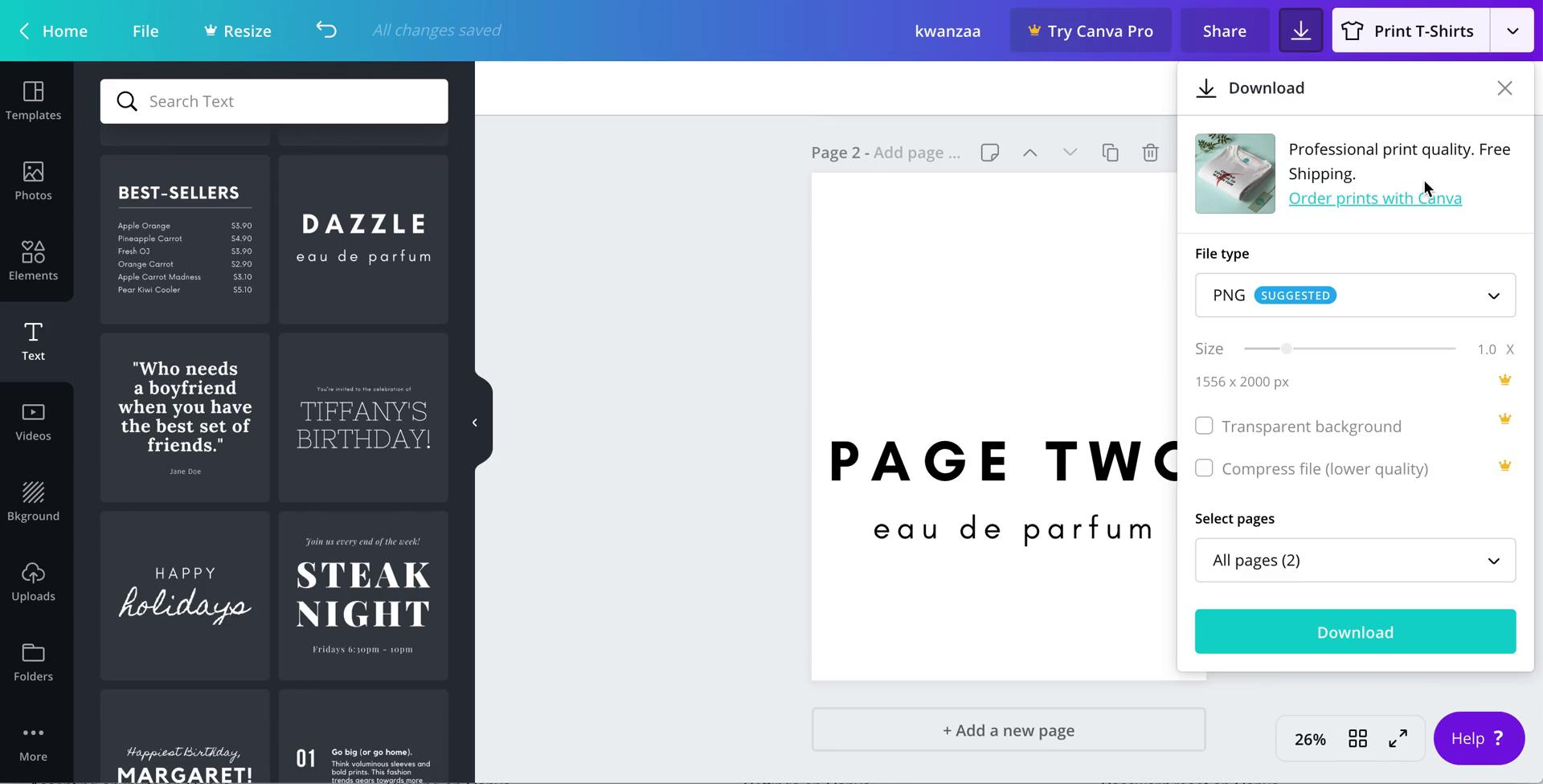
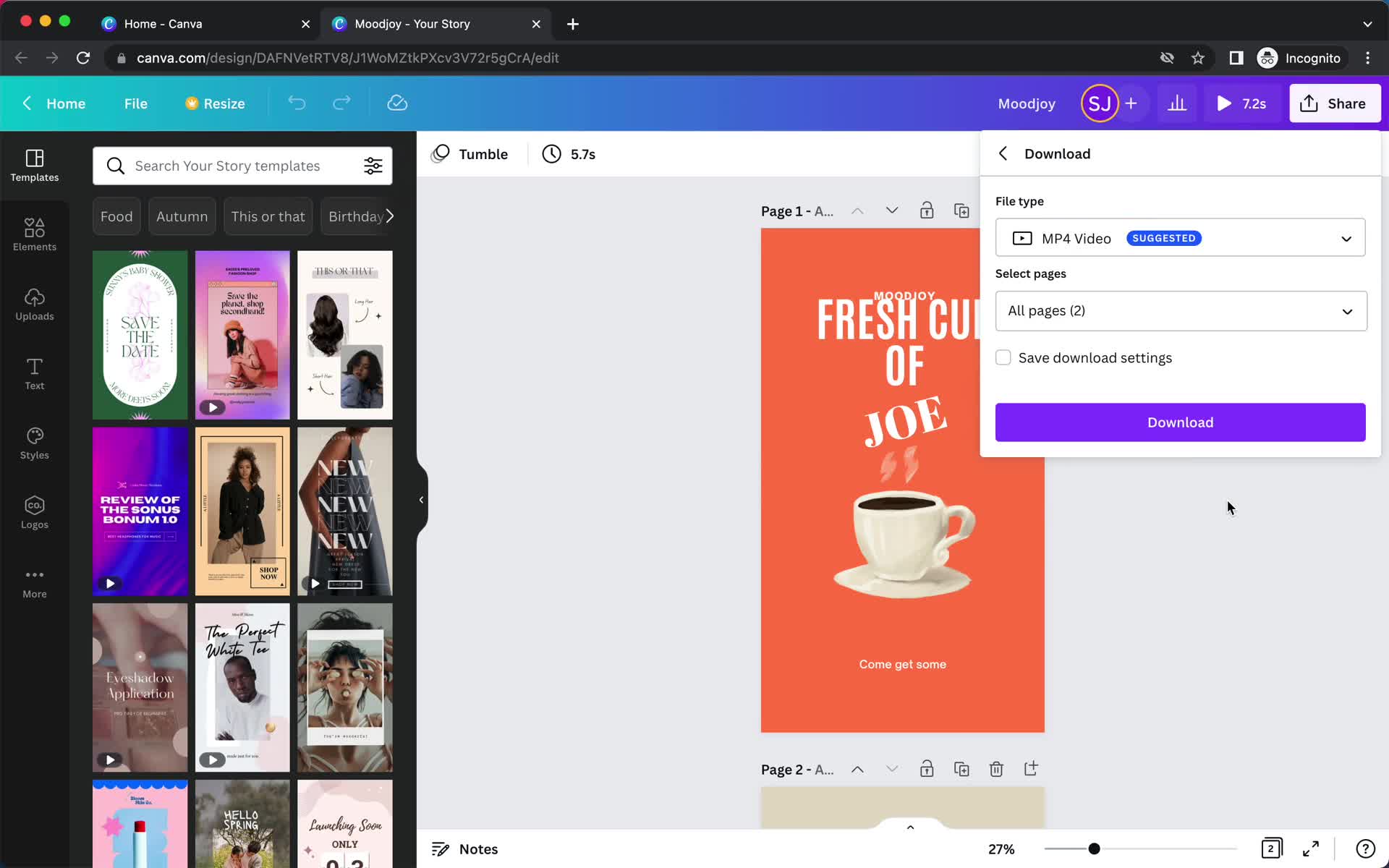
Download
this is title
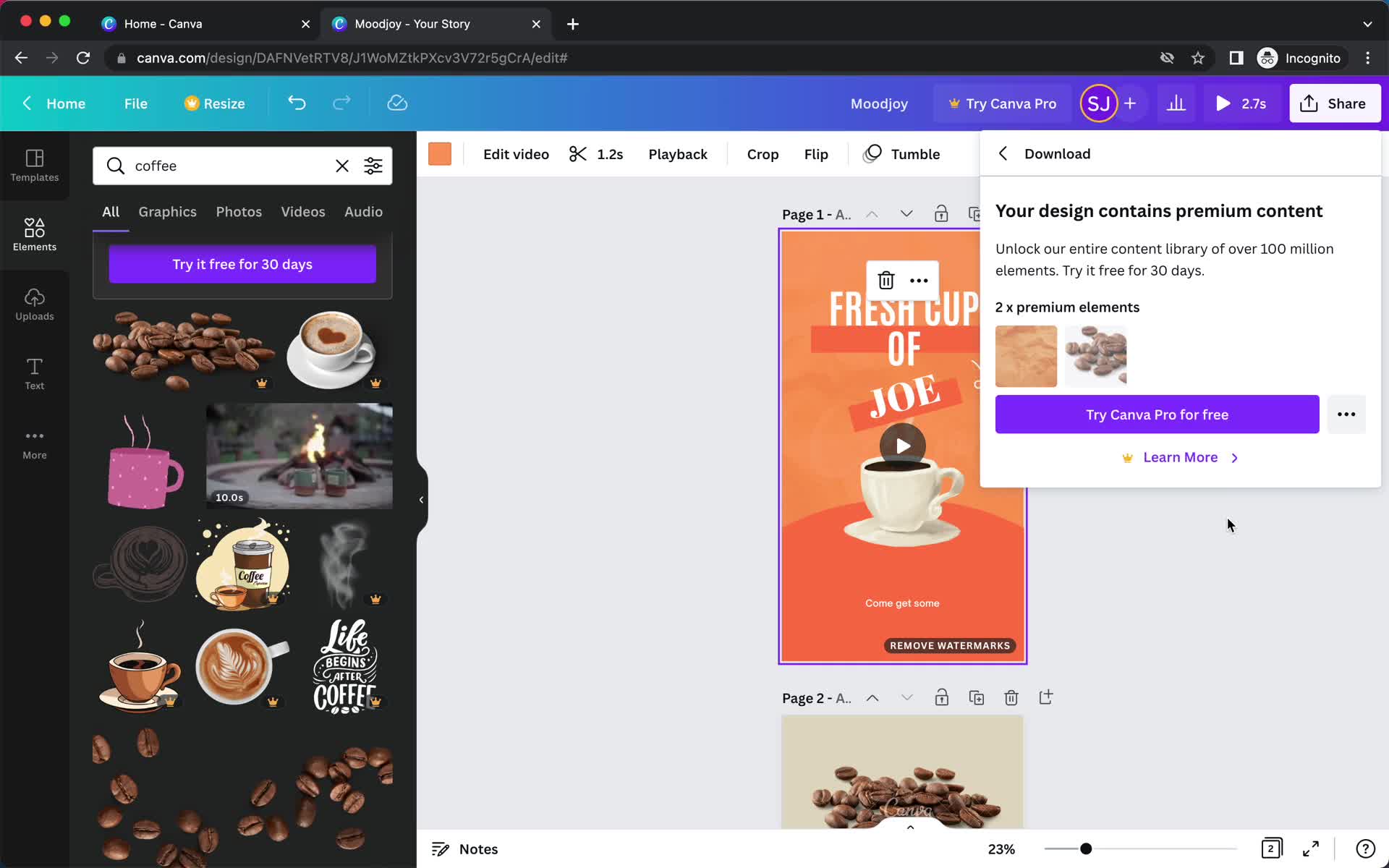
Upgrade prompt
this is title
Editor
this is title
Share
this is title
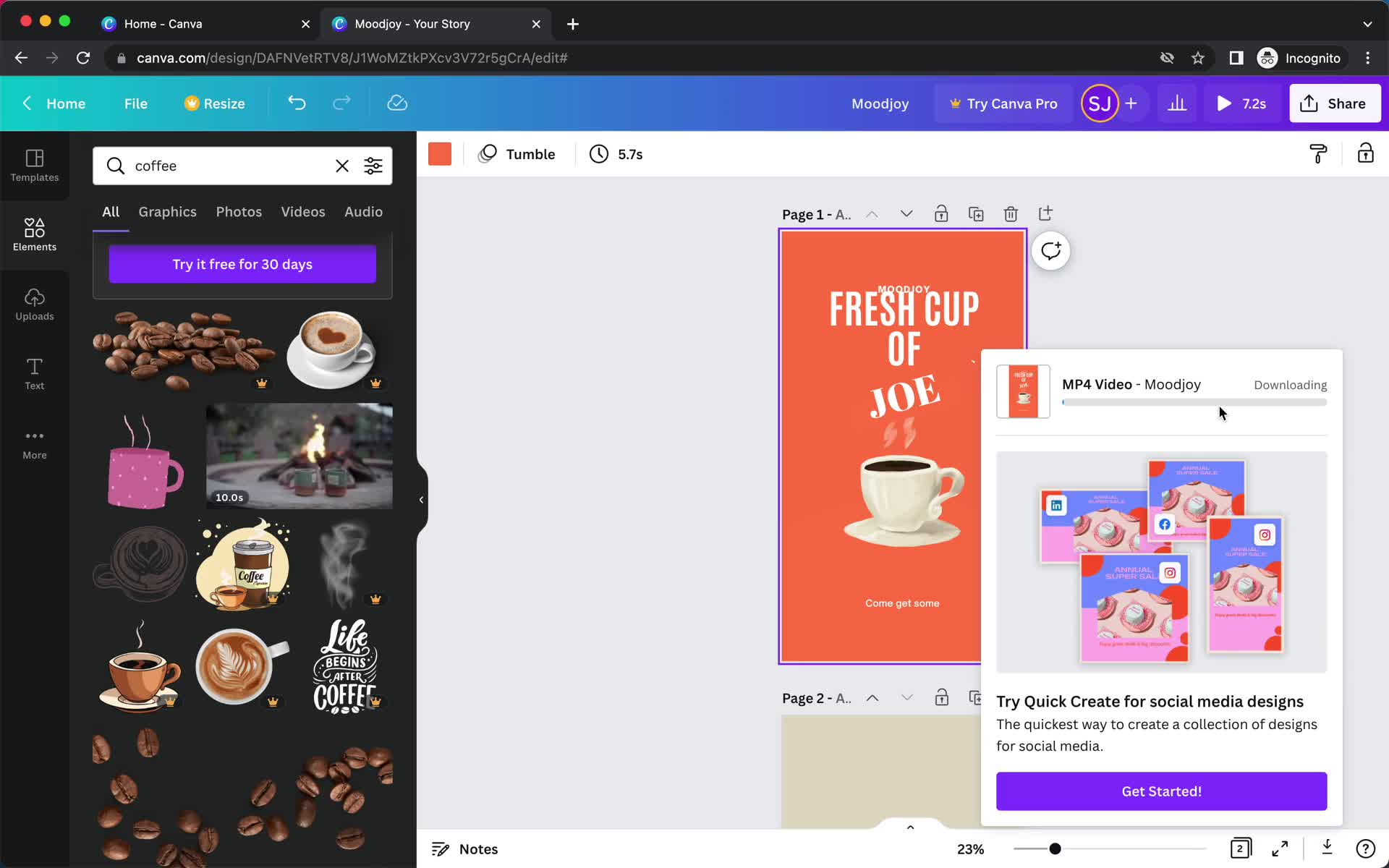
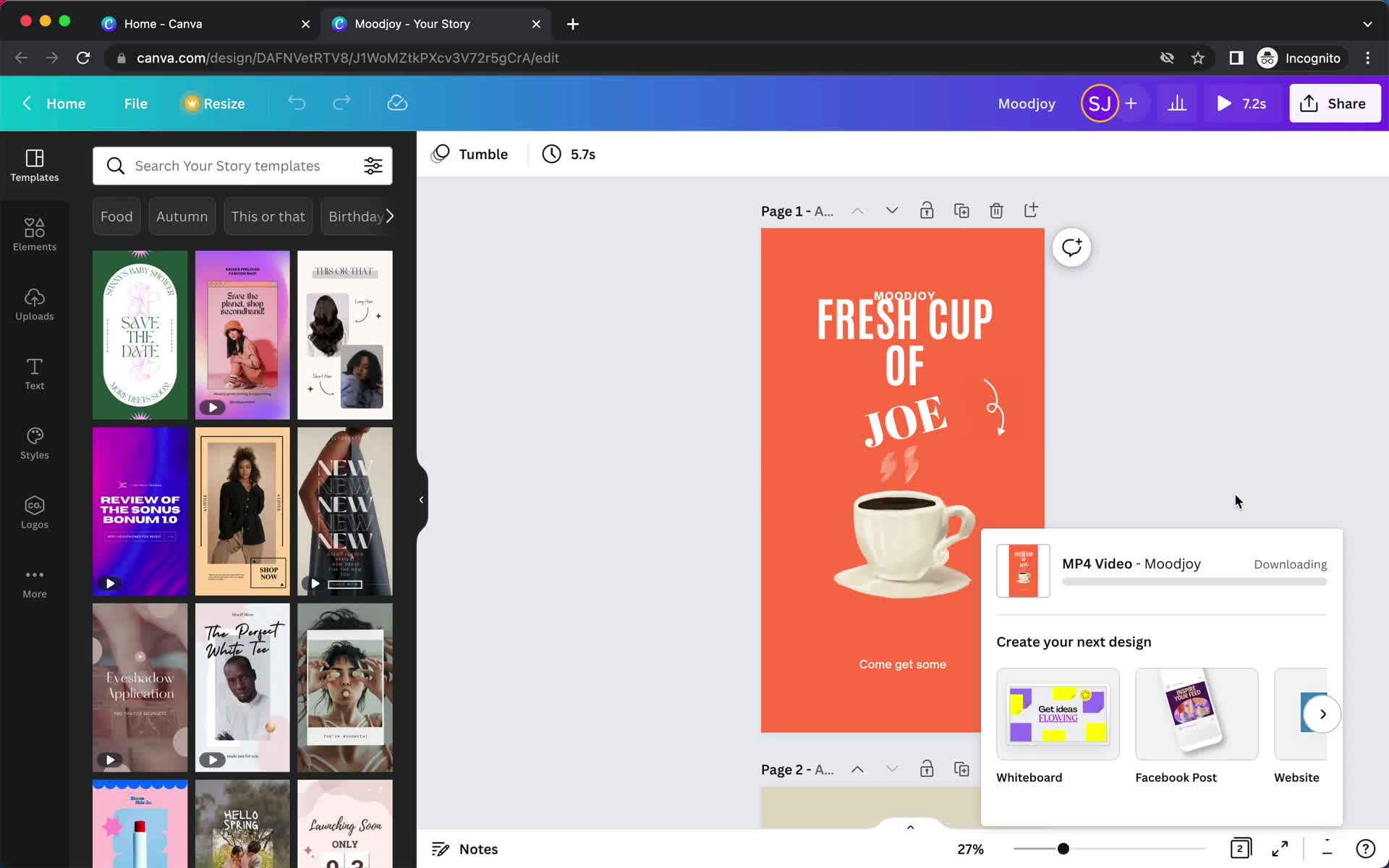
Downloading
this is title
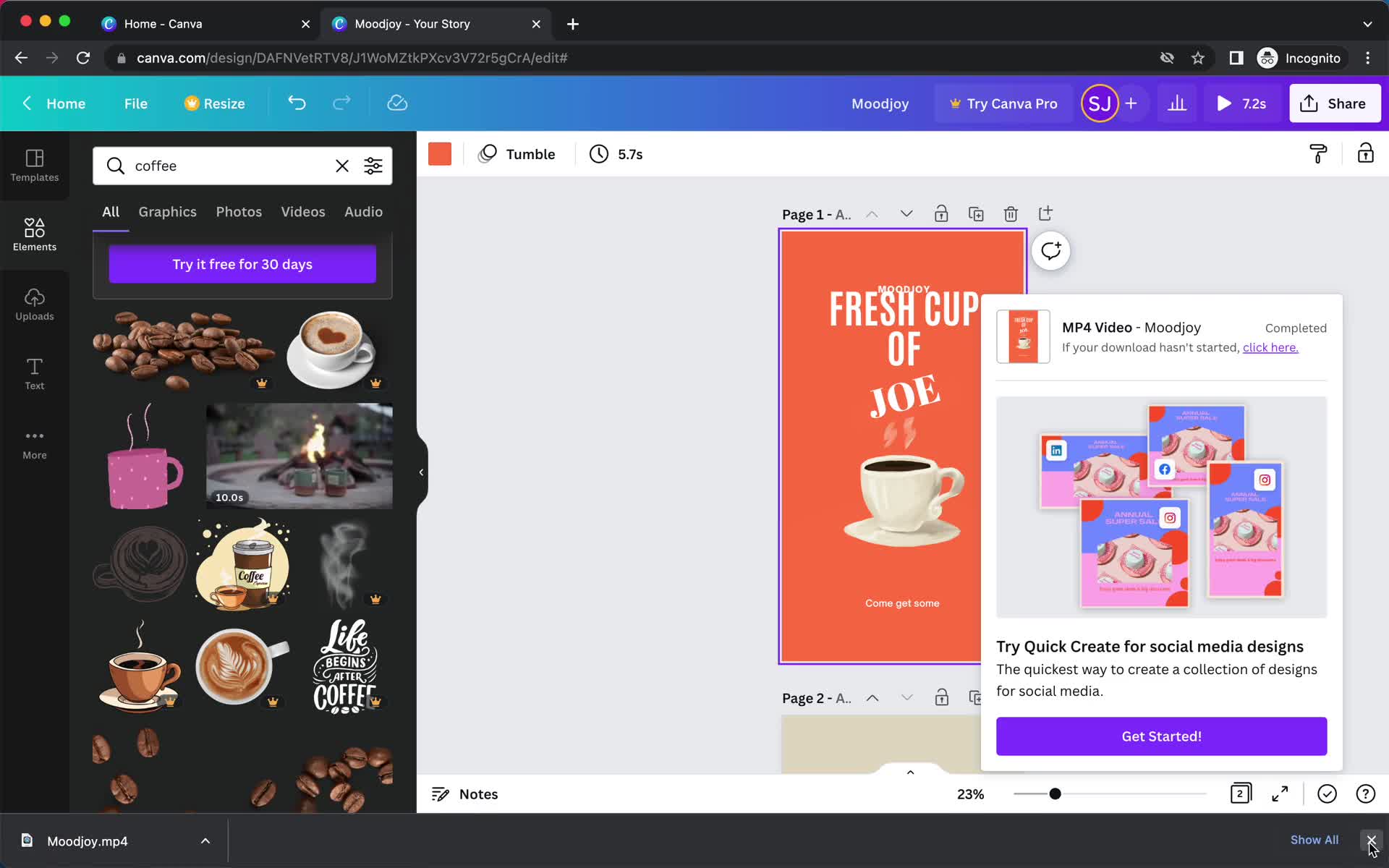
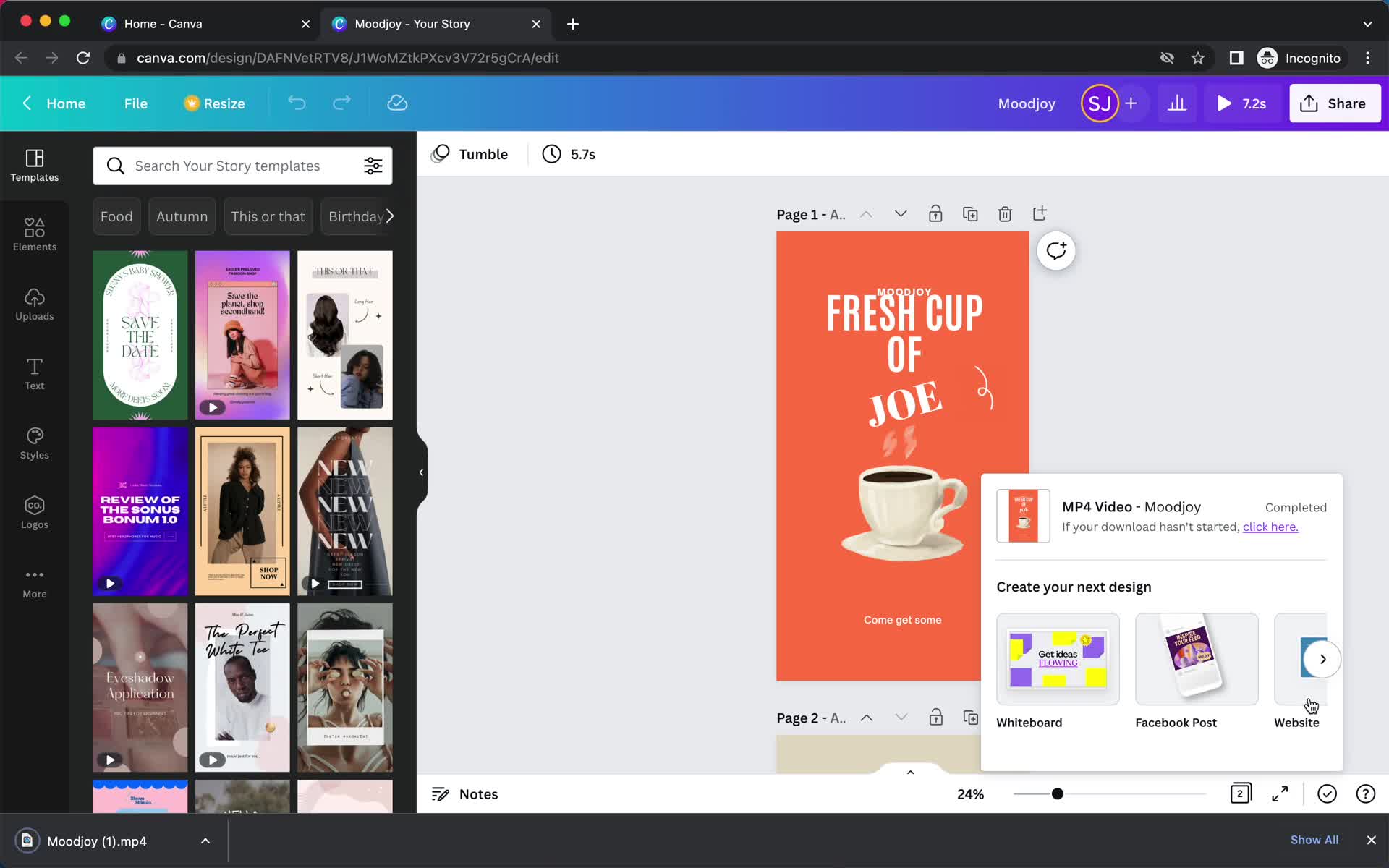
Download complete
this is title
Home
this is title
Dashboard
this is title
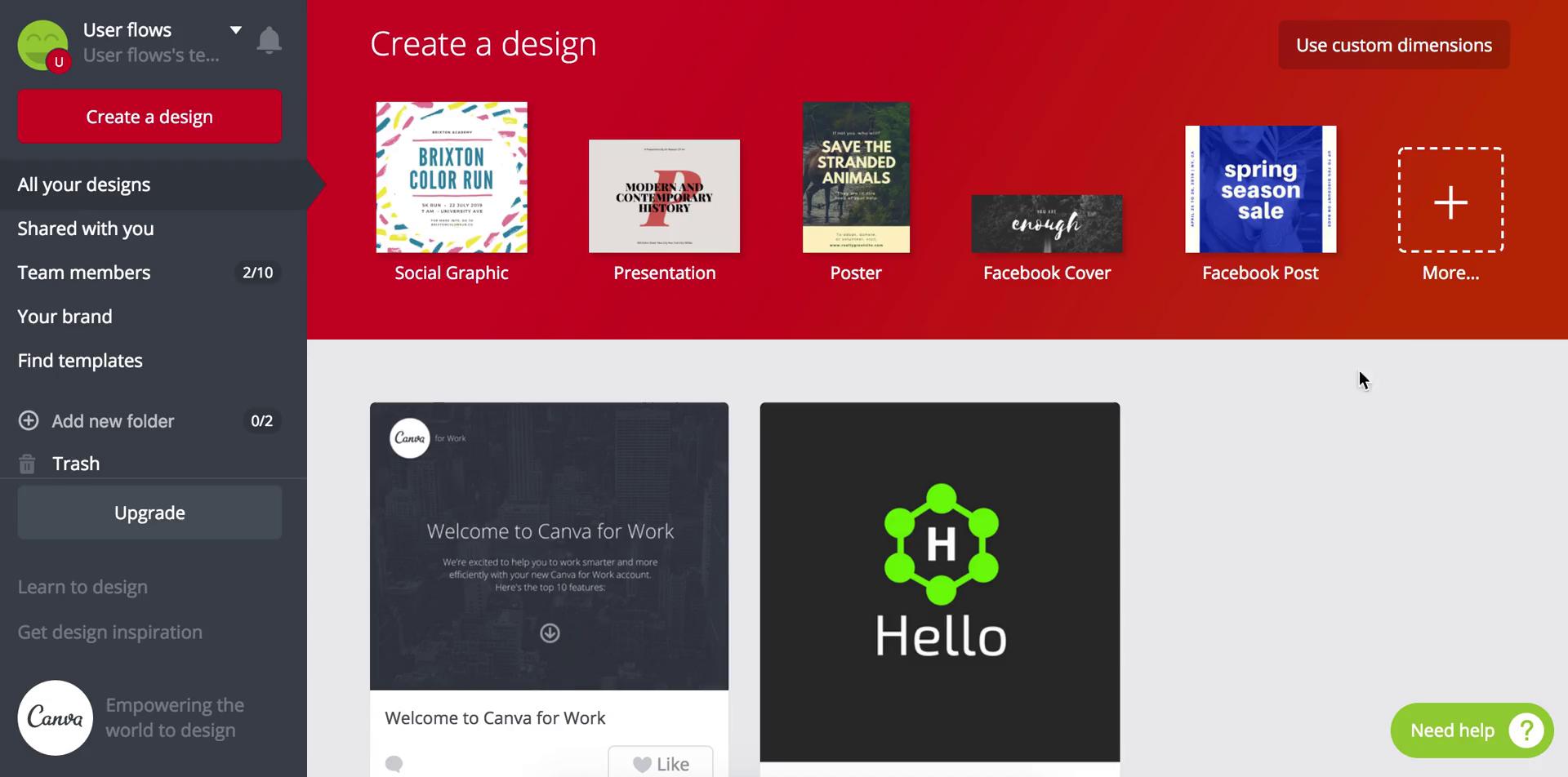
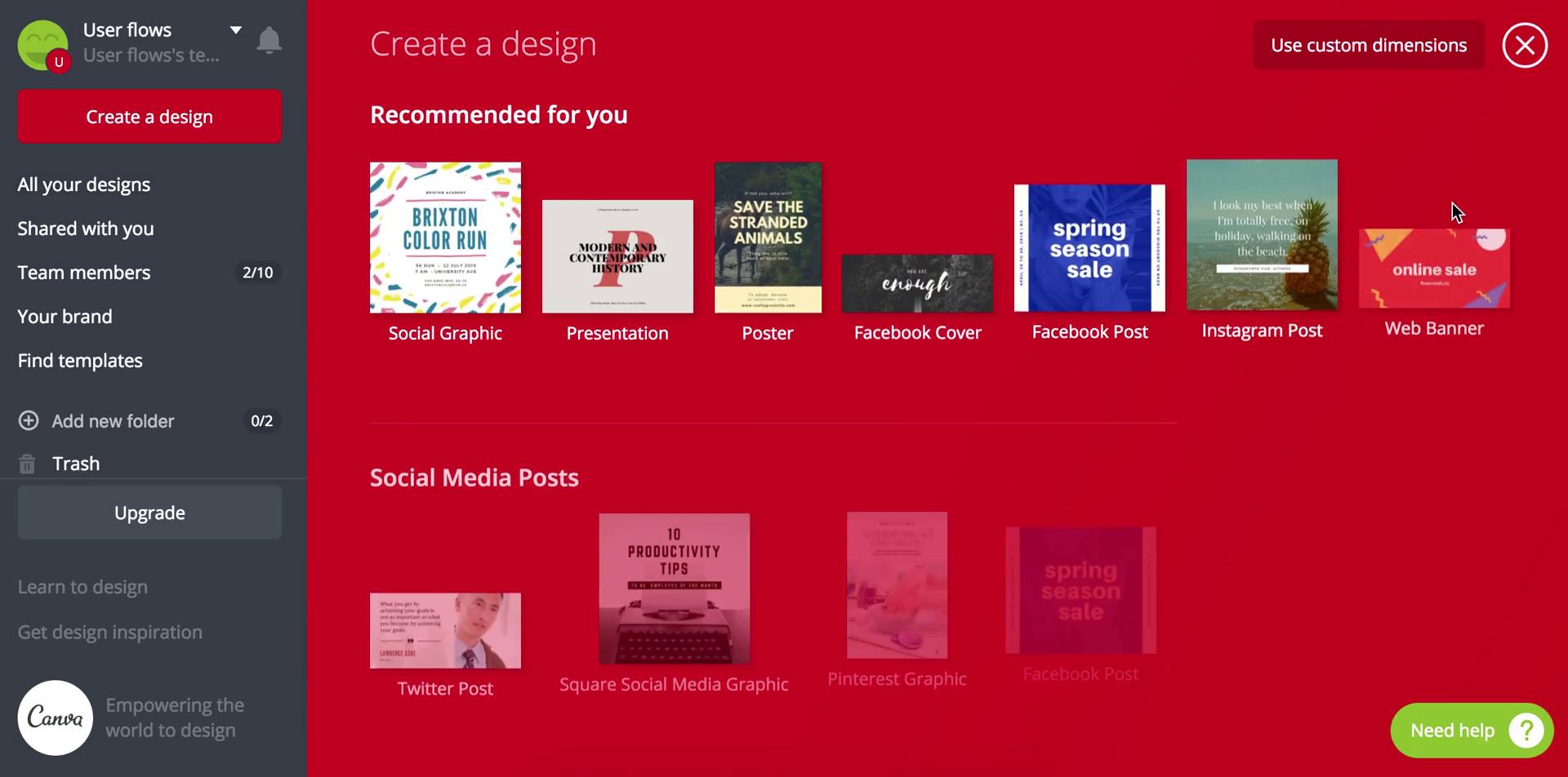
Select dimensions
this is title
Tips
this is title
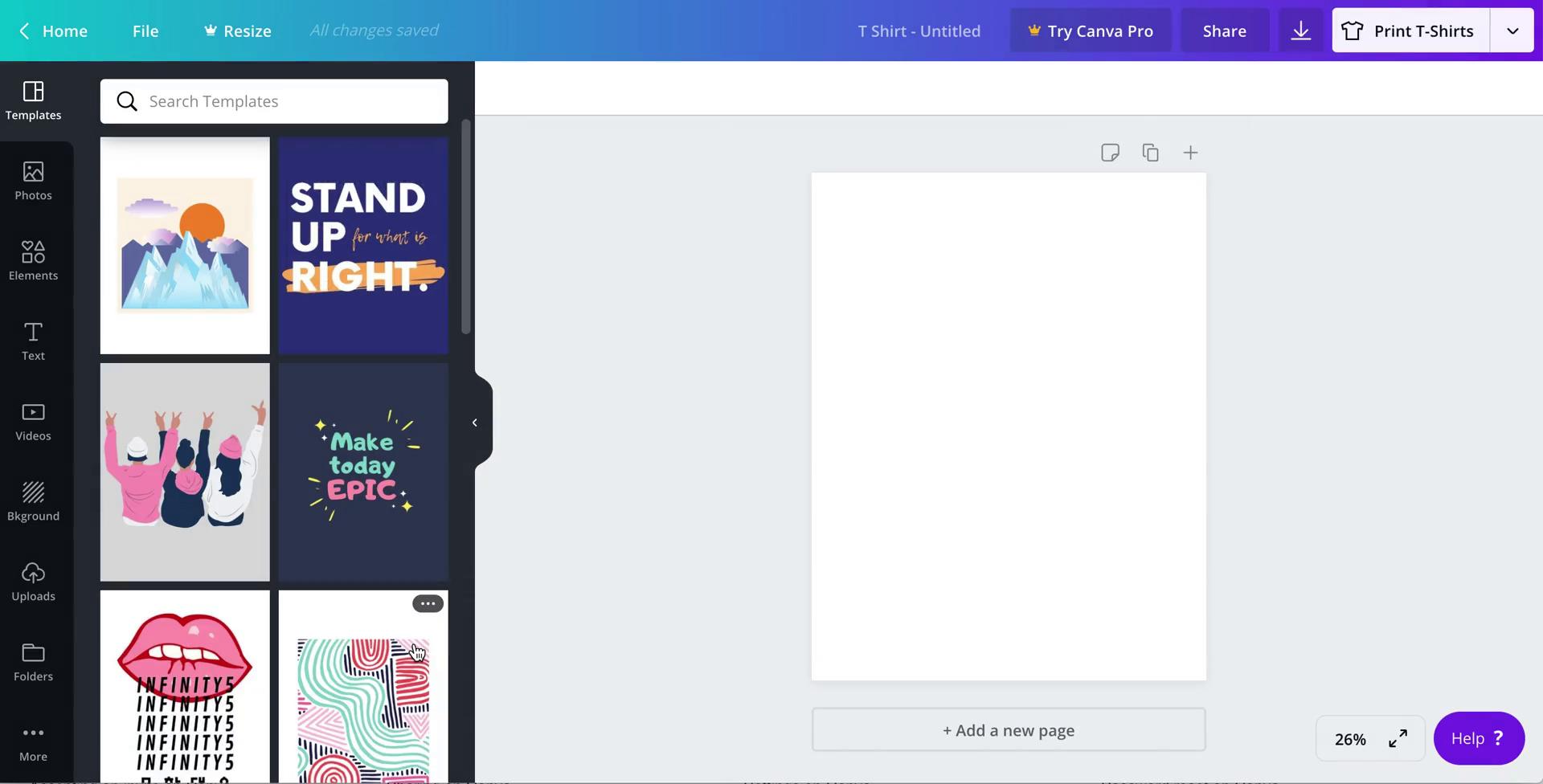
Select template
this is title
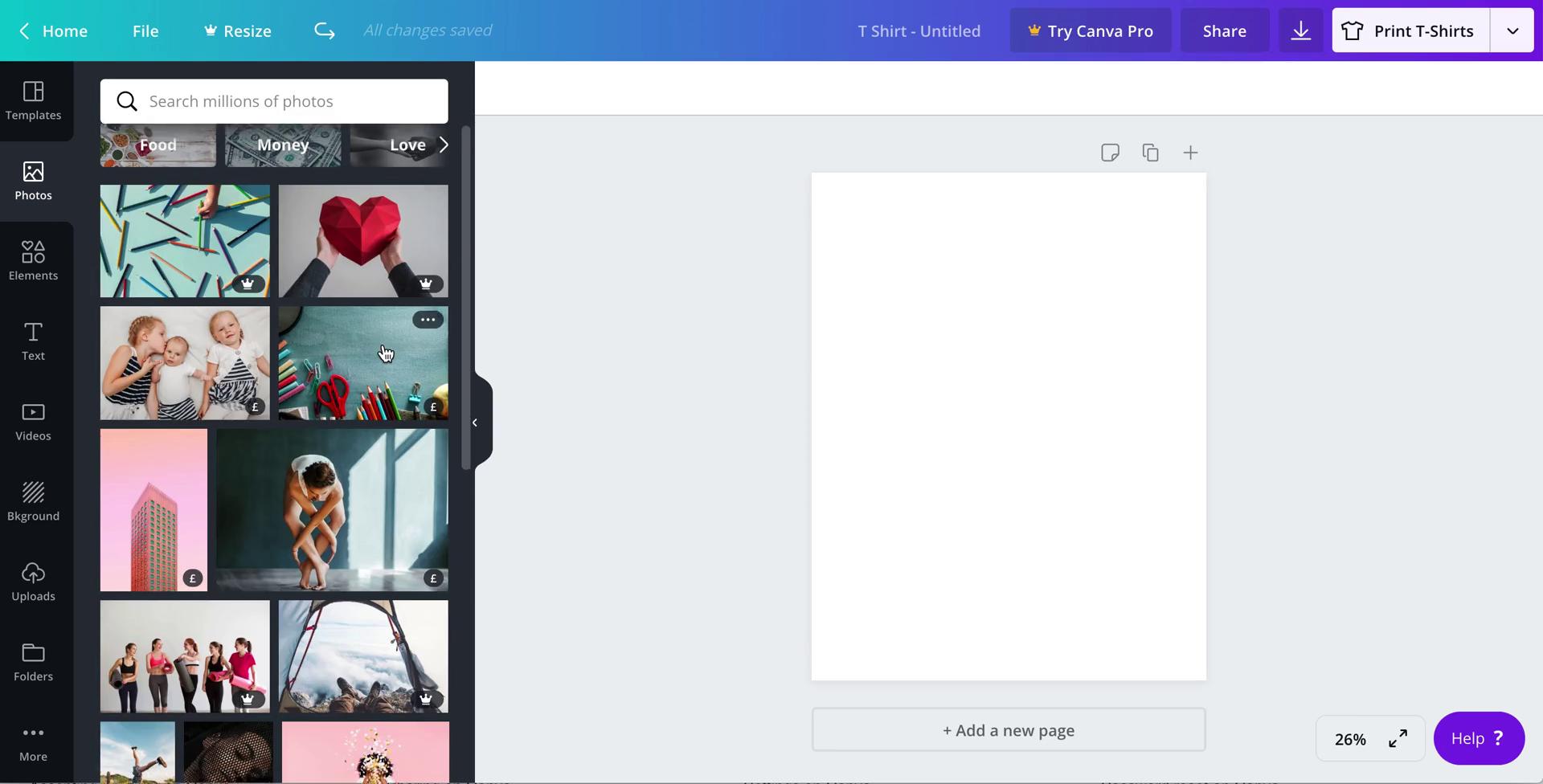
Search images
this is title
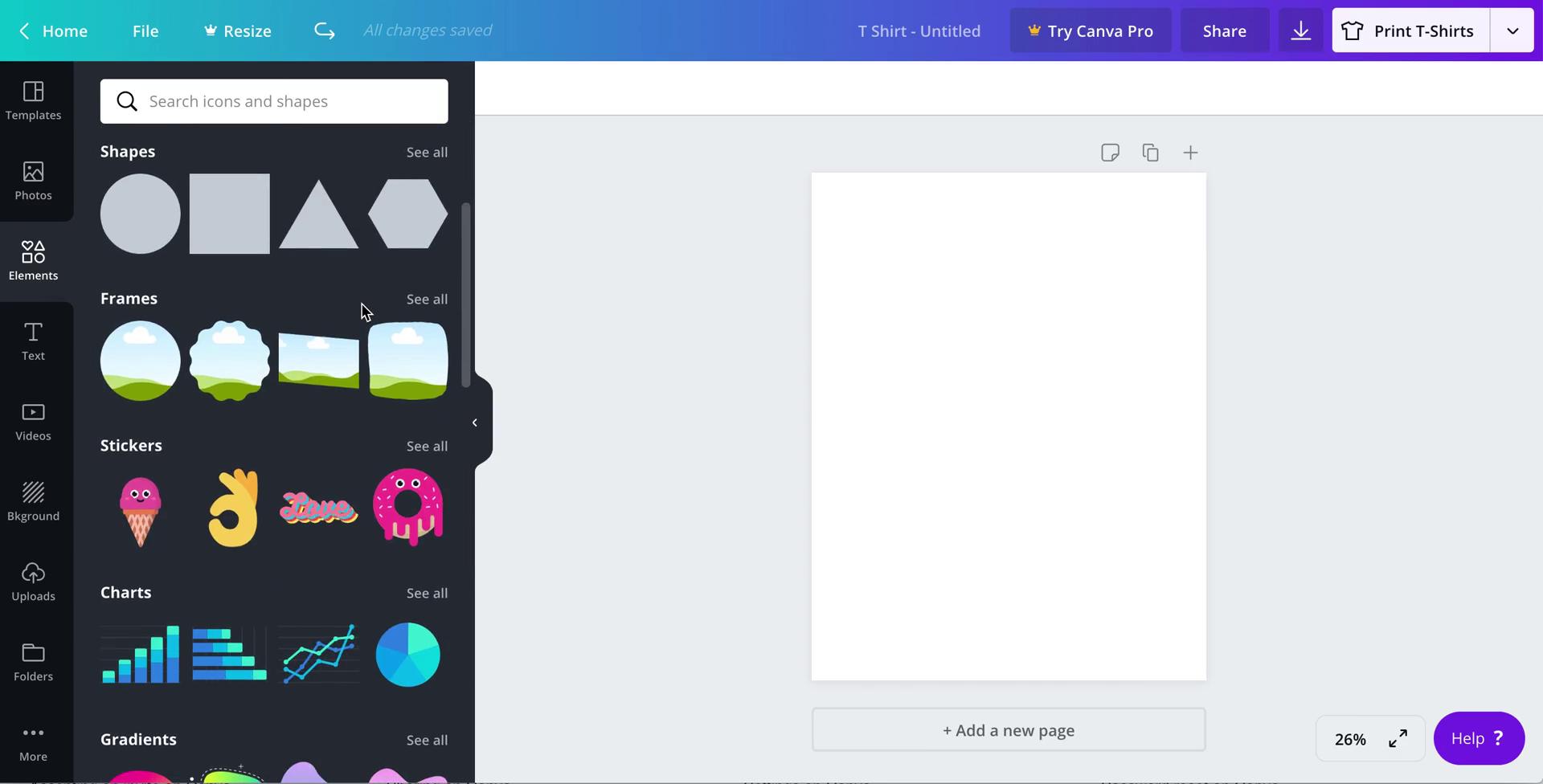
Elements
this is title
Fonts
this is title
Upgrade prompt
this is title
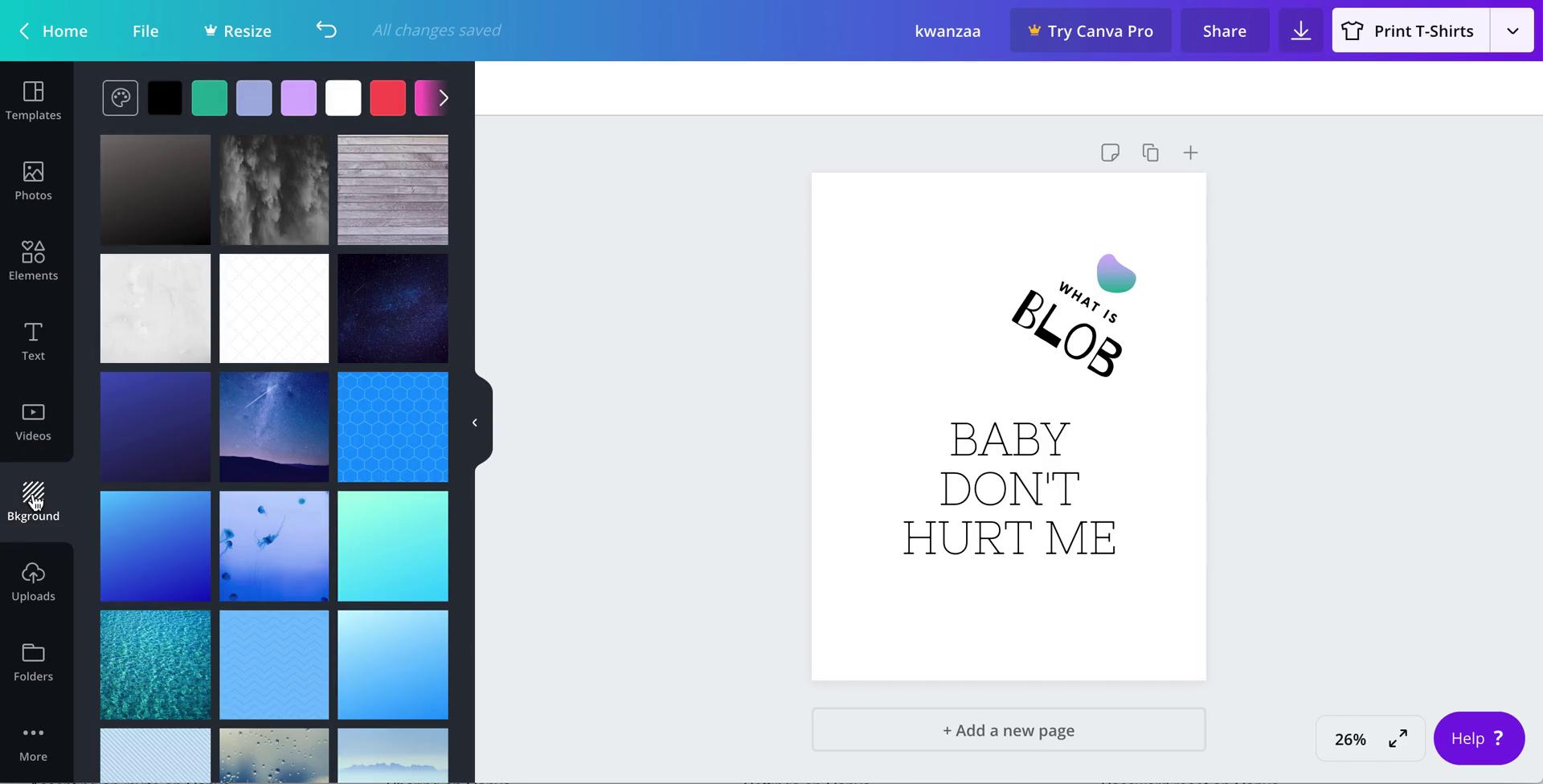
Set background
this is title
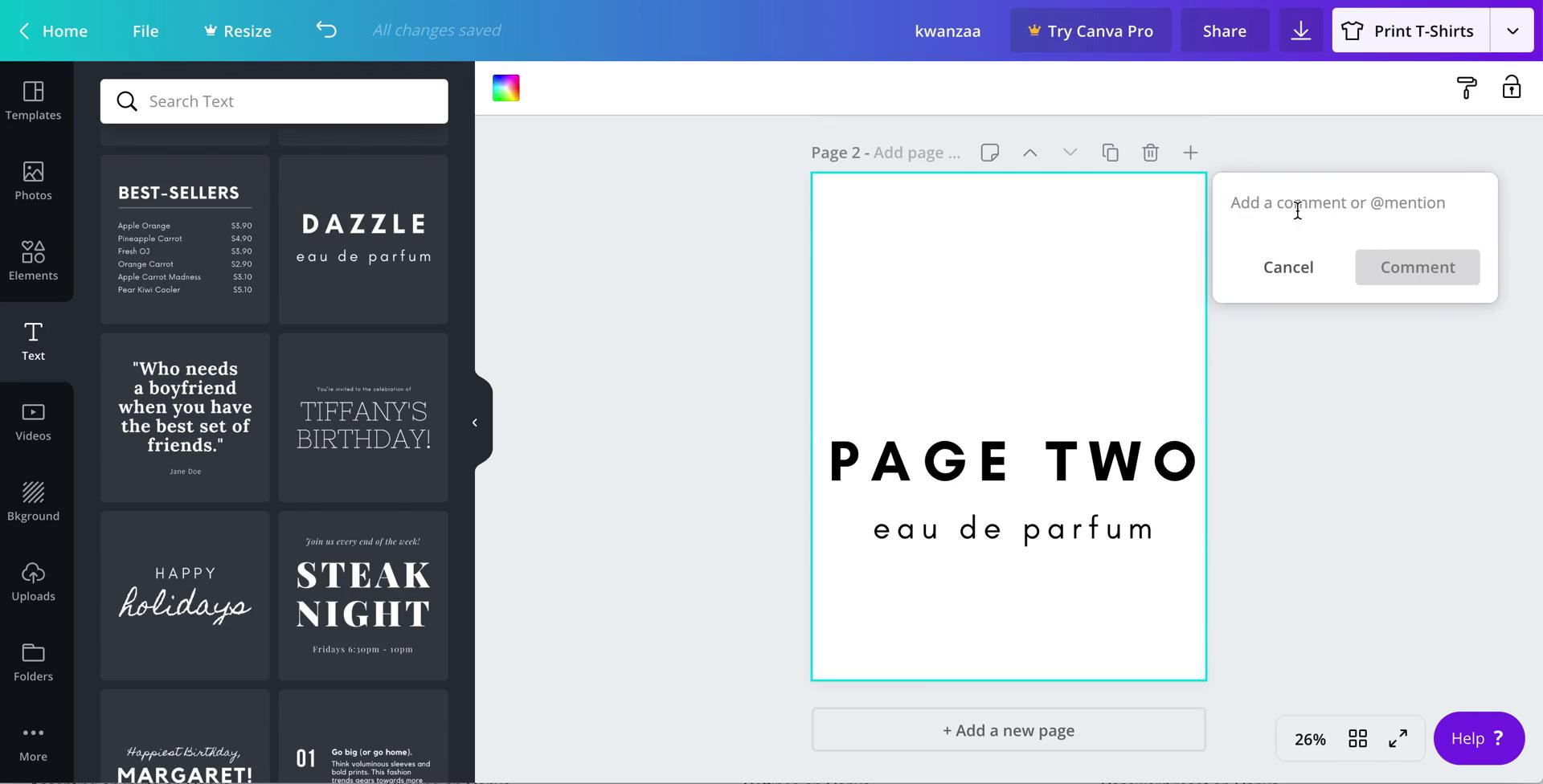
Add comment
this is title
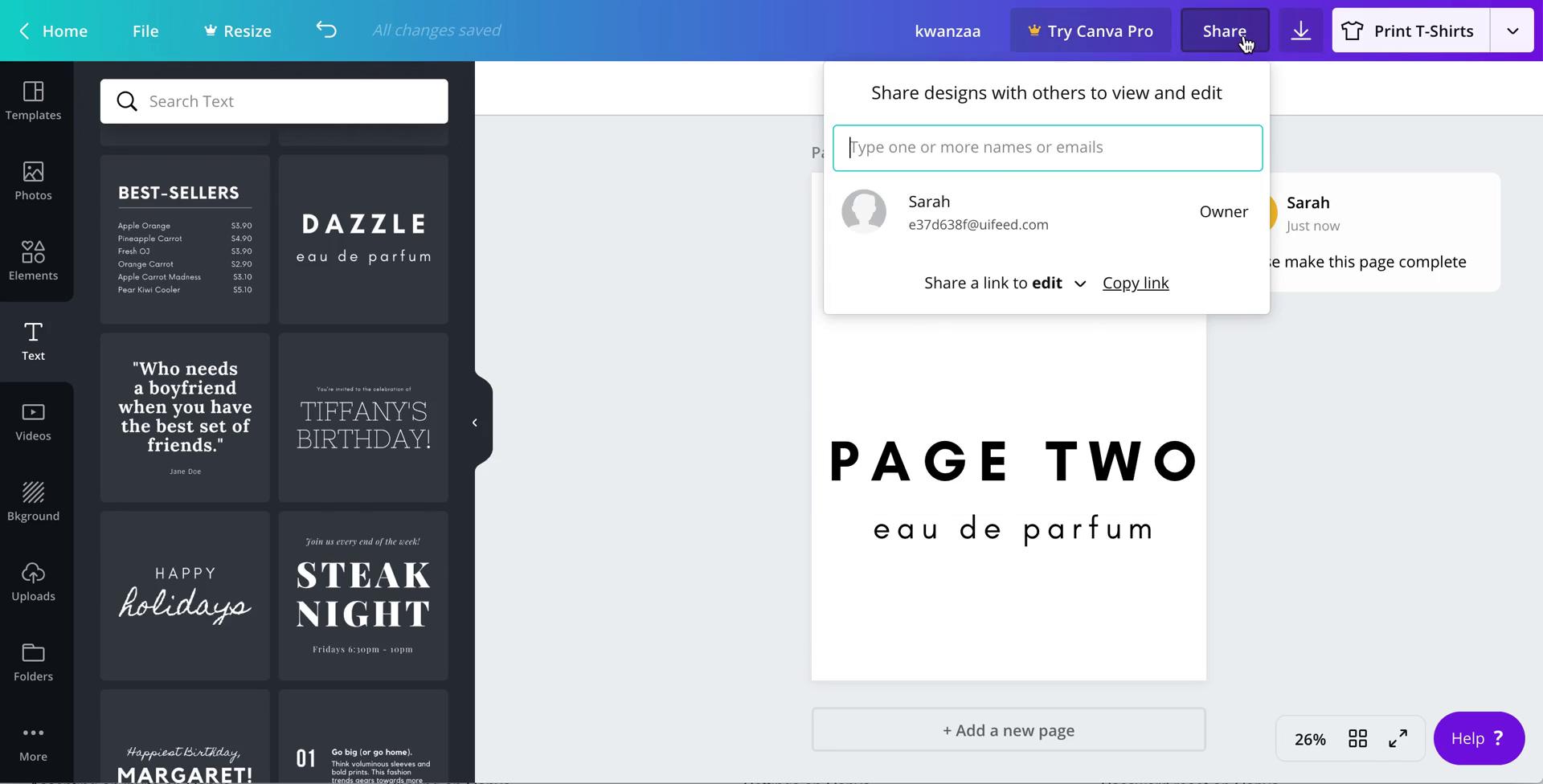
Share design
this is title
Download design
this is title
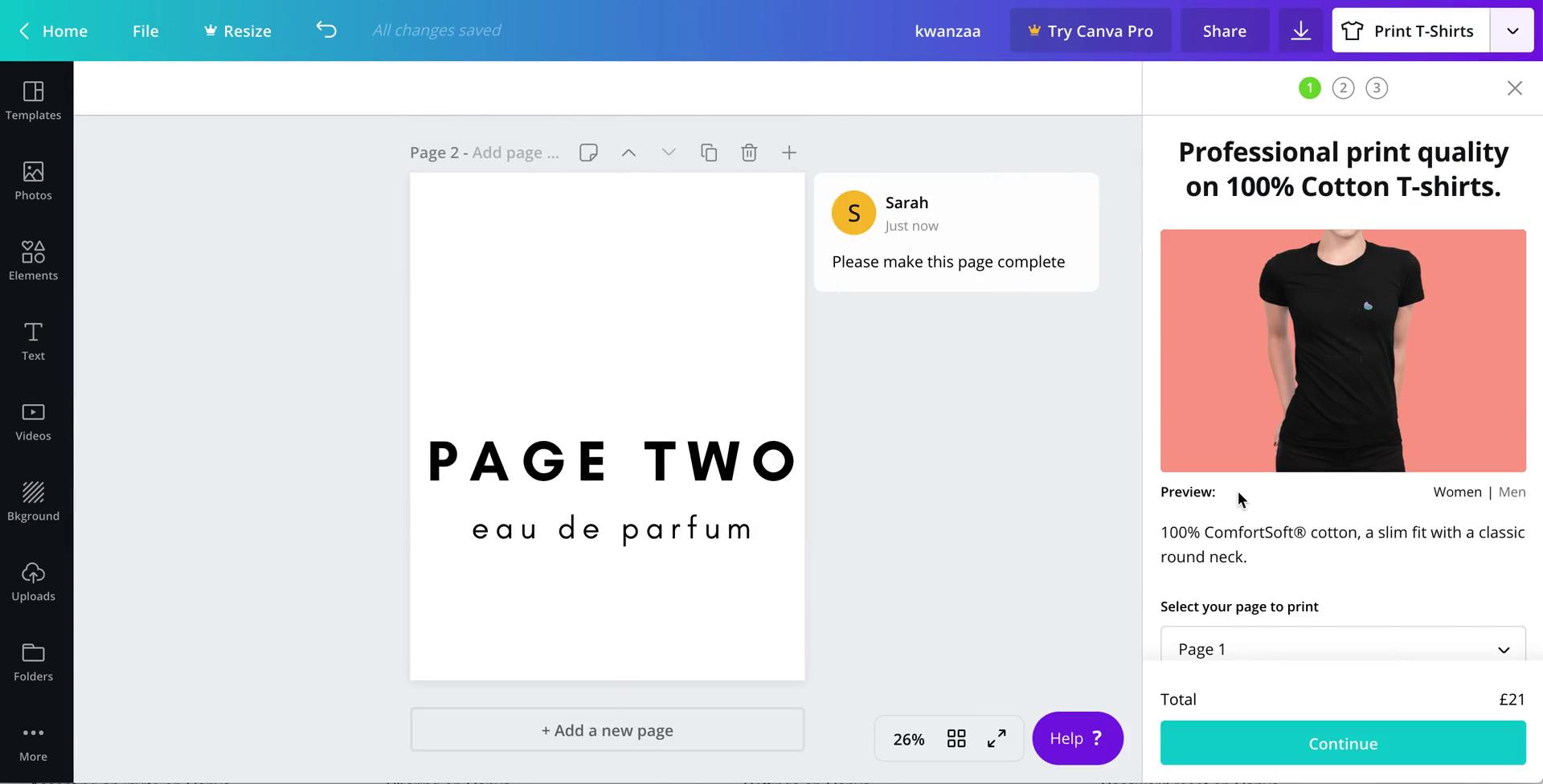
Print t-shirt
this is title
this is title
this is title
this is title
this is title
this is title
this is title
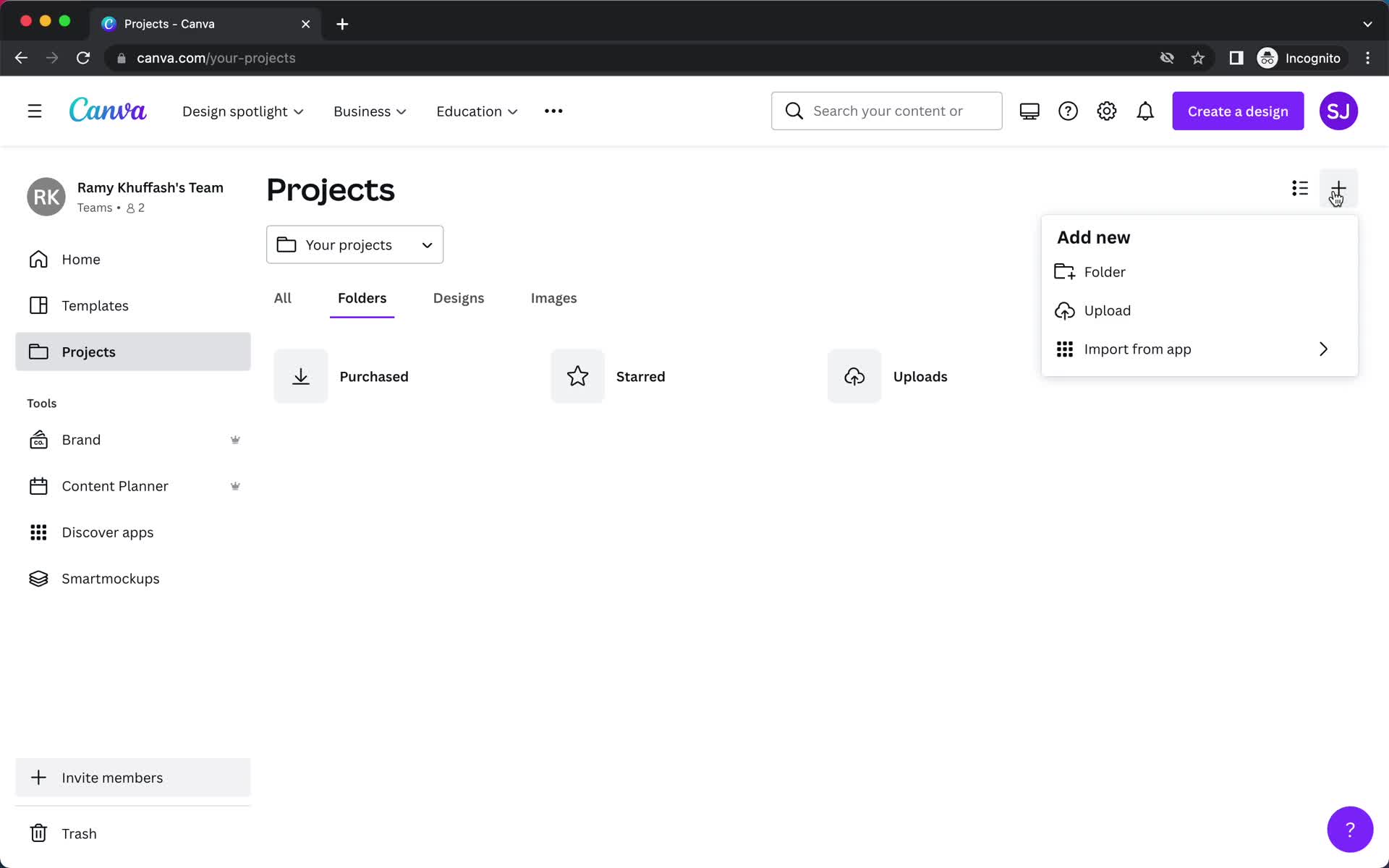
Home
this is title
Projects
this is title
Add
this is title
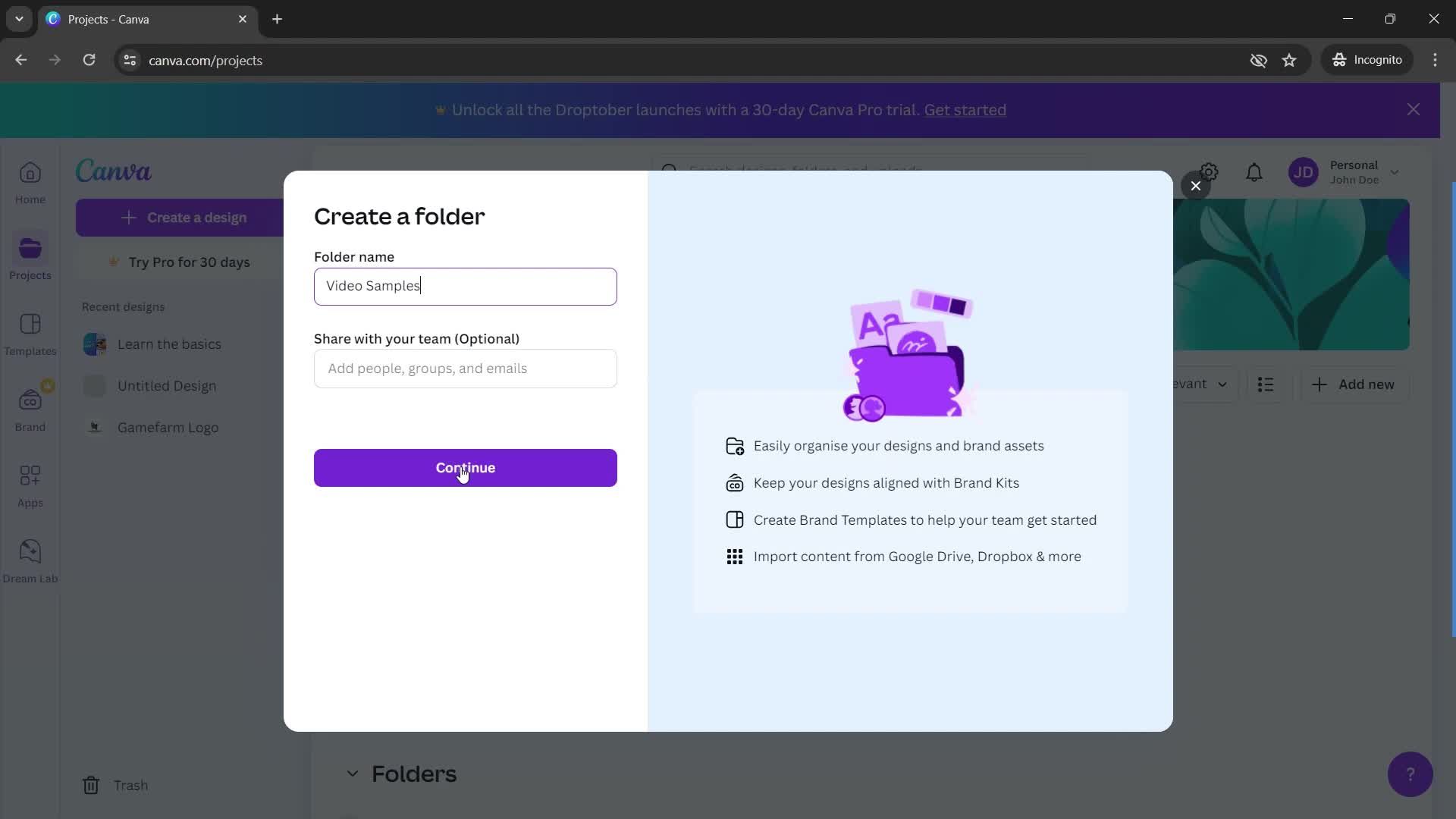
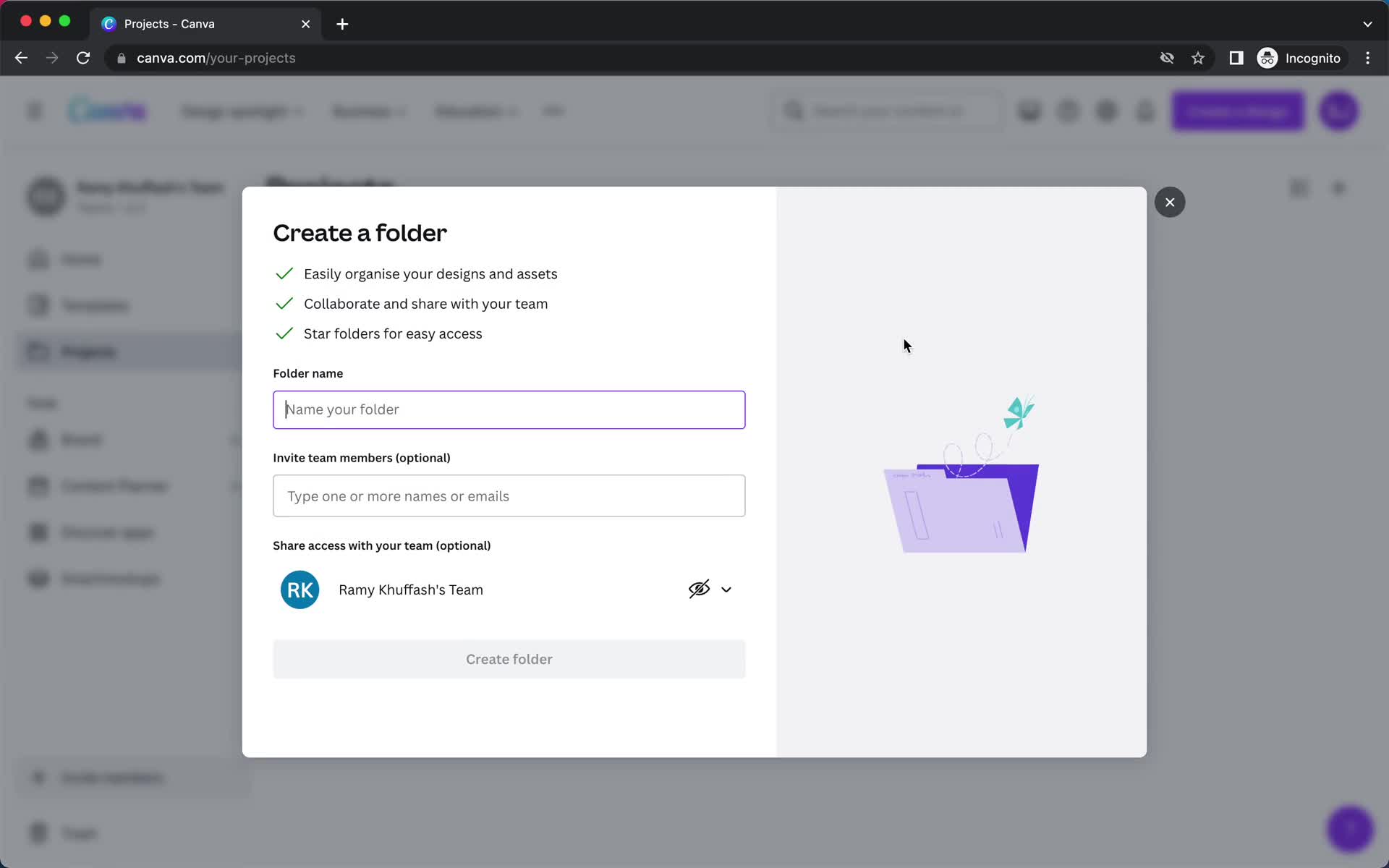
Create folder
this is title
this is title
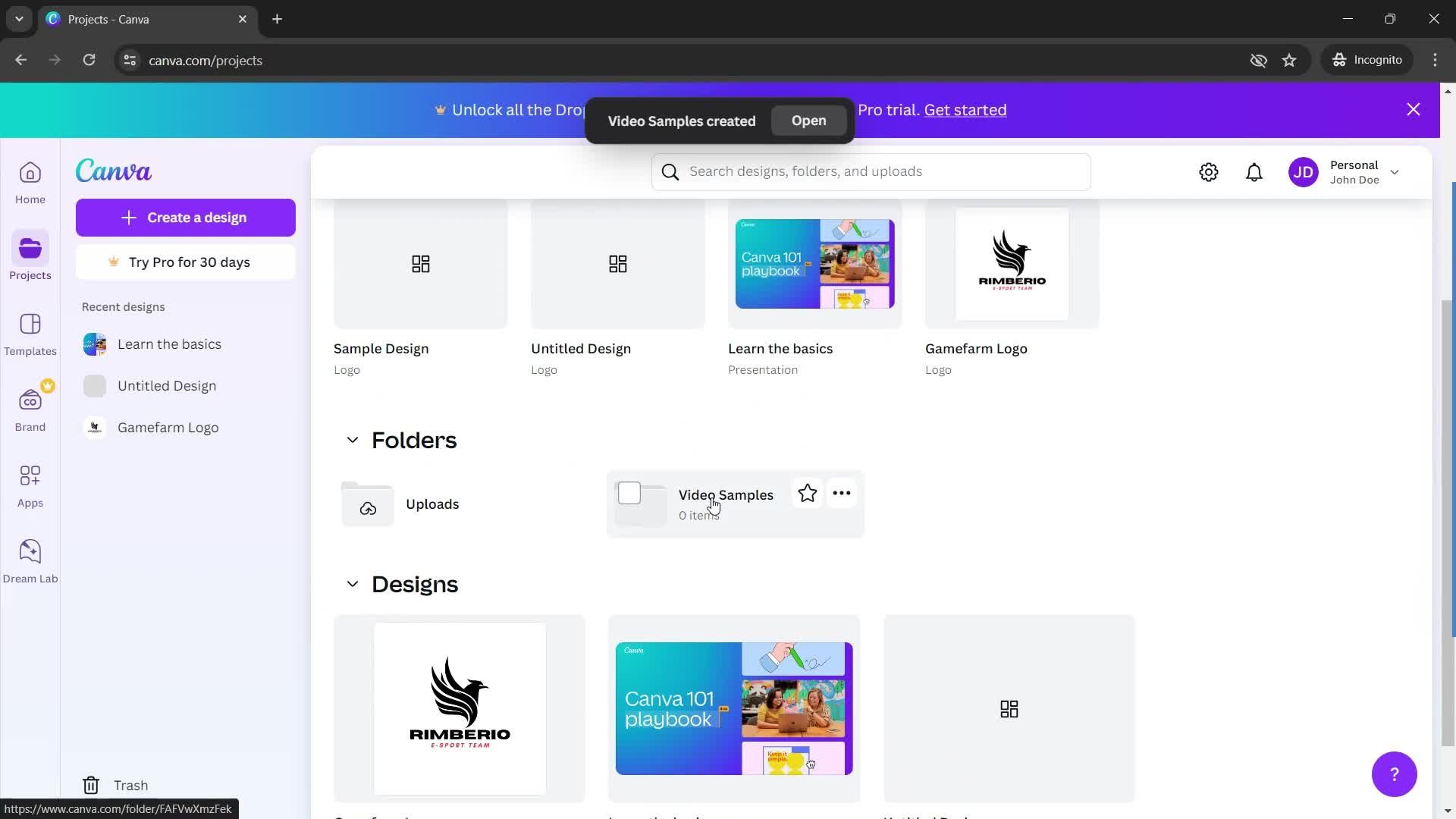
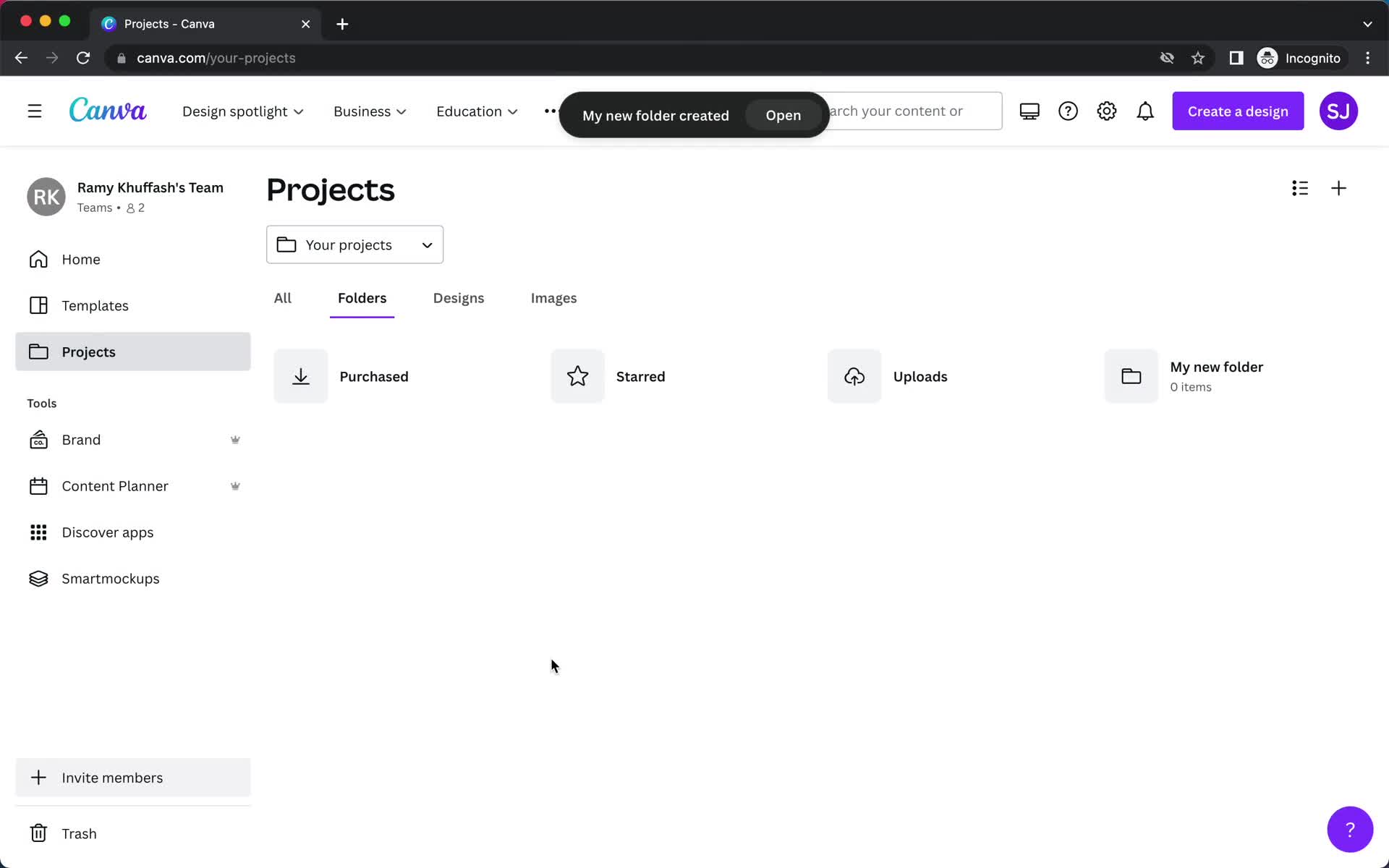
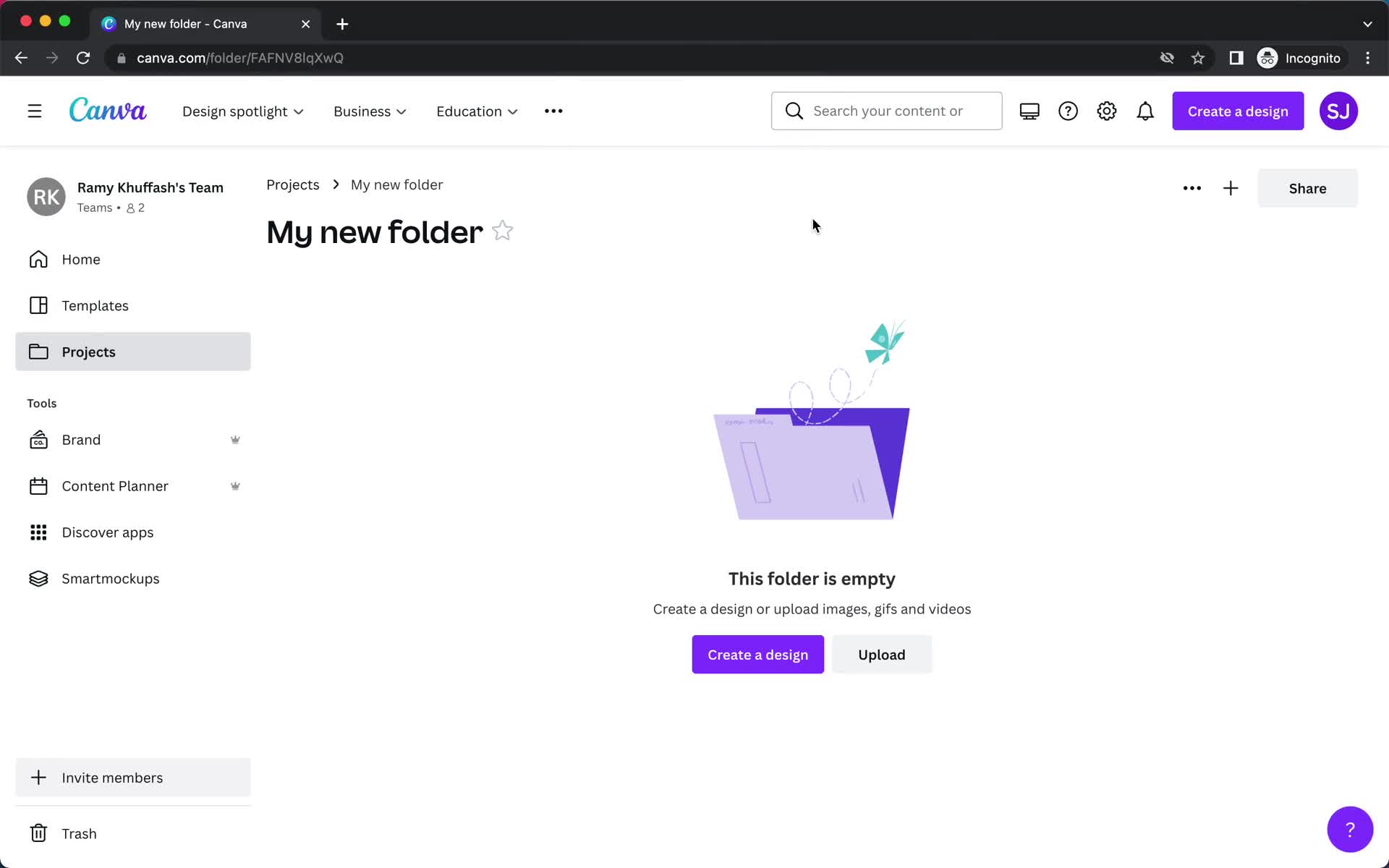
Folder created
this is title
this is title
Home
this is title
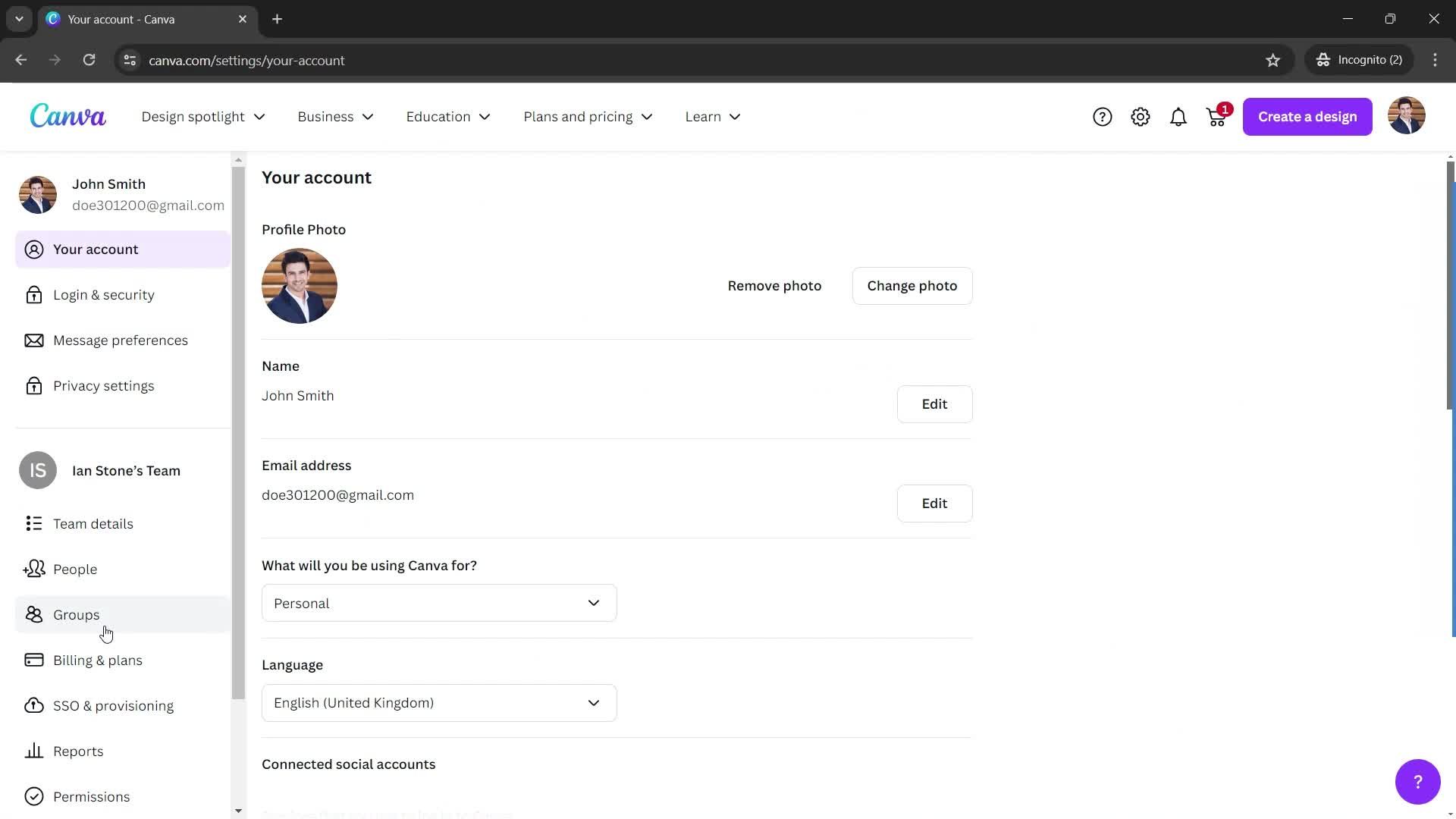
Settings
this is title
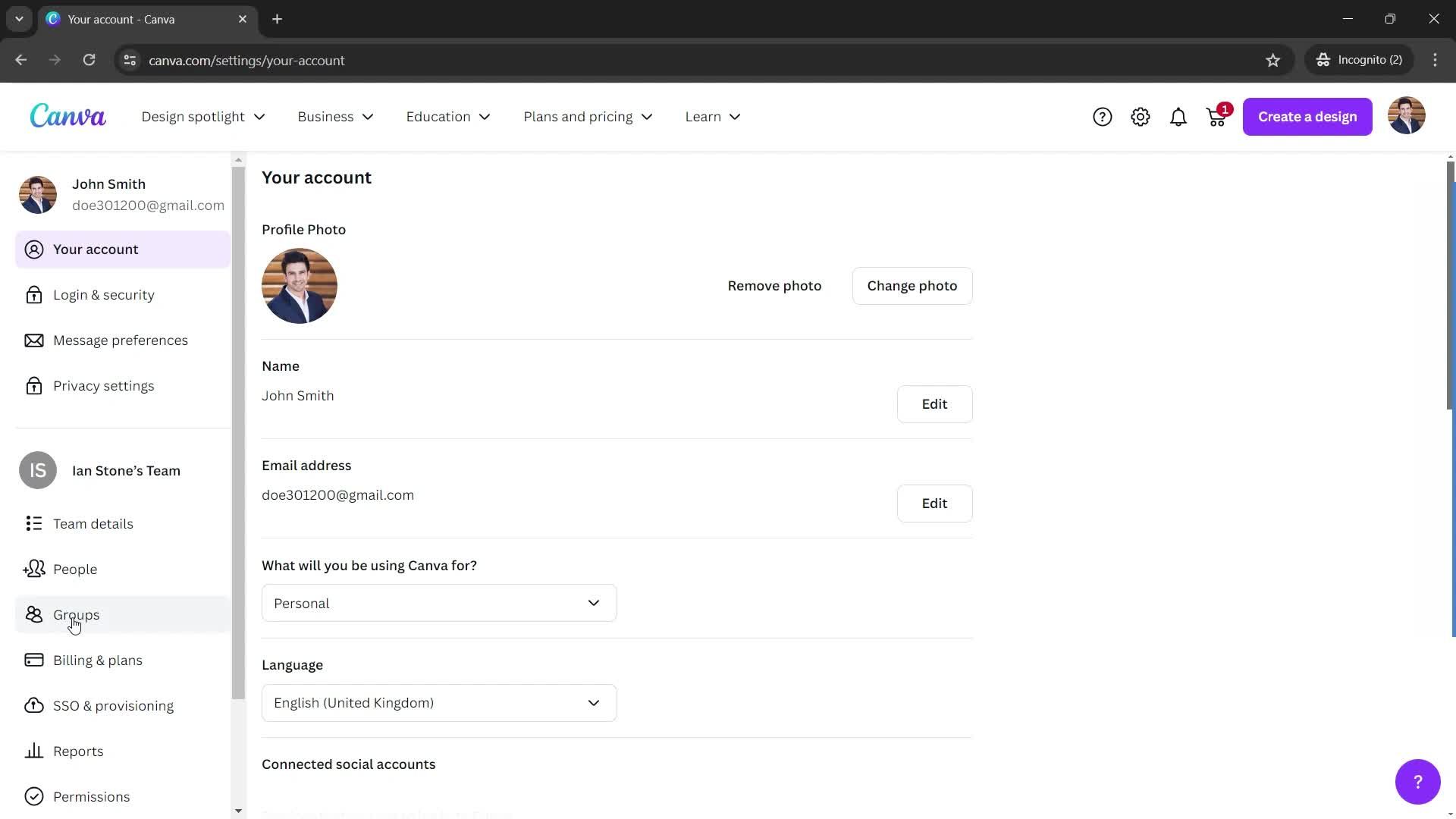
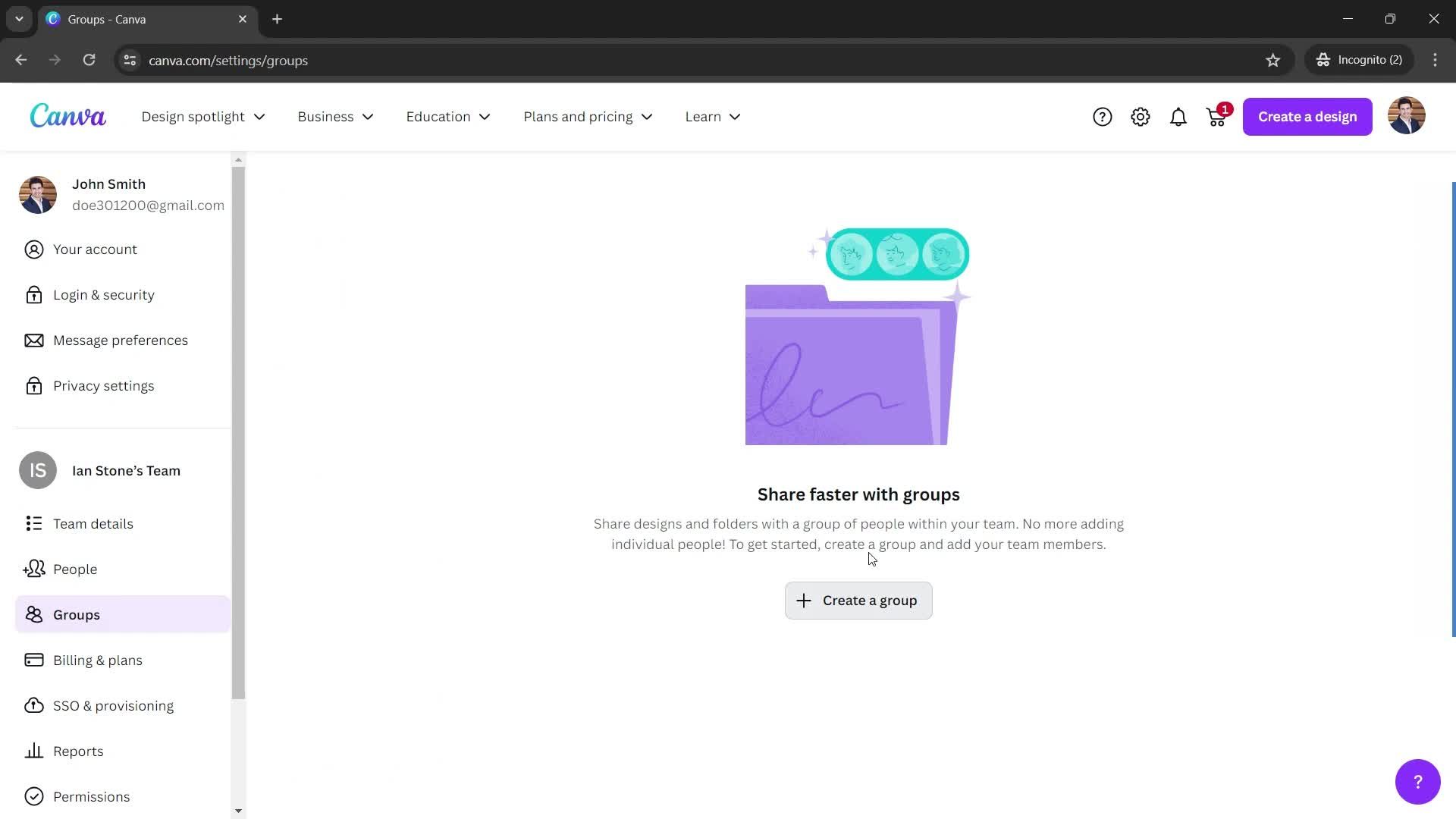
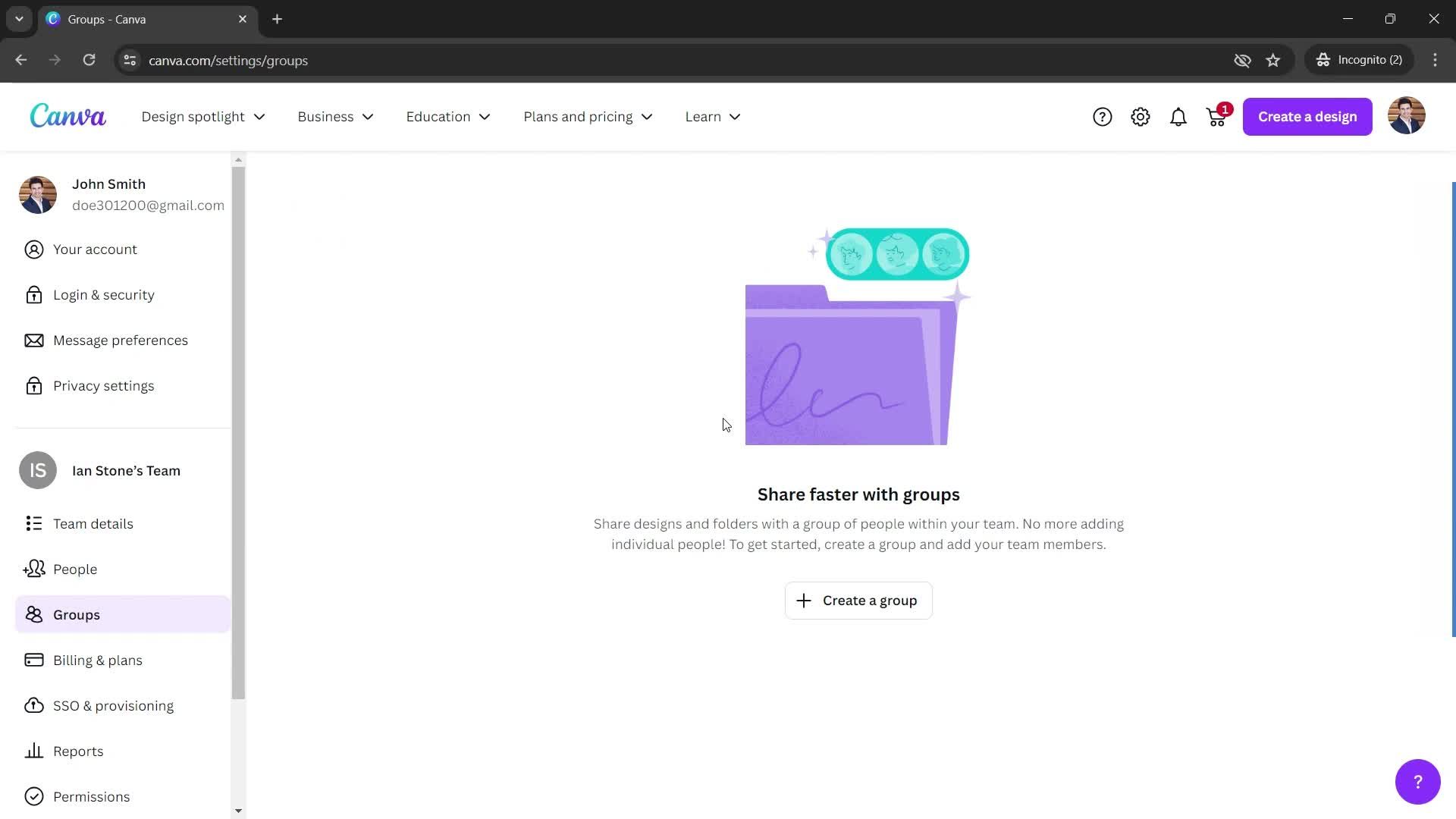
Groups
this is title
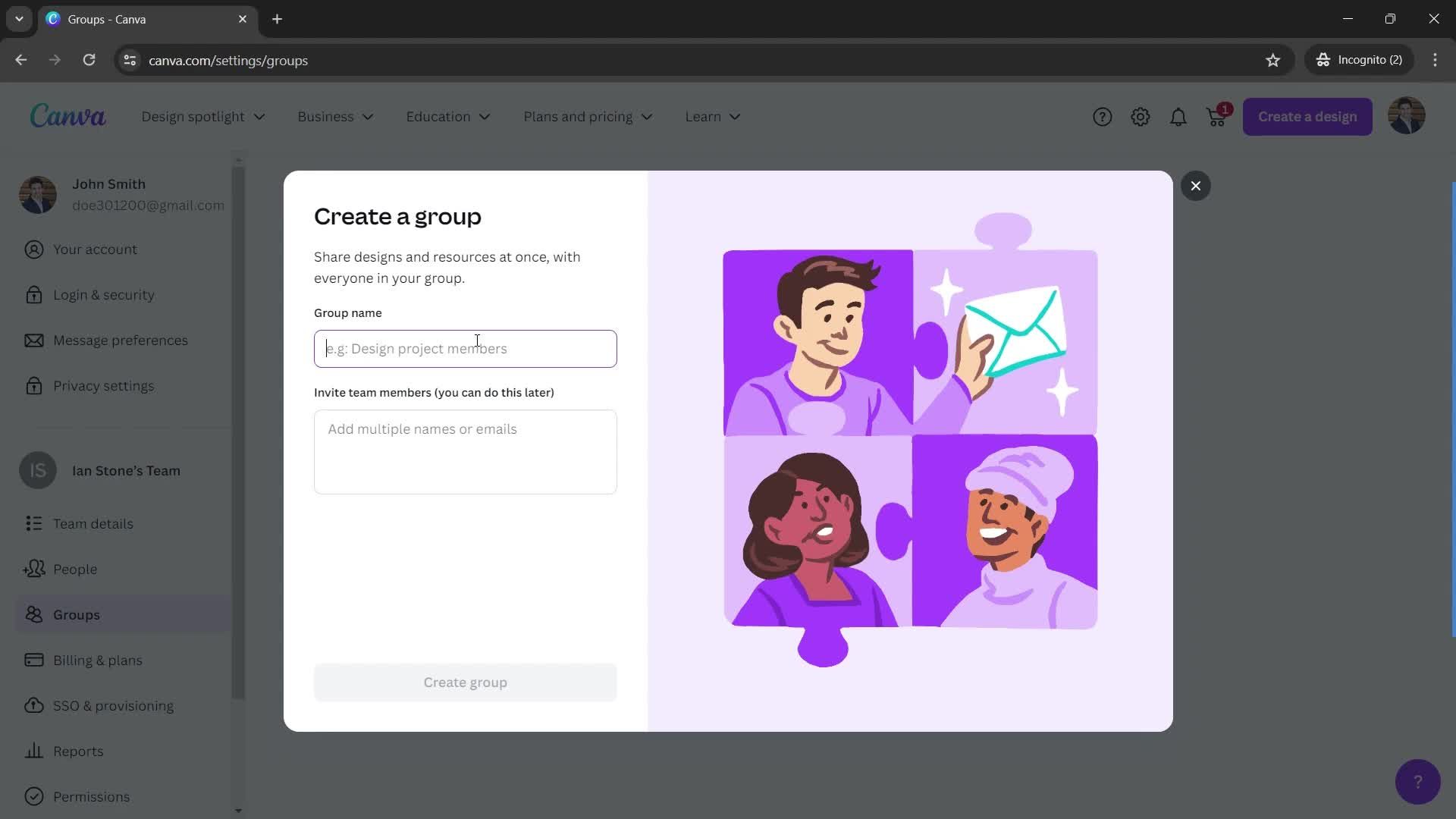
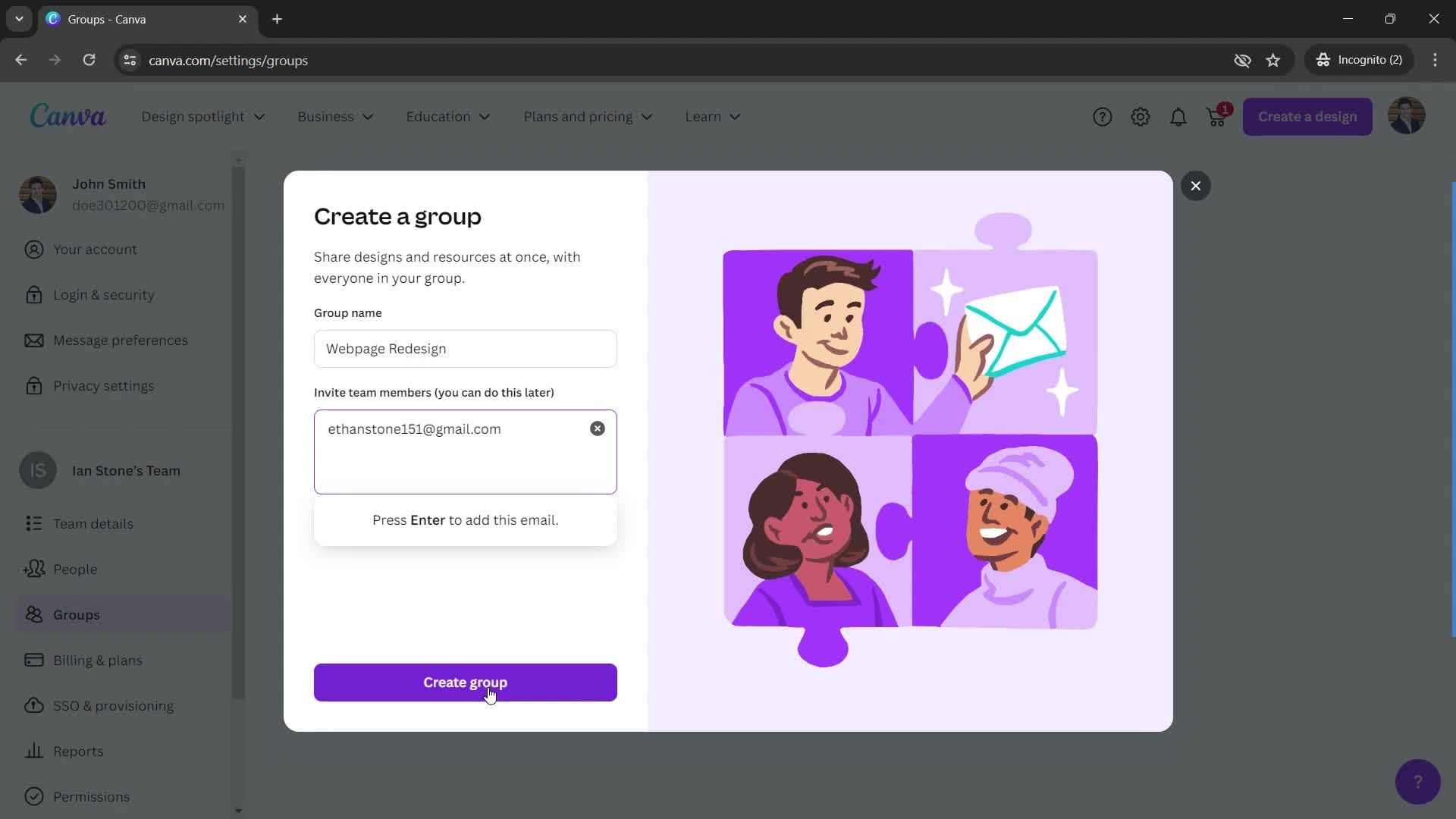
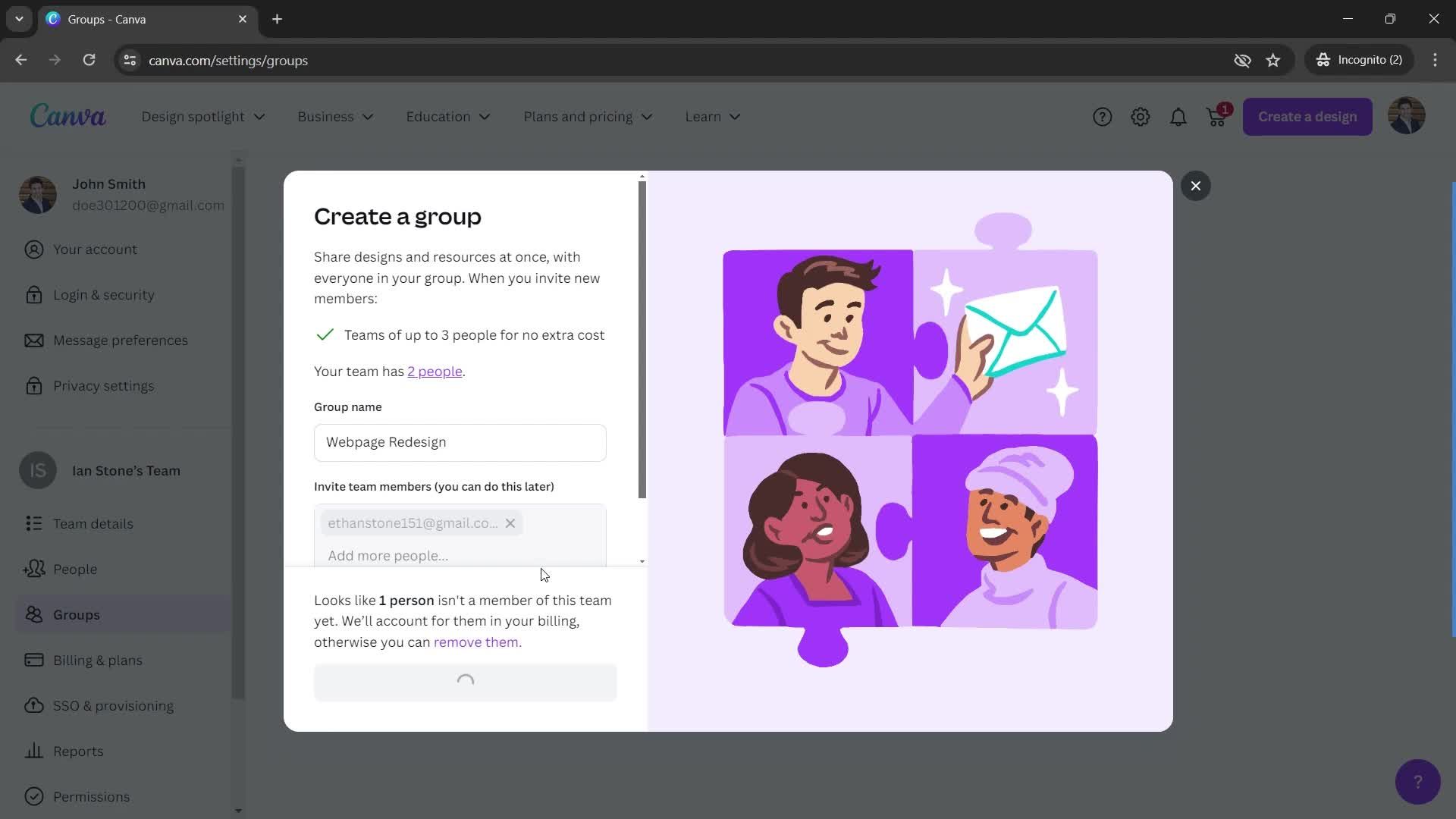
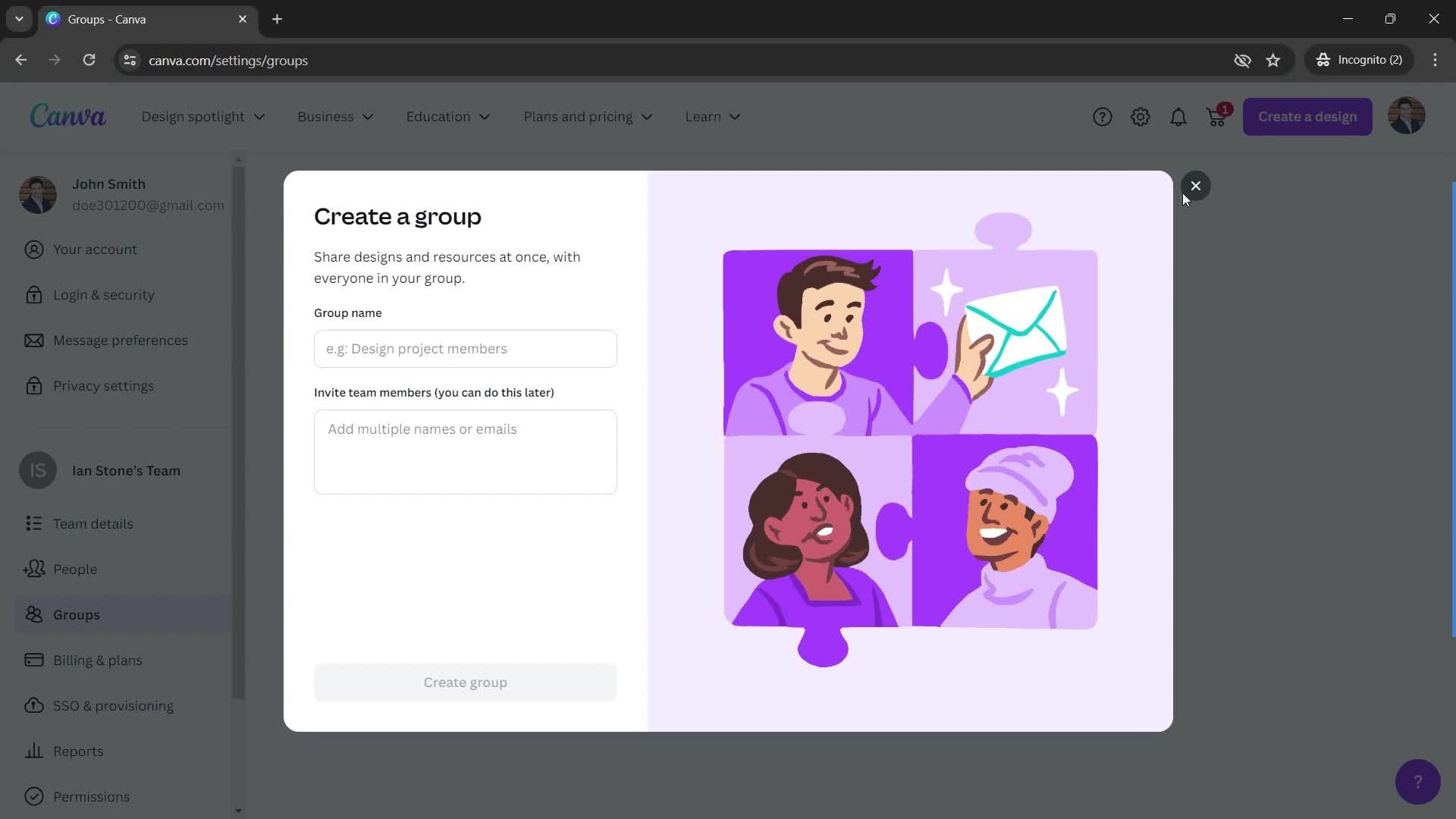
Create group
this is title
this is title
this is title
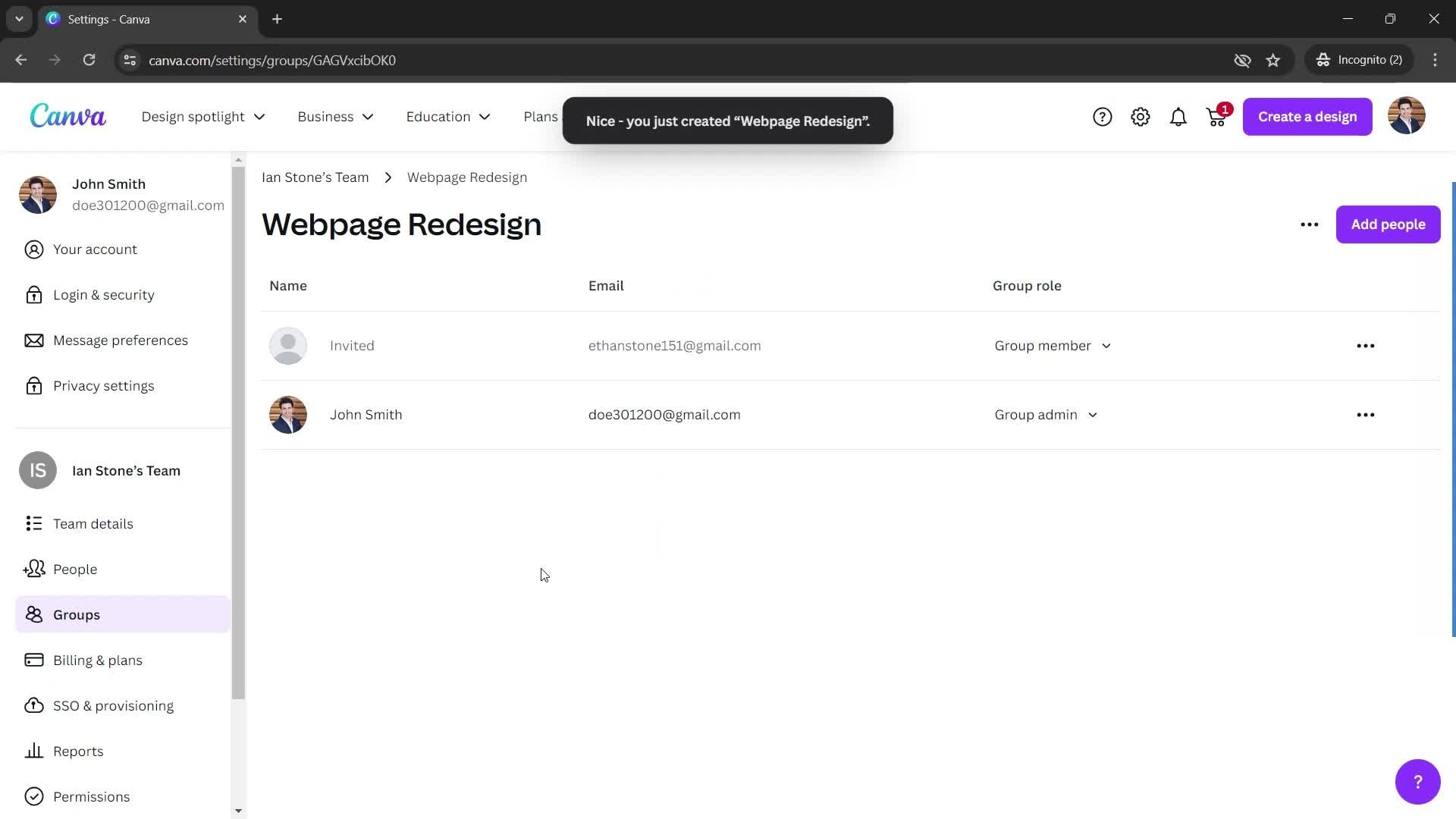
Group created
this is title
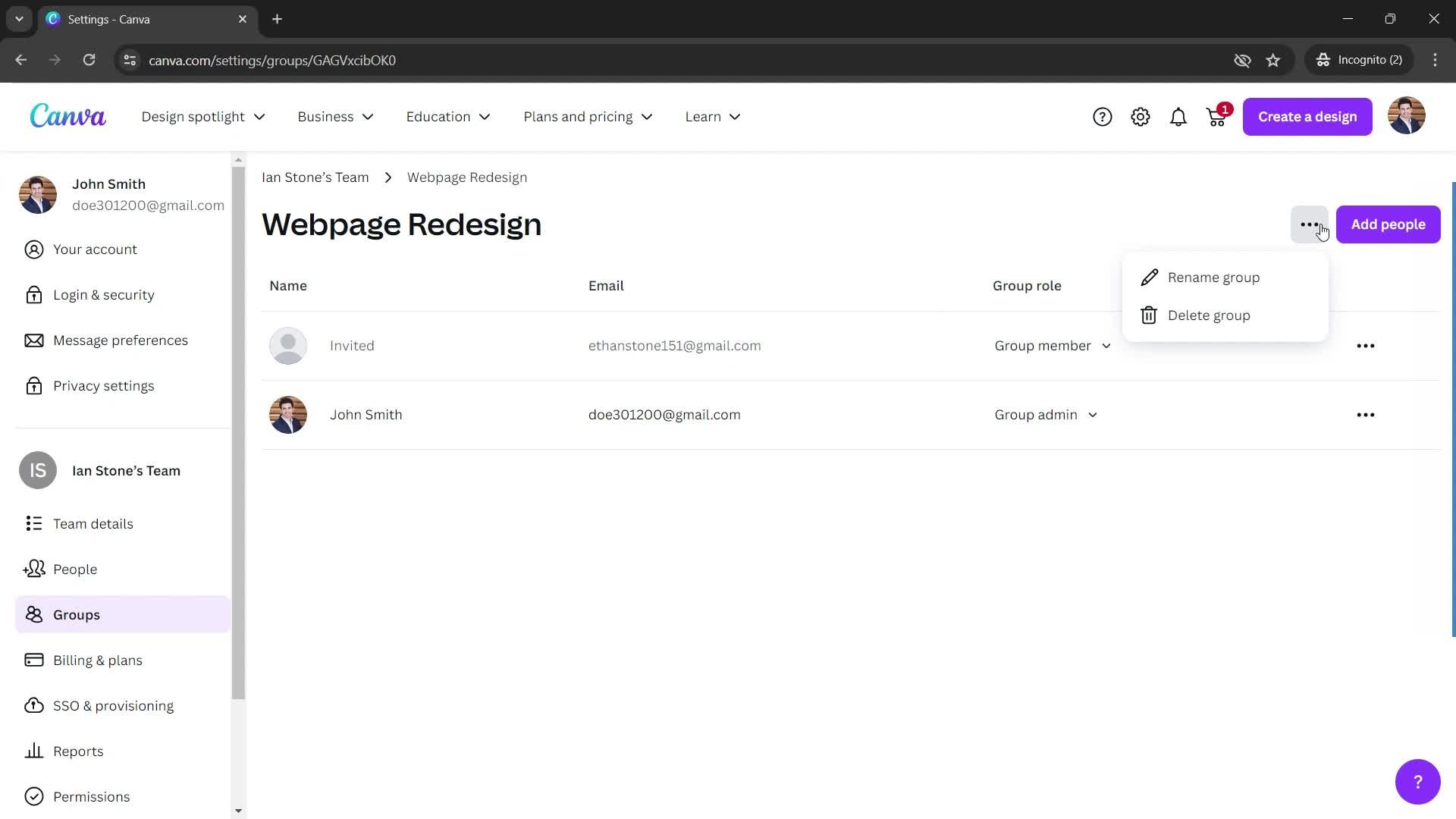
Action menu
this is title
Home
this is title
Category
this is title
Editor
this is title
Template details
this is title
Editor
this is title
Editor
this is title
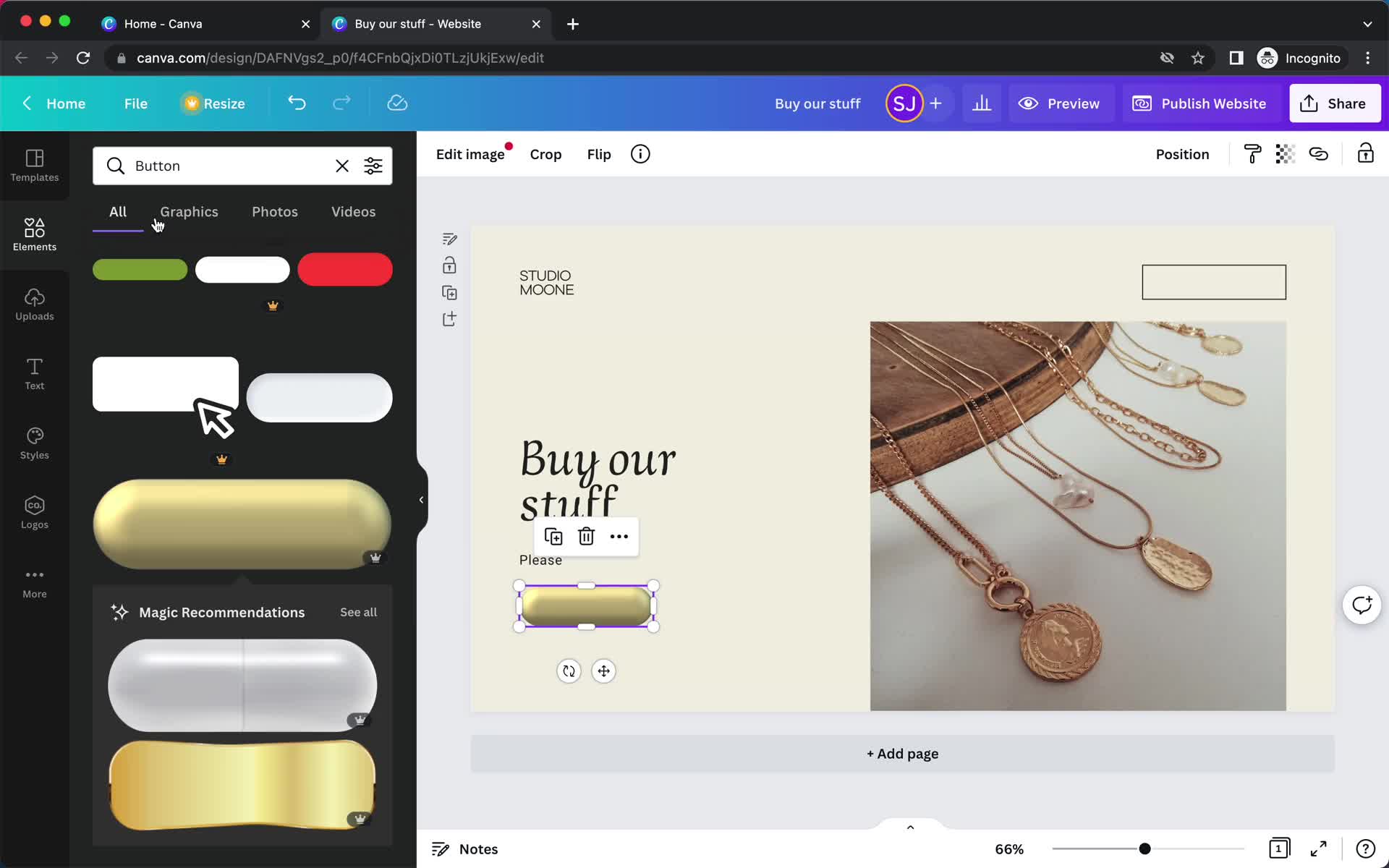
Graphics
this is title
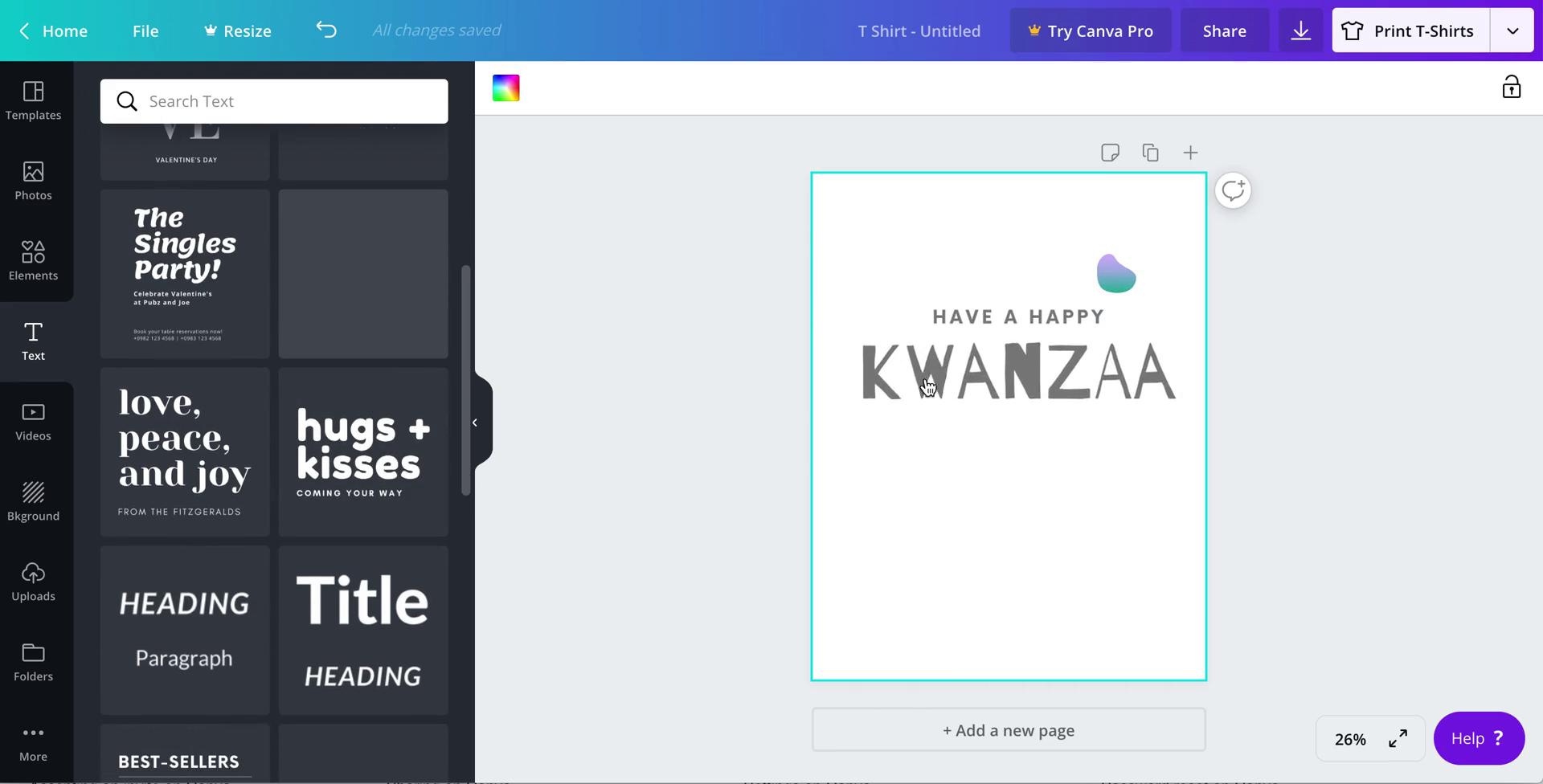
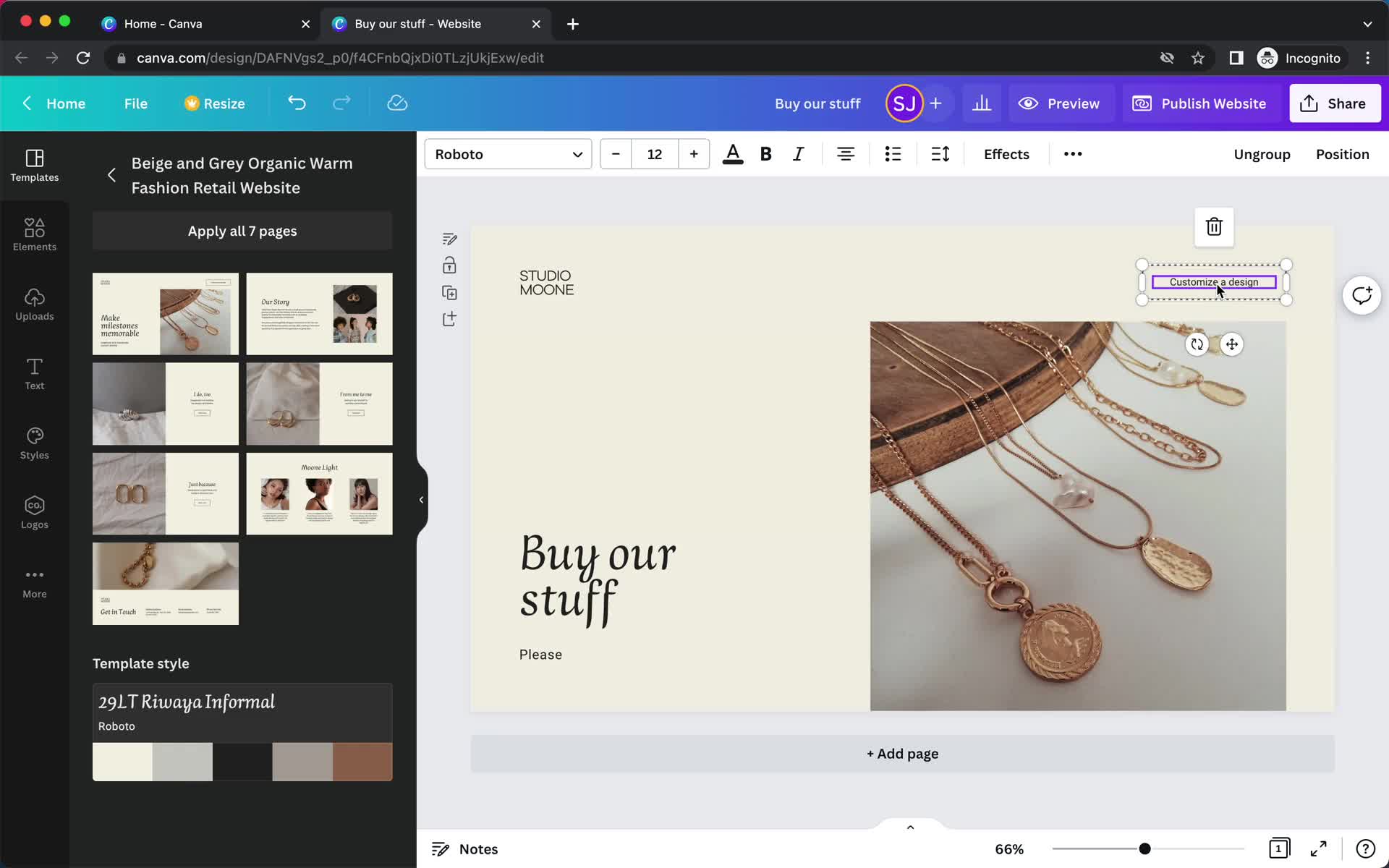
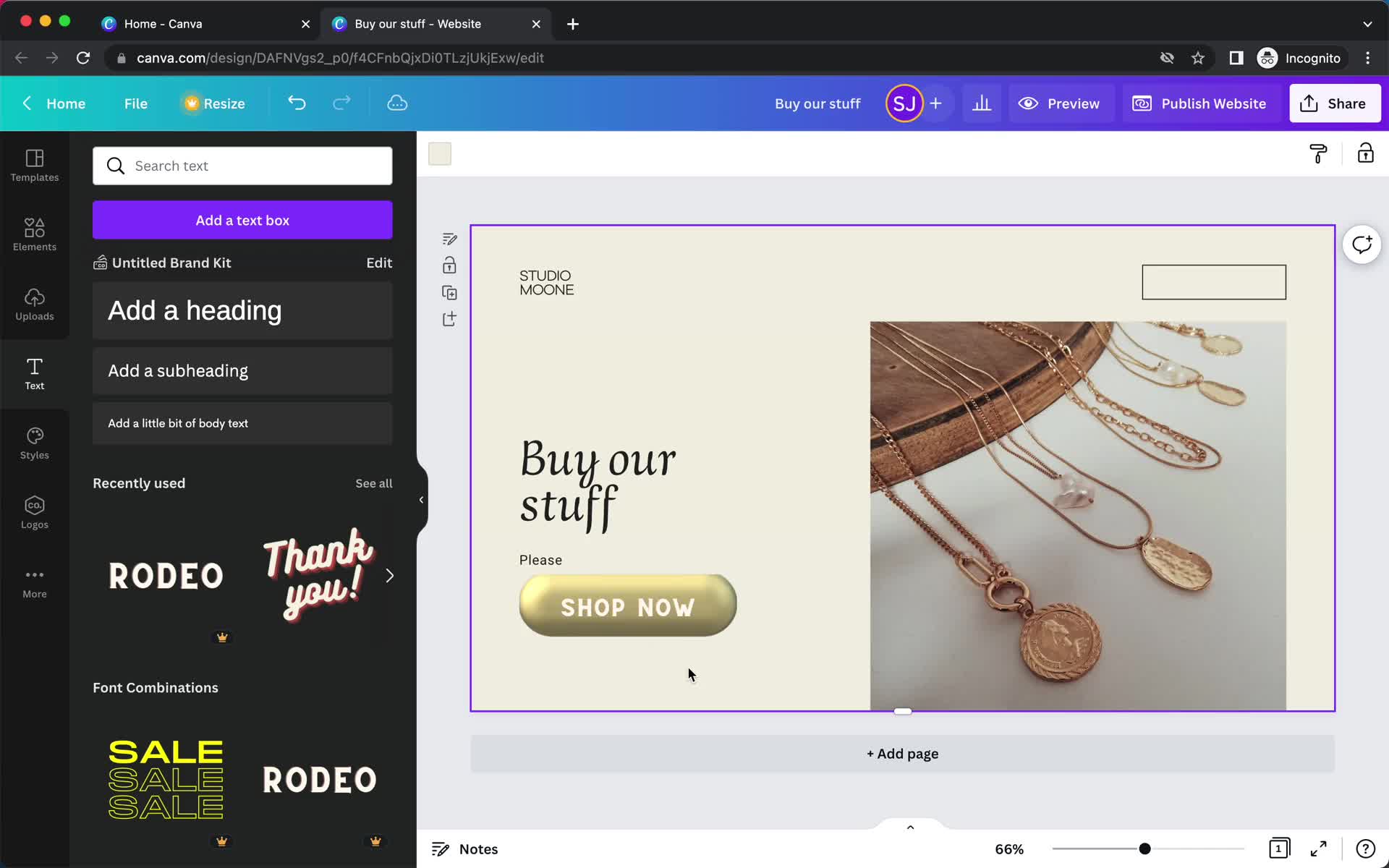
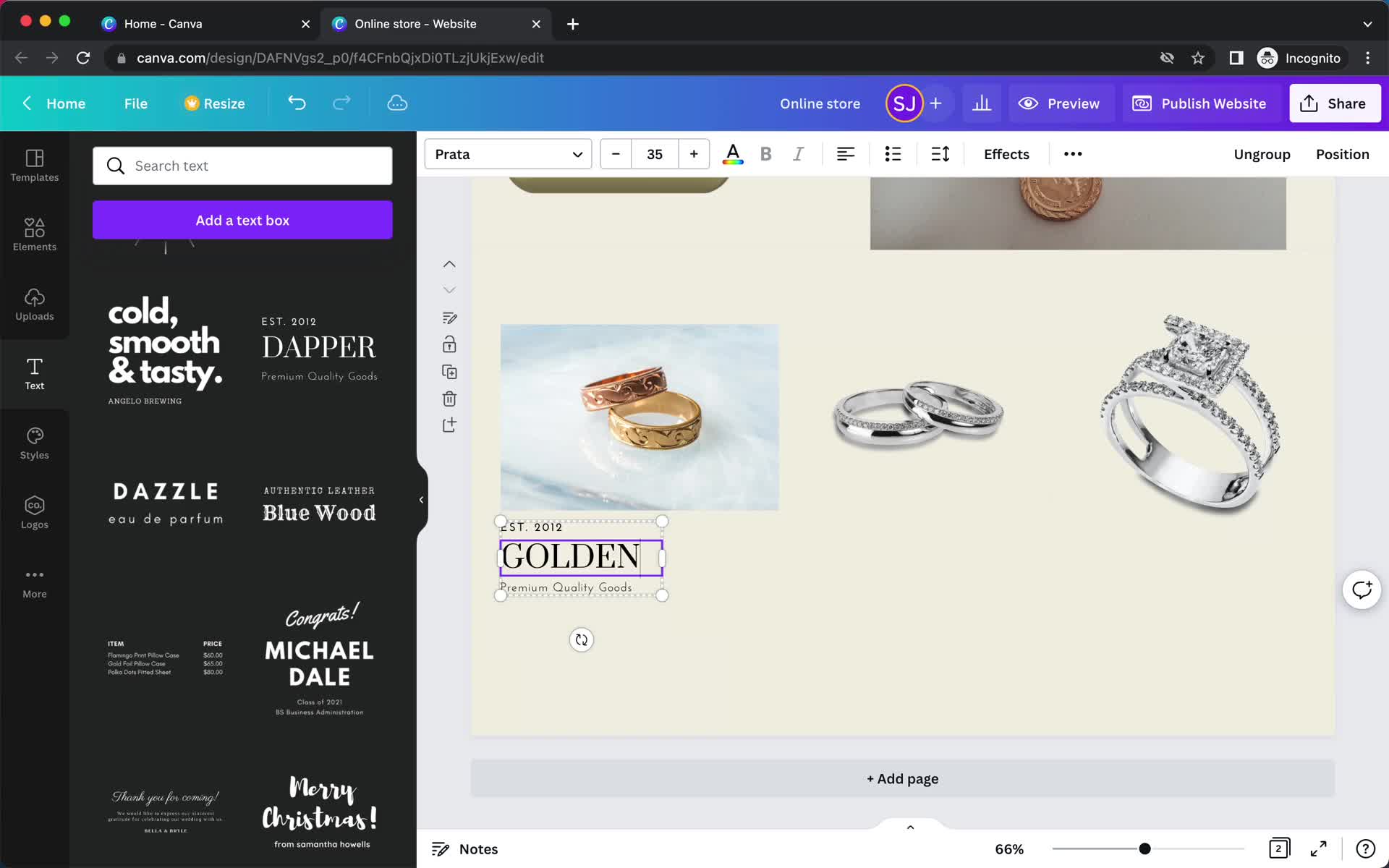
Add text
this is title
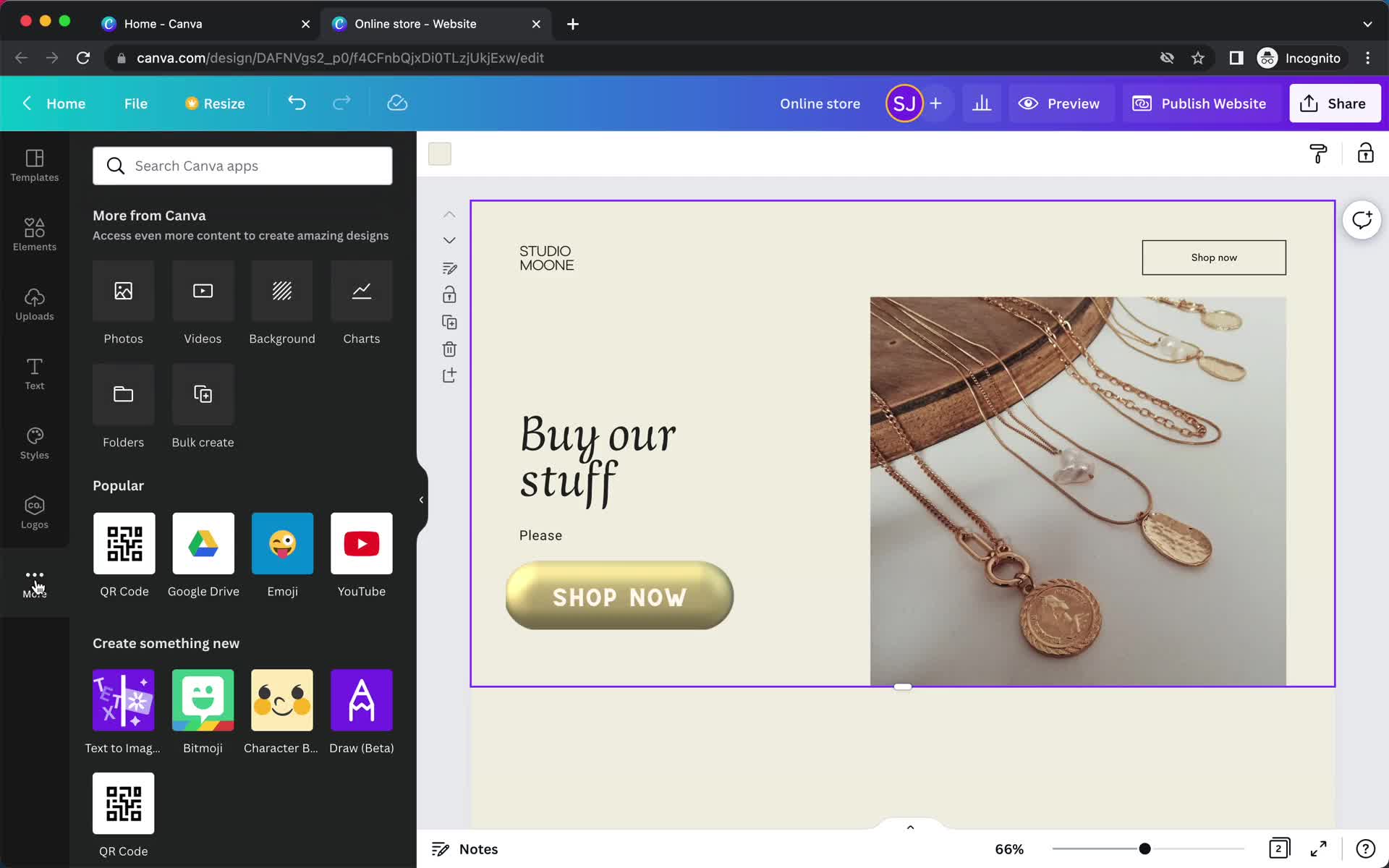
Integrations
this is title
Template details
this is title
Pages
this is title
Editor
this is title
Editor
this is title
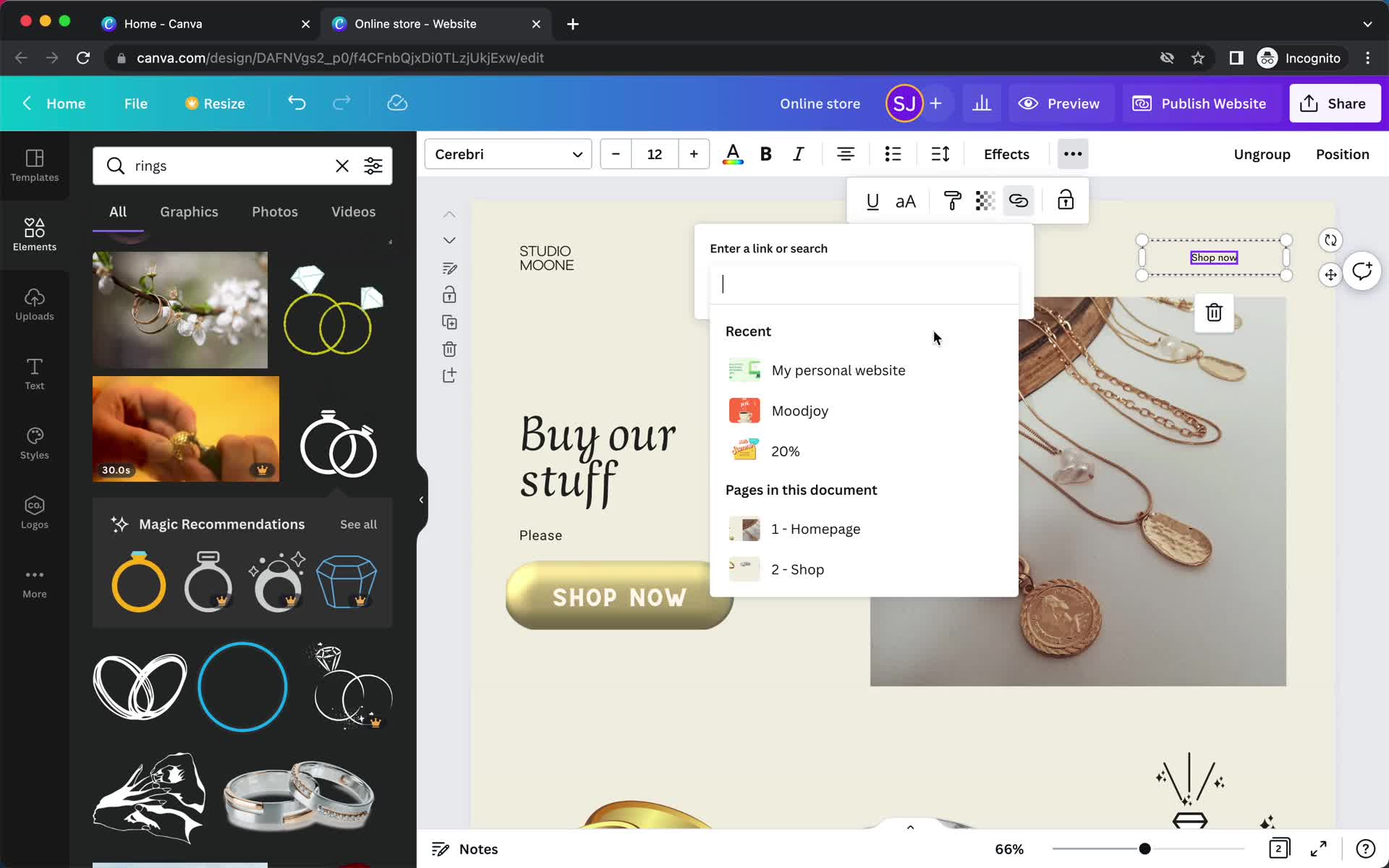
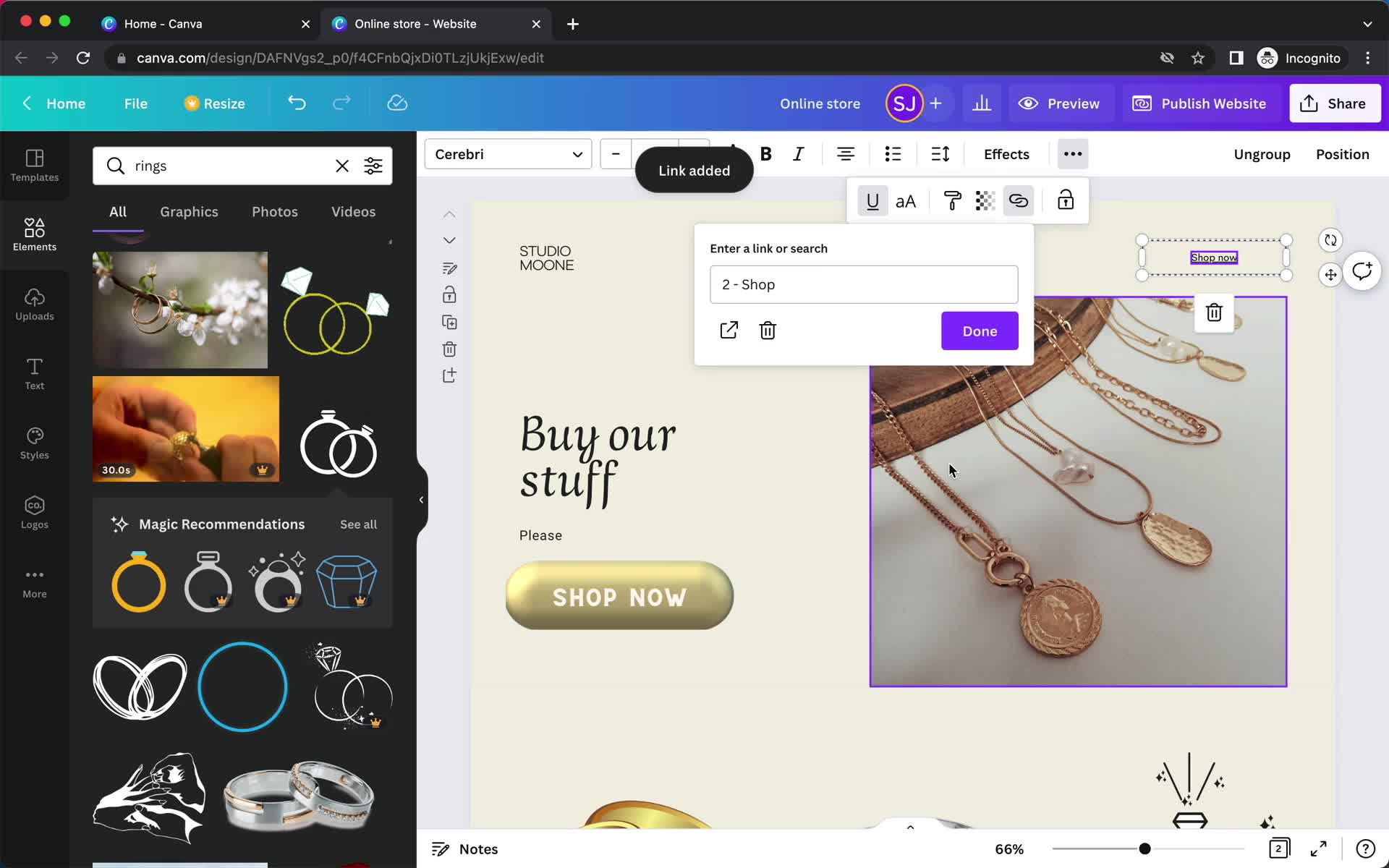
Add link
this is title
Add link
this is title
Editor
this is title
Editor
this is title
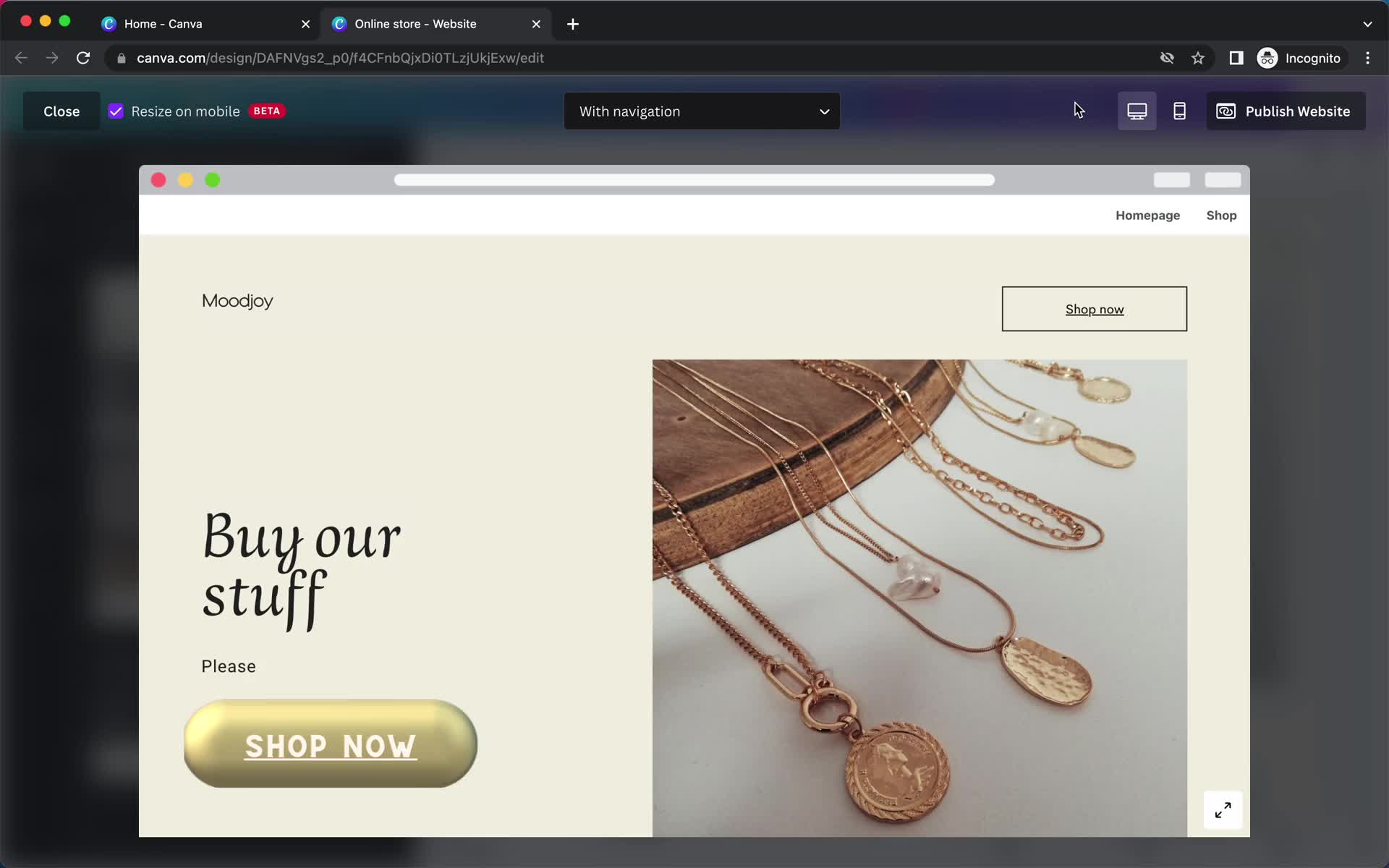
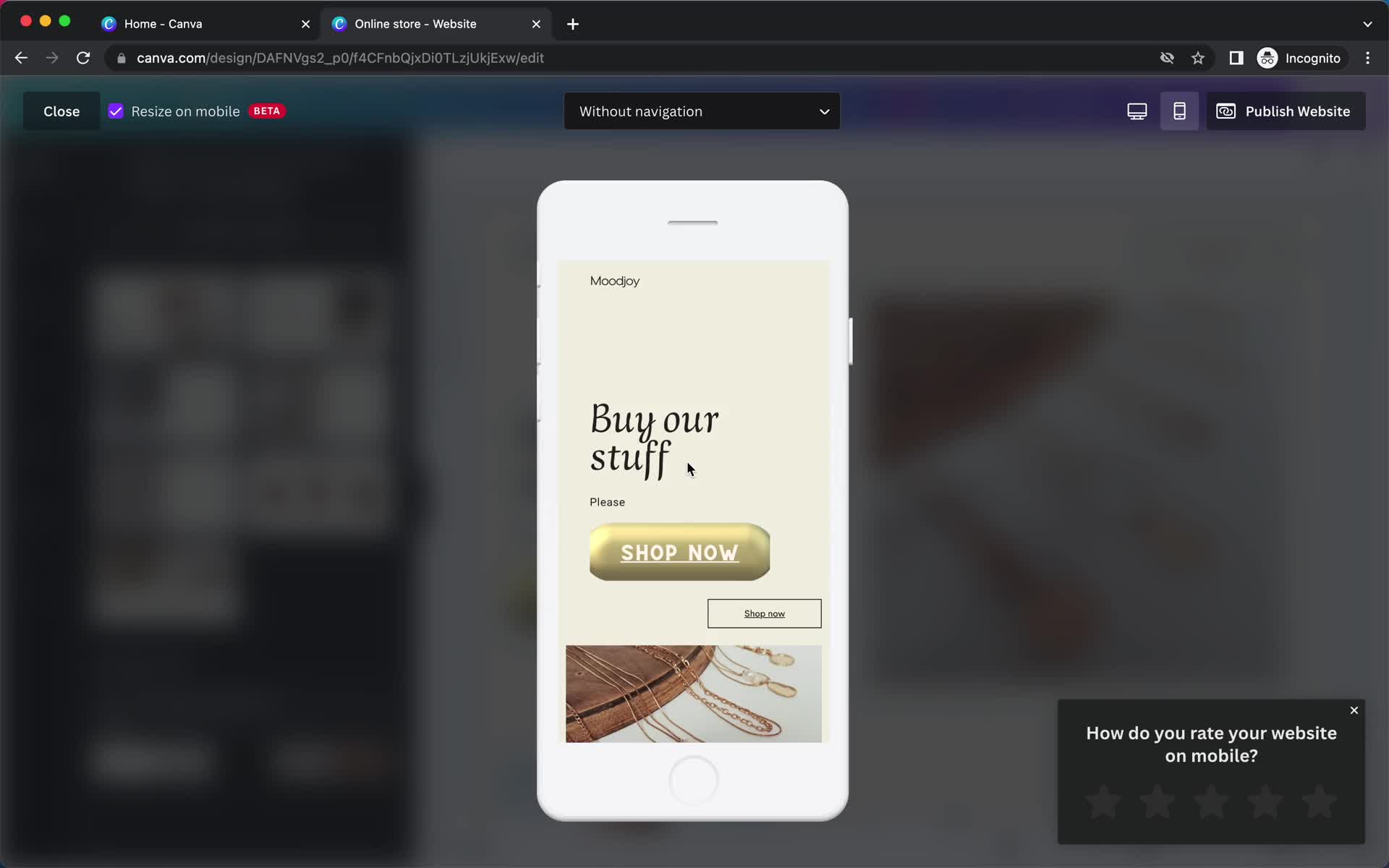
Website preview
this is title
Website preview
this is title
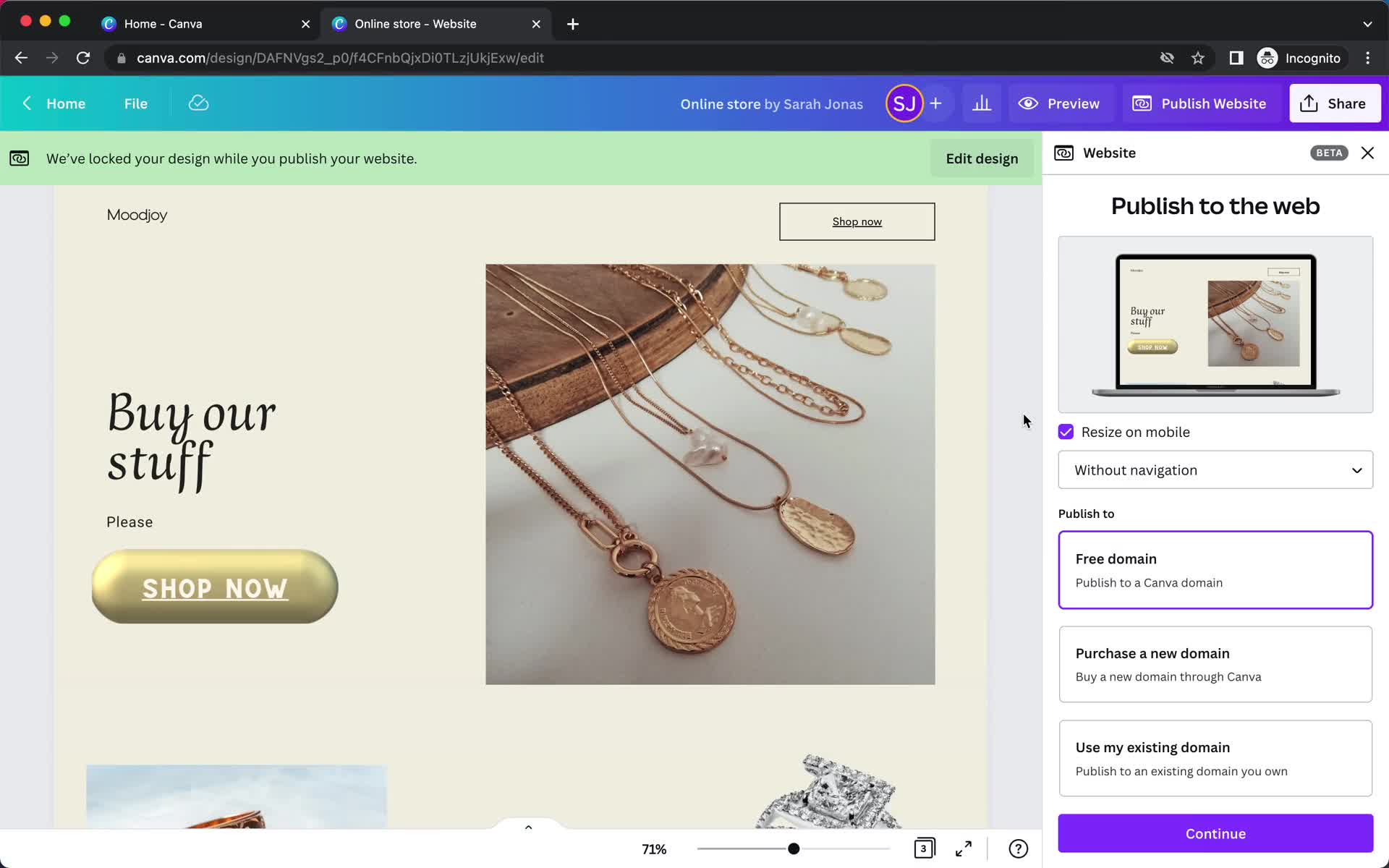
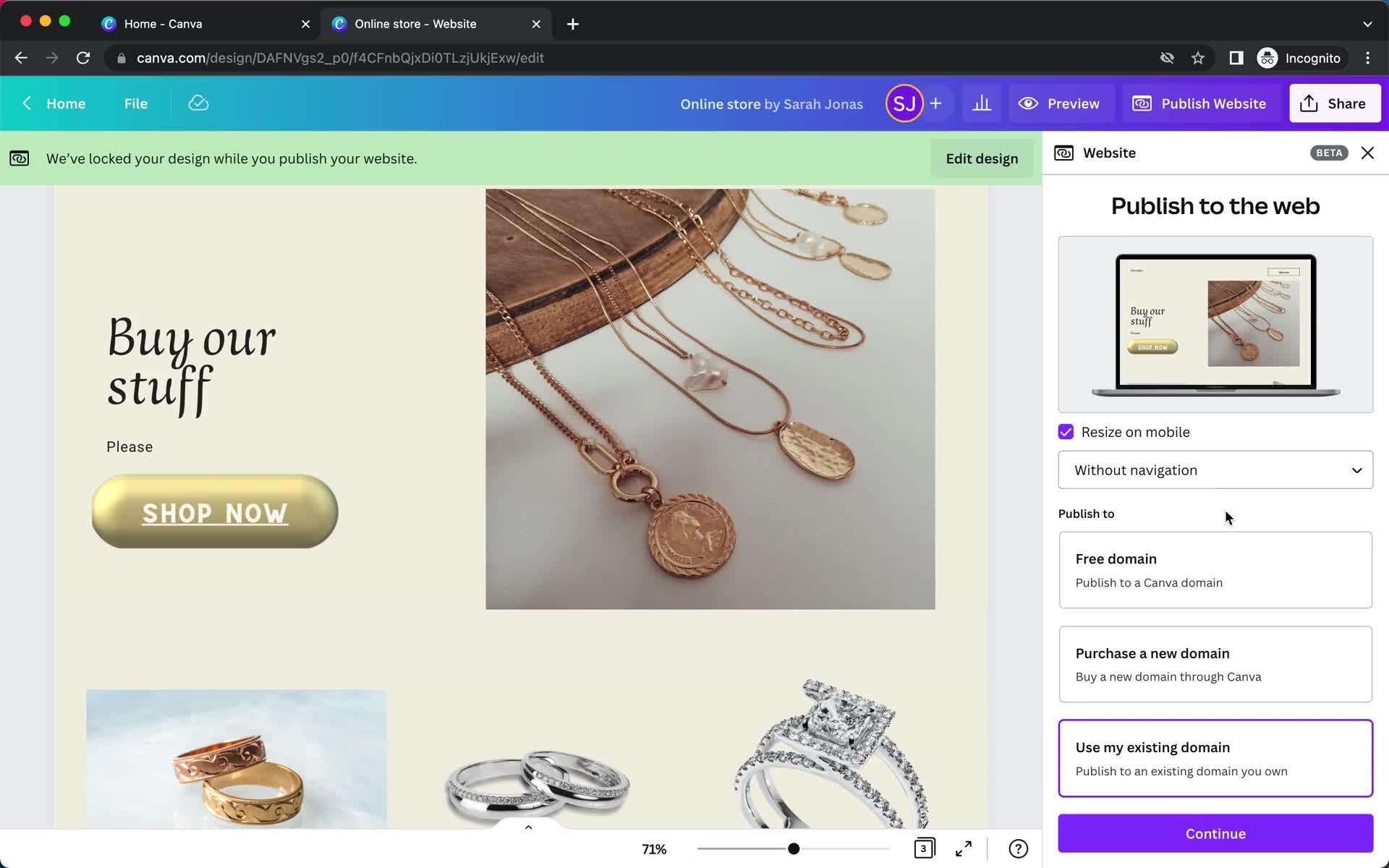
Publish
this is title
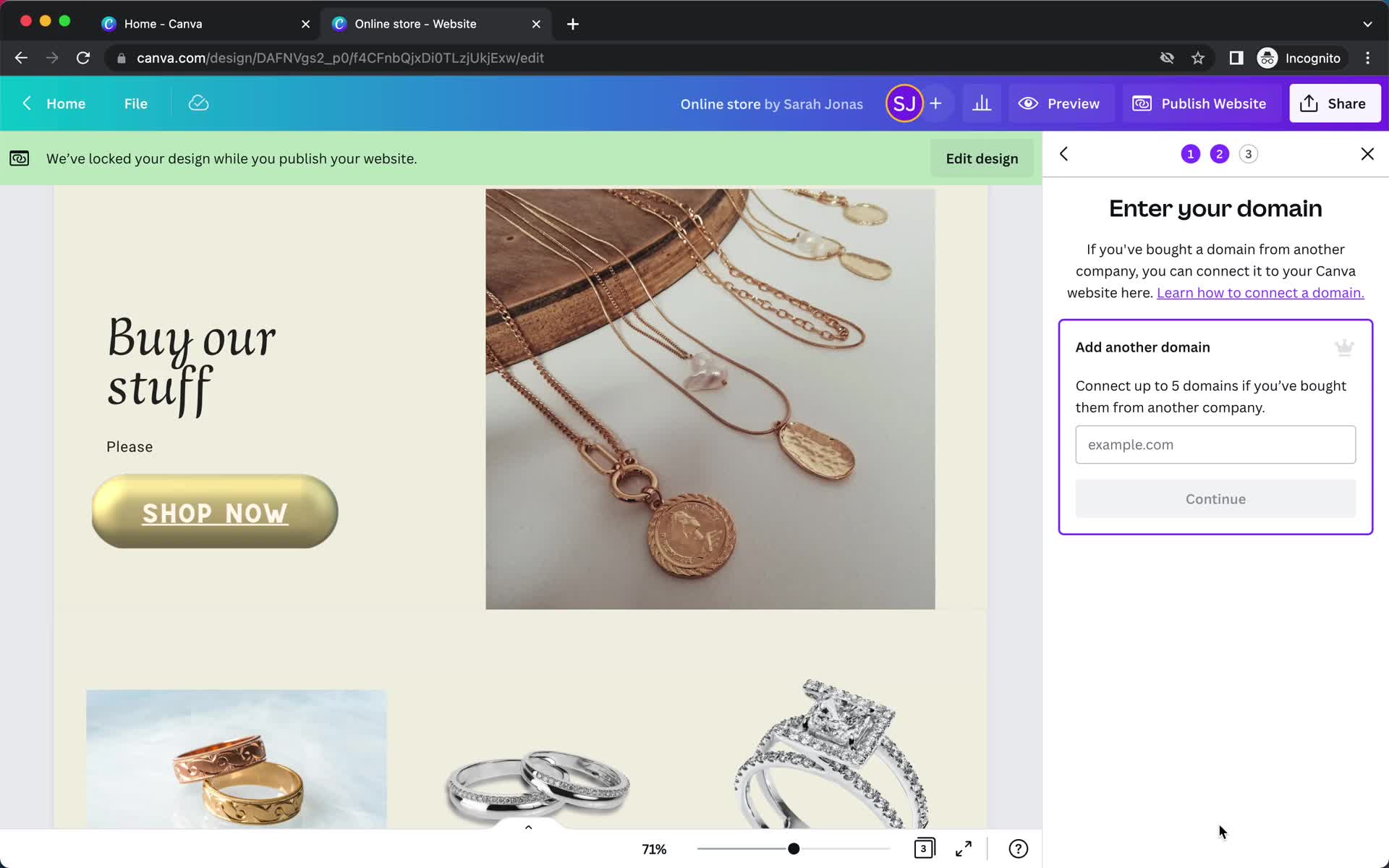
Add domain
this is title
Publish
this is title
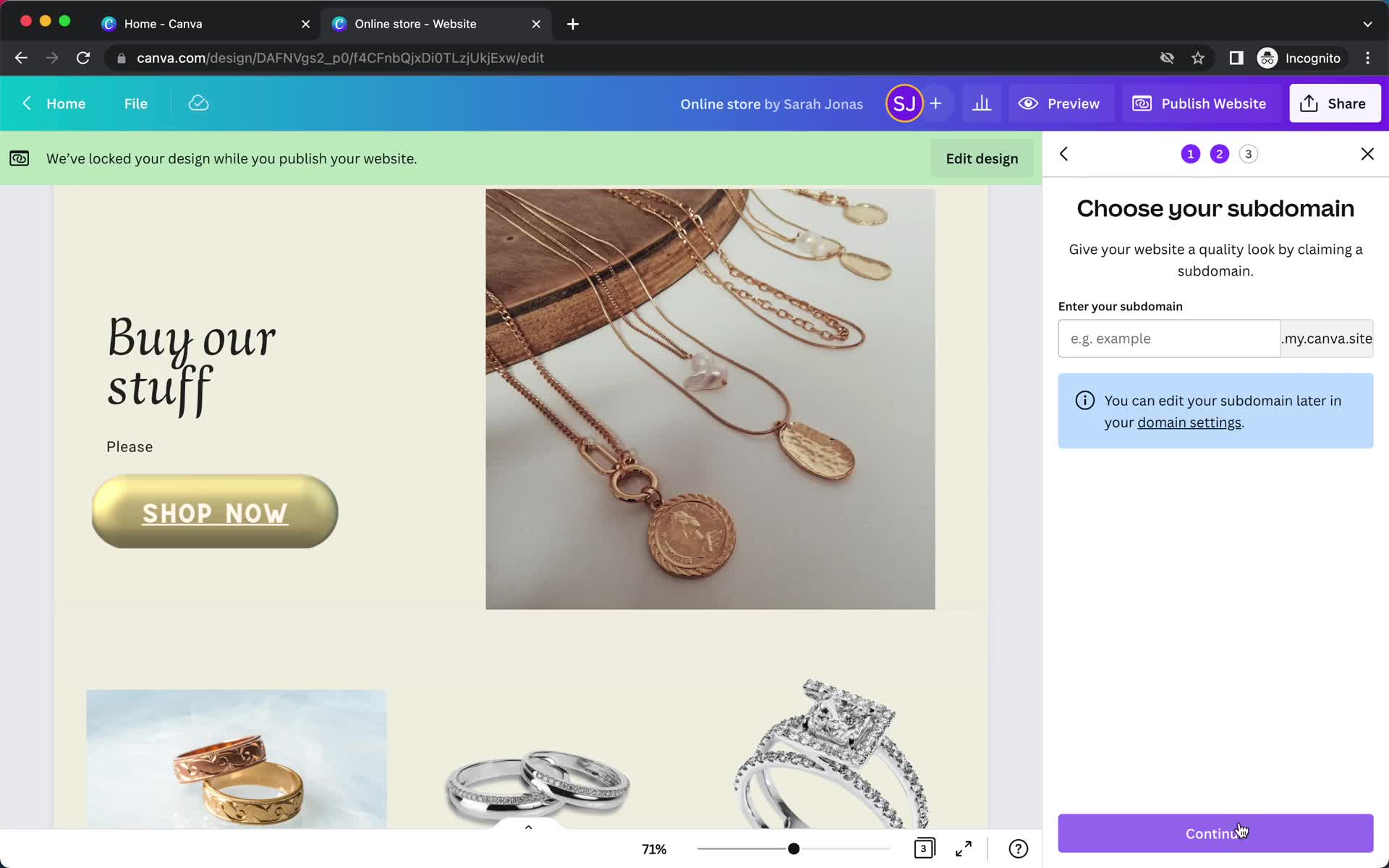
Set domain
this is title
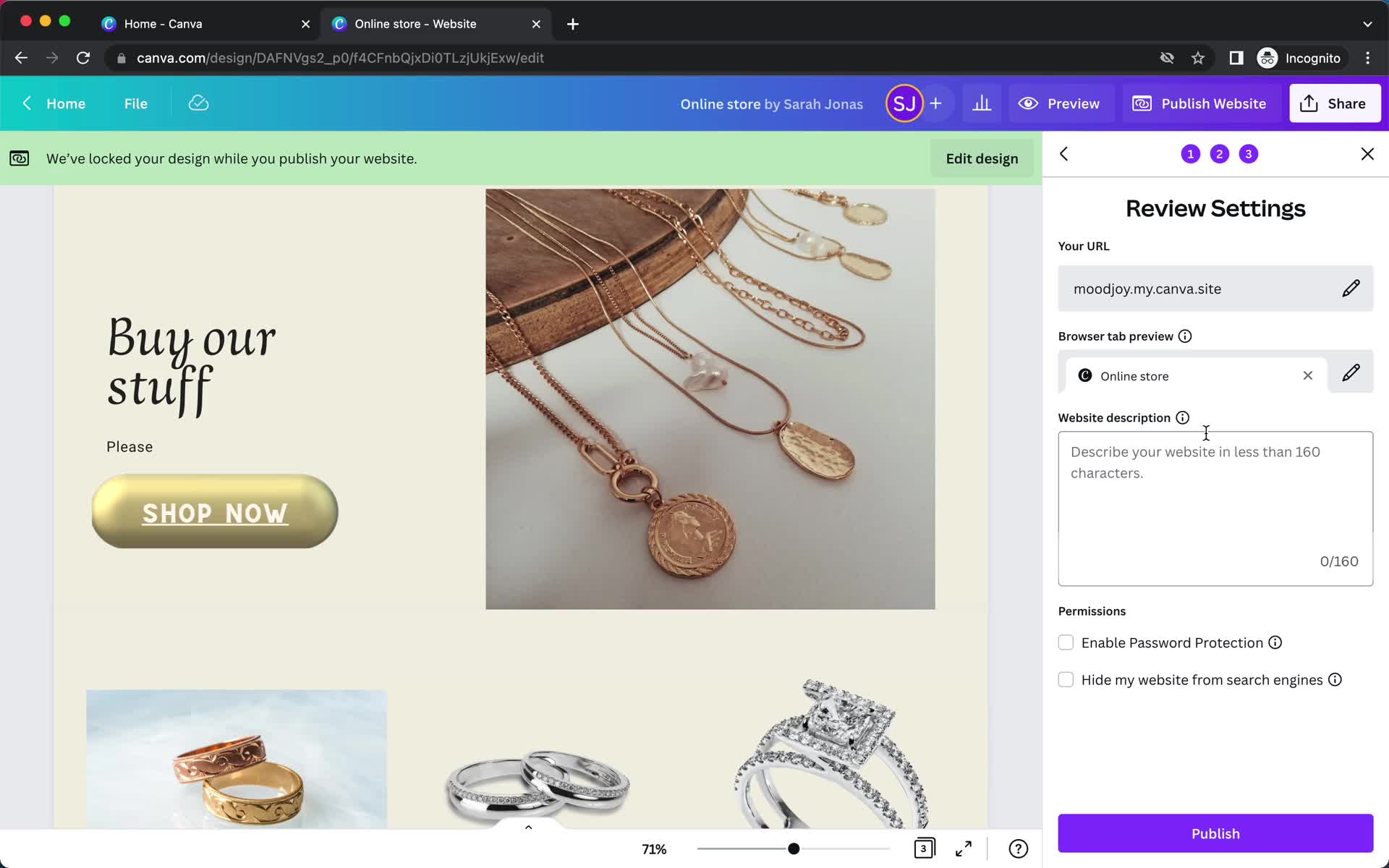
Review settings
this is title
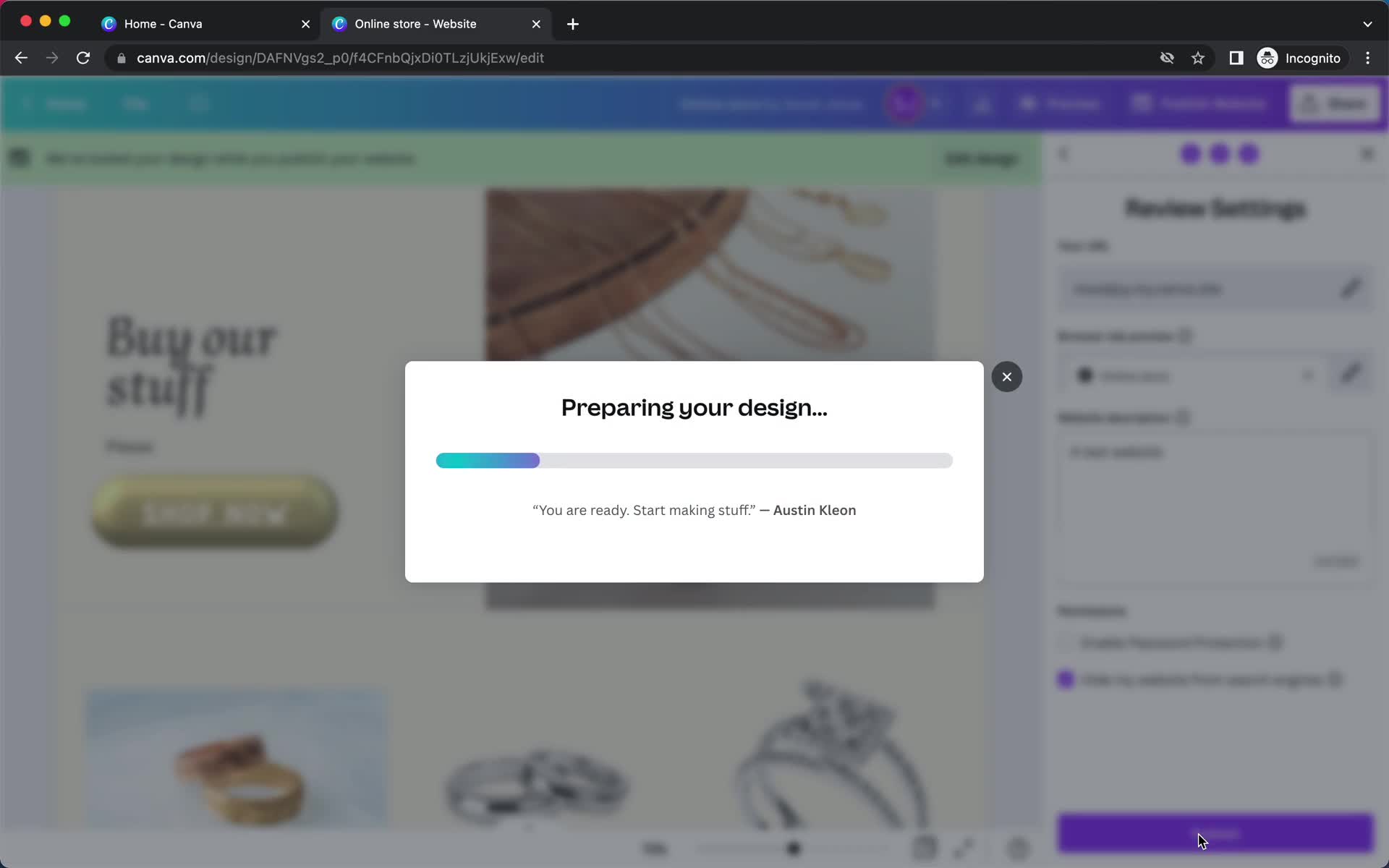
Publishing
this is title
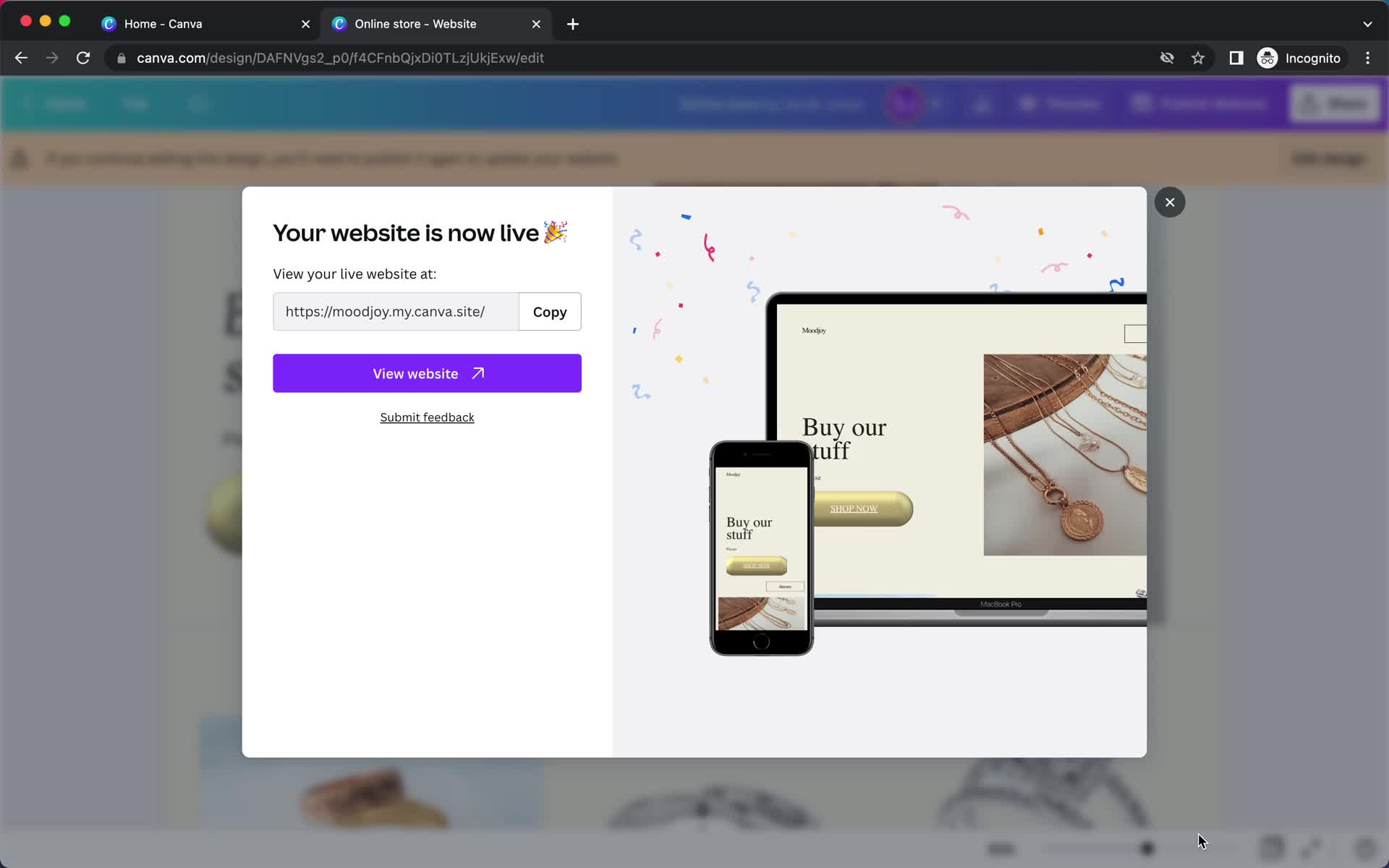
Published
this is title
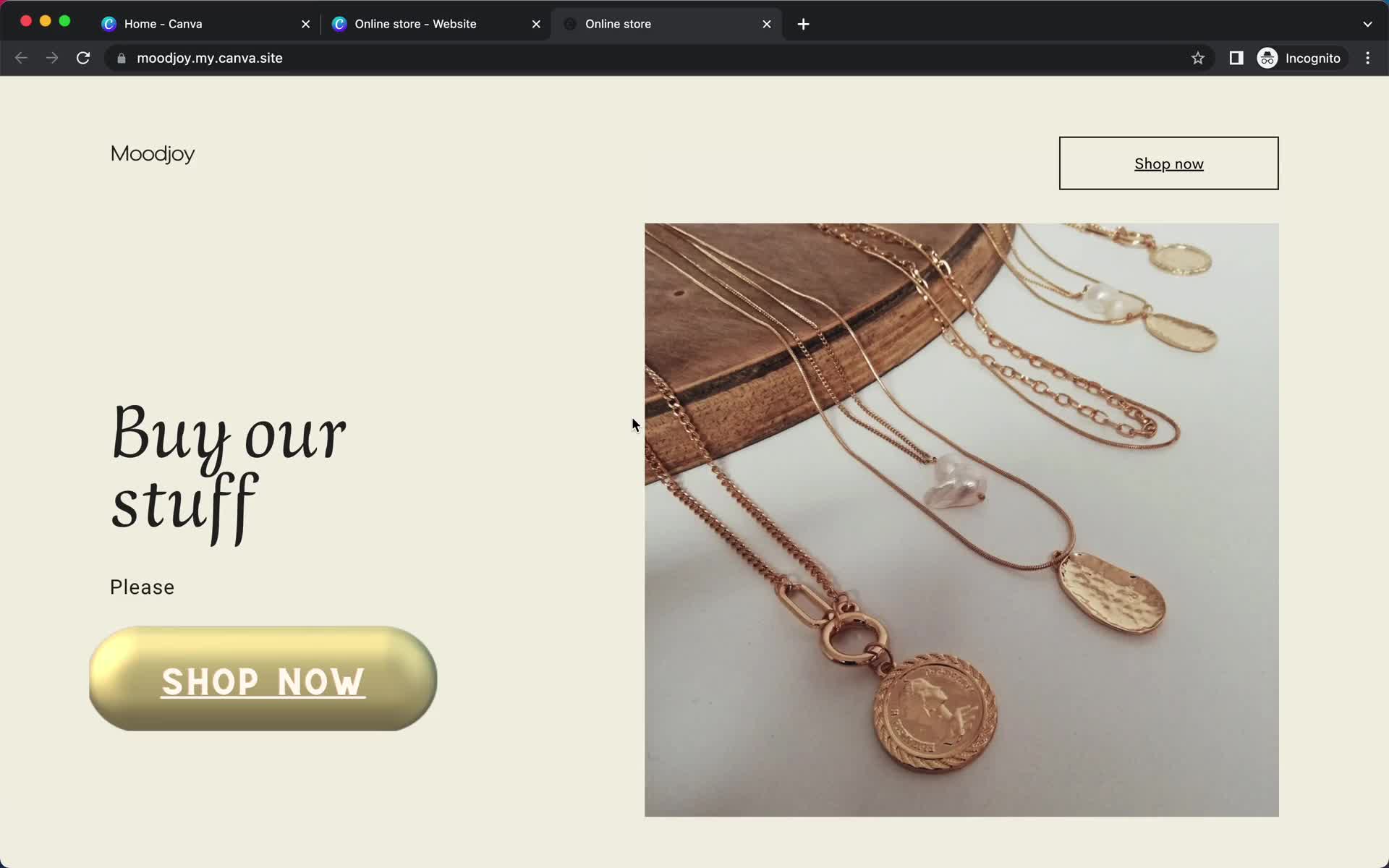
Live website
this is title
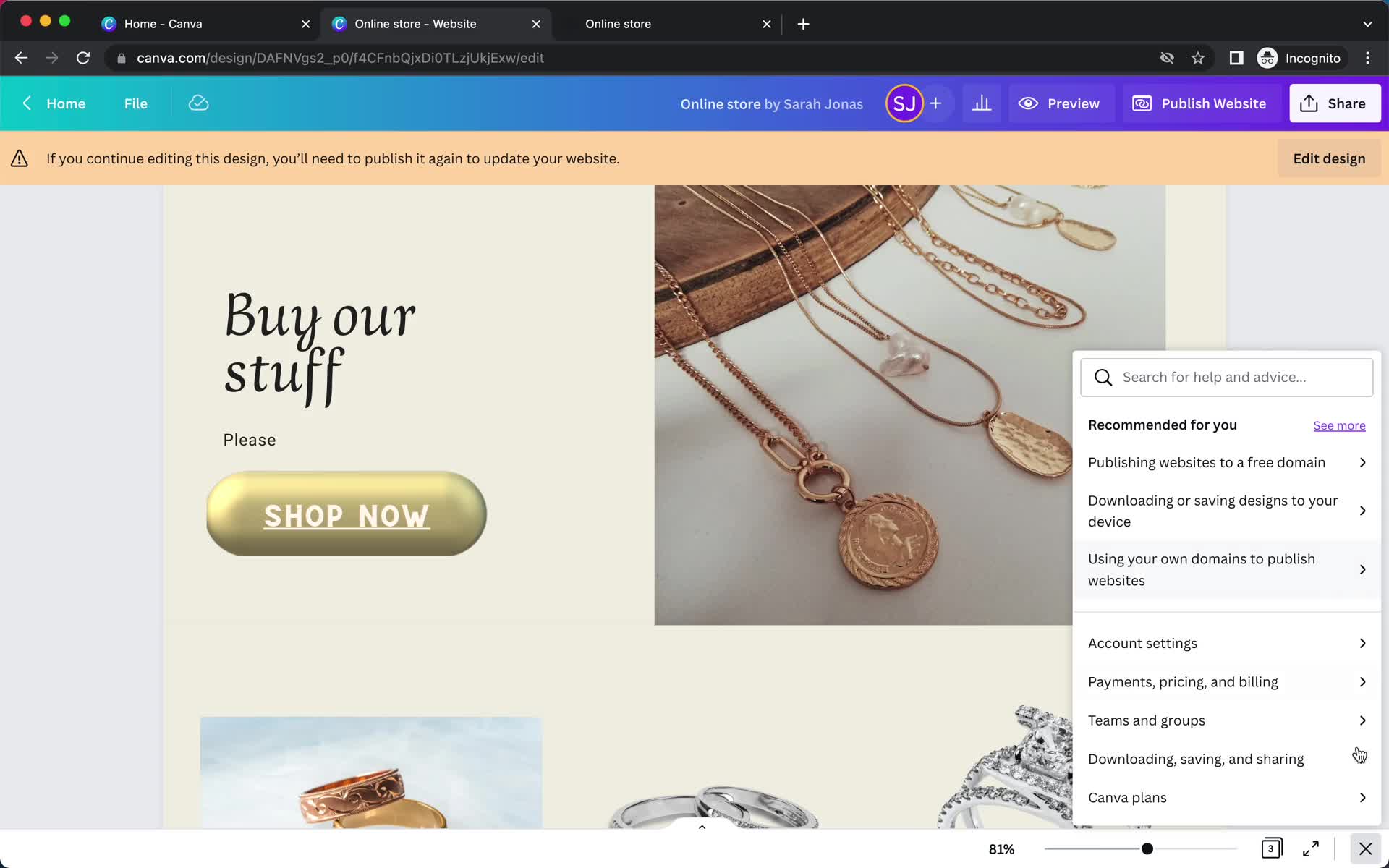
Help widget
this is title
this is title
this is title
this is title
this is title
this is title
this is title
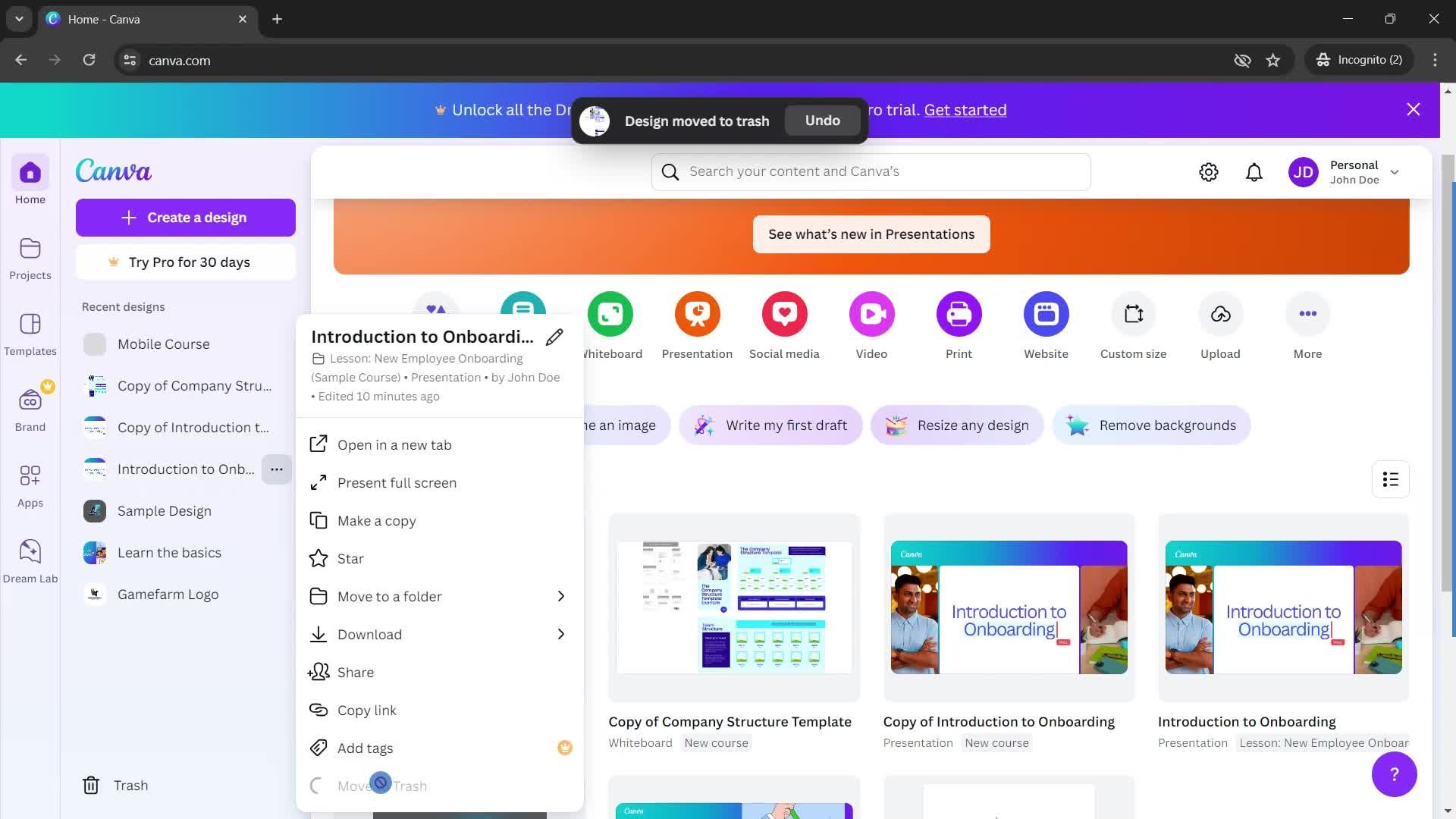
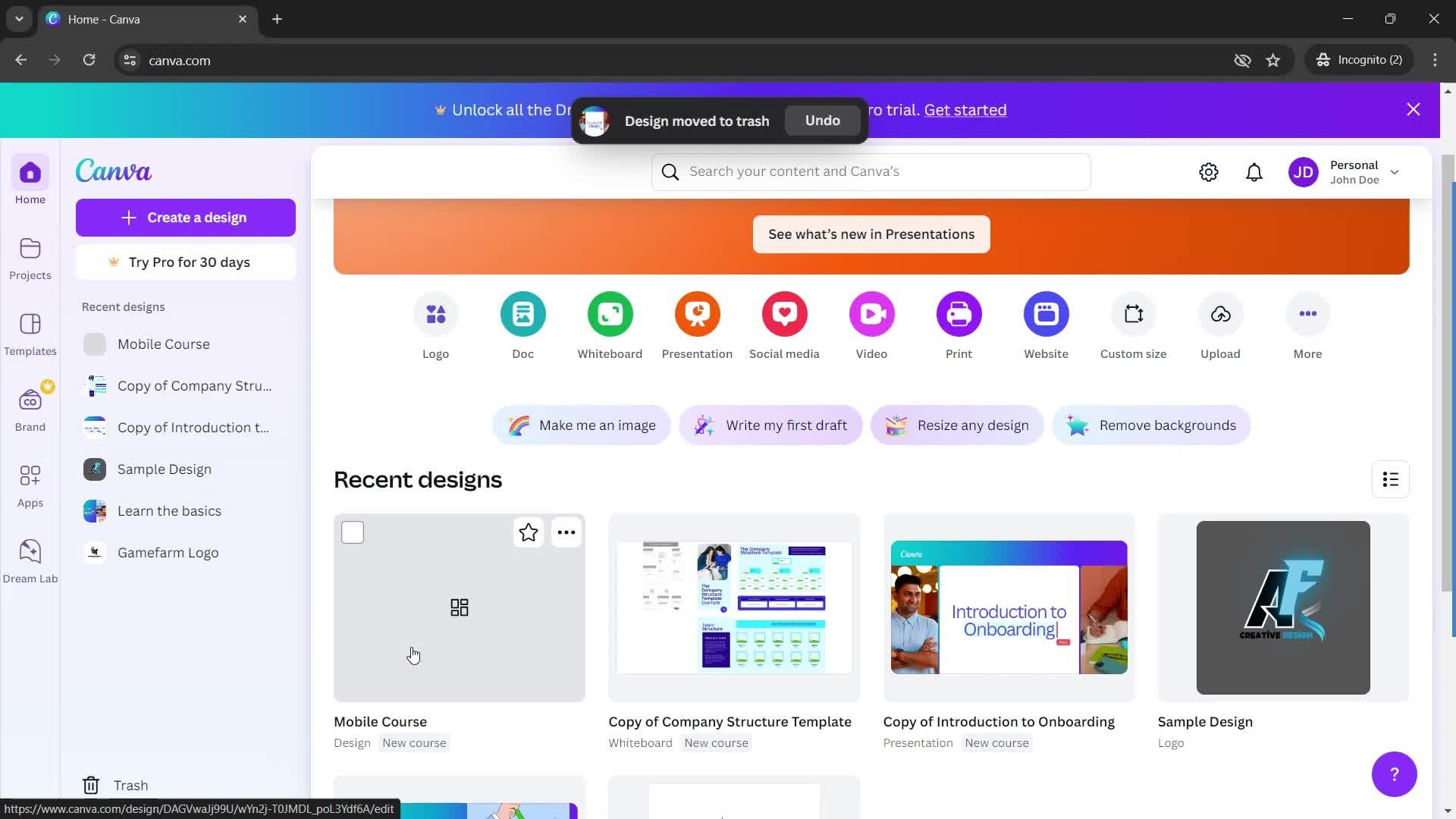
Home
this is title
Action menu
this is title
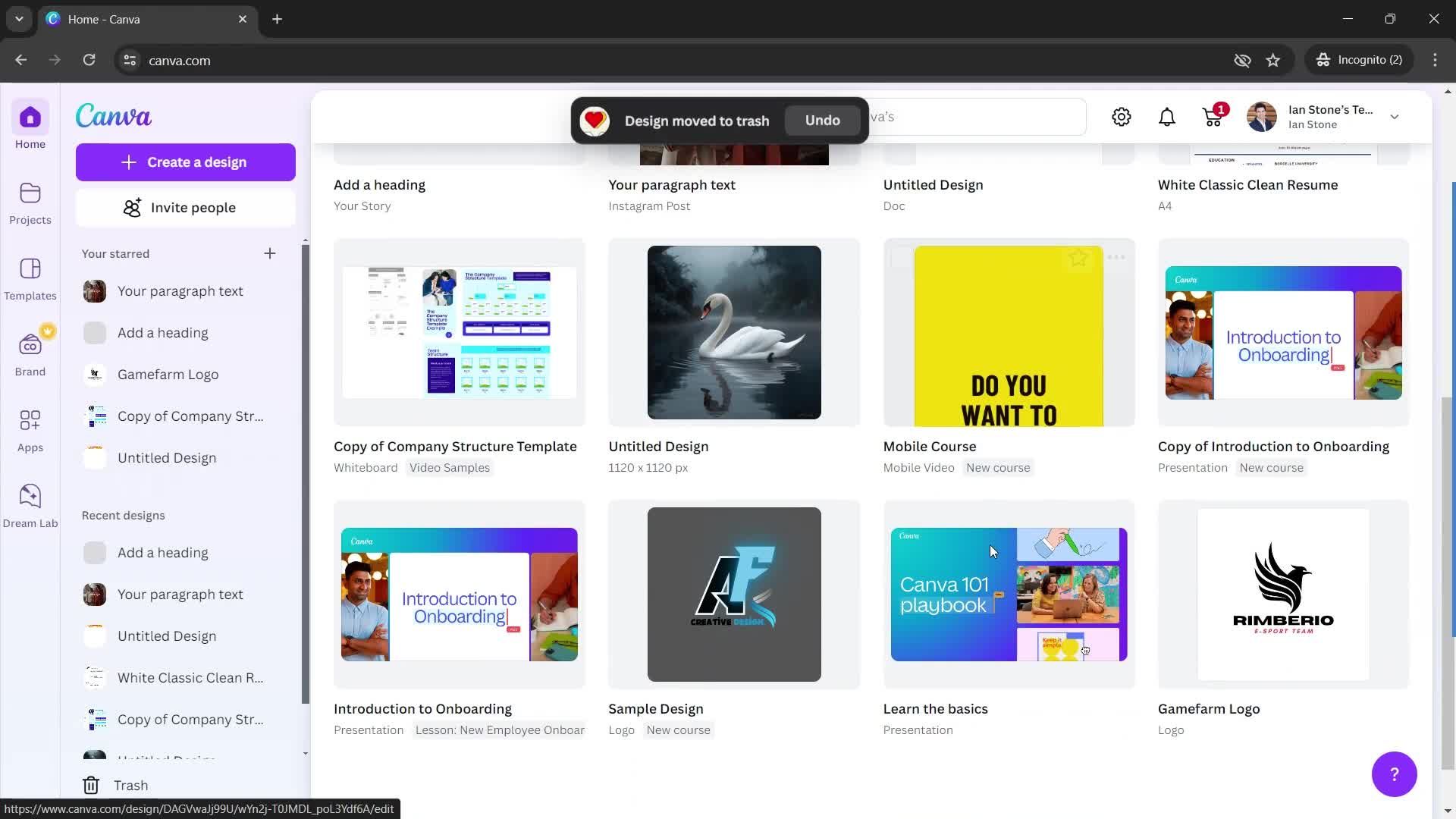
Deleted
this is title
Delete
this is title
Deleted
this is title
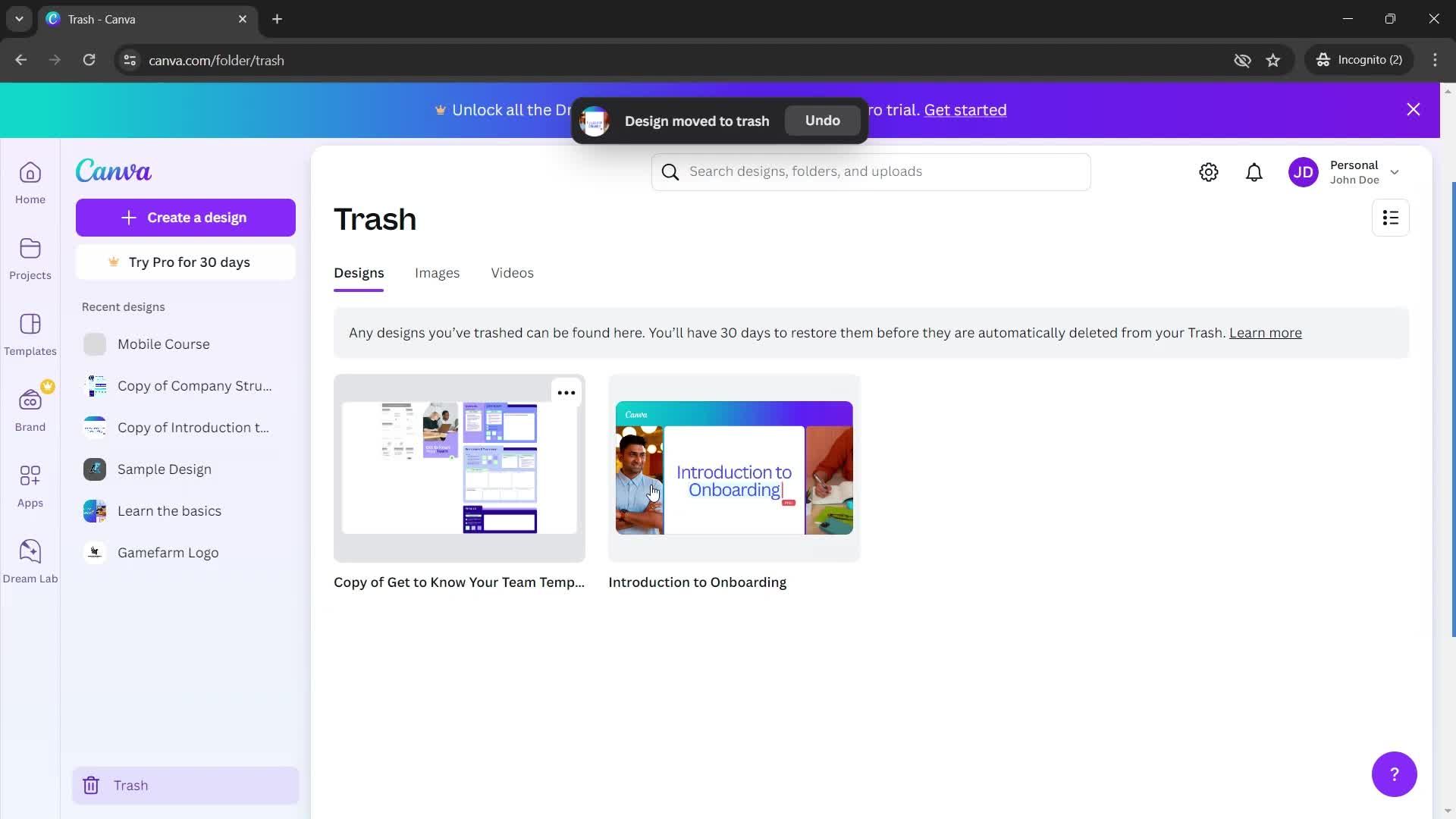
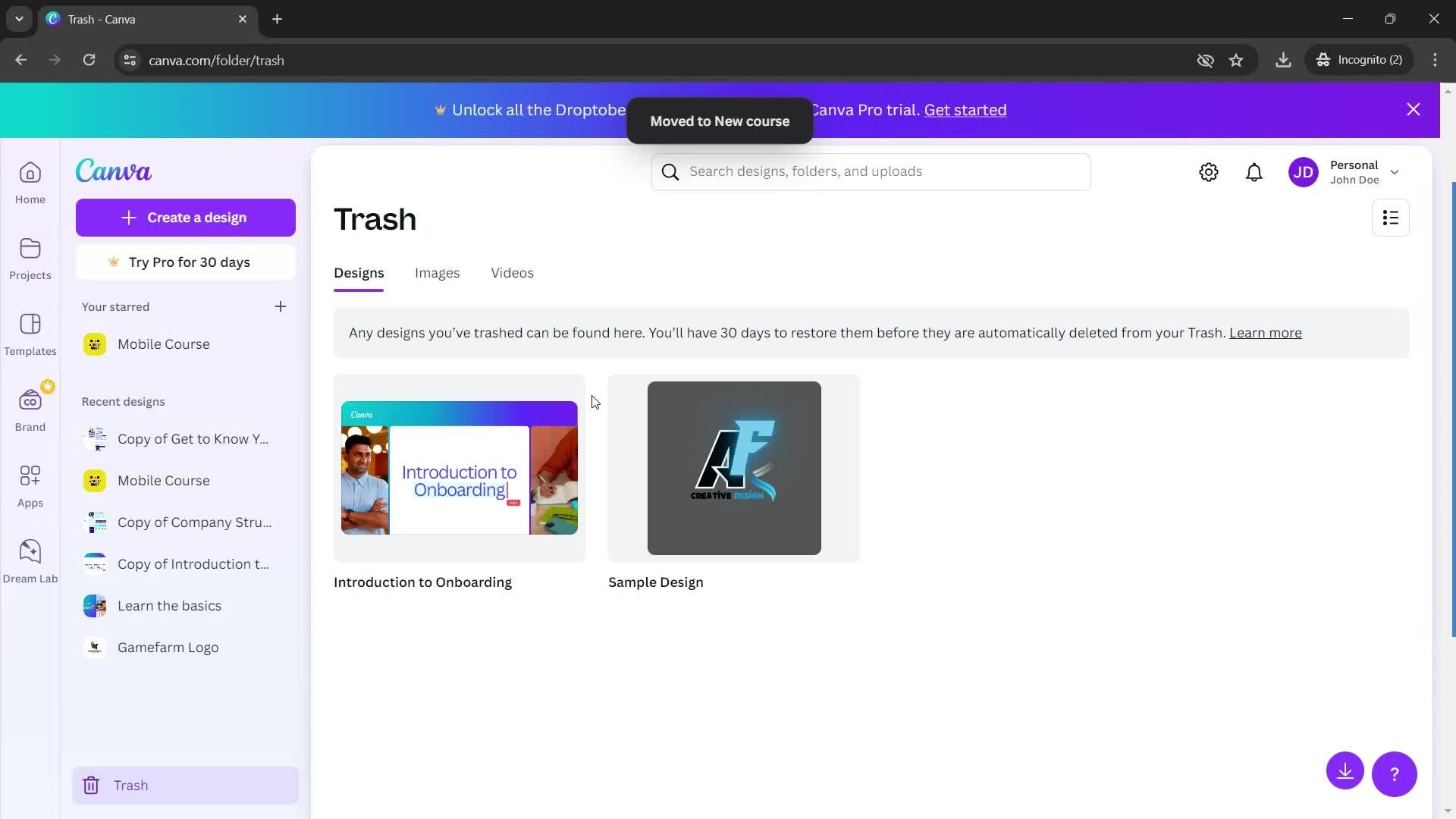
Trash
this is title
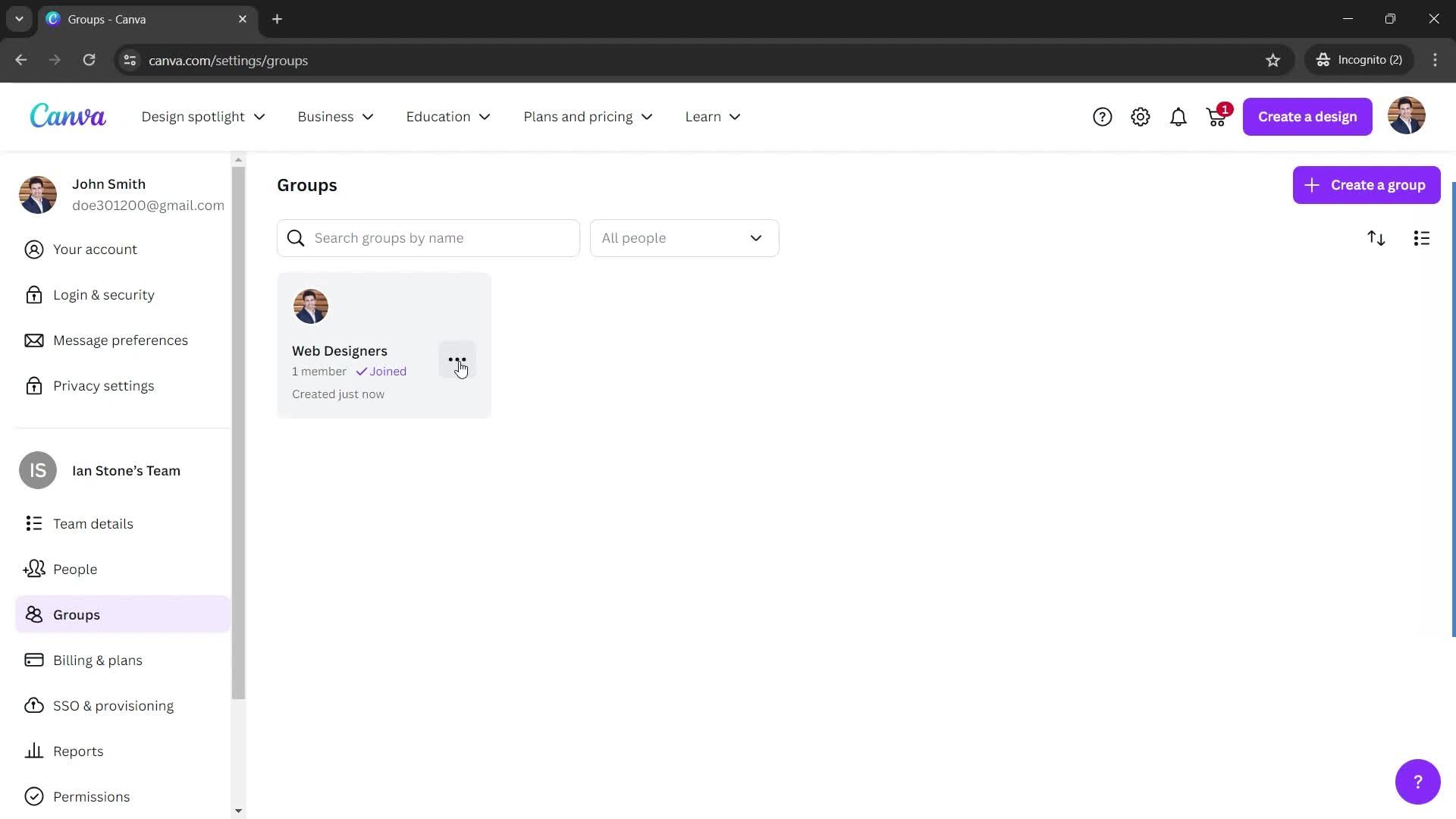
Home
this is title
Settings
this is title
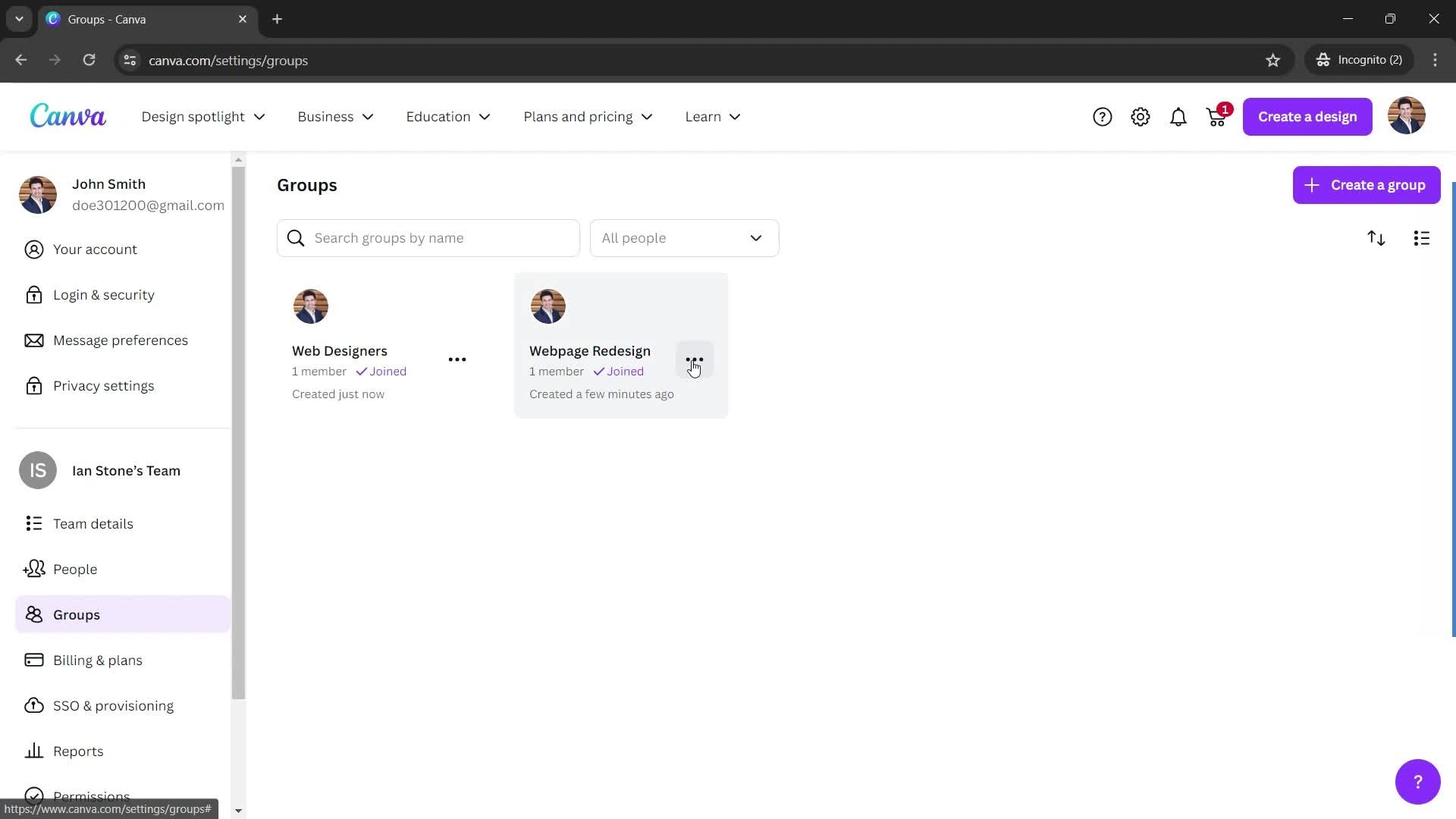
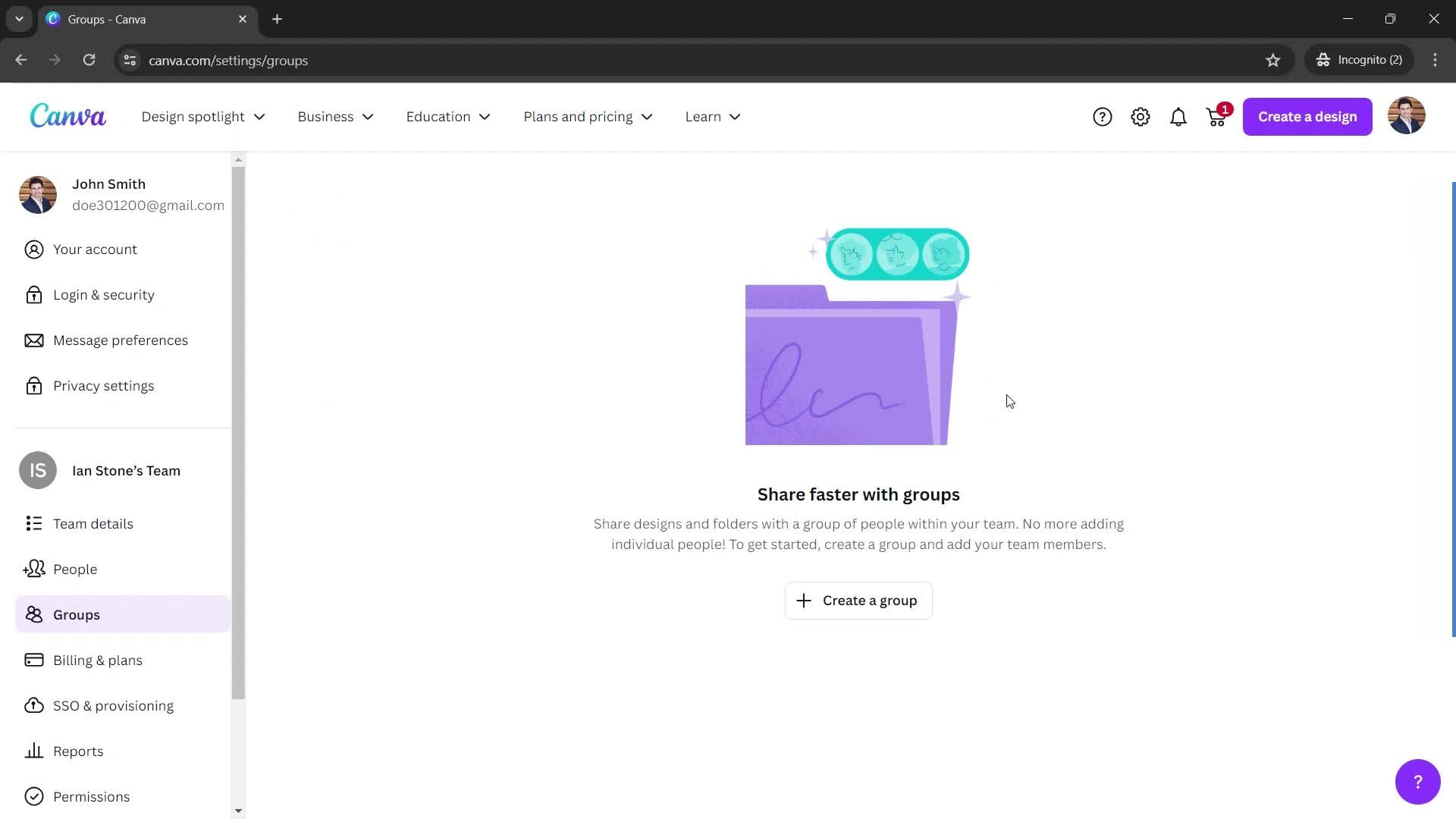
Groups
this is title
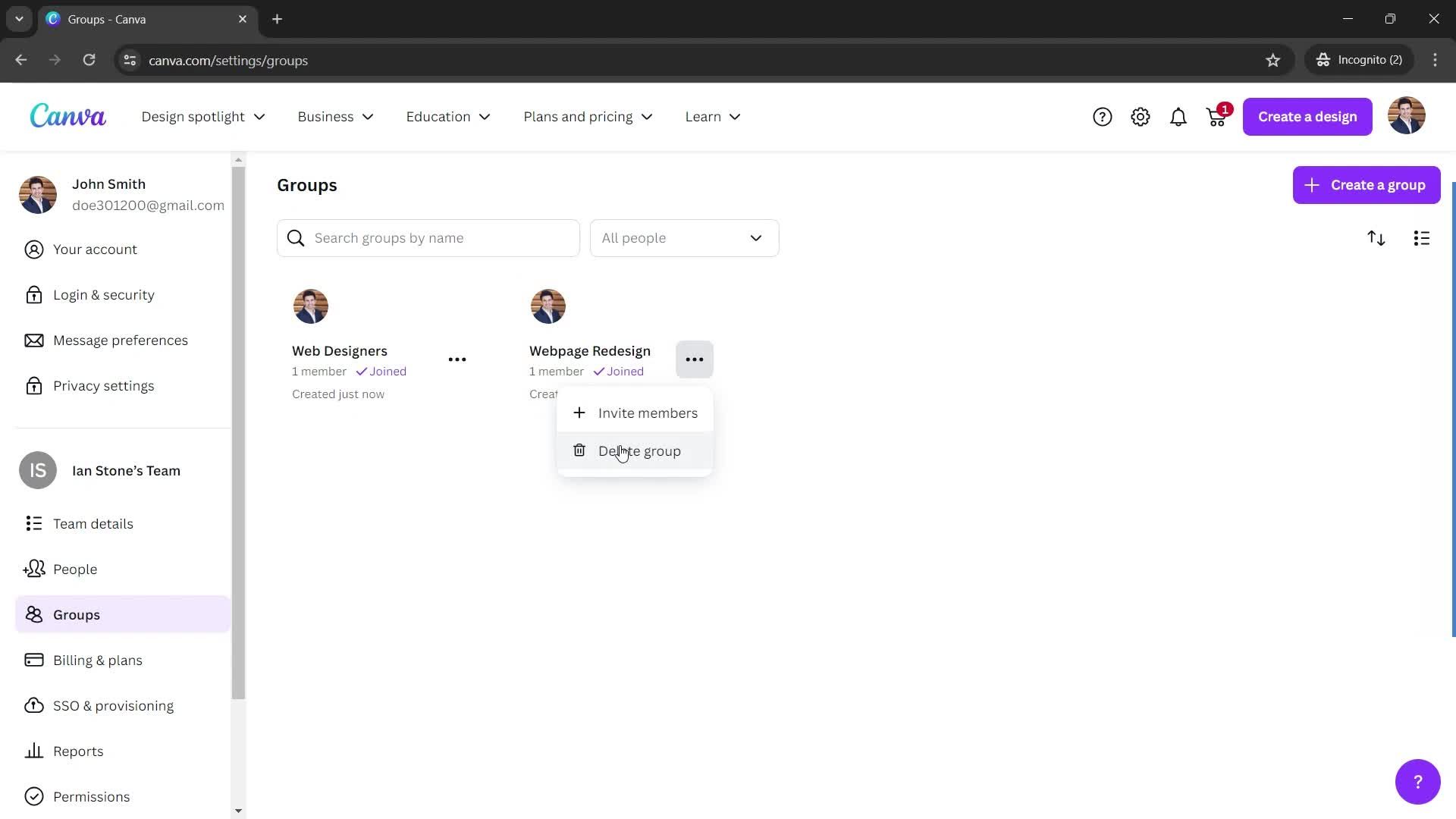
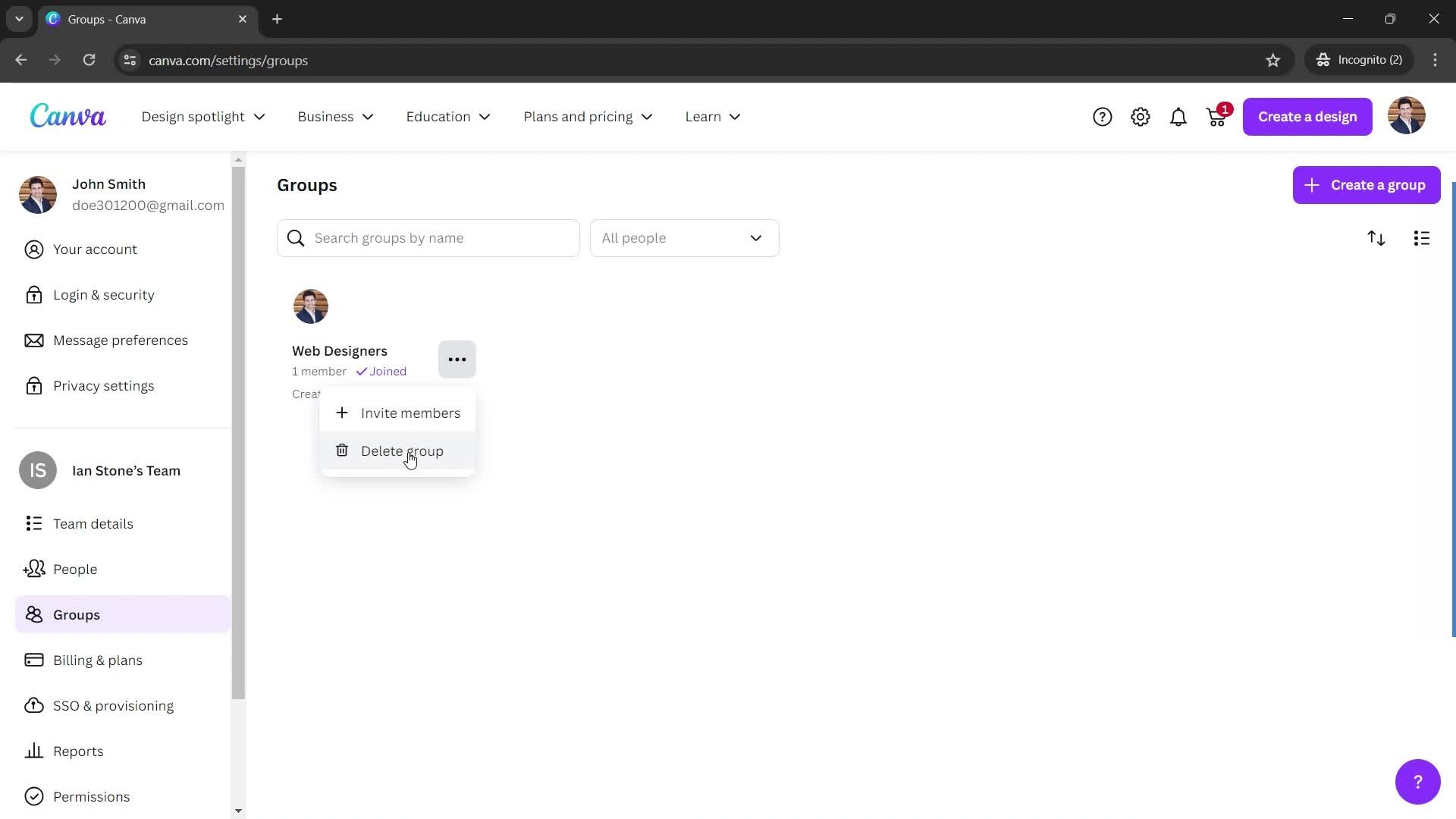
Action menu
this is title
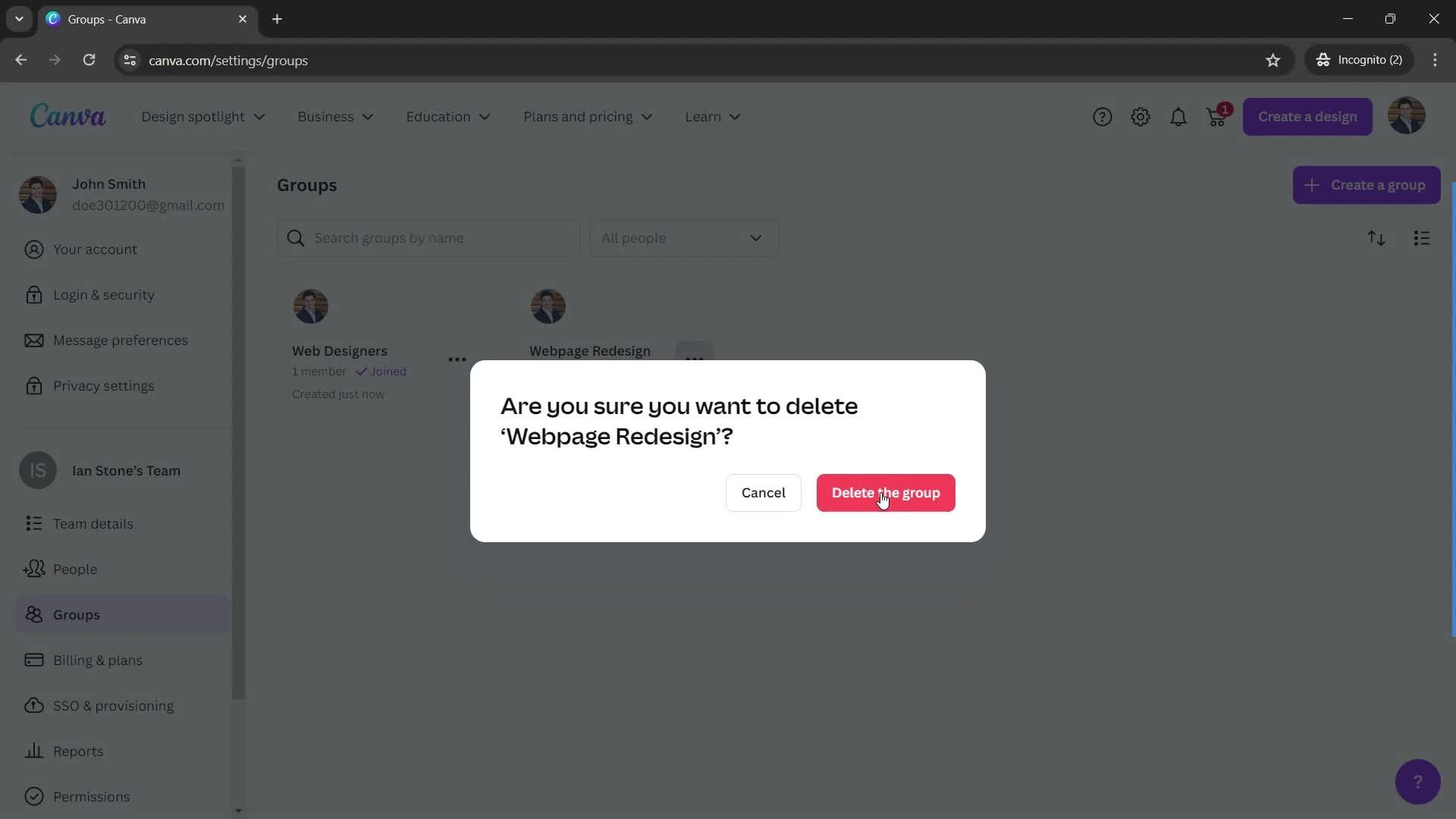
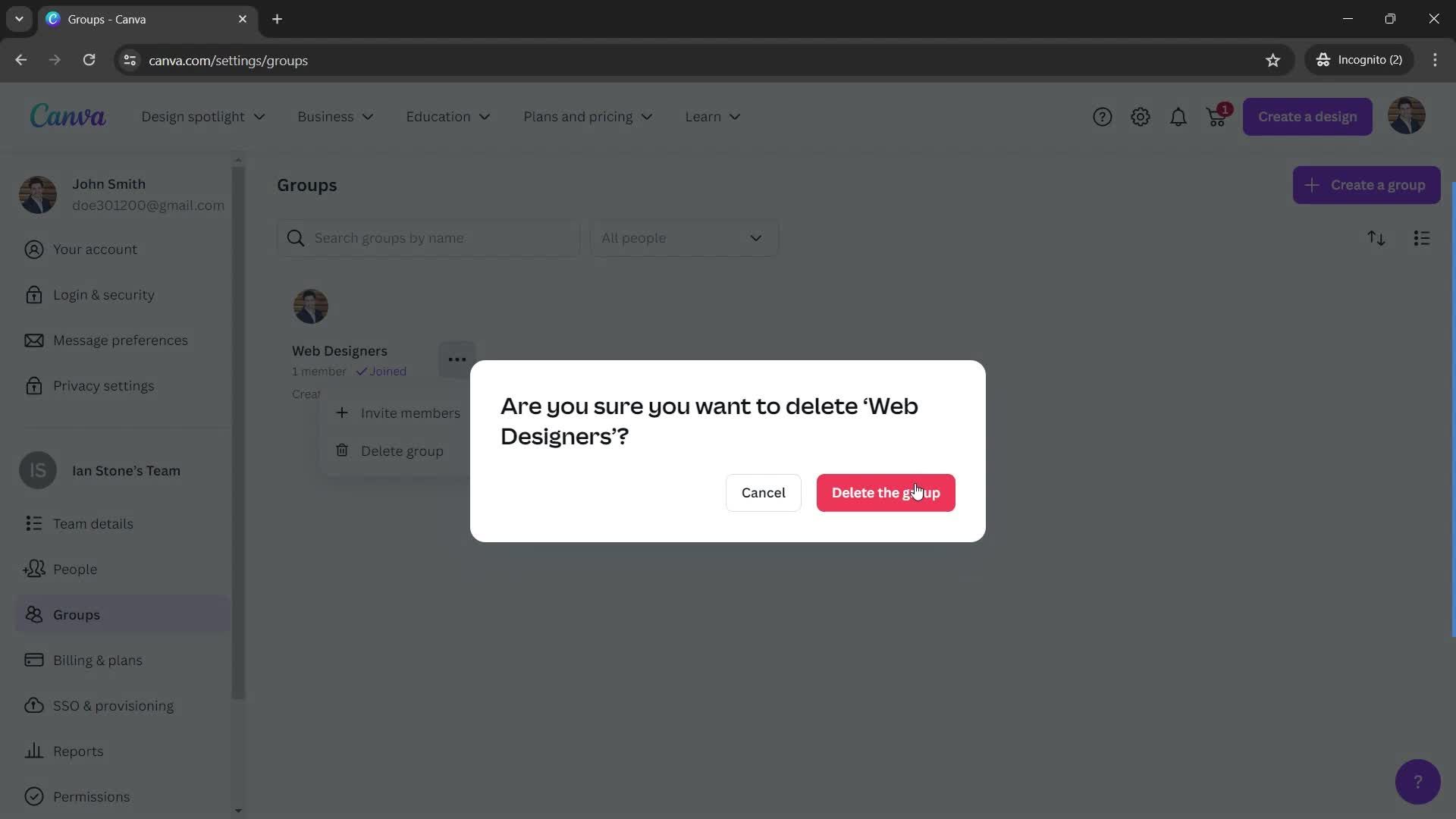
Confirm delete
this is title
this is title
this is title
this is title
this is title
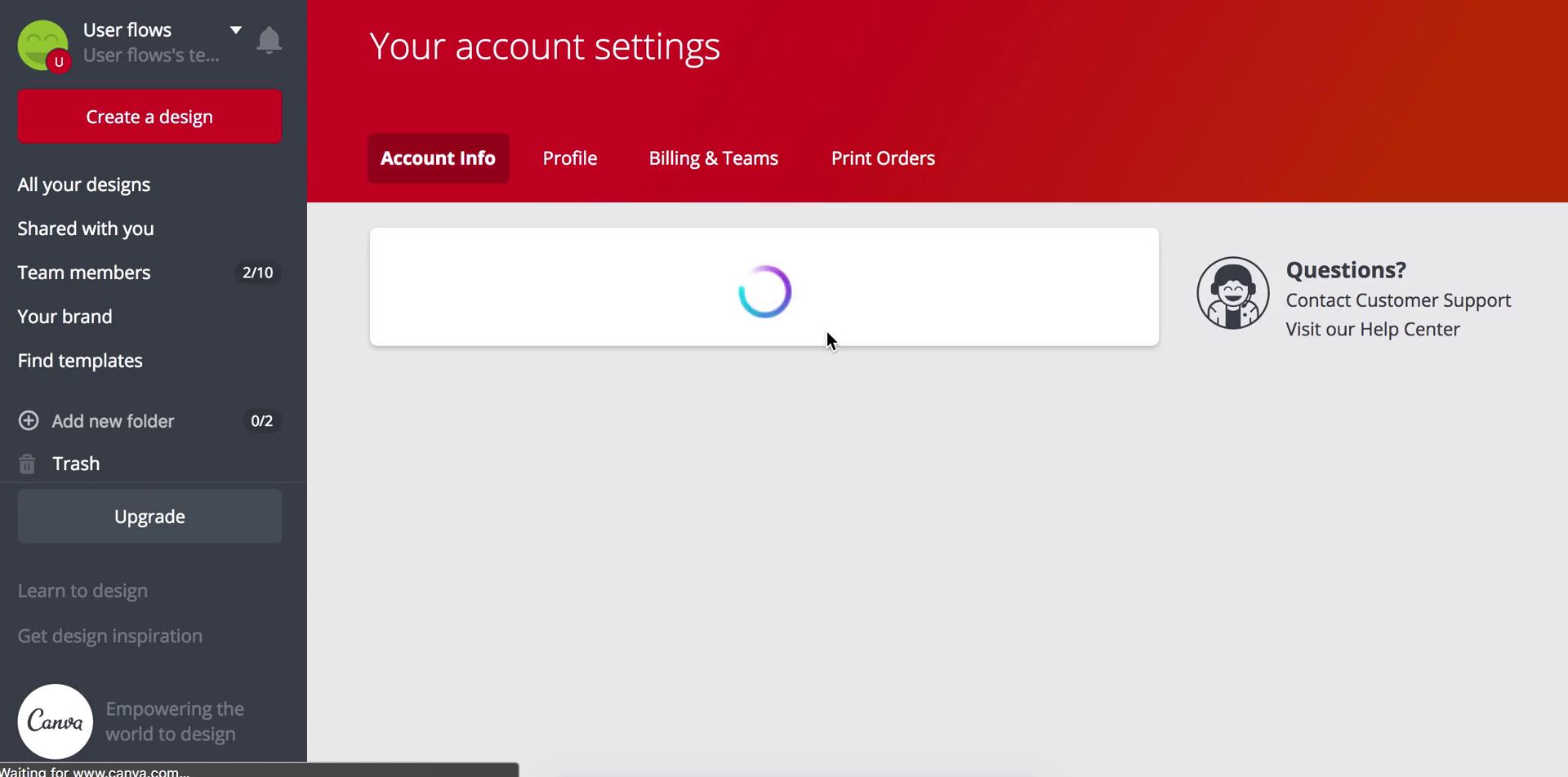
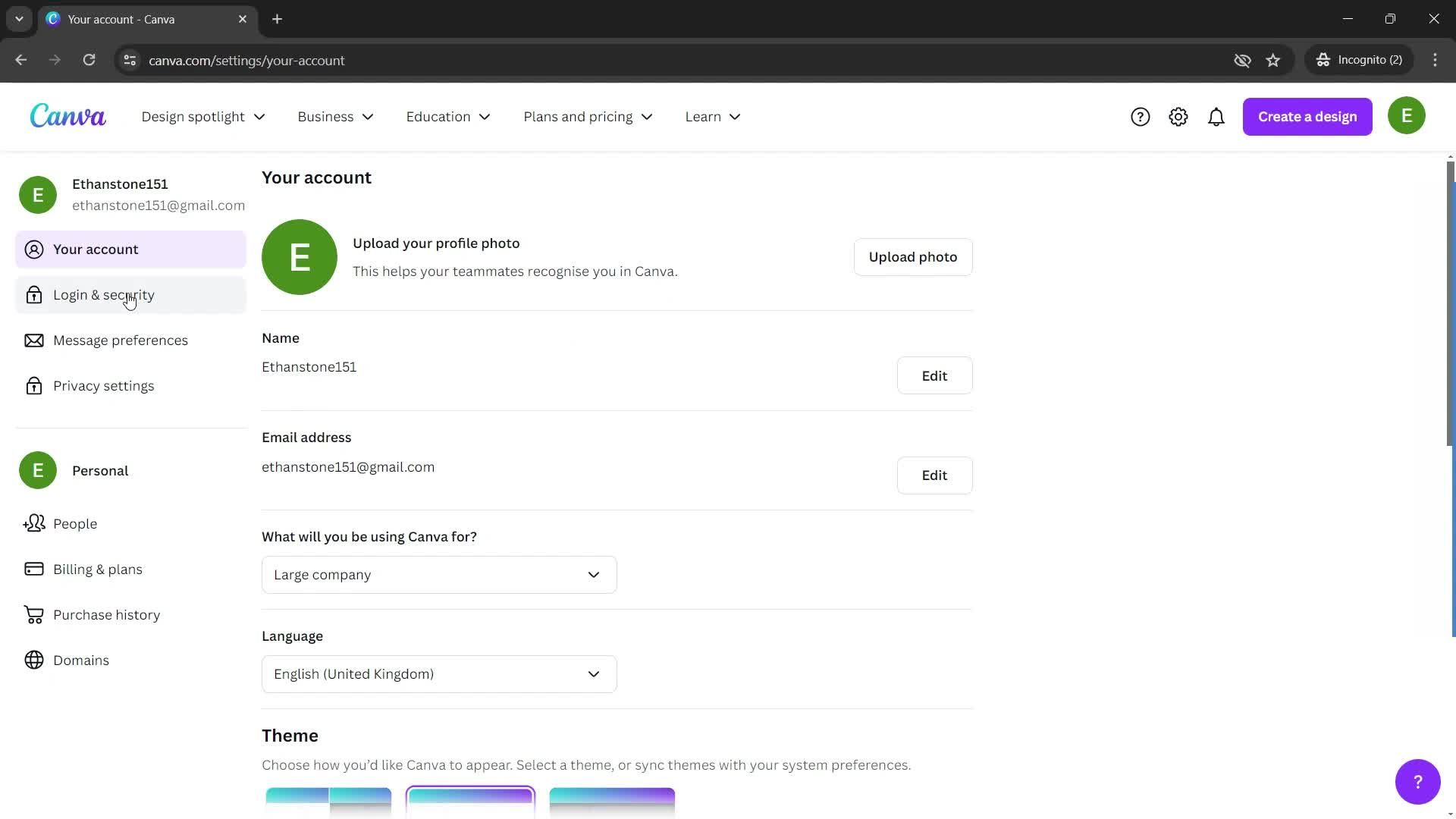
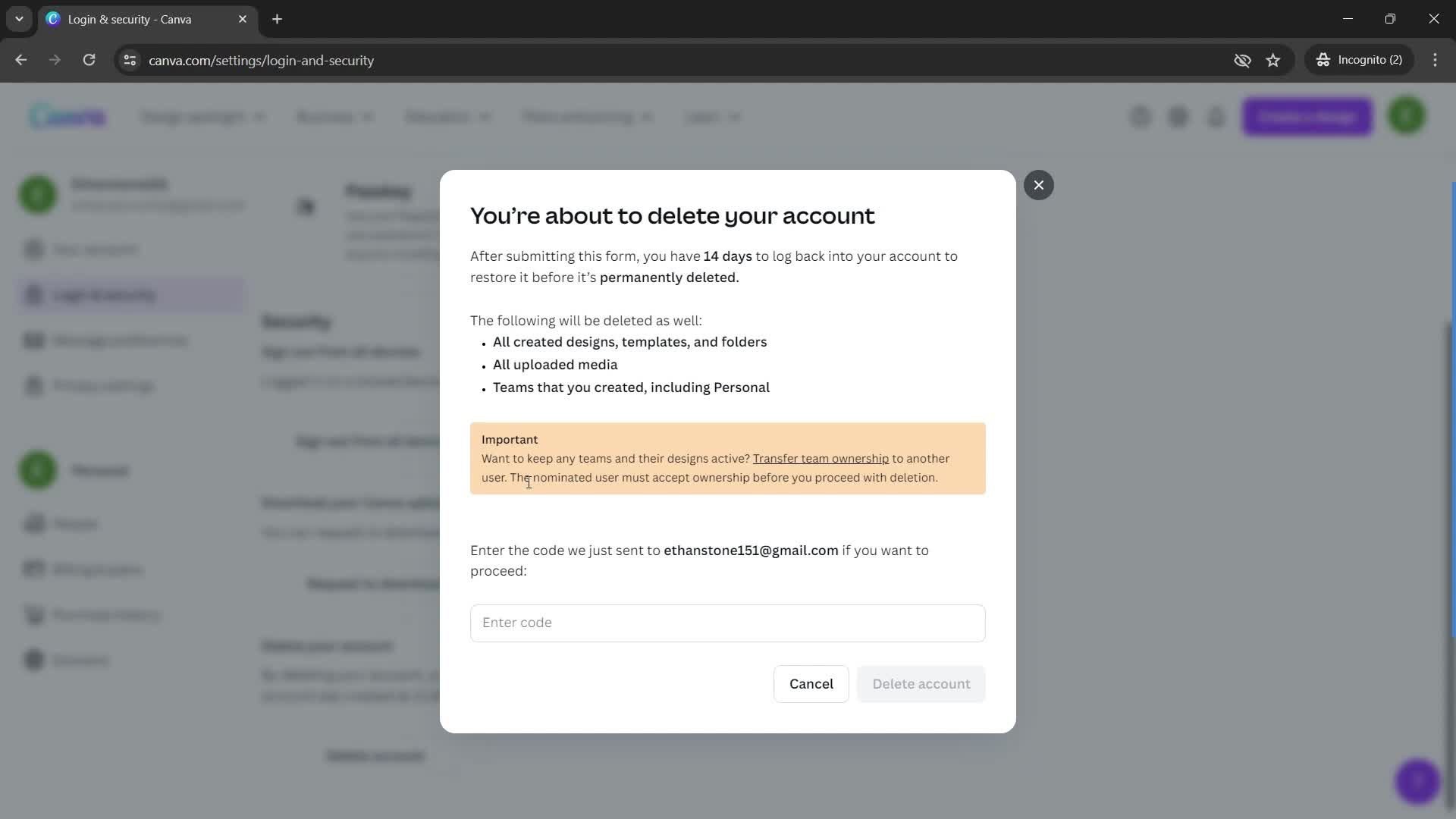
Home
this is title
Settings
this is title
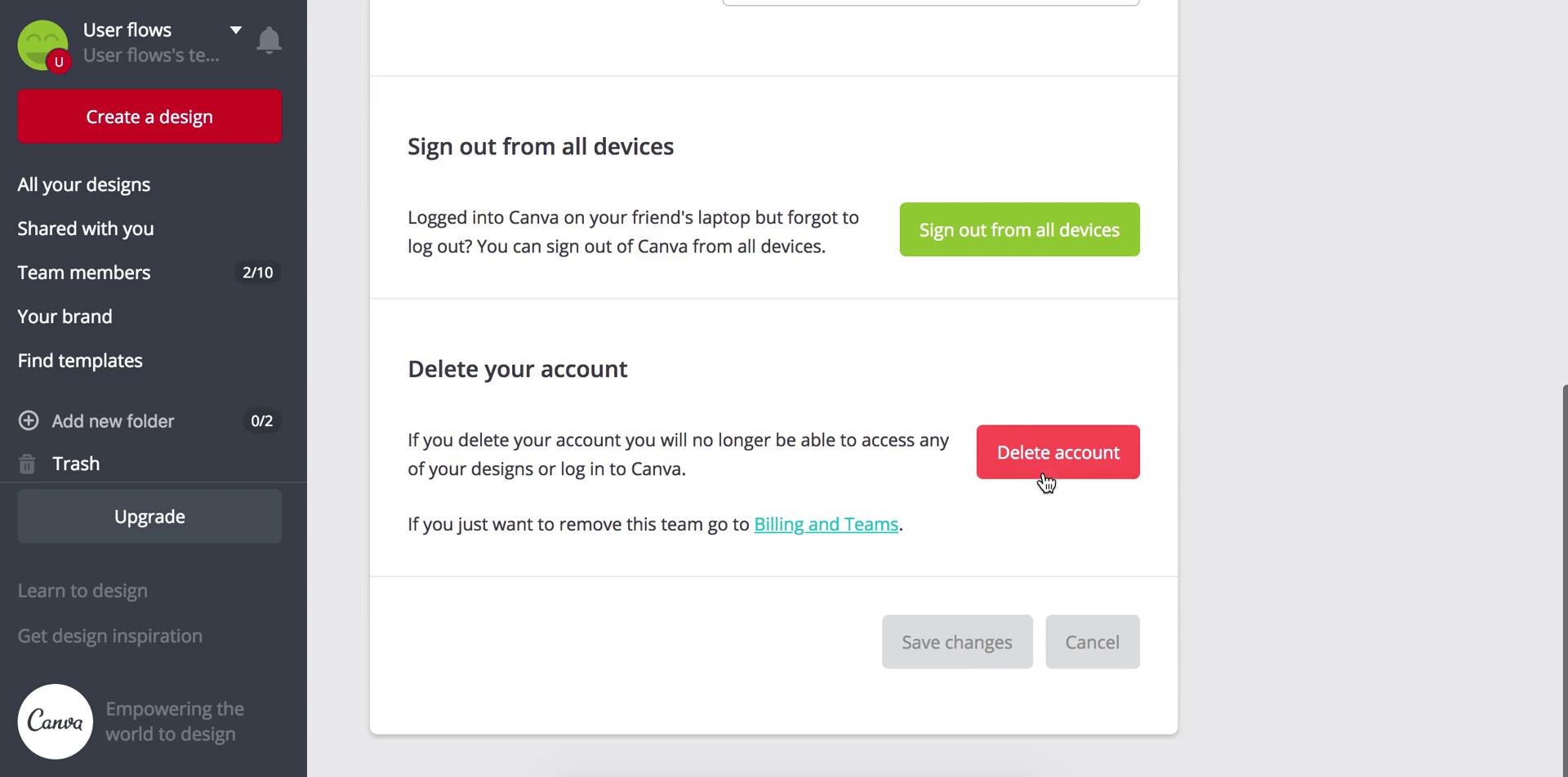
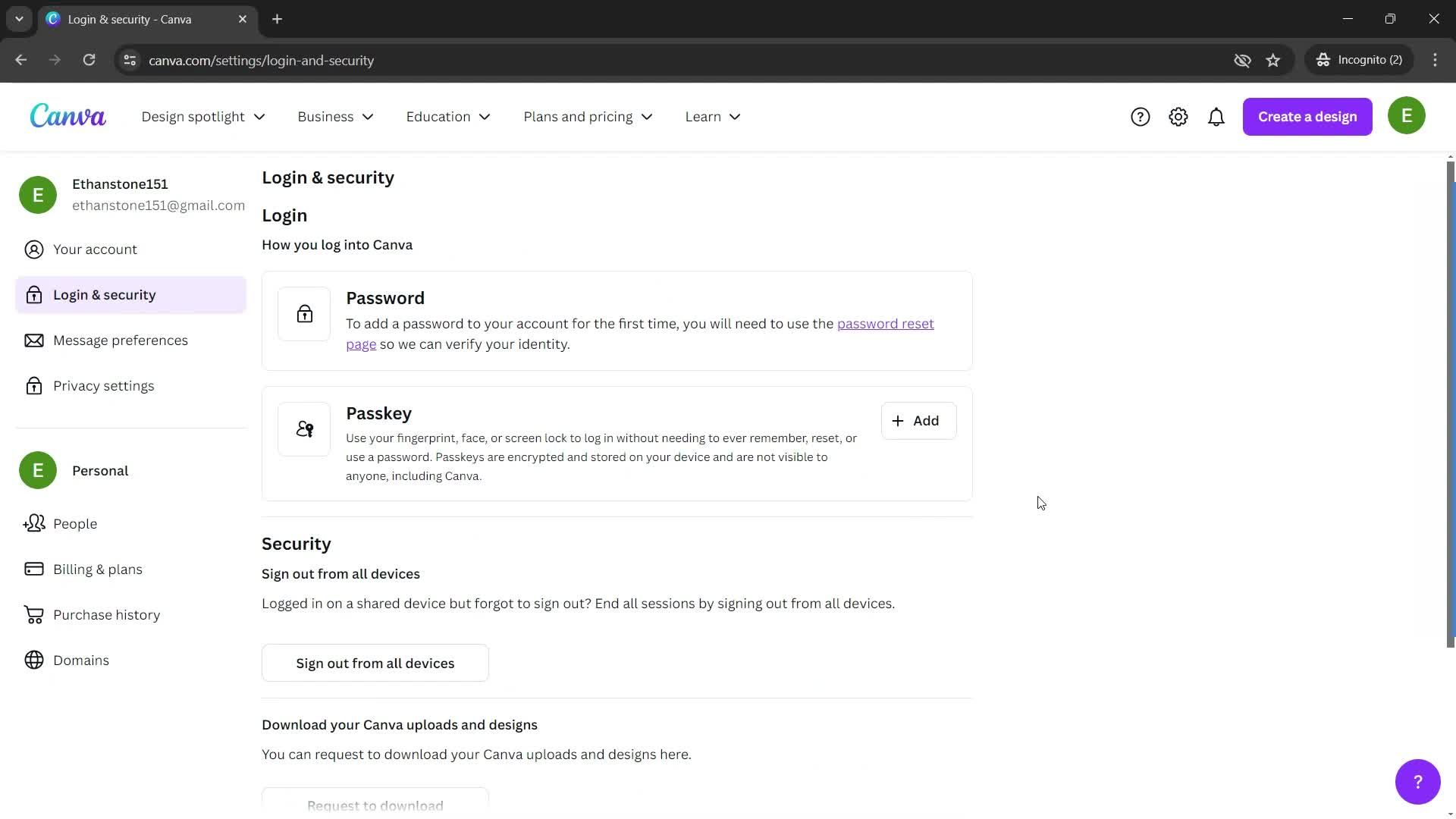
Security settings
this is title
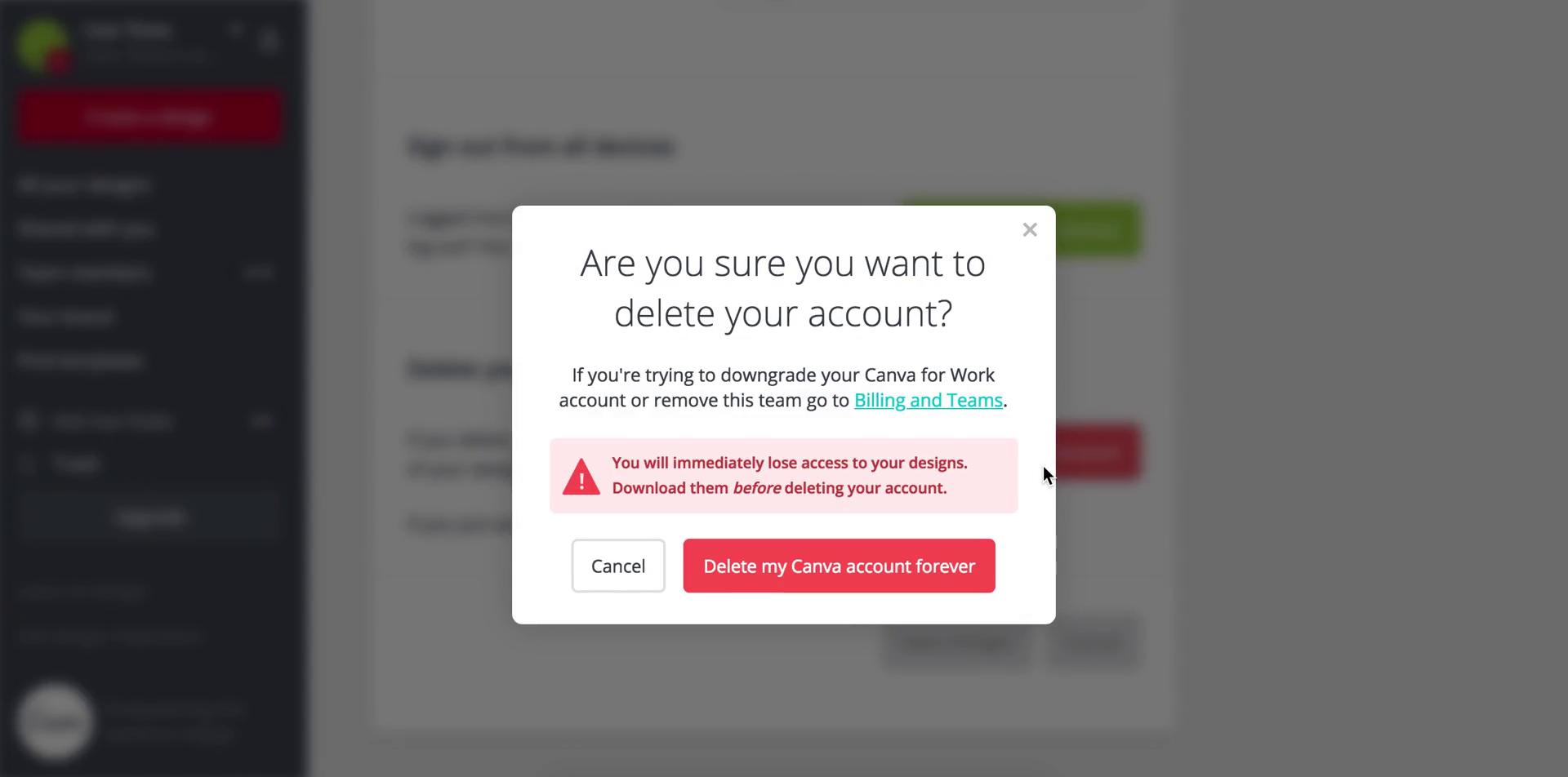
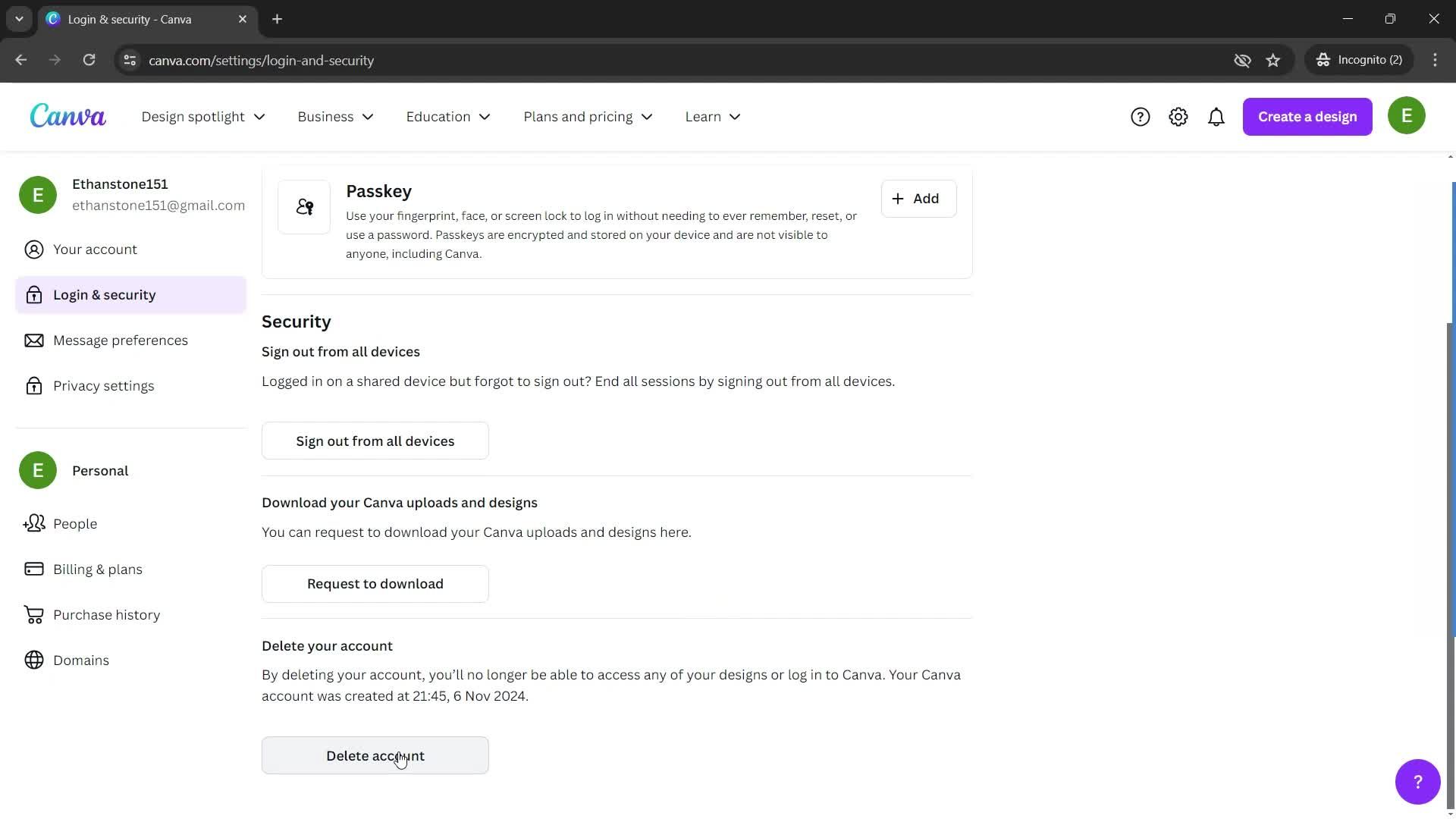
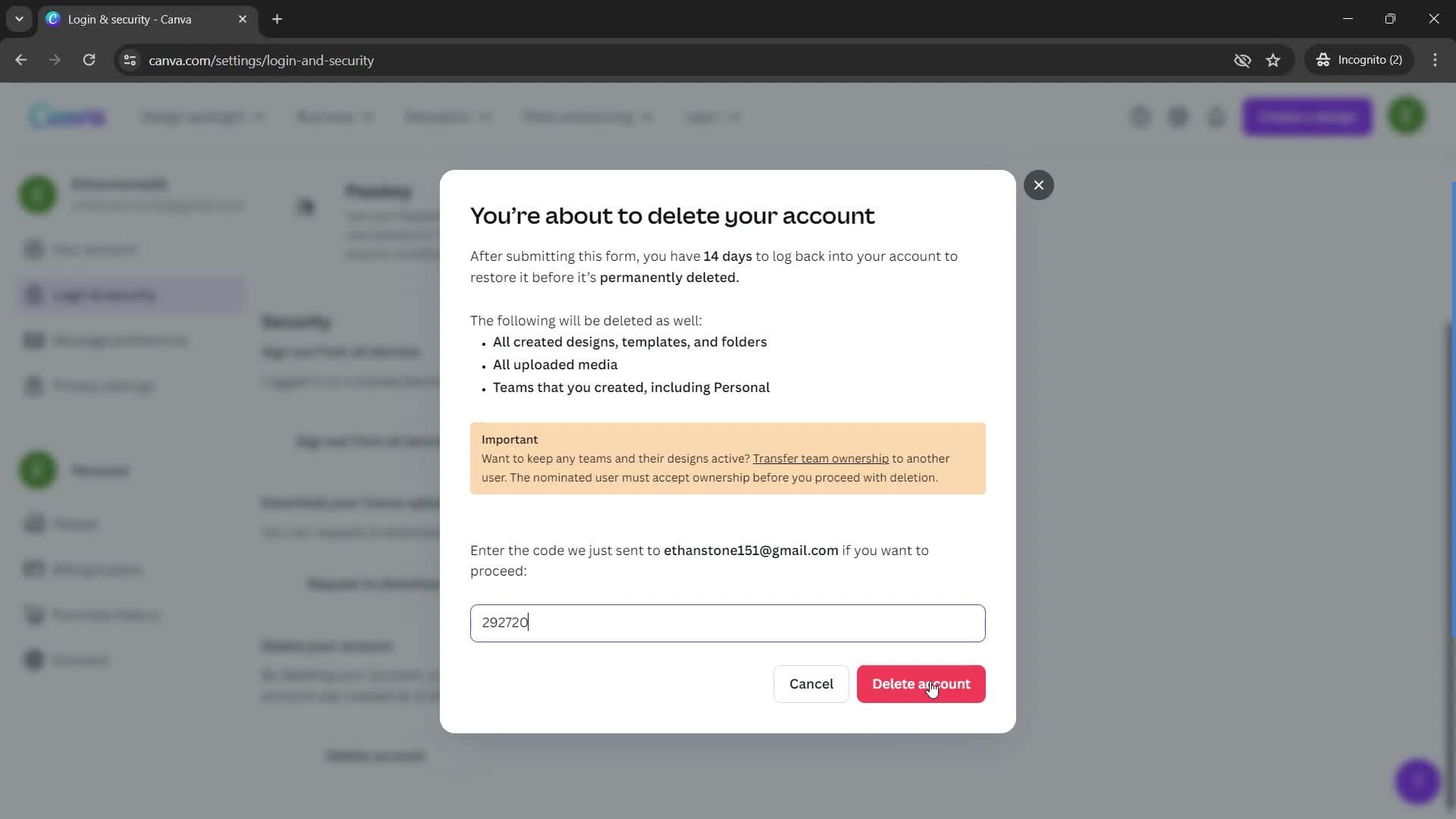
Delete account
this is title
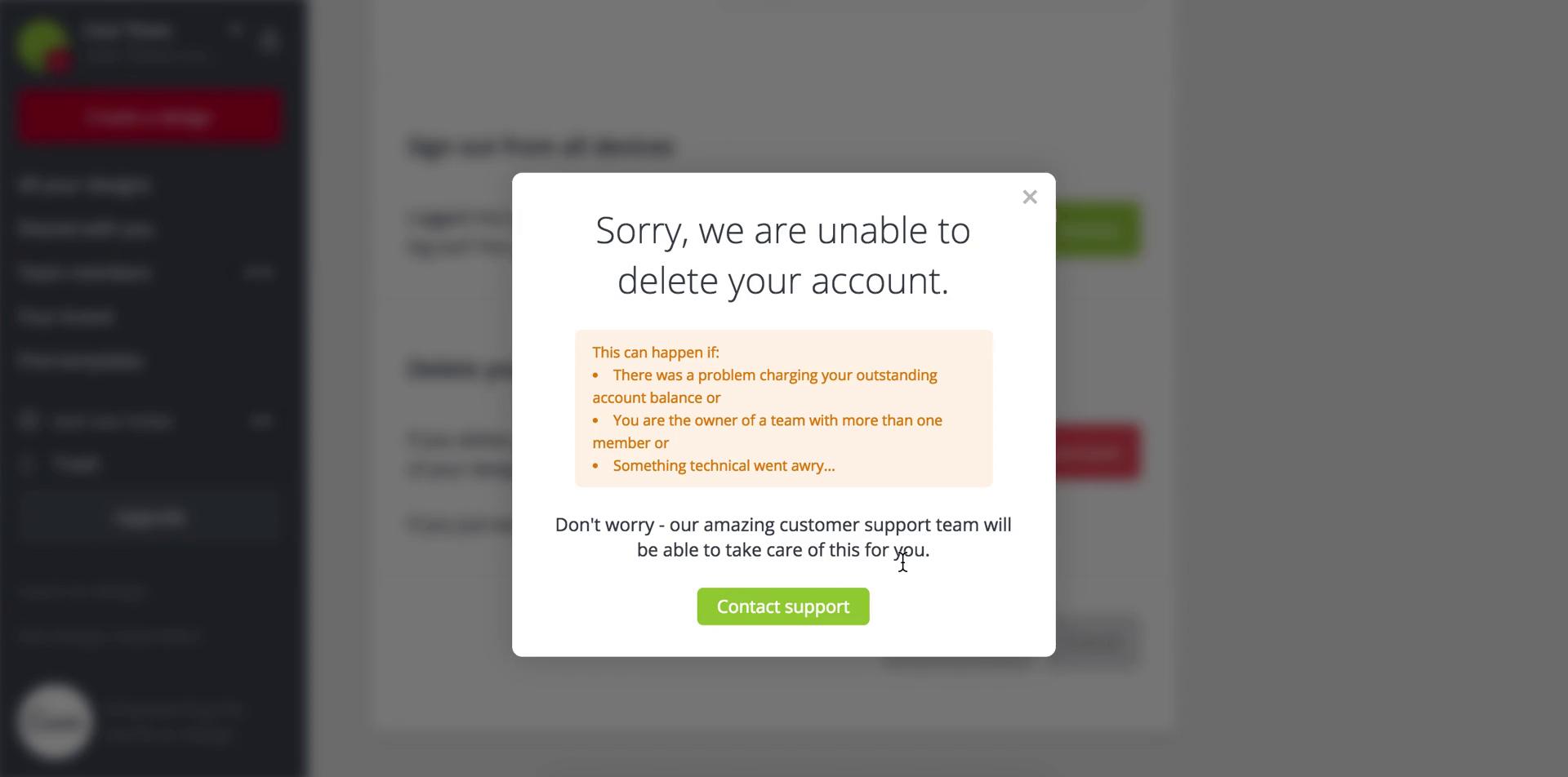
Confirm delete
this is title
this is title
this is title
Home
this is title
Action menu
this is title
Download
this is title
this is title
this is title
Downloading
this is title
this is title
Download complete
this is title
Download
this is title
this is title
this is title
Downloading
this is title
this is title
Download complete
this is title
Home
this is title
Presentation
this is title
this is title
Profile
this is title
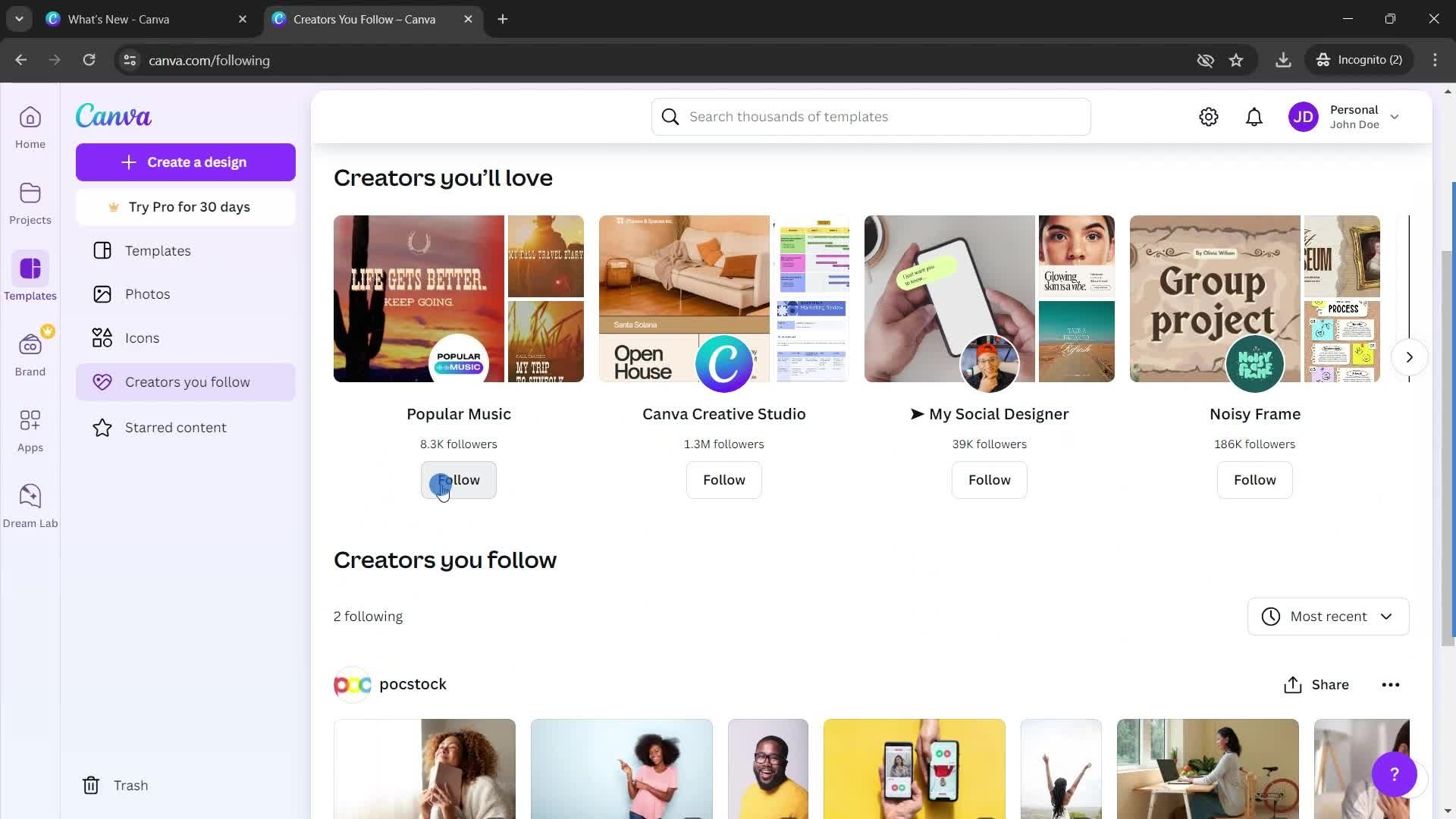
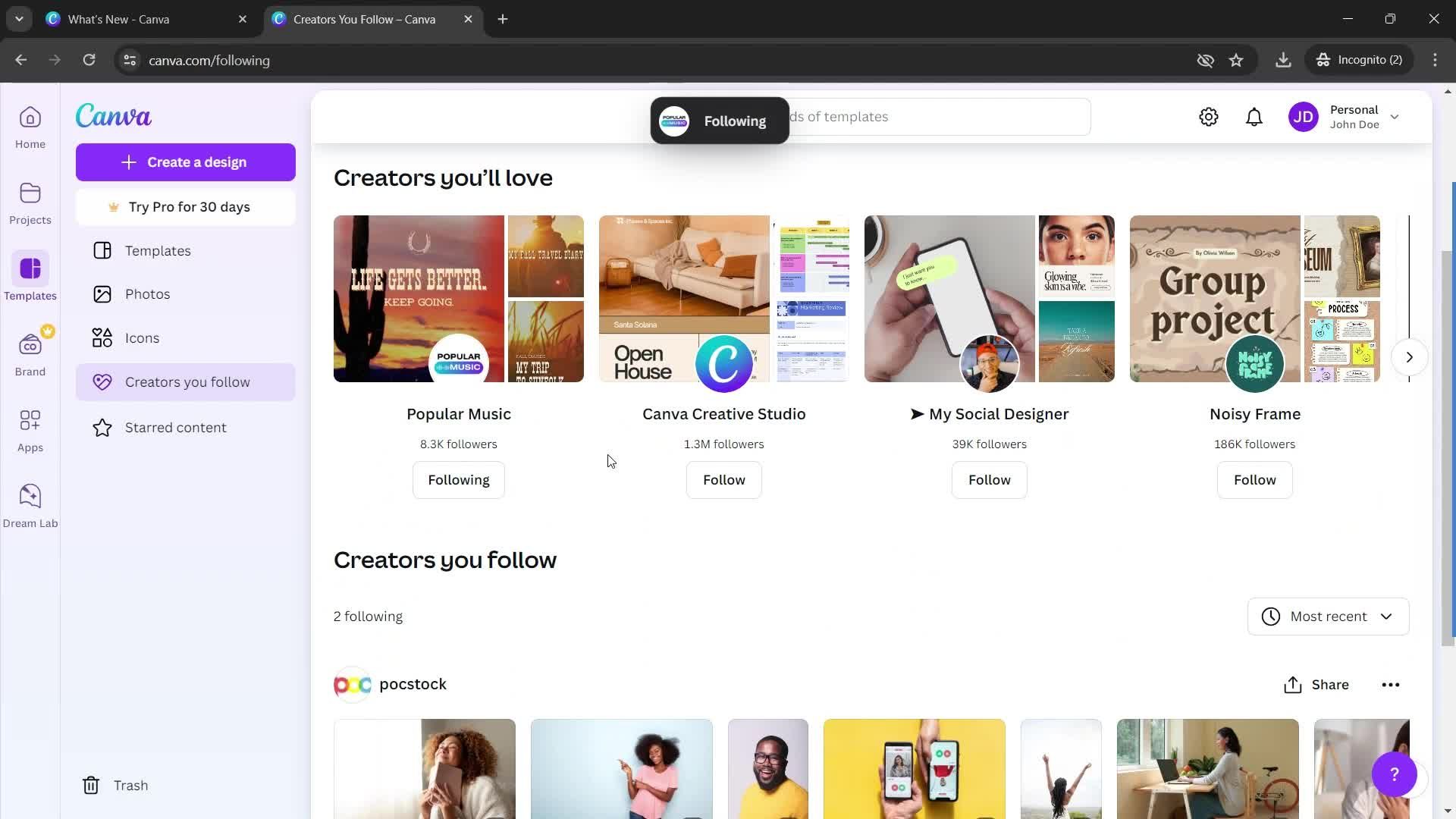
Follow
this is title
this is title
this is title
Follow
this is title
this is title
this is title
this is title
this is title
this is title
Home
this is title
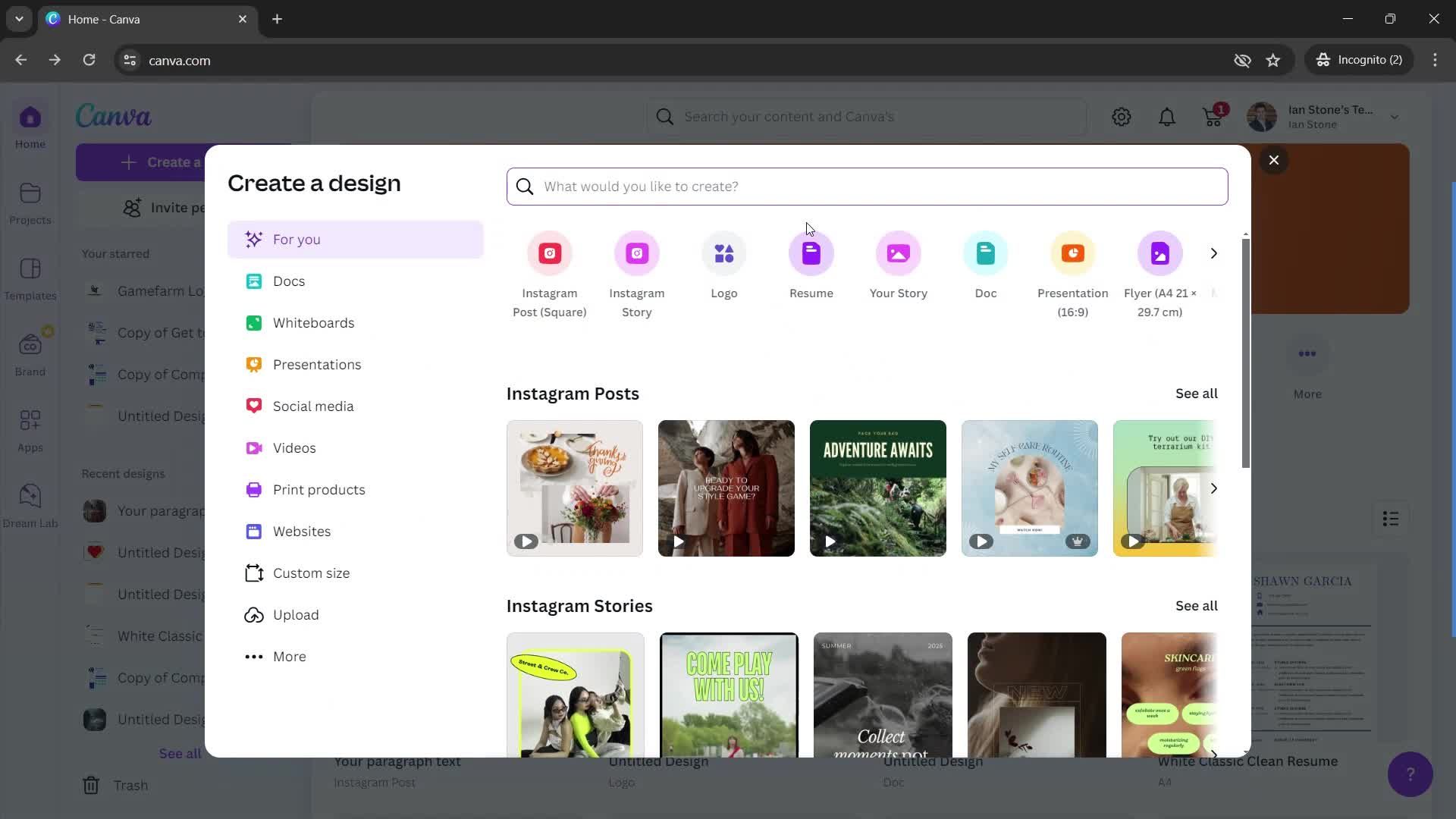
Create design
this is title
Templates
this is title
Drag & drop
this is title
this is title
this is title
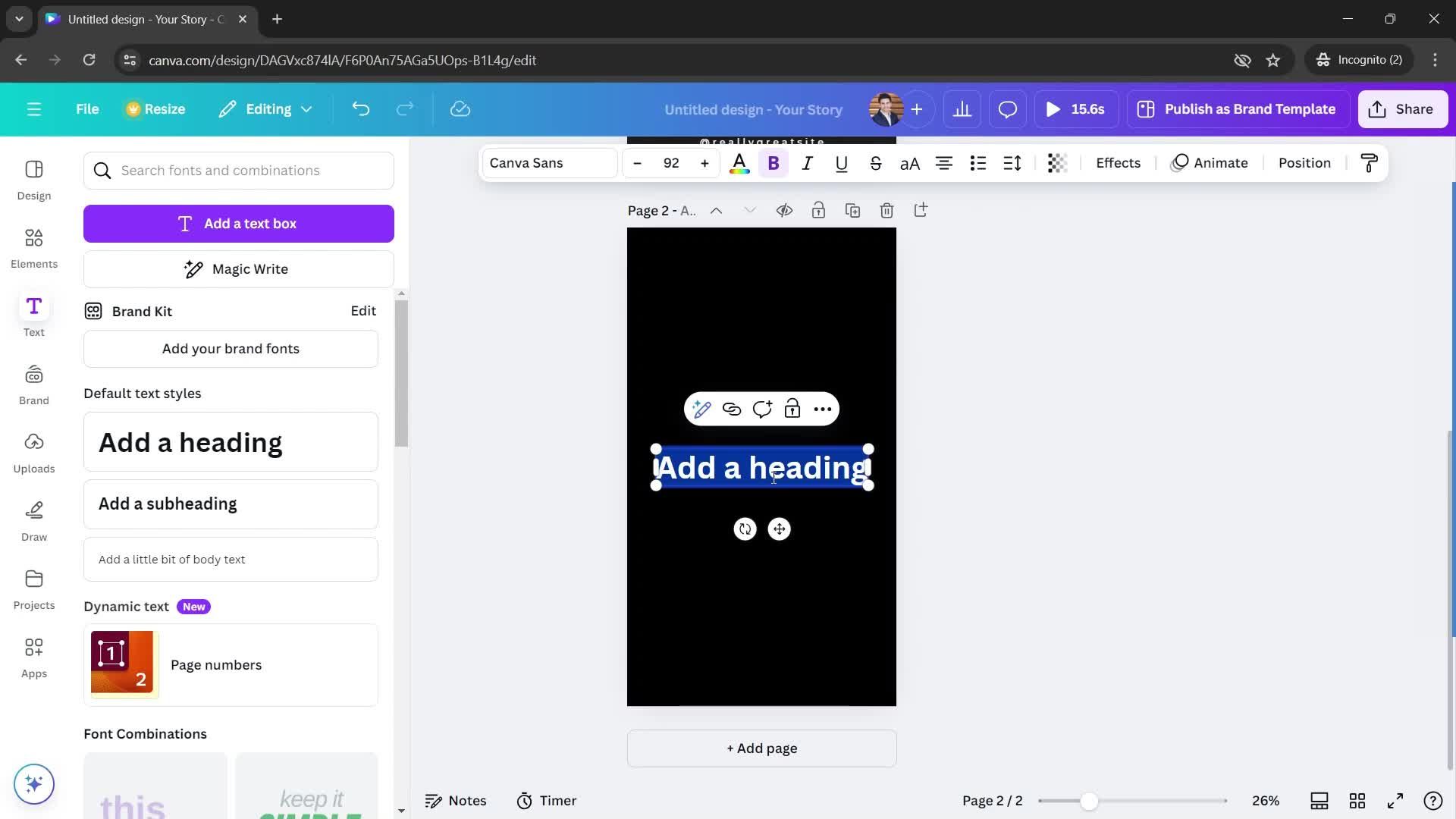
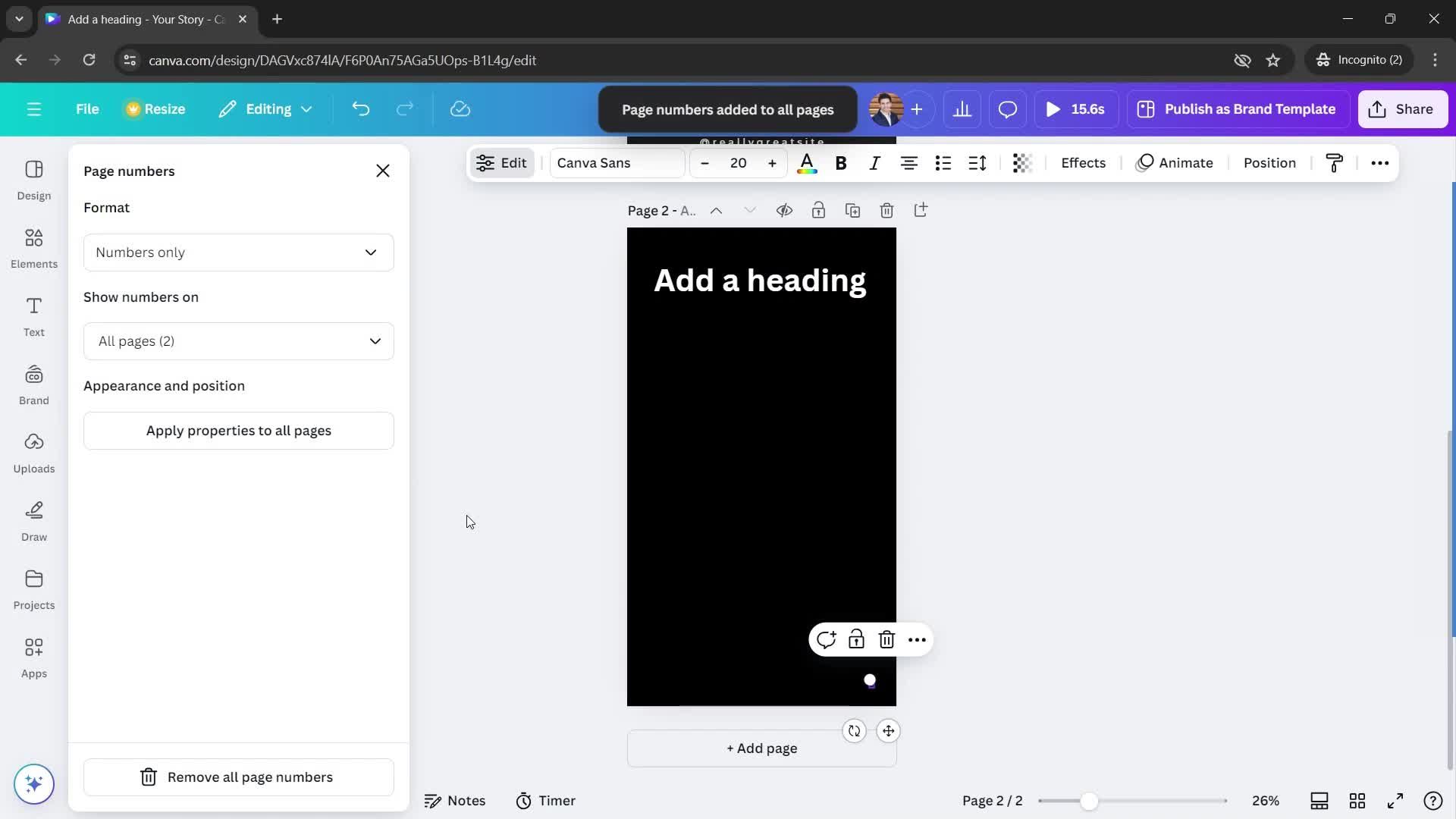
Add text
this is title
this is title
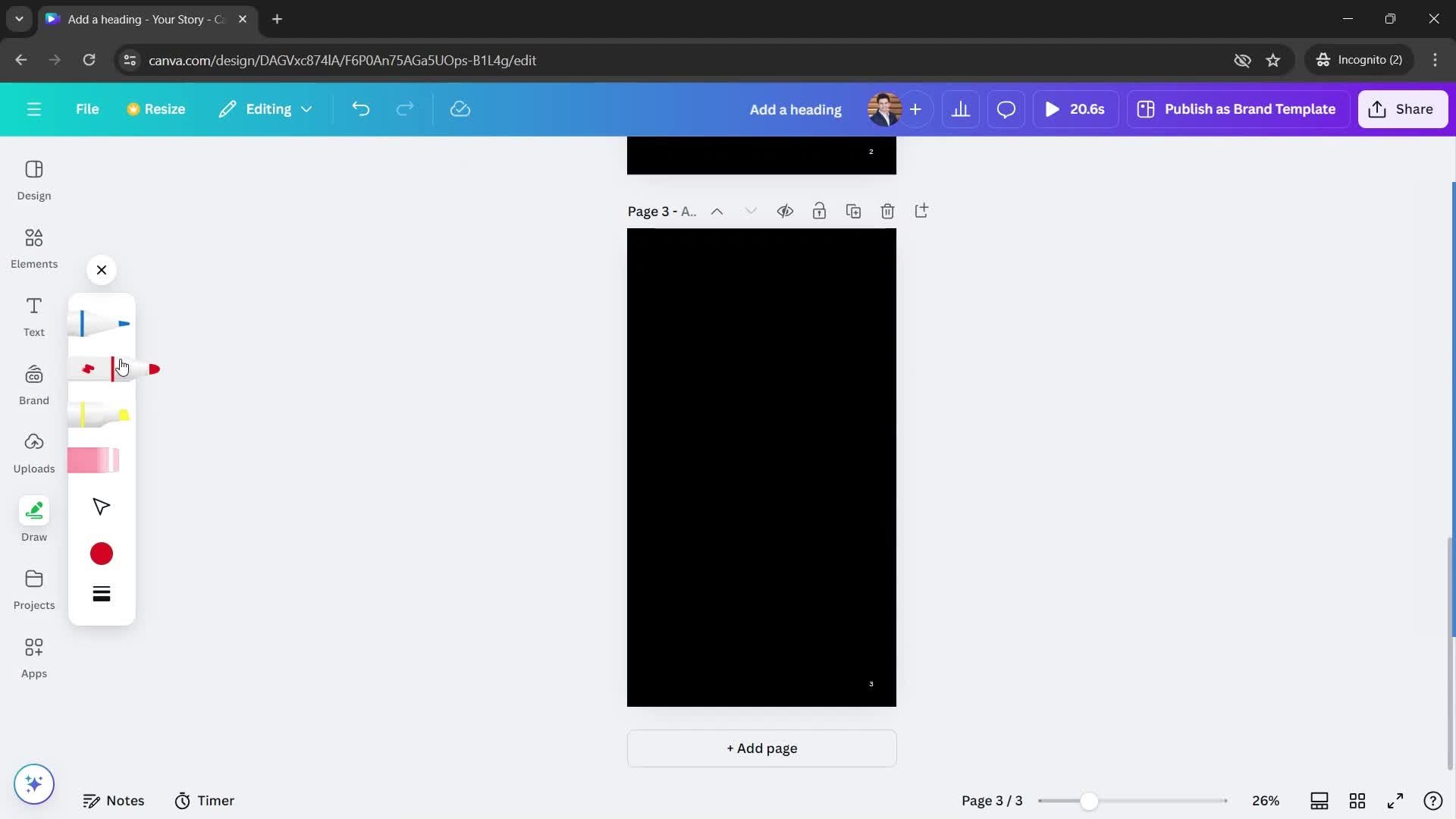
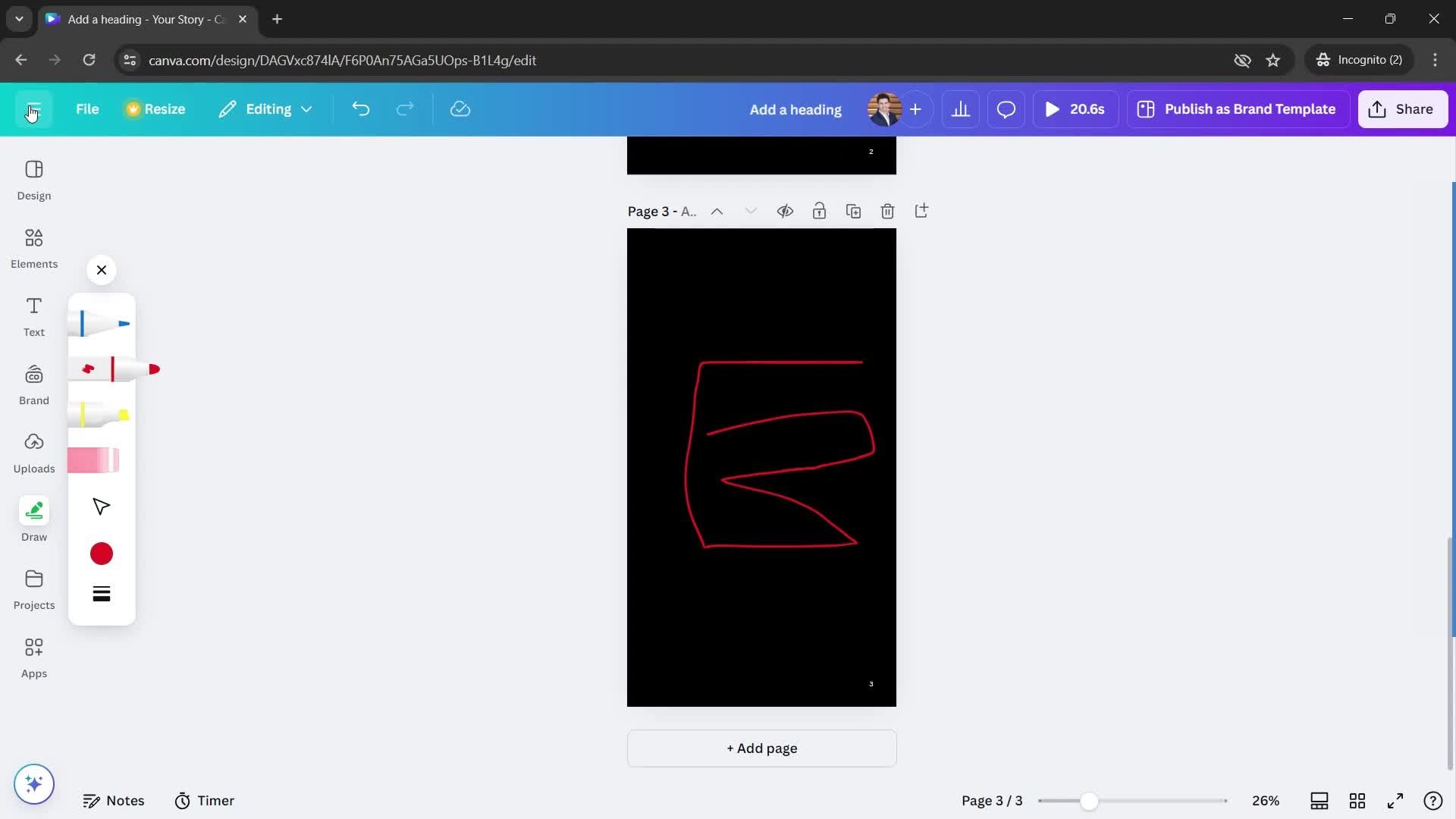
Draw
this is title
this is title
Search
this is title
this is title
Search results
this is title
this is title
No search results
this is title
this is title
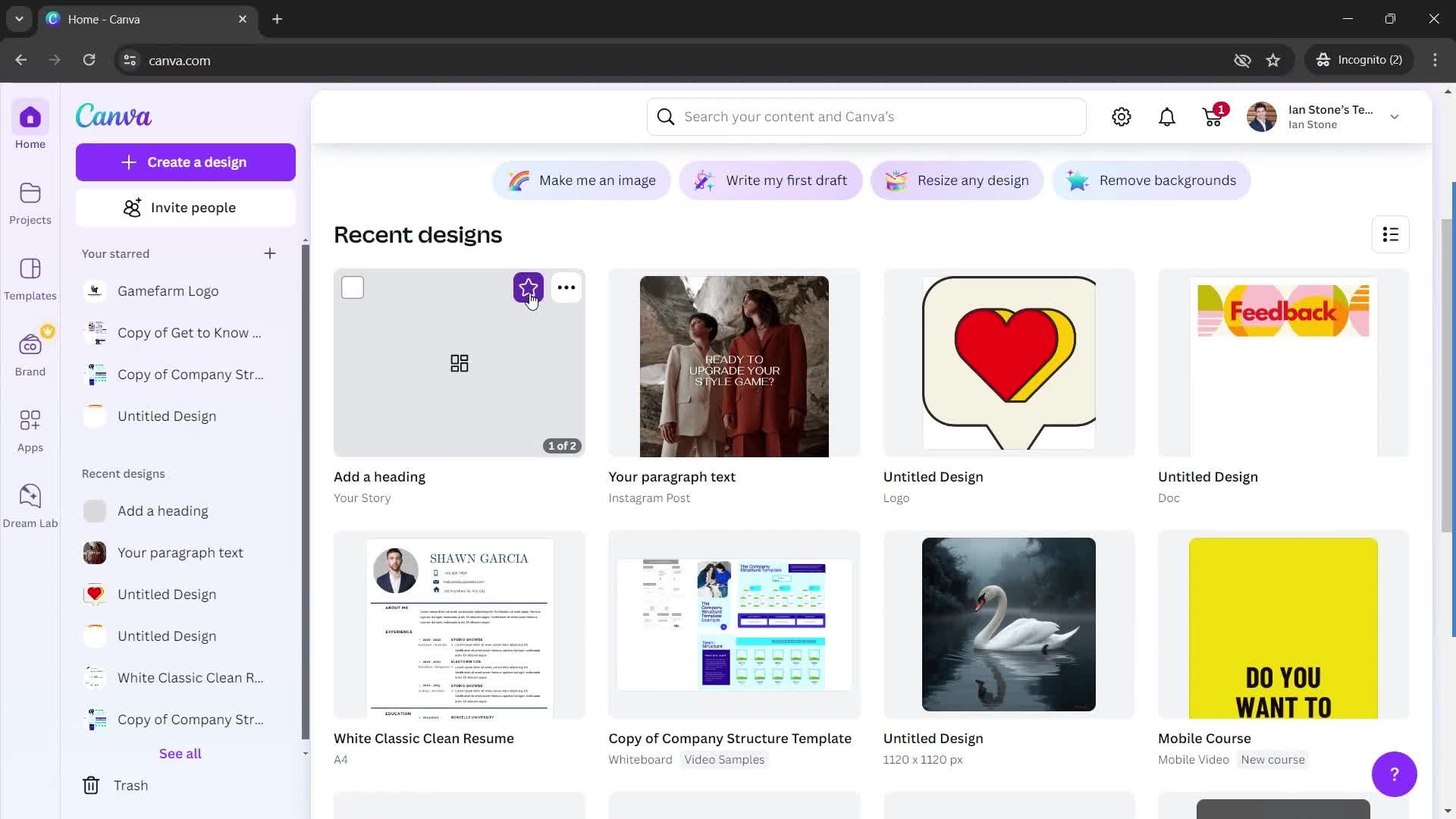
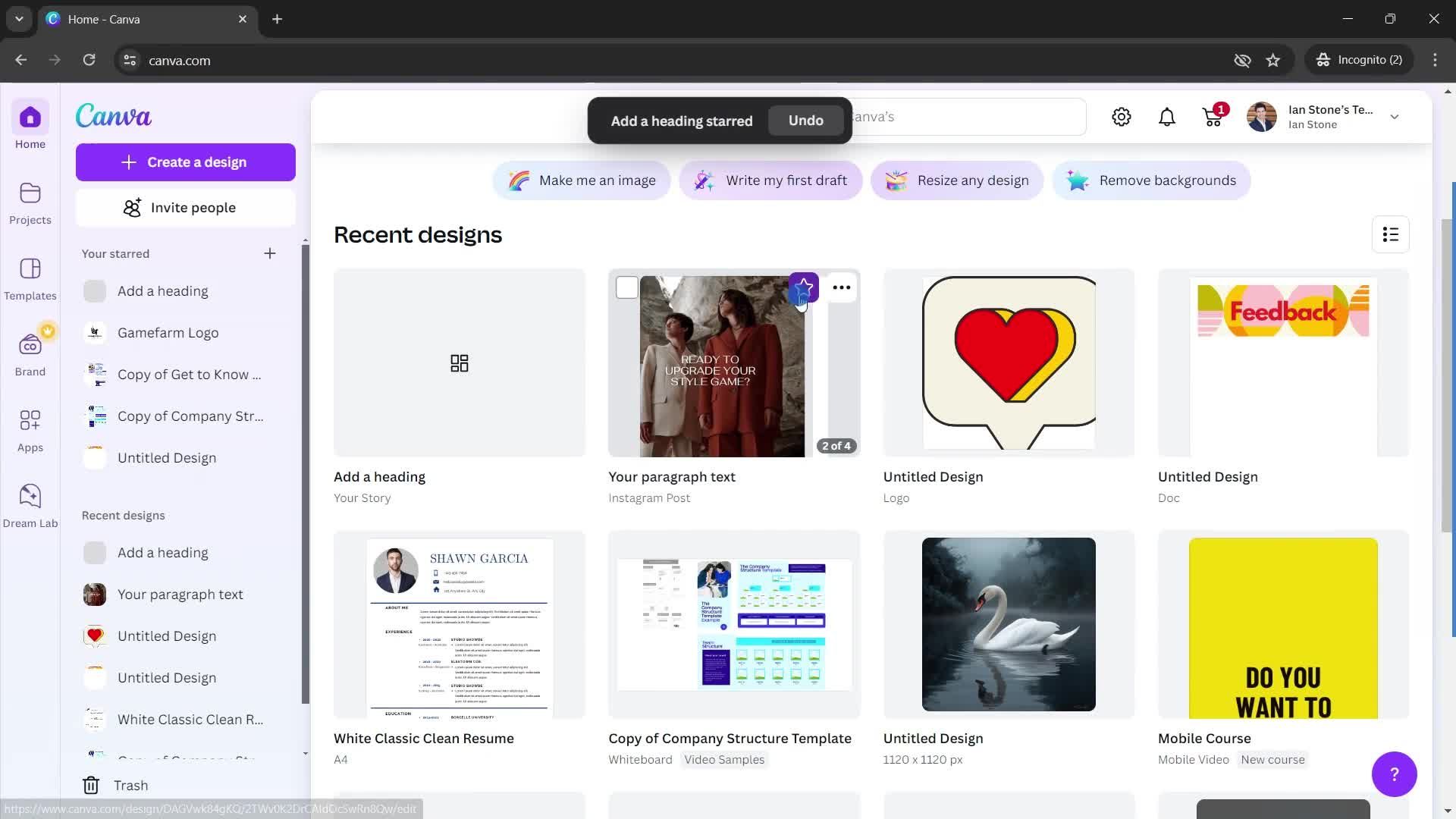
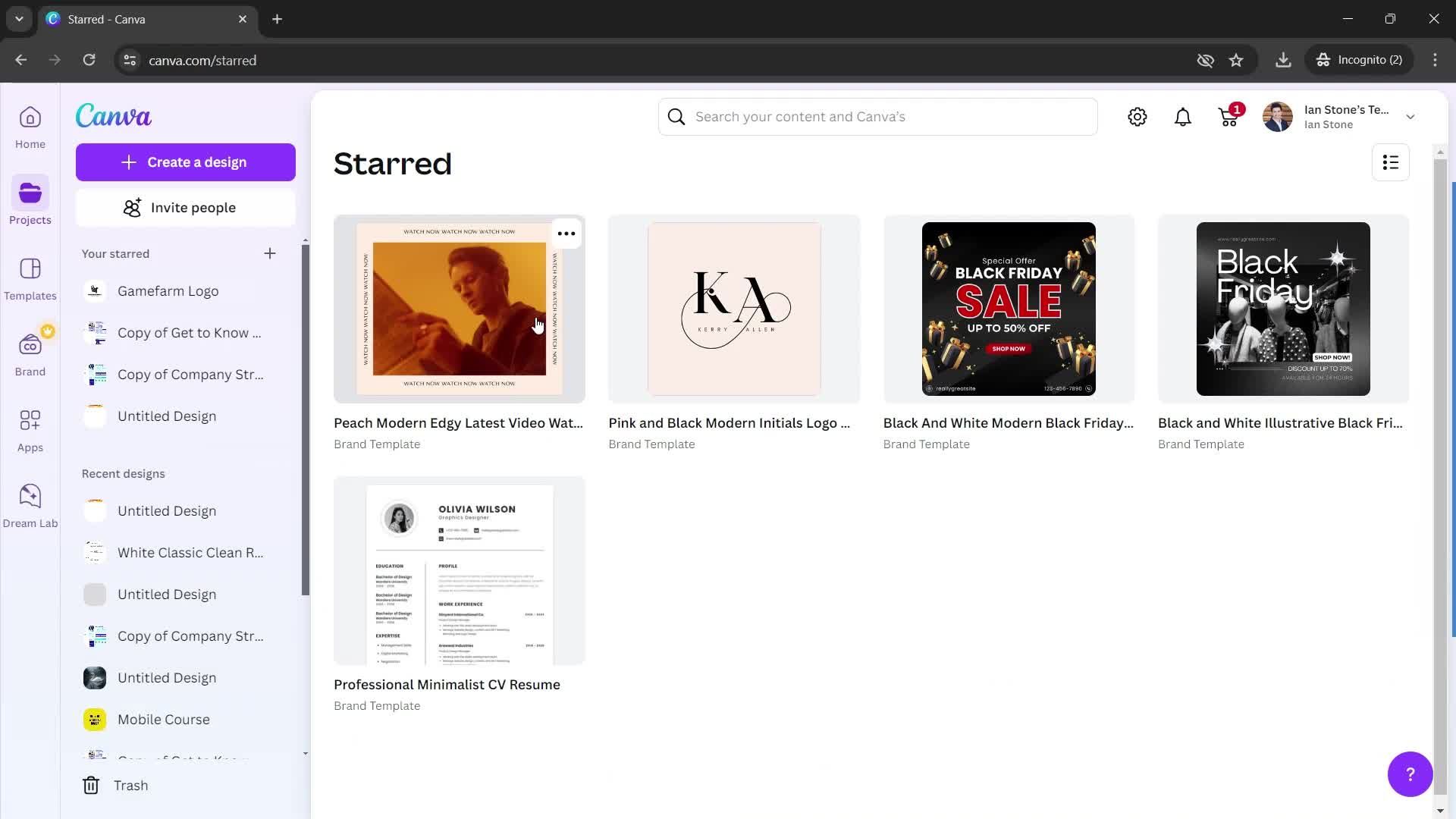
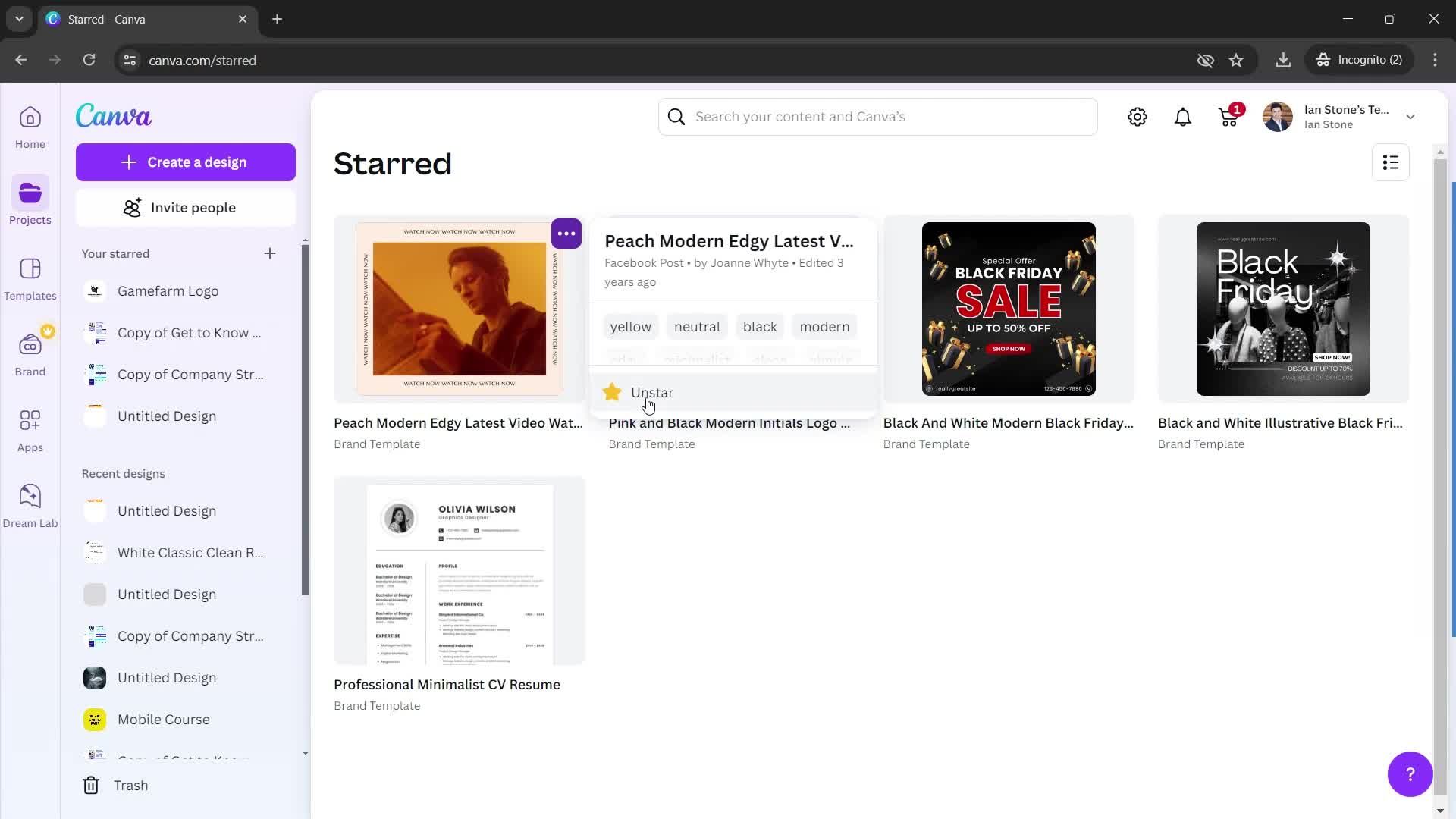
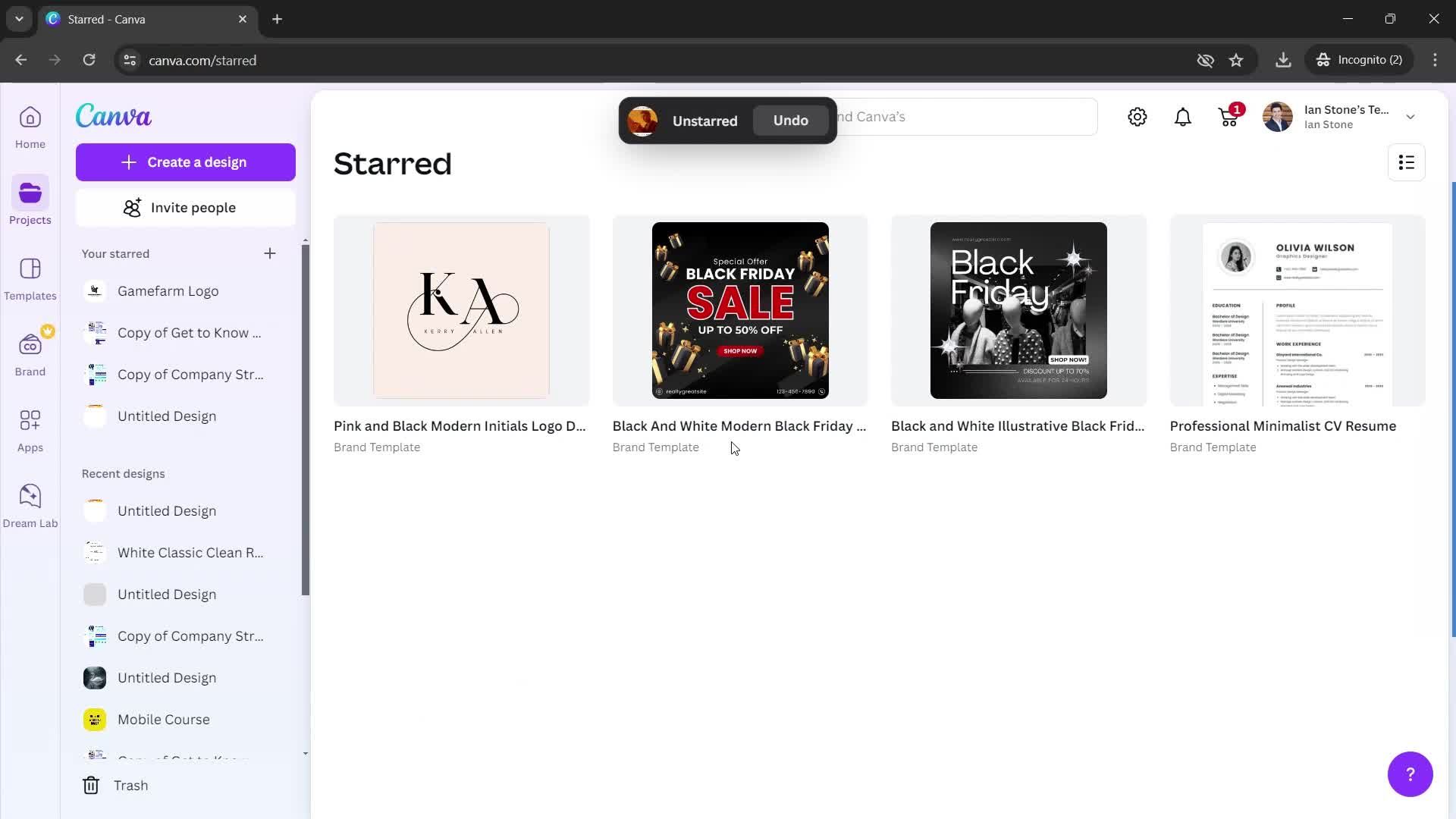
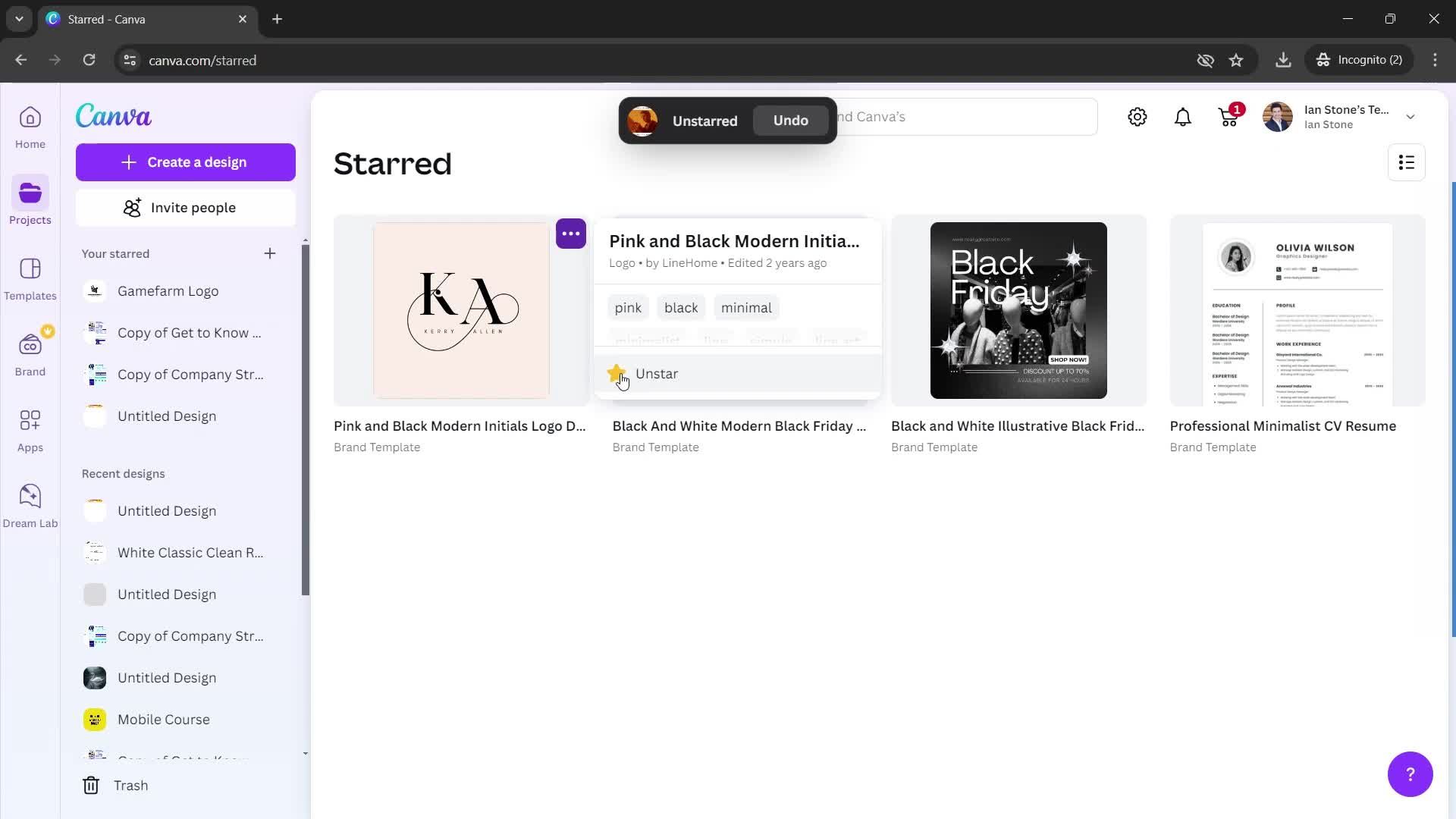
Starred
this is title
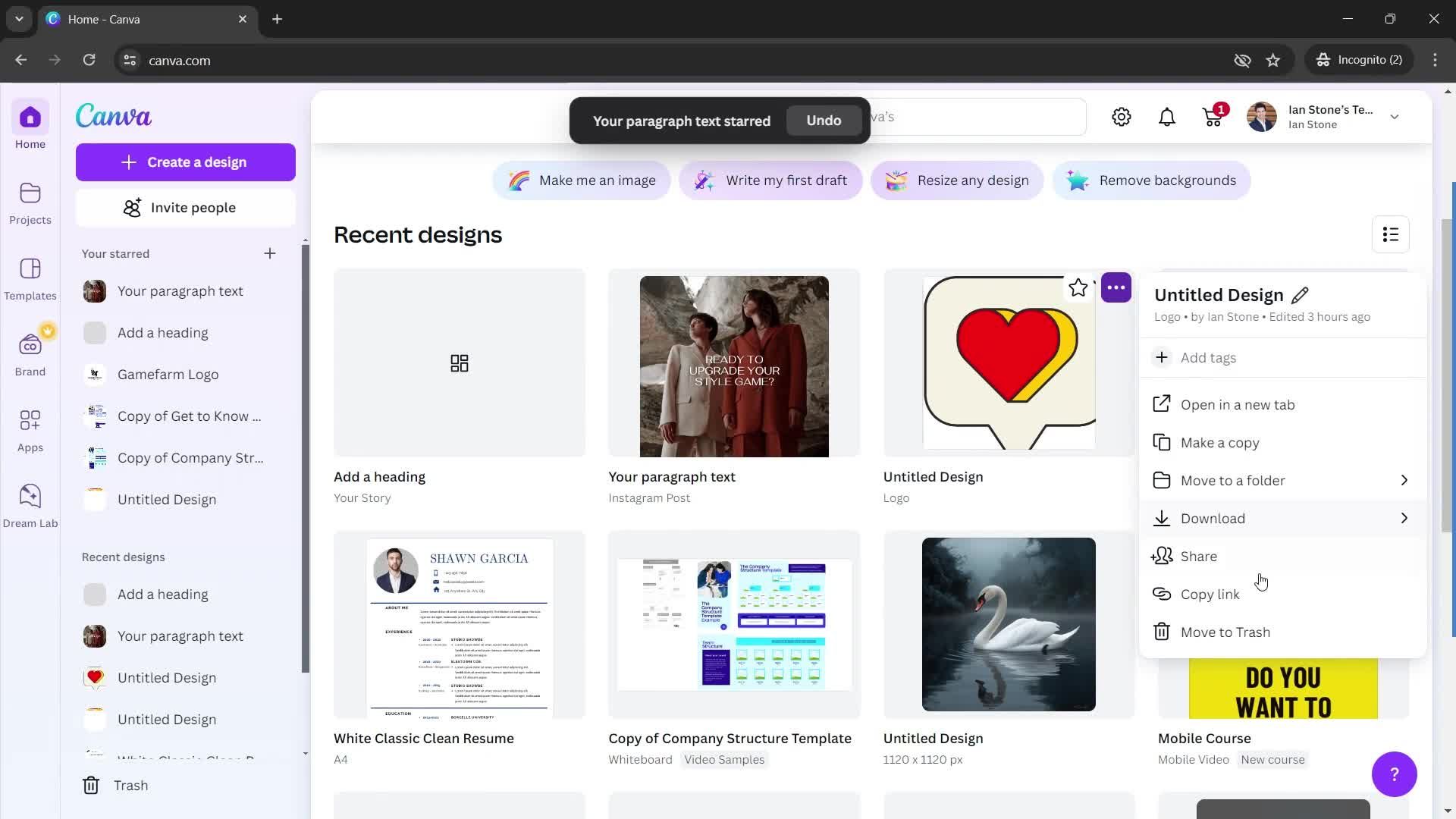
Action menu
this is title
this is title
Deleted
this is title
Projects
this is title
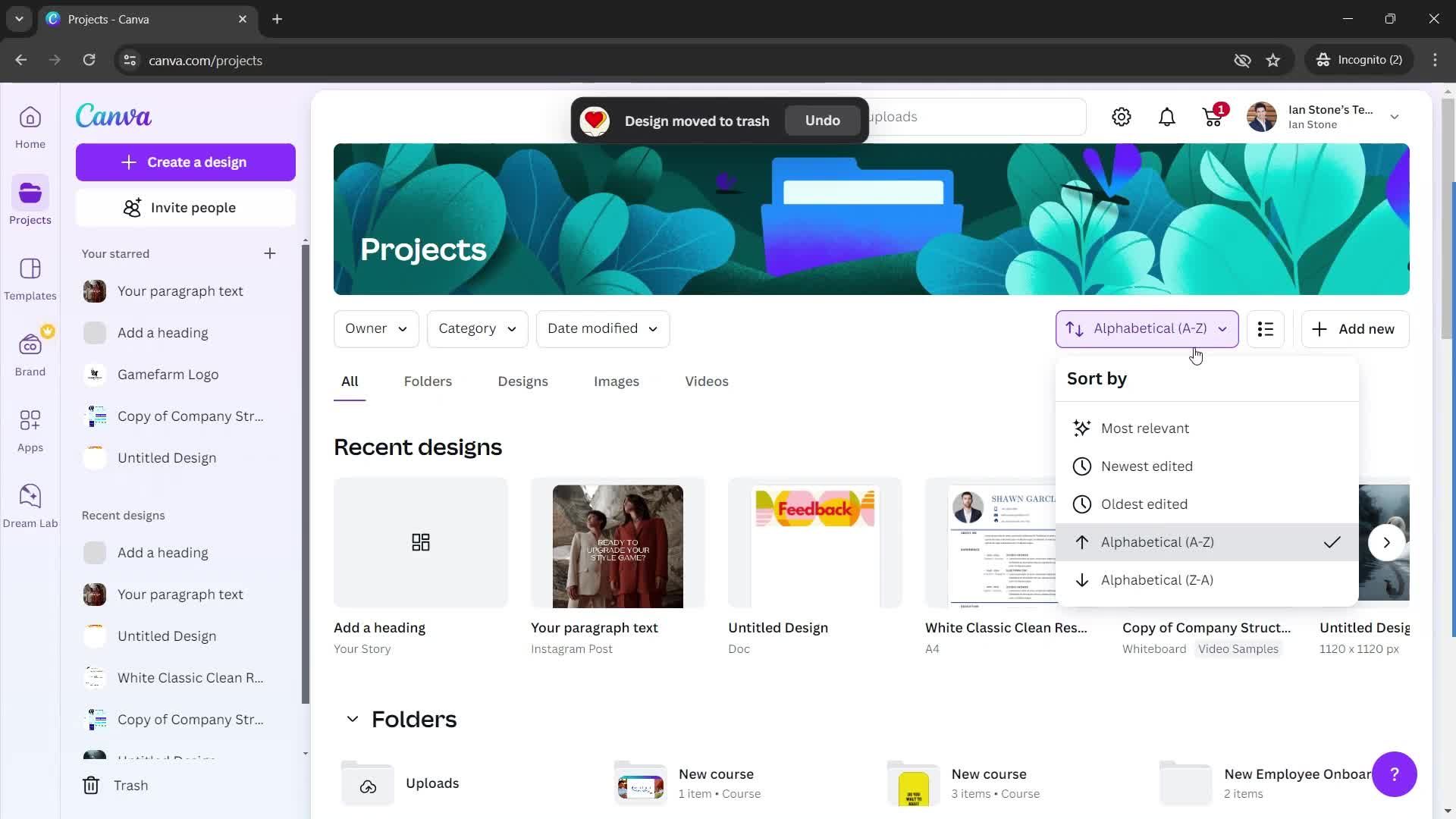
Sort
this is title
this is title
Templates
this is title
this is title
Follow
this is title
Followed
this is title
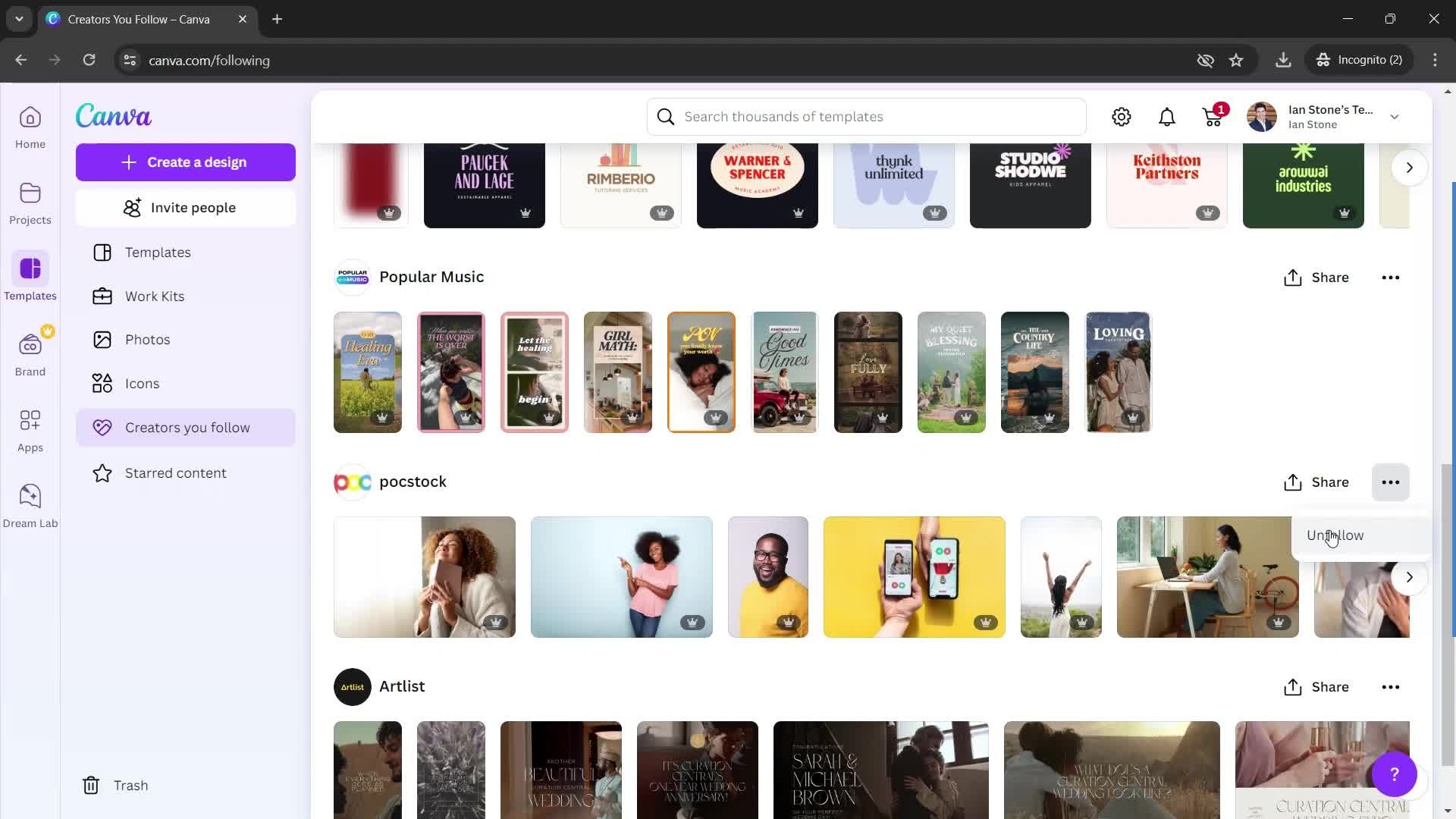
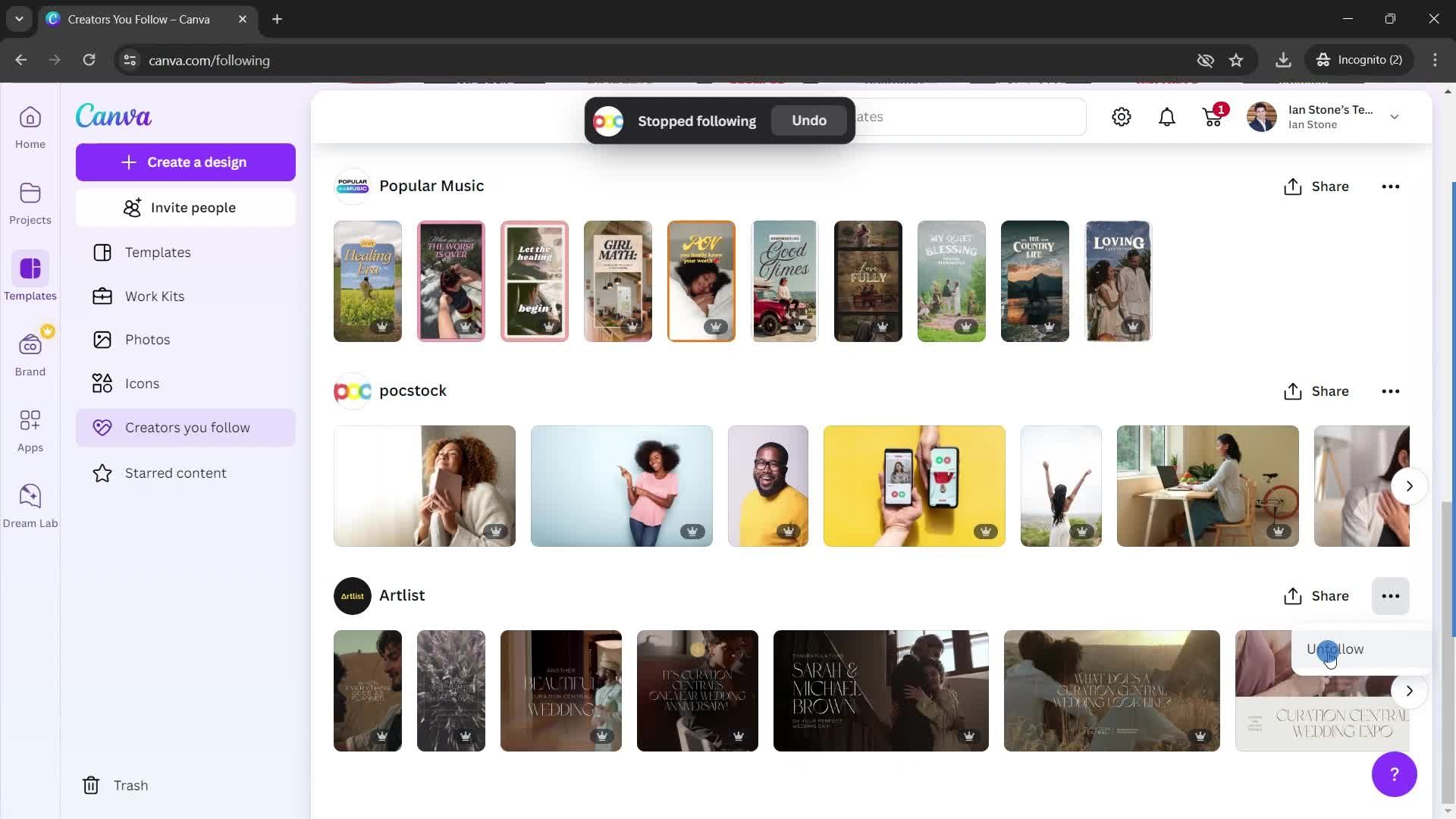
Unfollow
this is title
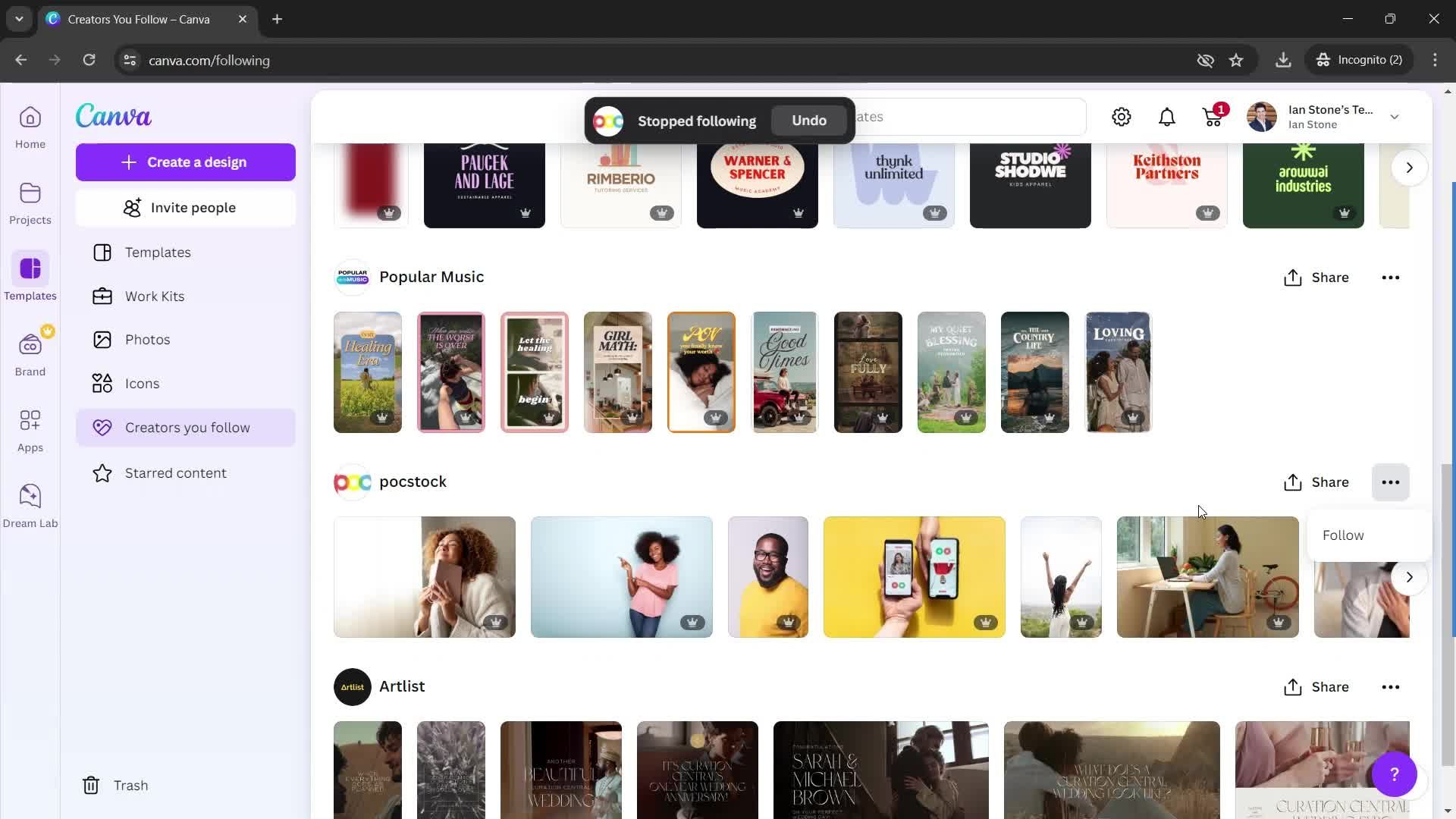
Unfollowed
this is title
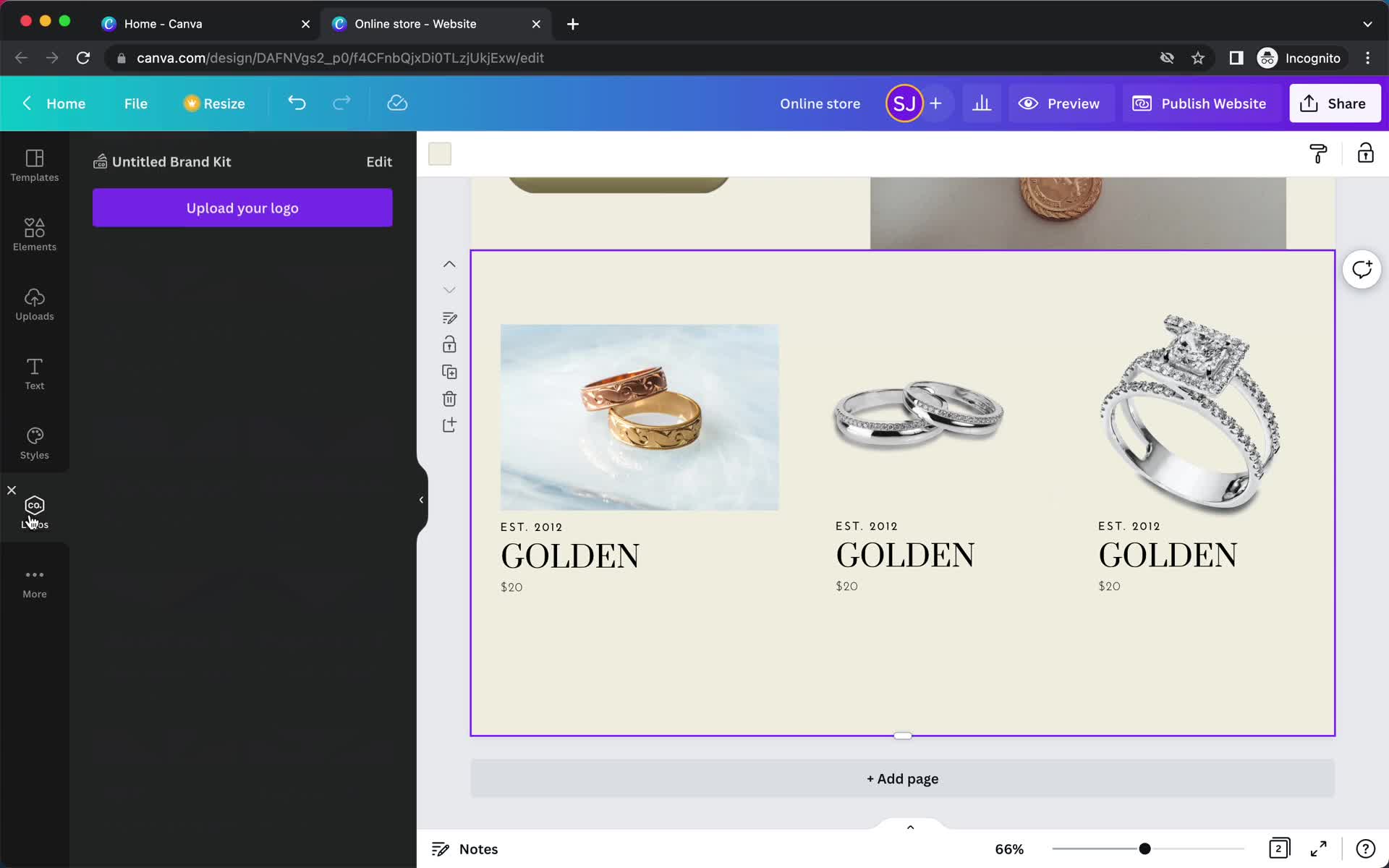
Brand
this is title
Apps
this is title
this is title
this is title
this is title
this is title
this is title
this is title
Home
this is title
Settings
this is title
Edit
this is title
this is title
this is title
this is title
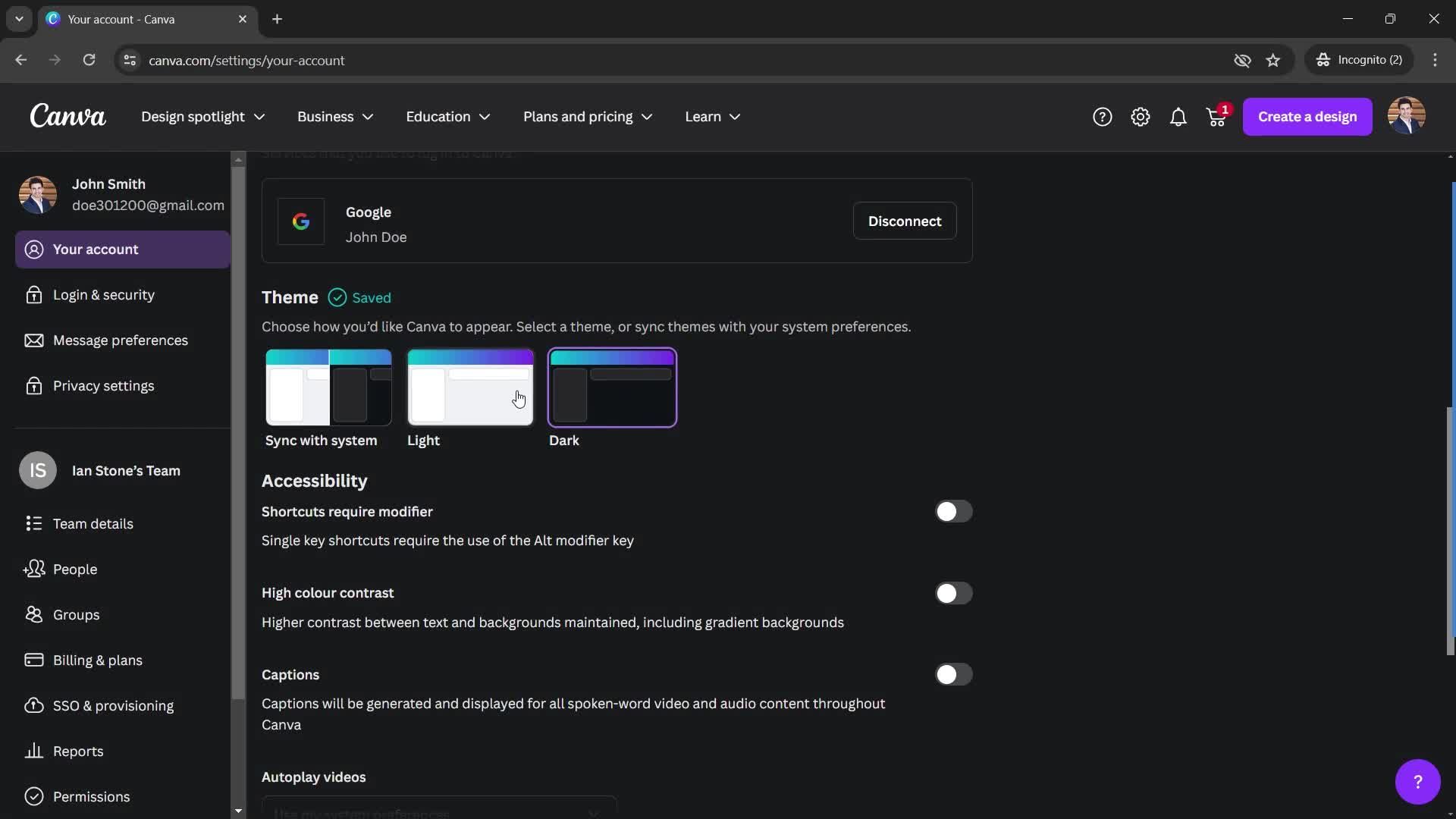
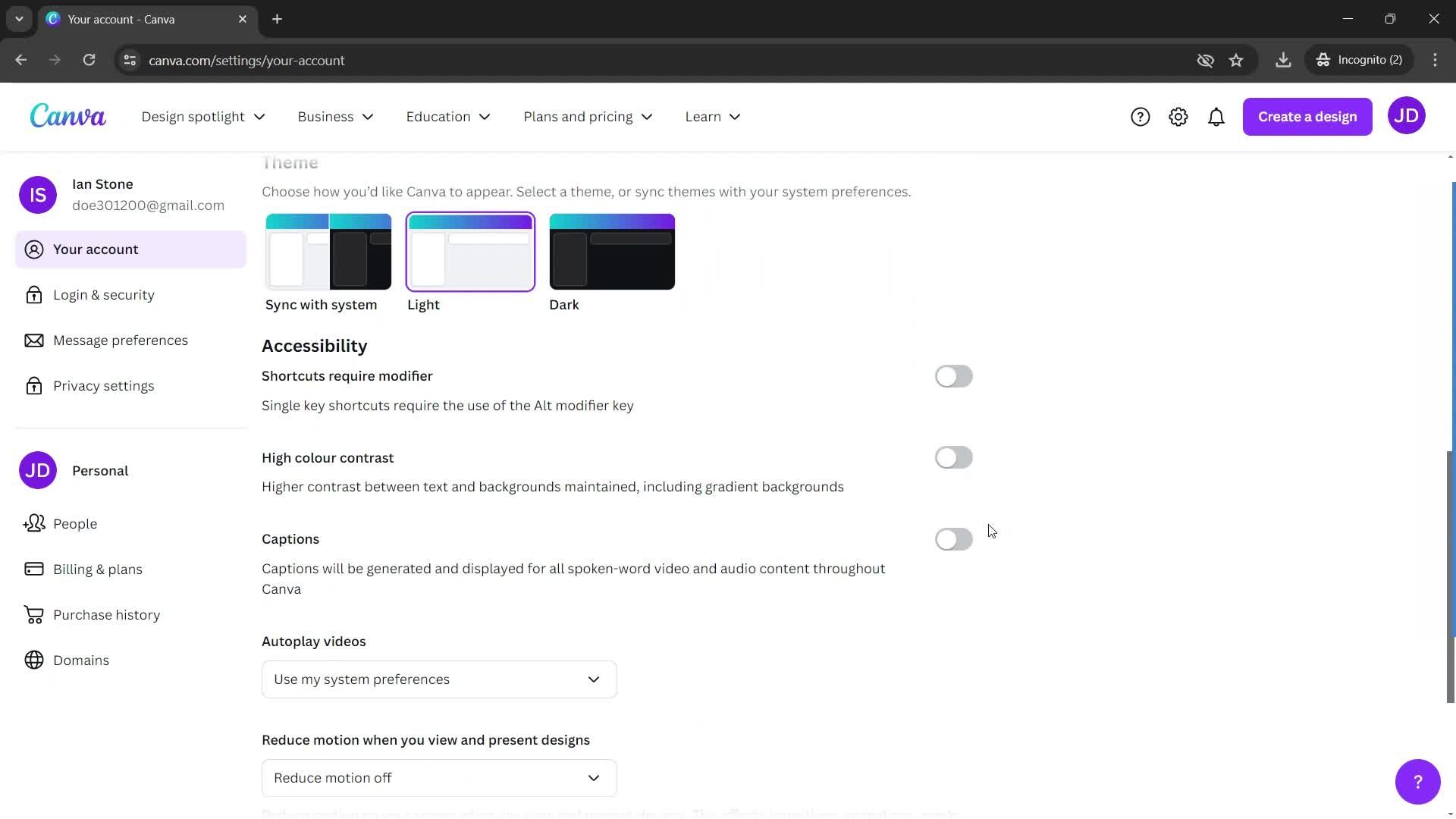
Dark mode
this is title
this is title
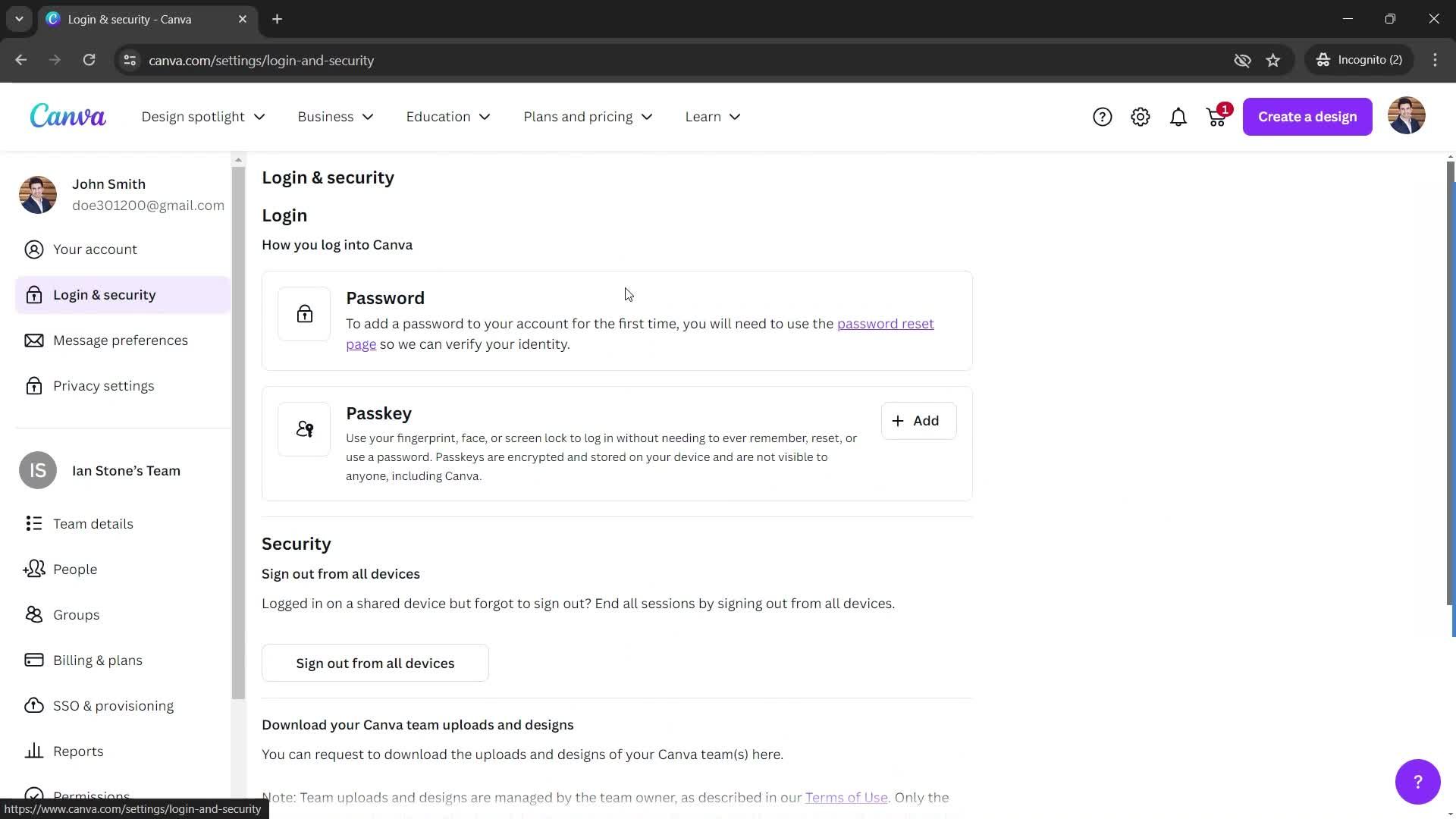
Security settings
this is title
Message settings
this is title
Privacy settings
this is title
this is title
this is title
People
this is title
Groups
this is title
Create group
this is title
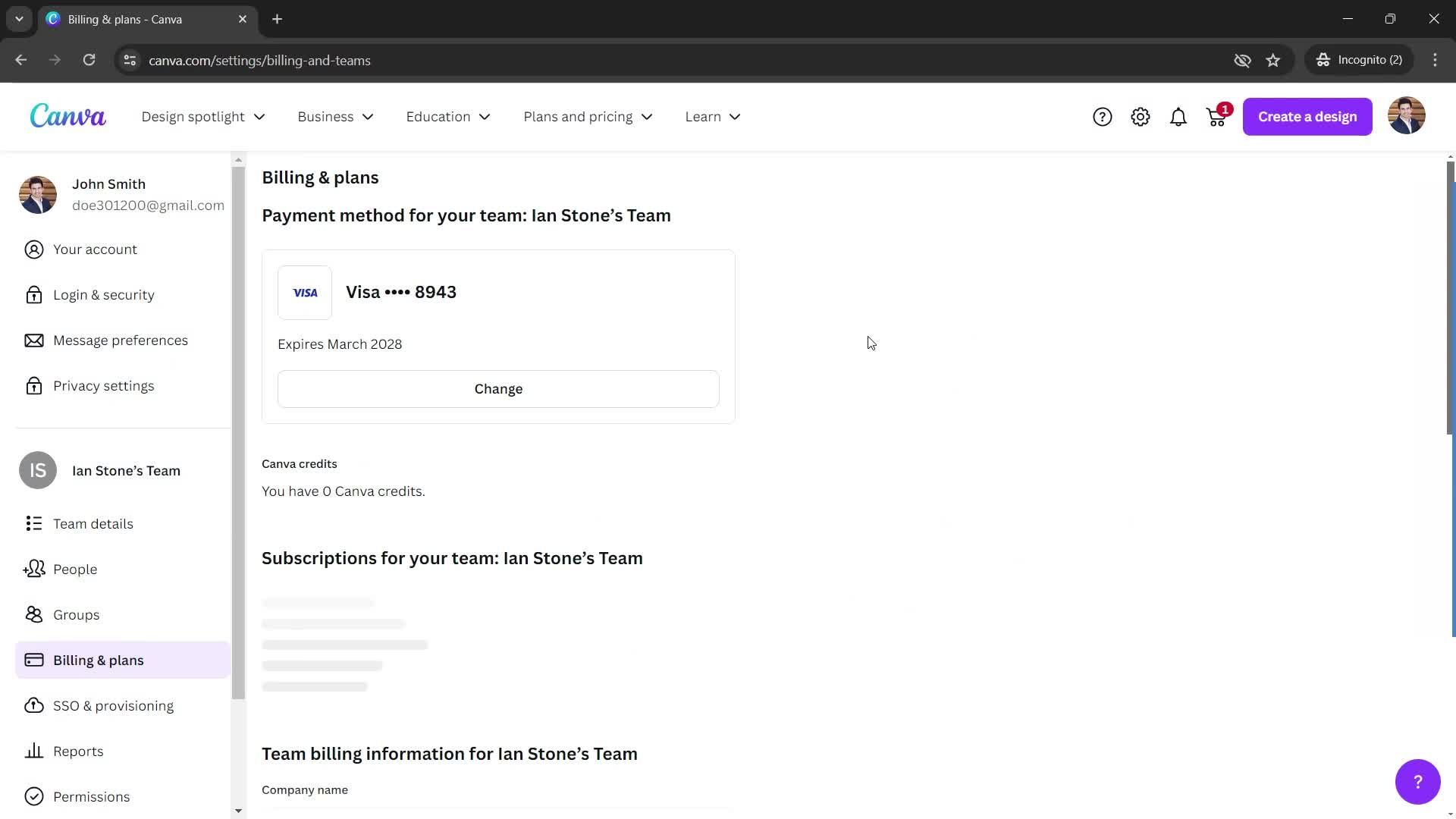
Billing
this is title
this is title
Reports
this is title
Permissions
this is title
this is title
Apps
this is title
Purchases
this is title
Domains
this is title
Notifications
this is title
Cart
this is title
this is title
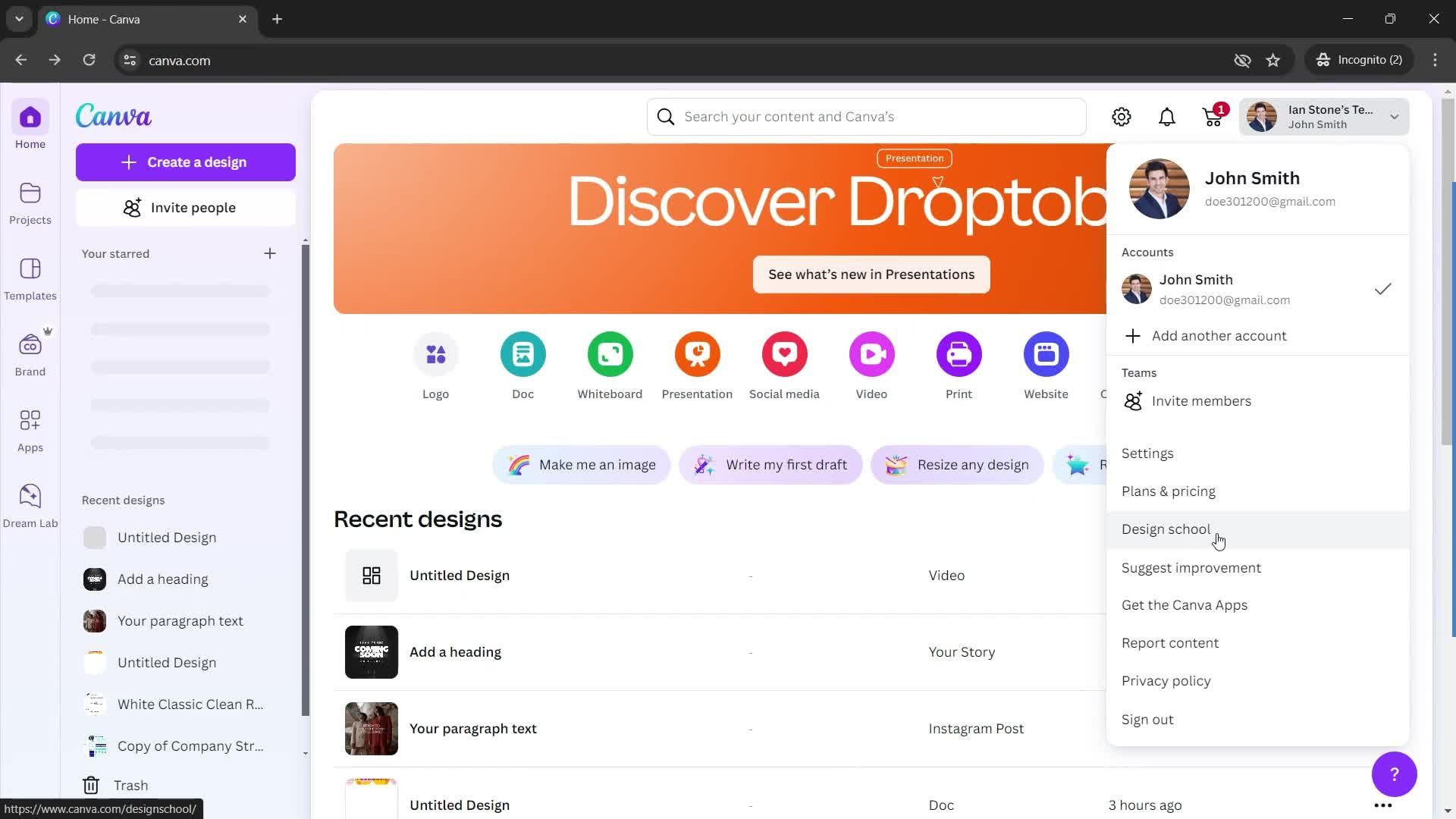
Profile menu
this is title
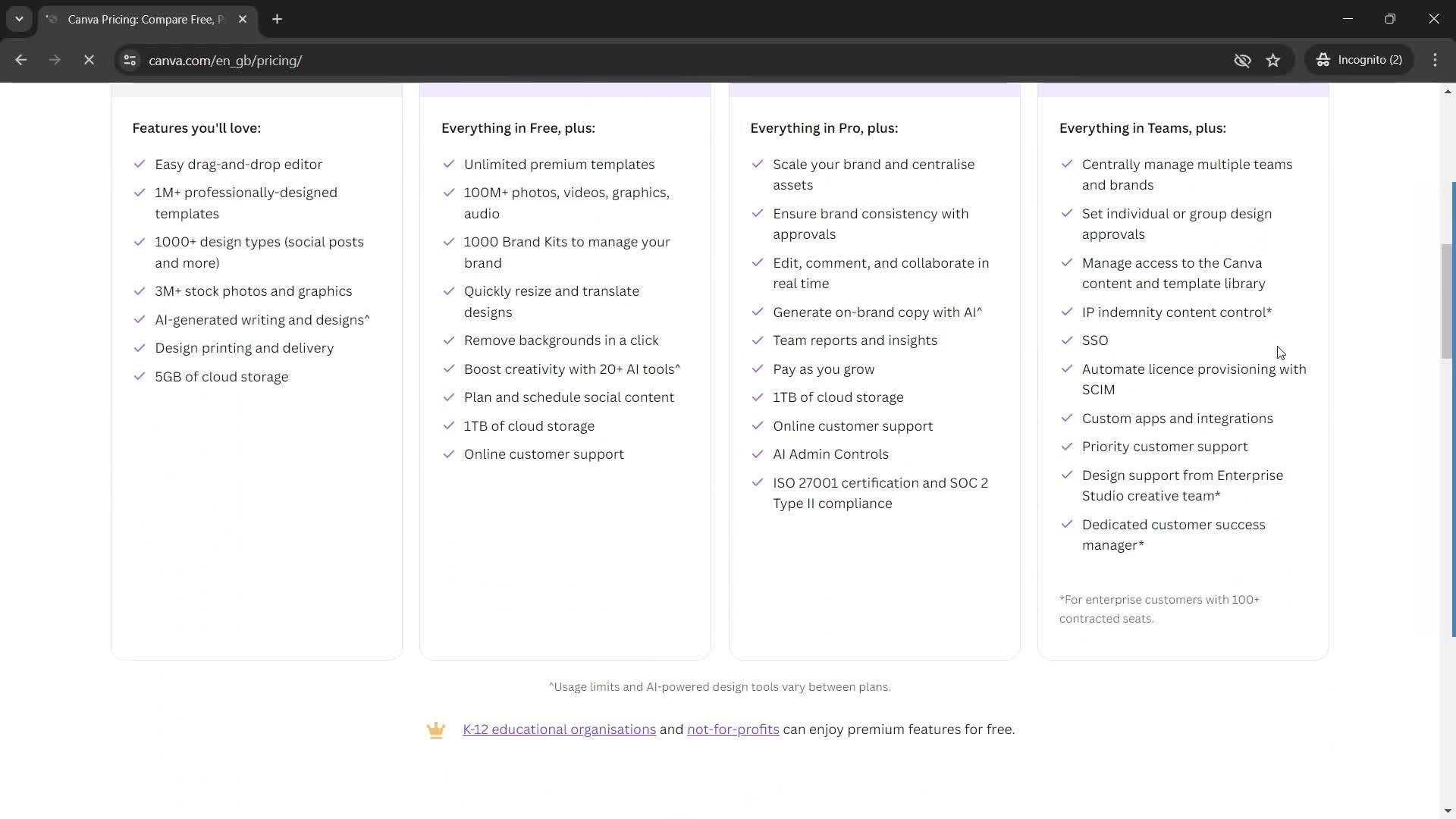
Pricing & plans
this is title
Compare plans
this is title
this is title
this is title
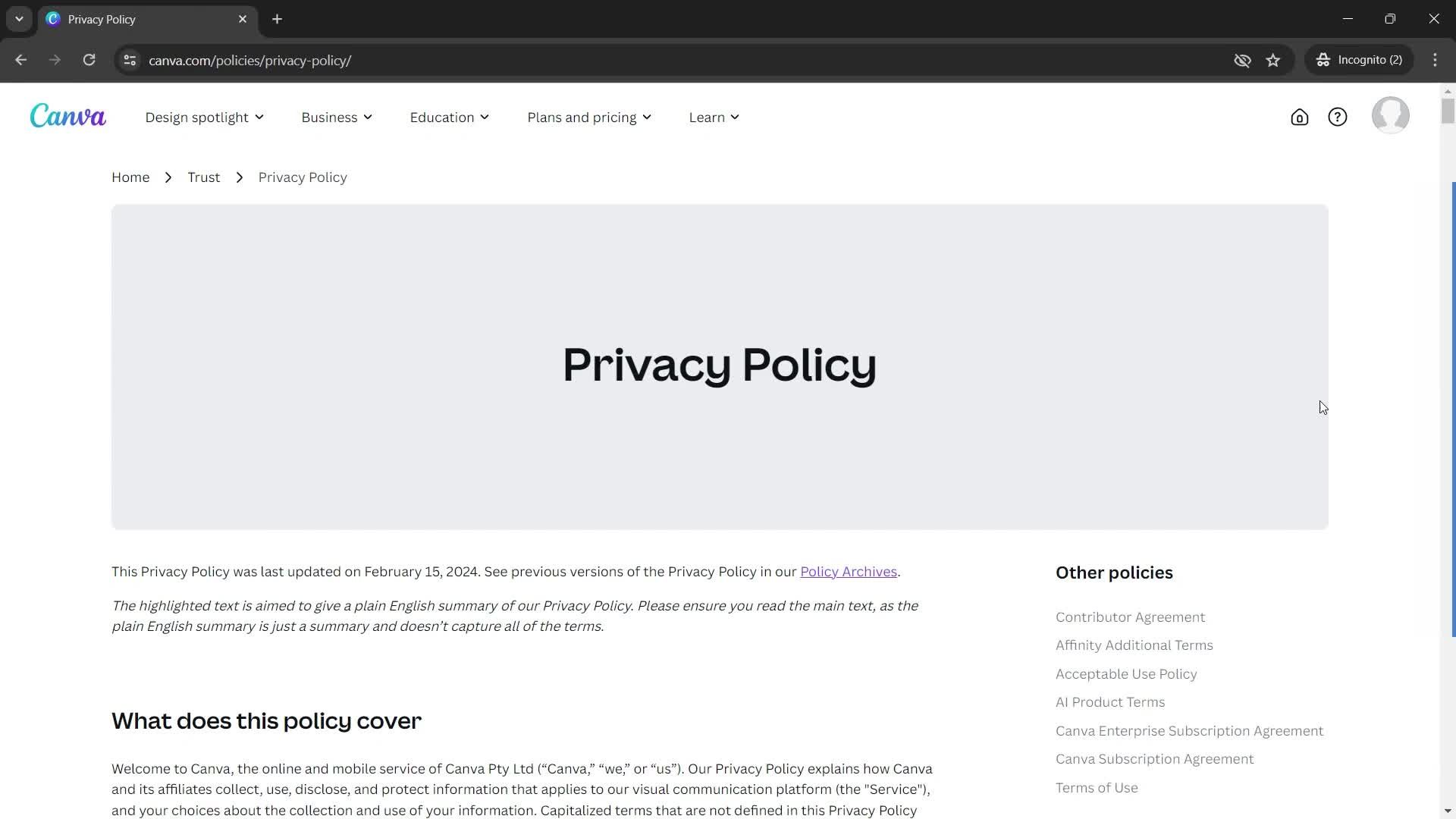
Privacy policy
this is title
this is title
Contact support
this is title
this is title
this is title
Home
this is title
Navigation menu
this is title
Feature details
this is title
Editor
this is title
Editor
this is title
Add comment
this is title
Add comment
this is title
Add element
this is title
Uploads
this is title
Themes
this is title
Themes
this is title
Apps
this is title
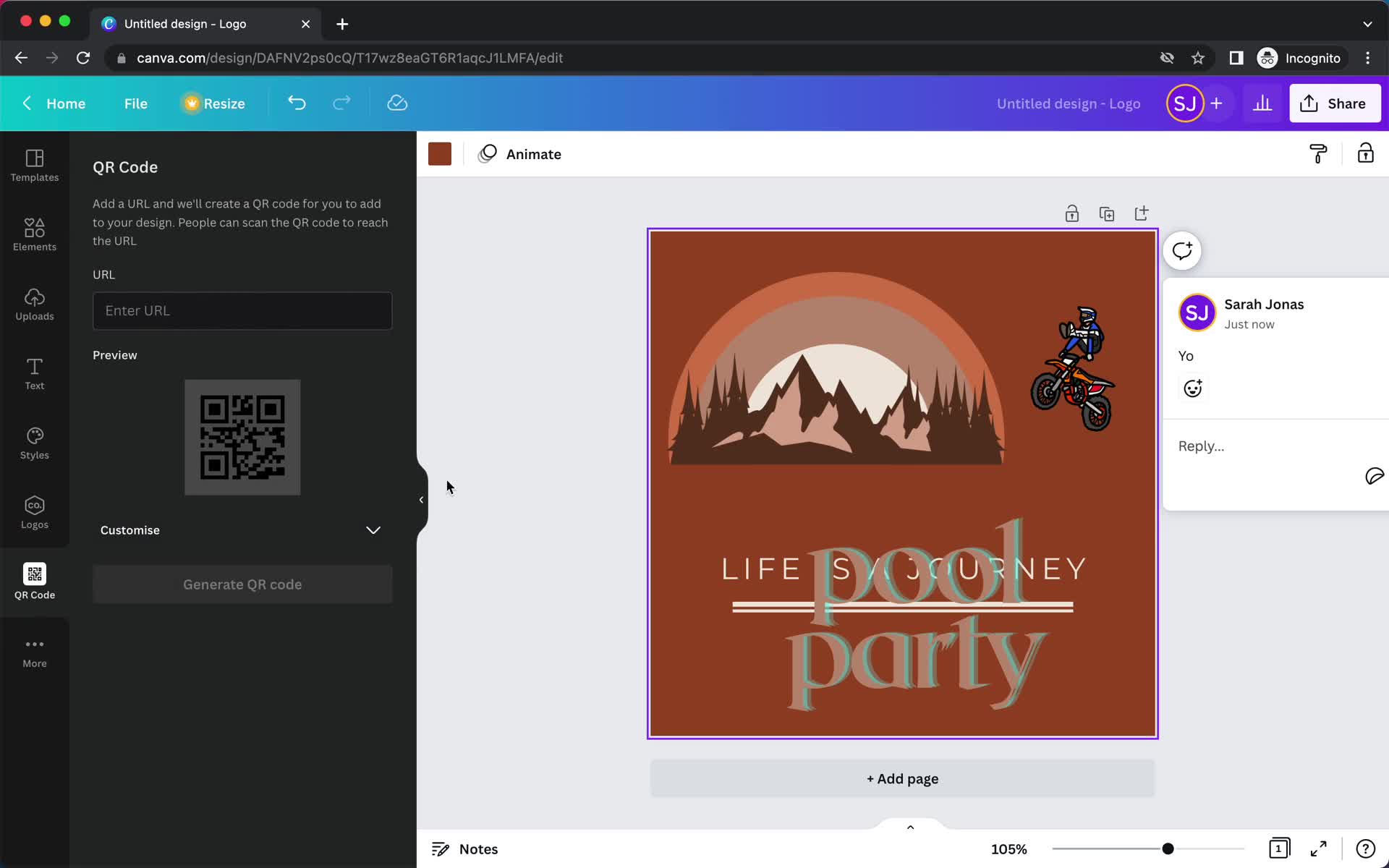
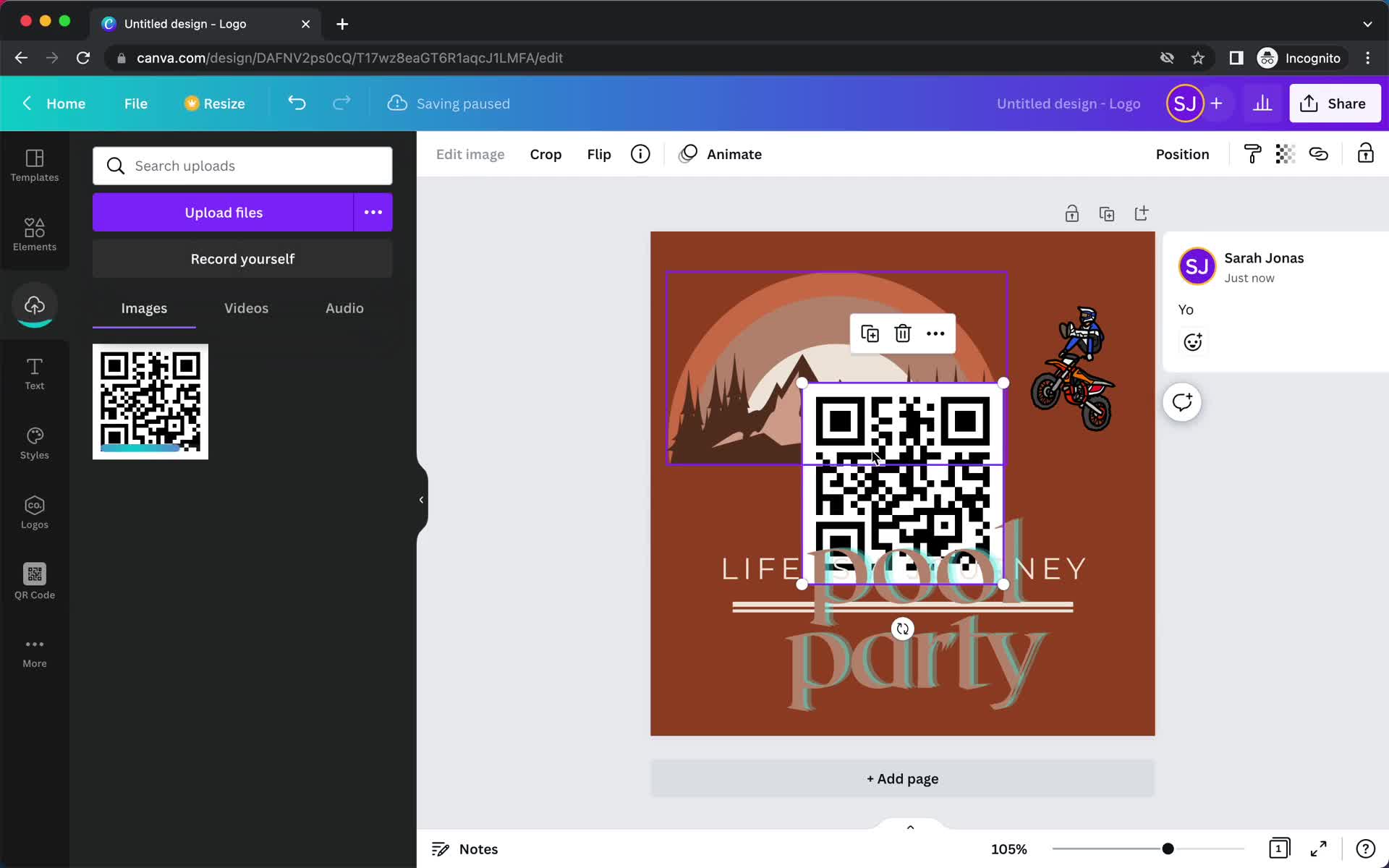
Add QR code
this is title
Add QR code
this is title
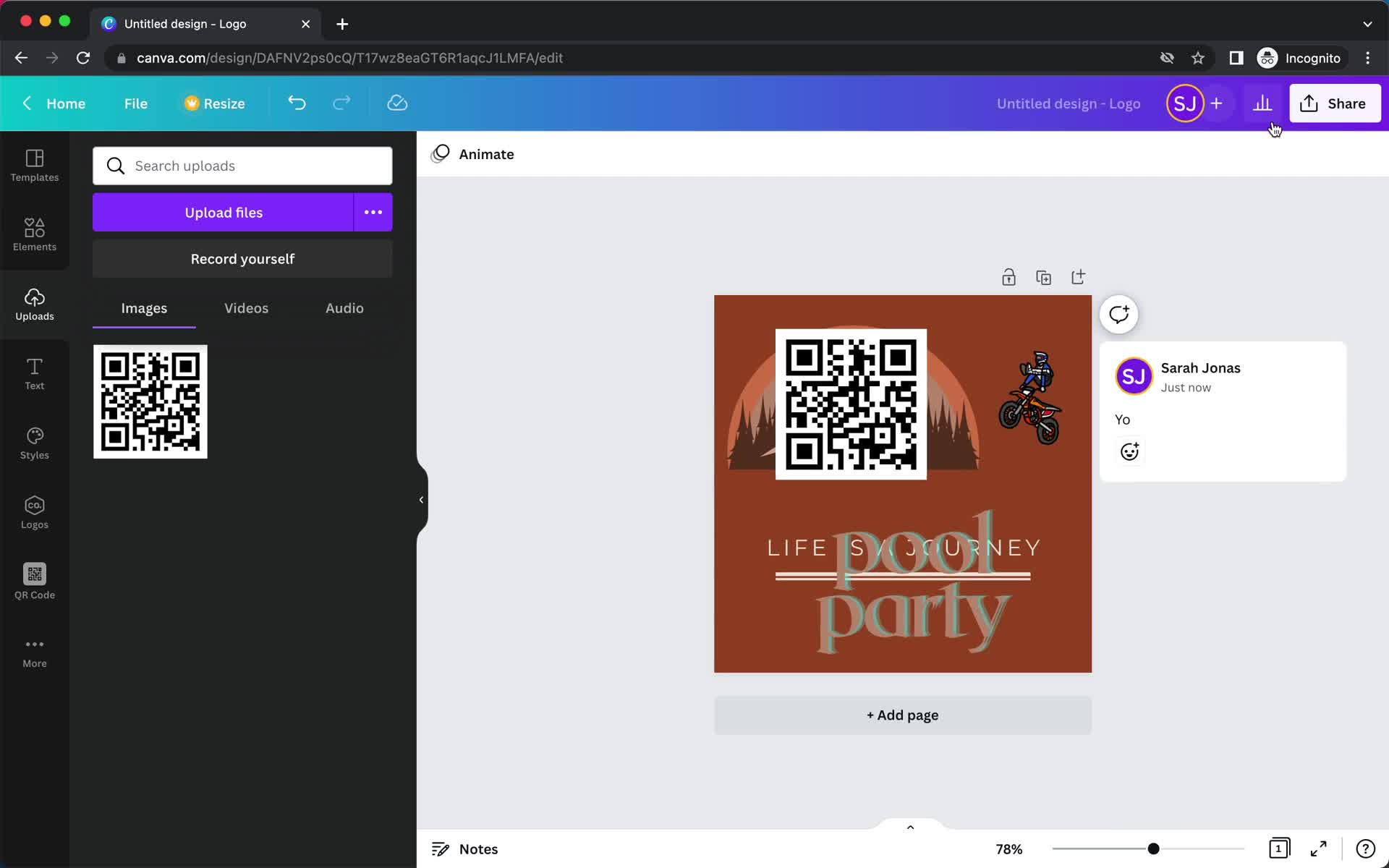
Add QR code
this is title
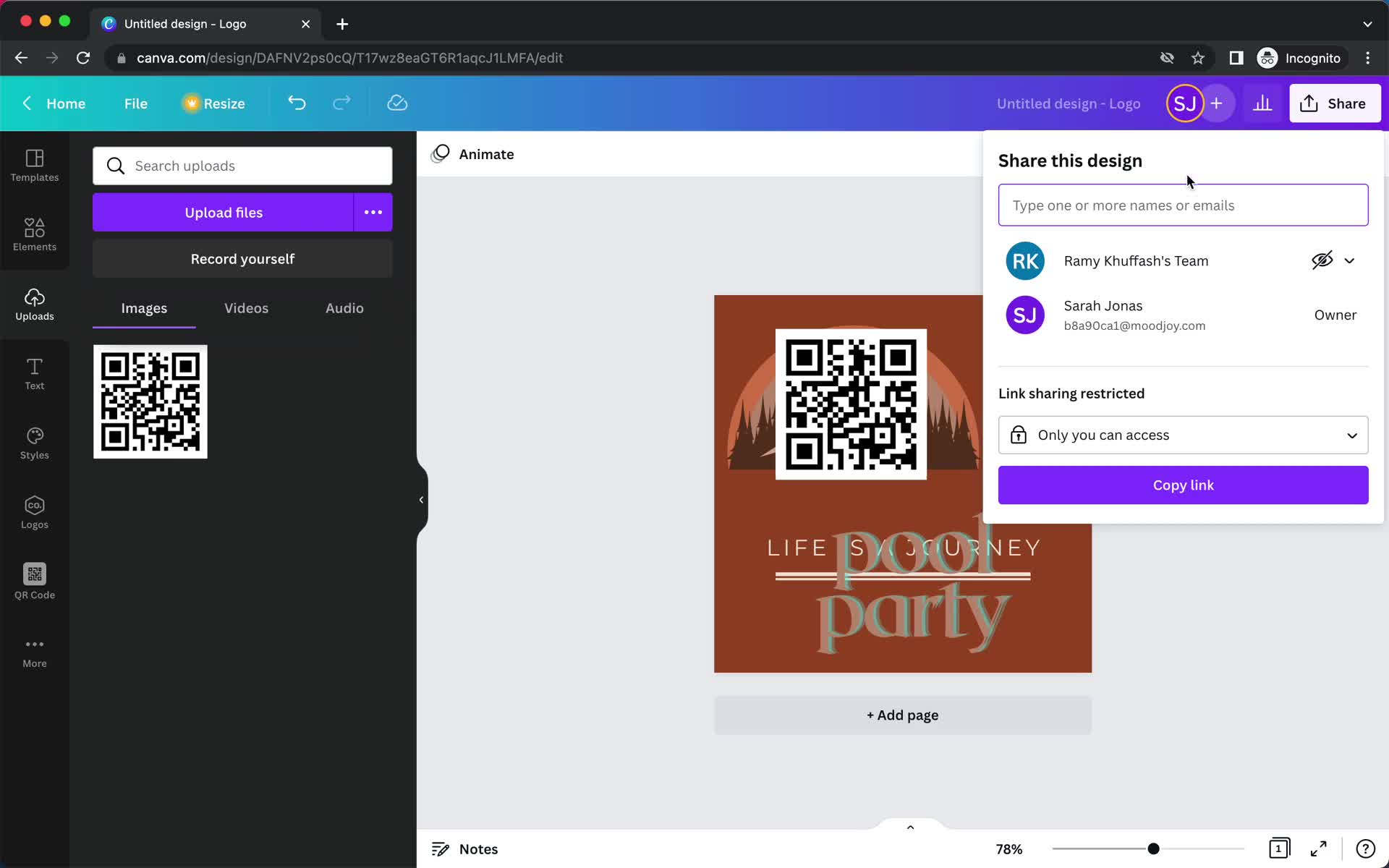
Share
this is title
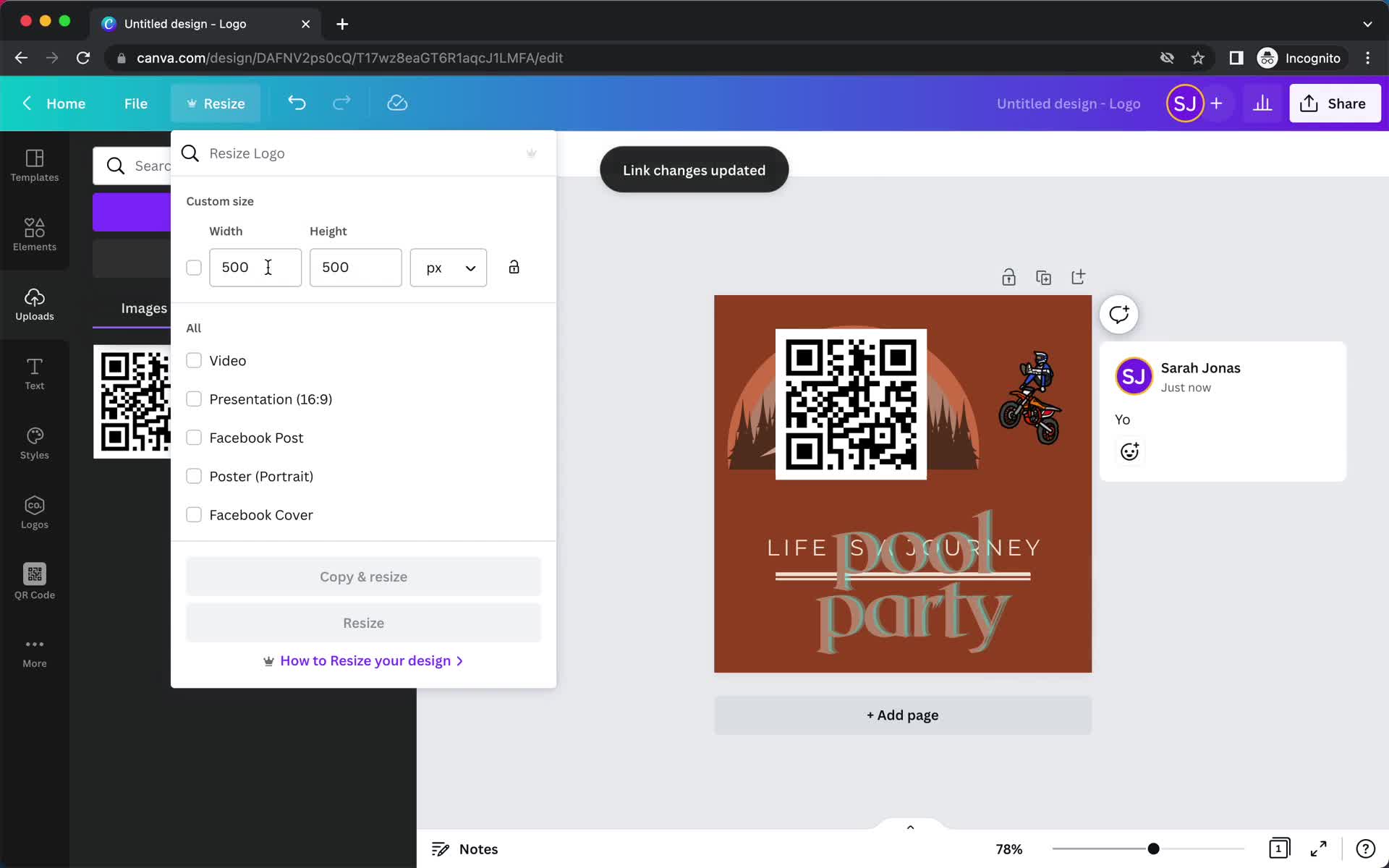
Resize
this is title
Templates
this is title
Home
this is title
Search
this is title
Search results
this is title
No search results
this is title
Home
this is title
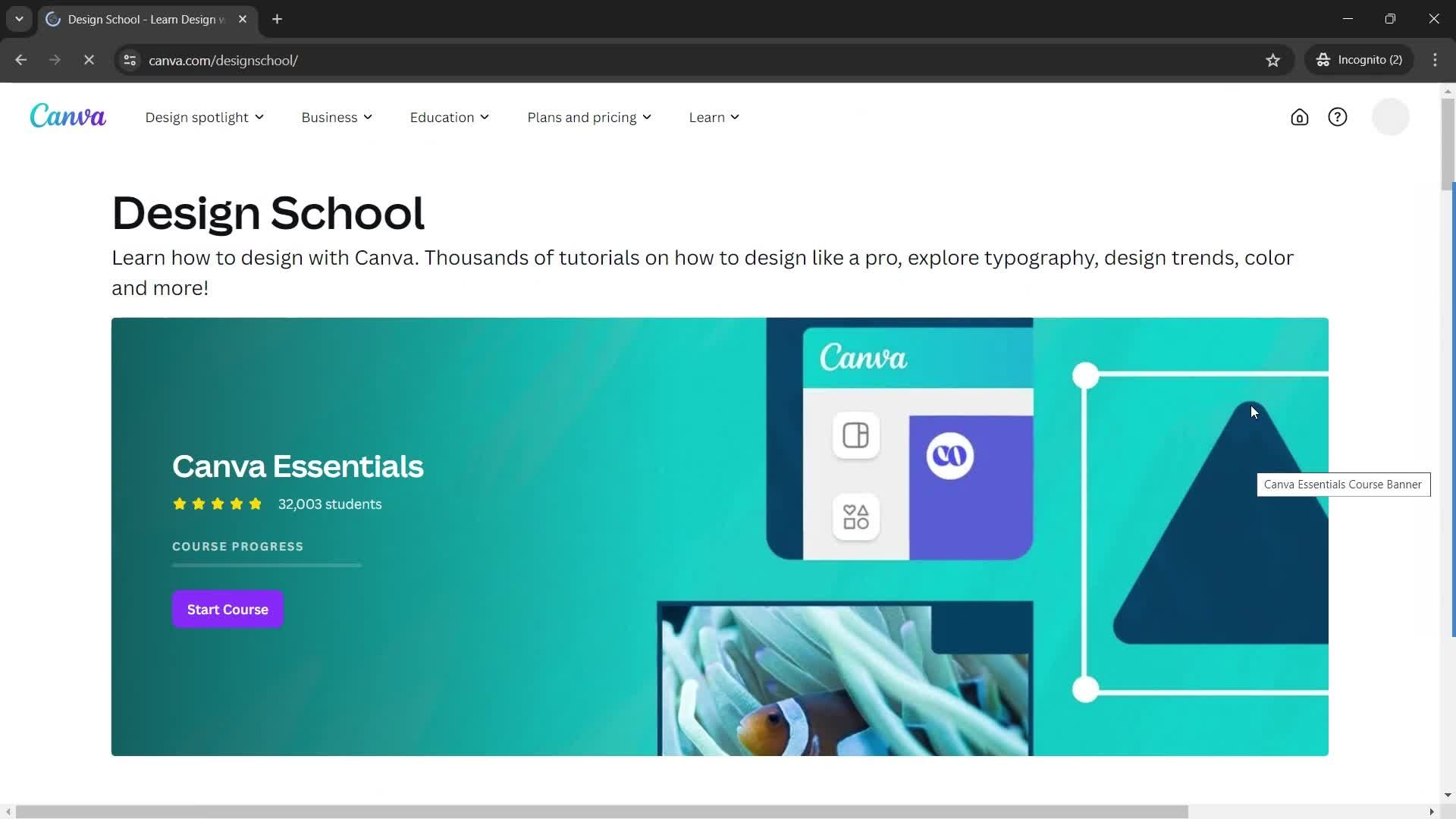
Learn
this is title
Course
this is title
Help centre
this is title
Home
this is title
Settings
this is title
Guide tooltip
this is title
Home
this is title
Notifications
this is title
Home
this is title
Create menu
this is title
Account menu
this is title
Templates
this is title
Filtered results
this is title
Template details
this is title
Templates
this is title
Home
this is title
Projects
this is title
Action menu
this is title
Create folder
this is title
Folder created
this is title
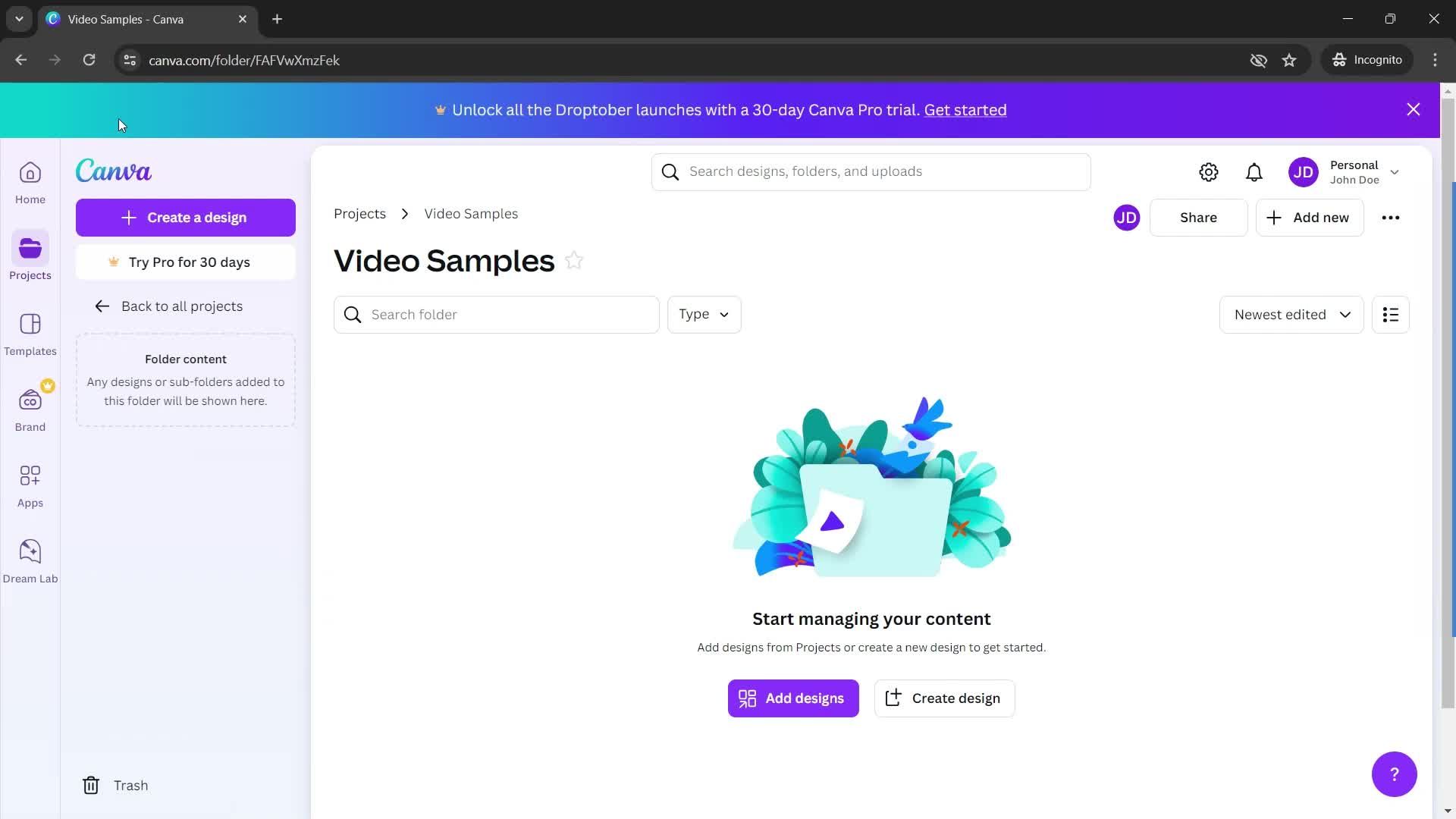
Folder
this is title
Branding
this is title
Calendar
this is title
Select post
this is title
Schedule post
this is title
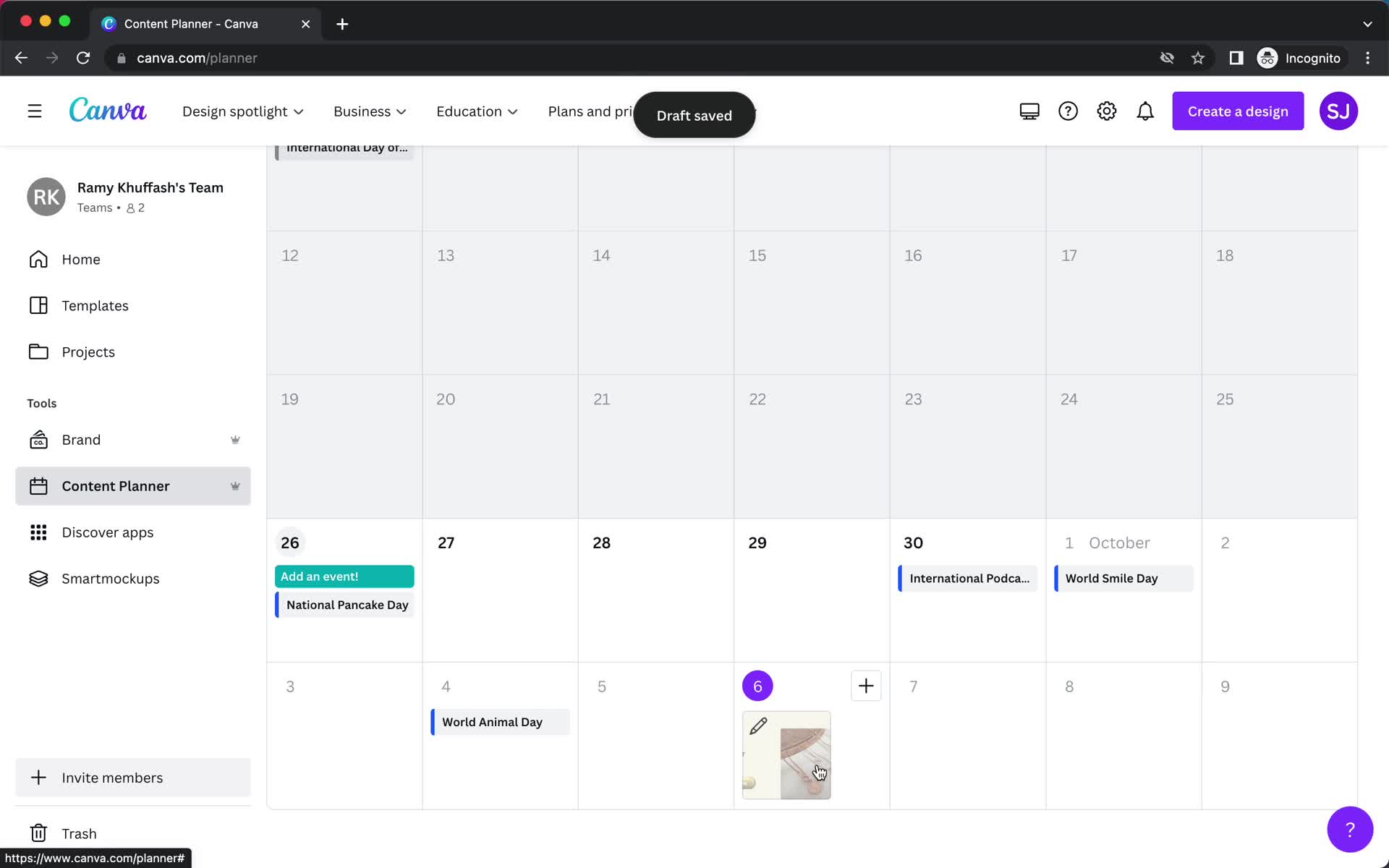
Draft saved
this is title
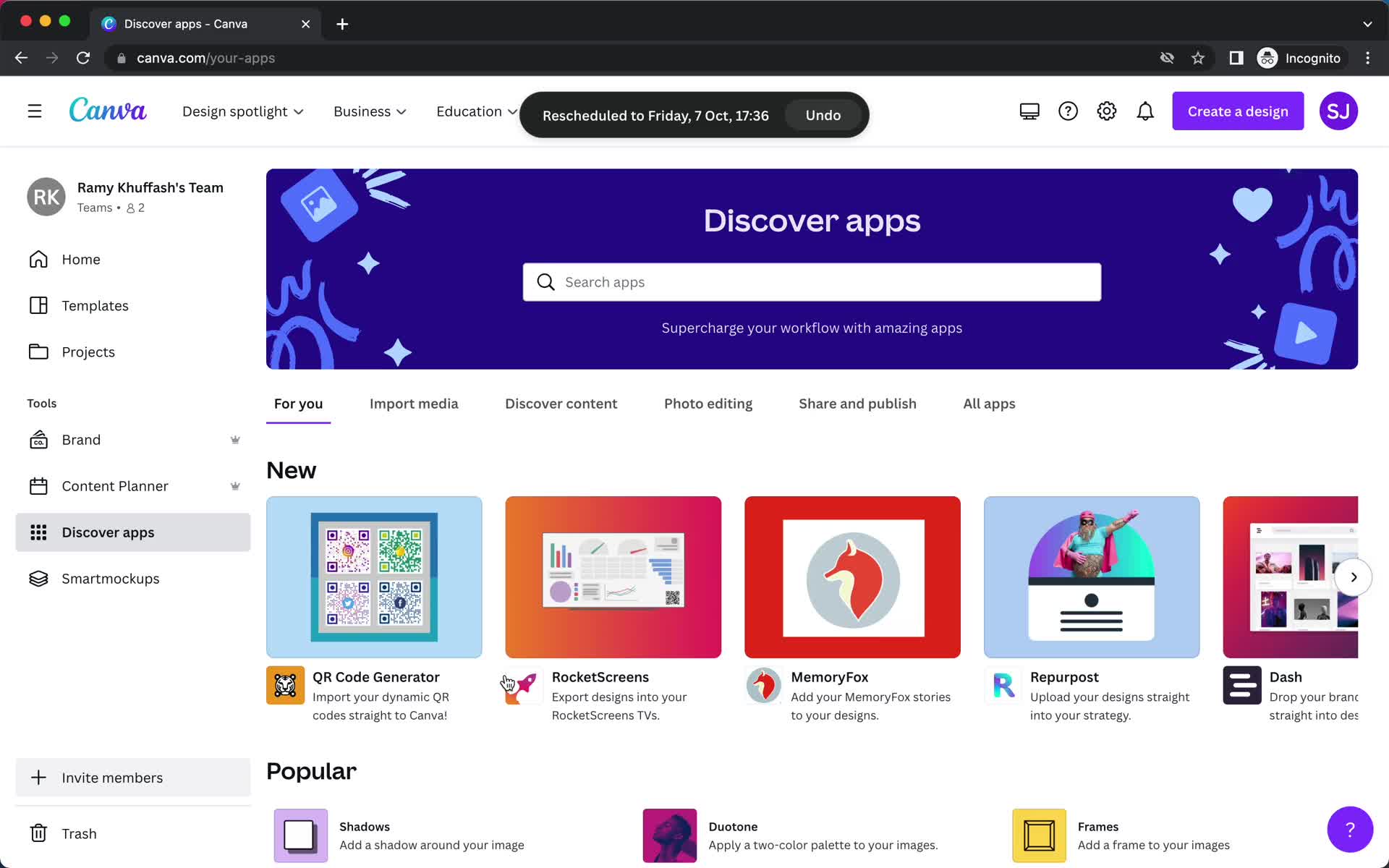
App marketplace
this is title
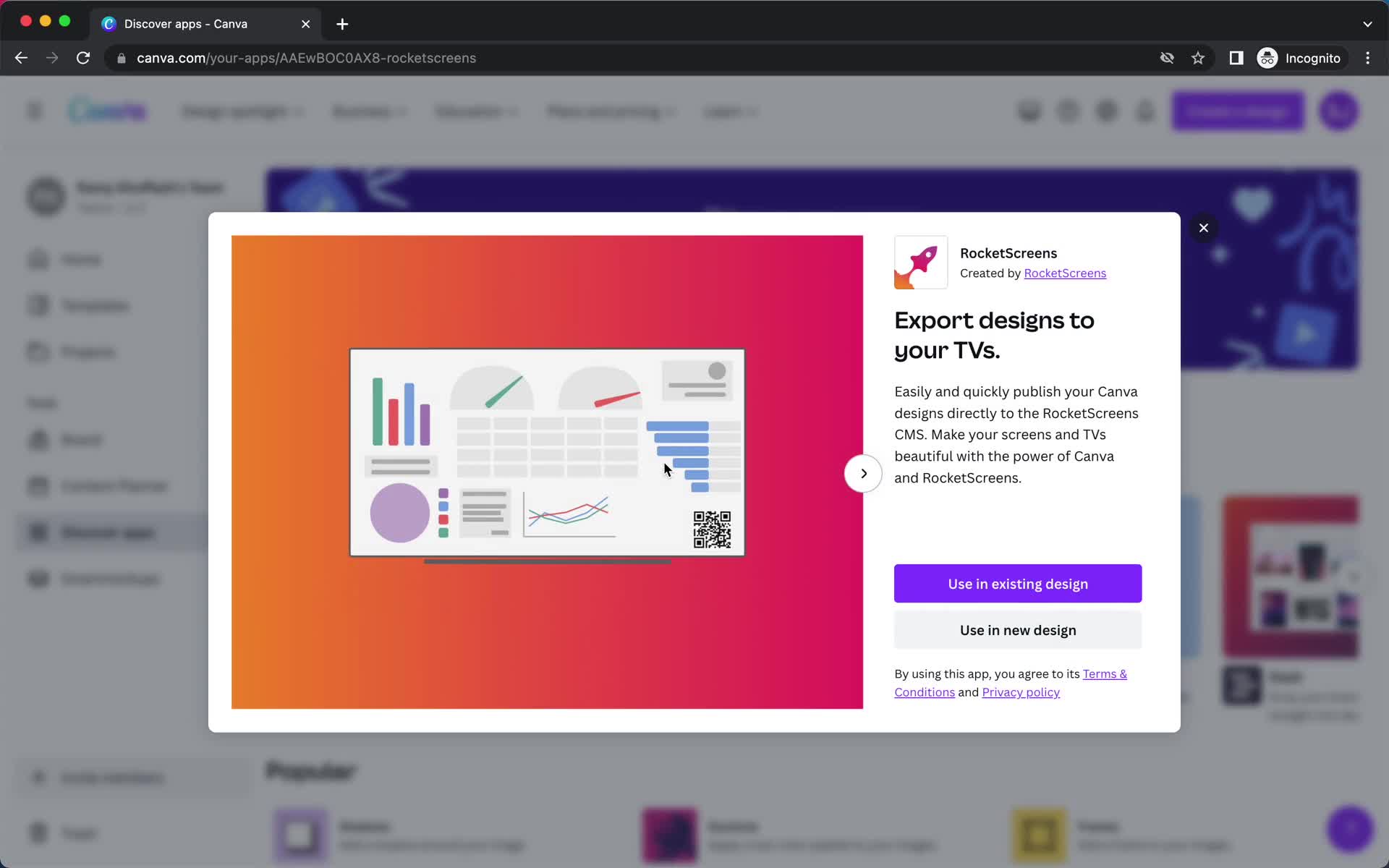
App details
this is title
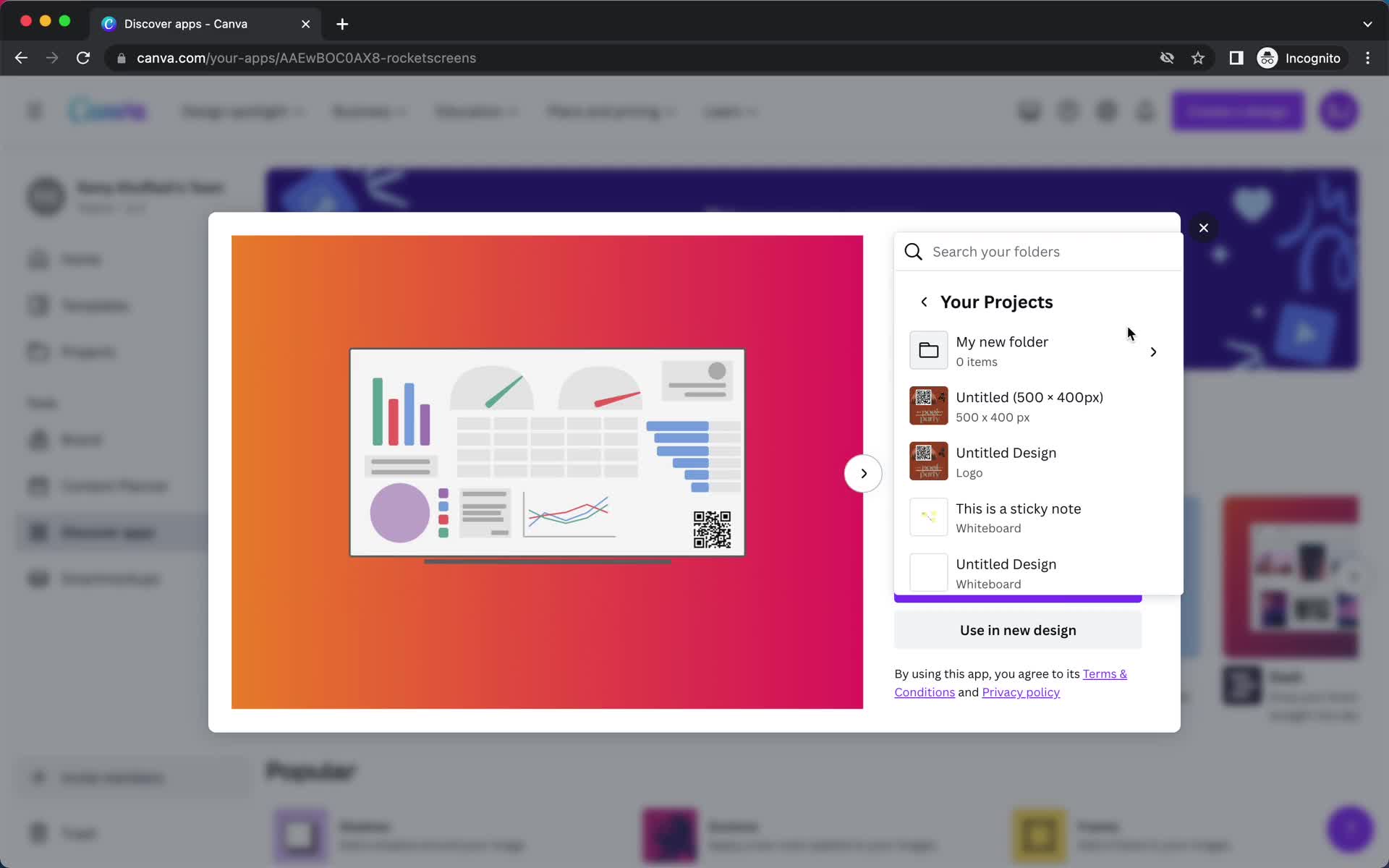
Install app
this is title
Install app
this is title
Home
this is title
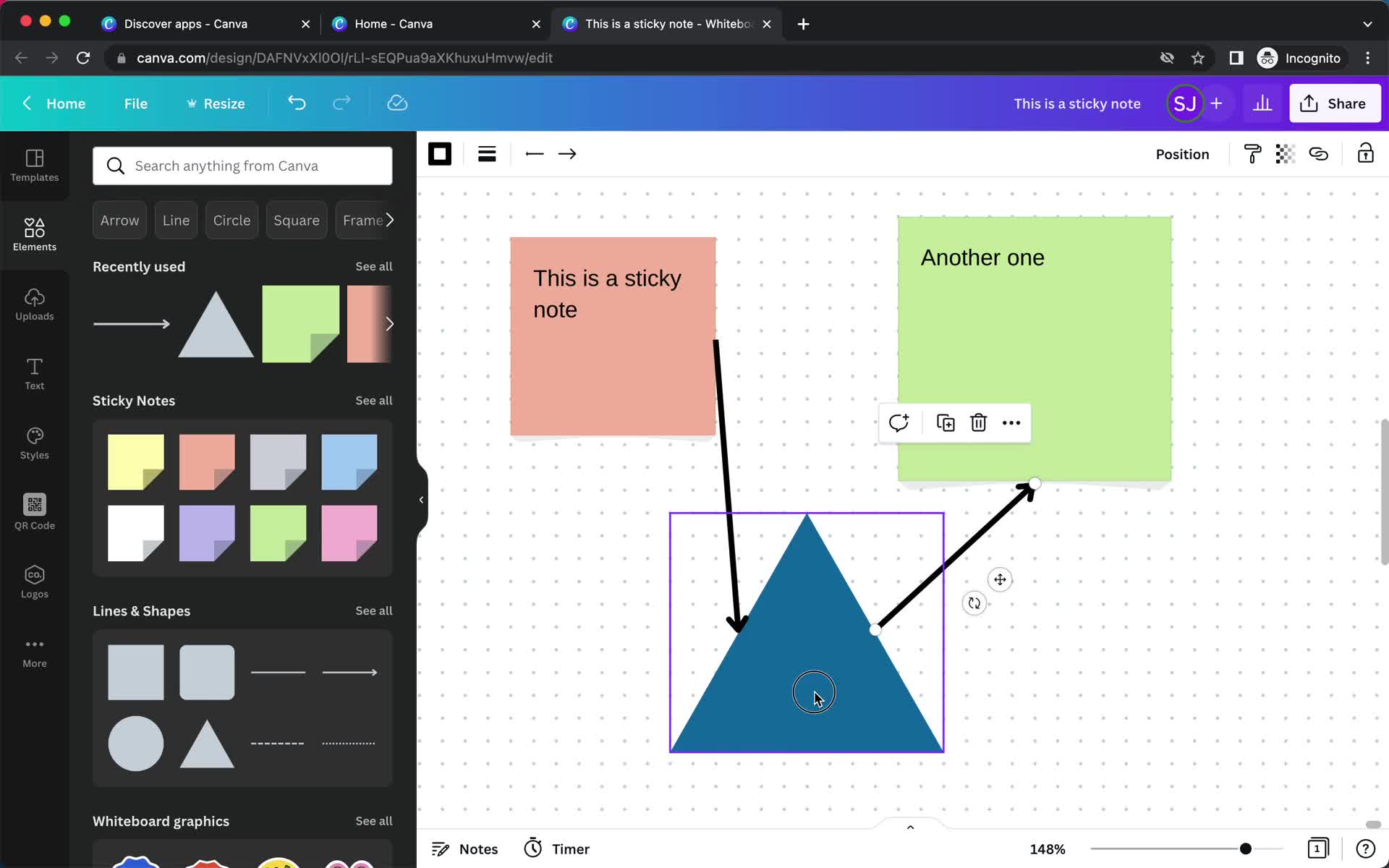
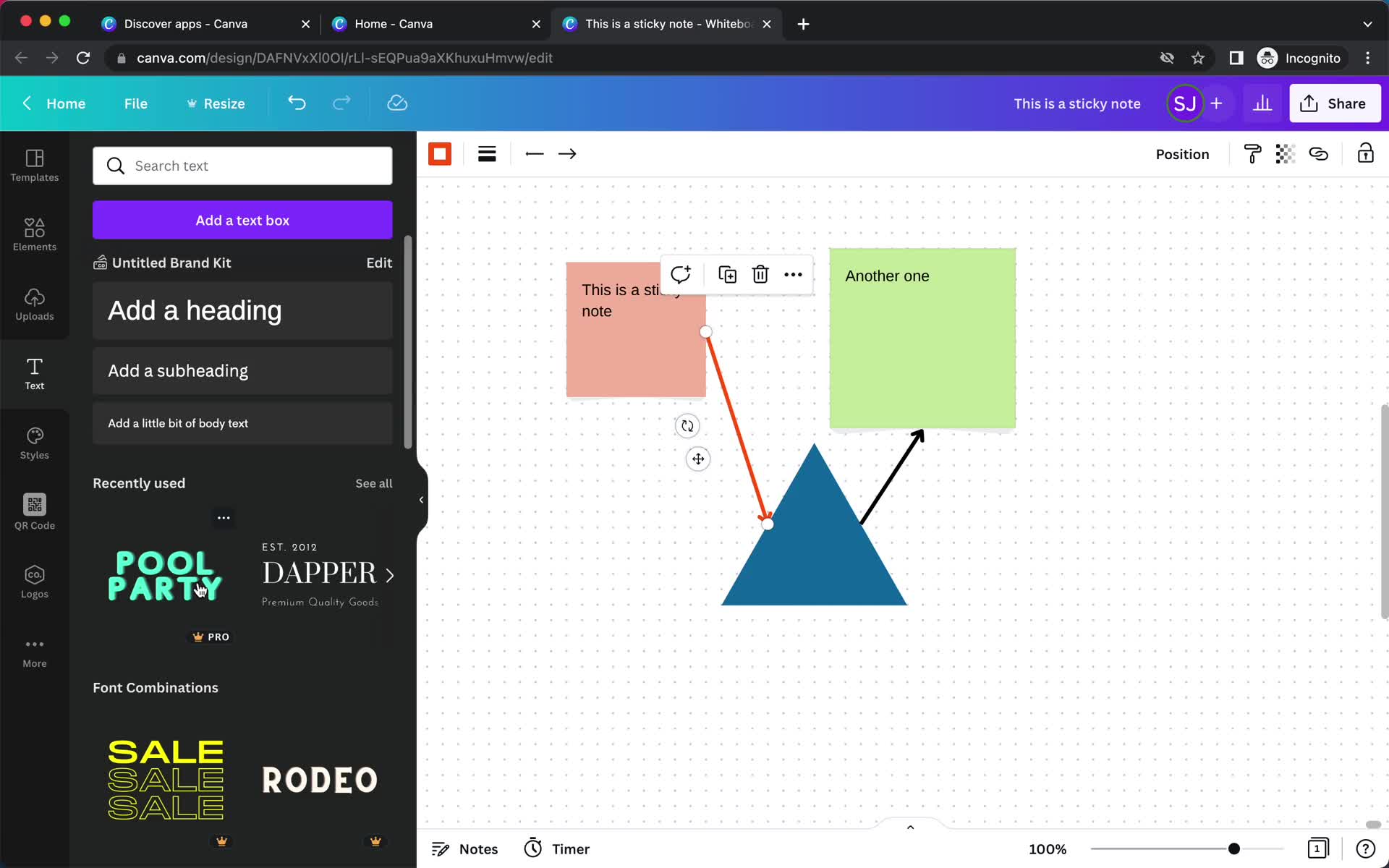
Whiteboard
this is title
Whiteboard
this is title
Create flowchart
this is title
Whiteboard
this is title
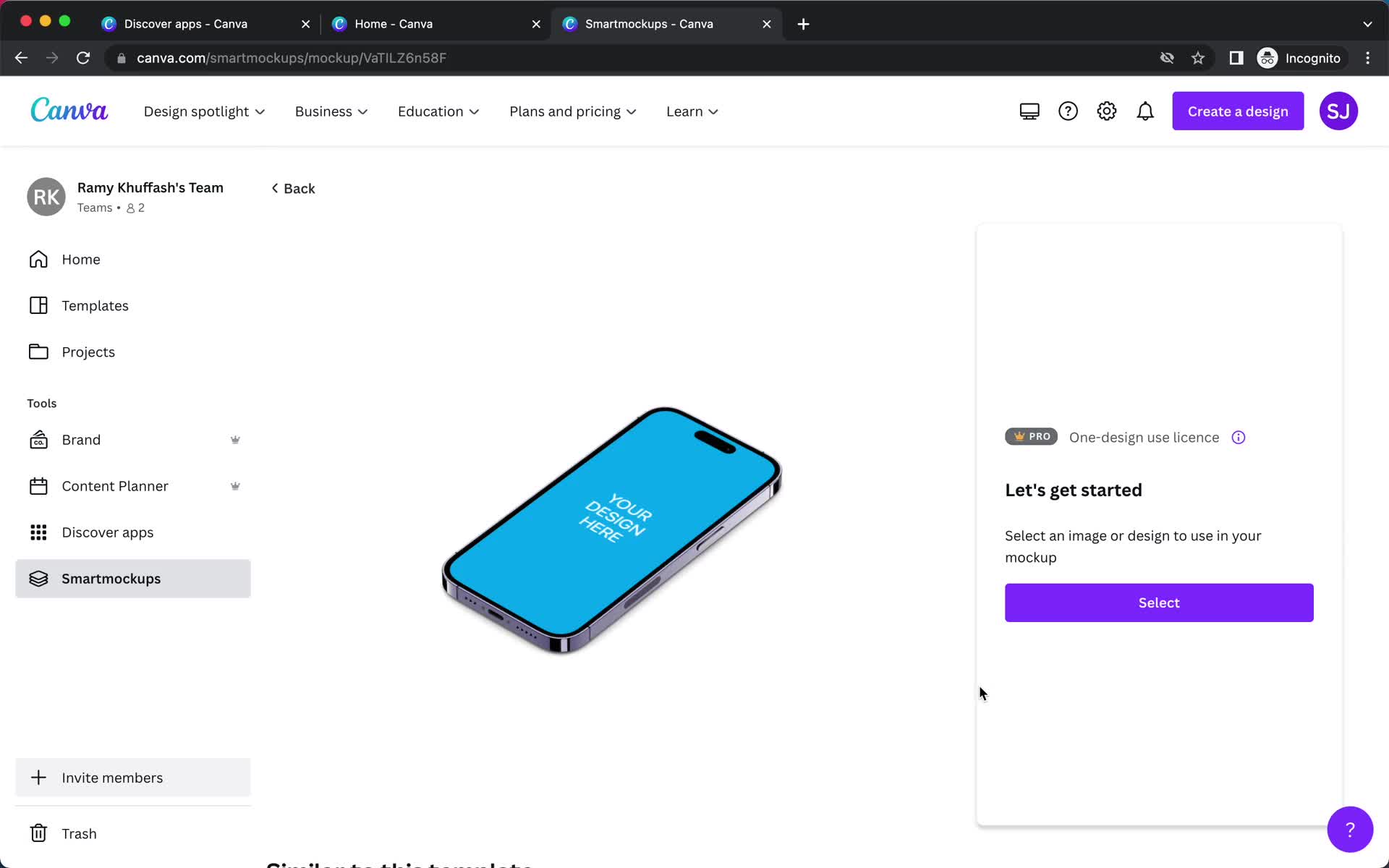
Home
this is title
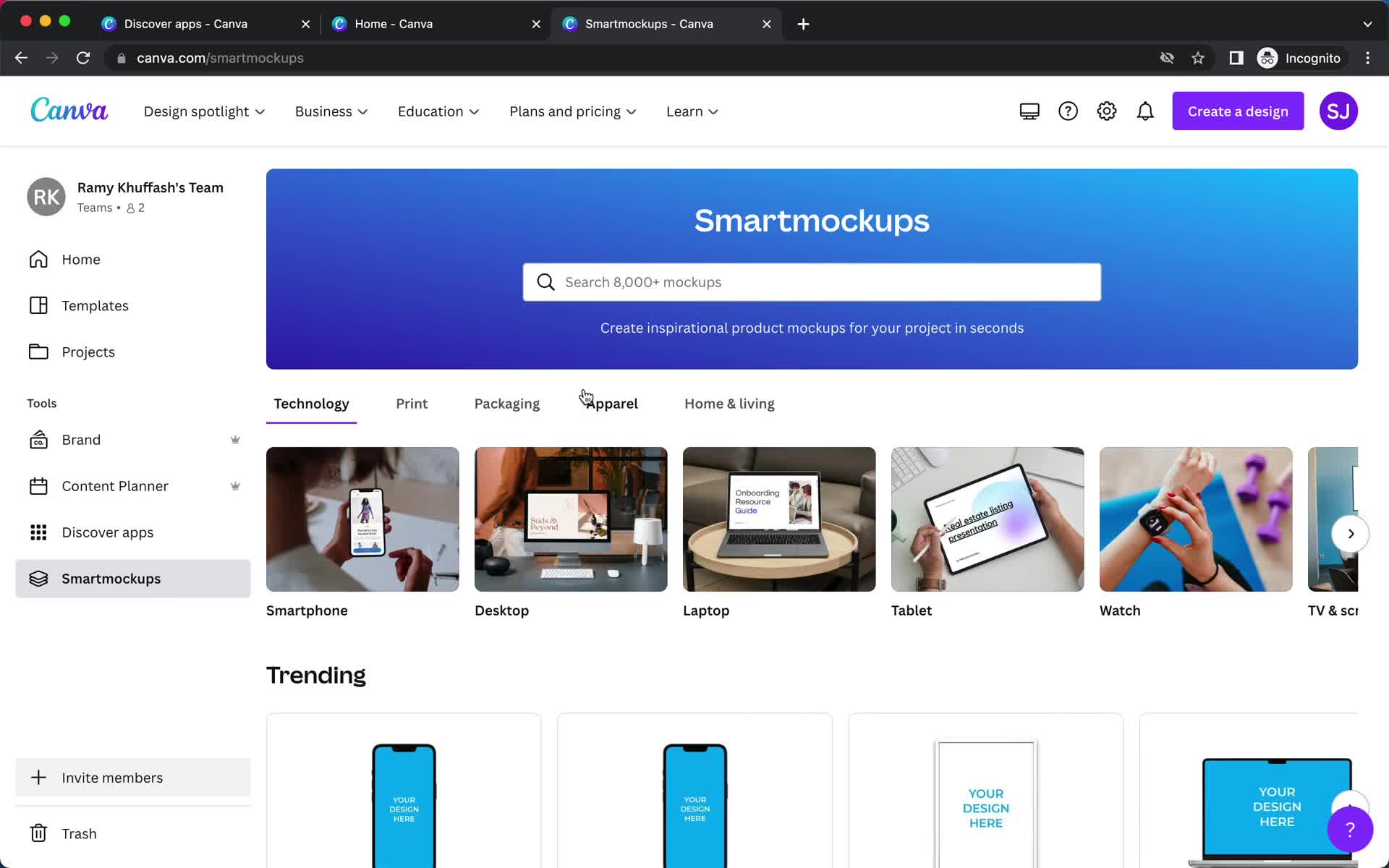
Mockups
this is title
Create mockup
this is title
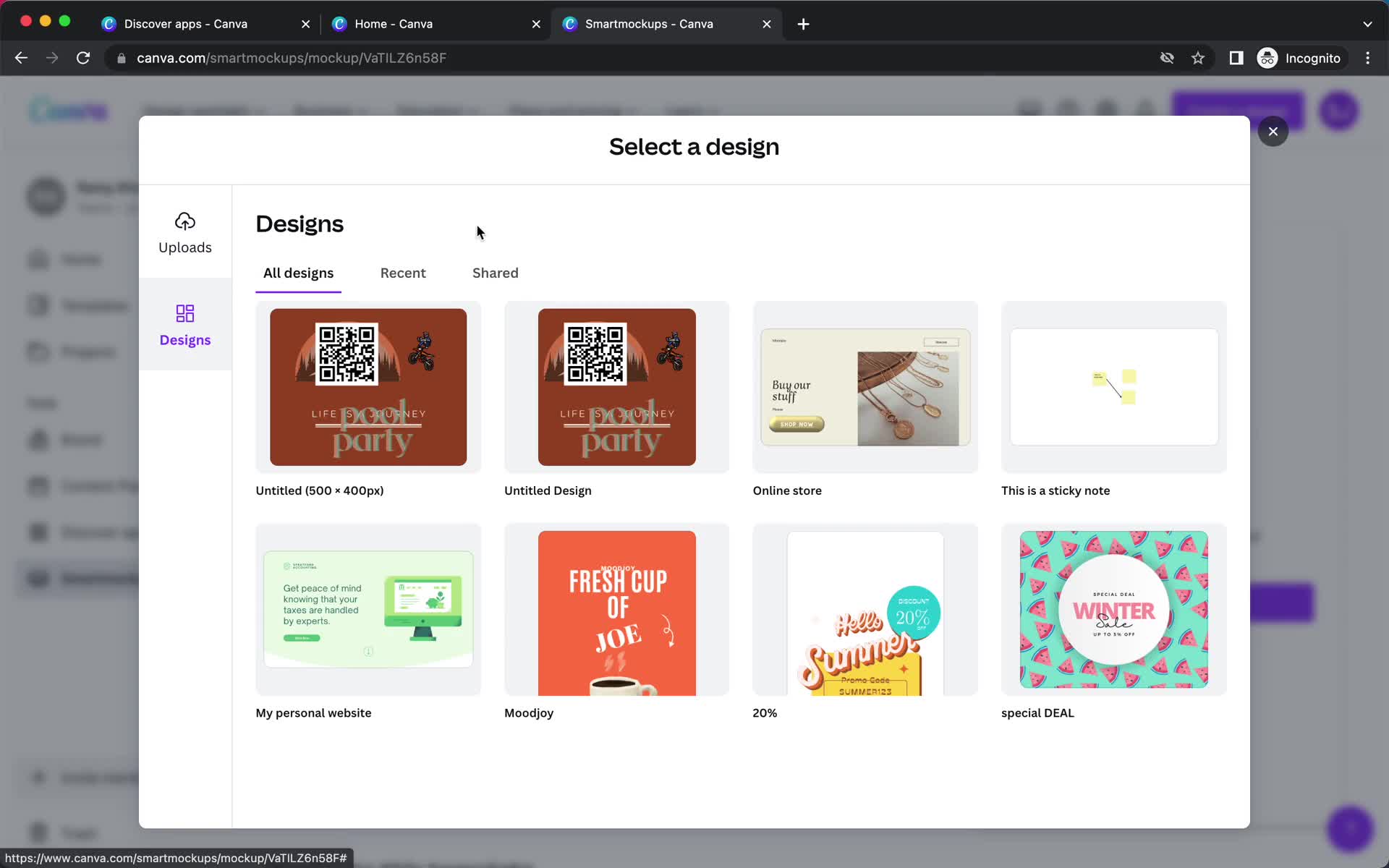
Select image
this is title
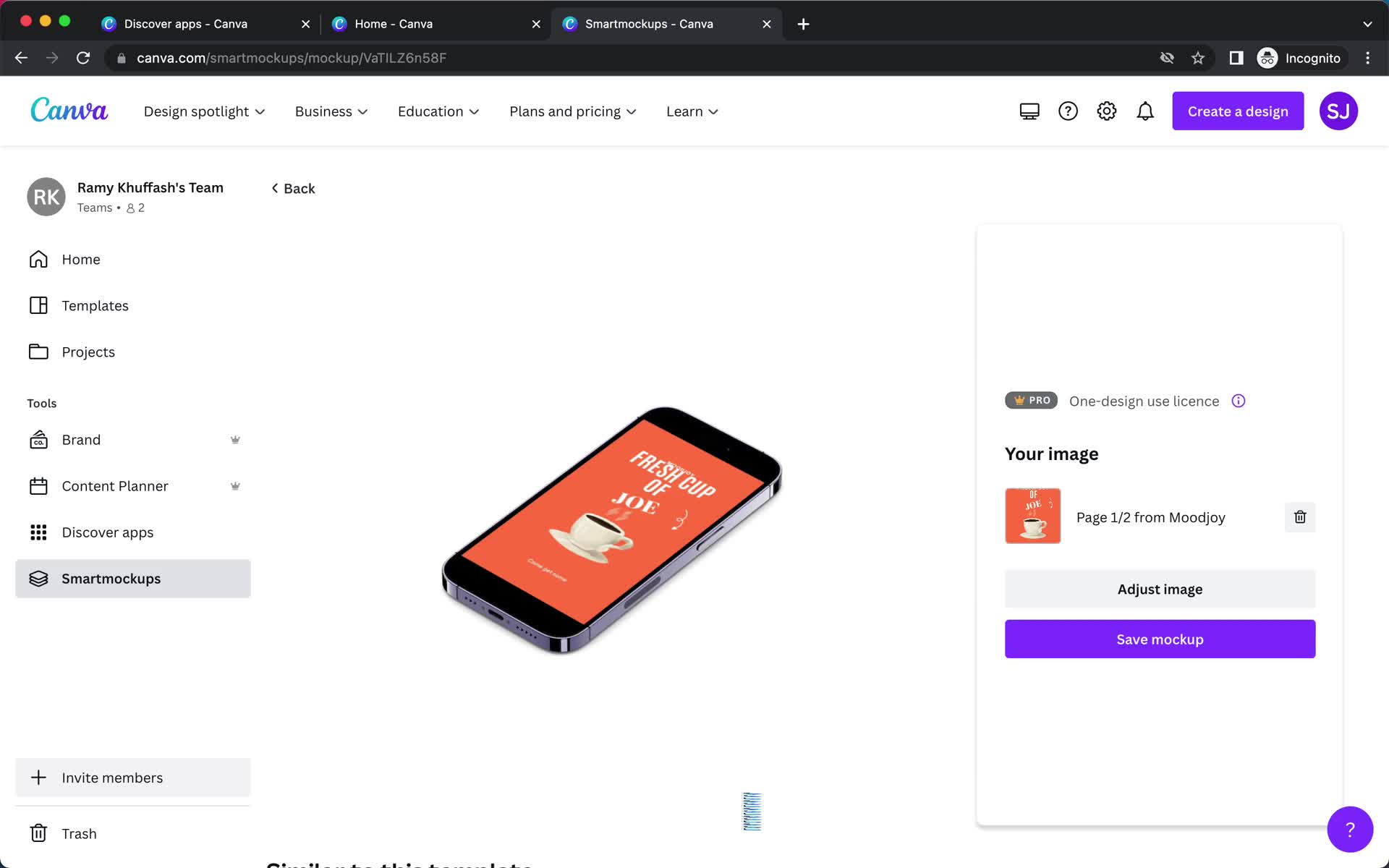
Mockup created
this is title
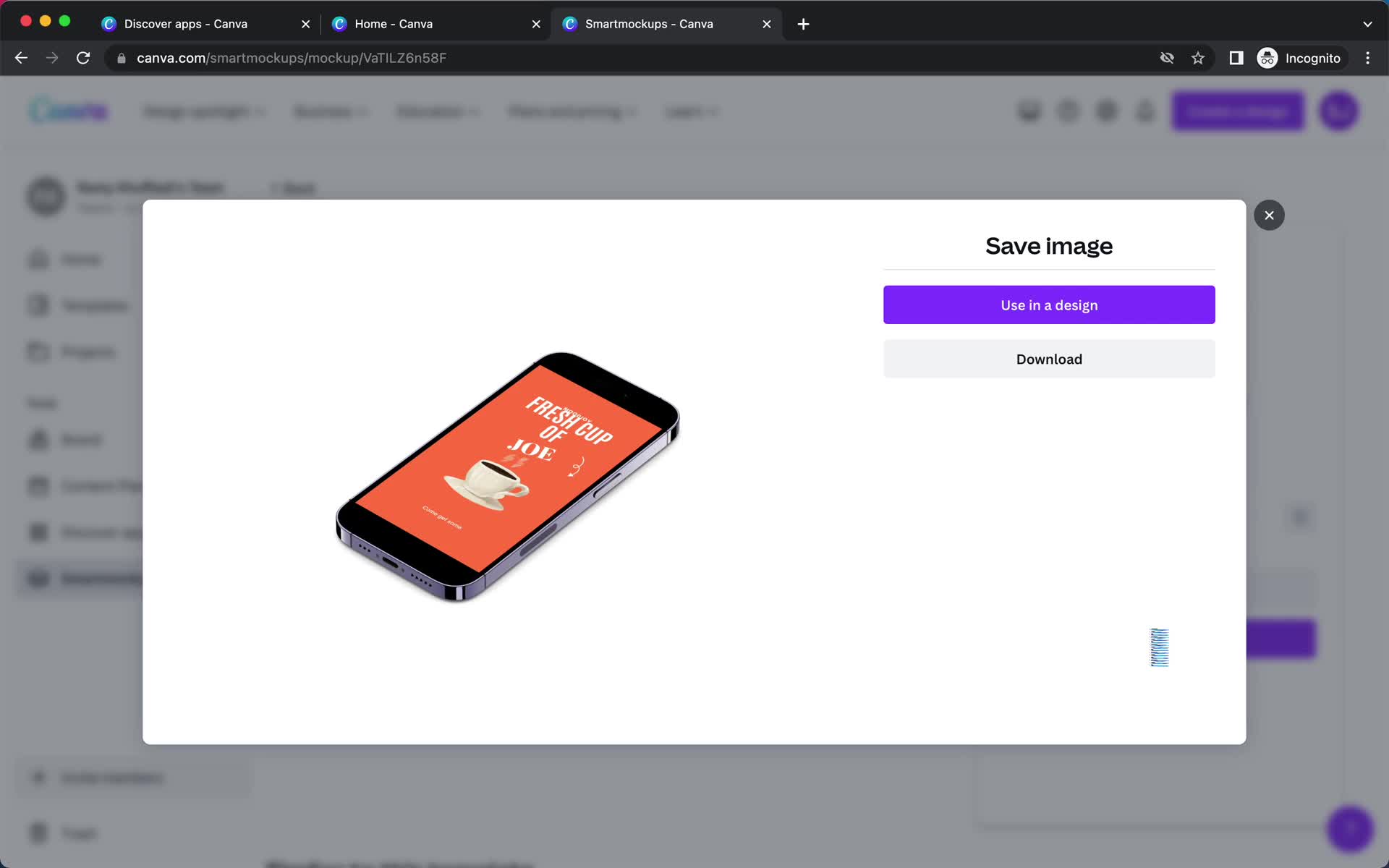
Save
this is title
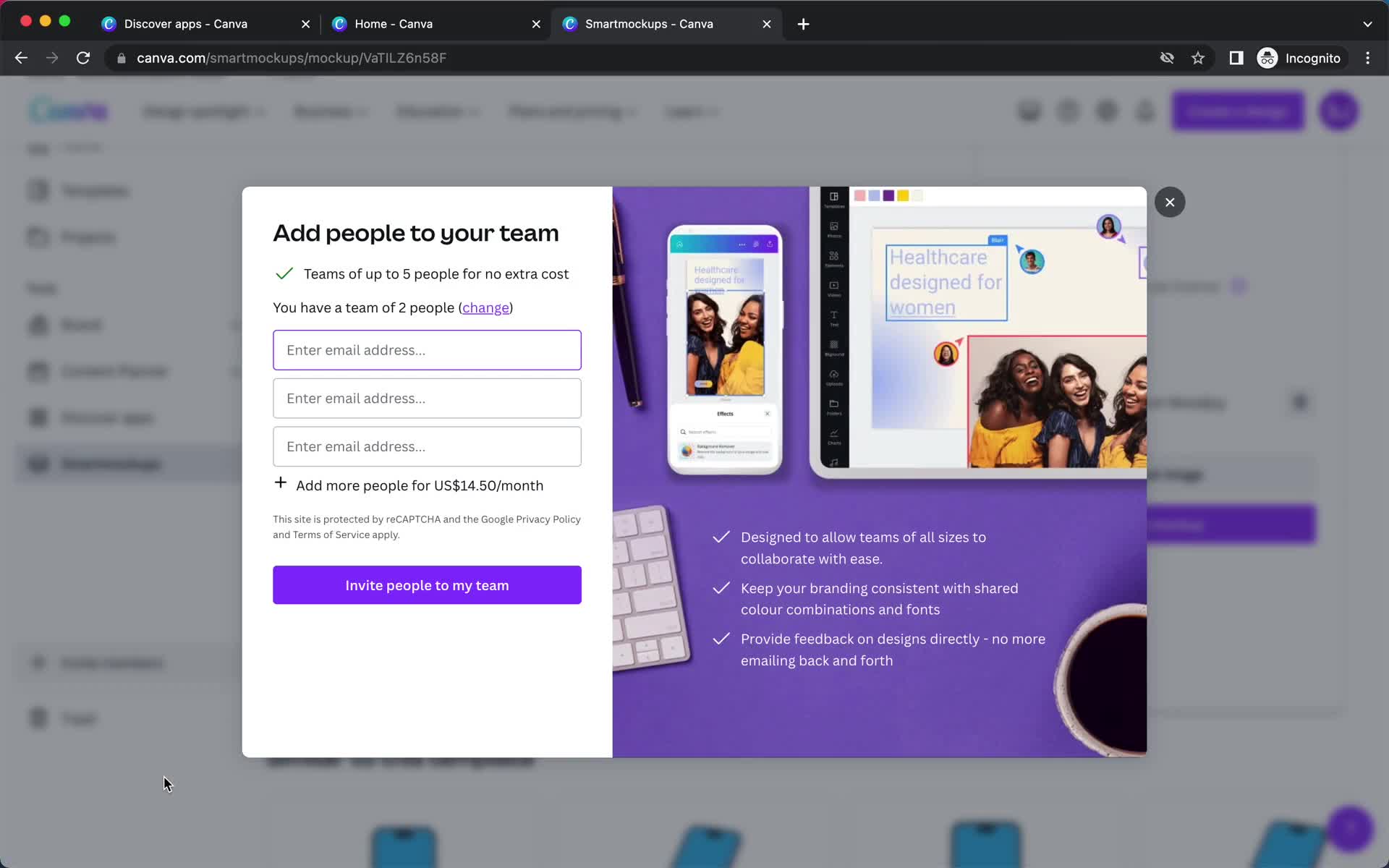
Invite team
this is title
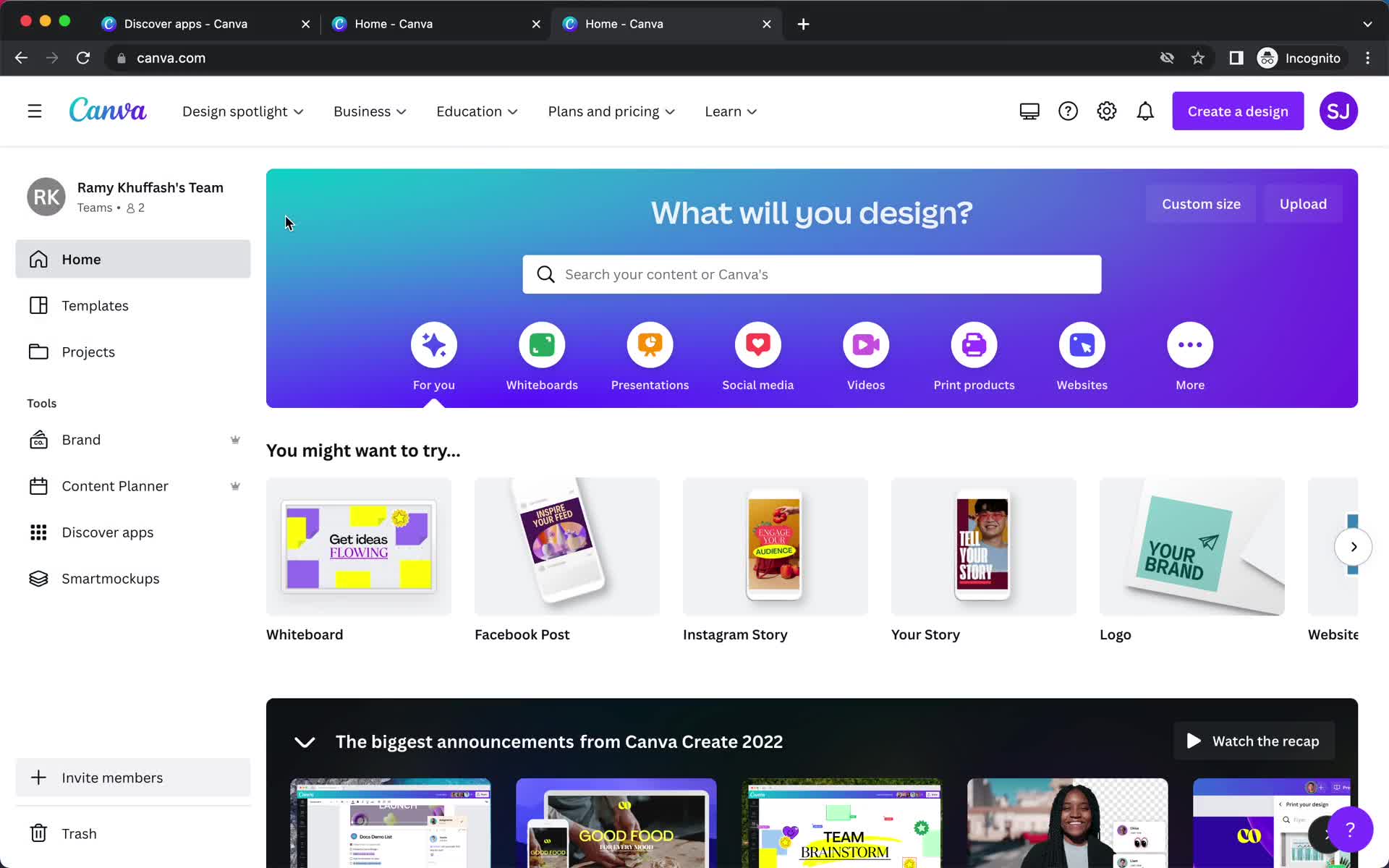
Home
this is title
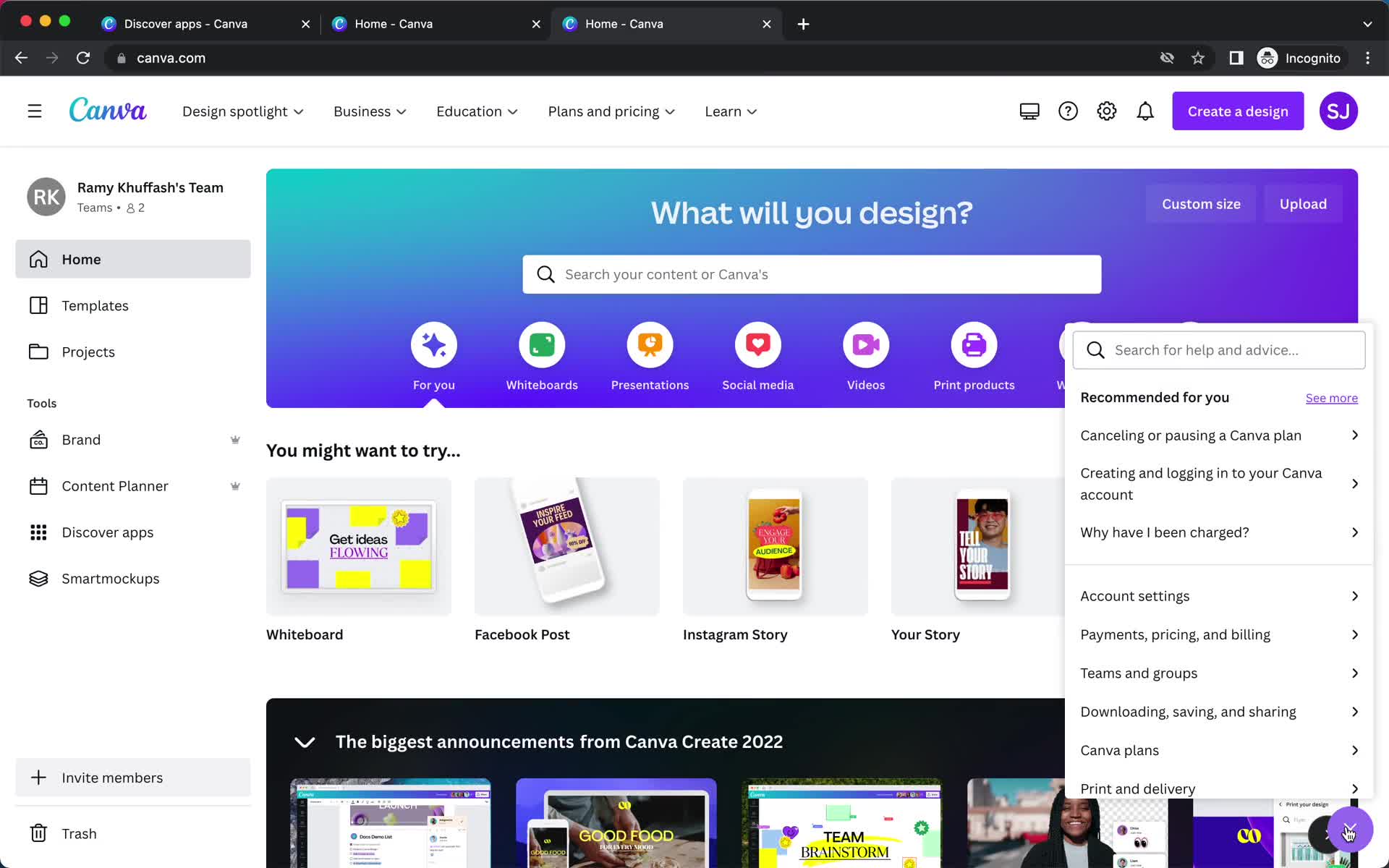
Help widget
this is title
Help widget
this is title
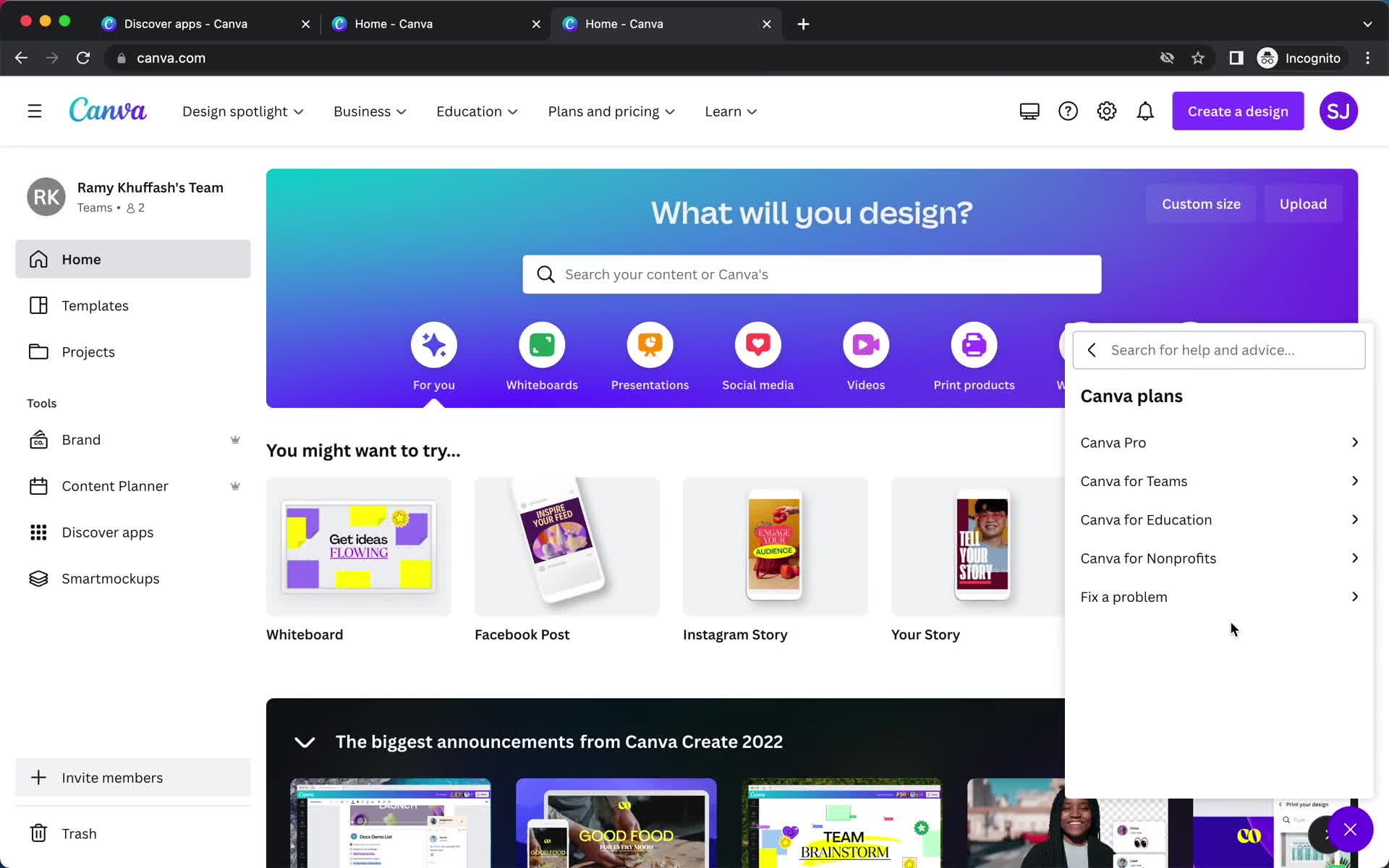
Help widget
this is title
Landing page
this is title
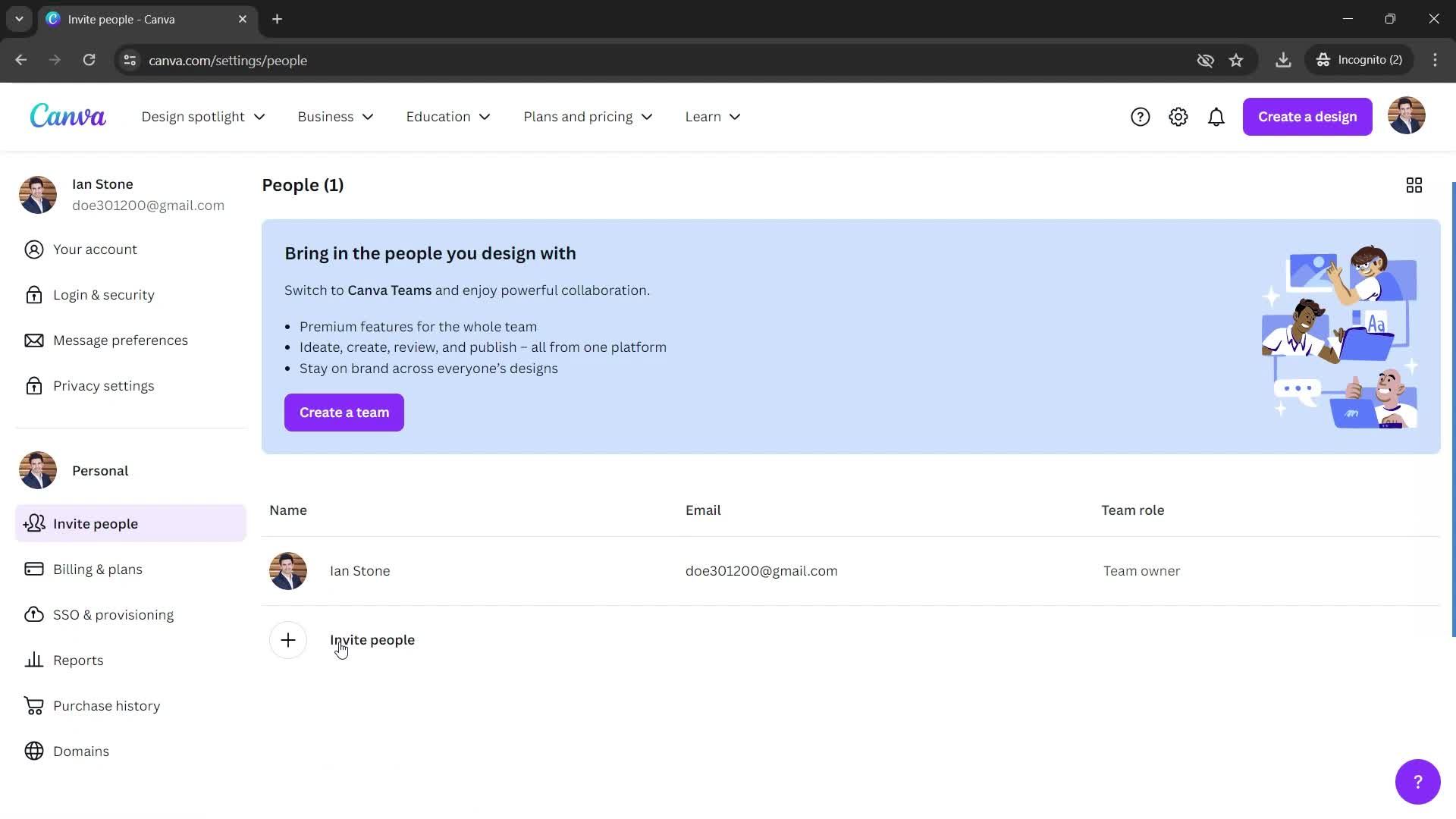
Home
this is title
Settings
this is title
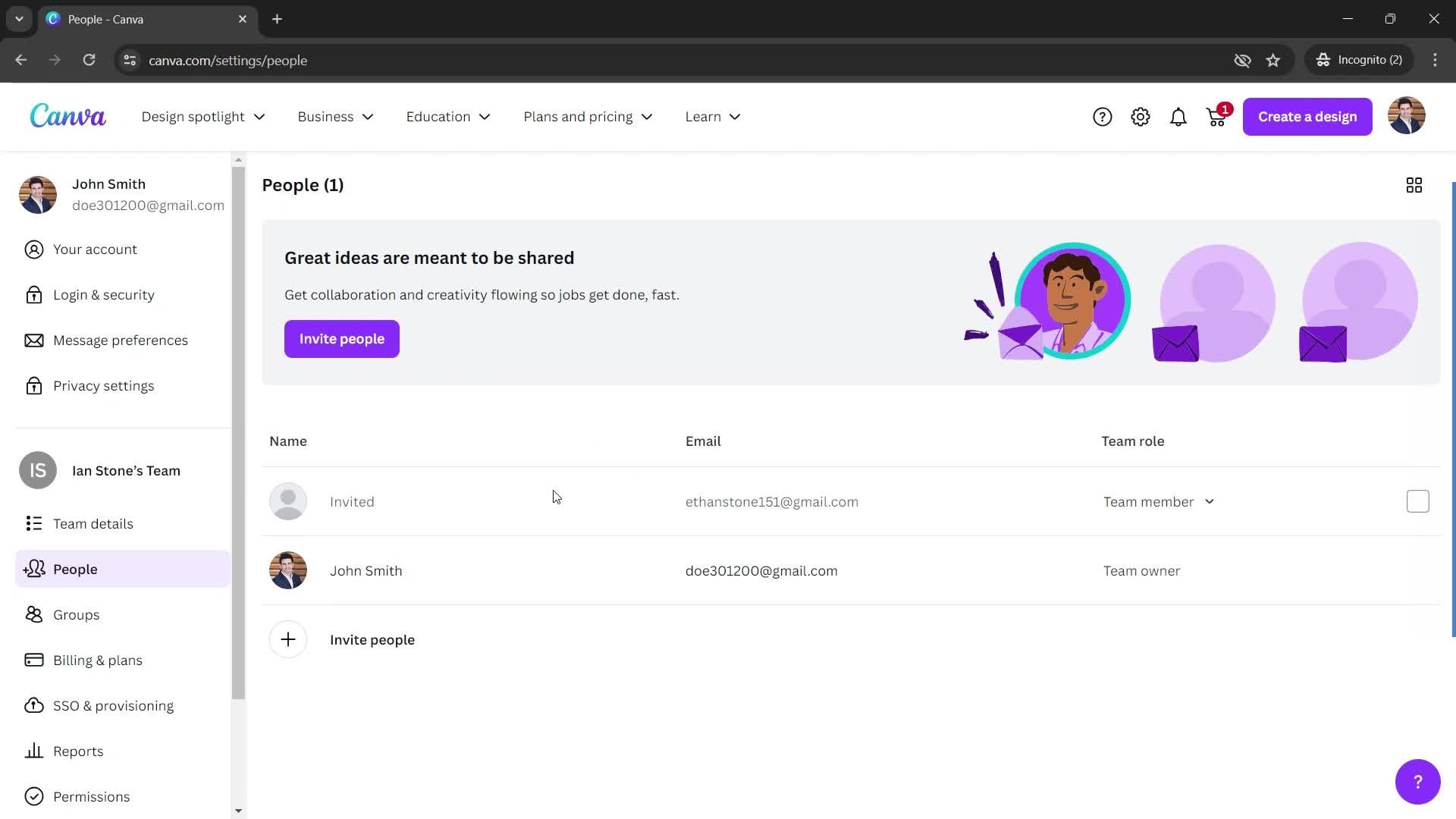
People
this is title
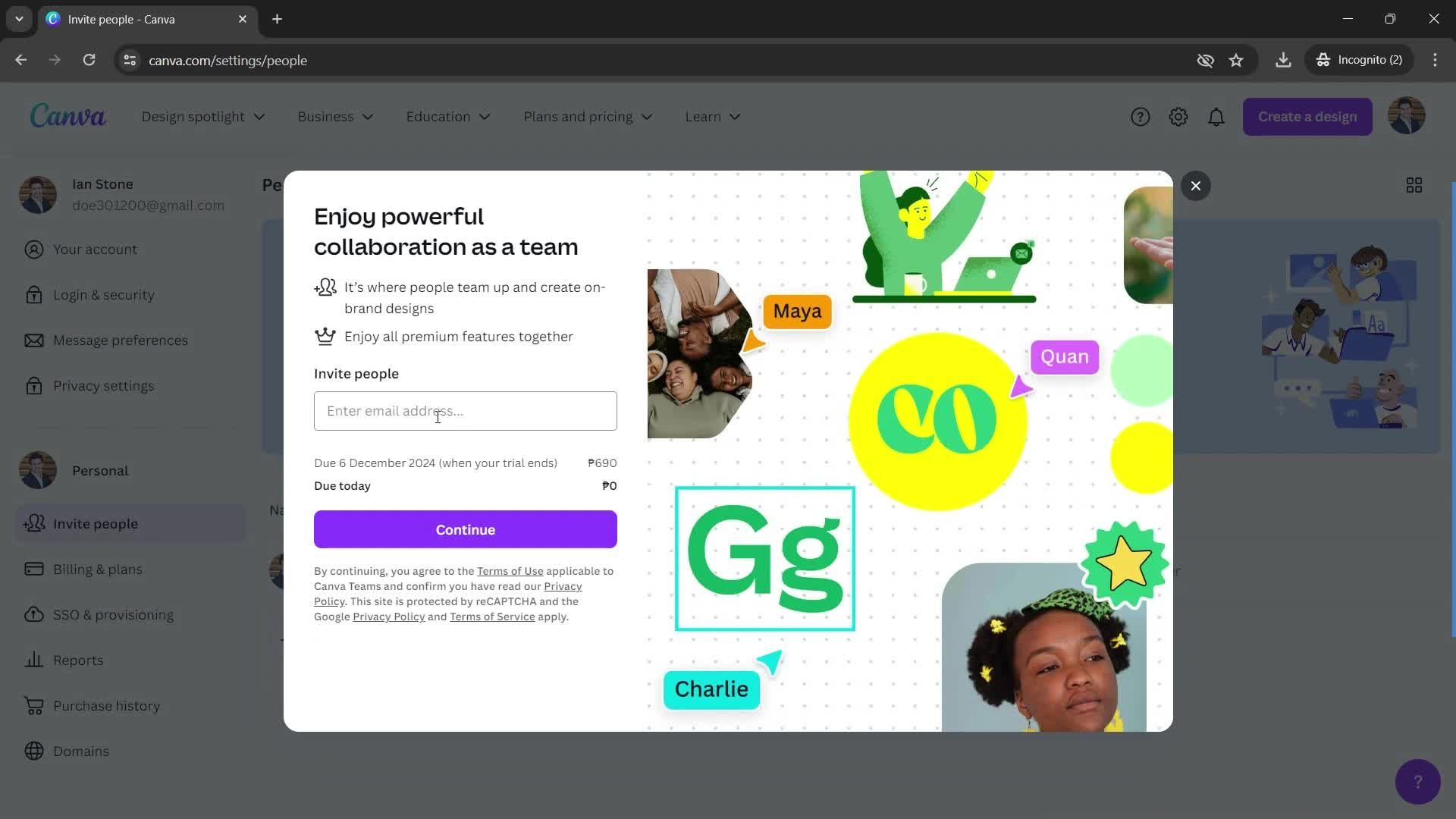
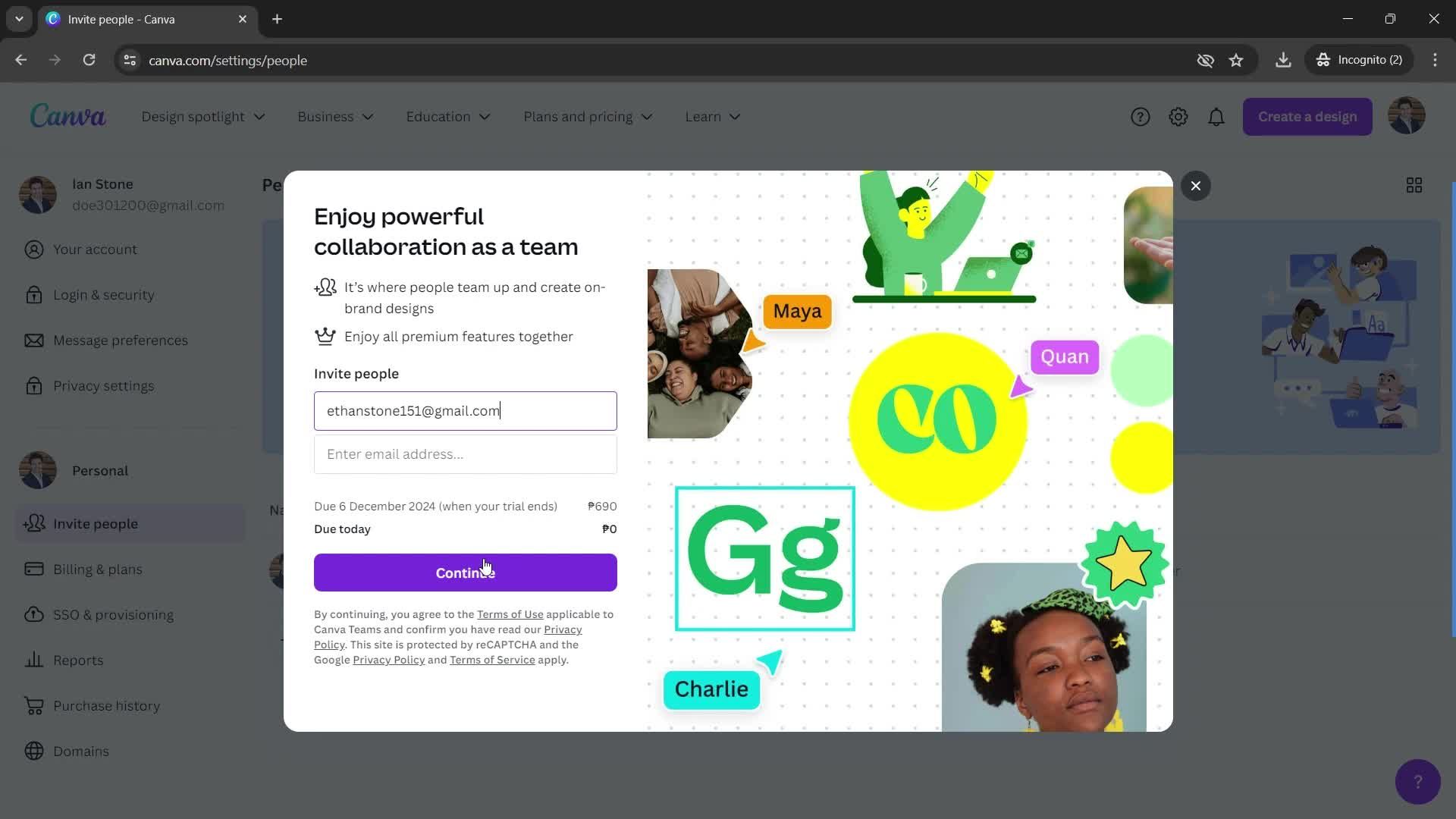
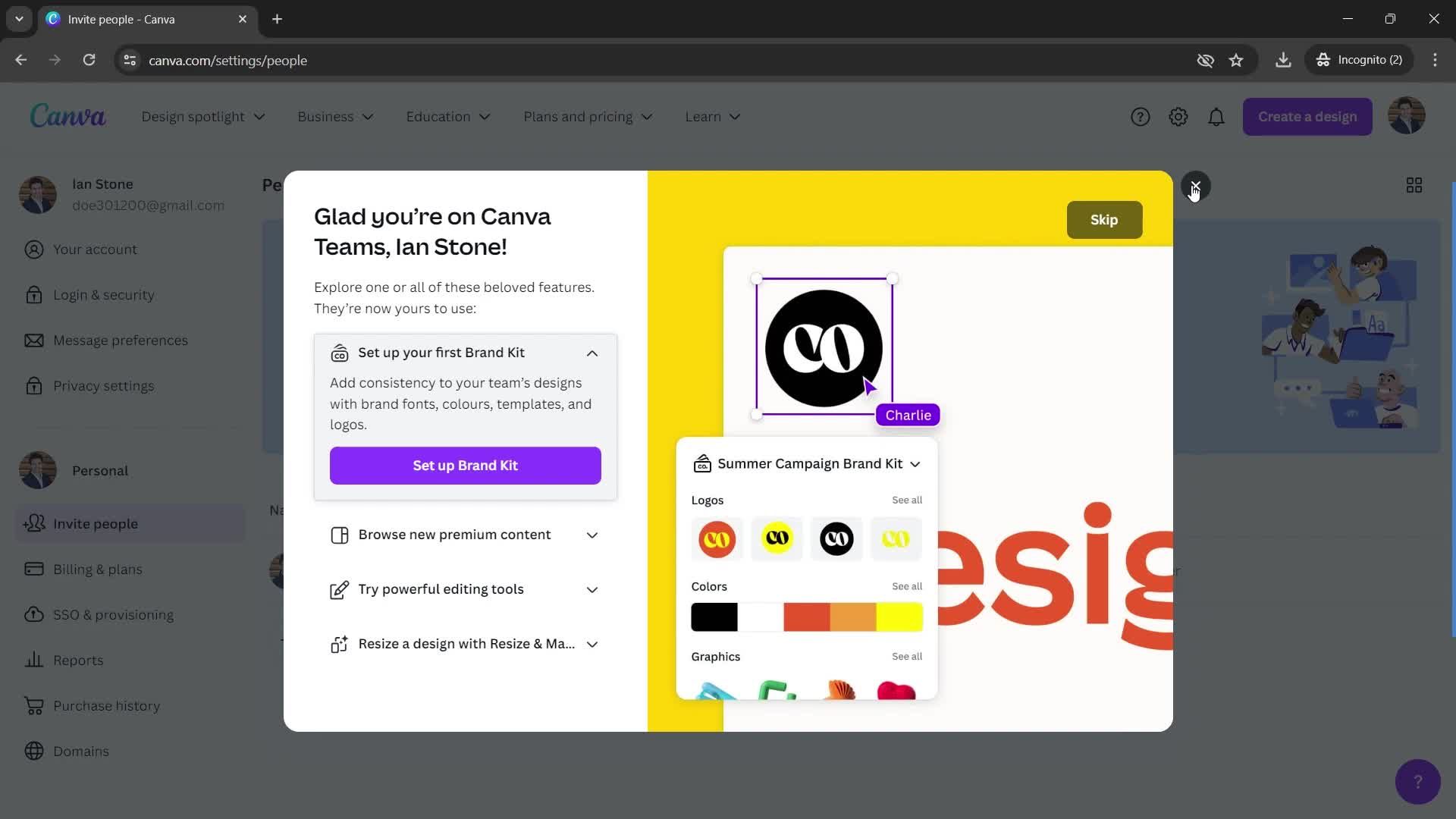
Invite people
this is title
this is title
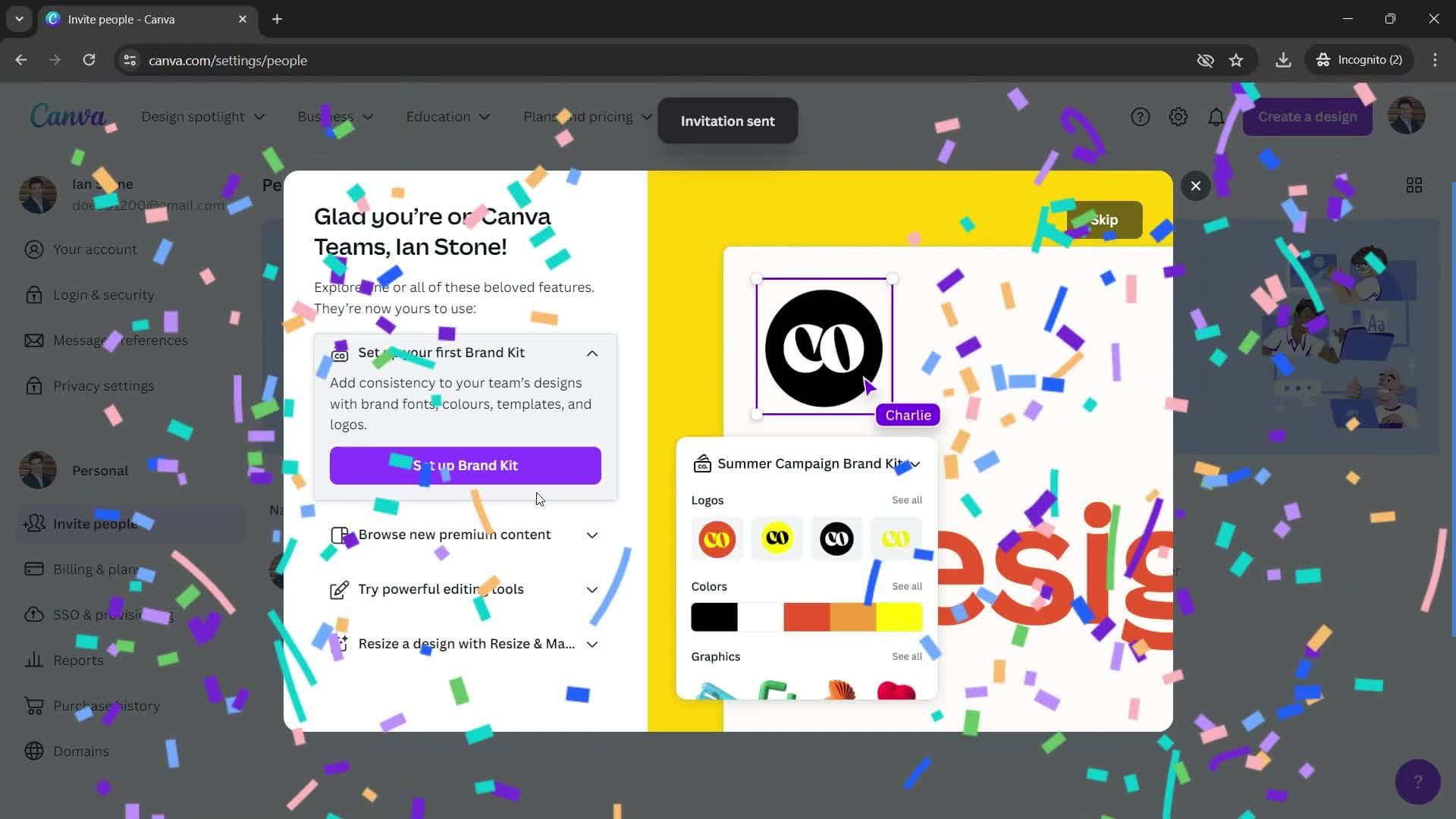
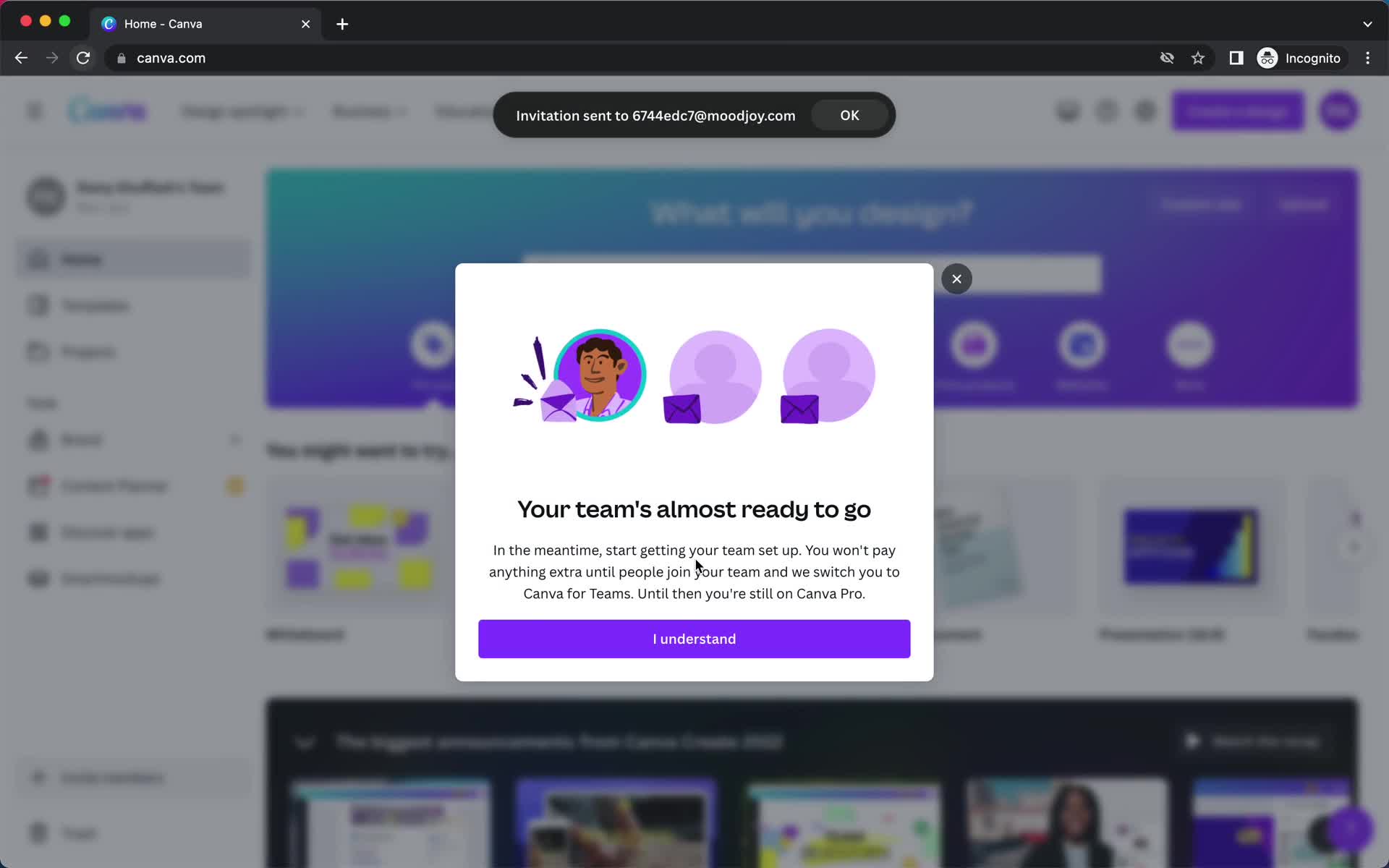
Invitation sent
this is title
this is title
Home
this is title
Invite team
this is title
Invite sent
this is title
Home
this is title
Dashboard
this is title
Account settings
this is title
Billing & Teams
this is title
Team dashboard
this is title
Invite people
this is title
Invites sent
this is title
this is title
this is title
this is title
this is title
Home
this is title
this is title
this is title
this is title
this is title
this is title
Full screen view
this is title
this is title
Homepage
this is title
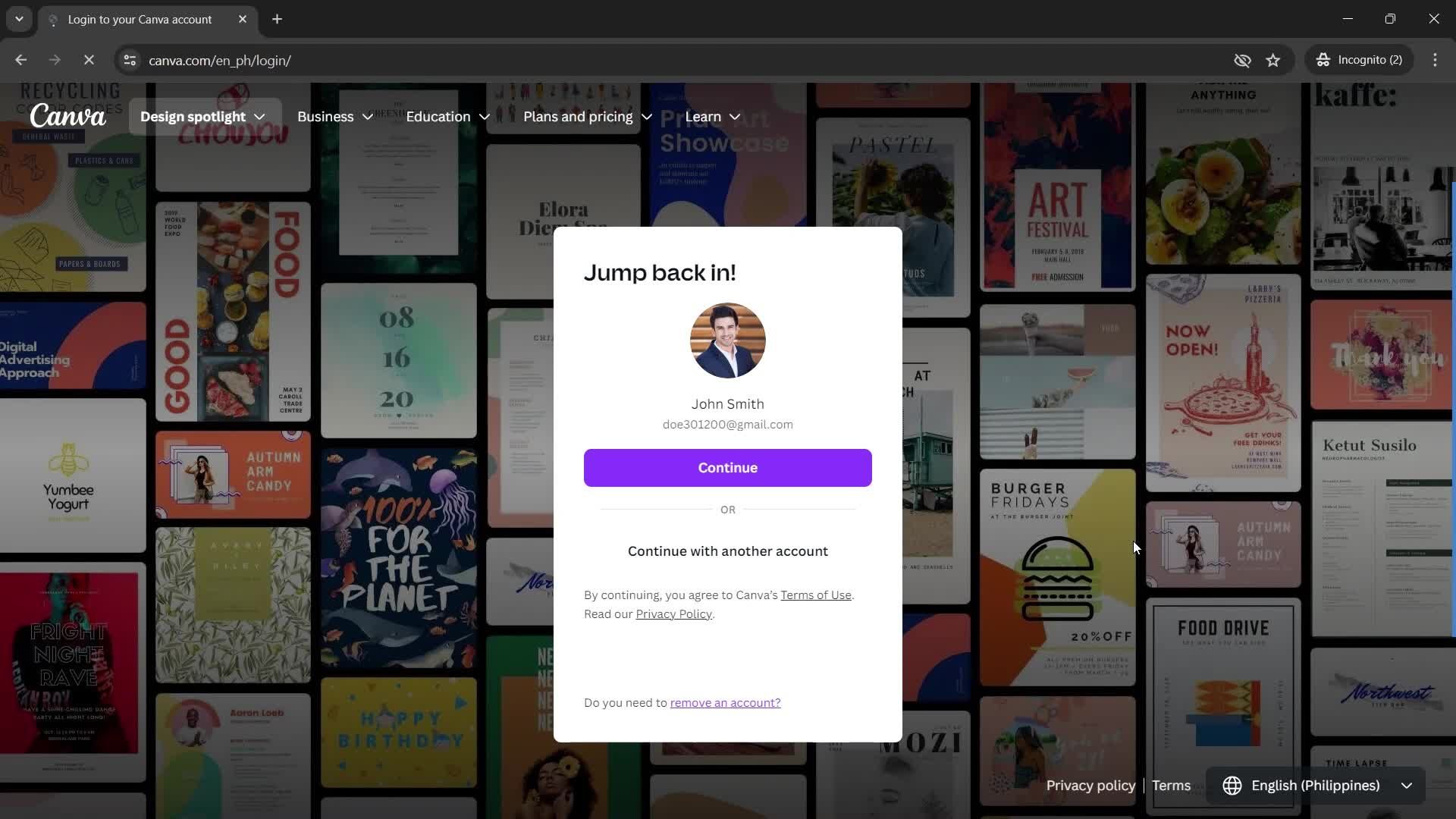
Log in
this is title
Enter email
this is title
this is title
Enter code
this is title
this is title
Home
this is title
Home
this is title
Profile menu
this is title
Log out
this is title
this is title
Home
this is title
Action menu
this is title
Move to folder
this is title
this is title
Moved
this is title
this is title
this is title
this is title
this is title
Homepage
this is title
Log in
this is title
Enter email
this is title
this is title
Enter code
this is title
this is title
Success State
this is title
this is title
Free trial details
this is title
this is title
Home
this is title
Profile menu
this is title
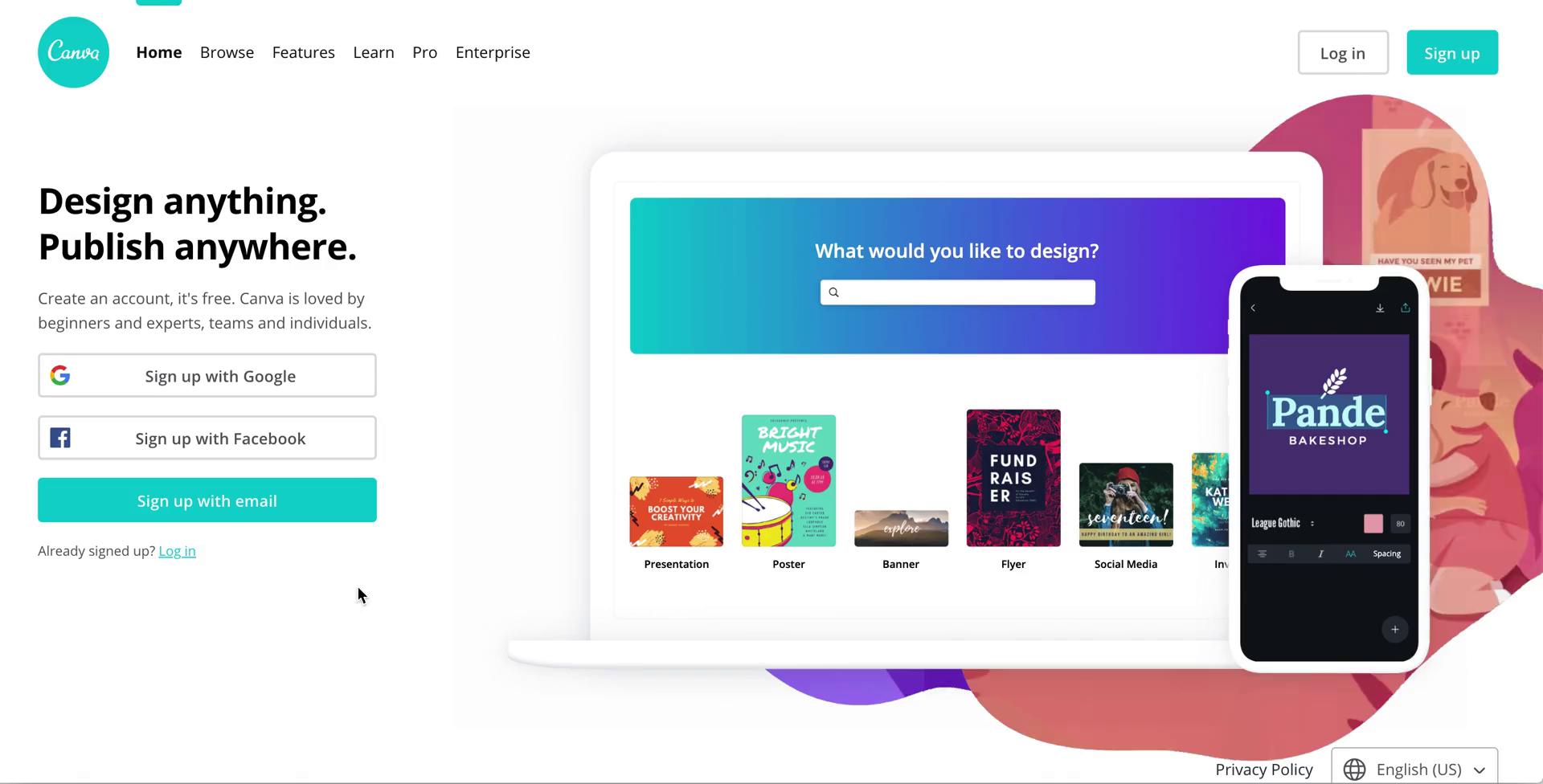
Homepage
this is title
Sign up
this is title
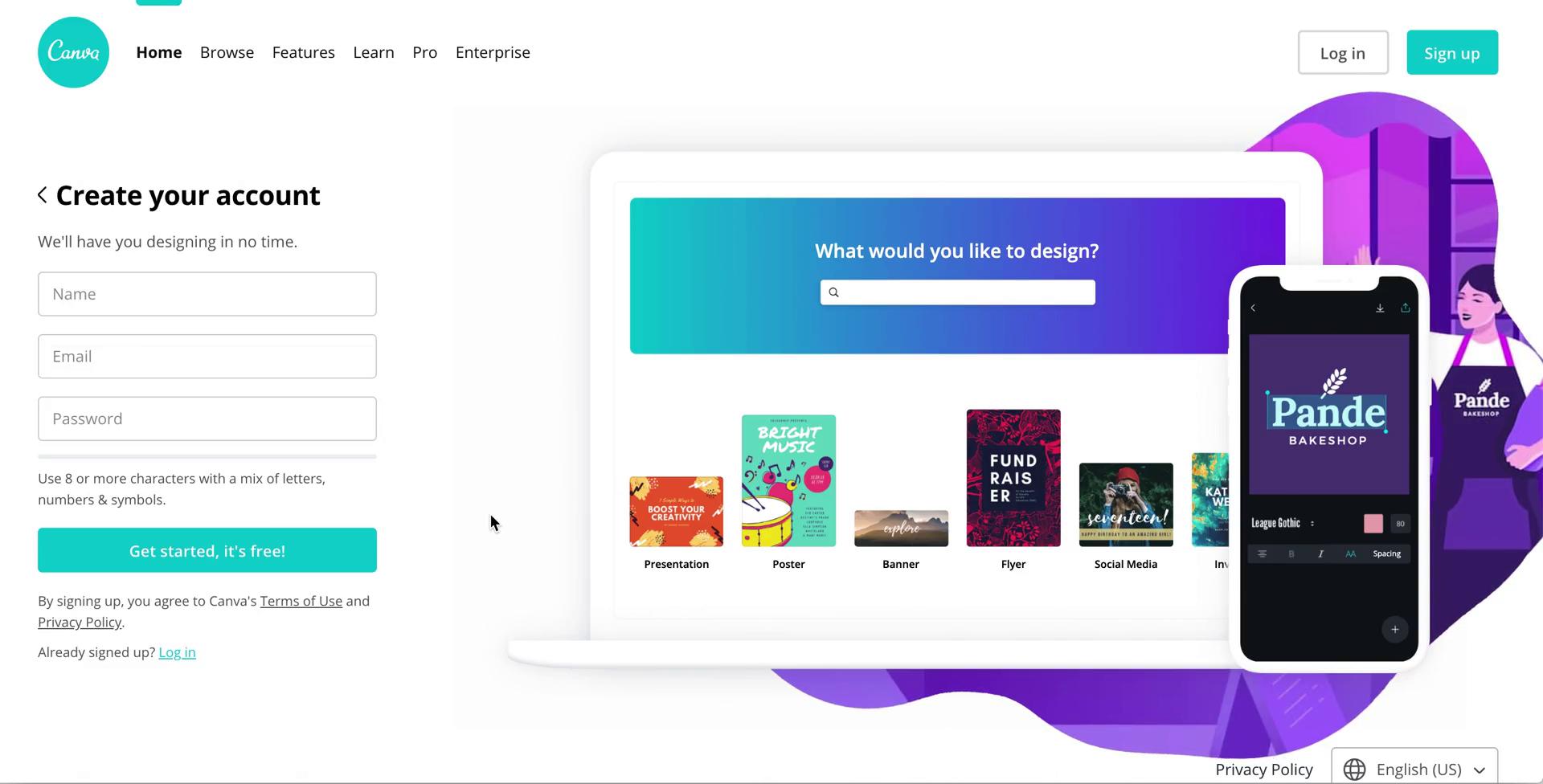
Sign up with email
this is title
Confirm you're human
this is title
Create account
this is title
Verify email
this is title
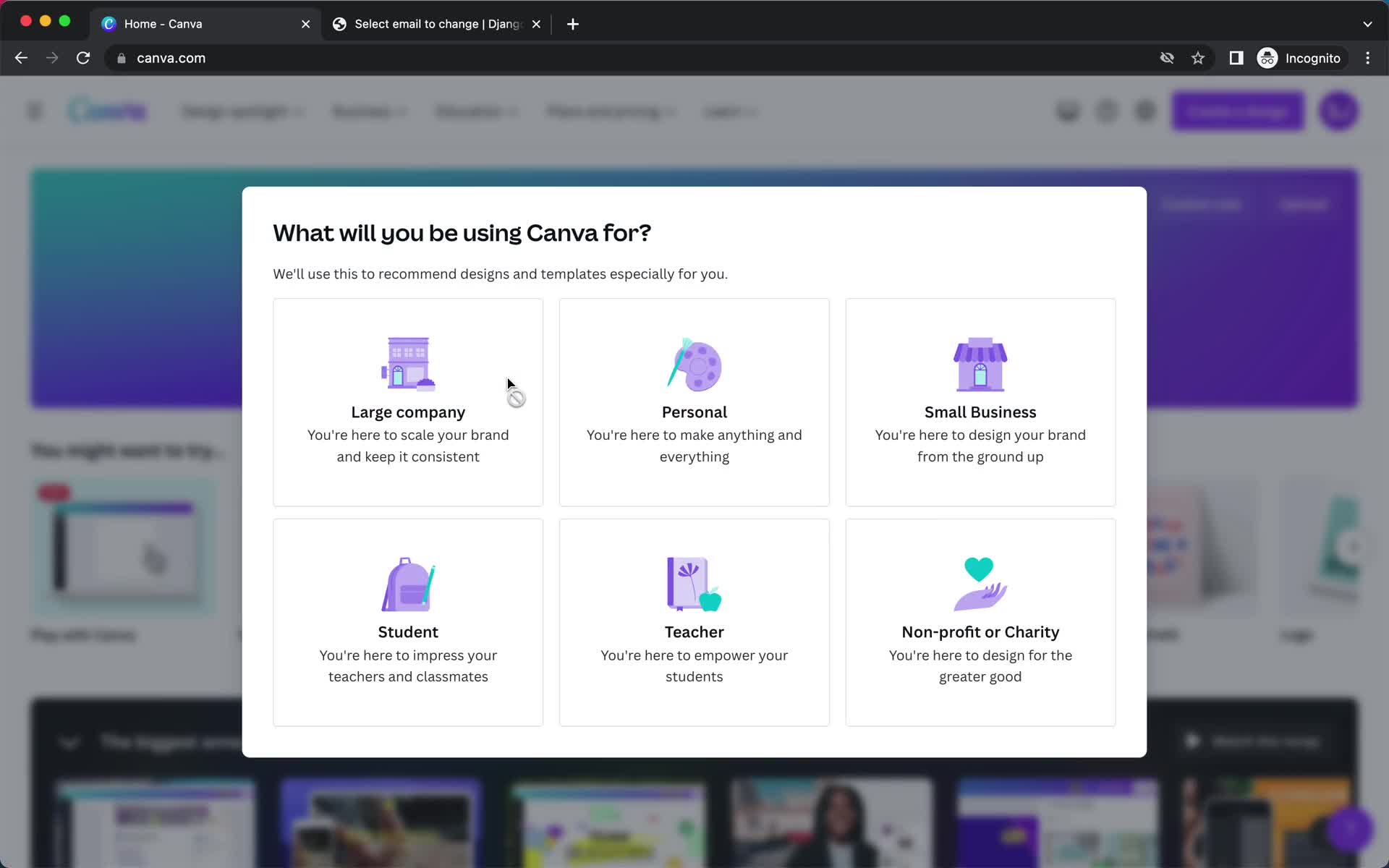
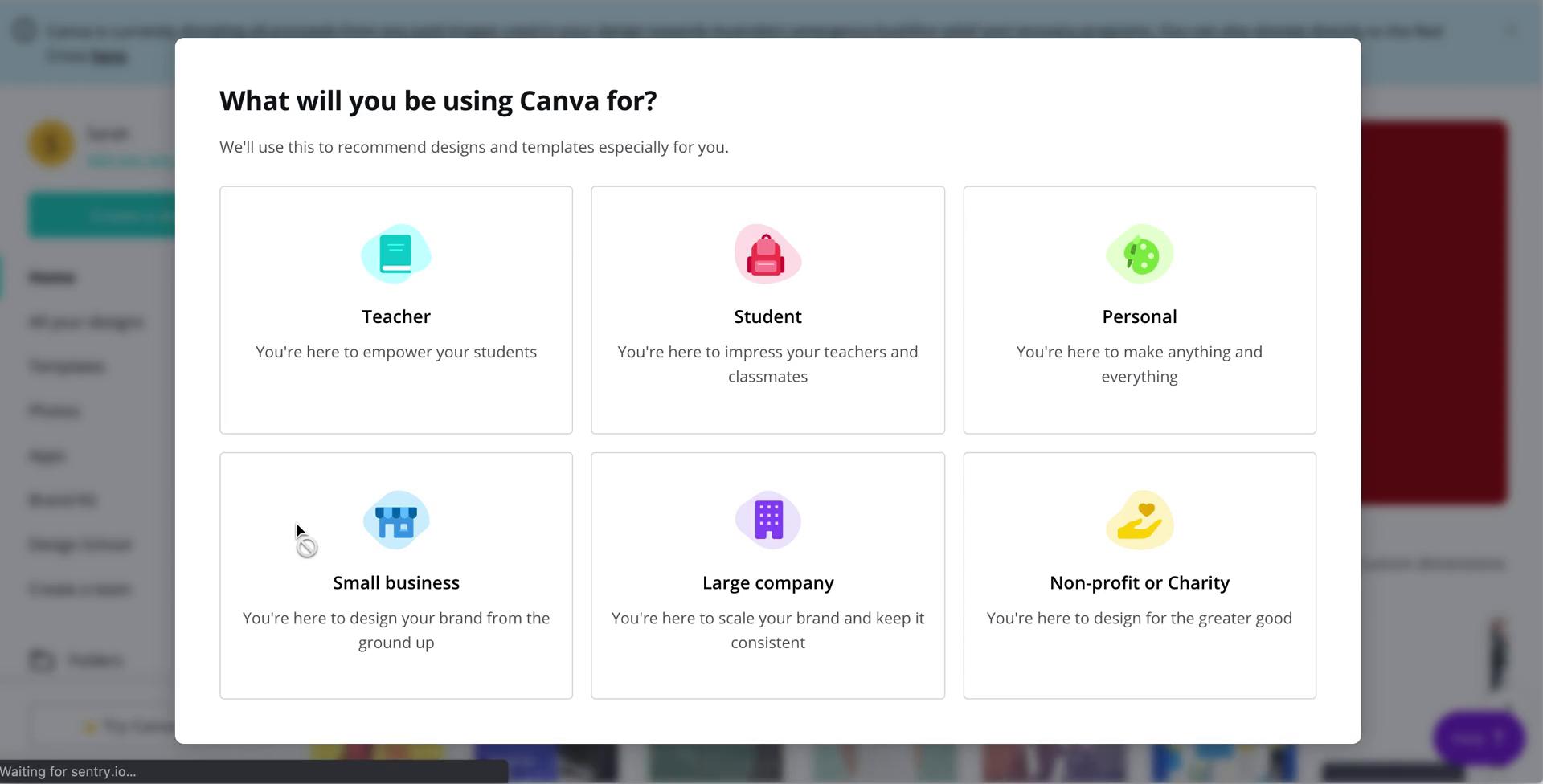
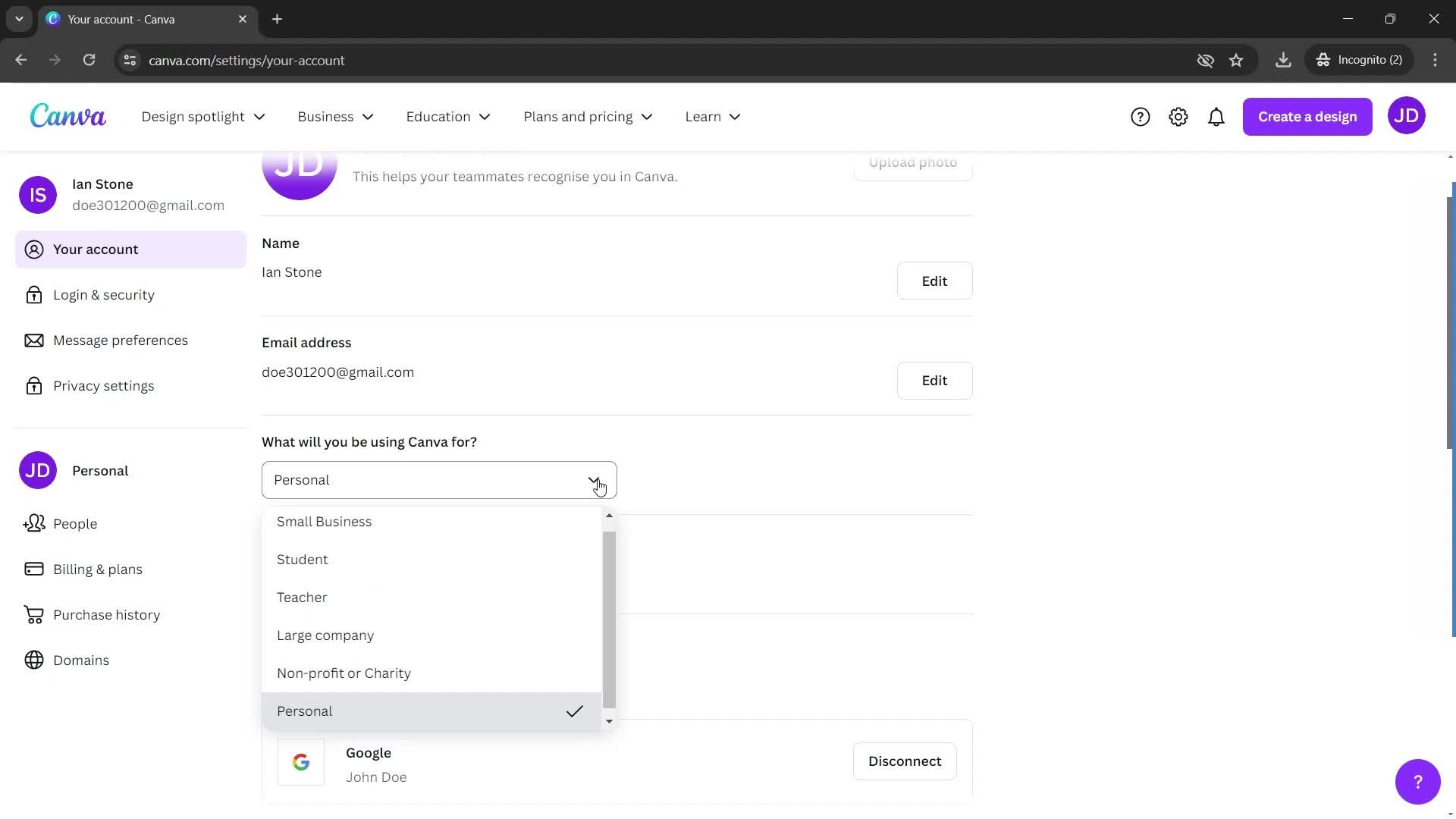
Select usage type
this is title
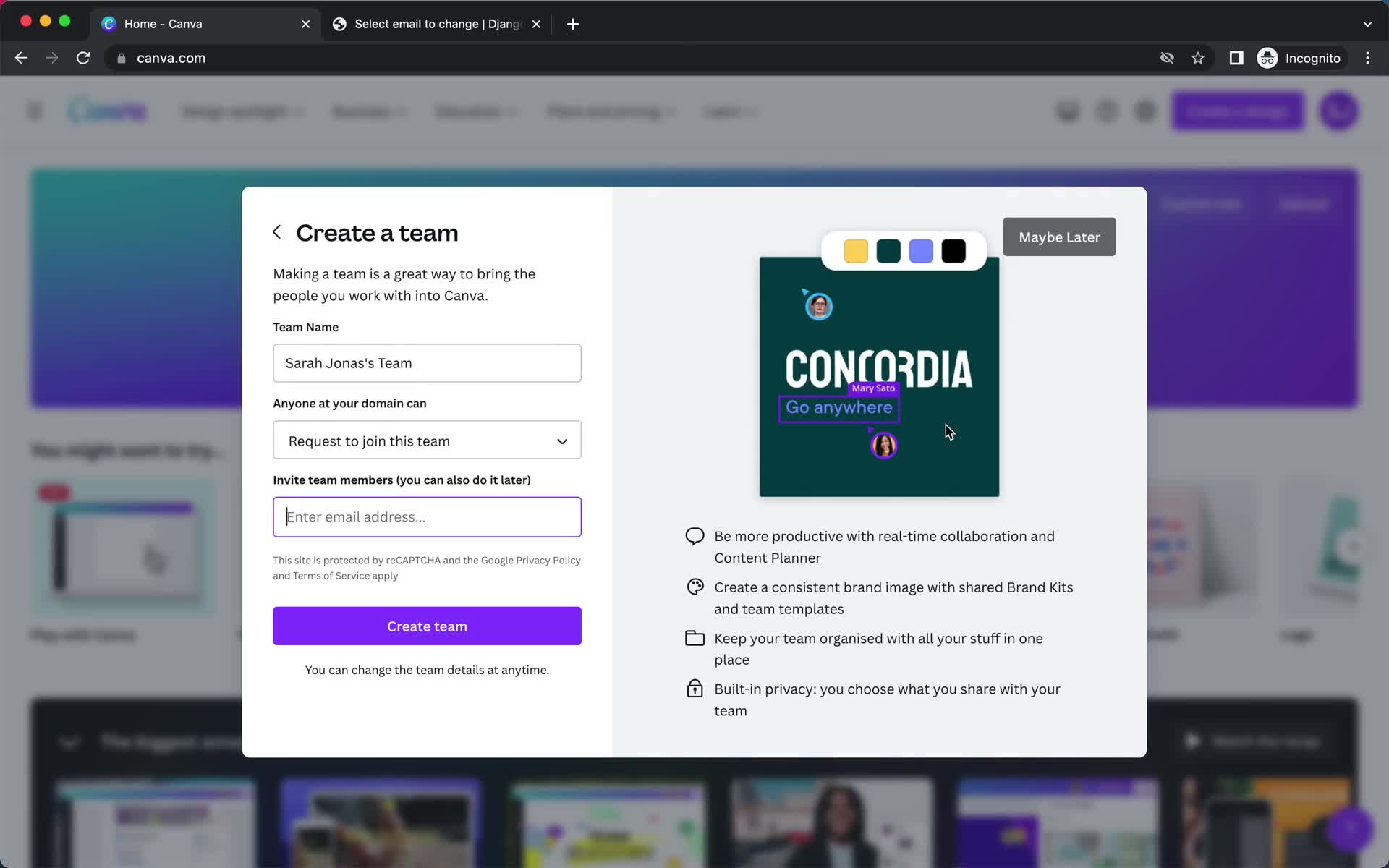
Create team
this is title
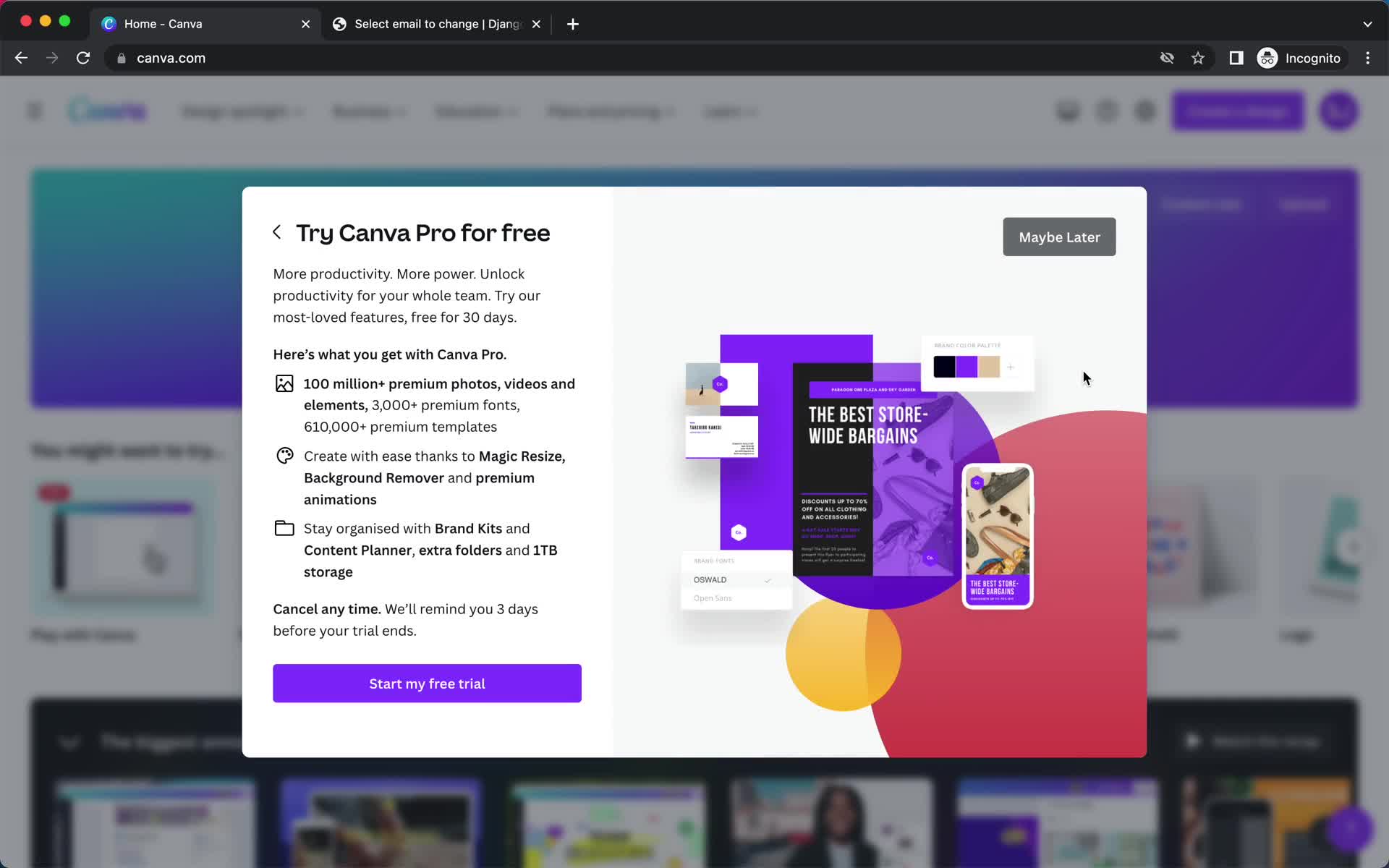
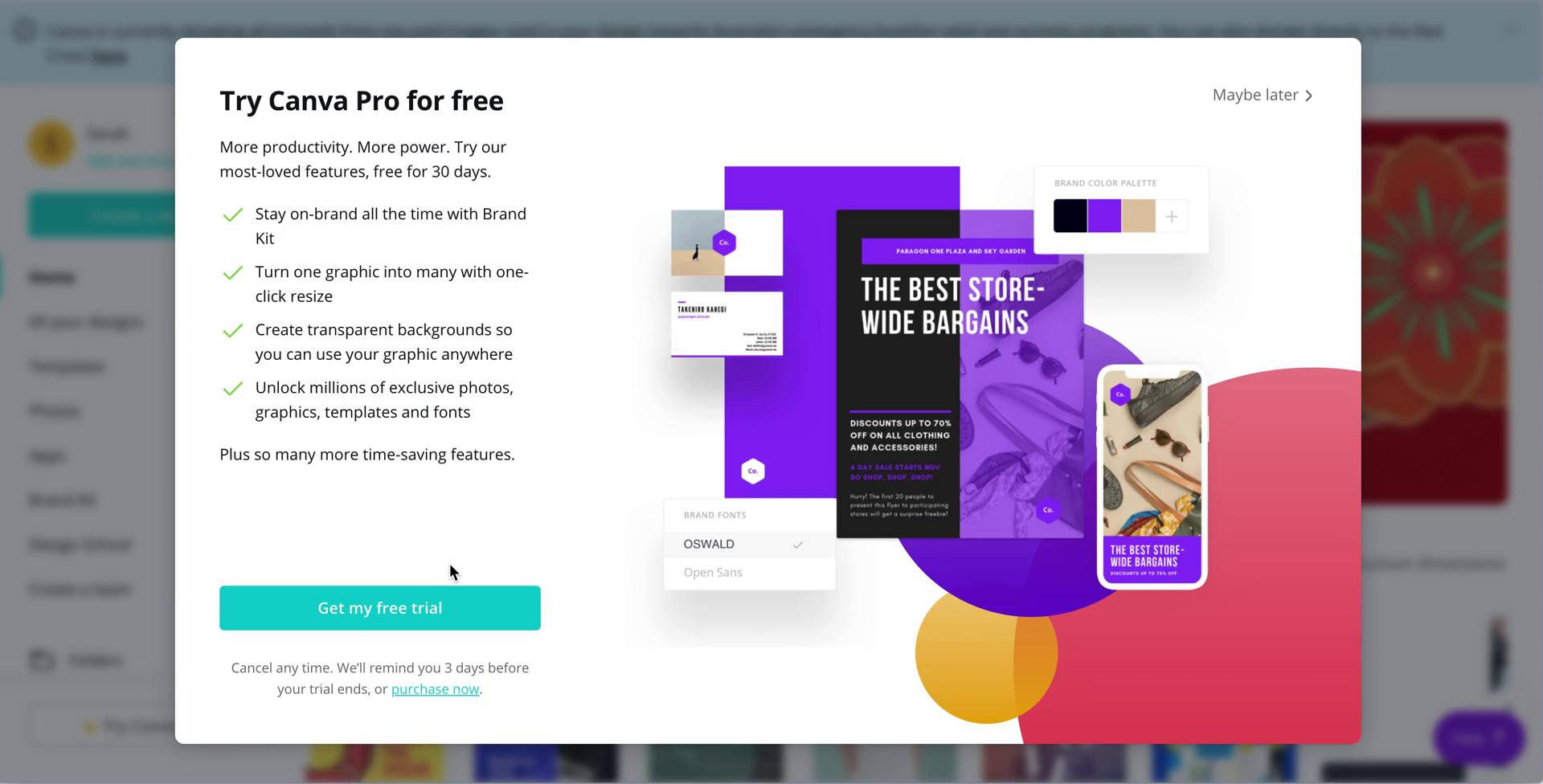
Start trial
this is title
Newsletter opt-in
this is title
Setup complete
this is title
Home
this is title
Guided tour
this is title
Guided tour
this is title
Guided tour
this is title
Editor
this is title
Editor
this is title
Action menu
this is title
Share
this is title
Share
this is title
Upgrade prompt
this is title
Home
this is title
Homepage
this is title
Welcome video
this is title
Guided tour
this is title
Guide tooltip
this is title
Guide tooltip
this is title
Guide tooltip
this is title
Select template
this is title
Filter
this is title
Select template
this is title
Editor
this is title
Select font
this is title
Select font
this is title
Select image
this is title
Editor
this is title
Editor
this is title
Help menu
this is title
Guide
this is title
Help centre
this is title
Editor
this is title
Download
this is title
Download
this is title
Sign up
this is title
Sign up
this is title
Verify email
this is title
Start trial
this is title
Select plan
this is title
Select payment method
this is title
Editor
this is title
Publish
this is title
Download
this is title
Download
this is title
Downloading
this is title
Share
this is title
Graphic
this is title
Invite team
this is title
Newsletter opt-in
this is title
Home
this is title
Homepage
this is title
Sign up
this is title
Select usage type
this is title
Upgrade prompt
this is title
Invite people
this is title
Select template
this is title
Create design
this is title
Create design
this is title
this is title
this is title
this is title
this is title
this is title
this is title
this is title
this is title
this is title
this is title
this is title
this is title
this is title
this is title
this is title
this is title
this is title
Home
this is title
Templates
this is title
Starred
this is title
this is title
this is title
this is title
this is title
Home
this is title
Profile menu
this is title
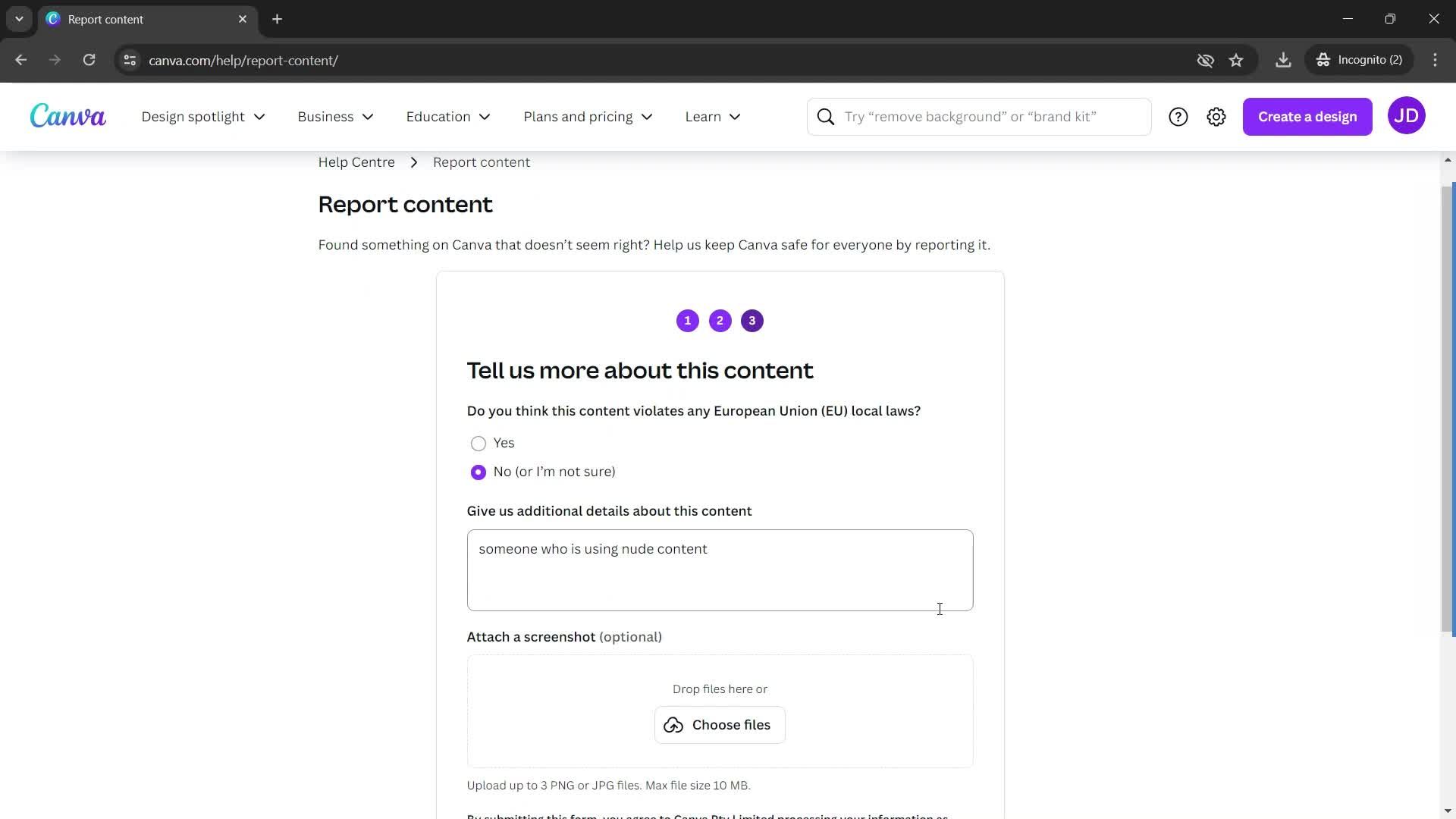
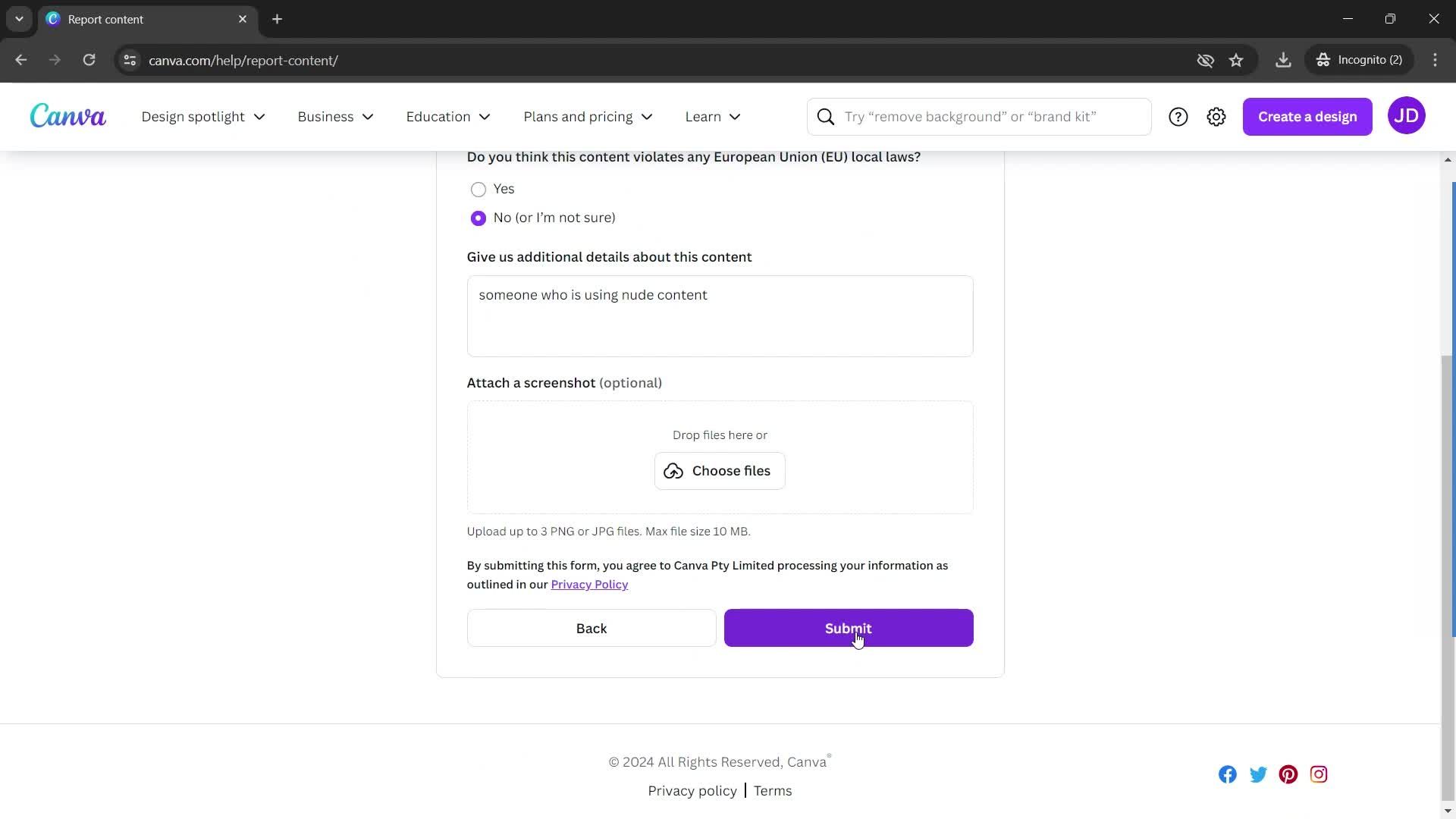
Report an issue
this is title
this is title
Error
this is title
this is title
this is title
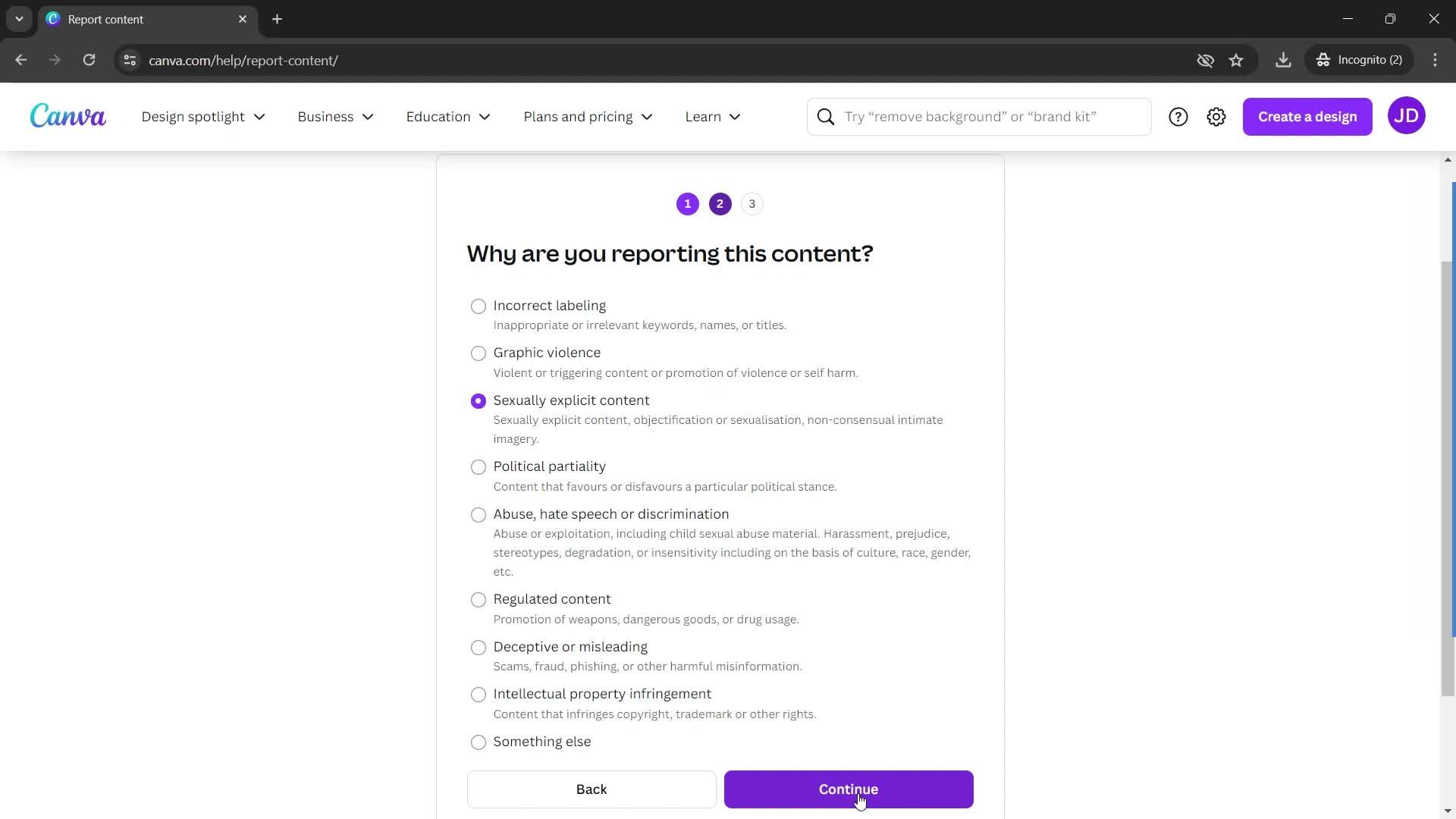
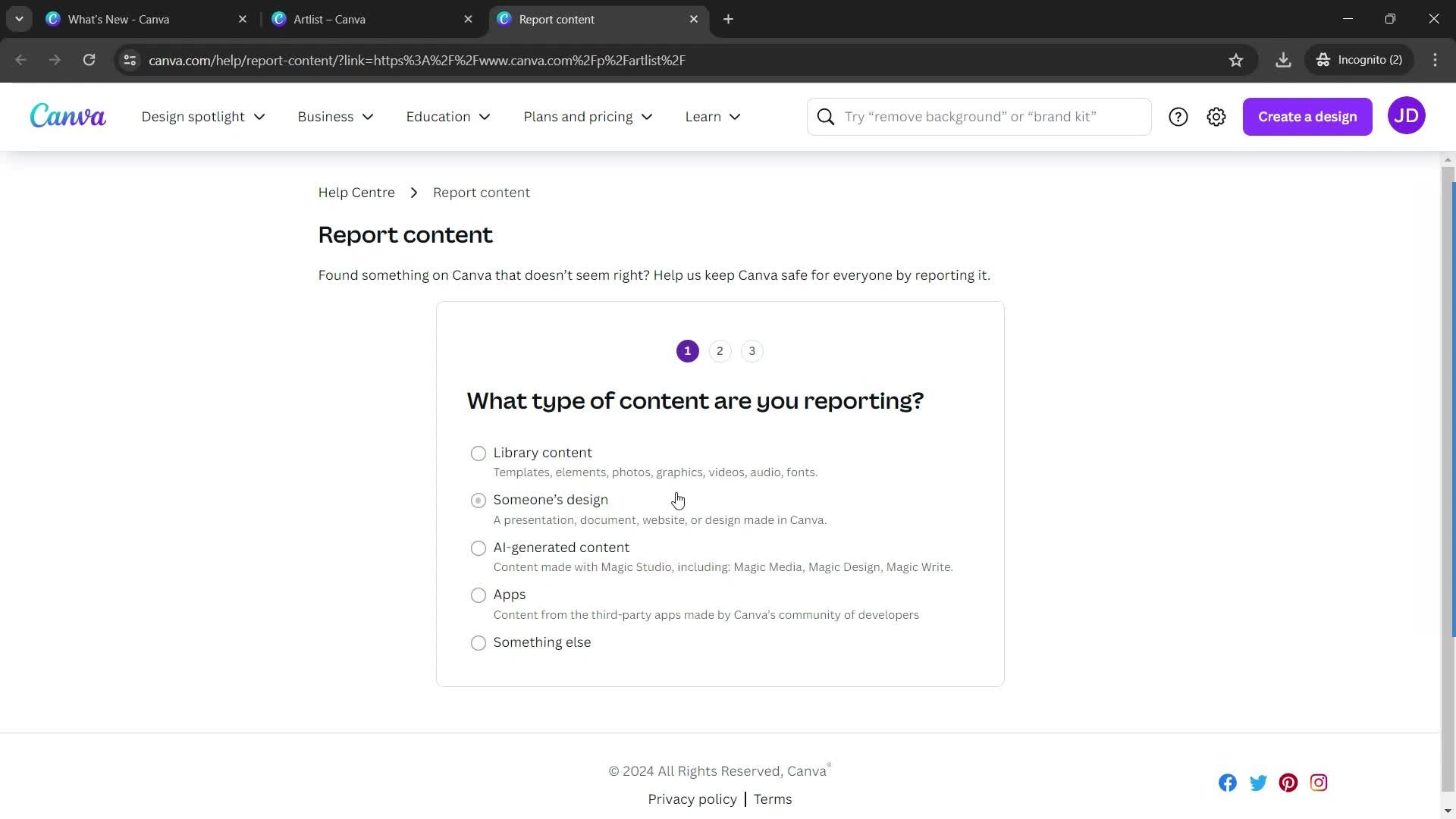
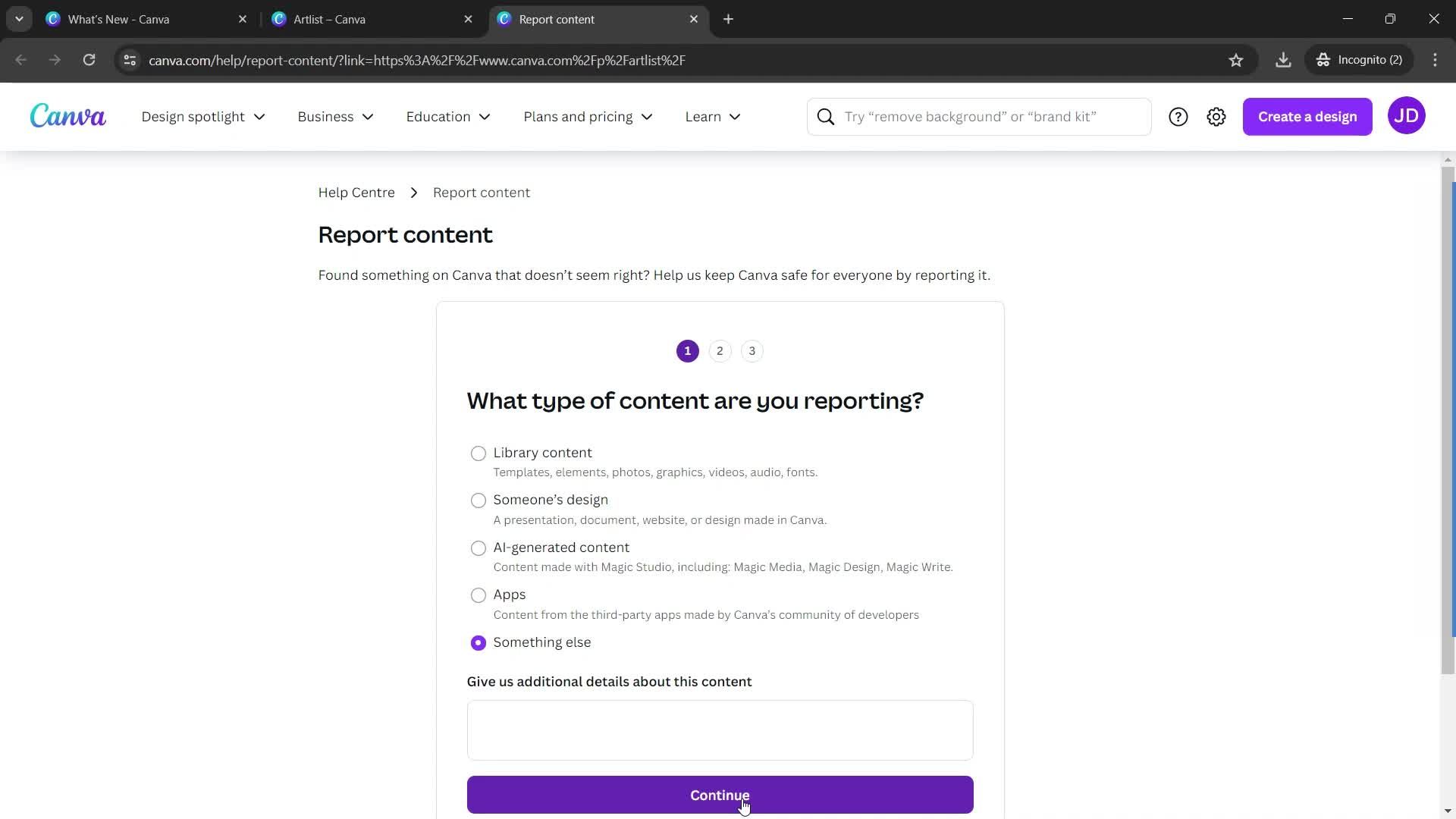
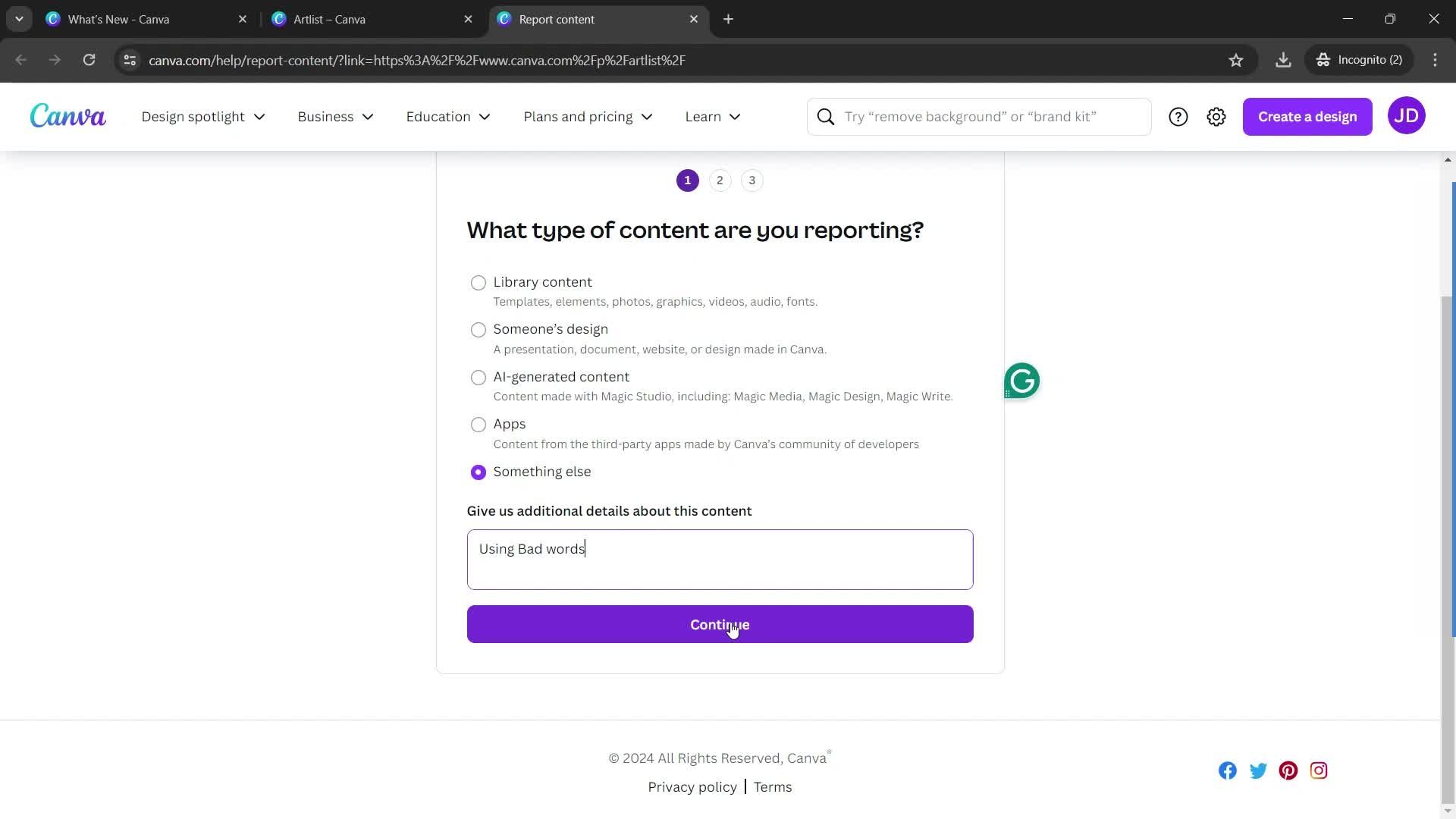
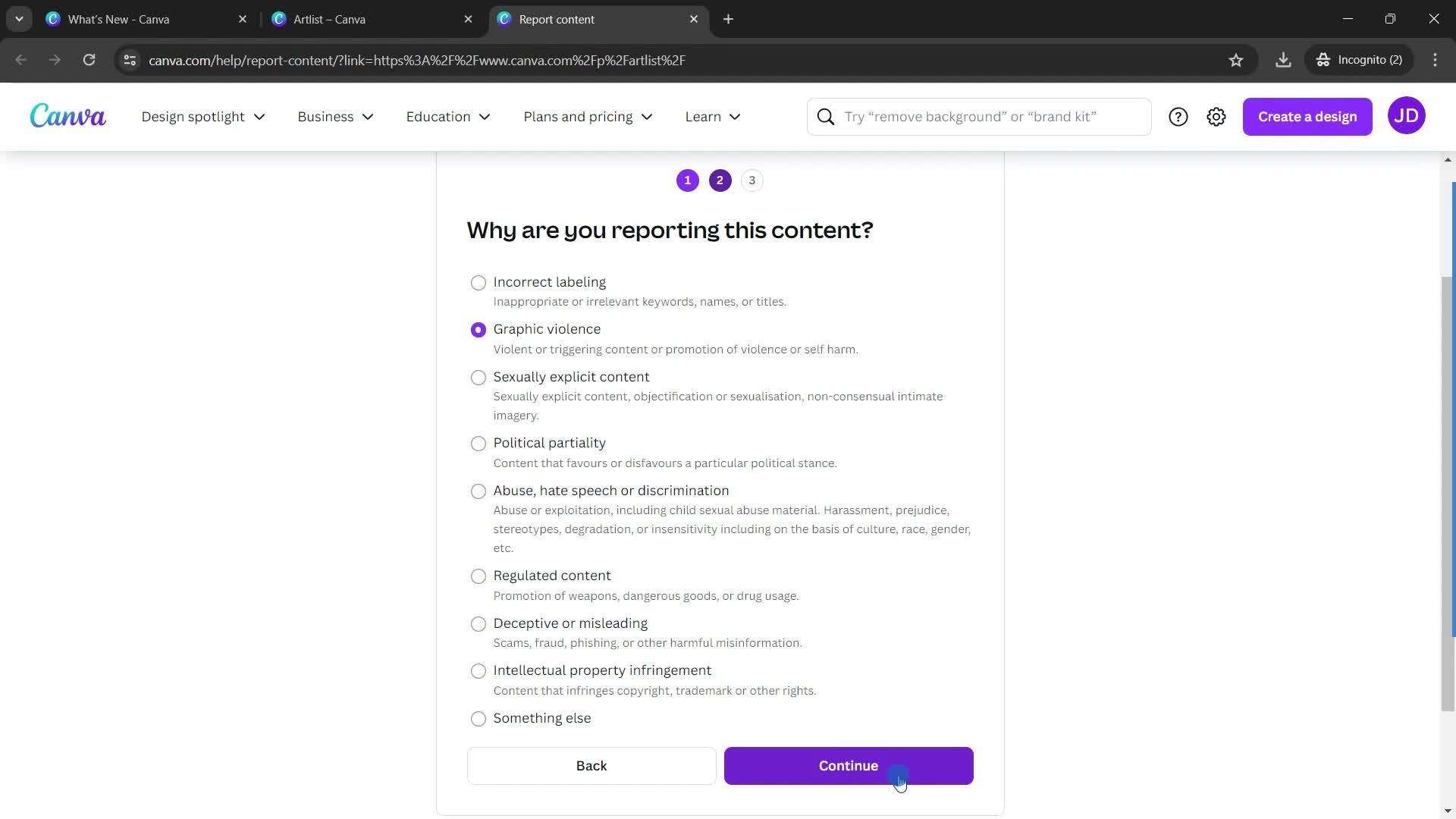
Select reason
this is title
this is title
this is title
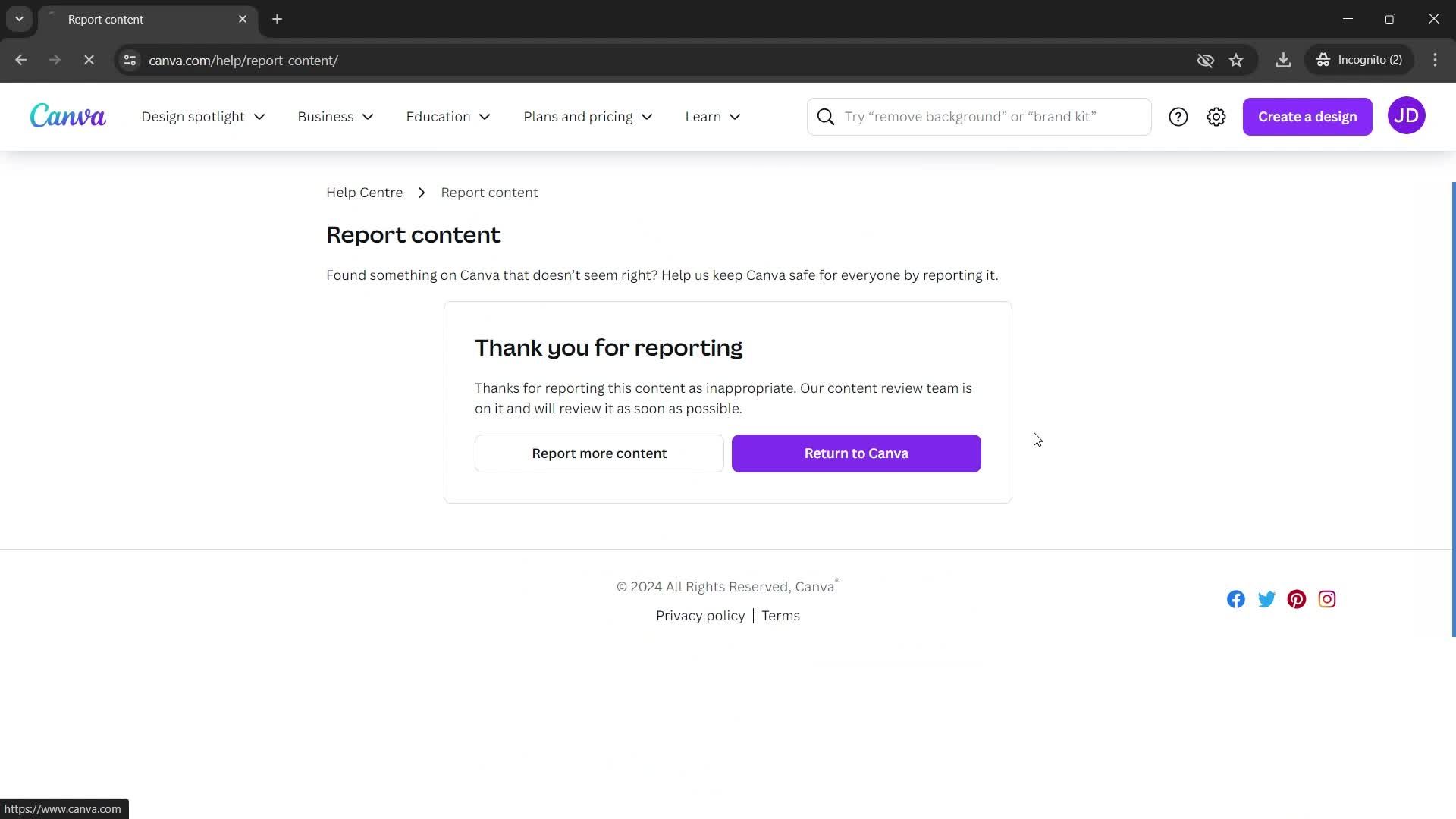
Report submitted
this is title
Home
this is title
Presentation
this is title
this is title
this is title
Report an issue
this is title
this is title
this is title
this is title
this is title
Error
this is title
this is title
this is title
Report submitted
this is title
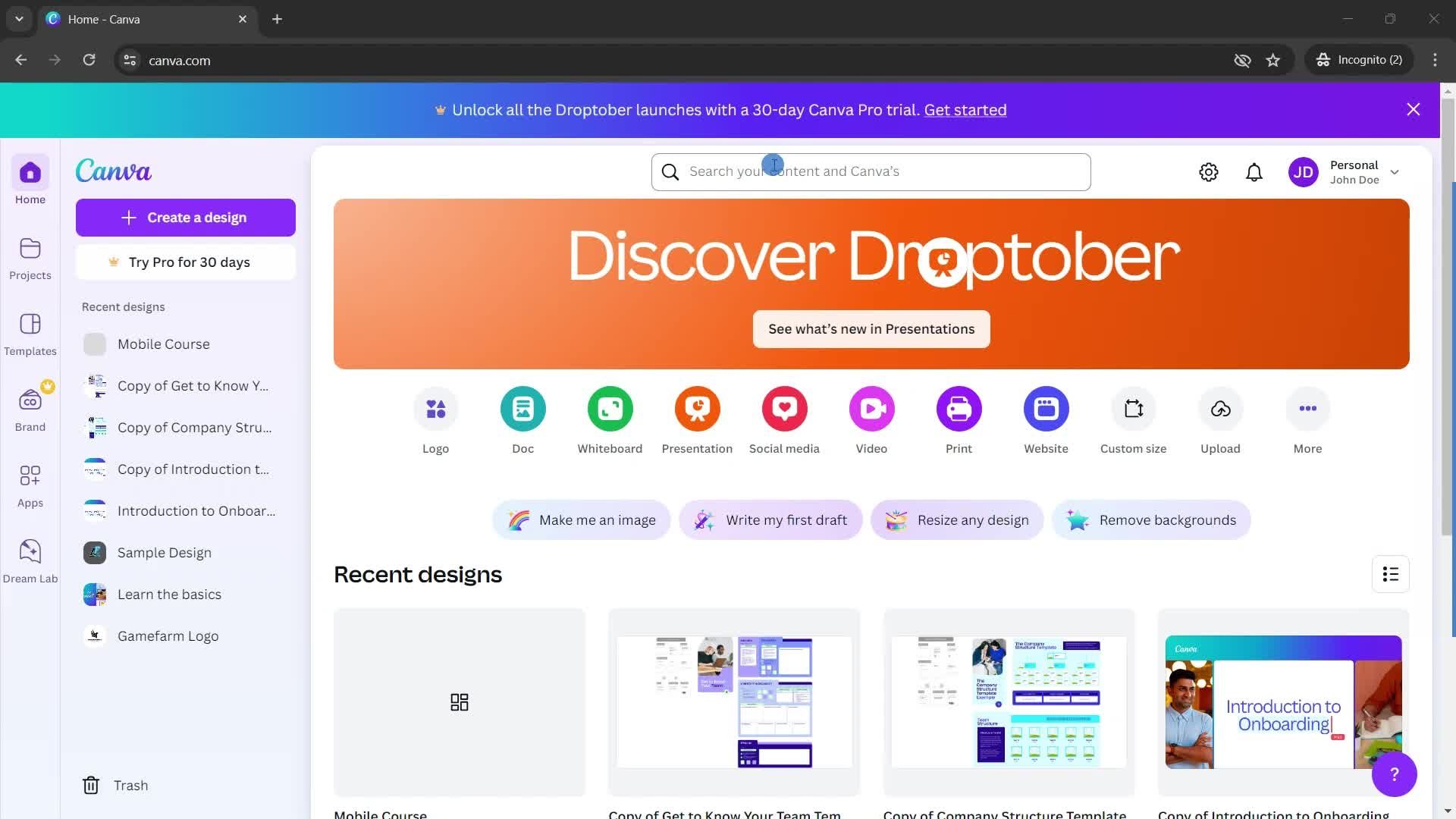
Home
this is title
Trash
this is title
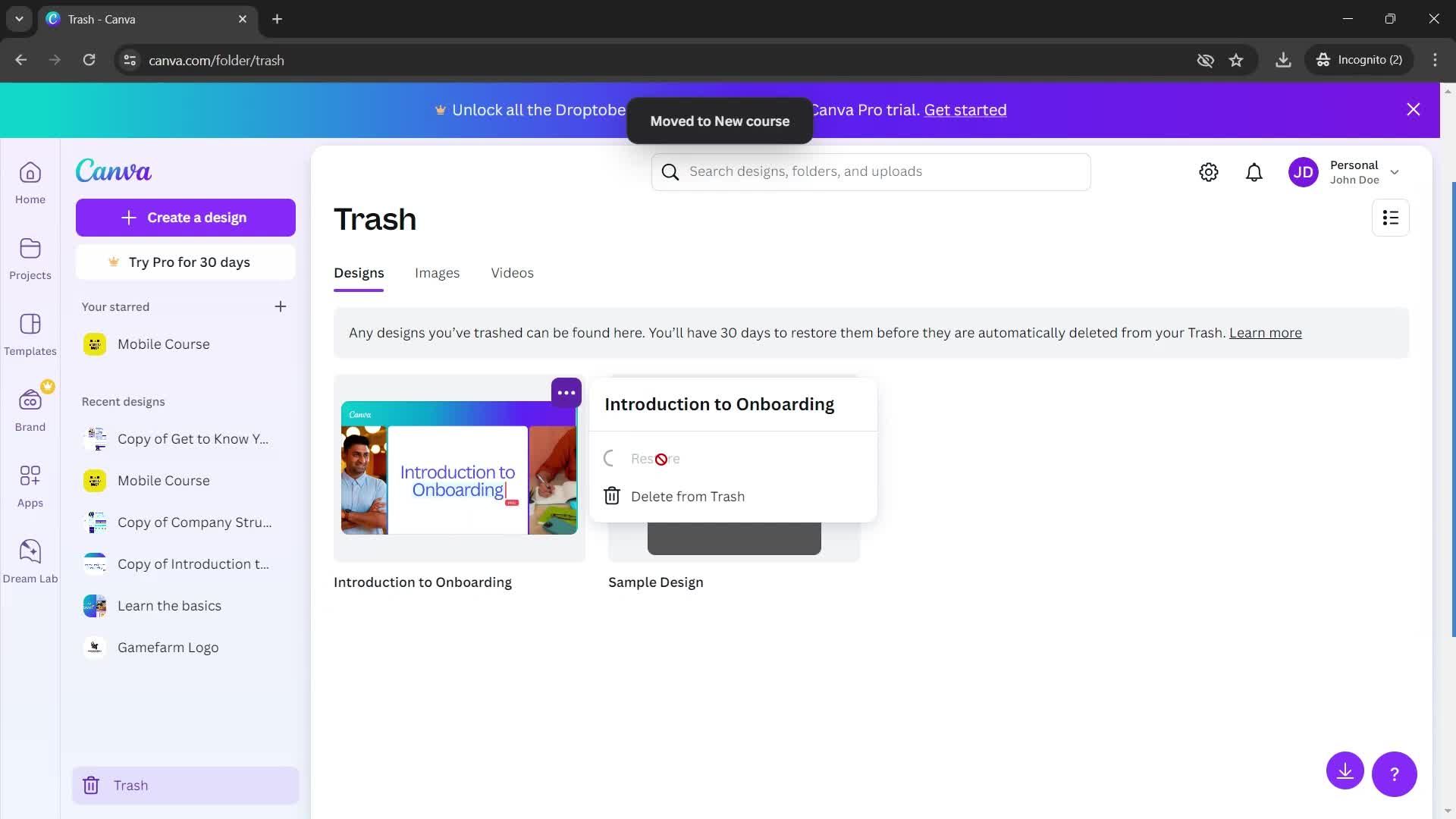
Action menu
this is title
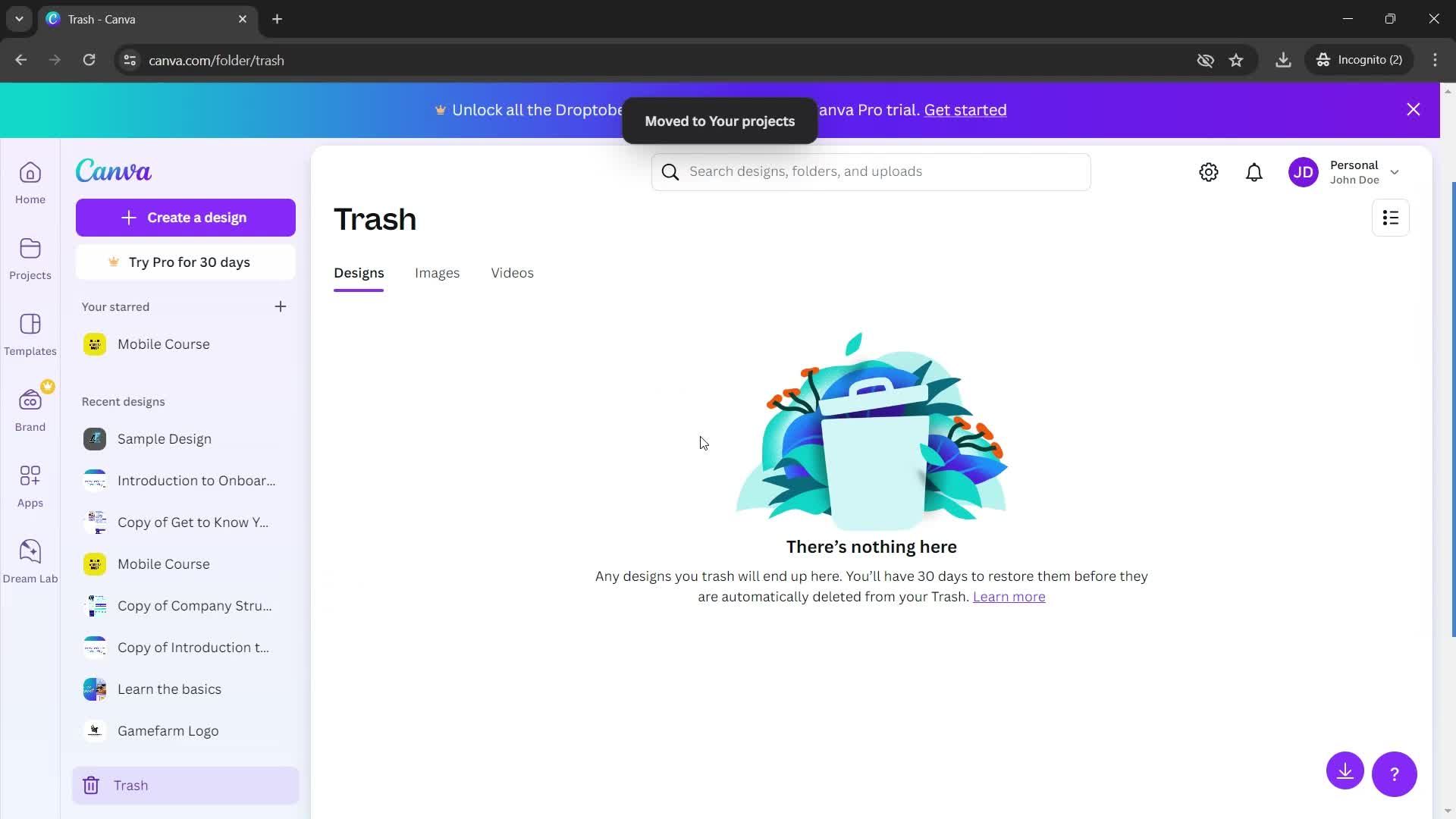
Restored
this is title
this is title
this is title
Home
this is title
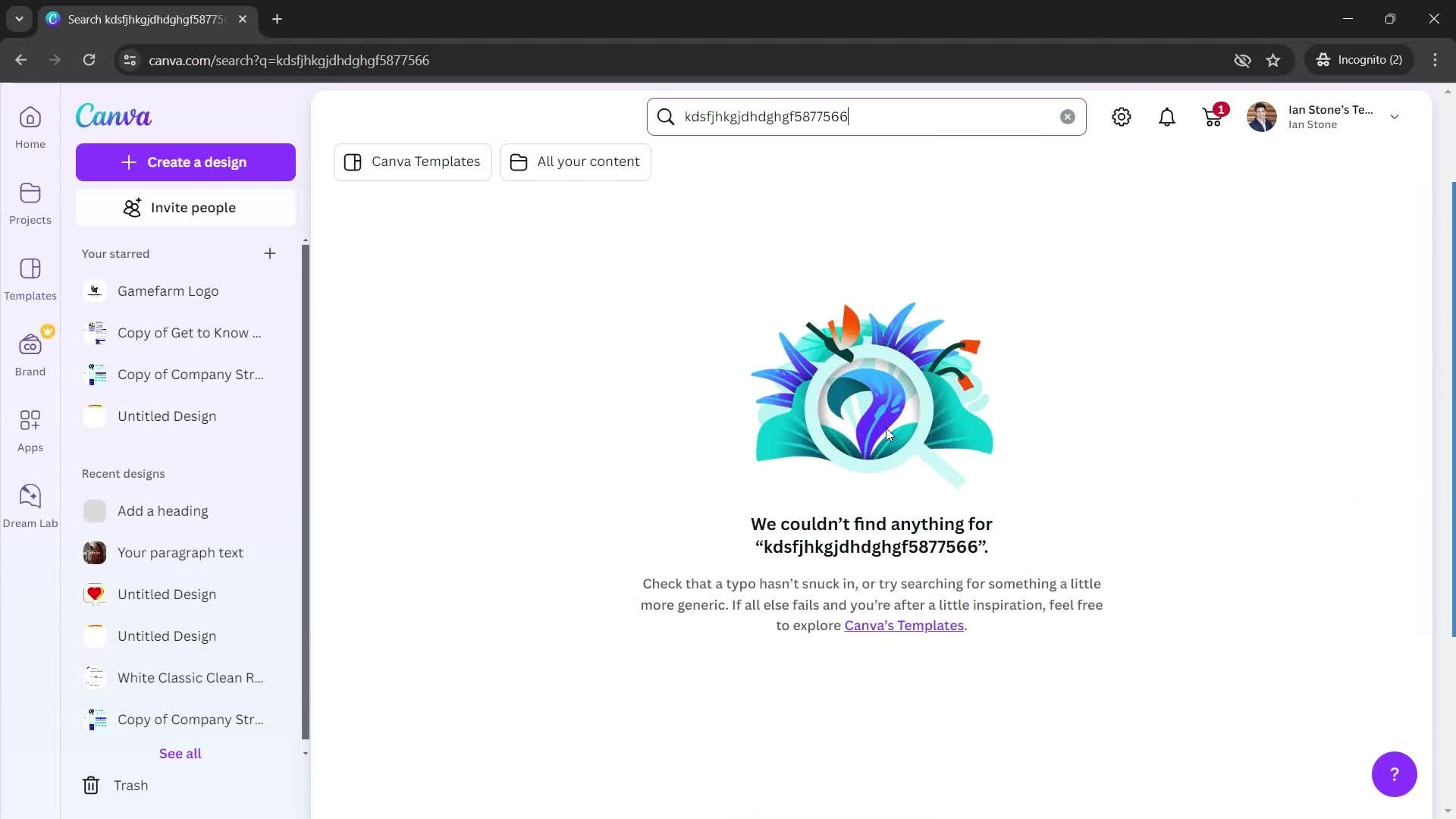
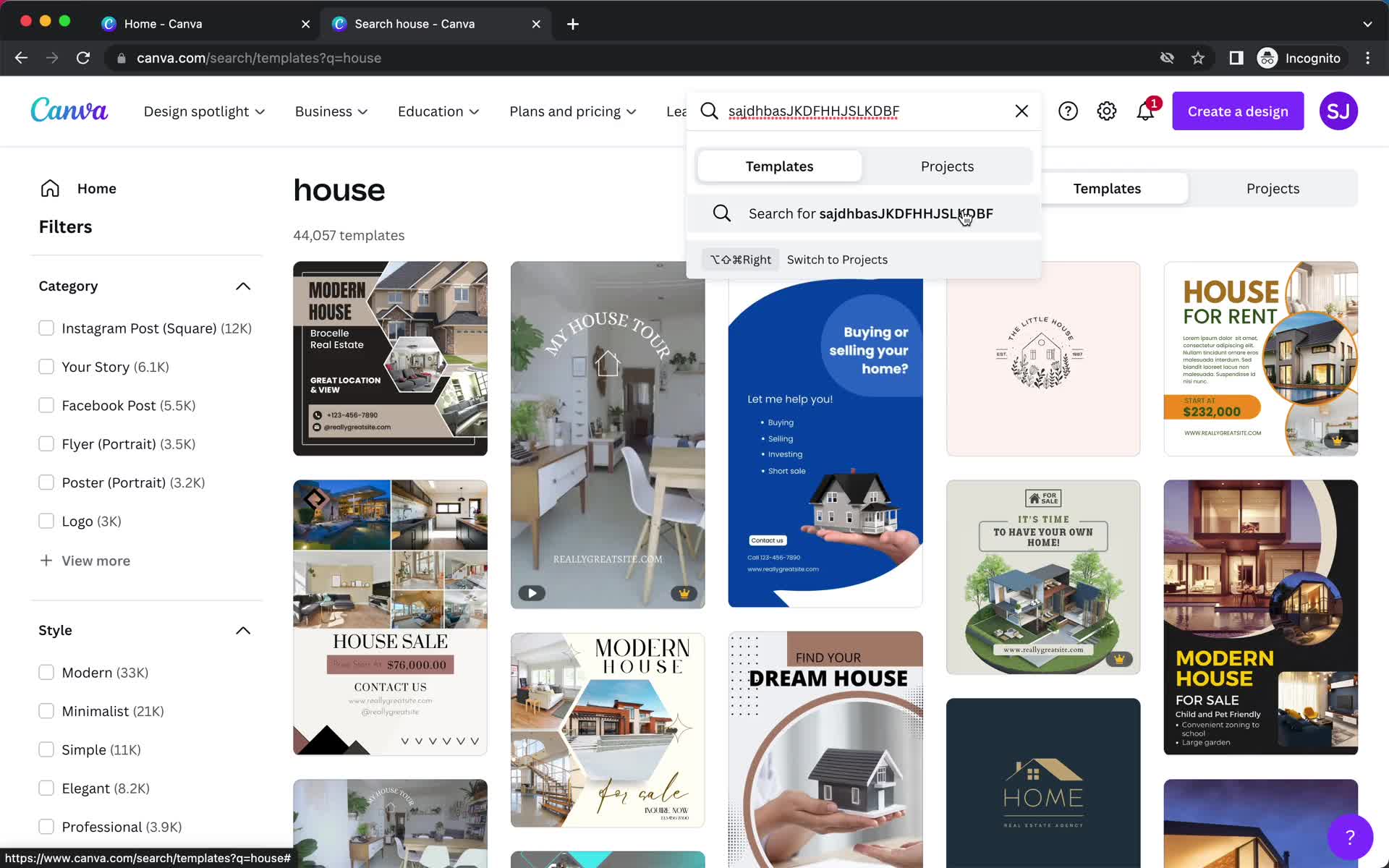
Search
this is title
this is title
Search results
this is title
this is title
Search results
this is title
this is title
this is title
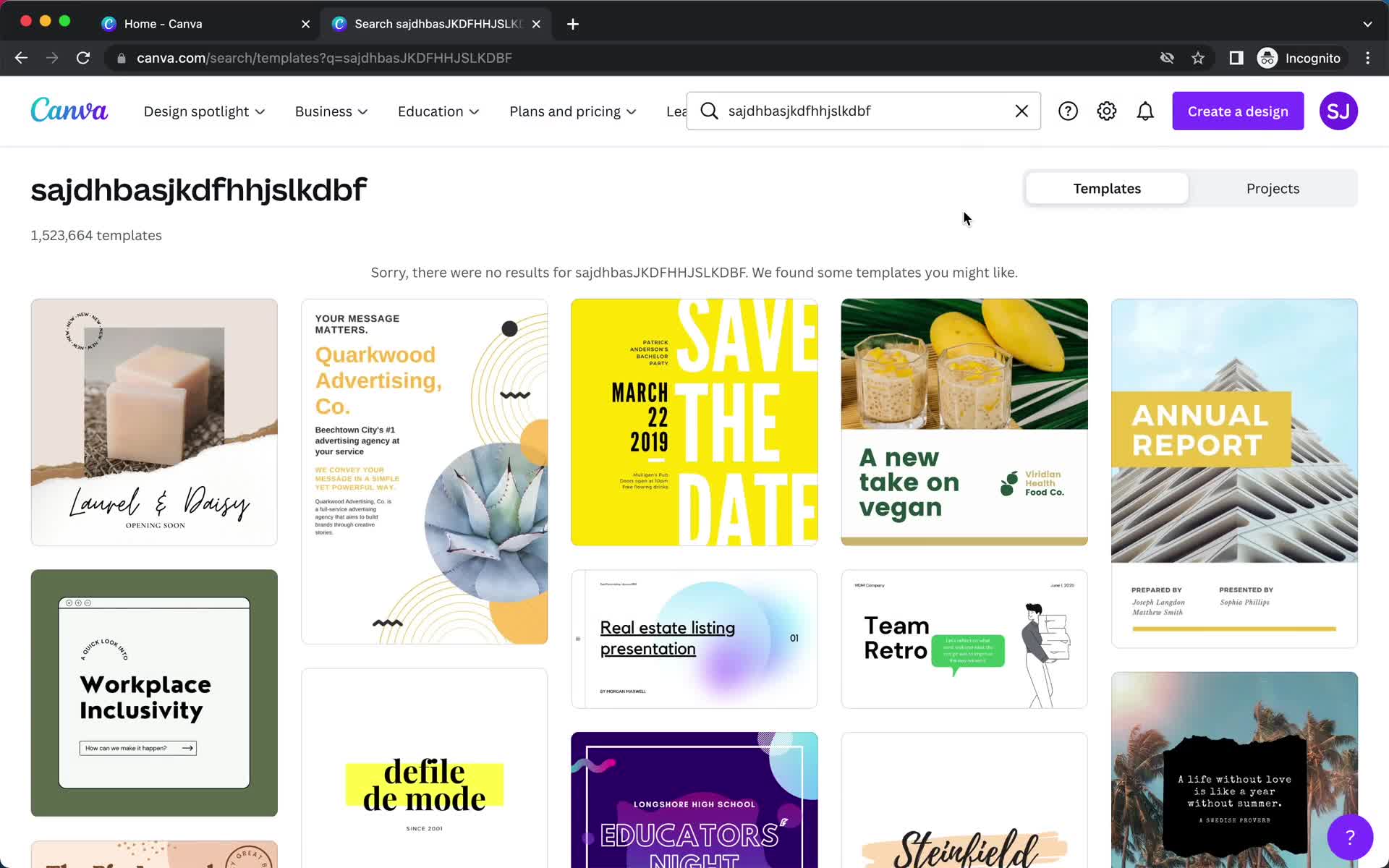
No search results
this is title
Home
this is title
Search
this is title
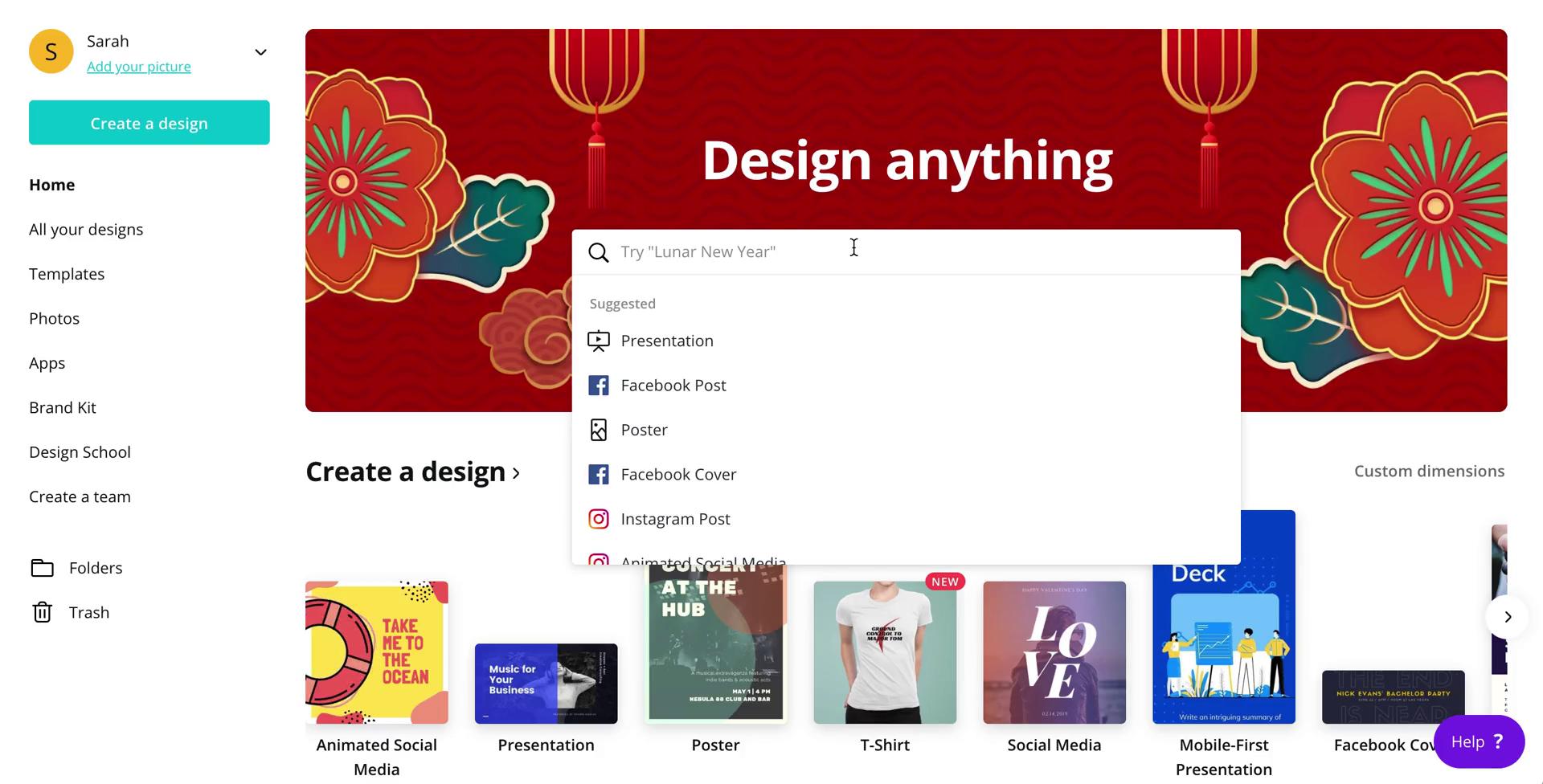
Search autocomplete
this is title
Search results
this is title
Filtered results
this is title
Search
this is title
Search autocomplete
this is title
Search results
this is title
Search
this is title
No search results
this is title
Dashboard
this is title
Suggested searches
this is title
Search results
this is title
Search your designs
this is title
this is title
this is title
this is title
this is title
this is title
Home
this is title
Action menu
this is title
Share
this is title
this is title
this is title
Projects
this is title
this is title
Share
this is title
this is title
this is title
this is title
this is title
Shared
this is title
Home
this is title
Editor
this is title
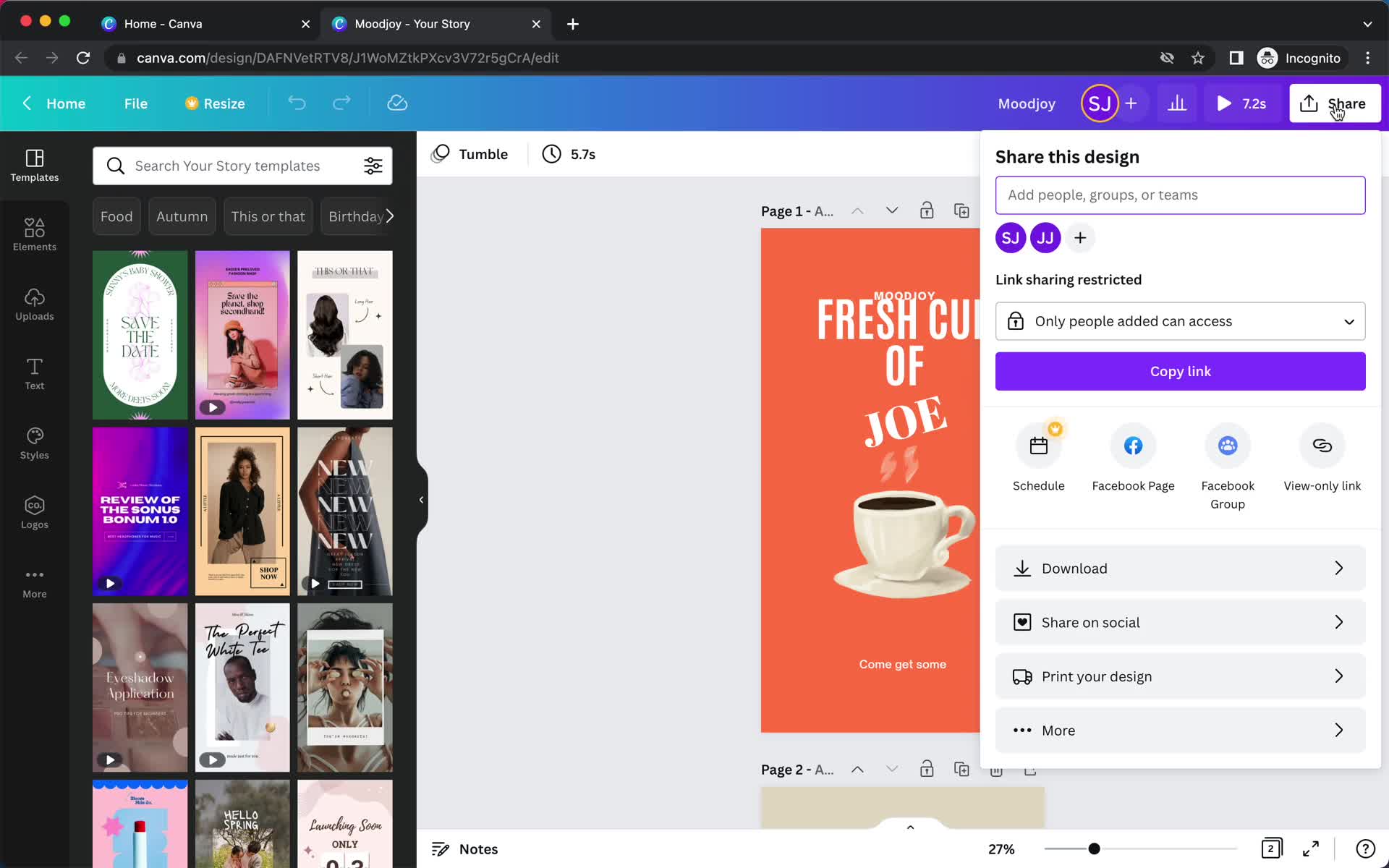
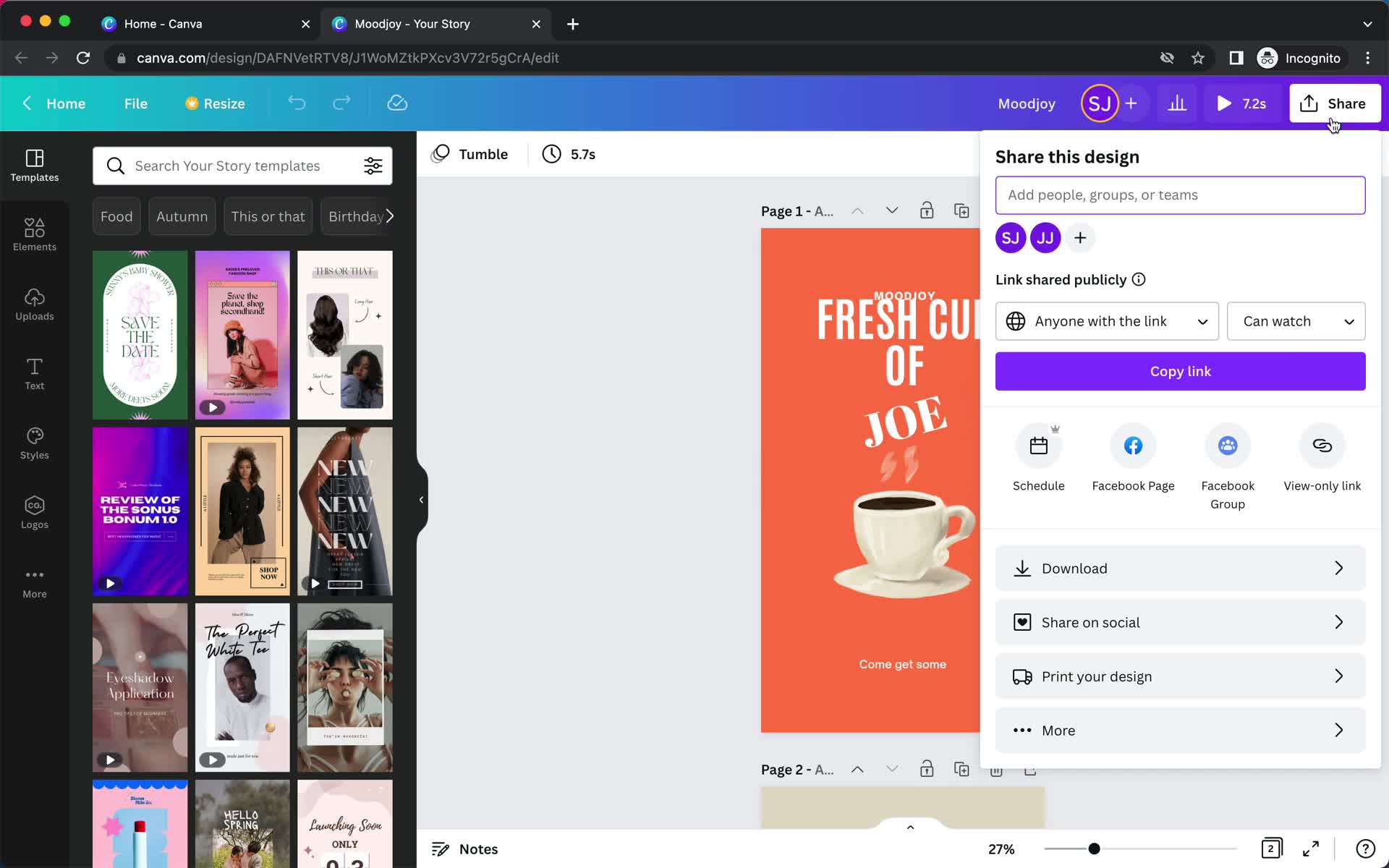
Share
this is title
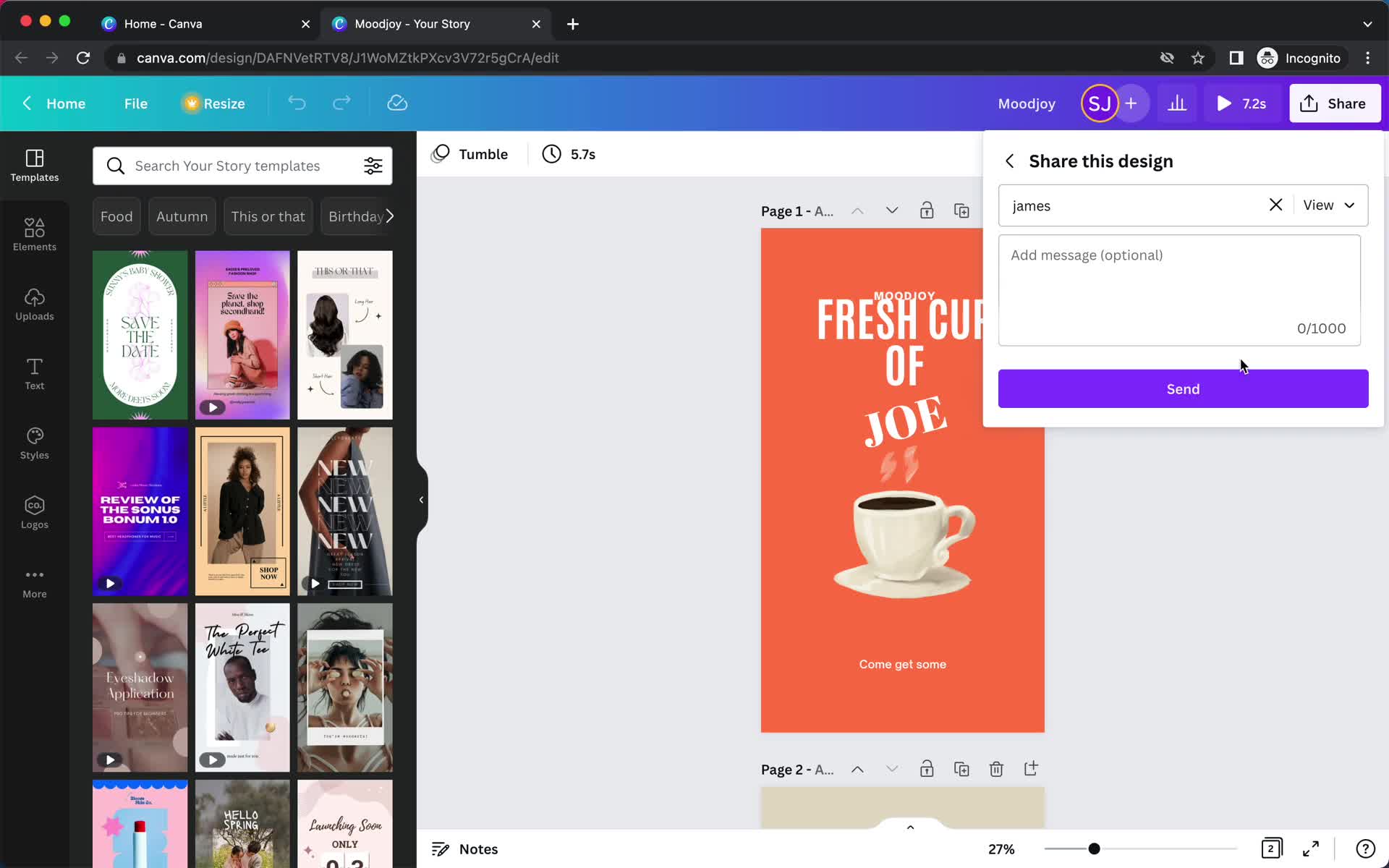
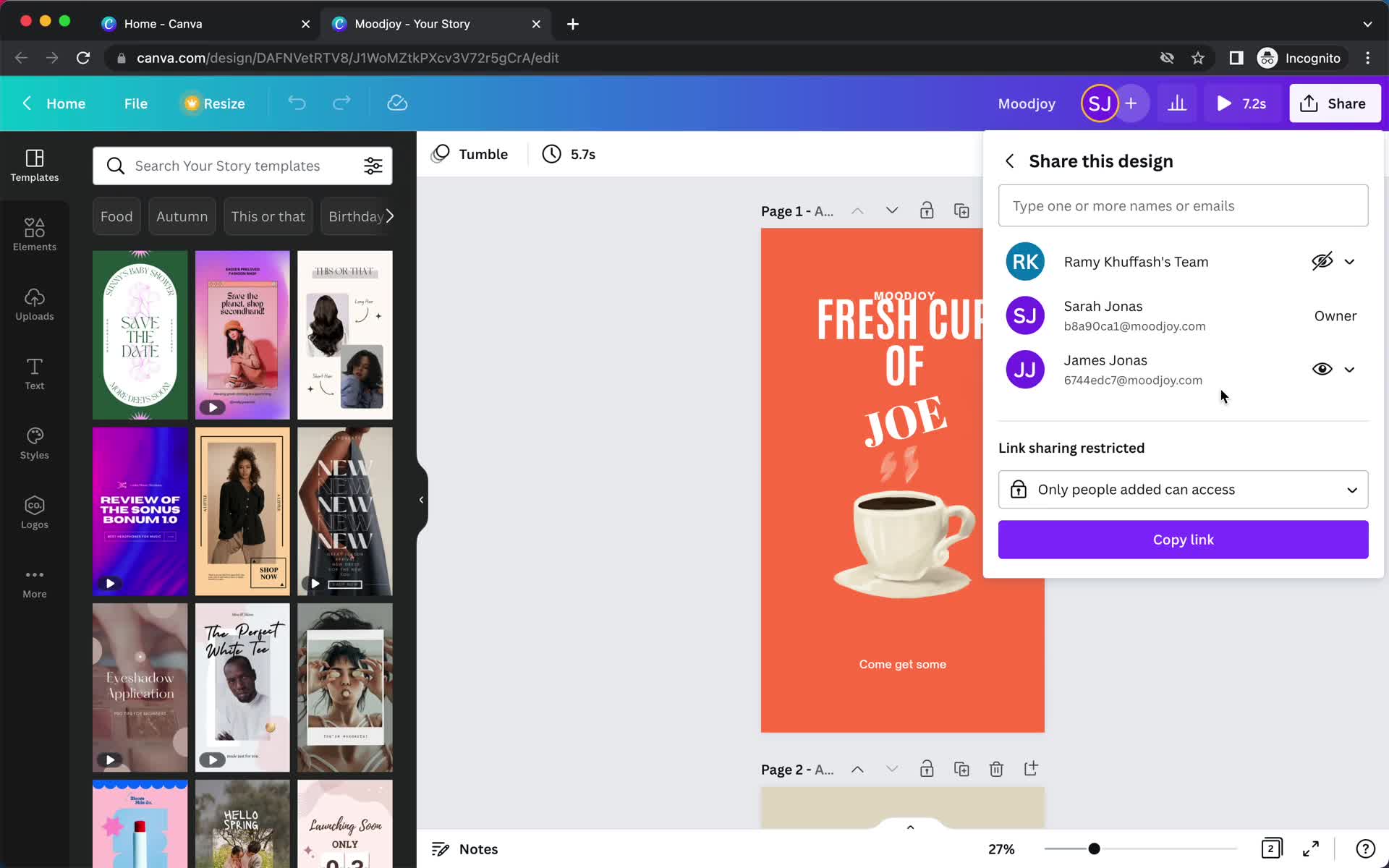
Add recipient
this is title
Add message
this is title
Shared
this is title
Share
this is title
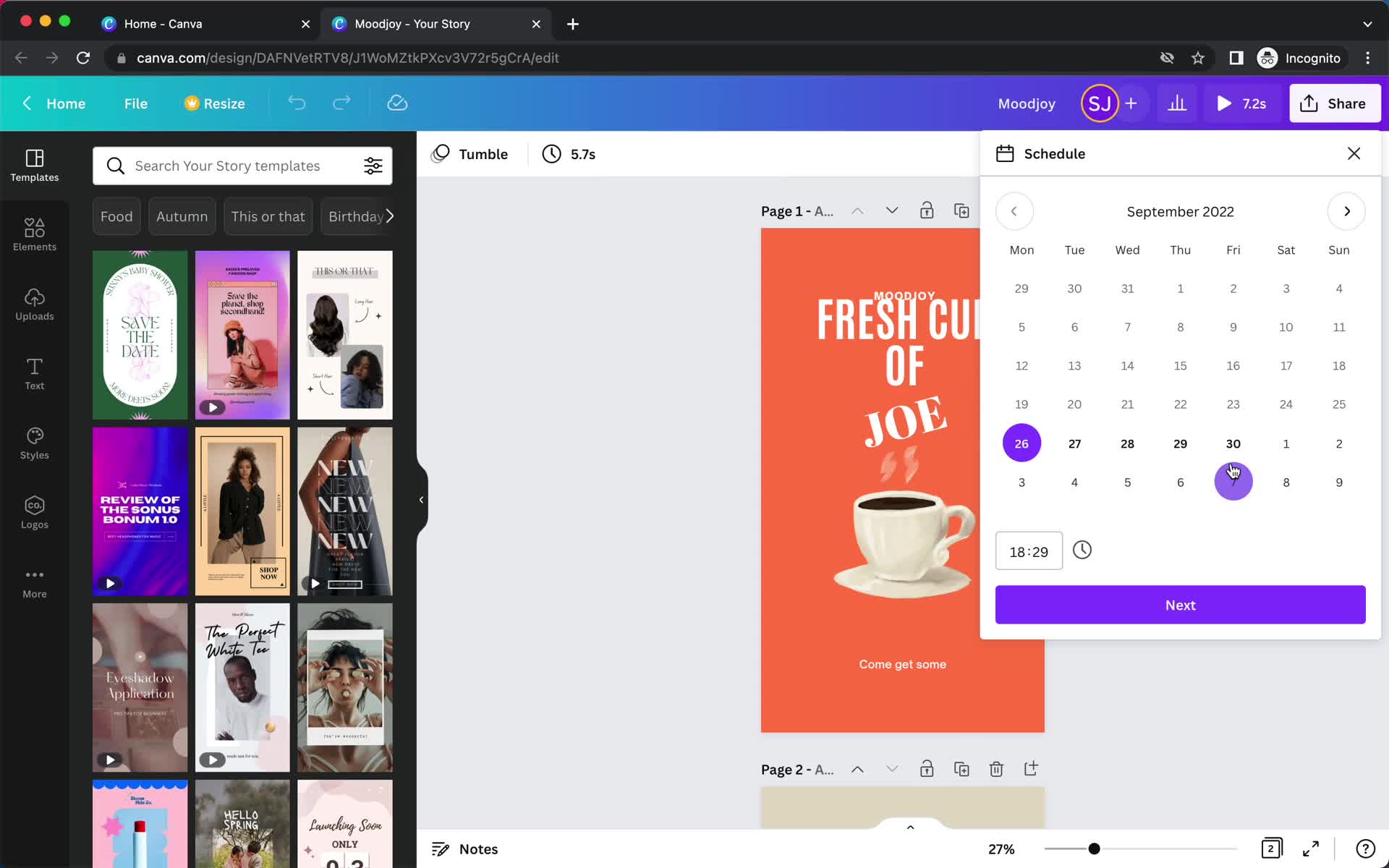
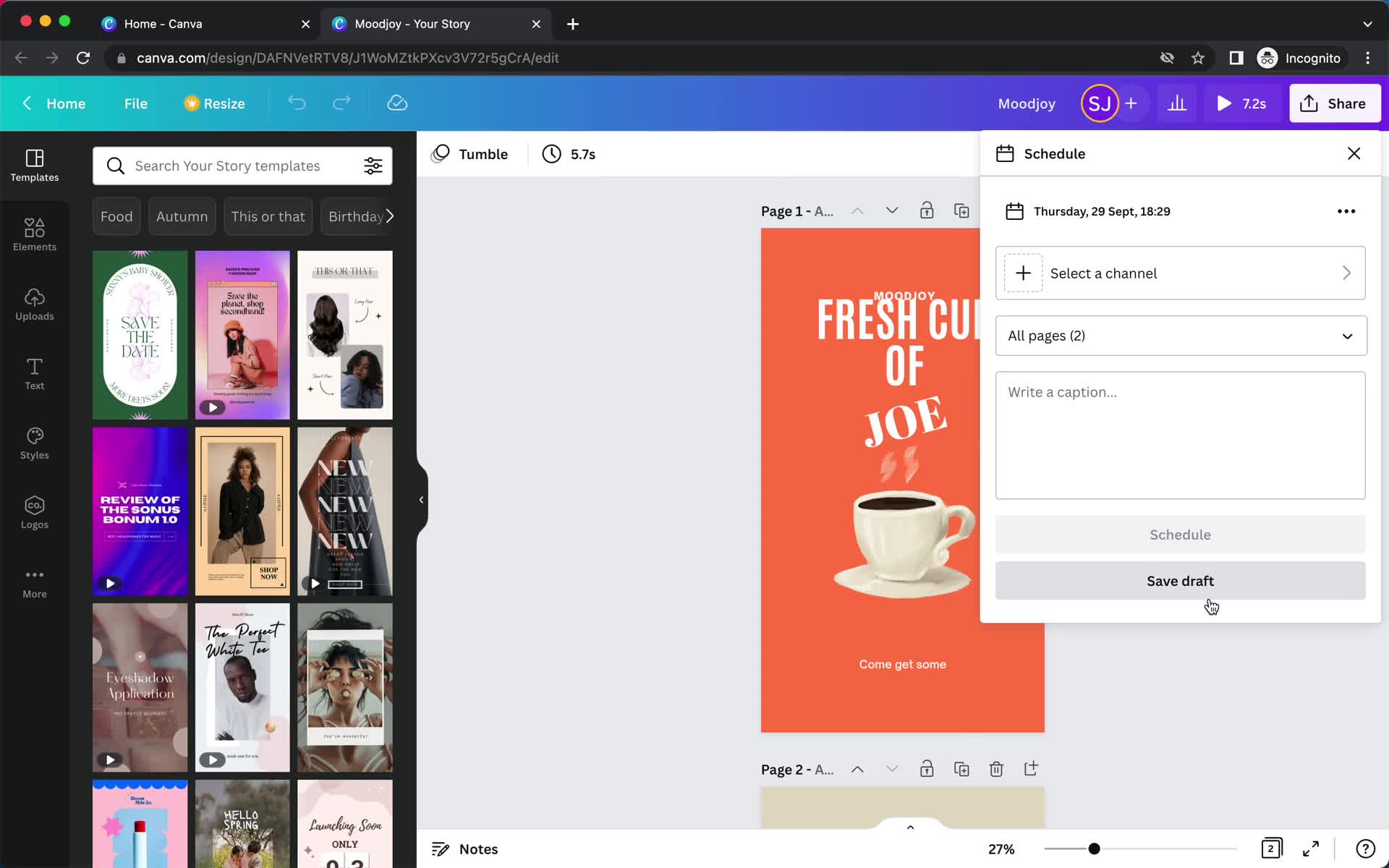
Schedule
this is title
Add details
this is title
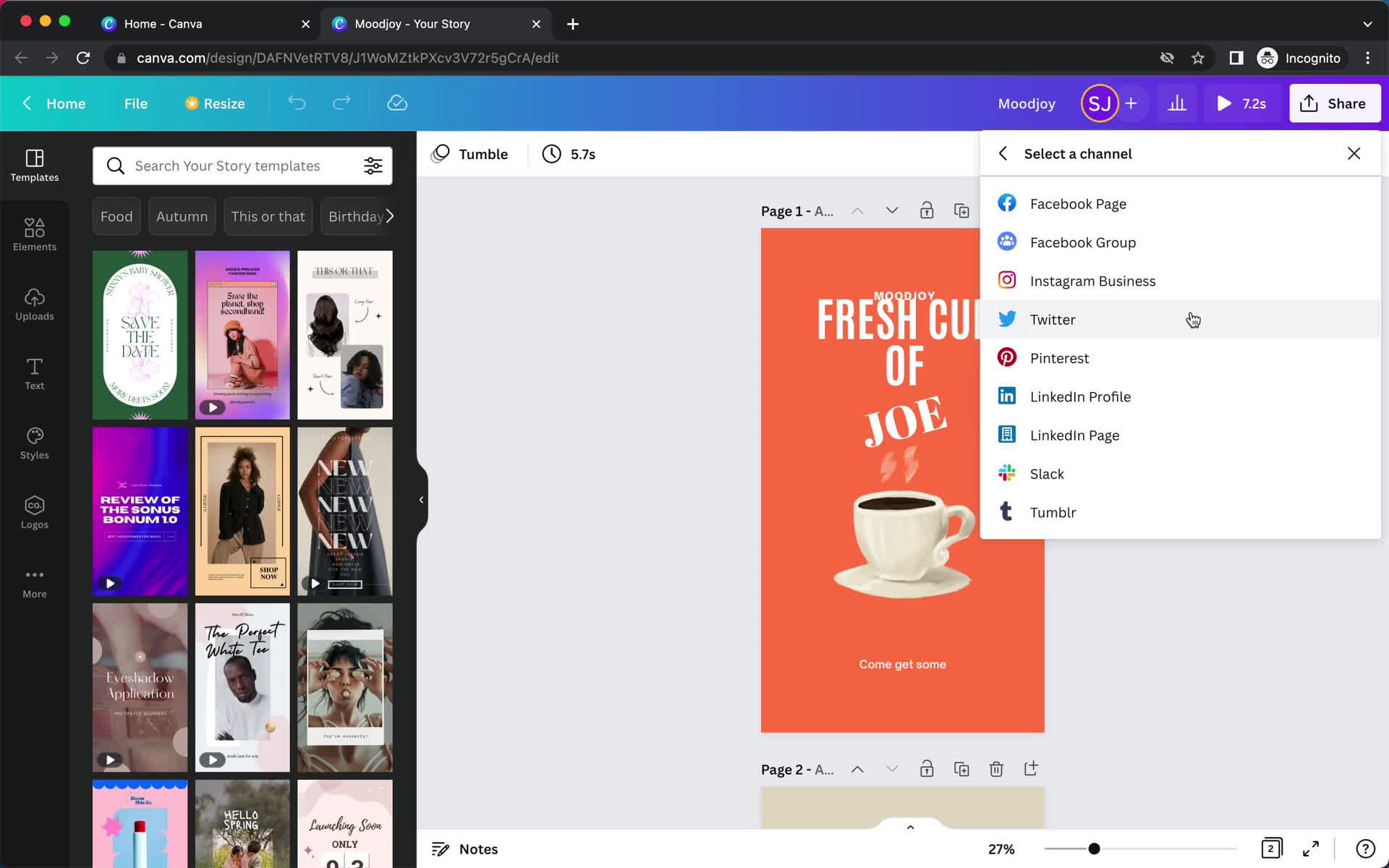
Select channel
this is title
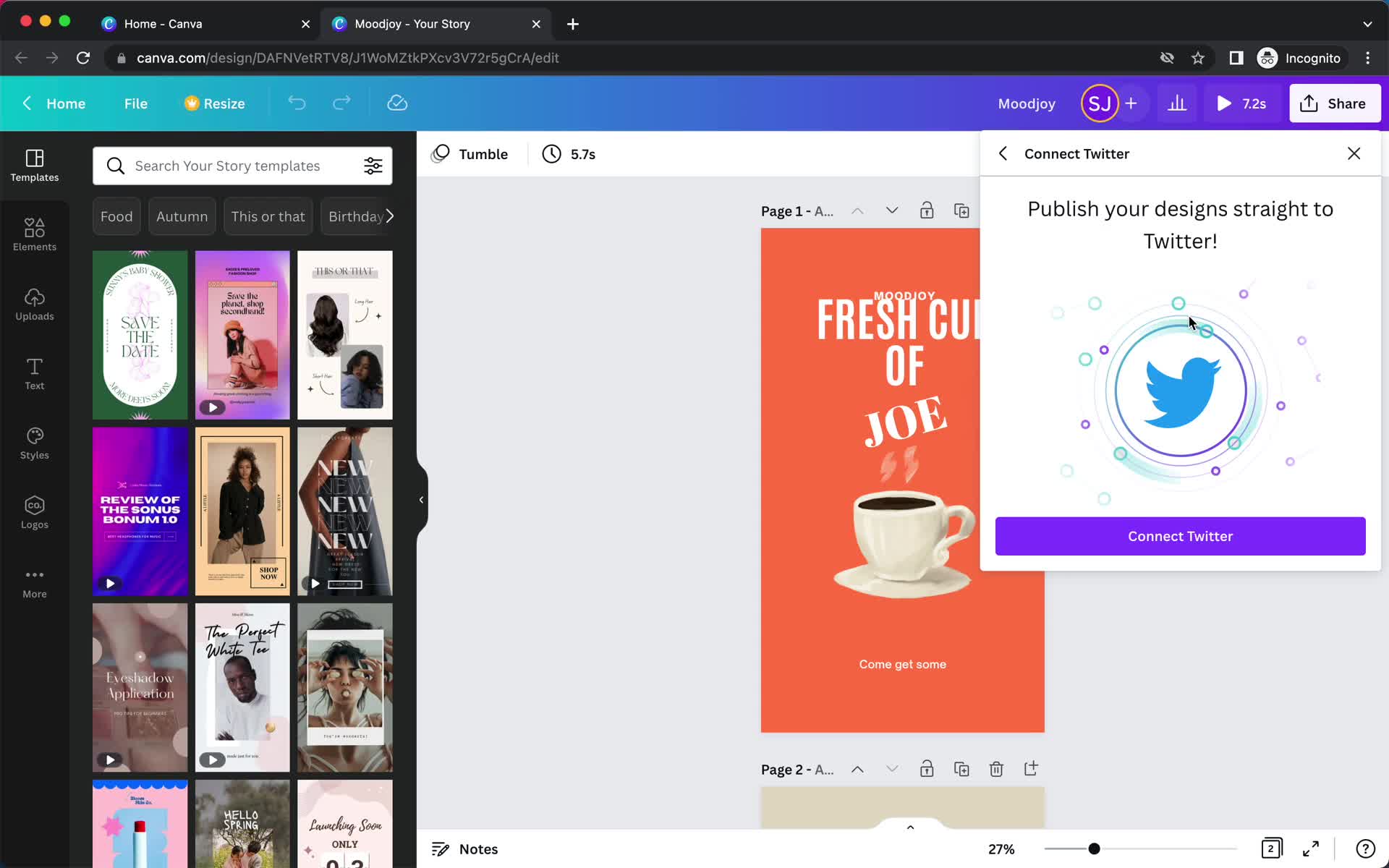
Connect integration
this is title
Share
this is title
Share
this is title
Download
this is title
Downloading
this is title
Download complete
this is title
Create design
this is title
Share design
this is title
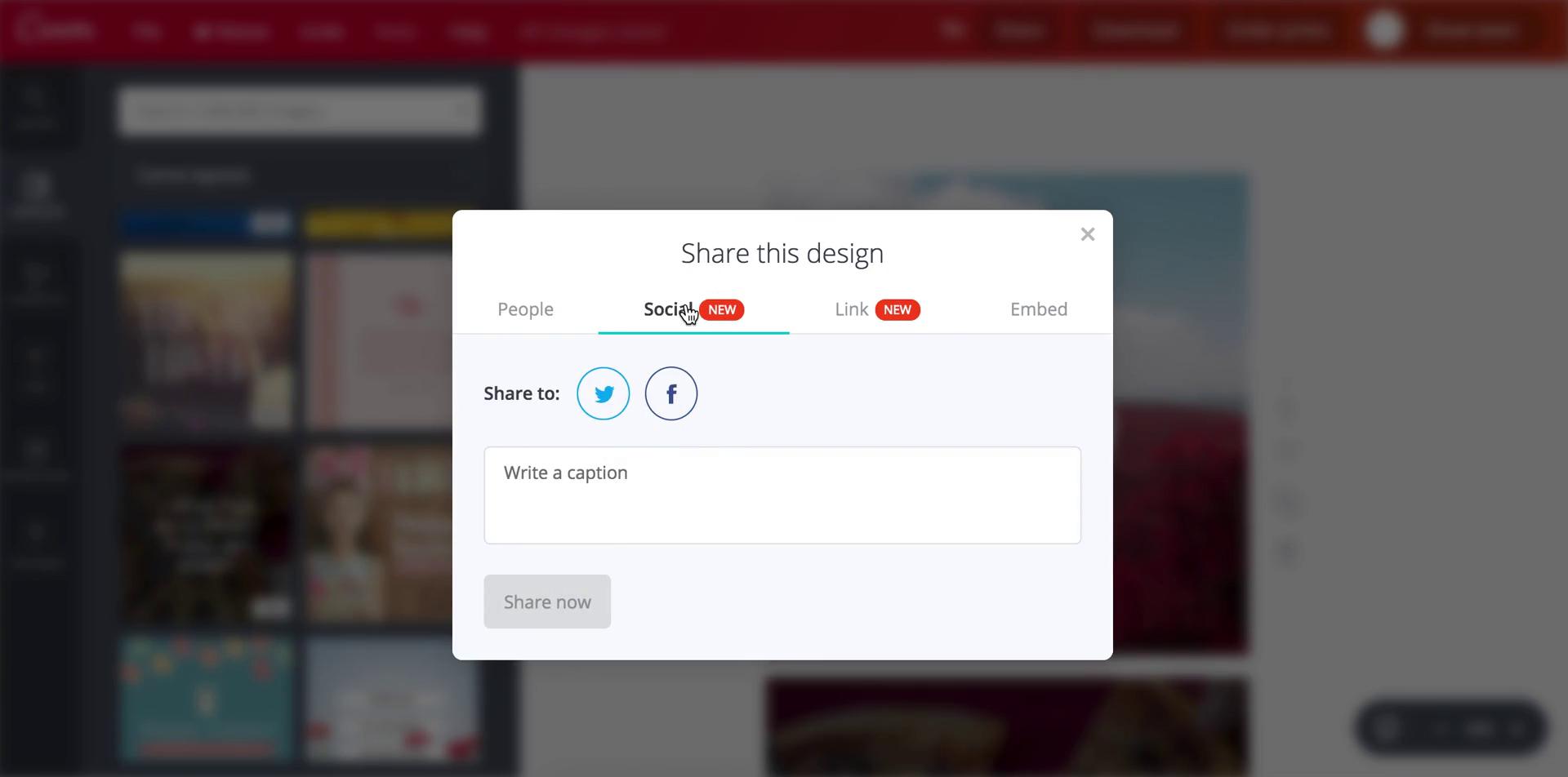
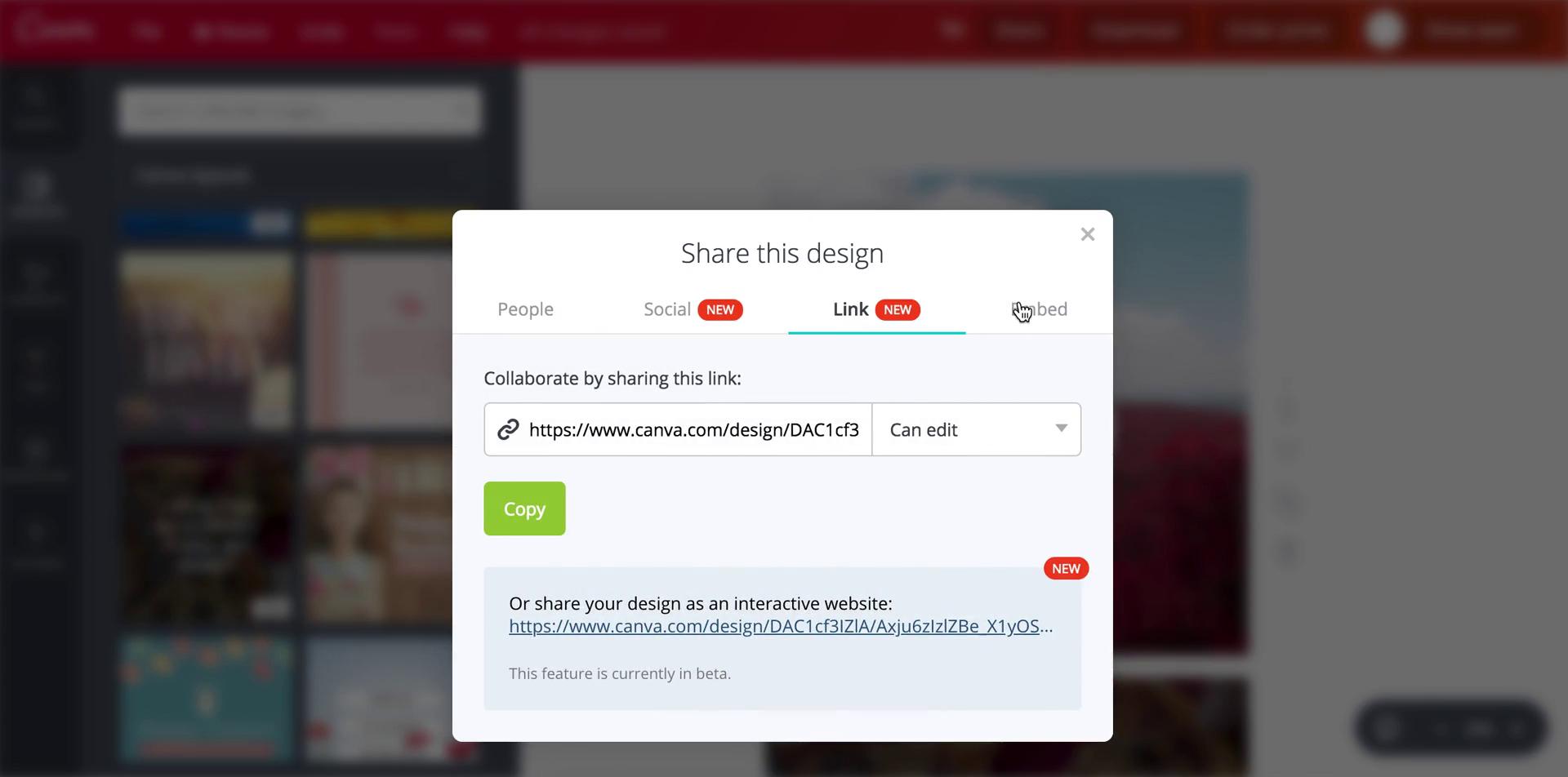
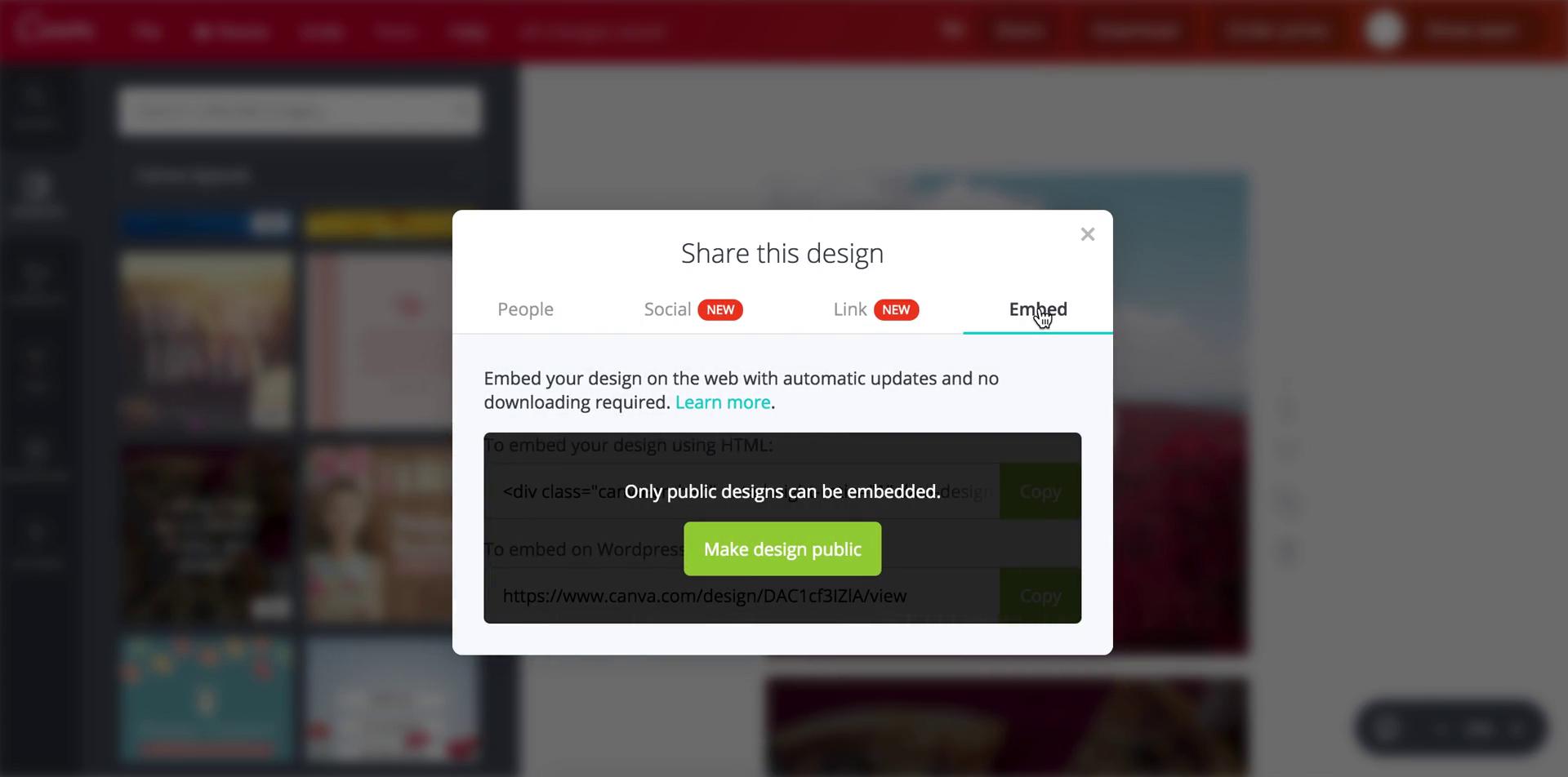
Select share type
this is title
this is title
this is title
this is title
this is title
this is title
Home
this is title
this is title
Projects
this is title
Sort
this is title
this is title
this is title
Home
this is title
Templates
this is title
this is title
Starred
this is title
this is title
this is title
this is title
Home
this is title
Contact support
this is title
this is title
this is title
this is title
Feedback submitted
this is title
Home
this is title
Projects
this is title
Templates
this is title
this is title
Unfollow
this is title
Unfollowed
this is title
this is title
this is title
this is title
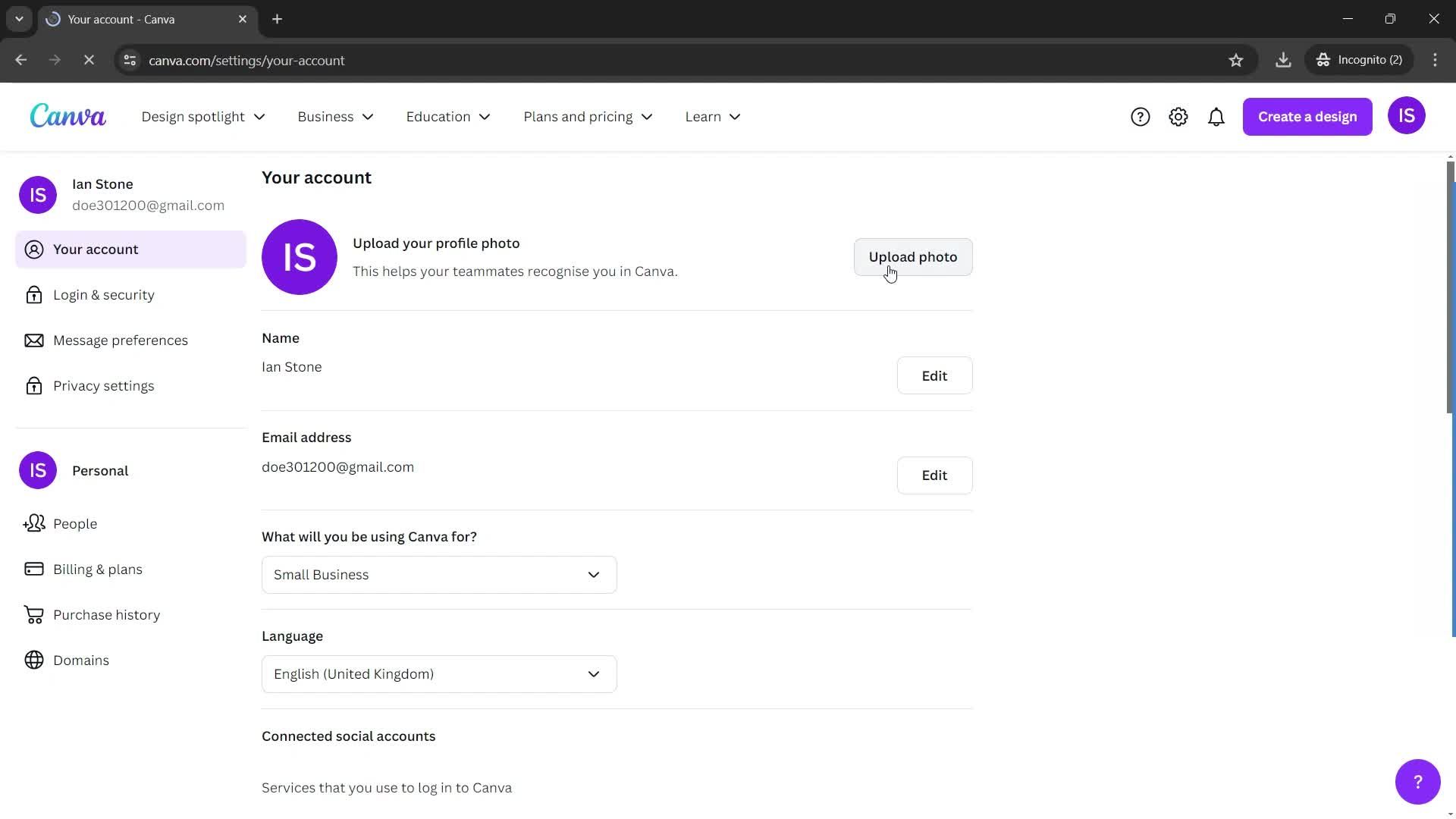
Home
this is title
Settings
this is title
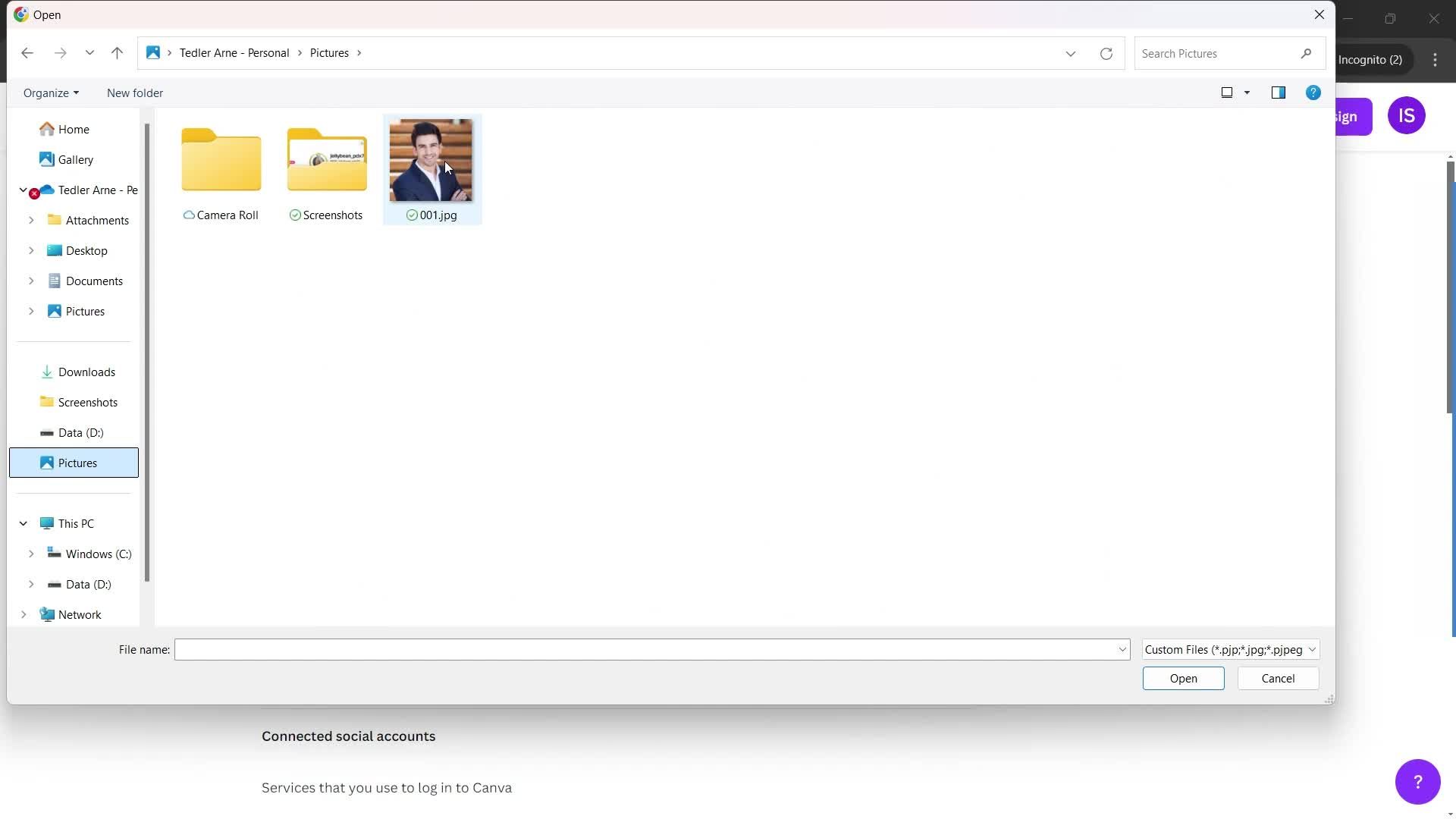
Select photo
this is title
this is title
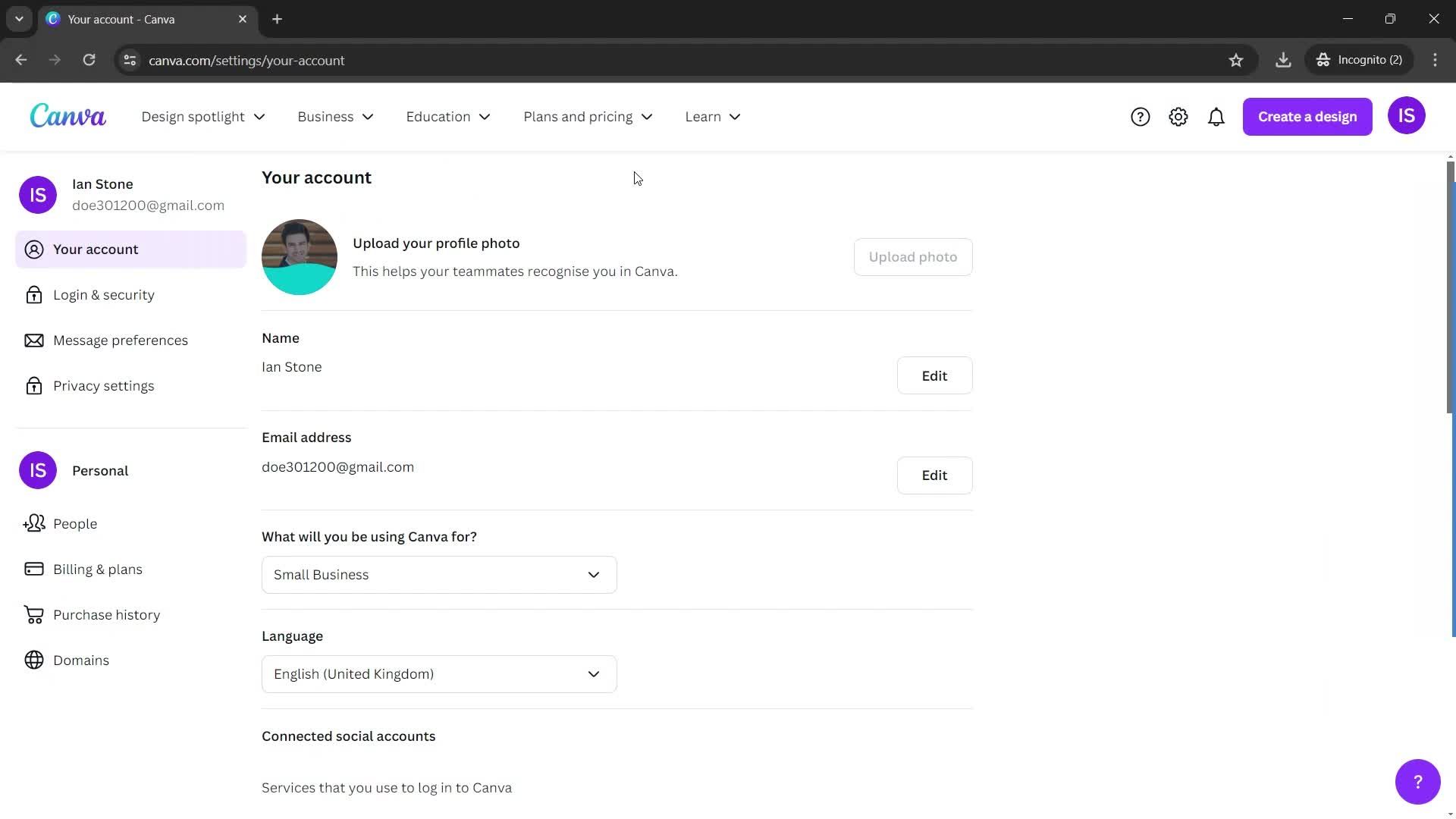
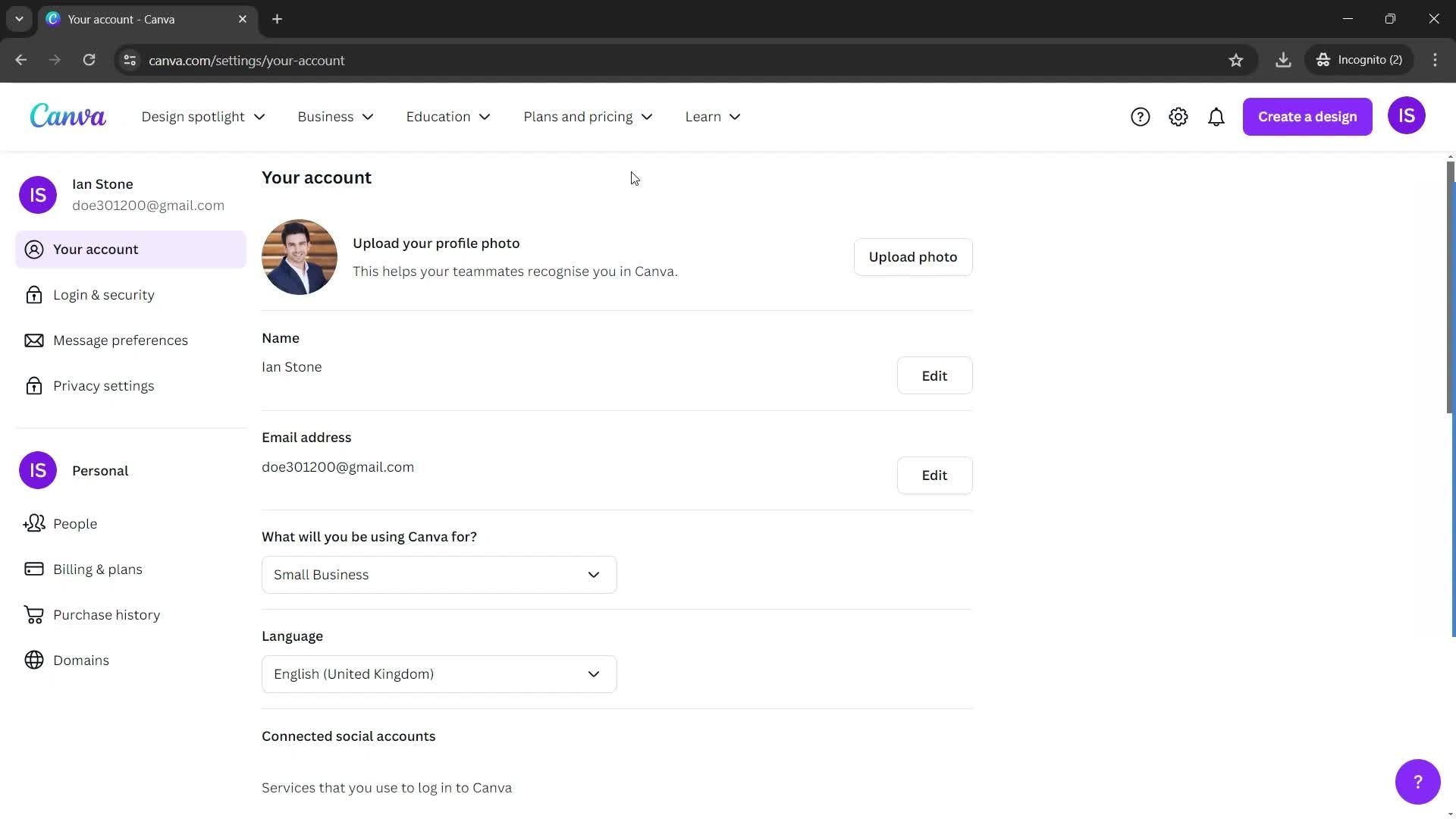
Uploaded
this is title
Home
this is title
Settings
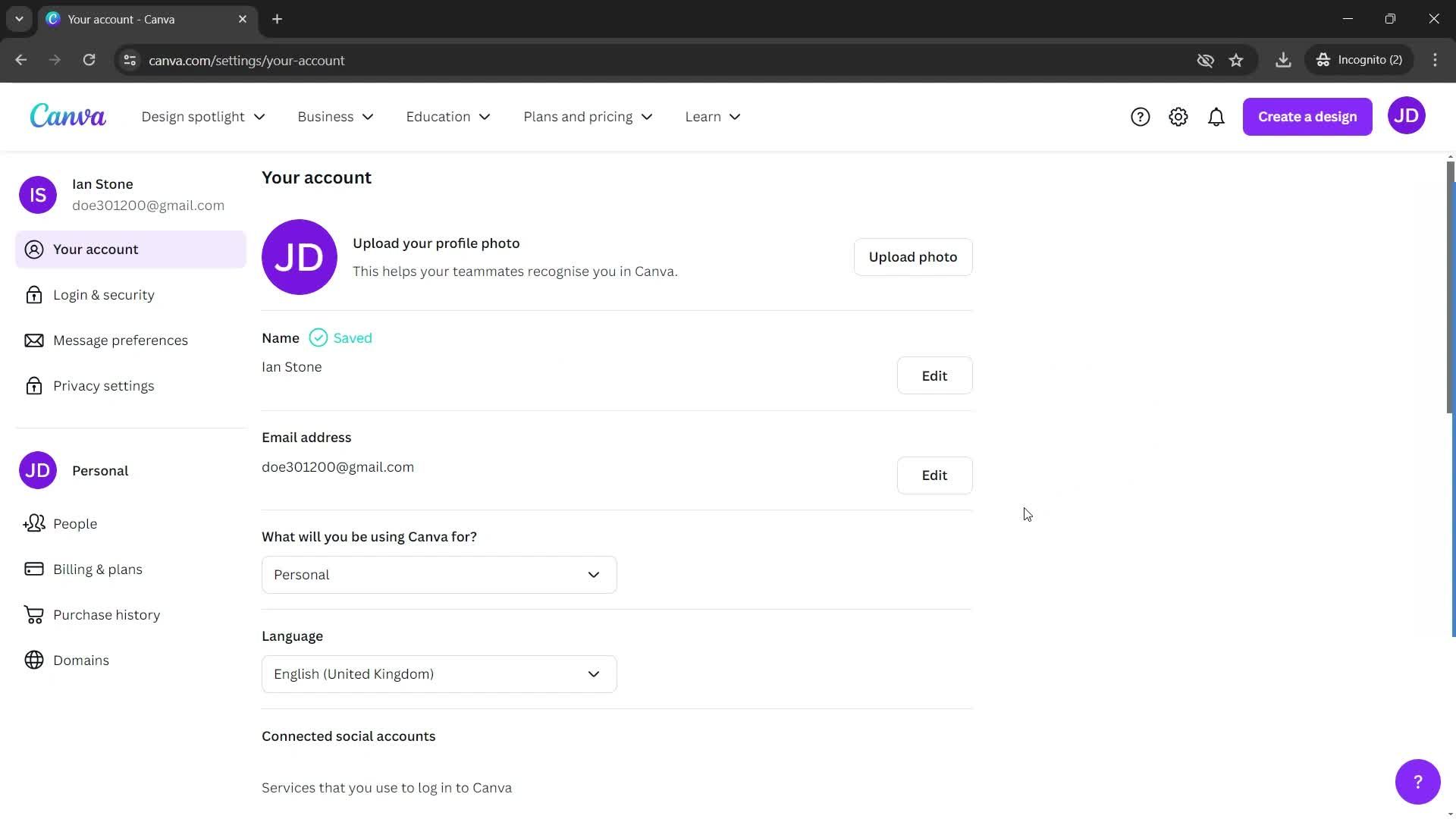
this is title
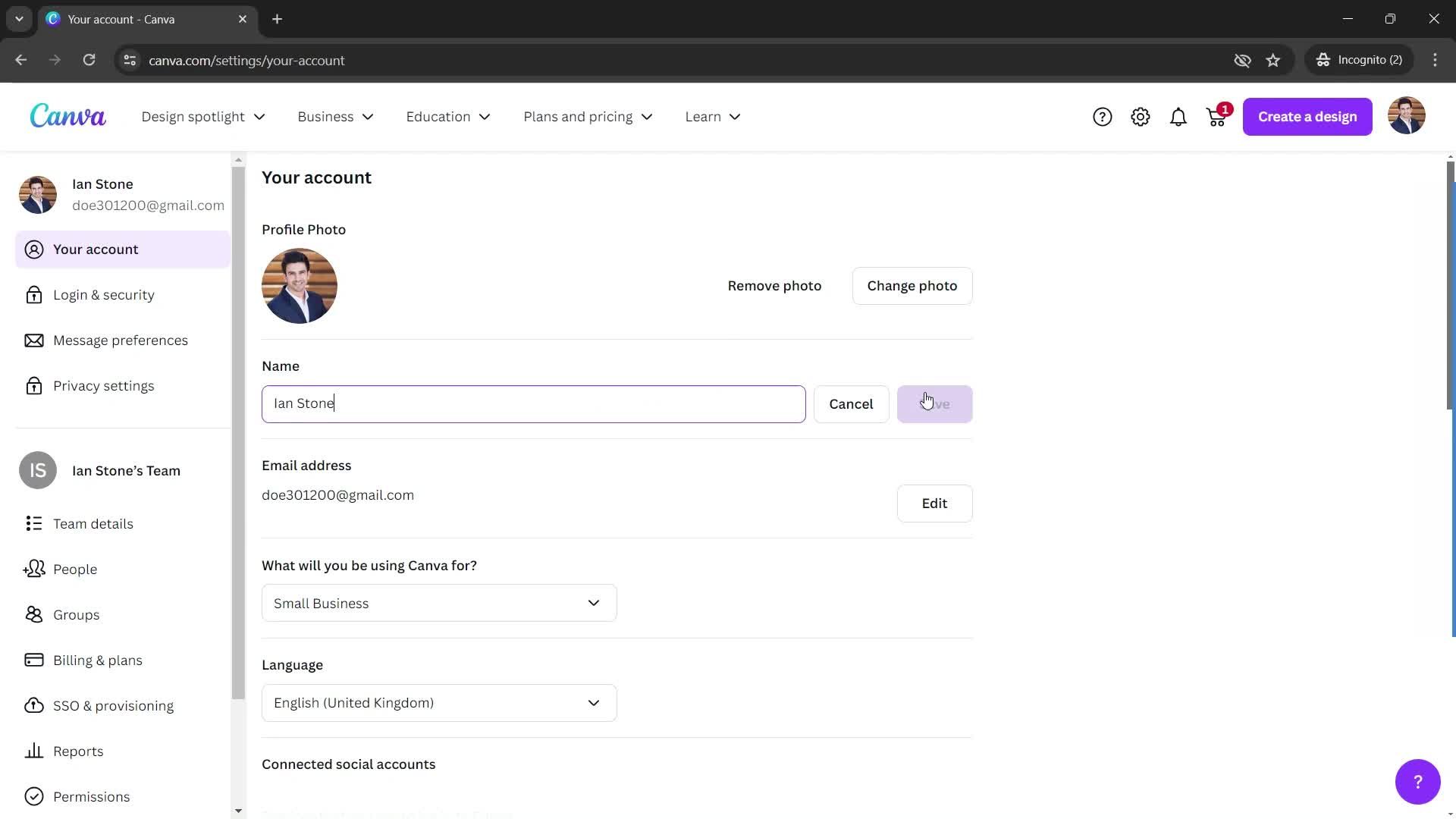
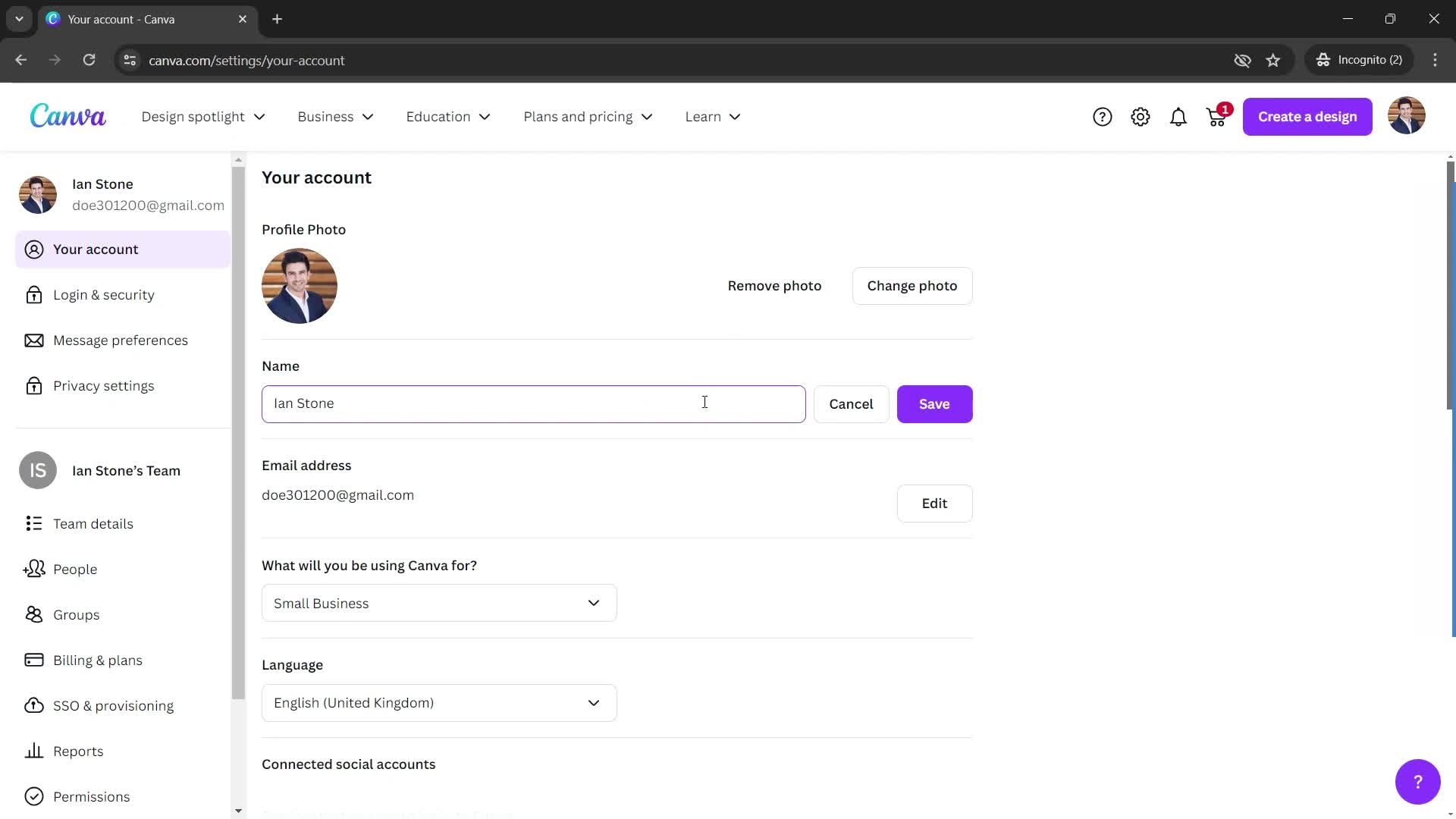
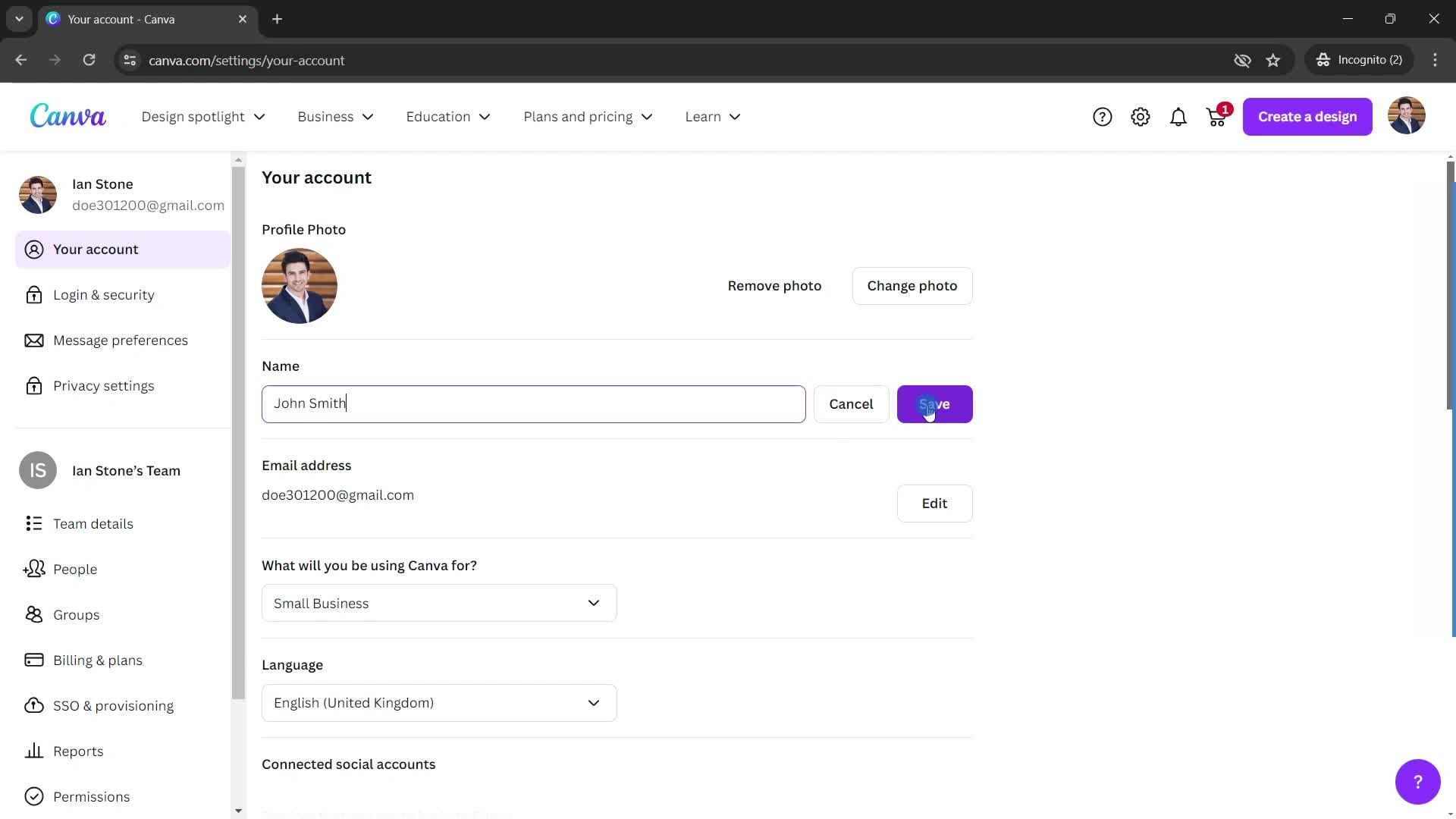
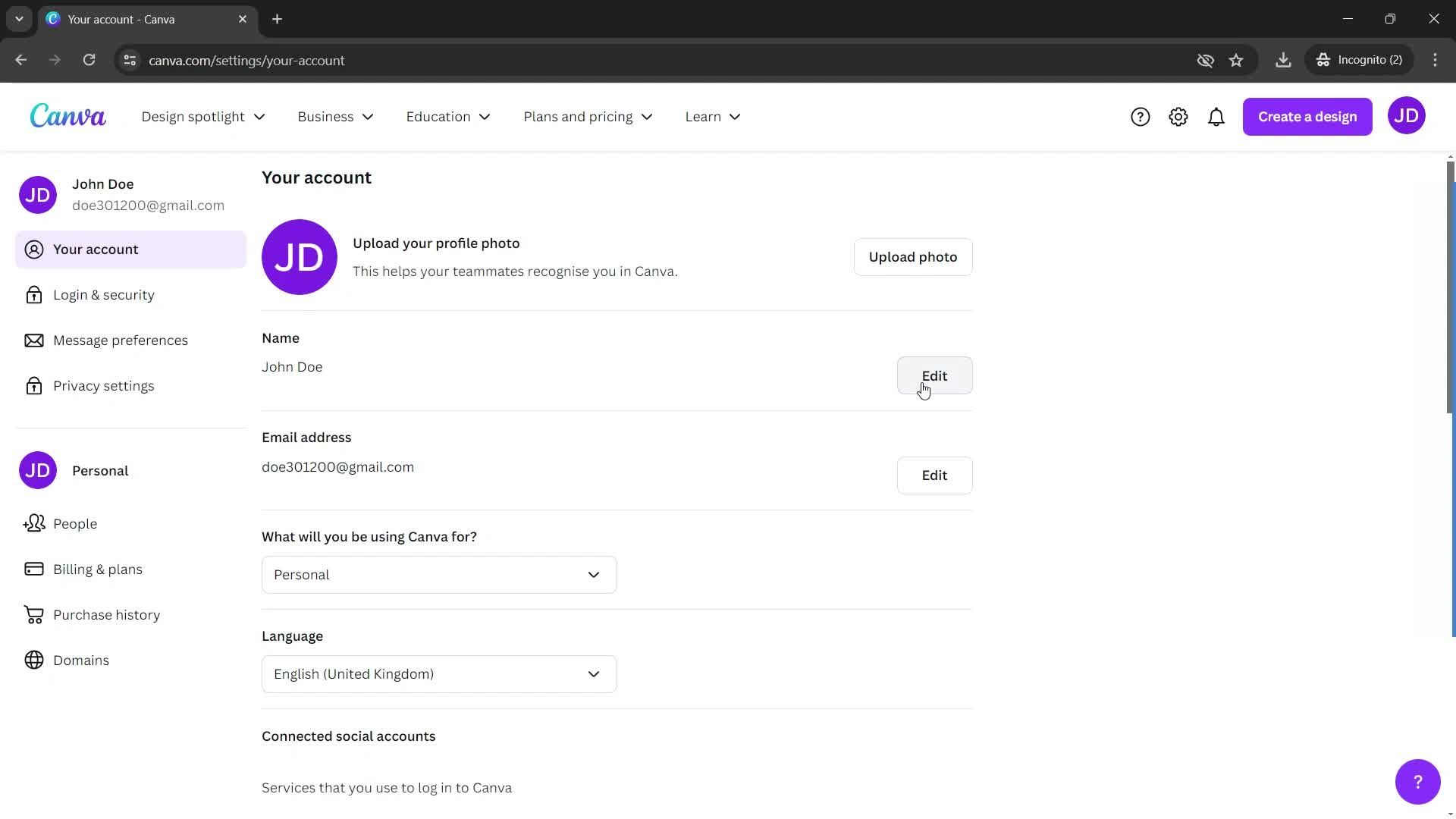
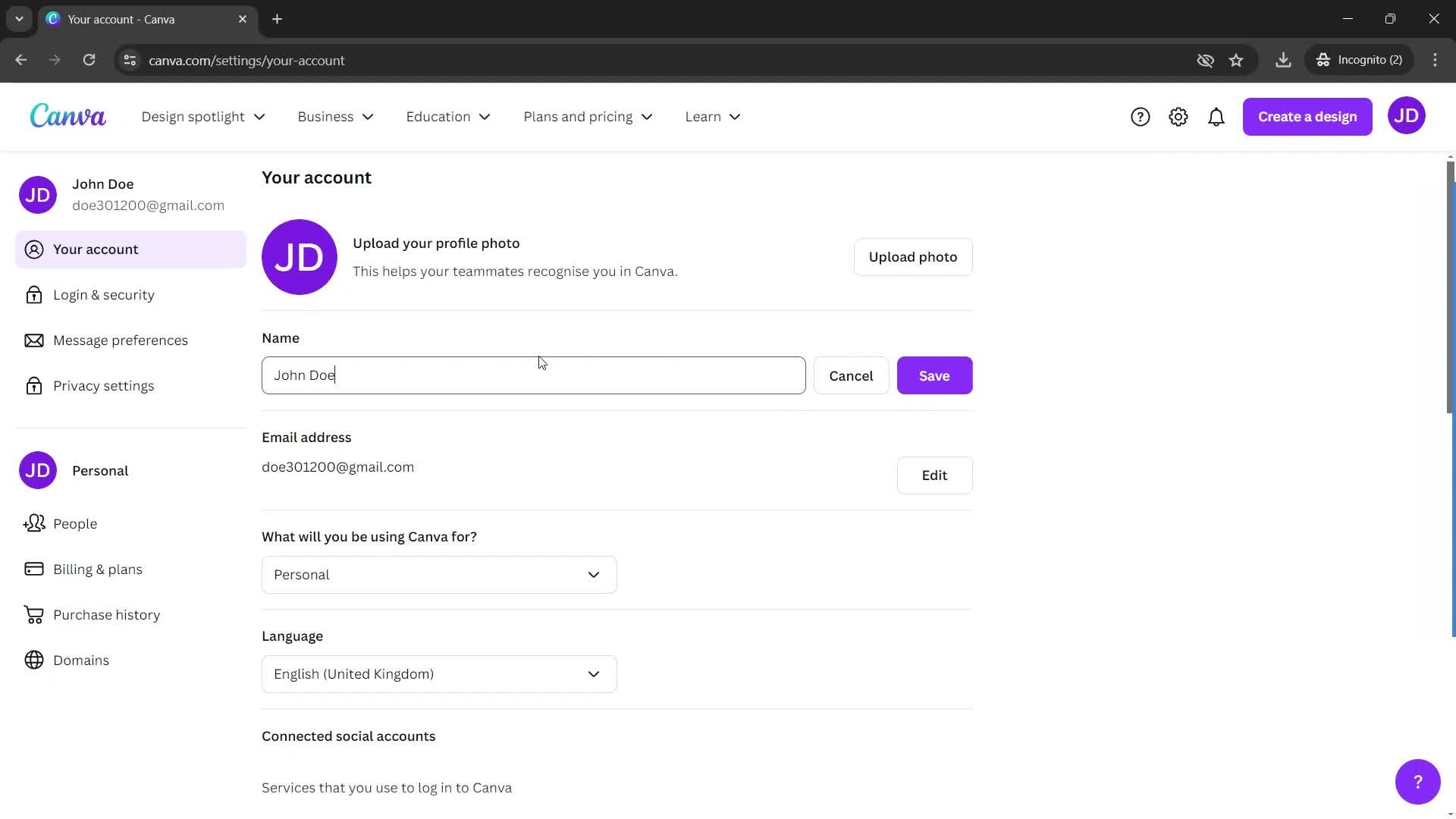
Edit
this is title
this is title
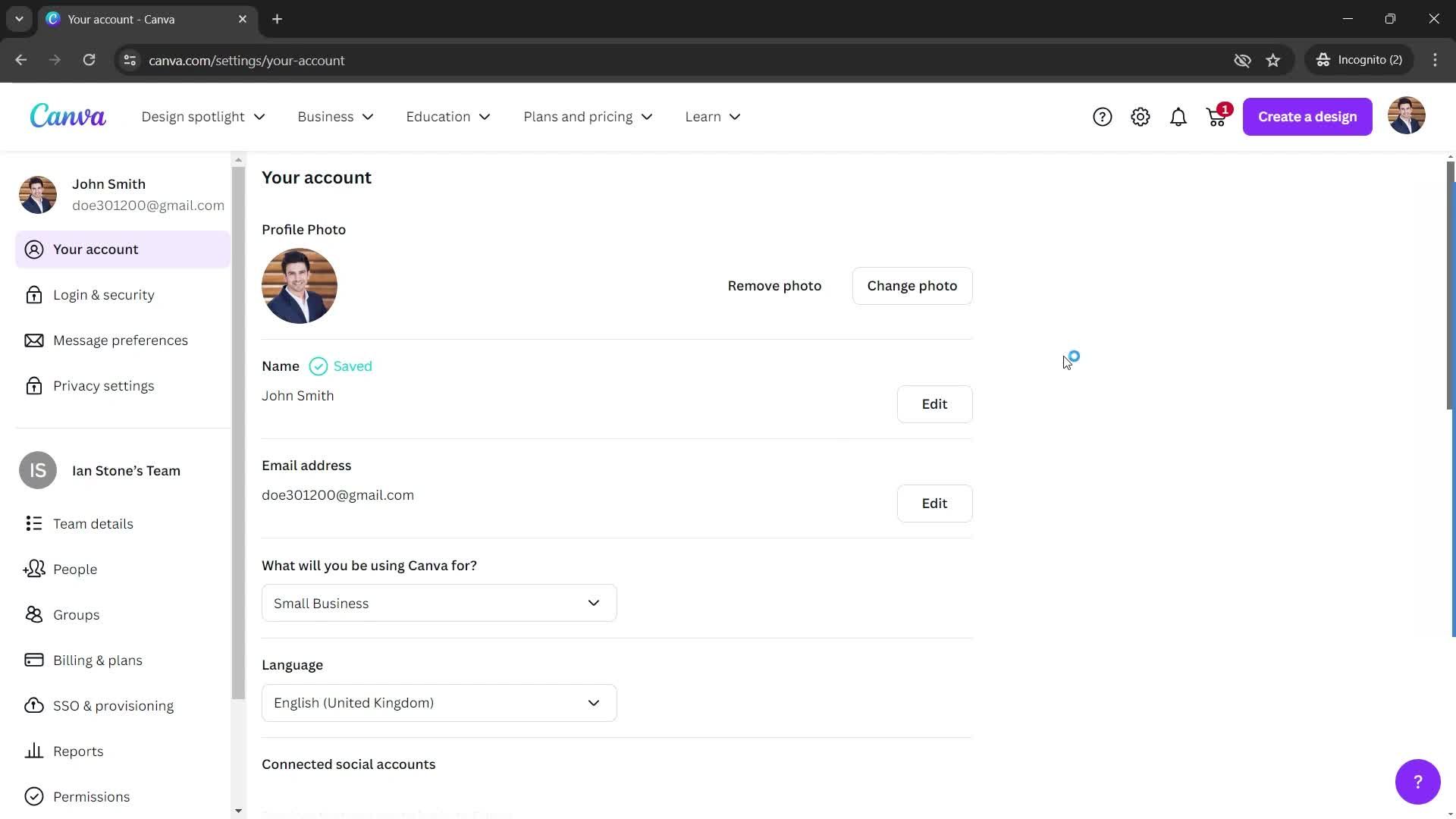
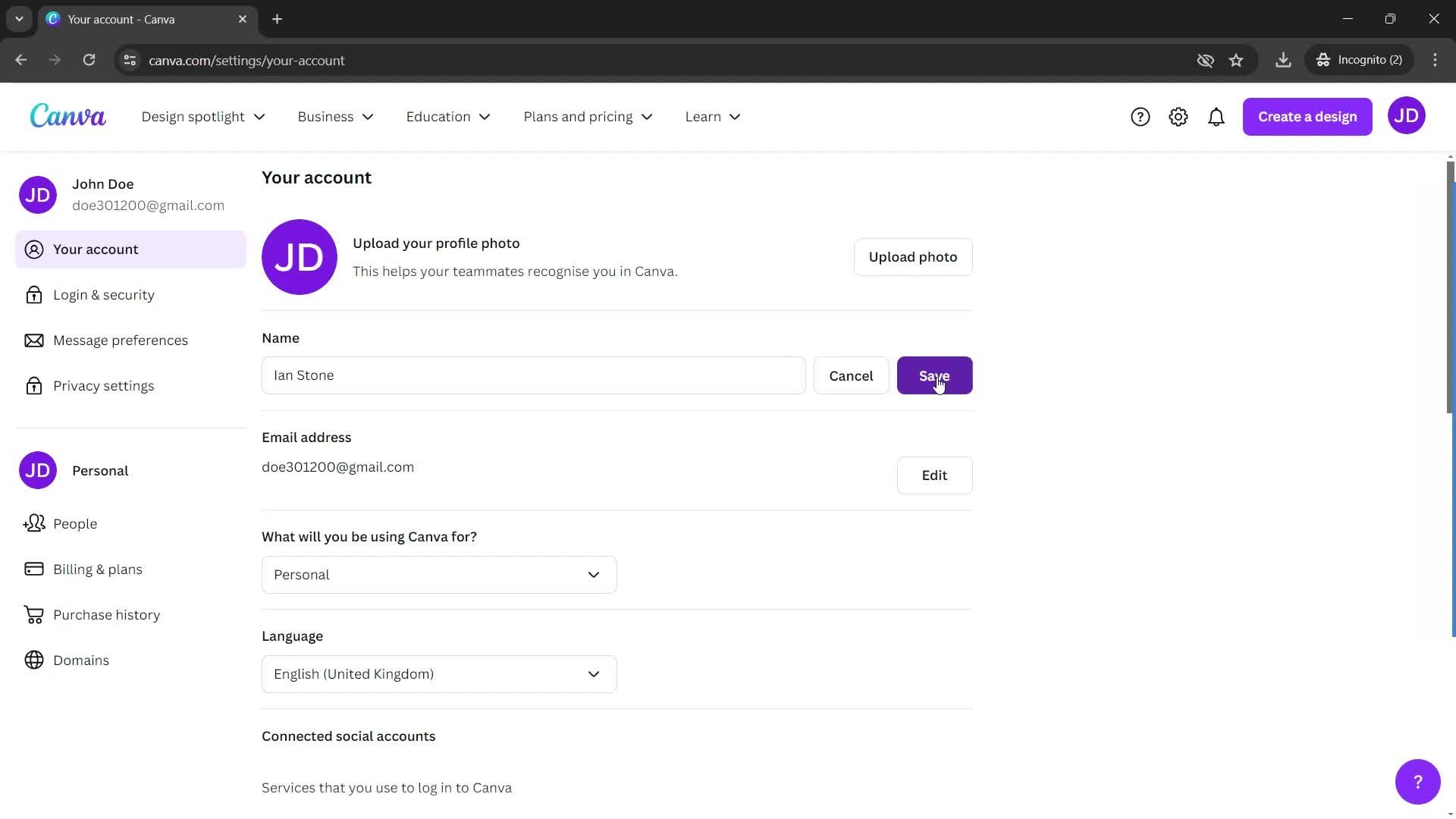
Saved
this is title
this is title
this is title
Home
this is title
Upgrade
this is title
Select plan
this is title
Select payment method
this is title
Add payment details
this is title
Select goal
this is title
Upgrade complete
this is title
Upgrade complete
this is title
Guided tour
this is title
Guided tour
this is title
Guided tour
this is title
Guided tour
this is title
Create brand kit
this is title
Create brand kit
this is title
Select font
this is title
Create brand kit
this is title
Home
this is title
Dashboard
this is title
Upgrade
this is title
Add payment details
this is title
Upgrade complete
this is title
Dashboard
this is title
this is title
this is title
this is title
this is title
this is title
this is title
this is title
this is title
this is title
this is title
this is title
this is title
this is title
this is title
this is title
Home
this is title
Profile menu
this is title
Pricing & plans
this is title
this is title
this is title
this is title
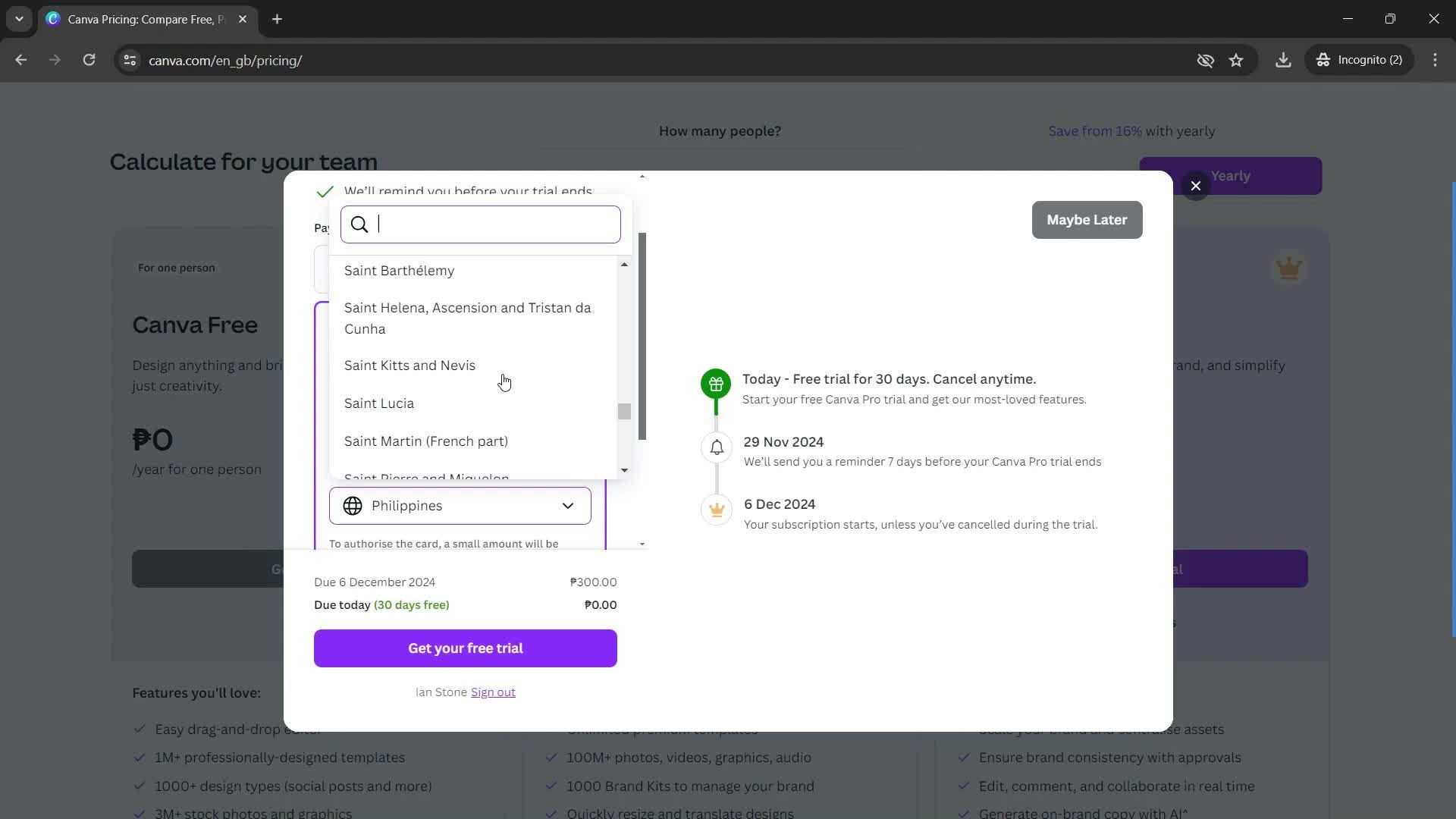
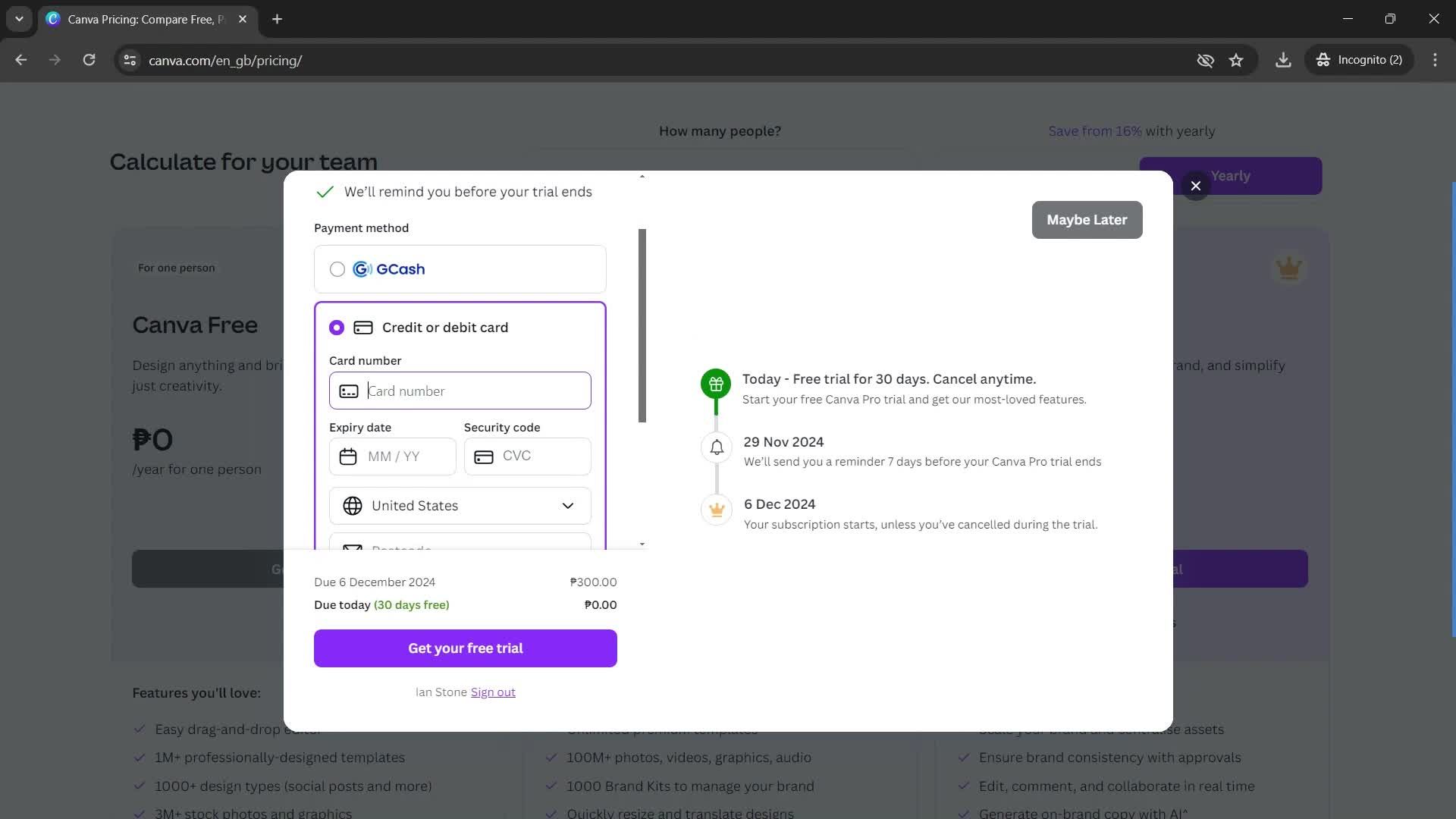
Payment method
this is title
Select country
this is title
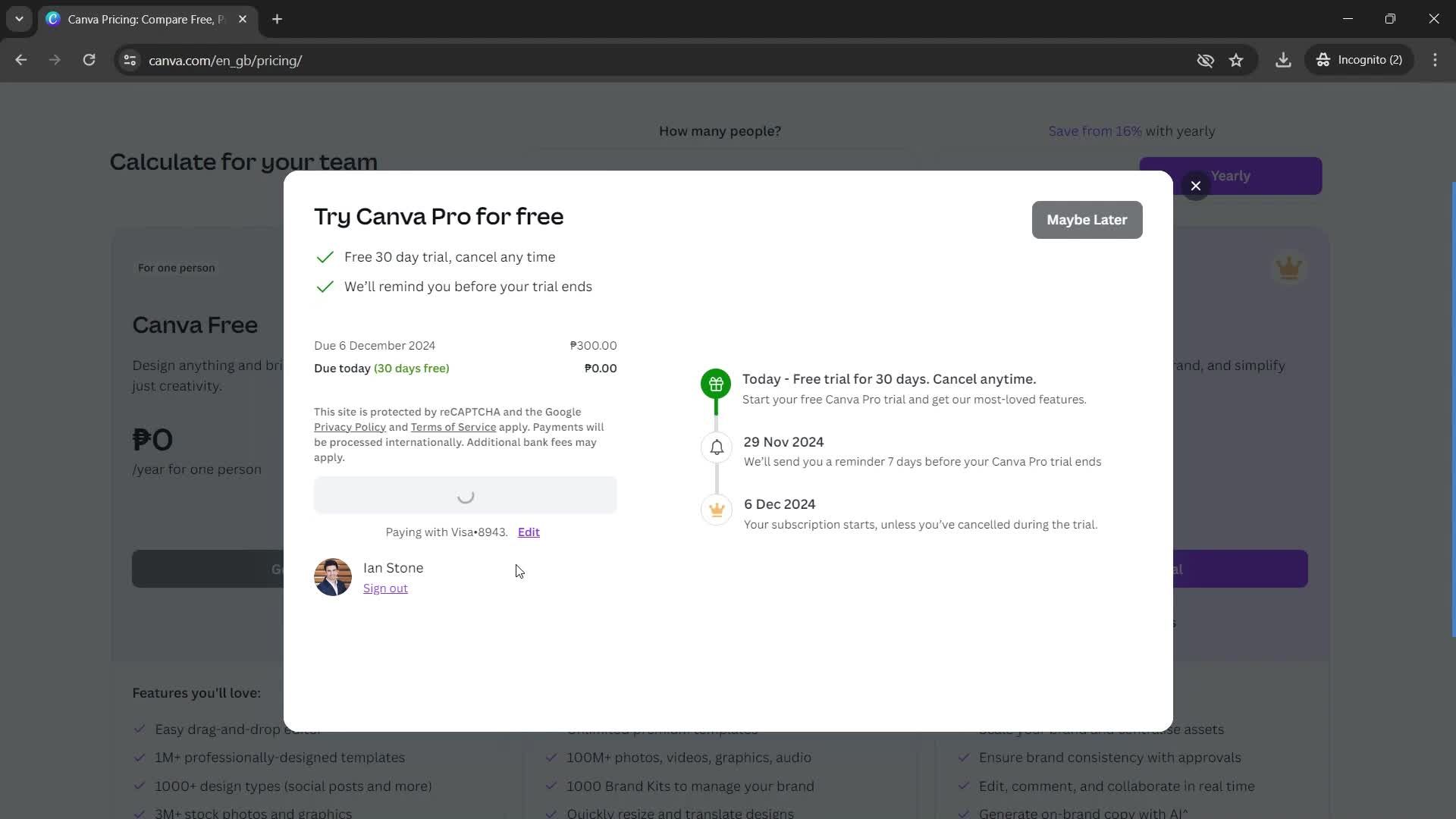
Card details
this is title
this is title
this is title
this is title
this is title
this is title
Home
this is title
Templates
this is title
this is title
Create
this is title
Drag & drop
this is title
this is title
Add page
this is title
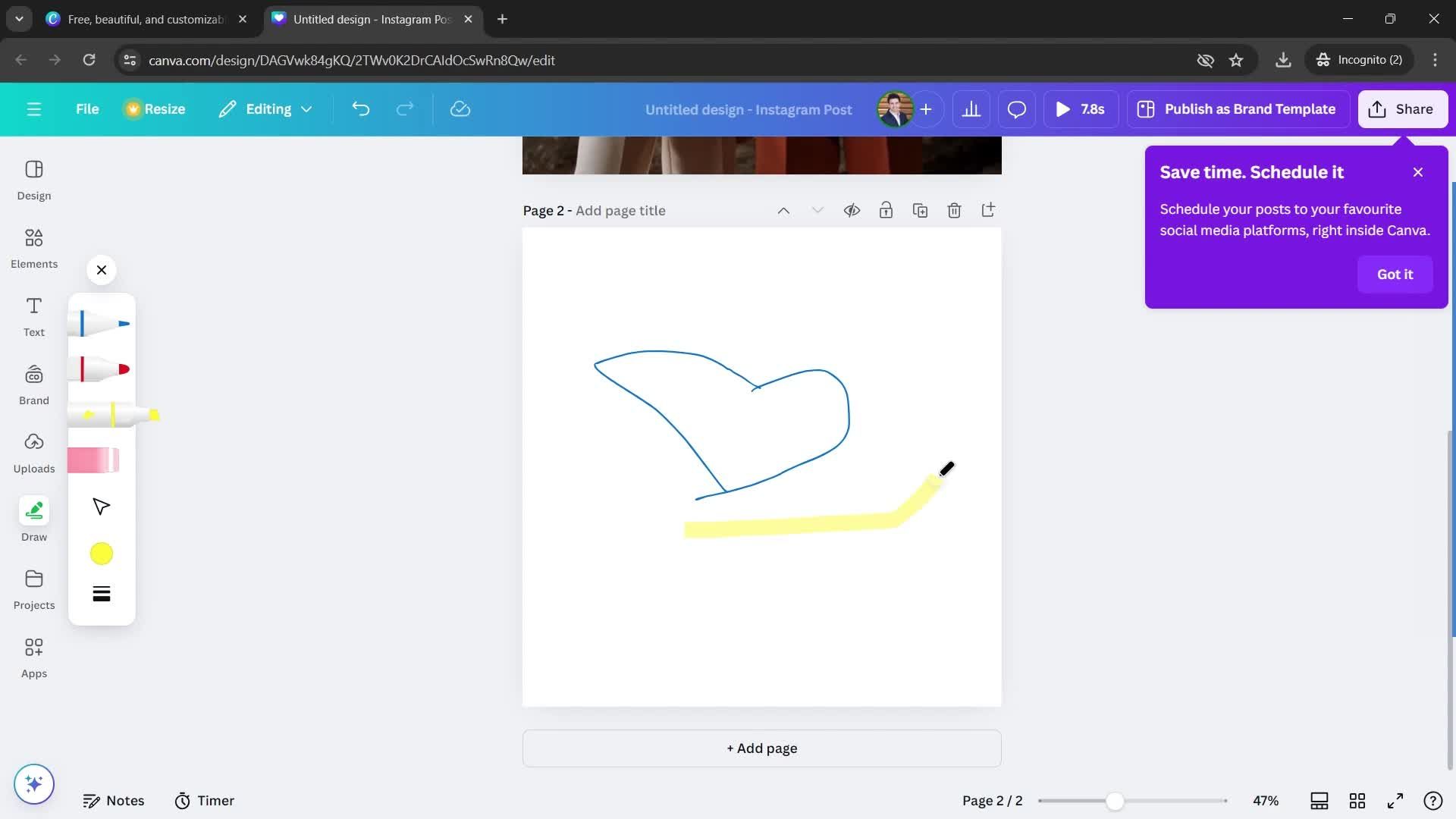
Draw
this is title
this is title
this is title
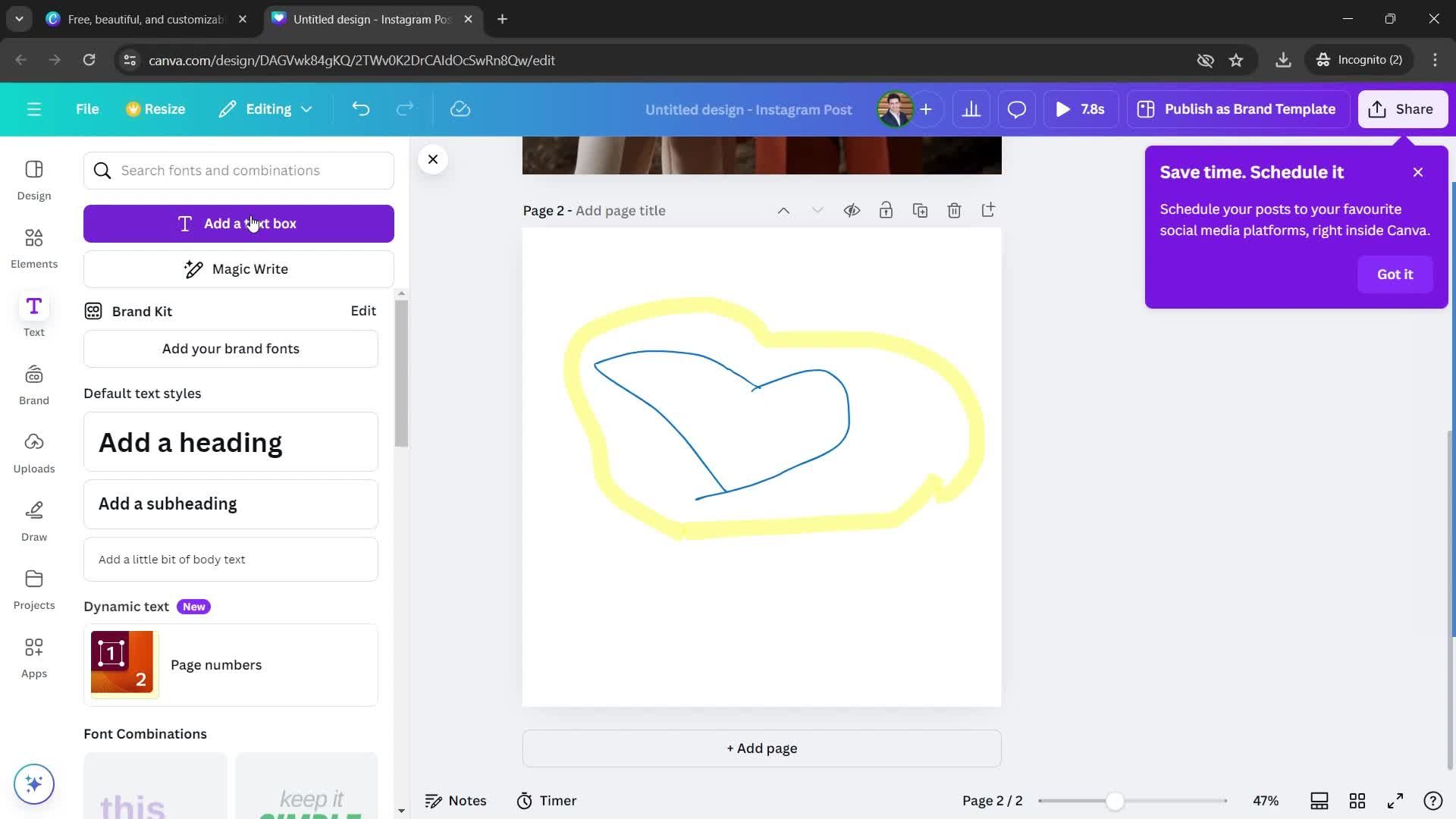
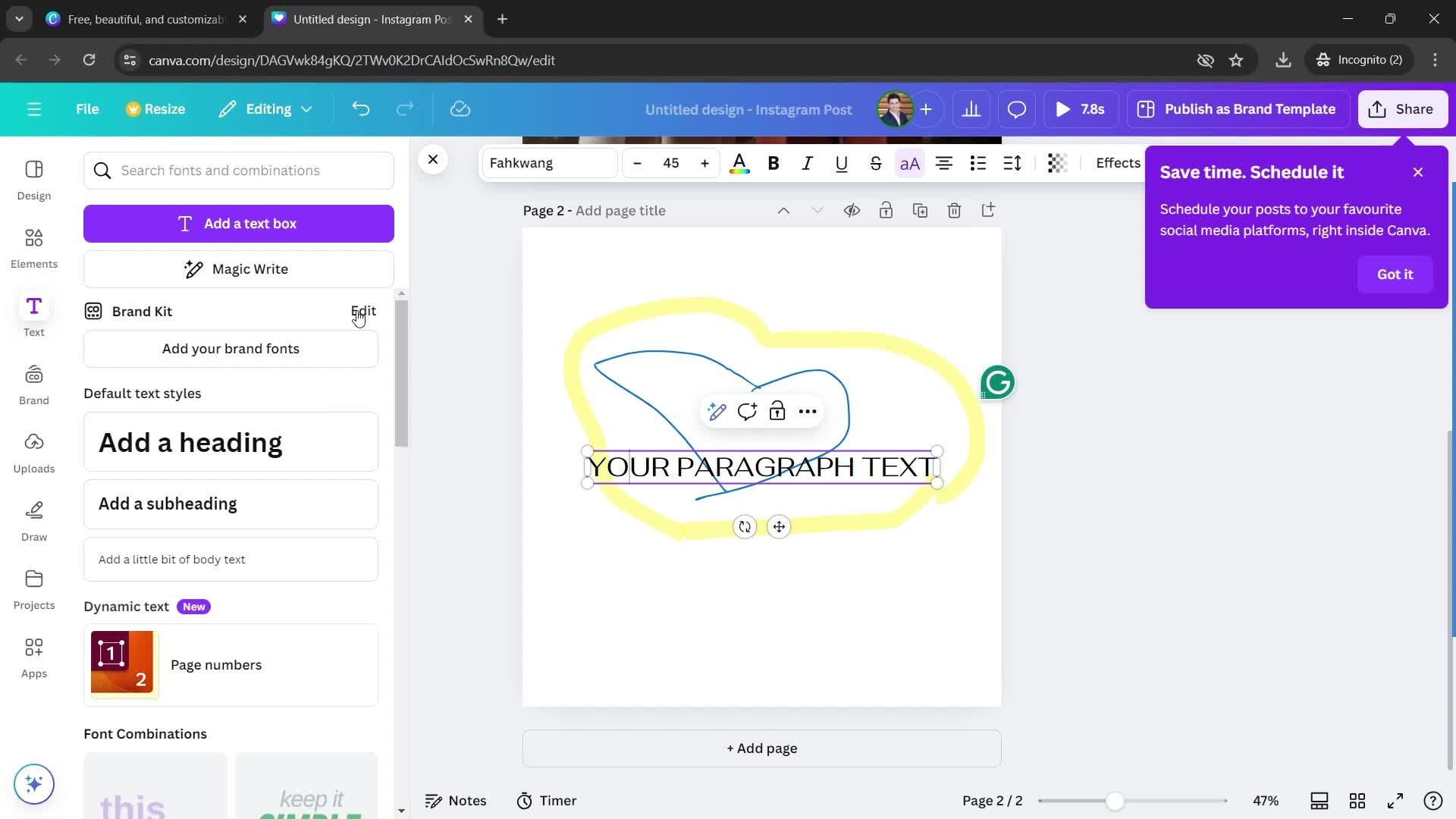
Add text
this is title
this is title
this is title
this is title
this is title
this is title
Drag & drop
this is title
this is title
this is title
this is title
this is title
Projects
this is title