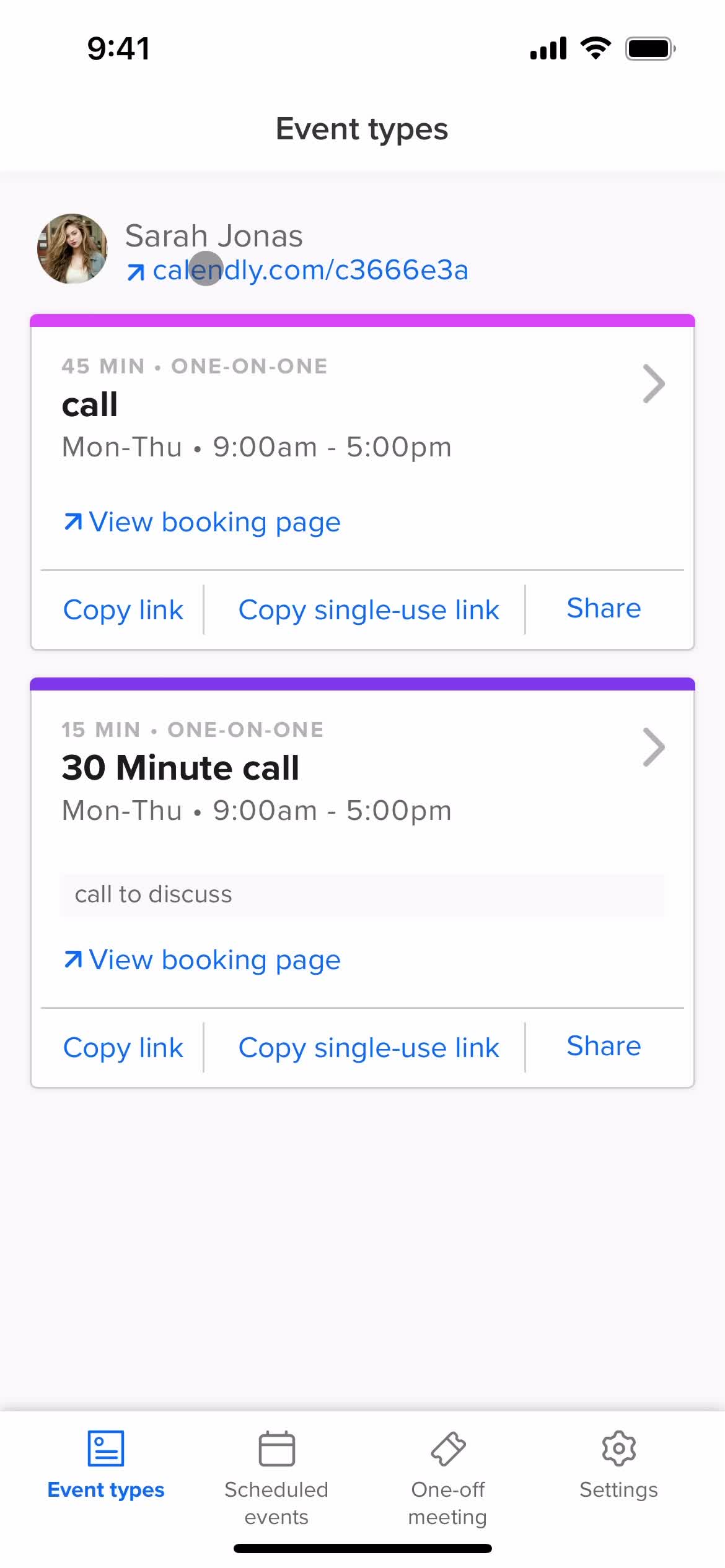
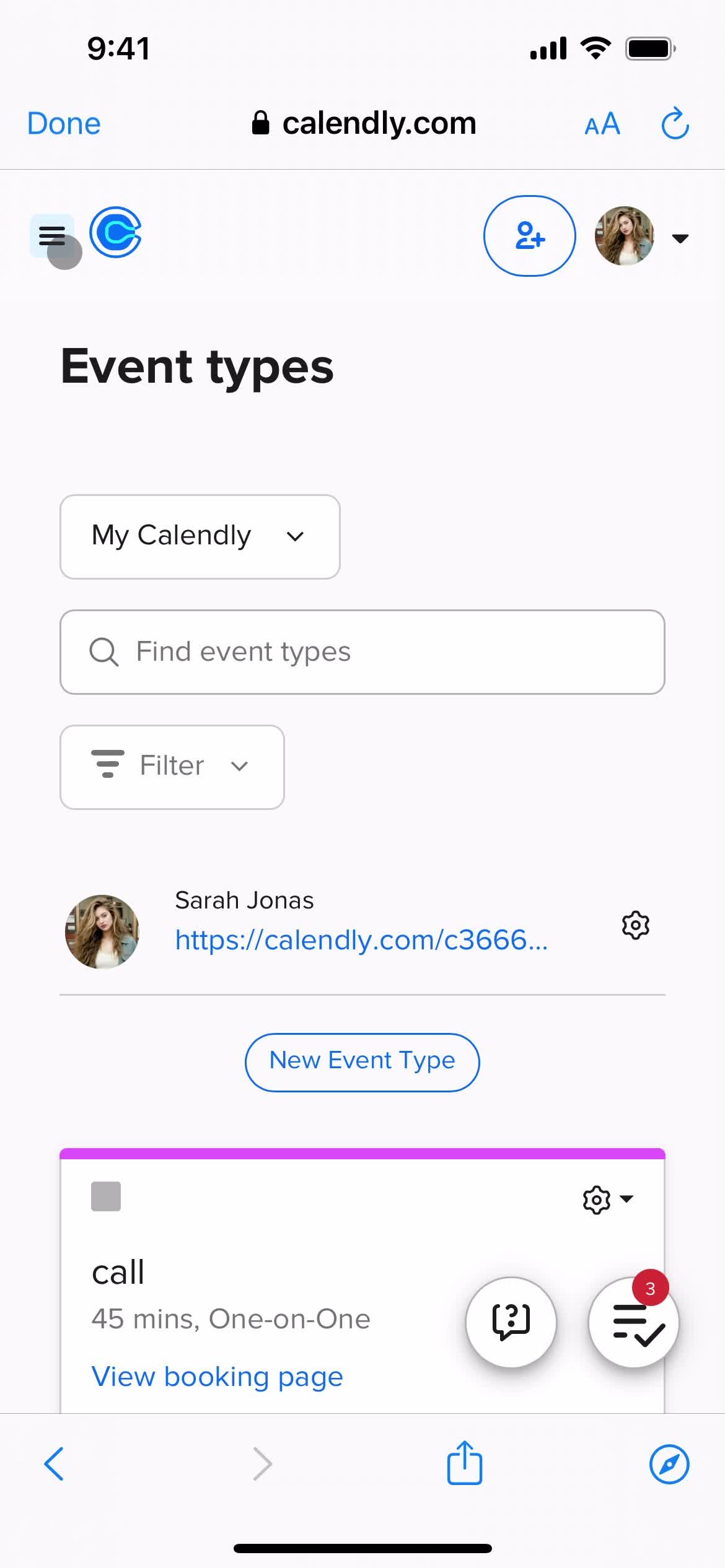
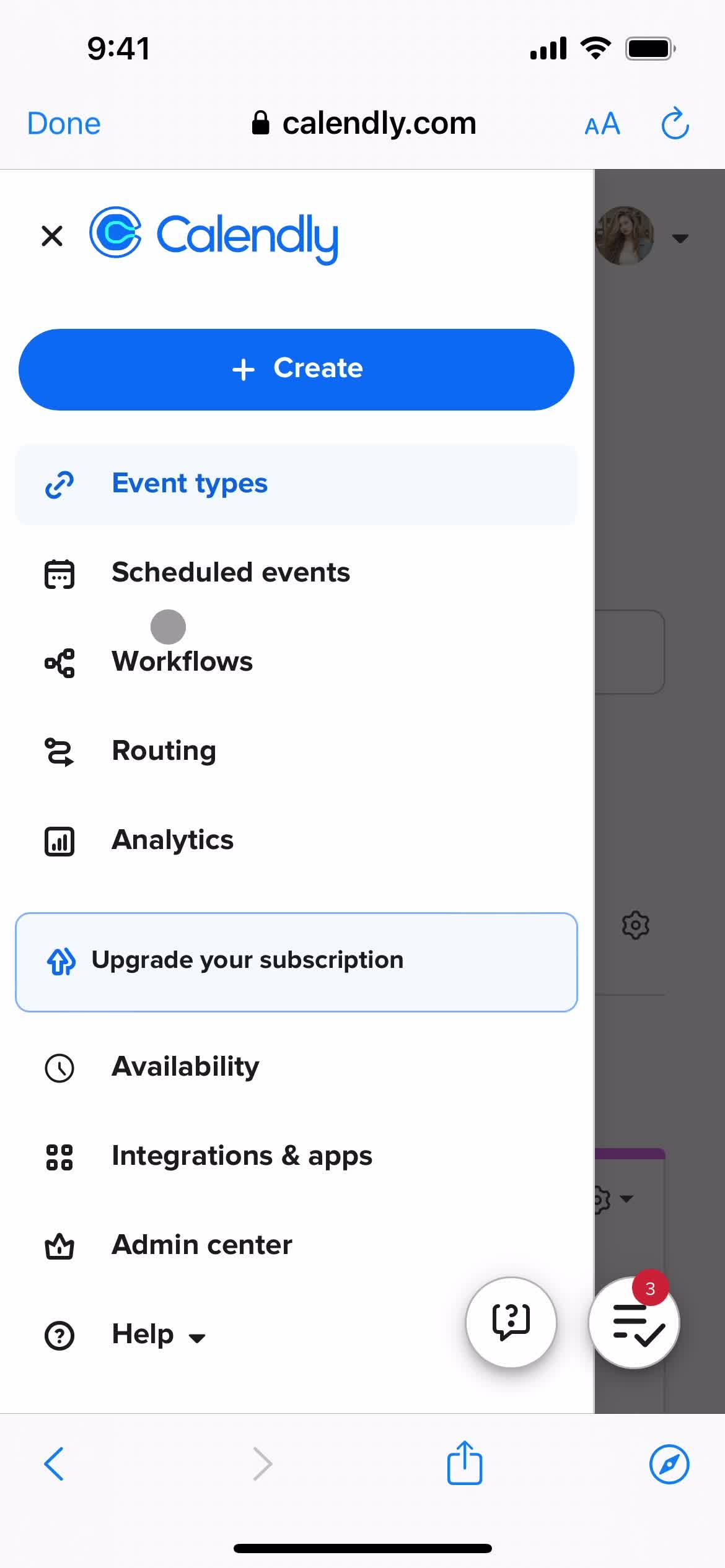
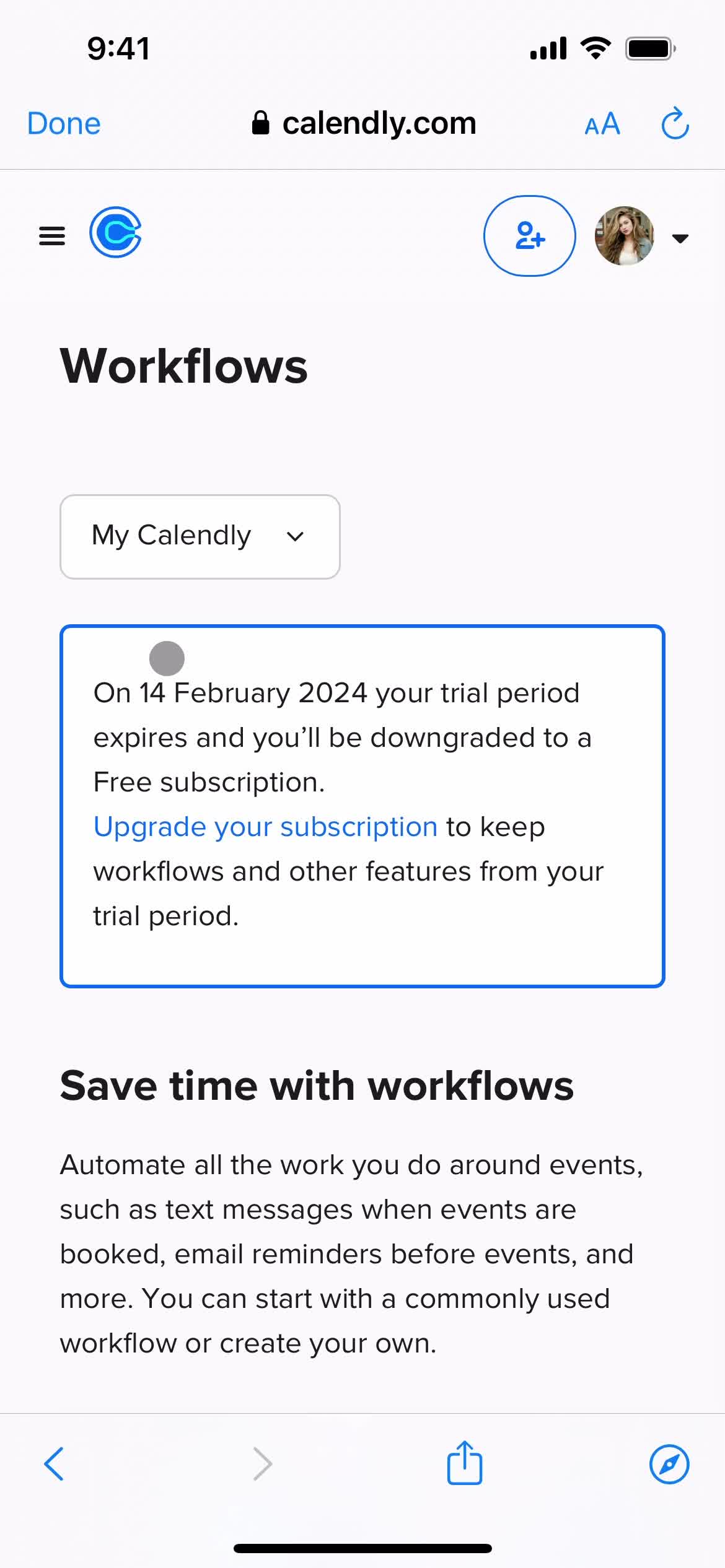
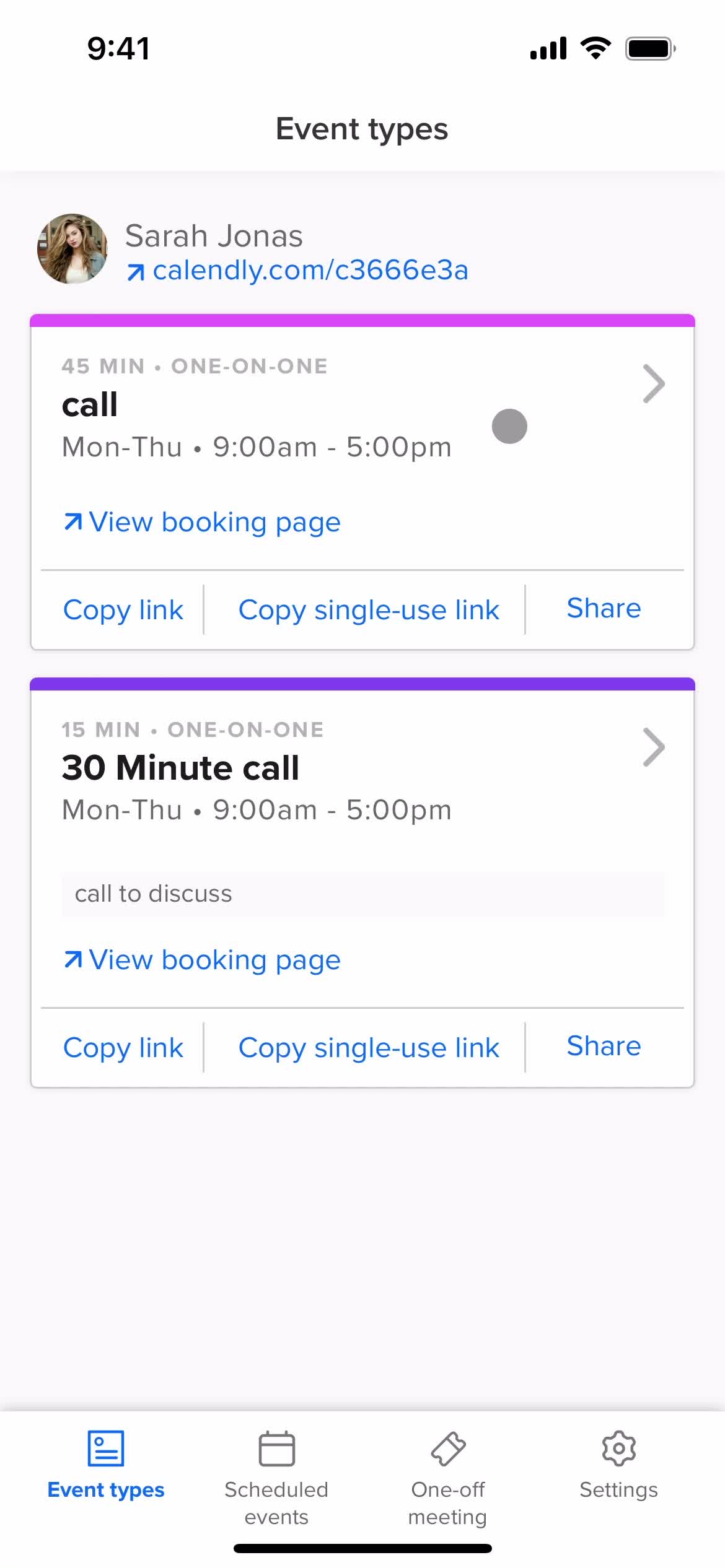
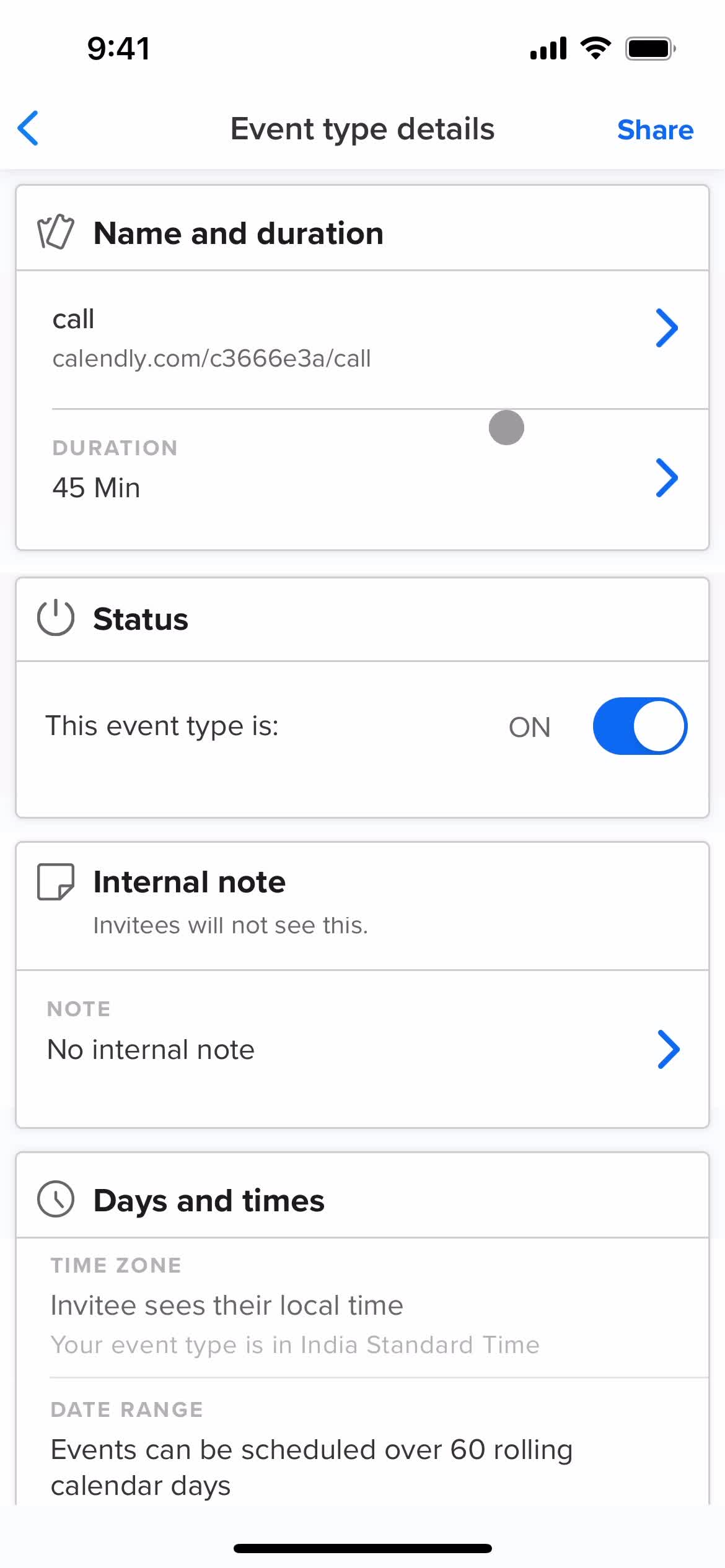
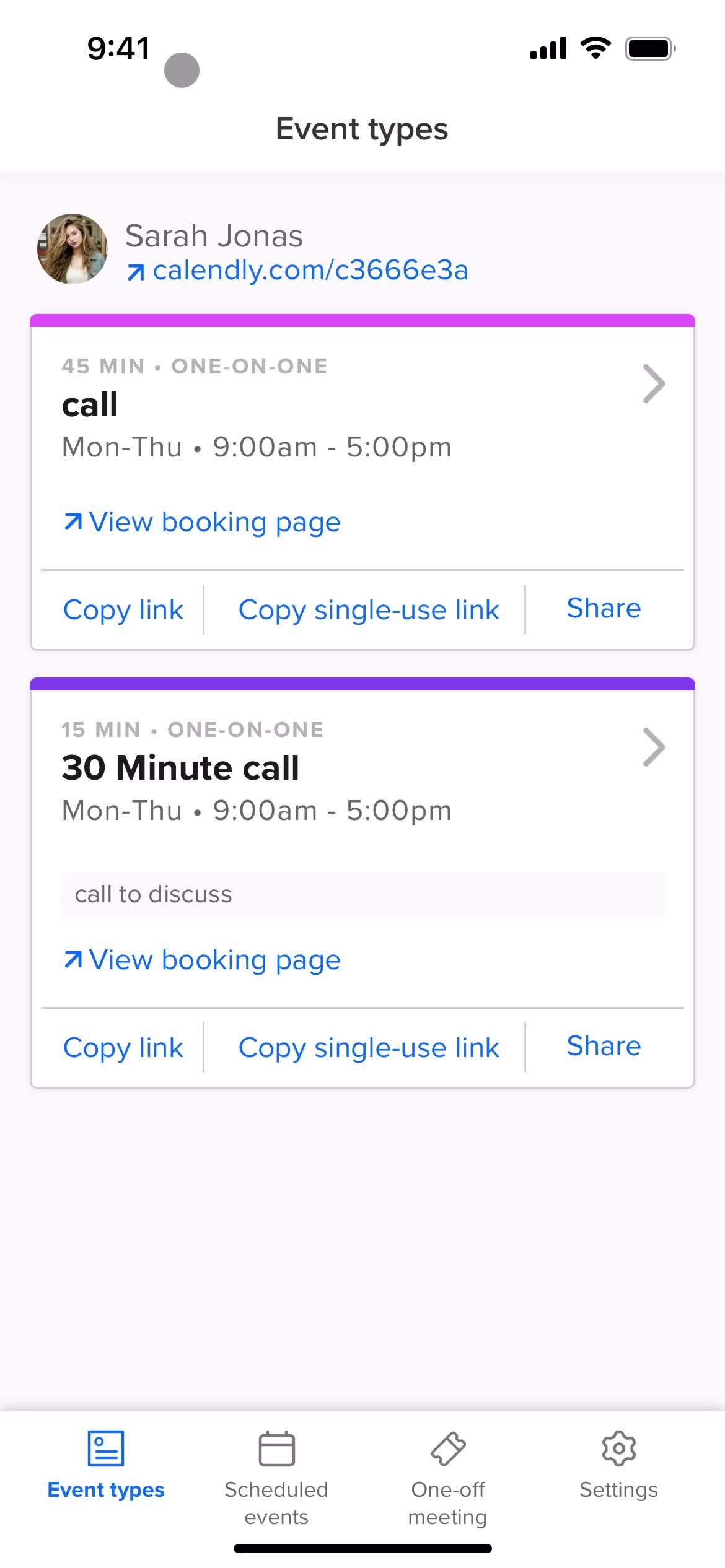
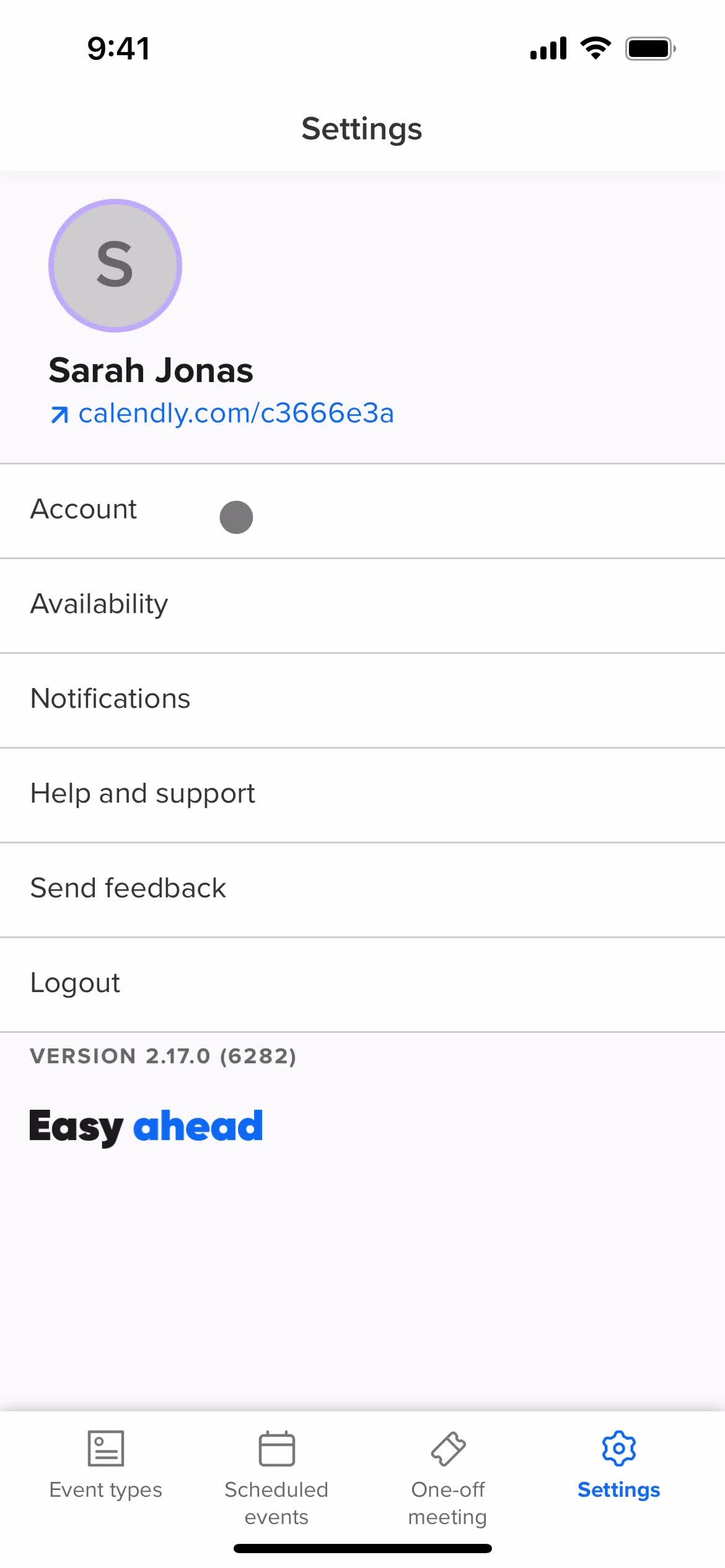
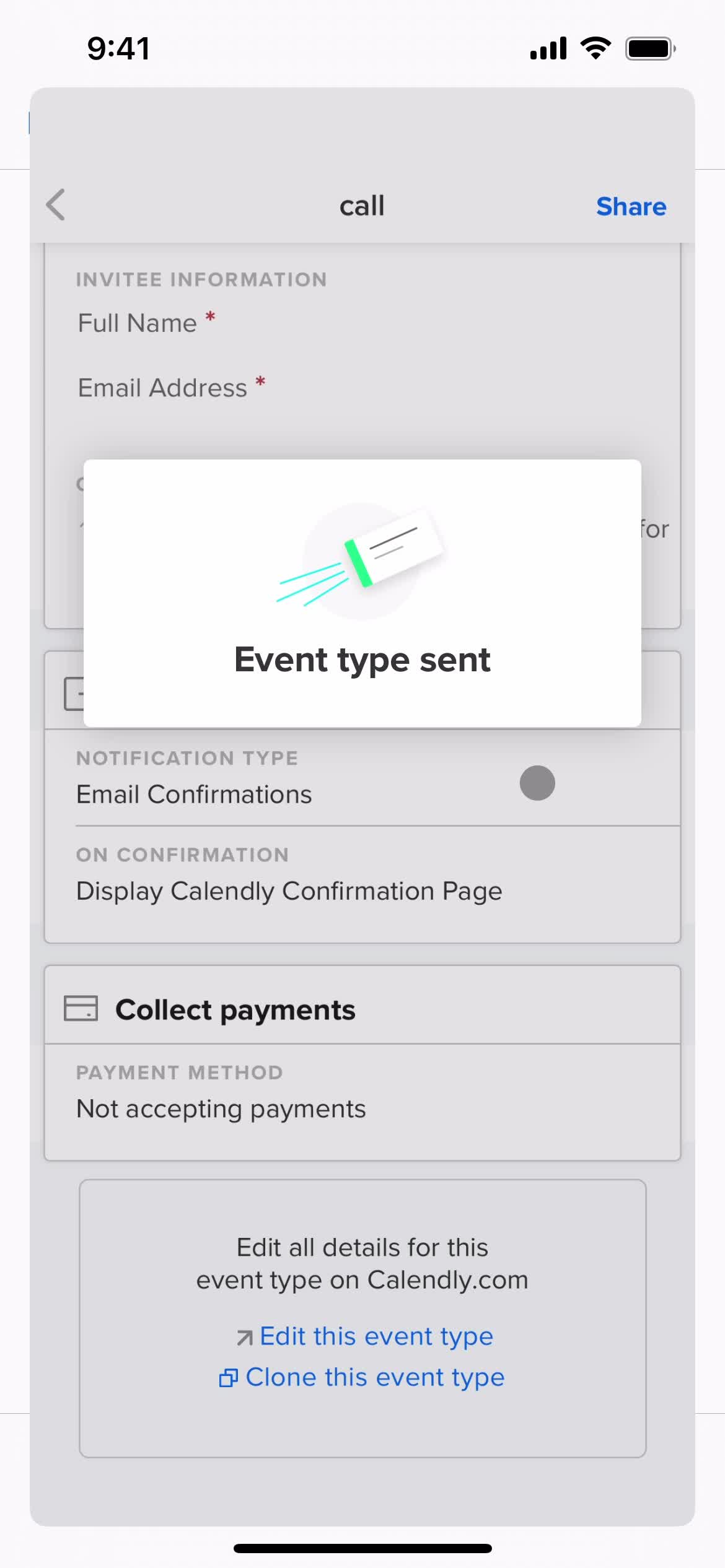
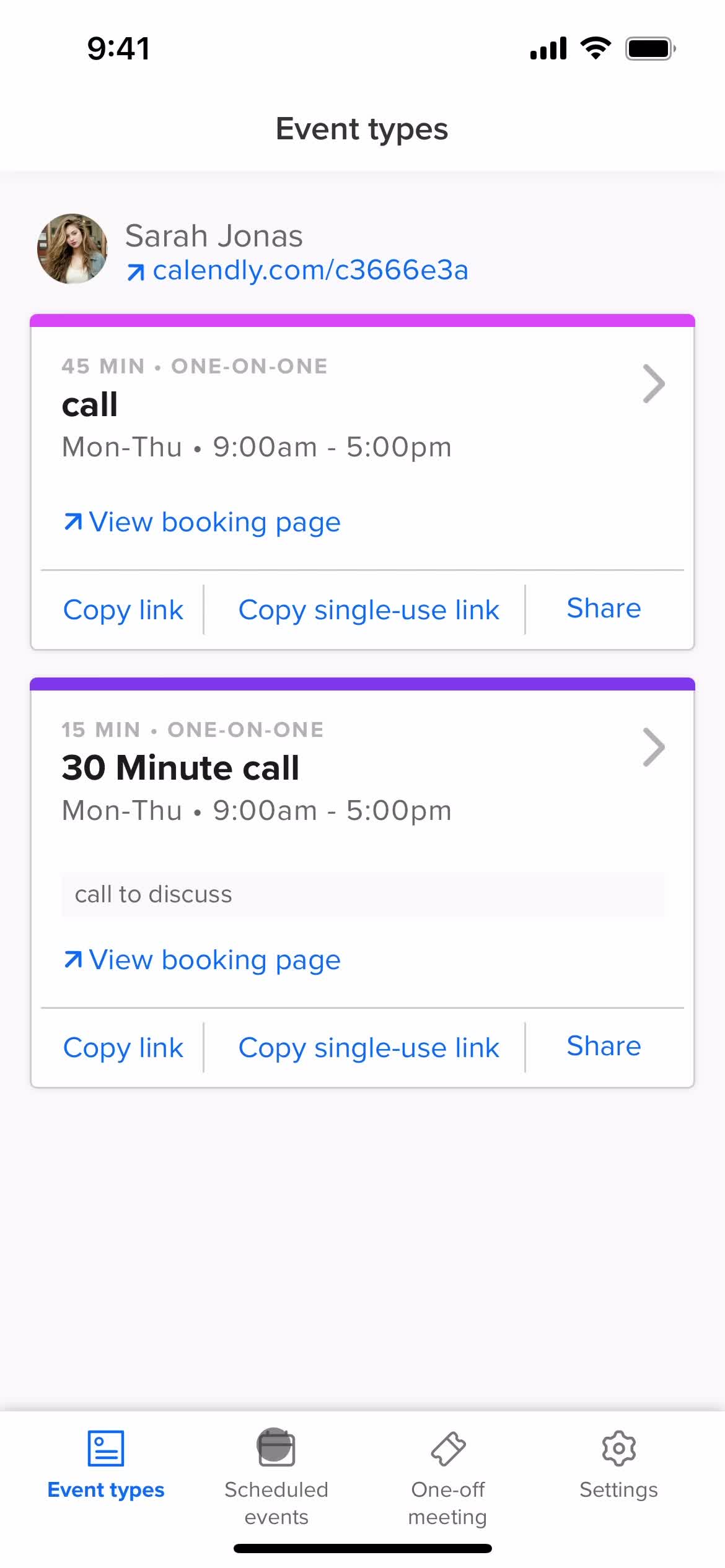
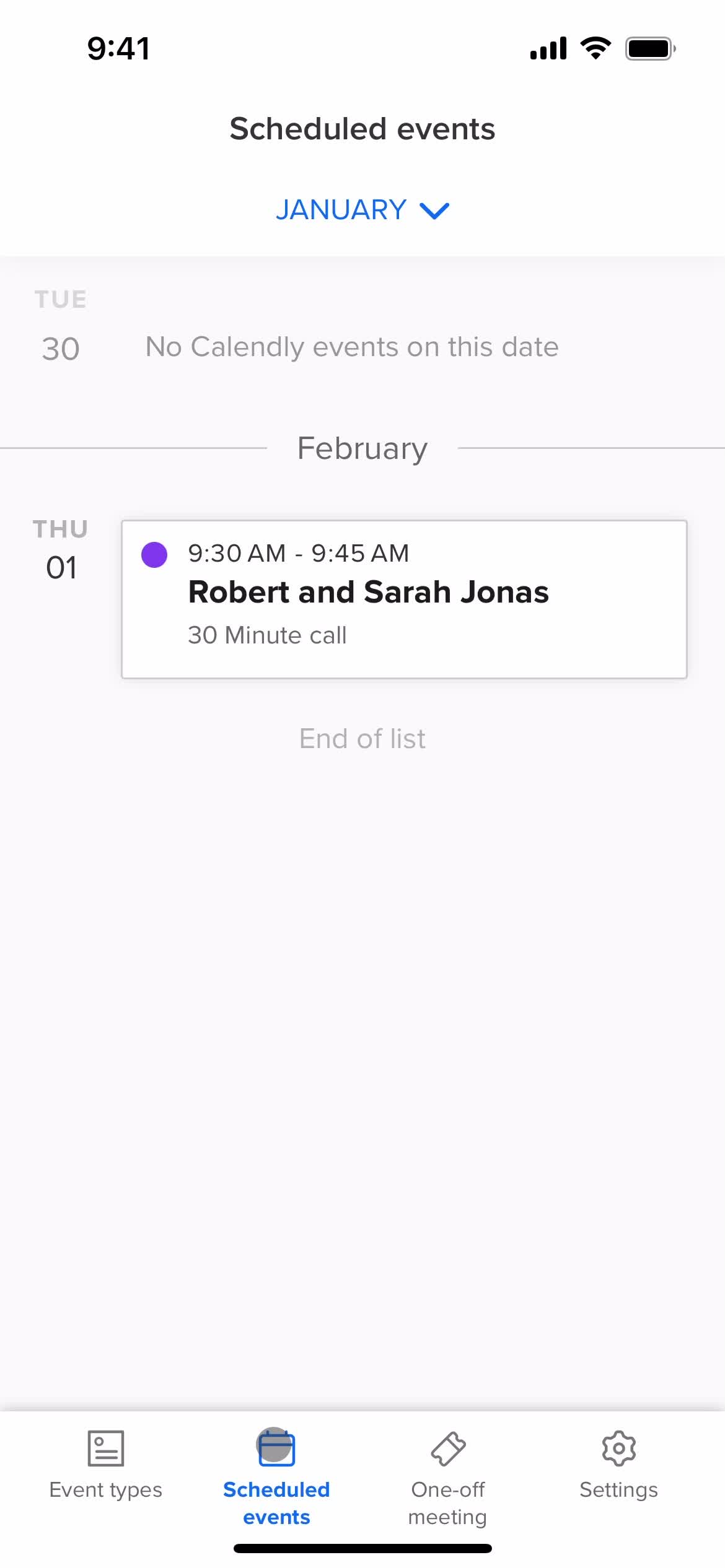
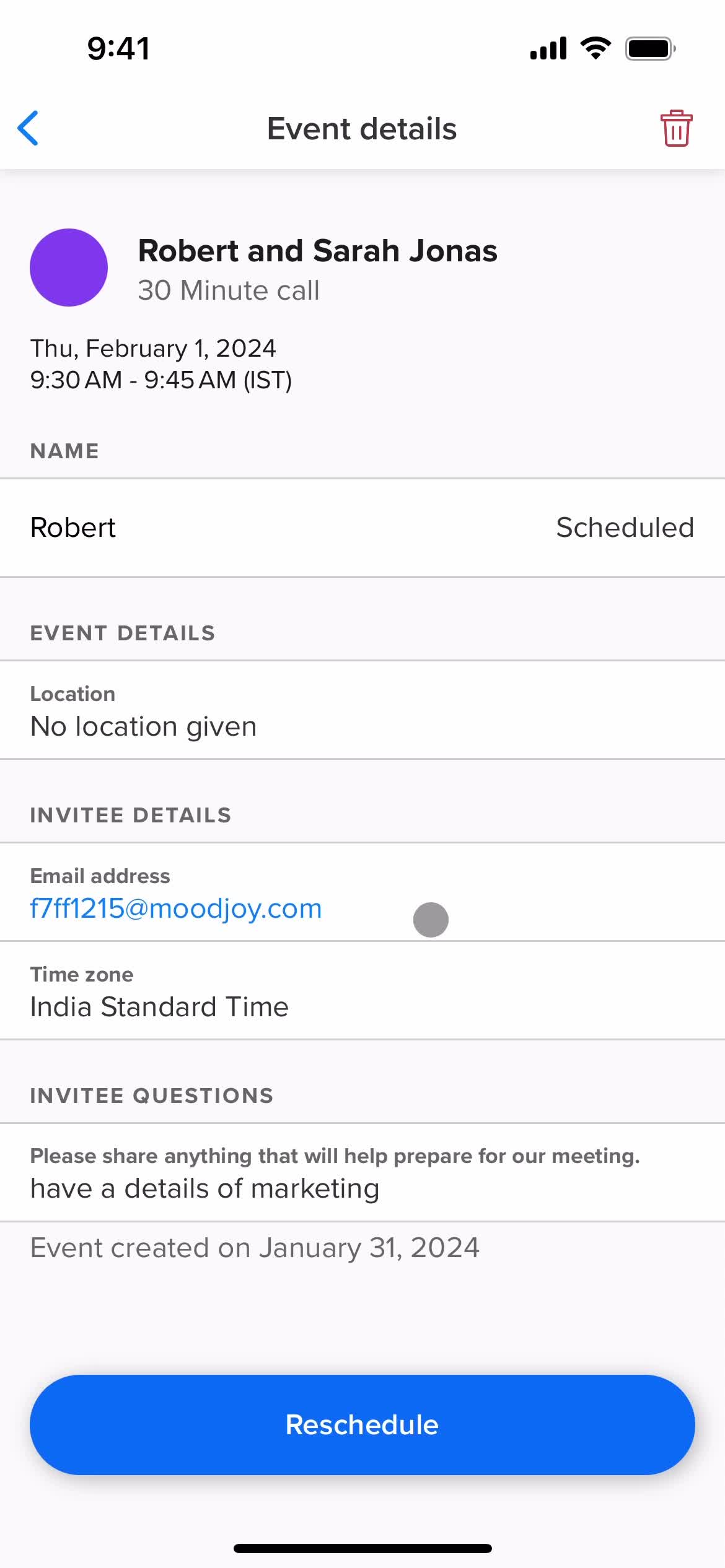
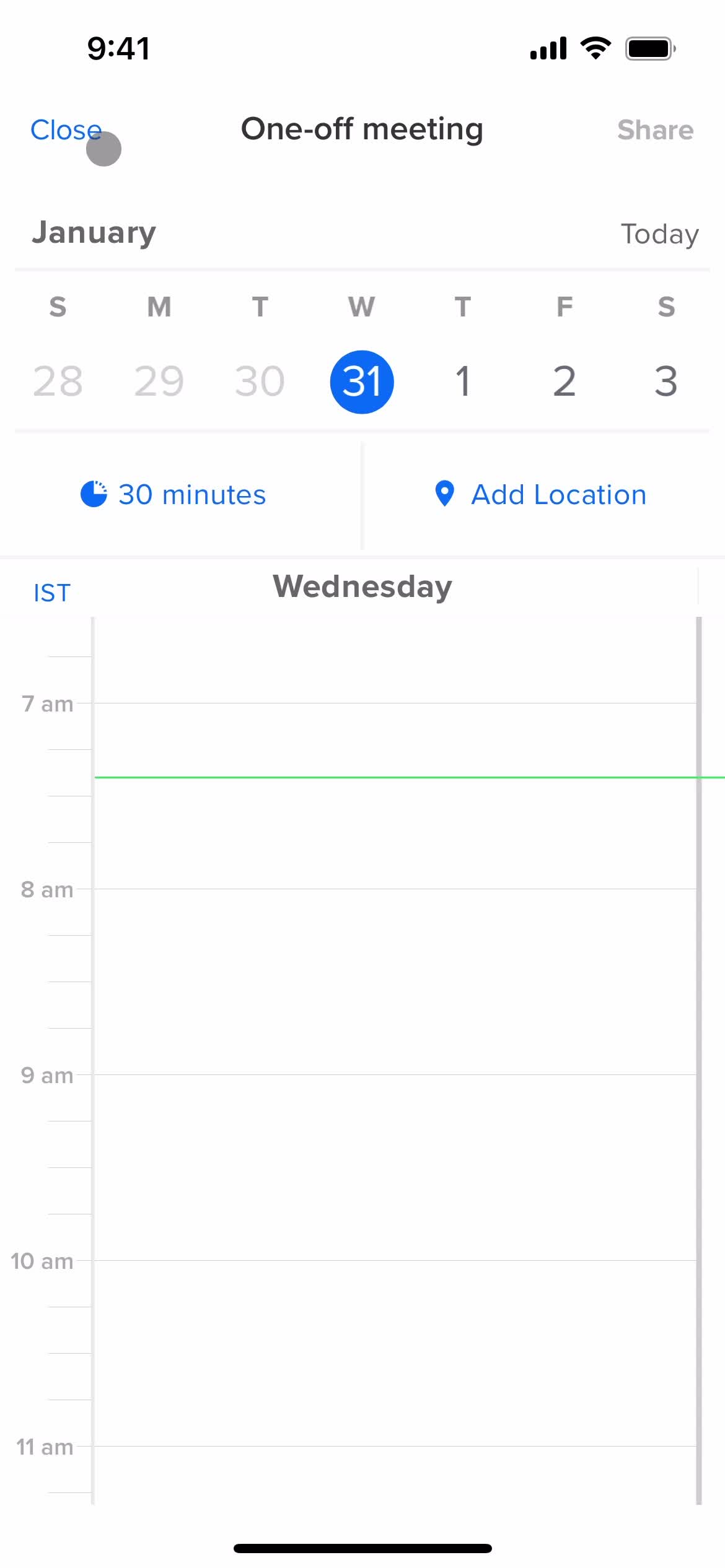
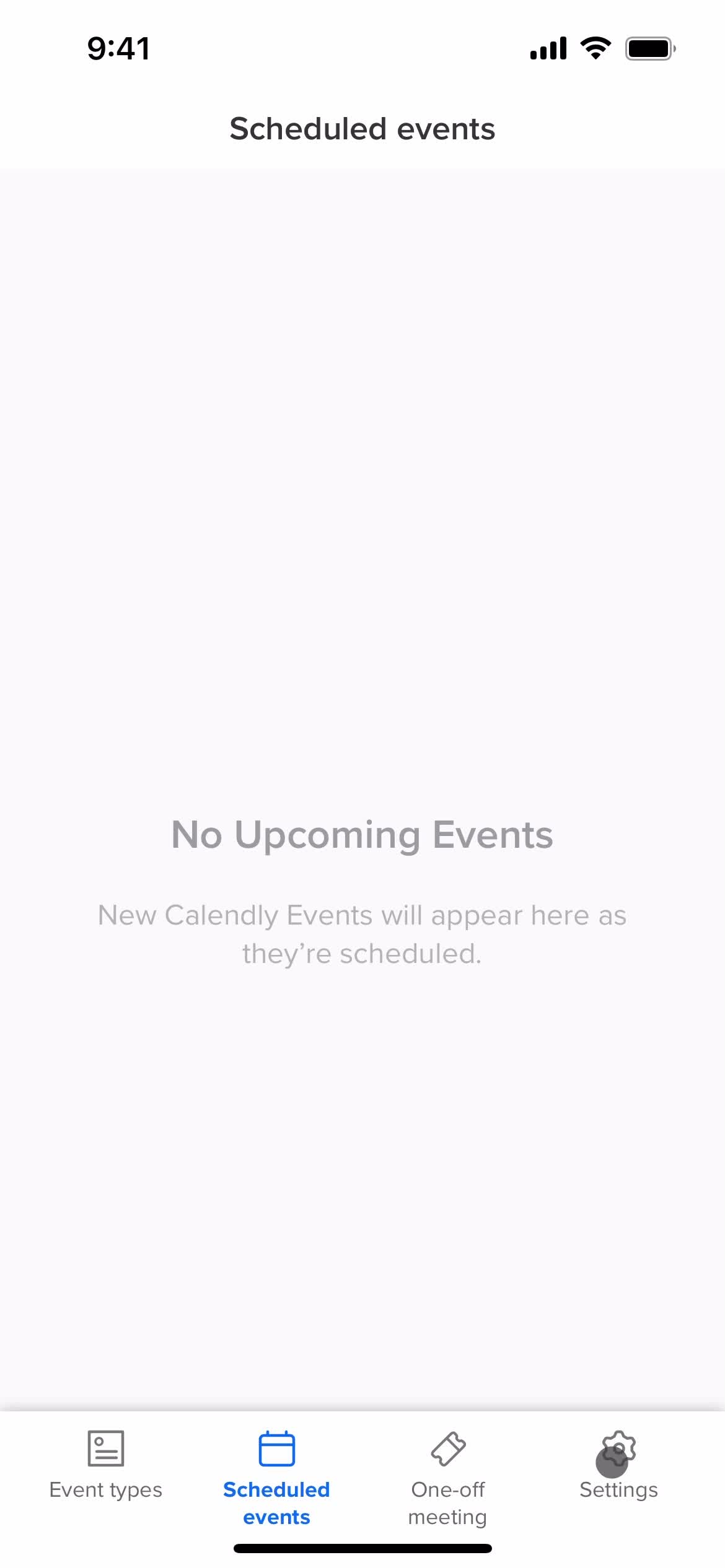
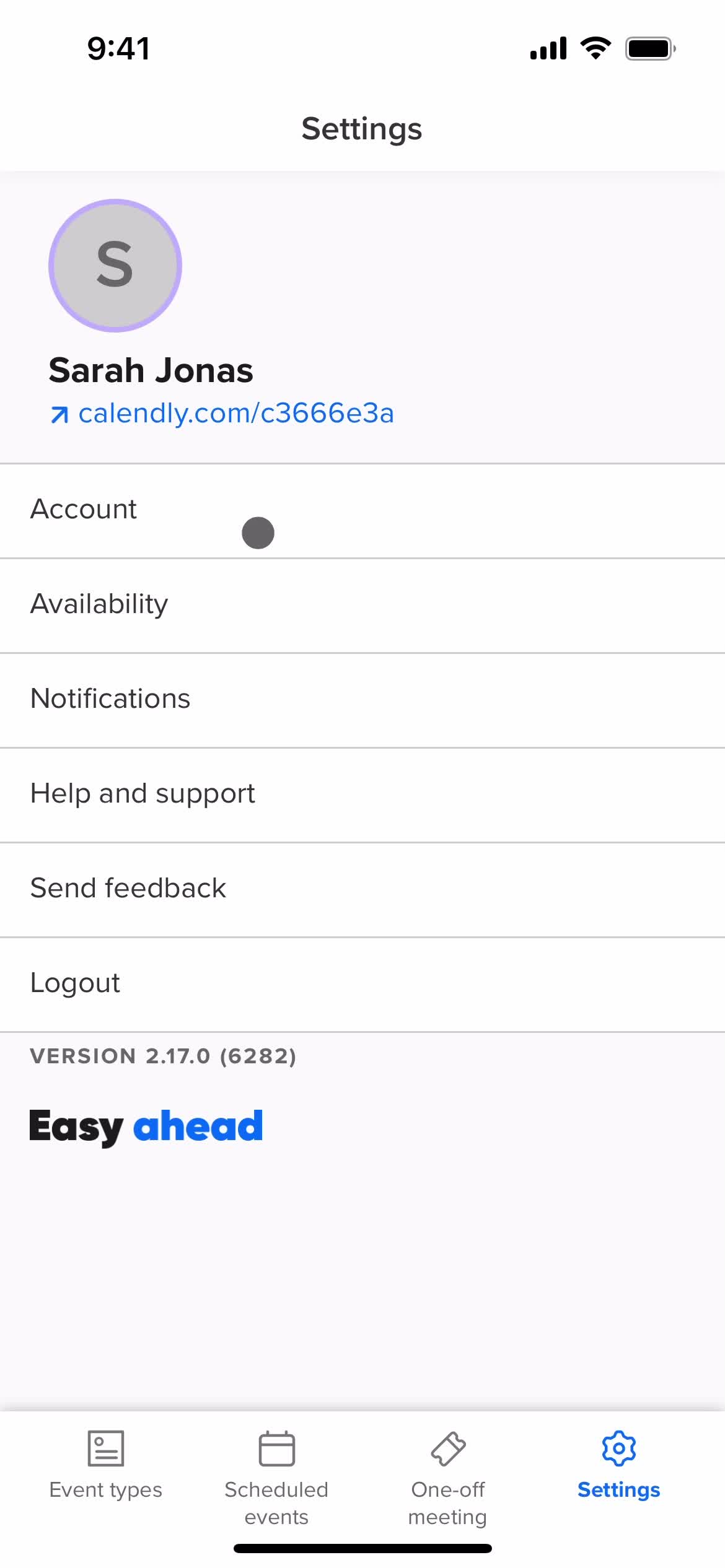
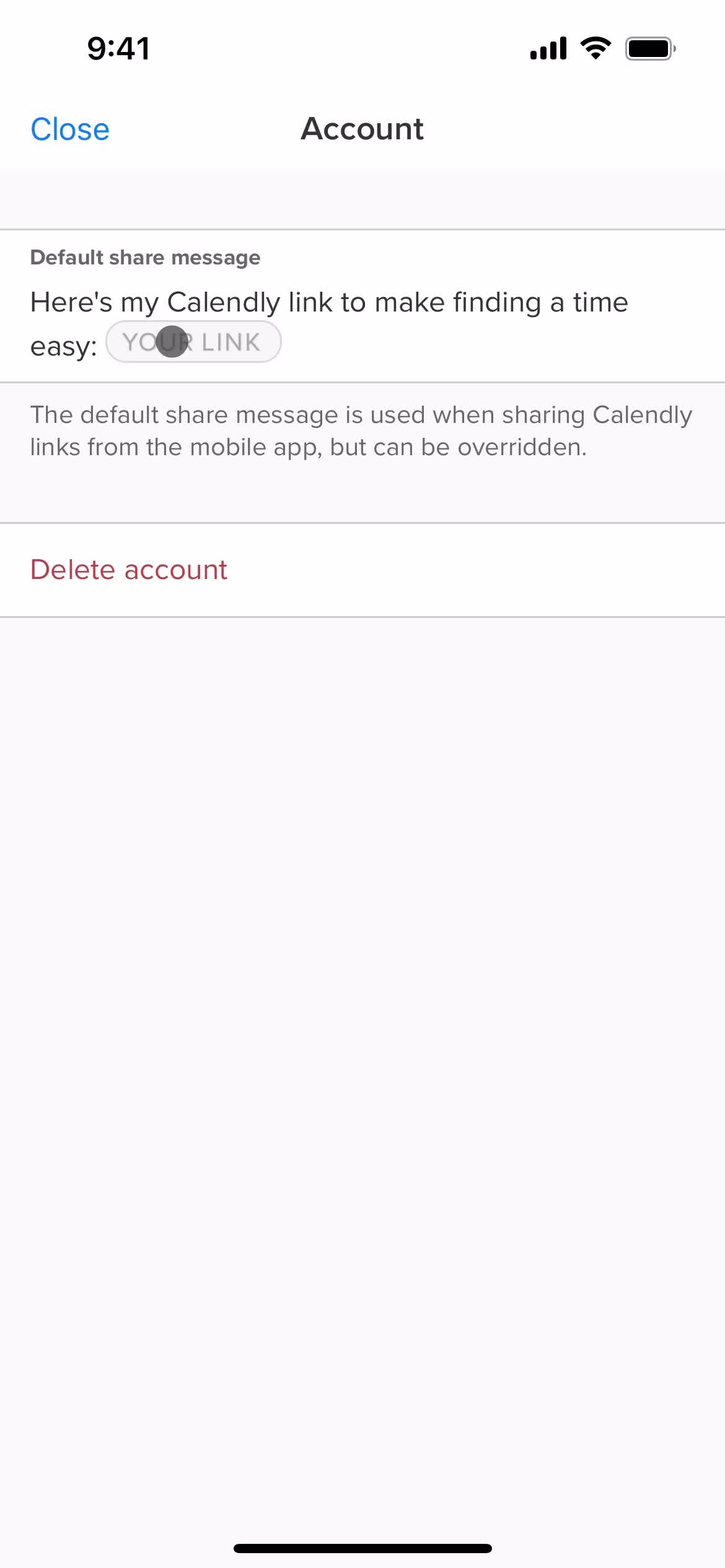
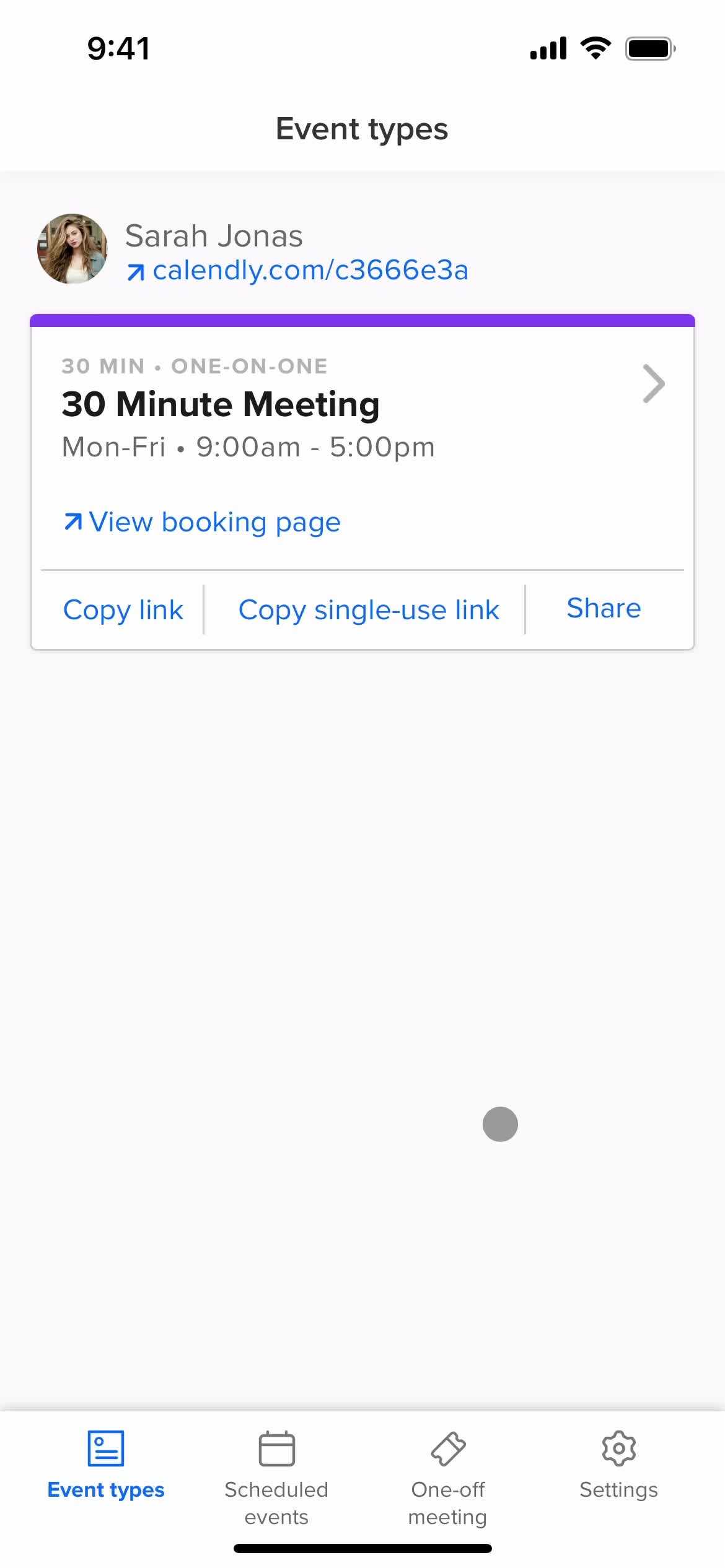
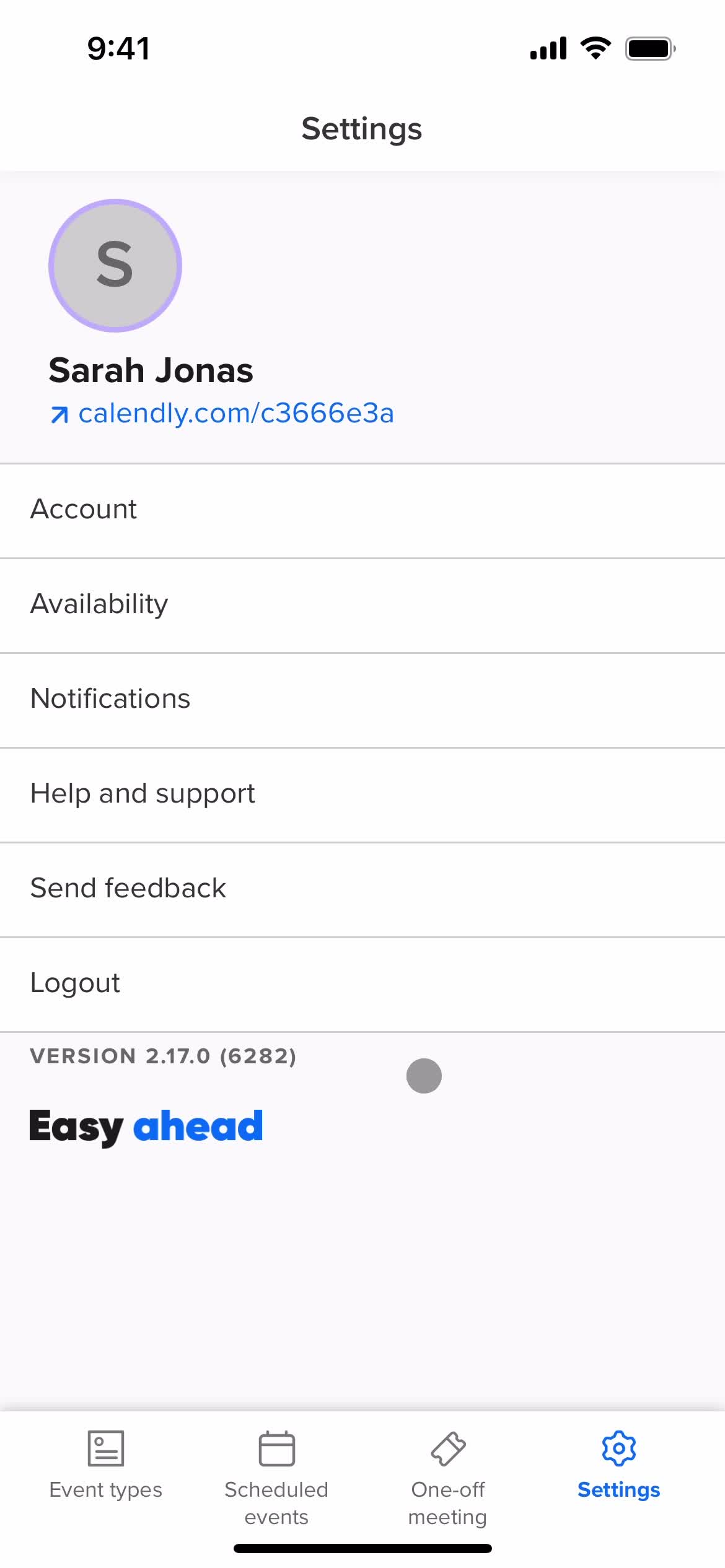
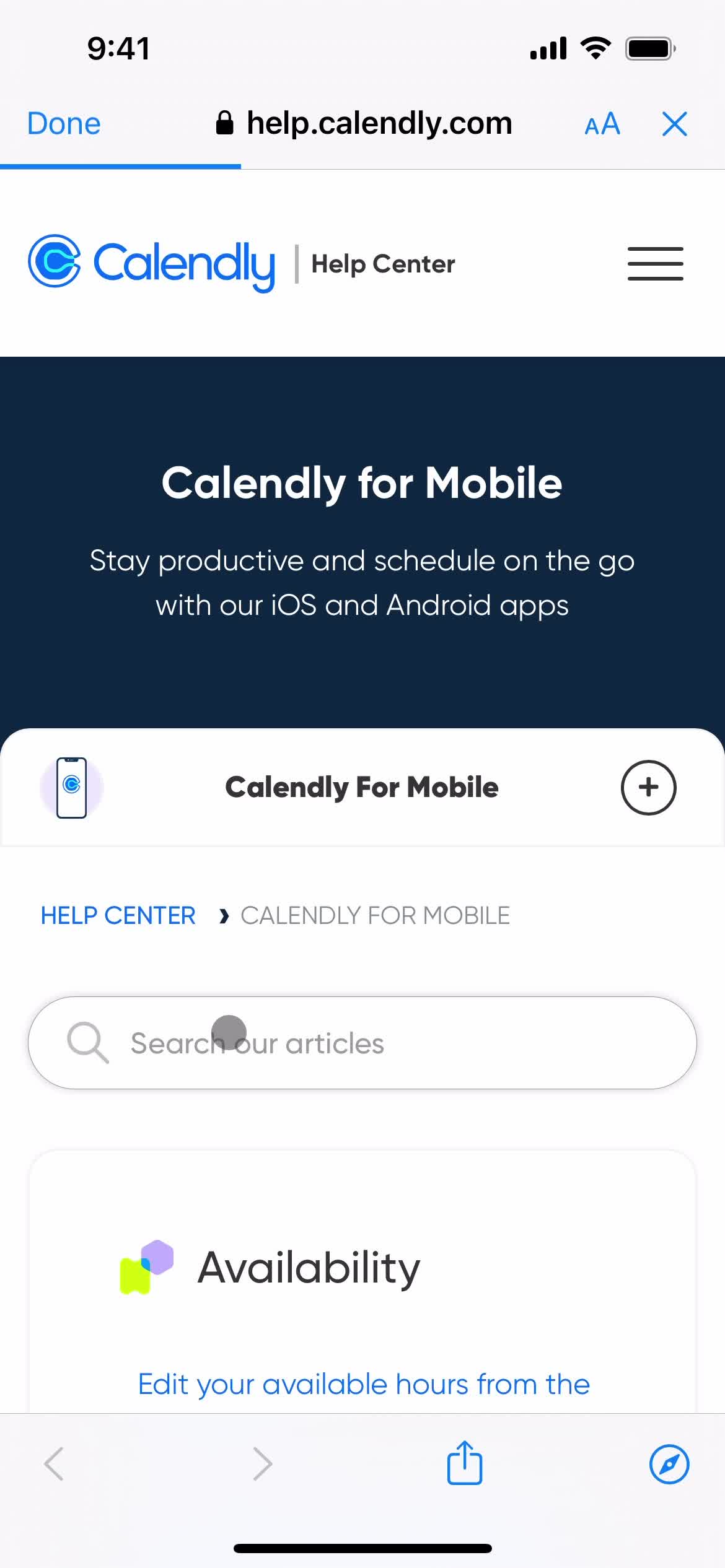
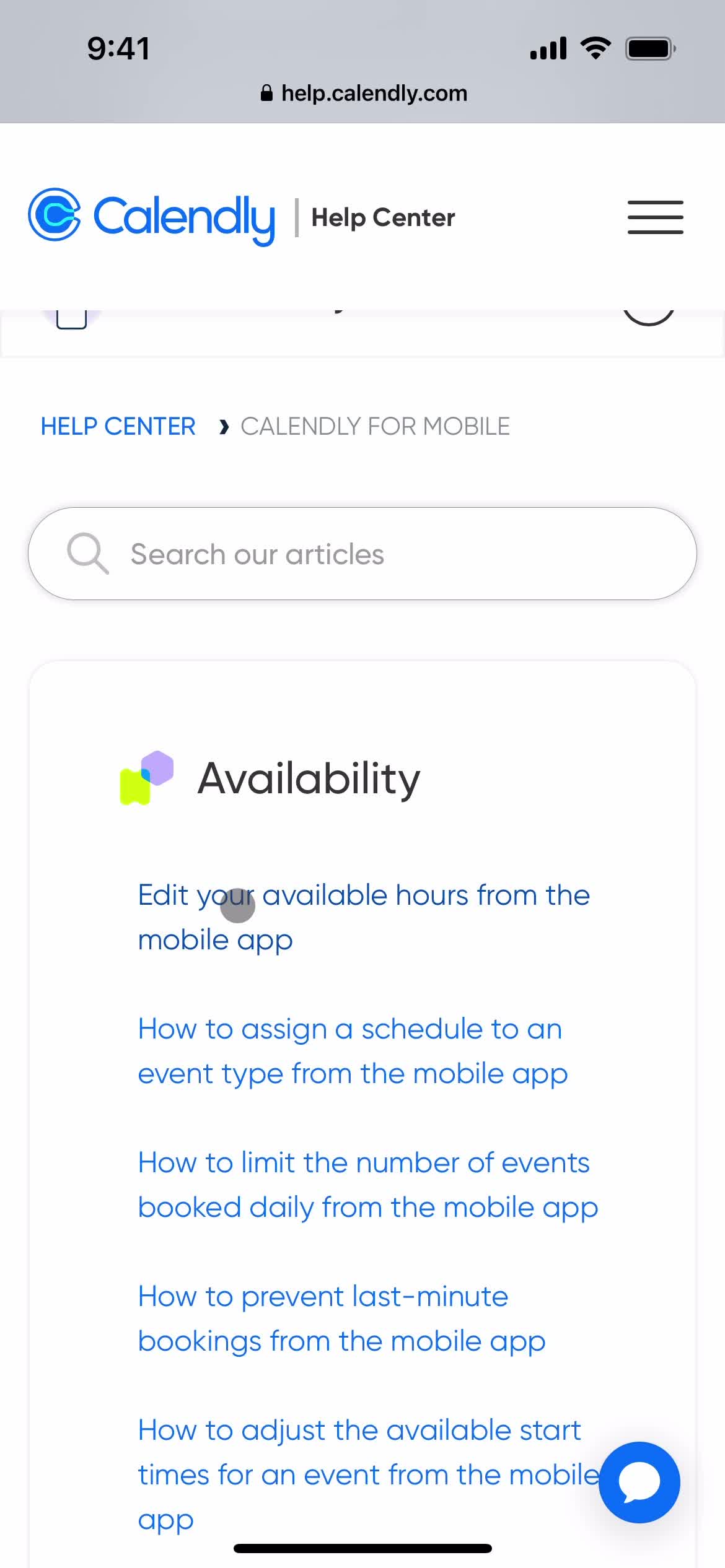
Home
this is title
Homepage
this is title
Navigation menu
this is title
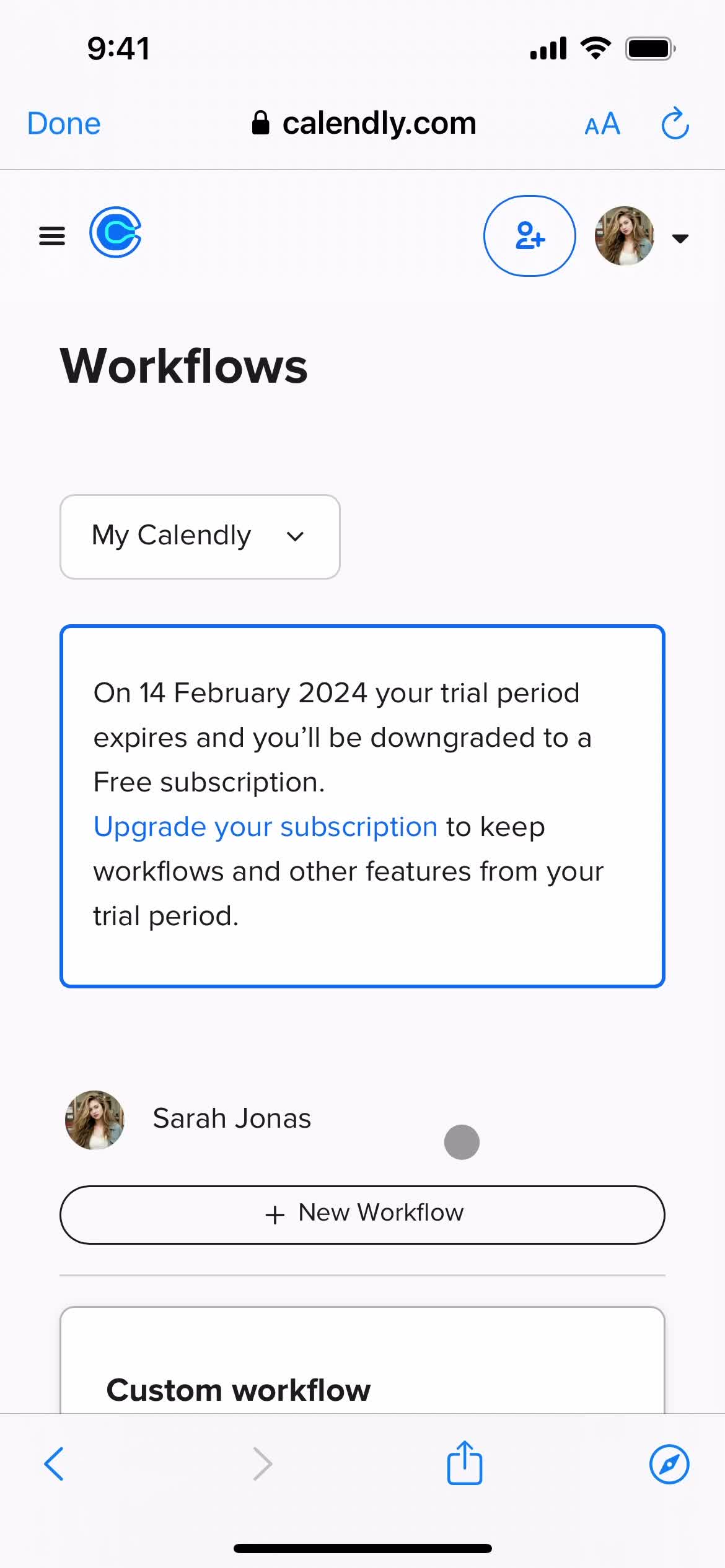
Workflows
this is title
this is title
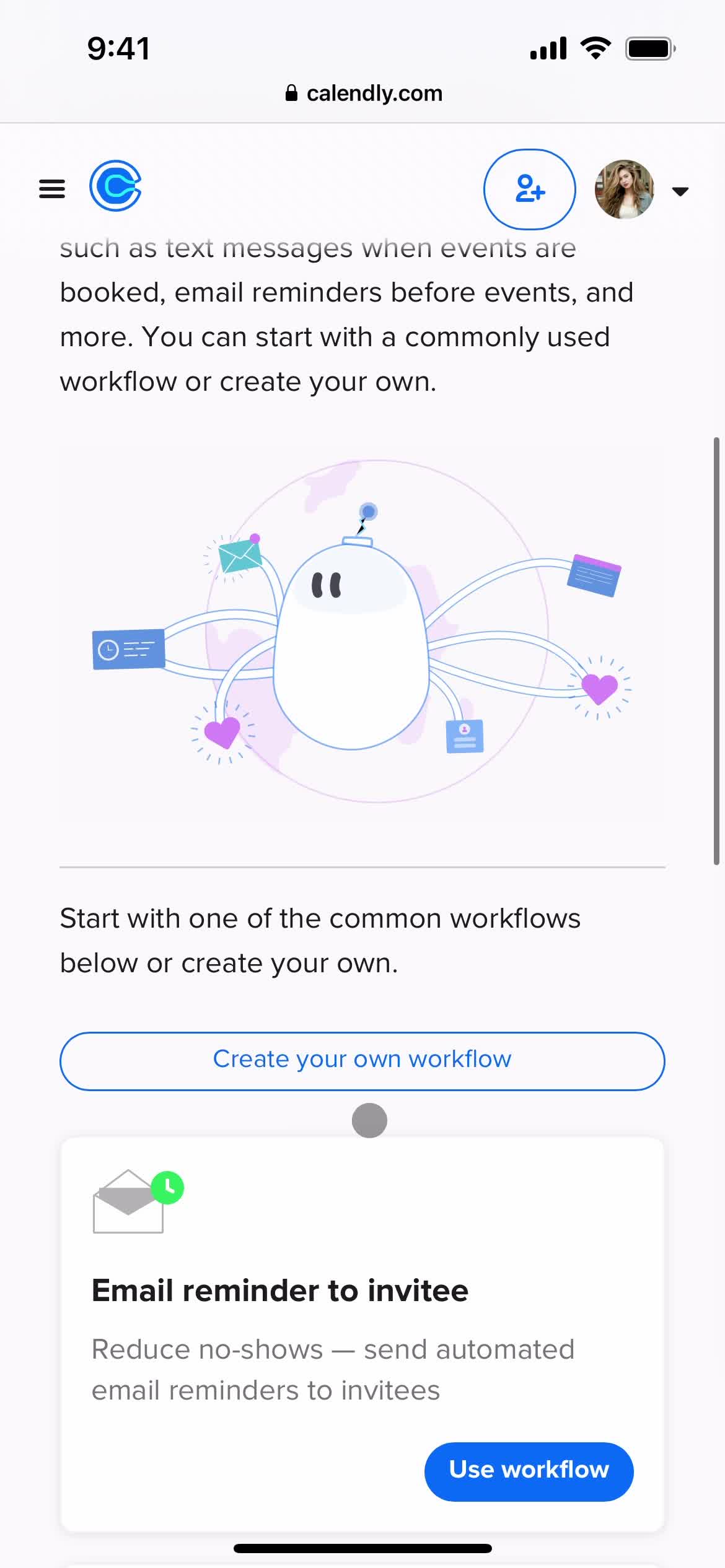
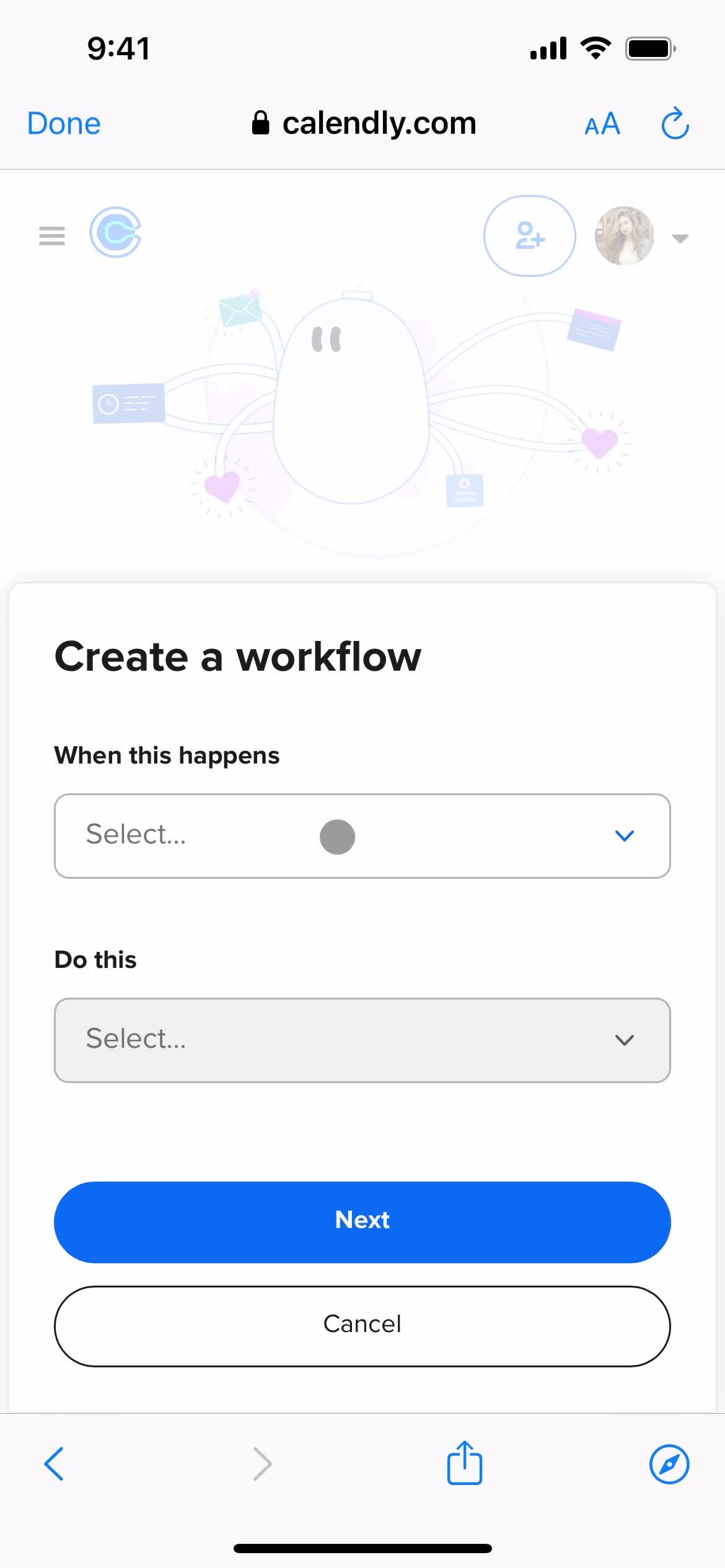
Create workflow
this is title
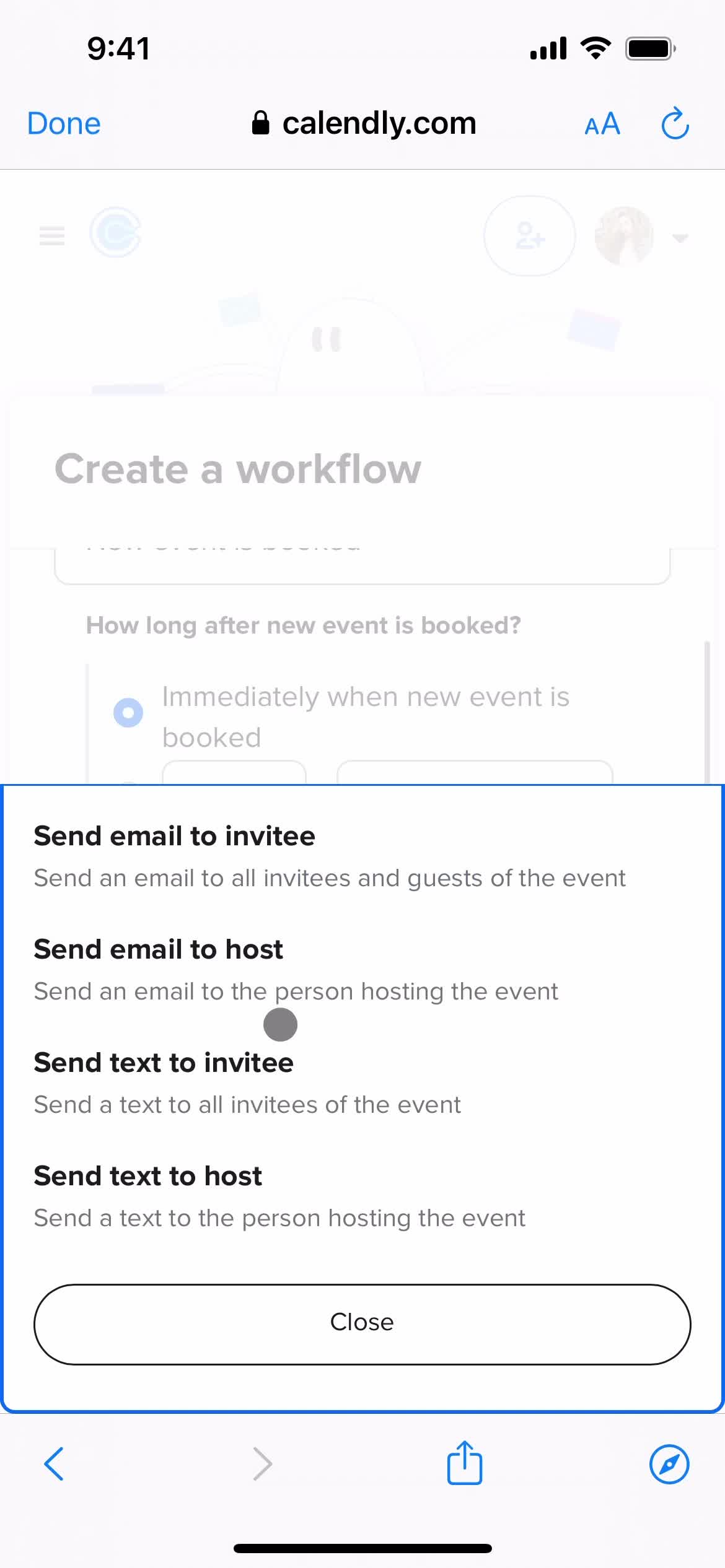
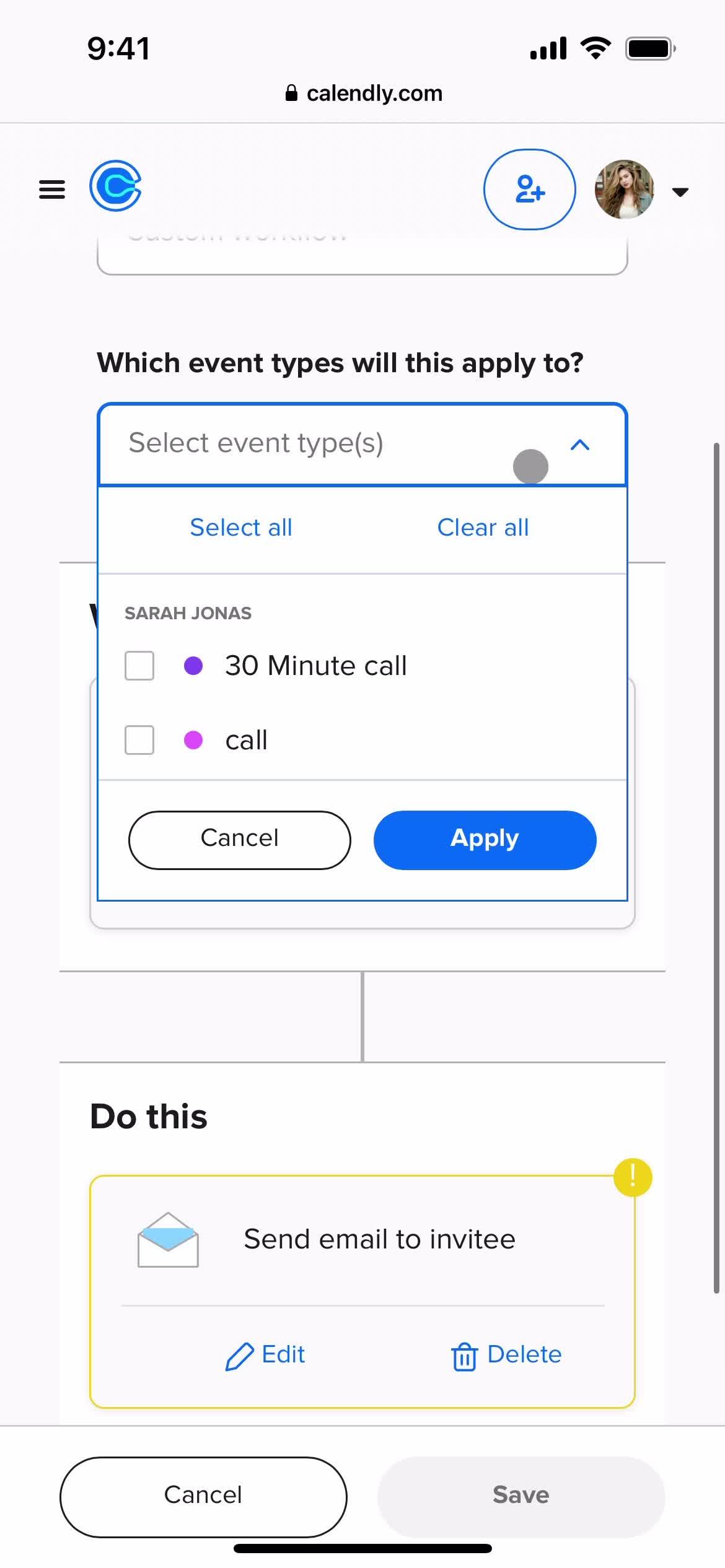
Select type
this is title
this is title
this is title
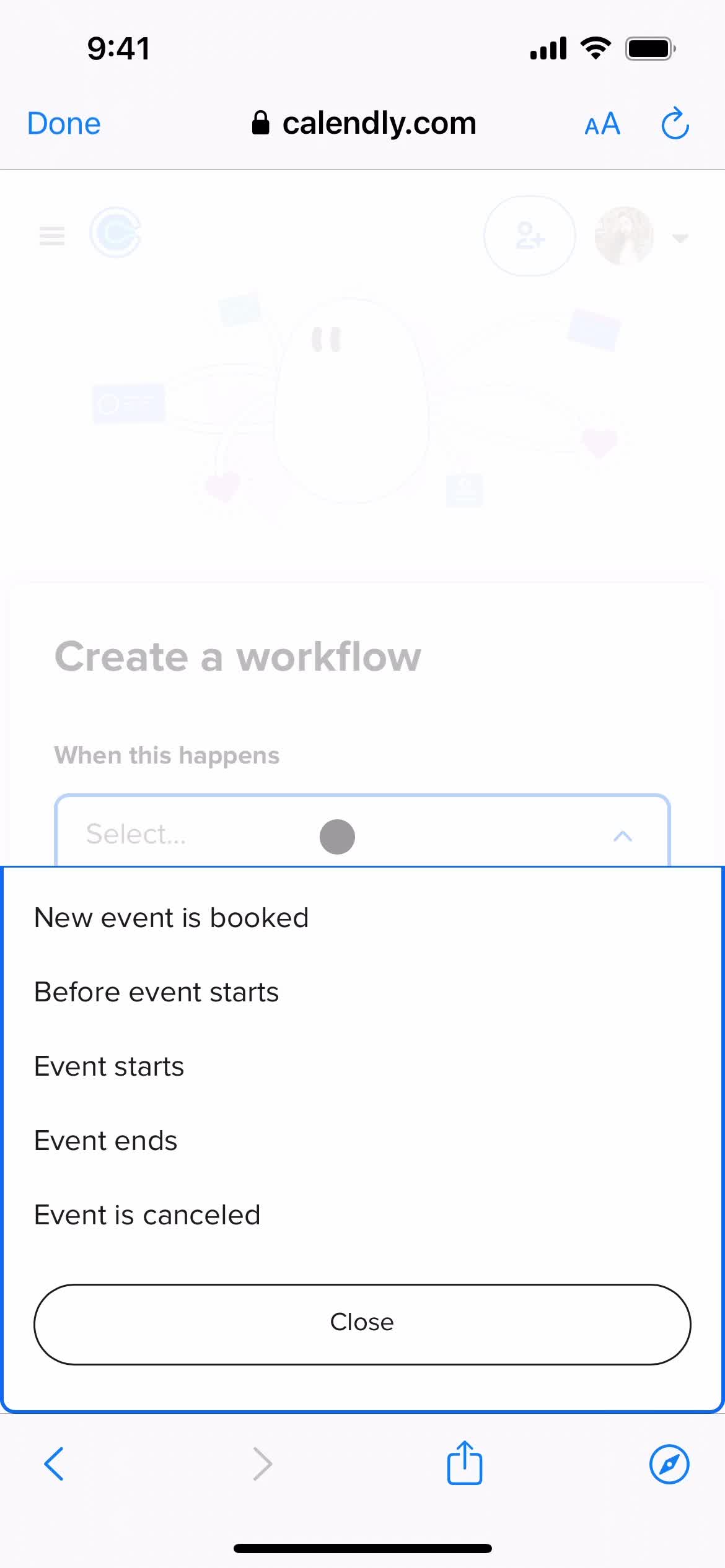
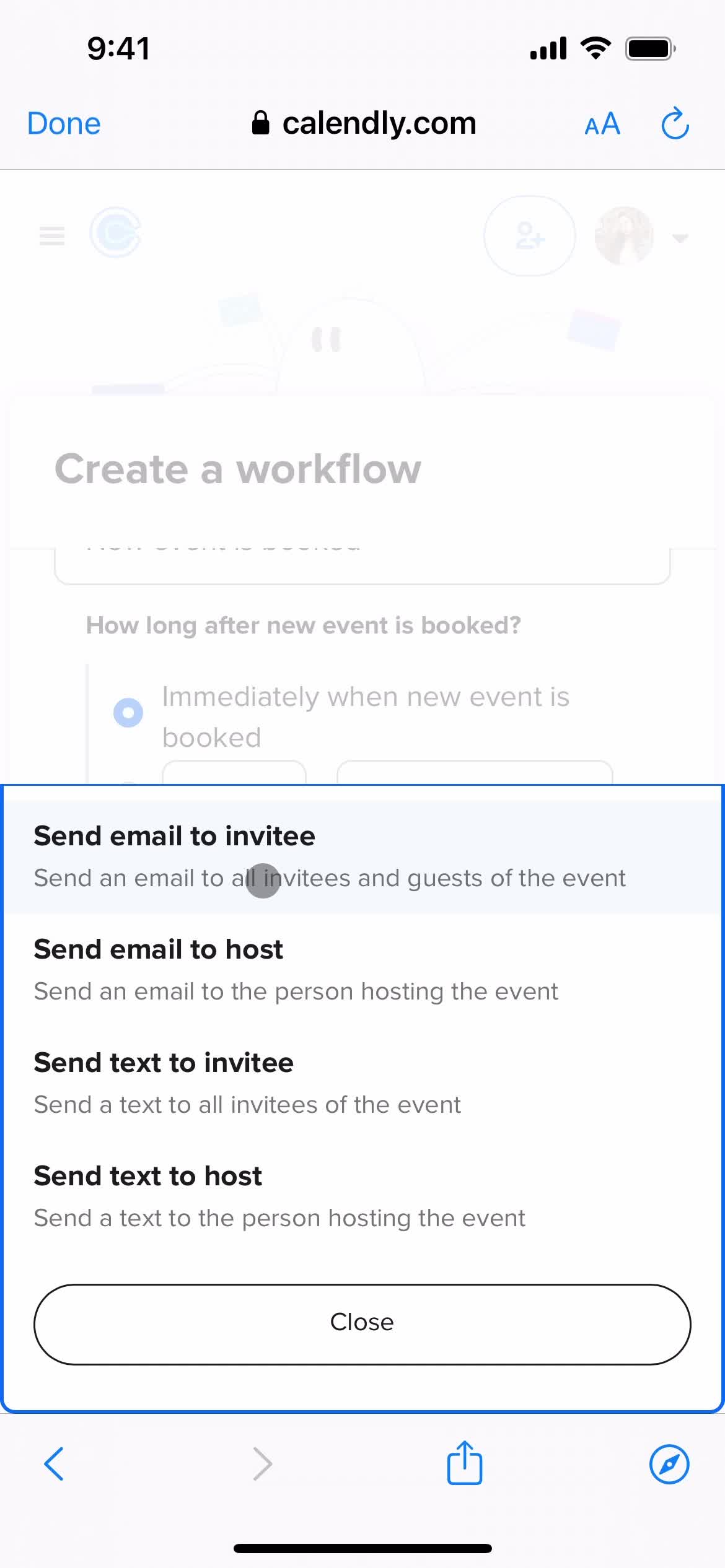
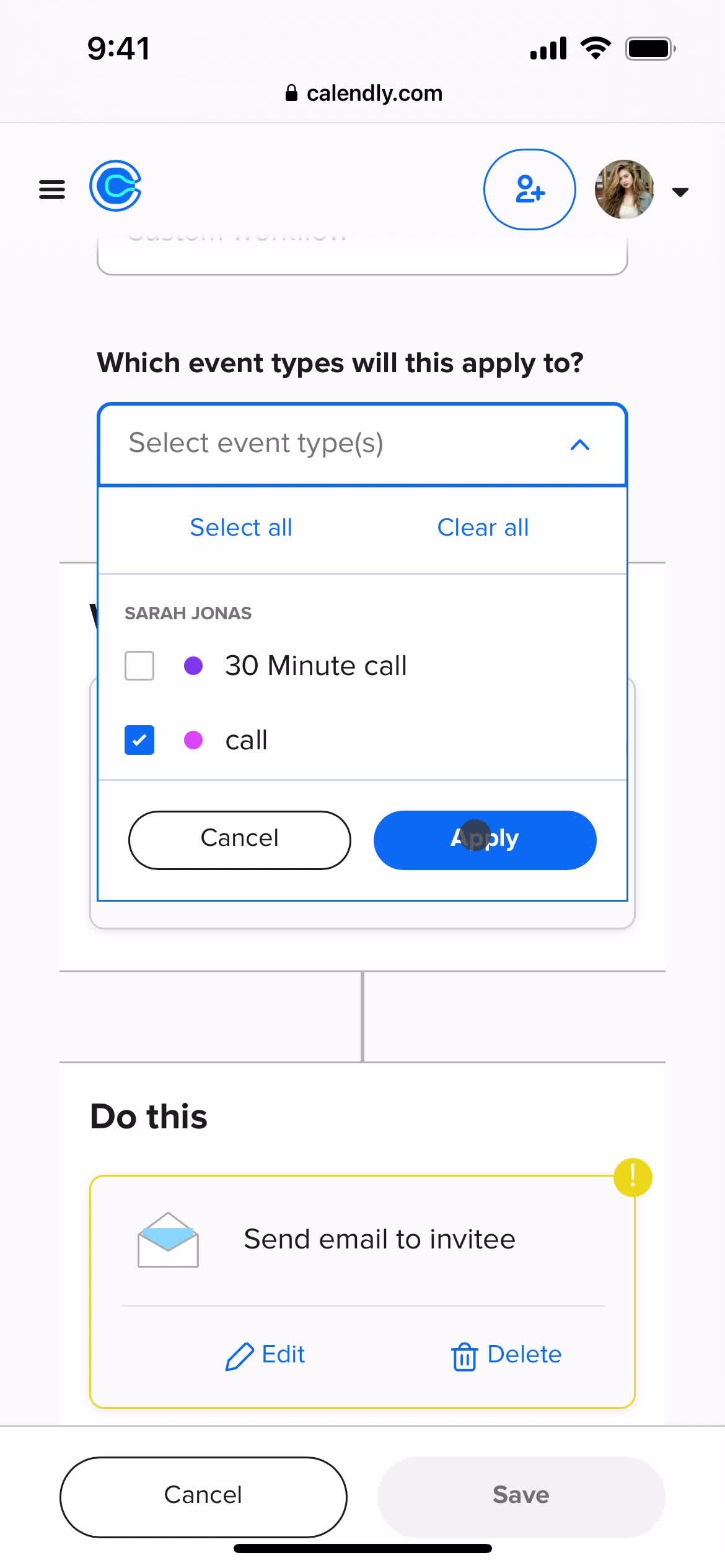
Select options
this is title
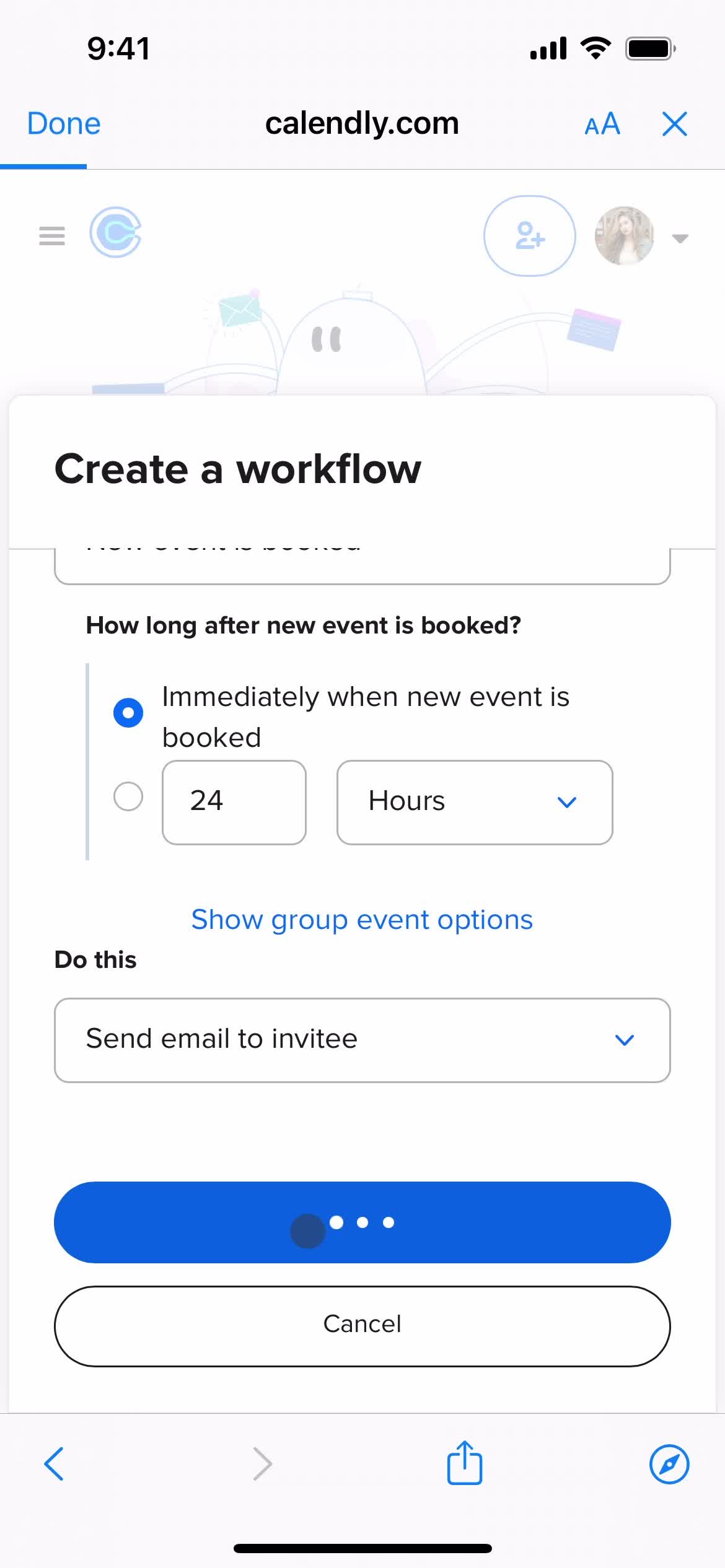
Loading
this is title
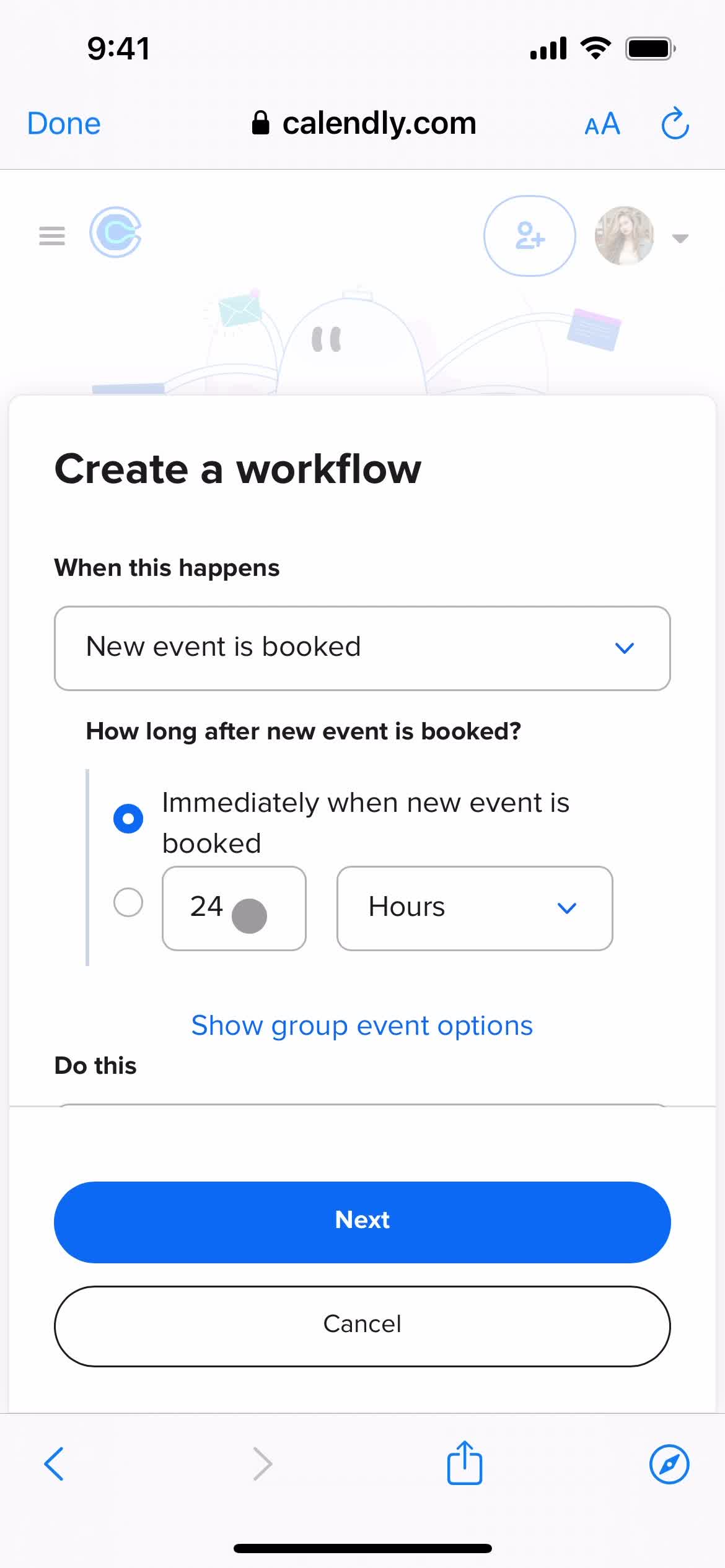
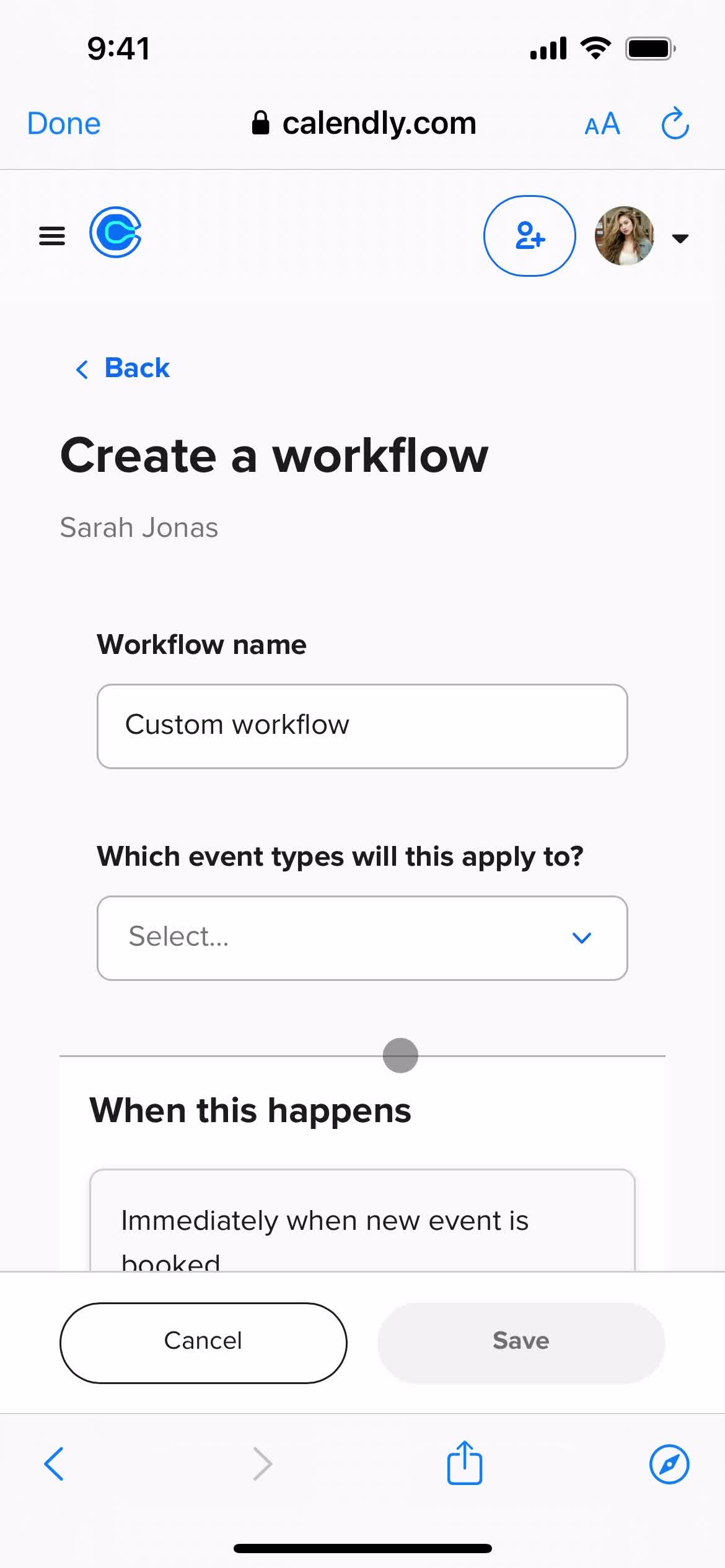
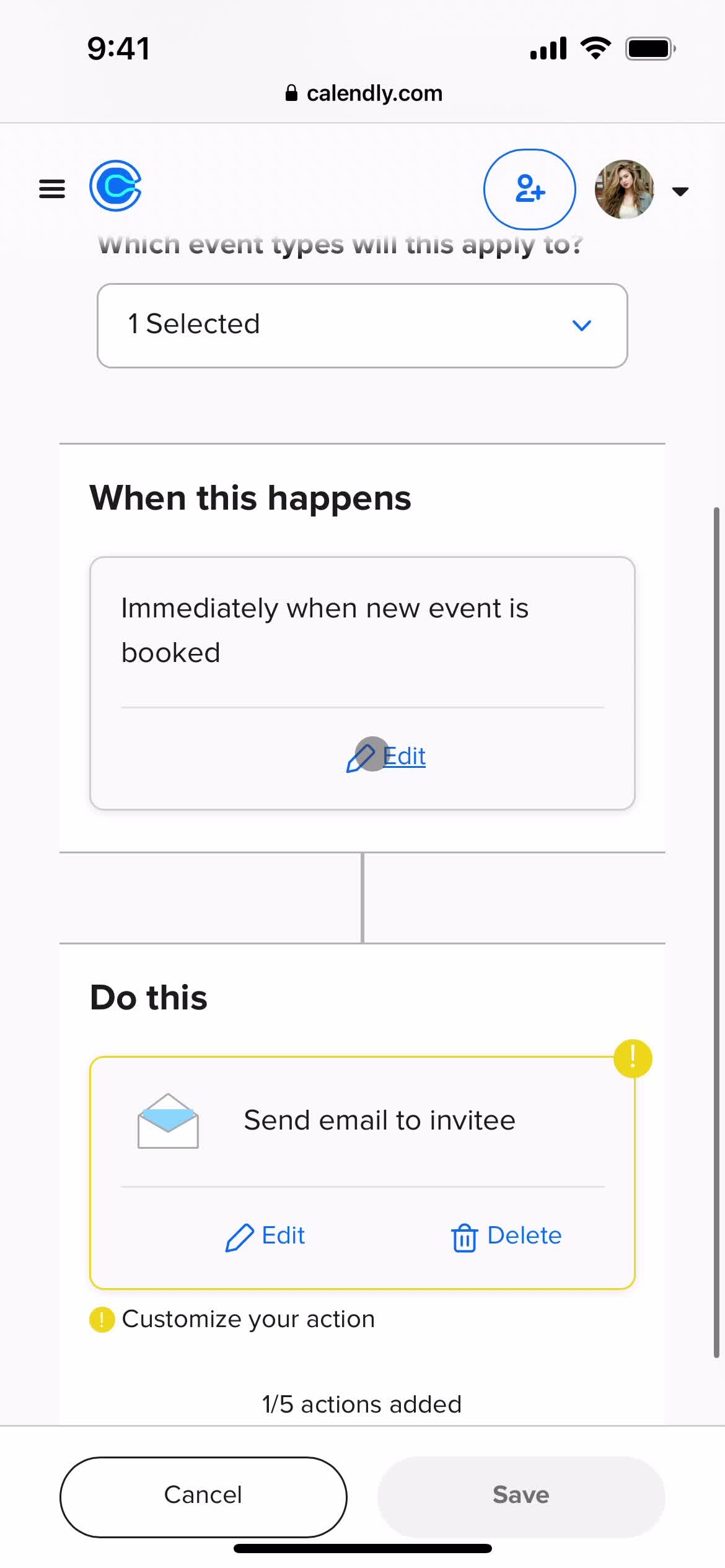
Workflow details
this is title
Select type
this is title
this is title
this is title
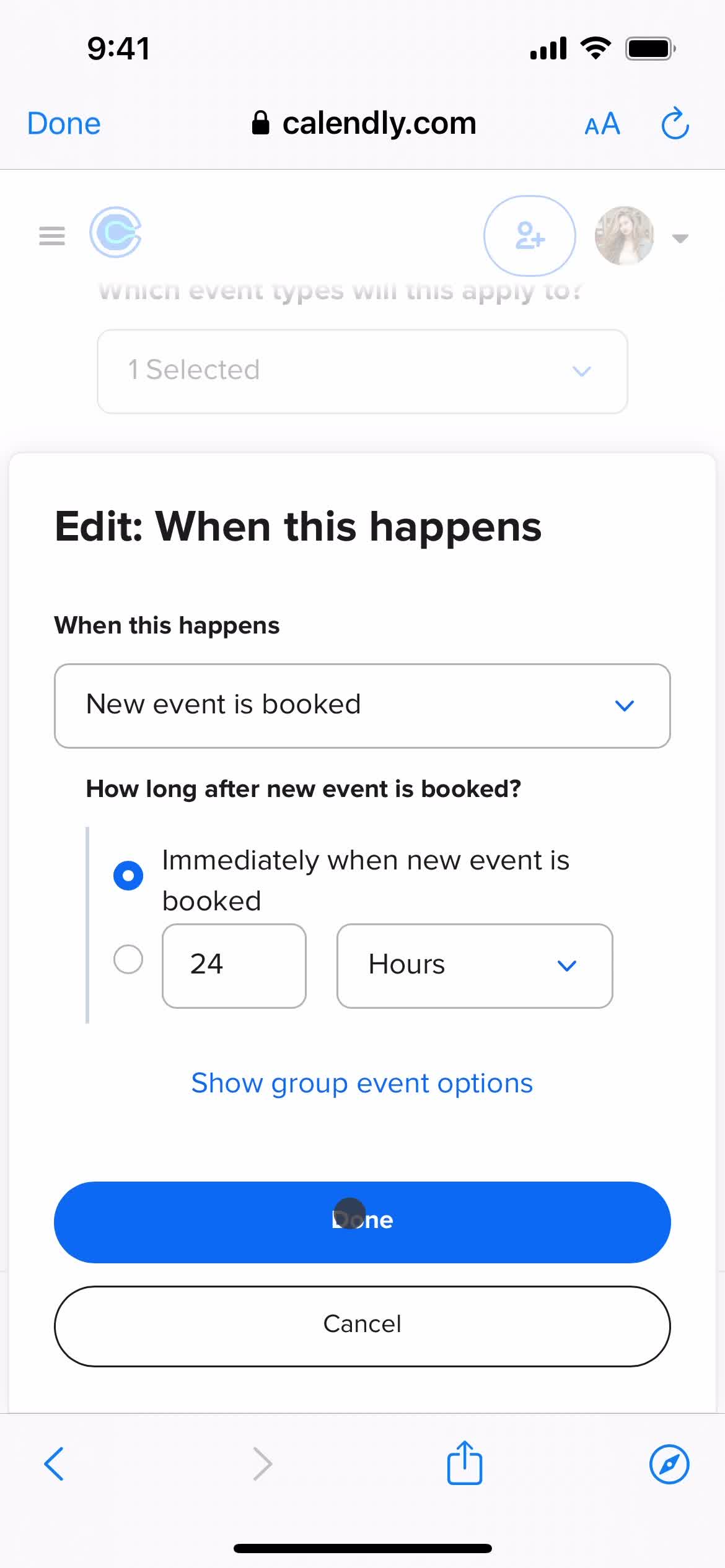
Edit details
this is title
this is title
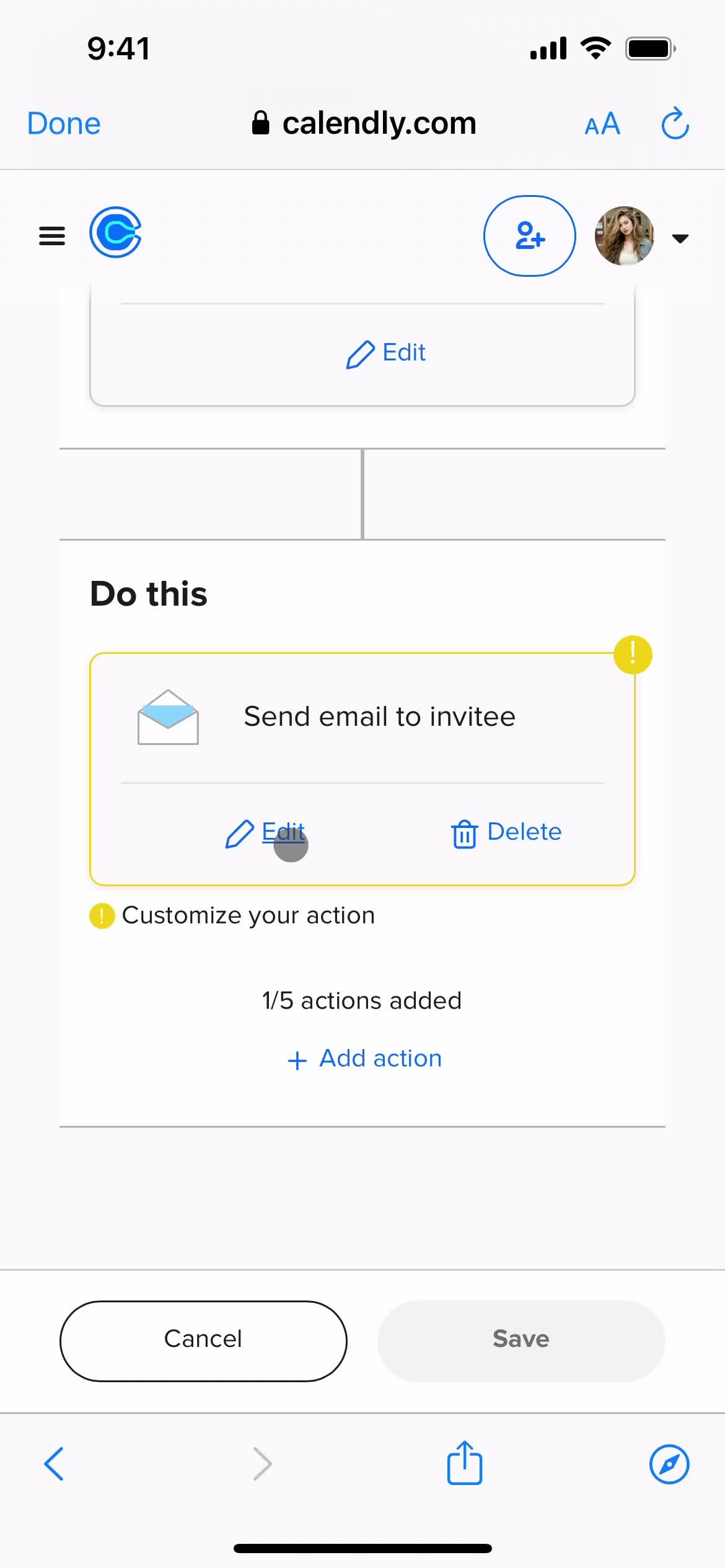
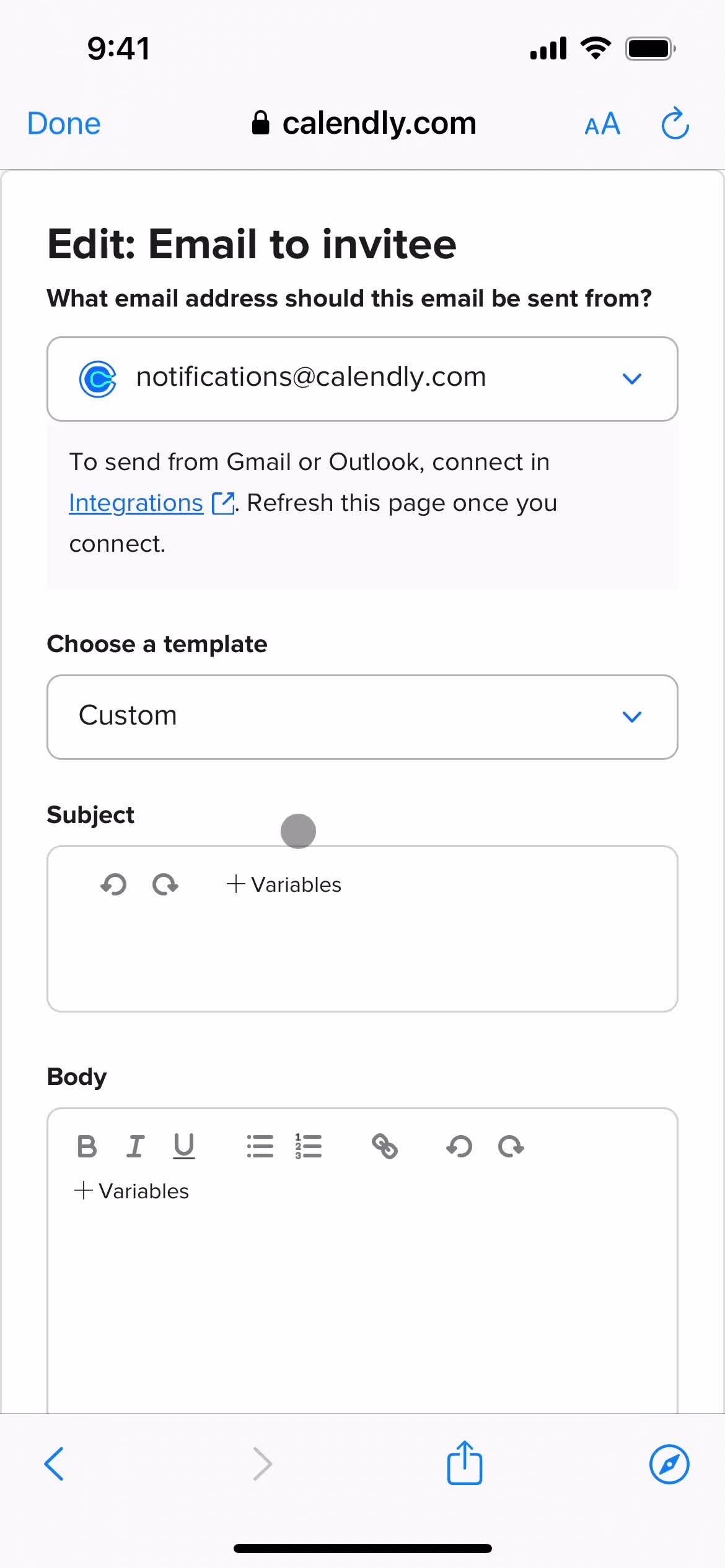
Edit invitation email
this is title
this is title
this is title
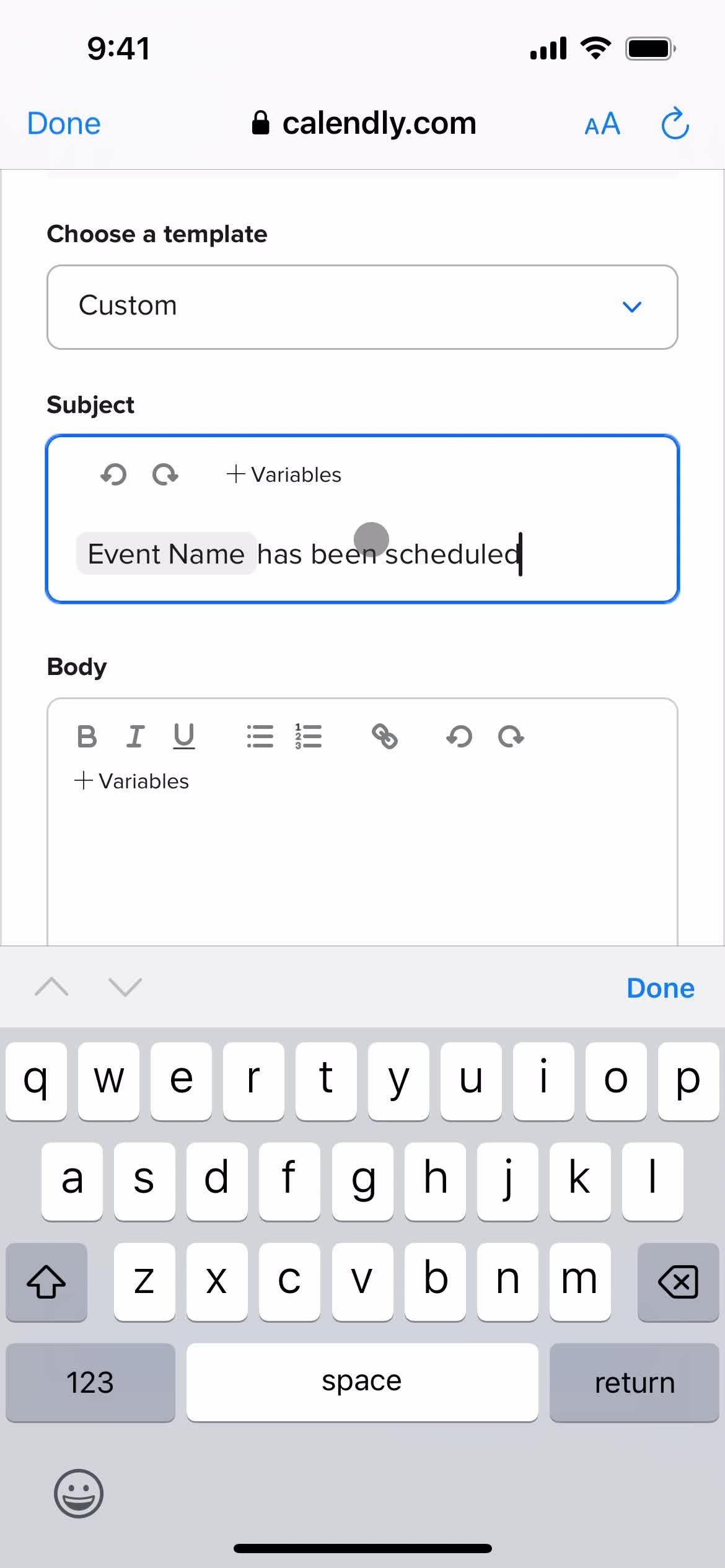
Add subject
this is title
this is title
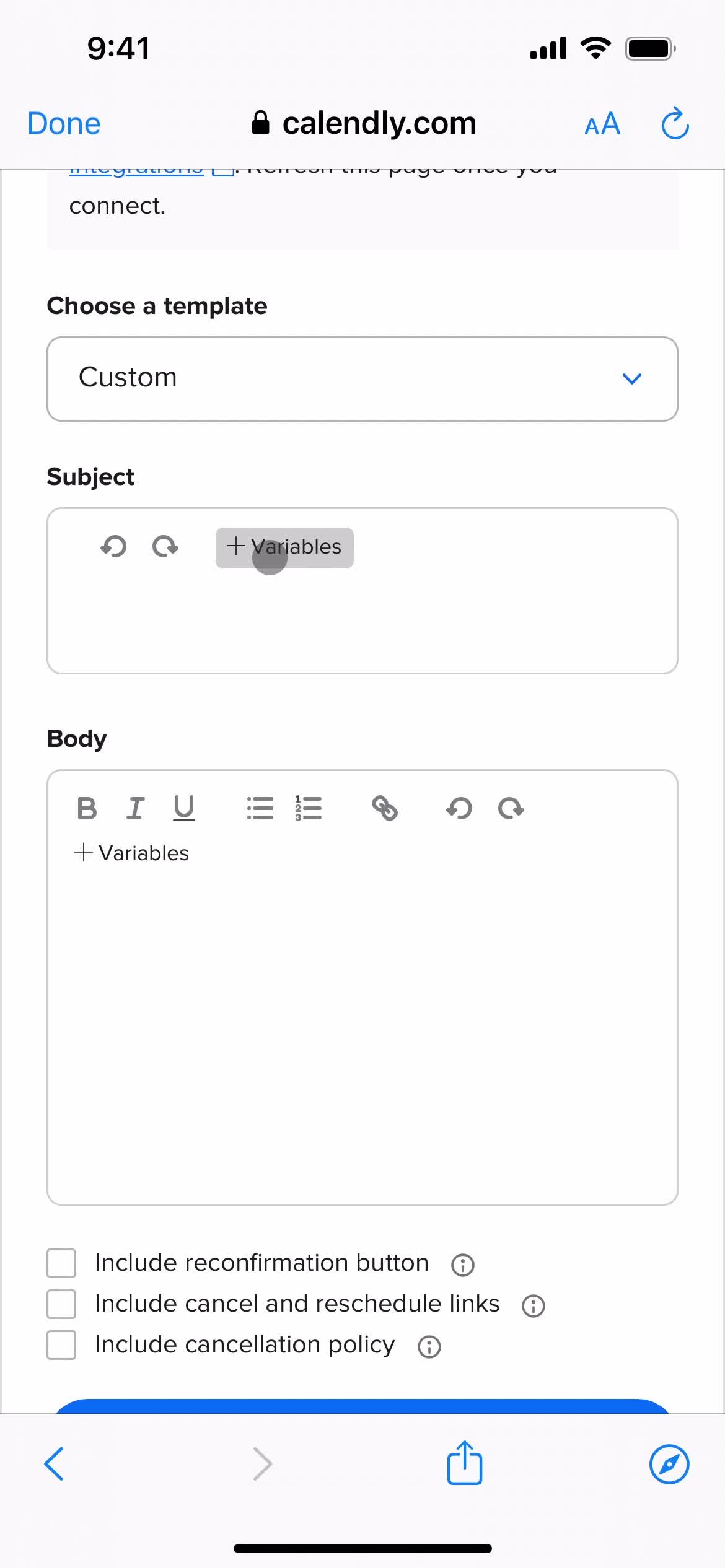
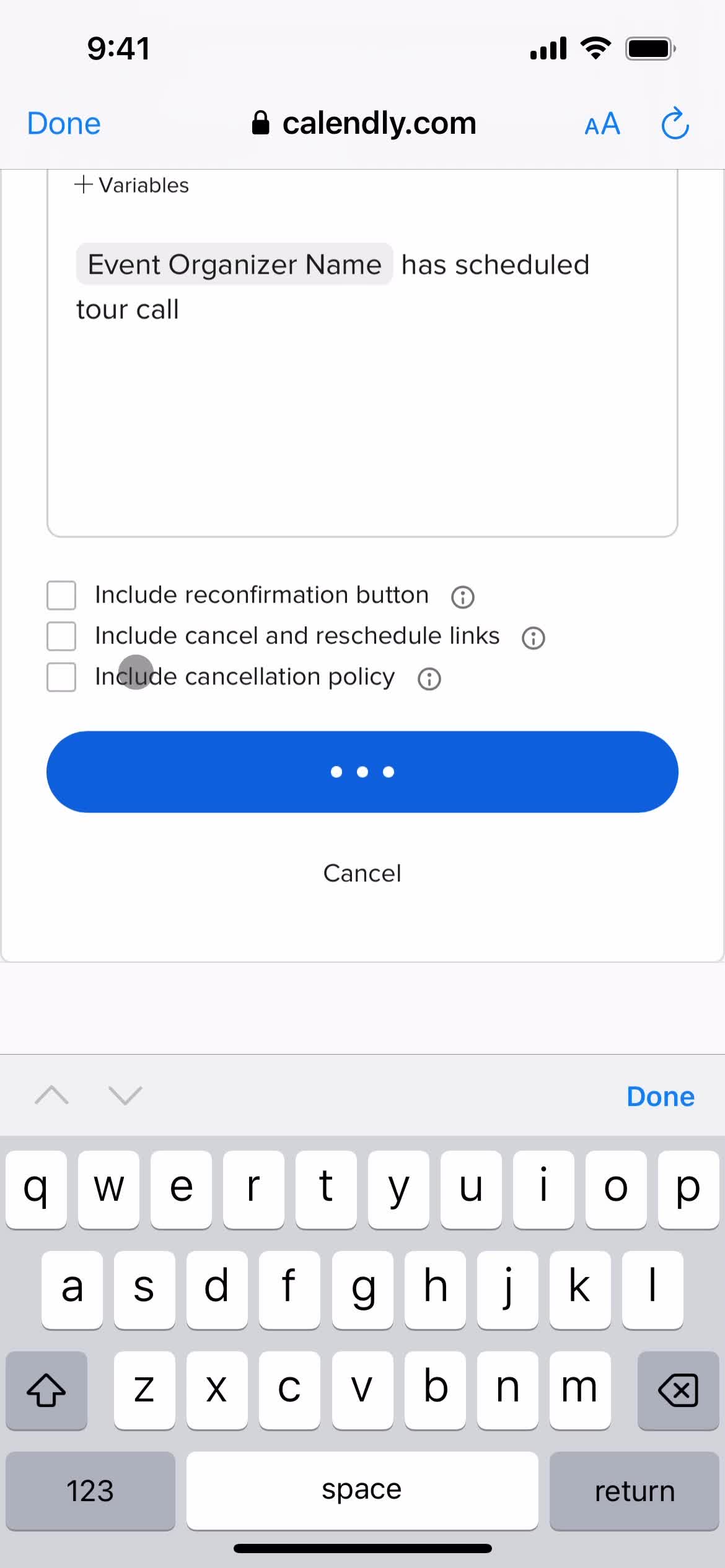
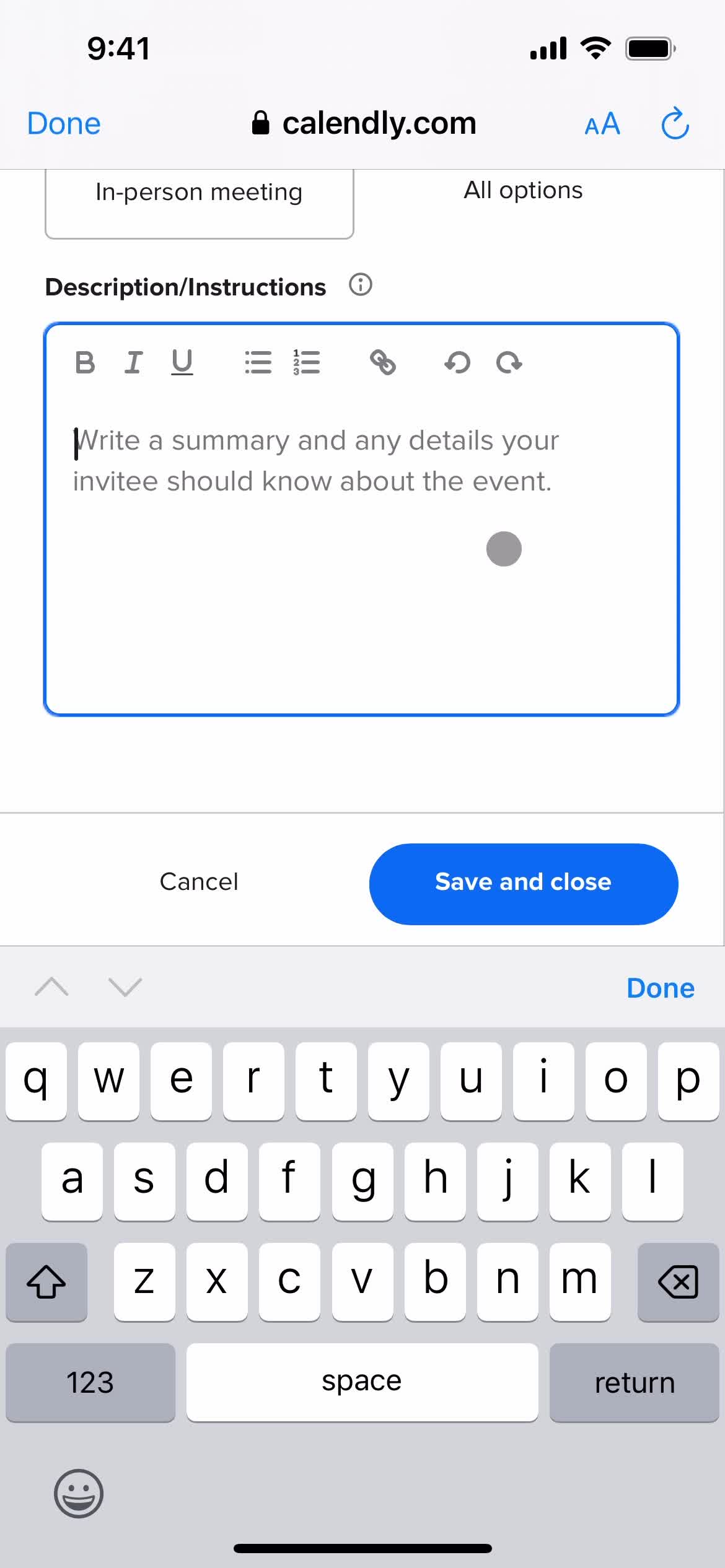
Add description
this is title
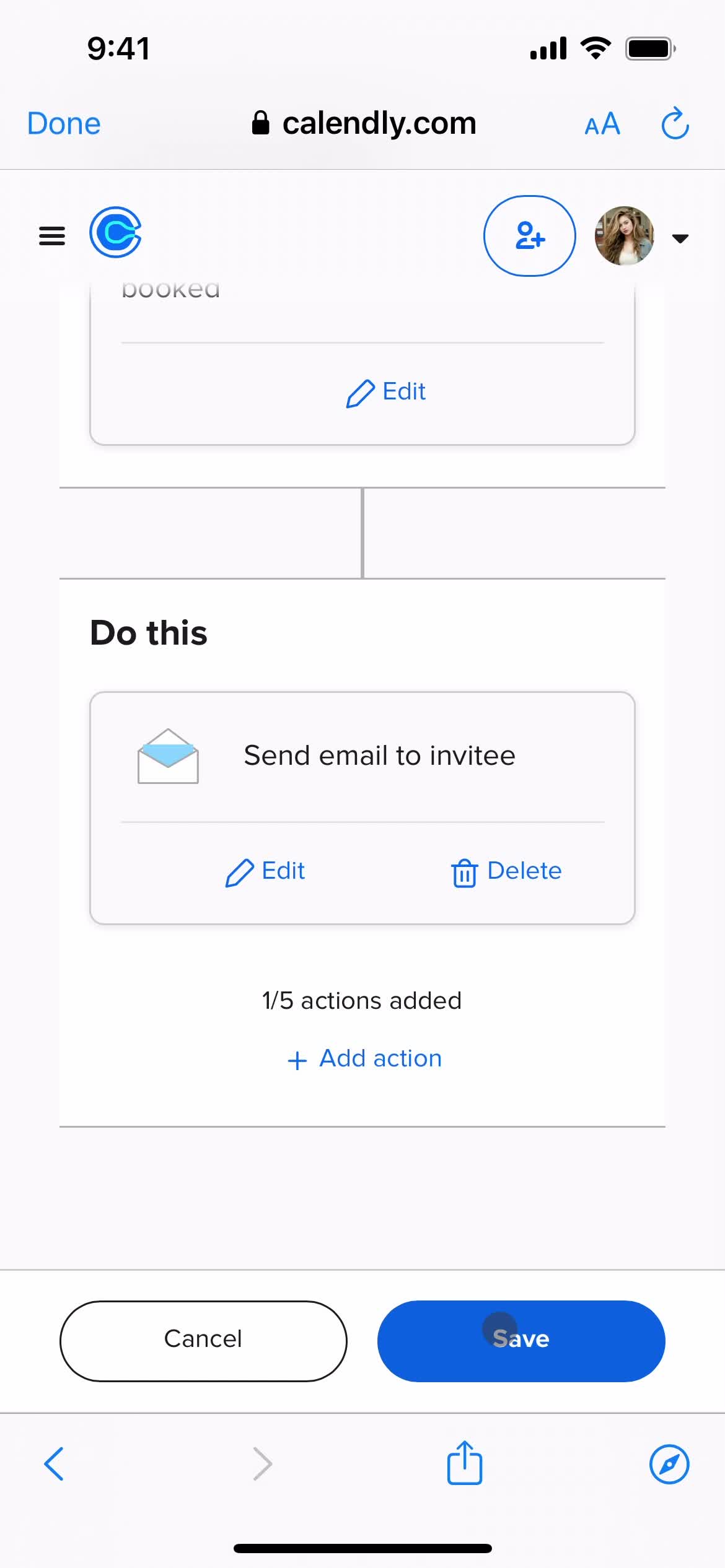
Save
this is title
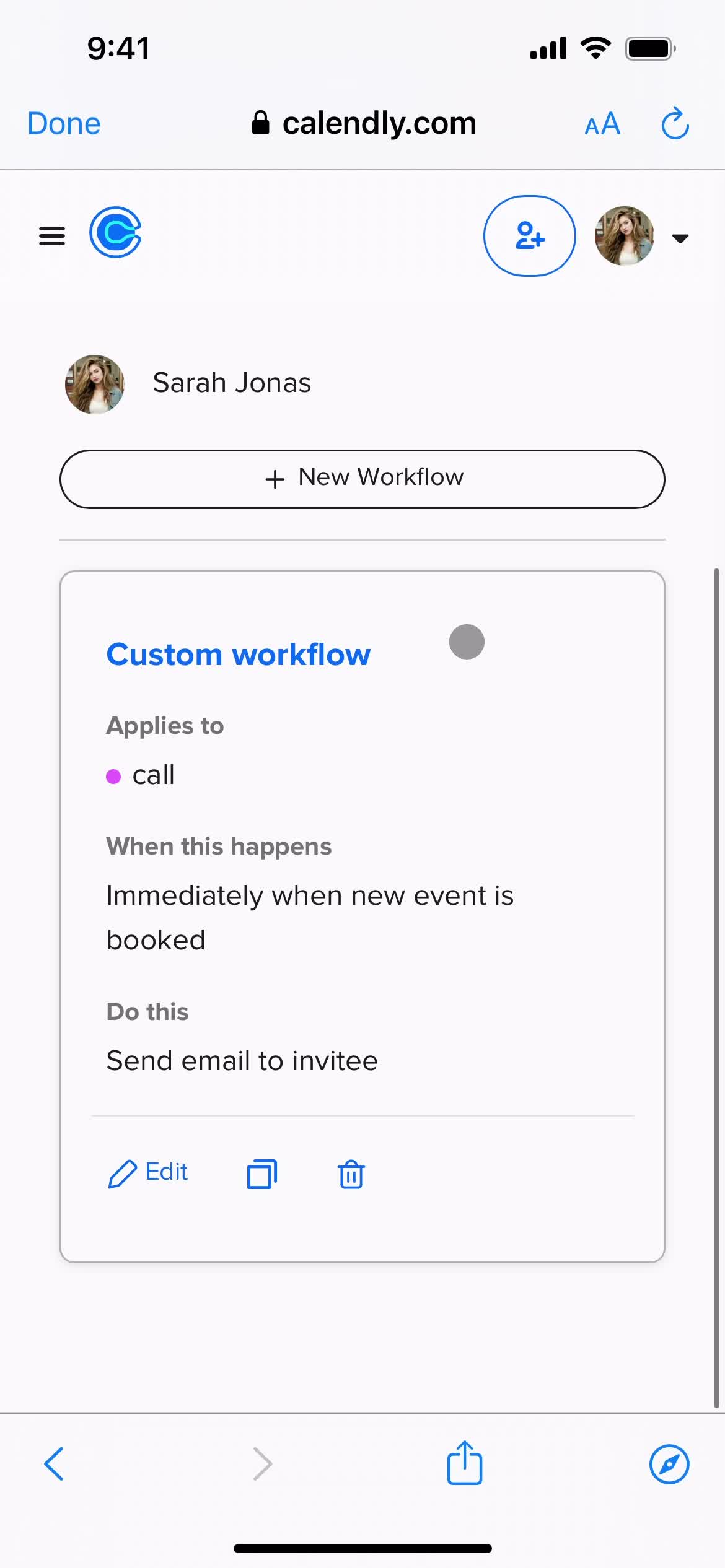
Workflow created
this is title
this is title
Home
this is title
Homepage
this is title
Navigation menu
this is title
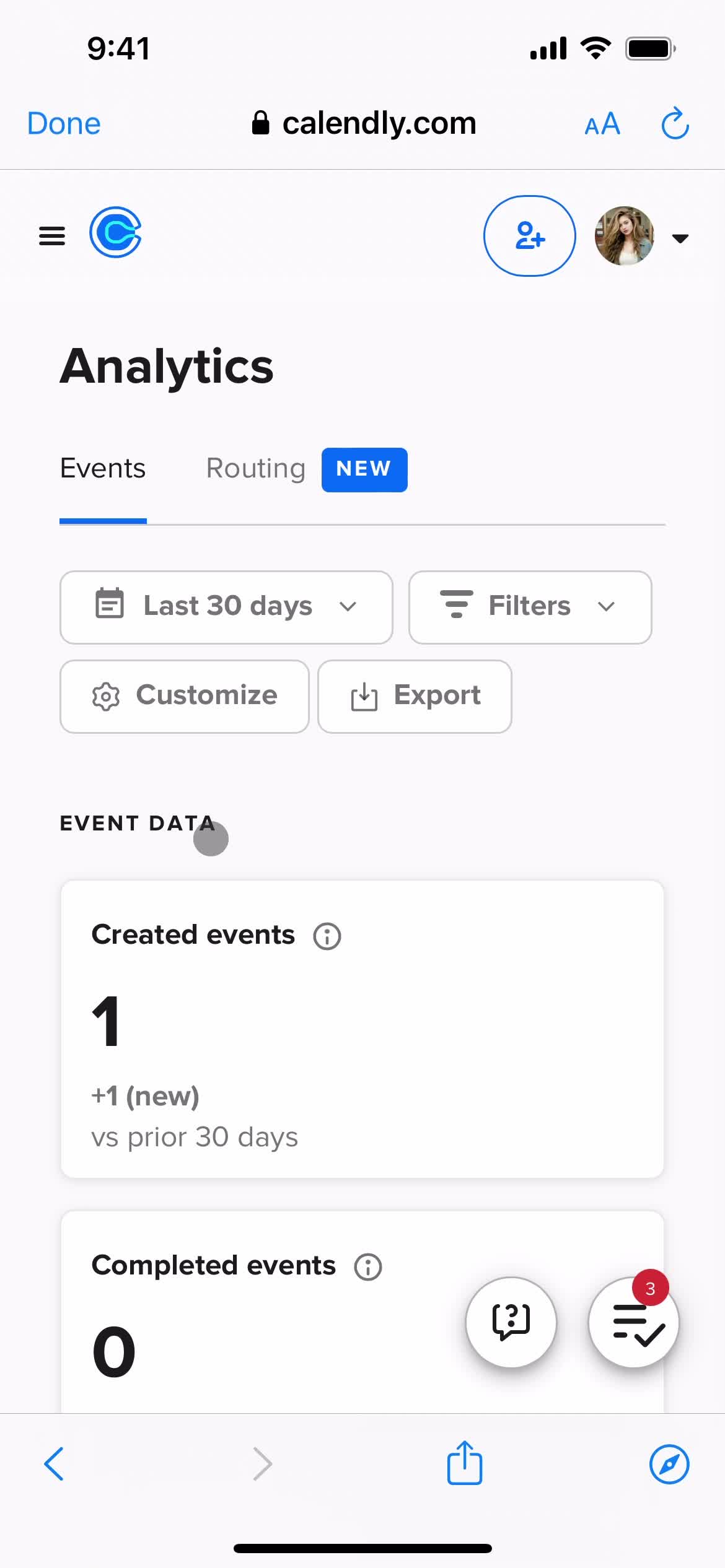
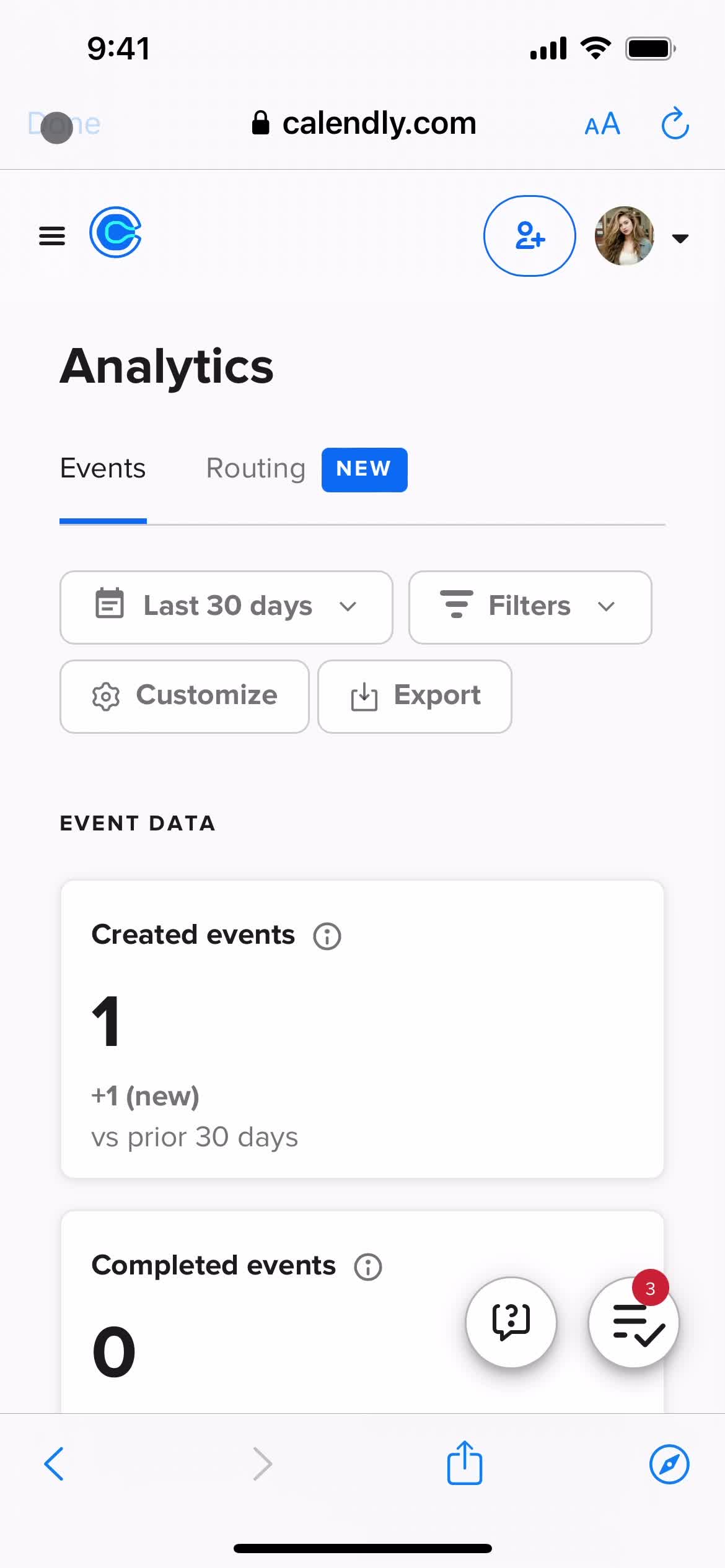
Analytics
this is title
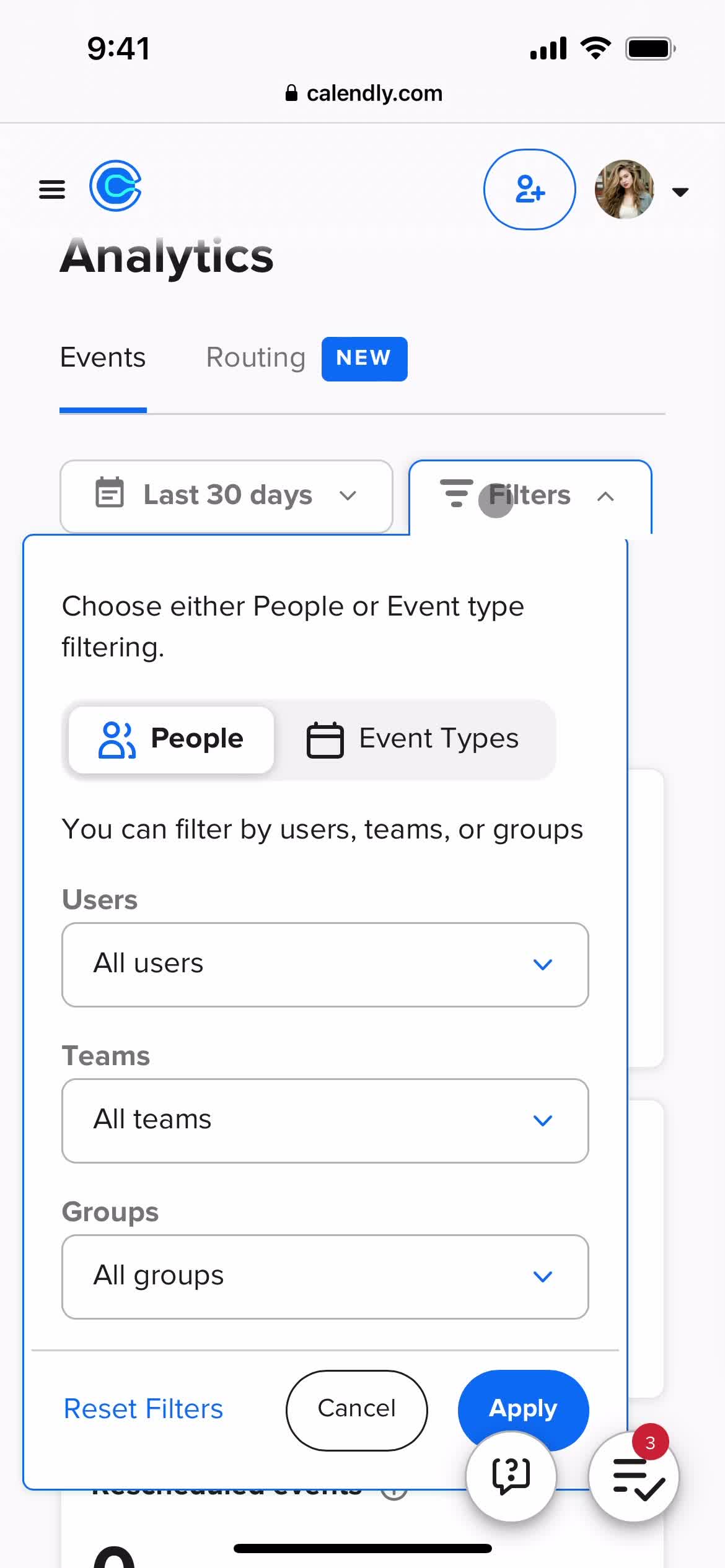
Filter
this is title
Filters
this is title
this is title
this is title
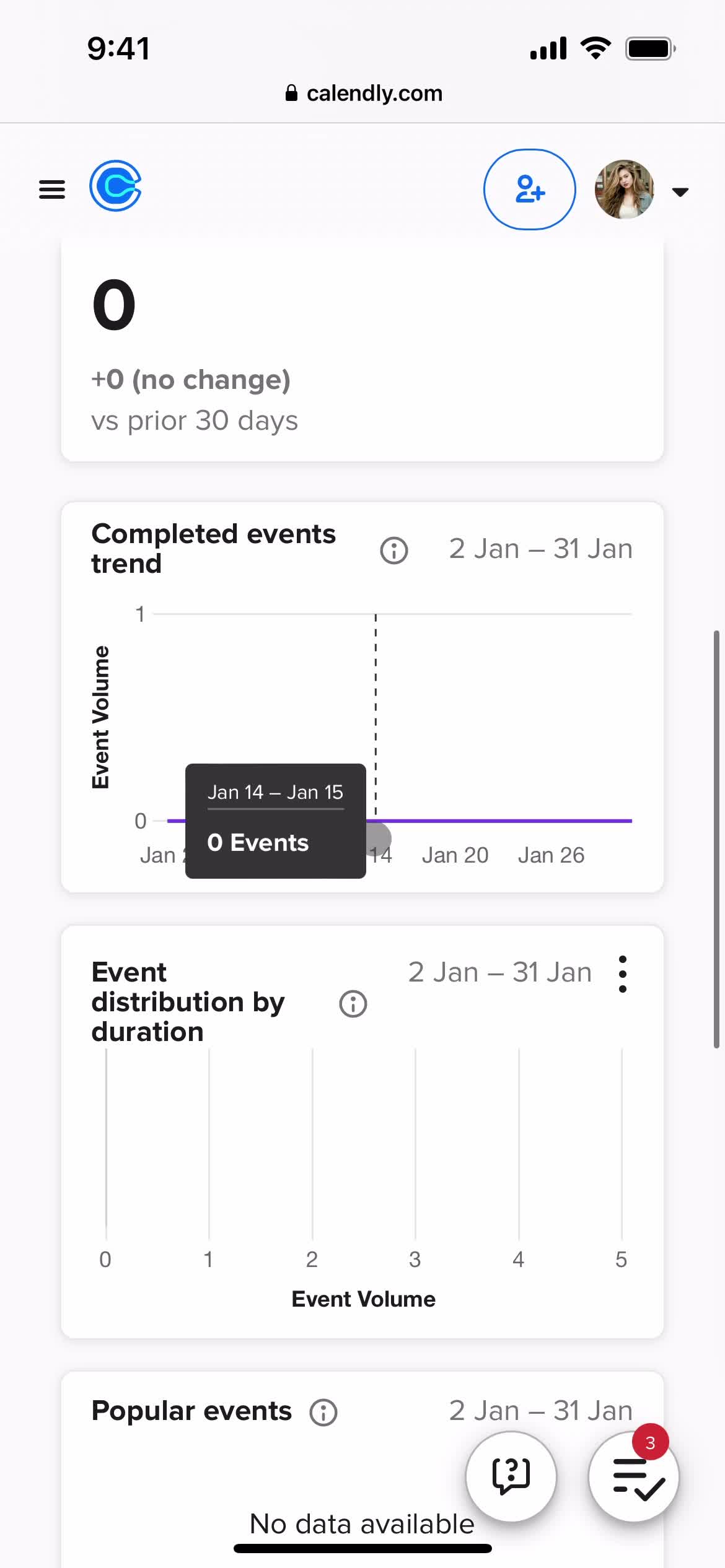
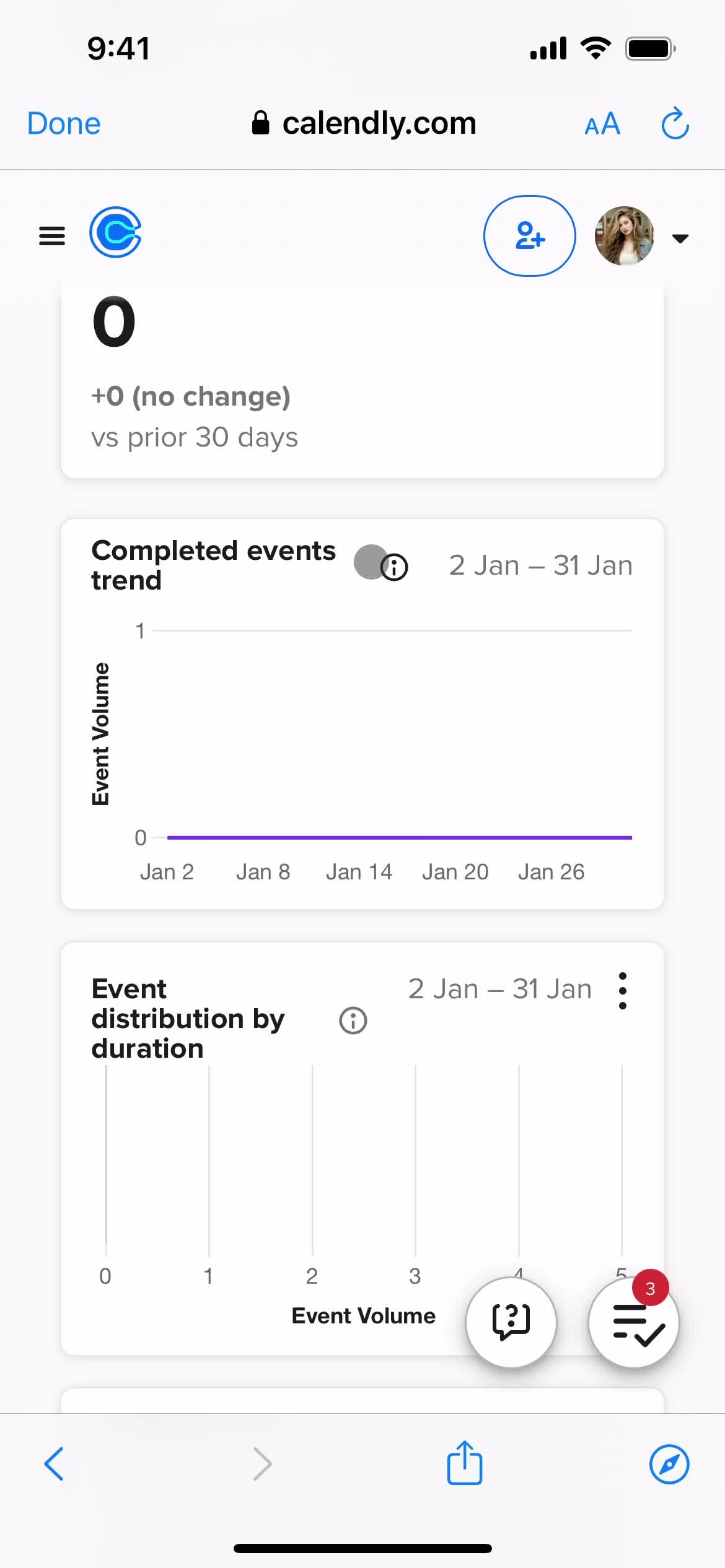
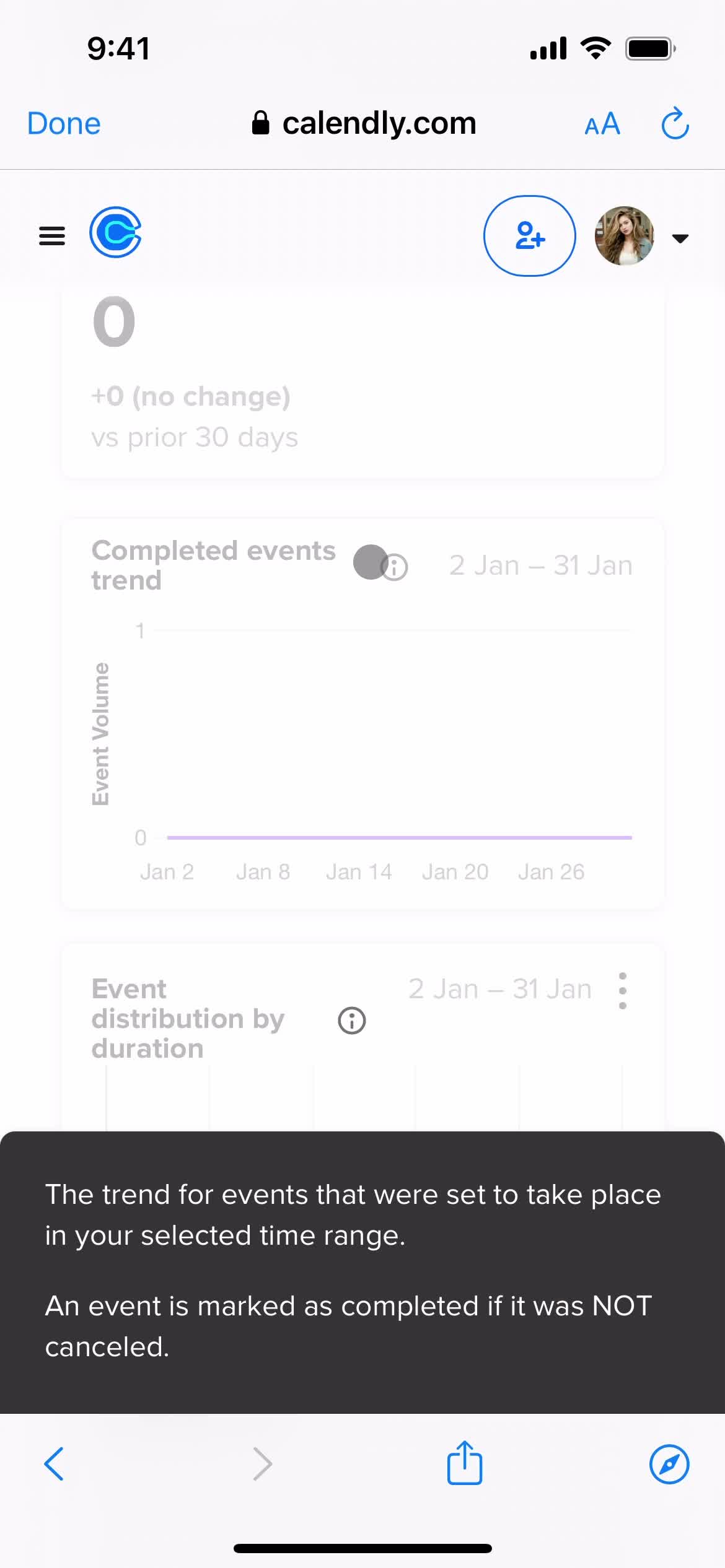
Events trend
this is title
More information
this is title
this is title
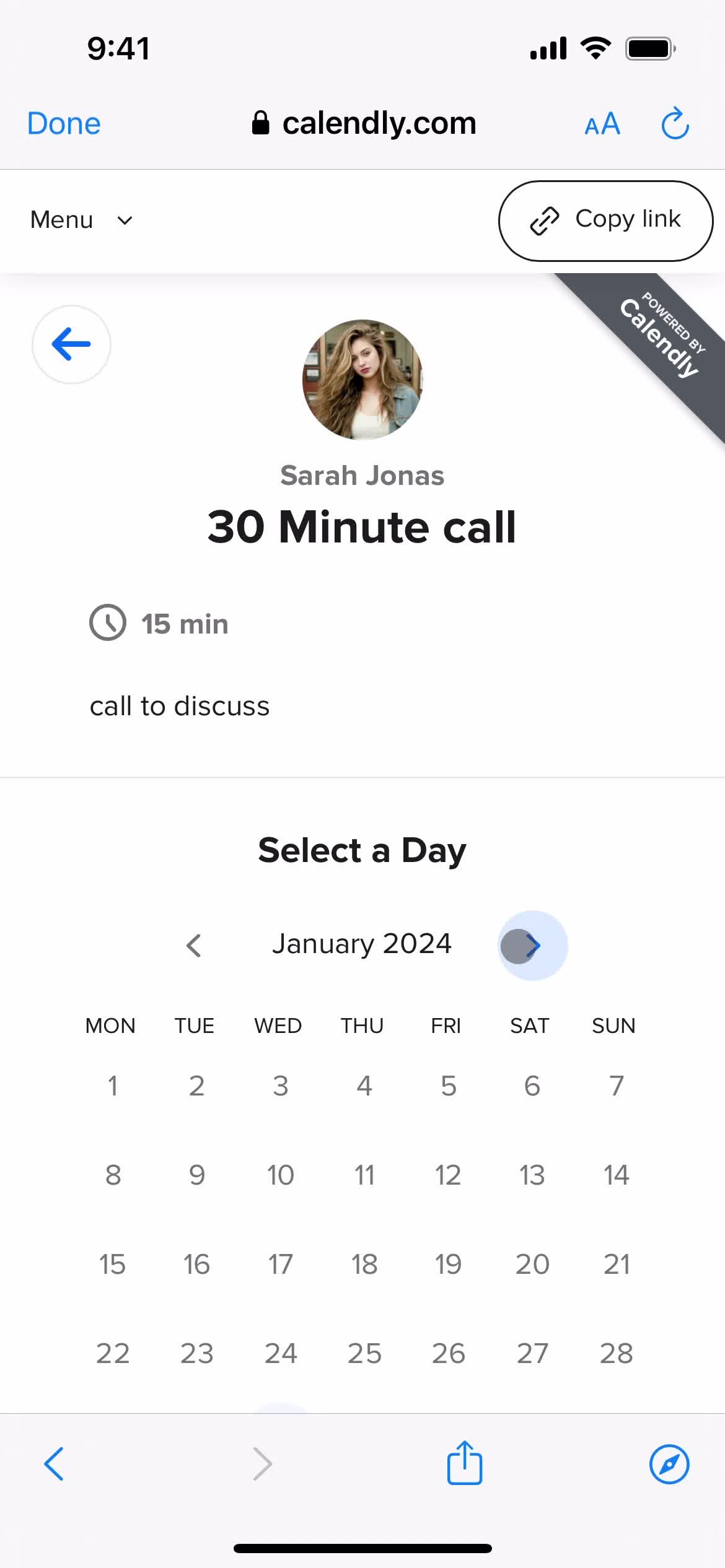
Home
this is title
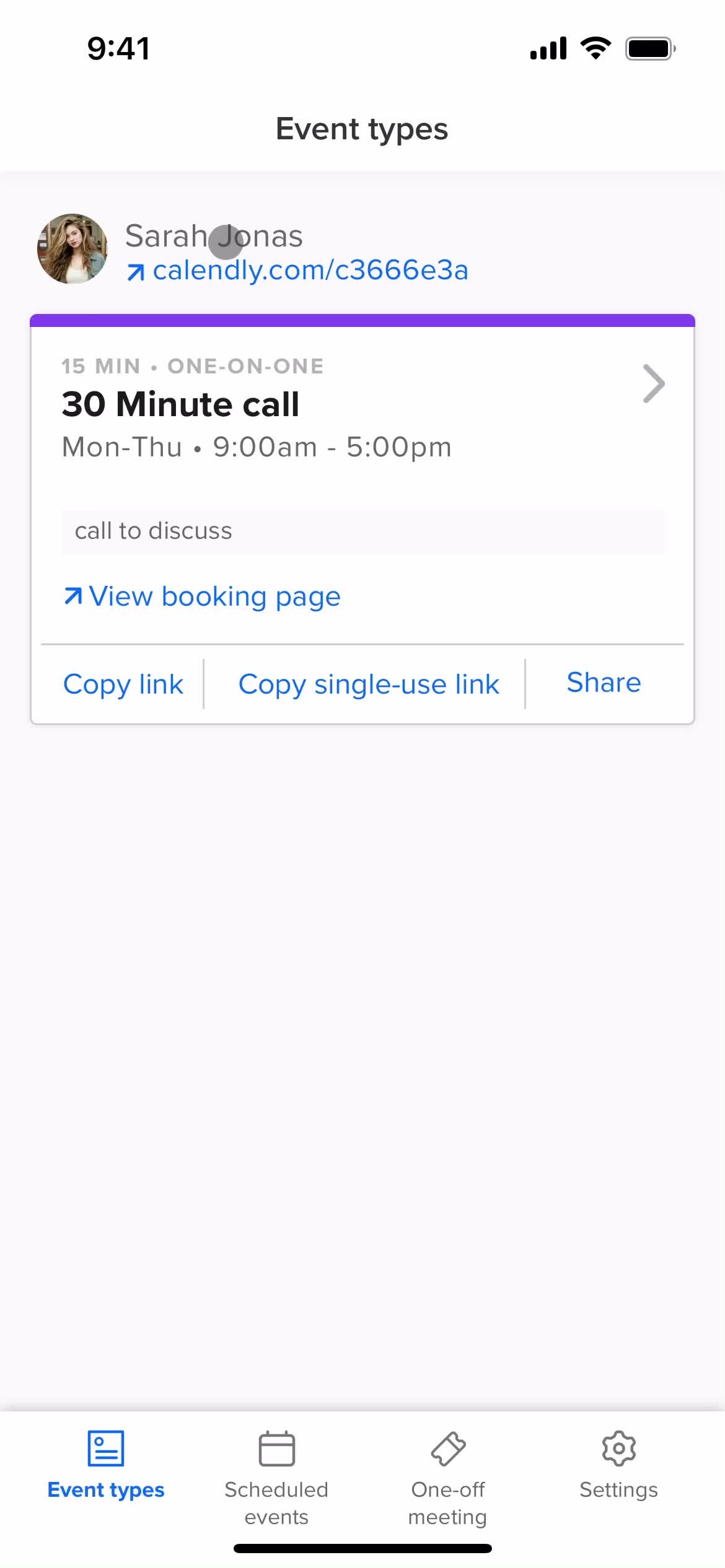
Select event
this is title
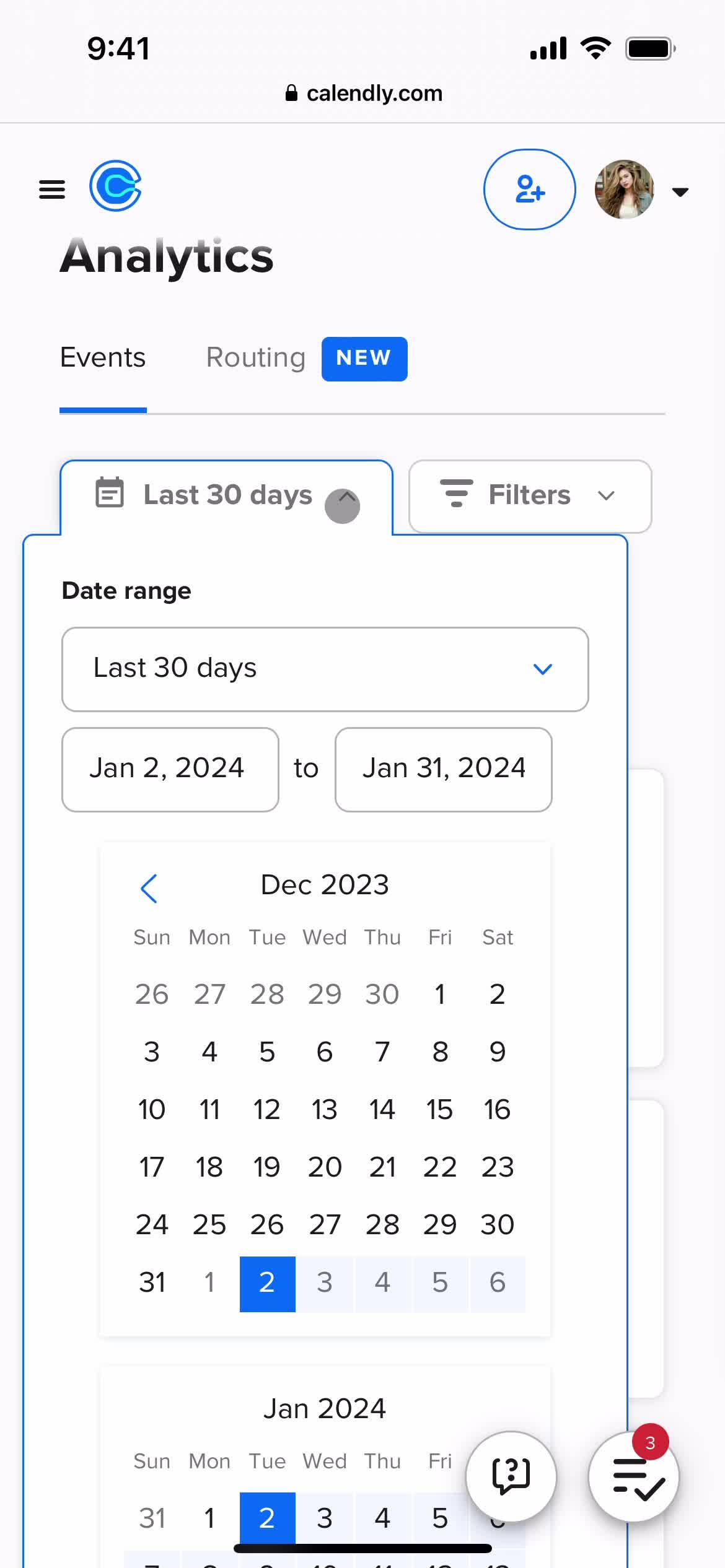
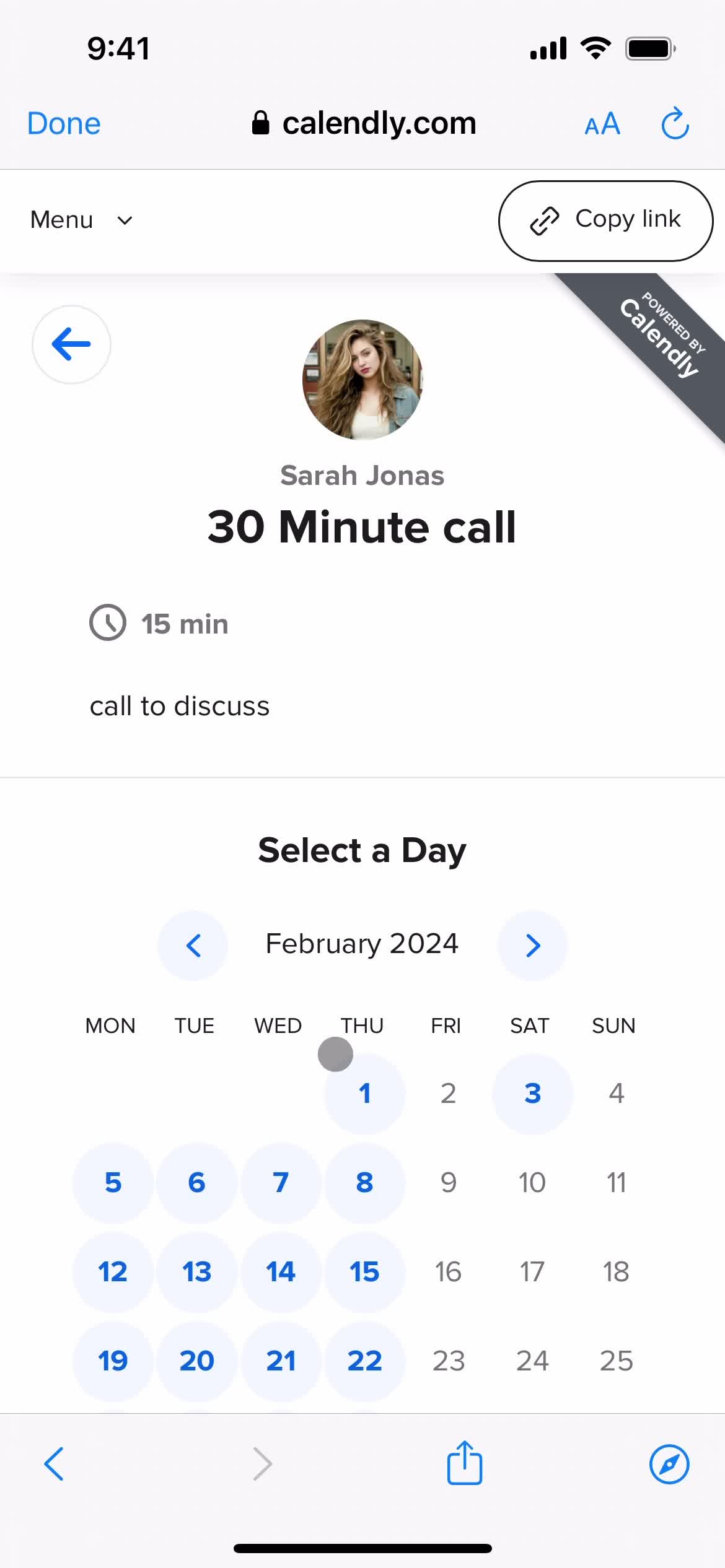
Select date
this is title
this is title
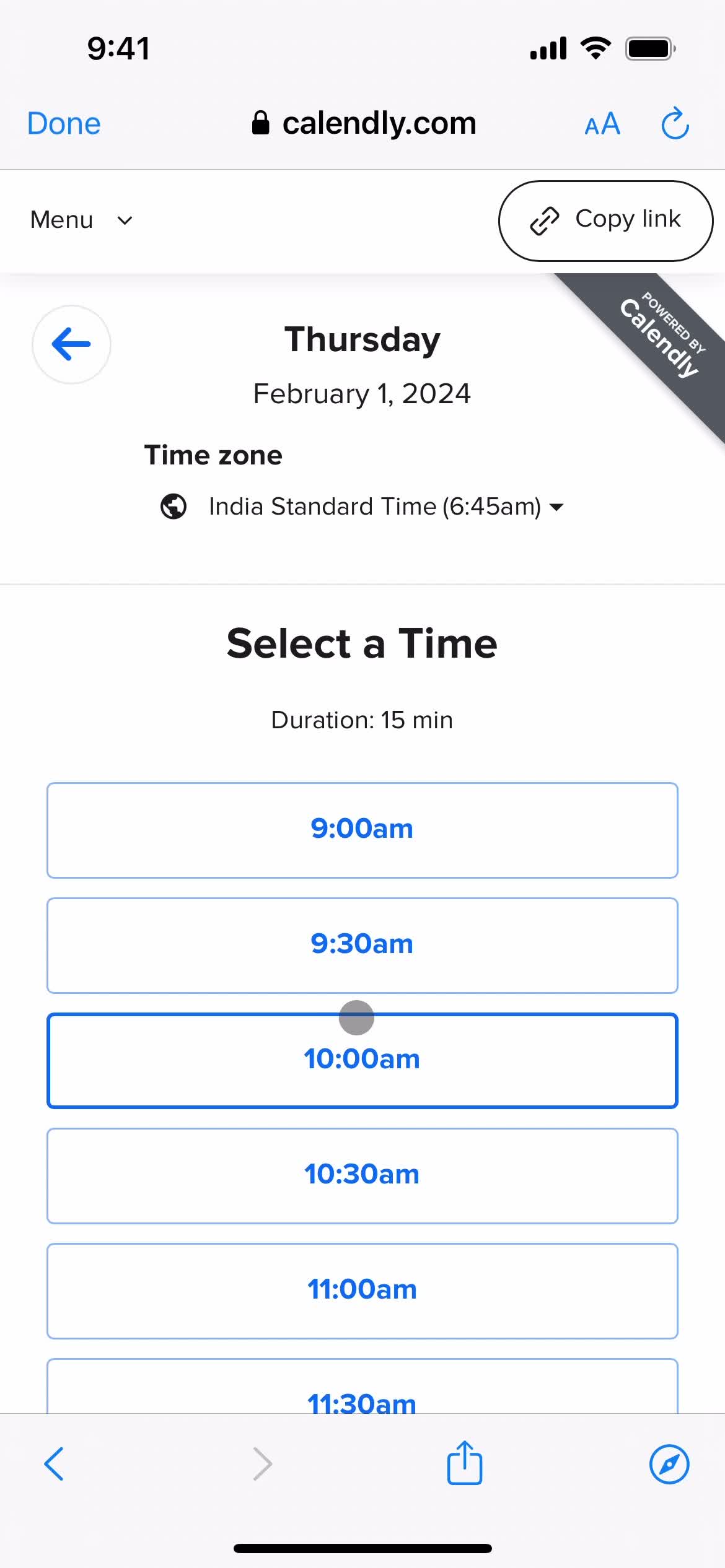
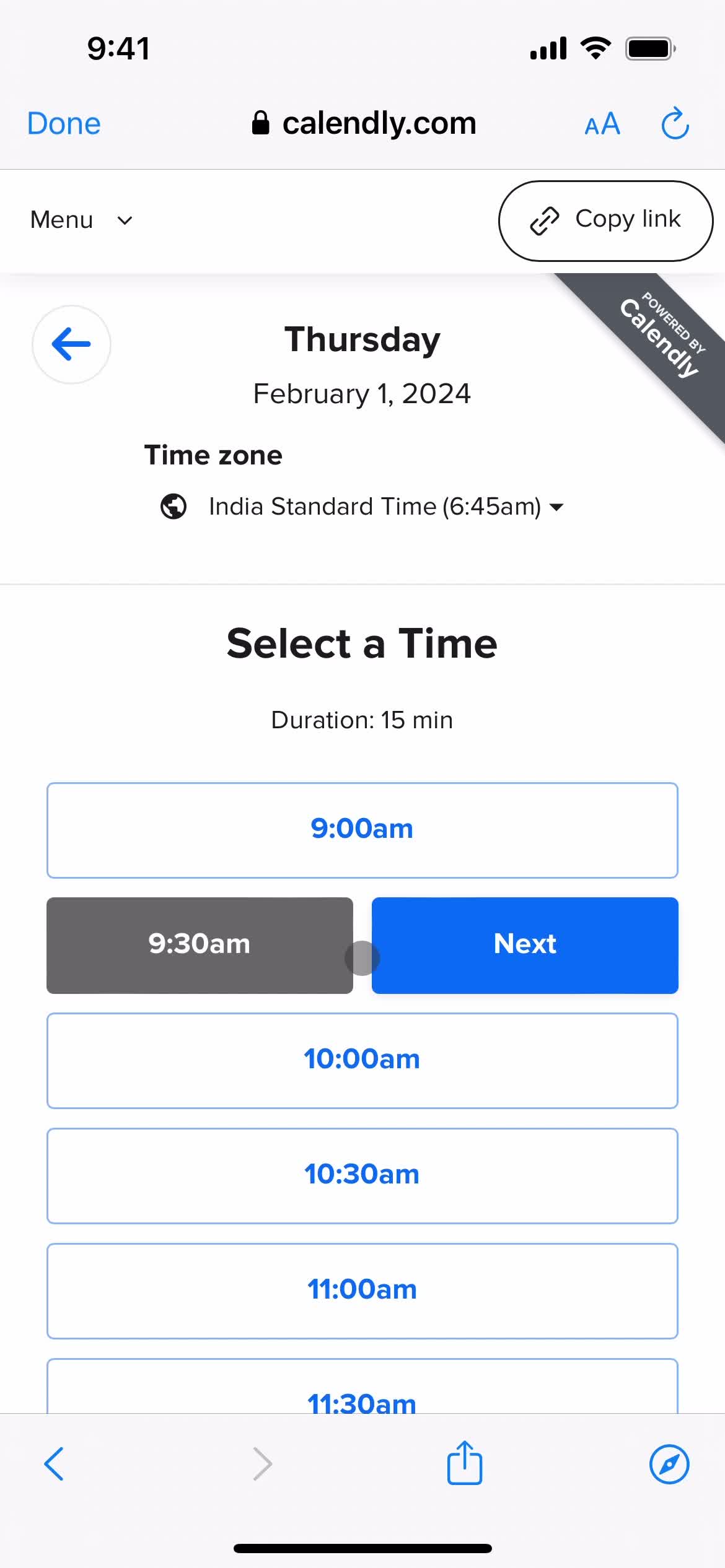
Select time
this is title
this is title
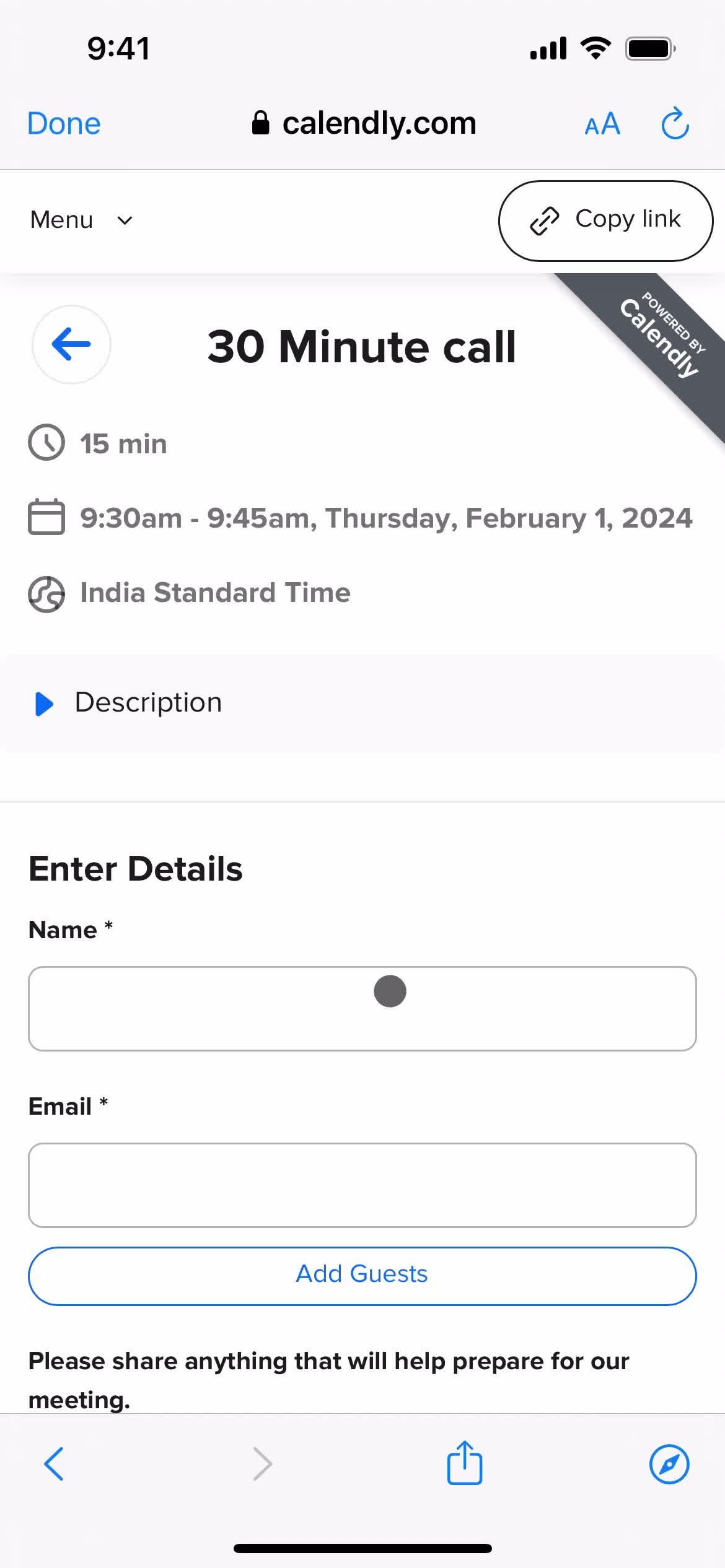
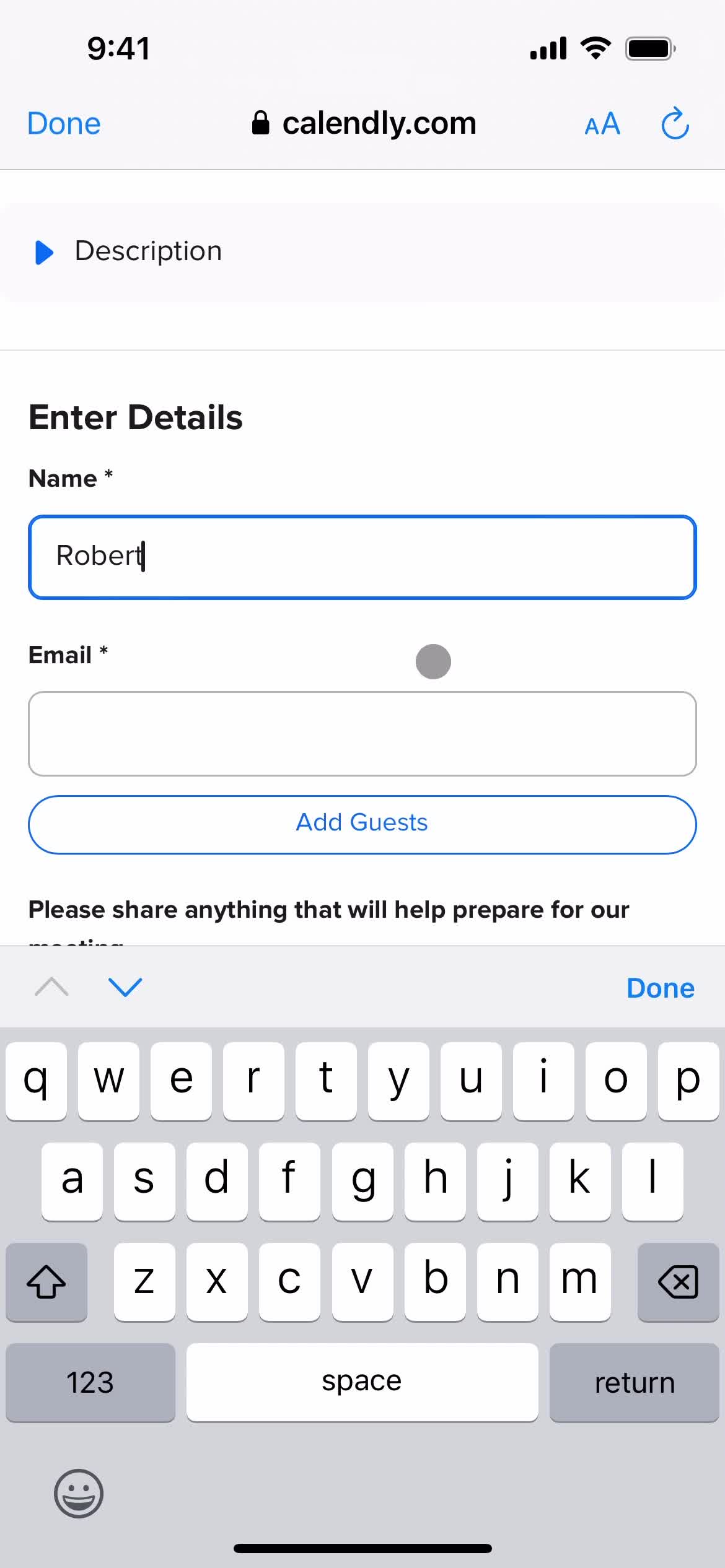
Enter name
this is title
this is title
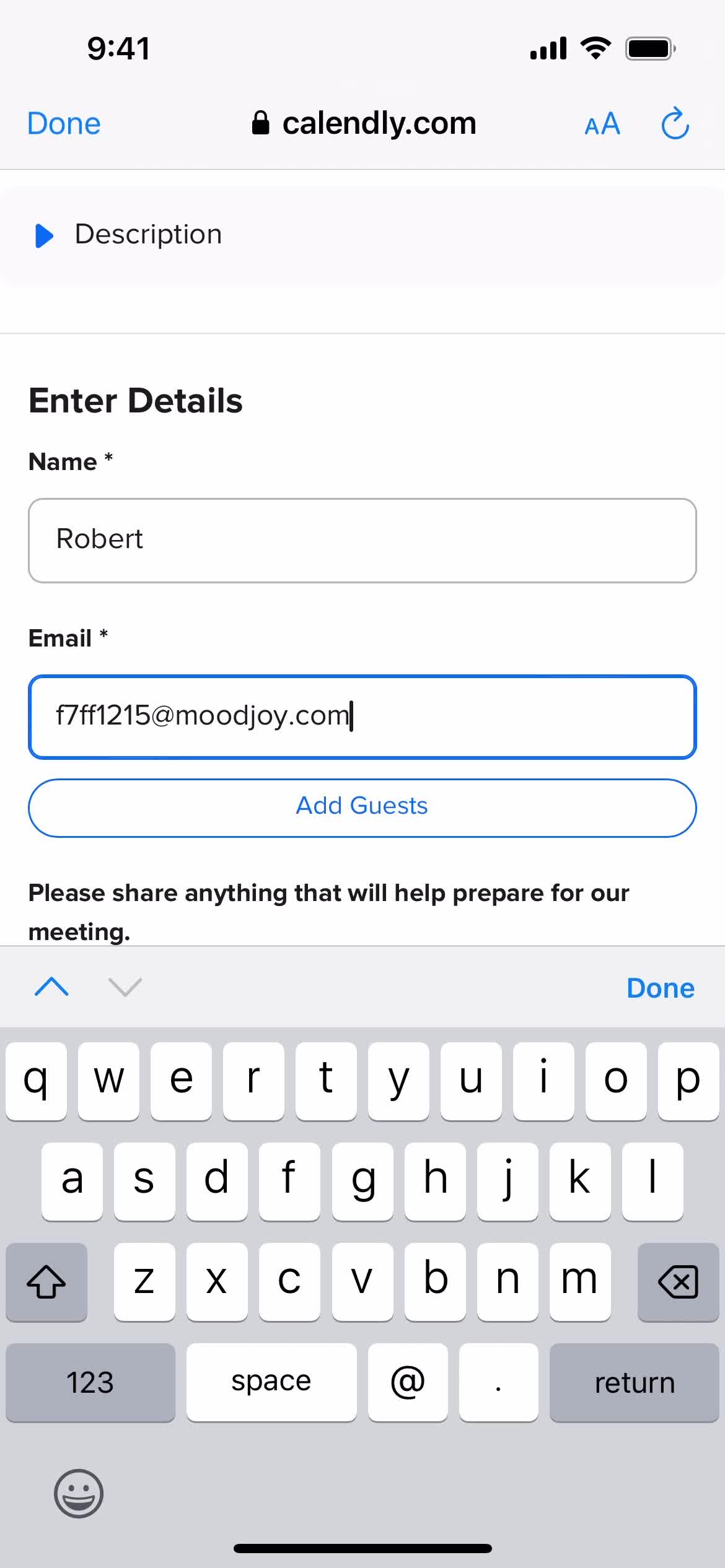
Enter email
this is title
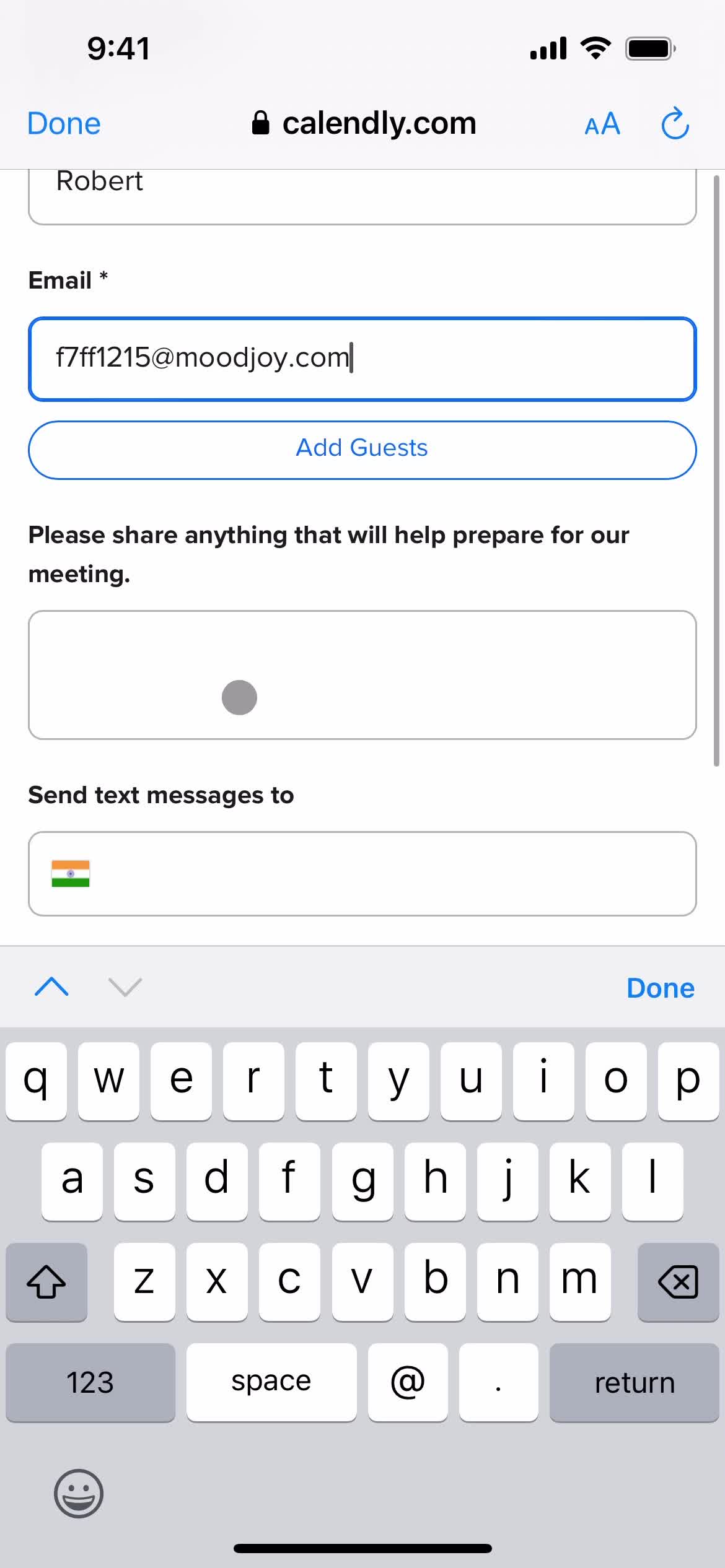
Add details
this is title
this is title
Set schedule
this is title
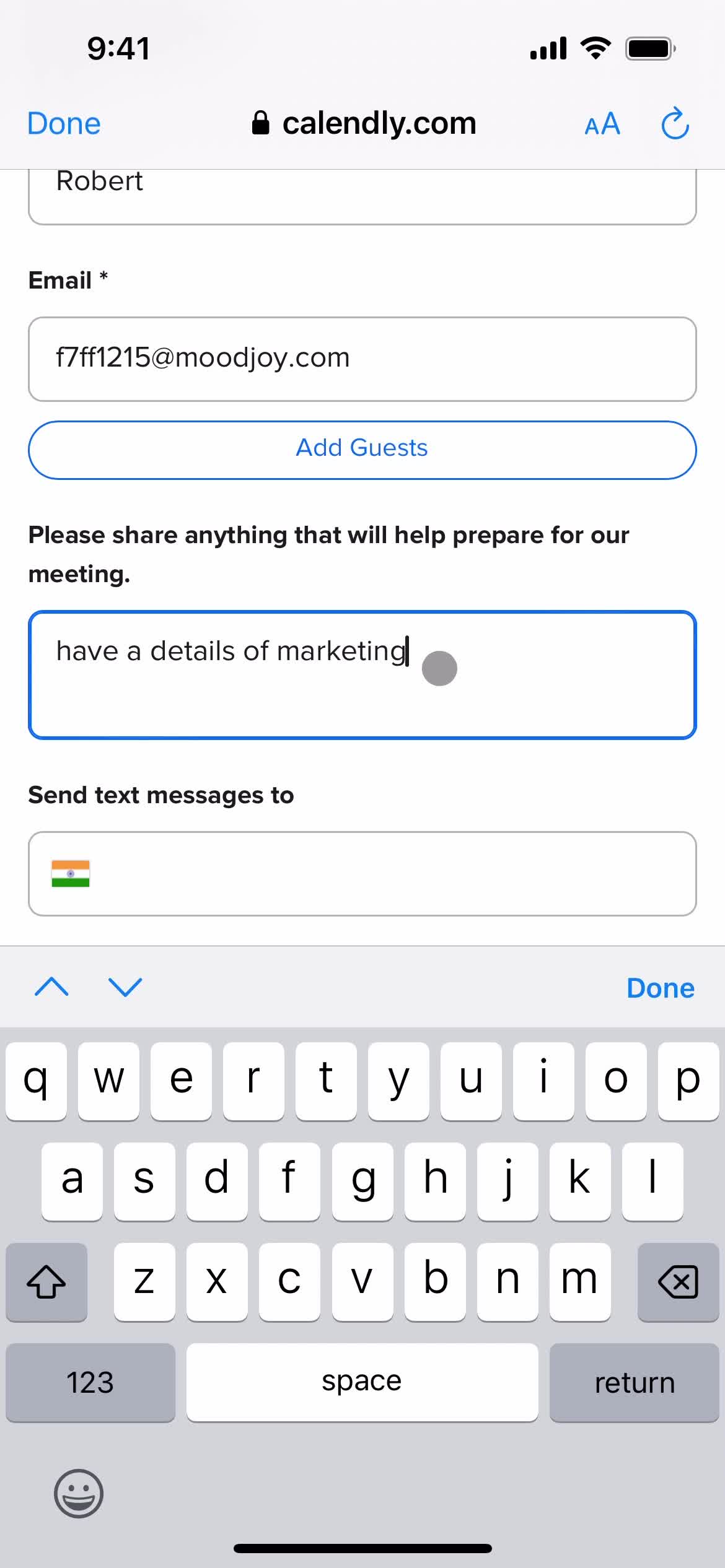
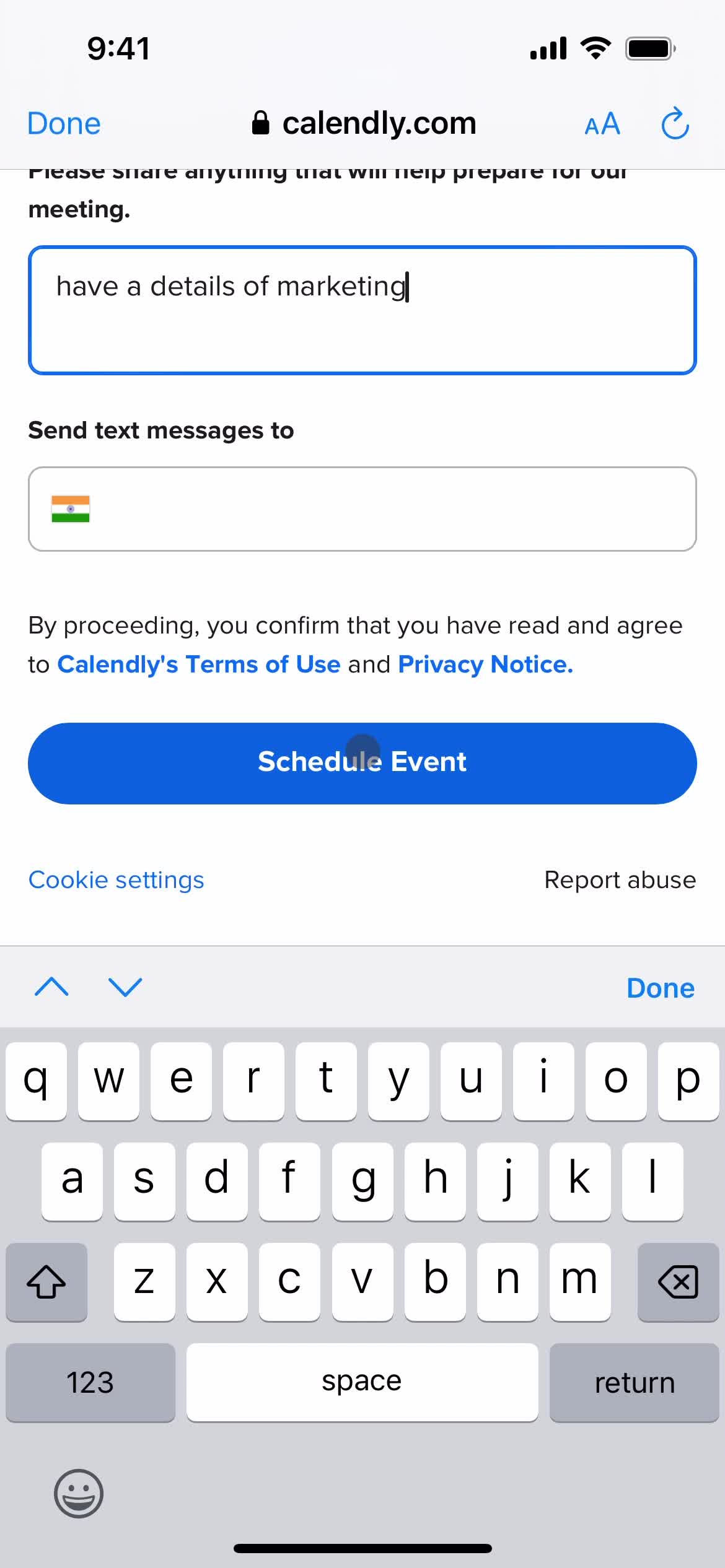
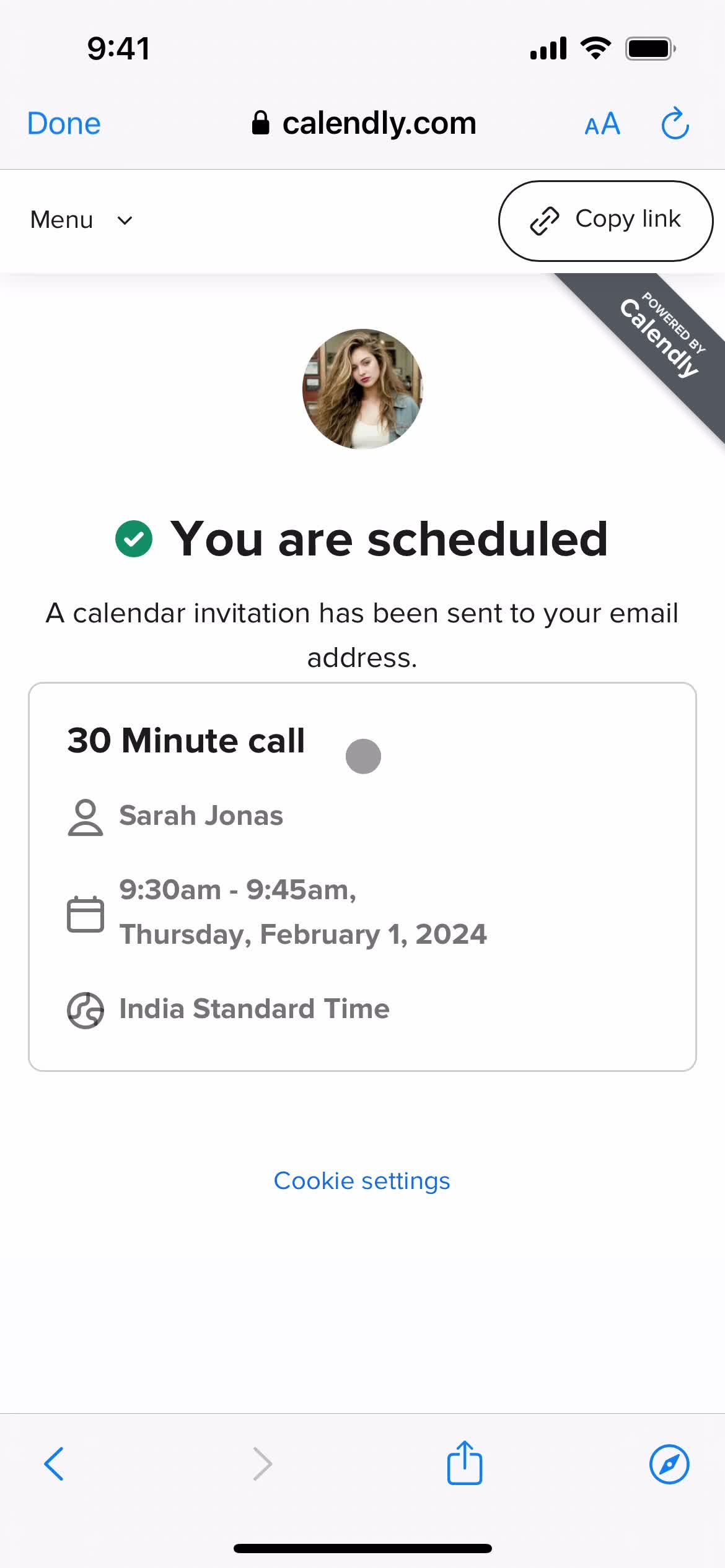
Meeting scheduled
this is title
Home
this is title
Homepage
this is title
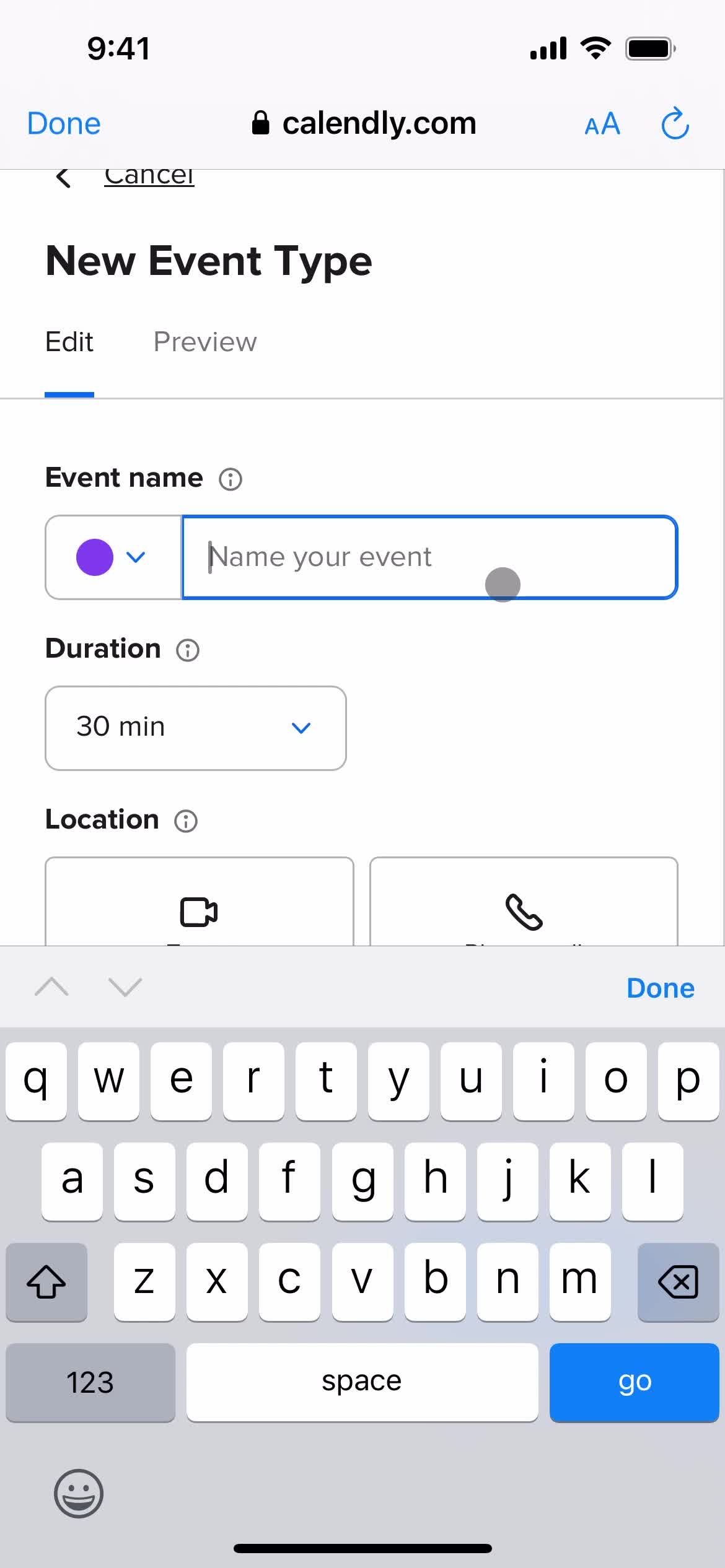
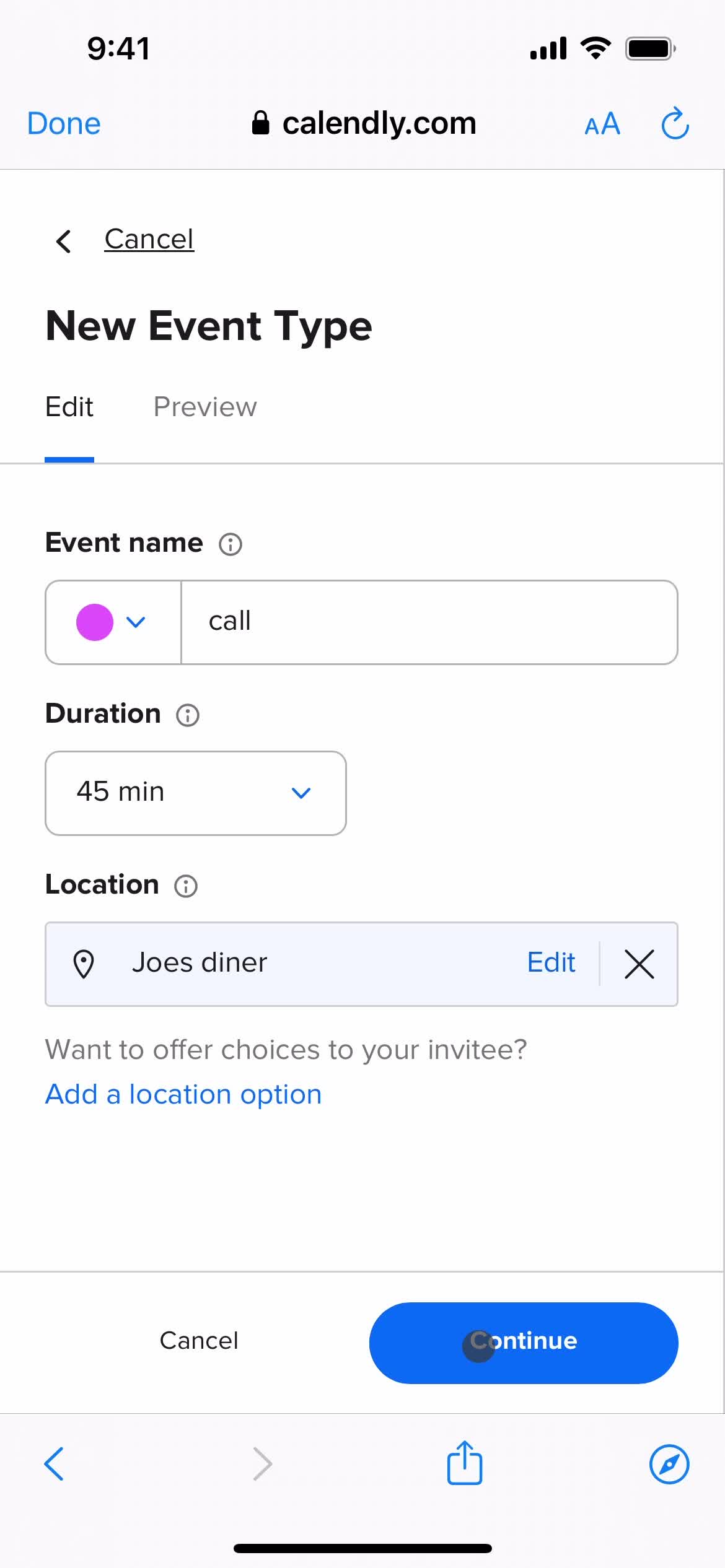
Create event type
this is title
this is title
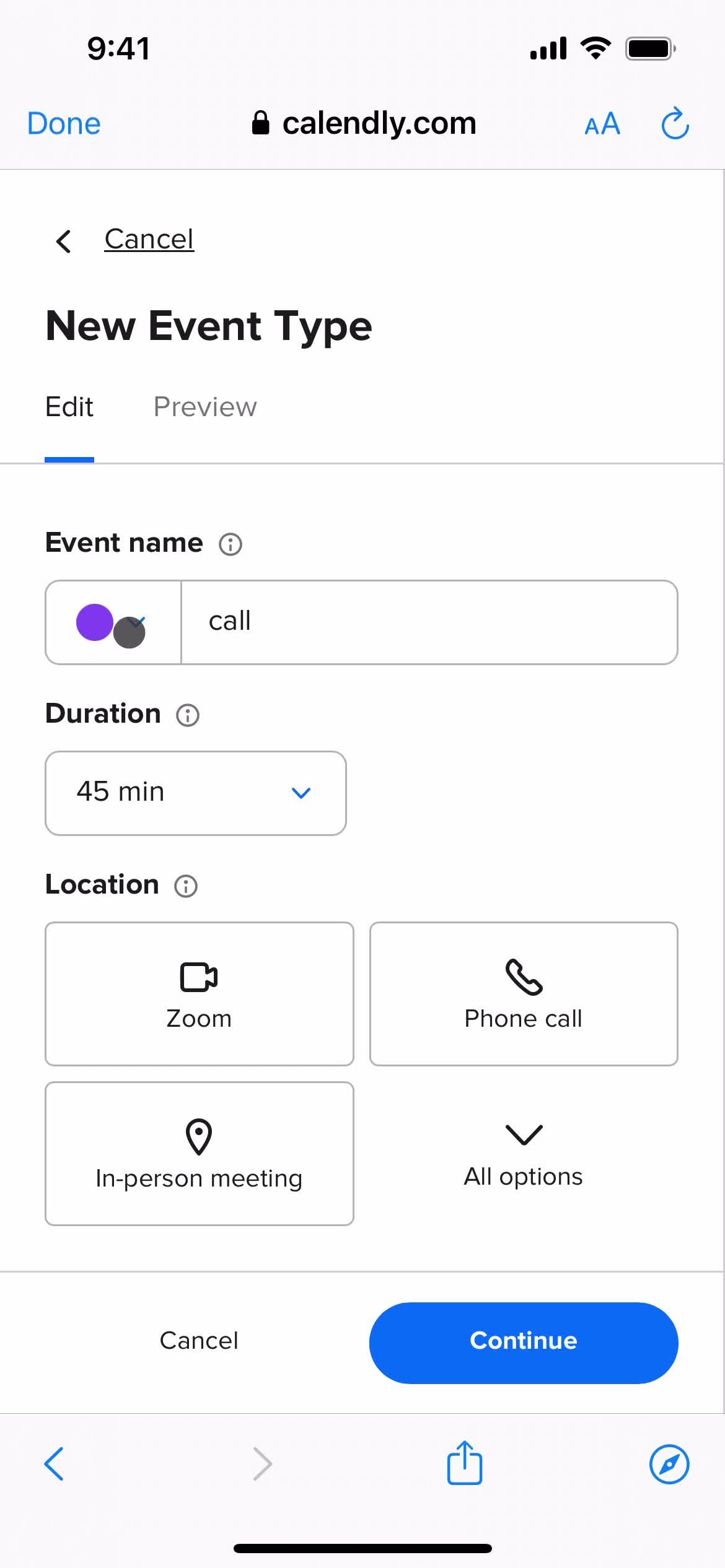
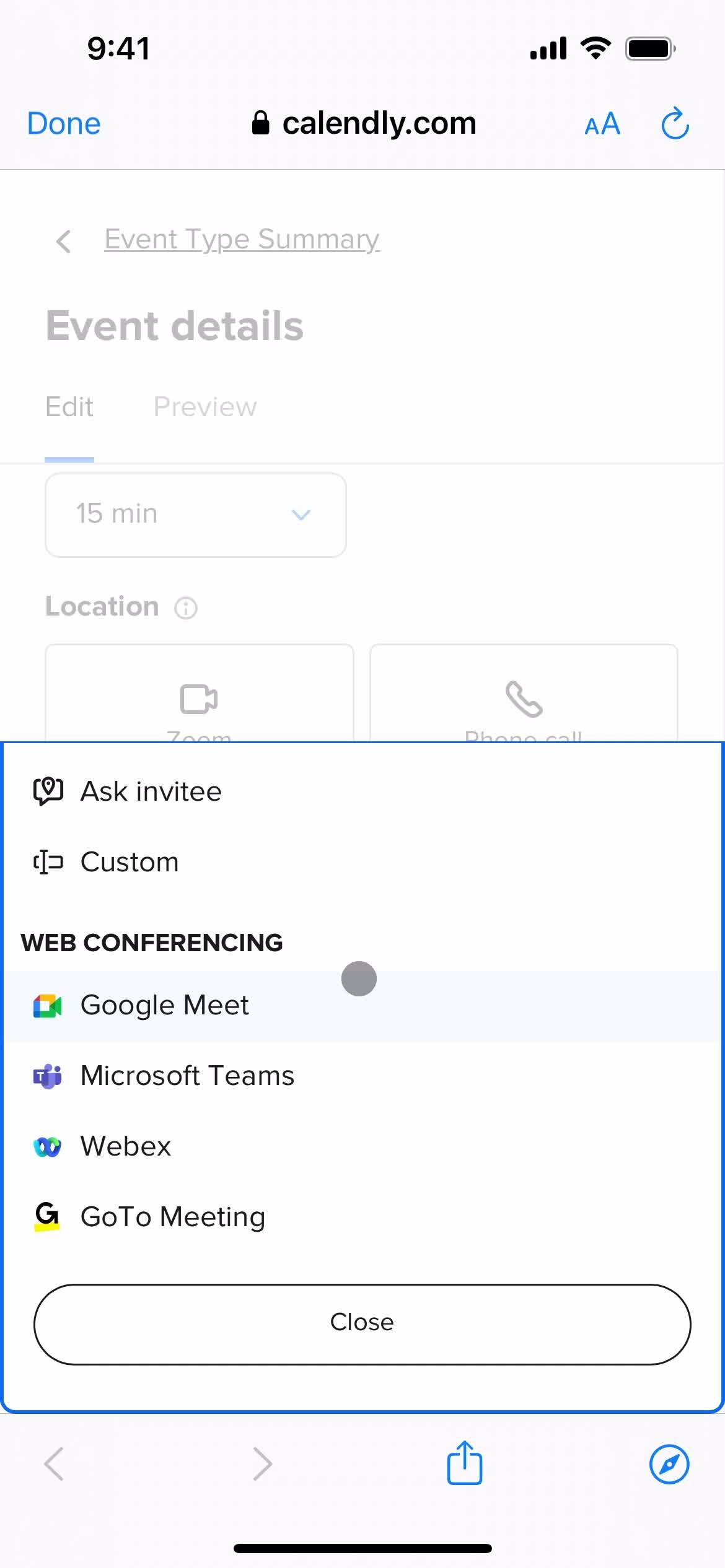
Add event details
this is title
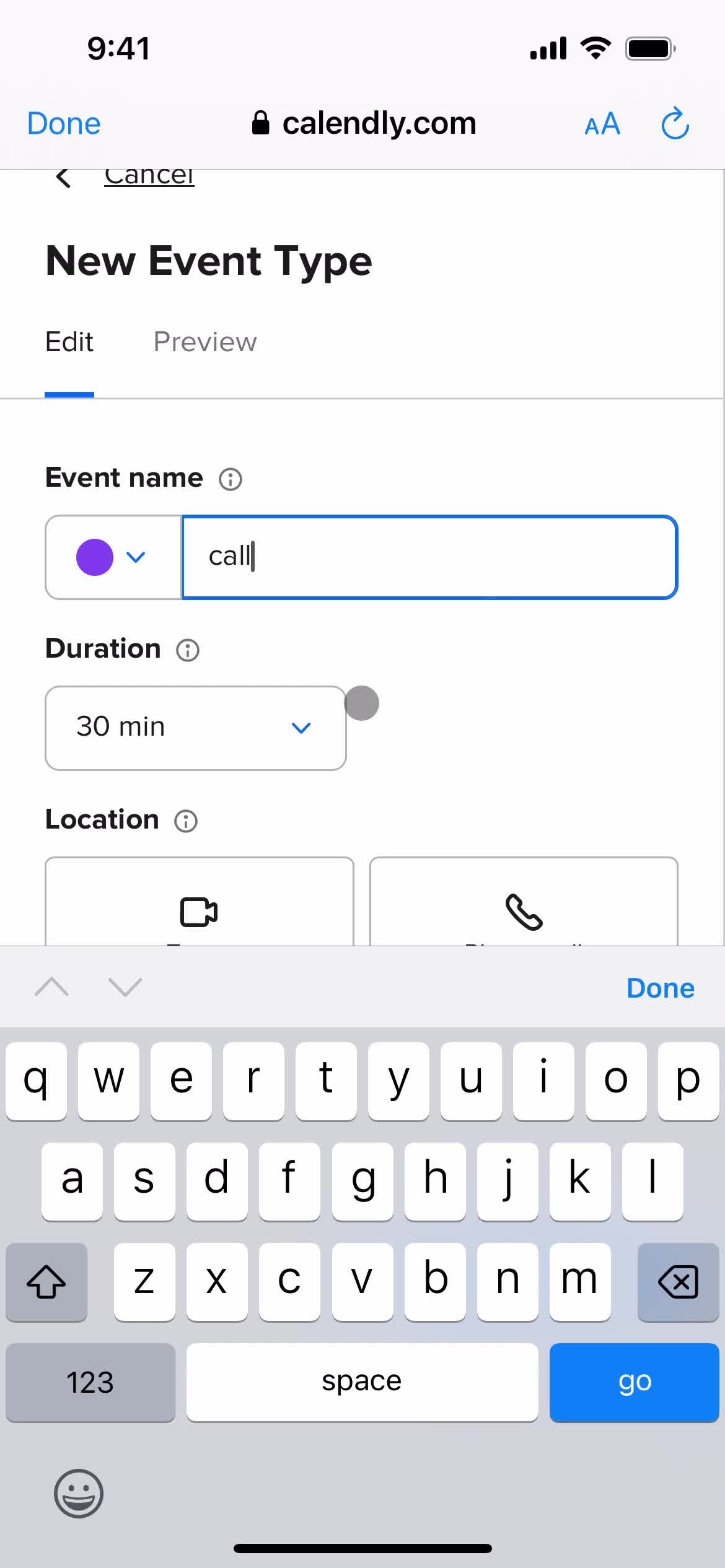
Event name
this is title
this is title
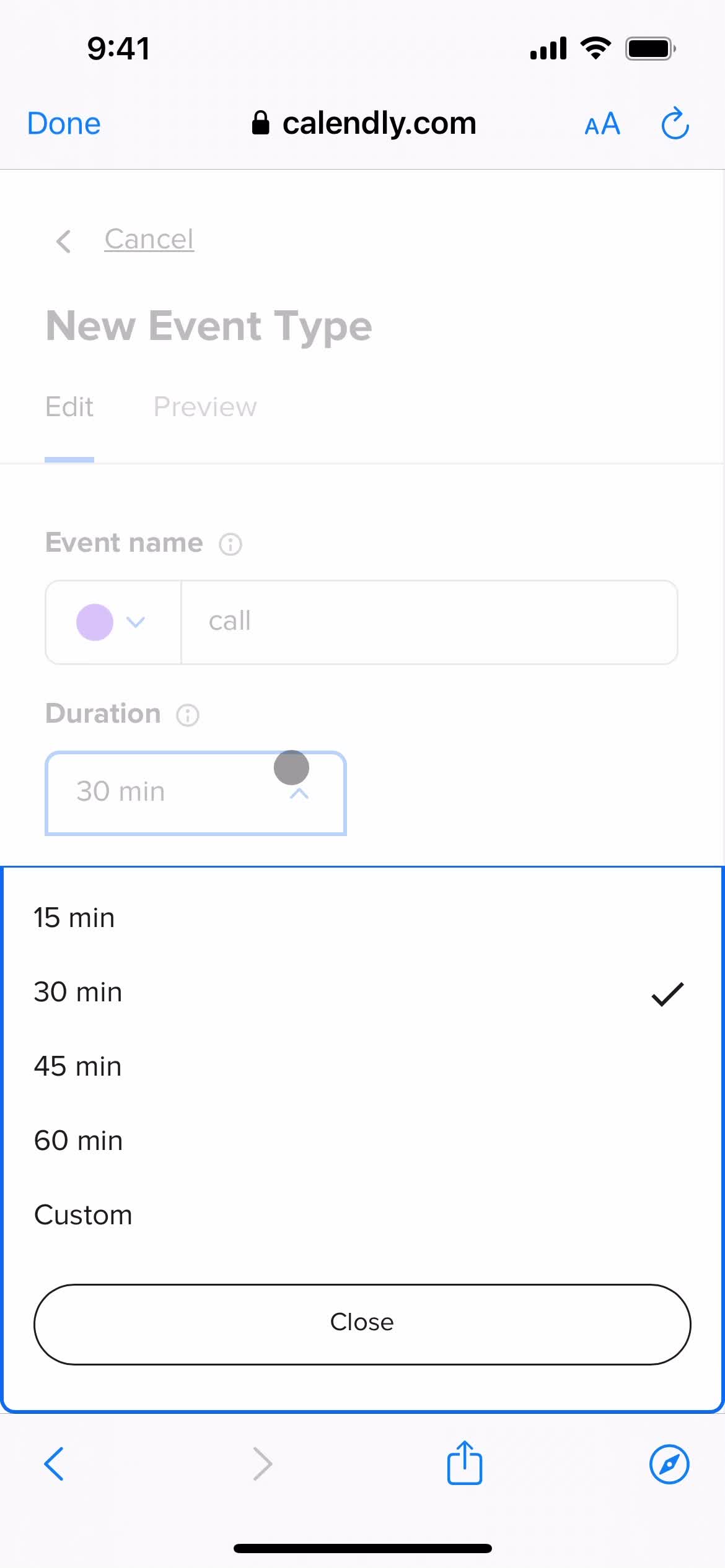
Set duration
this is title
this is title
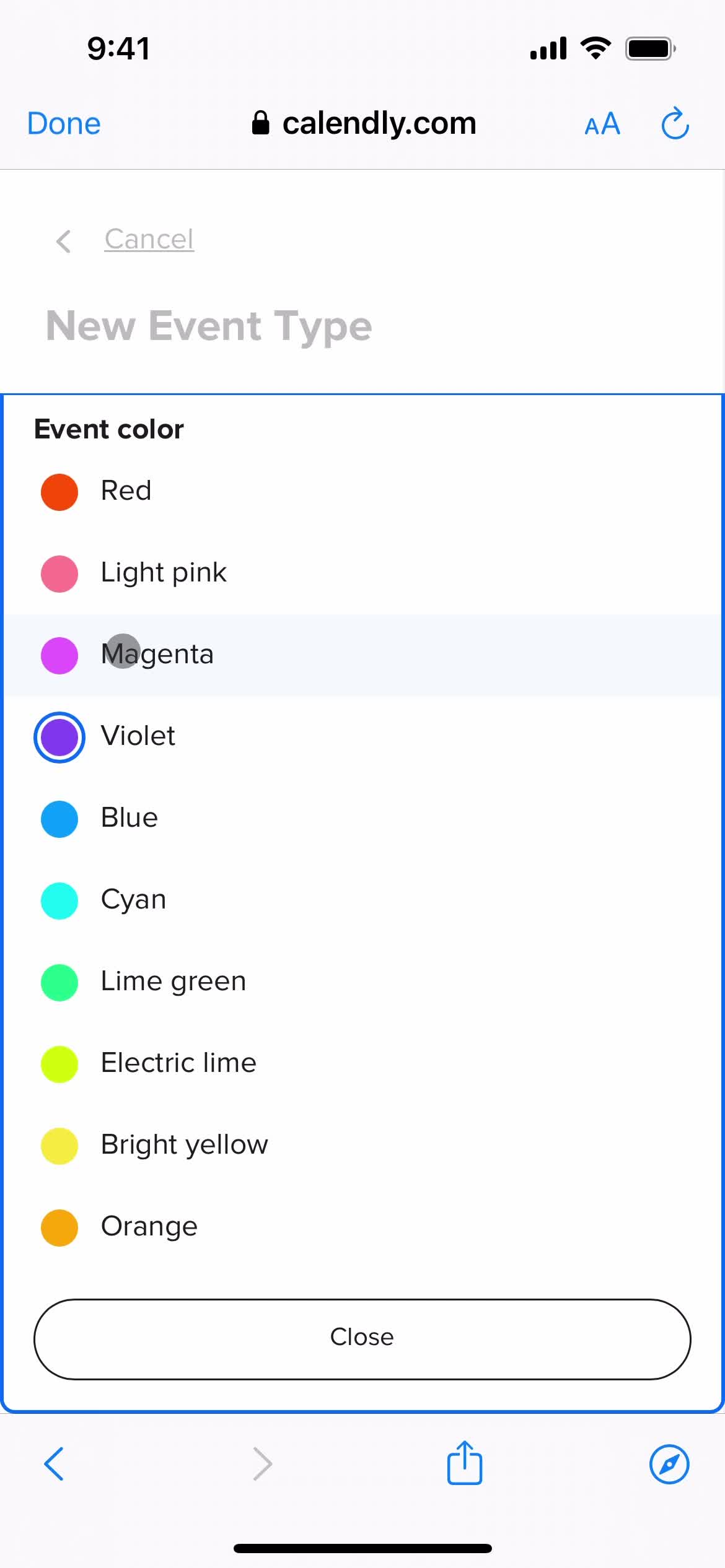
Event color
this is title
this is title
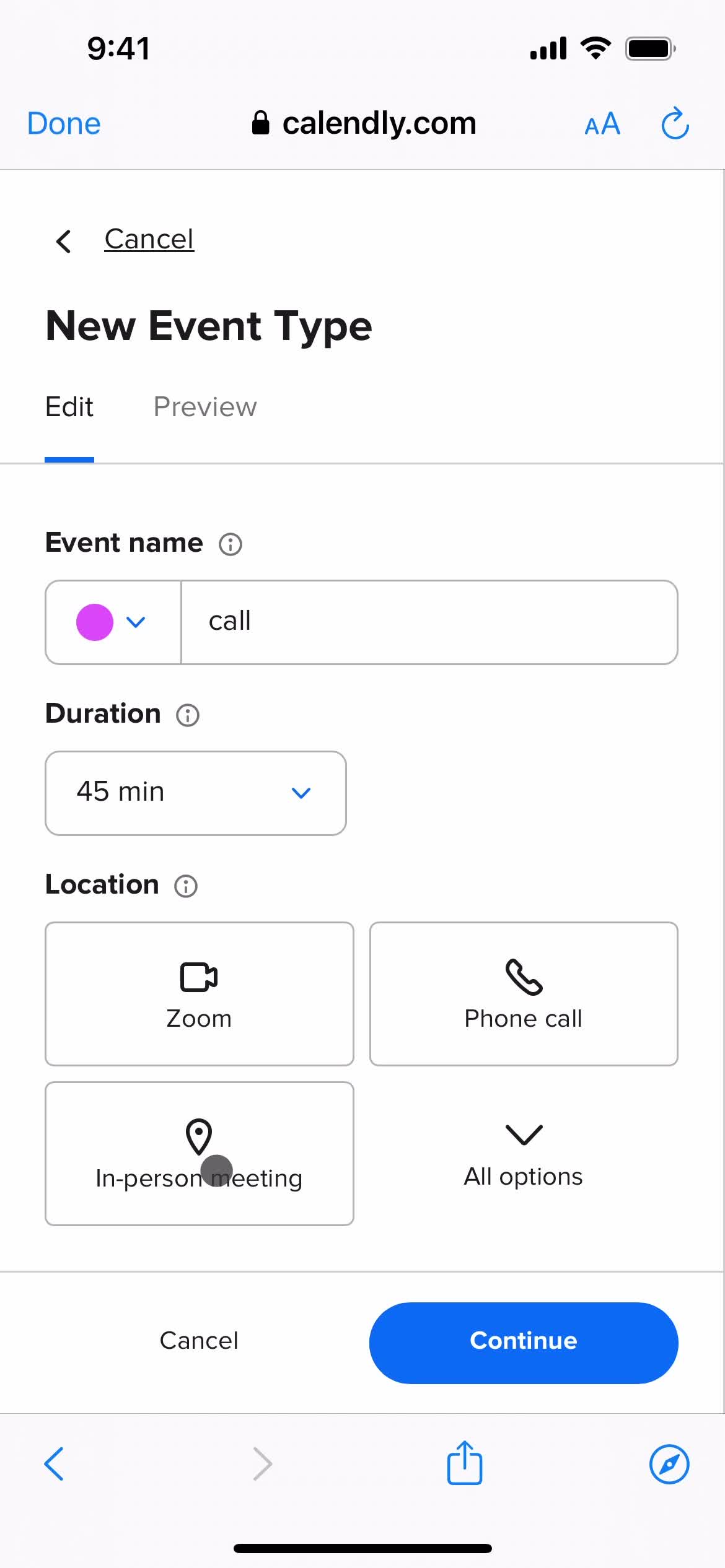
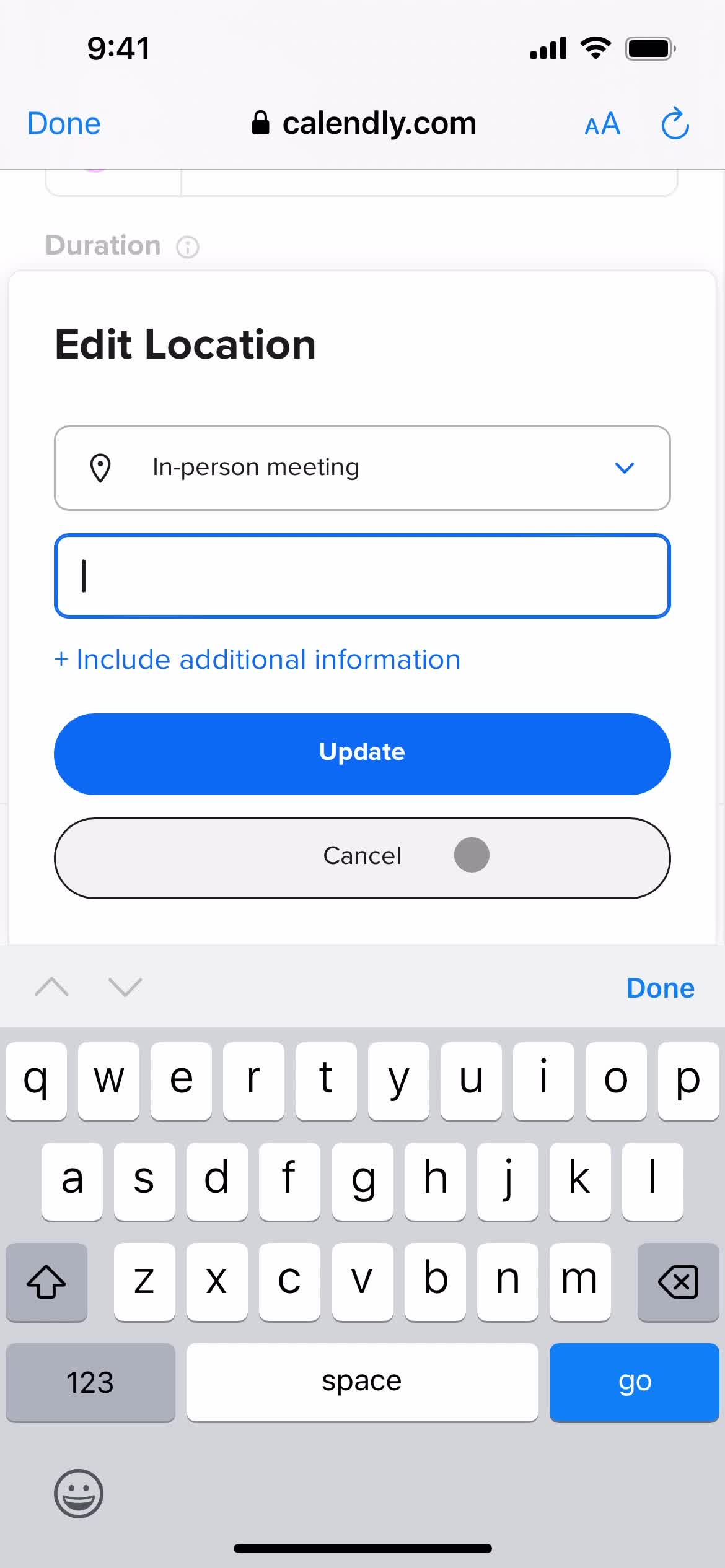
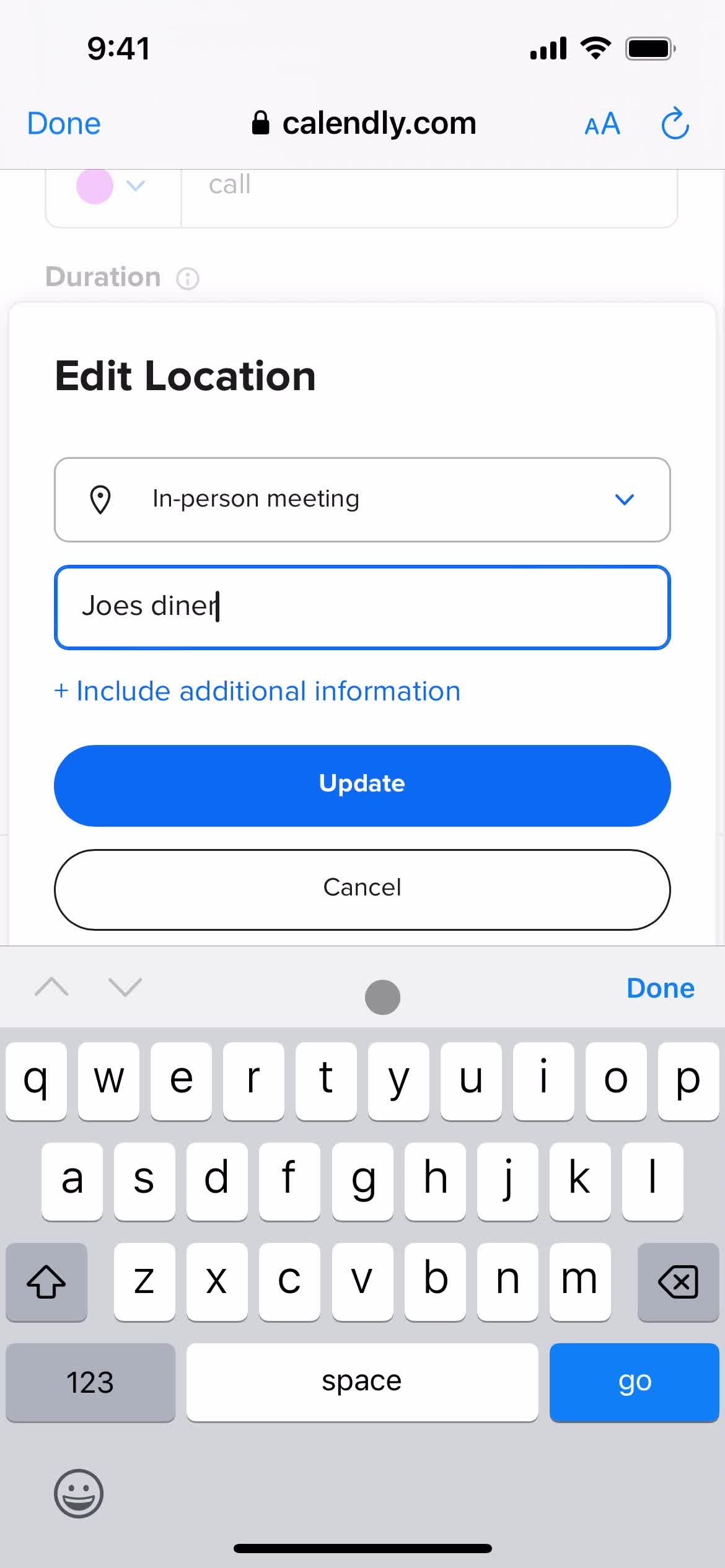
Set location
this is title
this is title
Continue
this is title
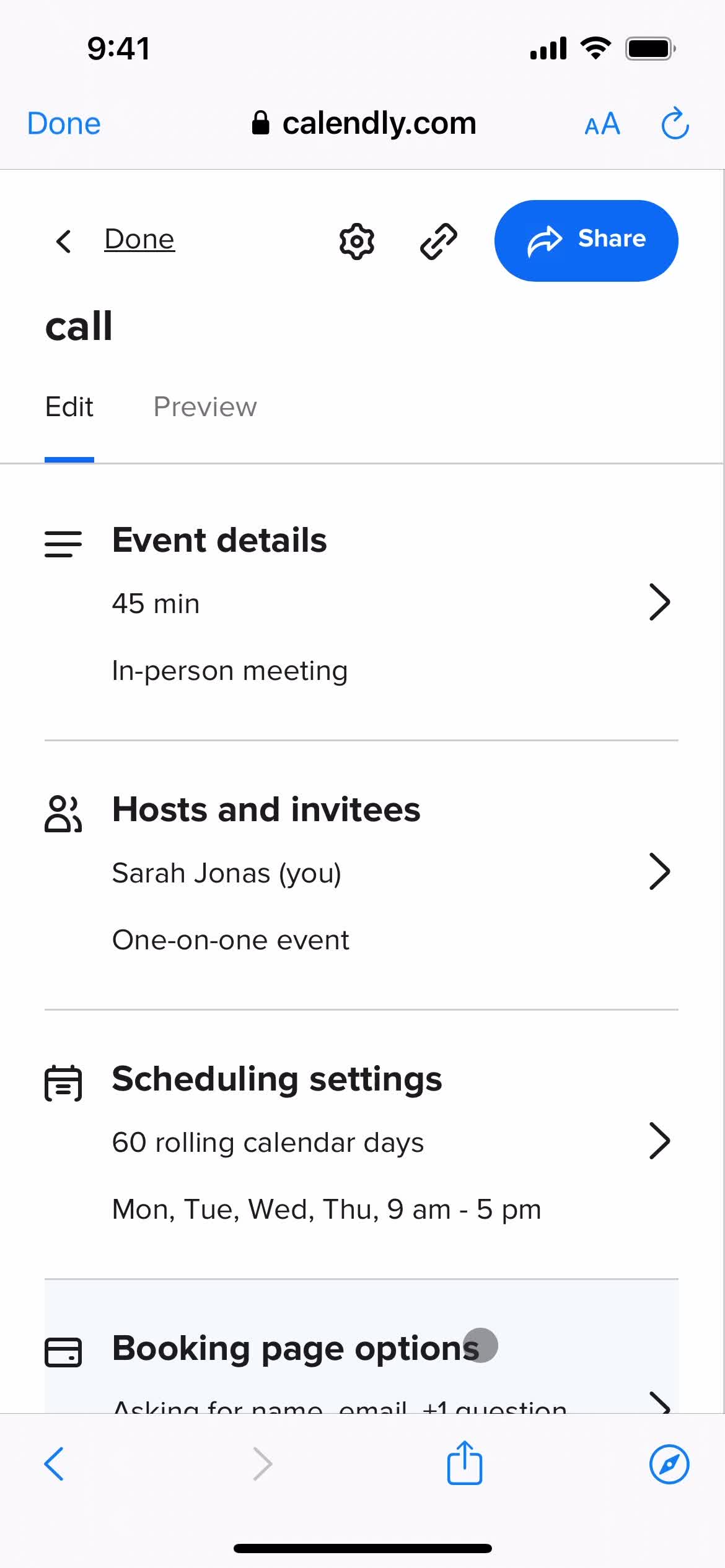
Edit event
this is title
this is title
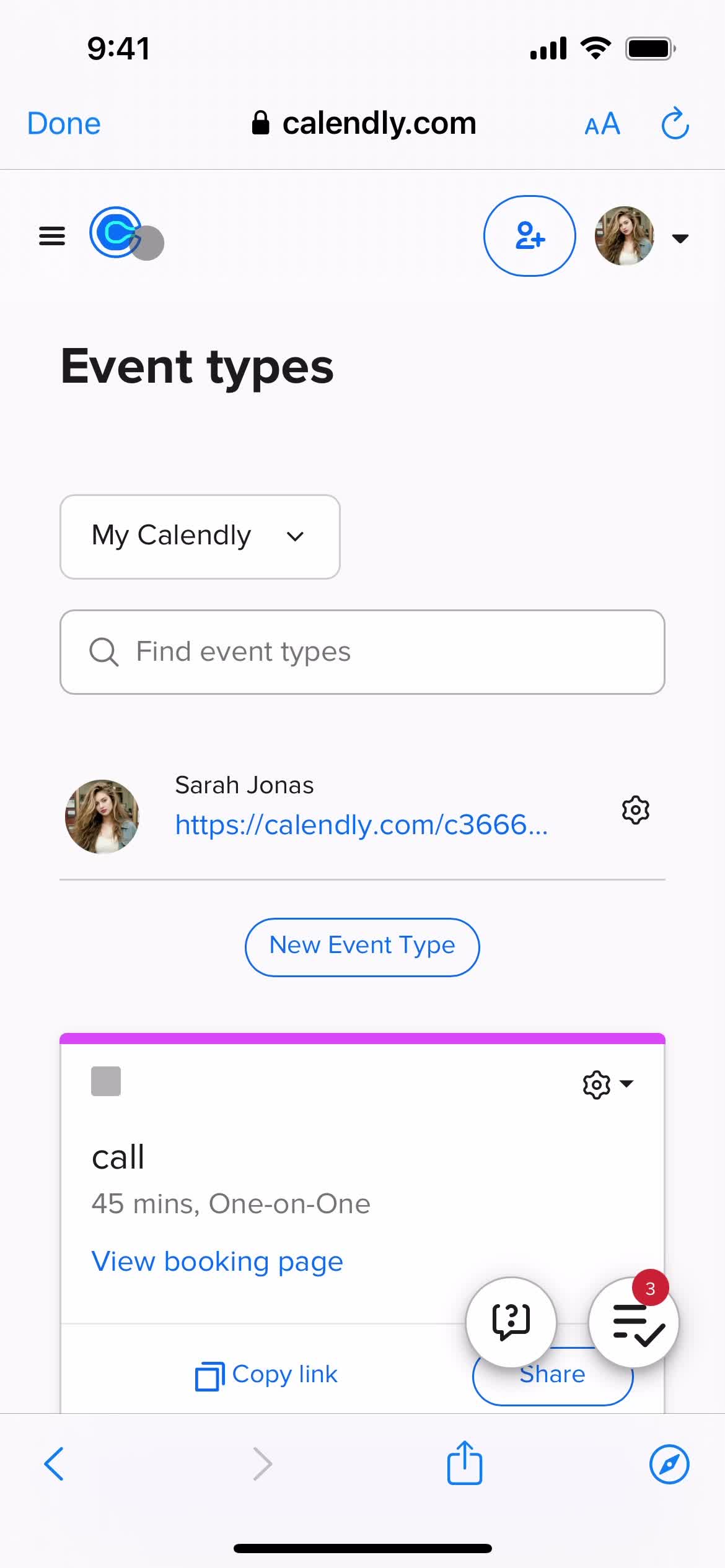
Homepage
this is title
Home
this is title
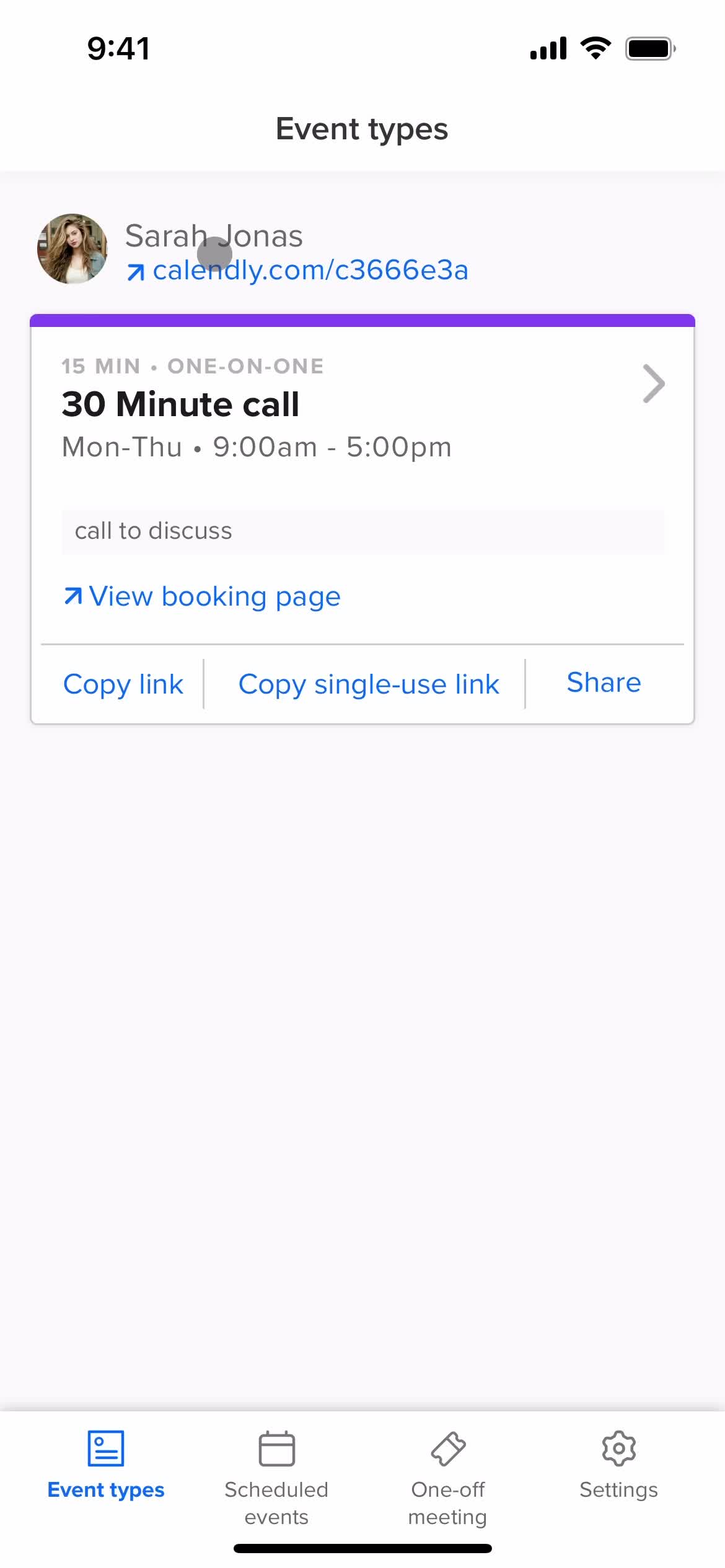
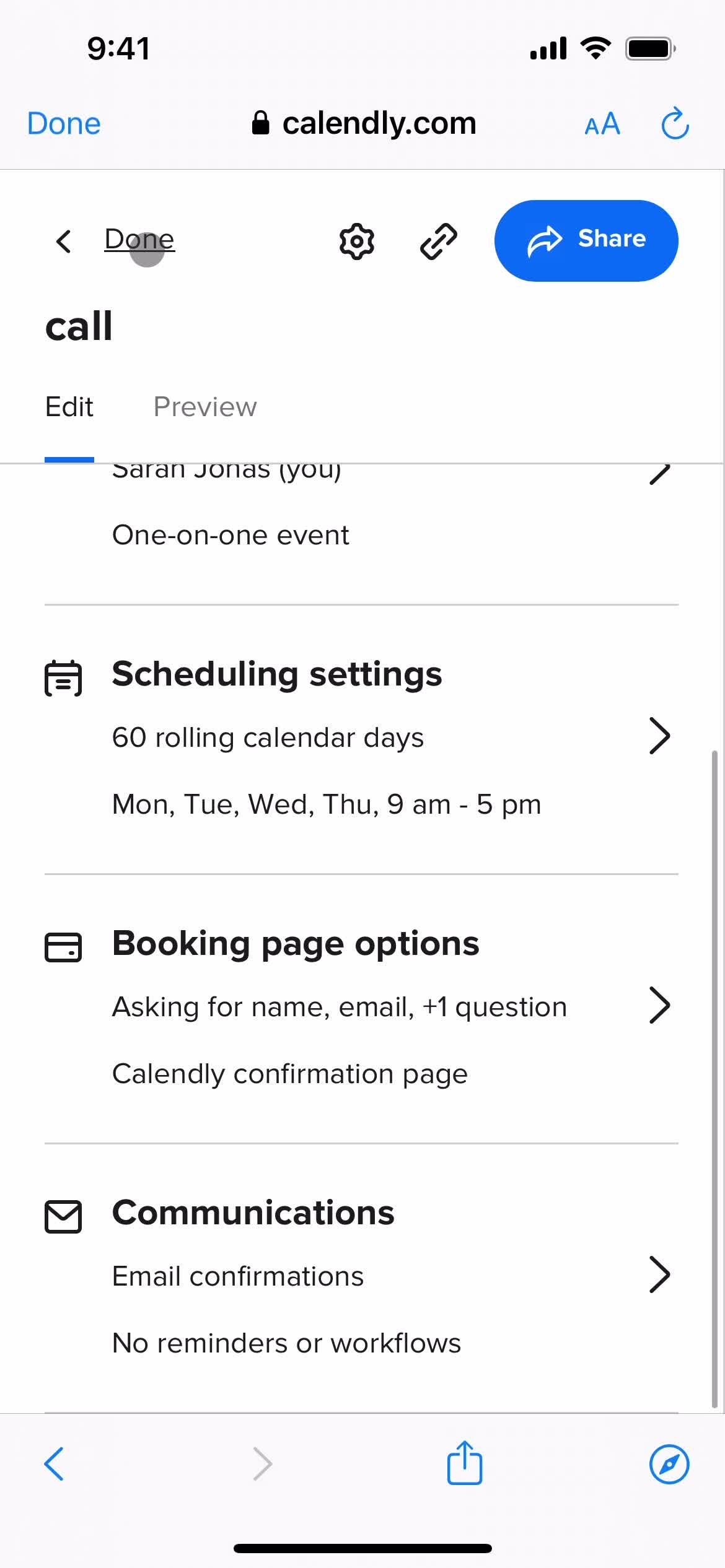
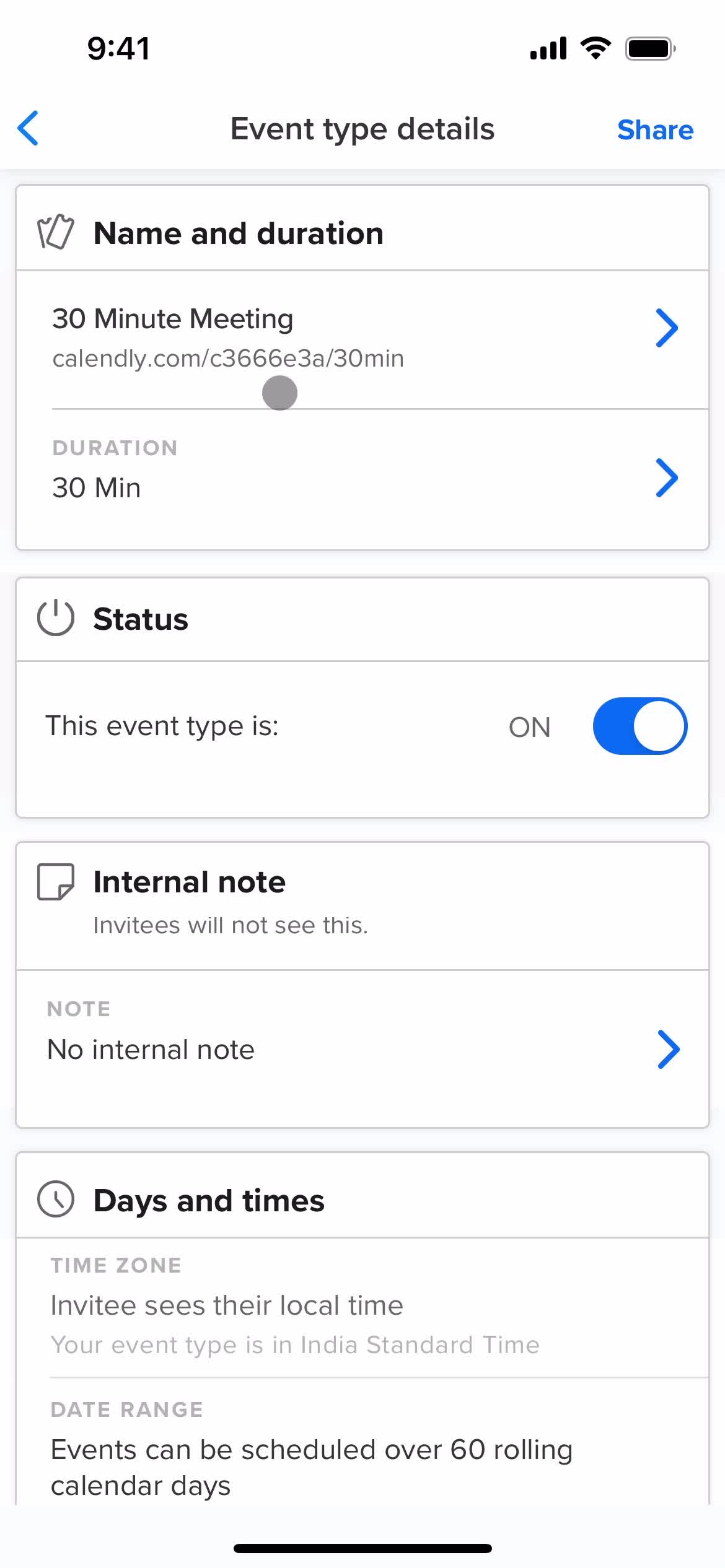
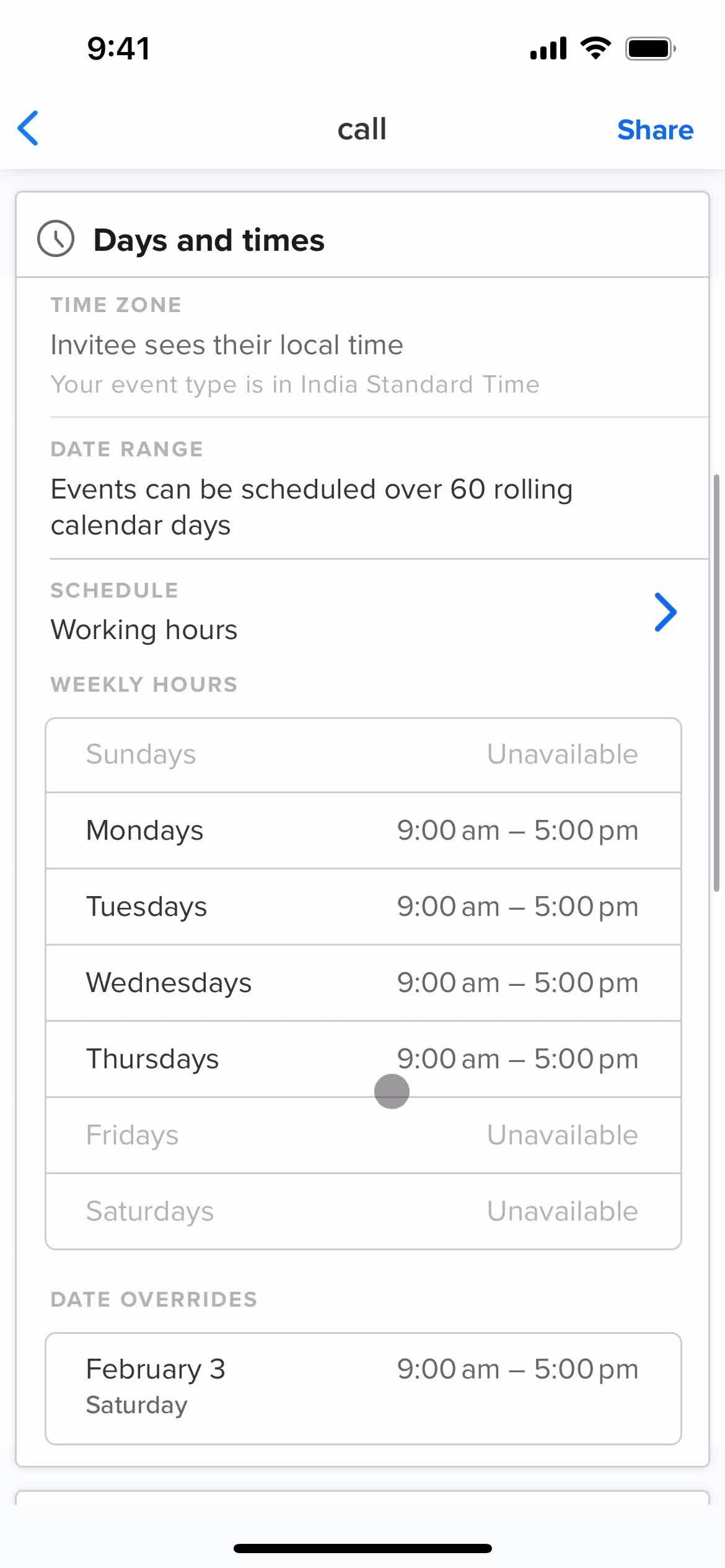
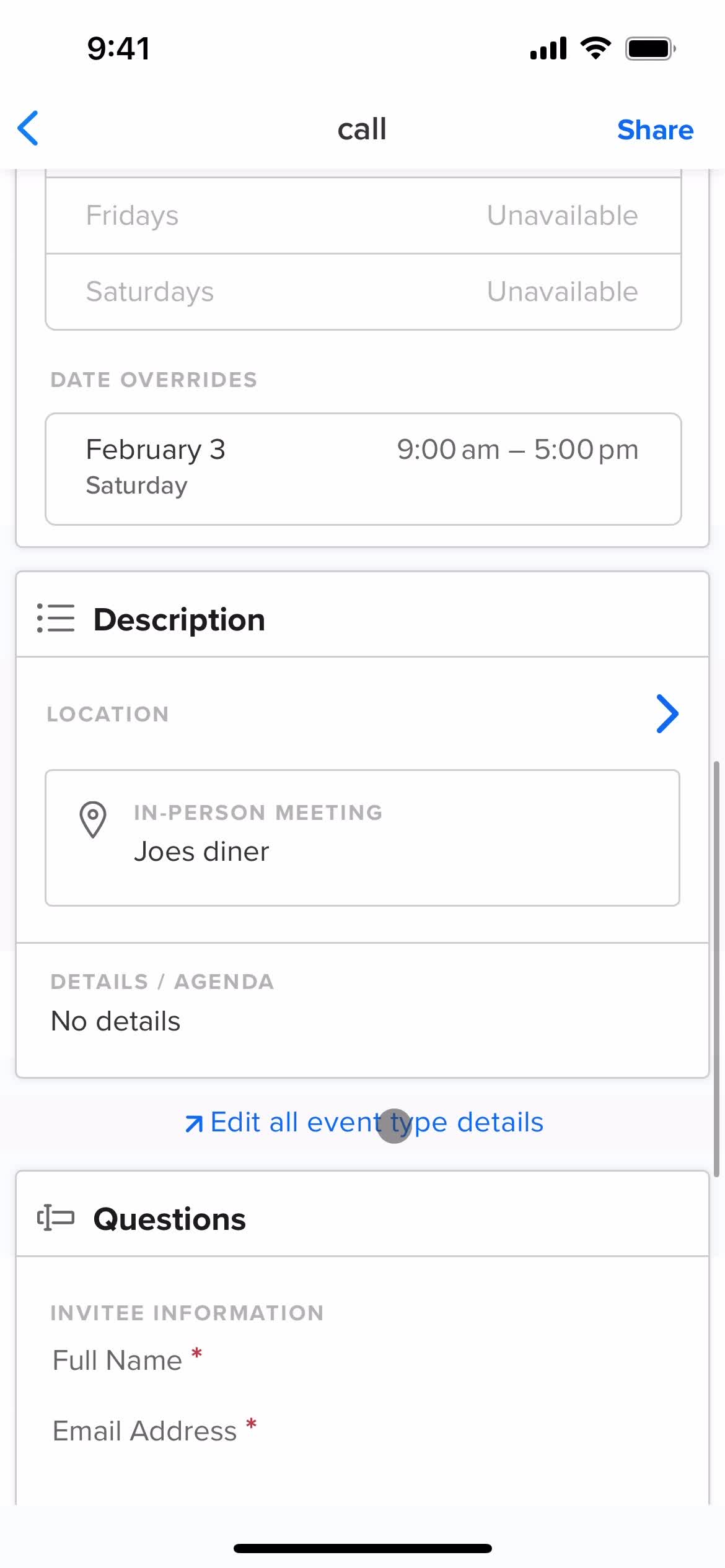
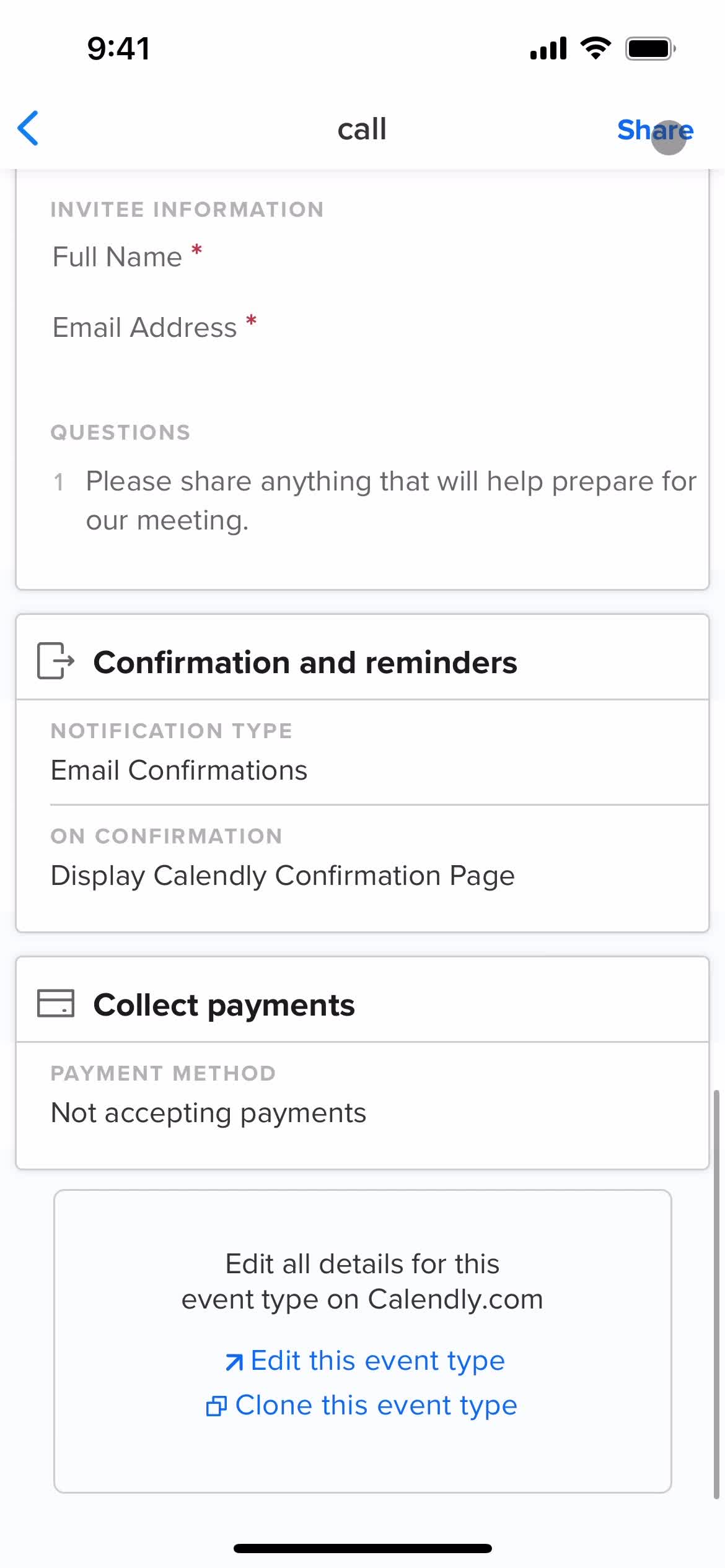
Event type details
this is title
Home
this is title
Settings
this is title
Account settings
this is title
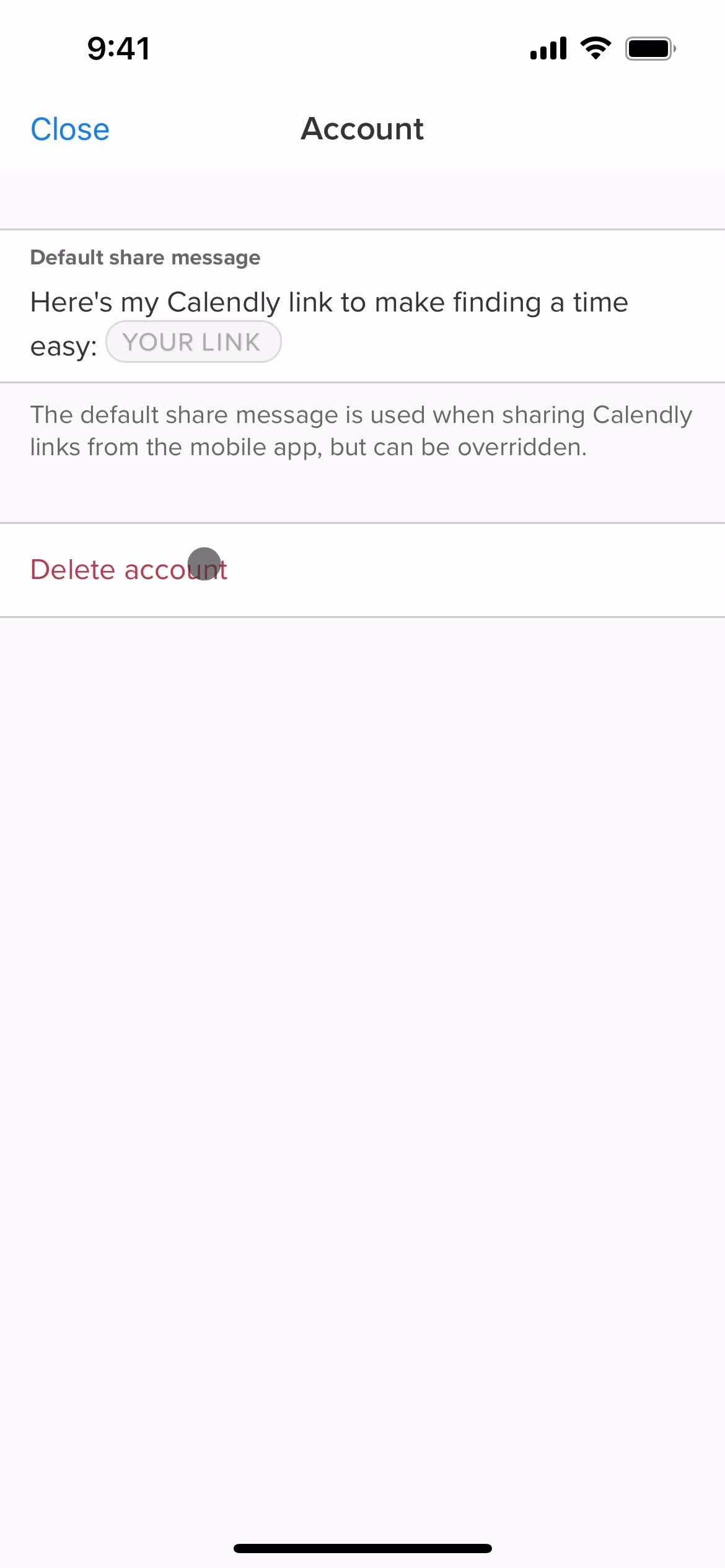
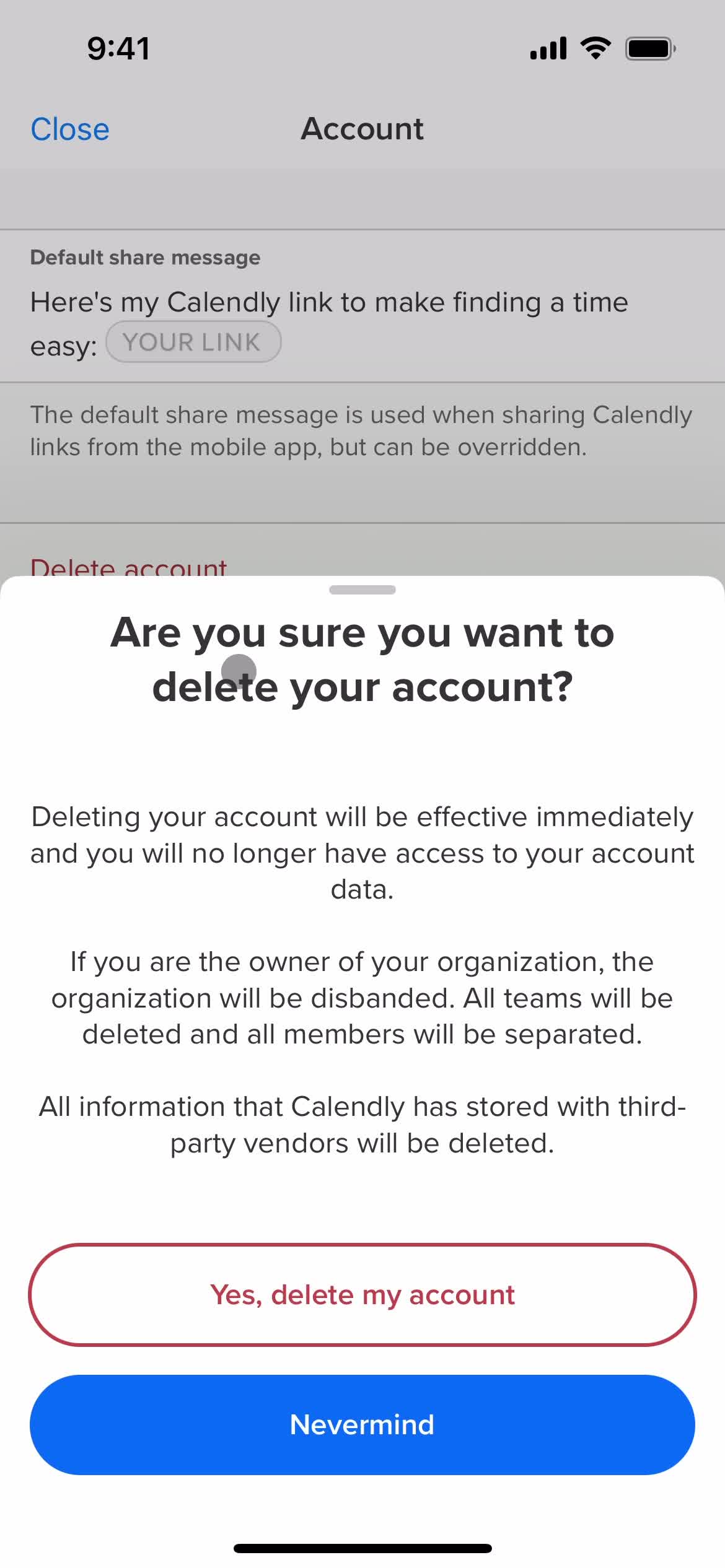
Delete account
this is title
Sign in
this is title
Home
this is title
Event type details
this is title
Edit details
this is title
this is title
this is title
Event type details
this is title
this is title
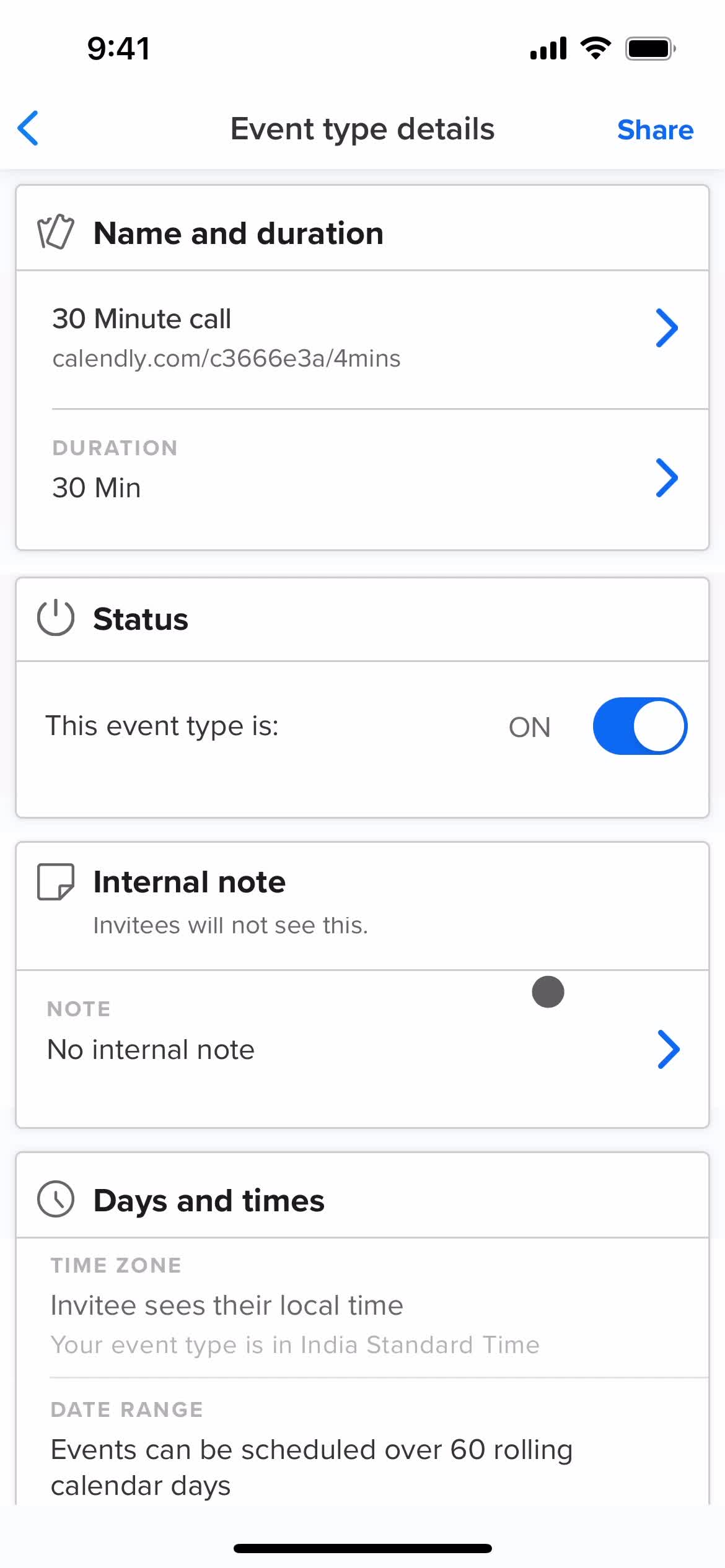
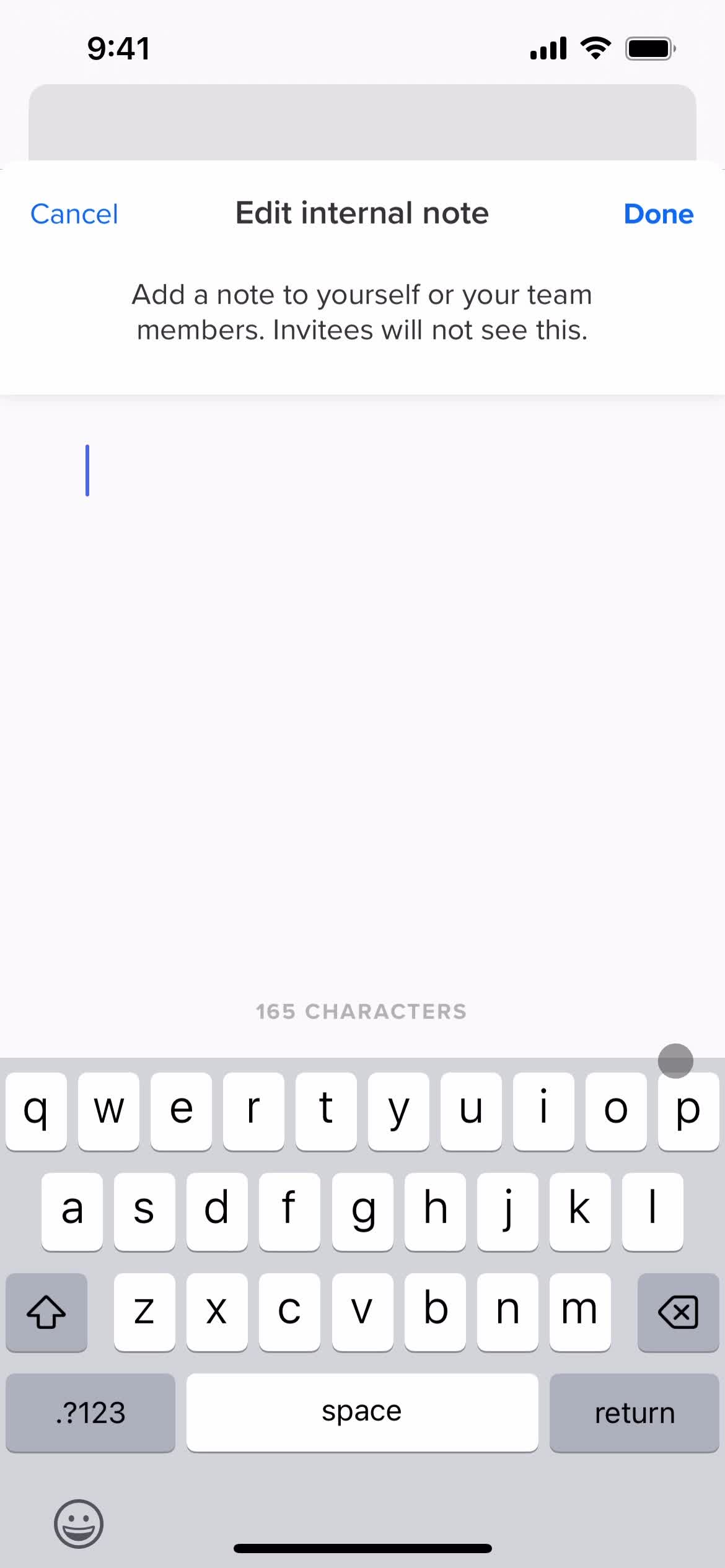
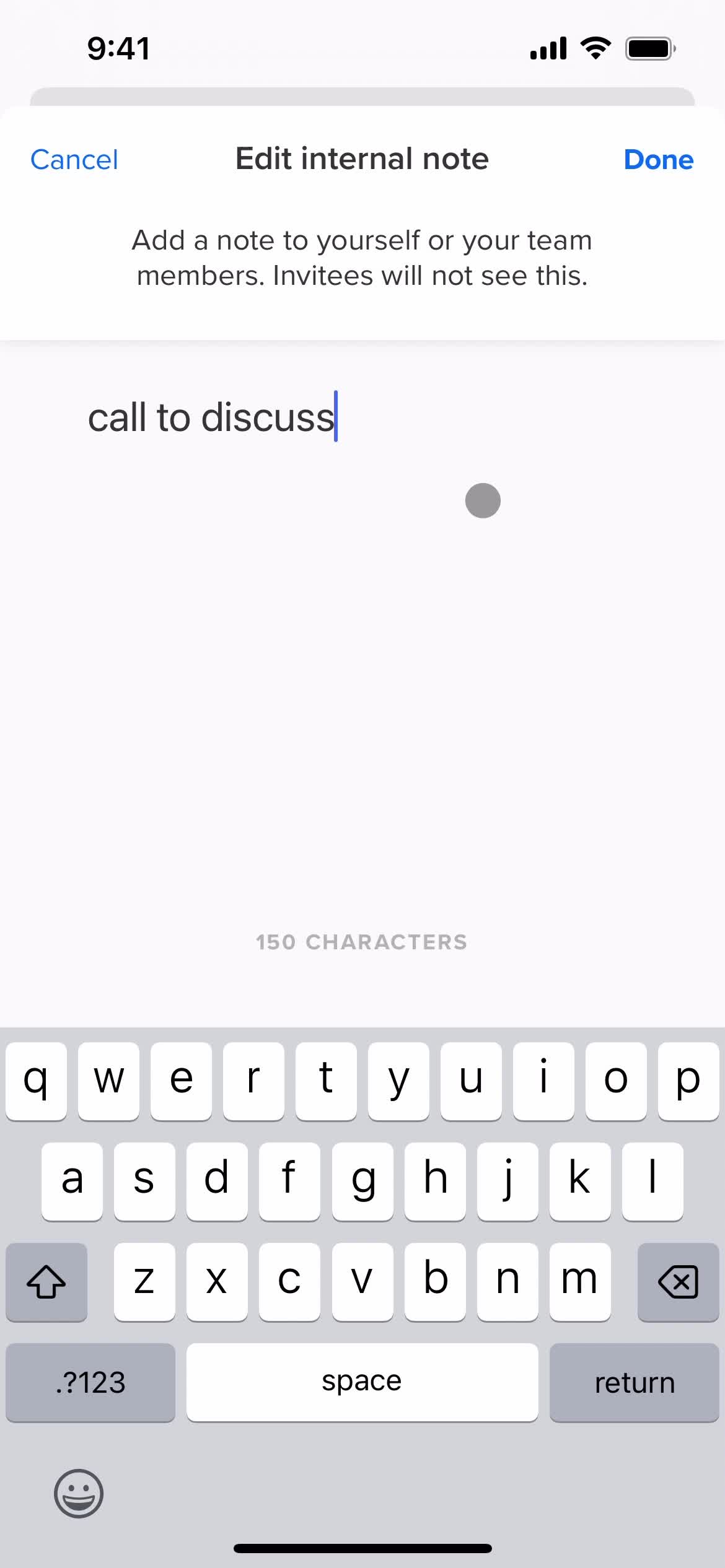
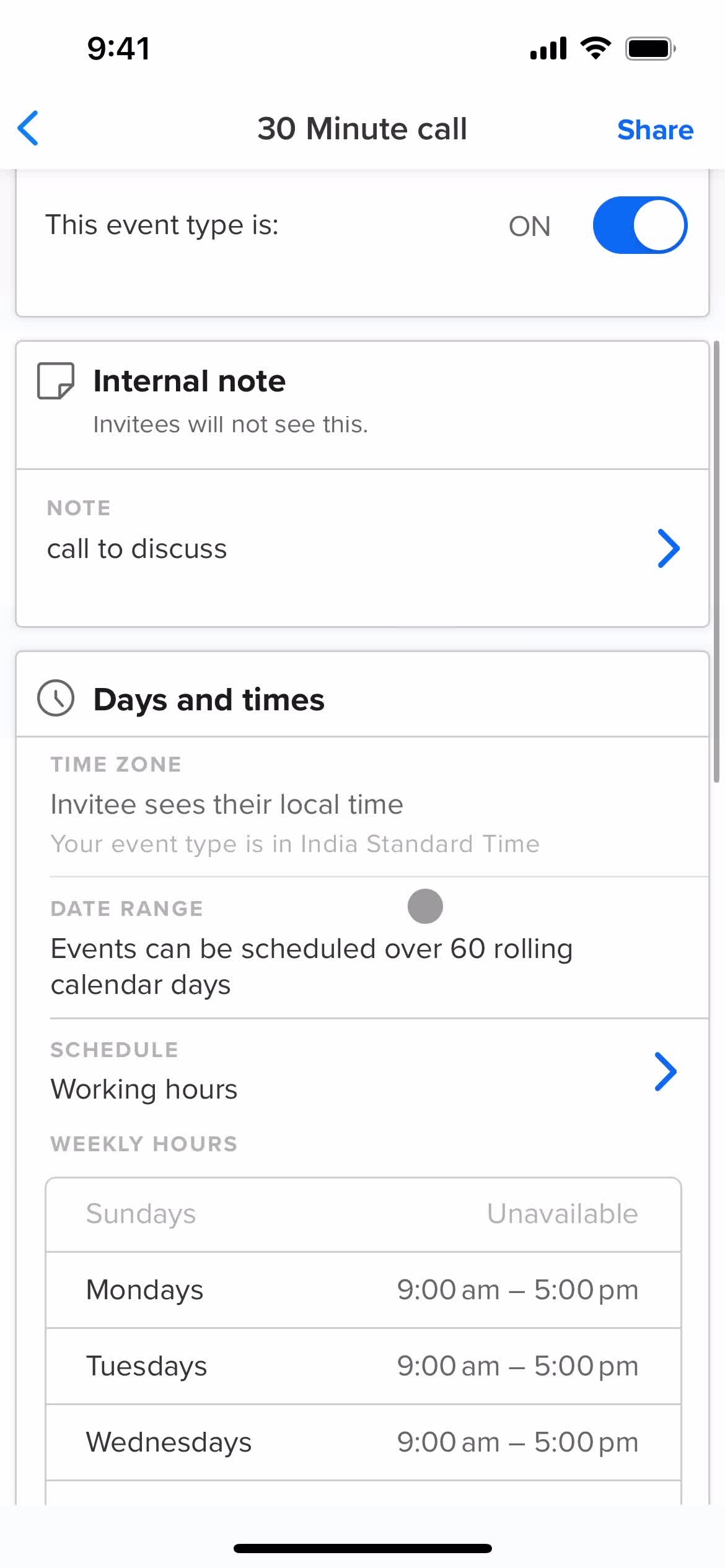
Add note
this is title
this is title
this is title
this is title
Set schedule
this is title
Set availability
this is title
this is title
this is title
Event type details
this is title
Edit event
this is title
this is title
this is title
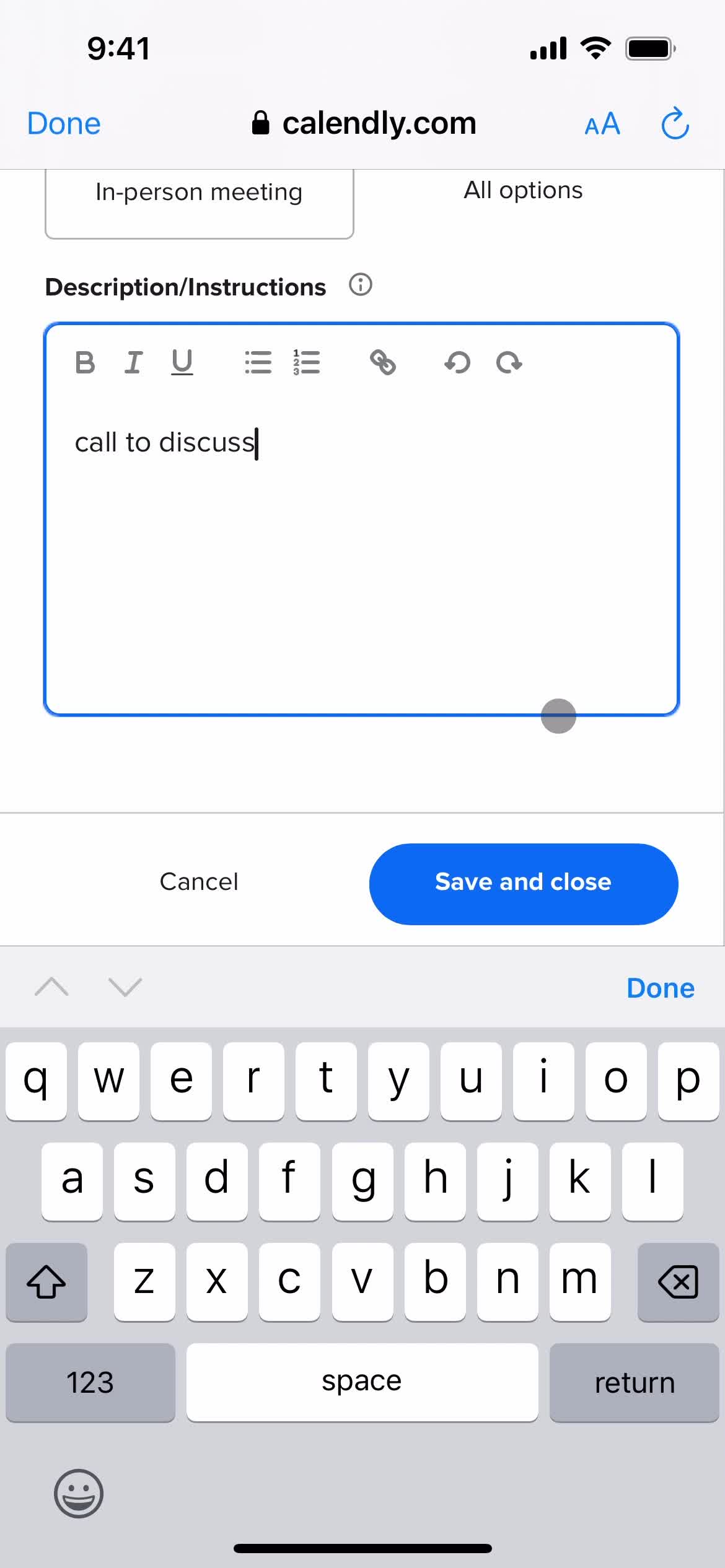
Add description
this is title
this is title
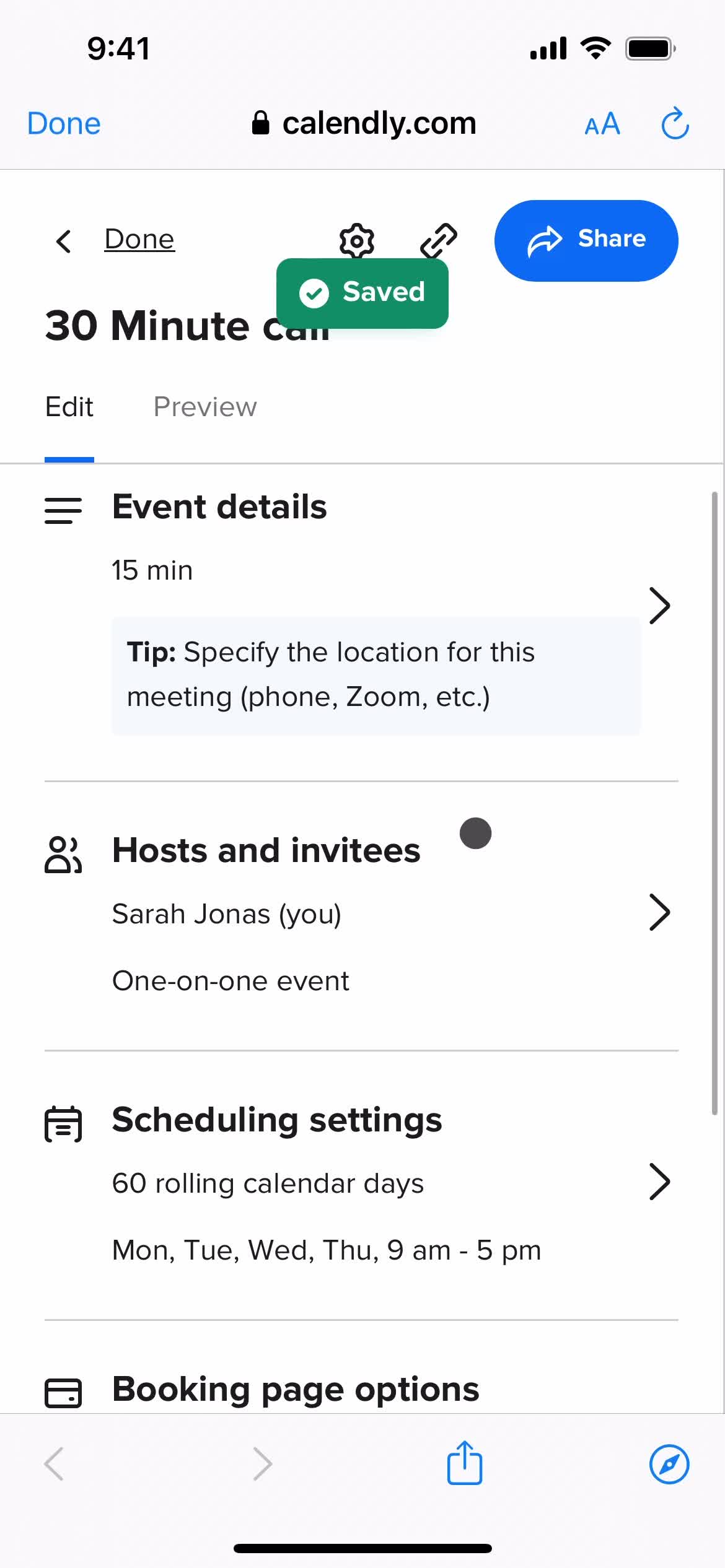
Saved
this is title
this is title
this is title
Edit details
this is title
this is title
this is title
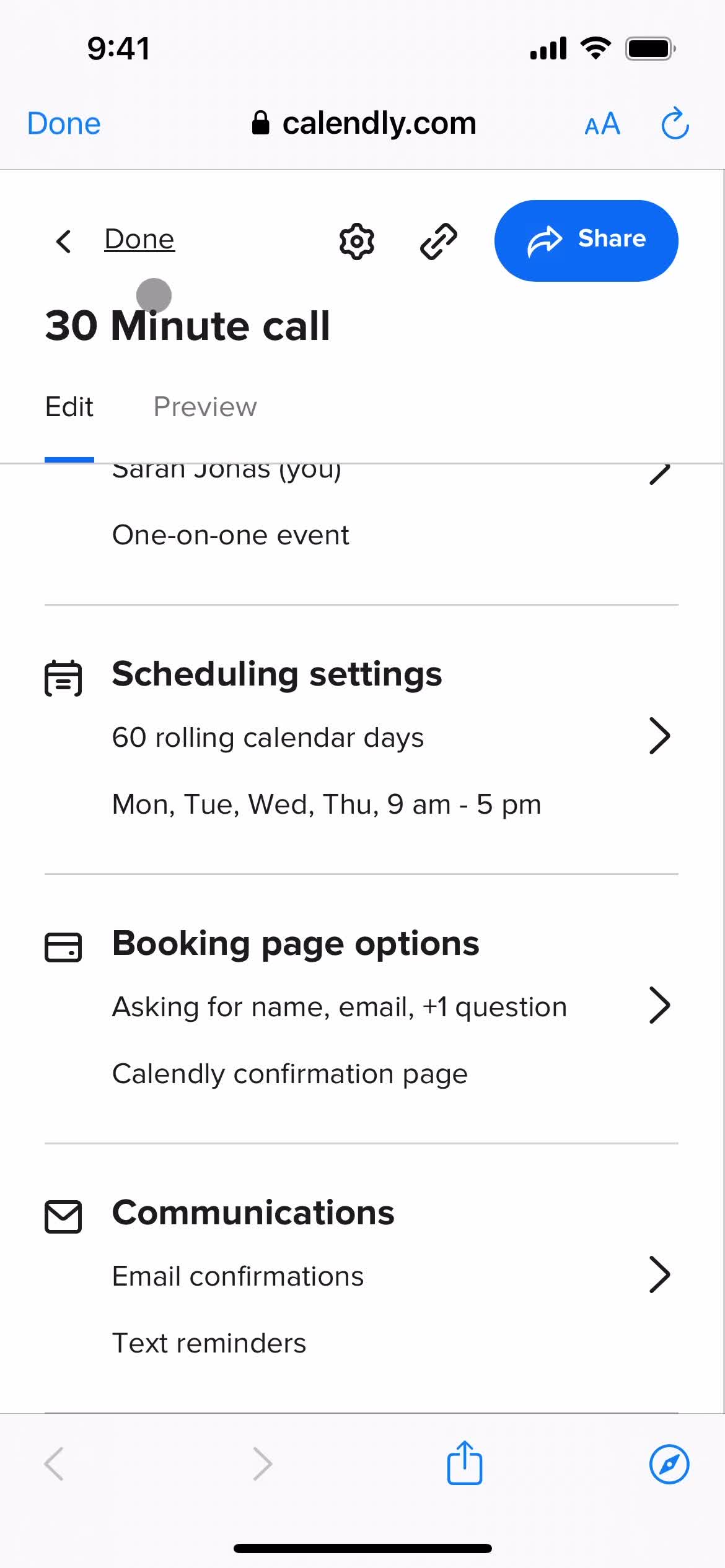
Event type details
this is title
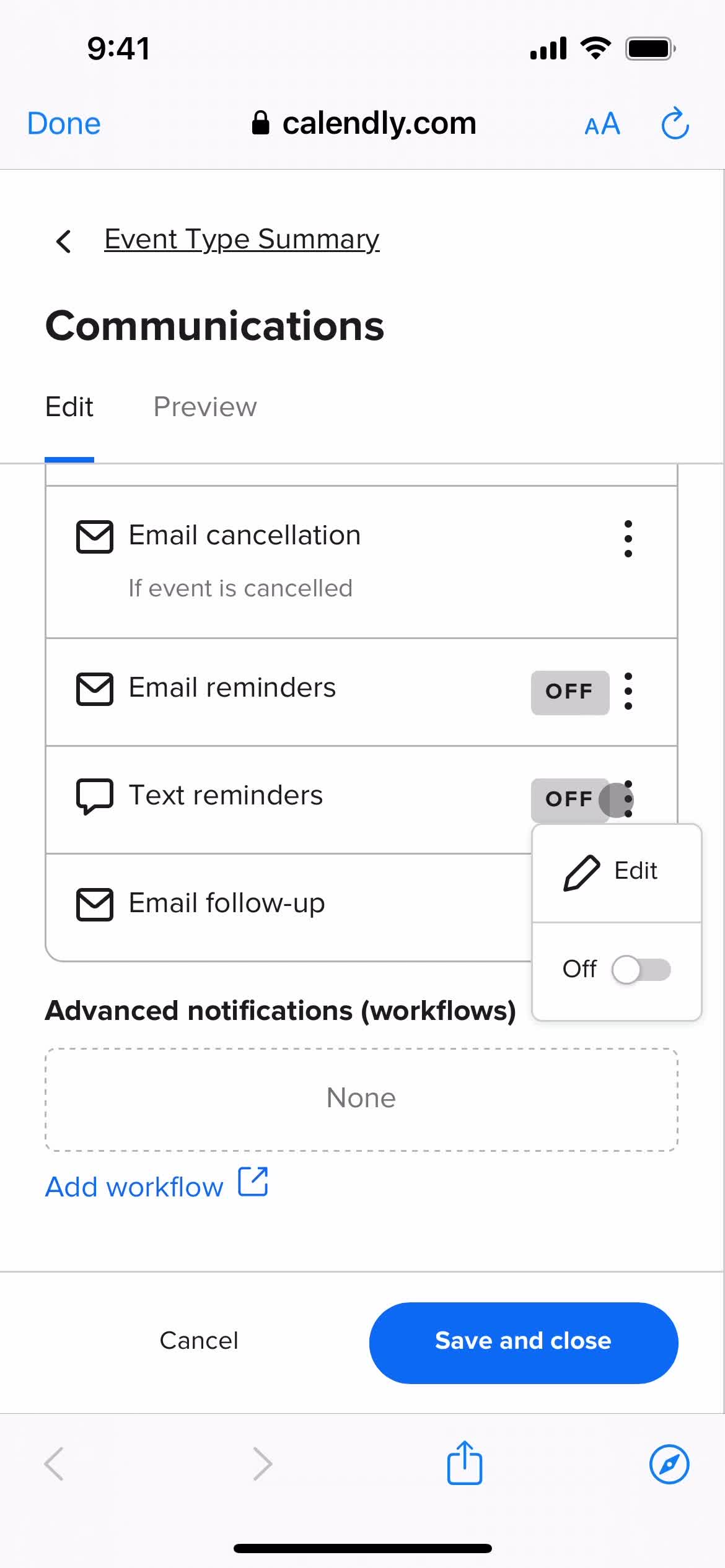
Notification settings
this is title
this is title
Action menu
this is title
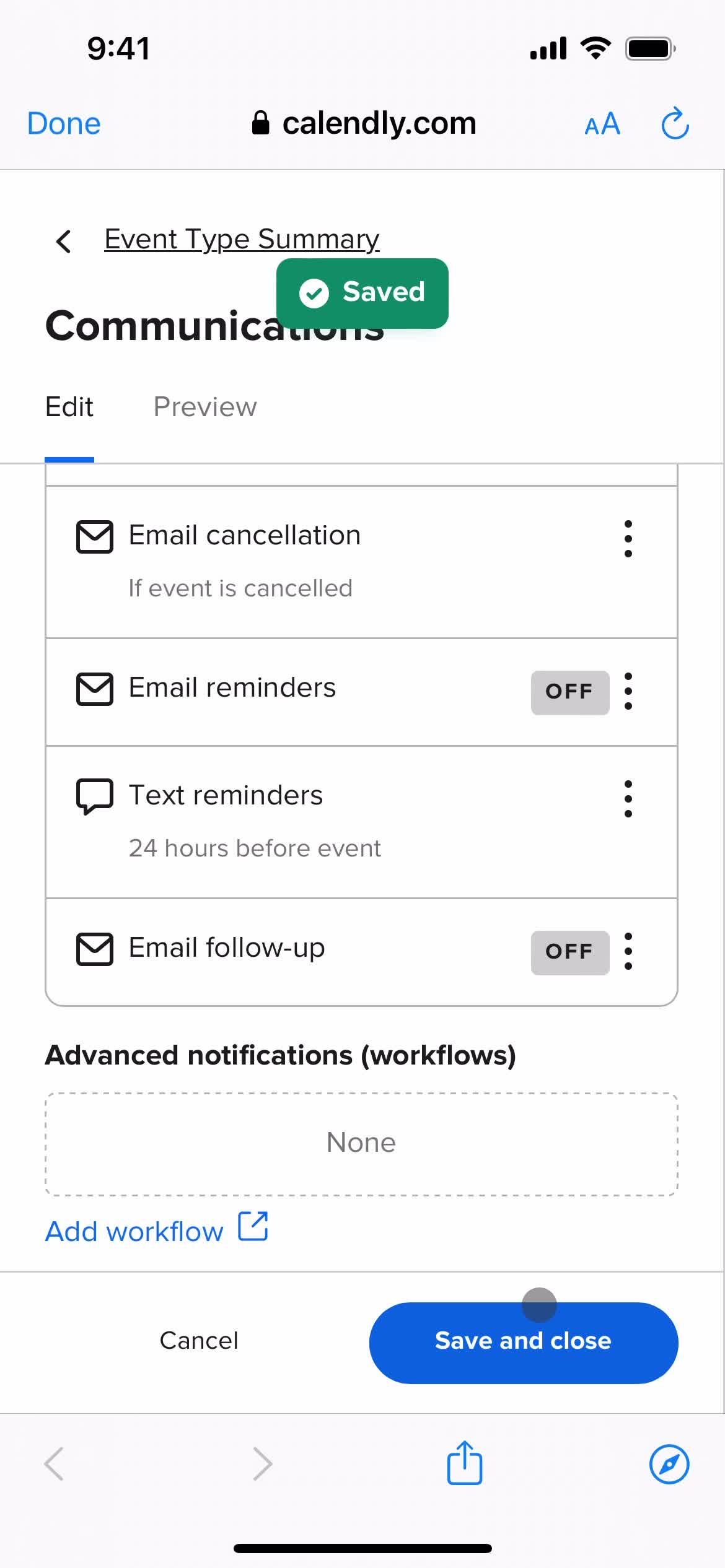
Changes saved
this is title
this is title
this is title
Event detail
this is title
Home
this is title
Event type details
this is title
this is title
this is title
this is title
this is title
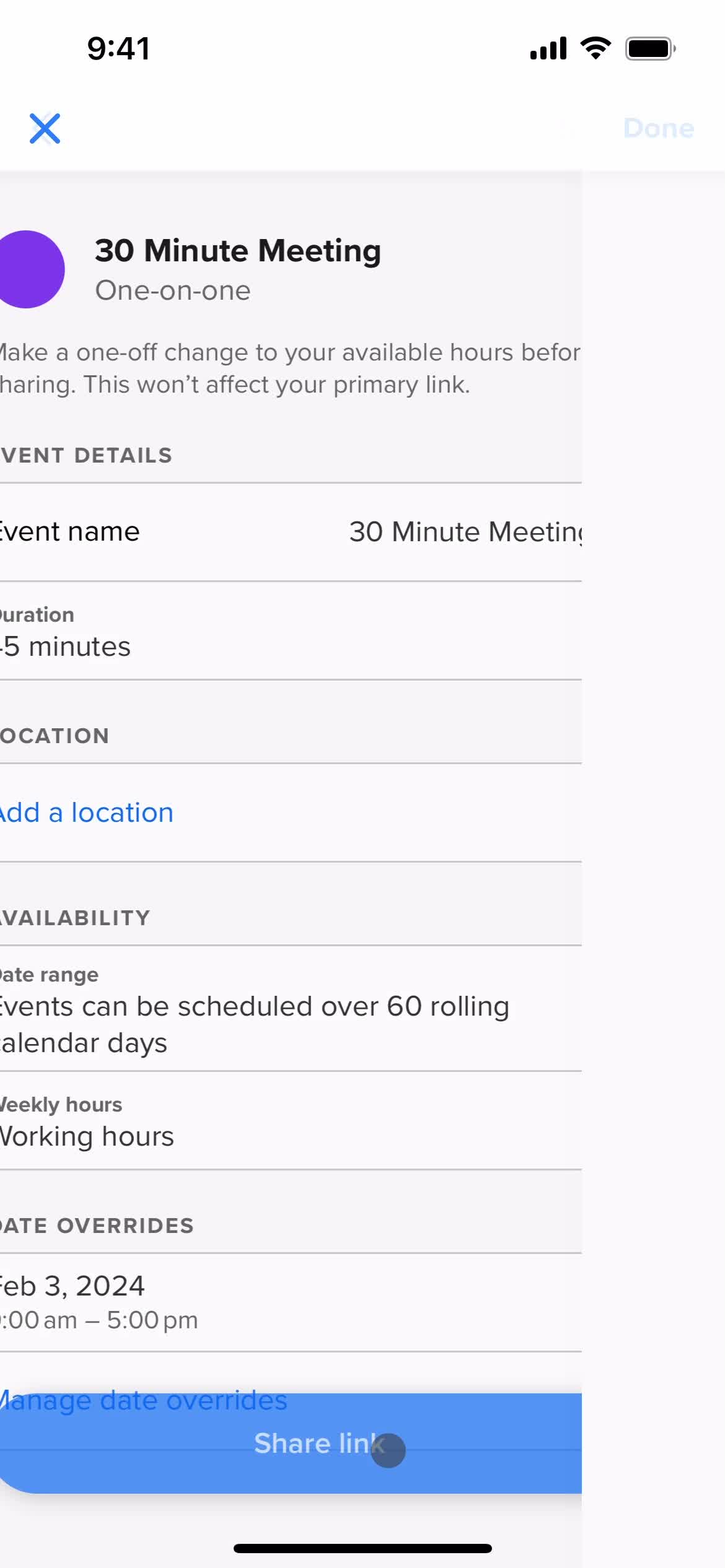
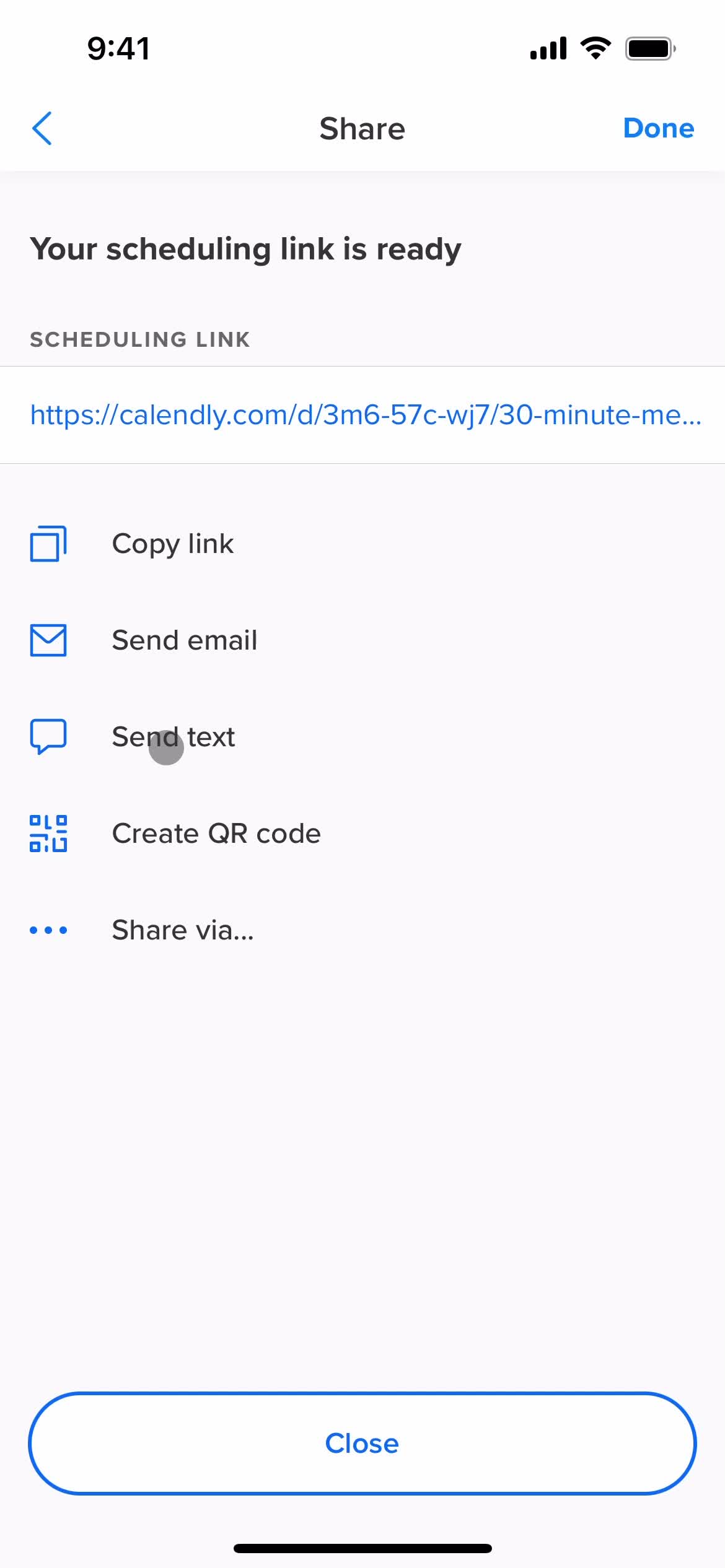
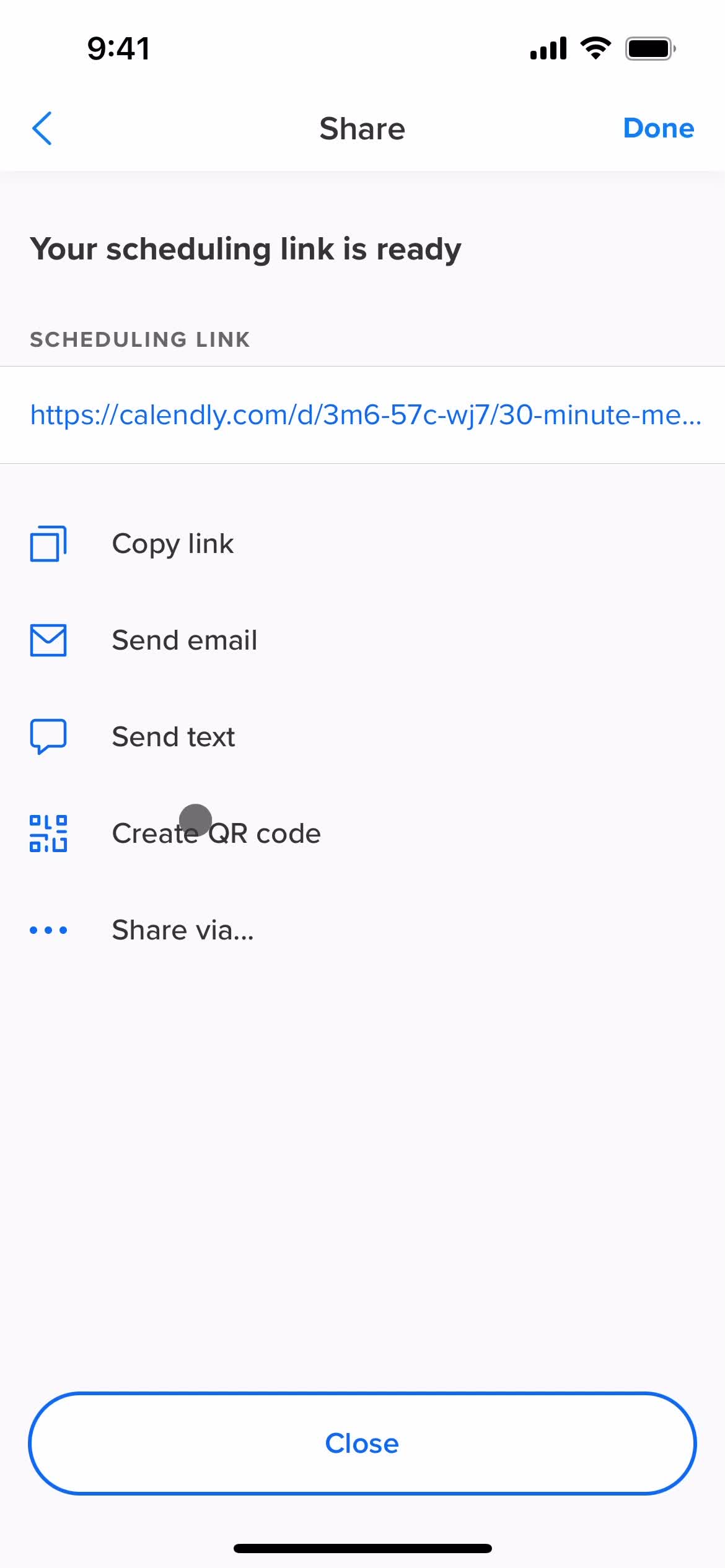
Share
this is title
this is title
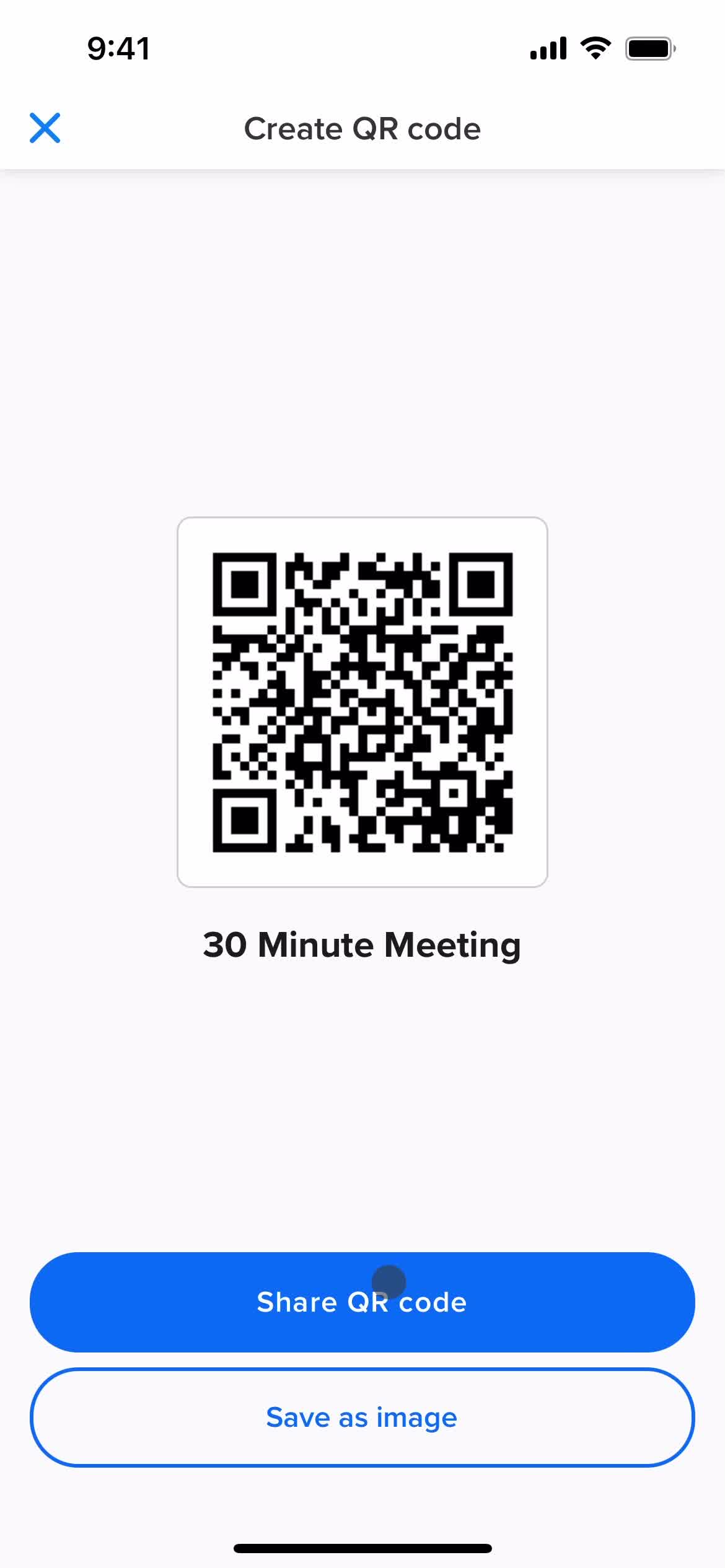
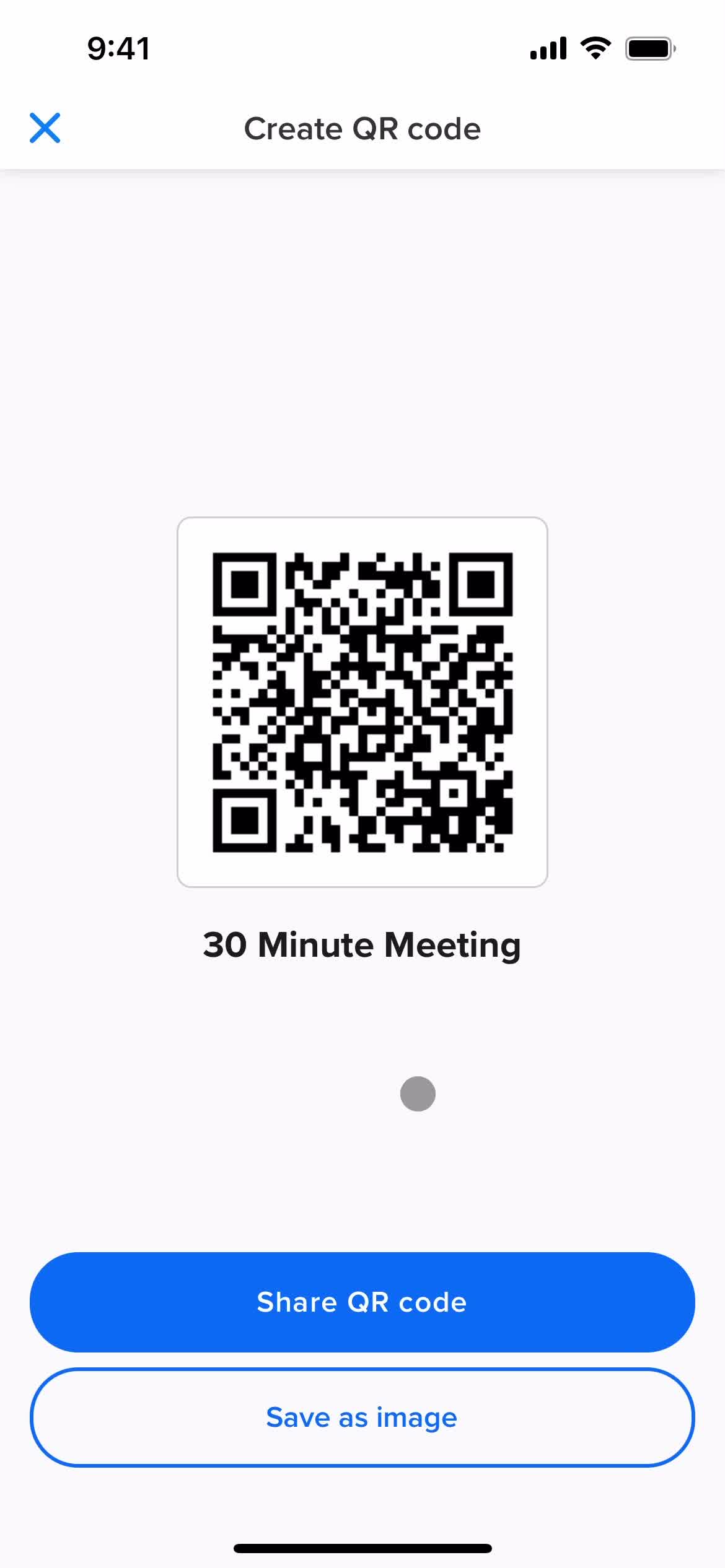
Share QR code
this is title
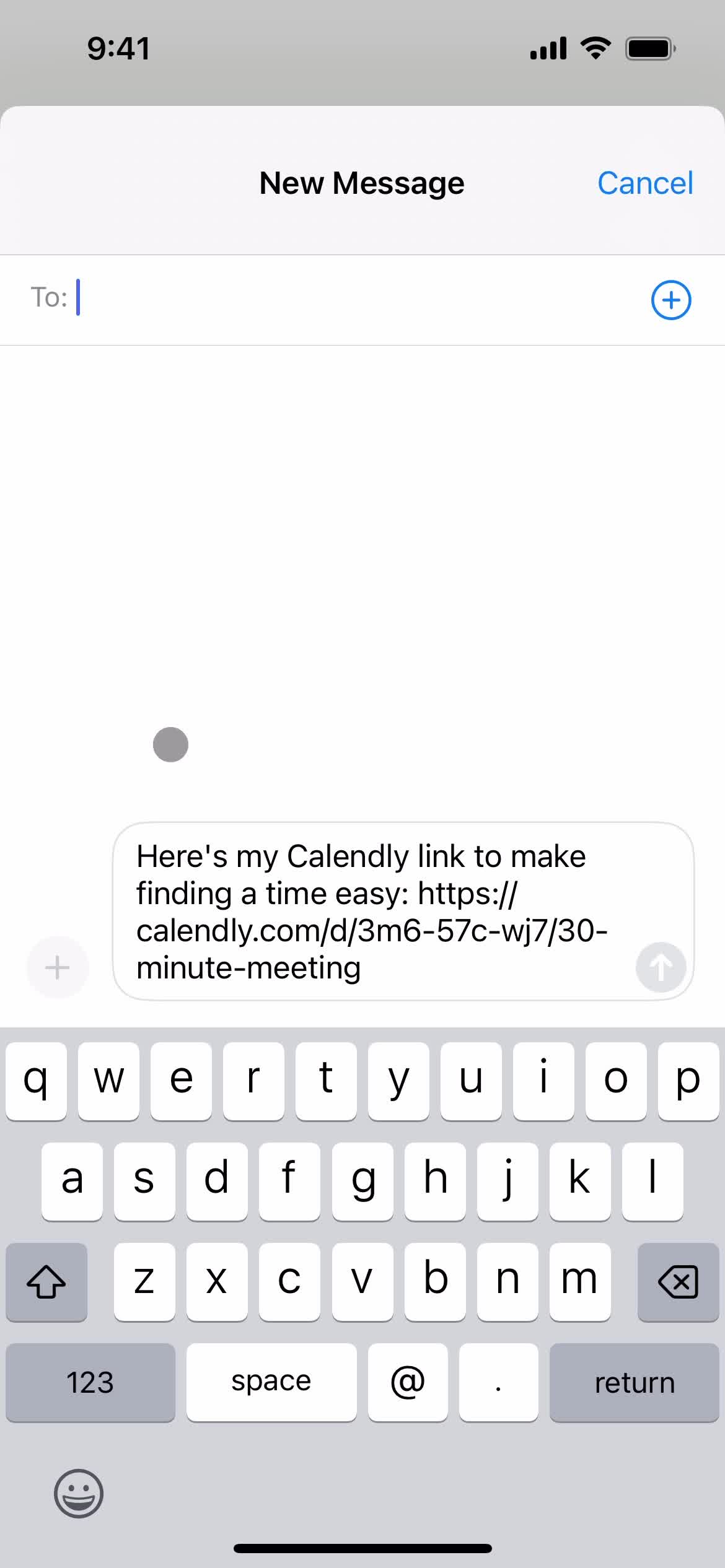
Share
this is title
this is title
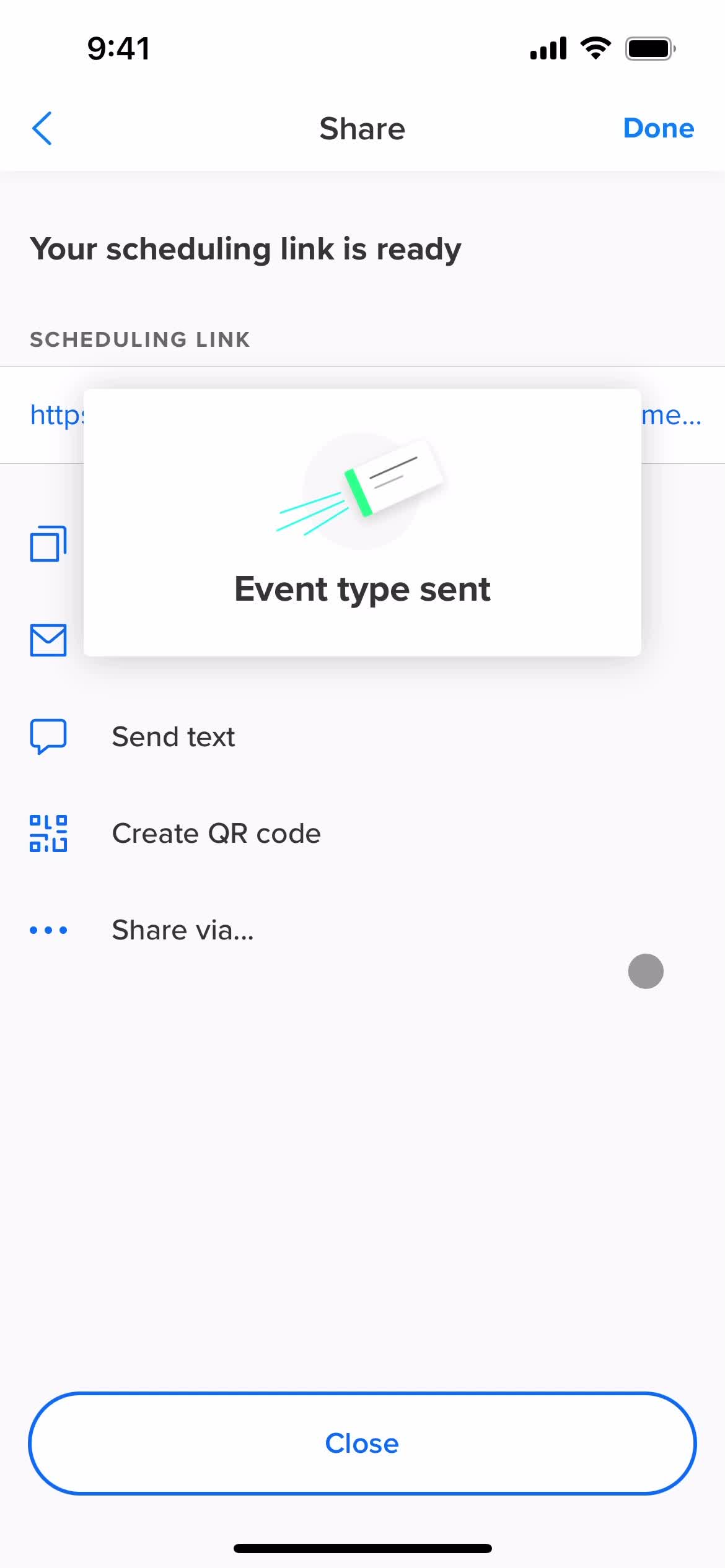
Message sent
this is title
Home
this is title
Scheduled
this is title
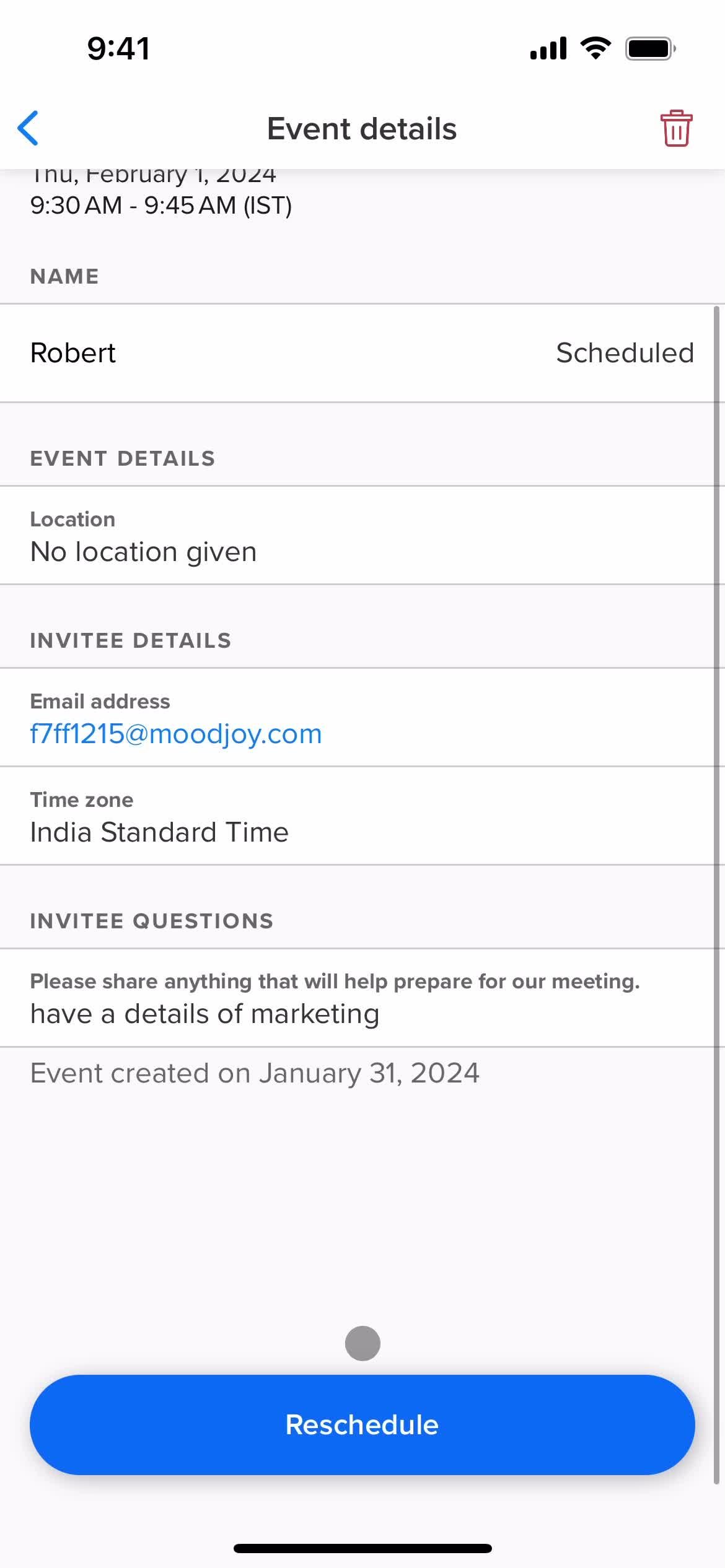
Event detail
this is title
this is title
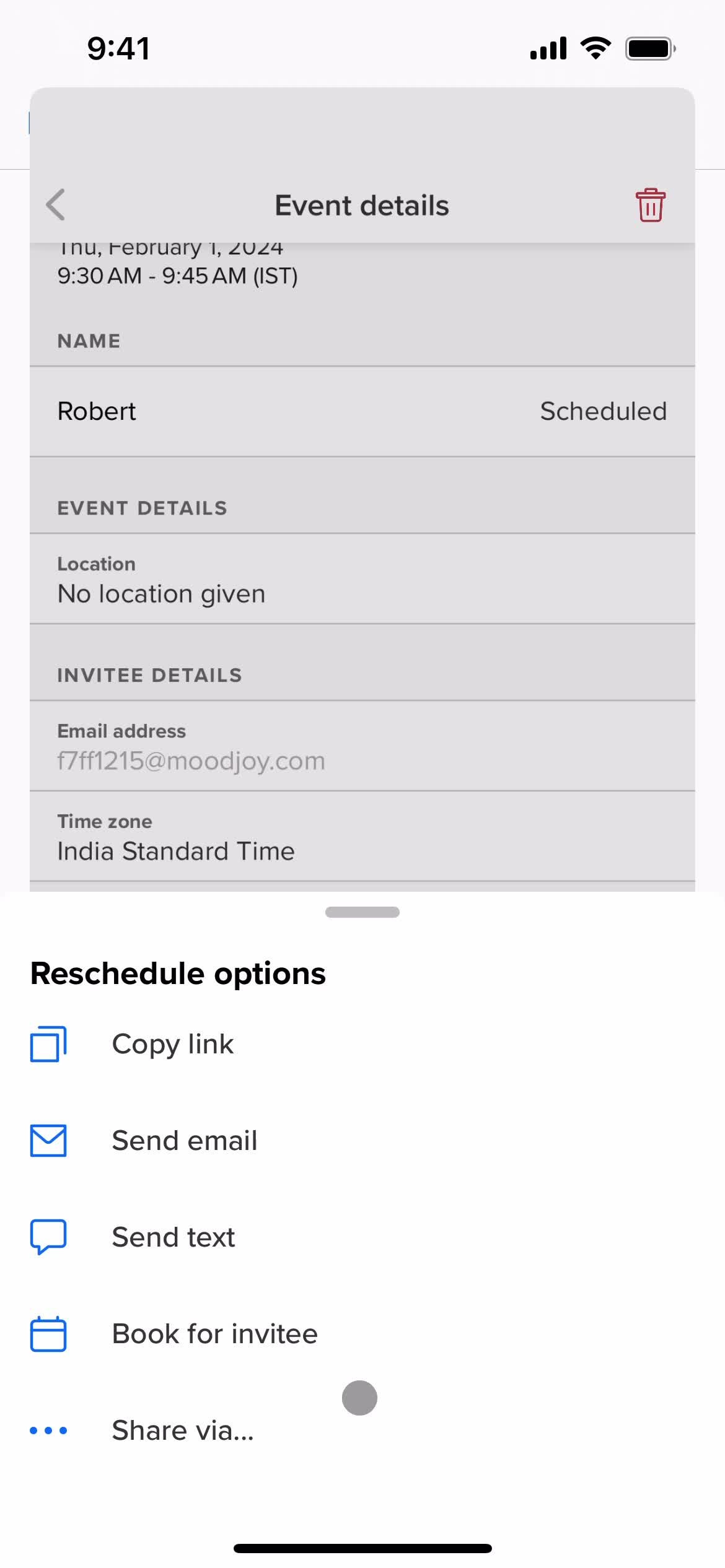
Reschedule options
this is title
this is title
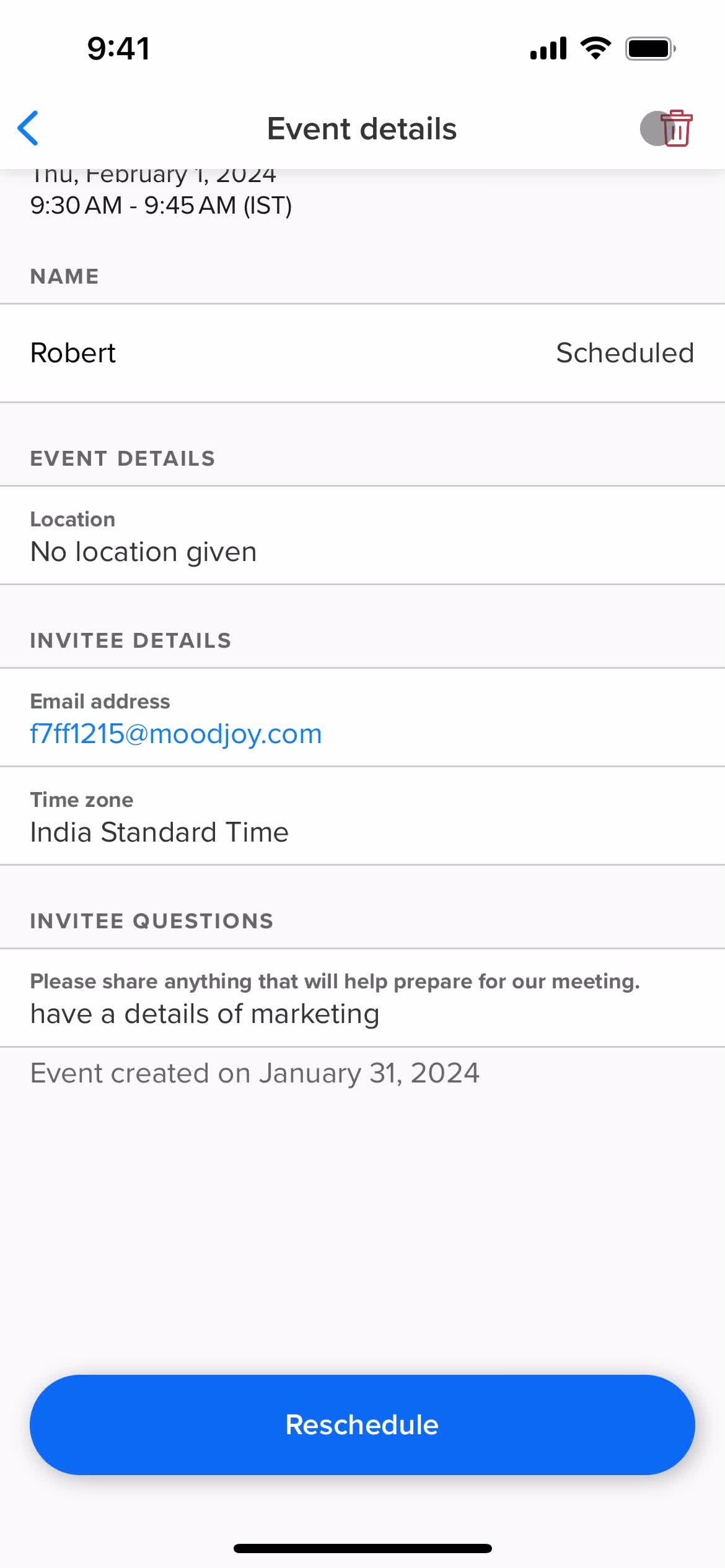
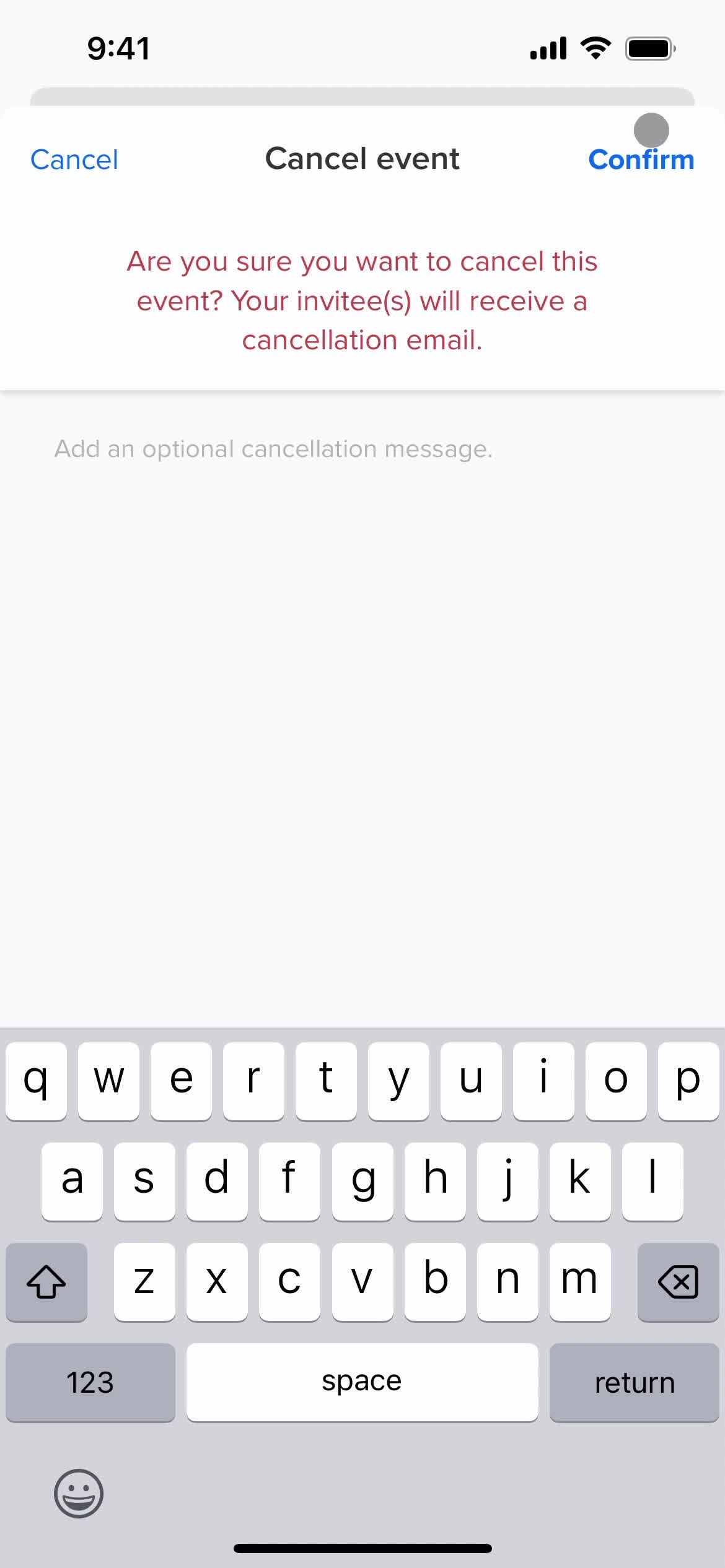
Delete event
this is title
Deleted
this is title
Rate us
this is title
this is title
Scheduled
this is title
Create event
this is title
this is title
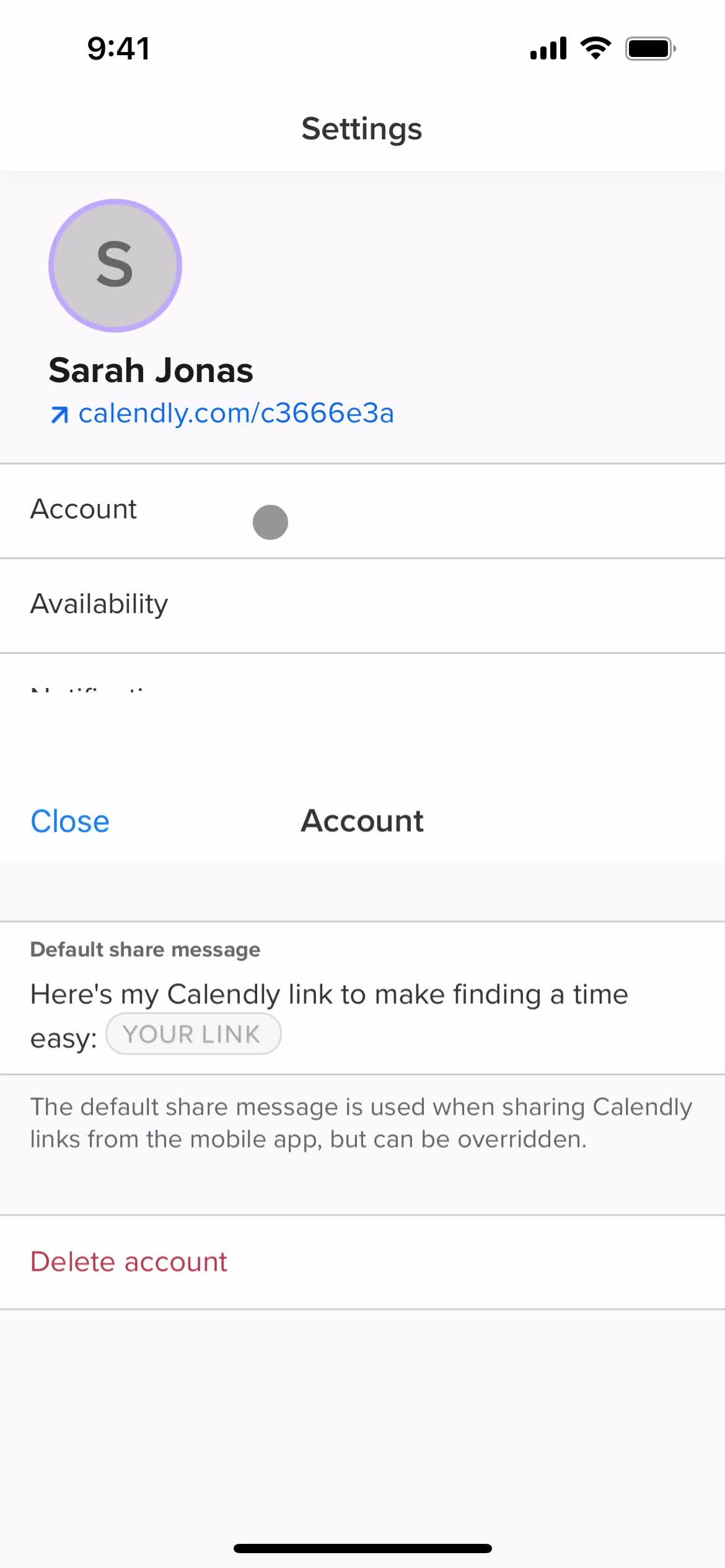
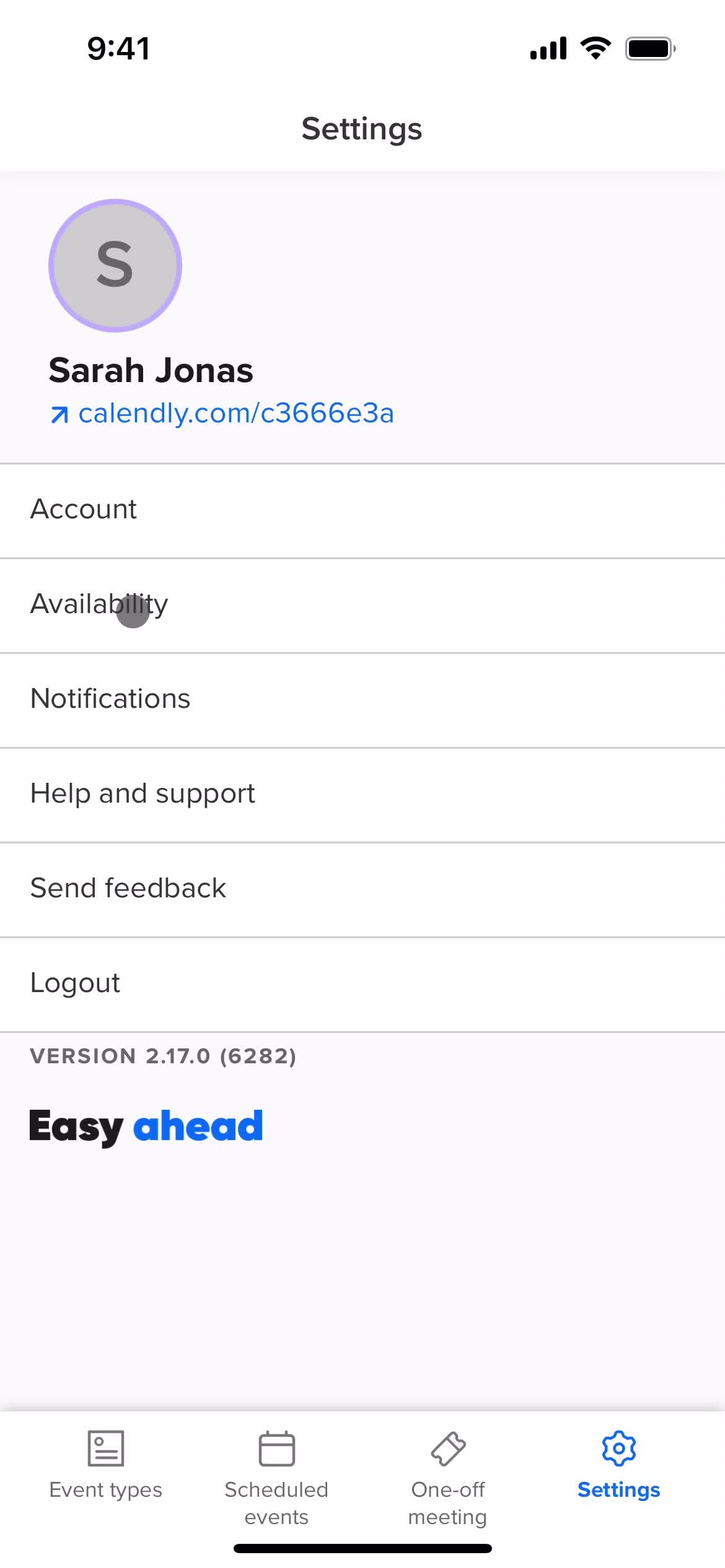
Settings
this is title
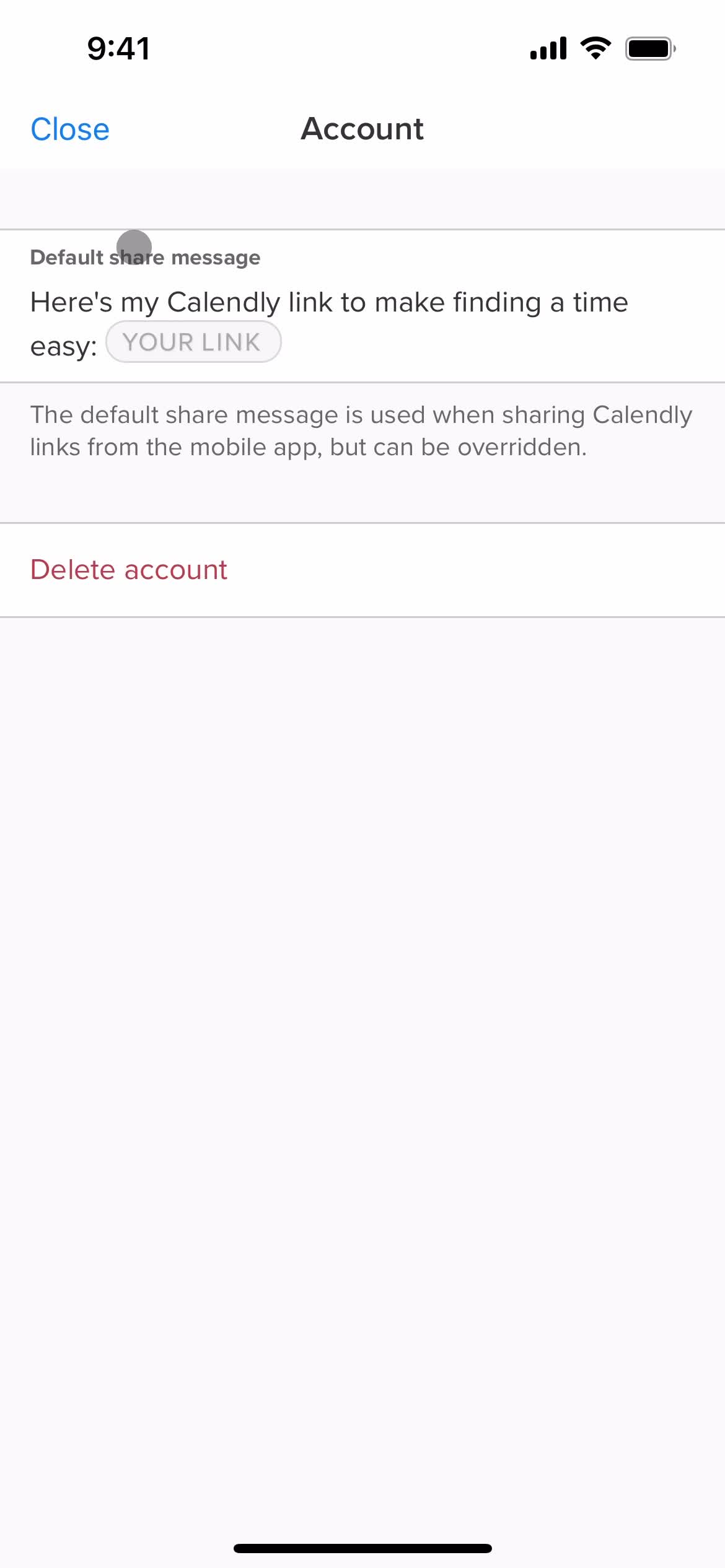
Account settings
this is title
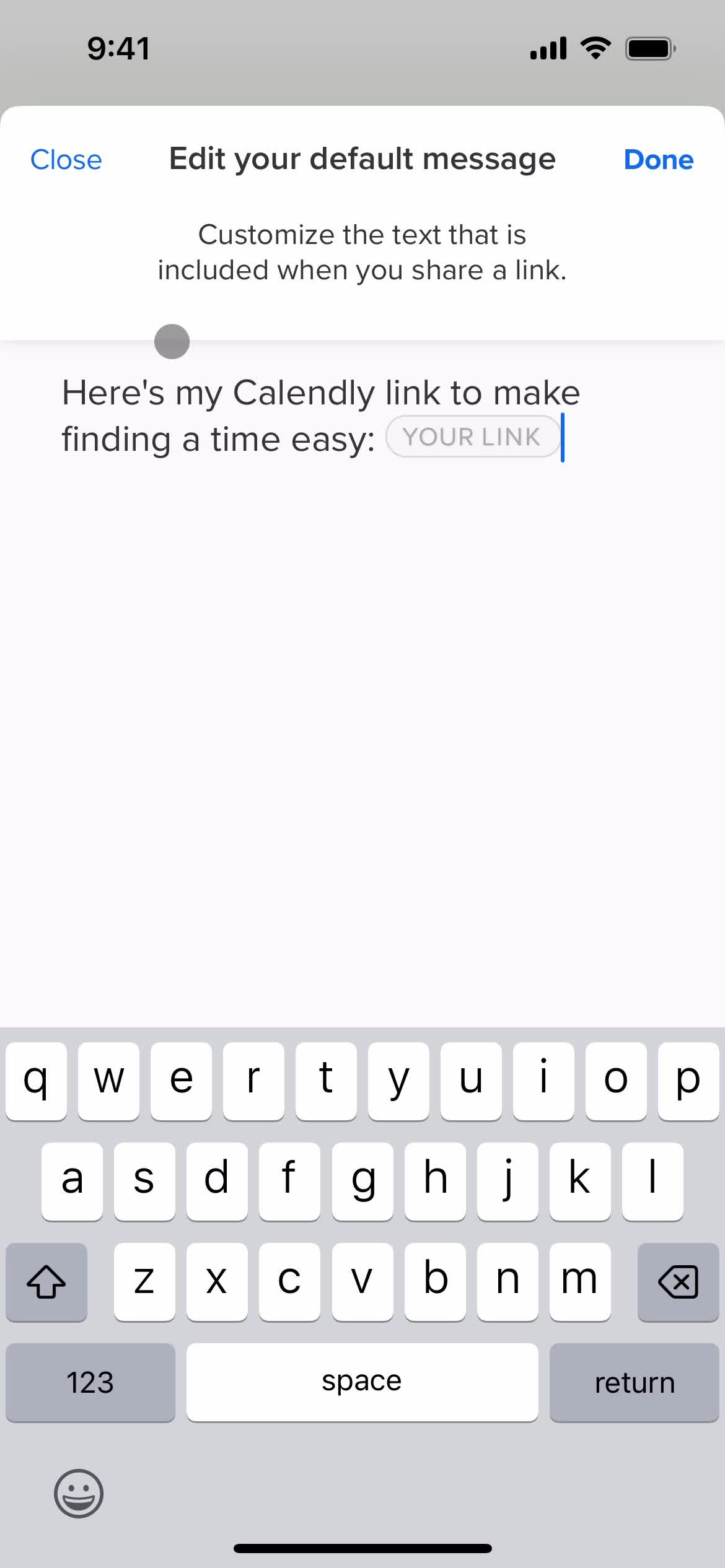
Edit message
this is title
Settings
this is title
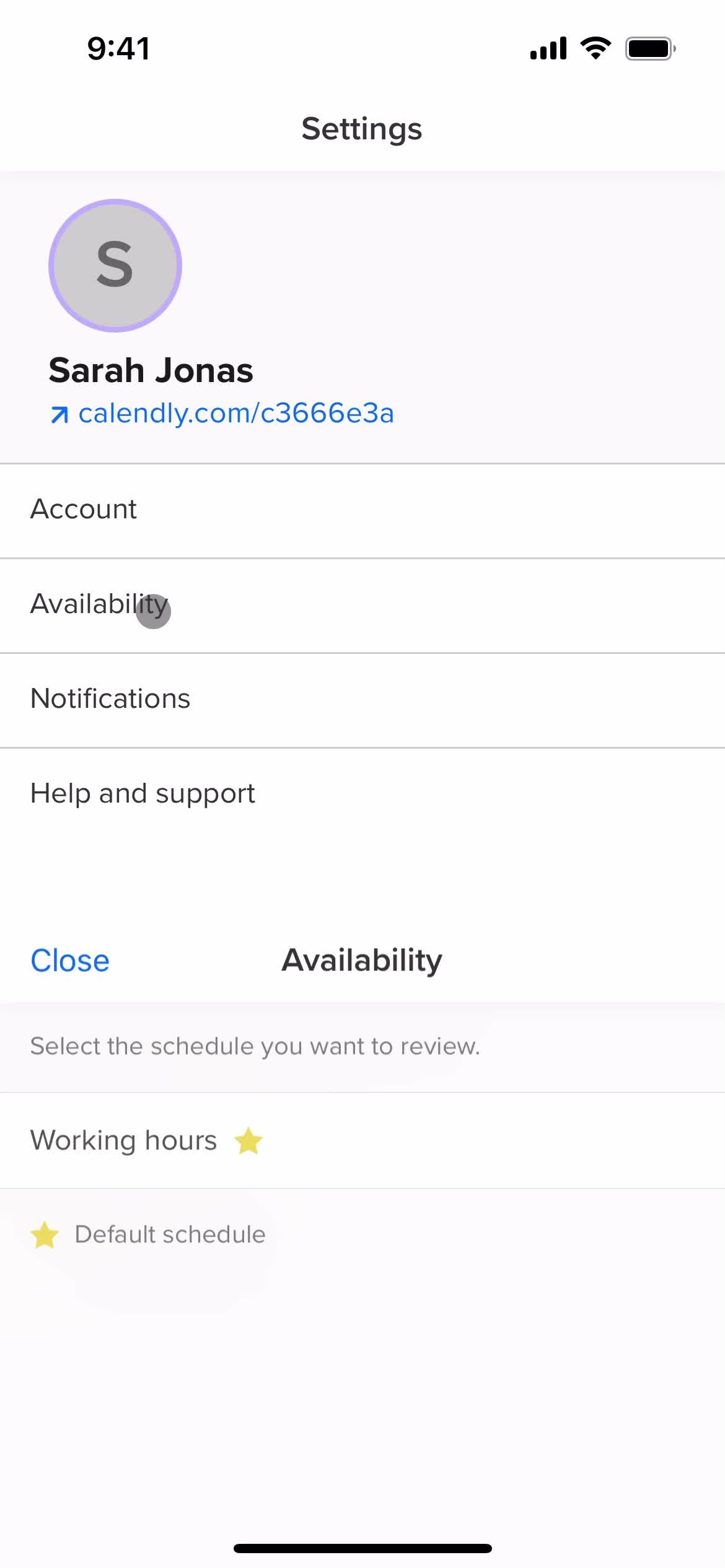
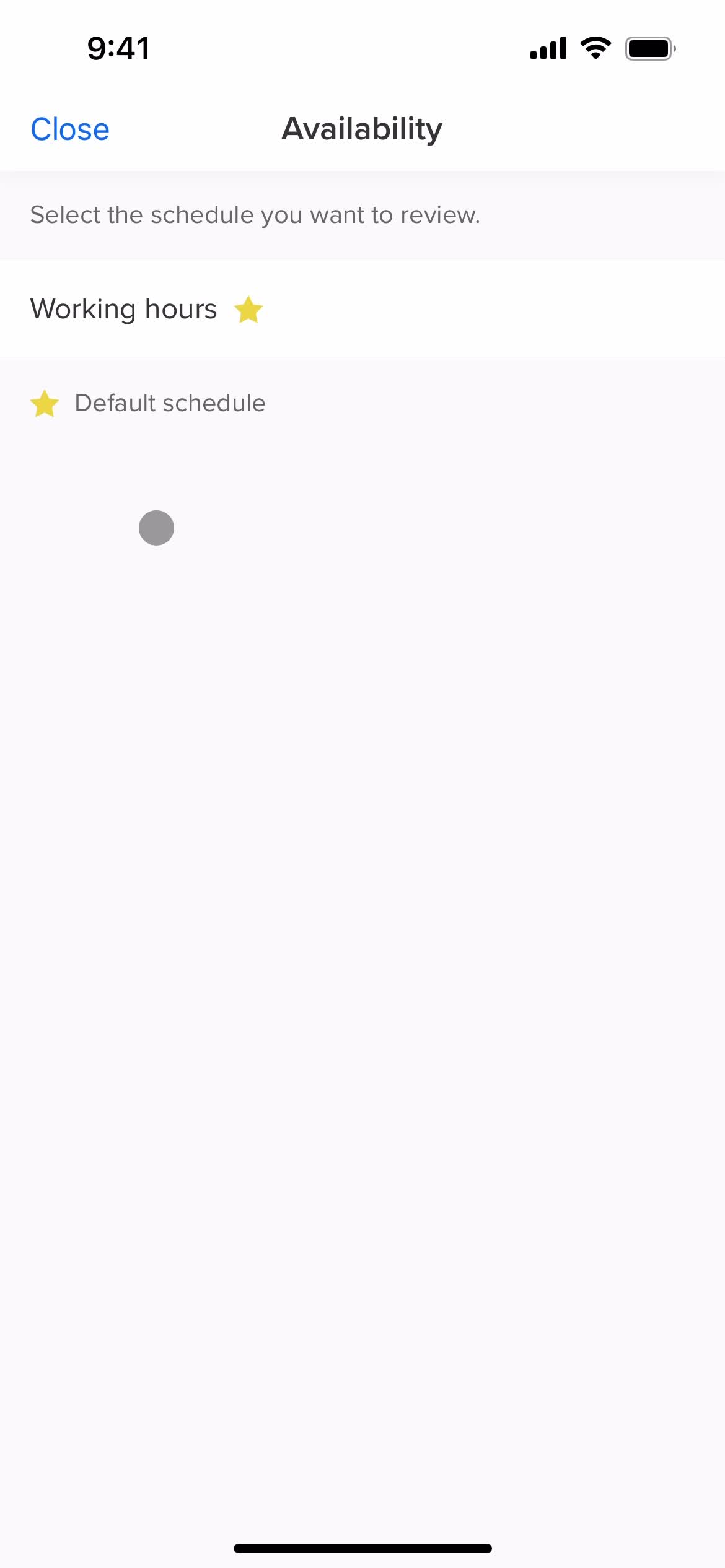
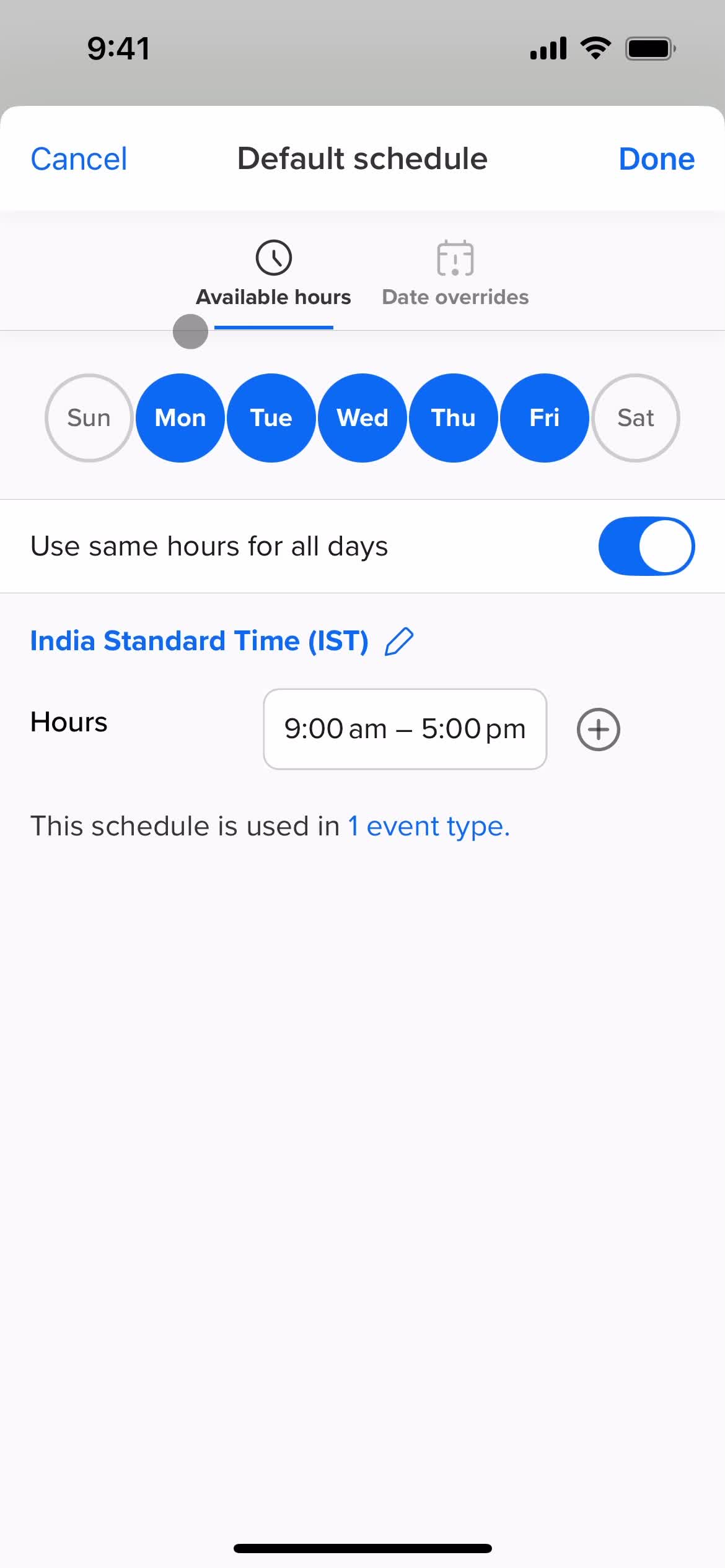
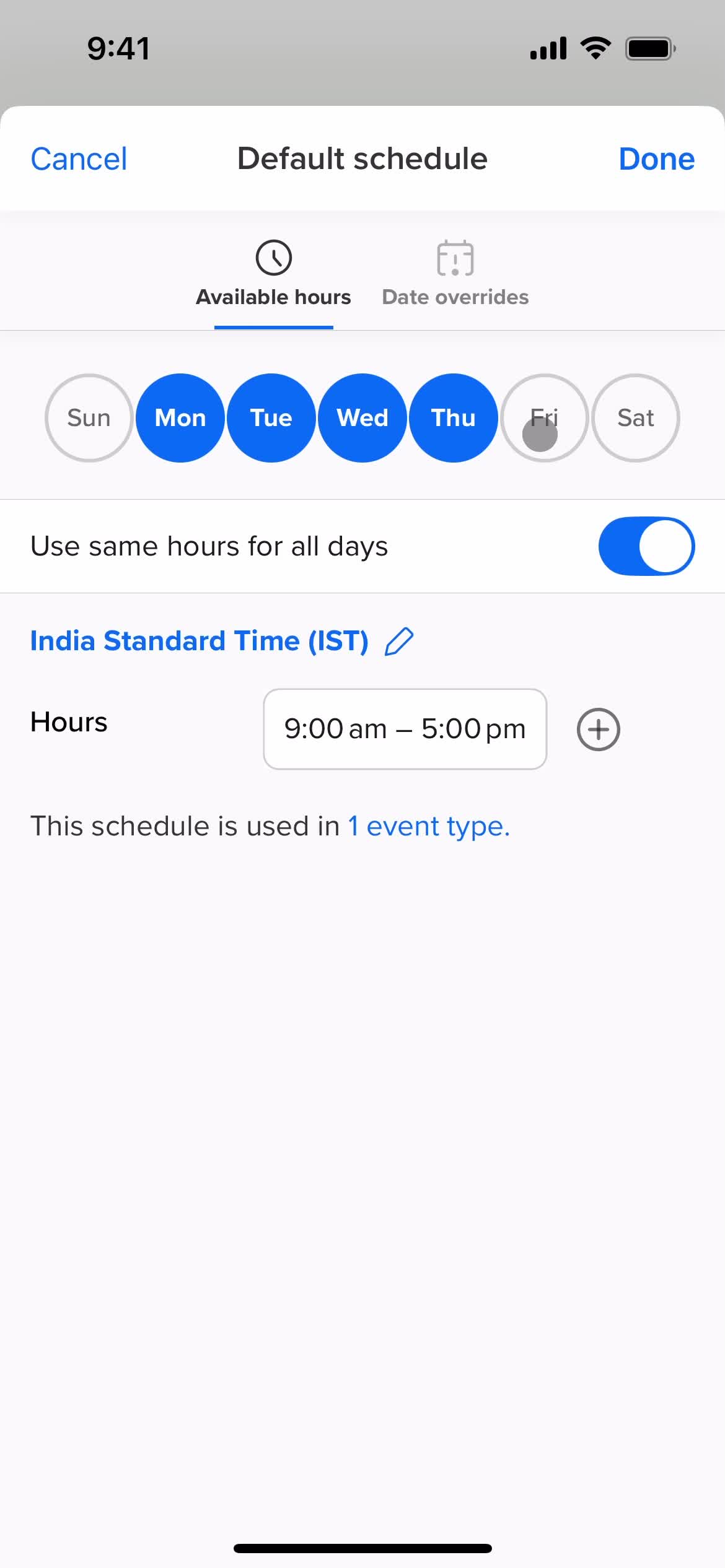
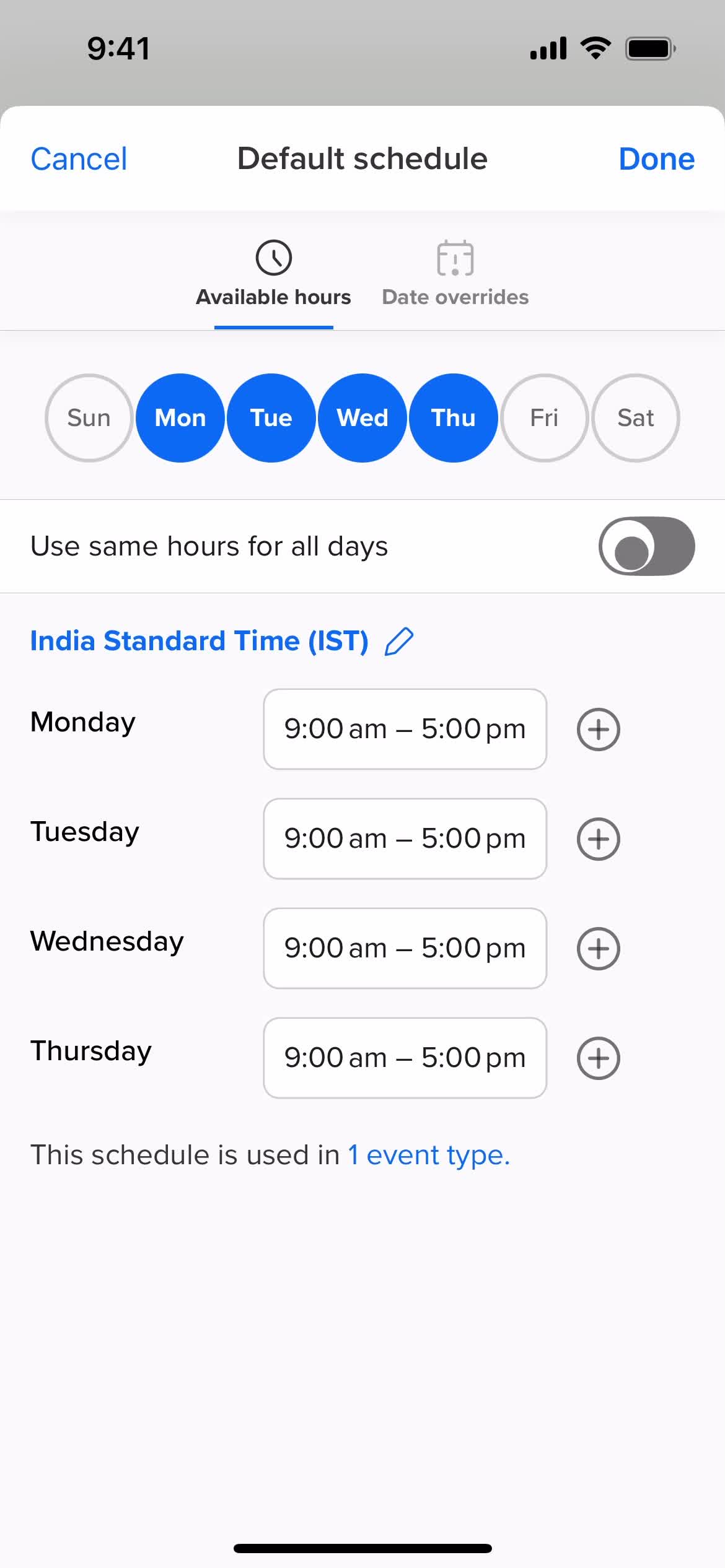
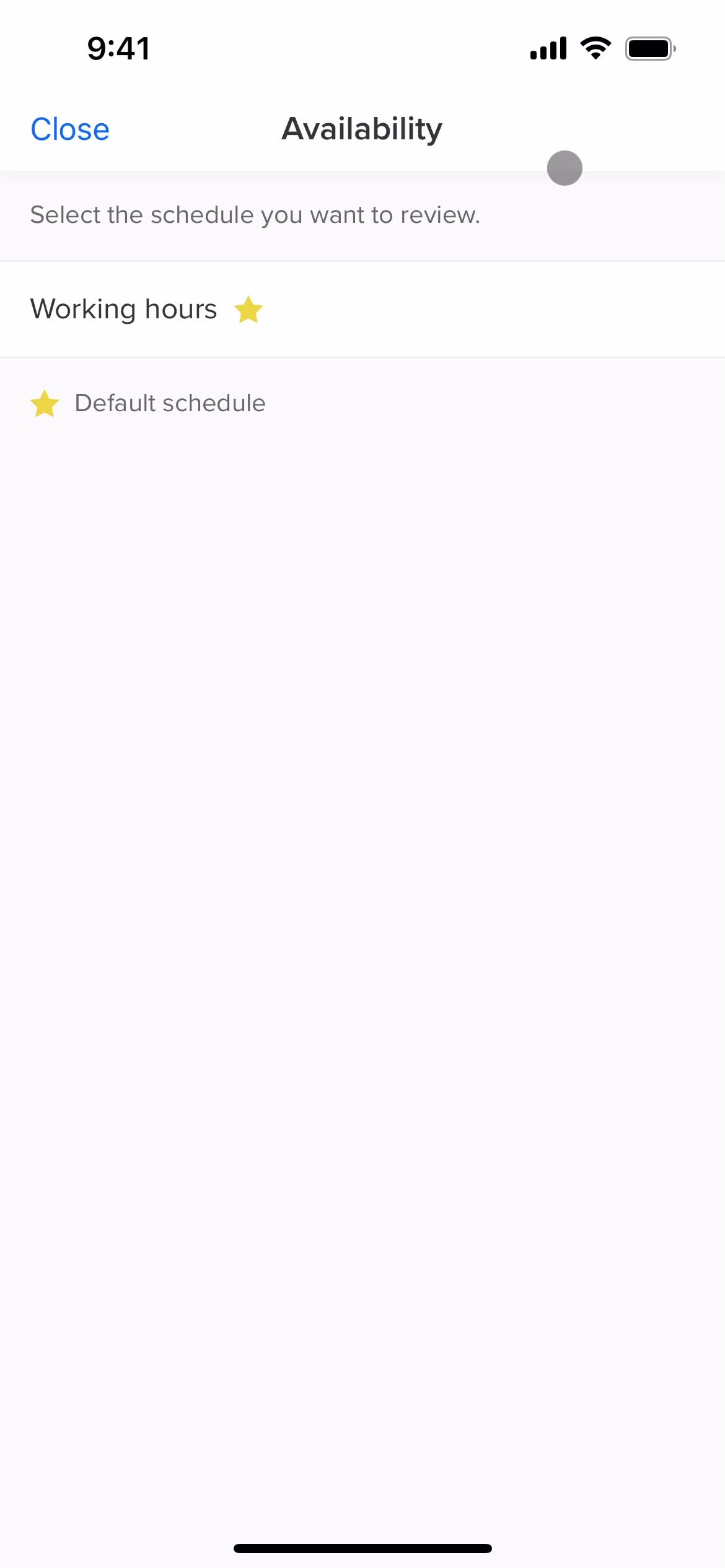
Set availability
this is title
Set availability
this is title
this is title
this is title
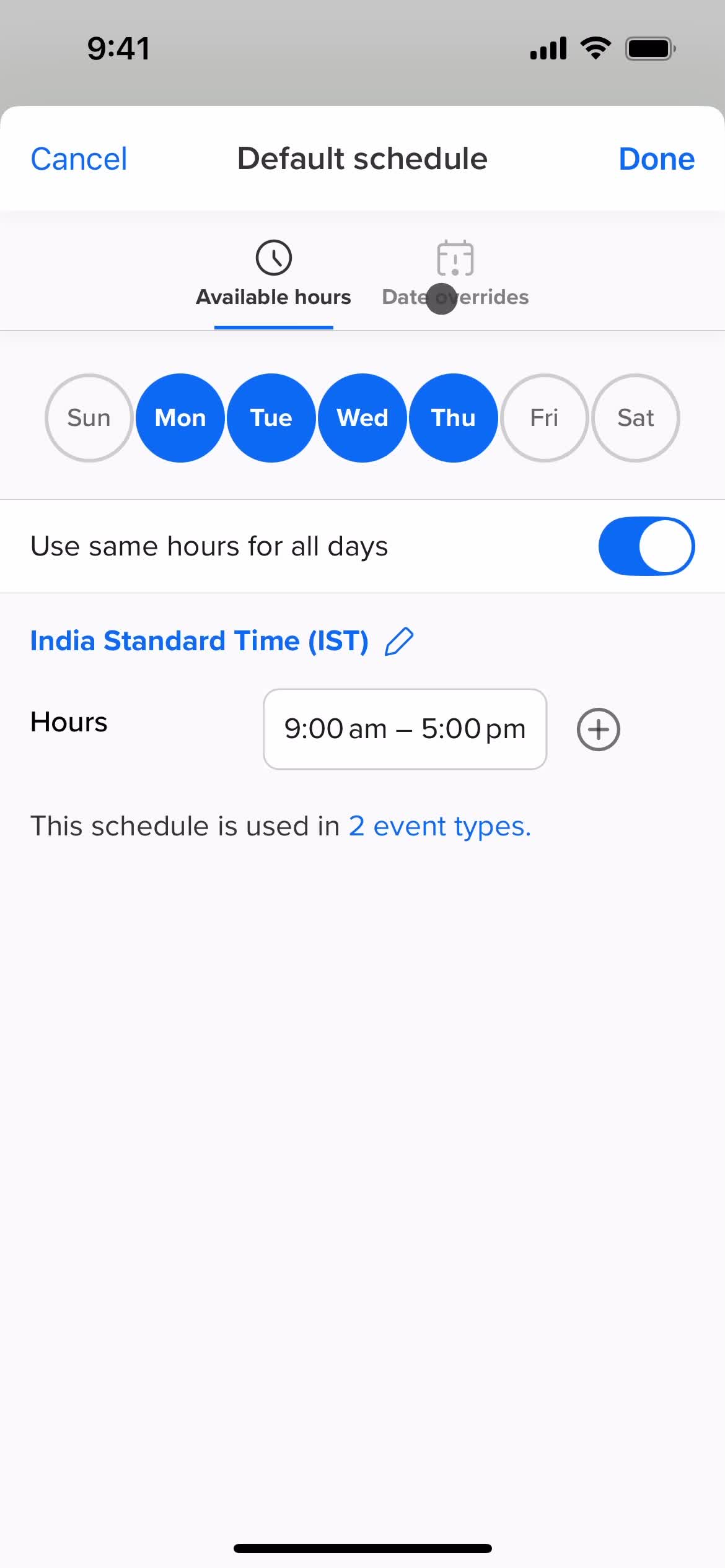
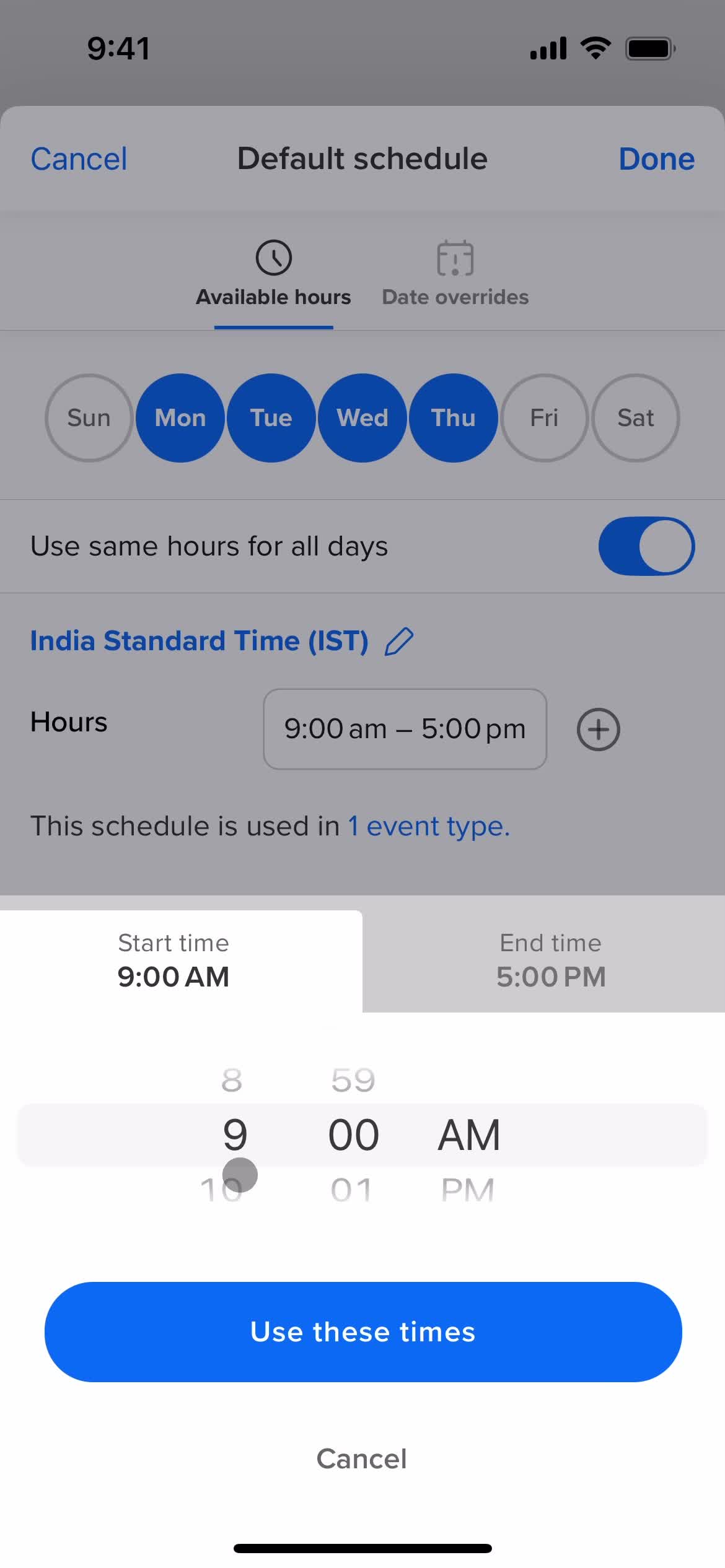
Set times
this is title
this is title
this is title
Delete
this is title
Deleted
this is title
Settings
this is title
Notification settings
this is title
Settings
this is title
Home
this is title
Home
this is title
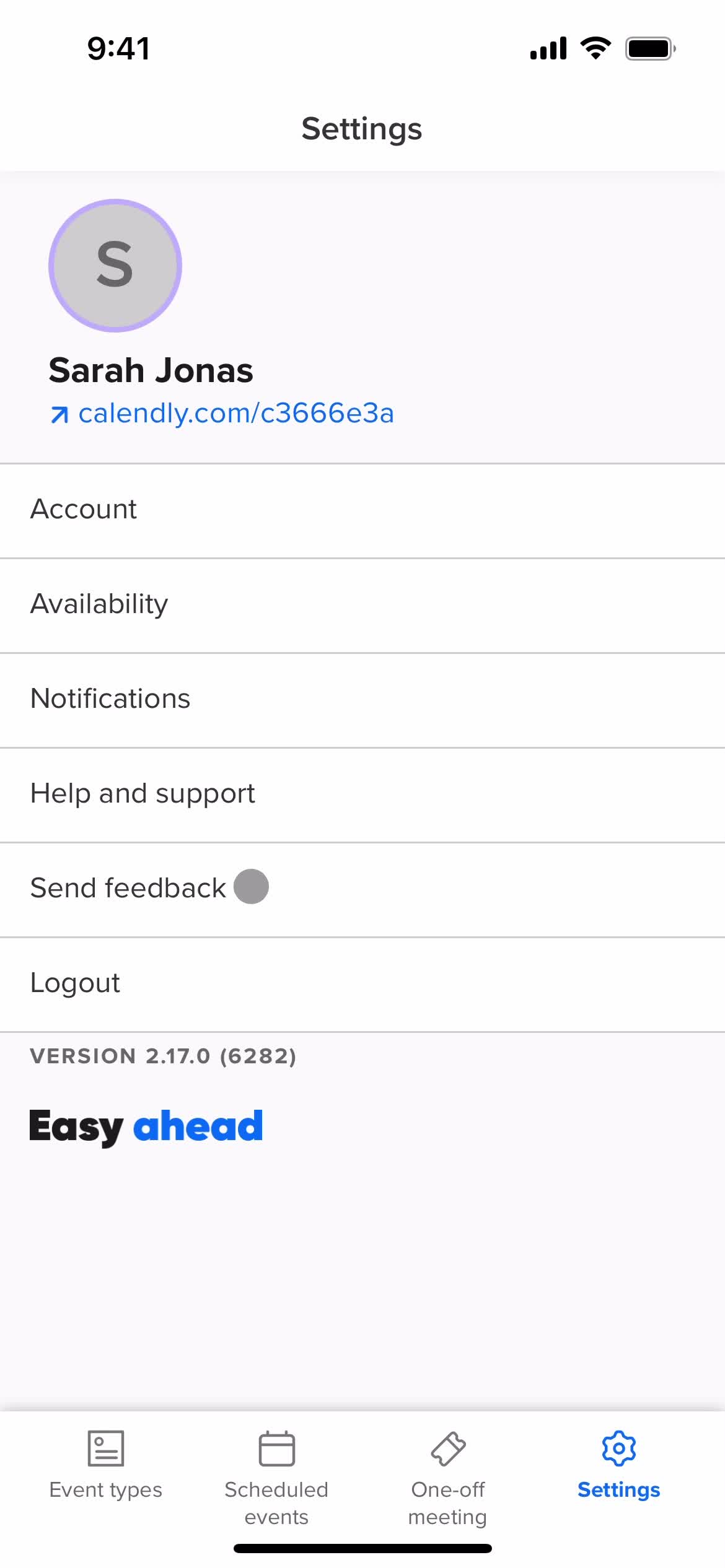
Settings
this is title
Loading
this is title
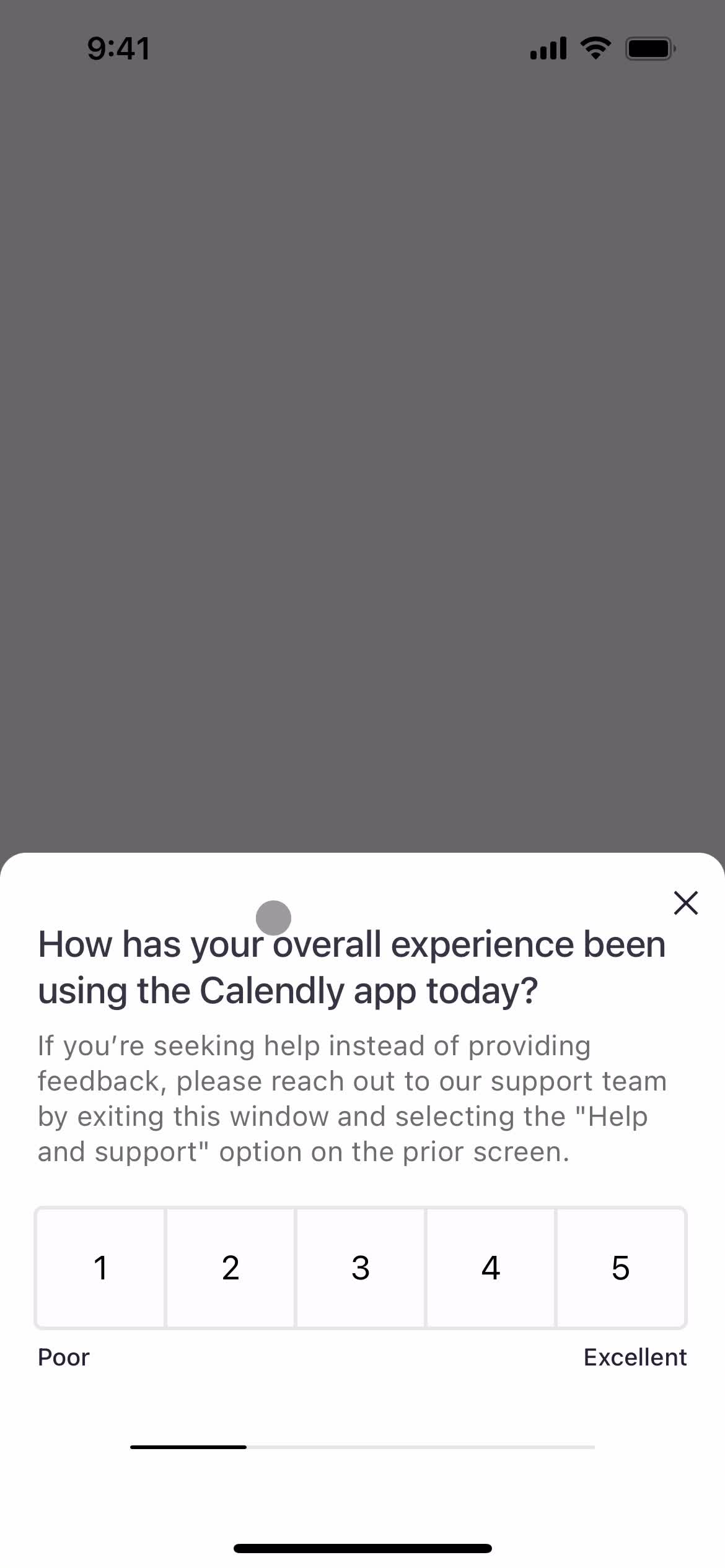
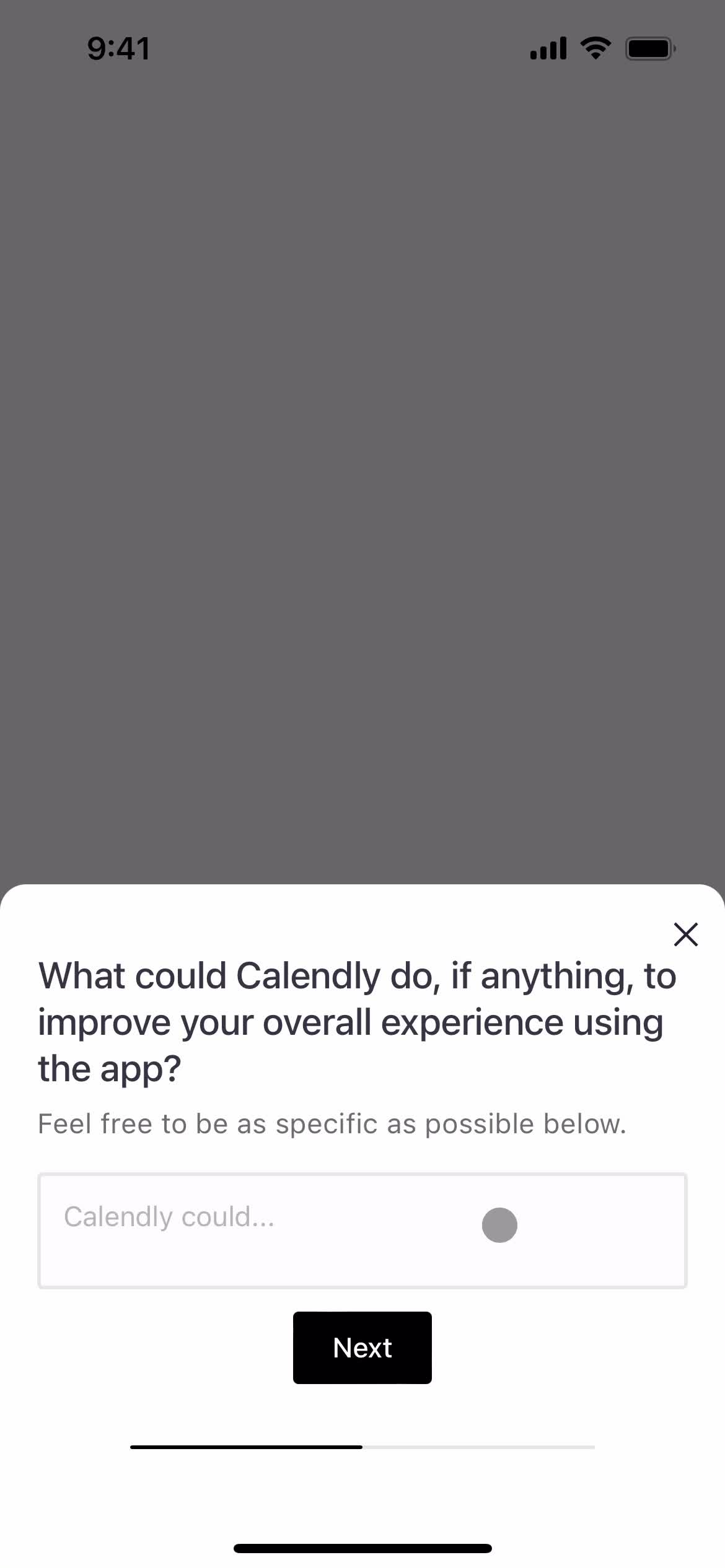
Share feedback
this is title
this is title
this is title
this is title
Submit feedback
this is title
Feedback submitted
this is title
Home
this is title
Settings
this is title
Help center
this is title
Help center categories
this is title
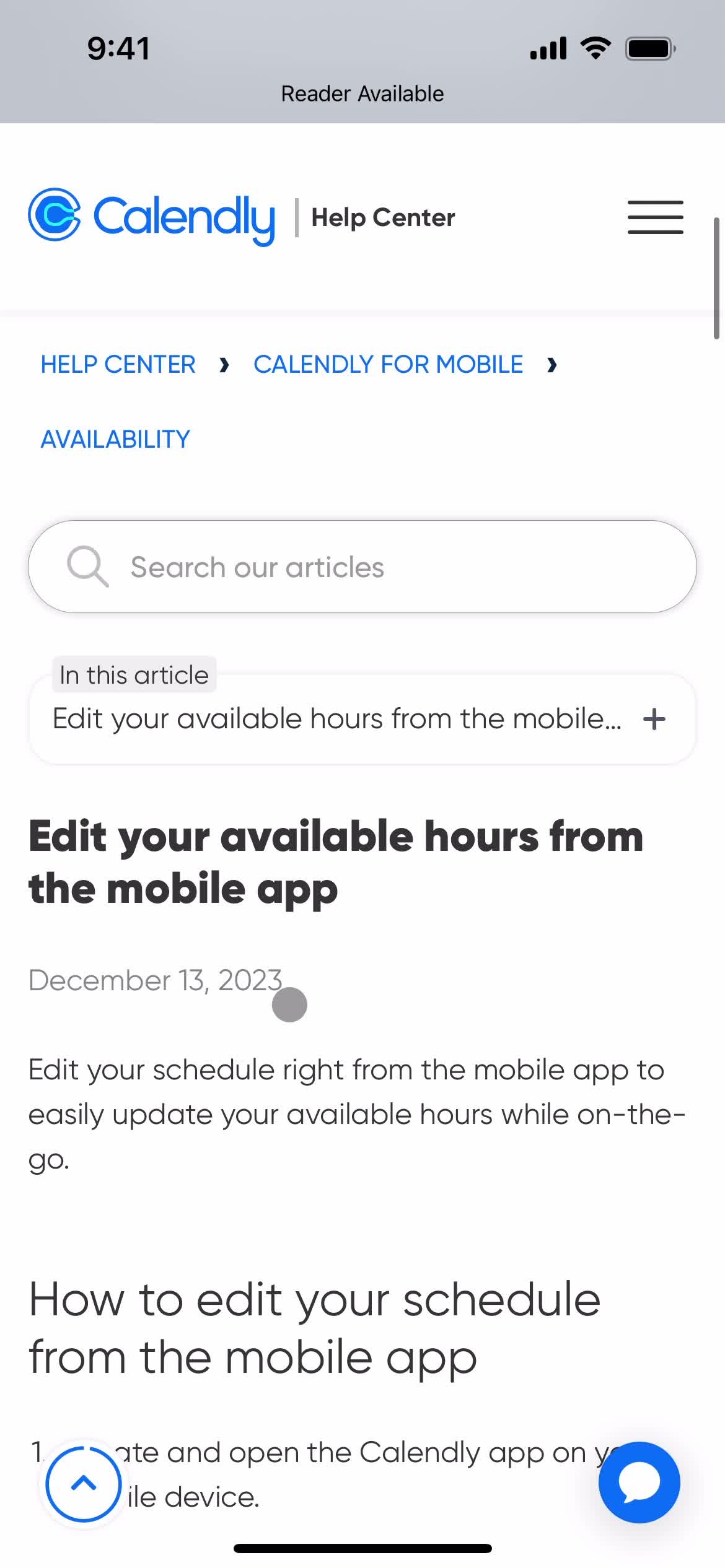
Help center article
this is title
Share feedback
this is title
this is title
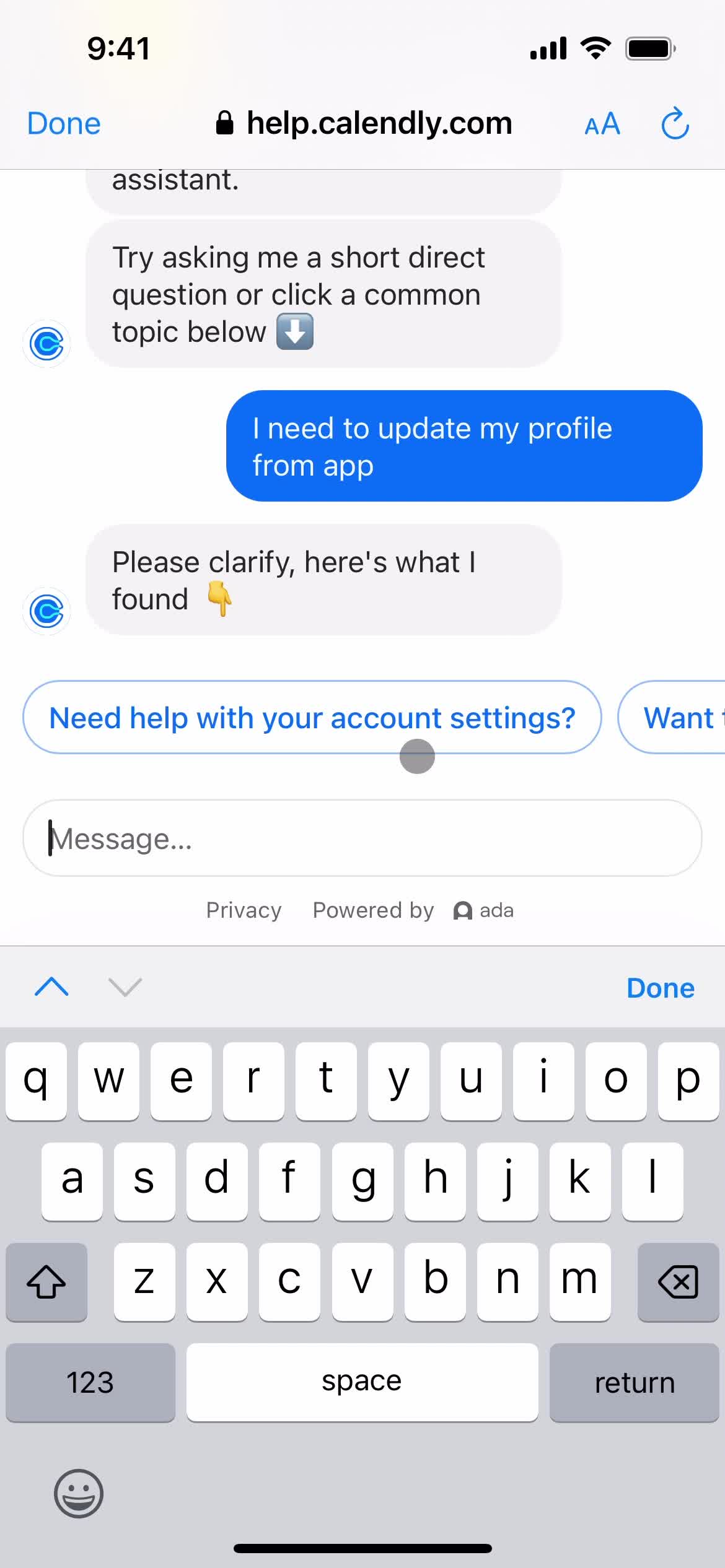
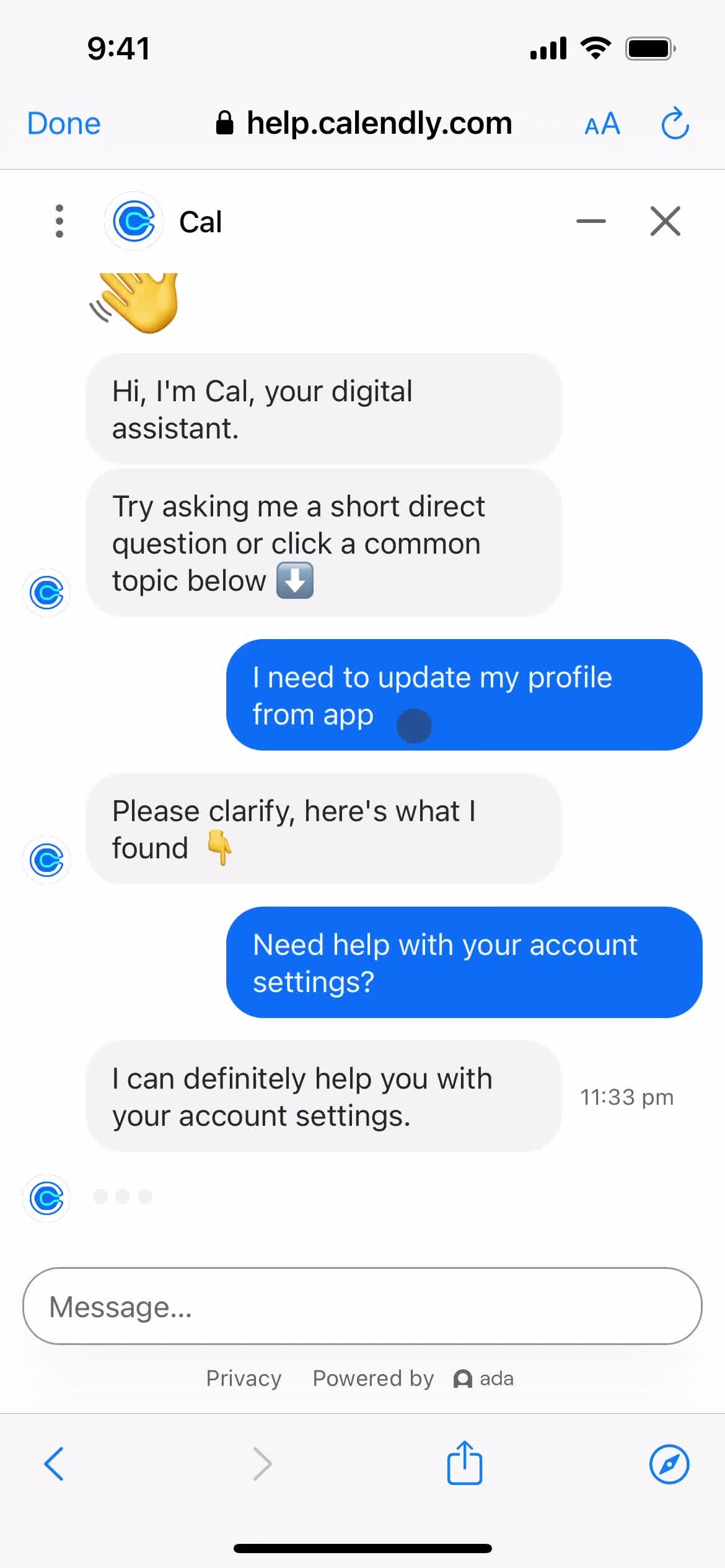
Support chat
this is title
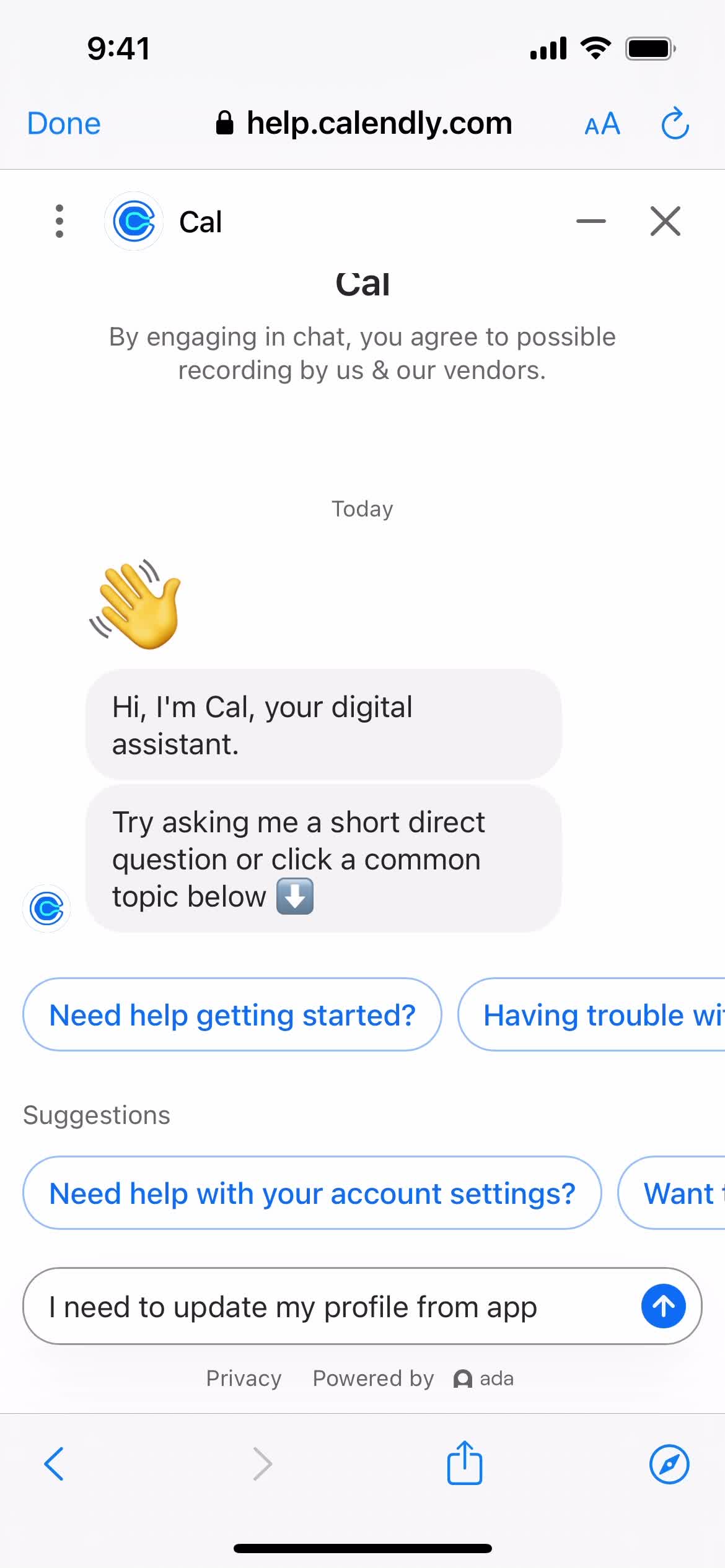
Add message
this is title
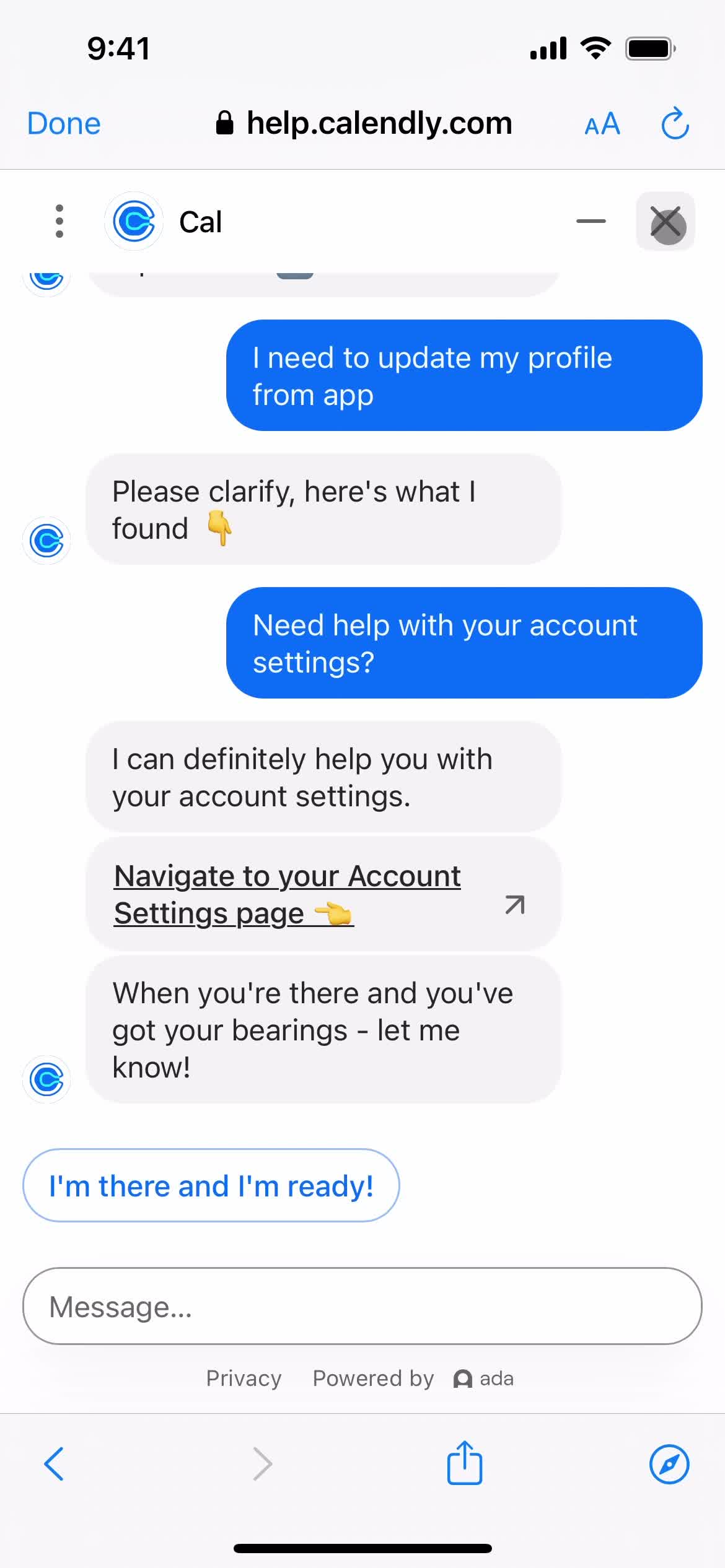
Chat bot
this is title
this is title
this is title
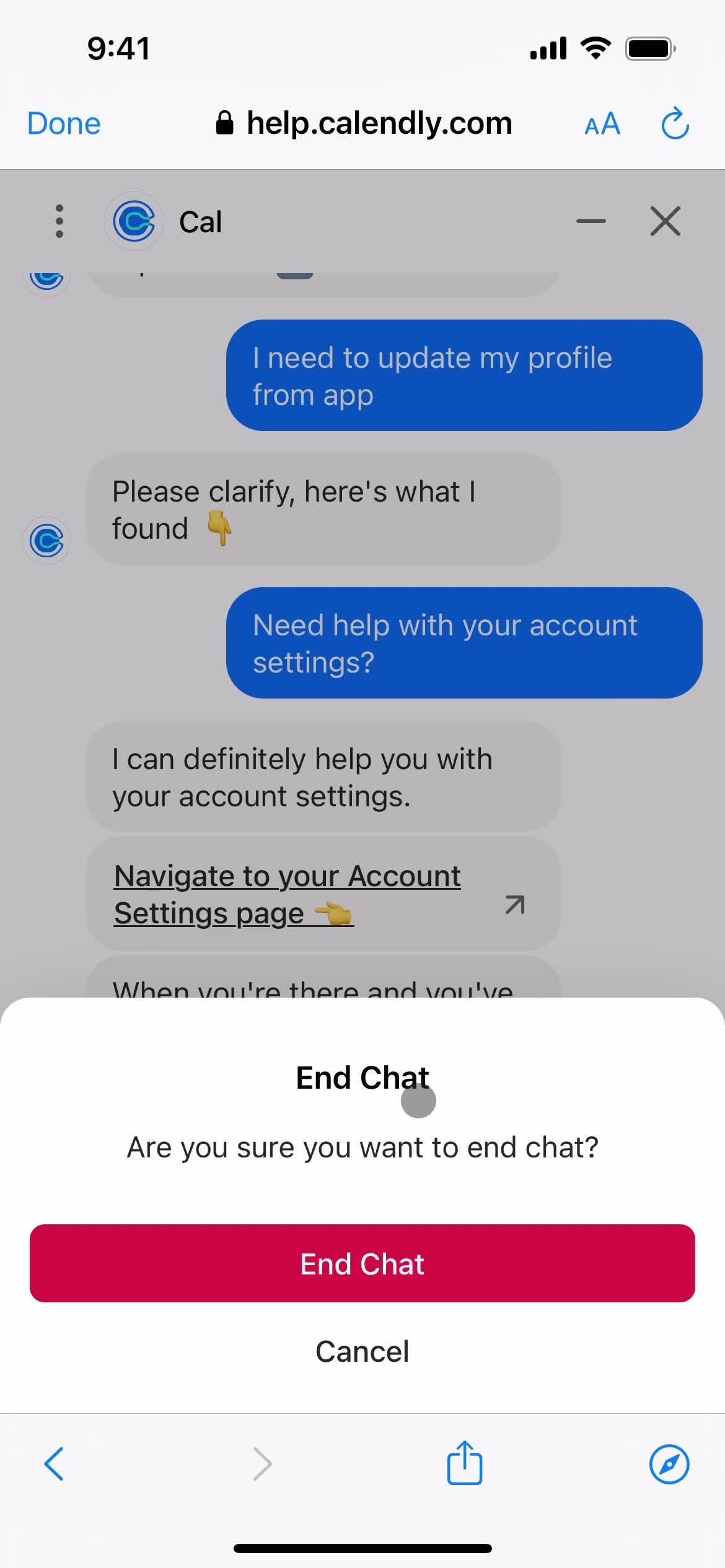
End chat
this is title
Help center article
this is title
Home
this is title
Homepage
this is title
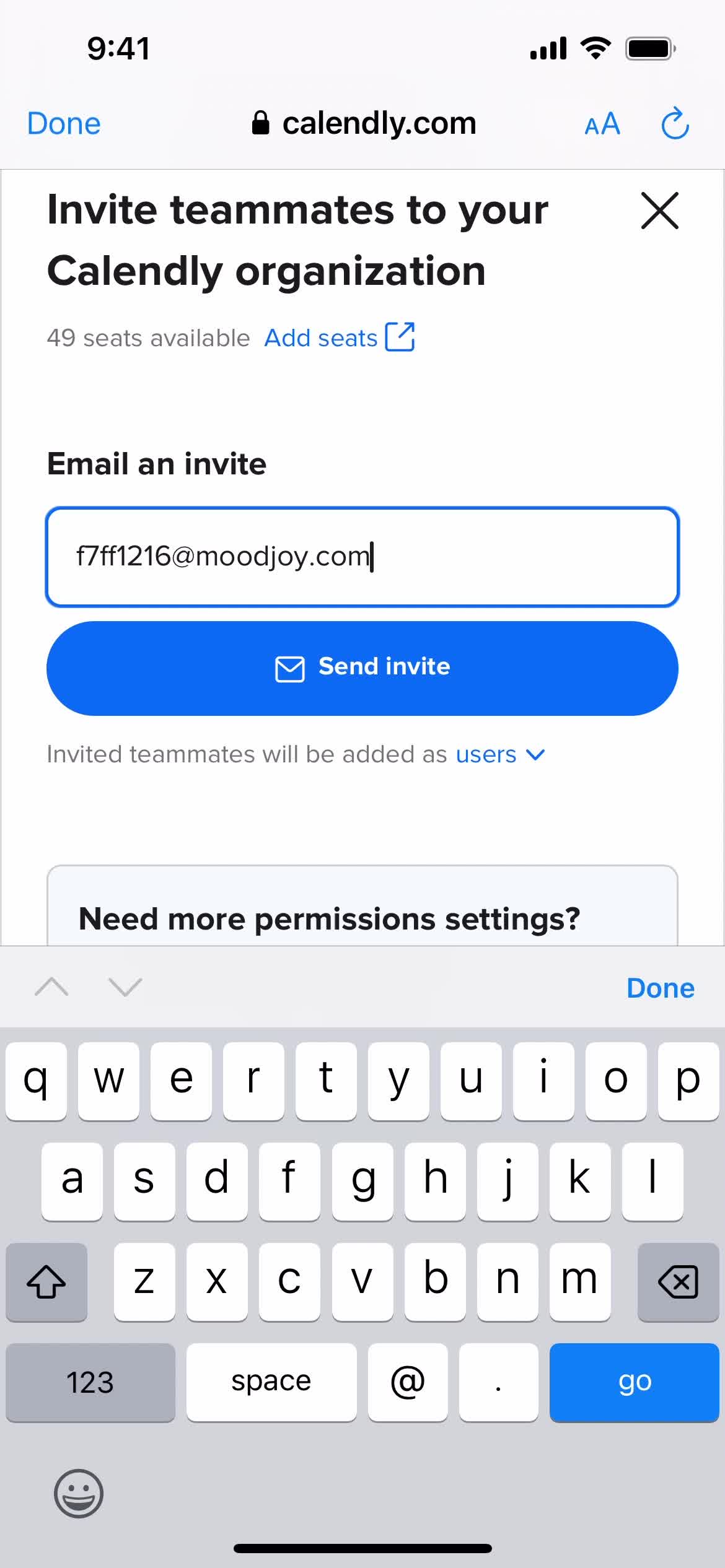
Invite people
this is title
this is title
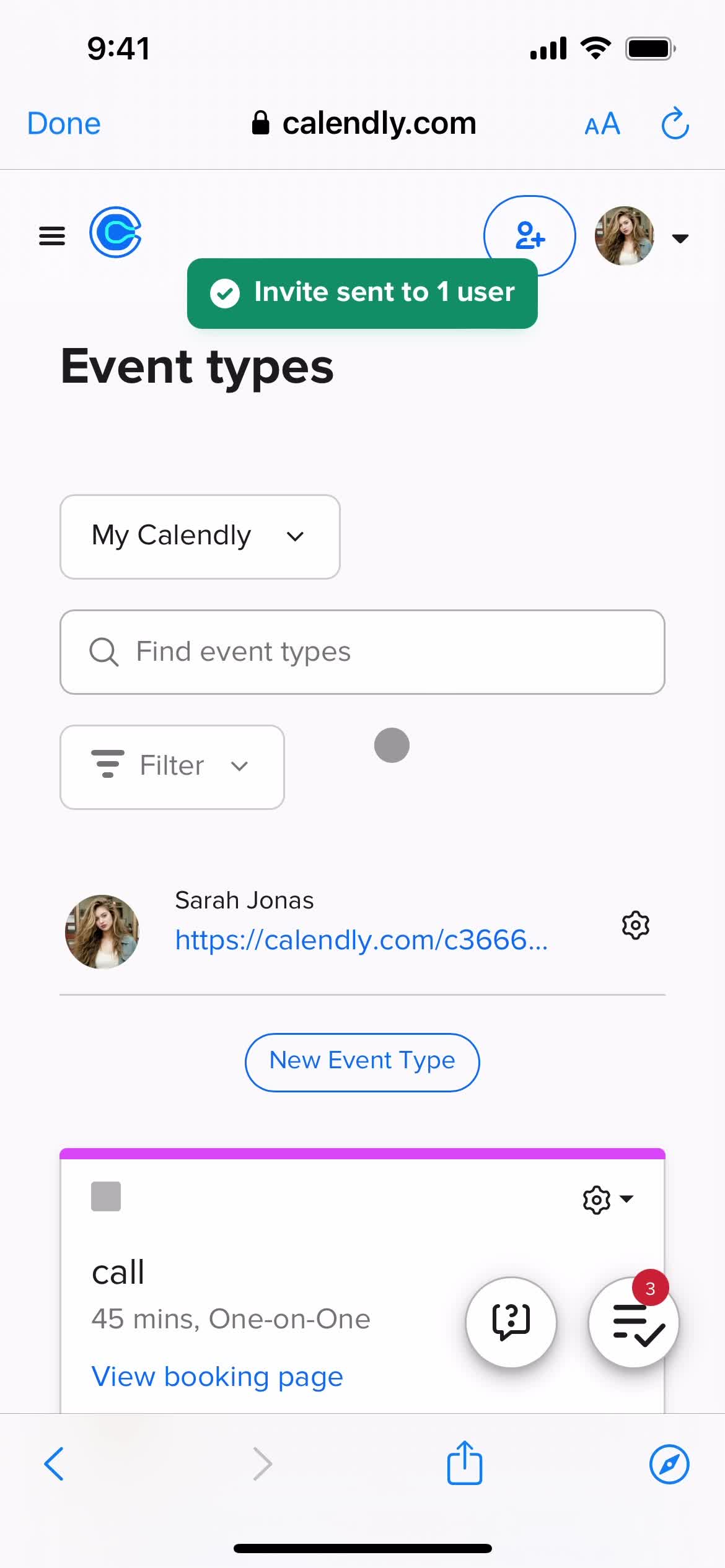
Invite sent
this is title
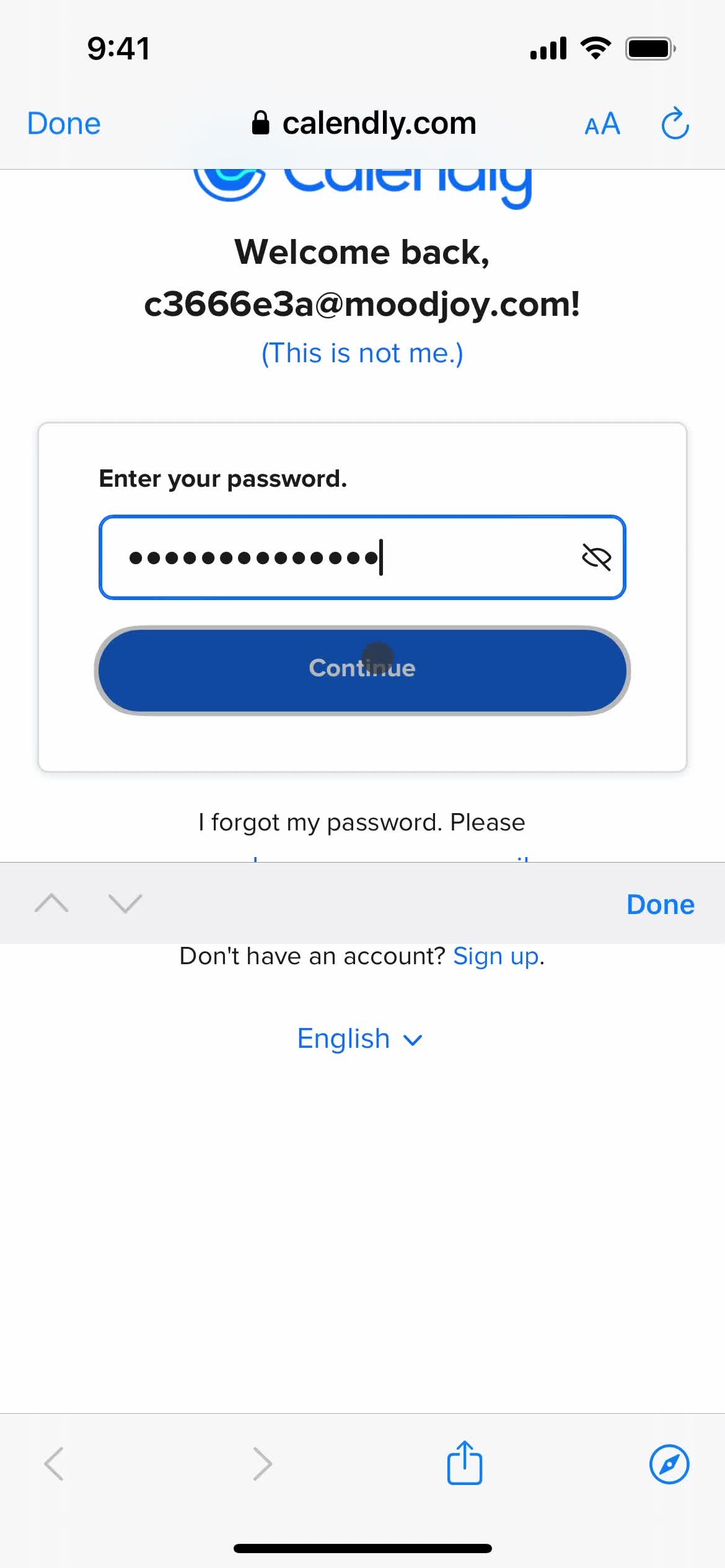
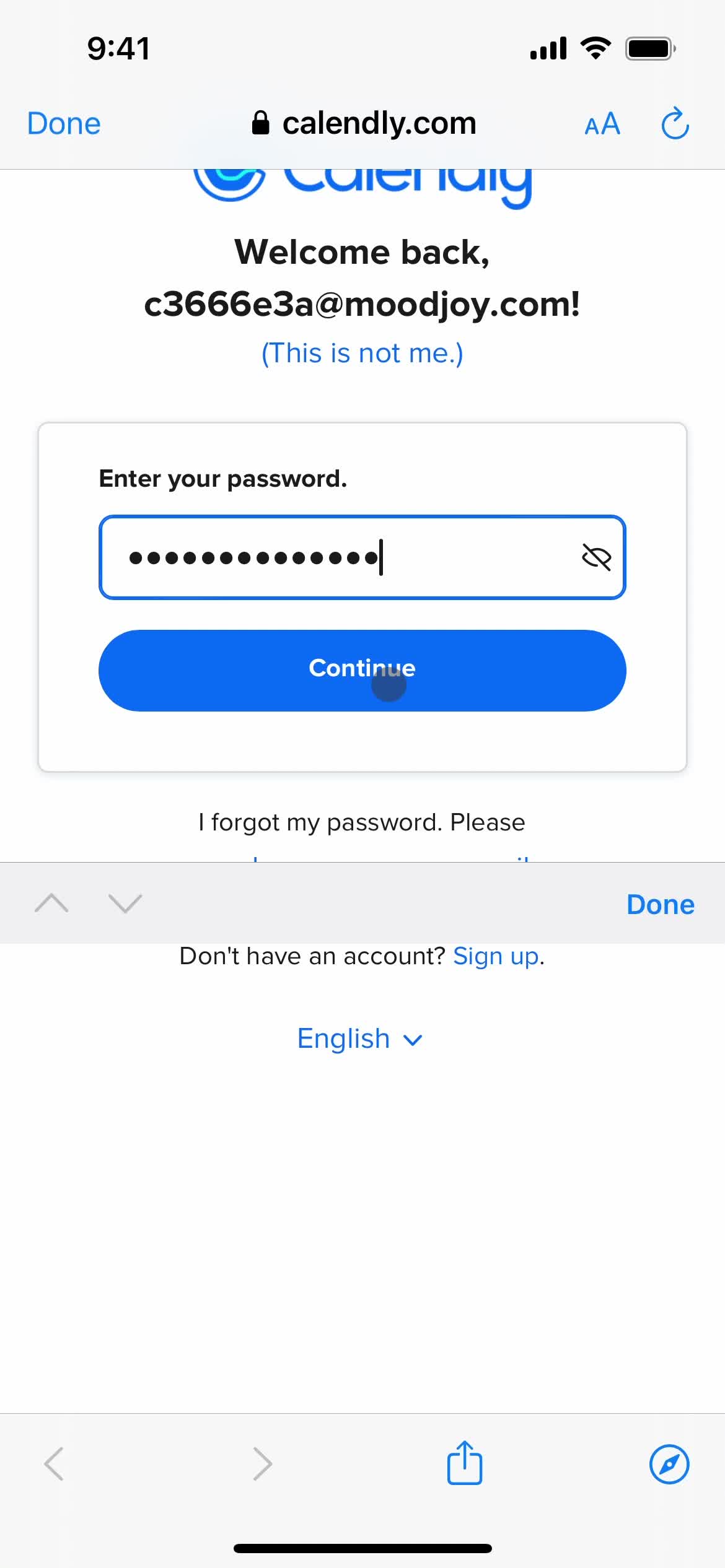
Sign in
this is title
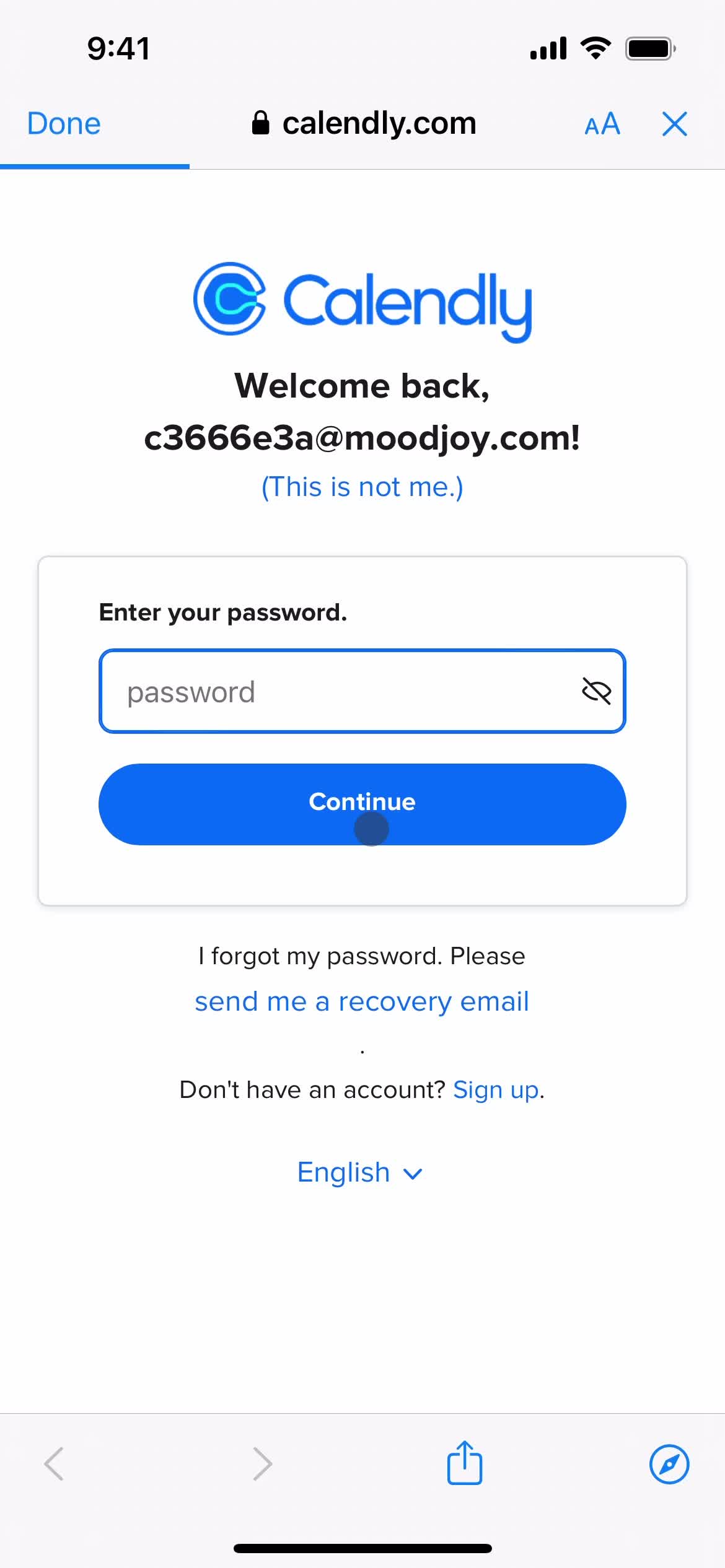
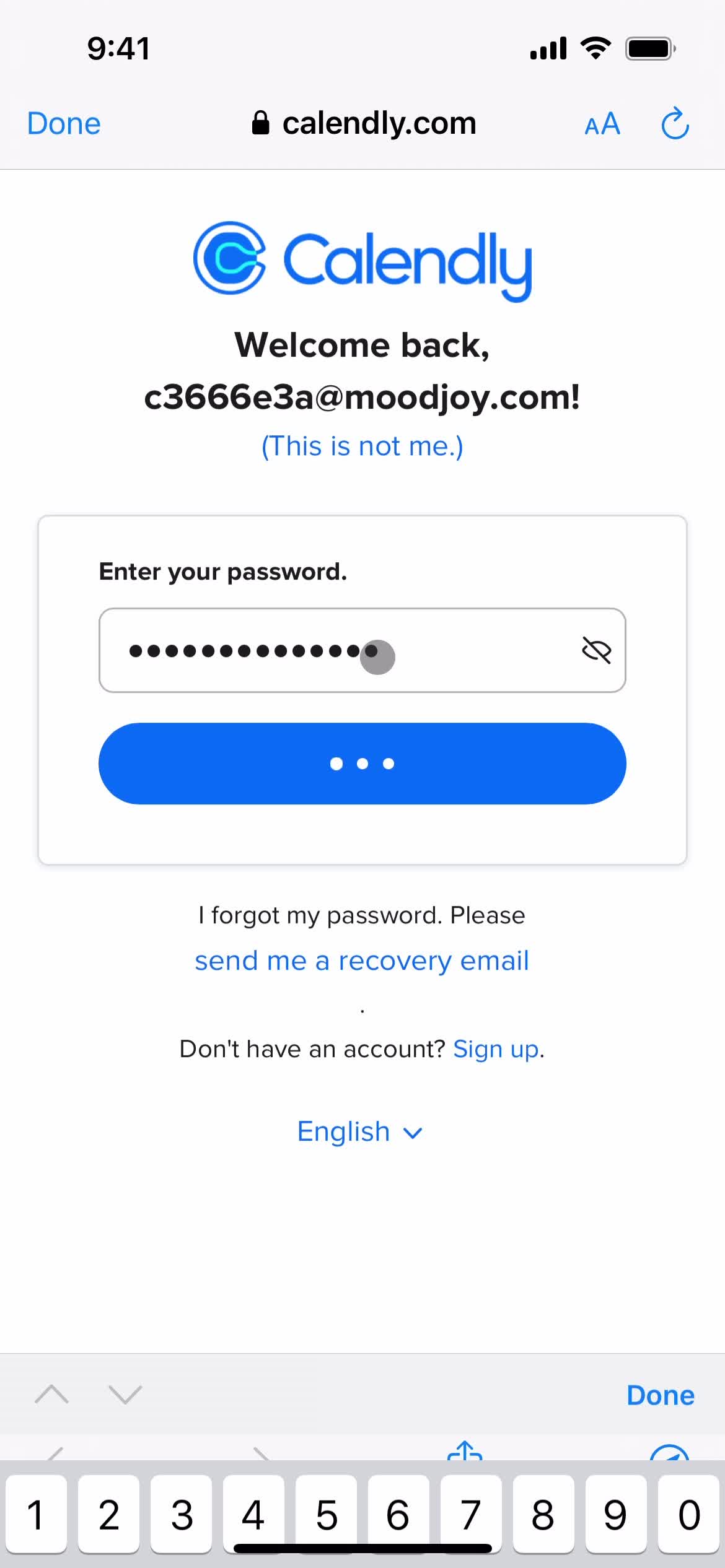
Enter password
this is title
Continue
this is title
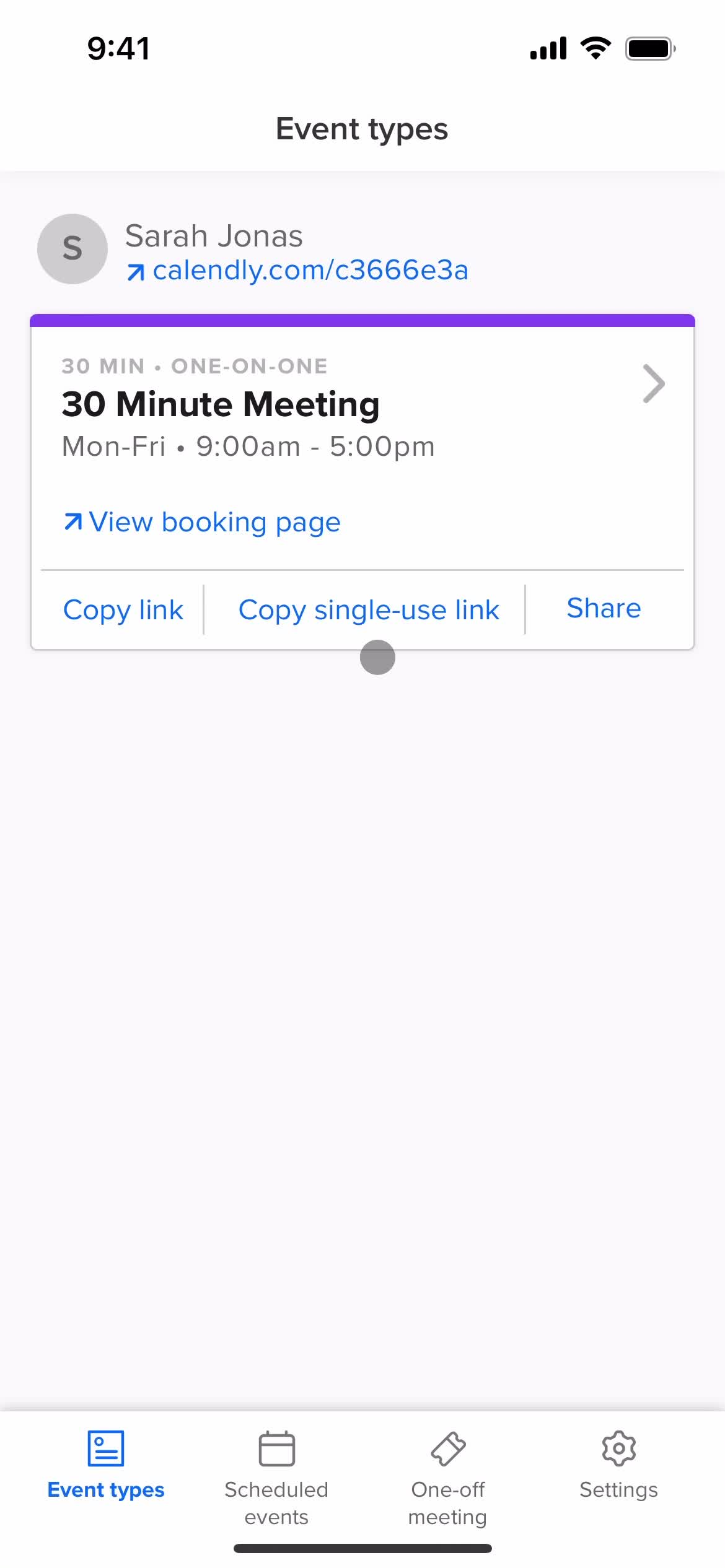
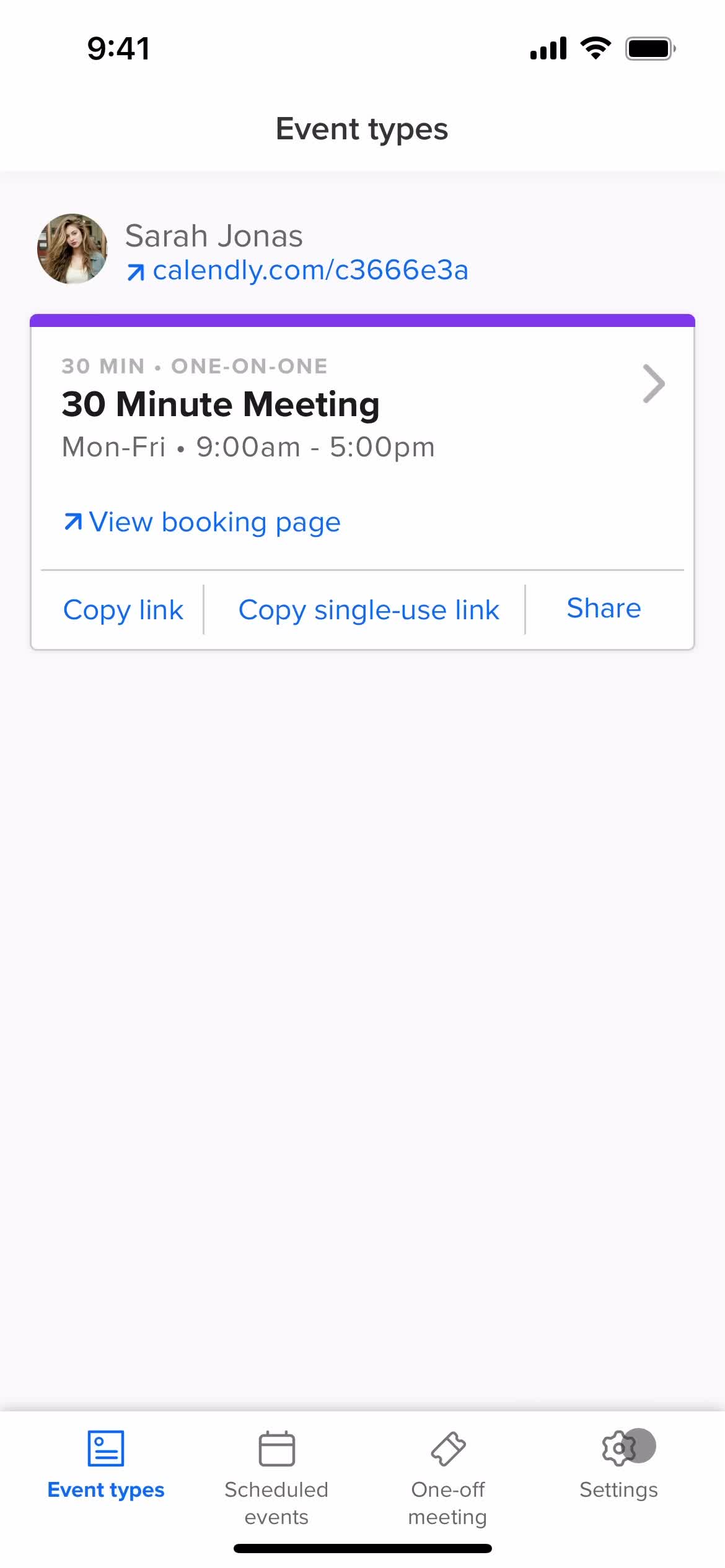
Home
this is title
Home
this is title
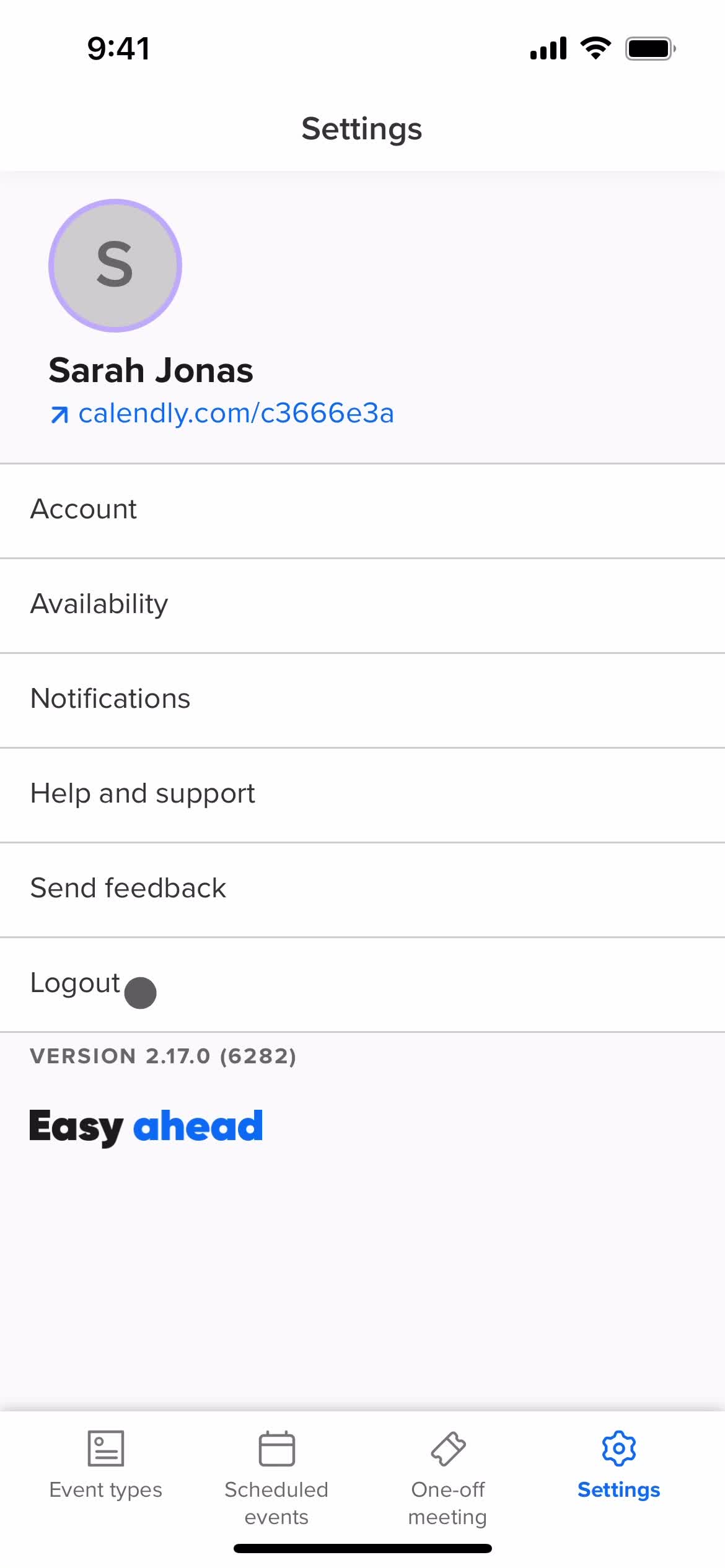
Settings
this is title
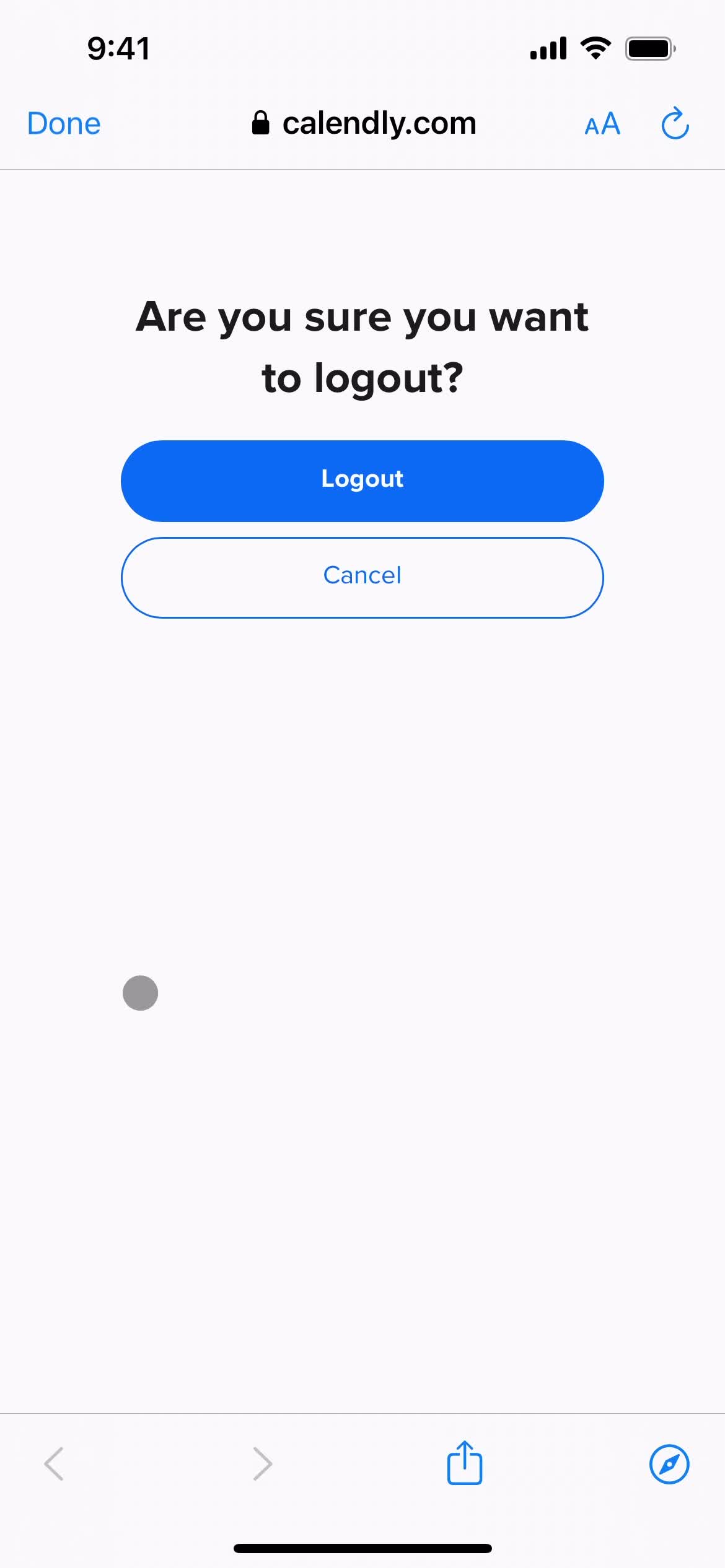
Confirm log out
this is title
Sign in
this is title
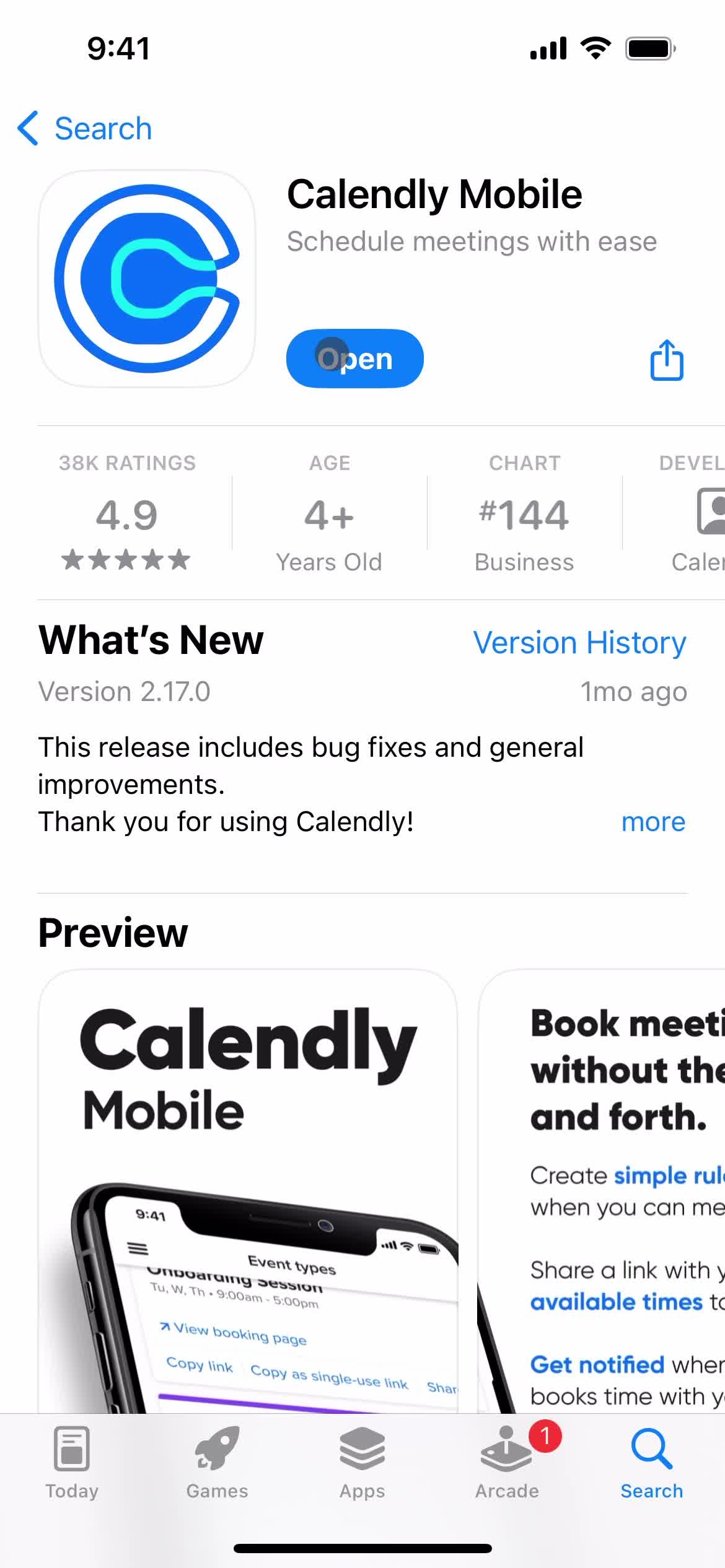
App store listing
this is title
Splash screen
this is title
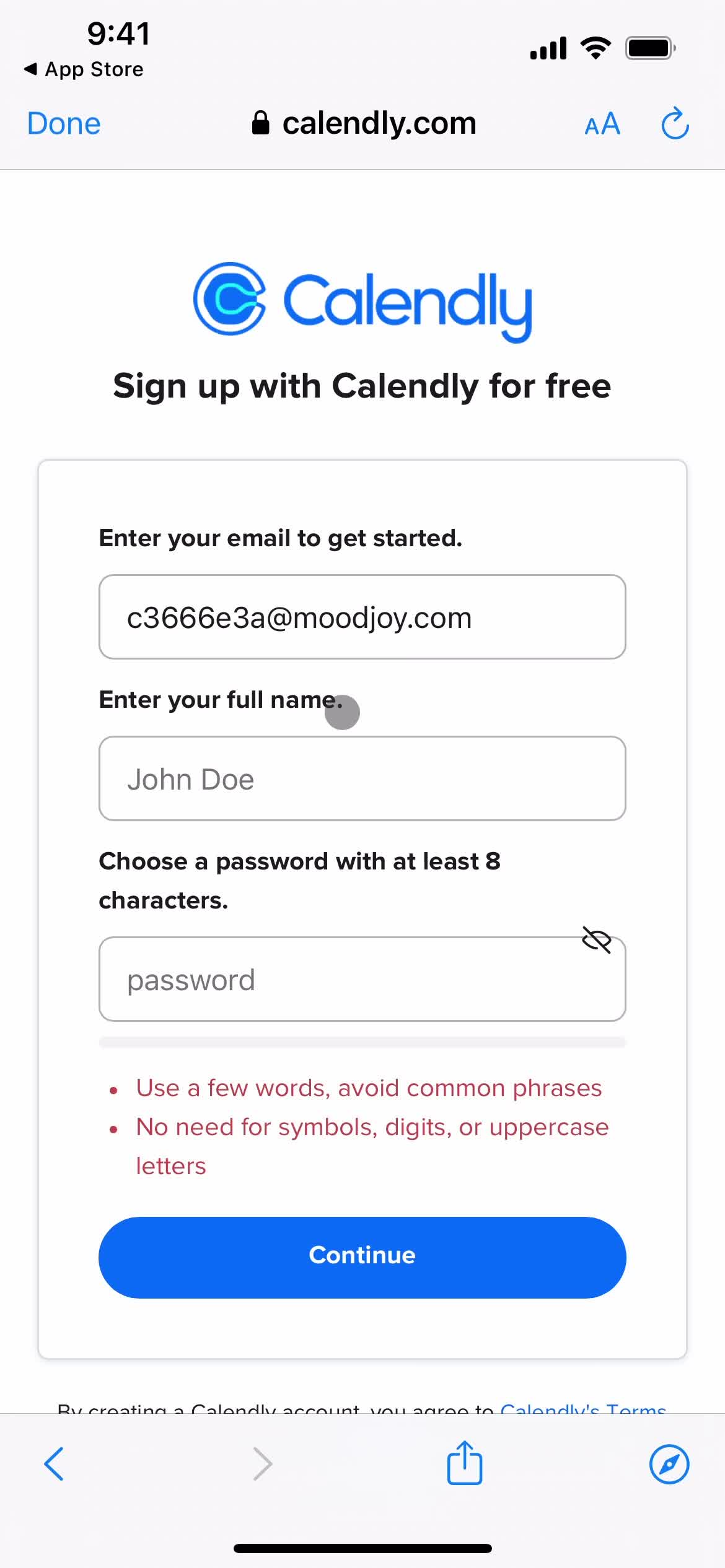
Create account
this is title
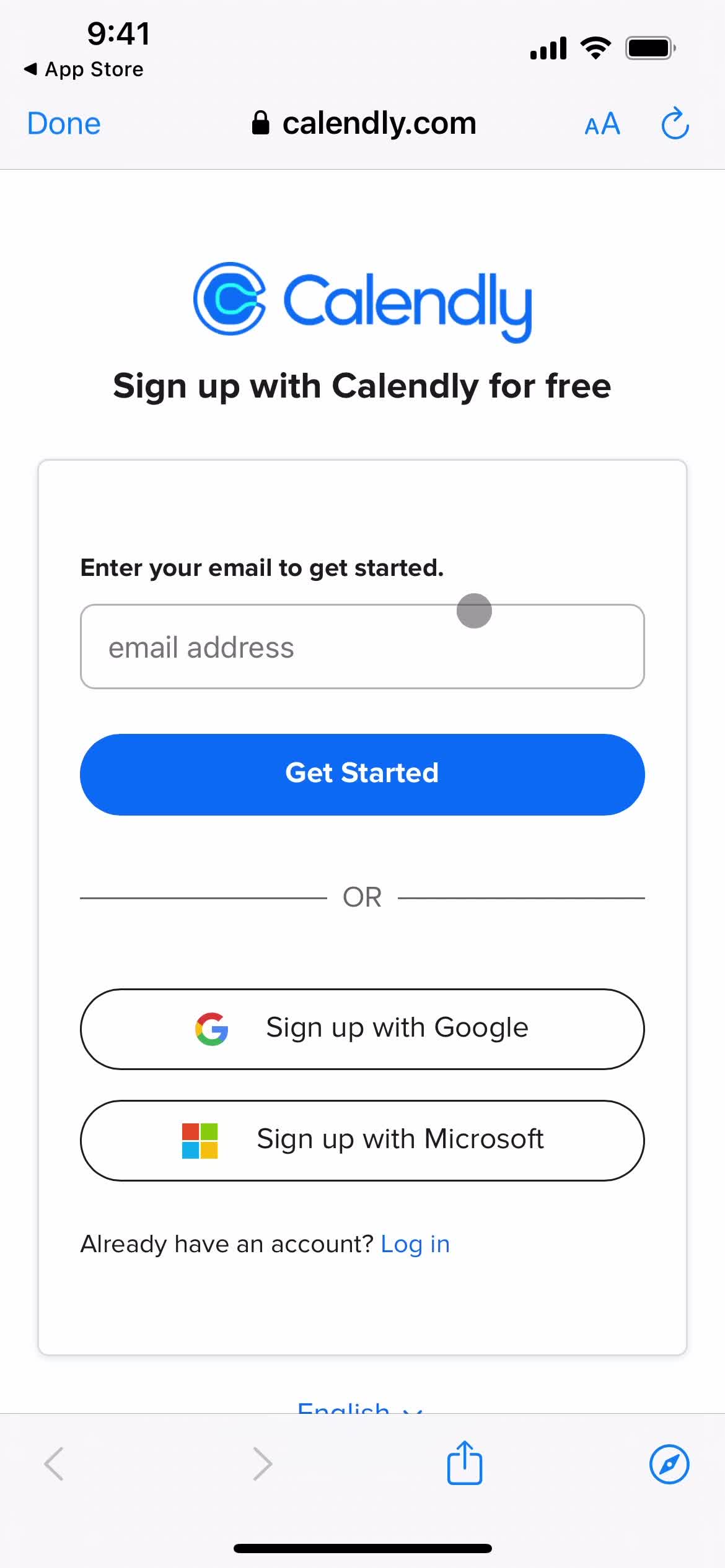
Sign up
this is title
Enter email
this is title
Loading
this is title
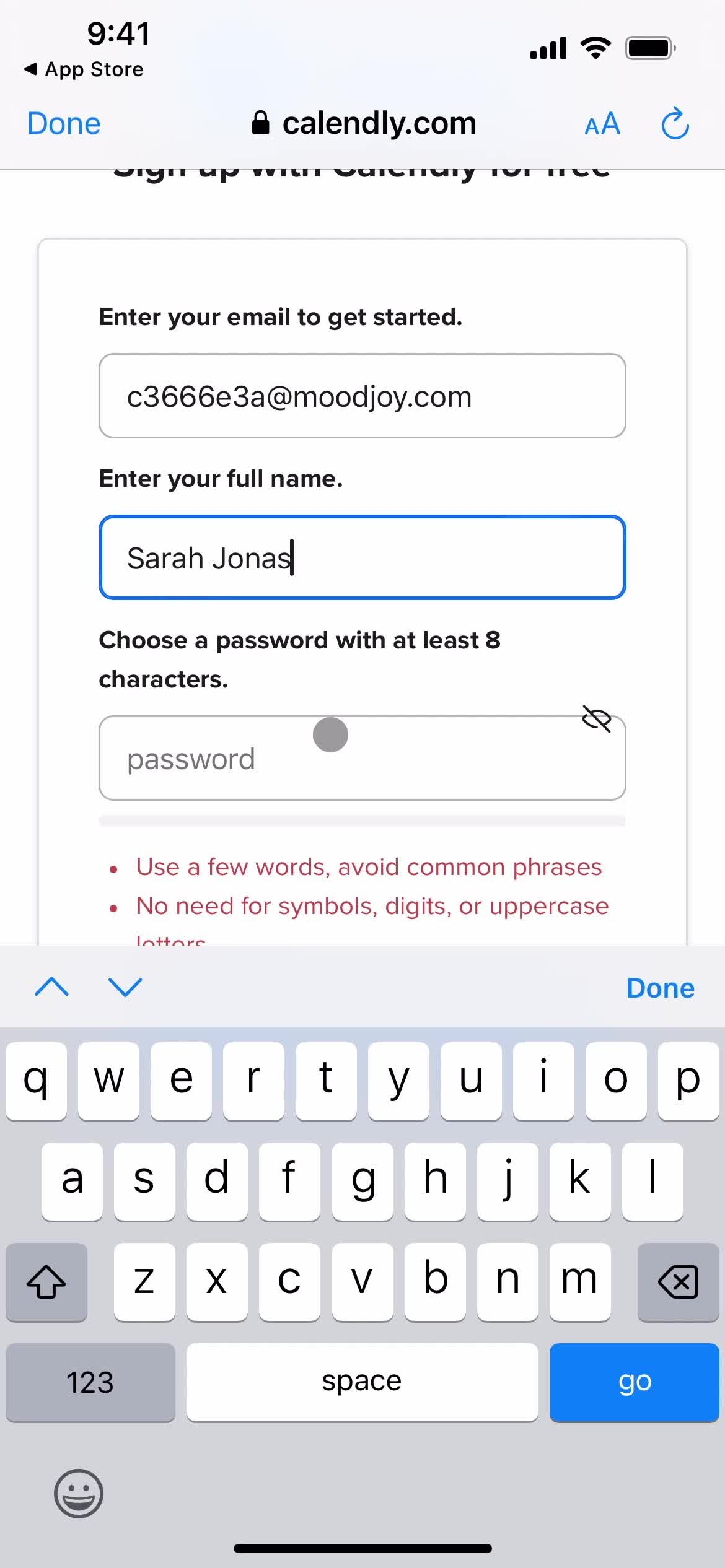
Enter name
this is title
this is title
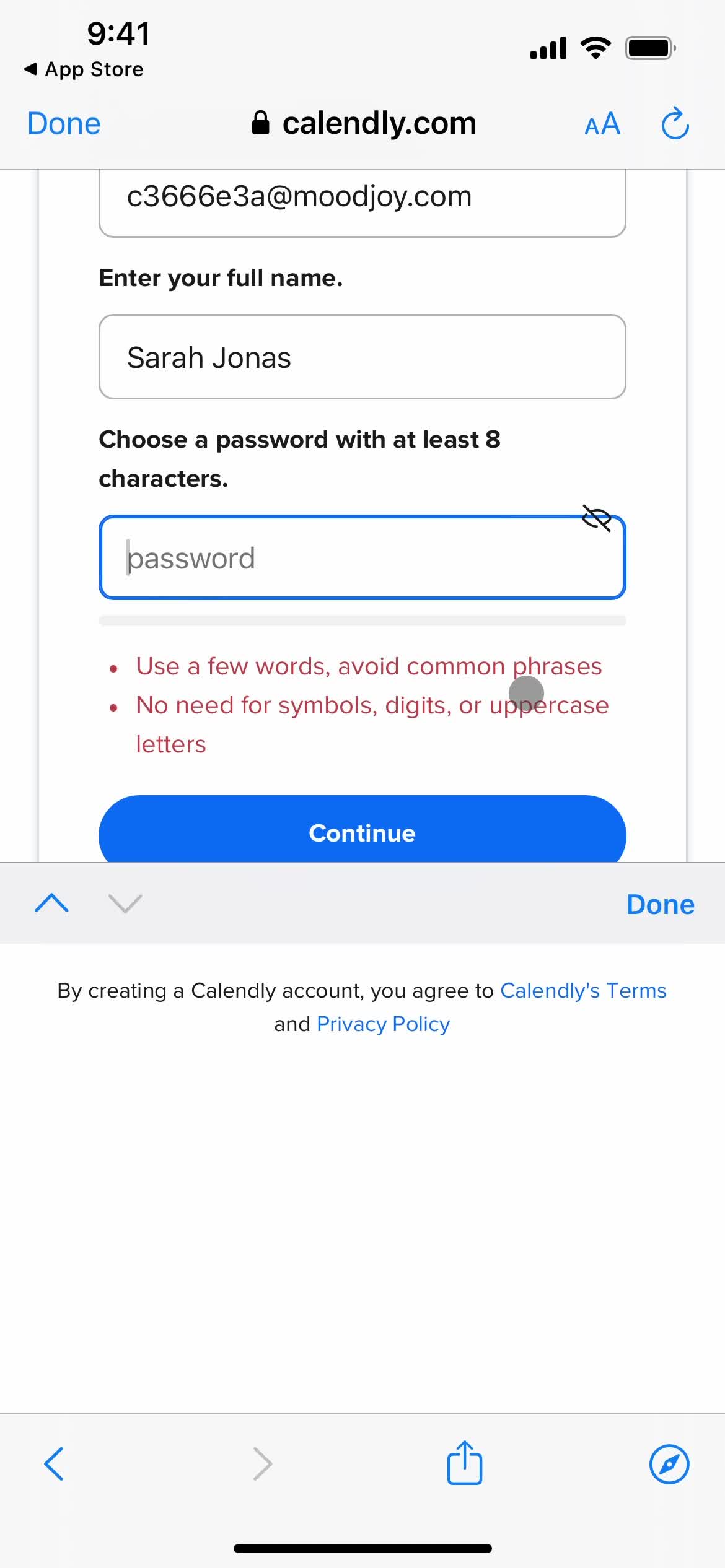
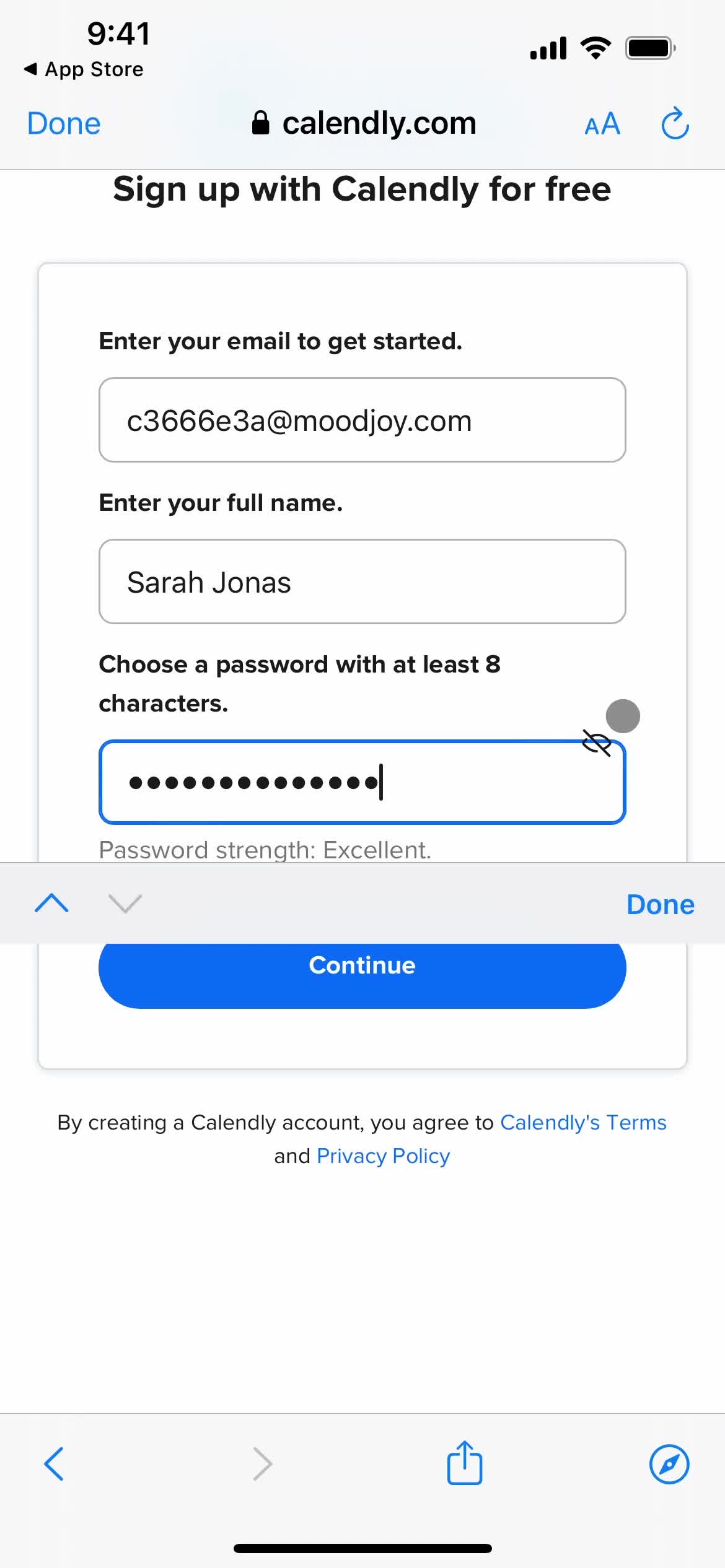
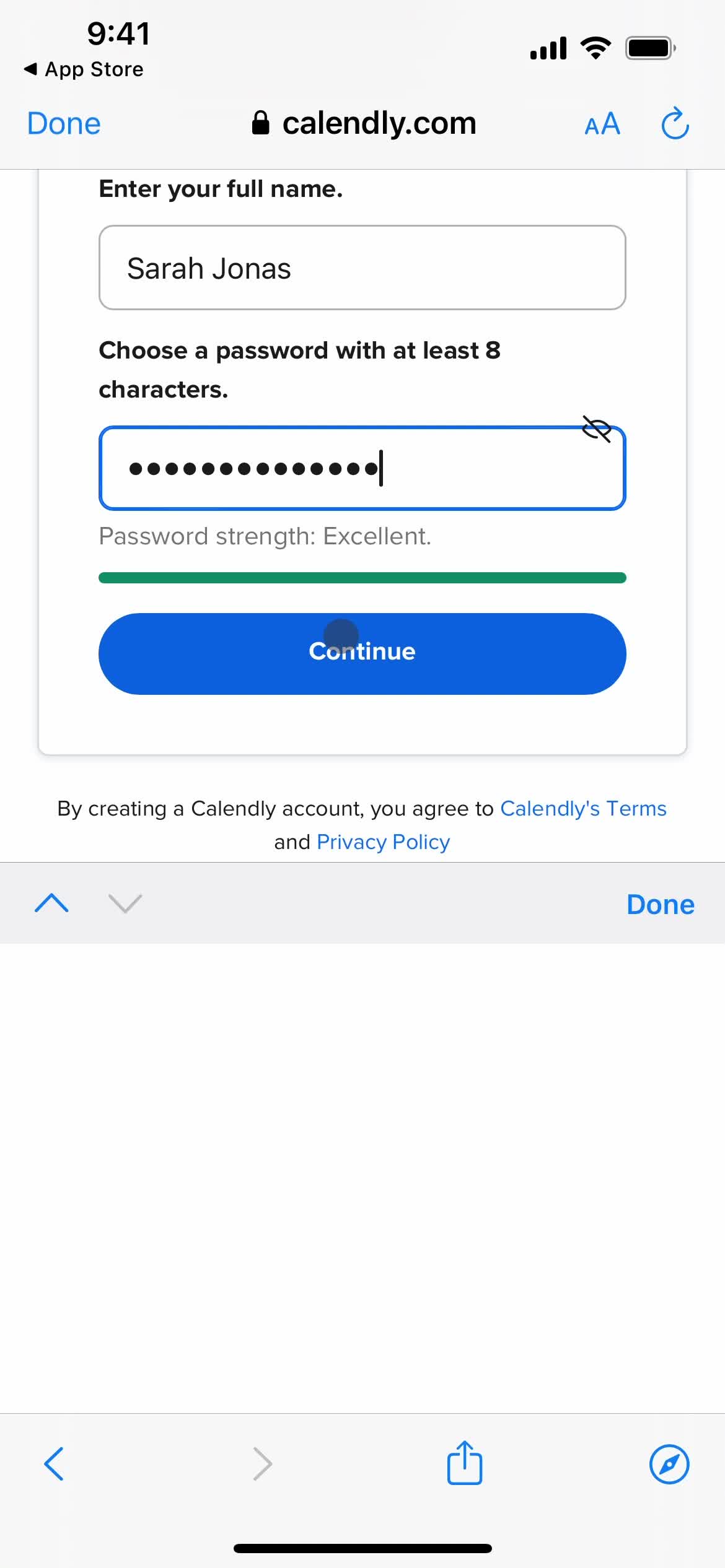
Enter password
this is title
this is title
Continue
this is title
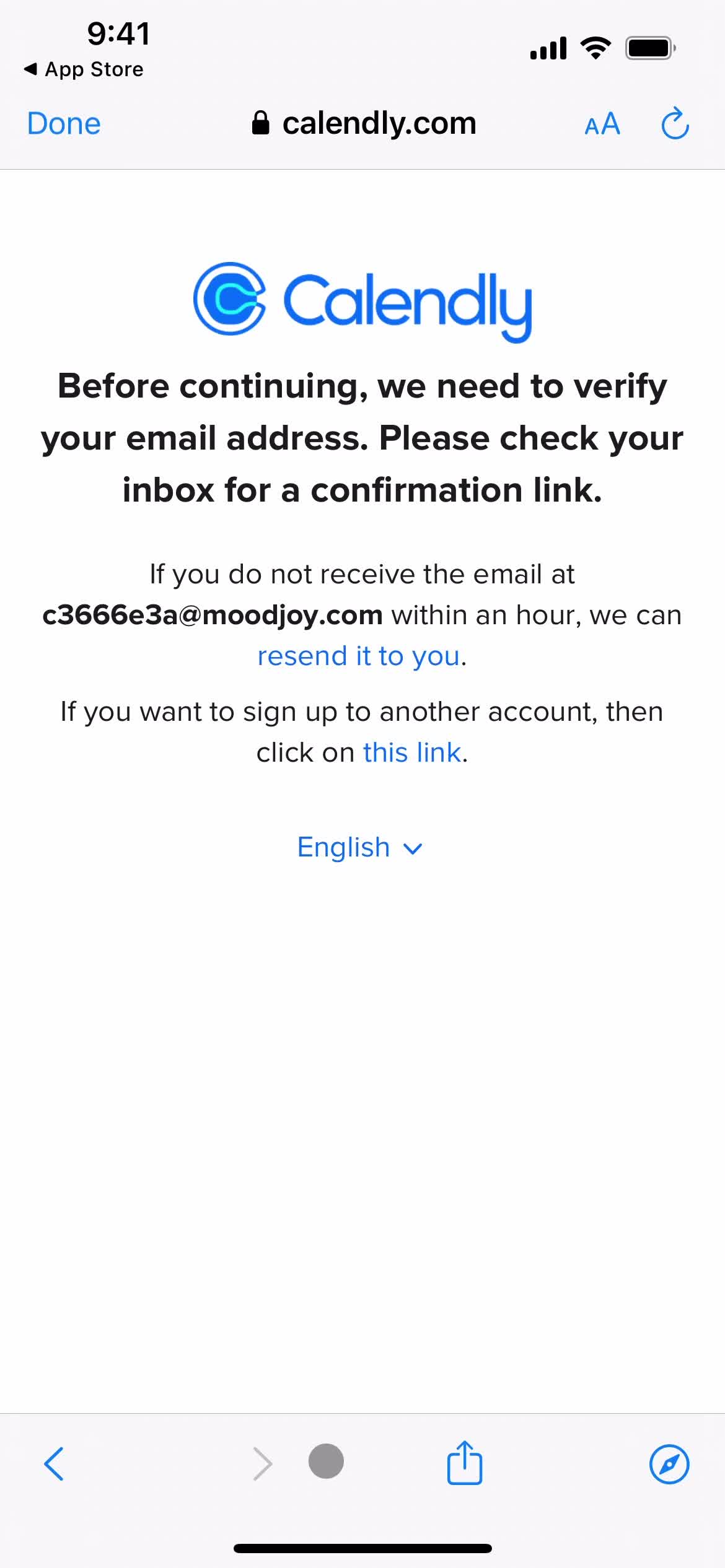
Verify email
this is title
Get started
this is title
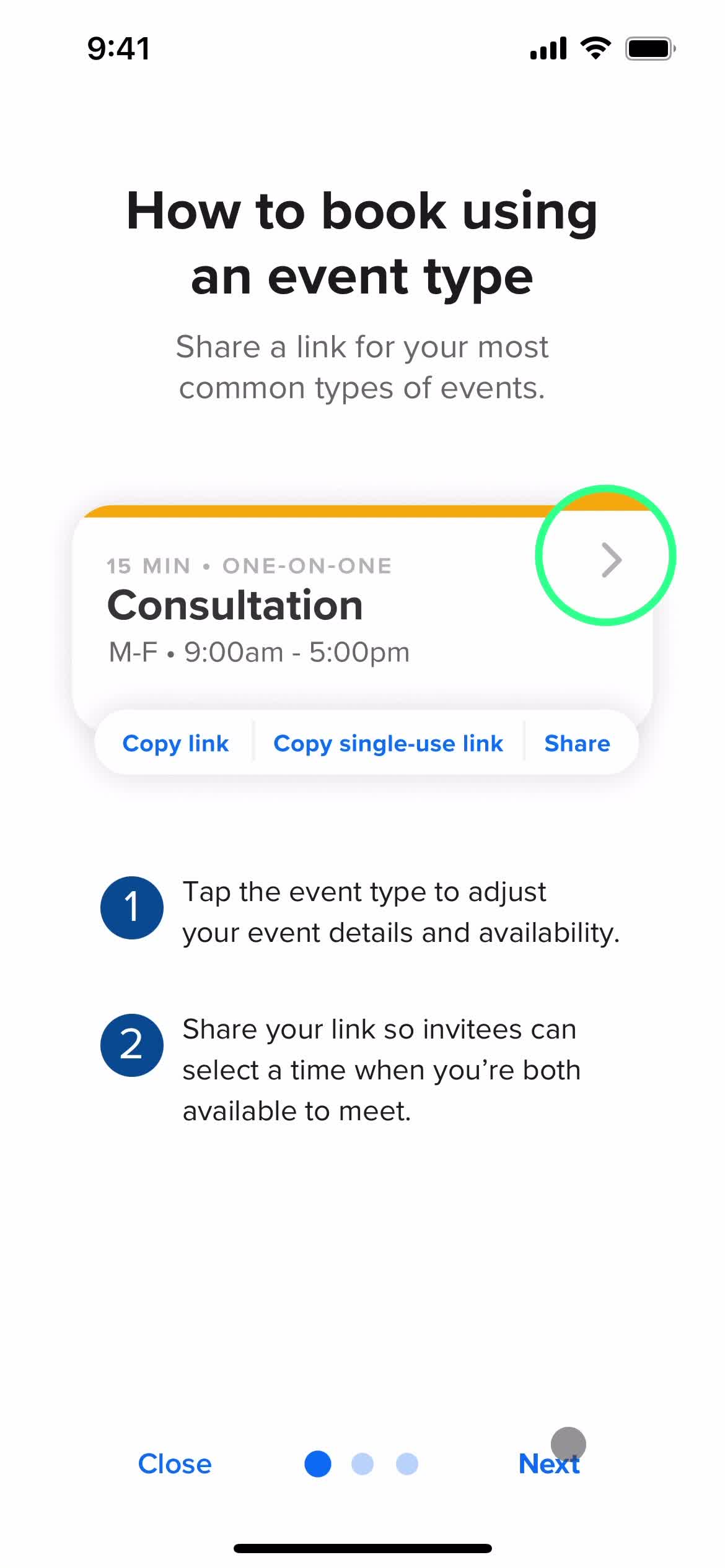
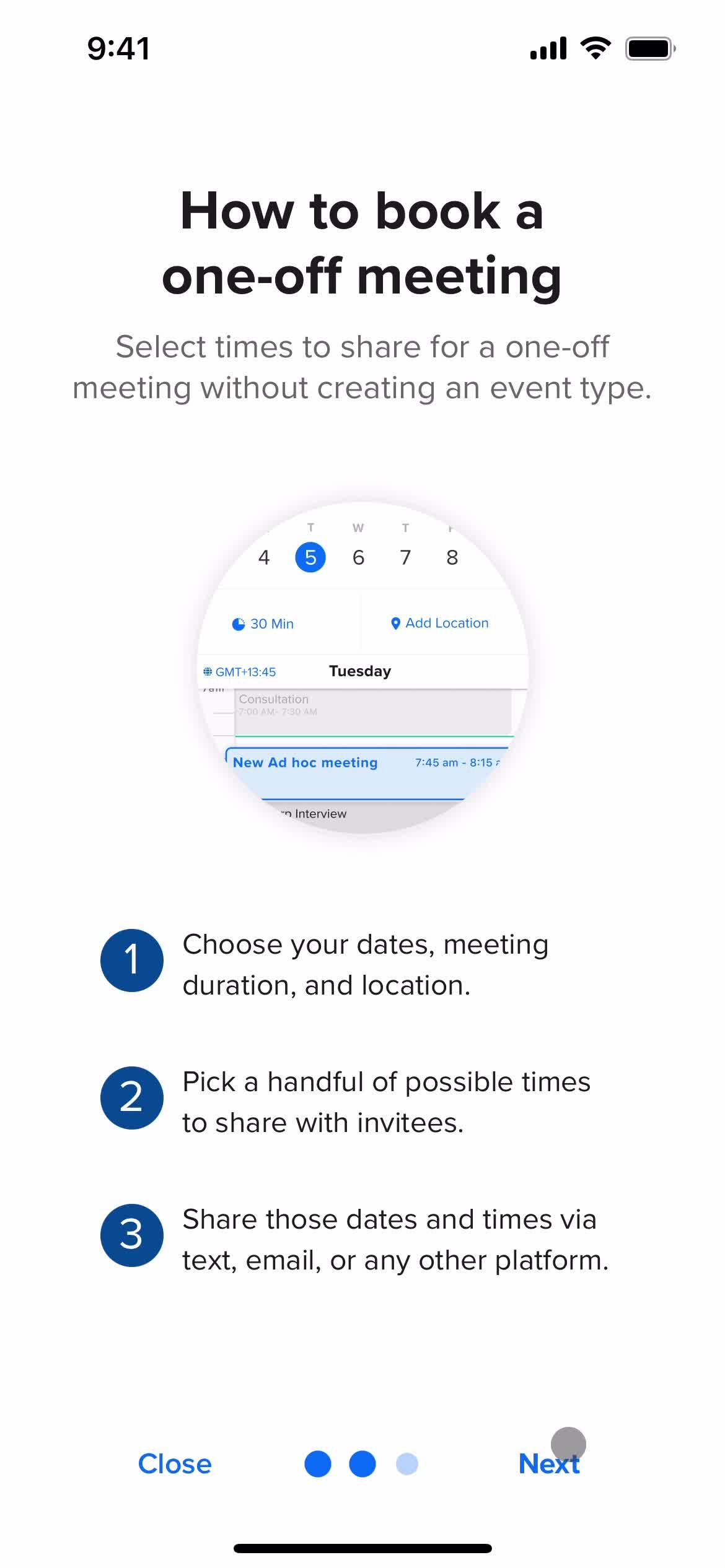
Guide slides
this is title
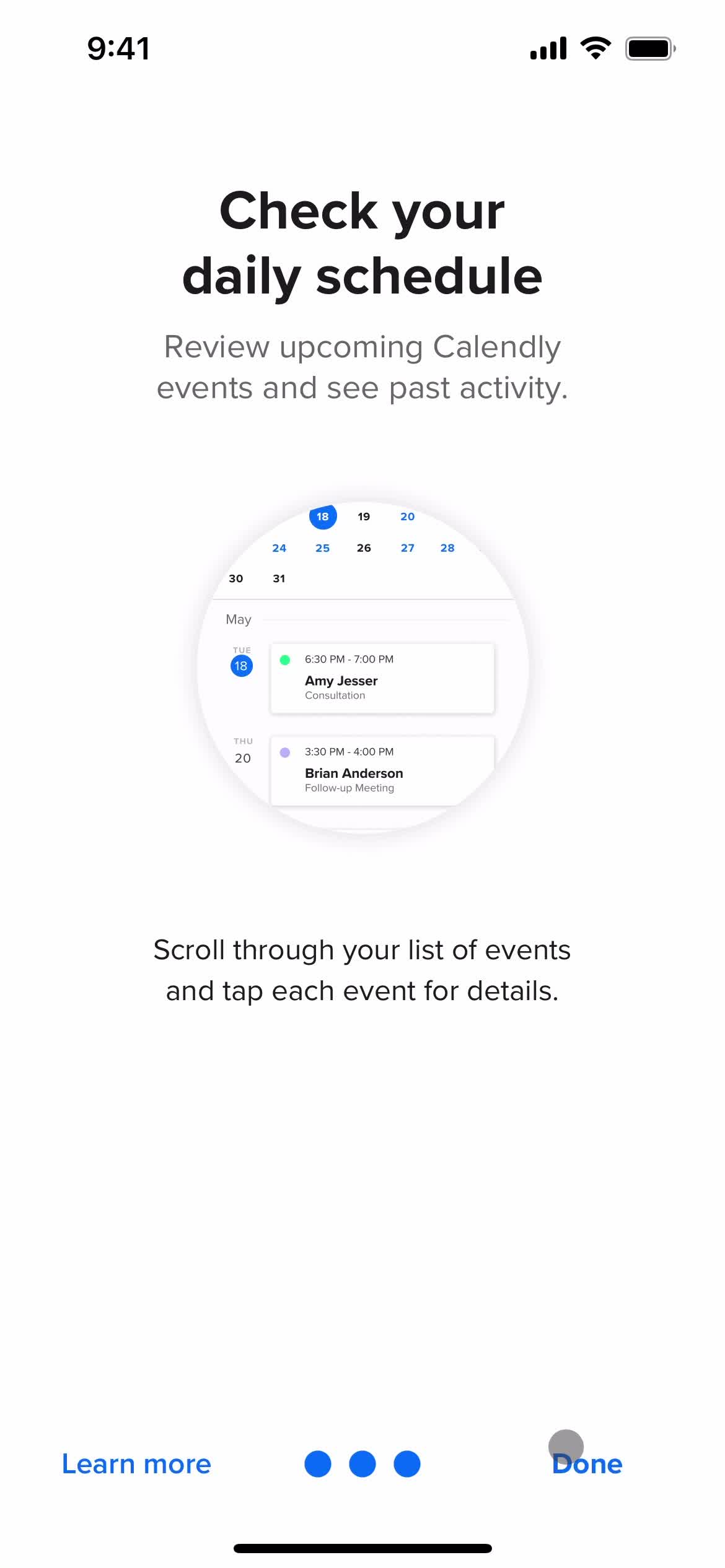
Guide slides
this is title
Guide slides
this is title
Home
this is title
Settings
this is title
Sign in
this is title
Forgot password
this is title
Email sent
this is title
Enter password
this is title
this is title
Continue
this is title
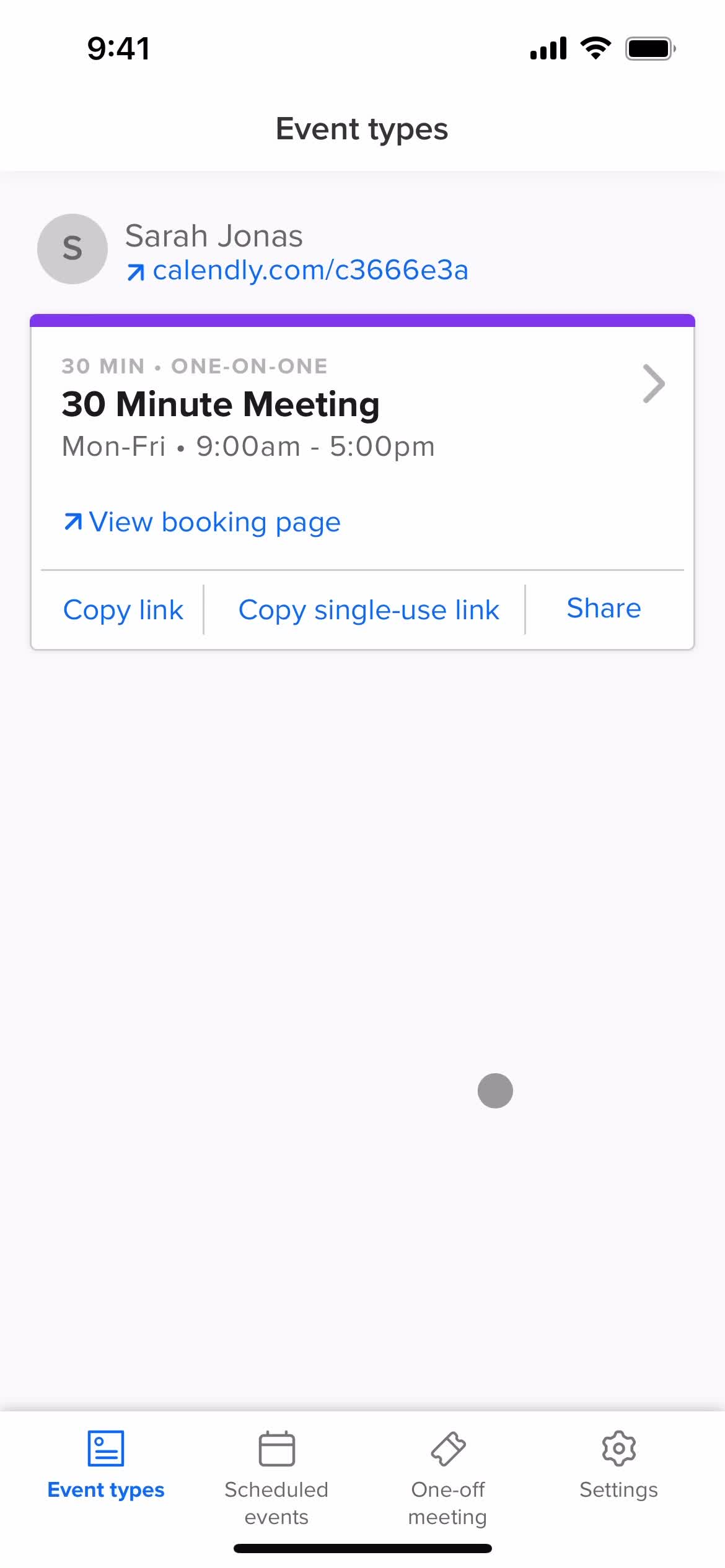
Home
this is title
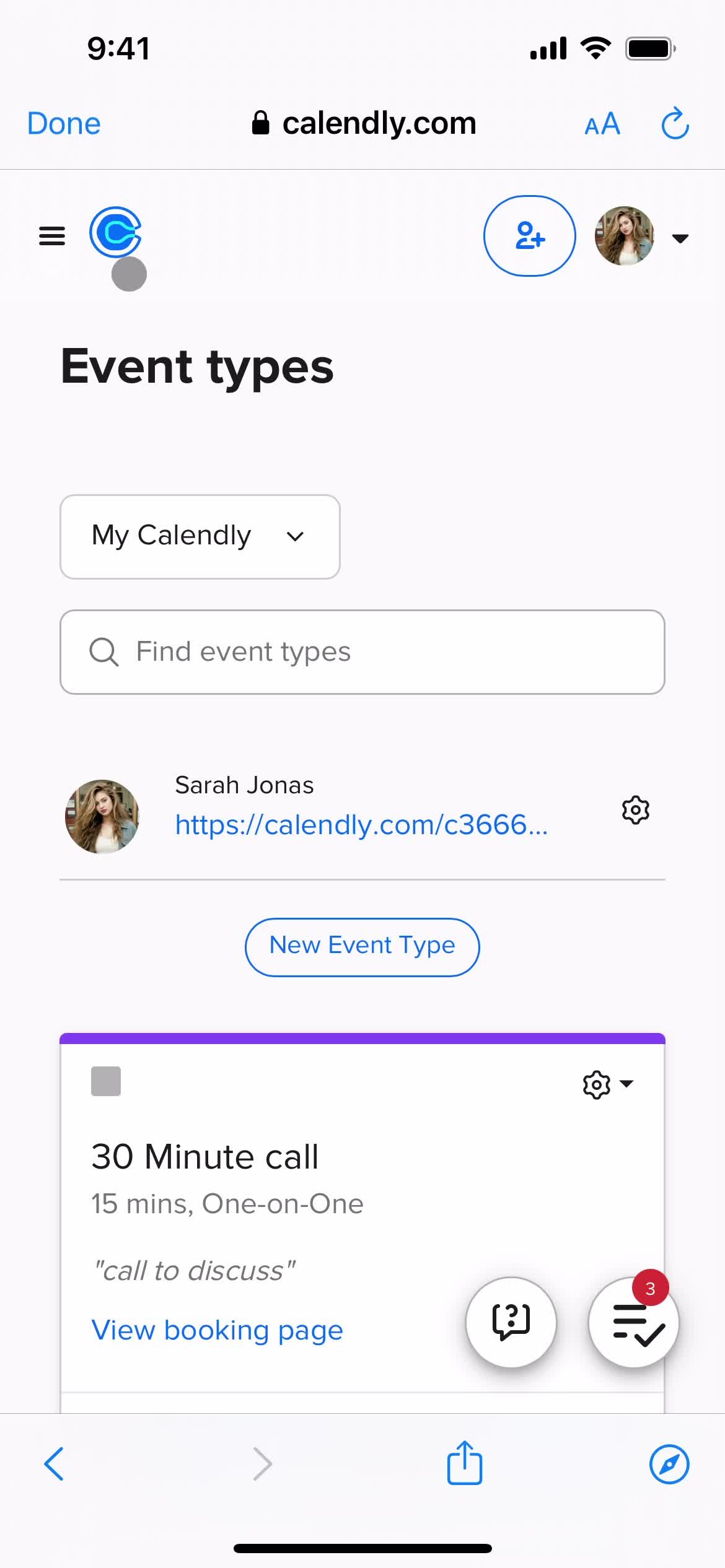
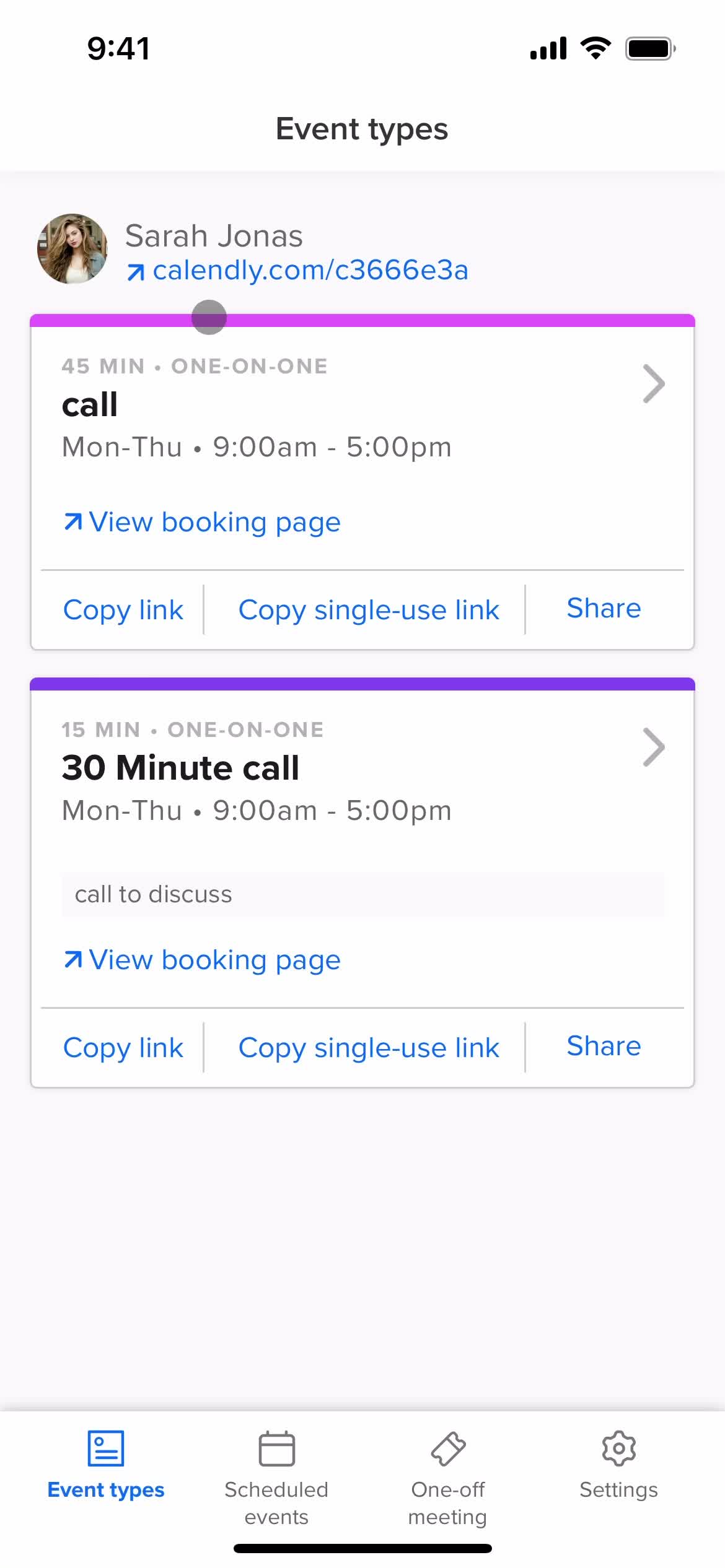
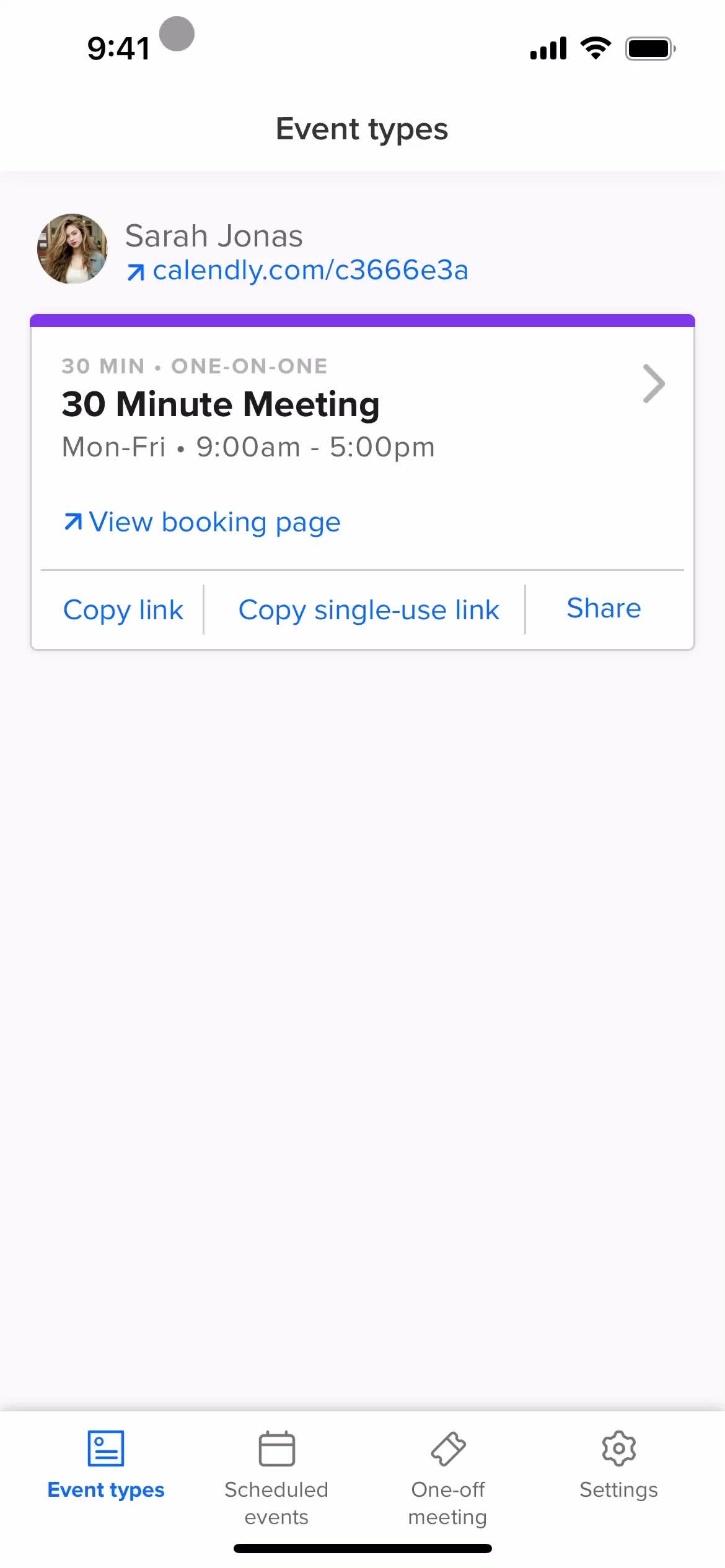
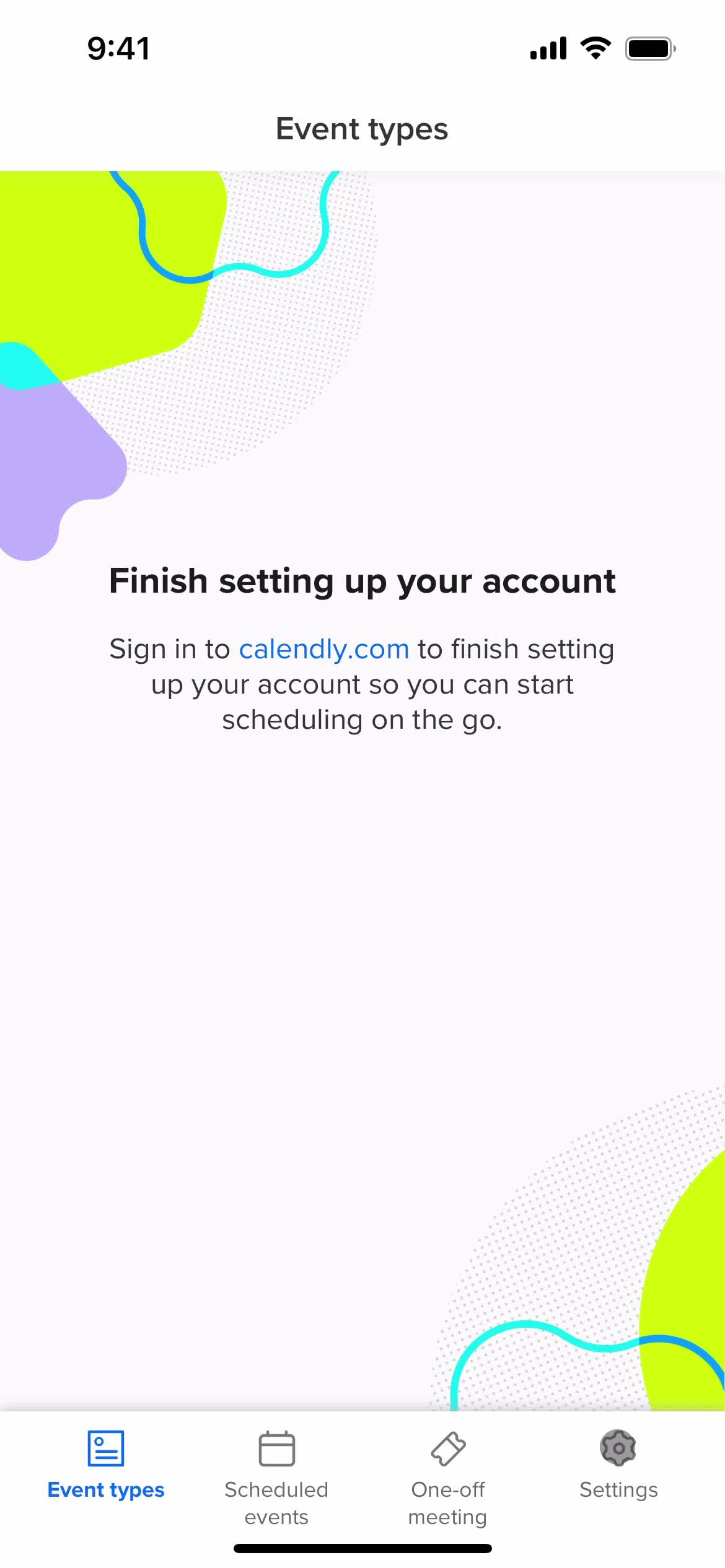
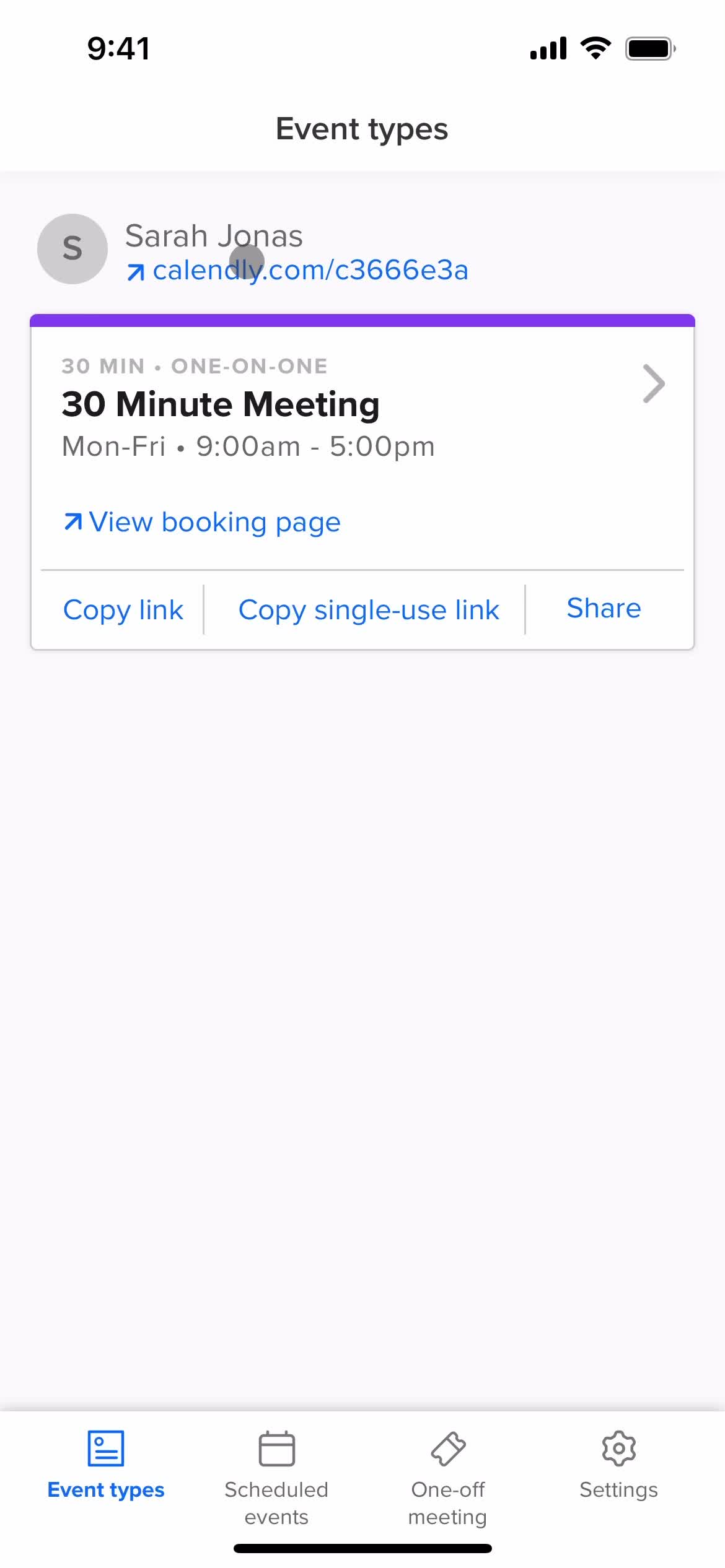
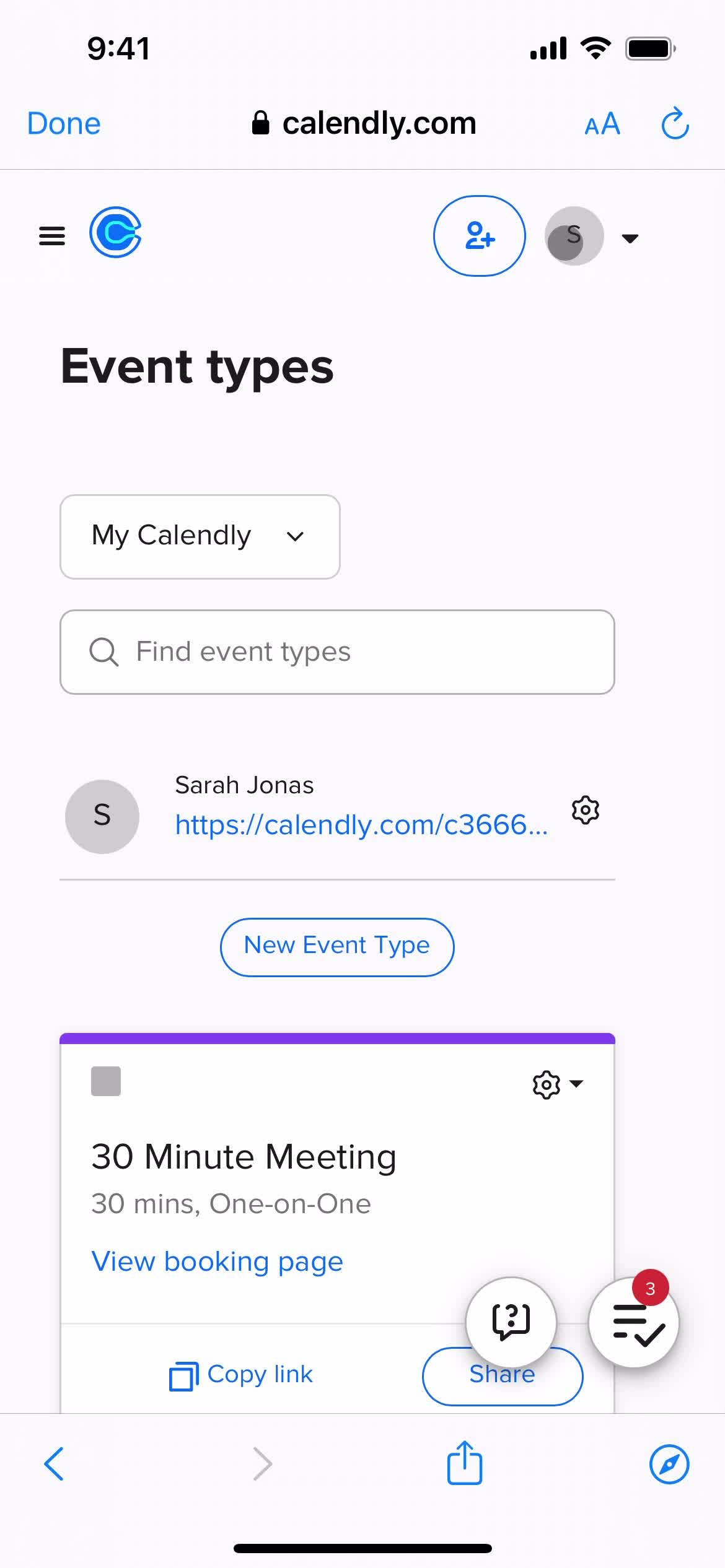
Event types
this is title
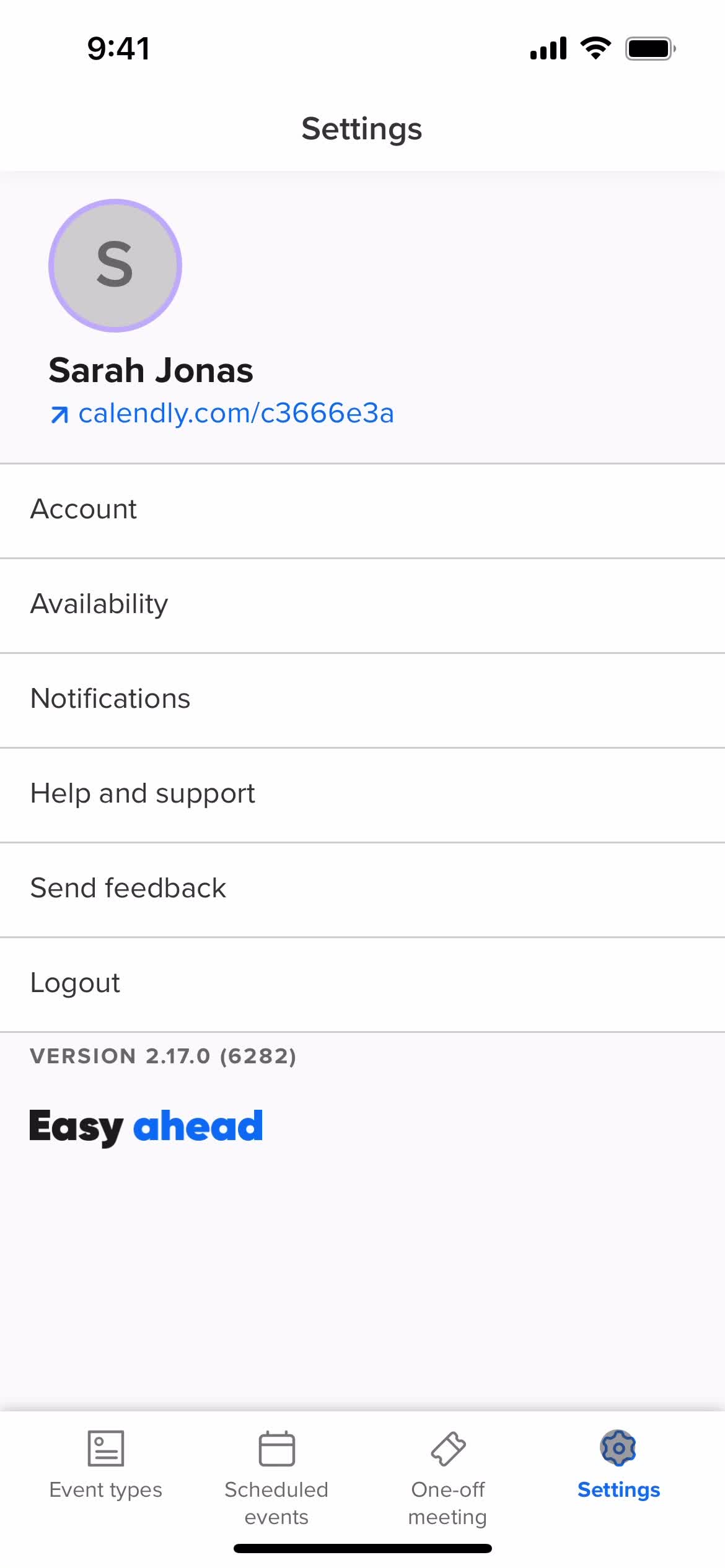
Settings
this is title
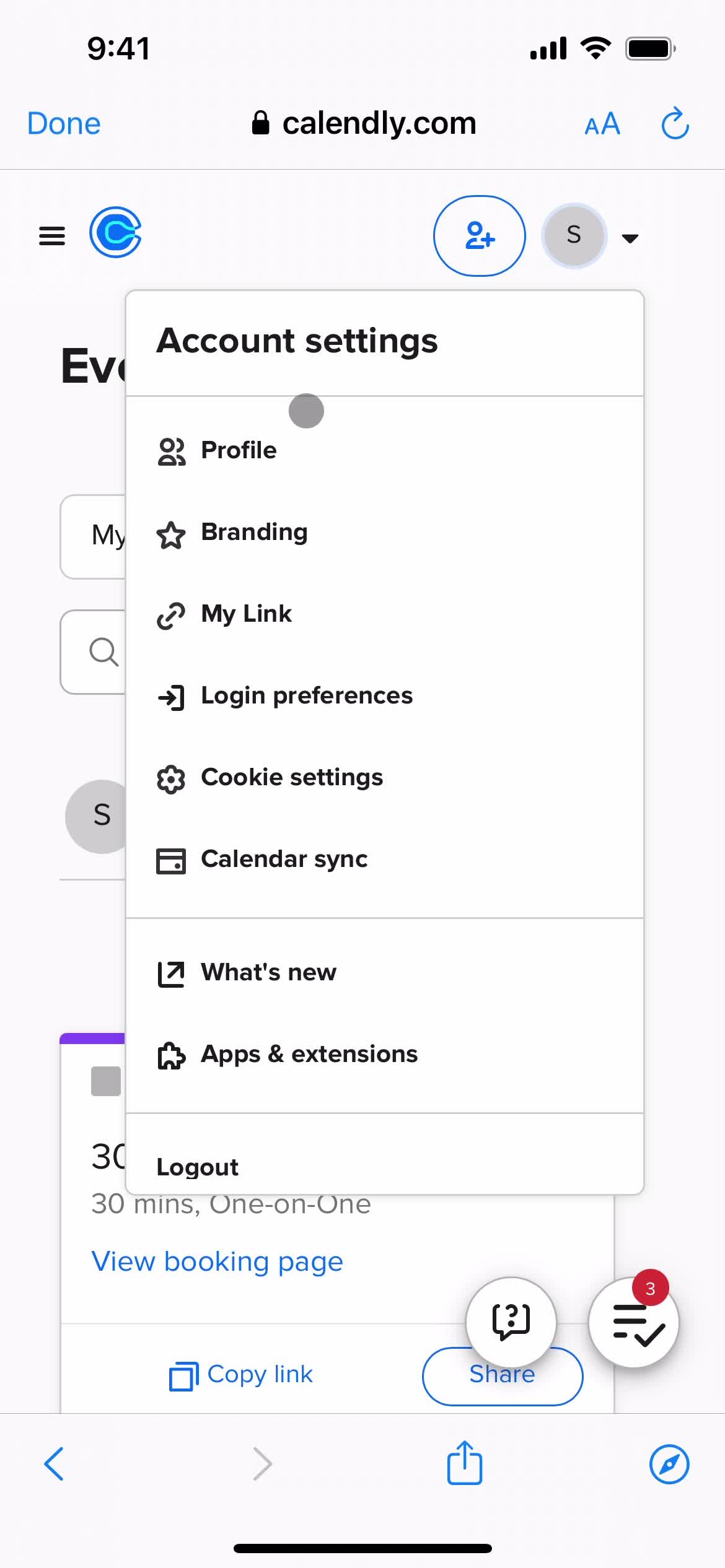
Account settings
this is title
Settings
this is title
Set availability
this is title
Set availability
this is title
this is title
Set times
this is title
this is title
this is title
this is title
this is title
Set time
this is title
Add times
this is title
this is title
this is title
Deleted
this is title
this is title
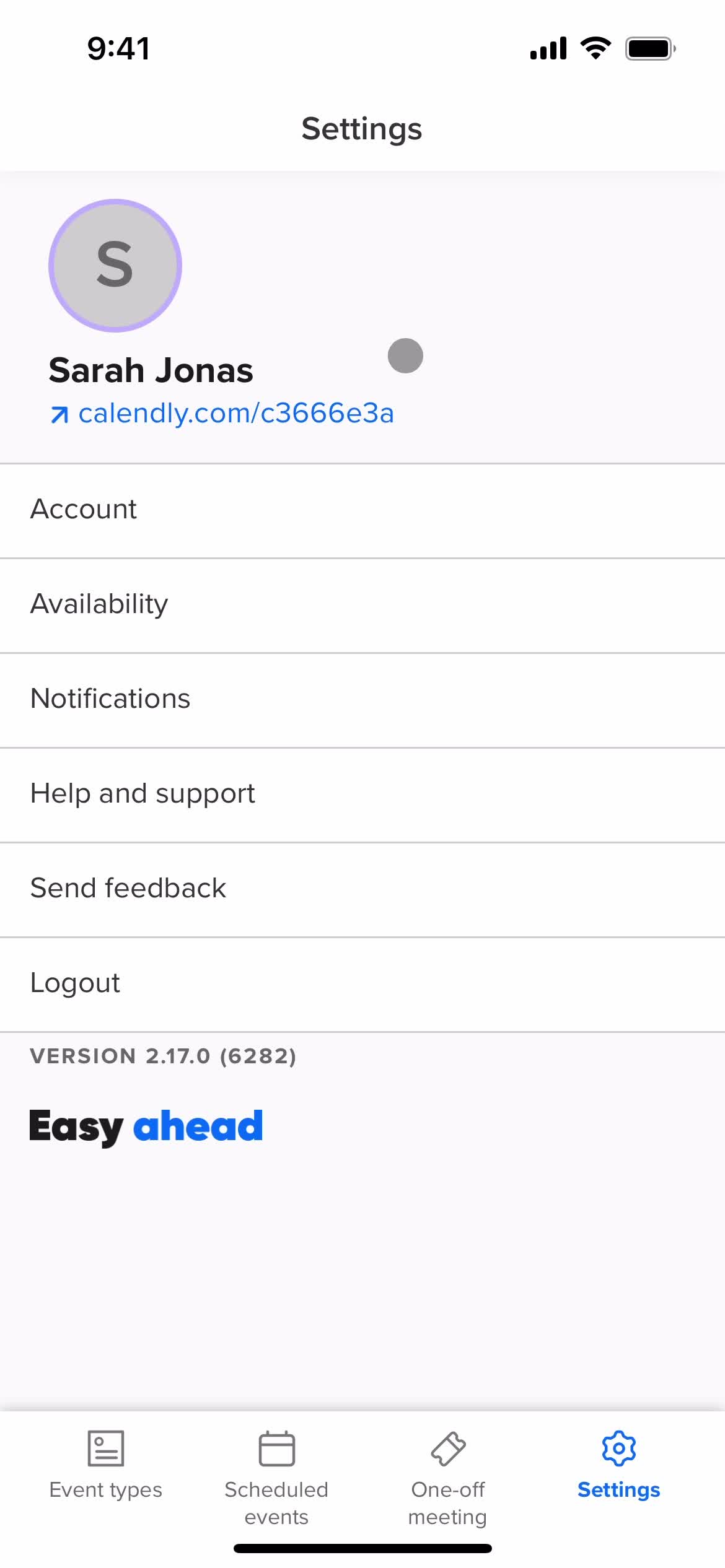
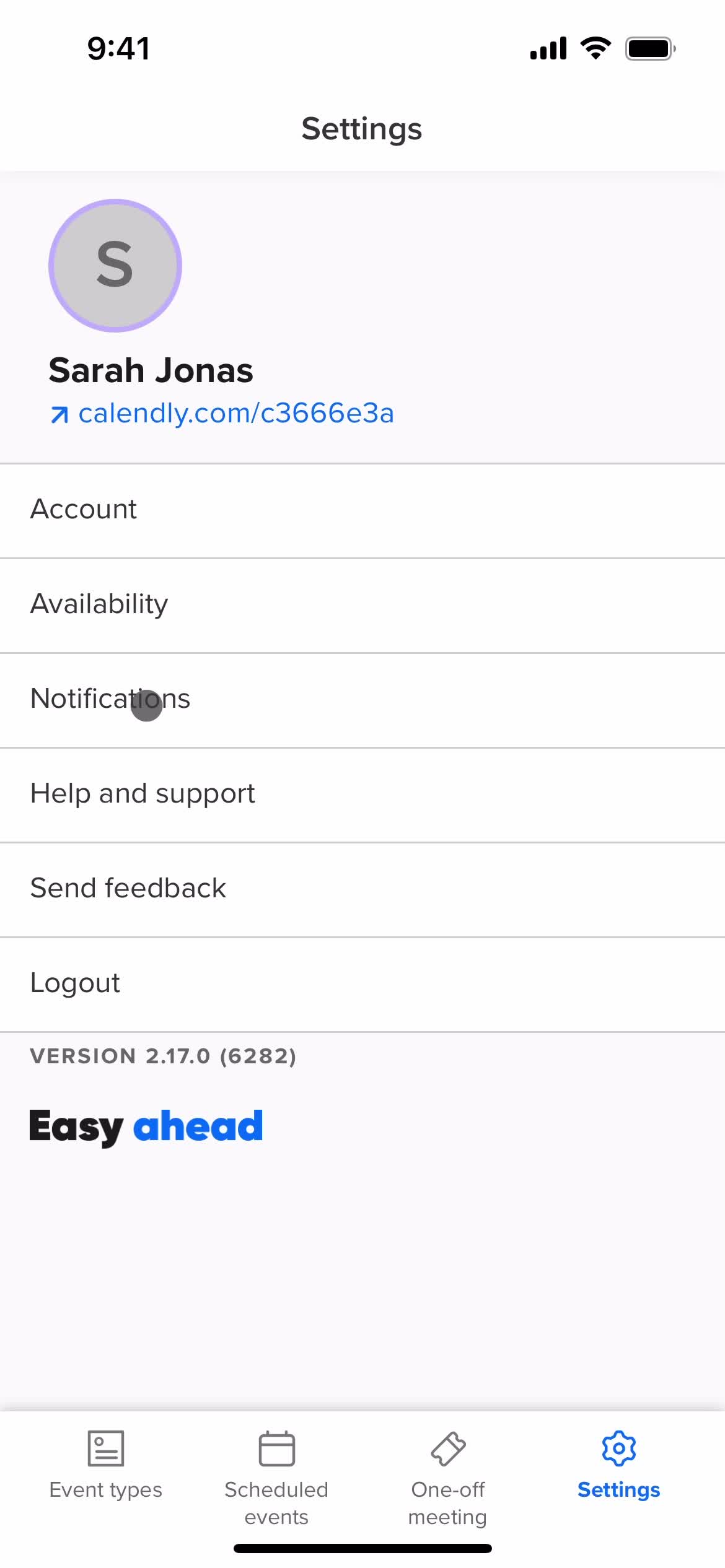
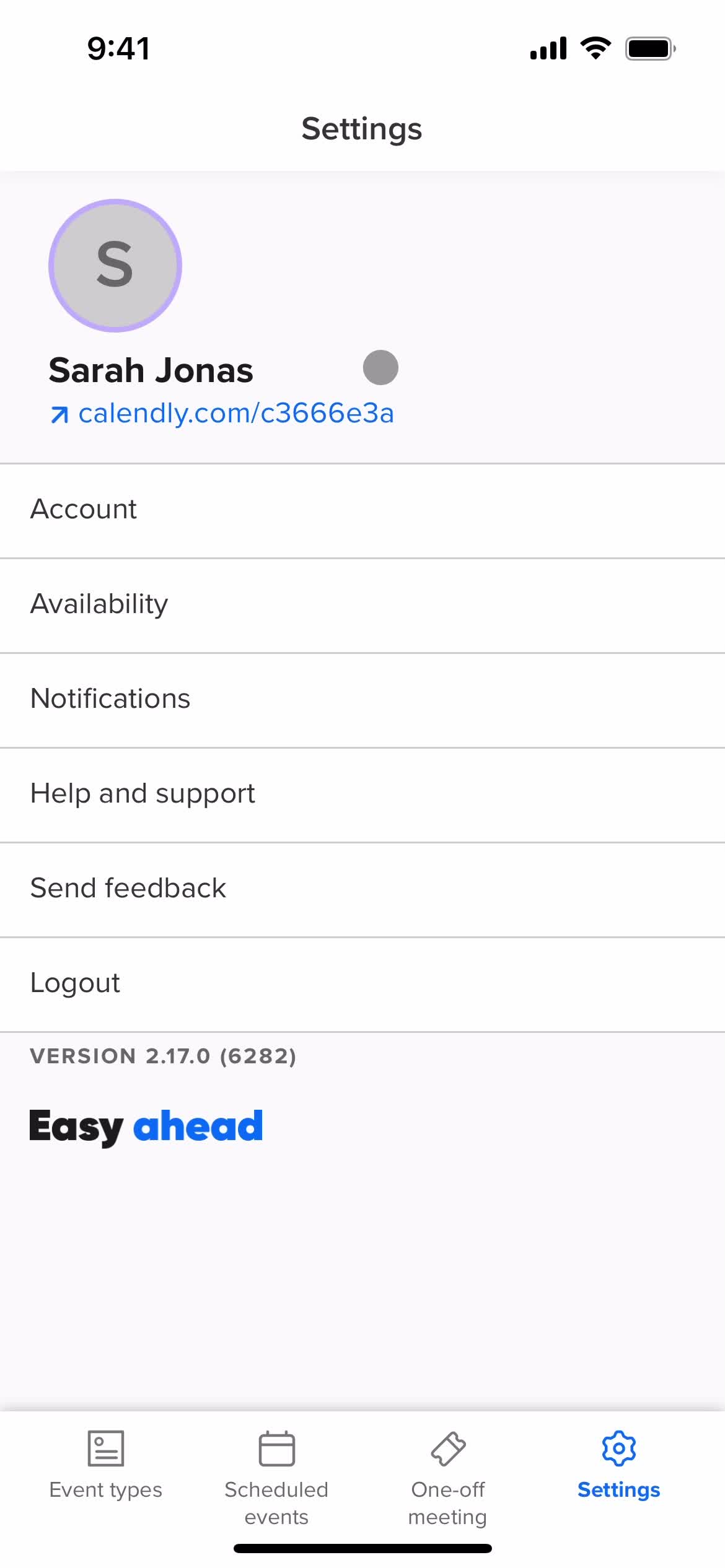
Settings
this is title
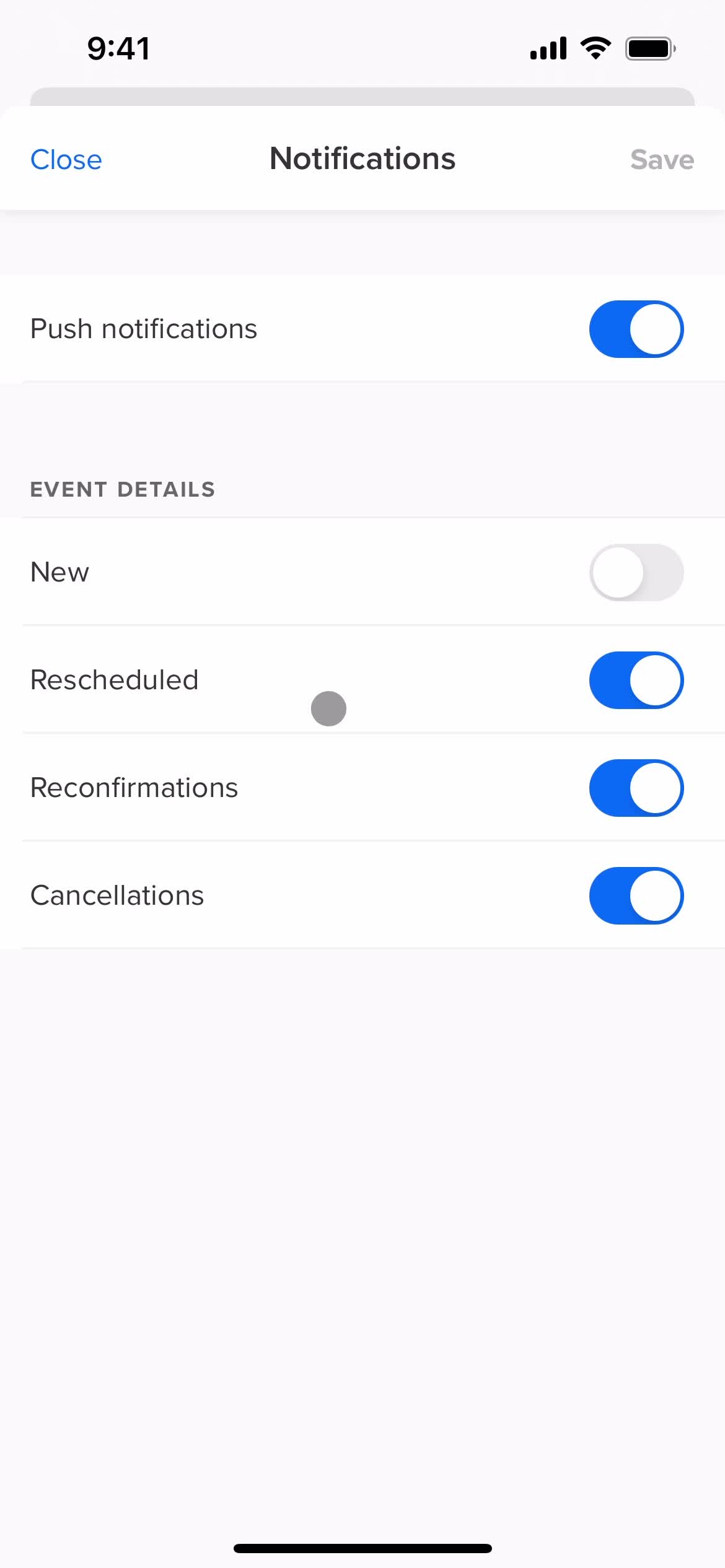
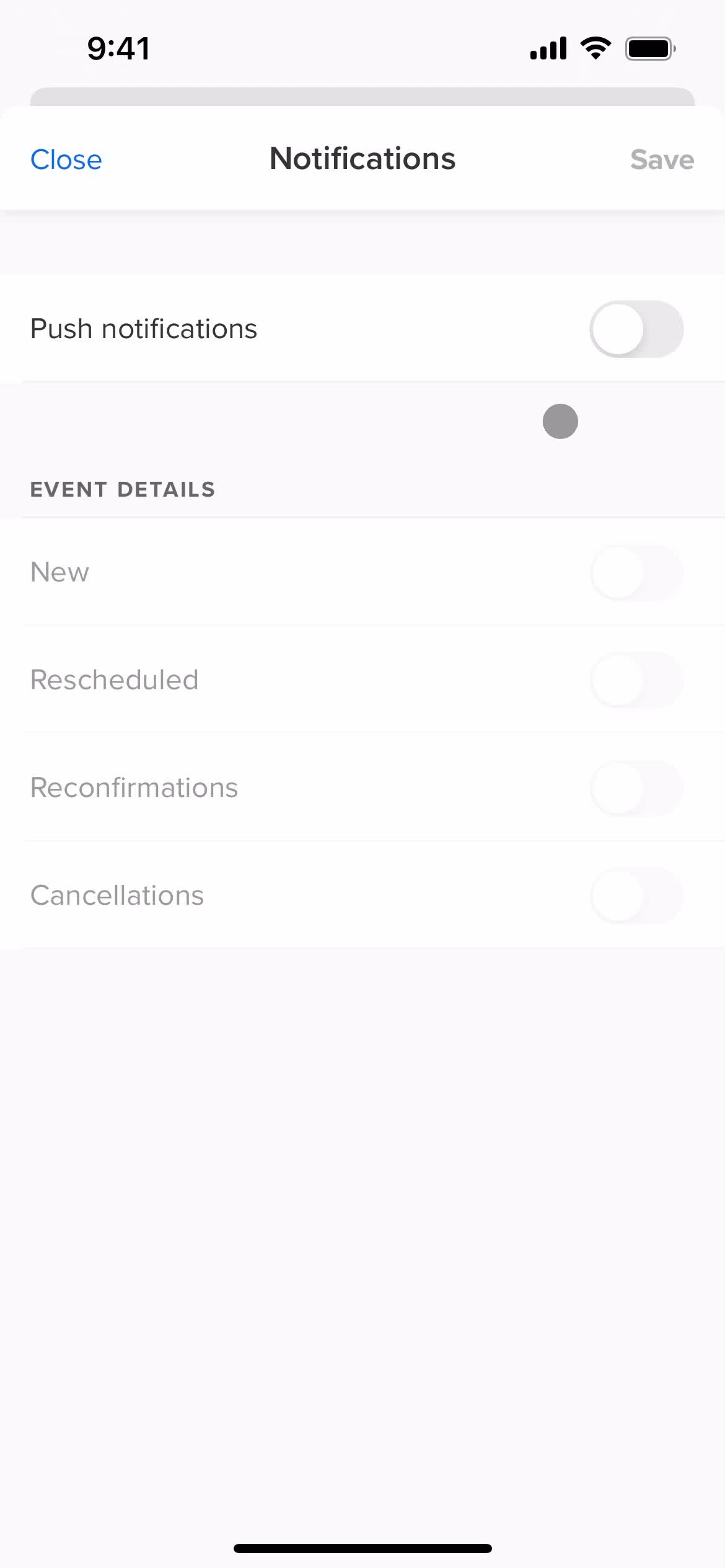
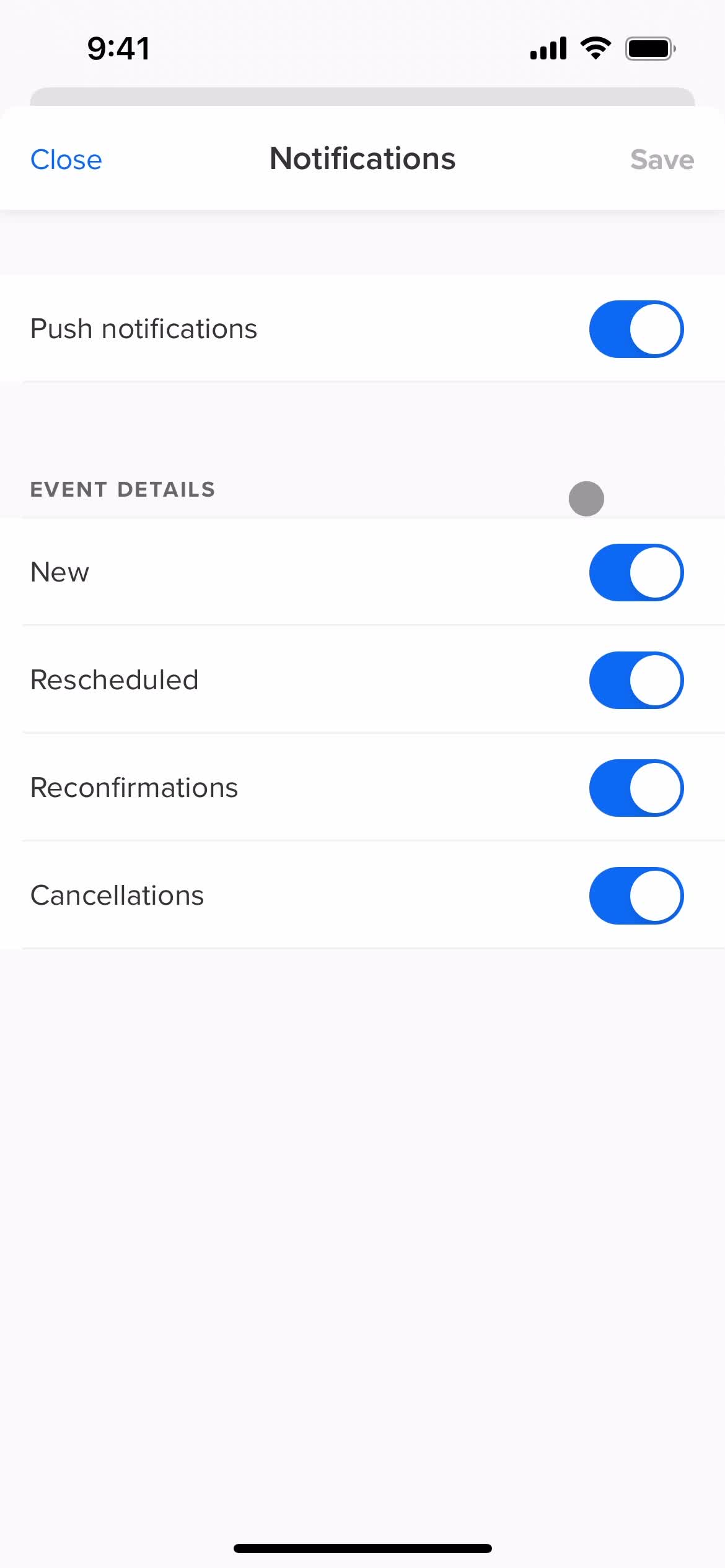
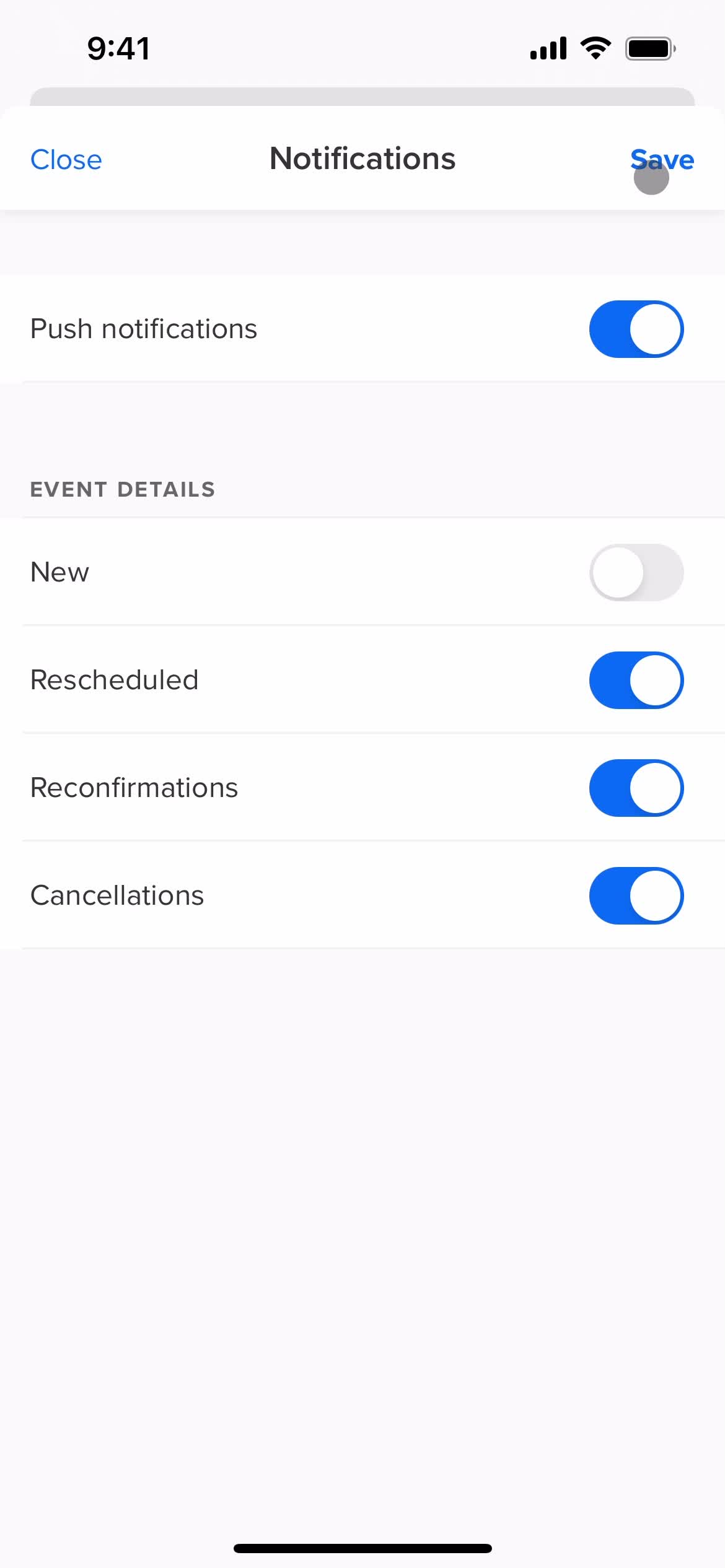
Notifications
this is title
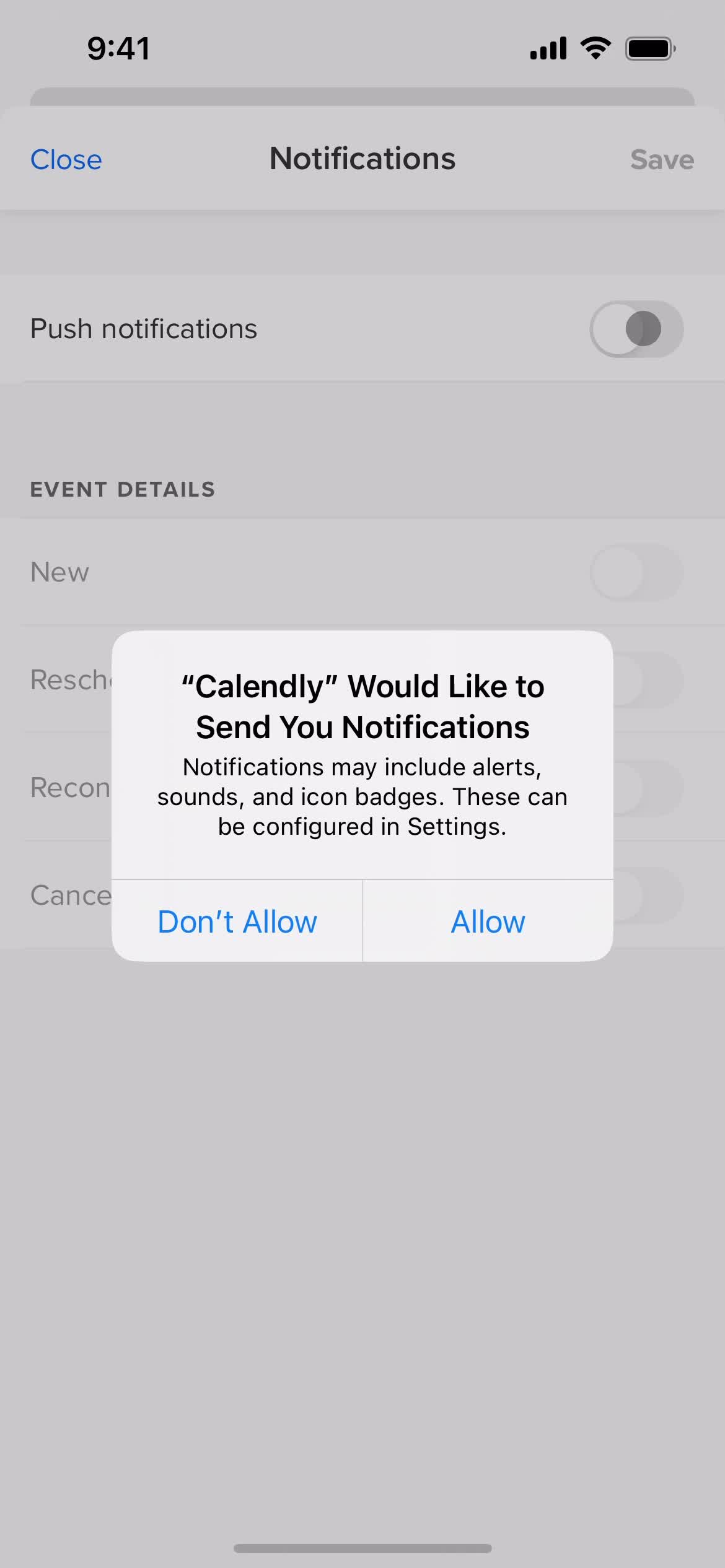
Enable notifications
this is title
this is title
Save
this is title
Settings
this is title
Home
this is title
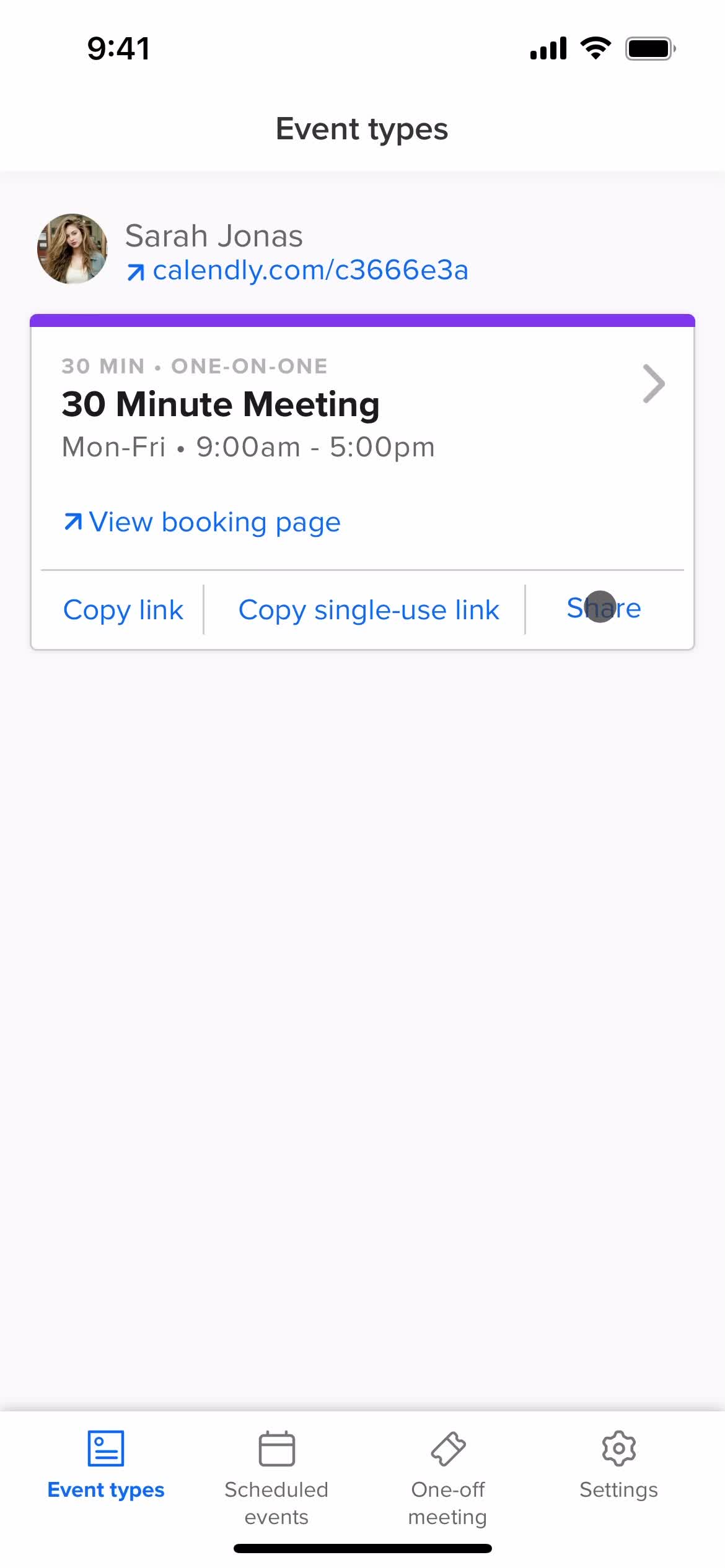
Share
this is title
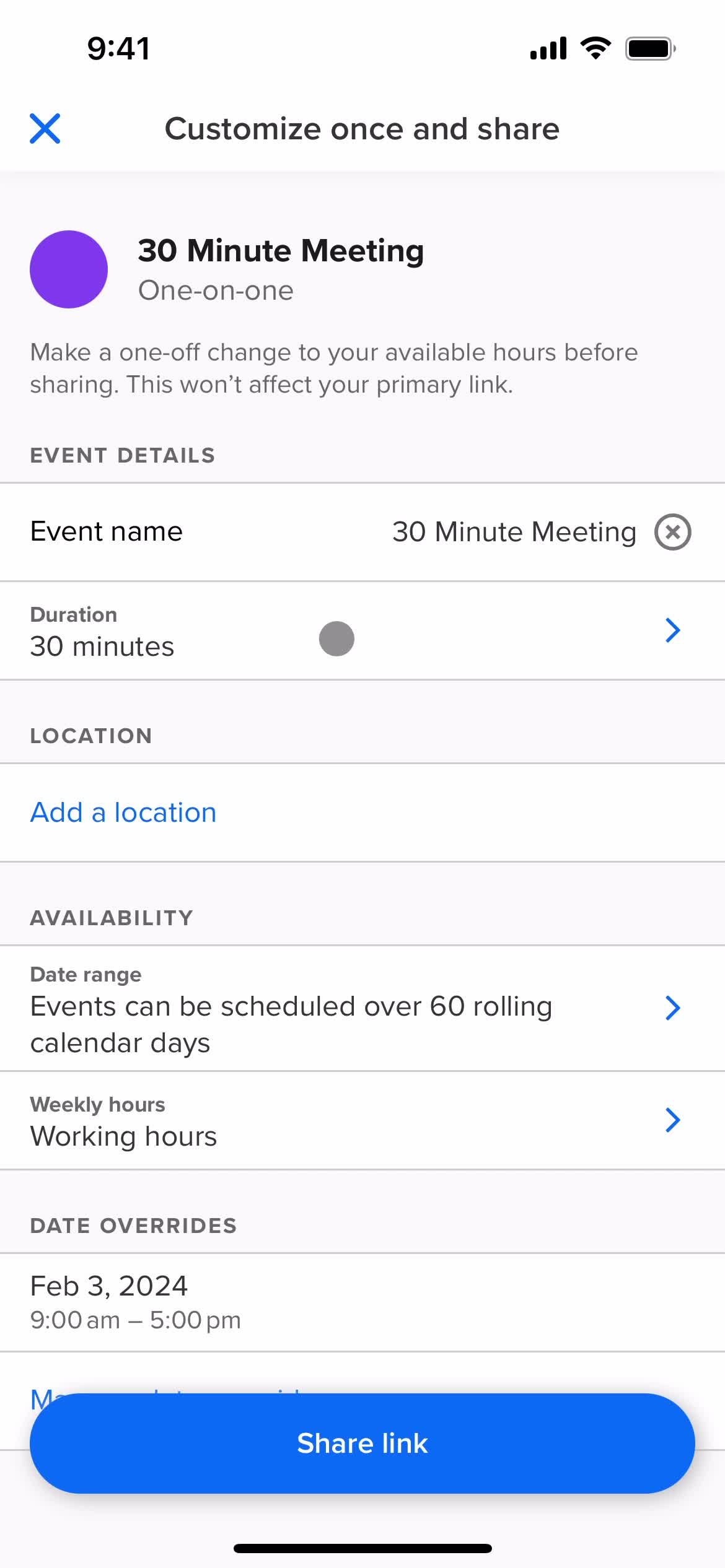
Customize invite
this is title
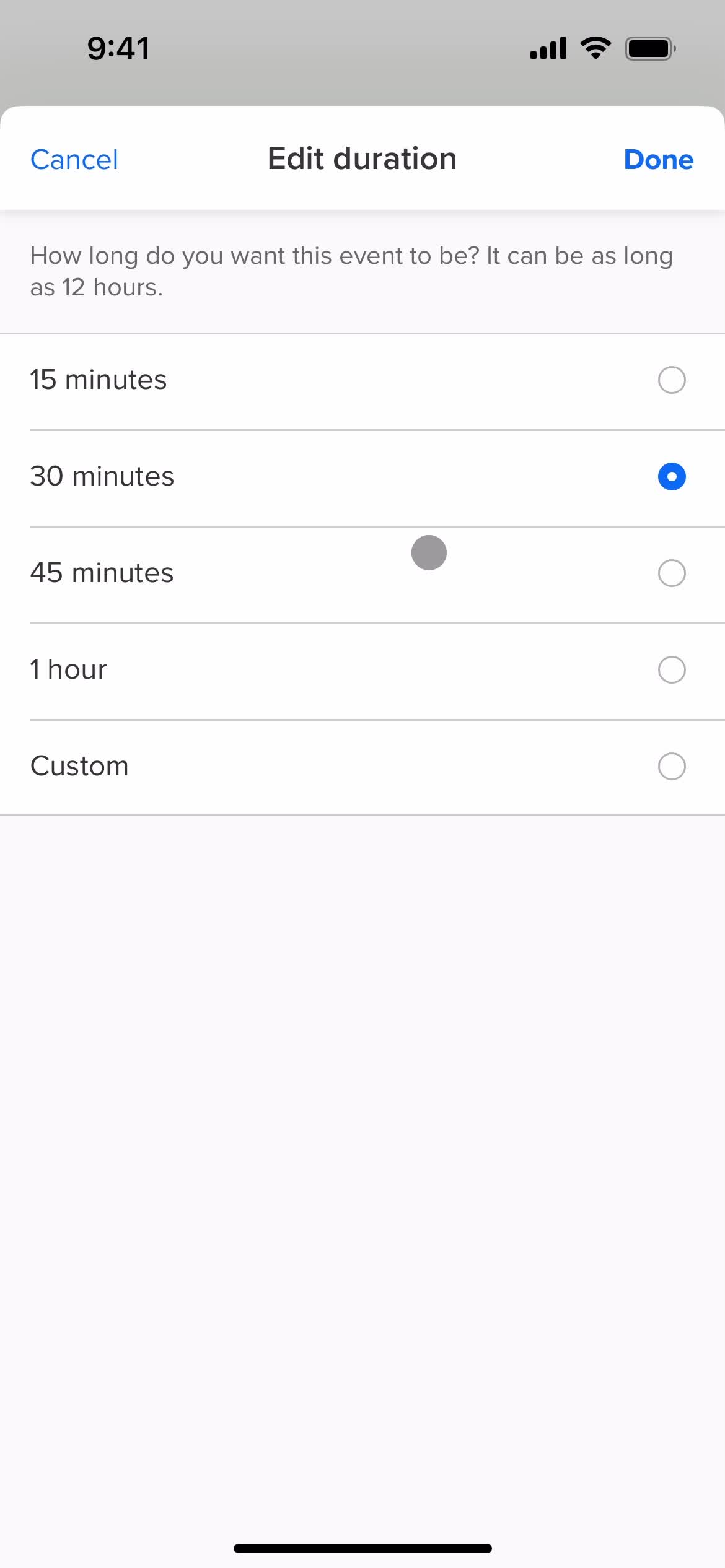
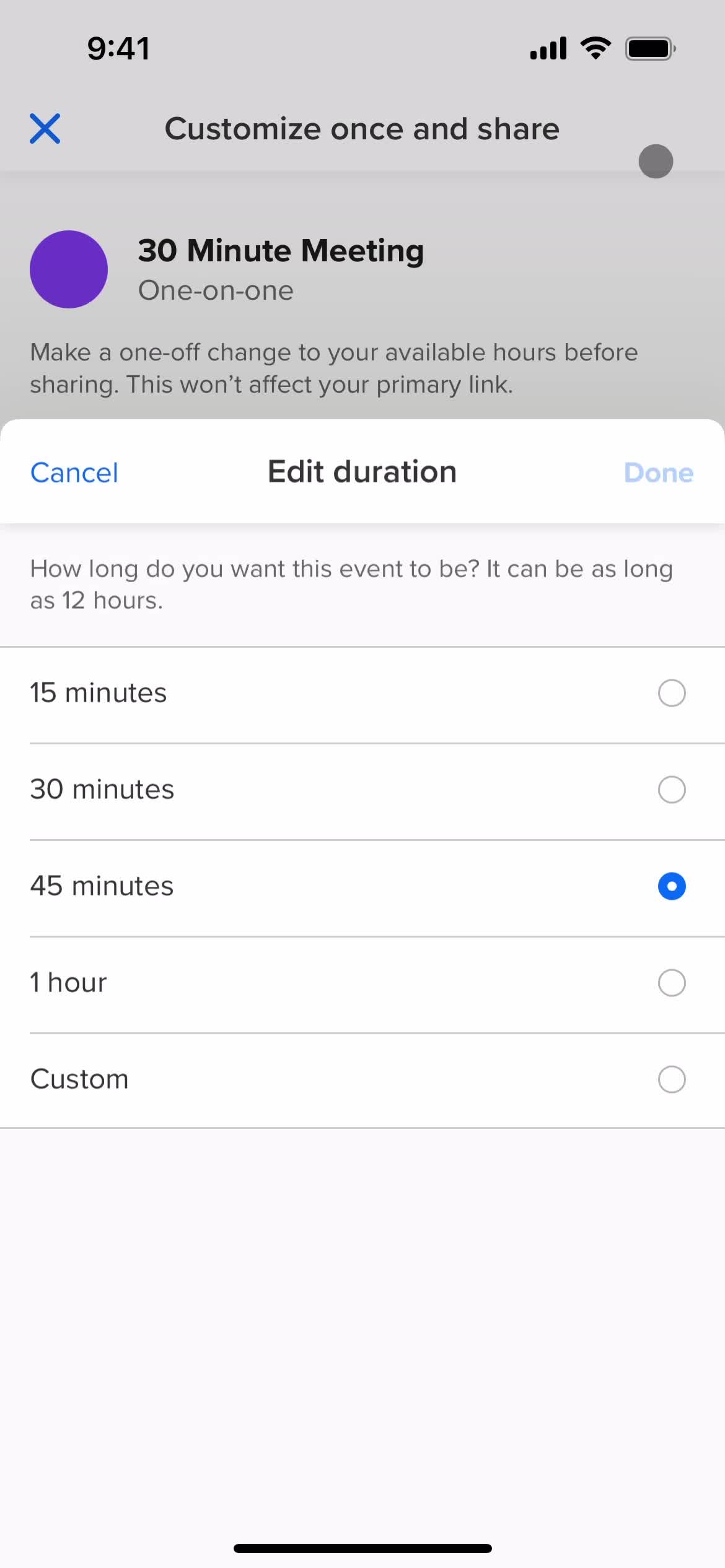
Set duration
this is title
this is title
Share
this is title
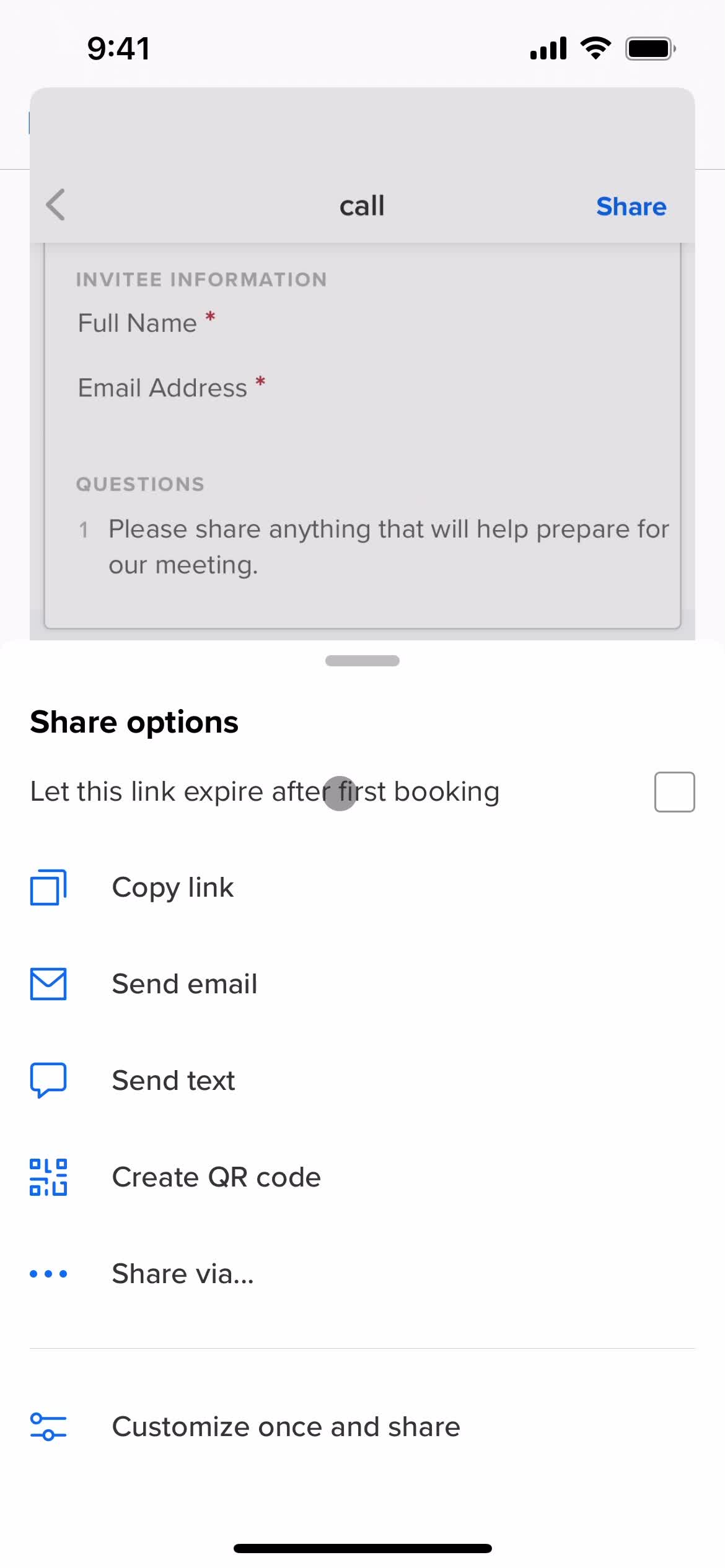
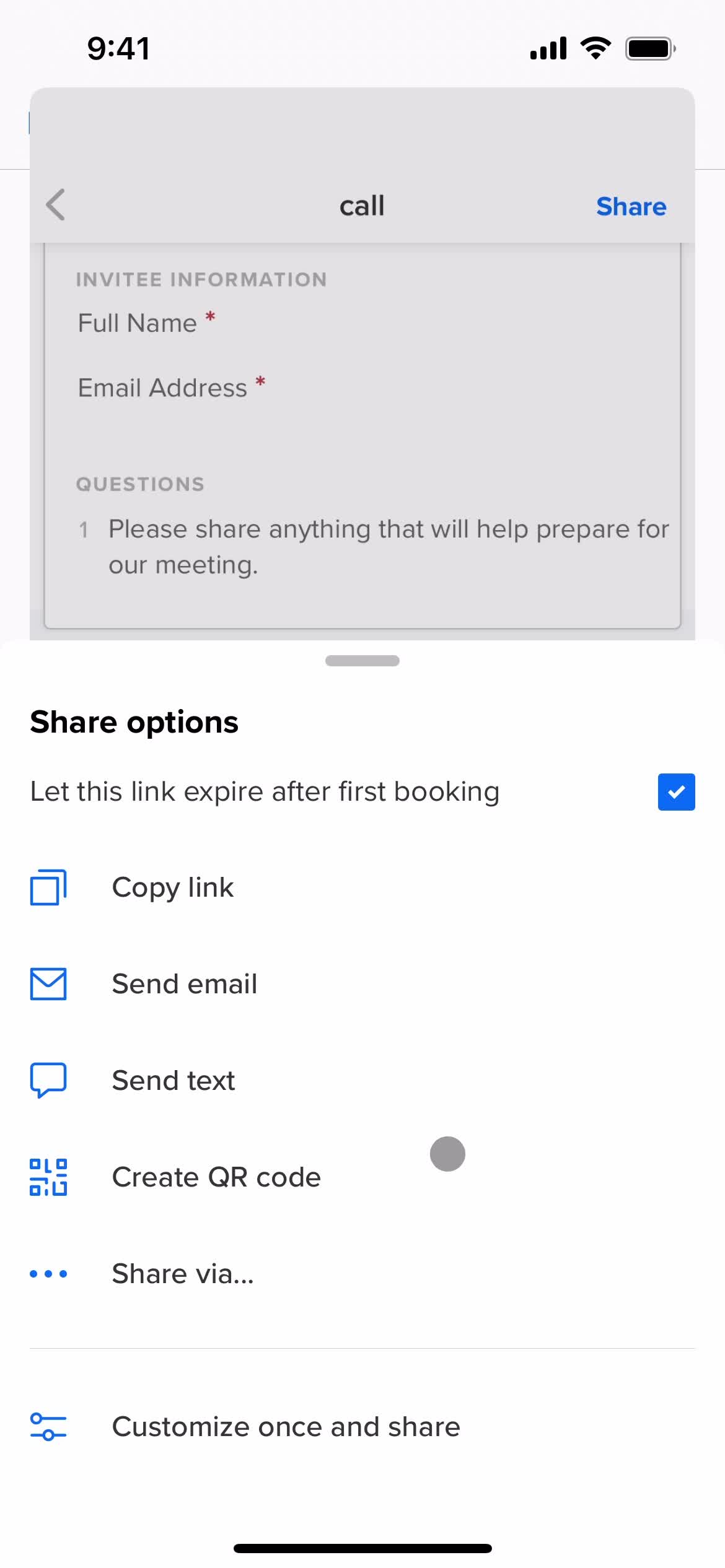
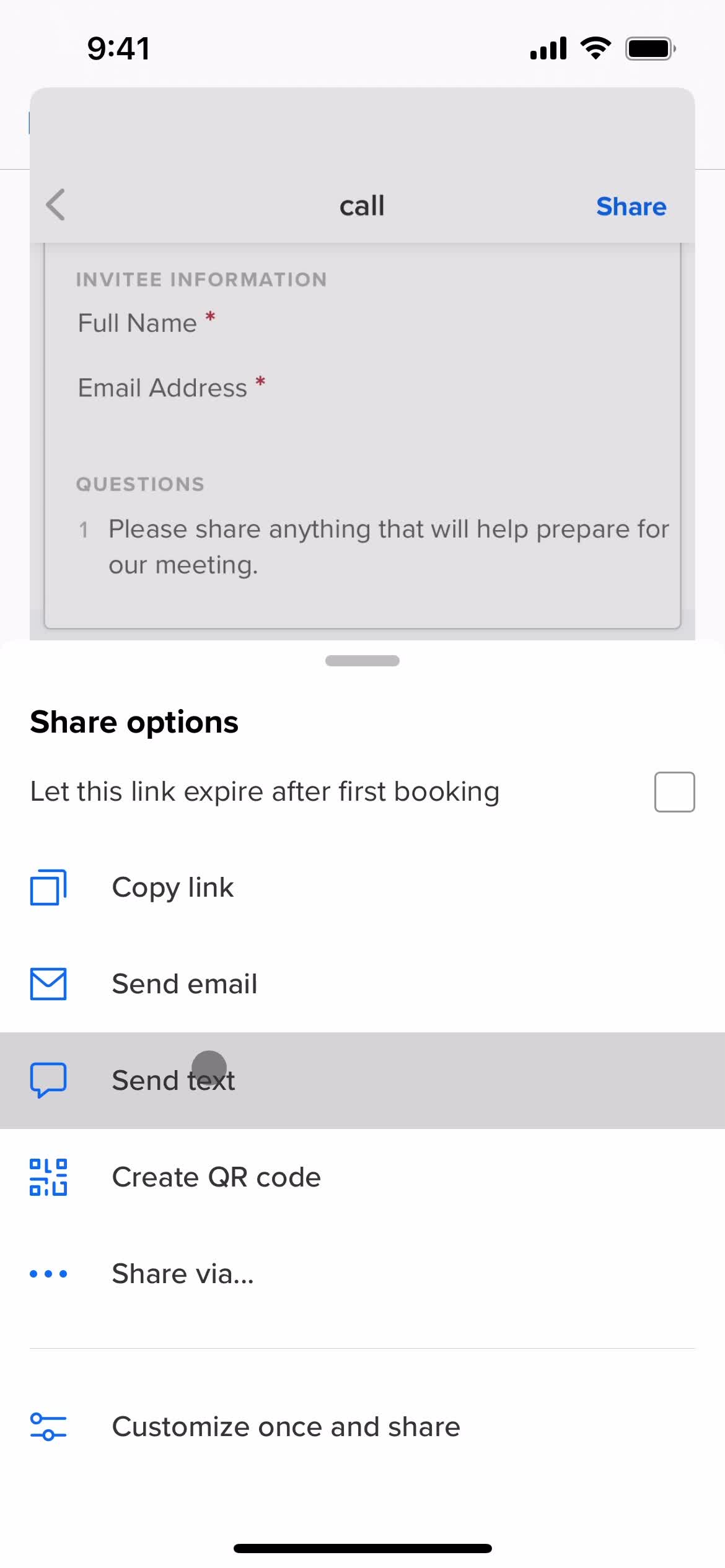
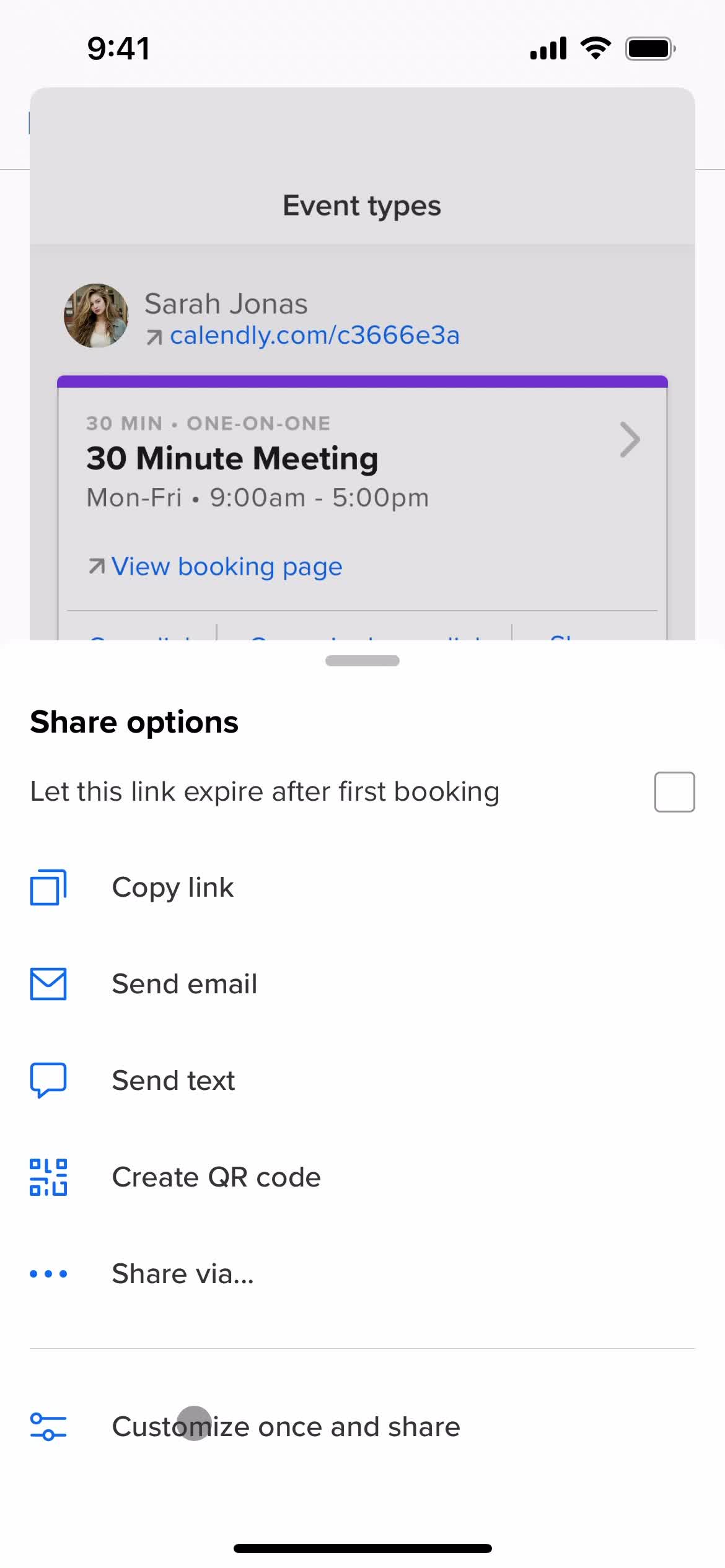
Share options
this is title
this is title
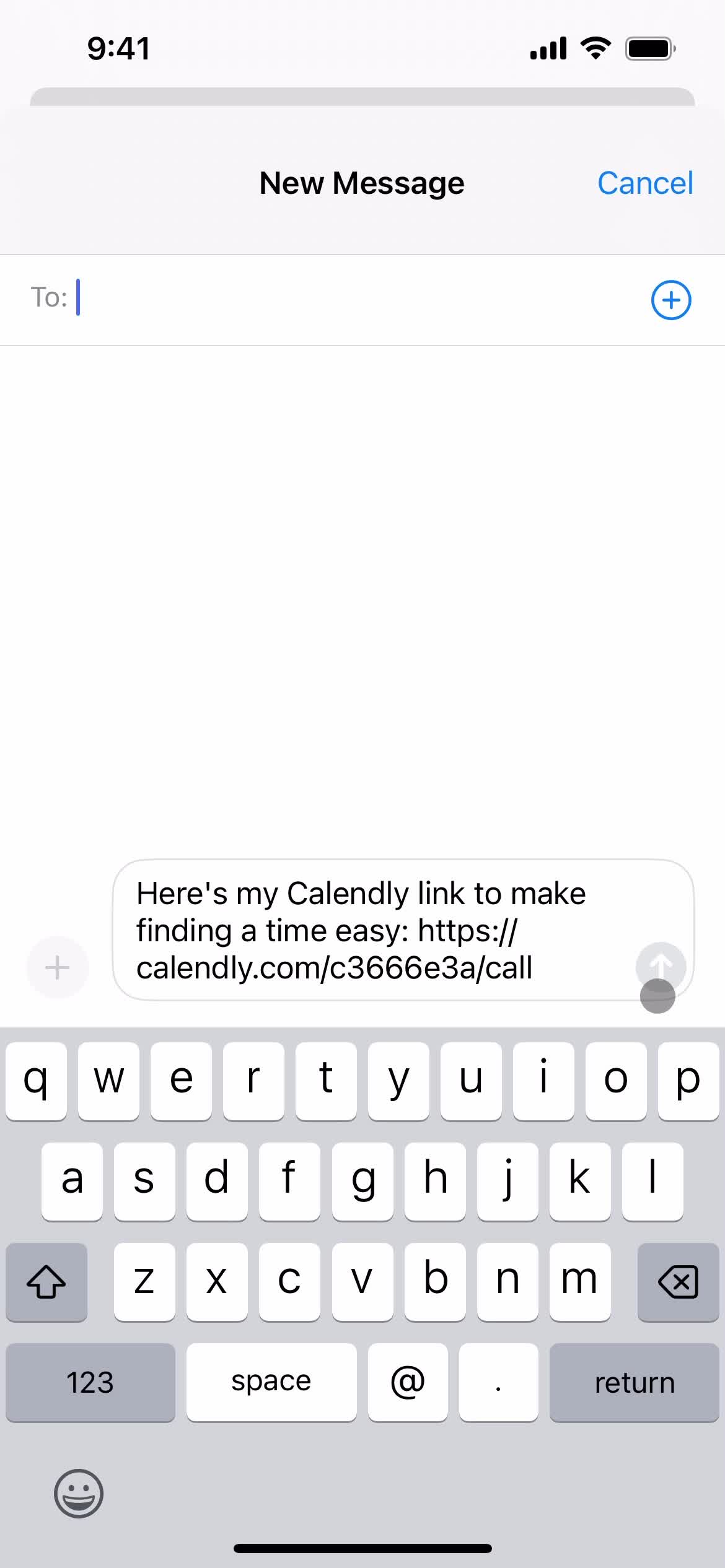
Invite sent
this is title
Share
this is title
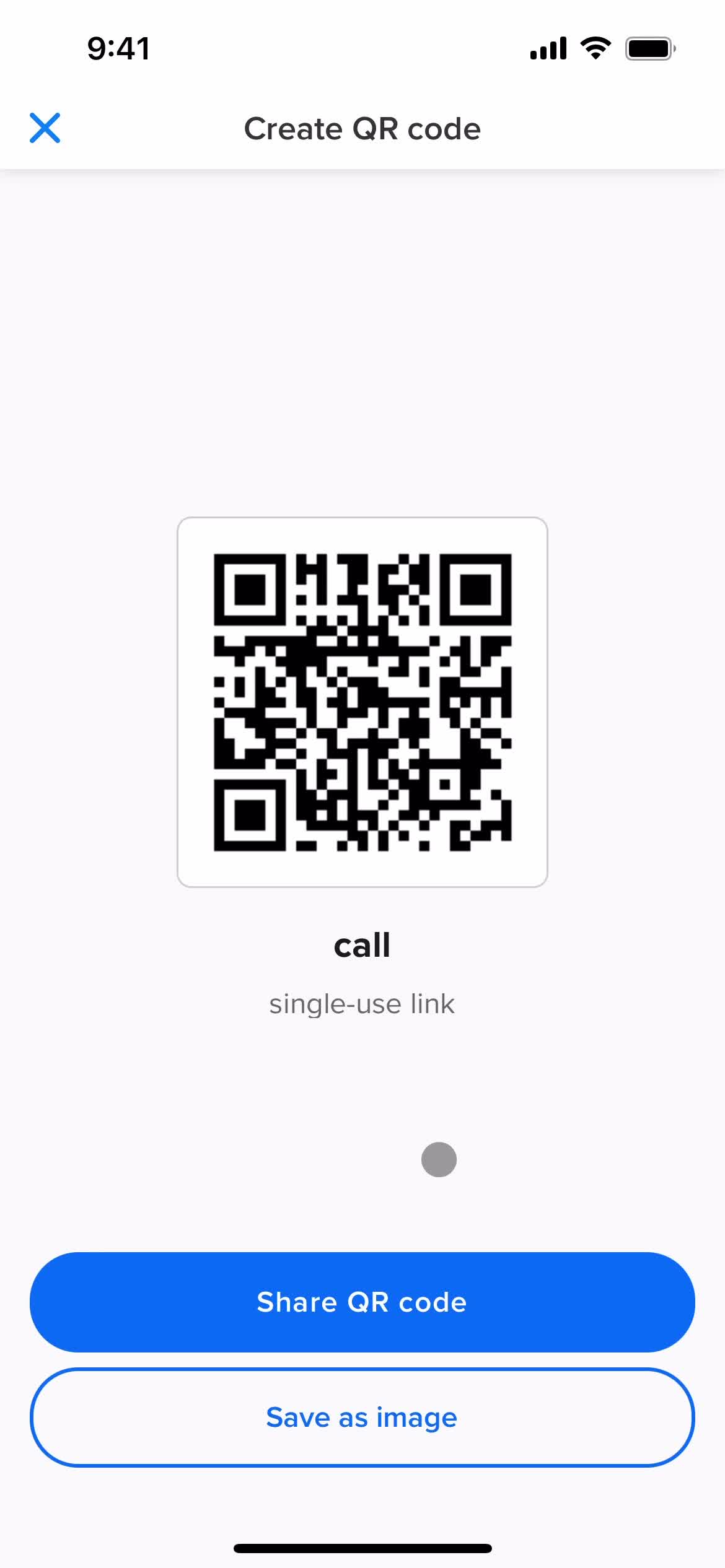
Share QR code
this is title
this is title
this is title
Sent
this is title
Home
this is title
Homepage
this is title
Account settings
this is title
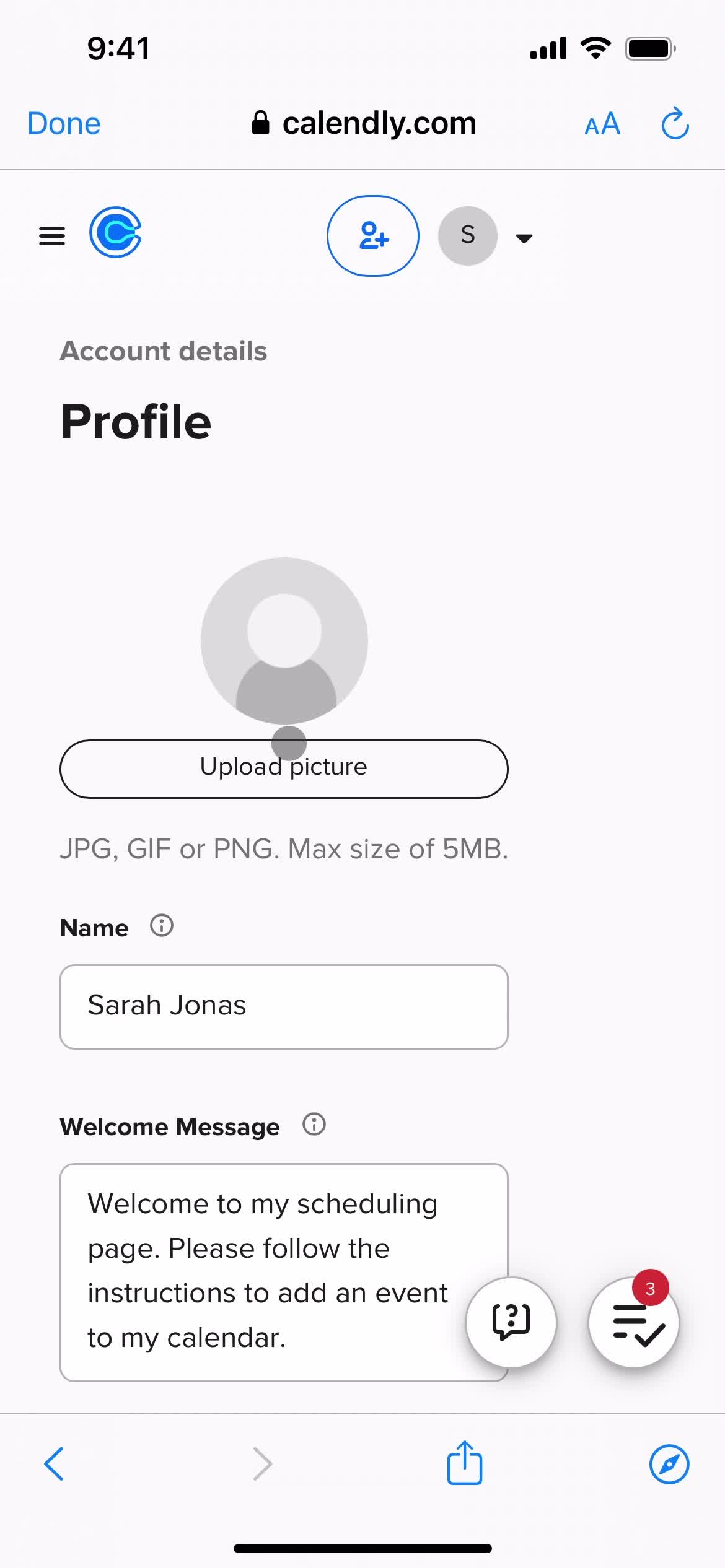
Profile
this is title
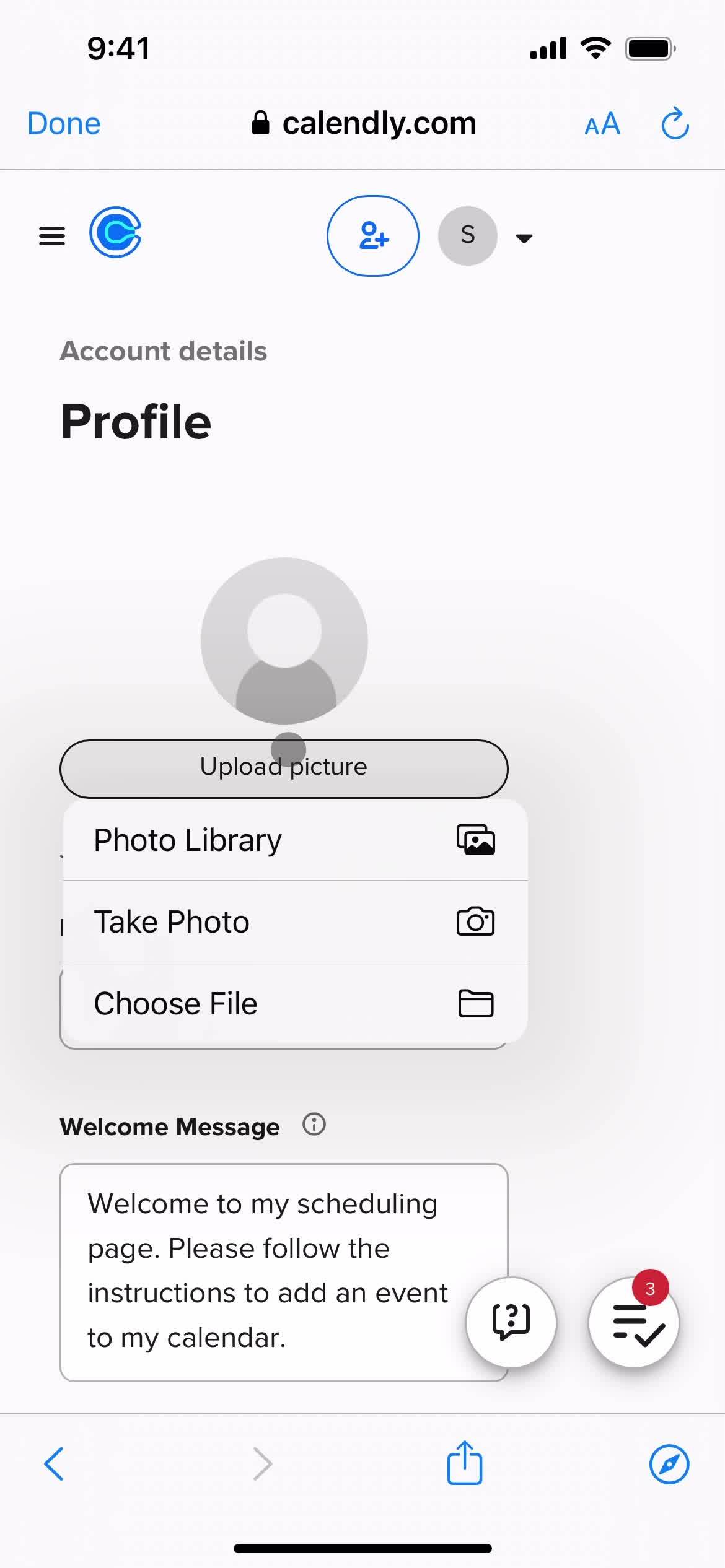
Upload profile picture
this is title
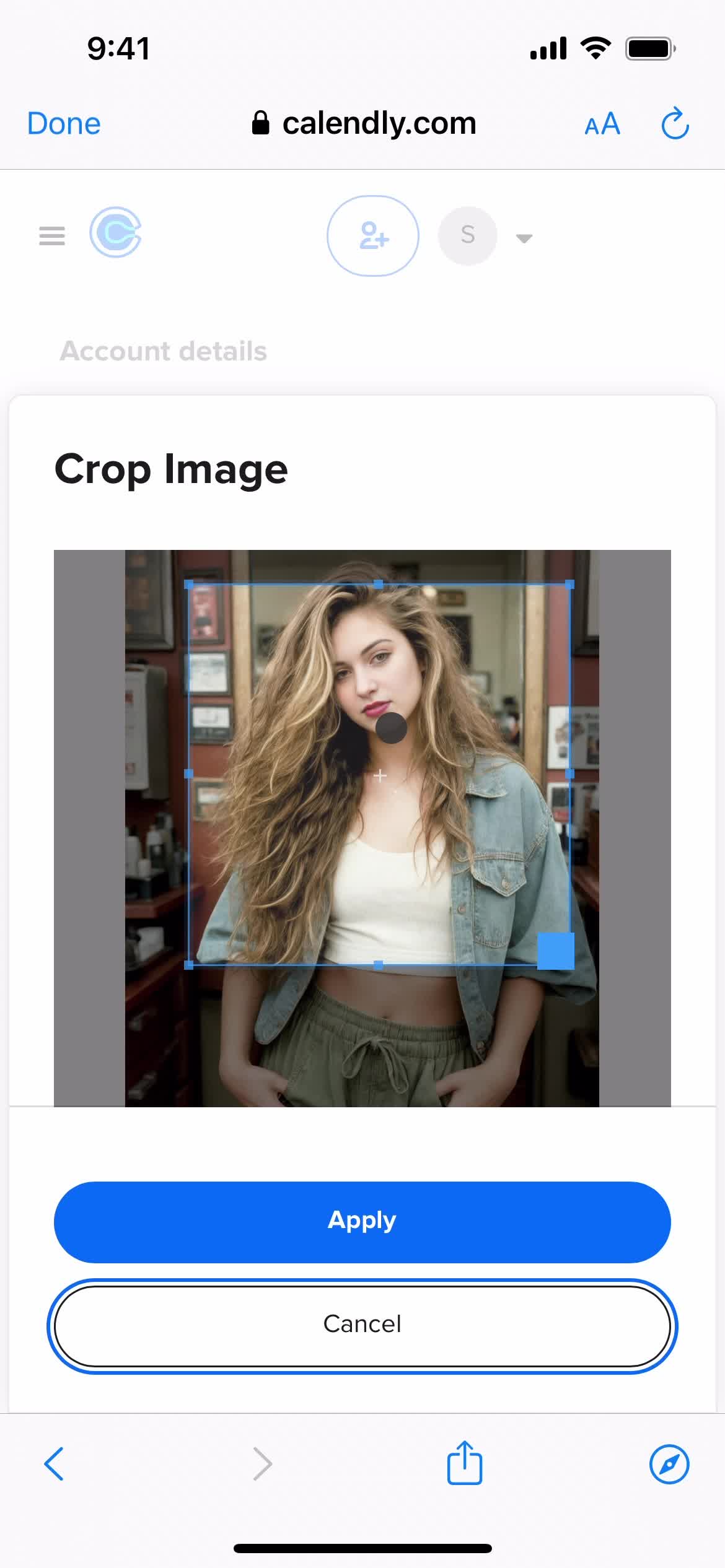
Crop image
this is title
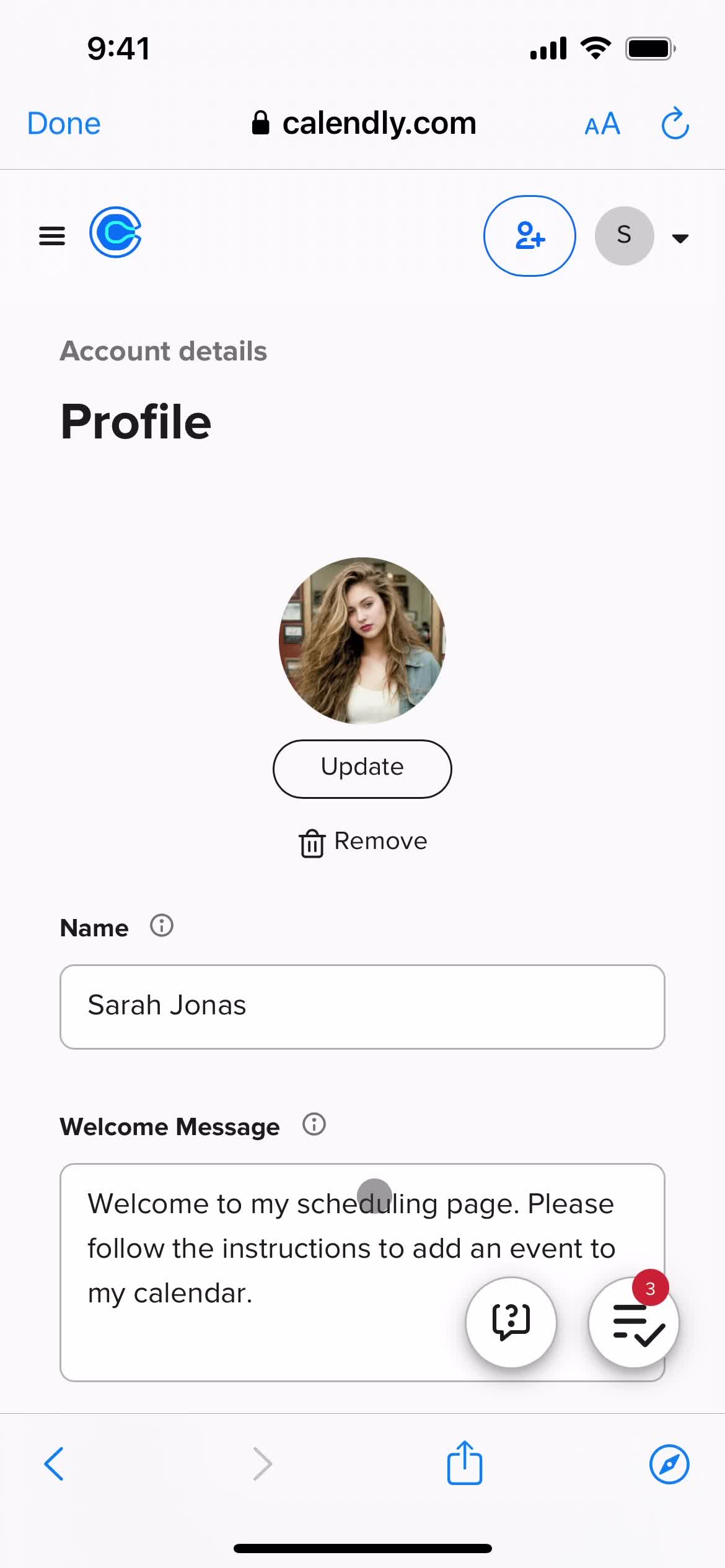
Profile
this is title
this is title
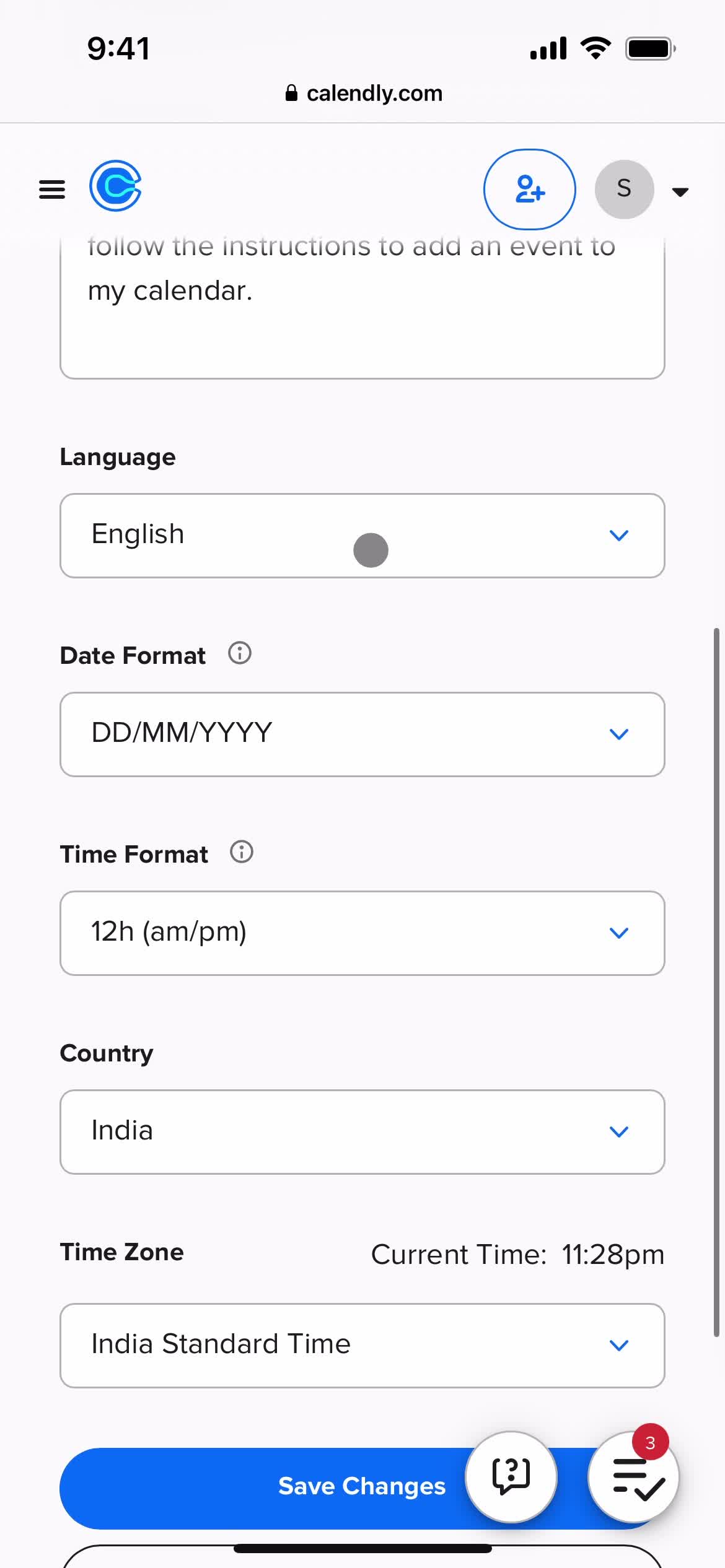
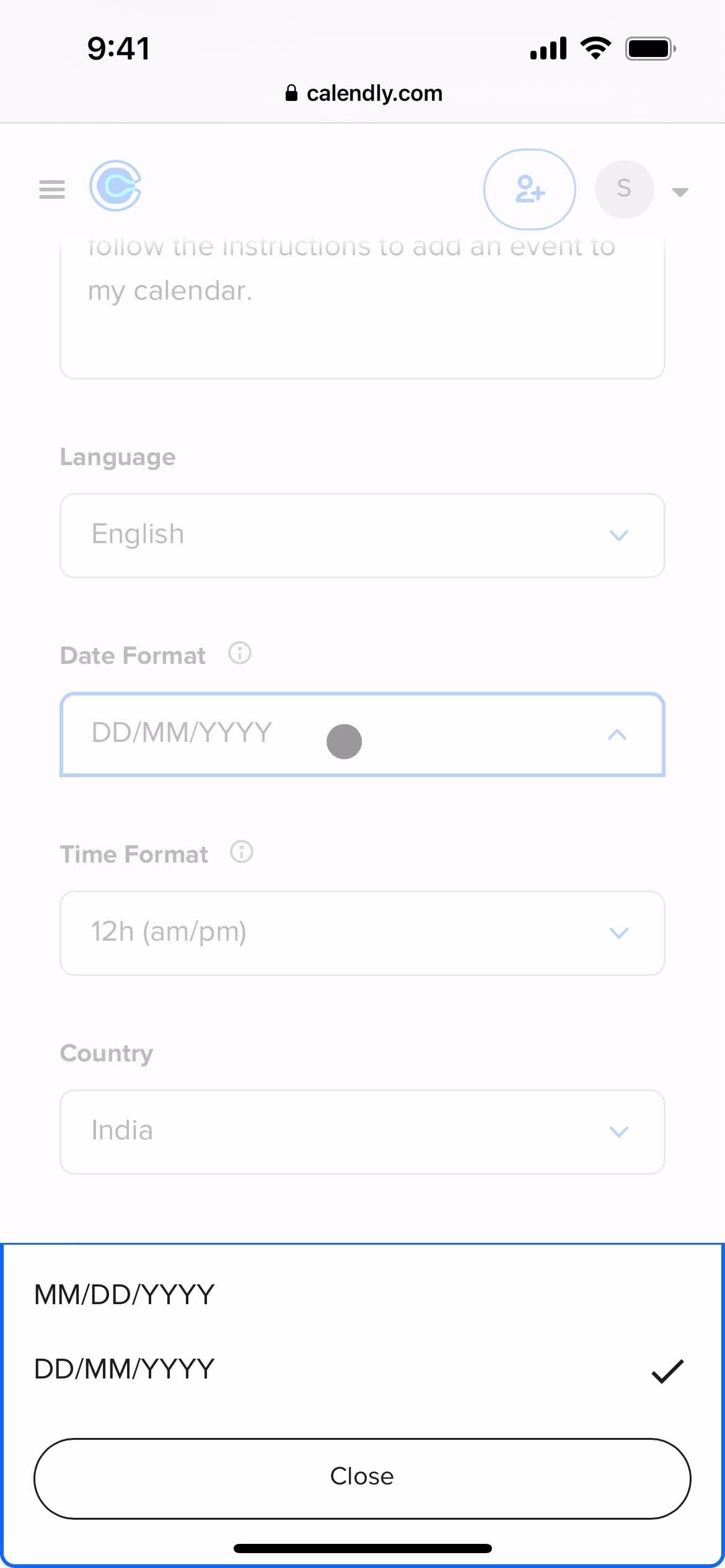
Date format
this is title
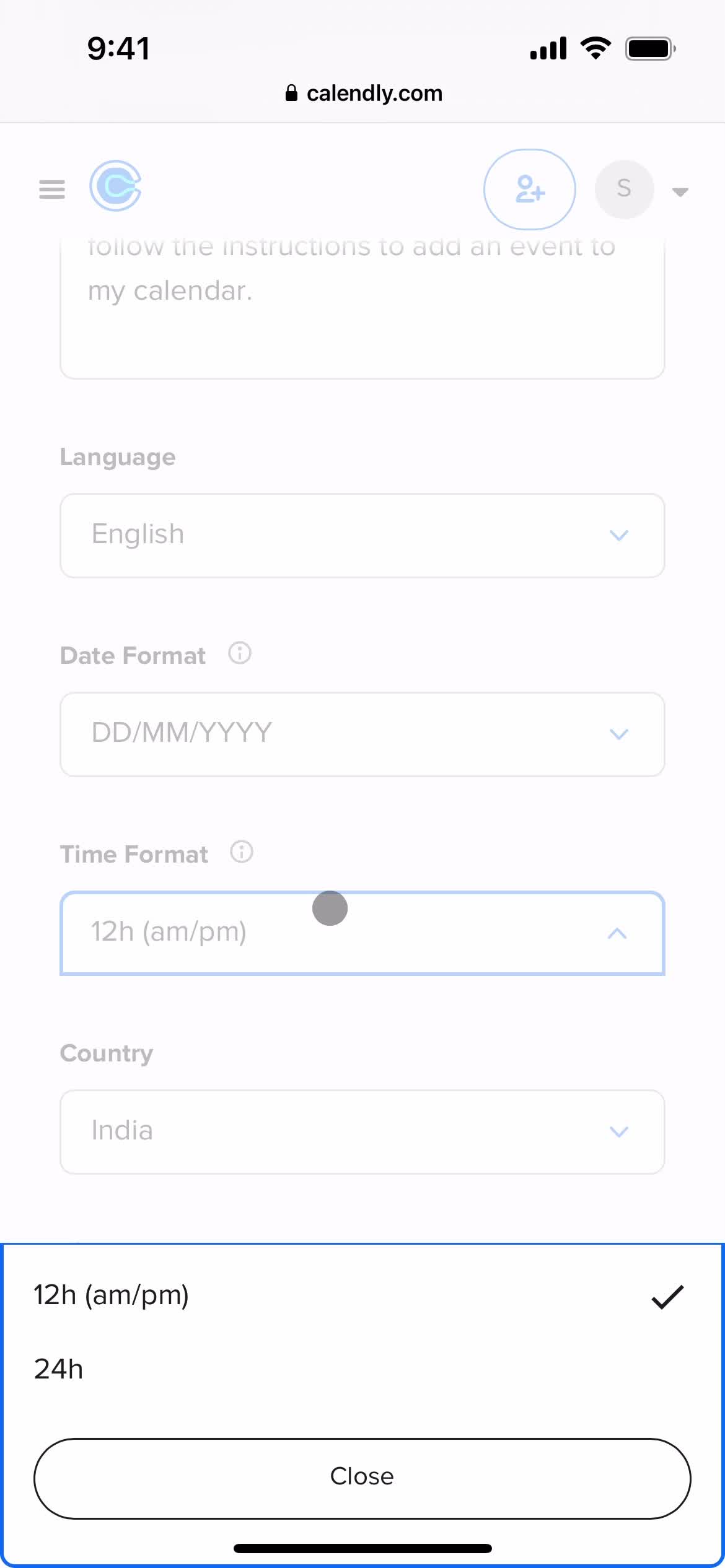
Time format
this is title
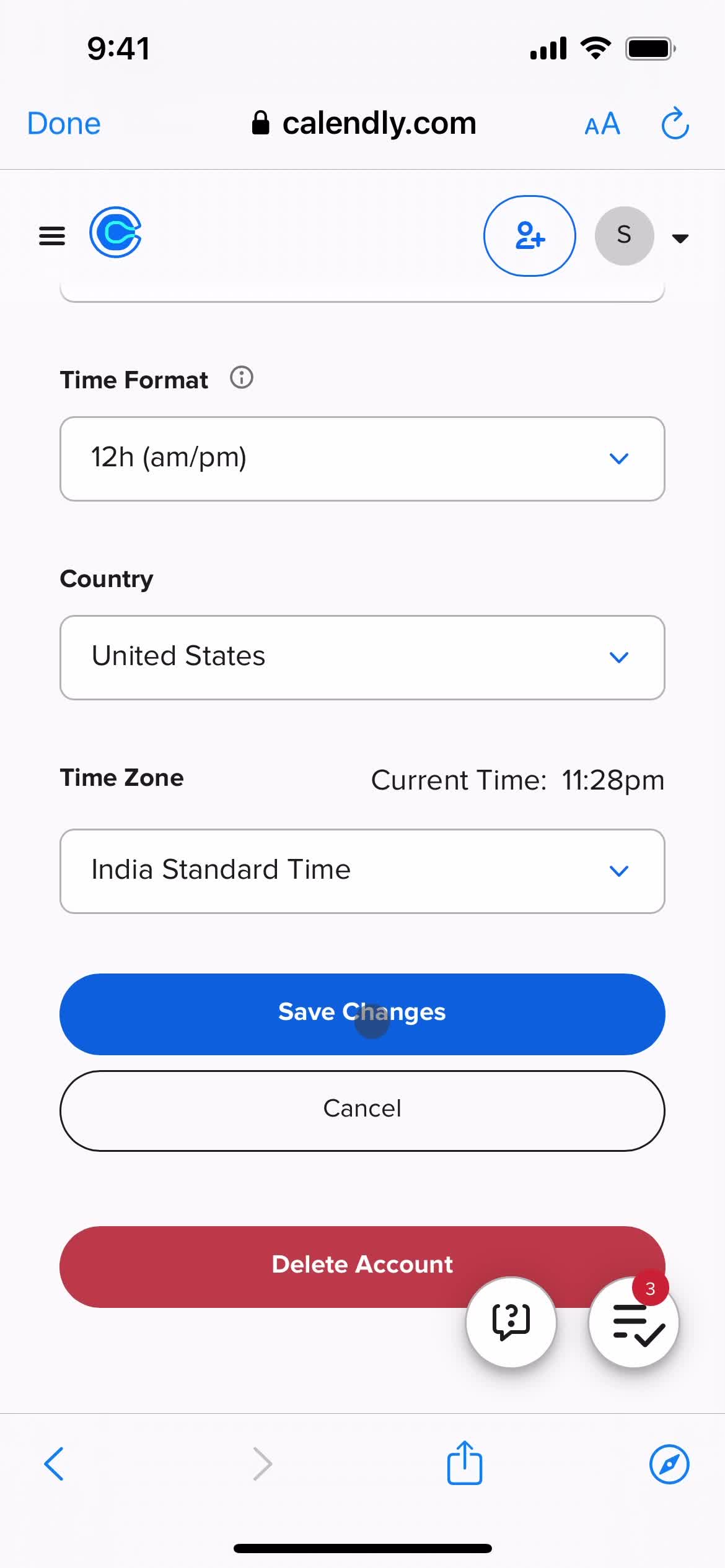
Save changes
this is title
Guides
this is title
Home
this is title
Homepage
this is title
Navigation menu
this is title
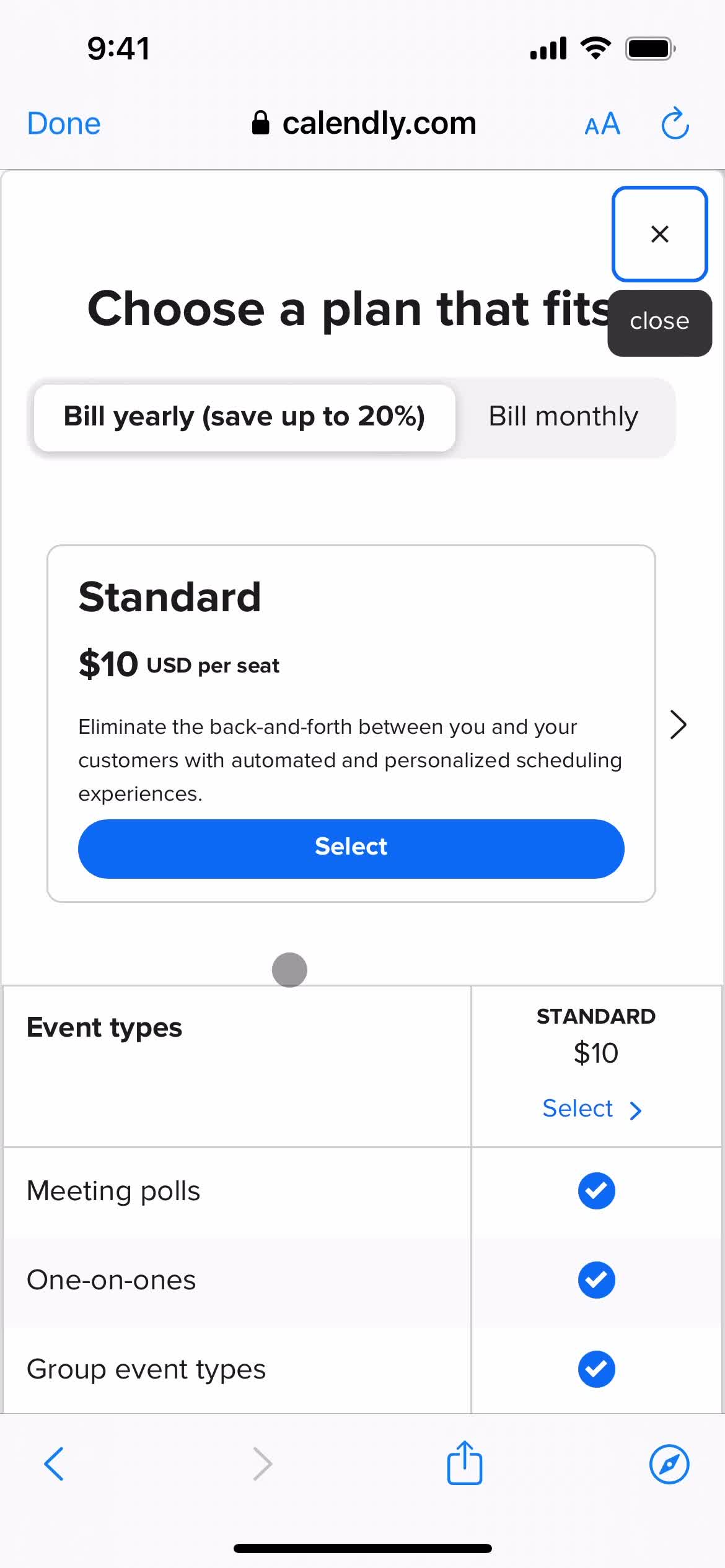
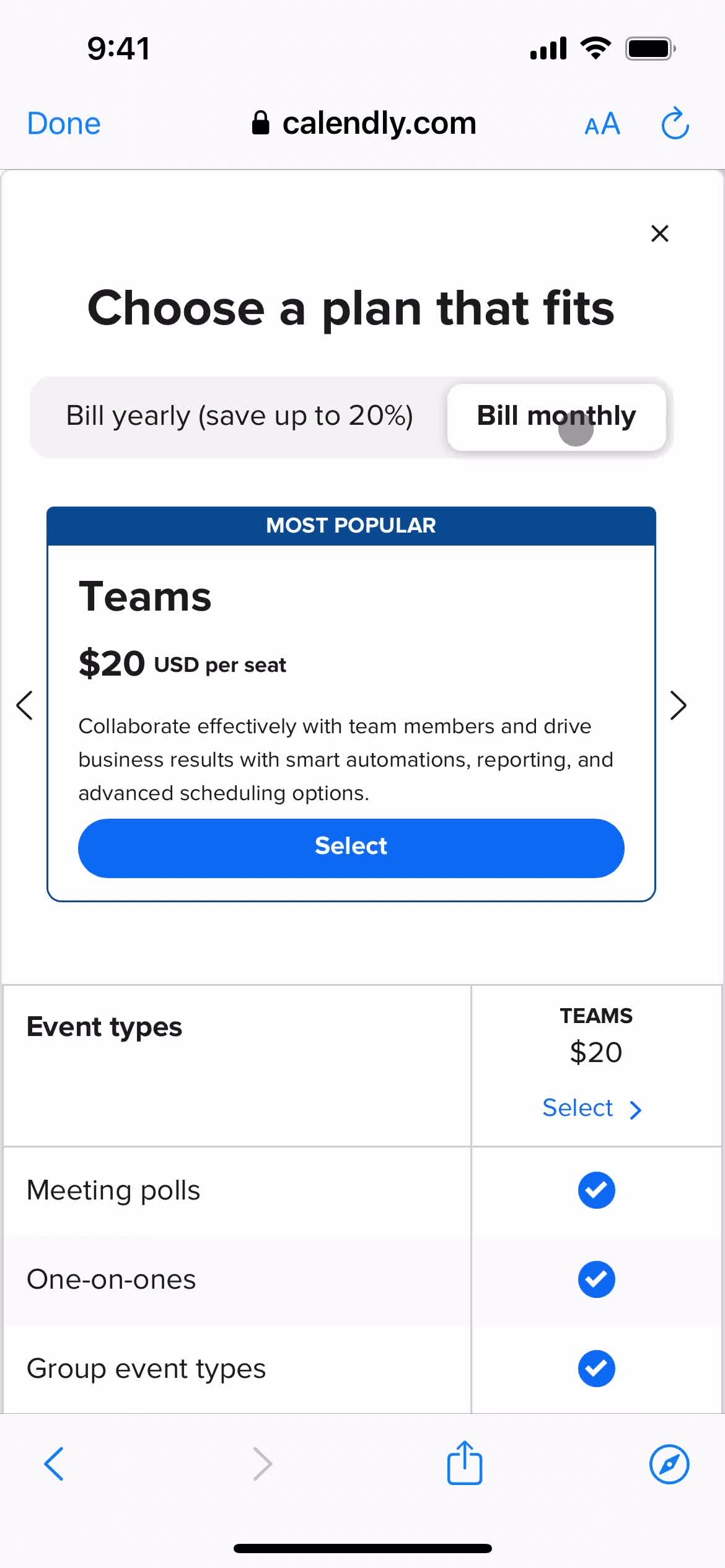
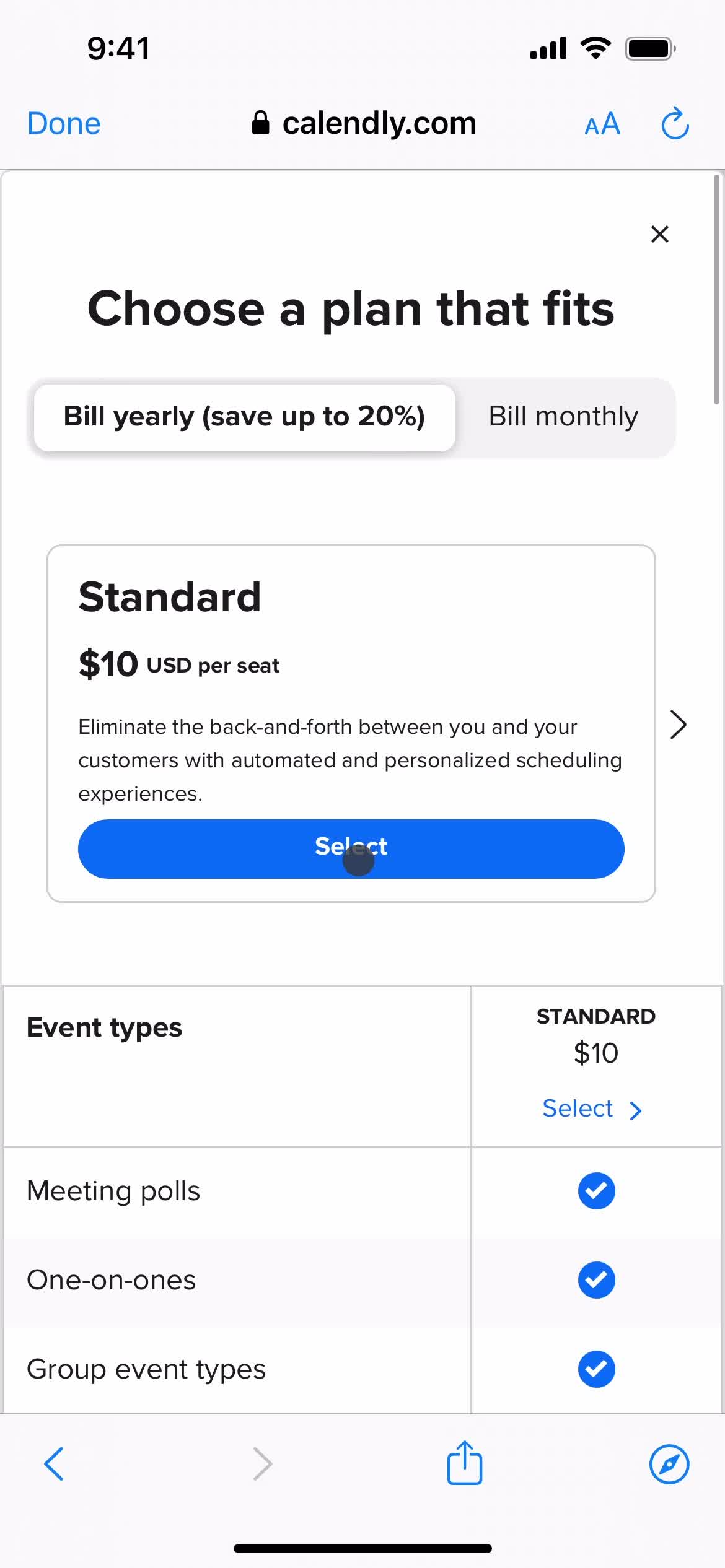
Upgrade
this is title
this is title
this is title
this is title
this is title
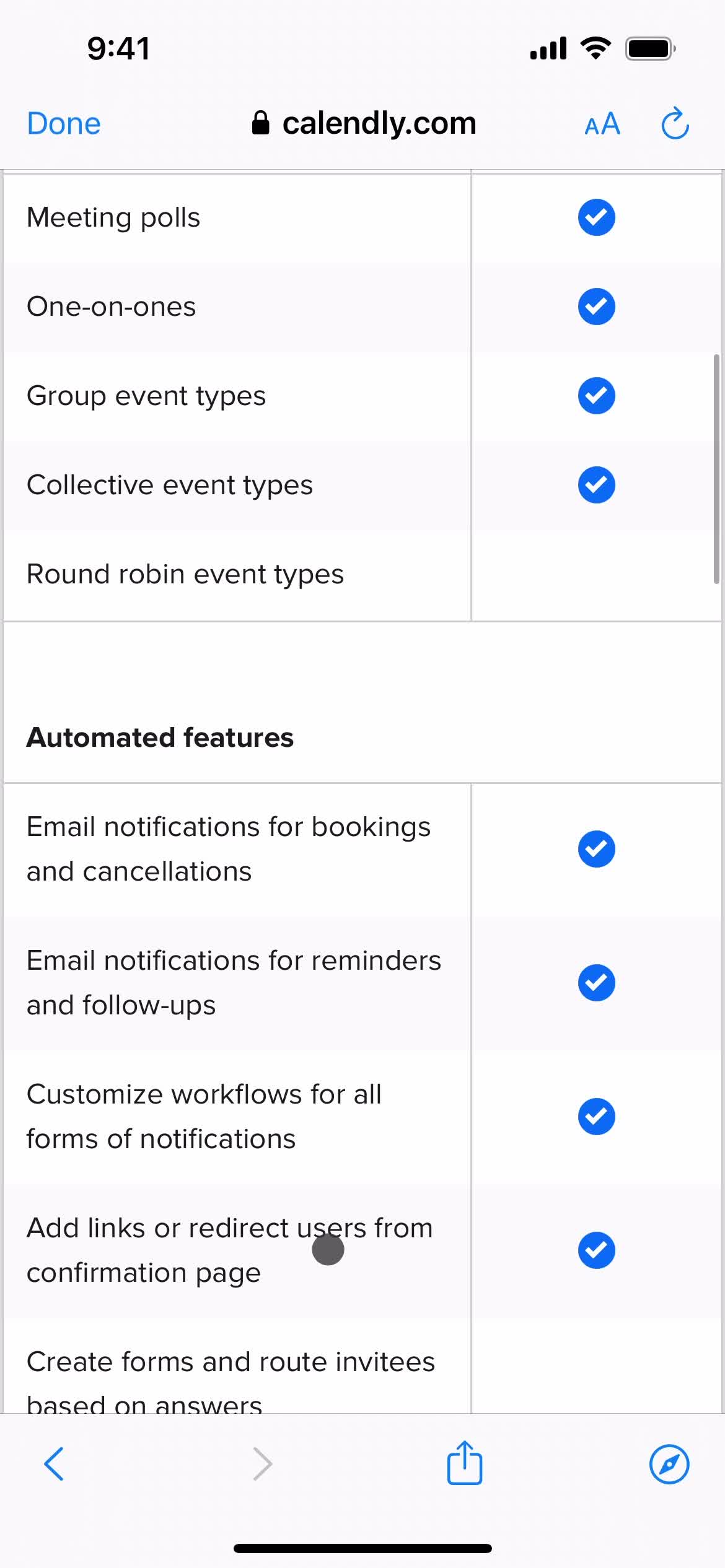
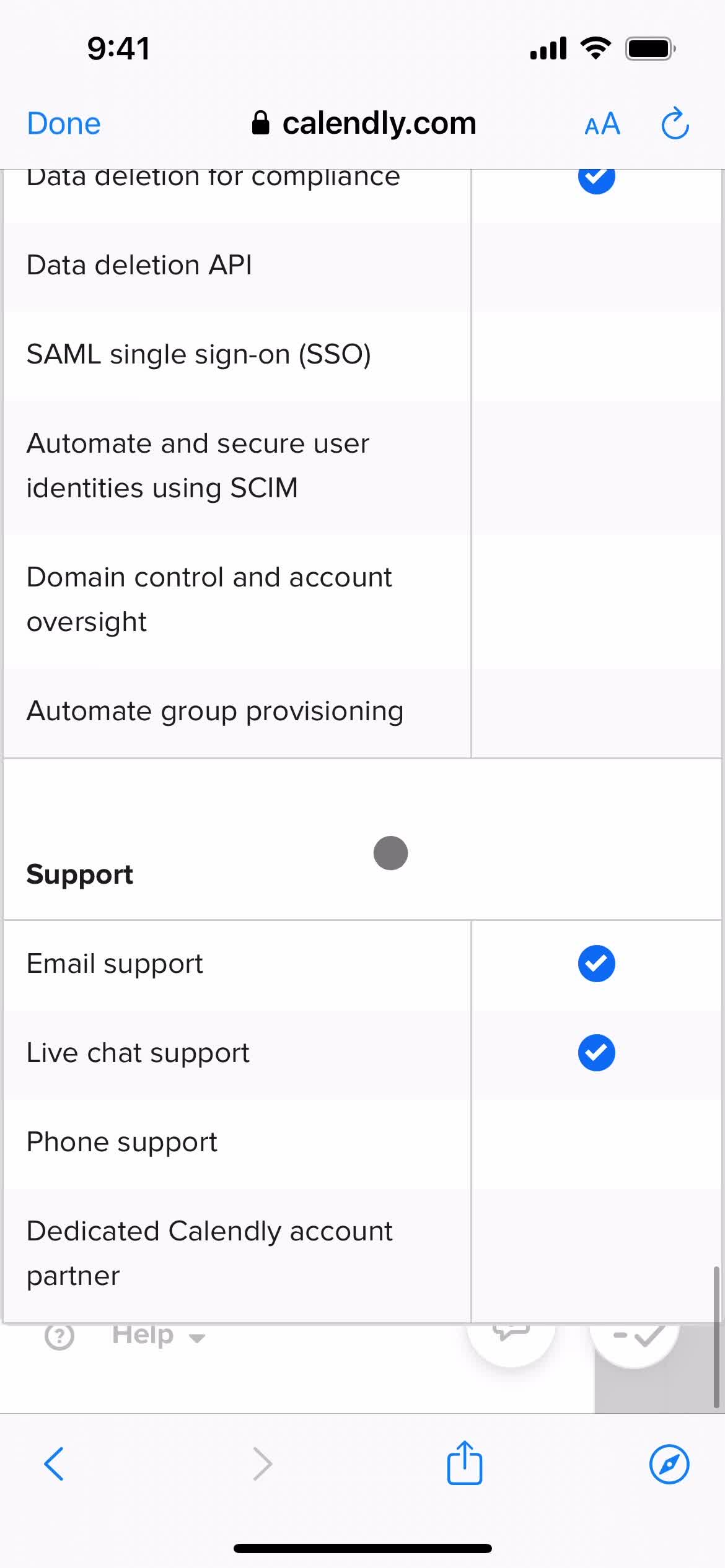
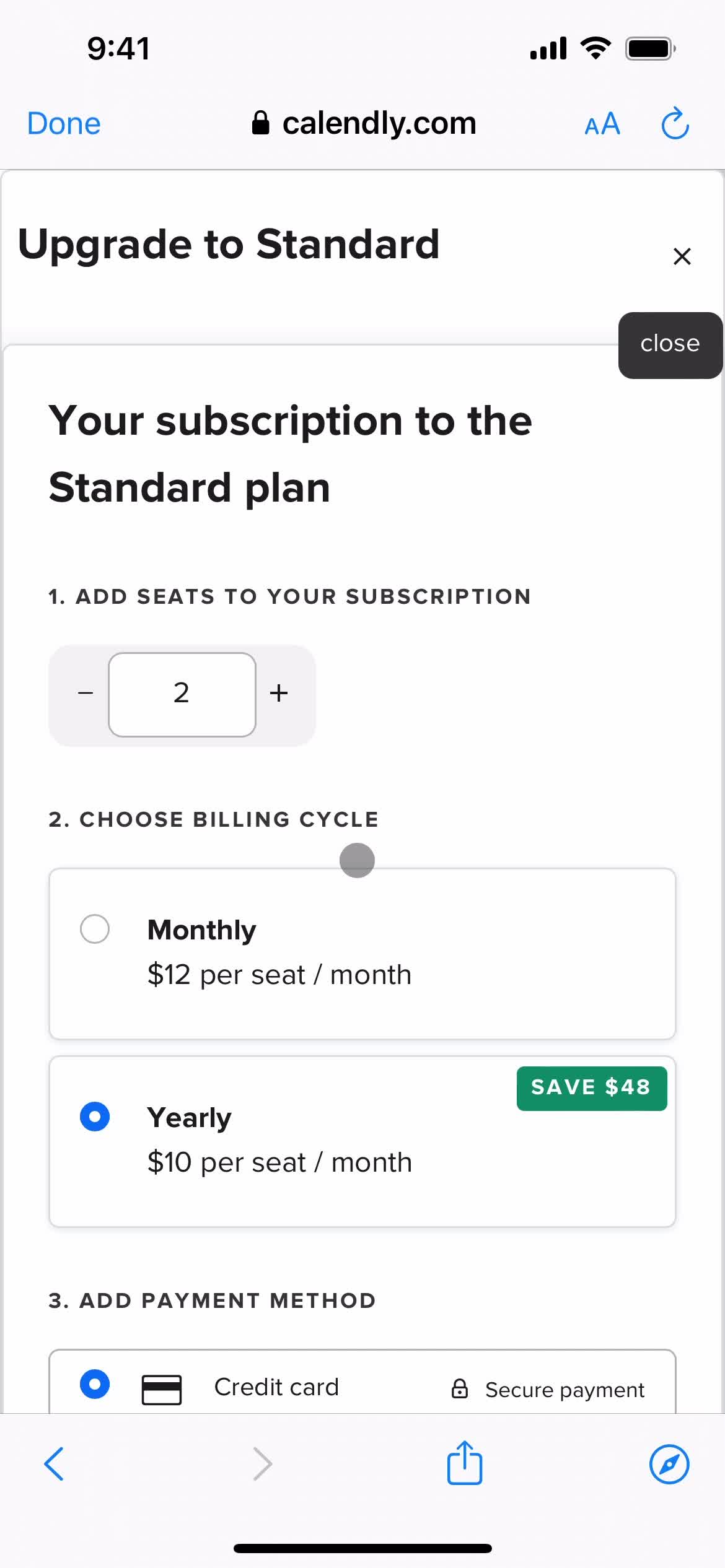
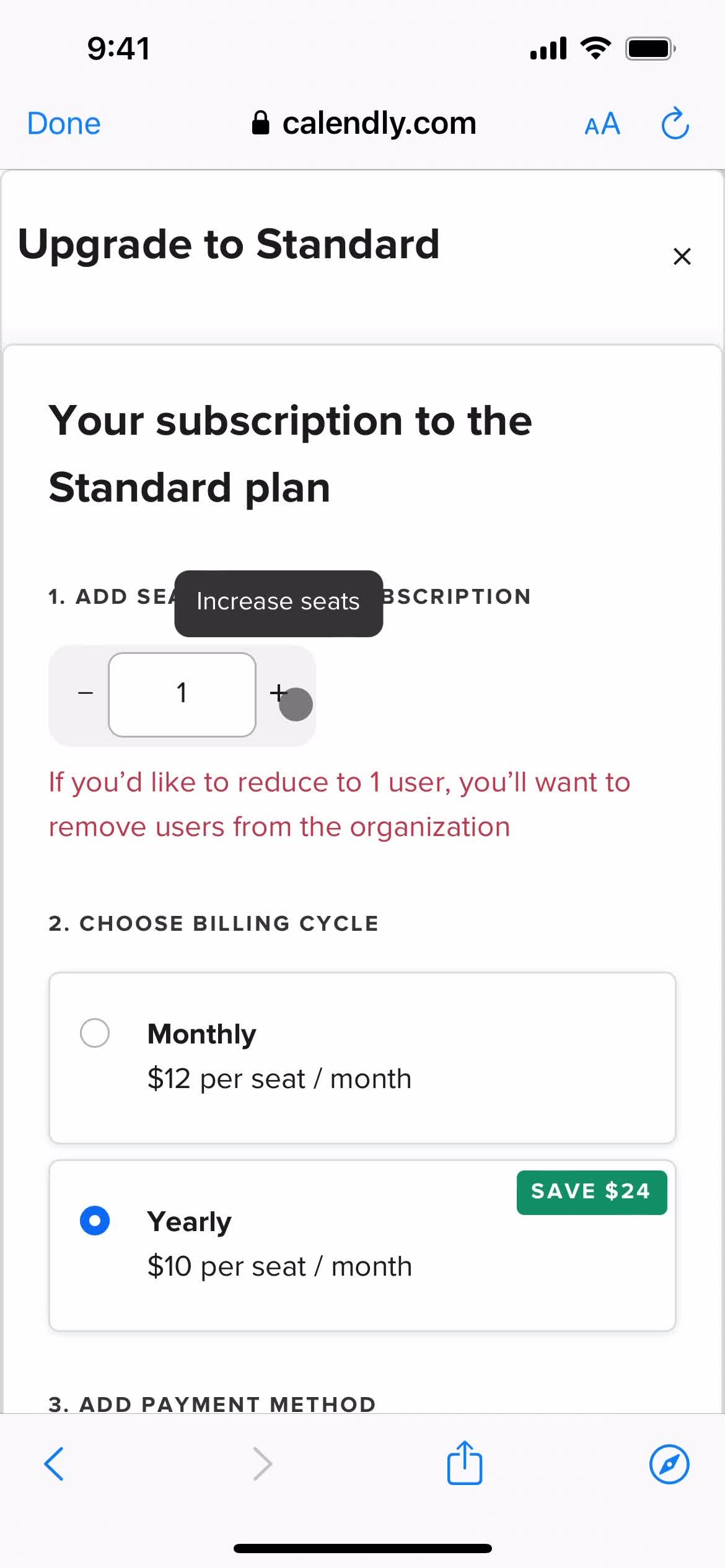
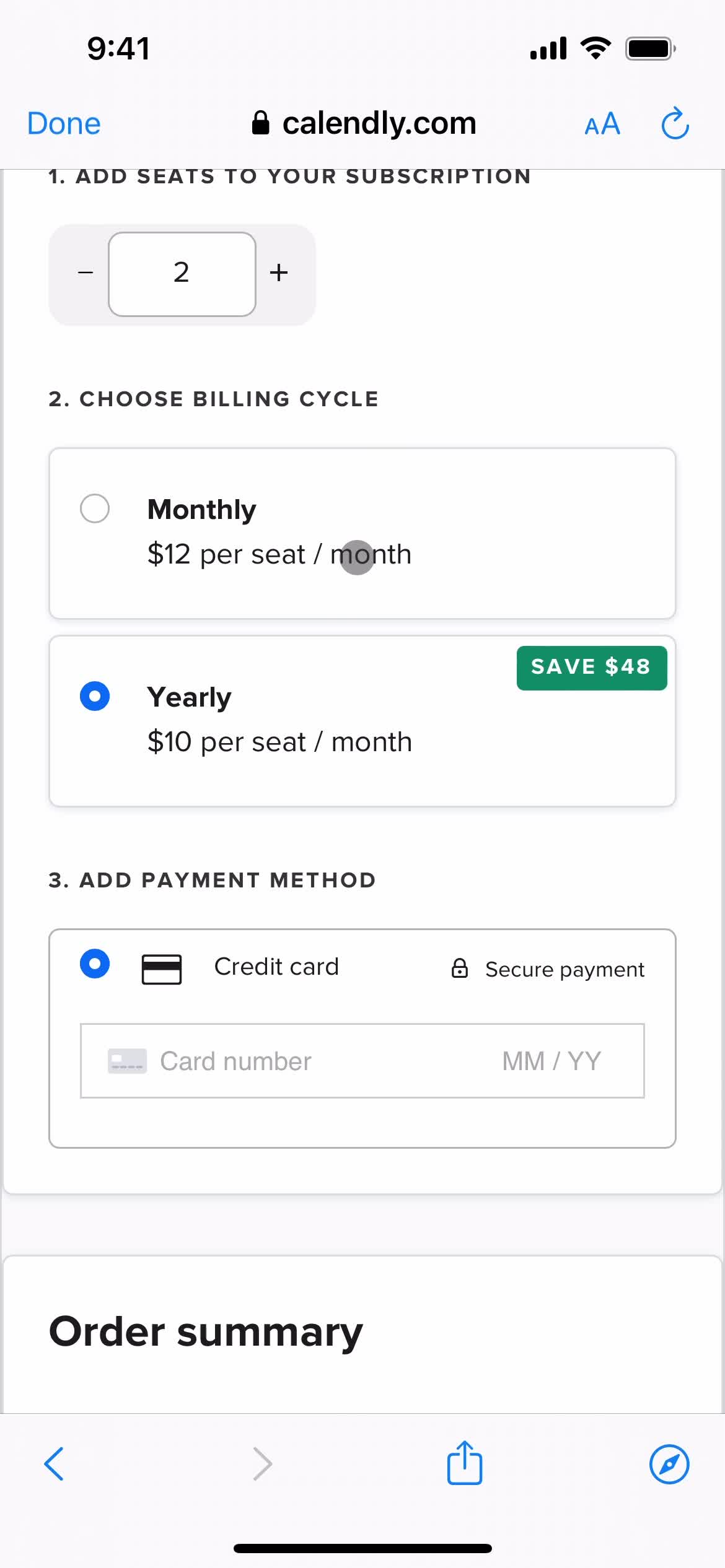
Upgrade plan
this is title
this is title
this is title
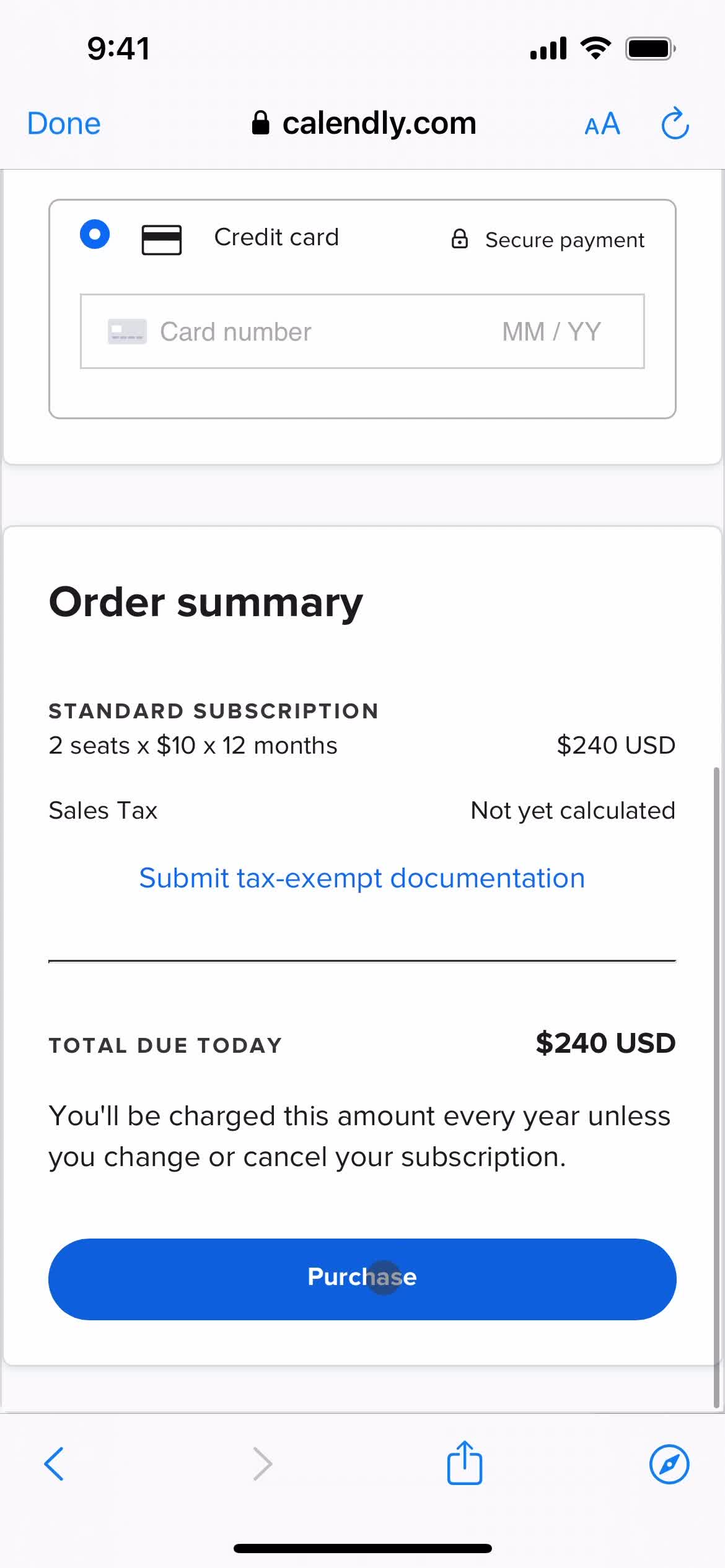
Confirm purchase
this is title