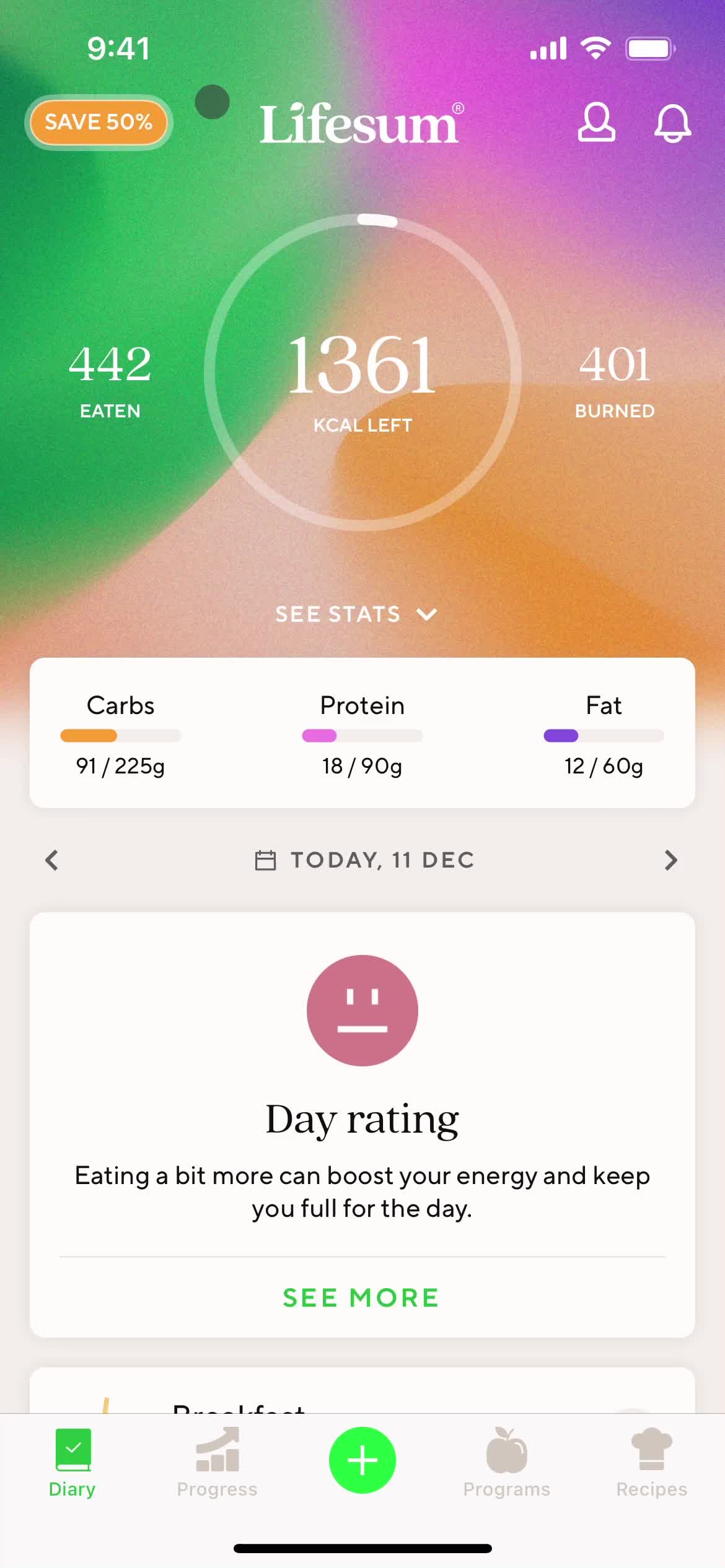
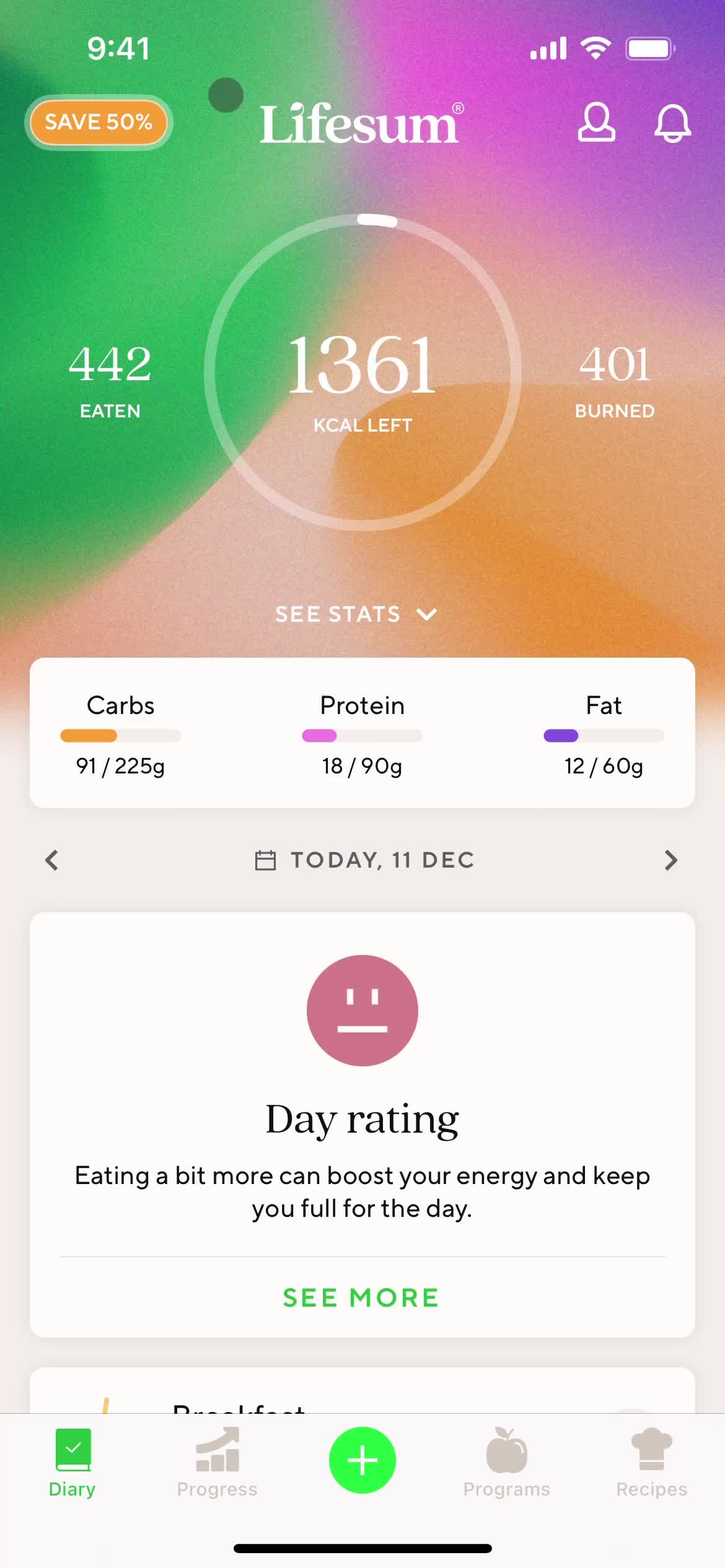
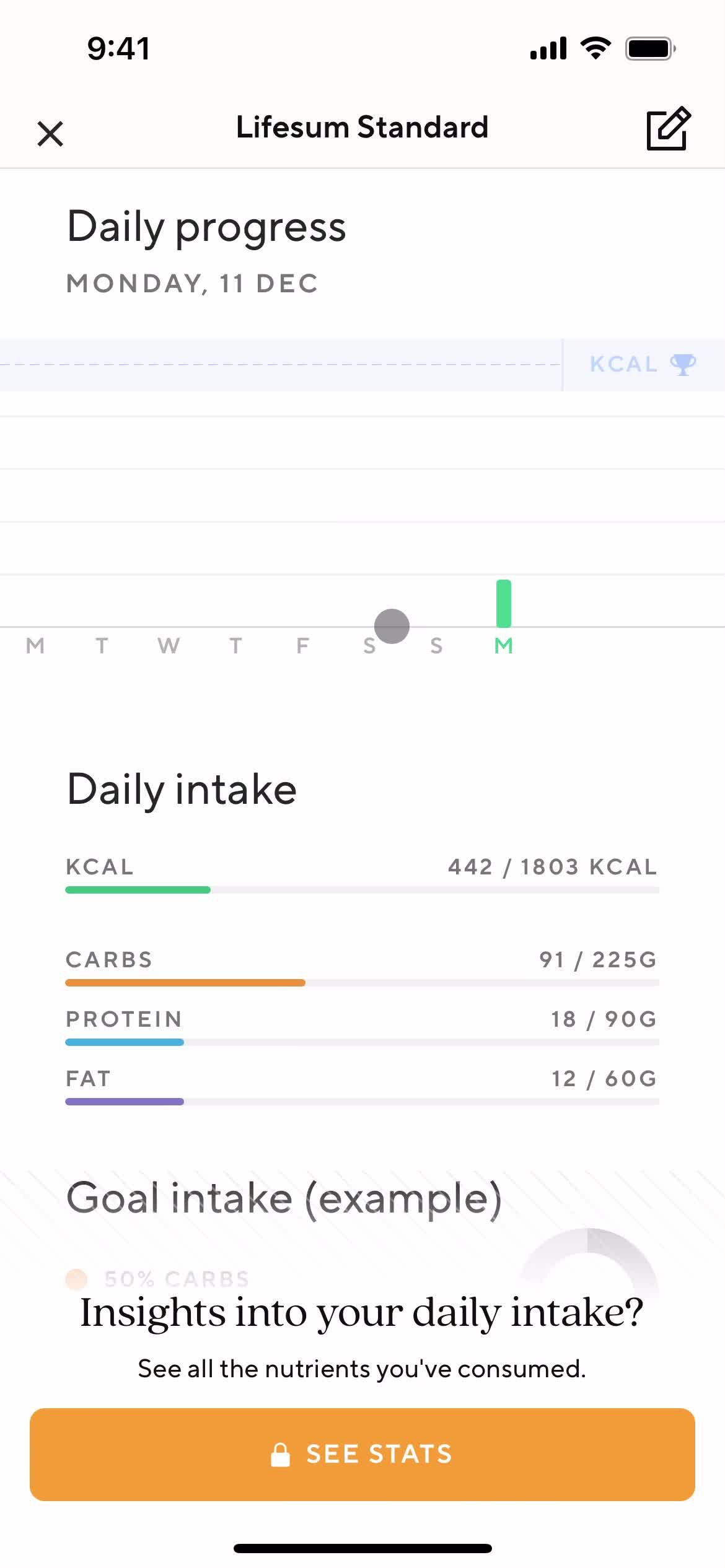
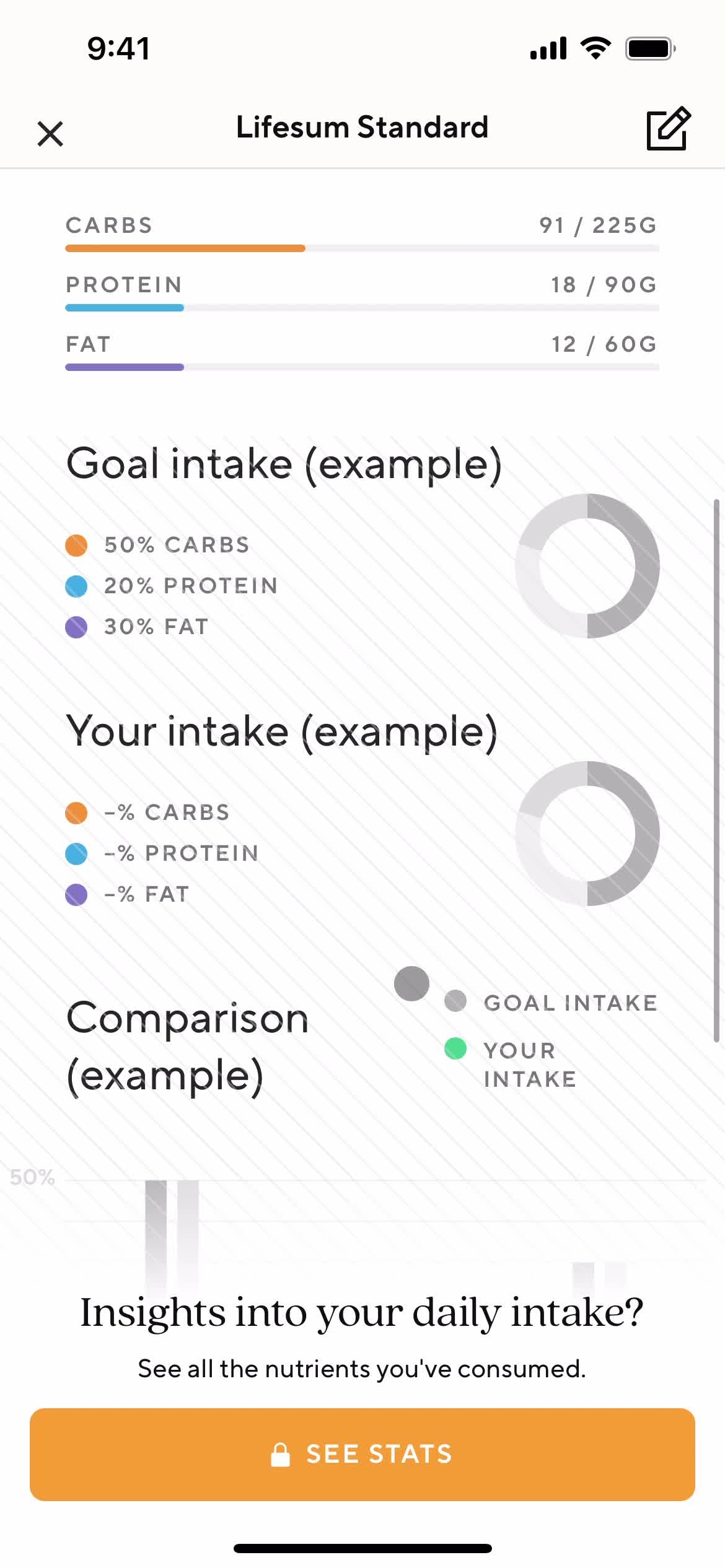
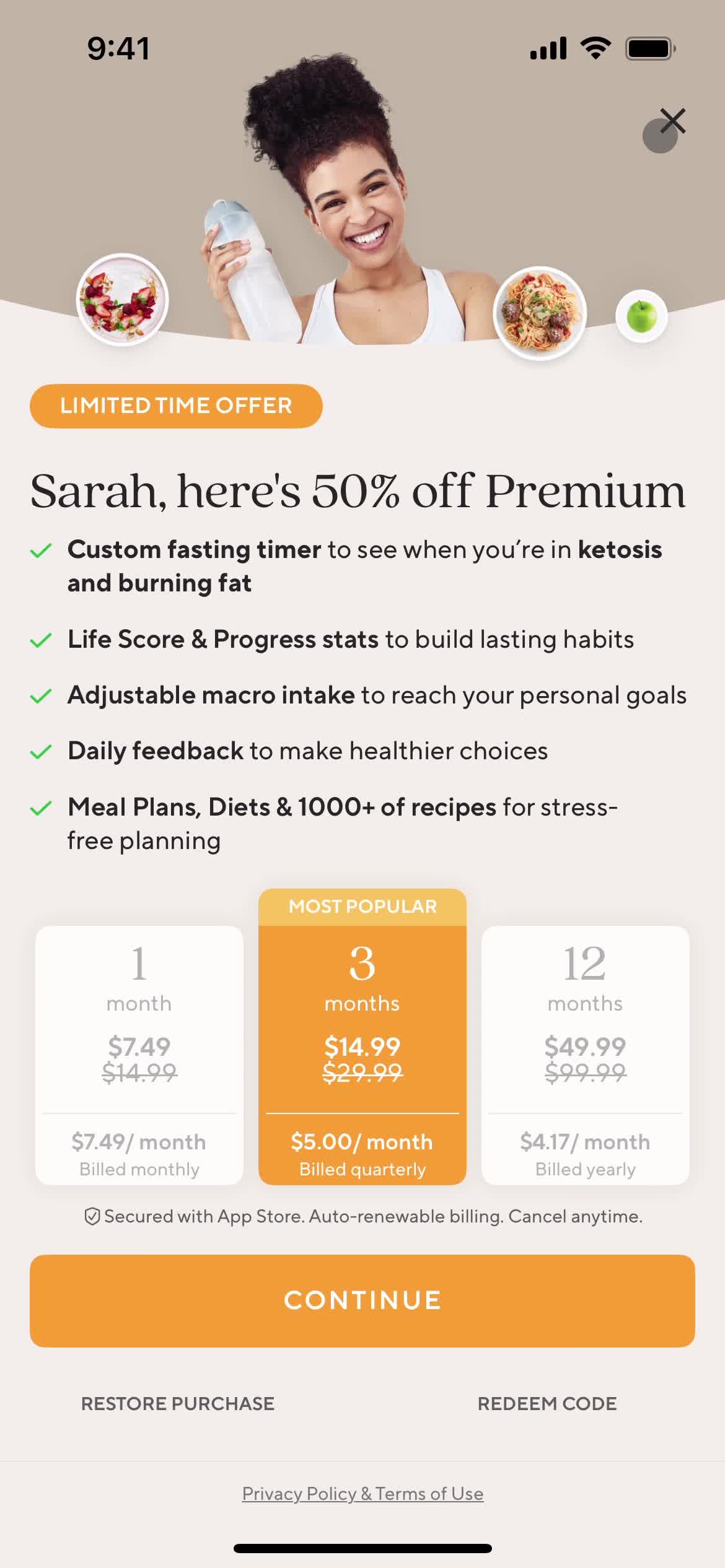
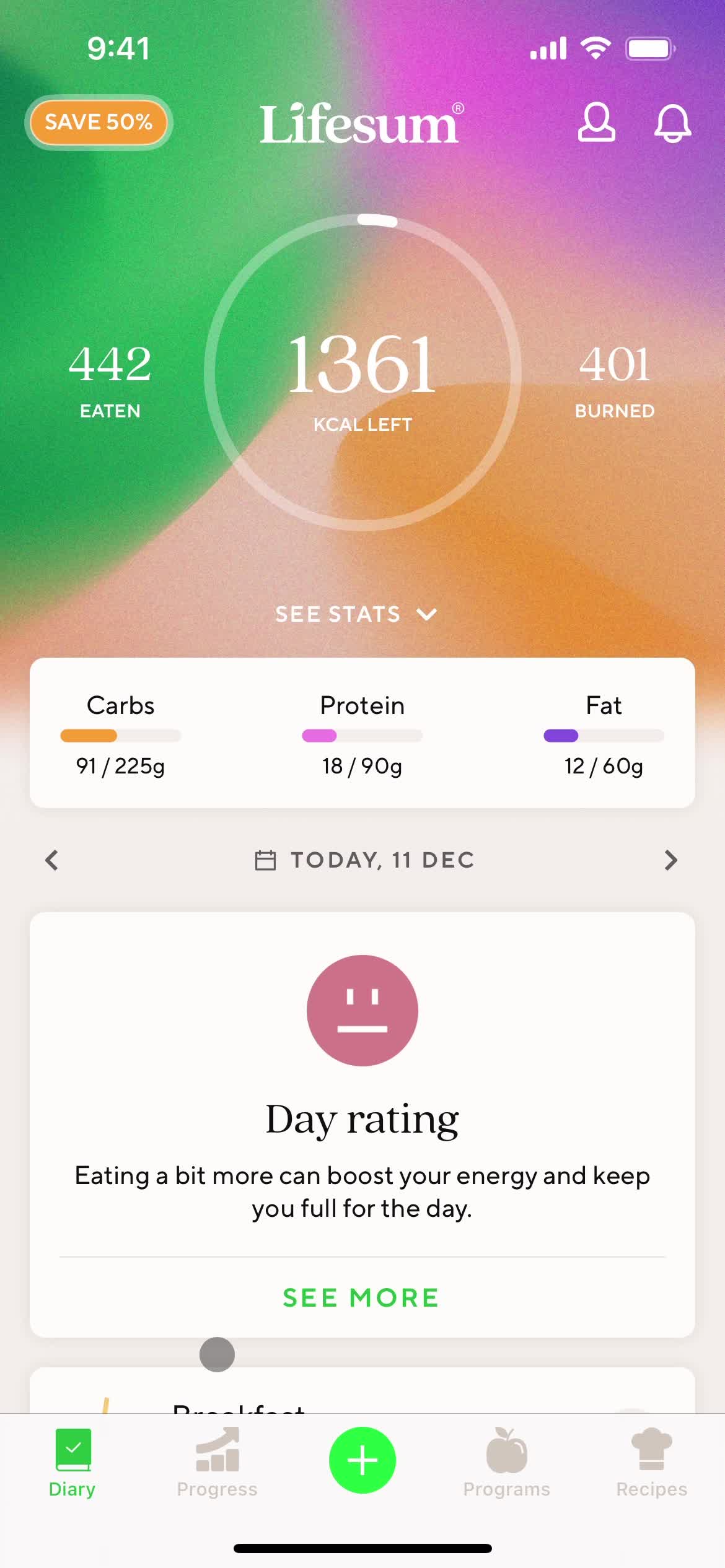
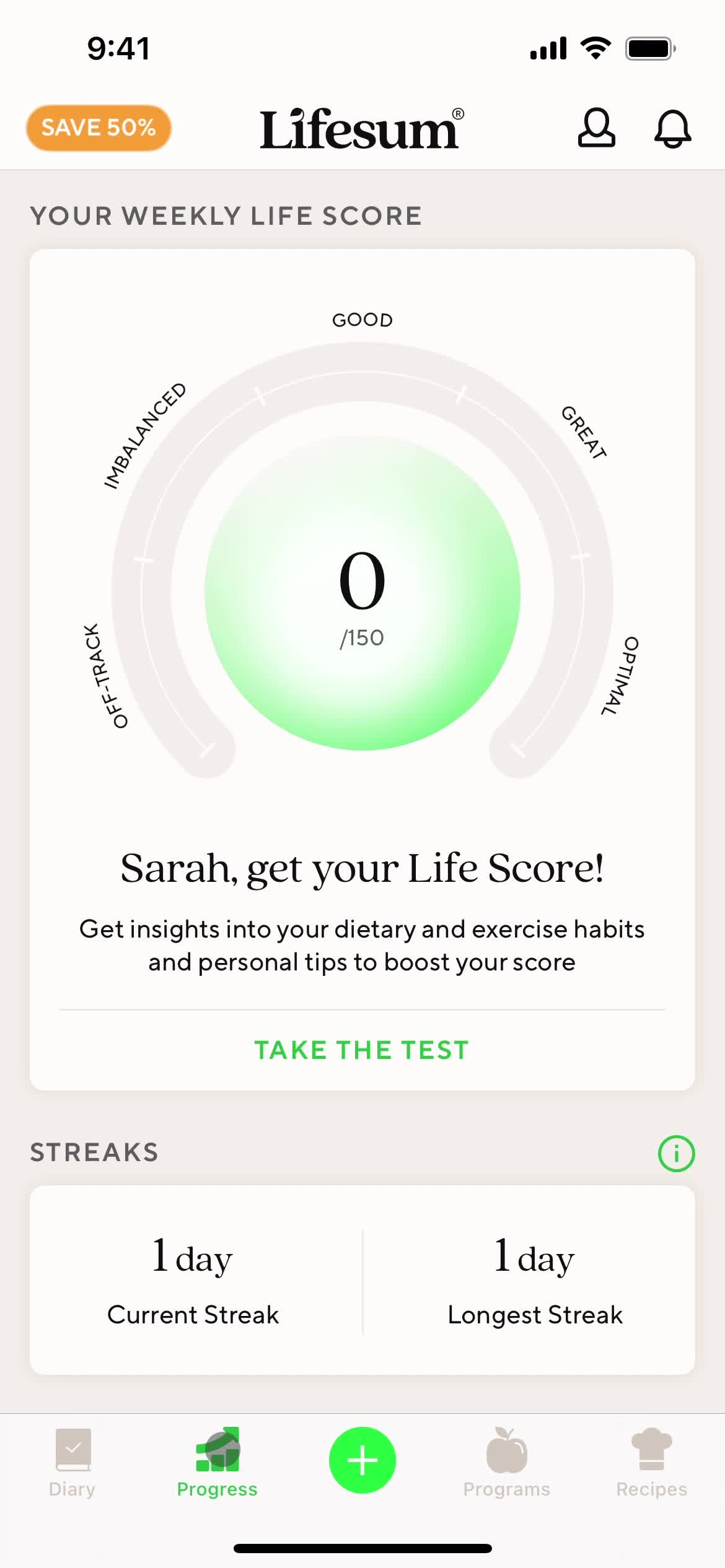
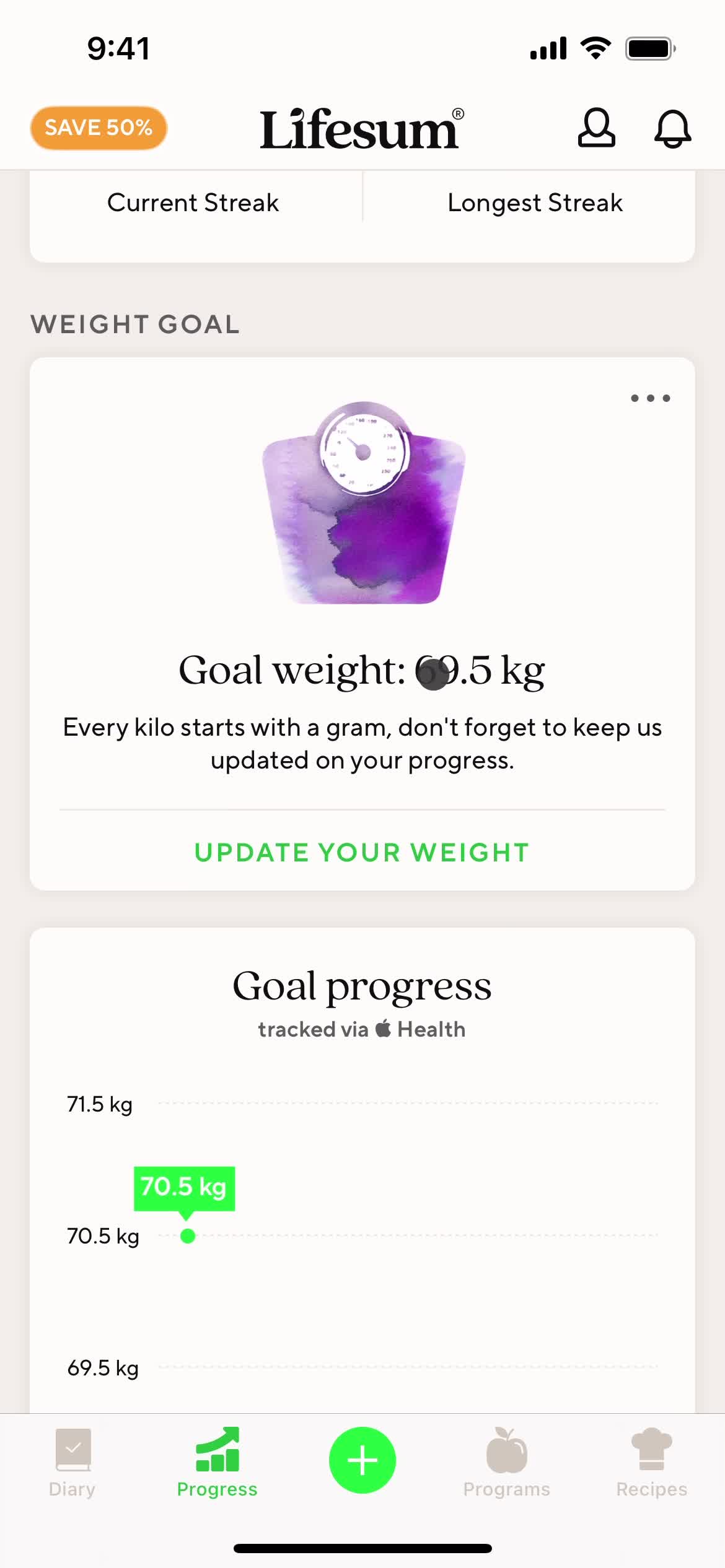
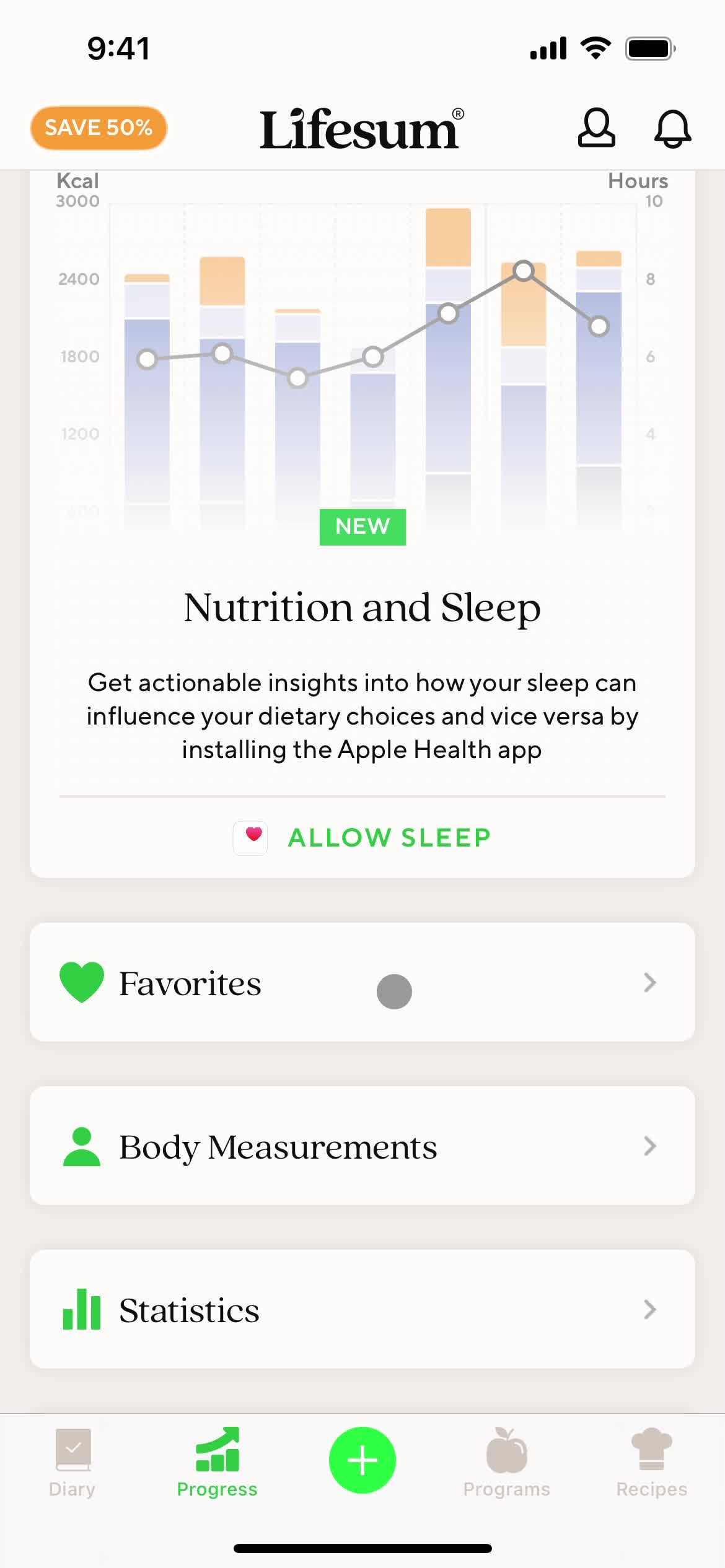
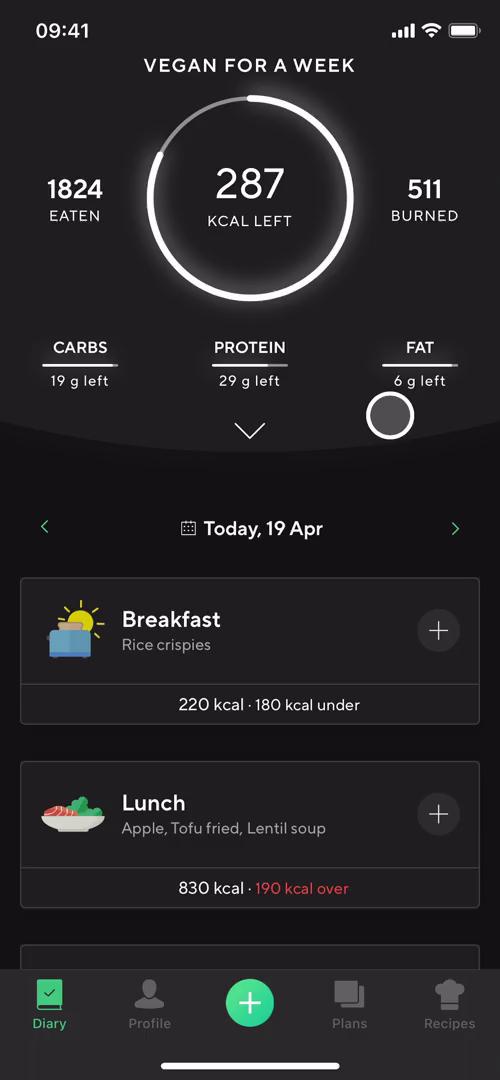
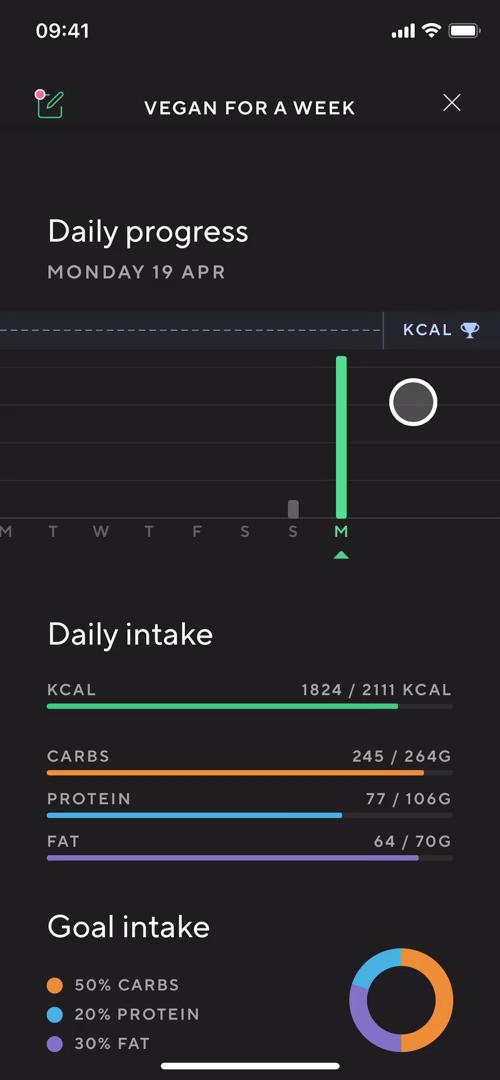
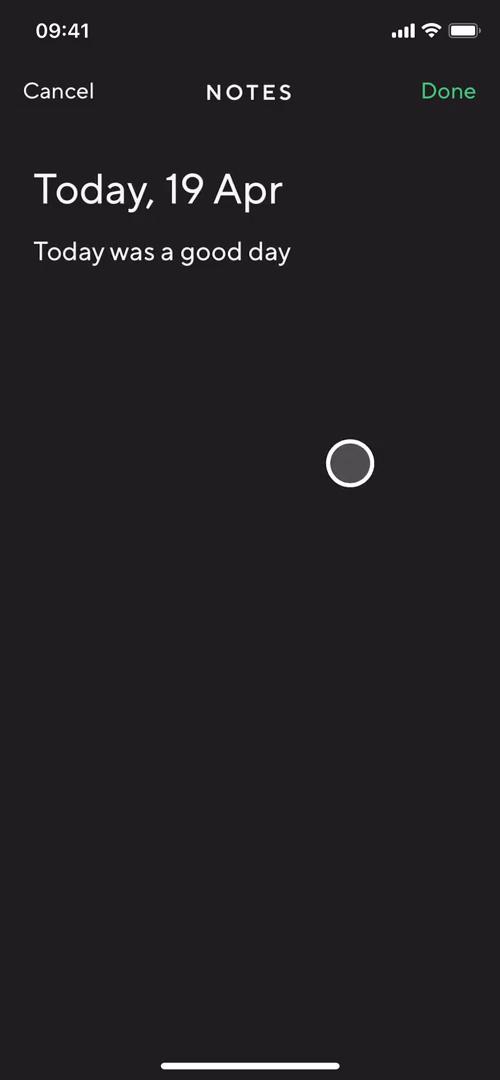
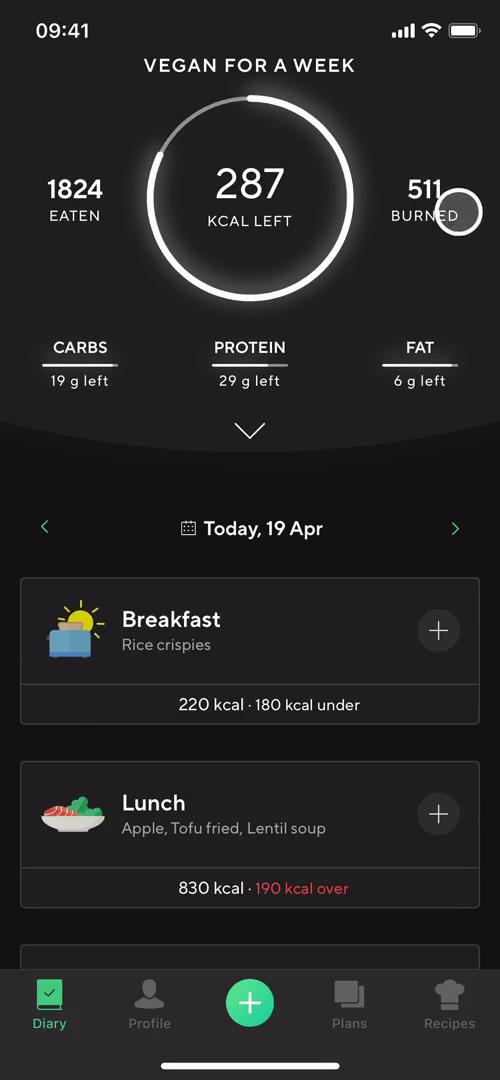
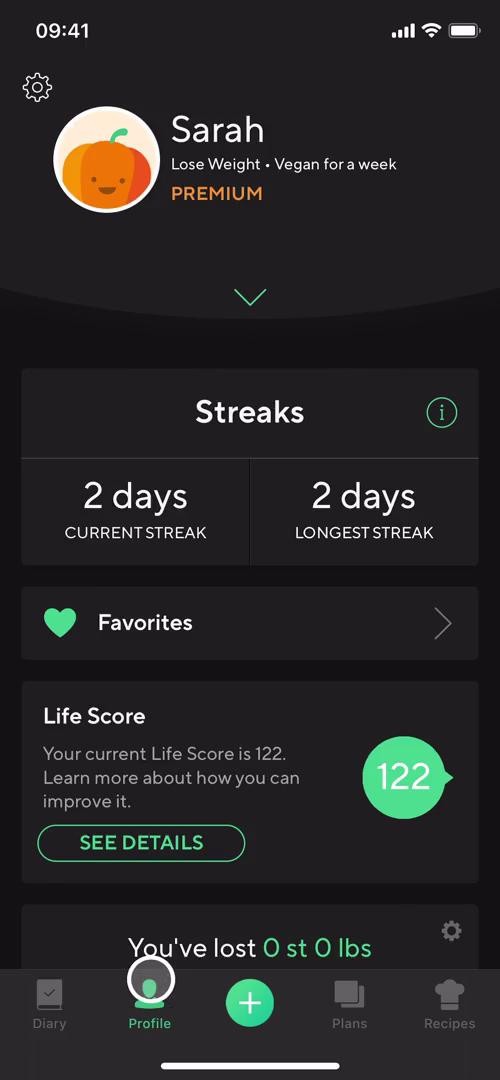
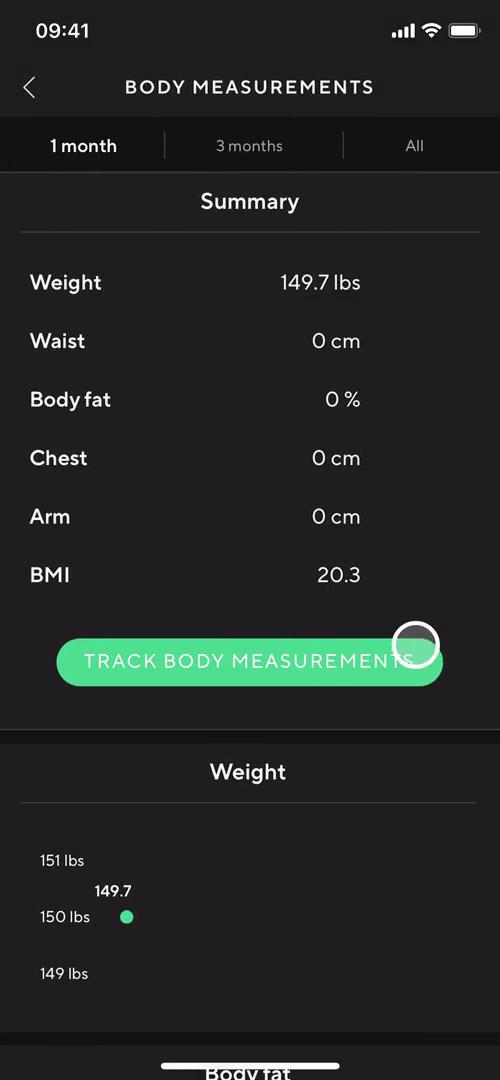
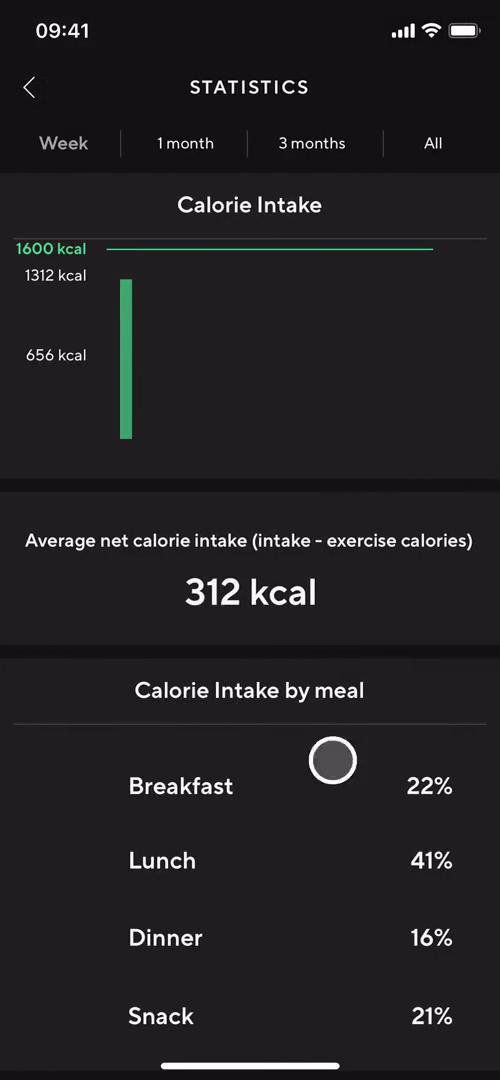
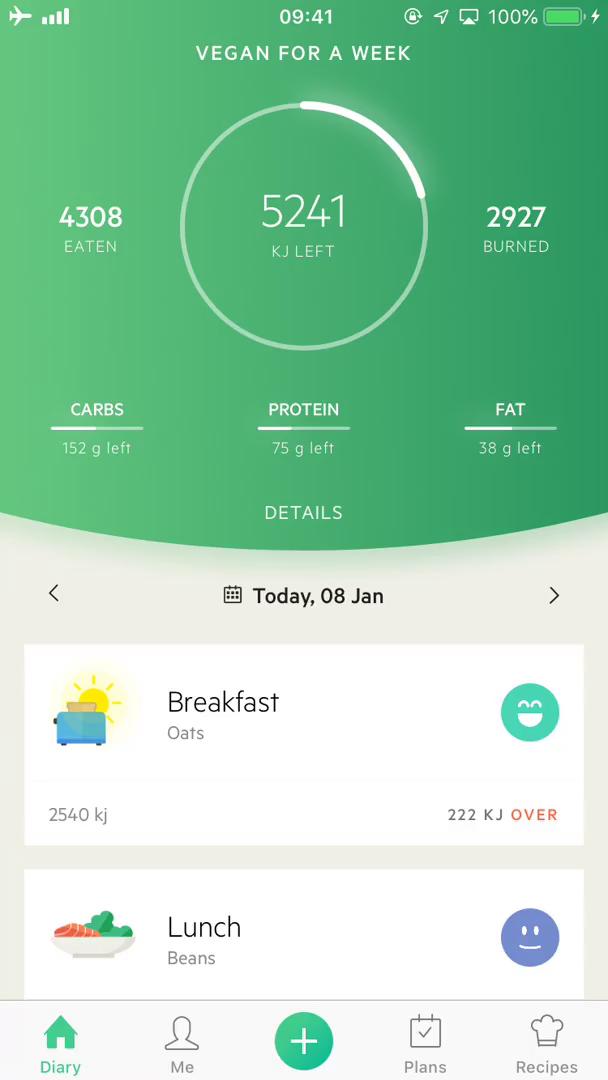
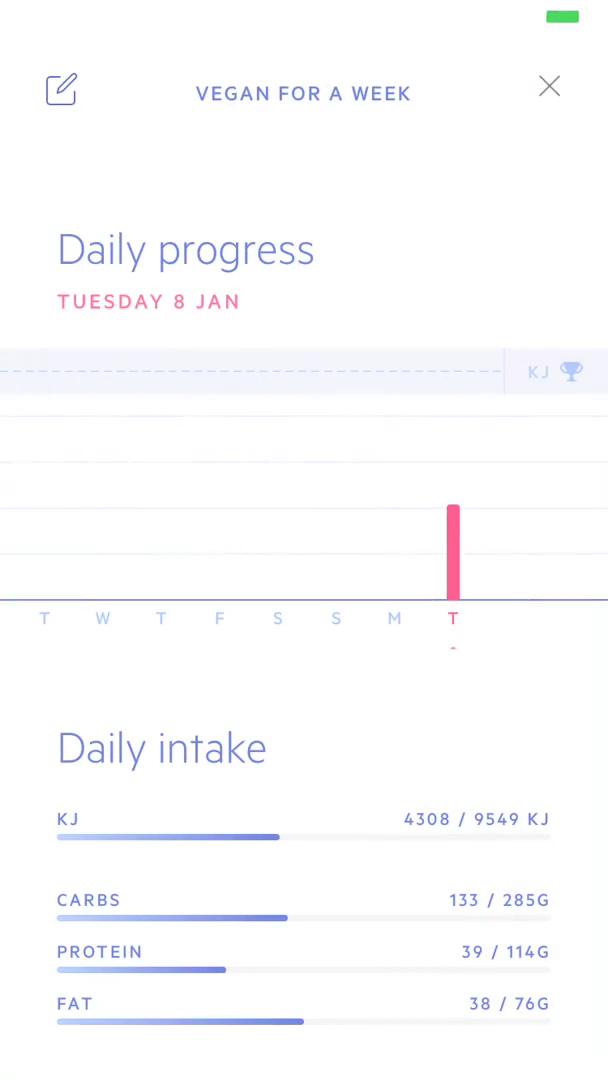
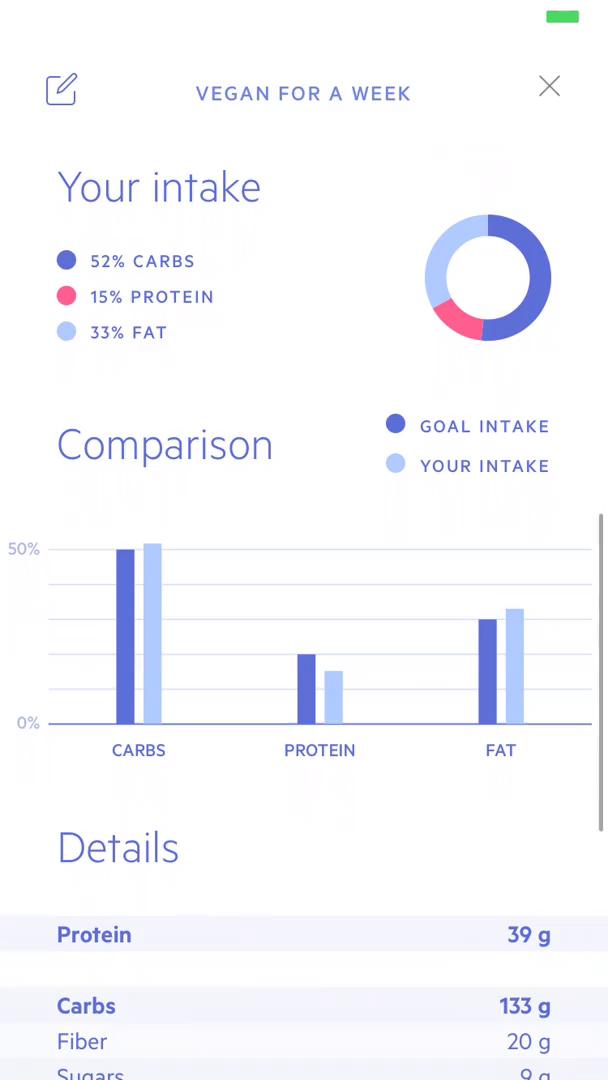
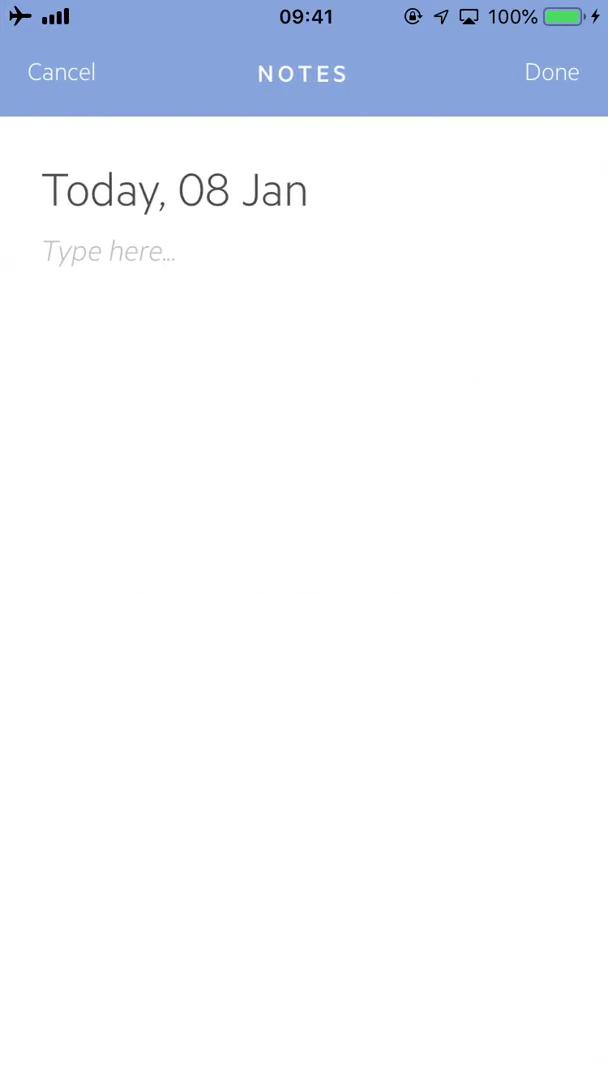
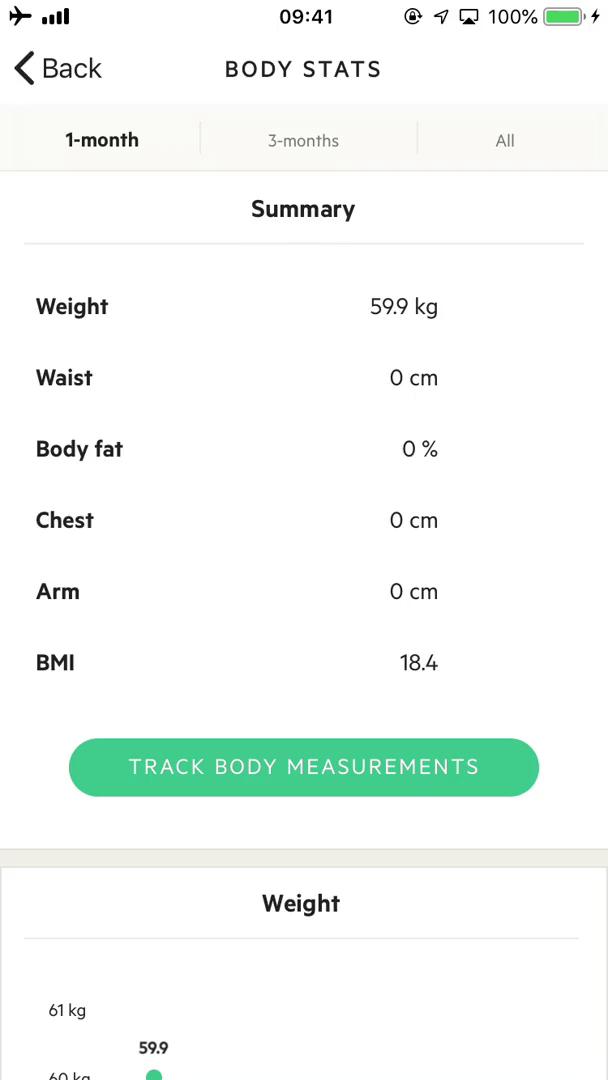
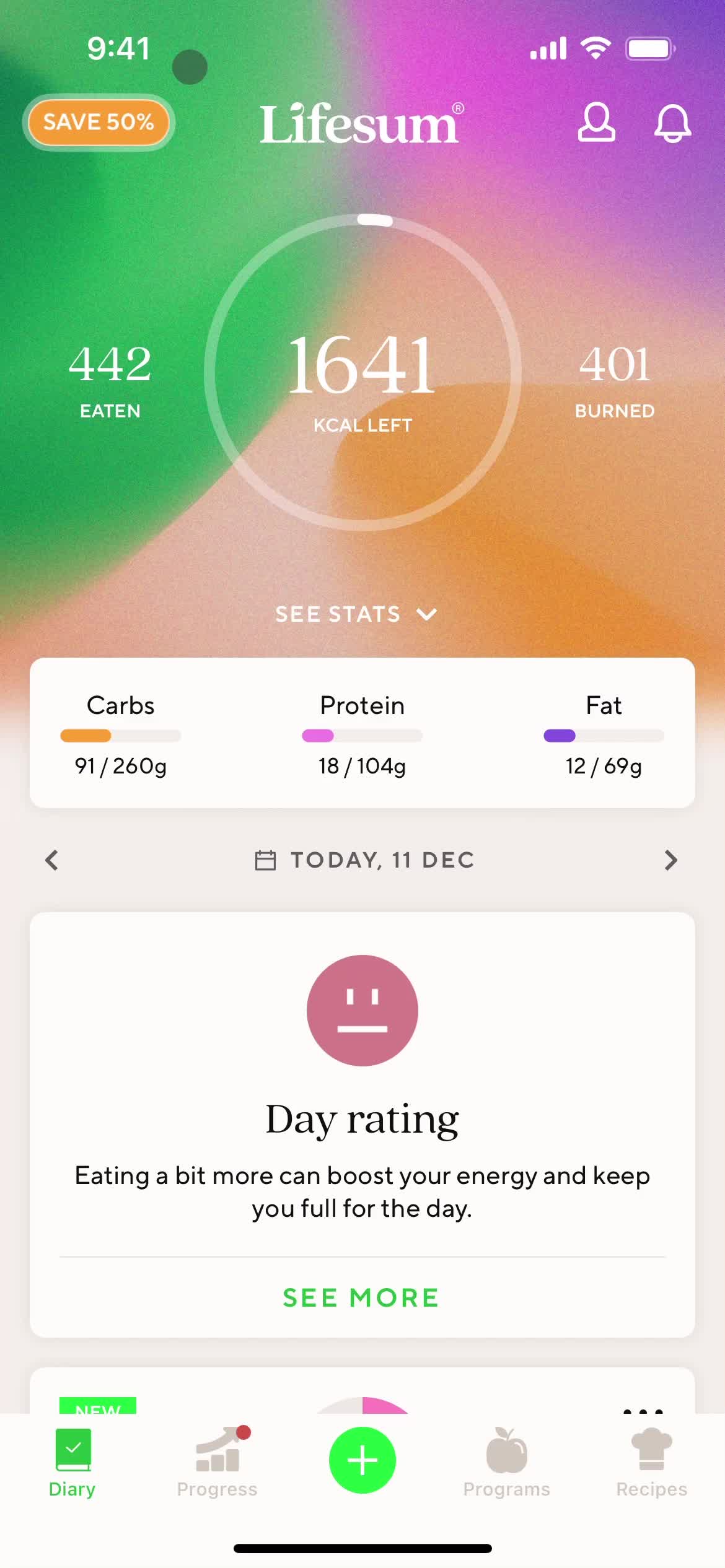
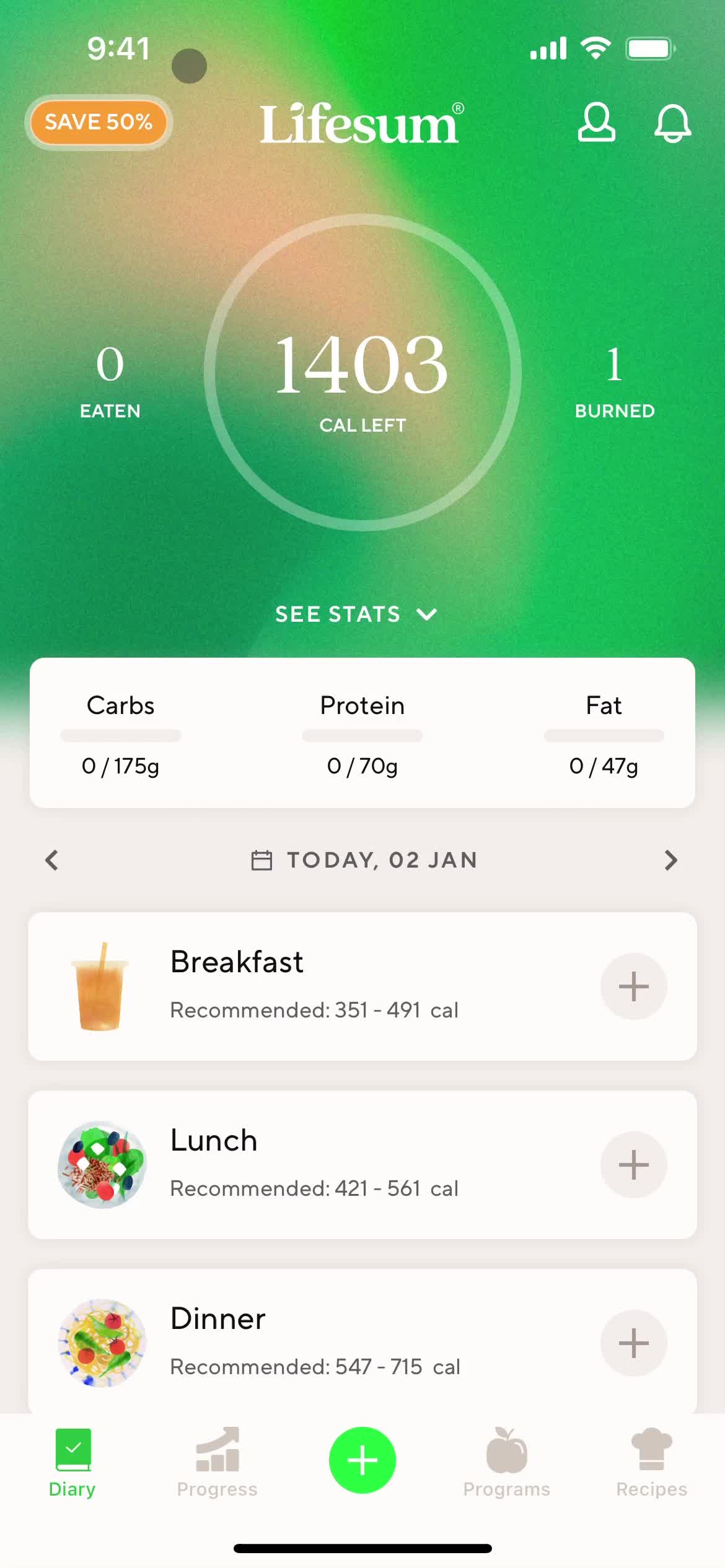
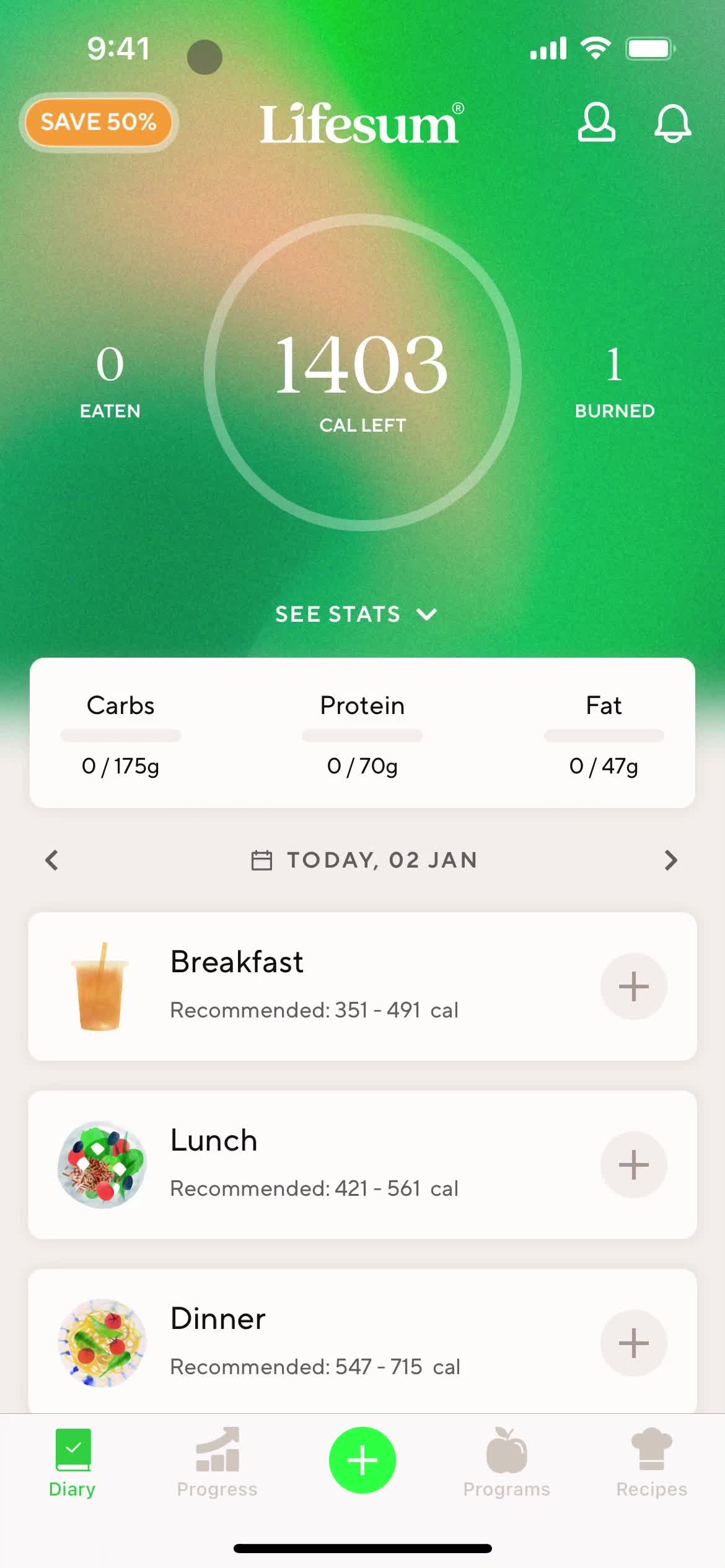
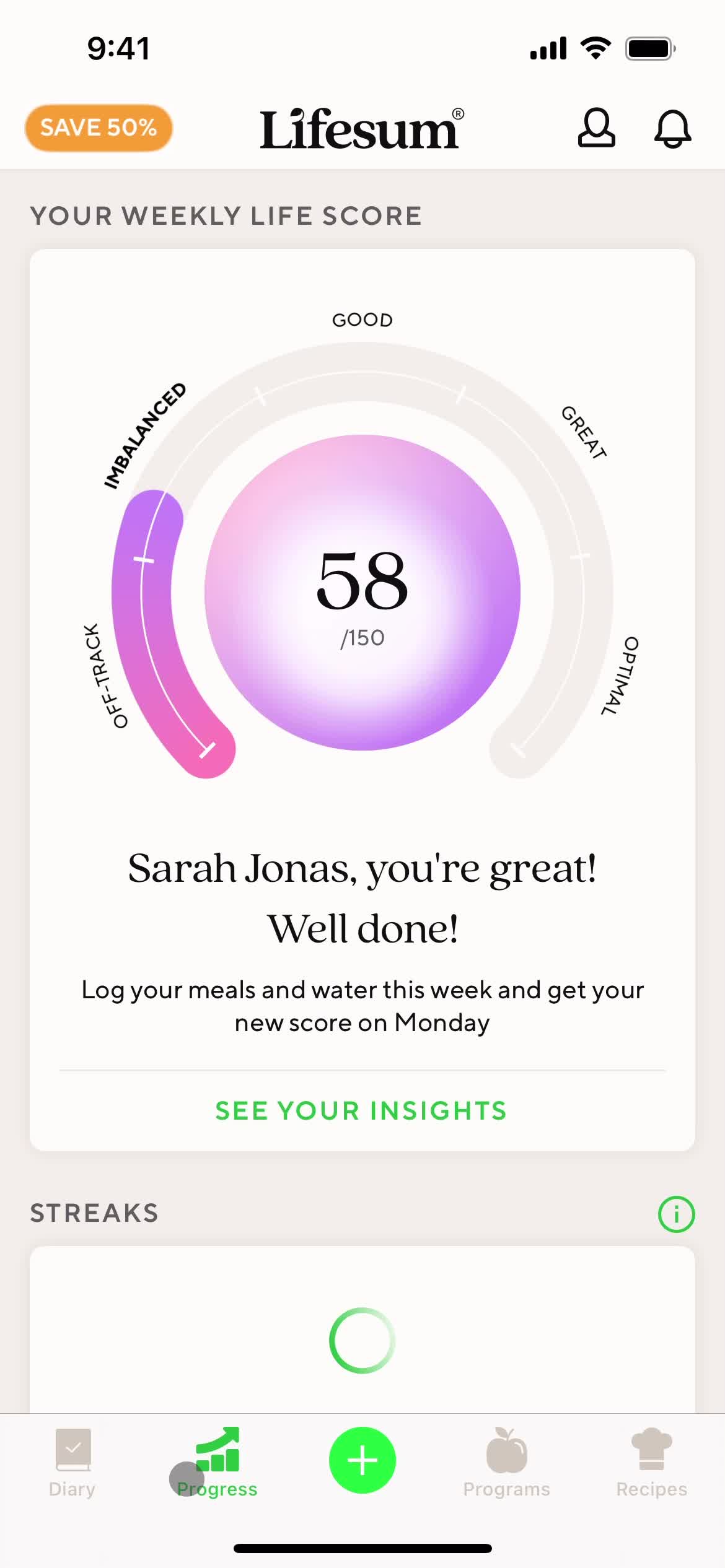
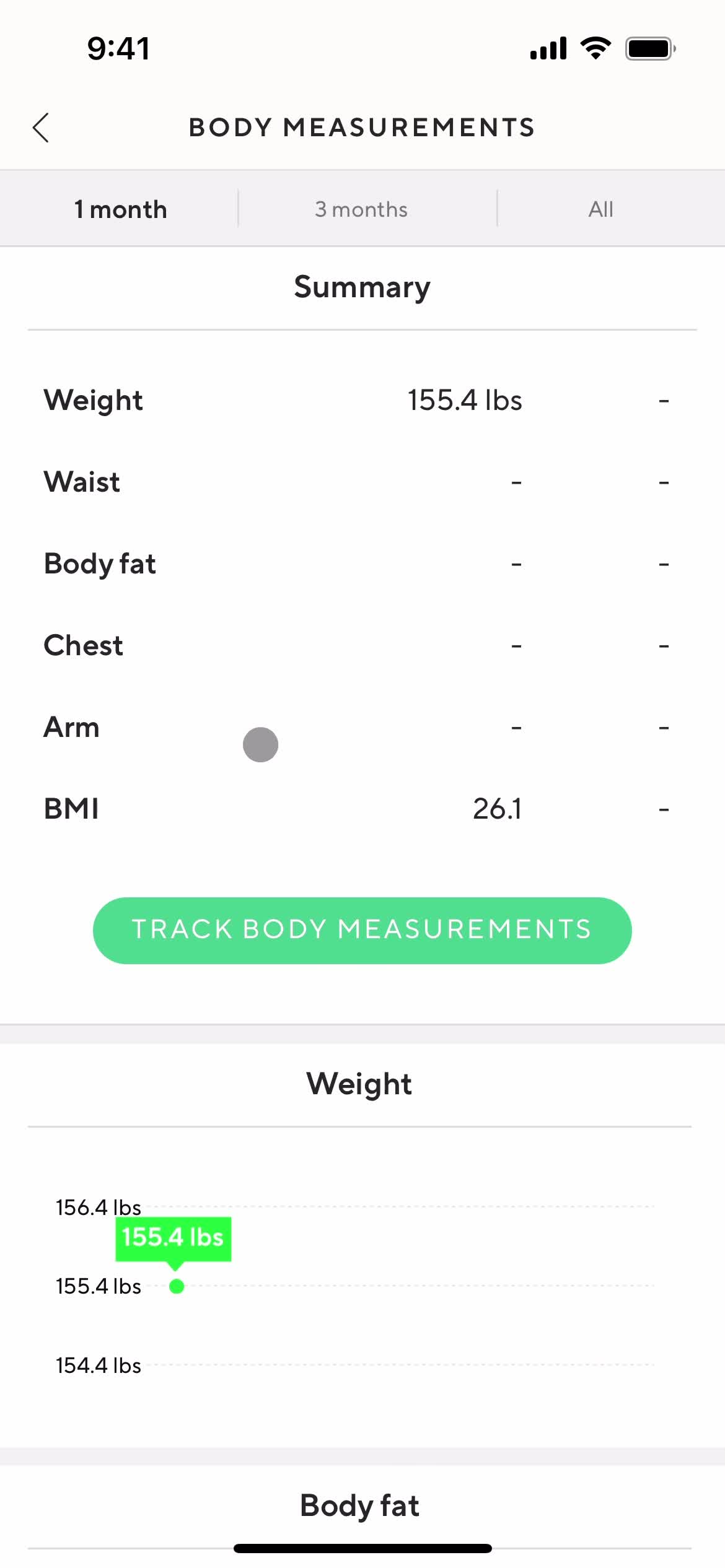
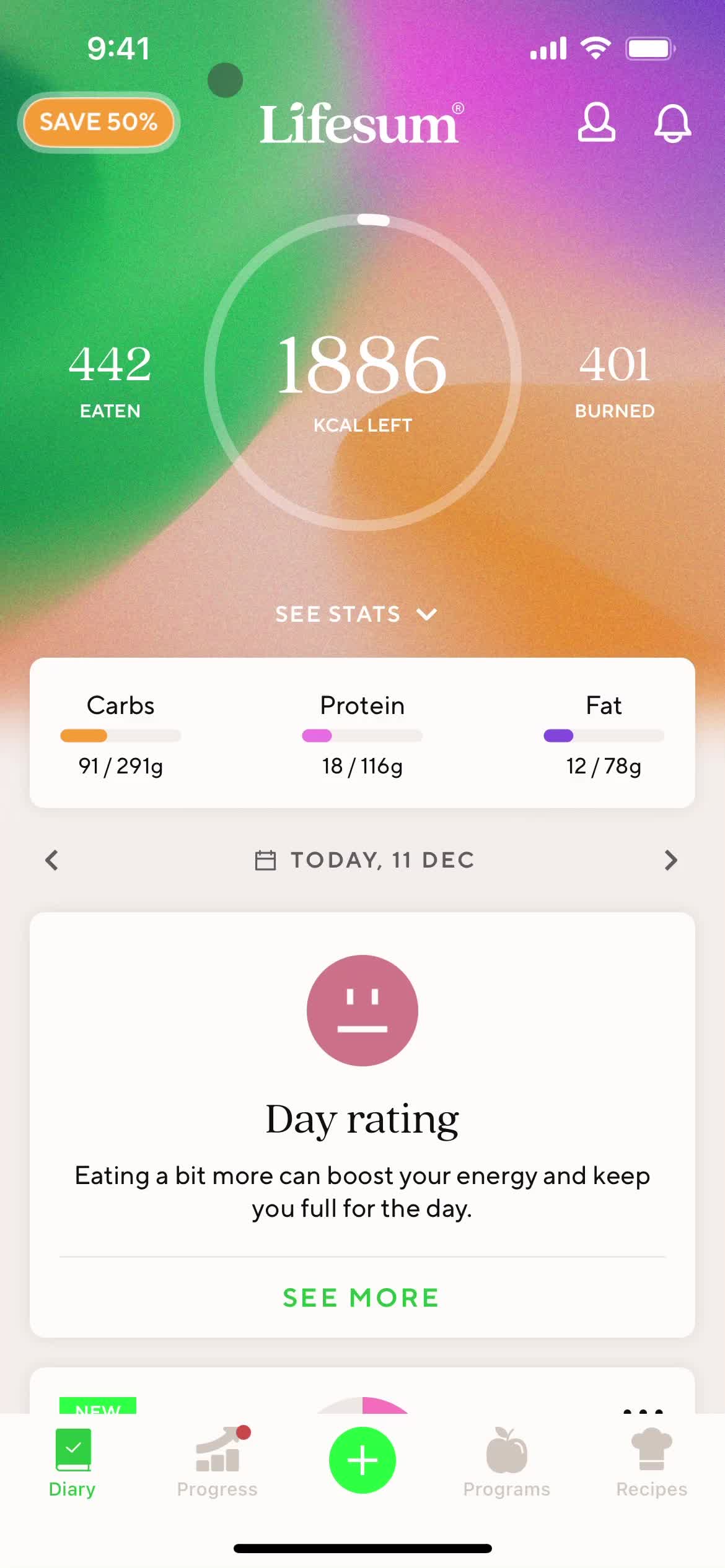
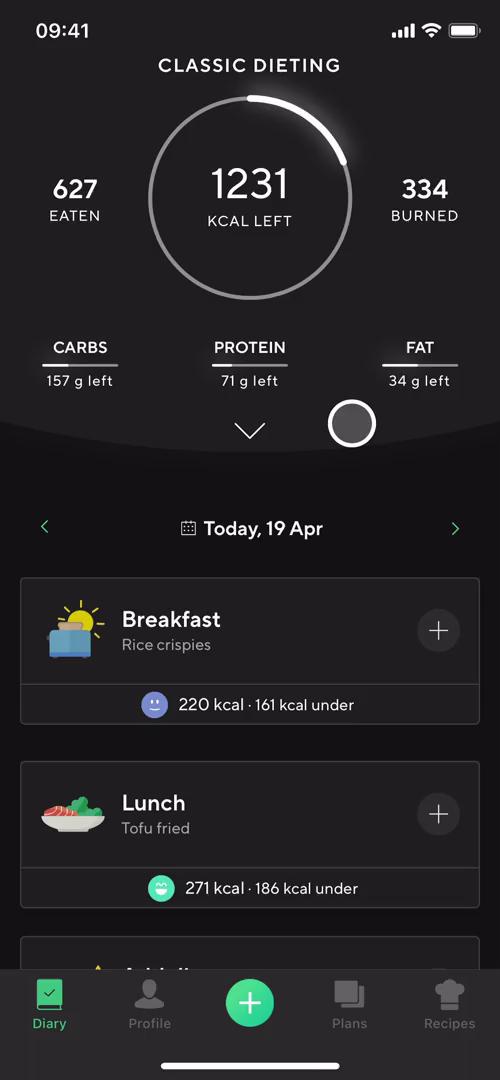
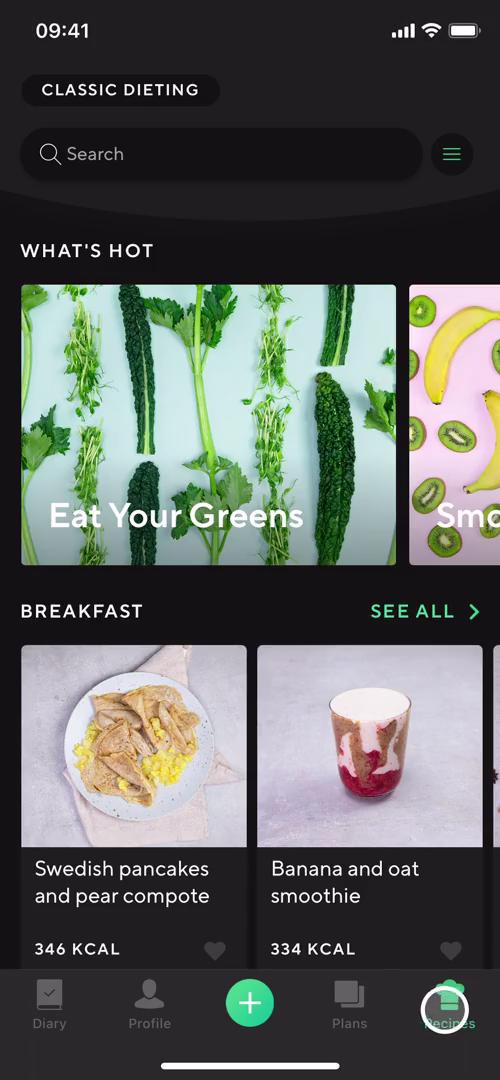
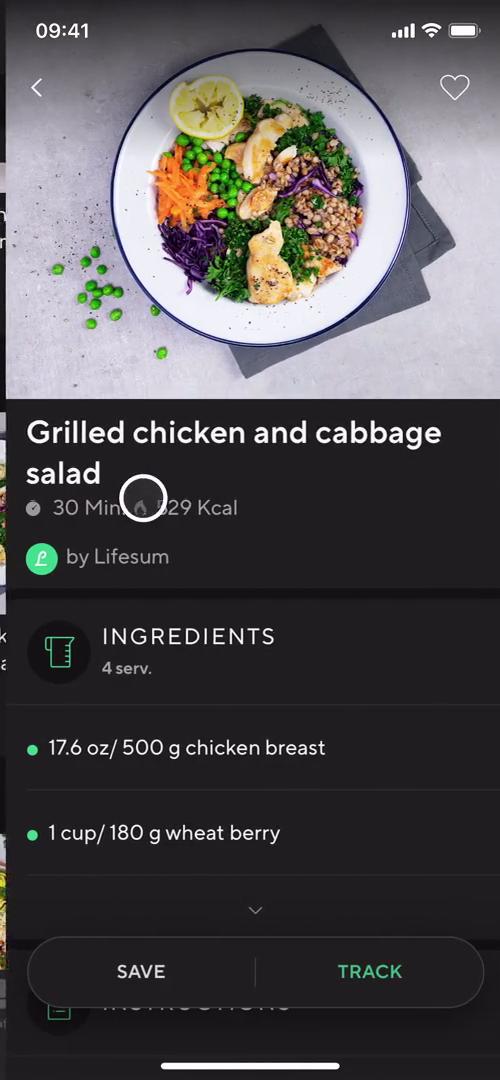
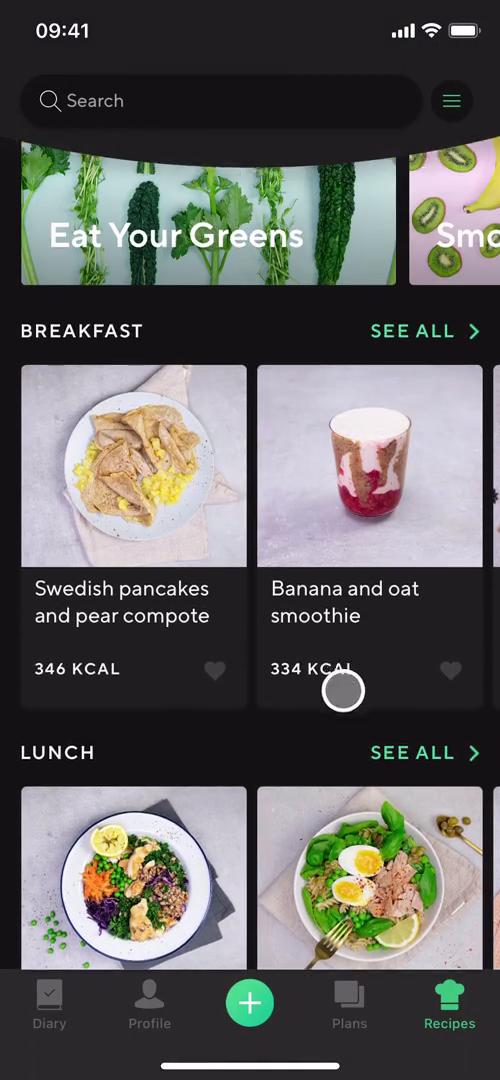
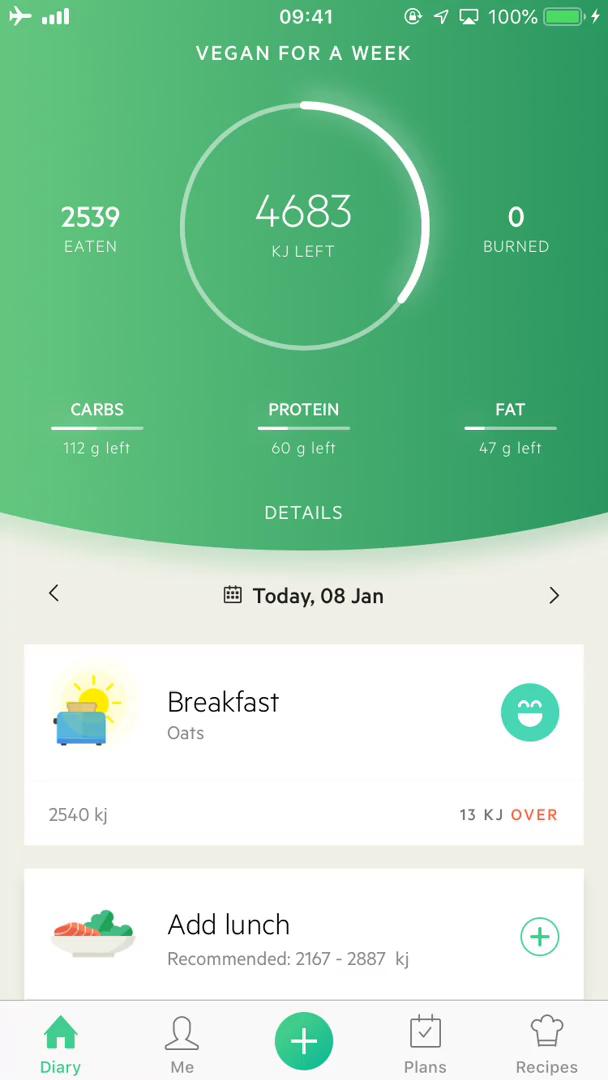
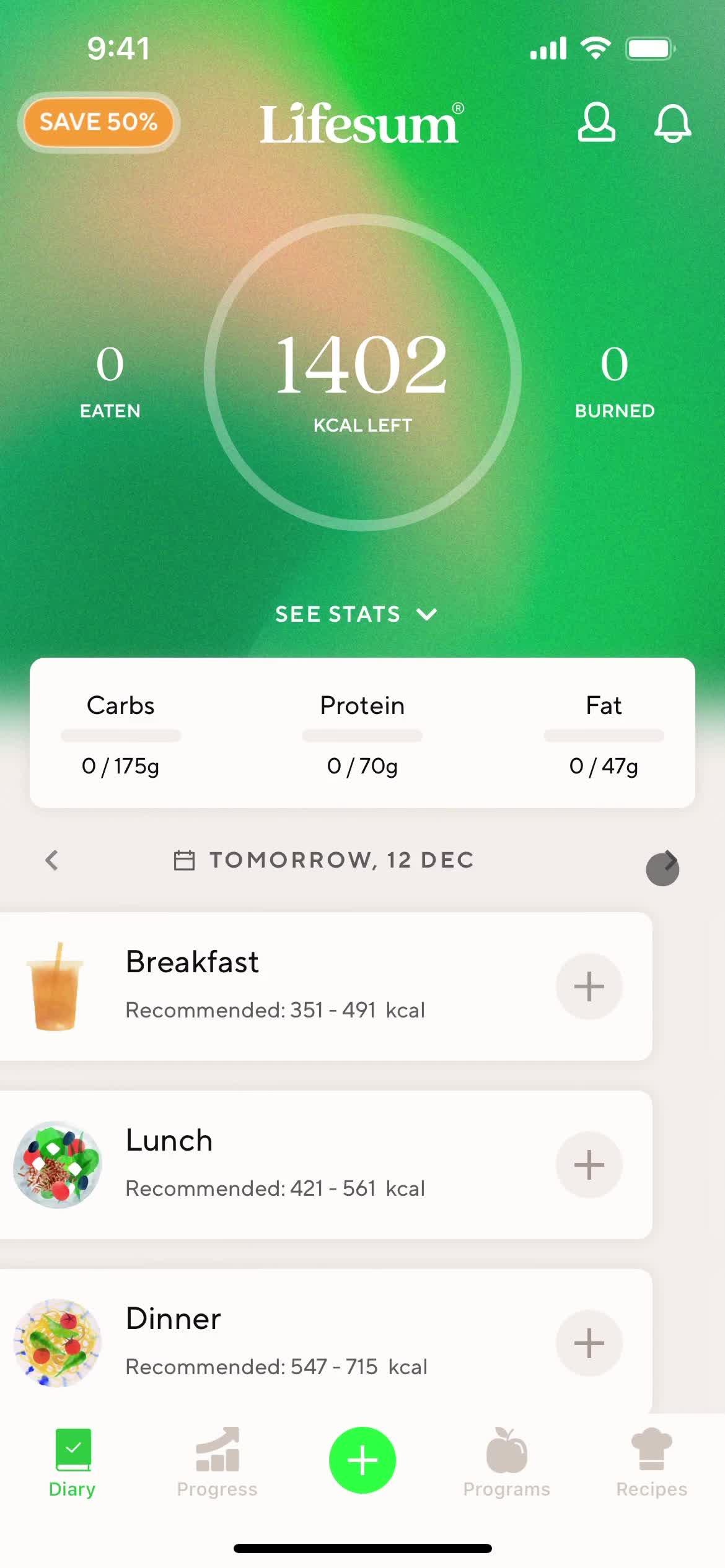
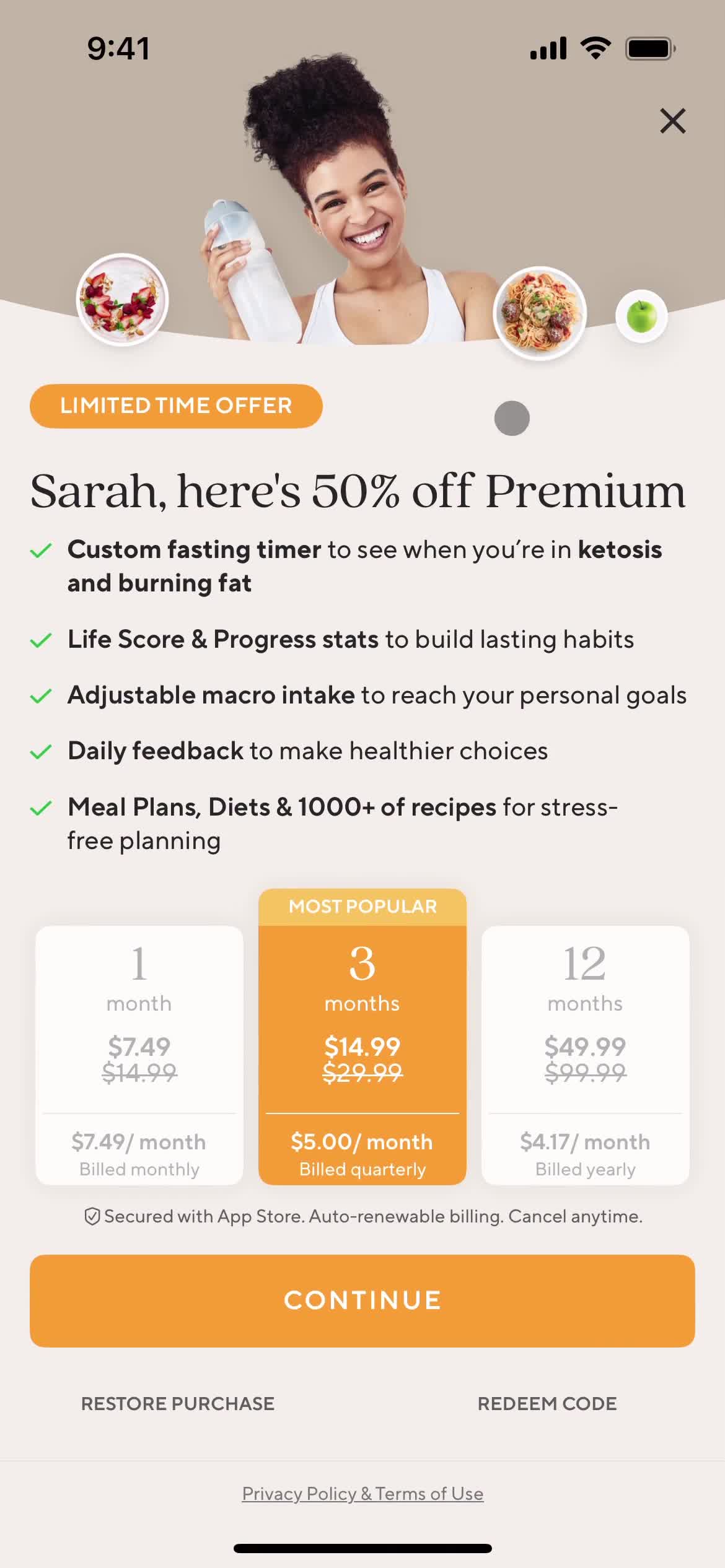
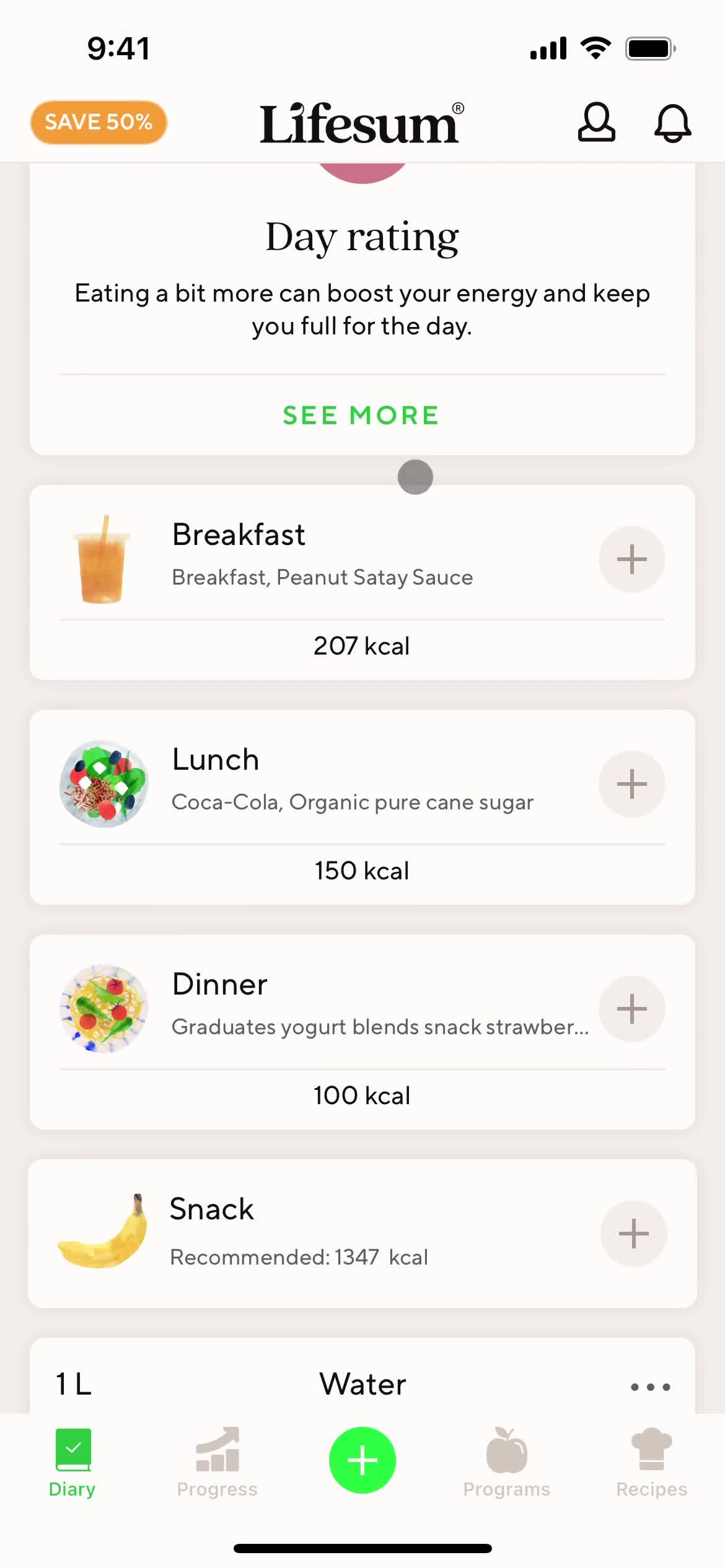
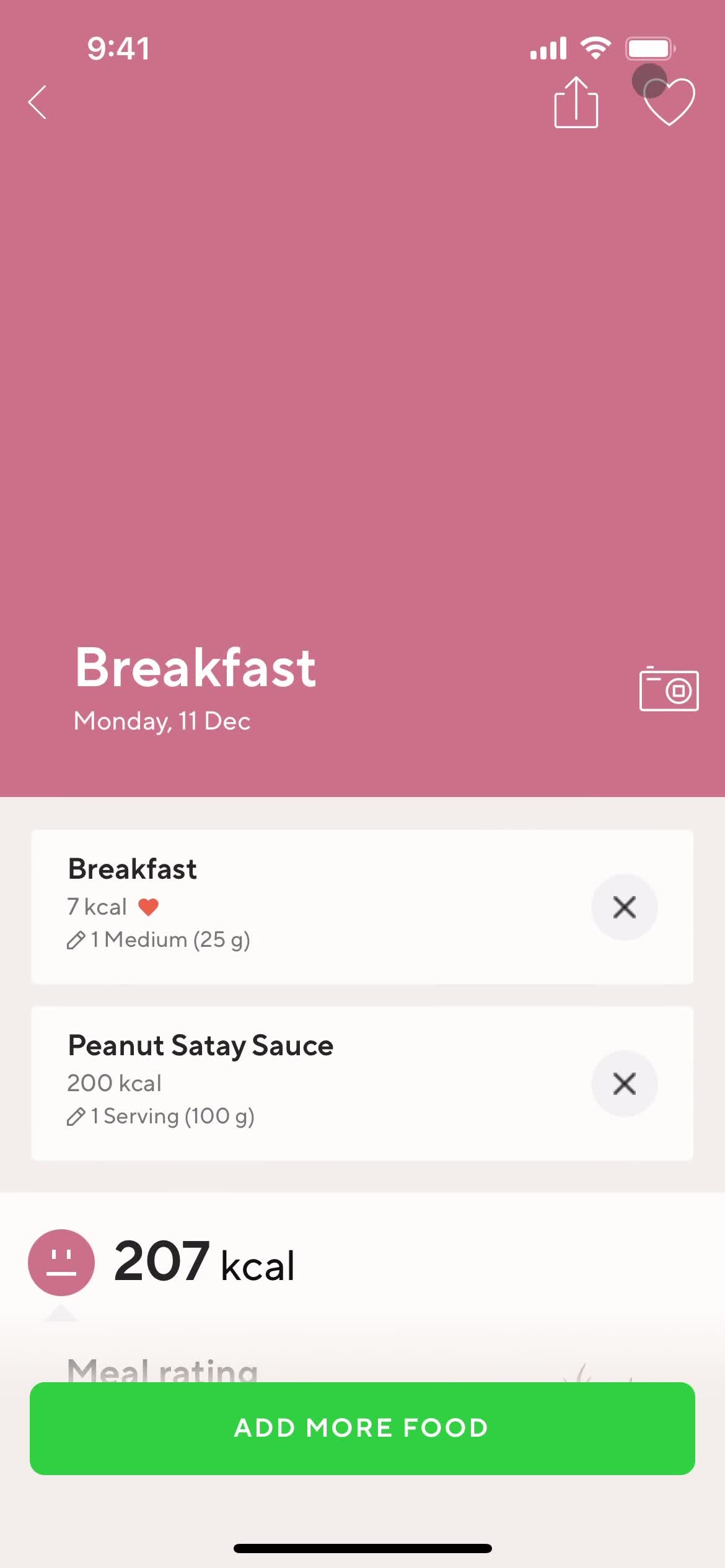
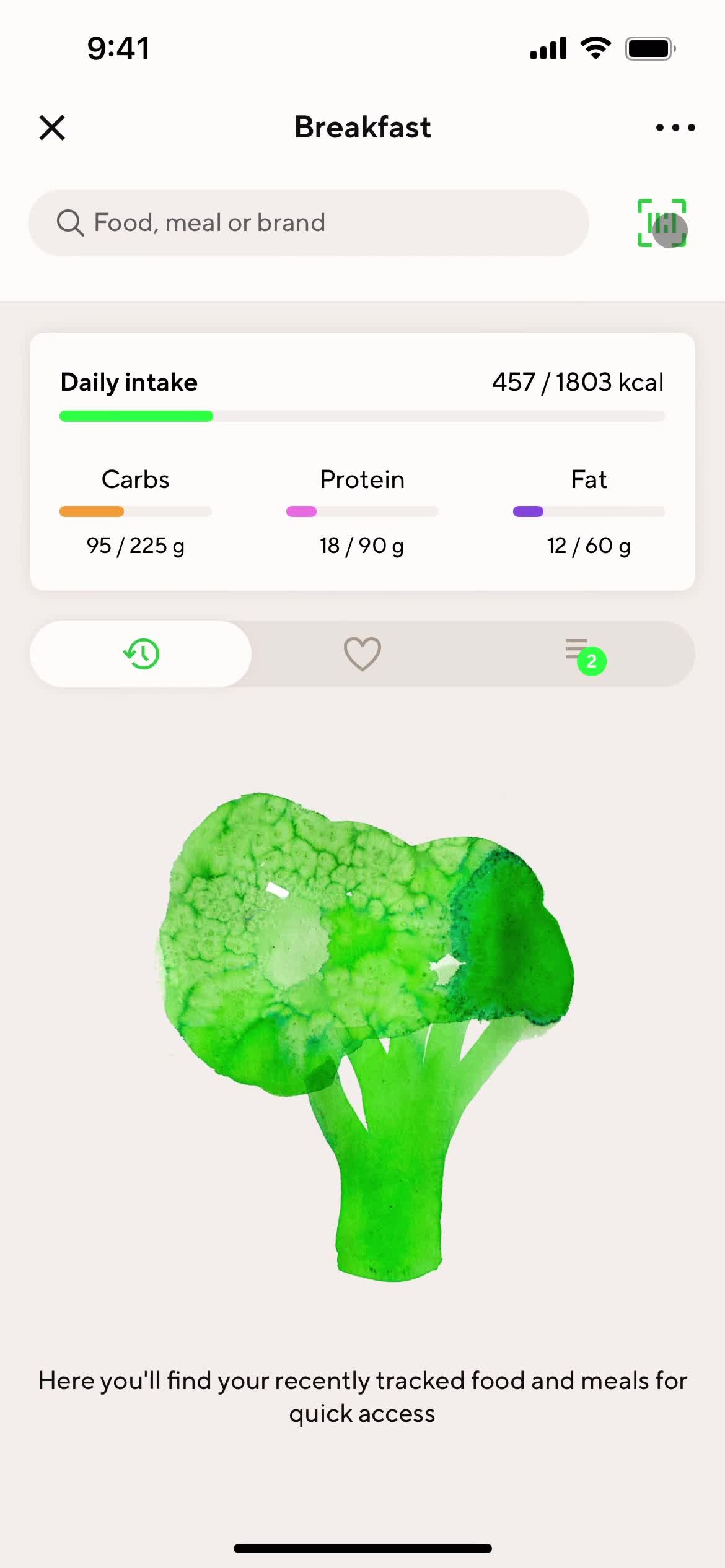
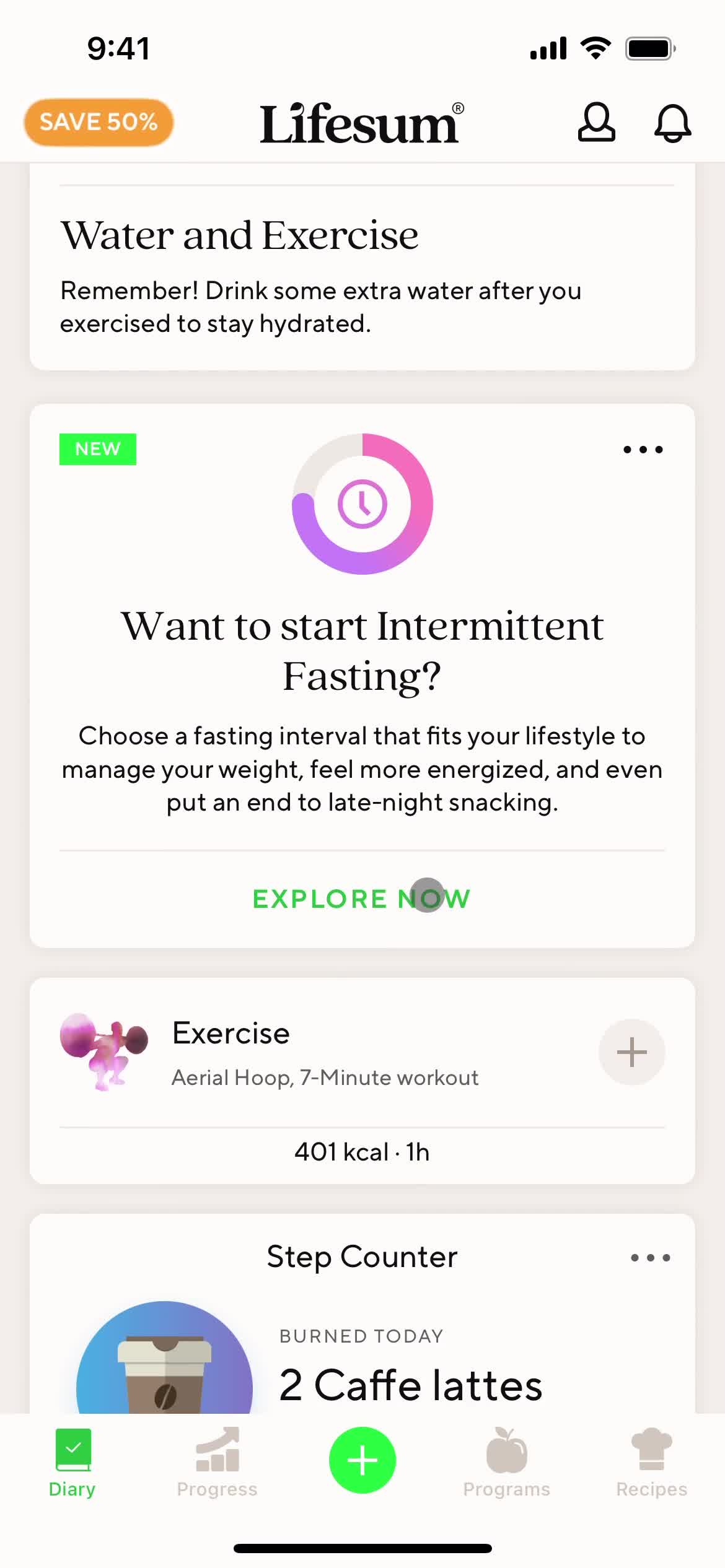
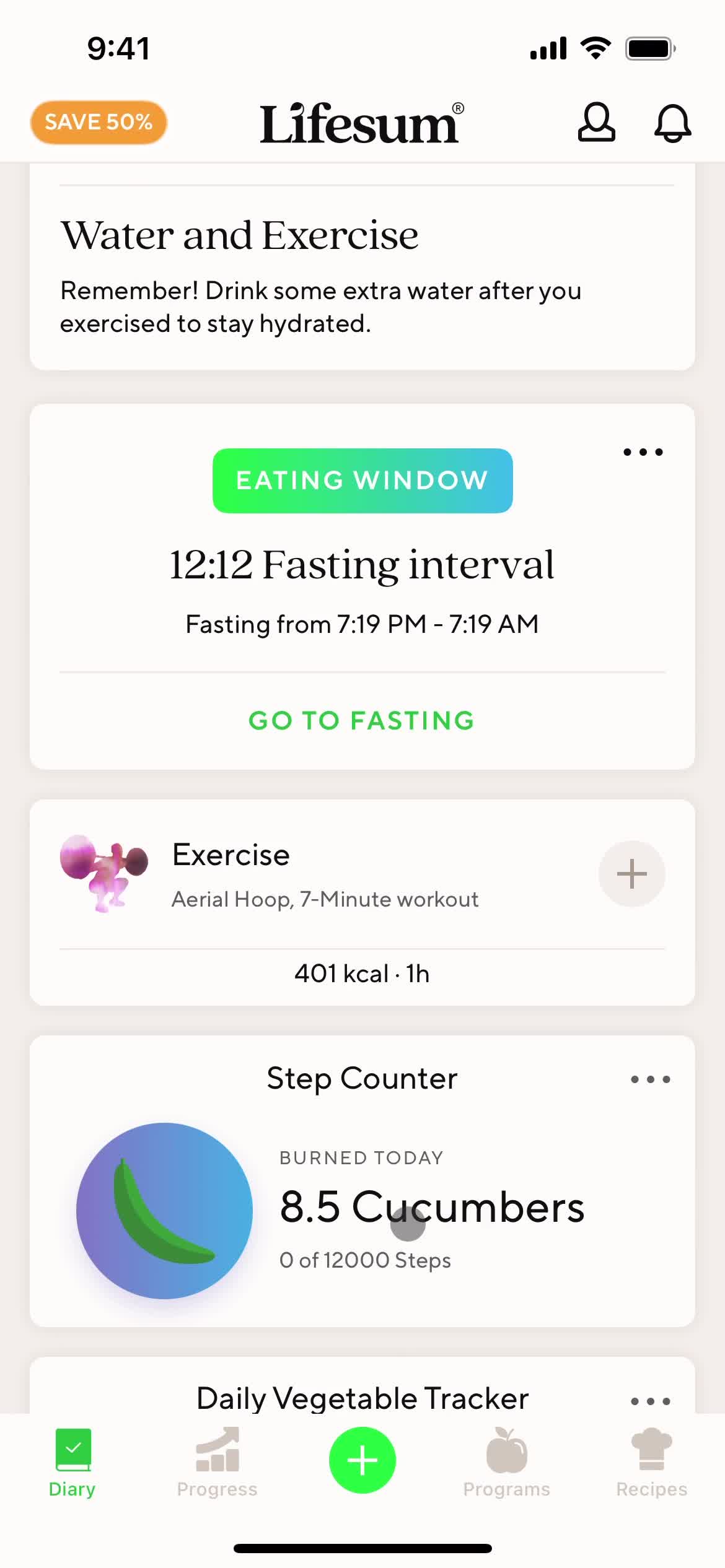
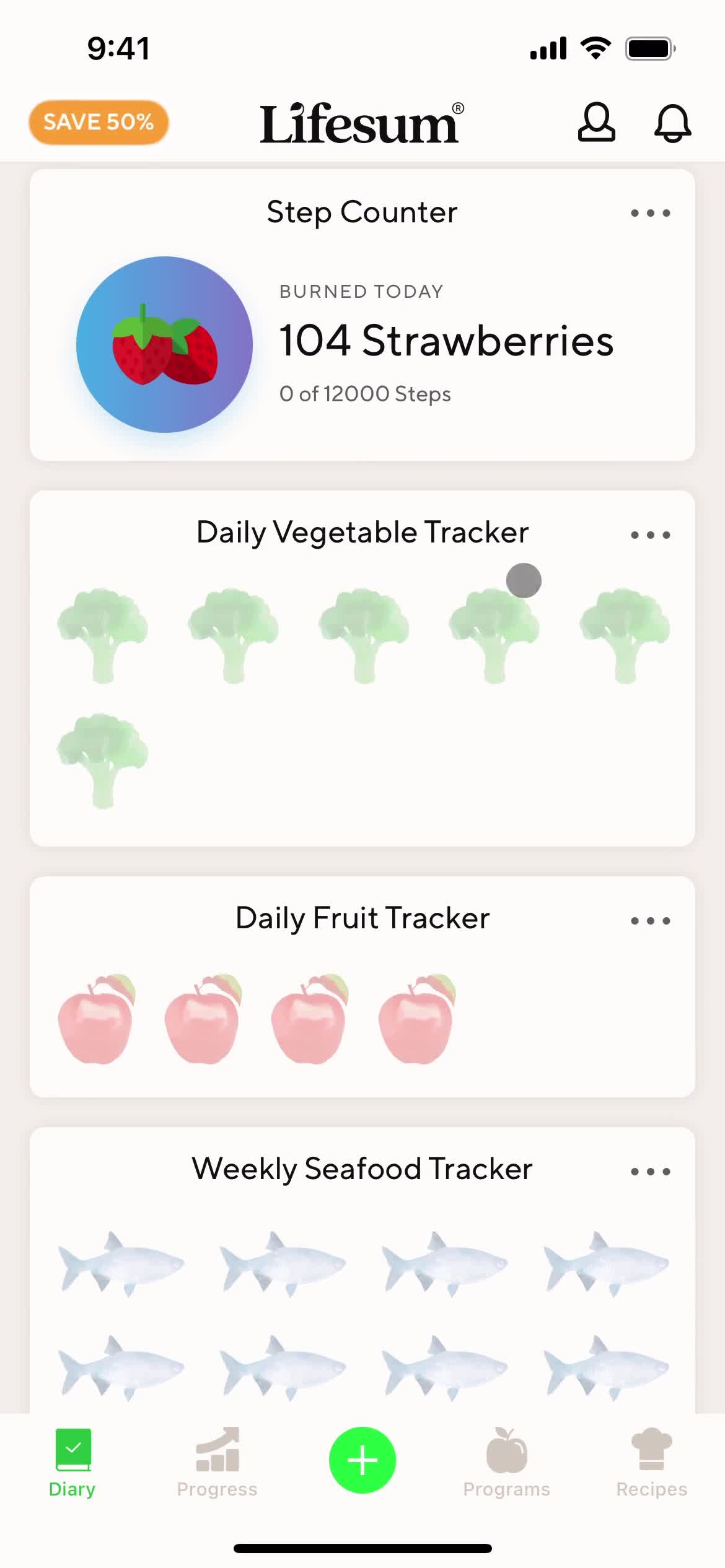
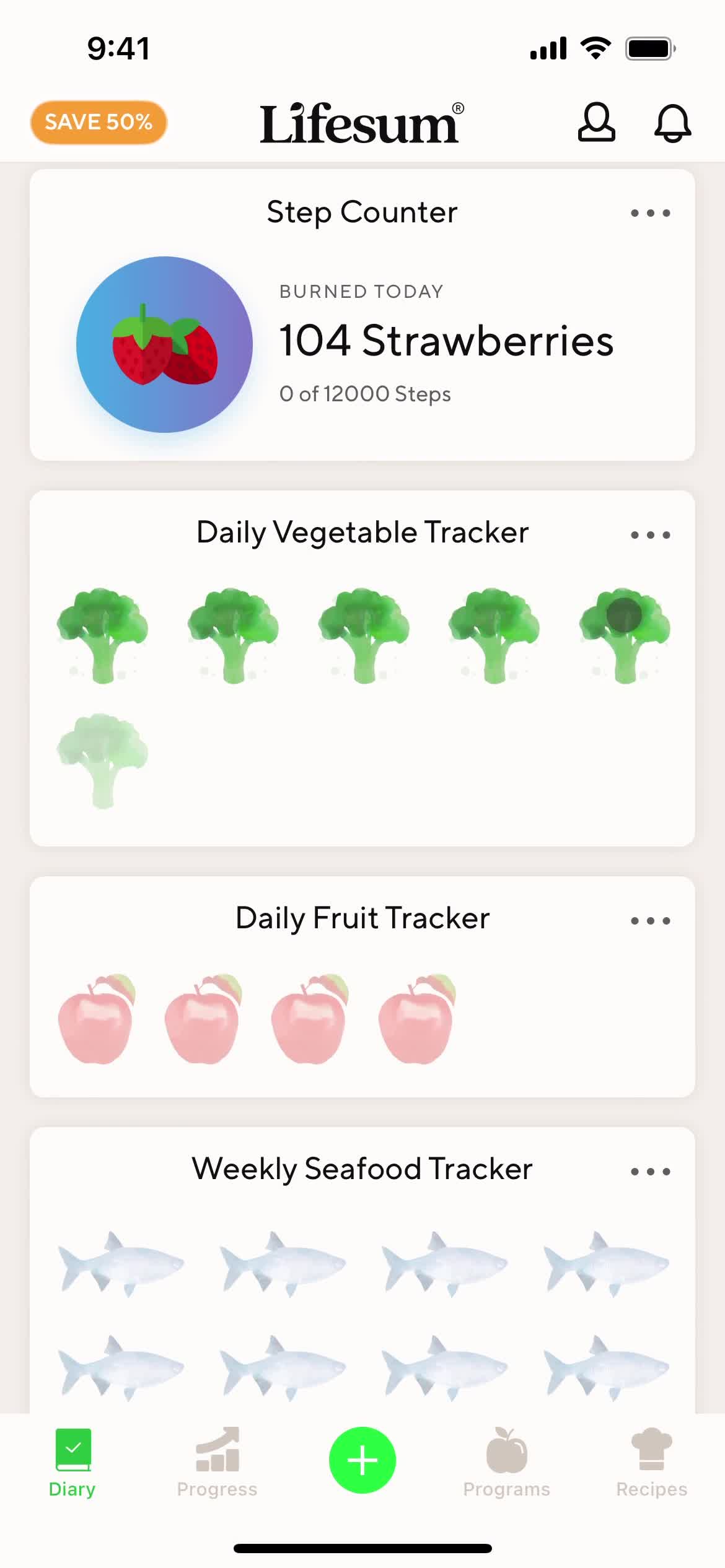
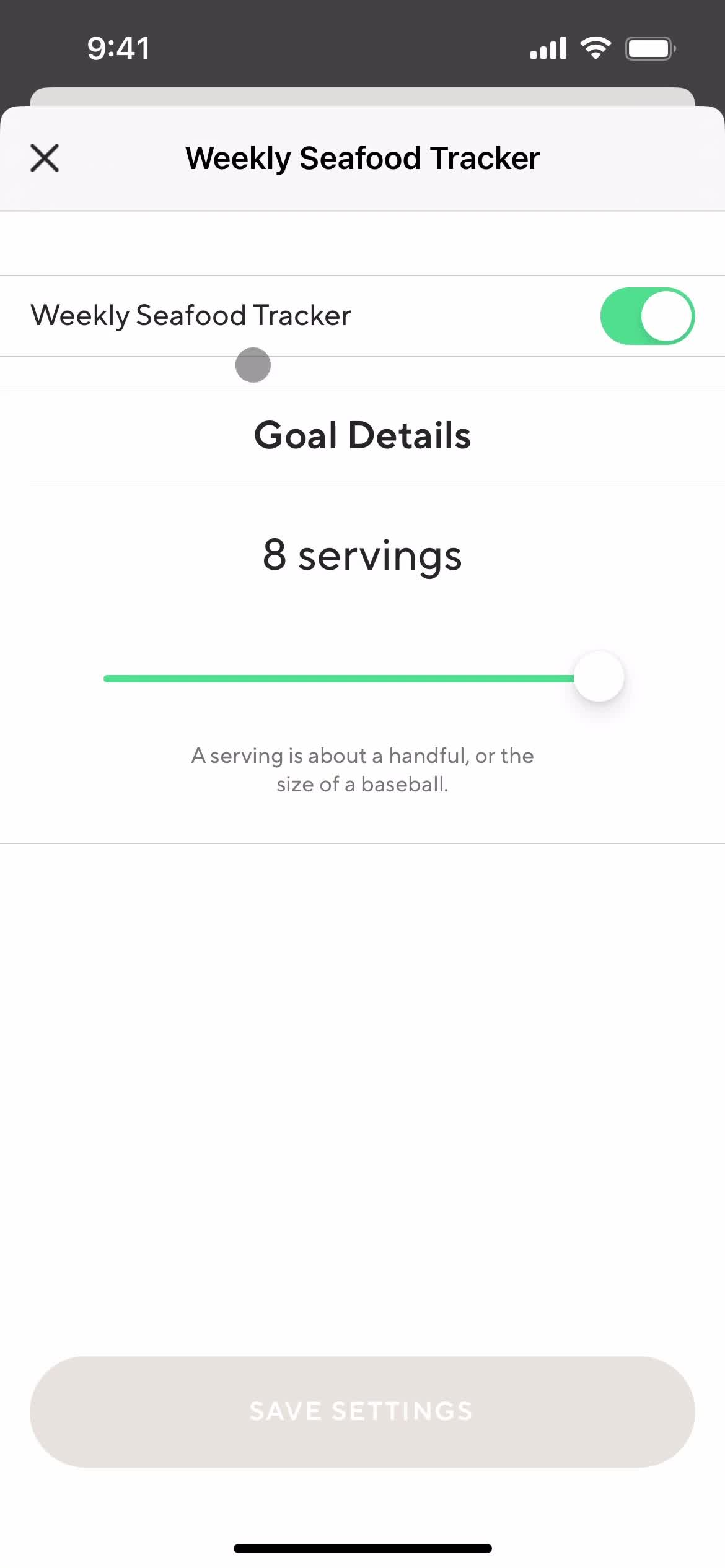
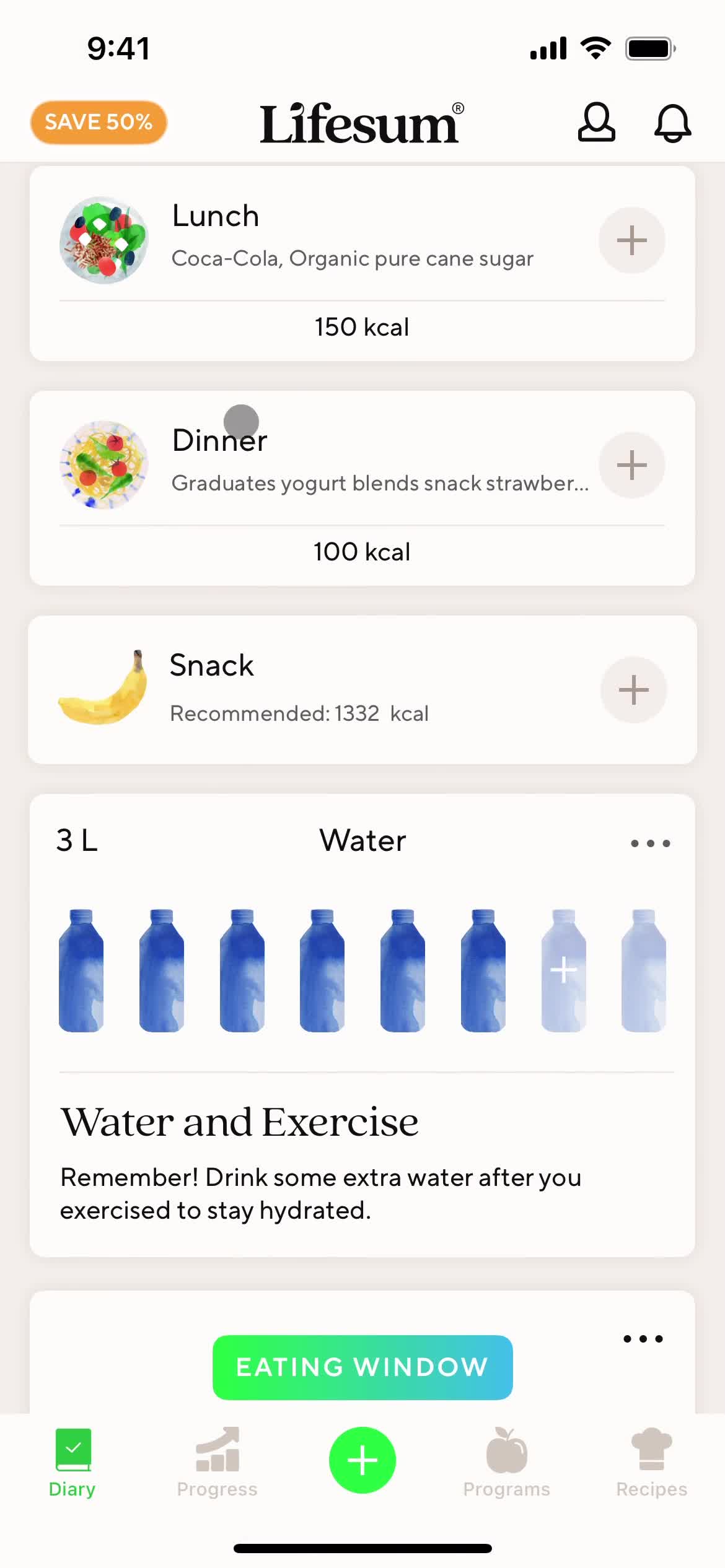
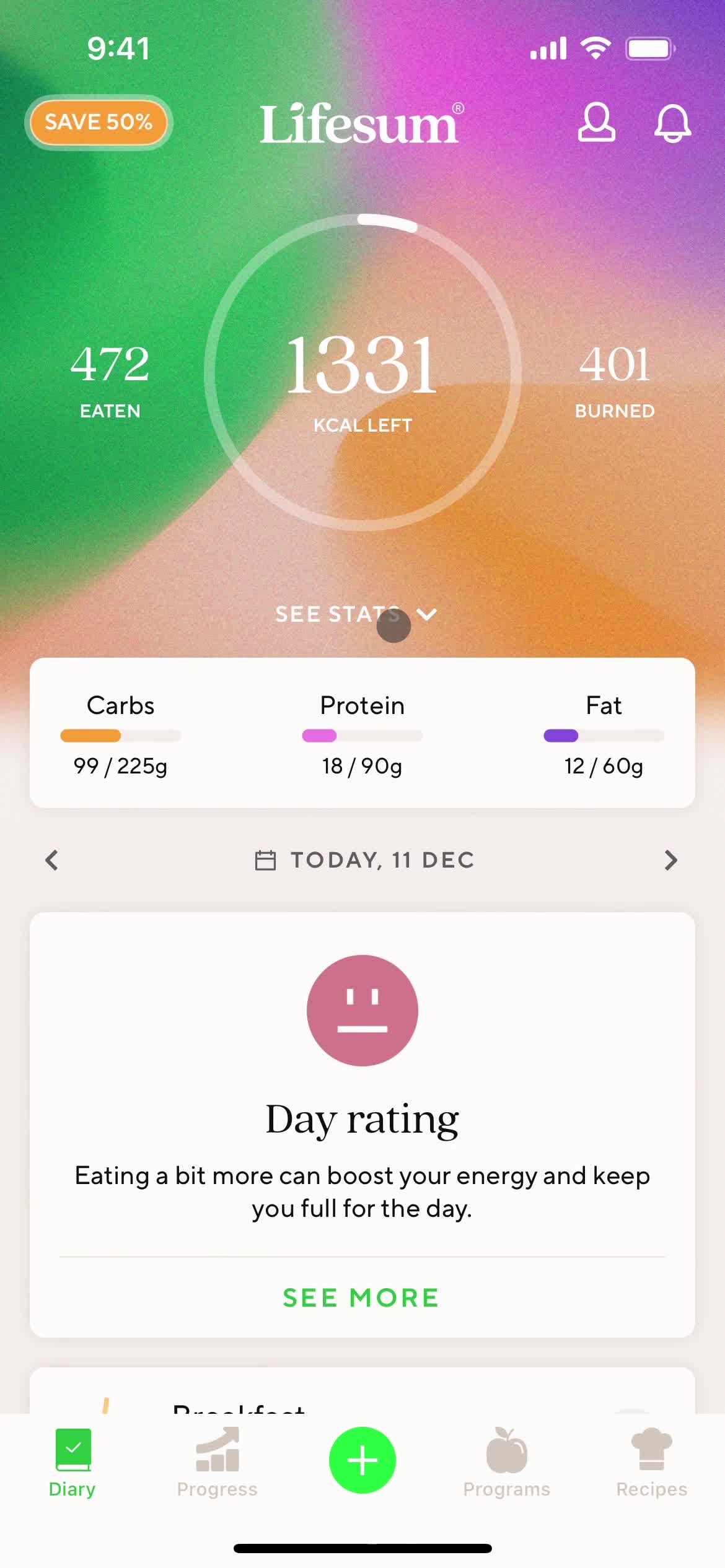
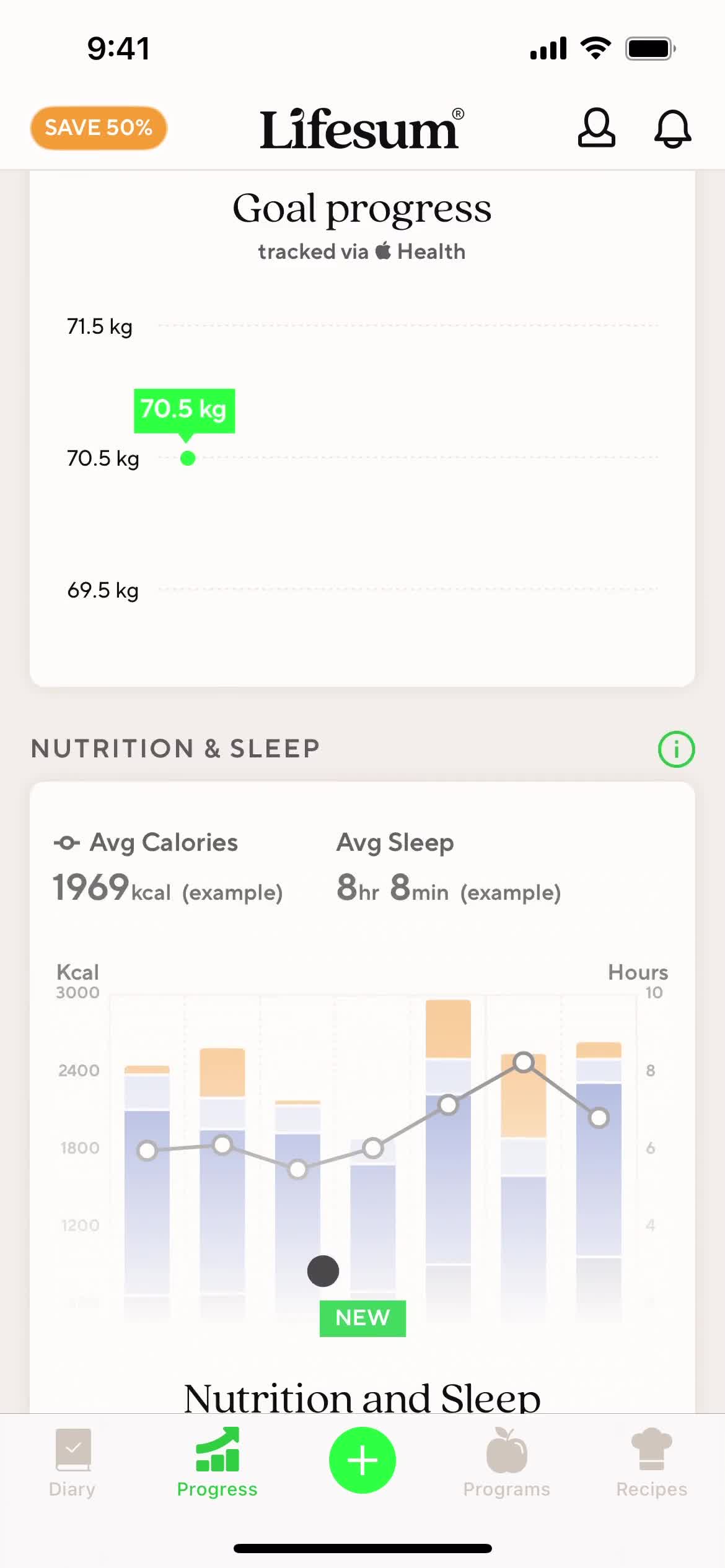
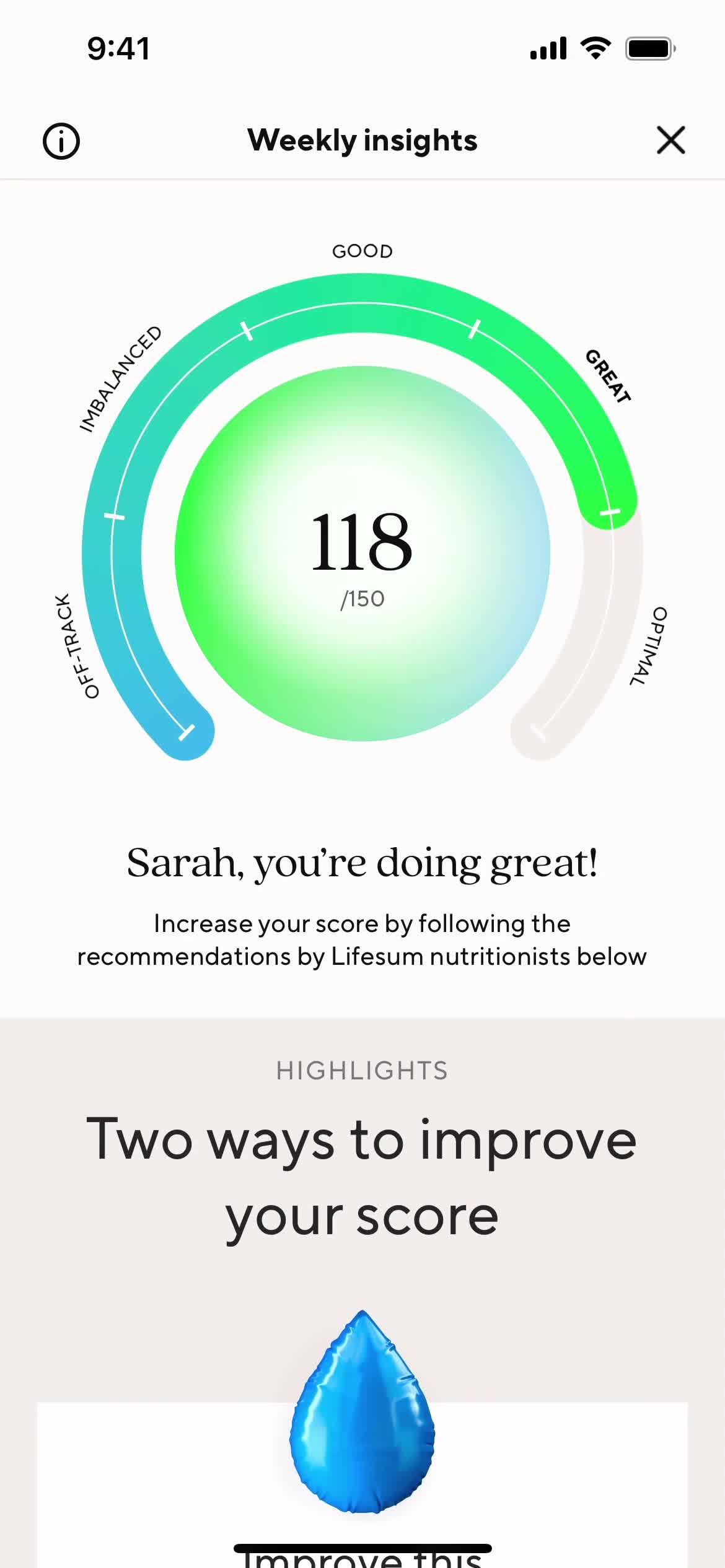
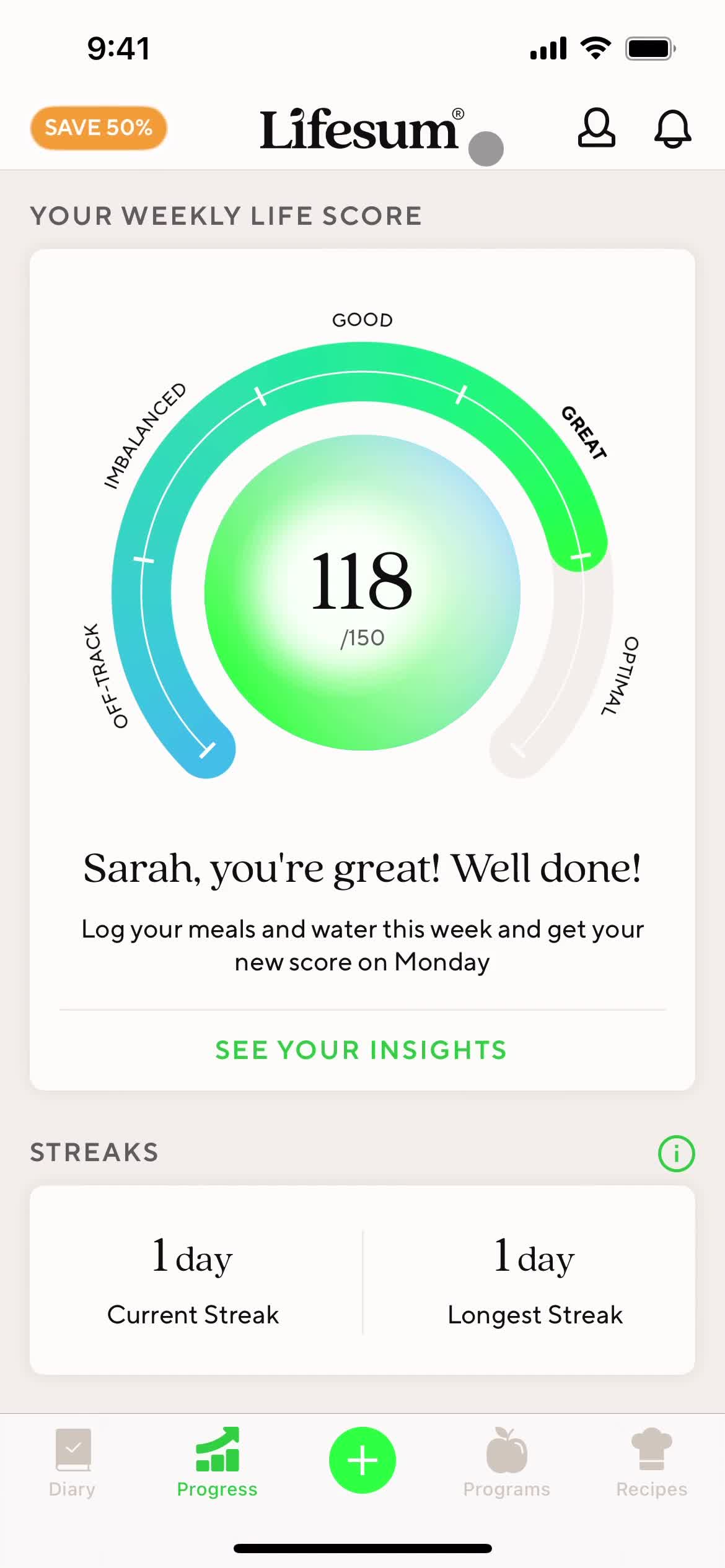
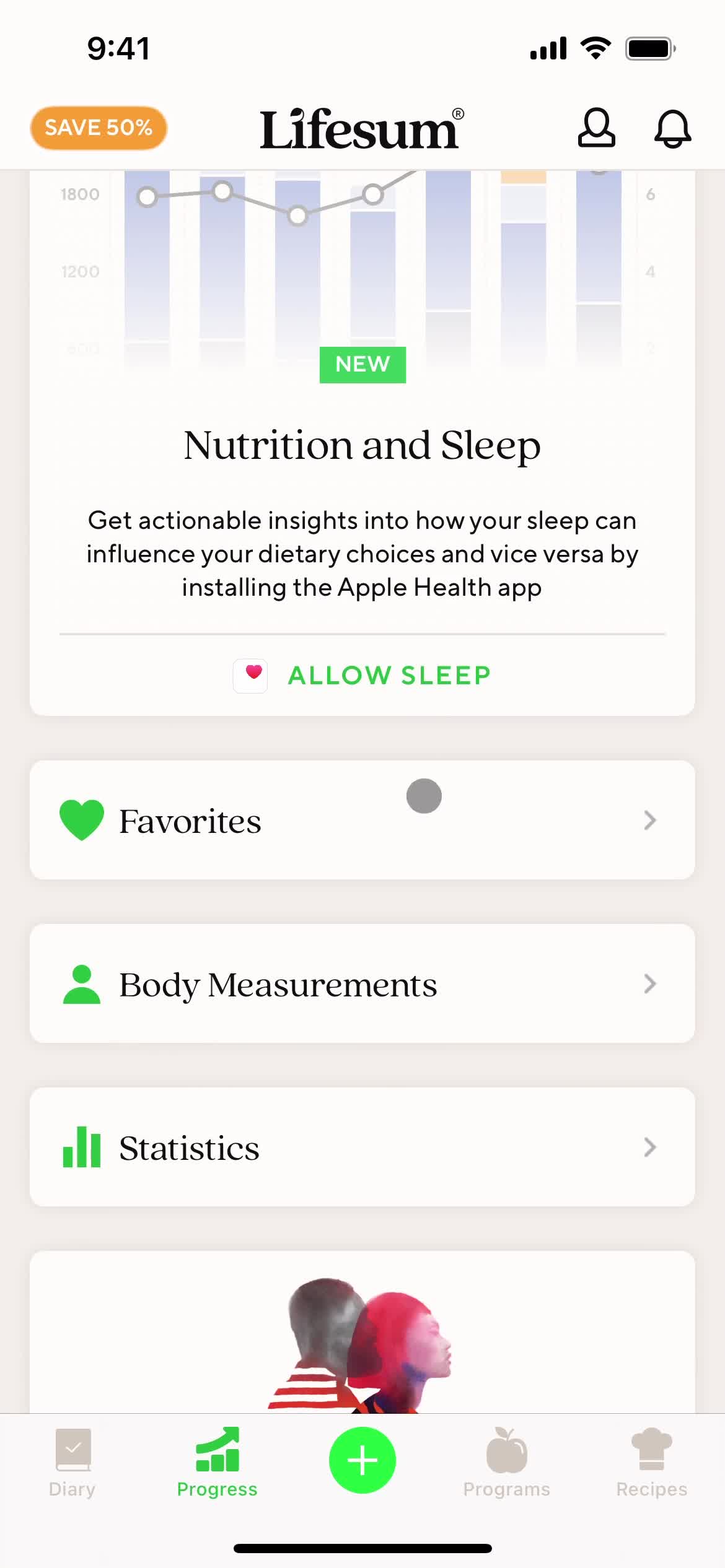
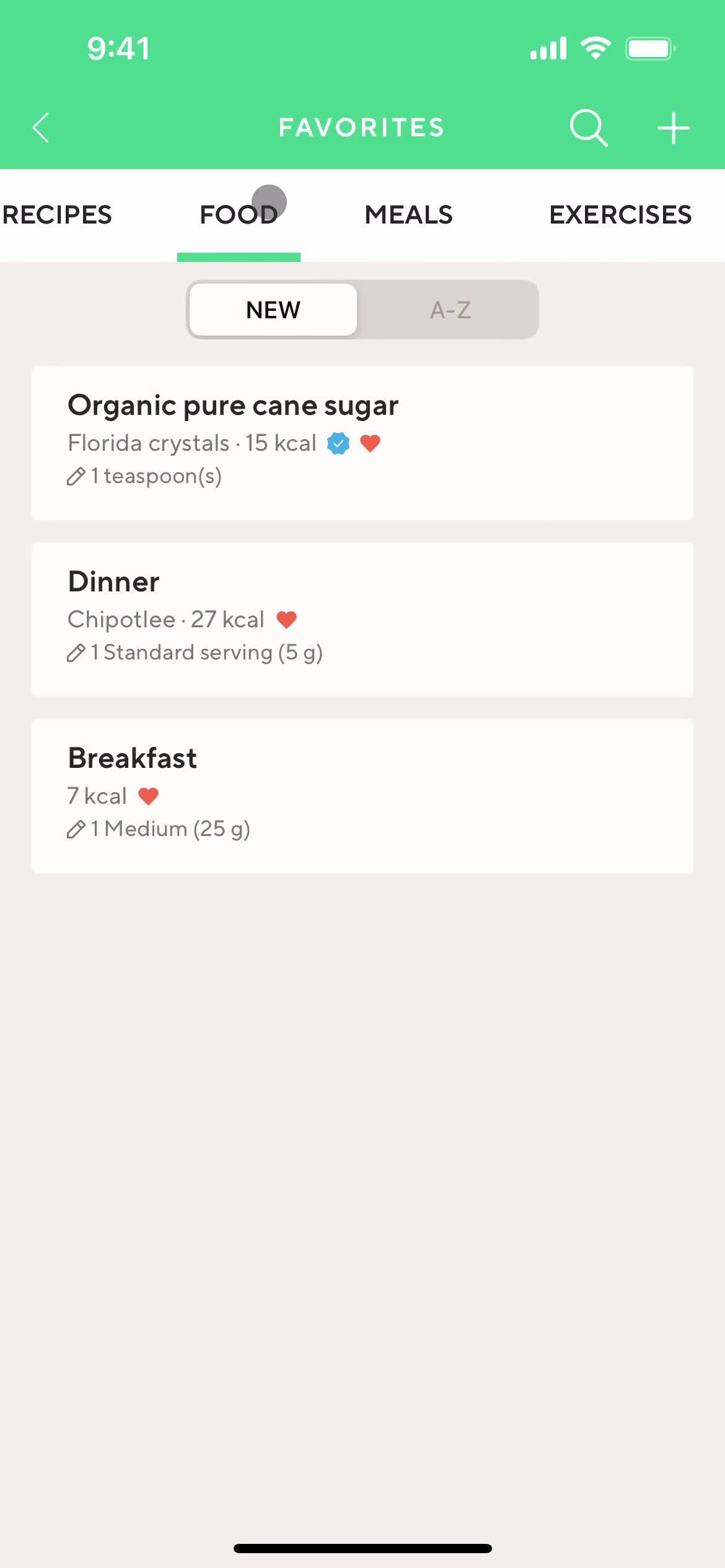
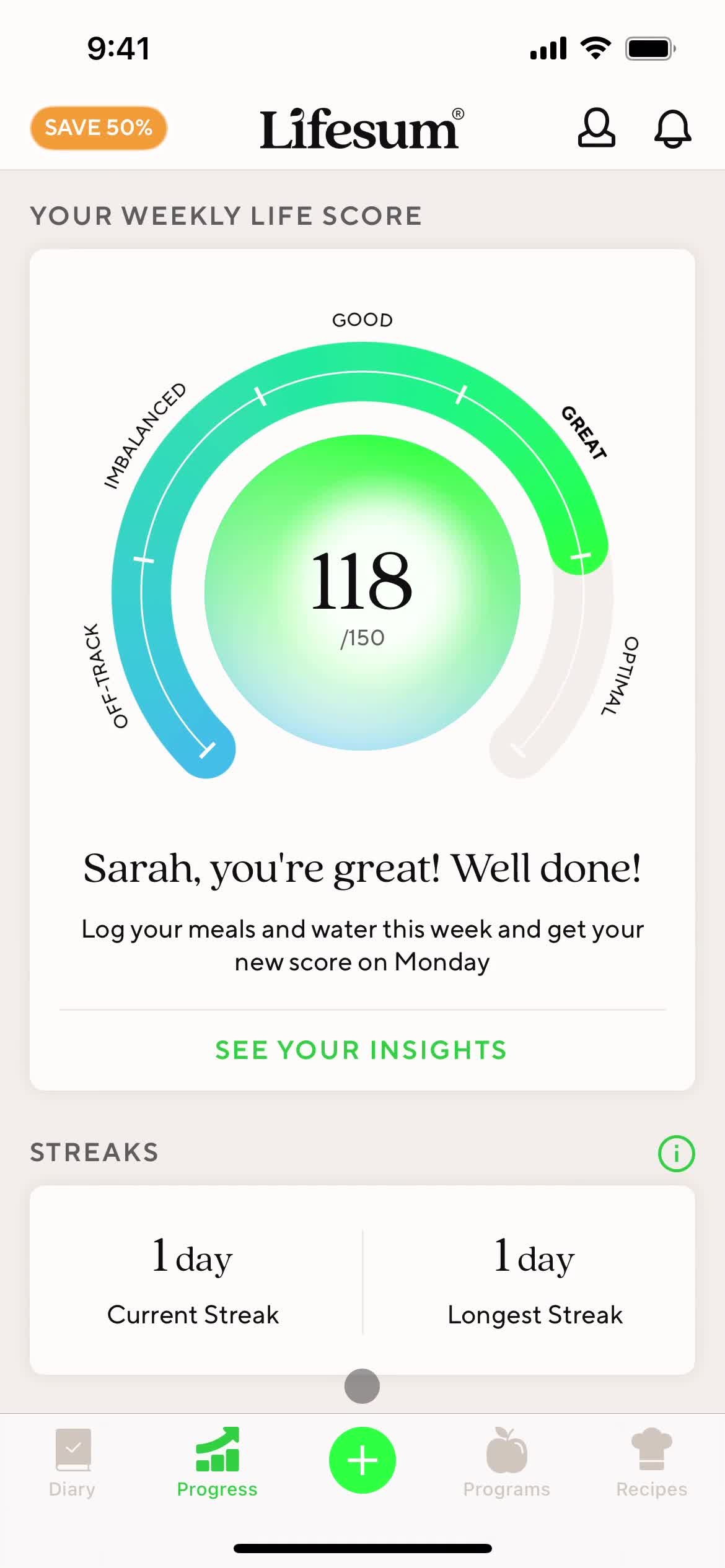
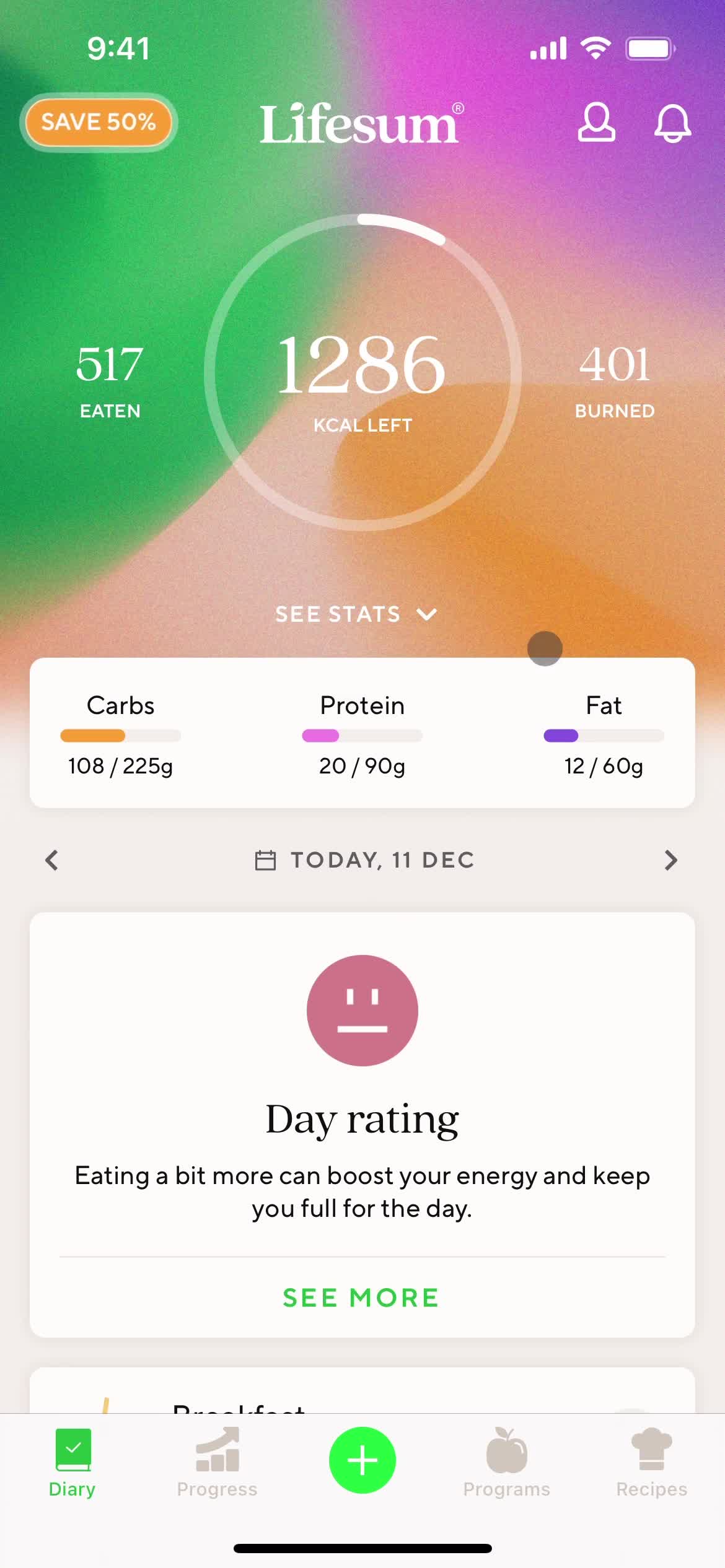
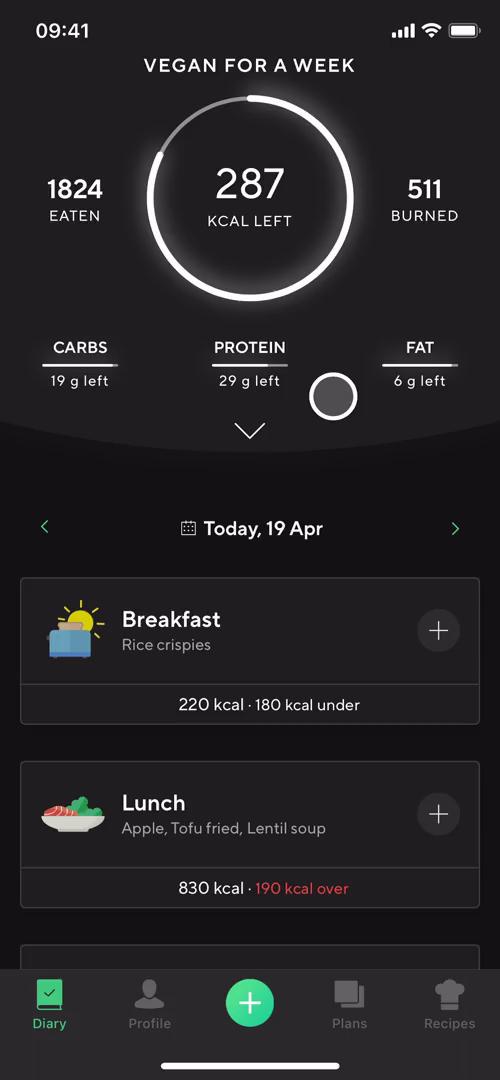
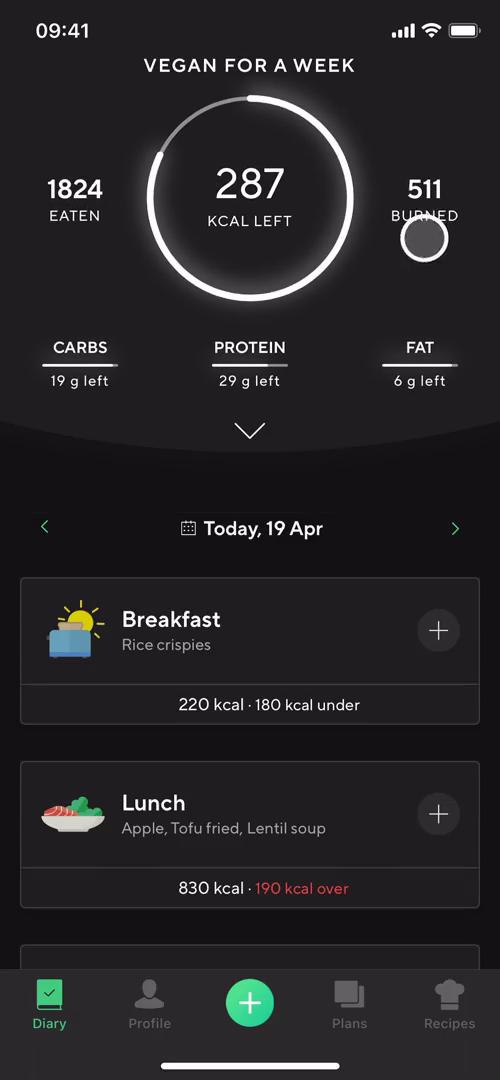
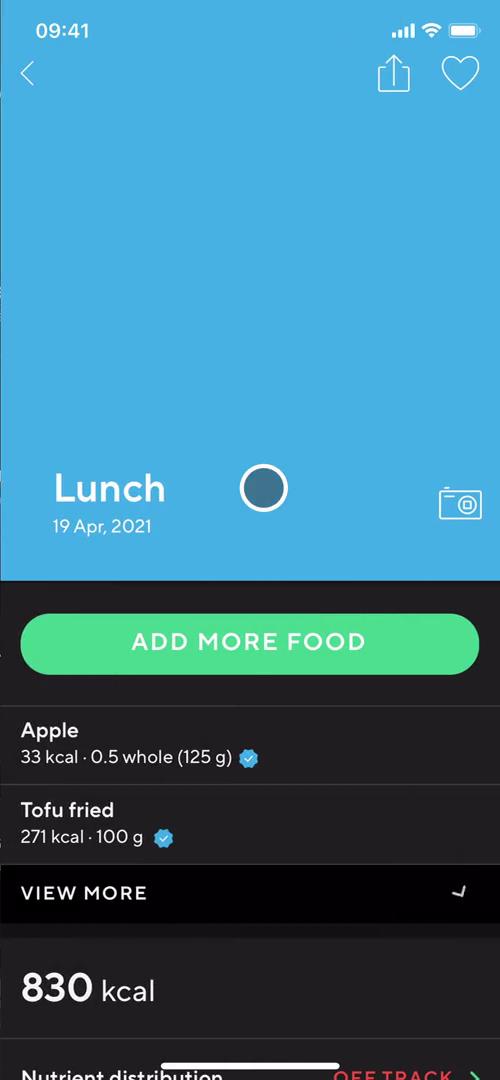
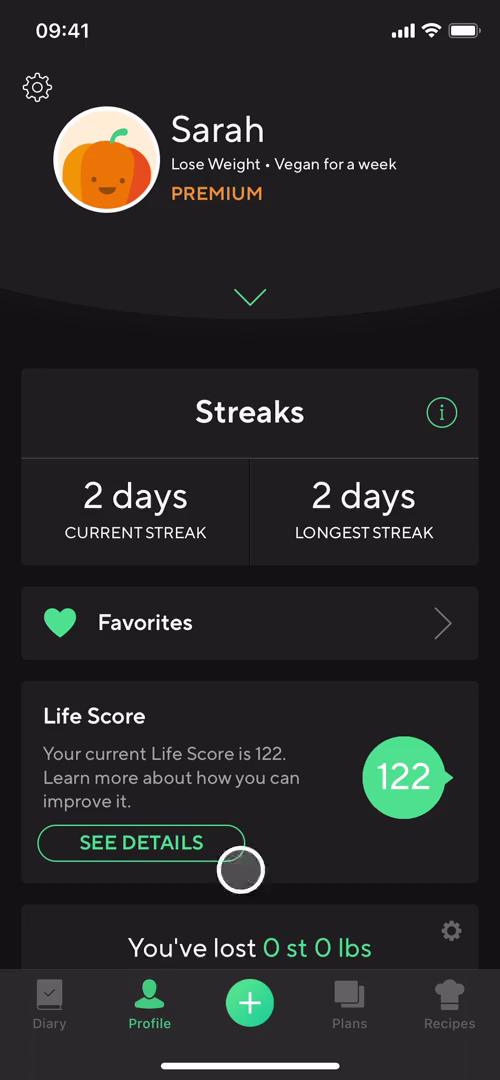
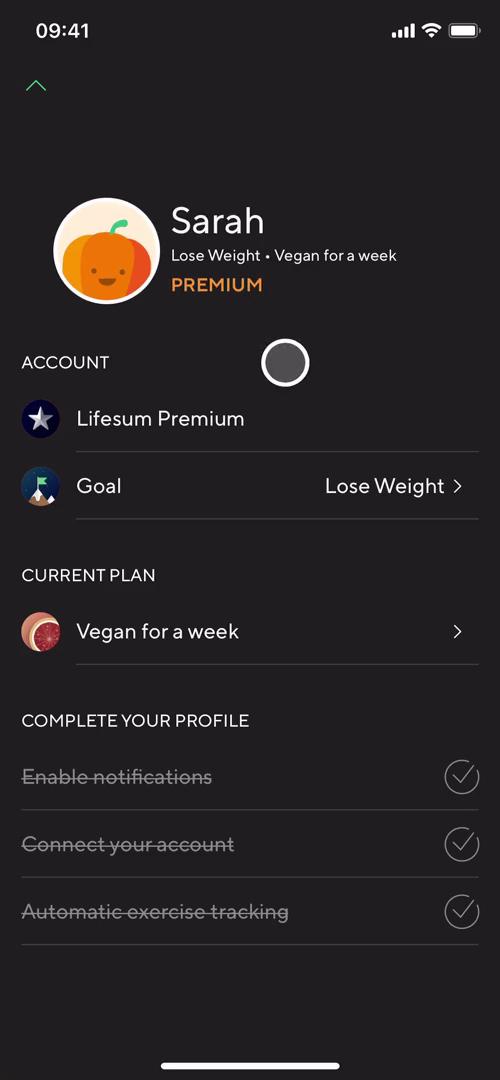
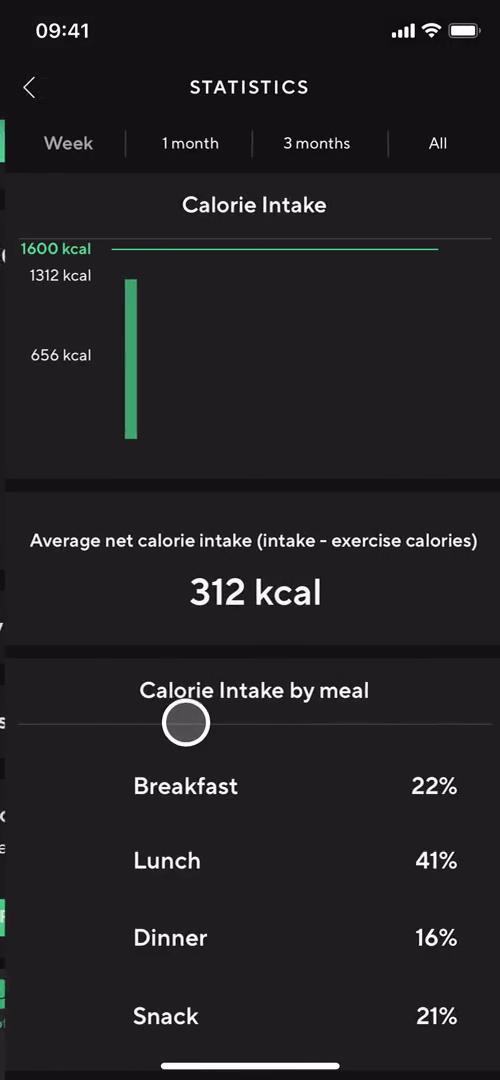
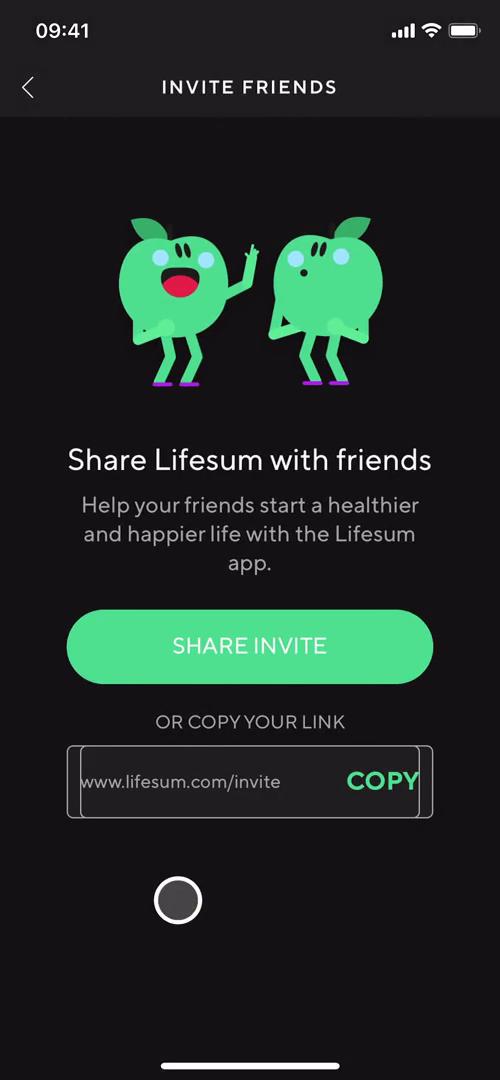
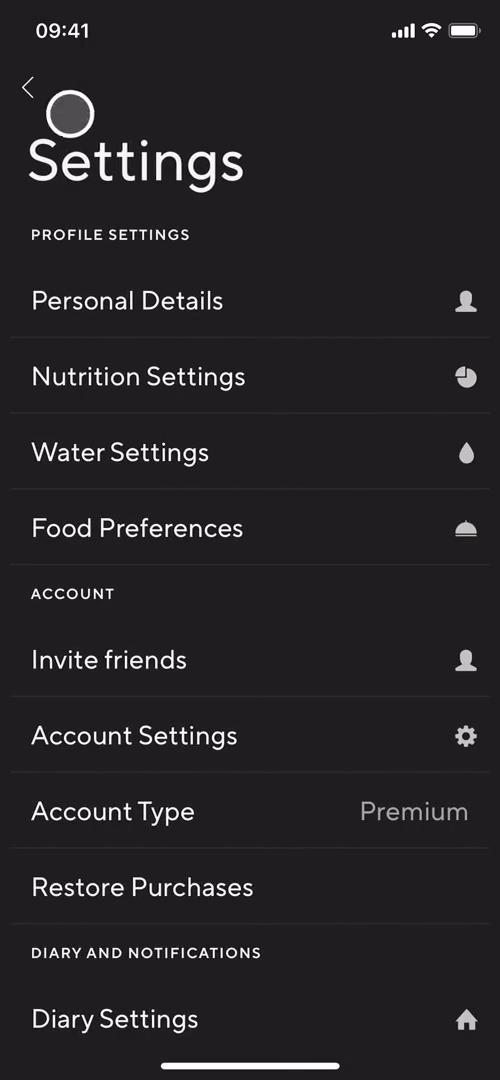
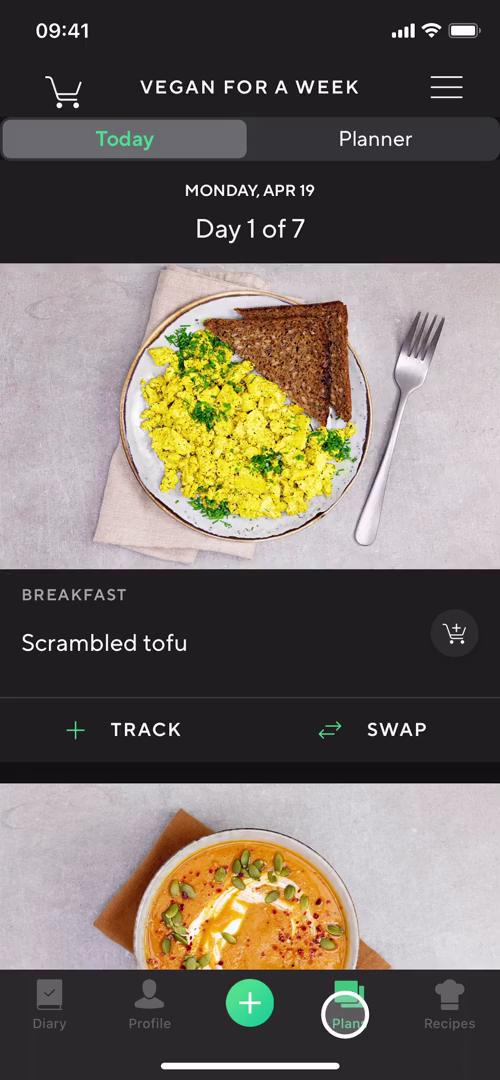
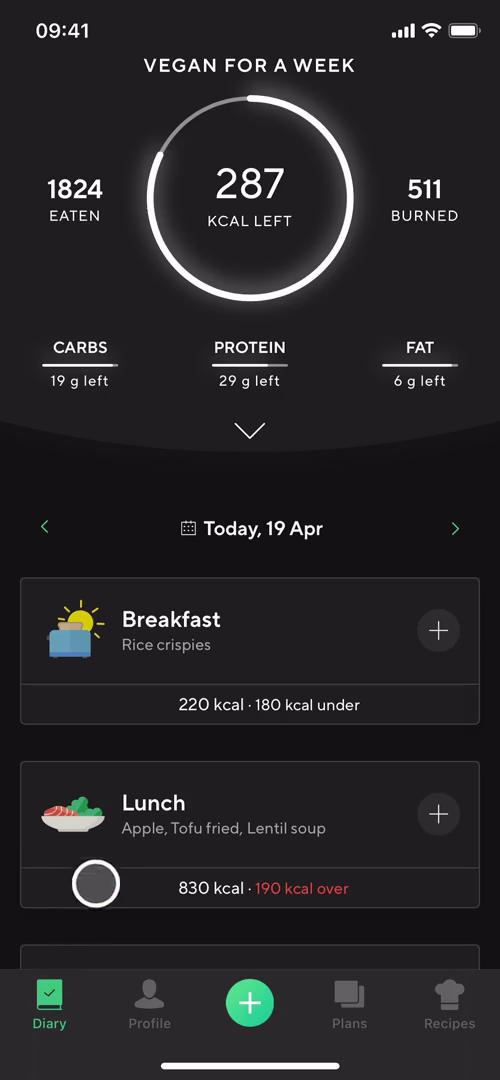
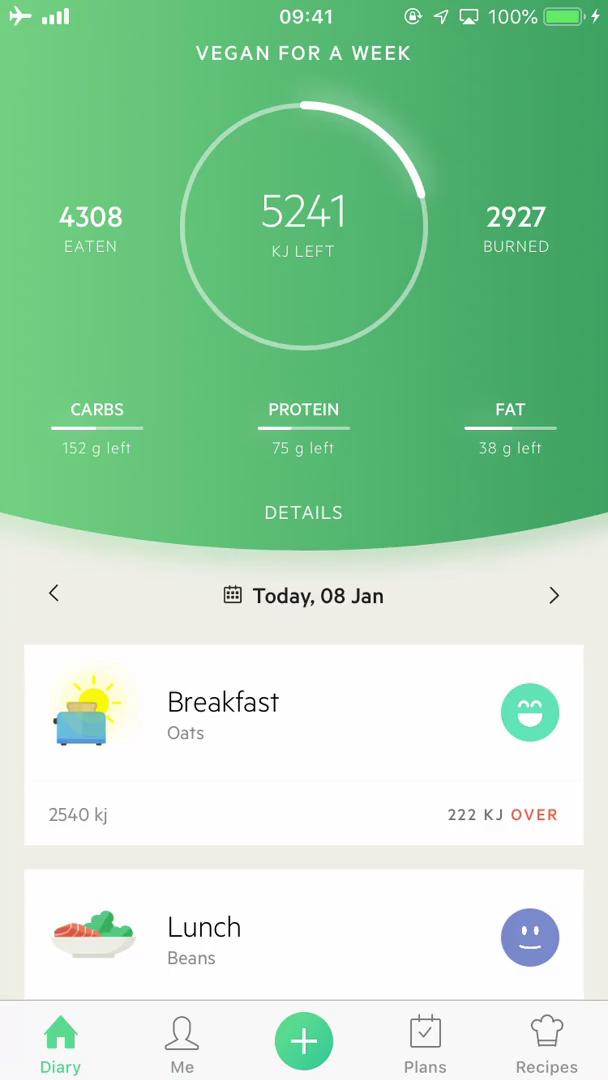
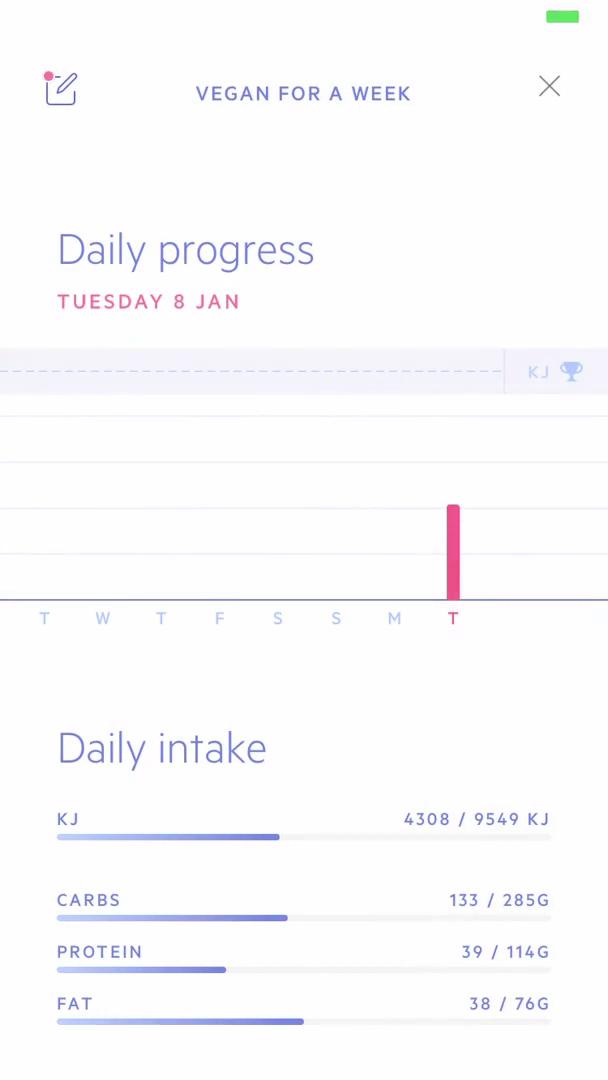
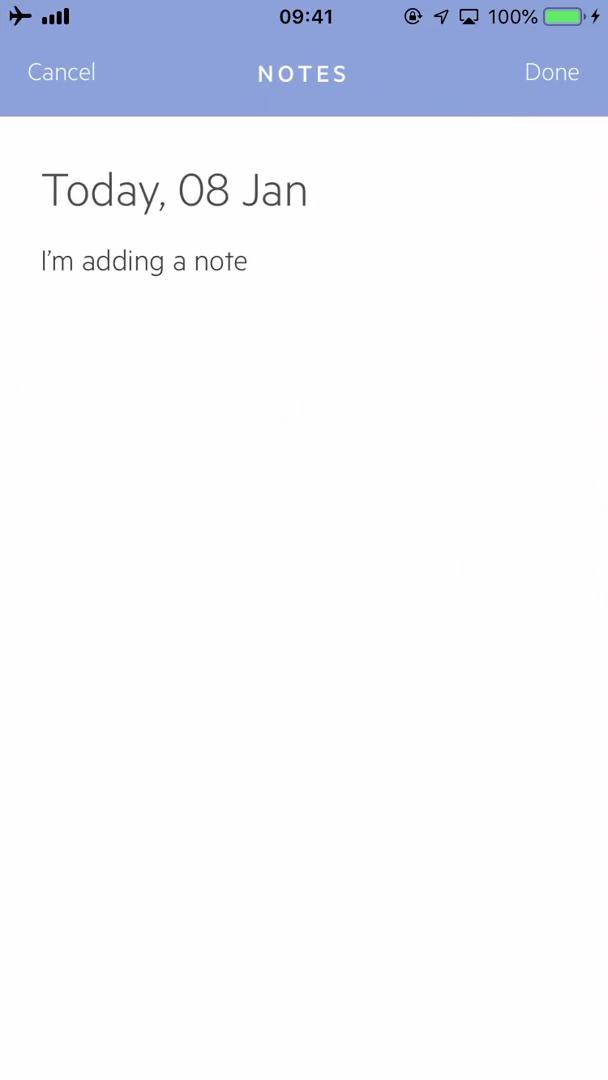
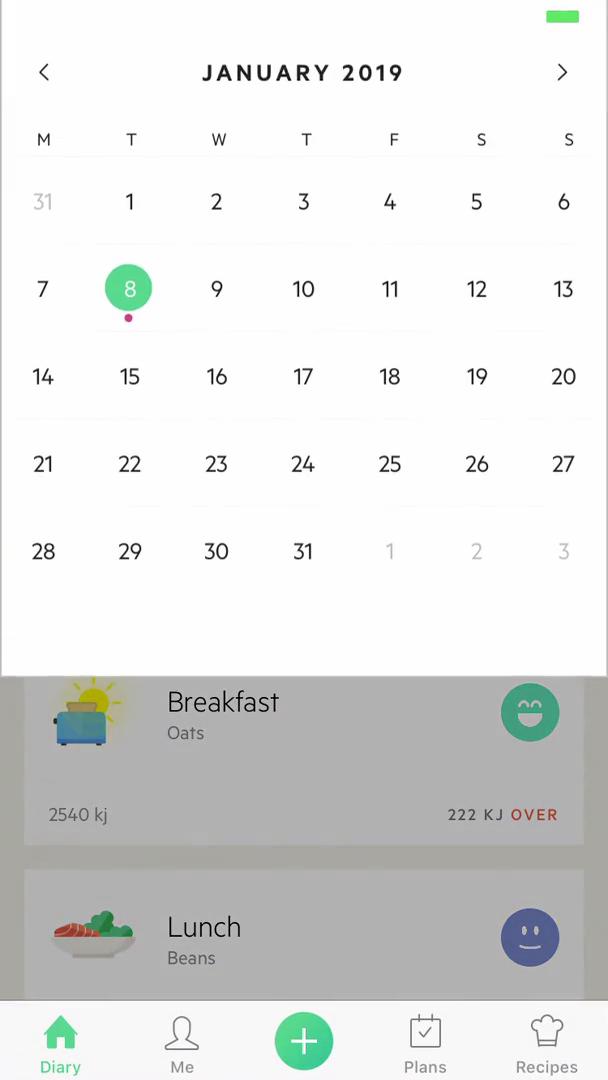
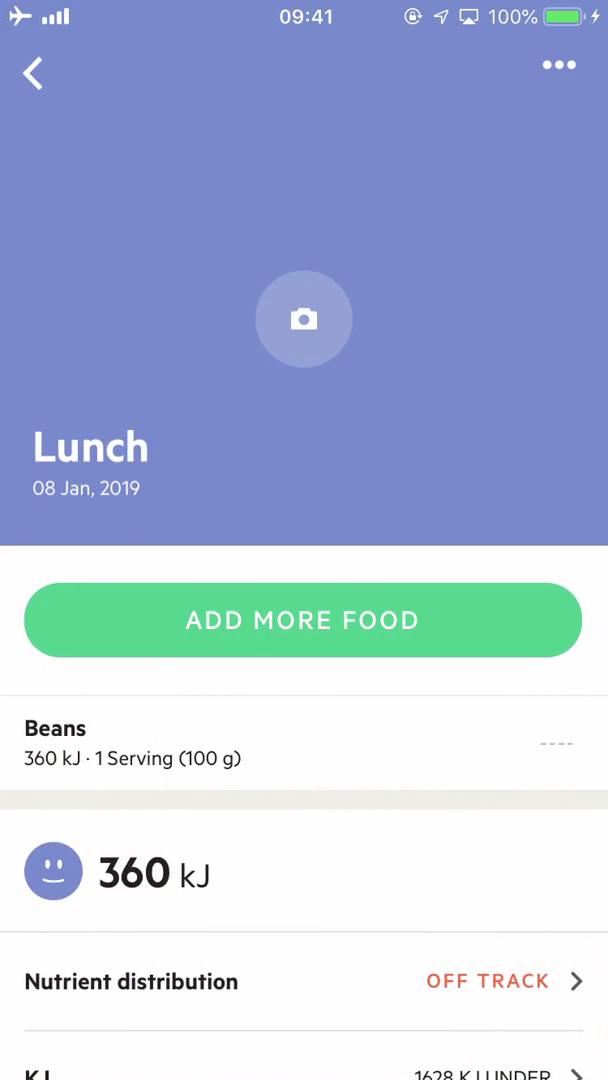
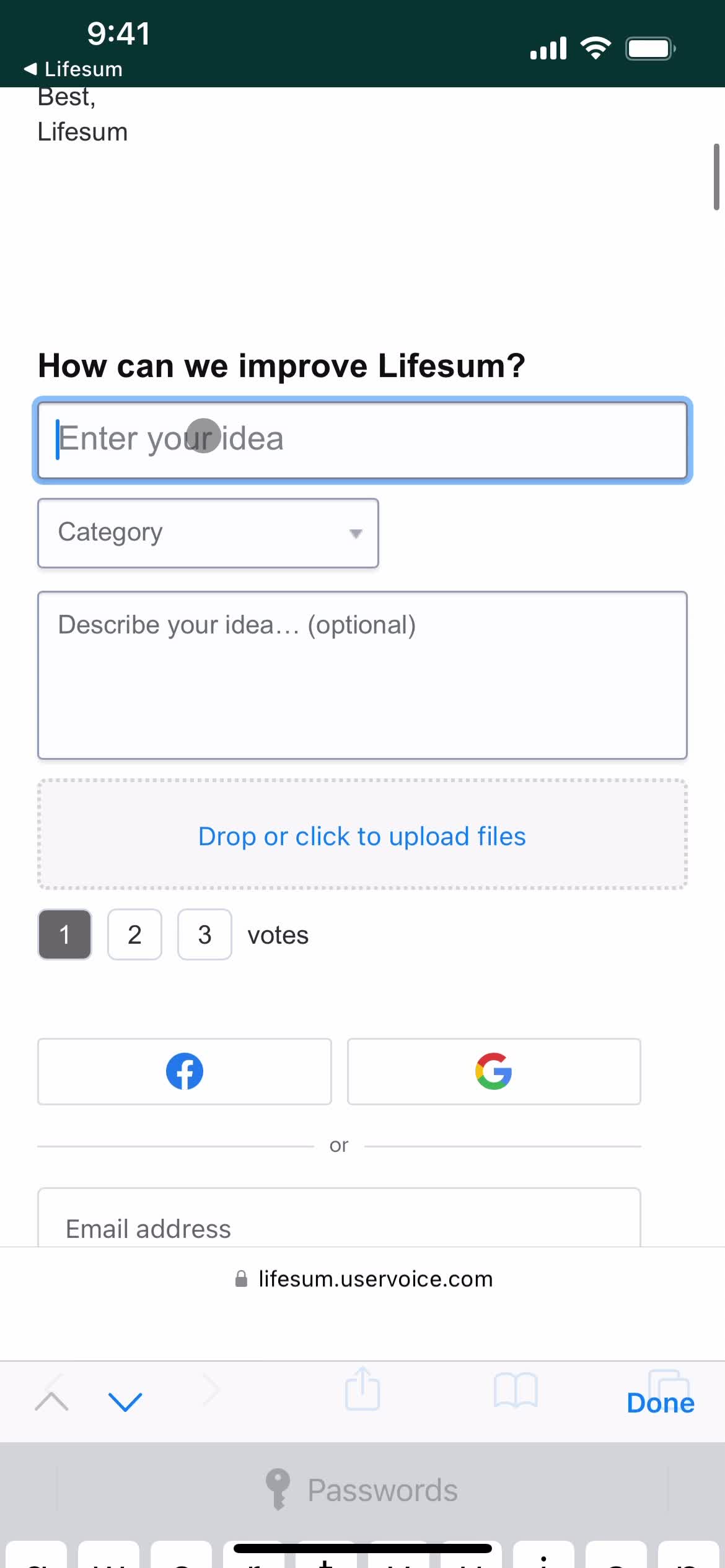
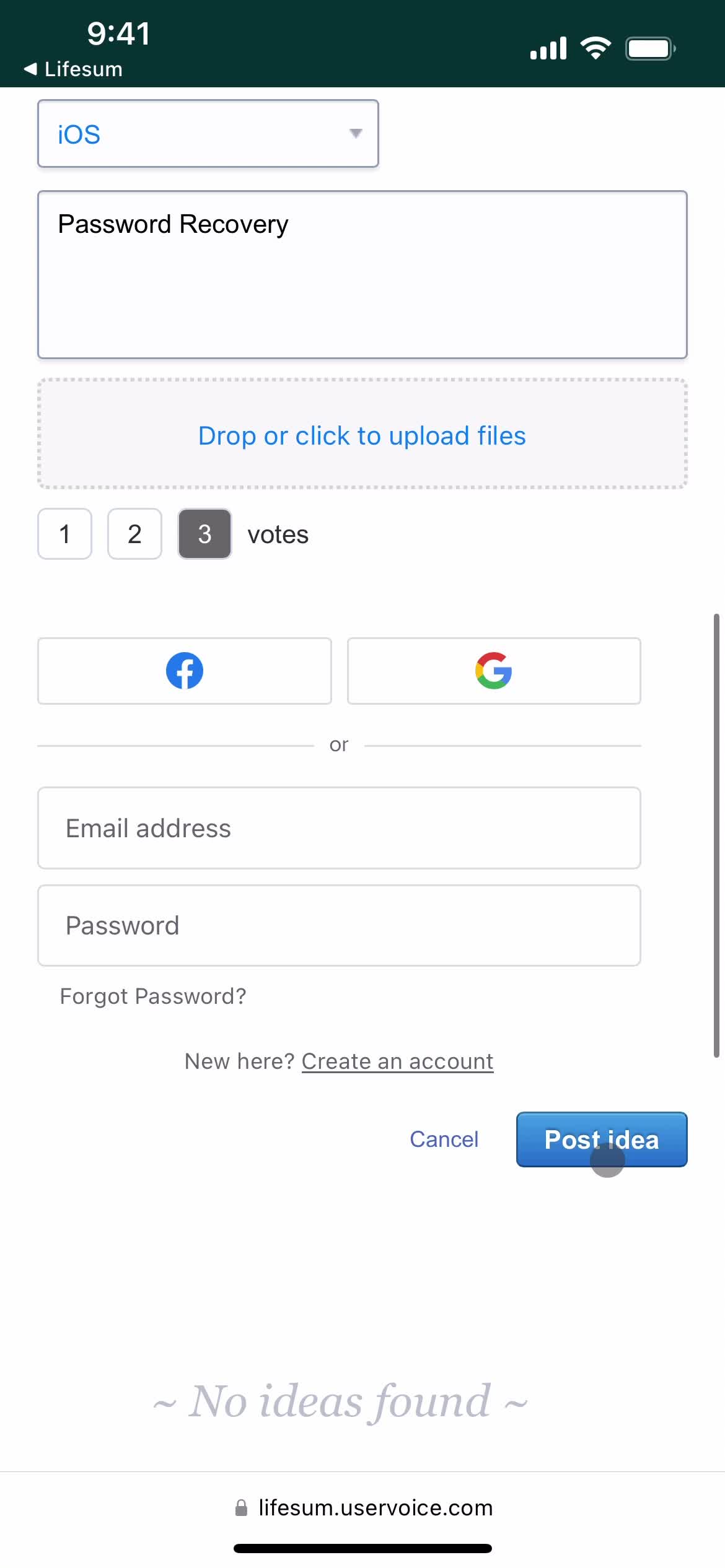
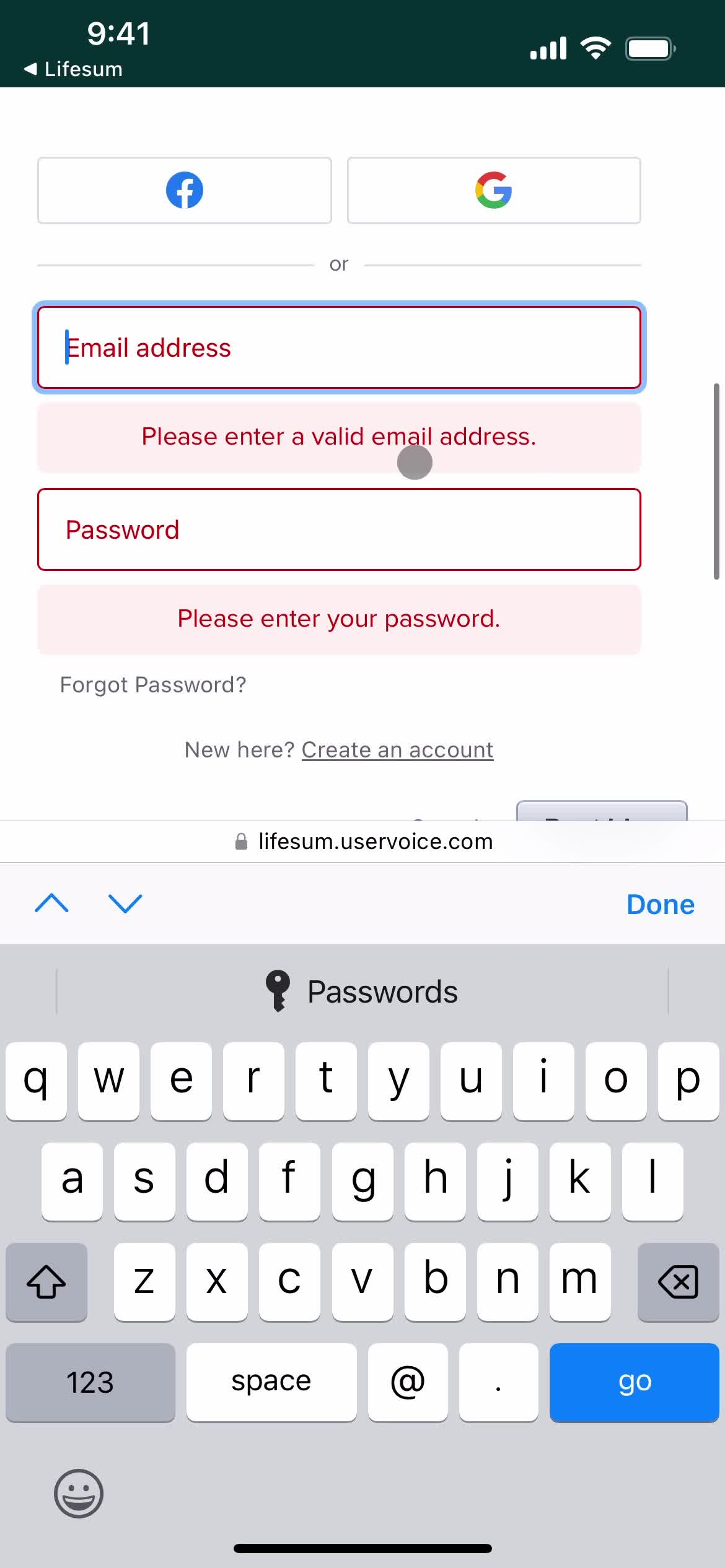
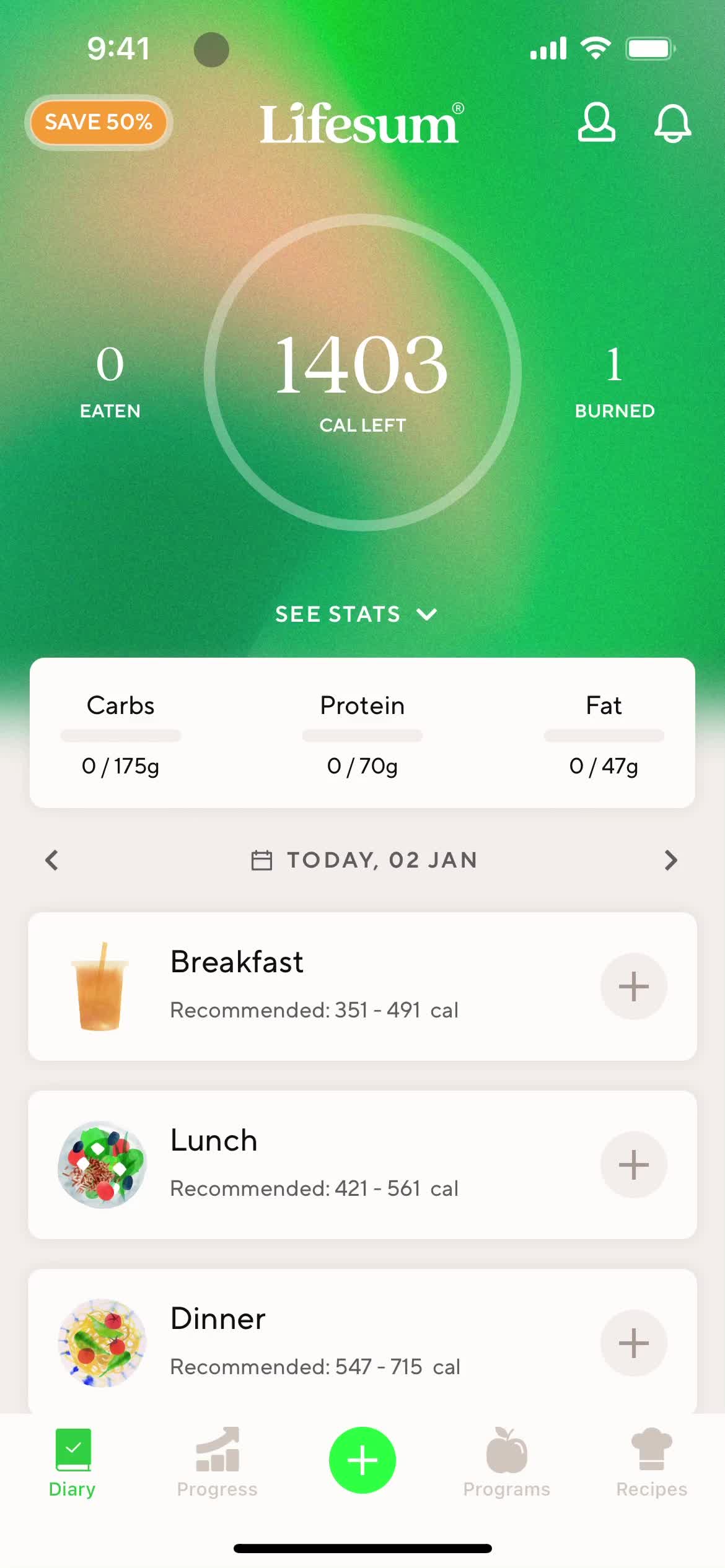
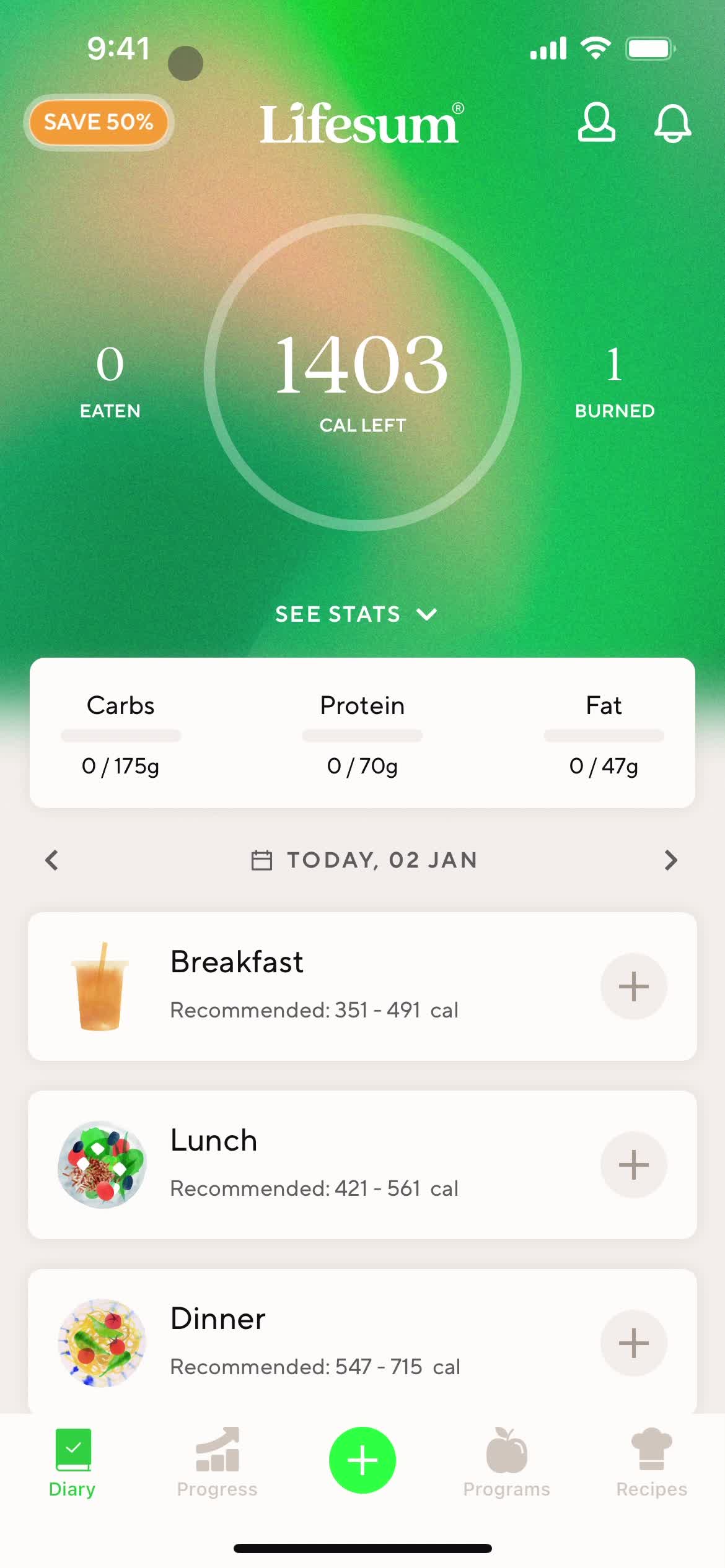
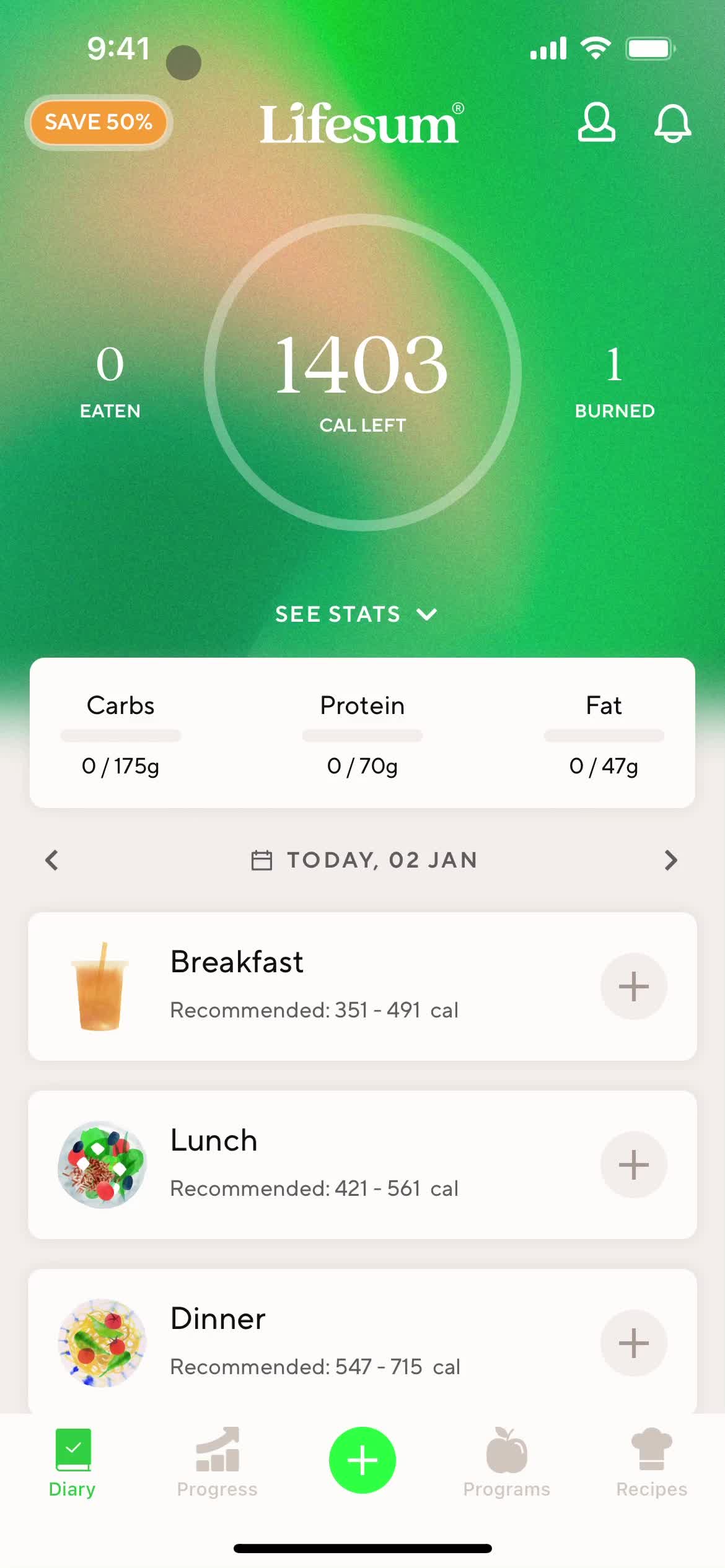
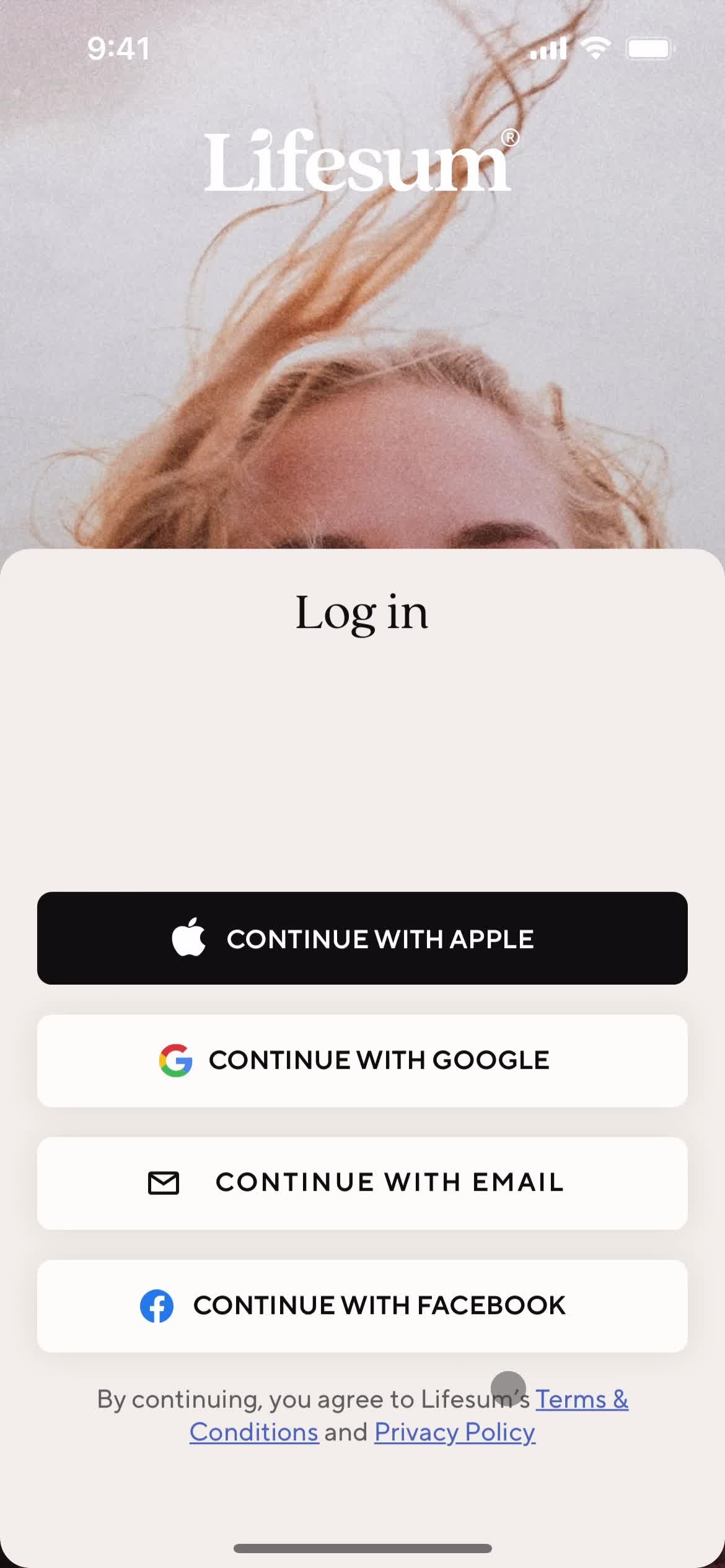
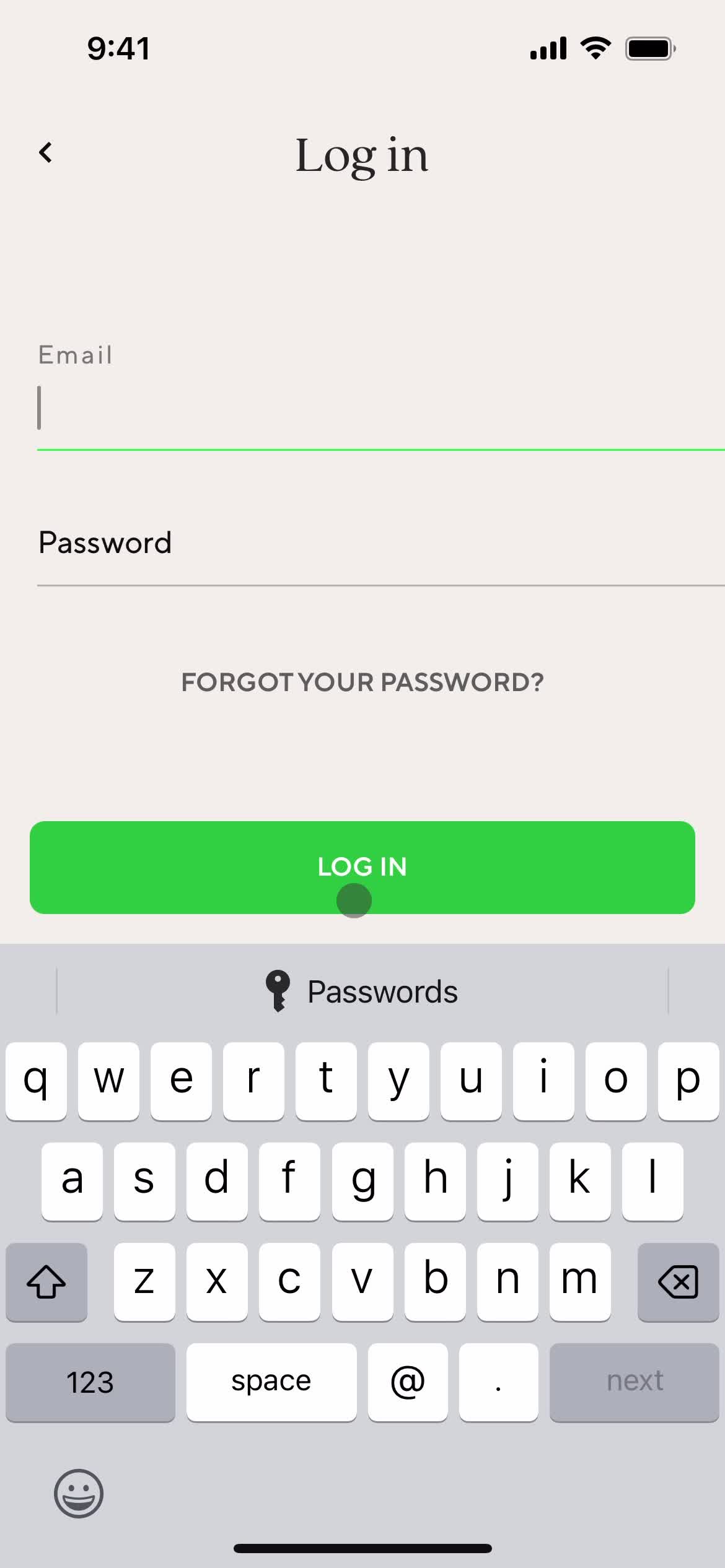
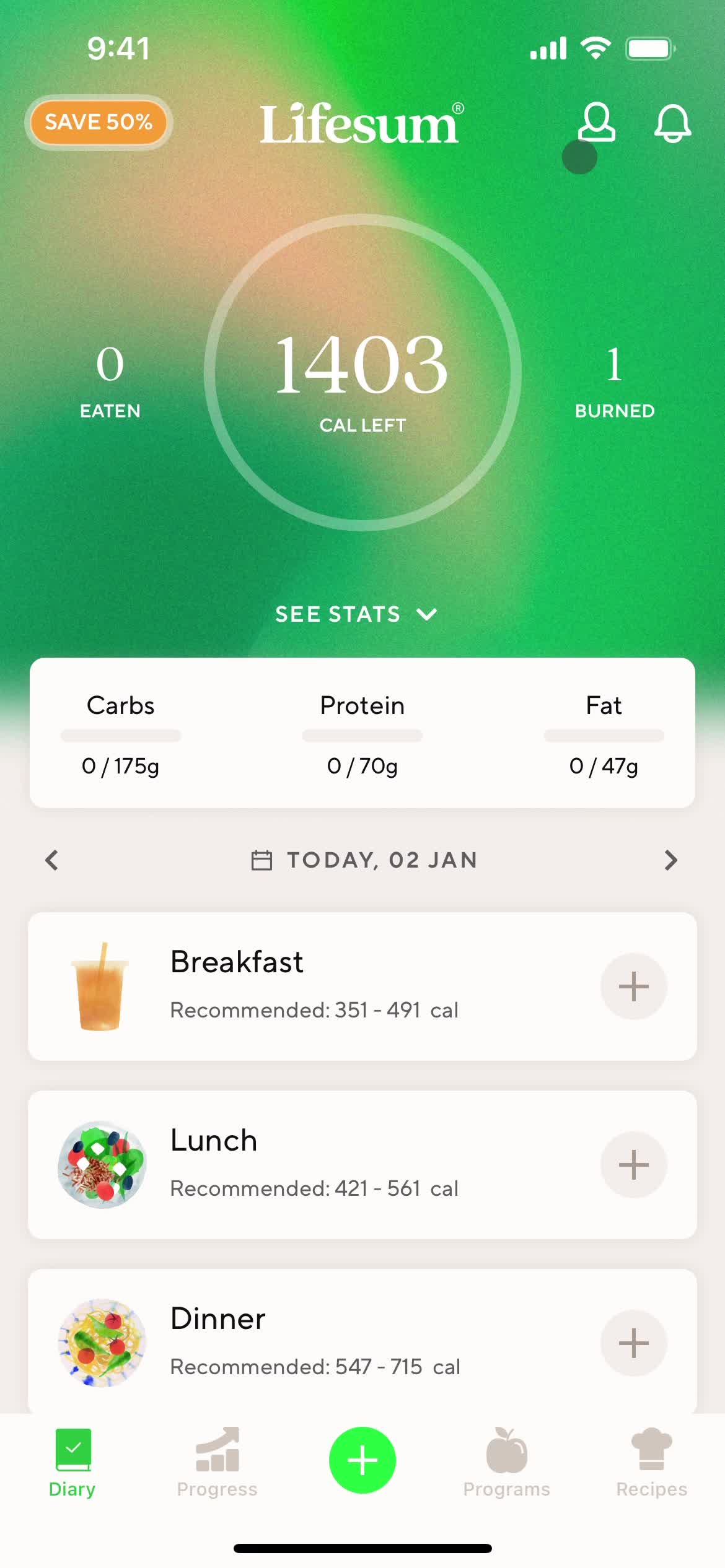
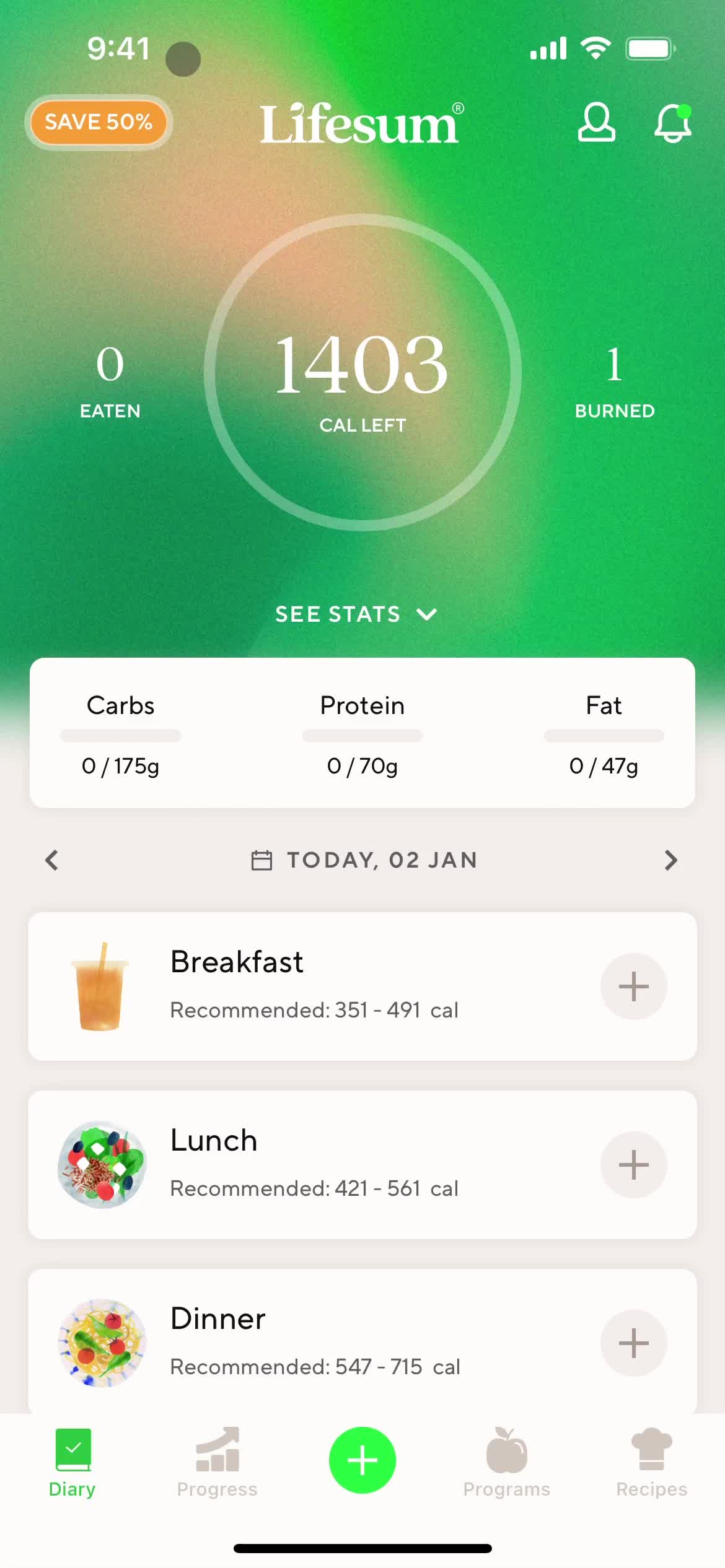
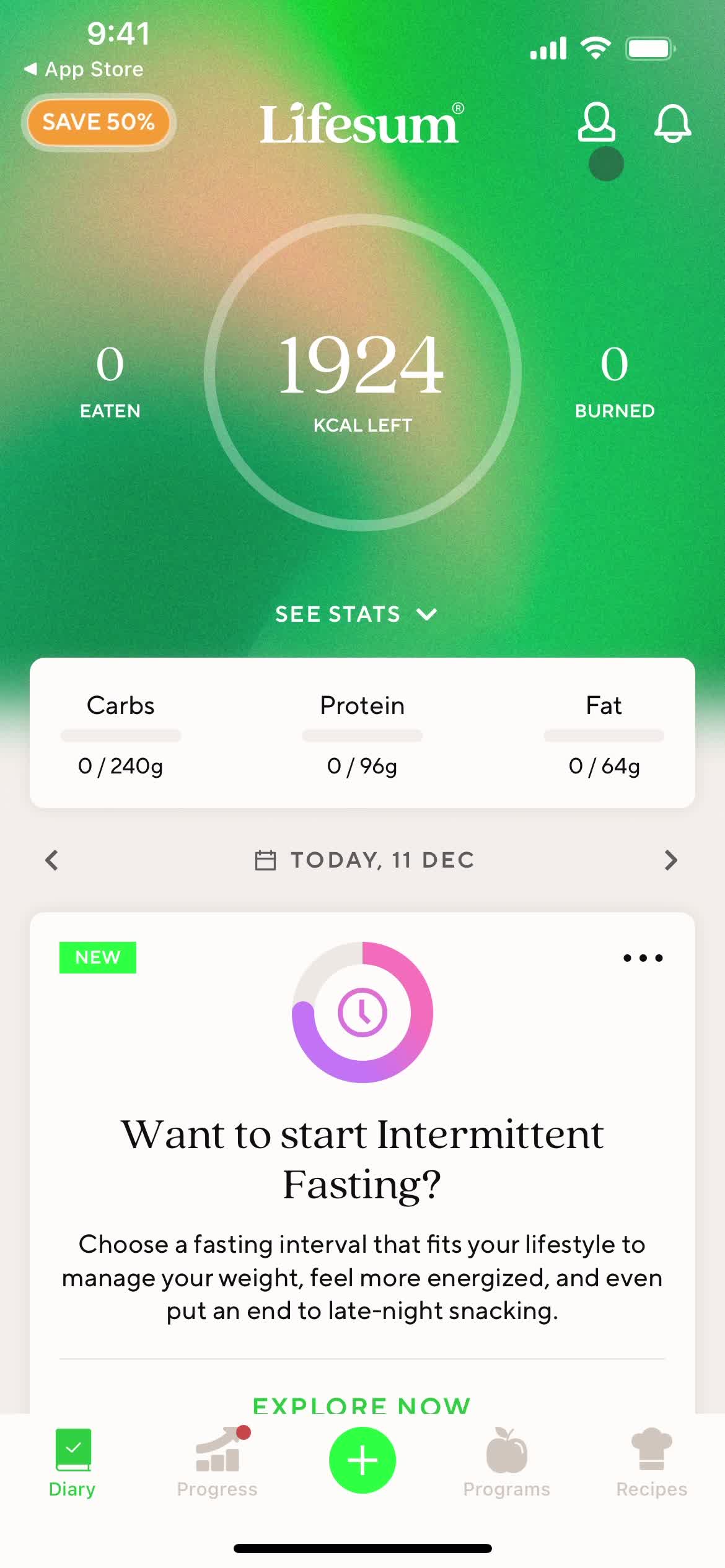
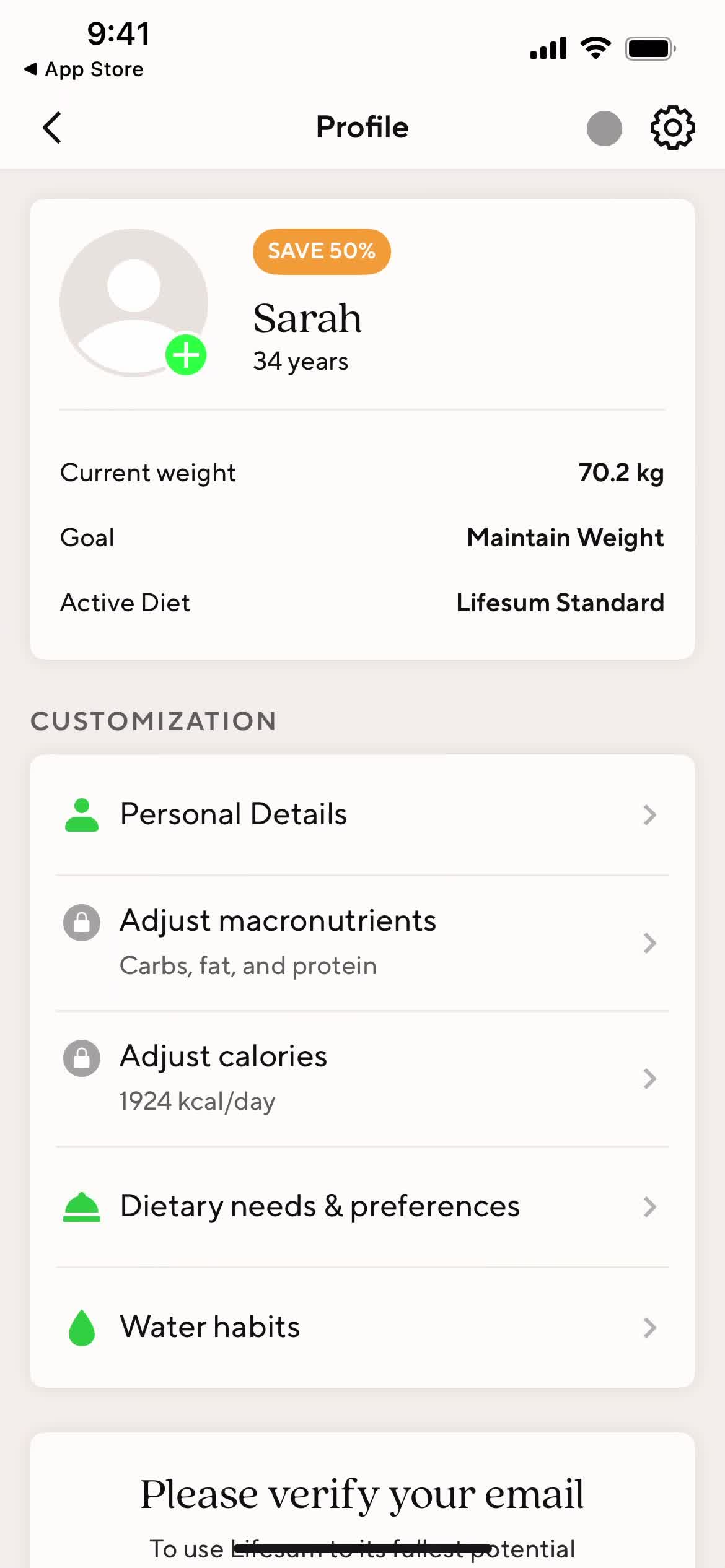
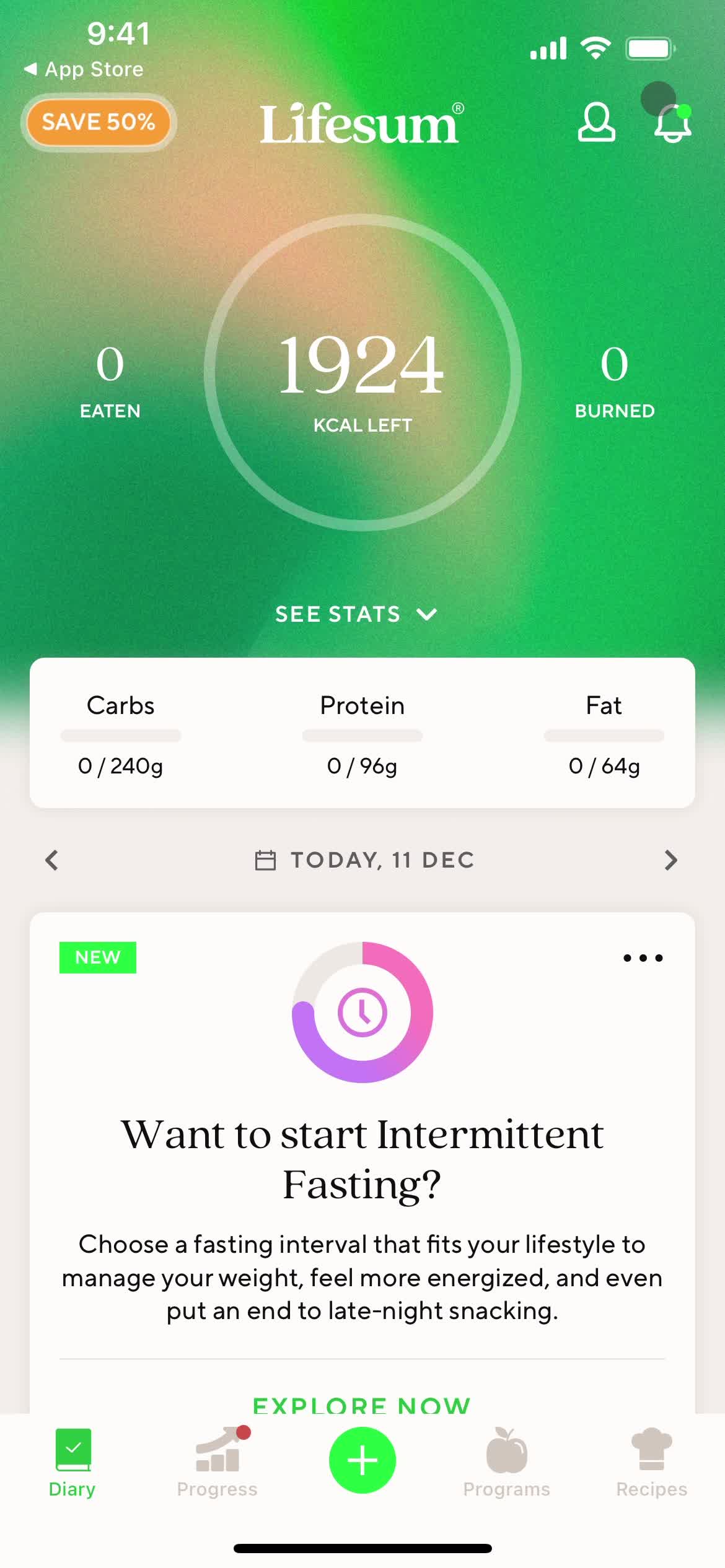
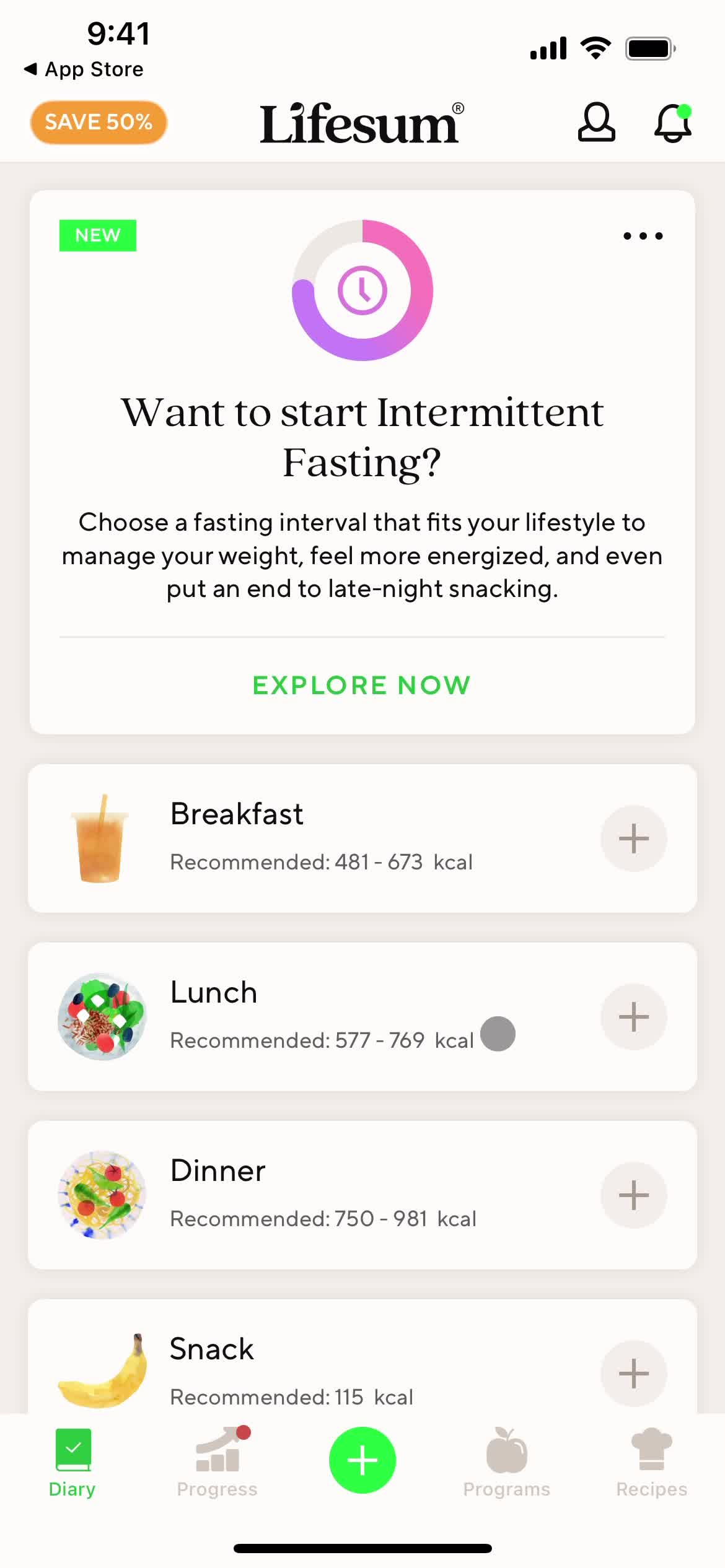
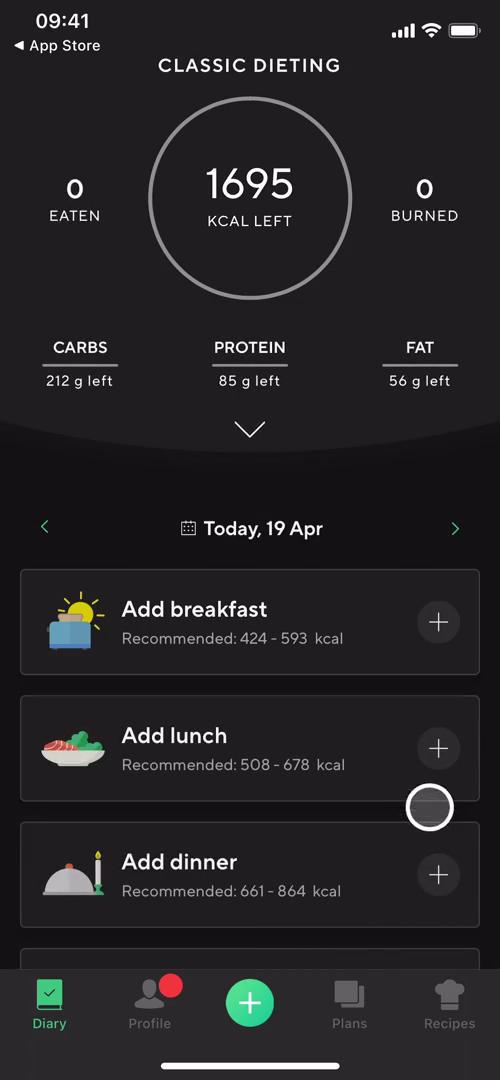
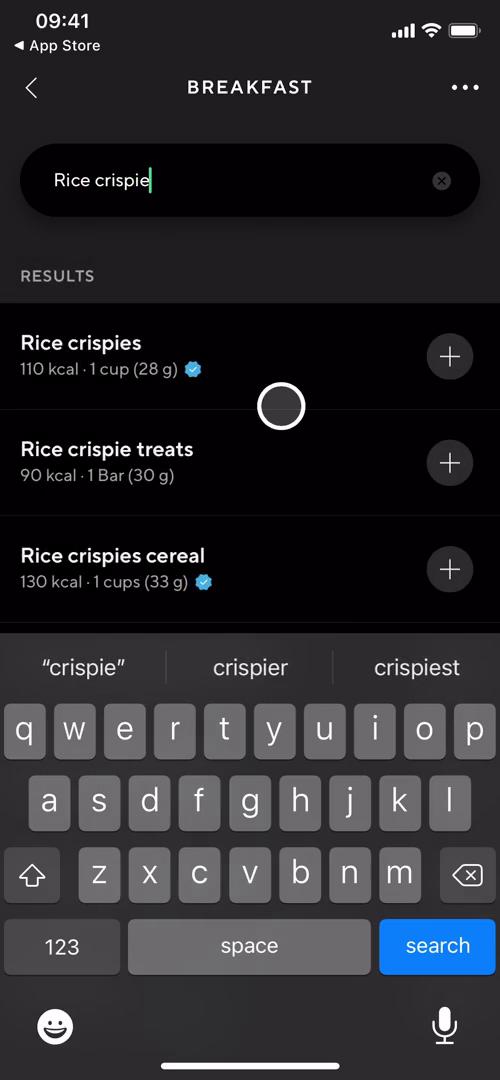
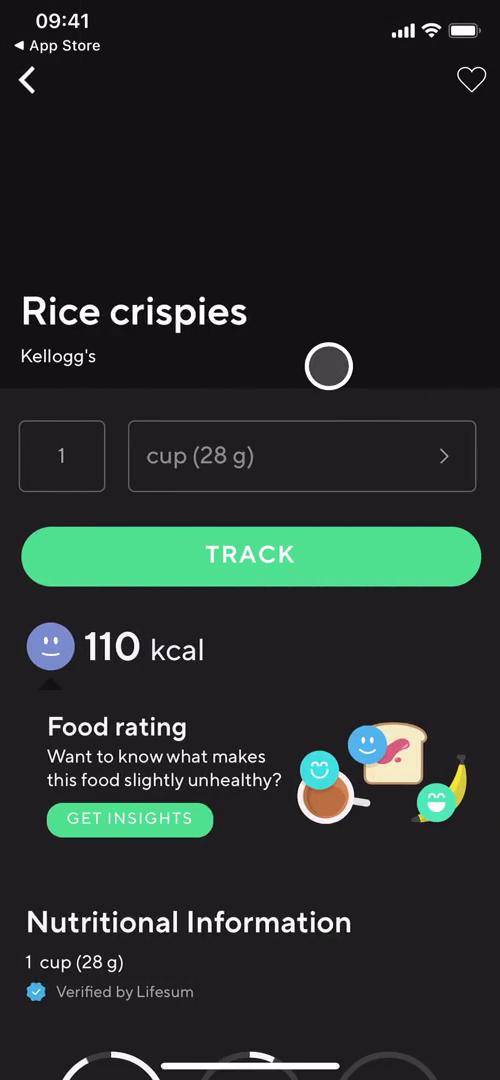
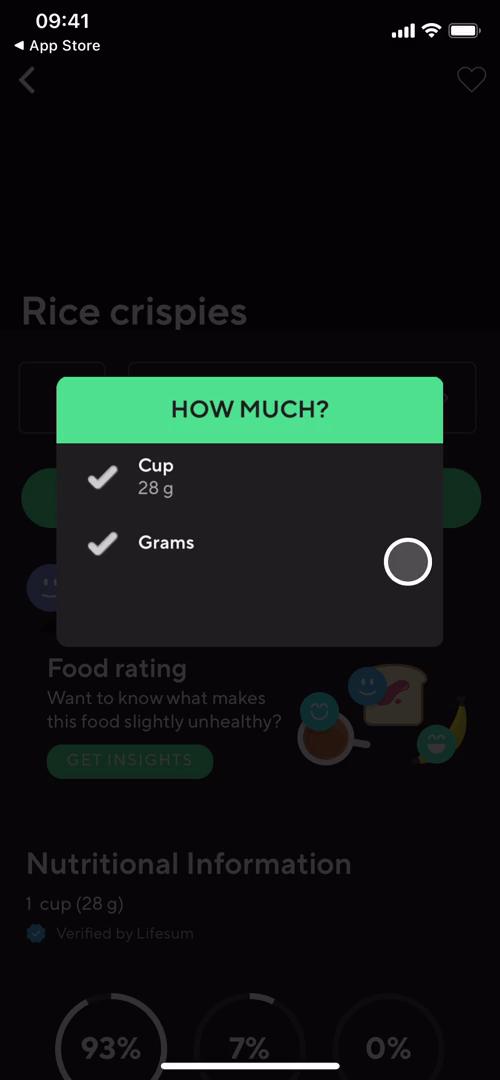
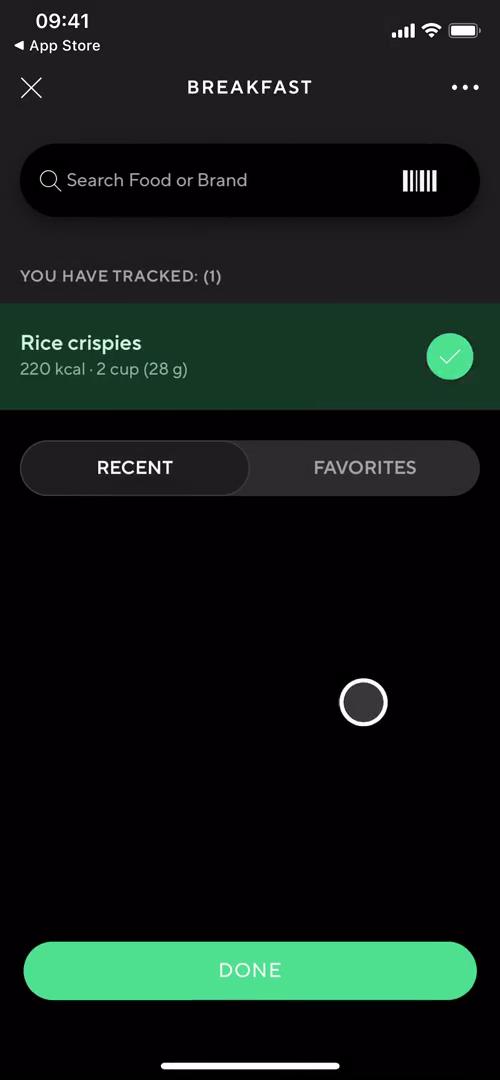
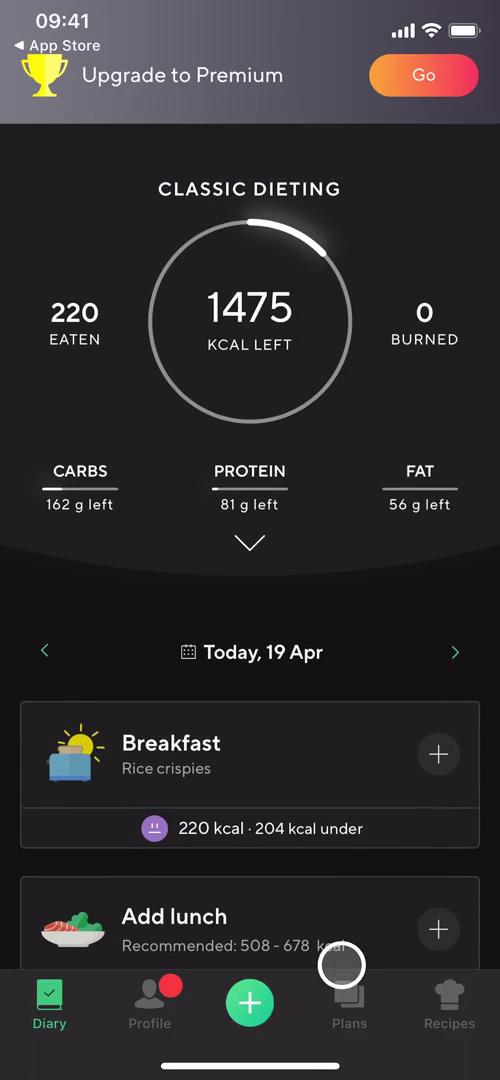
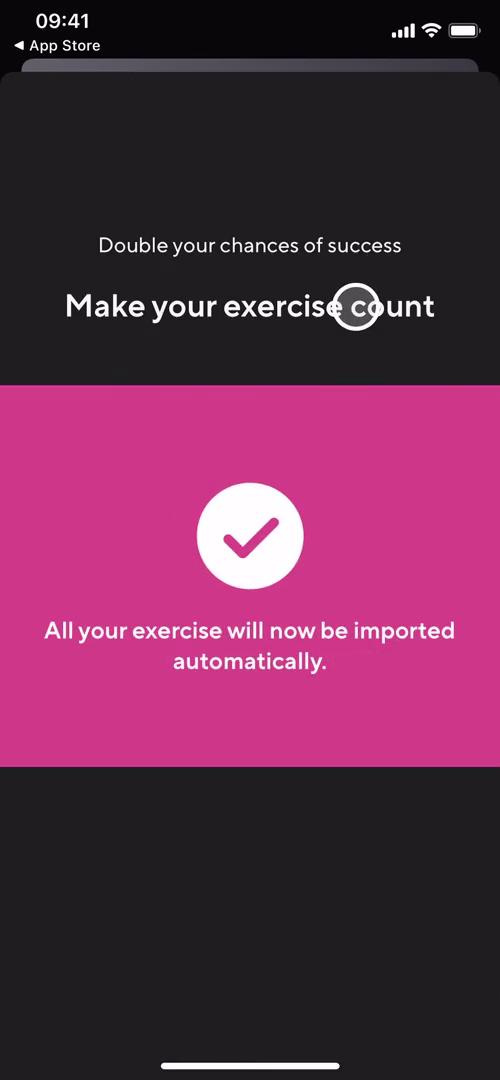
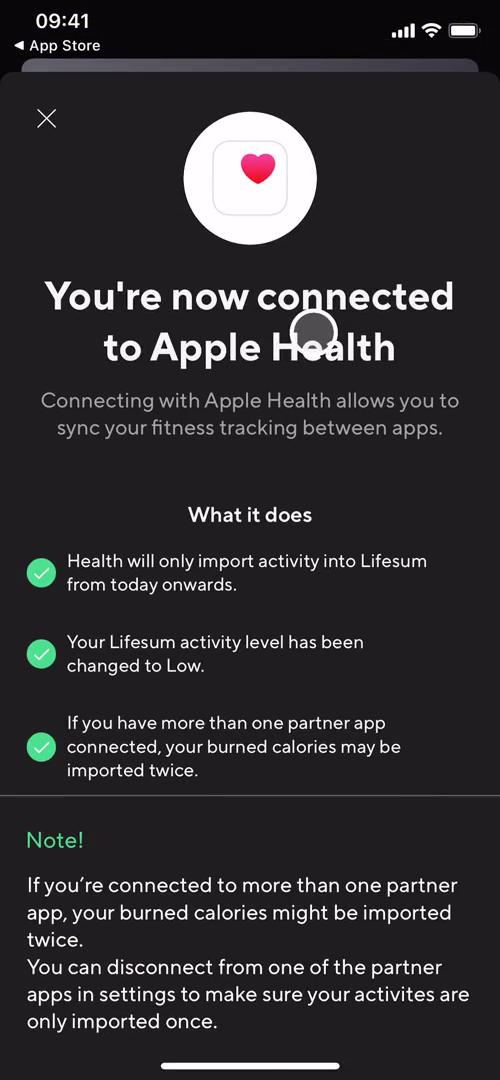
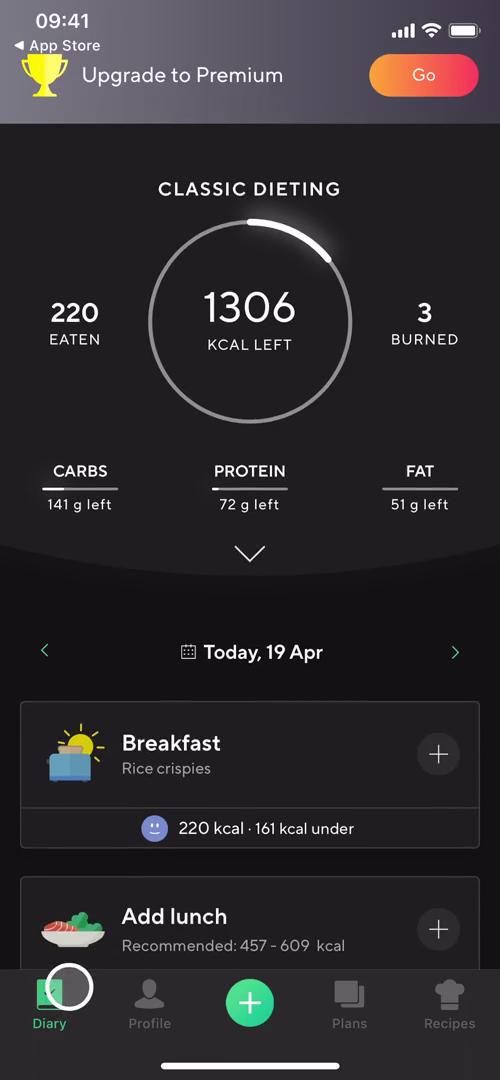
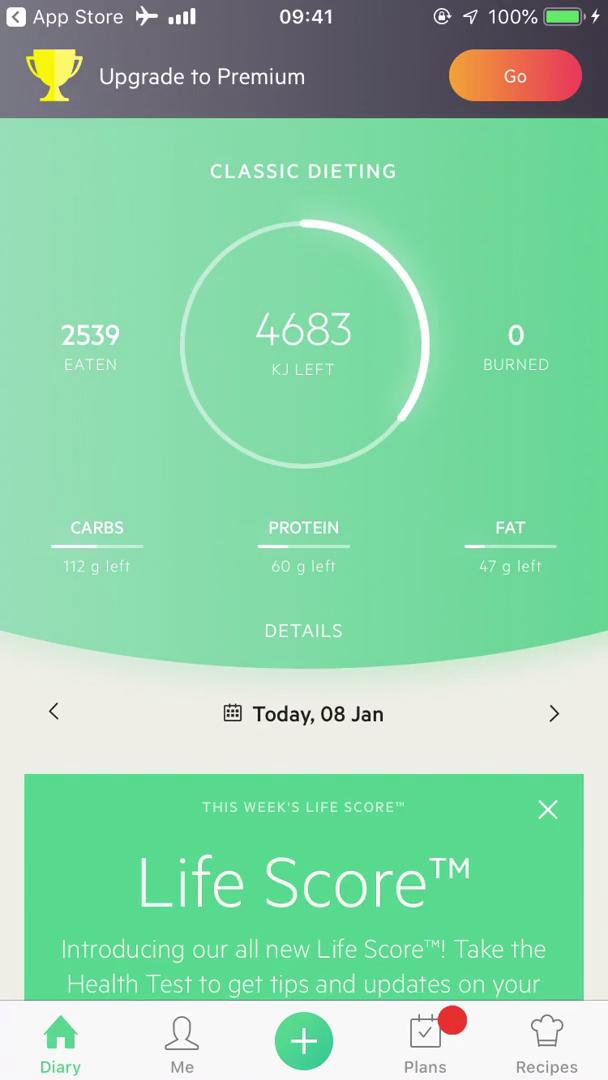
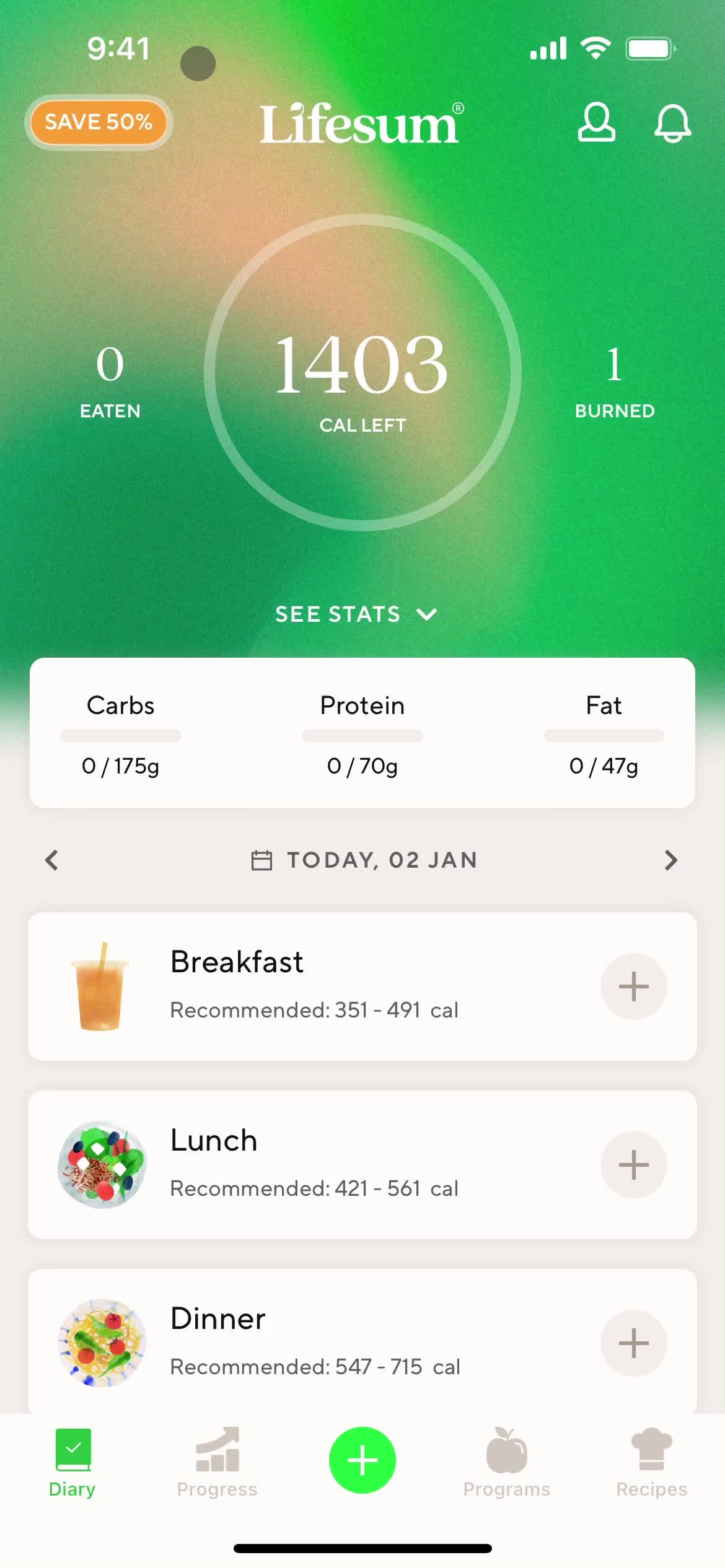
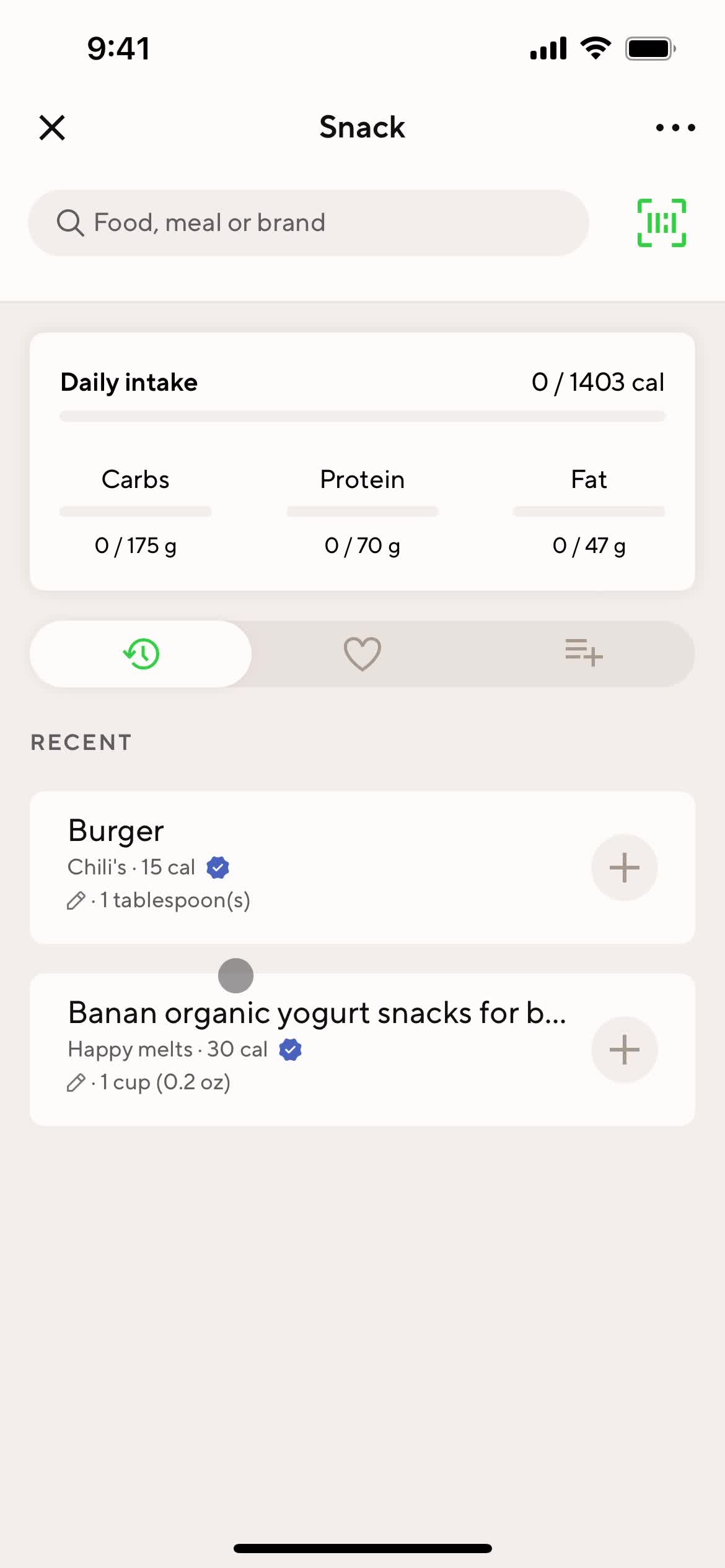
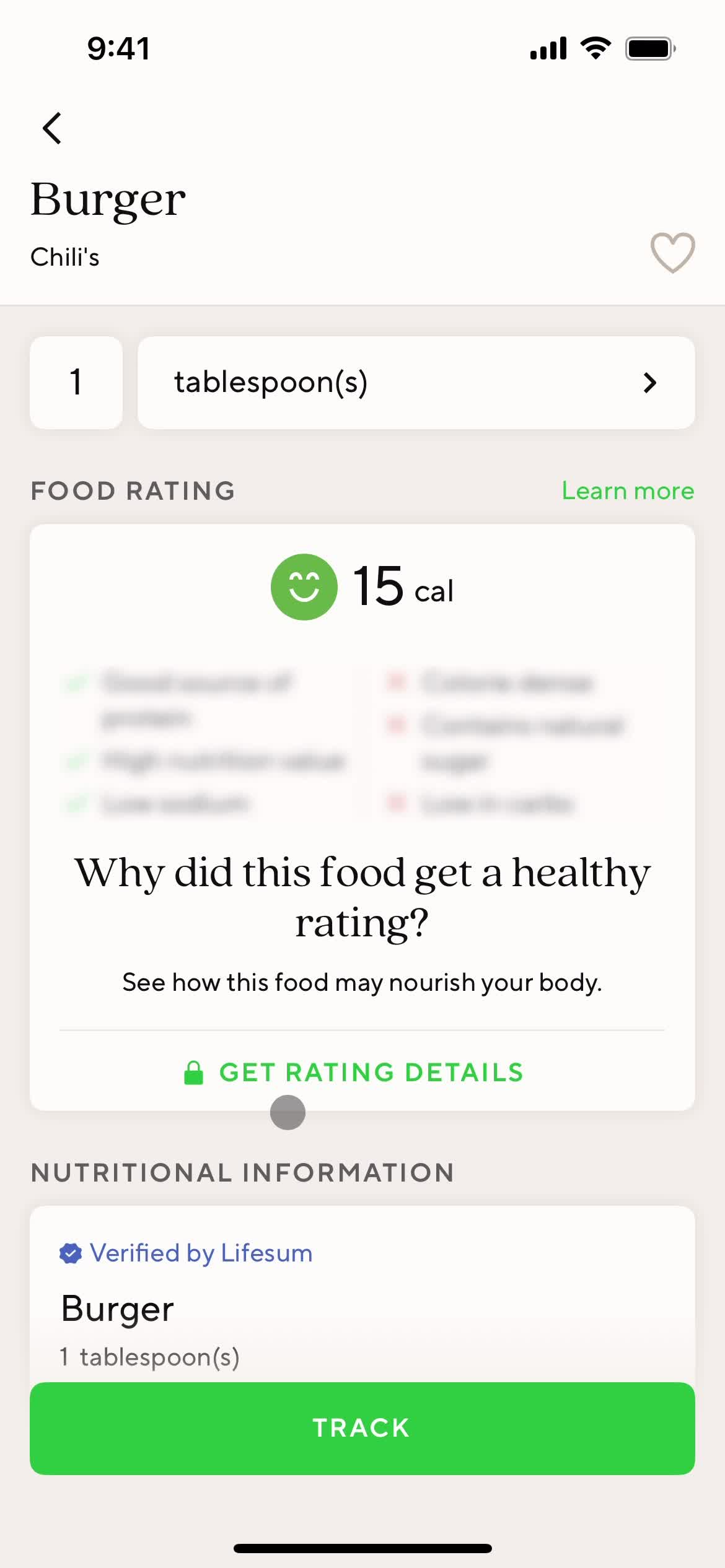
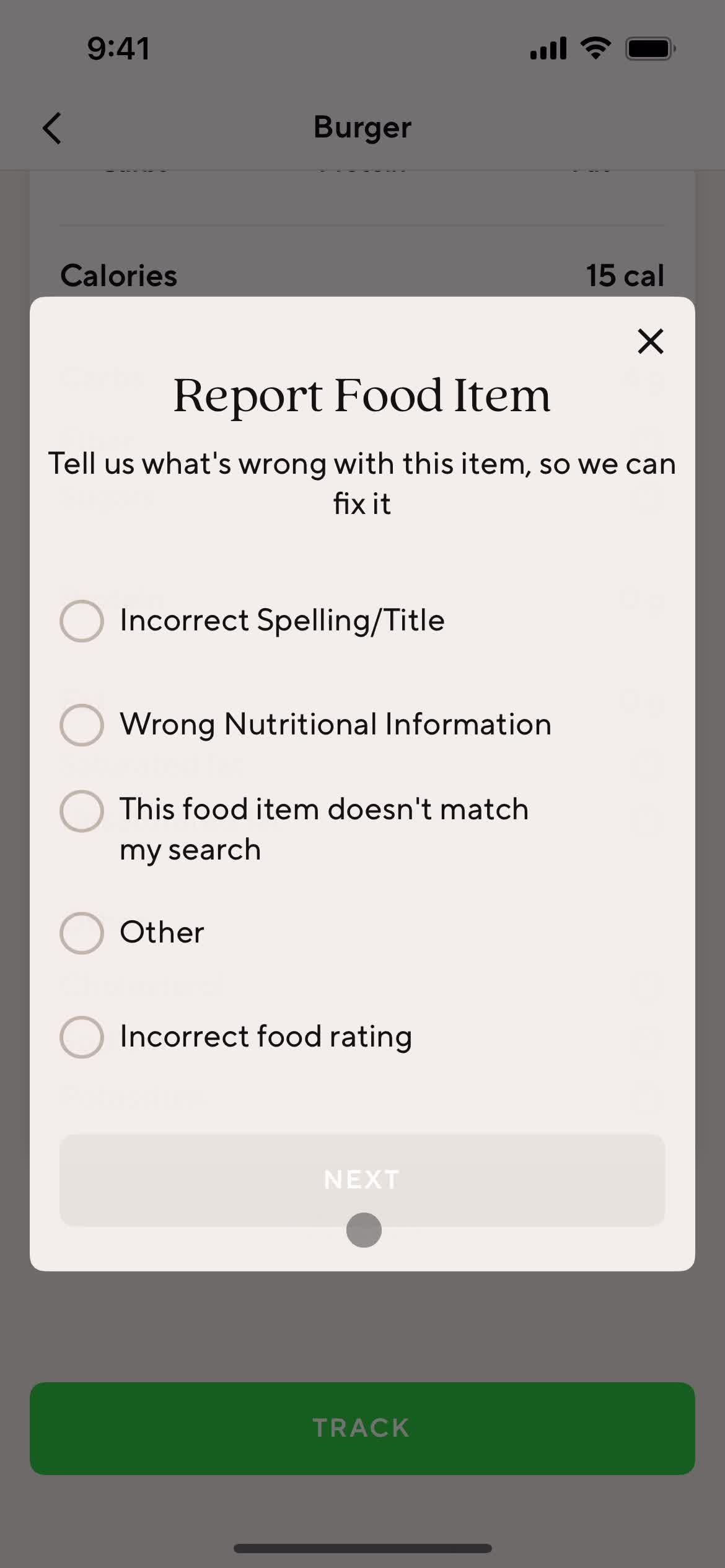
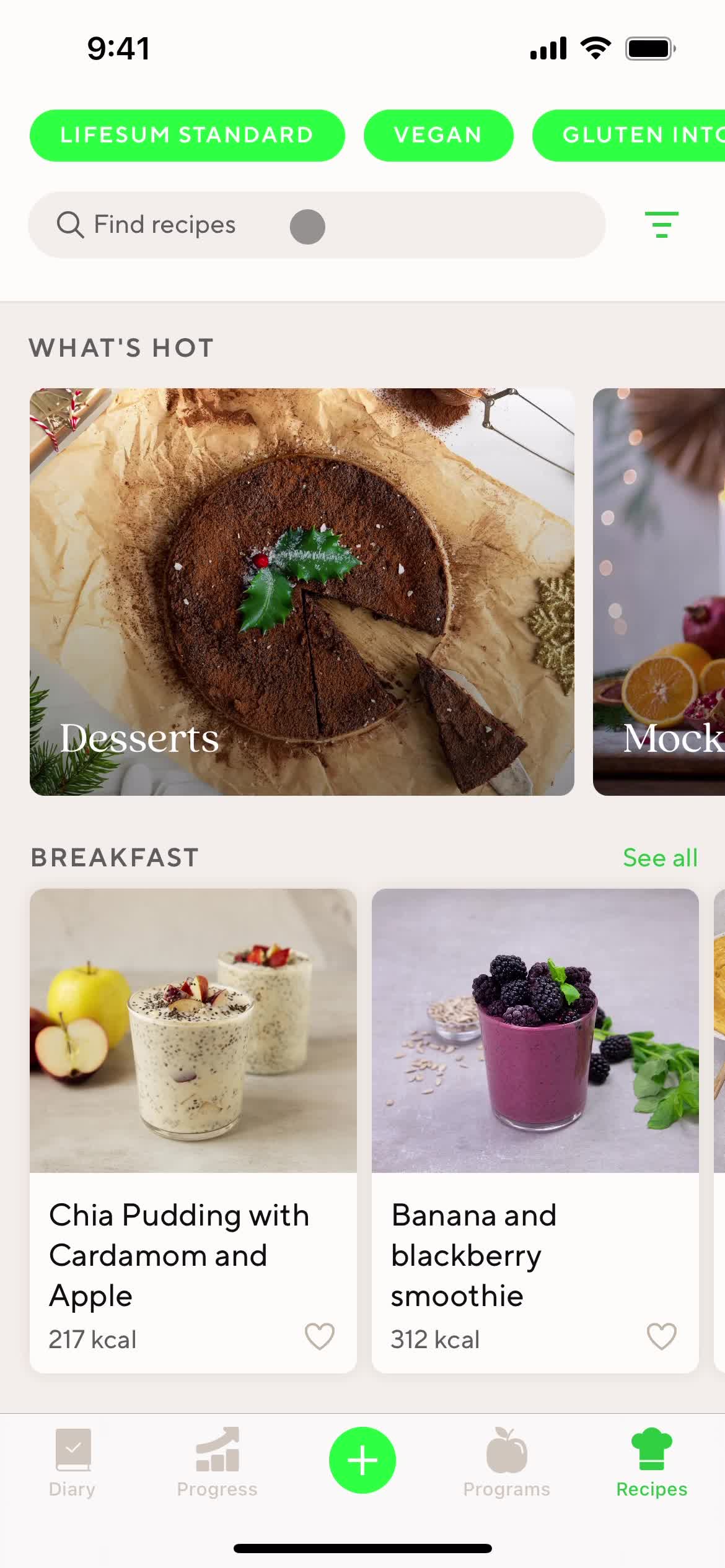
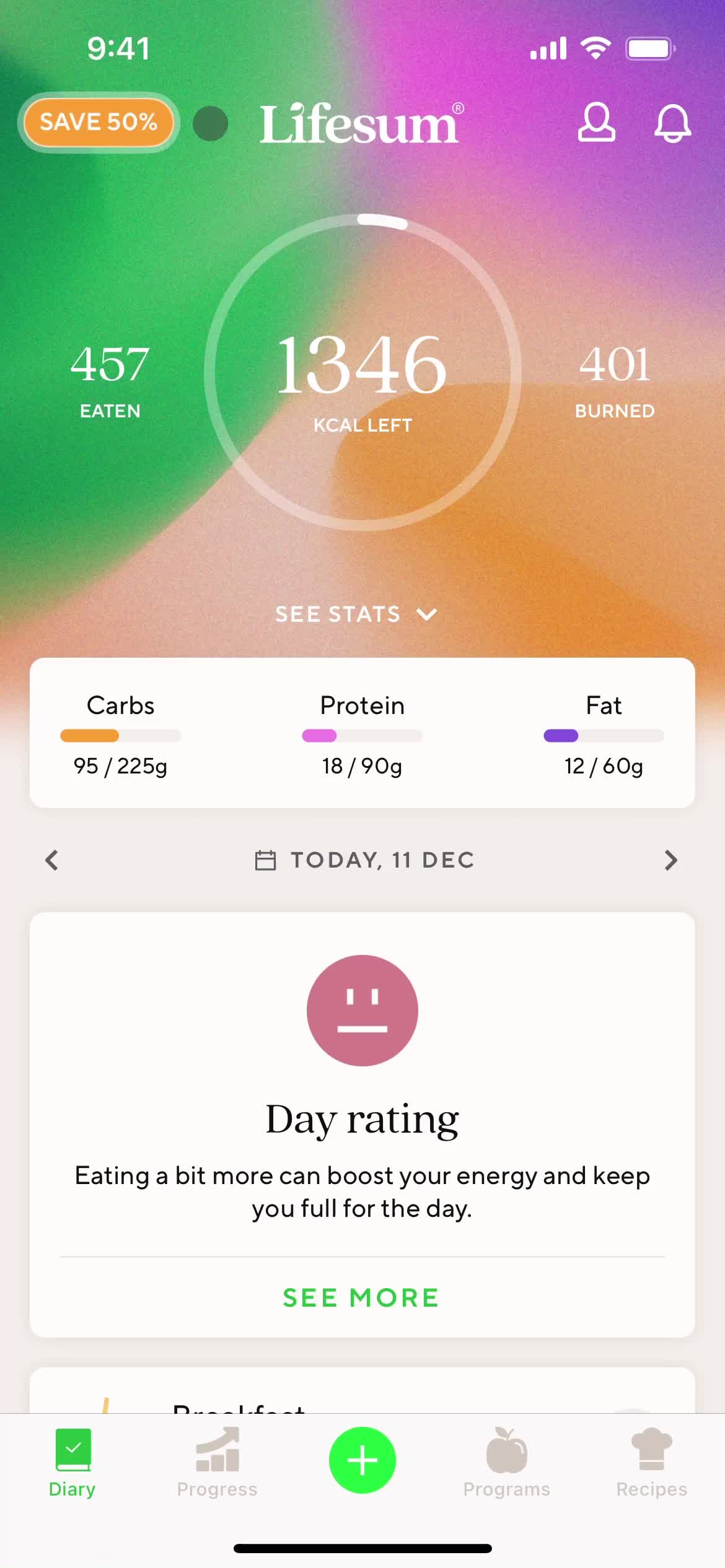
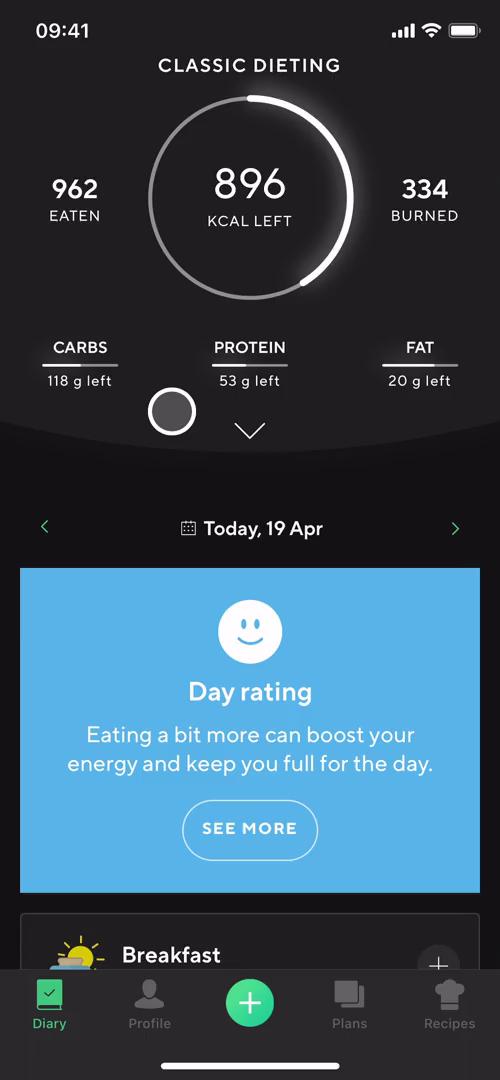
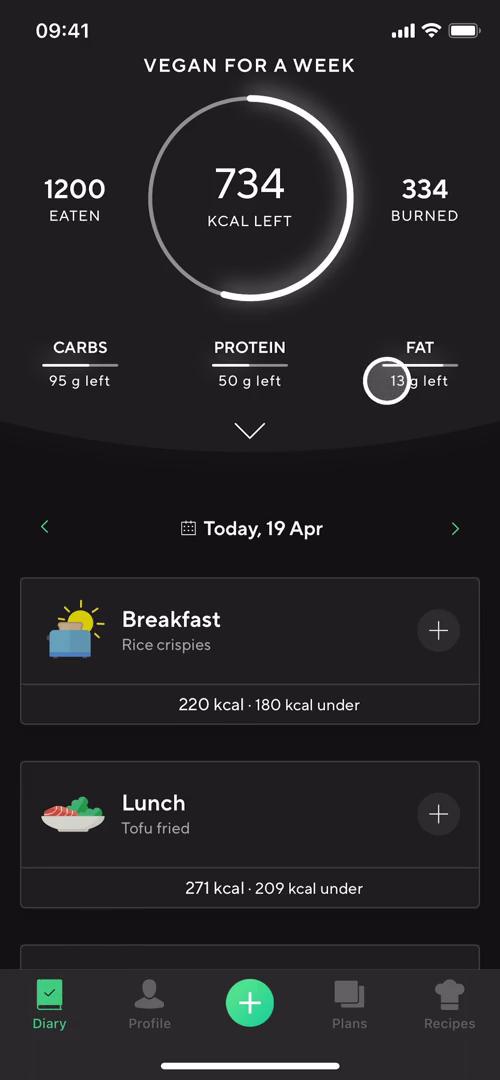
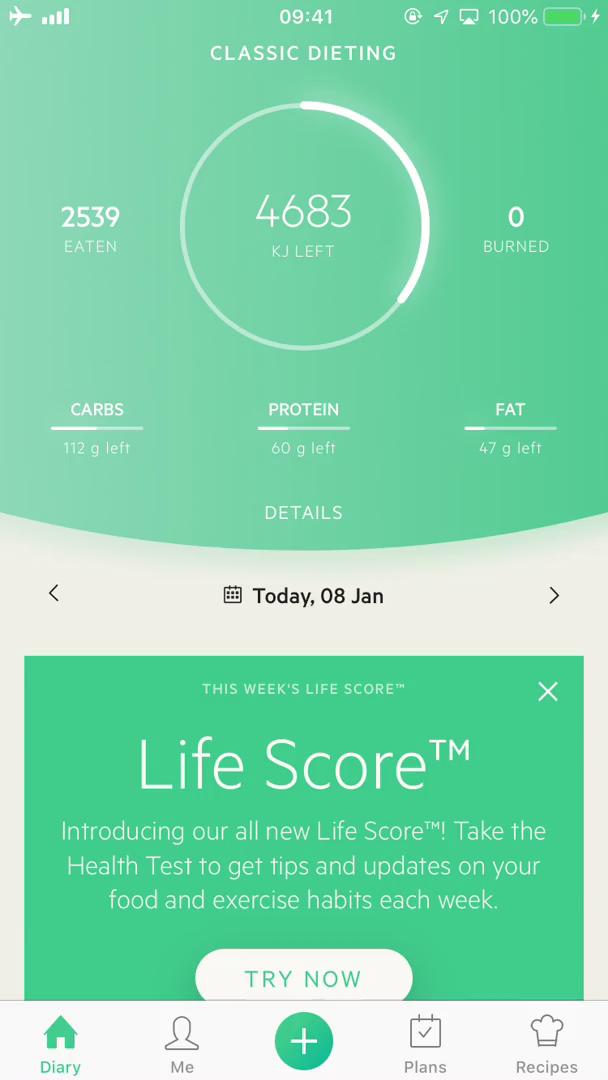
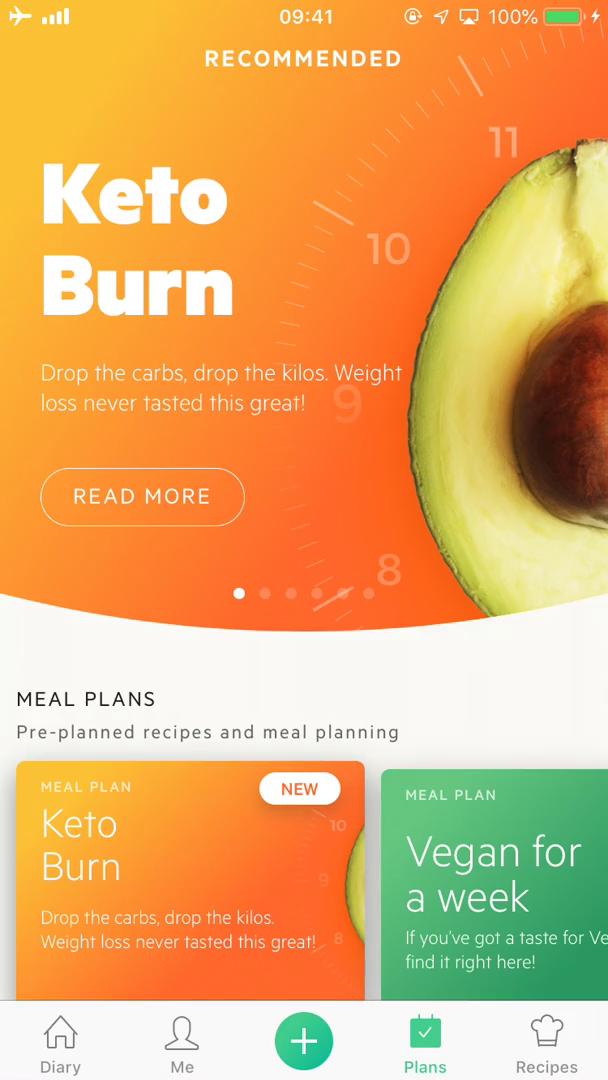
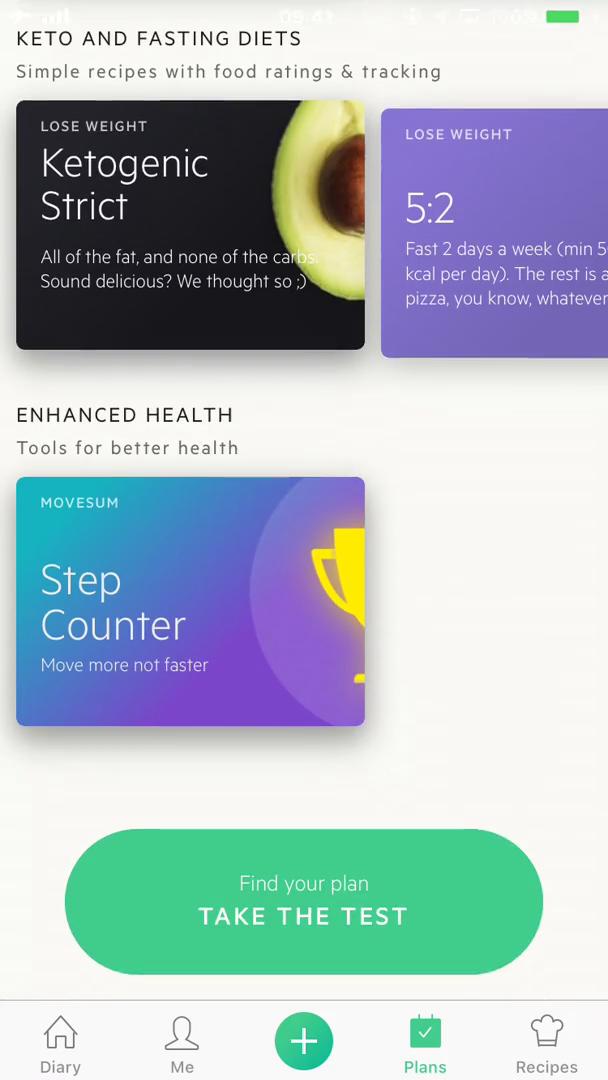
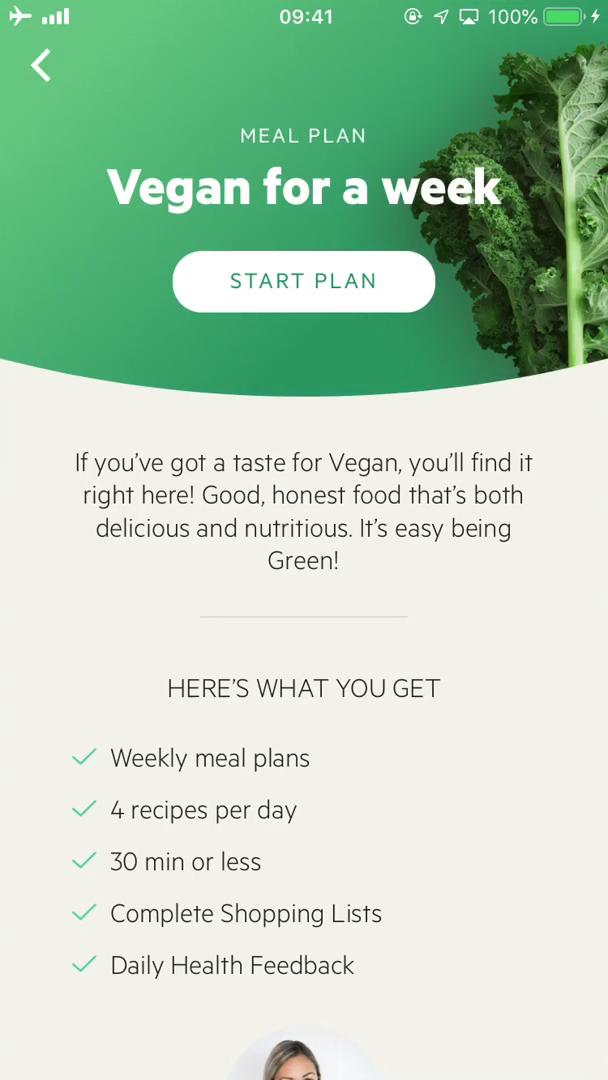
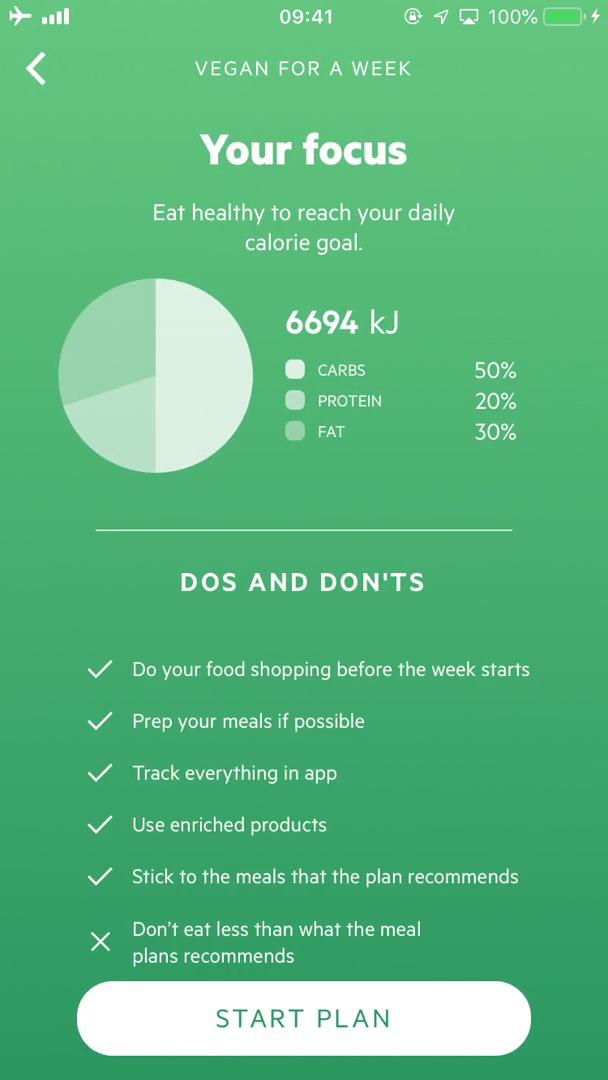
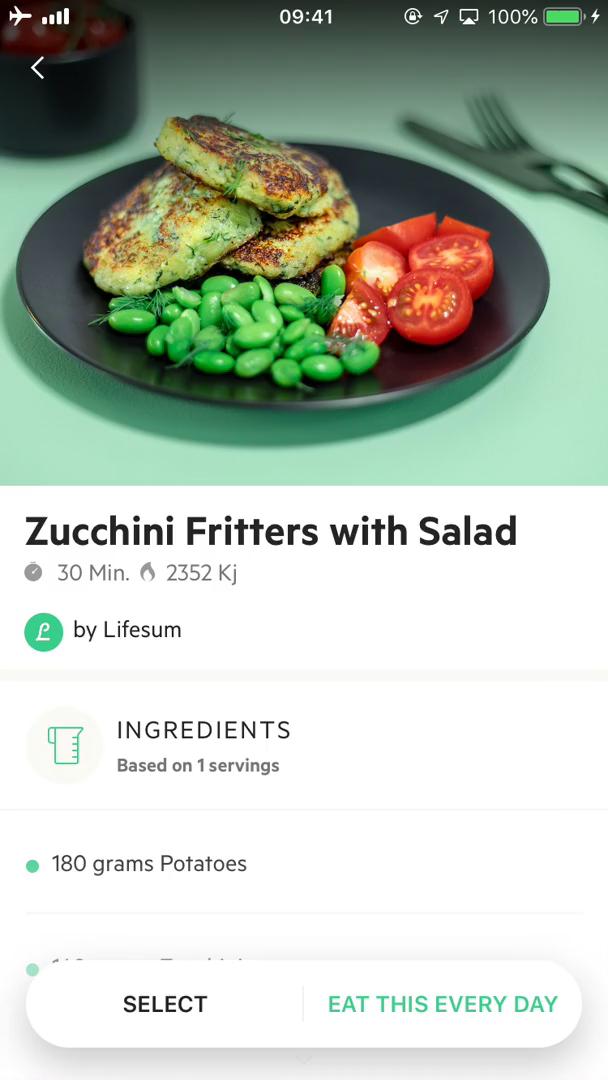
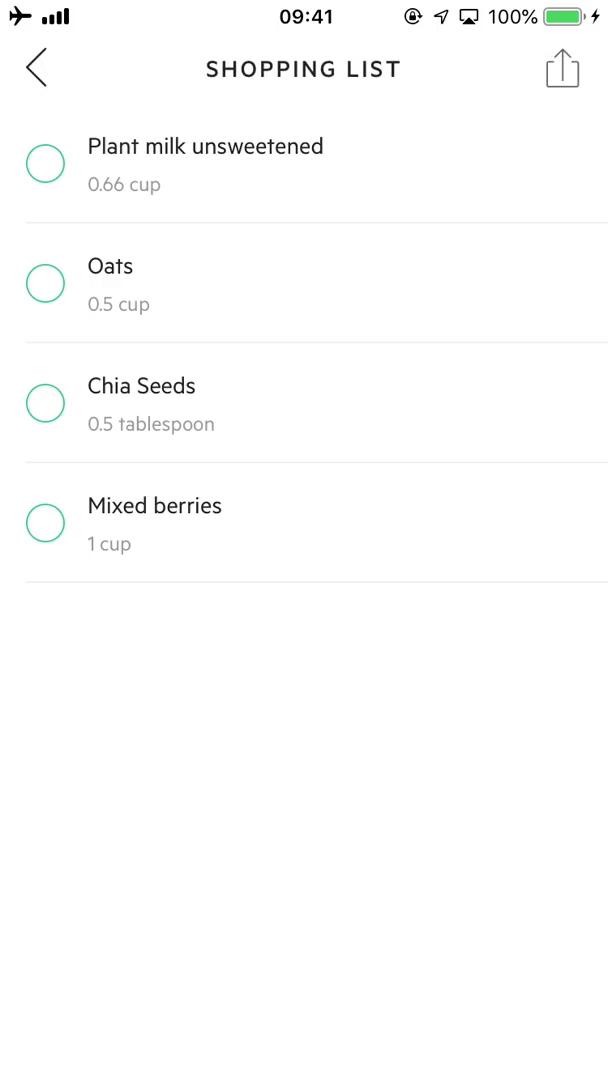
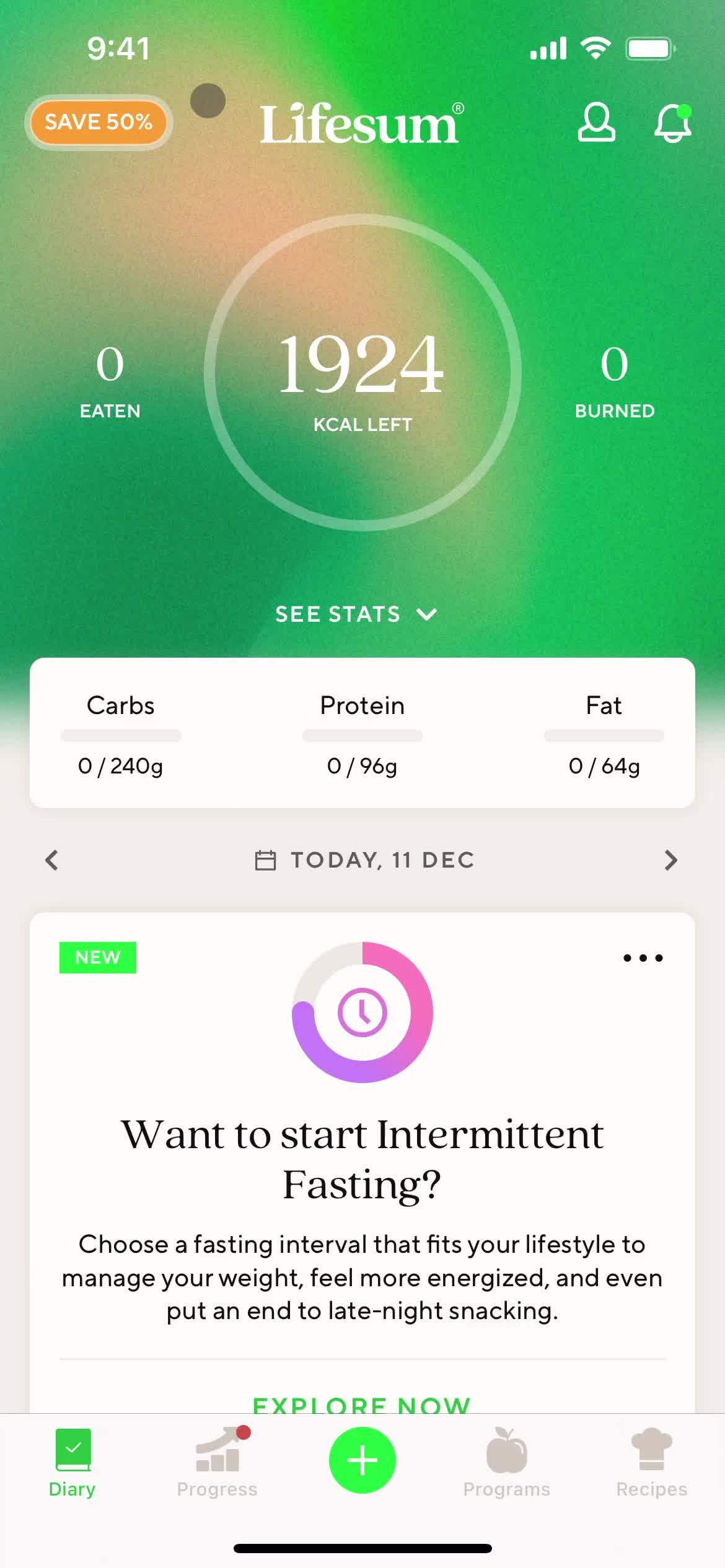
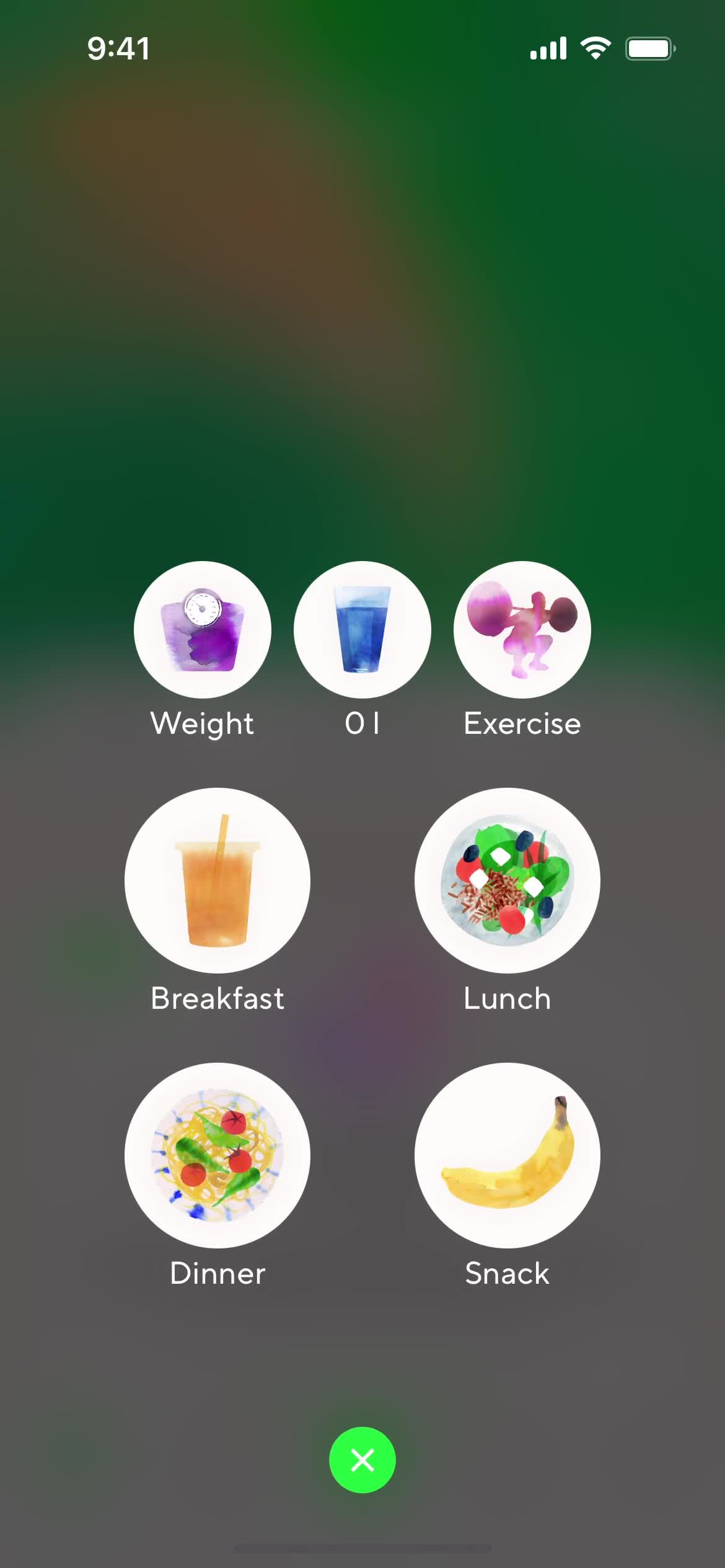
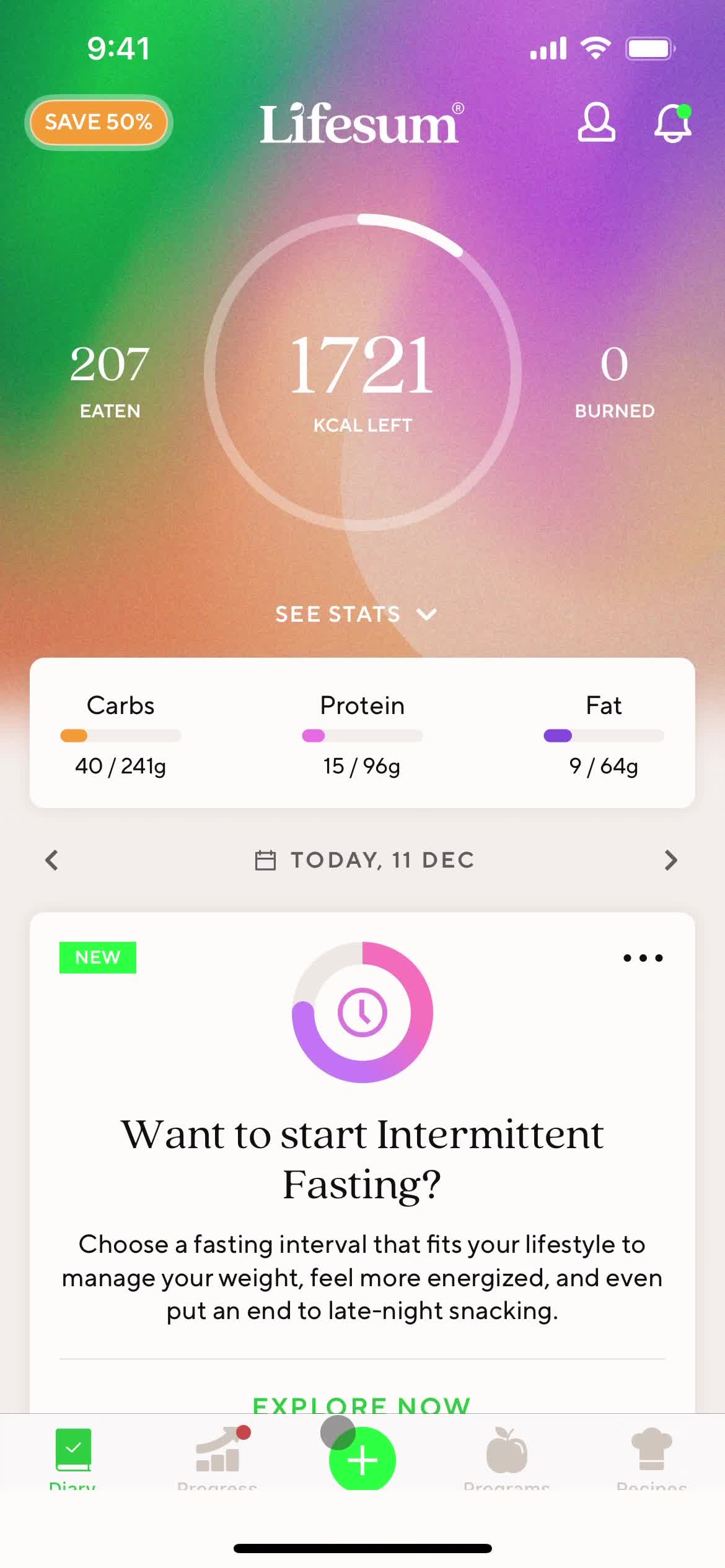
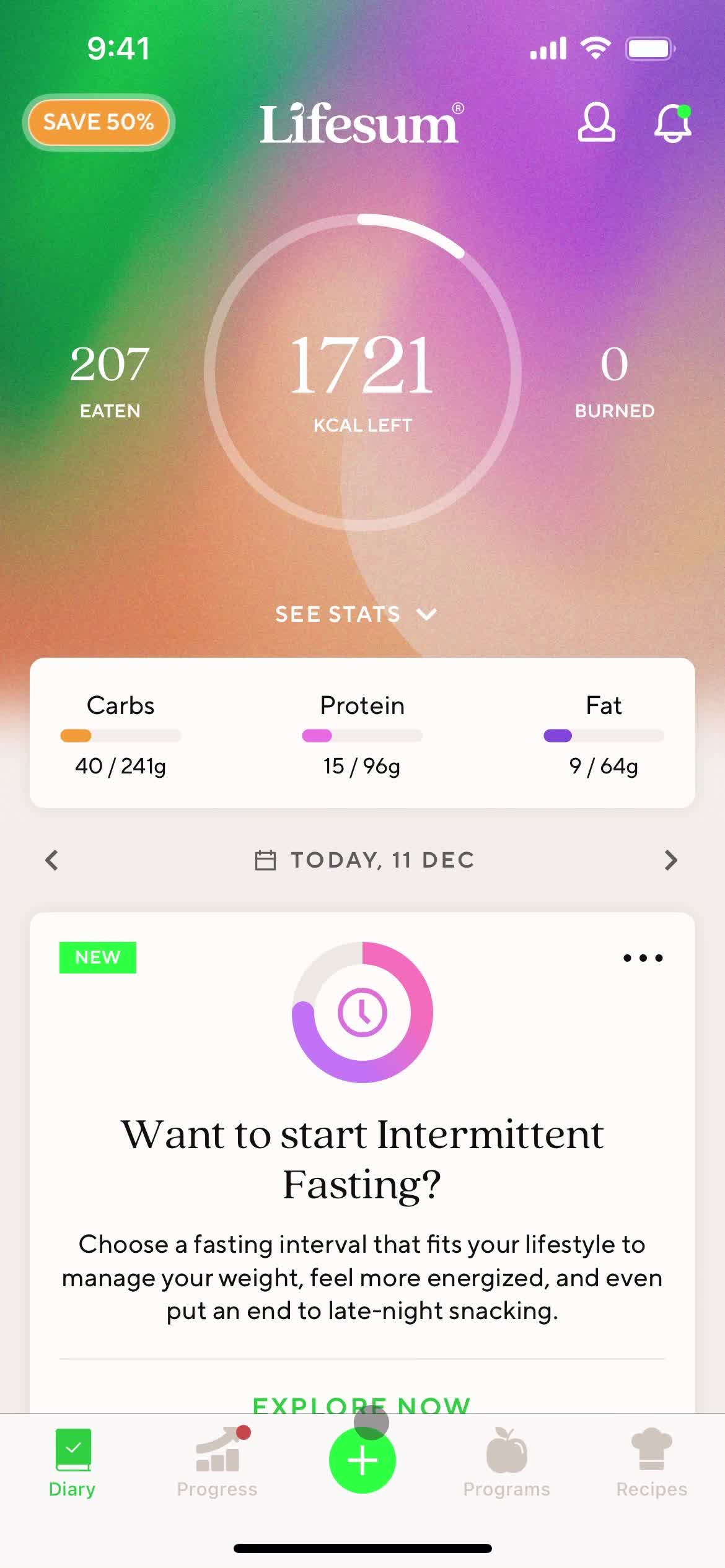
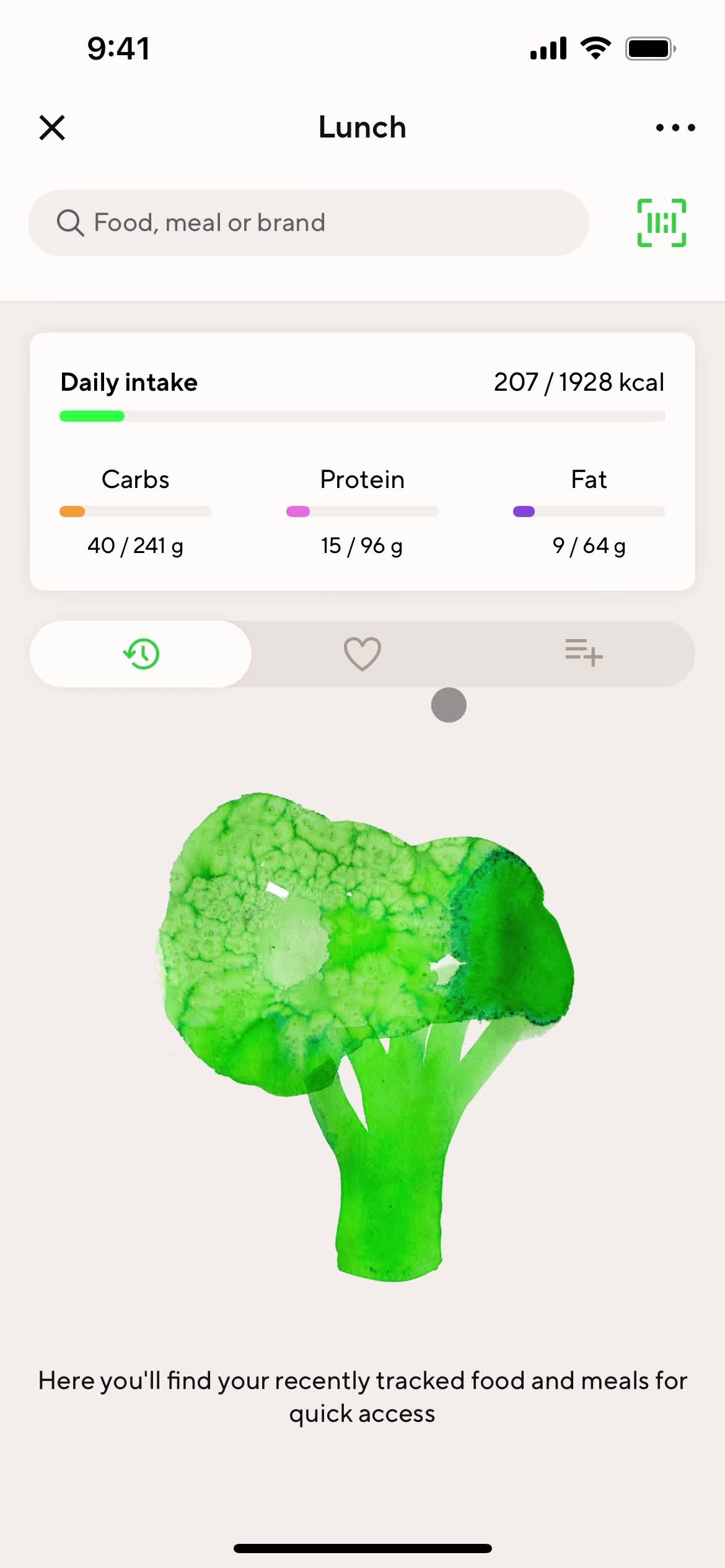
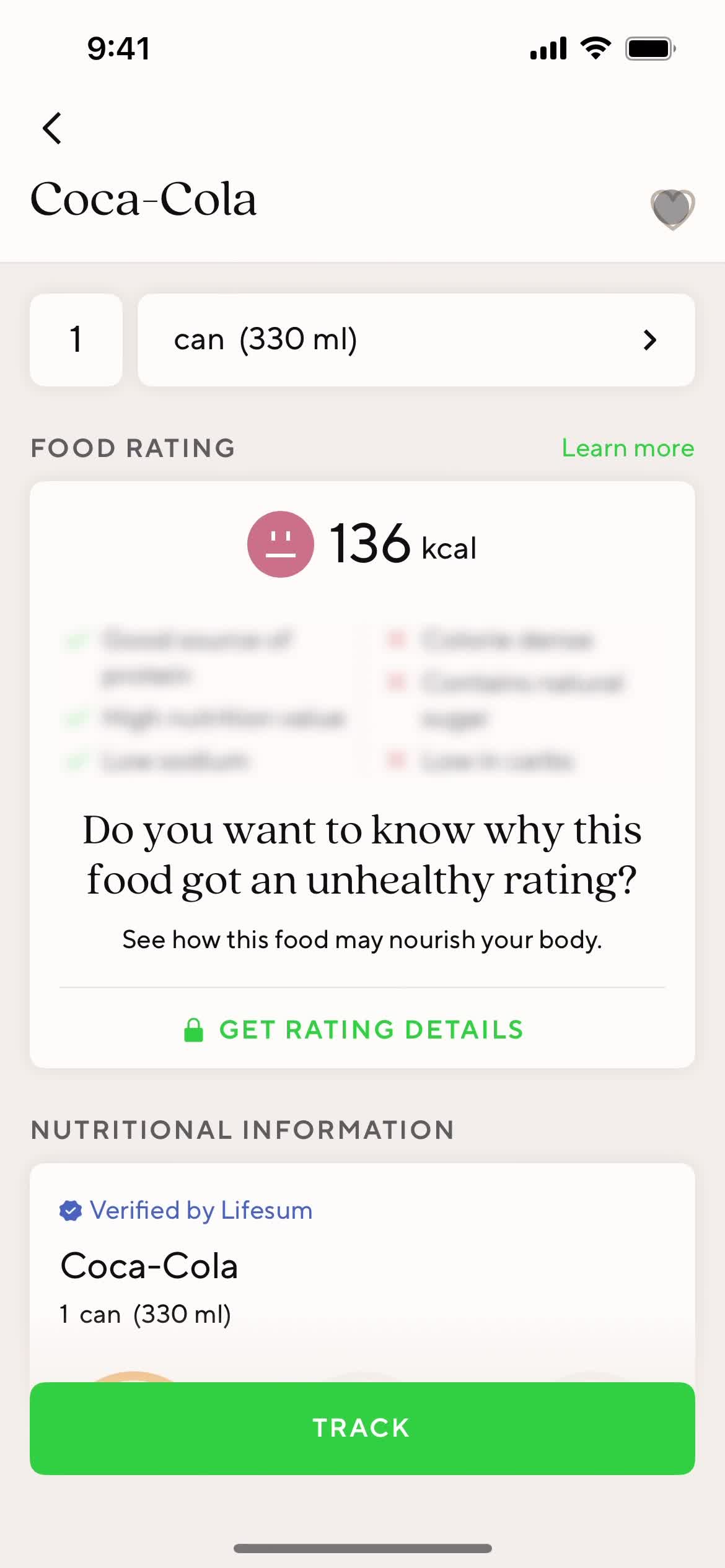
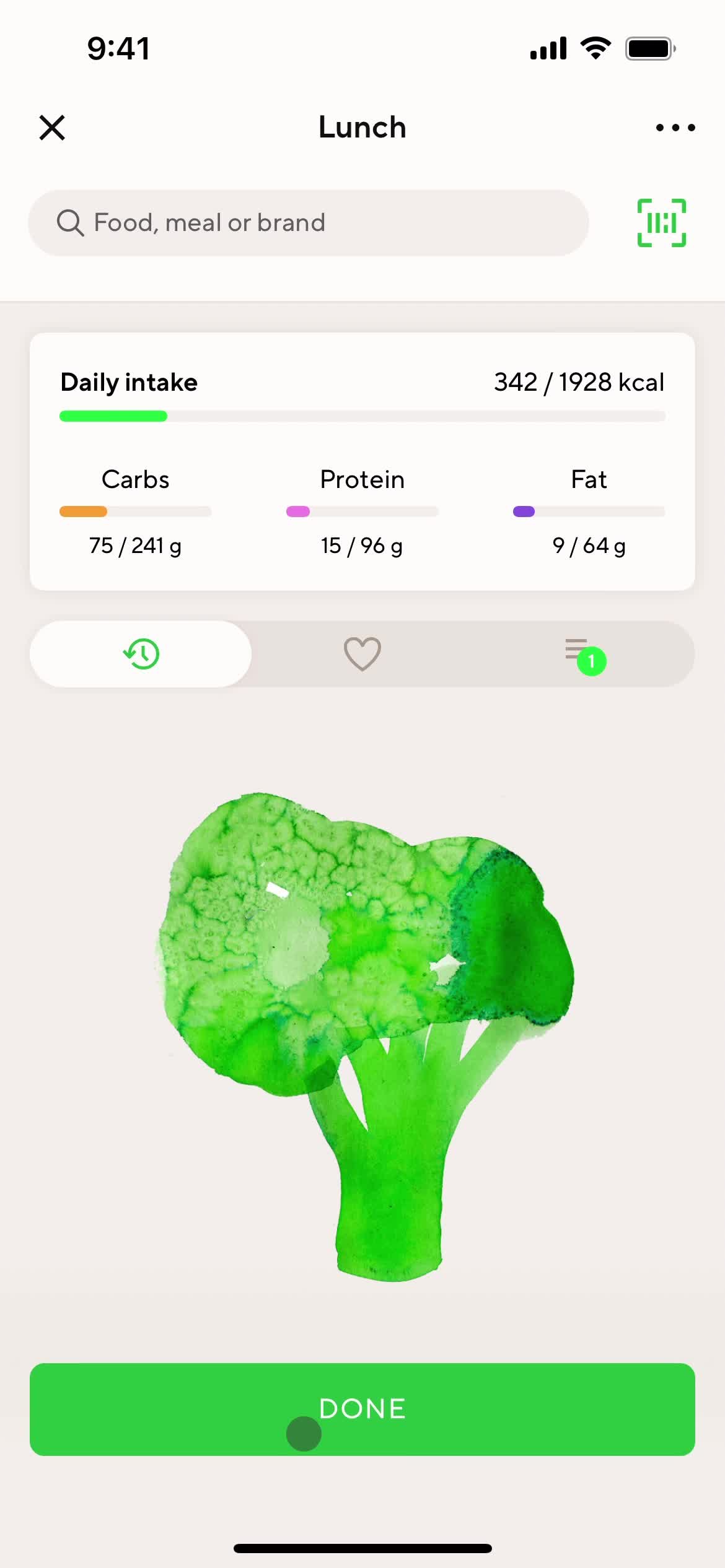
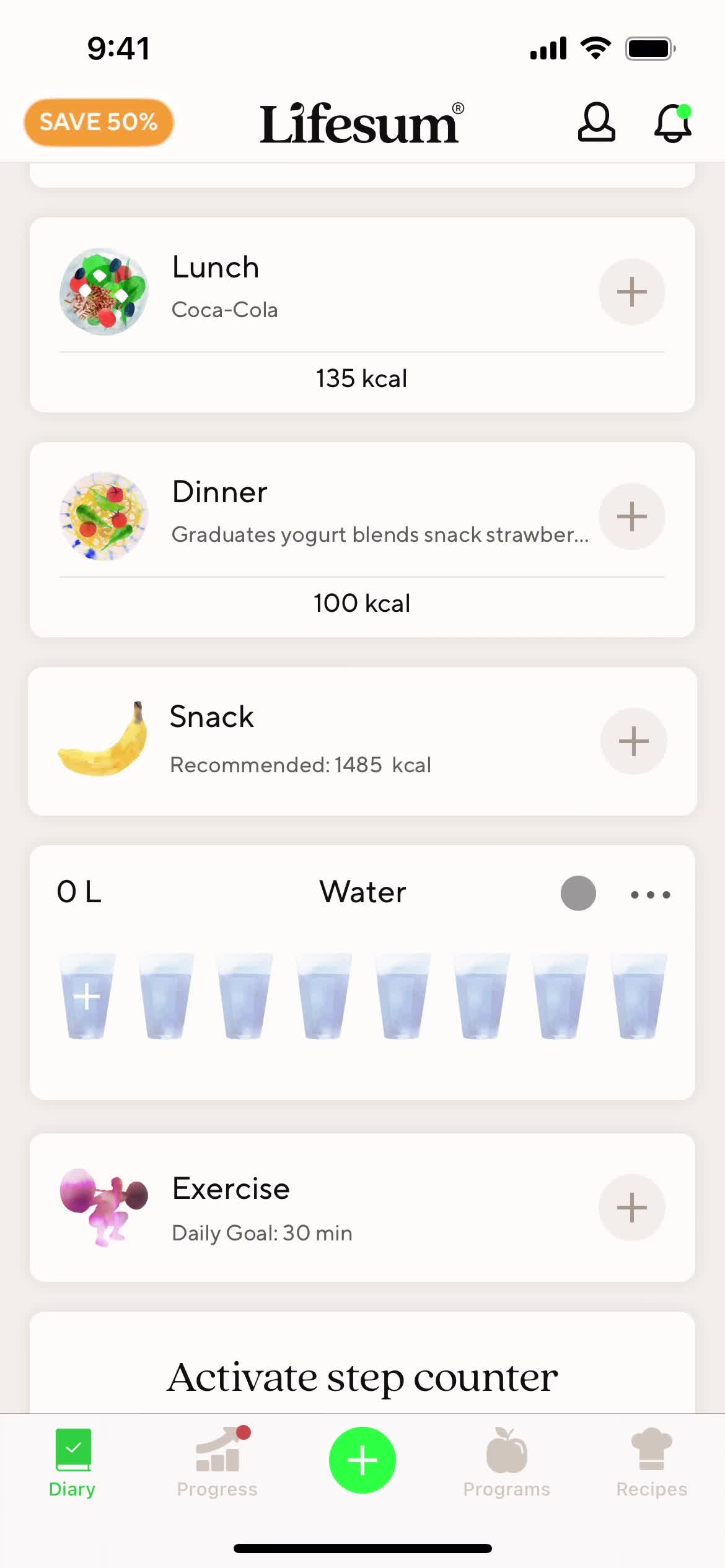
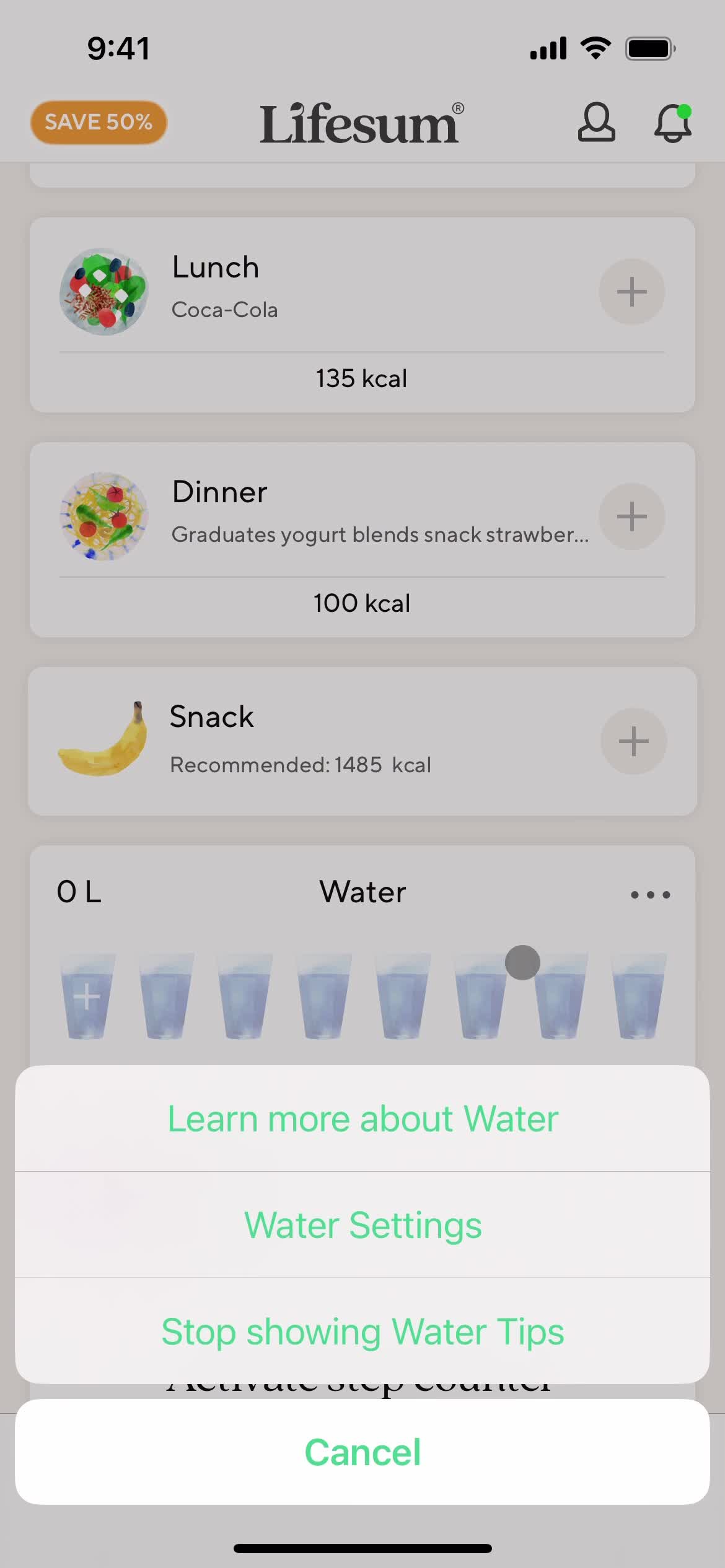
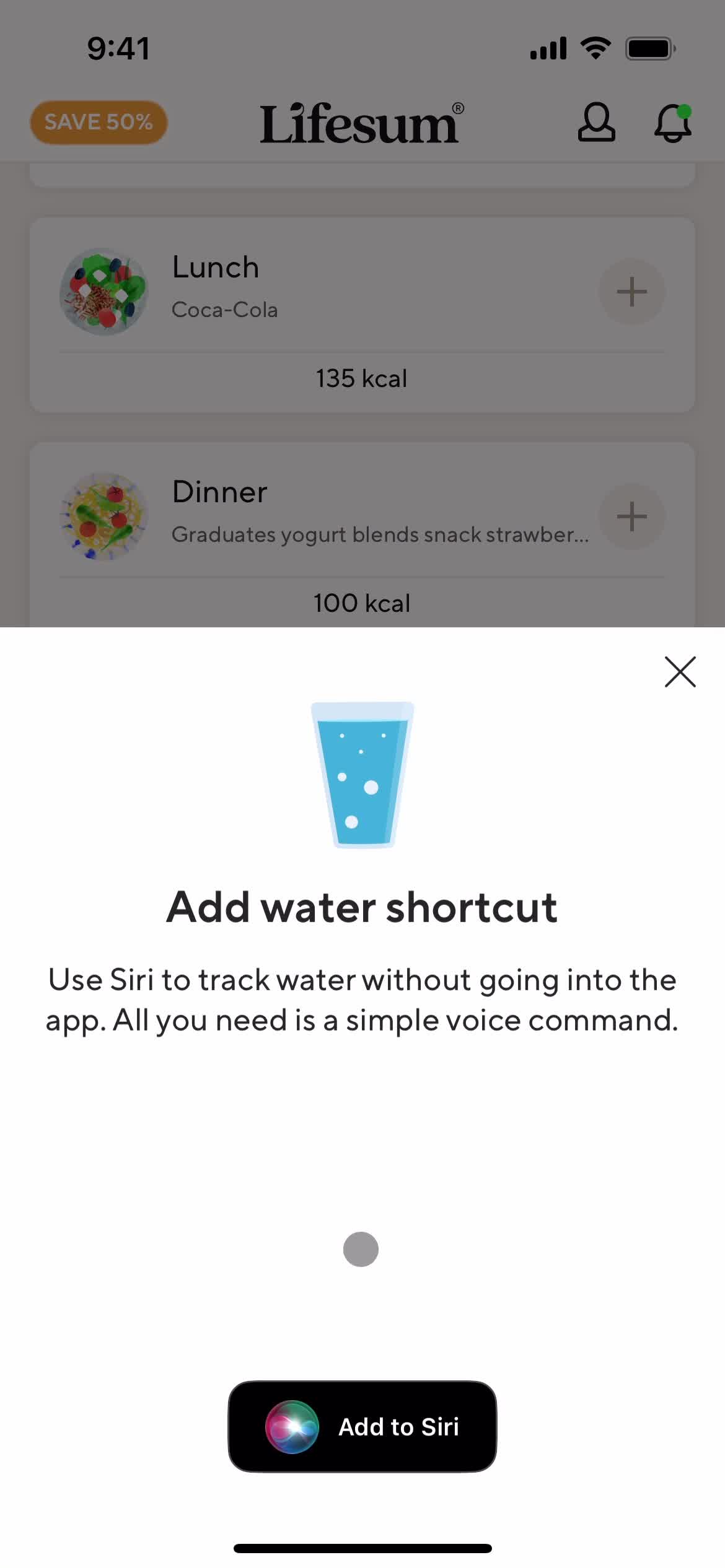
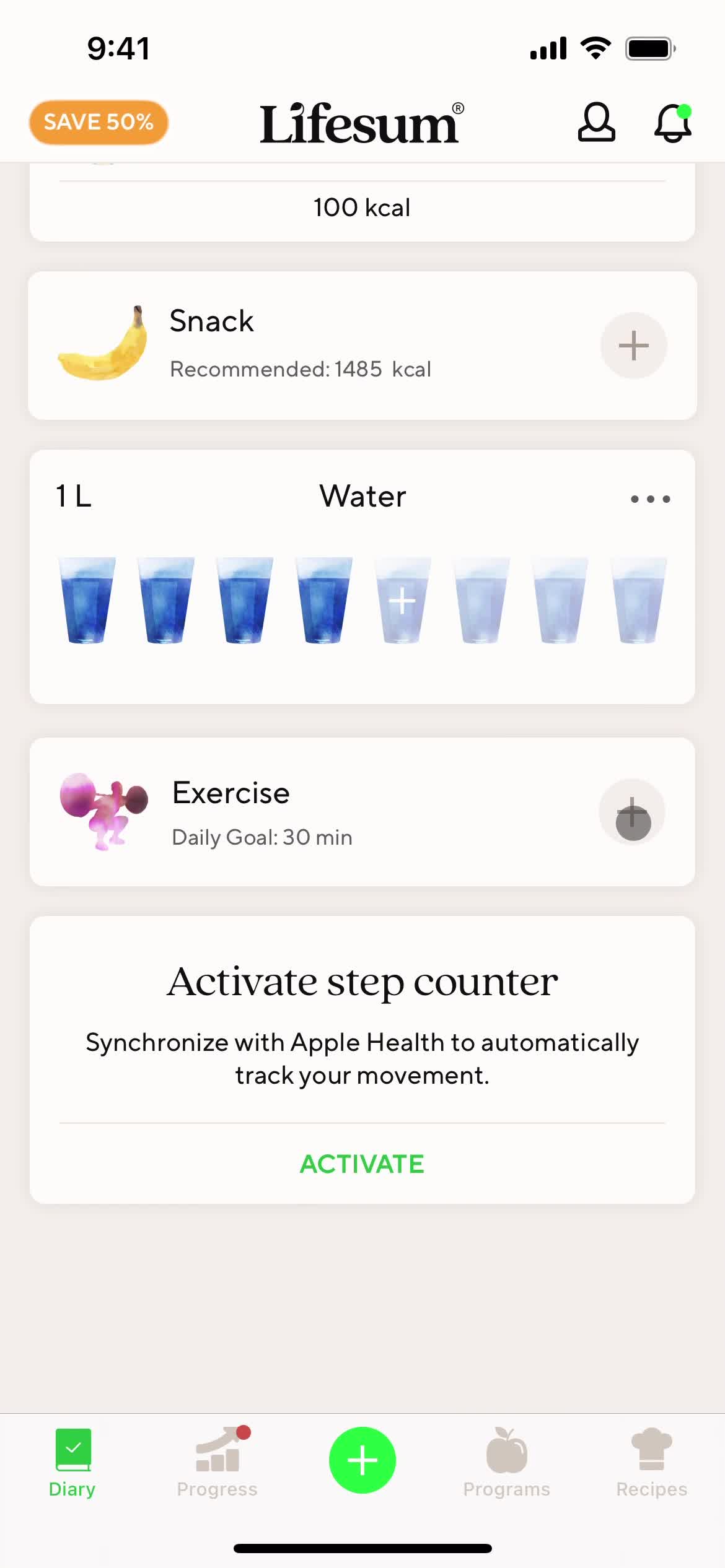
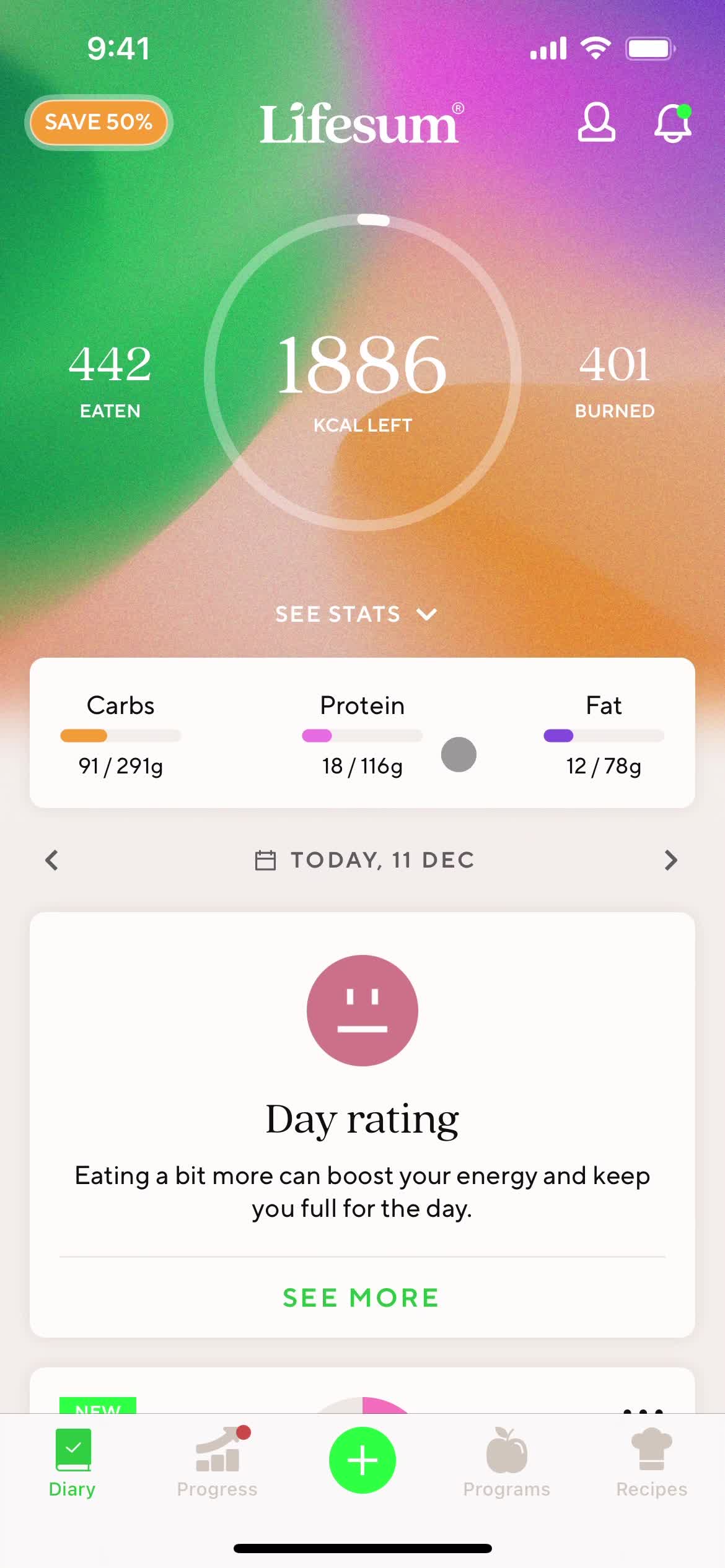
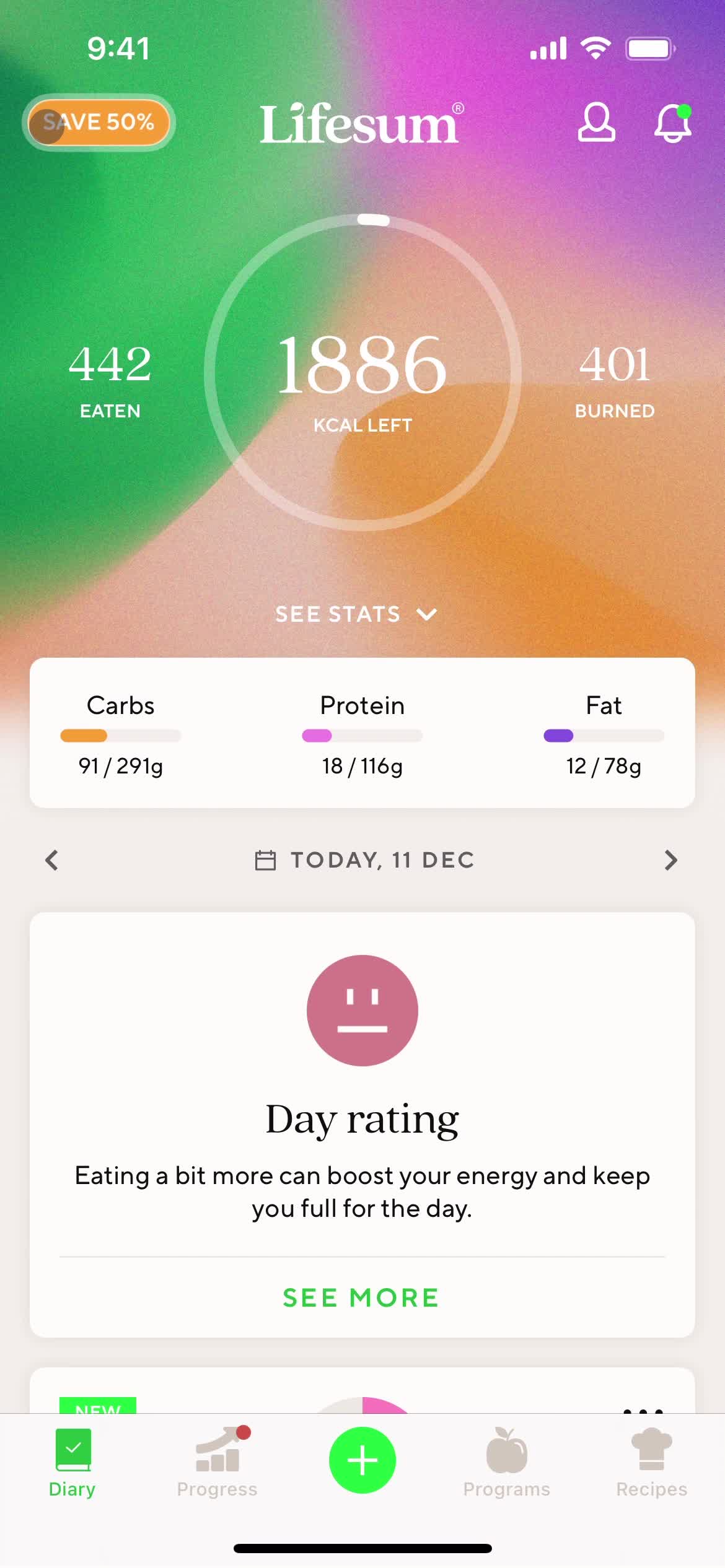
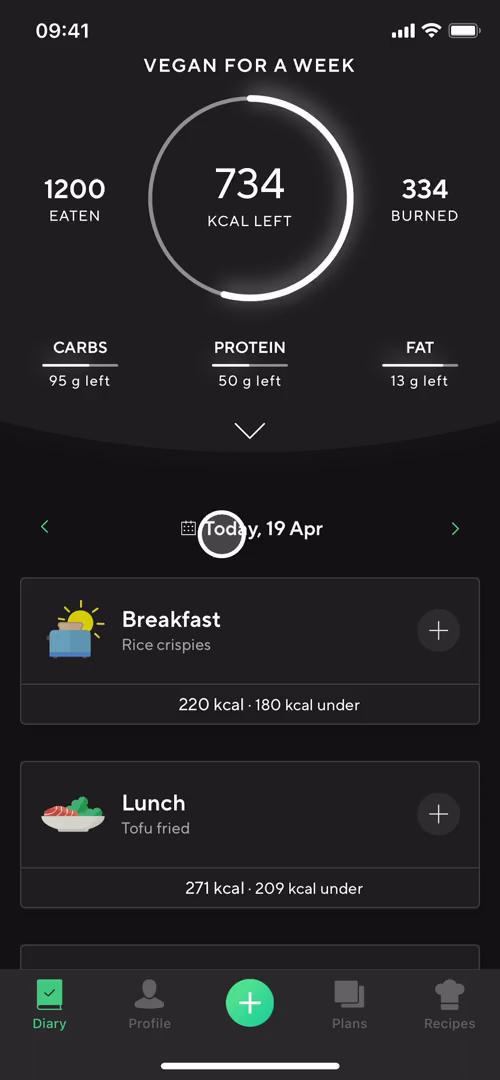
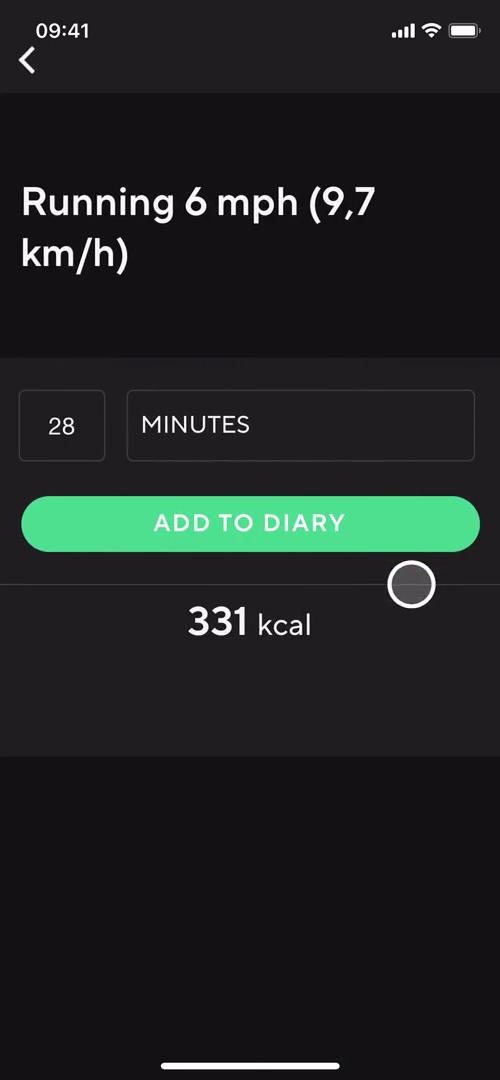
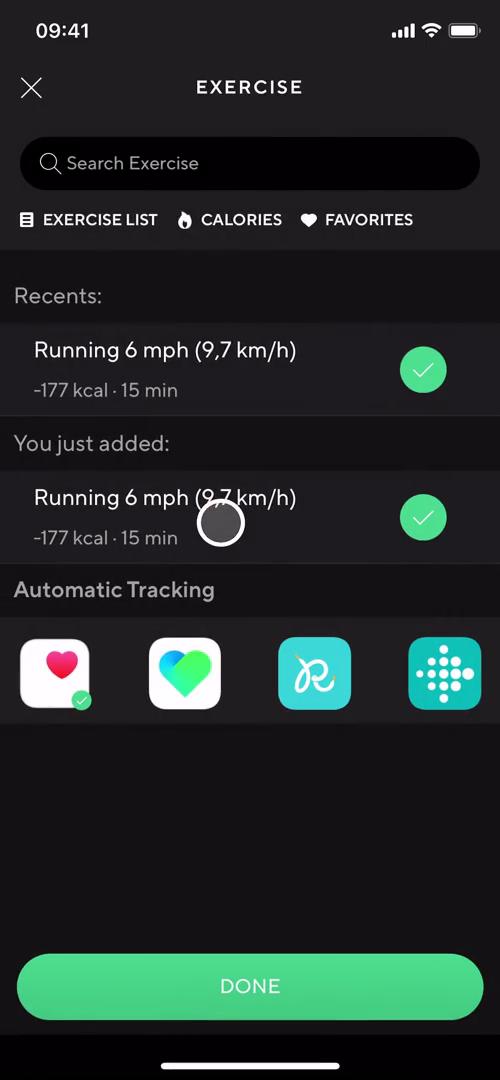
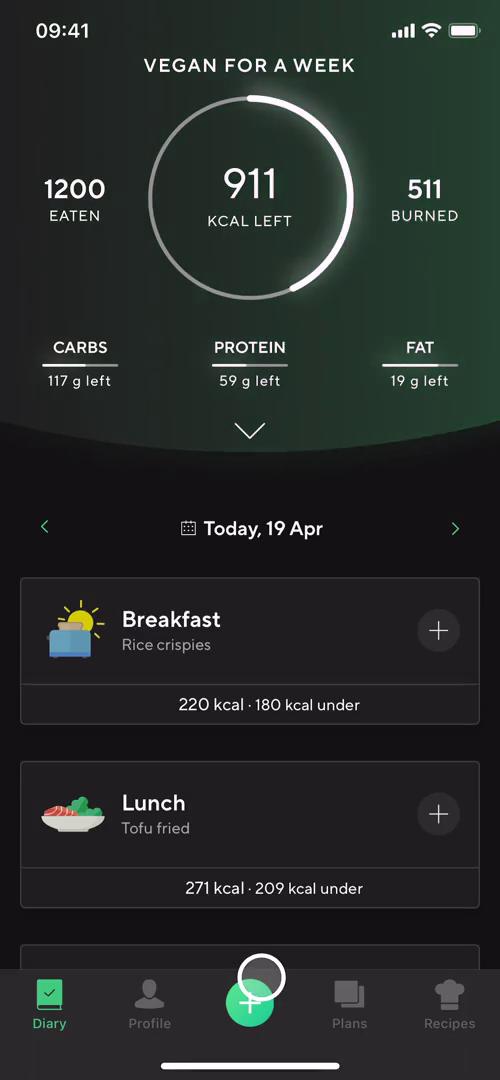
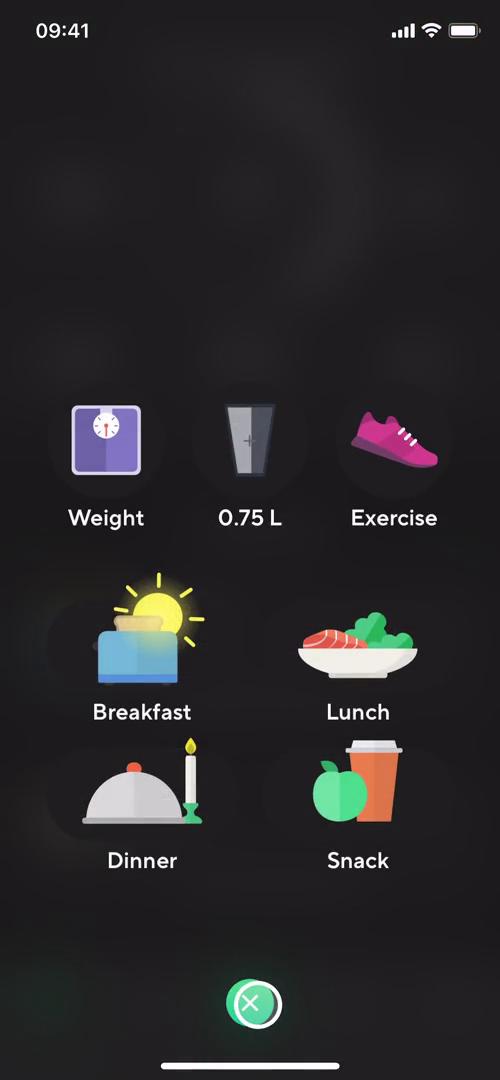
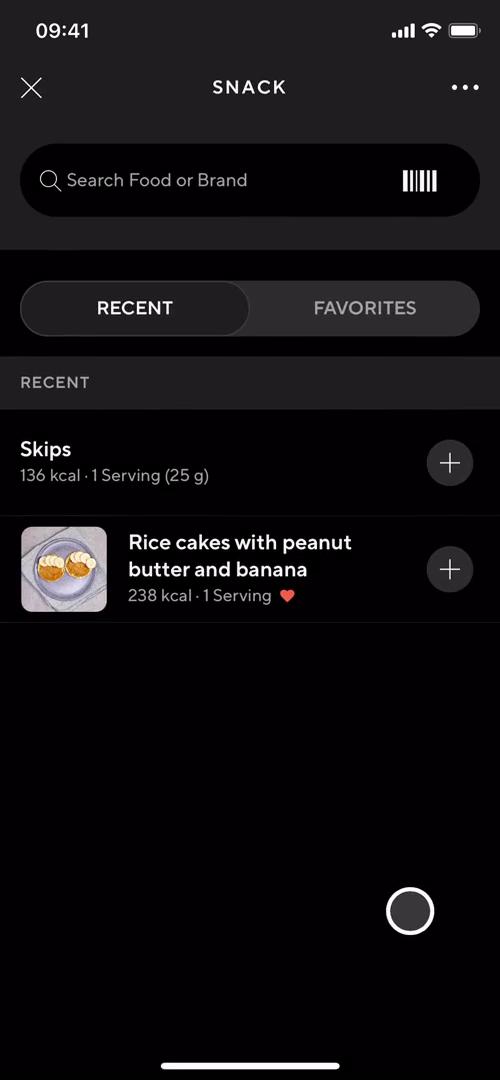
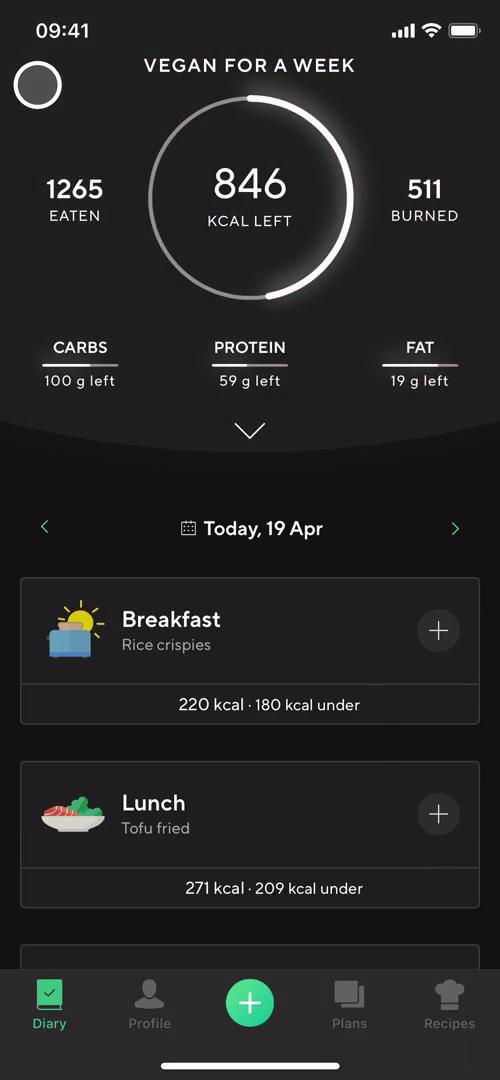
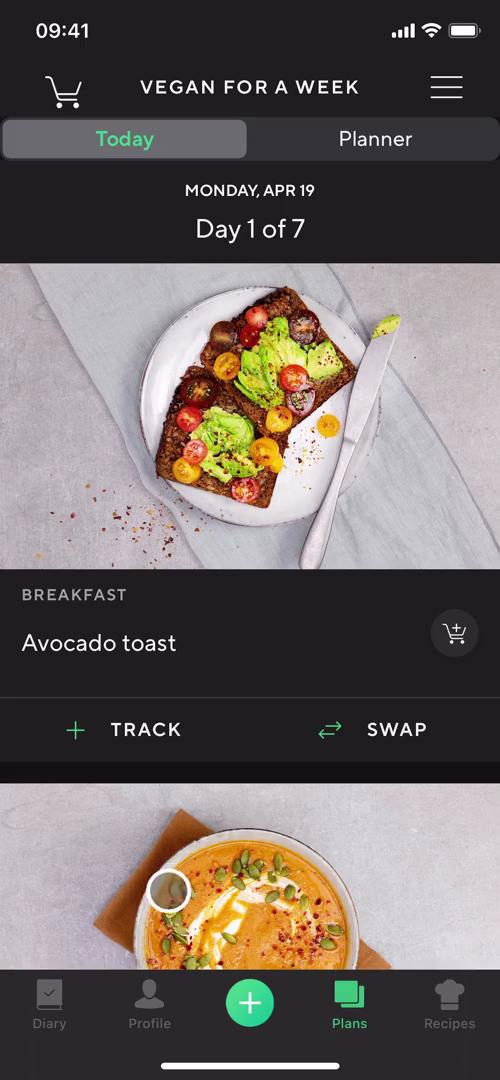
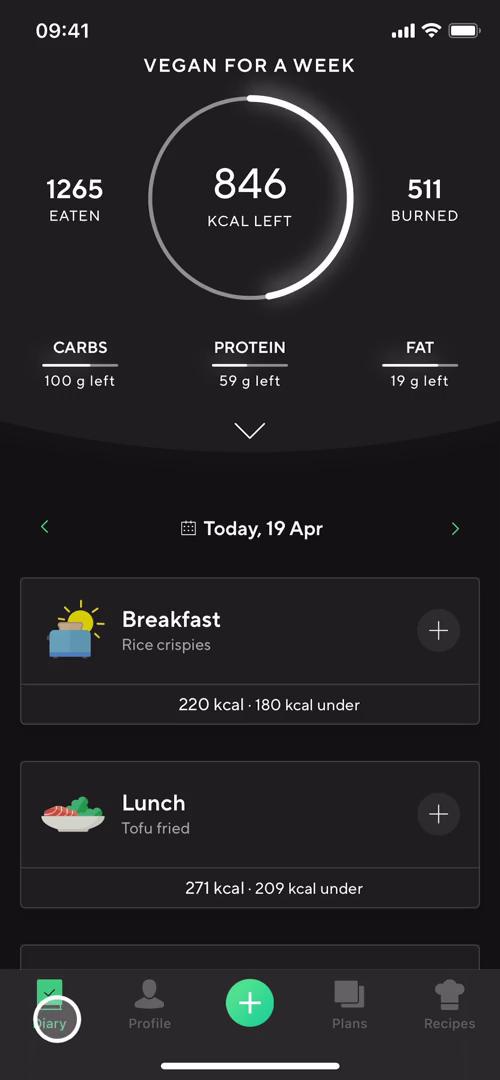
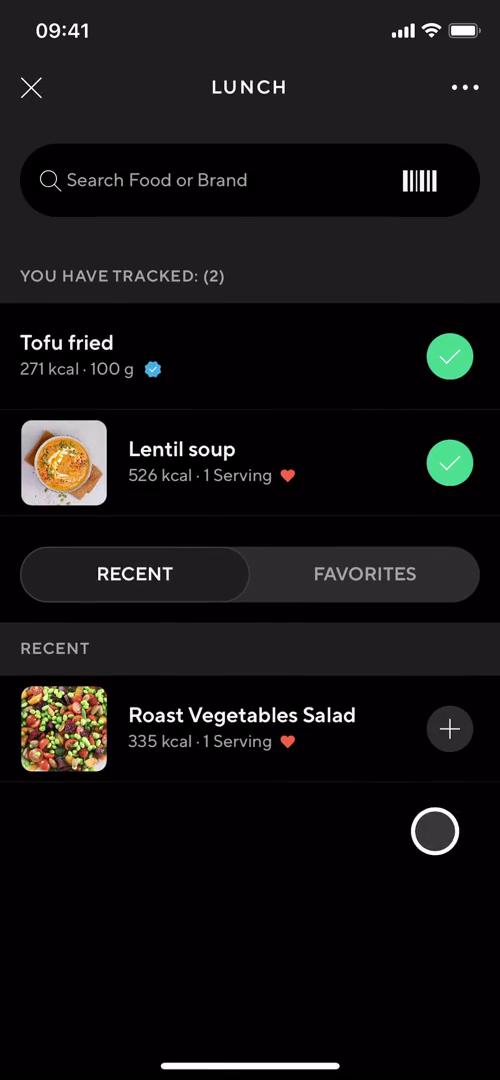
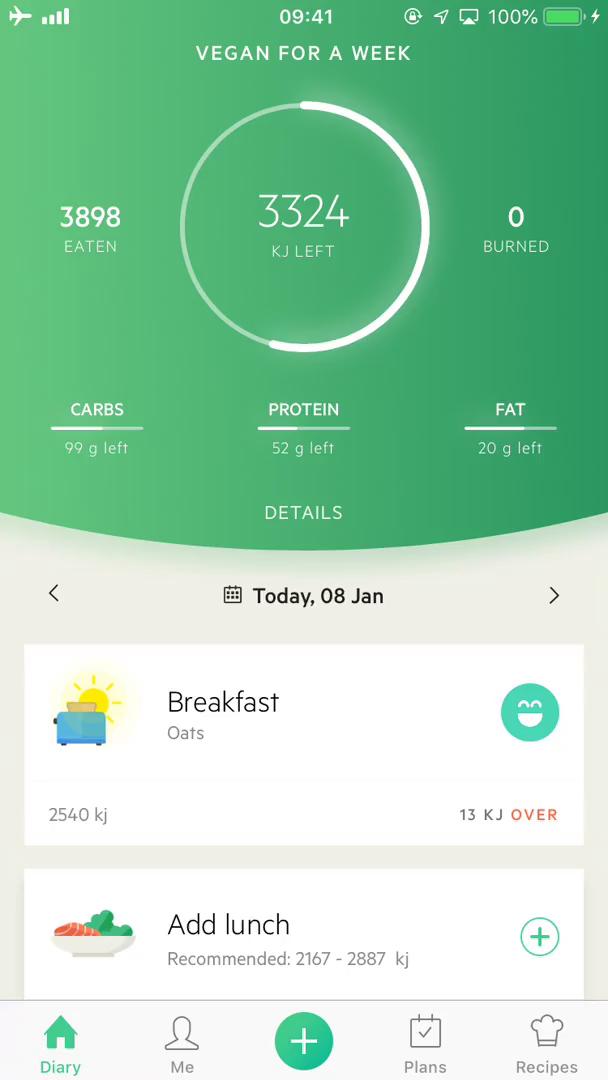
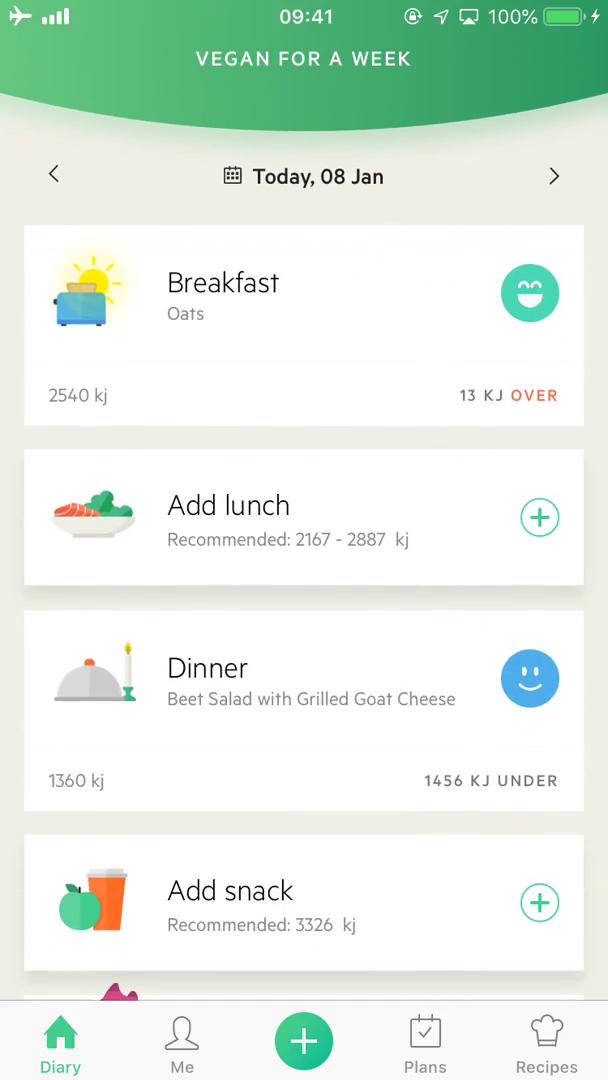
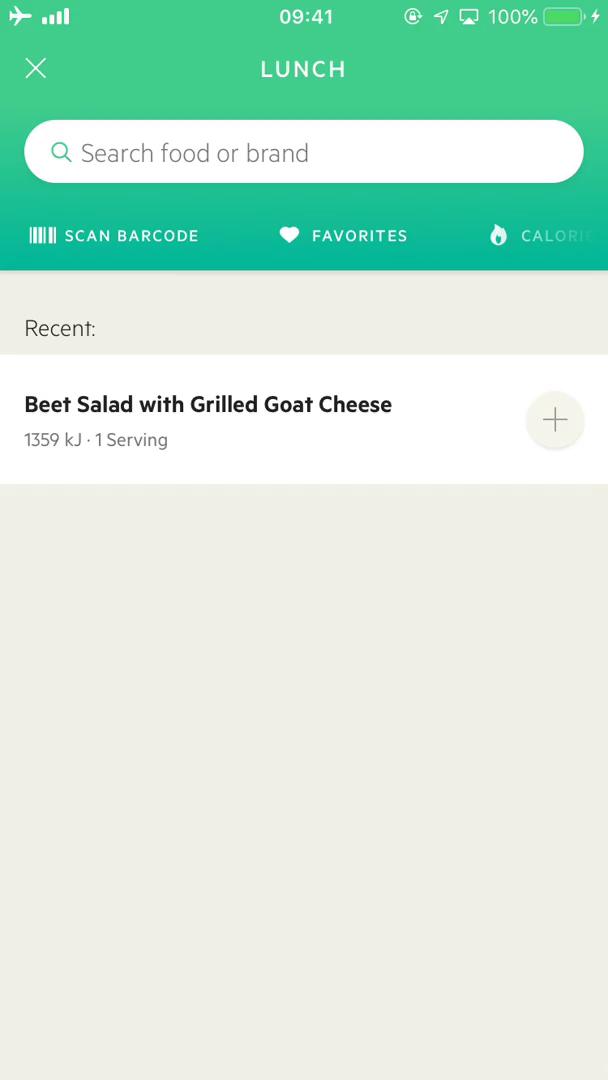
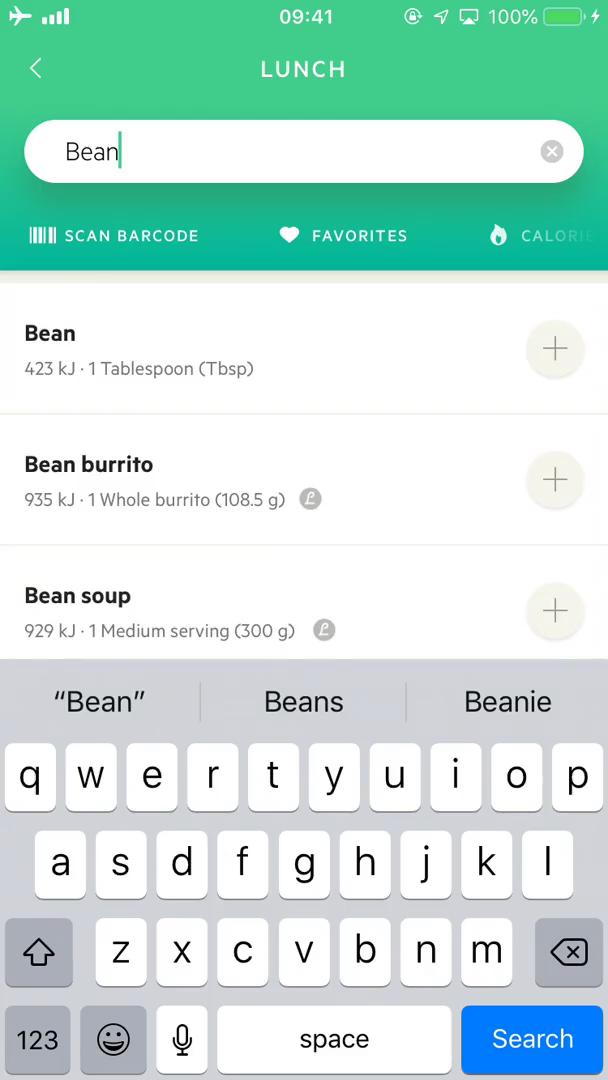
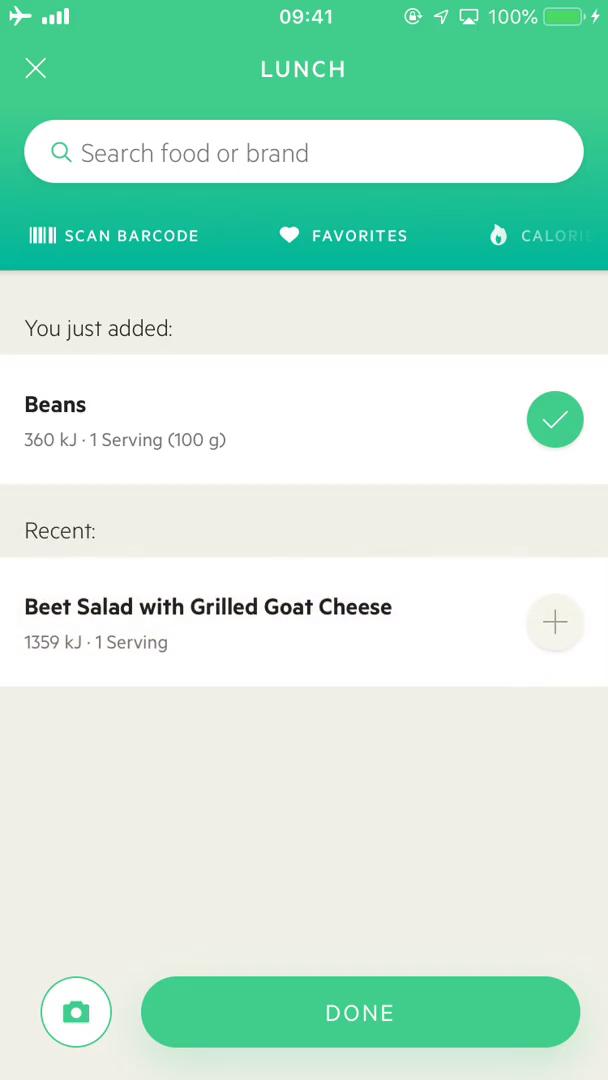
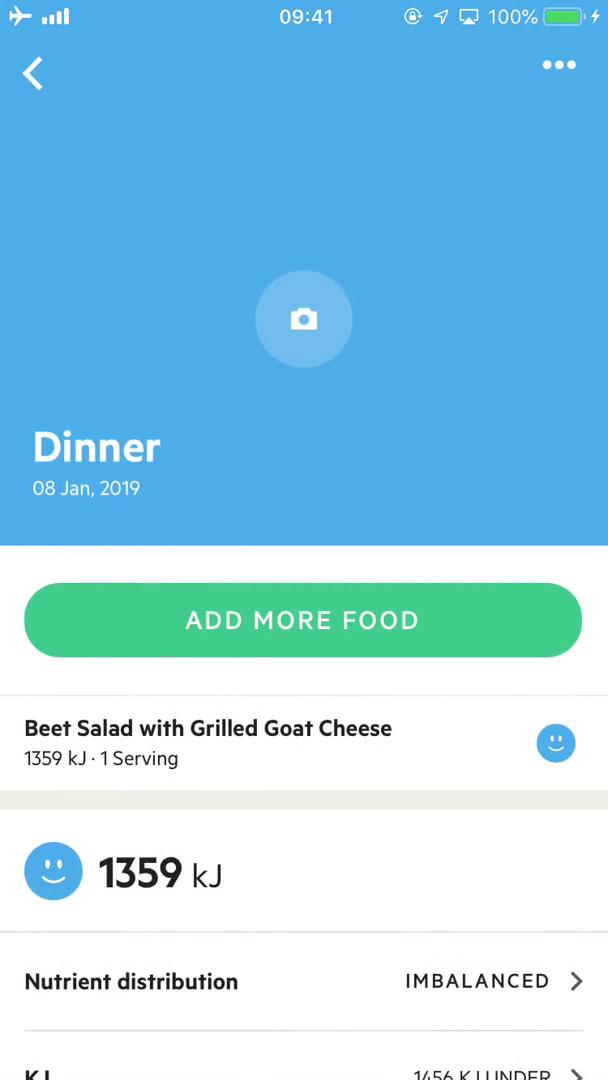
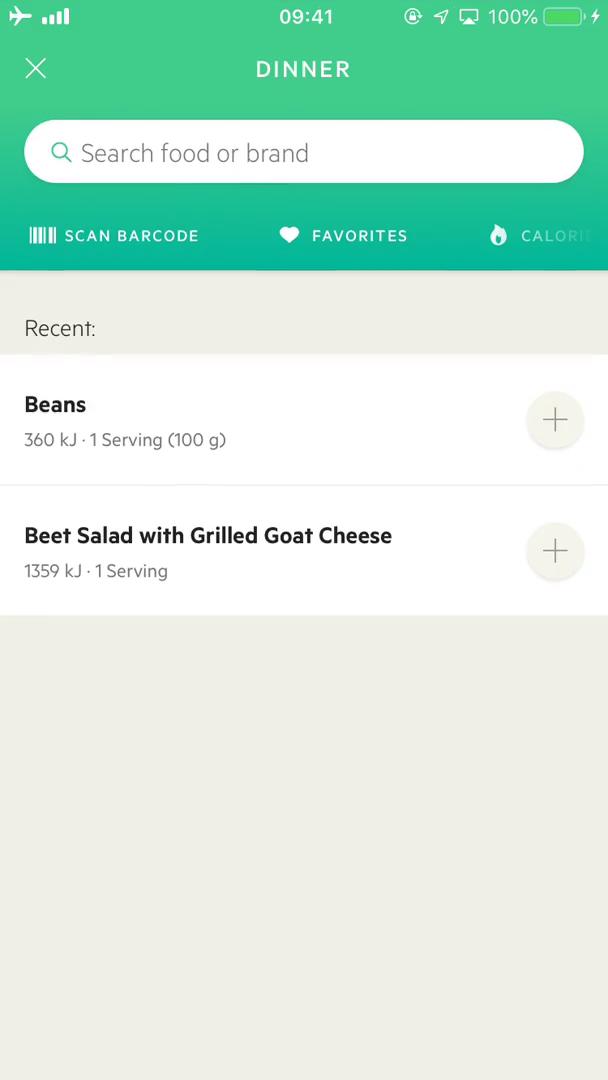
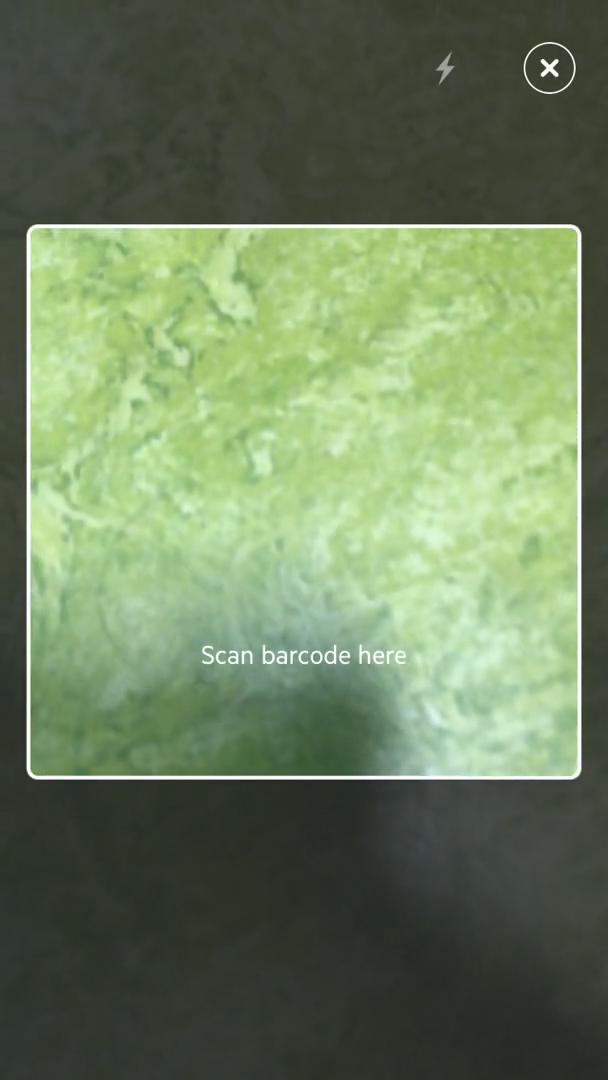
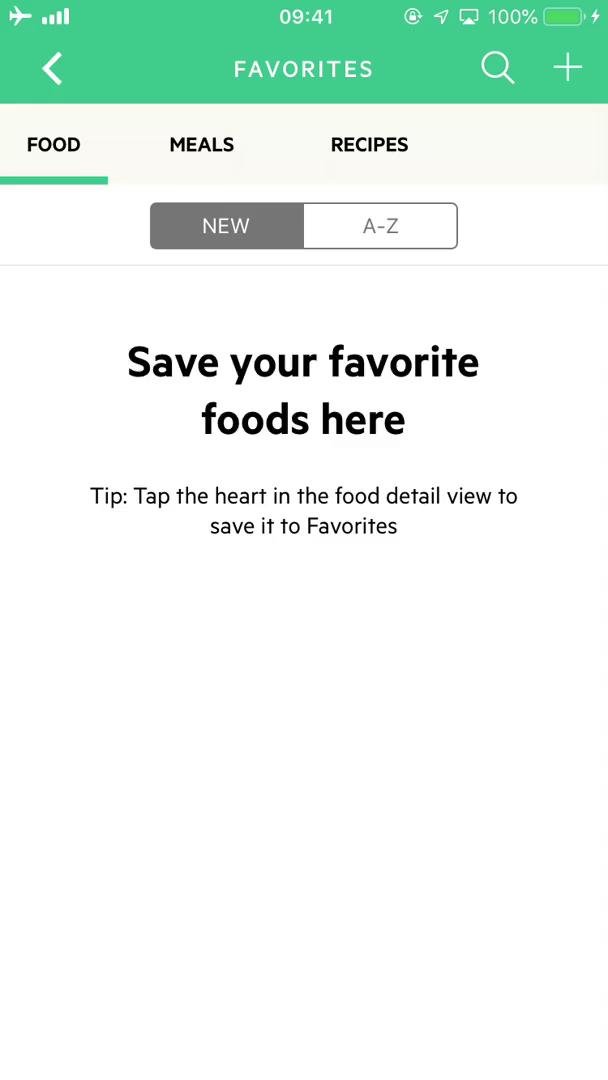
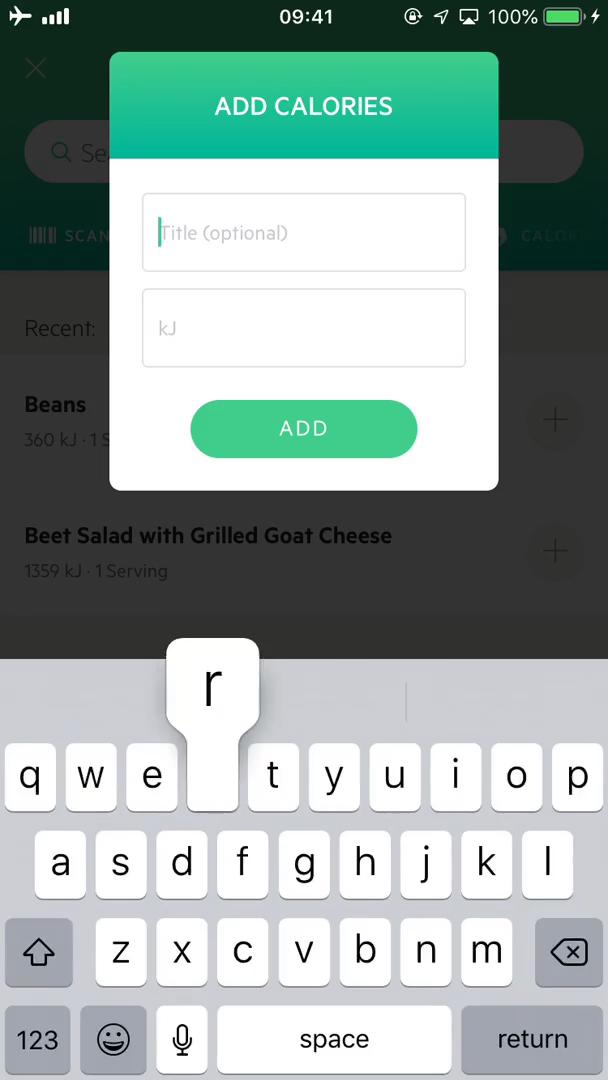
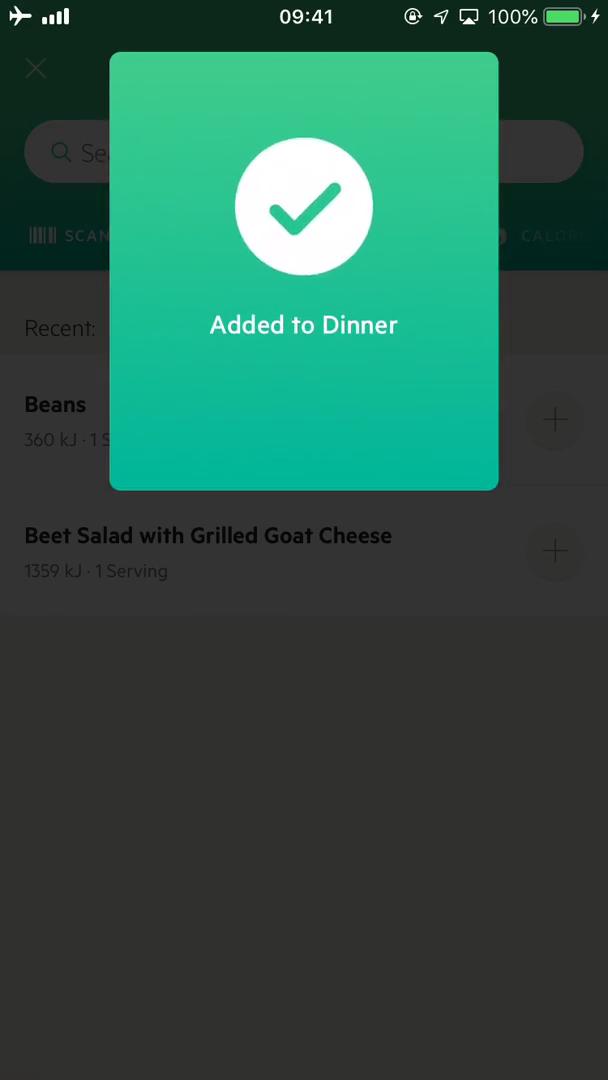
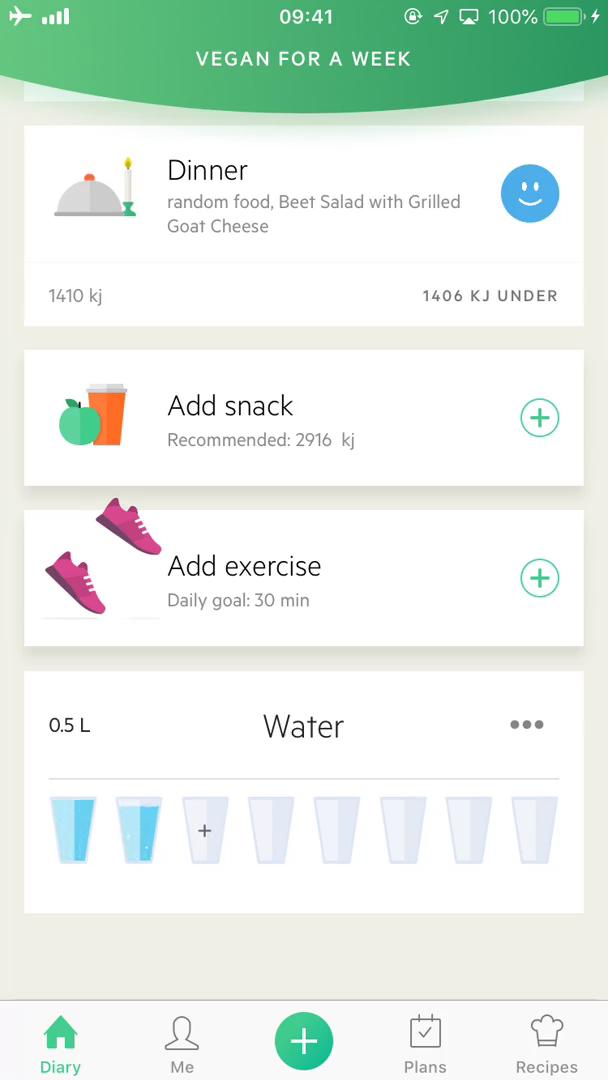
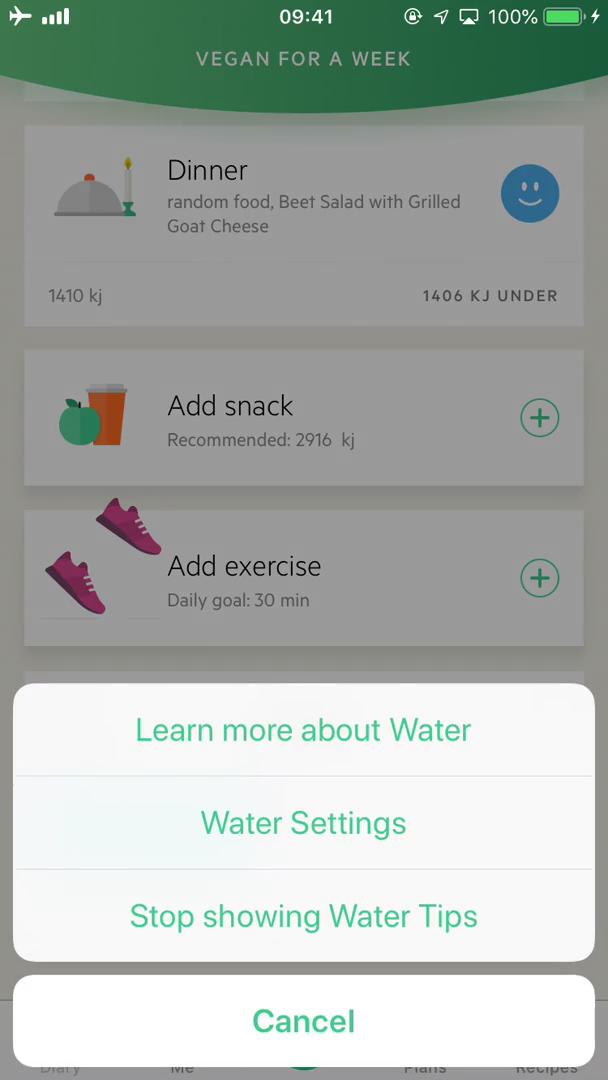
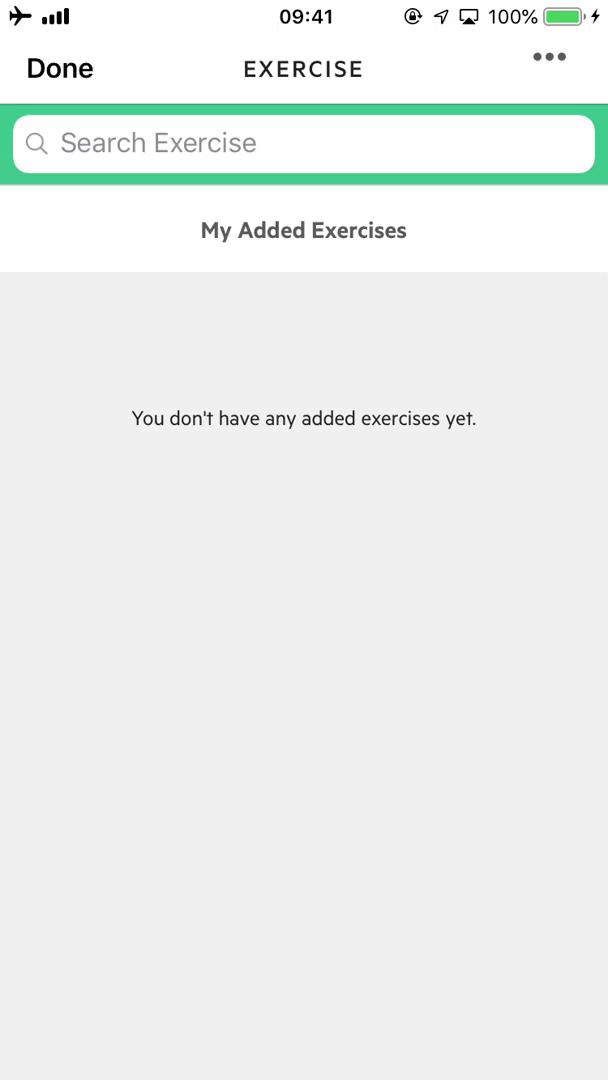
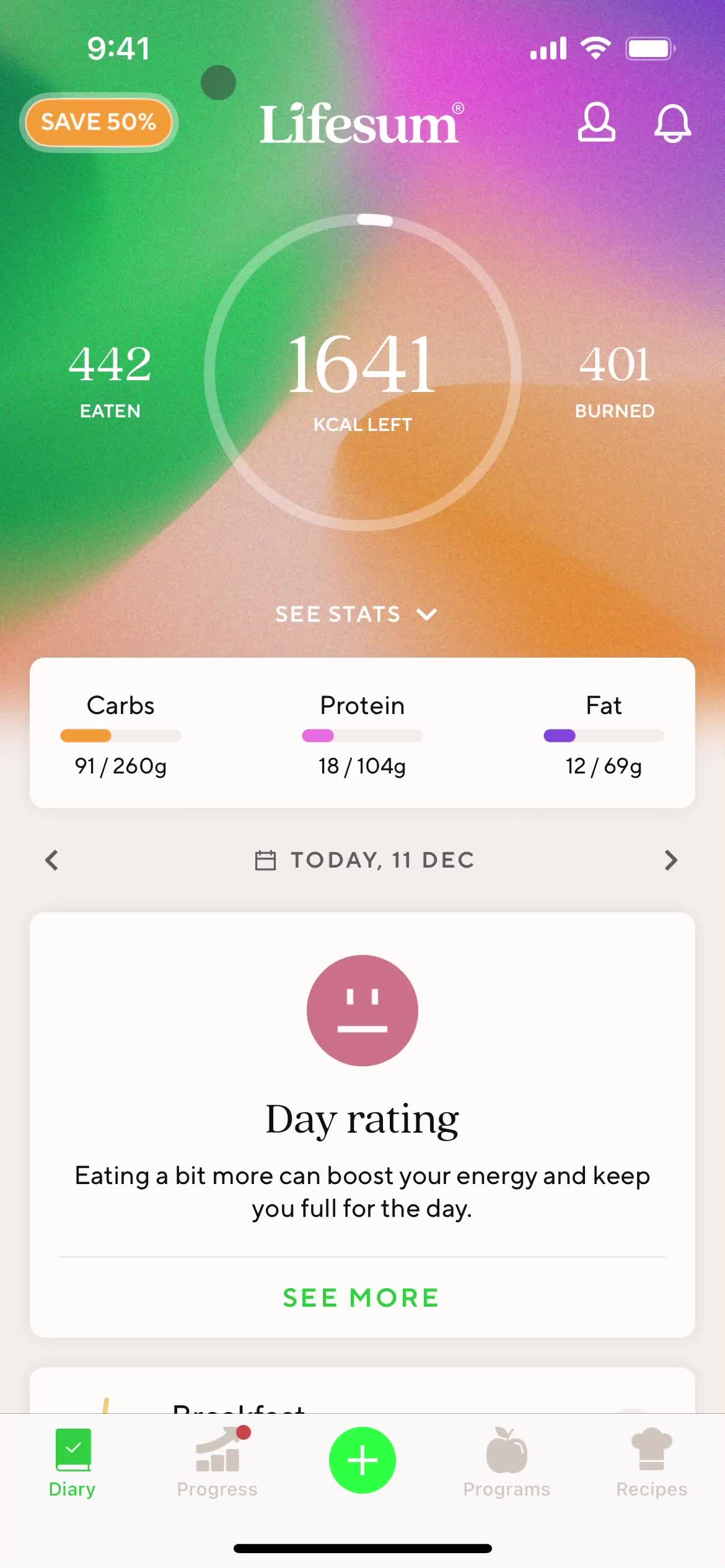
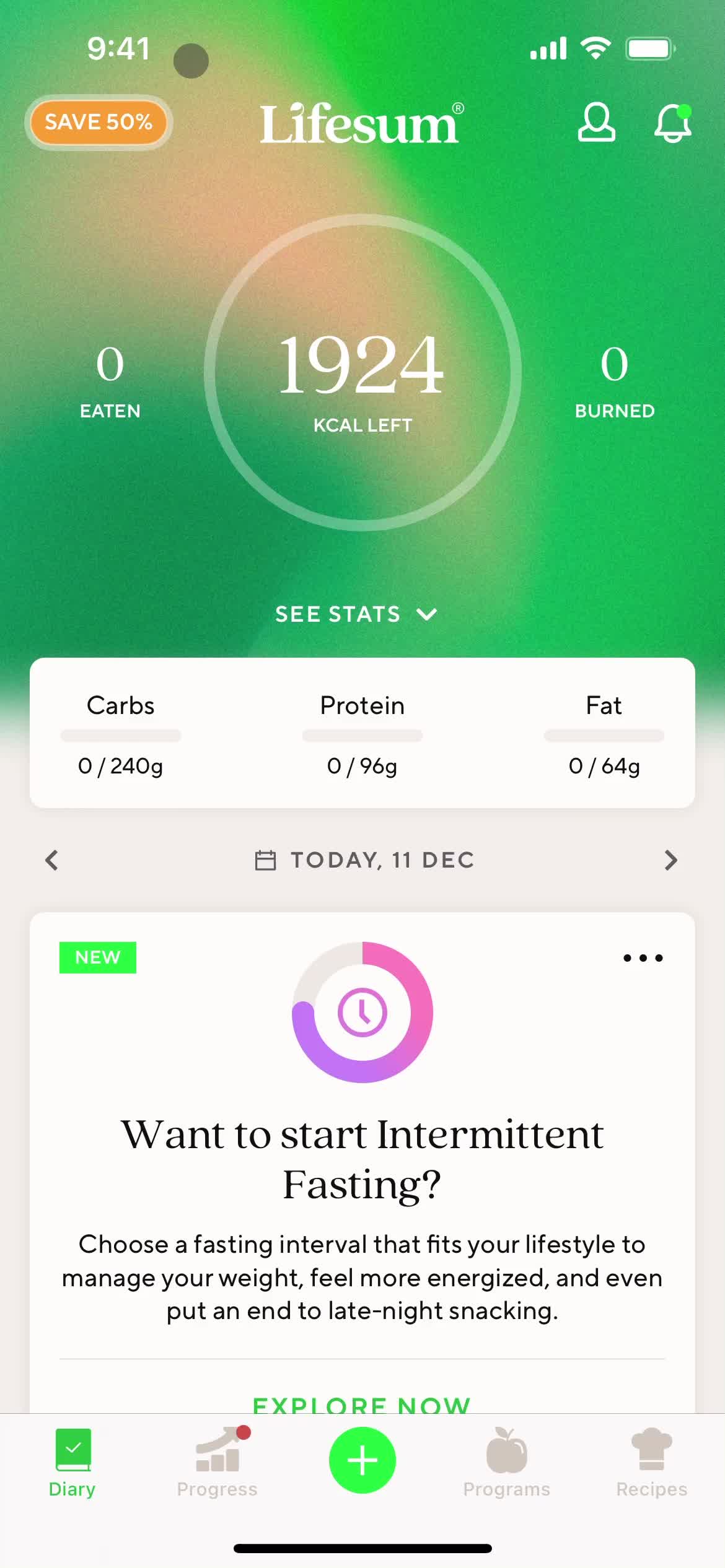
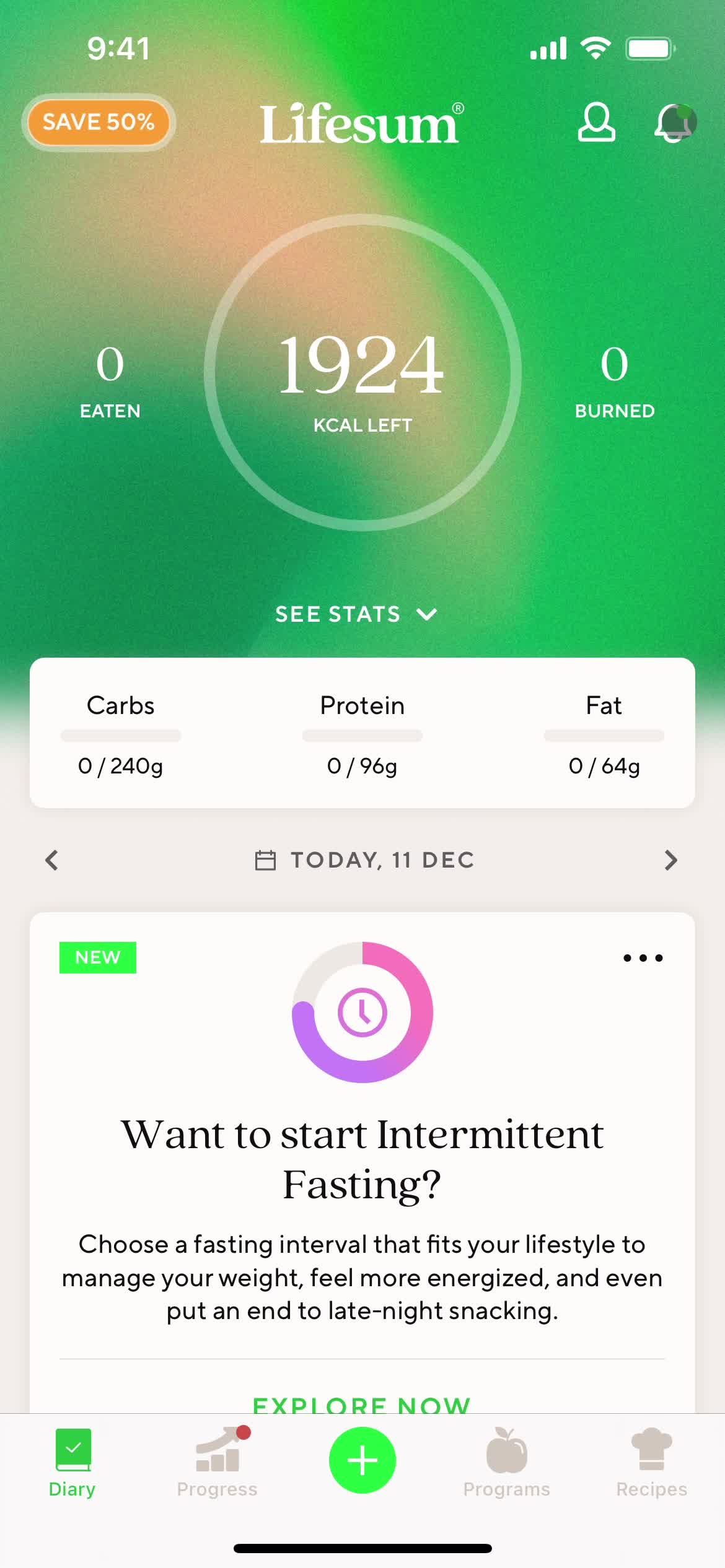
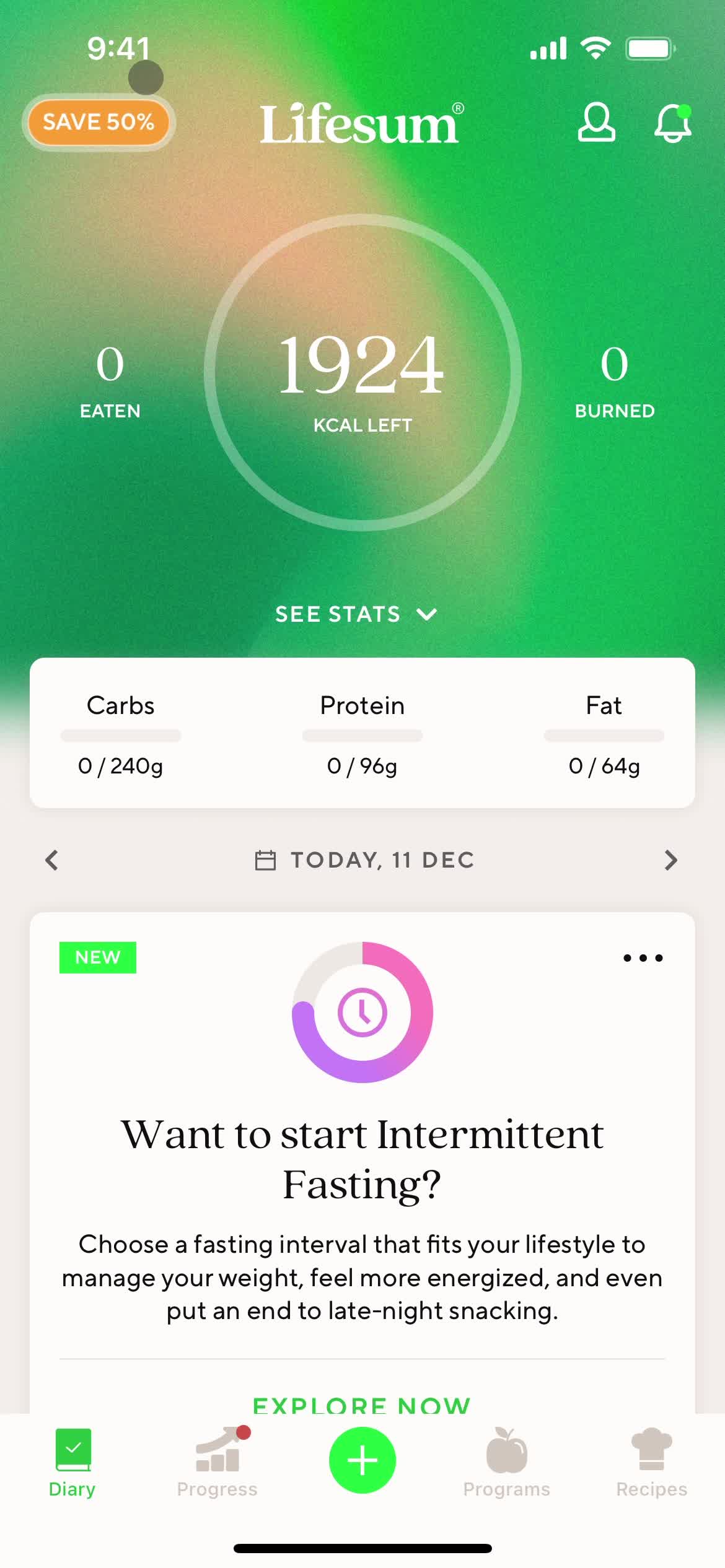
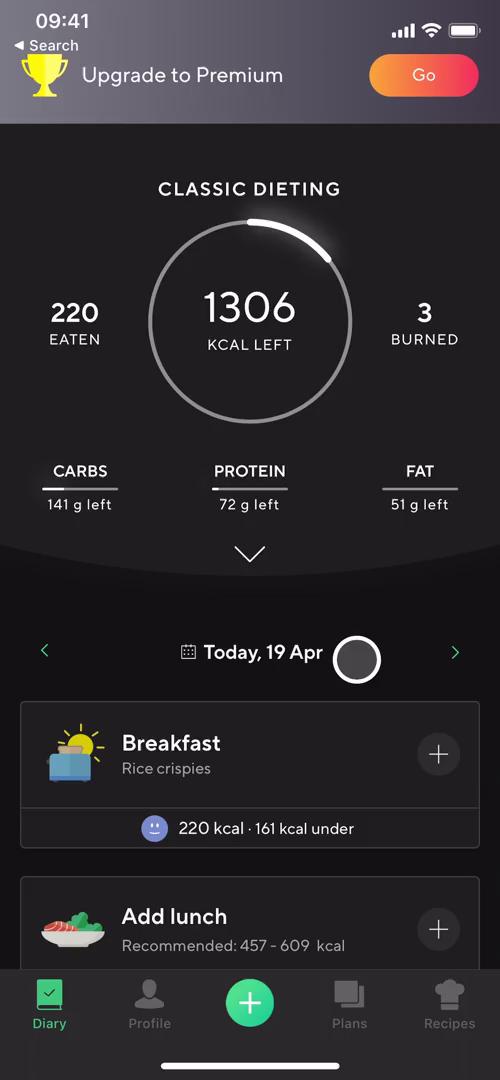
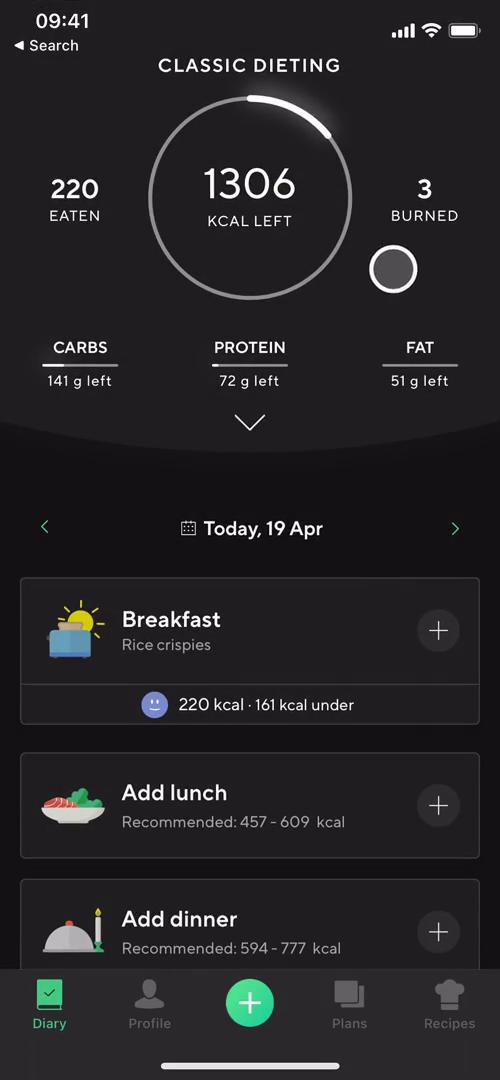
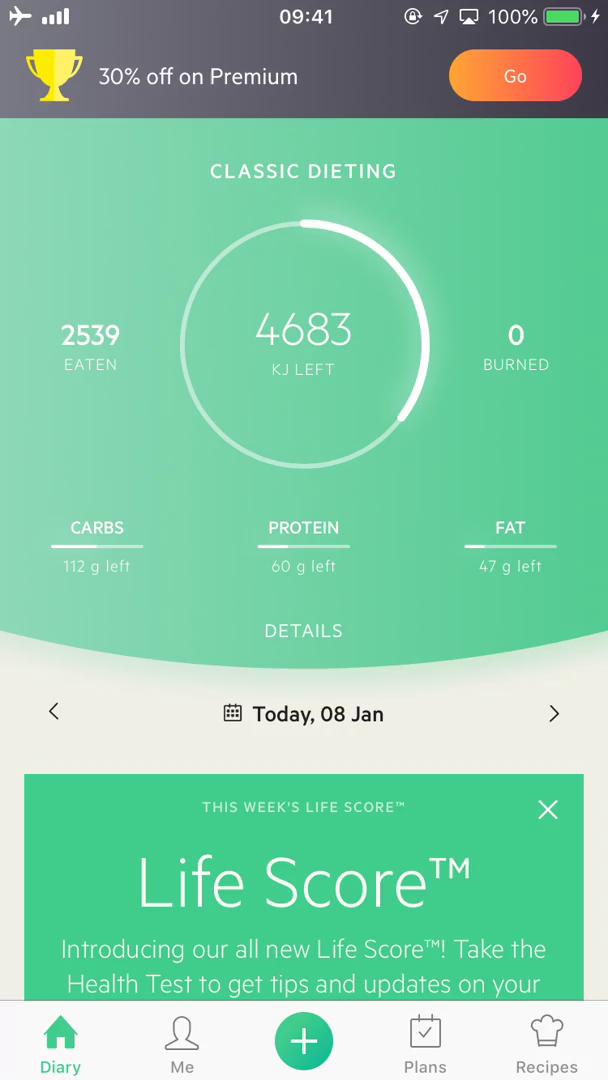
Dashboard
this is title
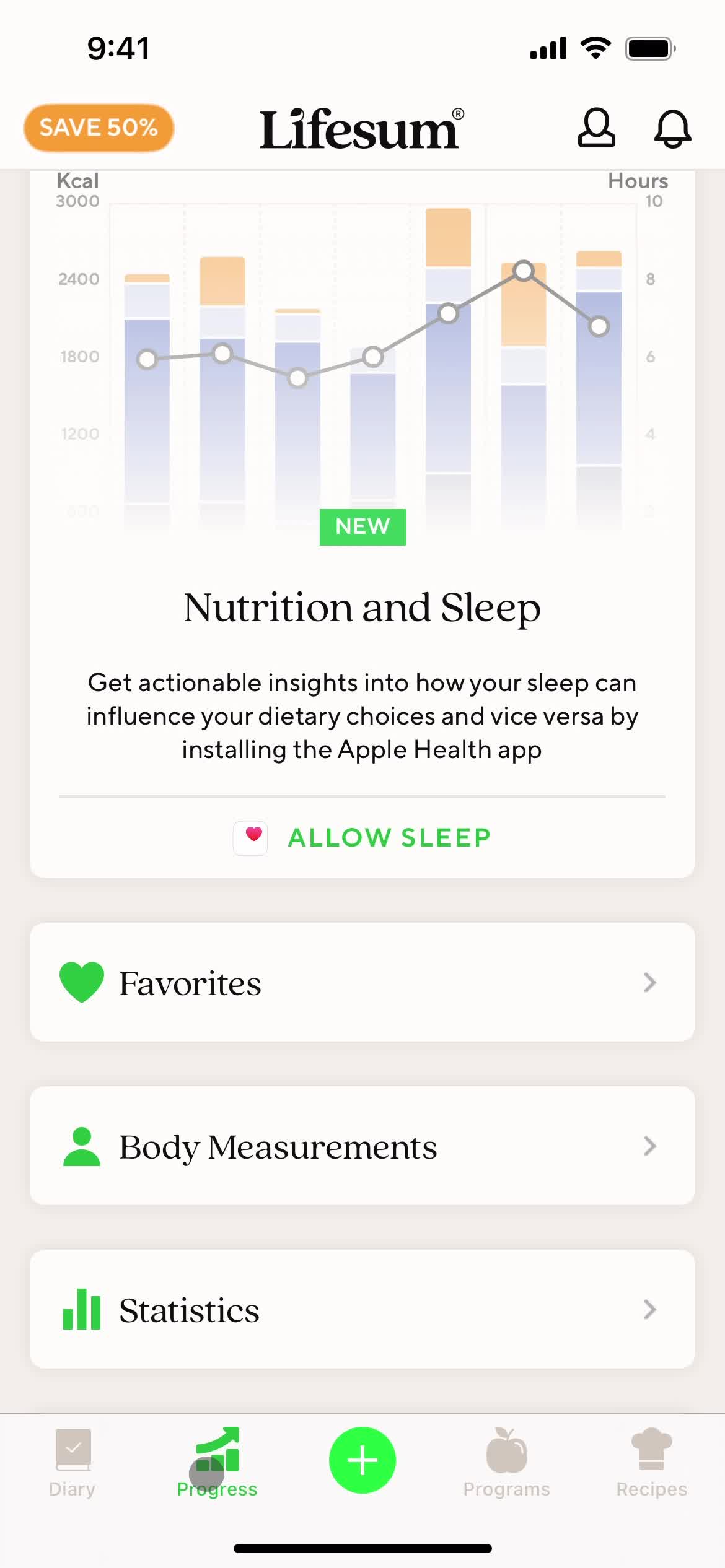
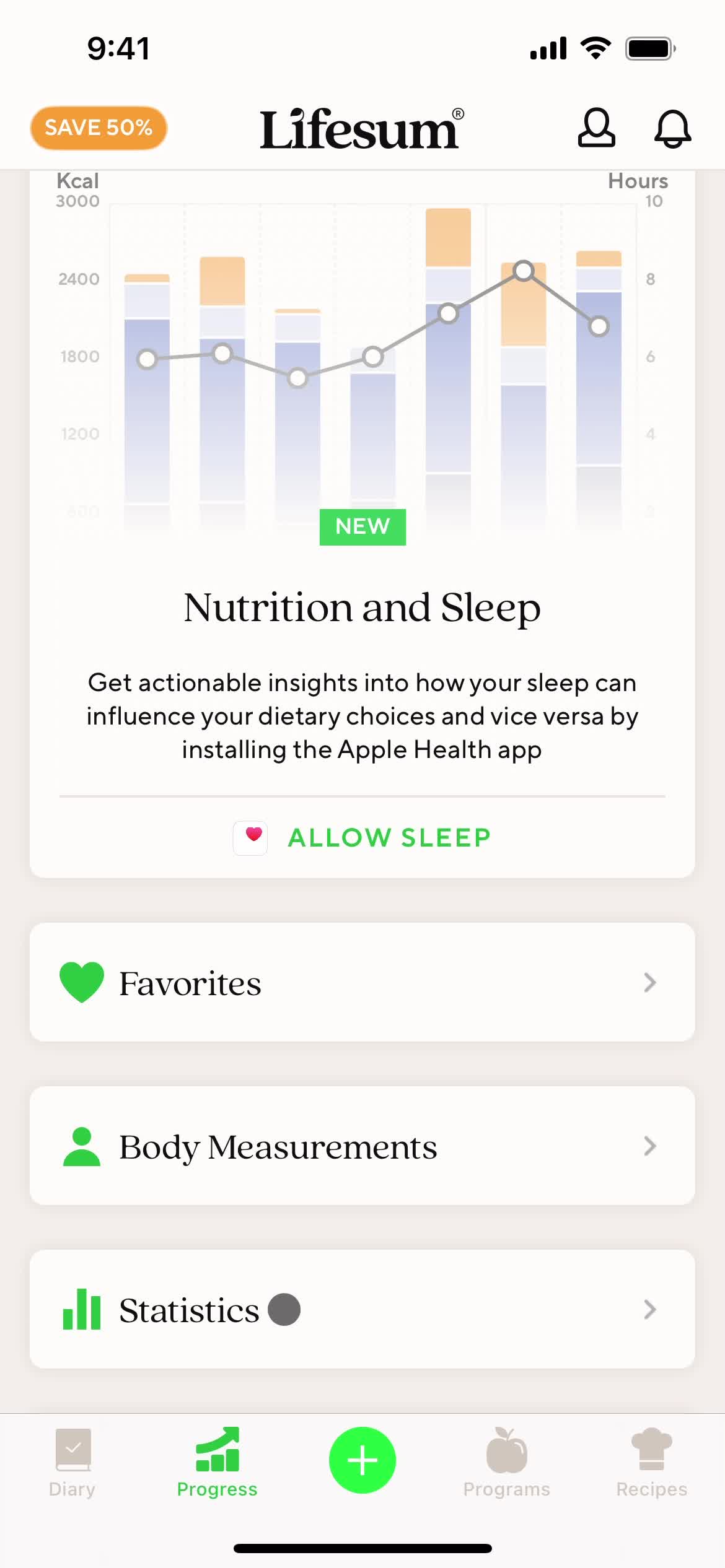
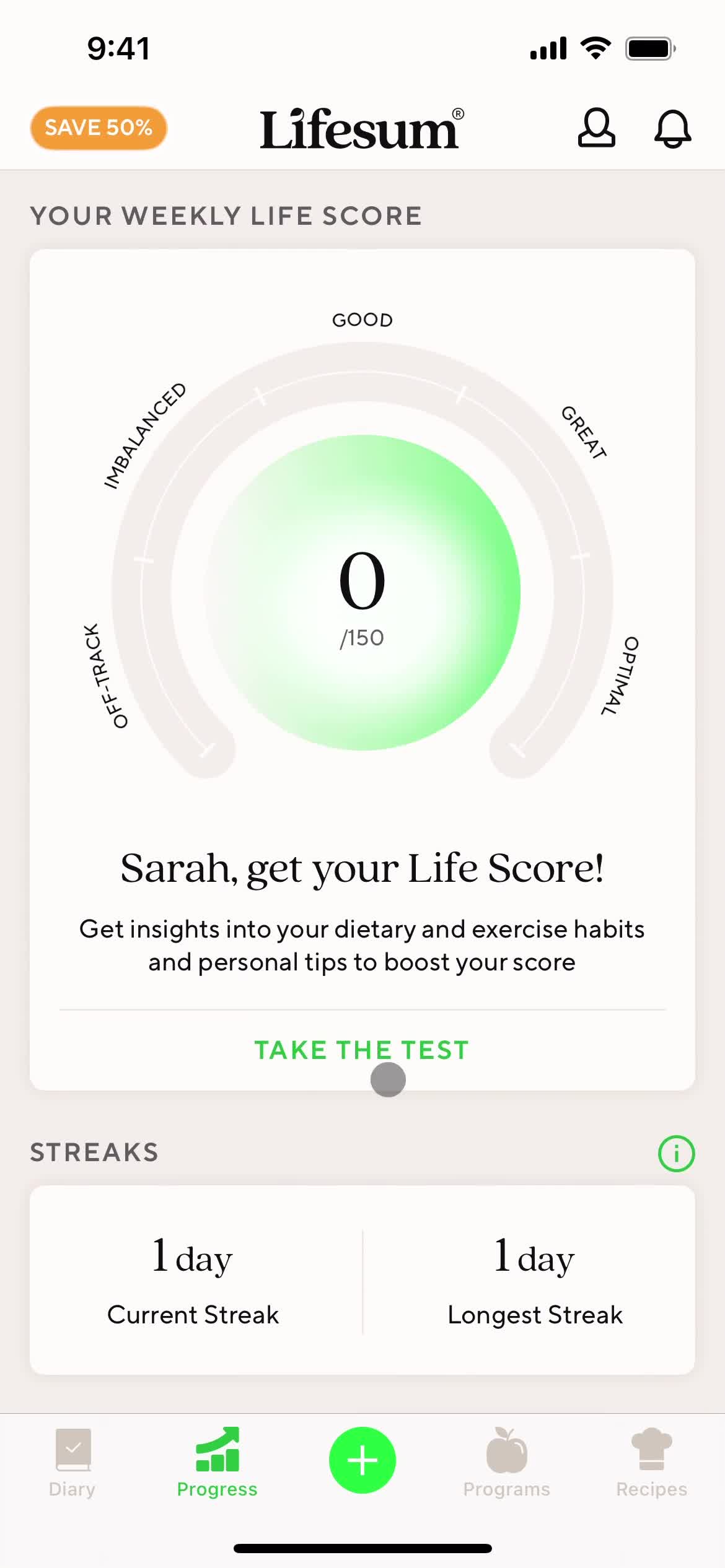
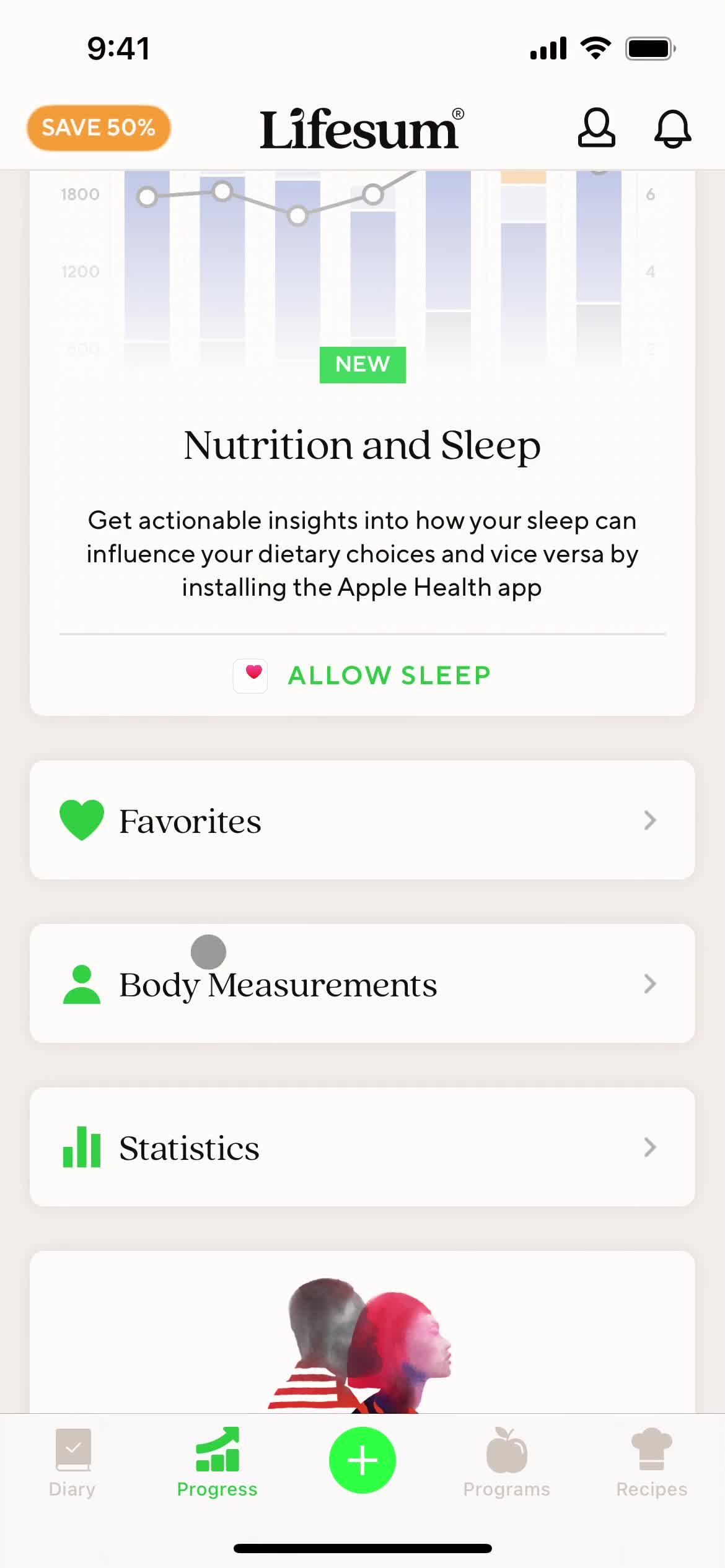
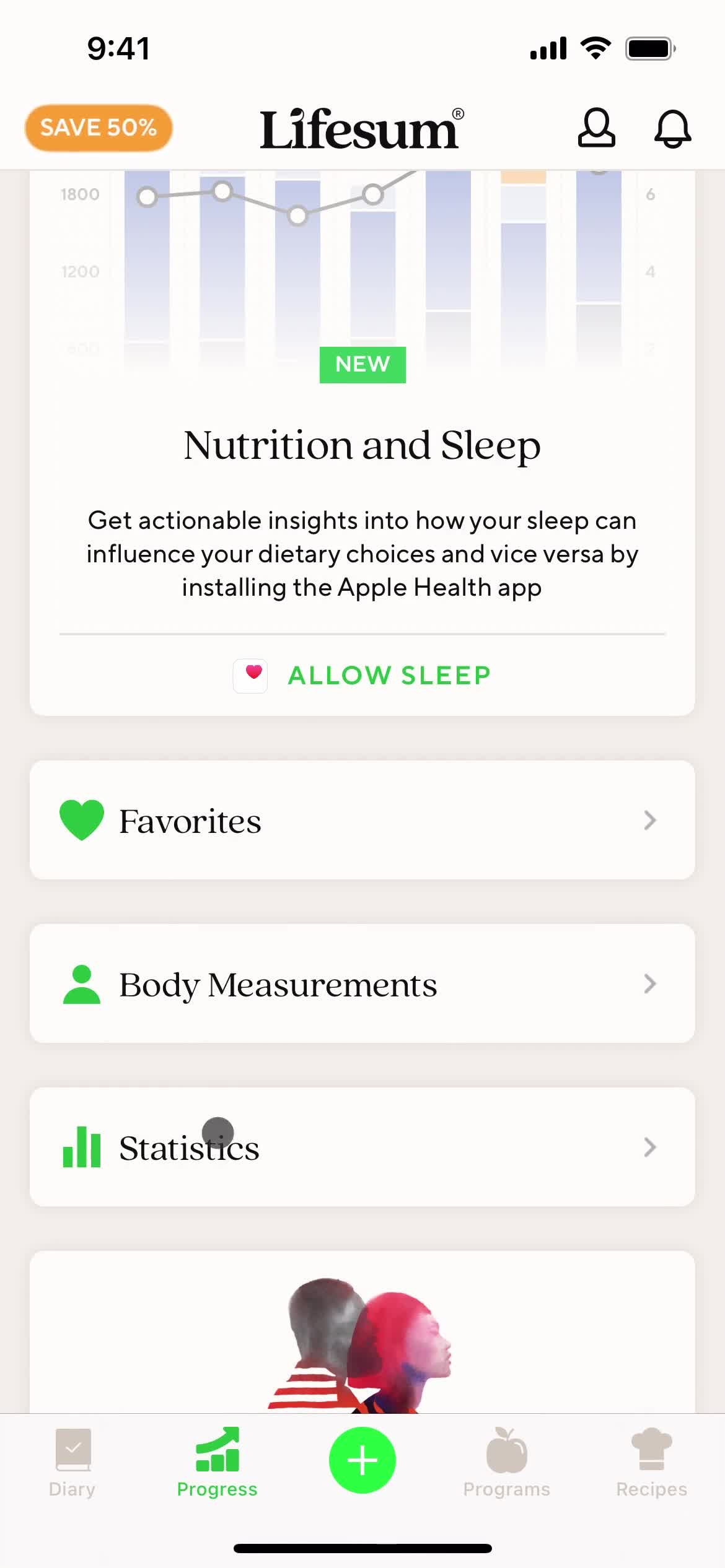
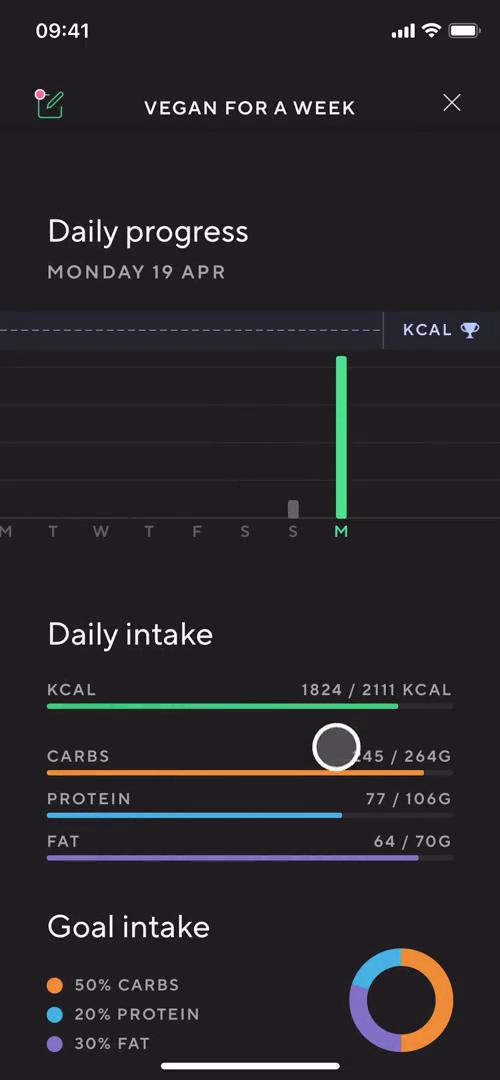
Progress
this is title
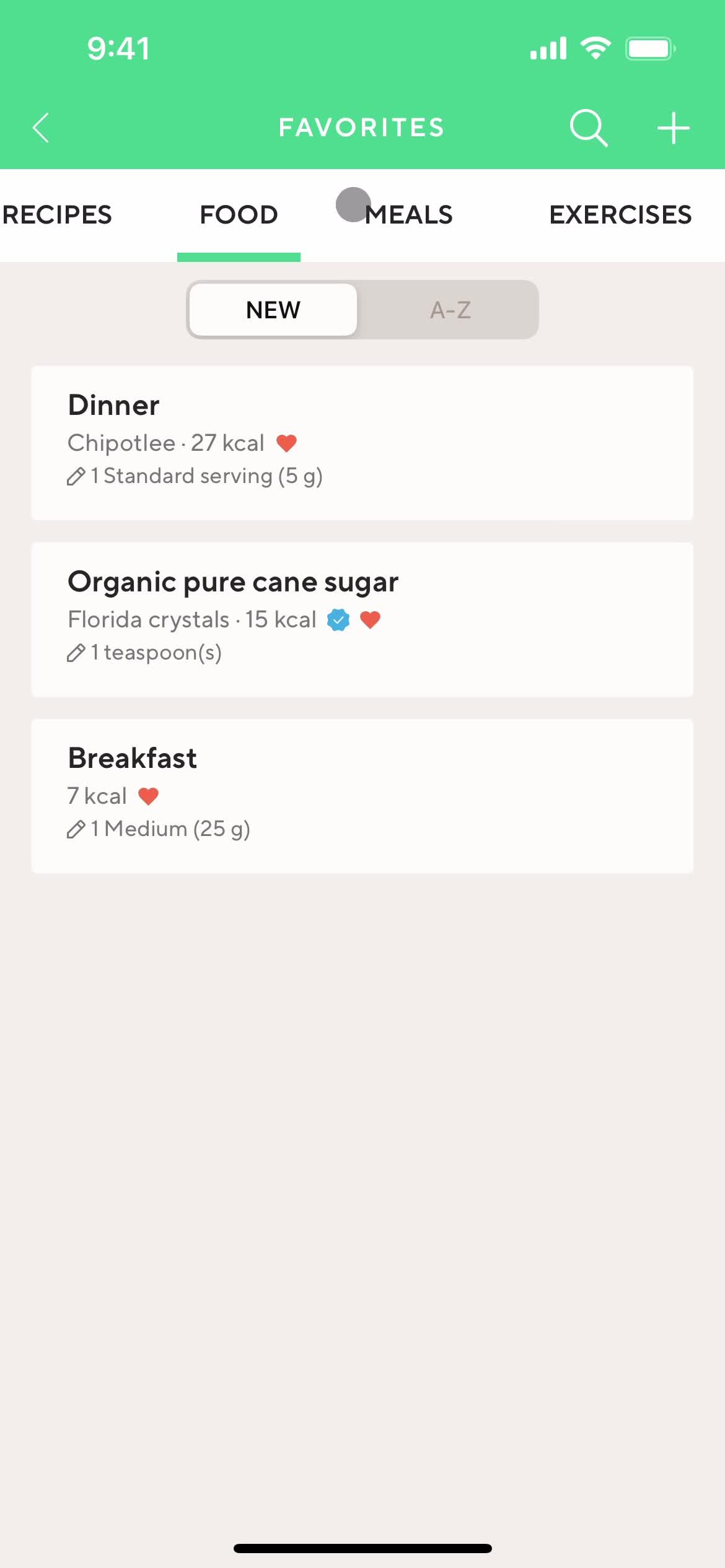
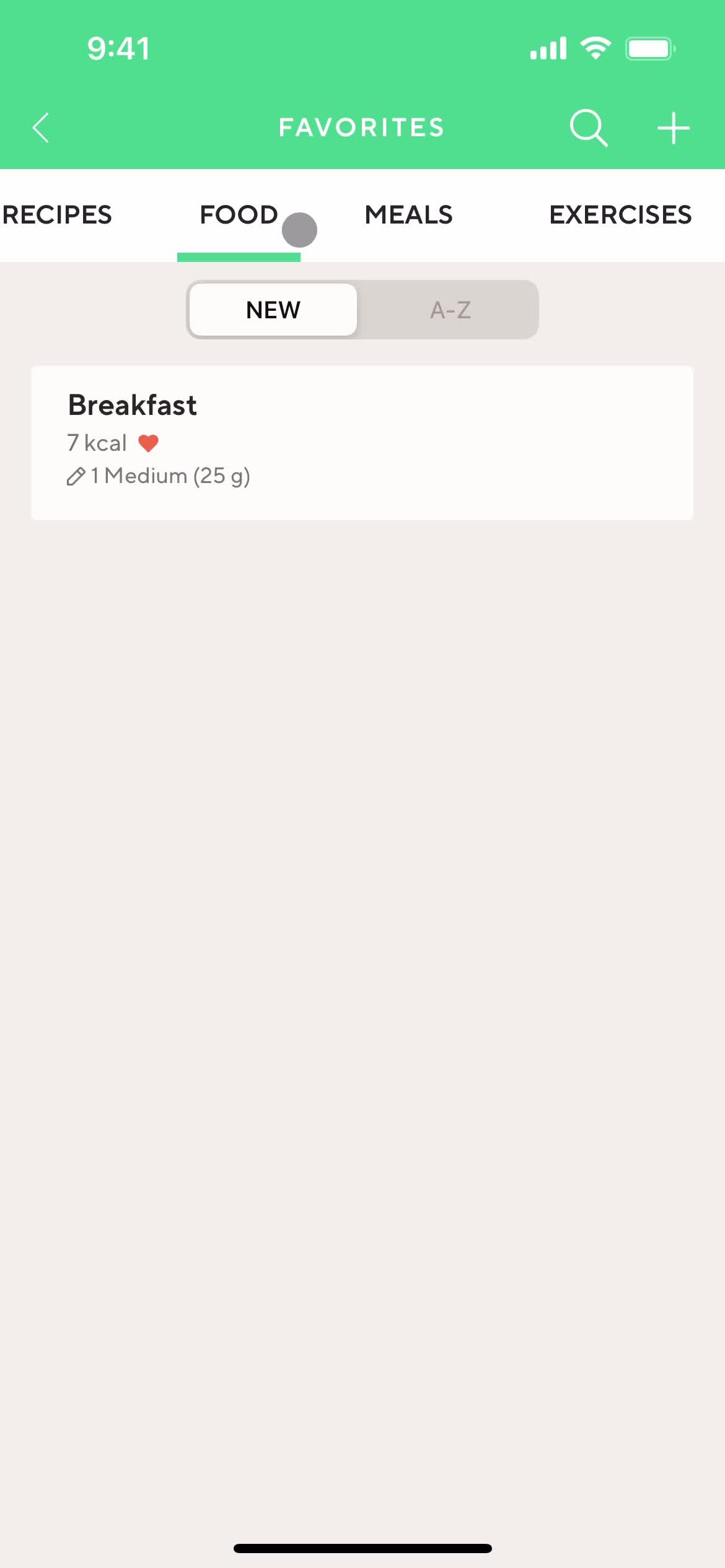
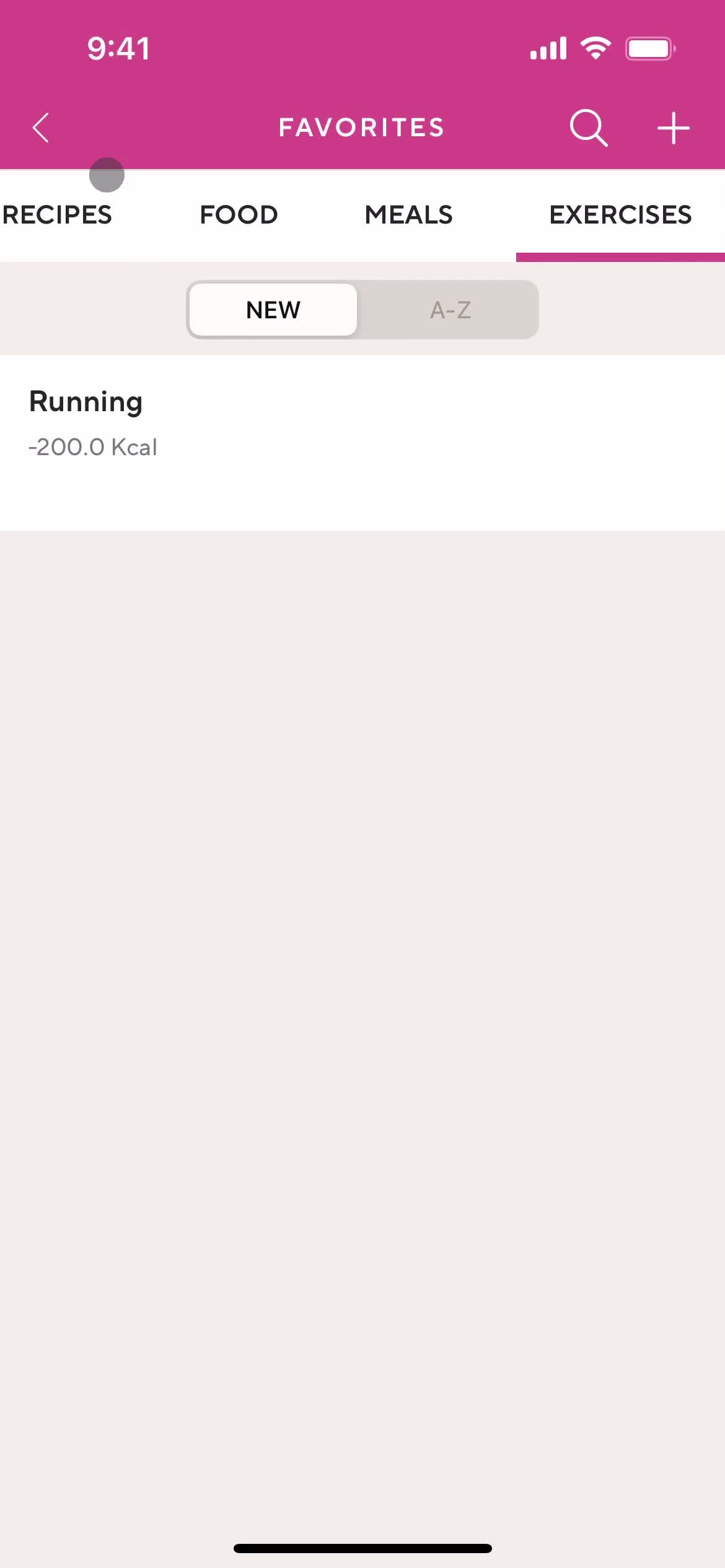
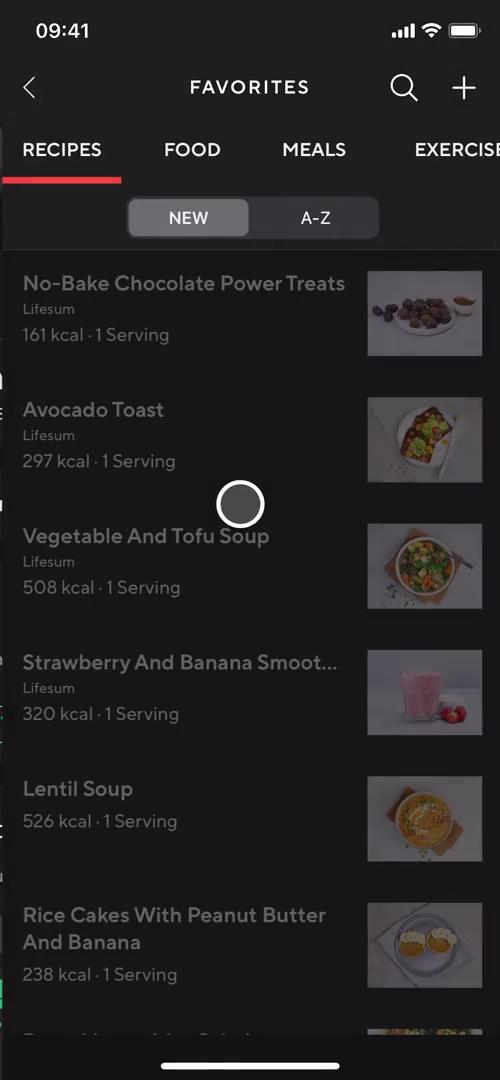
Favorites
this is title
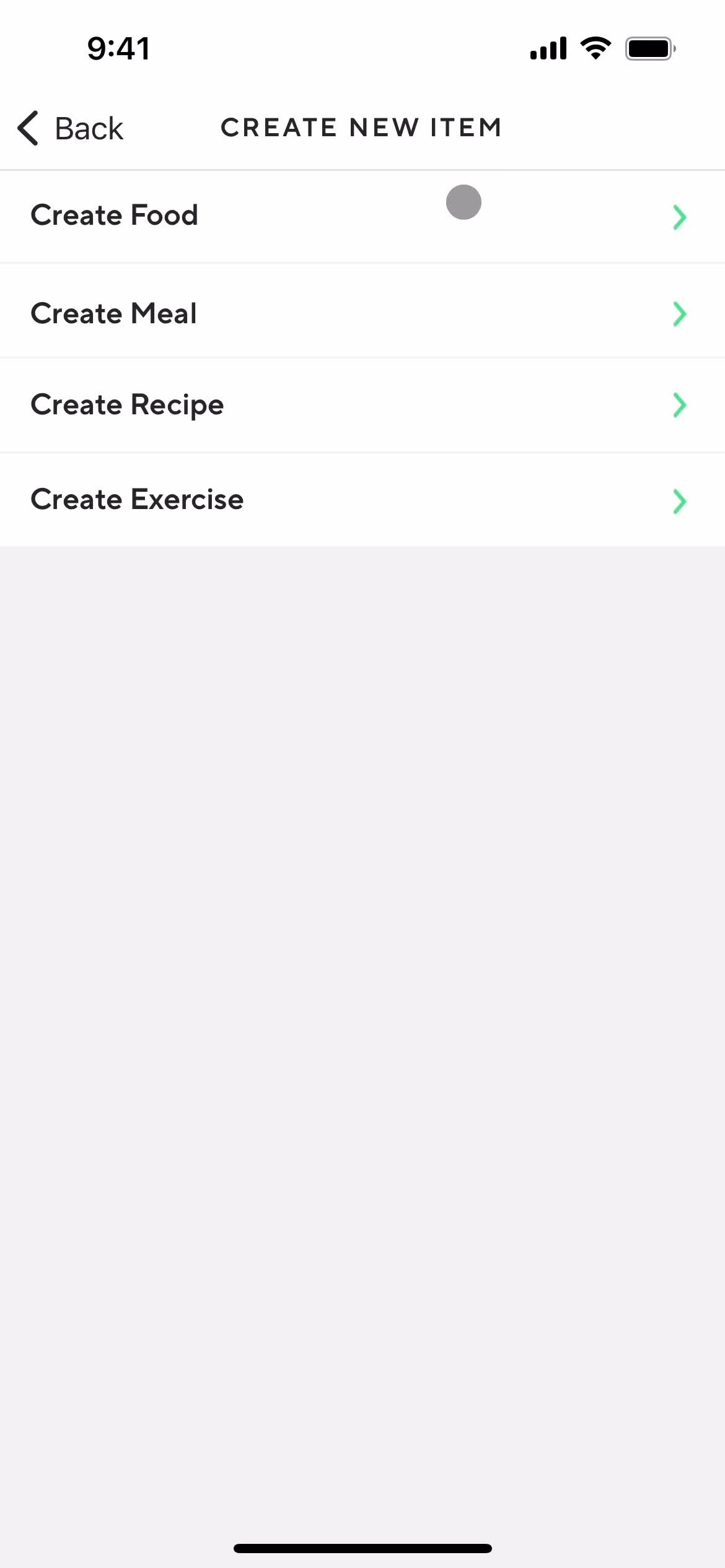
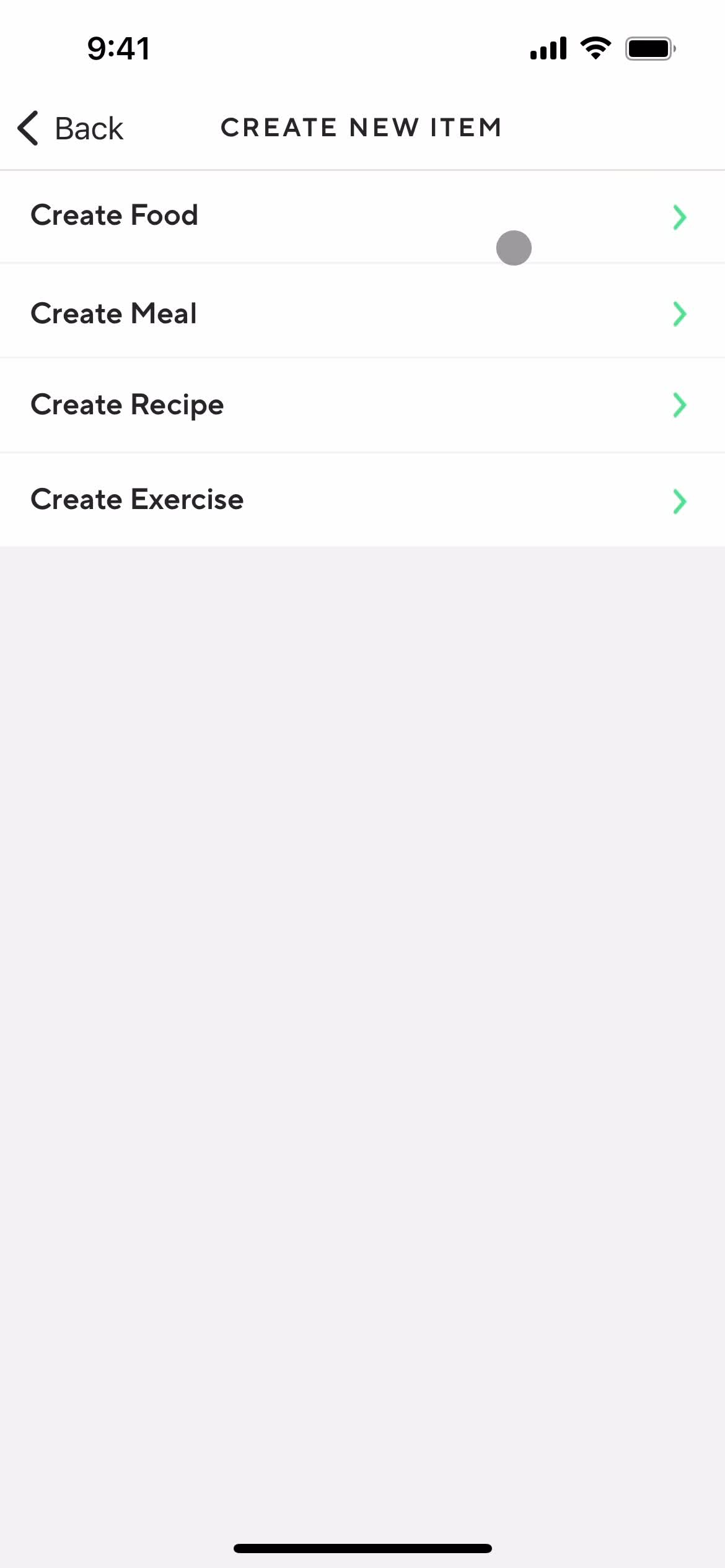
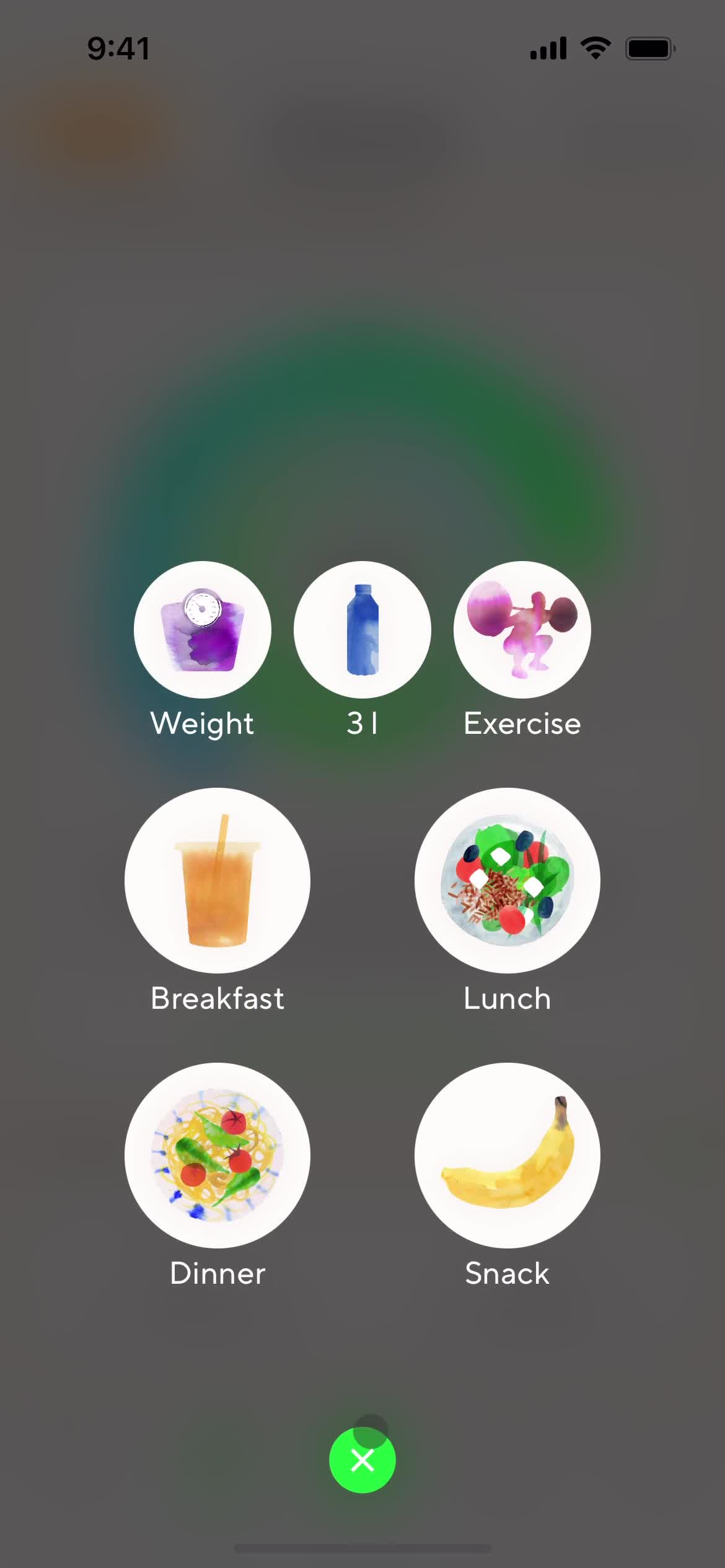
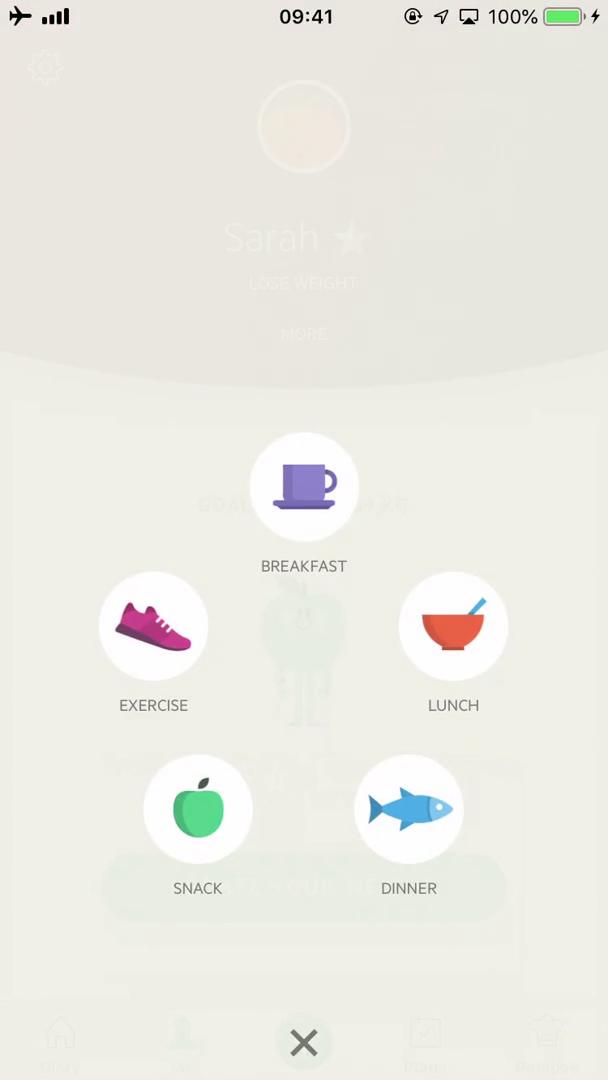
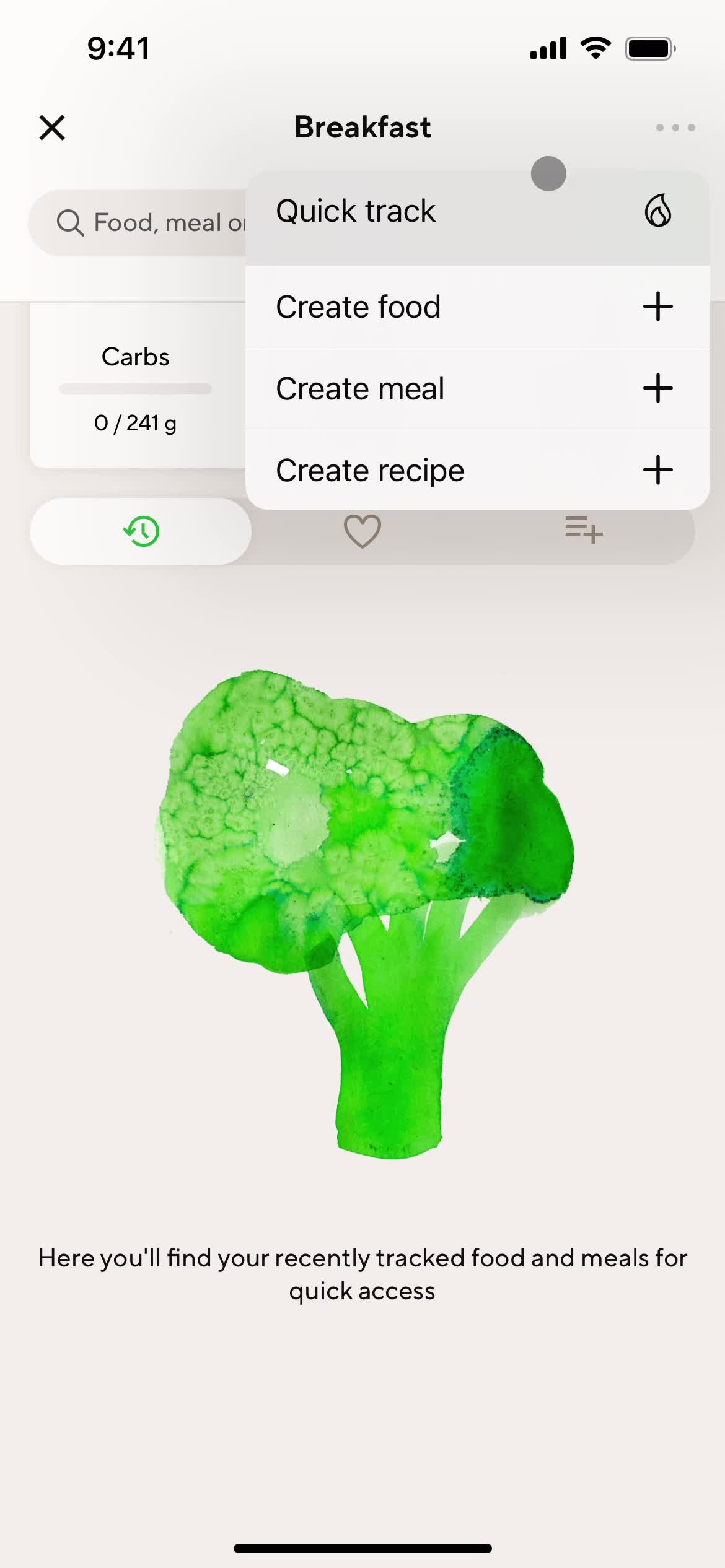
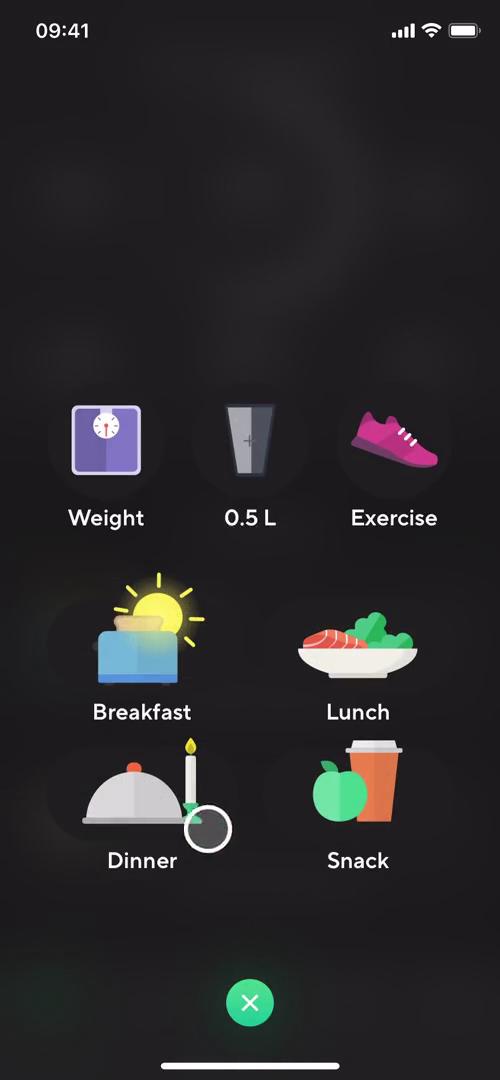
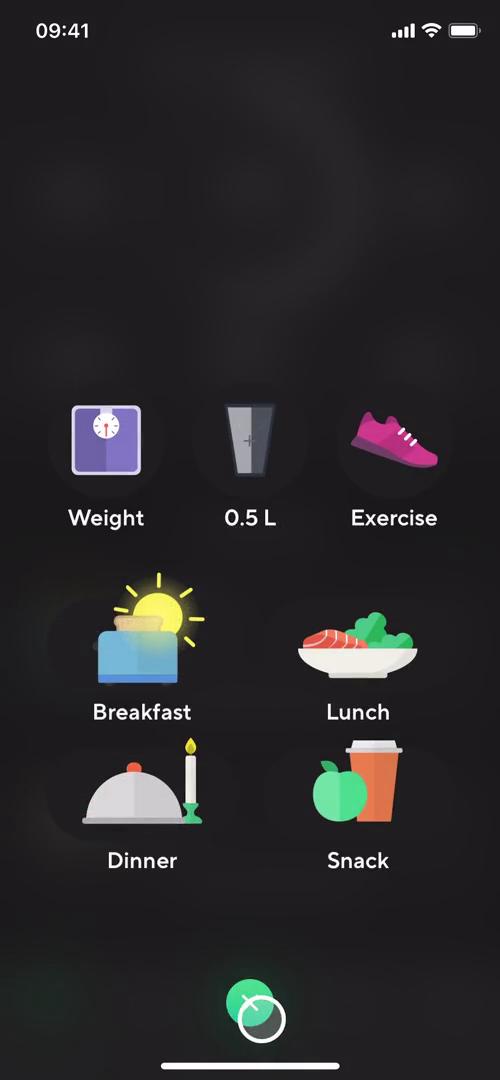
Action menu
this is title
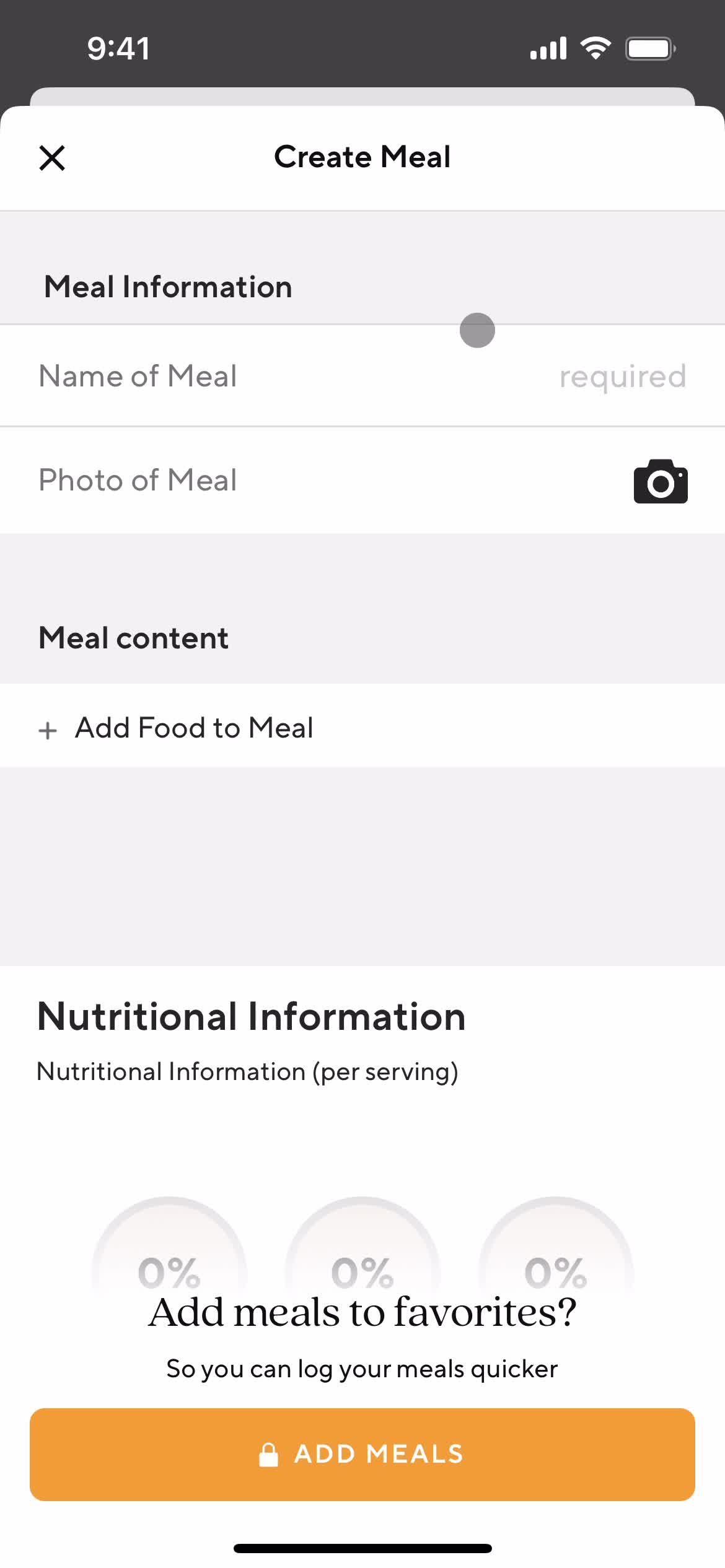
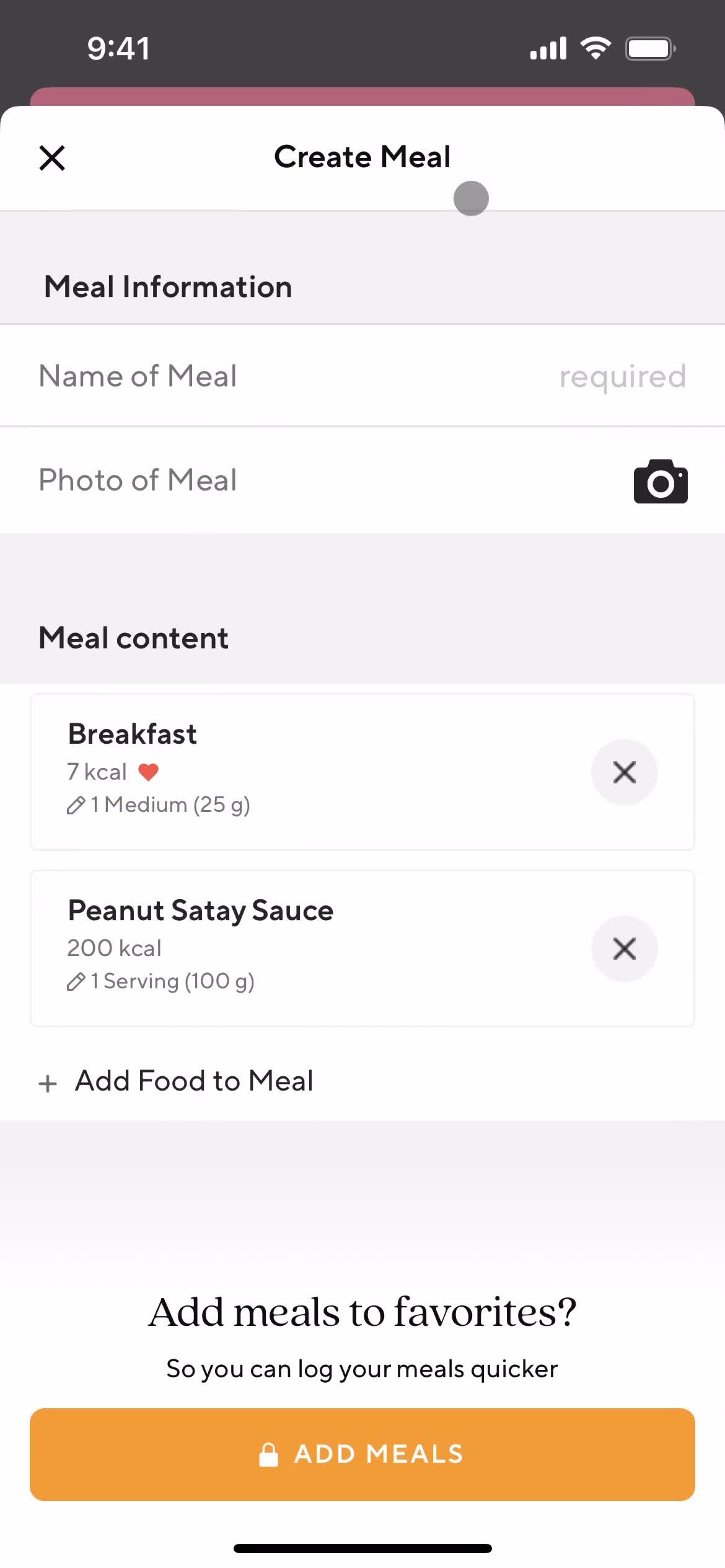
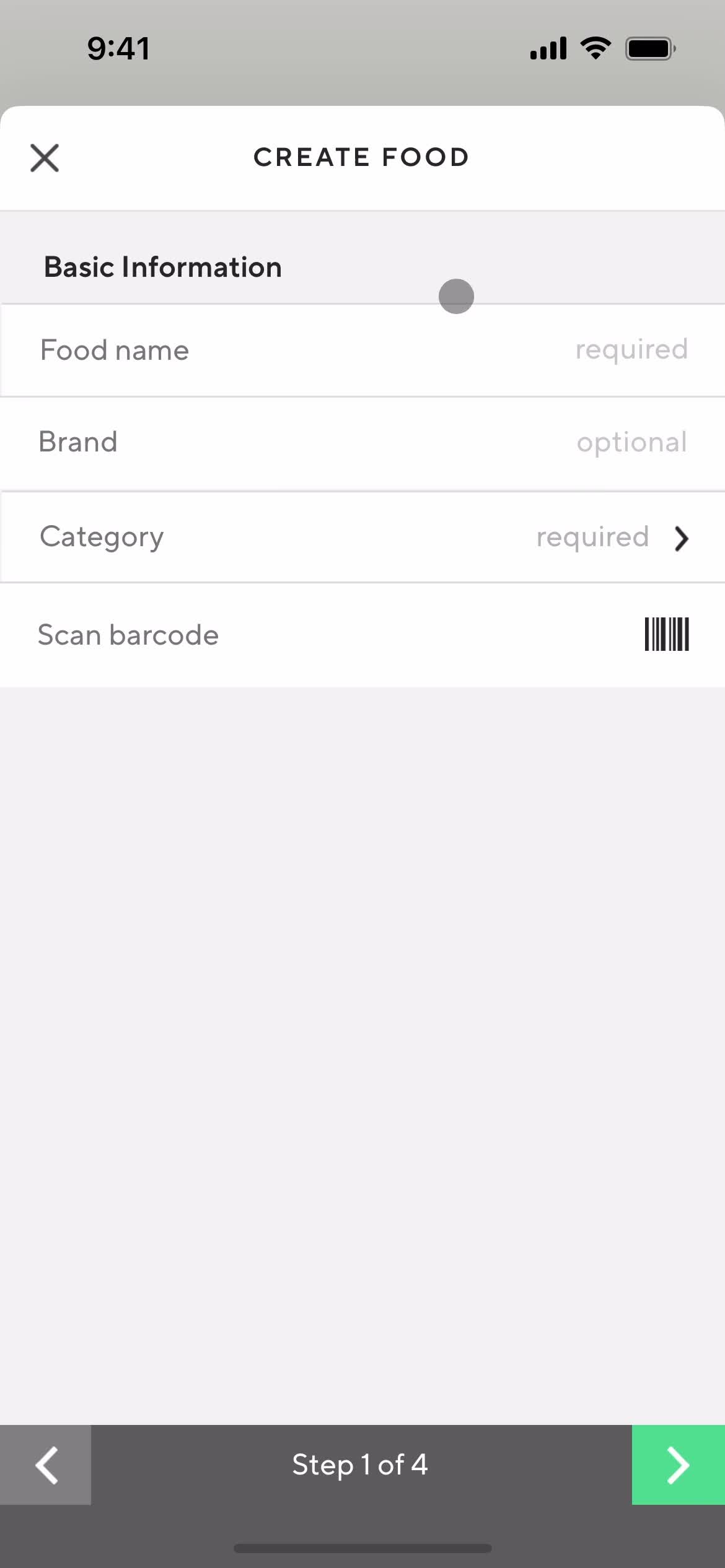
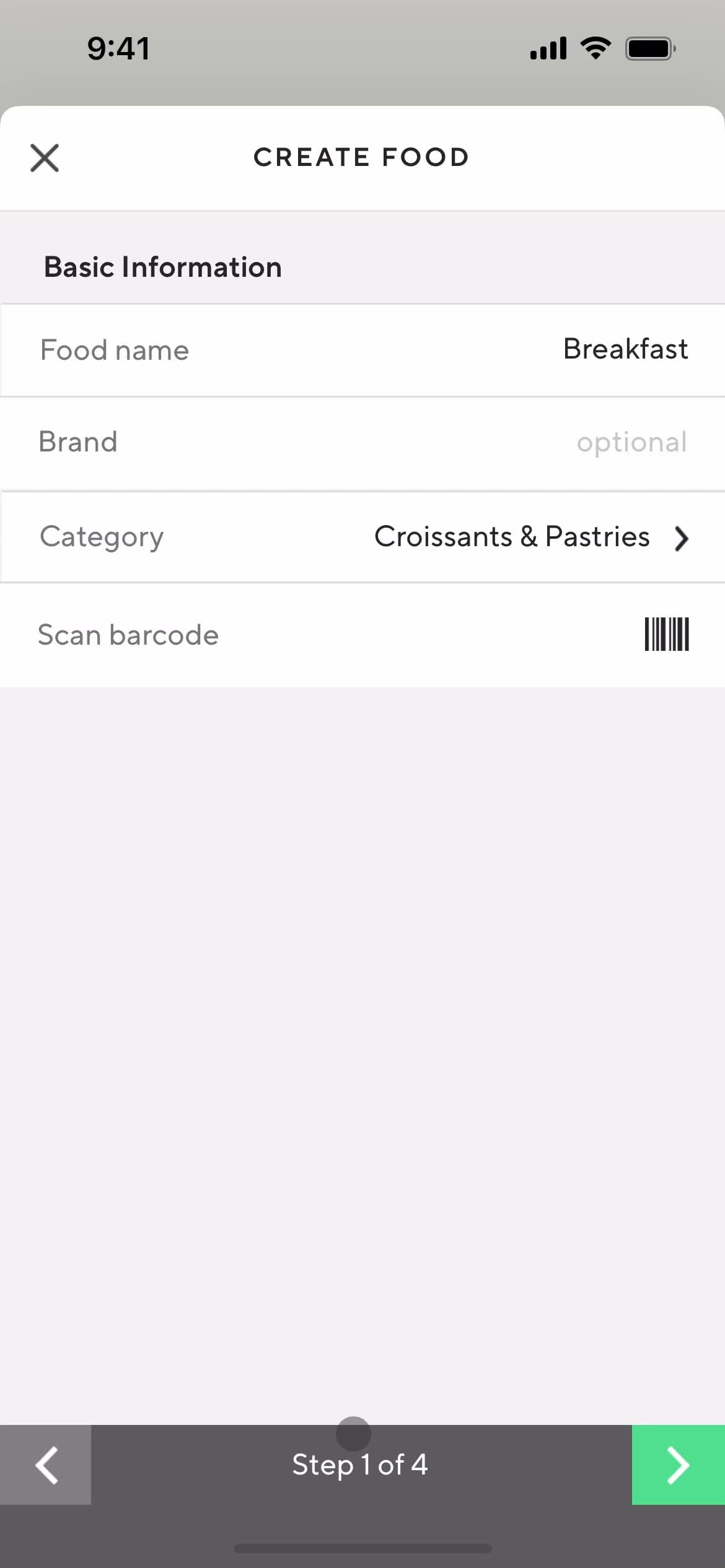
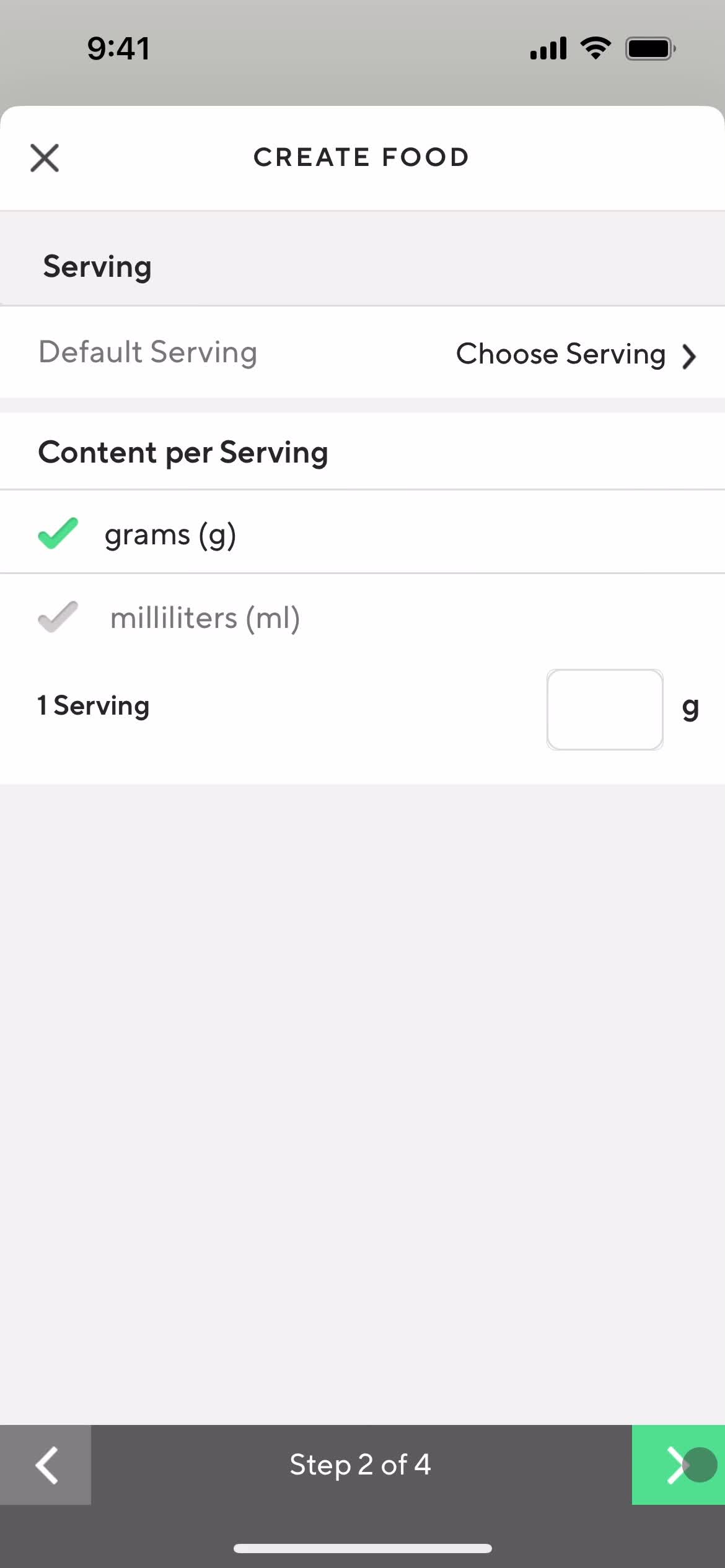
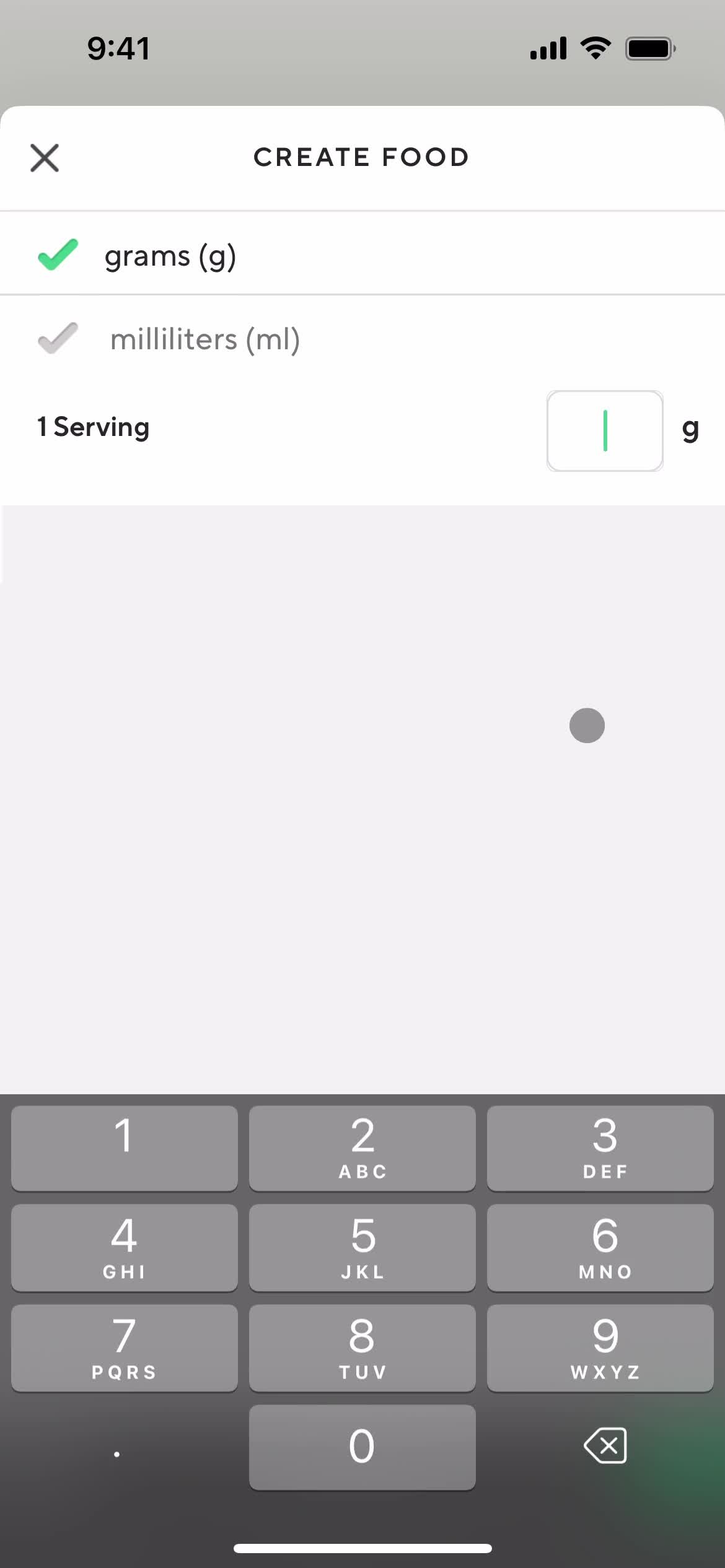
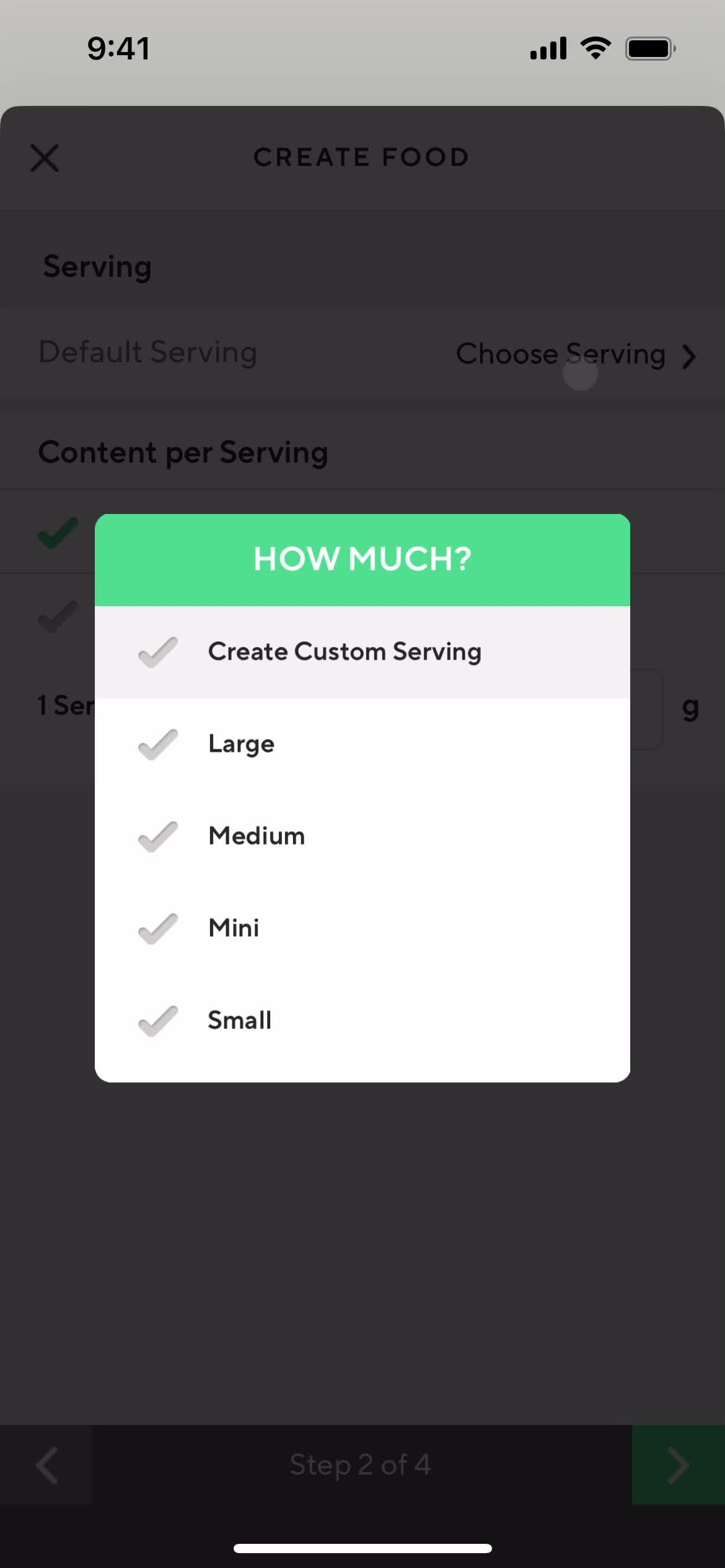
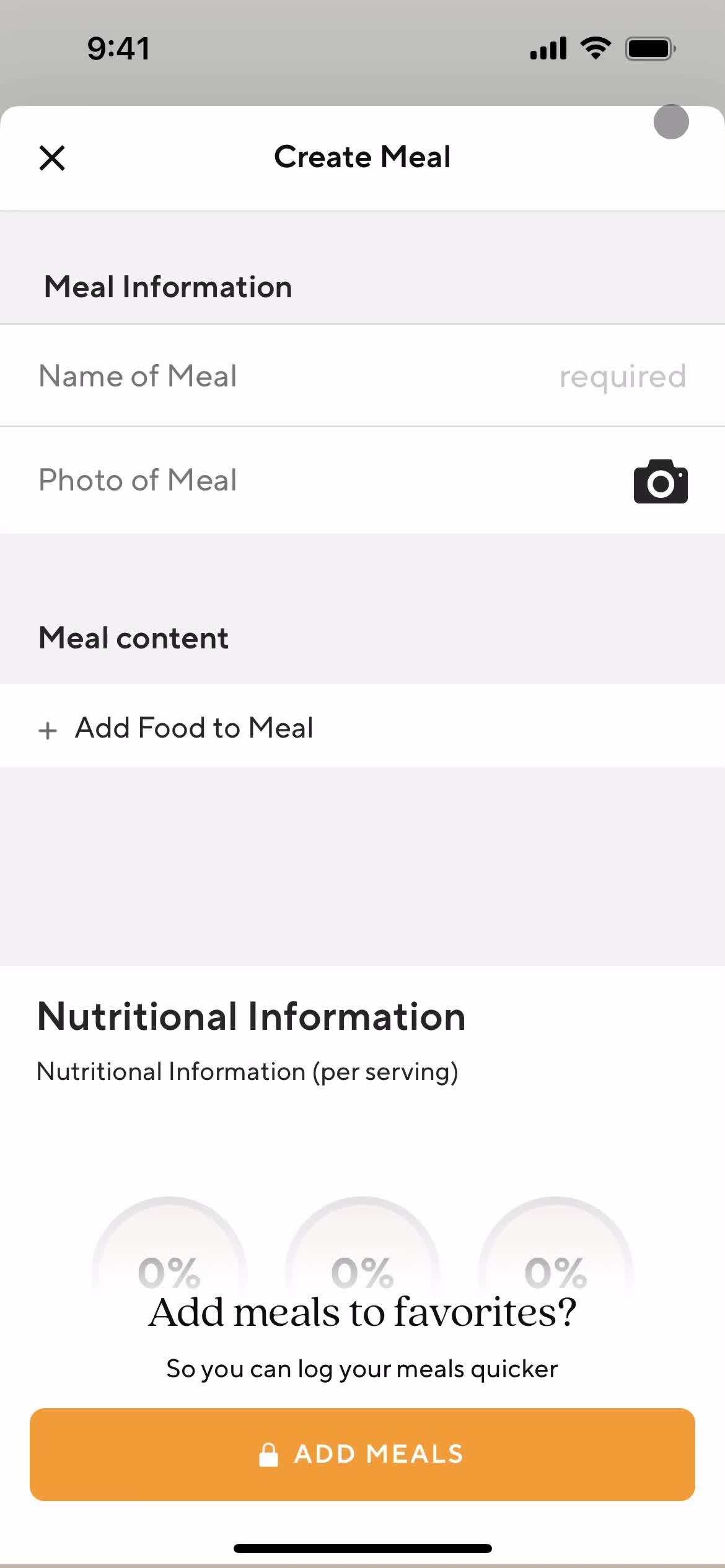
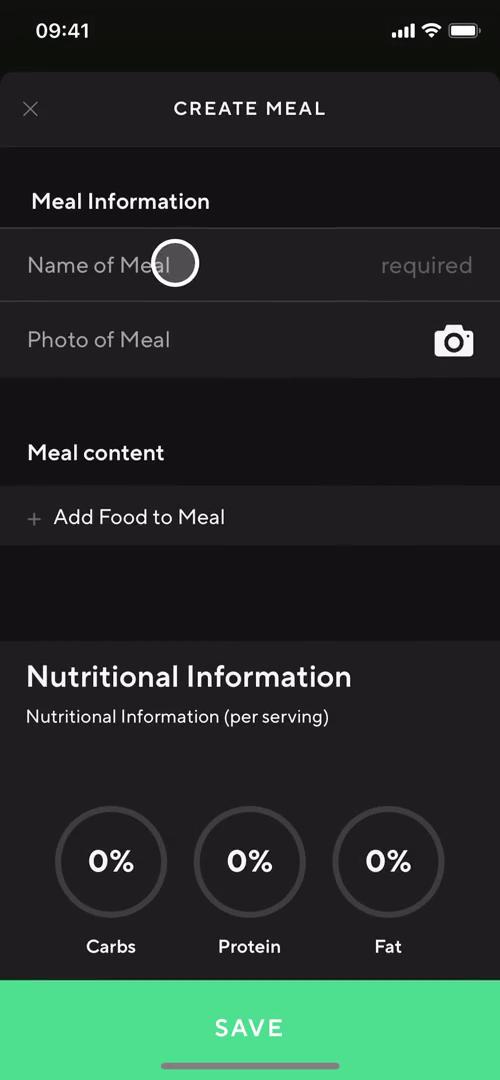
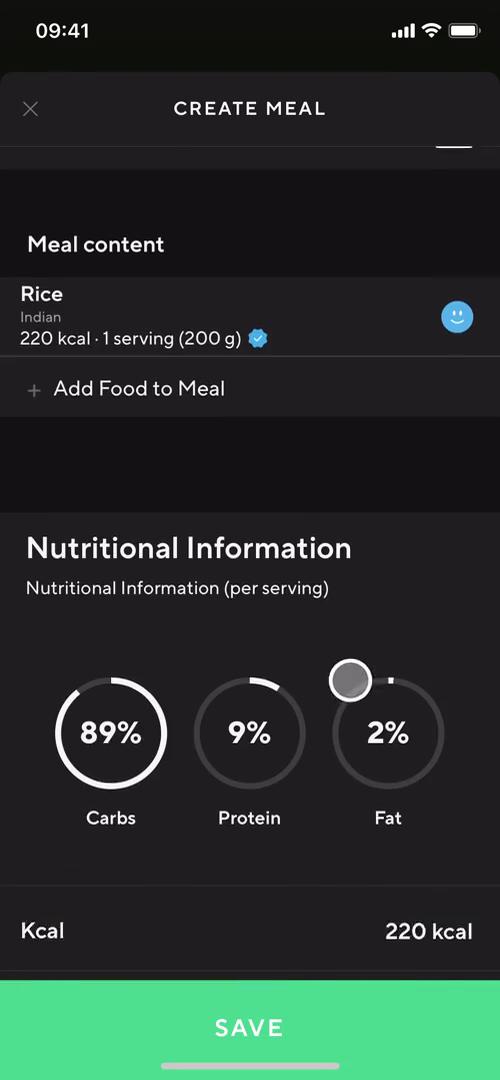
Create meal
this is title
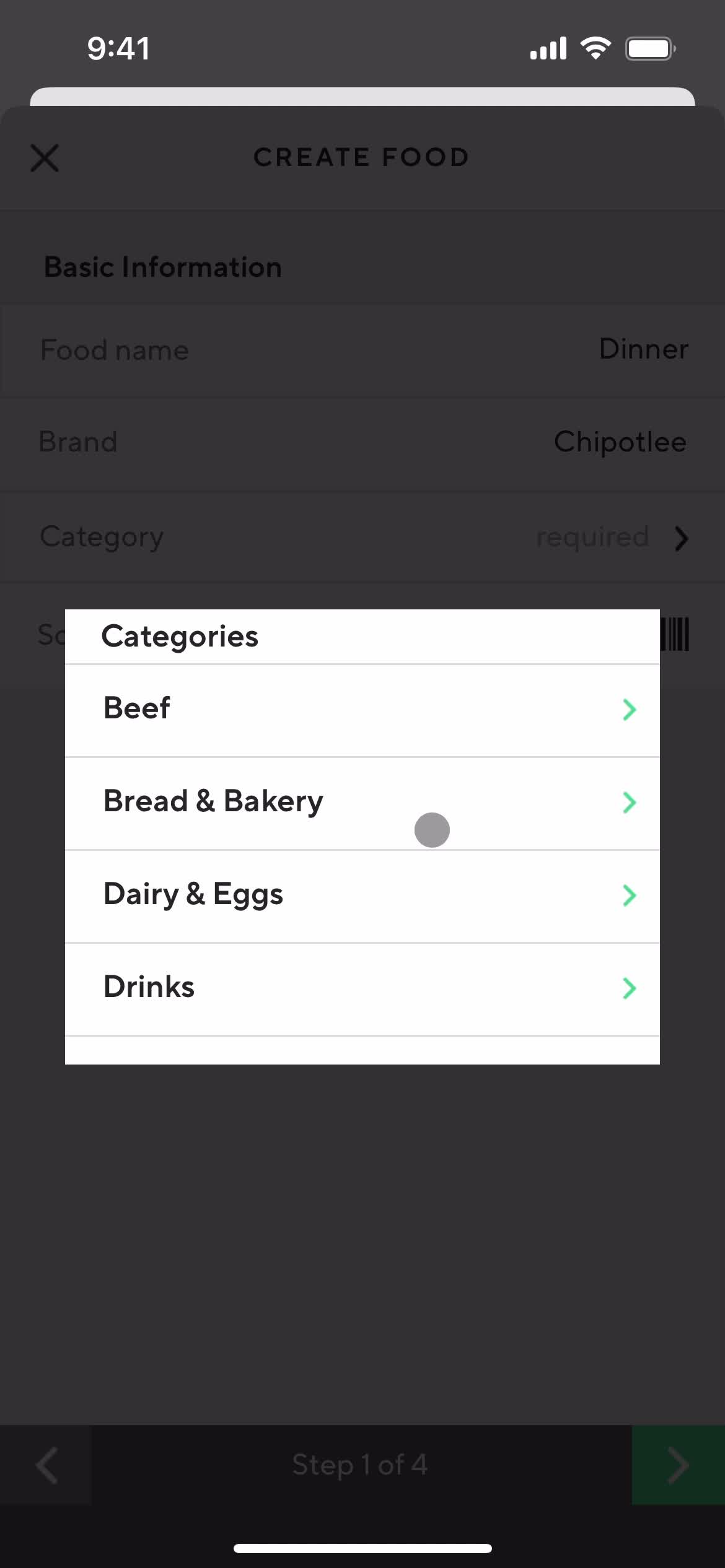
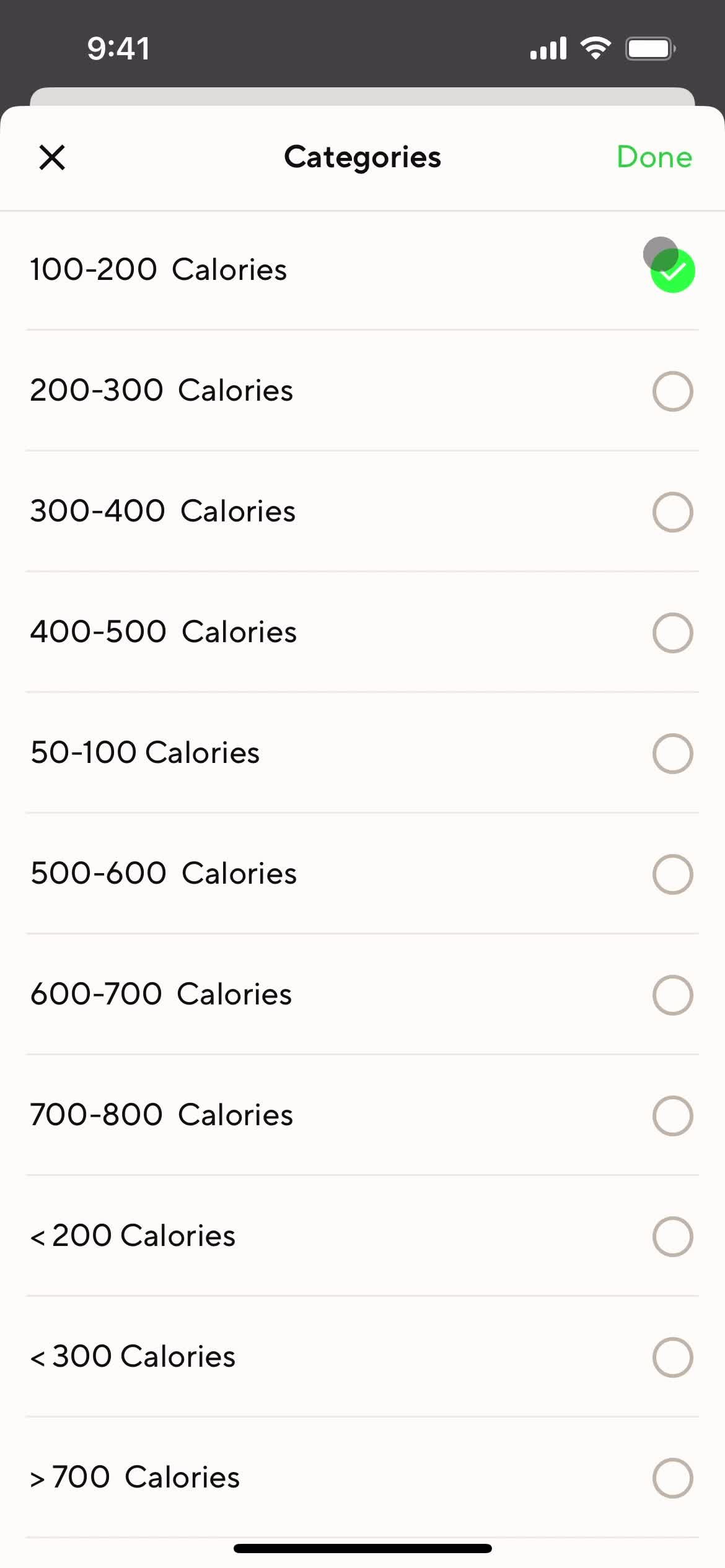
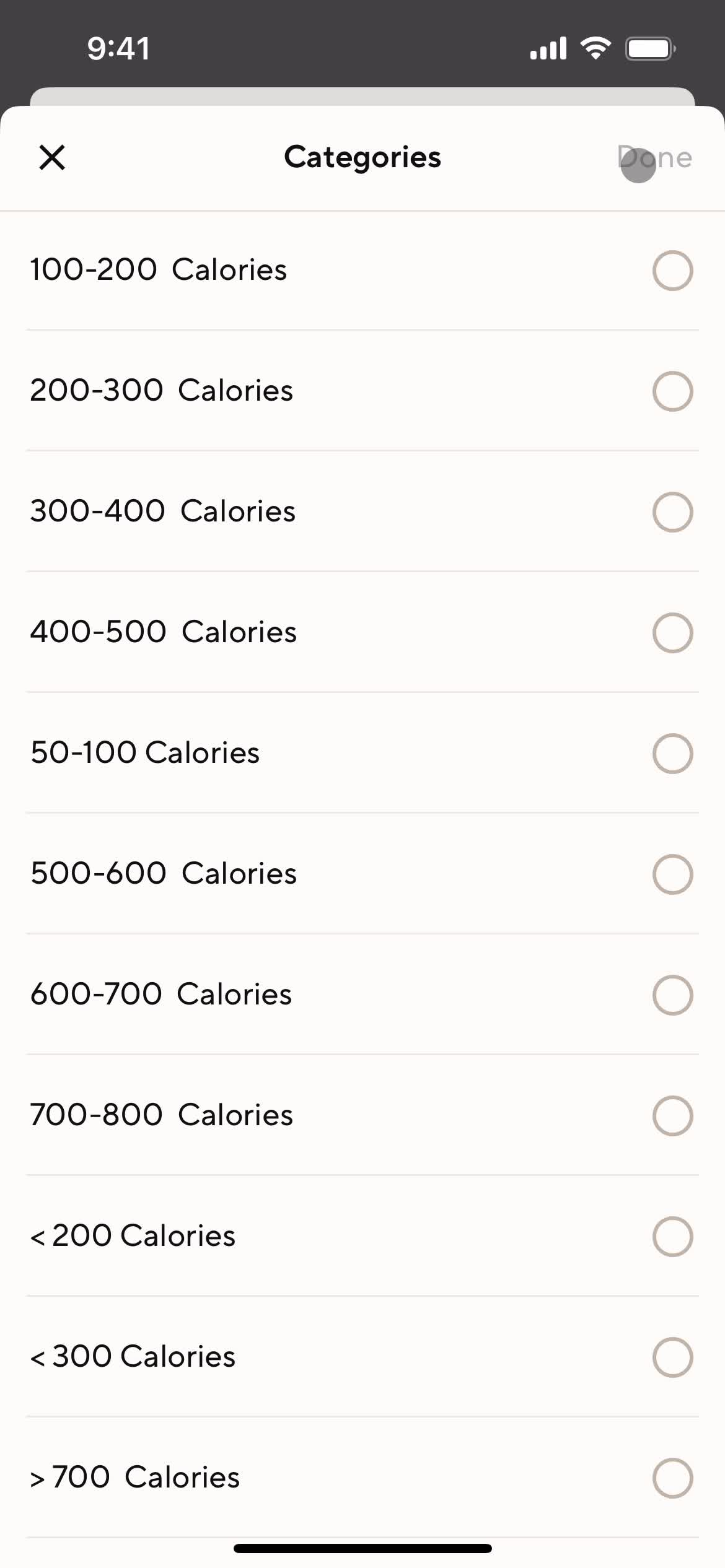
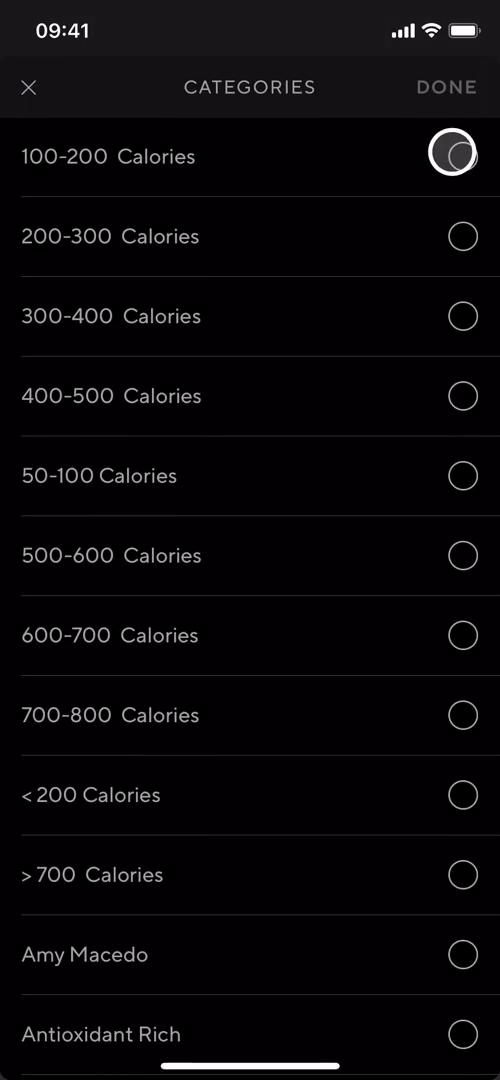
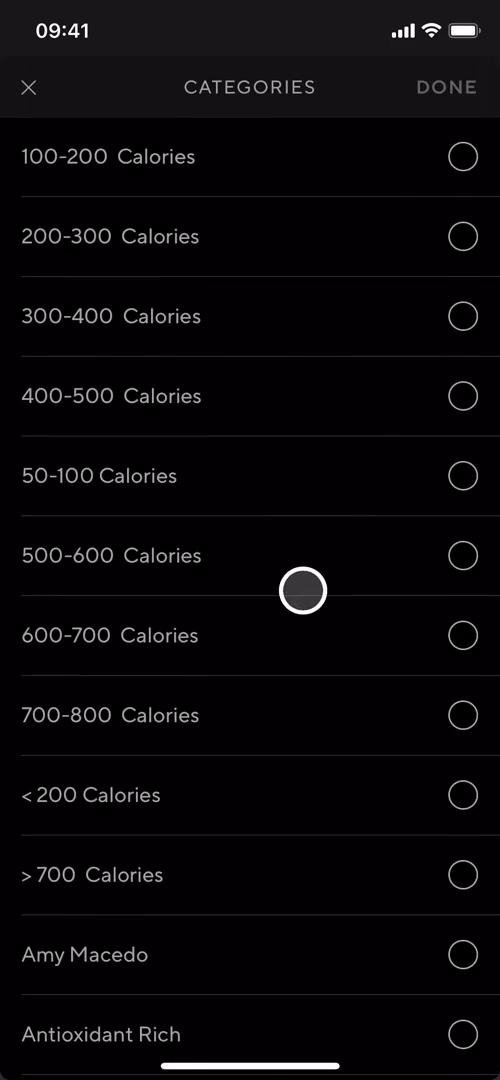
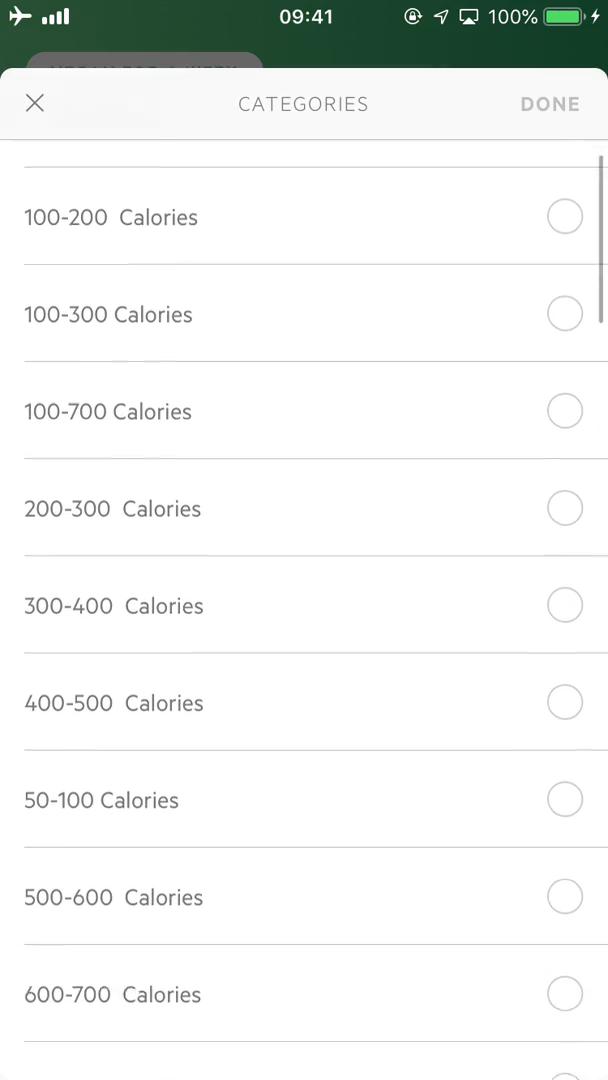
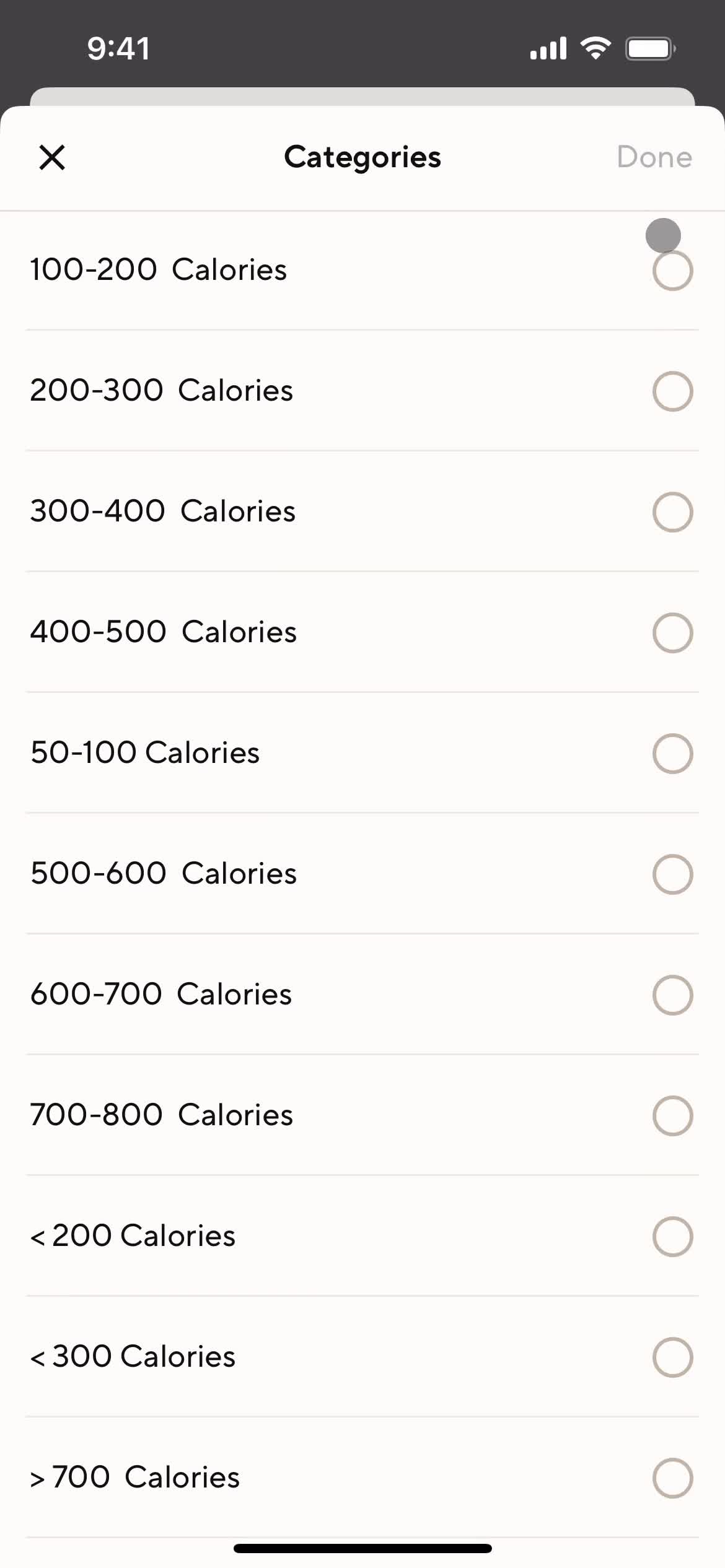
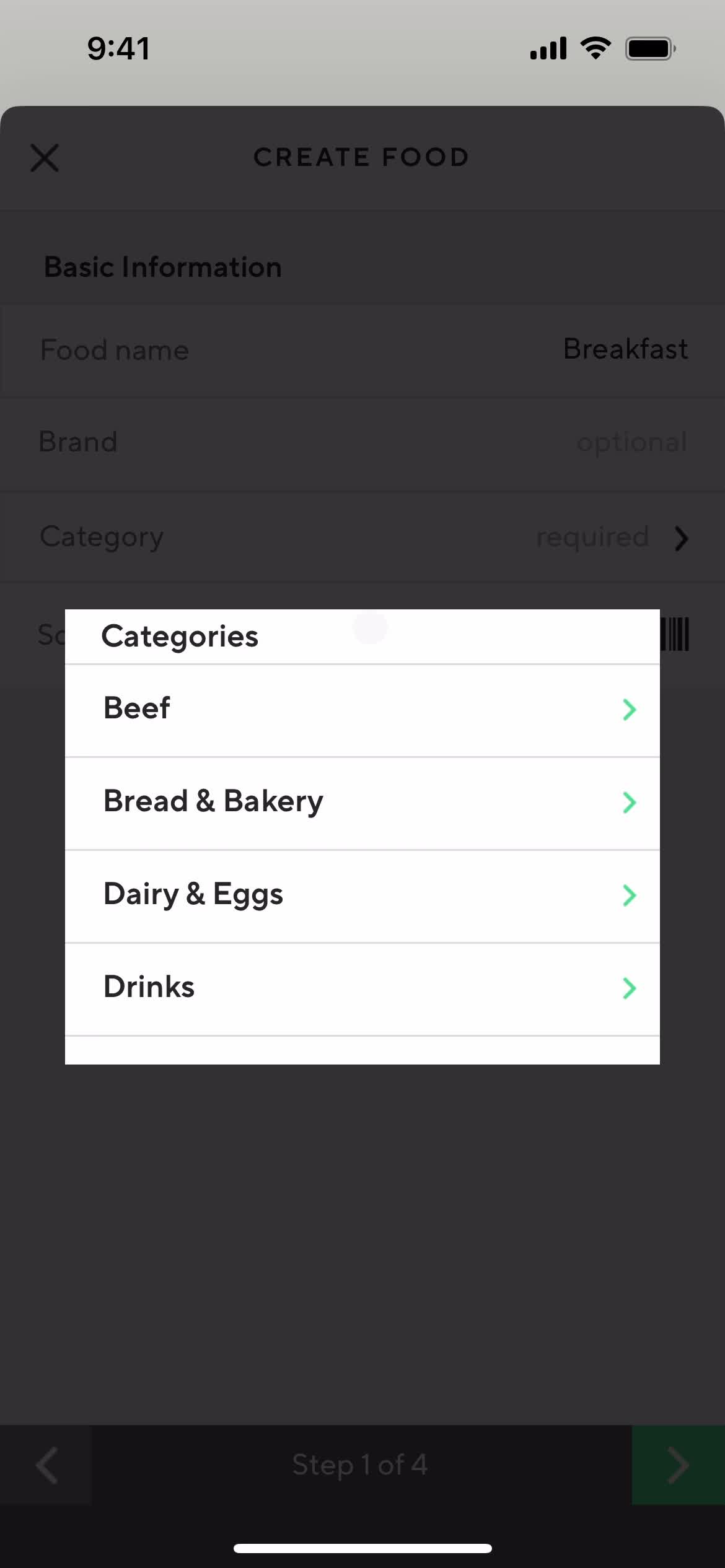
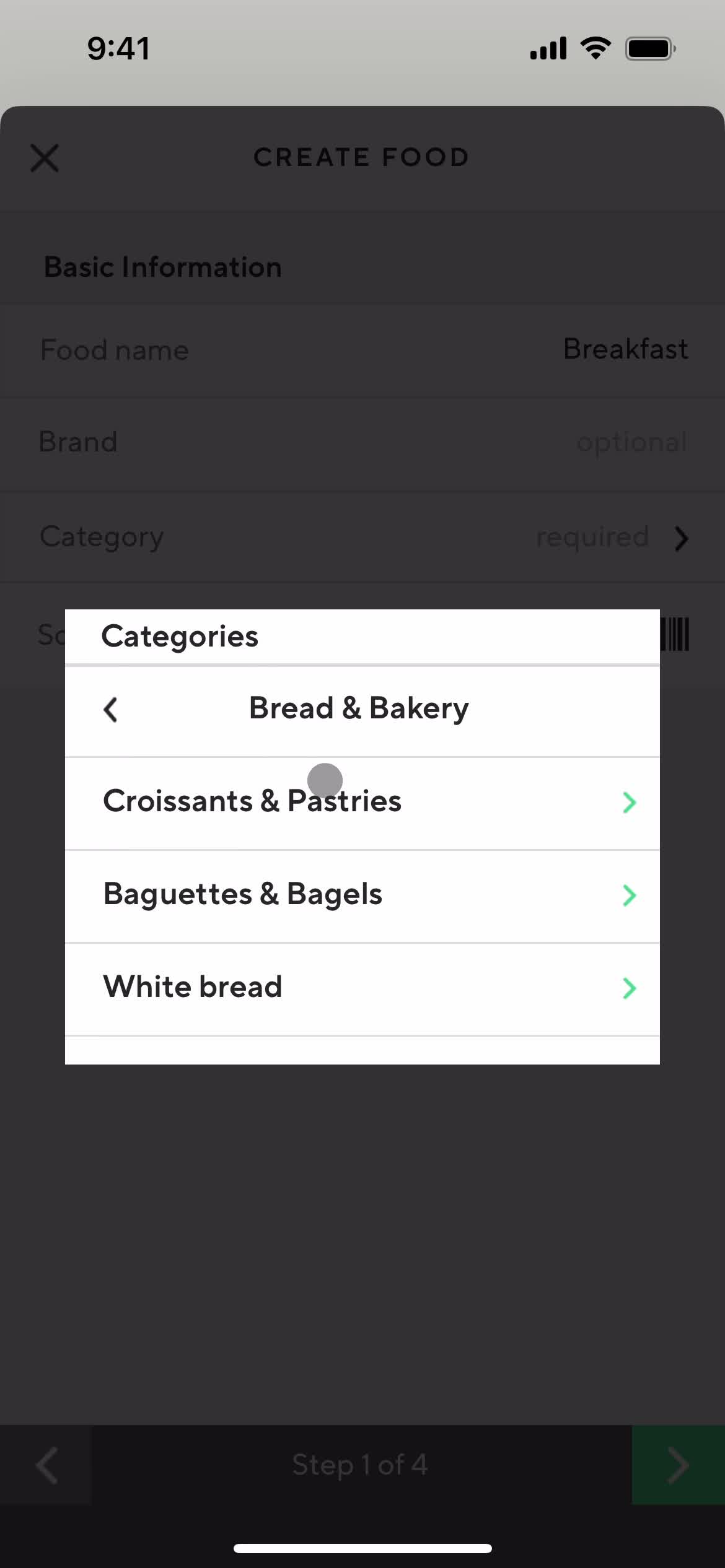
Categories
this is title
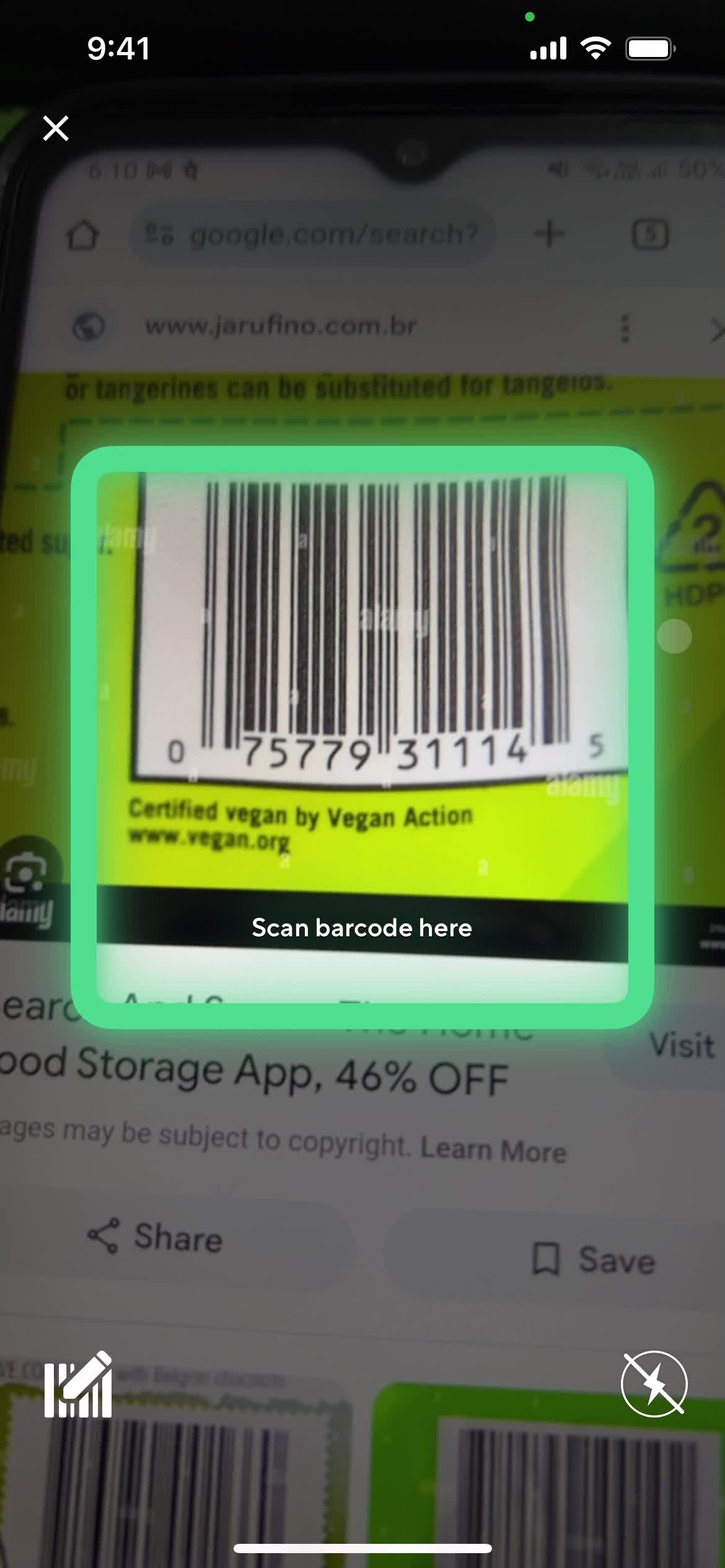
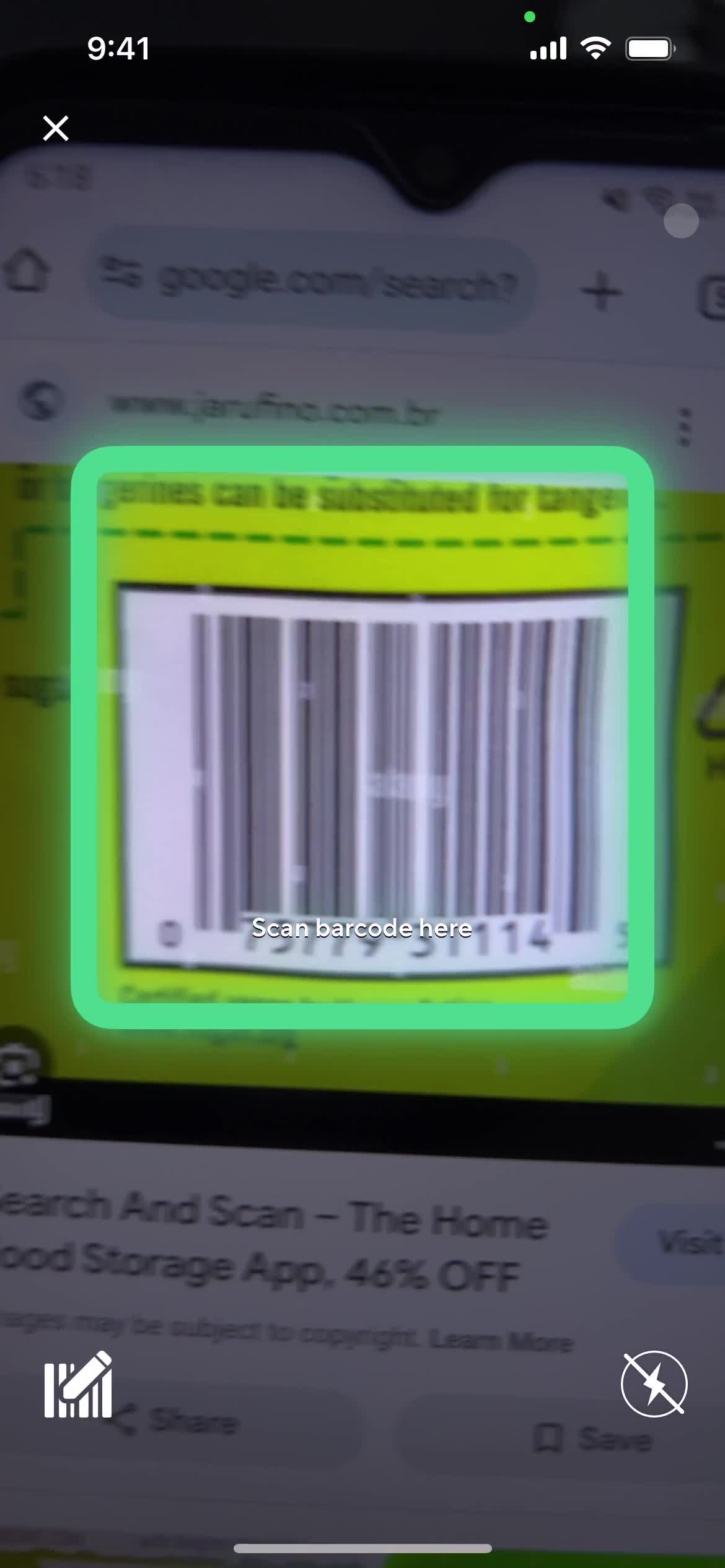
Scan barcode
this is title
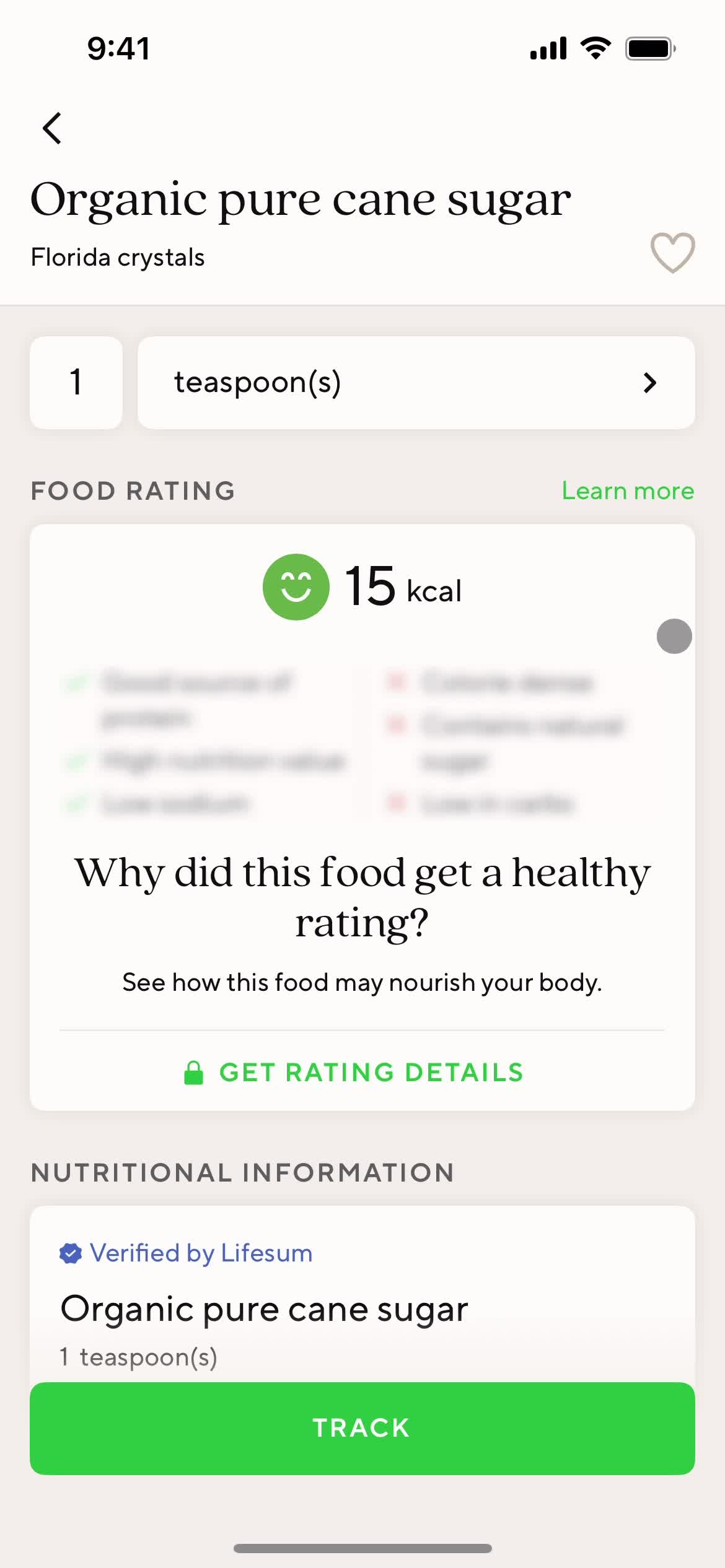
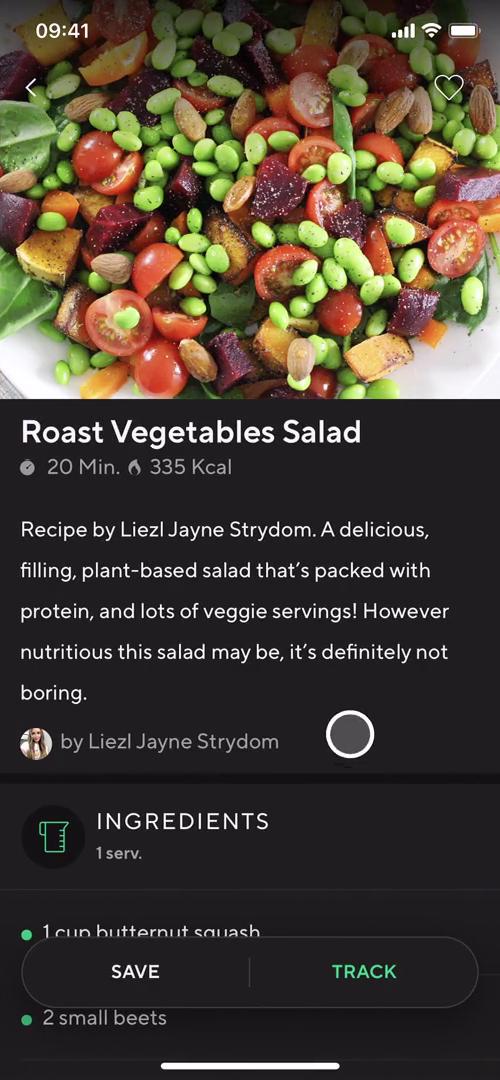
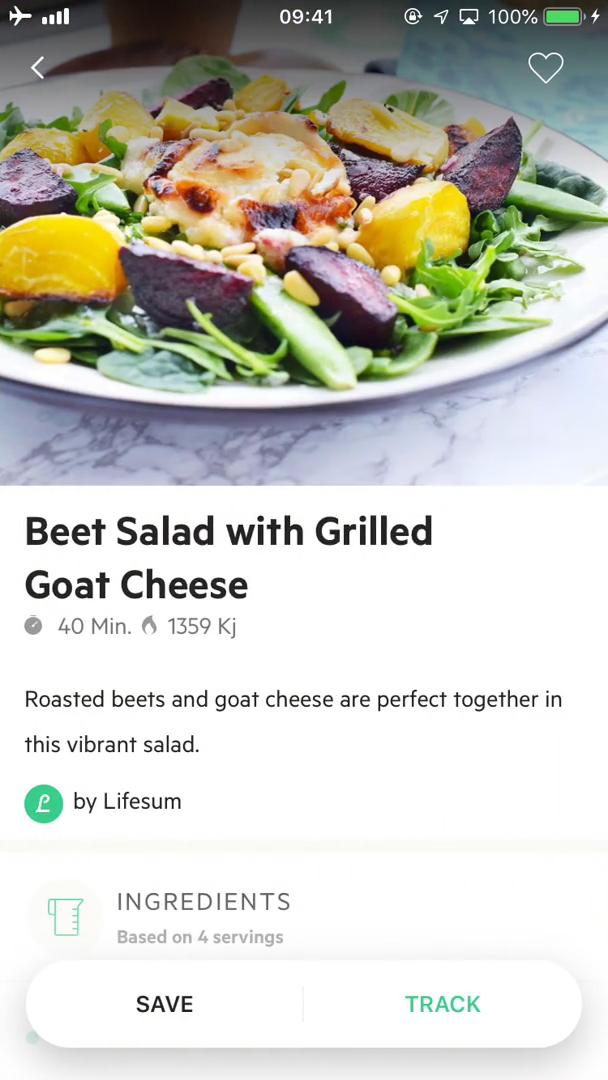
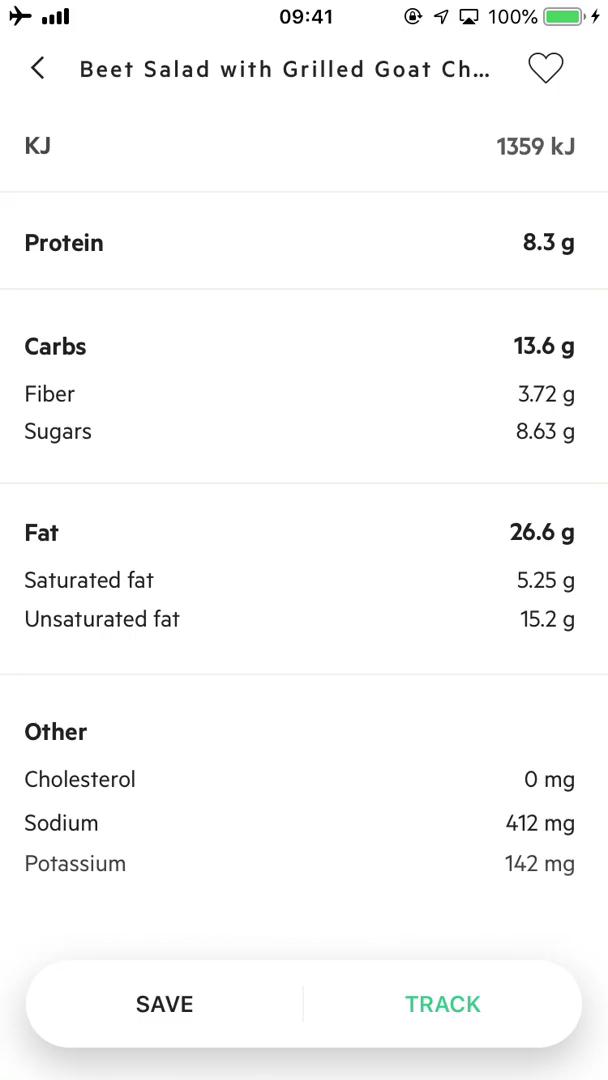
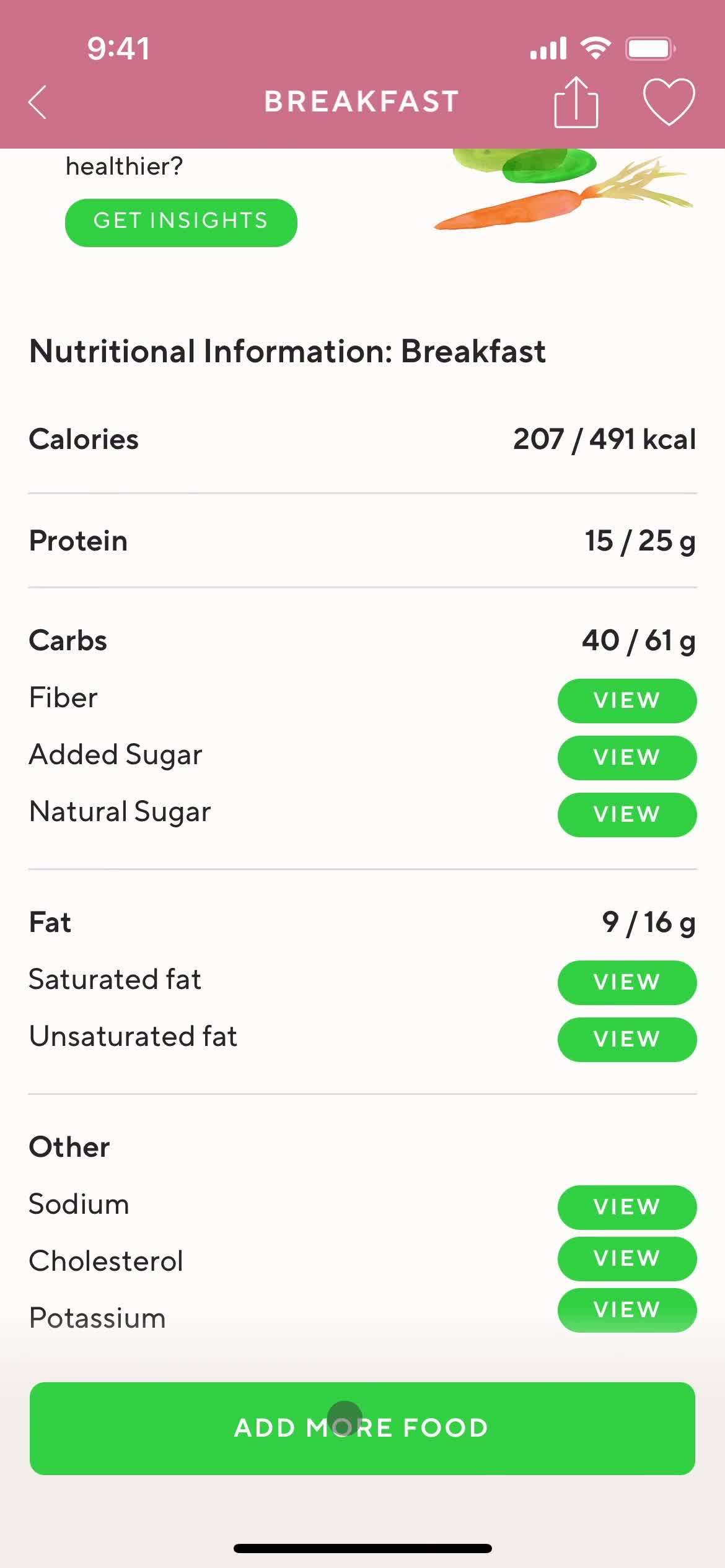
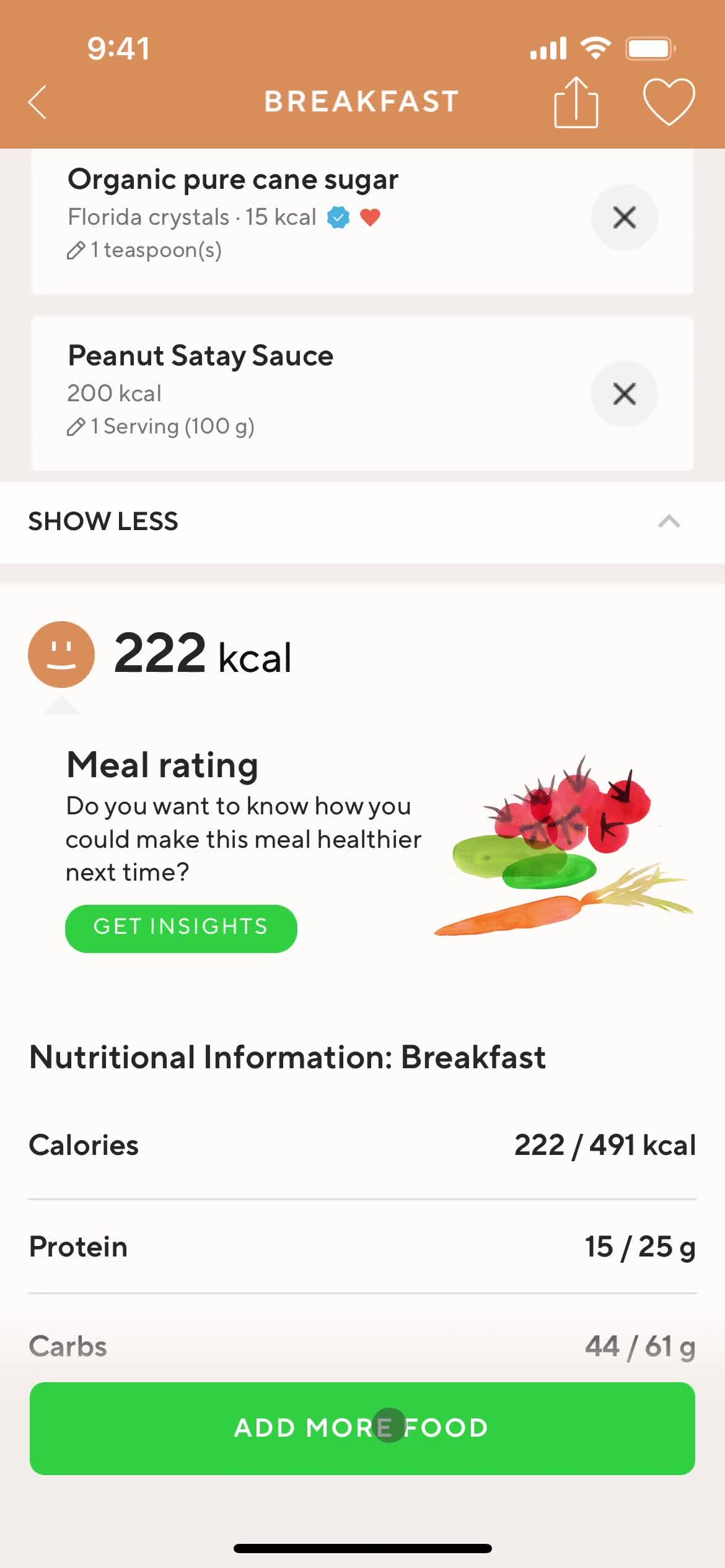
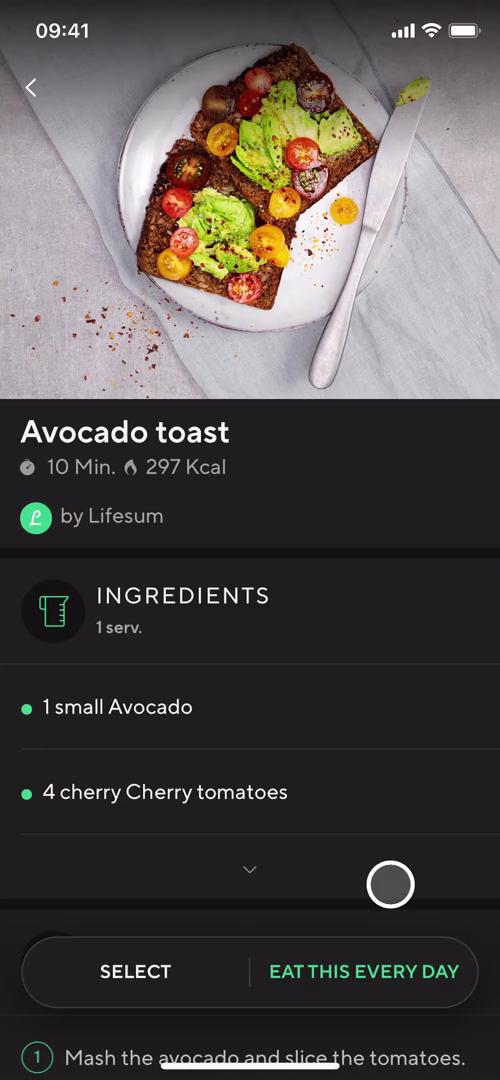
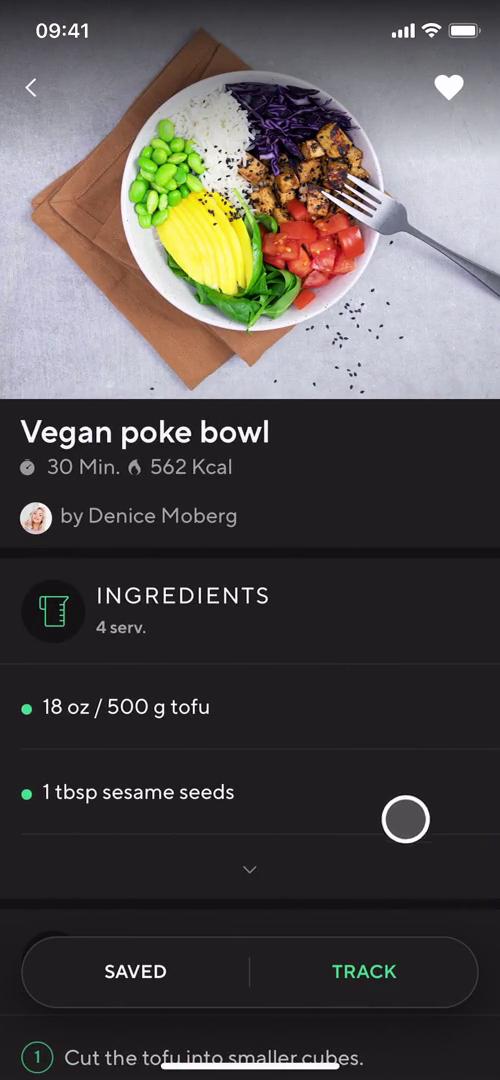
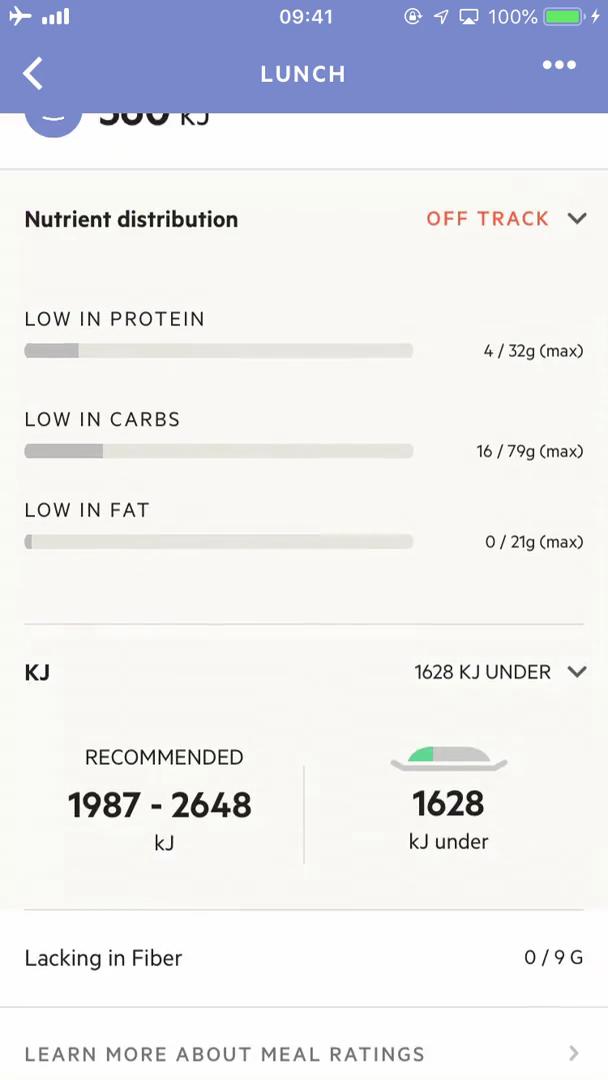
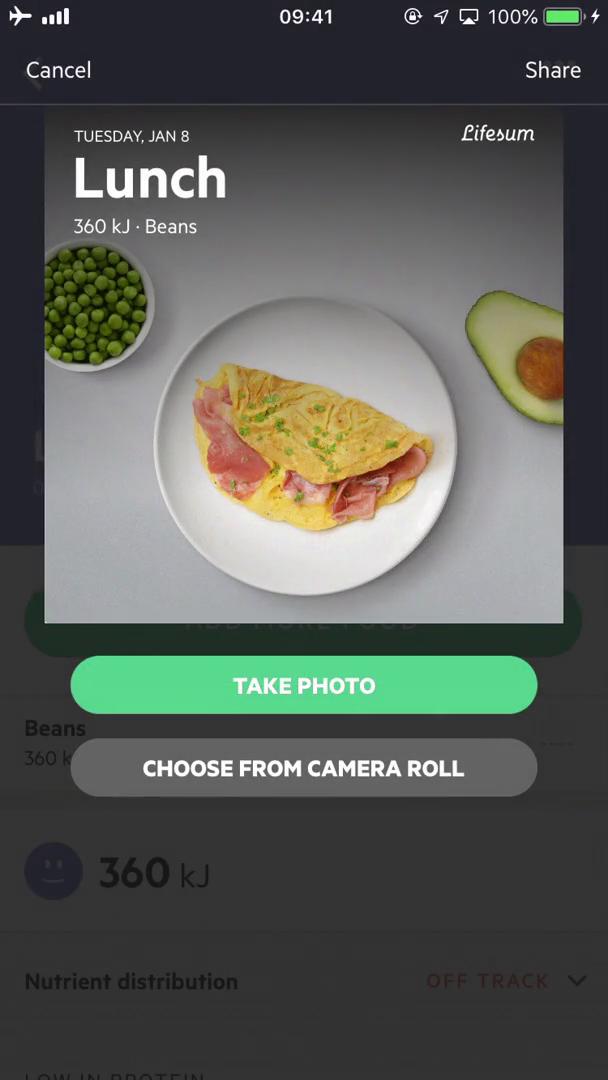
Meal details
this is title
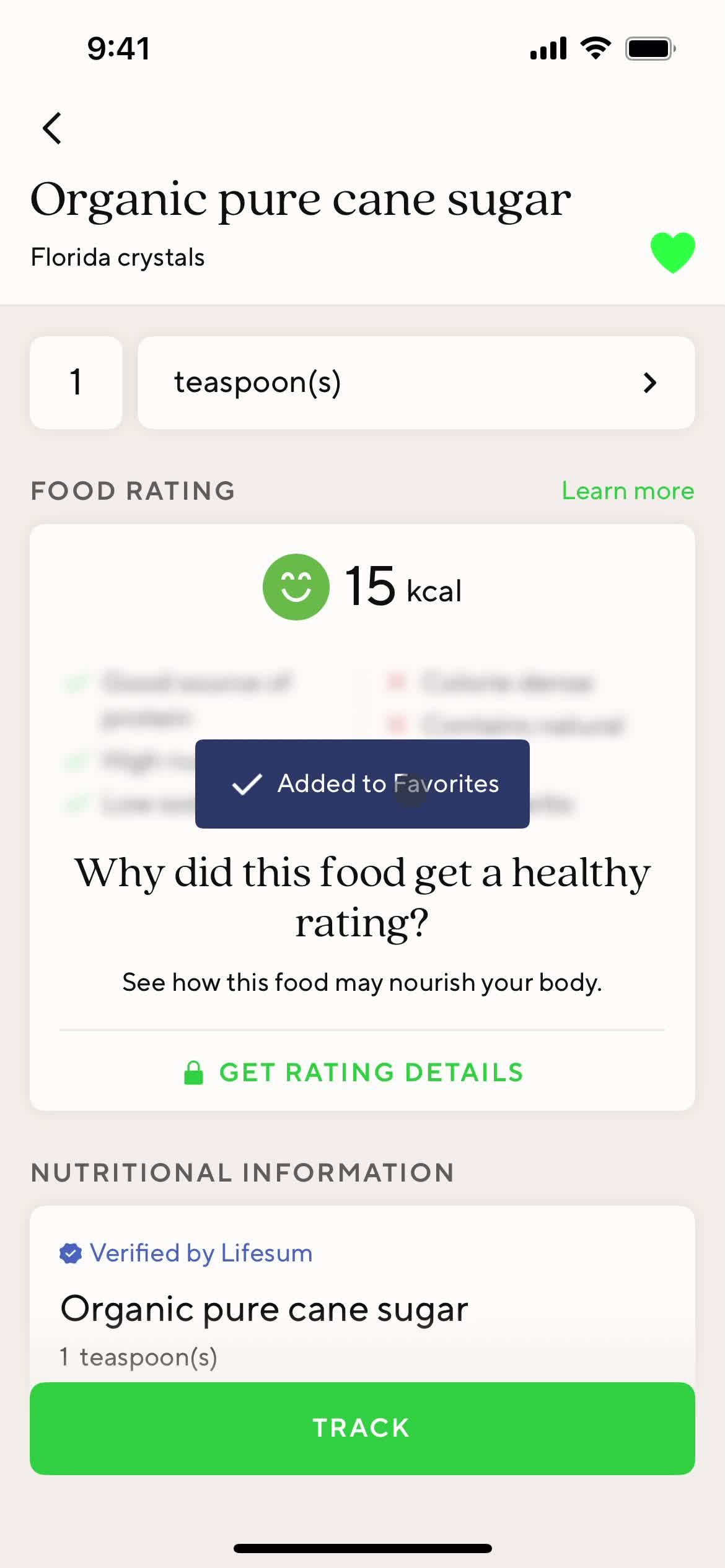
Added to favorites
this is title
Loading
this is title
Add details
this is title
Select options
this is title
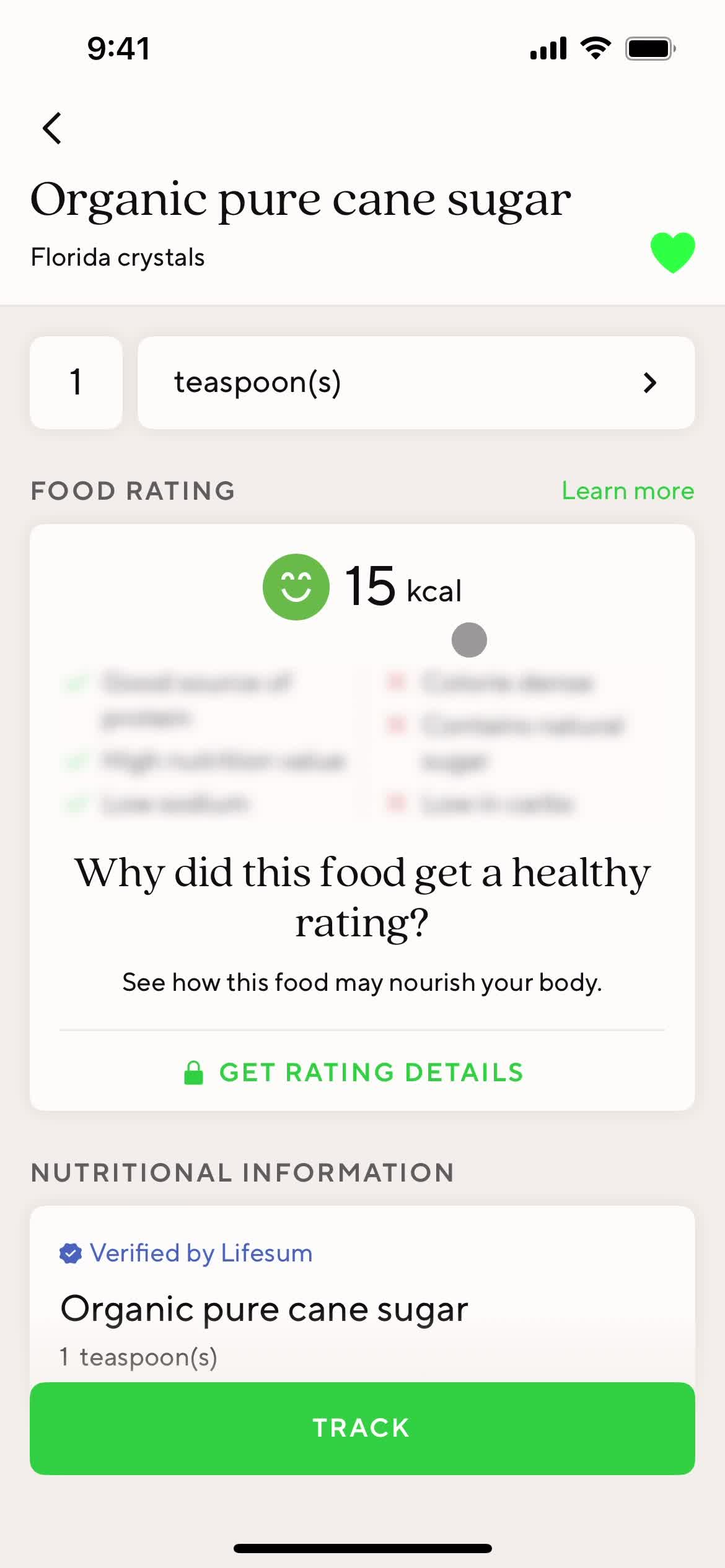
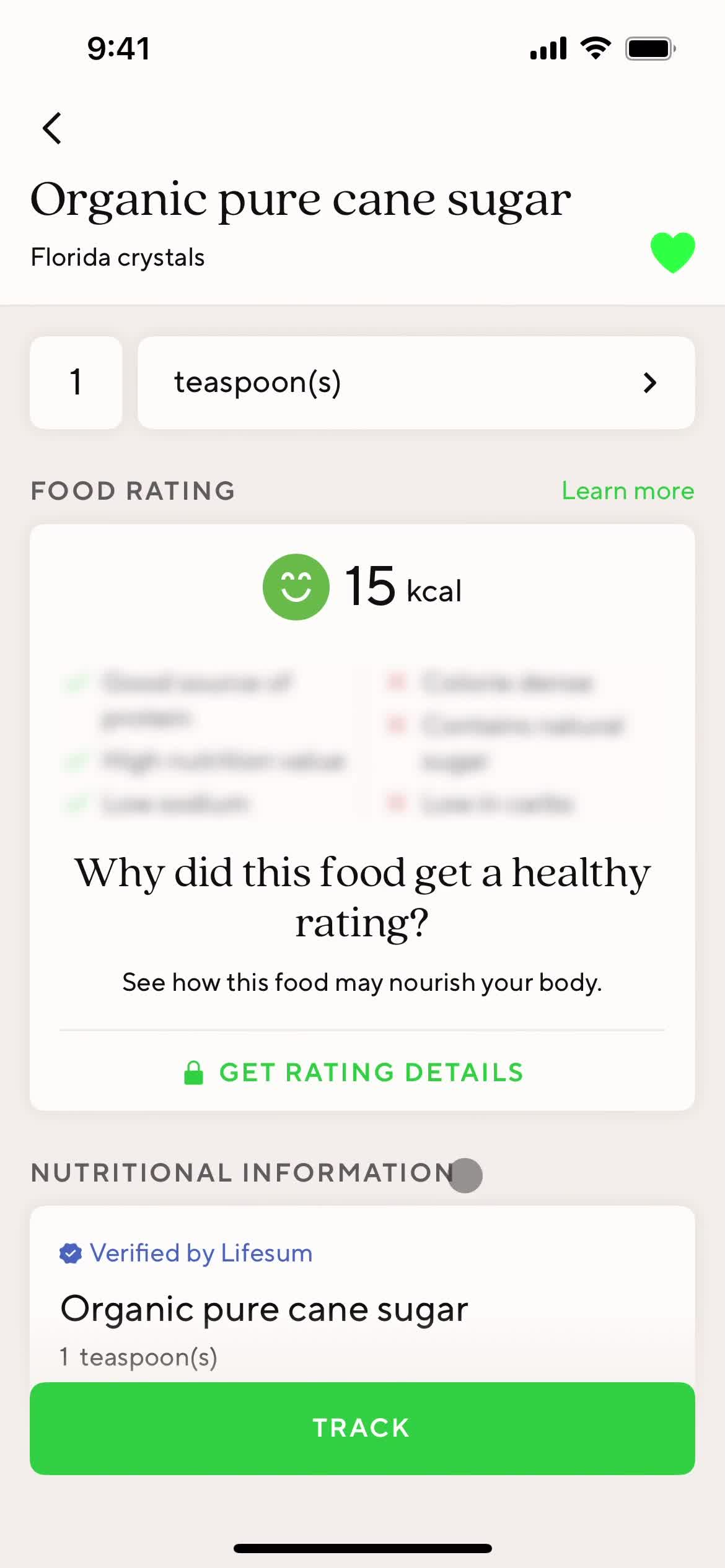
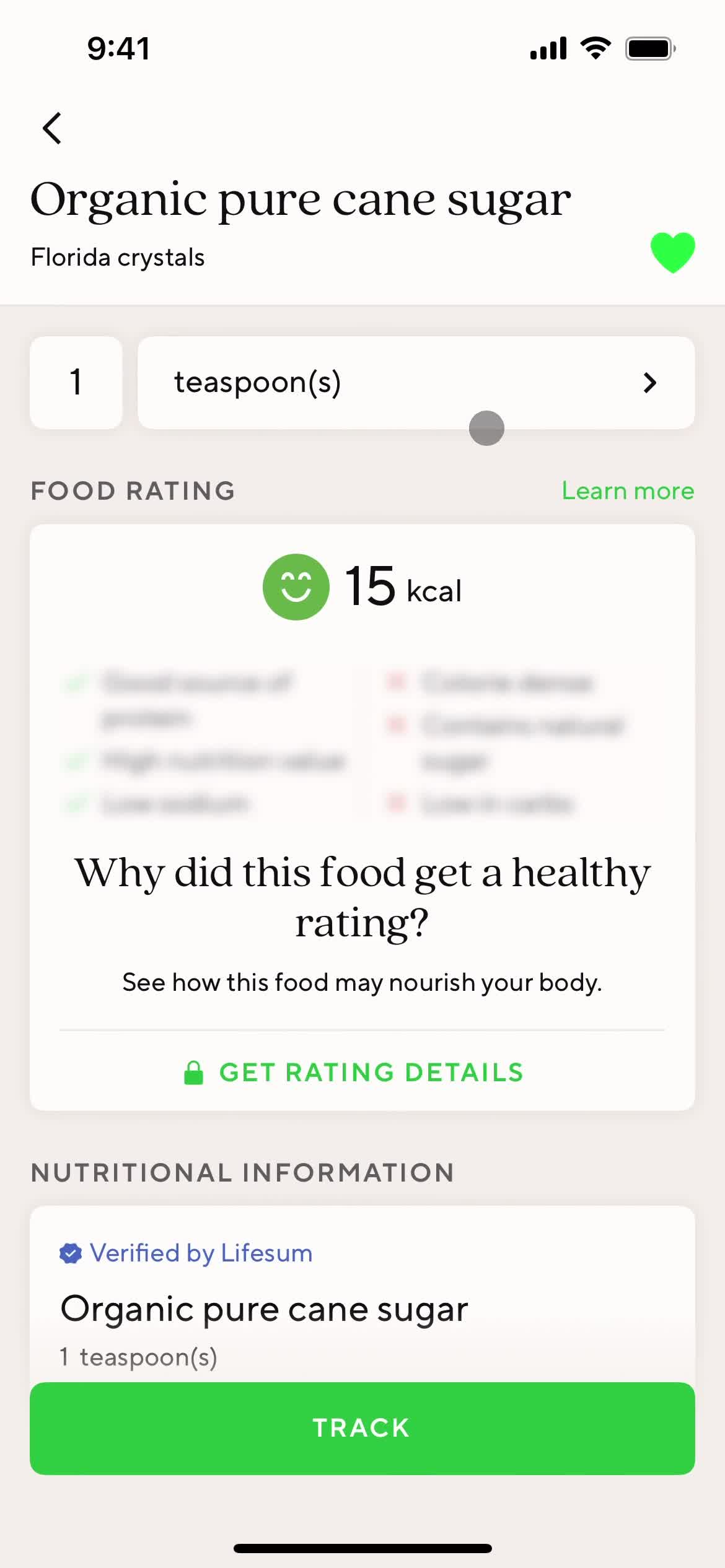
Food details
this is title
Add details
this is title
Confirm
this is title
Favorites
this is title
this is title
Meal details
this is title
Favorites
this is title
Action menu
this is title
Create meal
this is title
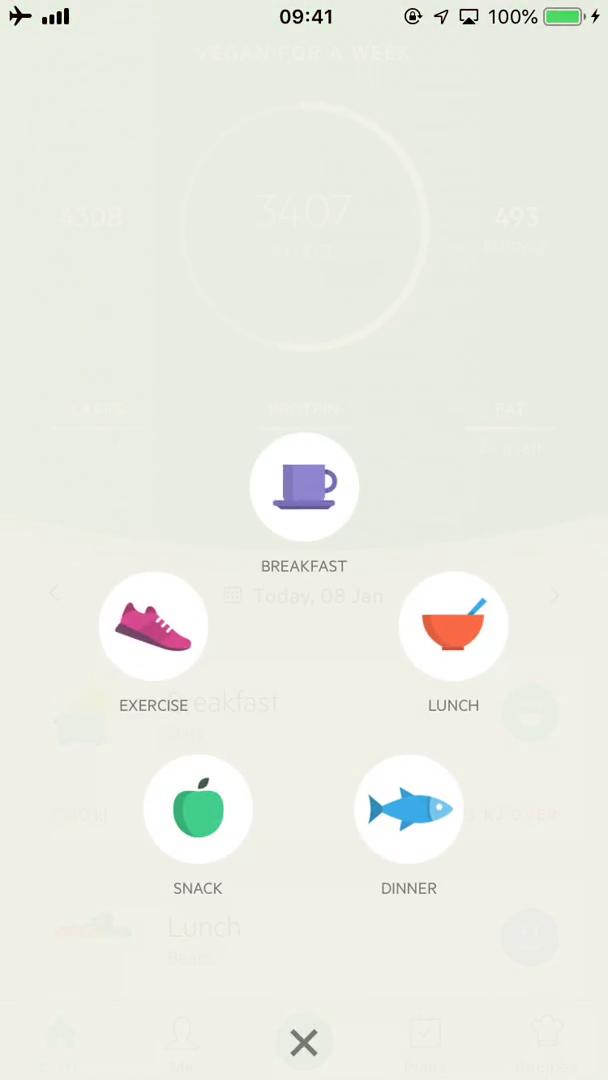
Action menu
this is title
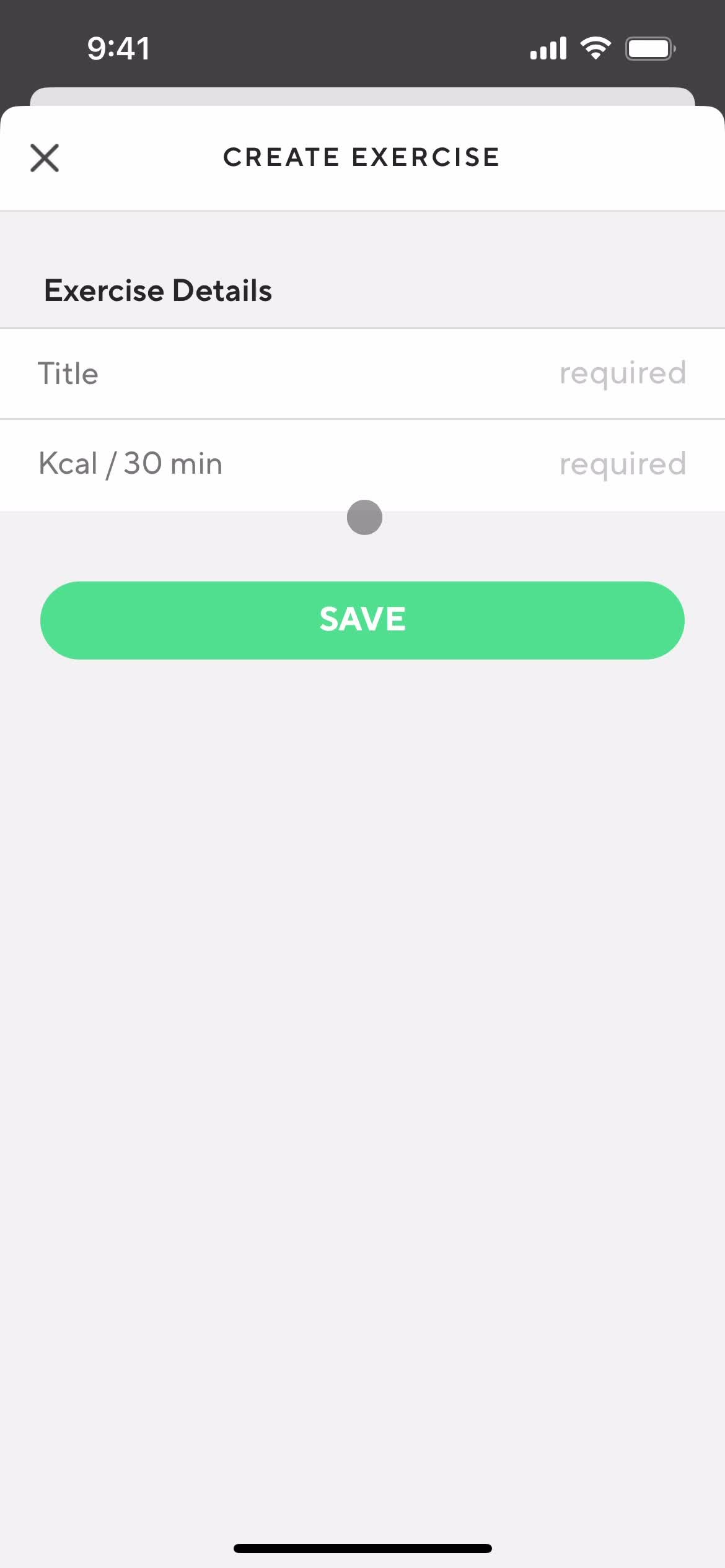
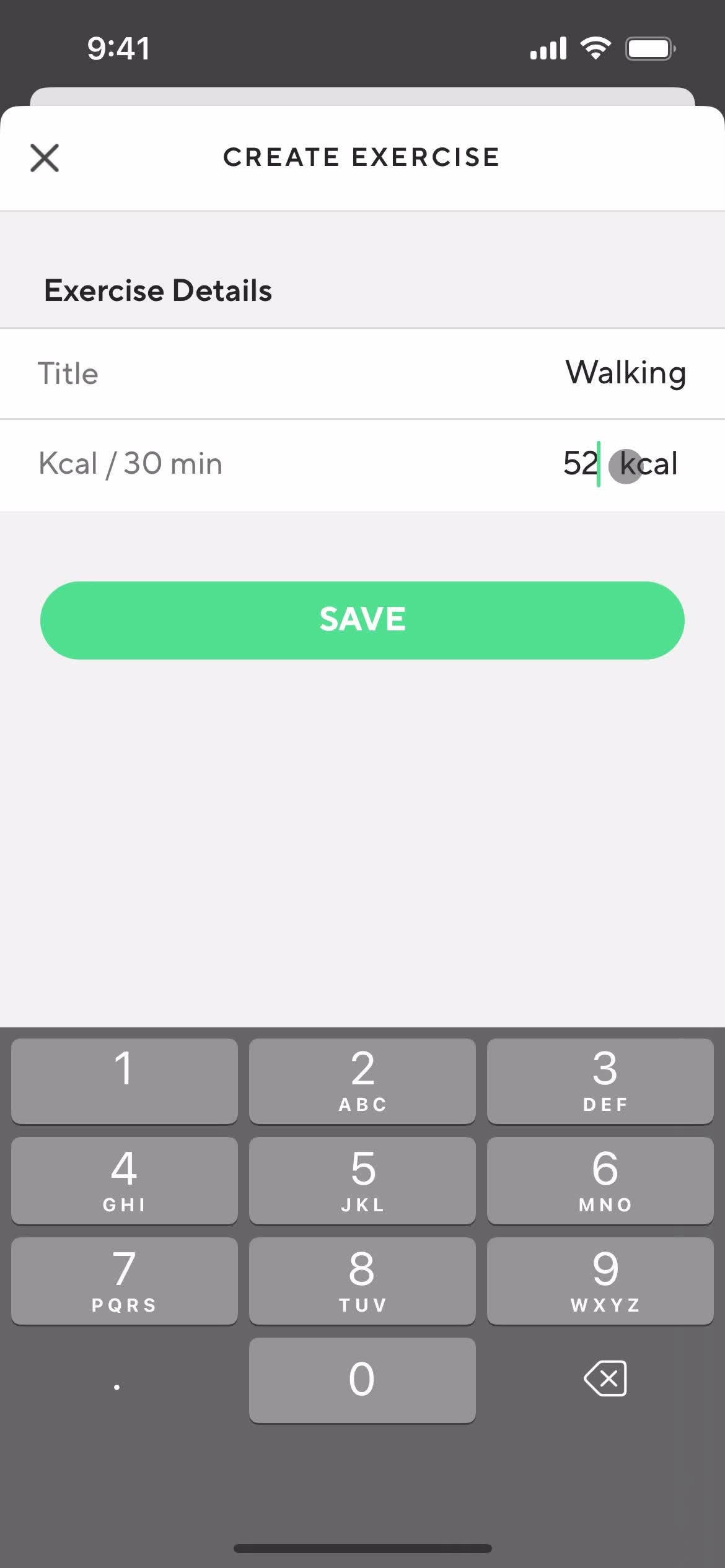
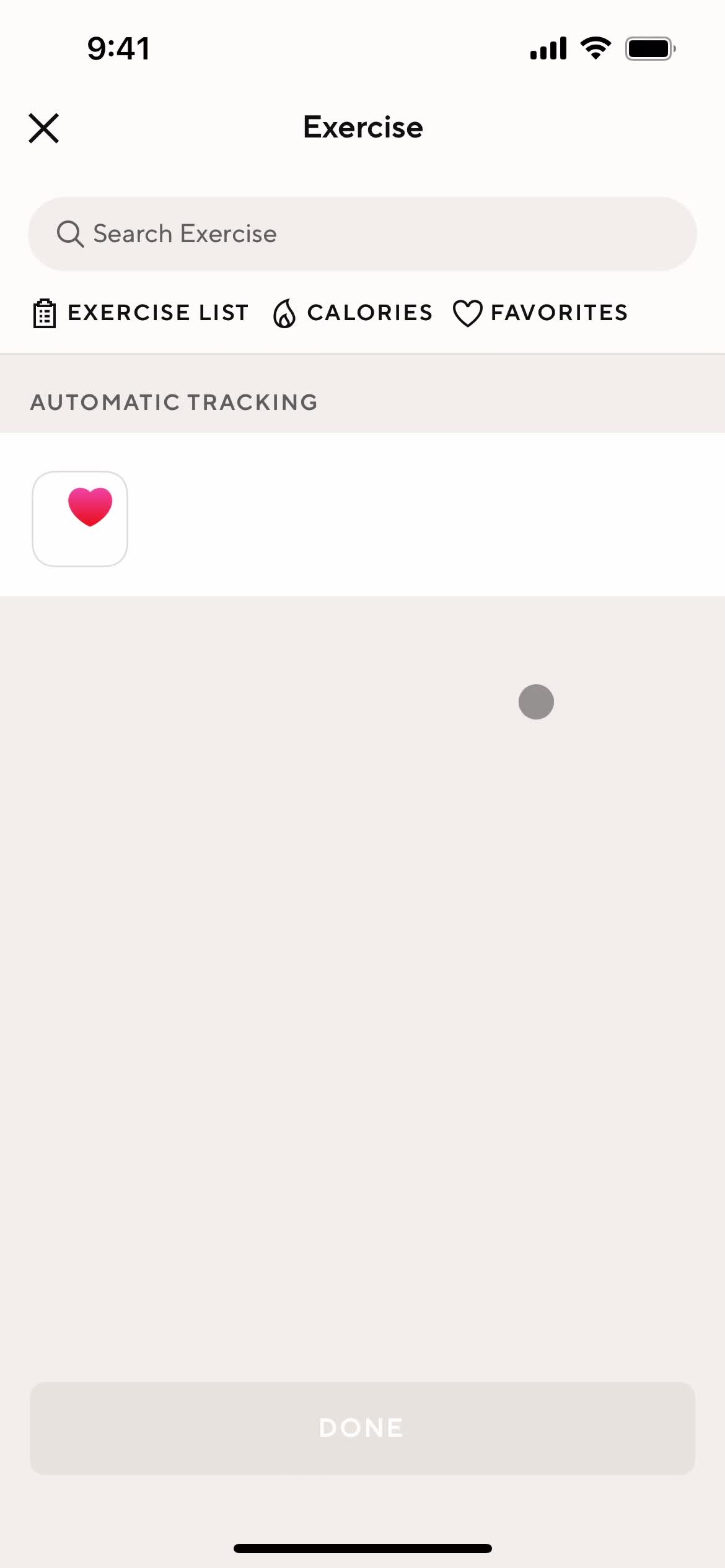
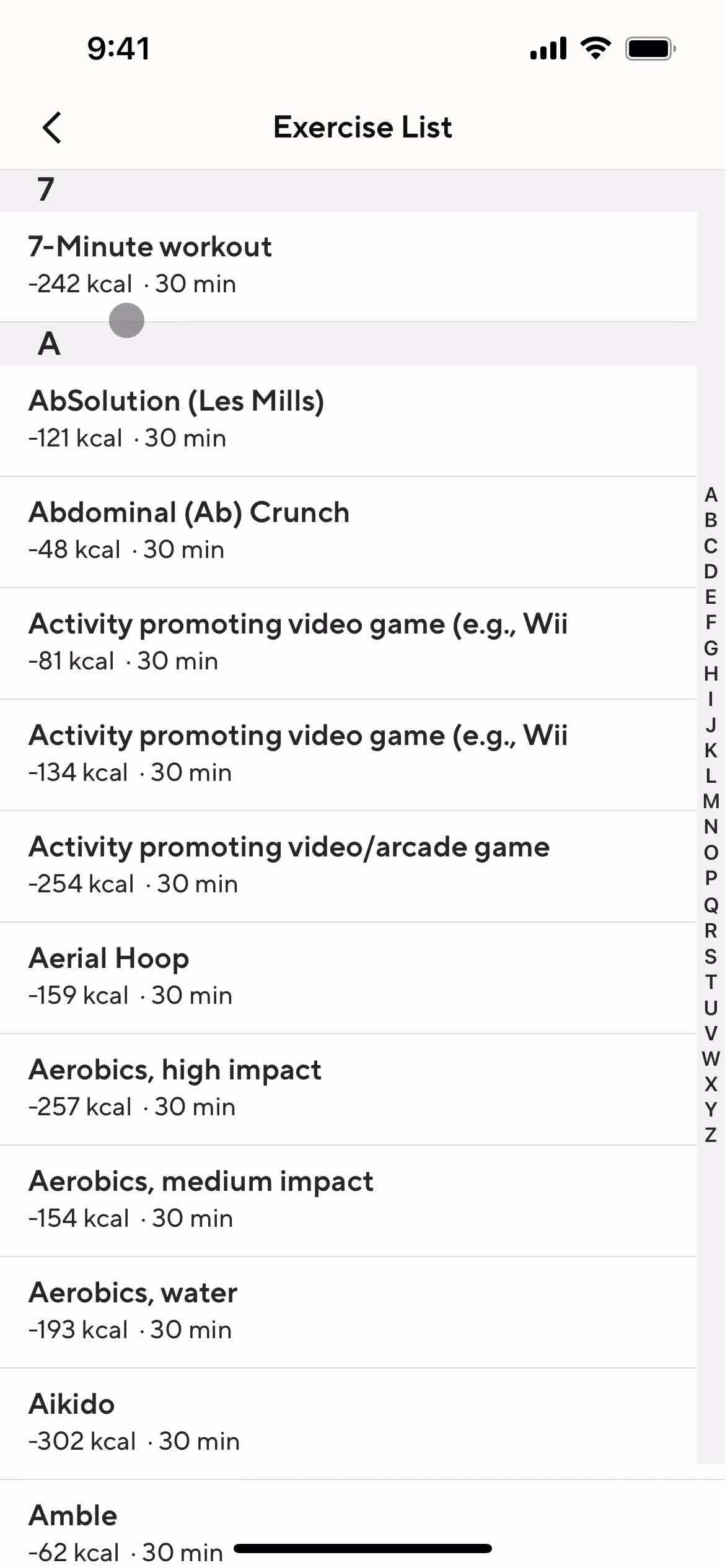
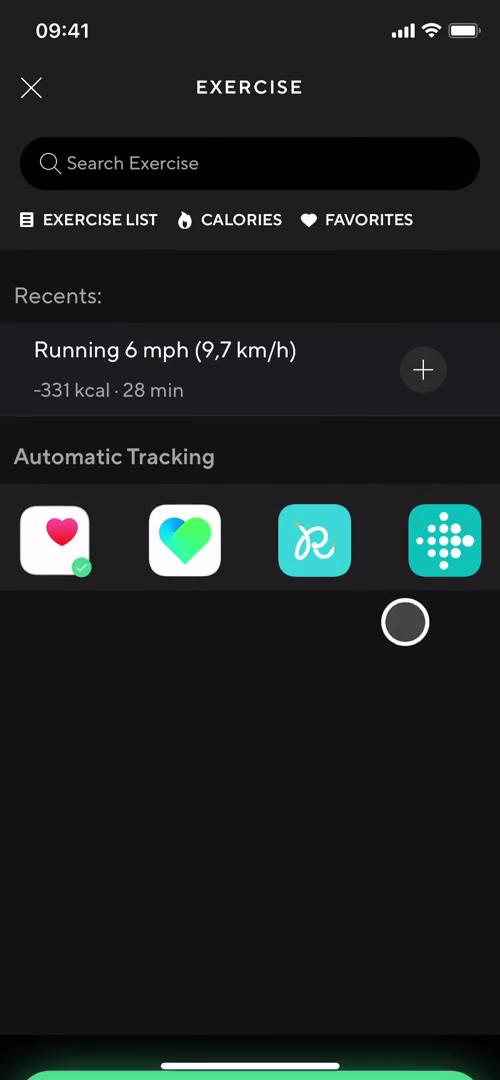
Exercise
this is title
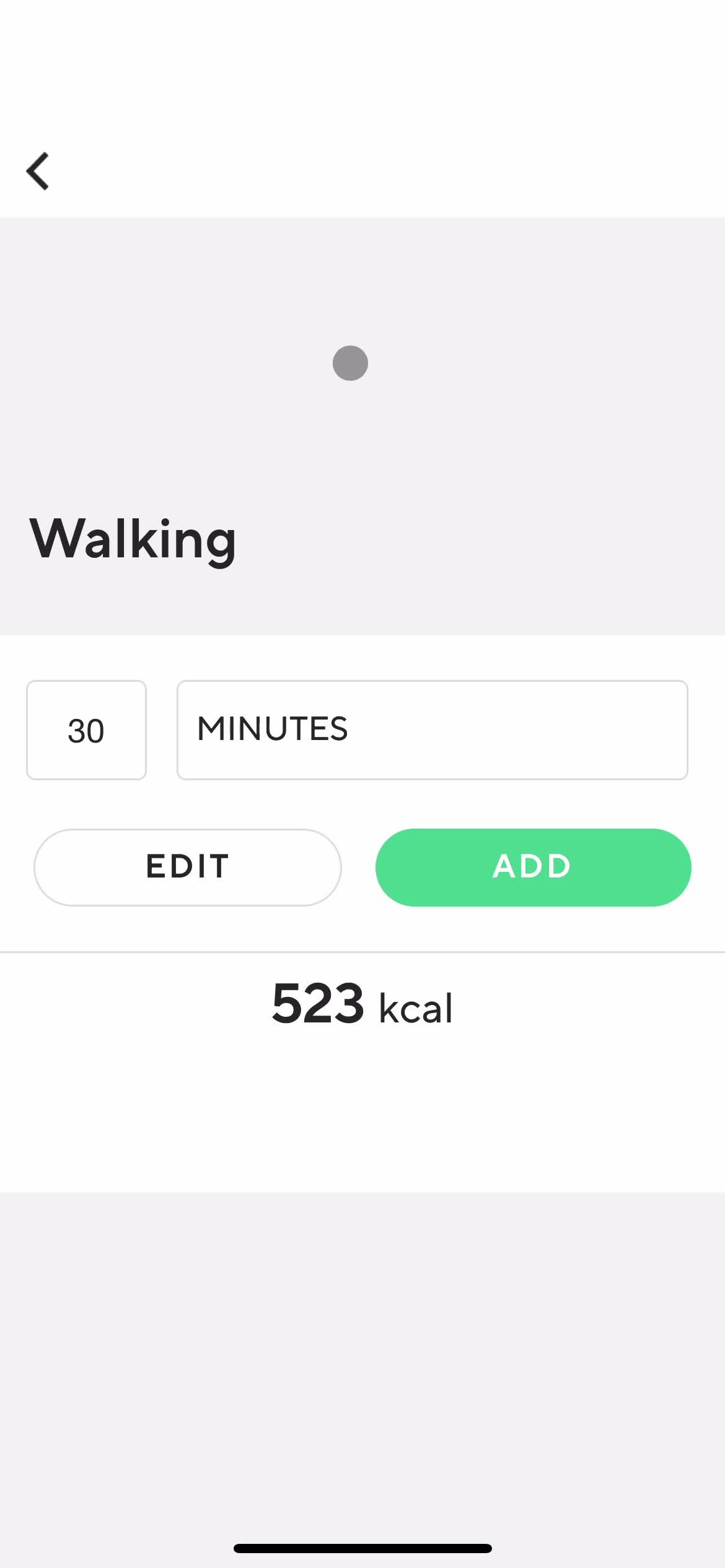
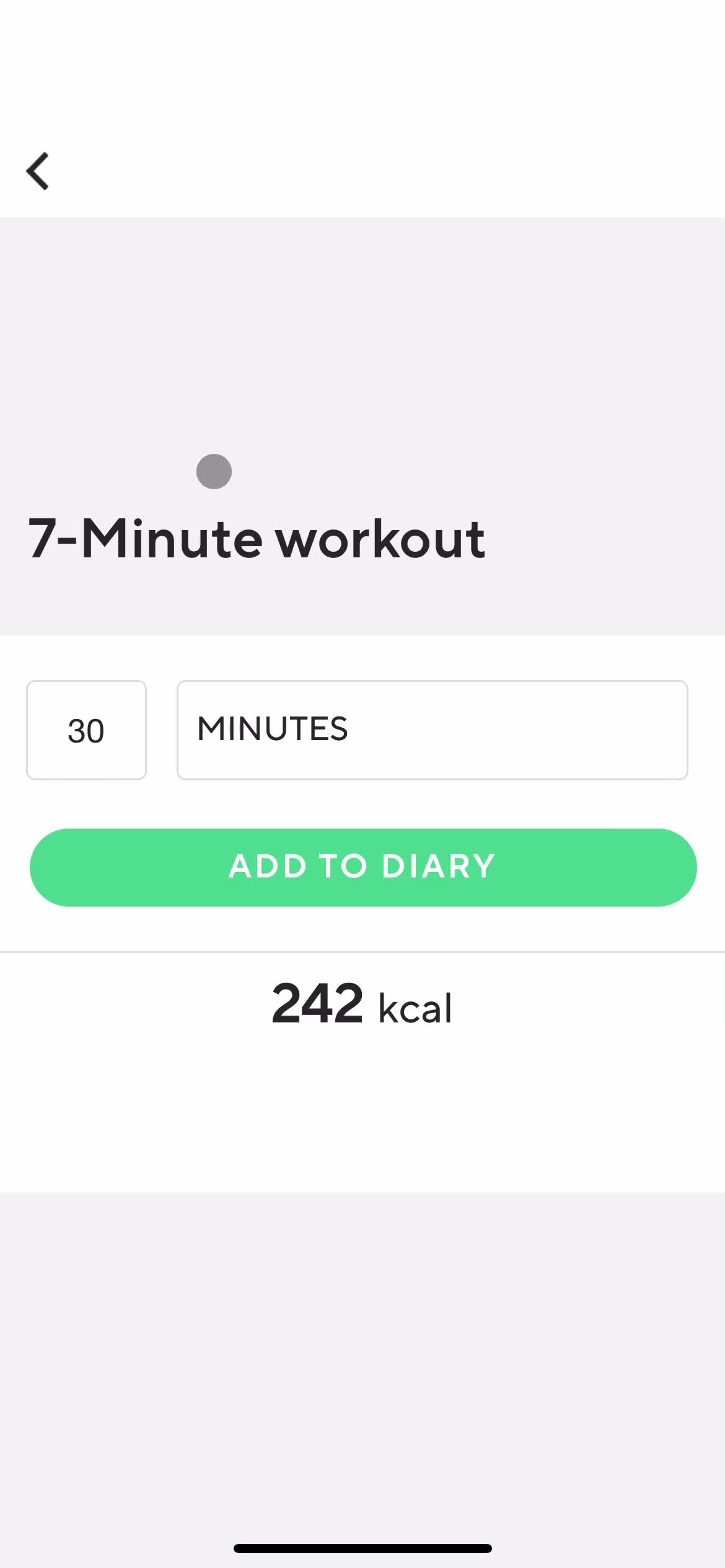
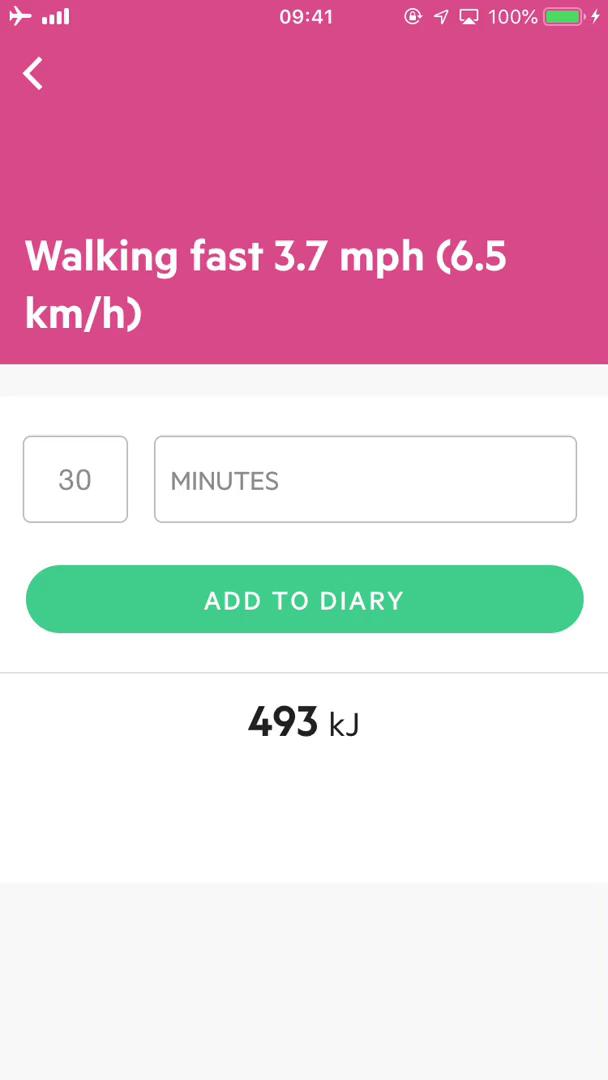
Exercise details
this is title
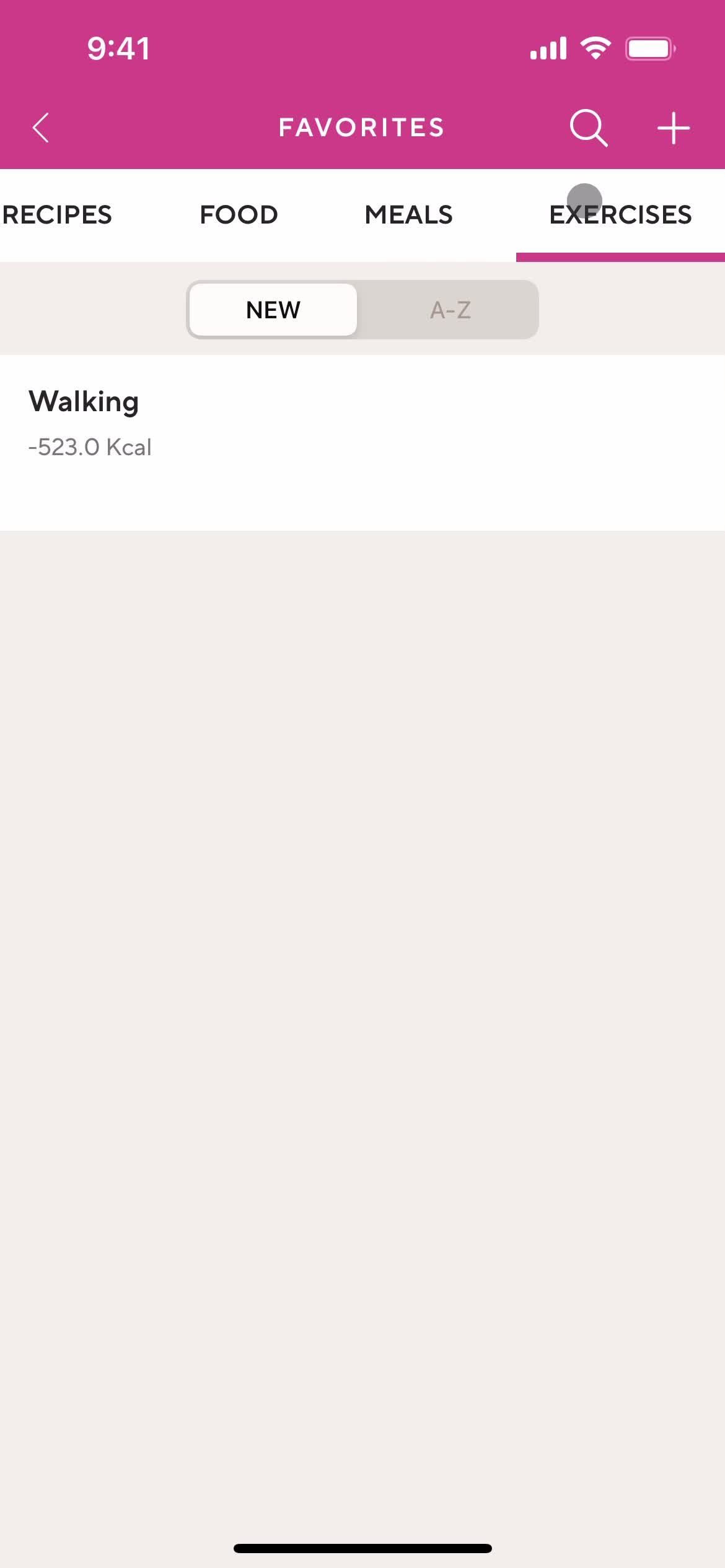
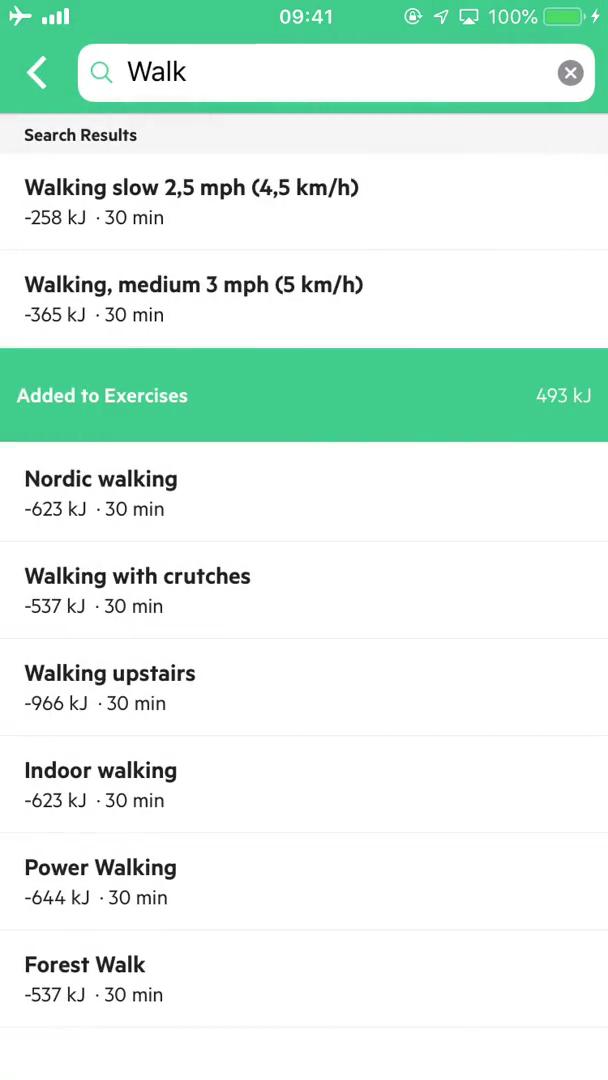
Added to favorites
this is title
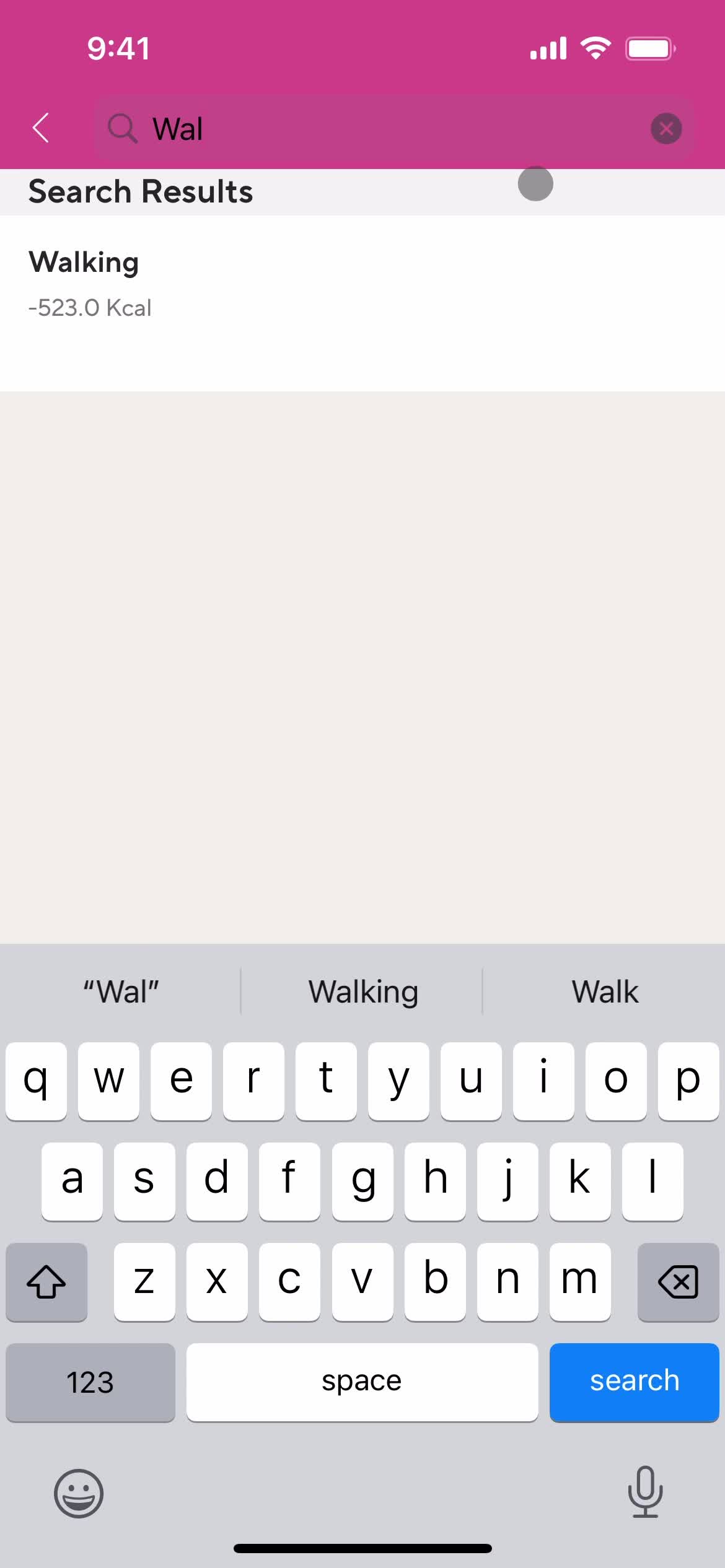
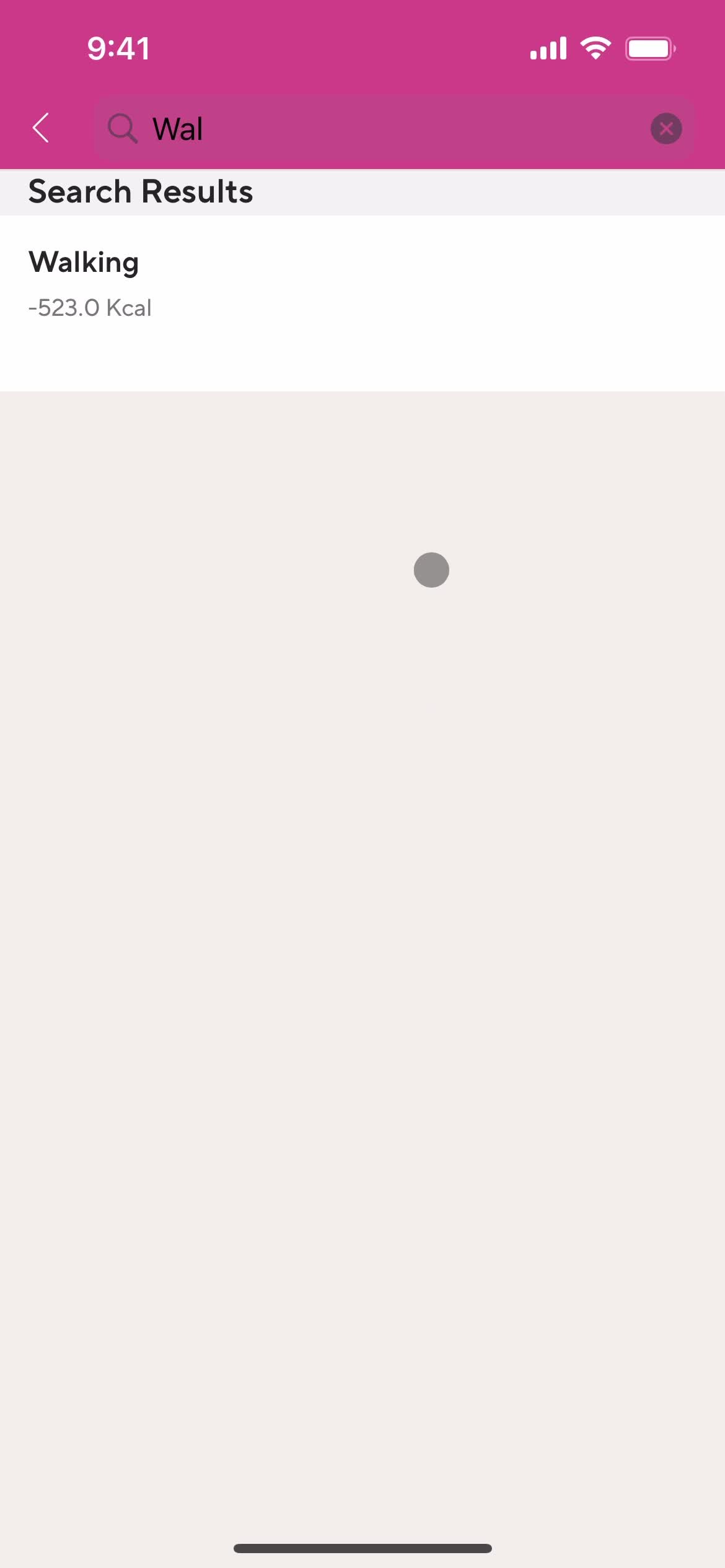
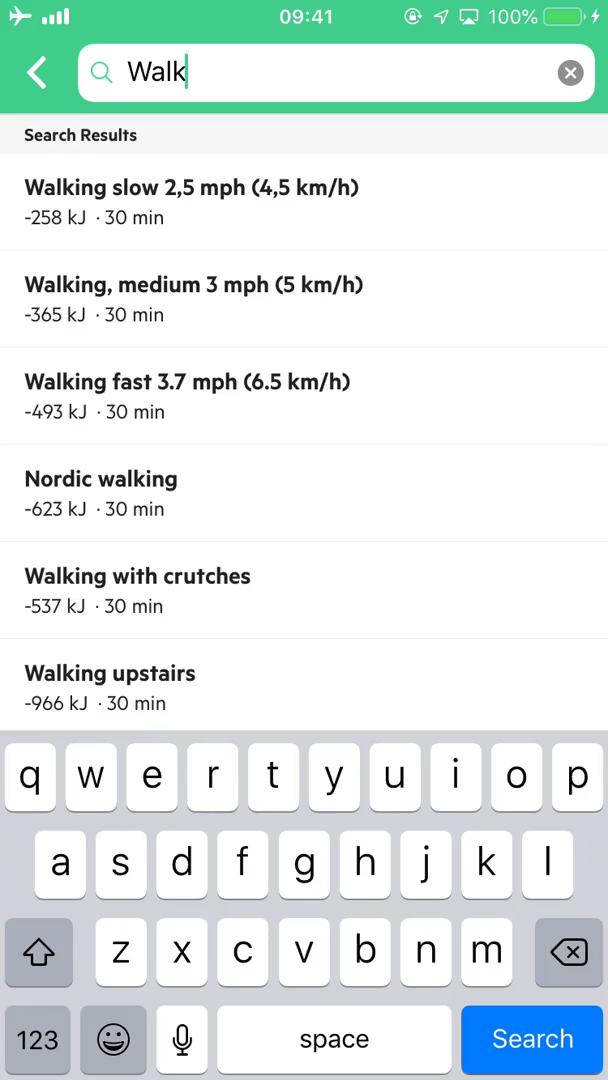
Search
this is title
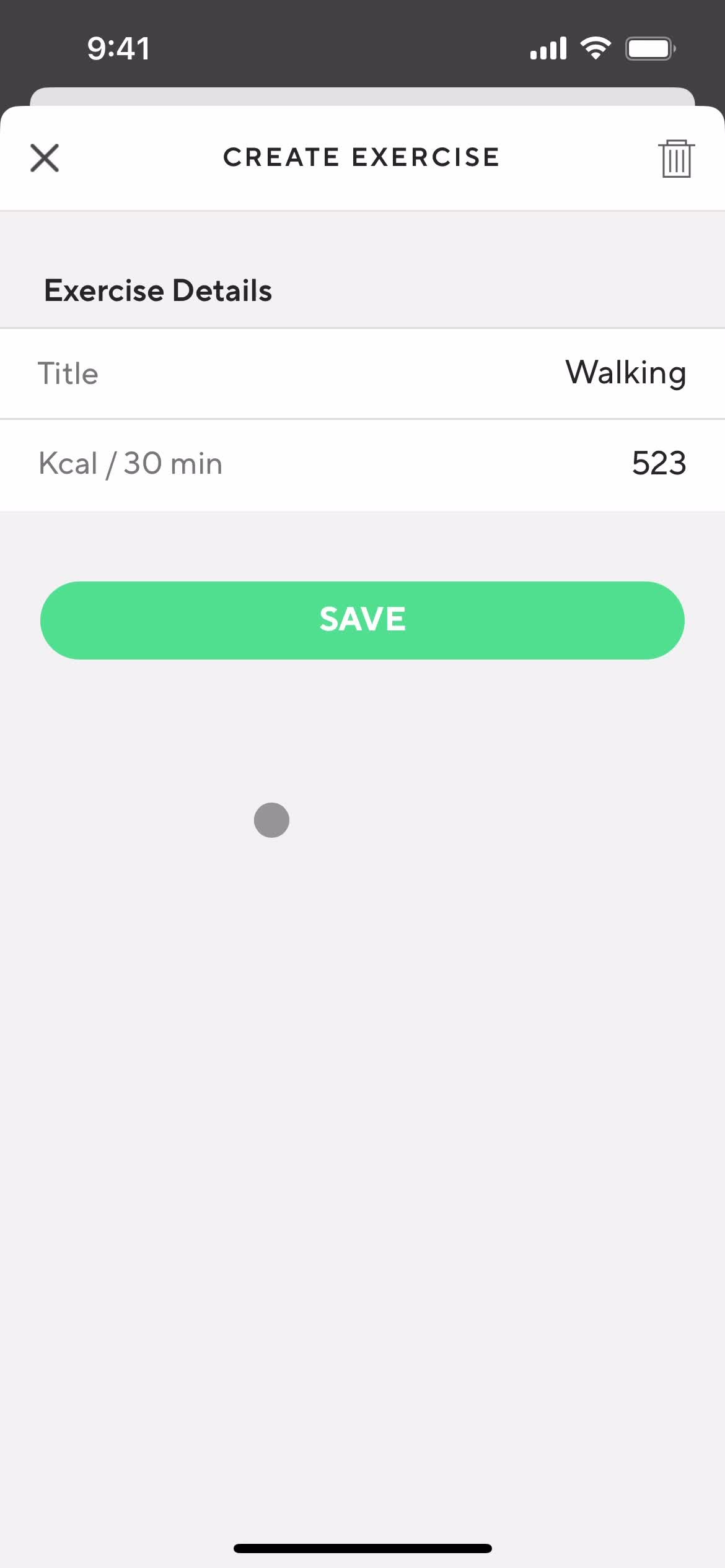
Edit details
this is title
Exercise details
this is title
Delete item
this is title
Deleted
this is title
Dashboard
this is title
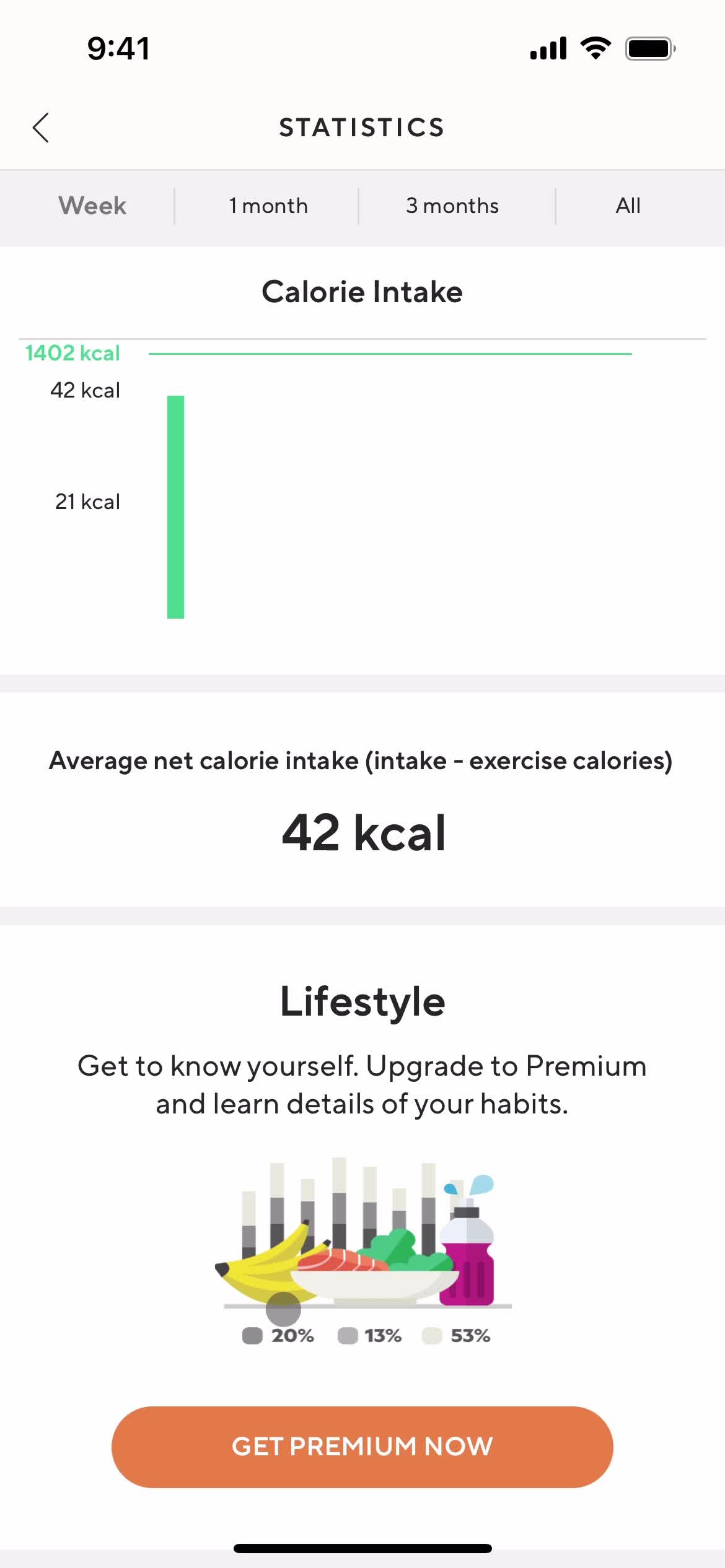
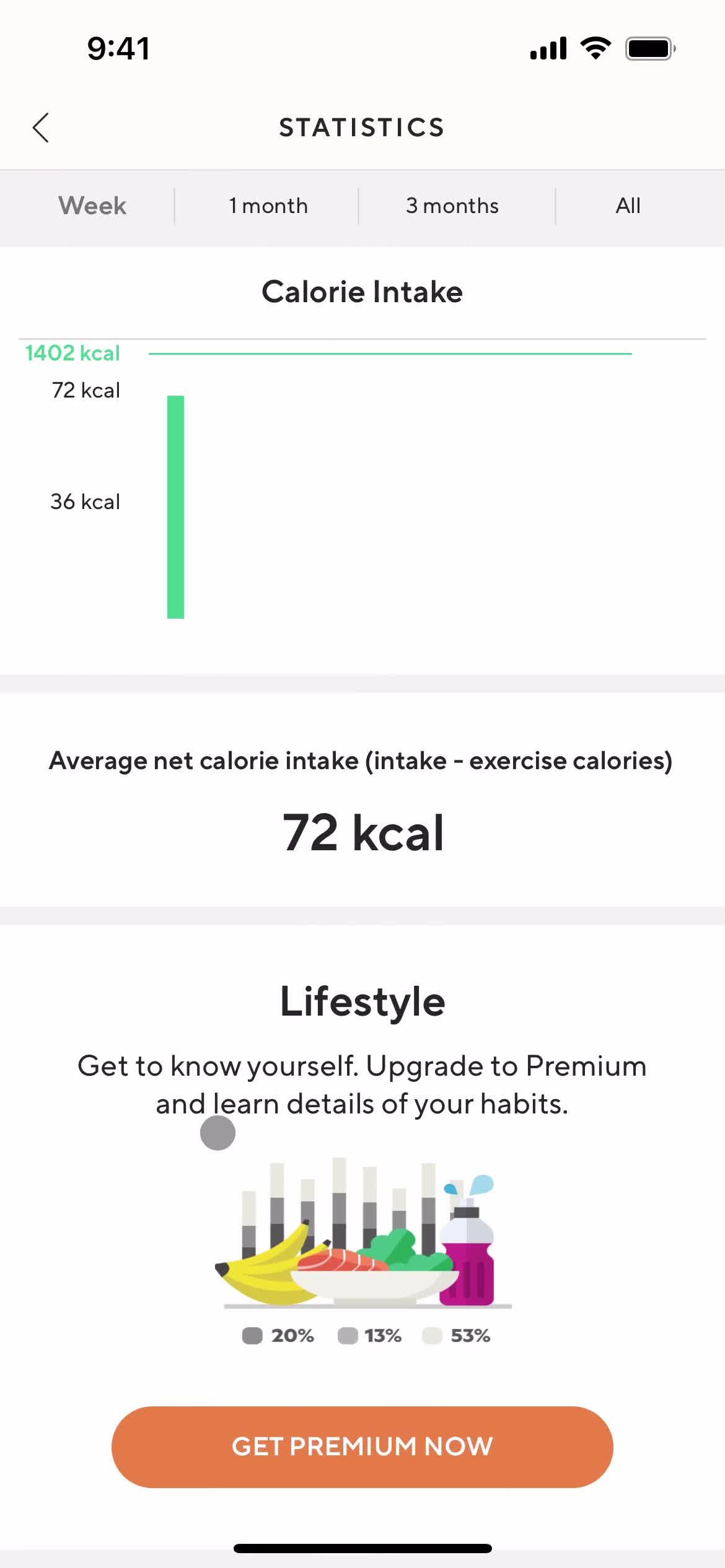
Stats
this is title
this is title
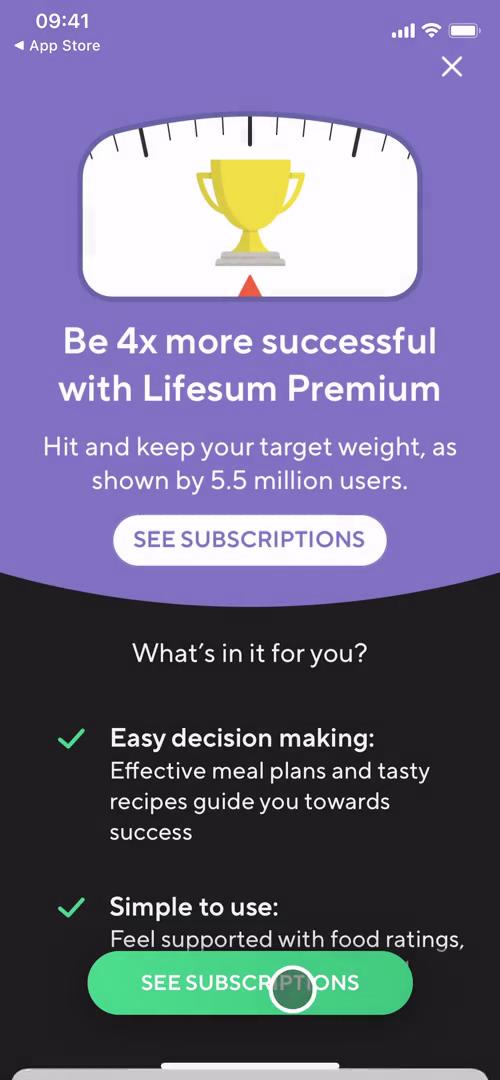
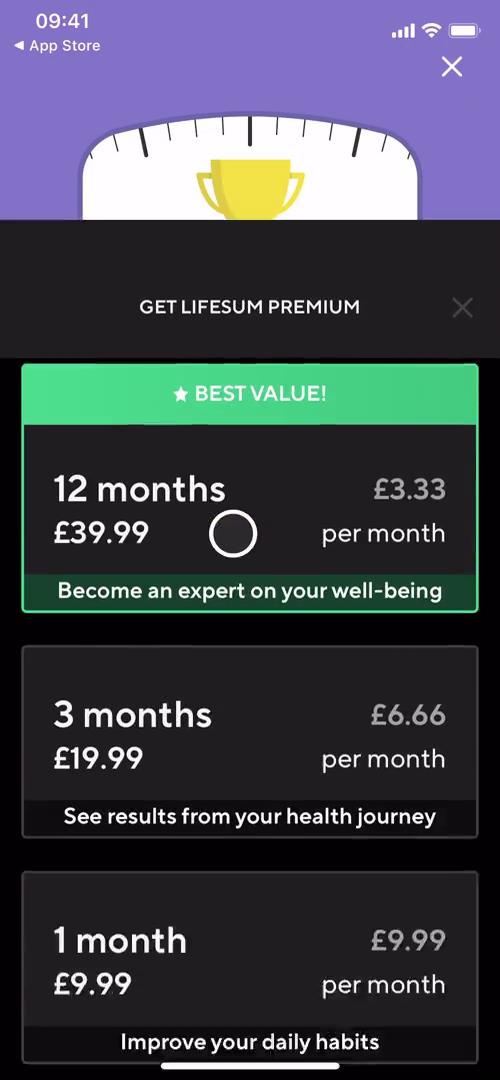
Premium plan details
this is title
Dashboard
this is title
Progress
this is title
this is title
this is title
Favorites
this is title
Added to favorites
this is title
Meals
this is title
Progress
this is title
Stats
this is title
Dashboard
this is title
Stats
this is title
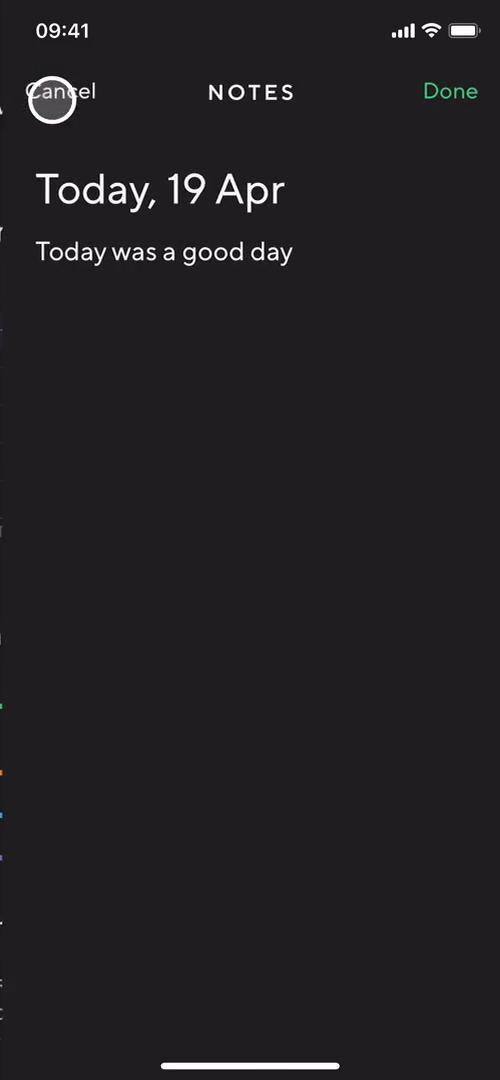
Notes
this is title
Dashboard
this is title
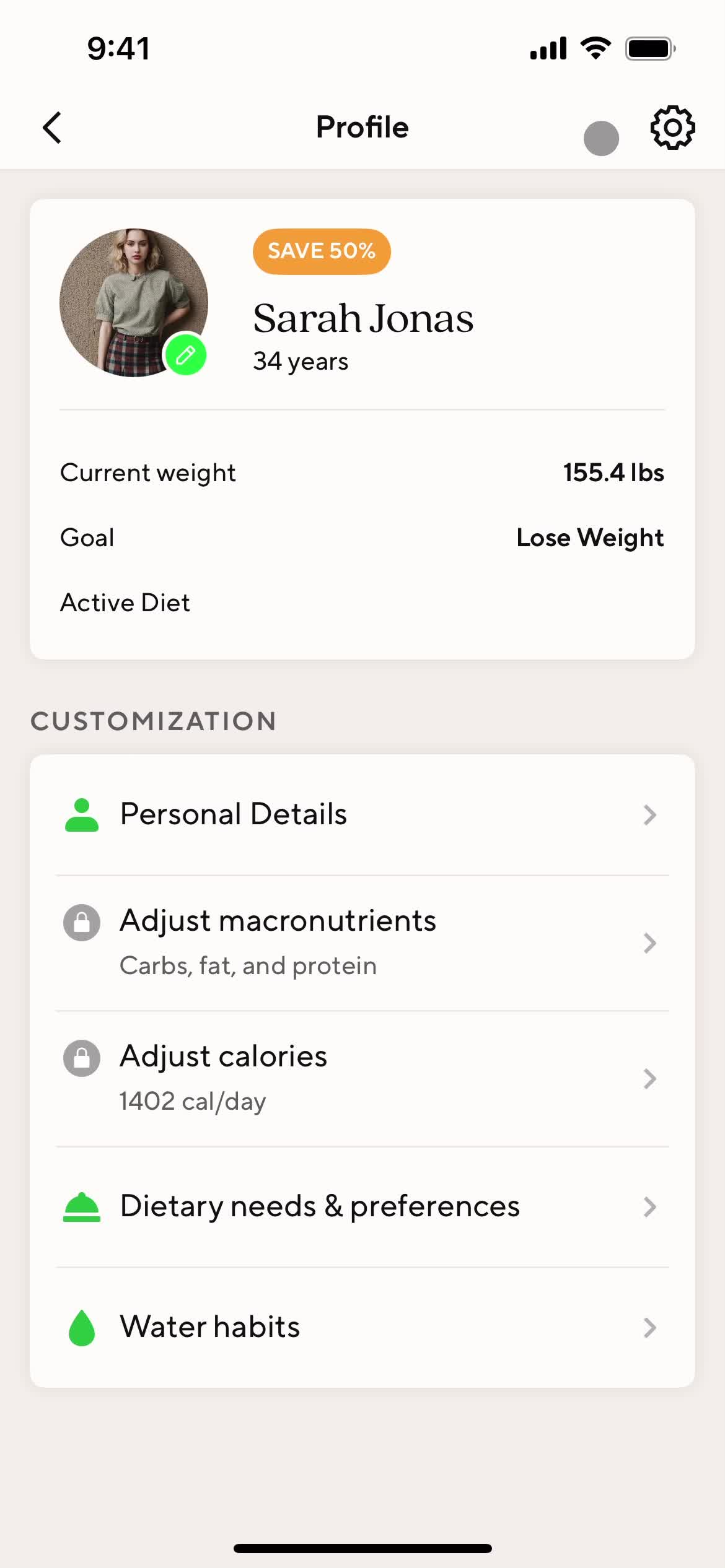
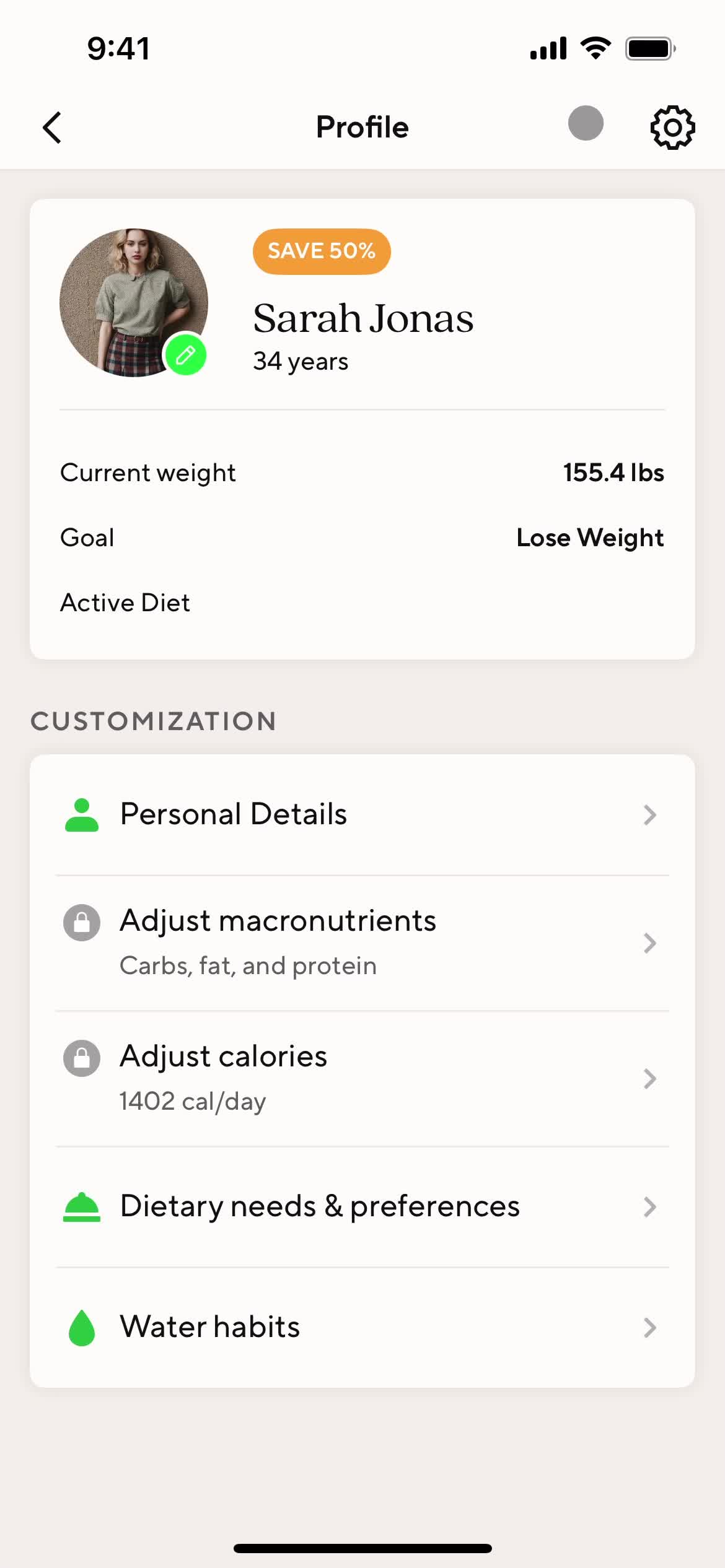
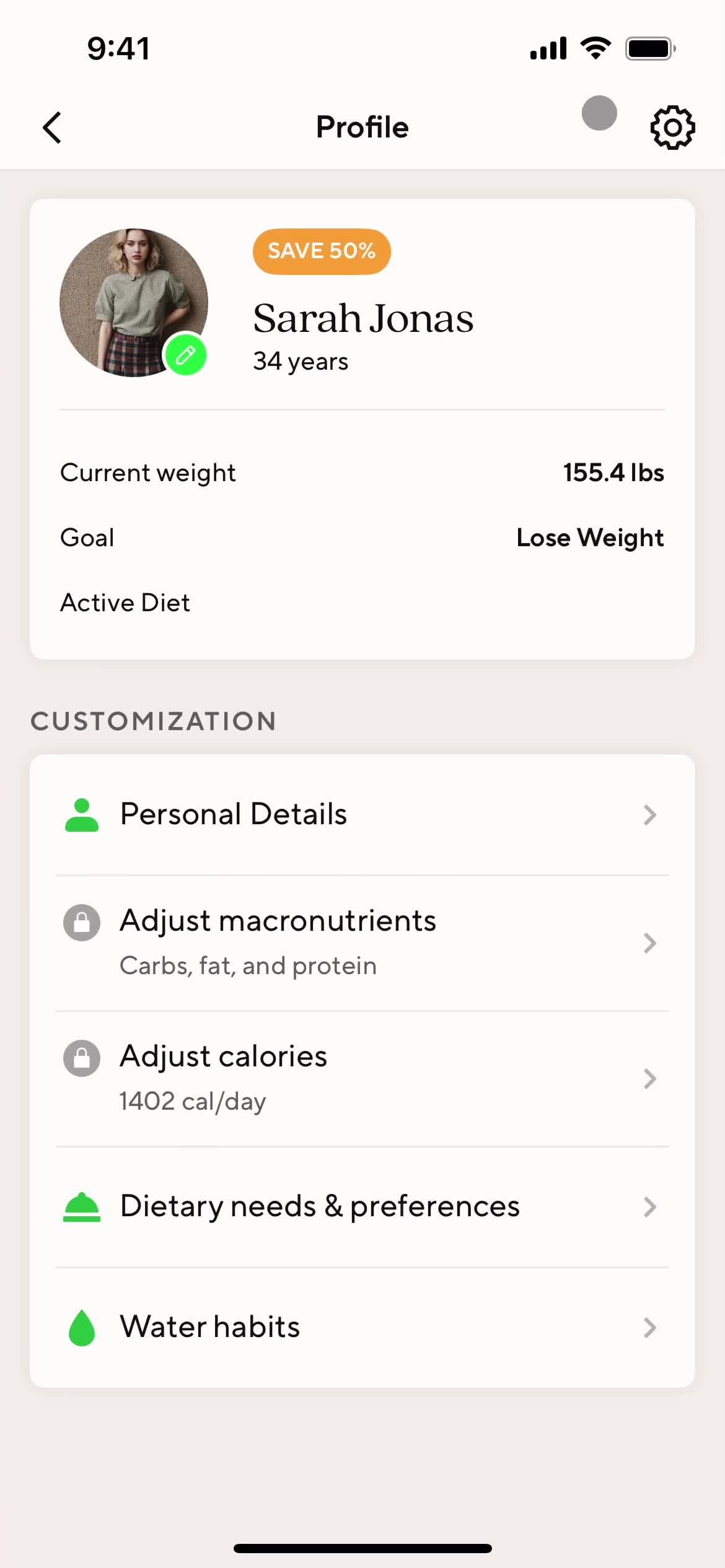
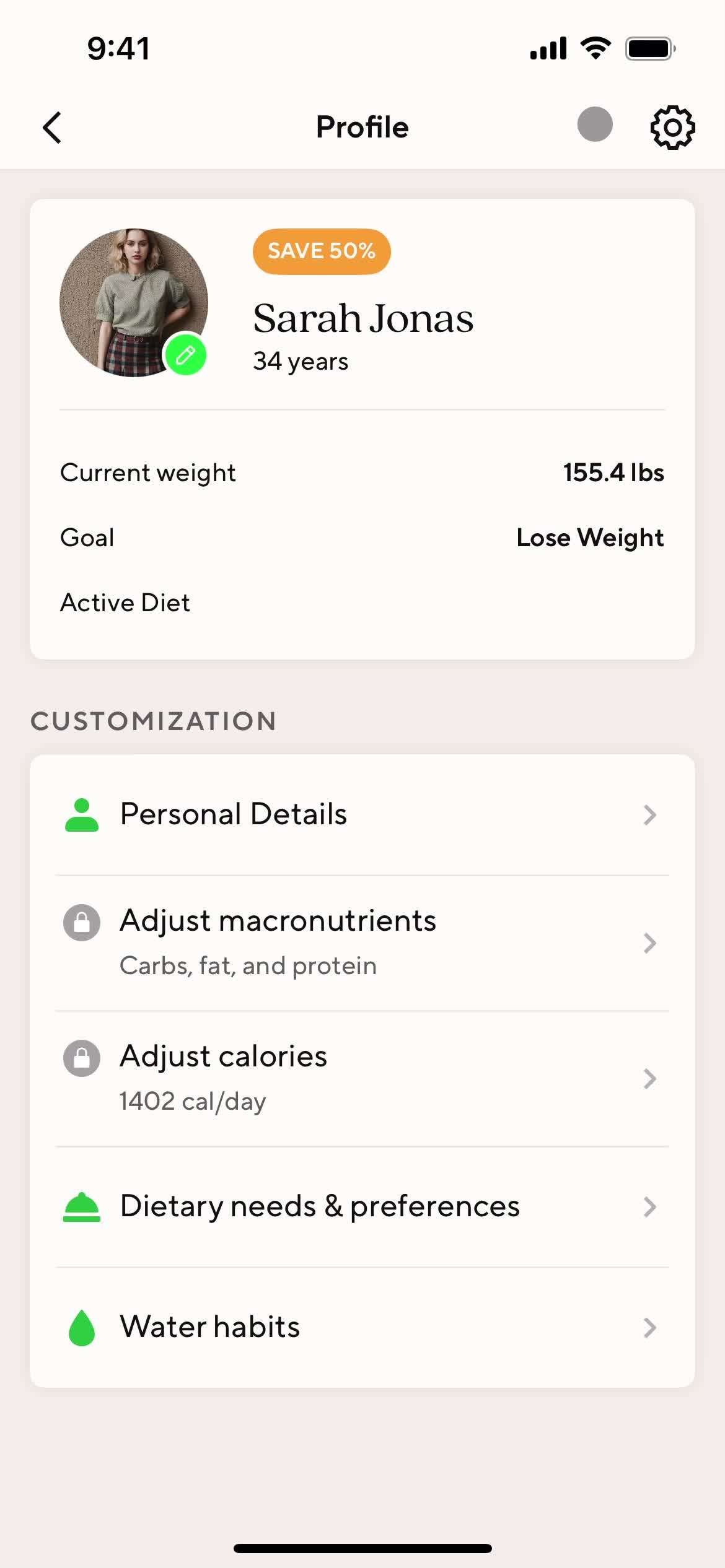
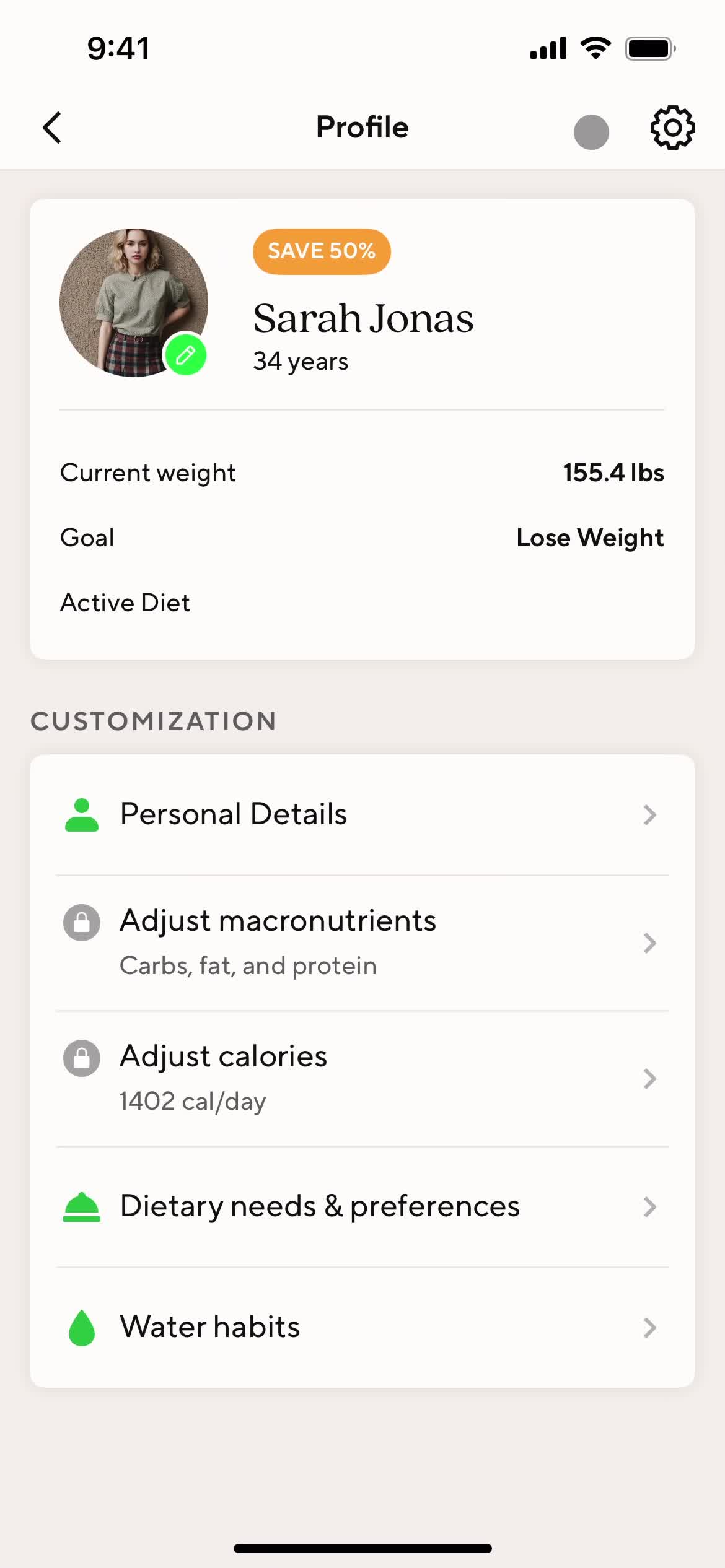
Profile
this is title
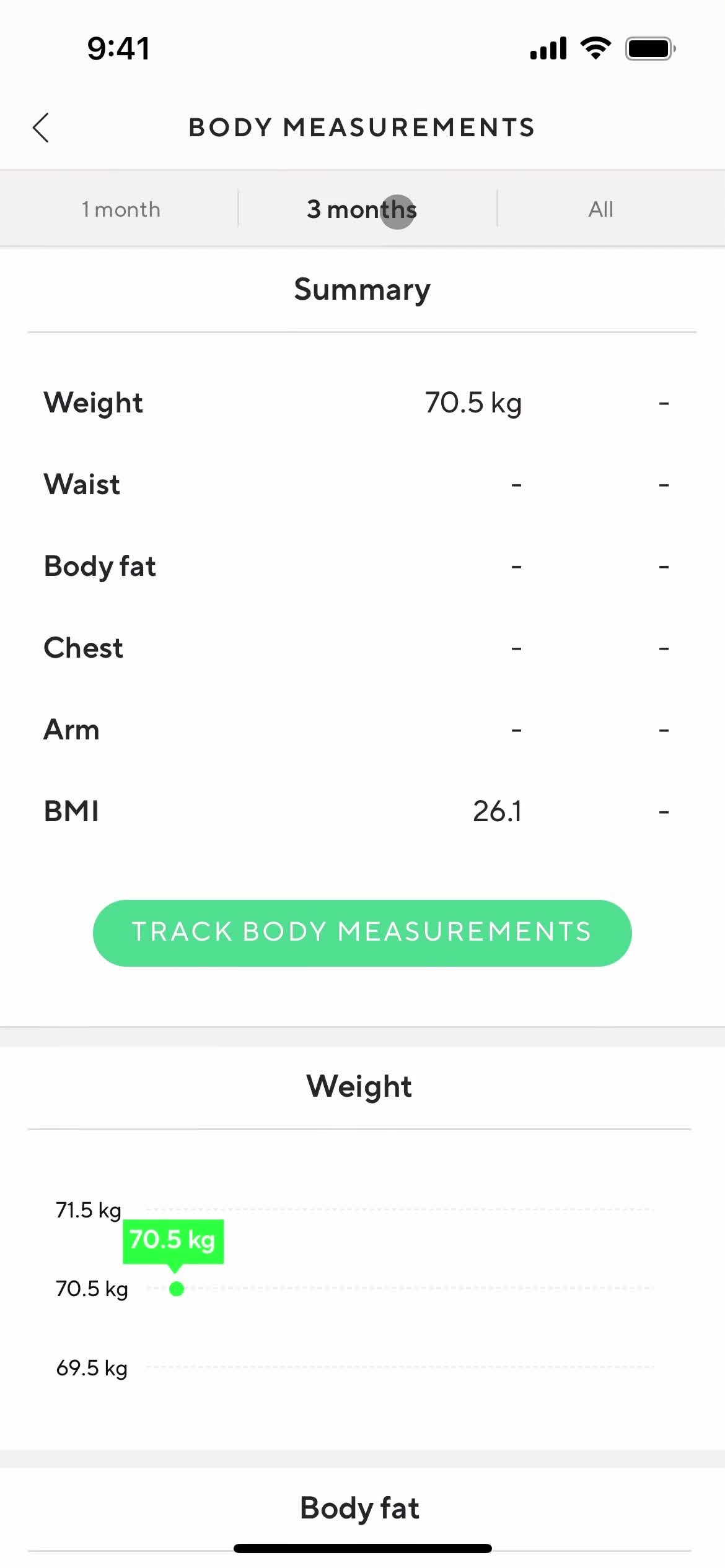
Measurements
this is title
Stats
this is title
Dashboard
this is title
Analytics
this is title
Analytics
this is title
Notes
this is title
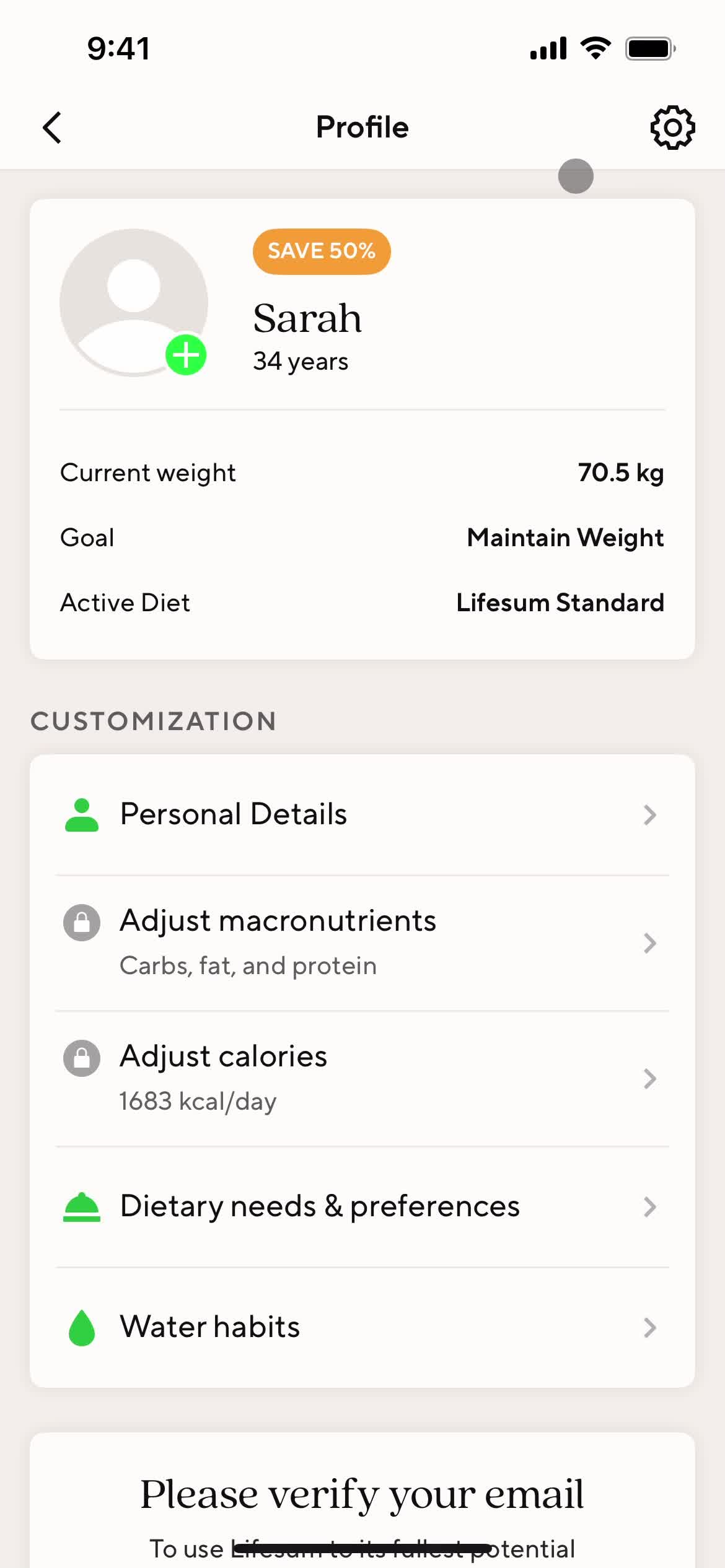
Profile
this is title
Lifestyle data
this is title
Body stats
this is title
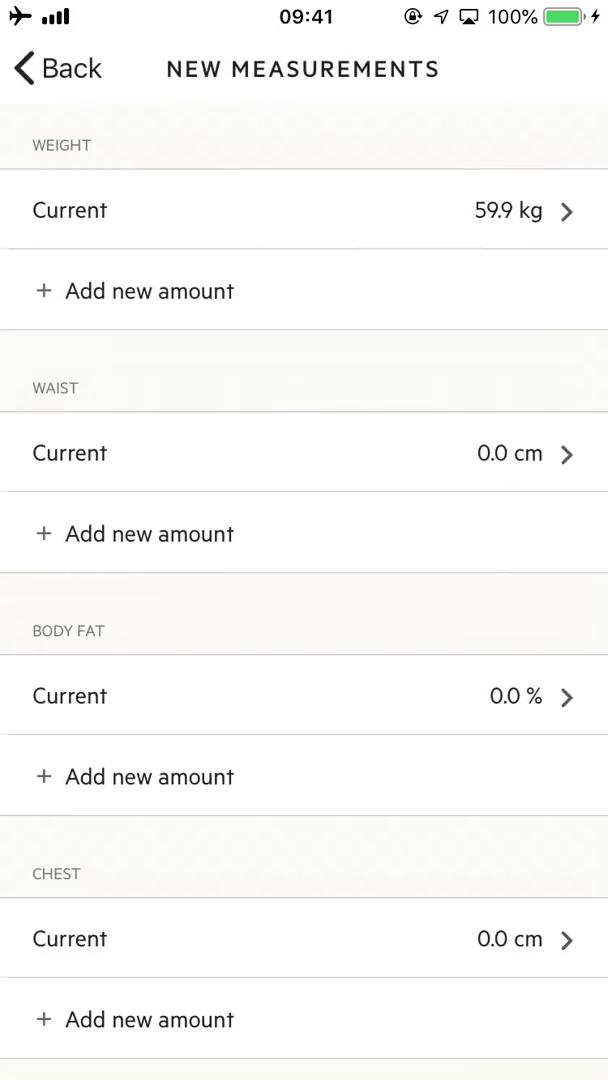
Measurements
this is title
Measurements
this is title
Dashboard
this is title
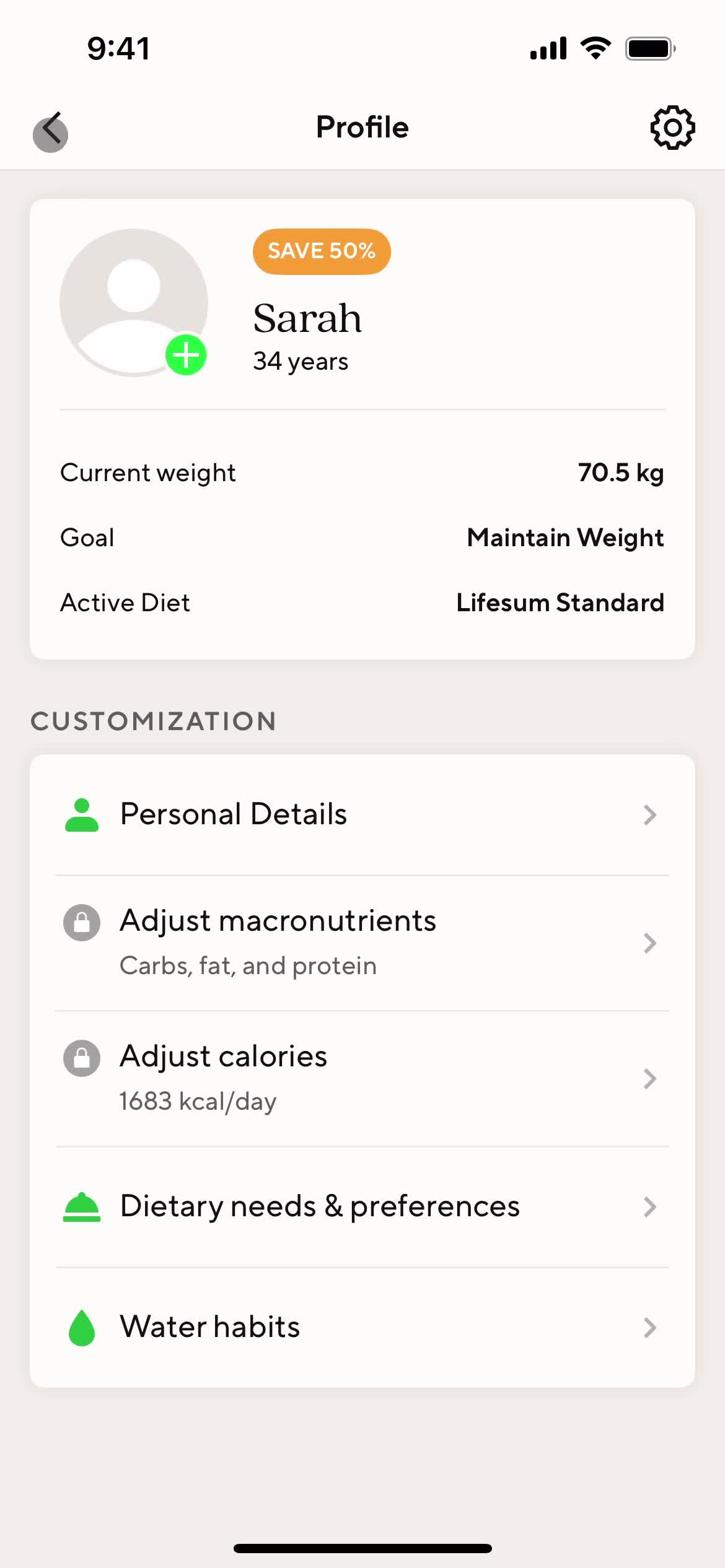
Profile
this is title
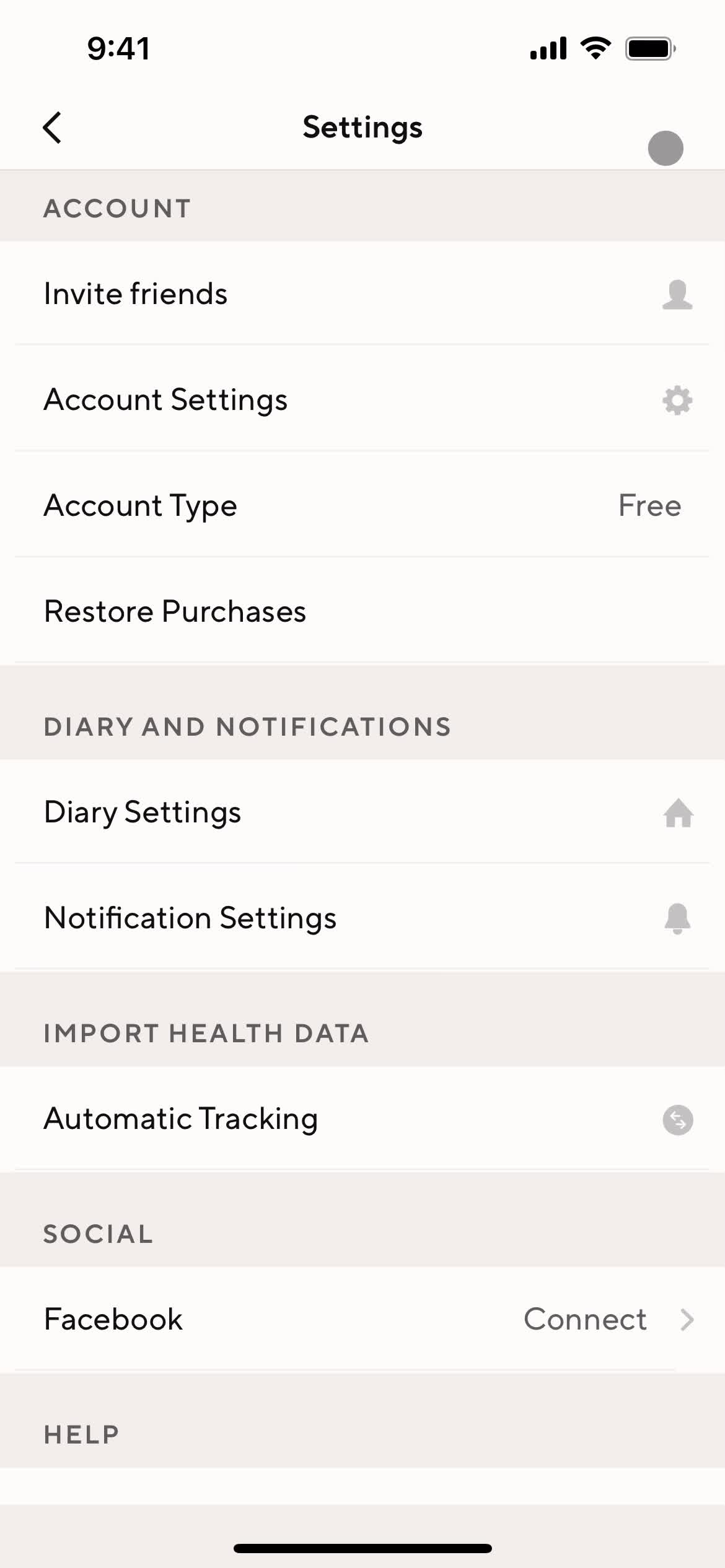
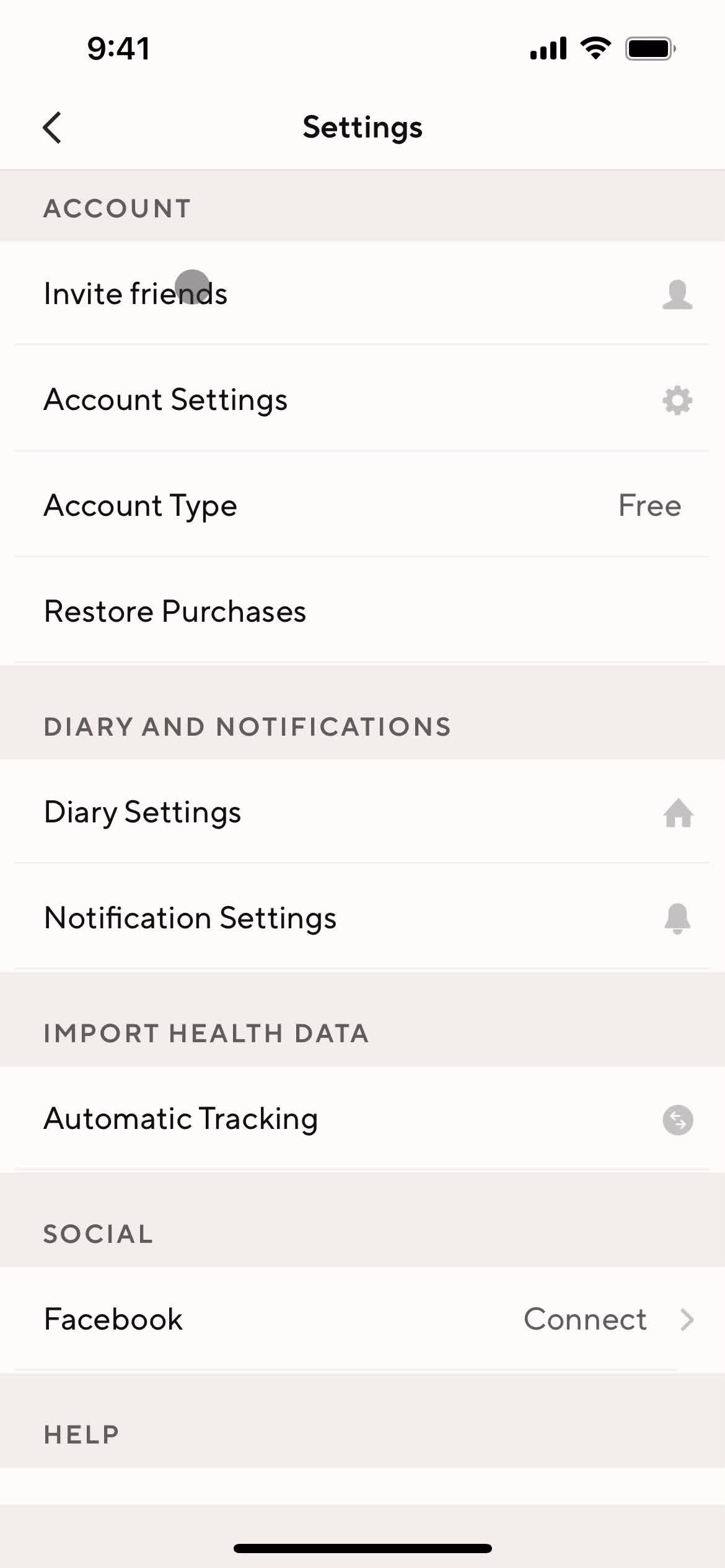
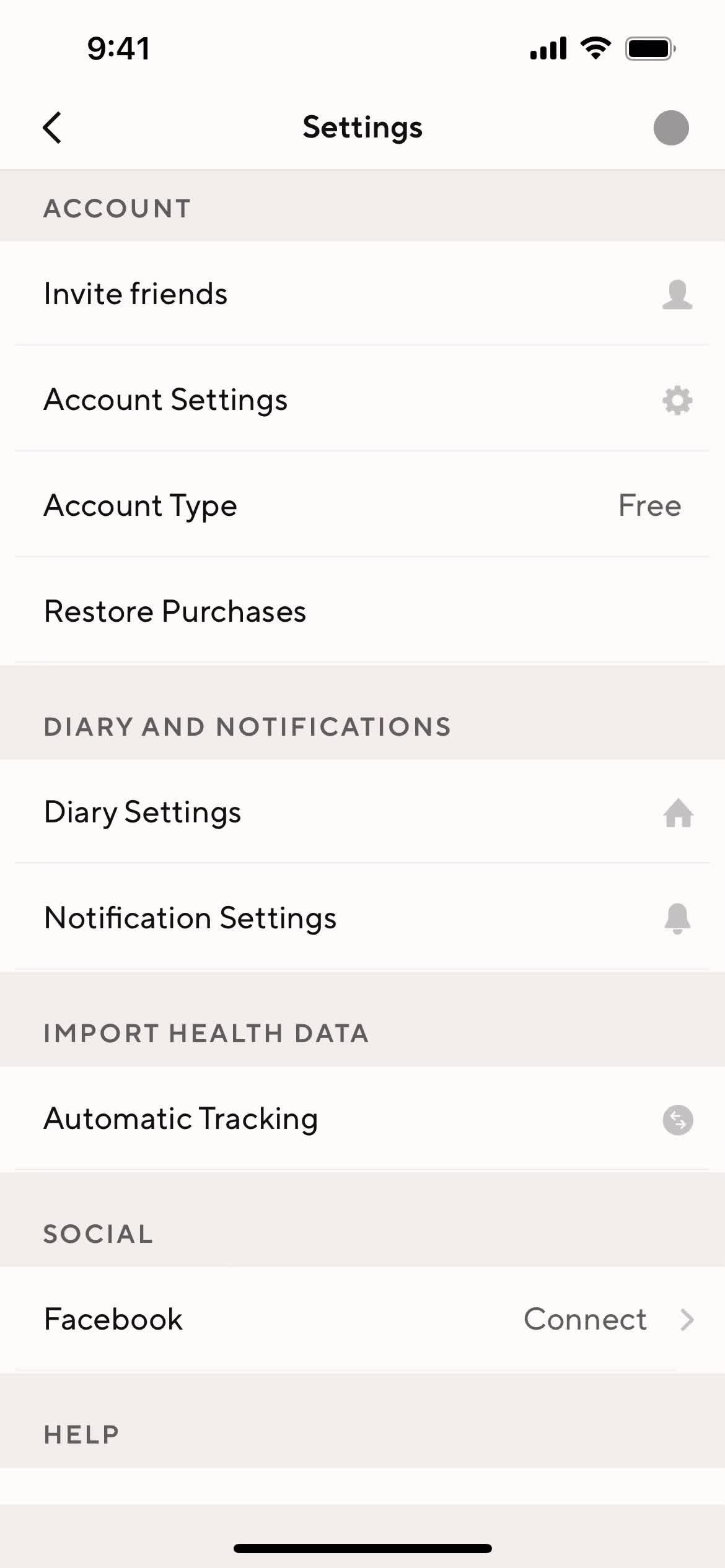
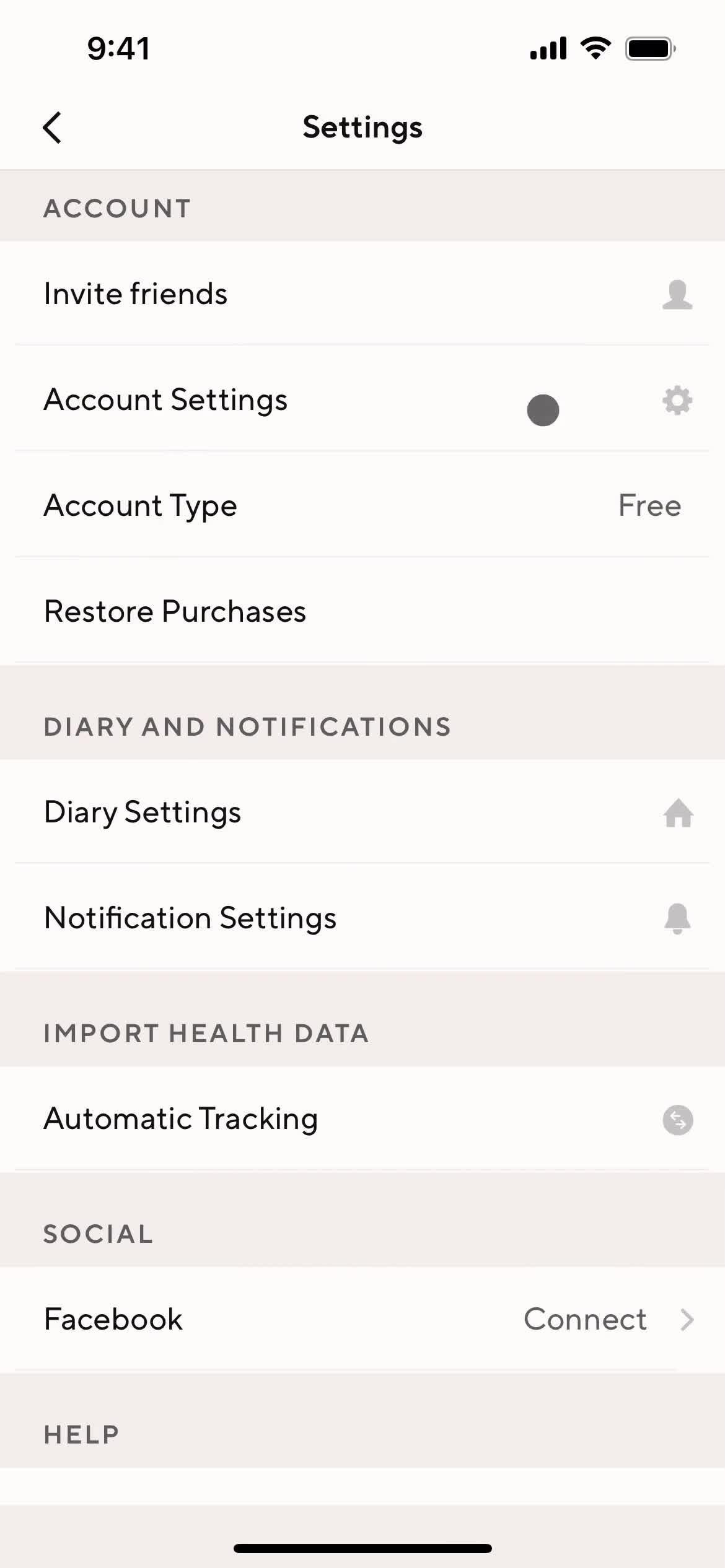
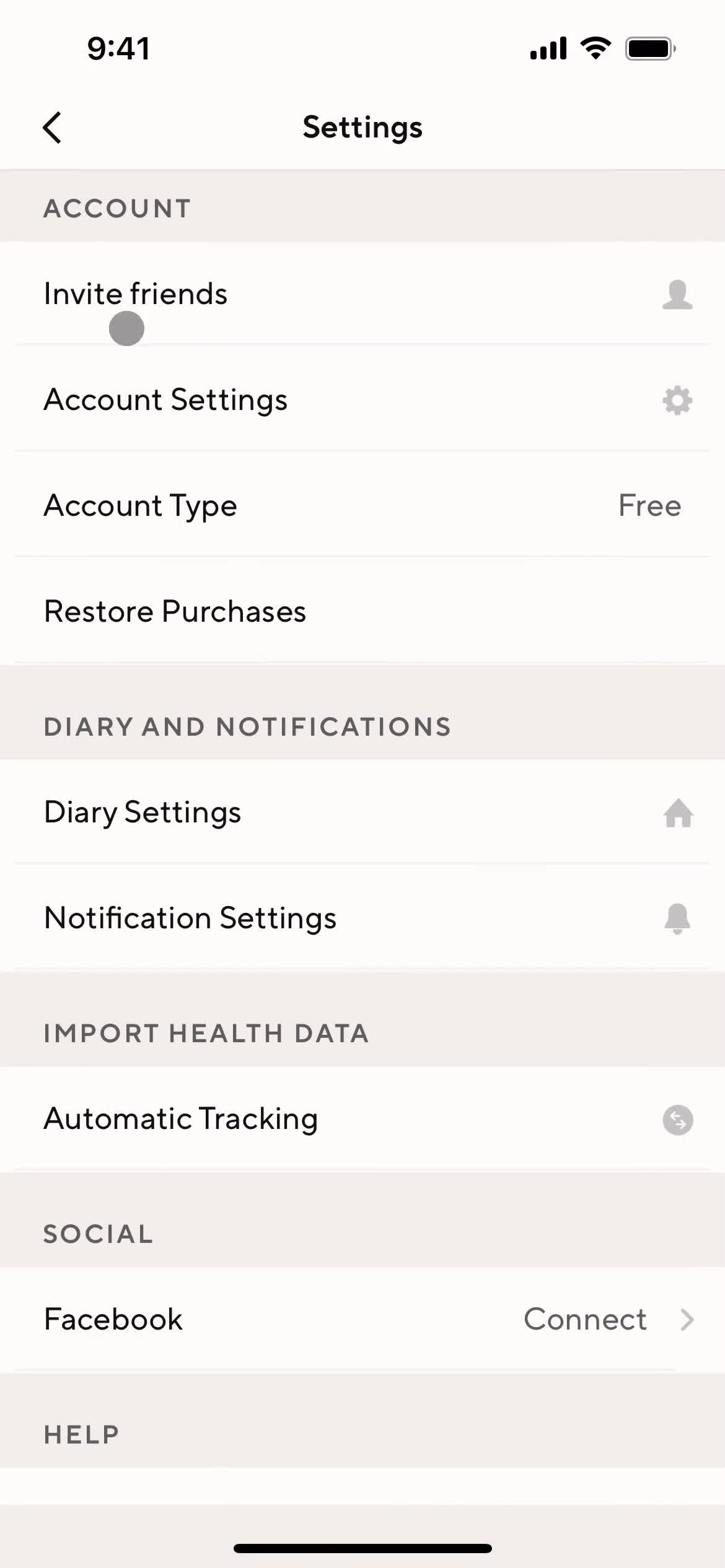
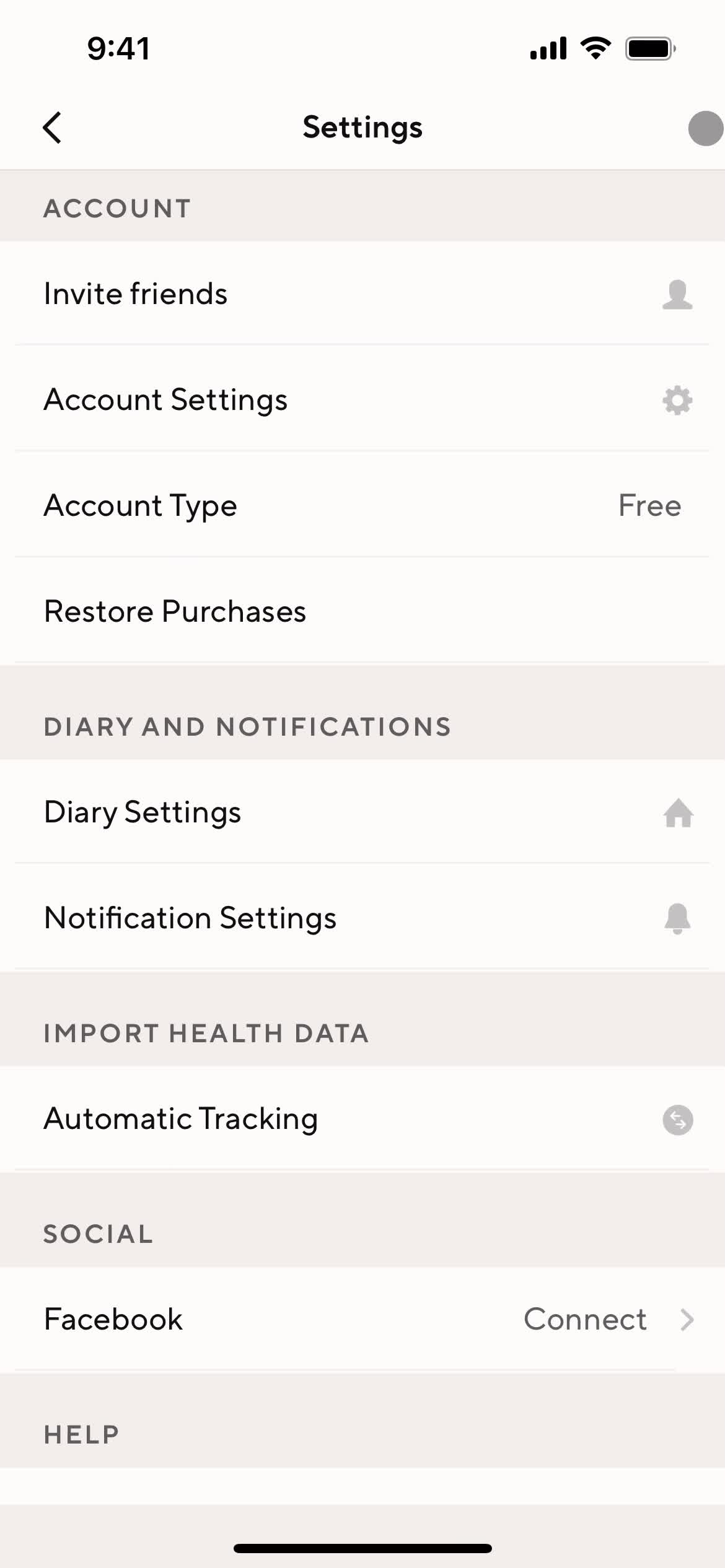
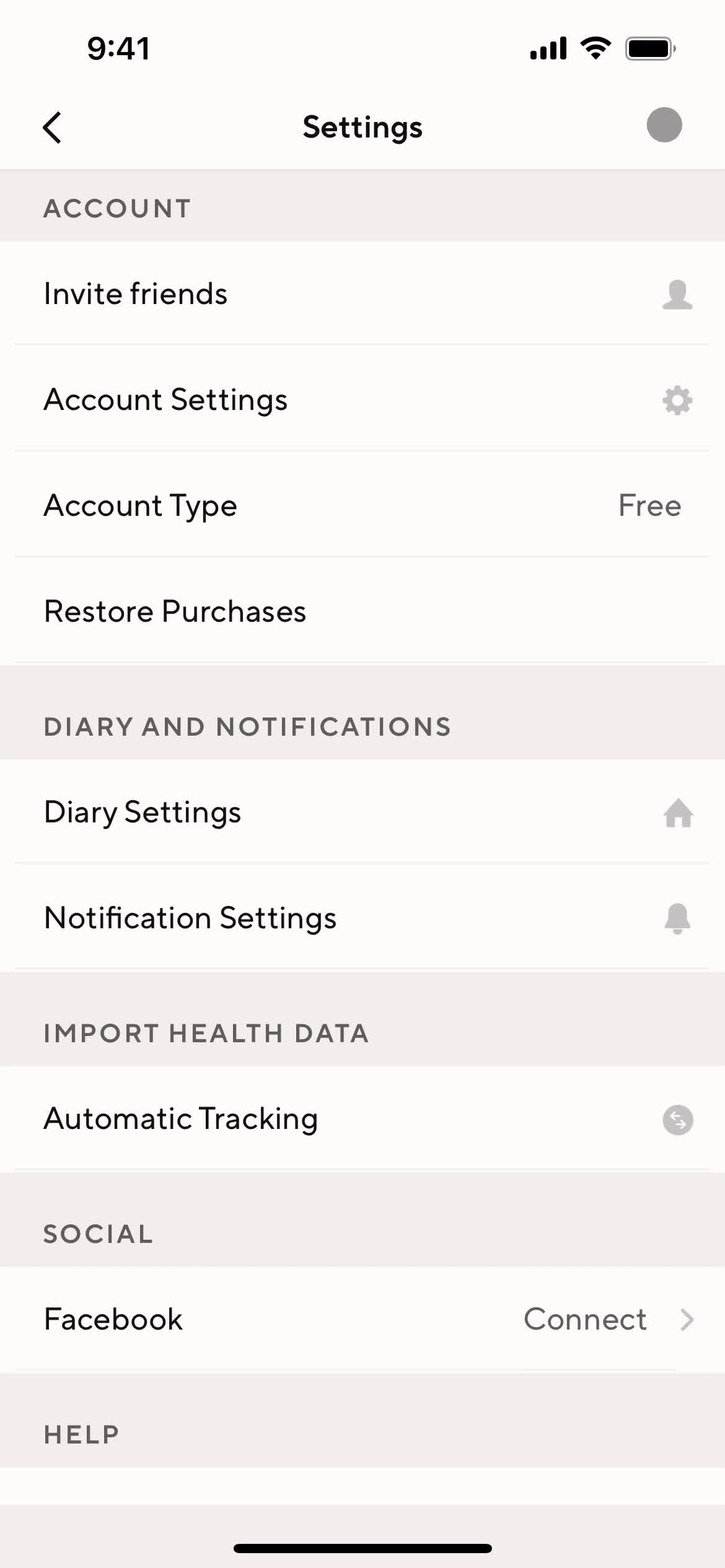
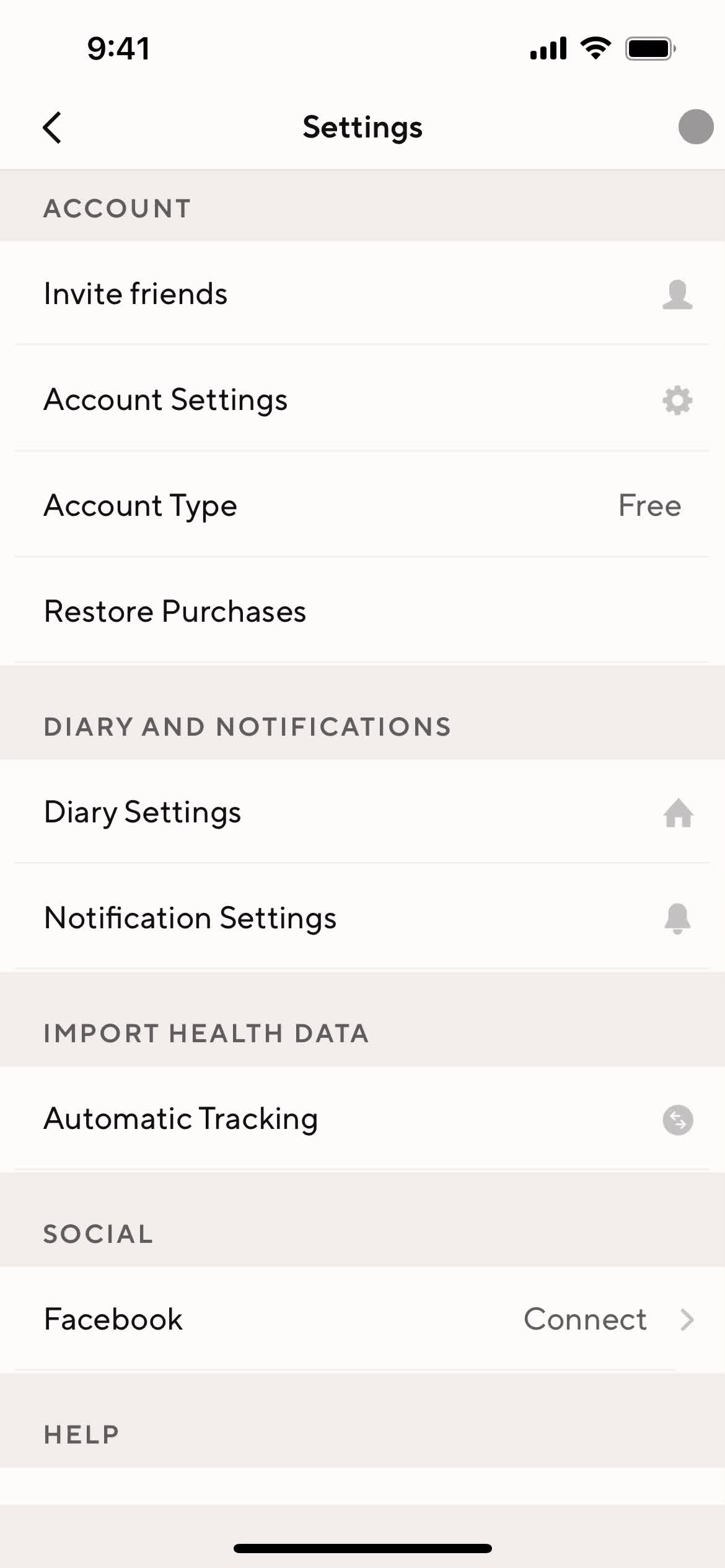
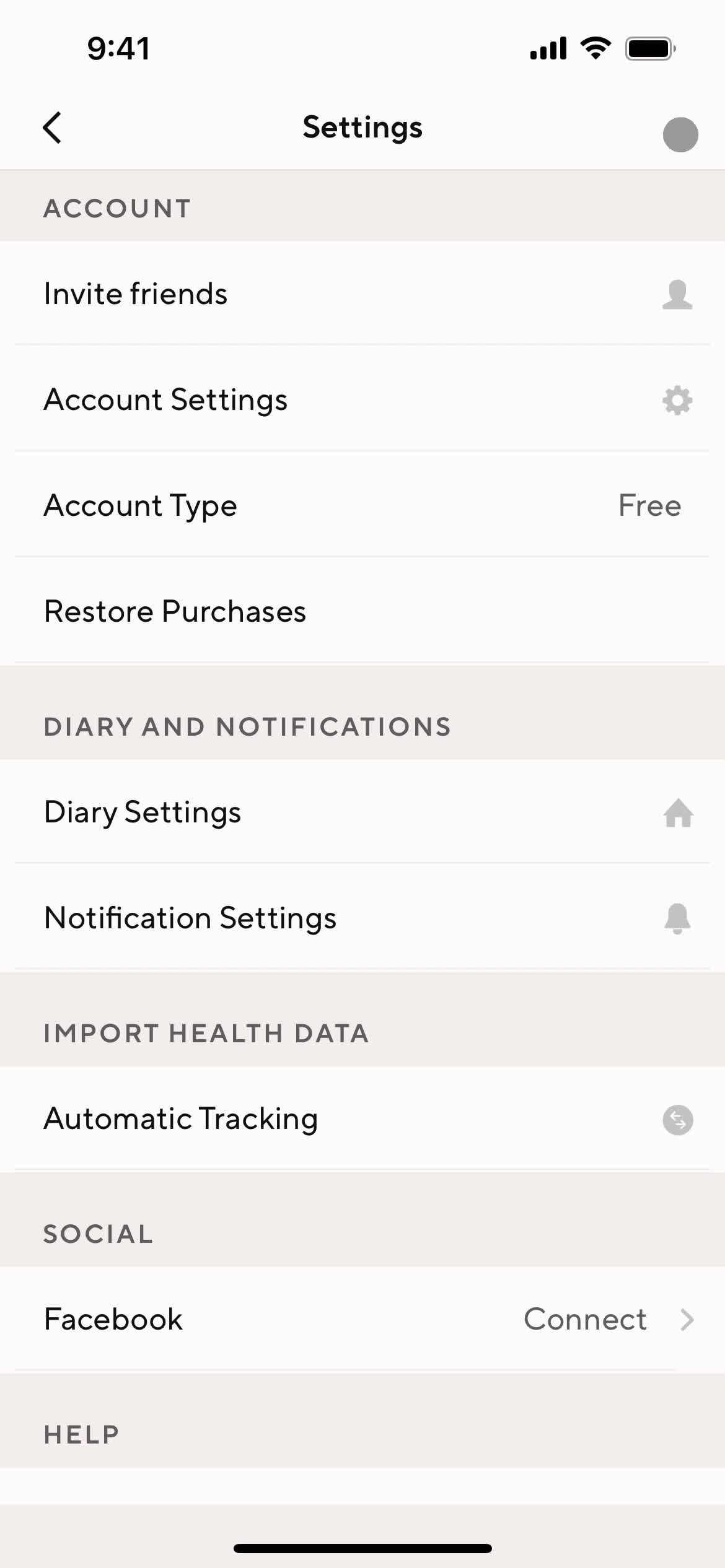
Settings
this is title
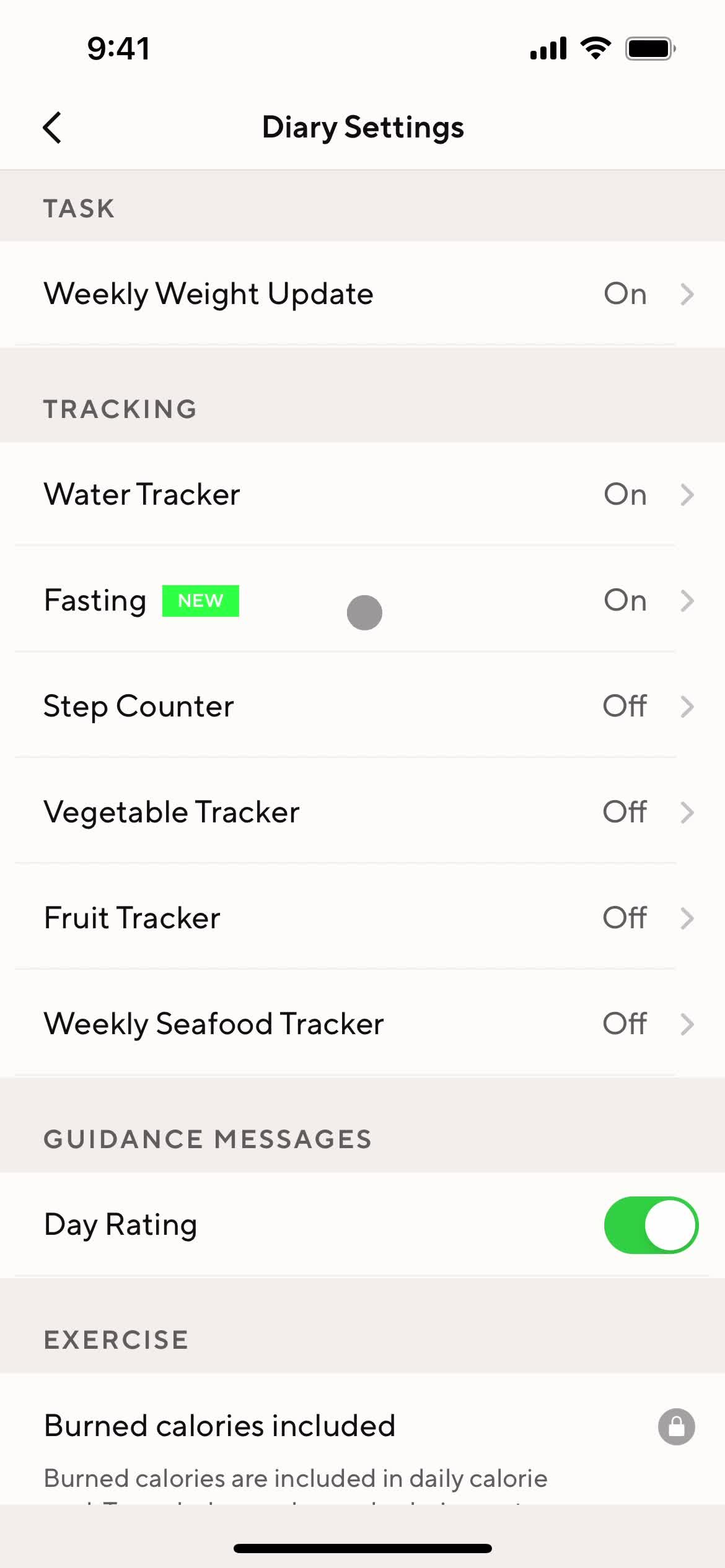
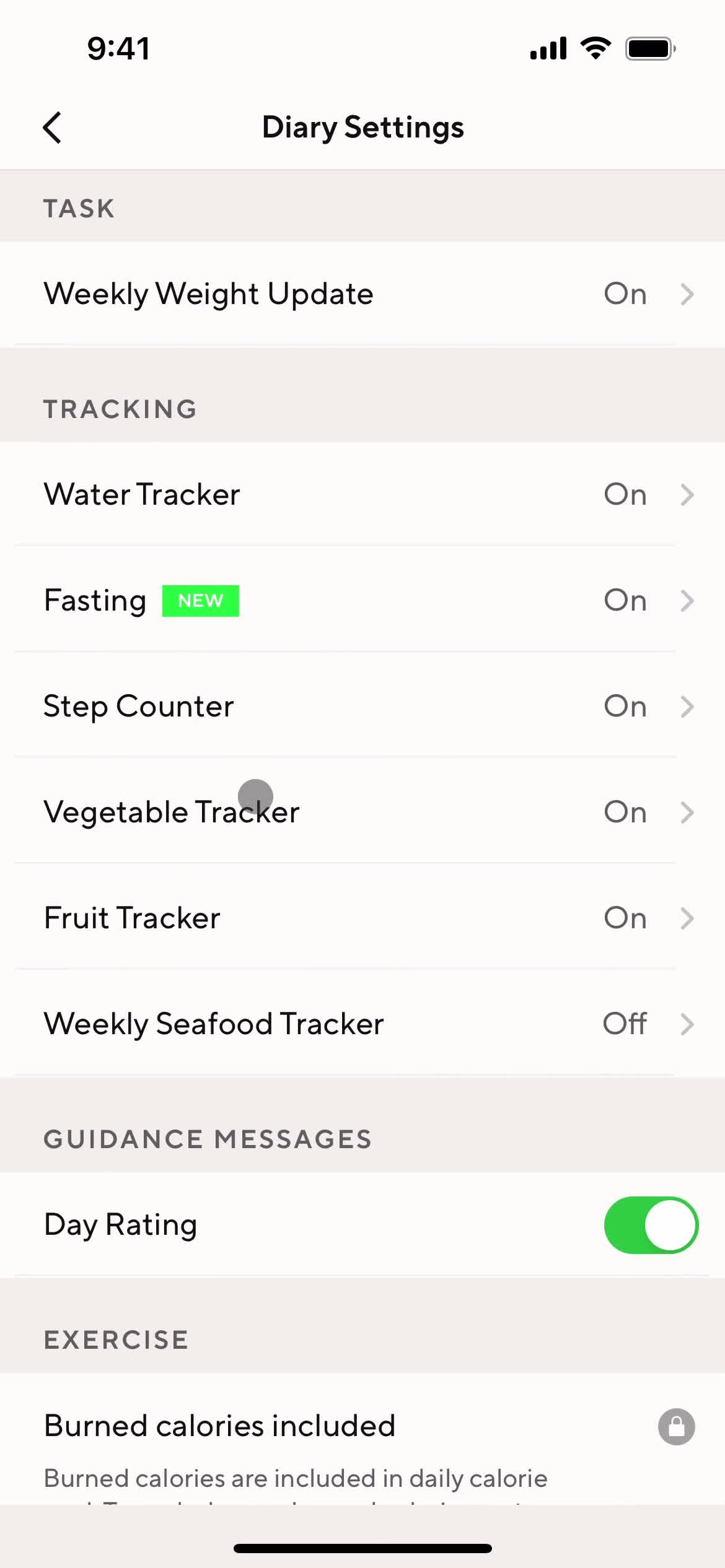
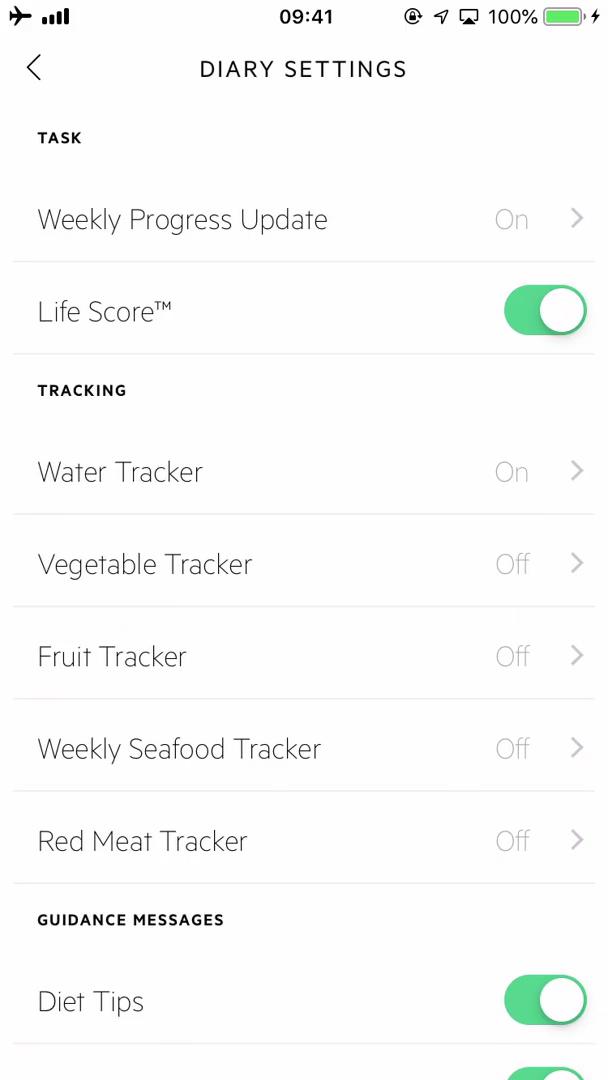
Diary settings
this is title
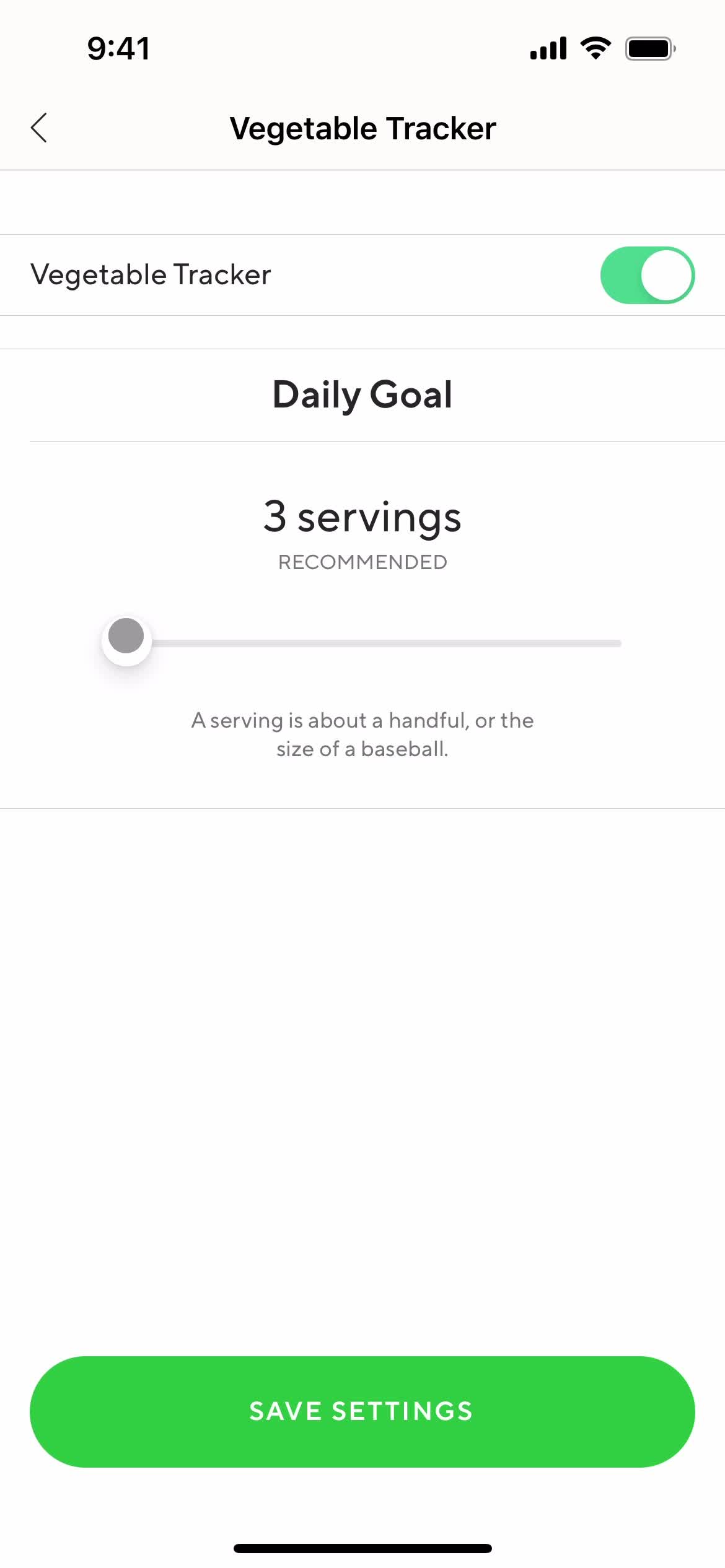
Set goal
this is title
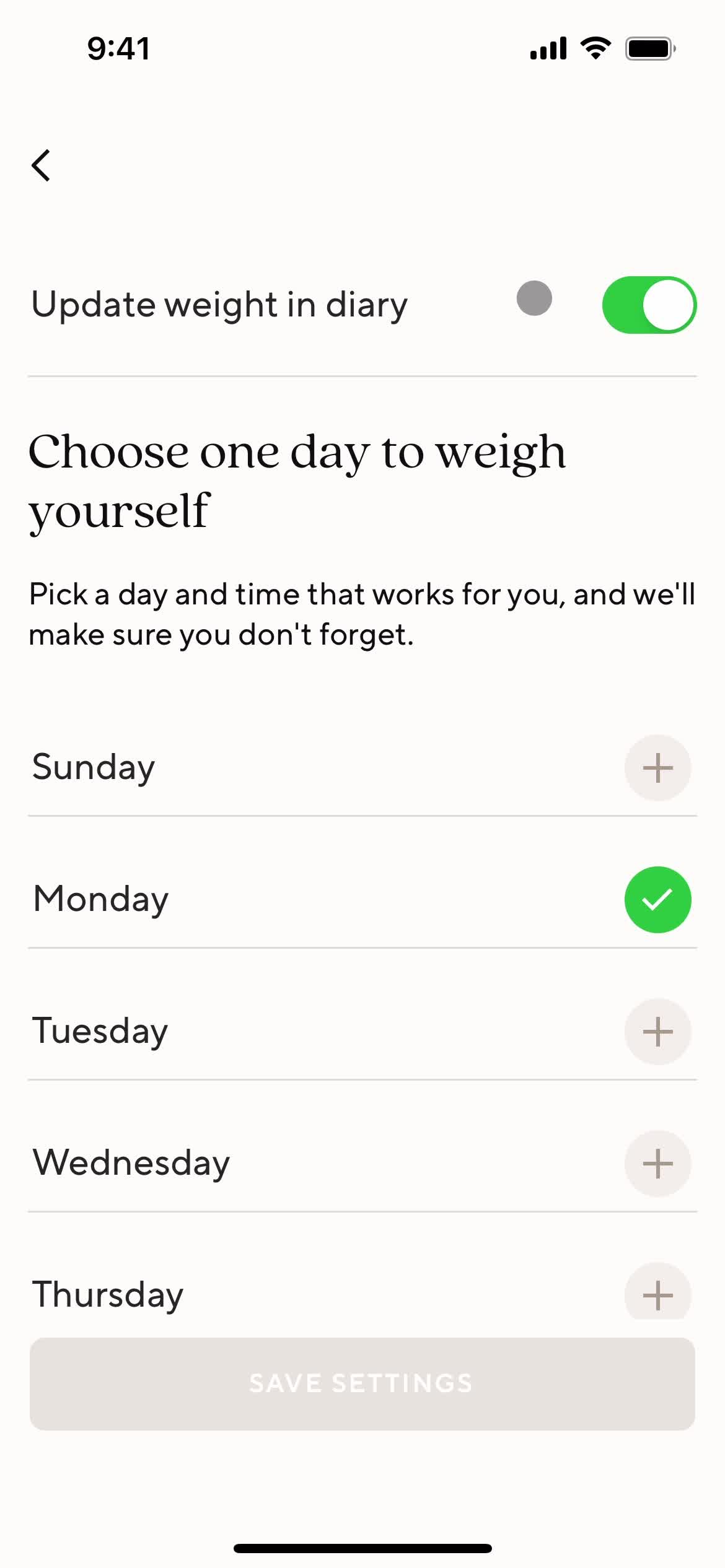
Goal details
this is title
Customize menus
this is title
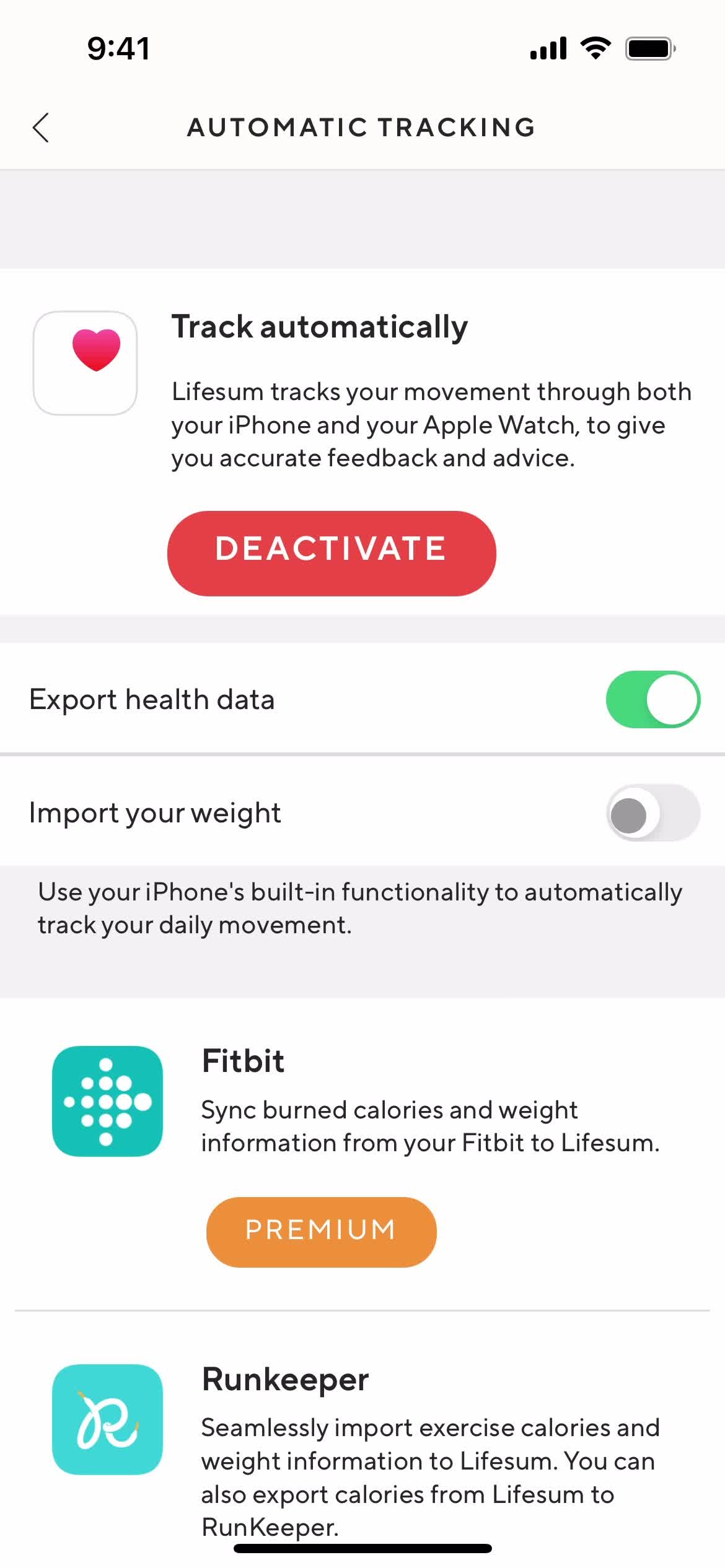
Connect integration
this is title
Settings
this is title
Profile
this is title
Set preferences
this is title
Set goal
this is title
Dashboard
this is title
Profile
this is title
Settings
this is title
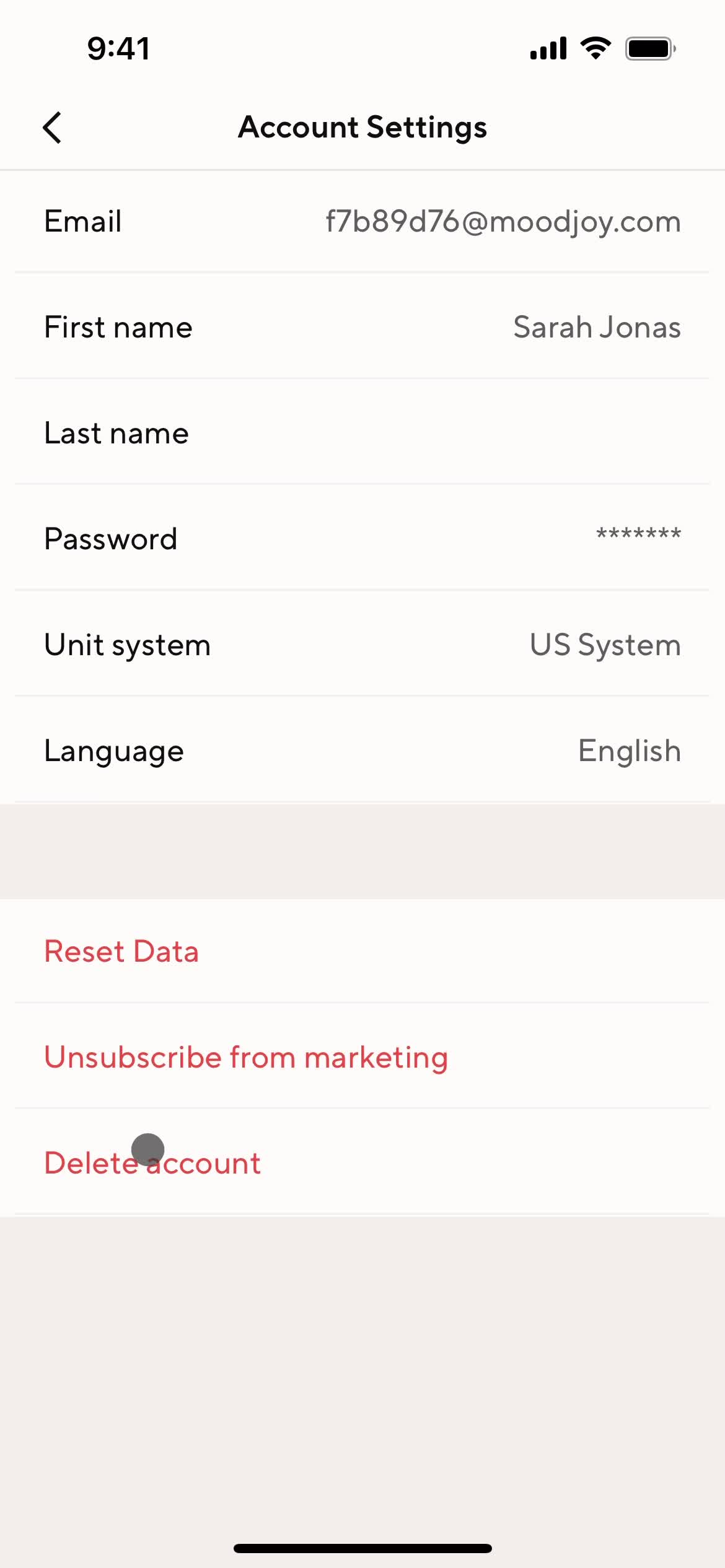
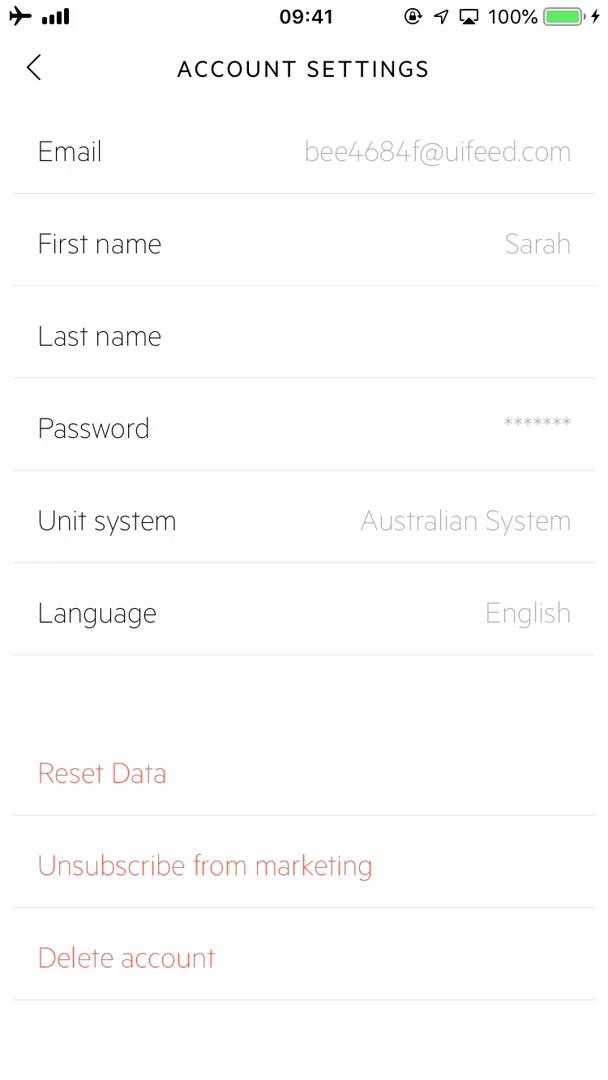
Account settings
this is title
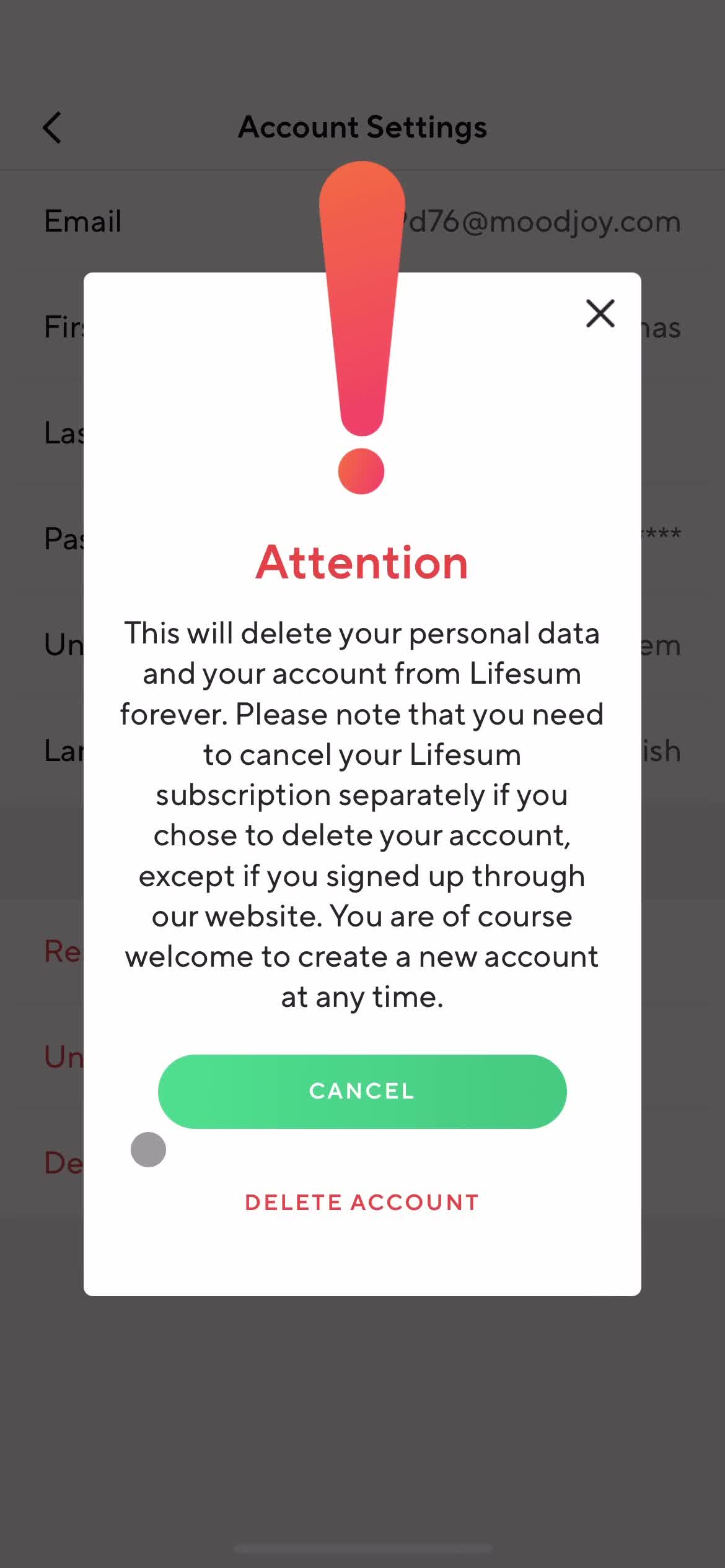
Delete account
this is title
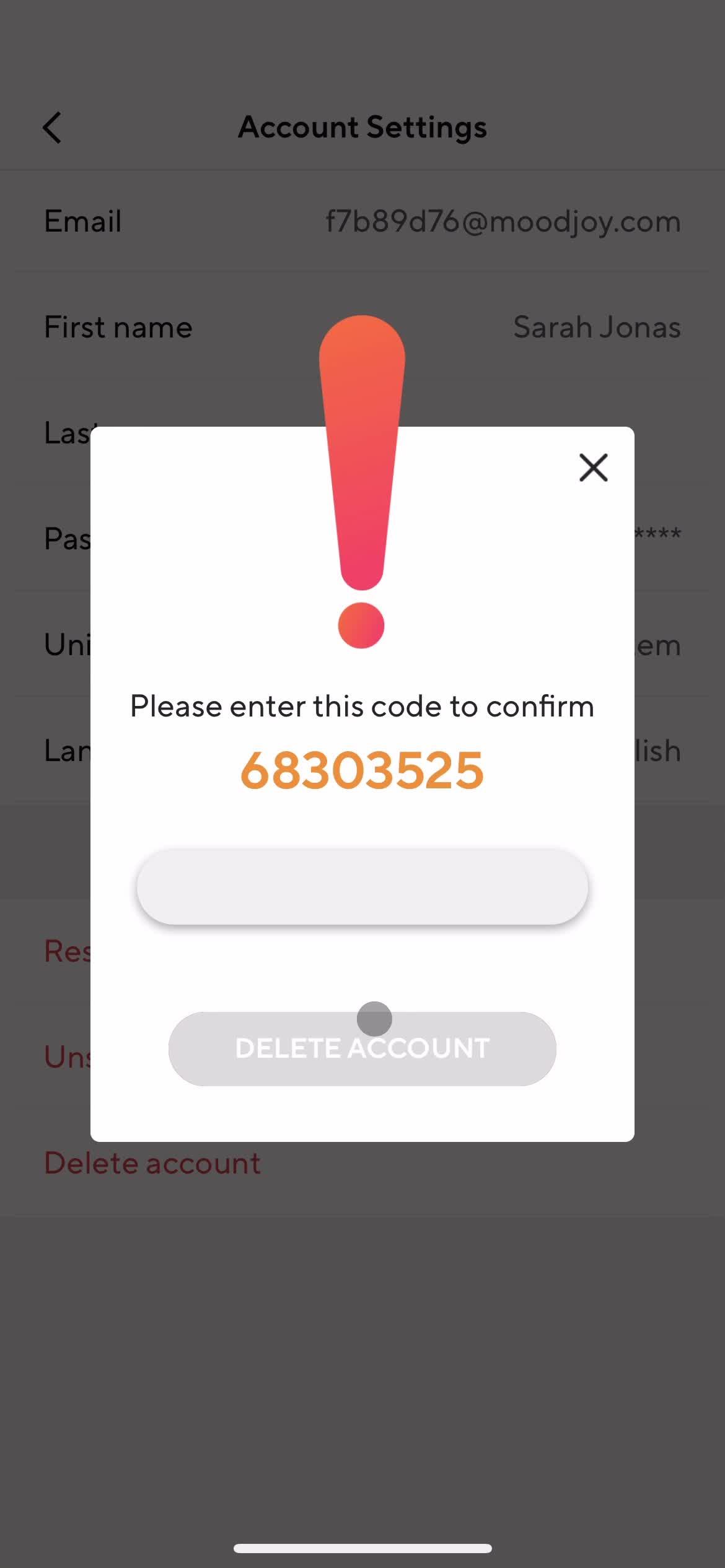
Enter confirmation code
this is title
Deleted
this is title
Get started
this is title
Dashboard
this is title
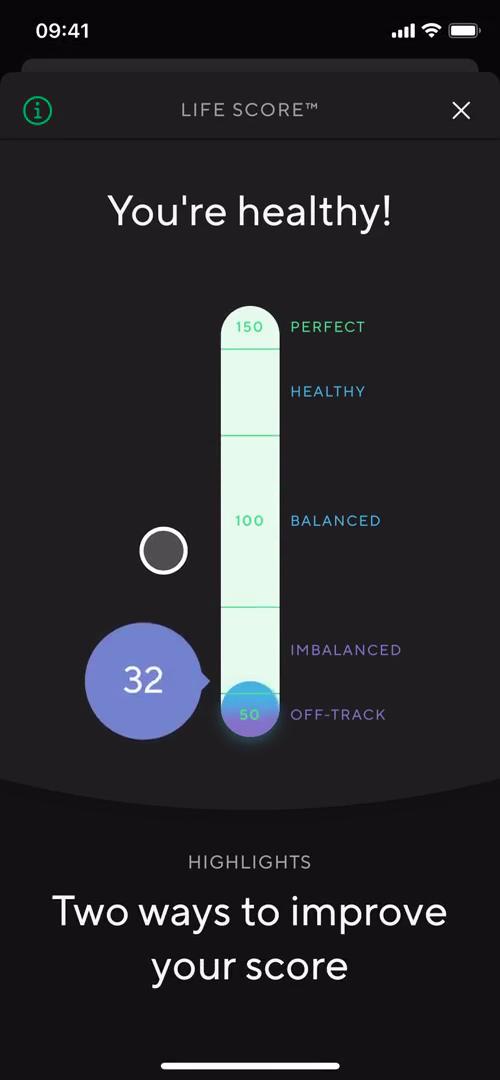
Life score
this is title
Favorites
this is title
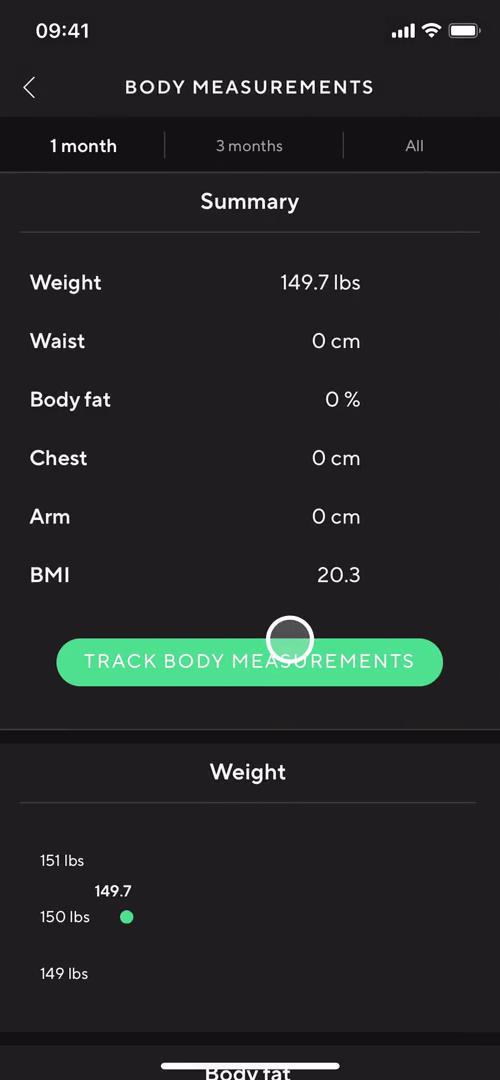
Measurements
this is title
Stats
this is title
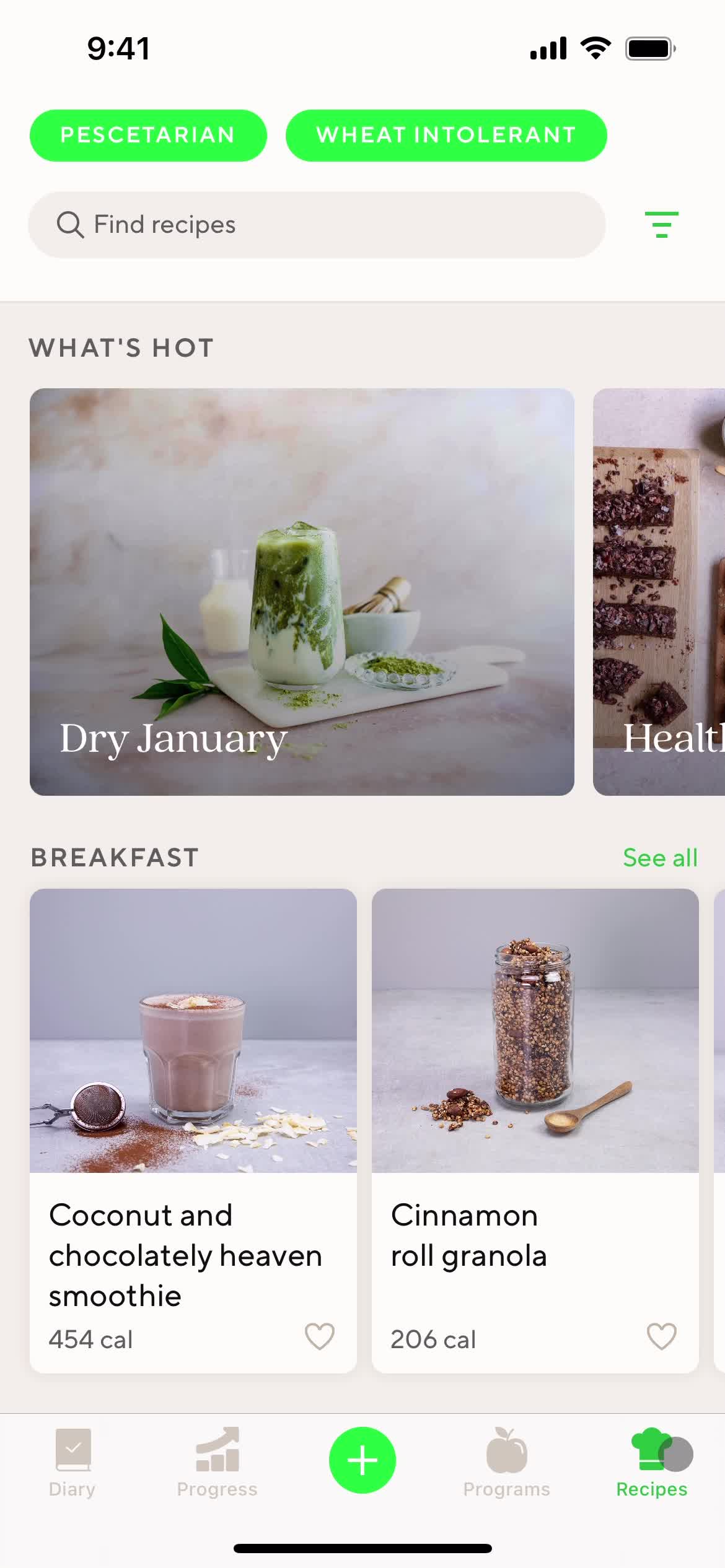
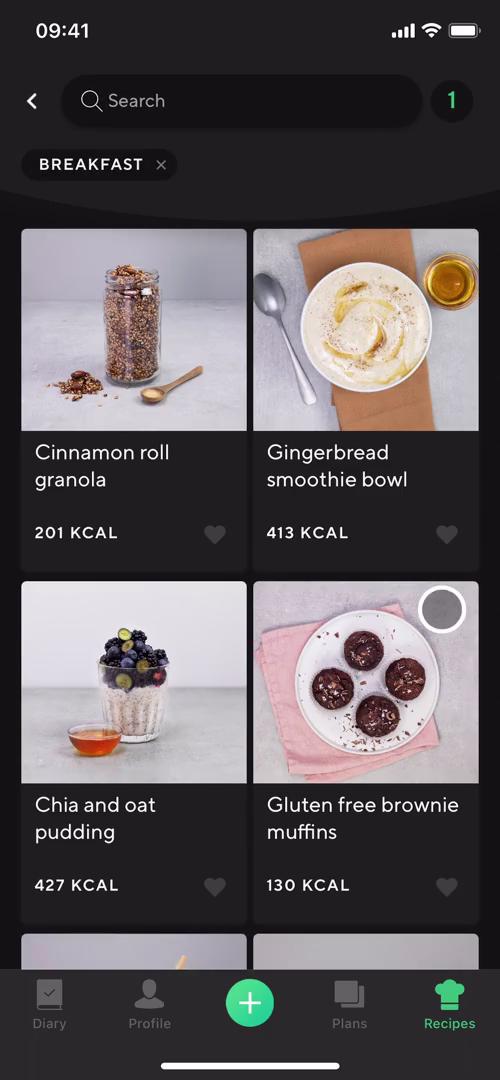
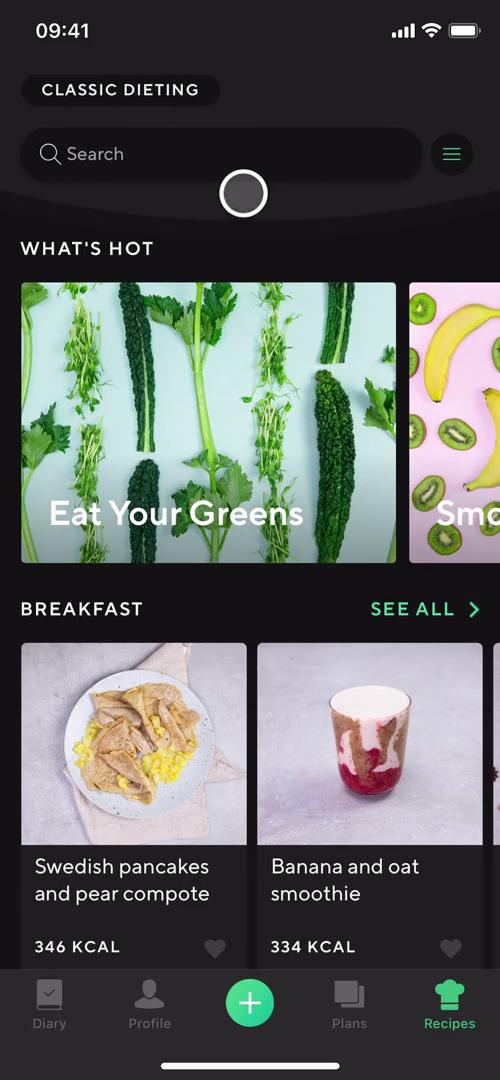
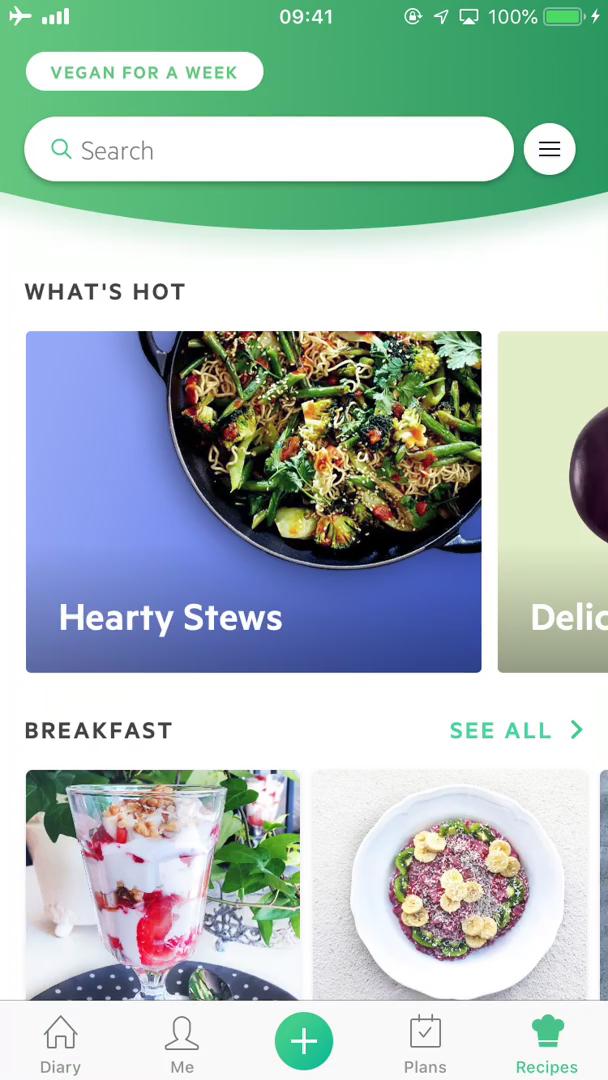
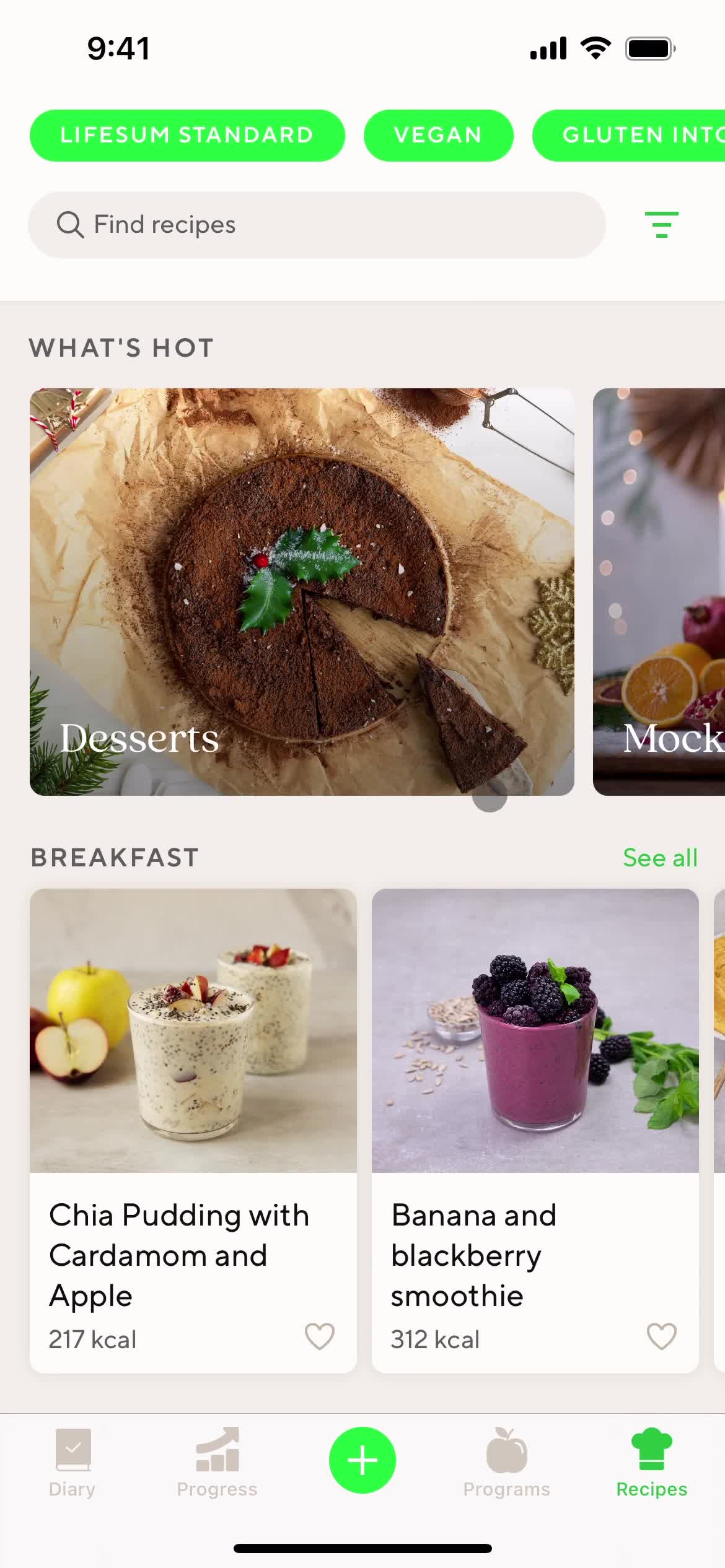
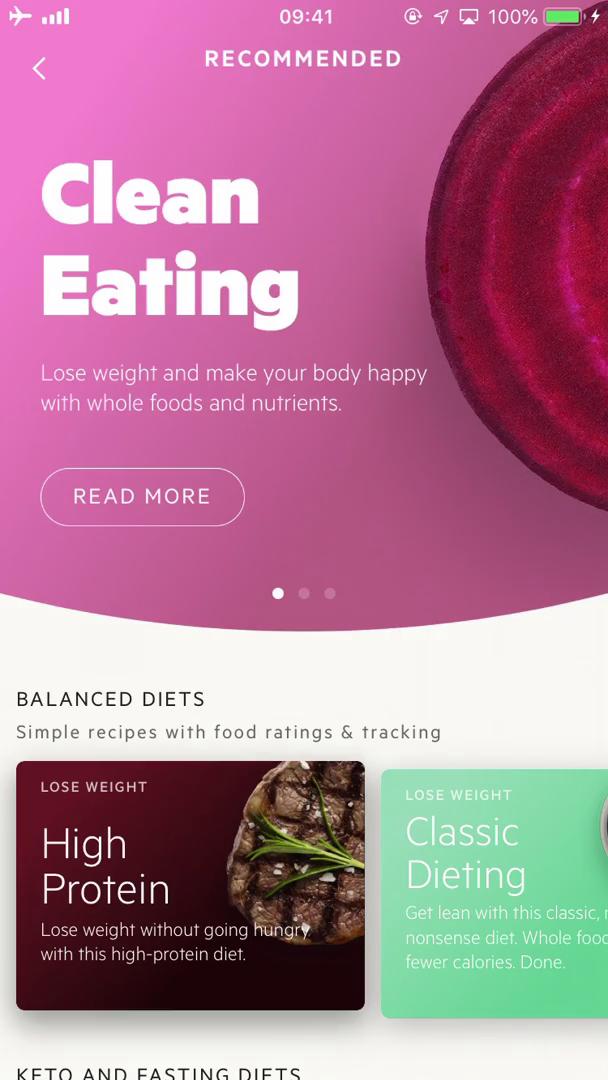
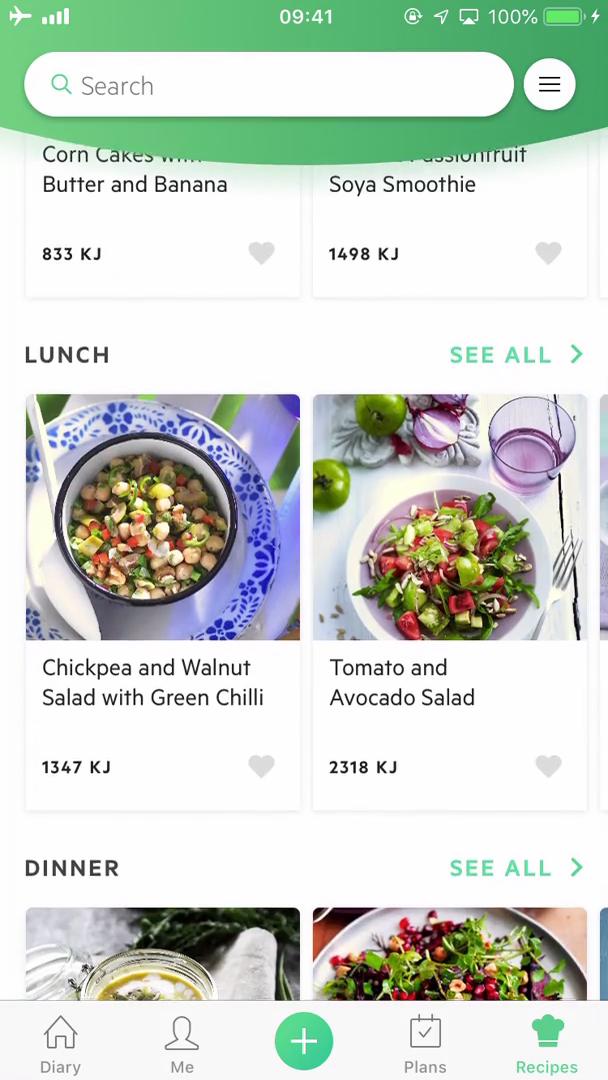
Recipes
this is title
Filter
this is title
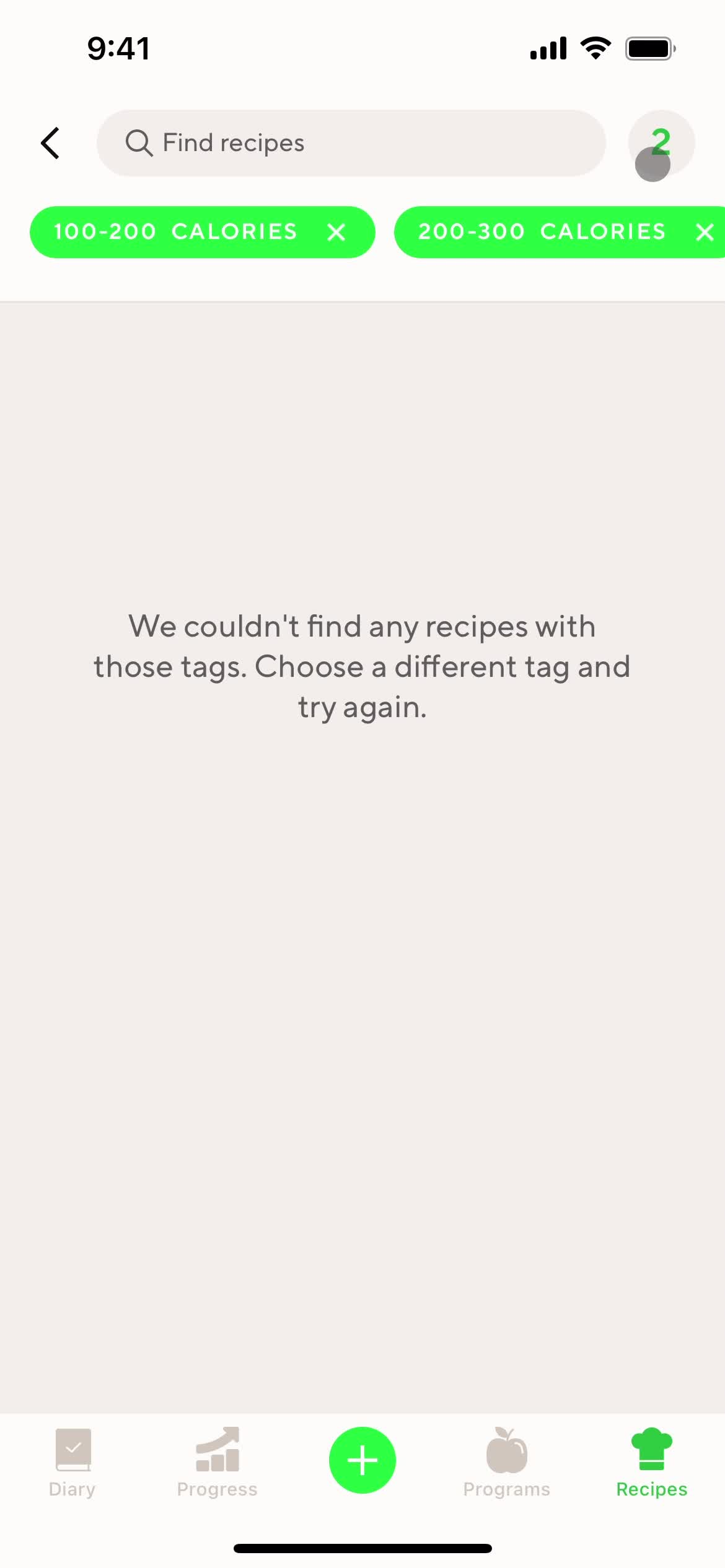
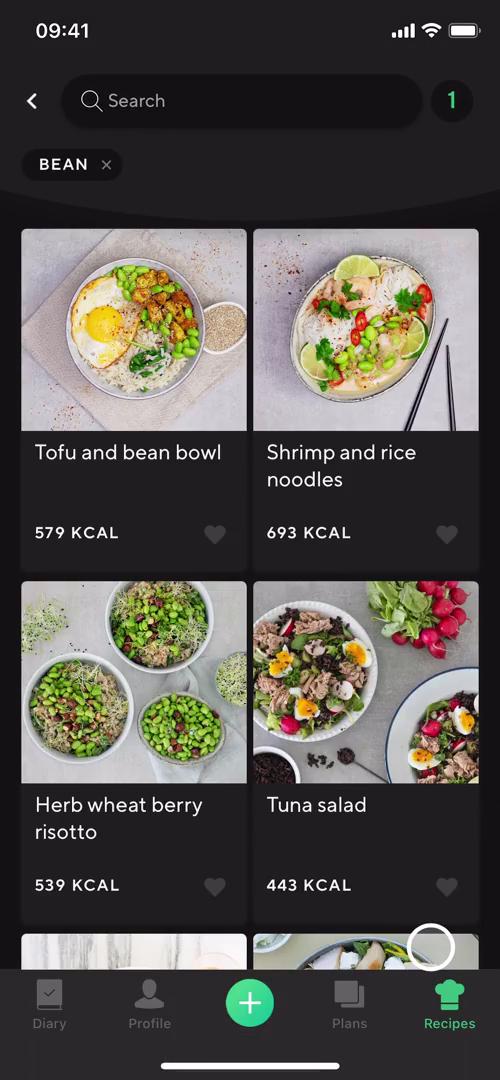
Search results
this is title
Dashboard
this is title
Recipes
this is title
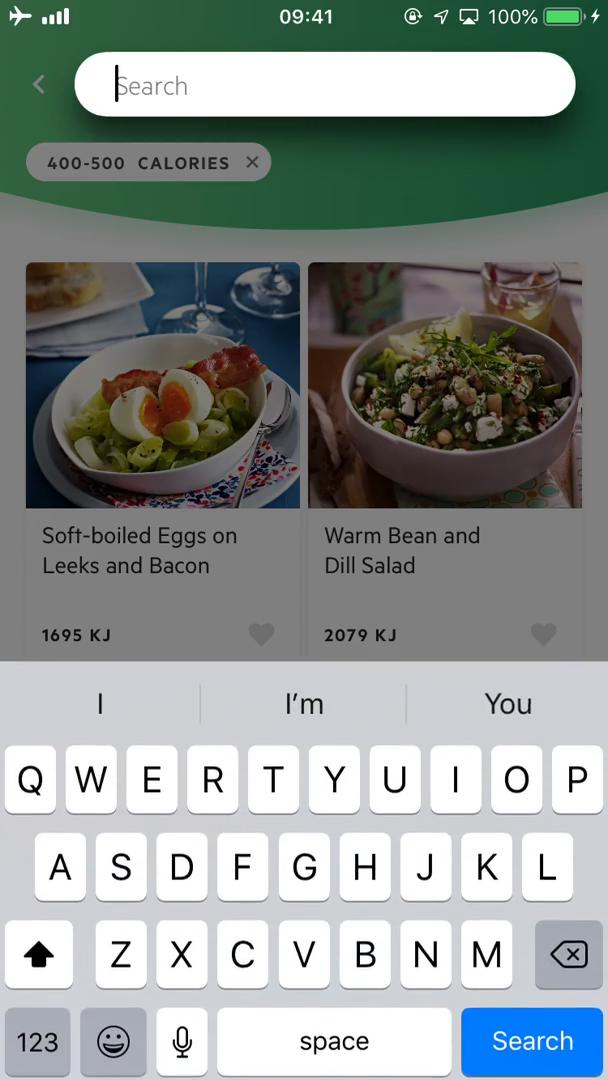
Search
this is title
Search results
this is title
this is title
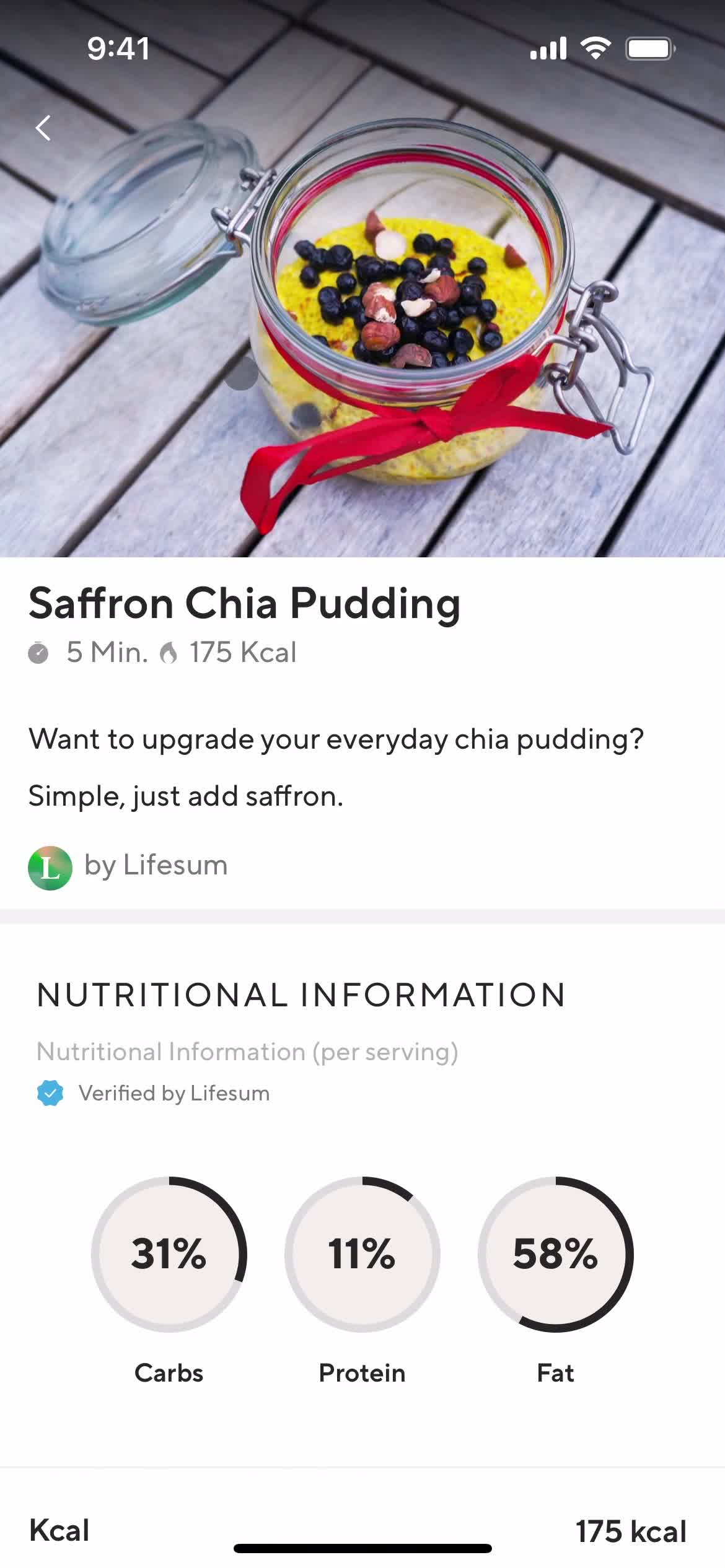
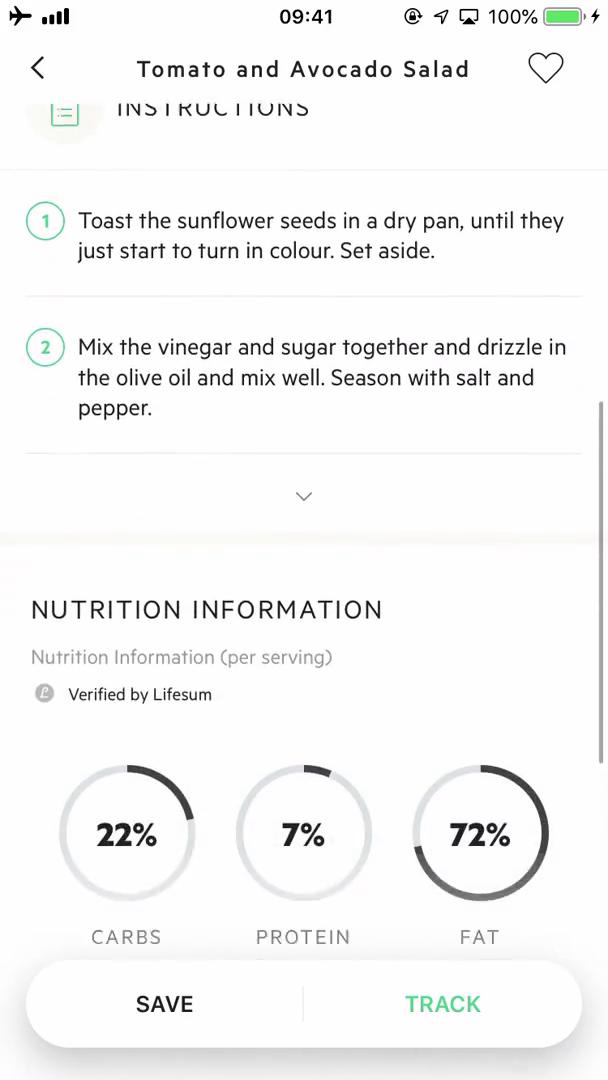
Recipe details
this is title
Premium plan details
this is title
Search
this is title
Recipes
this is title
Filter
this is title
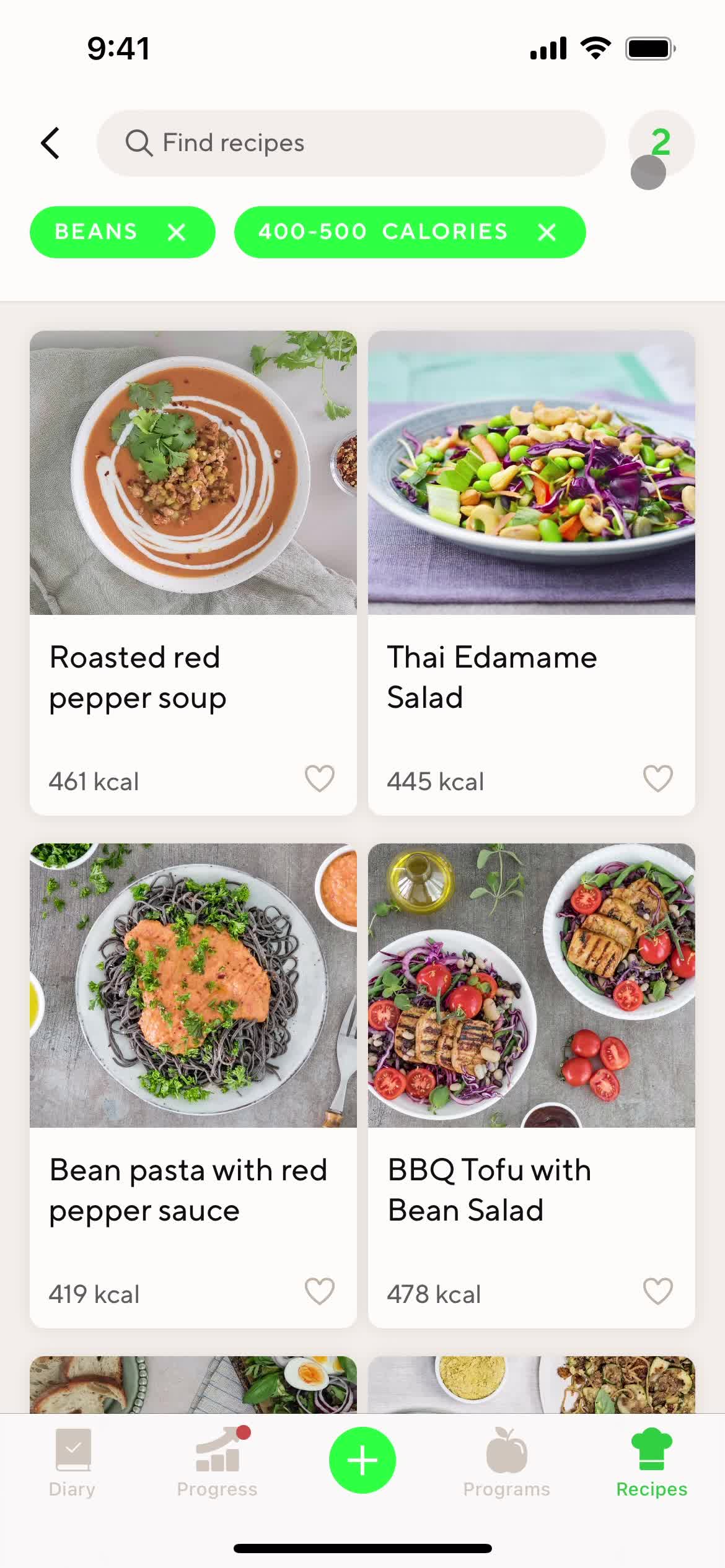
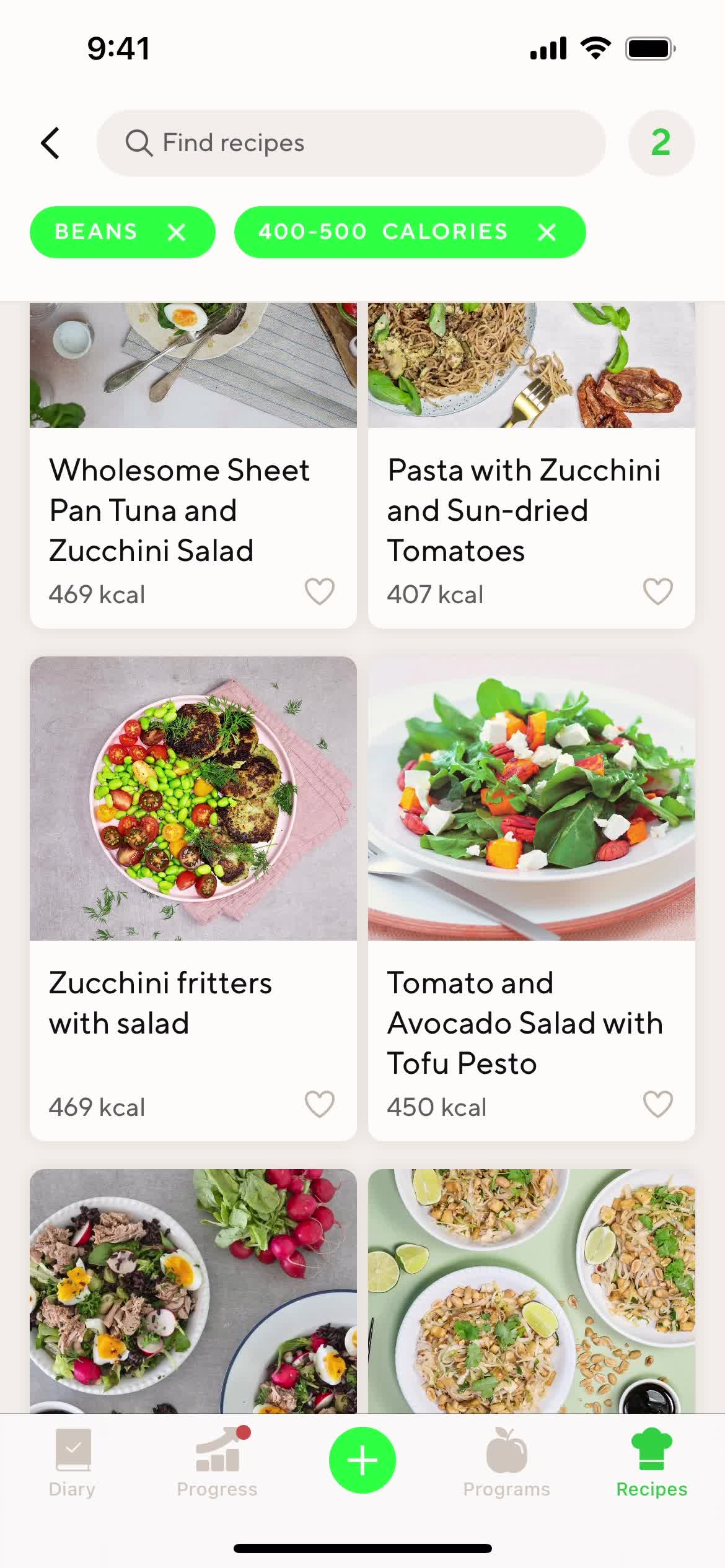
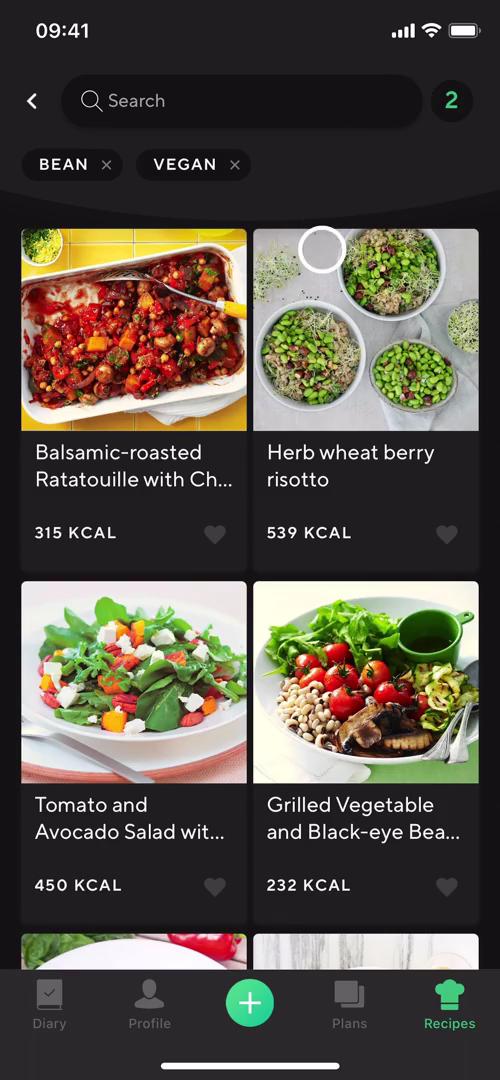
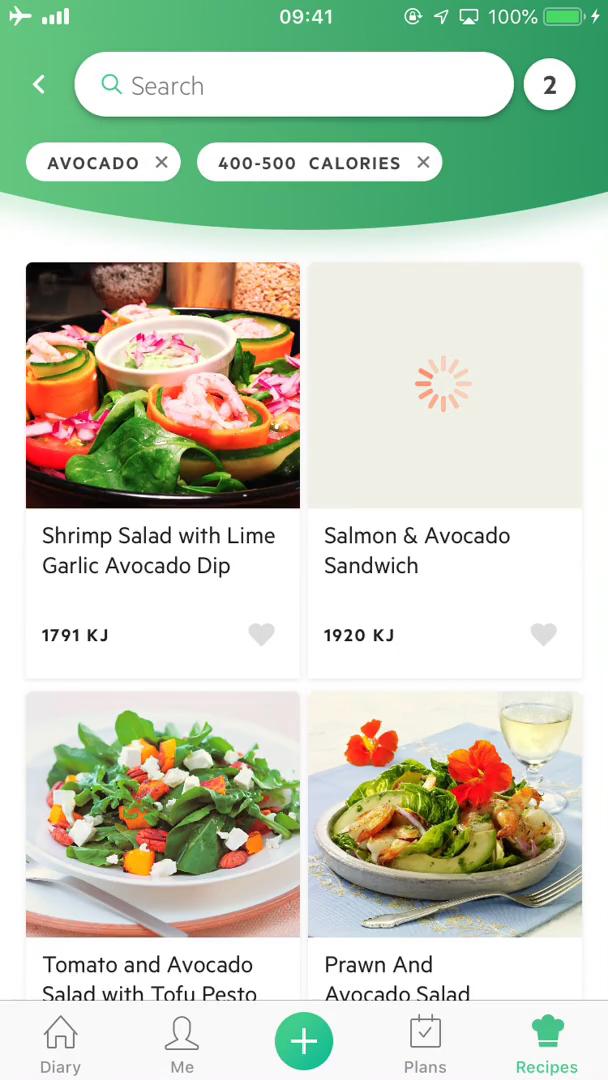
Filtered results
this is title
this is title
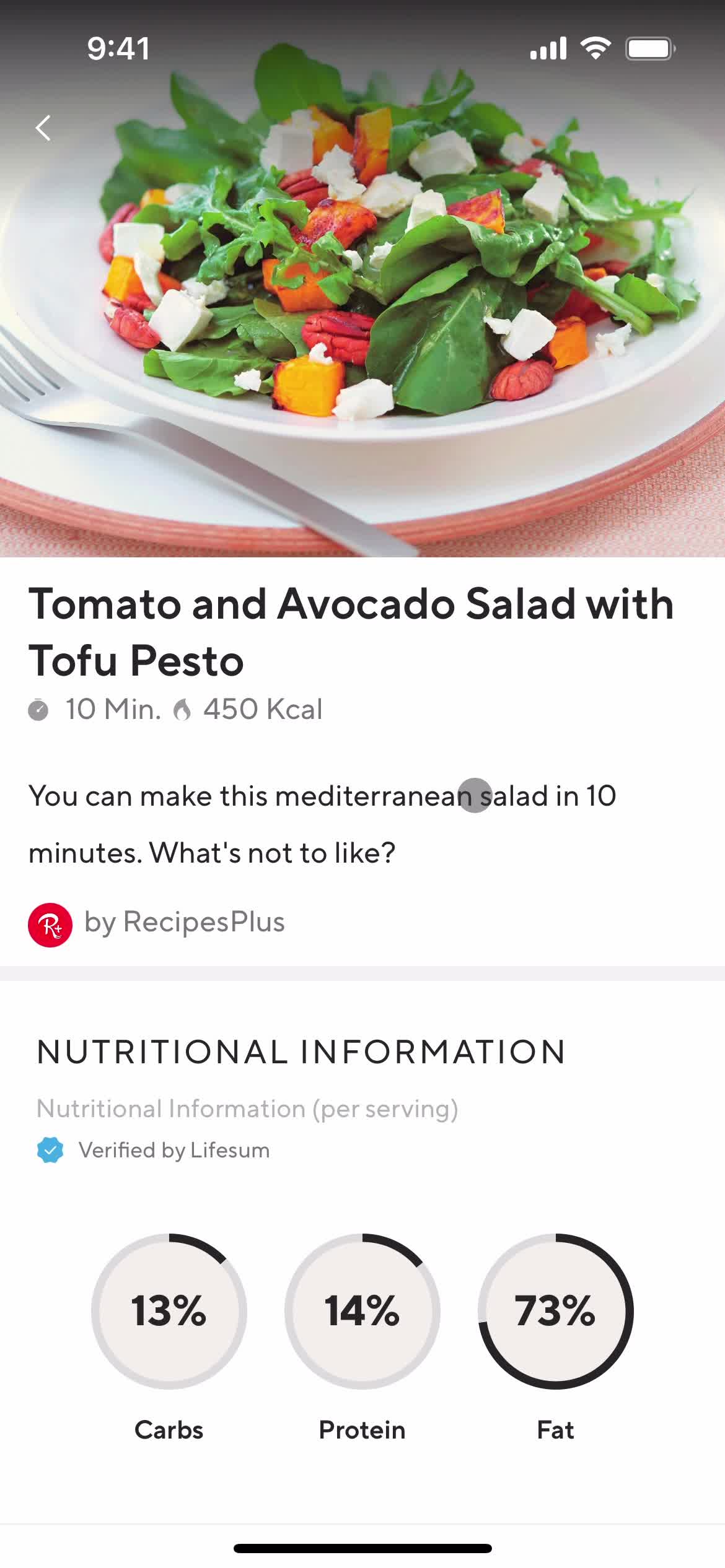
Recipe details
this is title
Dashboard
this is title
Recipes
this is title
Recipe details
this is title
Recipes
this is title
Filter
this is title
Search results
this is title
Filter
this is title
Search results
this is title
Recipe details
this is title
Add shortcut
this is title
Track calories
this is title
Tracked
this is title
Recipes
this is title
Category
this is title
Recipe details
this is title
Recipes
this is title
Dashboard
this is title
Recipes
this is title
Recipe details
this is title
Recipe details
this is title
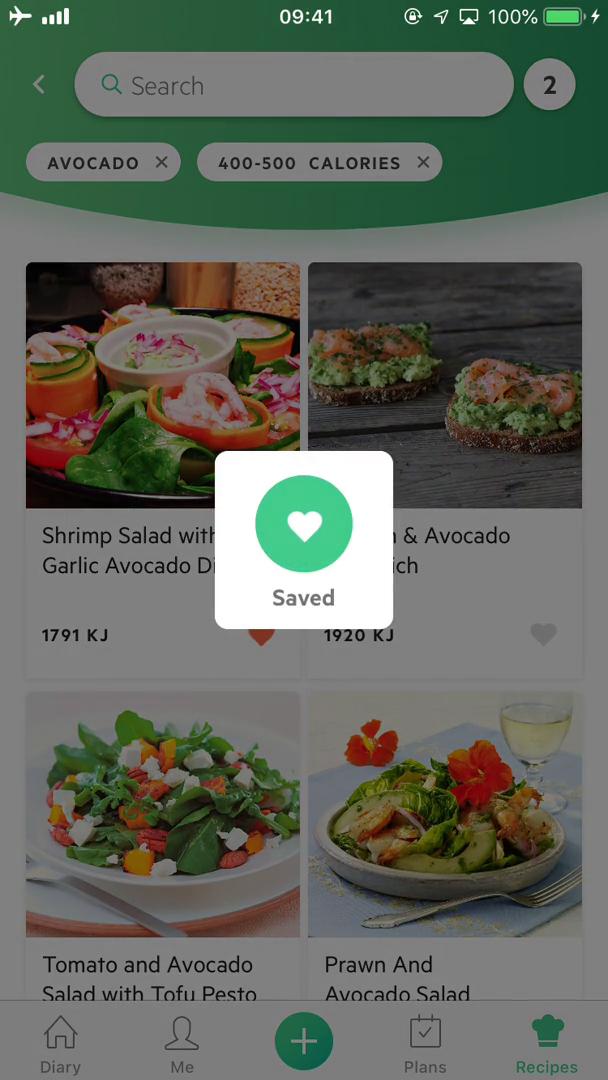
Save
this is title
Save
this is title
Filter
this is title
Search
this is title
Search results
this is title
Save
this is title
Dashboard
this is title
this is title
Upgrade
this is title
Dashboard
this is title
Meal details
this is title
Add meal
this is title
this is title
Add details
this is title
Scan barcode
this is title
Food details
this is title
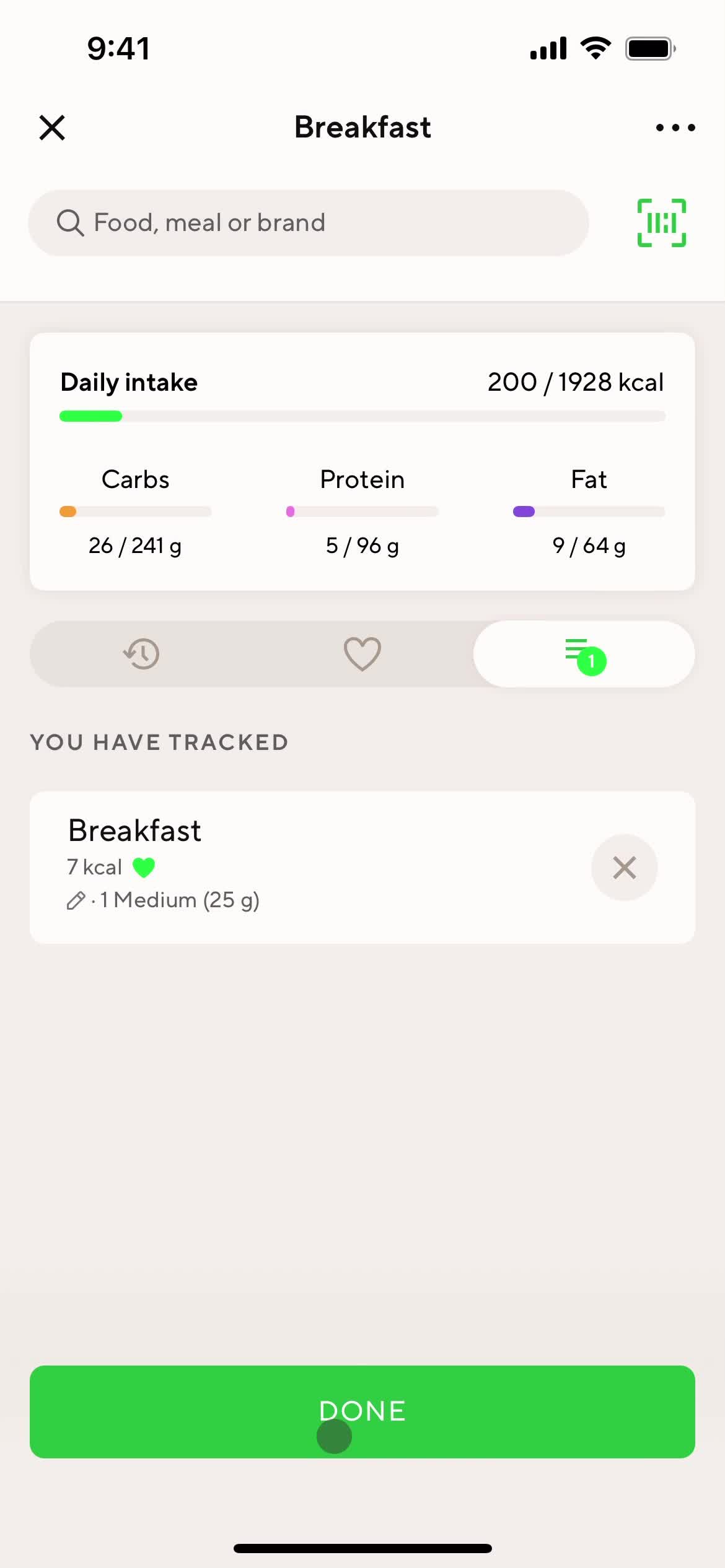
Tracked
this is title
Meal details
this is title
Dashboard
this is title
Continue
this is title
Set times
this is title
Set times
this is title
Dashboard
this is title
Customization settings
this is title
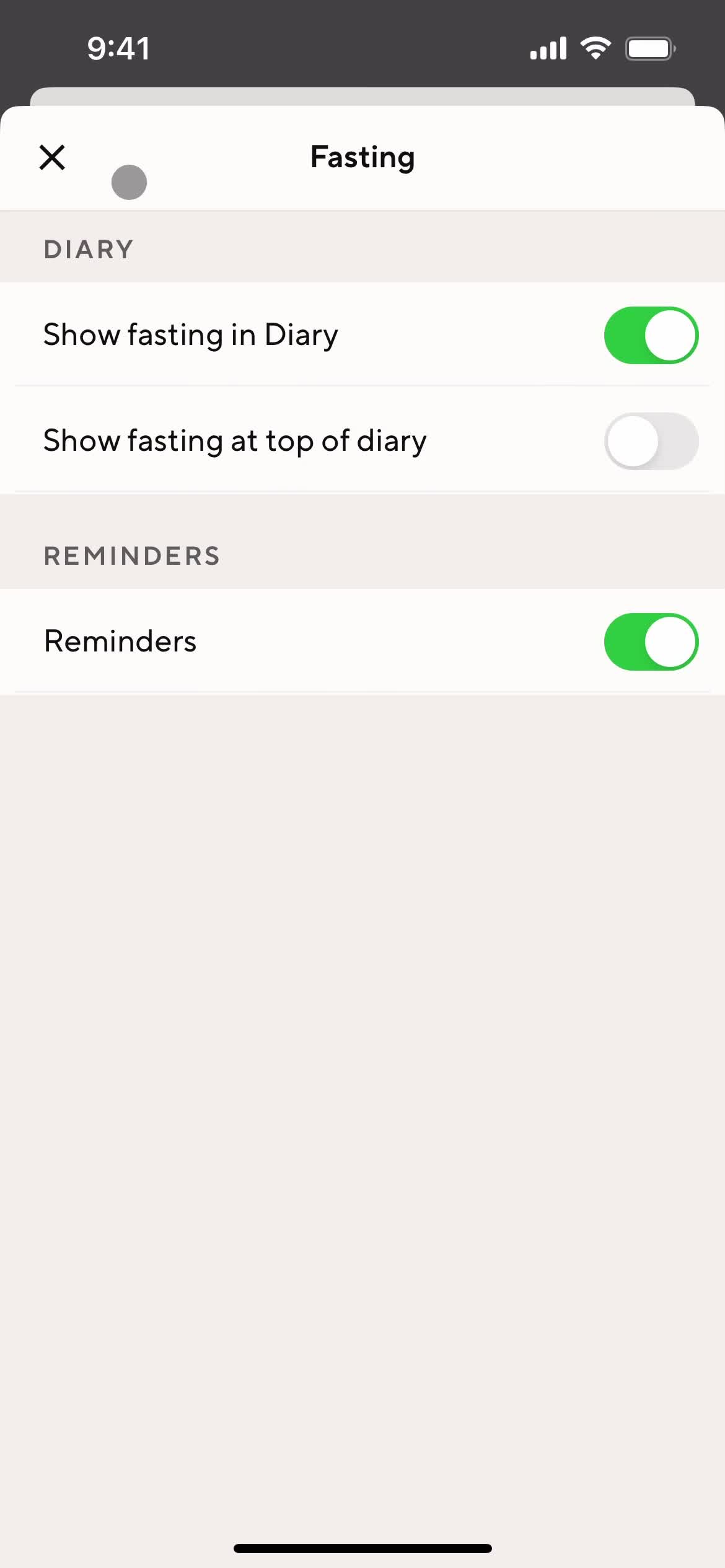
Fasting
this is title
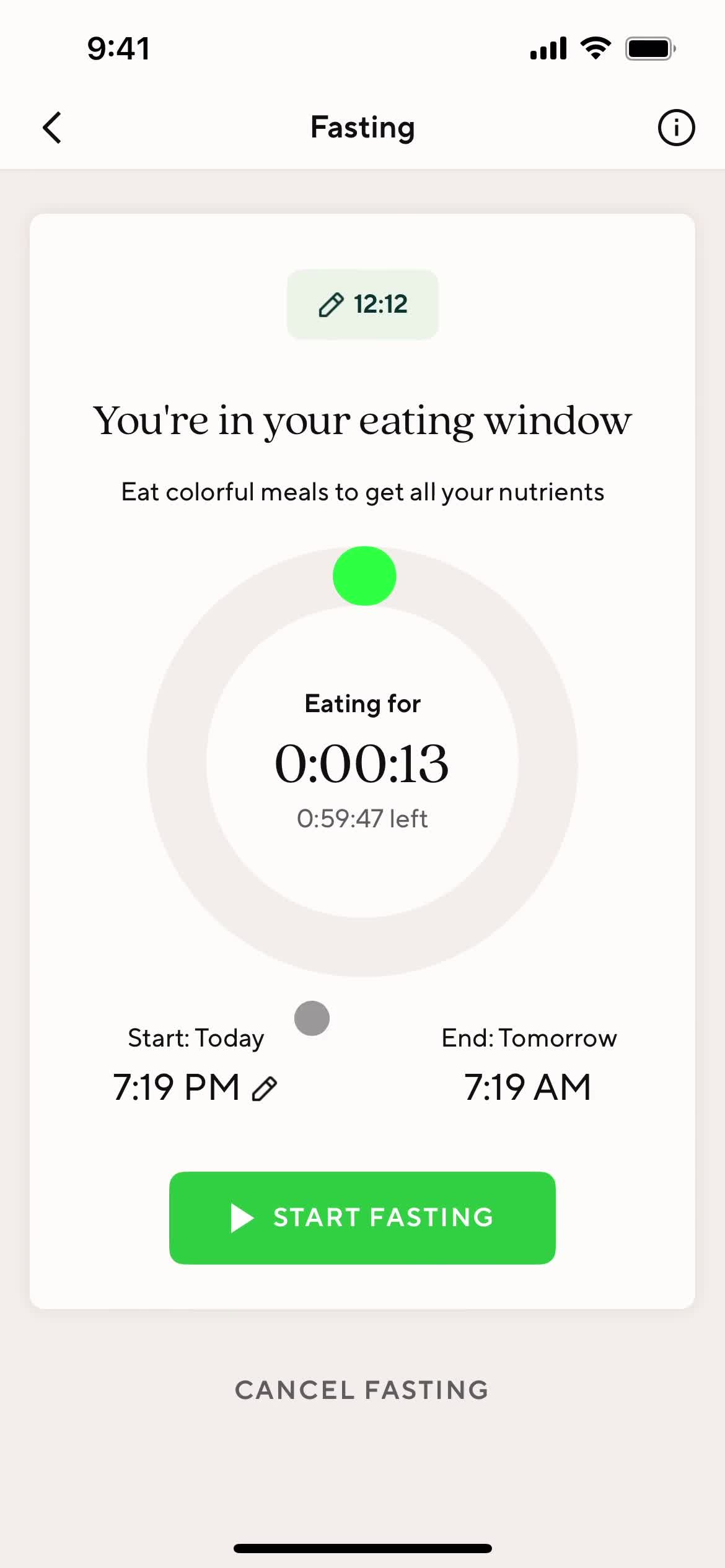
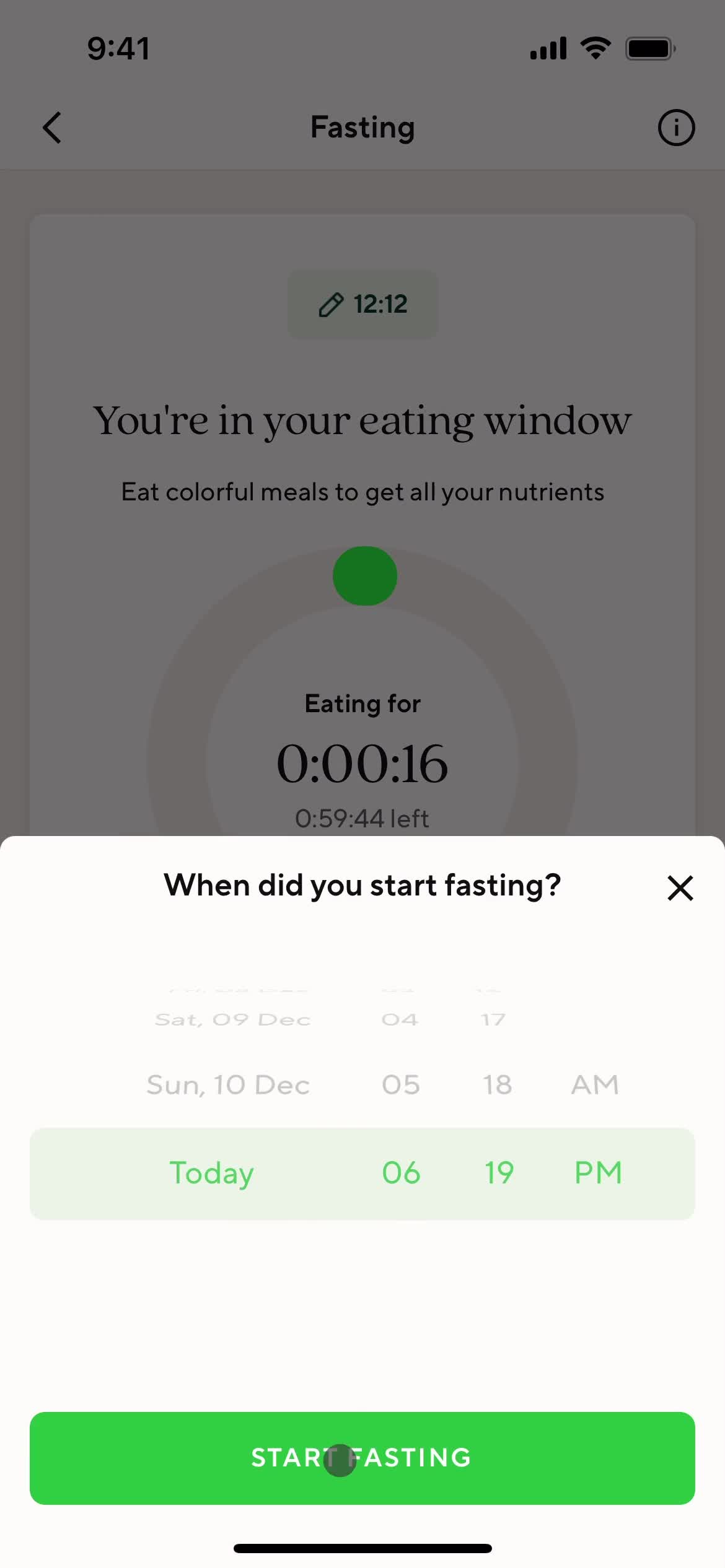
Log time
this is title
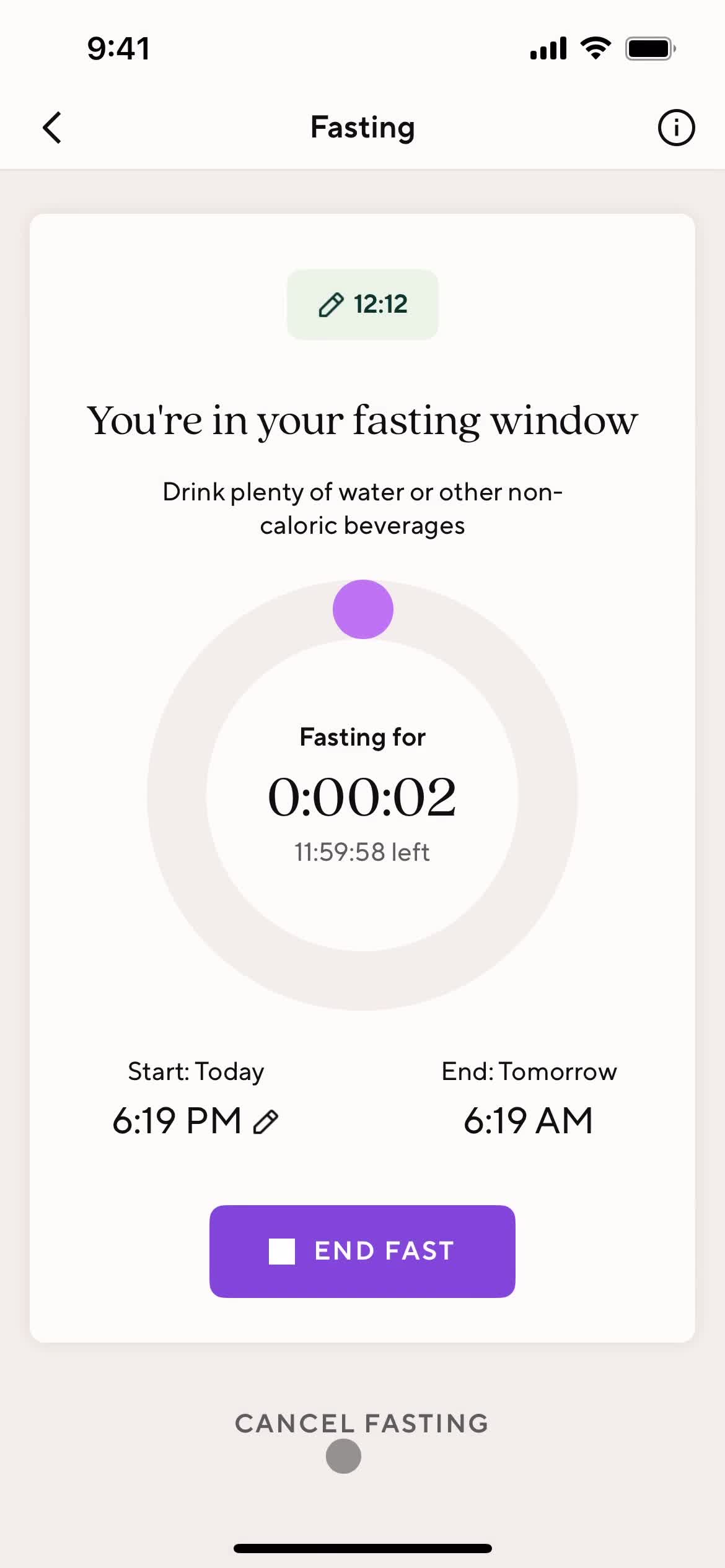
Fast details
this is title
Plan details
this is title
Dashboard
this is title
Customization settings
this is title
Save changes
this is title
Changes saved
this is title
Plan details
this is title
Dashboard
this is title
Stats
this is title
Progress
this is title
this is title
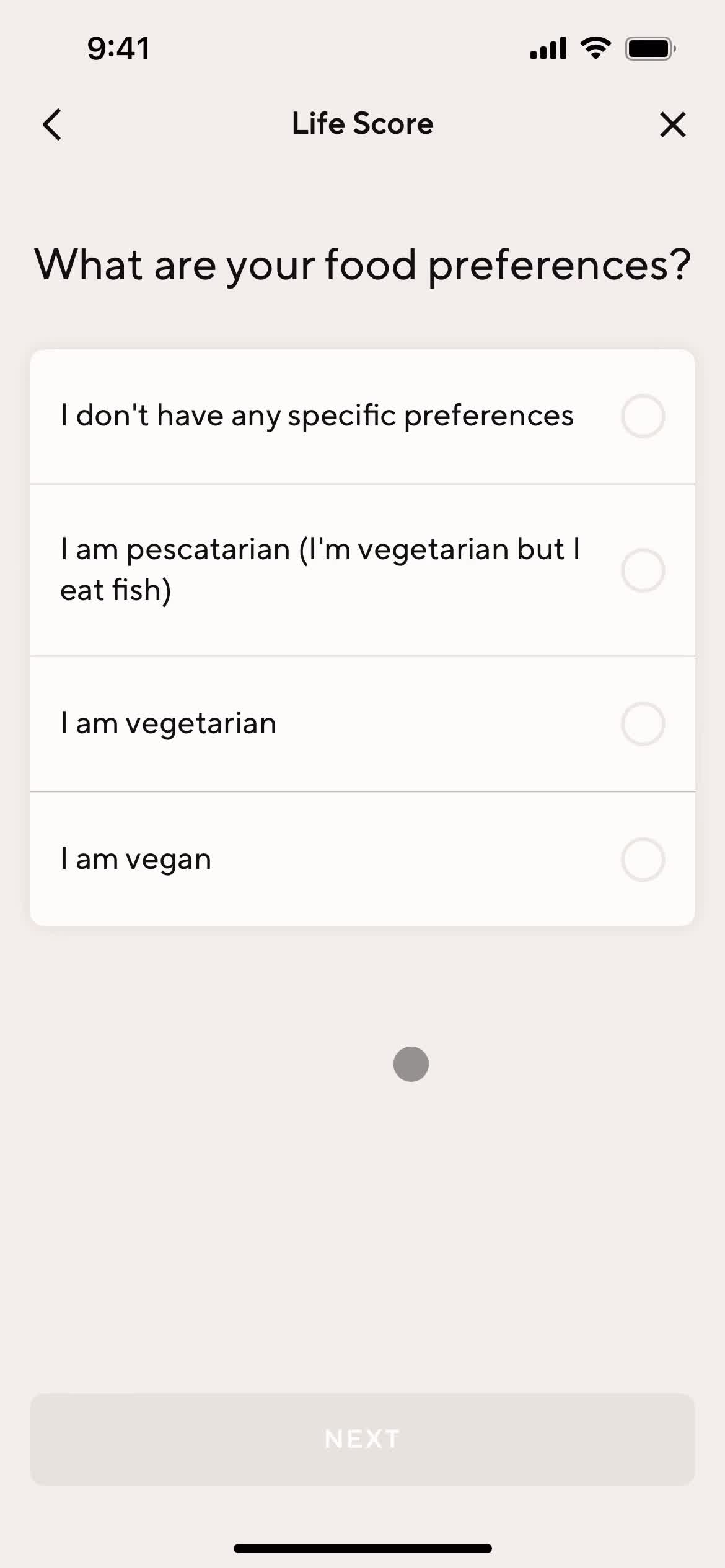
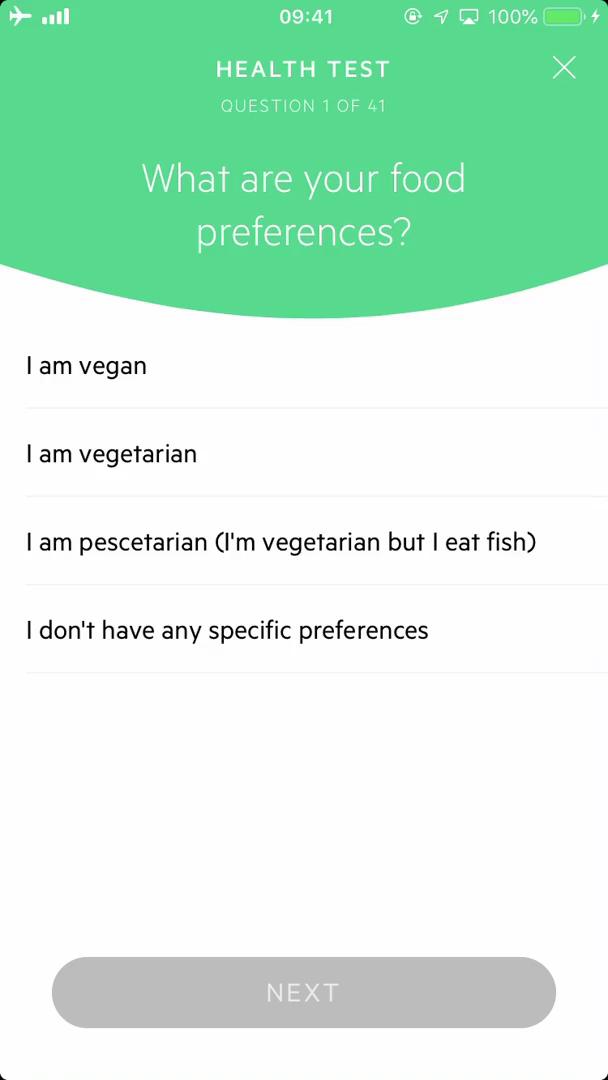
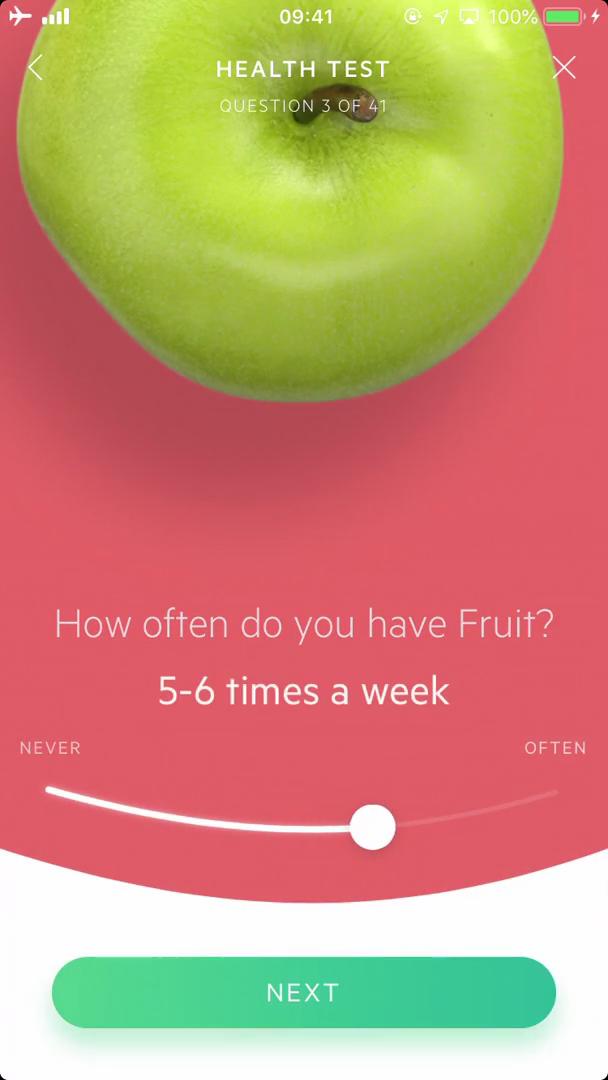
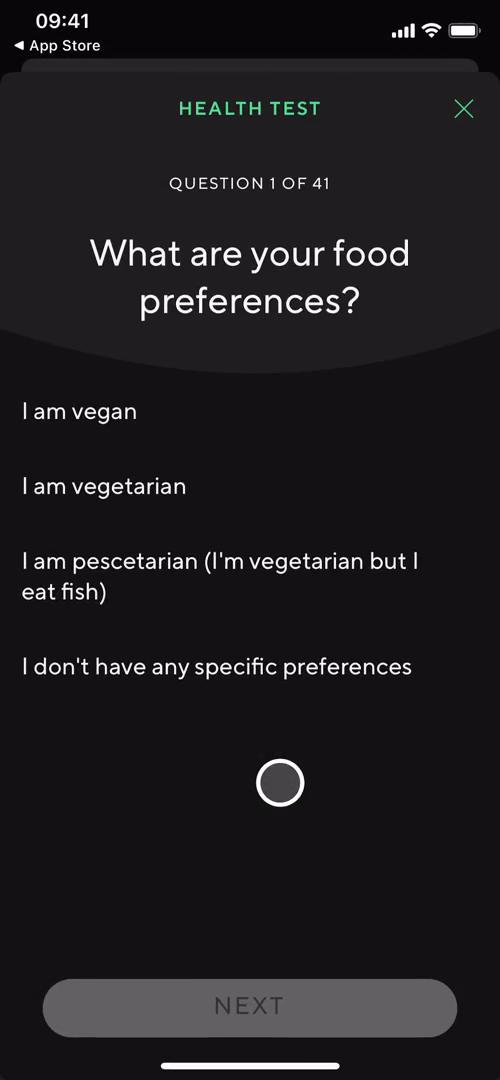
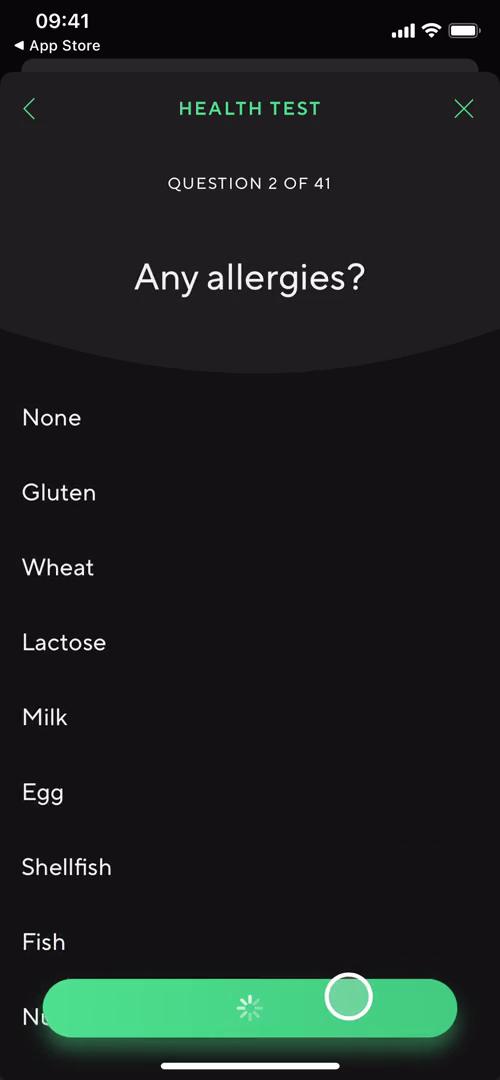
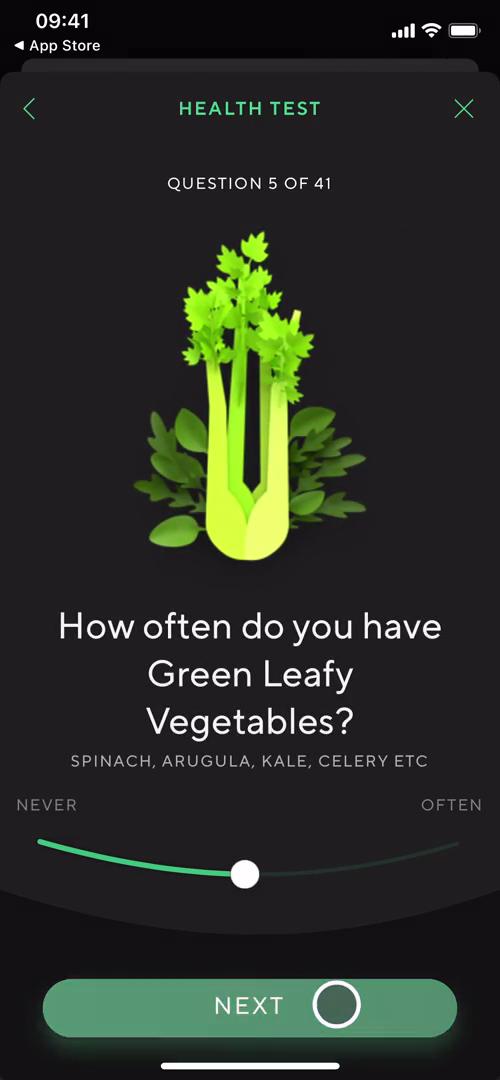
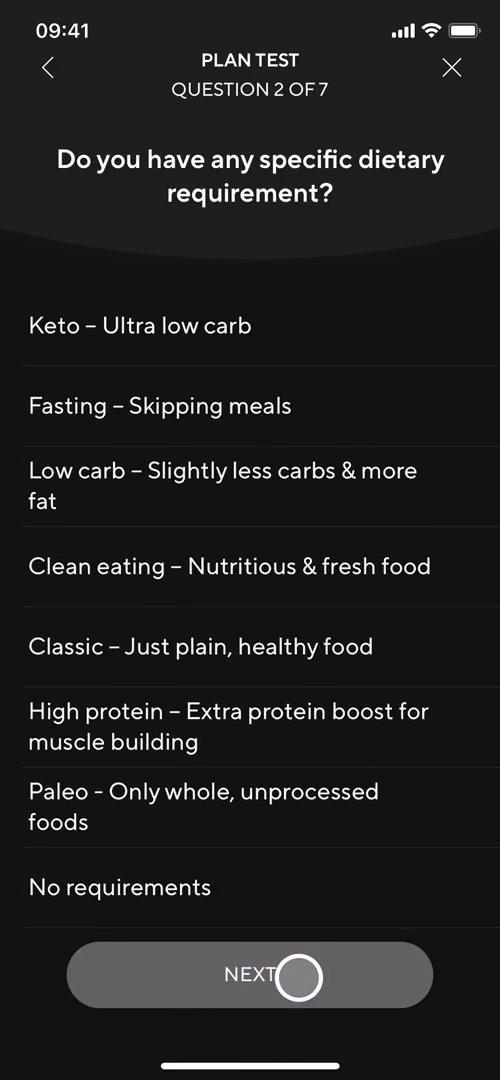
Test question
this is title
this is title
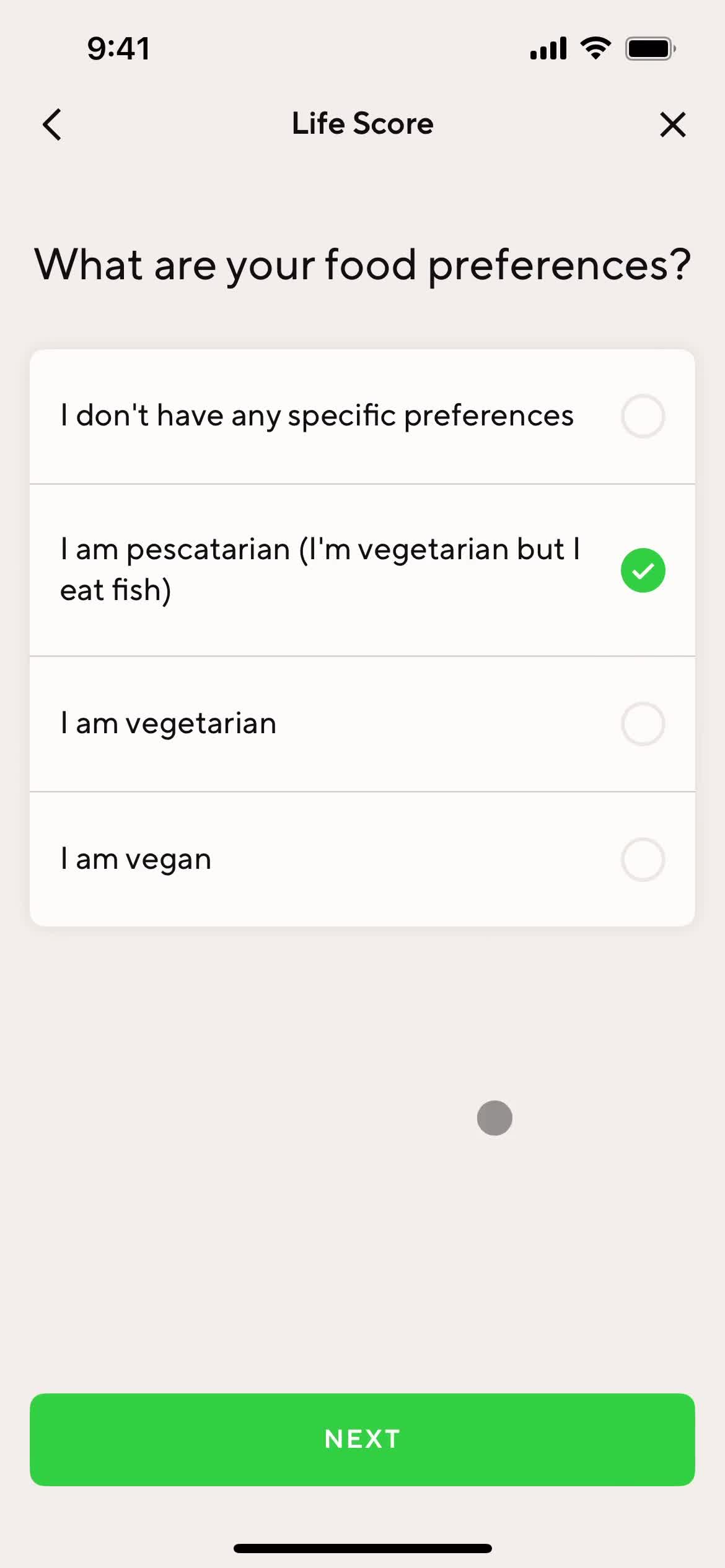
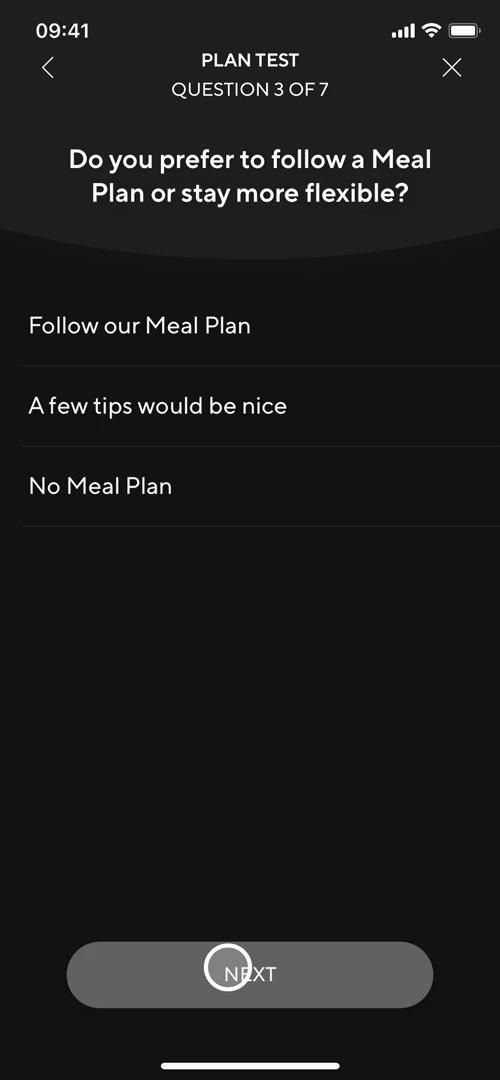
Test question
this is title
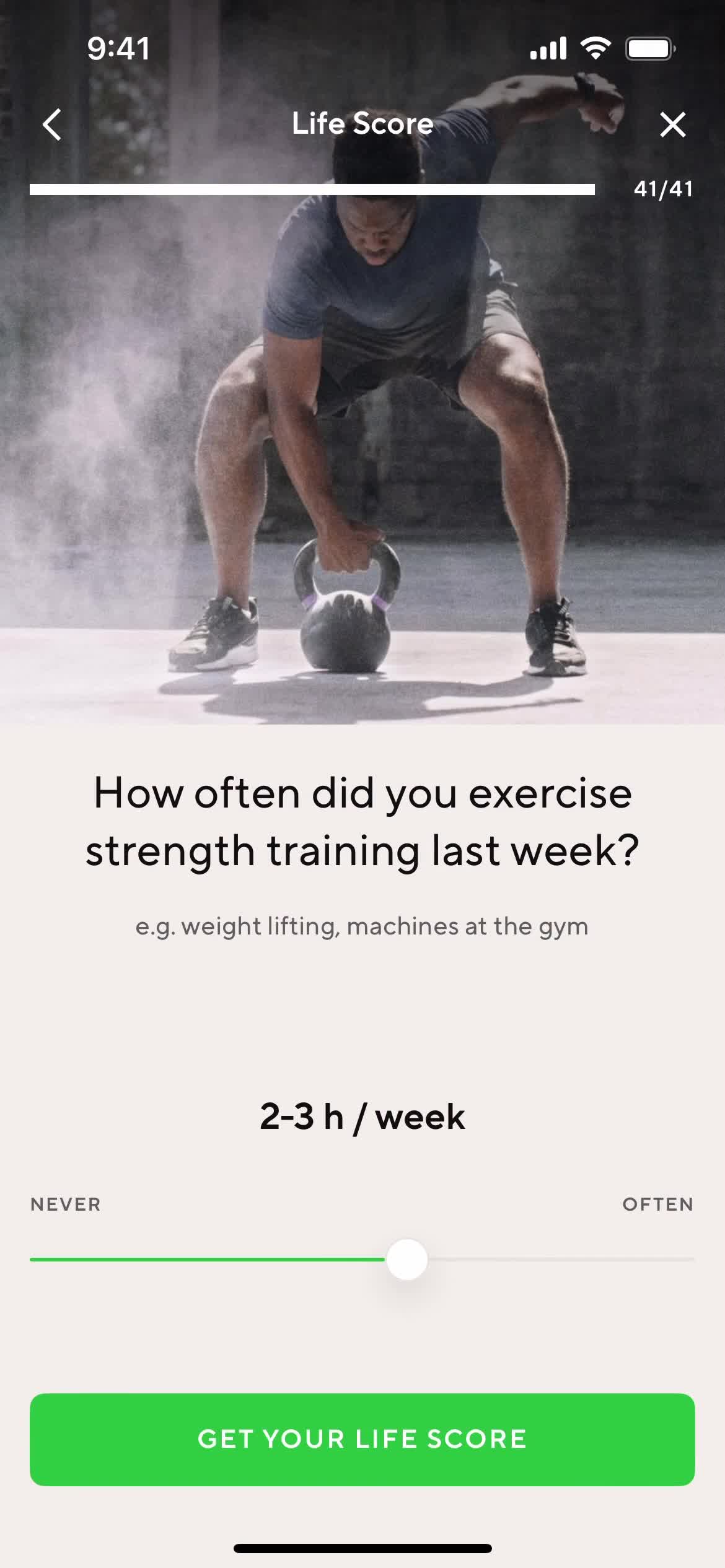
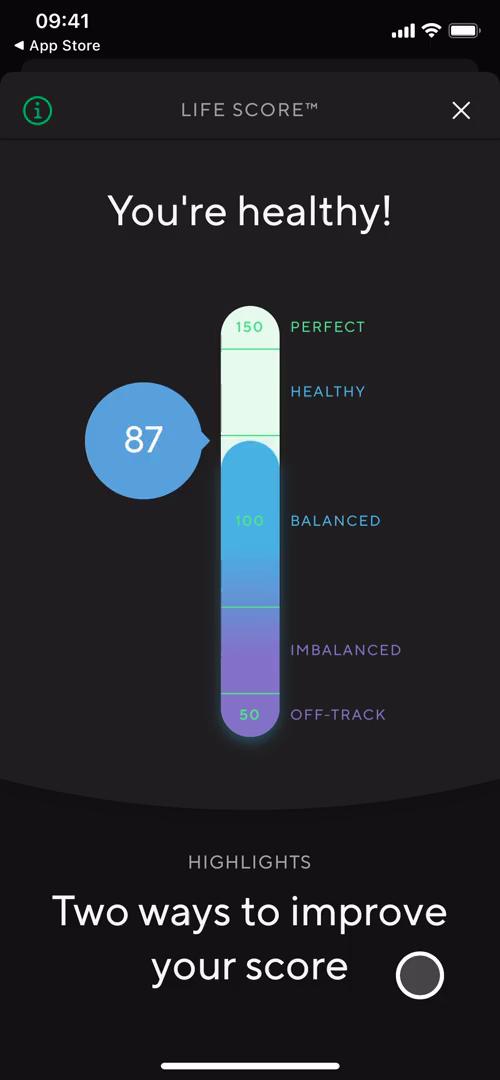
Life score
this is title
Life score
this is title
this is title
Favorites
this is title
Food details
this is title
Favorites
this is title
Action menu
this is title
Add exercise
this is title
Added to favorites
this is title
Dashboard
this is title
Measurements
this is title
this is title
Stats
this is title
Track activity
this is title
Food details
this is title
Search
this is title
Progress
this is title
Programs
this is title
Plan summary
this is title
Plan details
this is title
Recipes
this is title
Filter
this is title
Recipe details
this is title
Search results
this is title
Dashboard
this is title
Notifications
this is title
Profile
this is title
Preferences
this is title
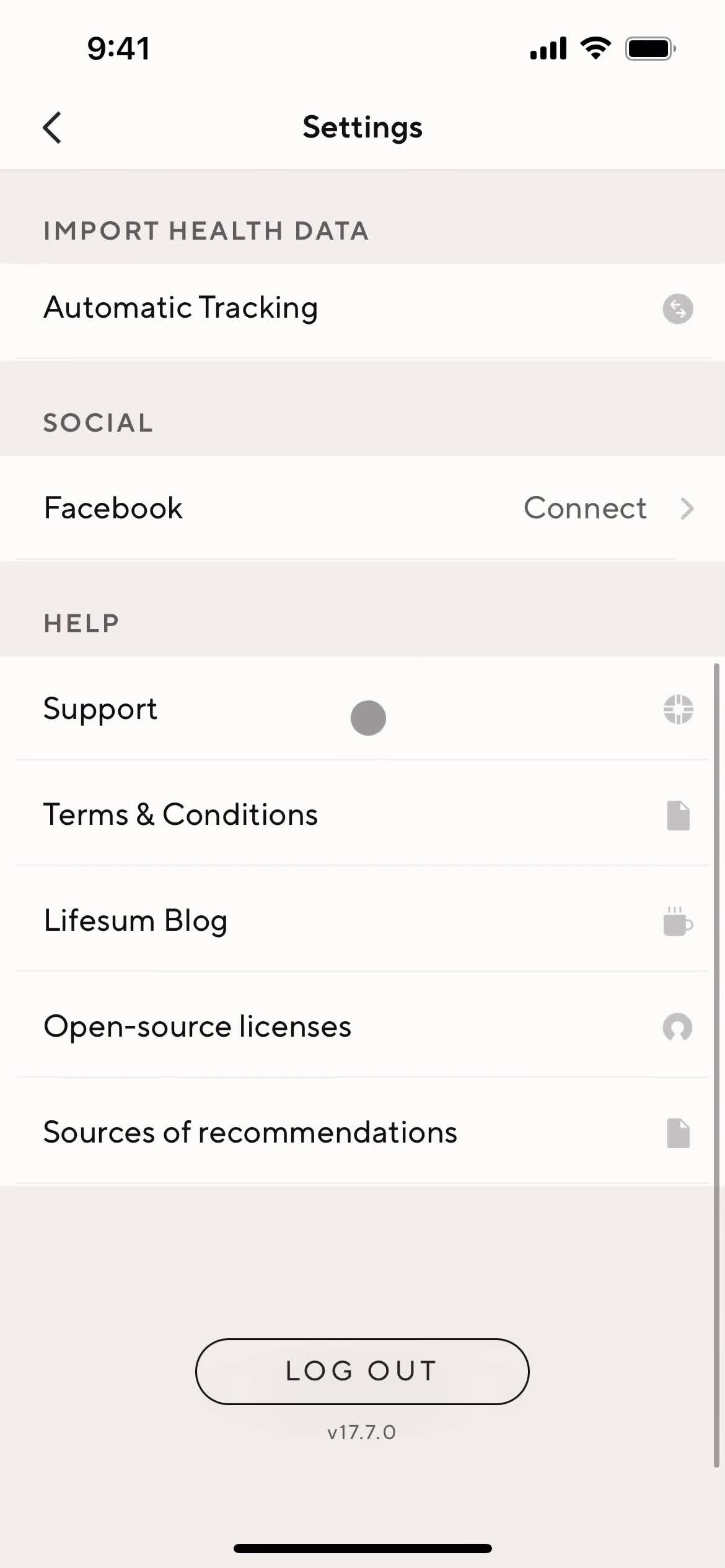
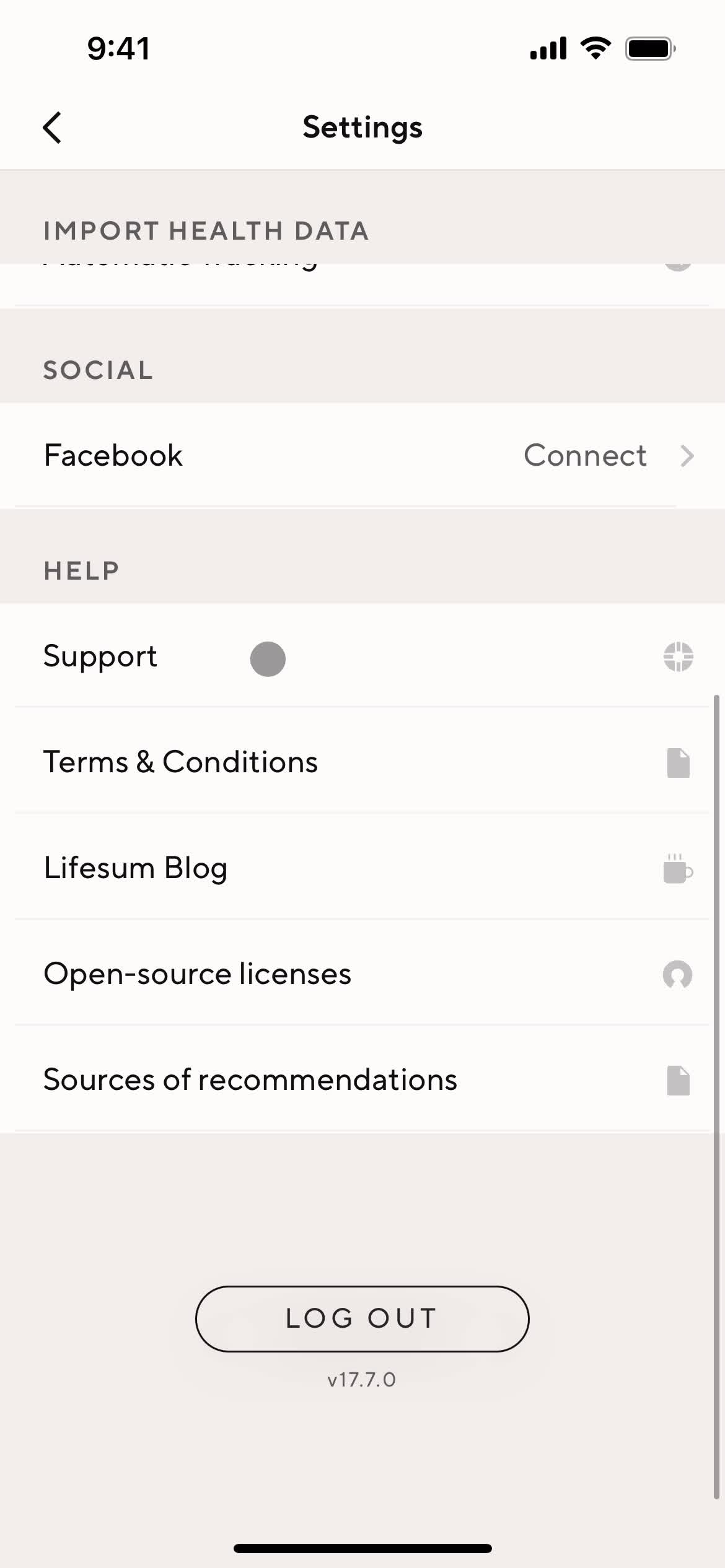
Settings
this is title
Account settings
this is title
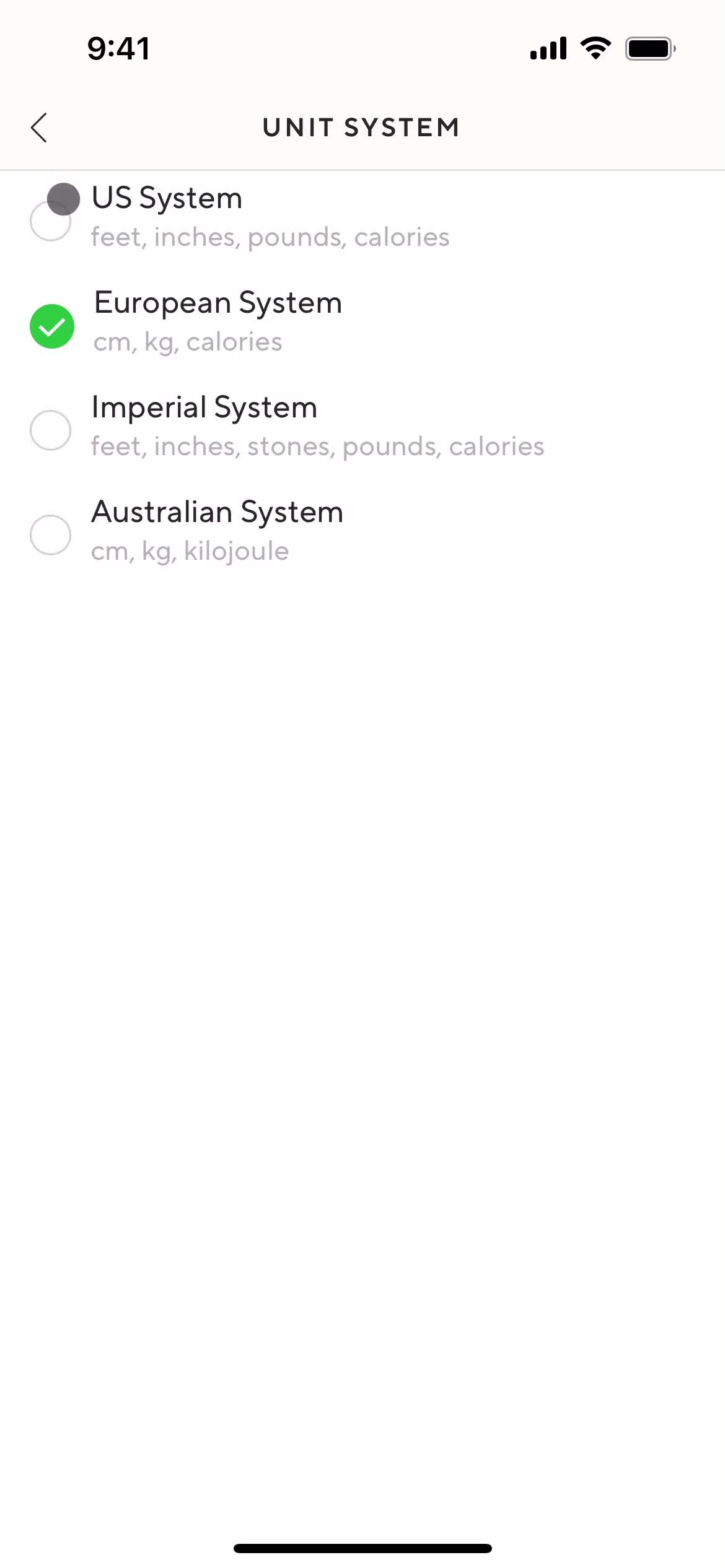
Set unit
this is title
Settings
this is title
Diary settings
this is title
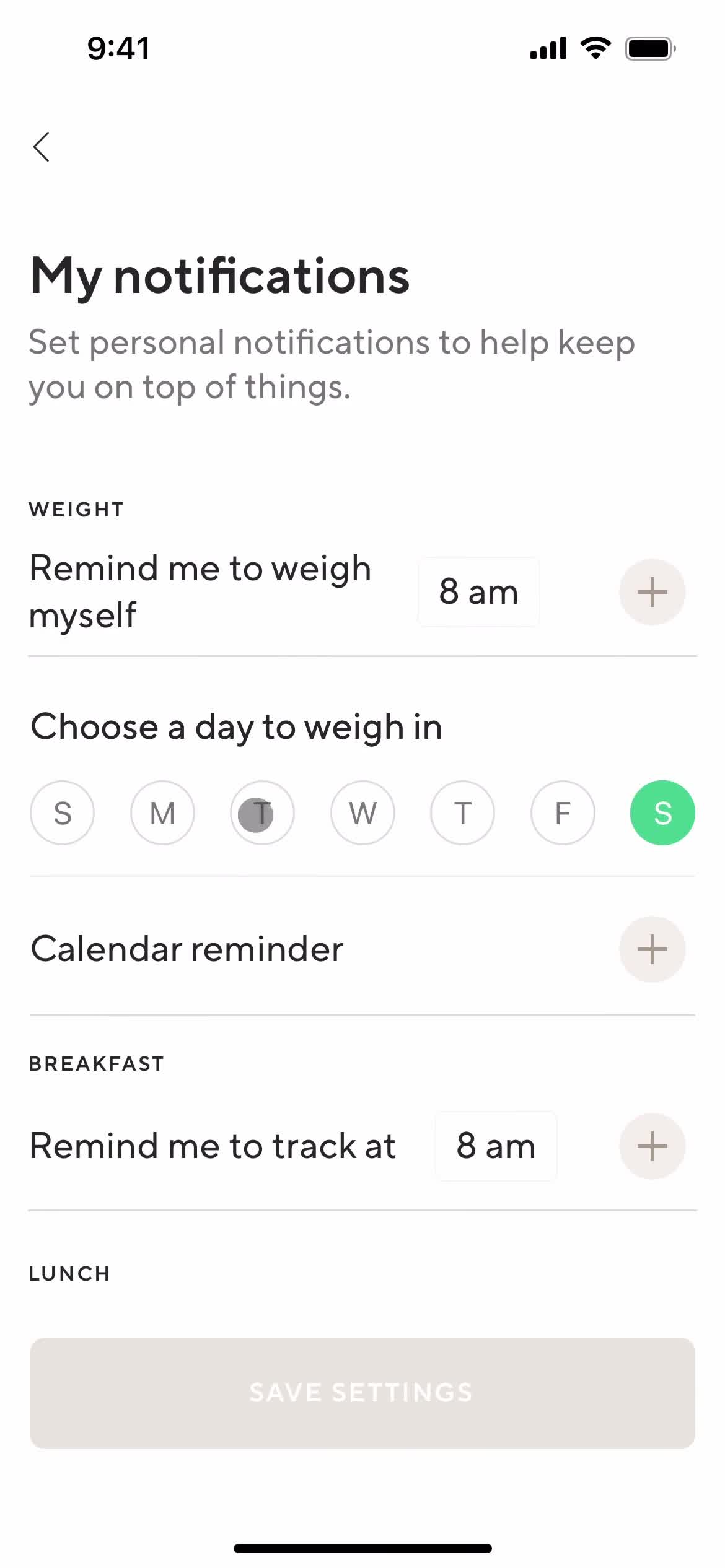
Notification settings
this is title
this is title
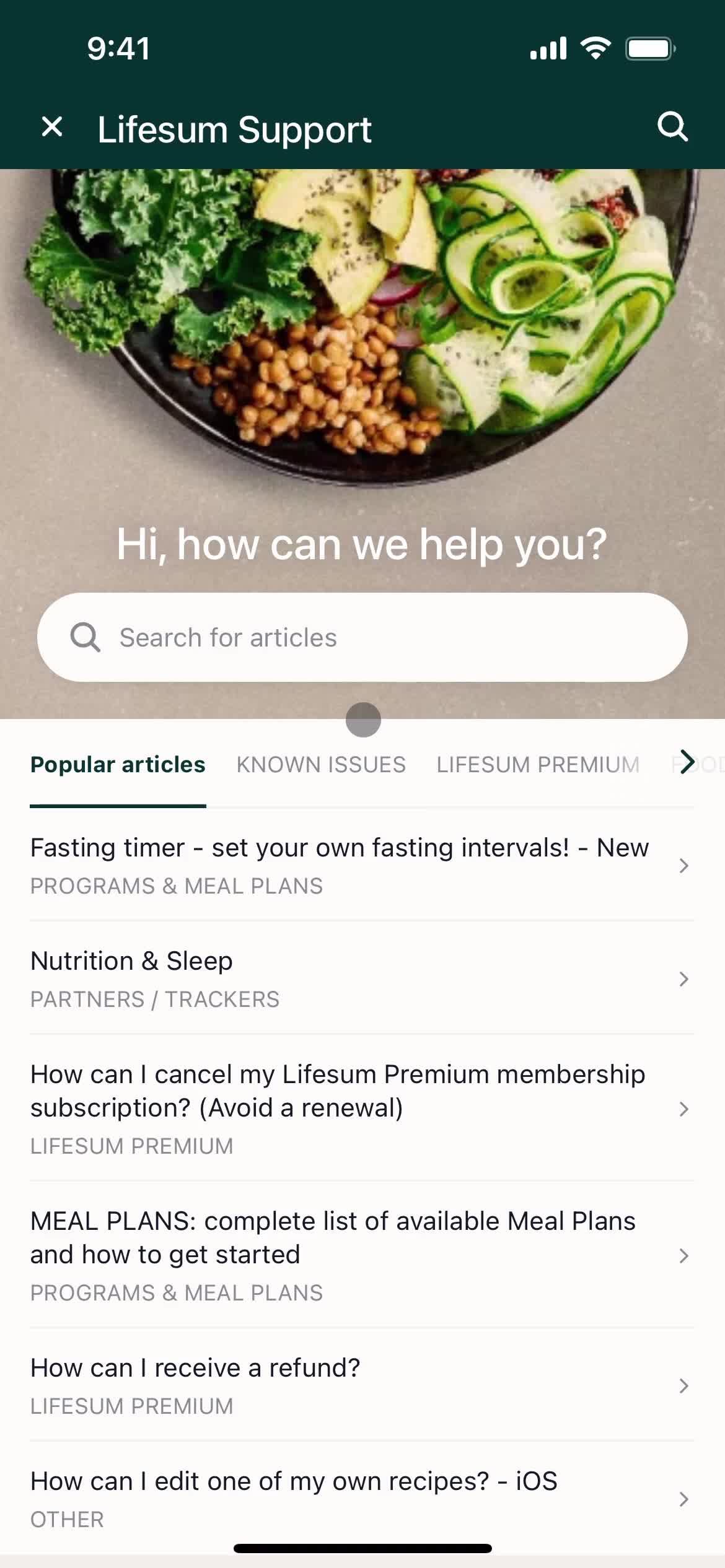
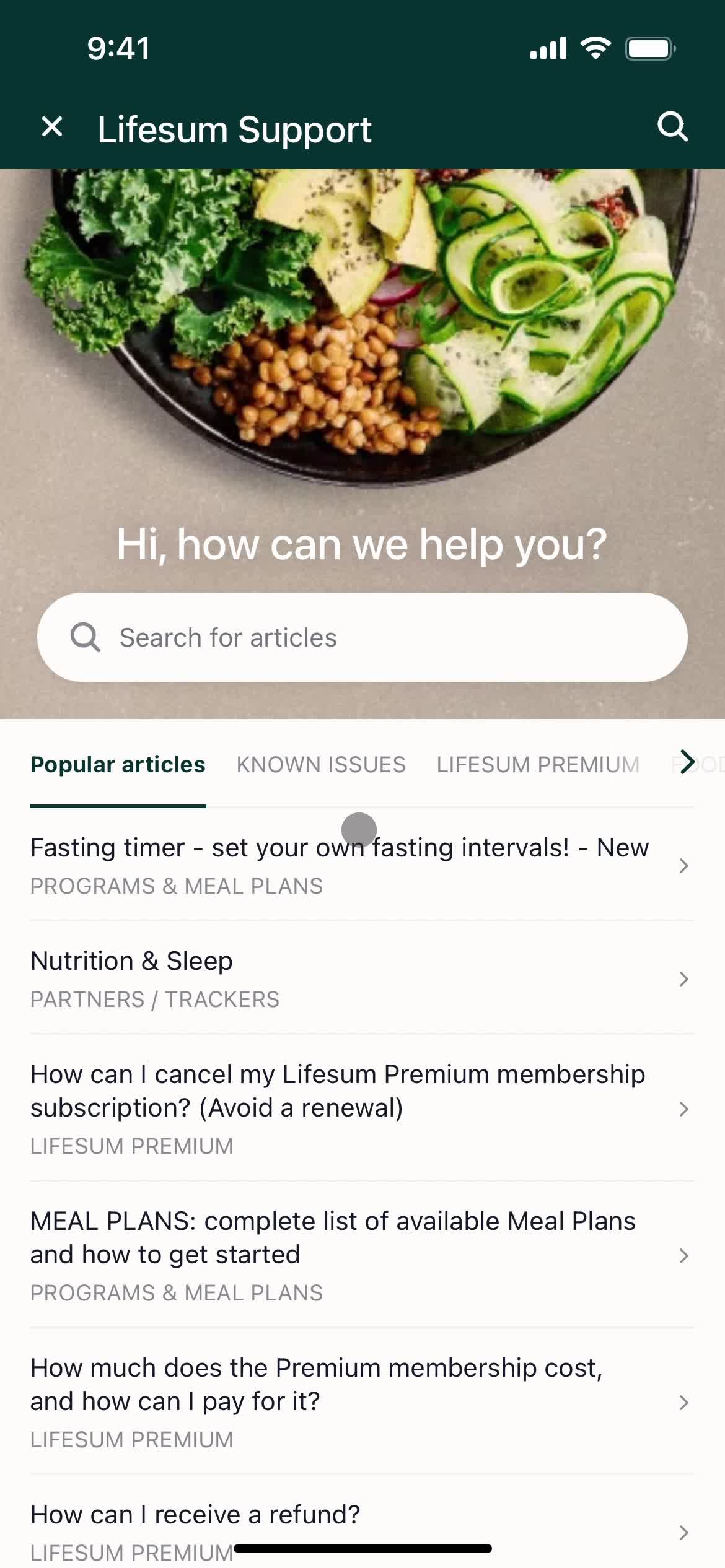
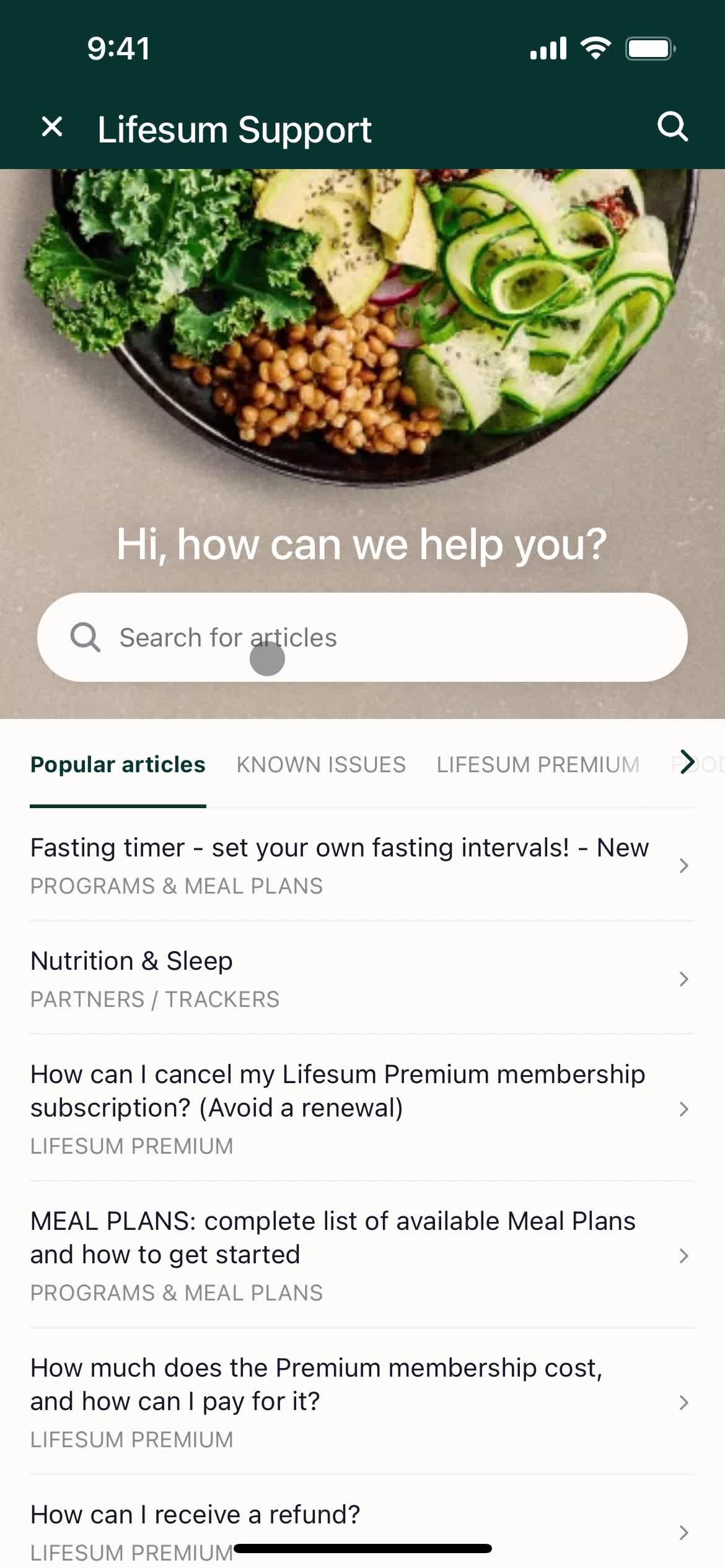
Help center
this is title
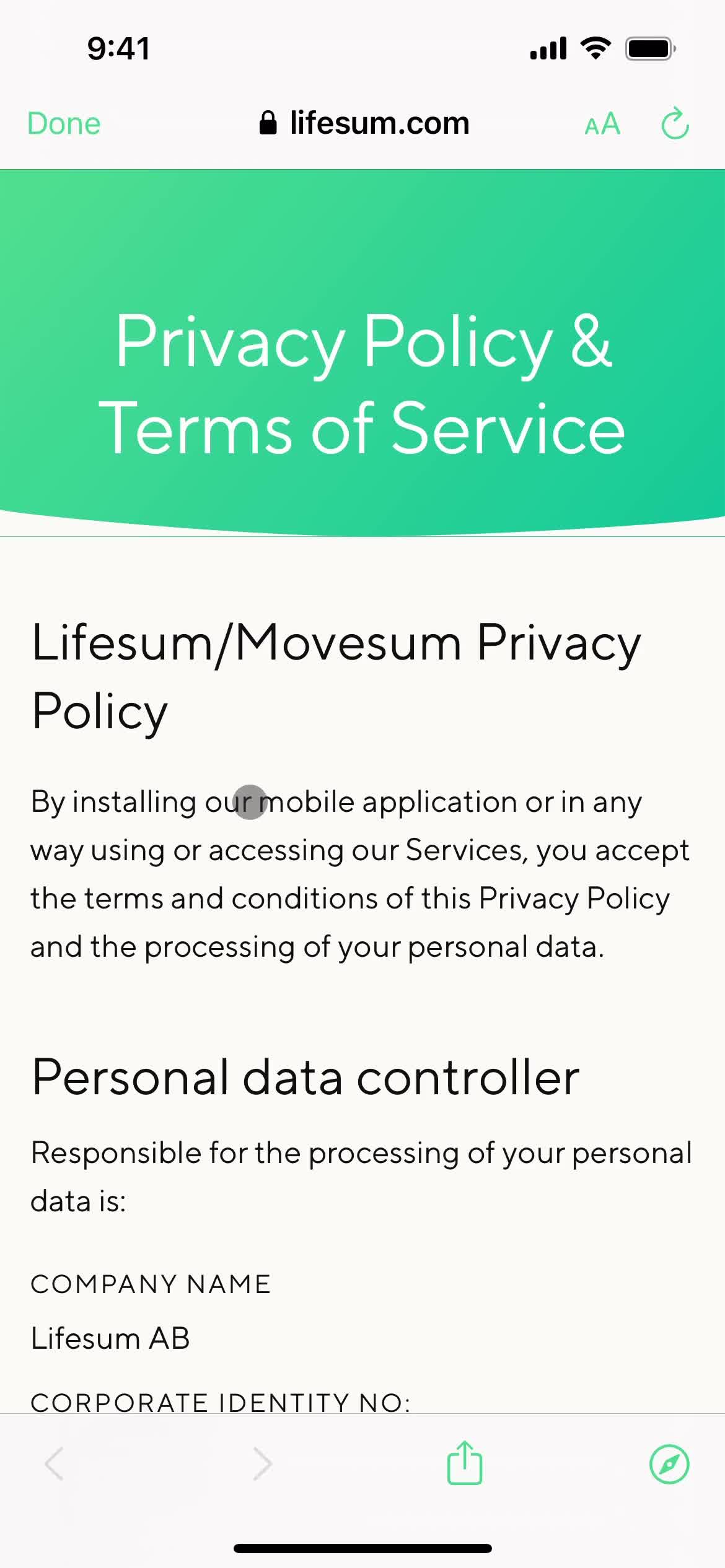
Terms & conditions
this is title
Invite people
this is title
Dashboard
this is title
Stats
this is title
Notes
this is title
Dashboard
this is title
Meal details
this is title
Profile
this is title
Account
this is title
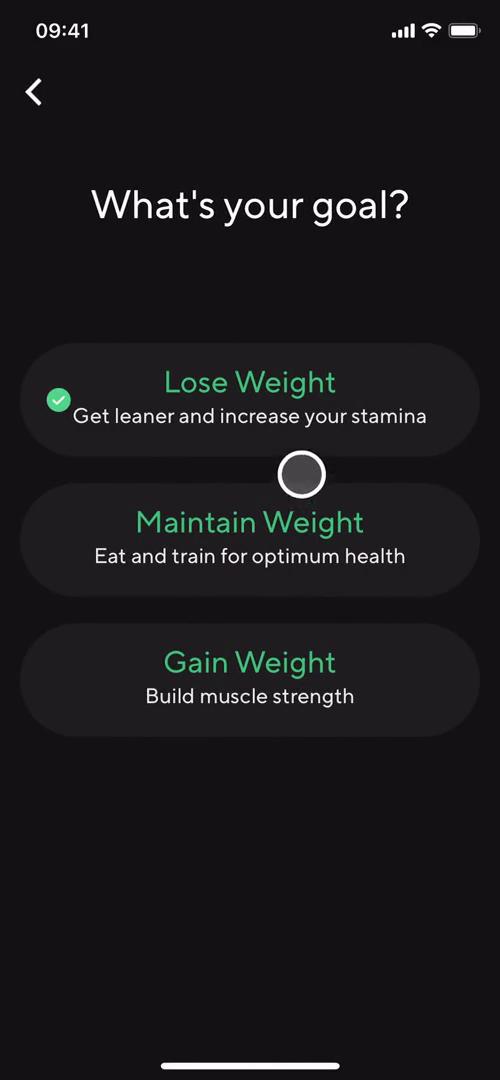
Select goal
this is title
Favorites
this is title
Life score
this is title
Measurements
this is title
Stats
this is title
Invite friends
this is title
Settings
this is title
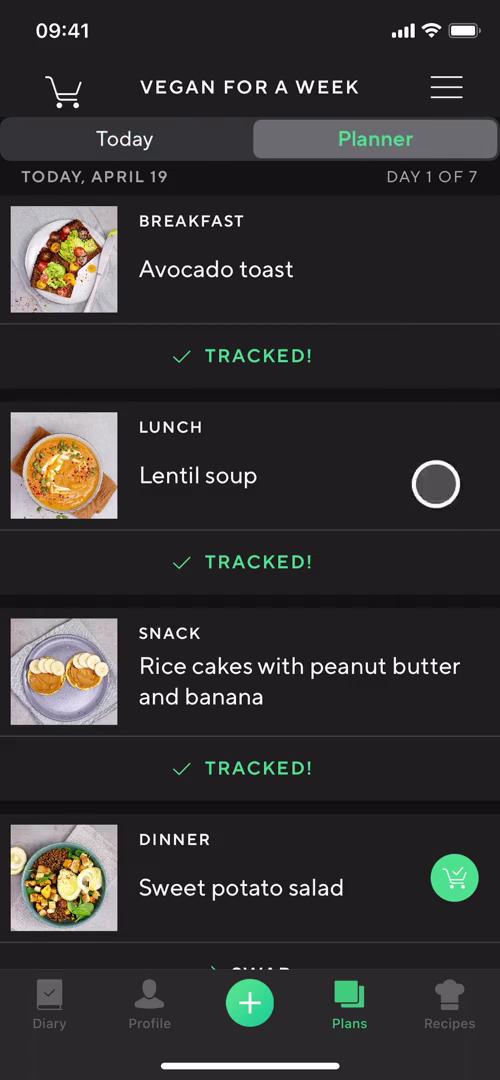
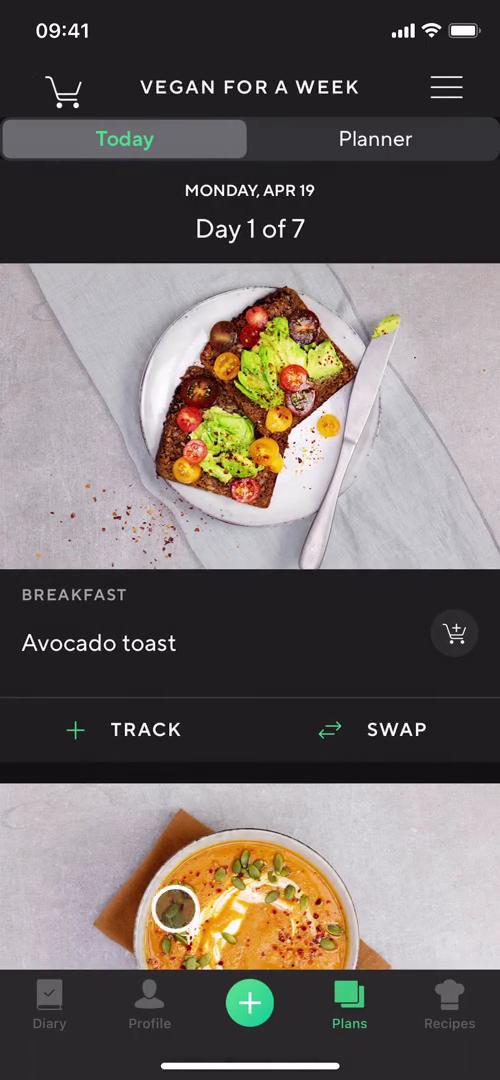
Meal plan
this is title
Recipe details
this is title
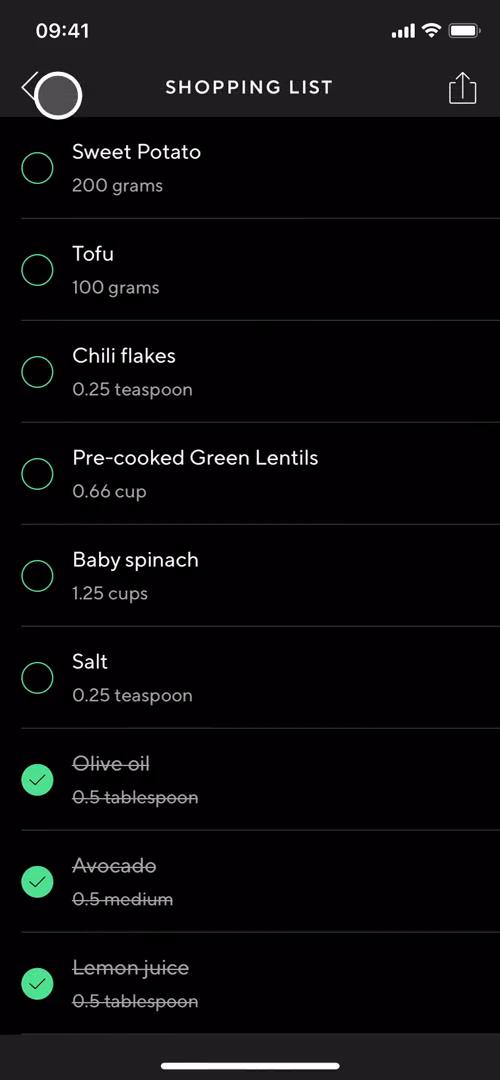
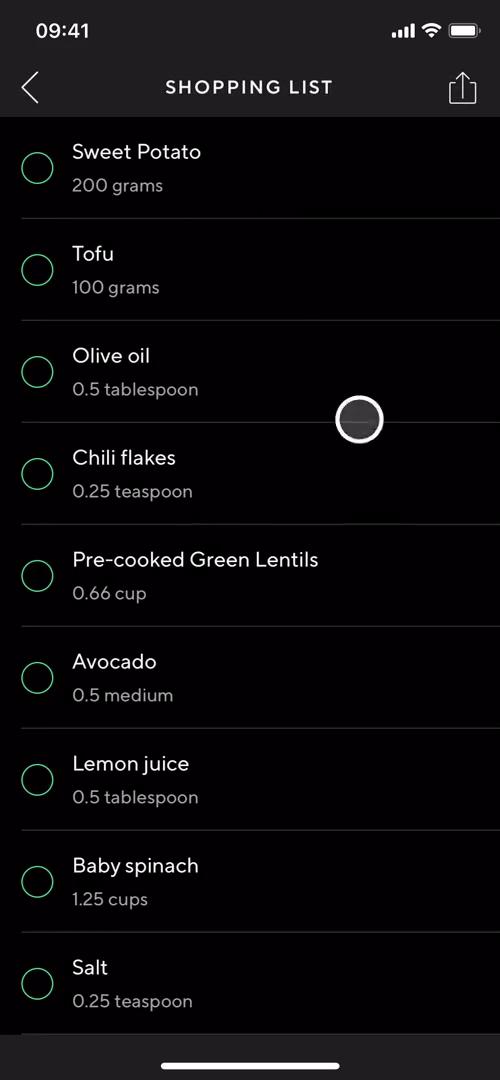
Shopping list
this is title
Planner
this is title
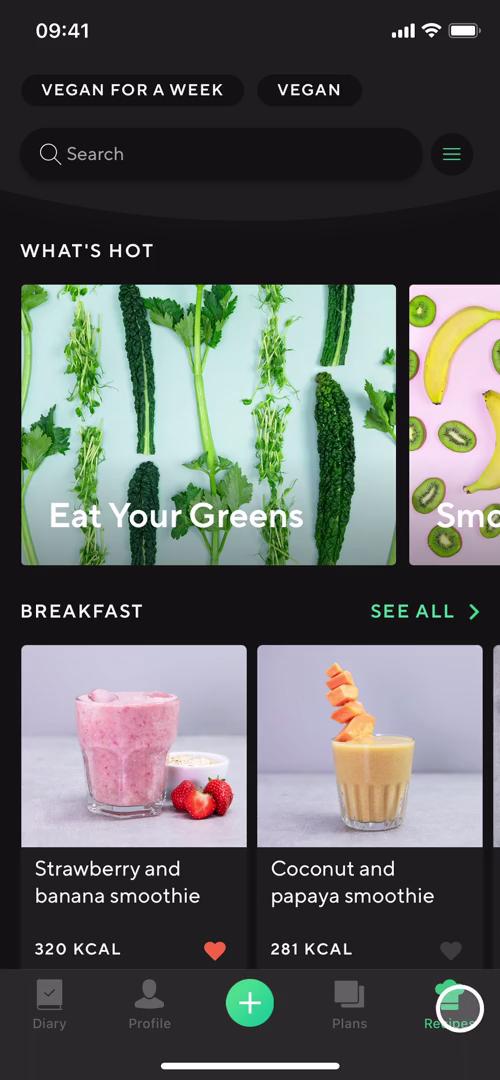
Recipes
this is title
Recipe details
this is title
Filter
this is title
Dashboard
this is title
Dashboard
this is title
Analytics
this is title
Notes
this is title
Calendar
this is title
Meal details
this is title
Meal details
this is title
Meal details
this is title
Add meal
this is title
Favorites
this is title
Search results
this is title
Profile
this is title
Settings
this is title
Set goal
this is title
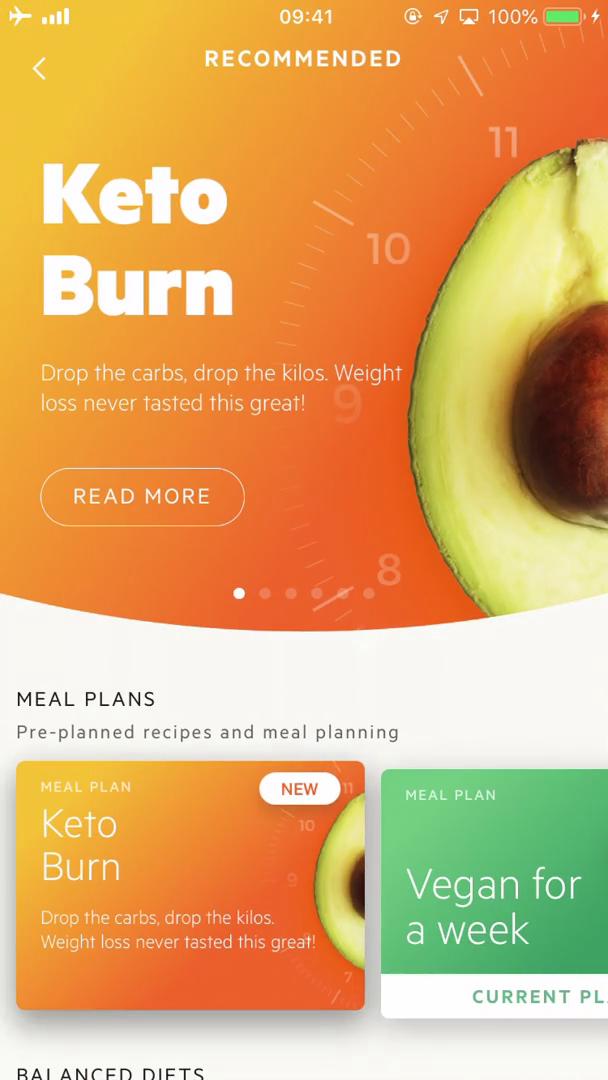
Meal plans
this is title
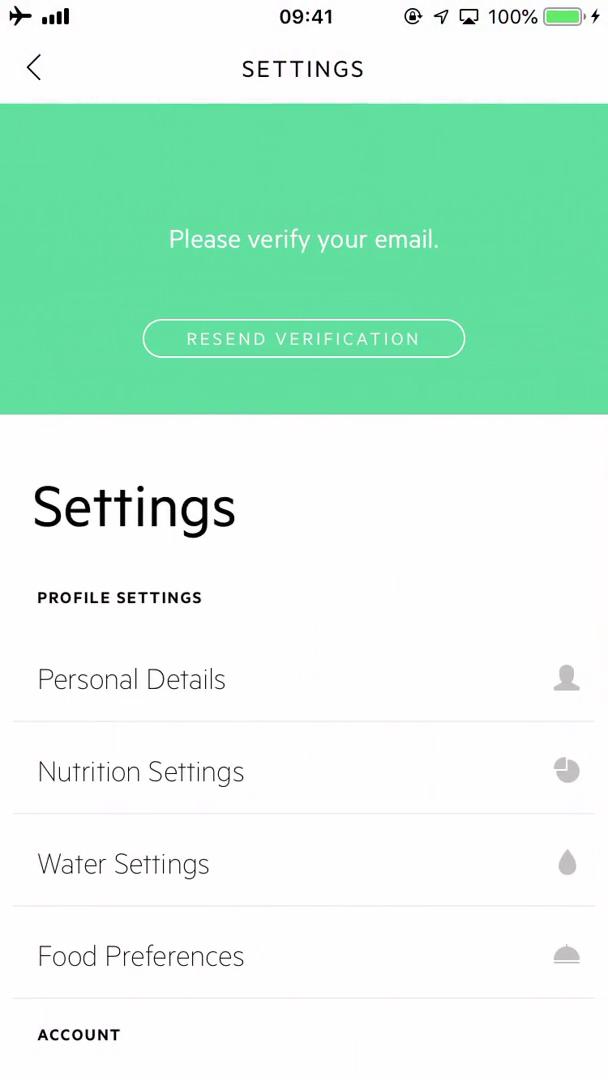
Settings
this is title
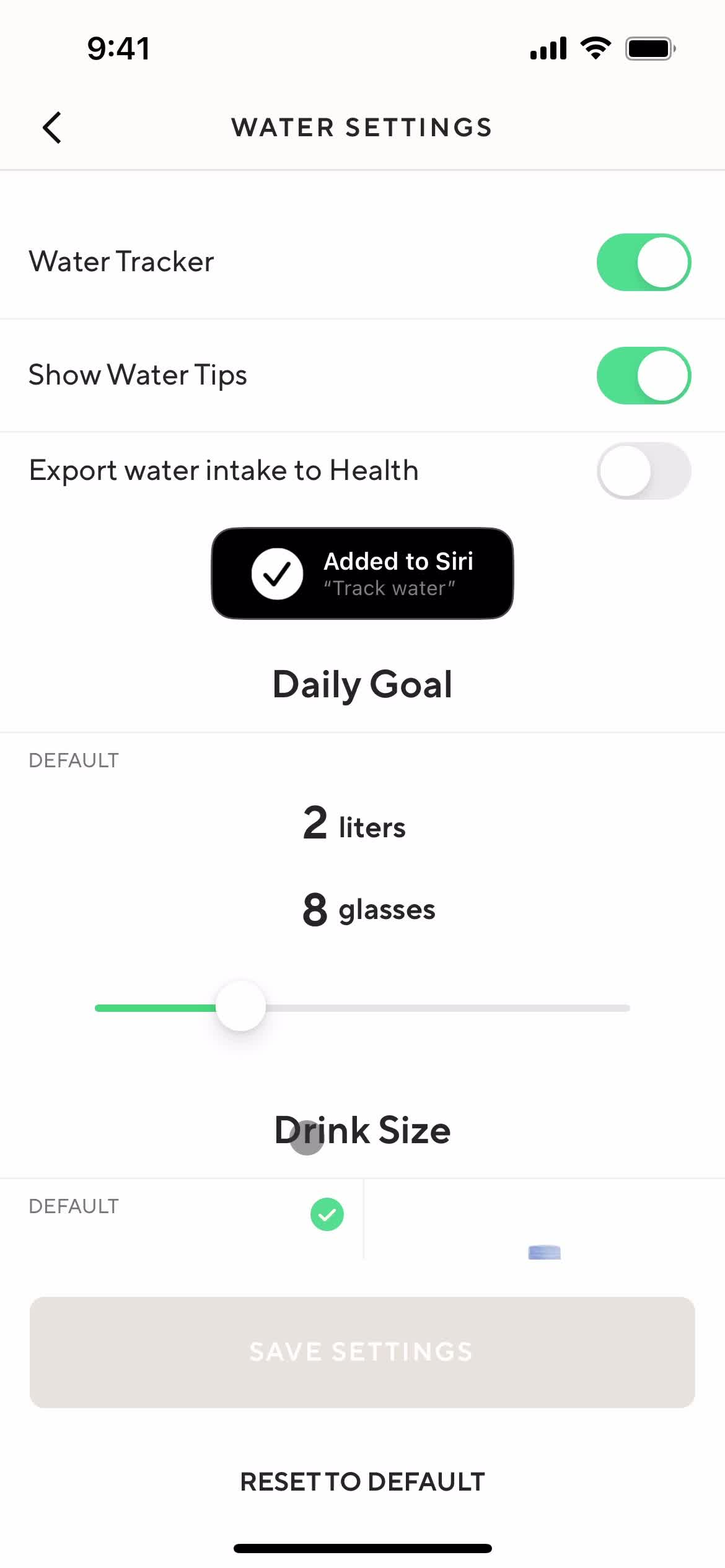
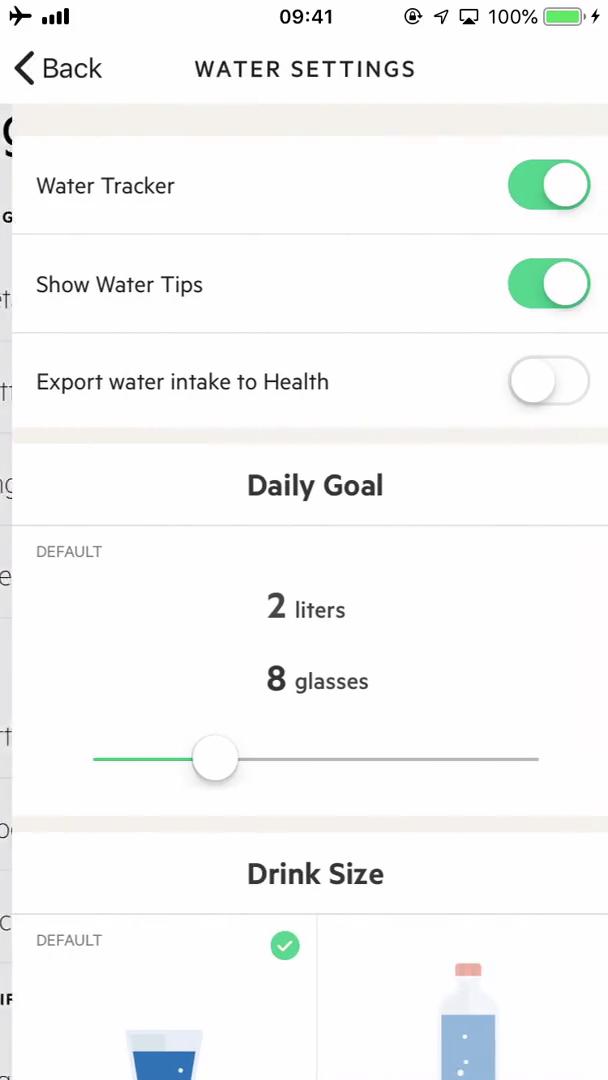
Water settings
this is title
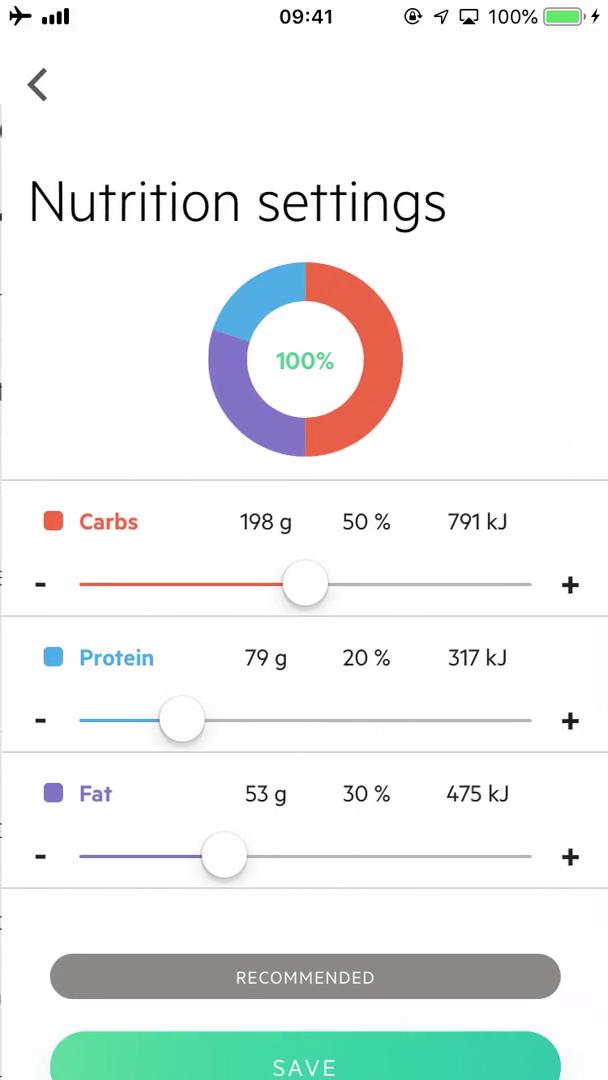
Nutrition settings
this is title
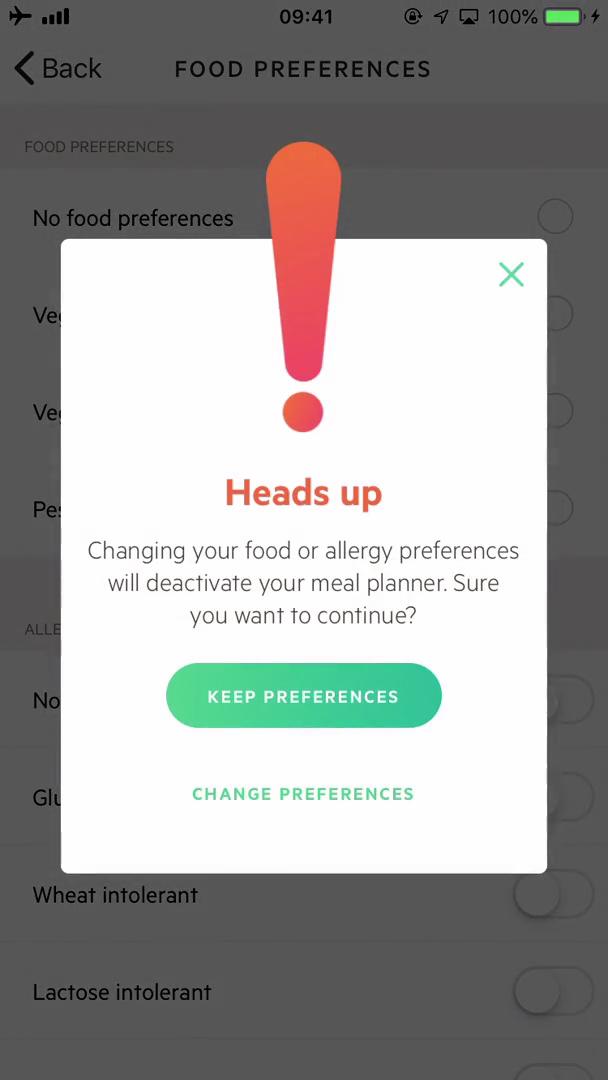
Warning
this is title
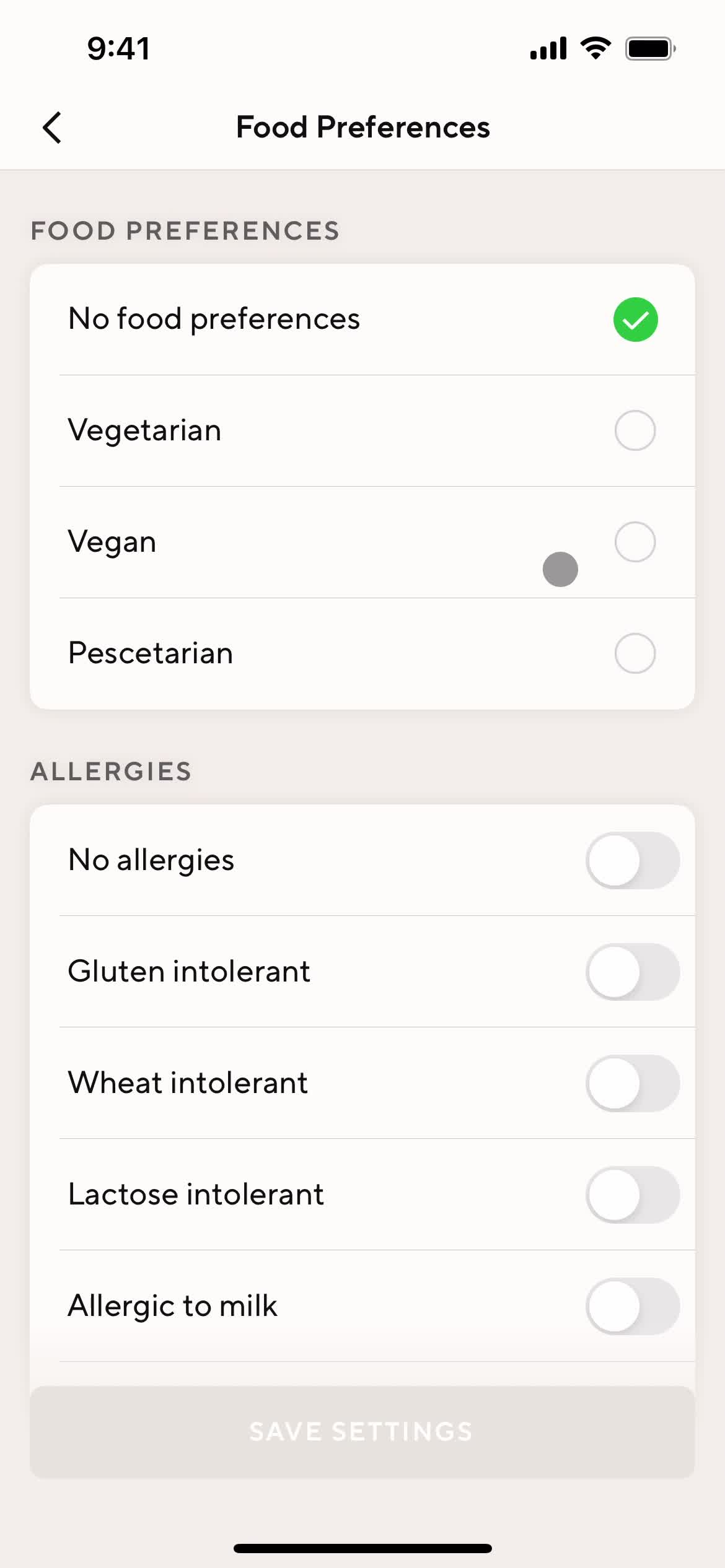
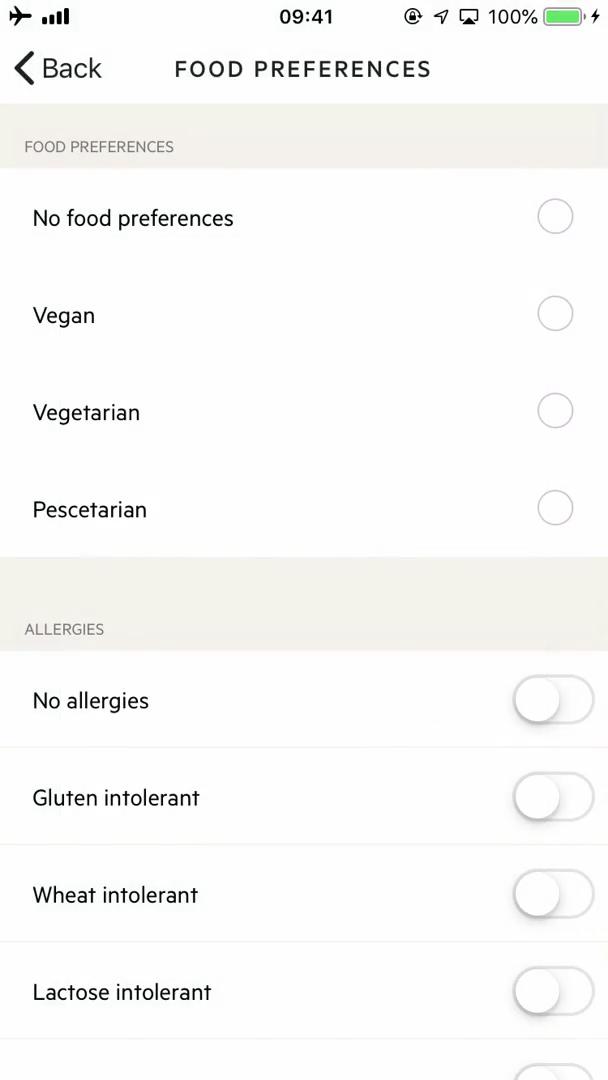
Food preferences
this is title
Account
this is title
Diary settings
this is title
Add item
this is title
Meal plan
this is title
Recipe details
this is title
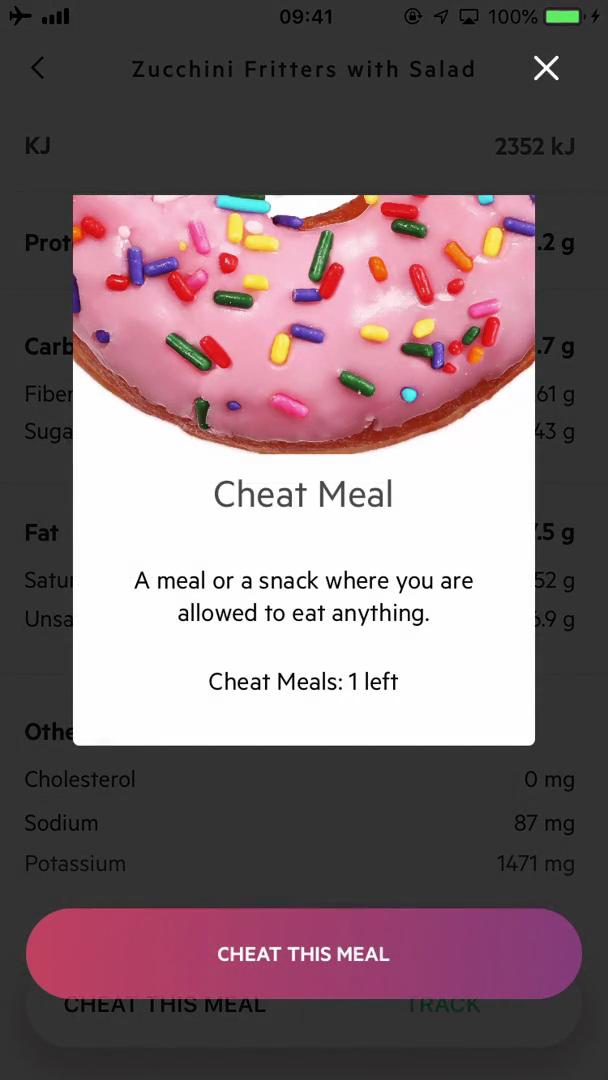
Cheat meal
this is title
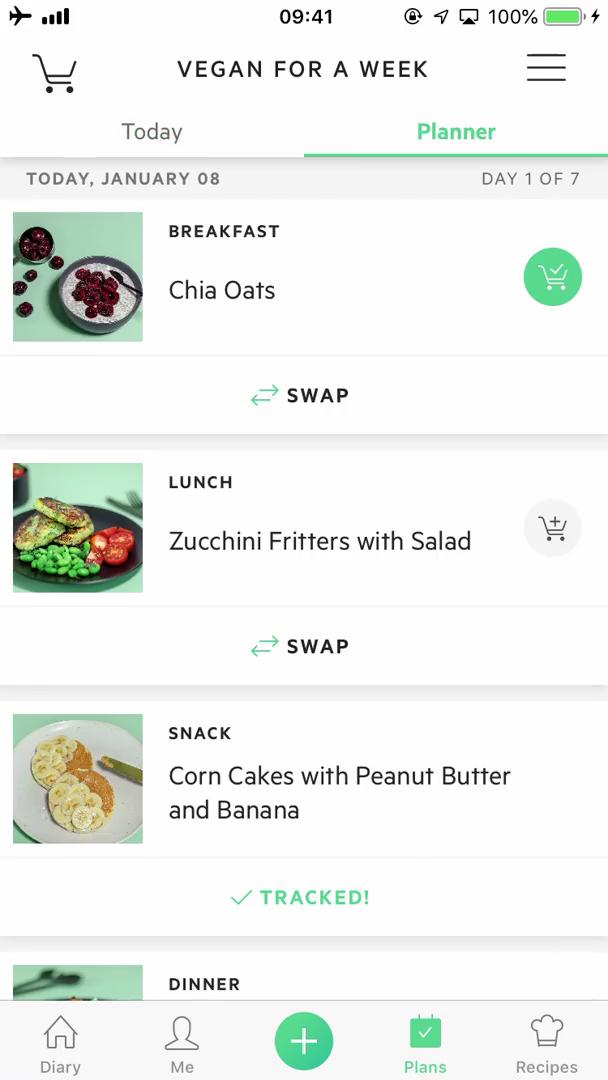
Meal plan
this is title
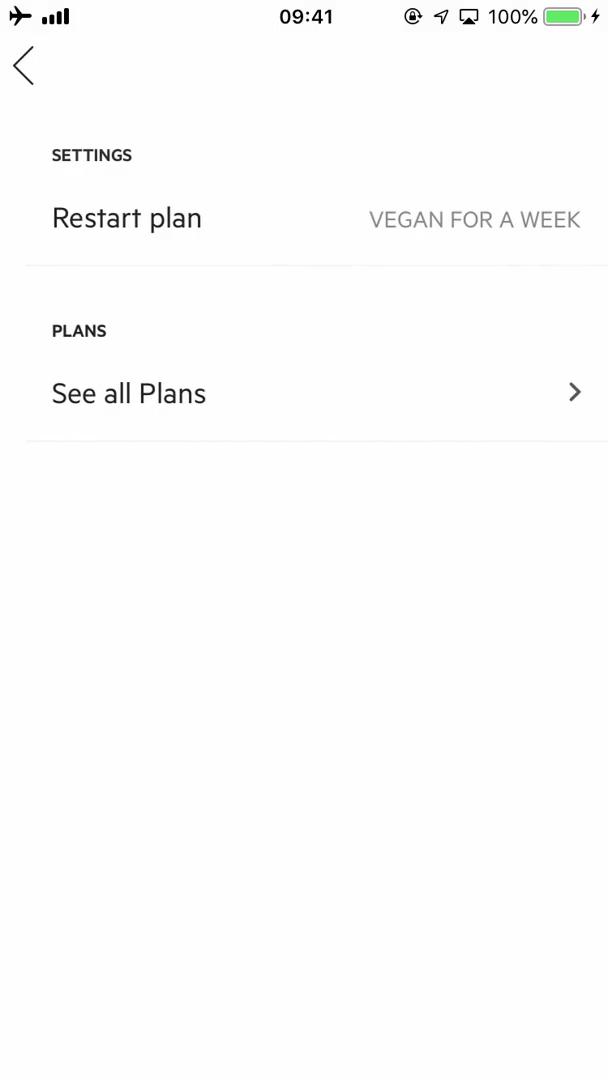
Plan settings
this is title
Meal plans
this is title
Recipes
this is title
Meal details
this is title
Survey
this is title
Survey
this is title
Dashboard
this is title
Profile
this is title
Settings
this is title
Help center
this is title
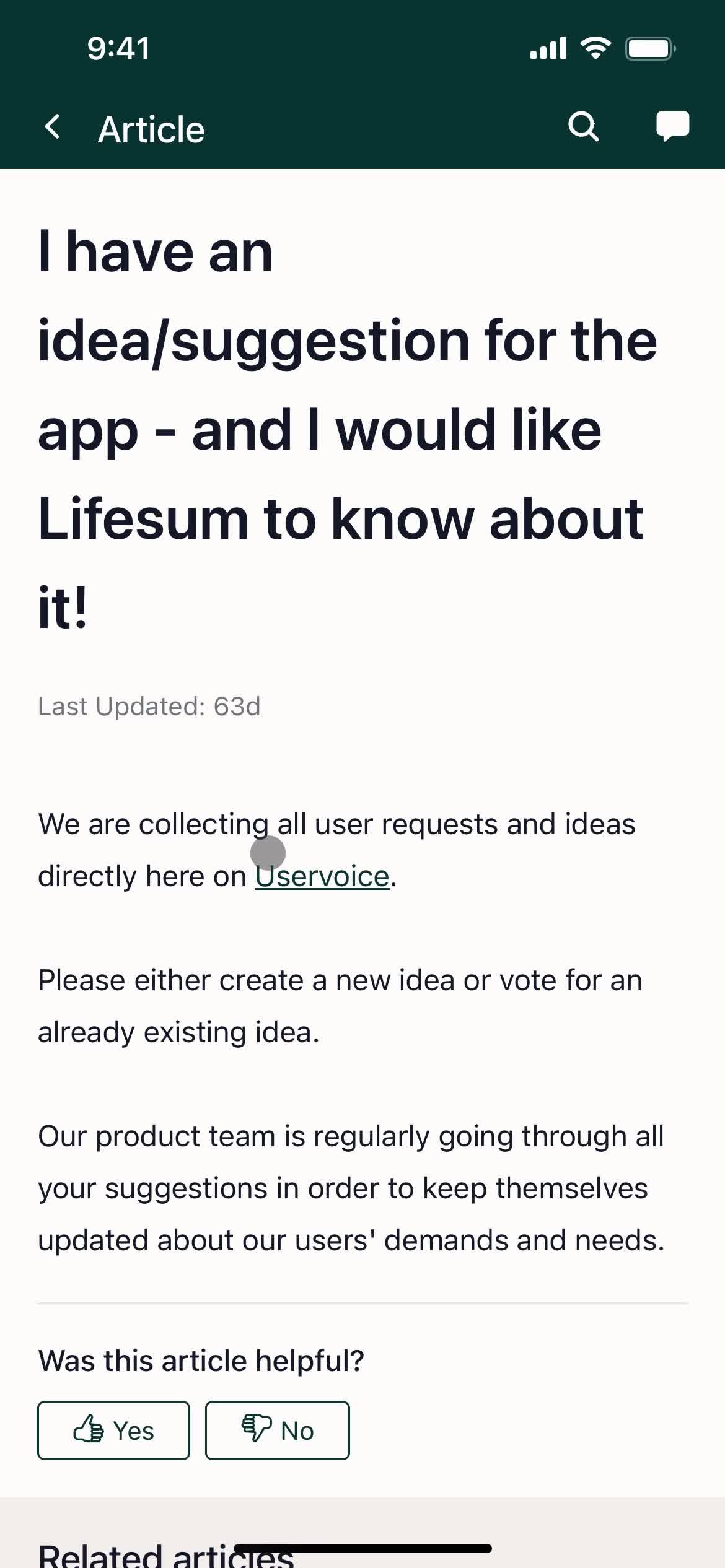
Help center article
this is title
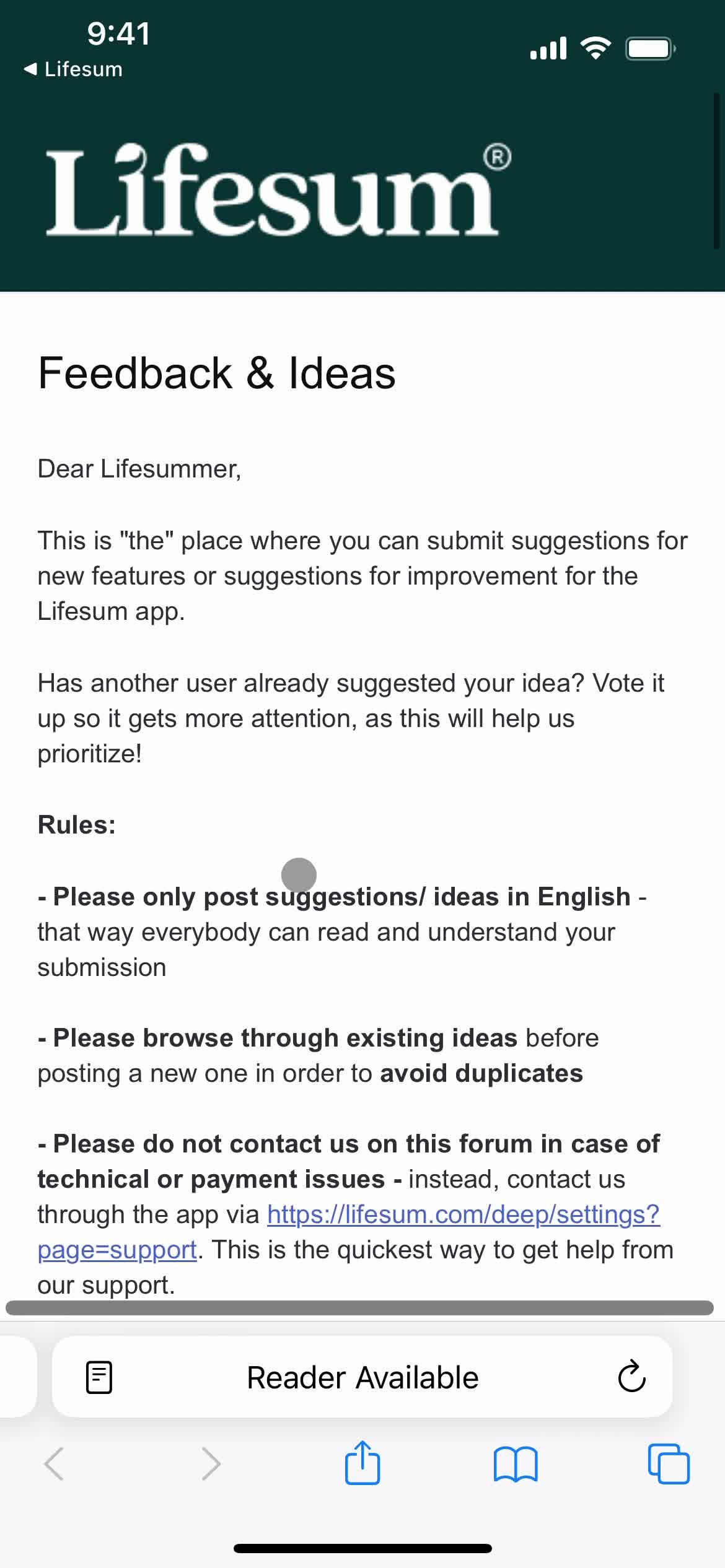
Feedback
this is title
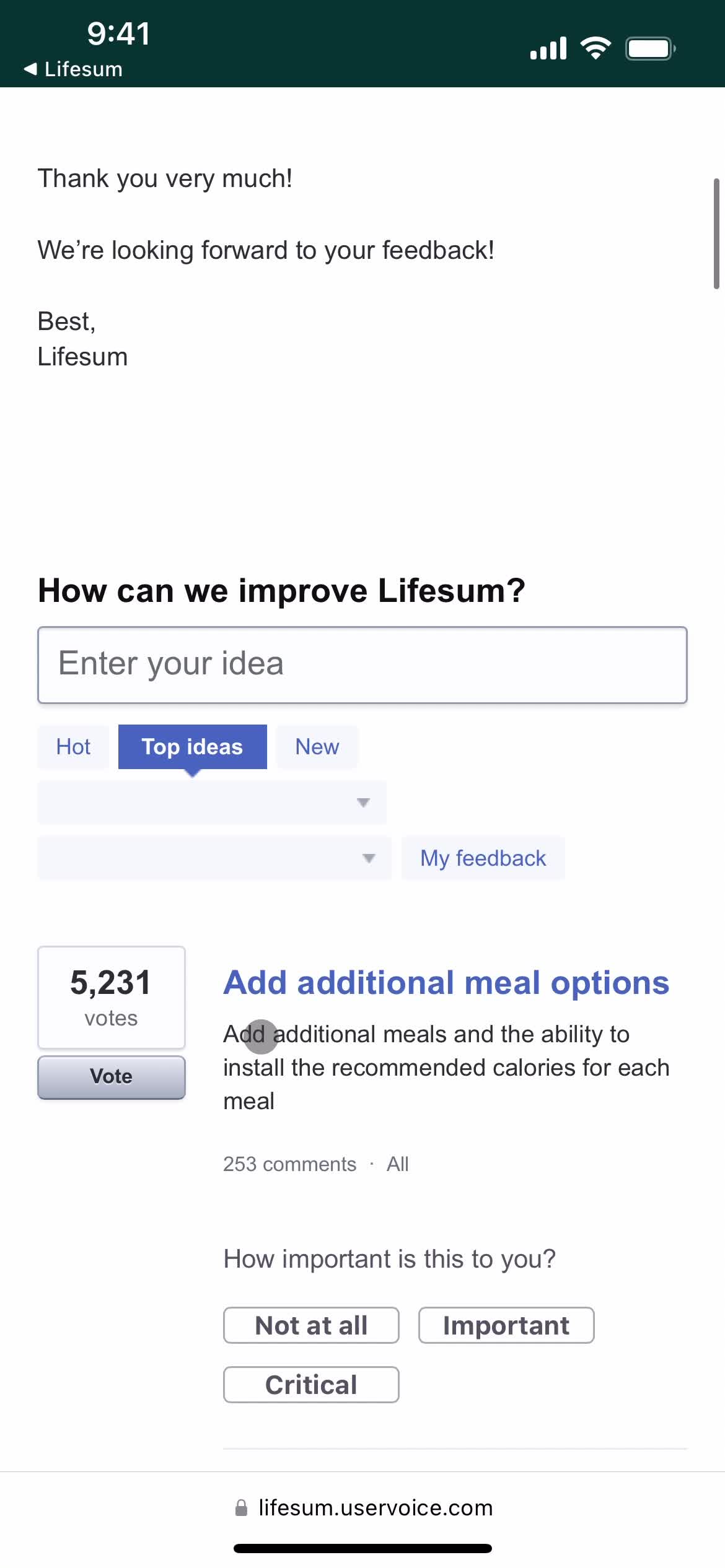
Share feedback
this is title
Share feedback
this is title
Share feedback
this is title
Submit feedback
this is title
Submit error
this is title
Dashboard
this is title
Profile
this is title
Settings
this is title
this is title
Help center
this is title
Help center article
this is title
Feedback submitted
this is title
Chat bot
this is title
Send a message
this is title
this is title
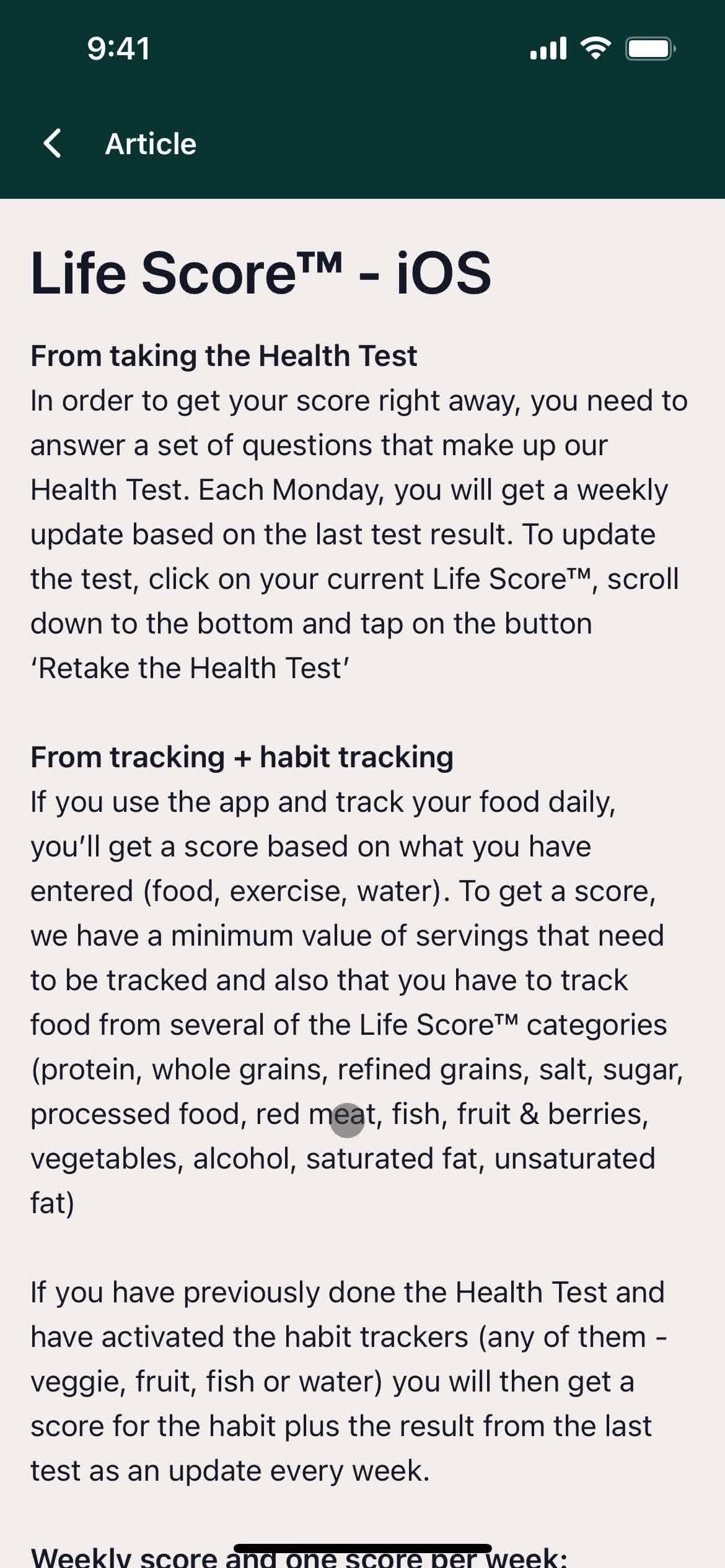
Help center article
this is title
Reply to message
this is title
this is title
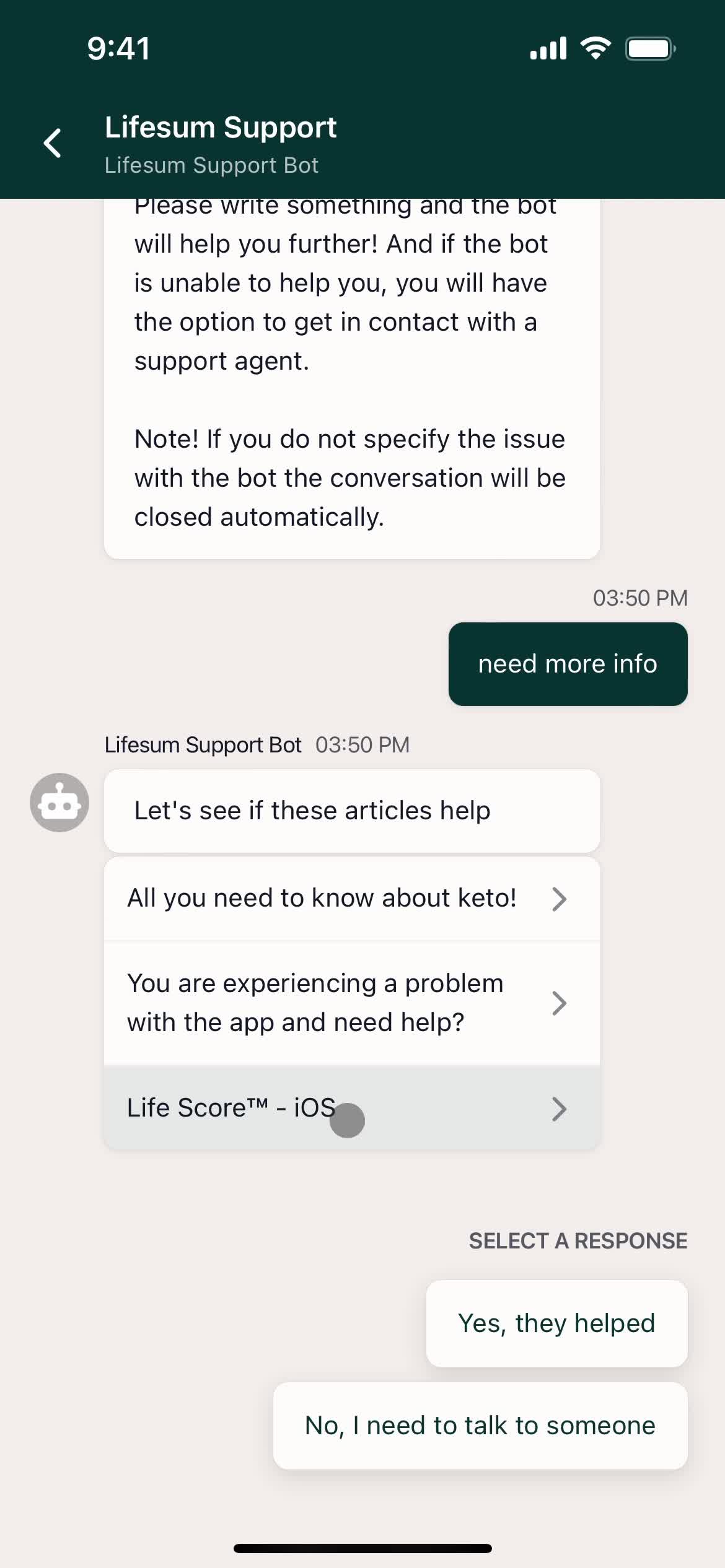
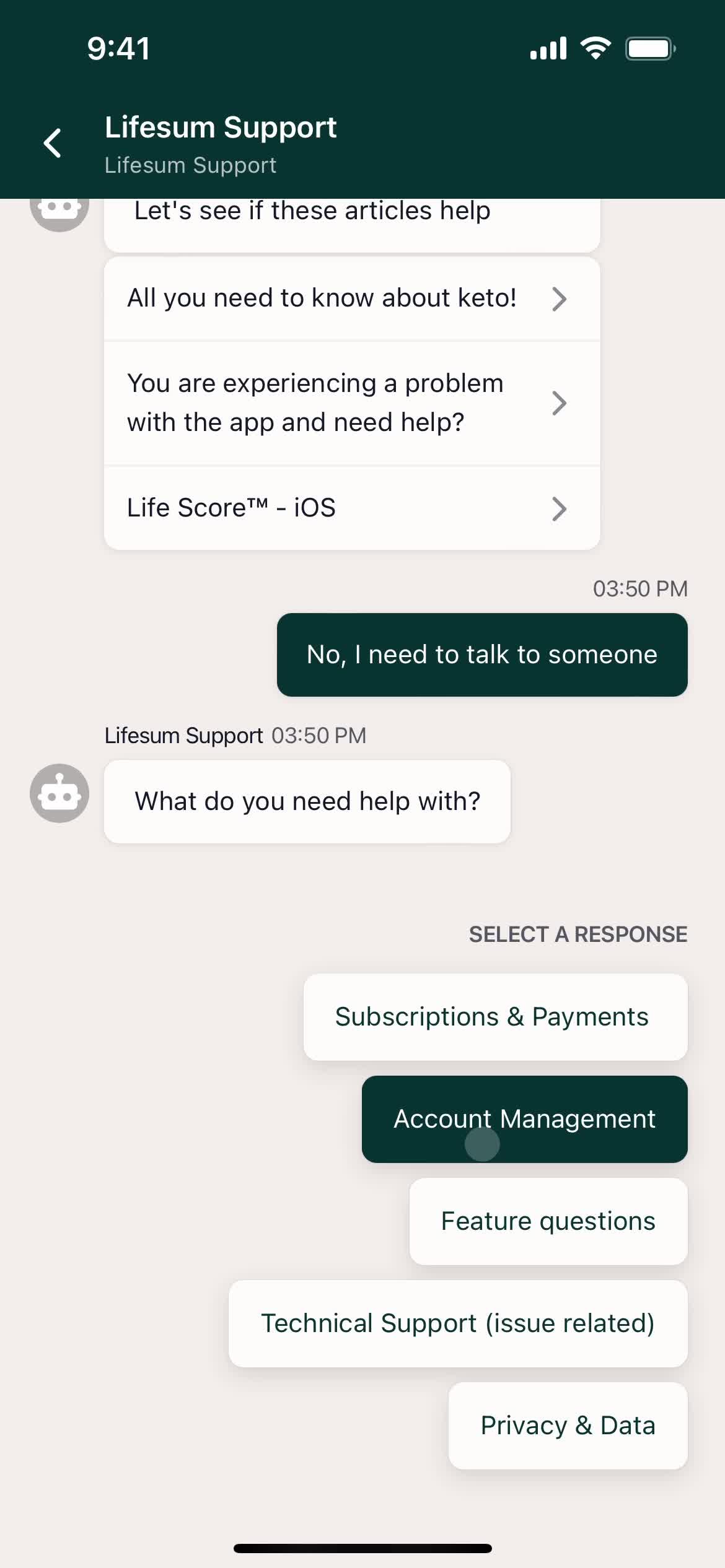
Select list
this is title
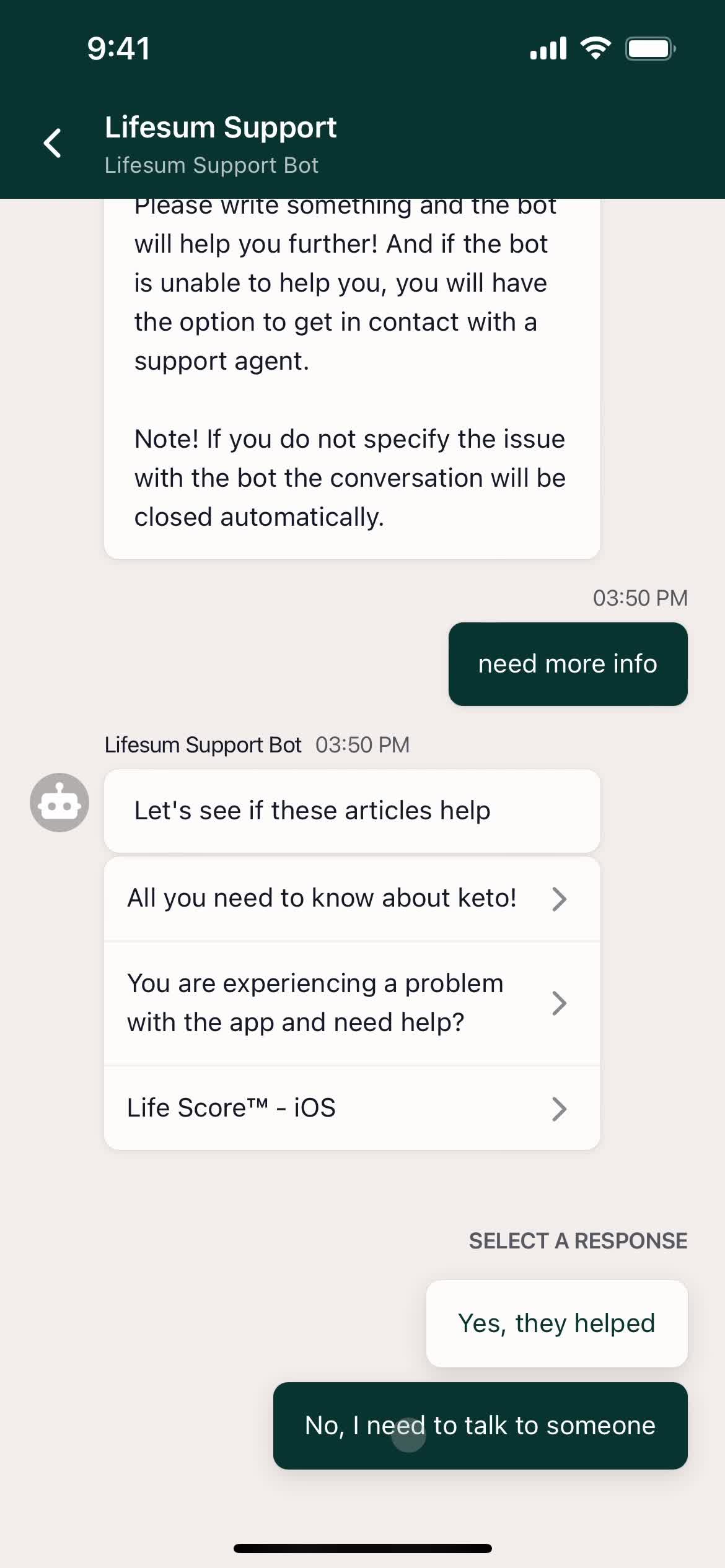
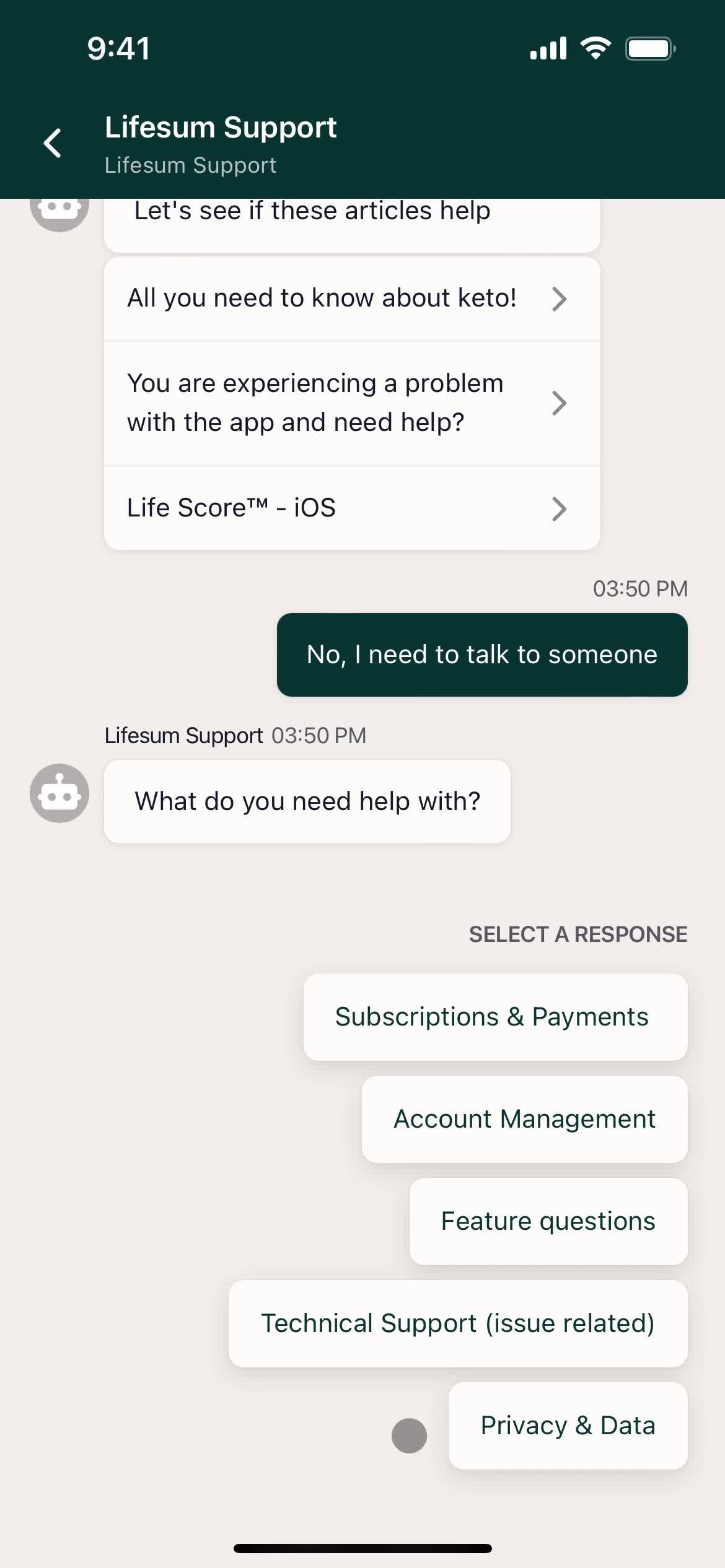
Select response
this is title
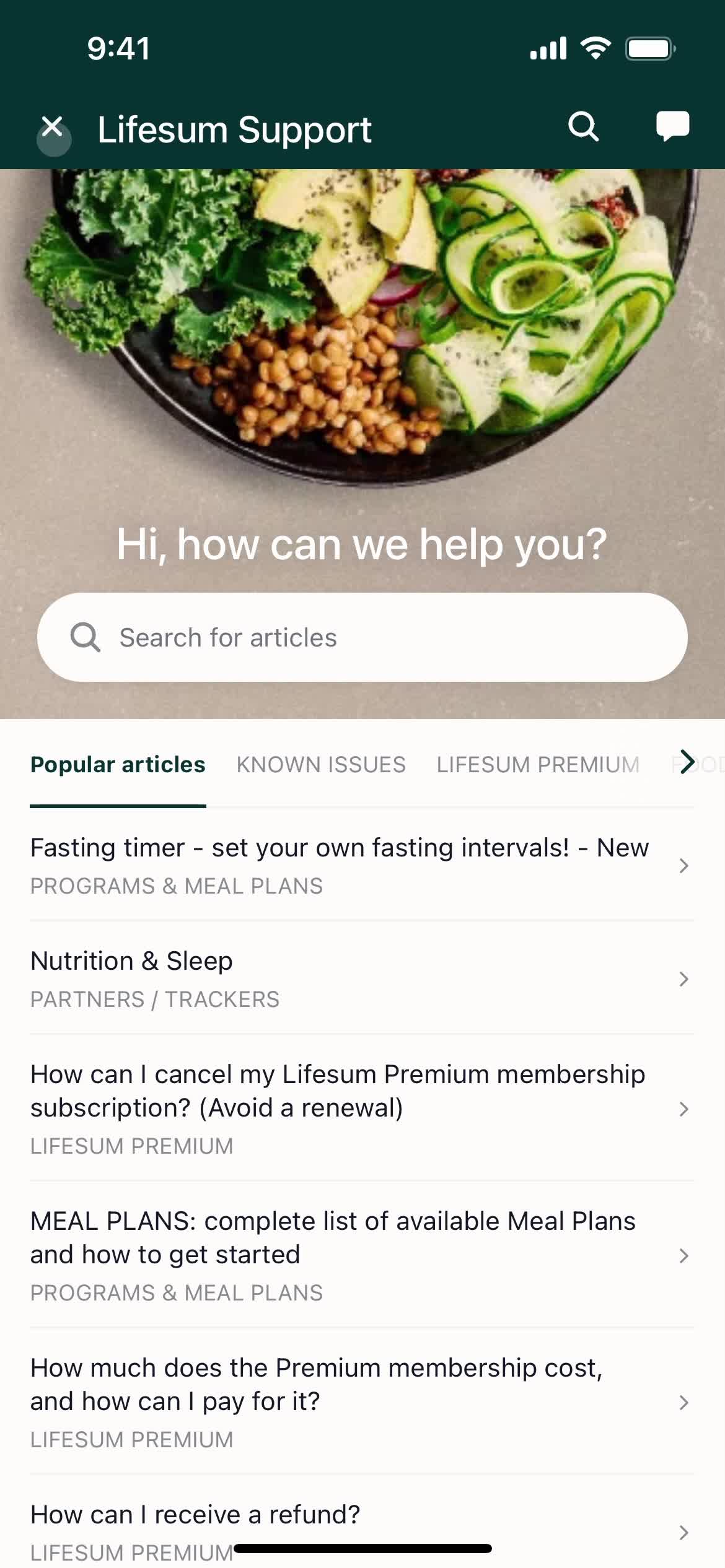
Help center
this is title
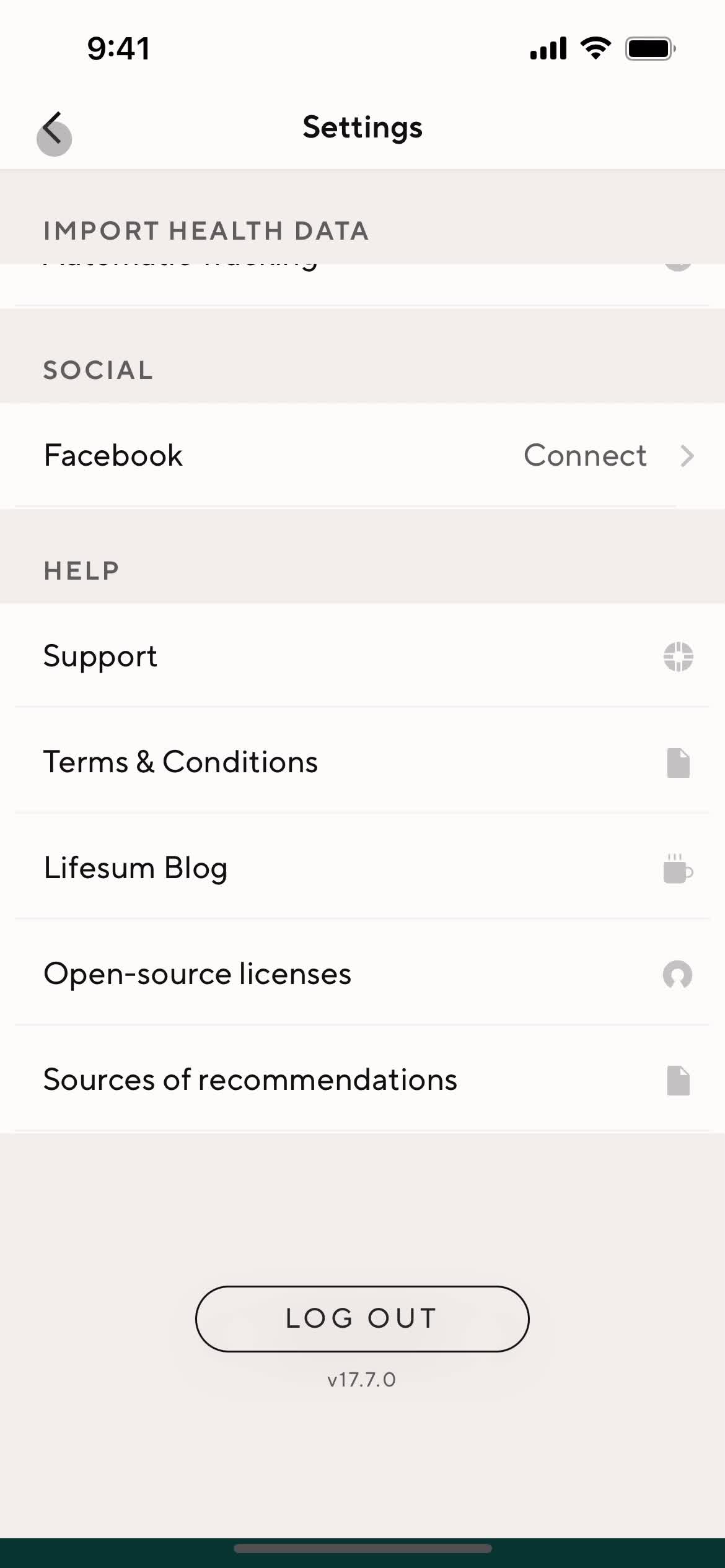
Settings
this is title
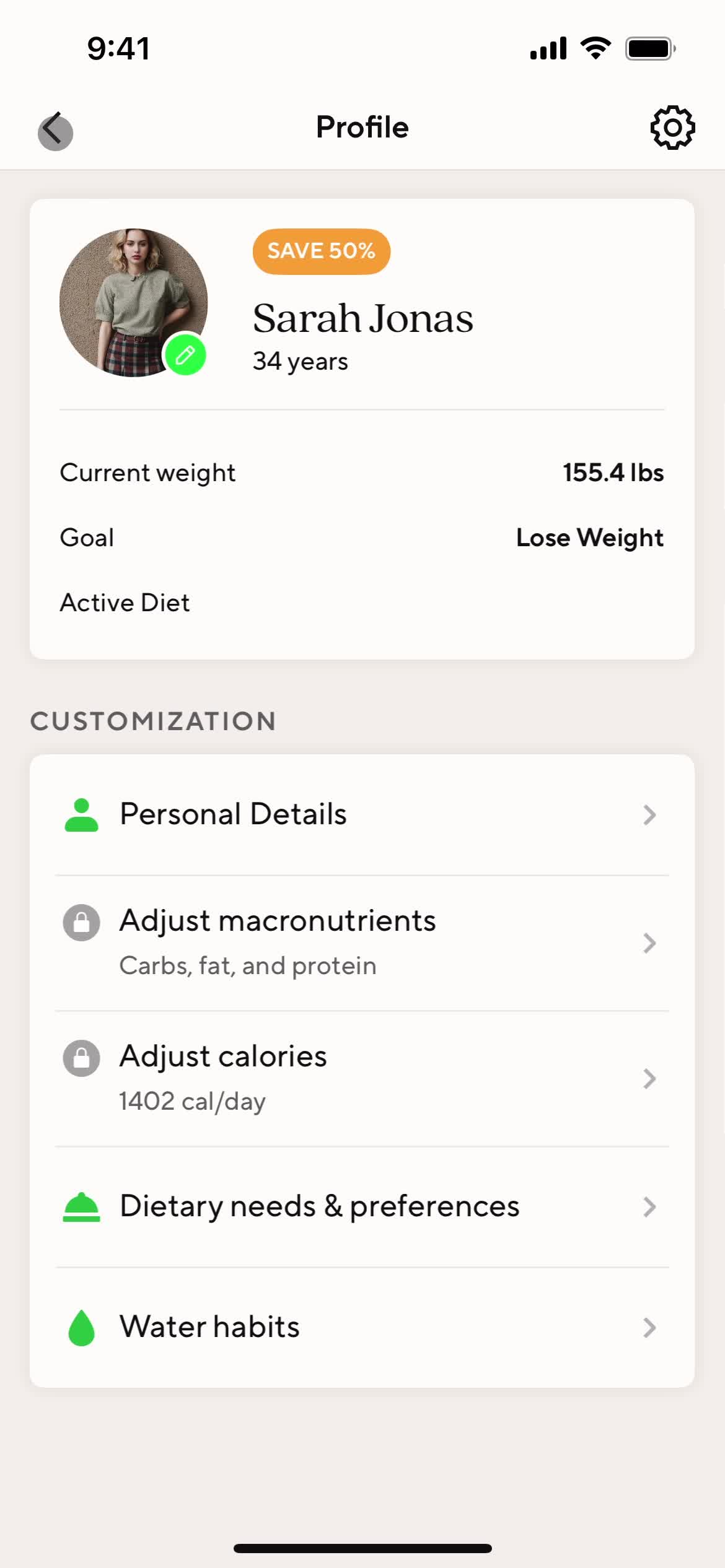
Profile
this is title
Dashboard
this is title
Dashboard
this is title
Profile
this is title
Settings
this is title
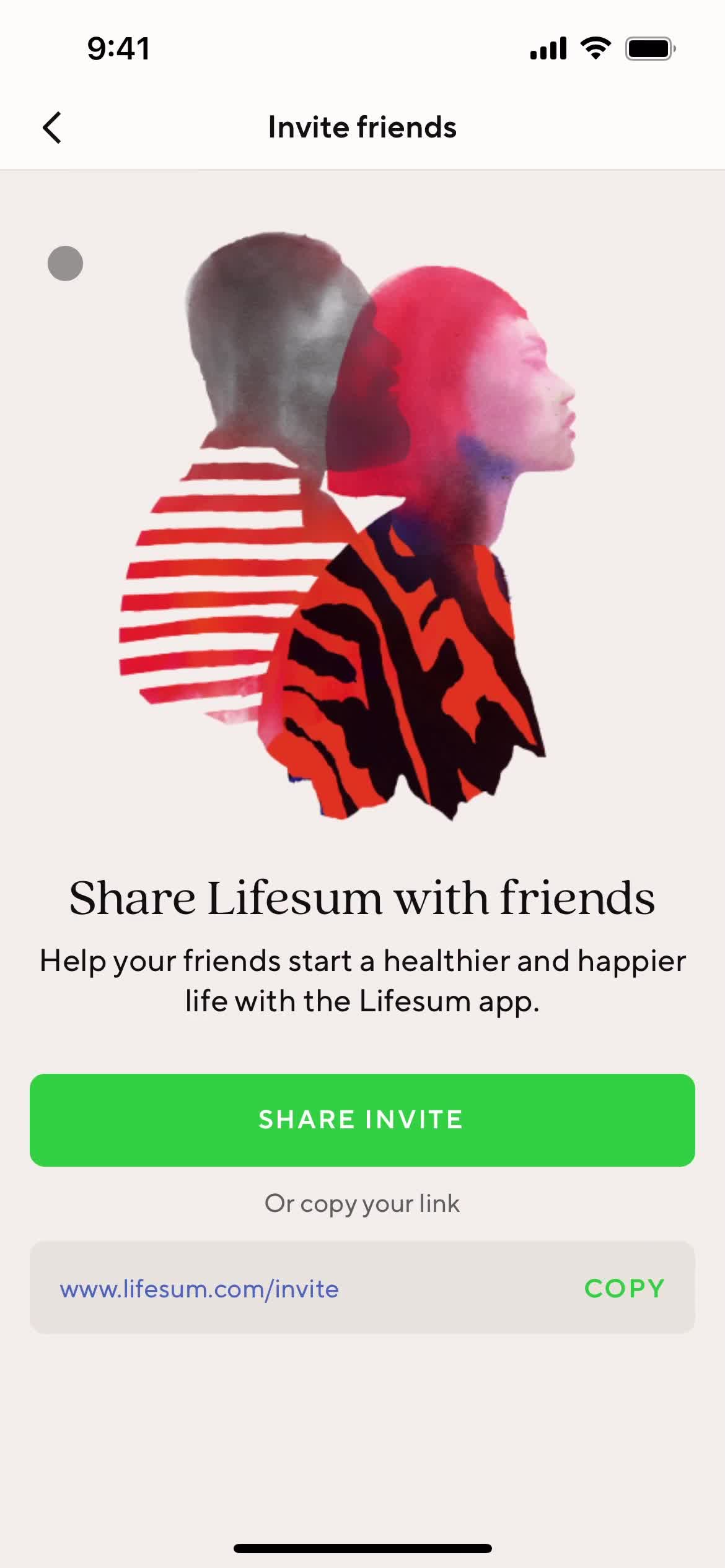
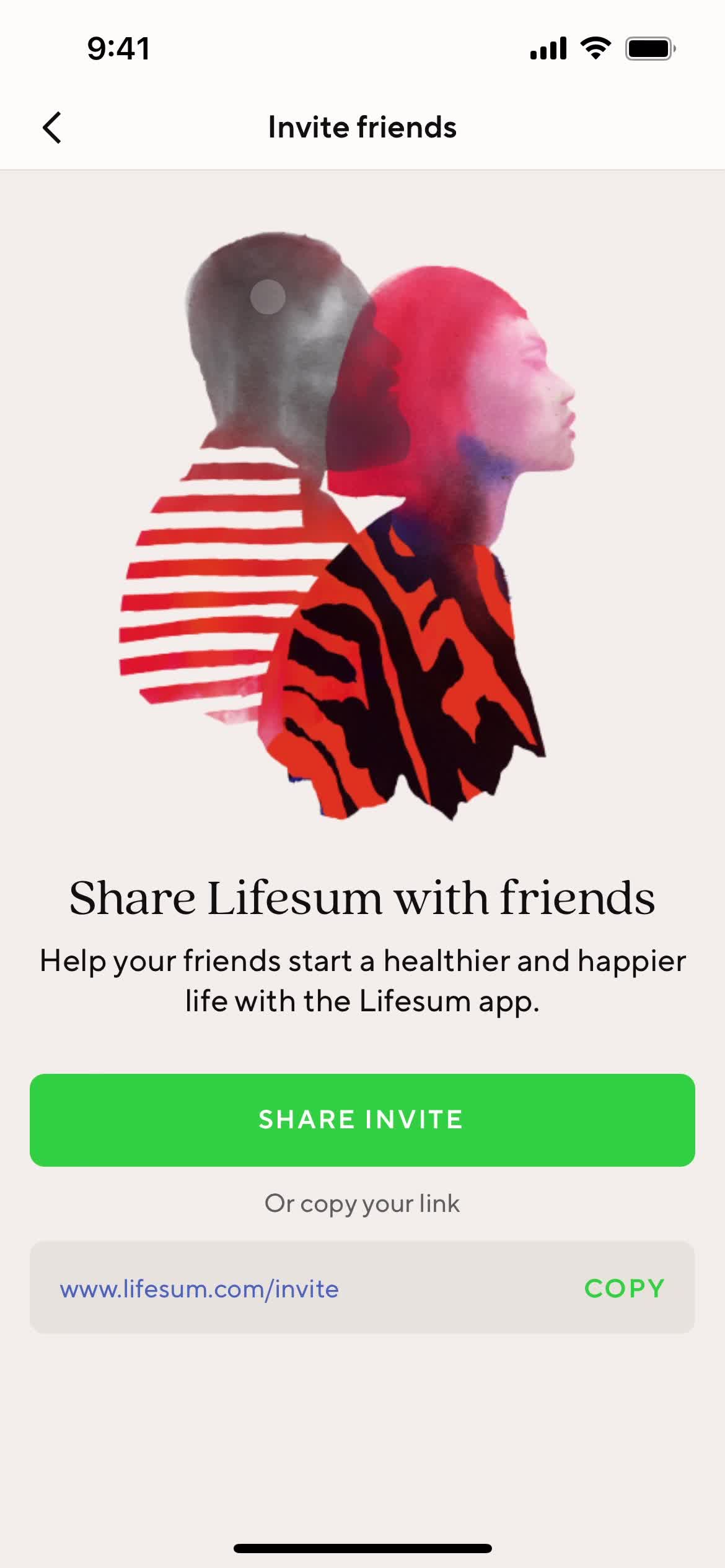
Invite friends
this is title
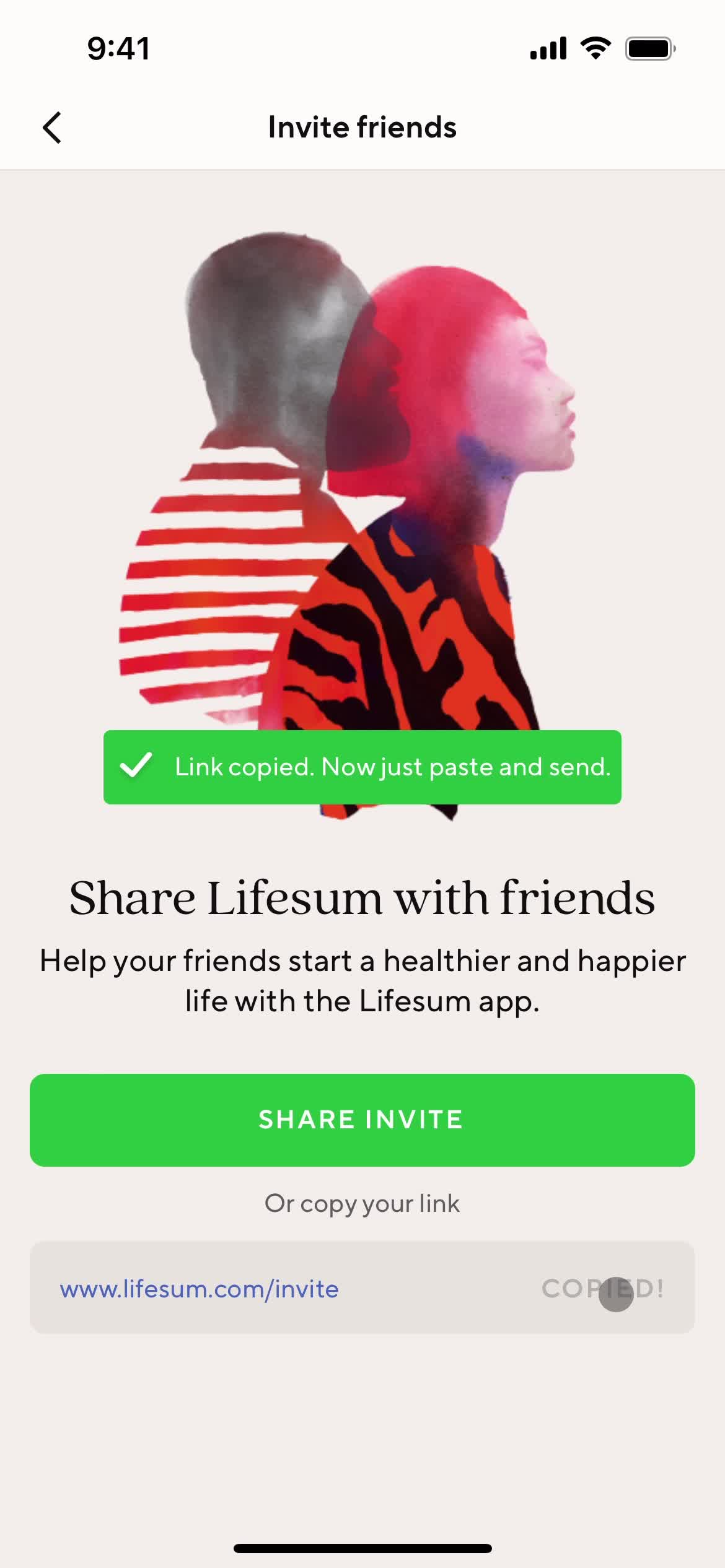
Copy link
this is title
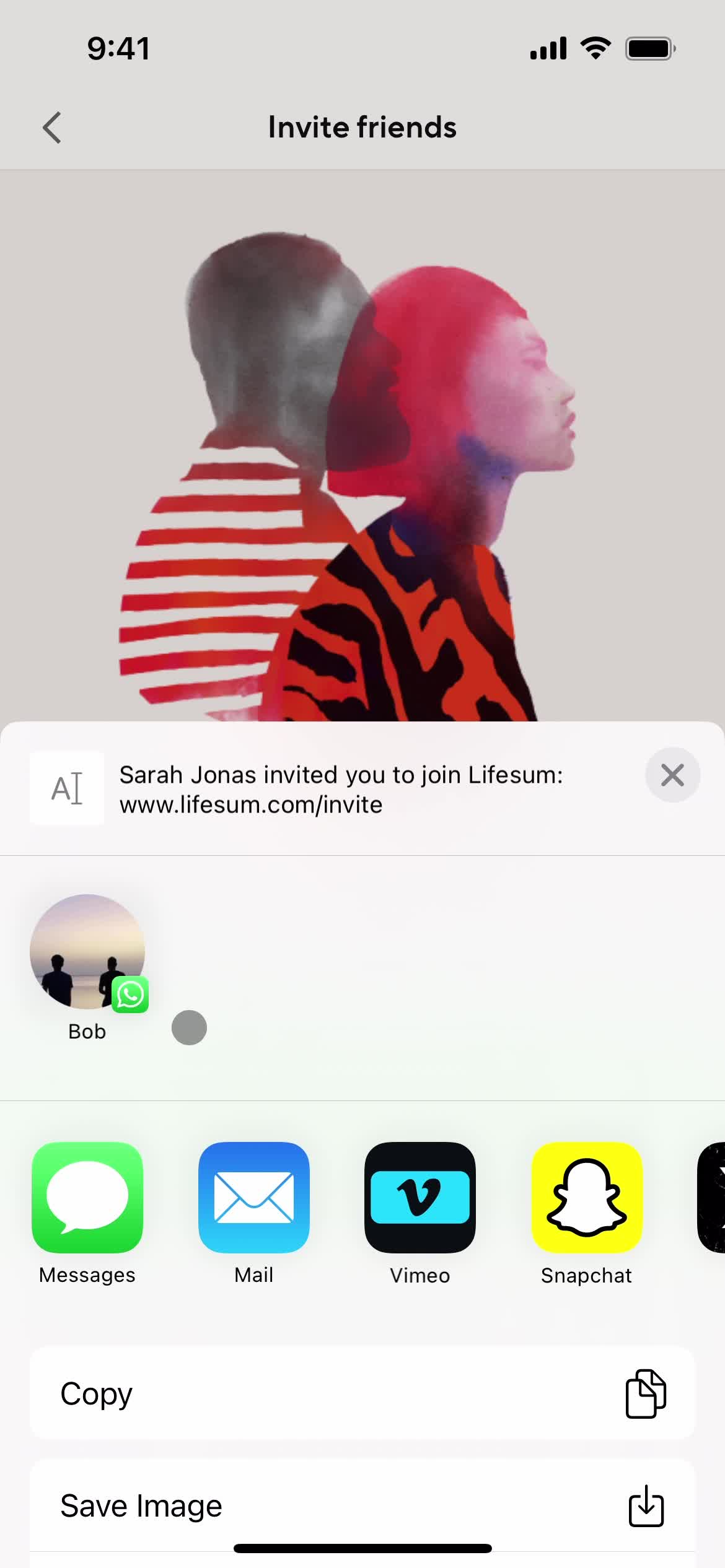
Send invite
this is title
Get started
this is title
Continue with email
this is title
Log in
this is title
Dashboard
this is title
Dashboard
this is title
Profile
this is title
Settings
this is title
Logout
this is title
Get started
this is title
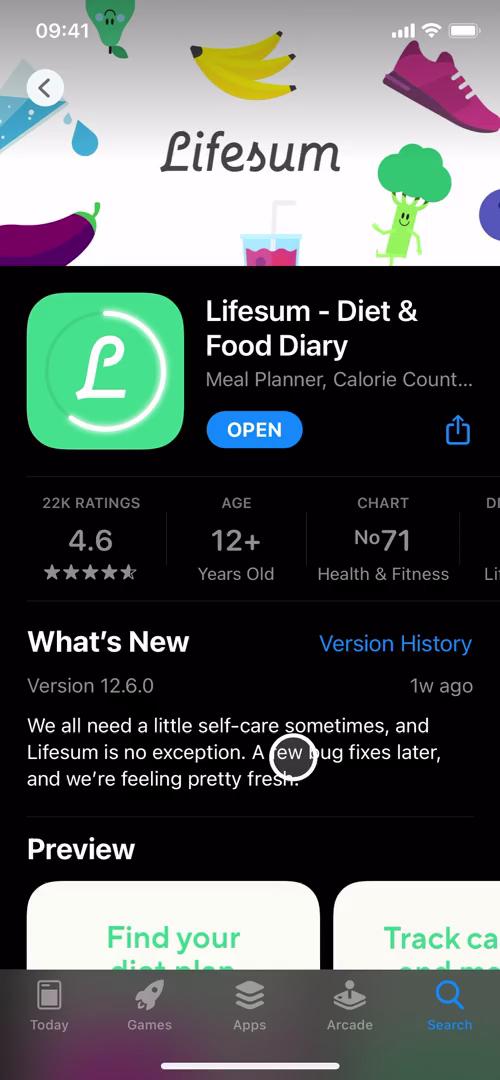
App store listing
this is title
Splash screen
this is title
Get started
this is title
Onboarding questions
this is title
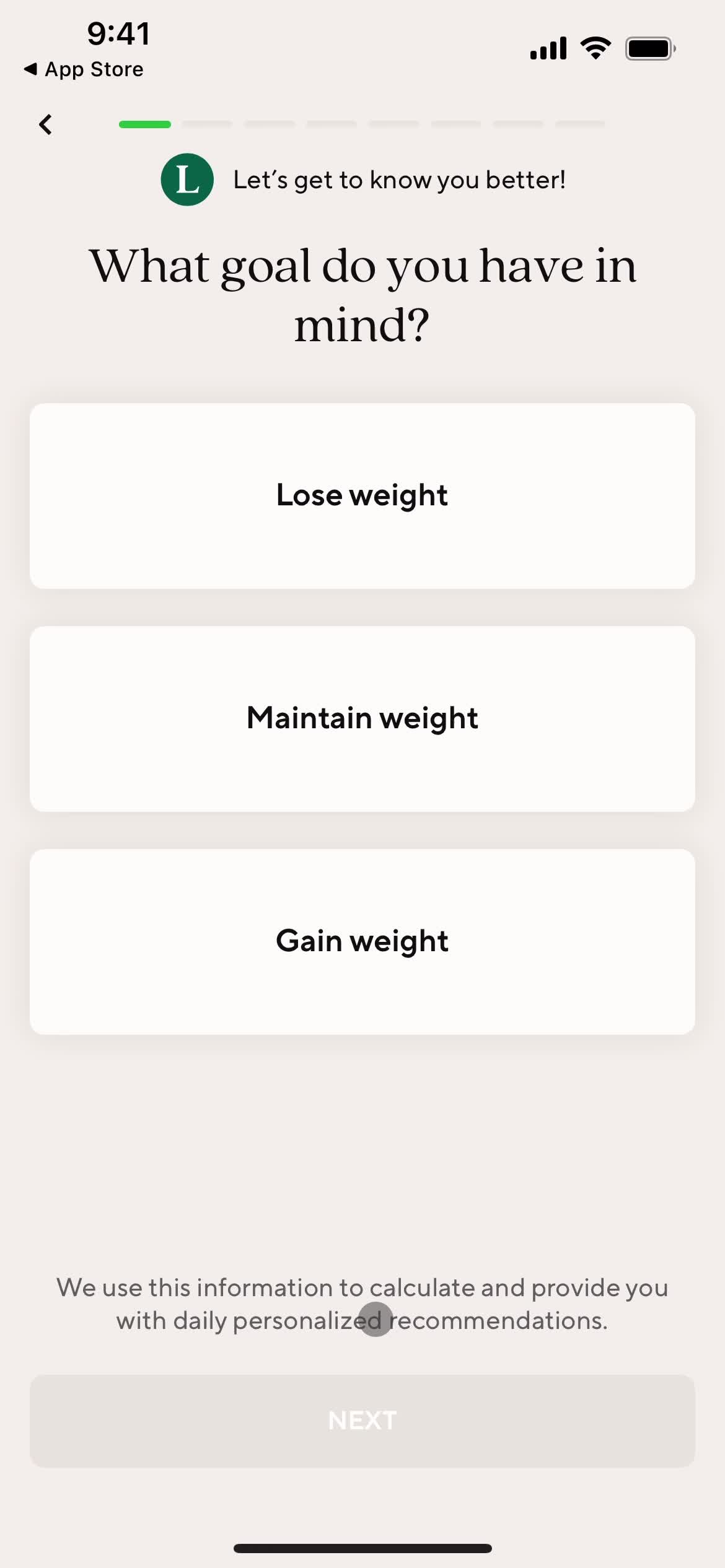
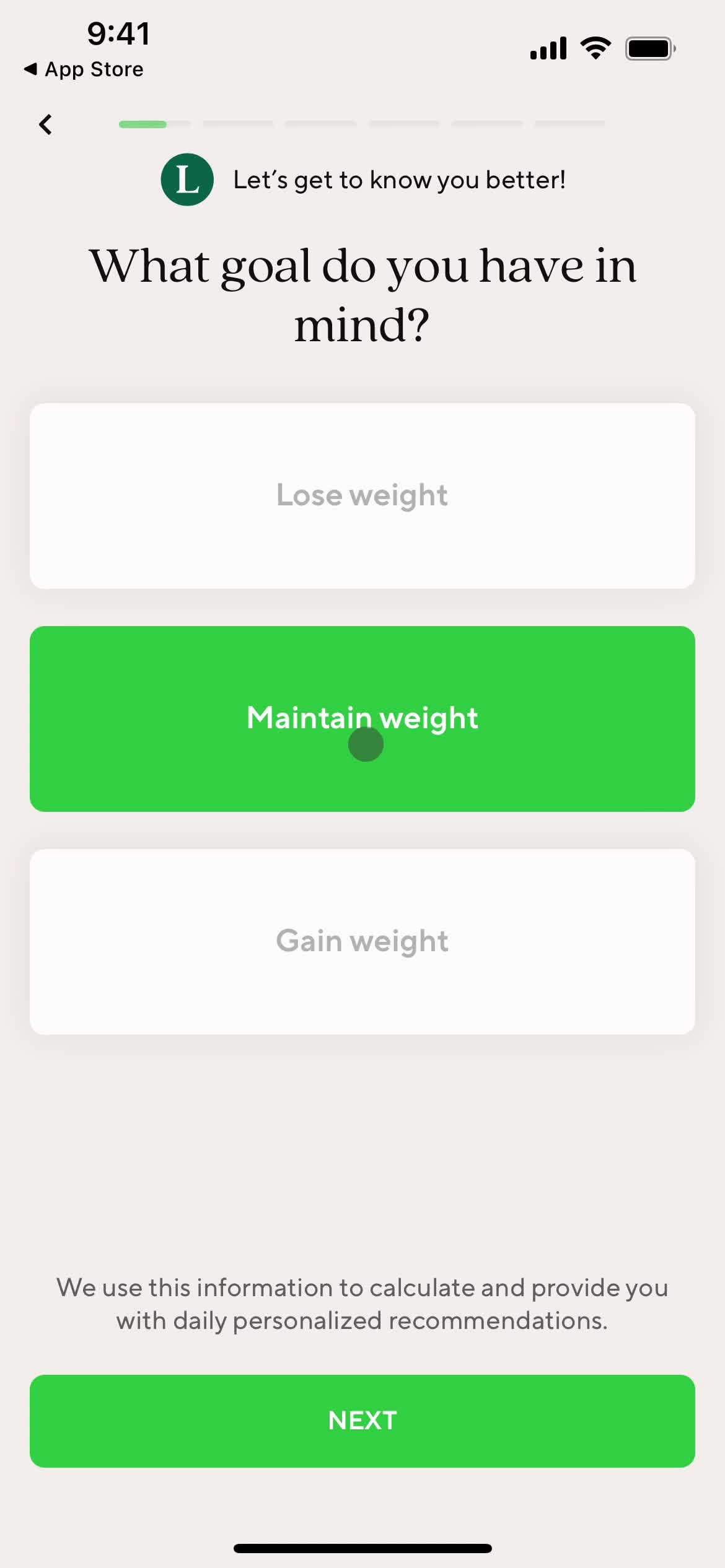
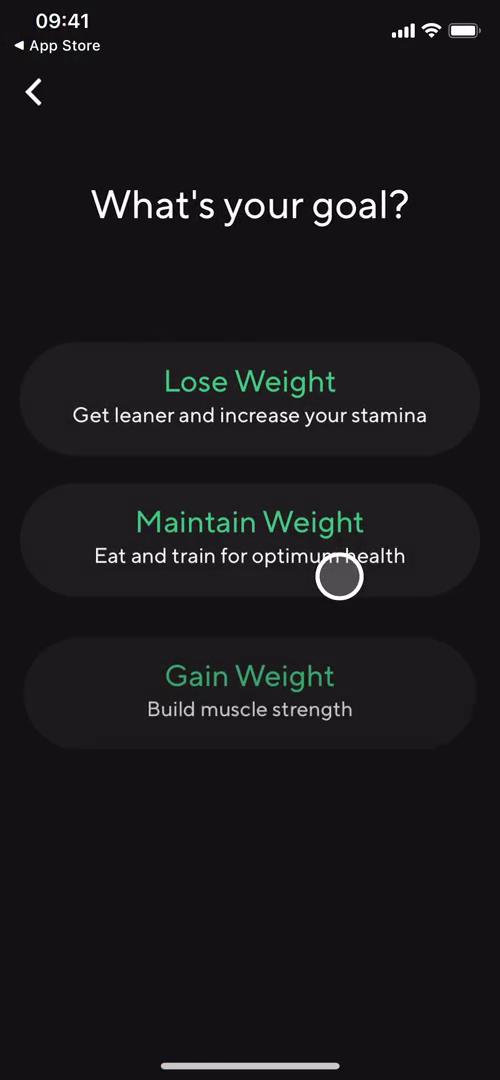
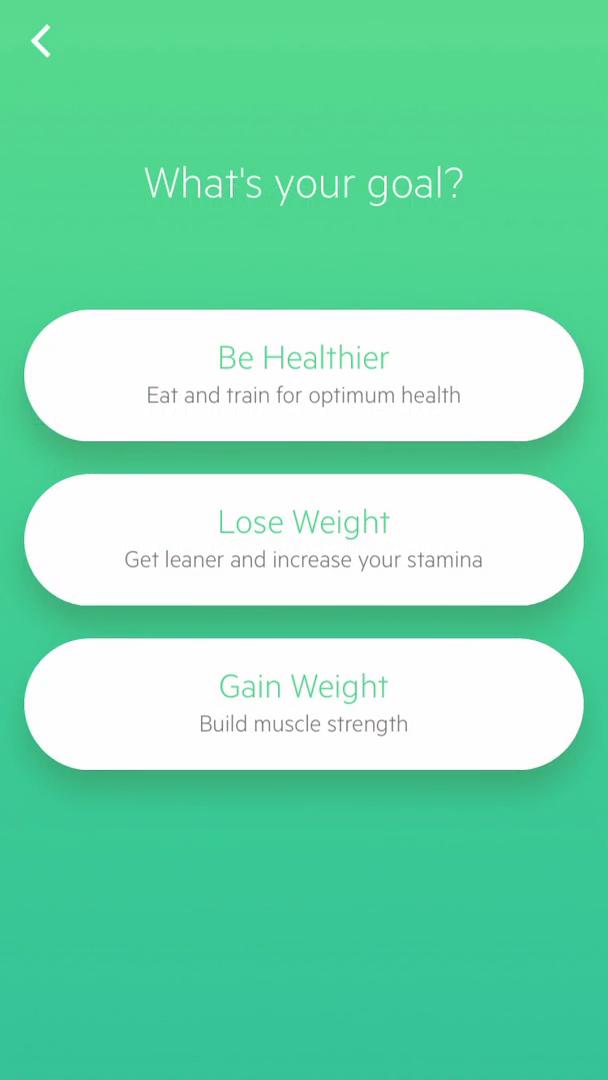
Select goal
this is title
Enable notifications
this is title
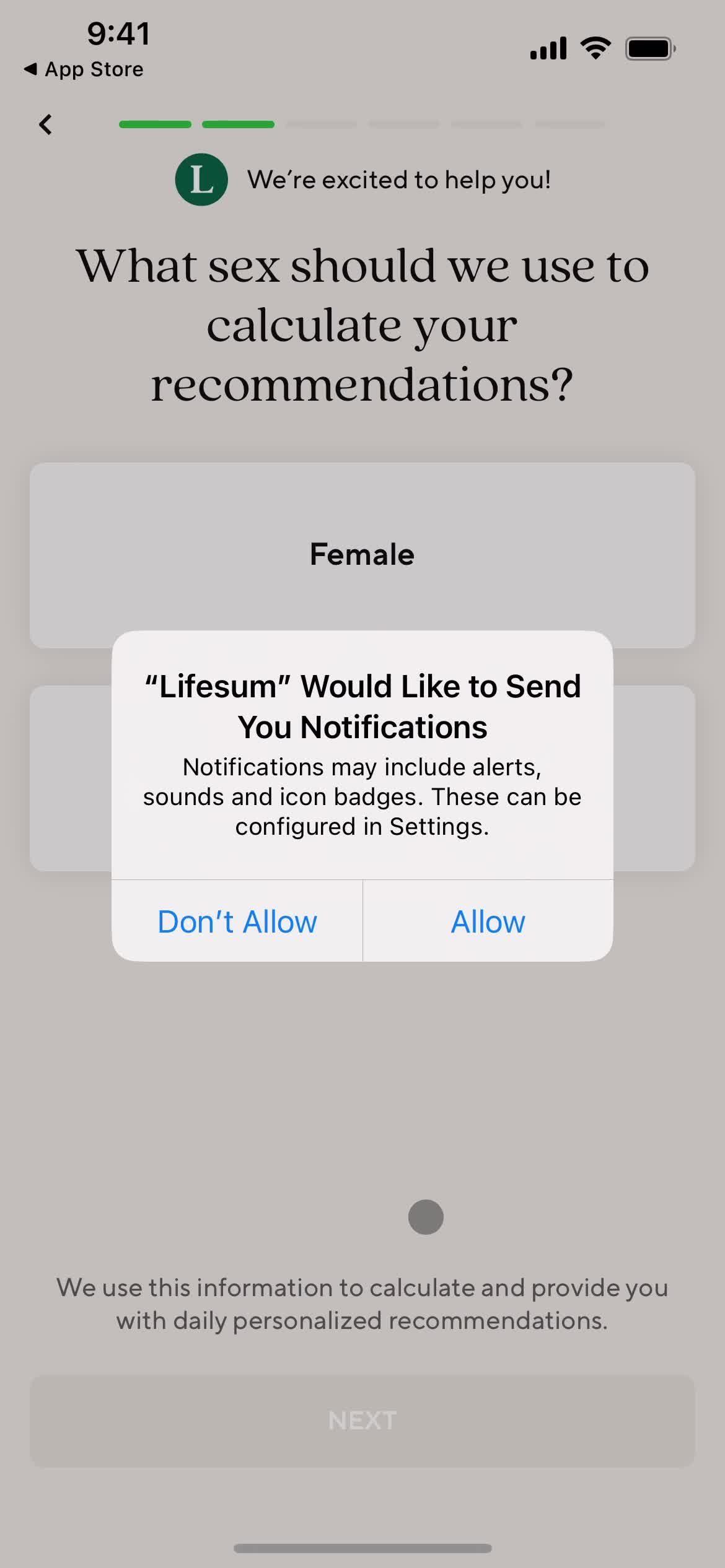
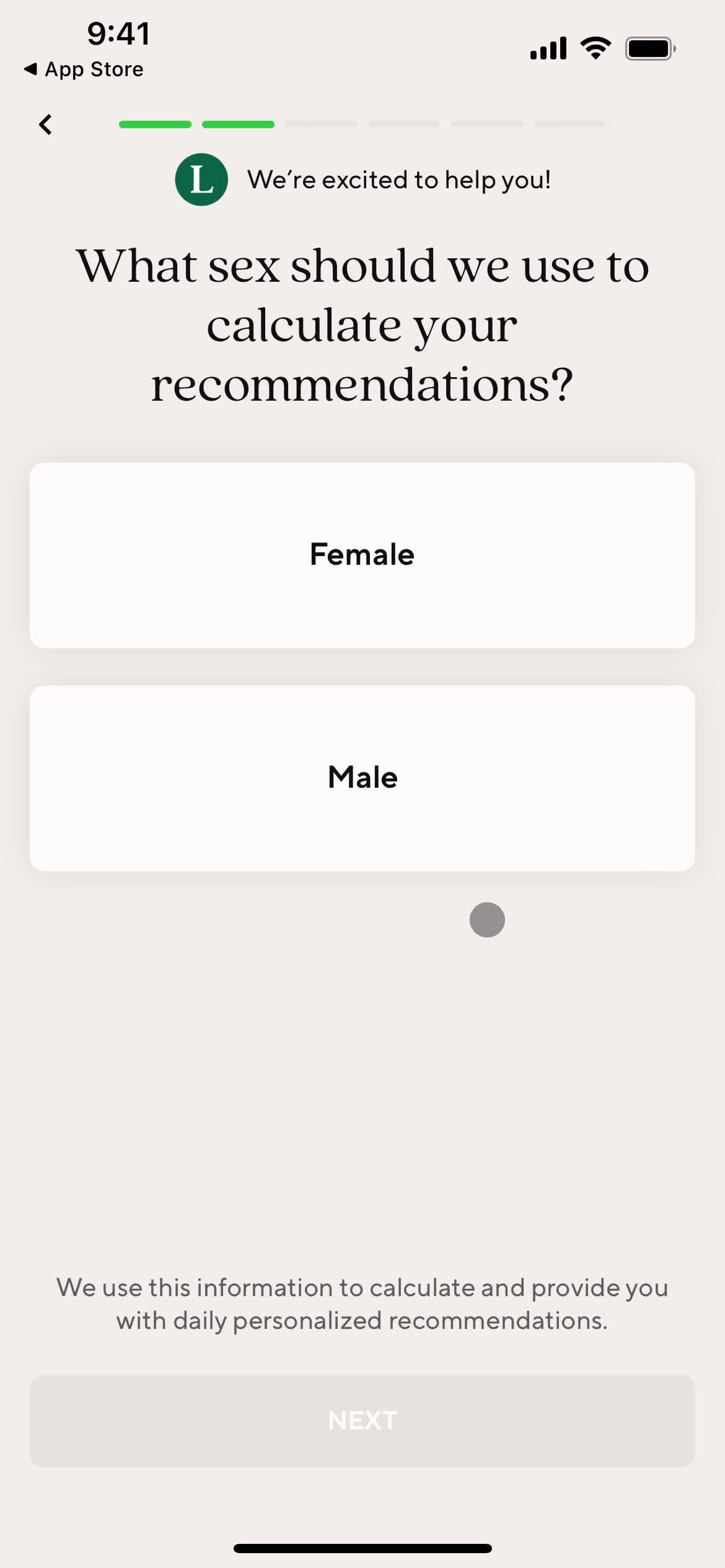
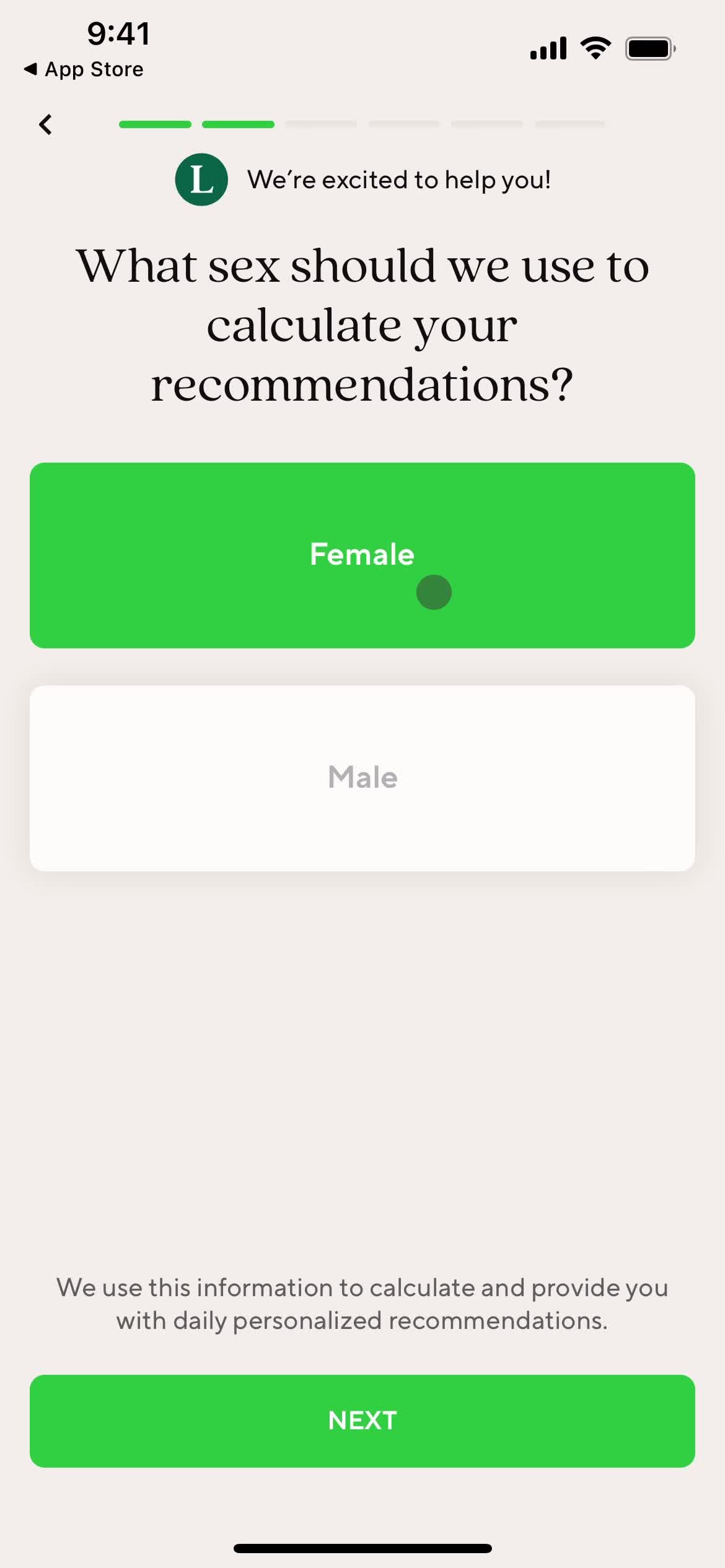
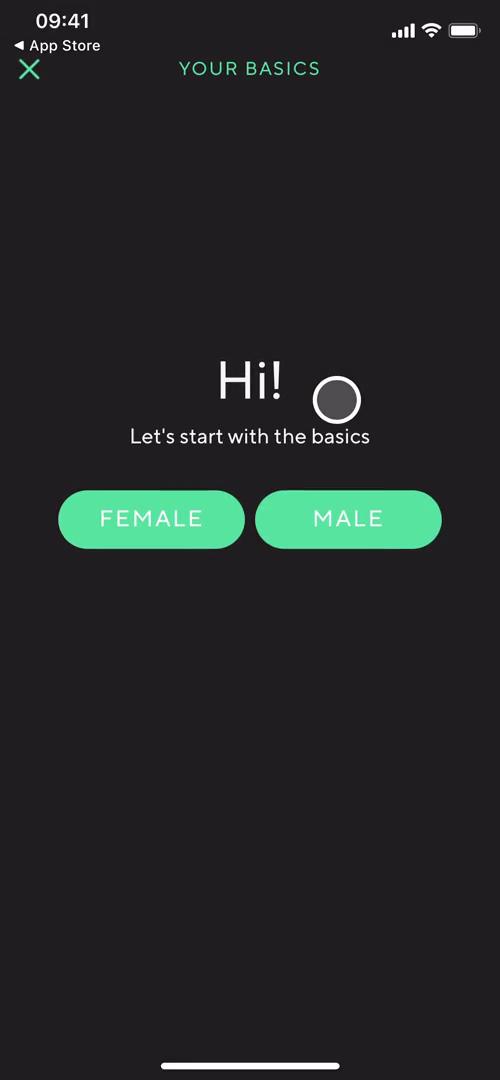
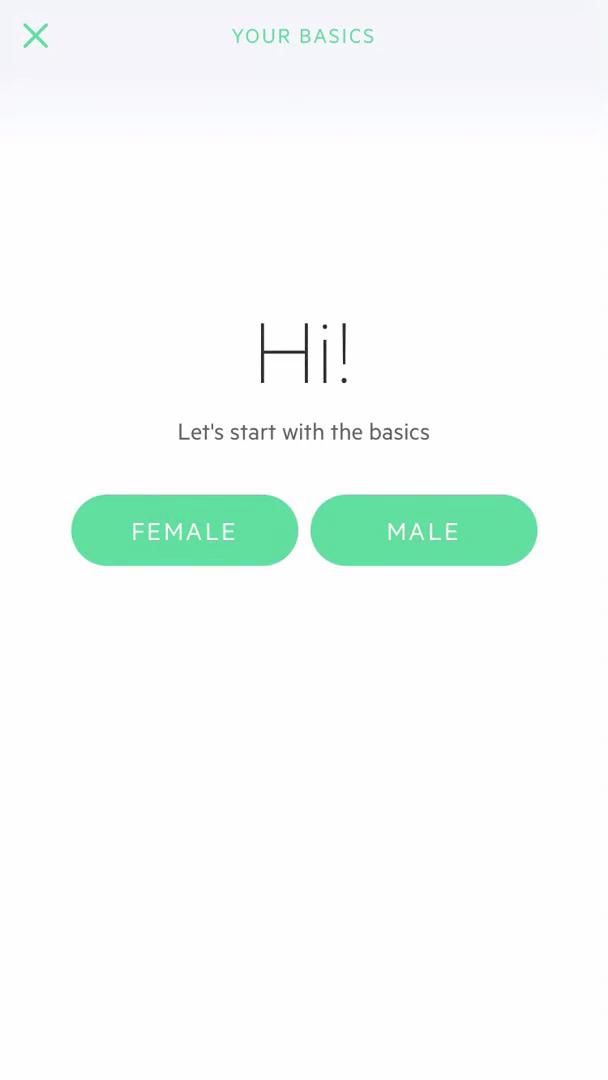
Select gender
this is title
this is title
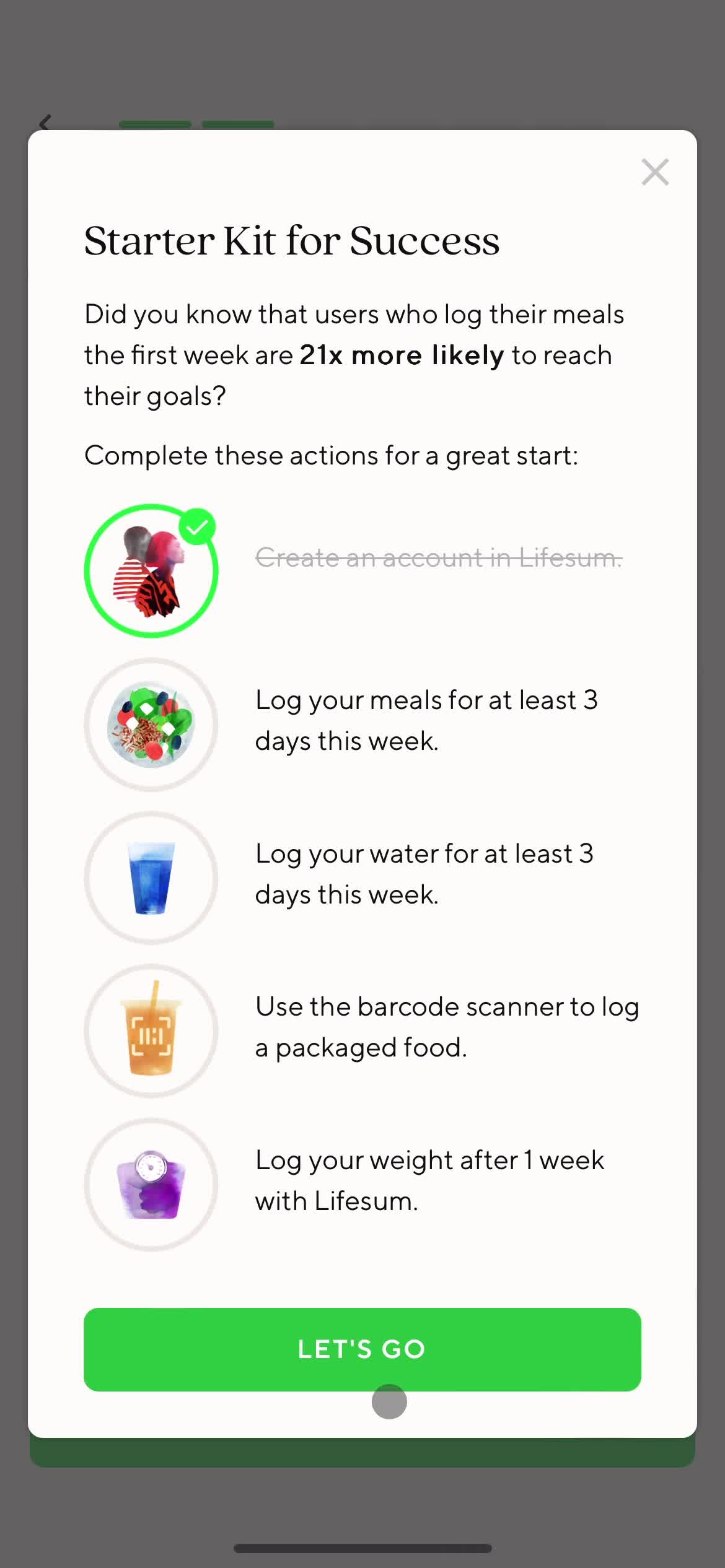
Quick start guide
this is title
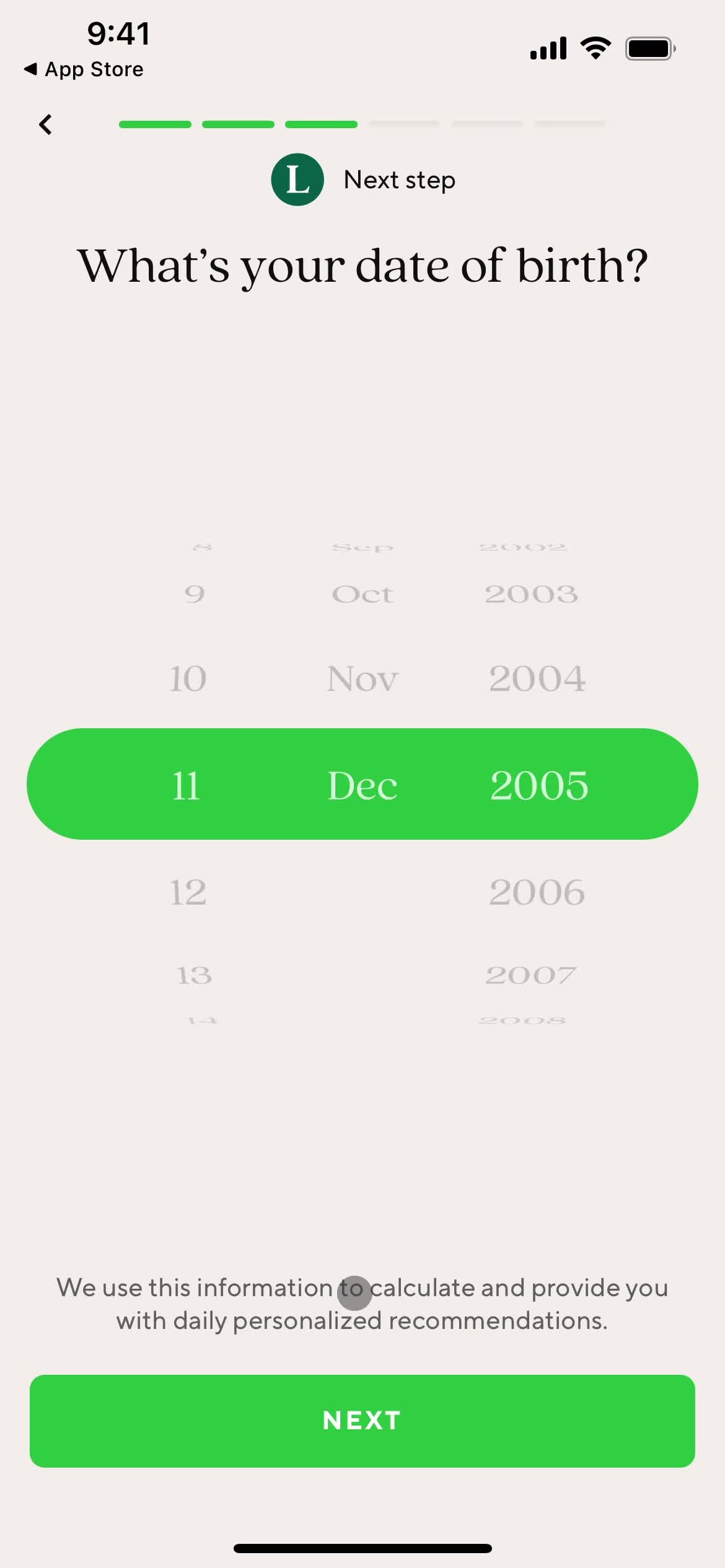
Confirm date of birth
this is title
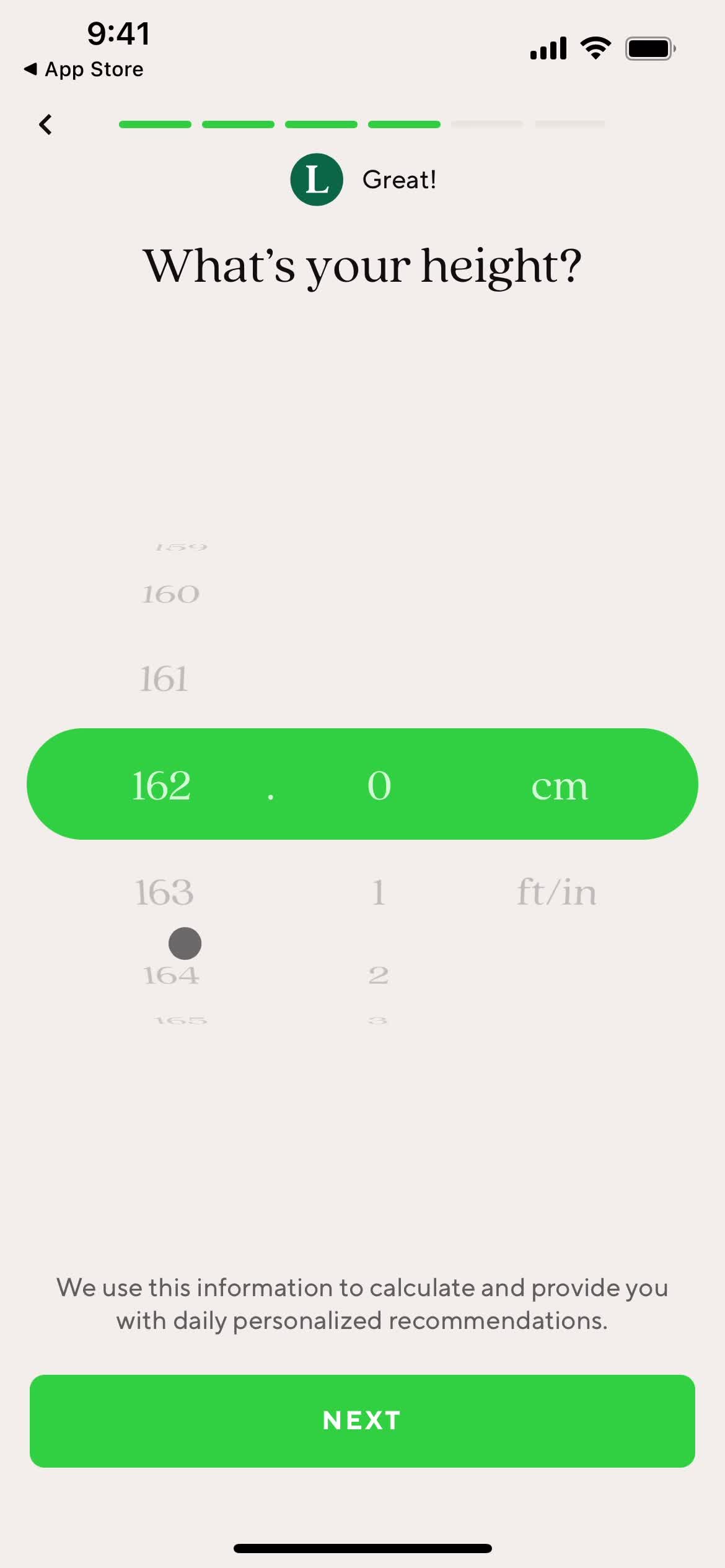
Enter height
this is title
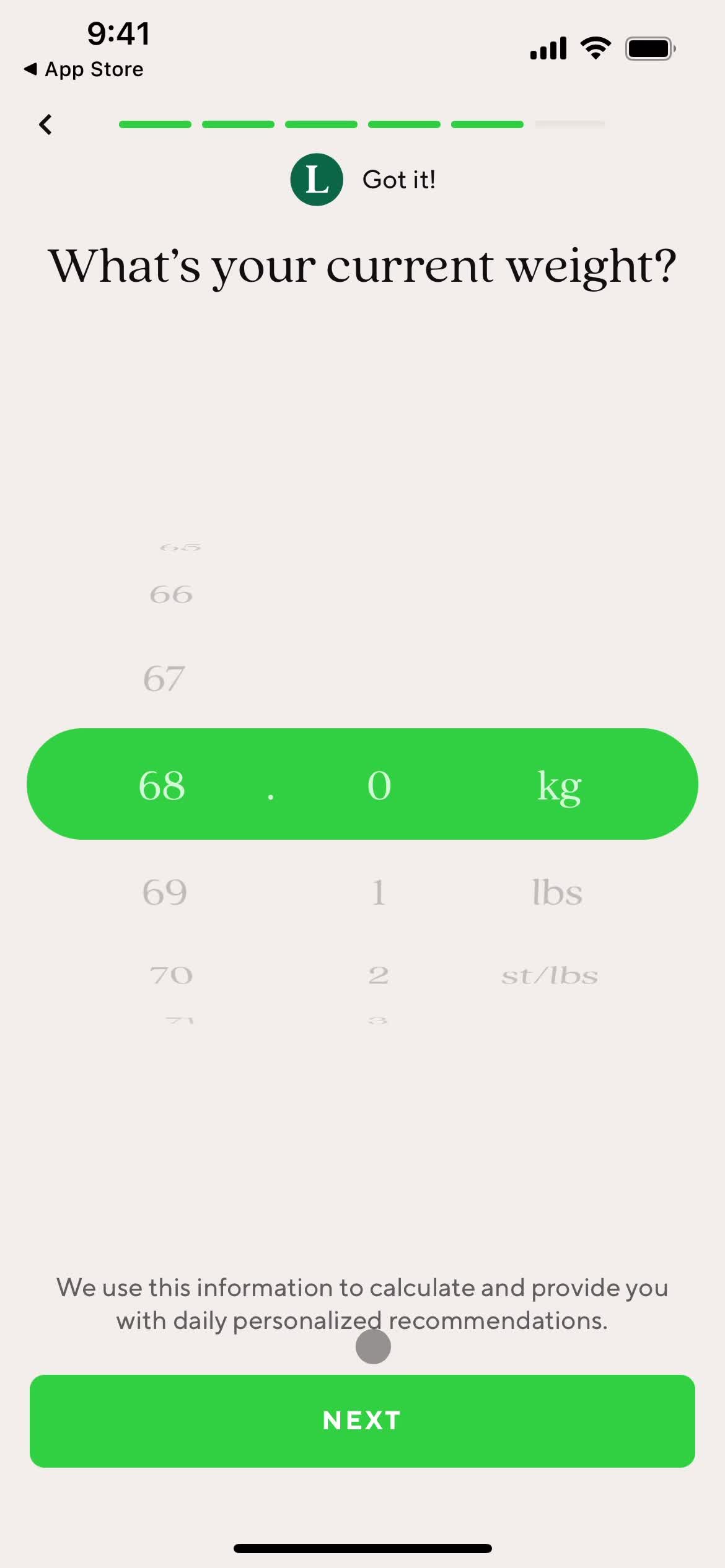
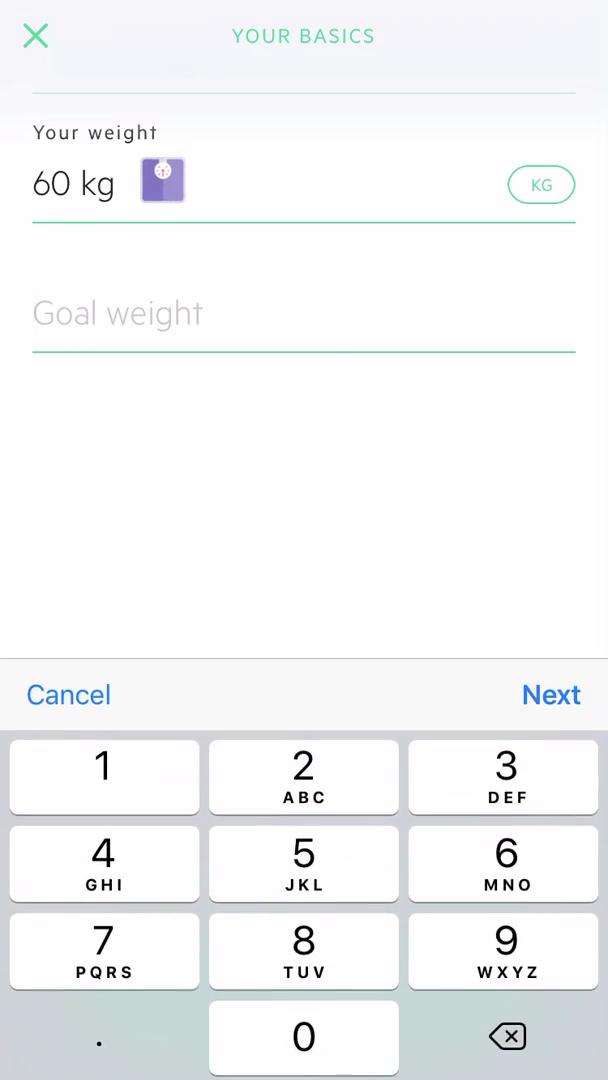
Enter weight
this is title
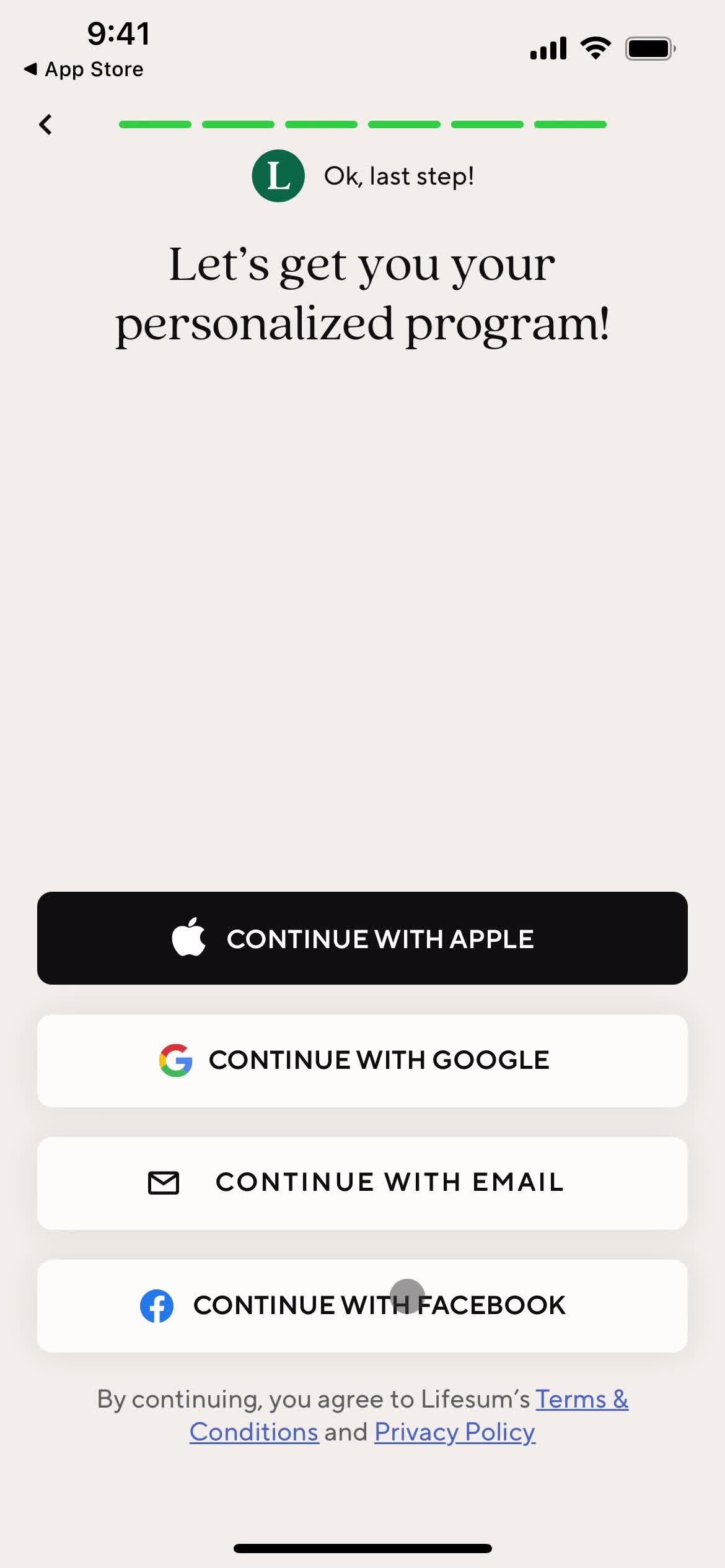
Continue with email
this is title
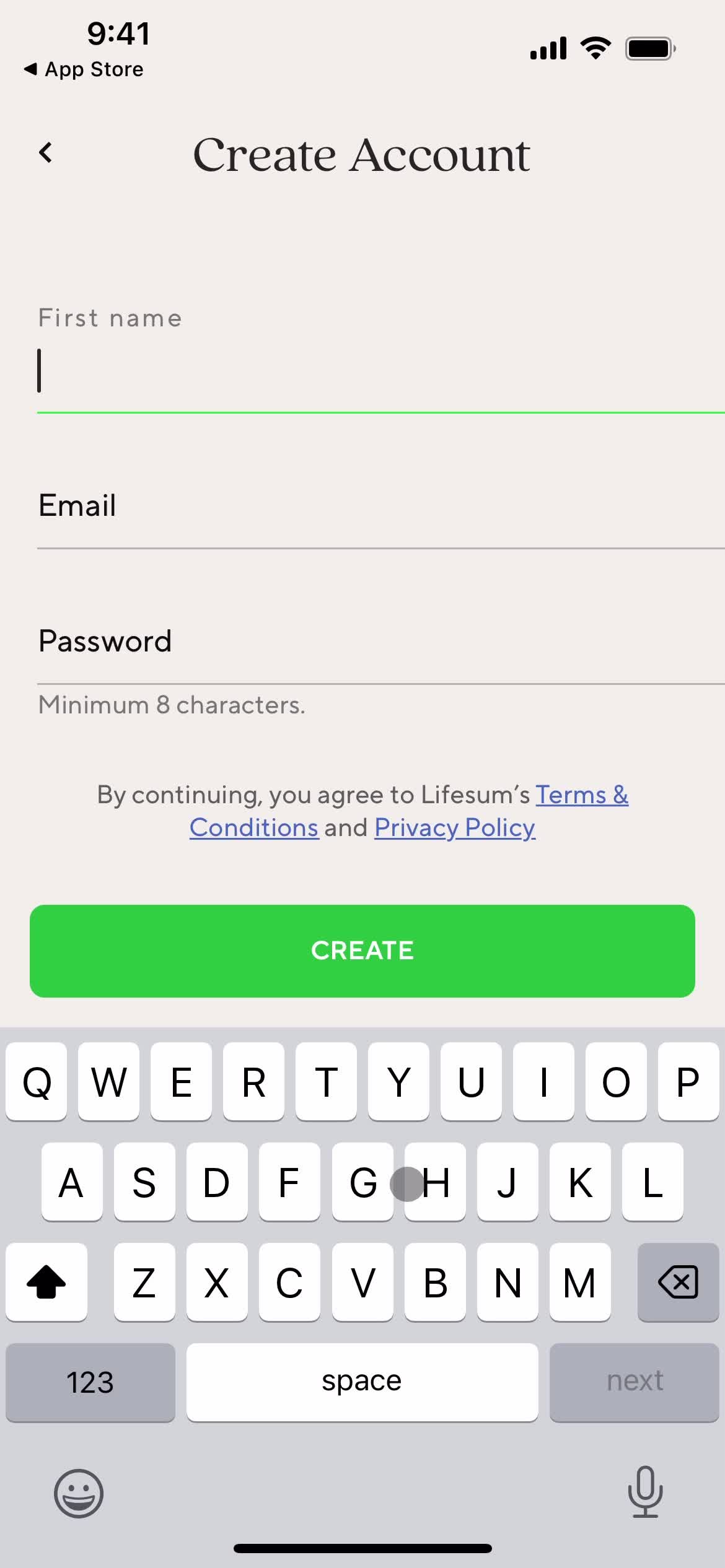
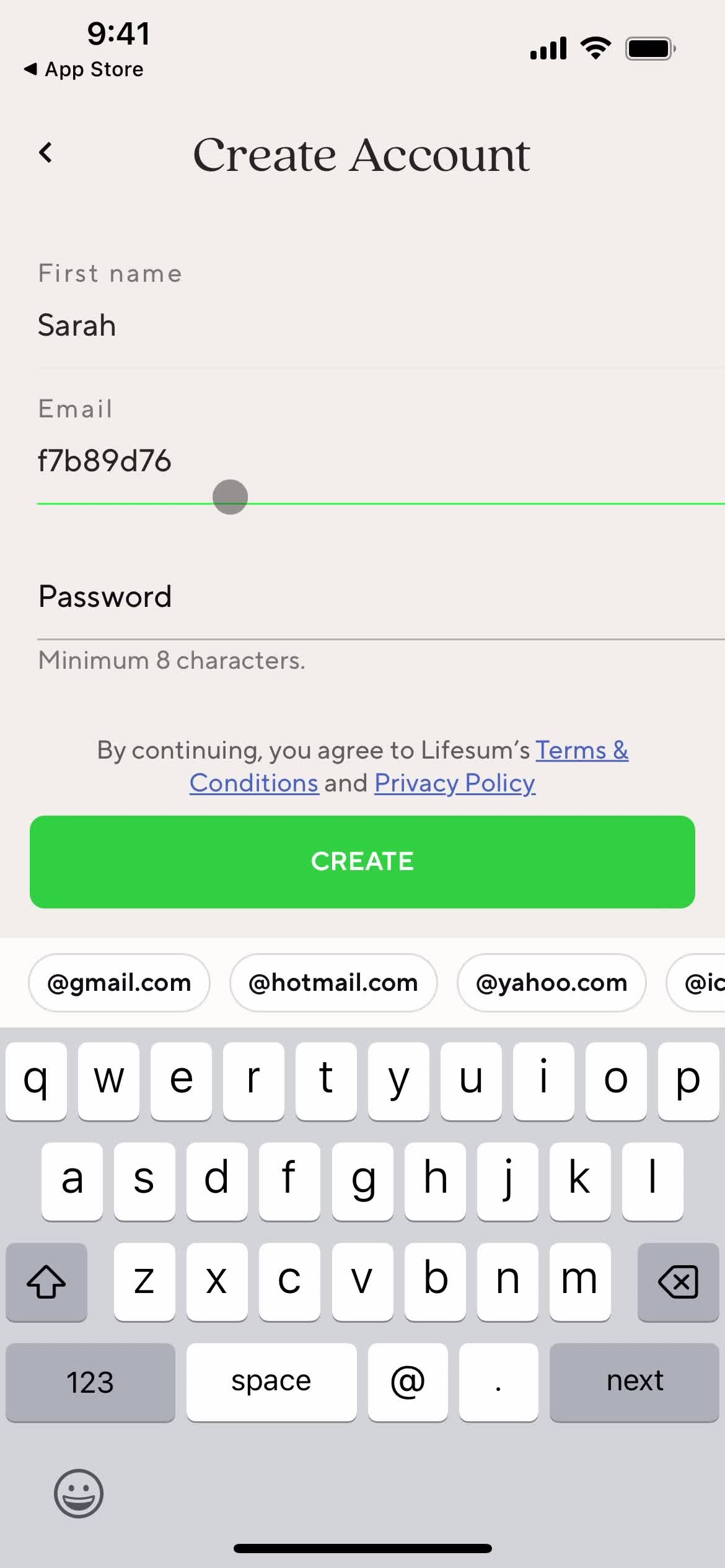
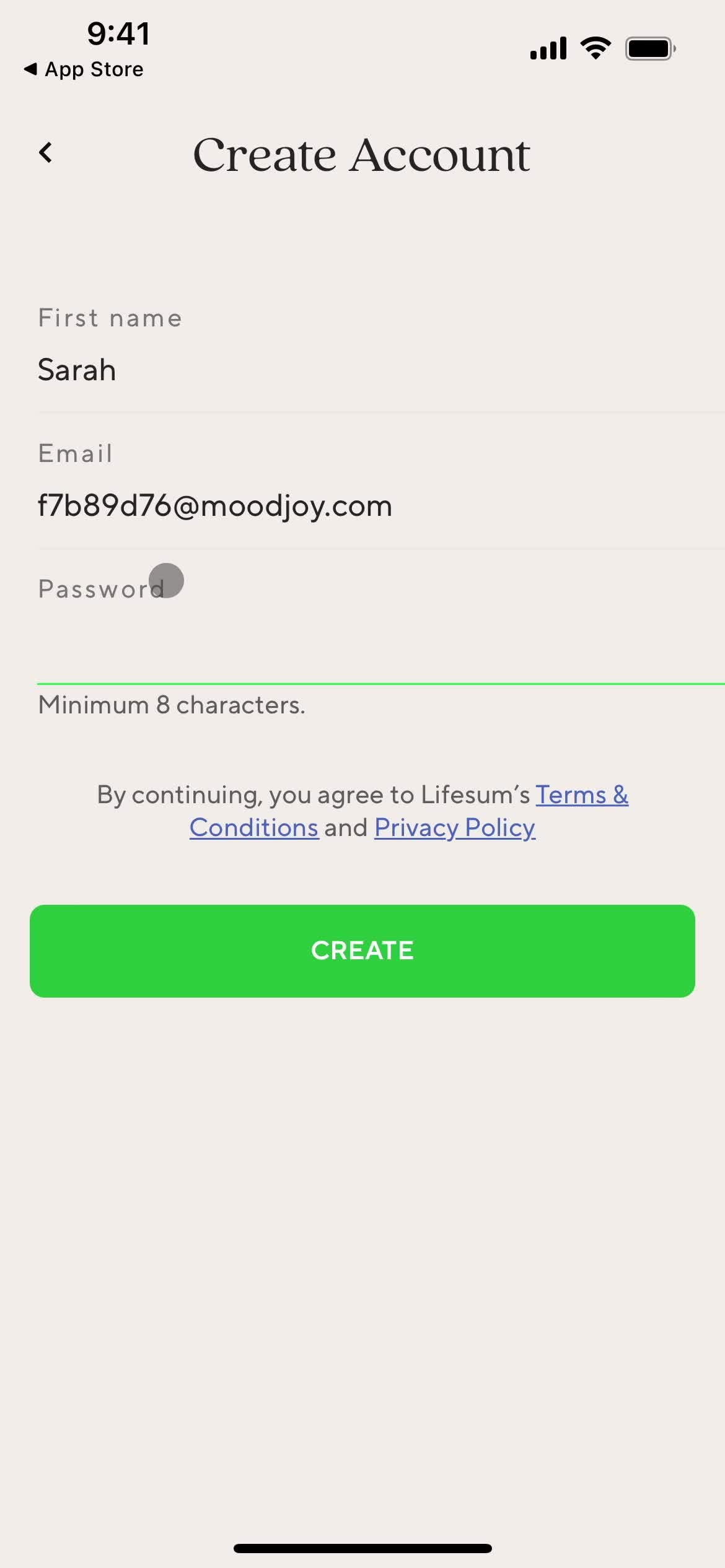
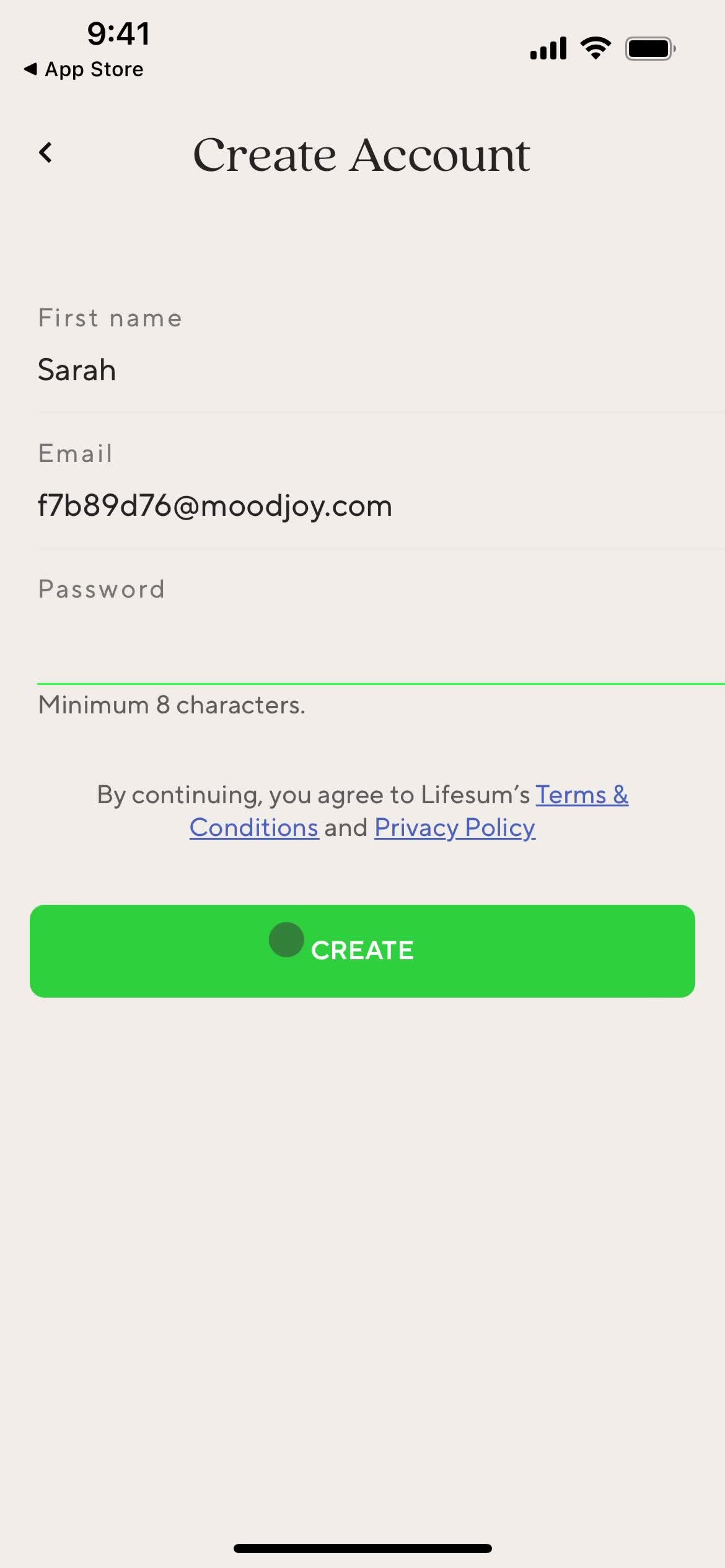
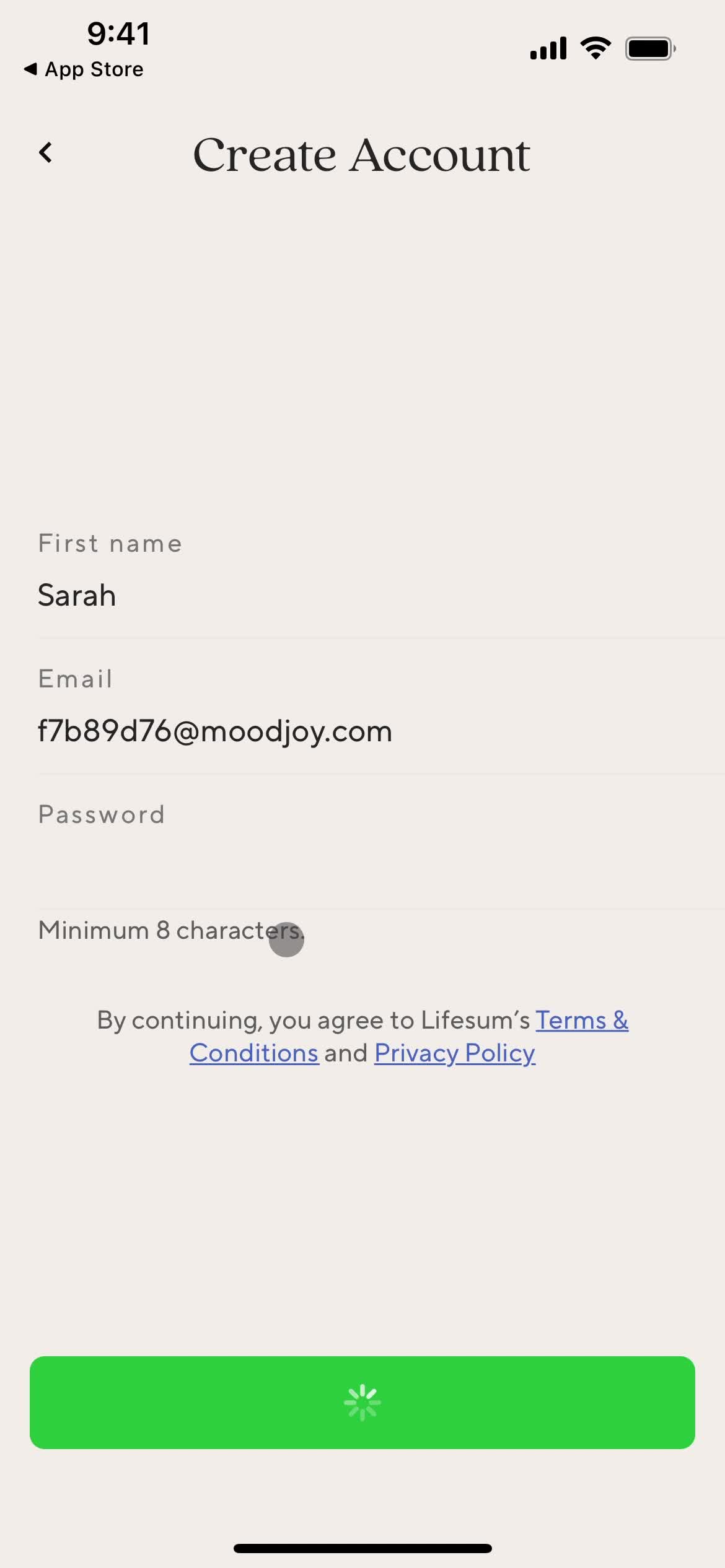
Create account
this is title
Enter name
this is title
Enter email
this is title
Set password
this is title
this is title
Loading
this is title
Save password
this is title
Loading
this is title
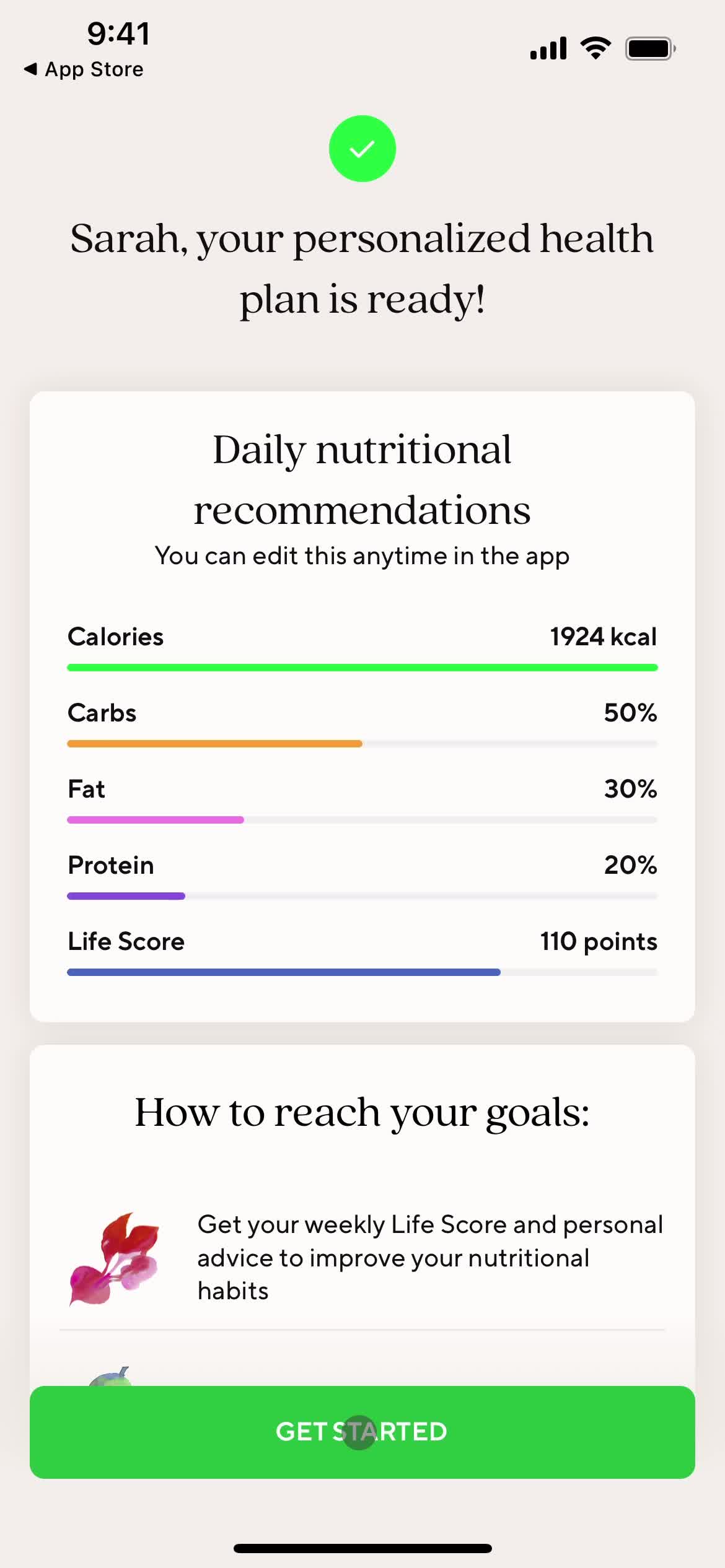
Get started
this is title
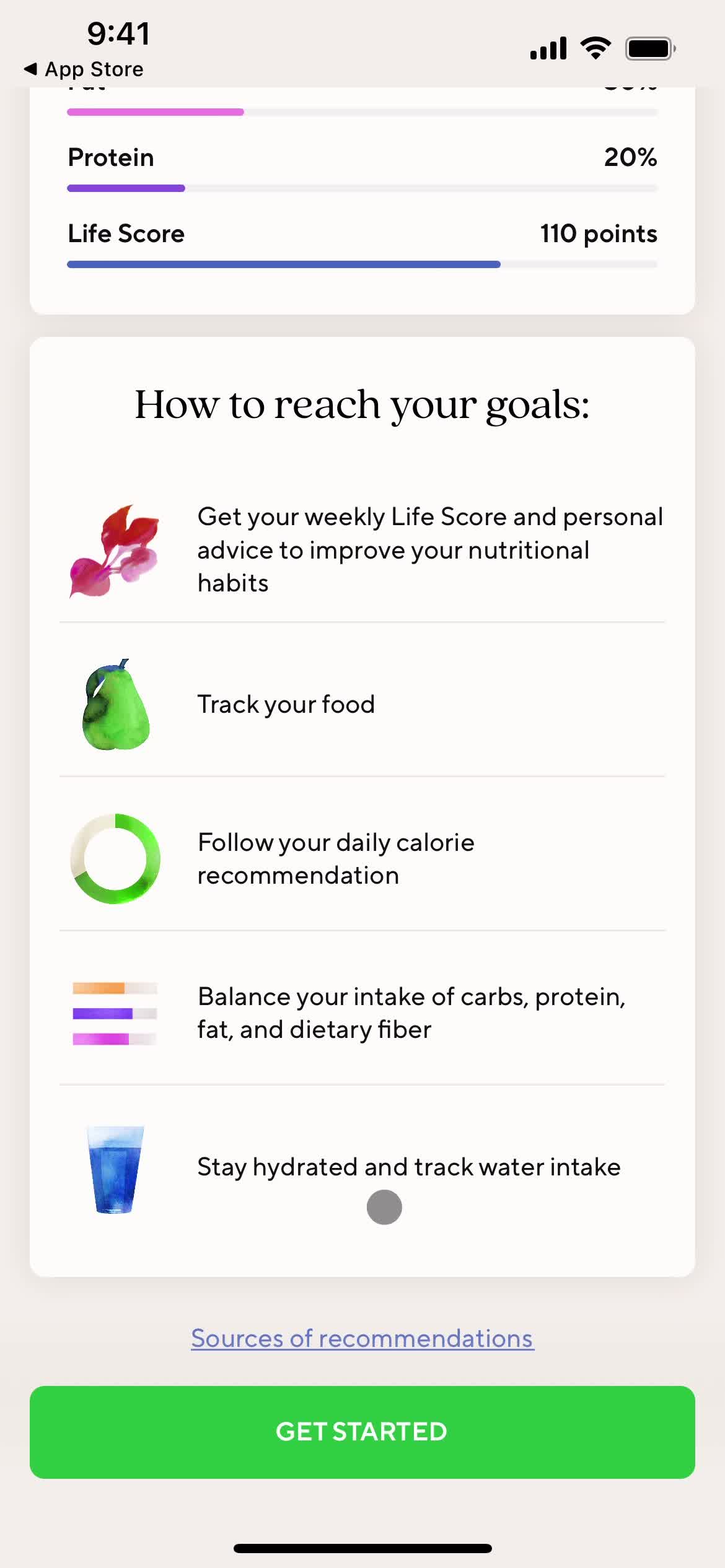
Goals
this is title
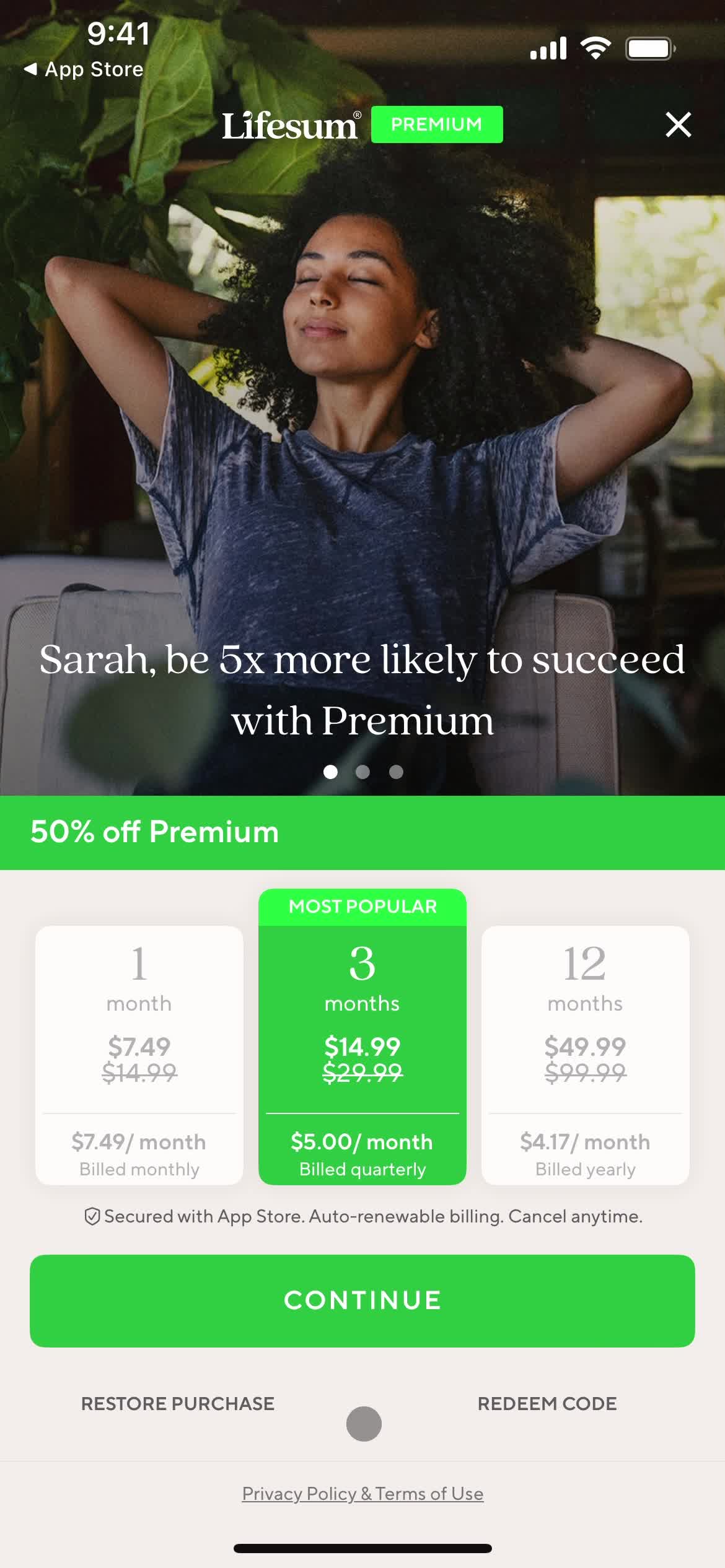
Upgrade
this is title
Enable tracking
this is title
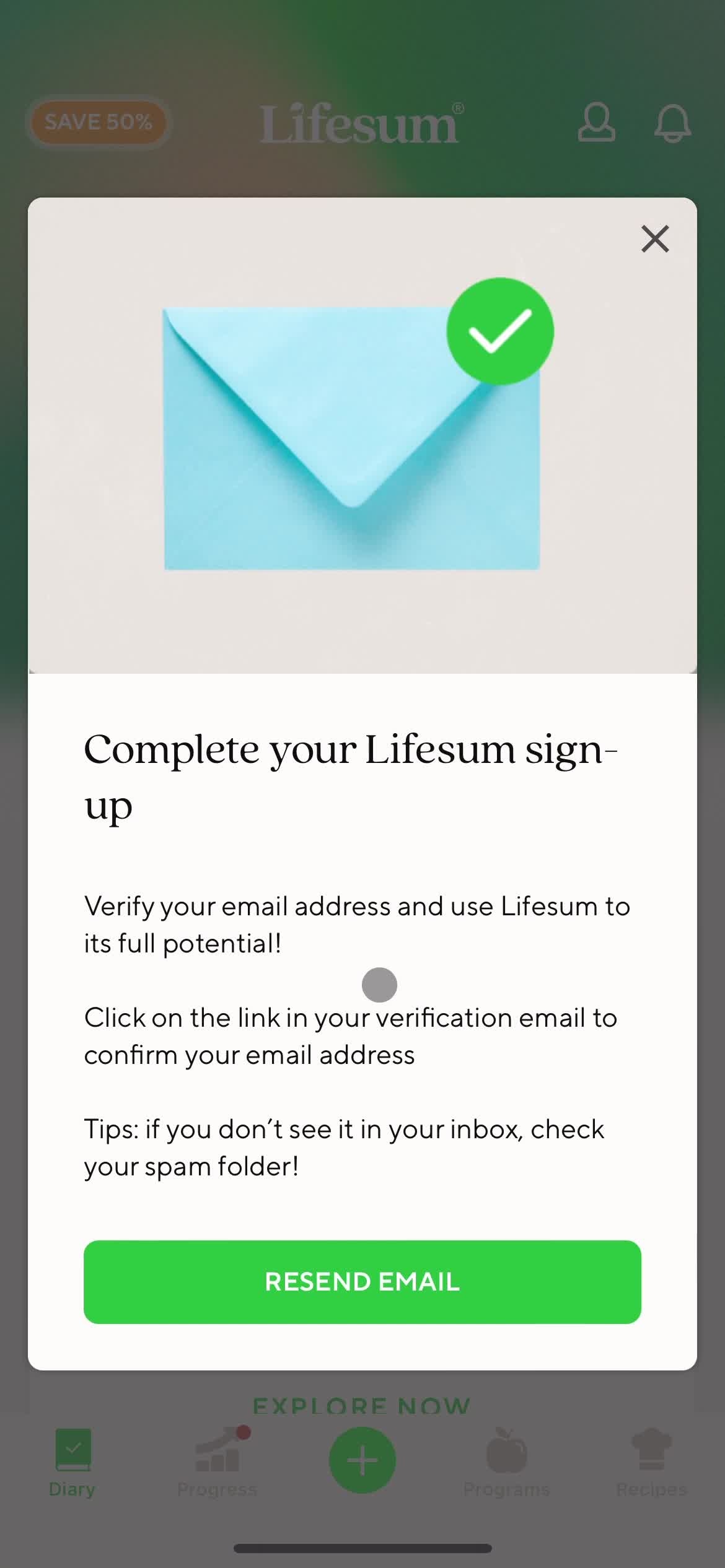
Email verification
this is title
Dashboard
this is title
Profile
this is title
Dashboard
this is title
this is title
App store listing
this is title
Splash screen
this is title
Start screen
this is title
Select goal
this is title
Select gender
this is title
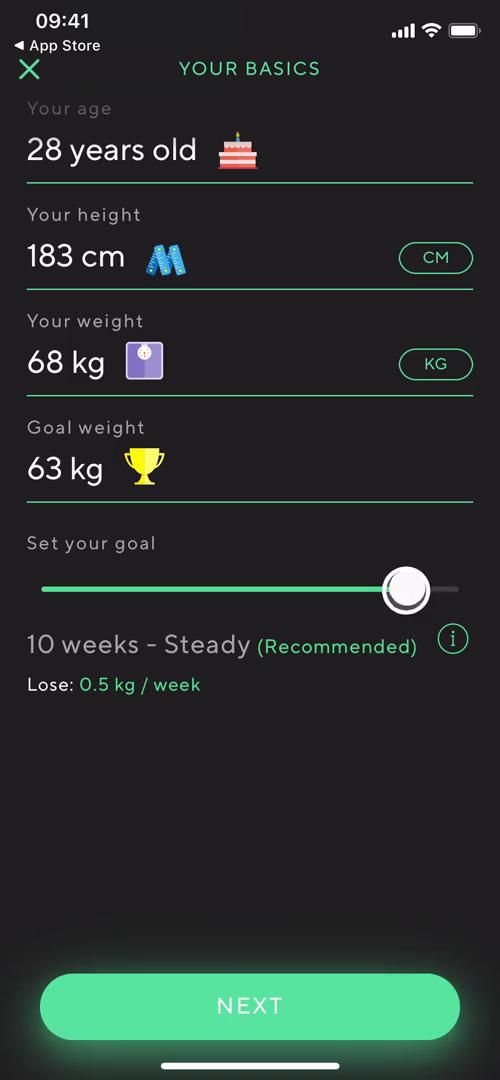
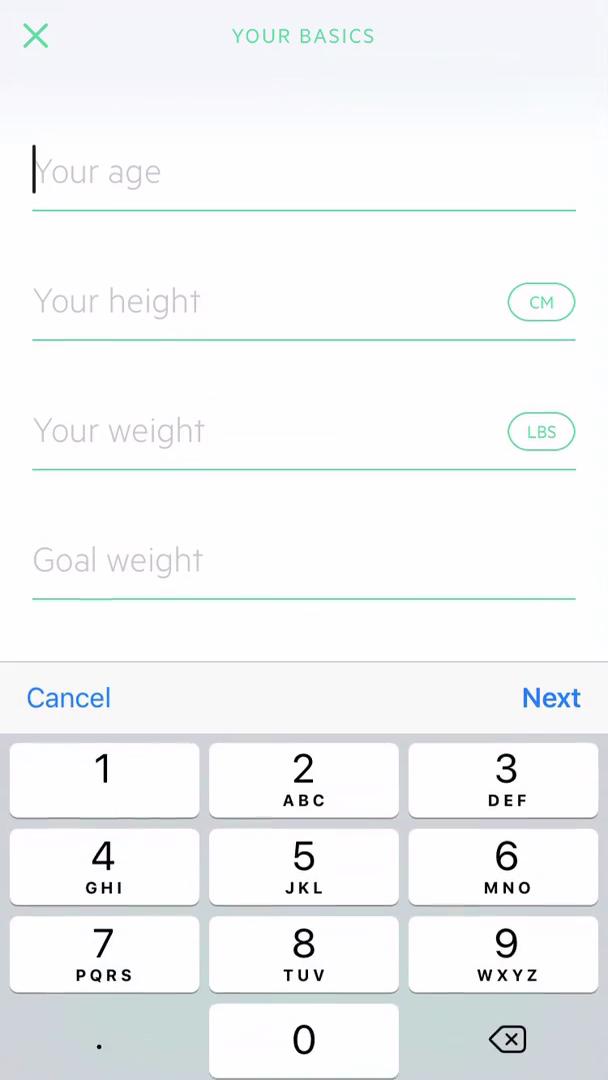
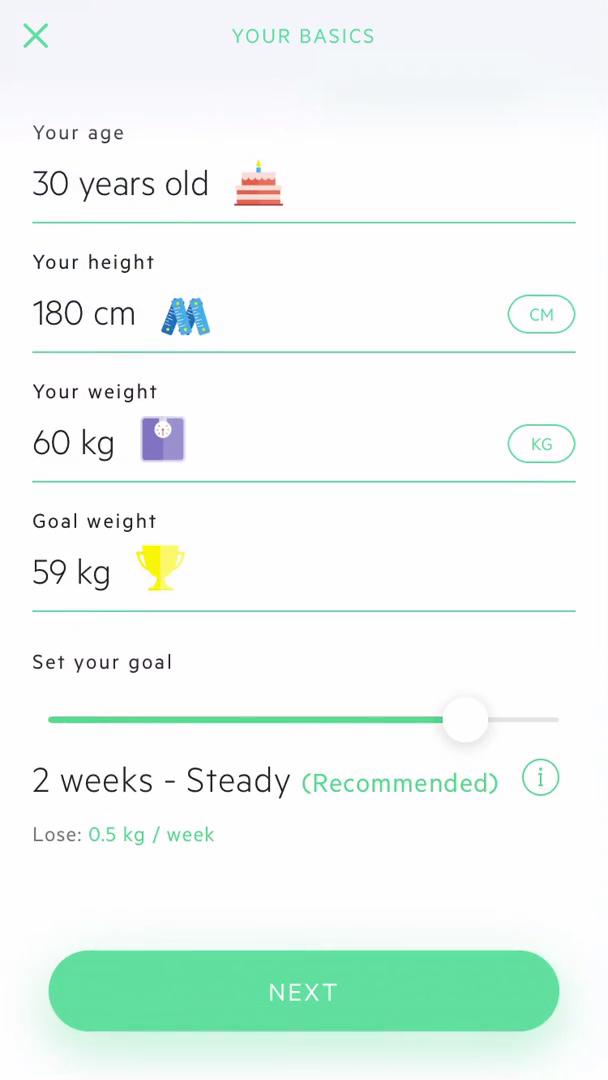
Add basic information
this is title
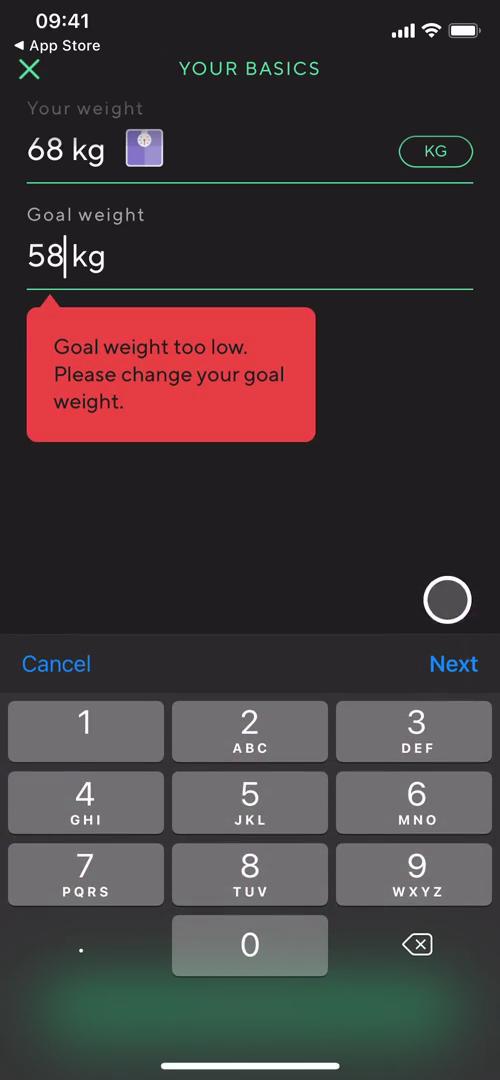
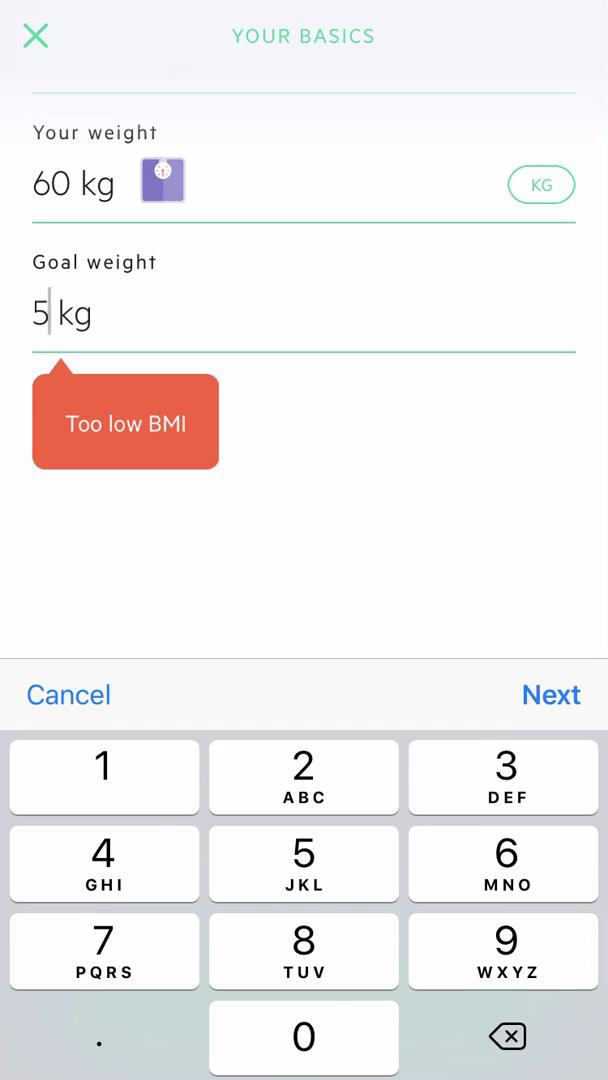
Validation error
this is title
Add basic information
this is title
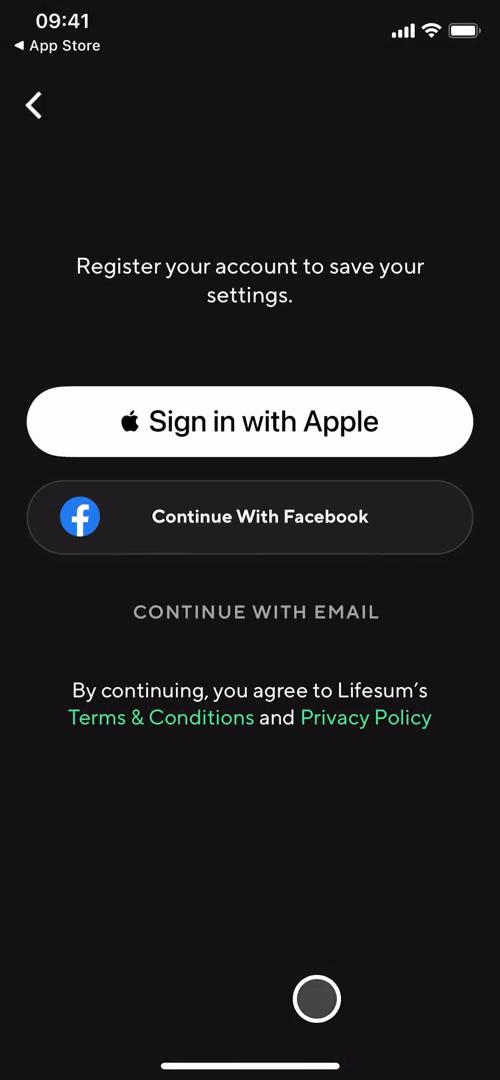
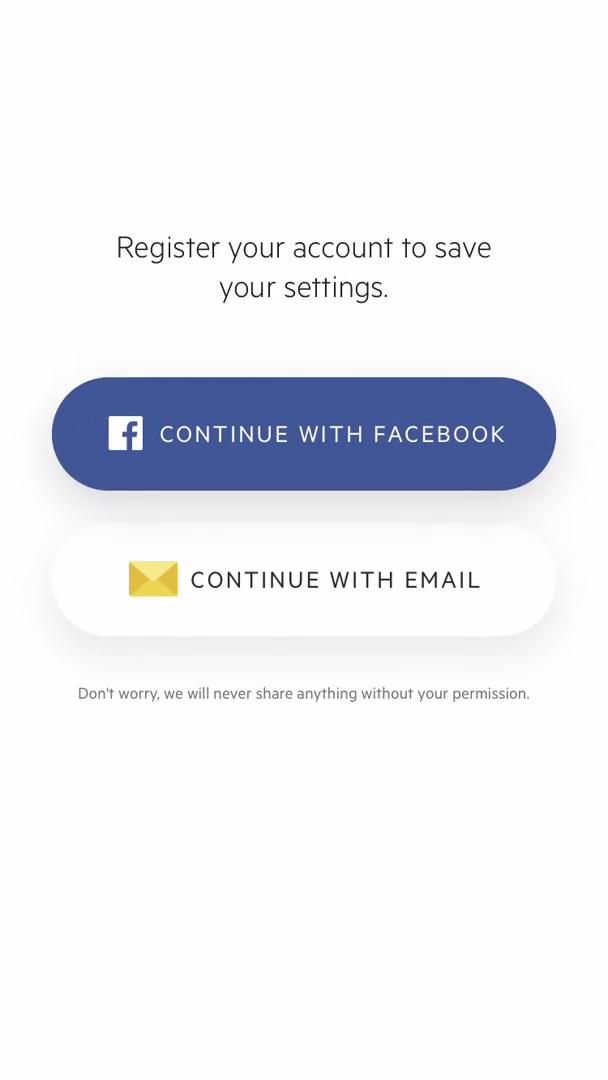
Sign up
this is title
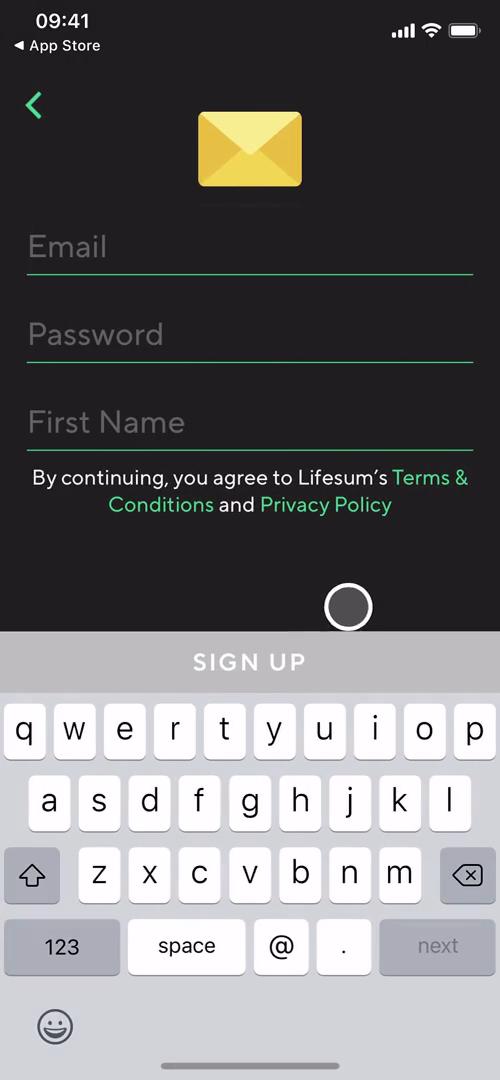
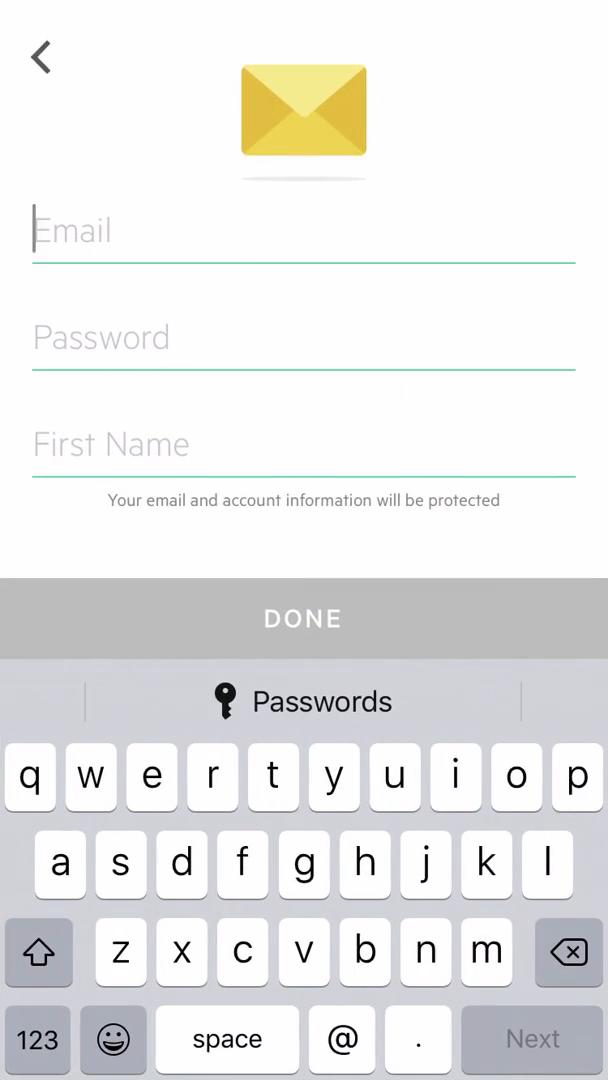
Sign up with email
this is title
Loading
this is title
Upgrade
this is title
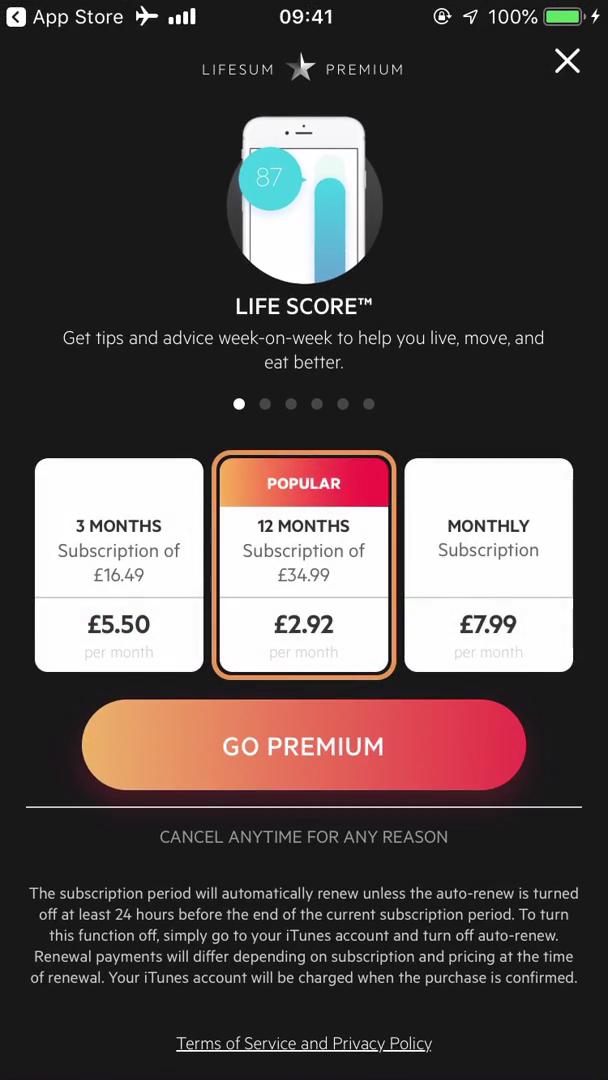
Pricing & plans
this is title
Enable notifications
this is title
Dashboard
this is title
Track calories
this is title
Search for food
this is title
Food details
this is title
Select quantity
this is title
Track calories
this is title
Dashboard
this is title
Get health data permissions
this is title
Tracking enabled
this is title
Apple Health enabled
this is title
Start survey
this is title
Survey question
this is title
Survey question
this is title
Survey question
this is title
Life score
this is title
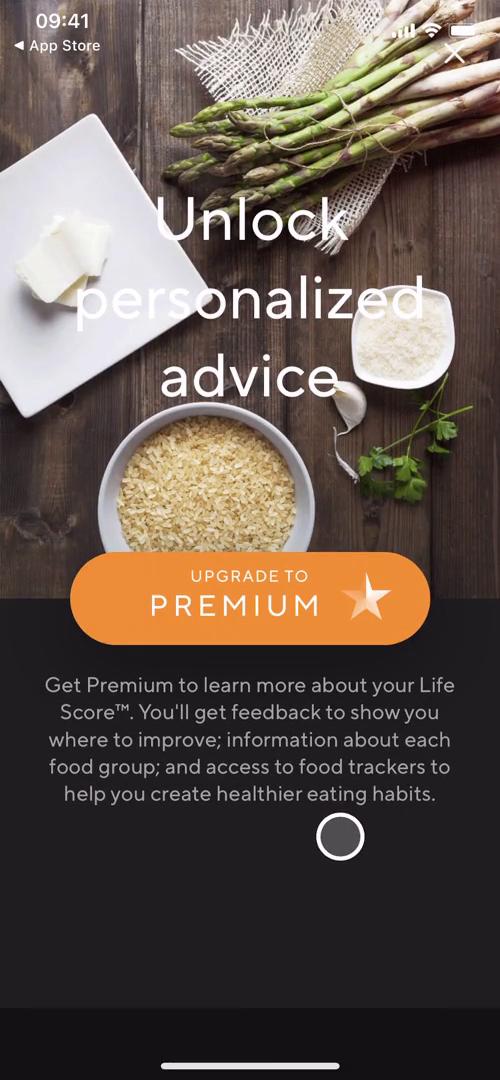
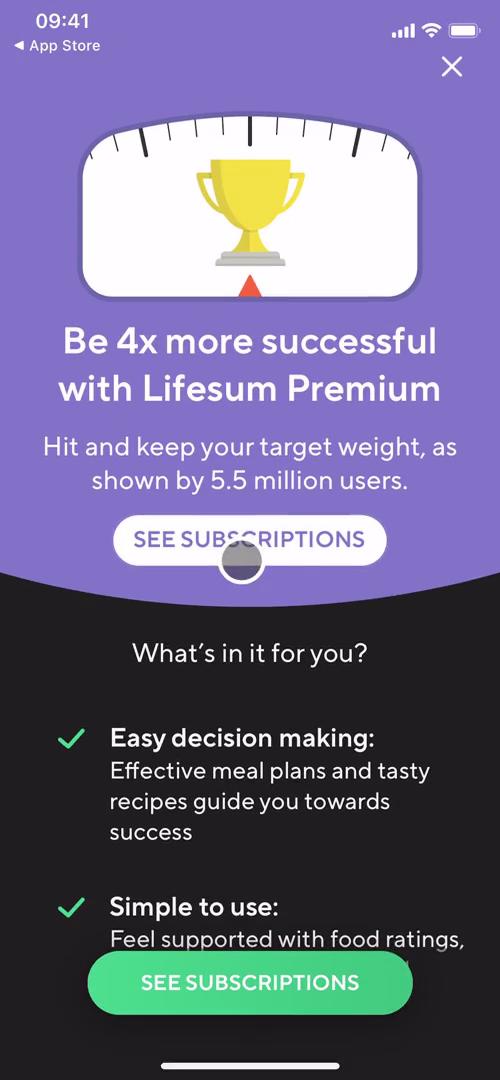
Upgrade prompt
this is title
Upgrade
this is title
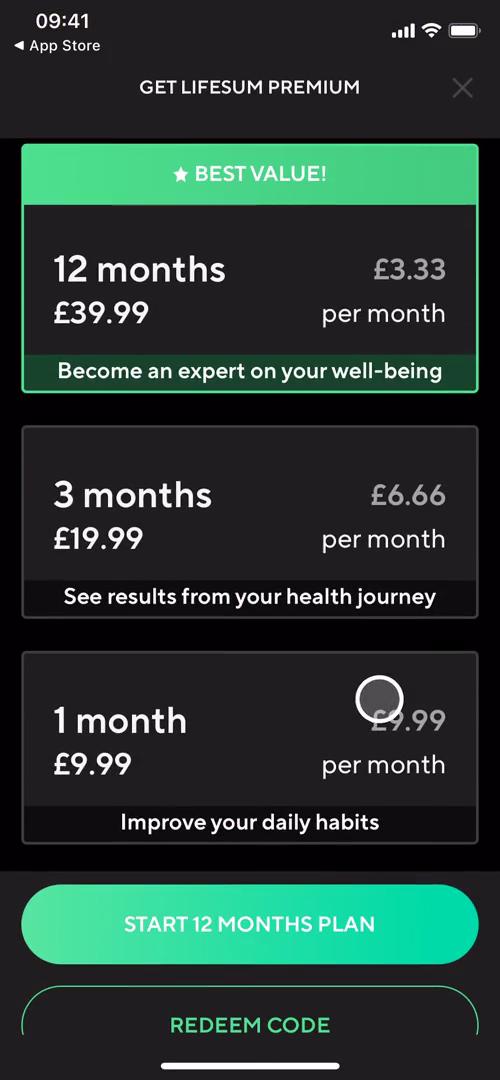
Pricing & plans
this is title
Dashboard
this is title
App store listing
this is title
Splash screen
this is title
Sign up
this is title
Terms & conditions
this is title
Set goal
this is title
Select gender
this is title
Create profile
this is title
Create profile
this is title
Create profile
this is title
Create profile
this is title
Sign up
this is title
Sign up
this is title
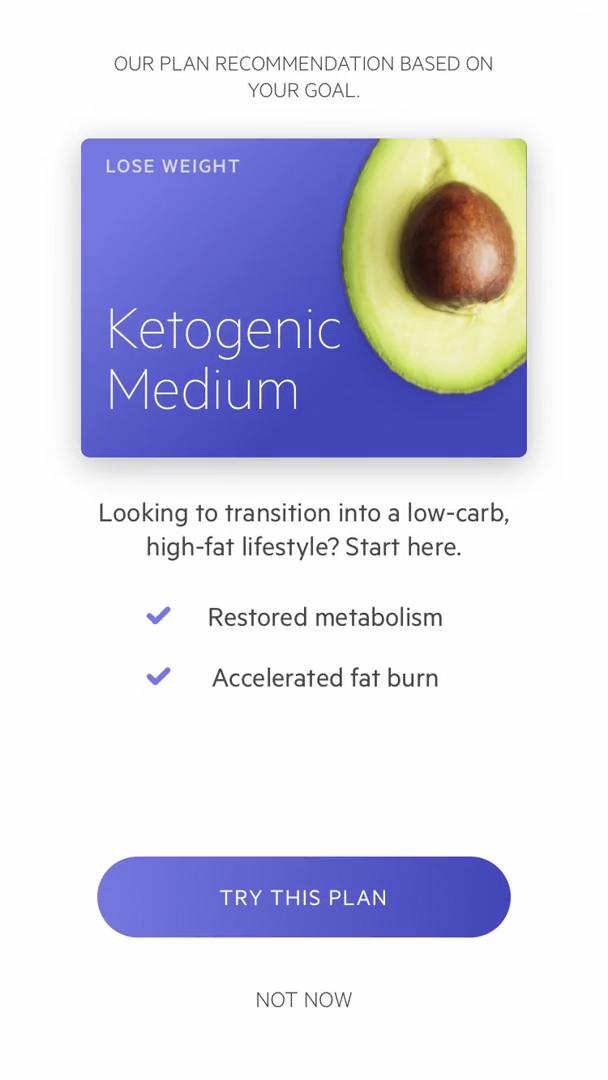
Meal plan recommendation
this is title
Upgrade prompt
this is title
Grant permissions
this is title
Loading
this is title
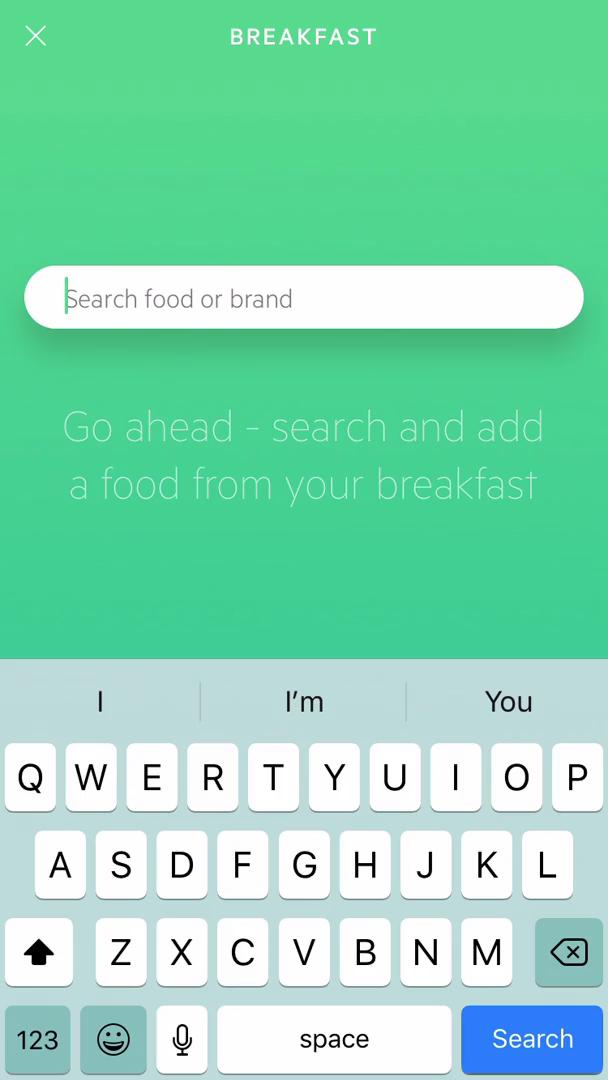
Search
this is title
Search results
this is title
Add meal
this is title
Set unit
this is title
Dashboard
this is title
Survey
this is title
Survey
this is title
Meal plan recommendation
this is title
Upgrade prompt
this is title
Dashboard
this is title
Tracked meals
this is title
Nutritional Information
this is title
this is title
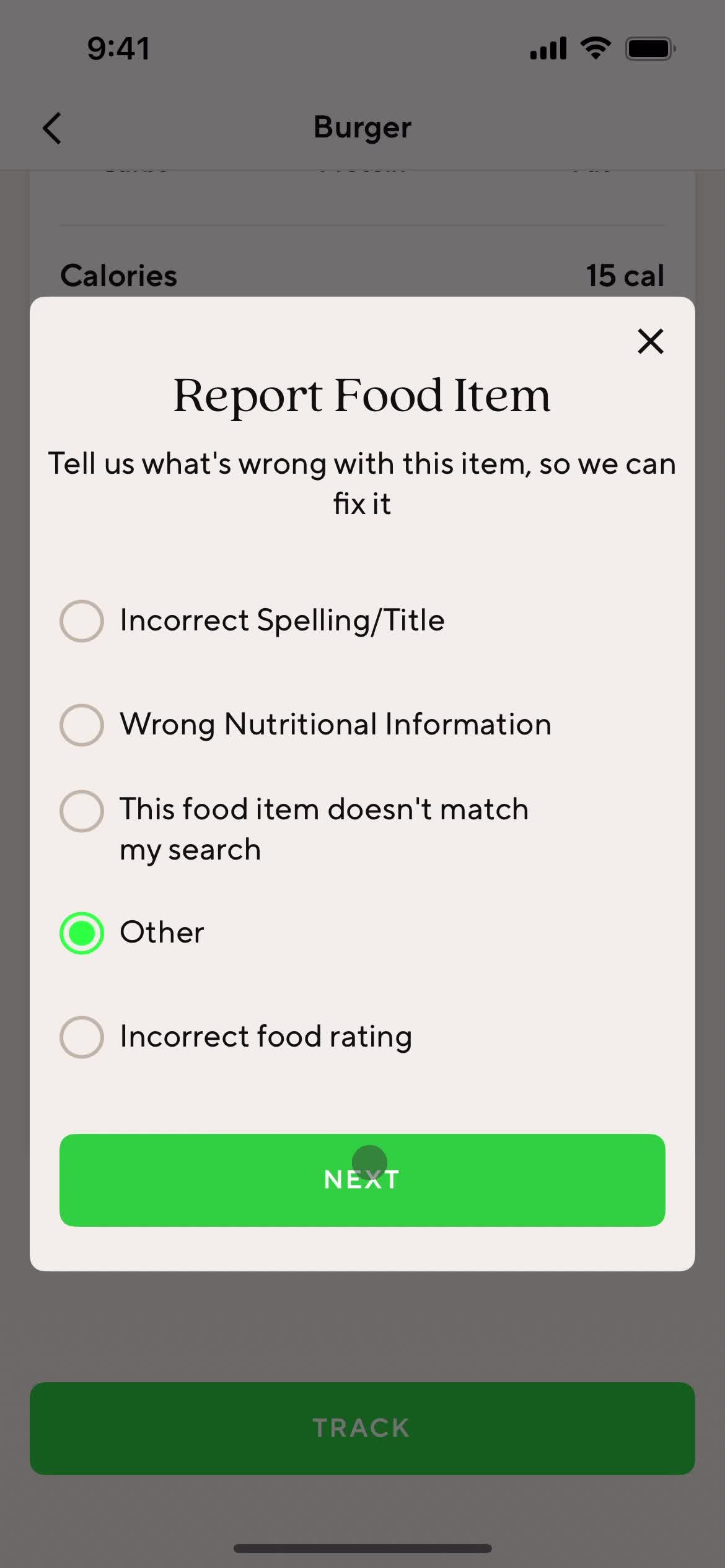
Report options
this is title
this is title
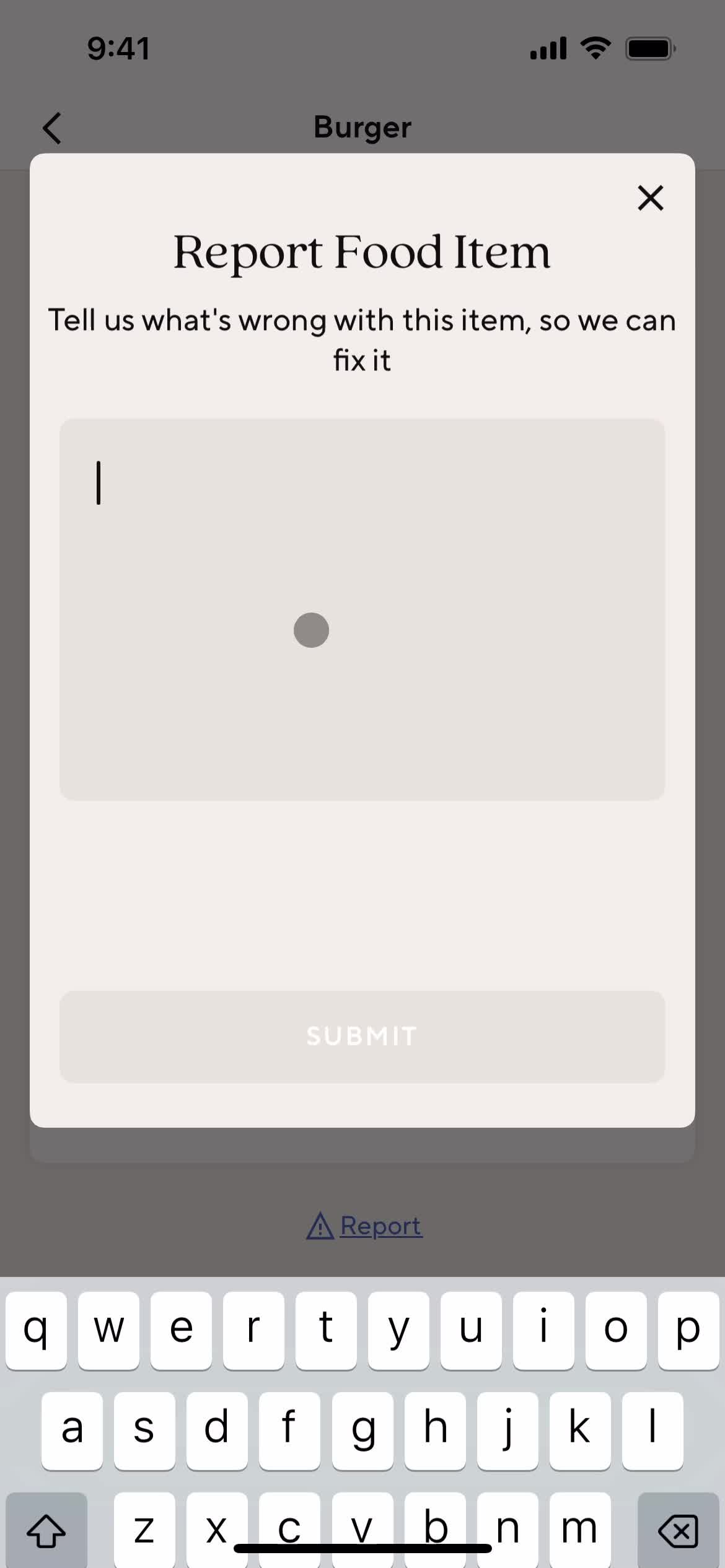
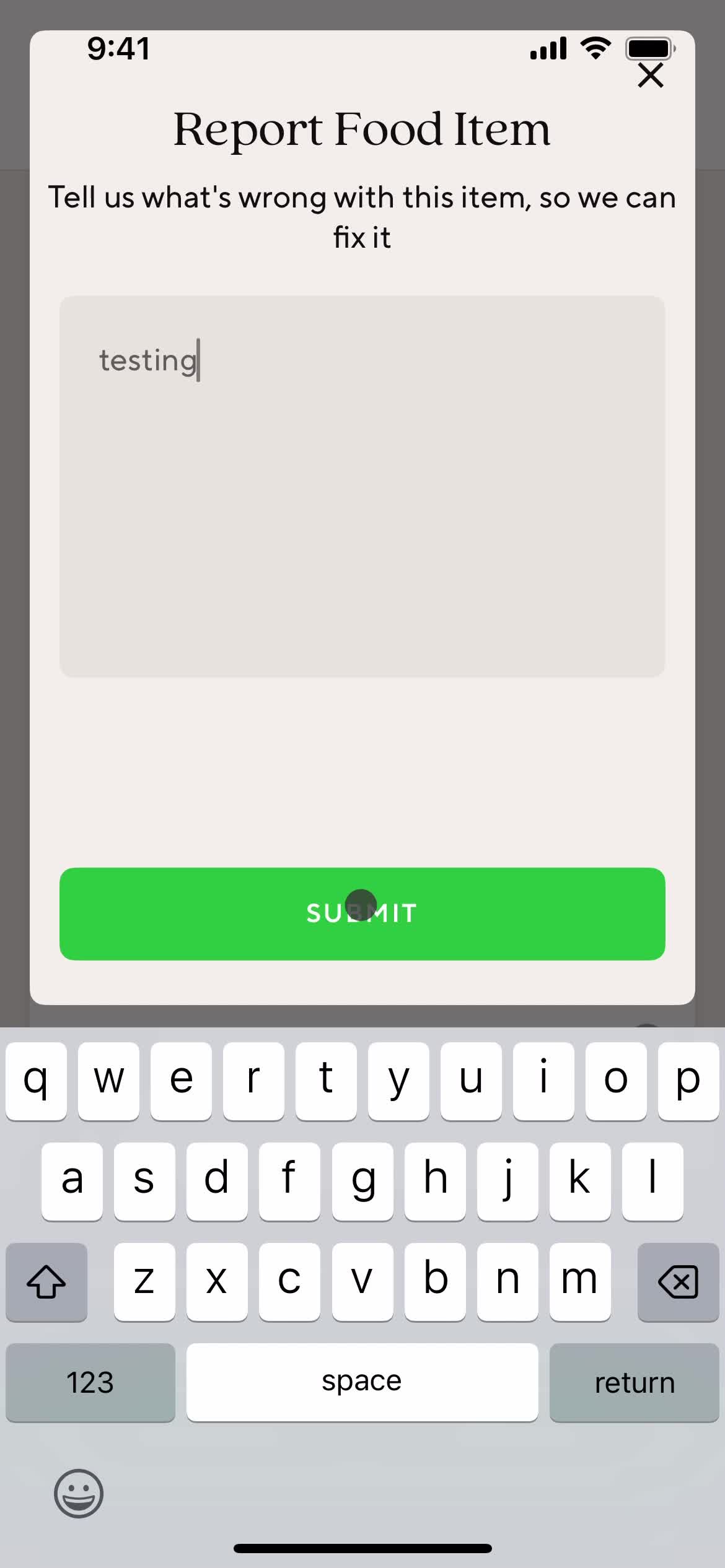
Submit report
this is title
this is title
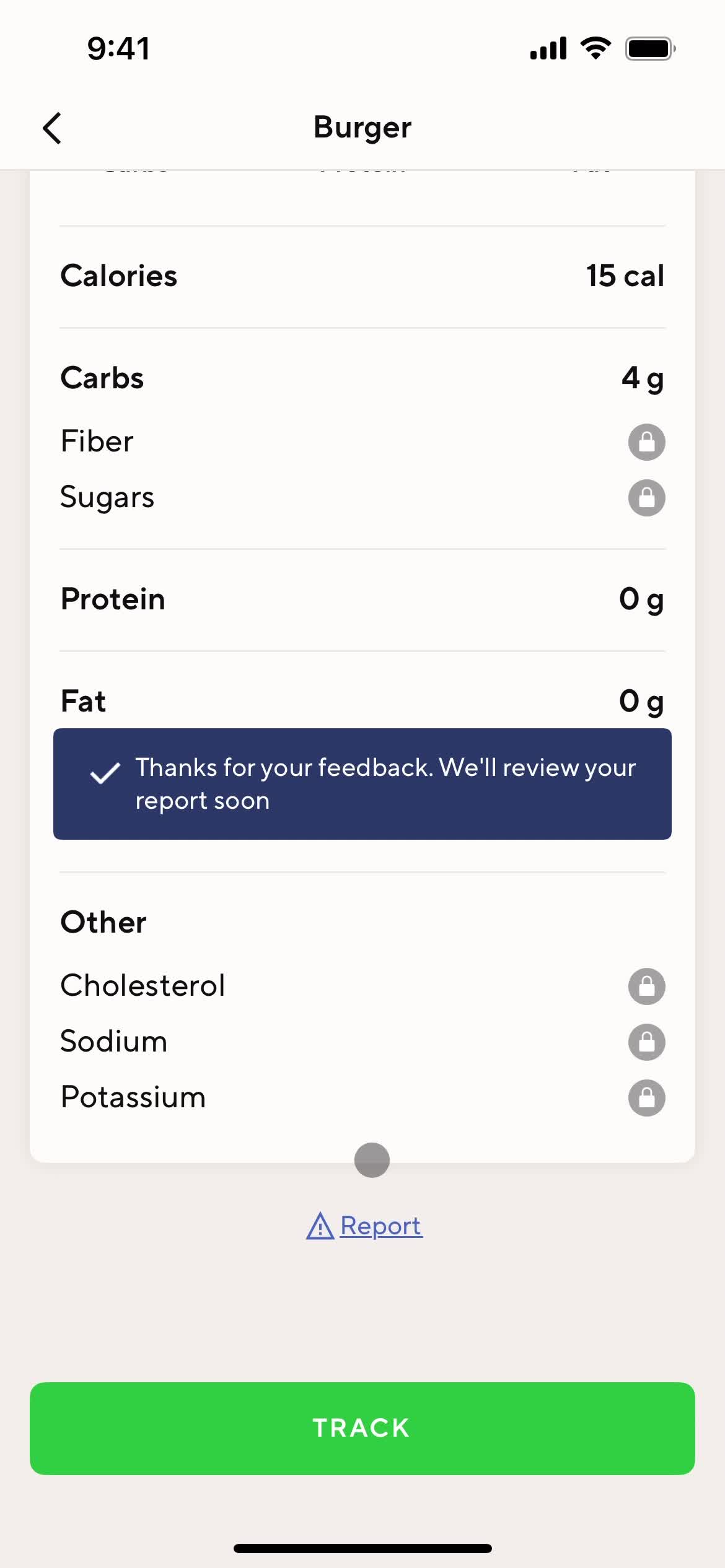
Report submitted
this is title
Get started
this is title
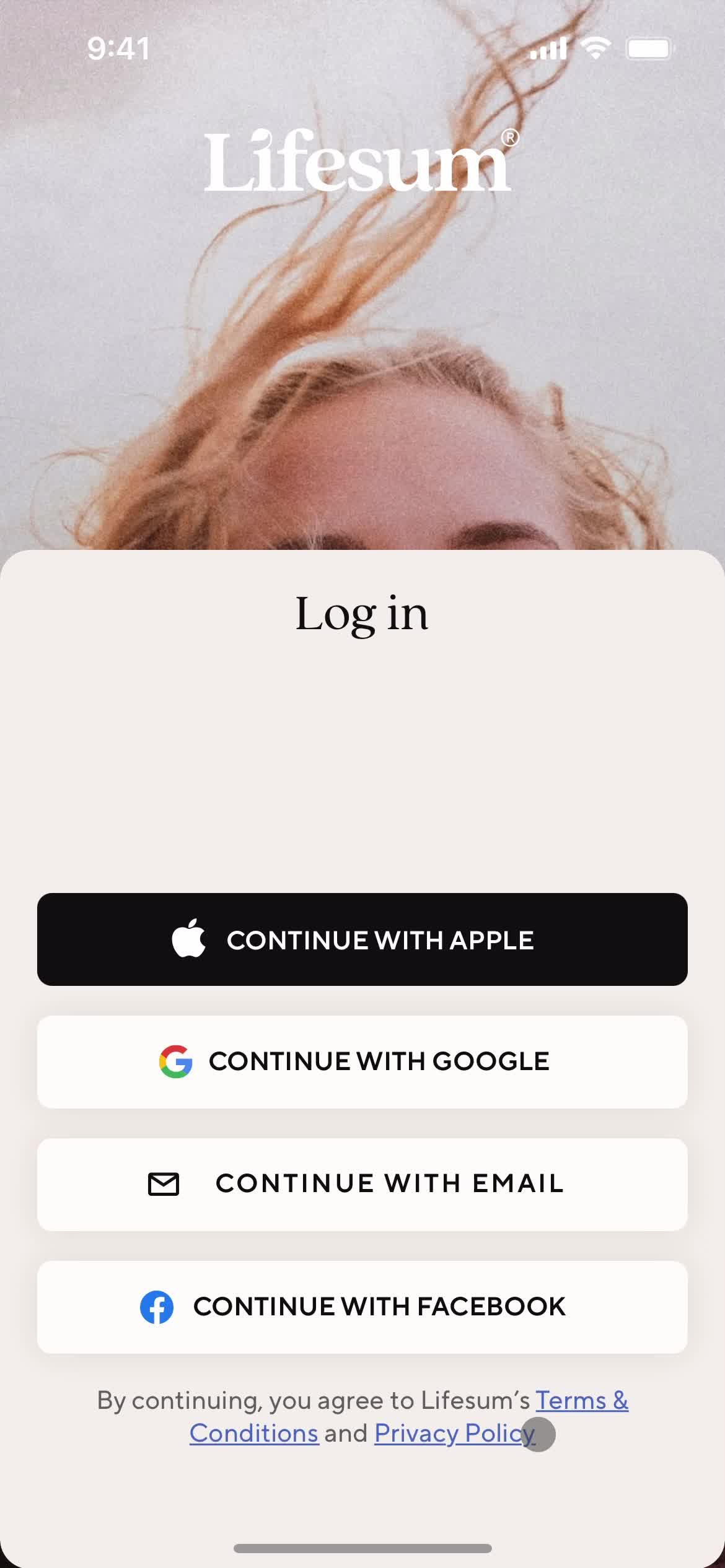
Log in
this is title
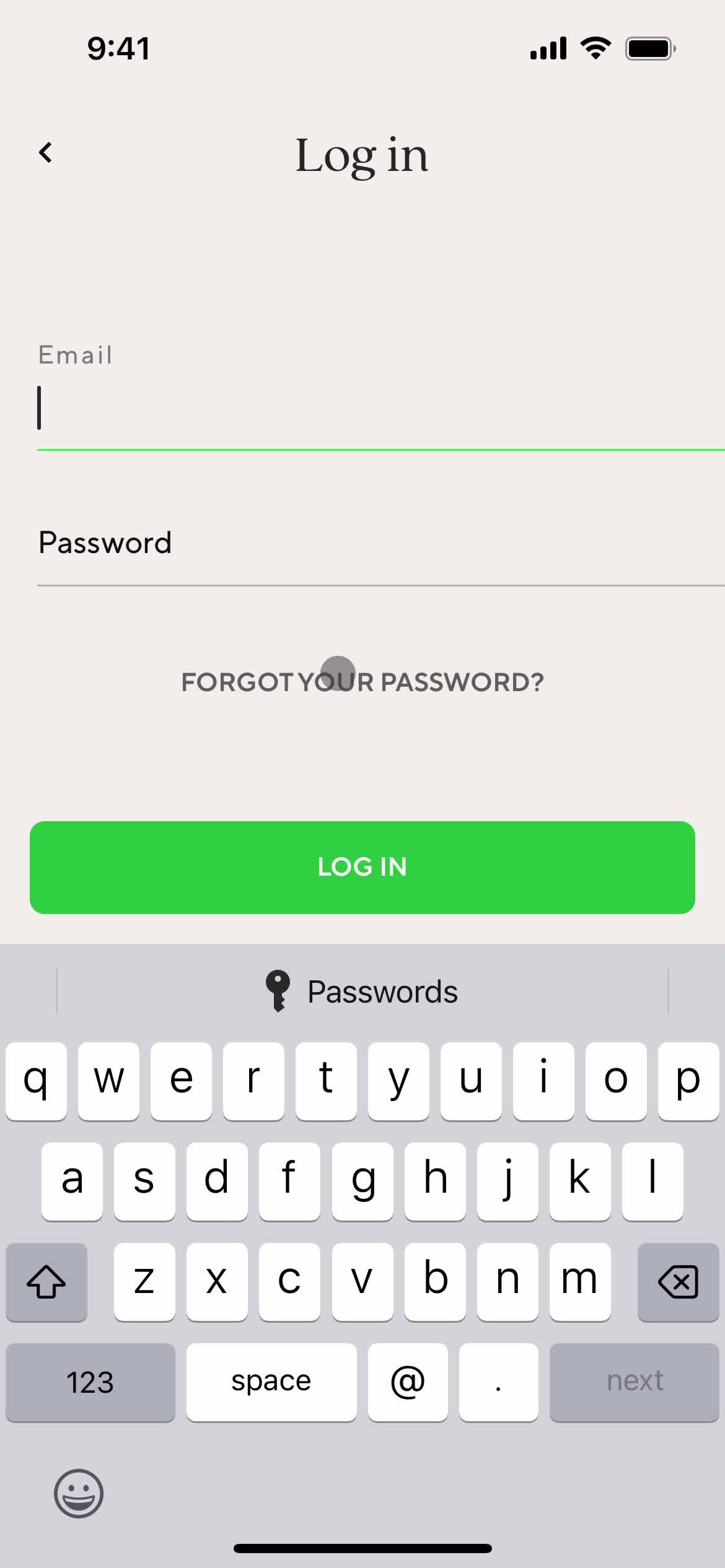
Log in
this is title
Forgot password
this is title
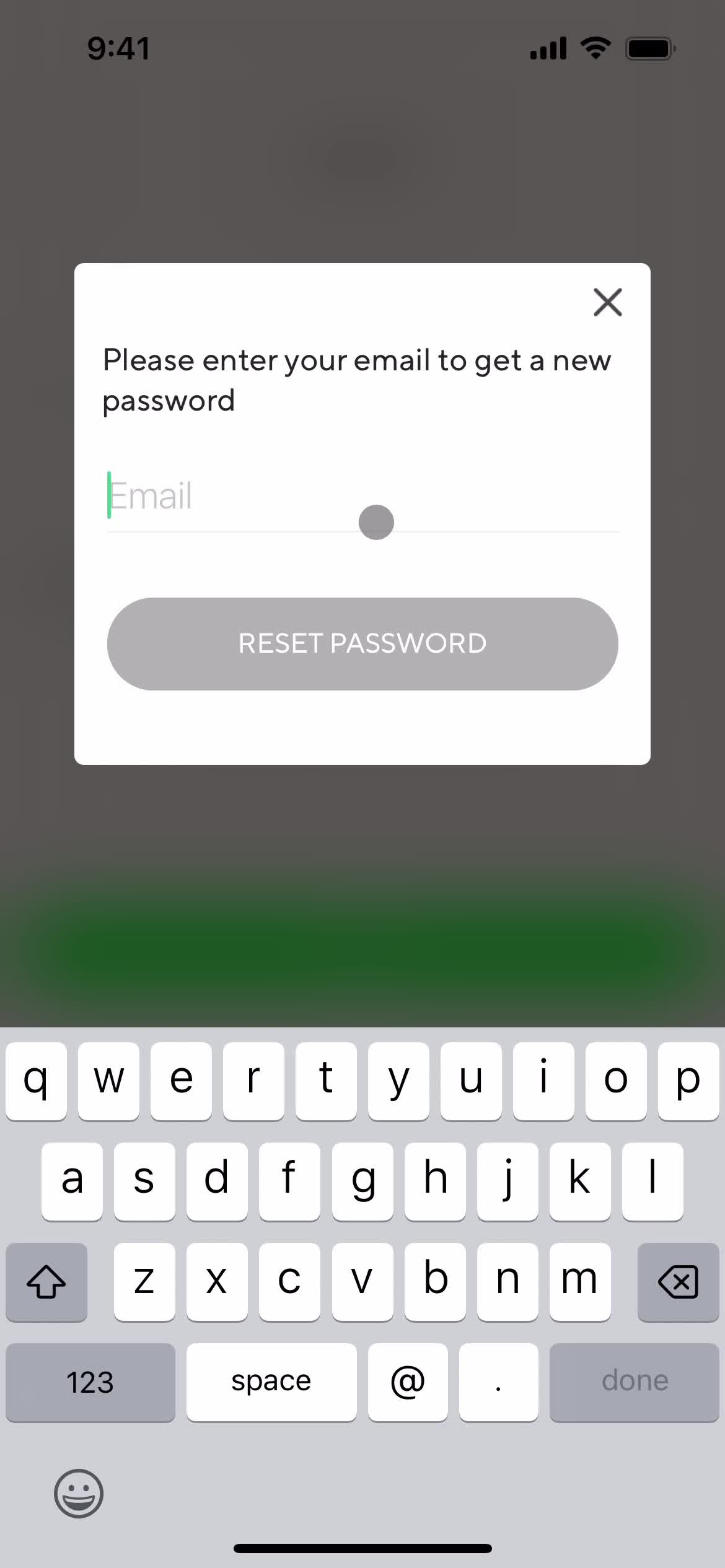
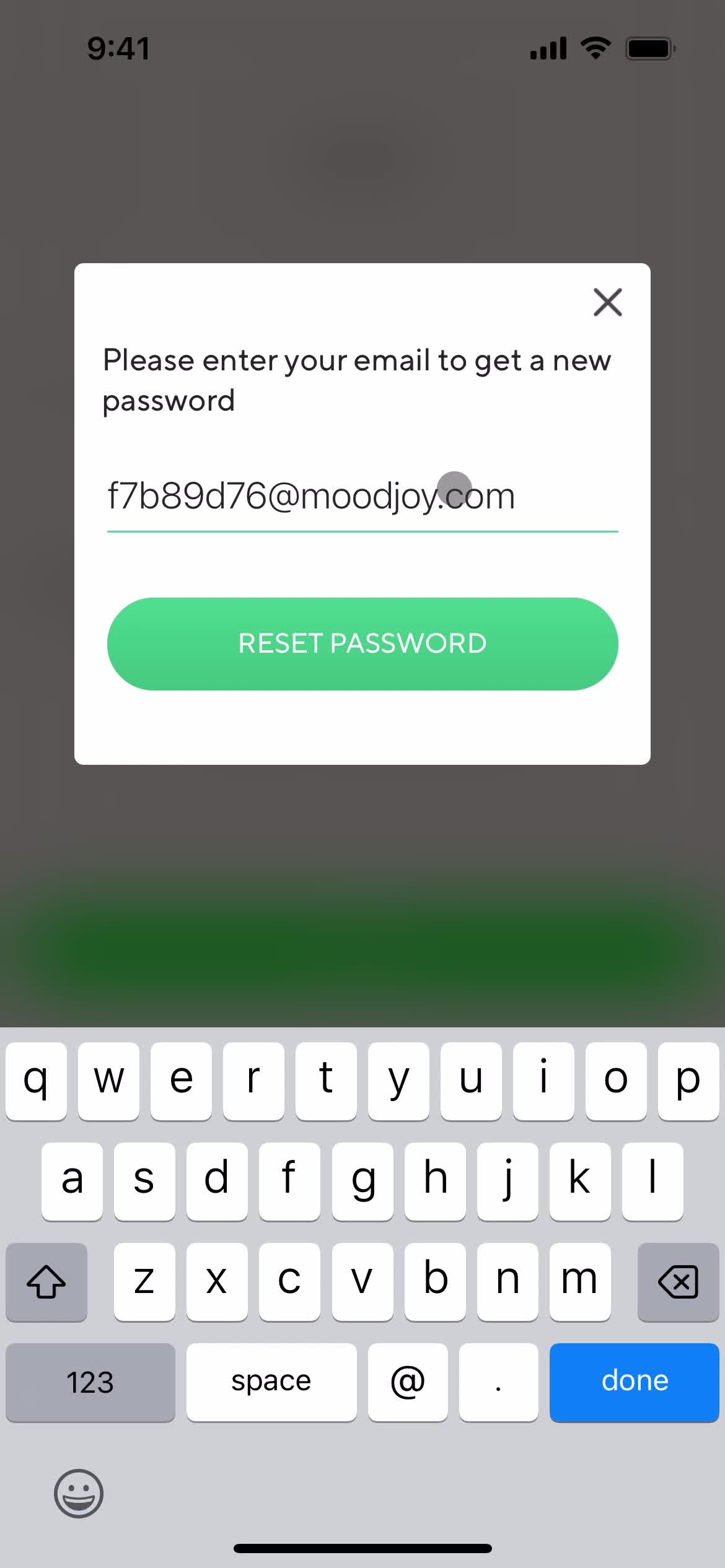
Reset password
this is title
Enter email
this is title
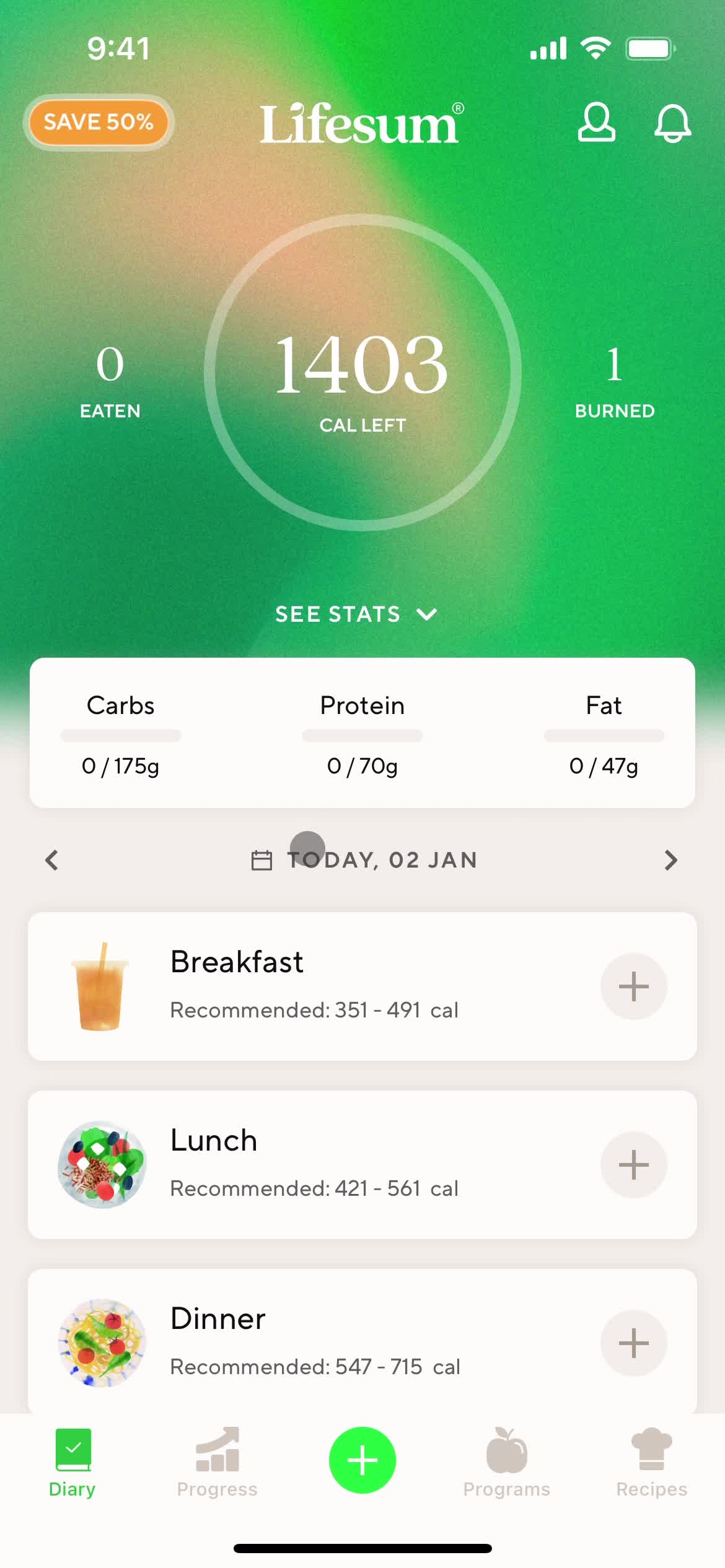
Dashboard
this is title
Dashboard
this is title
Recipes
this is title
Search
this is title
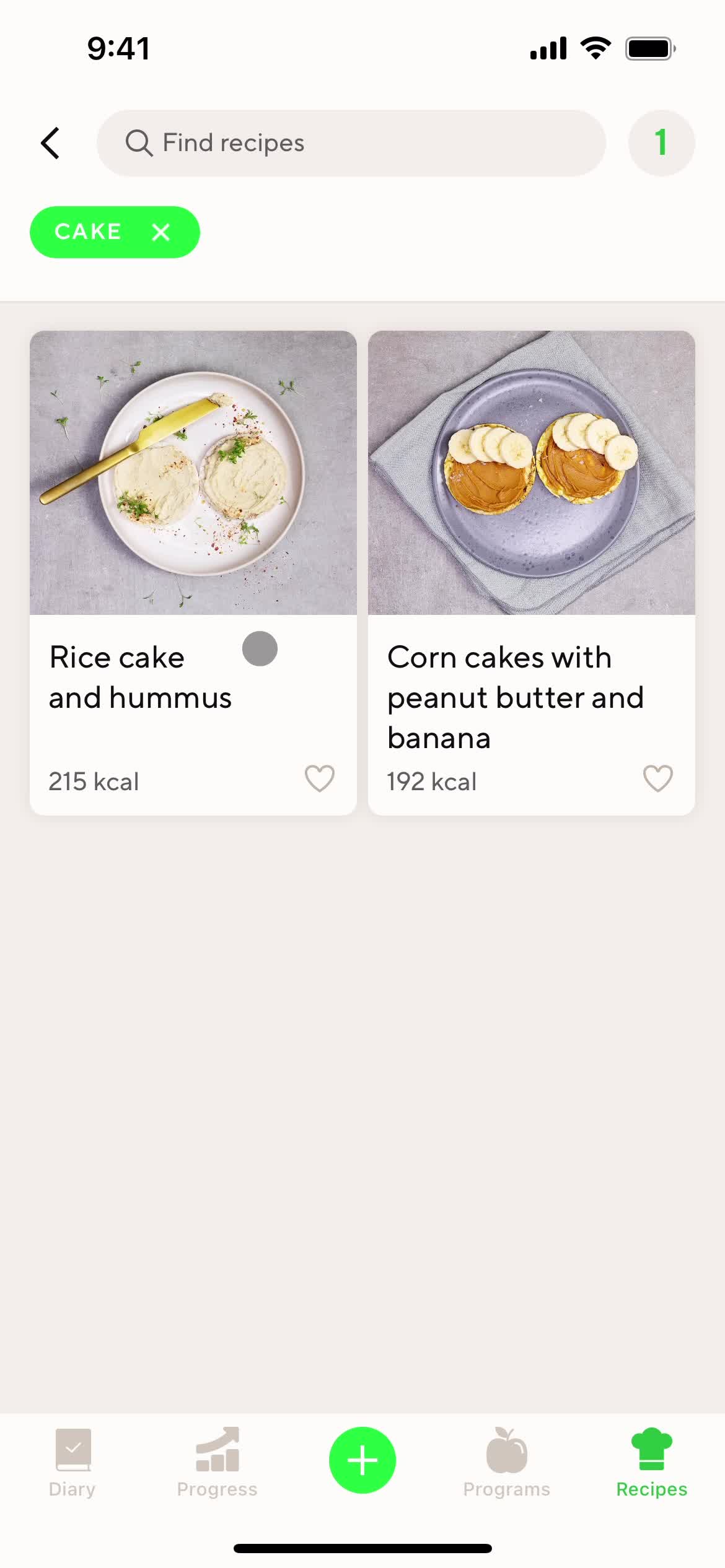
Search results
this is title
Recipe details
this is title
Recipes
this is title
Search
this is title
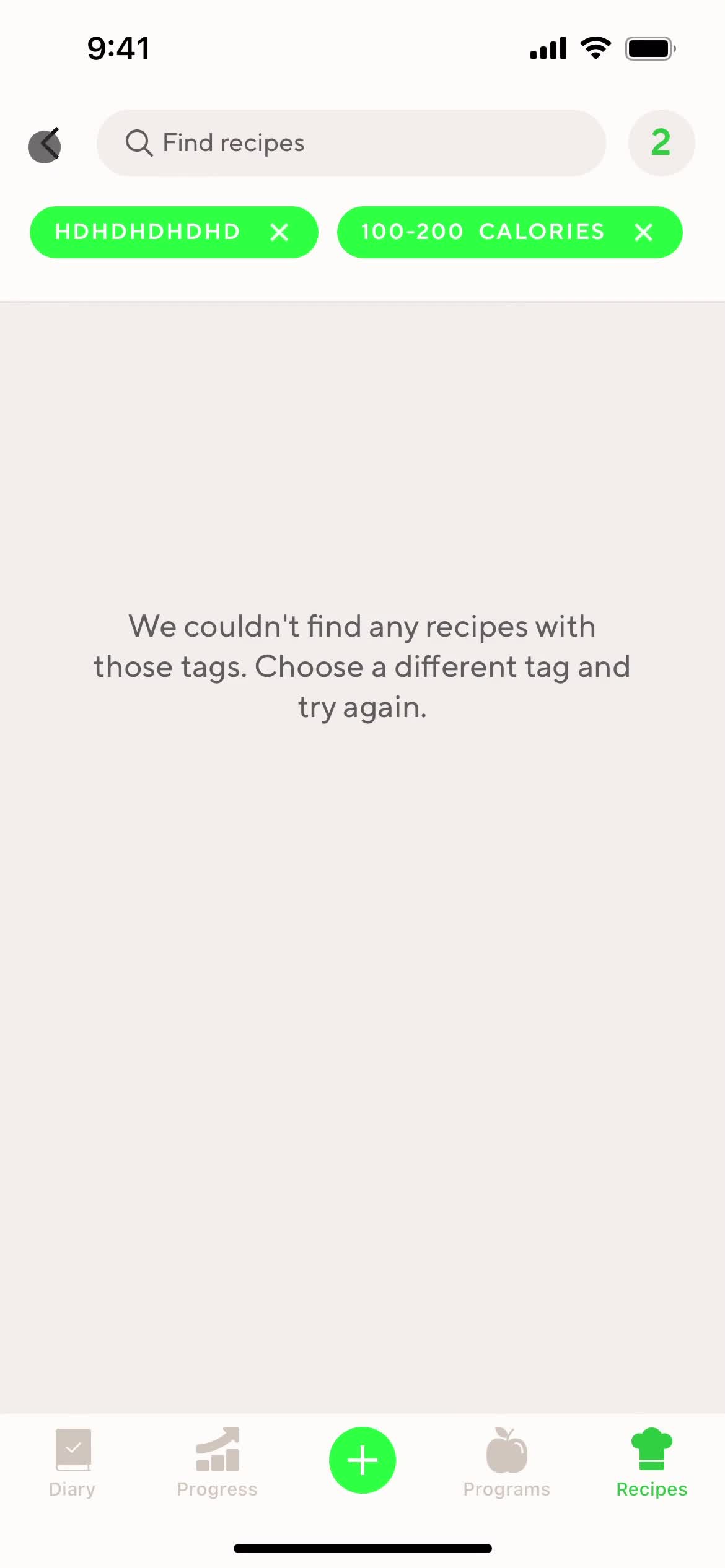
No search results
this is title
Dashboard
this is title
Programs
this is title
Test question
this is title
this is title
this is title
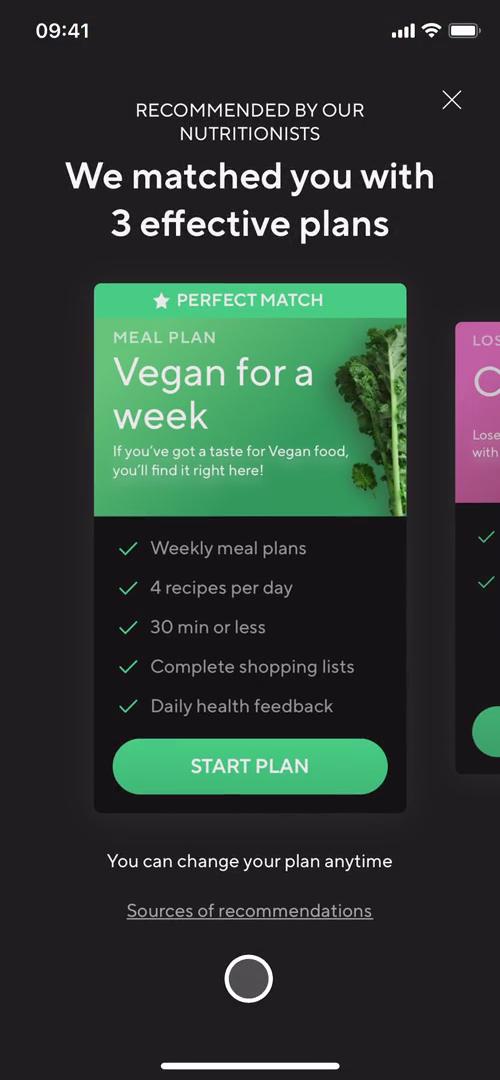
Recommendations
this is title
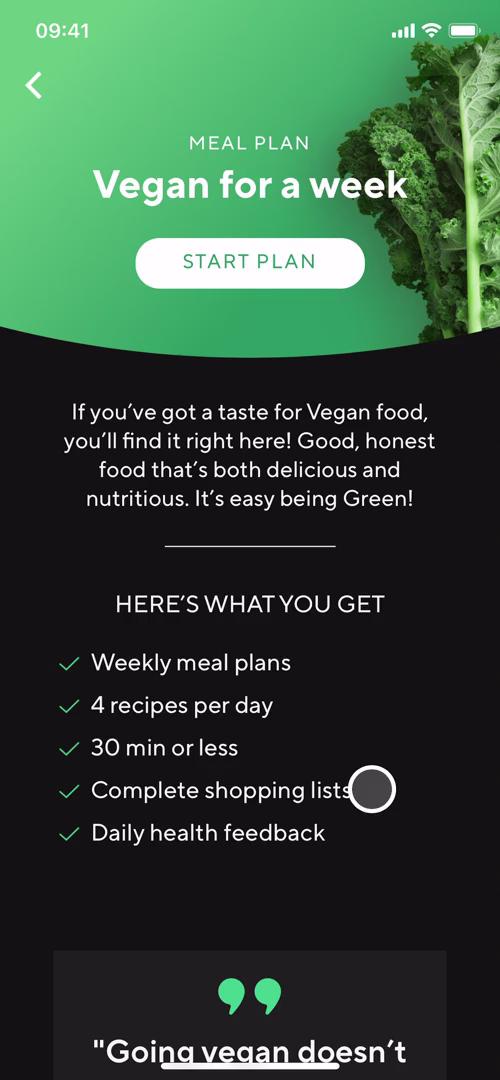
Plan details
this is title
Upgrade plan
this is title
this is title
this is title
Programs
this is title
this is title
Recommendations
this is title
Plan details
this is title
Premium plan details
this is title
Dashboard
this is title
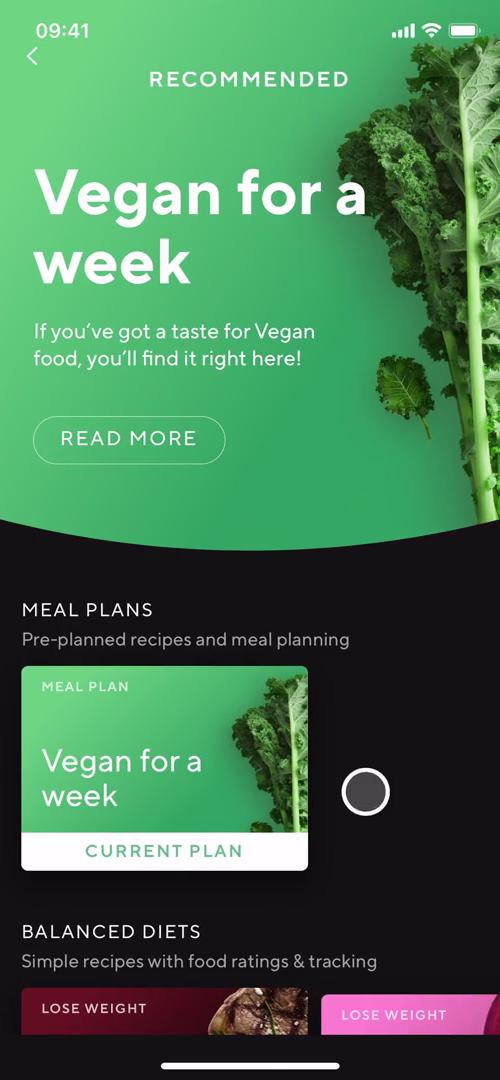
Meal plans
this is title
Survey question
this is title
Survey question
this is title
Survey question
this is title
Recommendations
this is title
Plan details
this is title
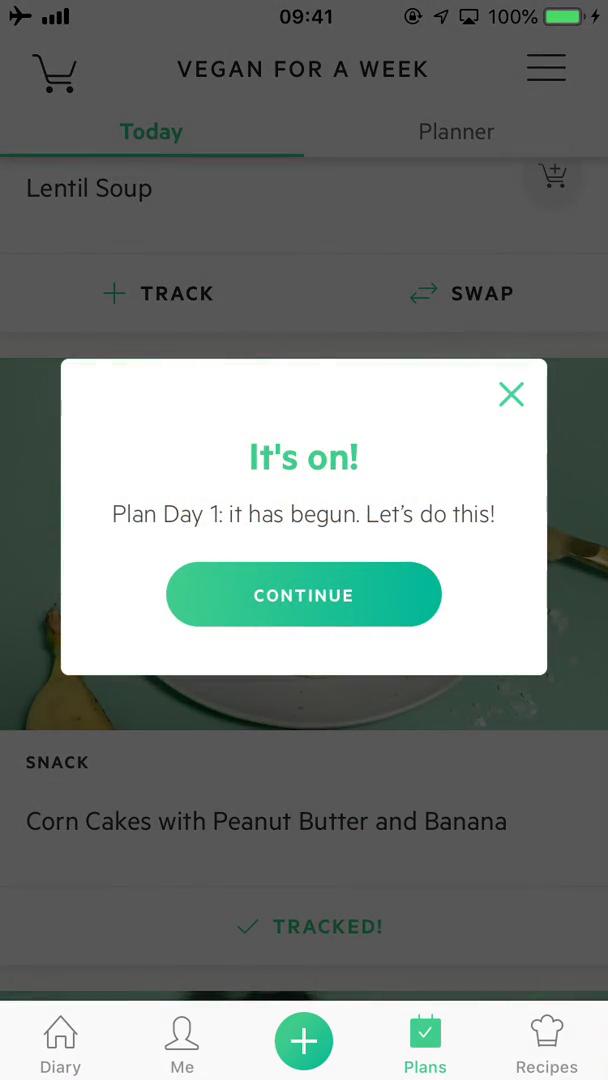
Start plan
this is title
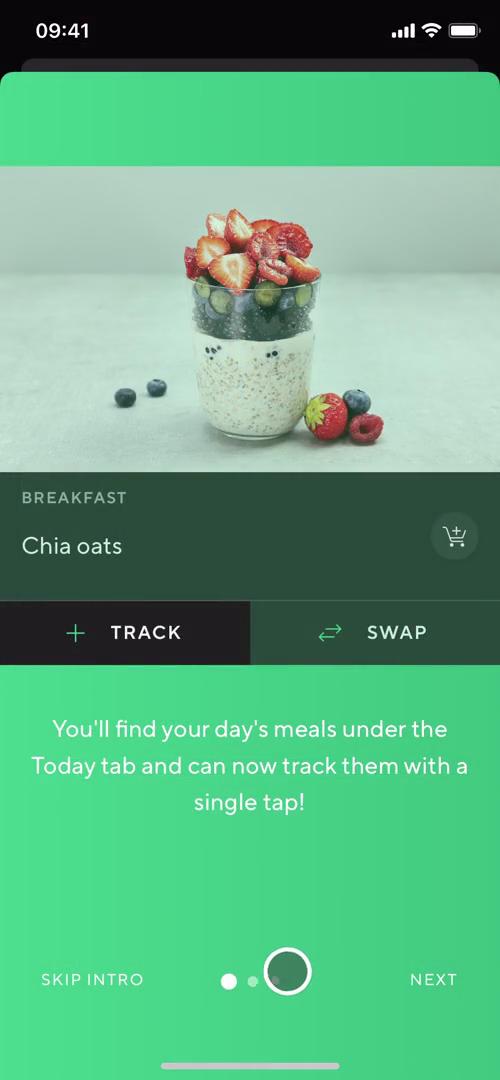
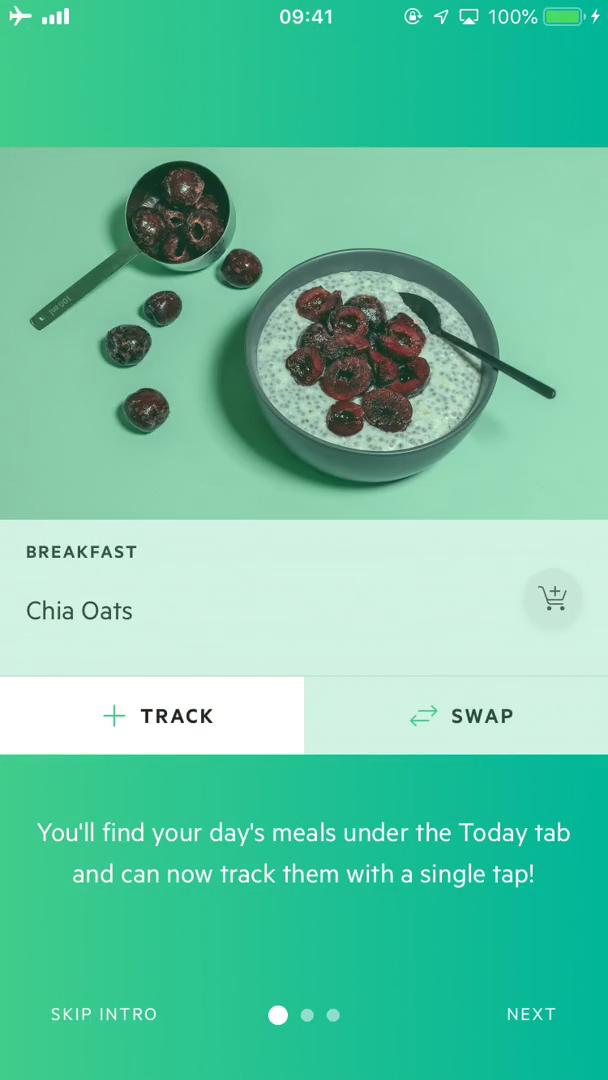
Introduction slides
this is title
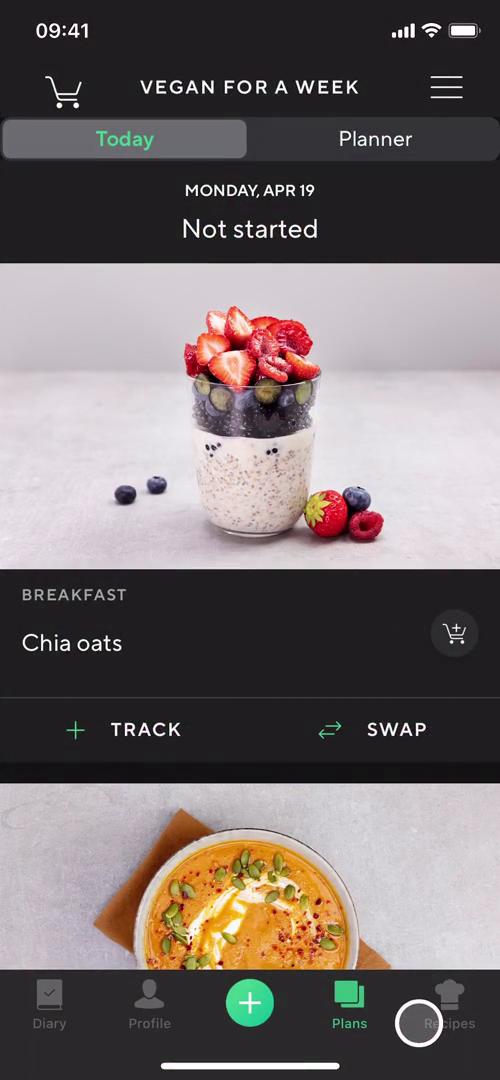
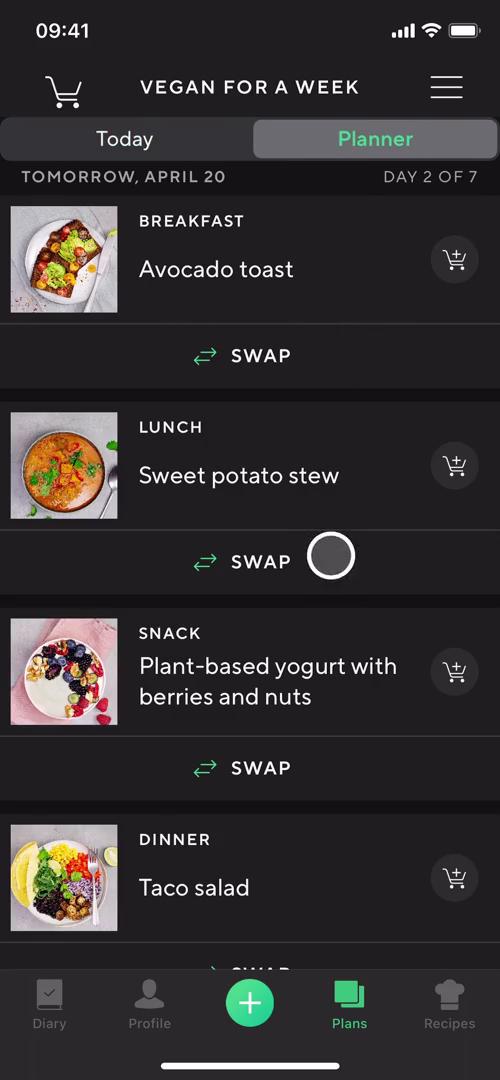
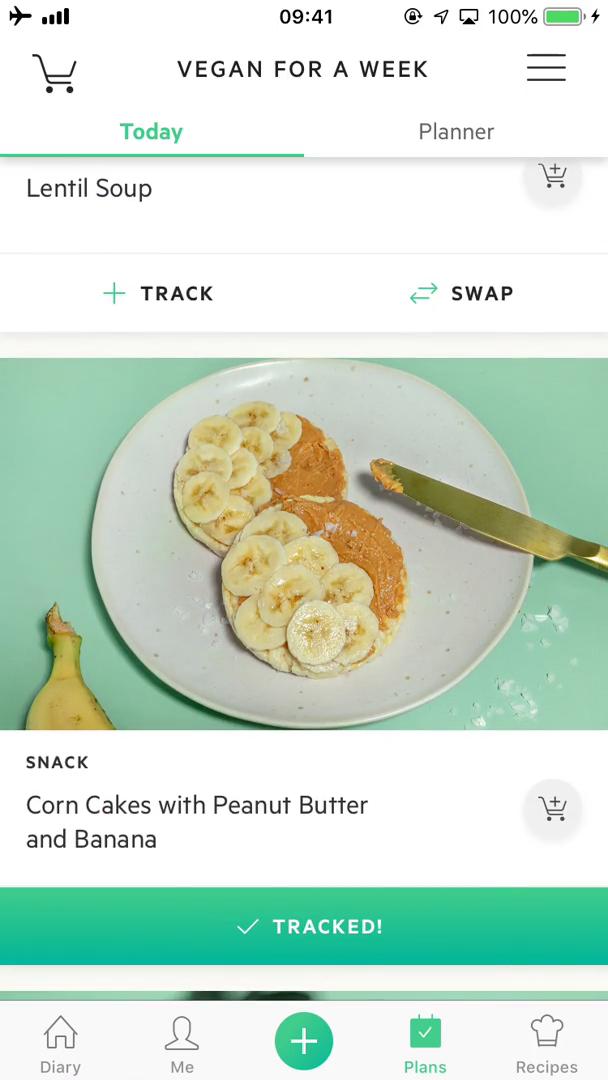
Meal plan
this is title
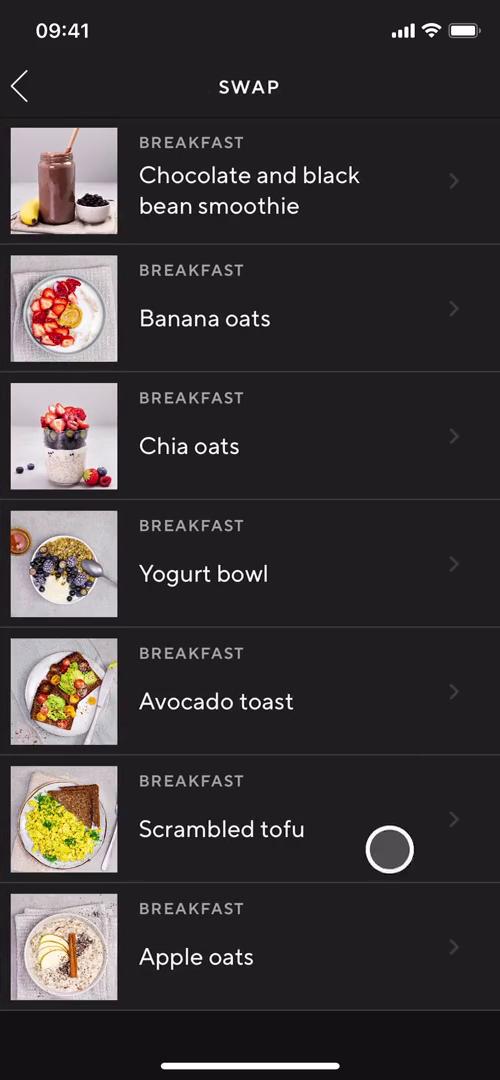
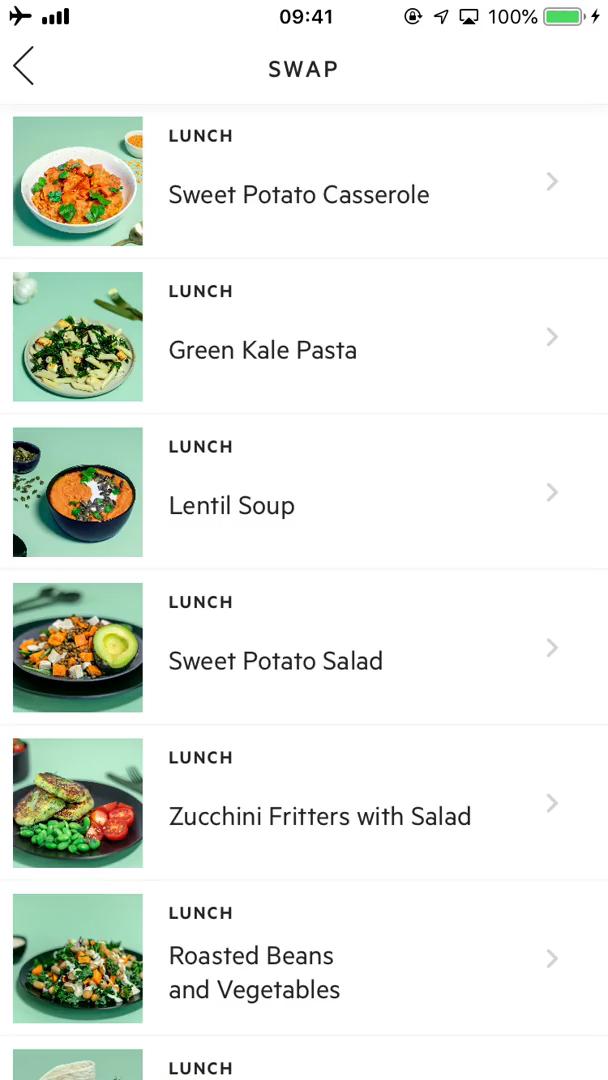
Swap
this is title
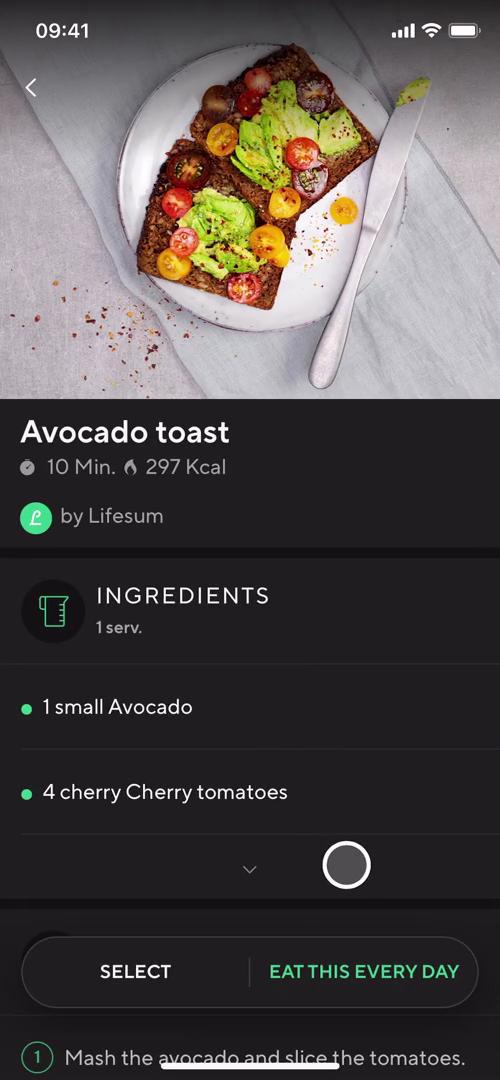
Recipe details
this is title
Planner
this is title
Edit plan
this is title
Meal plans
this is title
Plan details
this is title
Shopping list
this is title
Meal plan
this is title
Dashboard
this is title
Dashboard
this is title
Meal plans
this is title
Meal plans
this is title
Meal plan
this is title
Meal plan
this is title
Guide
this is title
Meal plan
this is title
Meal plan
this is title
Recipes
this is title
Recipe details
this is title
Shopping list
this is title
Dashboard
this is title
Track activity
this is title
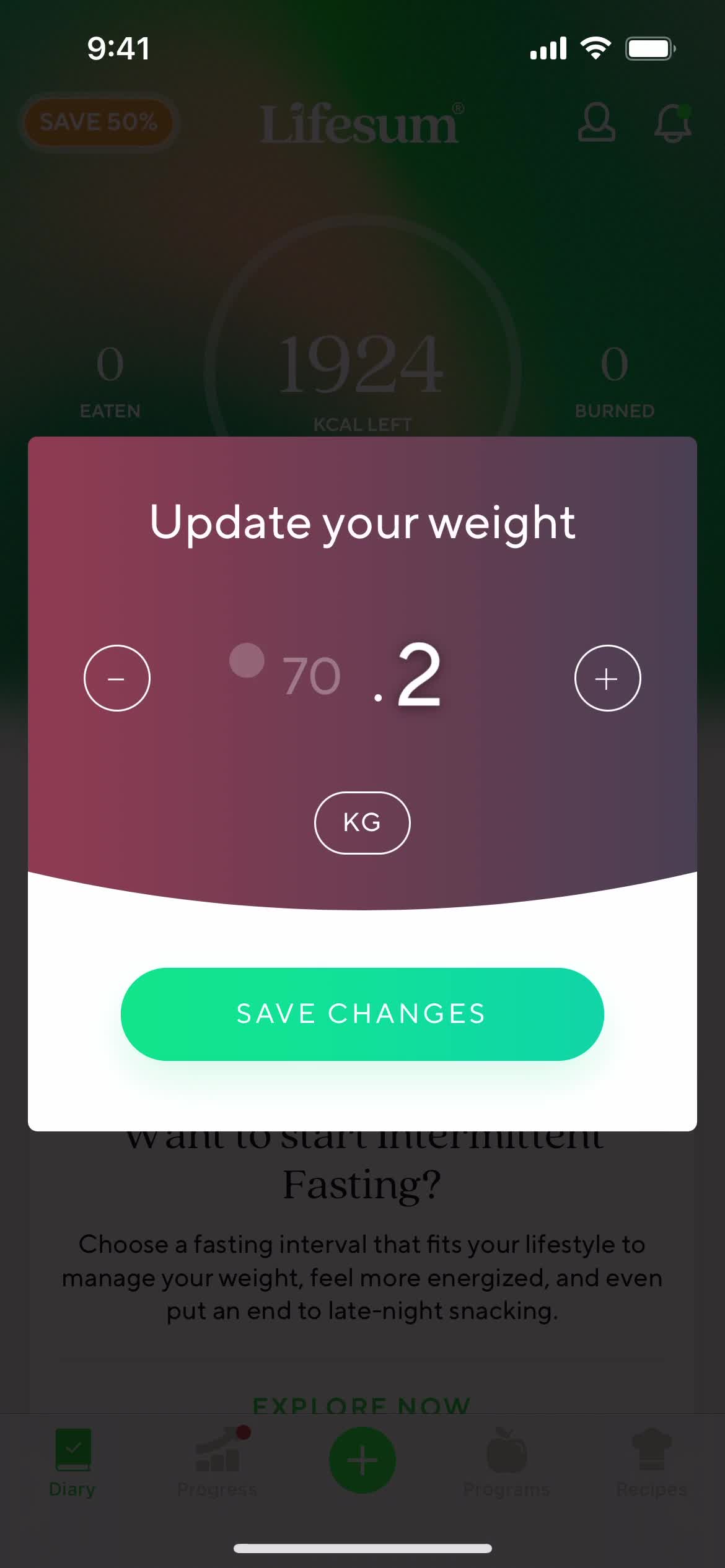
Enter weight
this is title
Track activity
this is title
Add meal
this is title
Favorites
this is title
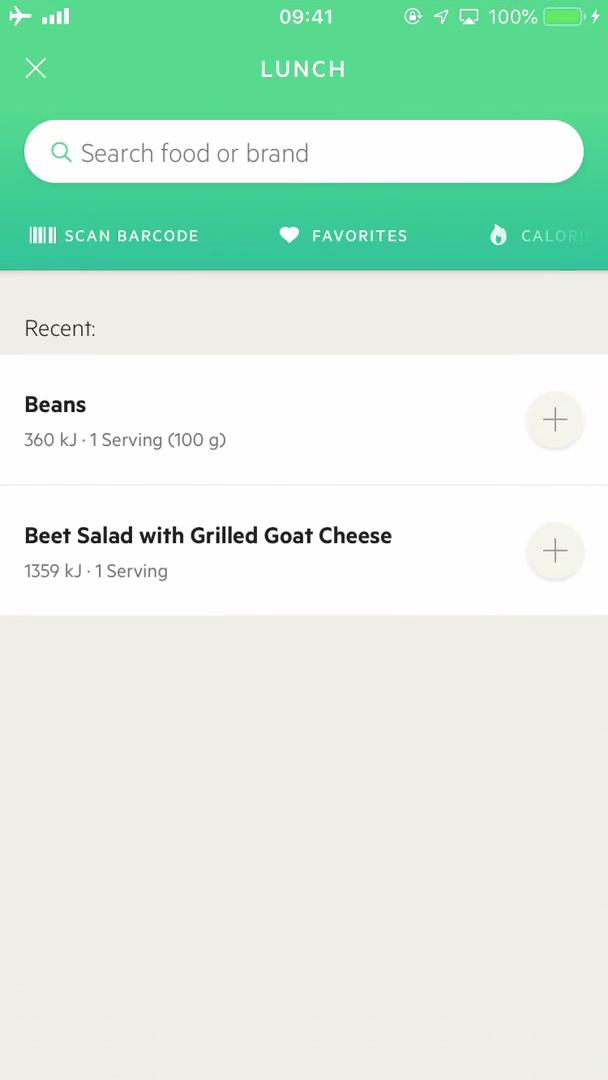
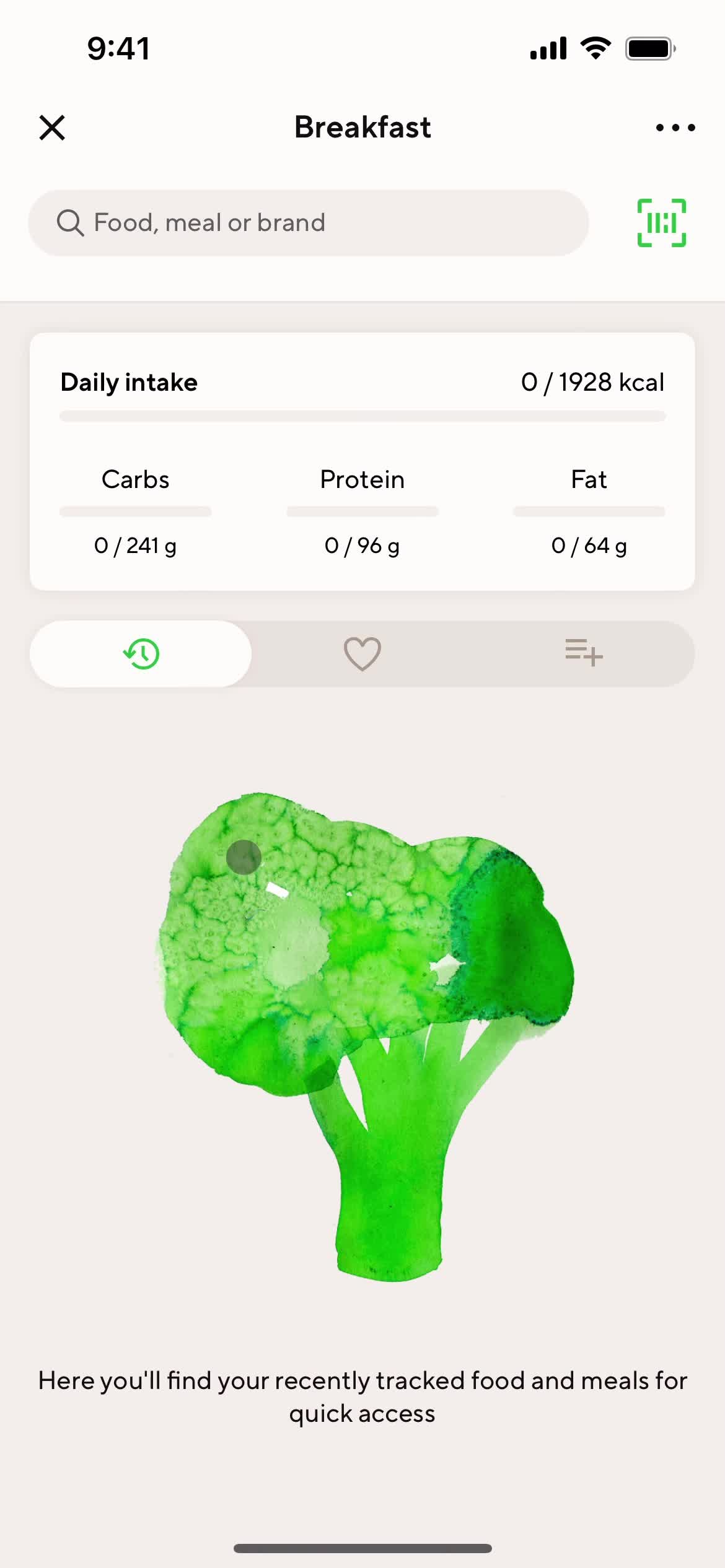
Recent foods
this is title
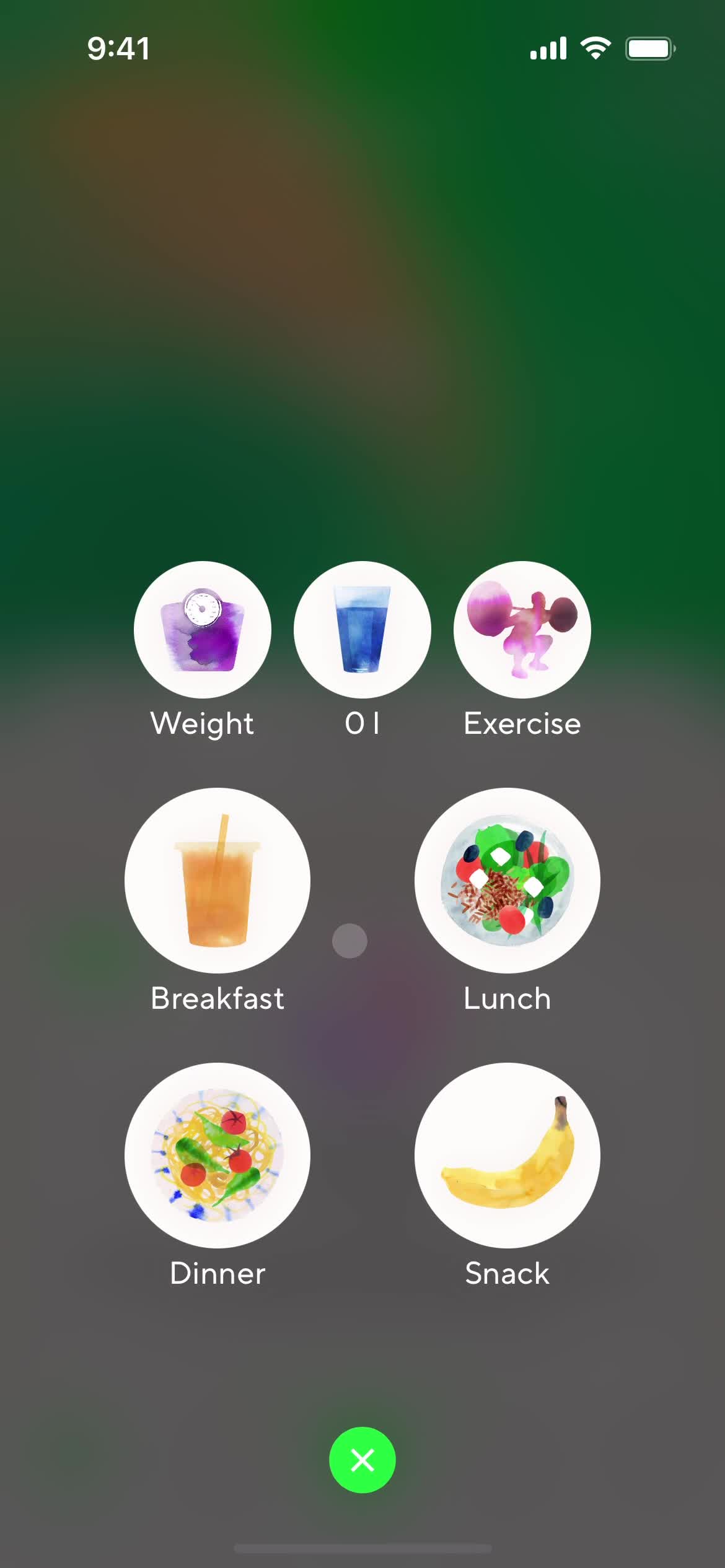
Action menu
this is title
Create meal
this is title
Enter name
this is title
Category
this is title
Select category
this is title
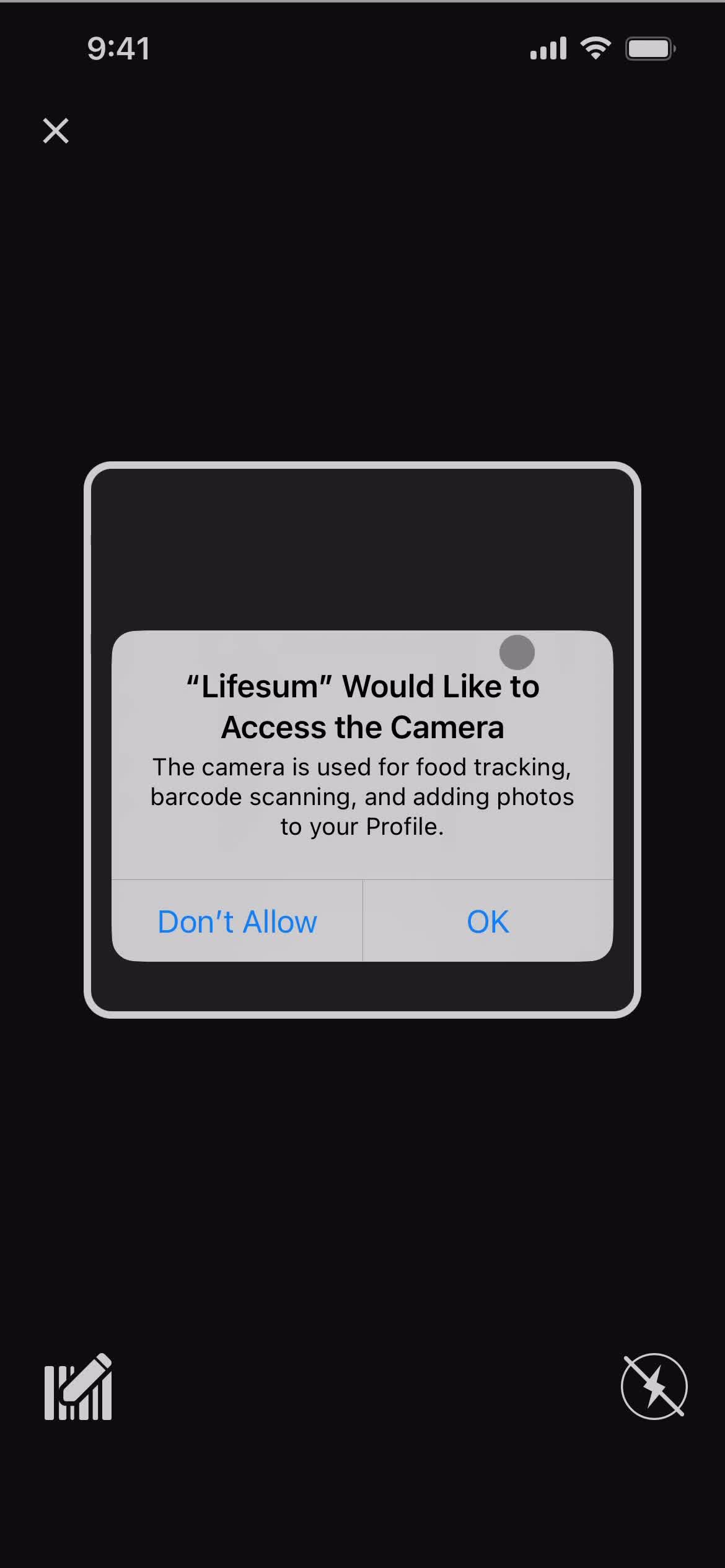
Enable camera access
this is title
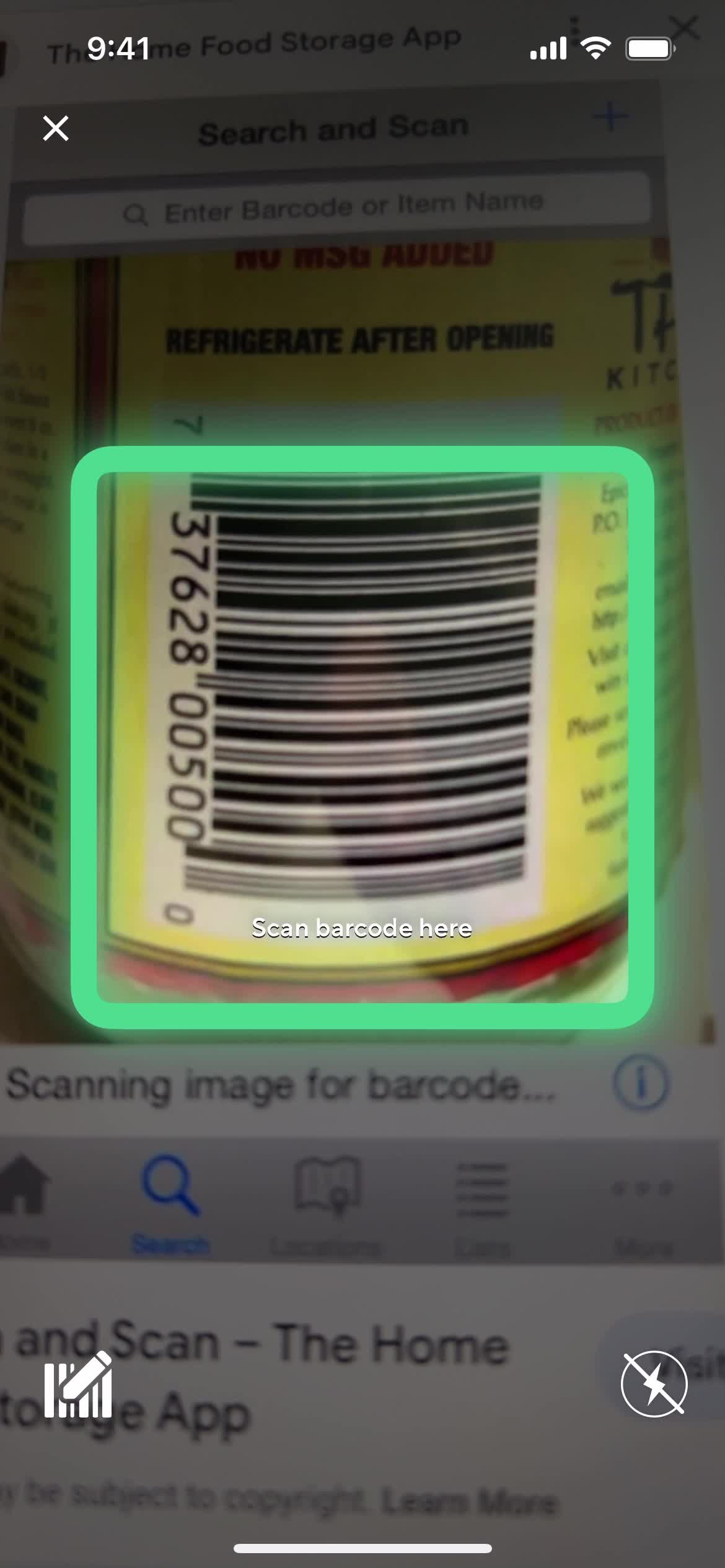
Scan barcode
this is title
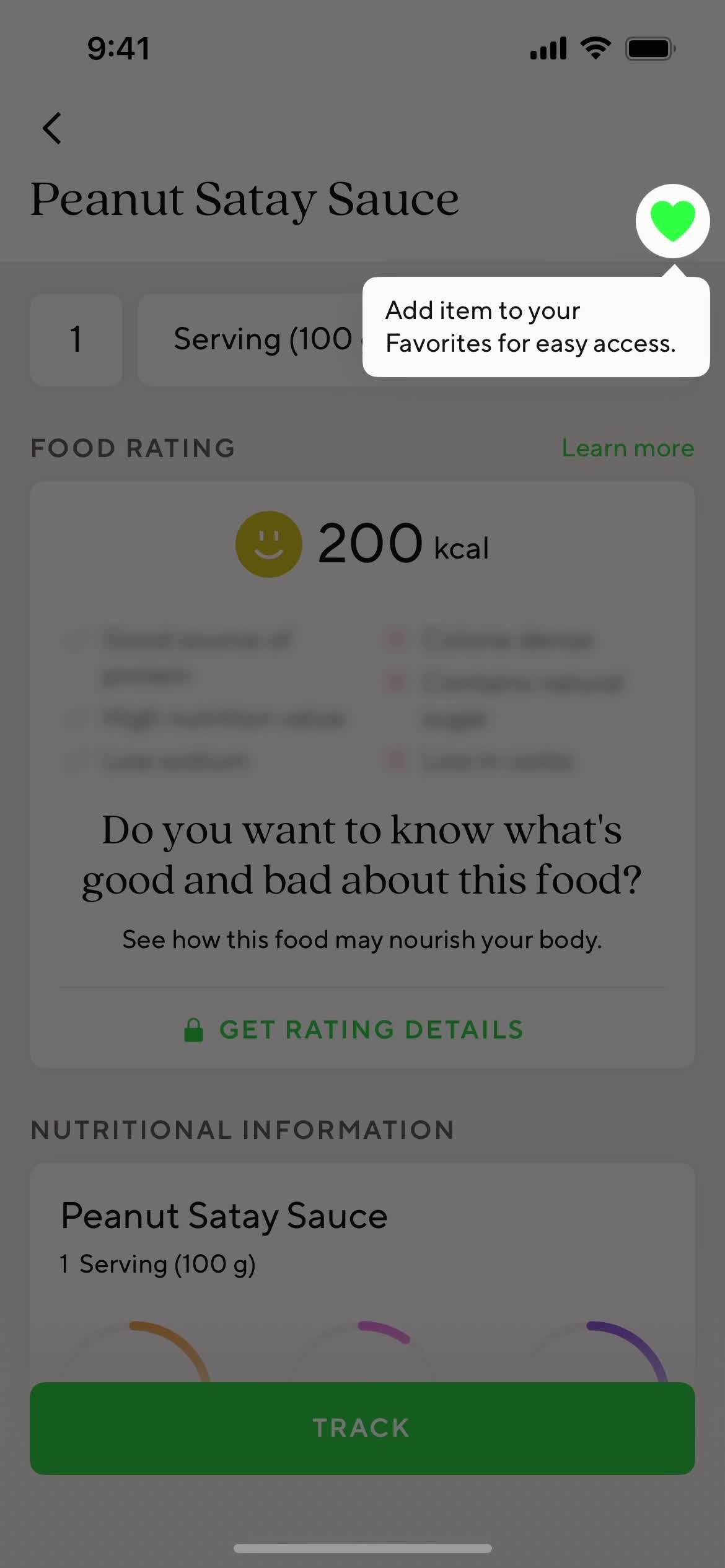
Add favorite
this is title
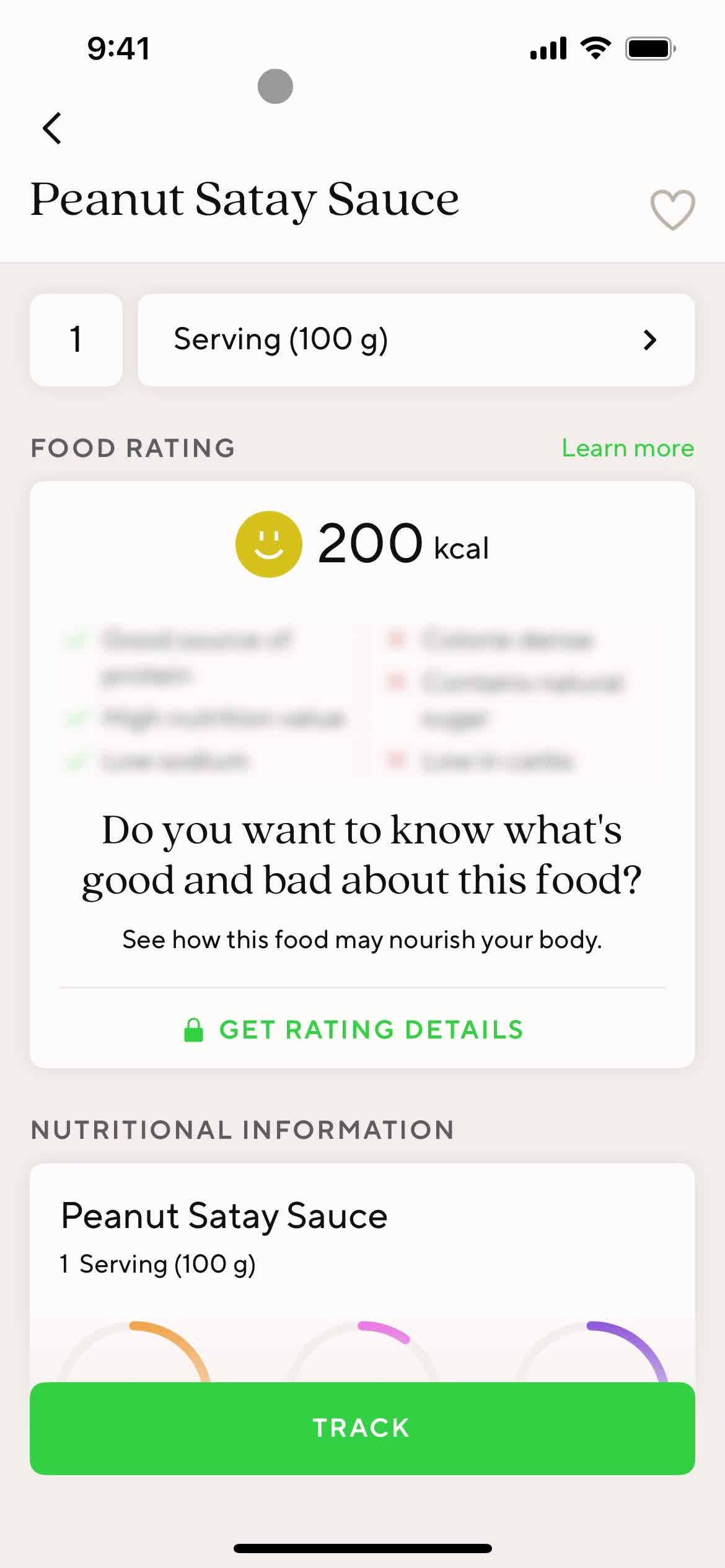
Nutritional Information
this is title
Meal details
this is title
Serving
this is title
Enter weight
this is title
Select options
this is title
this is title
Nutritional Information
this is title
Set details
this is title
this is title
this is title
this is title
Confirm
this is title
Nutritional Information
this is title
Meal details
this is title
Tracked meals
this is title
Action menu
this is title
Create meal
this is title
Premium plan details
this is title
Create meal
this is title
Track calories
this is title
Dashboard
this is title
Tracked meals
this is title
Dashboard
this is title
Add meal
this is title
Scan barcode
this is title
Meal details
this is title
Tracked
this is title
Tracked meals
this is title
Add meal
this is title
Scan barcode
this is title
Meal details
this is title
Tracked
this is title
Dashboard
this is title
Action menu
this is title
Add shortcut
this is title
this is title
Add exercise
this is title
Select exercises
this is title
Track time
this is title
Select exercise
this is title
Track time
this is title
Tracking options
this is title
Export data
this is title
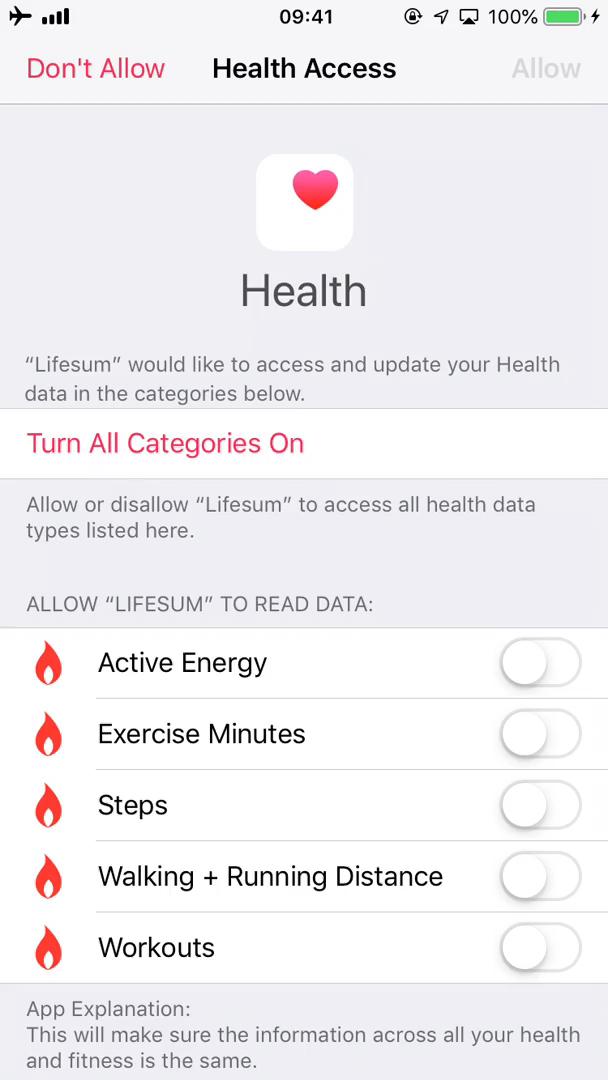
Set access permissions
this is title
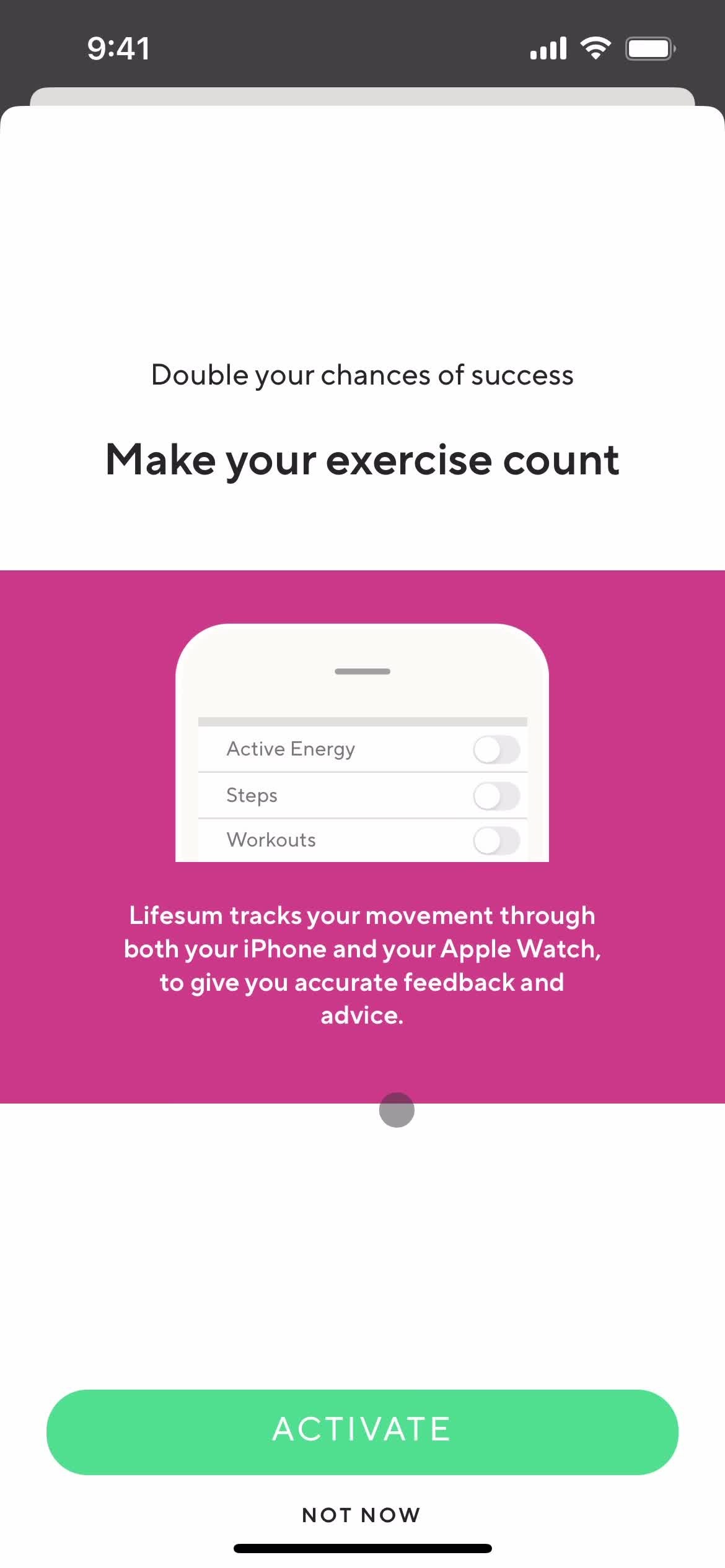
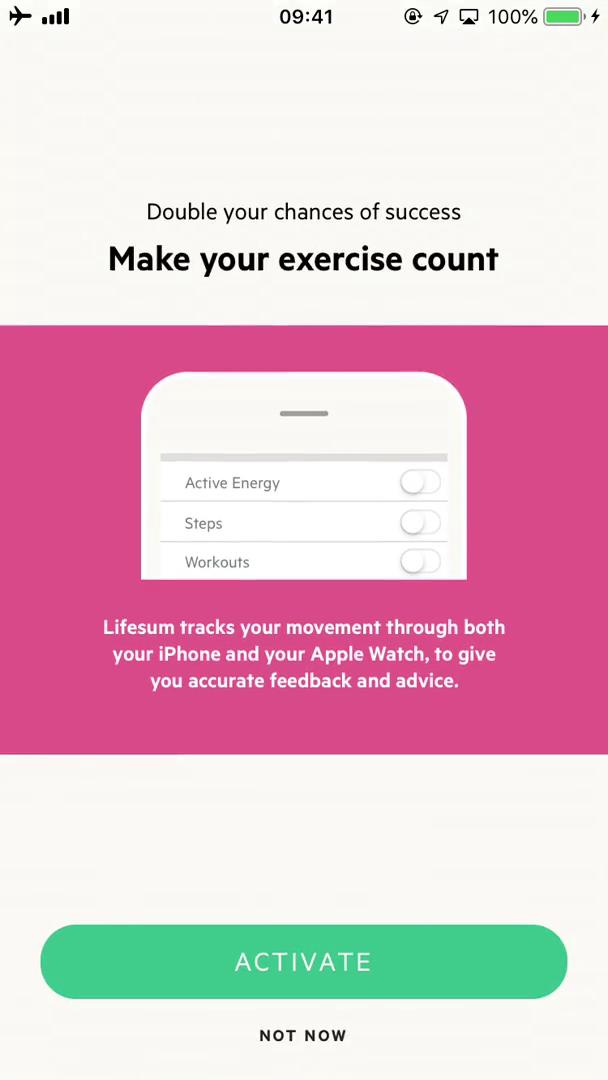
Activation
this is title
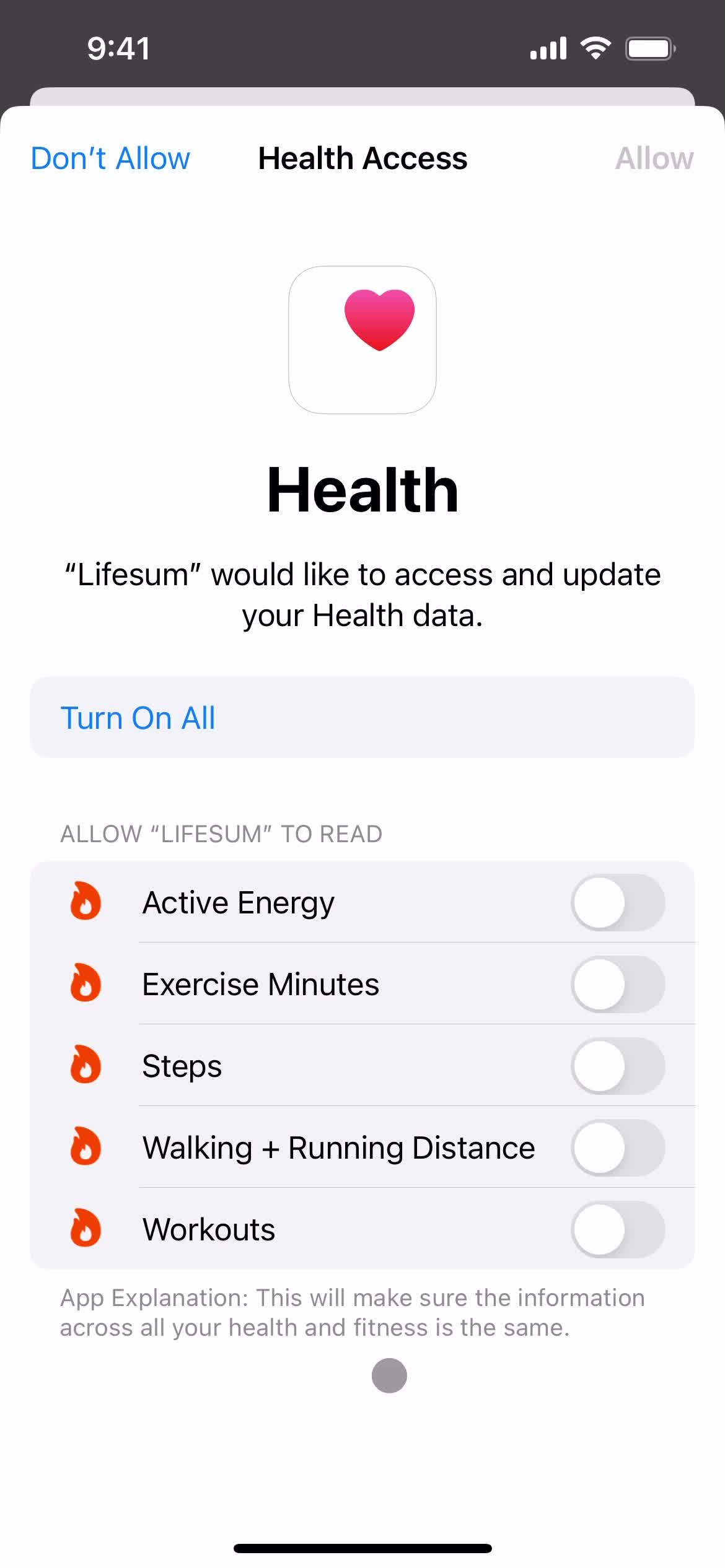
Permissions
this is title
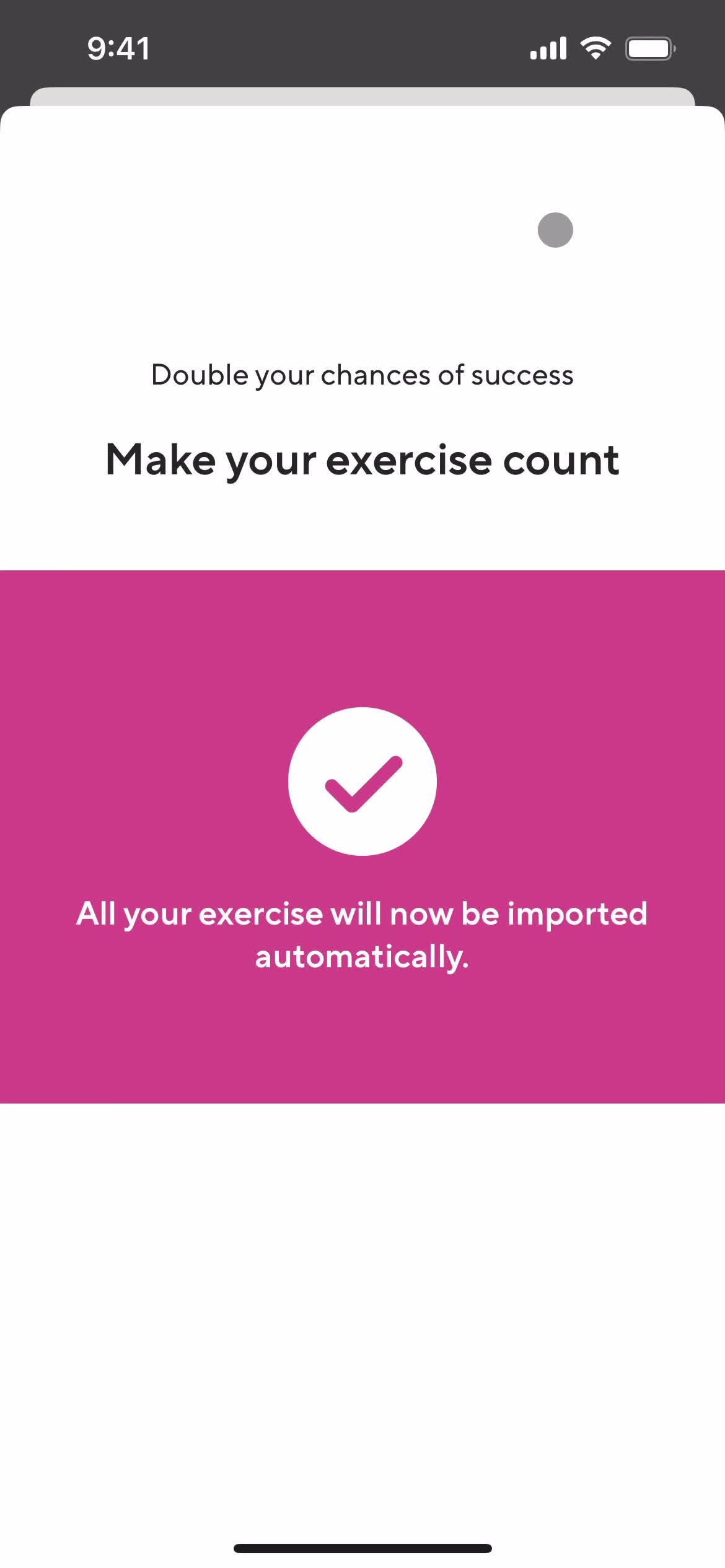
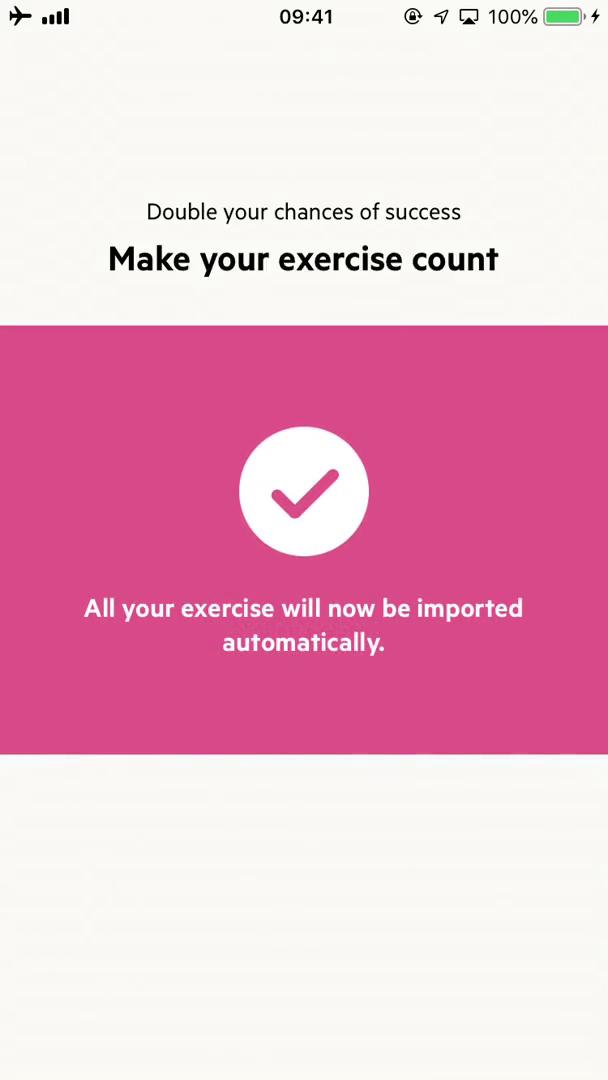
Success
this is title
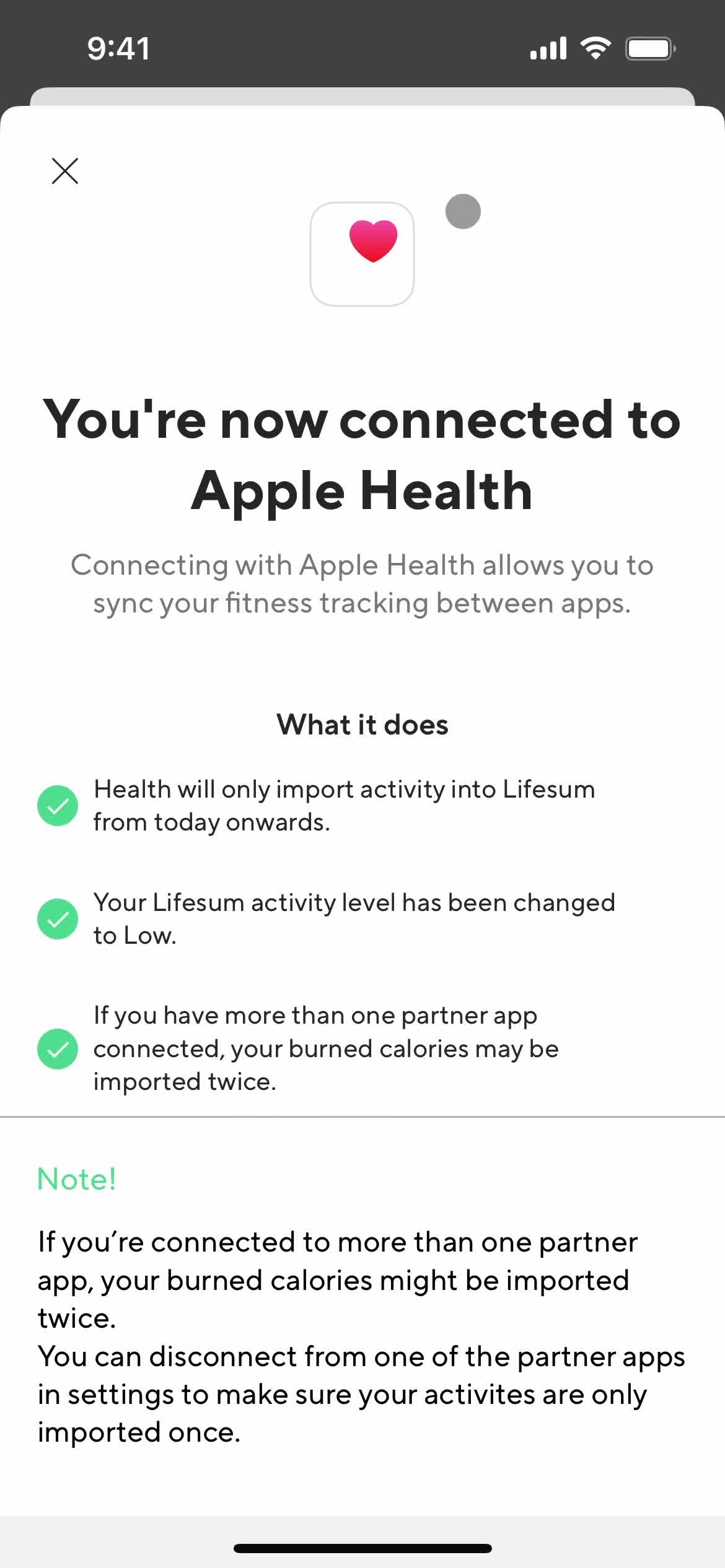
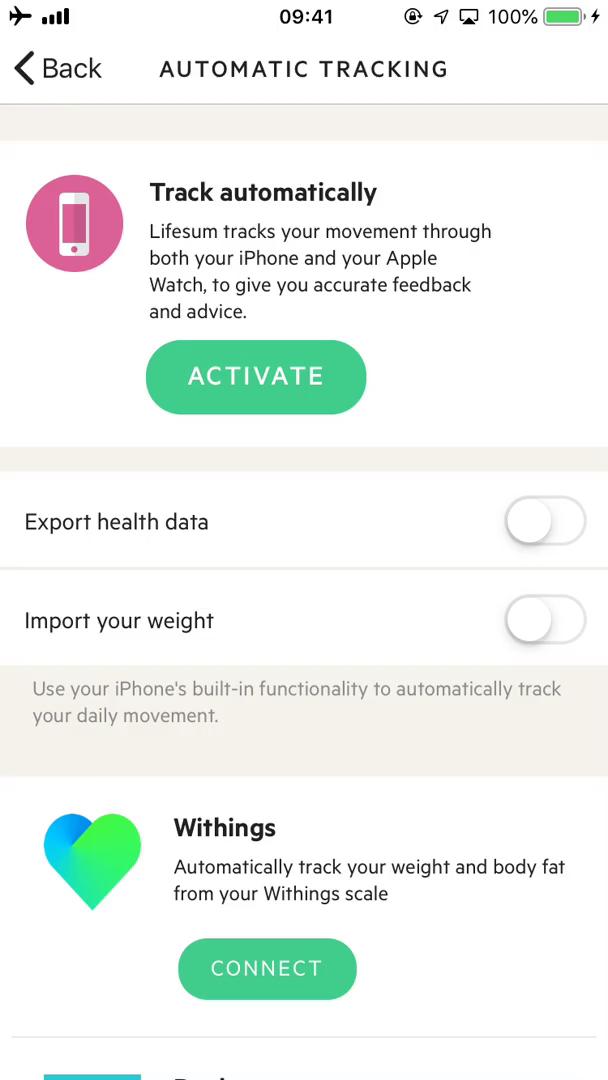
Connected accounts
this is title
Dashboard
this is title
Notifications
this is title
Dashboard
this is title
Dashboard
this is title
Track activity
this is title
Enter weight
this is title
Track activity
this is title
Select exercise
this is title
Add exercise
this is title
Select exercise
this is title
Dashboard
this is title
Track activity
this is title
Track calories
this is title
Scan barcode
this is title
Track calories
this is title
Search for food
this is title
Dashboard
this is title
Meal plan
this is title
Dashboard
this is title
Track calories
this is title
Search for food
this is title
Food details
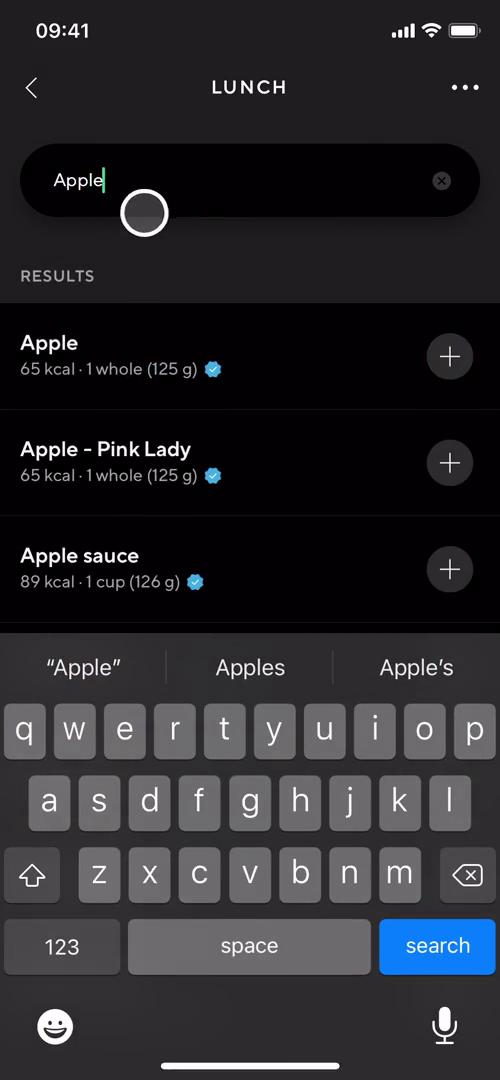
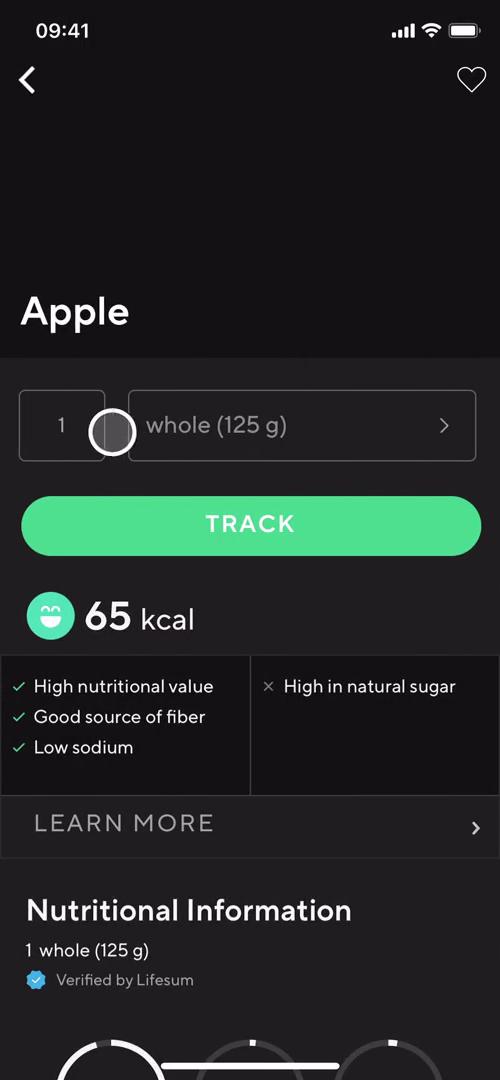
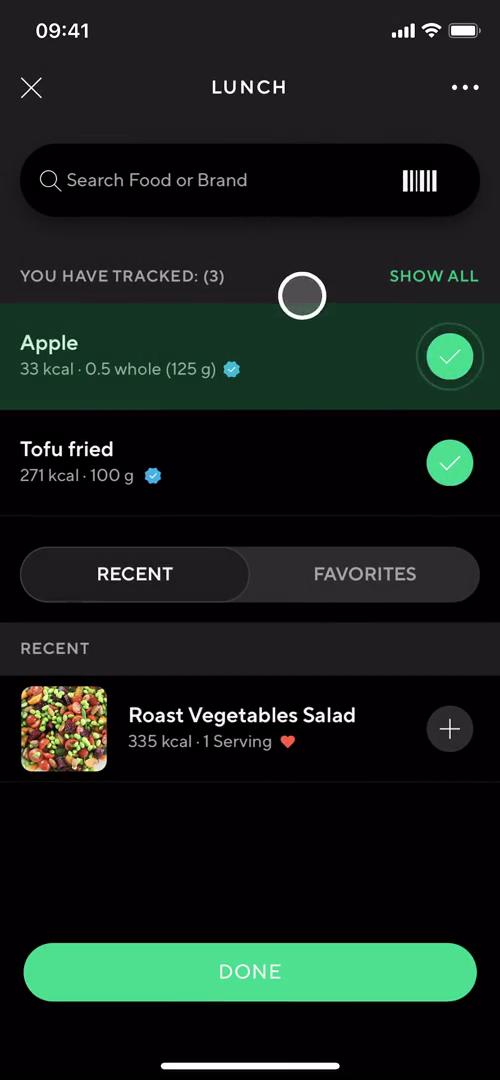
this is title
Track calories
this is title
Action menu
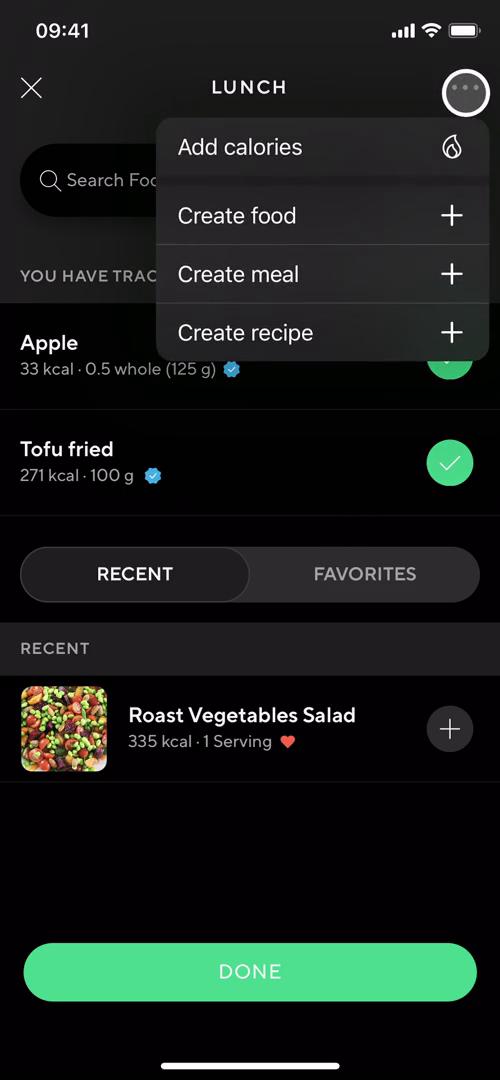
this is title
Create meal
this is title
Search for food
this is title
Create meal
this is title
Dashboard
this is title
Dashboard
this is title
Add meal
this is title
Search
this is title
Search
this is title
Add meal
this is title
Search
this is title
Scan barcode
this is title
Favorites
this is title
Favorites
this is title
Add calories
this is title
Add calories
this is title
Dashboard
this is title
Action menu
this is title
Add exercise
this is title
Search
this is title
Add exercise
this is title
Search
this is title
Add item
this is title
Connect integration
this is title
Get health data permissions
this is title
Get health data permissions
this is title
Get health data permissions
this is title
Get health data permissions
this is title
Dashboard
this is title
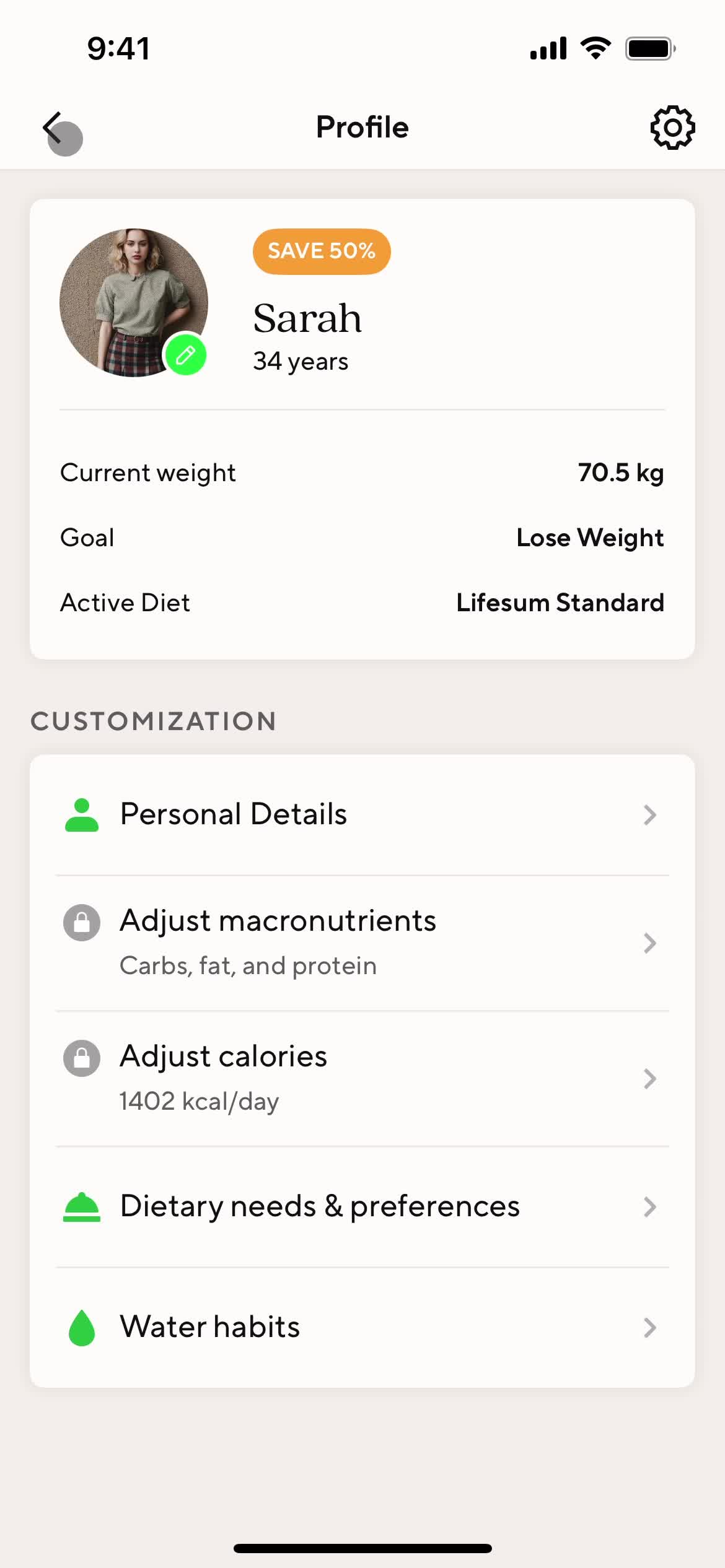
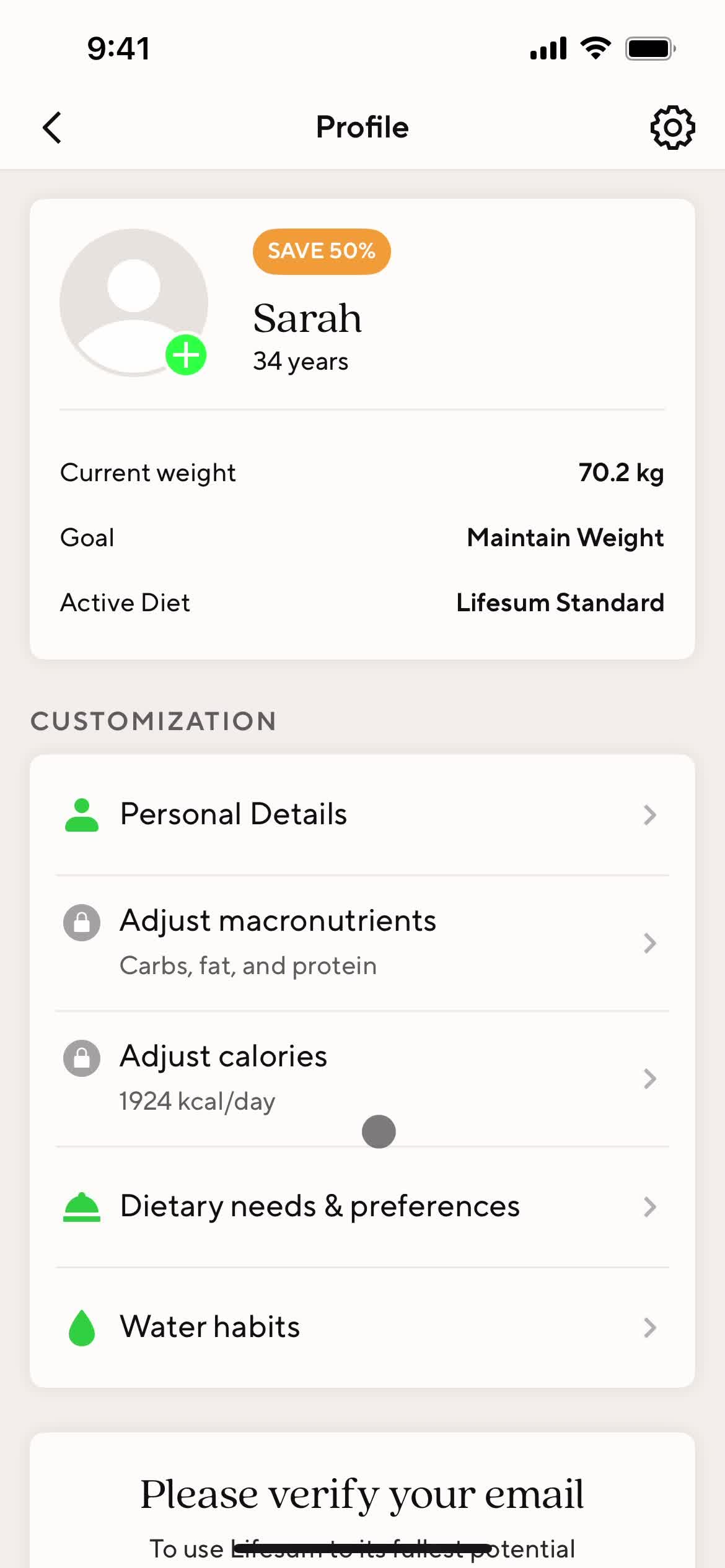
Profile
this is title
Select photo
this is title
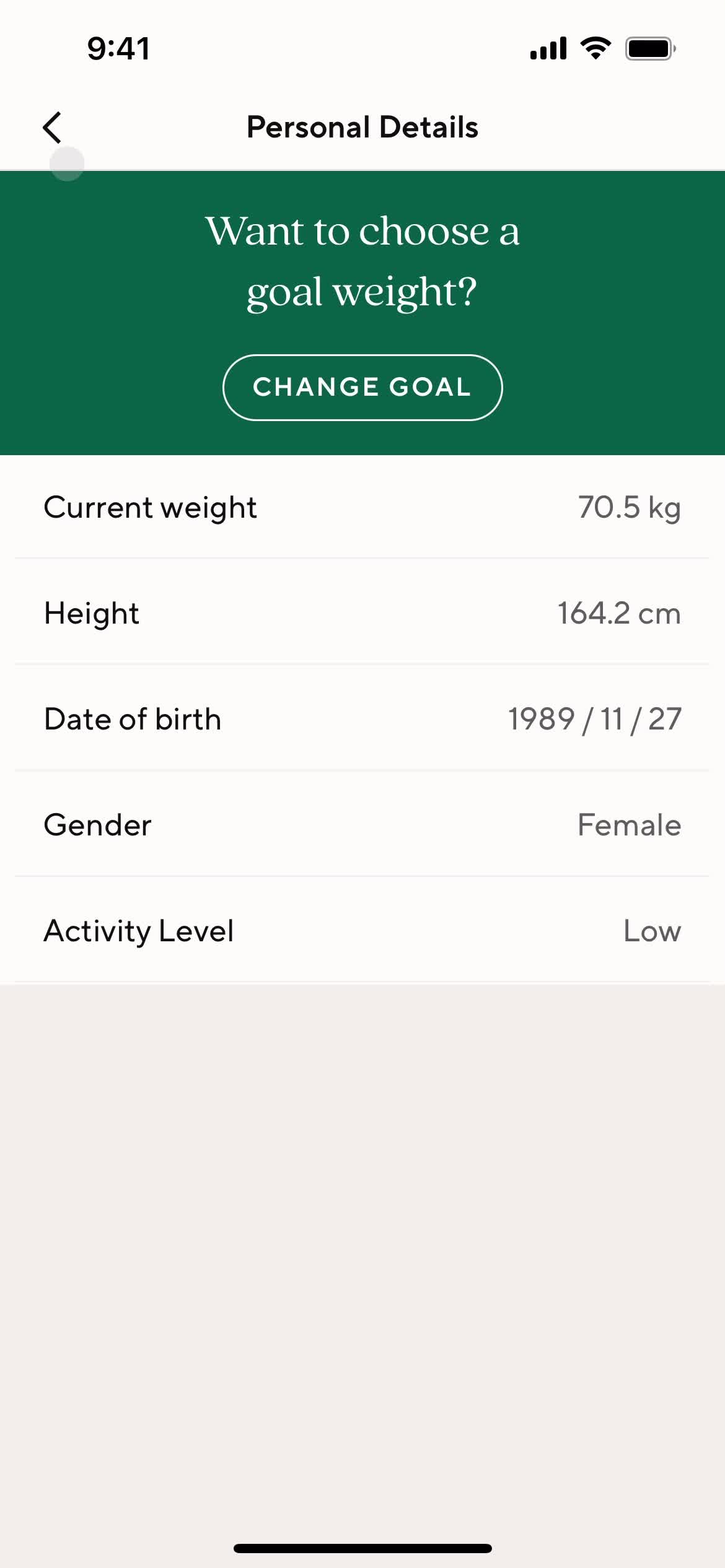
Personal details
this is title
Change goal
this is title
Enter weight
this is title
Error
this is title
Recommendations
this is title
Personal details
this is title
Profile
this is title
Dashboard
this is title
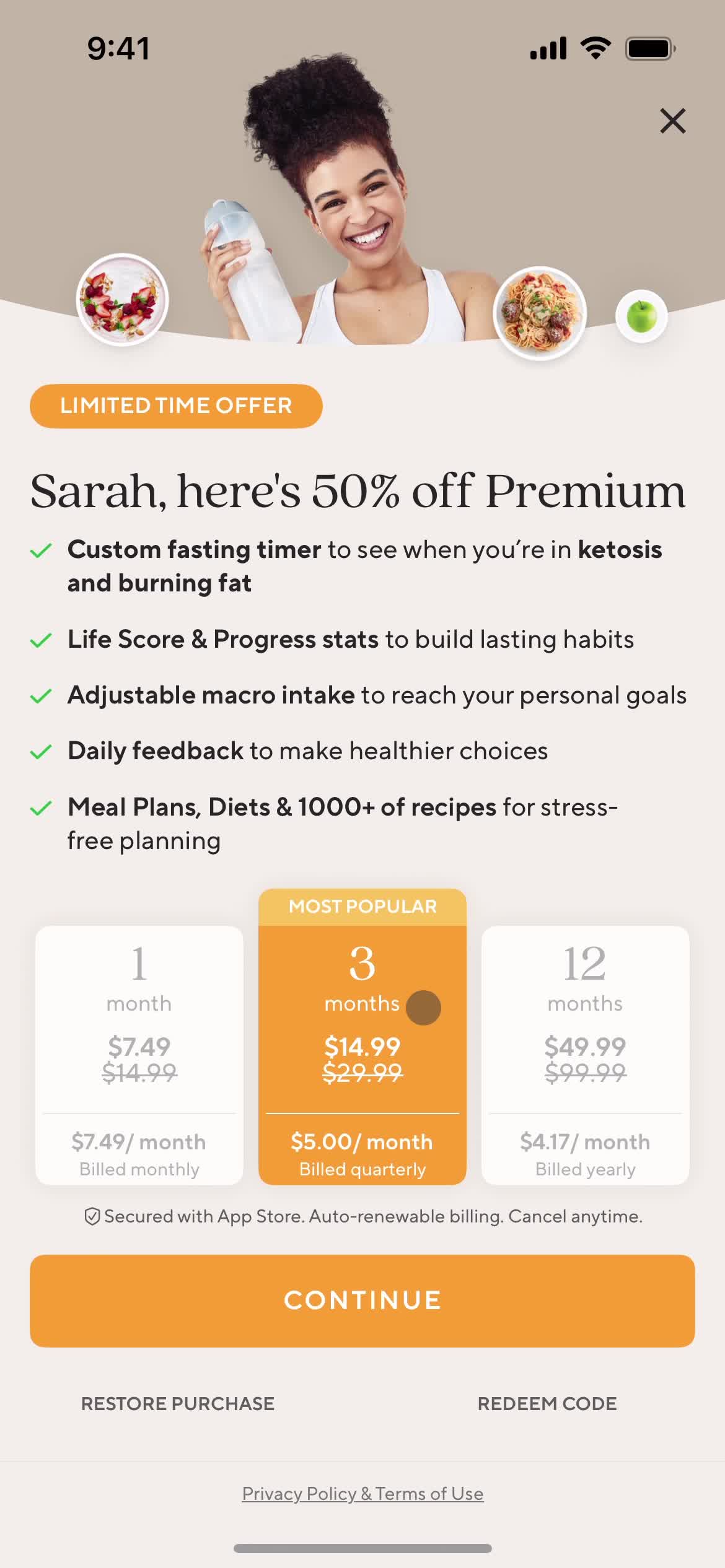
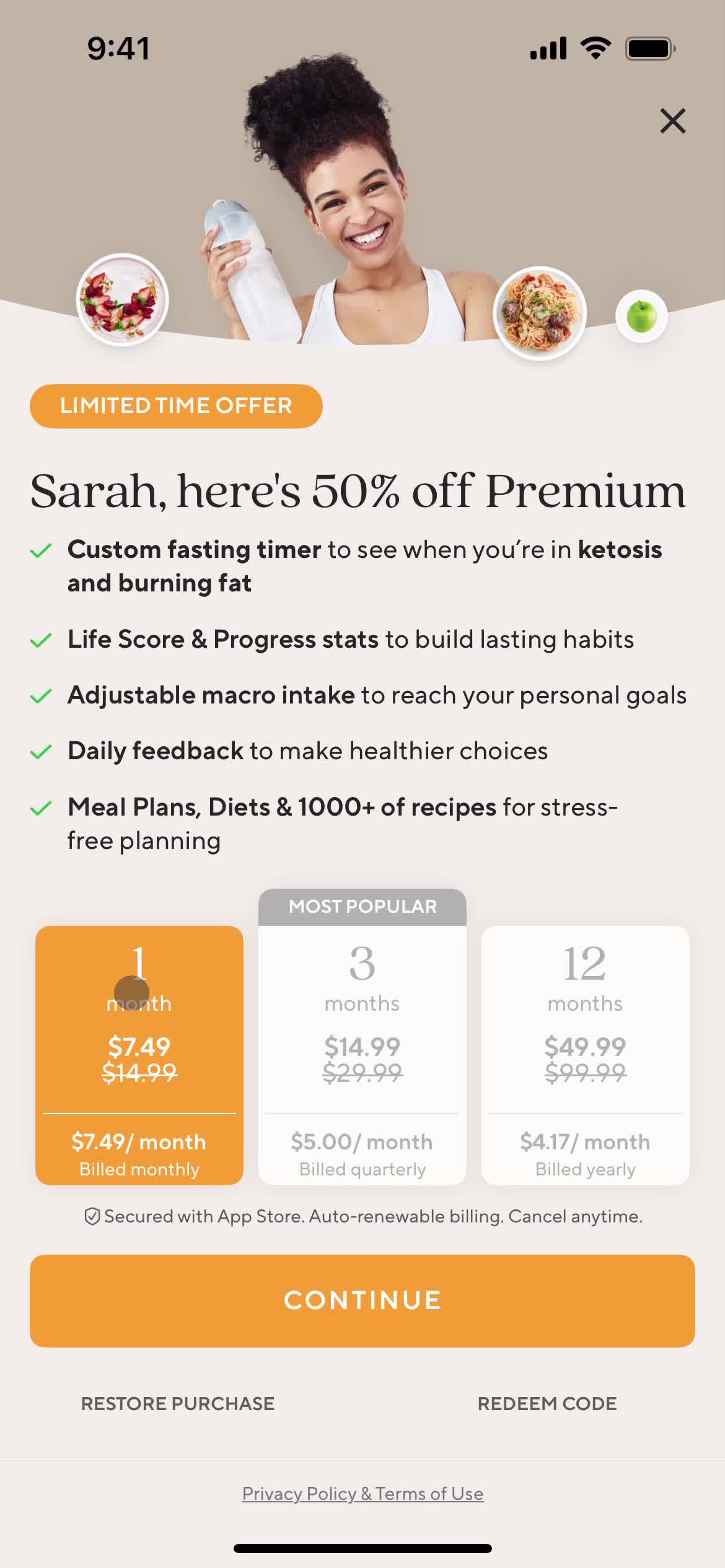
Upgrade offer
this is title
Select plan
this is title
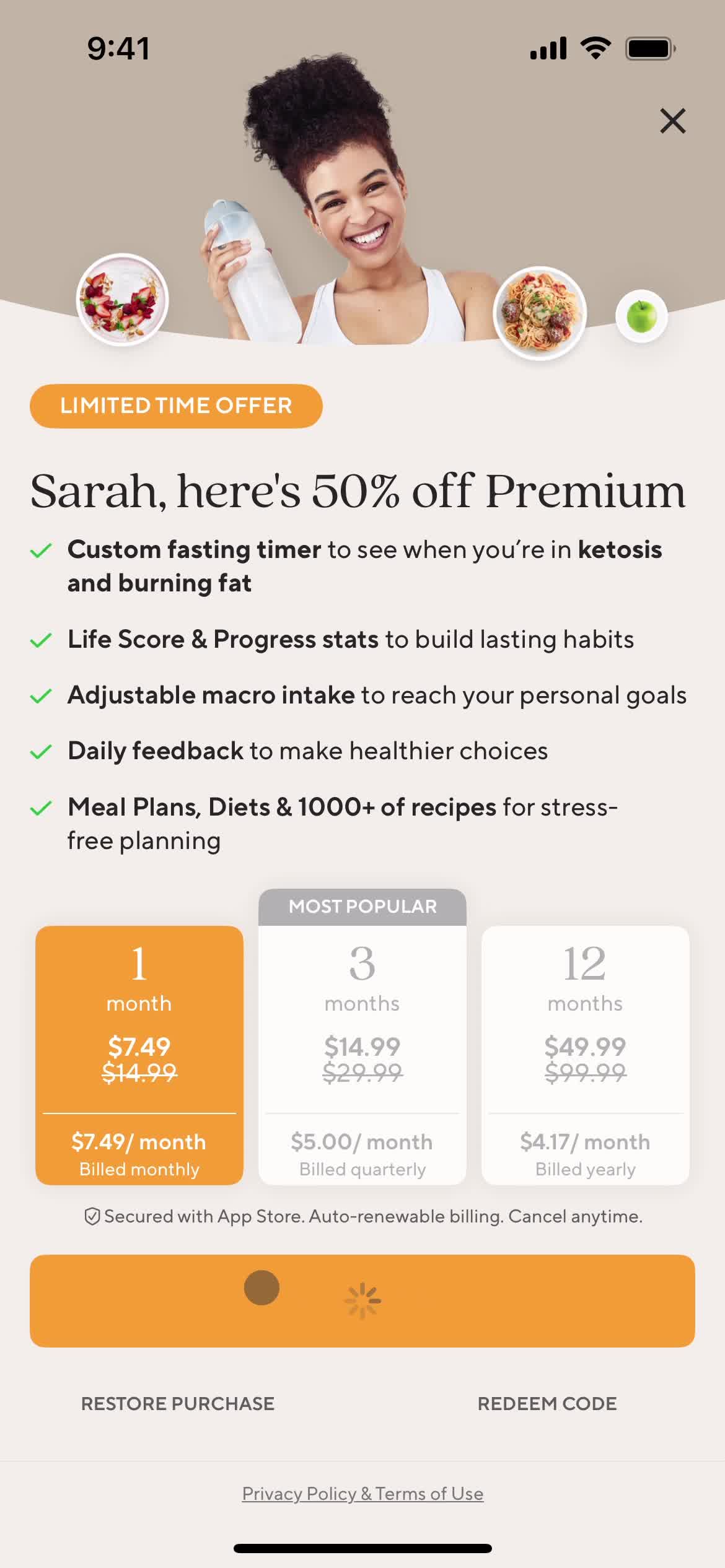
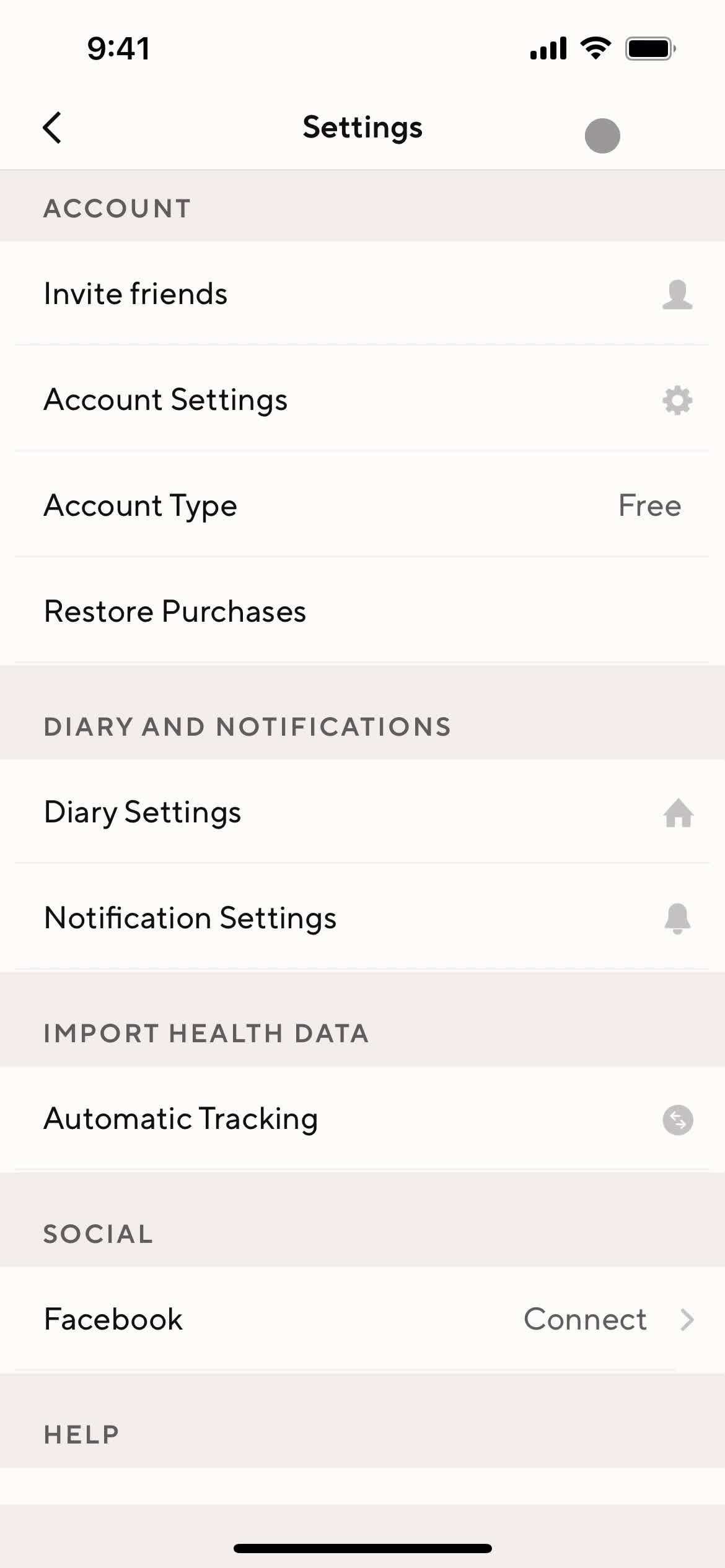
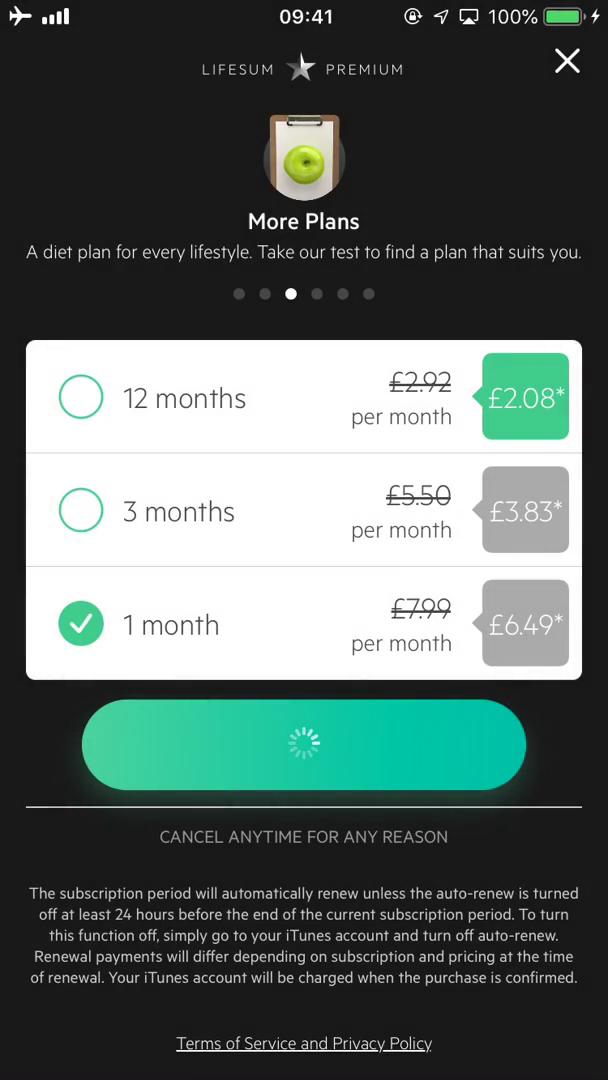
Upgrading
this is title
Dashboard
this is title
Profile
this is title
Settings
this is title
Go premium
this is title
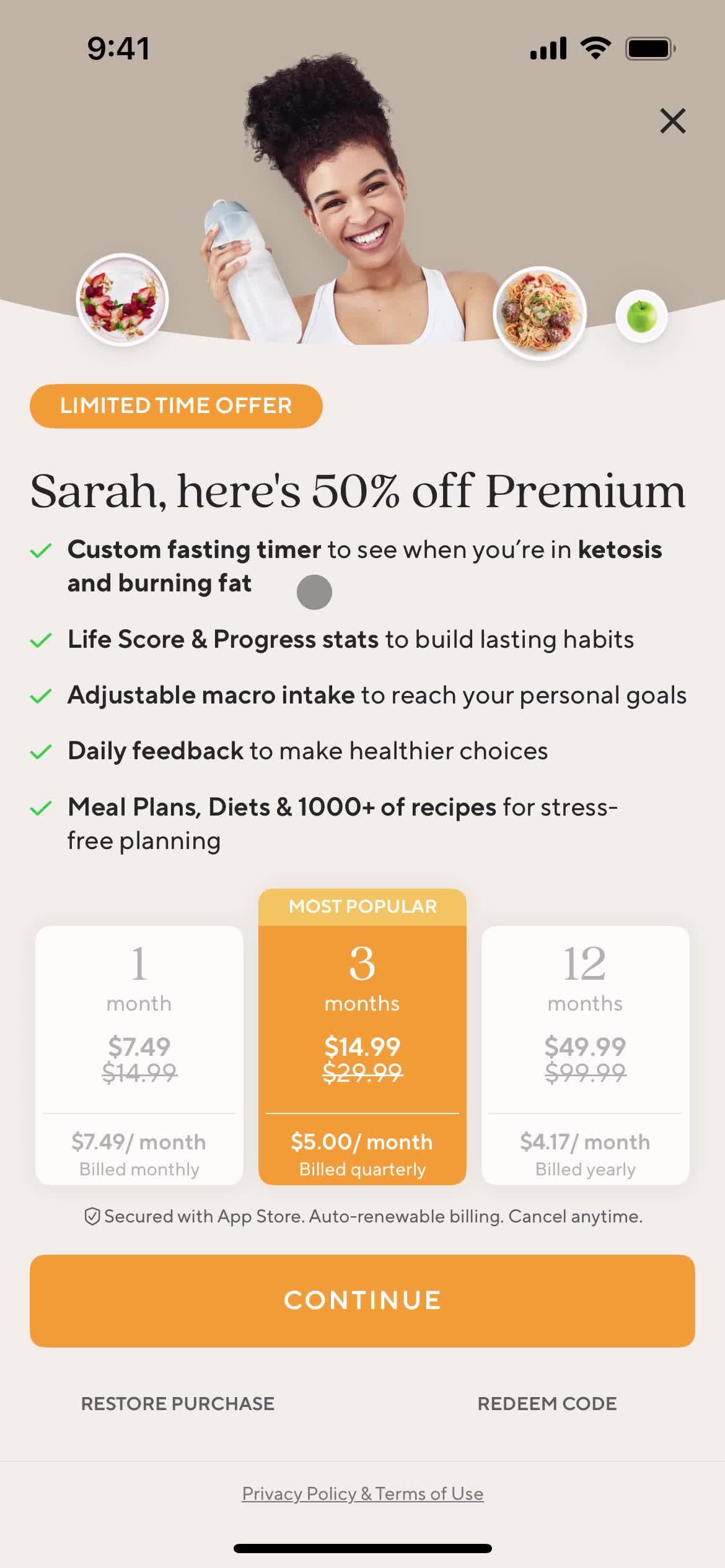
Premium plan details
this is title
Settings
this is title
Profile
this is title
Dashboard
this is title
Dashboard
this is title
Upgrade
this is title
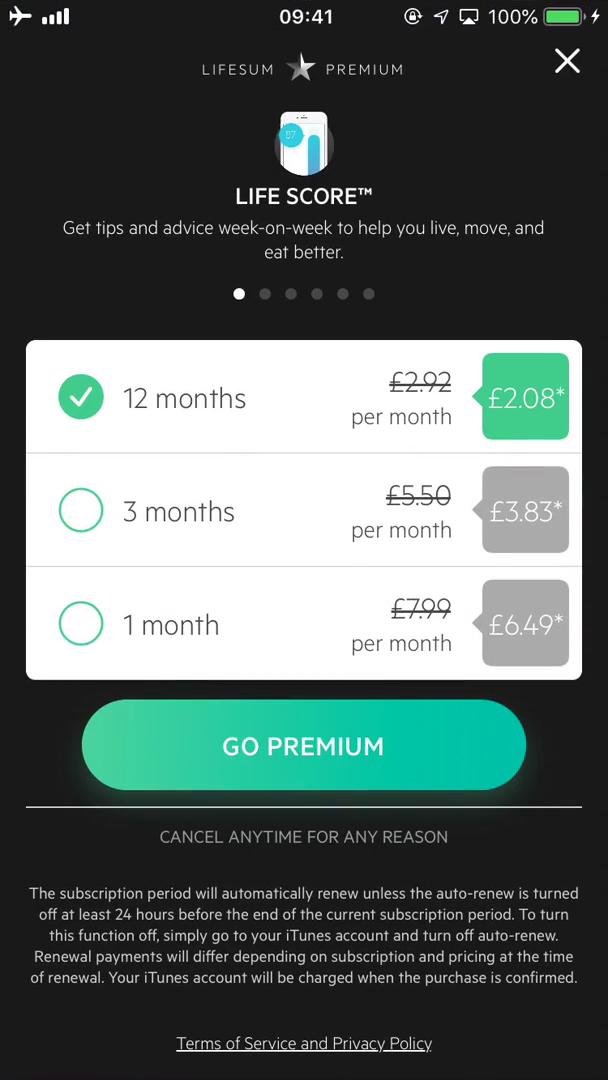
Pricing & plans
this is title
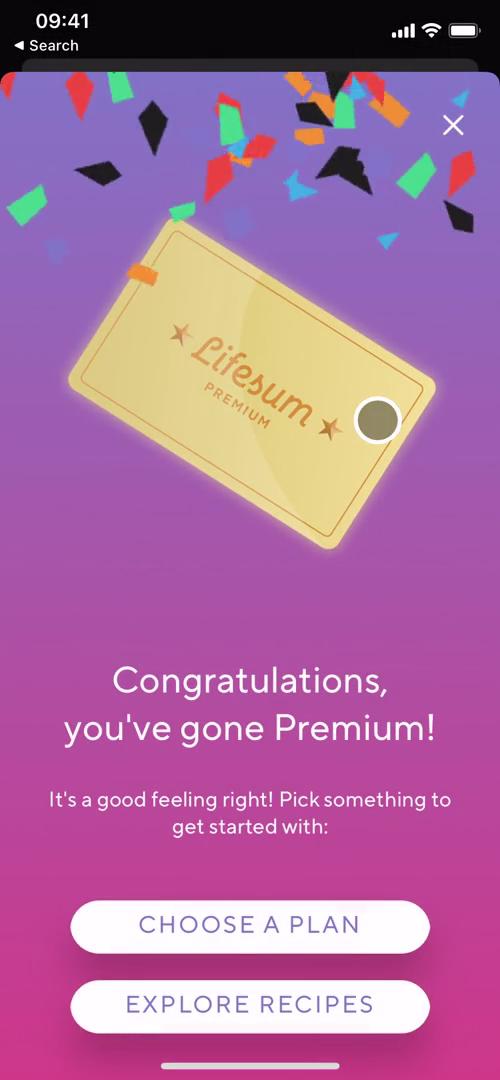
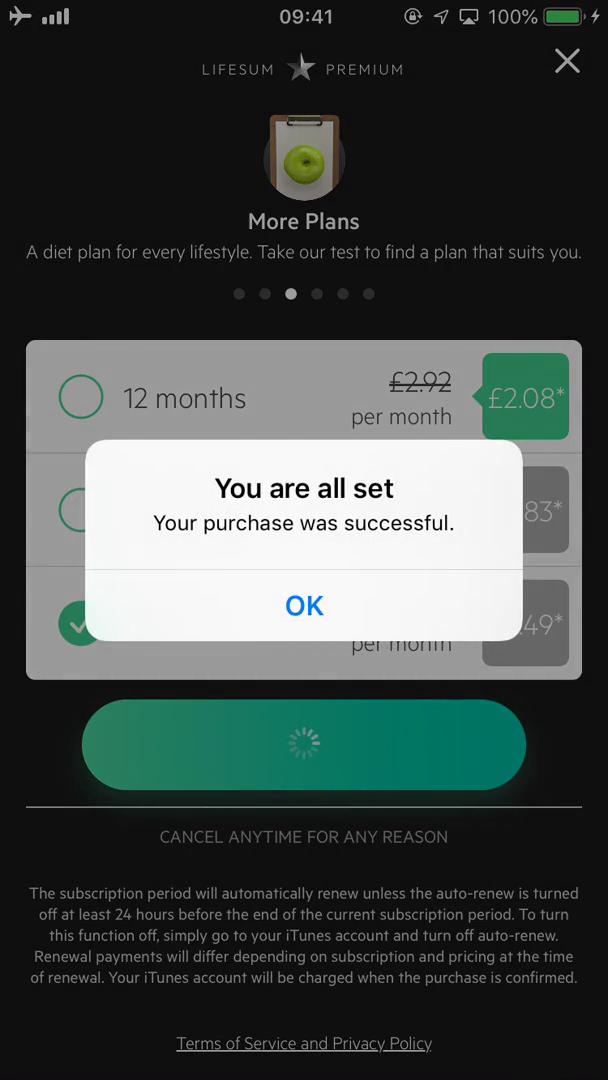
Upgrade complete
this is title
Dashboard
this is title
Dashboard
this is title
Upgrade
this is title
Upgrade
this is title
Upgrade
this is title
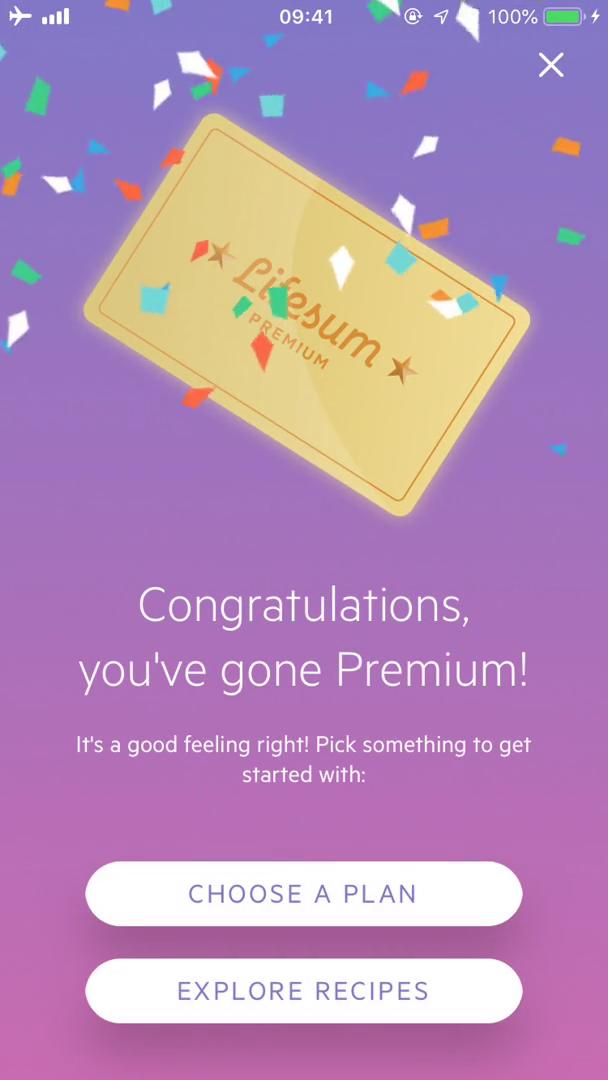
Upgrade complete
this is title
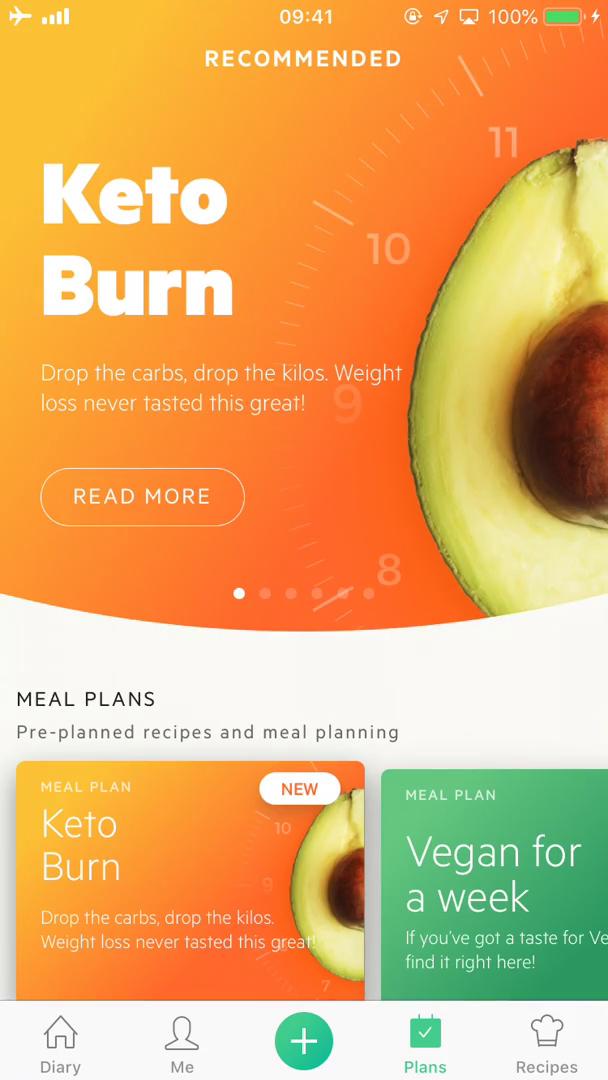
Meal plans
this is title