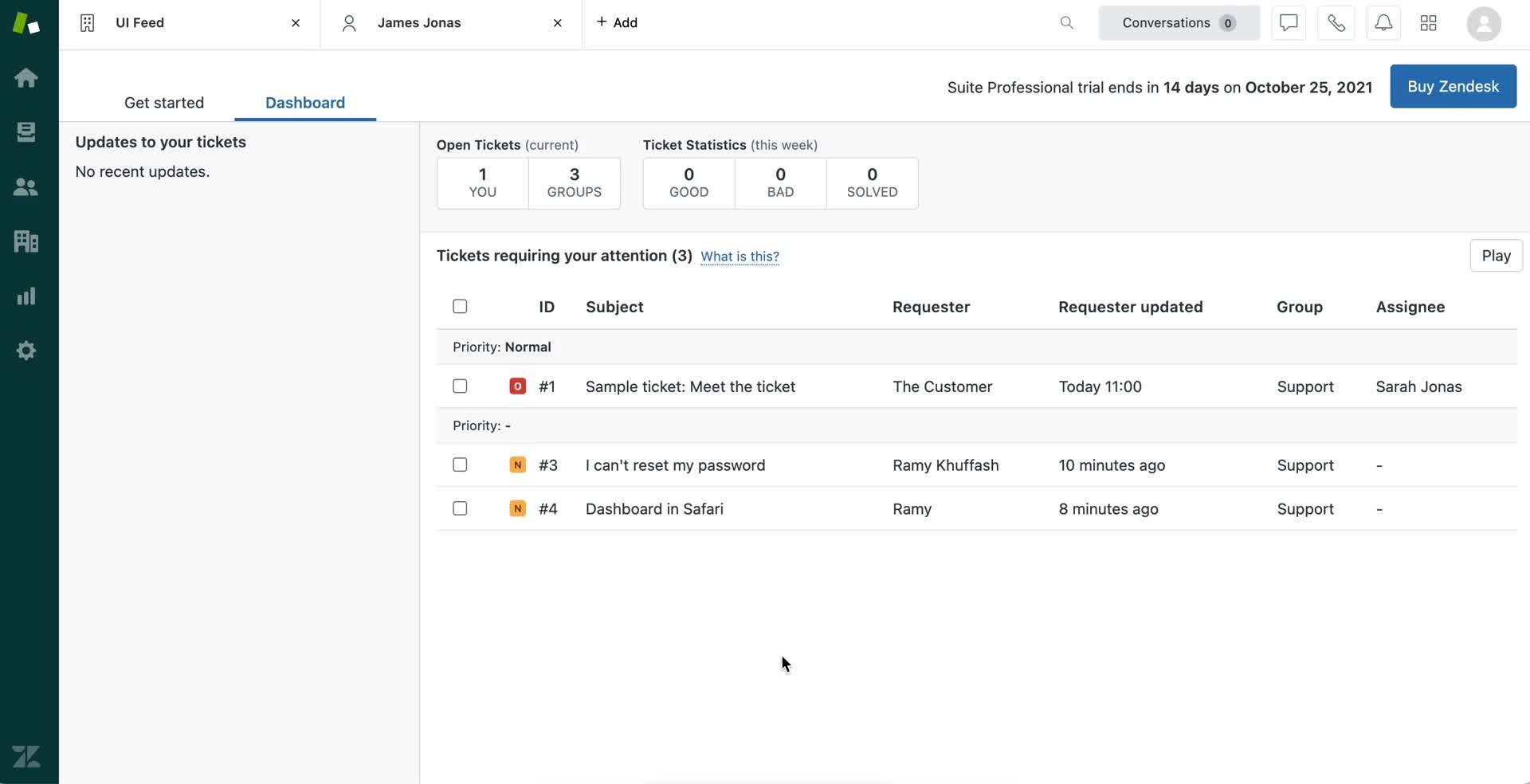
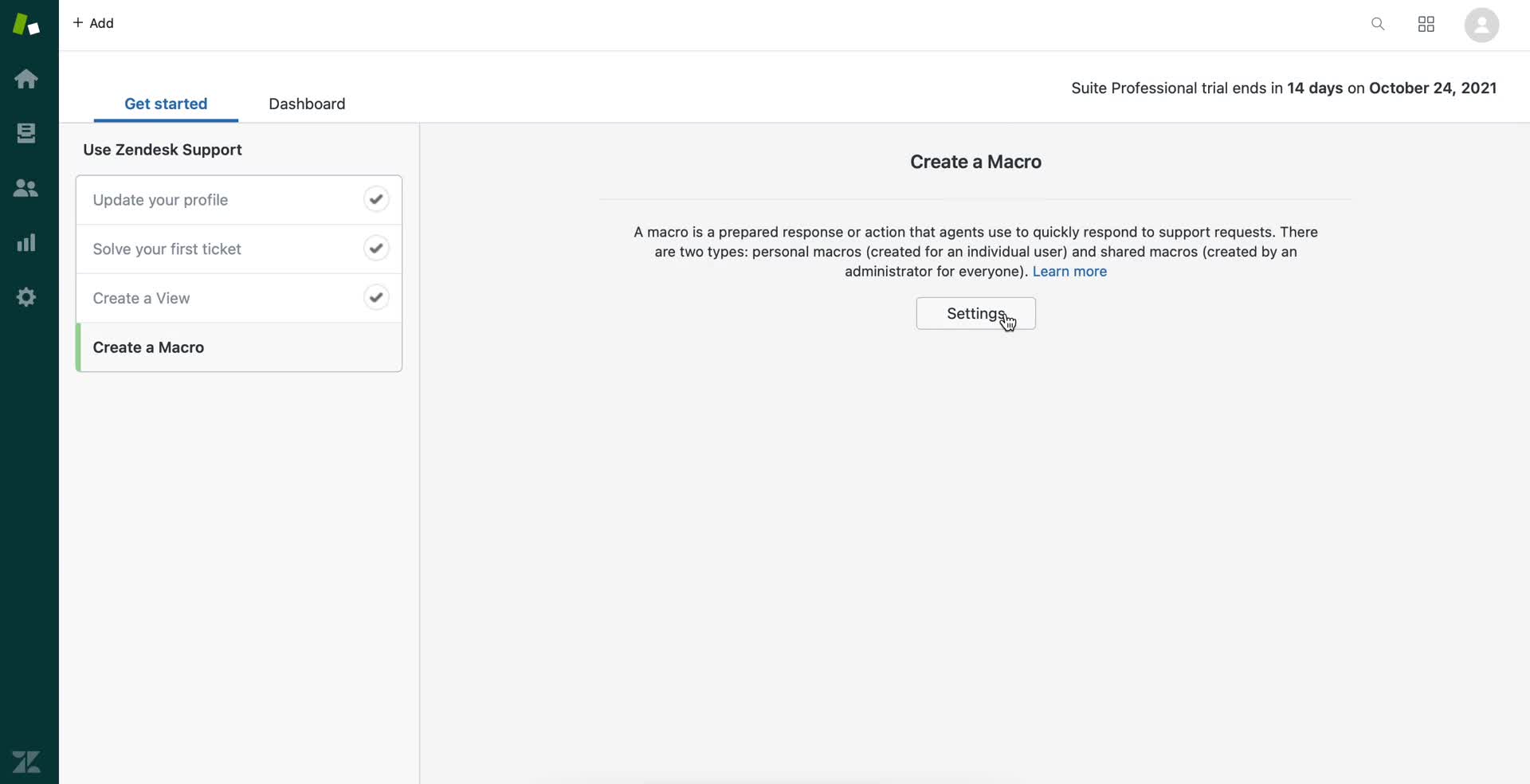
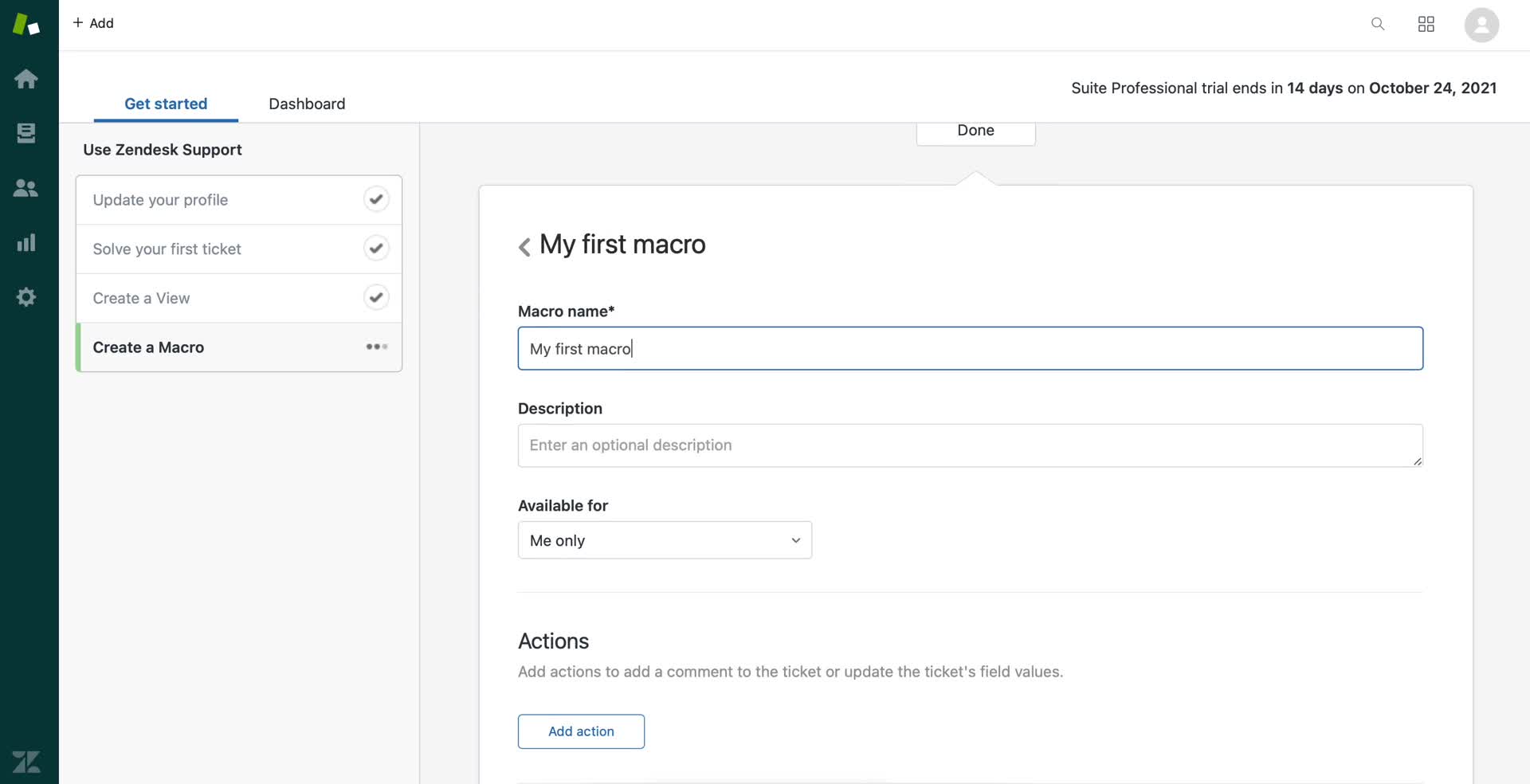
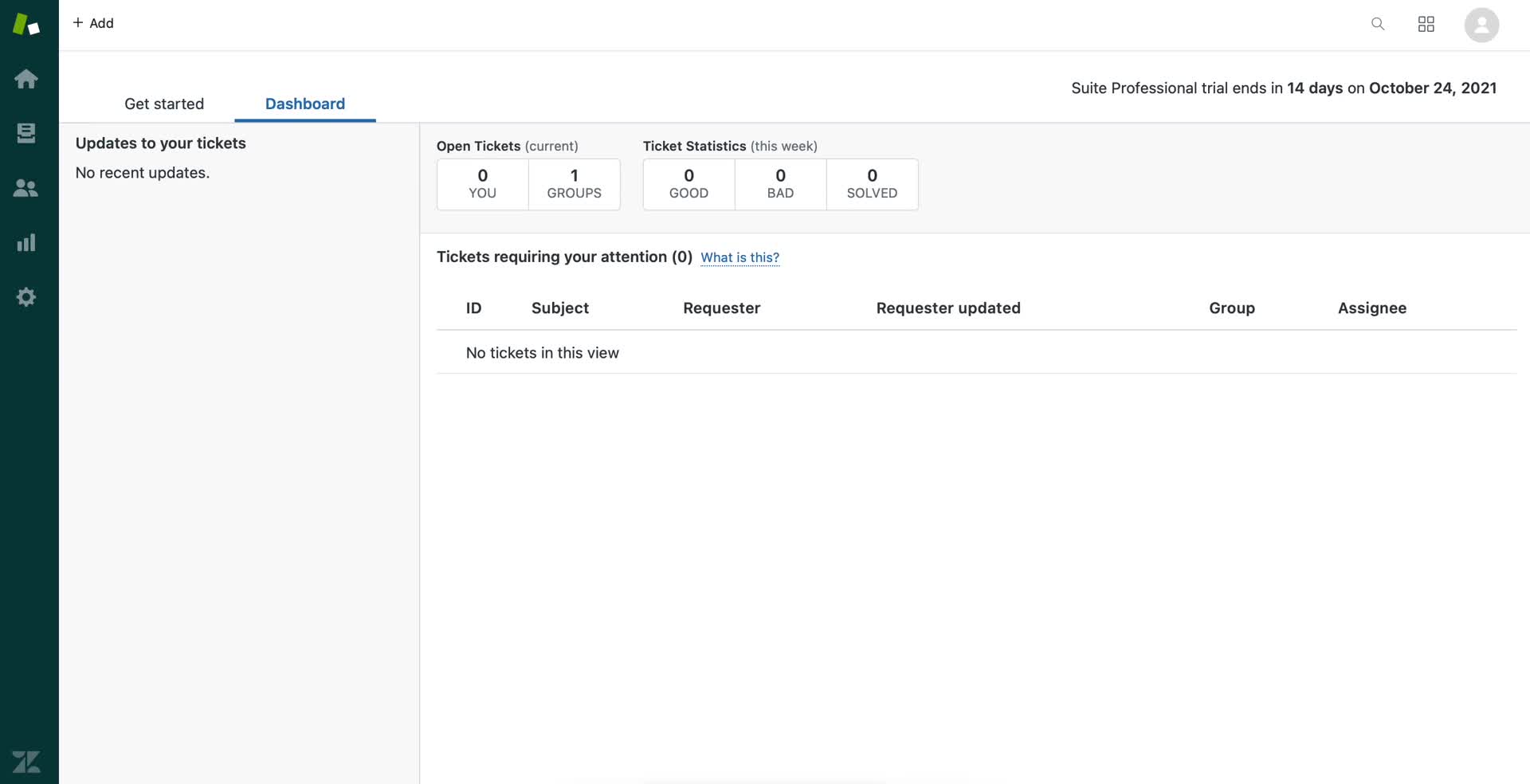
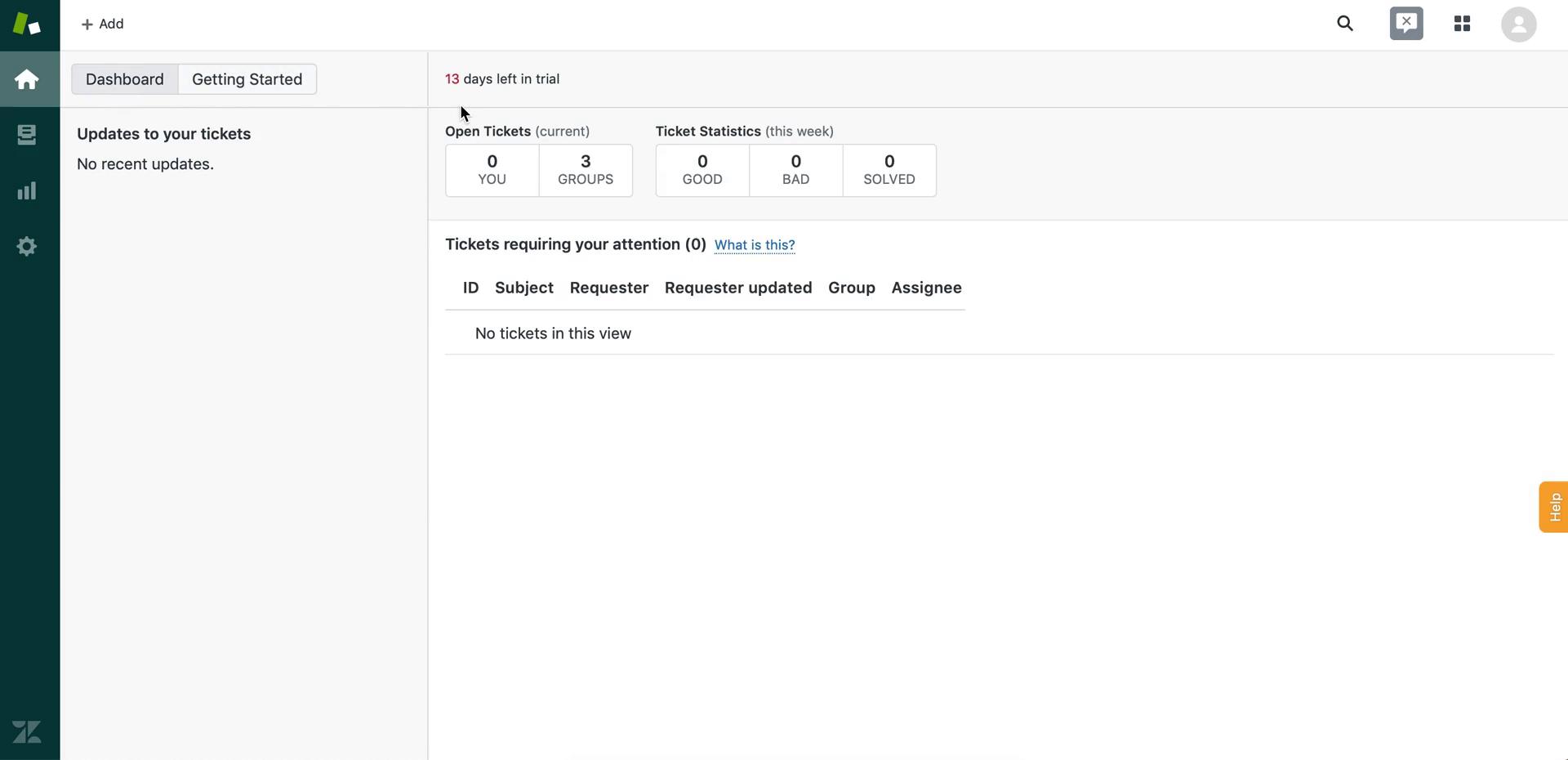
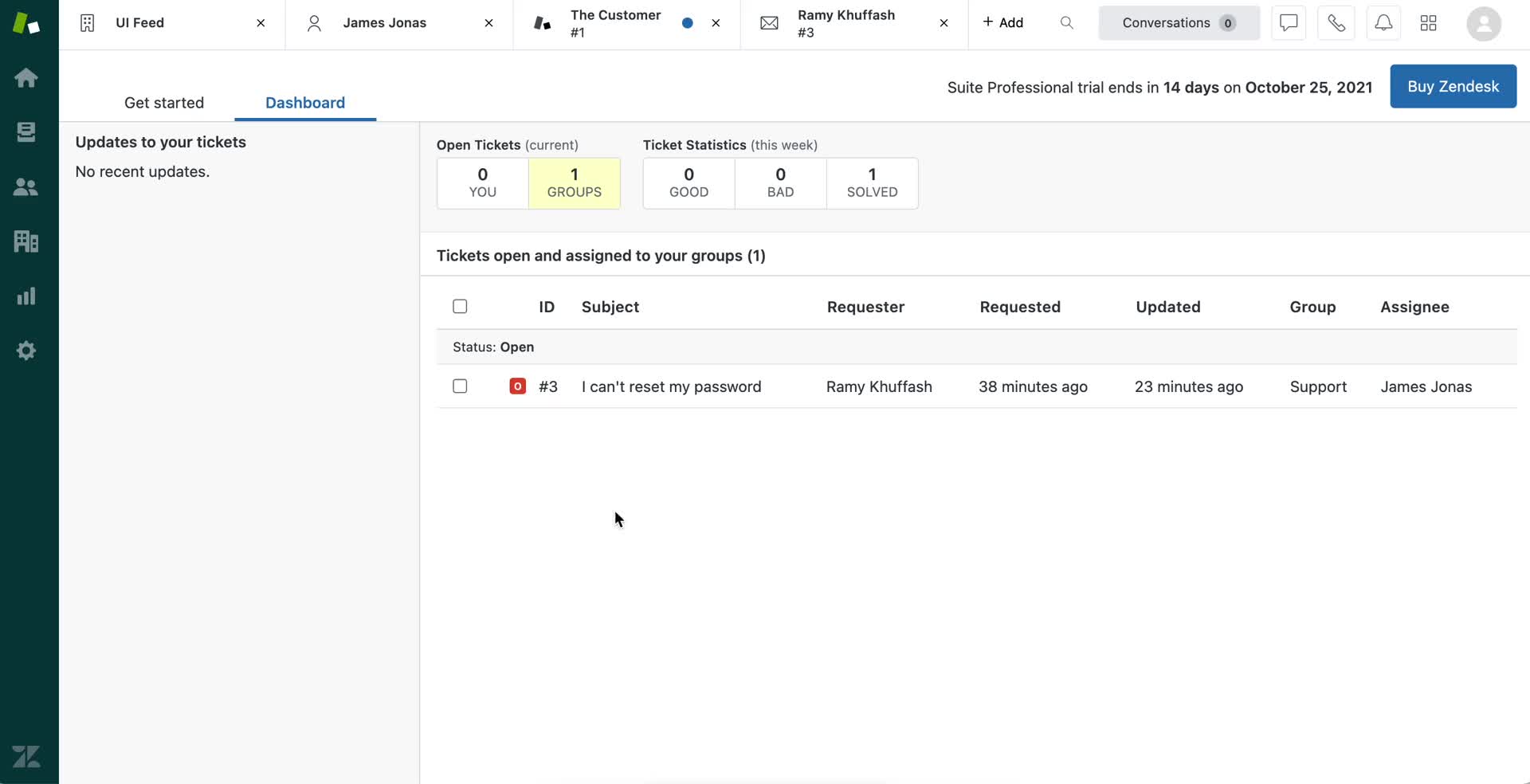
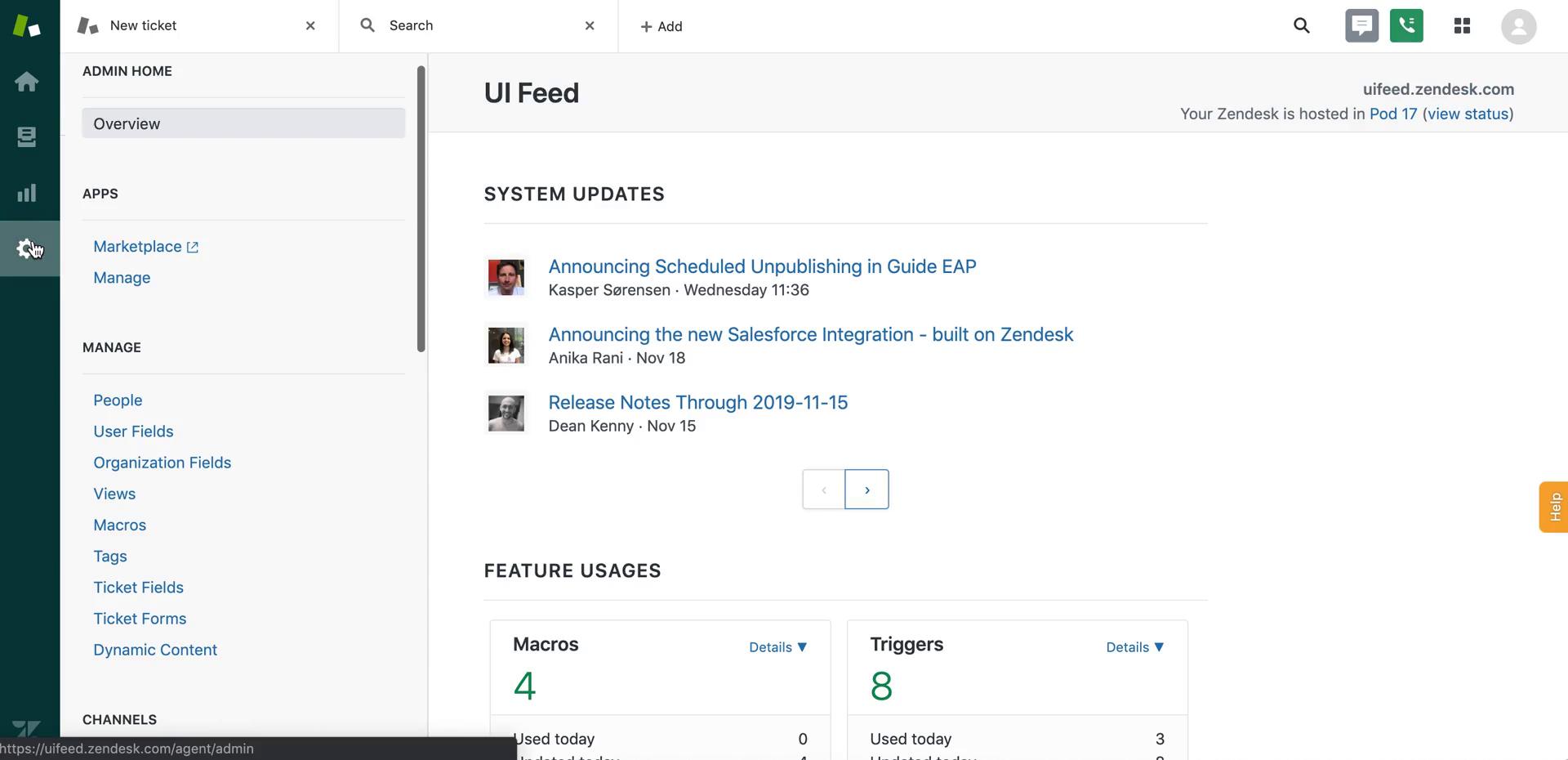
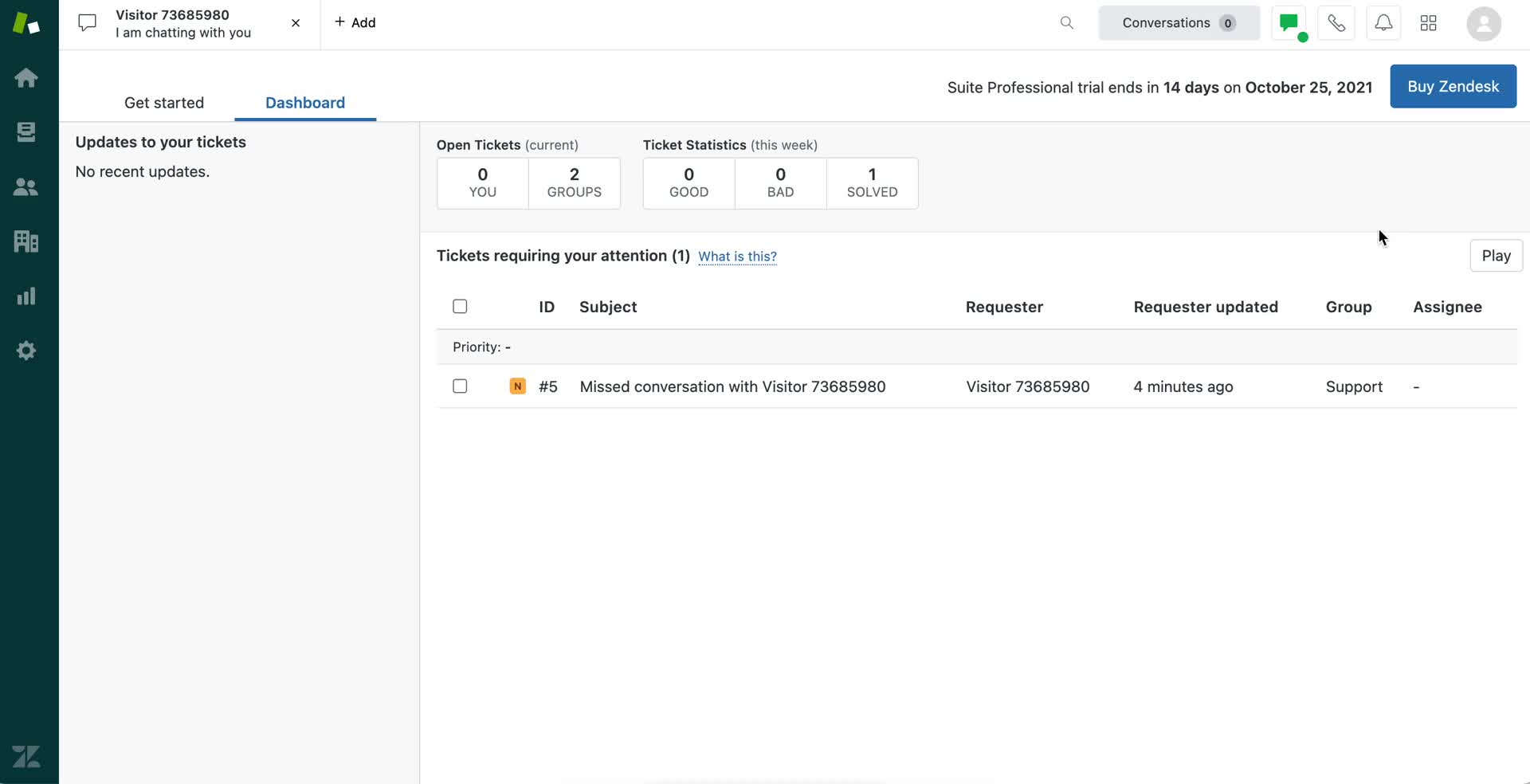
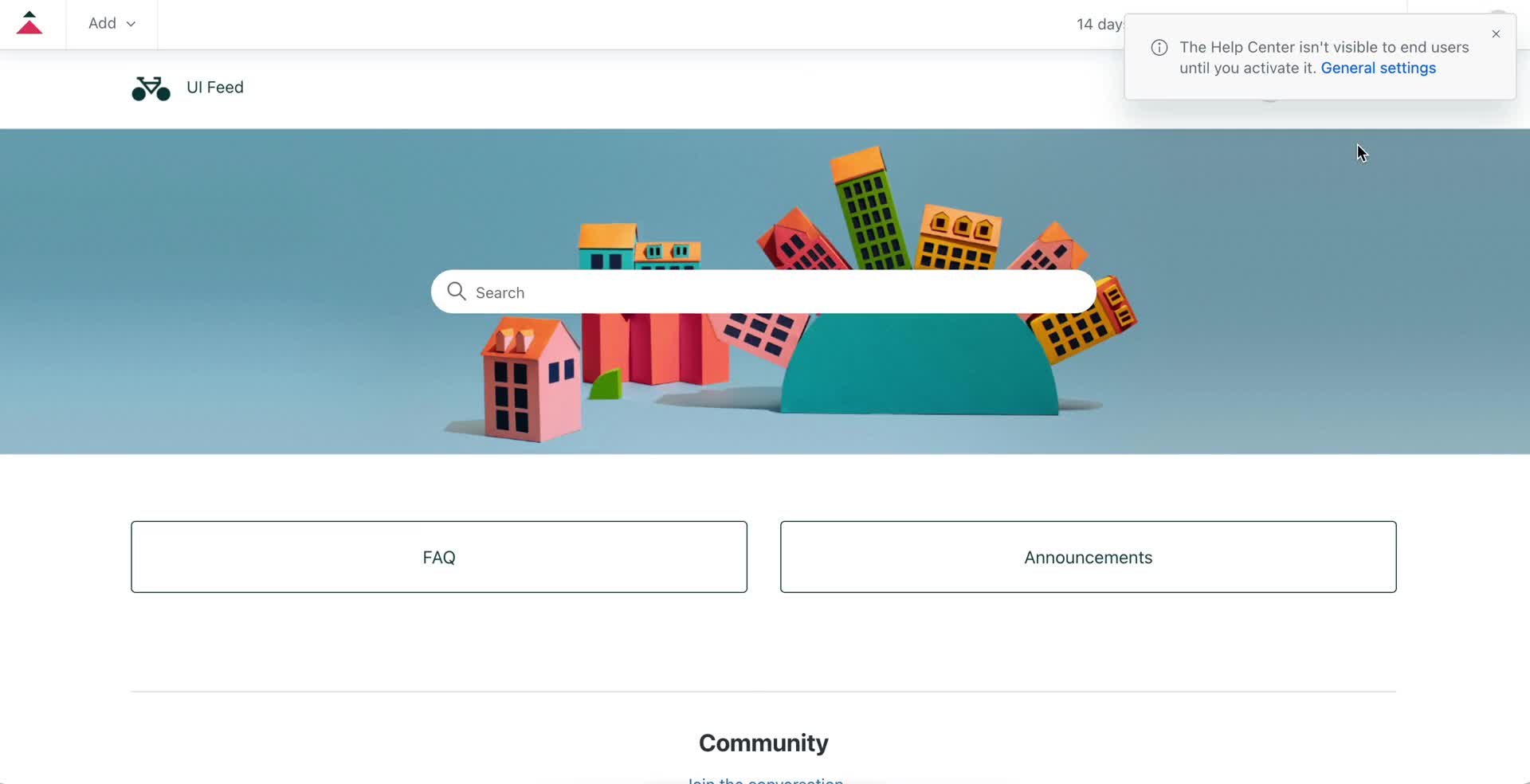
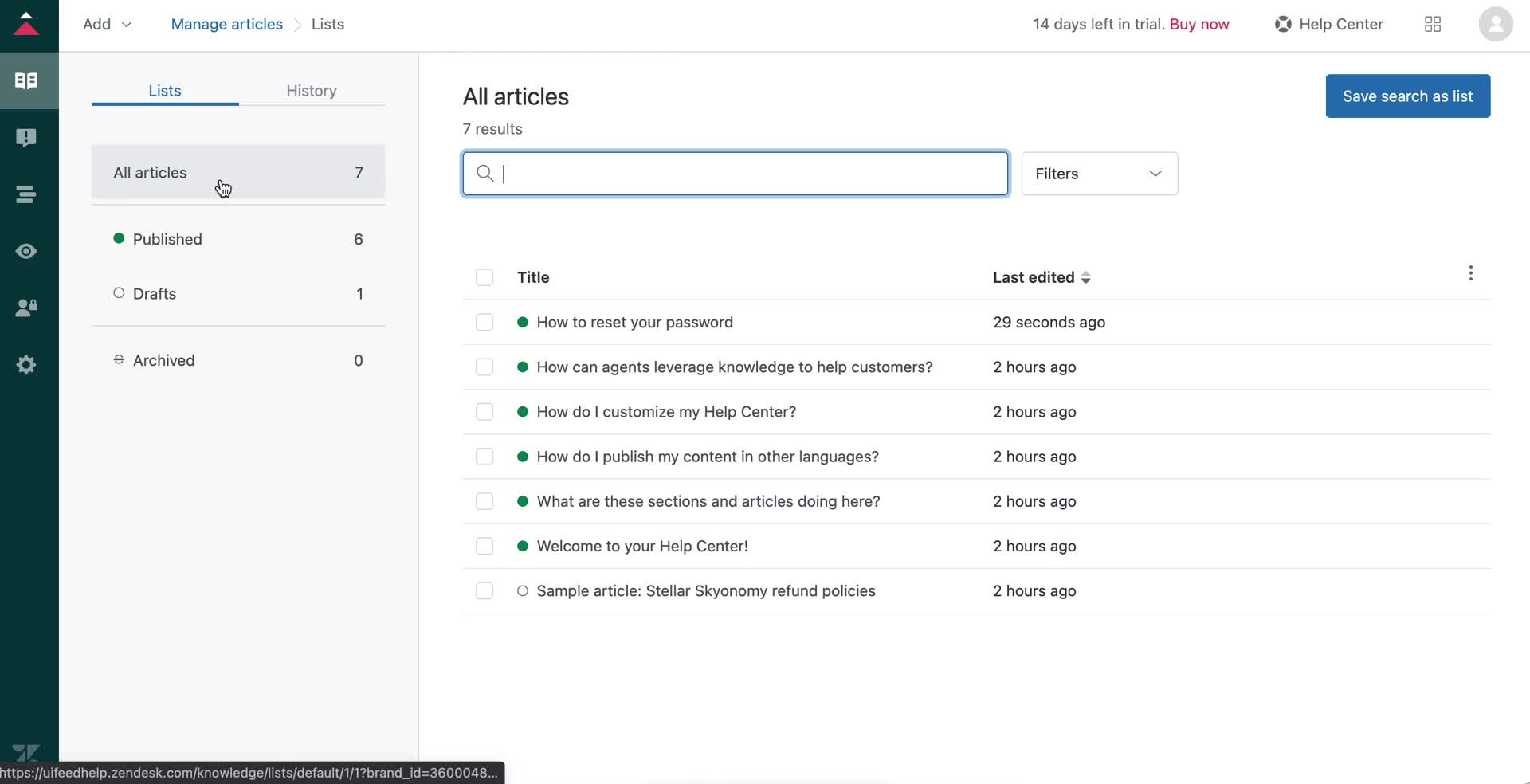
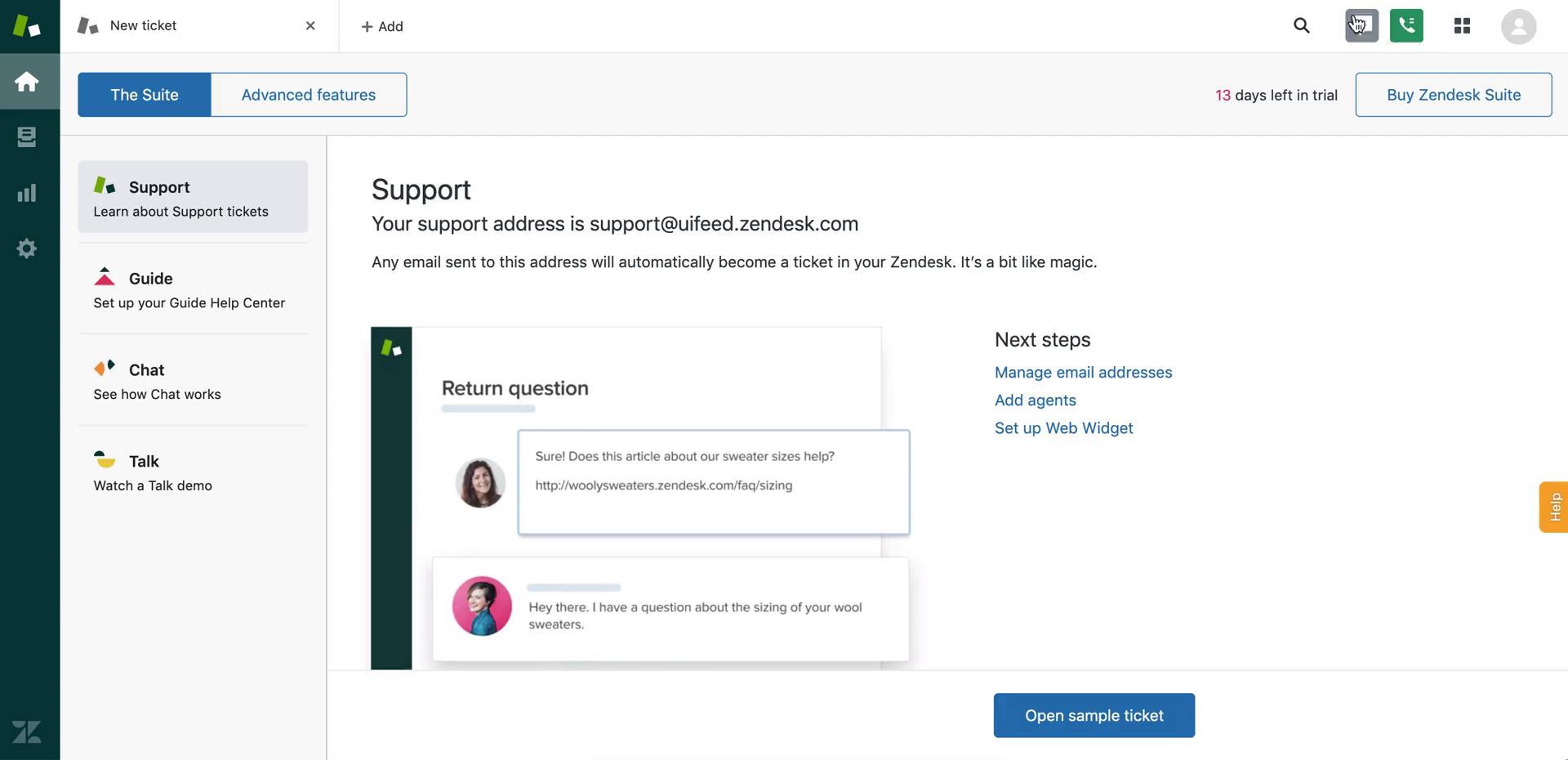
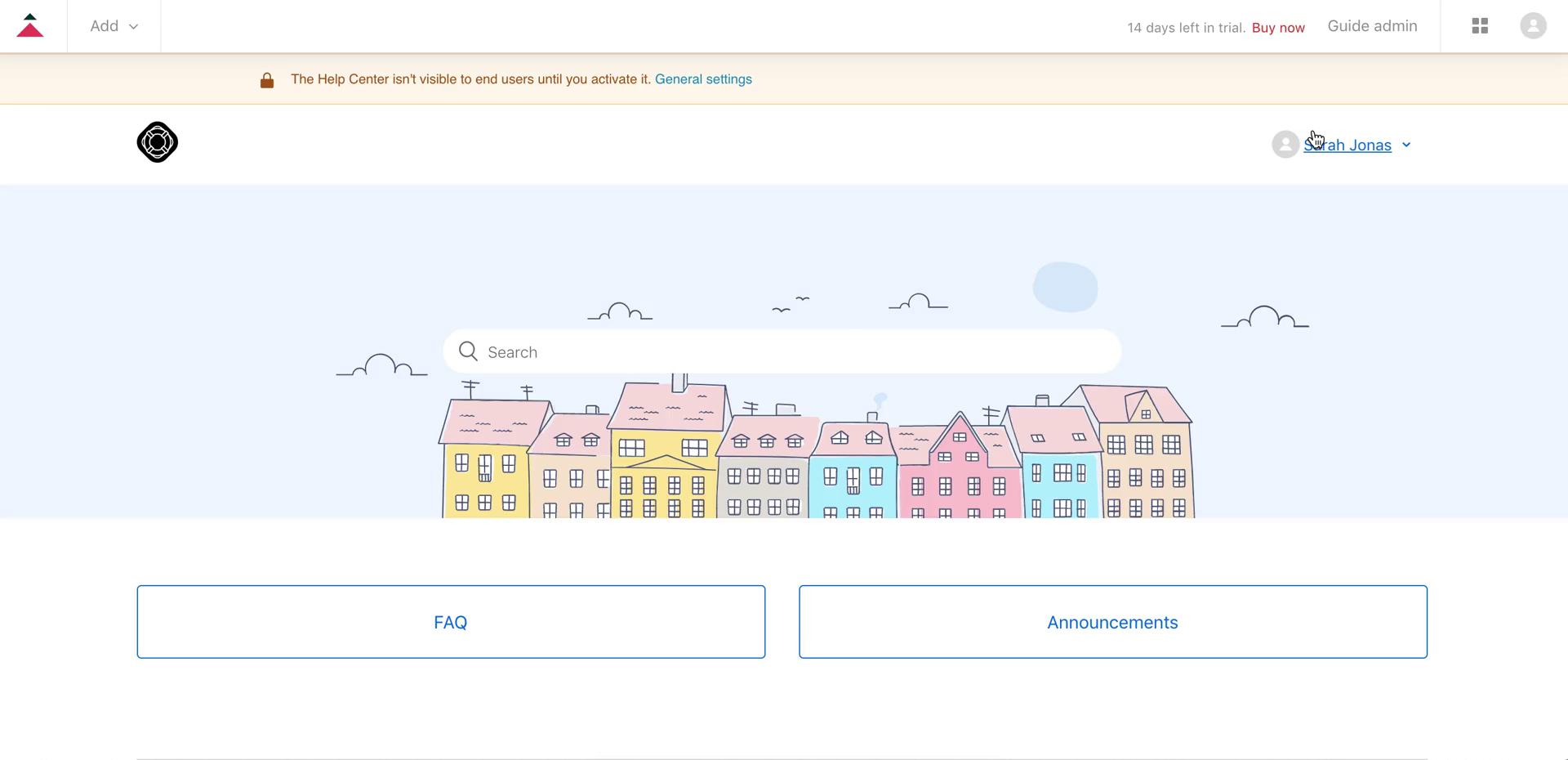
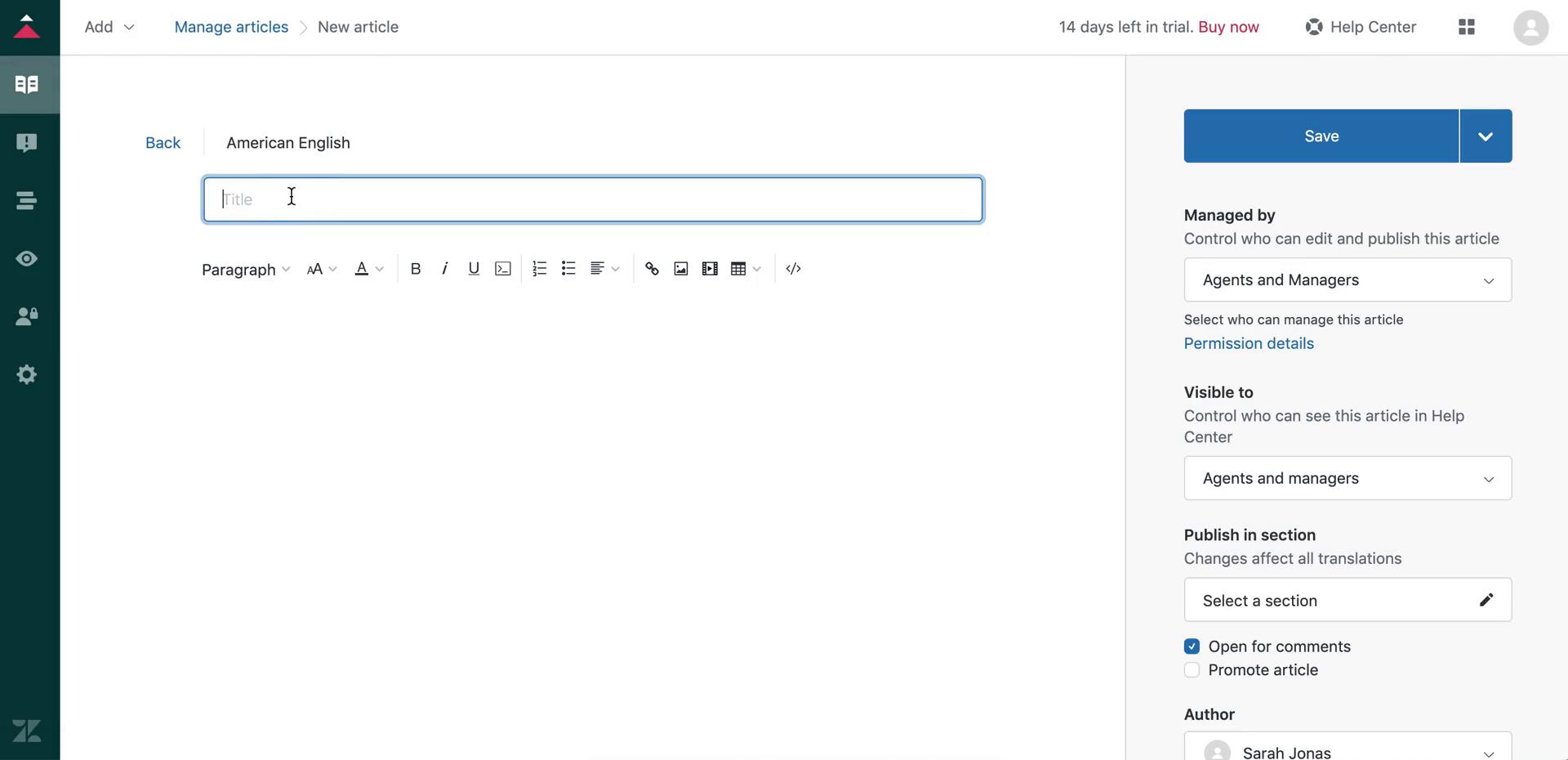
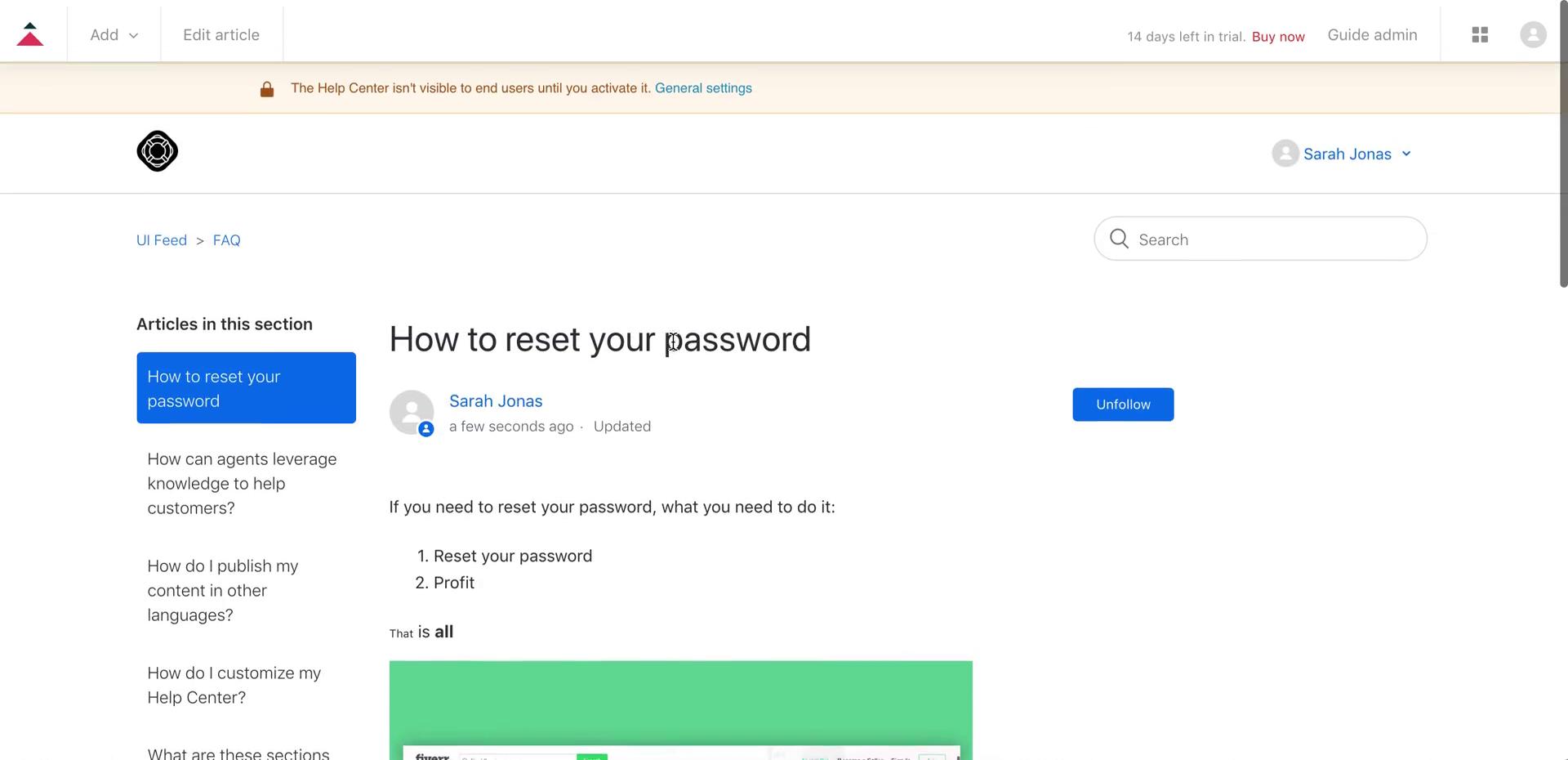
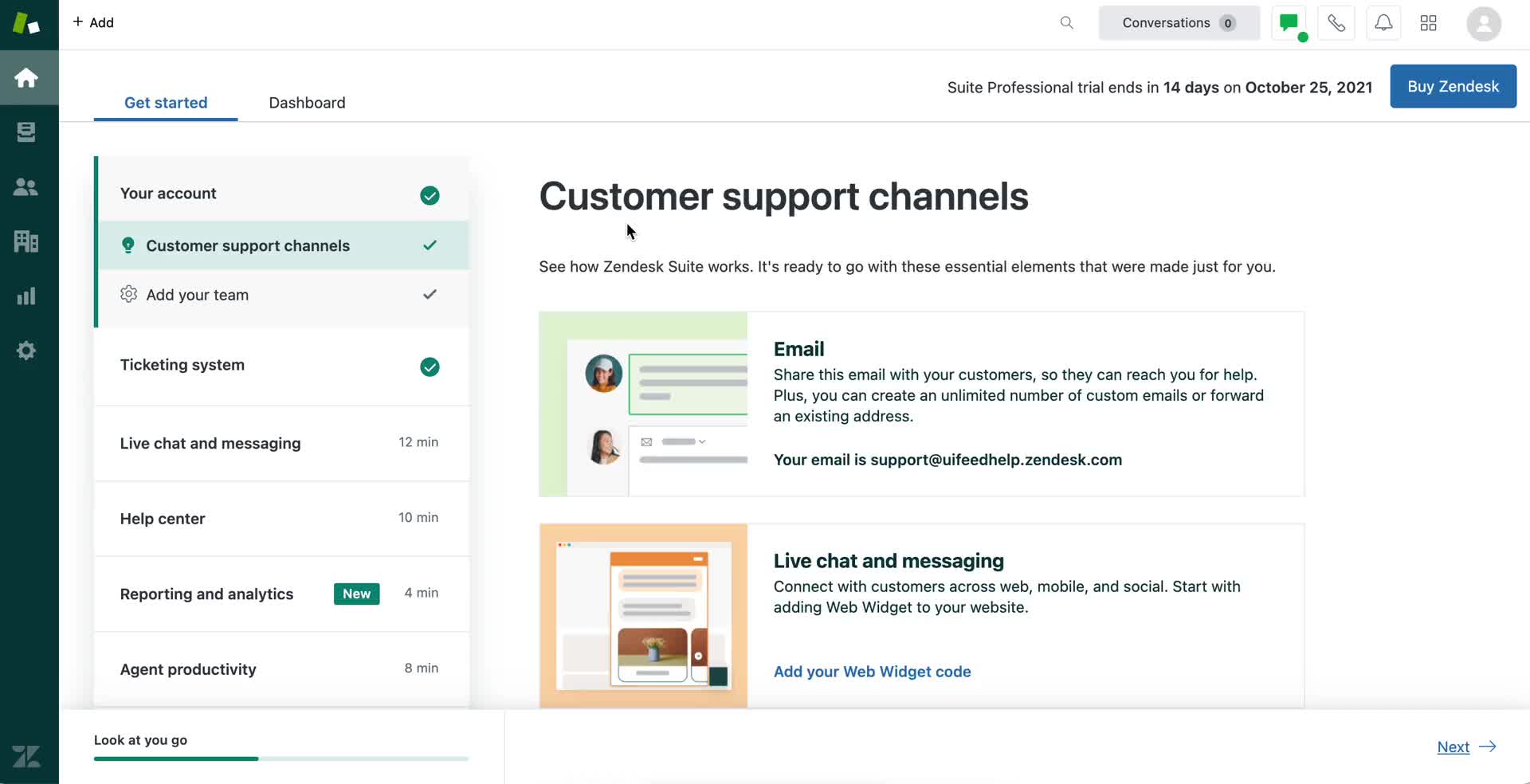
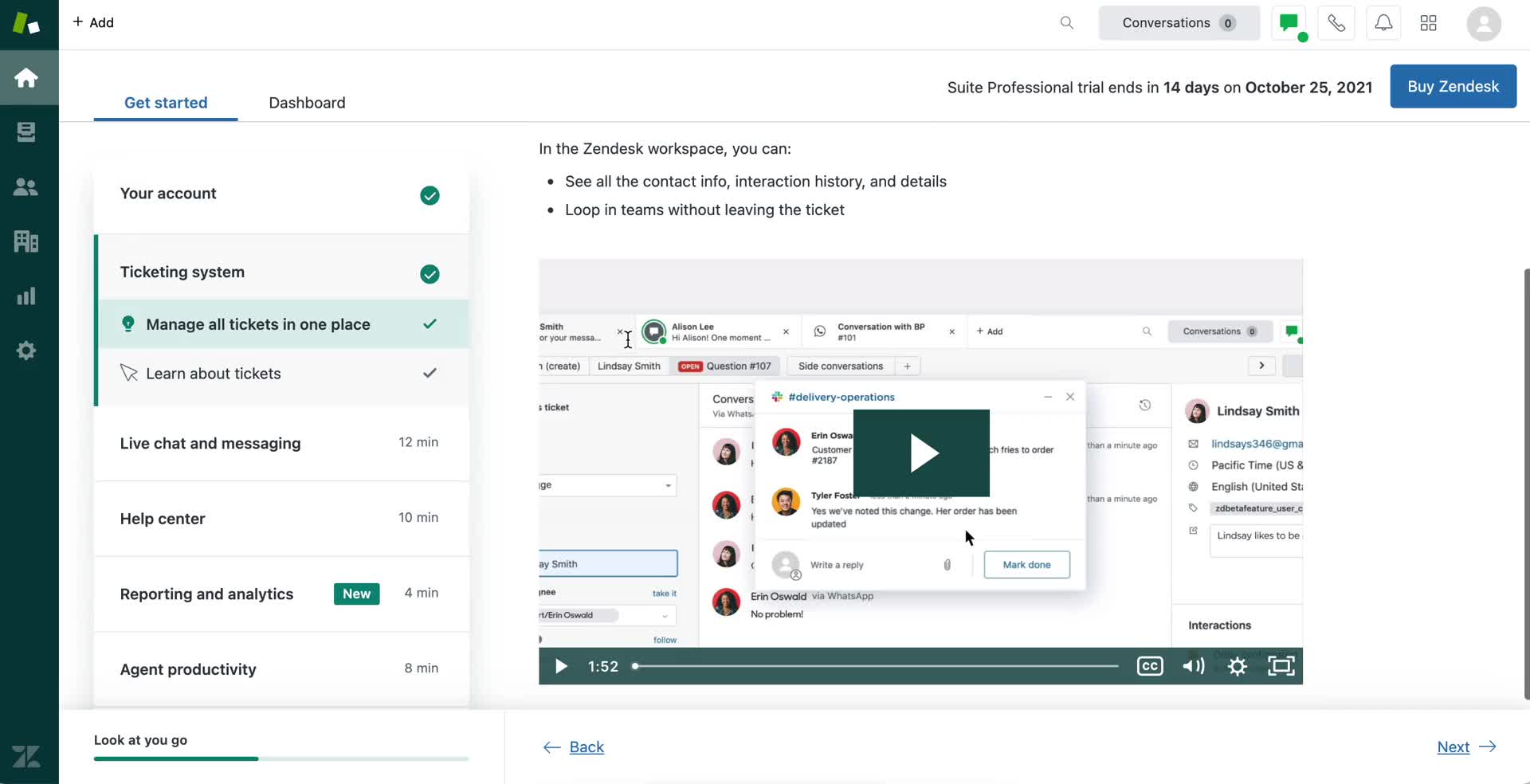
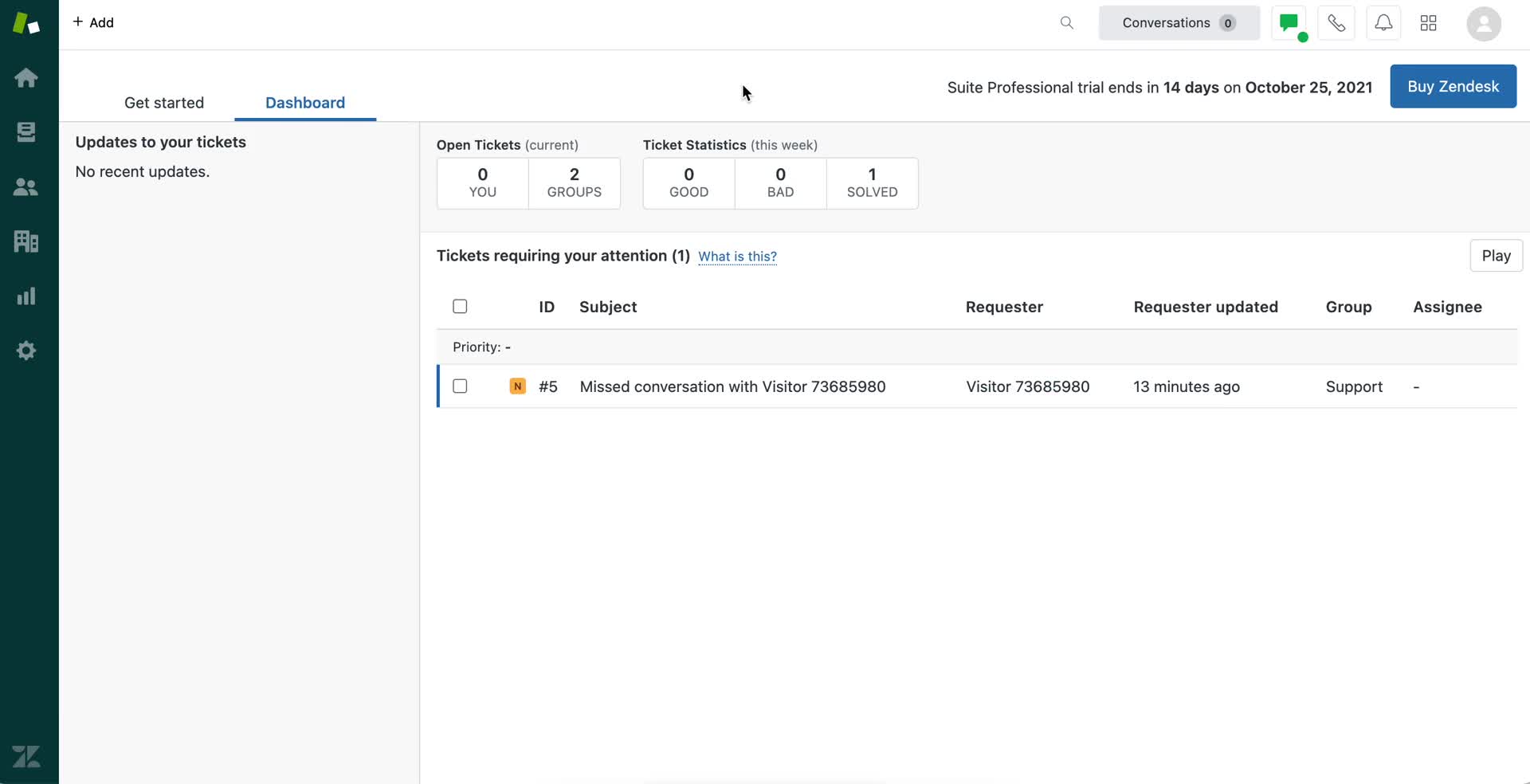
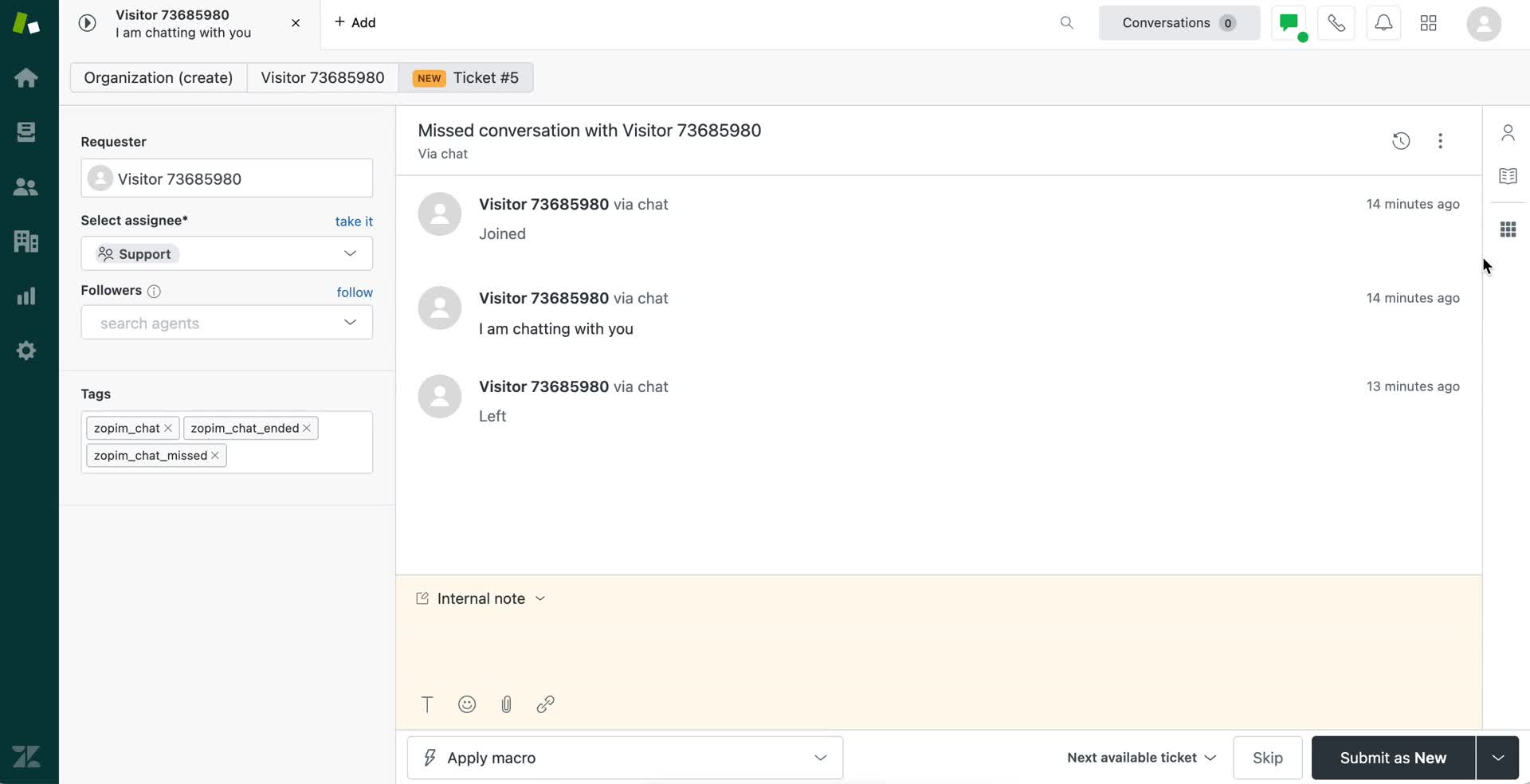
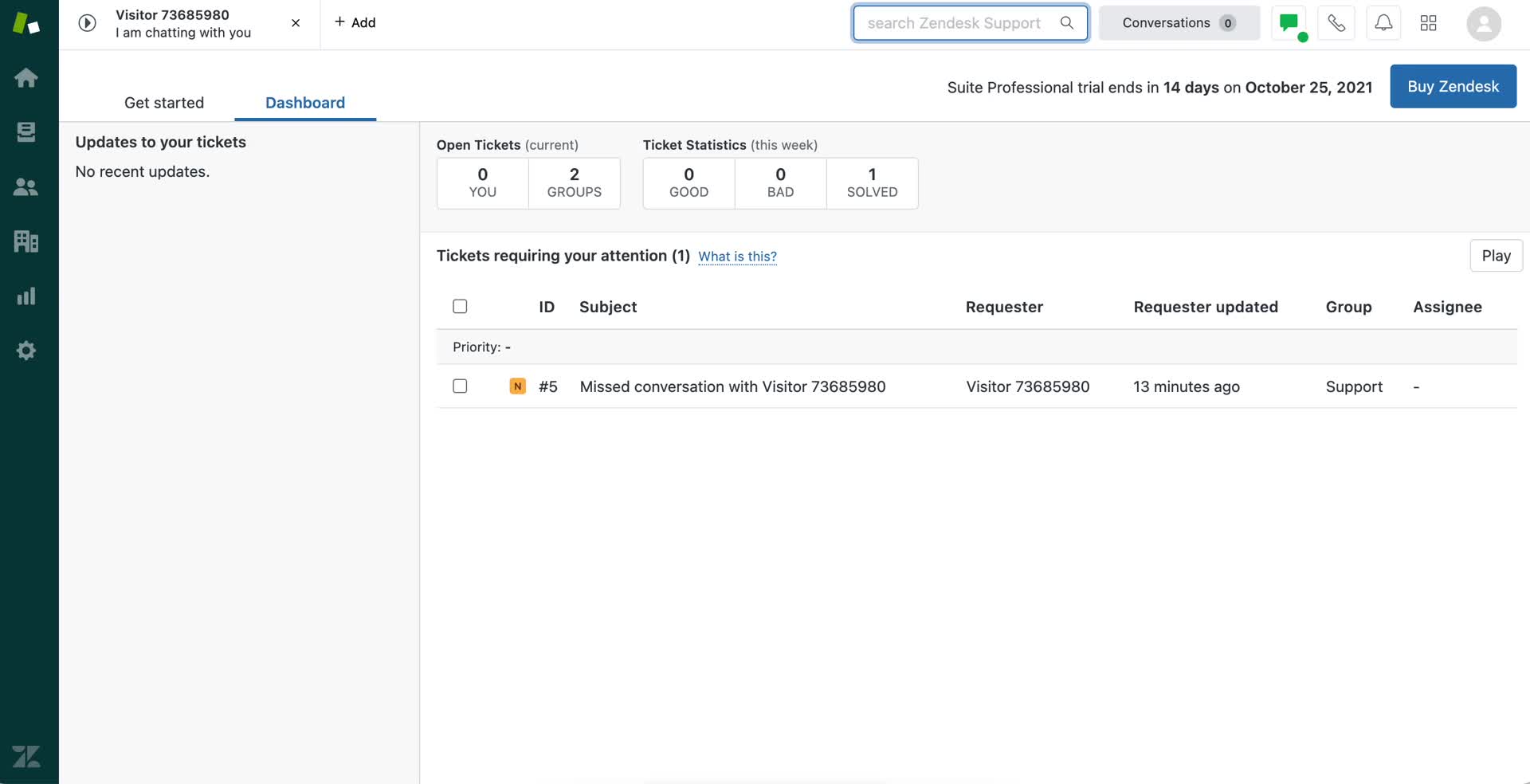
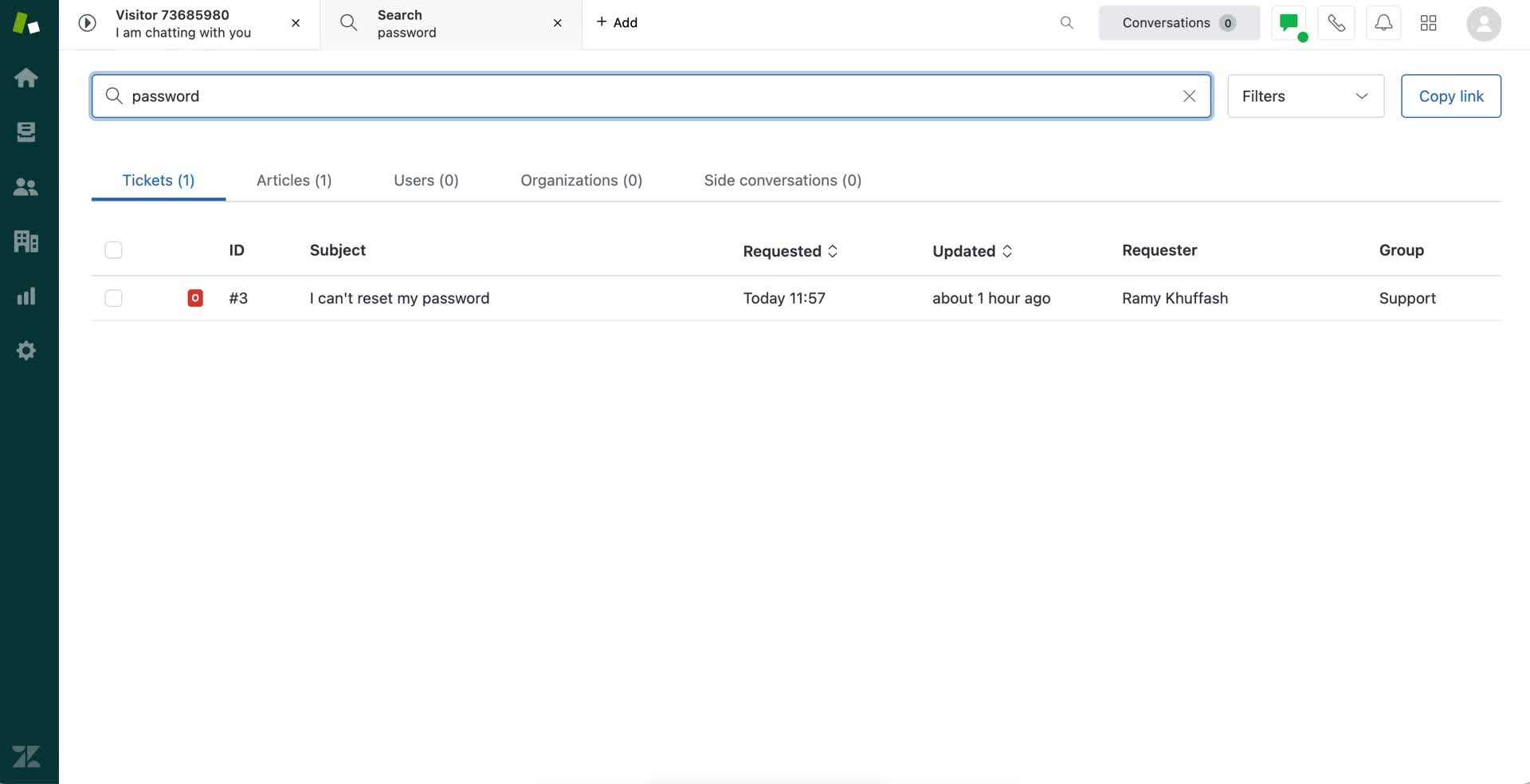
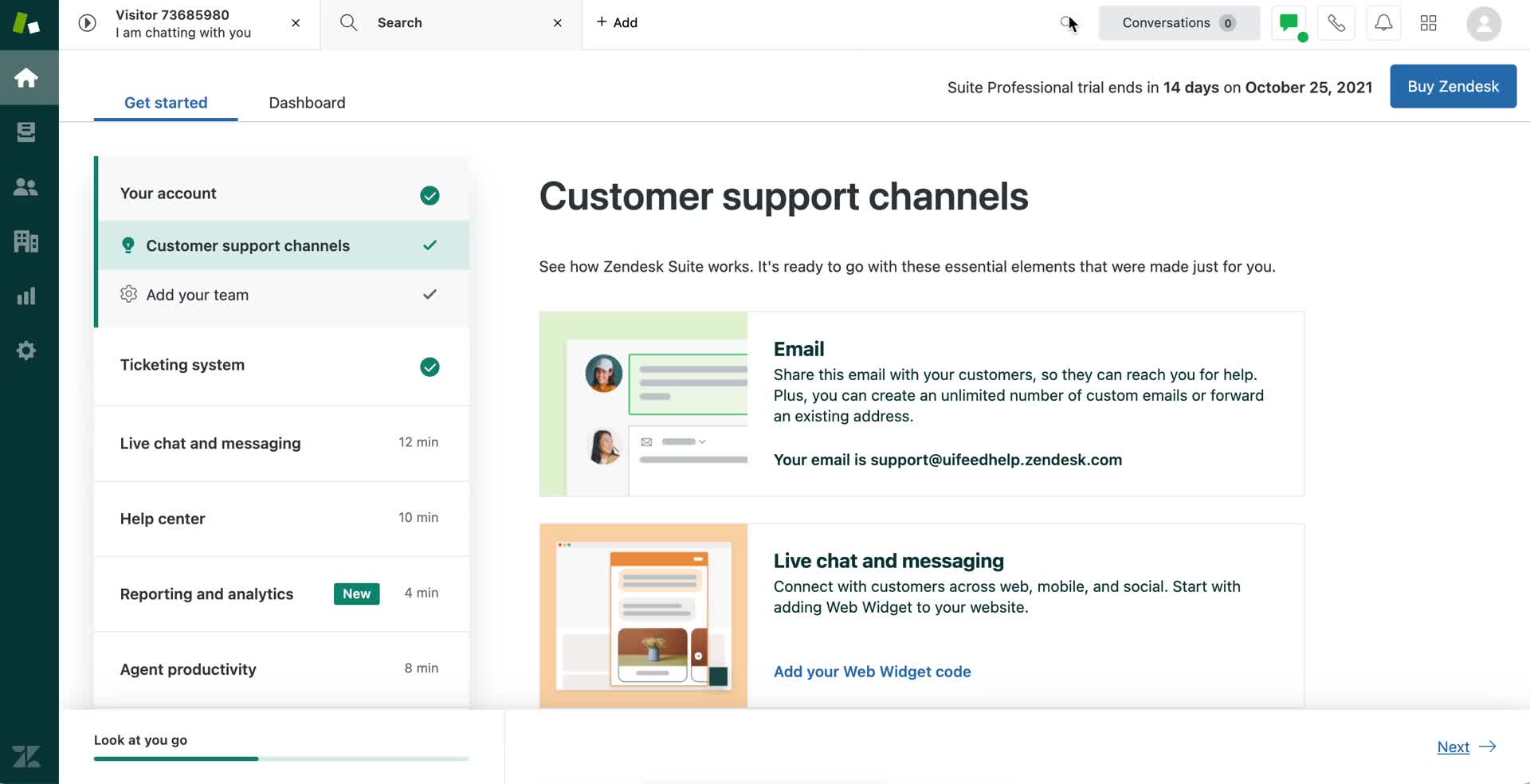
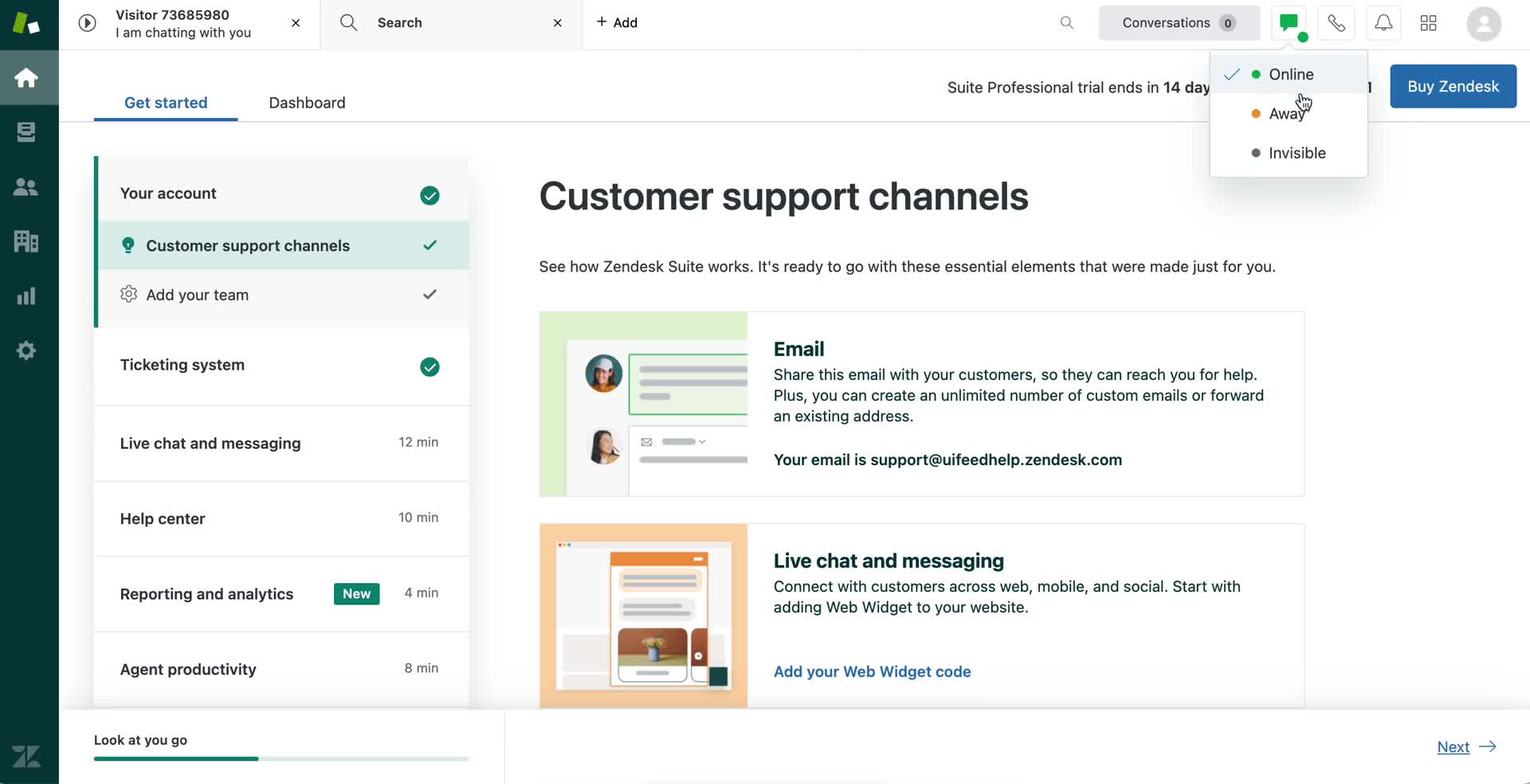
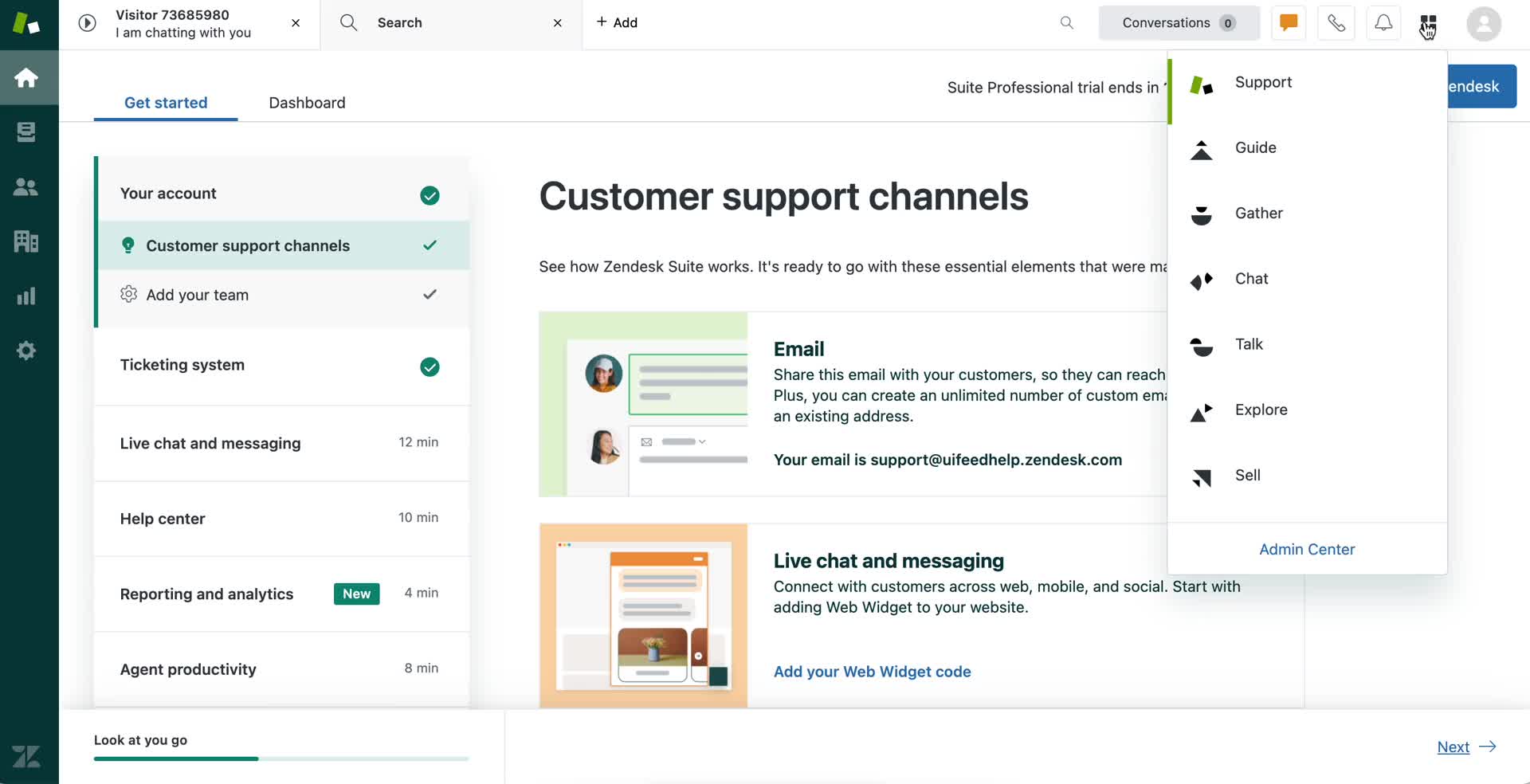
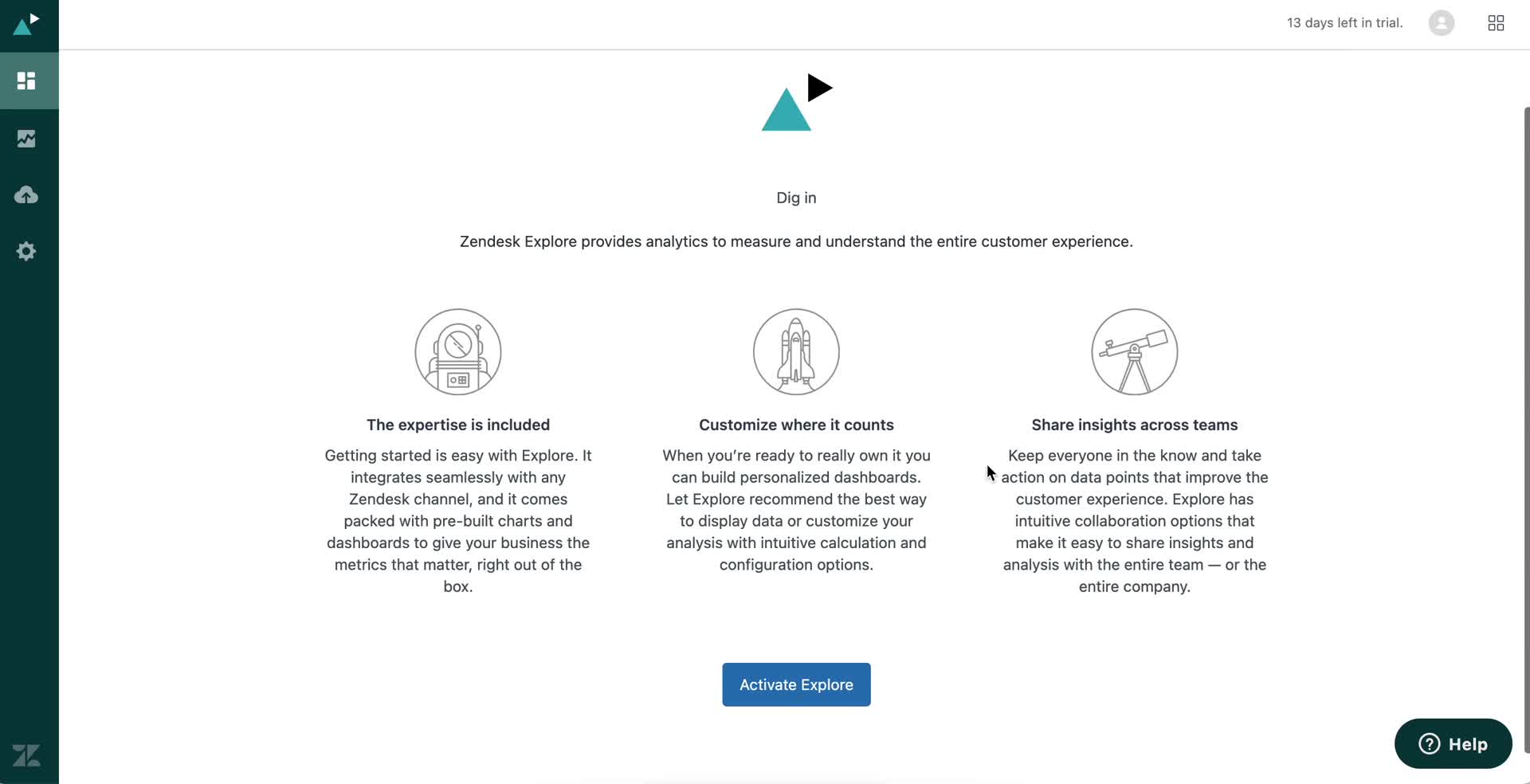
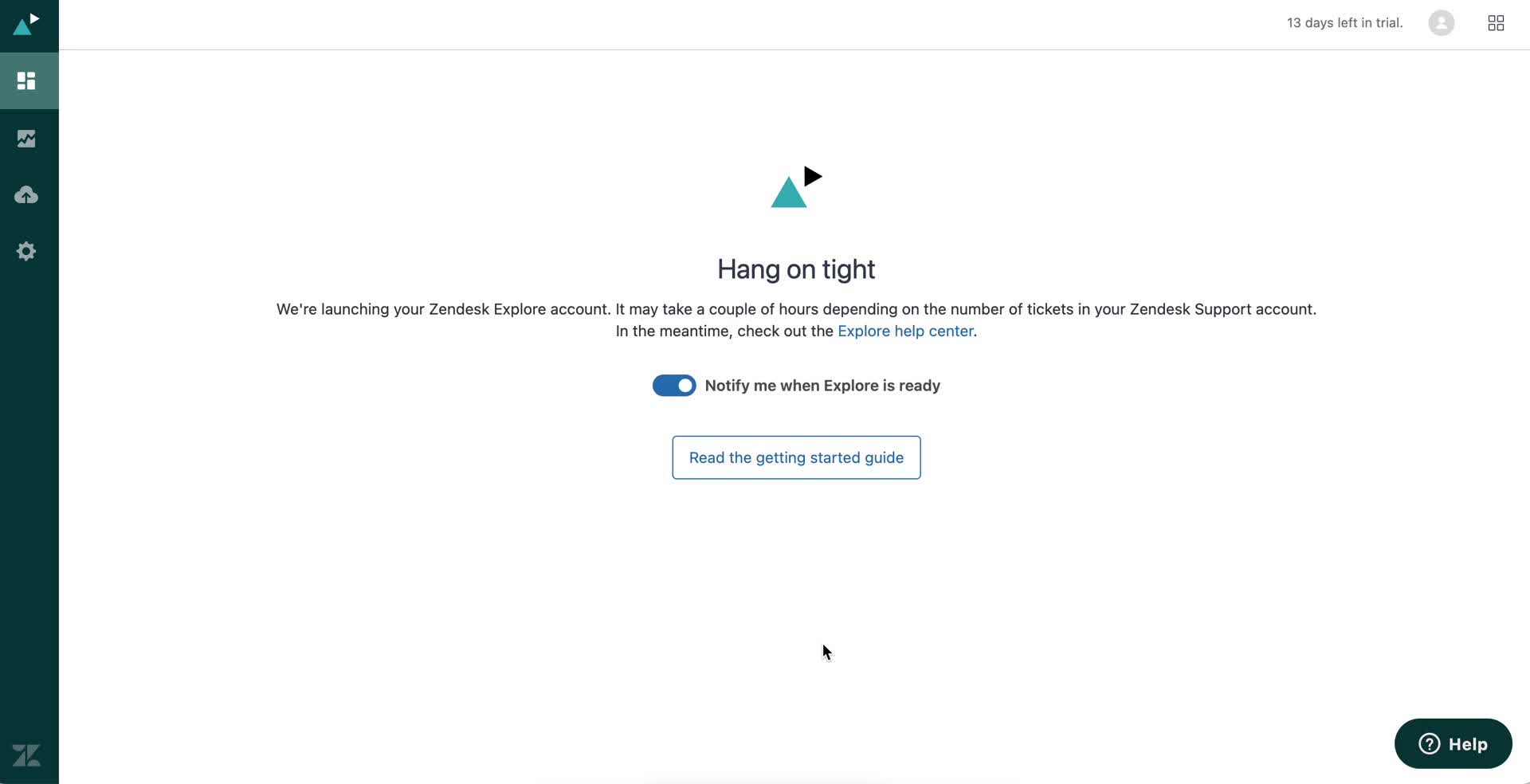
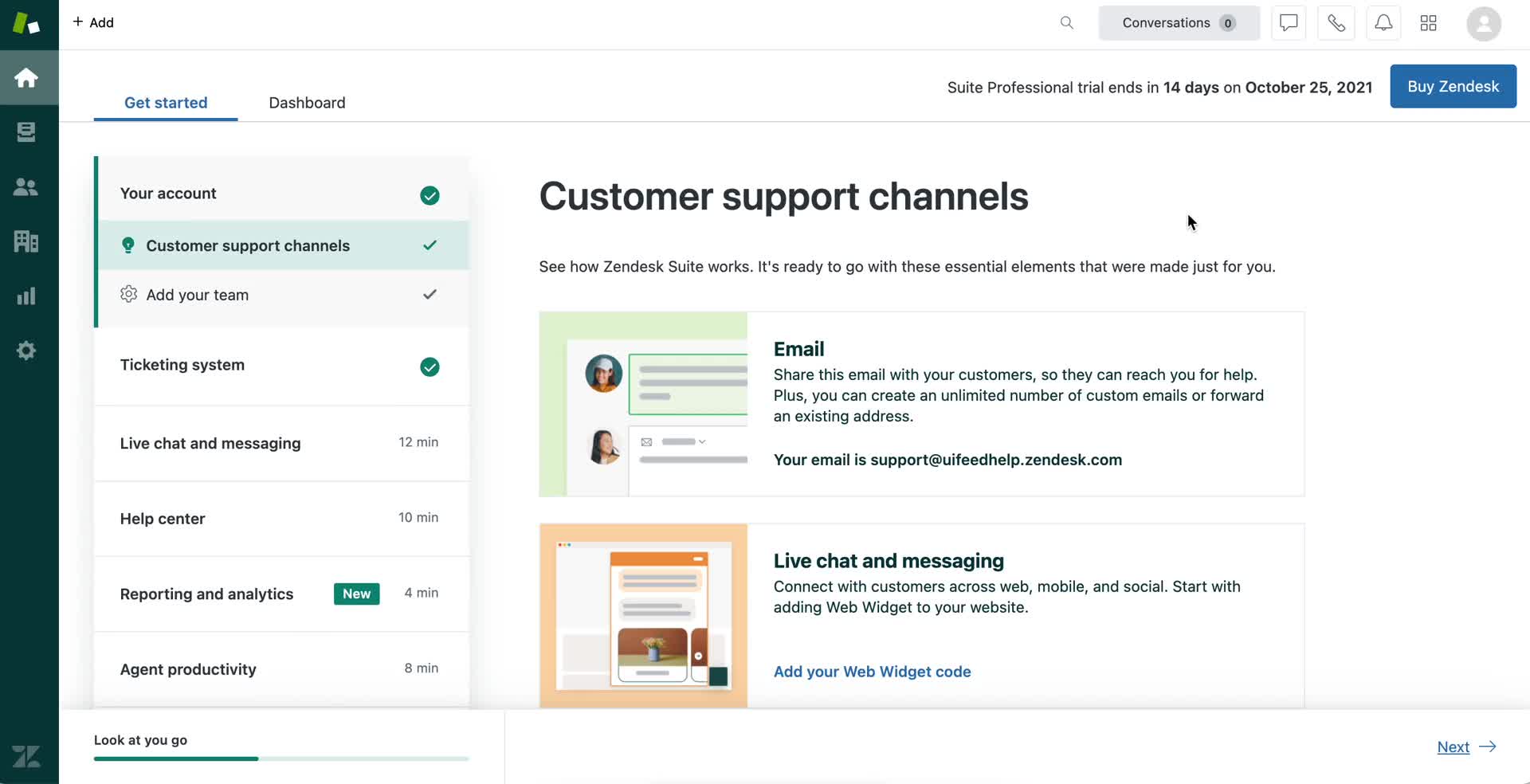
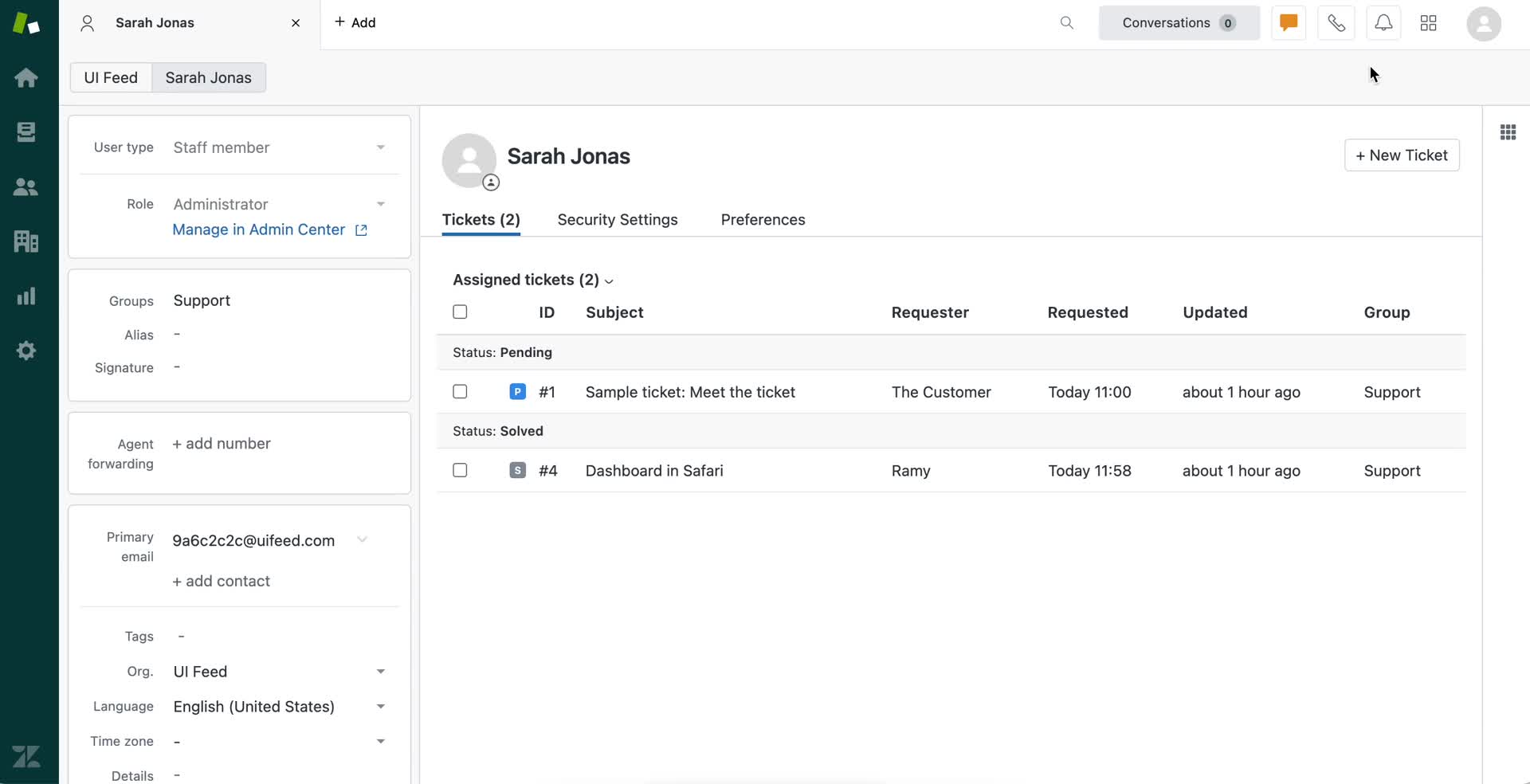
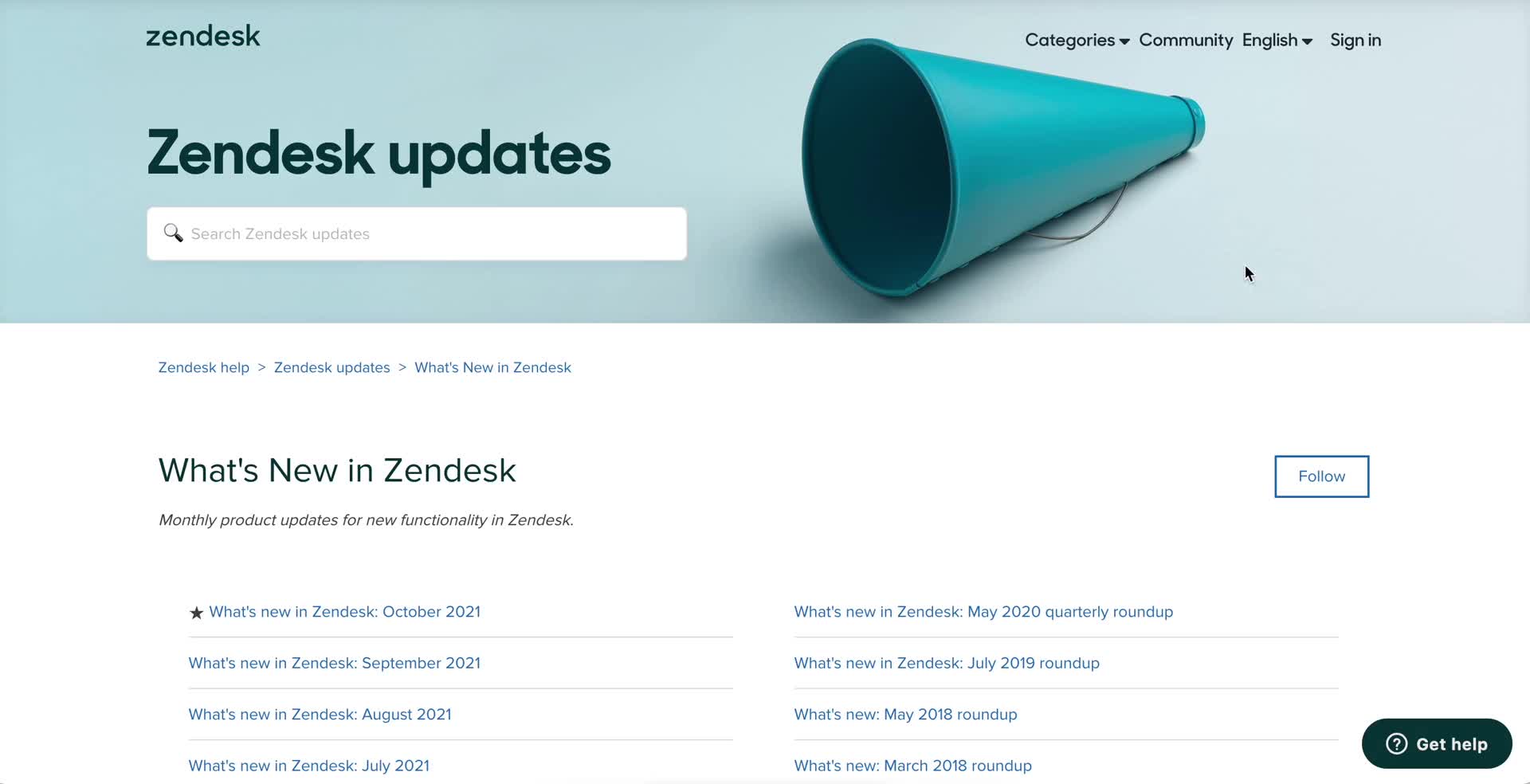
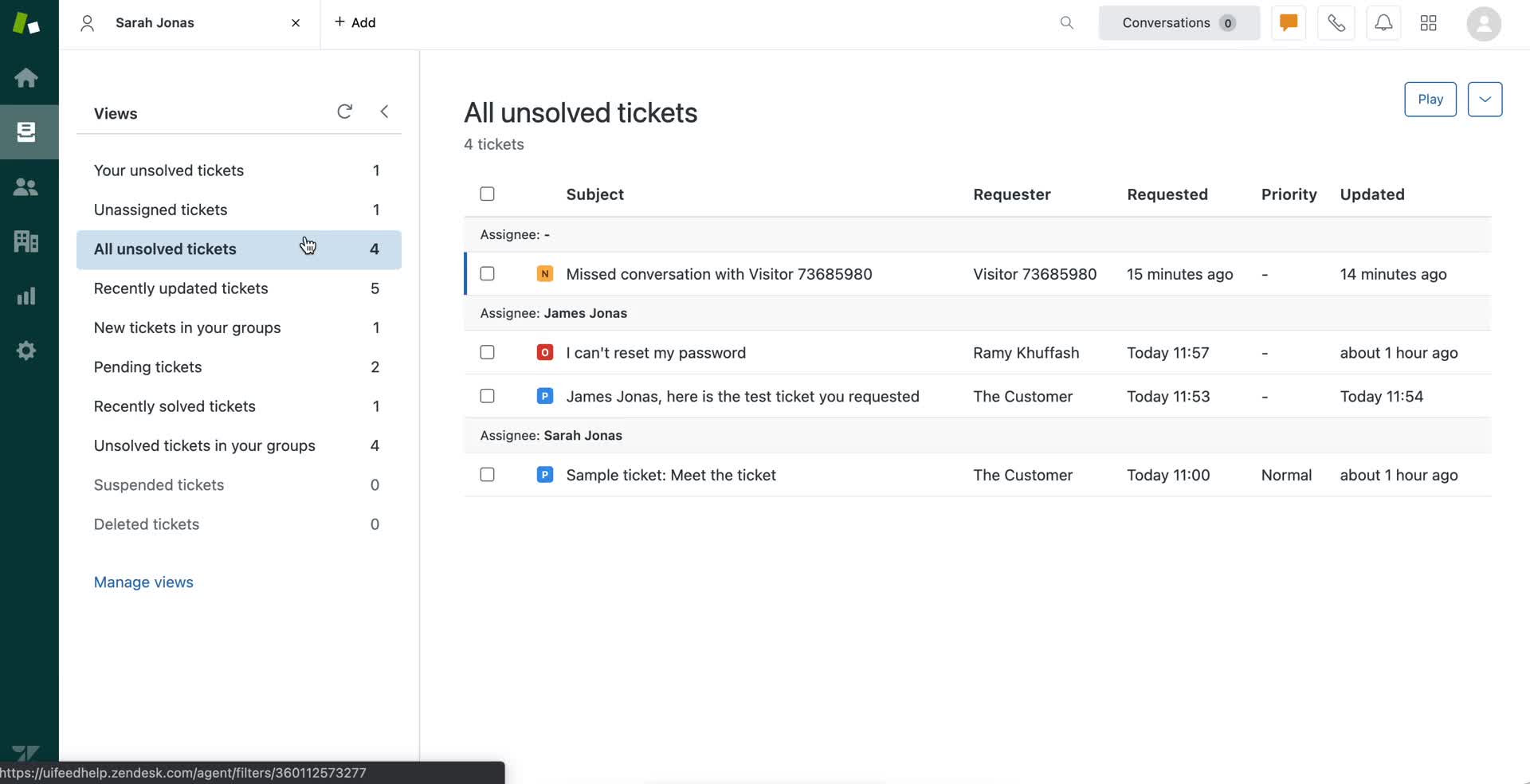
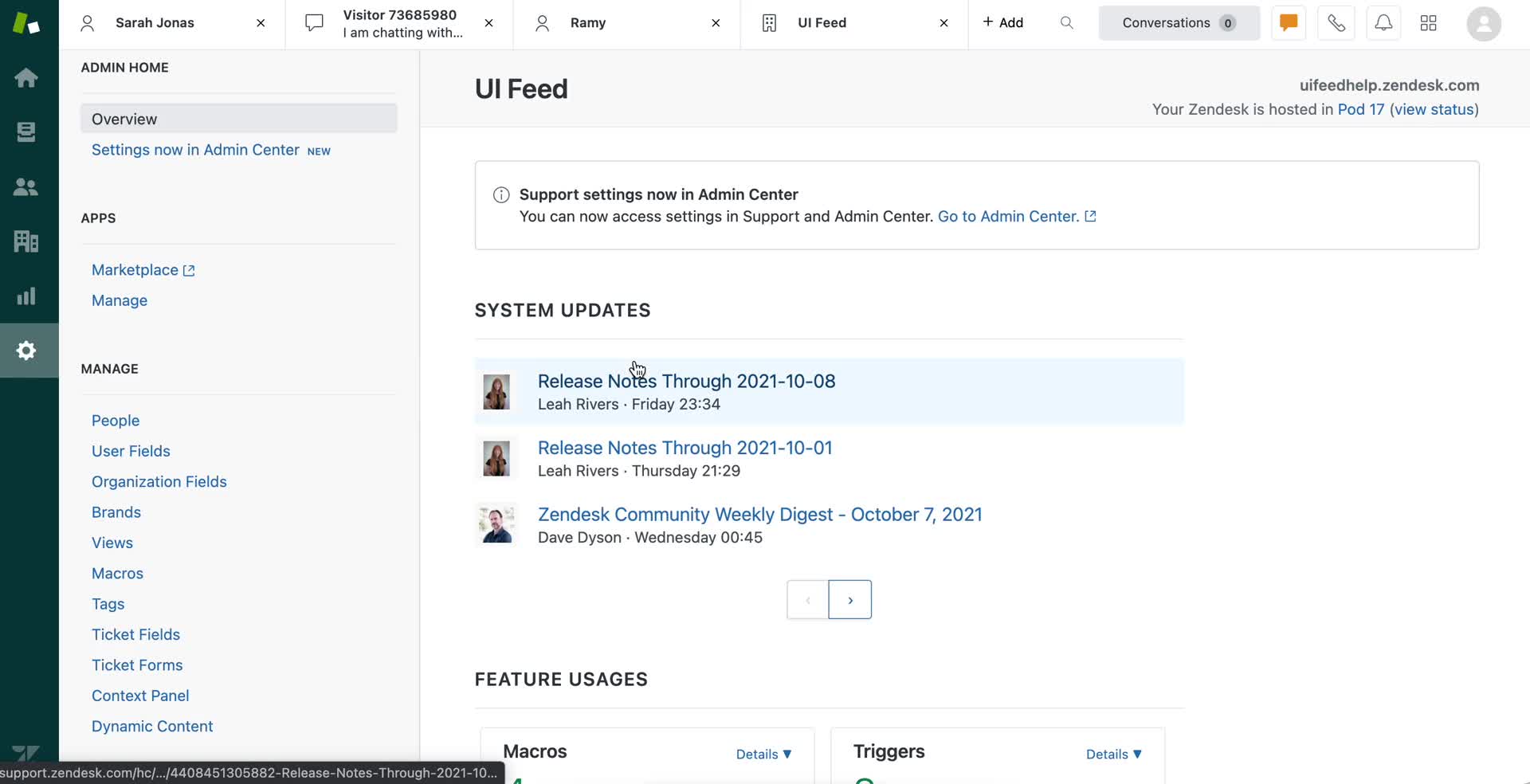
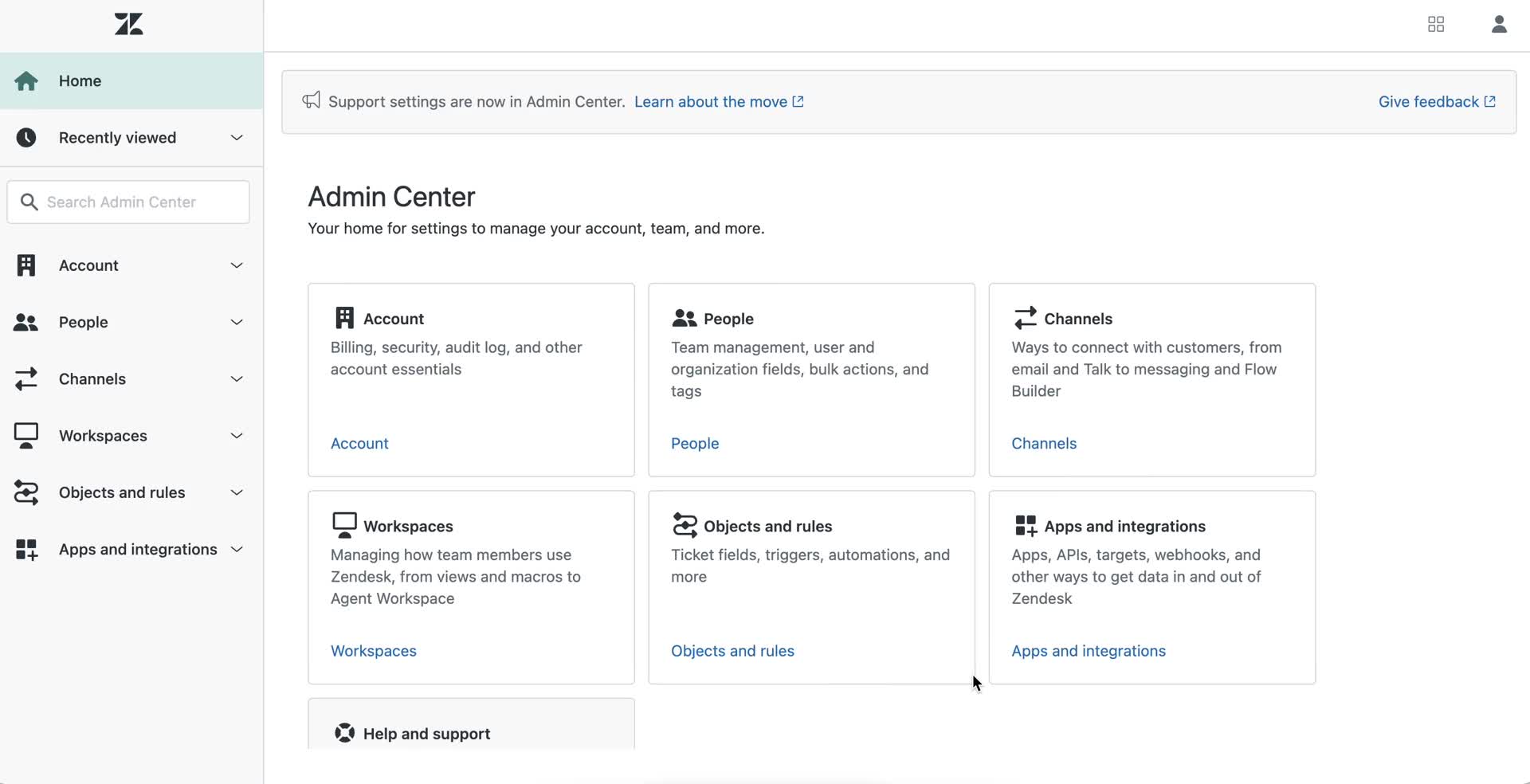
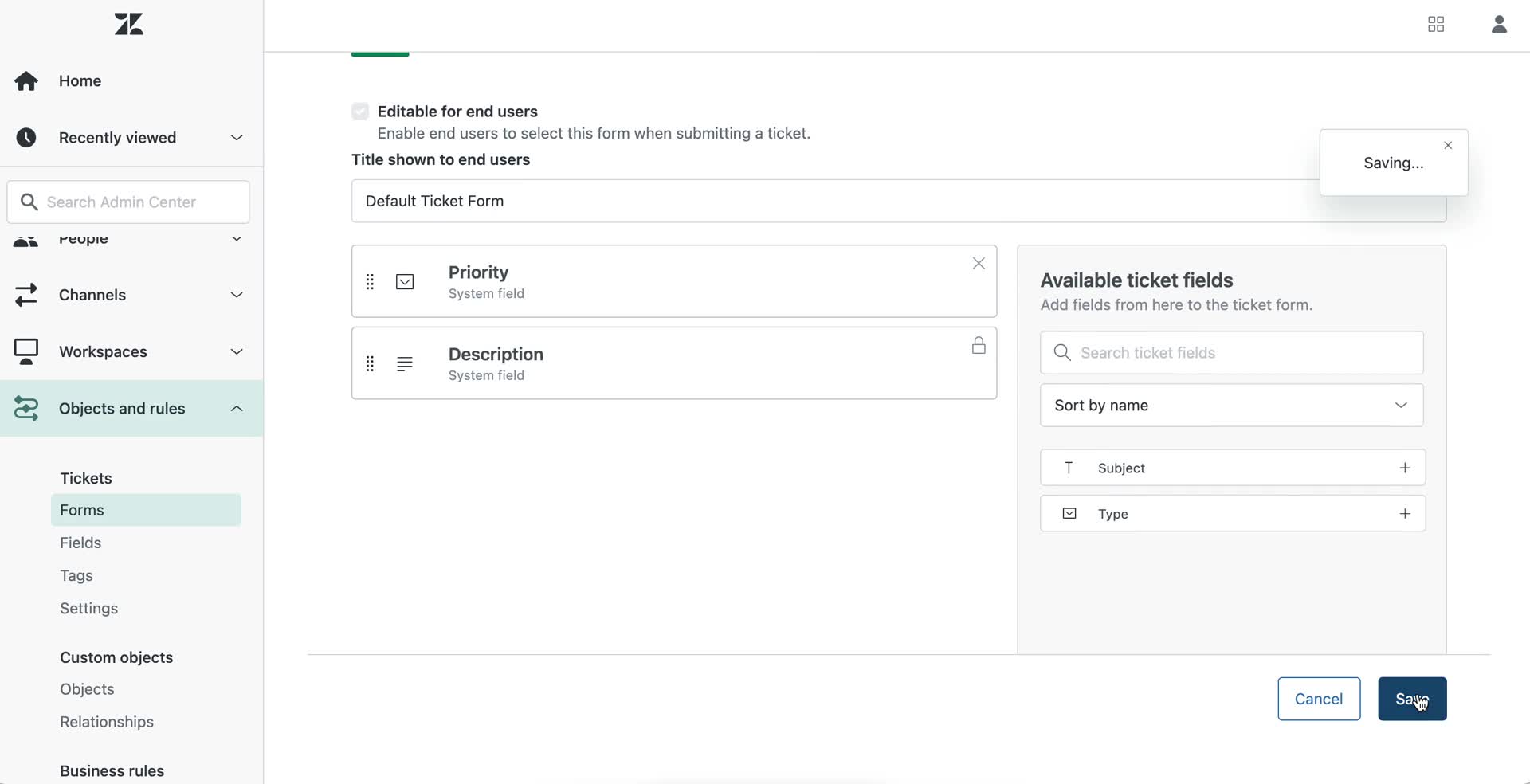
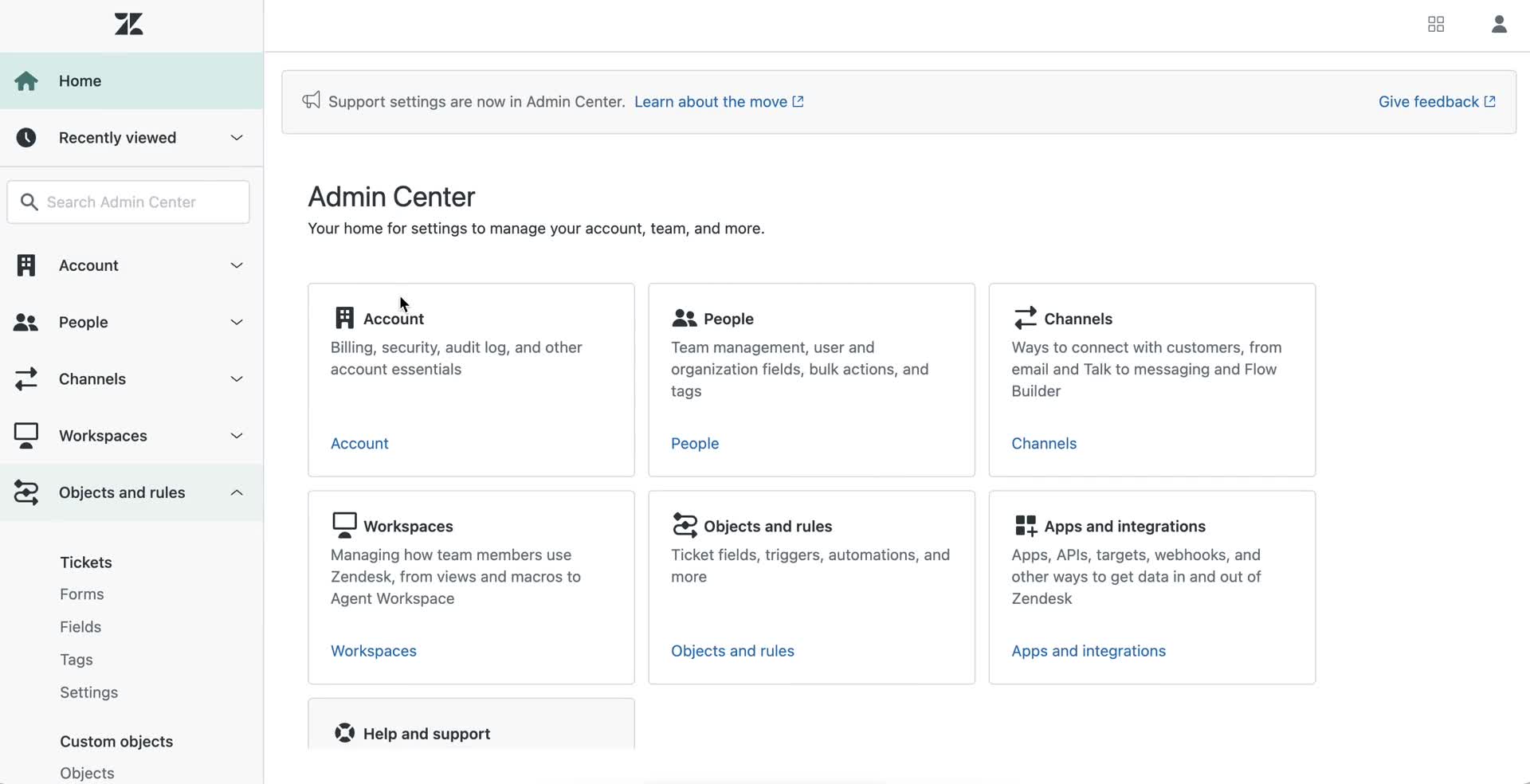
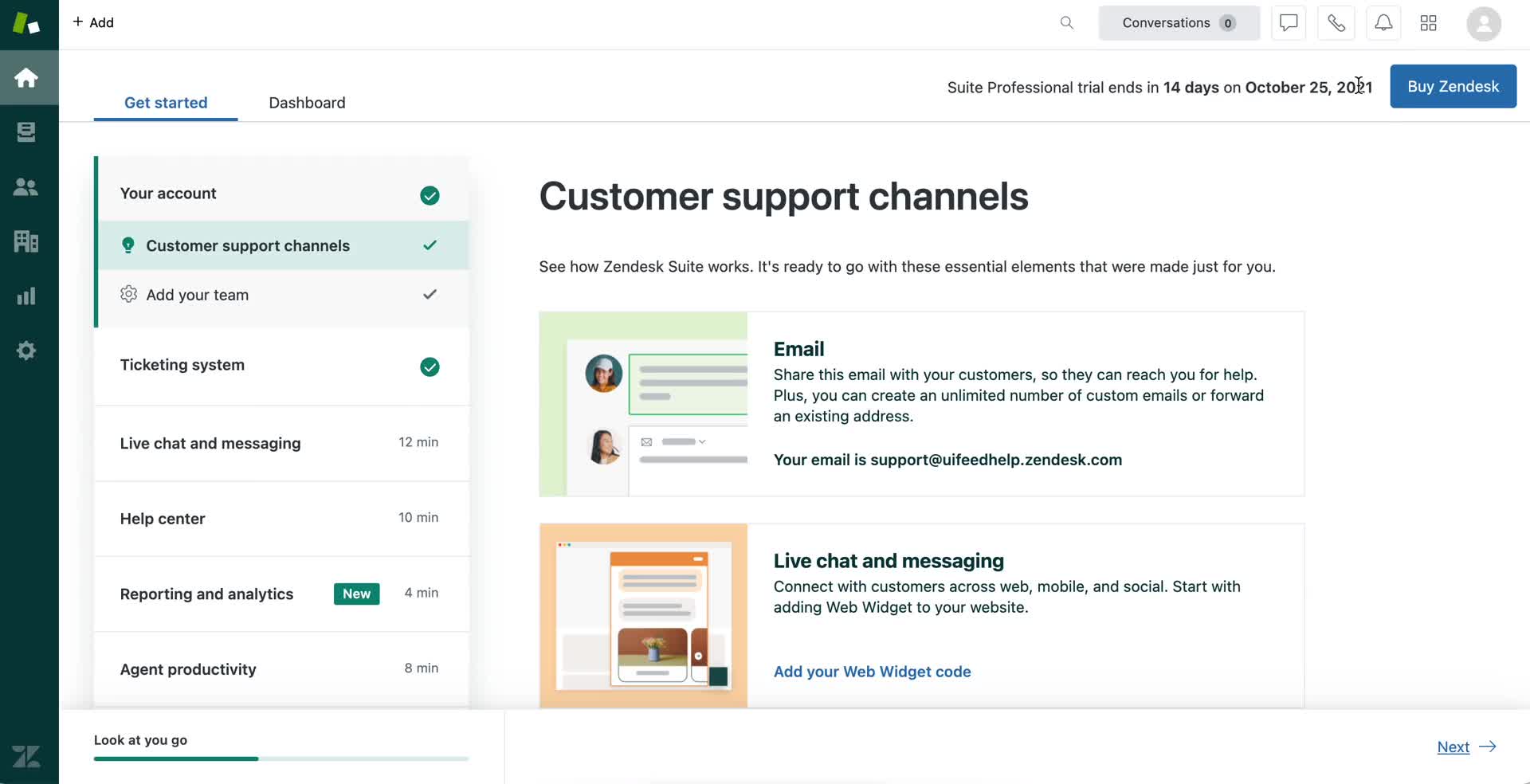
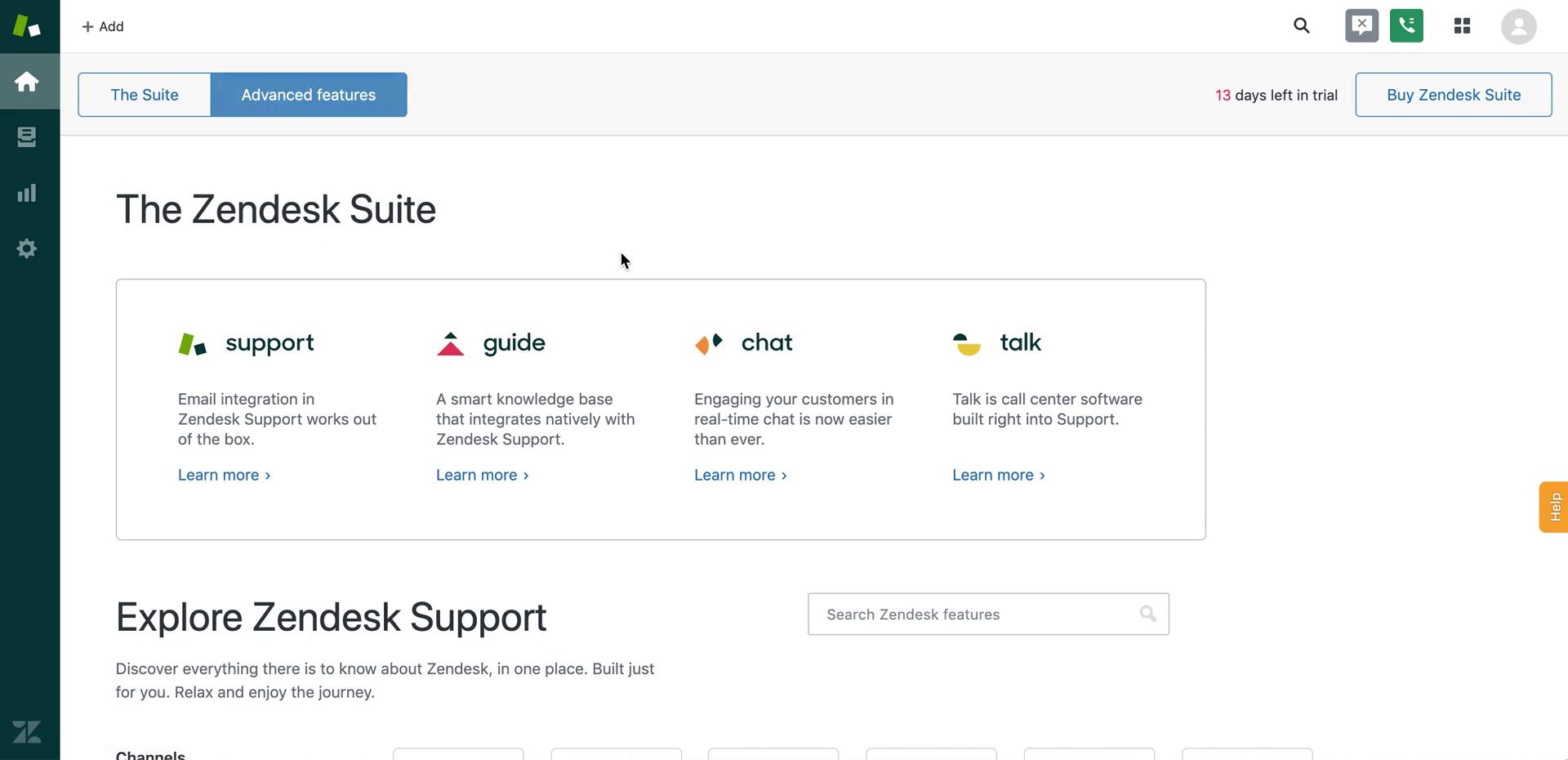
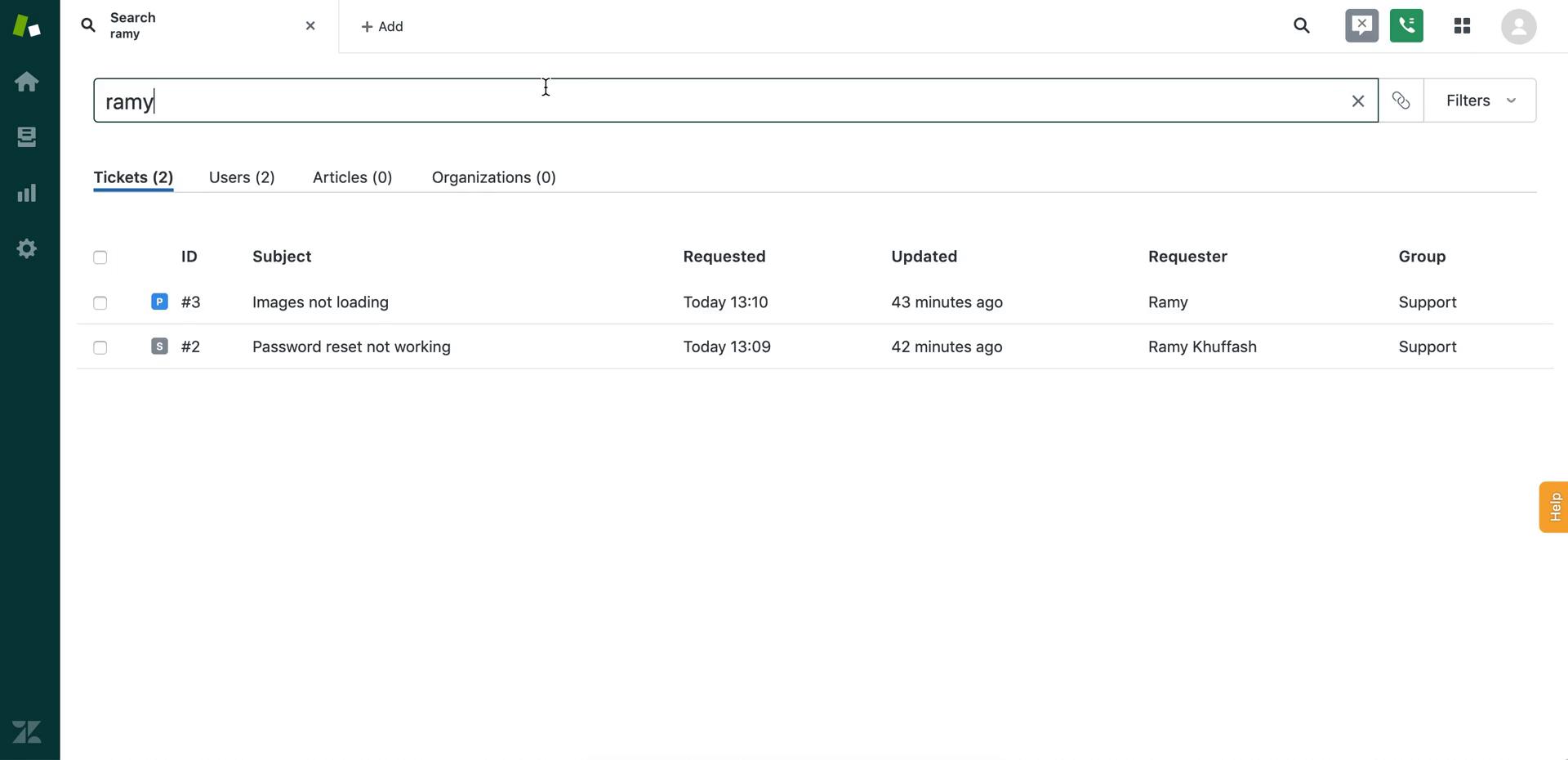
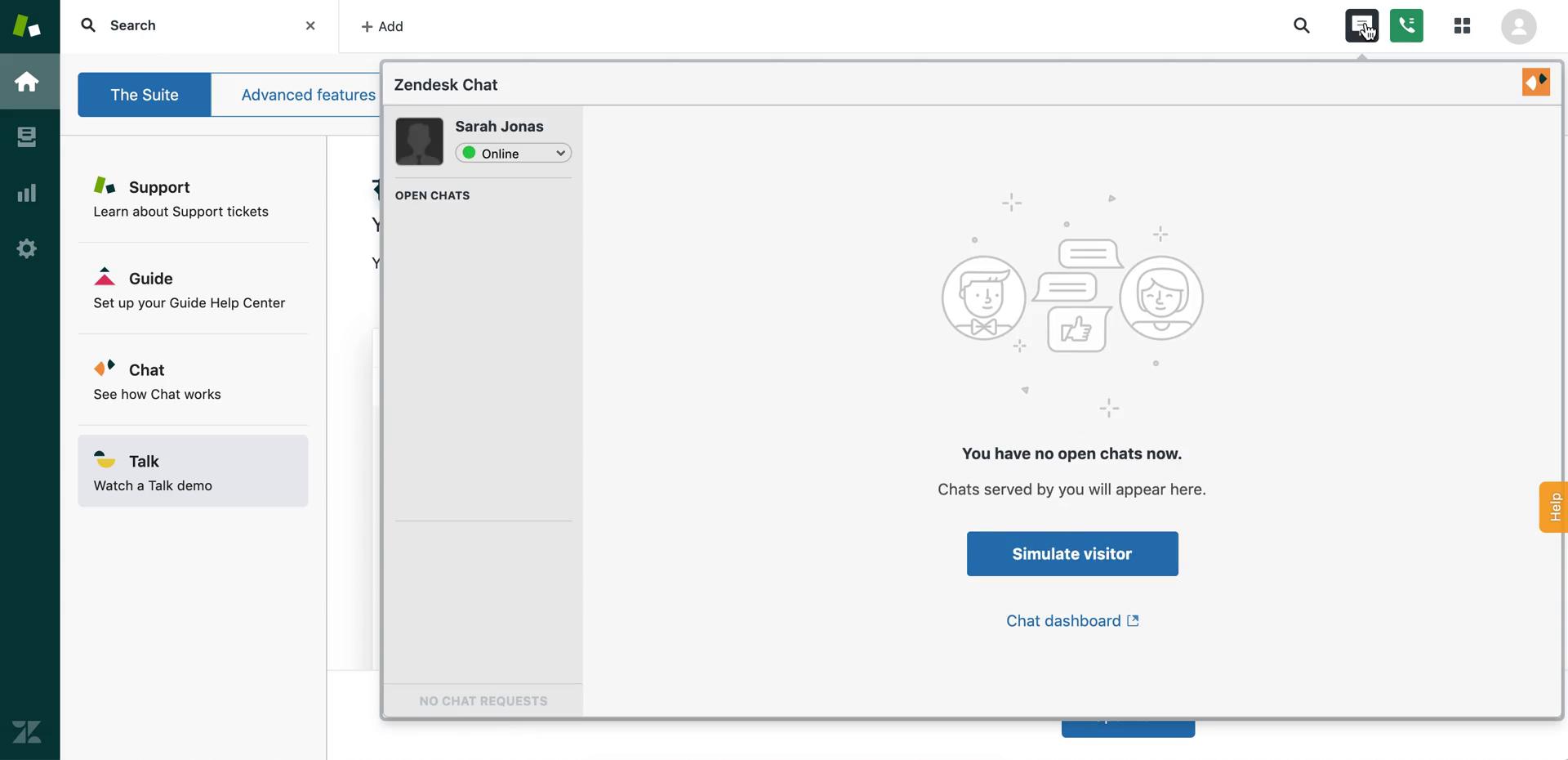
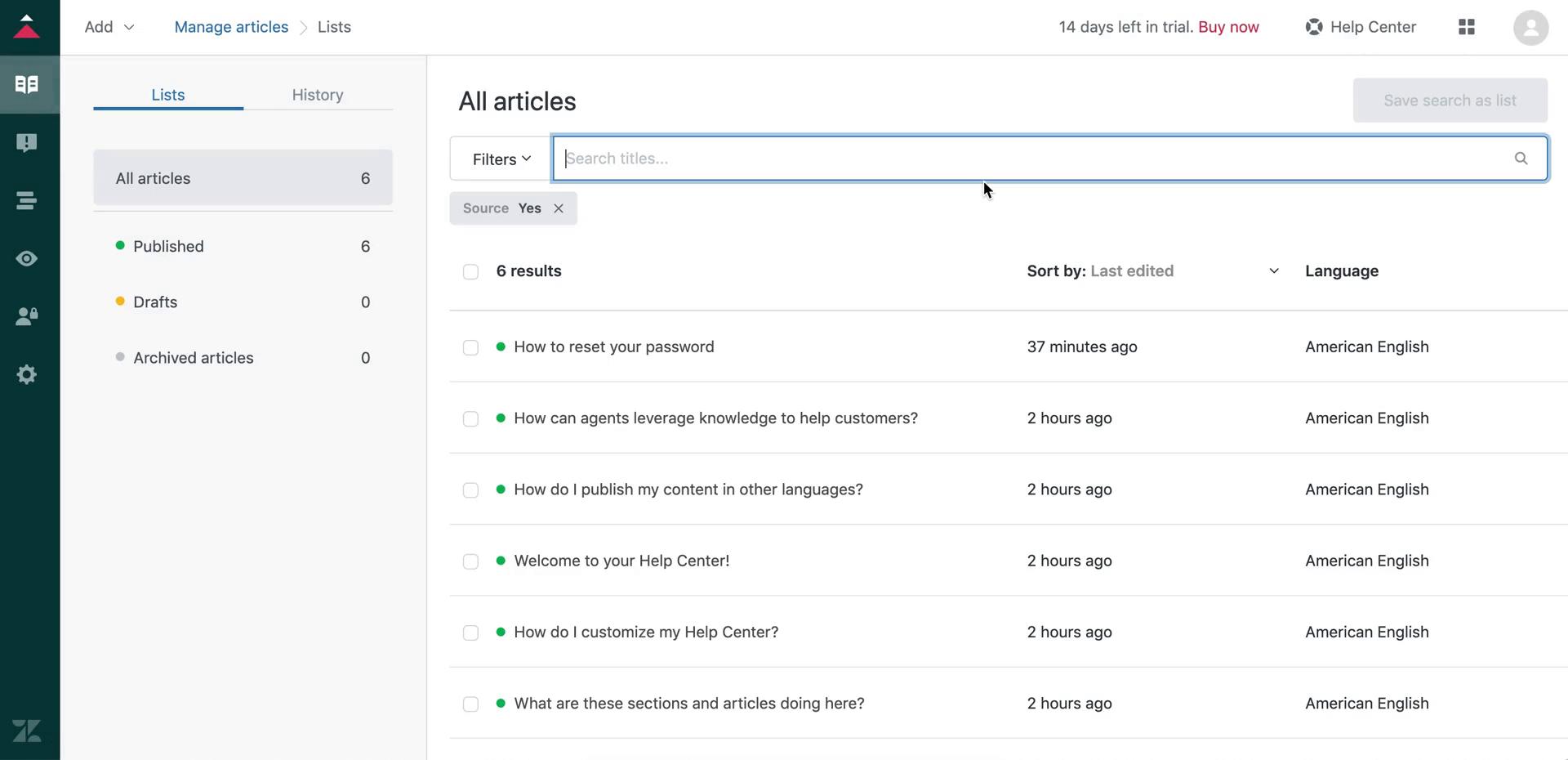
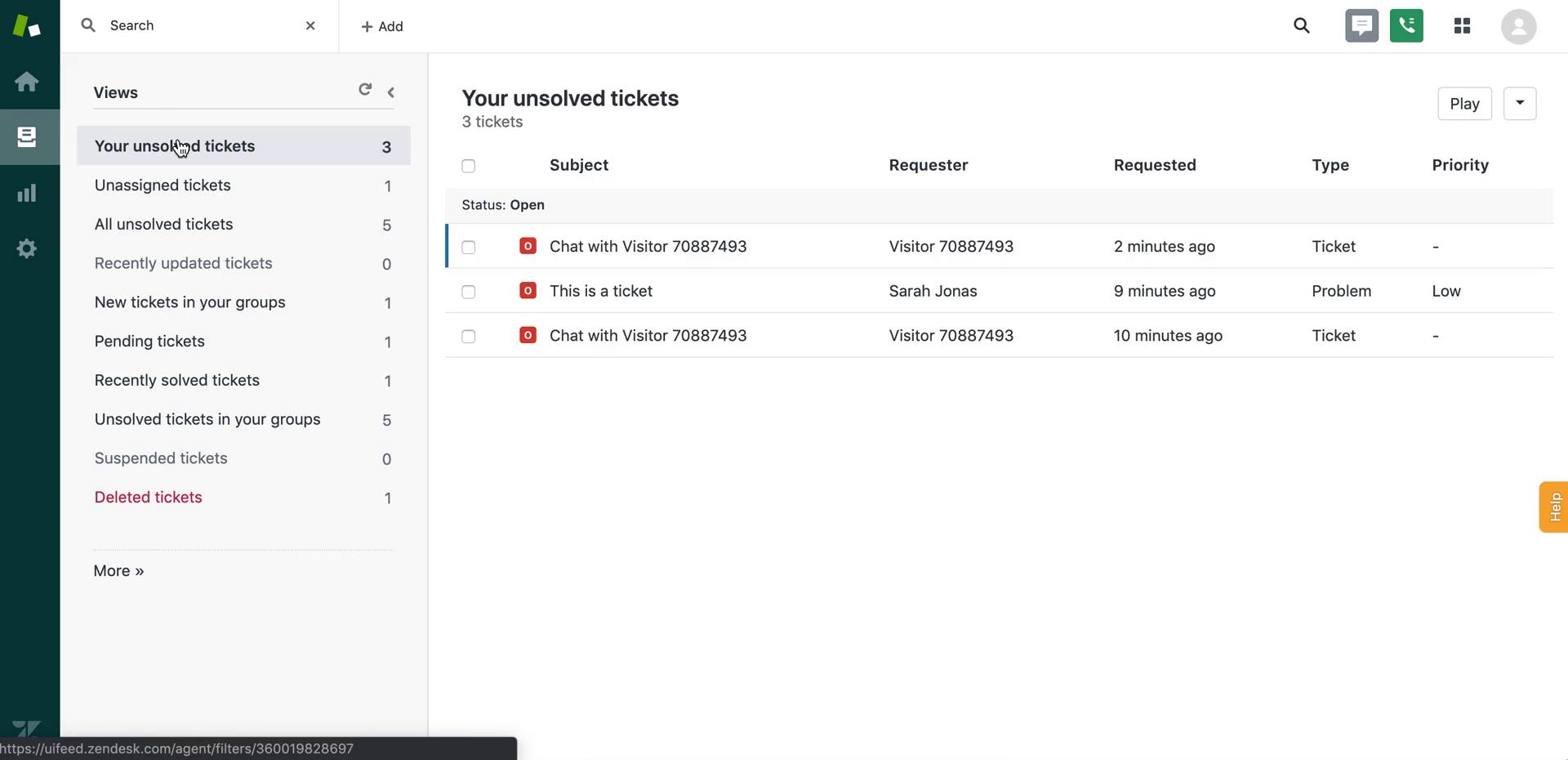
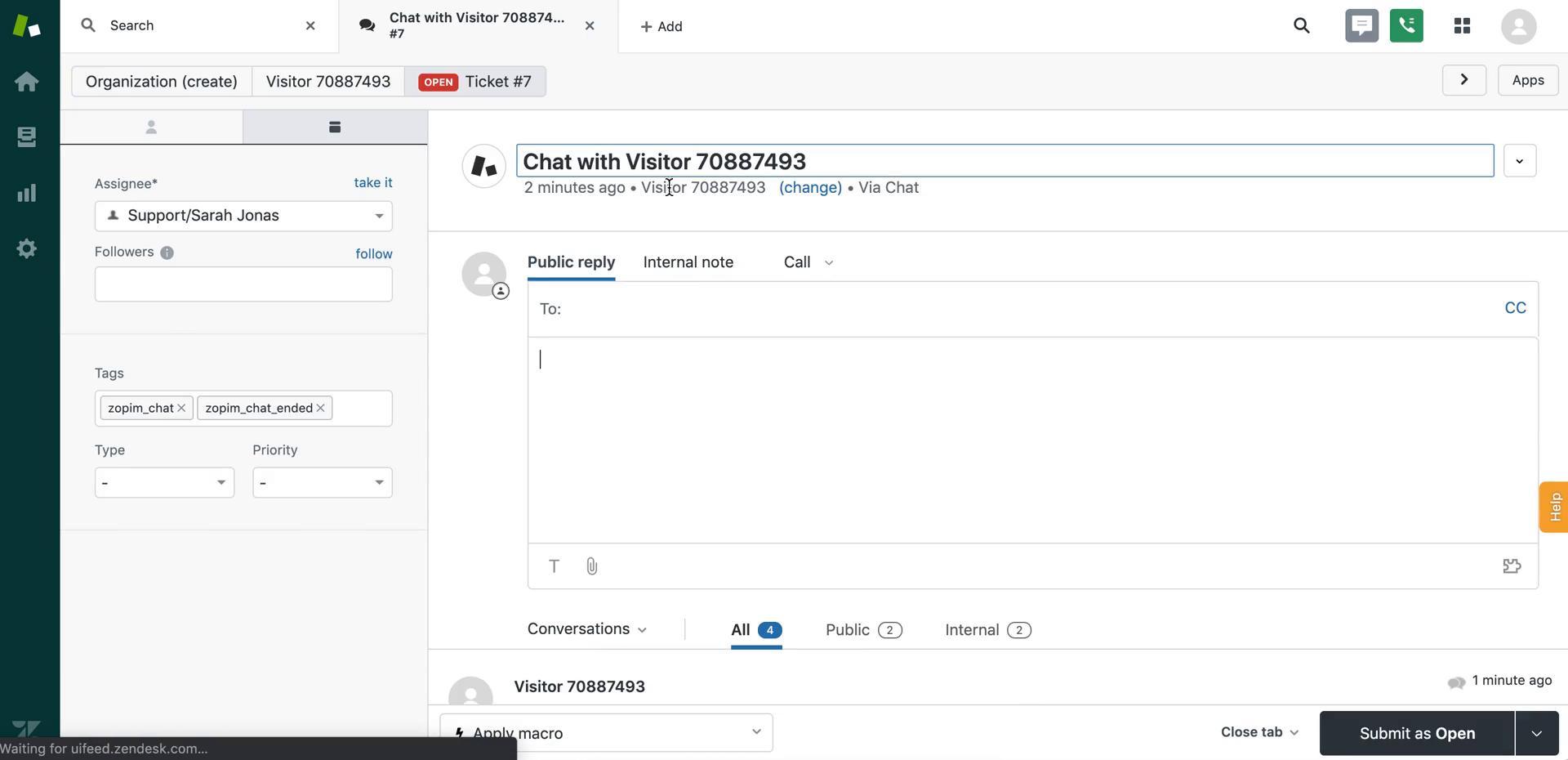
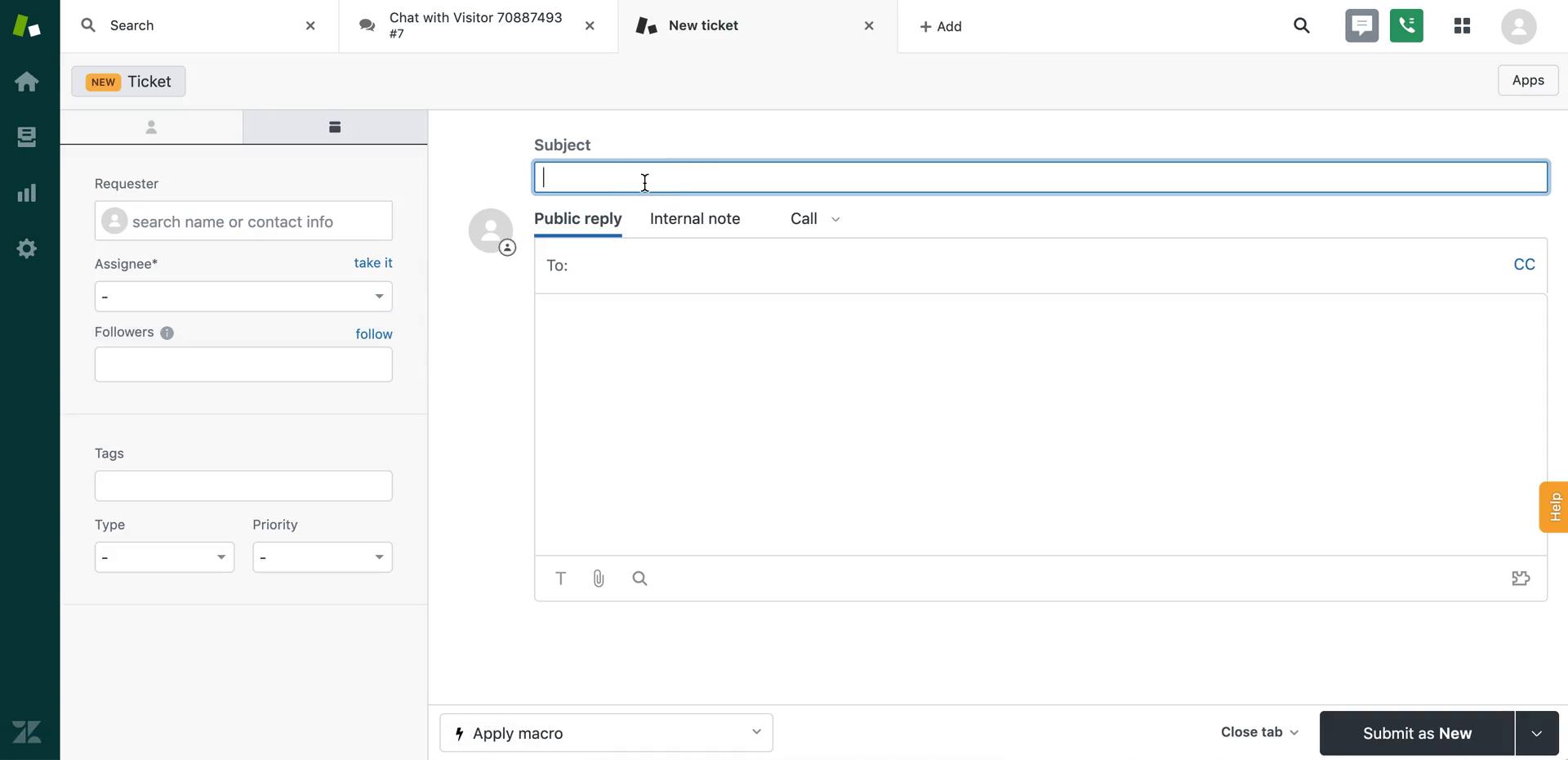
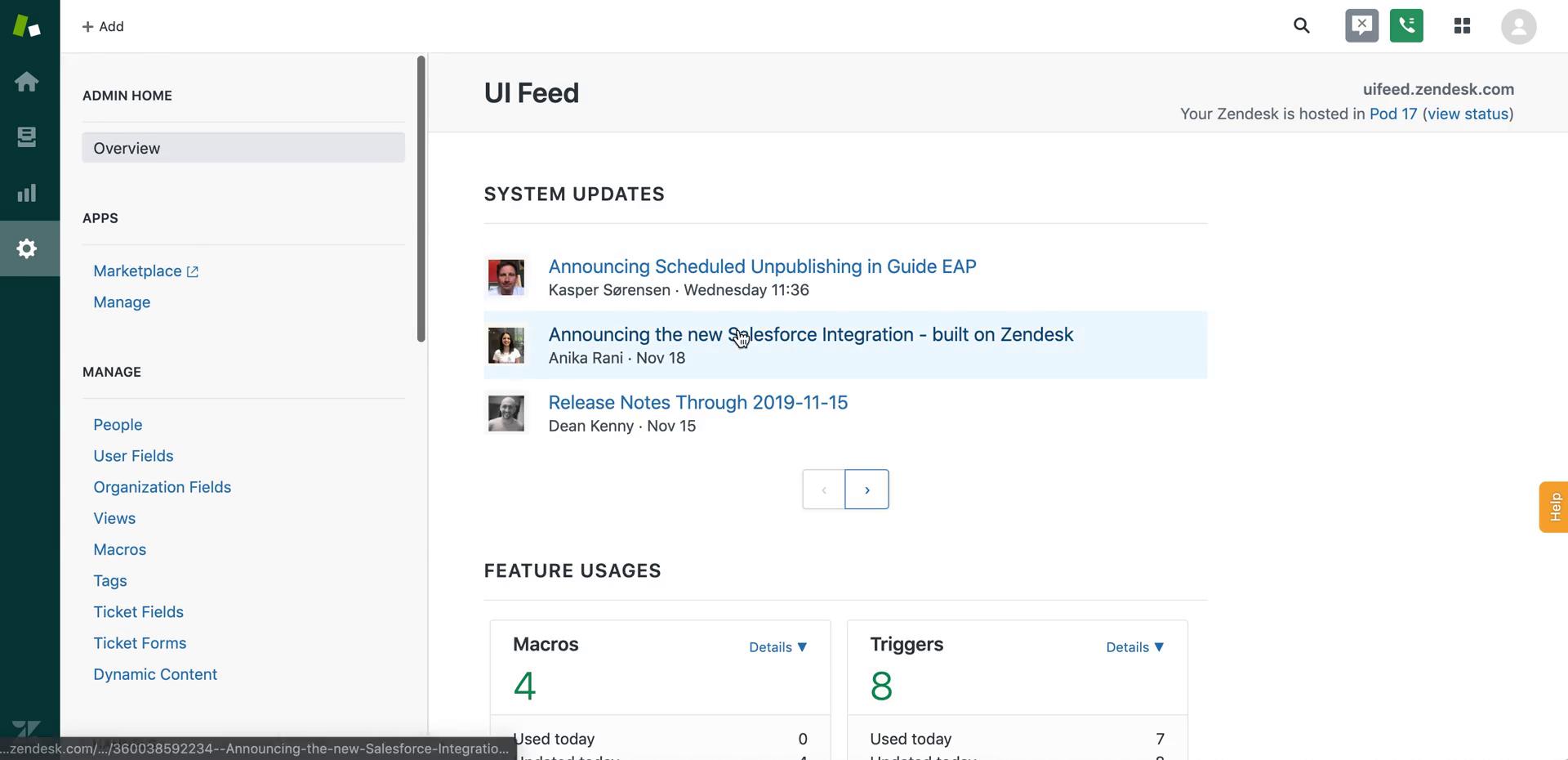
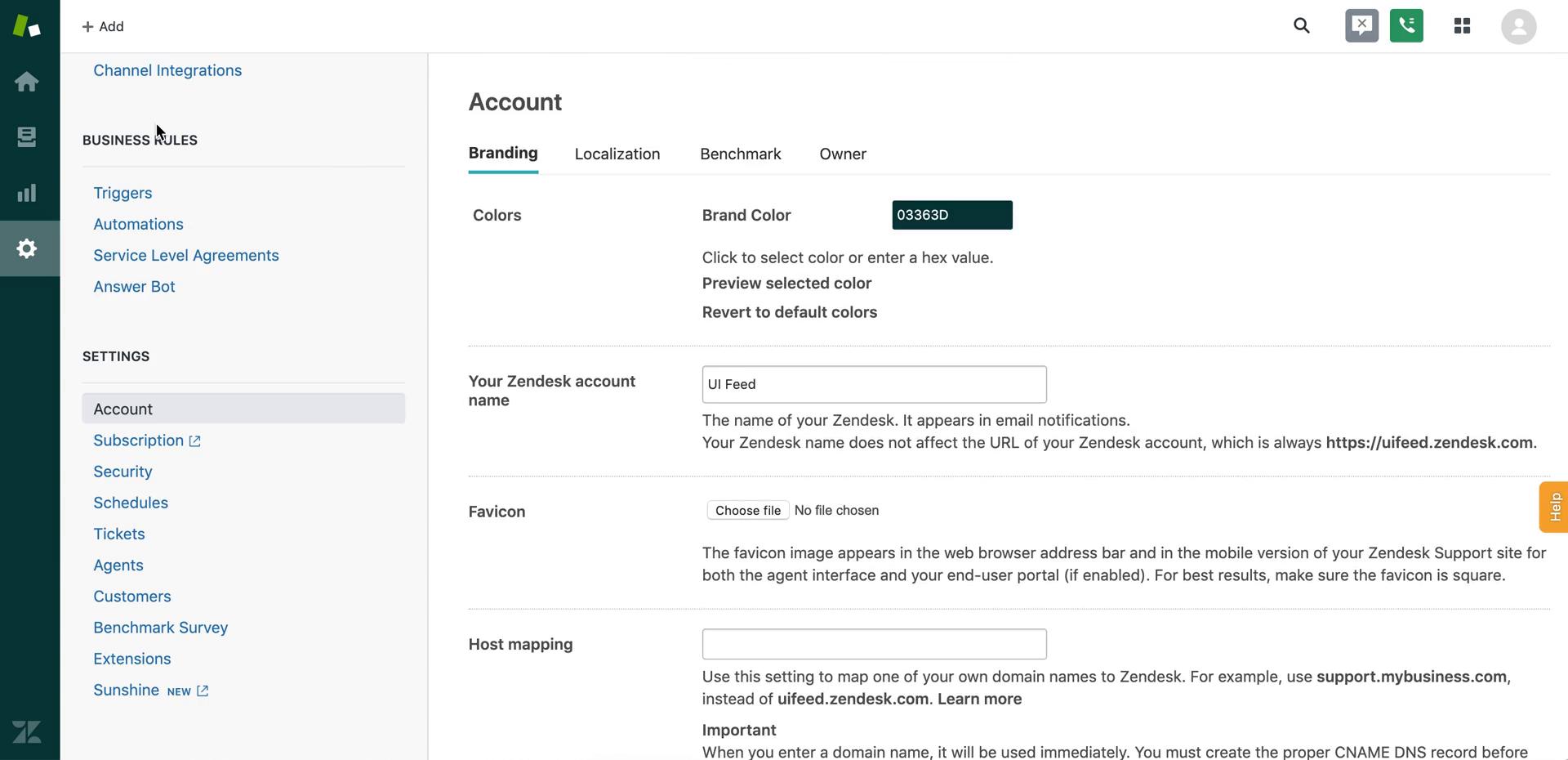
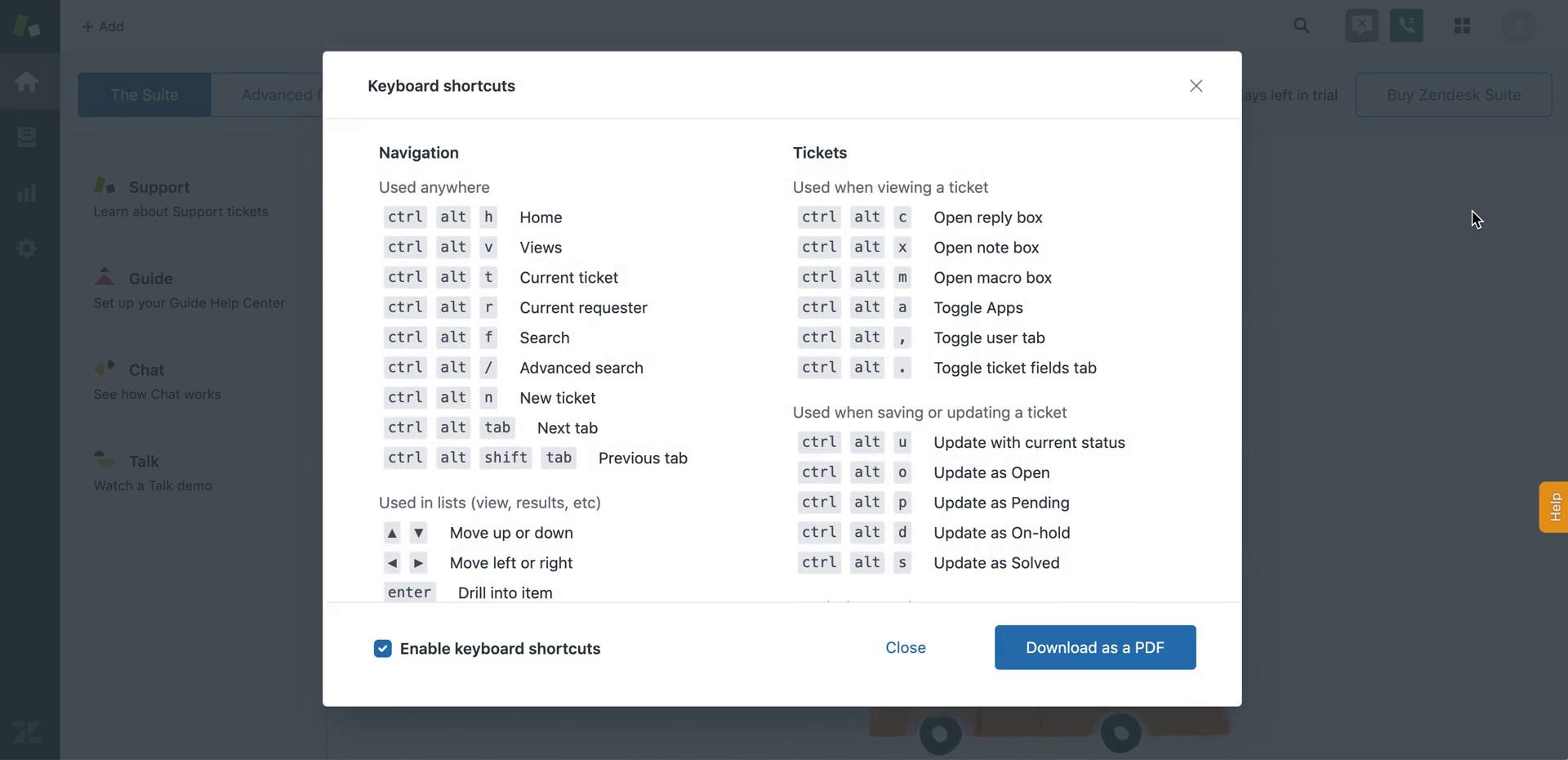
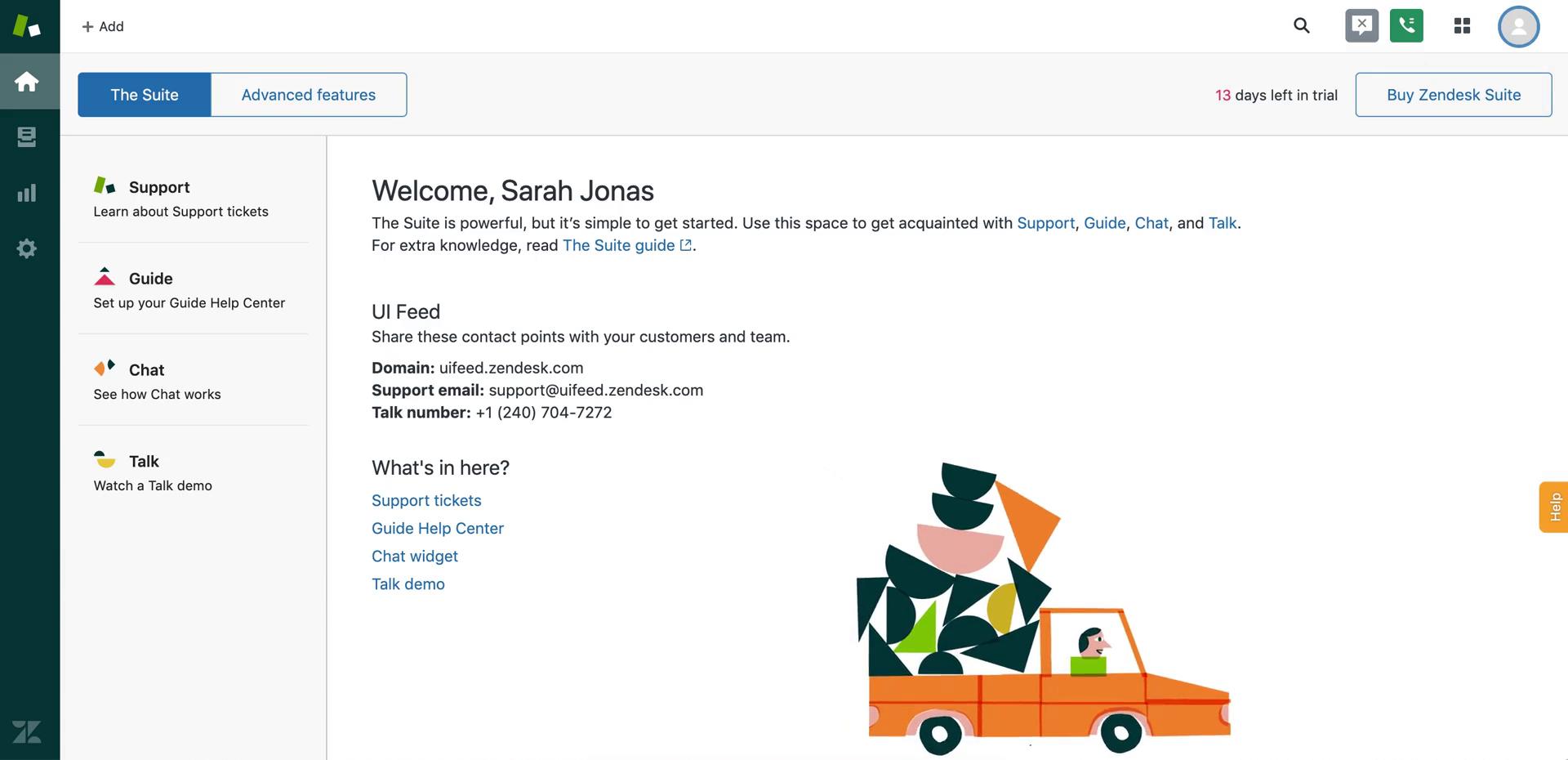
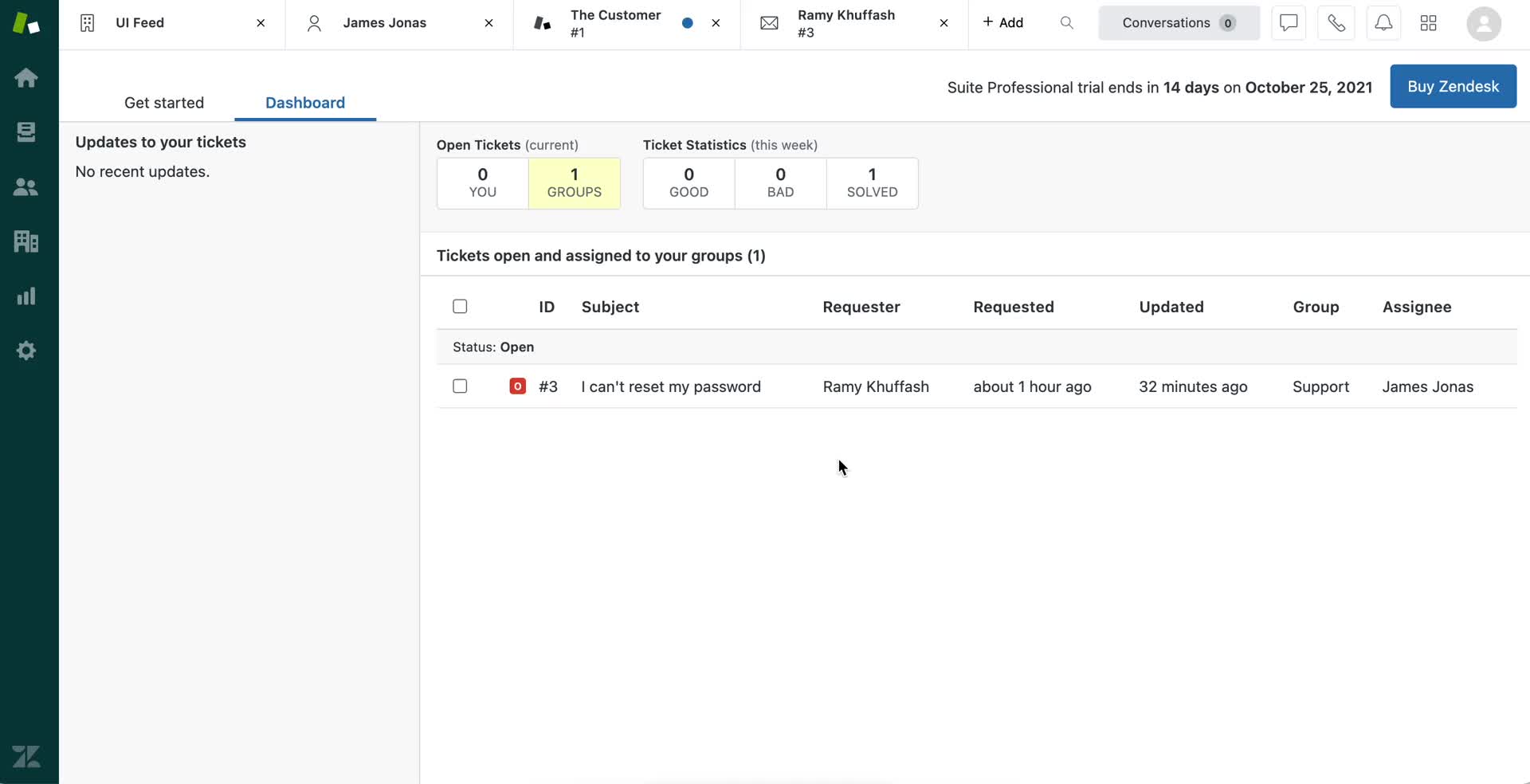
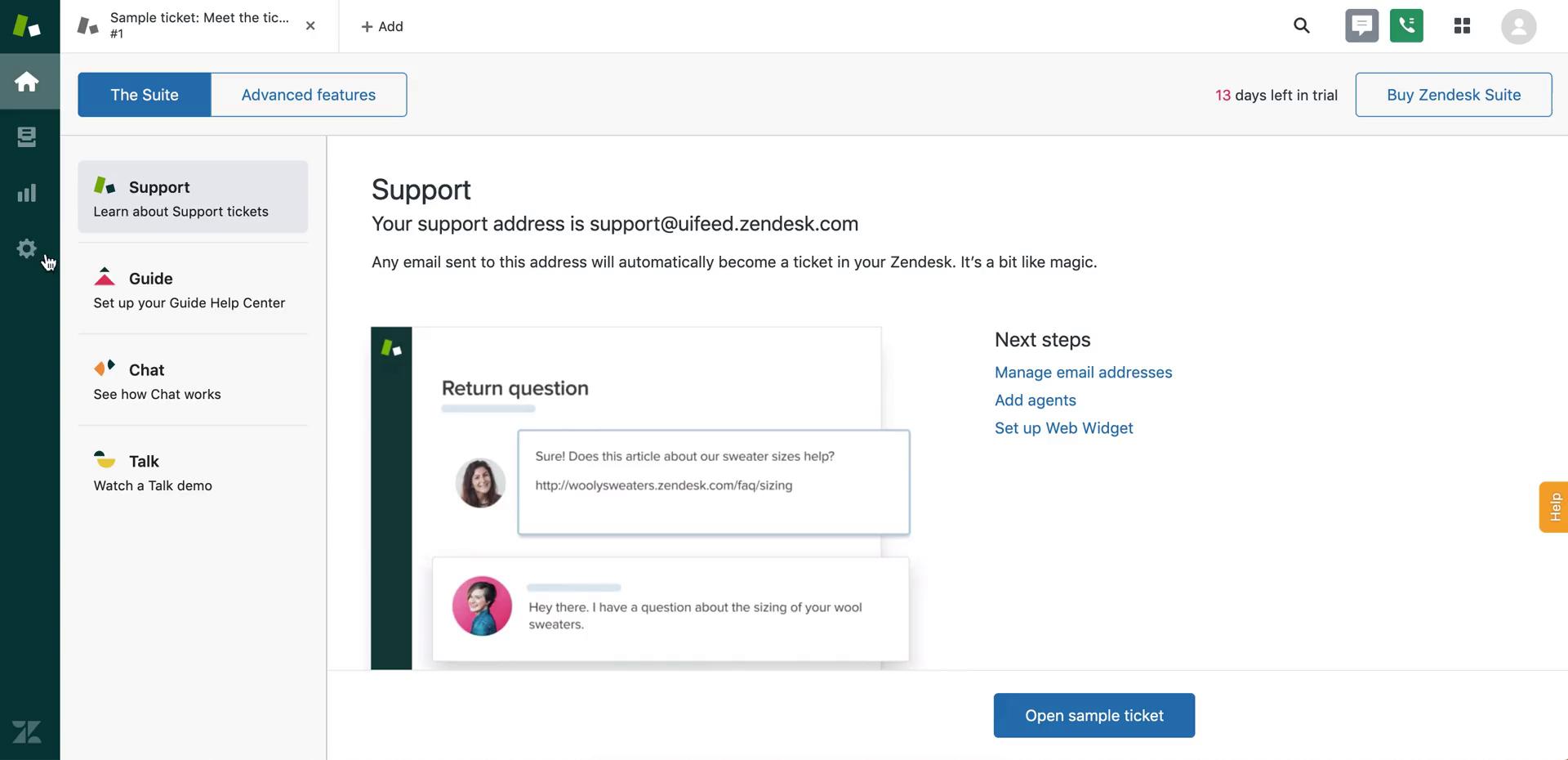
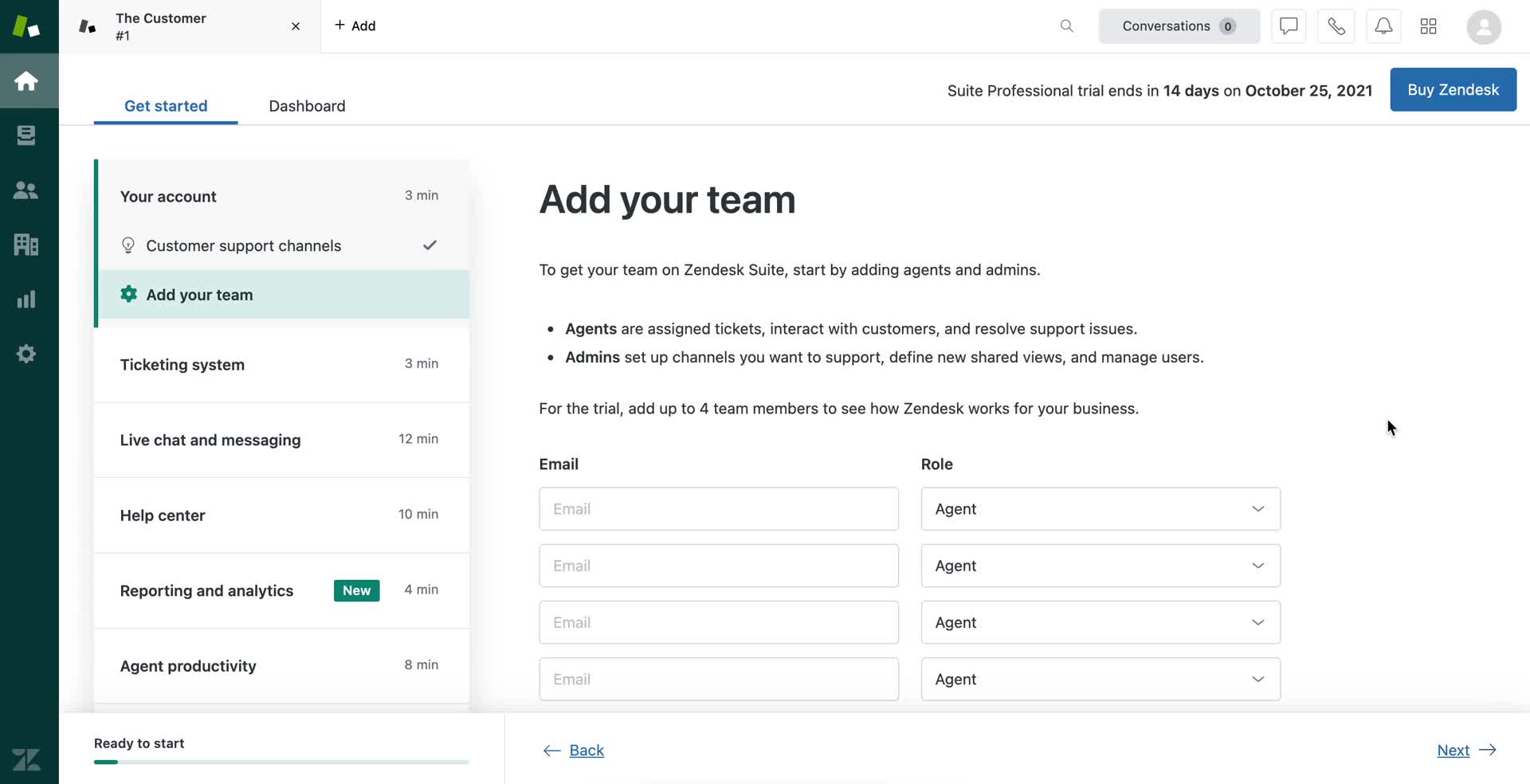
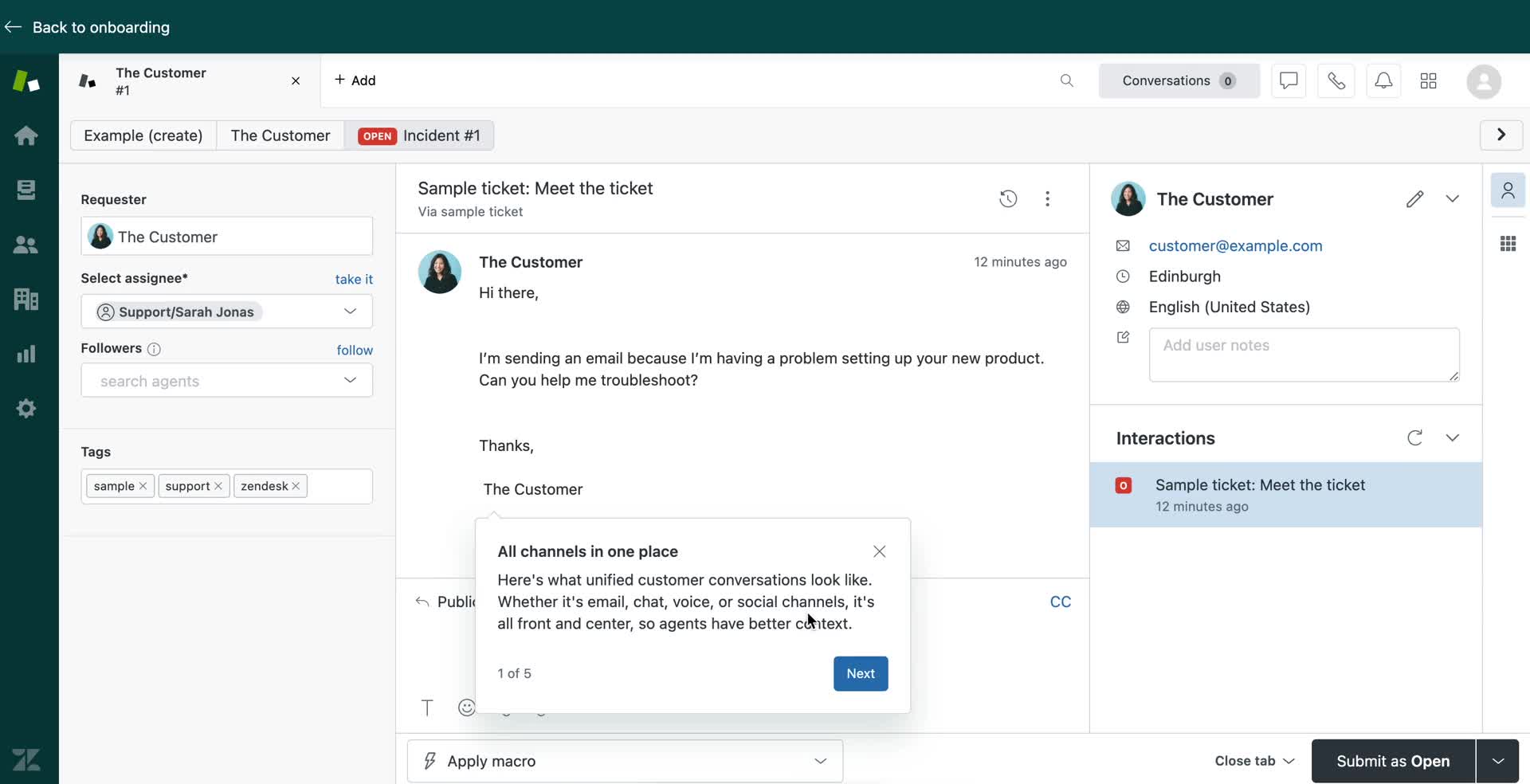
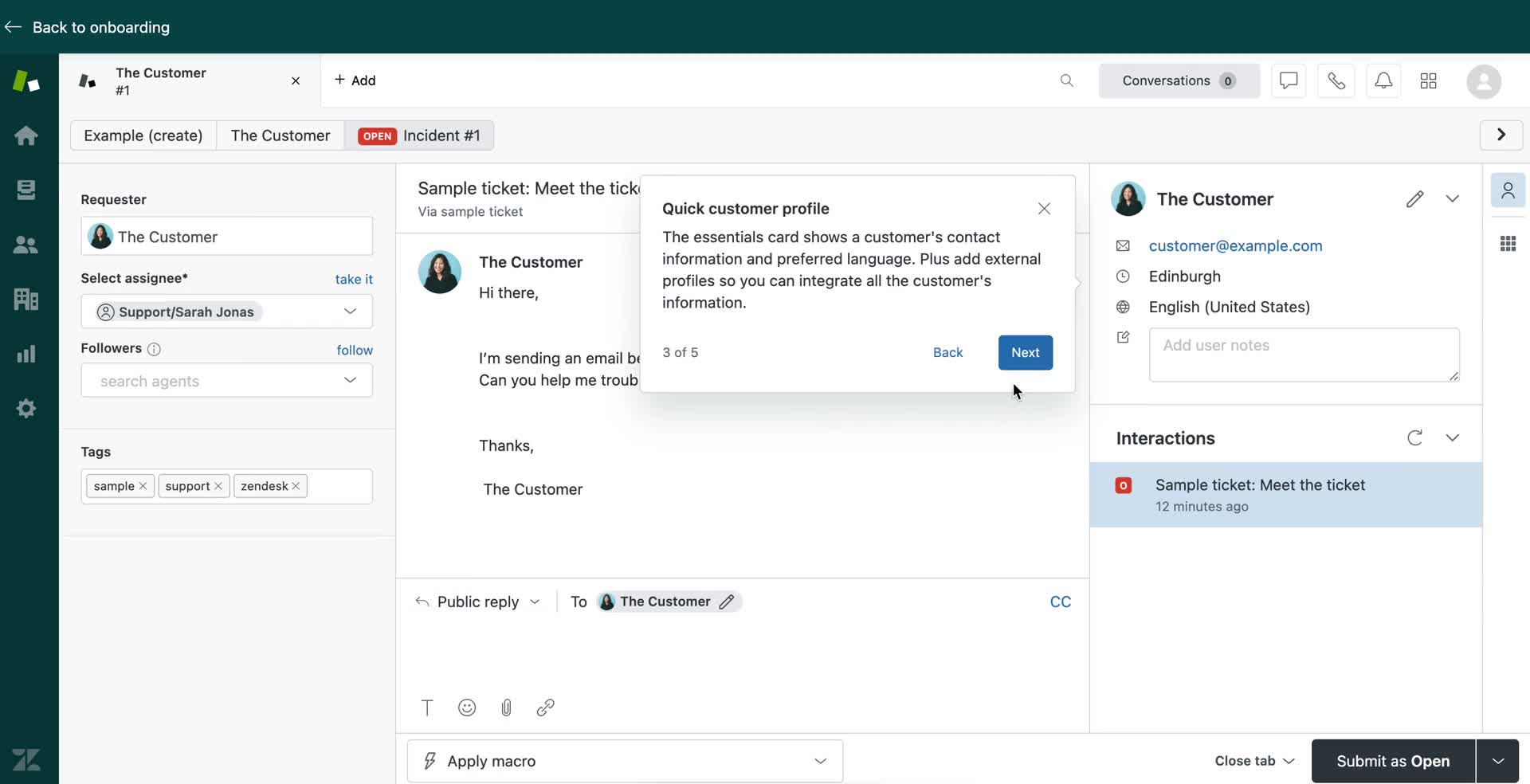
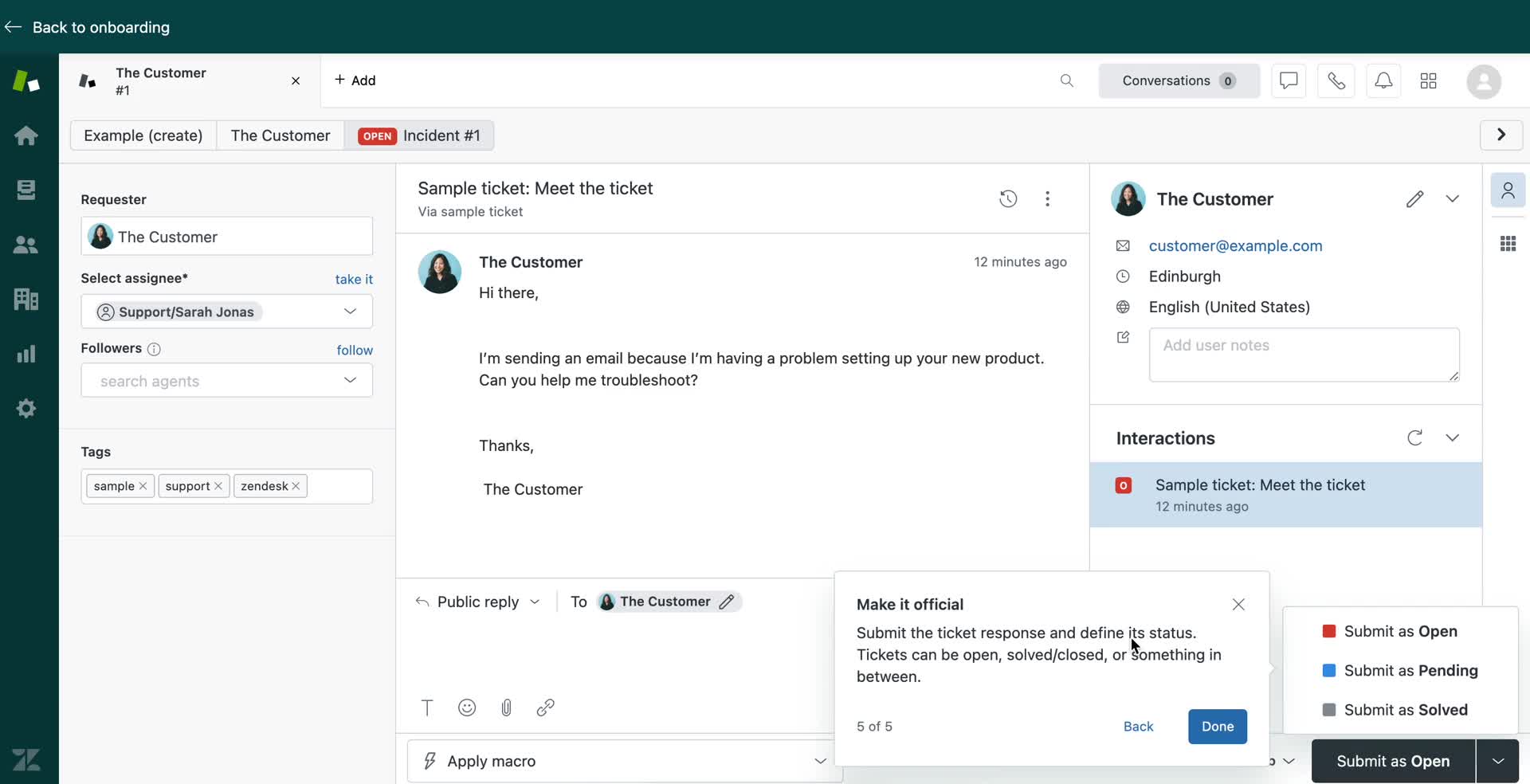
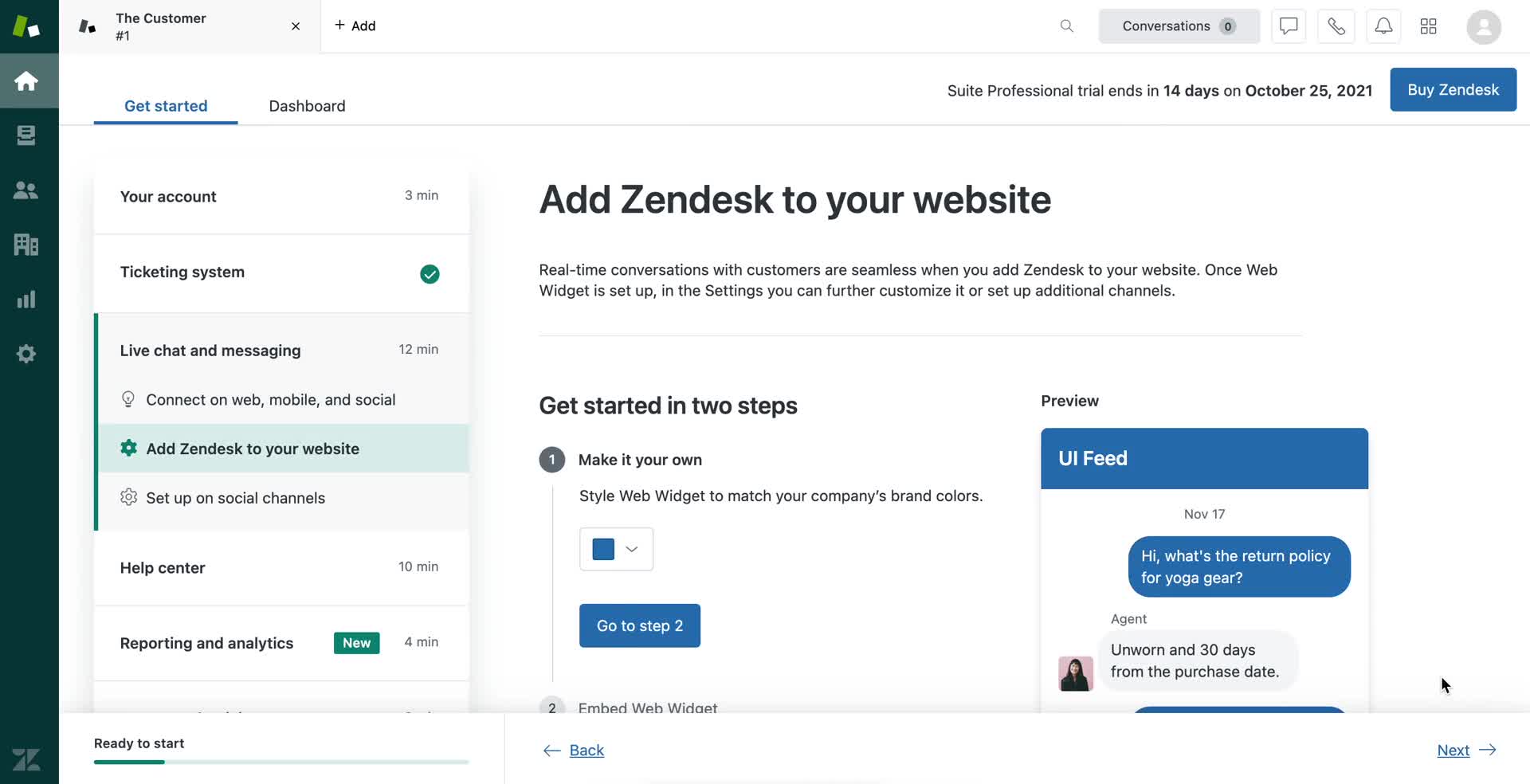
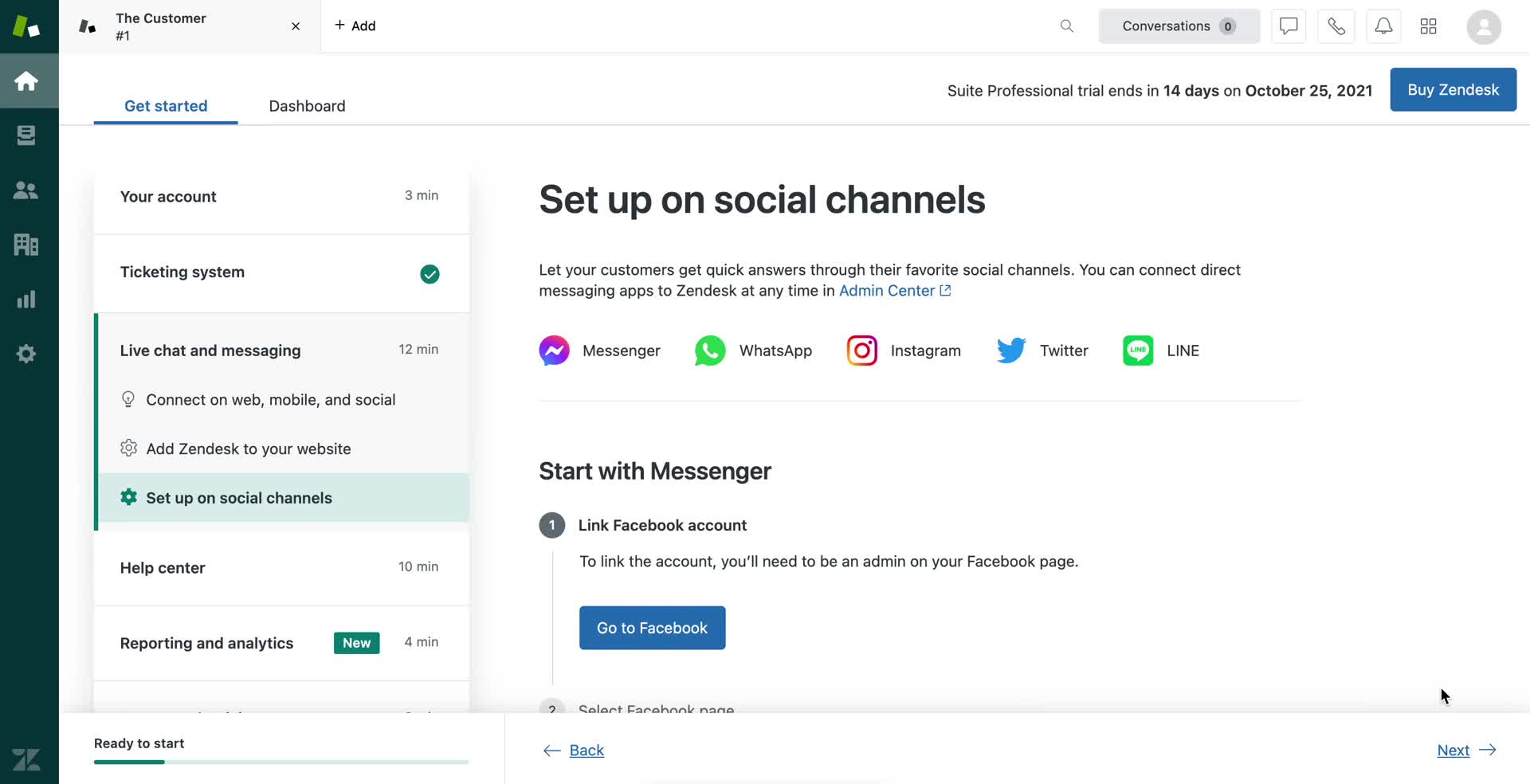
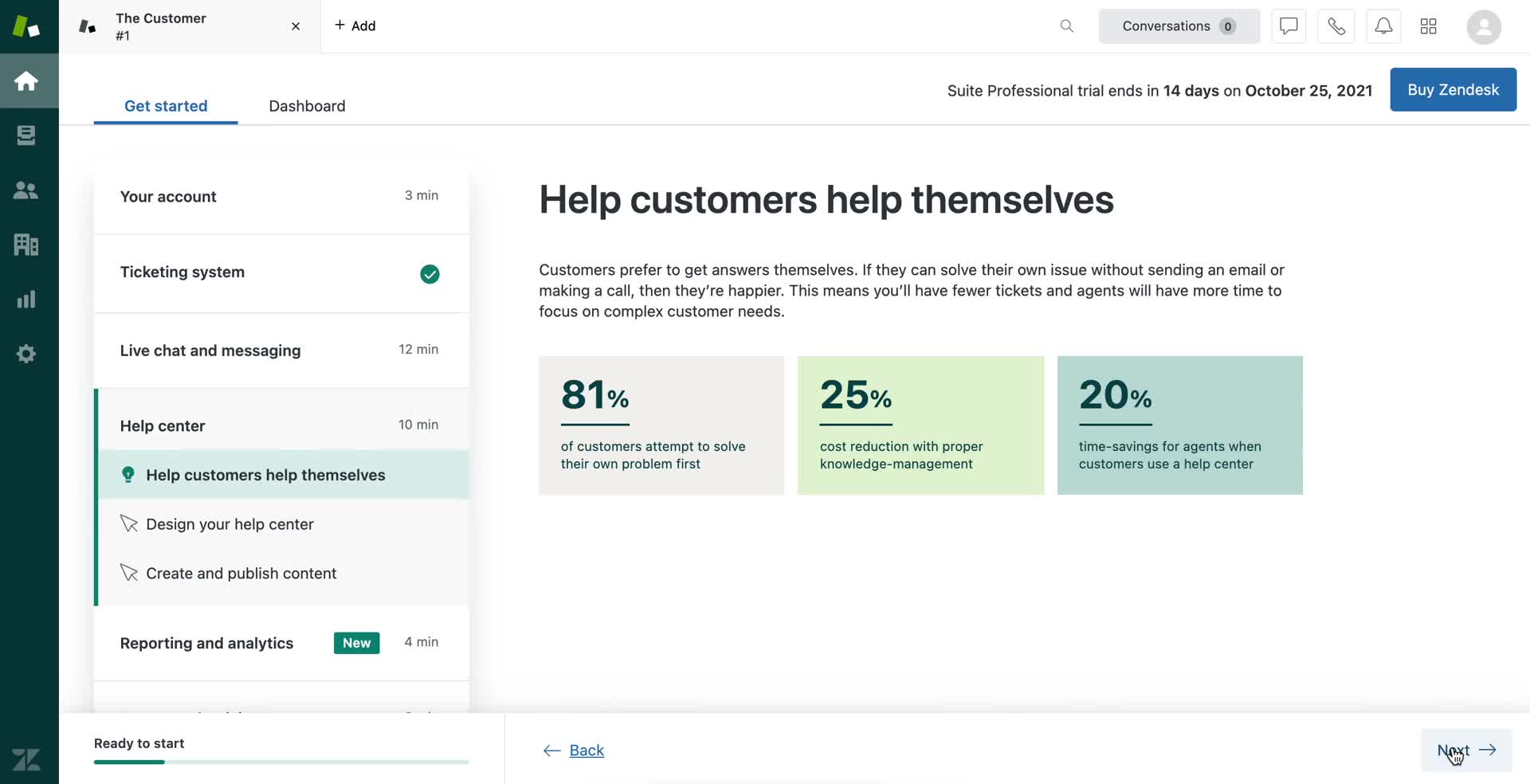
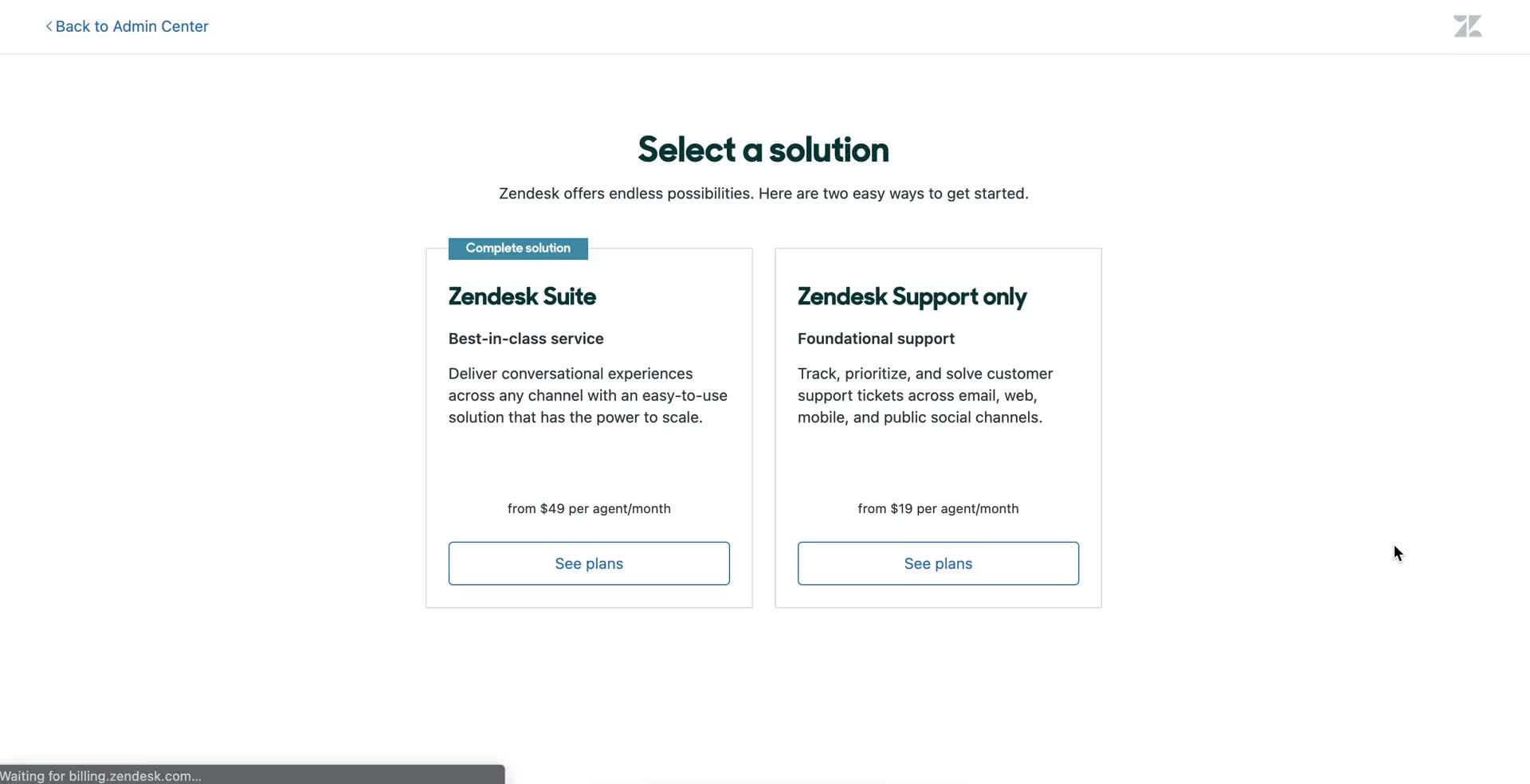
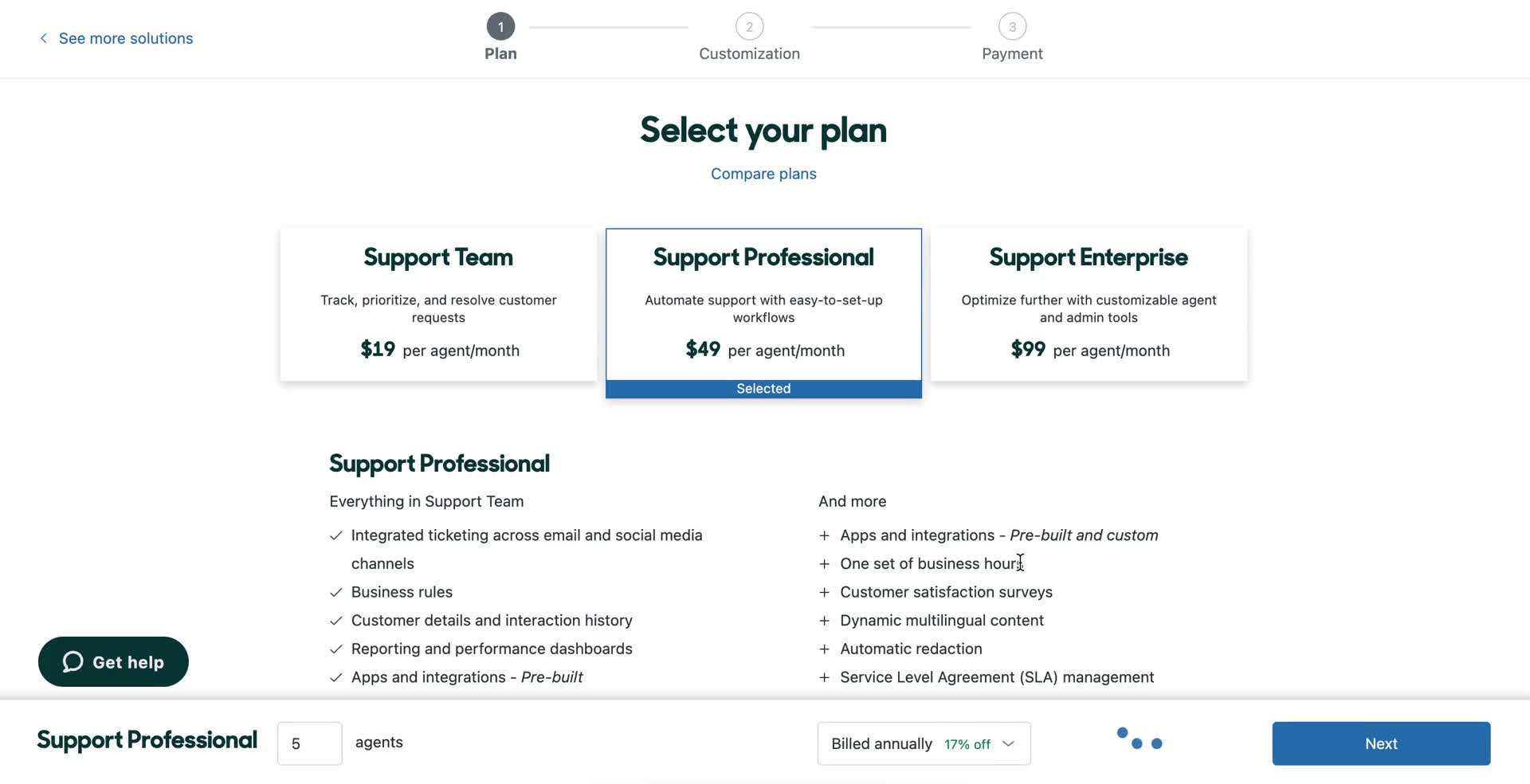
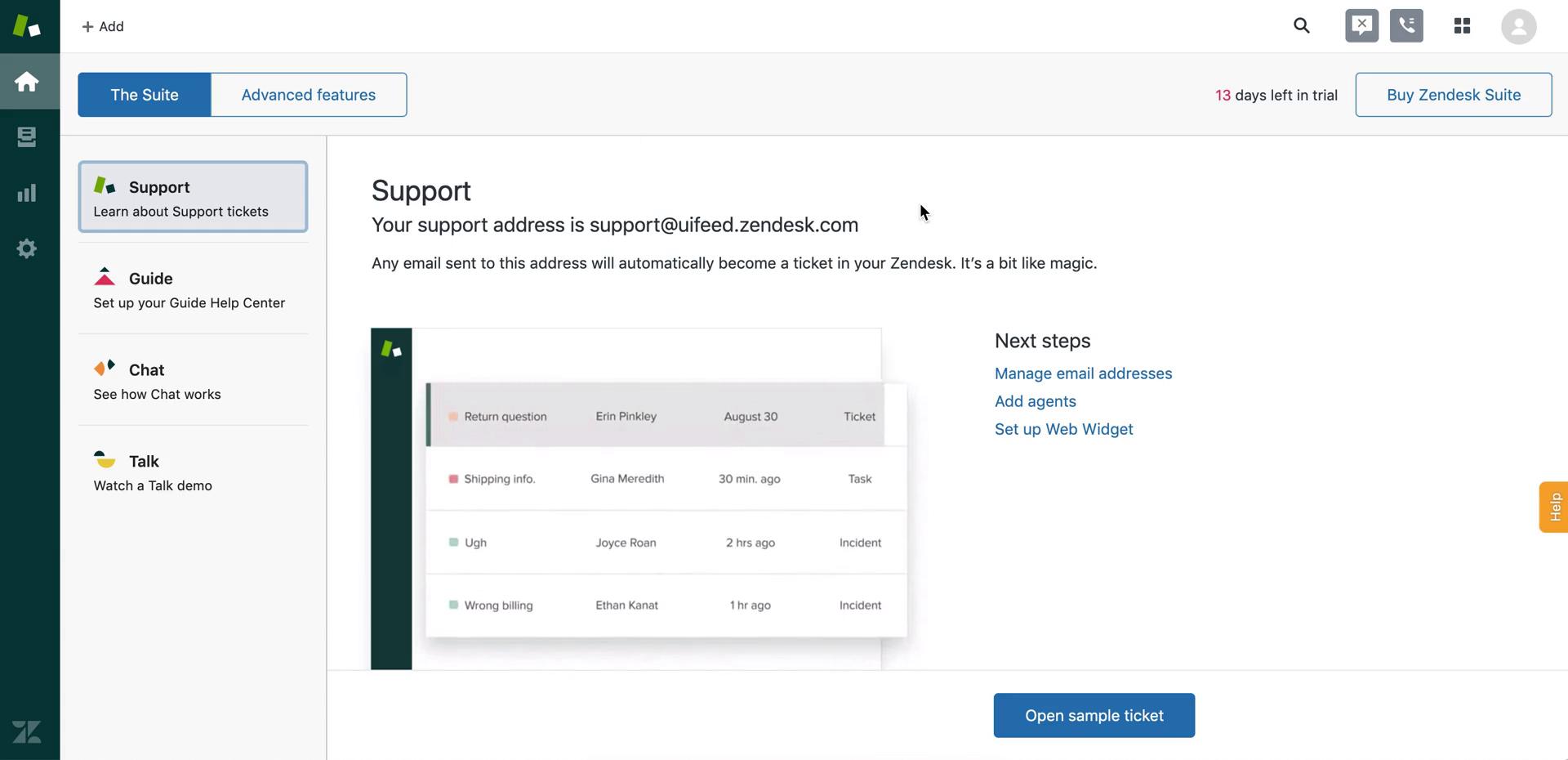
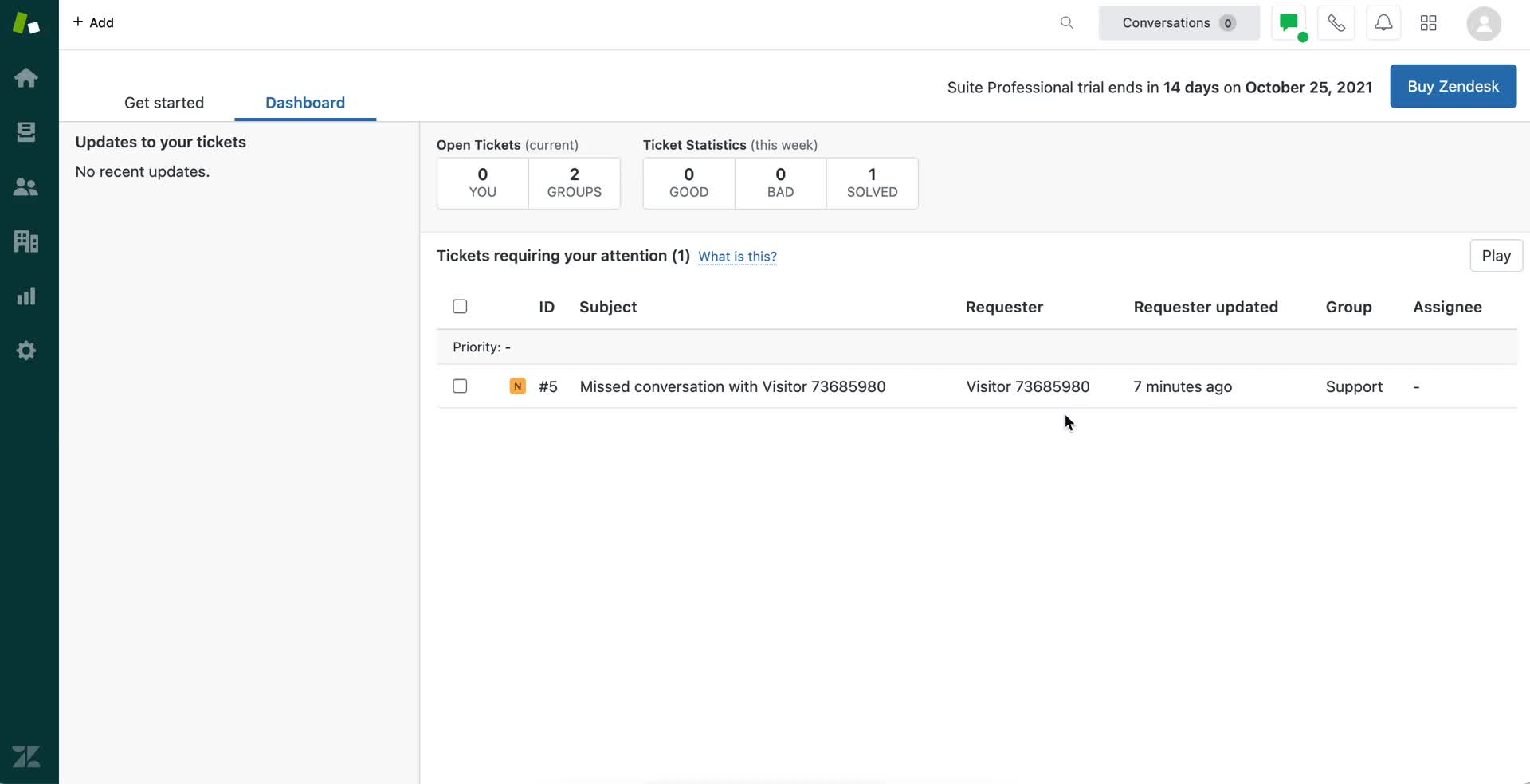
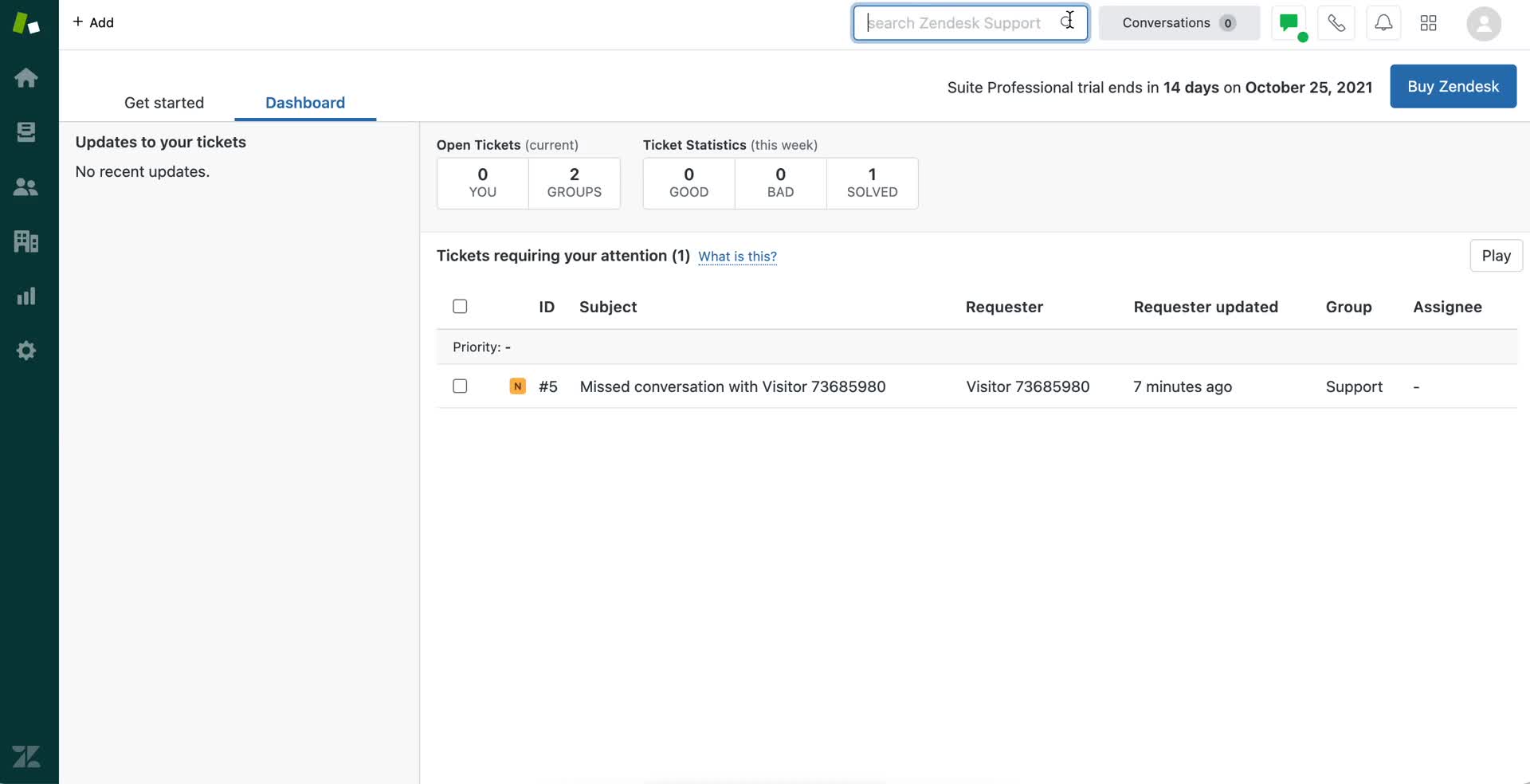
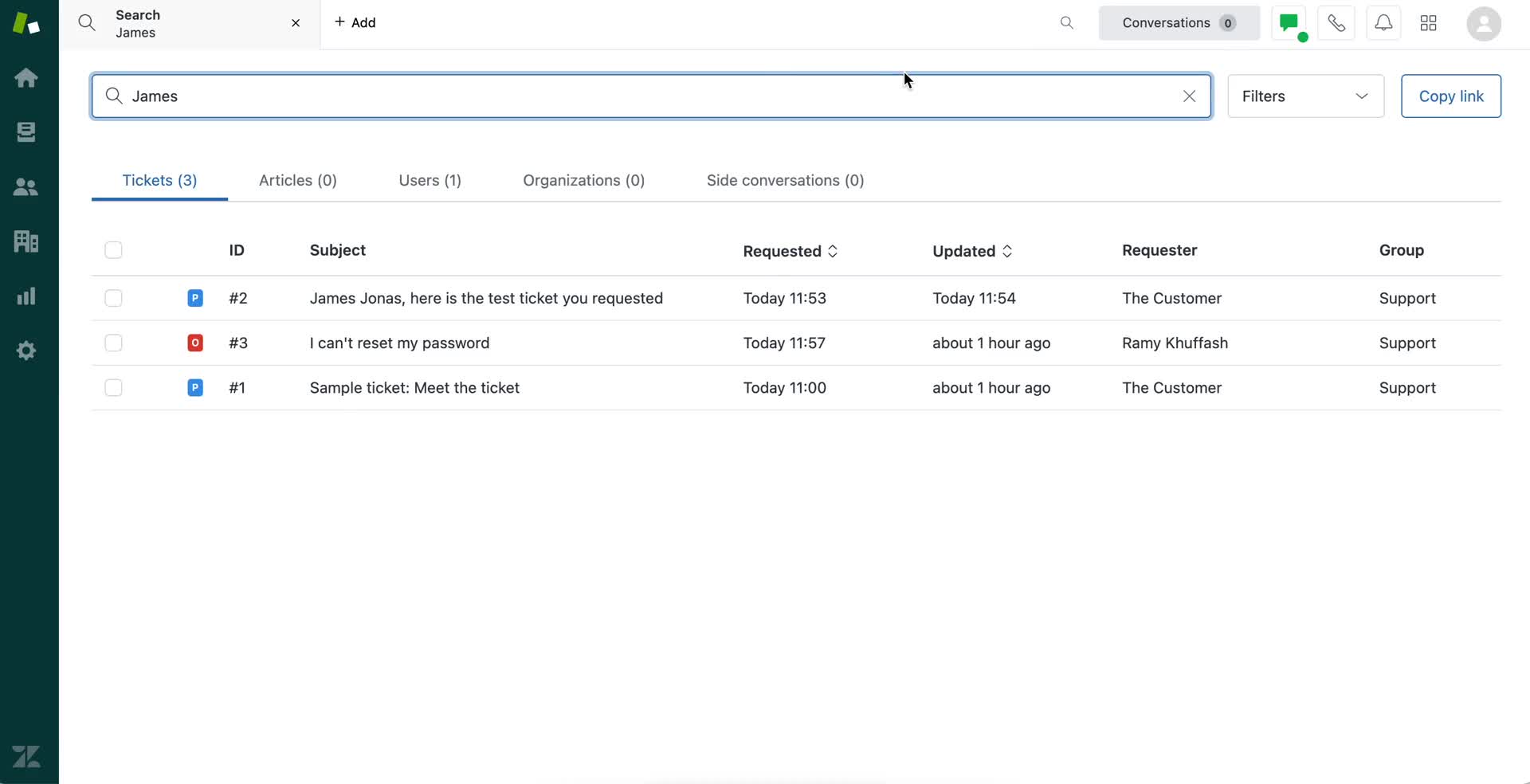
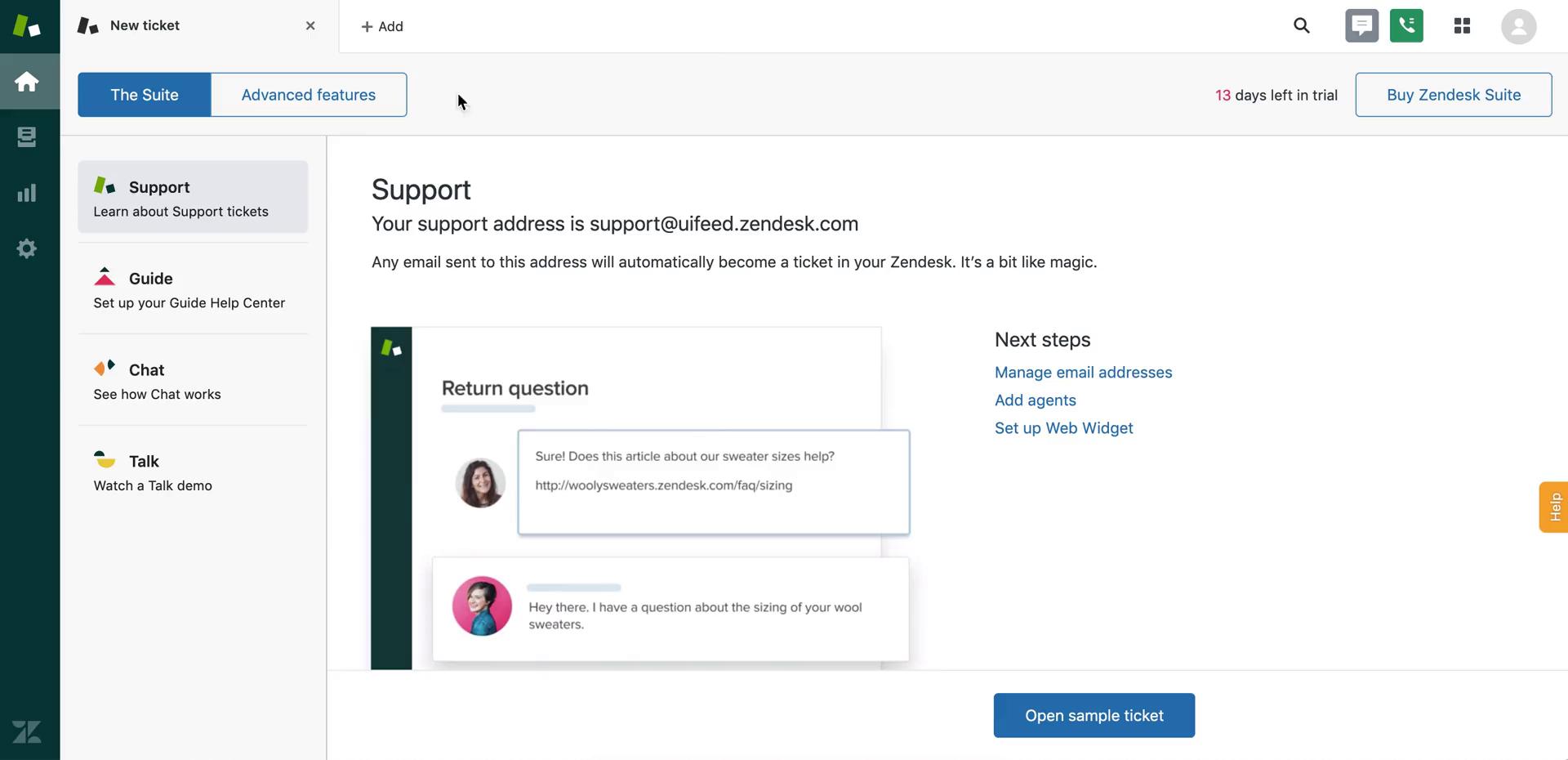
Dashboard
this is title
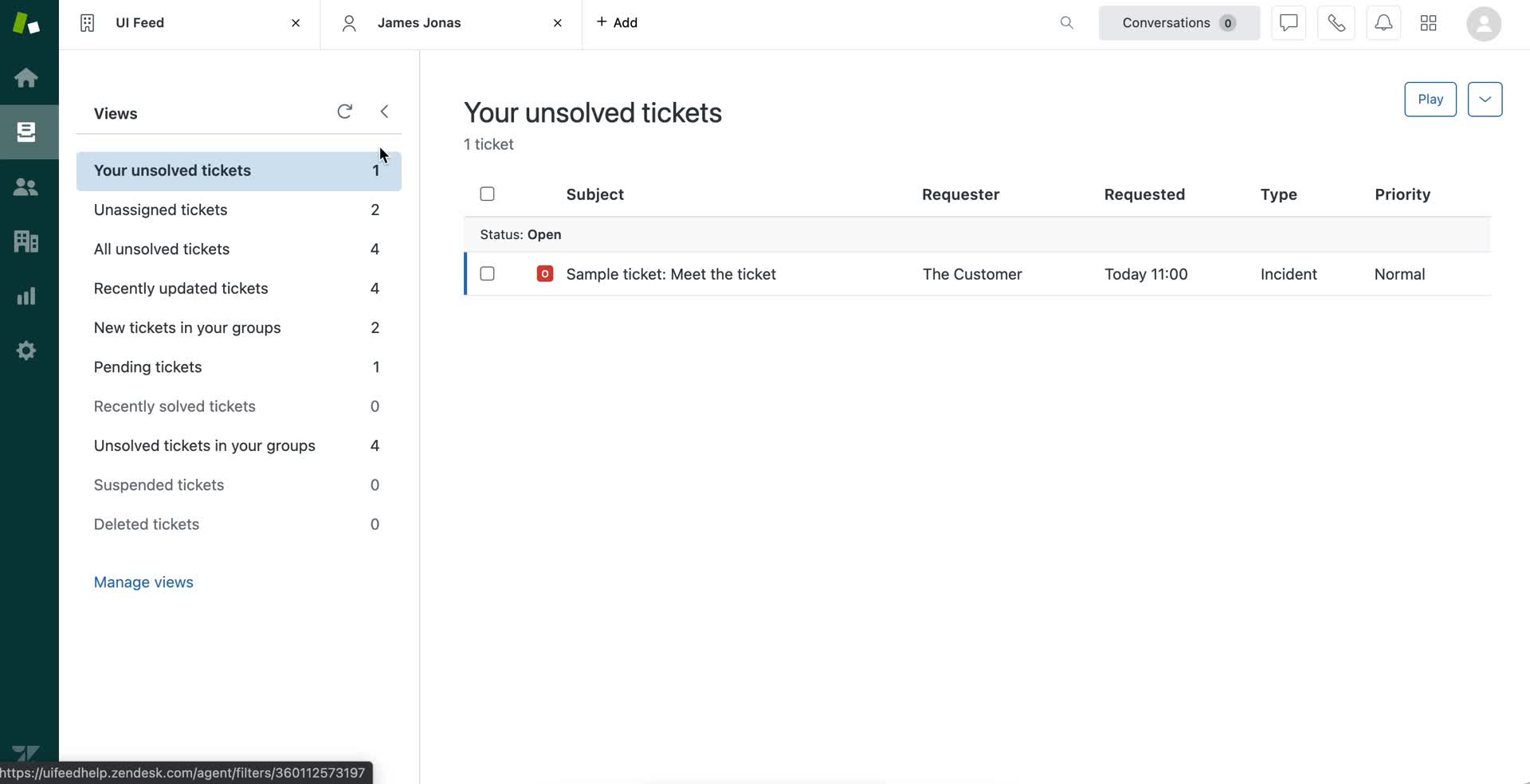
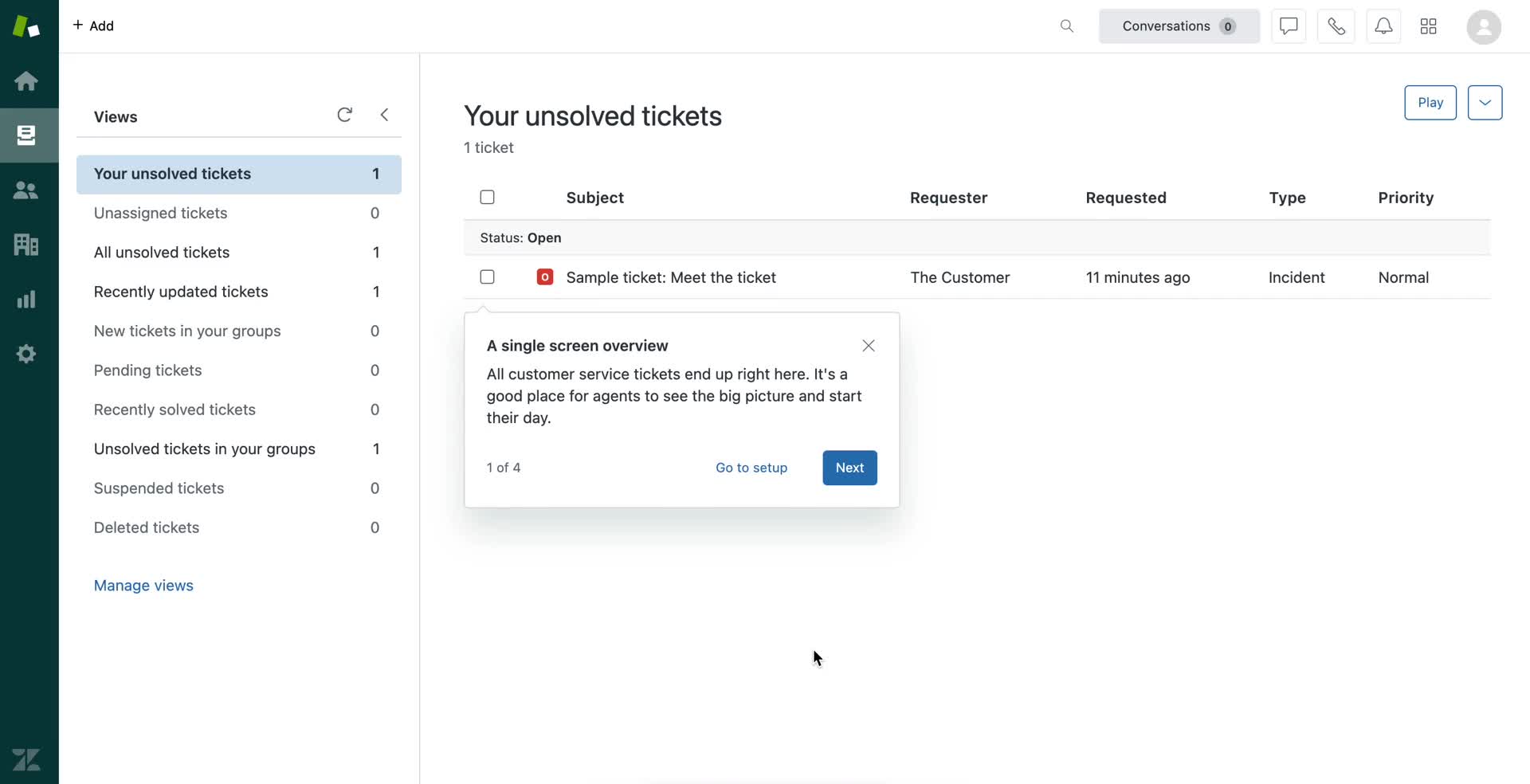
Inbox
this is title
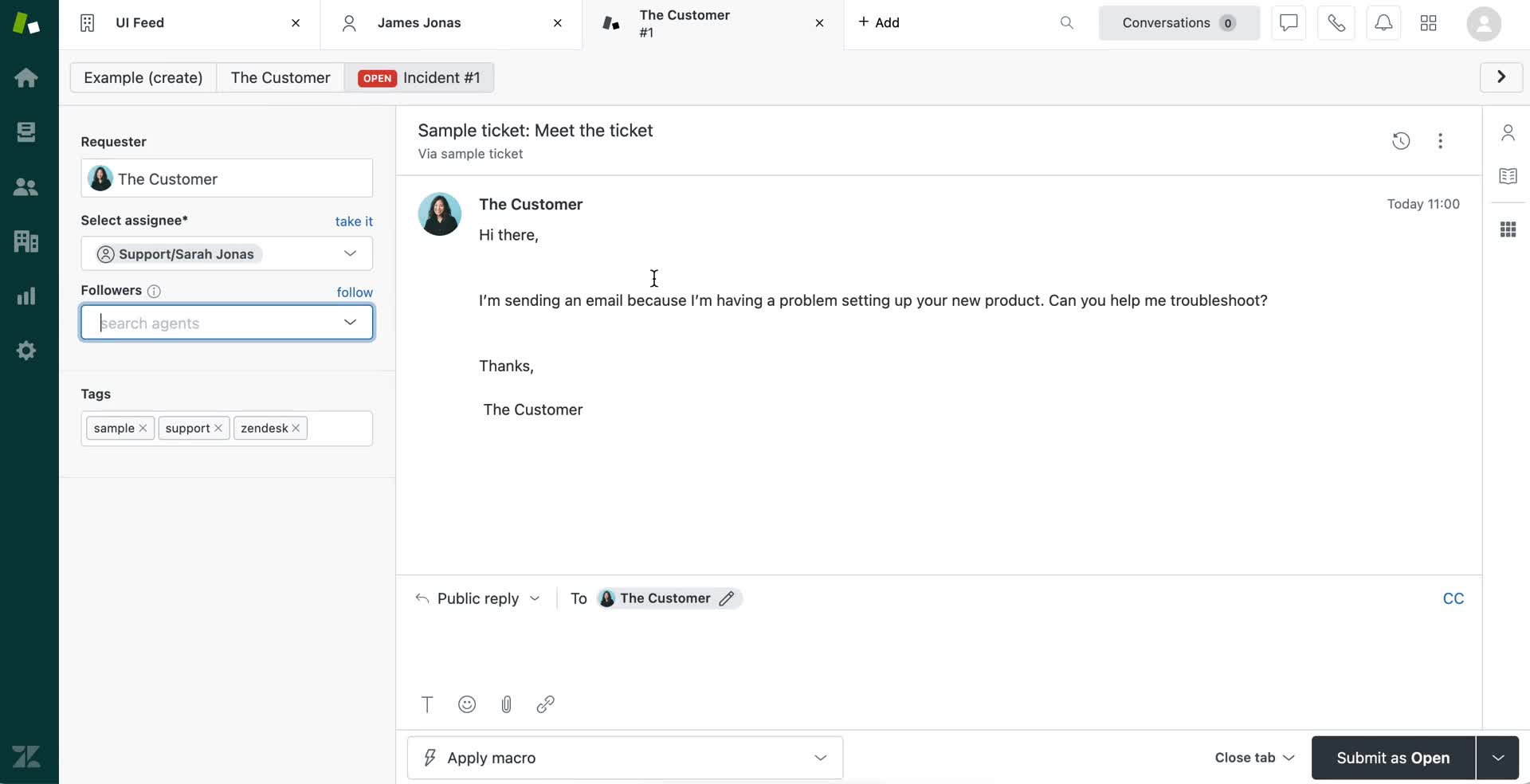
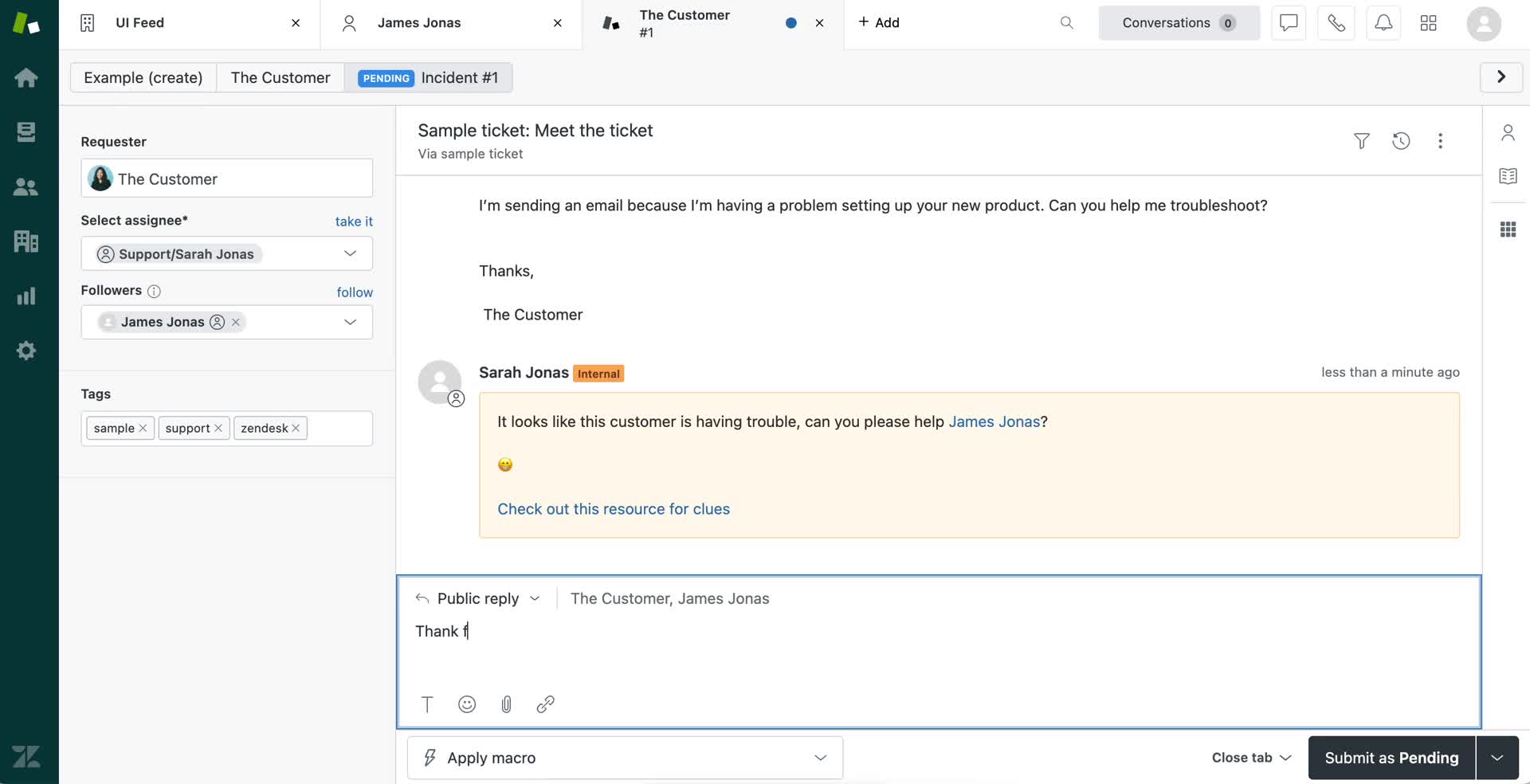
Support ticket
this is title
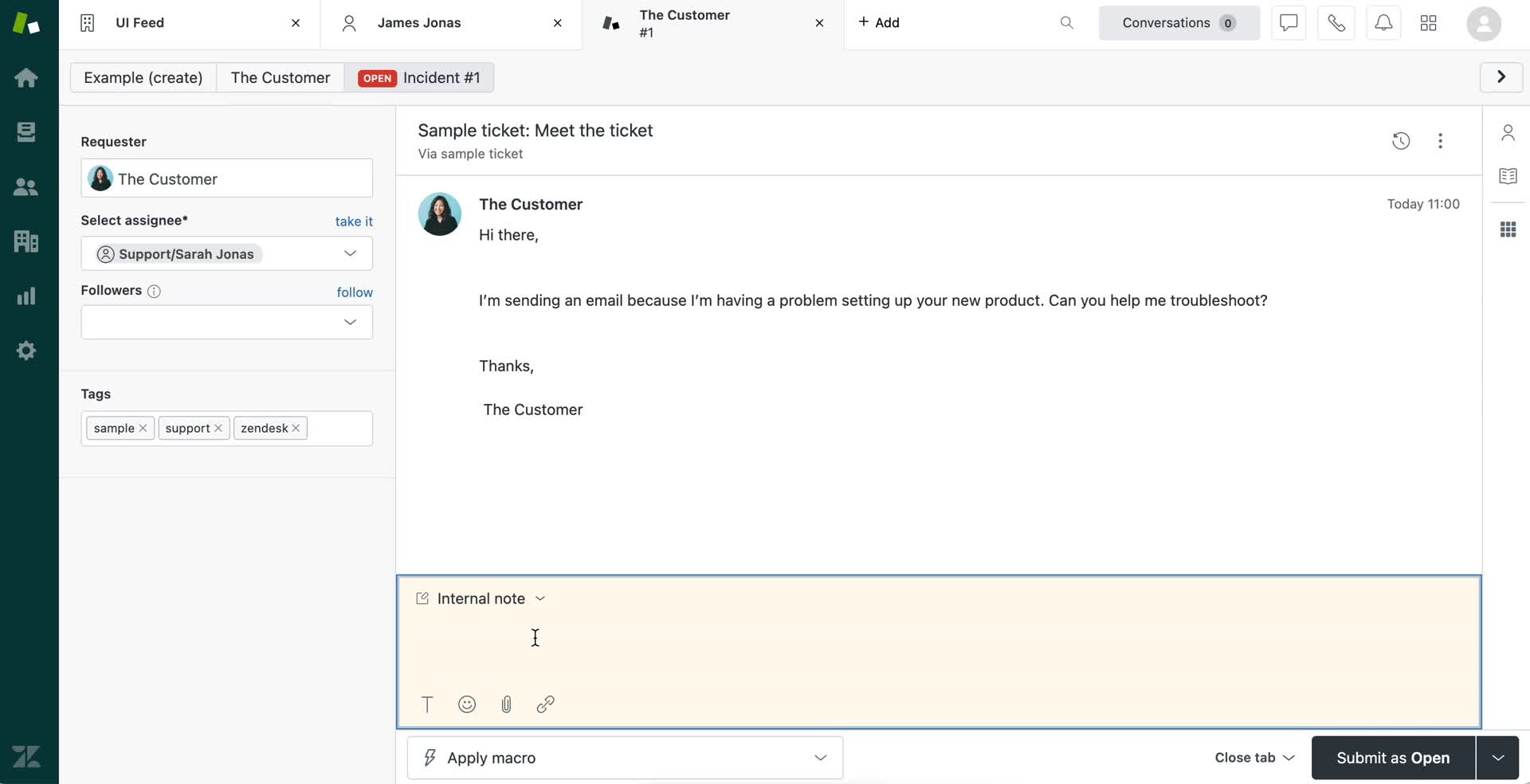
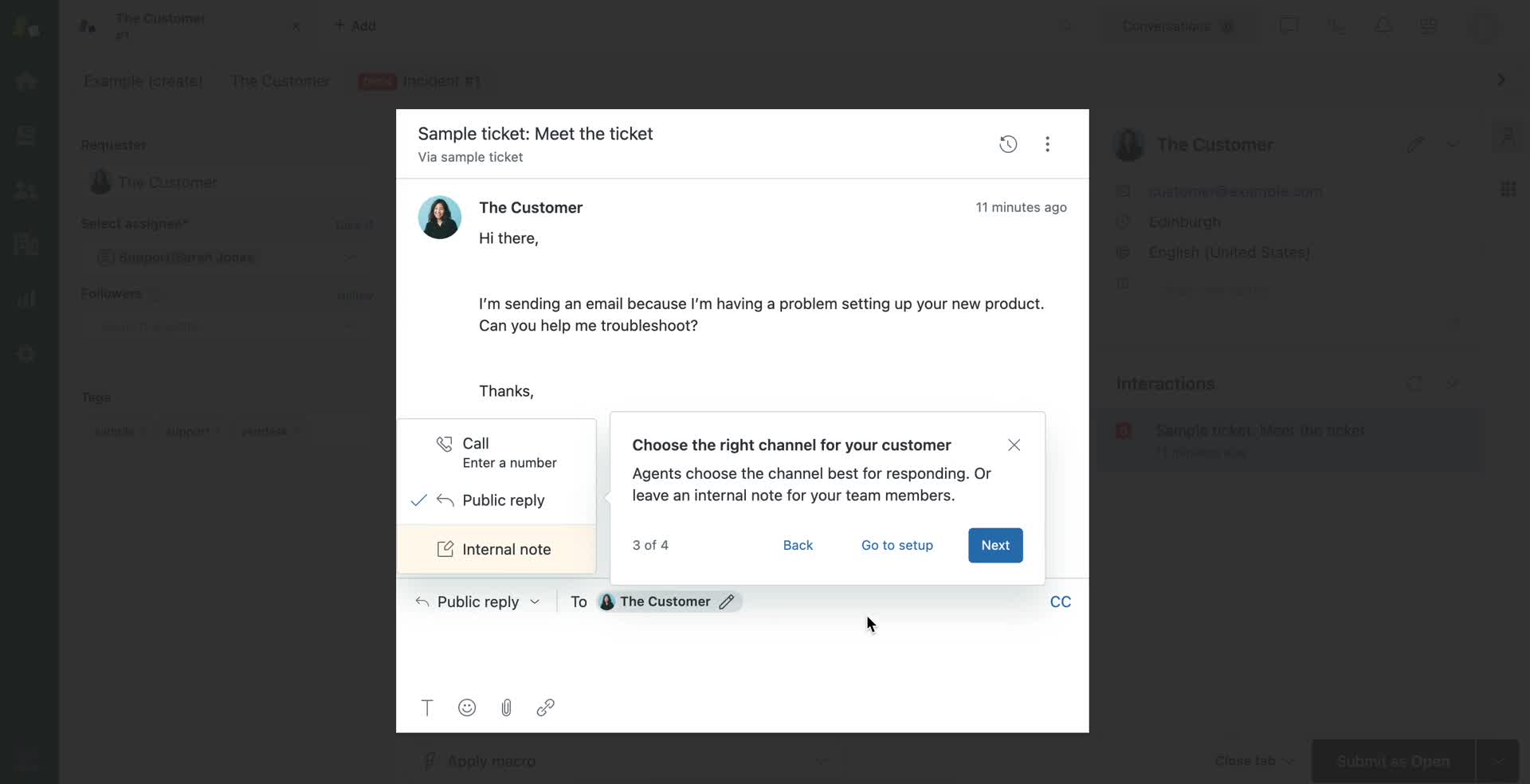
Add internal note
this is title
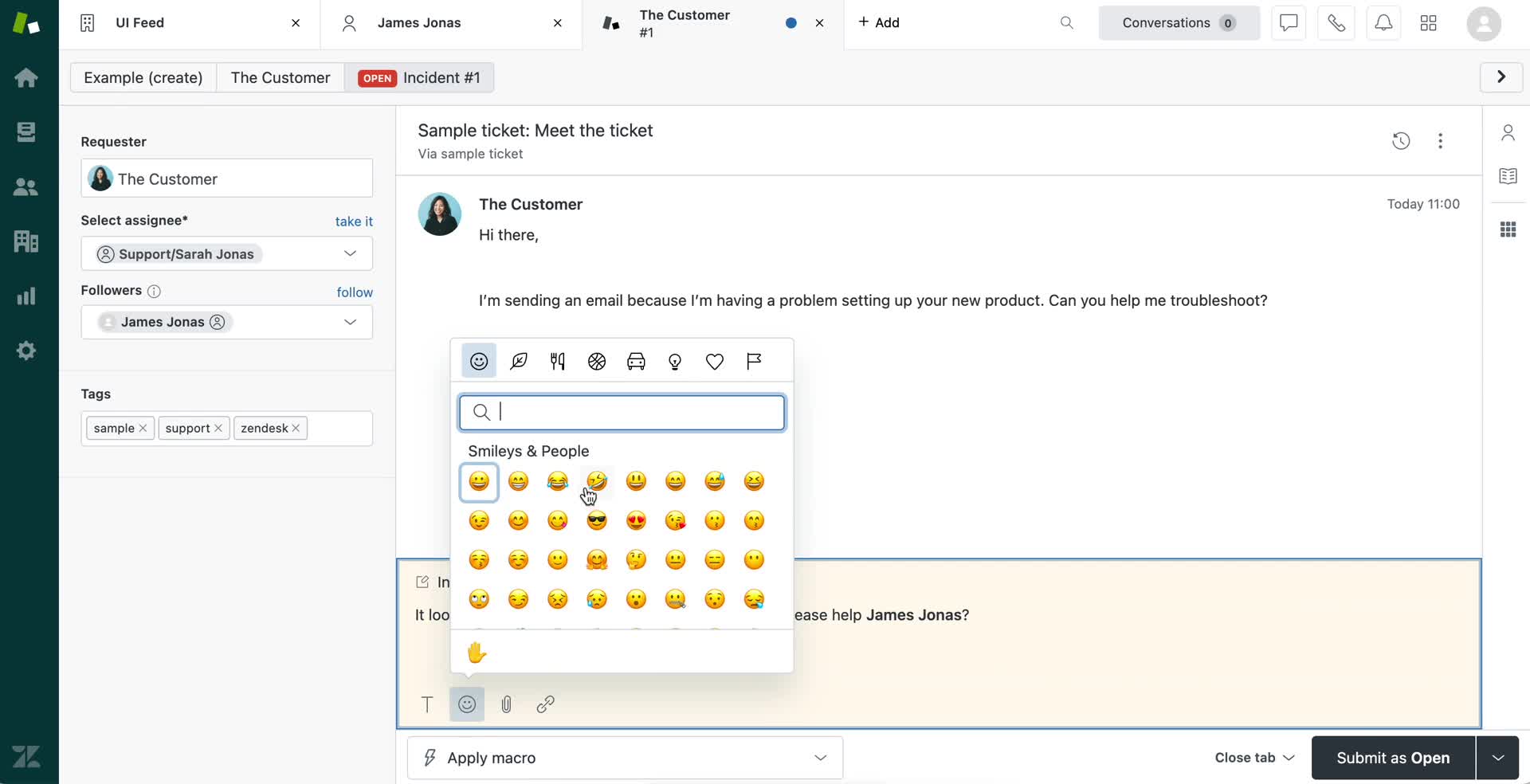
Emoji picker
this is title
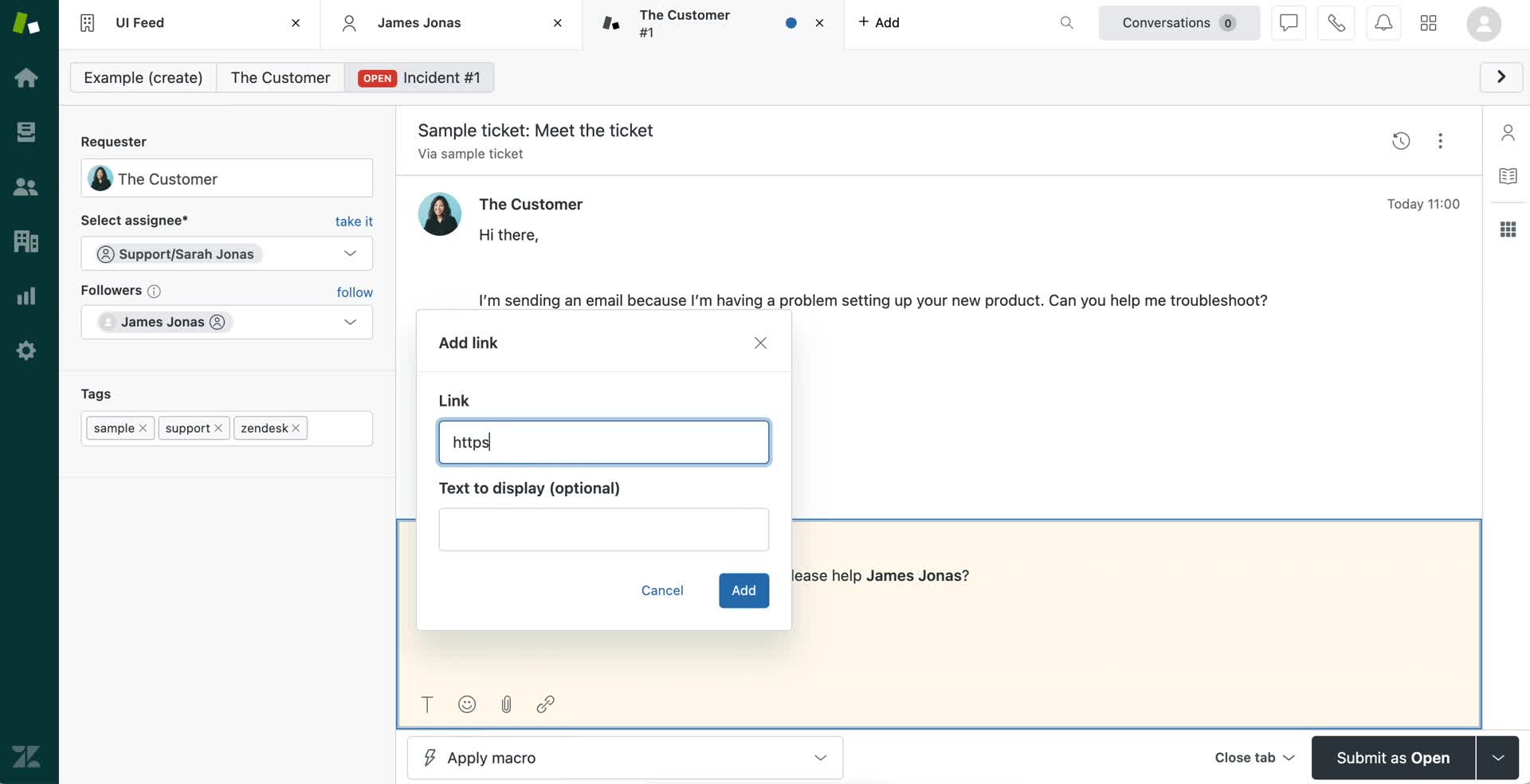
Add link
this is title
Add note
this is title
Inbox
this is title
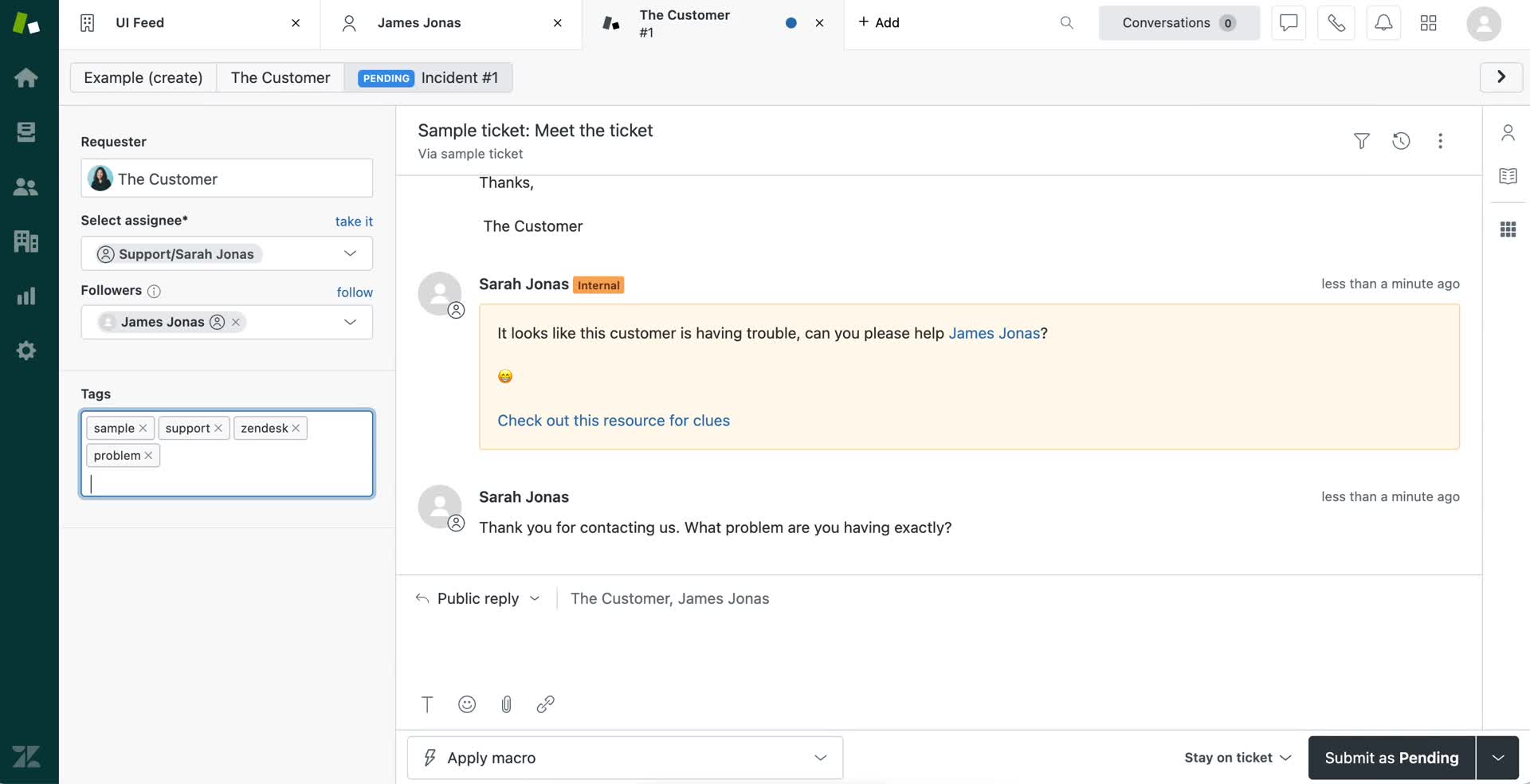
Reply to ticket
this is title
Add tags
this is title
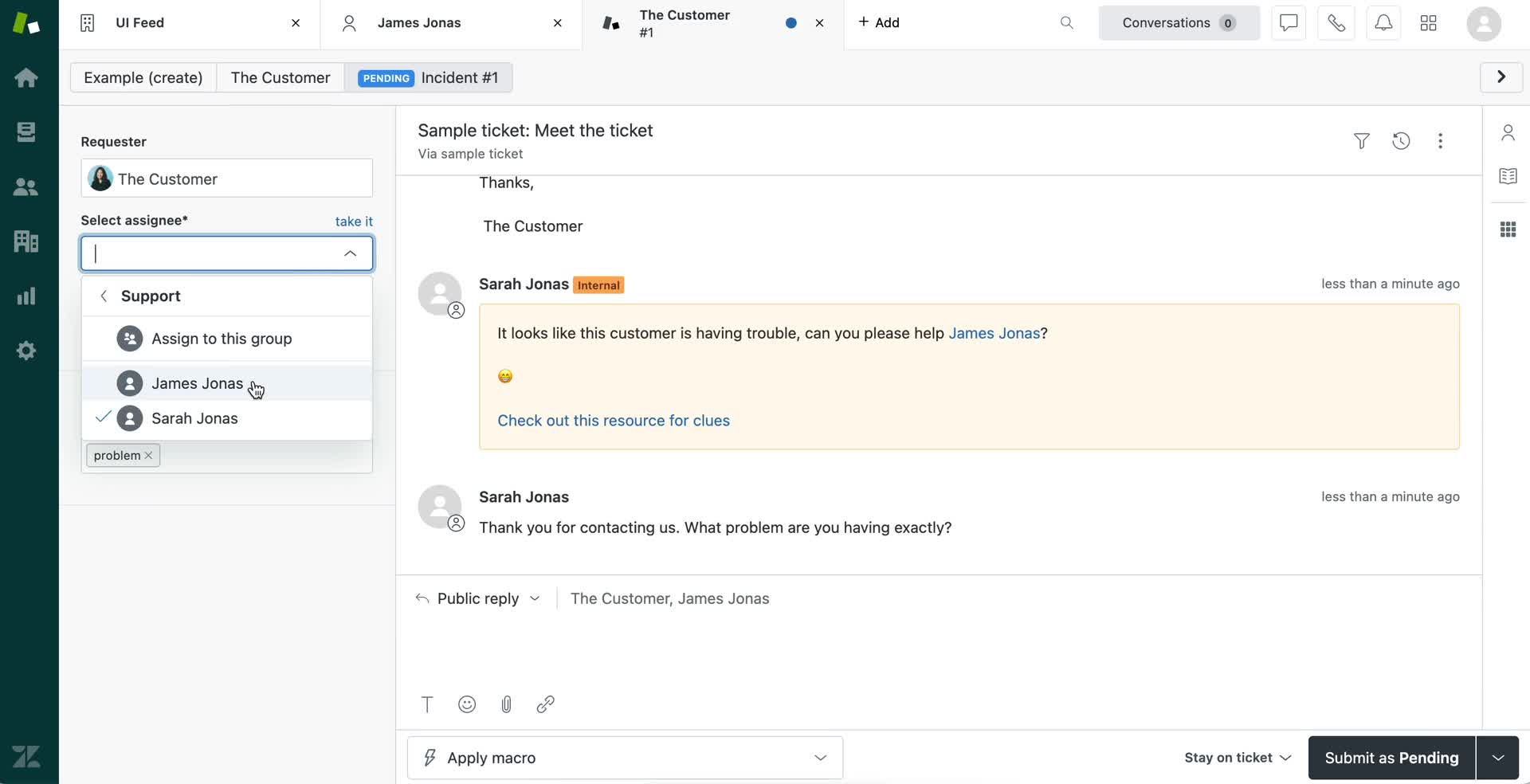
Assign
this is title
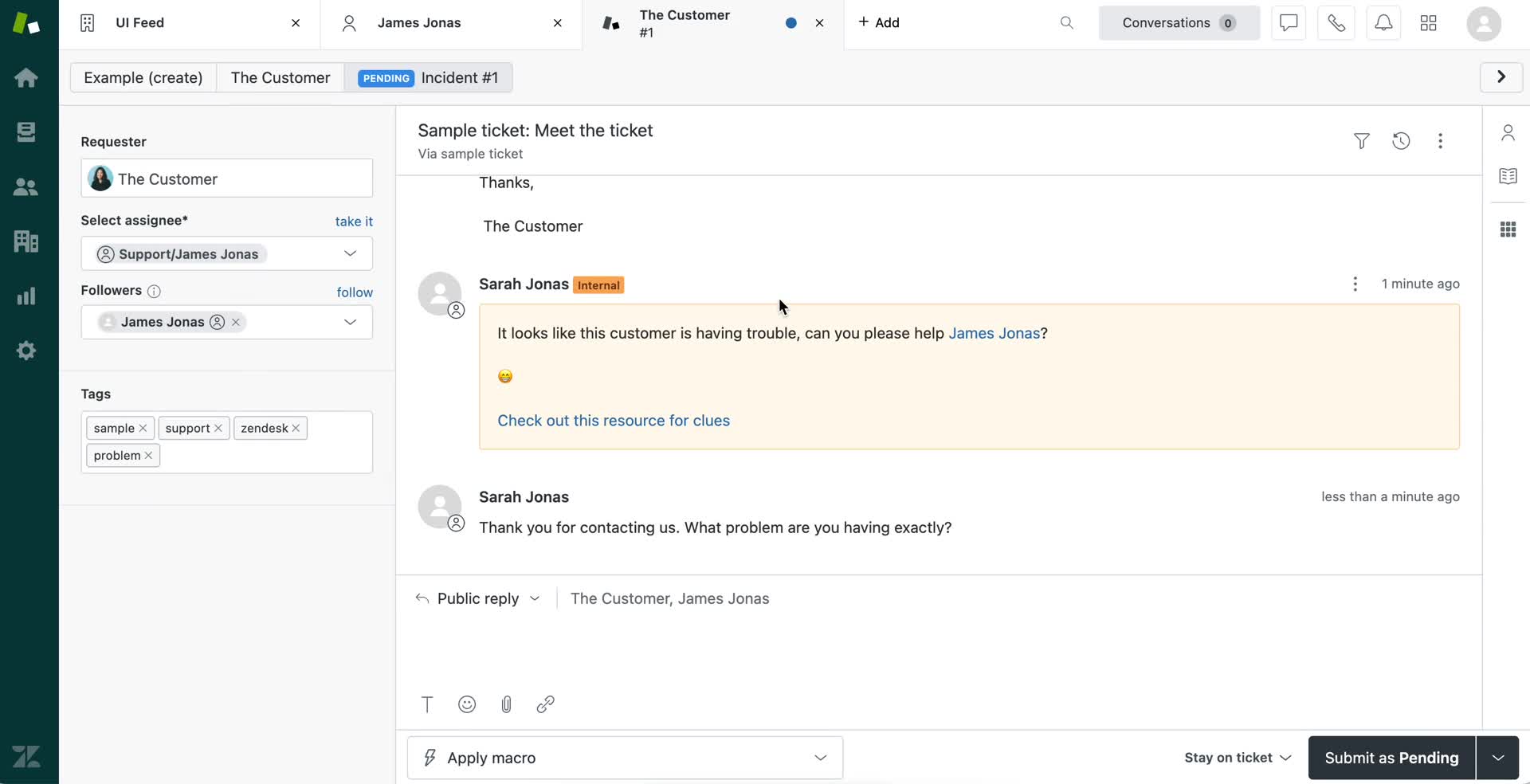
Support ticket
this is title
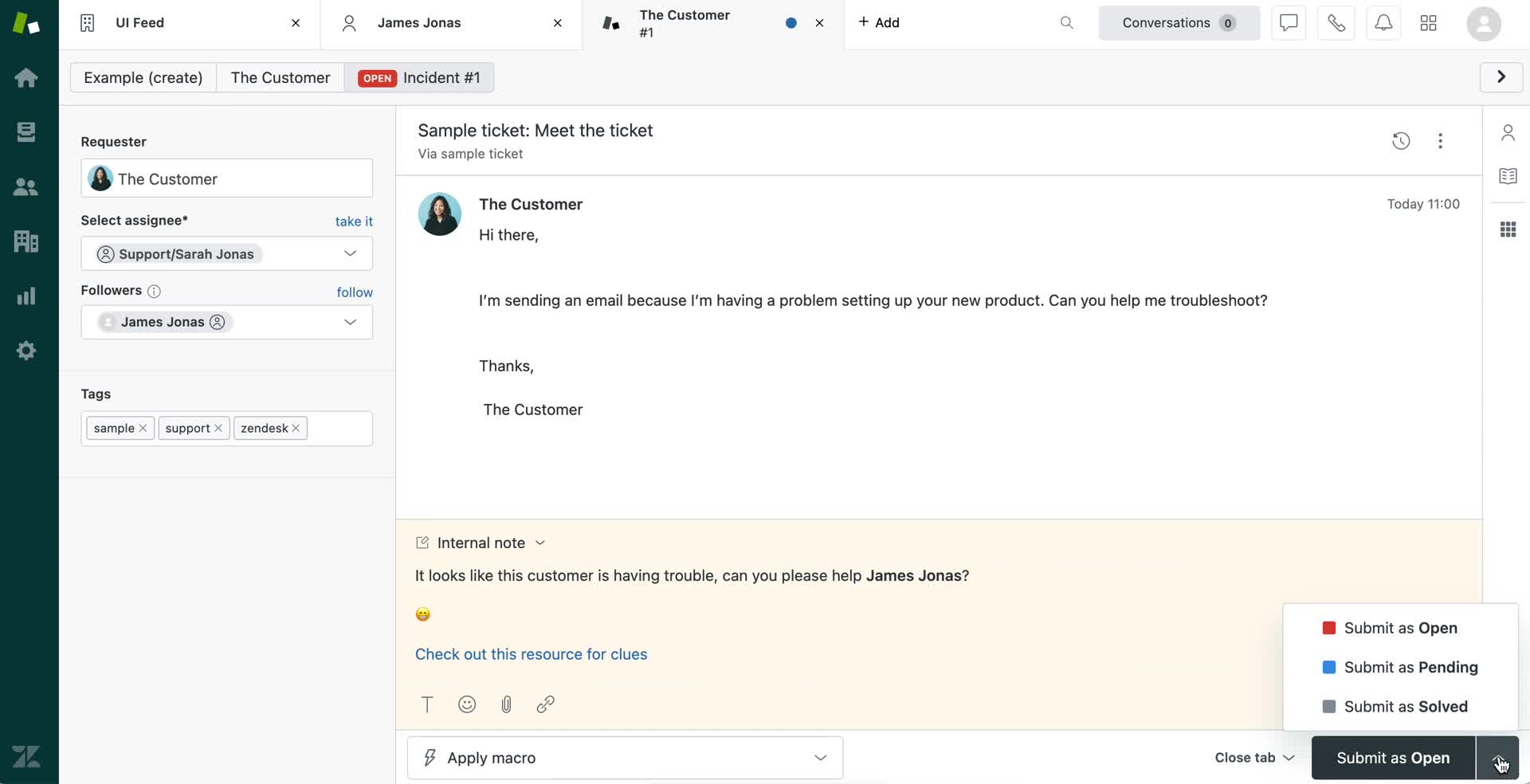
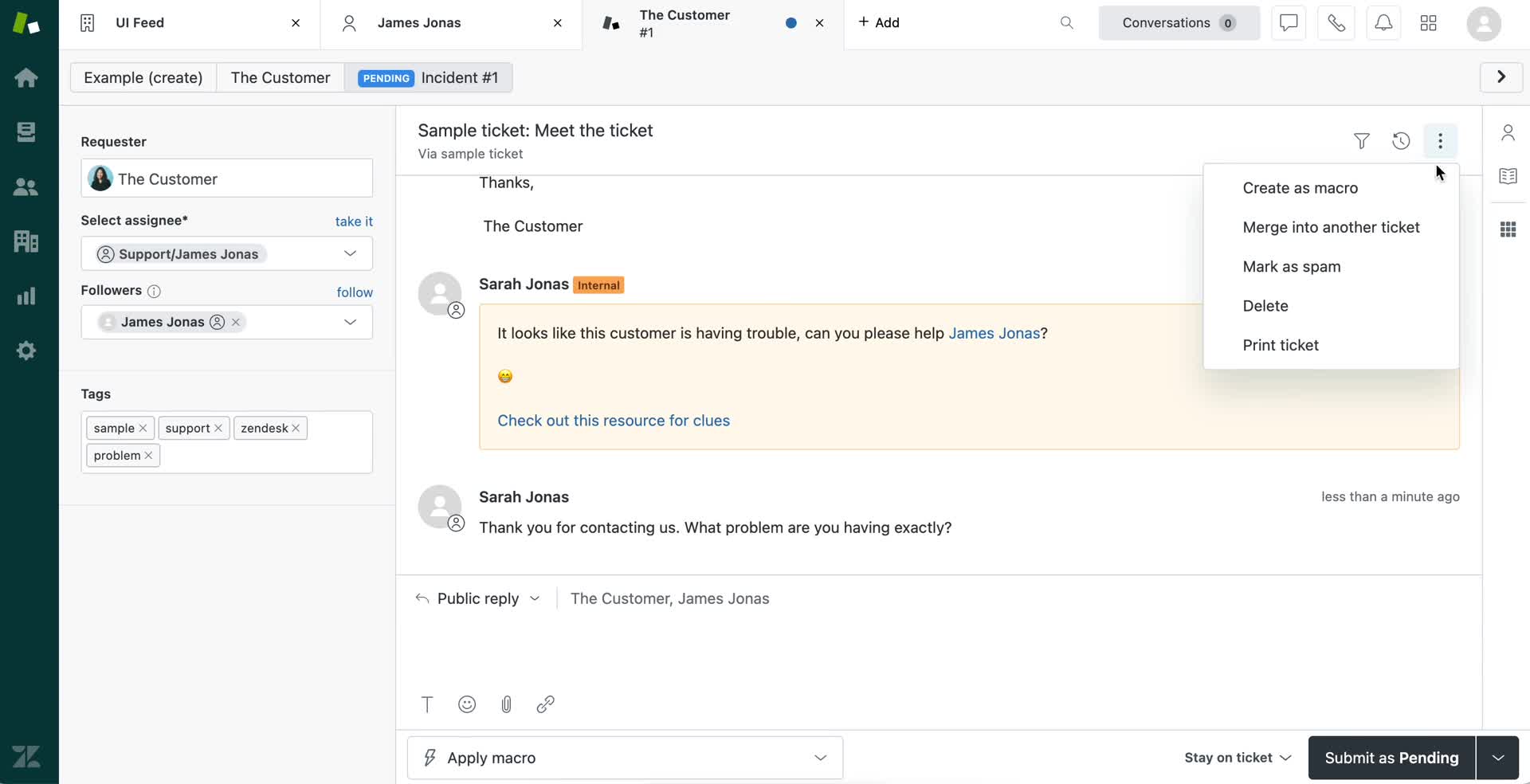
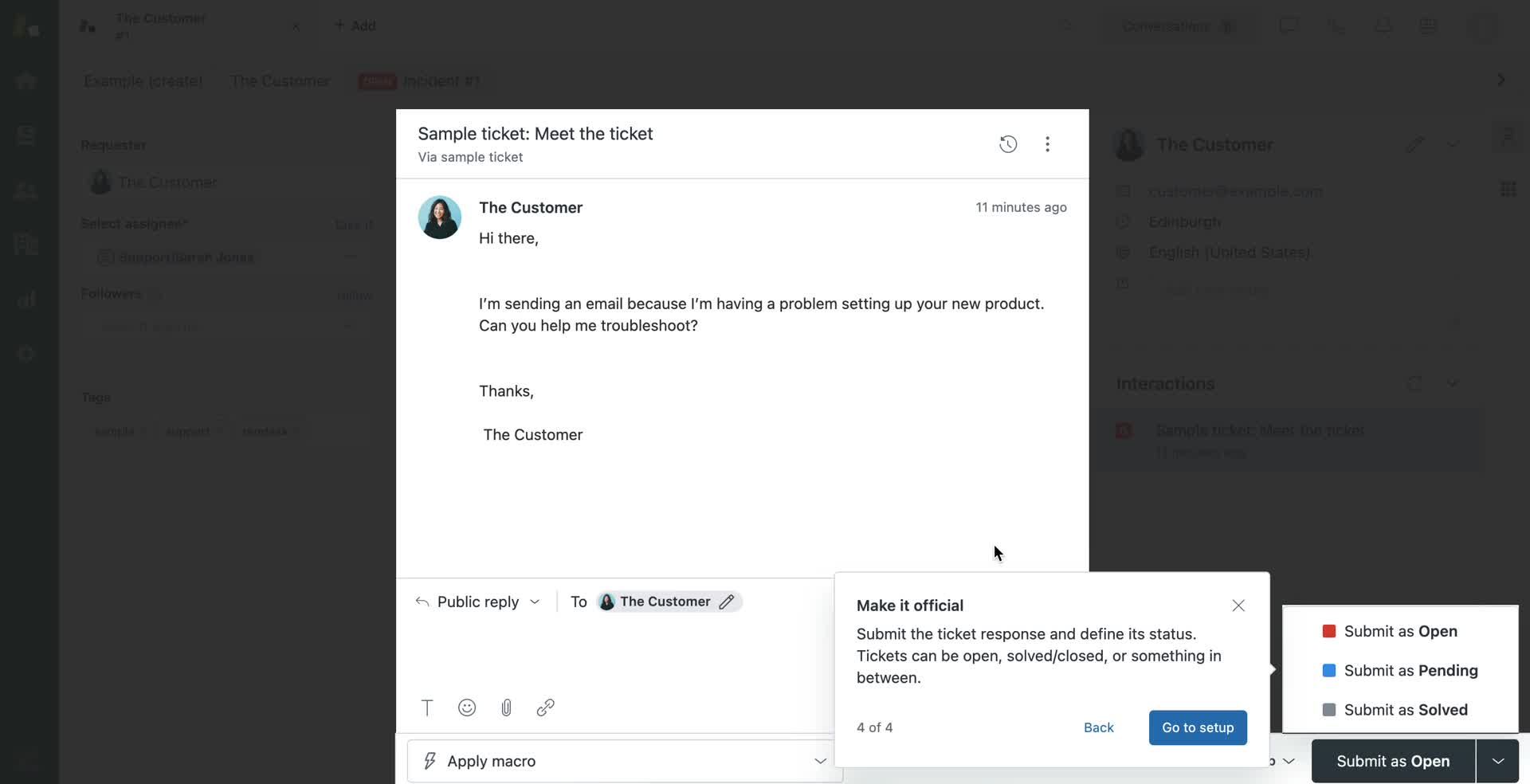
Action menu
this is title
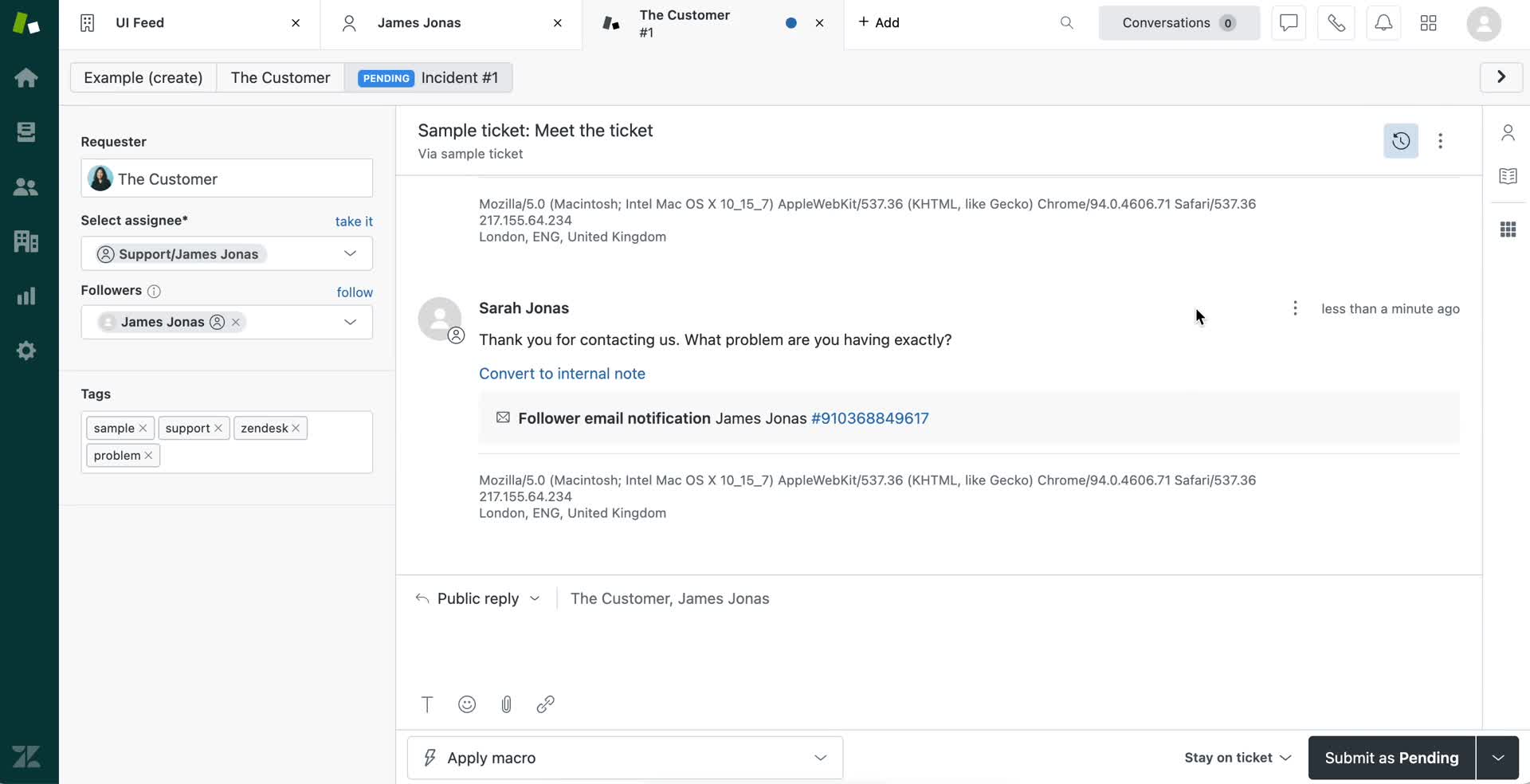
Activity feed
this is title
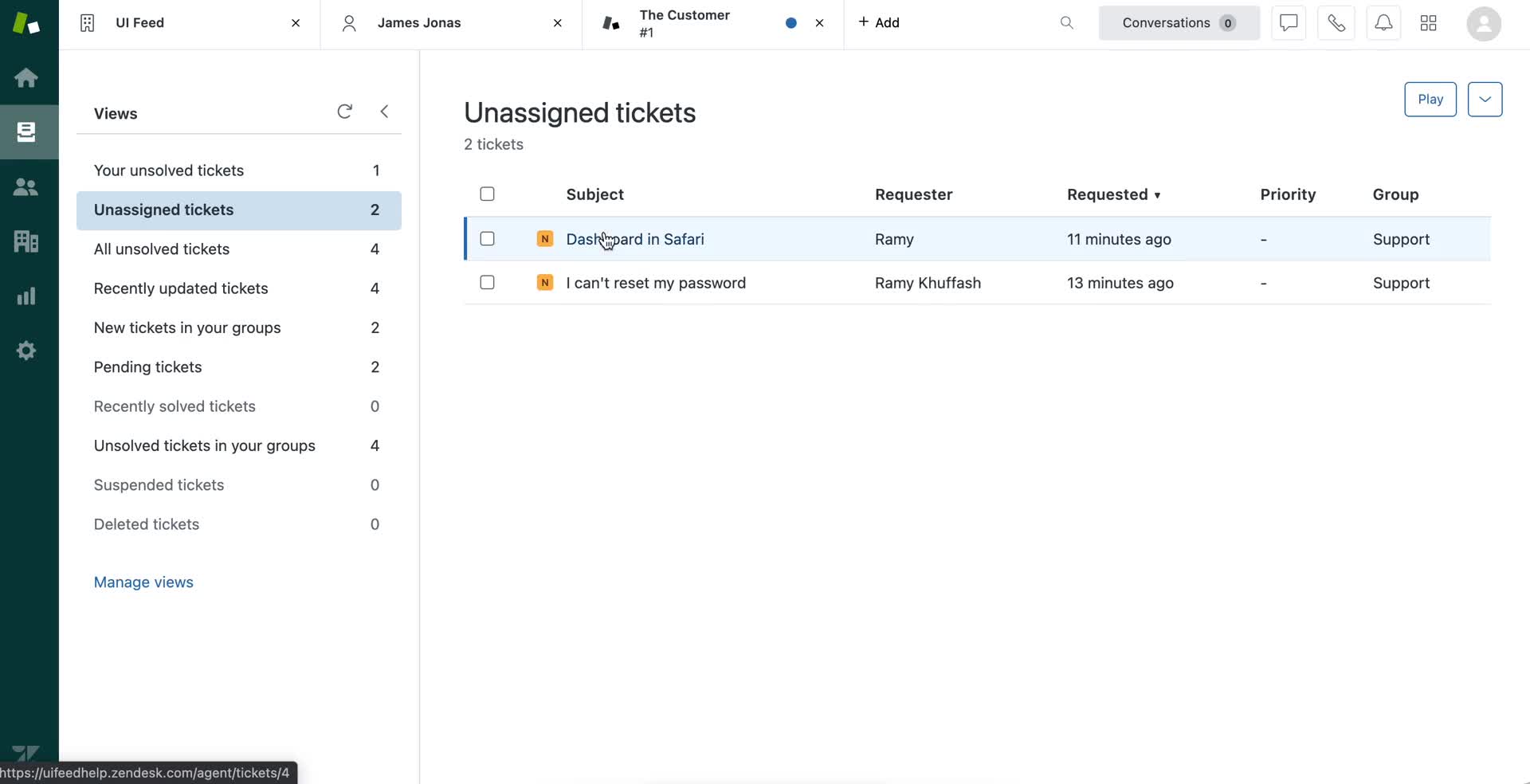
Inbox
this is title
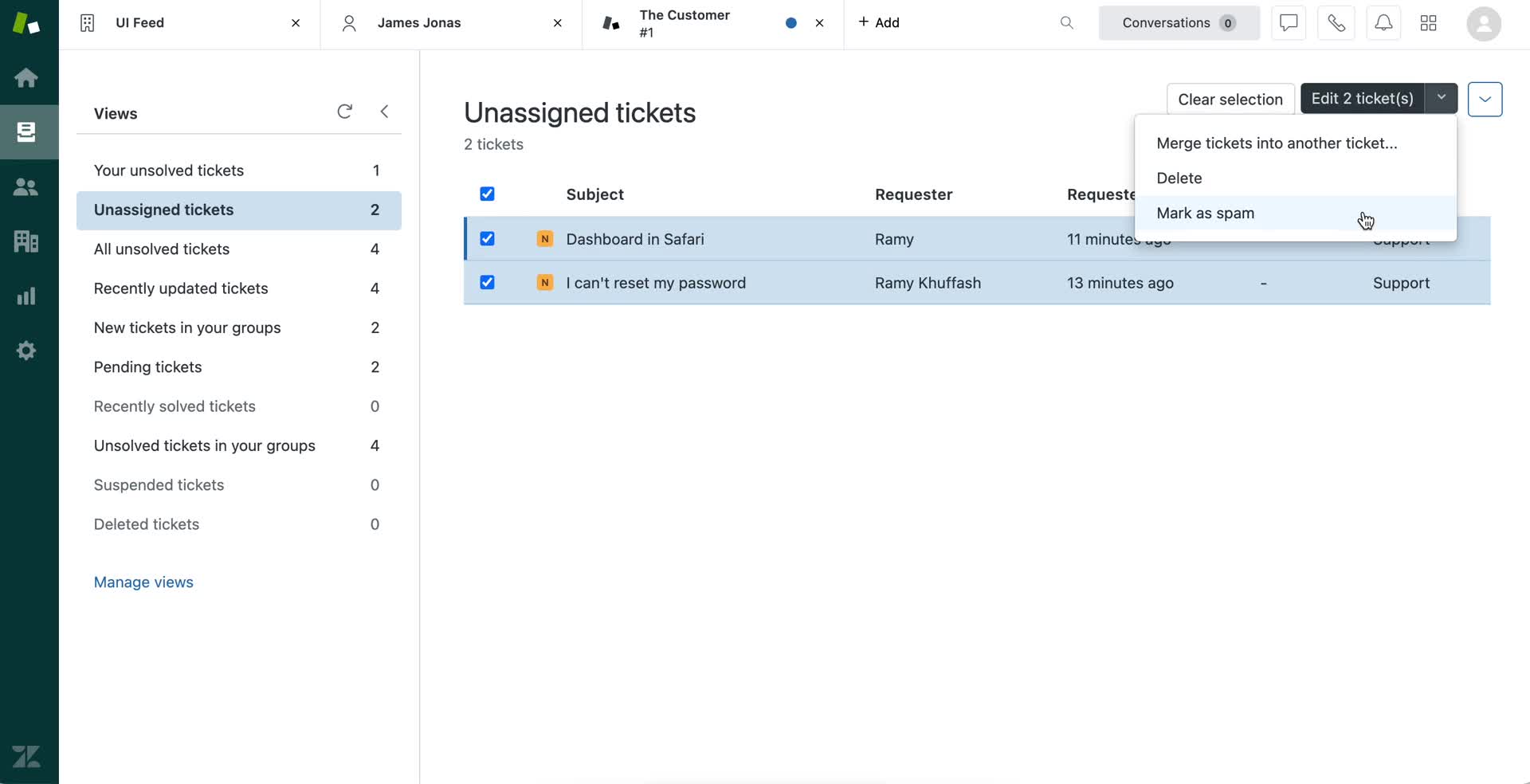
Action menu
this is title
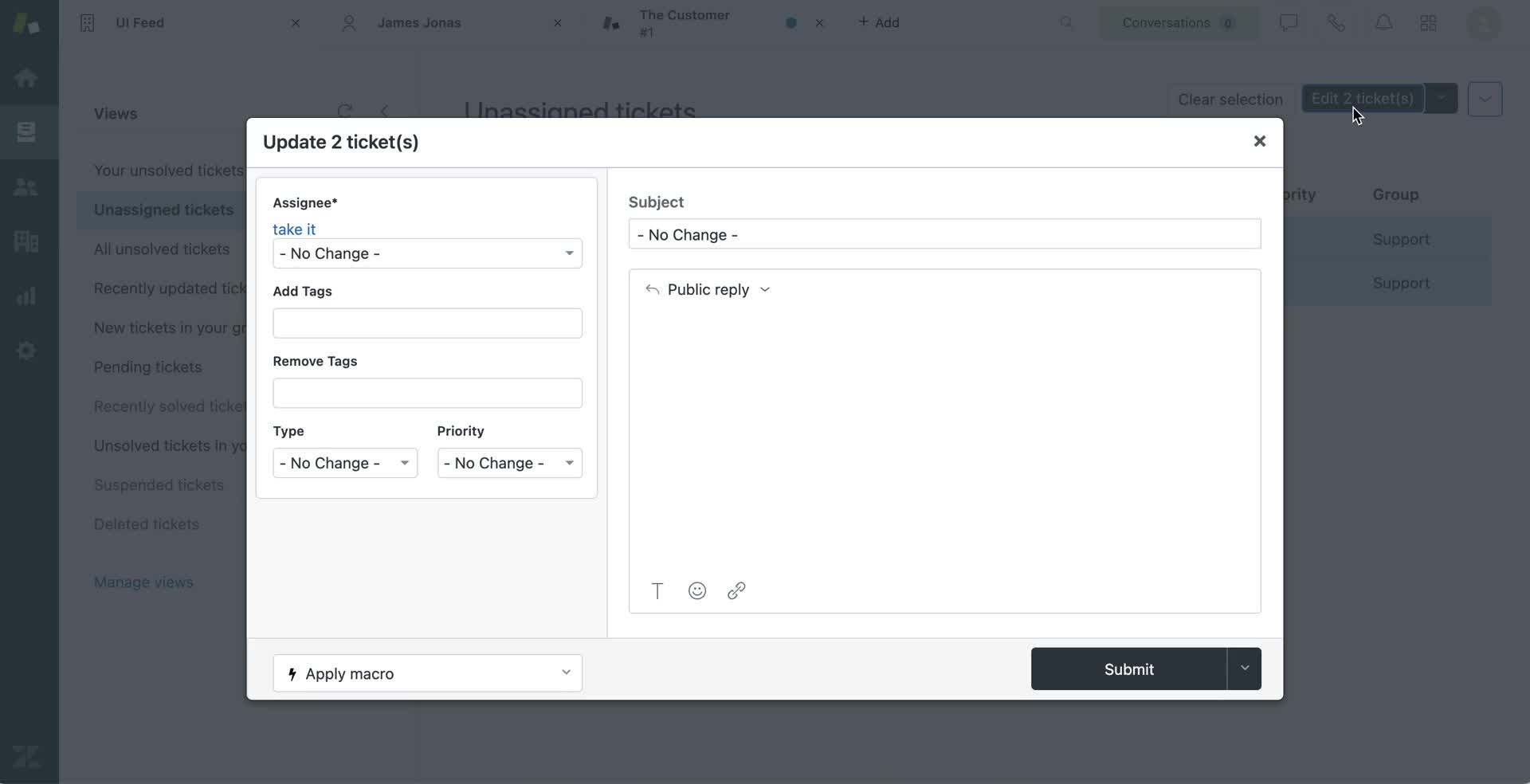
Update tickets
this is title
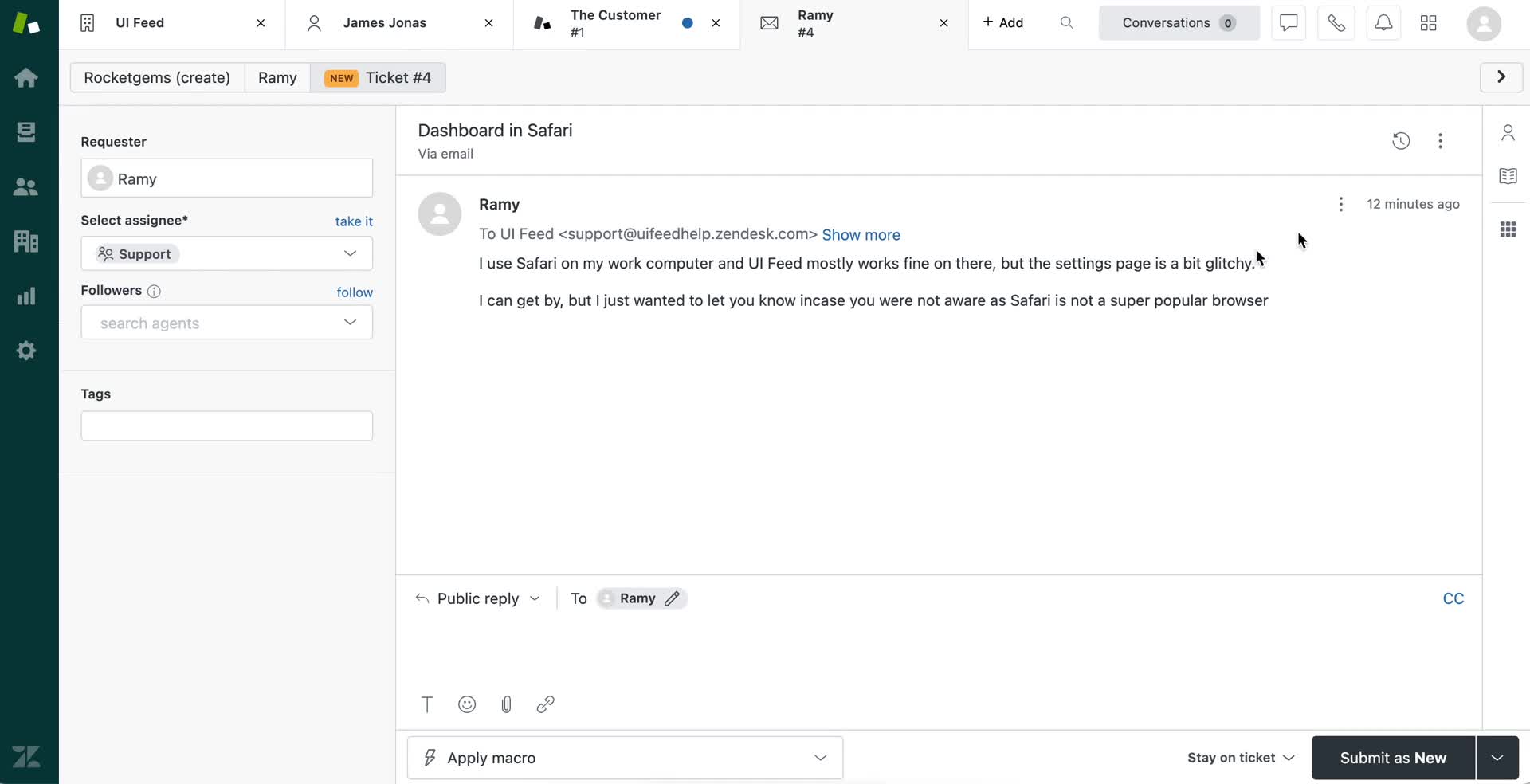
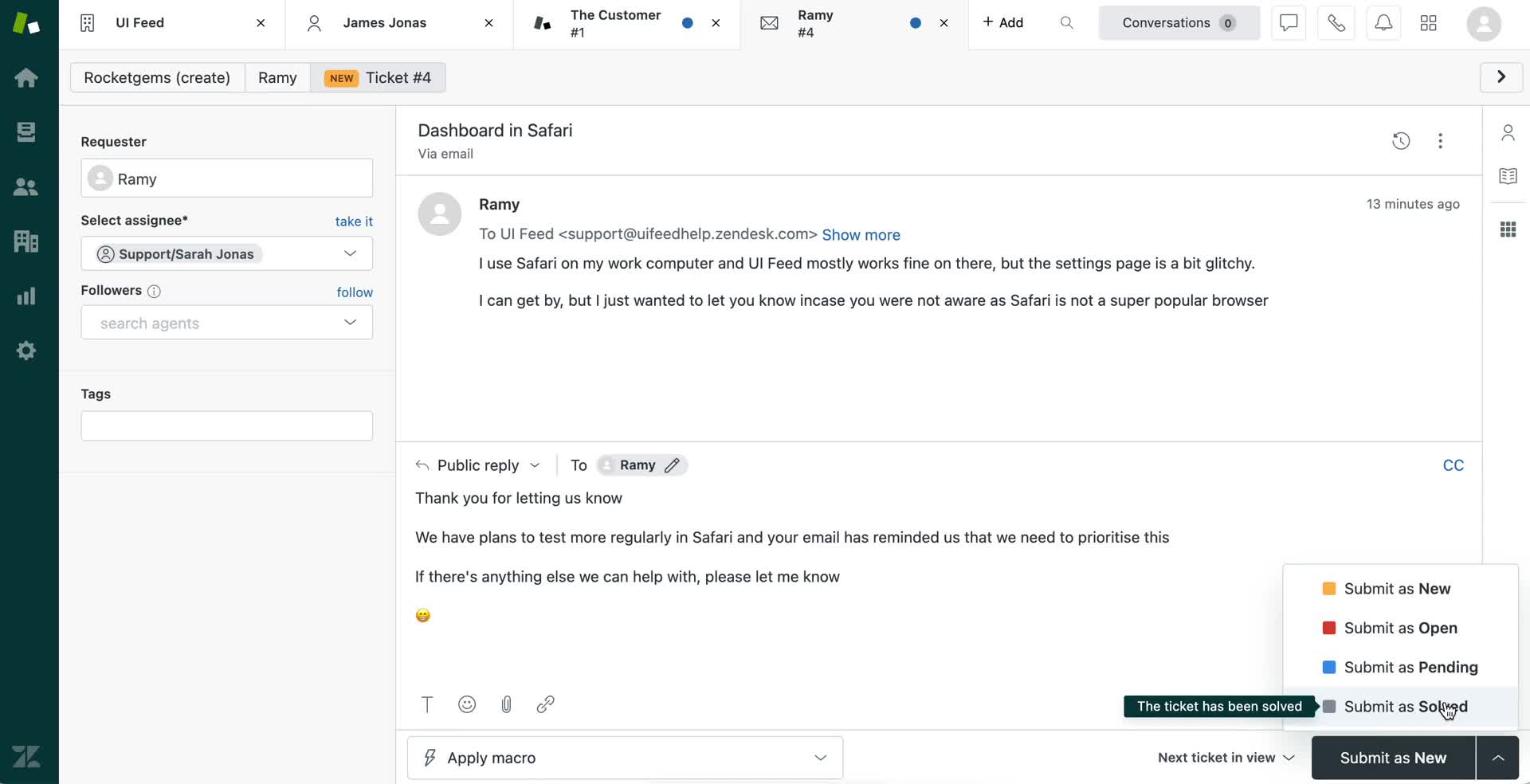
Support ticket
this is title
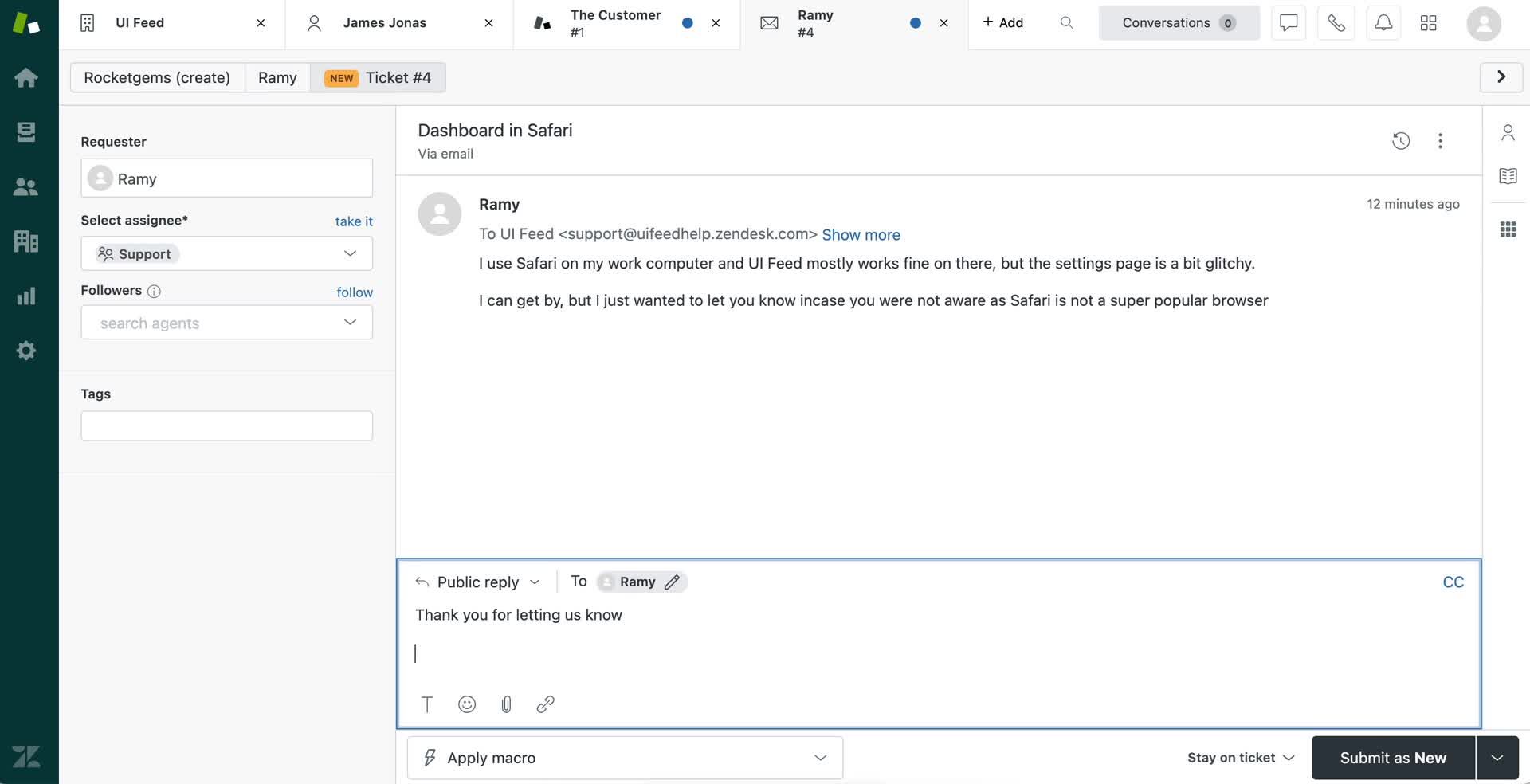
Reply to ticket
this is title
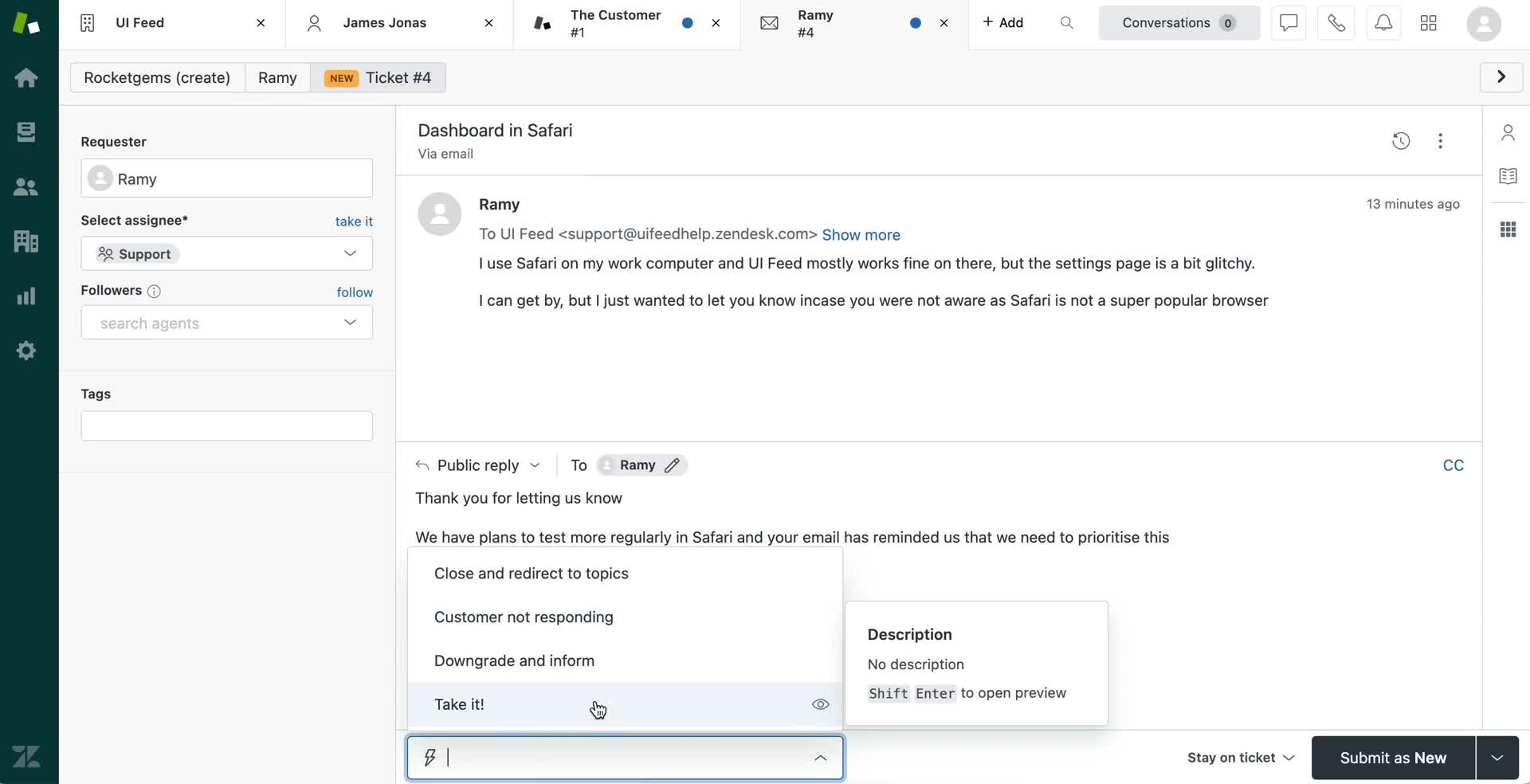
Run macro
this is title
Reply to ticket
this is title
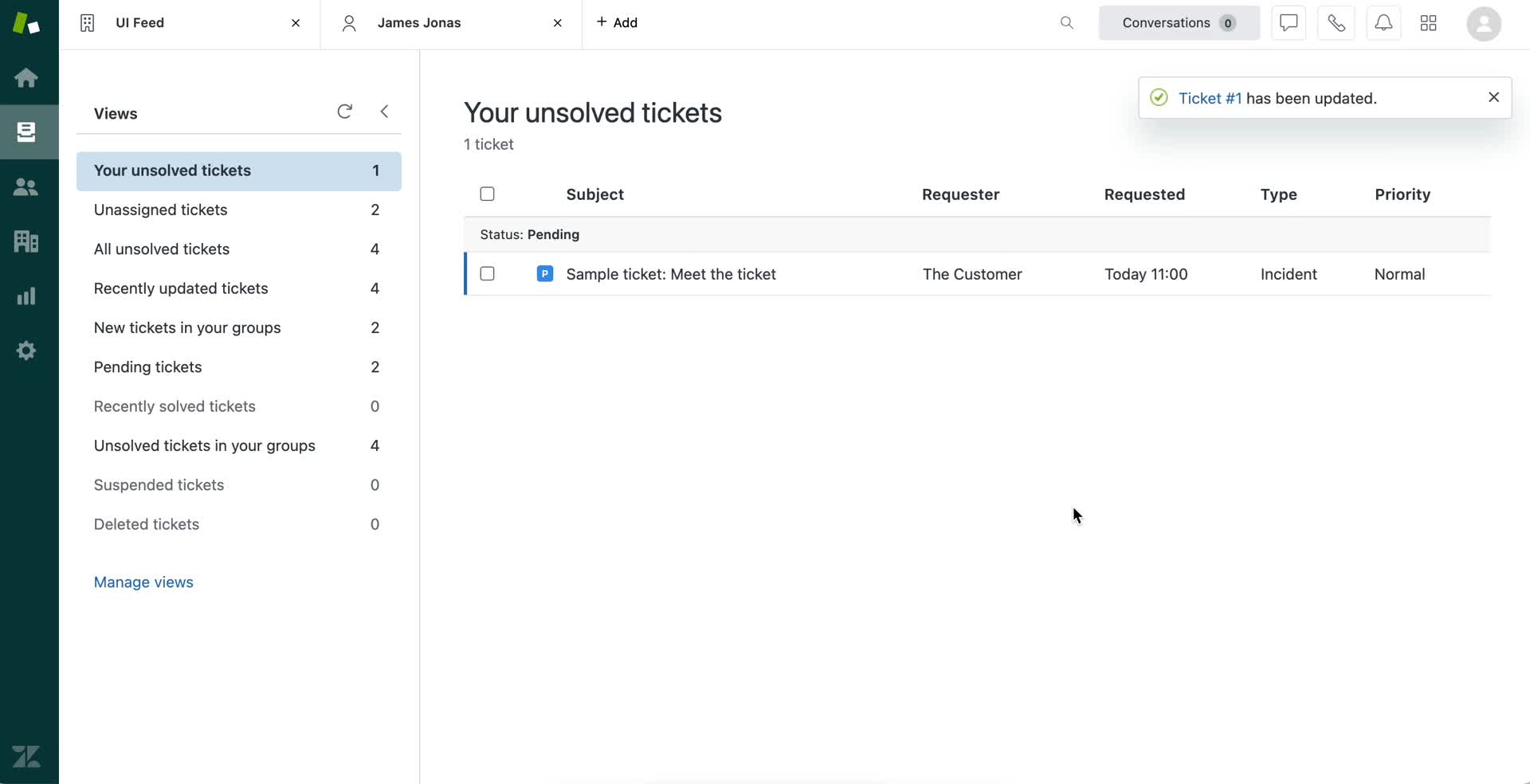
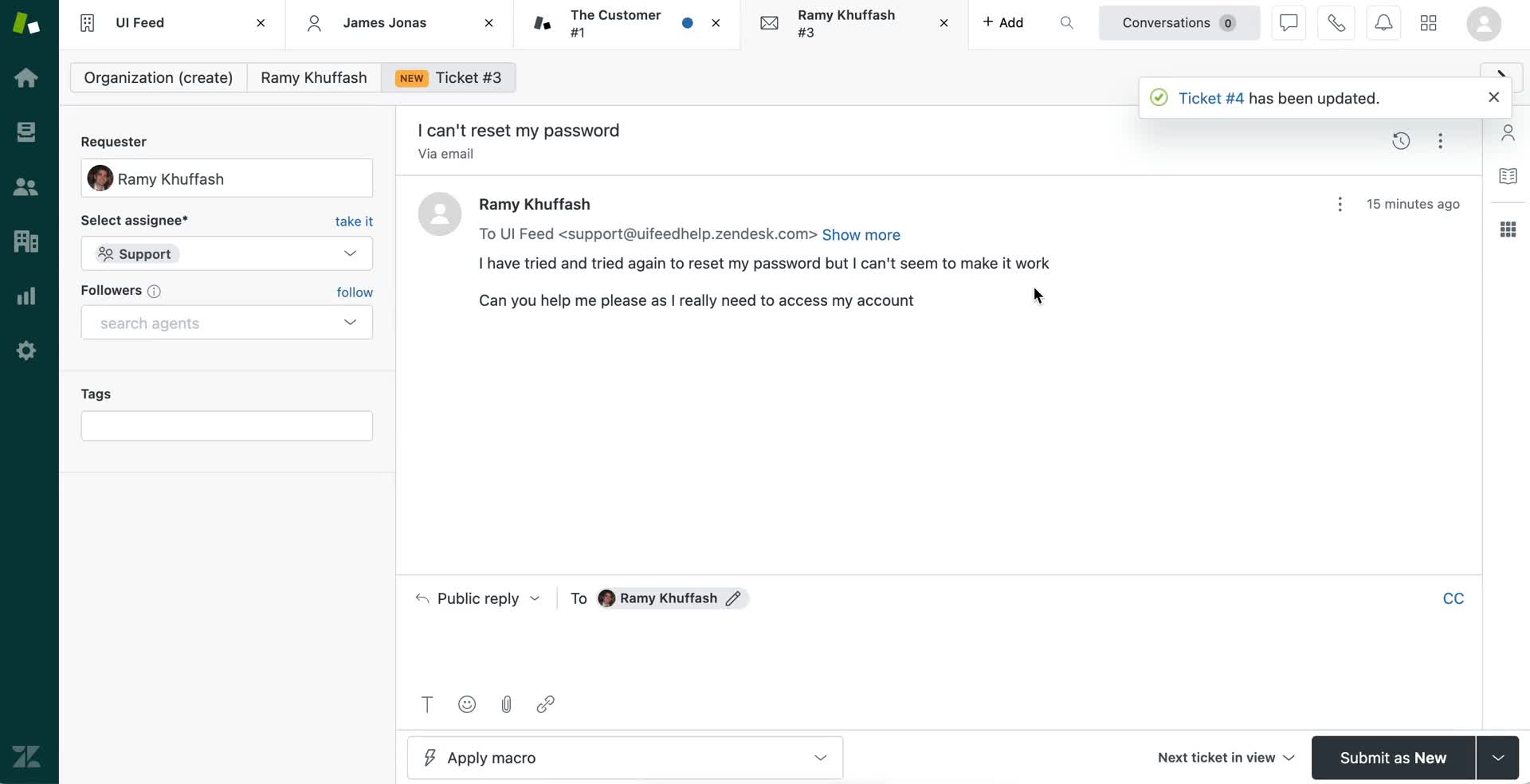
Ticket updated
this is title
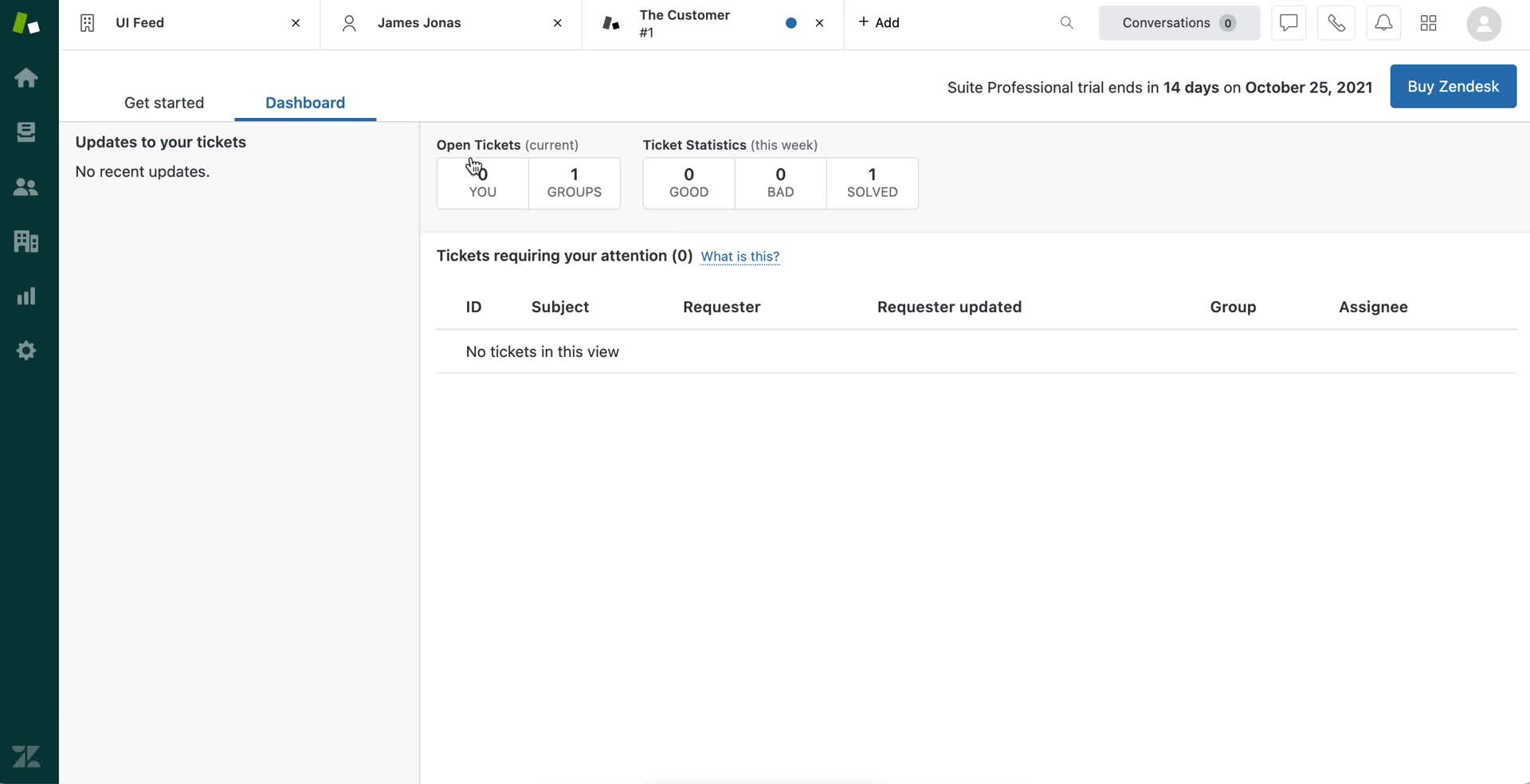
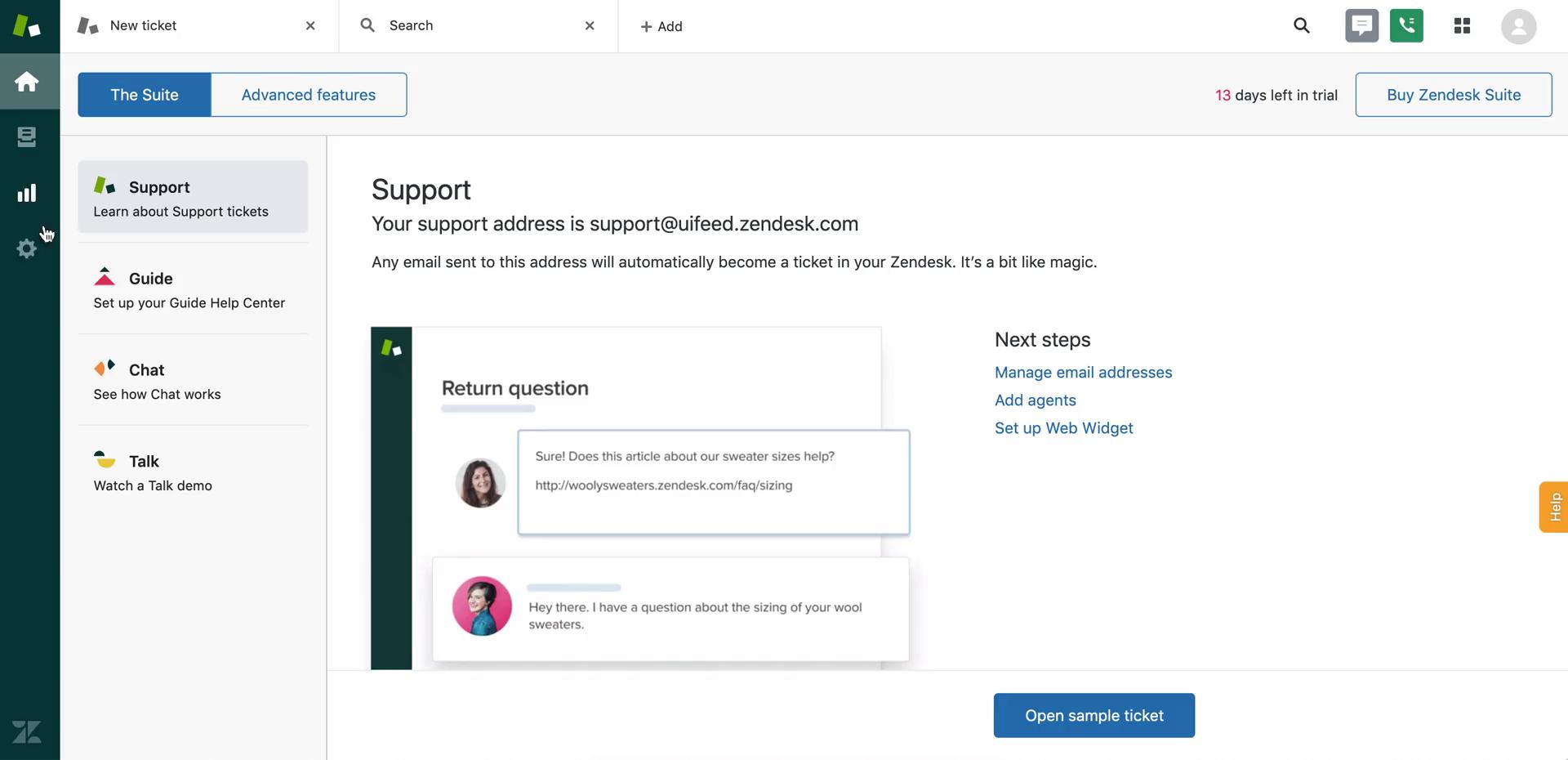
Dashboard
this is title
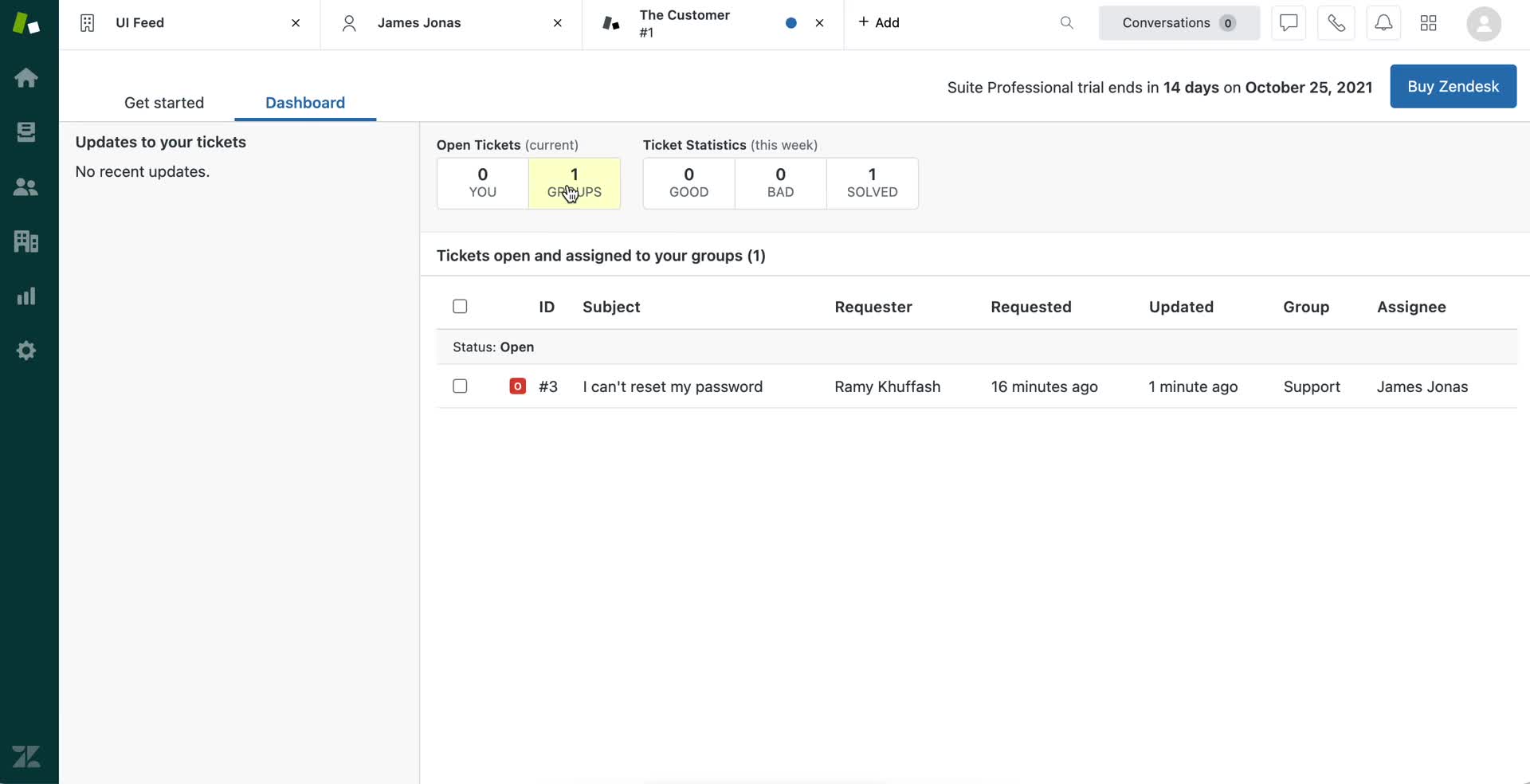
Dashboard
this is title
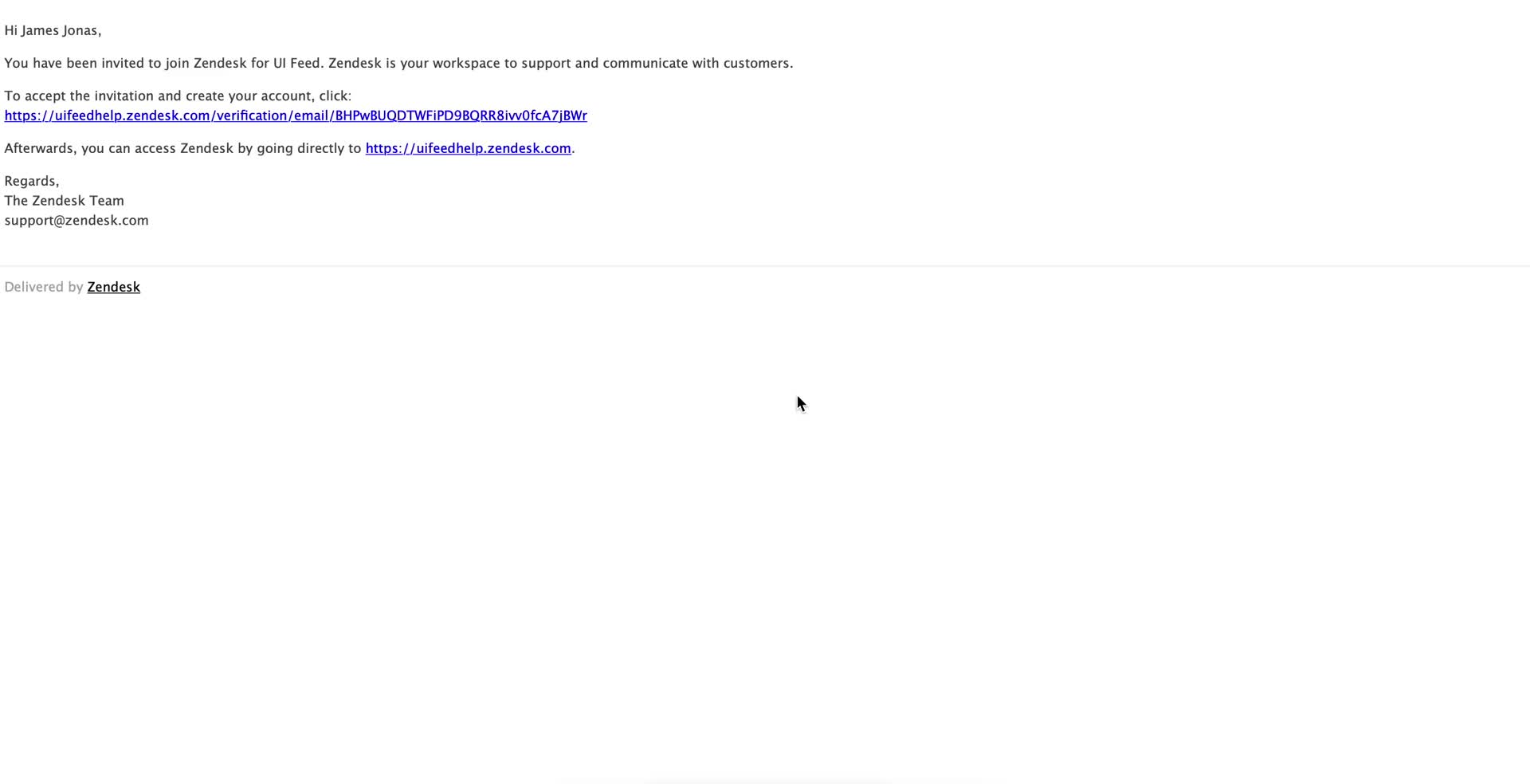
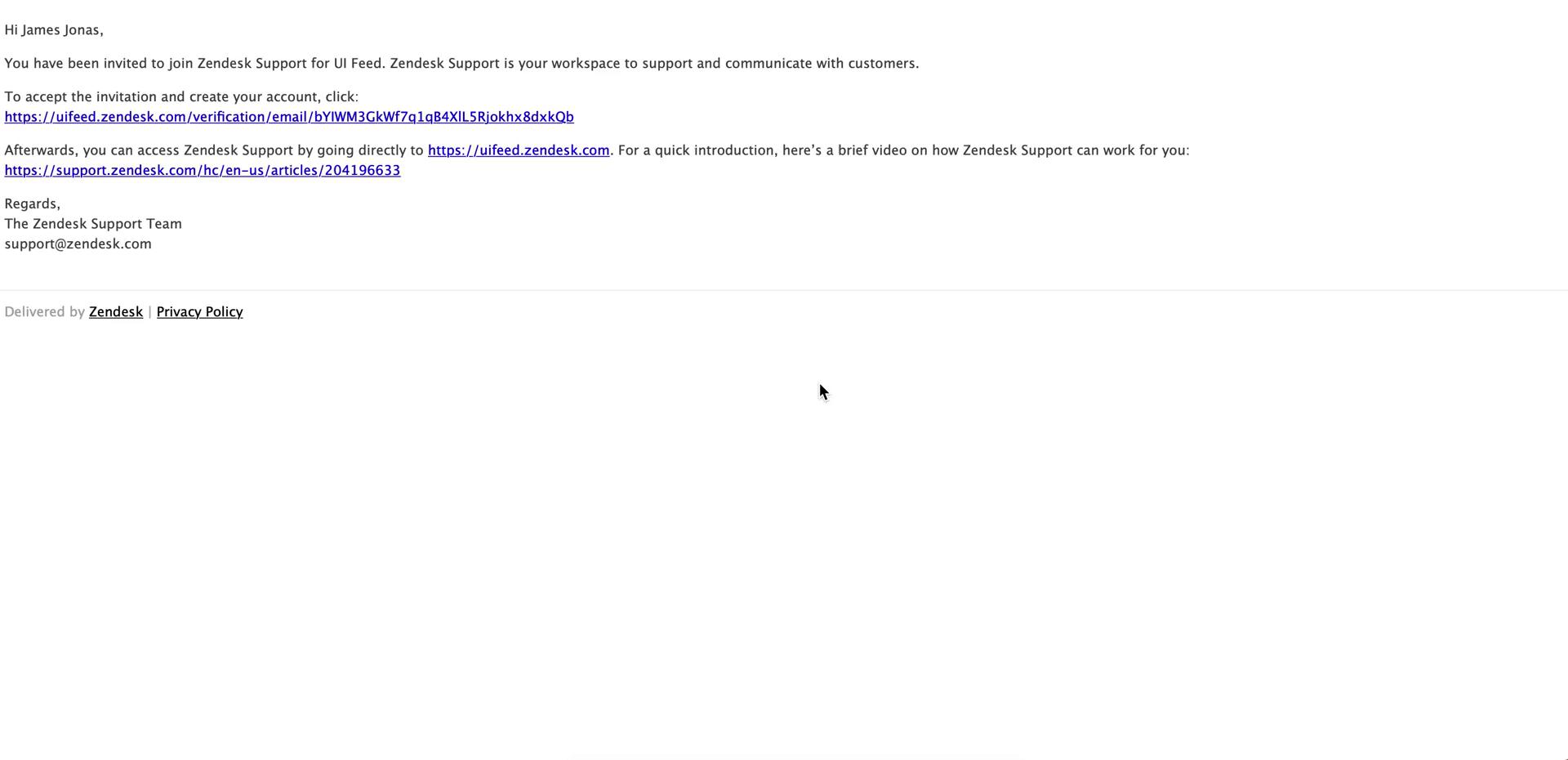
Invite email
this is title
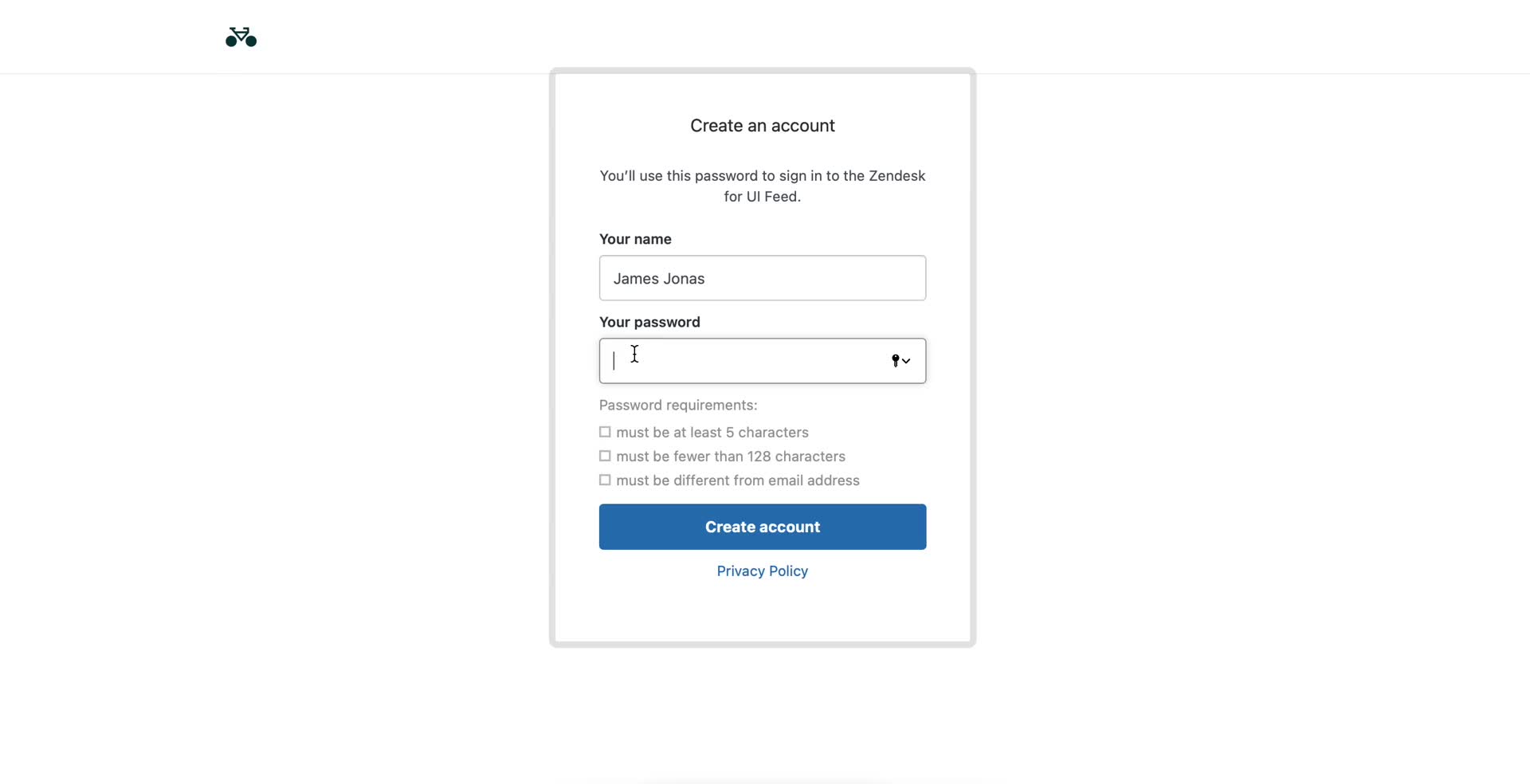
Sign up
this is title
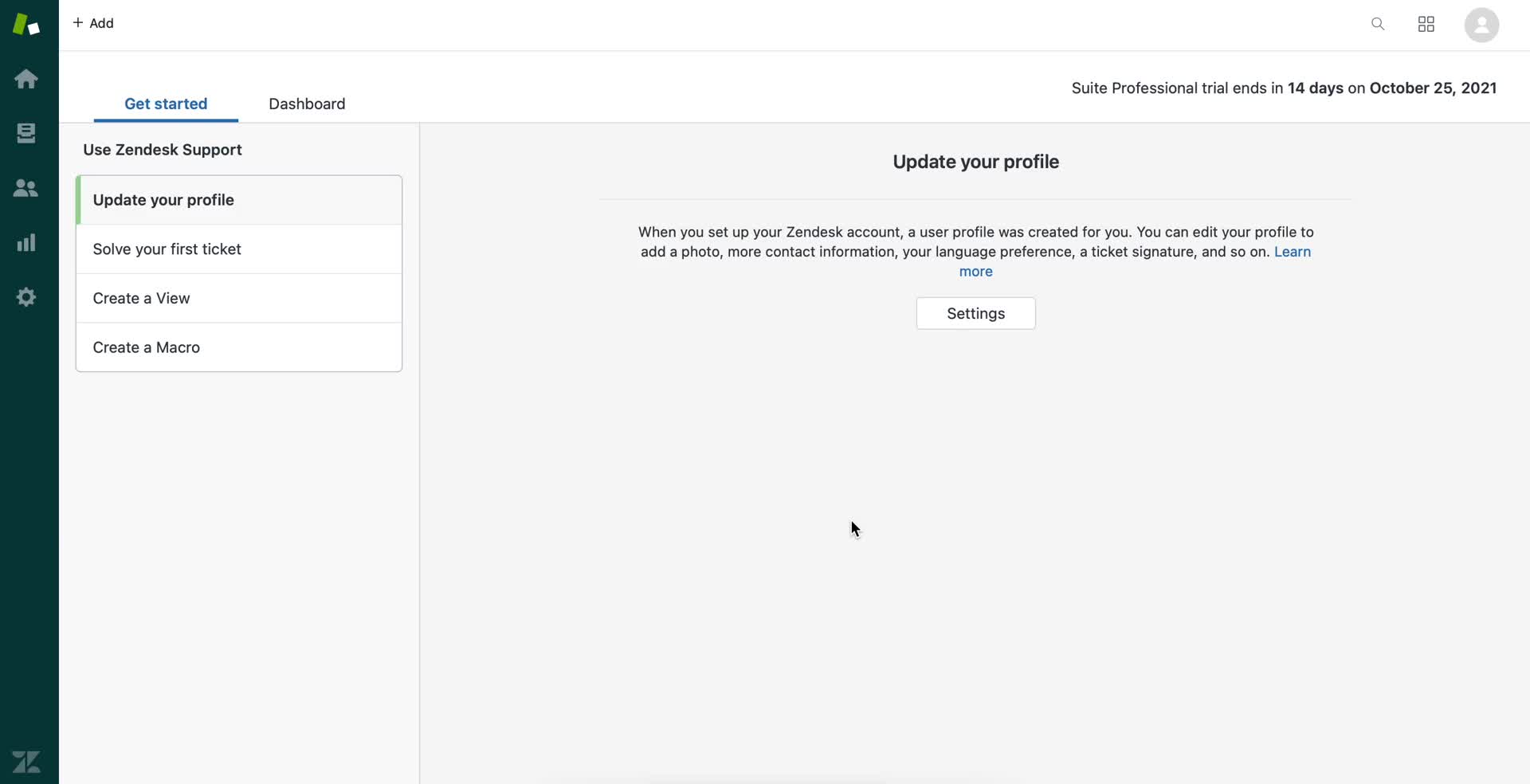
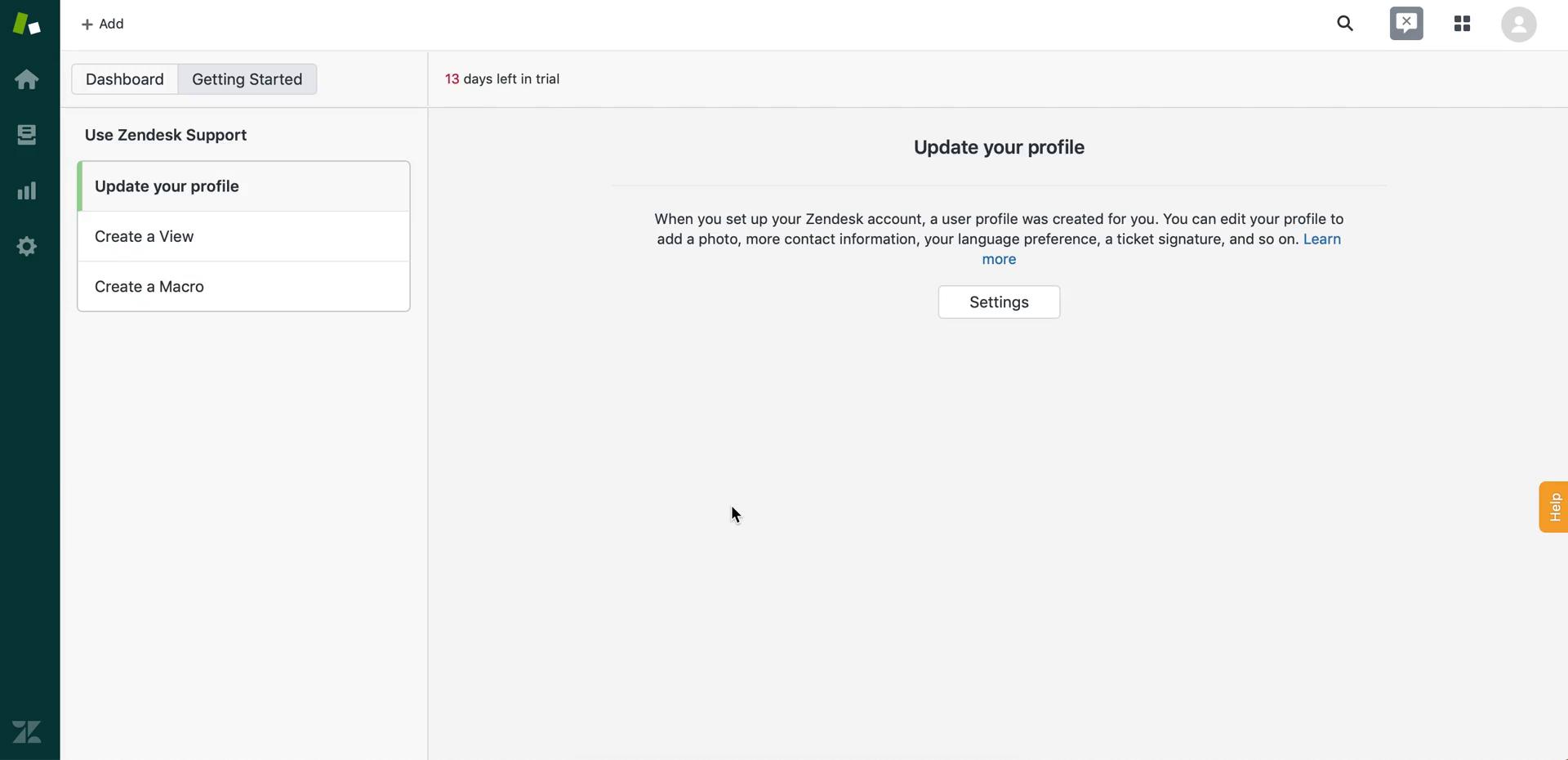
Getting started page
this is title
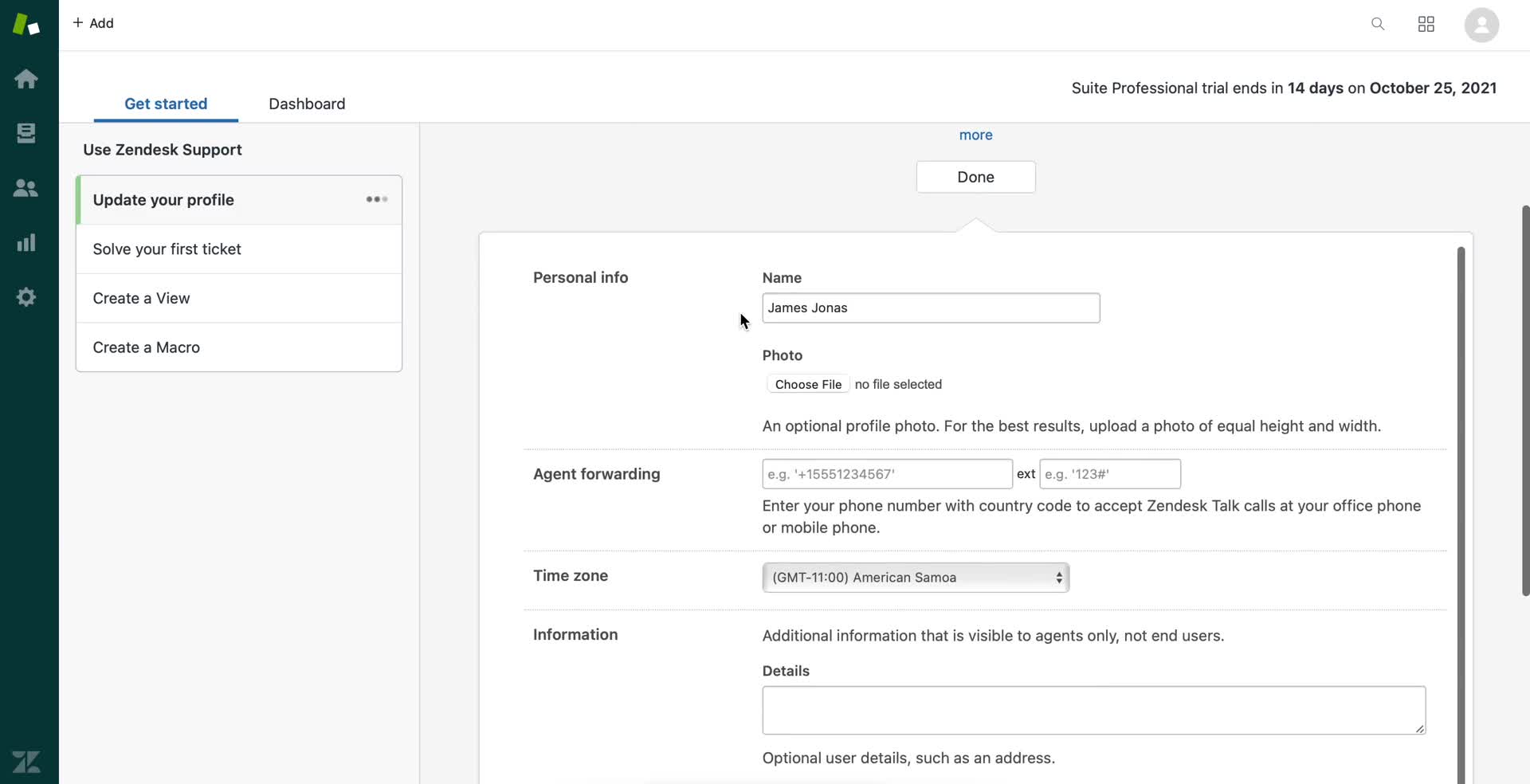
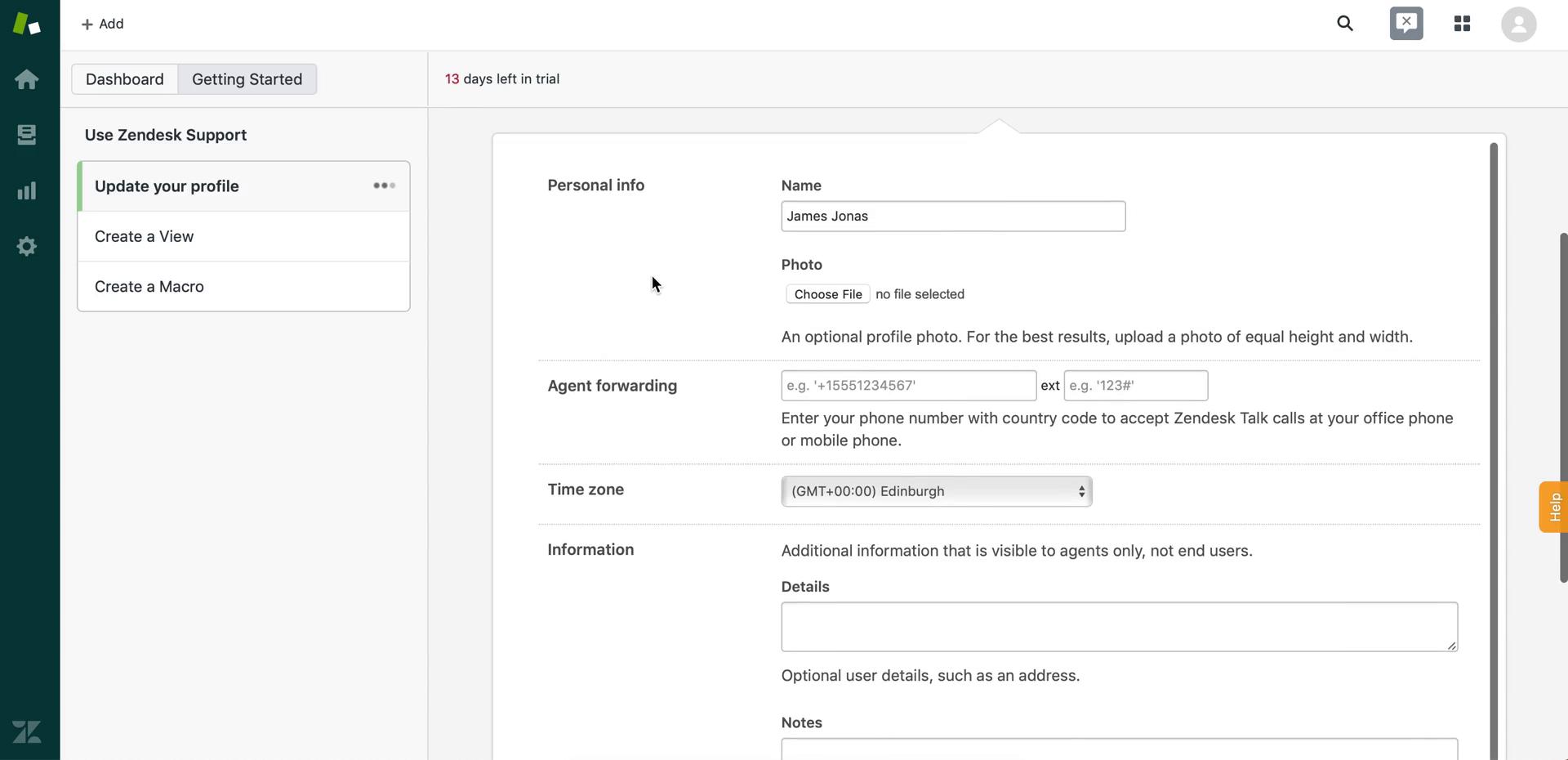
Edit profile
this is title
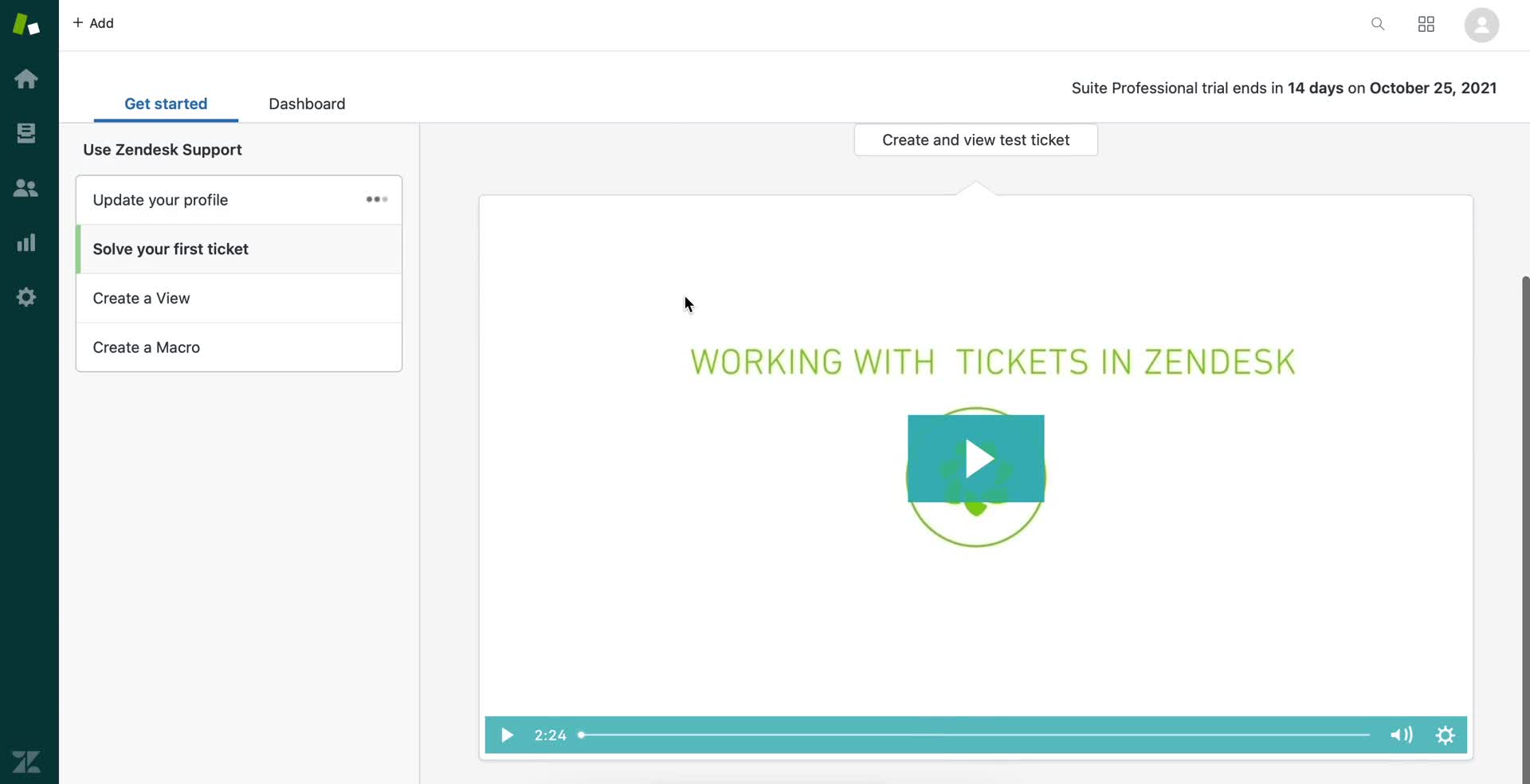
Guide video
this is title
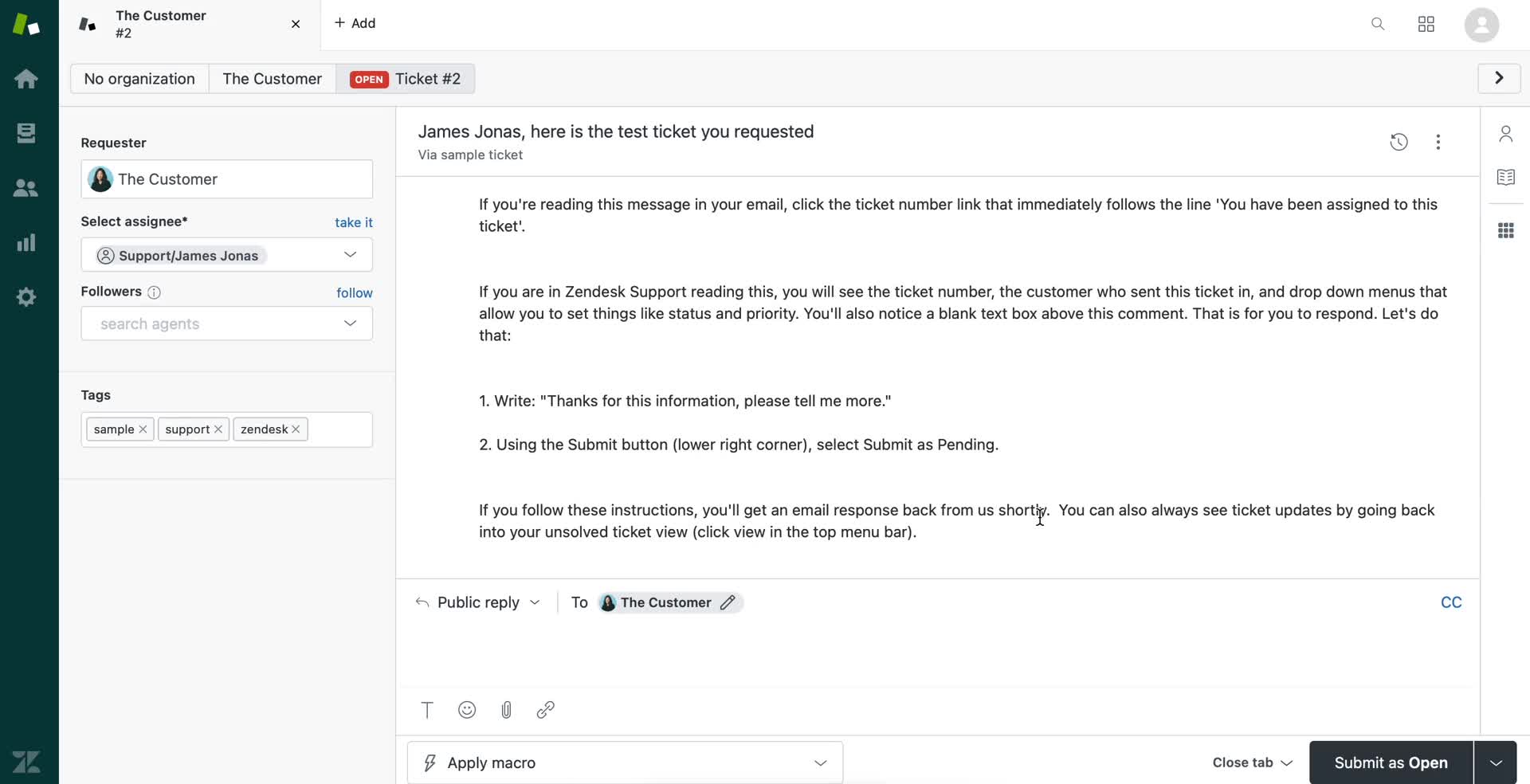
Support ticket
this is title
Dashboard
this is title
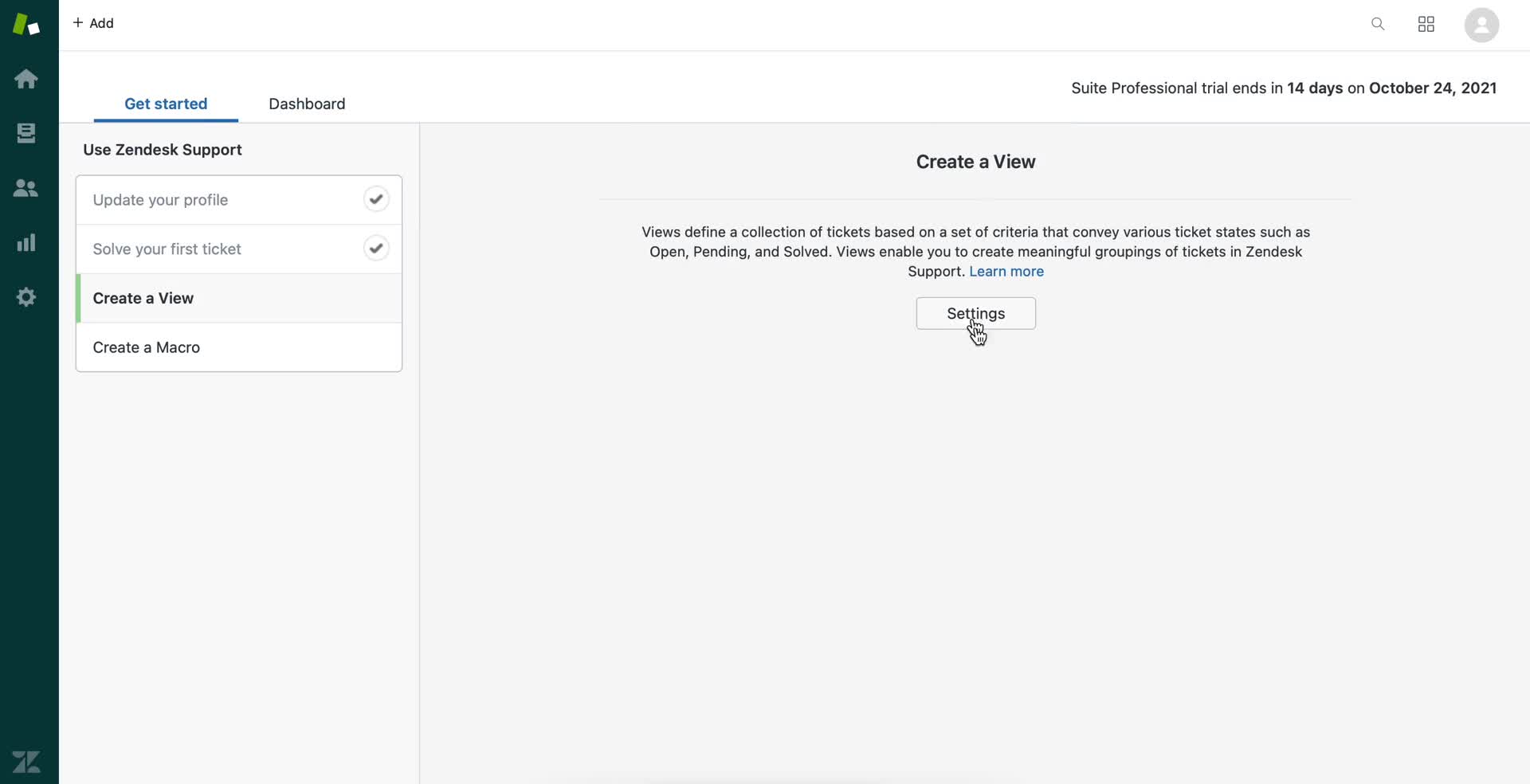
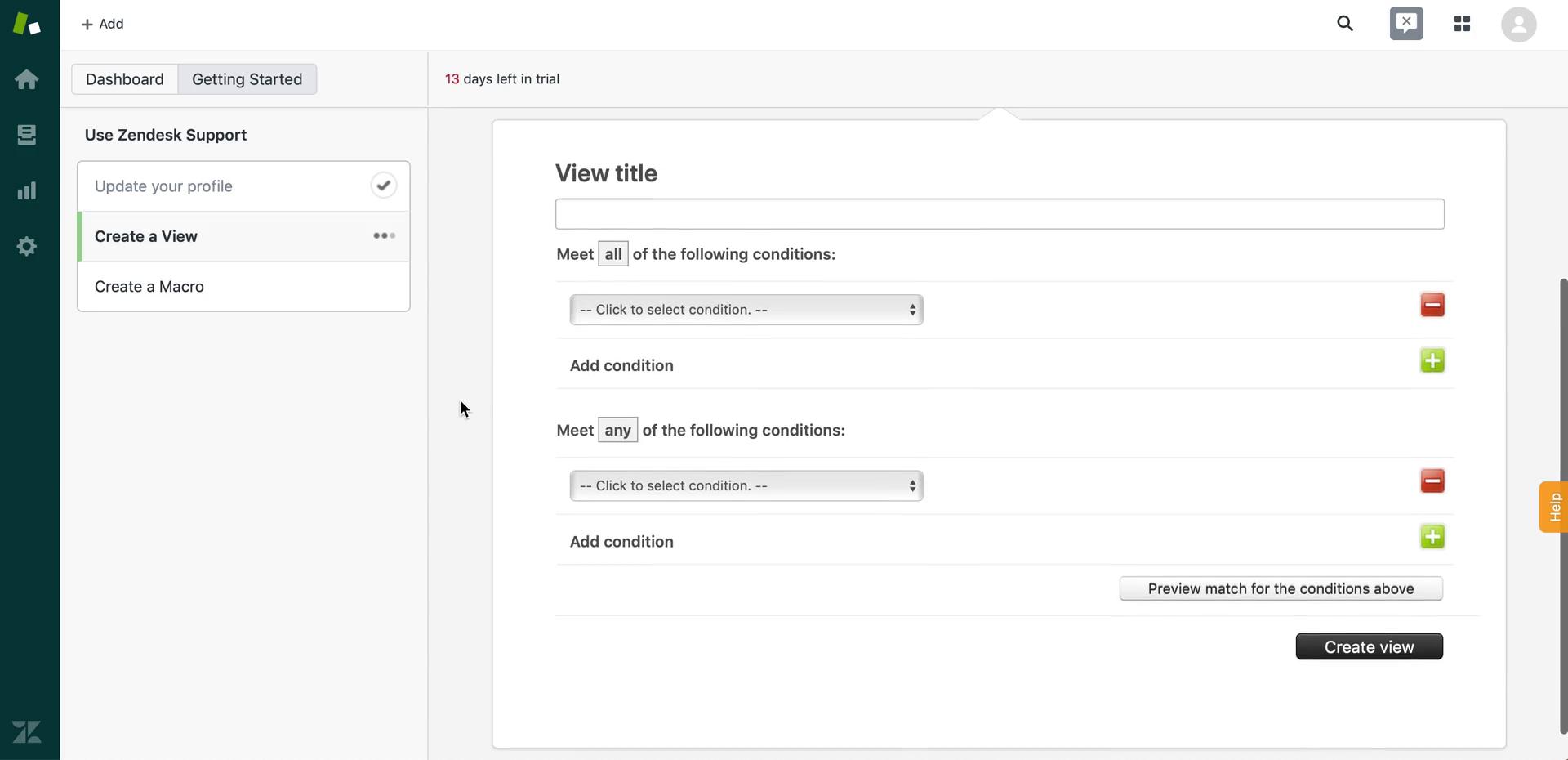
Create view
this is title
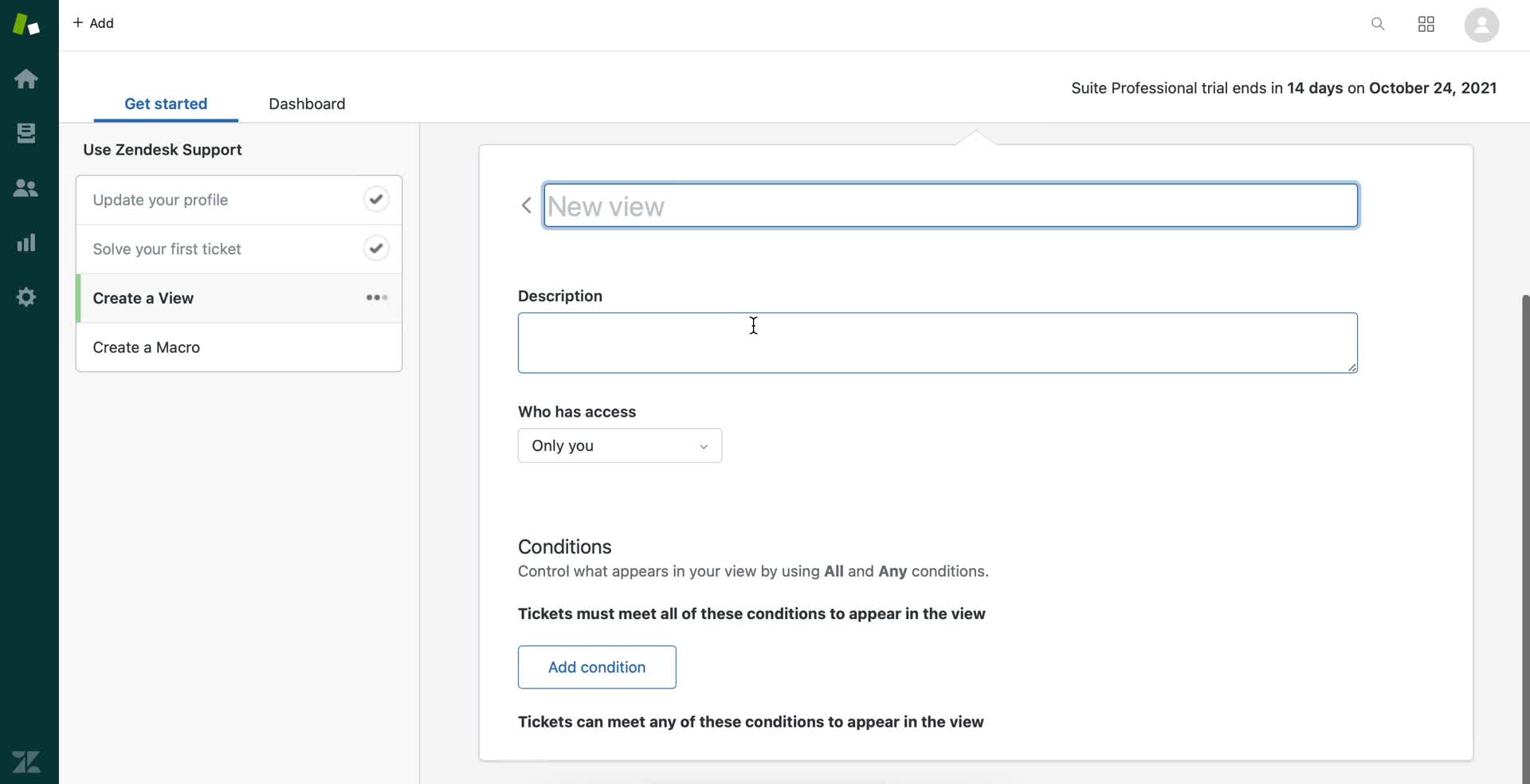
Create view
this is title
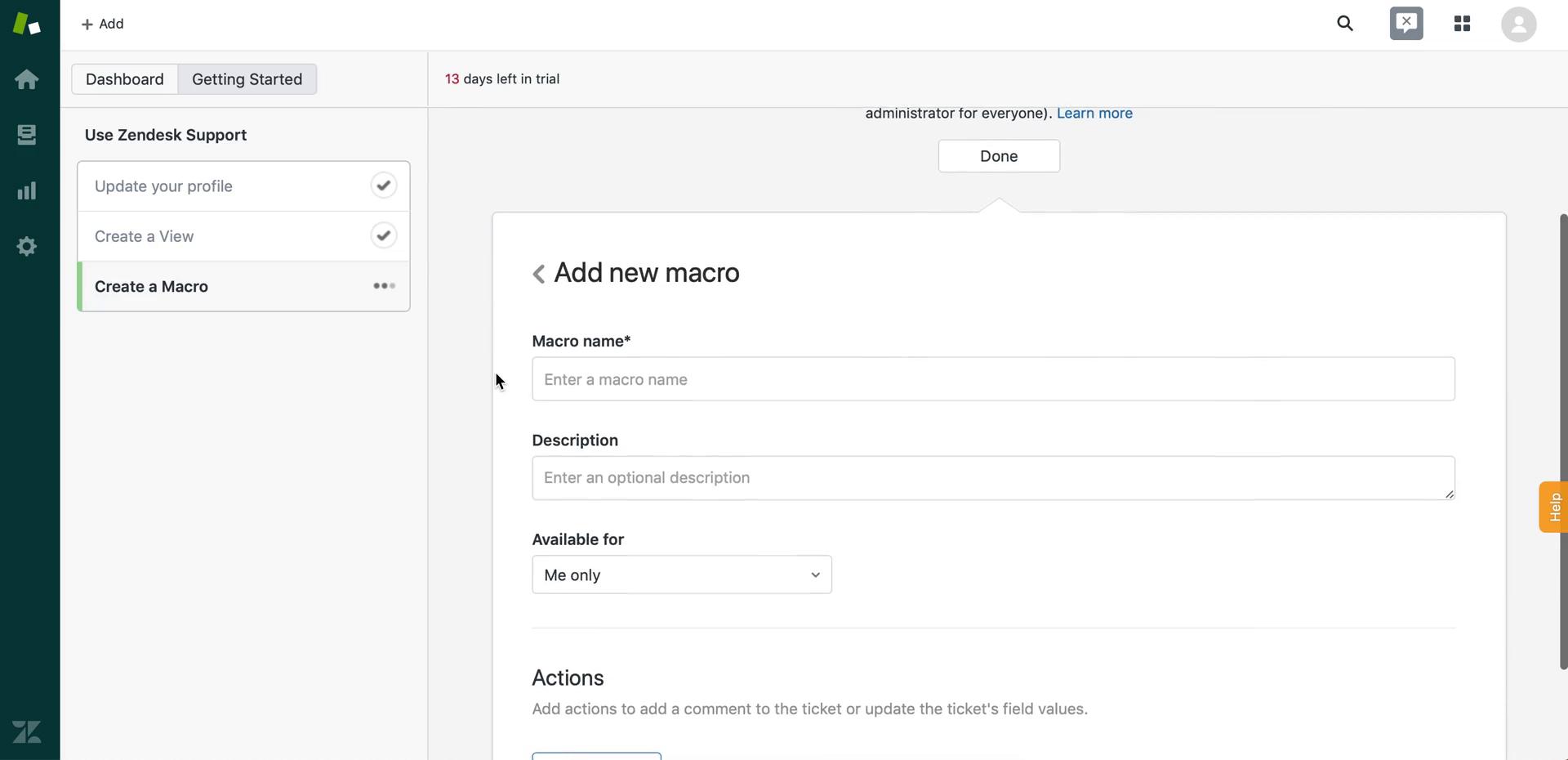
Create macro
this is title
Create macro
this is title
Getting started page
this is title
Dashboard
this is title
Invite email
this is title
Sign up
this is title
Onboarding tasks
this is title
Edit profile
this is title
Create view
this is title
Create macro
this is title
Dashboard
this is title
Dashboard
this is title
Admin
this is title
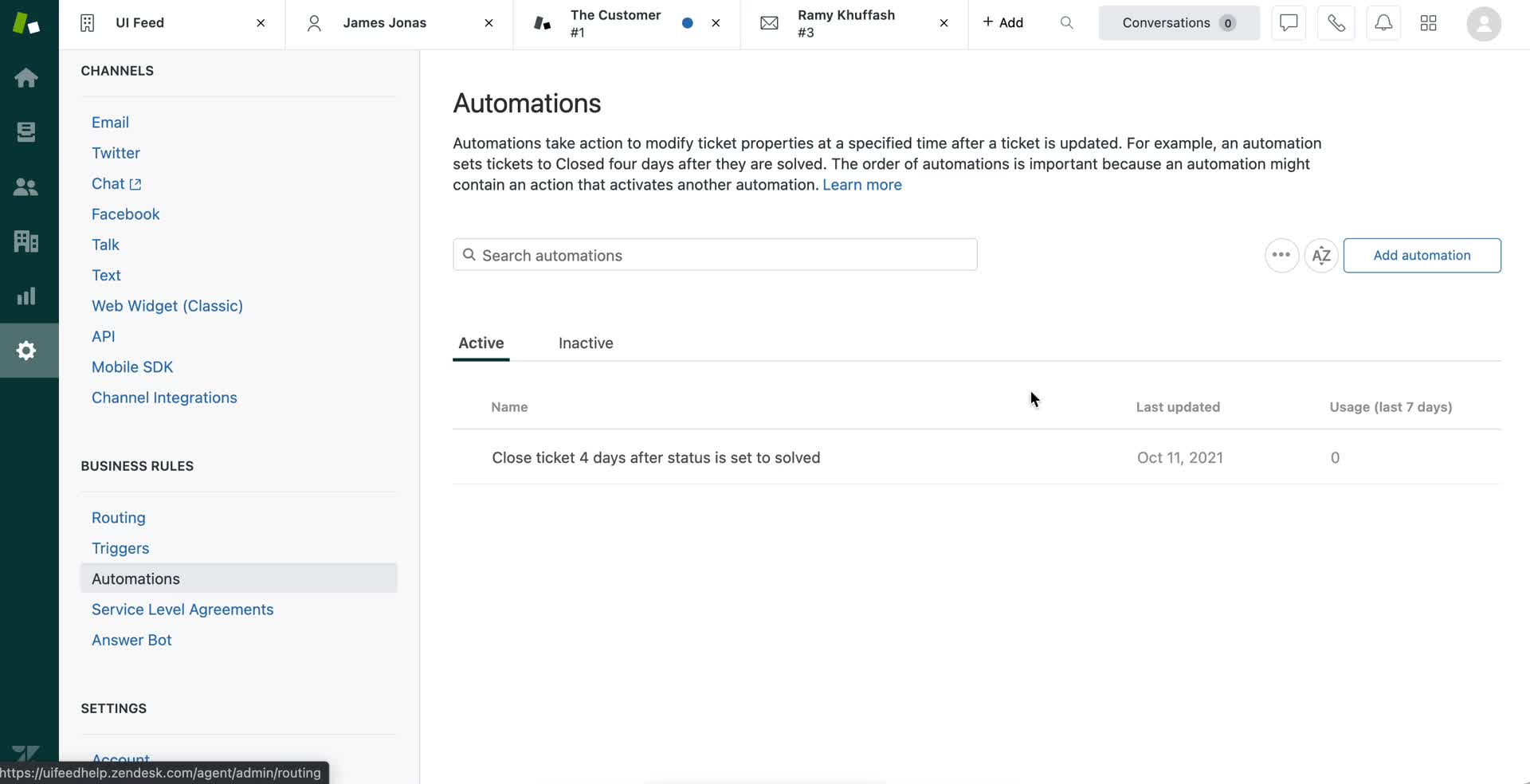
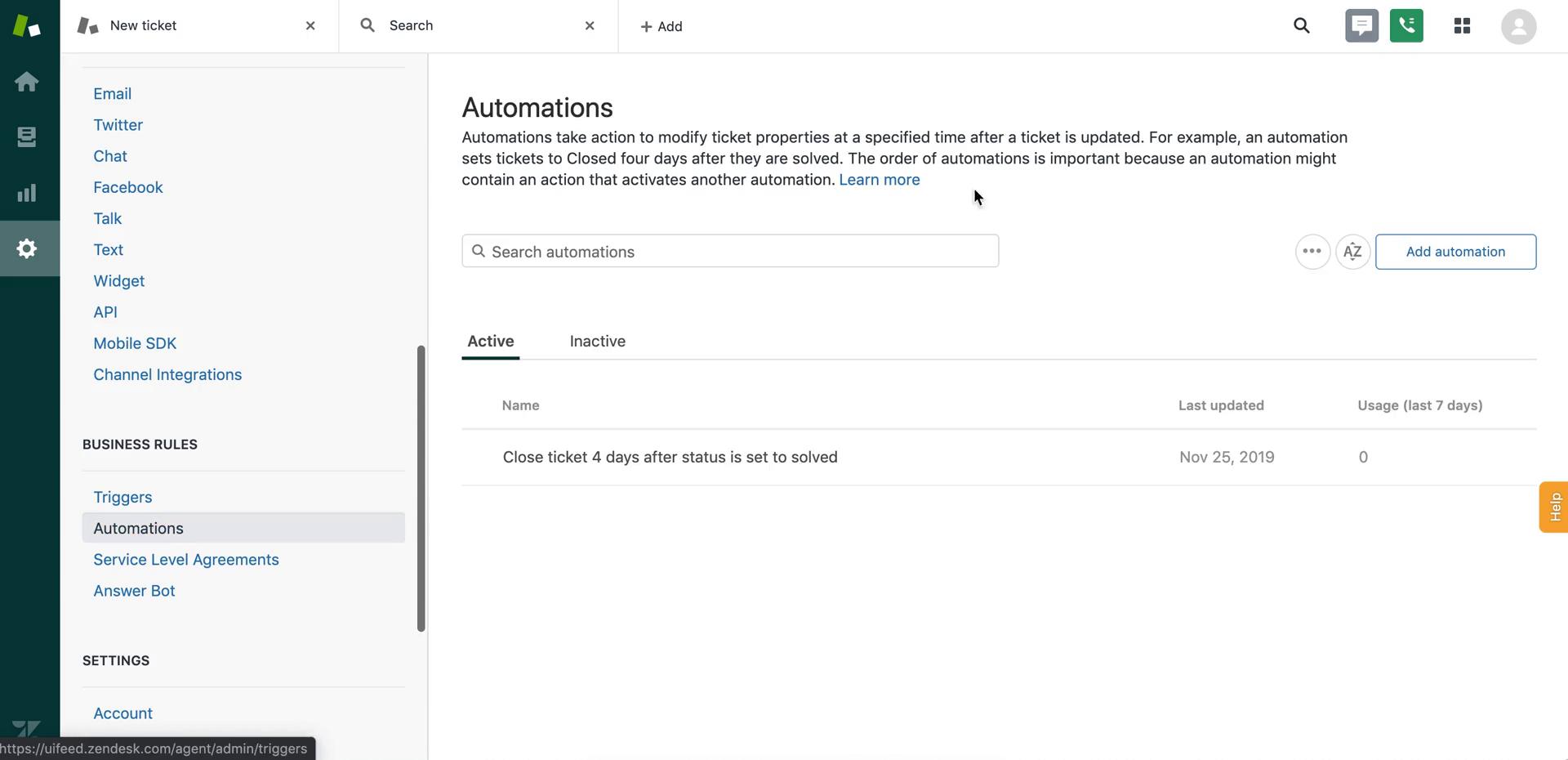
Automations
this is title
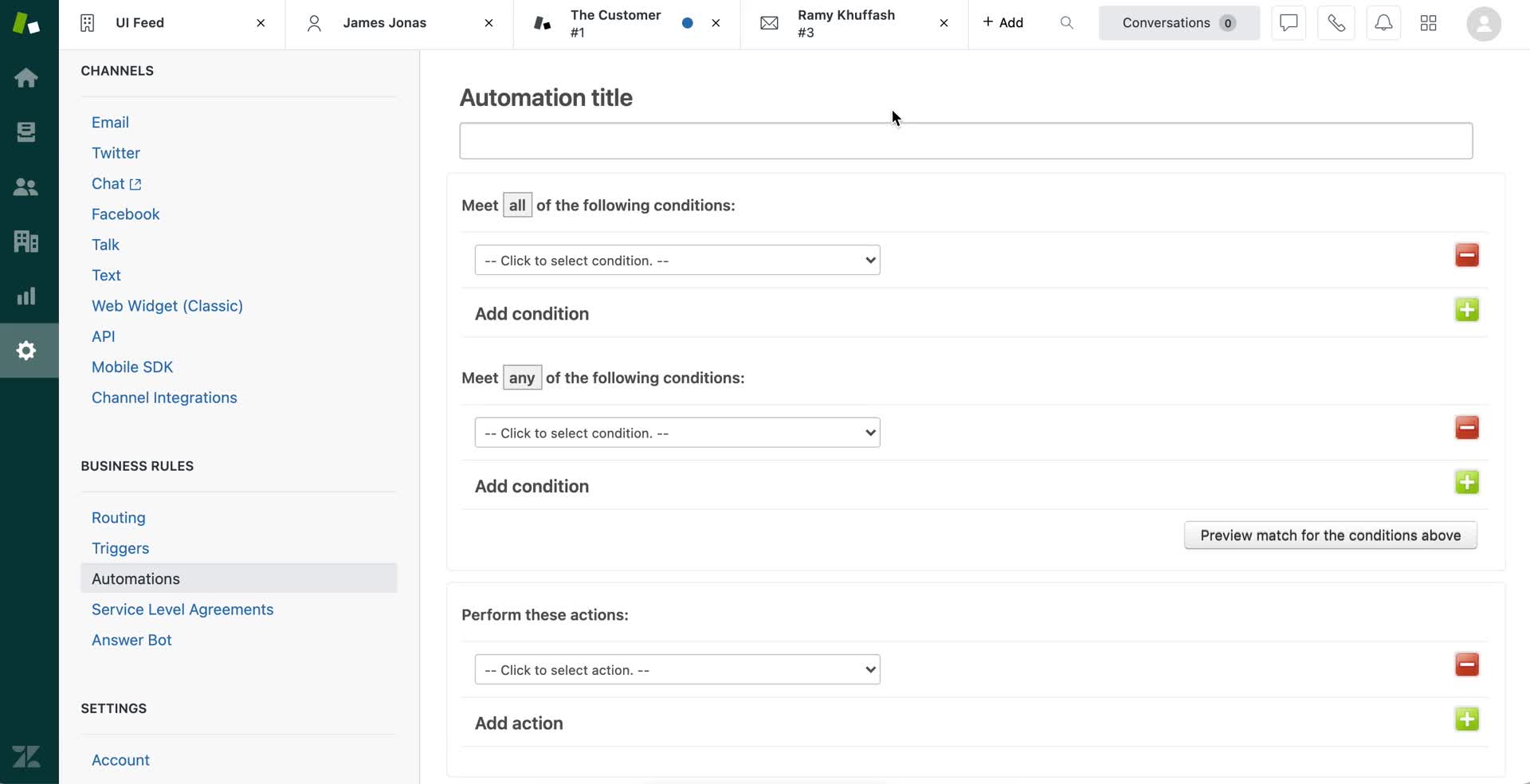
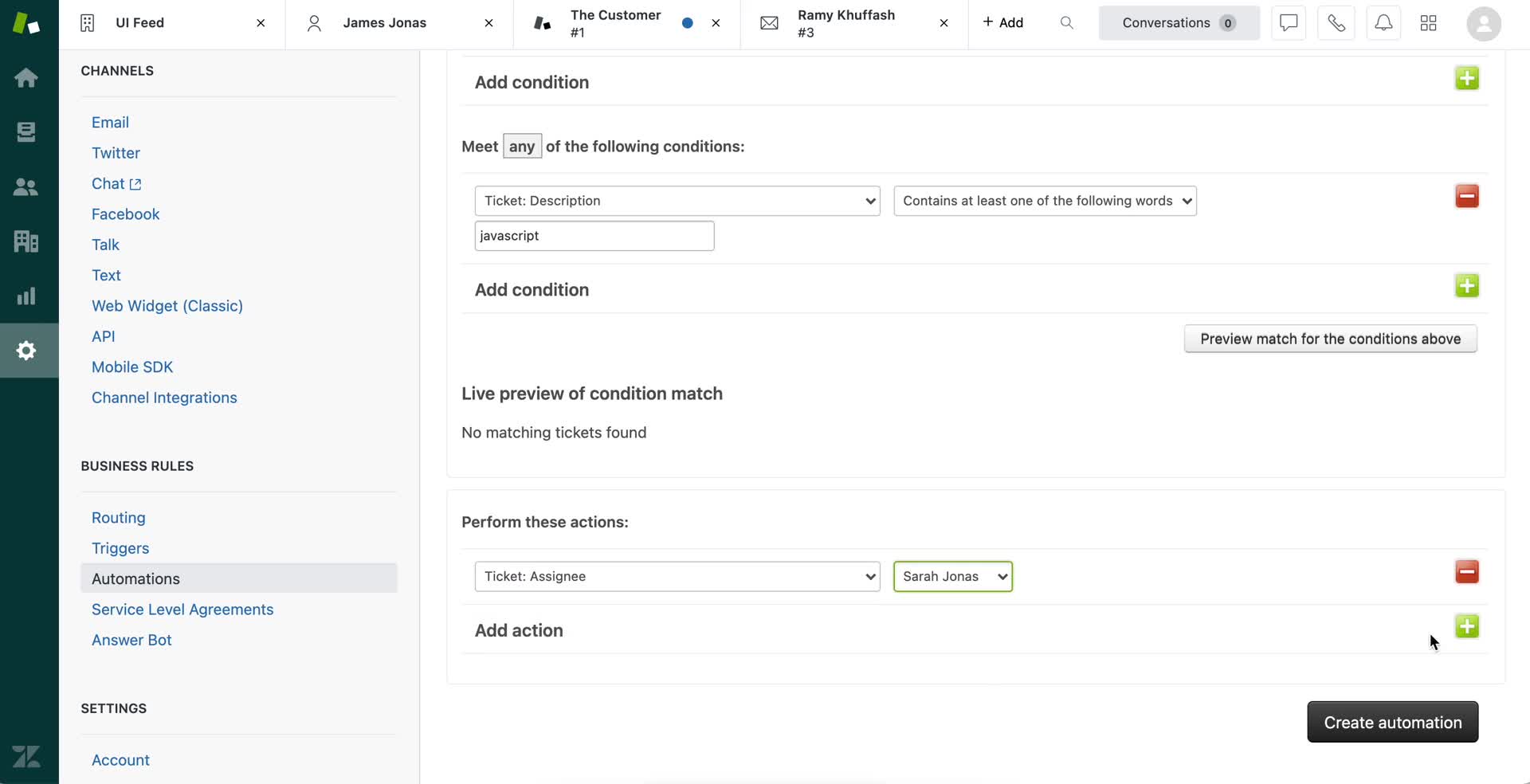
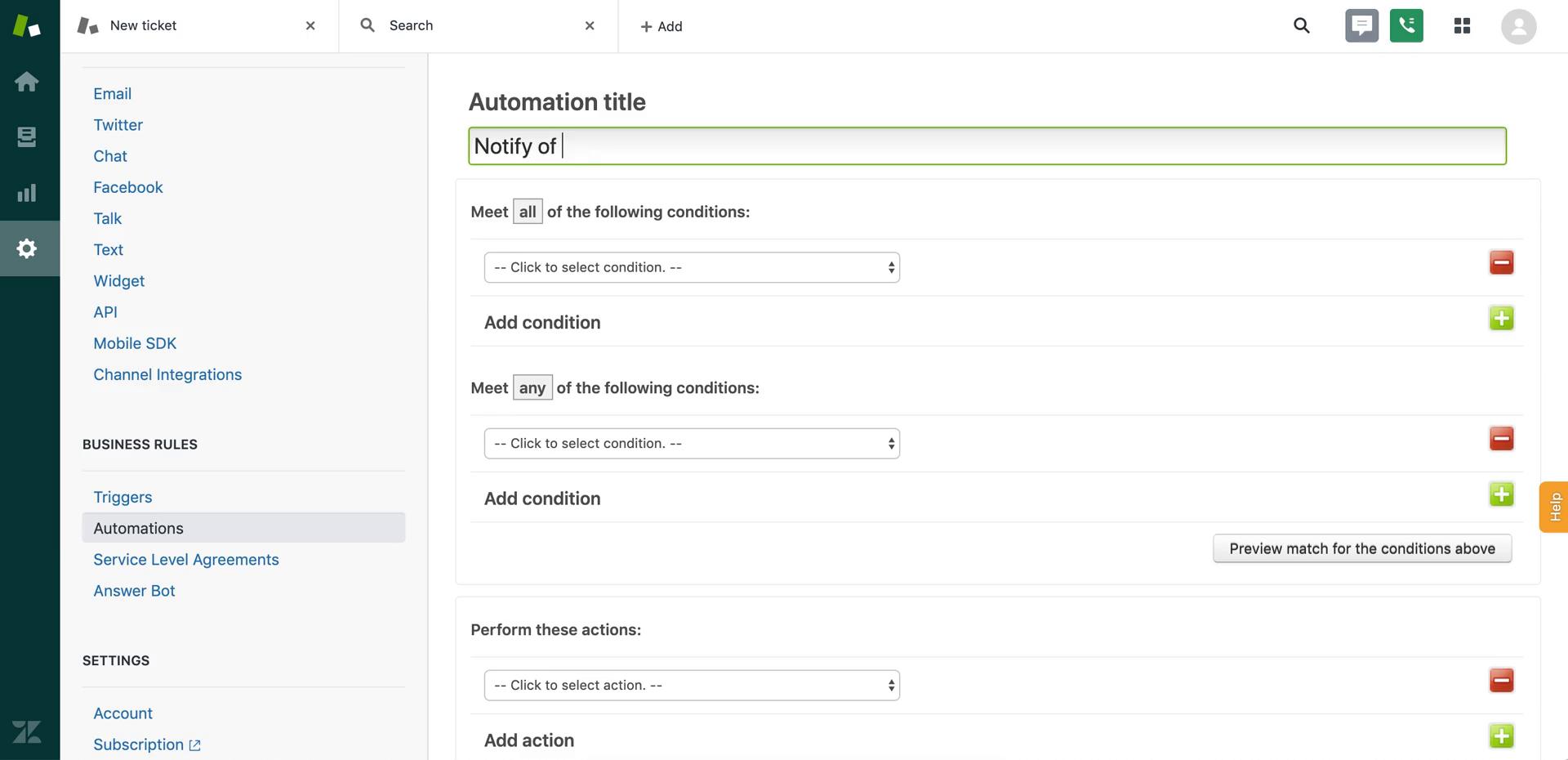
Create automation
this is title
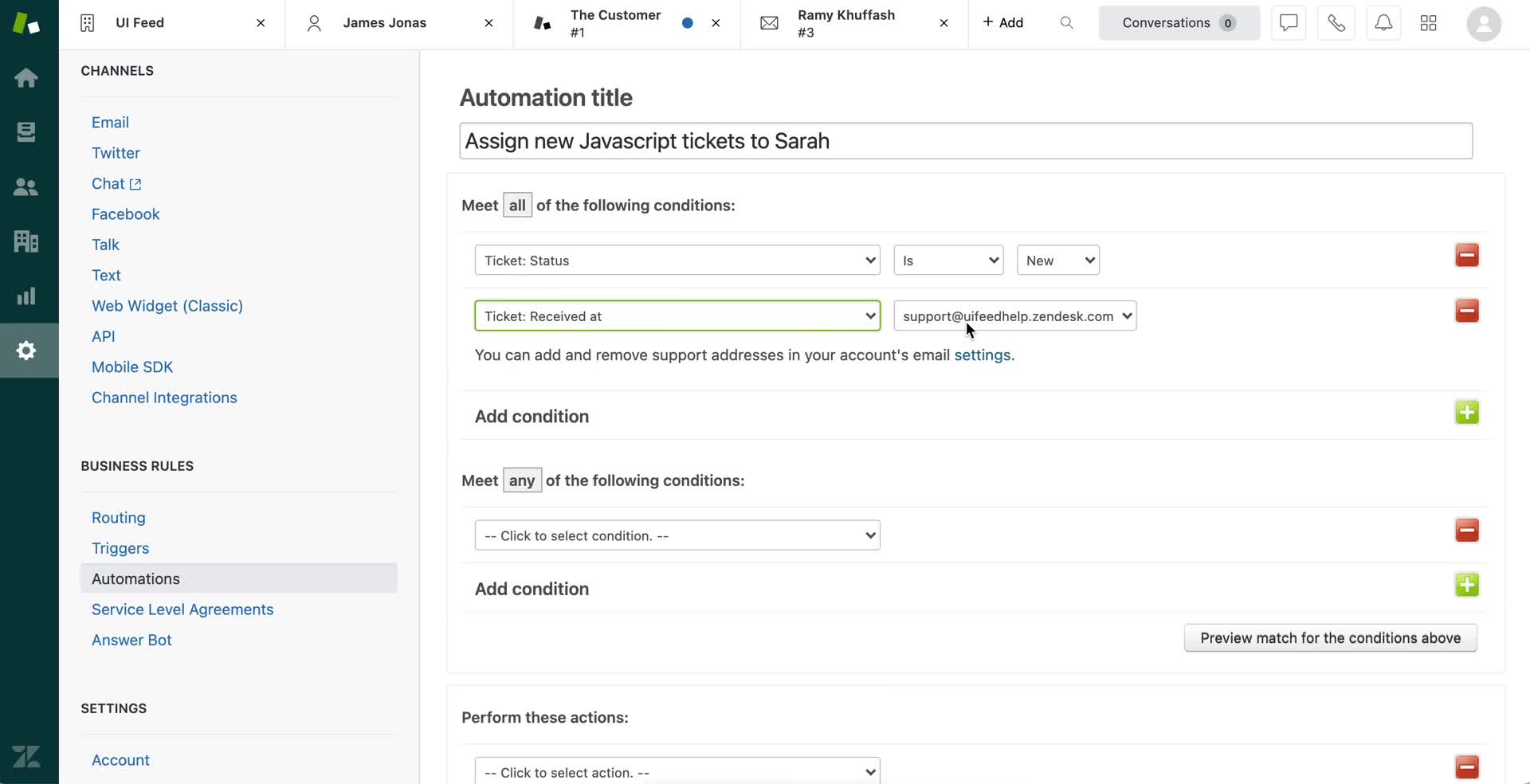
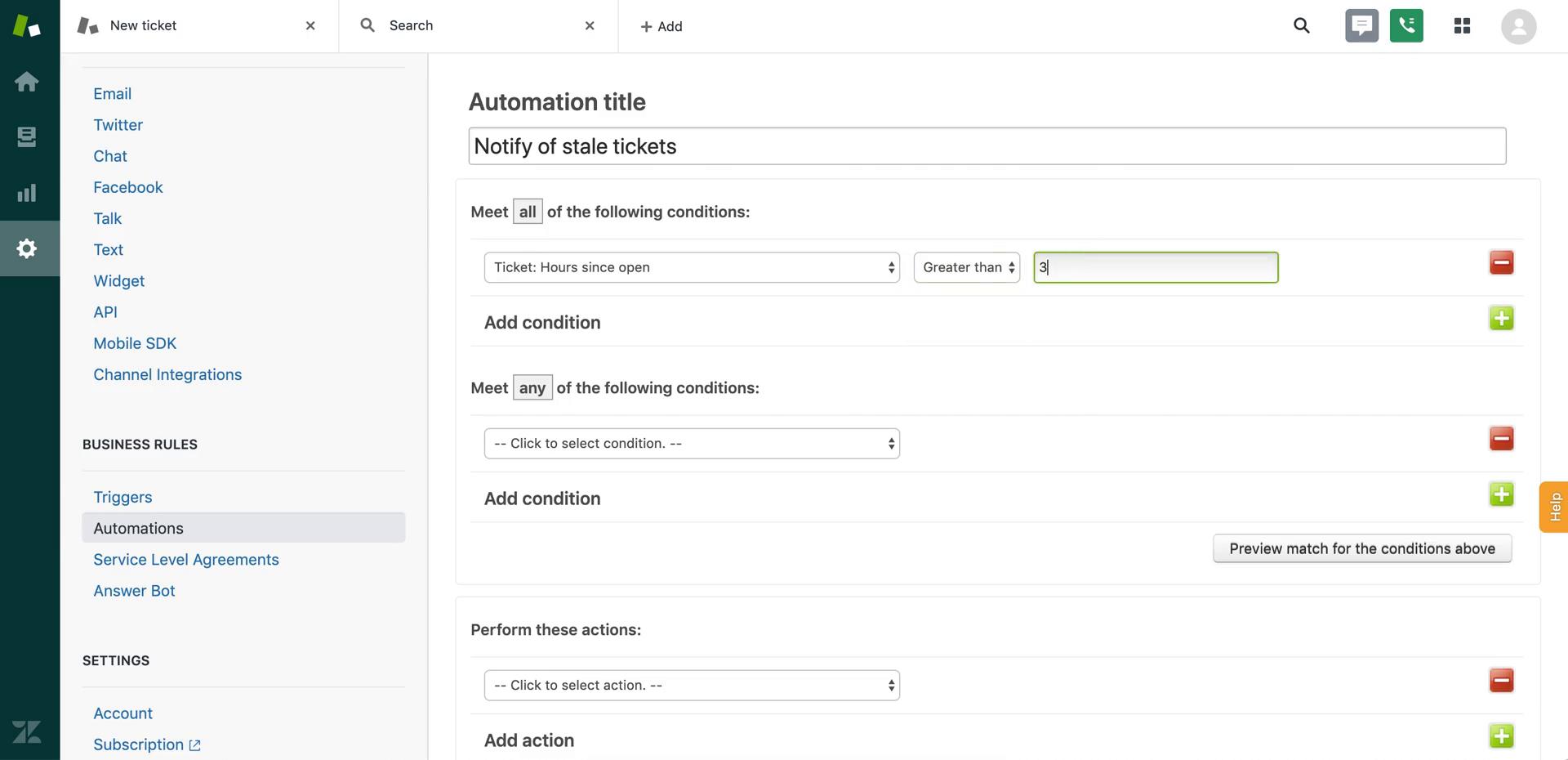
Set condition
this is title
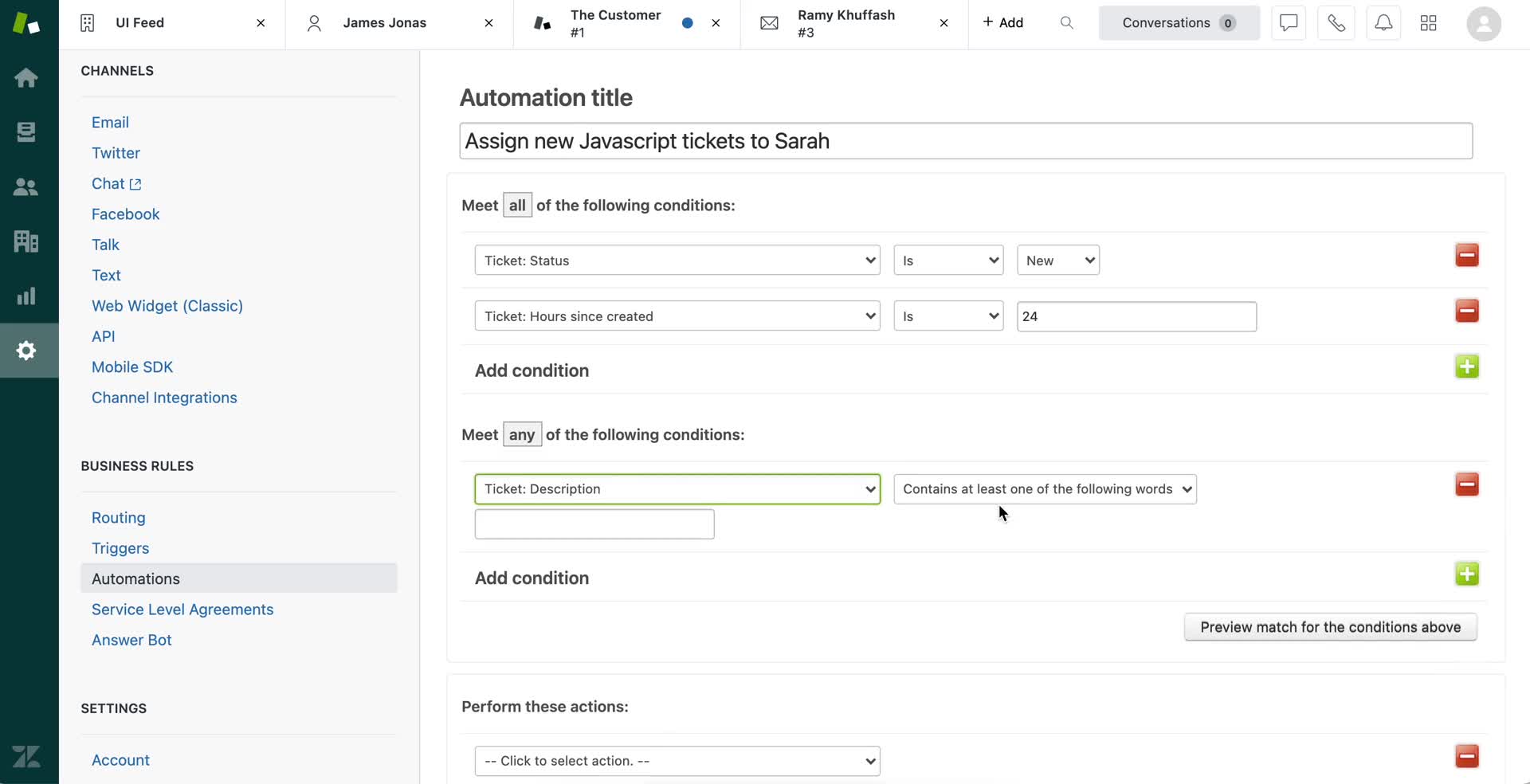
Create conditional logic
this is title
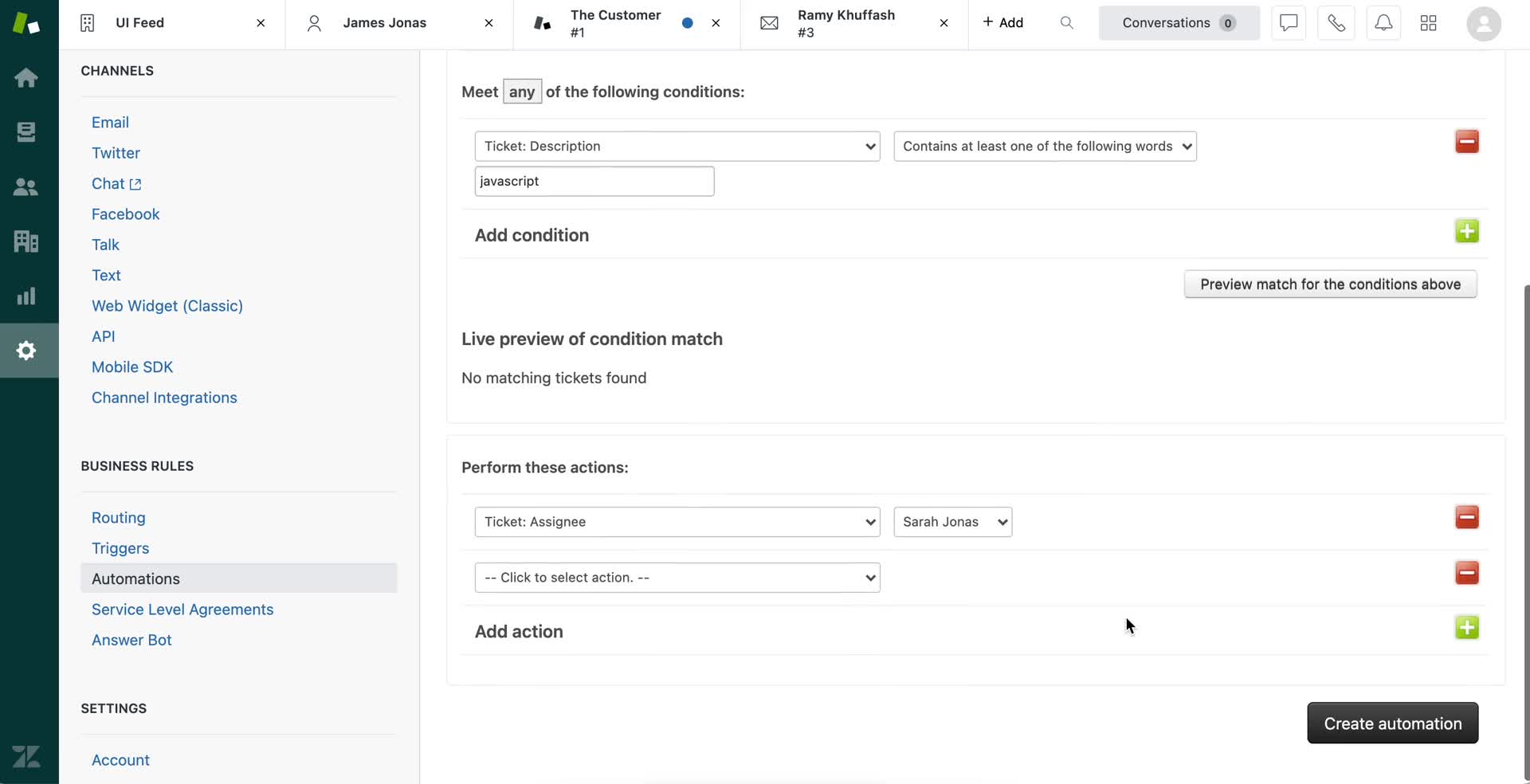
Create conditional logic
this is title
Create conditional logic
this is title
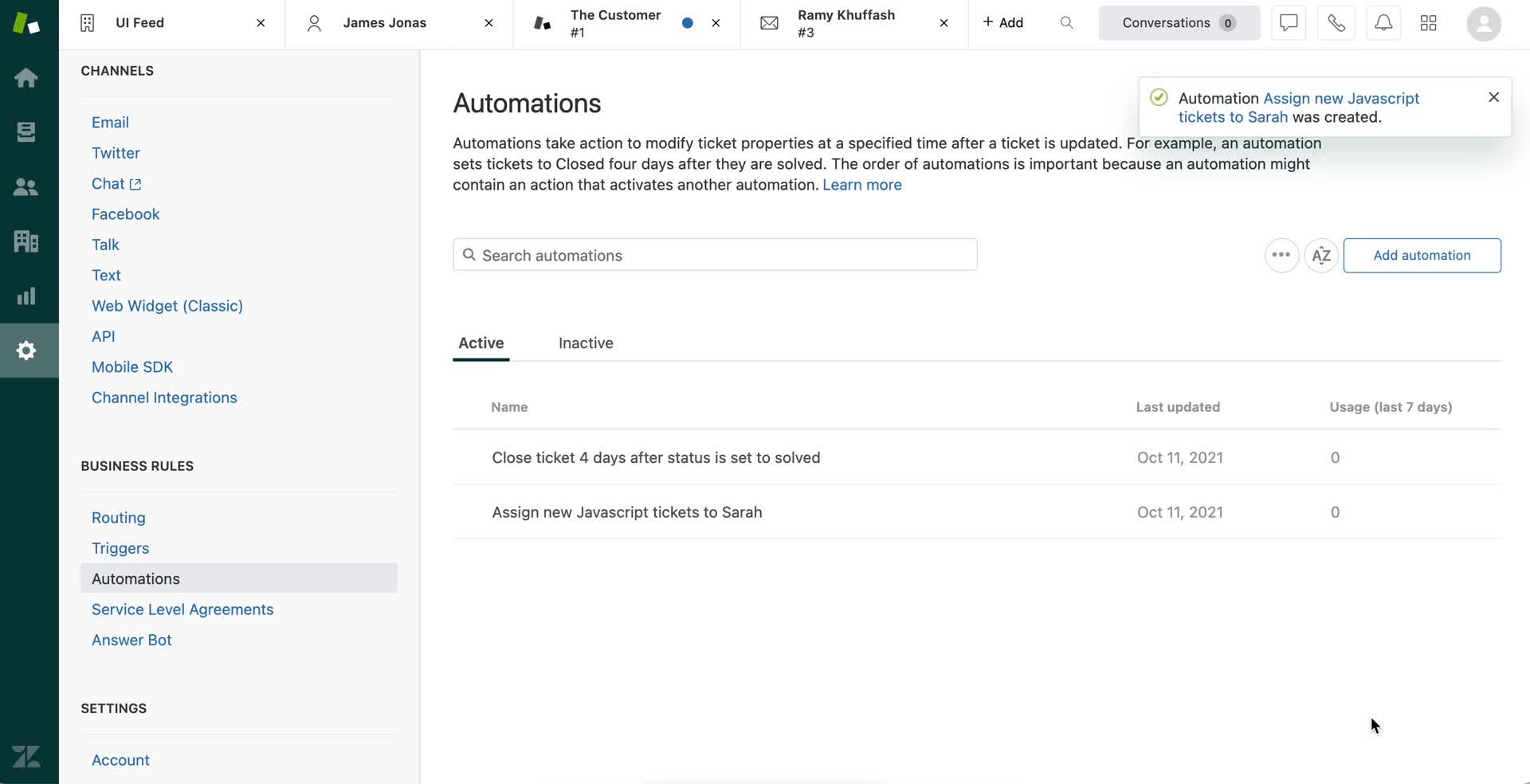
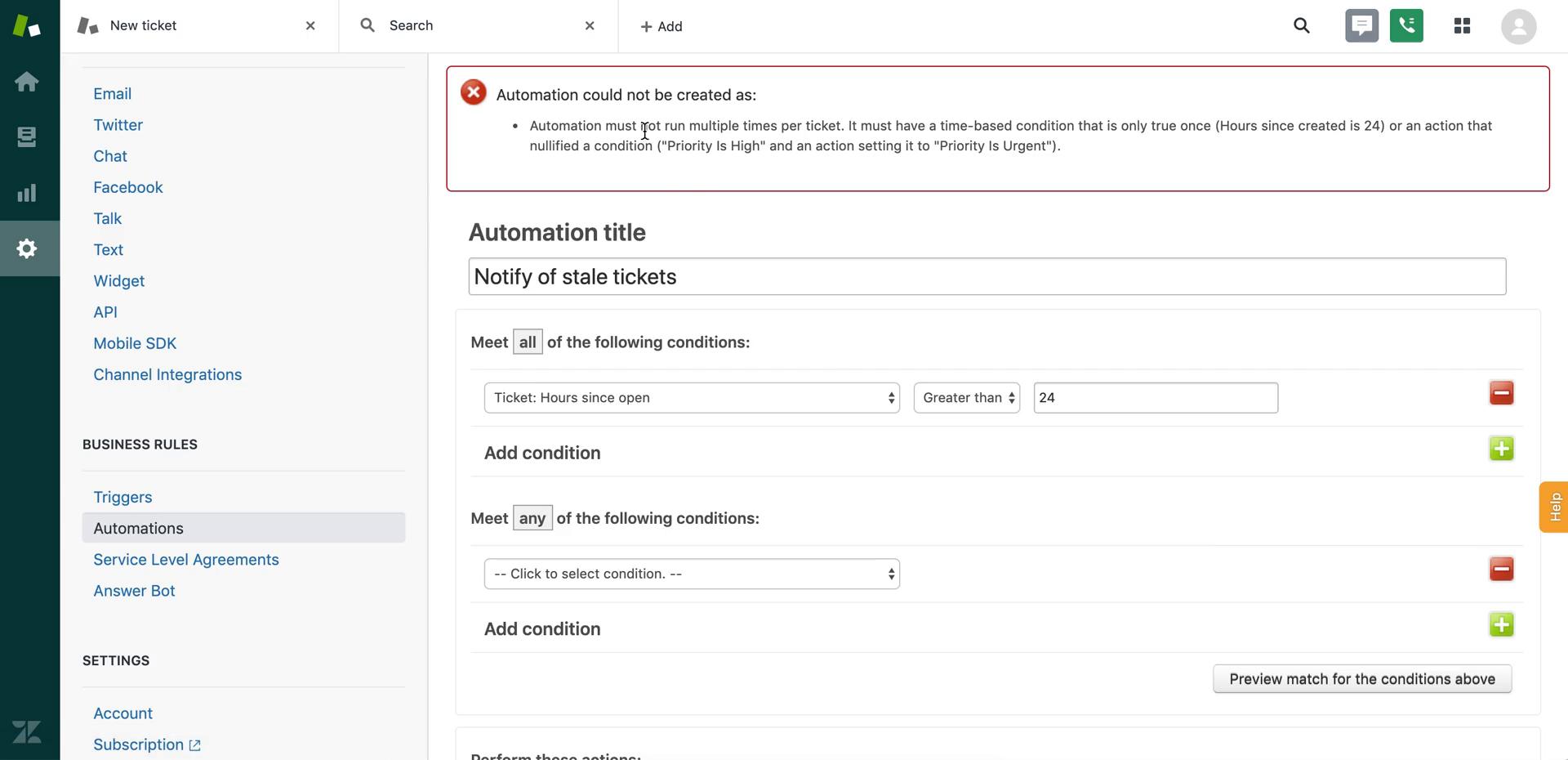
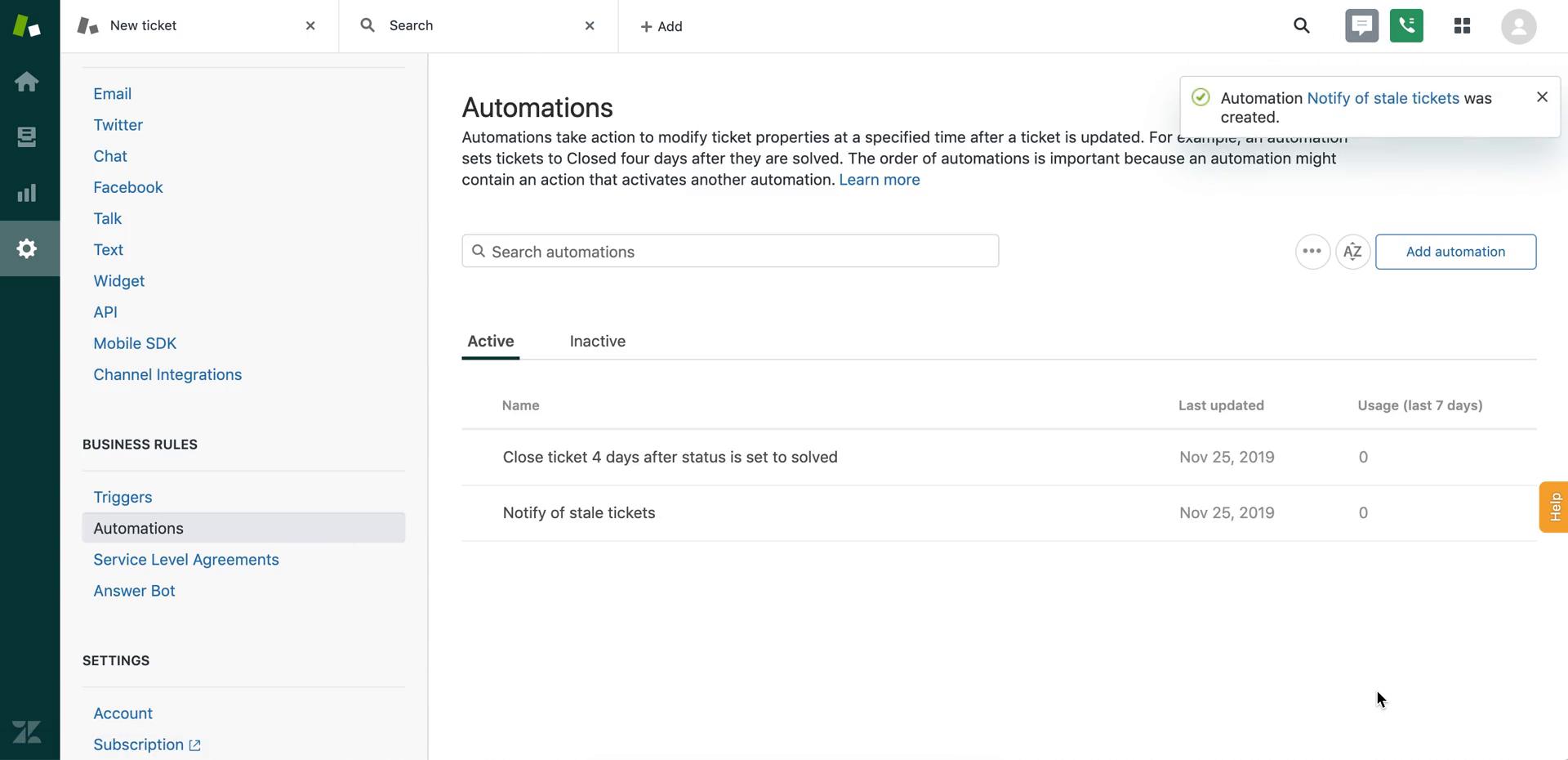
Automation created
this is title
Home
this is title
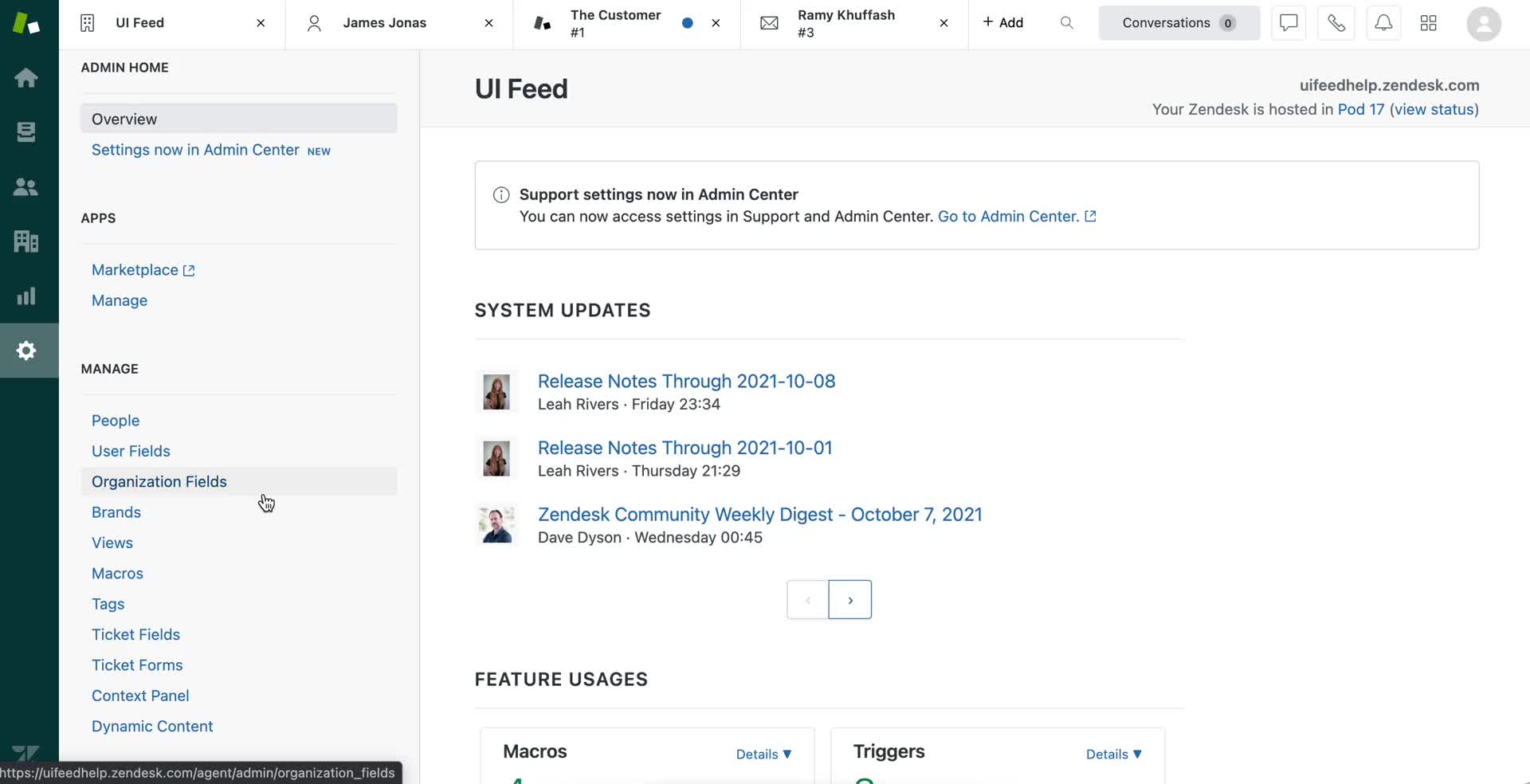
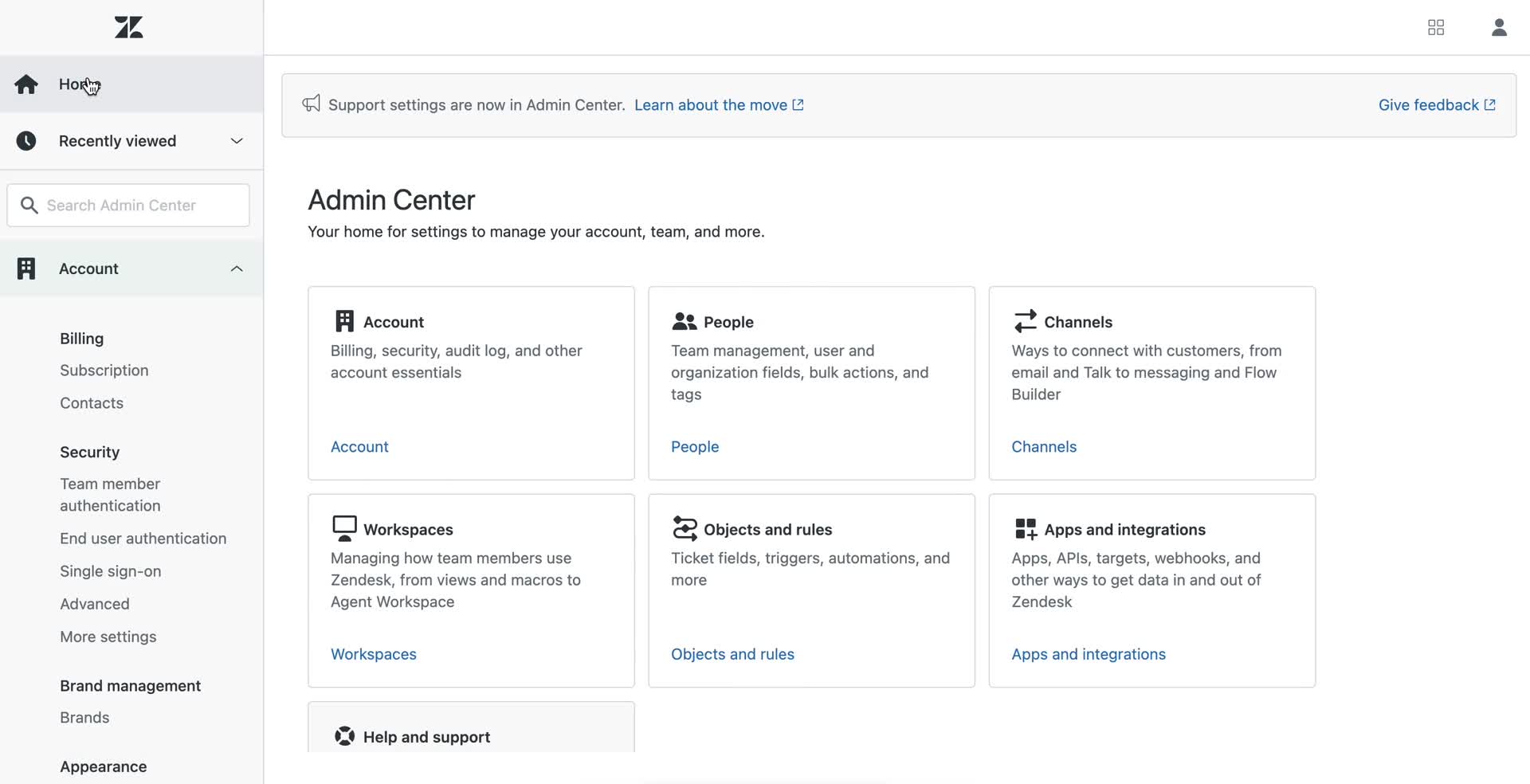
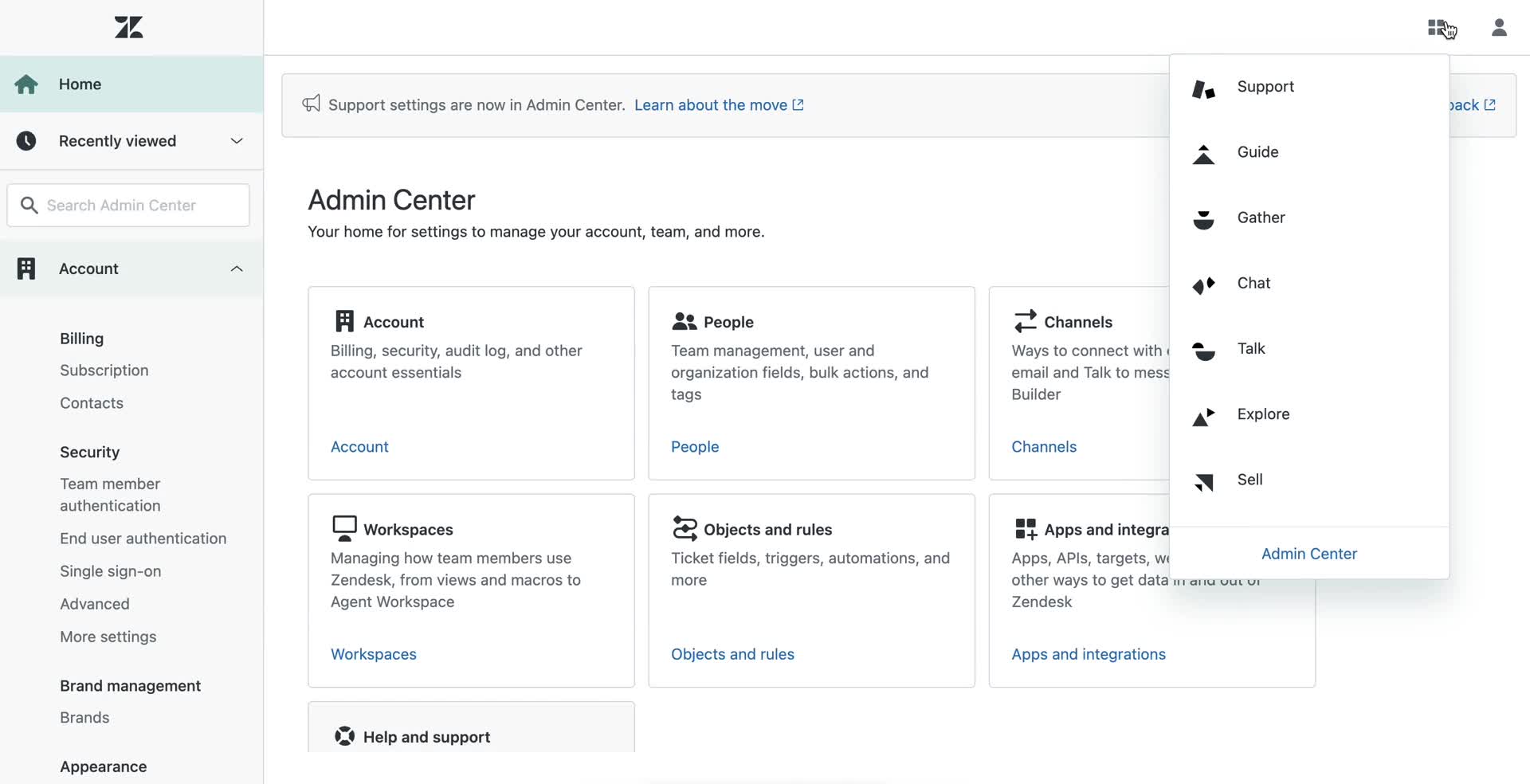
Admin home
this is title
Automations
this is title
Create automation
this is title
Create automation
this is title
Submit error
this is title
Automation created
this is title
Dashboard
this is title
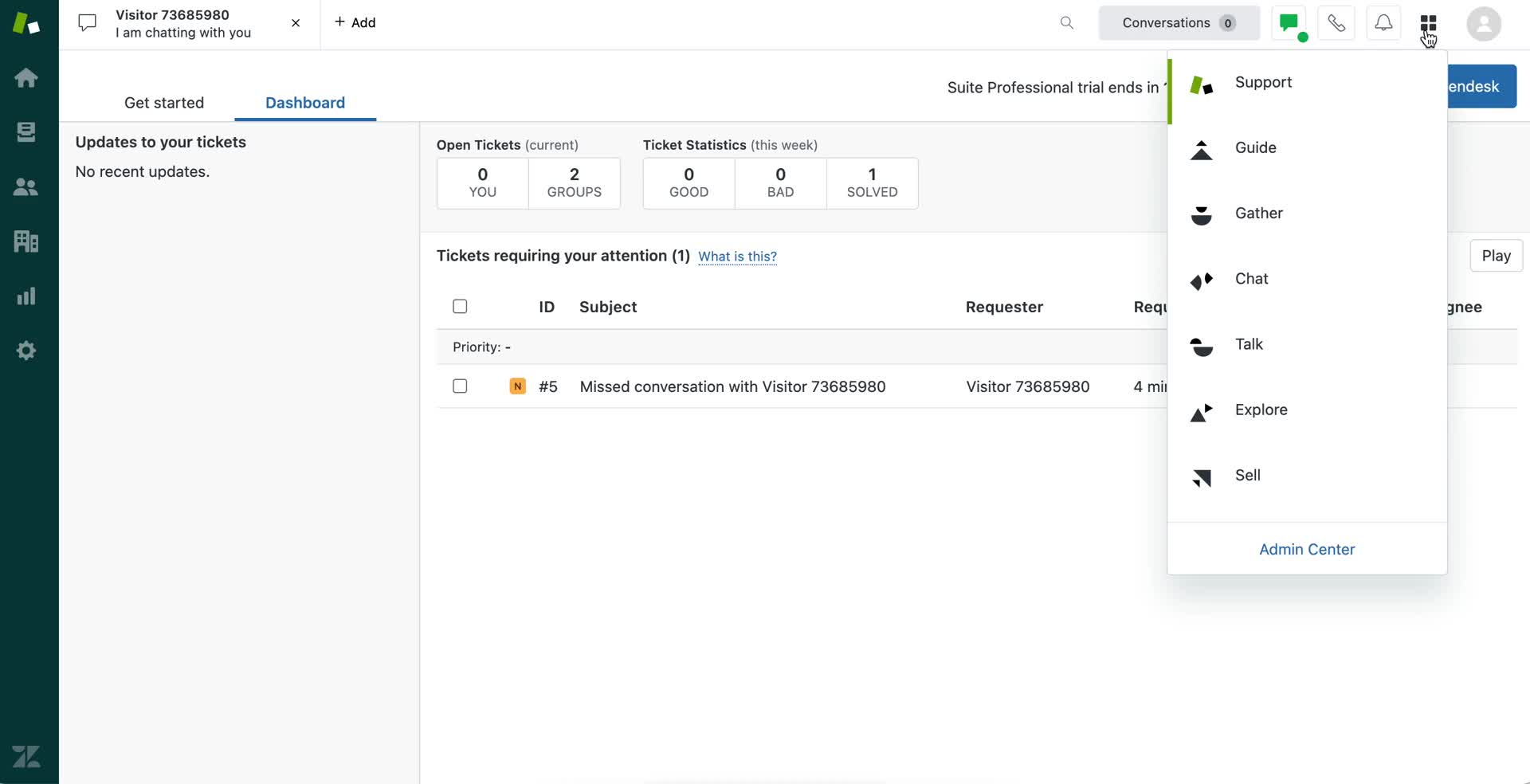
Apps
this is title
Help centre
this is title
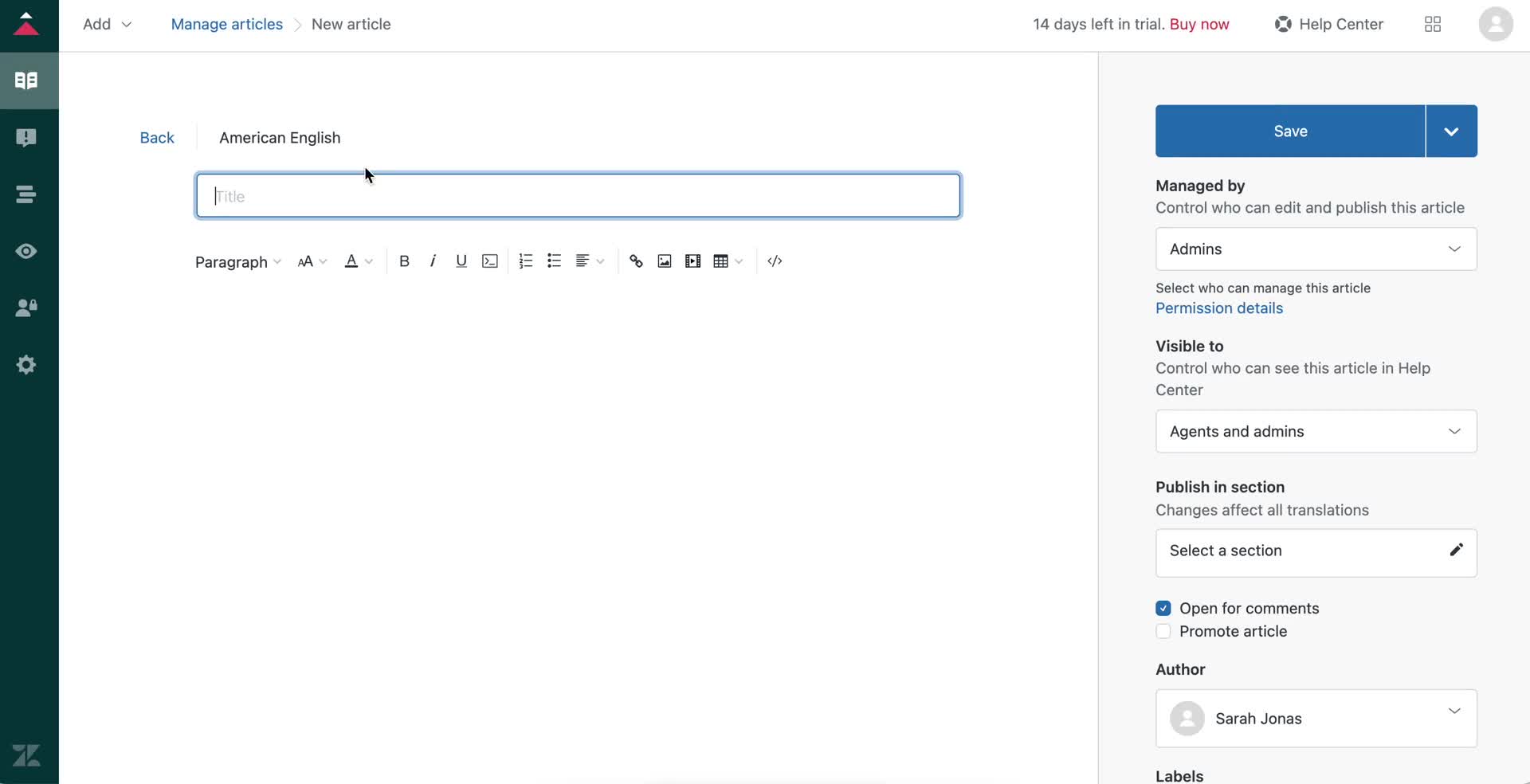
Create document
this is title
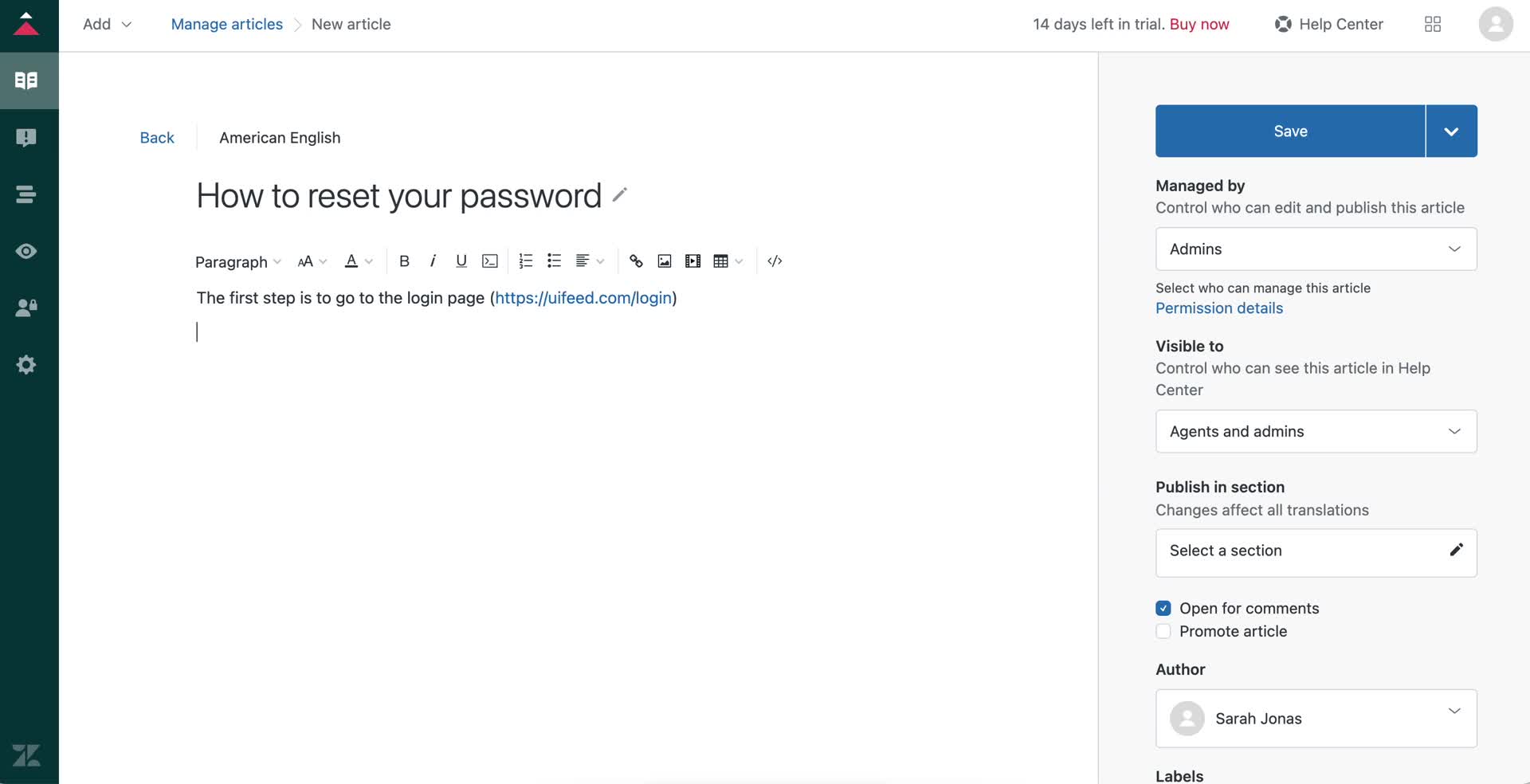
Edit document
this is title
Add link
this is title
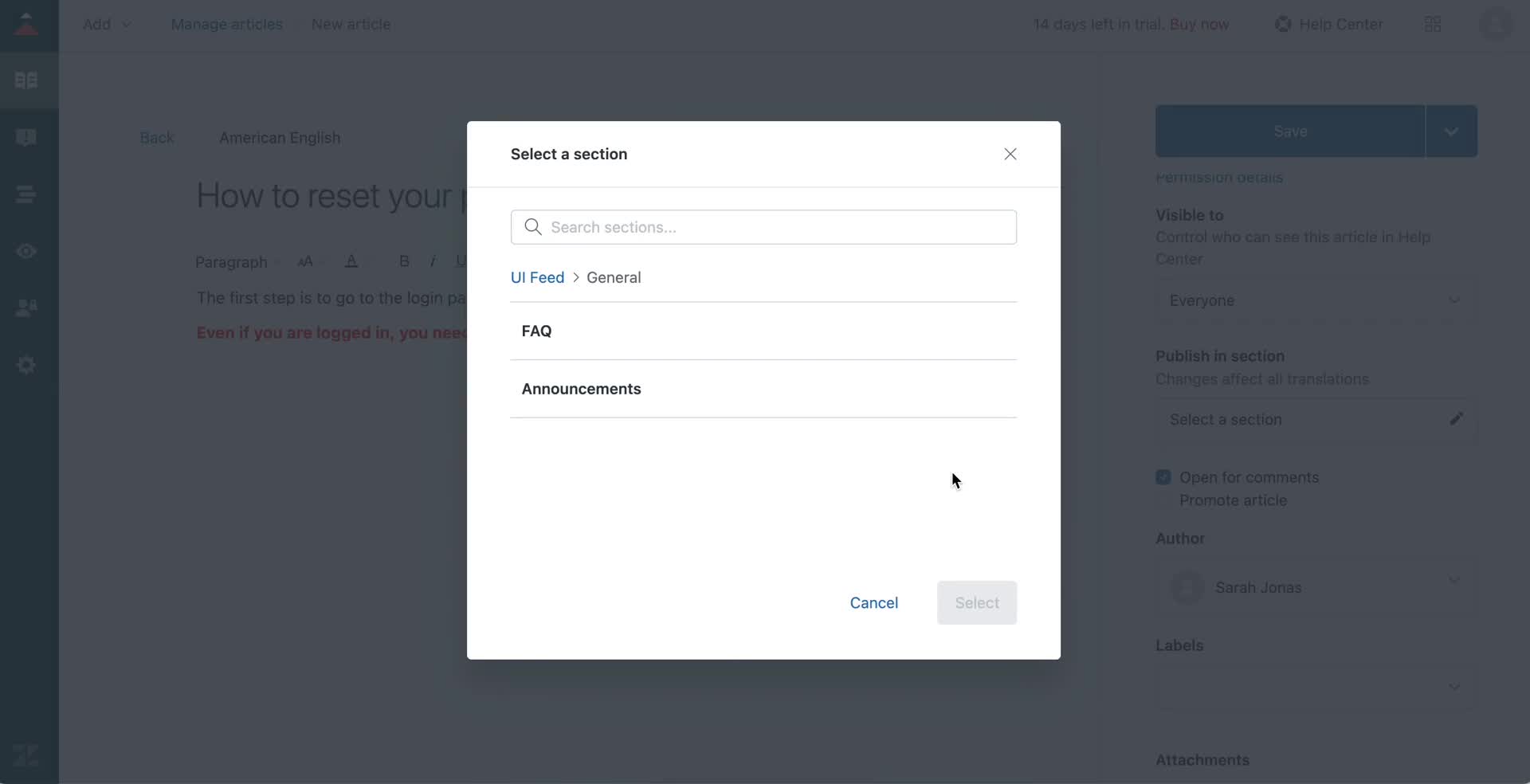
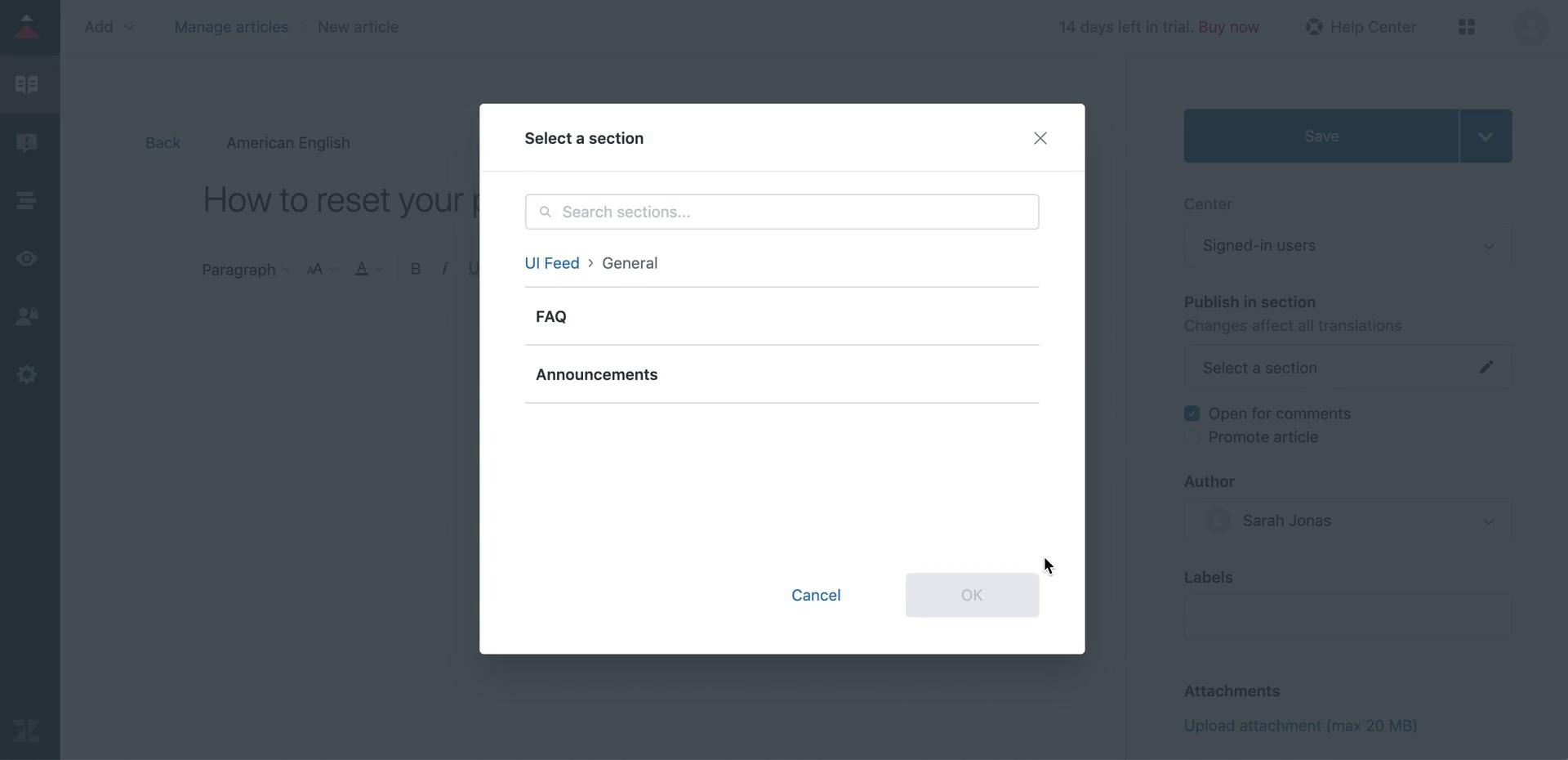
Select section
this is title
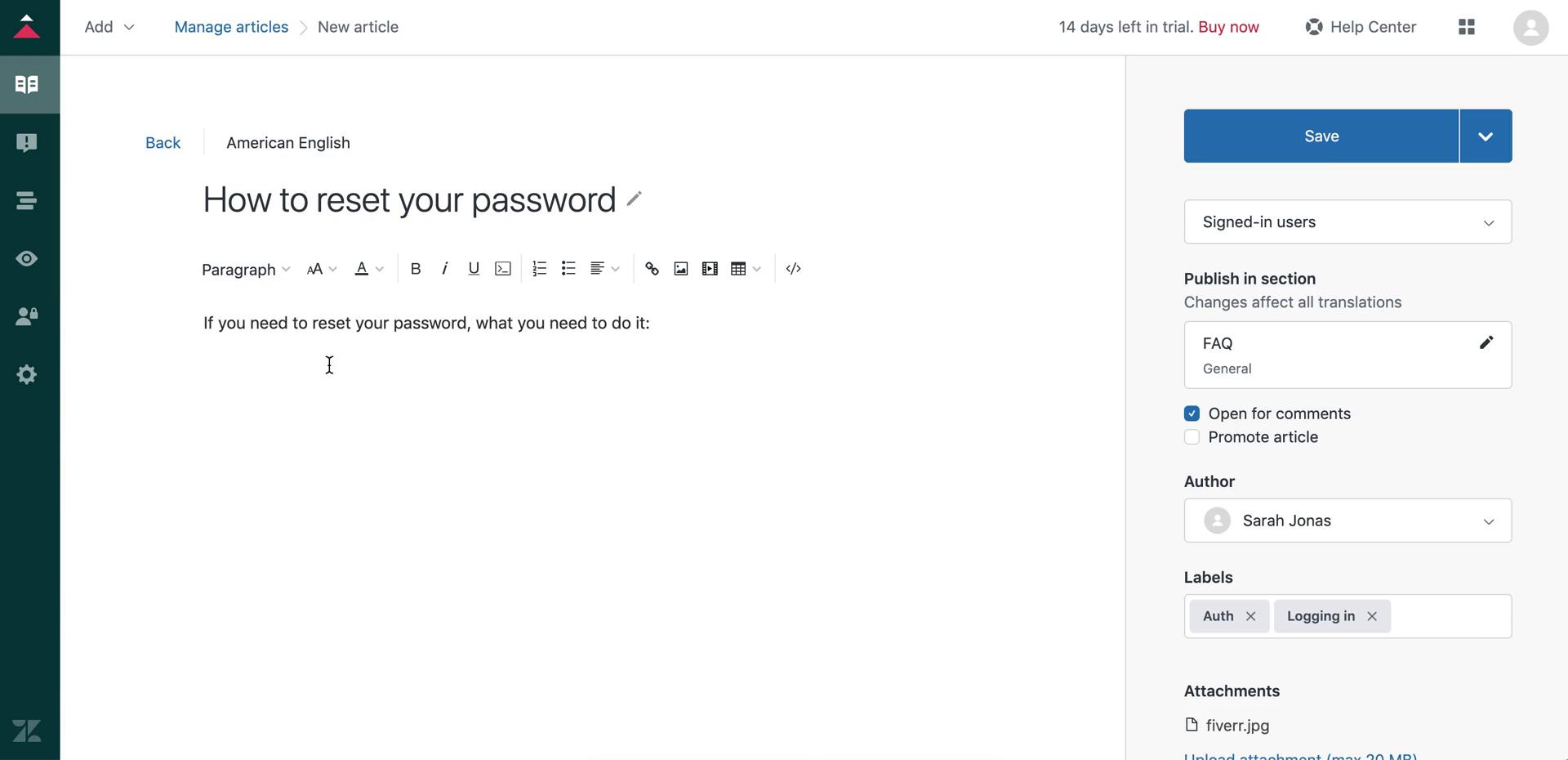
Add label
this is title
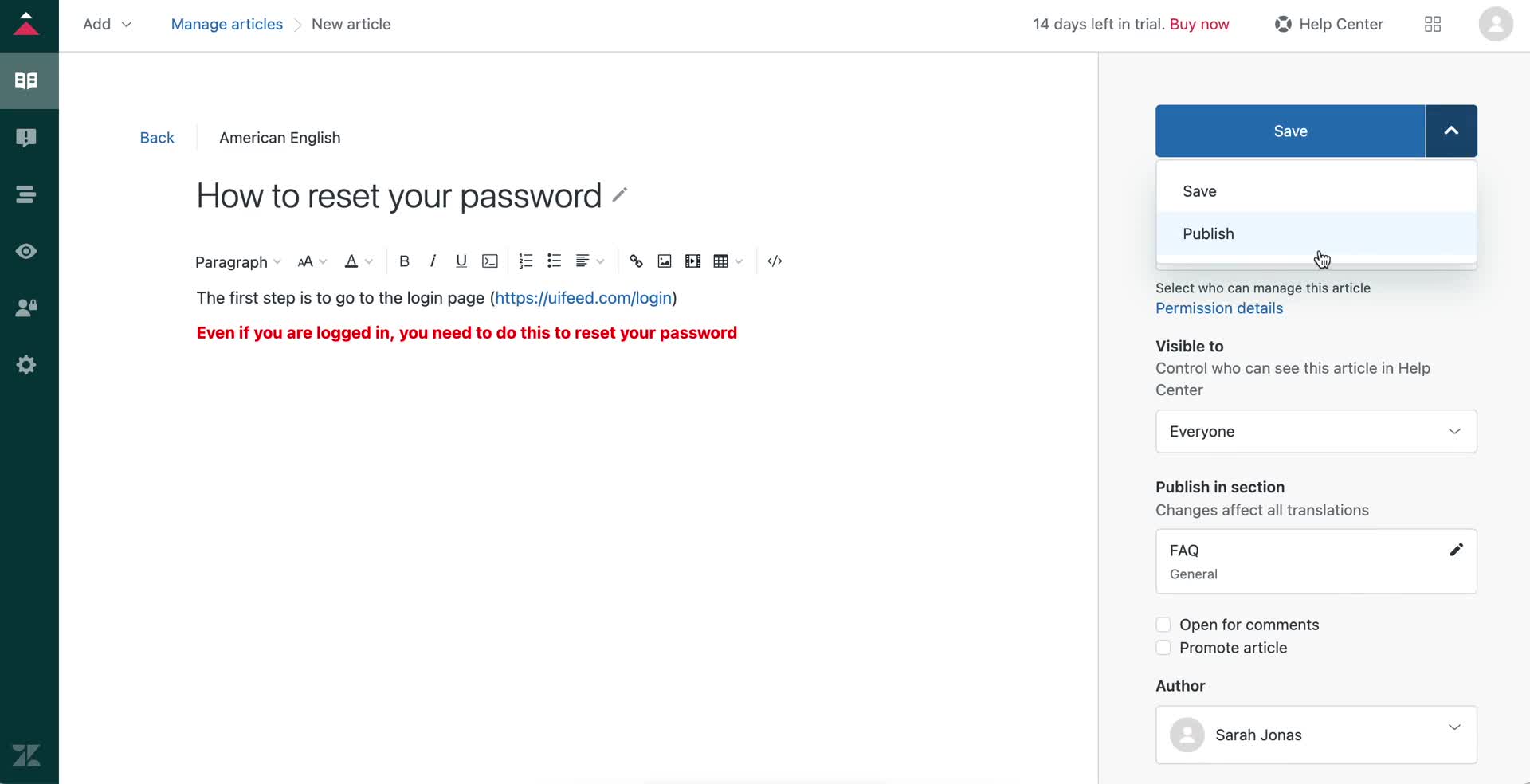
Publish
this is title
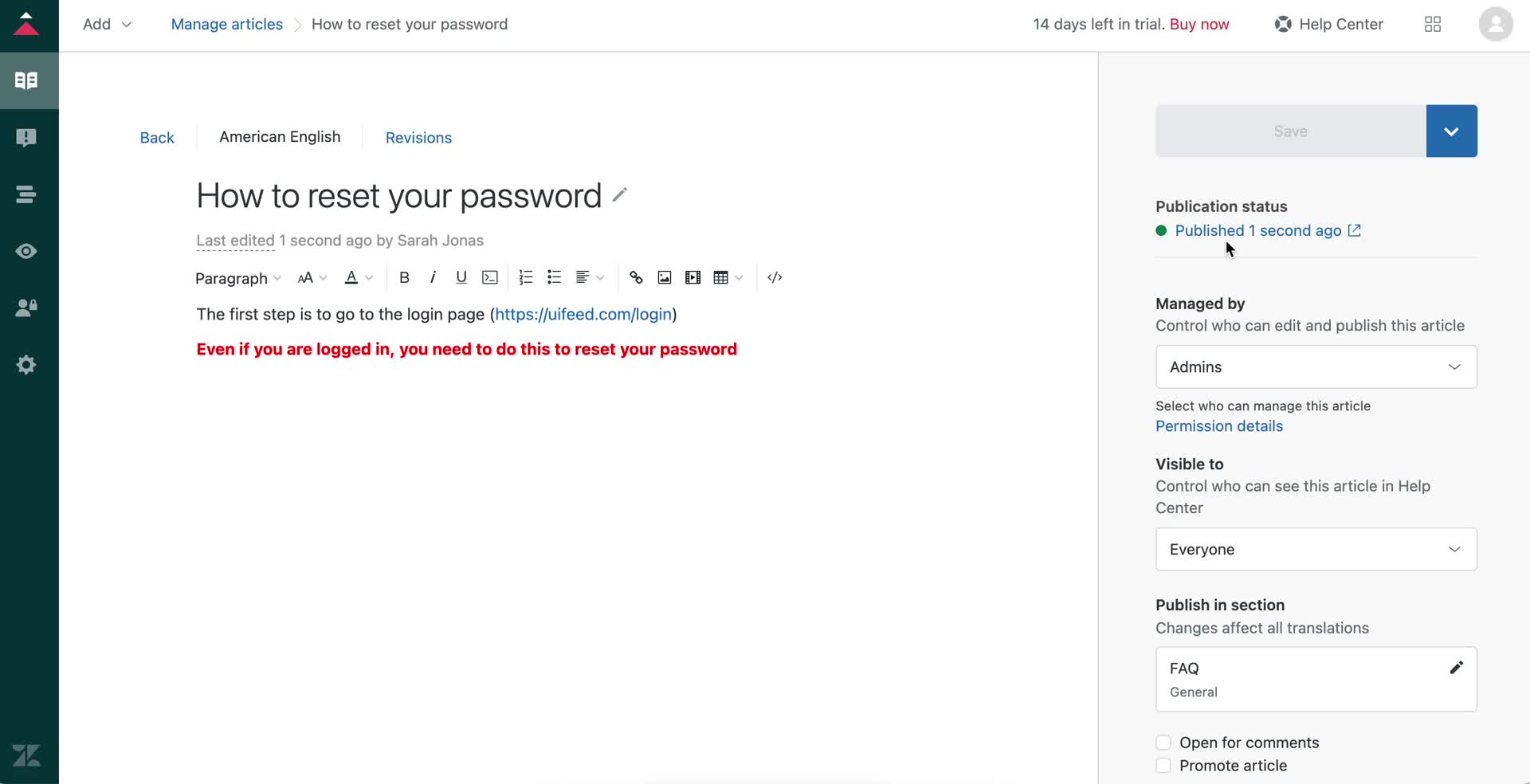
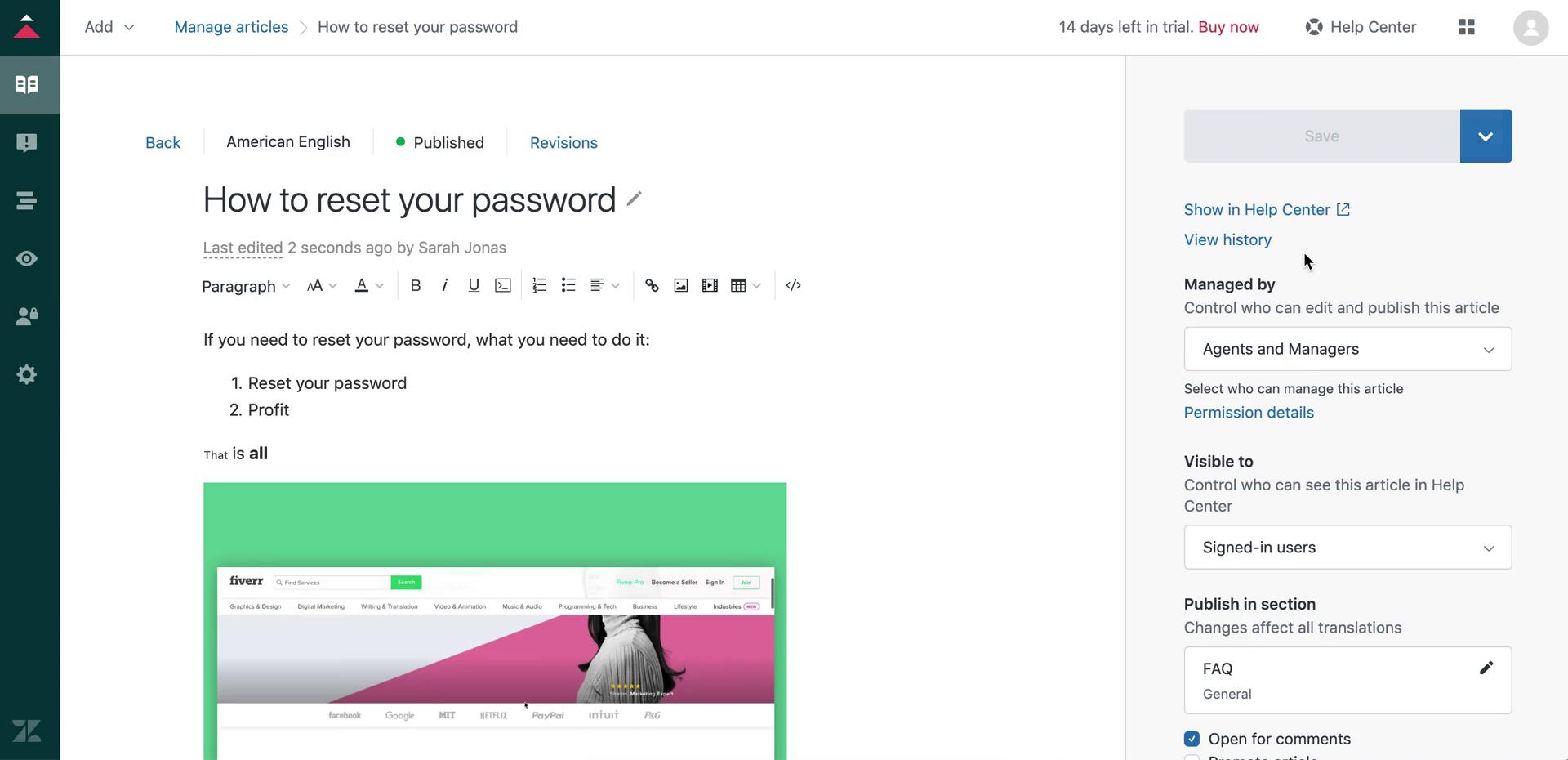
Published
this is title
Articles
this is title
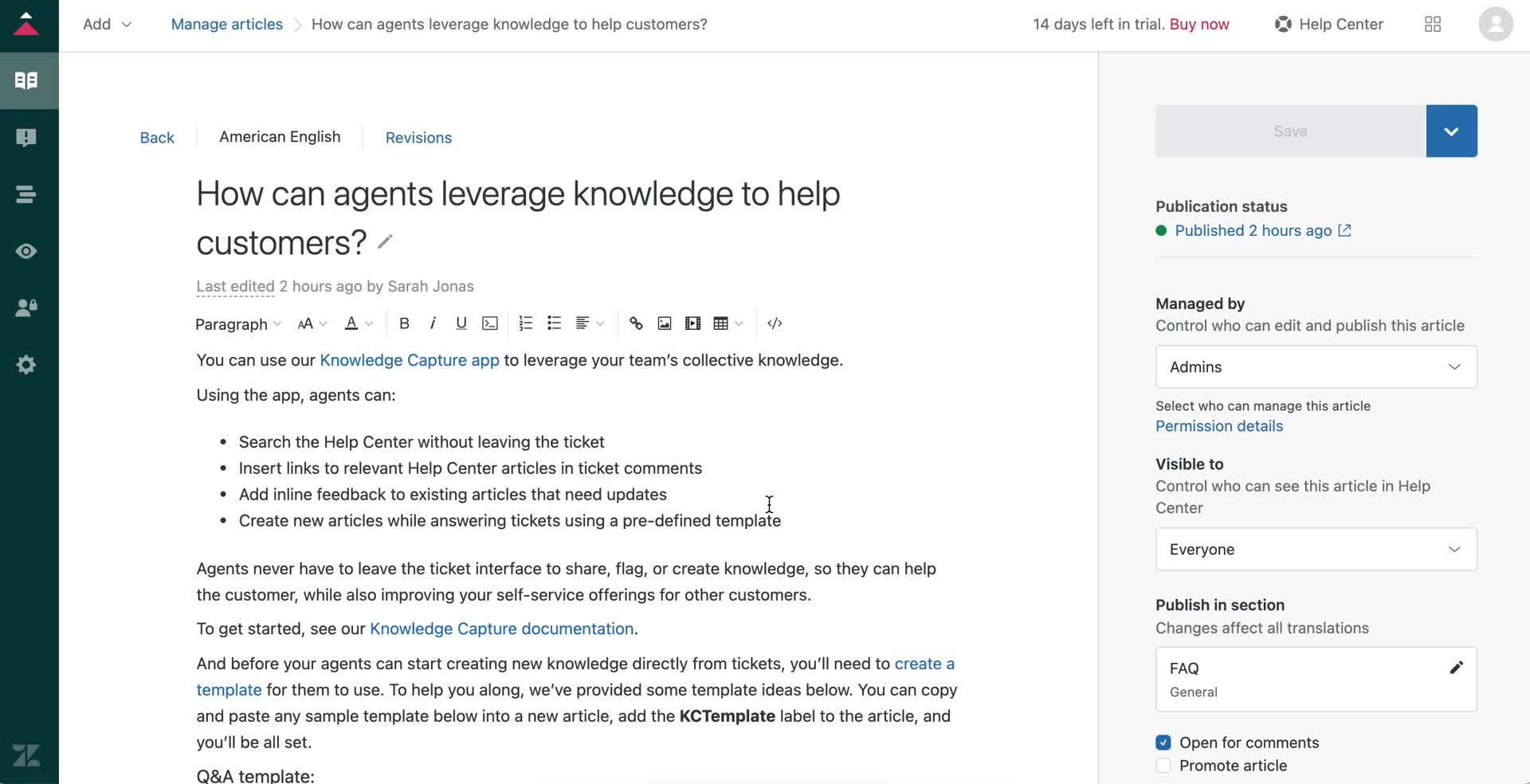
Edit document
this is title
Articles
this is title
Home
this is title
Help centre
this is title
Create article
this is title
Select section
this is title
Create article
this is title
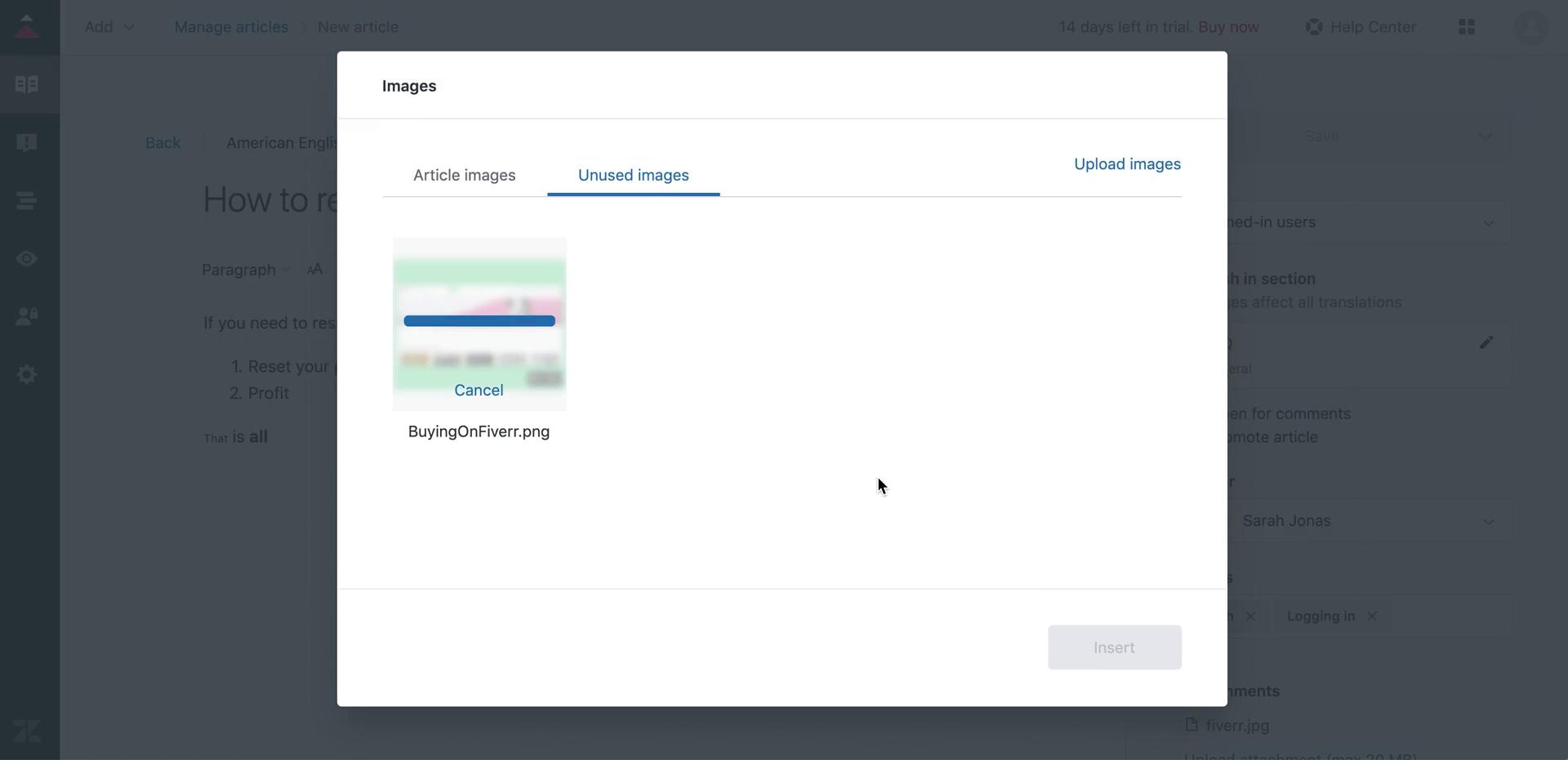
Upload image
this is title
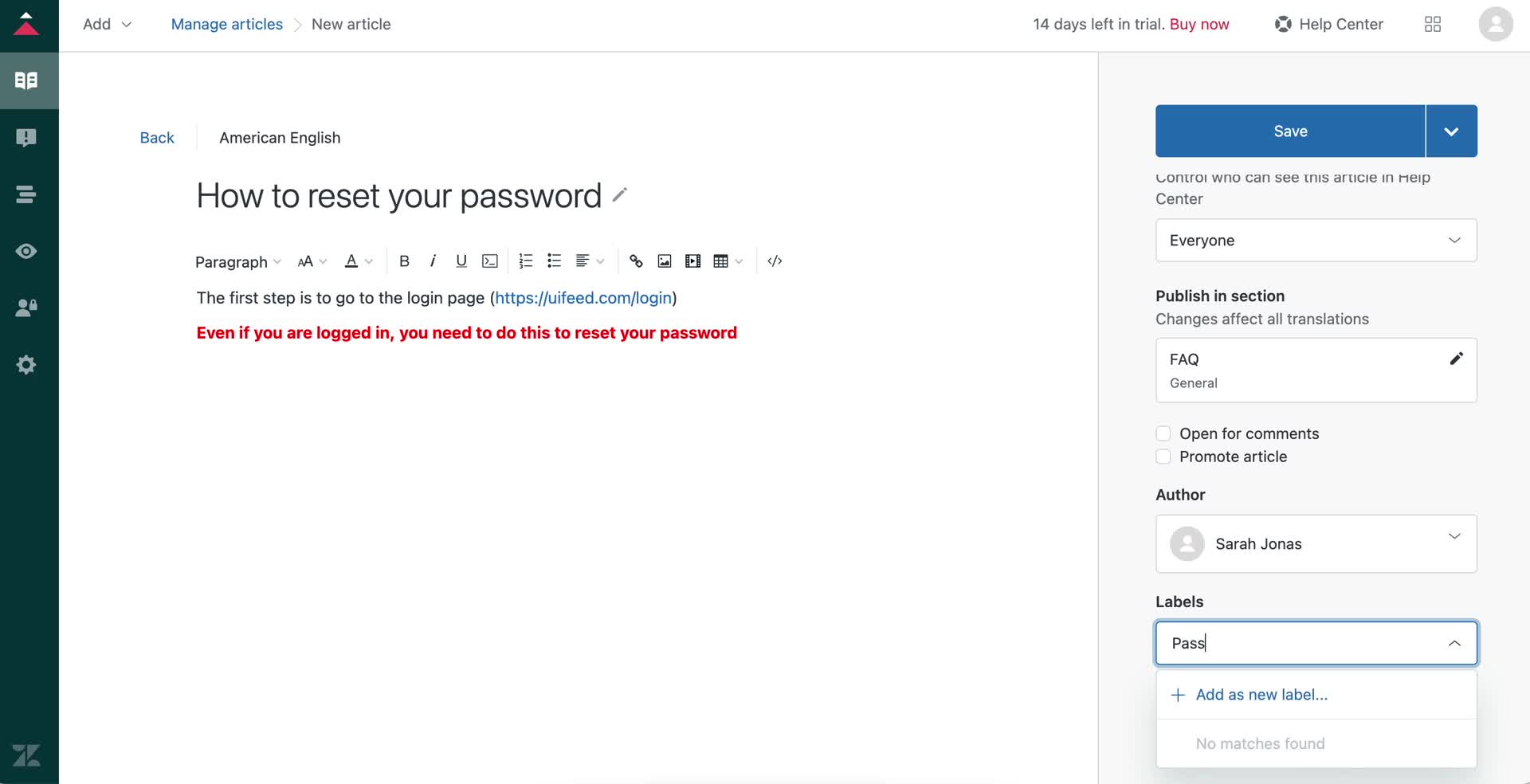
Create article
this is title
Preview
this is title
Getting started page
this is title
Getting started page
this is title
Dashboard
this is title
Support ticket
this is title
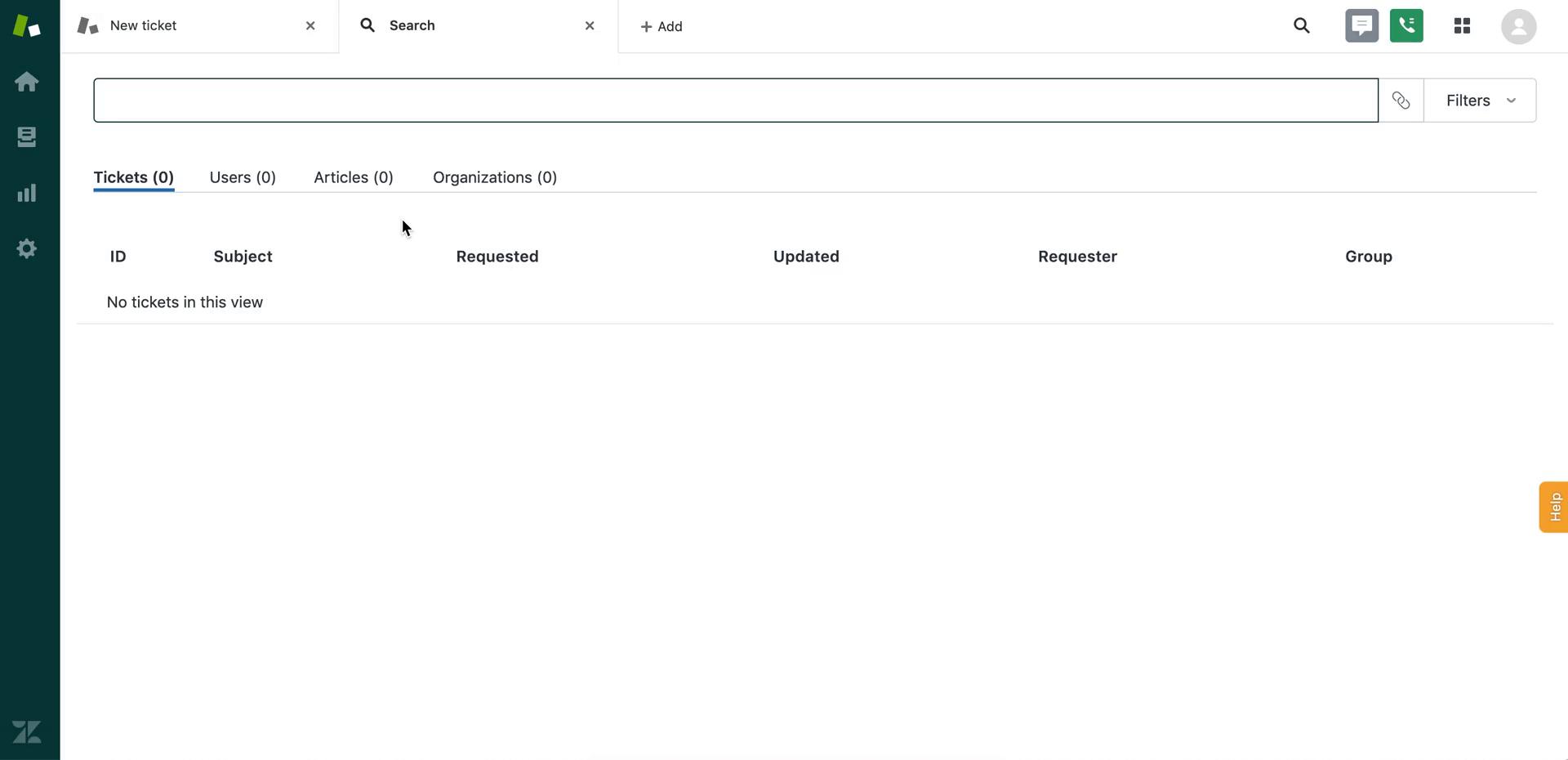
Search
this is title
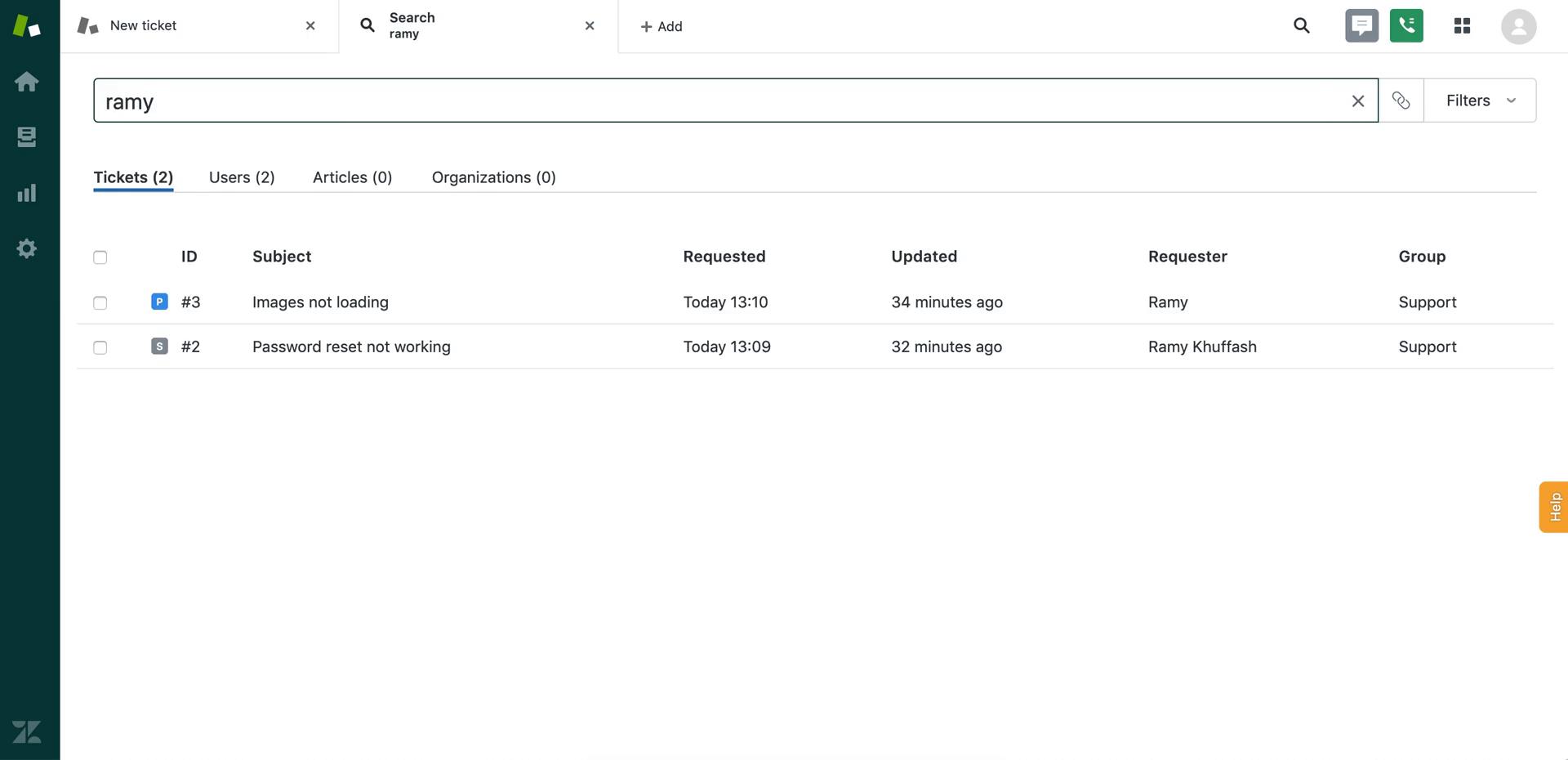
Search results
this is title
Getting started page
this is title
Update status
this is title
Notifications
this is title
Getting started page
this is title
Apps
this is title
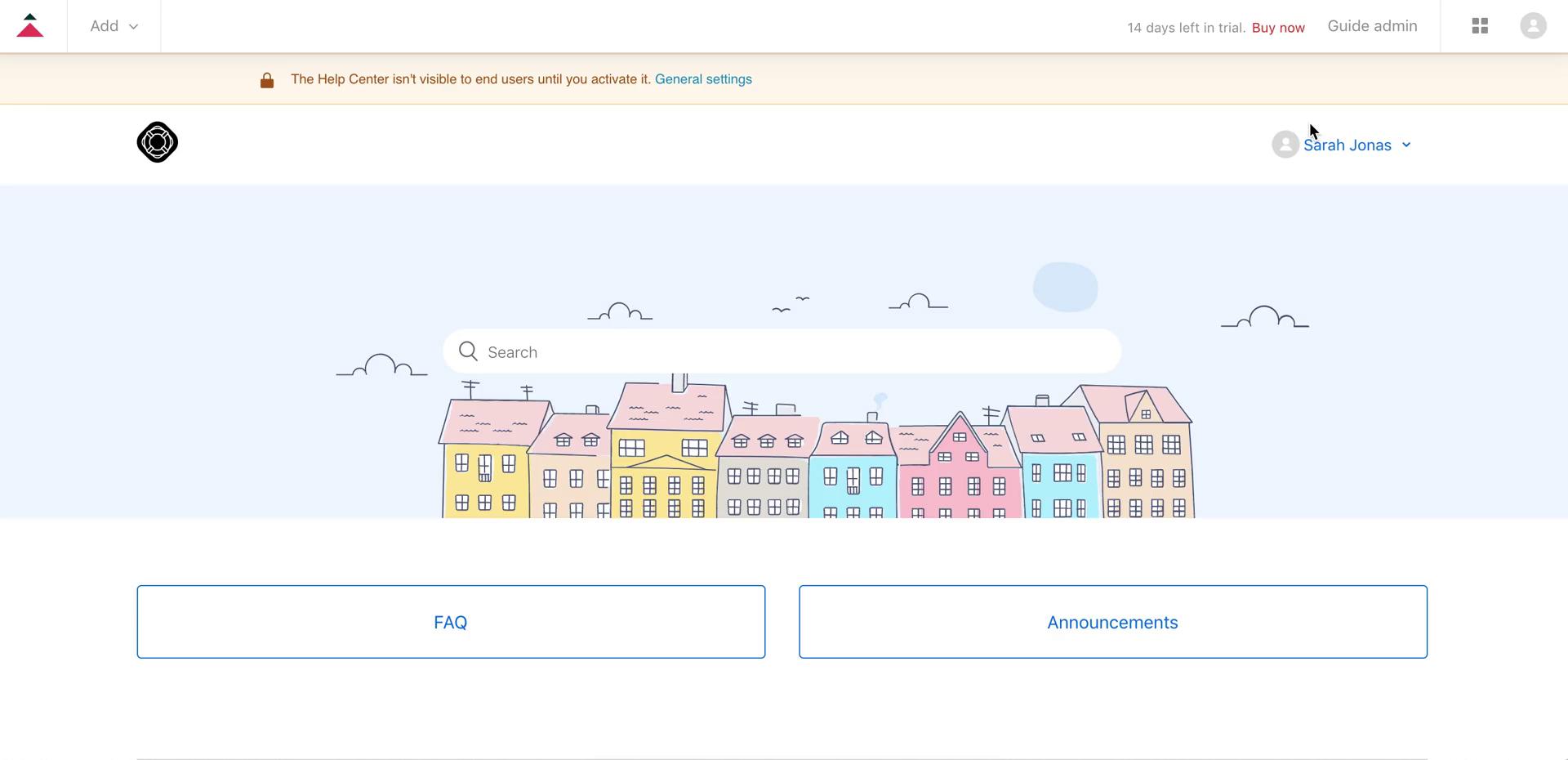
Guide page
this is title
Subscribe to updates
this is title
Getting started page
this is title
Profile
this is title
Product updates
this is title
Keyboard shortcuts
this is title
Inbox
this is title
Inbox
this is title
Support ticket
this is title
Support ticket
this is title
Customers
this is title
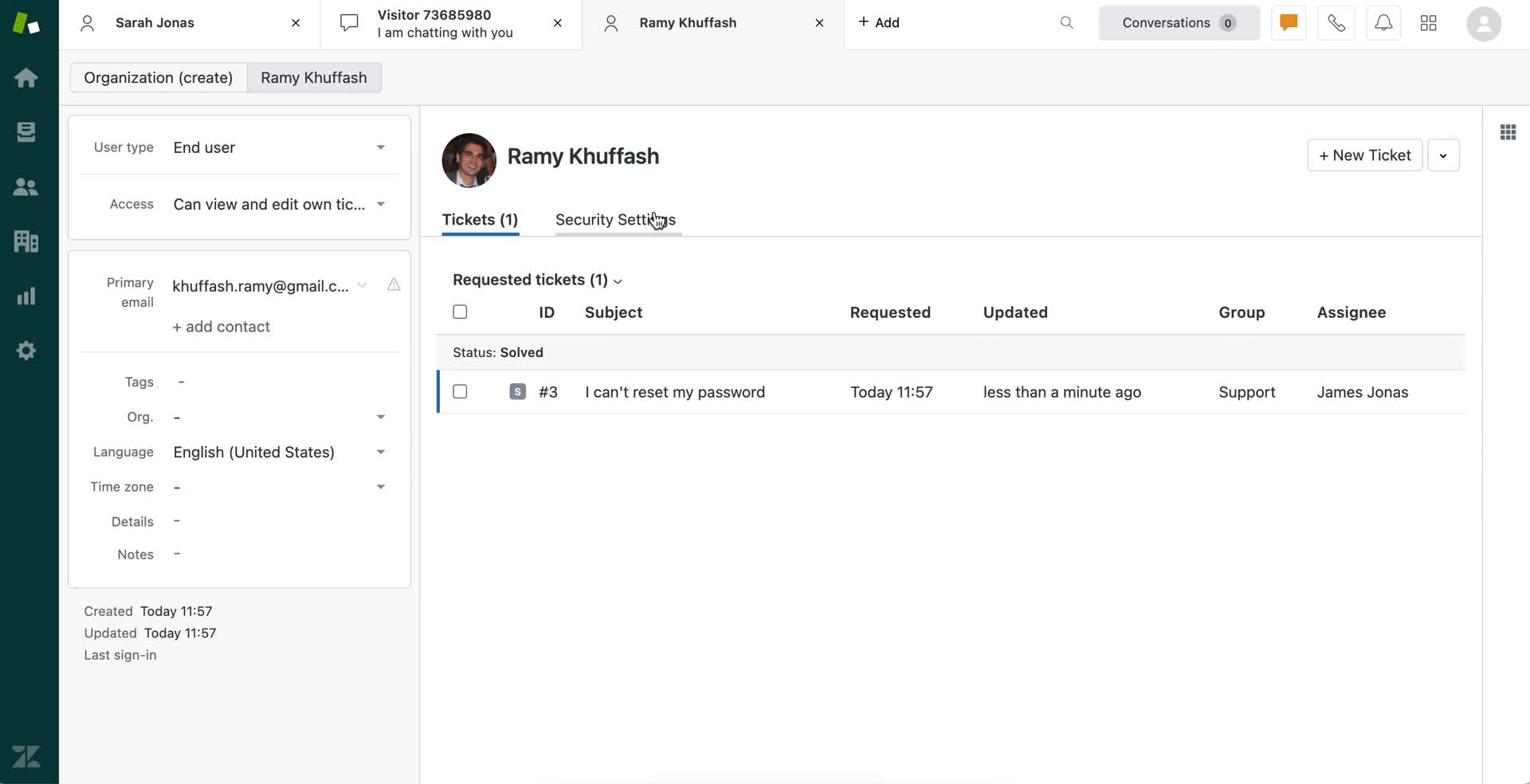
Profile
this is title
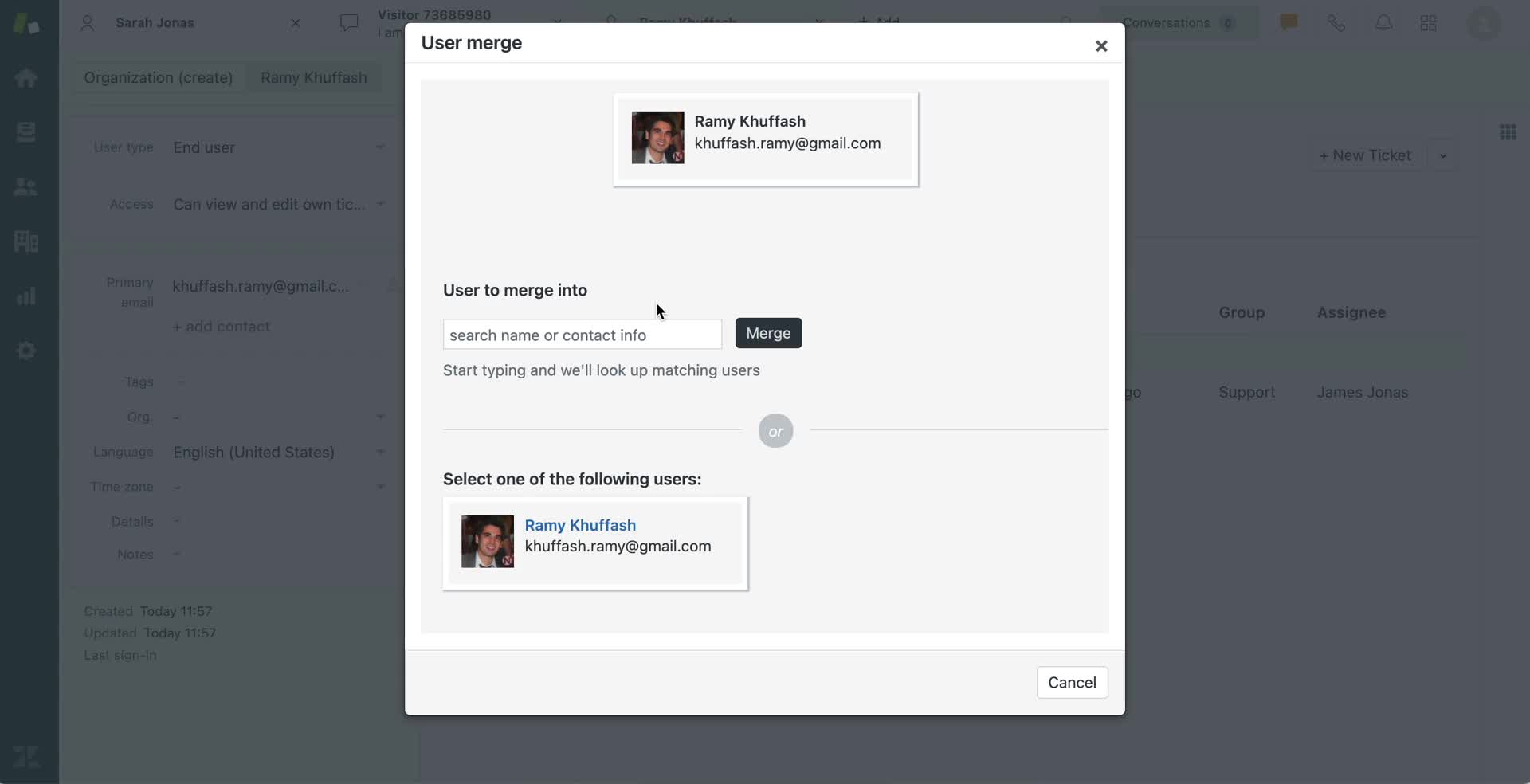
Merge contacts
this is title
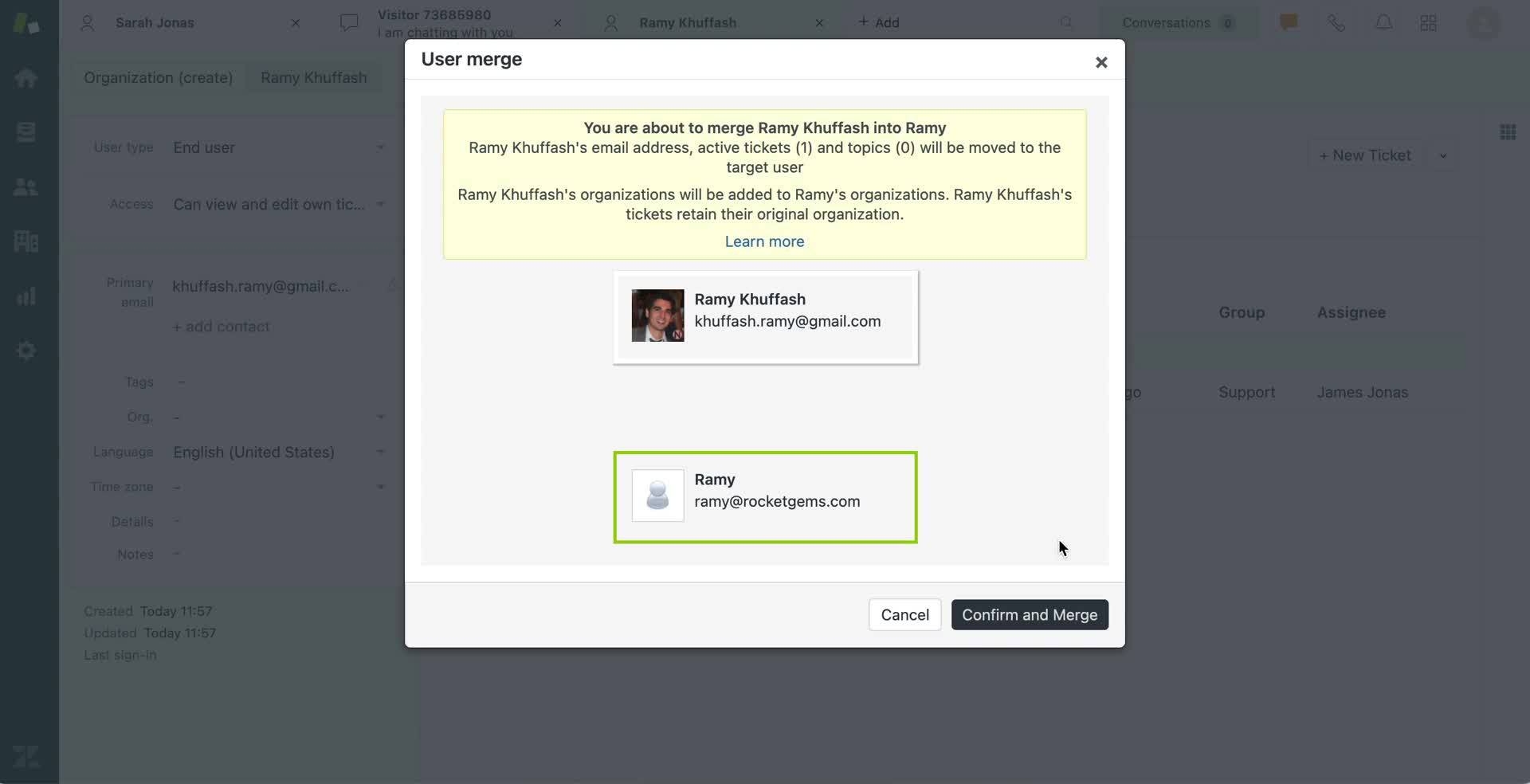
Confirm merge
this is title
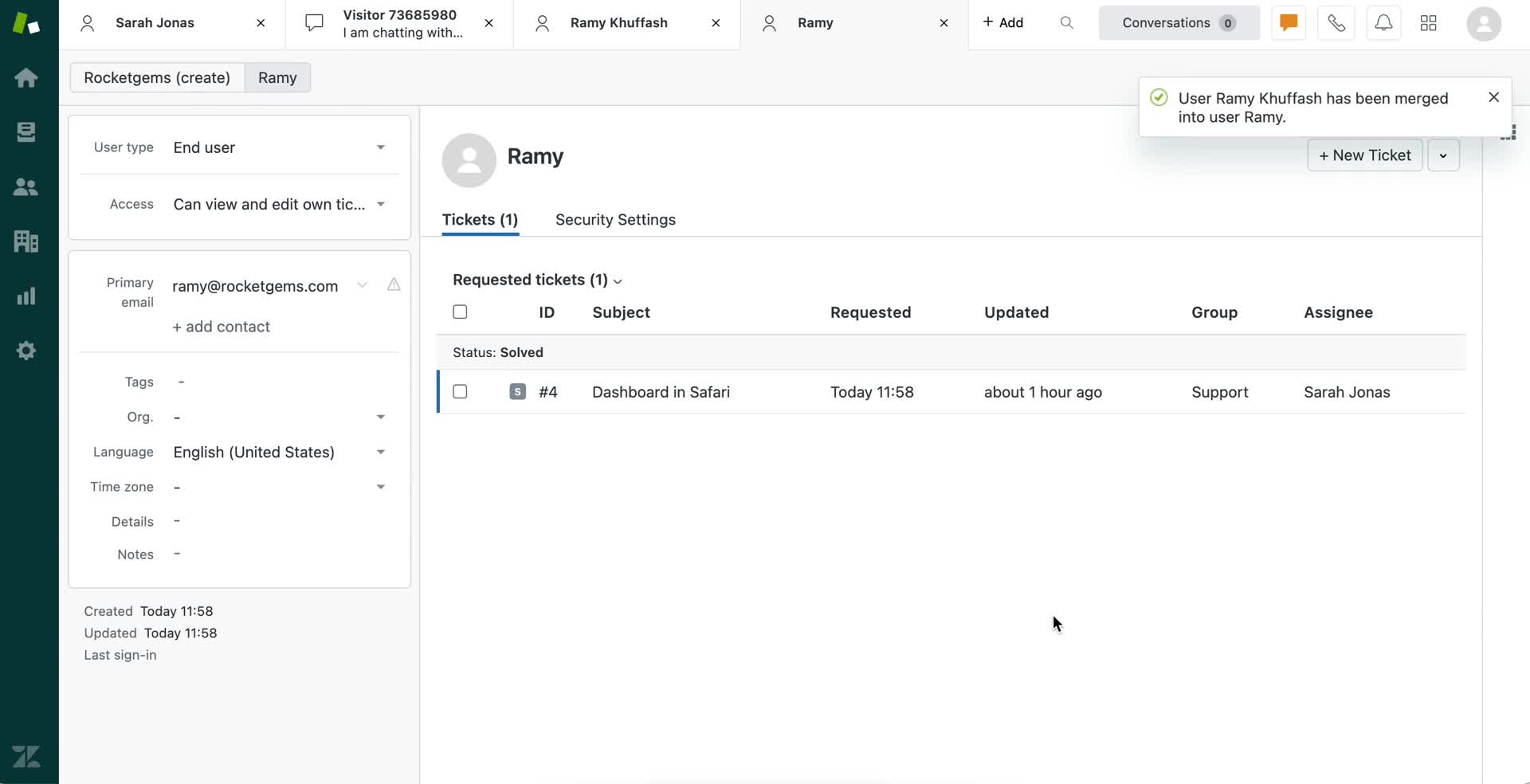
Merged
this is title
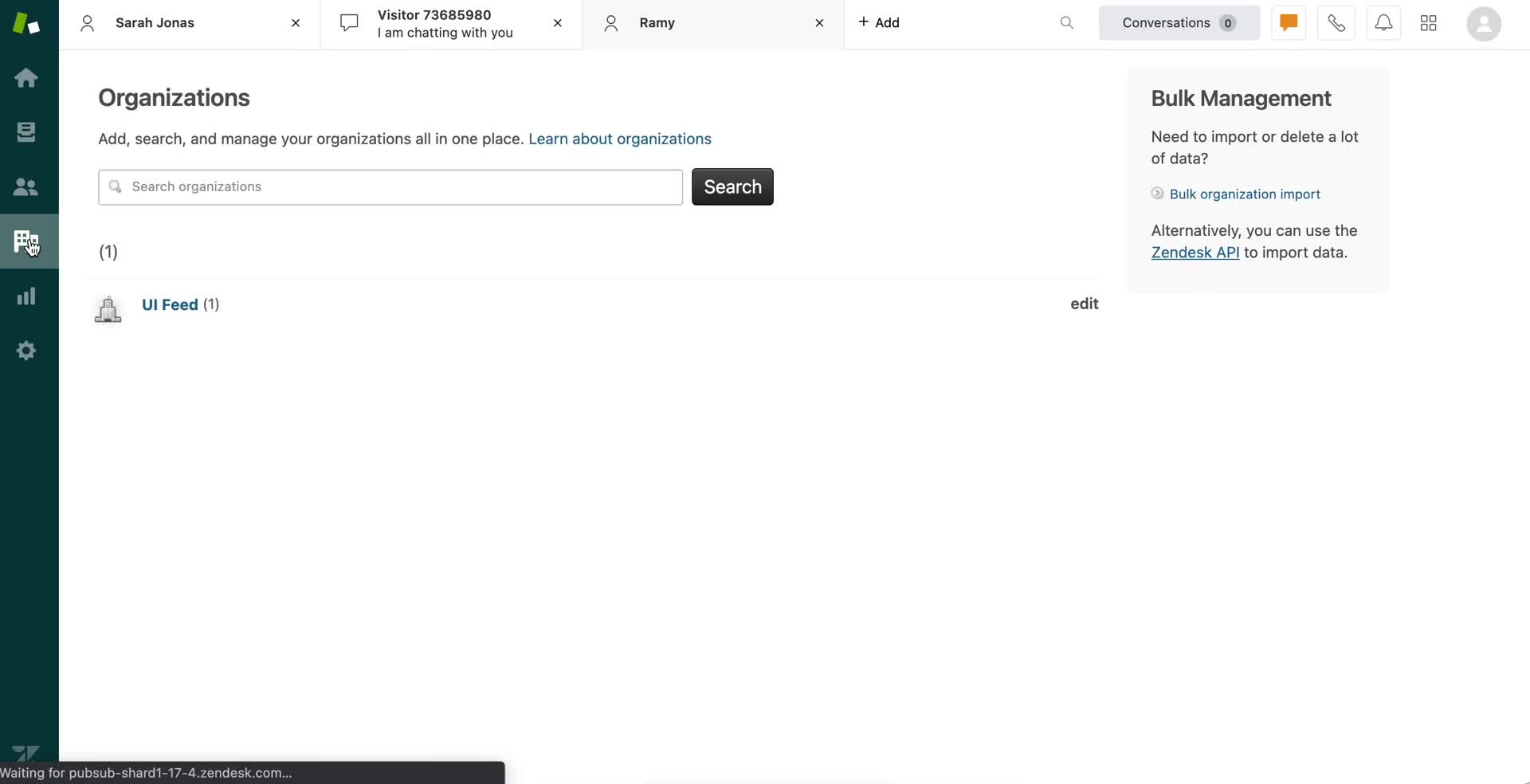
Organizations
this is title
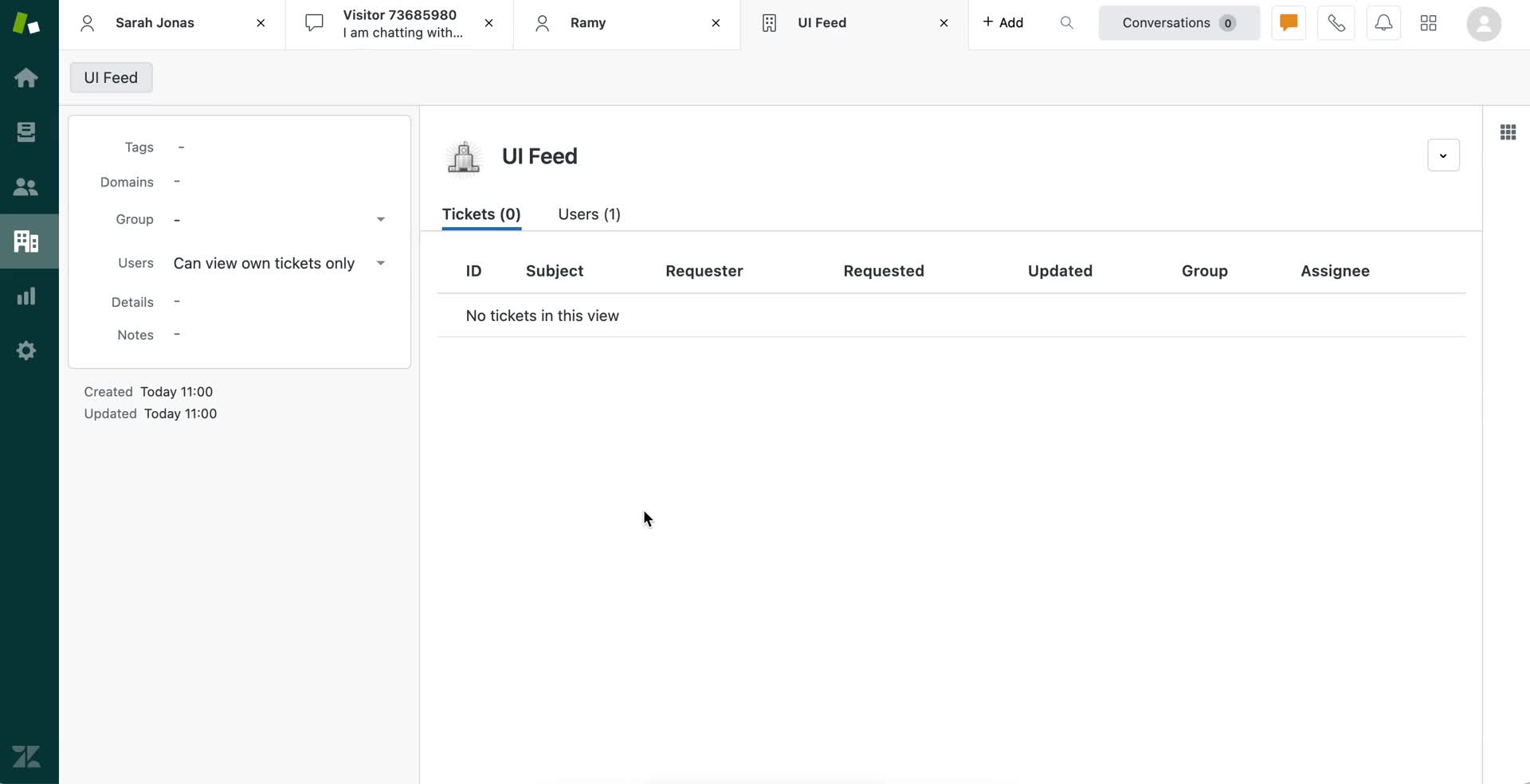
Organization details
this is title
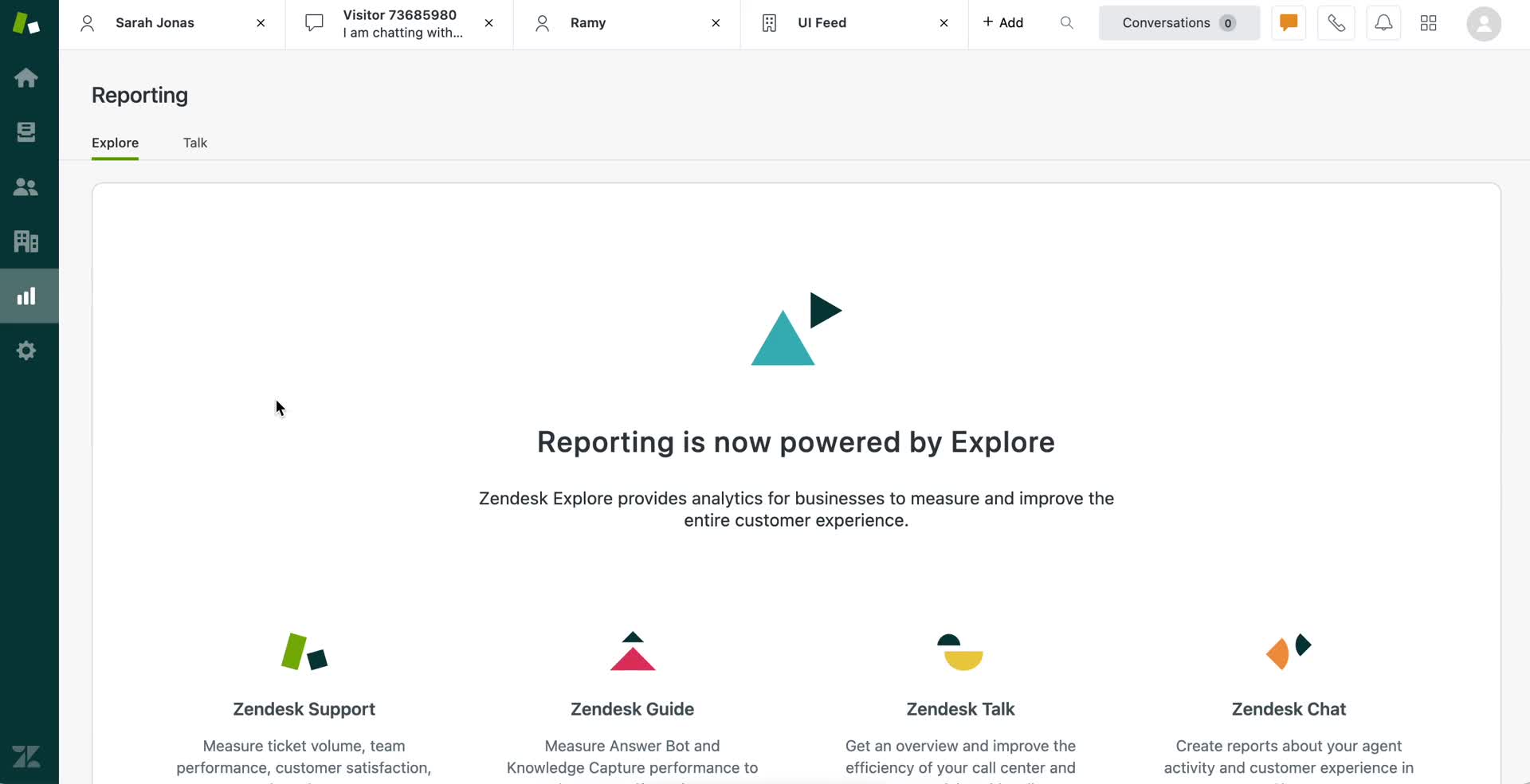
Reports
this is title
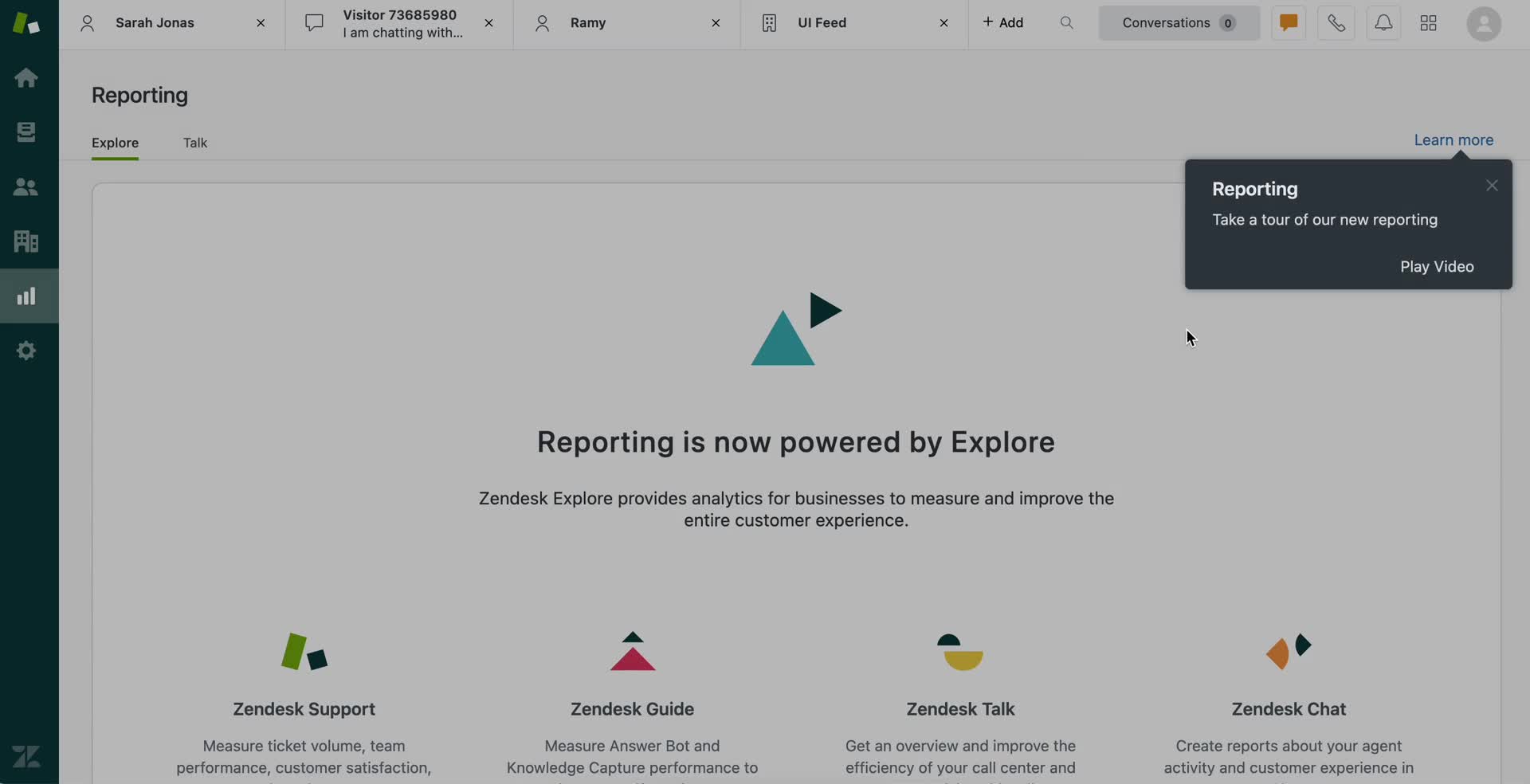
Guide tooltip
this is title
Guide video
this is title
Reports
this is title
Account settings
this is title
Admin center
this is title
Team members
this is title
Create form
this is title
Admin center
this is title
Getting started page
this is title
Home
this is title
Advanced features
this is title
Search results
this is title
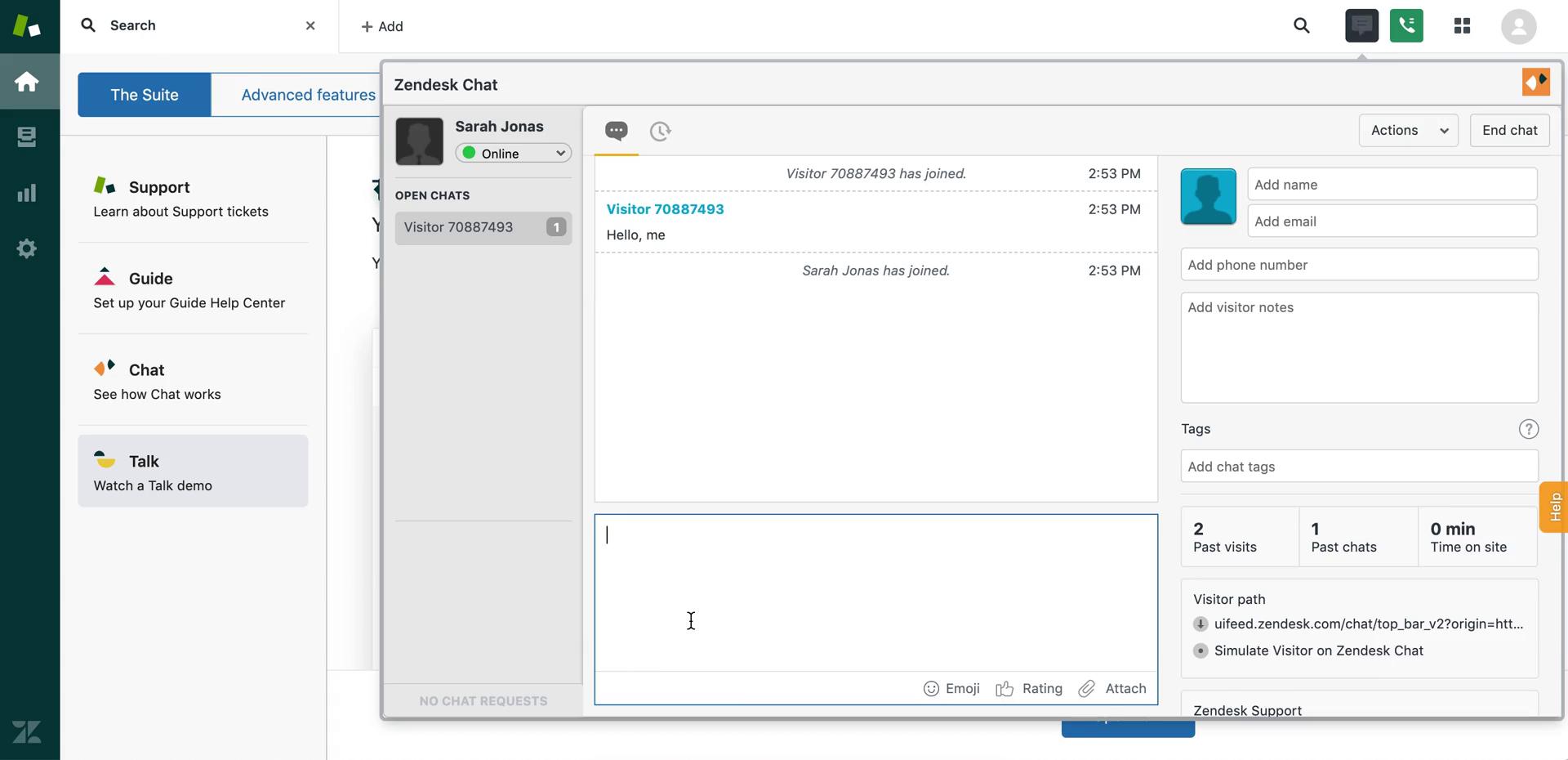
Chat inbox
this is title
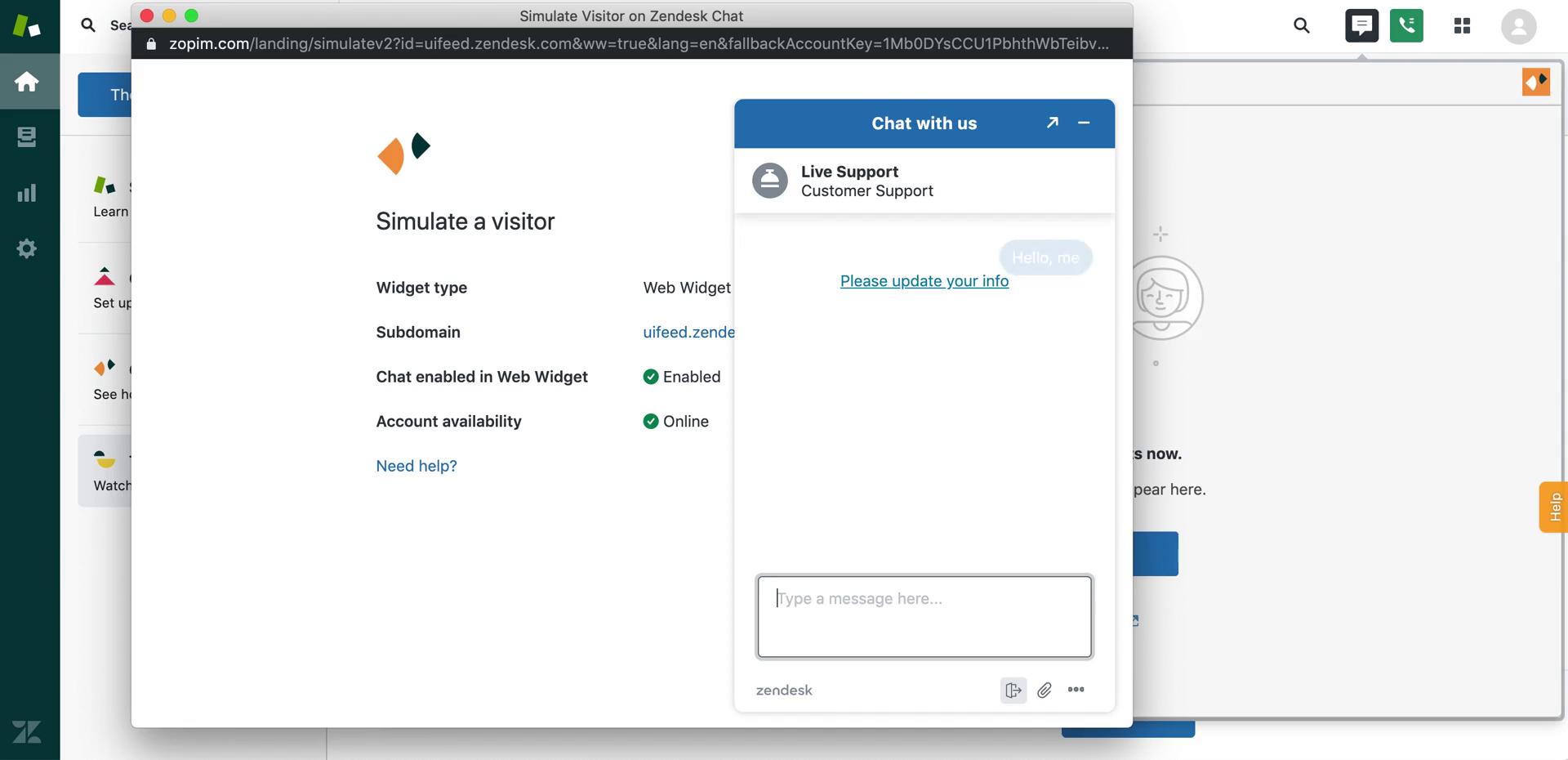
Live chat simulation
this is title
Live chat
this is title
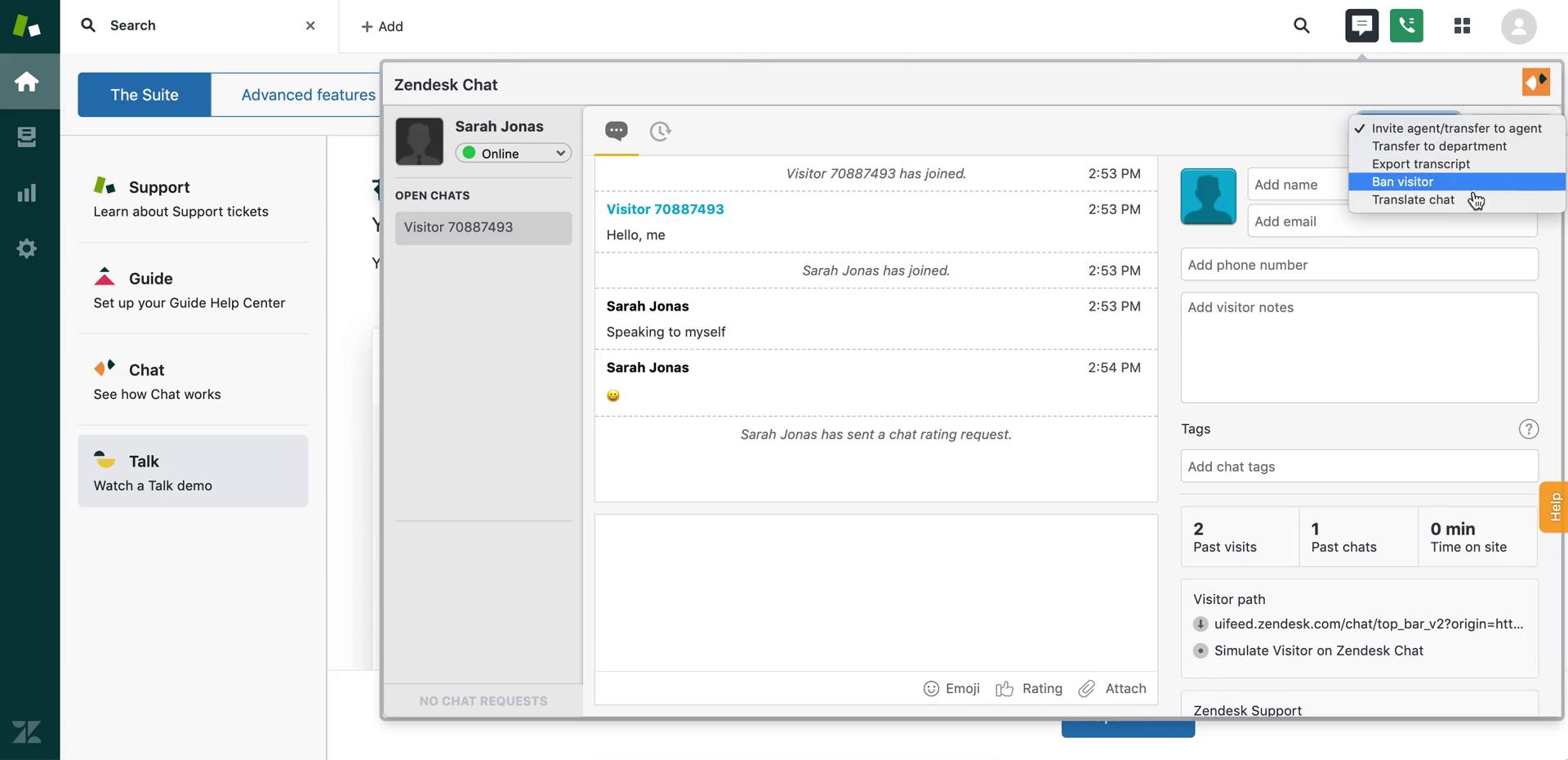
Live chat
this is title
Help centre
this is title
Articles
this is title
Inbox
this is title
Support ticket
this is title
Create ticket
this is title
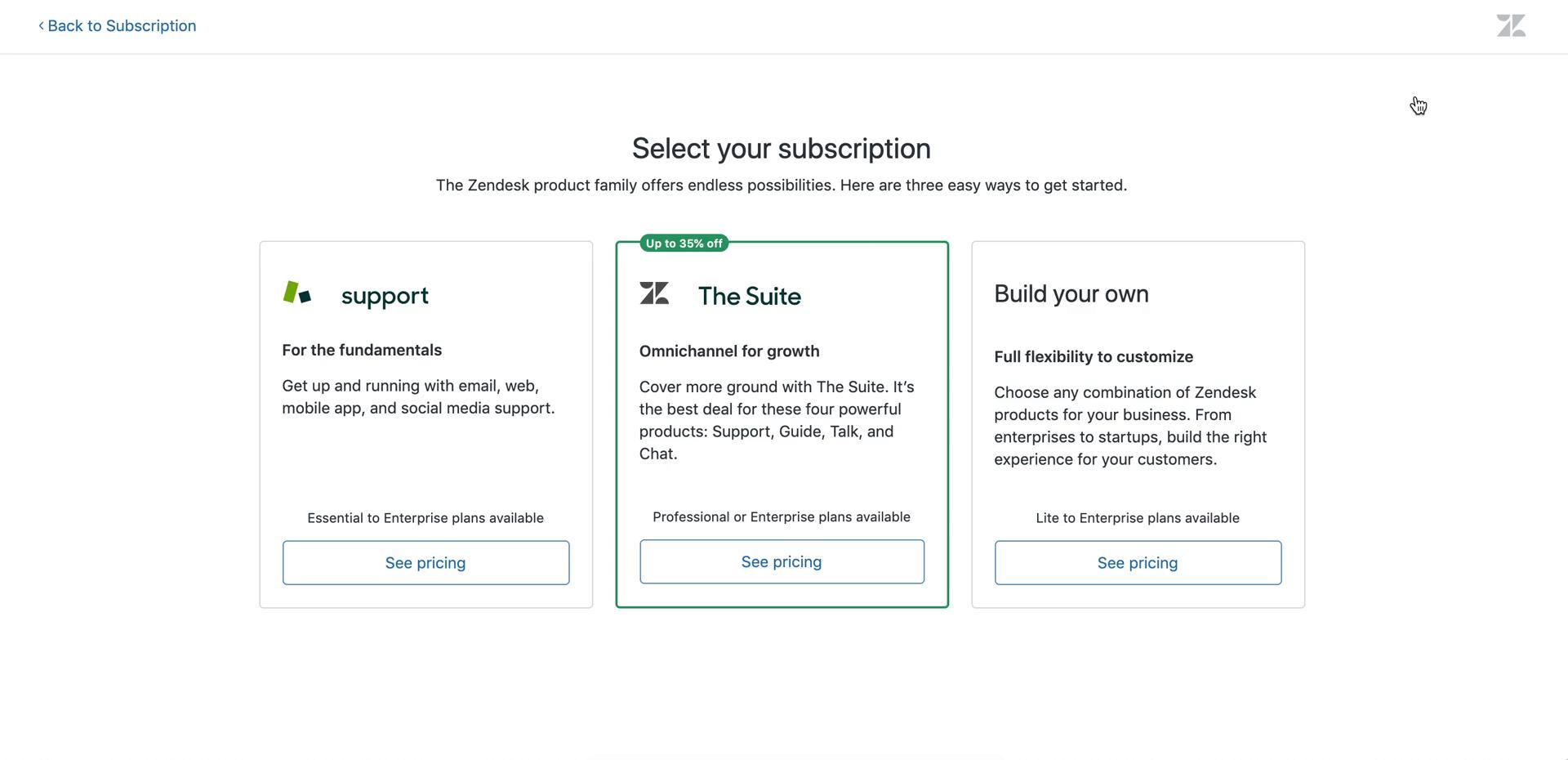
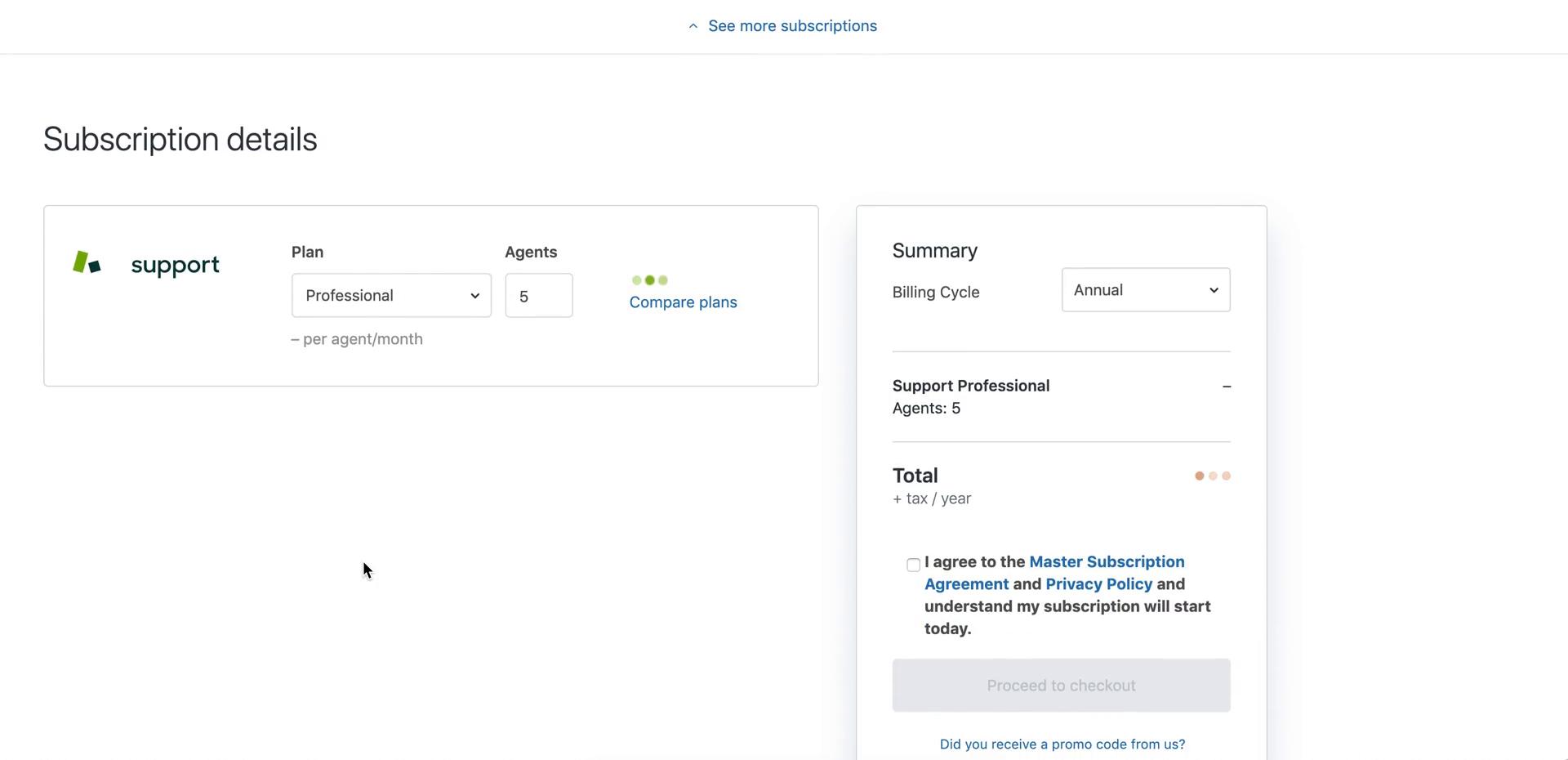
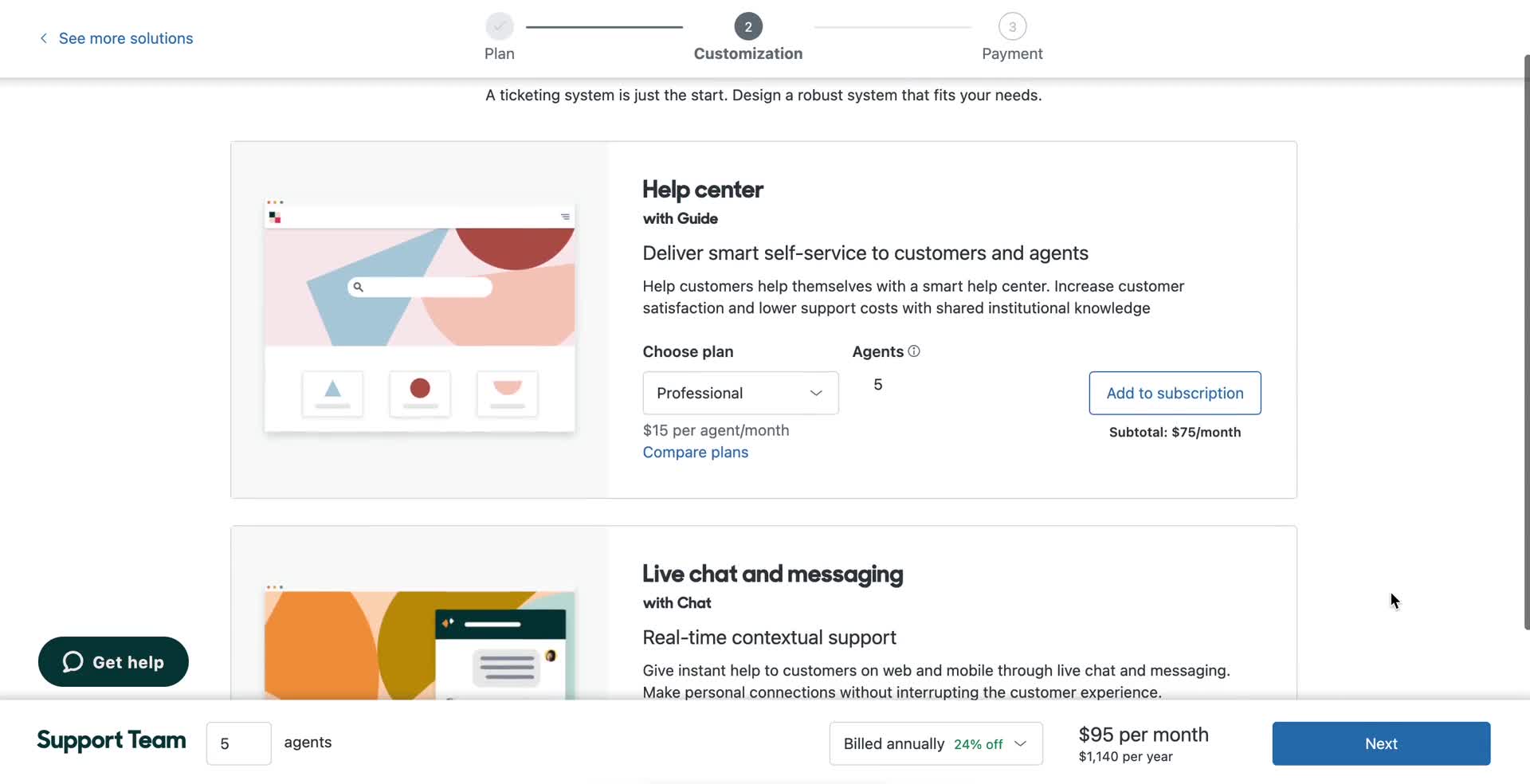
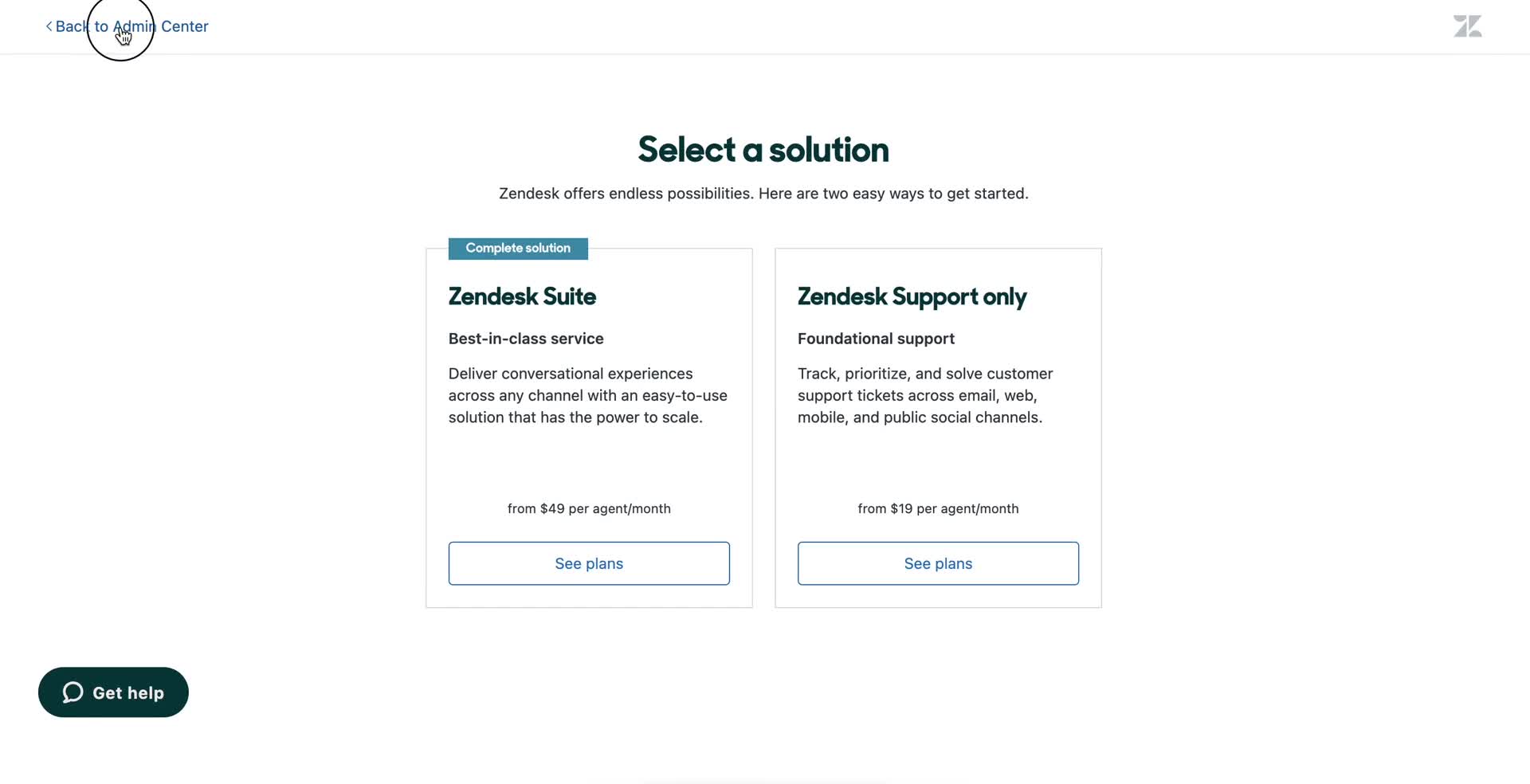
Select plan
this is title
Select plan
this is title
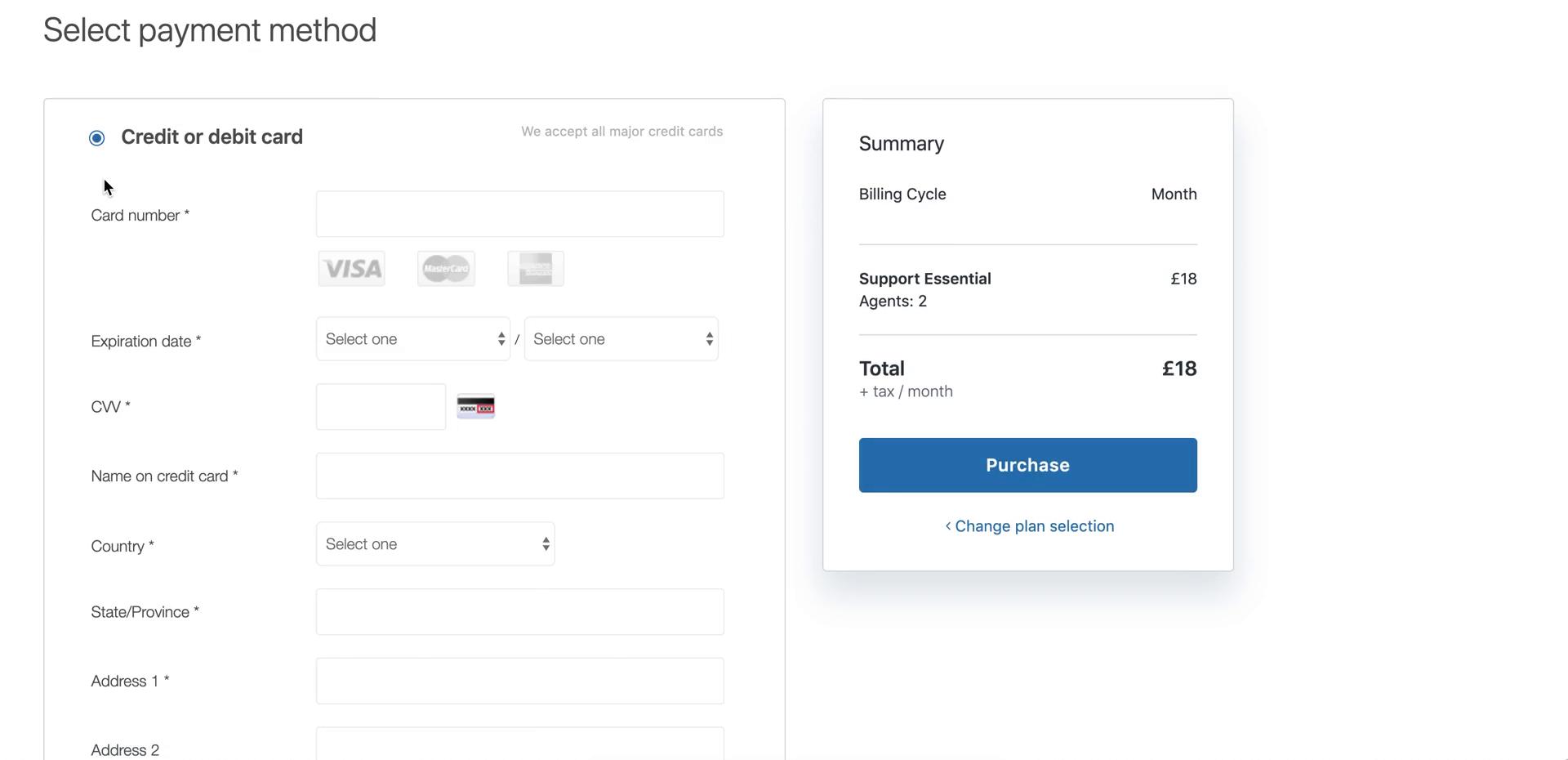
Add payment details
this is title
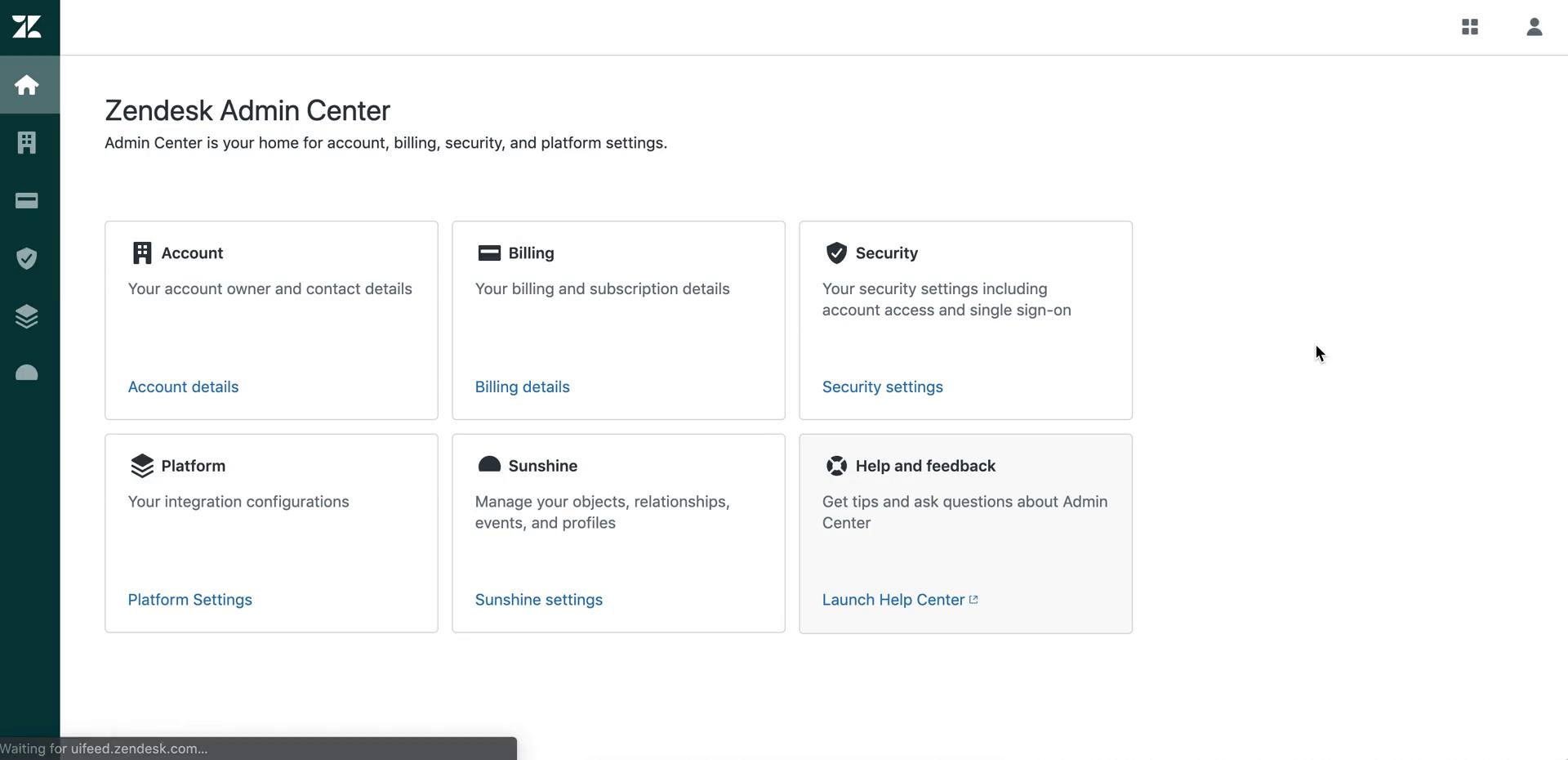
Admin center
this is title
Admin home
this is title
Account settings
this is title
Keyboard shortcuts
this is title
Home
this is title
Dashboard
this is title
Apps
this is title
Welcome
this is title
Complete profile
this is title
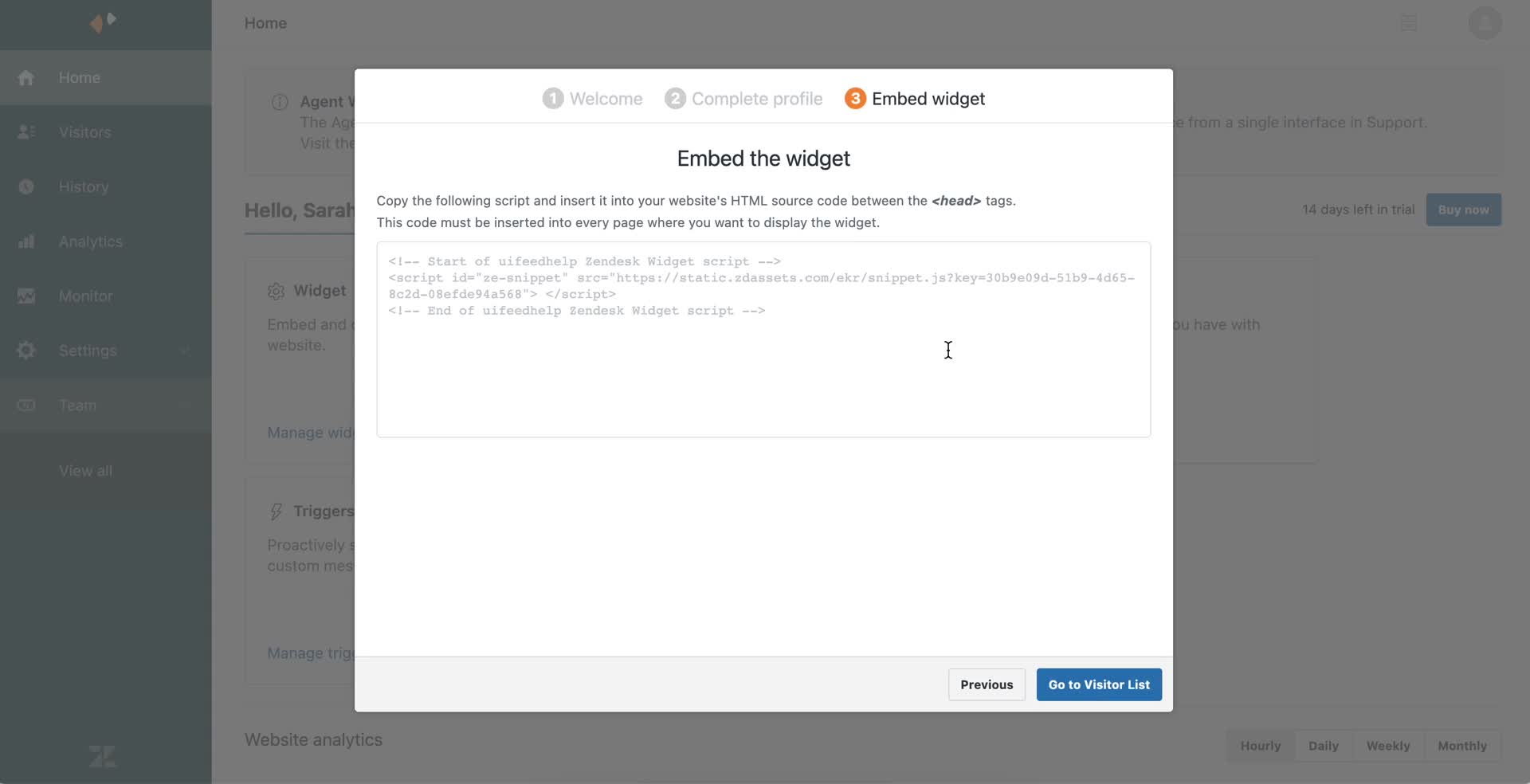
Embed code
this is title
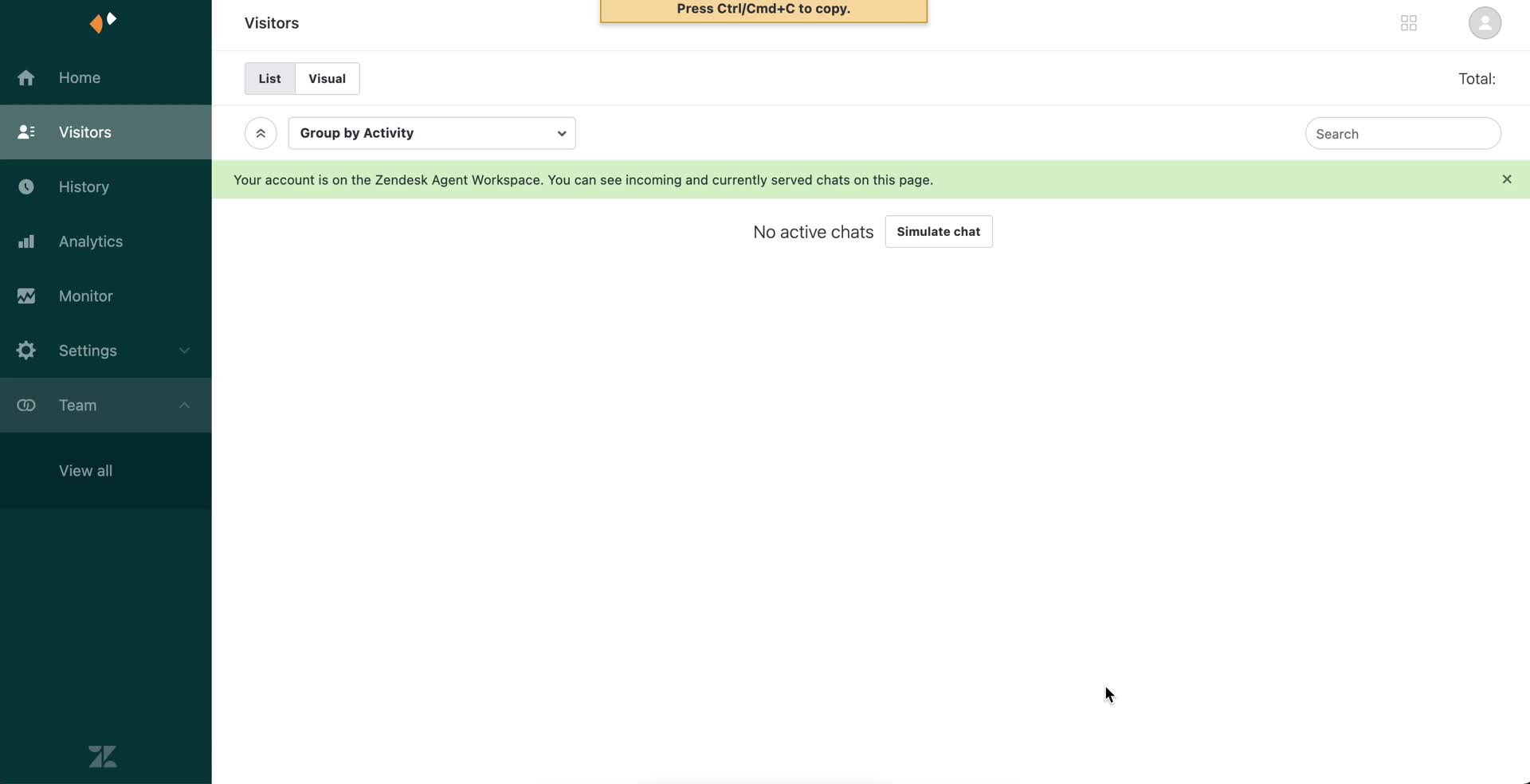
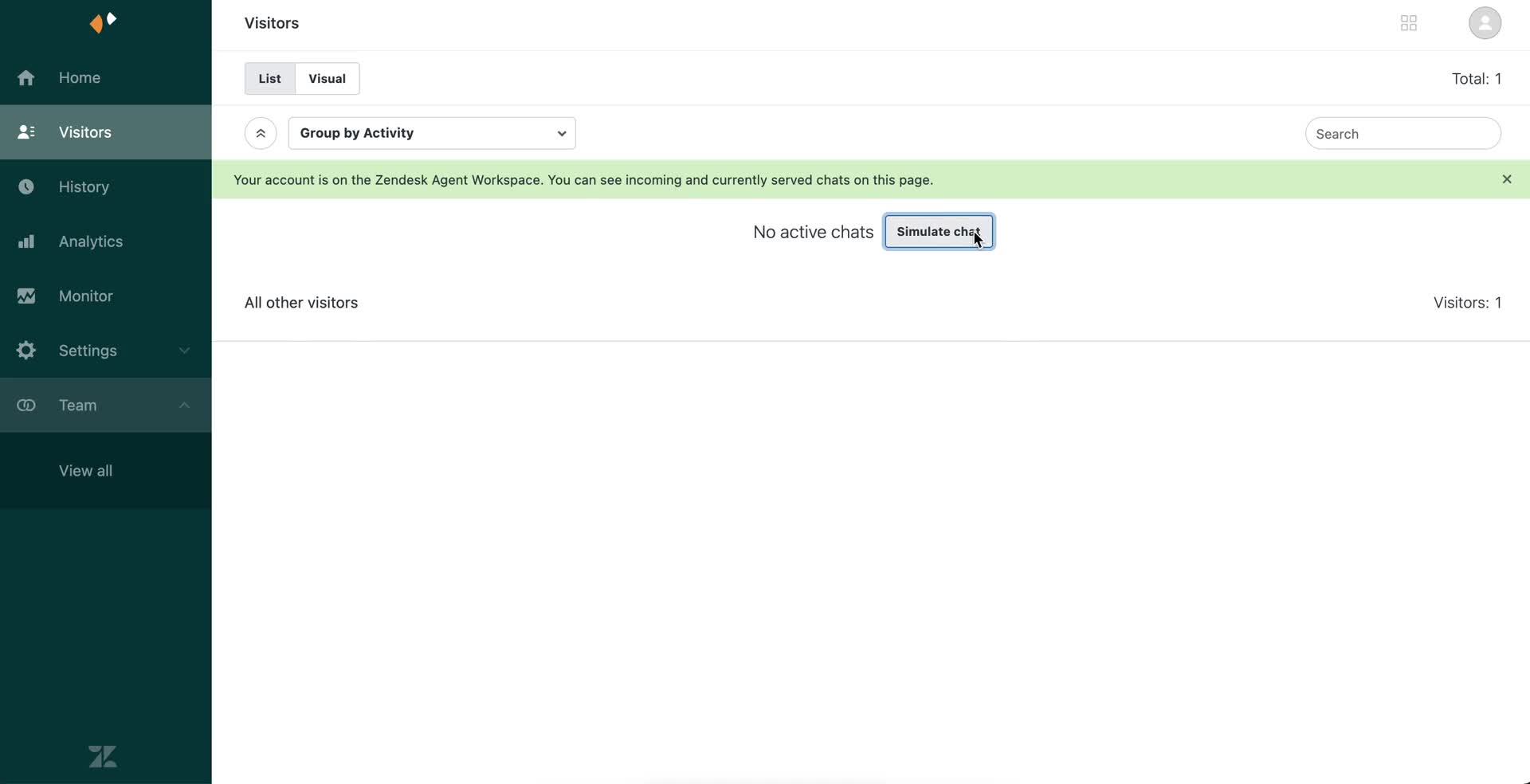
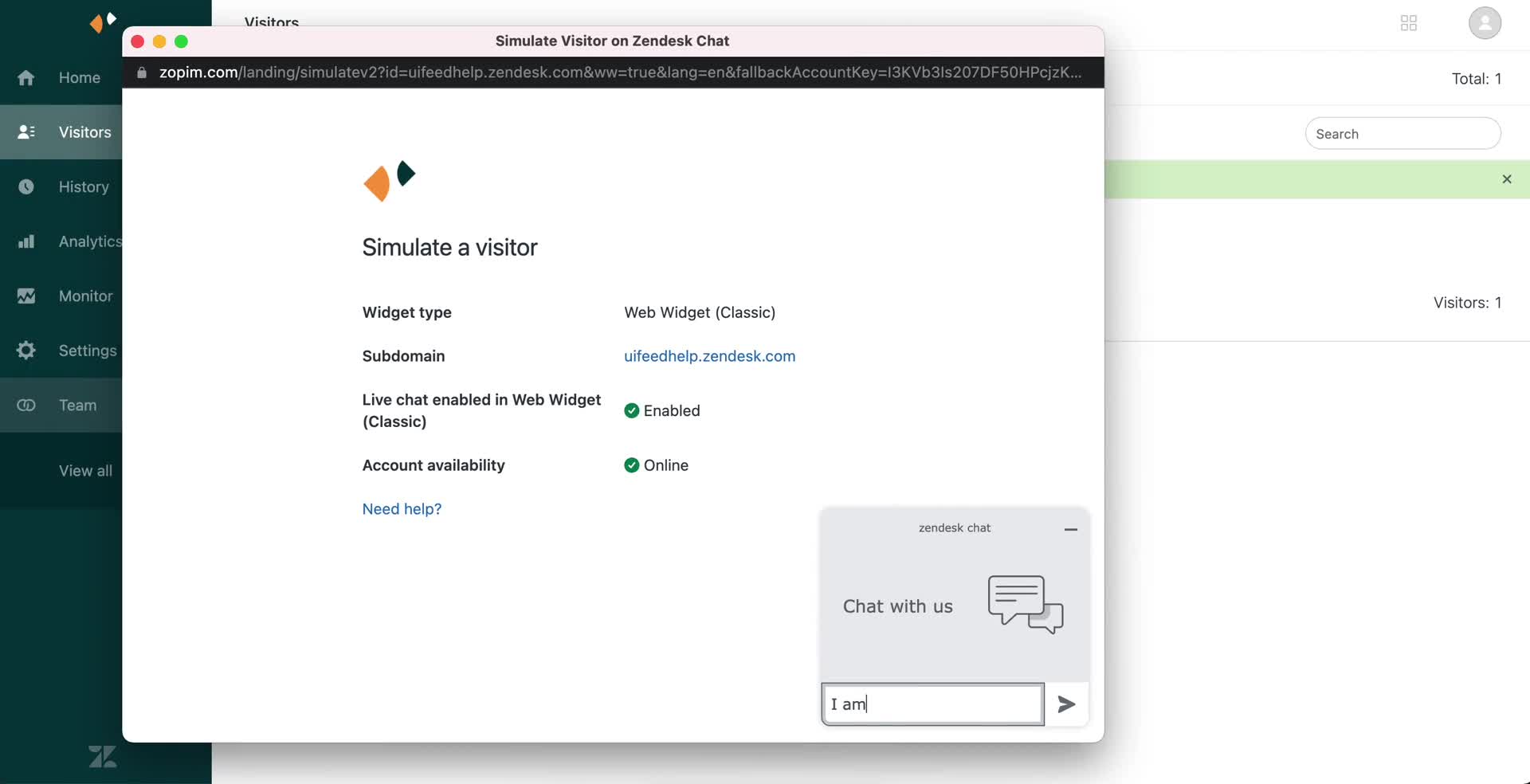
Visitors
this is title
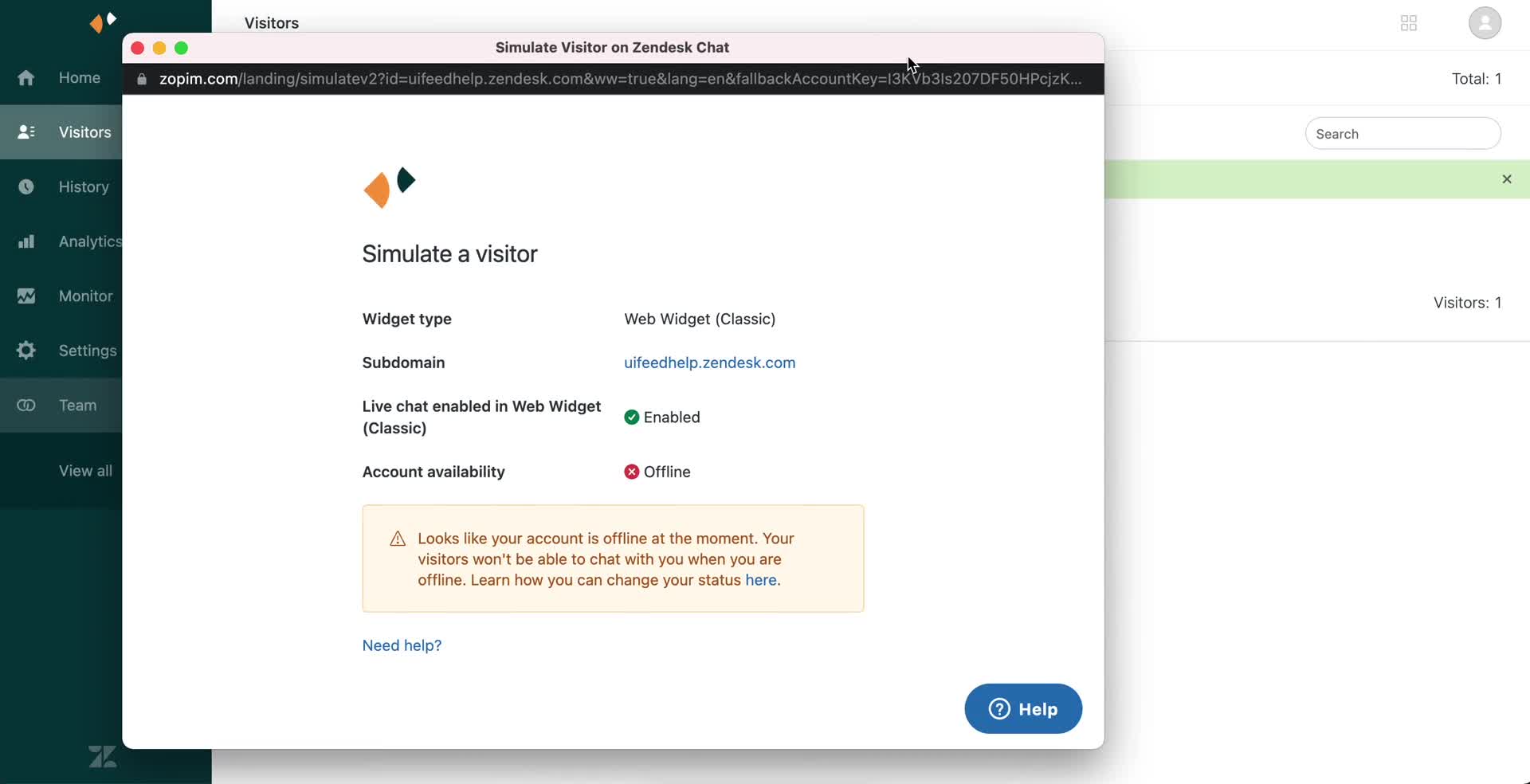
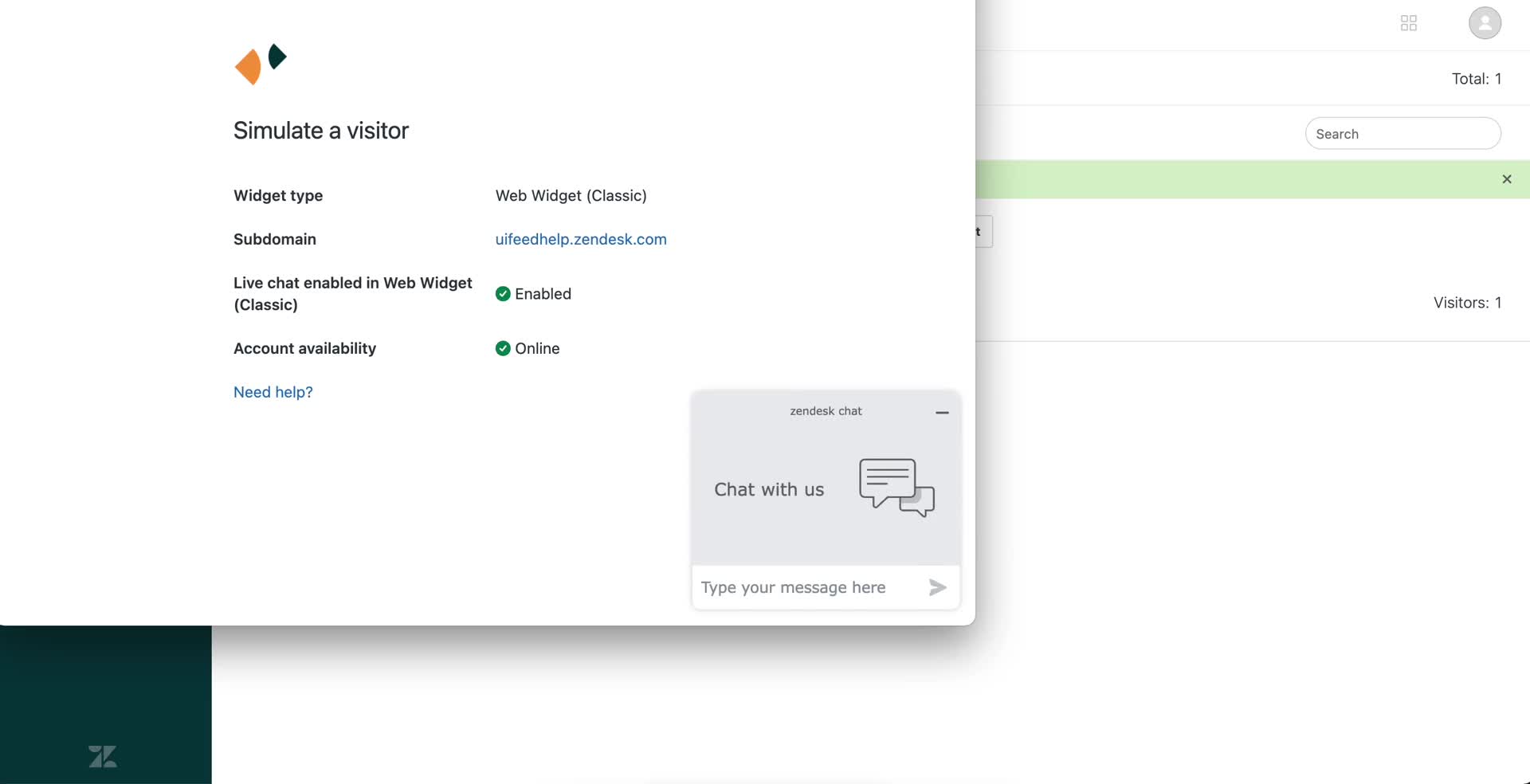
Live chat simulation
this is title
Error
this is title
Guide
this is title
Update status
this is title
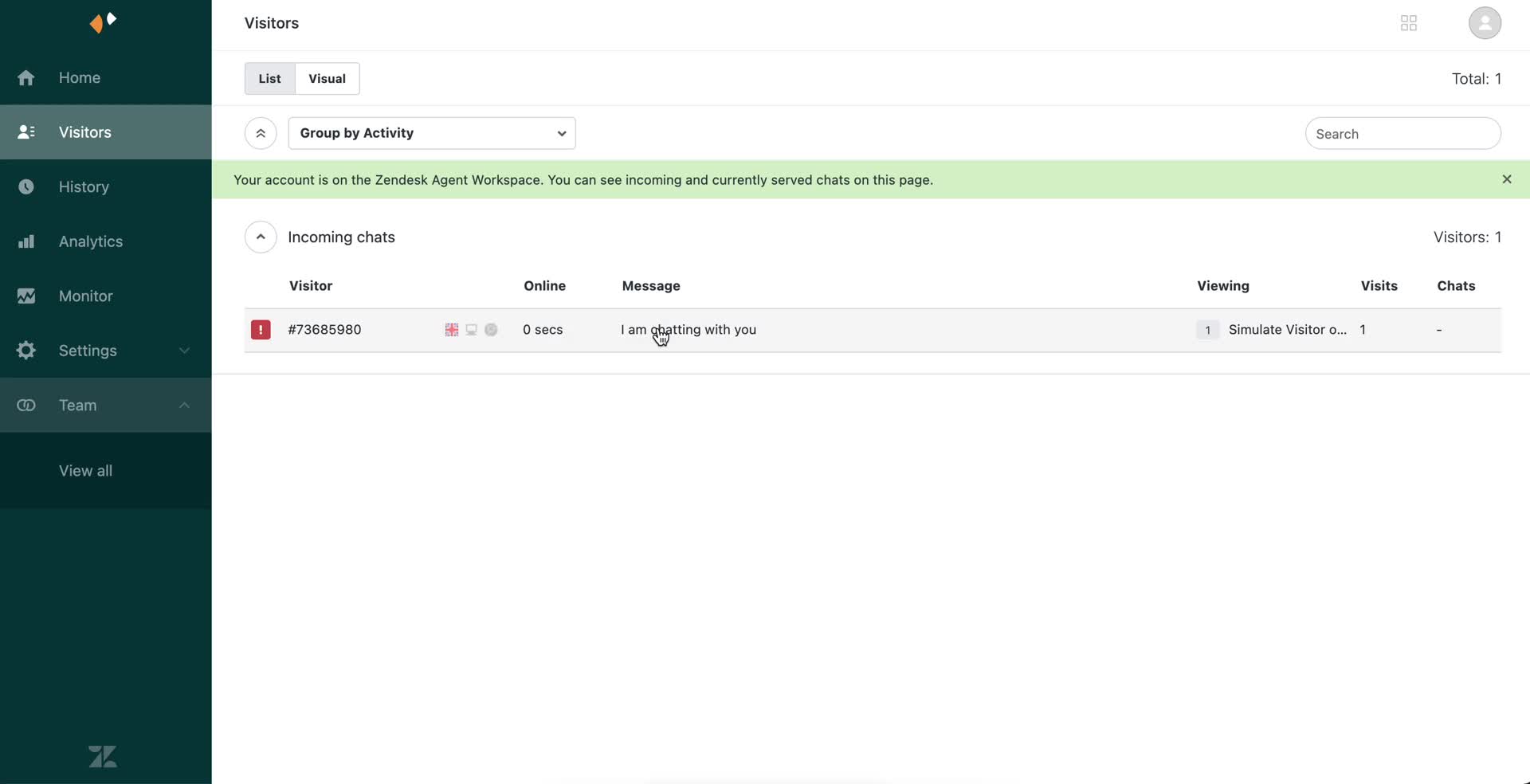
Visitors
this is title
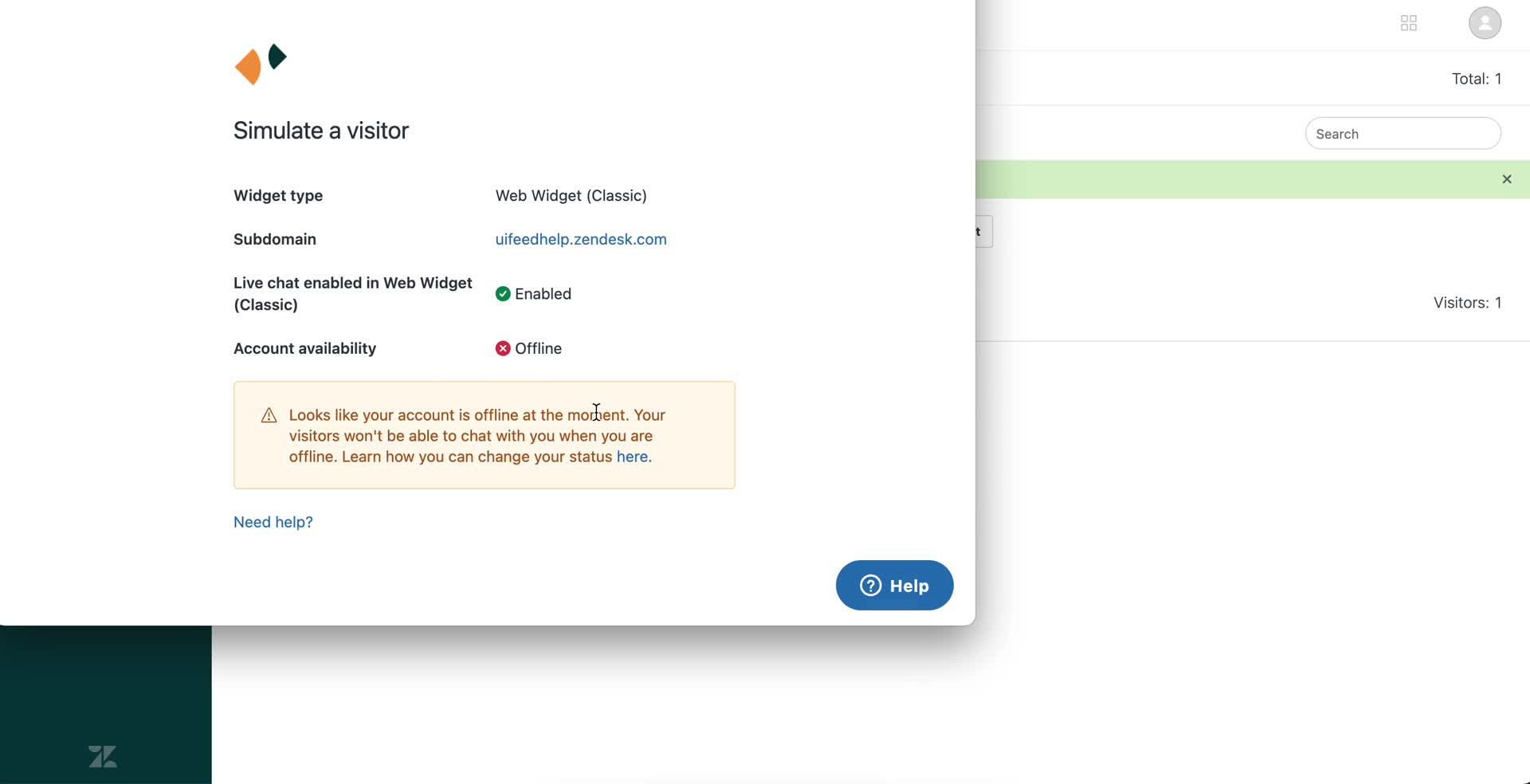
Live chat simulation
this is title
Live chat simulation
this is title
Visitors
this is title
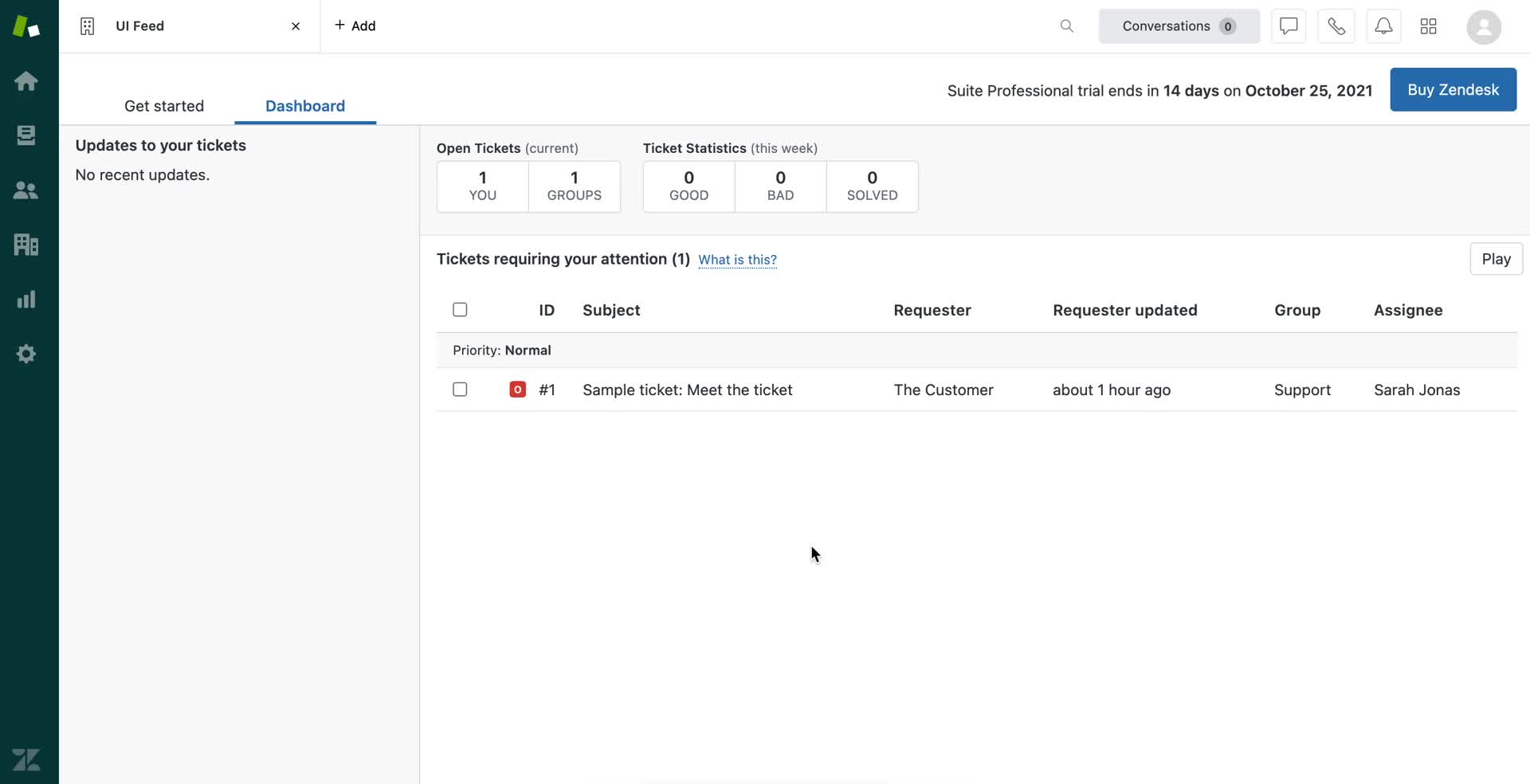
Dashboard
this is title
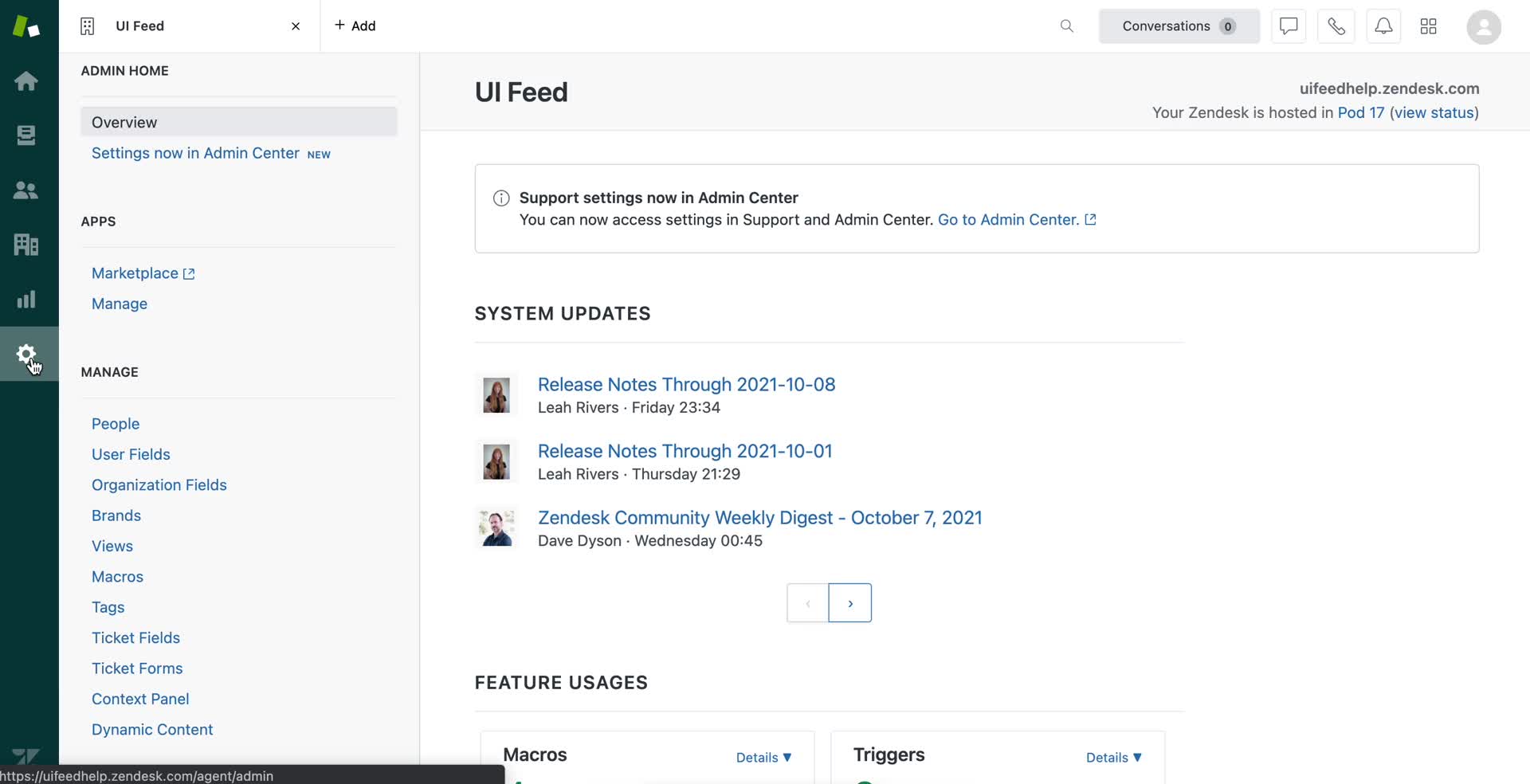
Settings
this is title
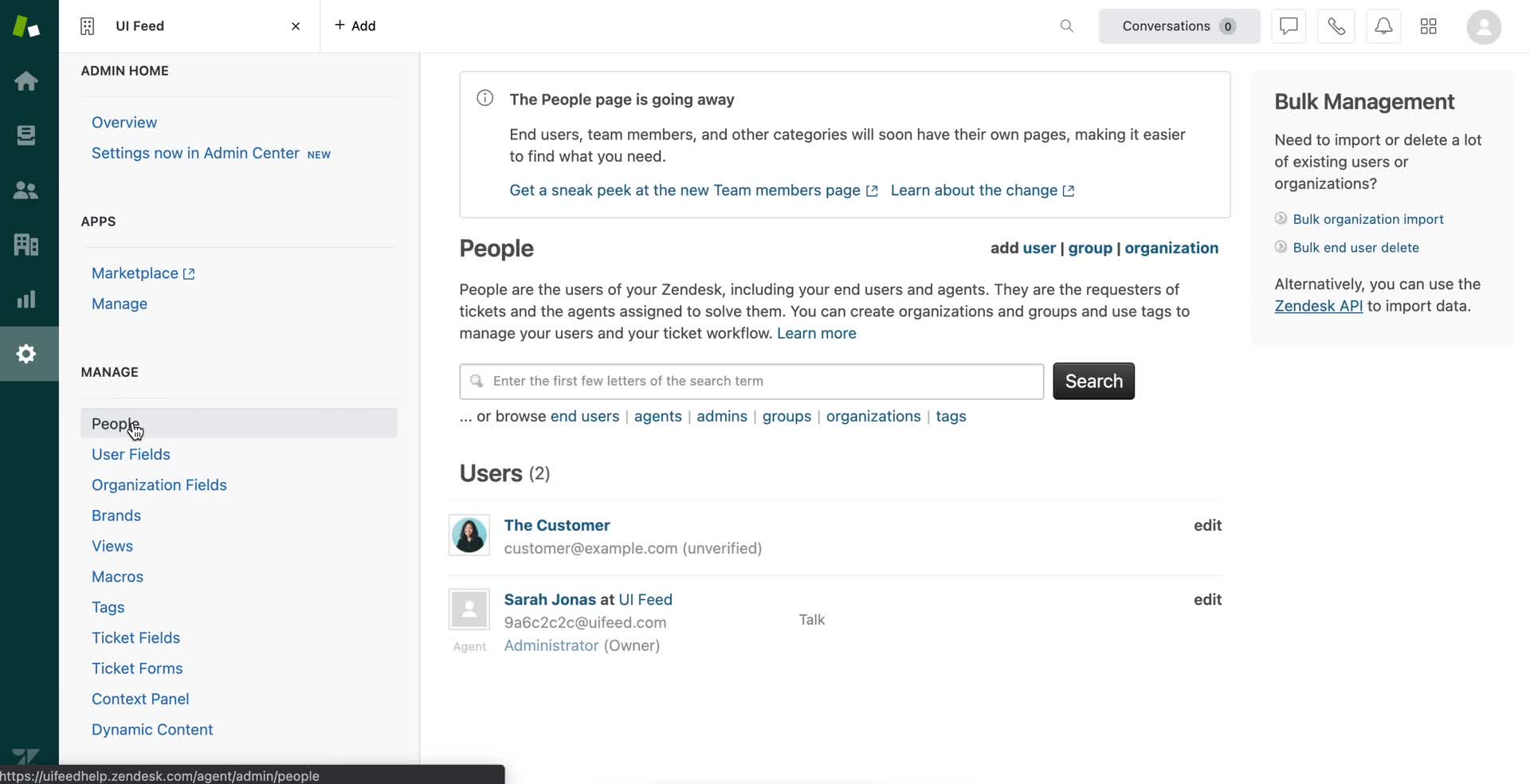
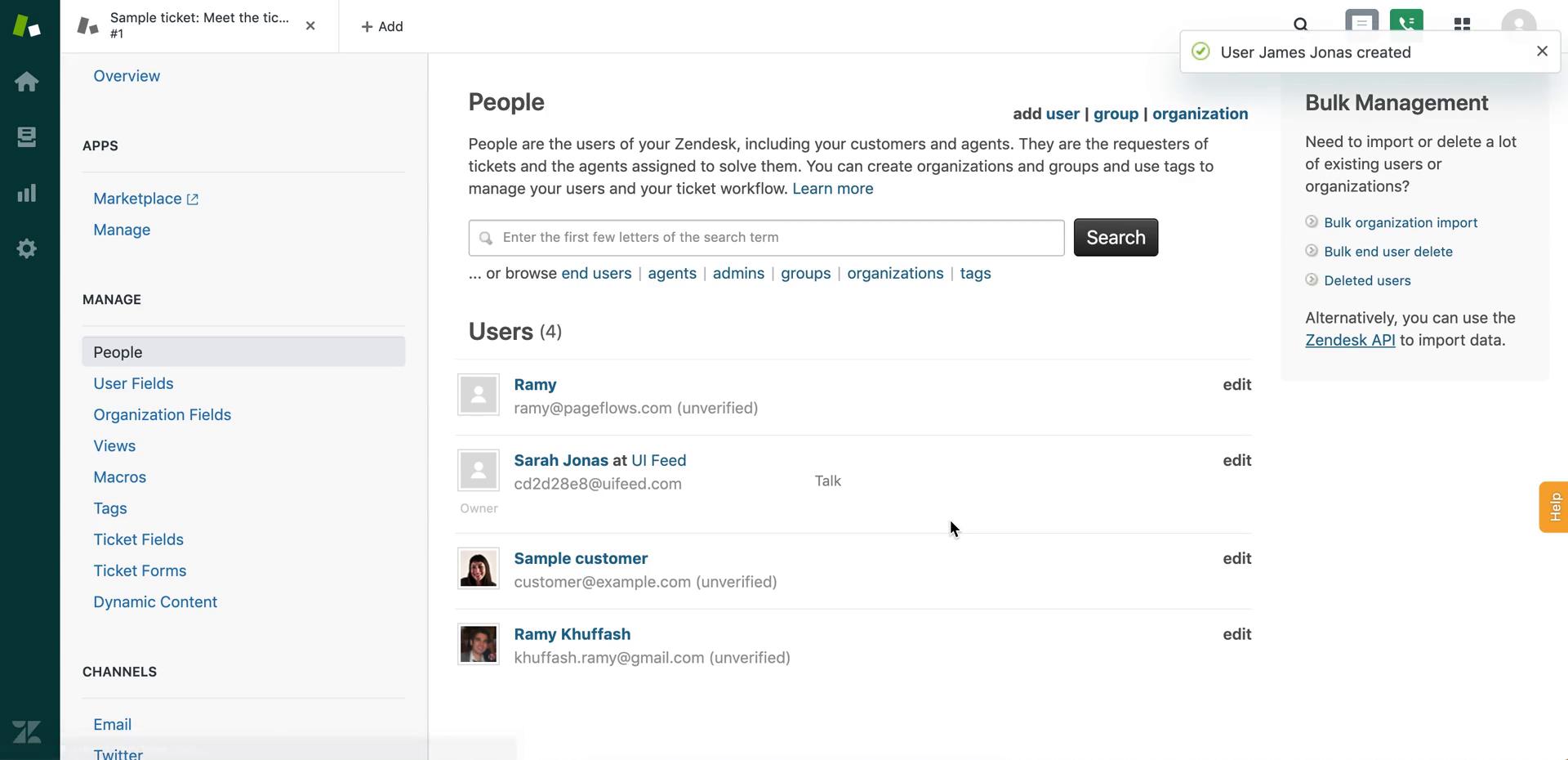
People
this is title
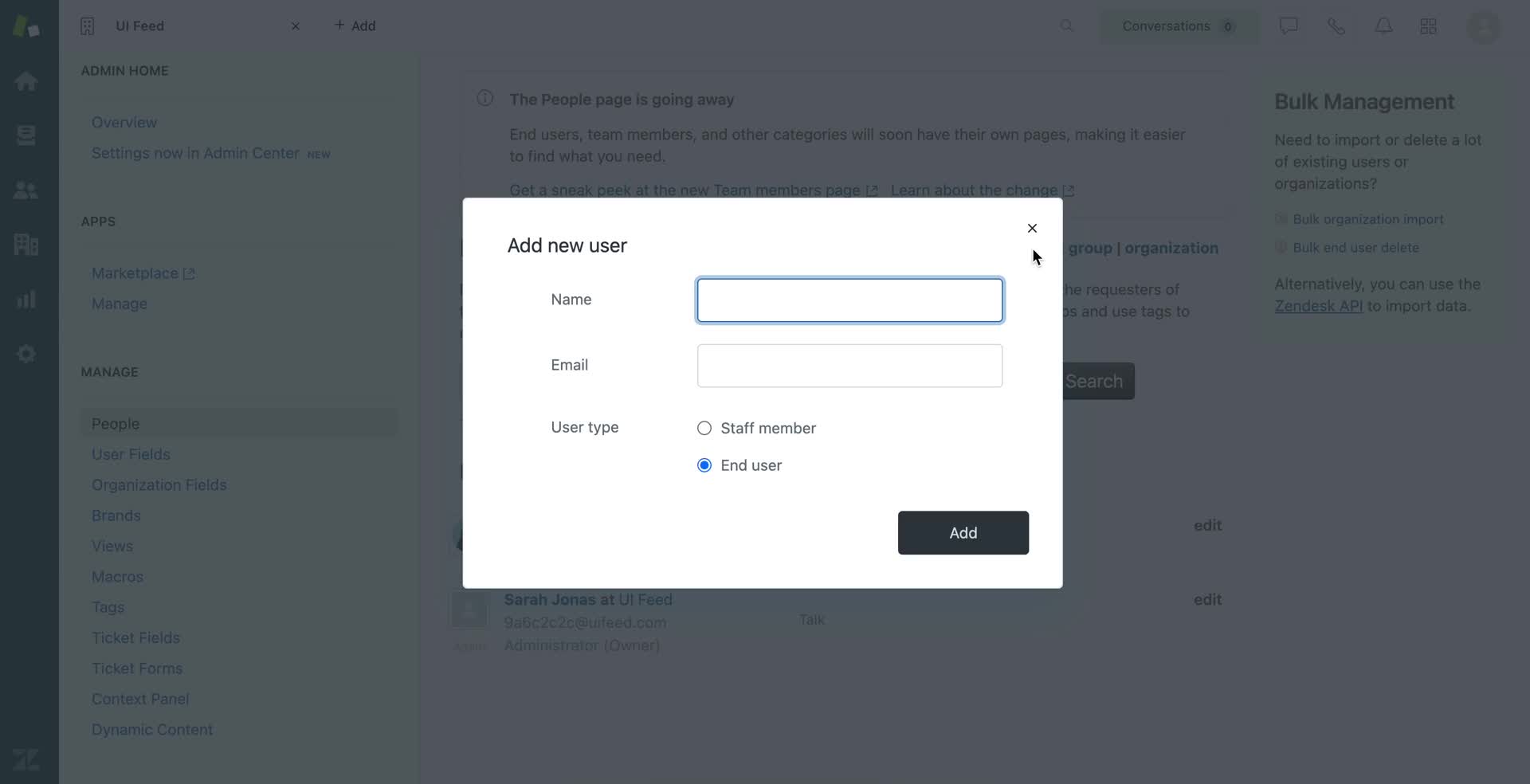
Add new user
this is title
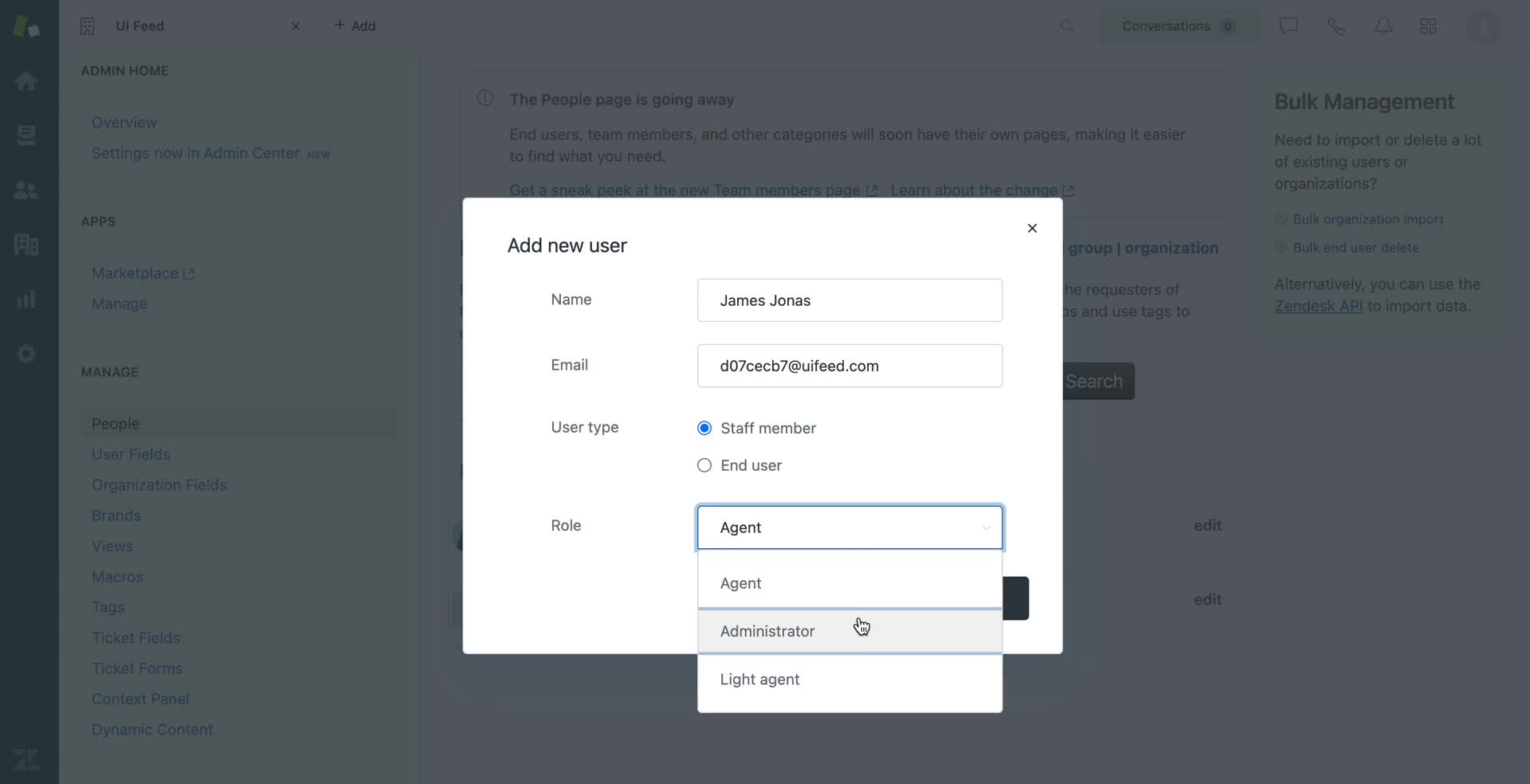
Select role
this is title
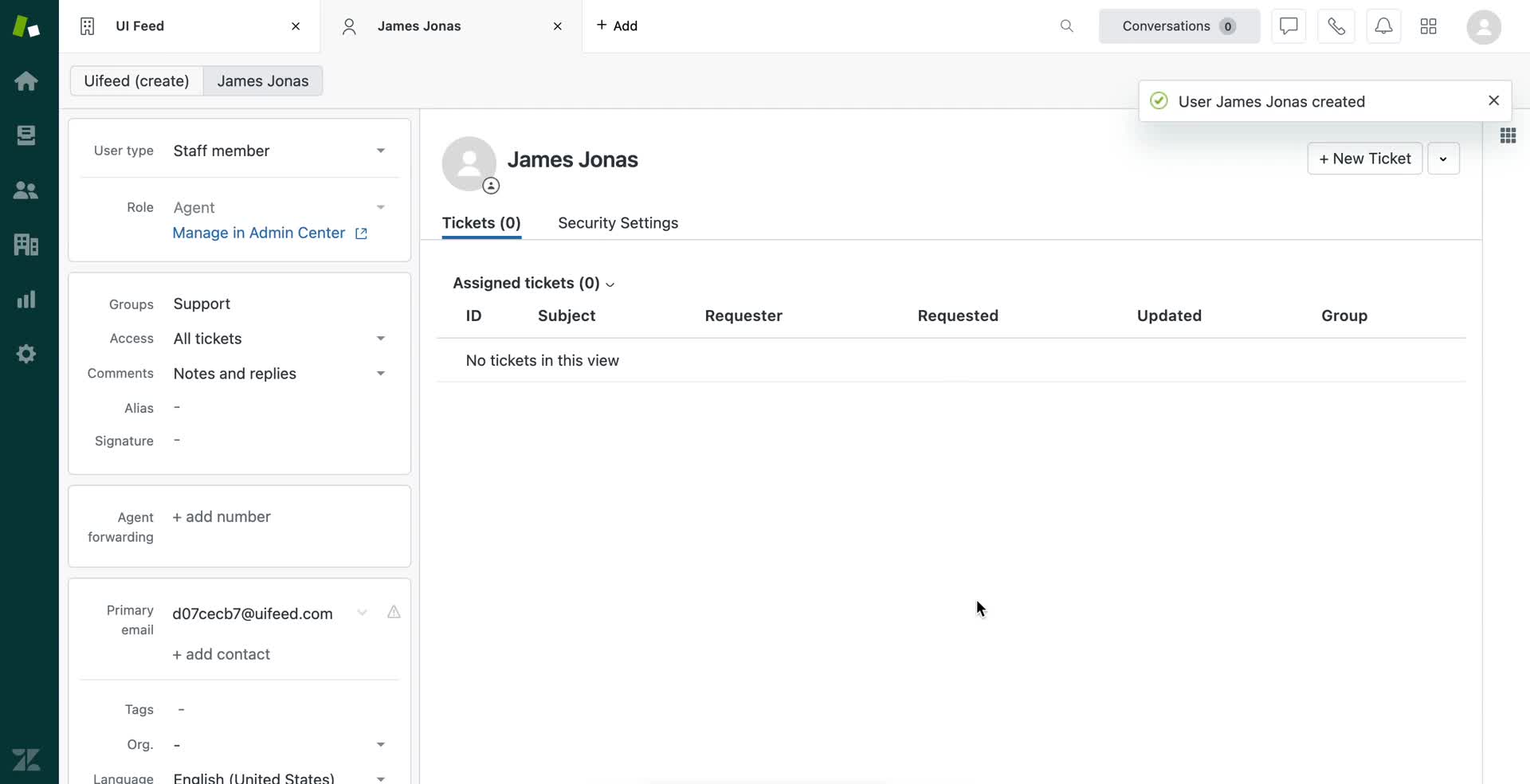
New user created
this is title
Home
this is title
Admin home
this is title
People
this is title
Add new user
this is title
New user created
this is title
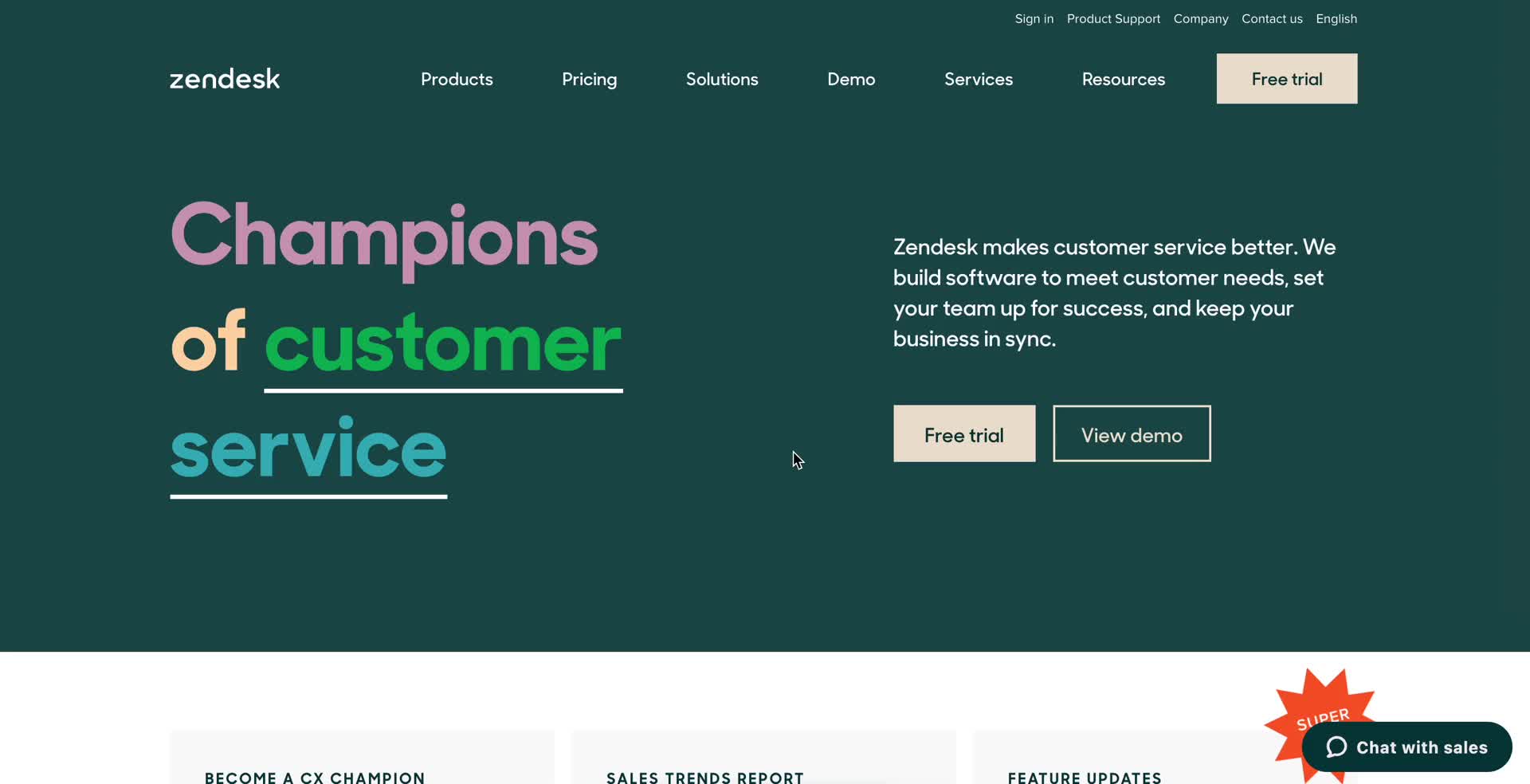
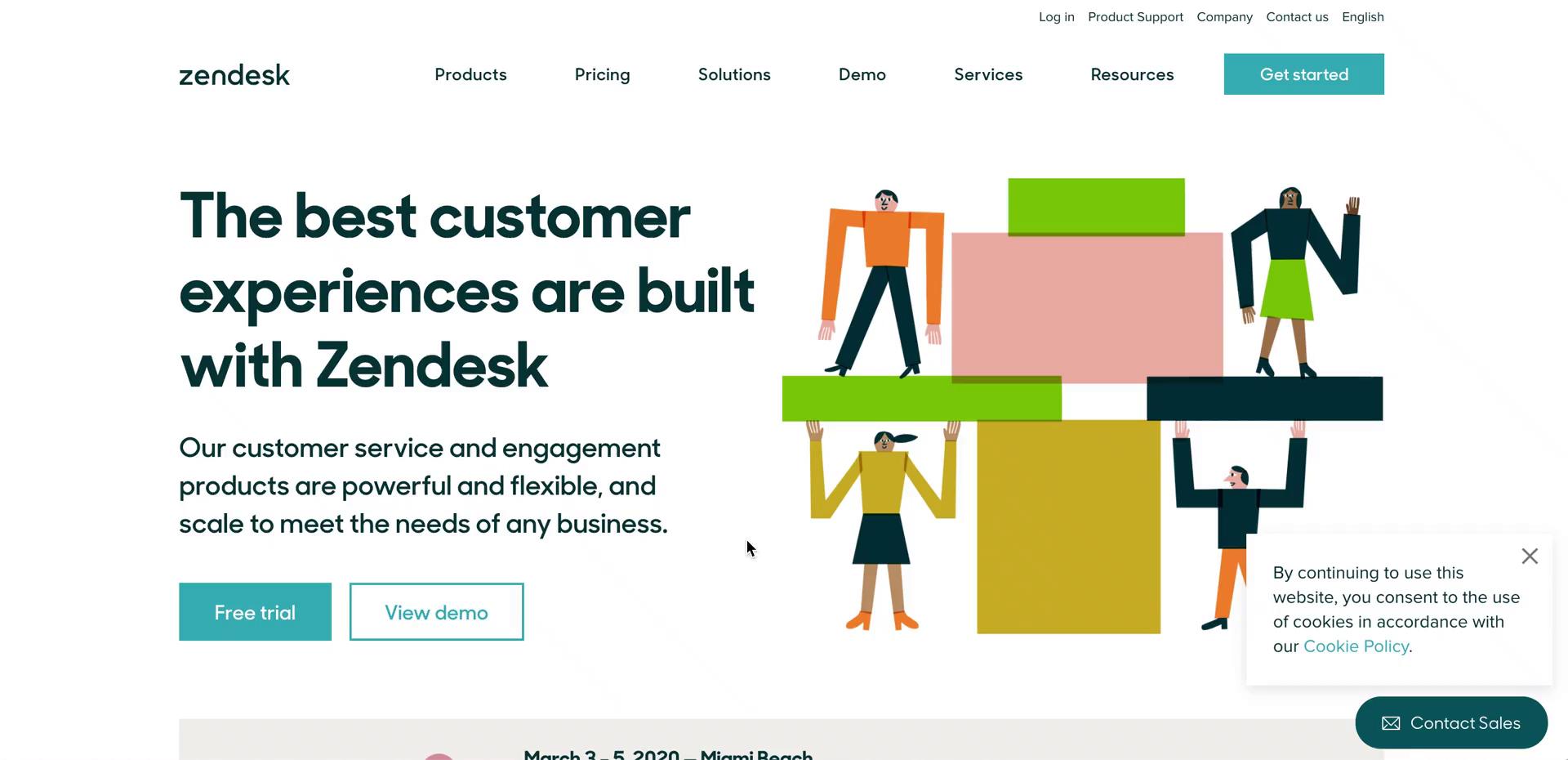
Homepage
this is title
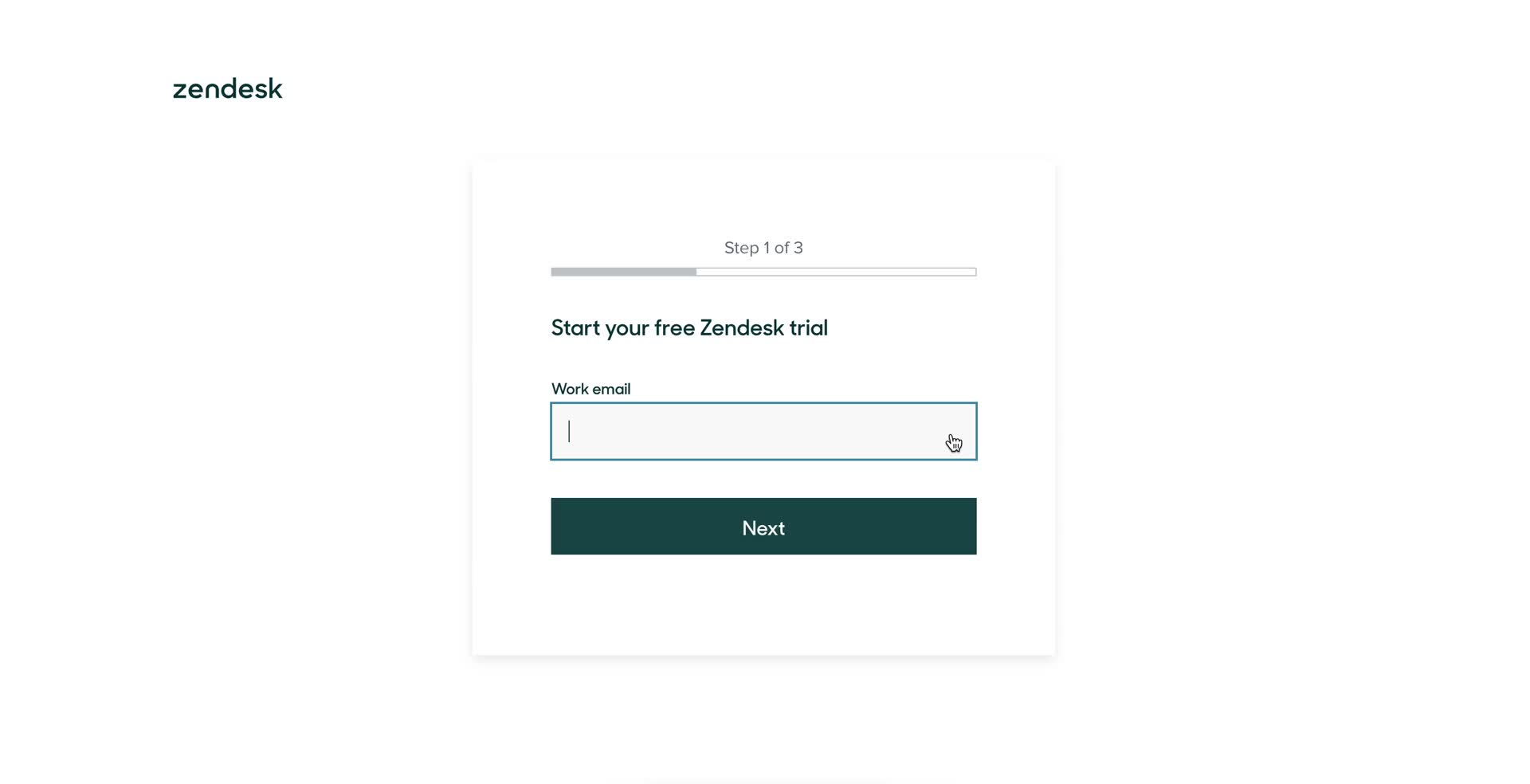
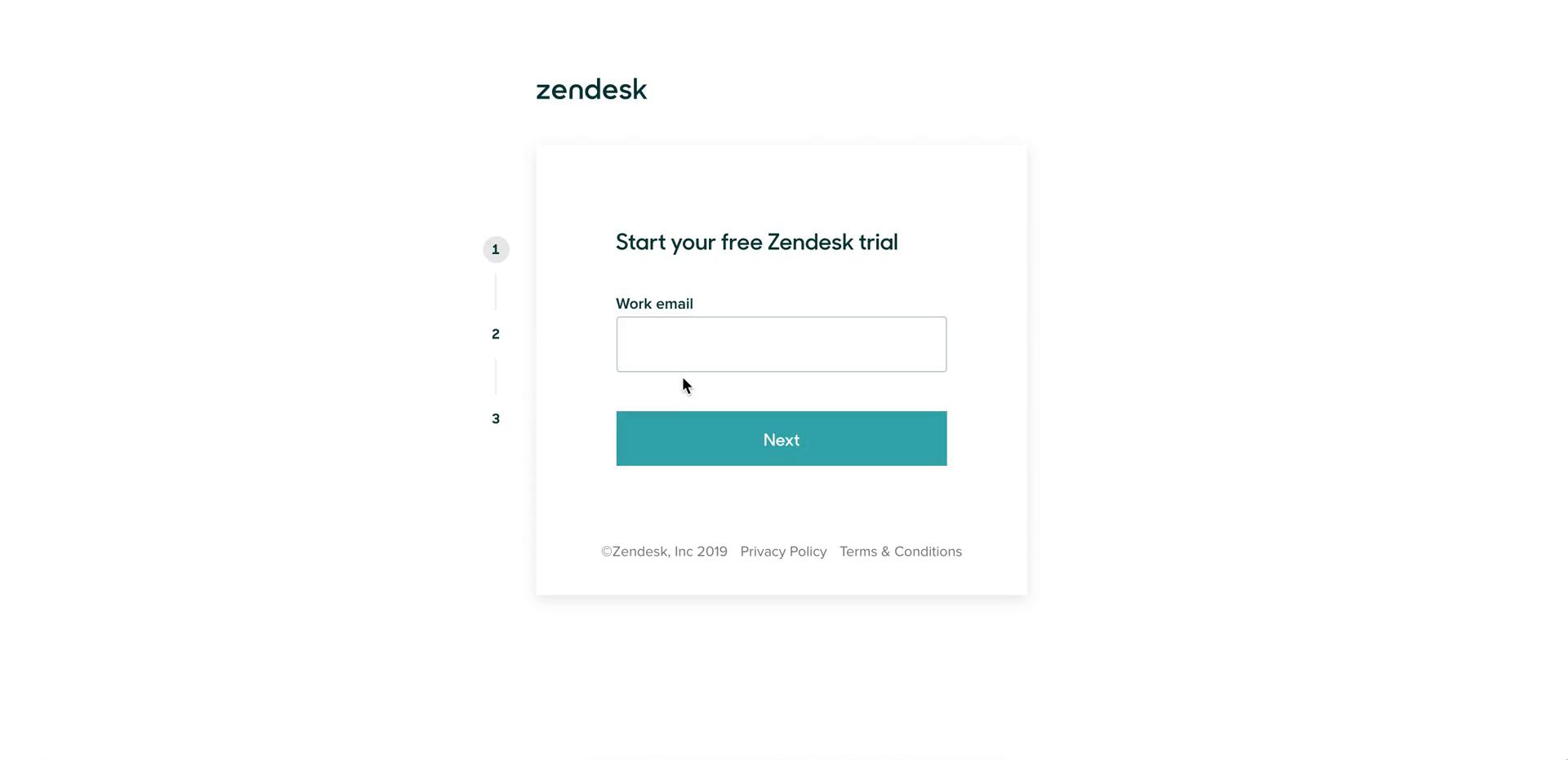
Start trial
this is title
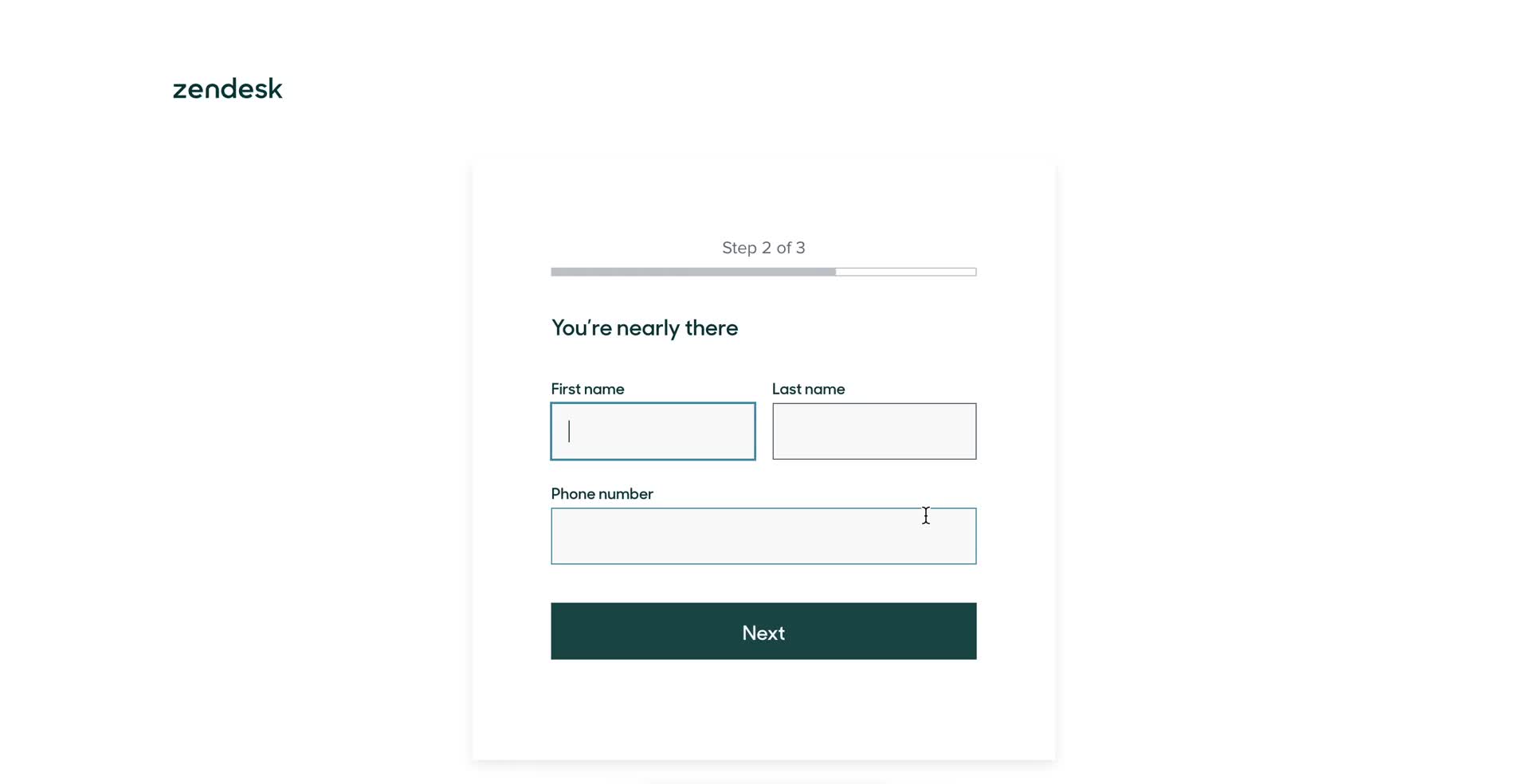
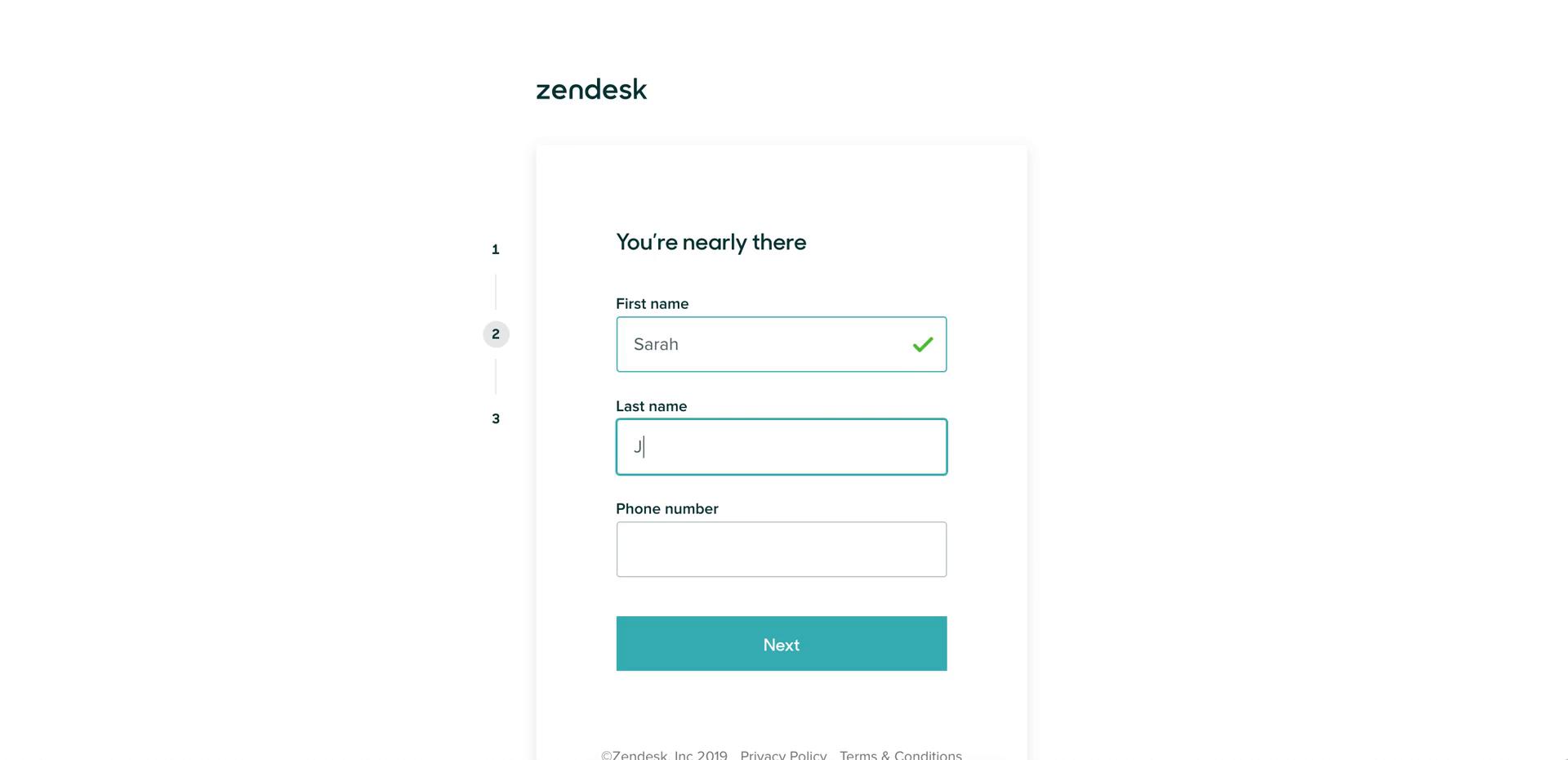
Complete profile
this is title
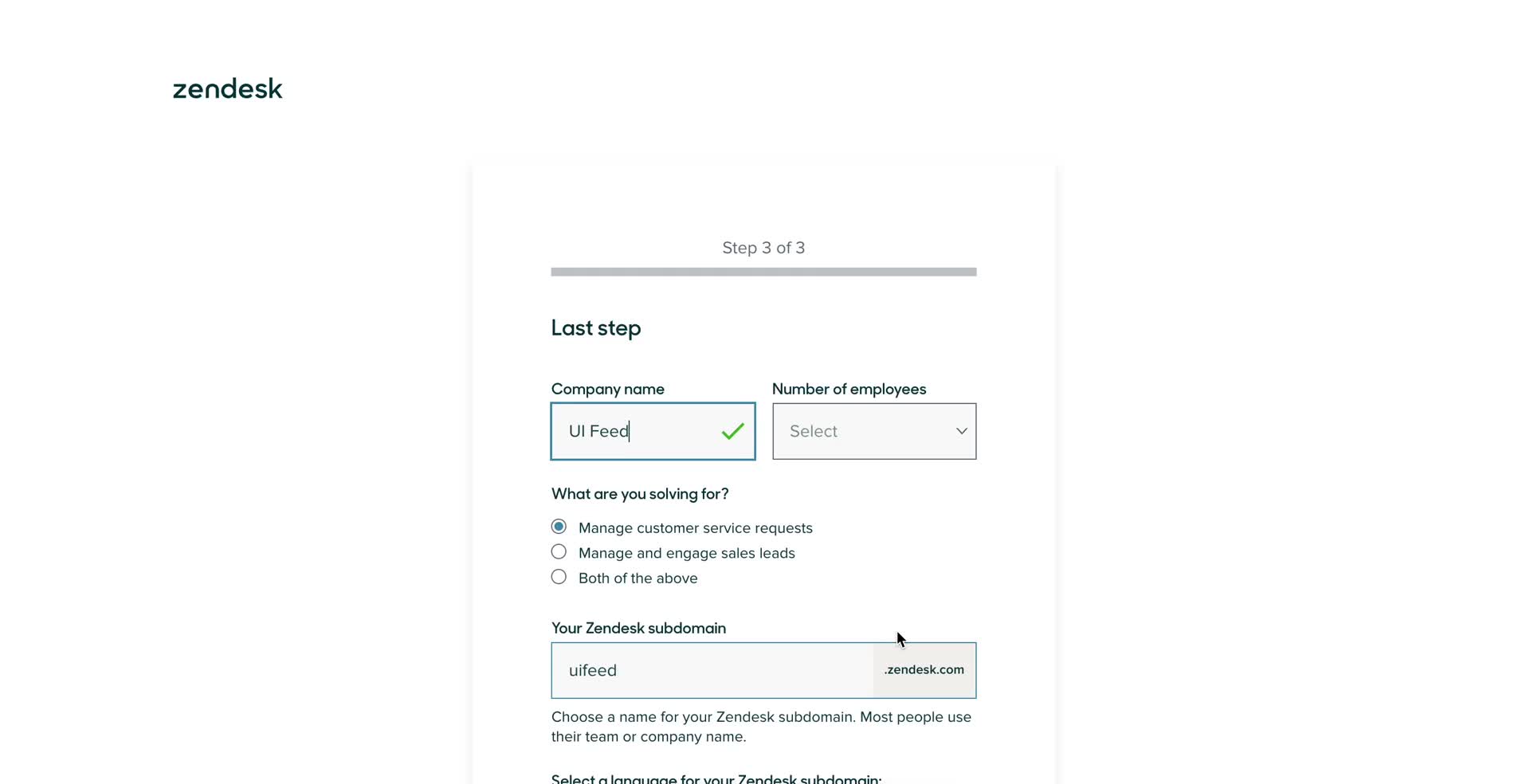
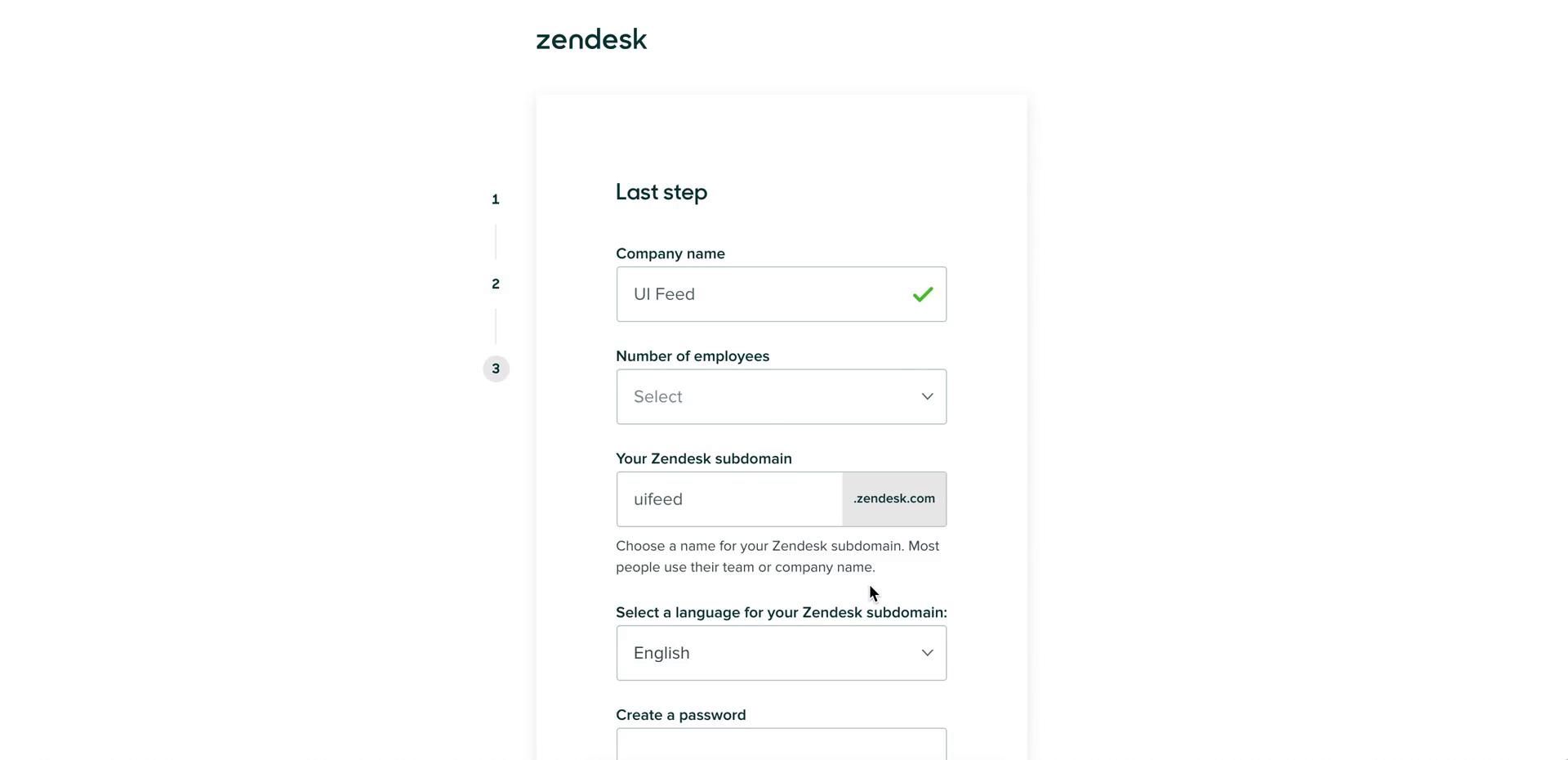
Add company details
this is title
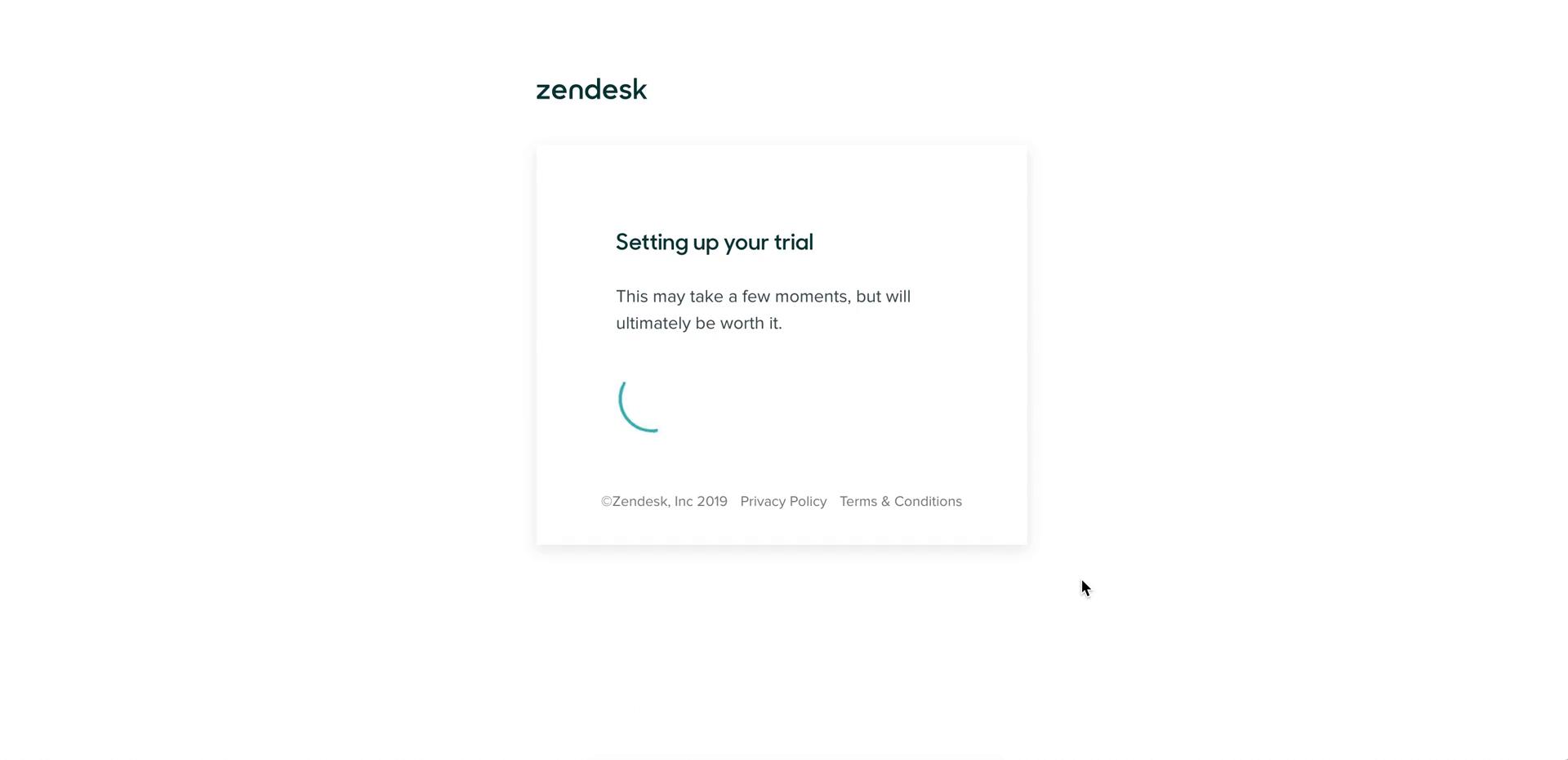
Setting up trial
this is title
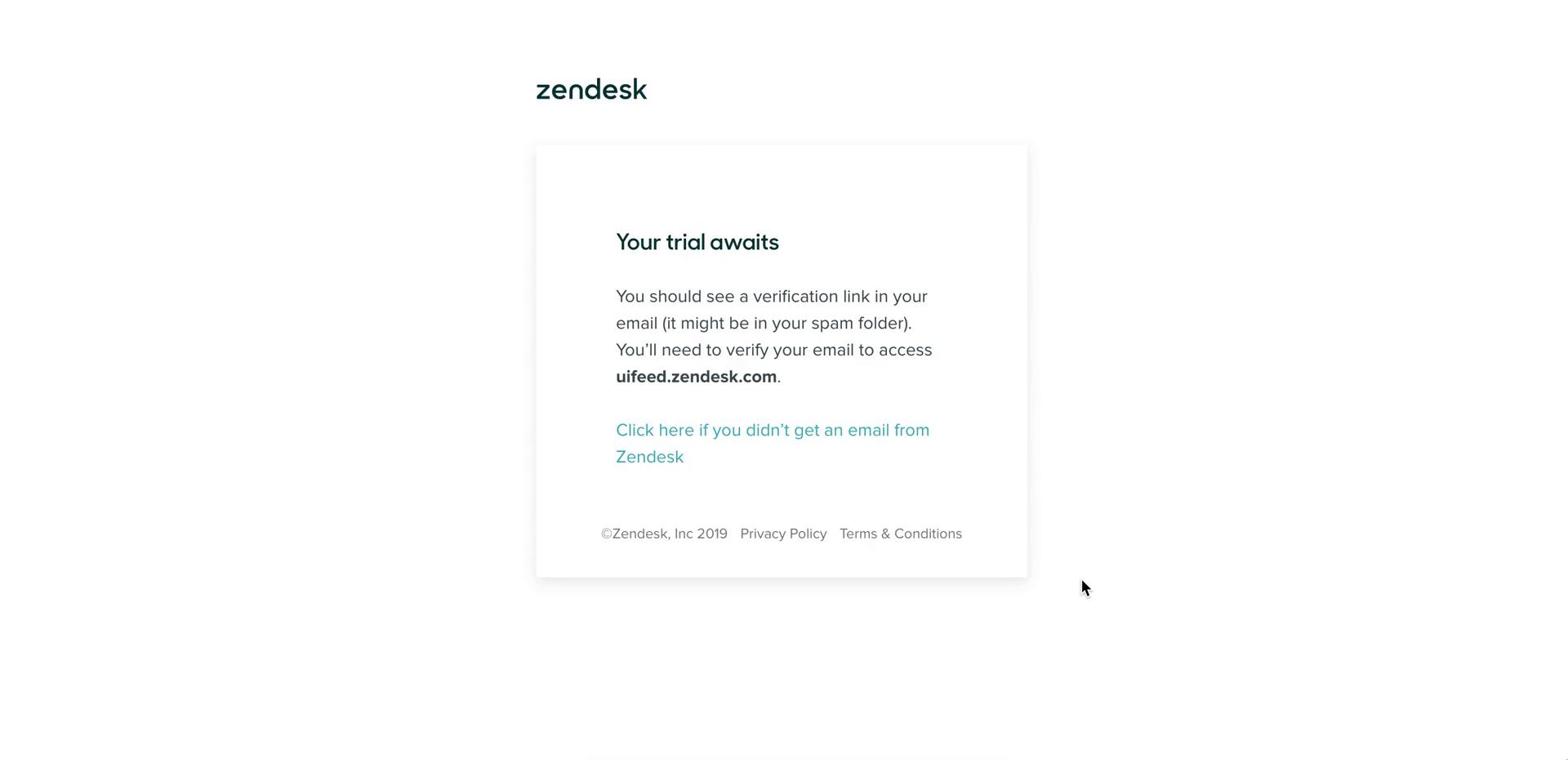
Check your inbox
this is title
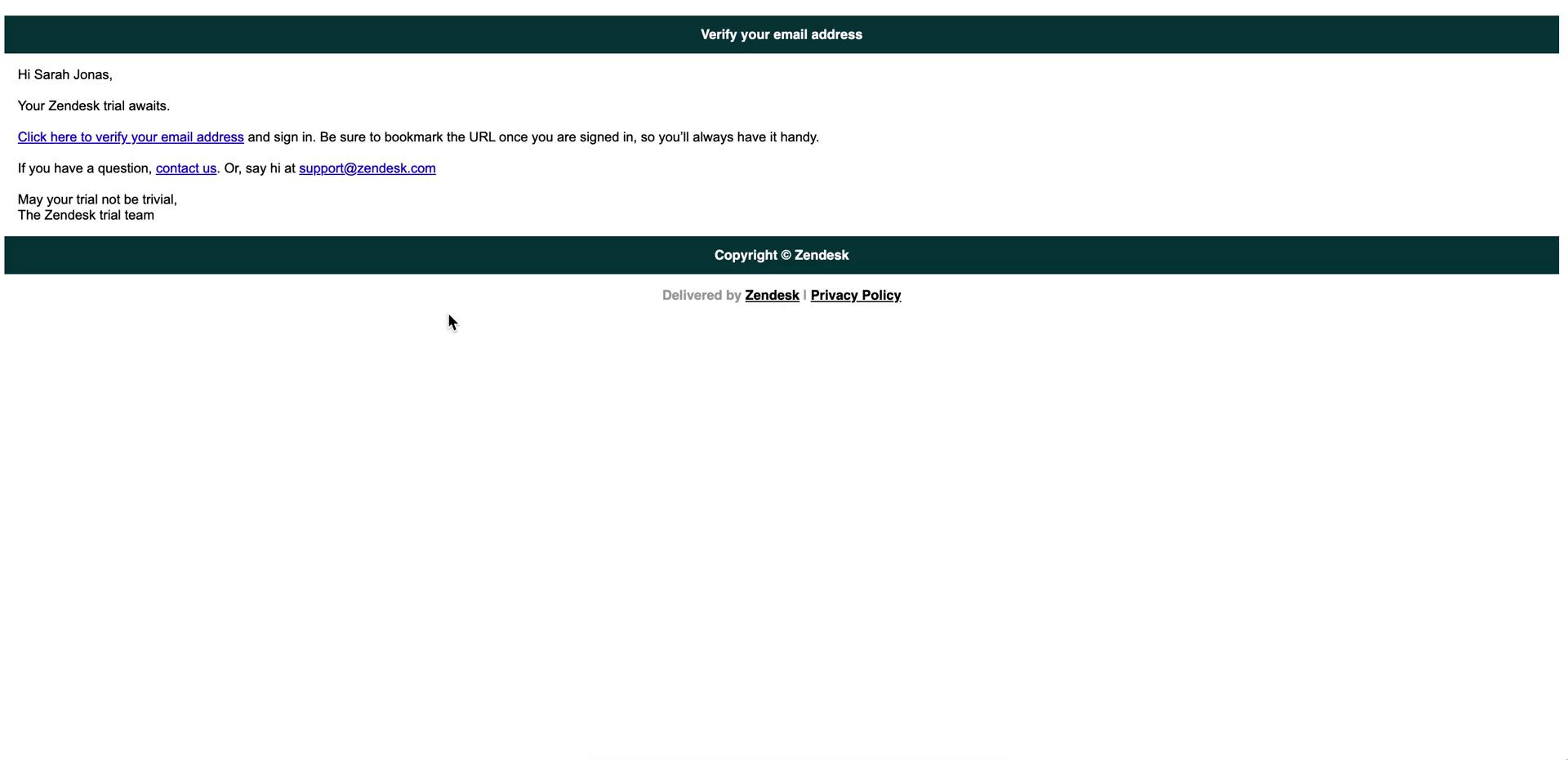
Verify email
this is title
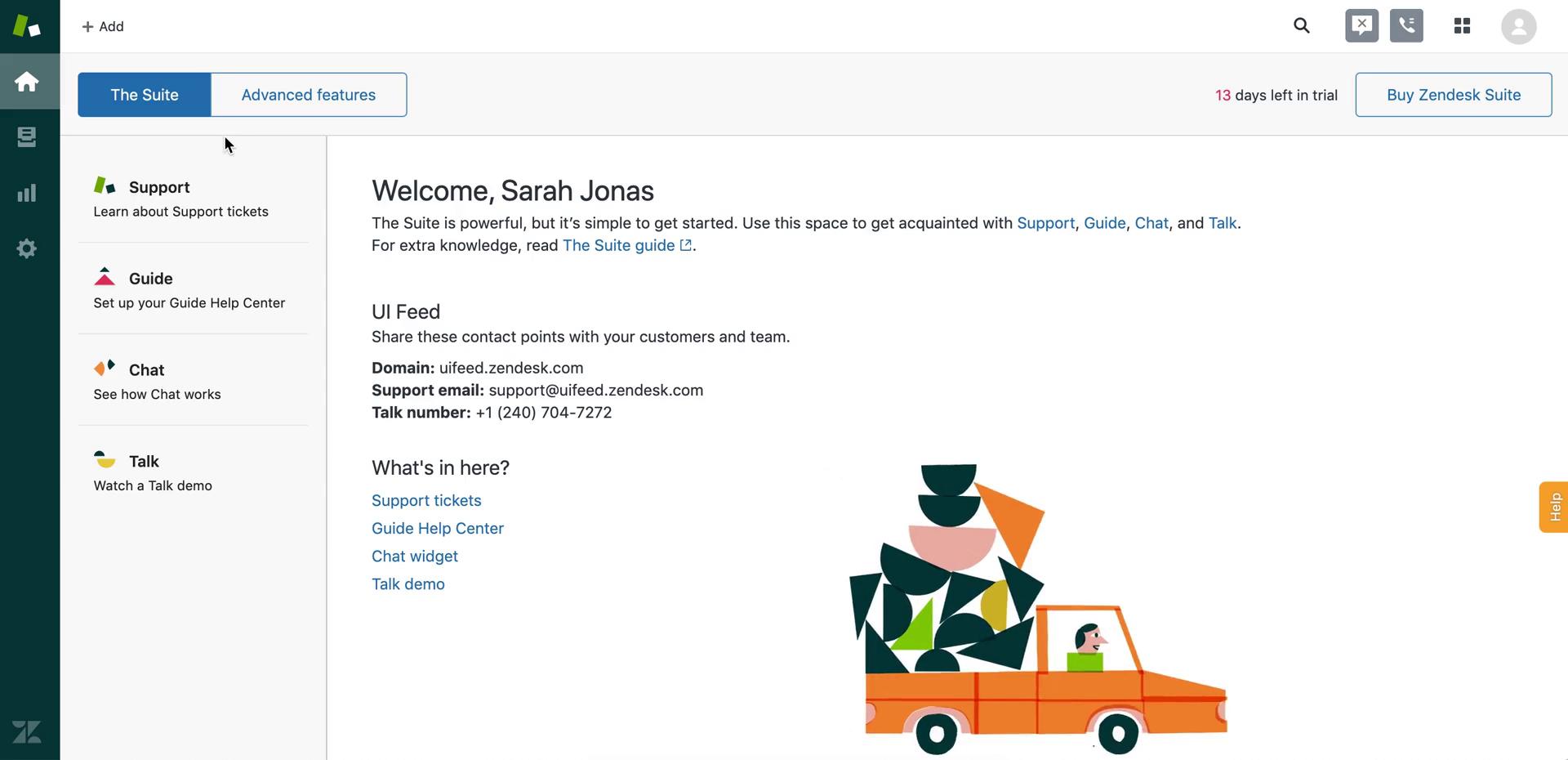
Welcome
this is title
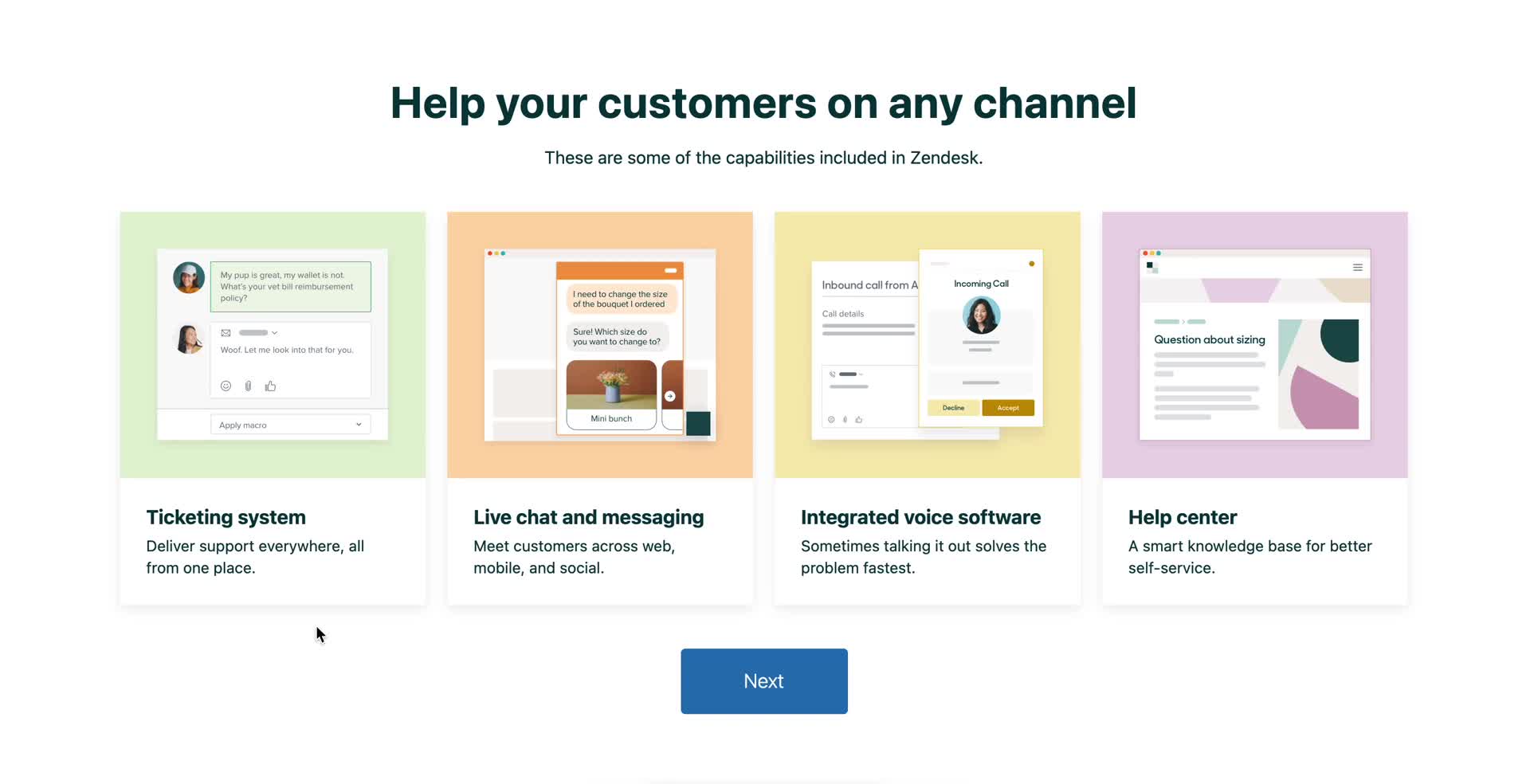
Continue setup
this is title
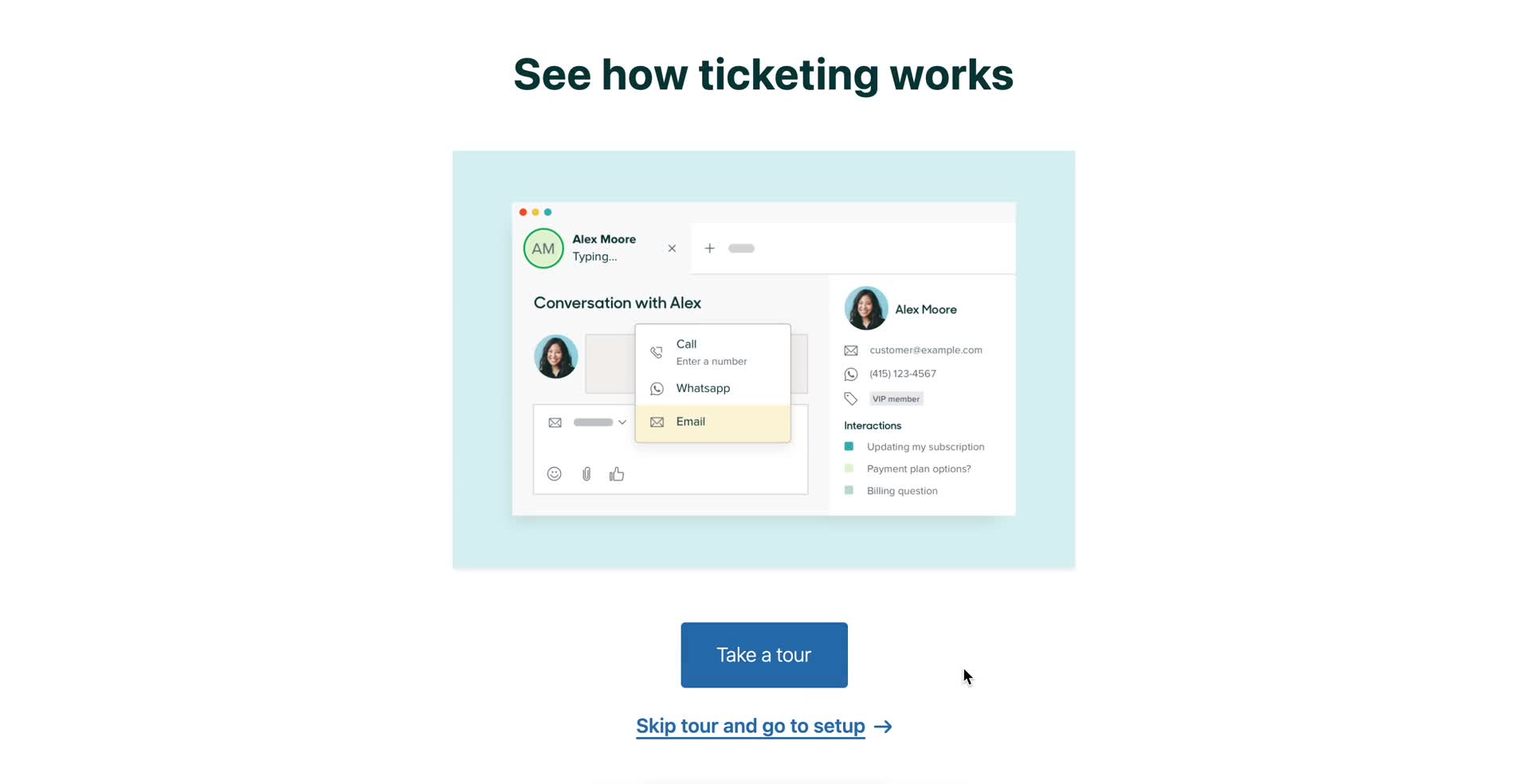
Start product tour
this is title
Guided tour
this is title
Guided tour
this is title
Guided tour
this is title
Guided tour
this is title
Getting started page
this is title
Invite team
this is title
Guide video
this is title
Guide
this is title
Guided tour
this is title
Guided tour
this is title
Guided tour
this is title
Guided tour
this is title
Guide video
this is title
Install snippet
this is title
Connect social account
this is title
Getting started page
this is title
Select plan
this is title
Select plan
this is title
Customize plan
this is title
Select plan
this is title
Guided tour
this is title
Admin center
this is title
Apps
this is title
Getting started page
this is title
Dashboard
this is title
Homepage
this is title
Sign up
this is title
Sign up
this is title
Company details
this is title
Setting up trial
this is title
Check your inbox
this is title
Verify email
this is title
Home
this is title
Home
this is title
Dashboard
this is title
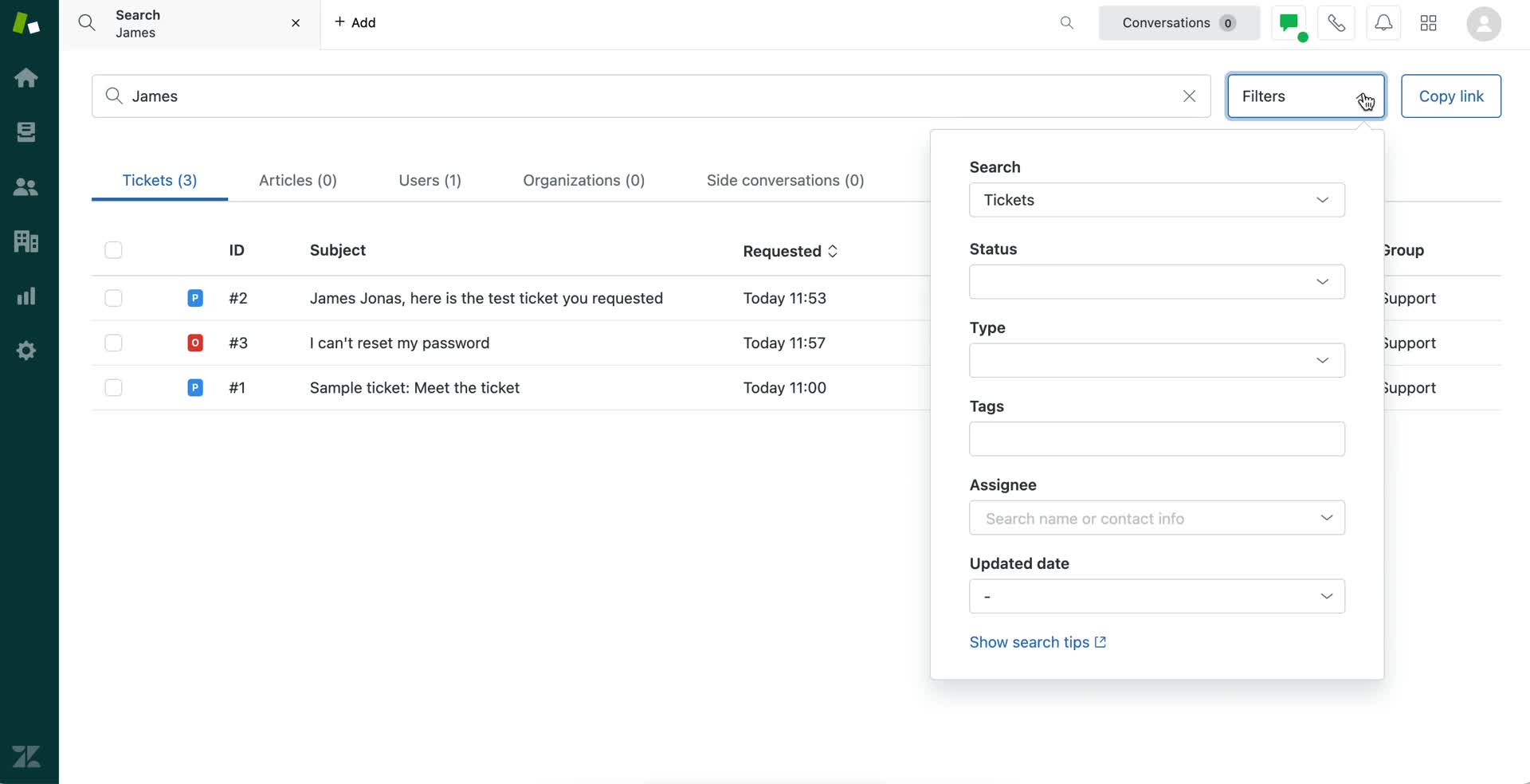
Search
this is title
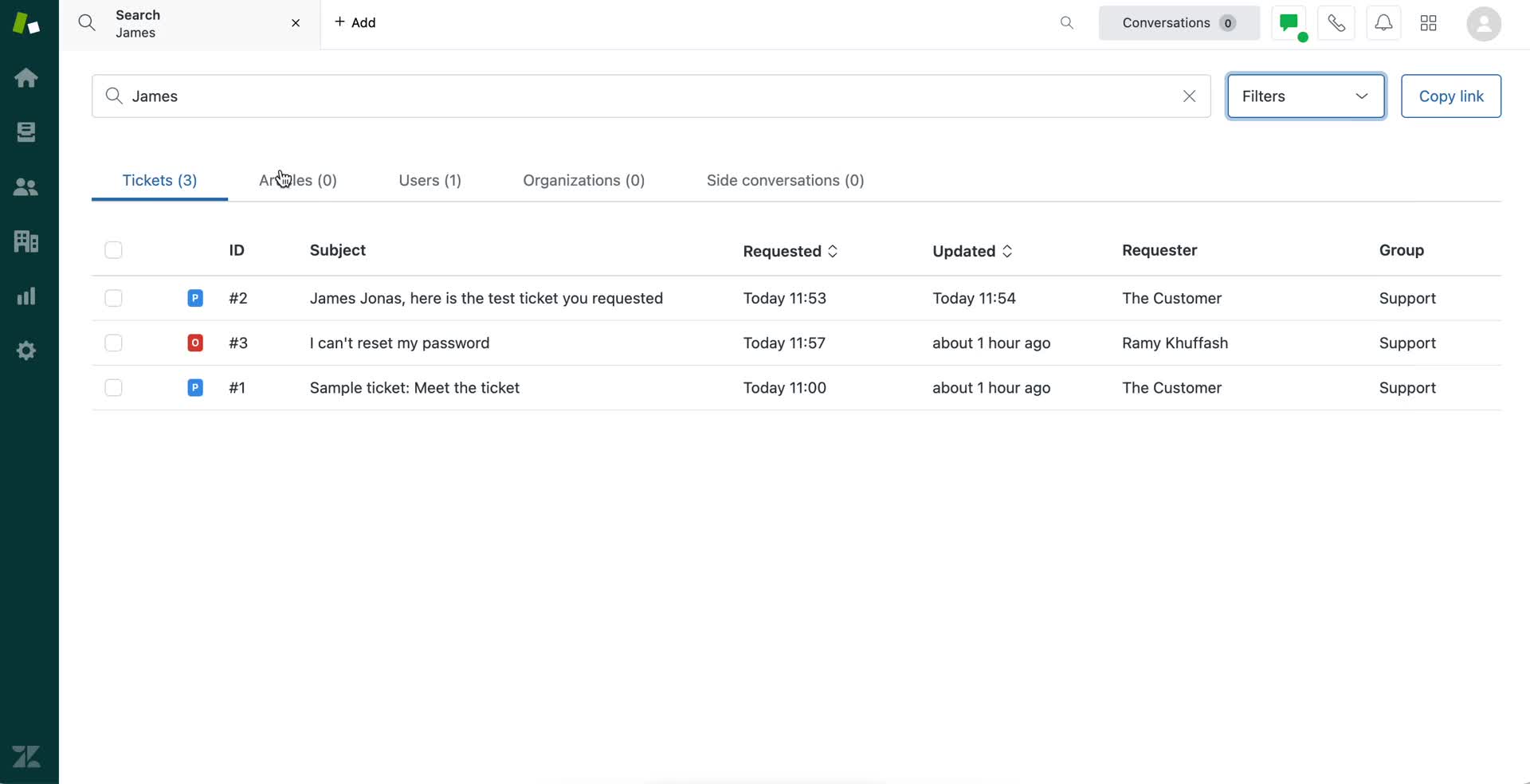
Search results
this is title
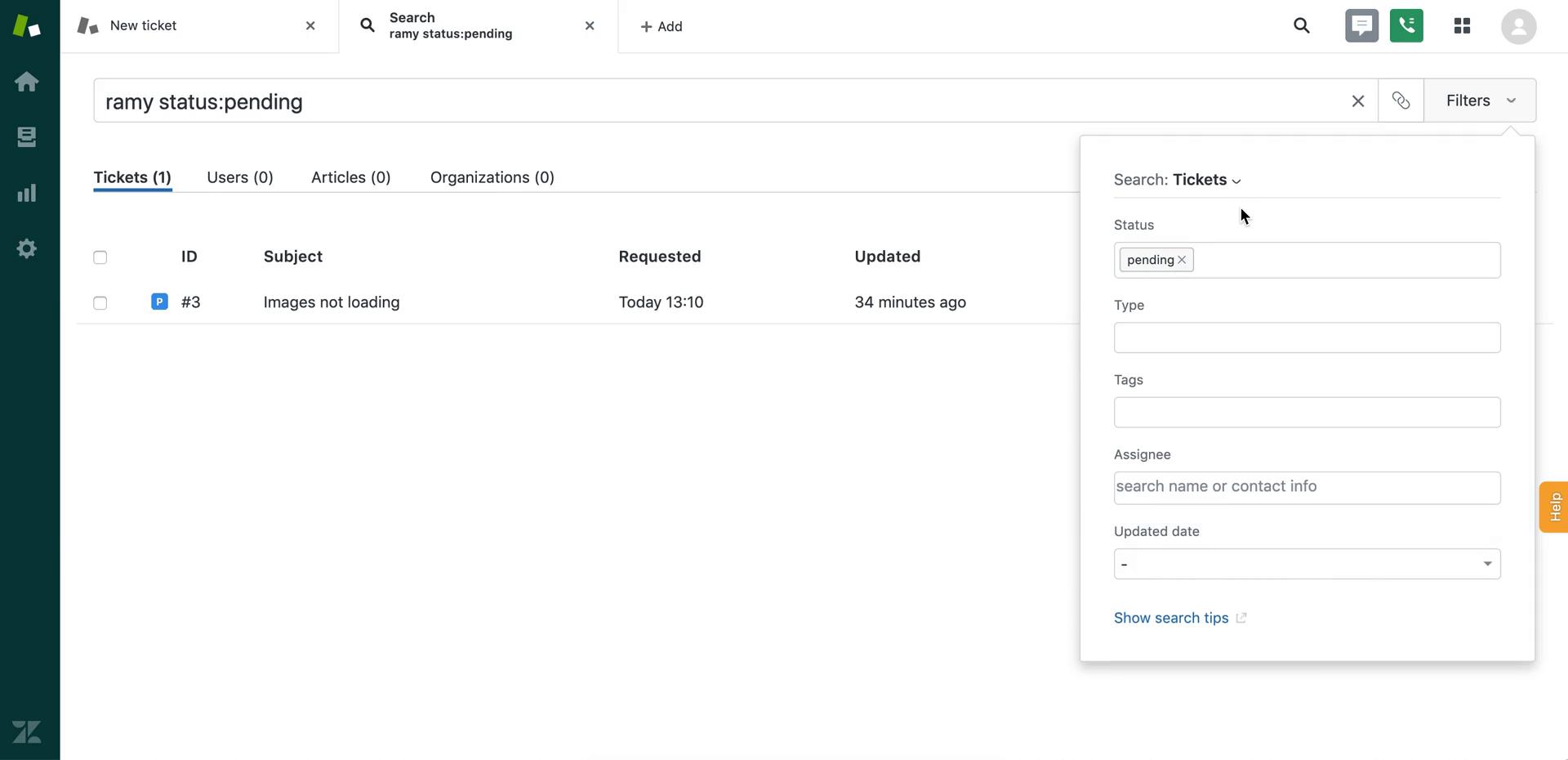
Filter
this is title
Filtered results
this is title
Search results
this is title
Search results
this is title
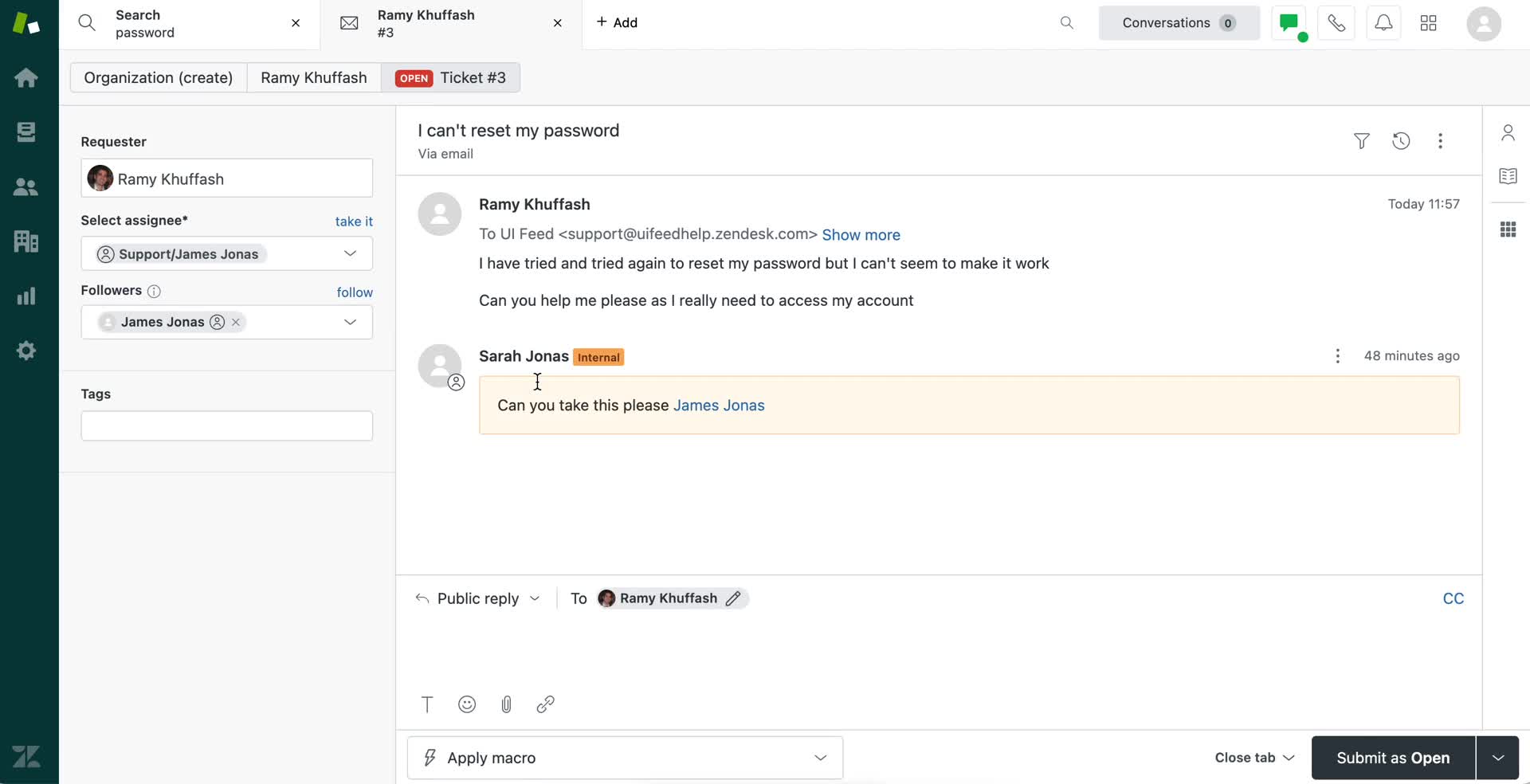
Support ticket
this is title
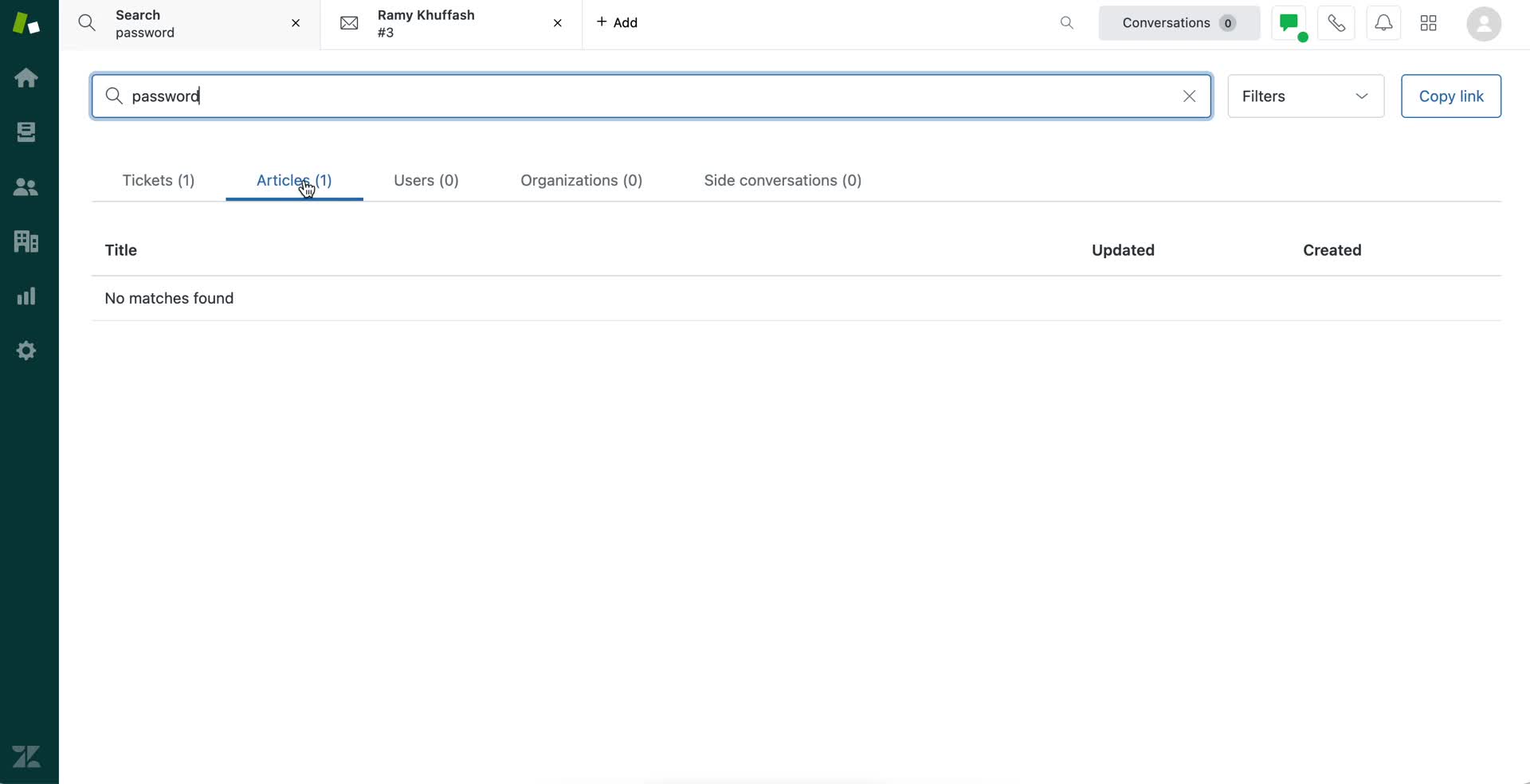
Search results
this is title
Home
this is title
Search
this is title
Search results
this is title
Filter
this is title