Web Tasks in Pipedrive

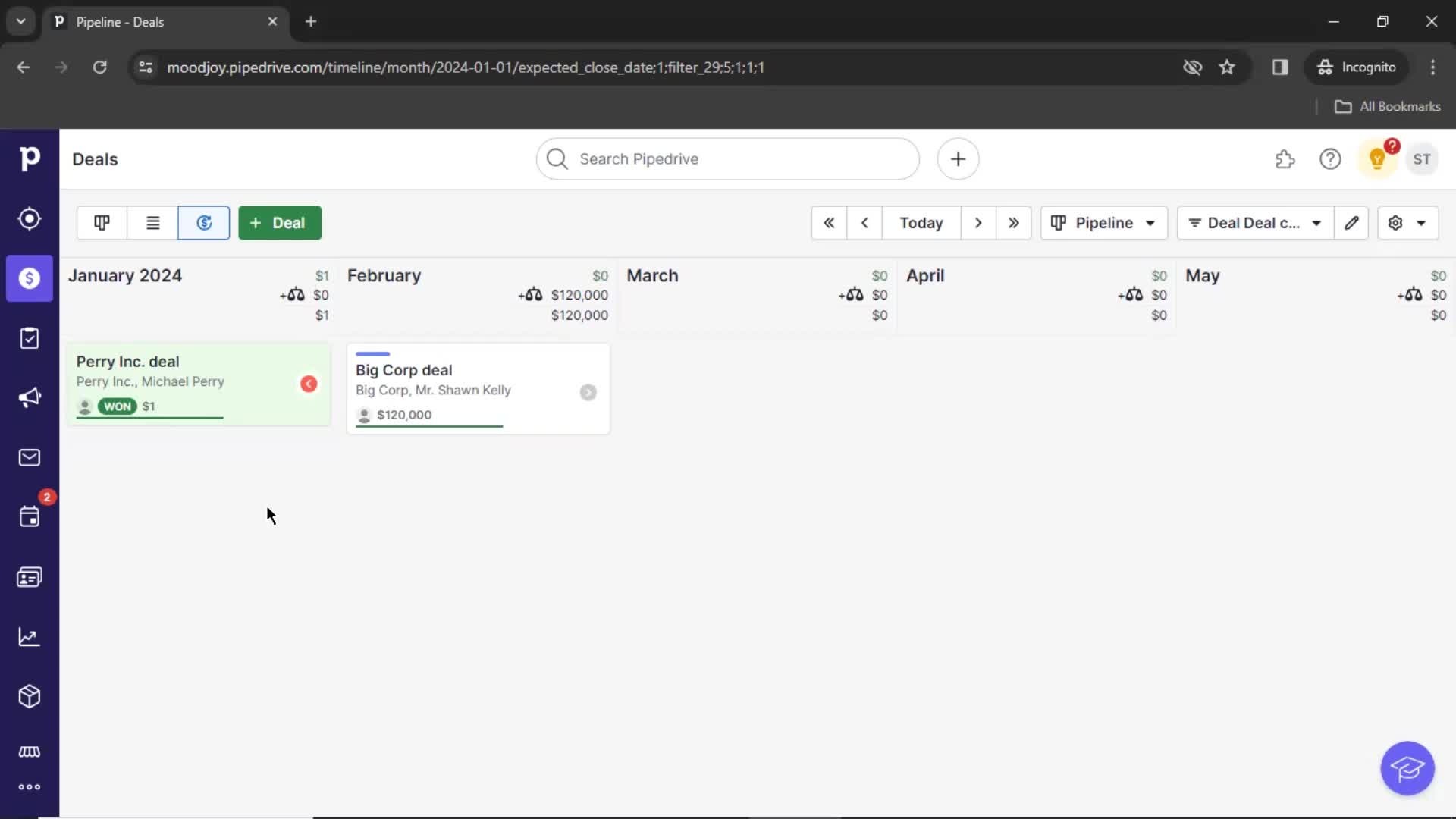
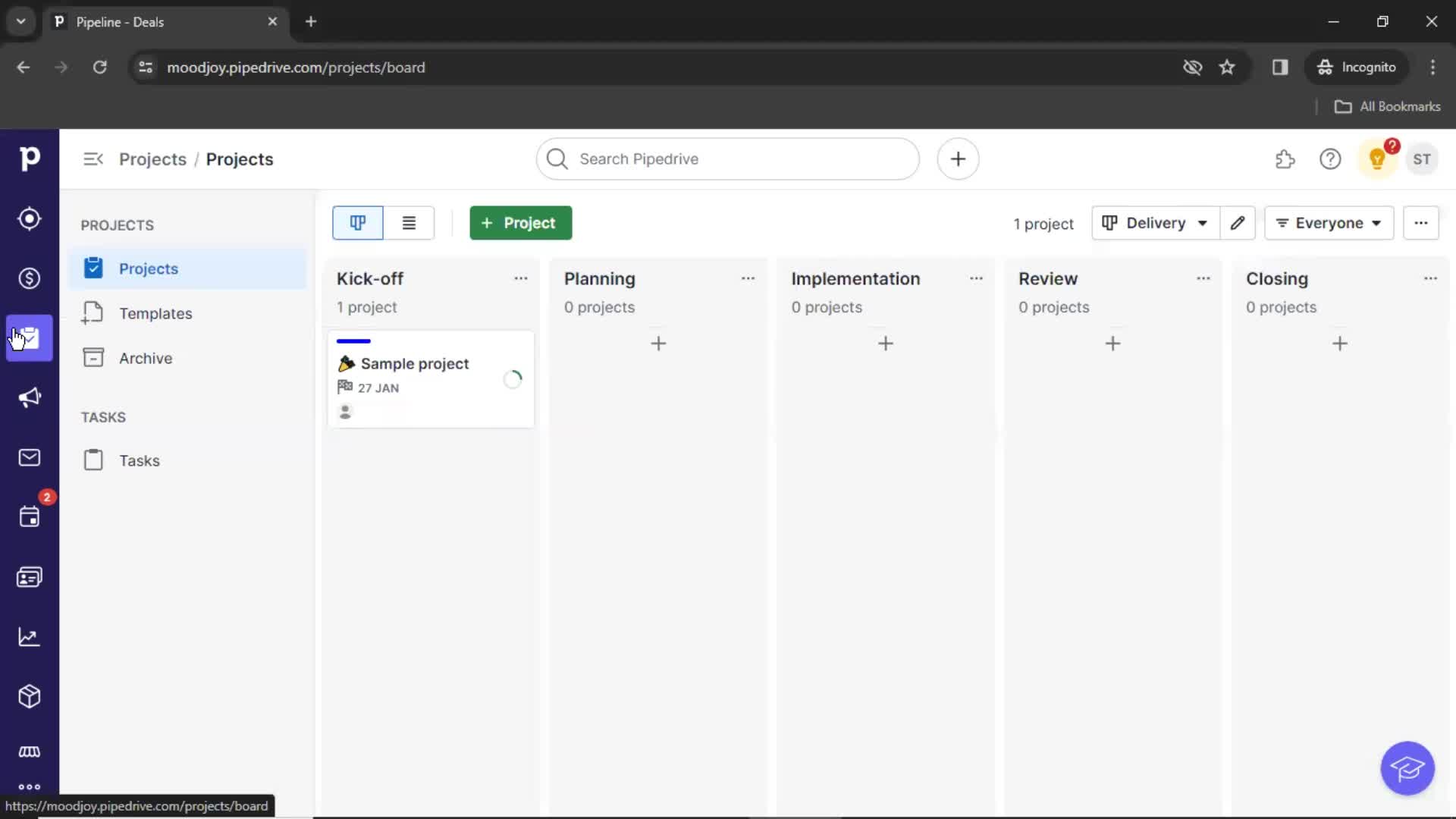
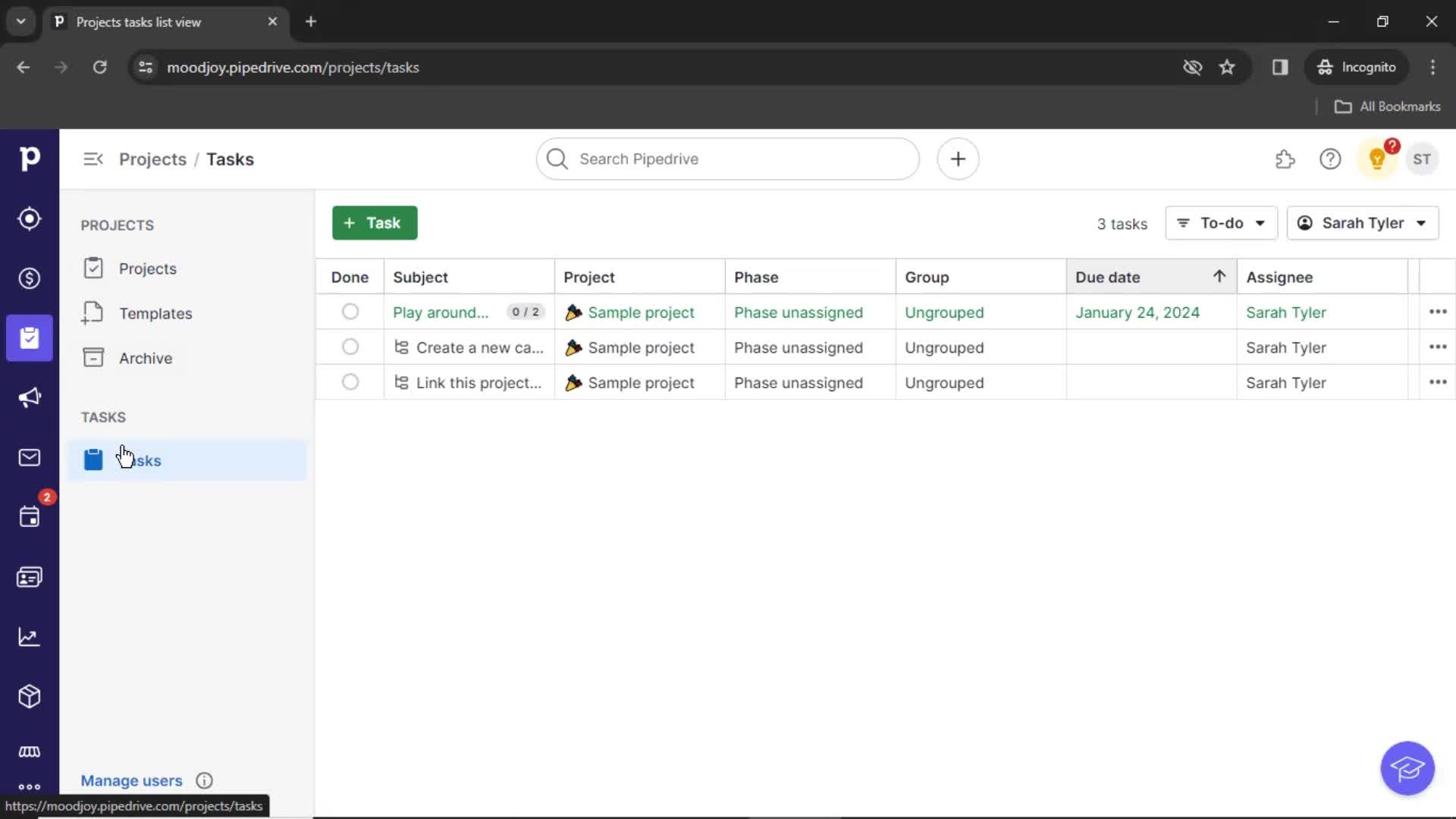
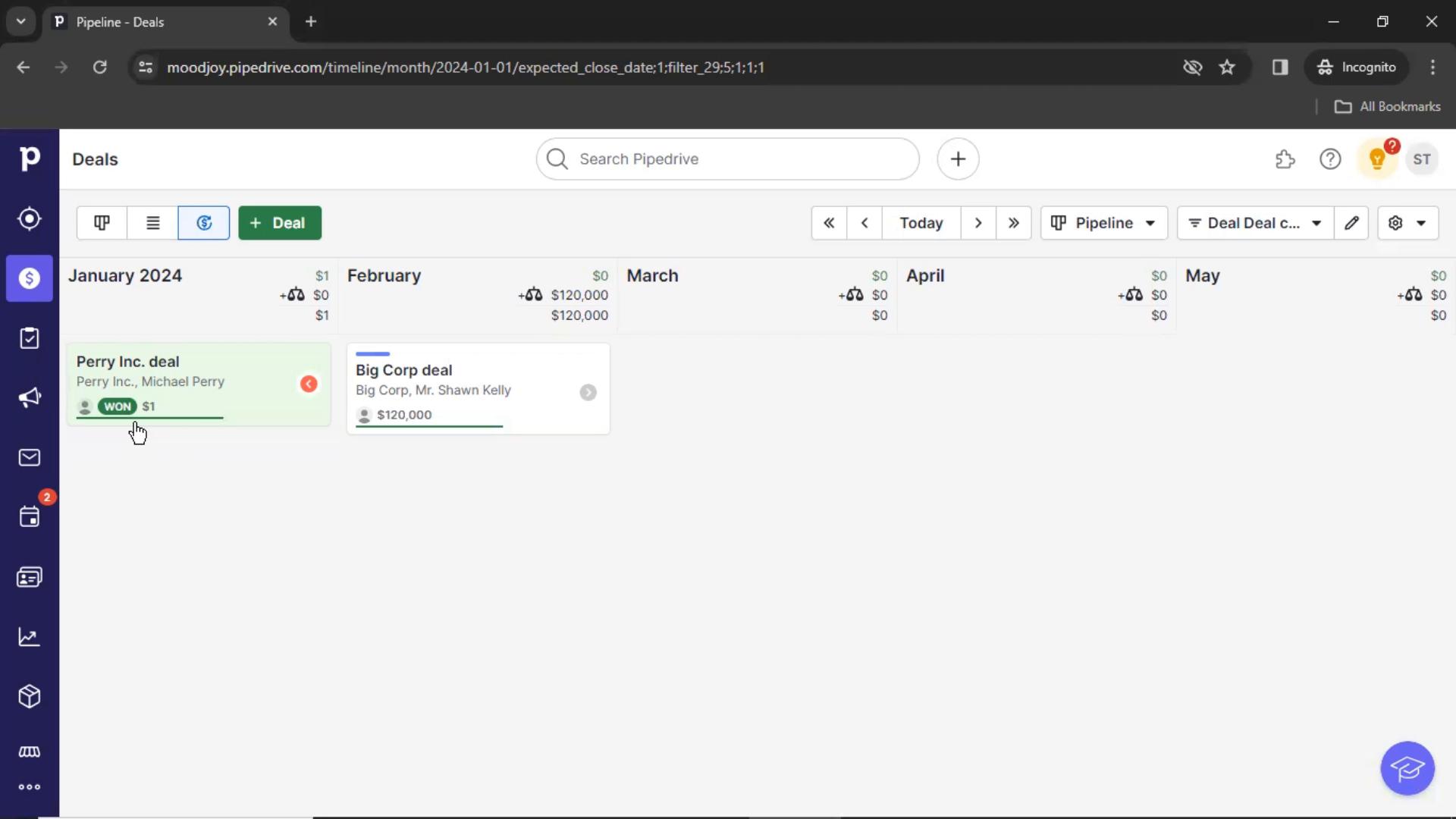
Watch a recorded Tasks flow inside Pipedrive on desktop web. Every screen and interaction is captured step by step — see exactly how Pipedrive designs the Tasks experience for web users.

Pipedrive is a user-friendly customer relationship management (CRM) tool designed to streamline sales processes. It helps sales teams track leads, manage pipelines, and automate tasks with intuitive visual dashboards. The platform integrates with various apps and offers mobile access, ensuring that sales professionals can manage deals and collaborate efficiently from anywhere.

  • Web
Video preview
In this video
  • Home
  • Projects
  • Task
  • Create task
  • Set name
  • Assignees
  • Set due date
  • Name your project
  • Set status
  • Select group
  • Add description
  • Edit text
  • Save
  • Task created
  • Marked as done
  • Task details
  • Add subtask
  • Assign
  • Previous
  • Next
  • Close
  • Marked as done
  • Filter
  • Filtered results
  • Action menu
  • Confirm delete
  • Marked as done
  • Projects
  • Project details
  • Add task
  • Add subject
  • Add subtask
  • Add subject
  • Save
  • Edit task details
  • Assign
  • Set due date
  • Save
  • Update status
  • Task completed
Tasks 57 Screens
Tasks screenshot
Home
Tasks screenshot
Projects
Tasks screenshot
Task
Tasks screenshot

Sign up to unlock this user flow

Try 3 Days
Tasks screenshot

Sign up to unlock this user flow

Try 3 Days
Create task
Tasks screenshot

Sign up to unlock this user flow

Try 3 Days
Set name
Tasks screenshot

Sign up to unlock this user flow

Try 3 Days
Assignees
Tasks screenshot

Sign up to unlock this user flow

Try 3 Days
Tasks screenshot

Sign up to unlock this user flow

Try 3 Days
Set due date
Tasks screenshot

Sign up to unlock this user flow

Try 3 Days
Tasks screenshot

Sign up to unlock this user flow

Try 3 Days
Name your project
Tasks screenshot

Sign up to unlock this user flow

Try 3 Days
Tasks screenshot

Sign up to unlock this user flow

Try 3 Days
Set status
Tasks screenshot

Sign up to unlock this user flow

Try 3 Days
Tasks screenshot

Sign up to unlock this user flow

Try 3 Days
Select group
Tasks screenshot

Sign up to unlock this user flow

Try 3 Days
Add description
Tasks screenshot

Sign up to unlock this user flow

Try 3 Days
Edit text
Tasks screenshot

Sign up to unlock this user flow

Try 3 Days
Tasks screenshot

Sign up to unlock this user flow

Try 3 Days
Save
Tasks screenshot

Sign up to unlock this user flow

Try 3 Days
Task created
Tasks screenshot

Sign up to unlock this user flow

Try 3 Days
Marked as done
Tasks screenshot

Sign up to unlock this user flow

Try 3 Days
Tasks screenshot

Sign up to unlock this user flow

Try 3 Days
Task details
Tasks screenshot

Sign up to unlock this user flow

Try 3 Days
Tasks screenshot

Sign up to unlock this user flow

Try 3 Days
Add subtask
Tasks screenshot

Sign up to unlock this user flow

Try 3 Days
Assign
Tasks screenshot

Sign up to unlock this user flow

Try 3 Days
Previous
Tasks screenshot

Sign up to unlock this user flow

Try 3 Days
Next
Tasks screenshot

Sign up to unlock this user flow

Try 3 Days
Close
Tasks screenshot

Sign up to unlock this user flow

Try 3 Days
Tasks screenshot

Sign up to unlock this user flow

Try 3 Days
Marked as done
Tasks screenshot

Sign up to unlock this user flow

Try 3 Days
Tasks screenshot

Sign up to unlock this user flow

Try 3 Days
Filter
Tasks screenshot

Sign up to unlock this user flow

Try 3 Days
Filtered results
Tasks screenshot

Sign up to unlock this user flow

Try 3 Days
Action menu
Tasks screenshot

Sign up to unlock this user flow

Try 3 Days
Confirm delete
Tasks screenshot

Sign up to unlock this user flow

Try 3 Days
Marked as done
Tasks screenshot

Sign up to unlock this user flow

Try 3 Days
Tasks screenshot

Sign up to unlock this user flow

Try 3 Days
Projects
Tasks screenshot

Sign up to unlock this user flow

Try 3 Days
Project details
Tasks screenshot

Sign up to unlock this user flow

Try 3 Days
Add task
Tasks screenshot

Sign up to unlock this user flow

Try 3 Days
Add subject
Tasks screenshot

Sign up to unlock this user flow

Try 3 Days
Tasks screenshot

Sign up to unlock this user flow

Try 3 Days
Add subtask
Tasks screenshot

Sign up to unlock this user flow

Try 3 Days
Add subject
Tasks screenshot

Sign up to unlock this user flow

Try 3 Days
Tasks screenshot

Sign up to unlock this user flow

Try 3 Days
Save
Tasks screenshot

Sign up to unlock this user flow

Try 3 Days
Edit task details
Tasks screenshot

Sign up to unlock this user flow

Try 3 Days
Assign
Tasks screenshot

Sign up to unlock this user flow

Try 3 Days
Tasks screenshot

Sign up to unlock this user flow

Try 3 Days
Set due date
Tasks screenshot

Sign up to unlock this user flow

Try 3 Days
Tasks screenshot

Sign up to unlock this user flow

Try 3 Days
Save
Tasks screenshot

Sign up to unlock this user flow

Try 3 Days
Tasks screenshot

Sign up to unlock this user flow

Try 3 Days
Update status
Tasks screenshot

Sign up to unlock this user flow

Try 3 Days
Tasks screenshot

Sign up to unlock this user flow

Try 3 Days
Task completed
Unlock 27 hidden flows

Log In or Sign Up to See All
Pipedrive Flows

  • Home
  • Projects
  • Task
  • Create task
  • Set name
  • Assignees
  • Set due date
  • Name your project
  • Set status
  • Select group
  • Add description
  • Edit text
  • Save
  • Task created
  • Marked as done
  • Task details
  • Add subtask
  • Assign
  • Previous
  • Next
  • Close
  • Marked as done
  • Filter
  • Filtered results
  • Action menu
  • Confirm delete
  • Marked as done
  • Projects
  • Project details
  • Add task
  • Add subject
  • Add subtask
  • Add subject
  • Save
  • Edit task details
  • Assign
  • Set due date
  • Save
  • Update status
  • Task completed

Other Business apps you might like

Eventbrite screenshot
Intercom screenshot
Mailchimp screenshot

Pipedrive Tasks Flow on Web — Full Sequence

This recording documents the Tasks flow inside Pipedrive's web experience, captured from the live desktop product. Rather than showing summarized highlights, it preserves the full flow — every screen, hover state, transition, and UX decision — so you can study the real experience, not a press-ready version.

Web-Specific Tasks Design Considerations

Tasks on the web comes with different constraints than mobile: larger screens, multi-column layouts, keyboard shortcuts, and richer interaction possibilities. Pipedrive's approach to Tasks on web reflects those realities, and seeing it in full makes it easy to understand the design decisions behind the flow.

A Reference for Tasks Research on the Web

For growth teams, designers, and PMs researching Tasks patterns on the web, this recording provides a direct reference to a production implementation. For teams benchmarking against Pipedrive specifically, it's a detailed look at how the brand handles this moment of the experience.

Frequently Asked Questions

What does the Pipedrive Tasks flow cover?

The recording captures the full Tasks sequence inside Pipedrive on desktop web — every step, every transition, and every significant design decision from start to finish.

How does Pipedrive's web Tasks differ from its mobile versions?

Web Tasks flows typically use more screen real estate, richer hover interactions, and keyboard-friendly patterns that don't work on mobile. If Pipedrive also has iOS or Android entries, you can cross-reference to see the platform differences.

Can I see Tasks flows from other web products?

Yes. The web Tasks flows category gathers the same flow type from many different web products, so you can compare Pipedrive's approach against competitors and alternatives.

How up to date is the Pipedrive Tasks recording?

Recordings are refreshed when Pipedrive ships notable redesigns, so the Tasks flow reflects the current web experience.